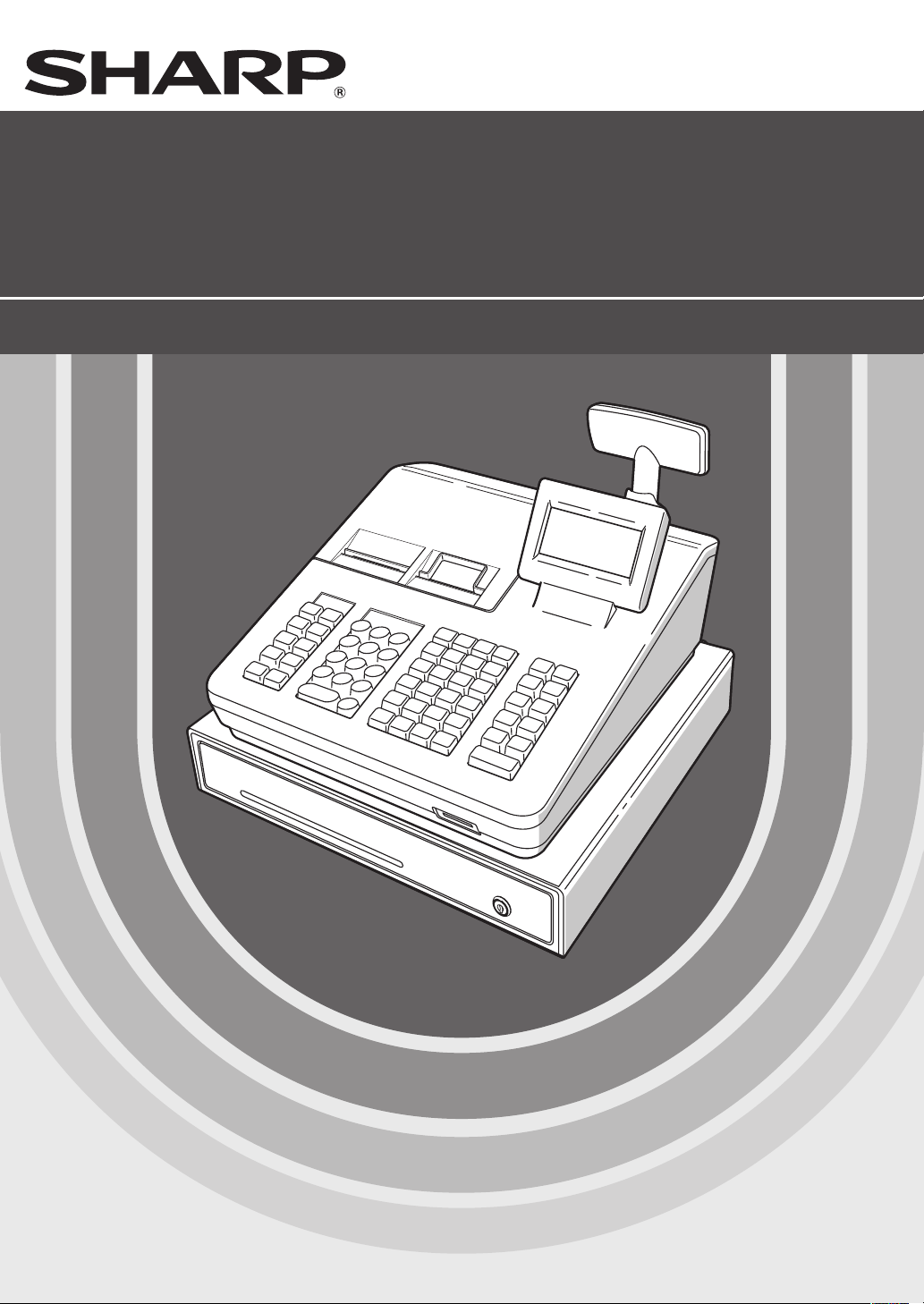
ELECTRONIC CASH REGISTER
INSTRUCTION MANUAL
SHARP ELECTRONICS CORPORATION
Sharp Plaza, Mahwah, New Jersey 07495-1163
1-800-BE-SHARP
For additional information and product registration,
please visit
www.sharpusa.com
Printed in Korea
T(TINSE2625BHZZ)
XE-A407/XE-A43S
MODEL
XE-A407
XE-A43S
FCC Regulations state that any unauthorized changes or modifications to
this equipment not expressly approved by the manufacturer could void
the user’s authority to operate this equipment.
Note: This equipment has been tested and found to comply with the
limits for a Class A digital device, pursuant to Part 15 of the FCC Rules.
These limits are designed to provide reasonable protection against
harmful interference when the equipment is operated in a commercial
environment.
This equipment generates, uses, and can radiate radio frequency energy
and, if not installed and used in accordance with the instruction manual,
may cause harmful interference to radio c
ommunications. Operation of
this equipment in a residential area is likely to cause harmful interference
in which case the user will be required to correct the interference at his
own expense.
WARNING
CAUTION
The AC power socket-outlet should be installed near the equipment
and should be easily accessible.
WARNING
Shielded interface cables must be used with this equipment to maintain
compliance with EMC regulations.
Please record below the model number and serial number for easy
reference in case of loss or theft. These numbers are located on the
right side of the unit. Space is provided for further pertinent data.
Model Number
Serial Number
Date of Purchase
Place of Purchase
FOR YOUR RECORDS

1
INTRODUCTION
Thank you very much for your purchase of the SHARP Electronic Cash Register, Model XE-A407/XE-A43S.
Please read this manual carefully before operating your register in order to gain full understanding of
functions and features.
Please keep this manual for future reference. It will help you if you encounter any operational problems.
IMPORTANT
• Be very careful when removing and replacing the printer cover, as the cutter mounted on it is very sharp.
• Install the cash register in a location not subject to direct sunlight, unusual temperature changes, high
humidity or splashing water.
Installation in such locations could cause damage to the cabinet and the electronic components.
• Never install the register in saline areas (e.g.: close to the sea).
Installing the register in such locations could cause component failure with the corrosion.
• Never operate the register with wet hands.
The water could seep into the interior of the register and cause component failure.
• When cleaning your register, use a dry, soft cloth. Never use solvents, such as benzine and/or thinner.
The use of such chemicals will lead to discoloration or deterioration of the cabinet.
• The register plugs into any standard wall outlet (120V AC).
Other electrical devices on the same electrical circuit could cause the register to malfunction.
• For protection against data loss, please install two alkaline batteries LR6 (“AA” size) after initializing the
register. When handling the batteries, please observe the following:
Incorrectly using batteries can cause them to burst or leak, possibly damaging the interior of the register.
• RISK OF EXPLOSION IF BATTERY IS REPLACED BY AN INCORRECT TYPE.
DISPOSE OF USED BATTERIES ACCORDING TO THE INSTRUCTIONS.
• Be sure that the positive (+) and negative (–) poles of each battery are facing in the proper direction
for installation.
• Never mix batteries of different types.
• Never mix old batteries and new ones.
• Never leave dead batteries in the battery compartment.
• Remove the batteries if you do not plan to use the register for long periods.
• Should a battery leak, clean out the battery compartment immediately, taking care to avoid letting the
battery uid come into direct contact with your skin.
• For battery disposal, follow the corresponding law in your country.
• For complete electrical disconnection, disconnect the main plug.
SD logo is a trademark of SD-3C, LLC.
Customer Service Hotline
1-800-BE-SHARP

2
CONTENTS
INTRODUCTION ..............................................................................................................................................1
IMPORTANT ....................................................................................................................................................1
CONTENTS ......................................................................................................................................................2
1 PartsandTheirFunctions ......................................................................................................................6
External View .............................................................................................................................................6
Front view .........................................................................................................................................6
Rear view ..........................................................................................................................................6
Printer .......................................................................................................................................................7
Keyboard ...................................................................................................................................................8
Keyboard layout (for XE-A407) .........................................................................................................8
Function key list ................................................................................................................................8
Keyboard layout (for XE-A43S) ........................................................................................................9
Function key list ................................................................................................................................9
Displays ...................................................................................................................................................10
Operator display .............................................................................................................................10
Customer display ........................................................................................................................... 11
Screen save mode .......................................................................................................................... 11
2 SelectinganOperatingMode ...............................................................................................................12
Operating Modes .....................................................................................................................................12
Mode Selection ........................................................................................................................................13
3 PriortoMakingEntries .........................................................................................................................14
Preparations for Entries ...........................................................................................................................14
Receipt and journal paper rolls .......................................................................................................14
Receipt ON/OFF function ...............................................................................................................14
Clerk assignment ............................................................................................................................14
Error Warning ..........................................................................................................................................14
Selecting the Function from the Menu .....................................................................................................15
HELP/FAQ Function ................................................................................................................................16
The HELP menu and printing guidance messages ........................................................................16
The FAQ menu and guidance messages .......................................................................................17
4 Entries.....................................................................................................................................................18
Item Entries..............................................................................................................................................18
Single item entries ..........................................................................................................................18
Repeat entries ................................................................................................................................20
Multiplication entries .......................................................................................................................21
Split-pricing entries .........................................................................................................................22
Single item cash sale (SICS) ..........................................................................................................23
PLU/UPC information inquiry (view) function .................................................................................23
UPC learning function (creation and registration of unknown UPCs) .............................................24
Display of Subtotals .................................................................................................................................25
Taxable subtotal ..............................................................................................................................25
Including-tax subtotal (complete subtotal) ......................................................................................25
Finalization of Transaction .......................................................................................................................25
Cash or check tendering .................................................................................................................25
Cash or check sale that does not need any tender entry ...............................................................26
Charge (credit) sale ........................................................................................................................26
Mixed-tender sale (cash or check tendering + charge tendering) ..................................................26
Tax Calculation ........................................................................................................................................27
Automatic tax ..................................................................................................................................27
Manual tax ......................................................................................................................................27
Tax delete .......................................................................................................................................28

3
Tax status shift ................................................................................................................................28
Auxiliary Entries .......................................................................................................................................29
Percent calculations (premium or discount) ..................................................................................29
Discount entries .............................................................................................................................30
Refund entries ................................................................................................................................30
Printing of non-add code numbers .................................................................................................31
Payment Treatment .................................................................................................................................31
Currency conversion .......................................................................................................................31
Received-on-account entries ..........................................................................................................32
Paid-out entries ..............................................................................................................................33
No-sale (exchange) ........................................................................................................................33
Bottle return ....................................................................................................................................33
TRAINING Mode......................................................................................................................................34
5 Correction...............................................................................................................................................35
Correction of the Last Entry (Direct Void) ................................................................................................35
Correction of the Next-to-Last or Earlier Entries (Indirect Void)...............................................................36
Subtotal Void............................................................................................................................................37
Correction after Finalizing a Transaction .................................................................................................37
6 SpecialPrintingFunction .....................................................................................................................38
Copy Receipt Printing ..............................................................................................................................38
7 ManagerMode........................................................................................................................................39
Entering the Manager Mode ....................................................................................................................39
Override Entries .......................................................................................................................................39
8 Reading(X)andResetting(Z)ofSalesTotals ....................................................................................40
How to take a X1/Z1 or X2/Z2 report ..............................................................................................40
View report......................................................................................................................................40
Daily Sales Totals ....................................................................................................................................42
General report ................................................................................................................................42
Department report ..........................................................................................................................43
Individual group total report on department ....................................................................................43
Full group total report on department .............................................................................................43
Transaction report ...........................................................................................................................43
Total in drawer report ......................................................................................................................43
PLU/UPC report by designated range ............................................................................................44
PLU/UPC report by associated department ...................................................................................44
Clerk reports ...................................................................................................................................44
Hourly report ...................................................................................................................................44
Periodic Report Sample ...........................................................................................................................45
General information ........................................................................................................................45
Daily net report ...............................................................................................................................45
9 PriortoProgramming ............................................................................................................................46
Programming Keyboard Layout ...............................................................................................................46
For XE-A407 ...................................................................................................................................46
For XE-A43S ..................................................................................................................................46
How to Program Alphanumeric Characters .............................................................................................48
Mobile phone method .....................................................................................................................48
Entering character codes ................................................................................................................49
10Programming .........................................................................................................................................50
Basic Instructions.....................................................................................................................................50
Programming screen ......................................................................................................................50
Programming example ...................................................................................................................51
DEPT/PLU Programming.........................................................................................................................53
Department .....................................................................................................................................54

4
PLU/UPC ........................................................................................................................................55
PLU range ......................................................................................................................................56
Functional Programming..........................................................................................................................57
Discount (
-
) .................................................................................................................................58
Percent (
0
, %2) ..........................................................................................................................59
Manual tax ......................................................................................................................................59
RA ...................................................................................................................................................60
PO ..................................................................................................................................................60
Cash in drawer ...............................................................................................................................60
Commission rate (Commission 1, Commission 2) ..........................................................................60
Media Key Programming .........................................................................................................................61
Cash key (Cash) .............................................................................................................................62
Check key (Check) .........................................................................................................................62
Charge key (Charge1, Charge2) ....................................................................................................63
Currency conversion (CONV1, CONV2) ........................................................................................64
Function Text Programming .....................................................................................................................65
Personnel Programming ..........................................................................................................................67
Clerk ...............................................................................................................................................67
Manager .........................................................................................................................................68
Mode Pass Code ............................................................................................................................68
Training Clerk .................................................................................................................................68
Terminal Programming.............................................................................................................................69
Date/Time Setting ....................................................................................................................................69
Date/time ........................................................................................................................................69
Optional Feature Selection ......................................................................................................................70
Basic System ..................................................................................................................................71
Function Prohibit .............................................................................................................................72
Function Authority ...........................................................................................................................73
Function Selection ..........................................................................................................................74
Print Selection ................................................................................................................................75
UPC Function .................................................................................................................................76
Report Programming ...............................................................................................................................77
Zero skip .........................................................................................................................................78
Print select ......................................................................................................................................79
Z Counter ........................................................................................................................................80
Z1 General report ...........................................................................................................................80
Journal data ....................................................................................................................................80
Message Programming............................................................................................................................81
Receipt logo ....................................................................................................................................81
Device Conguration Programming .........................................................................................................82
Keyboard ........................................................................................................................................82
Display ............................................................................................................................................83
Printer .............................................................................................................................................83
EFT .................................................................................................................................................83
Tax Programming.....................................................................................................................................84
Tax system ......................................................................................................................................85
Tax 1 through 4 ...............................................................................................................................86
Doughnut exempt ...........................................................................................................................88
Automatic Sequencing Key Programming ...............................................................................................89
Key Sequence ................................................................................................................................89
Reading of Stored Programs ...................................................................................................................90
Program reading sequence ............................................................................................................90
Sample printouts .............................................................................................................................91

5
EFT Test Function ....................................................................................................................................97
SD CARD Mode.......................................................................................................................................98
Inserting and removing an SD memory card ..................................................................................98
SD card formatting ..........................................................................................................................98
Folder creating ................................................................................................................................98
Folder name selecting ....................................................................................................................99
Data saving ....................................................................................................................................99
Data loading .................................................................................................................................100
11UniversalProductCode(UPC)orEuropeanArticleNumber(EAN) ...............................................101
UPC or EAN code .........................................................................................................................101
Add-on code .................................................................................................................................102
12OperatorMaintenance .........................................................................................................................103
In Case of Power Failure .......................................................................................................................103
In Case of Printer Error ..........................................................................................................................103
Cautions in Handling the Printer and Recording Paper .........................................................................103
Cautions in handling the printer ....................................................................................................103
Cautions in handling the recording paper (thermal paper) ...........................................................103
Installing Batteries .................................................................................................................................104
Replacing the Paper Roll .......................................................................................................................105
Recording paper specications ....................................................................................................105
Installing Paper Rolls ....................................................................................................................105
Replacing the paper roll ................................................................................................................108
Removing a Paper Jam ................................................................................................................108
Cleaning the Printer (Printer Head/Sensor/Roller).................................................................................109
Removing the Till and the Drawer.......................................................................................................... 110
Opening the Drawer by Hand ................................................................................................................ 110
Drawer Lock Key ................................................................................................................................... 110
Before Calling for Service ...................................................................................................................... 111
13Specications ......................................................................................................................................112

6
1
PartsandTheirFunctions
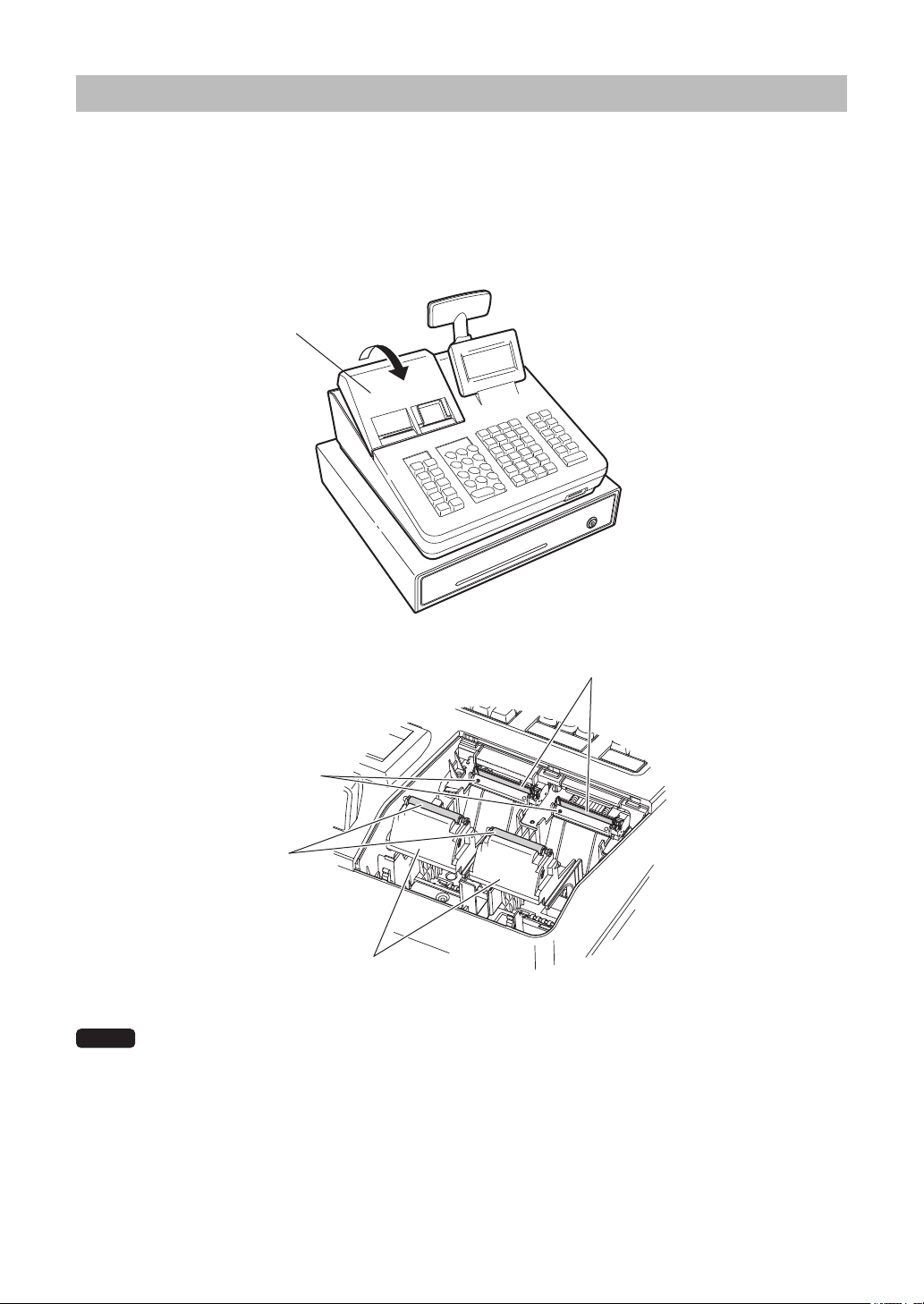
ExternalView
■
Frontview
Printer cover
Operator display
Keyboard
Drawer
Check slot
Drawer lock
SD card slot
(Refer to the “SD CARD Mode” section.)
■
Rearview
Customer display
RS232 connector
7
Printer
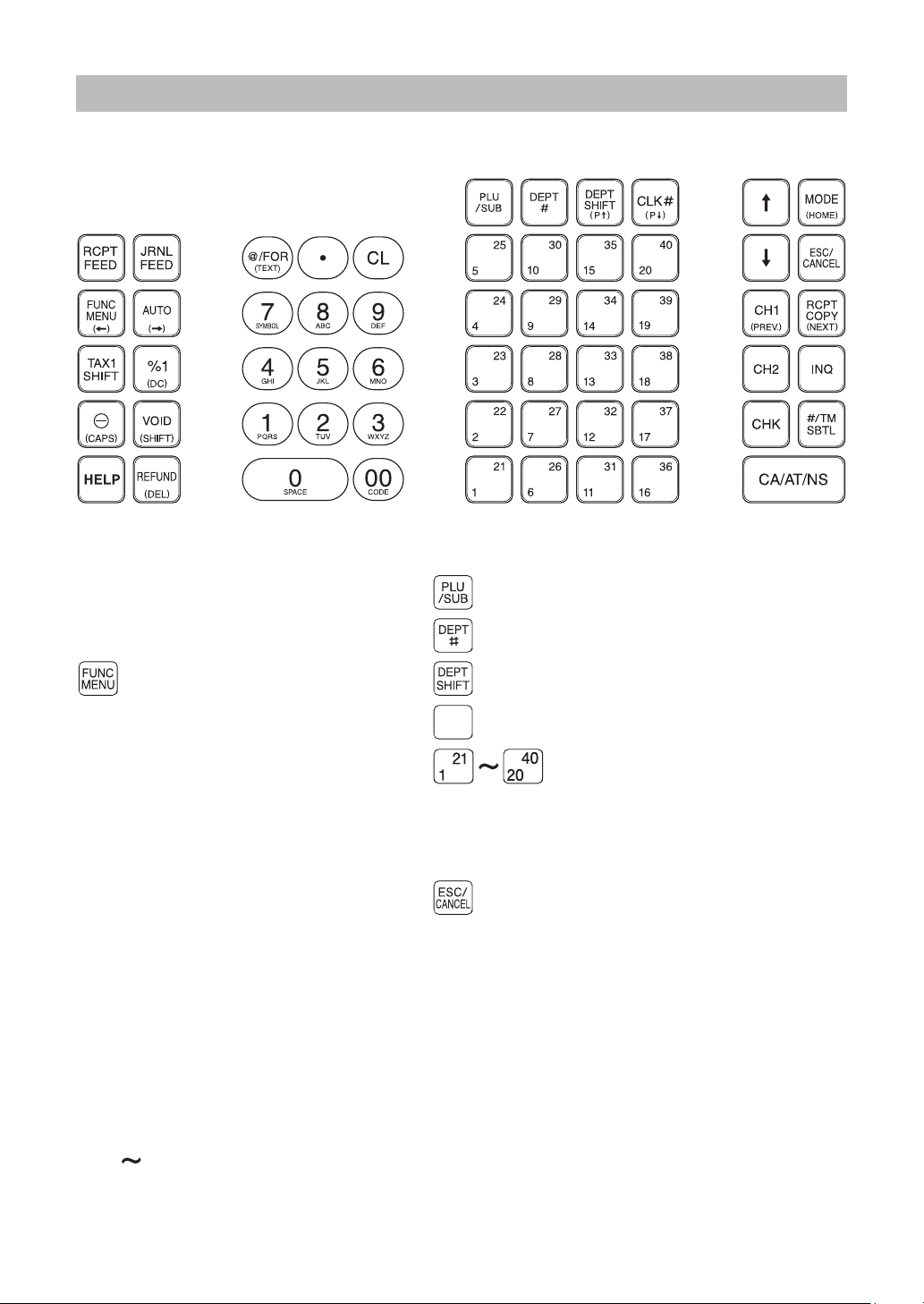
The printer is a thermal printer, and therefore it does not require any type of ink ribbon or cartridge. The
average life of the printer is approximately 6 million lines.
When removing the printer cover, lift up its rear.
When installing the printer cover, hook it on the pawls on the cabinet and shut it.
CAUTION:Thepapercutterismountedontheprintercover.Becarefulnottocutyourself.
Printer cover
Printer head
Sensor
Roller
Print roller arm
NOTE
Do not attempt to remove the paper with the print roller arm in the hold position. This may result
in damage to the printer and printer head.
8
Keyboard
■
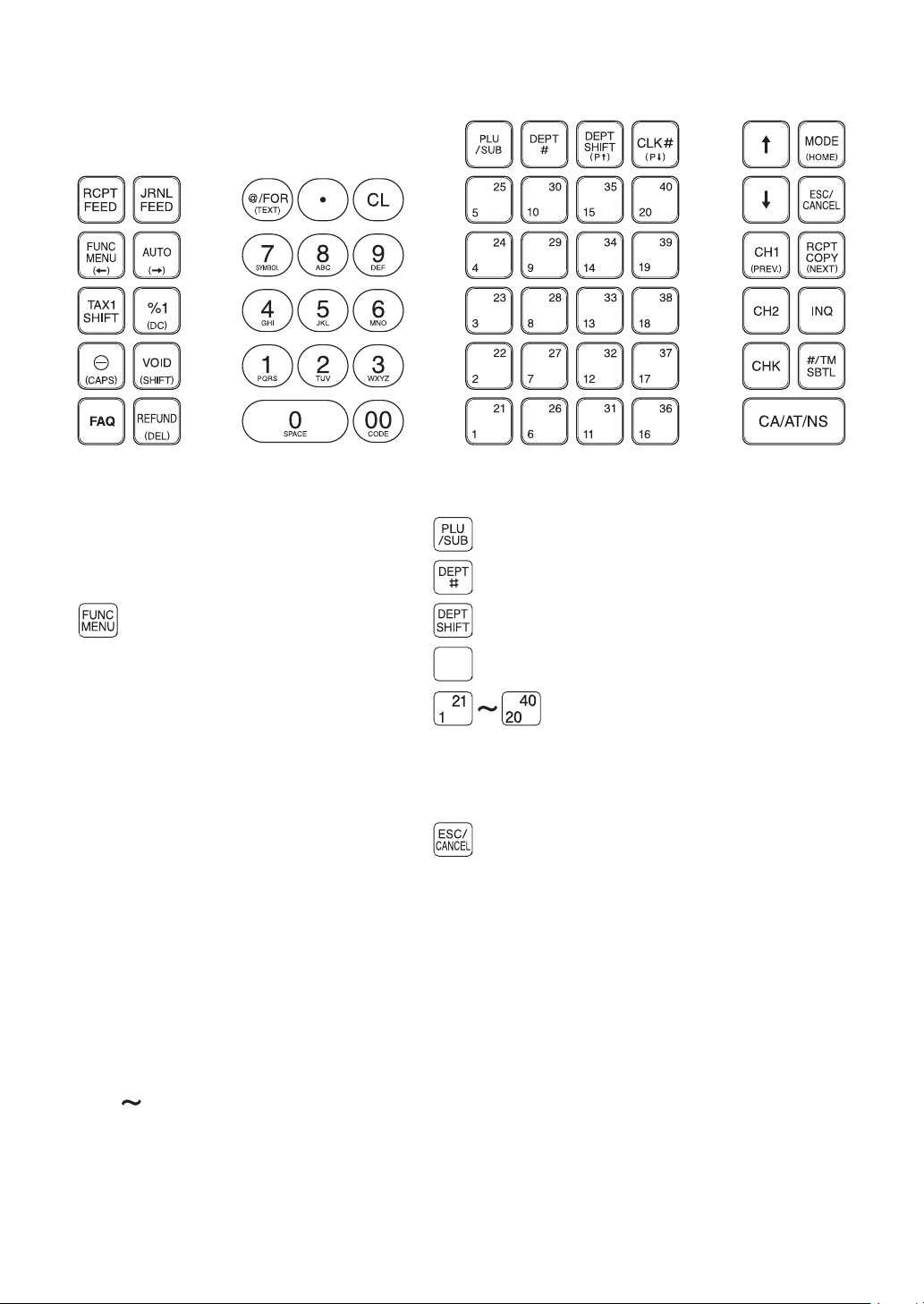
Keyboardlayout(forXE-A407)
■
Functionkeylist
{
Receipt paper feed key PLU/sub-department key
}
Journal paper feed key Department code entry key
Function menu key Department shift key
a
Auto key
CLK#
Clerk code entry key
w
Tax1 shift key Department 1-40 key
0
Percent 1 key
FI
Cursor (up/down arrow) key
-
Discount key
m
Mode key
t
Void key Escape/Cancel key
H
Help key
X
Charge 1 key
f
Refund key
R
Receipt print key
@
Multiplication key
Y
Charge 2 key
P
Decimal point key
u
PLU/UPC inquiry key
l
Clear key
x
Check key
0 9
:
Numeric key
;
Non-add code/Time display/Subtotal key
A
Cash/Amount tender/No sale key
9
■
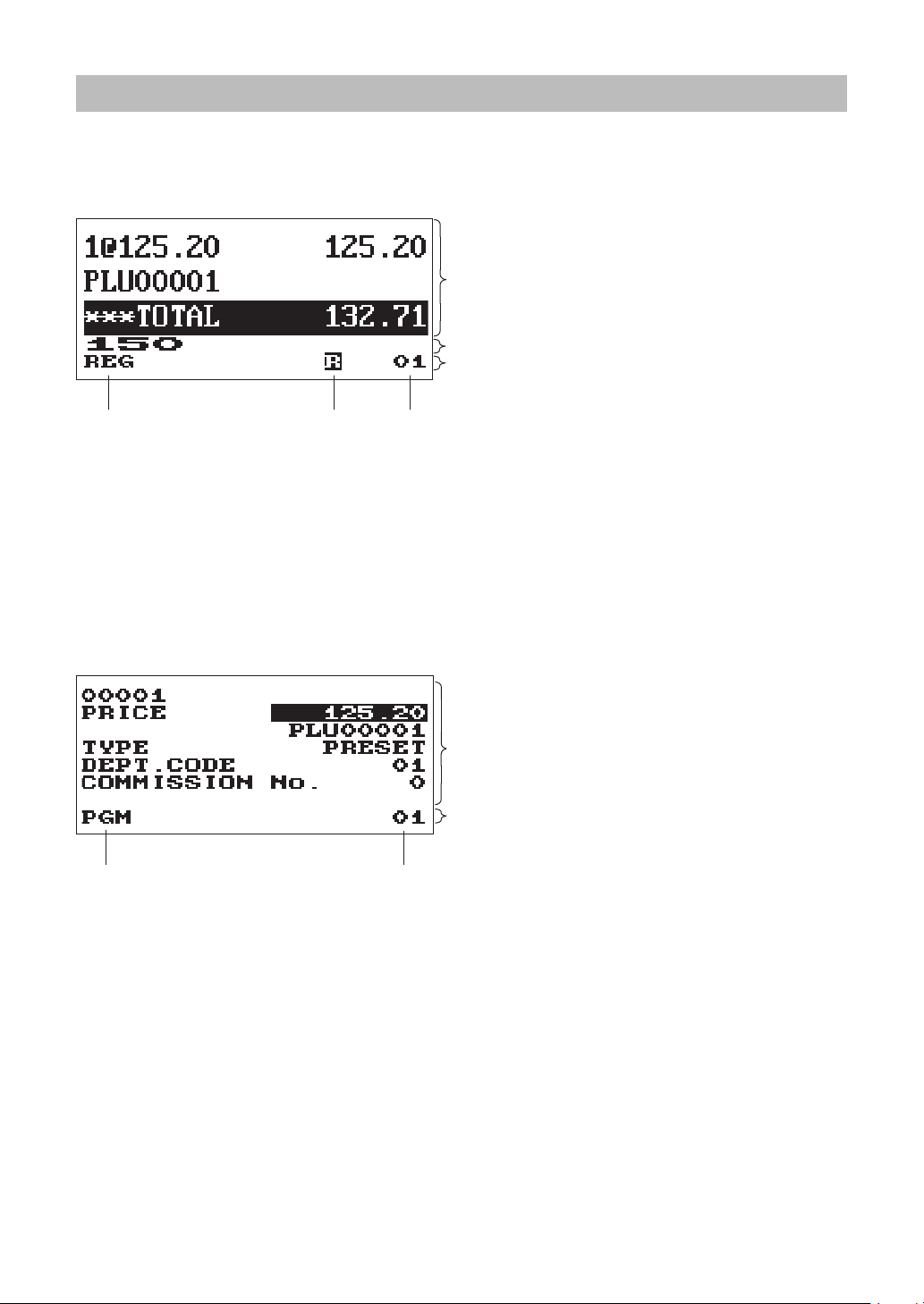
Keyboardlayout(forXE-A43S)
■
Functionkeylist
{
Receipt paper feed key PLU/sub-department key
}
Journal paper feed key Department code entry key
Function menu key Department shift key
a
Auto key
CLK#
Clerk code entry key
w
Tax1 shift key Department 1-40 key
0
Percent 1 key
FI
Cursor (up/down arrow) key
-
Discount key
m
Mode key
t
Void key Escape/Cancel key
y
Frequently Asked Questions key
X
Charge 1 key
f
Refund key
R
Receipt print key
@
Multiplication key
Y
Charge 2 key
P
Decimal point key
u
PLU/UPC inquiry key
l
Clear key
x
Check key
0 9
:
Numeric key
;
Non-add code/Time display/Subtotal key
A
Cash/Amount tender/No sale key
10
Displays
■
Operatordisplay
•Screenexample1(REGmode)
Salesinformationarea:
When a transaction information occupies more
than 2 lines, you can scroll to the direction by
using the
F
I
keys. Sales information you have
just entered such as items and prices will appear
between 1st line and 2nd line.
Total is always appear at 3rd line.
NumericEntryArea:
Statusarea:
Mode name Status
information
Clerk code
Receipt ON/OFF status indicator (R) : Appears when the receipt ON-OFF function signs OFF.
Sentinel mark (X) : Appears when the cash in drawer exceeds a programmed sentinel
amount. The sentinel check is performed for the total cash in
drawer.
•Screenexample2(PROGRAMmode)
Programming area: Programmable items are
listed.
Statusarea:
Mode name Clerk code
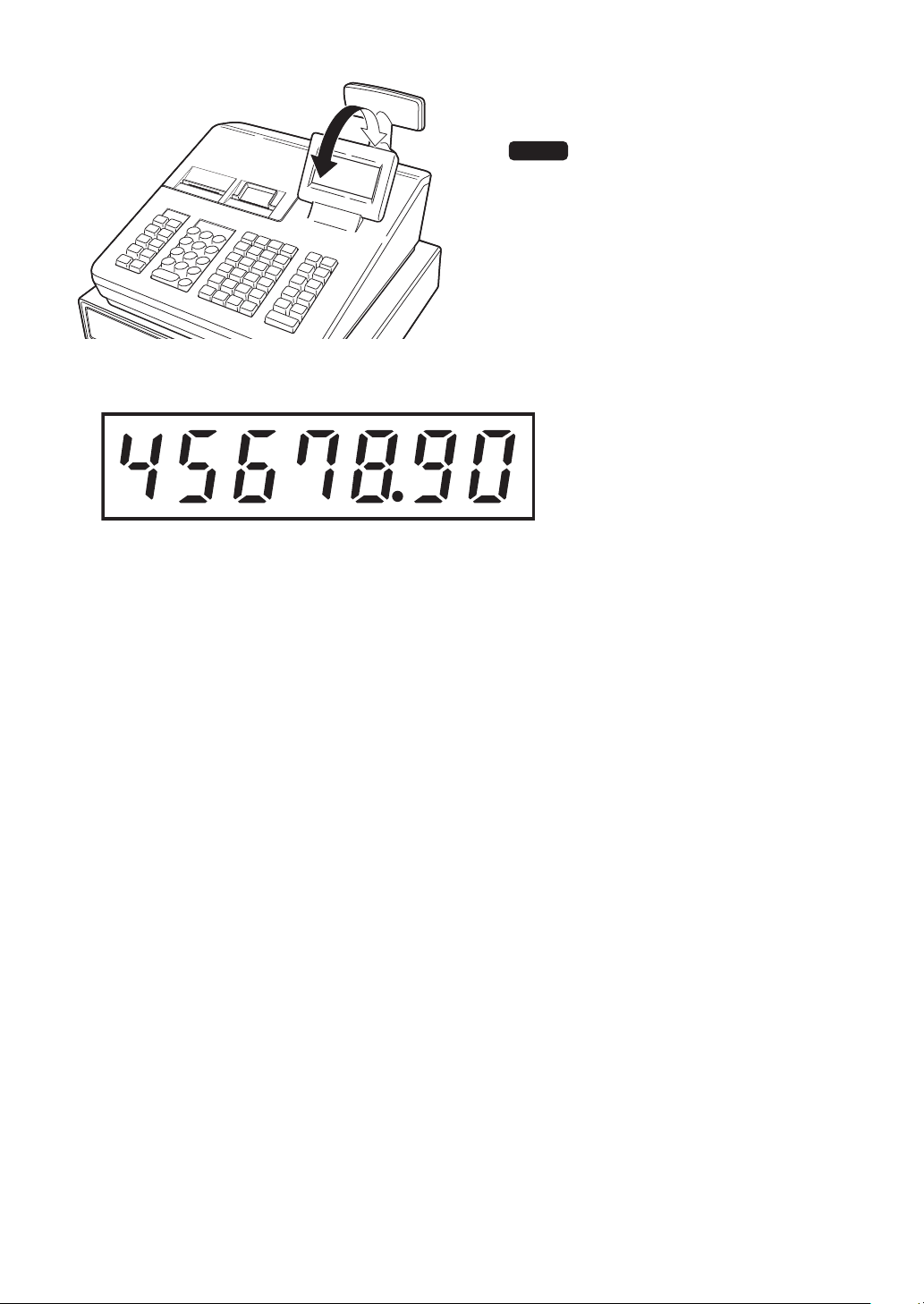
11
The display can be tilted back and forth to the
best operational viewing angle.
NOTE
Do not try to force the display beyond its full
position.
■
Customerdisplay
■
Screensavemode
When you want to save the electric power or save the display’s life, use the screen save function. This
function can turn off the display and the LCD backlight when any clerk does not operate the register for an
extended period of time. You can program the time for which your register should keep the normal status (in
which the backlight is “ON”) before it goes into the screen save mode.
This register will enter the screen save mode two minutes later by default.
To go back to the normal mode, press any key.
The backlight in display is a consumable part.
When the LCD display may no longer be adjusted and become darker, you should replace the LCD unit.
Consult your authorized SHARP dealer for further details.
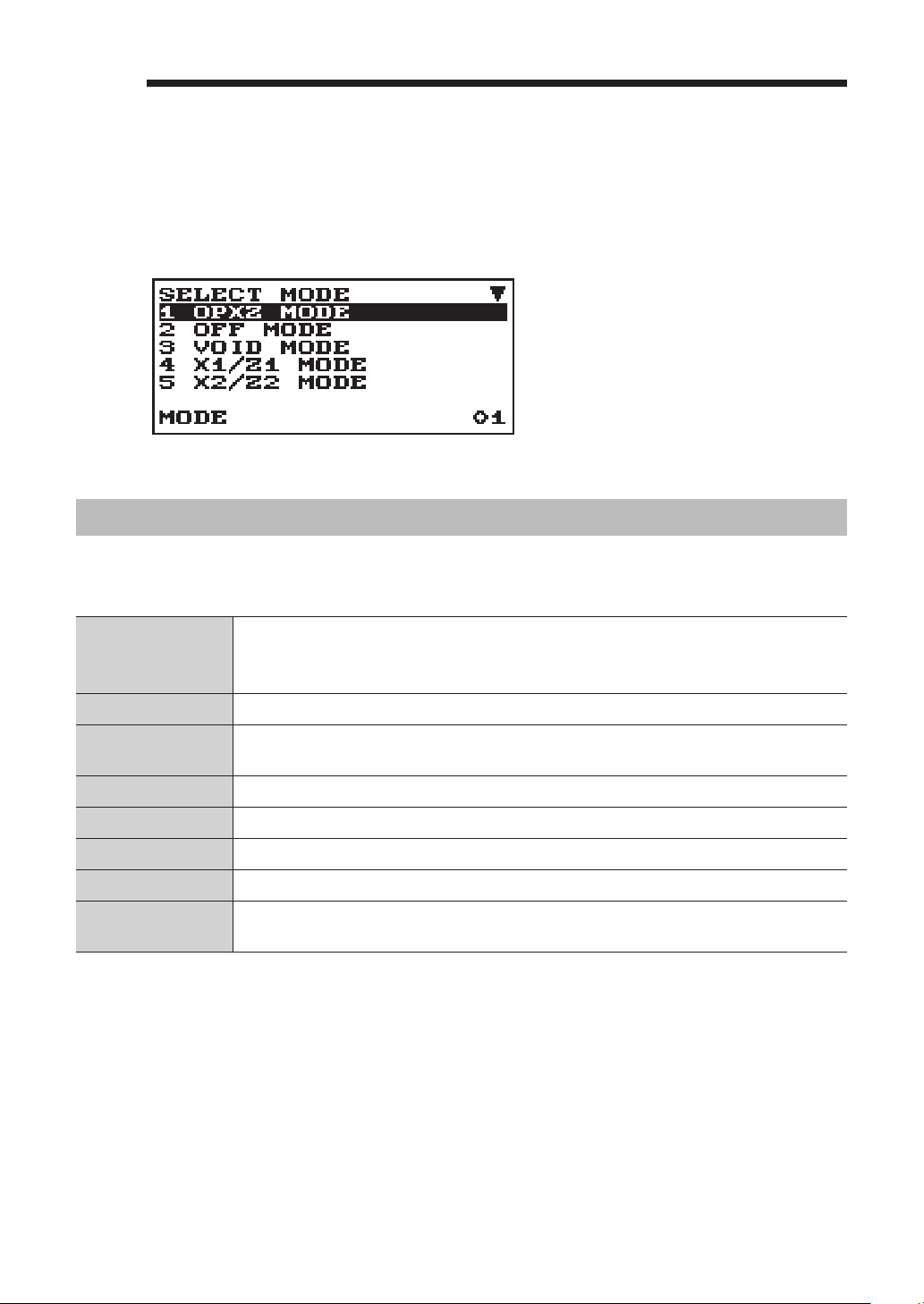
12
2
SelectinganOperatingMode
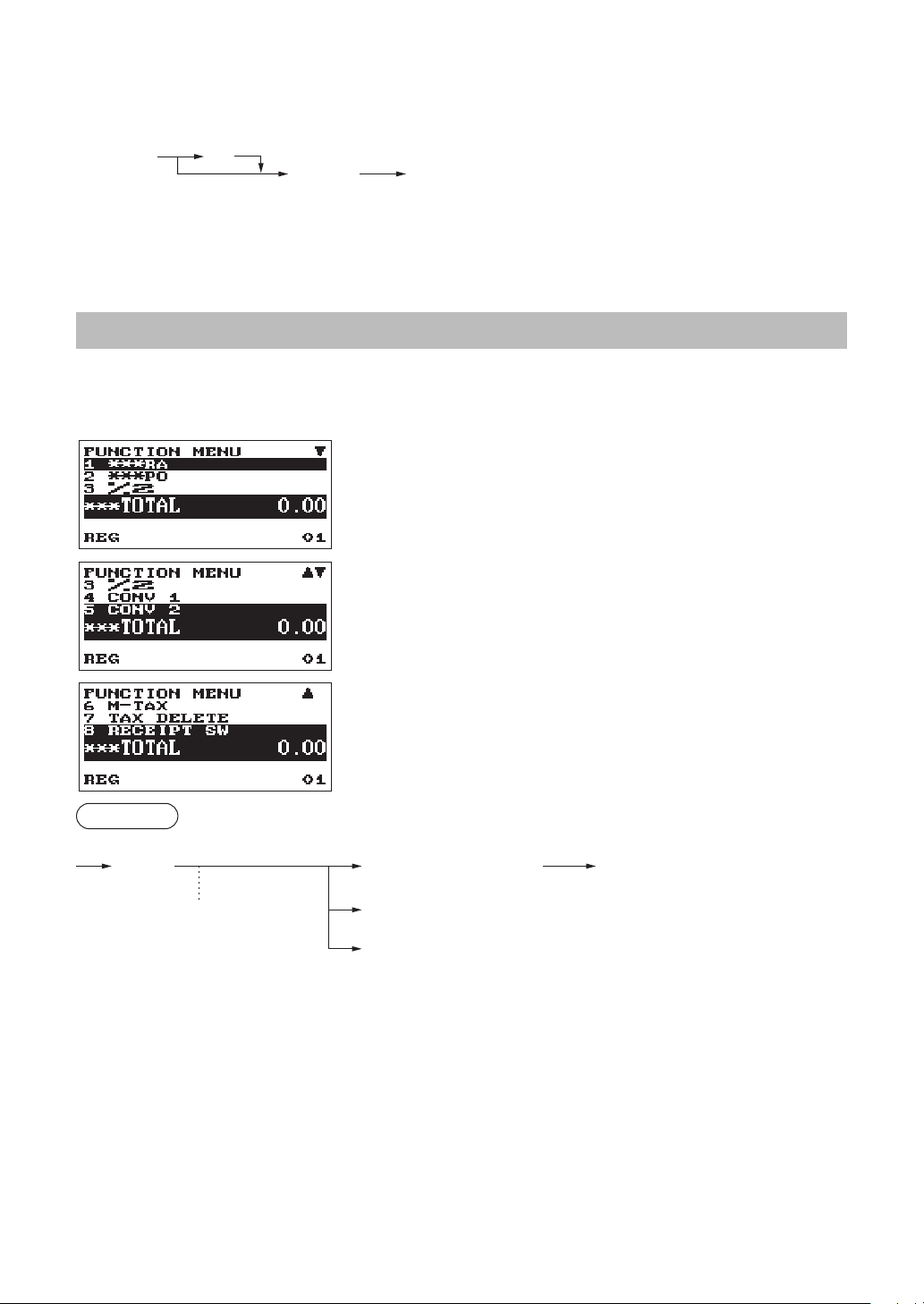
When you turn the register on and press the
m
key, the mode selection window will appear on the display,
listing available operating modes as shown below.
Modeselectionwindow
OperatingModes
You can select any mode other than REG from the list in the mode selection window. Your register supports
the following operating modes:
REG mode
This mode allows you to enter various sales information. The mode selection
window does not list this mode. To select this mode from the mode selection
window, press the
a
key.
OPXZ mode This mode allows clerks to take X or Z reports on their sales information.
OFF mode
This mode locks all operations of the register. When you select this mode, the
window will disappear. Pressing any key turns the register ON.
VOID mode This mode allows correction after nalizing a transaction.
X1/Z1 mode This mode is used to take various daily total reports (X1/Z1 reports).
X2/Z2 mode This mode is used to take various weekly or monthly reports (X2/Z2 reports).
PROGRAM mode This mode is used to program various items.
SD CARD mode
This mode allows you to save and load the data of your register to and from an SD
card.

13
ModeSelection
Procedure
Press the
m
key. The following mode screen is displayed.
Use one of the following ways:
• Move the cursor to the desired option by using the
F
or
I
key, and press the
A
key.
• Enter the desired option number by using a numeric key and press the
A
key.
NOTE
When you want to enter the REG mode, simply press the
a
key.

14
3
PriortoMakingEntries
PreparationsforEntries
■
Receiptandjournalpaperrolls
If the paper roll (receipt or journal) is not set in the register or it is getting low, install a new one according to
section “Replacing the Paper Roll” under “Operator Maintenance.”
■
ReceiptON/OFFfunction
You can disable receipt printing in the REG mode to save paper using the receipt function.
ForXE-A407
Press the
F
key. Select “8 RECEIPT SW” and press the
A
key. Select “OFF” to disable receipt
printing and press the
A
key. When the function is in the OFF status, the receipt off indicator “R” is
highlighted.
ForXE-A43S
Press the
y
key. Select “2 RECEIPT SW” and press the
A
key. Select “OFF” to disable receipt
printing and press the
A
key. When the function is in the OFF status, the receipt off indicator “R” is
highlighted.
NOTE
Your register will print reports regardless of the receipt state. This means that the receipt roll
must be installed even when the receipt state is “OFF”.
■
Clerkassignment
Prior to any item entries, a clerk must enter his/her clerk codes into the register.
To sign on:
Clerk code Secret code
(In case secret code is 0000)
L A
To sign off:
L
ErrorWarning
In the following examples, your register will go into an error state accompanied with a warning beep and the
error message on the display. Clear the error state by pressing the
l
key and then take the proper action
to remedy the problem.
• When you exceed a 32-digit number (entry limit overow):
Cancel the entry and reenter a correct number.
• When you make an error in key operation:
Clear the error and try the entry again.
• When you make an entry beyond a programmed amount entry limit:
Check to see if the entered amount is correct. If it is correct, it can be rung up in the MGR mode.
Contact your manager.
• When an including-tax subtotal exceeds eight digits:
Clear the error message by pressing the
l
key and then press a media key to nalize the
transaction.
15
Errorescapefunction
To quit a transaction due to an error or an unforeseen event, use the error escape function as shown below:
Transaction
To clear the error state
l
a a
The transaction is voided (treated as a subtotal void) and the receipt is issued by this function. If you have
already entered a tendered amount, the operation is nalized as a cash sale.
SelectingtheFunctionfromtheMenu
Your register allows you to select functions from the menu.
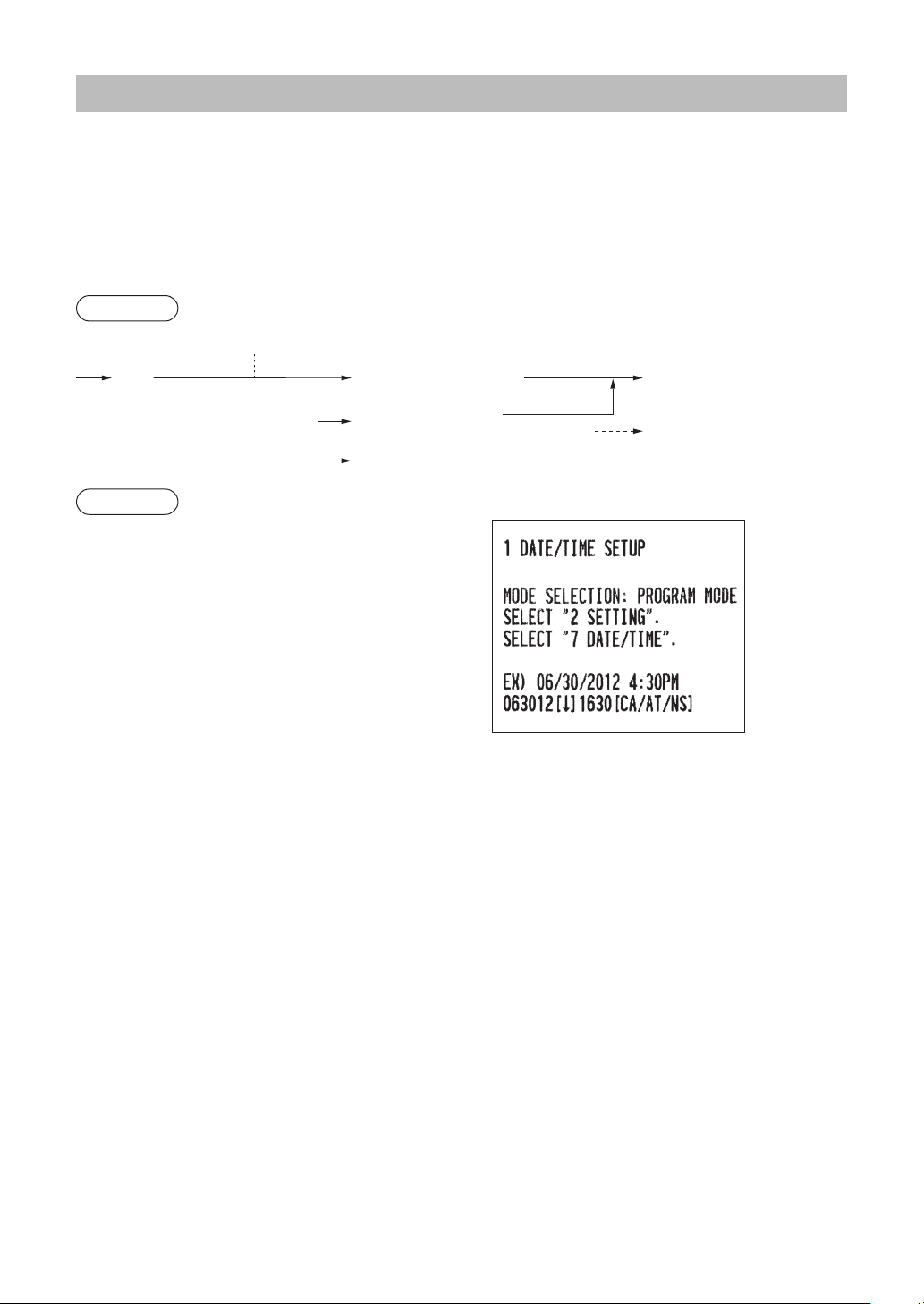
The menu can be opened by pressing the
F
key.
•FUNCTIONMENU
Procedure
Selection of the function
(using the I or F key)
F
Entry of the function no.
(using the numeric N key (N: 1 to 8))
a
To cancel
A
The function menu is displayed.
16
HELP/FAQFunction
The HELP/FAQ function allows you to print guidance messages for basic operation procedure of the register.
FAQ function: only for the XE-A43S
■
TheHELPmenuandprintingguidancemessages
Press the
H
key to display the HELP menu. This menu provides a list of the procedures for which
you can print the guidance messages.
Procedure
H
Entry of the menu no.
(using the numeric N key (N: 1 to 10)) (N: 10)
a
To cancel
A
The HELP menu is displayed.
Selection of the function
(using the
I or F key)
Example
Keyoperation Print
(For the XE-A407)
H
1
A
HELP menu list 1 DATE/TIME
(for the XE-A407) 2 TAX
3 DEPARTMENT
4 LOGO
5 SALES REPORT
6 RECEIPT
7 CLERK
8 SD CARD
9 PC S/W INSTALL
10 OTHERS

17
■
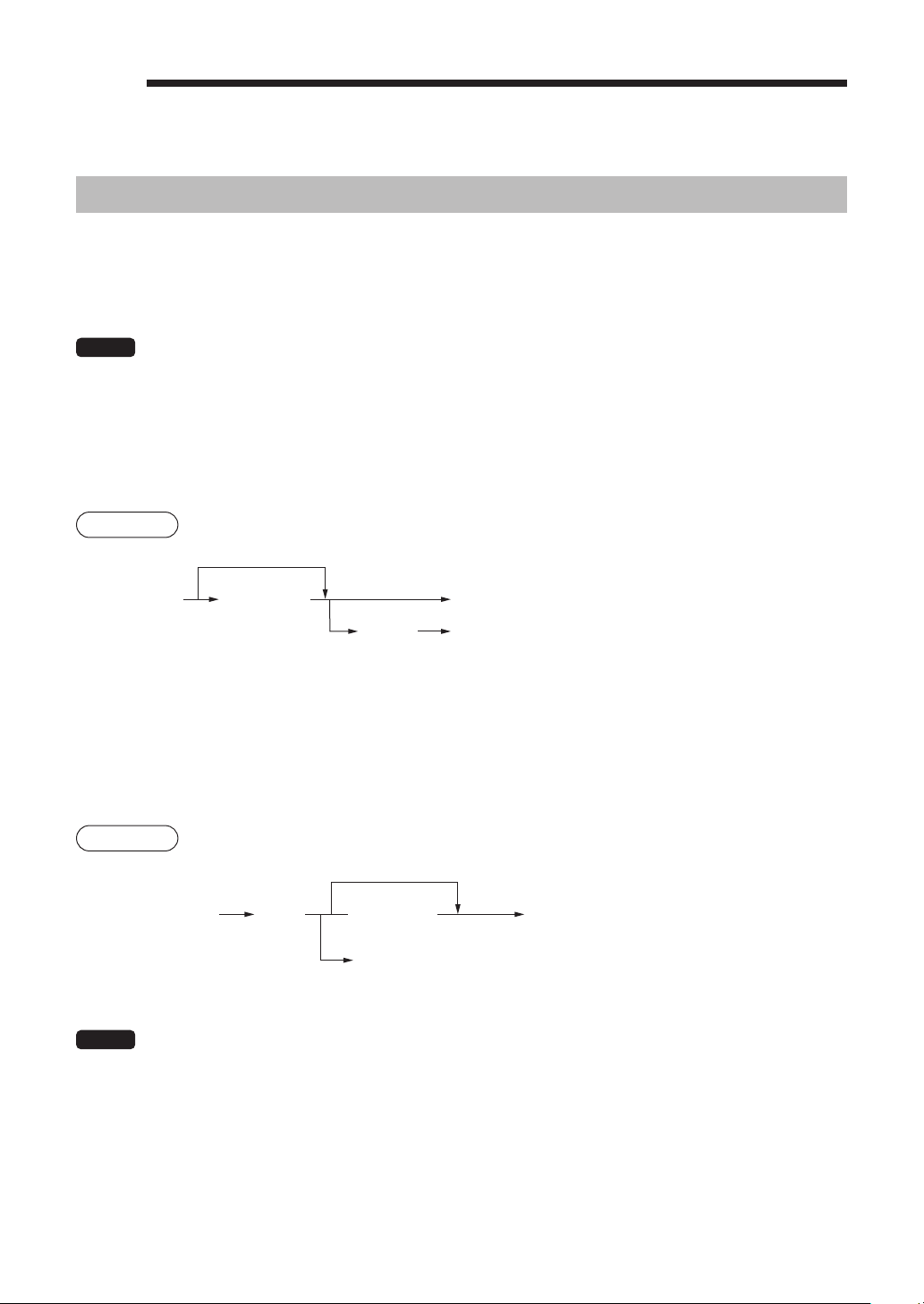
TheFAQmenuandguidancemessages
Press the
y
key to display the FAQ menu. This menu provides a list of the procedures for which you can
perform it or print the guidance messages.
Procedure
Example
Keyoperation Print
(For the XE-A43S)
y
1
2
HELP menu list 1 DATE/TIME
(for the XE-A43S) 2 TAX
3 DEPARTMENT
4 LOGO
5 SALES REPORT
6 RECEIPT
7 CLERK
8 SD CARD
9 PC S/W INSTALL
1 HELP MENU
y
2 RECEIPT SW
3 SUPPLY INFO
4 SERVICE &
SUPPORT
To display the HELP
menu and print
guidance messages
To perform the
receipt ON/OFF
function
To print guidance
messages for the
supply information
To print guidance
messages for service
and support infomation
Entry of the menu no.
(using the numeric N key (N: 1 to 9))
a
To cancel
A
Selection of the function
(using the I or F key)
a
To cancel
The HELP menu is displayed.
The FAQ menu is displayed.
18
4
Entries
ItemEntries
■
Singleitementries
Departmententries
For a merchandise classication, the register provides a maximum of 99 departments. To the departments,
group attributes such as taxable status are applied to items when they are entered.
NOTE
When those departments for which the unit price has been programmed as zero (0) are entered,
only the sales quantity is added.
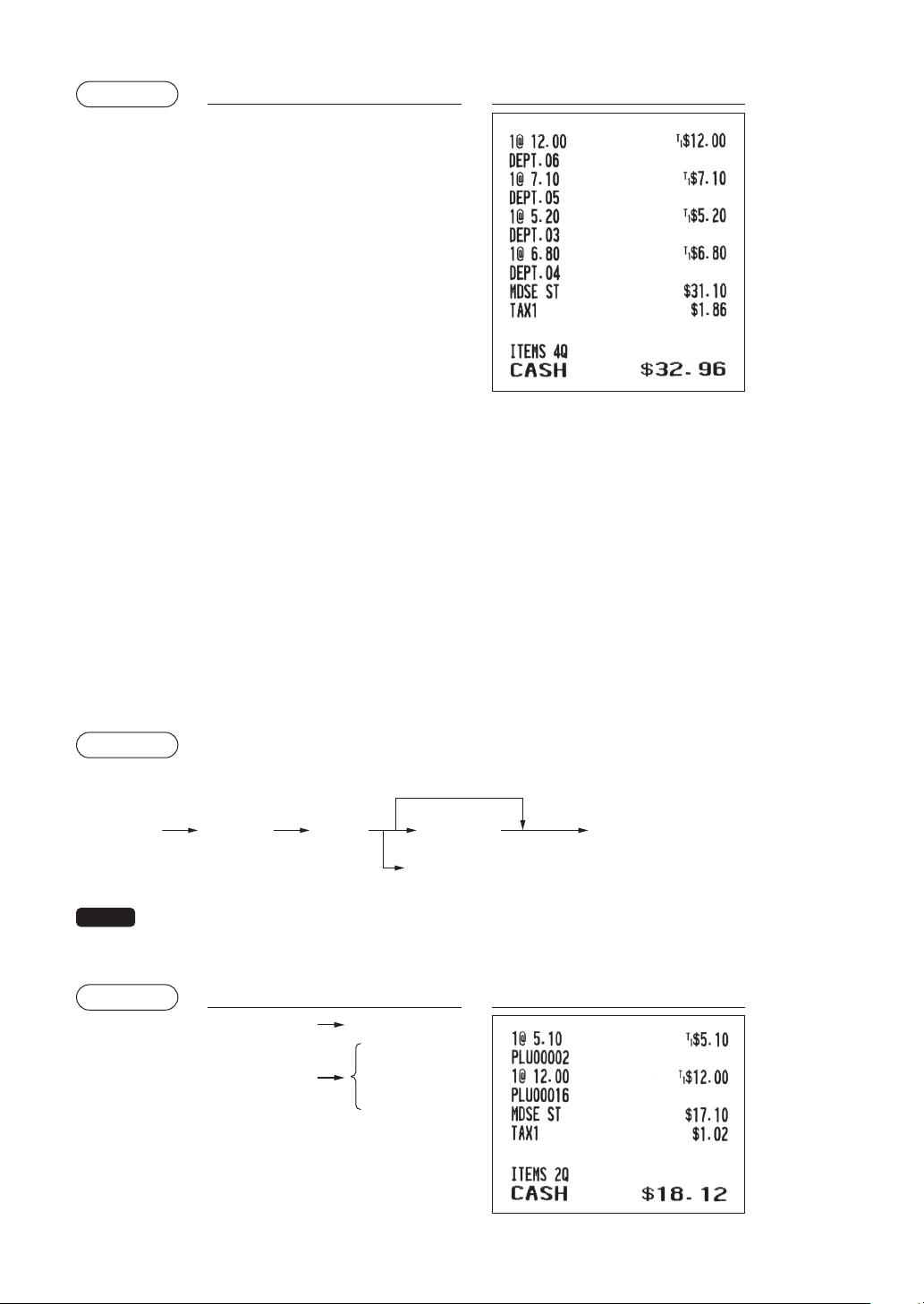
•Whenusingthedepartmentkeys(fordepartment1to40)
For department 1 to 20, enter a unit price and press a department key. If you use a programmed unit
price, press a department key only.
For department 21 to 40, enter a unit price, press the
d
key and press a department key. If you use
a programmed unit price, press the
d
key and press a department key.
Procedure
Department key (for department 1 to 20)
Department key (for department 21 to 40)
Unit price *
(max. 8 digits)
When using a programmed unit price
d
* Less than the programmed upper limit amounts
•Whenusingthedepartmentcodeentrykey
Enter a department (dept.) code and press the
d
key, then enter a unit price and press the
A
key.
If the department code is programmed to preset price entry (“PRESET”) type and a unit price is preset,
the register will nish its registration operation.
Procedure
Unit price *
(max. 8 digits)
Dept. code
(1-99)
d A
When the department of “PRESET” type is entered.
When using a programmed unit price
* Less than the programmed upper limit amounts
(for department 1 to 99)
NOTE
You can directly enter the code No. of the department using the numeric key.
For the code No. exceeding the gure on the numerical key board (41 and above), use this
function.
19
Example
Keyoperation Print
1200
6
5
3
d
520
A
4
A
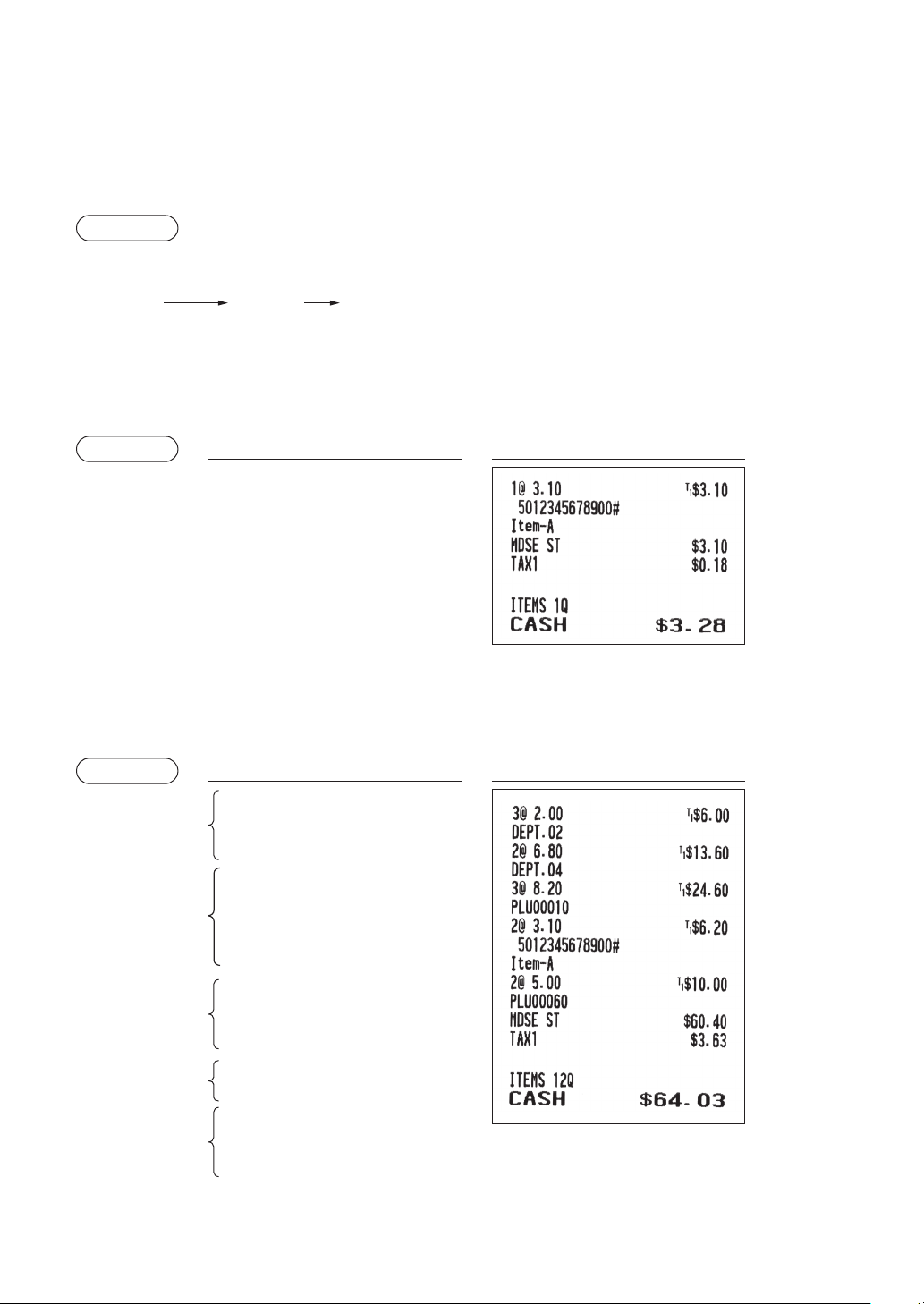
PLU/sub-department(openprice)entries
For another merchandise classication, the register provides a maximum of 7000* PLUs/sub-departments.
PLUs are used to call up preset prices by a code entry. Sub-departments are used to classify merchandise
into smaller groups under the departments. Every PLU and sub-department has a free code from 1 to 99999,
and should belong to a department to obtain attributes of that department.
The register is pre-programmed to “PRESET” for entry type and zero (0) for unit price. To use PLU entries,
their preset unit prices should be previously programmed. (Refer to the section “PLU/UPC” of “DEPT/PLU
Programming” )
To use sub-department entries, change to “OPEN” or “OPEN&PRESET” entry type for each PLU code.
* A total of 7000 codes, including UPC codes, can be programmed.
Enter a PLU code and press the
p
key. If you not use a programmed unit price, you need to enter a
unit price after pressing the
p
key.
Procedure
PLU code
(1 to 99999)
Unit price *
(max. 8 digits)
Ap
In case only preset price entry is allowed
When using a programmed unit price
NOTE
When those PLUs for which the unit price has been programmed as zero (0) are entered, only
the sales quantity is added.
Example
Keyoperation Print
2
p
16
p
1200
A
A
PLU entry
Sub-department
entry
20
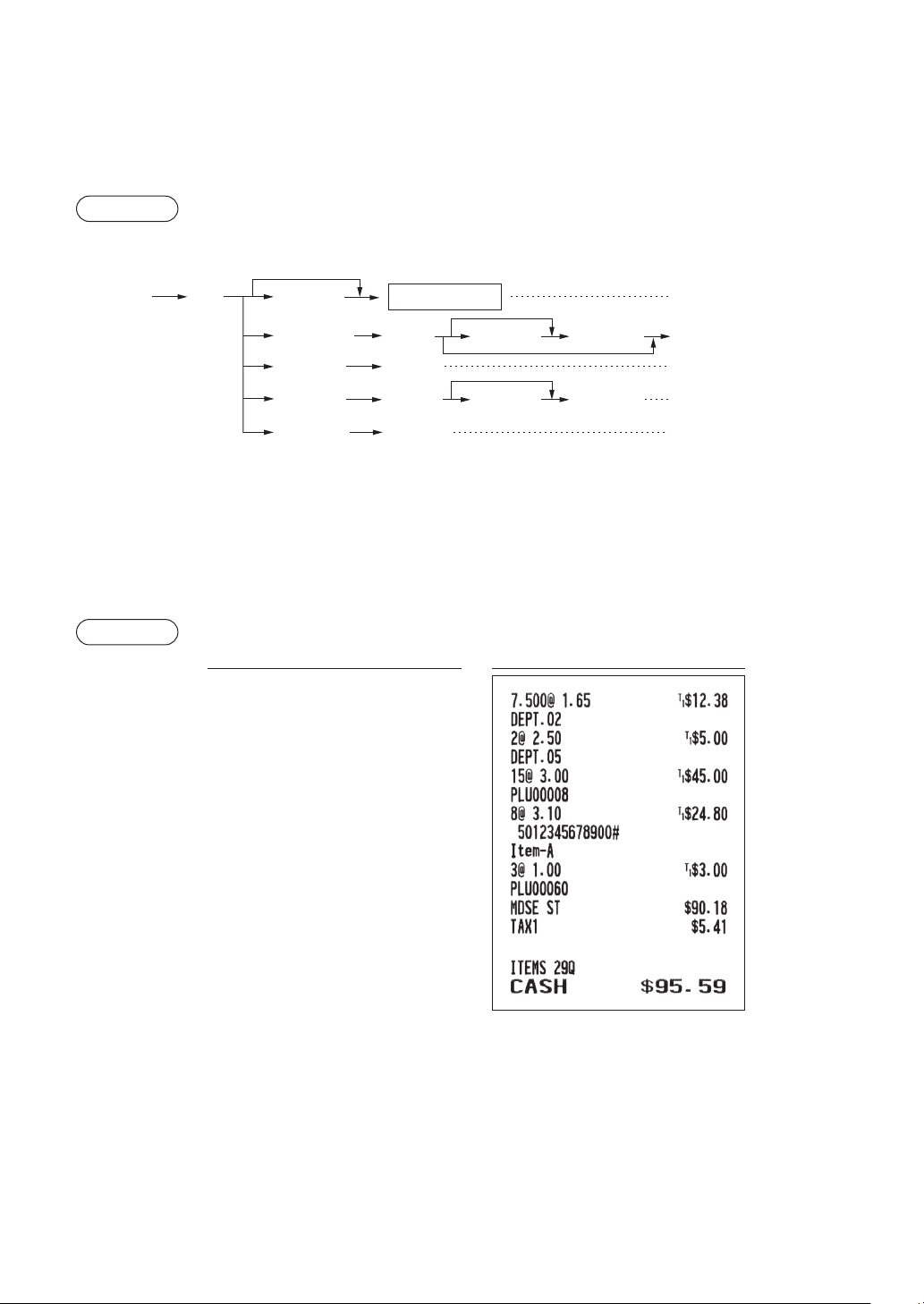
UPCentries
You can enter the barcodes using keyboard. The barcodes which can be entered are UPC-A, UPC-E, EAN-8,
EAN-13 and ITF-14.
For details of UPC code, please refer to “11 Universal Product Code (UPC) or European Article Number
(EAN)”.
Procedure
UPC code
(max. 19 digits)
* After an UPC entry, you may be requested to enter a
unit price with the display “UNDEFINED CODE” and
beep sound. In this case, enter the unit price and press
the
A
key, enter the department code and press
the
A
key (UPC learning function).
p
Example
Keyoperation Print
5012345678900
p
A
■
Repeatentries
You can use this function for entering a sale of two or more the same items.
You can simply press the department key,
d
, or
p
key to repeat entry.
Example
Keyoperation Print
200
2
2
2
4
d
680
A
d
10
p
p
p
5012345678900
p
p
60
p
500
A
p
A
Repeated
subdepartment
entry
Repeated
department
entry (direct)
Repeated
department entry
(indirect)
Repeated PLU
entry
Repeated UPC
entry
21
■
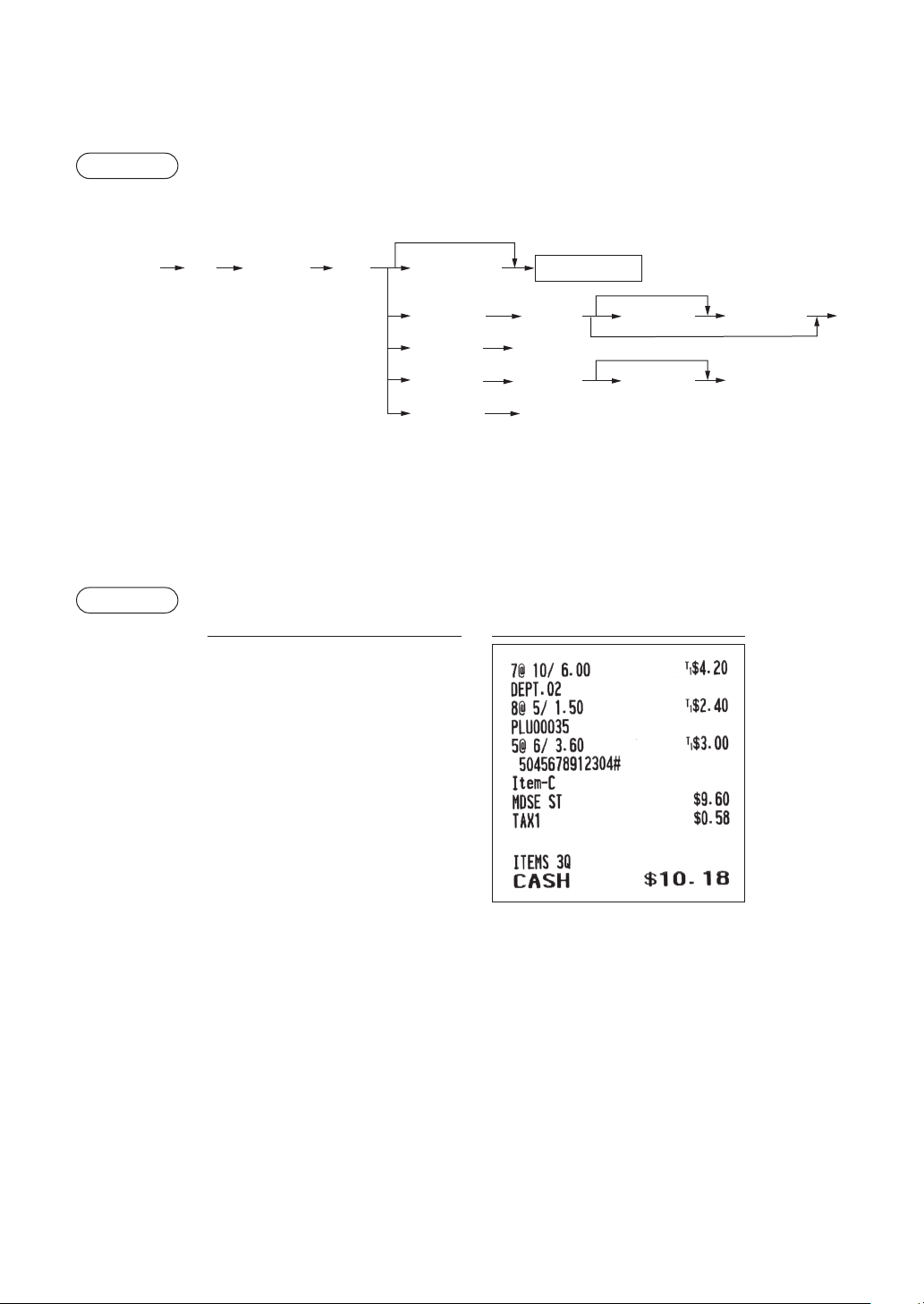
Multiplicationentries
Use this feature when you need to enter two or more the same items.
This feature helps you when you sell a large quantity of items or need to enter quantities that contain
decimals.
Procedure
@
Unit price
PLU code
Unit pricePLU code
Q’ty Department key
When you use a programmed
unit price
Dept. entry (direct)
Dept. code
Dept. entry (indirect)
PLU entry
Subdept. entry
UPC code *
UPC entry
A
Unit price
A
d
p
p
p
* After an UPC entry, you may be requested to enter a unit price with the display “UNDEFINED
CODE” and beep sound. In this case, enter the unit price and press the
A
key, enter the
department code and press the
A
key (UPC learning function).
• Q’ty: Up to four-digit integer + three-digit decimal
• Unit price: Less than a programmed upper limit
• Q’ty x unit price: Up to eight digits
Example
Keyoperation Print
7
P
5
@
165
2
2
@
5
d
250
A
15
@
8
p
8
@
5012345678900
p
3
@
60
p
100
A
A
22
■
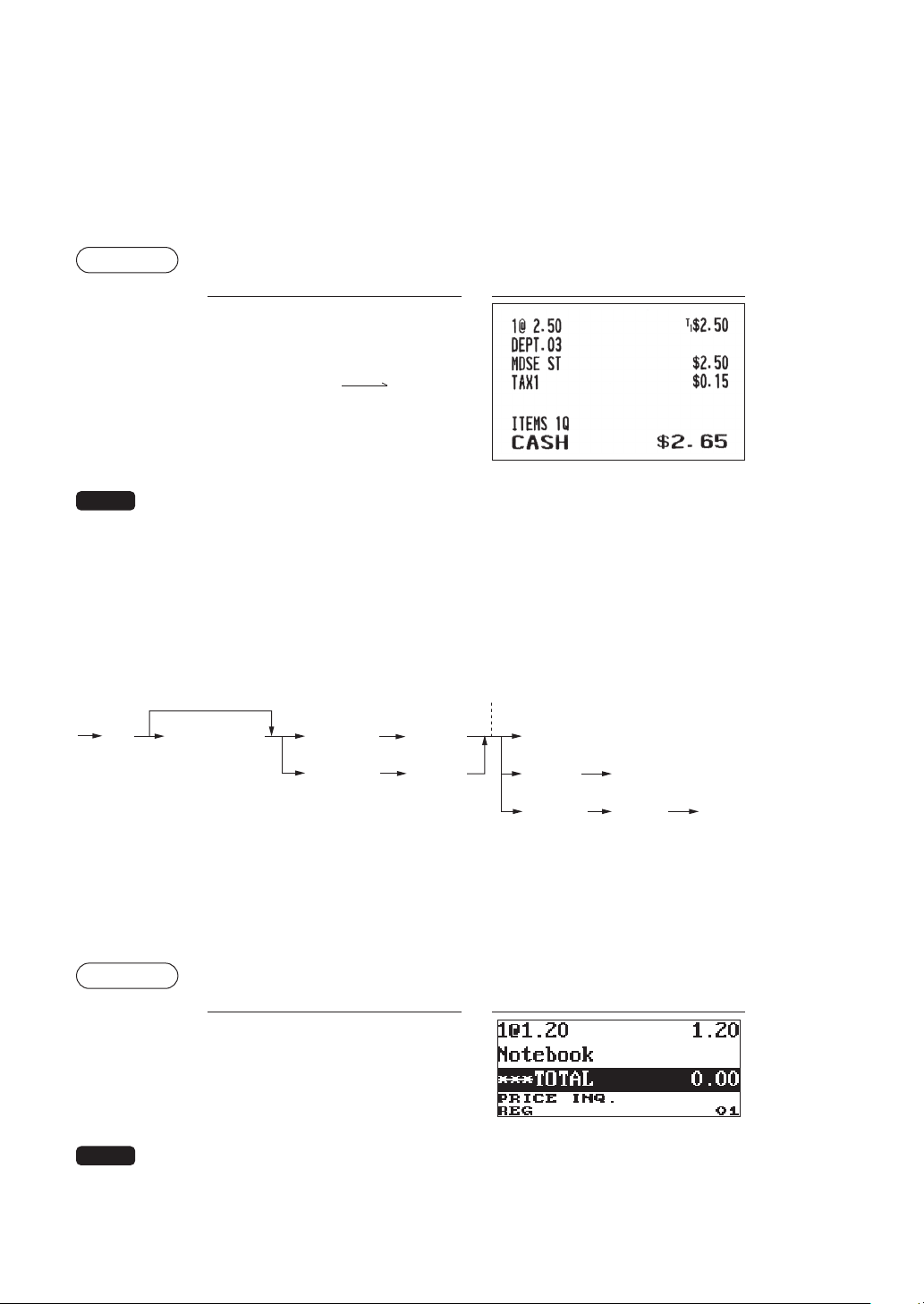
Split-pricingentries
You will use this function when your customer wants to purchase more or less than the base quantity of a
loose item.
Procedure
Unit price
per base q’ty
Base q’ty
Selling q’ty
Department key
When you use a programmed
unit price
@
@
Unit price
Unit price
Dept.code
d
p
p
p
PLU code
PLU code
UPC code *
A
A
* After an UPC entry, you may be requested to enter a unit price with the display “UNDEFINED
CODE” and beep sound. In this case, enter the unit price and press the
A
key, enter the
department code and press the
A
key (UPC learning function).
• Selling quantity: Up to four-digit integer + three-digit decimal
• Base quantity: Up to two digits (integer)
Example
Keyoperation Print
7
@
10
@
600
2
8
@
5
@
35
p
5
@
6
@
5045678912304
p
A
23
■
Singleitemcashsale(SICS)
• This function is useful when a sale is for only one item and is for cash; such as a pack of cigarettes. This
function is applicable only to those departments that have been set for SICS or to their associated PLUs,
subdepartments or UPCs.
• The transaction is nalized and the drawer opens as soon as you press the department key,
d
key or
p
key.
Example
Keyoperation Print
250
3
For finishing
the transaction
NOTE
If an entry to a department, PLU/subdepartment or UPC set for SICS follows the ones to
departments, PLUs/subdepartments or UPCs not set for SICS, it does not nalize and results in a
normal sale.
■
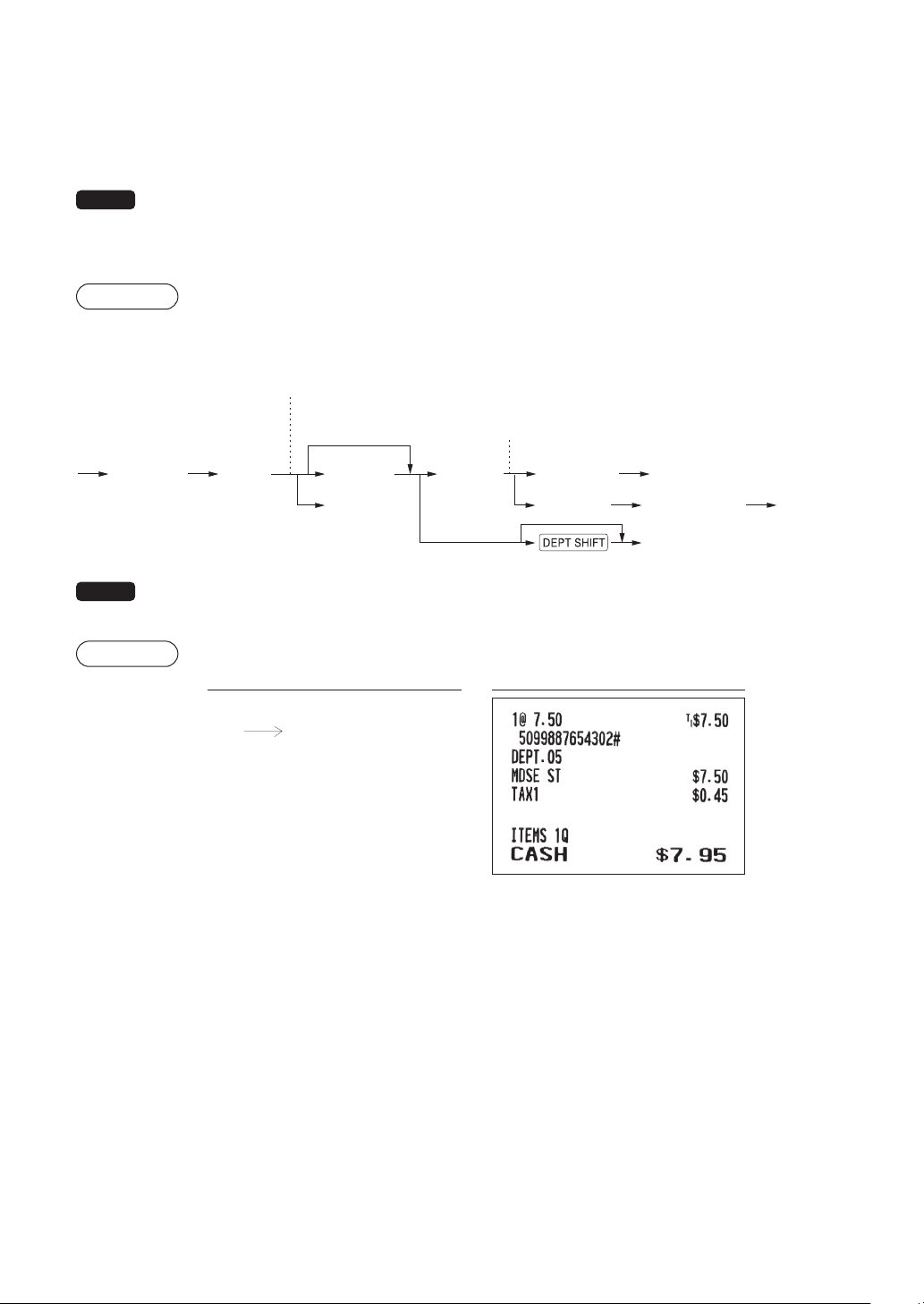
PLU/UPCinformationinquiry(view)function
You can use this function when you want to know the unit price of the PLU/UPC item during transaction in
the REG/MGR mode.
To use price inquiry function, follow the procedure below:
UPC code
Unit price
(only in the
MGR mode)
The total sales amount of
the inquired PLU/UPC is displayed.
Numeric entry
(Q'ty
@
)
u
lp
p p
p
PLU code
*1
*2
*3
*1: Press the
l
key to cancel the the inquiring (view) mode.
*2: Press the
p
key when you want to register the unit price of the PLU/UPC displayed.
*3: You can change the unit price temporarily in the MGR mode. The unit price which is programmed in
PROGRAM mode is not changed (This is considered a price override entry).
Example
Keyoperation Display
4901305920795
u
p
NOTE
For the repeat entry, press the
p
key when having pressed the
p
key.
24
■
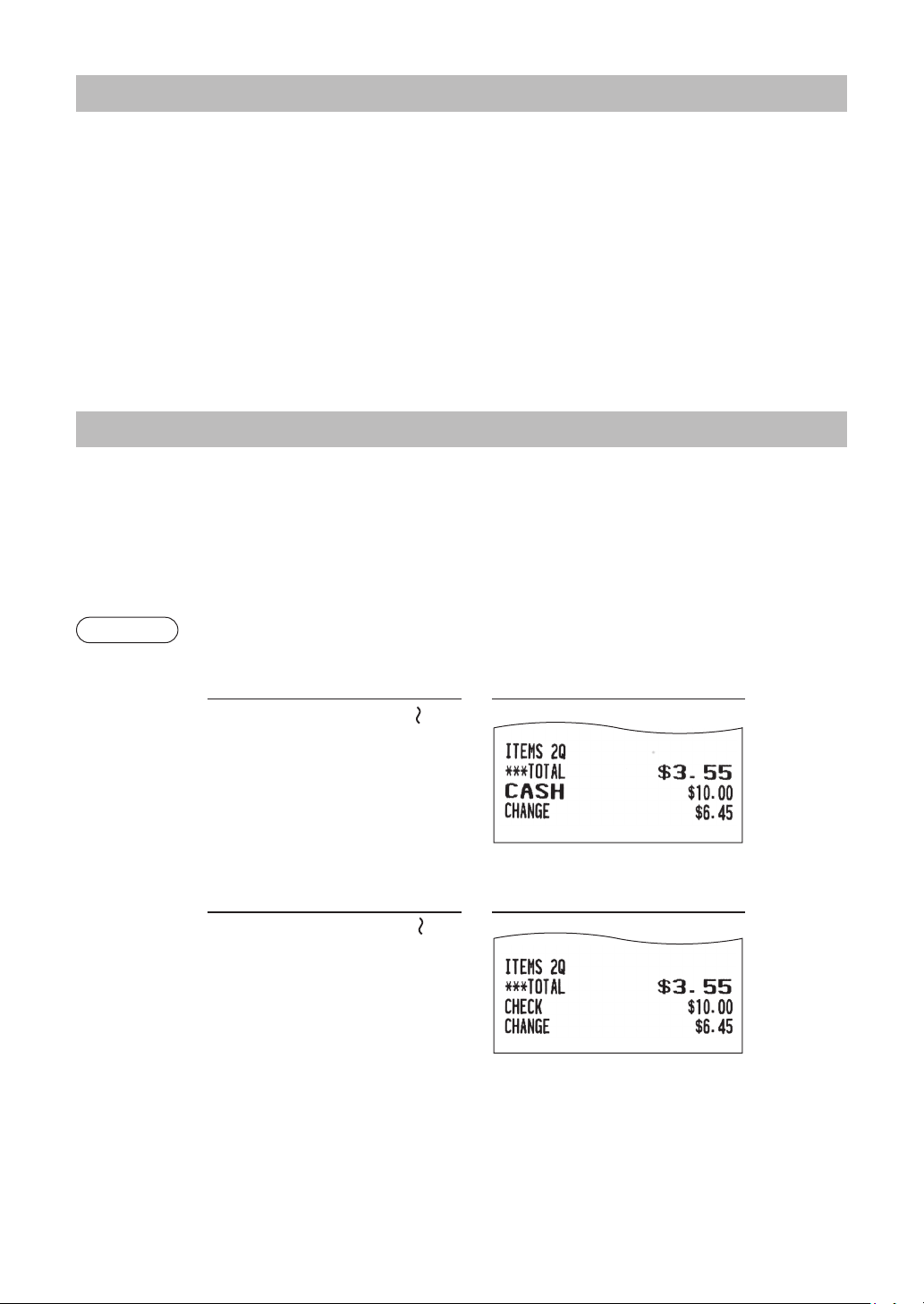
UPClearningfunction(creationandregistrationofunknownUPCs)
When you enter an undened UPC code, you are required to enter its unit price and the associated
department. The code, associated department and unit price entered are stored in the UPC le and used for
future UPC sales entries.
NOTE
• When there is no capacity remained in the le, the data is not stored in the le.
• For the text for the UPC code, the text of its associated department is applied.
• You can use the UPC learning function in the training mode.
Procedure
Unit price Dept. code
Department key
Dept. selection
Q
A
Undefined
UPC code
Ap
a
A
“UNDEFINED CODE” is displayed
with beep sounds and price input
window is displayed.
When the unit price is zero.
Dept. code input window
is displayed.
To cancel
the operation
NOTE
For the repeat entry, use the
p
key.
Example
Keyoperation Print
5099887654302
p
750
A
5
A
A
“UNDEFINED CODE” is
displayed.
25
DisplayofSubtotals
The register provides the following types of subtotals.
■
Taxablesubtotal
Taxable 1 subtotal:
Press the
w
and
Q
keys in this order at any point during a transaction.
The sale subtotal of taxable 1 items will appear in the display with the function text “TAX1 ST”.
■
Including-taxsubtotal(completesubtotal)
Press the
Q
key at any point during a transaction. The sale subtotal including tax will appear in the
display with the function text
“SUBTOTAL”.
FinalizationofTransaction
■
Cashorchecktendering
Press the
Q
key to get an including-tax subtotal, enter the amount tendered by your customer, then
press the
A
key if it is a cash tender or press the
x
key if it is a check tender. When the amount
tendered is greater than the amount of the sale, your register will show the change due amount and the
symbol “CHANGE.” Otherwise your register will show the symbol “DUE” and a decit. Make a correct tender
entry.
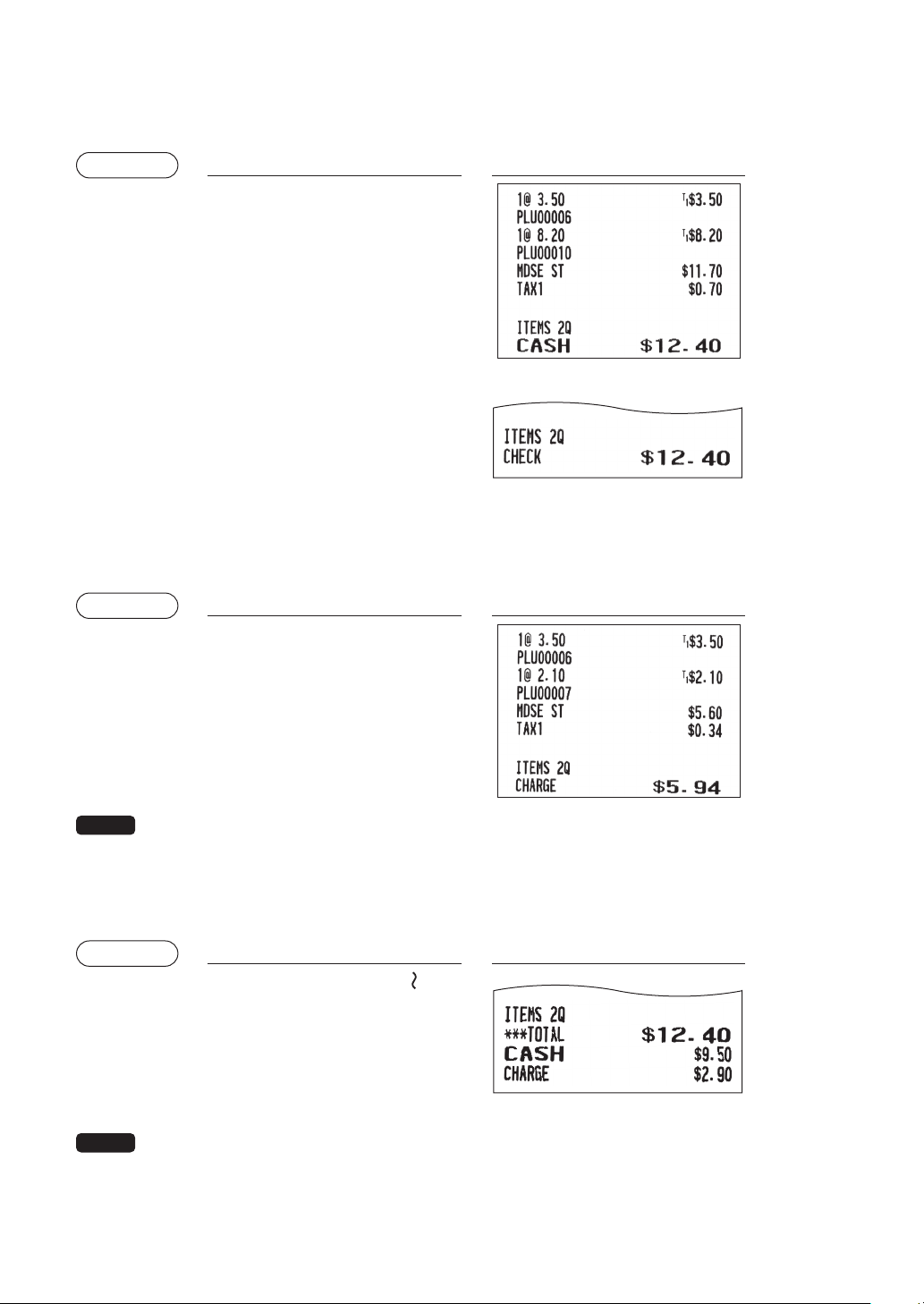
Example
Cashtendering
Keyoperation Print
Q
1000
A
Checktendering
Keyoperation Print
Q
1000
x
26
■
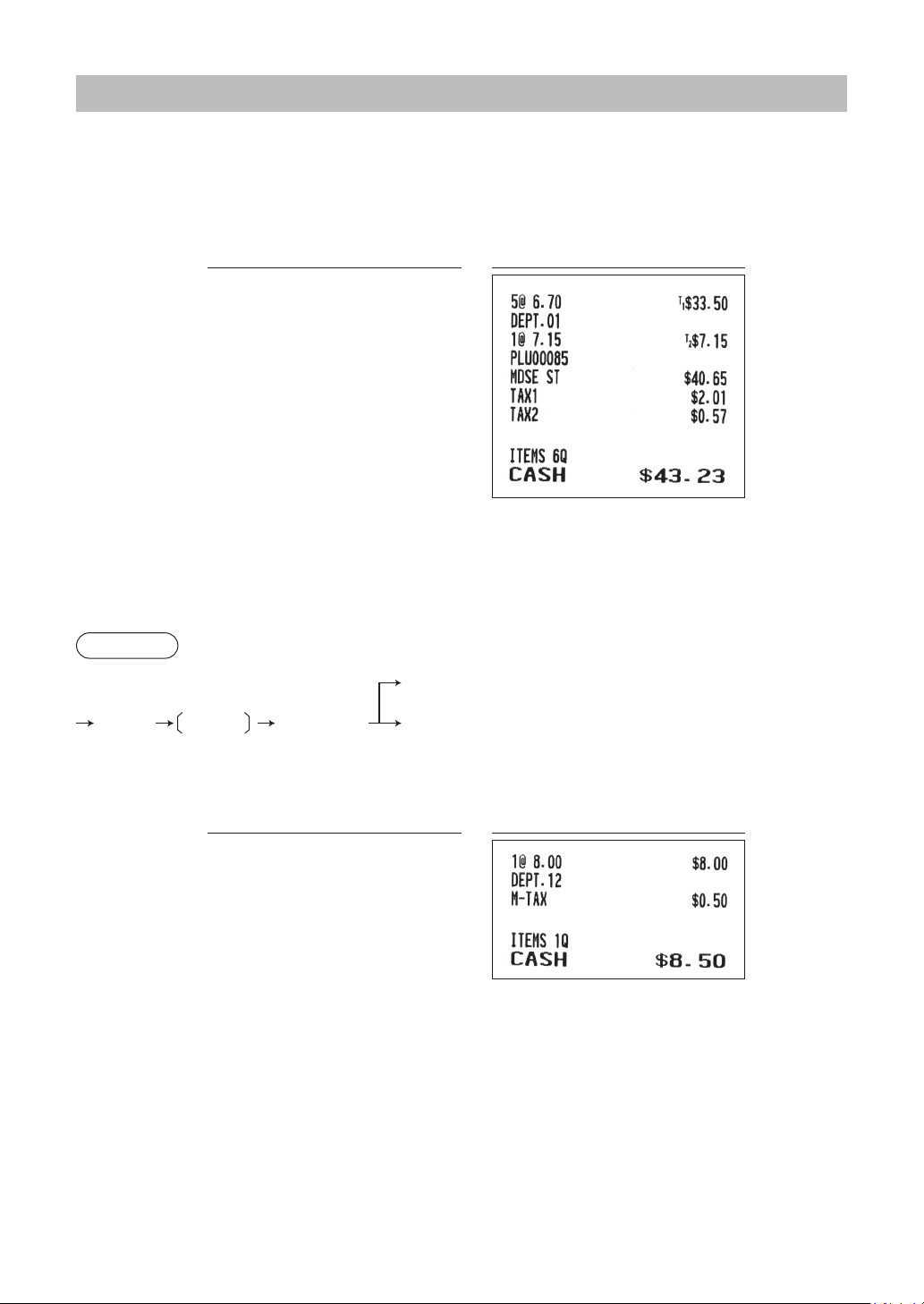
Cashorchecksalethatdoesnotneedanytenderentry
Enter items and press the
A
key if it is a cash sale or press the
x
key if it is a check sale. Your
register will display the total sales amount.
Example
Keyoperation Print
6
p
10
p
A
In the case of check sale
■
Charge(credit)sale
Enter items and press the
X
or
Y
key.
Example
Keyoperation Print
6
p
7
p
Q
X
NOTE
Amount tendering operations (i.e. change calculations) can be achieved by the
X
or
Y
key
when a PROGRAM mode programming allows them.
■
Mixed-tendersale(cashorchecktendering+chargetendering)
Example
Keyoperation Print
Q
950
A
X
NOTE
Press the
x
key in place of the
A
key when your customer makes payment by checks
.
27
TaxCalculation
■
Automatictax
When the register is programmed with a tax rate (or tax table) and the tax status of an individual department
is set for taxable, it computes the automatic tax on any item that is entered directly into the department or
indirectly via a related PLU.
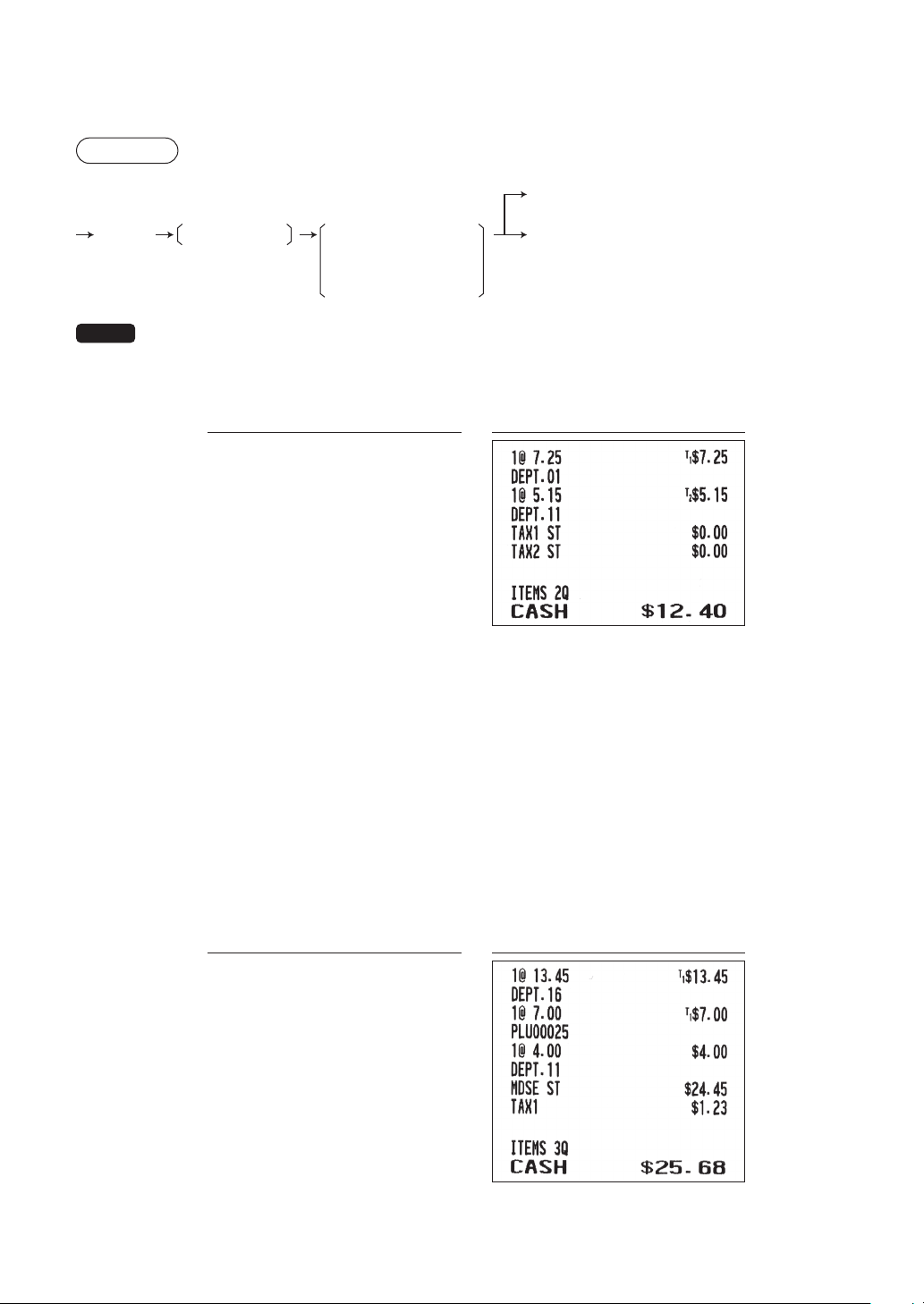
Example: Selling ve $6.70 items (dept. 1, taxable 1) and one $7.15 item (PLU 85, taxable 2) for cash
Keyoperation Print
5
@
670
1
85
p
A
■
Manualtax
The register allows you to enter tax manually after it nalizes an item entry.
Procedure
F
A
a
To cancel
Tax amount
(less than
programmed HALO)
6 M-TAX
Example: Selling an $8.00 item (dept. 12) for cash with 50 cents as tax
Keyoperation Print
800
w
F
6
50
A
A
28
■
■
Tax■delete
The automatic tax (tax 1, tax 2, or all tax (tax1 – tax 4)) can be deleted.
Procedure
F A
a
To cancel
1 TAX1 DELETE
2 TAX2 DELETE
3 ALL TAX DELETE
4 PST DELETE
7 TAX DELETE
NOTE
The “4 PST DELETE” function becomes effective only when the Canadian tax is selected.
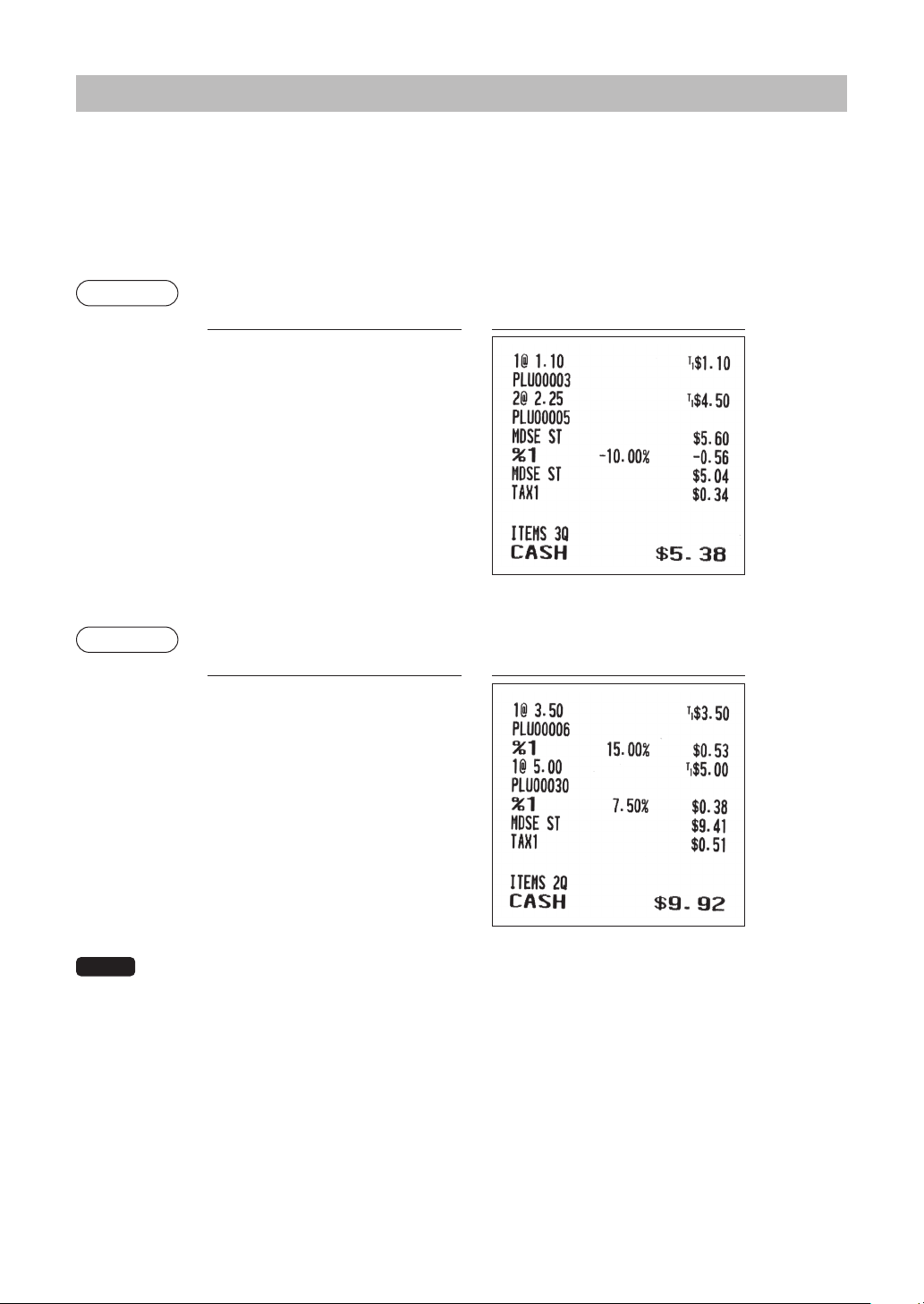
Example:Selling a $7.25 item (dept. 1, taxable 1) and another $5.15 item (dept. 11, taxable 2) for cash and
entering the sale as non-taxable
Key■operation Print
725
1
515
q
F
7
Select “TAX1 DELETE”
A
F
7
Select “TAX2 DELETE”
A
A
■
■
Tax■status■shift
The register allows you to shift the programmed tax status of each department or PLU/UPC by pressing
the
w
key before those keys. After each entry is completed, the programmed tax status of each key is
resumed.
Example: Selling the following items for cash with their programmed tax status reversed
• One $13.45 item of dept. 16 (non-taxable) as a taxable 1 item
• One $7.00 item of PLU 25 (non-taxable) as a taxable 1 item
• One $4.00 item of dept. 11 (taxable 1) as a non-taxable item
Key■operation Print
1345
w
y
25
w
p
400
w
q
A
29
AuxiliaryEntries
■
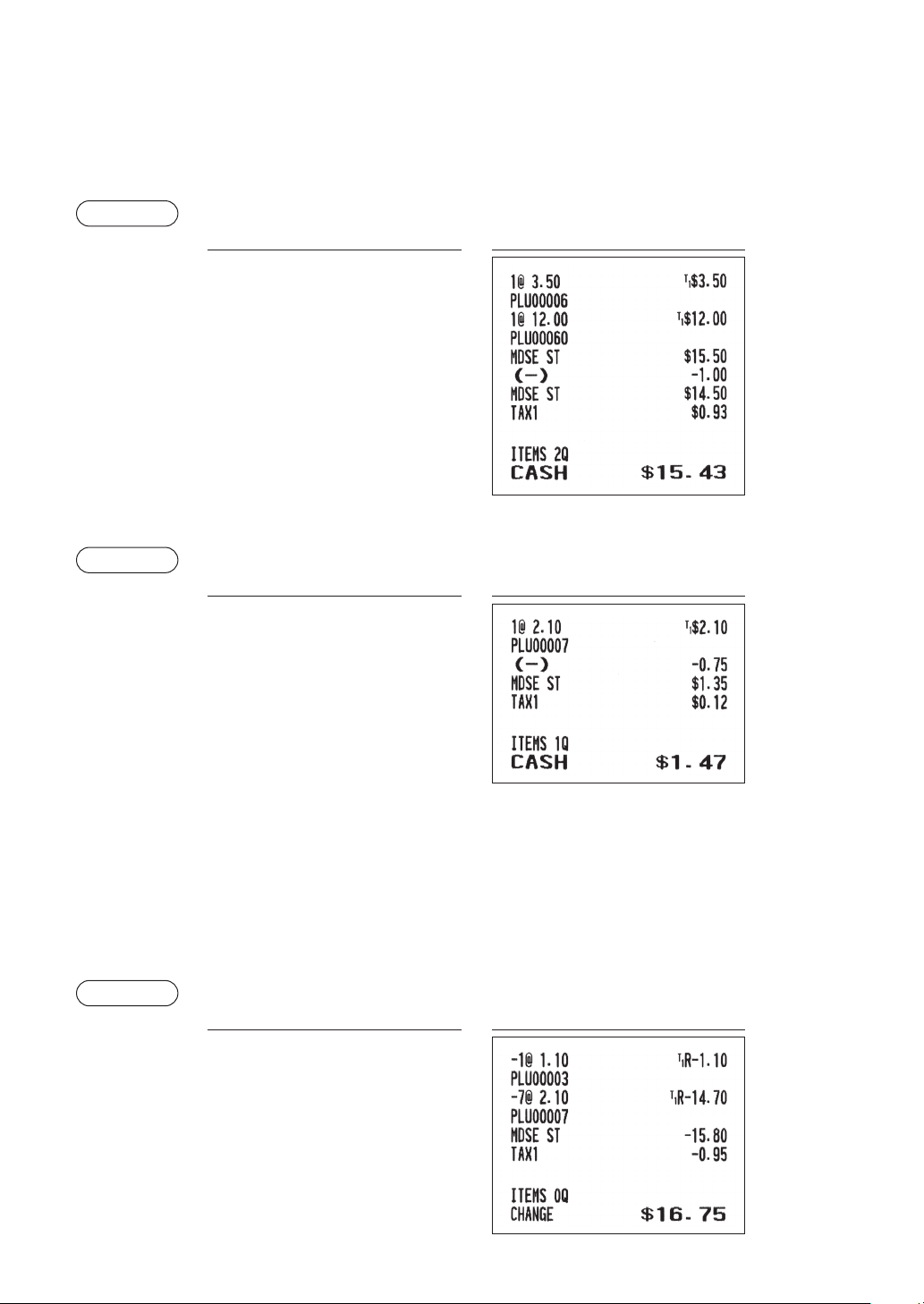
Percentcalculations(premiumordiscount)
• Your register provides percent calculations for a subtotal or each item entry depending on the
programming.
• Percentage: 0.01 to 100.00%
Percentcalculationforasubtotal
Example
Keyoperation Print
3
p
2
@
5
p
Q
0
A
Percentcalculationforitementries
Example
Keyoperation Print
6
p
0
30
p
7
P
5
0
A
NOTE
• You can also enter a percent calculation from the function menu window. Press the
F
key
and select “3 %2” and enter a percent calculation.
• Availability of item % and/or subtotal % depends on the programming data of %1 and %2.
(When a discount
of 10% is
programmed for
the
¡
key.)
(When a premium
of 15% is
programmed for
the
0
key.)
30
■
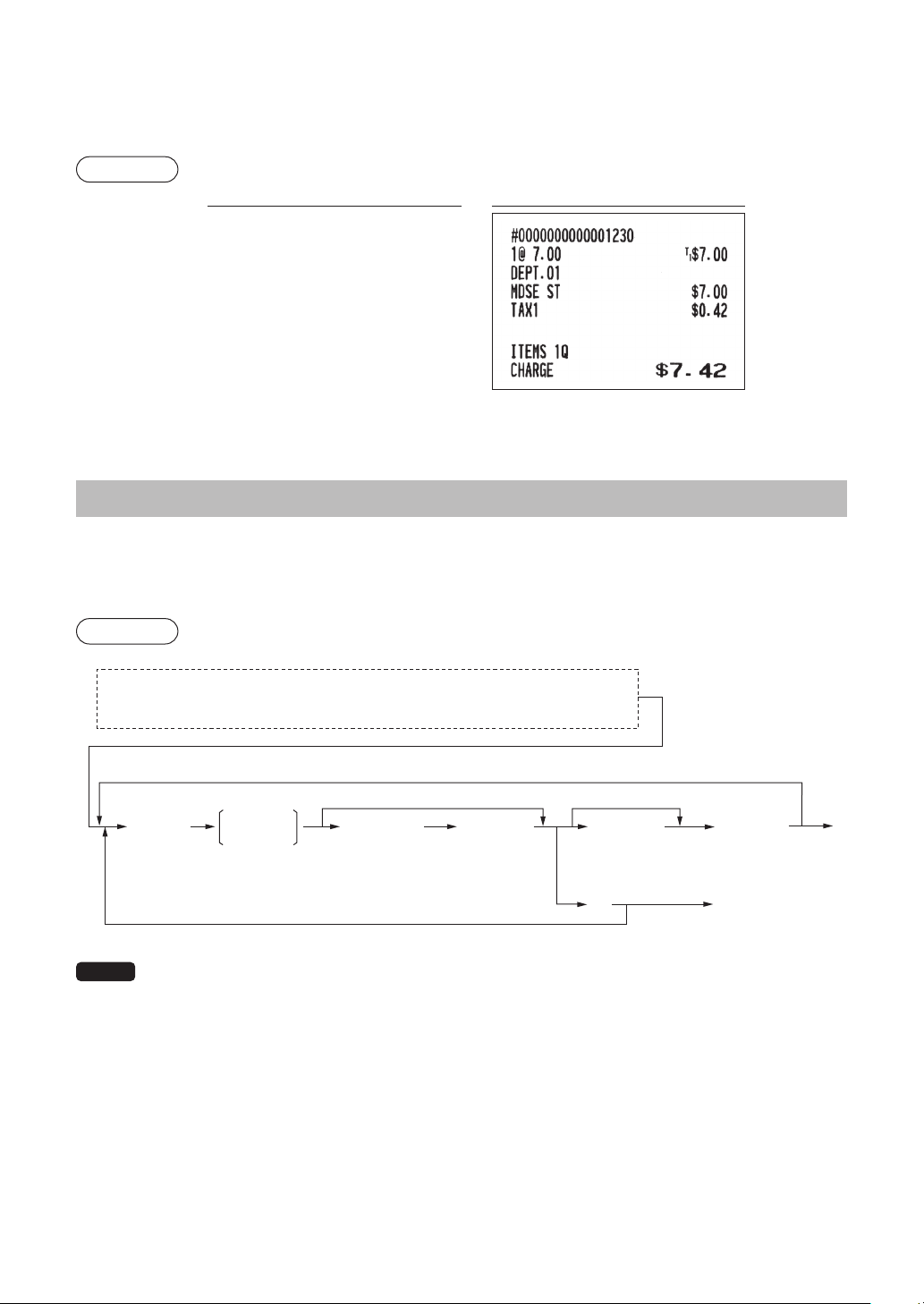
Discountentries
Your register allows you to deduct a certain amount less than a programmed upper limit after the entry of an
item or the computation of a subtotal depending on the programming.
Discountforasubtotal
Example
Keyoperation Print
6
p
60
p
Q
100
J
A
Discountforitementries
Example
Keyoperation Print
7
p
75
J
A
■
Refundentries
For a refund entry, press the
f
key just before you press a department key,
d
key, or
p
key.
The operation before pressing the
f
key is the same as the one of normal operation. For example, if a
refund item is the one entered into a department, enter the amount of the refund, then press the
f
key
and the corresponding department key in this order; if an item entered into a PLU/UPC is returned, enter the
corresponding PLU/UPC code, then press the
f
and
p
keys.
Example
Keyoperation Print
3
f
p
7
@
7
f
p
A
31
■
Printingofnon-addcodenumbers
Enter a non-add code number such as a guest code number within a maximum of 16 digits and press the
Q
key at any point during the entry of a sale. The non-add code is printed on the receipt.
Example
Keyoperation Print
1230
Q
700
1
X
PaymentTreatment
■
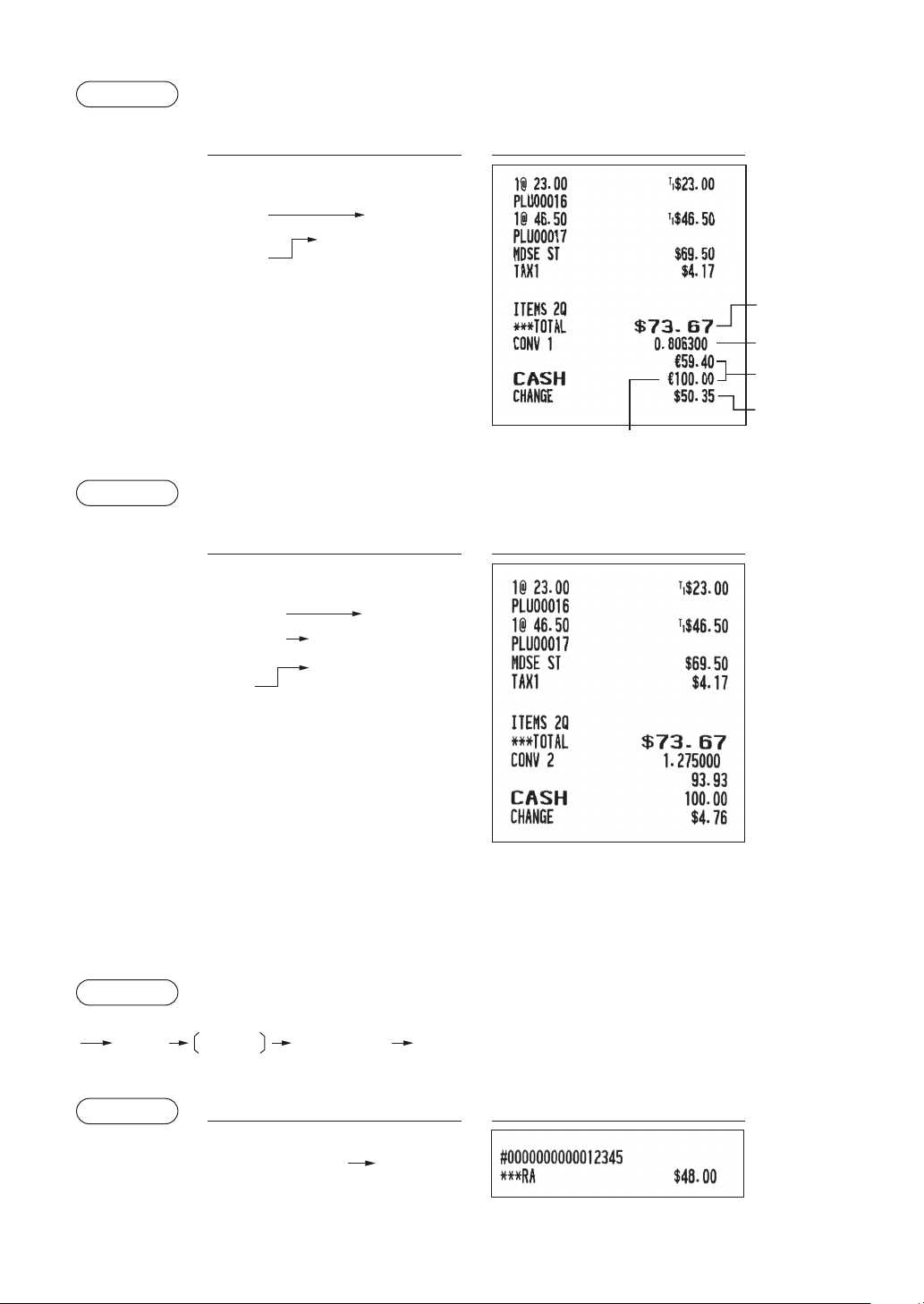
Currencyconversion
Your register allows payment entries in foreign currency. Press the
F
key and select “CONV 1” or
“CONV 2” to create a subtotal in foreign currency.
Procedure
Amount
tendered
(max. 8 digits)
For exact amount payment
For additional payment in foreign currency
Next registration
or payment in
domestic currency
A
l
After an entry is completed
or
After the amount tendered is found smaller than the sales amount in a sales entry
A
(Open rate)
0.000000 to
999.999999
4 CONV 1
5 CONV 2
F
Preset conversion rate
NOTE
• When the amount tendered is short, its equivalent in decit is shown in domestic currency.
• Change amount will be displayed in domestic currency.
32
Example
Presetconversionrate(0.8063):CONV1
Keyoperation Print
10000 A
Currency
conversion
Amount
tendered in
foreign currency
F
4
16
17
p
p
Example
Openconversionrate(1.275):CONV2
Keyoperation Print
10000 A
Currency
conversion
Conversion rate
Amount
tendered in
foreign currency
F
5
16
17
p
p
1P275
A
■
Received-on-accountentries
When you receive on account from a customer, use this function.
From the FUNCTION MENU, select RA option to proceed the operation. You cannot receive RA in foreign
currency.
Procedure
1 ***RA
F
RA amount
(max. 9 digits)
A
Example
Keyoperation Print
12345
Q
(Selection “1 ***
RA
”)
F
1
4800
A
Domestic
currency
Conversion
rate
Foreign
currency
Domestic
currency
Foreign currency symbol
(Printed if programmed)
33
■
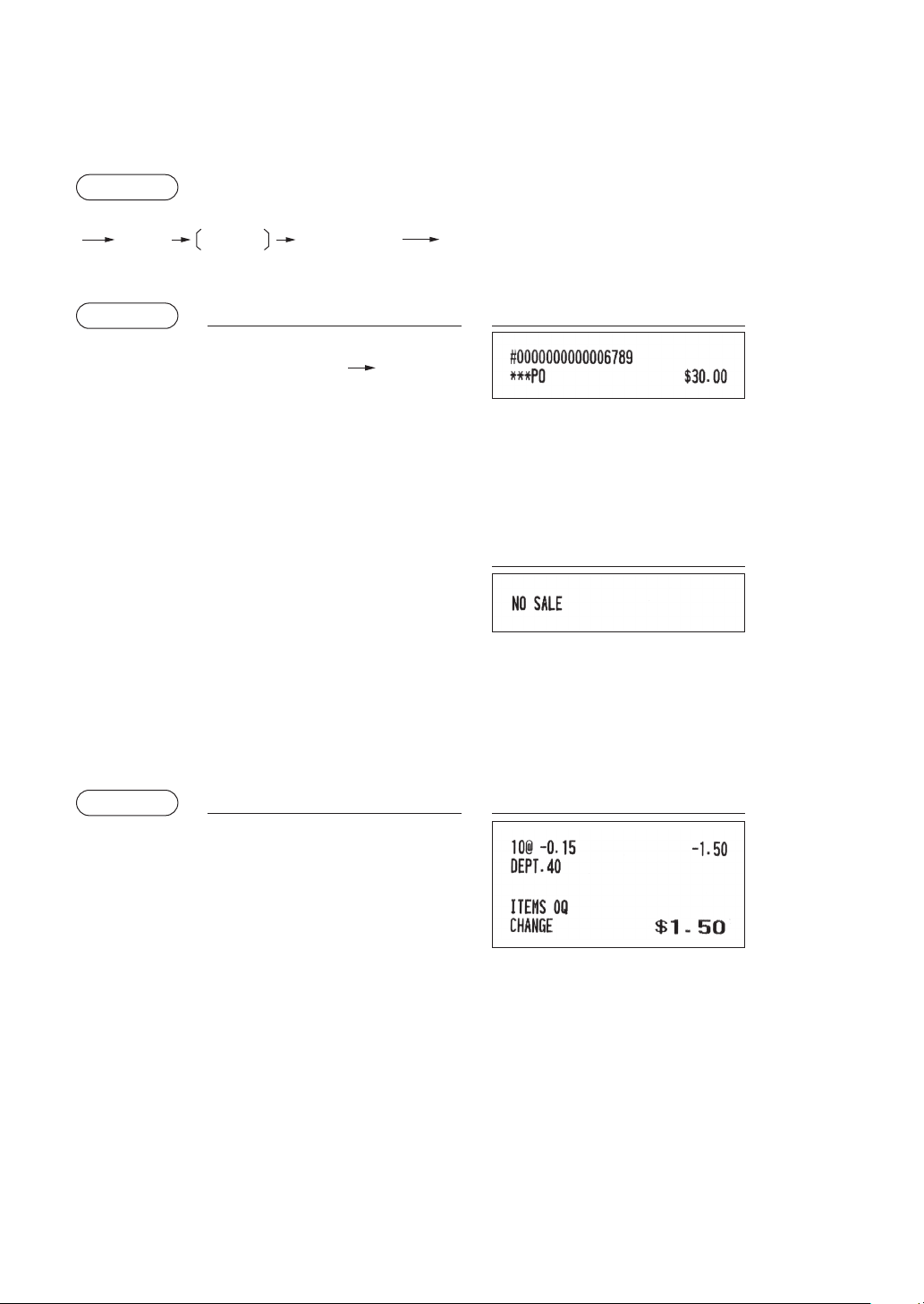
Paid-outentries
When you pay an amount to a vendor, use this function.
From the FUNCTION MENU, select PO option to proceed the operation.
Procedure
Amount
(max. 9 digits)
A
2 ***PO
F
Example
Keyoperation Print
6789
Q
(Selection “2 ***PO”)
F
2
3000
A
■
No-sale(exchange)
Simply press the
A
key without any entry. The drawer will open and the printer will print “NO SALE”
on the receipt. If you let your register print a non-add code number before pressing the
A
key, a no
sale entry is achieved with a non-add code number printed.
Print
■
Bottlereturn
This function is used to handle the deposit and payment (paid out) for returned empty bottles or cans.
This function is applicable only to those departments that have been set for bottle return departments or
their associated PLUs, sub-departments or UPCs.
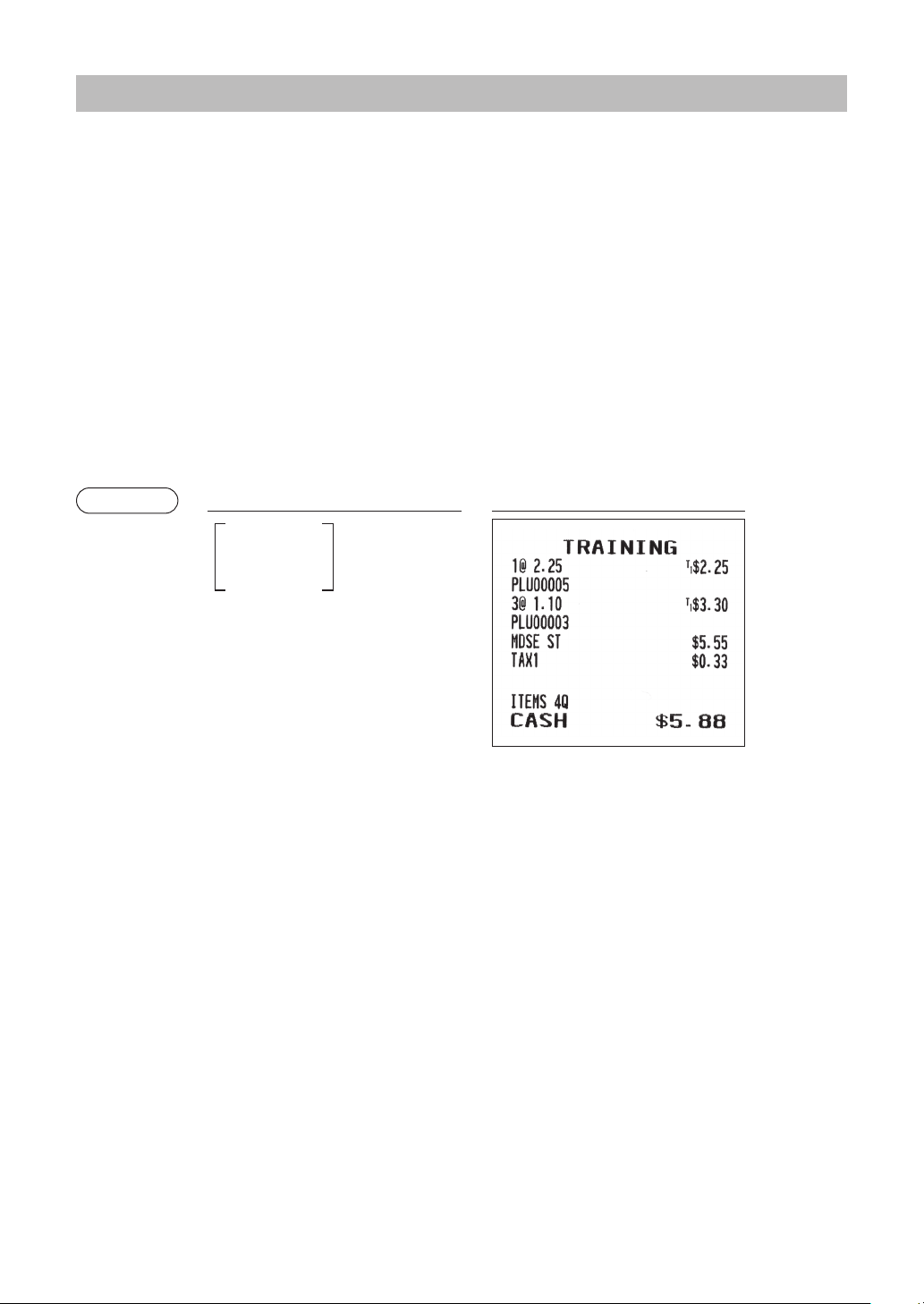
Example
Keyoperation Print
10
@
15
d
p
A
(When dept. 40 is programmed
as a bottle return dept. and also a
negative dept.)
34
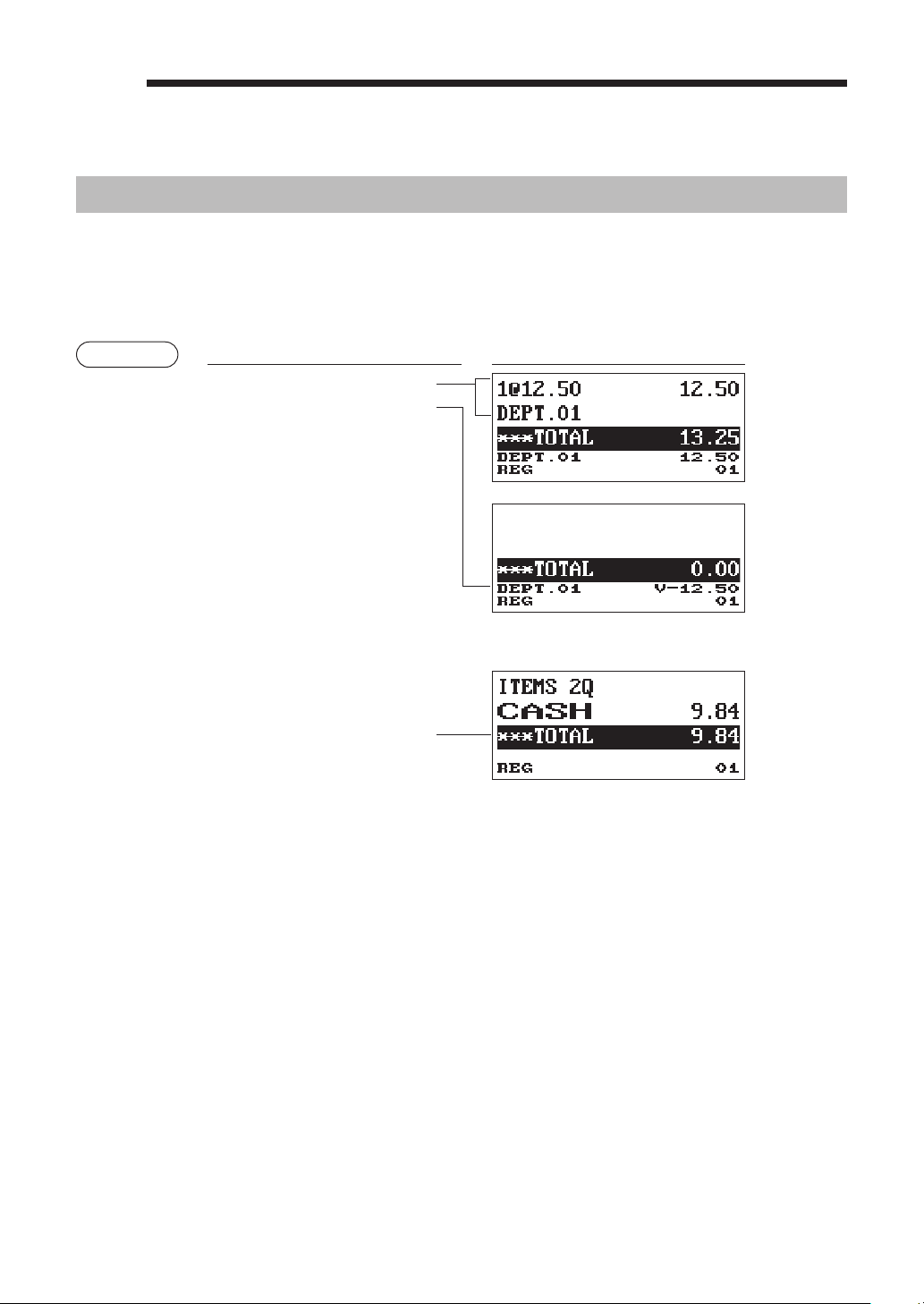
TRAININGMode
The training mode is used when the operator or the manager practices register operations.
When a clerk set in training is selected, the register automatically enters the training mode, while a clerk
not set in training is selected, the register automatically enters the ordinary REG mode. A training text and a
training clerk can be programmed.
The training operations are valid in all modes.
A mark which is identifying a training receipt is printed on the receipt which is issued in the training mode.
The consecutive number is not updated. The preceding number is repeated in printing.
Training clerk programming is performed in PROGRAM mode. (It allows only for one-clerk.)
The memory in clerk is updated in the training mode. Other memories are not updated.
The reading and resetting of training clerks is printed on the clerk reports. However, the sales total of training
clerks is not included in the clerk total on the full clerk report.
Example
Keyoperation Print
5
p
3
@
3
p
A
Selecting the
clerk set in
training
35
5
Correction
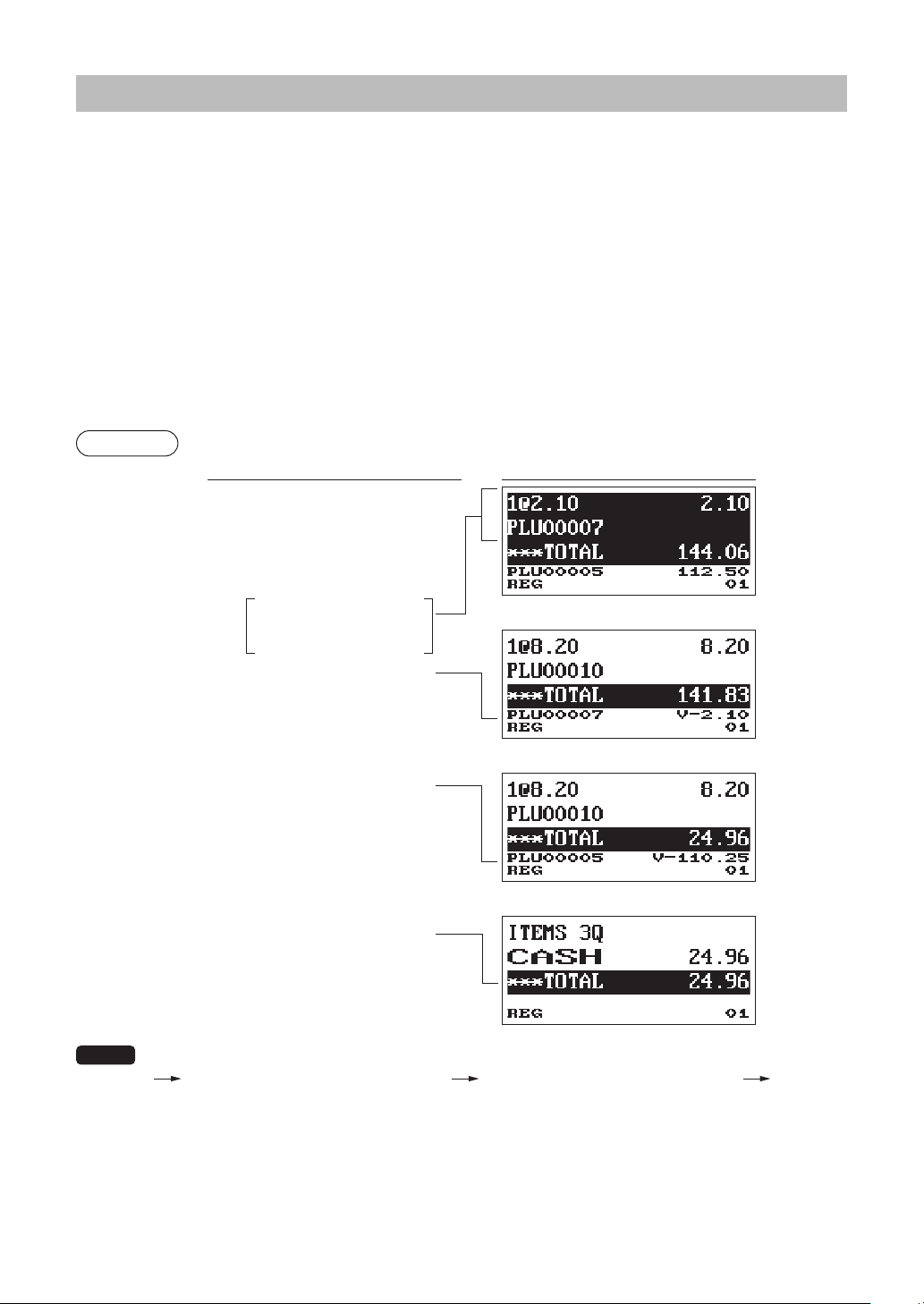
CorrectionoftheLastEntry(DirectVoid)
If you make an incorrect entry relating to a department, PLU/subdepartment, UPC, percentage (
¡
,%2),
discount (
-
), or item refund, you can void this entry by pressing the
t
key immediately after the incorrect
entry.
Example
Keyoperation Display
1250
1
t
2
p
t
5012345678900
p
t
600
2
¡
t
328
3
28
J
t
250
f
1
t
A
36
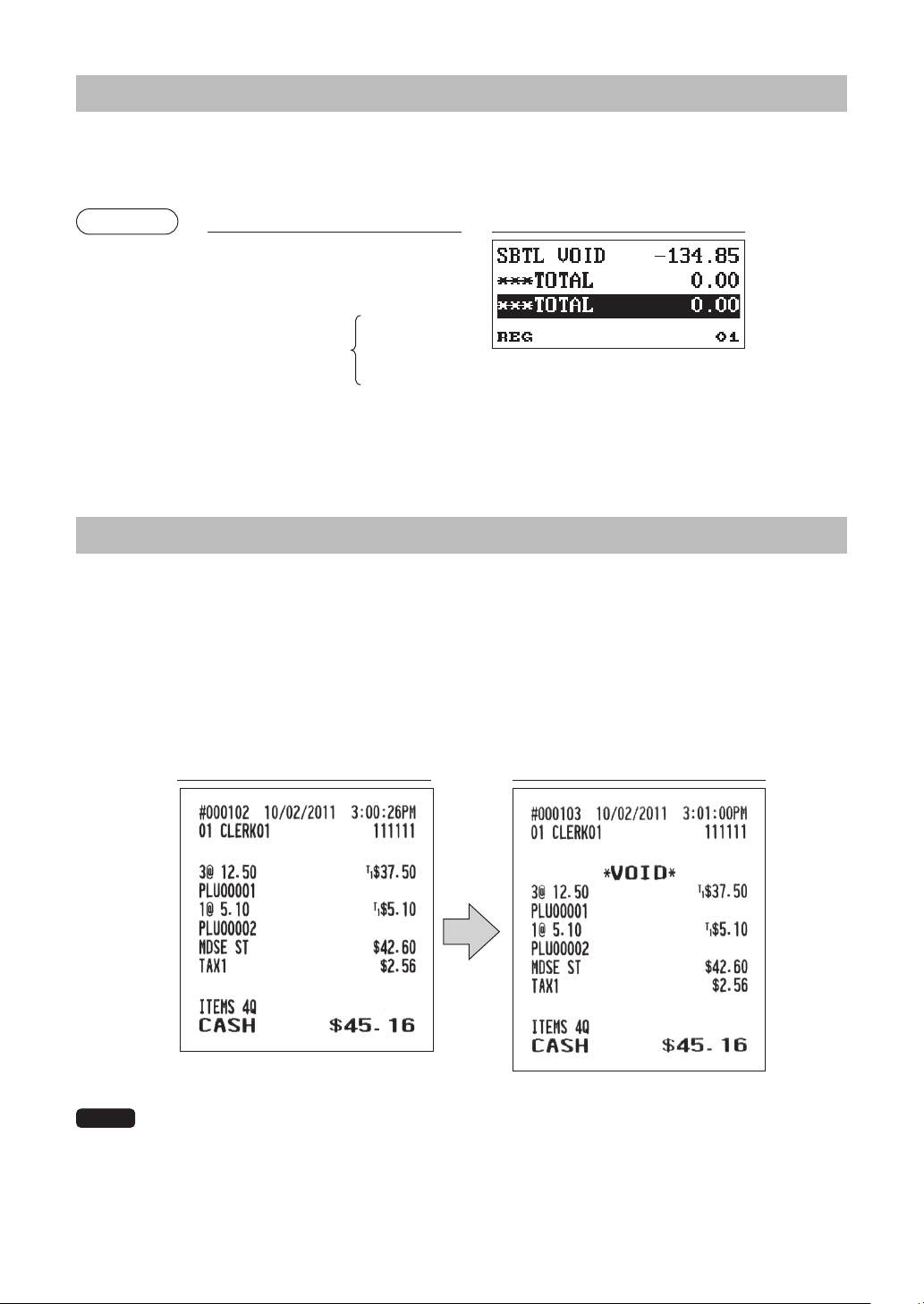
CorrectionoftheNext-to-LastorEarlierEntries(IndirectVoid)
If you nd an incorrect entry before nalizing the transaction (e.g. before pressing the
A
key), you
can void the entry by the cursor operation or the key sequence operation.
Indirectvoidbycursoroperation
You can void department, PLU/subdepartment, UPC, item refund, amount discount/premium and percent
entries.
Move the cursor to the item to be voided, and press the
t
key.
Indirectvoidbykeysequenceoperation
You can void department, PLU/subdepartment, UPC and item refund.
Press the
t
key just before you press a department key,
d
key or
p
key. For the refund indirect
void, press the
t
key after you press the
f
key.
Example
(Indirect void by cursor operation)
Keyoperation Display
1310
1
7
p
10
p
50
@
5
p
t
49
@
5
t
p
A
NOTE
The register allows you to enter the quantity to void only for the integer quantity.
[ Selection the item to void by cursor ] [ Entry the quantity to void ( XXXX ) ]
t
Move the cursor to the
item to be voided.
37
SubtotalVoid
You can void an entire transaction. Once subtotal void is executed, the transaction is aborted and the
register issues a receipt.
Example
Keyoperation Display
1
p
2
p
10
p
Q
t
Q
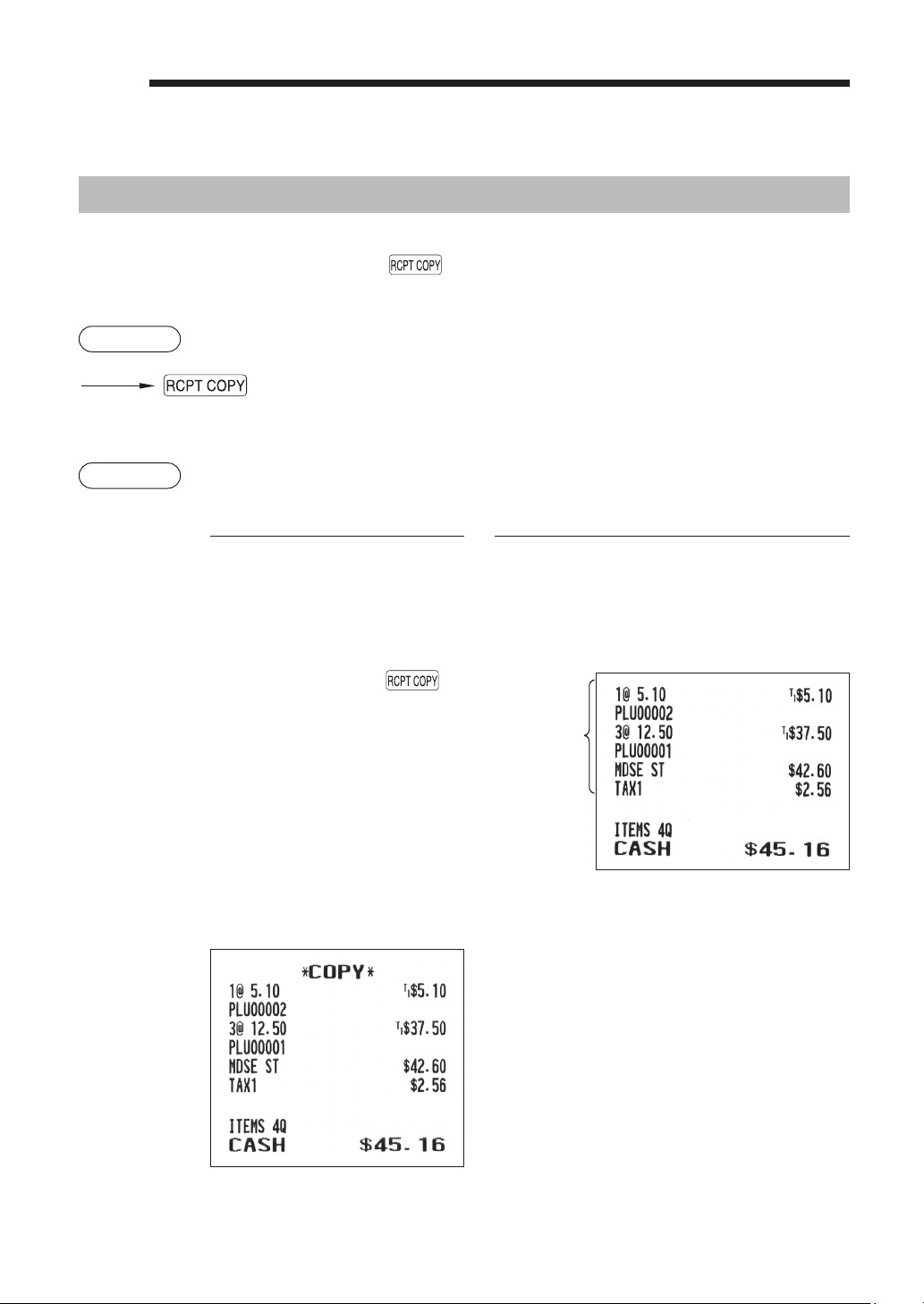
CorrectionafterFinalizingaTransaction
When you need to void incorrect entries that are found after nalizing a transaction or cannot be corrected
by direct, indirect or subtotal void, follow this procedure.
1.
Select “3 VOID MODE” in the mode selection window.
2.
Repeat the entries that are recorded on an incorrect receipt. (All data in the incorrect receipt is removed
from register memory; the voided amounts are added to the void mode totalizer.)
Incorrectreceipt Cancellationreceipt
NOTE
Your register leaves the VOID mode whenever a transaction is canceled (i.e. nalized in the
VOID mode). To void additional transactions, repeat steps 1 and 2 above.
Subtotal void
38
6
SpecialPrintingFunction
CopyReceiptPrinting
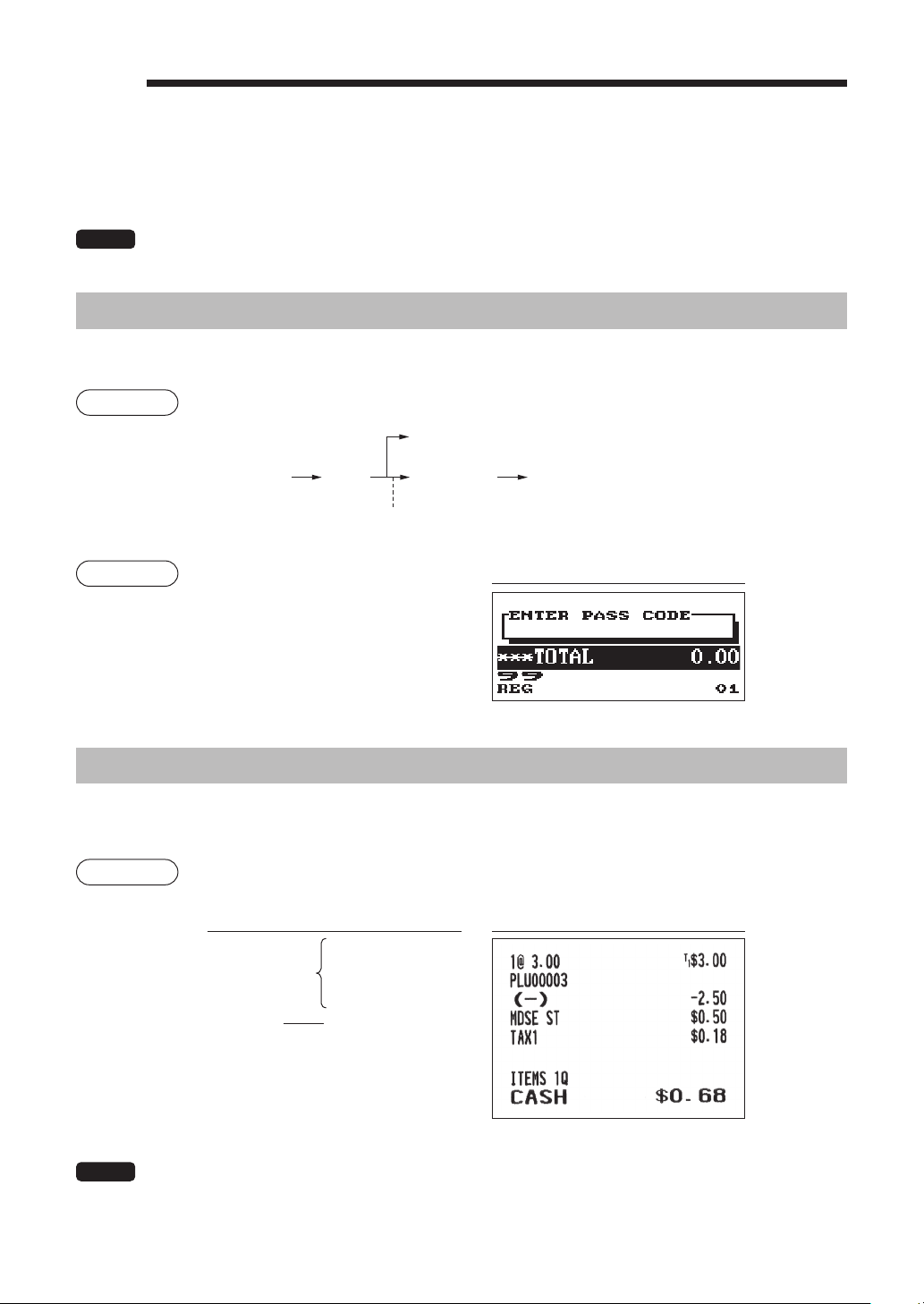
If your customer wants a receipt after you have nalized a transaction with the receipt ON-OFF function
in the OFF status (no receipting), press the
key for receipting. Your register can also print a copy
receipt when the receipt ON-OFF function is in the “ON” status.
Procedure
Example
Printing a receipt after making the entries shown below with the receipt ON-OFF function
“OFF” status
Keyoperation Print
2
p
3
@
1
p
A
For receipting
l
“COPY” is printed on the copy receipt.
Print on the
receipt
39
7
ManagerMode
The manager mode is used when managerial decisions must be made concerning register entries, for
example, for overriding limitations and for other various non-programming managerial tasks.
NOTE
Normal register operations may also be performed in this mode.
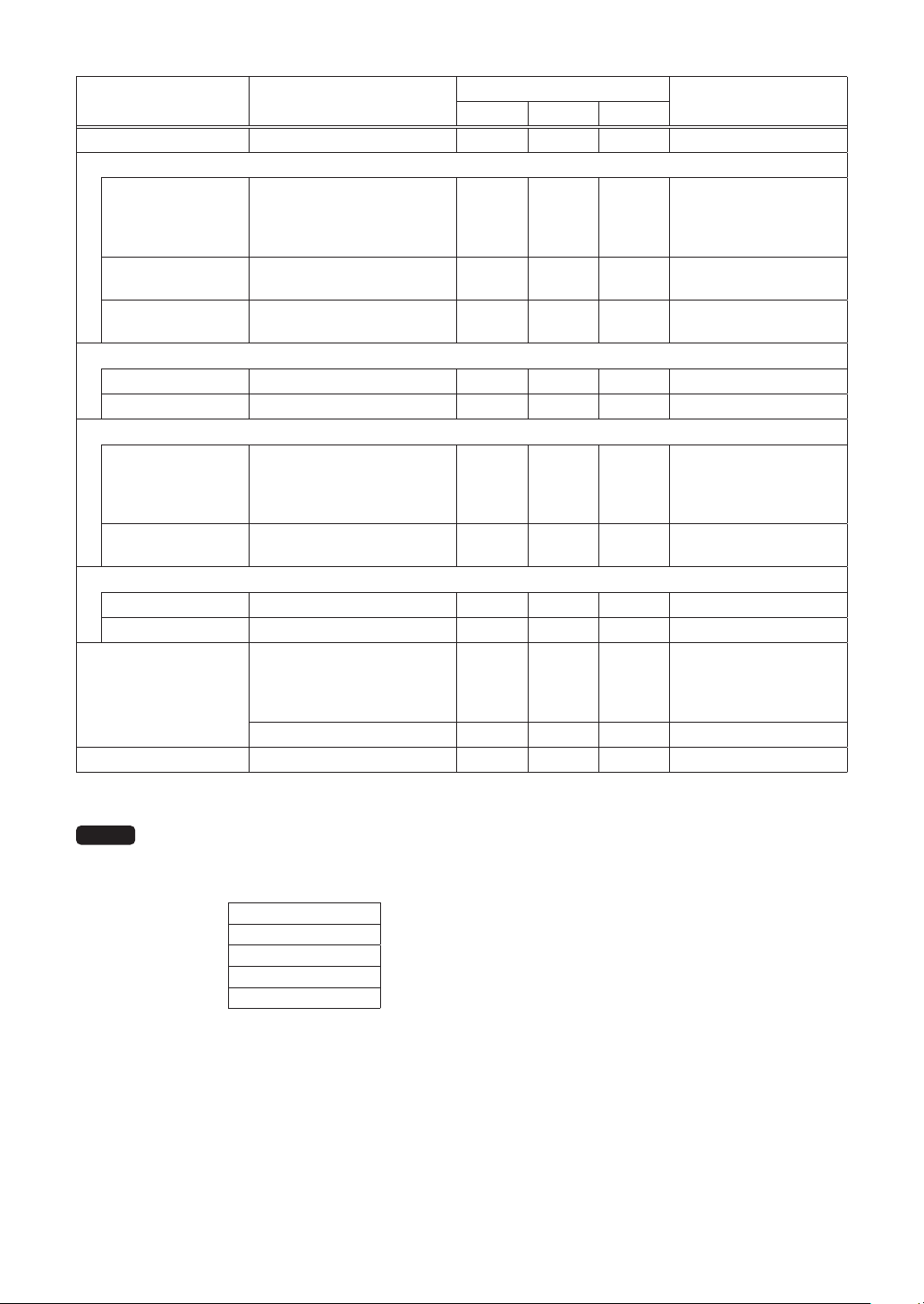
EnteringtheManagerMode
To enter the manager mode, use the following procedure in the REG mode:
Procedure
L A
The secret code entry box will appear.
99
Manager code
XXXX
Secret code
When “0” is programmed for the secret code
Example
Display
If the code is correct, the register enters the manager
mode.
OverrideEntries
Programmed limits (such as maximum amounts) for functions can be overridden by placing the register in
the manager mode.
Example
This example presumes that the register has been programmed not to
allow coupon entries over 2.00.
Keyoperation Print
3
p
250
-
.......
Error
l
99
L
250
-
A
NOTE
• When a transaction is nalized, manager is automatically signed off.
REG-mode entries
Enter to the
manager mode

40
8
Reading(X)andResetting(Z)
ofSalesTotals
• Use the reading function (X) when you need to take the reading of sales information entered
after the last resetting. You can take this reading any number of times. It does not affect the
register’s memory.
• Use the resetting function (Z) when you need to clear the register’s memory. Resetting prints all
sales information and clears the entire memory except for the GT1 through GT3, reset count,
and consecutive number.
• X1 and Z1 reports show daily sales information. You can take these reports in the X1/Z1 mode.
• X2 and Z2 reports show periodic (monthly) consolidation information. You can take these
reports in the X2/Z2 mode.
• In the OP X/Z mode, a clerk can take his or her report.
• If you want to stop the printing report, press the
a
key.
■
HowtotakeaX1/Z1orX2/Z2report
[TotakeanX1orX2report:]
1.
Press the key.
2.
Select the “4 X1/Z1 MODE” or “5 X2/Z2 MODE” by using the
I
key, and press the
A
key.
3.
Select “2 READING” in the X1/Z1 mode or select “1 READING” in the X2/Z2 mode menu window
and press in both cases
A
key to display the items list.
4.
Select the appropriate report title.
5.
Press the
A
key.
[TotakeaZ1orZ2report:]
1.
Press the key.
2.
Select the “4 X1/Z1 MODE” or “5 X2/Z2 MODE” by using the
I
key, and press the
A
key.
3.
Select “3 RESETTING” in the X1/Z1 mode or select “2 RESETTING” in the X2/Z2 mode menu
window and press in both cases
A
key to display the items list.
4.
Select the appropriate report title.
5.
Press the
A
key.
■
Viewreport
You can take view reports (display only) in the X1/Z1 mode for department sales, cash in drawer (CID) and
sales total at the point you take the report.
1.
Press the key.
2.
Select the “4 X1/Z1 MODE” by using
I
key, and press the
A
key.
3.
Select the “1 VIEW REPORT” , and press the
A
key
.
4
.
Select “1 DEPT. SALES” to take a view report of department sales, “2 CASH IN DRAWER” to take a
view report of cash in drawer, or “3 SALES TOTAL” to take a view report of sales total.
5.
Press the
A
key.
41
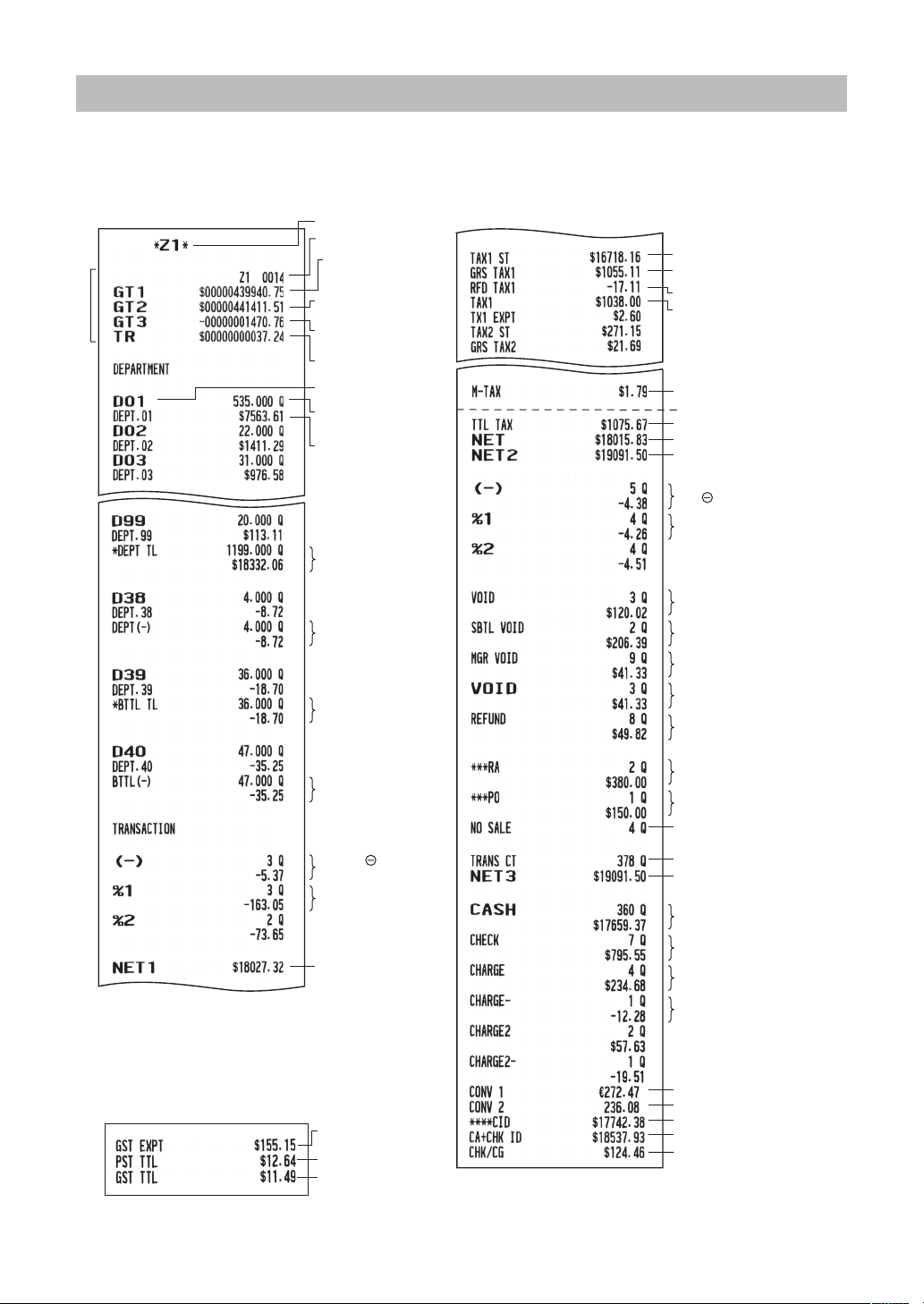
Reporttype Description
Operatingmodes
Datatobeentered
OPX/Z X1/Z1 X2/Z2
GENERAL General report X1, Z1 X2, Z2
<DEPT. MENU>
BY RANGE Department by group report X1 X2
Department code
(The range can be
specied by entering
start and end codes.)
BY GROUP
Individual department group
report
X1 X2
Department group no. (1
to 12)
GROUP TOTAL
Depa rtment group total
report
X1 X2
<TRANS. MENU>
TRANSACTION Transaction report X1 X2
TL-ID Total-in-drawer report X1 X2
<PLU/UPC MENU>
BY RANGE
PLU/UPC sales report by
specied range
X1, Z1 X2, Z2
PLU/UPC code
(The range can be
specied by entering
start and end codes.)
BY DEPT
PLU/UPC report by
associated department
X1, Z1 X2, Z2 Department code
<CLERK MENU>
ALL CLERK All clerk report X1, Z1 X2, Z2
IND. CLERK Individual clerk report X, Z X1, Z1 X2, Z2 For the assigned clerk
HOURLY
Hourly report (all or by
specied range)
X1
For an individual time
range (The range can
be specied by entering
start and end times.)
Hourly report (all) Z1
DAILY NET Daily net report X2, Z2
NOTE
The following reports relating to PLU/UPC is issued in the sequence of PLUs and UPCs.
PLU/UPC and PLU/UPC BY DEPT.
Also the UPC codes are printed in the sequence shown below.
EAN-13
EAN-8
UPC-A
UPC-E
ITF-14
42
DailySalesTotals
■
Generalreport
•Samplereport
Taxable 1 total
Gross tax 1 total
Refund tax 1 total
Net tax 1 total
Mode title*1
Reset counter
Net grand total
(GT2-GT3)
Dept. code
Sales q'ty
Sales amount
“+” dept. counter
and total
“+” bottle return dept.
counter and total
“-” bottle return dept.
counter and total
“-” dept. counter
and total
Subtotal counter
and total
Subtotal percent 1
counter and total
*2
REG-mode void counter
and total
Subtotal void counter and
total
Manager item void counter
and total
Void-mode transaction
counter and total
Refund counter and total
Received on account
counter and total
Paid out counter and total
Item counter and total
Item percent 1
counter and total
Manual tax total
Tax total
Net total without tax
Net total with tax
No-sales counter
Customer counter
Sales total
Foreign currency total (preset)
Foreign currency total (open)
Cash in drawer
Cash + check in drawer
Change total for
check tendering
Cash counter and total
Check sales
counter and total
Charge1 sales
counter and total
Charge1 refund
counter and total
Grand total of plus
registration
Grand total of
minus registration
Grand total of training
mode registration
Net sales total
*1: When you take X1 report, “X1” is printed.
*2: Printed in the Z1 report only.
*3: When the Canadian tax system is selected,
the following is printed here.
*3
Exempt total
from GST
PST total
GST total
43
■
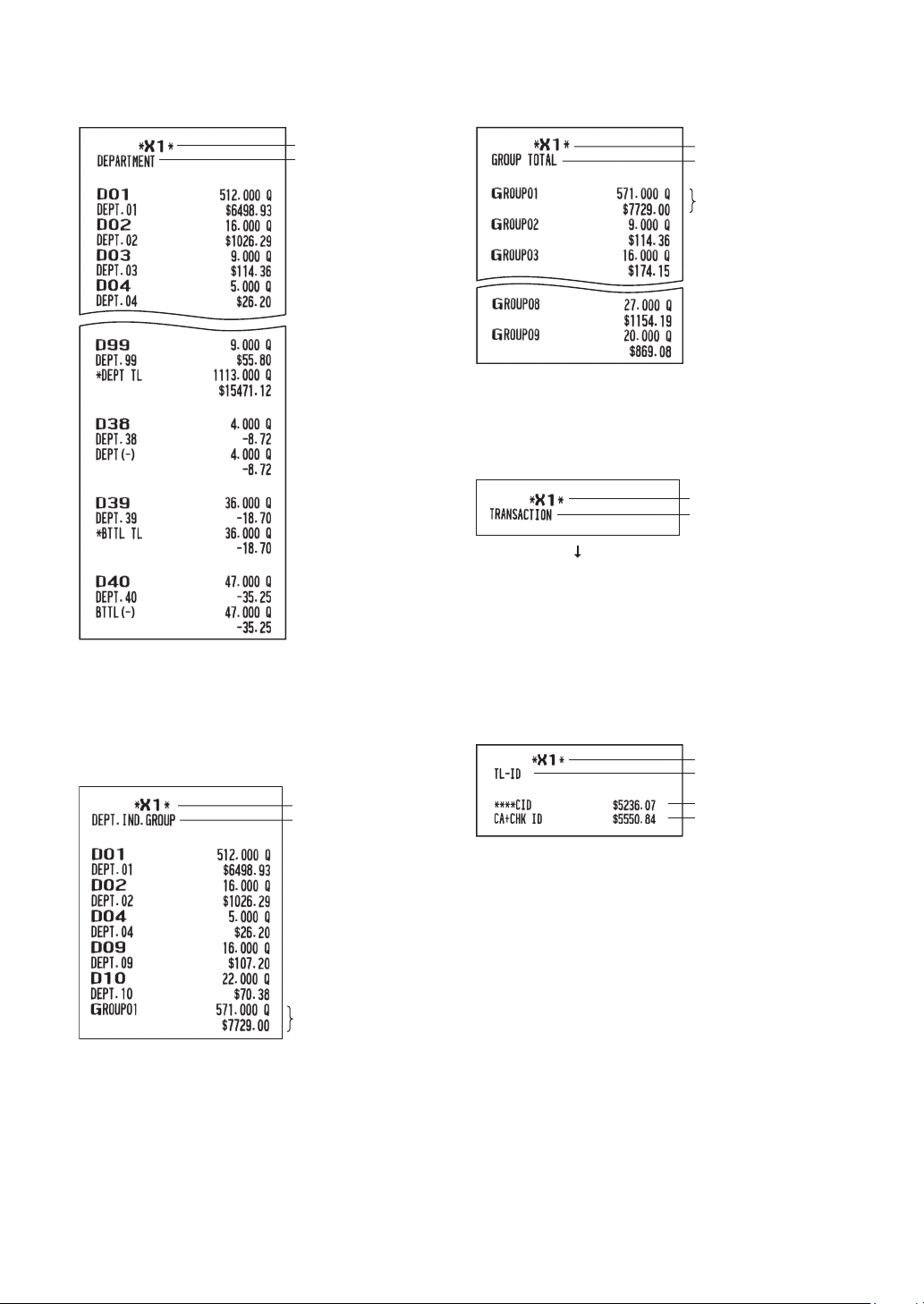
Departmentreport
•Samplereport
■
Individualgrouptotalreporton
department
•Samplereport
■
Fullgrouptotalreportondepartment
•Samplereport
■
Transactionreport
•Samplereport
This report shows the same
transaction data as when a full sales
report is run.
■
Totalindrawerreport
•Samplereport
Mode title
Report title
Group 1 total
Mode title
Report title
Group 1 total
Mode title
Report title
Mode title
Report title
Cash in drawer
Cash plus check in drawer
Mode title
Report title
44
■
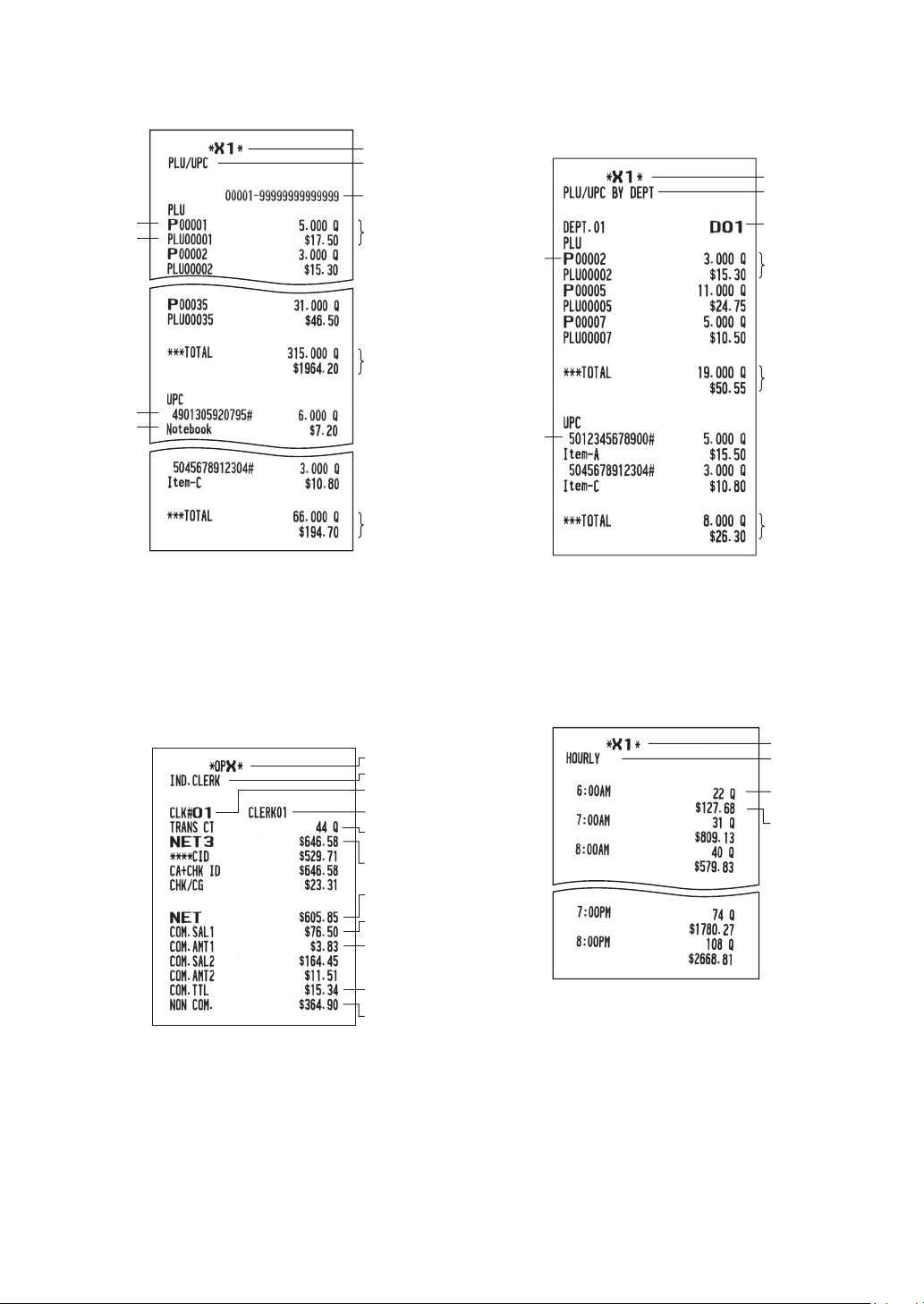
PLU/UPCreportbydesignatedrange
•Samplereport
* When you take Z1 report, “Z1” is printed.
The UPC codes are printed out in the order of EAN-
13,EAN-8, UPC-A, UPC-E and ITF-14.
■
PLU/UPCreportbyassociated
department
•Samplereport
Mode title*
Report title
Sales q'ty
and total
Range
PLU code
Item label
UPC code
Item label
UPC
range sum
PLU
range sum
Sales q'ty
and total
PLU total
UPC total
Mode title
Report title
Associate
dept. code
PLU code
UPC code
■
Clerkreports
Individualclerkreport
•Samplereport
*: When you take OPZ report, “OPZ” is printed.
Fullclerkreport
The report prints in the same format as in the
sample report of individual clerk, but all clerk’s sales
data is sorted by clerk code # (from #1 to #40).
■
Hourlyreport
•Samplereport
*: When you take Z1 report, “Z1” is printed.
When you take an hourly report by range, a report
of the specied range of time (hour) is printed.
Mode title*
Report title
Clerk code
Clerk name
Customer
counter
Sales total
Net sales
Commission 1
sales total
Commission 1
amount
Commission
amount total
Non
commission
sales total
Mode title*
Report title
Customer
counter
Sales total
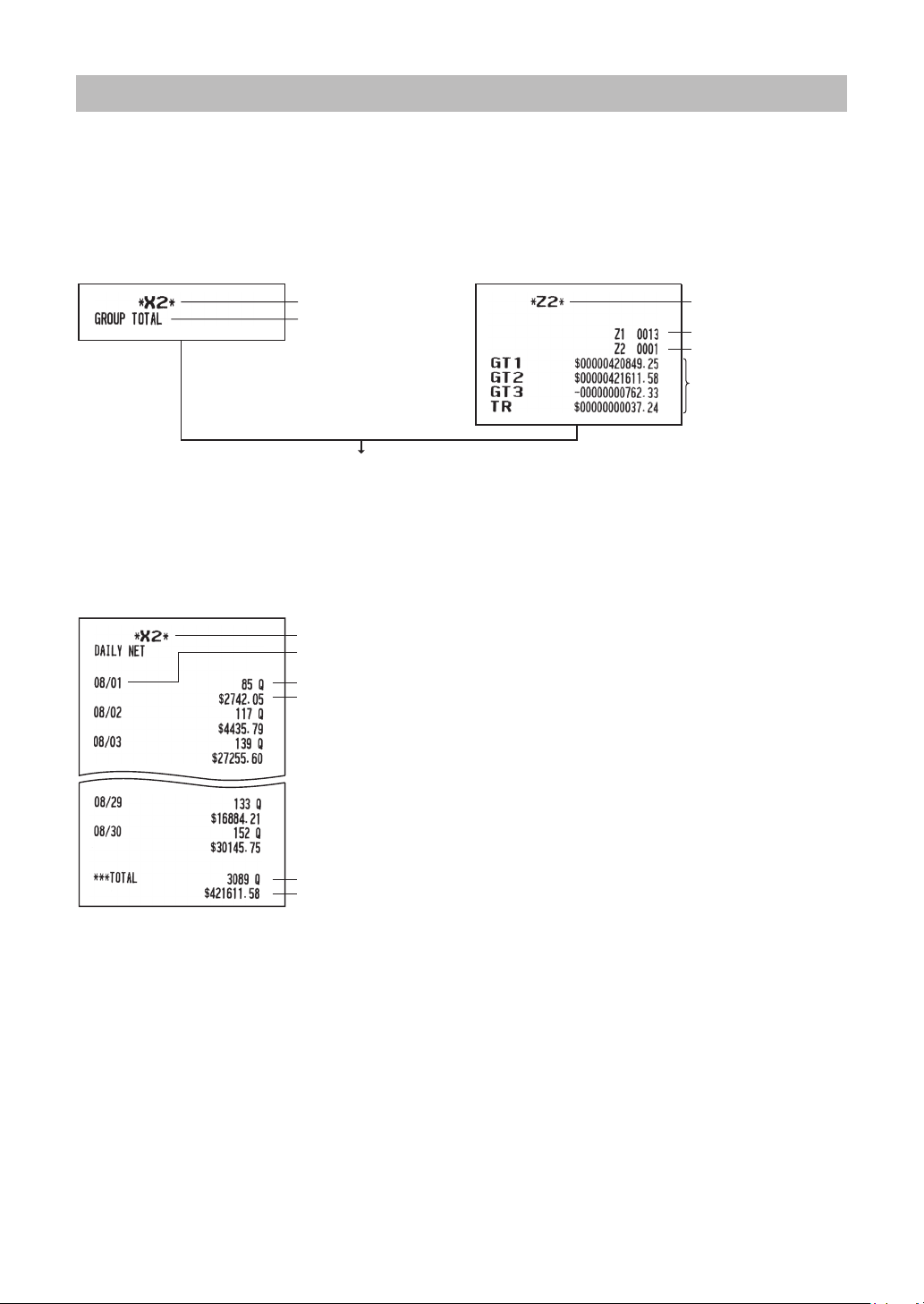
45
PeriodicReportSample
■
Generalinformation
The periodic reading or resetting reports are the same in format as those in the X1/Z1 report for daily sales.
The mode indicator will read “X2” or “Z2”.
•SampleXreport •SampleZreport
(Individual group total report on department) (Full sales report)
Grand totals
Reset counter of daily total
Reset counter of
periodic consolidation
Mode title
Report title
Mode title
■
Dailynetreport
•Samplereport
*: When you take Z report, “Z2” is printed instead of “X2”.
The subsequent printouts are the same in format
as those in the X/Z report for daily totals.
Customer counter
Sales total
Net amount total
Customer total
Mode title*
Date
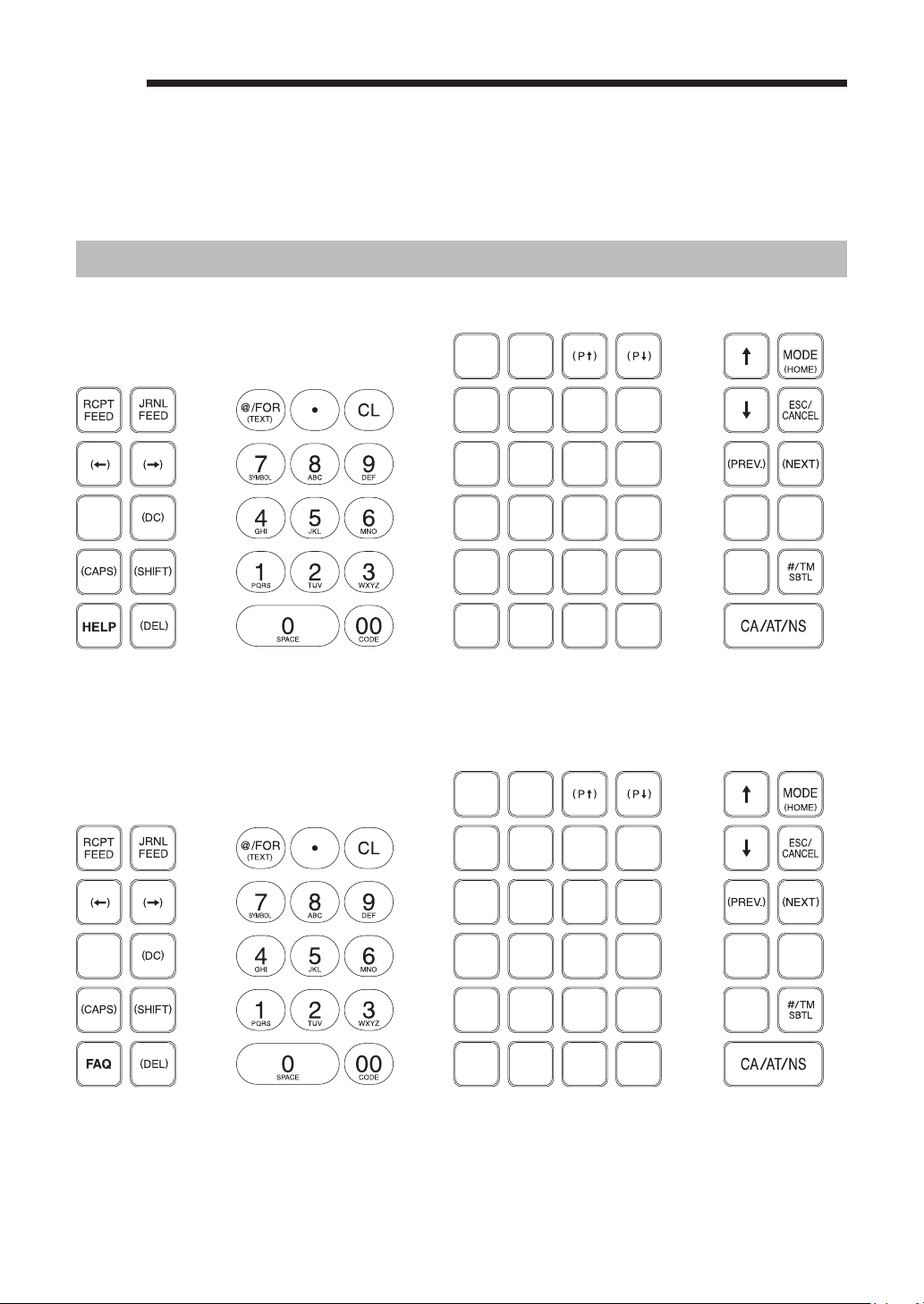
46
9
PriortoProgramming
When you are in the PROGRAM mode, the keyboard layout will be set to one of the programming layouts as
shown below.
ProgrammingKeyboardLayout
■
ForXE-A407
■
ForXE-A43S

47
HWD
: Used for programming characters. For more information about programming characters,
see the section “How to Program Alphanumeric Characters.”
Also the
D
key is used to delete the record item.
F
I
: Used to move the cursor.
A
: Used to program each setting and to nalize programming.
7
: Used to cancel programming and to get back to the previous screen.
: Used to go back to the previous record, e.g., from the department 2 programming window
back to the department 1 programming window.
: Used to go to the next record, for example, in order to program unit prices for sequential
departments.
: Used to scroll the window to go to the next page.
: Used to scroll the window to go back to the previous page.
l
: Used to clear the last setting you have programmed or clear the error state.
P
: Used to toggle between two or more options.
;
:
Used to list those options which you can toggle by the
P
key.
Numeric keys : Used for entering gures.

48
HowtoProgramAlphanumericCharacters
This section discusses how to program alphanumeric characters for various texts.
■
Mobilephonemethod
Enteringalphanumericcharacters
To enter a character, simply press a corresponding character key on the programming keyboard.
To enter “A”, press the “8” key.
To enter “B”, press the “8” key twice.
To enter “C”, press the “8” key three times.
Enteringdouble-sizecharacters
W
: This key toggles the double-size character mode and the normal-size character mode. The default
is the normal-size character mode. When the double-size character mode is selected, the letter “W”
appears at the bottom of the display.
Enteringupper-caseletters
H
: You can enter an upper-case letter by using this key. Press this key just before you enter the upper-
case letter. You should press this key each time you enter an upper-case letter.
: You can lock the upper-case letter mode once the this key is pressed.
Enteringspace
: Enter a space in the cursor position.
Tomovethecursor
: Moves the cursor.
Todeleteacharacterorgure
D
: Deletes a character or gure in the cursor position.
Tochangethetextinputmode
: This key toggles the text input mode, Alphabet (A), European character (Ä), numeric (1), and
symbol (
).
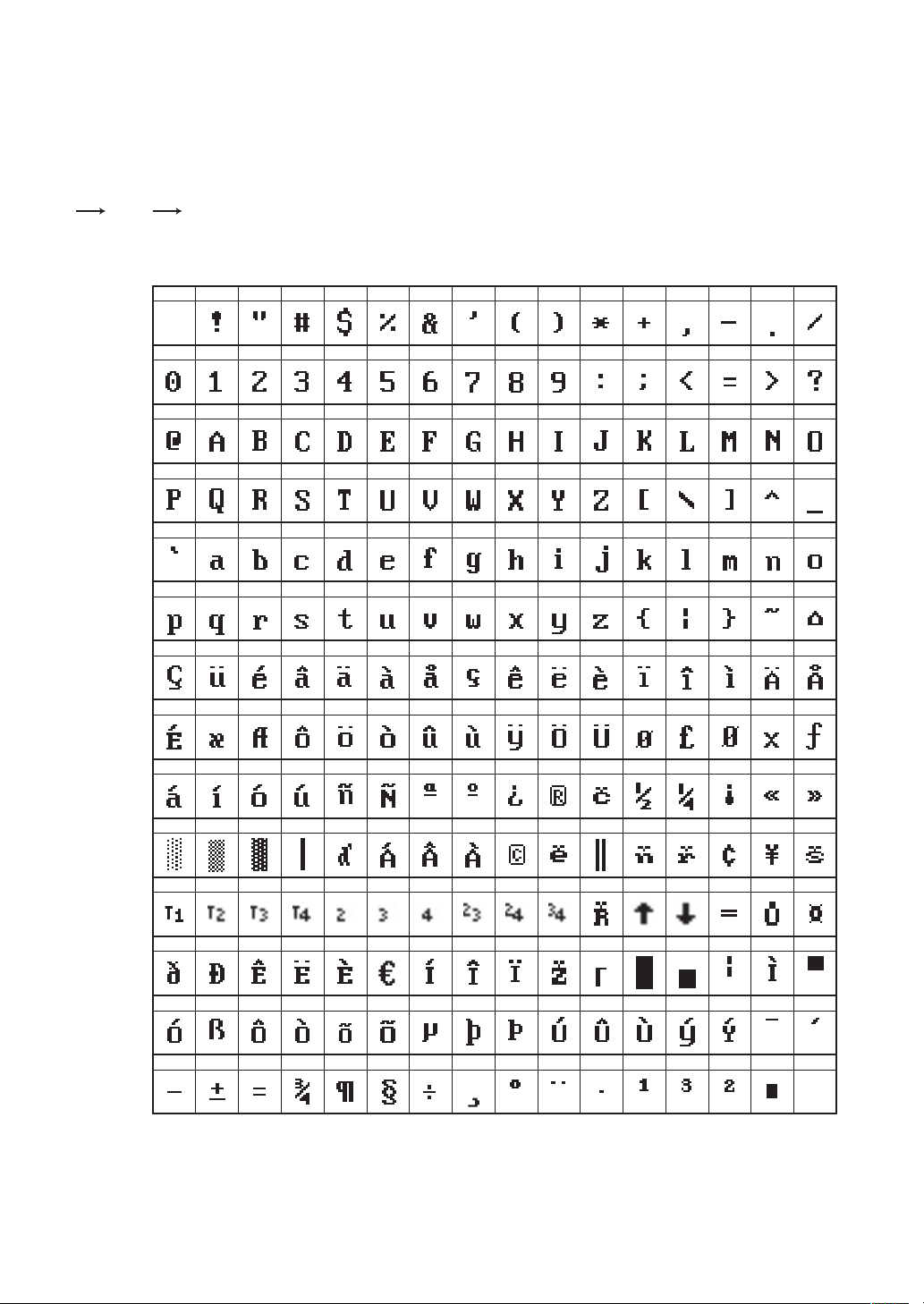
49
■
Enteringcharactercodes
Numerals, letters and symbols are programmable by entering the
:
key and character codes. Use the
following procedure with the cursor placed at the position where you want to enter characters:
To enter a digit, simply press a corresponding numeric key.
XXX XXX : character code (3 digits)
:
032 033 034 035 036 037 038 039 040 041 042 043 044 045 046 047
048 049 050 051 052 053 054 055 056 057 058 059 060 061 062 063
064 065 066 067 068 069 070 071 072 073 074 075 076 077 078 079
080 081 082 083 084 085 086 087 088 089 090 091 092 093 094 095
096 097 098 099 100 101 102 103 104 105 106 107 108 109 110 111
112 113 114 115 116 117 118 119 120 121 122 123 124 125 126 127
128 129 130 131 132 133 134 135 136 137 138 139 140 141 142 143
144 145 146 147 148 149 150 151 152 153 154 155 156 157 158 159
160 161 162 163 164 165 166 167 168 169 170 171 172 173 174 175
176 177 178 179 180 181 182 183 184 185 186 187 188 189 190 191
192 193 194 195 196 197 198 199 200 201 202 203 204 205 206 207
208 209 210 211 212 213 214 215 216 217 218 219 220 221 222 223
224 225 226 227 228 229 230 231 232 233 234 235 236 237 238 239
240 241 242 243 244 245 246 247 248 249 250 251 252 253 254 255
(DC)
032 - 047
Character
code:
048 - 063
064 - 079
080 - 095
096 - 111
112 - 127
128 - 143
144 - 159
160 - 175
176 - 191
192 - 207
208 - 223
224 - 239
240 - 255
*(DC) : Double-size character code
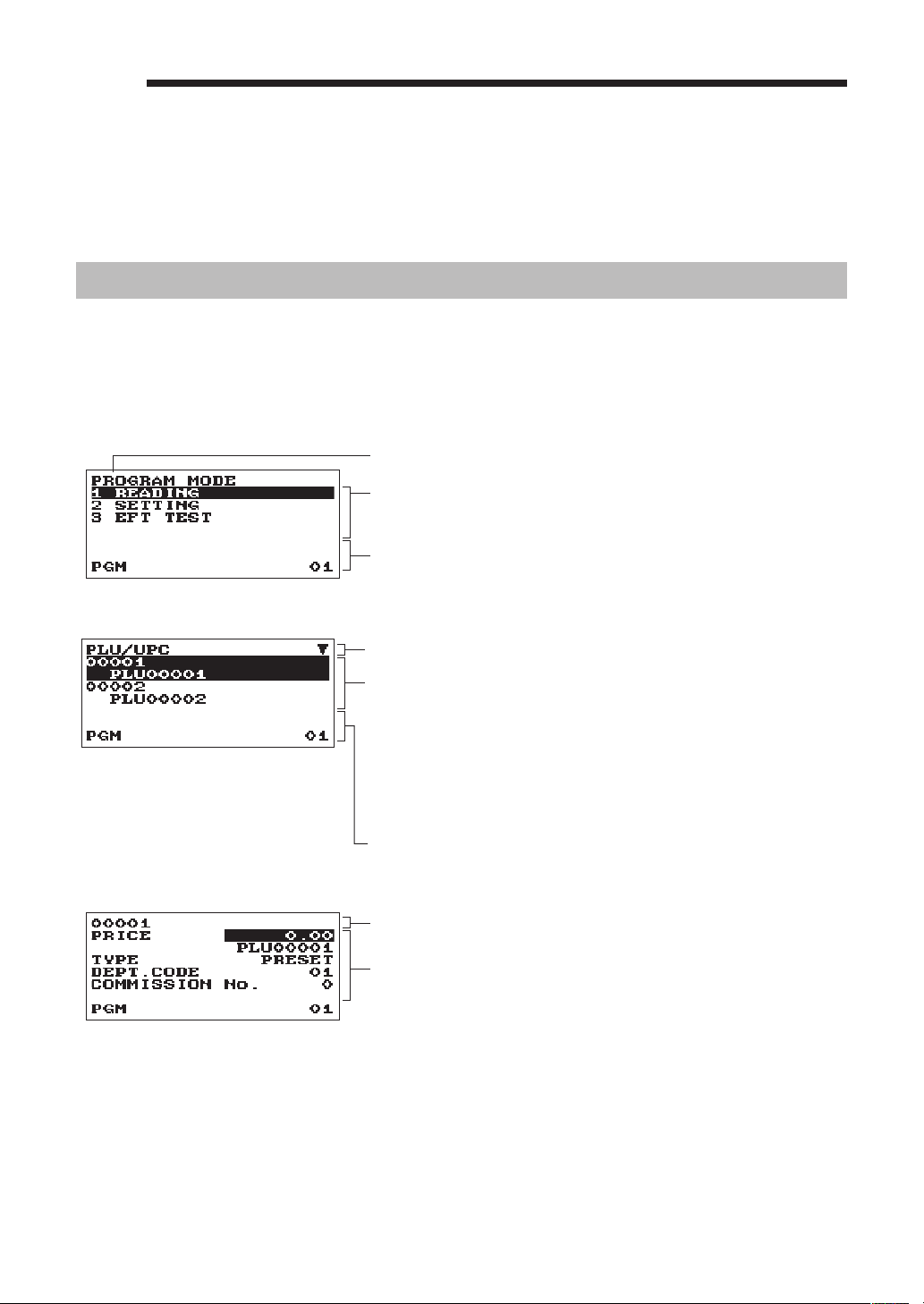
50
a
Programming
This chapter explains how to program various items.
Before you start programming, press the
m
key and select the “6 PROGRAM MODE” or “7 SD CARD
MODE” by using the
I
key and press the
A
key.
BasicInstructions
This section illustrates the basic programming by using an example of programming for departments.
■
Programmingscreen
Opening screen: When you select the “6 PROGRAM MODE”, your display will show a programming
opening screen corresponding to the mode you selected.
Mode you are in
Numeric entry and status information area
Programming menu: Use the cursor keys or numeric key to select
an option, and press the
A
key.
Code selecting screen (Dept. PLU):
Selected menu/option
Numeric entry and status information area
Code number and its description
(In case of PLU/UPC, two lines are used for one code, upper line -
code, lower line - description.)
Use the cursor keys or numeric keys to select an option, and
press the
A
key.
Programming screen:
Selected code
Setting items:
Use the cursor keys to select an item.
To select an option, follow the instruction shown below.
Numeric entry: Use numeric keys
Character entry: Use character keys
Selective entry: Press
P
key to toggle options, or press the
Q
key to show the option list. Use the
cursor keys to move the cursor and press the
Q
or
A
key to select it.
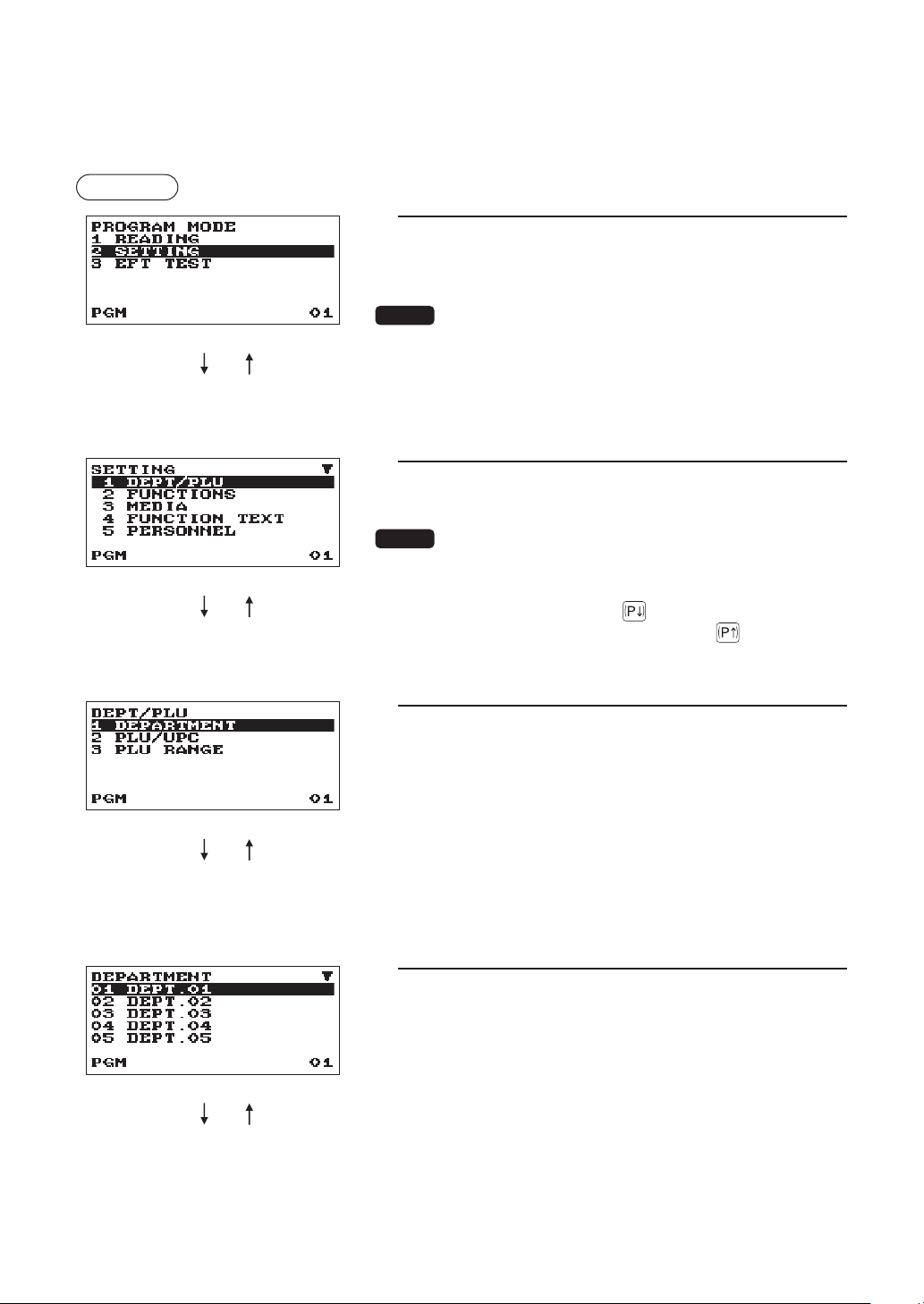
51
■
Programmingexample
The following example shows how to program 2.00 for the unit
price, “ABCDE” for the description, and “non-taxable 1” for
department 1.
Procedure
1.
In the PROGRAM MODE screen, select “2 SETTING” by
using the
I
key and press the
A
key.
• The SETTING screen will appear.
NOTE
• You can also select “2 SETTING” by using numeric key “2,” then
press the
A
key.
• If you return to the previous screen, press the
a
key.
2.
Select “1 DEPT/PLU”
• The DEPT/PLU screen will appear.
NOTE
The arrow mark in the upper-right corner of the window shows that
the window contains more options than are now on the screen. To
scroll the window, press the
I
or key.
To return to the previous page, press the
F
or key.
3.
Select “1 DEPARTMENT.”
• The DEPARTMENT screen will appear, listing
programmable departments.
4.
Select “01 DEPT.01” to program for department 1.
• The “01” window will appear.
A
a
A
a
A
a
A
a
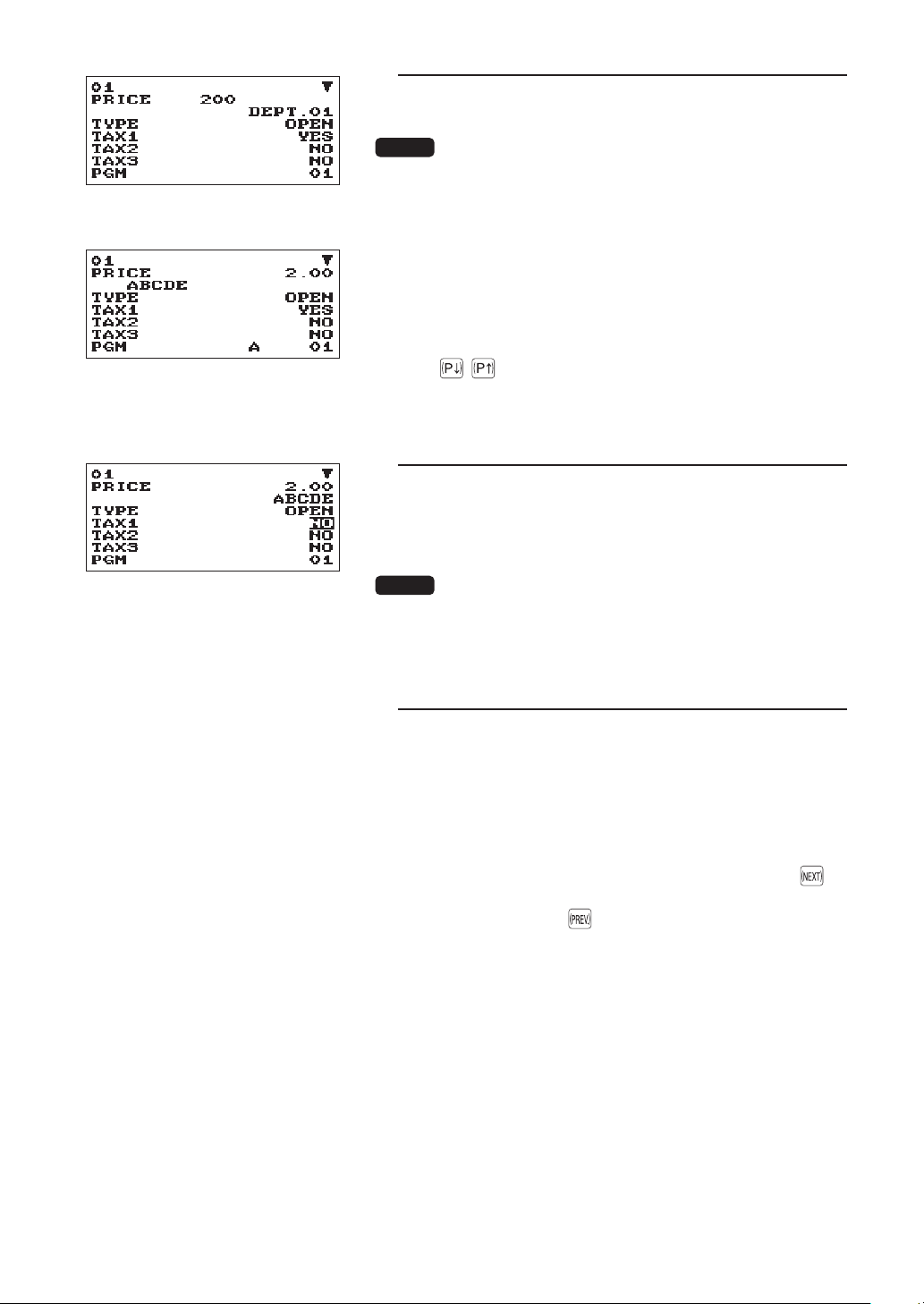
52
5.
Ontherstpageofthe“01”window,programtheunitprice
anddescriptionasfollows:
NOTE
There are three entry patterns for the programming: the numeric
entry, character entry, and selective entry.
•Movethecursorto“PRICE,”enter“200”byusingnumeric
keys.
l
Numericentry
•Movethecursorto“DEPT.01,”enter“ABCDE”byusing
characterkeys.
l
Characterentry
Ifyouwanttoclearsetting,pressthe
l
keybeforeyoupressthe
I
,
F
, ,
or
A
key.
6.
Pressthe
I
keytwicetomovetothecursorto“TAX1”,then
programtheregistertoset“non-taxable1”asfollows:
•Pressthe
P
keytoselect“NO.”
l
Selectiveentry
NOTE
The
P
key toggles between two options as follows:
NO
l
YES
l
NO
l
....
Pressing the
Q
key displays all pertinent options.
7.
Selectoneofthefollowingactions:
•Tocanceltheprogramming,pressthe
a
key.A
conrmationwindowappearstoaskyouwhethertosave
thedata;selecttheoptionyouprefer.
•Tonalizetheprogramming,pressthe
A
key,
thenpressthe
a
key.Youwillreturntothe
“DEPARTMENT”window.
•
Toprogramforthefollowingdepartment,pressthe
key.The“02”windowwillappear.Toreturntothe“01”
window,pressthe
key.
Thefollowingsectionsdescribehowtoprogrameachitemwhichiscontainedinaprogramminggroup.
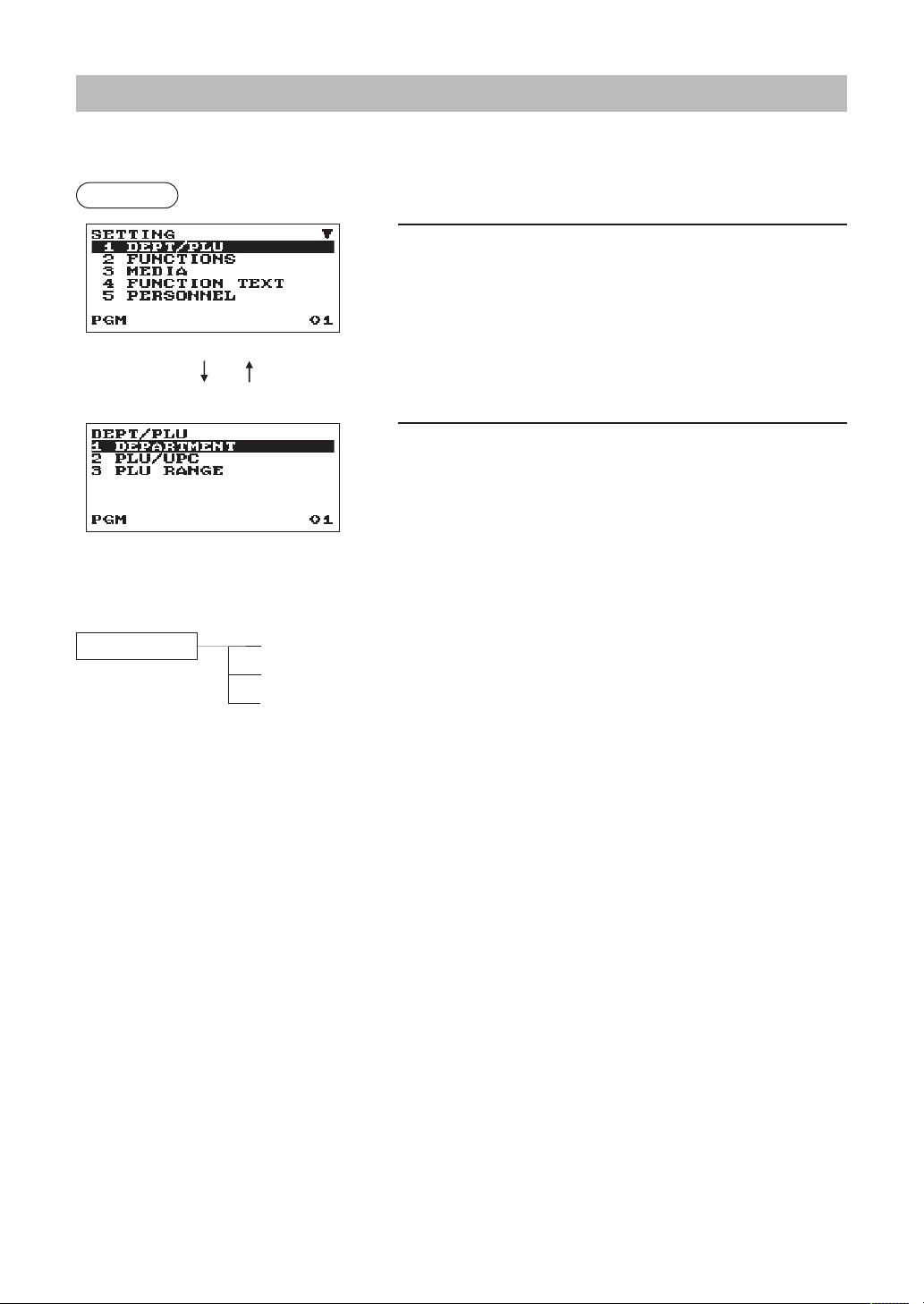
53
DEPT/PLUProgramming
Use the following procedure to select any option included in the department/PLU/UPC programming group:
Procedure
1.
In the SETTING window, select “1 DEPT/PLU”
• The DEPT/PLU window will appear.
2.
Select any option from the following options list.
1 DEPARTMENT:
Departments
2 PLU/UPC:
PLUs/UPCs
3 PLU RANGE:
A range of PLUs
The following illustration shows those options included in this programming group.
1 DEPT/PLU 1 DEPARTMENT
l
See “Department” on page 54.
2 PLU/UPC
l
See “PLU/UPC” on page 55.
3 PLU RANGE
l
See “PLU range” on page 56.
A
a
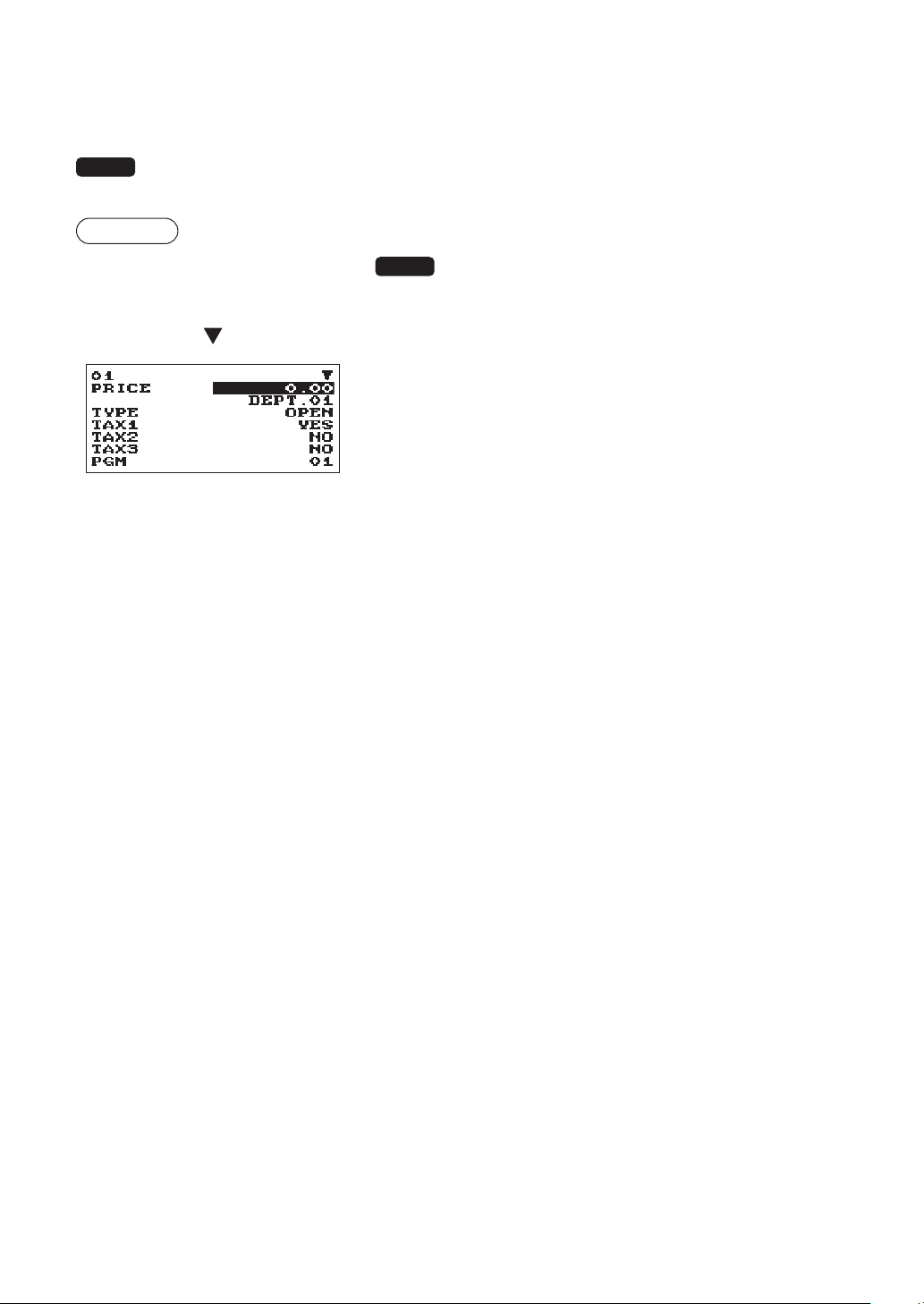
54
■
Department
The register can be equipped with maximum of 99 departments.
Use the following procedure to program for department.
NOTE
To delete a department item in the "DEPARTMENT" window, select the item and press the
D
key.
A conrmation window appears to ask you whether to delete the item, select the option you prefer.
Procedure
Program each item as follows:
Select a pertinent dept. code from
the departments list, or directly enter a
department code.
The screen continues.
NOTE
For more information about the entry patterns, see the “Basic
Instructions” section.
•PRICE(Usethenumericentry)
Unit price (max. 8 digits)
•Description(Usethecharacterentry)
Description for a department. Up to 16 characters can be
entered. (Default text: DEPT.nn)
•TYPE(Usetheselectiveentry)
Type of unit price entry for departments
INHIBIT: Inhibited
OPEN: Open only
PRESET: Preset only
OPEN & PRESET: Open & preset
•TAX1through4(Usetheselectiveentry)
Taxability for each department
YES: Taxable
NO: Non-taxable
•SICS(Usetheselectiveentry)
Department type for SICS (Single Item Cash Sale)
YES: SICS department
NO: Normal department other than SICS department
•SIGN(Usetheselectiveentry)
Selection of the sign (plus or minus)
+: Assign the plus sign
-: Assign the minus sign
•HALO(Usethenumericentry)
This function is intended for prevention of accidentally entered unreasonably amounts.
Limit amount: 0.00 to 999999.99
•COMMISSIONNo.(Usethenumericentry)
A commission group (0 to 2, 0: non commission) can be assigned to each department for commission for
clerks. Each commission amount for each clerk is calculated based on a programmed commission rate
and later printed on clerk reports.
•GROUPNo.(Usethenumericentry)
01-09: Department group no. (0: non grouping)
•BOTTLERETURN(Usetheselectiveentry)
Select whether you use a department as normal department or for bottle return.
YES: Bottle return
NO: Normal department other than bottle return
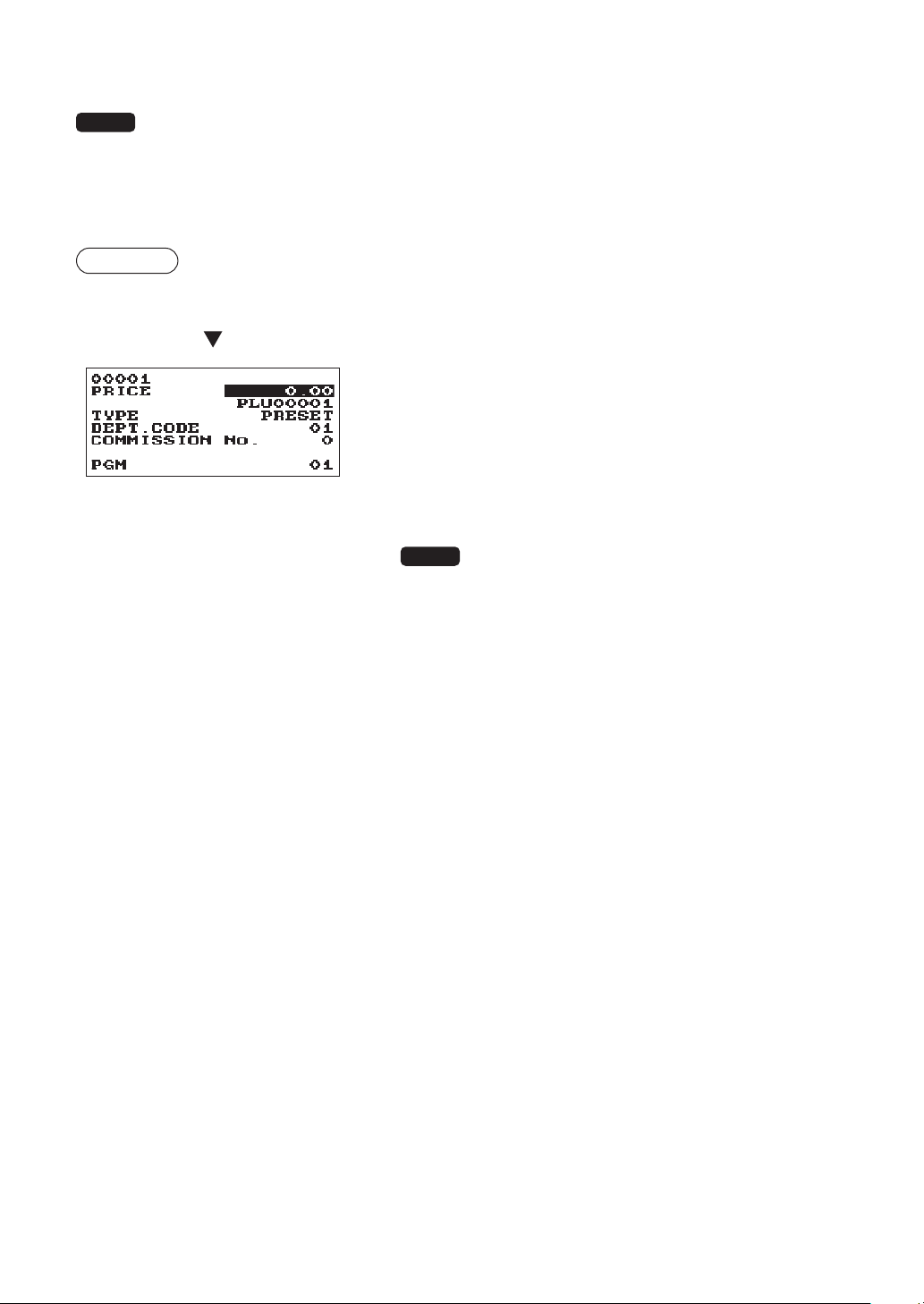
55
■
PLU/UPC
NOTE
• In this manual, the word “UPC” represents UPC (Universal Product Code) and EAN (European
Article Number).
• With regard to the UPC codes applicable to this register, please refer to the chapter 11.
• To delete a PLU/UPC item in the
“
PLU/UPC
”
window, select the item and press the
D
key. A
conrmation window appears to ask you whether to delete the item, select the option you prefer.
Procedure
Program each item as follows:
Select a pertinent PLU code, or directly
enter a PLU code or UPC code.
•PRICE(Usethenumericentry)
Unit price of each price level (max. 8 digits)
•Description(Usethecharacterentry)
Description for a PLU/UPC. Up to 16 characters can be
entered. (Default text: PLUnnnnn for (PLUs))
•TYPE(Usetheselectiveentry)
Type of unit price entry for PLUs
INHIBIT: Inhibited
OPEN: Open only
PRESET: Preset only
OPEN & PRESET: Open & preset
NOTE
For UPCs, it is xed to “PRESET”.
•DEPT.CODE(Usethenumericentry)
Department code to be associated with the entered PLU/UPC
(01 through 99)
When a PLU/UPC is associated with a department, the following functions of the PLU/UPC depend on
the programming for the department.
• Grouping (group 1 through 9)
• Single item cash sale
• Taxability
•COMMISSIONNo.(Usethenumericentry)
A commission group (0 to 2, 0: non commission) can be assigned to each PLU/UPC for commission for
clerks. Each commission amount for each clerk is calculated based on a programmed commission rate
and later printed on clerk reports.
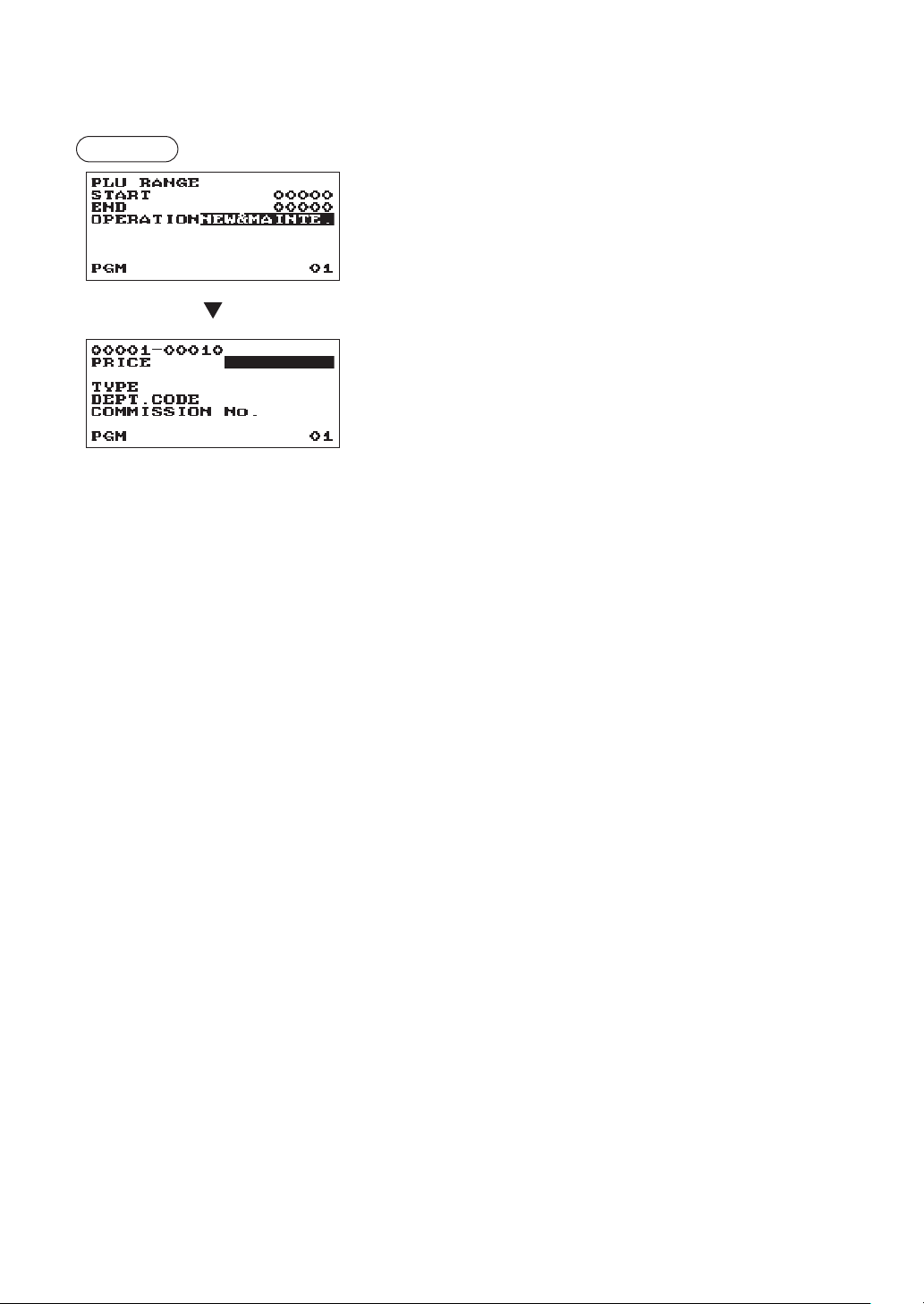
56
■
PLUrange
You can program PLUs in the designated range.
Procedure
Enter a value or select an option for each item as follows:
•START(Usethenumericentry)
Starting PLU code (max. 5 digits)
•END(Usethenumericentry)
Ending PLU code (max. 5 digits)
•OPERATION(Usetheselectiveentry)
DELETE: Enables you to delete a specied range of
PLUs.
MAINTE.: Enables you to change the setting you have
programmed.
NEW&MAINTE.: Enables you to change the current setting
when the specied codes have already been
created or to create new codes when the
specied codes have not been created yet.
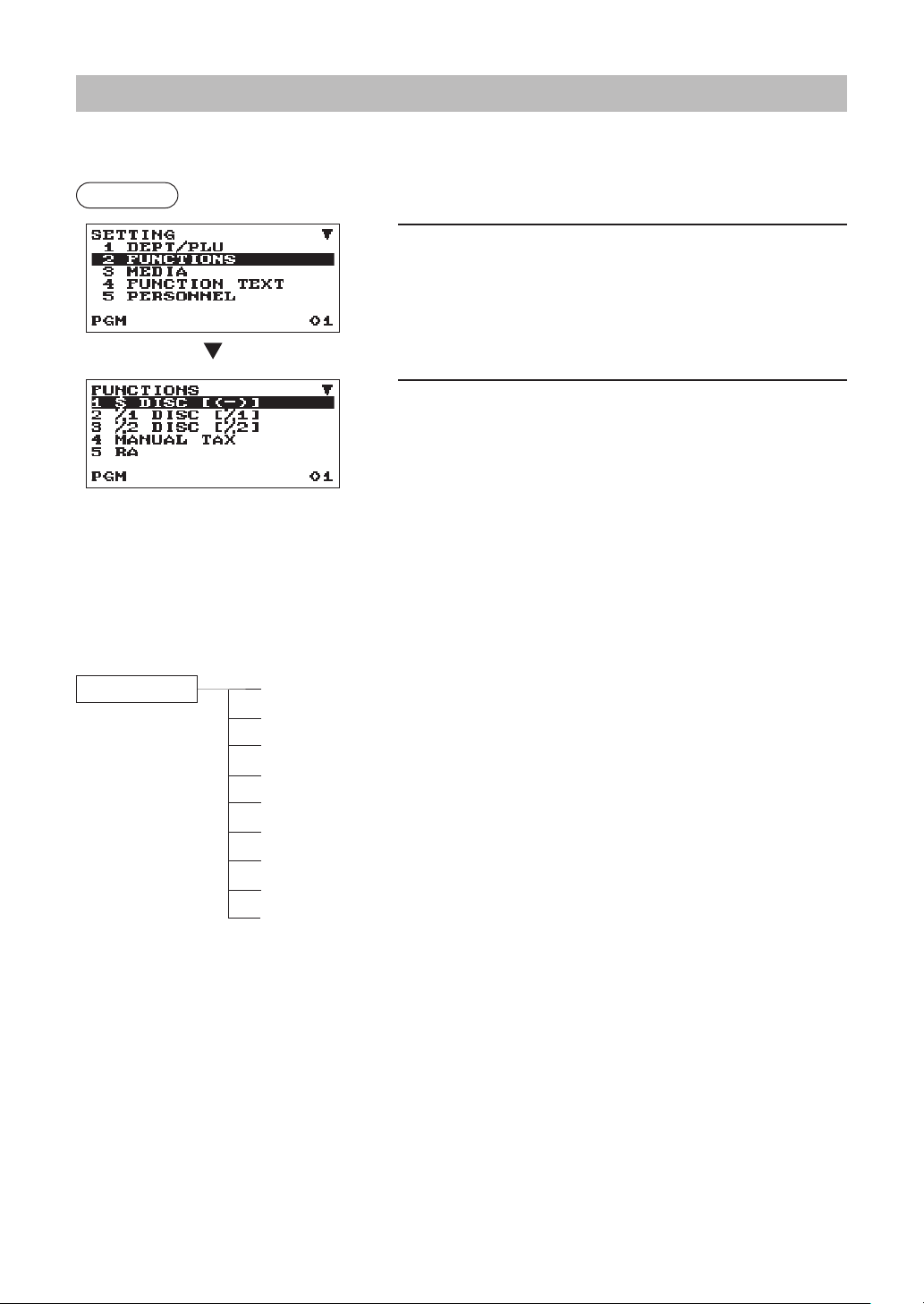
57
FunctionalProgramming
Use the following procedure to select any option included in the functional programming group:
Procedure
1.
In the SETTING window, select “2 FUNCTIONS.”
• The FUNCTIONS window will appear.
2.
Select any option from the following options list.
1 $ DISC [(-)]
Discount
2 %1 DISC [%1]
Percent 1
3 %2 DISC [%2]
Percent 2
4 MANUAL TAX
Manual tax
5 RA
Received on account
6 PO
Paid out
7 CASH IN DRAWER
Cash in drawer
8 COMMISSION1
Commission 1 rate
9 COMMISSION2
Commission 2 rate
The following illustration shows those options included in this programming group.
2 FUNCTIONS 1 $ DISC [(-)]
l
See “Discount (
J
)” on page 58.
2 %1 DISC [%1]
l
See “Percent (
0
,%2)” on page 59.
3 %2 DISC [%2]
l
See “Percent (
0
,%2)” on page 59.
4
MANUAL TAX
l
See “Manual tax” on page 59.
5 RA
l
See “RA” on page 60.
6 PO
l
See “PO” on page 60.
7 CASH IN DRAWER
l
See “Cash in drawer” on page 60.
8
COMMISSION1
l
See “Commission rate” on page 60.
9
COMMISSION2
l
See “Commission rate” on page 60.
The screen continues.
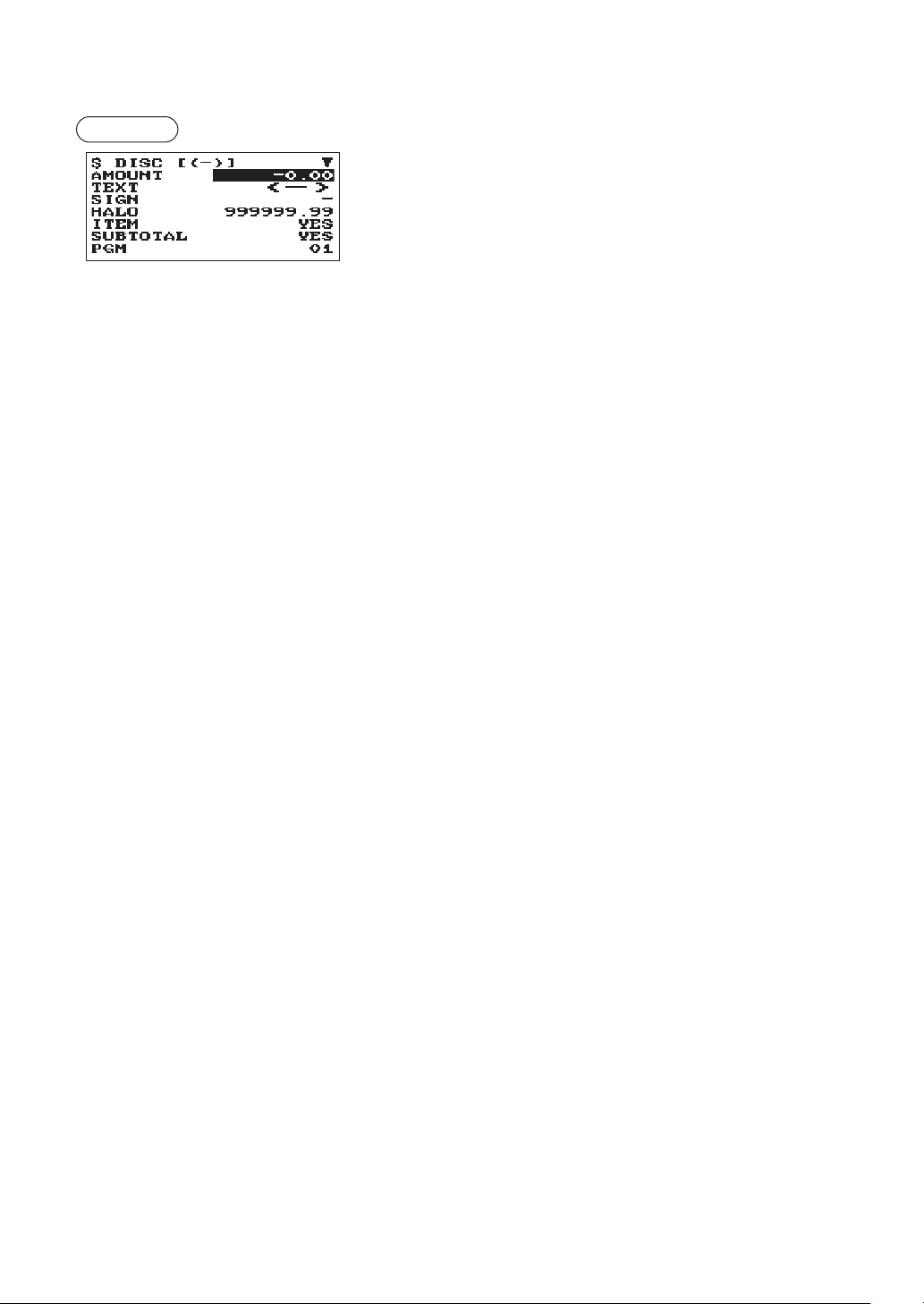
58
■
Discount(
-
)
Procedure
Program each item as follows:
The screen continues.
•AMOUNT(Usethenumericentry)
Discount amount (max. 8 digits)
•TEXT(Usethecharacterentry)
Description for the discount key. Up to 12 characters can be
entered.
•SIGN(Usetheselectiveentry)
Programming of the + or - sign assigns the premium or
discount function to the discount key.
+: Plus amount (premium)
-: Minus amount (discount)
•HALO(HighAmountLockout)(Usethenumericentry)
This function is intended for prevention of accidentally entered
unreasonably amounts.
Limit amount: 0.00 to 999999.99
•ITEM(Usetheselectiveentry)
YES: Enables the item discount.
NO: Disables the item discount.
•SUBTOTAL(Usedtheselectiveentry)
YES: Enables the subtoal discount.
NO: Disables the subtotal discount.
•TAX1through4(Usetheselectiveentry)
Taxability for the discount
YES: Taxable
NO: Non-taxable
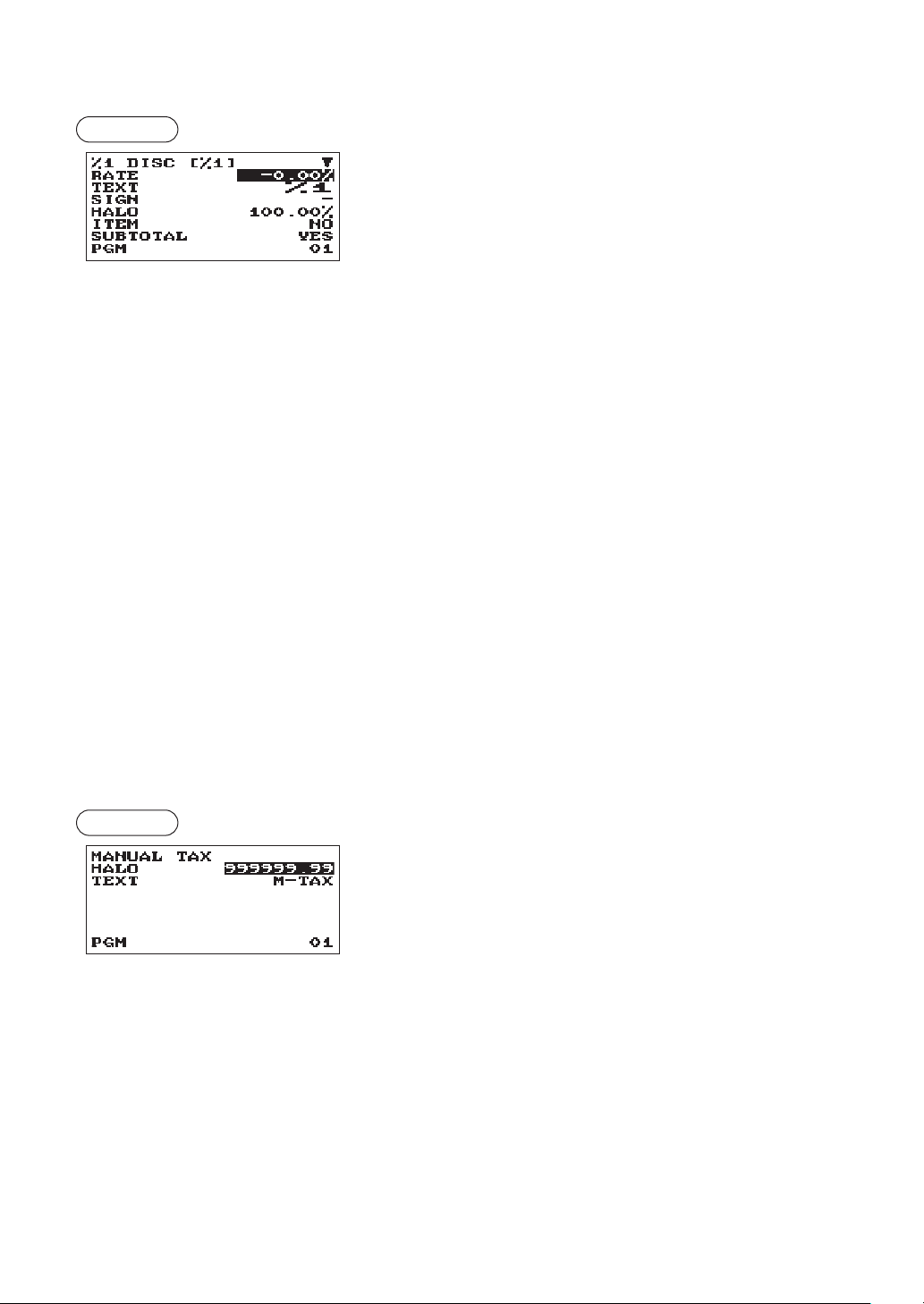
59
■
Percent(
0
,%2)
Procedure
Program each item as follows:
The screen continues.
•RATE(Usethenumericentry)
Percent rate (0.00 to 100.00)
•TEXT(Usethecharacterentry)
Description for the percent key. Up to 12 characters can be
entered.
•SIGN(Usetheselectiveentry)
Programming of the + or - sign assigns the premium or
discount function to each percent key.
+: Plus (premium)
-: Minus (discount)
•HALO(HighAmountLockout)(Usethenumericentry)
This function is intended for prevention of accidentally entered
unreasonably amounts.
HALO (High Amount Lockout) for the percent key (0.00 to
100.00)
•ITEM(Usetheselectiveentry)
YES: Enables the item %.
NO: Disables the item %.
•SUBTOTAL(Usedtheselectiveentry)
YES: Enables the subtotal %.
NO: Disables the subtotal %.
•TAX1through4(Usetheselectiveentry)
Taxability for the discount
YES: Taxable
NO: Non-taxable
■
Manualtax
Procedure
Program each item as follows:
•HALO(HighAmountLockout)(Usethenumericentry)
This function is intended for prevention of accidentally entered
unreasonably amounts.
Limit amount: 0.00 to 999999.99
•TEXT(Usethecharacterentry)
Description for the manual tax key.
Up to 12 characters can be entered.
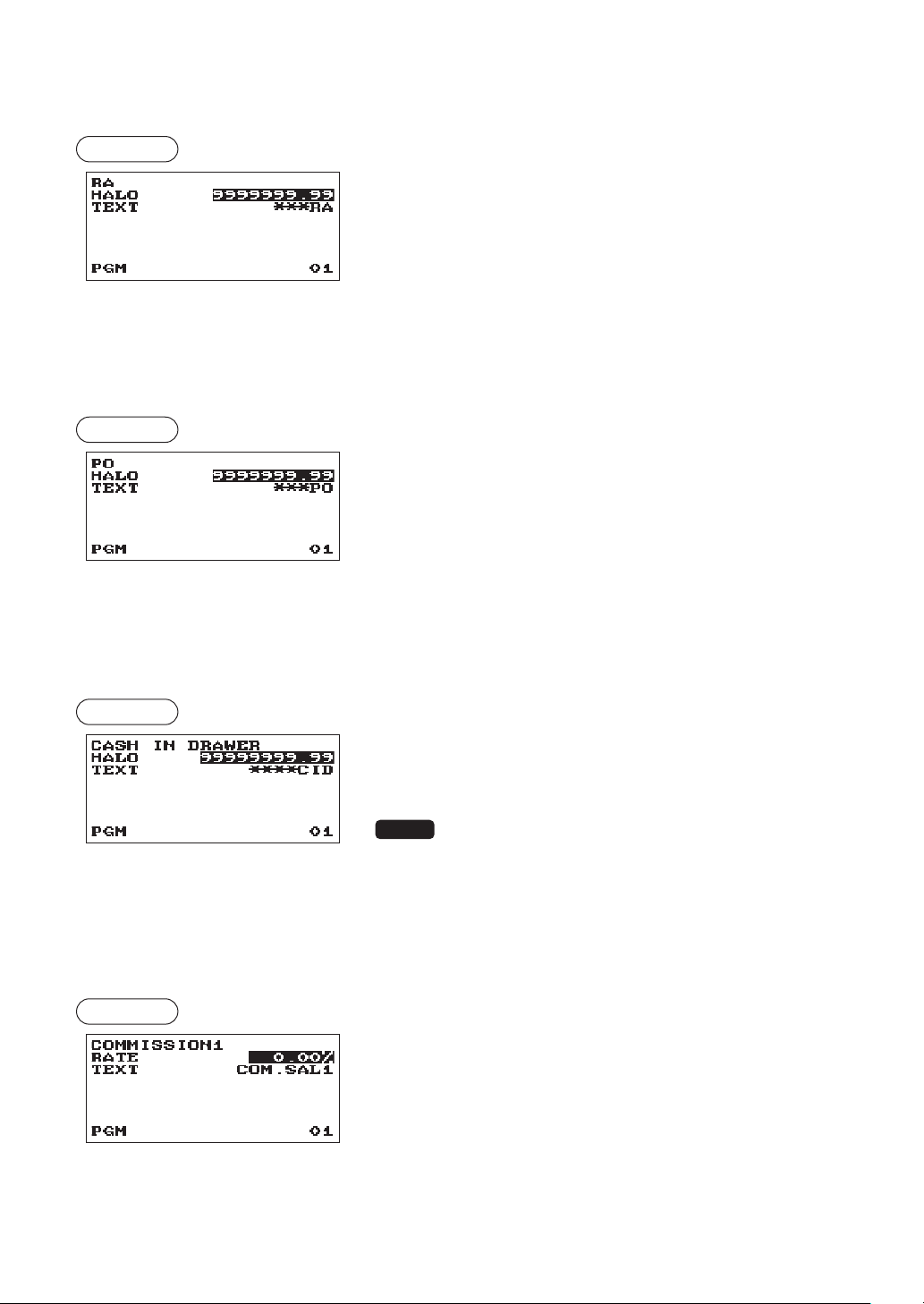
60
■
RA
You can program an upper limit amount and description for received-on-account key.
Procedure
Program each item as follows:
•HALO(HighAmountLockout)(Usethenumericentry)
This function is intended for prevention of accidentally entered
unreasonably amounts.
Limit amount: 0.00 to 9999999.99
•TEXT(Usethecharacterentry)
Description for the received-on-account key. Up to 12
characters can be entered.
■
PO
You can program an upper limit amount and description for paid-out key.
Procedure
Program each item as follows:
•HALO(HighAmountLockout)(Usethenumericentry)
This function is intended for prevention of accidentally entered
unreasonably amounts.
Limit amount: 0.00 to 9999999.99
•TEXT(Usethecharacterentry)
Description for the paid-out key. Up to 12 characters can be
entered.
■
Cashindrawer
You can program the description and the upper limit amounts for cash in drawer (sentinel).
Procedure
Program each item as follows:
•HALO(HighAmountLockout)(Usethenumericentry)
This function is intended for prevention of accidentally entered
unreasonably amounts.
Limit amount: 0.00 to 99999999.99
NOTE
When the cash in drawer amounts exceeds a limit
amount, the sentinel mark (X) will be displayed.
•TEXT(Usethecharacterentry)
Description for the cash in drawer. Up to 12 characters can be
entered.
■
Commissionrate(Commission1,Commission2)
Procedure
Program each item as follows:
•RATE(Usethenumericentry)
Commission rate (0.00 to 999.99)
•TEXT(Usethecharacterentry)
Description for the commission rate.
Up to 12 characters can be entered.
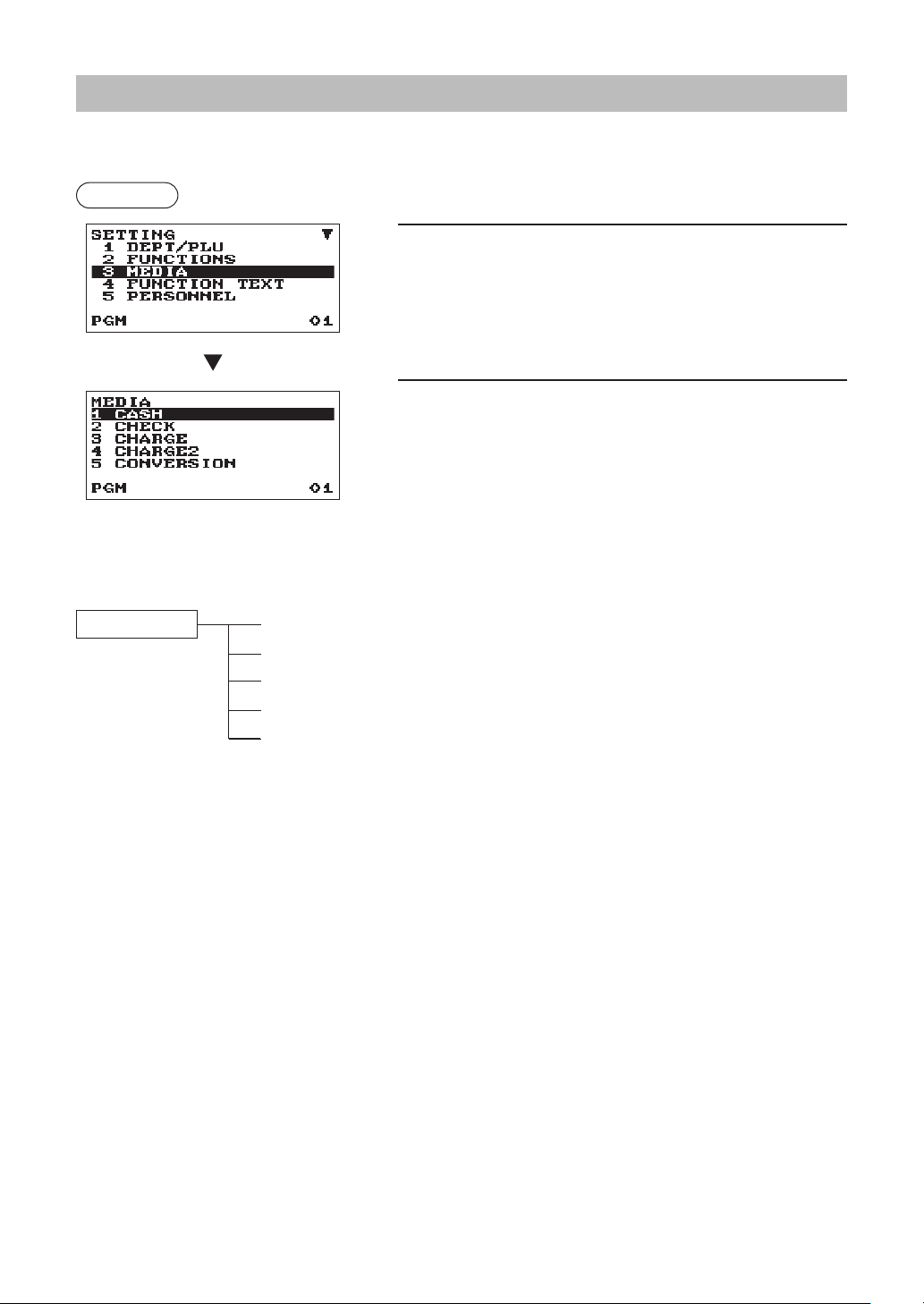
61
MediaKeyProgramming
Use the following procedure to select any option included in the media group:
Procedure
1.
In the SETTING window, select “3 MEDIA.”
• The MEDIA window will appear.
2.
Select any option from the following options list.
1 CASH
Cash
2 CHECK
Check
3 CHARGE
Charge
4 CHARGE2
Charge 2
5 CONVERSION
Currency conversion
The following illustration shows those options included in this programming group.
3 MEDIA 1 CASH
l
See “Cash key (Cash)” on page 62.
2 CHECK
l
See “Check key (Check)” on page 62.
3 CHARGE
l
See “Charge key (Charge, Charge2)” on page 63.
4 CHARGE2
l
See “Charge key (Charge, Charge2)” on page 63.
5 CONVERSION
l
See “Currency conversion (CONV1, CONV2)” on page 64.
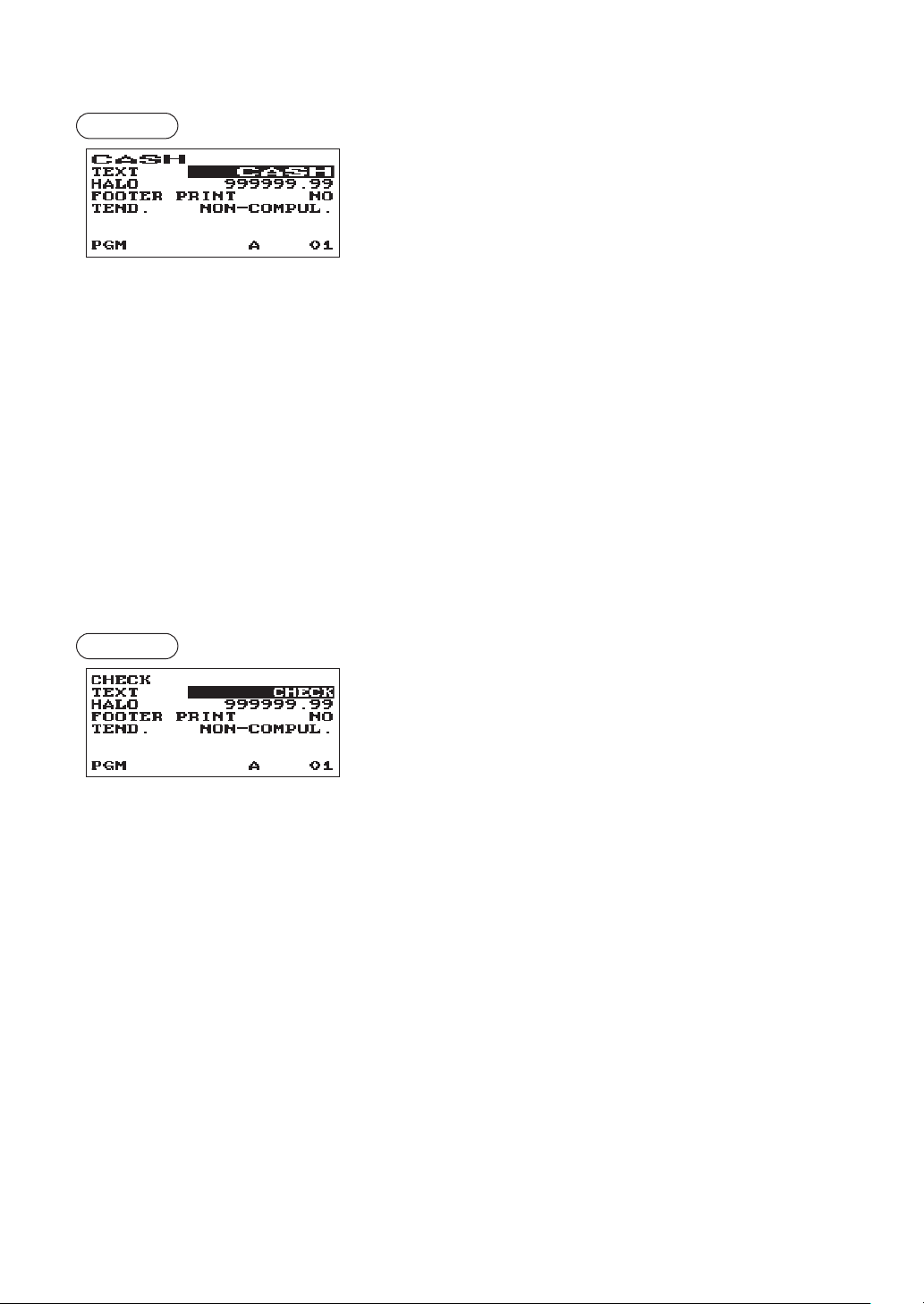
62
■
Cashkey(Cash)
Procedure
Program each item as follows:
•TEXT(Usethecharacterentry)
Description for the cash key. Up to 12 characters can be
entered.
•HALO(HighAmountLockout)(Usethenumericentry)
This function is intended for prevention of accidentally entered
unreasonably amounts.
Limit amount: 0.00 to 999999.99
•FOOTERPRINT(Usetheselectiveentry)
This item decides whether or not your register should print a
message at the foot of a receipt when a specied cash key is
used.
YES: Enables footer printing on the receipt.
NO: Disables footer printing on the receipt.
•TEND.(Usetheselectiveentry)
NON-COMPUL.: Non-compulsory amount tendered entry.
COMPULSORY: Compulsory amount tendered entry.
■
Checkkey(Check)
Procedure
Program each item as follows:
•TEXT(Usethecharacterentry)
Description for the check key. Up to 12 characters can be
entered.
•HALO(HighAmountLockout)(Usethenumericentry)
This function is intended for prevention of accidentally entered
unreasonably amounts.
Limit amount: 0.00 to 999999.99
•FOOTERPRINT(Usetheselectiveentry)
YES: Enables footer printing on the receipt.
NO: Disables footer printing on the receipt.
•TEND.(Usetheselectiveentry)
NON-COMPUL.: Non-compulsory amount tendered entry.
COMPULSORY: Compulsory amount tendered entry.
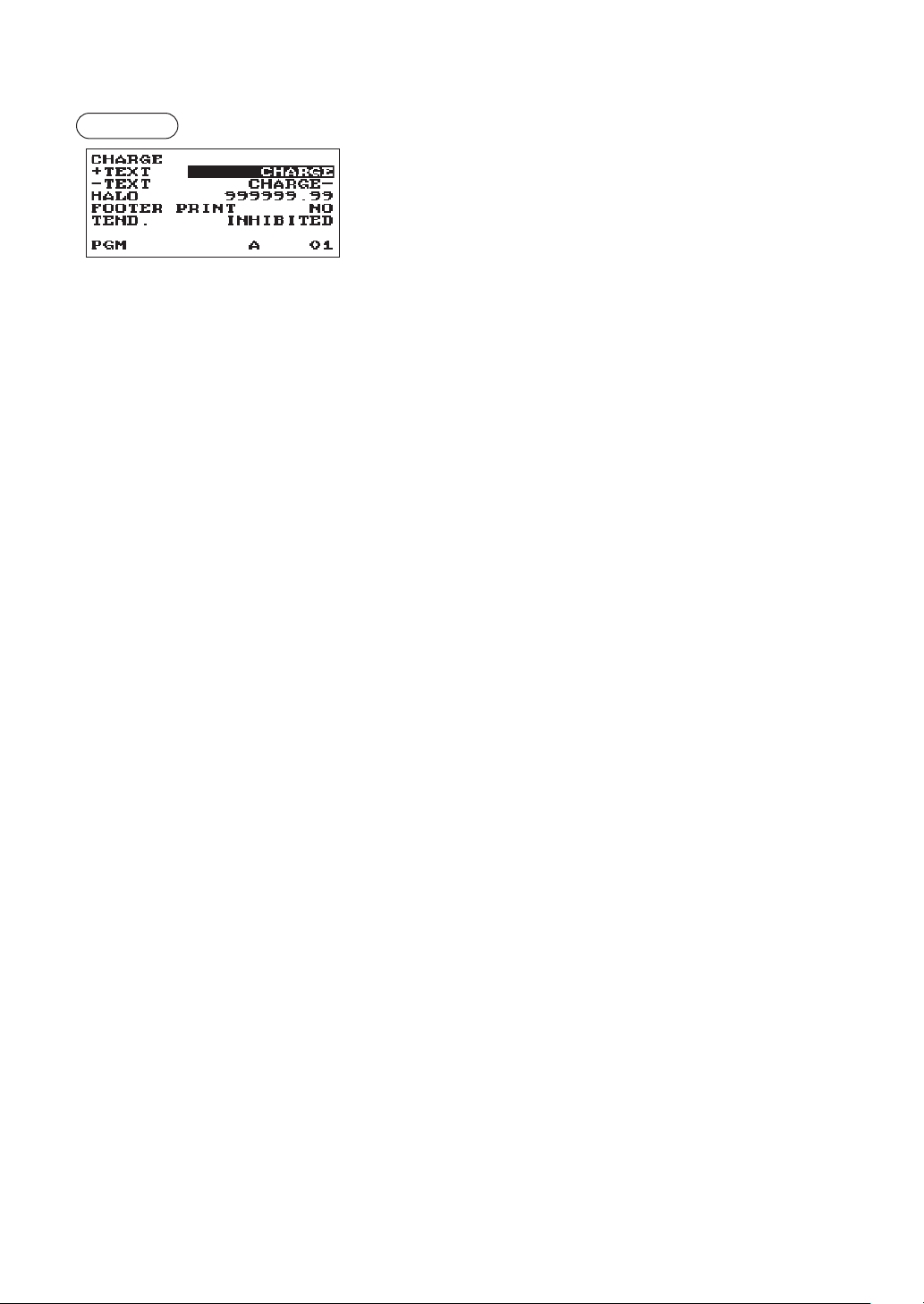
63
■
Chargekey(Charge1,Charge2)
Procedure
Program each item as follows:
•+TEXT(Usethecharacterentry)
Description for the gross charge. Up to 12 characters can be
entered.
•-TEXT(Usethecharacterentry)
Description for the refund charge. Up to 12 characters can be
entered.
•HALO(HighAmountLockout)(Usethenumericentry)
This function is intended for prevention of accidentally entered
unreasonably amounts.
Limit amount: 0.00 to 999999.99
•FOOTERPRINT(Usetheselectiveentry)
This item decides whether or not your register should print a
message at the foot of a receipt when a specied charge key
is used.
YES: Enables footer printing on the receipt.
NO: Disables footer printing on the receipt.
•TEND.(Usetheselectiveentry)
COMPULSORY: Compulsory amount tendered entry.
INHIBITED: Inhibits amount tendered entry.
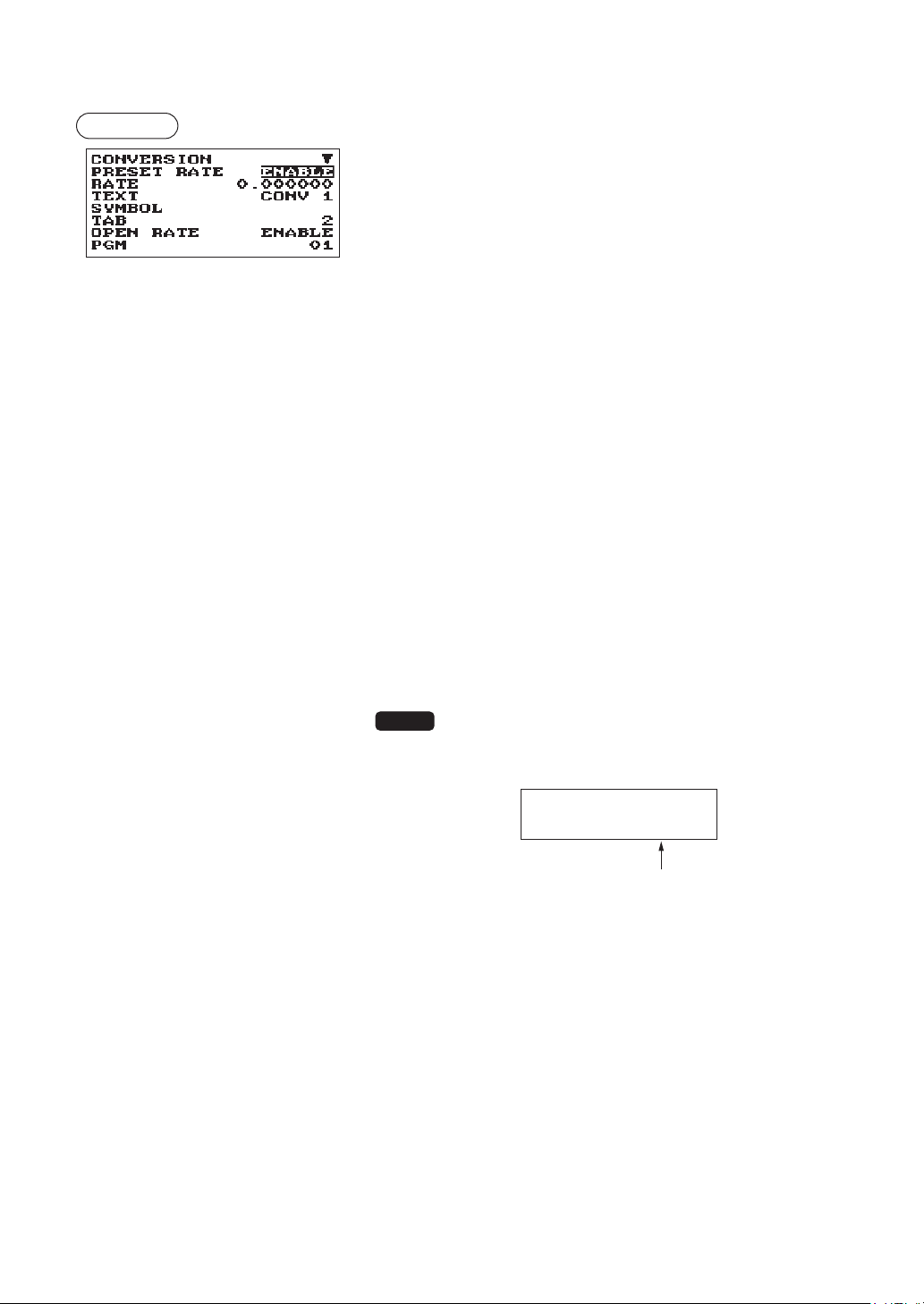
64
■
Currencyconversion(CONV1,CONV2)
Procedure
Program each item as follows:
The screen continues.
•PRESETRATE(Usetheselectiveentry)
ENABLE: Enables preset rate
DISABLE: Disable preset rate
•RATE(Usethenumericentry)
Currency exchange rate (0.000000 to 999.999999)
•TEXT(Usethecharacterentry)
Description for the currency exchange key. Up to 12
characters can be entered.
•SYMBOL(Usethecharacterentry)
Currency descriptor. Up to 4 characters can be entered.
•TAB(Usetheselectiveentry)
Tabulation (0 to 3)
•OPENRATE(Usetheselectiveentry)
ENABLE: Enables open rate
DISABLE: Disable open rate
•TEXT(Usethecharacterentry)fortheopenrate
Description for the currency exchange key for the open rate.
Up to 12 characters can be entered.
•SYMBOL(Usethecharacterentry)fortheopenrate
Currency descriptor for the open rate. Up to 4 characters can
be entered.
•TAB(Usetheselectiveentry)fortheopenrate
Tabulation (0 to 3) for the open rate
NOTE
Currency symbol is printed with (+) amount of foreign currency.
The programmed character is printed at left side of amount.
EX) Case of “EURO”:
CONV1 1.234567
EURO 1.23
Programmed symbol
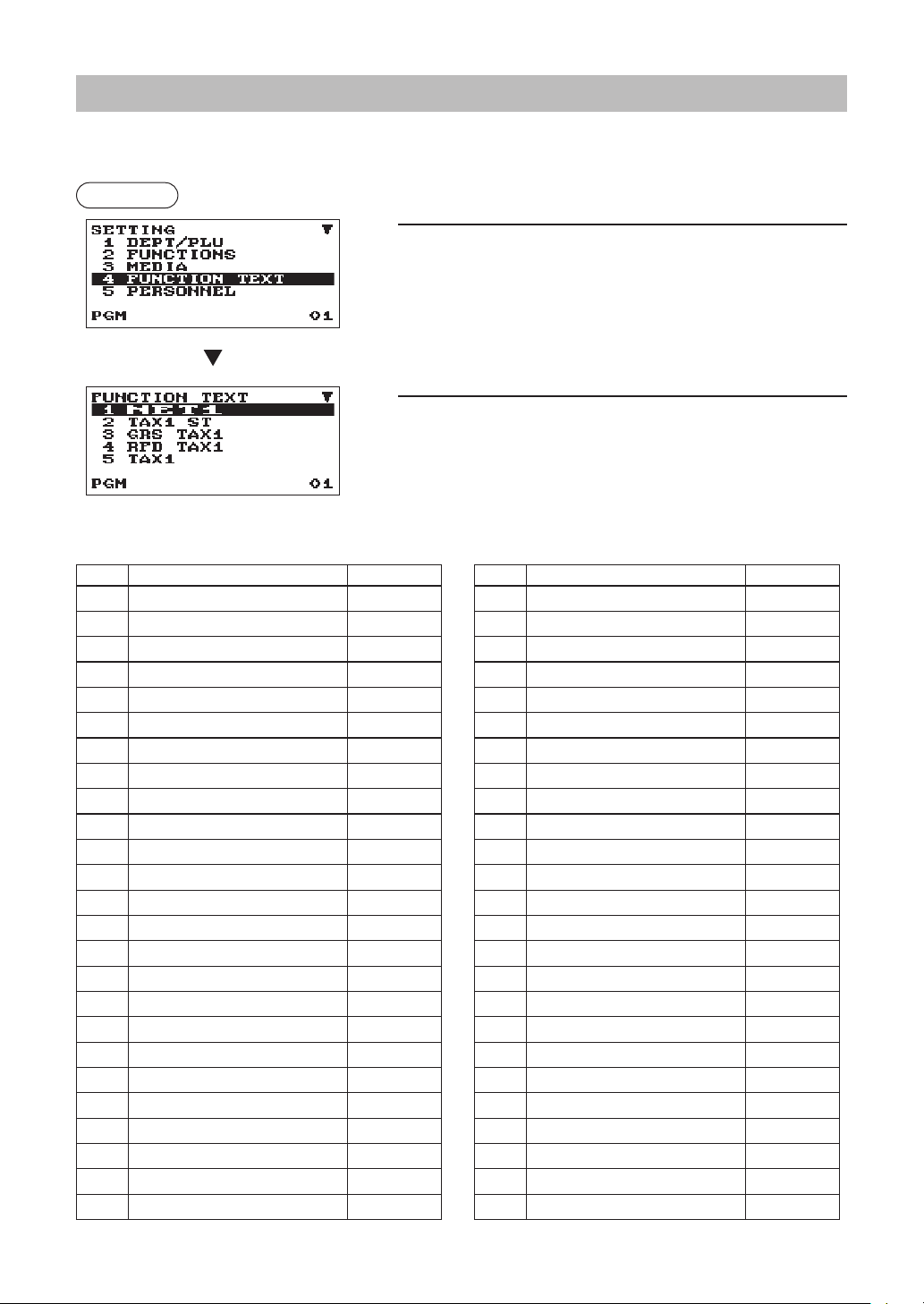
65
FunctionTextProgramming
You can program a maximum of 12 characters for each function by using the following table:
Procedure
1.
In the SETTING window, select “4 FUNCTION TEXT”.
• The FUNCTION TEXT window will appear.
2.
Program each item as follows:
•Text(Usethecharacterentry)
Description for each function. Up to 12 characters can be
entered.
List of function text
The screen continues.
No. Function
Defaulttext
1 Net sales total
NET1
2 Net taxable 1 subtotal TAX1 ST
3 Gross tax 1 total GRS TAX1
4 Tax 1 total of refund entries RFD TAX1
5 Net tax 1 total TAX1
6 Exempt tax 1 TX1 EXPT
7 Net taxable 2 subtotal TAX2 ST
8 Gross tax 2 total GRS TAX2
9 Tax 2 total of refund entries RFD TAX2
10 Net tax 2 total TAX2
11 Exempt tax 2 TX2 EXPT
12 Net taxable 3 subtotal TAX3 ST
13 Gross tax 3 total GRS TAX3
14 Tax 3 total of refund entries RFD TAX3
15 Net tax 3 total TAX3
16 Exempt tax 3
TX3 EXPT
17 Net taxable 4 subtotal TAX4 ST
18 Gross tax 4 total GRS TAX4
19 Tax 4 total of refund entries
RFD TAX4
20 Net tax 4 total TAX4
21 Exempt tax 4 TX4 EXPT
22 Gross manual tax total GRS MTAX
23 Refund manual tax total RFD MTAX
24 Tax total (on report) TTL TAX
25 Net
NET
No. Function
Defaulttext
26 Sales total including tax total
NET2
27
Refund
REFUND
28
Item void
VOID
29 Void mode
VOID
30 Manager void MGR VOID
31 Subtotal void SBTL VOID
32 No sale NO SALE
33 Transaction counter TRANS CT
34 Net 3 (sales total, paid total)
NET3
35 Cash + check in drawer
CA+CHK ID
36 Check change CHK/CG
37 (+) department total
*
DEPT TL
38 (–) department total DEPT(–)
39 (+) Bottle return dept. total
*
BTTL TL
40 (–) Bottle return dept. total BTTL(–)
41 Group 1
G
ROUP01
42 Group 2
G
ROUP02
43 Group 3
G
ROUP03
44 Group 4
G
ROUP04
45 Group 5
G
ROUP05
46 Group 6
G
ROUP06
47 Group 7
G
ROUP07
48 Group 8
G
ROUP08
49 Group 9
G
ROUP09
50 Commission amount 1
COM. AMT1

66
No. Function
Defaulttext
51 Commission amount 2
COM. AMT2
52 Commission amount total COM. TTL
53 Non commission sale NON COM.
54 Items ITEMS
55 Merchandise subtotal MDSE ST
56 Subtotal SUBTOTAL
57 Total
***
TOTAL
58 Change CHANGE
59
Non add symbol (max. 8
characters)
#
No. Function
Defaulttext
60 Copy receipt title
COPY
61 Due (only display) DUE
62 Receipt SW RCP SW.
63 Non GST subtotal GST EXPT
64 PST total PST TTL
65 GST total GST TTL
66
VAT exempt (for doughnut tax
type 1)
VAT EXPT
67 Total tax (on receipt) TOTAL TAX
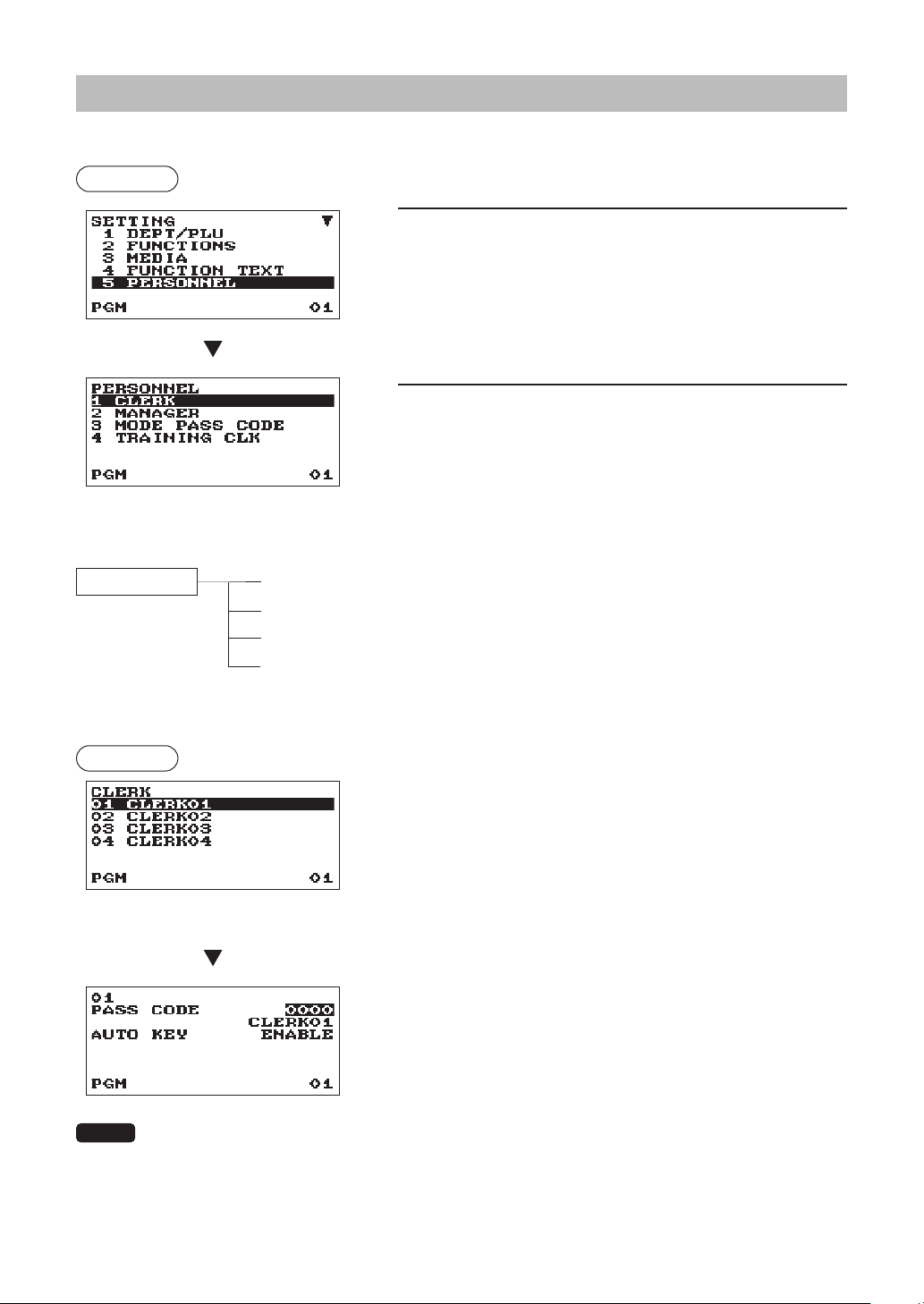
67
PersonnelProgramming
Use the following procedure to select any option included in the personnel group:
Procedure
1.
In the SETTING window, select “5 PERSONNEL.”
• The PERSONNEL window will appear.
2.
Select any option from the following options list.
1 CLERK
Clerk
2 MANAGER
Manager
3 MODE PASS CODE
Mode Pass Code
4 TRAINING CLK
Training Clerk
The following illustration shows those options included in this programming group.
5 PERSONNEL 1 CLERK
l
See “Clerk” this page.
2 MANAGER
l
See “Manager” on page 68.
3 MODE PASS CODE
l
See “Mode Pass Code” on page 68.
4 TRAINING CLK
l
See “Training Clerk” on page 68.
■
Clerk
Procedure
Program each item as follows:
Select a clerk code, or directly enter a
clerk code.
•PASSCODE(Usethenumericentry)
Pass code (max. 4 digits: 0001 to 9999/0000)
•Text(Usethecharacterentry)
Description for the clerk name (Up to 16 characters can be
entered.)
•AUTOKEY(Usetheselectiveentry)
ENABLE: Enables operation of the
a
key.
DISABLE: Disables operation of the
a
key.
NOTE
To delete a clerk code in the “CLERK” window, select the clerk code and press the
D
key.
A conrmation window appears to ask you whether to delete the clerk, select the option you
prefer.
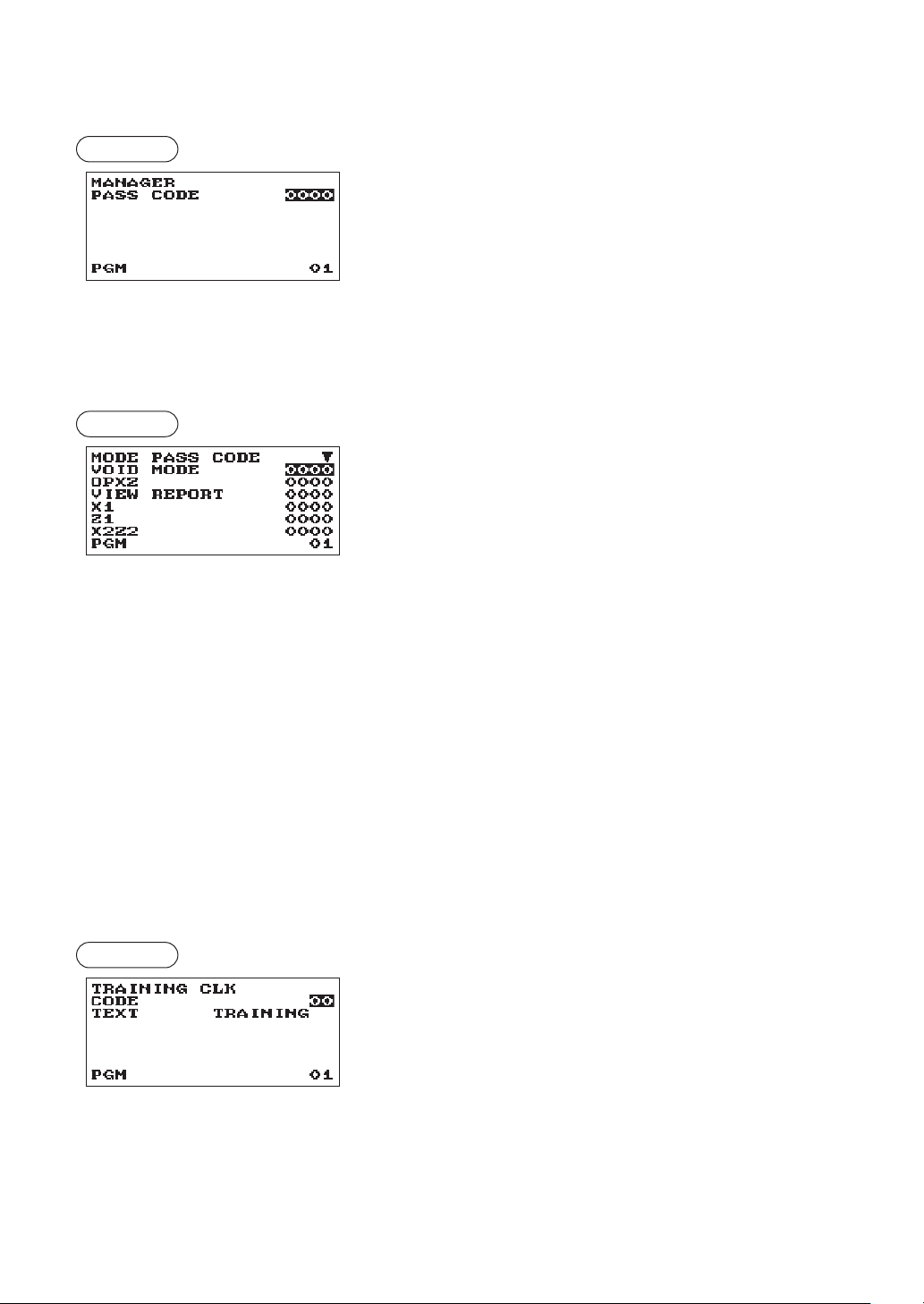
68
■
Manager
You can program a secret code for manager.
Procedure
Program each item as follows:
•PASSCODE(Usethenumericentry)
Pass code (max. 4 digits: 0000 to 9999)
■
ModePassCode
You can program a secret code for each mode.
Procedure
Program each item as follows:
The screen continues.
•VOIDMODE(Usethenumericentry)
Pass code (max 4 digits: 0000 to 9999)
•OPXZ(Usethenumericentry)
Pass code (max 4 digits: 0000 to 9999)
•VIEWREPORT(Usethenumericentry)
Pass code (max 4 digits: 0000 to 9999)
•X1(Usethenumericentry)
Pass code (max 4 digits: 0000 to 9999)
•Z1(Usethenumericentry)
Pass code (max 4 digits: 0000 to 9999)
•X2Z2(Usethenumericentry)
Pass code (max 4 digits: 0000 to 9999)
•PROGRAM(Usethenumericentry)
Pass code (max 4 digits: 0000 to 9999)
•SDCARD(Usethenumericentry)
Pass code (max 4 digits: 0000 to 9999)
■
TrainingClerk
You can set the training clerk code and text for the training mode title.
Procedure
Program each item as follows:
•CODE(Usethenumericentry)
Clerk code in training (max. 2 digits: 00 to 40)
•TEXT(Usethecharacterentry)
Description for the training mode title (Up to 12 characters can
be entered.)
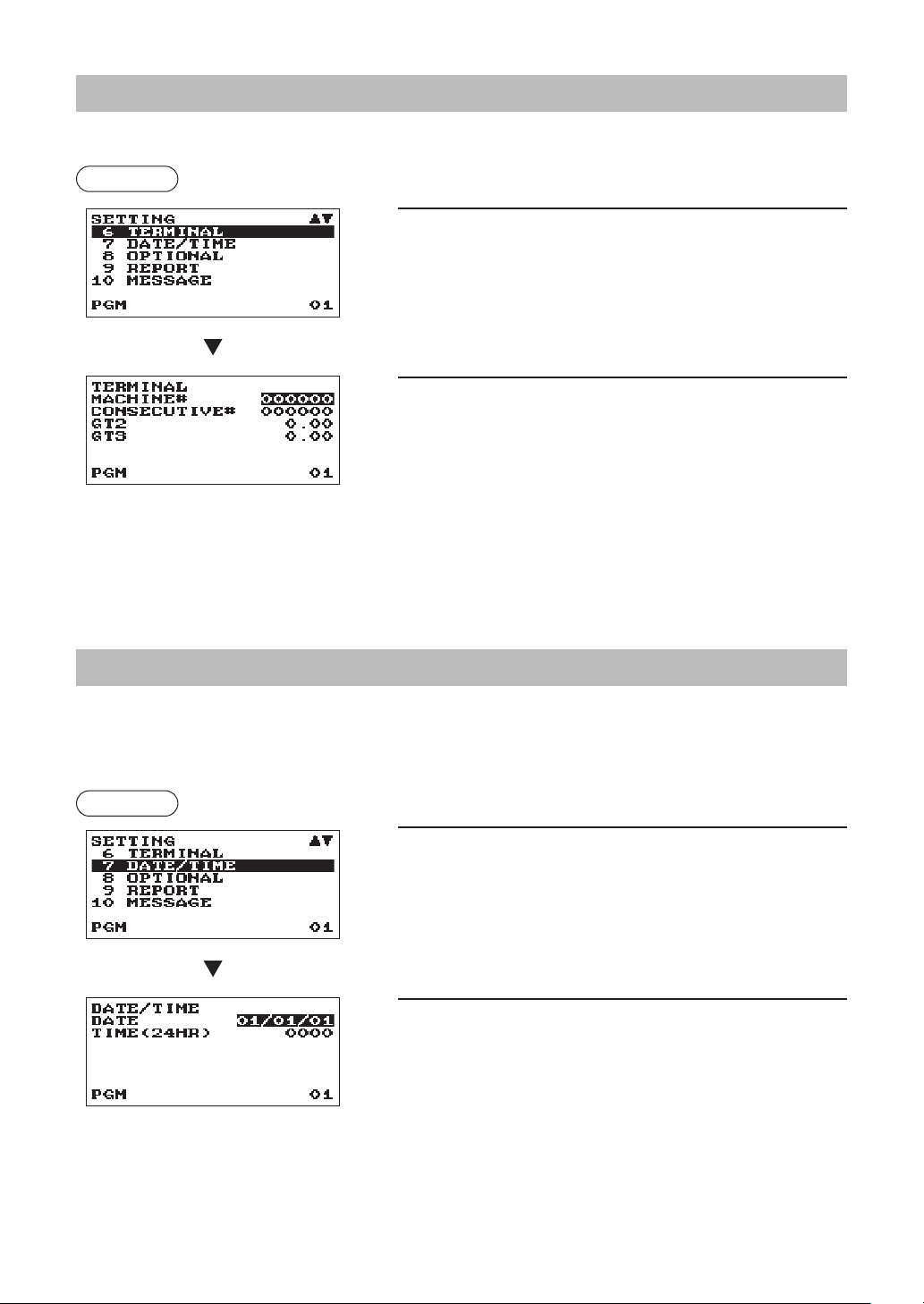
69
TerminalProgramming
Use the following procedure to select any option included in the terminal group:
Procedure
1.
In the SETTING windows, select “6 TERMINAL.”
• The TERMINAL windows will appear.
2.
Select any option from the following options list:
•MACHINE#(Usethenumericentry)
Machine number (max. 6 digits: 0 to 999999)
•CONSECUTIVE#(Usethenumericentry)
Enter a number (max. 6 digits: 0 to 999999) that is the
desired starting number.
•GT2(Usethenumericentry)
Enter a number (max. 13 digits: 0 to 9999999999999)
•GT3(Usethenumericentry)
Enter a number (max. 13 digits: 0 to 9999999999999)
Date/TimeSetting
You can set the date and time for the register.
■
Date/time
Procedure
1.
In the SETTING window, select “7 DATE/TIME”.
• The DATE/TIME window will appear.
2.
Set each item as follows:
•DATE(Usethenumericentry)
Enter the month (2 digits), day (2 digits), and year (2
digits) in this sequence.
•TIME(24HR)(Usethenumericentry)
Set the time (max. 4 digits) on the 24-hour system. For
example, when the time is set to 2:30 AM, enter 0230;
and when it is set to 2:30 PM, enter 1430. The time will be
printed and displayed.
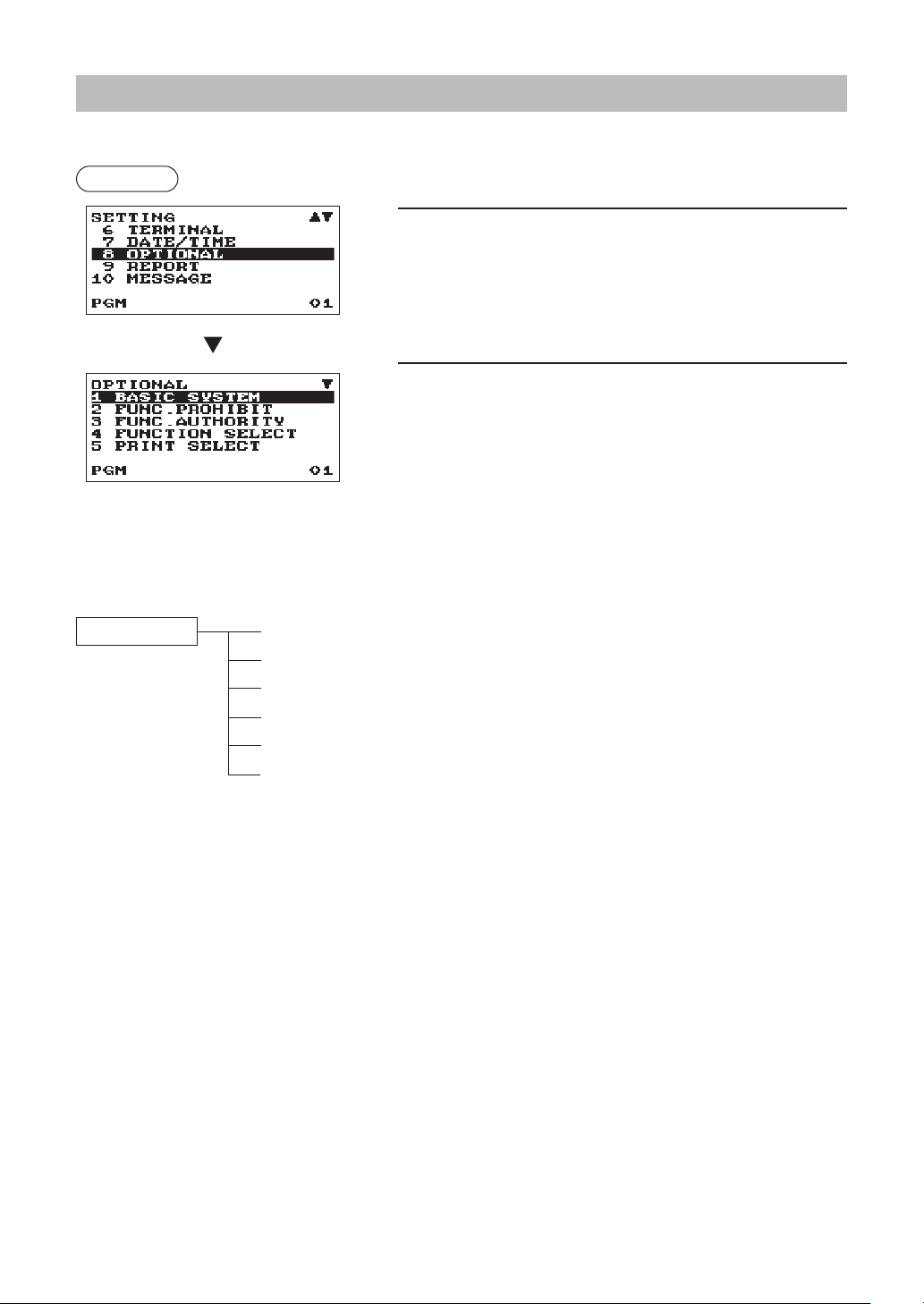
70
OptionalFeatureSelection
Use the following procedure to select any option included in the optional group:
Procedure
1.
In the SETTING window, select “8 OPTIONAL.”
• The OPTIONAL window will appear.
2.
Select any option from the following options list.
1 BASIC SYSTEM
Basic system
2 FUNC.PROHIBIT
Function prohibited
3 FUNC.AUTHORITY
Function authority
4 FUNCTION SELECT
Function selection
5 PRINT SELECT
Print selection
6 UPC FUNCTION
UPC function
The following illustration shows those options included in this programming group.
8 OPTIONAL 1 BASIC SYSTEM
l
See “Basic System” on page 71.
2 FUNC.PROHIBIT
l
See “Function Prohibit” on page 72.
3 FUNC.AUTHORITY
l
See “Function Authority” on page 73.
4 FUNCTION SELECT
l
See “Function Selection” on page 74.
5 PRINT SELECT
l
See “Print Selection” on page 75.
6 UPC FUNCTION
l
See “UPC Function” on page 76.
The screen continues.
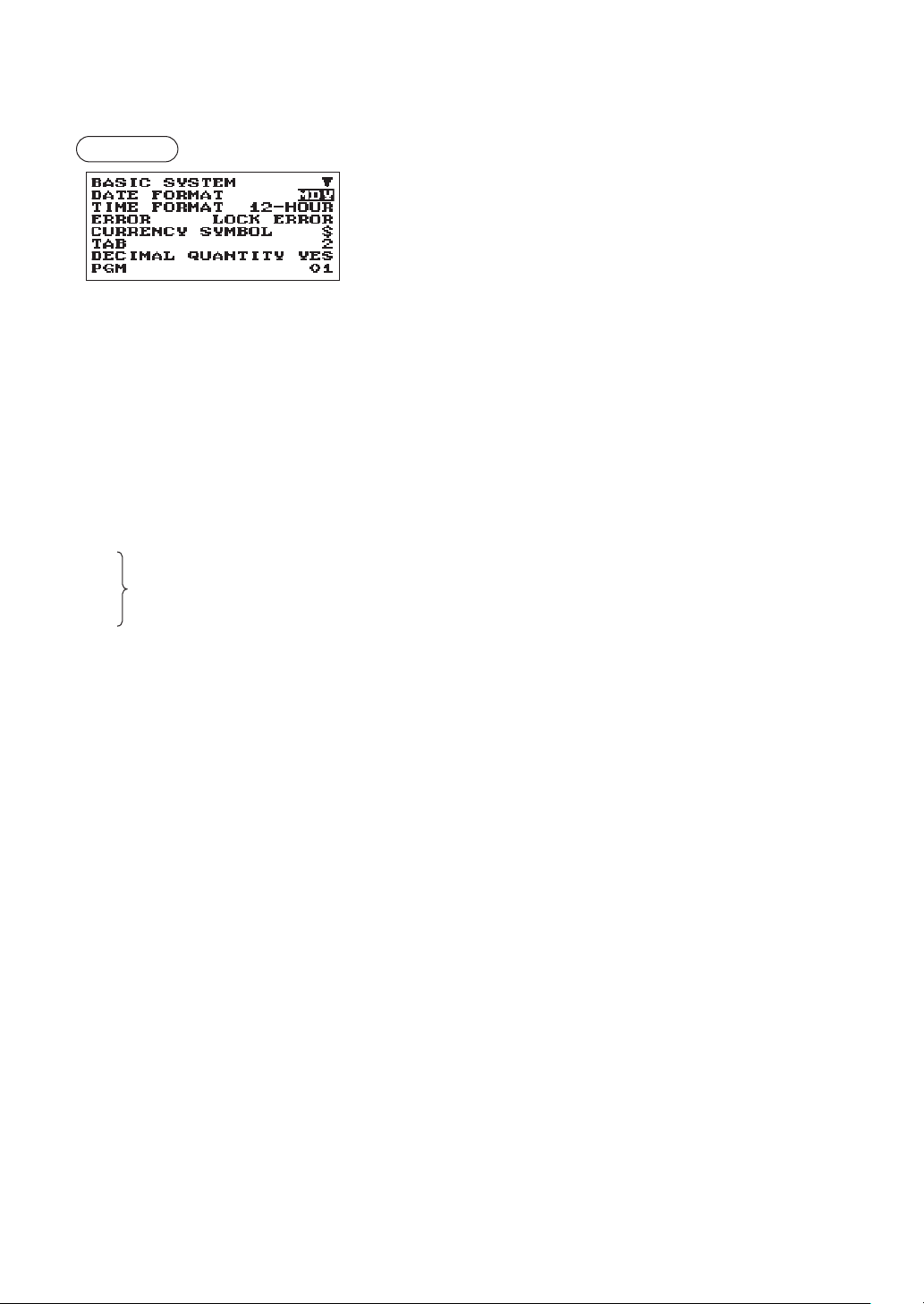
71
■
BasicSystem
Your register allows you to select various item of basic system.
Procedure
Program each item as follows:
The screen continues.
•DATEFORMAT(Usetheselectiveentry)
MDY: Display and print the month, day, and year in this order
DMY: Display and print the day, month and year in this order
YMD: Display and print the year, month, and day in this order
•TIMEFORMAT(Usetheselectiveentry)
12-HOUR: Display and print the time on 12-hour system
24-HOUR: Display and print the time on 24-hour system
•ERROR(Usetheselectiveentry)
Response to an erroneous, invalid key operation
LOCK ERROR: Sound a short buzzer for 2 seconds, and display Error. To hide the Error display, press
the
l
key.
MISS OPE.: Sound a short buzzer
•CURRENCYSYMBOL(Usethecharacterentry)
Enter the character (Max. 4 characters)
•TAB(Usetheselectiveentry)
0
1 Position of price delimiter can be set. Setting options are 0, 1, 2, and 3.
2 When setting to “2” for example, the entry of “100” is displayed as “1.00”.
3
•DECIMALQUANTITY(Usetheselectiveentry)
YES: Enables the decimal quantity
NO: Disables the decimal quantity
•DECIMALROUND(Usetheselectiveentry)
ROUND: Round off the number
UP: Round up after the decimal point
DOWN: Round down after the decimal point.
•[00]KEY(Usetheselectiveentry)
[00]: Display [00] by pressing the
:
key
[000]: Display [000] by pressing the
:
key
•PRT/DSPEDIT(Usetheselectiveentry)
YES: All of printing and display are edited
NO: All of printing and display aren’t edited
•ITEMDISPLAY(Usetheselectiveentry)
2-LINE: The 1st line displays the quantity, price and amount. The 2nd line displays the text.
1-LINE: The quantity and text.
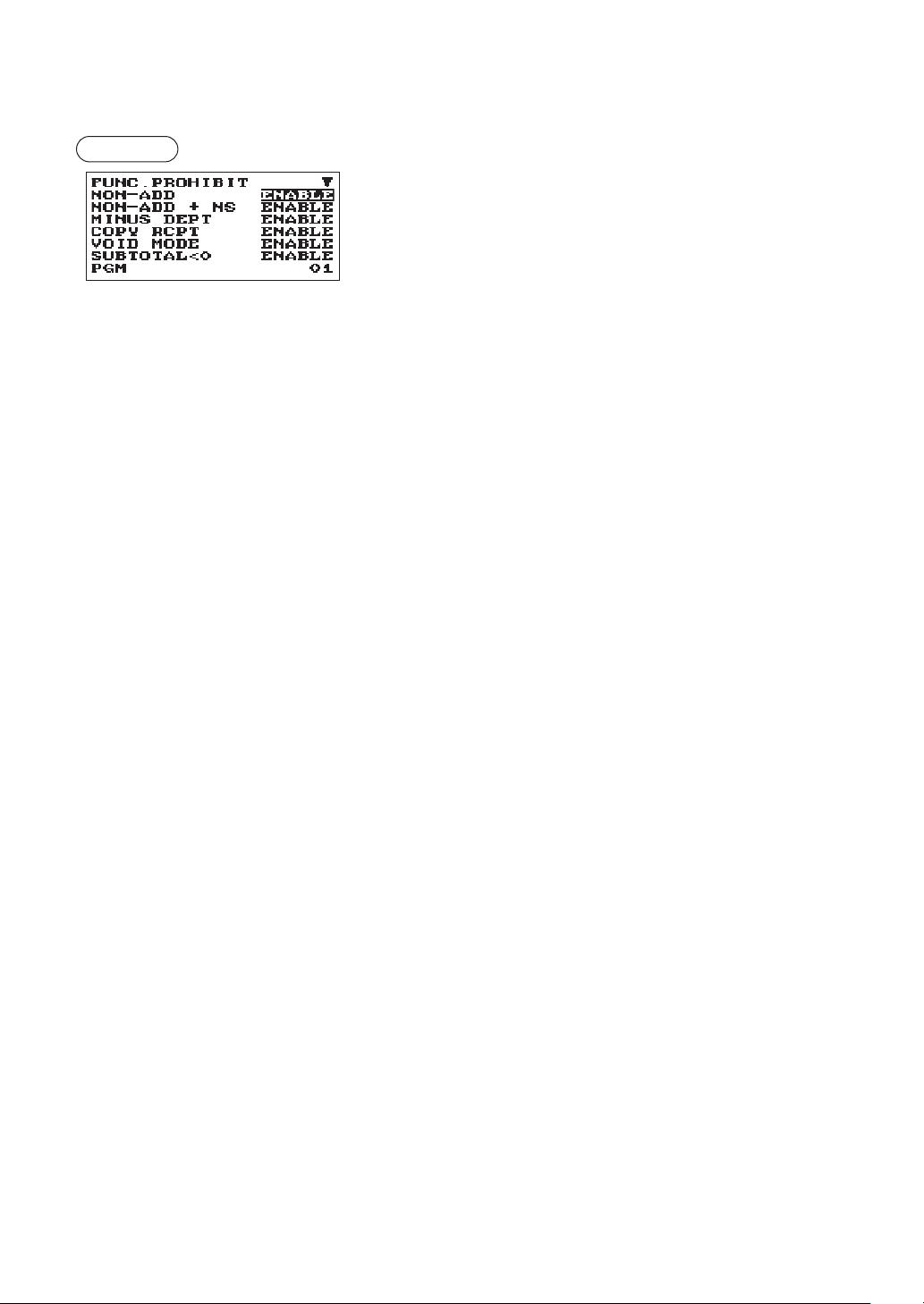
72
■
FunctionProhibit
Your register allows you to select whether to enable or disable various functions.
Procedure
Program each item as follows:
The screen continues.
•NON-ADD(Usetheselectiveentry)
ENABLE: Enable to enter Non-add code
DISABLE: Disable to enter Non-add code
•NON-ADD+NS(Usetheselectiveentry)
ENABLE: Enable No sale after Non-add code entry
DISABLE: Disable No sale after Non-add code entry
•MINUSDEPT(Usetheselectiveentry)
ENABLE: Enable to enter the minus department
DISABLE: Disable to enter the minus department
•COPYRCPT(Usetheselectiveentry)
ENABLE: Enable the receipt copy function
DISABLE: Disable the receipt copy function
•VOIDMODE(Usetheselectiveentry)
ENABLE: Enable the void mode
DISABLE: Disable the void mode
•SUBTOTAL<0(Usetheselectiveentry)
ENABLE: Enable to go negative merchandise subtotal
DISABLE: Disable to go negative merchandise subtotal
•TEND+DIRECT(Usetheselectiveentry)
ENABLE: Enable the direct non-tendering nalization after the previous tender entry
DISABLE: Disable the direct non-tendering nalization after the previous tender entry
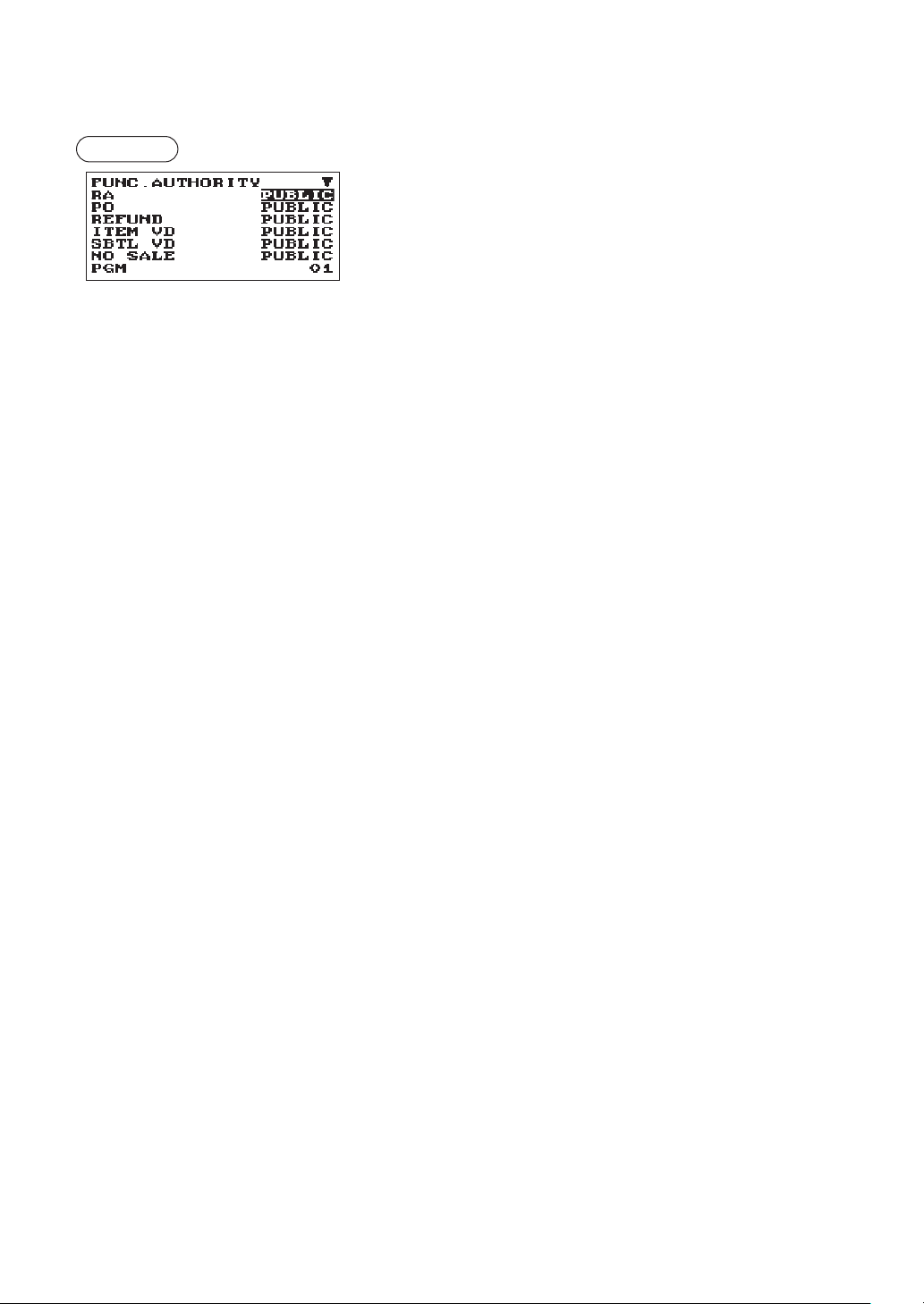
73
■
FunctionAuthority
Your register allows you to select whether to public or to limit function authority.
Procedure
Program each item as follows:
The screen continues.
•RA(Usetheselectiveentry)
LIMITED: Allowed only in the Manager mode.
PUBLIC: Allowed in the REG mode and the Manager mode.
•PO(Usetheselectiveentry)
LIMITED: Allowed only in the Manager mode.
PUBLIC: Allowed in the REG mode and the Manager mode.
•REFUND(Usetheselectiveentry)
LIMITED: Allowed only in the Manager mode.
PUBLIC: Allowed in the REG mode and the Manager mode.
•ITEMVD(Usetheselectiveentry)
LIMITED: Allowed only in the Manager mode.
PUBLIC: Allowed in the REG mode and the Manager mode.
•SBTLVD(Usetheselectiveentry)
LIMITED: Allowed only in the Manager mode.
PUBLIC: Allowed in the REG mode and the Manager mode.
•NOSALE(Usetheselectiveentry)
LIMITED: Allowed only in the Manager mode.
PUBLIC: Allowed in the REG mode and the Manager mode.
•TAXDELETE(Usetheselectiveentry)
LIMITED: Allowed only in the Manager mode.
PUBLIC: Allowed in the REG mode and the Manager mode.
•MANUALTAX(Usetheselectiveentry)
LIMITED: Allowed only in the Manager mode.
PUBLIC: Allowed in the REG mode and the Manager mode.
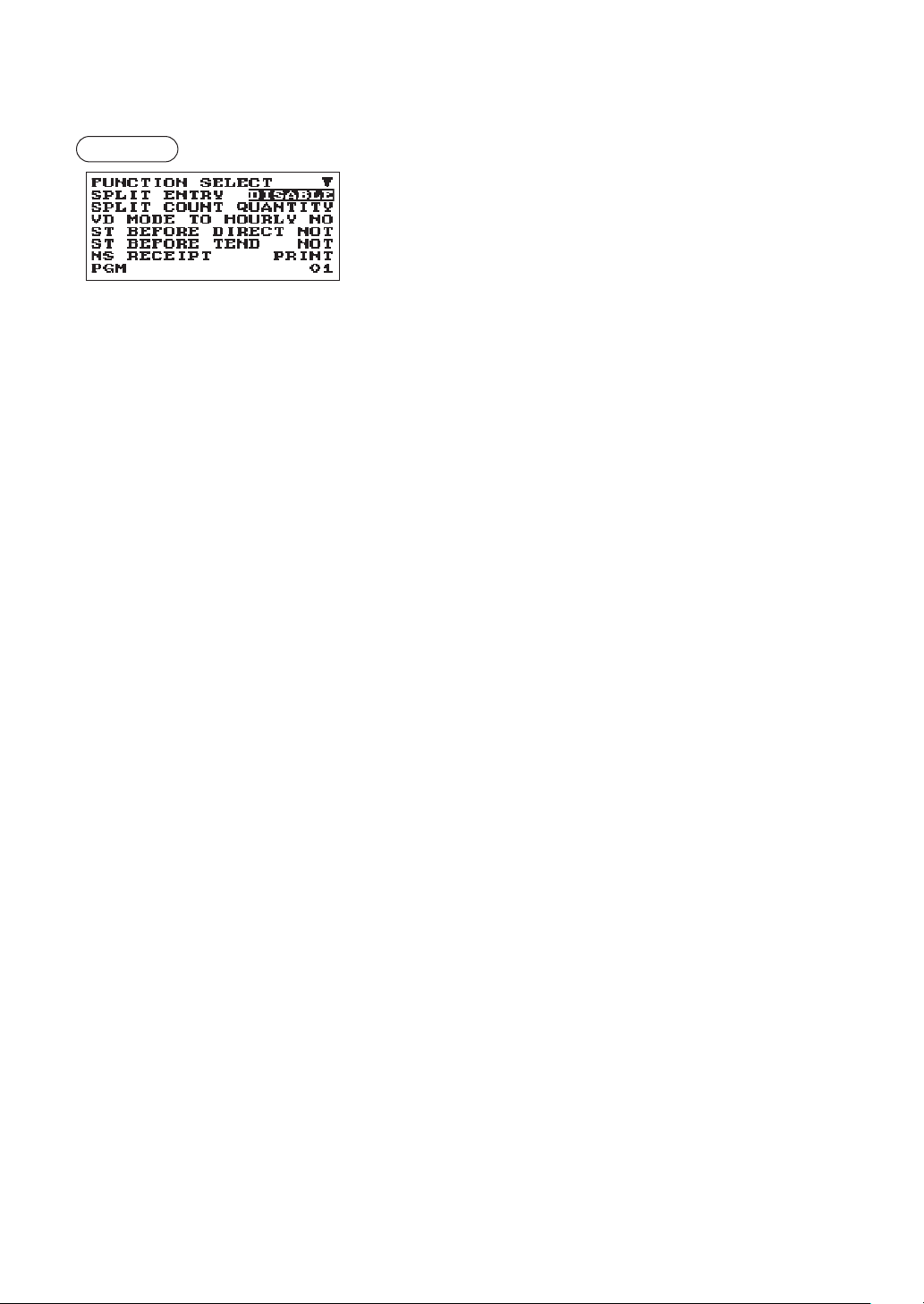
74
■
FunctionSelection
Your register enables you to select various functional selections.
Procedure
Program each item as follows:
The screen continues.
•SPLITENTRY(Usetheselectiveentry)
ENABLE: Enable the split pricing entry
DISABLE: Disable the split pricing entry
•SPLITCOUNT(Usetheselectiveentry)
Count method of split pricing entry.
PACKAGE: Unit of the package
QUANTITY: Quantity
•VDMODETOHOURLY(Usetheselectiveentry)
YES: Enable to add to the hourly total in void mode.
NO: Disable to add to the hourly total in void mode.
•STBEFOREDIRECT(Usetheselectiveentry)
Subtotal entry before direct non-tendering nalization
NOT: Not to require entry of subtotal for the non-tendering nalization
MUST: Require entry of subtotal for the non-tendering nalization
•STBEFORETEND(Usetheselectiveentry)
Subtotal entry before tender
NOT: Not to require entry of subtotal for the tendering nalization
MUST: Require entry of subtotal for the tendering nalization
•NSRECEIPT(Usetheselectiveentry)
Printing the receipt at the time of No Sale
PRINT: Print the receipt
NOT: Not to print the receipt
•AFTERTRANS.(Usetheselectiveentry)
TOTAL: Print the total only on the after transaction receipt
DETAIL: Print the details on the after transaction receipt
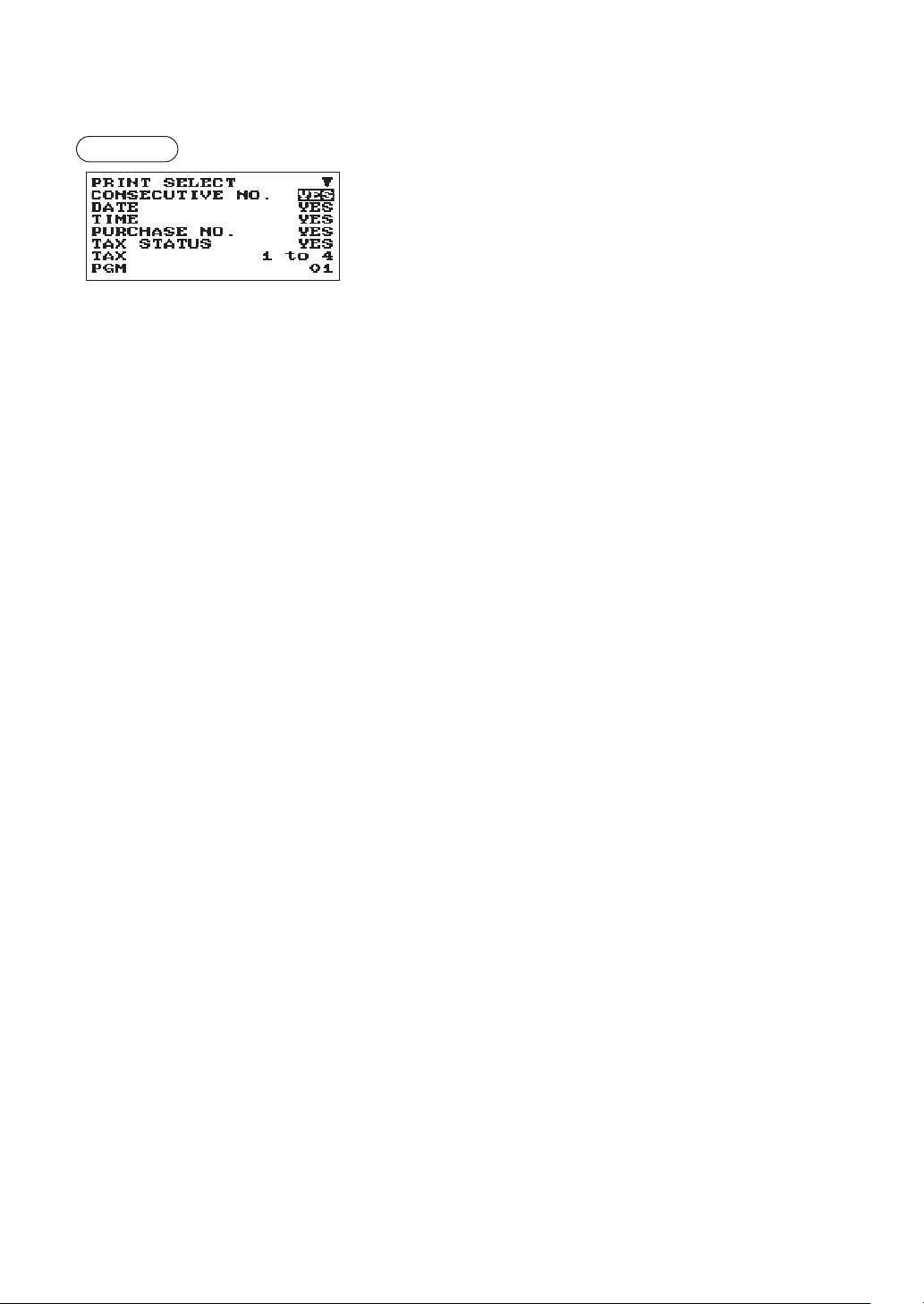
75
■
PrintSelection
You can program various printing functions.
Procedure
Program each item as follows:
The screen continues.
•CONSECUTIVENO.(Usetheselectiveentry)
YES: Print the consecutive No.
NO: Not to print the consecutive No.
•DATE(Usetheselectiveentry)
YES: Print the date
NO: Not to print the date
•TIME(Usetheselectiveentry)
YES: Print the time
NO: Not to print the time
•PURCHASENO.(Usetheselectiveentry)
YES: Print the number of the purchase No.
NO: Not to print the number of the purchase No.
•TAXSTATUS(Usetheselectiveentry)
YES: Print the tax status
NO: Not to print the tax status
•TAX(Usetheselectiveentry)
Tax print format
1 to 4: Print order tax1 to tax4
4 to 1: Print order tax4 to tax1
TOTAL: Print total tax
•TAX(TAXABLE=0)(Usetheselectiveentry)
YES: Print the tax amount (when the taxable amount is zero.)
NO: Not to print the tax amount (when the taxable amount is zero.)
•TAX(TAX=0)(Usetheselectiveentry)
YES: Print the tax amount (when the tax amount is zero.)
NO: Not to print the tax amount (when the tax amount is zero.)
•STATSTKEY(Usetheselectiveentry)
YES: Print the subtotal using the
Q
key
NO: Not to print the subtotal using the
Q
key
•LOGOFORM(Usetheselectiveentry)
PATTERN 1: 3 line text header
PATTERN 2: Image logo header
PATTERN 3: Image logo header + 3 line text footer
PATTERN 4: 6 line text header
PATTERN 5: Image logo header + 3 line text header
PATTERN 6: 3 line text header + 3 line text footer
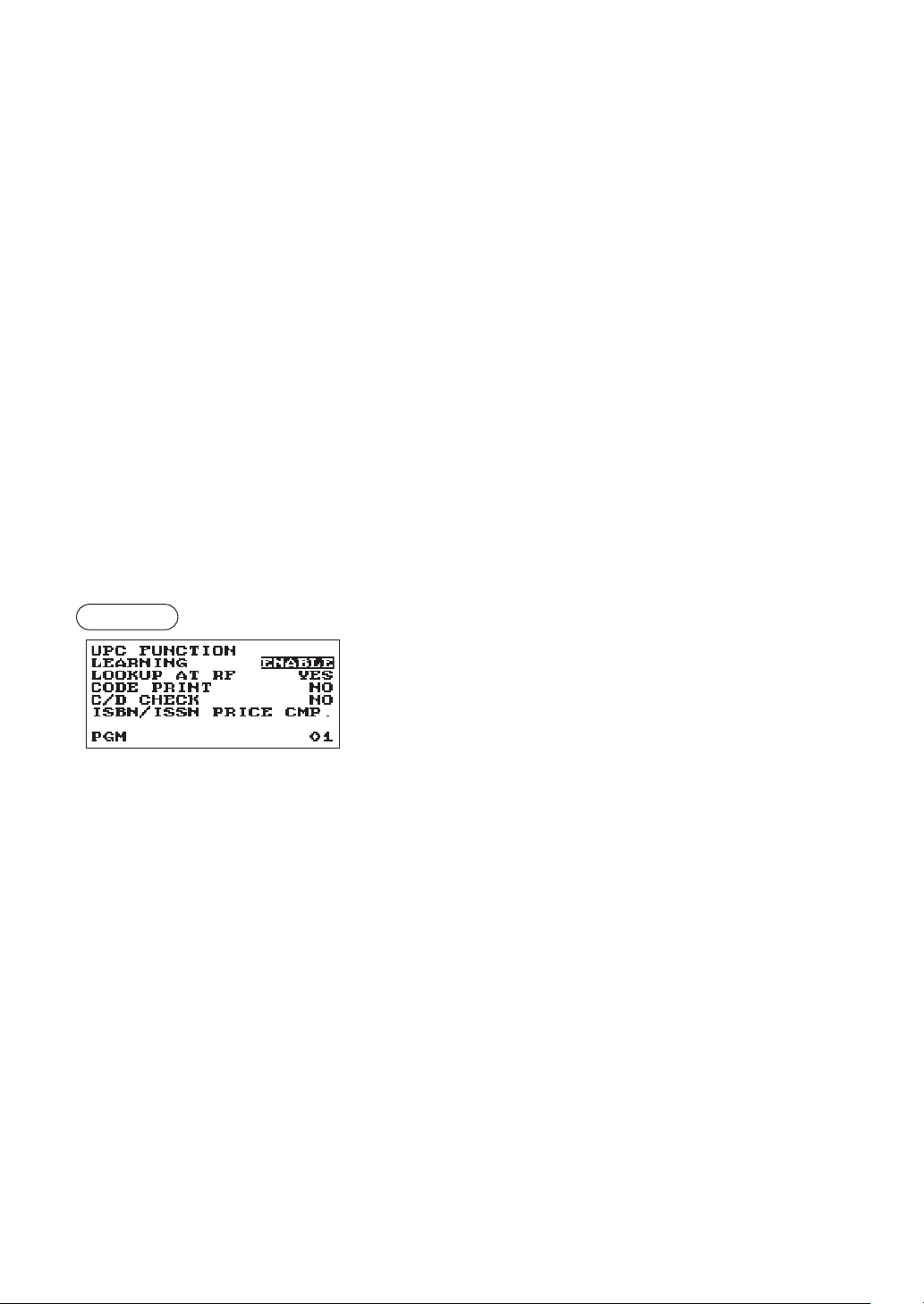
76
•FOOTER(Usetheselectiveentry)
ALL: Print the footer in any media
BY MEDIA: Print the footer by media
•0AMTPLU(Usetheselectiveentry)
When the PLU unit price is 0, printing the amount is:
TEXT ONLY: Print the text only
NORMAL: Print the price and the text
•ITEMJOURNAL(Usetheselectiveentry)
ALL: Print all items on journal
SELECT: Print the selected items other than “+”
dept./PLU/UPC on journal (summary journal)
•LOGOONJOURNAL(Usetheselectiveentry)
YES: Print the logo text on journal
NO: Not to print the logo text on journal
•CONV.SHORTTEND(Usetheselectiveentry)
PRINT: Print subtotal after short tendering by currency conversion
NOT: Not to print subtotal after short tendering by currency conversion
•GSTVATPRINT(Usetheselectiveentry)
YES: Print the tax when the GST is VAT
NO: Not to print the tax when the GST is VAT
■
UPCFunction
Procedure
Program each item as follows:
•LEARNING(Usetheselectiveentry)
ENABLE: Enables the UPC learning function
DISABLE: Disables the UPC learning function
•LOOKUPATRF(Usetheselectiveentry)
YES: Enables to look up the price at refund entry of PLUs/UPCs
NO: Disables to look up the price at refund entry of PLUs/UPCs
•CODEPRINT(Usetheselectiveentry)
R&J: Print the UPC code on receipt and journal
J: Print the UPC code on journal
R: Print the UPC code on receipt
NO: Not to print the UPC code
•C/DCHECK(Usetheselectiveentry)
YES: Check the check digit of UPC codes at entries
NO: Not to check the check digit
•ISBN/ISSN(Usetheselectiveentry)
PRICE CMP.: Compulsory the price entry after ISBN or ISSN code
INHIBITED: Inhibited the price entry after ISBN or ISSN code
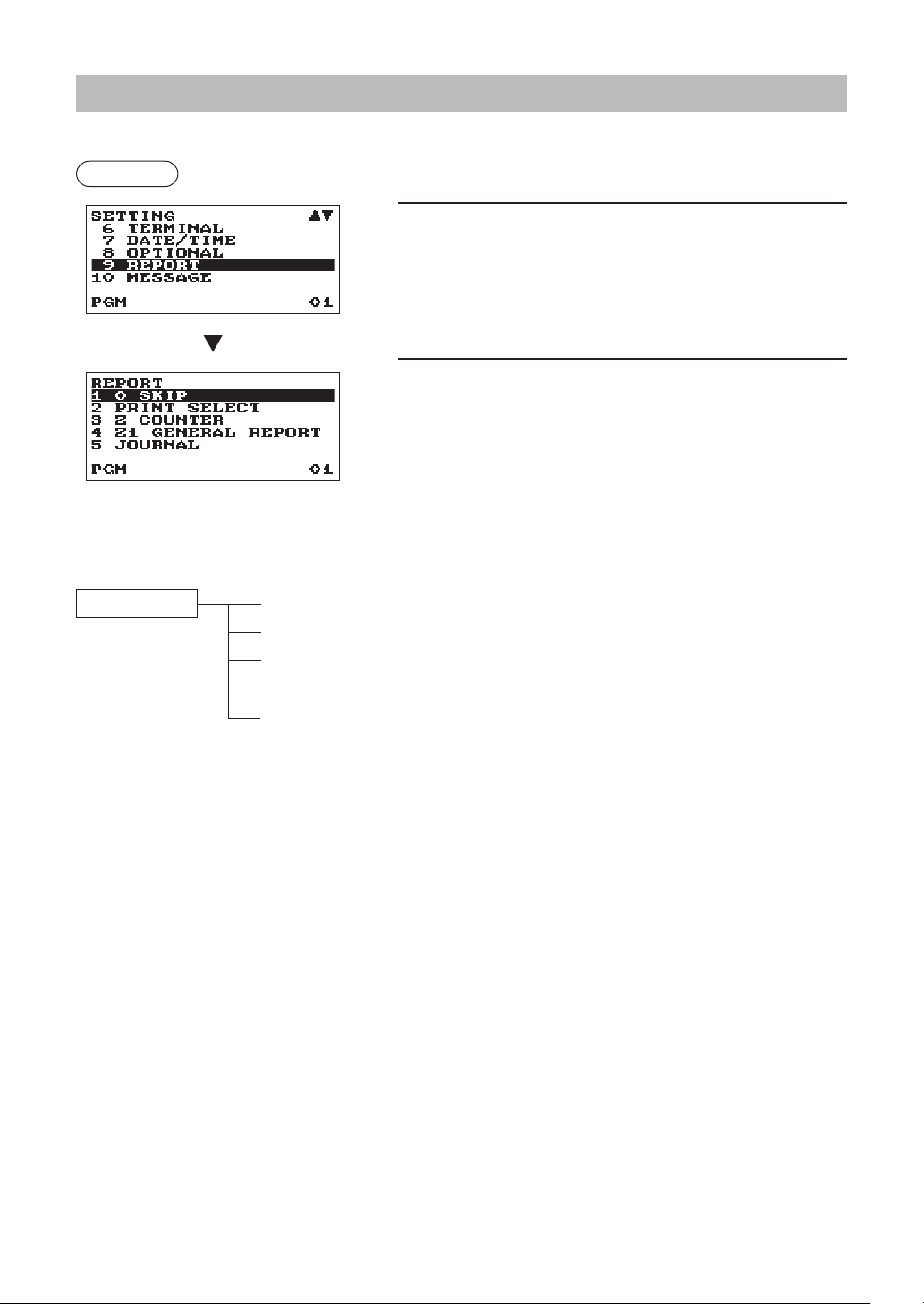
77
ReportProgramming
Use the following procedure to select any option included in the report group:
Procedure
1.
In the SETTING window, select “9 REPORT.”
• The REPORT window will appear.
2.
Select any option from the following options list:
1 0 SKIP
Zero skip
2 PRINT SELECT
Print select
3 Z COUNTER
Z counter
4 Z1 GENERAL REPORT
Z1 General report
5 JOURNAL
Journal data
The following illustration shows those options included in this programming group.
9 REPORT 1 0 SKIP
l
See “Zero skip” on page 78.
2 PRINT SELECT
l
See “Print select” on page 79.
3 Z COUNTER
l
See “Z Counter” on page 80.
4 Z1 GENERAL REPORT
l
See “Z1 General report” on page 80.
5 JOURNAL
l
See “Journal data” on page 80.
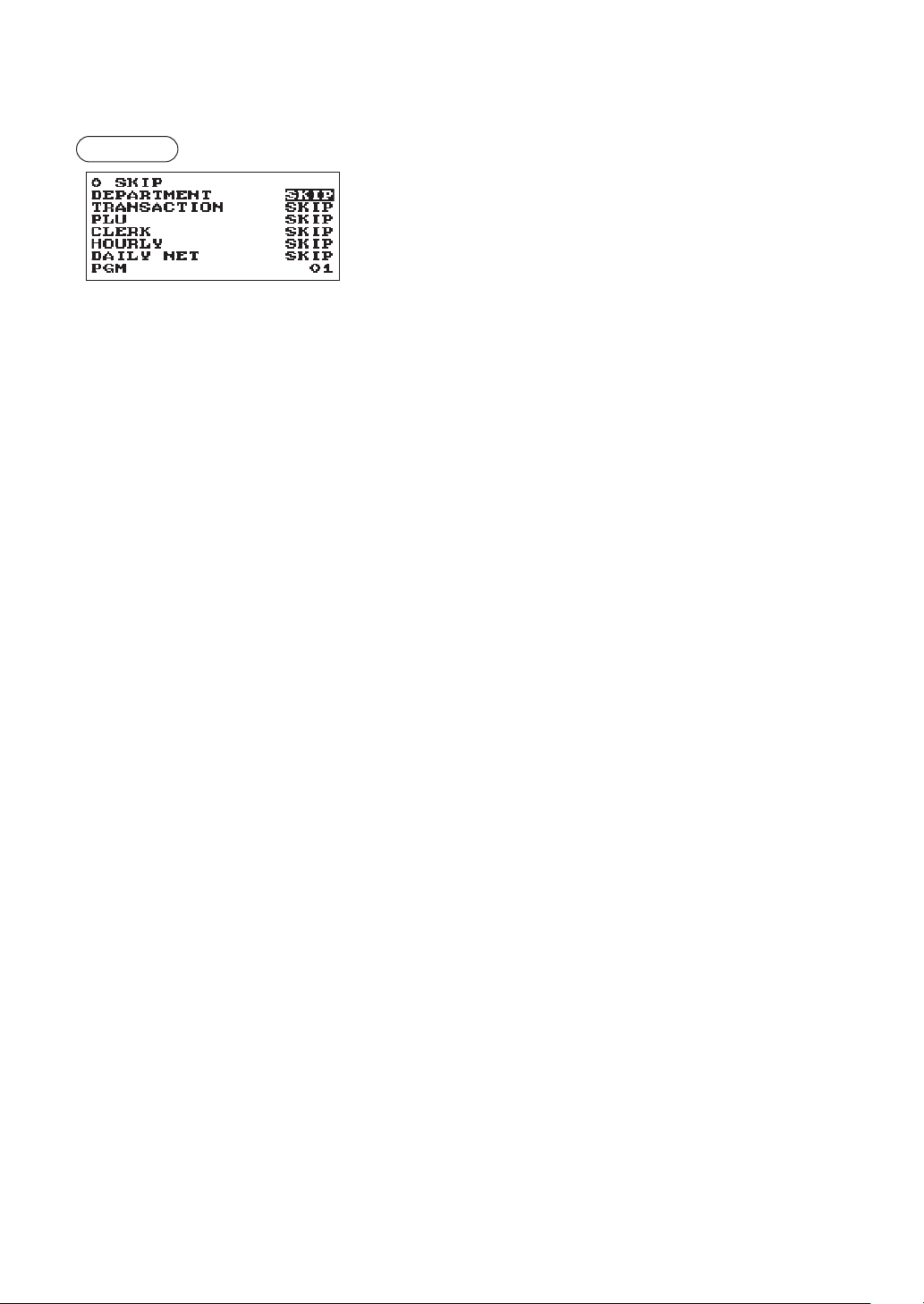
78
■
Zeroskip
You can program whether or not to skip “0” in each report.
Procedure
Program each item as follows:
•DEPARTMENT(Usetheselectiveentry)
SKIP: Skips those data that are “0” in the department
report.
NOT SKIP: Does not skip those data that are “0” in the
department report.
•TRANSACTION(Usetheselectiveentry)
SKIP: Skips those data that are “0” in the transaction
report.
NOT SKIP: Does not skip those data that are “0” in the
transaction report.
•PLU(Usetheselectiveentry)
SKIP: Skips those data that are “0” in the PLU/UPC report.
NOT SKIP: Does not skip those data that are “0” in the PLU/UPC report.
•CLERK(Usetheselectiveentry)
SKIP: Skips those data that are “0” in the clerk report.
NOT SKIP: Does not skip those data that are “0” in the clerk report.
•HOURLY(Usetheselectiveentry)
SKIP: Skips those data that are “0” in the hourly report.
NOT SKIP: Does not skip those data that are “0” in the hourly report.
•DAILYNET(Usetheselectiveentry)
SKIP: Skips those data that are “0” in the daily net report.
NOT SKIP: Does not skip those data that are “0” in the daily net report.
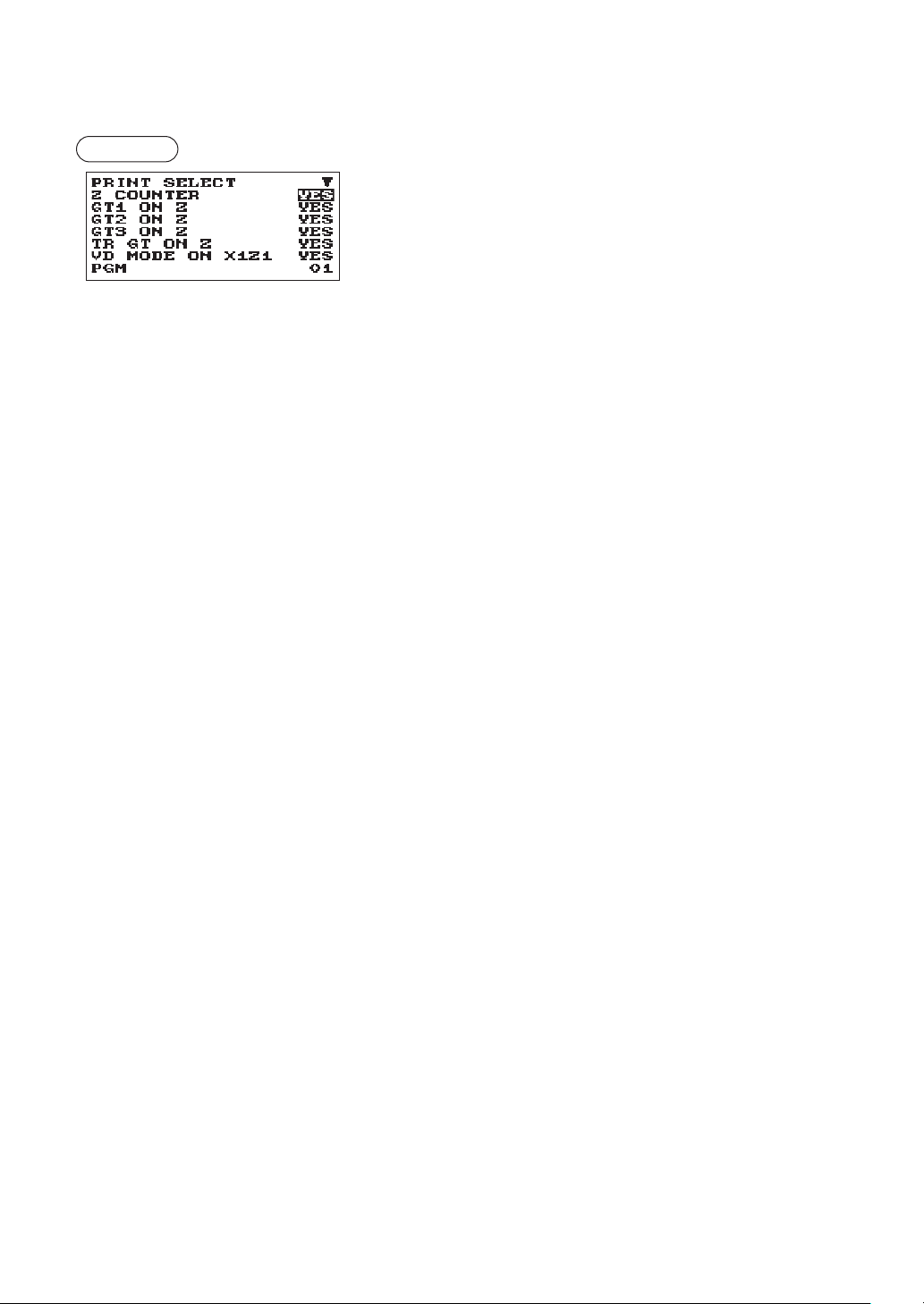
79
■
Printselect
You can program whether or not to print the item on the report.
Procedure
Program each item as follows:
The screen continues.
•ZCOUNTER(Usetheselectiveentry)
YES: Print the Z counter on the Z report.
NO: Not to print the Z counter on the Z report.
•GT1ONZ(Usetheselectiveentry)
YES: Print GT1 on the Z report.
NO: Not to print GT1 on the Z report.
•GT2ONZ(Usetheselectiveentry)
YES: Print GT2 on the Z report.
NO: Not to print GT2 on the Z report.
•GT3ONZ(Usetheselectiveentry)
YES: Print GT3 on the Z report.
NO: Not to print GT3 on the Z report.
•TRGTONZ(Usetheselectiveentry)
YES: Print the training GT on the Z report.
NO: Not to print the training GT on the Z report.
•VDMODEONX1Z1(Usetheselectiveentry)
YES: Print total of VOID MODE on X1Z1 report
NO: Not to print total of VOID MODE on X1Z1 report
•VDMODEONX2Z2(Usetheselectiveentry)
YES: Print total of VOID MODE on X2Z2 report
NO: Not to print total of VOID MODE on X2Z2 report
•PLU/UPCDATAONZ(Usetheselectiveentry)
YES: Print PLU/UPC data on the PLU/UPC Z report.
NO: Not to print PLU/UPC data on the PLU/UPC Z report.
•JOURNALSIZE(Usetheselectiveentry)
SMALL: Print journal in a small size.
NORMAL: Print journal in a normal size.
•GSTEXEMPTONXZ(Usetheselectiveentry)
YES: Print GST EXEMPT data on X/Z report.
NO: Not to print GST EXEMPT data on X/Z report.
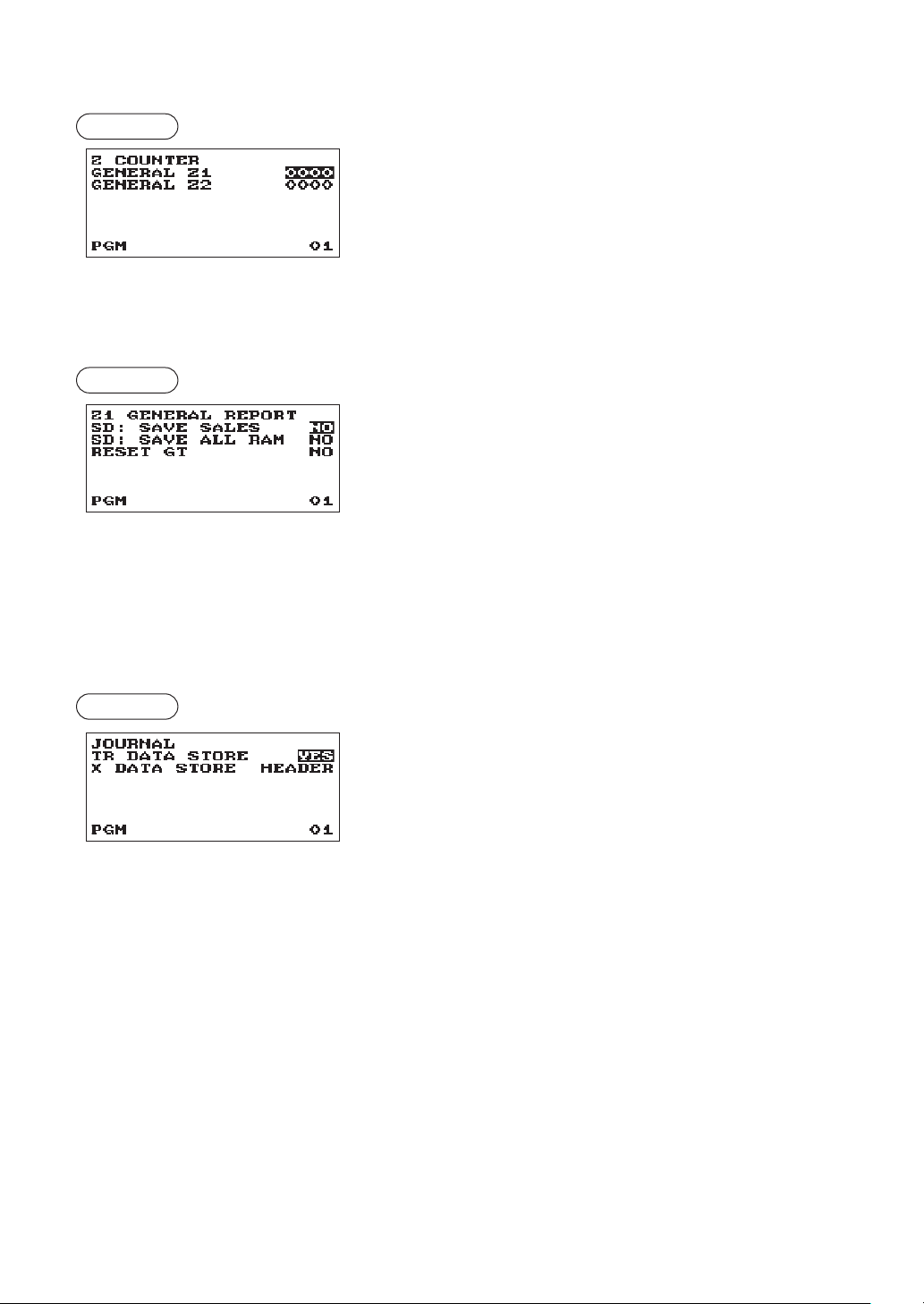
80
■
ZCounter
Procedure
GENERALZ1: Max.4 digits (0000 to 9999)
GENERALZ2: Max.4 digits (0000 to 9999)
■
Z1Generalreport
Procedure
•SD:SAVESALES(Usetheselectiveentry)
YES: Save the sales data in the SD card.
NO: Not to save the sales data in the SD card.
•SD:SAVEALLRAM(Usetheselectiveentry)
YES: Save the all RAM data in the SD card.
NO: Not to save the all RAM data in the SD card.
•RESETGT(Usetheselectiveentry)
YES: Reset the GT
NO: Not to reset the GT
■
Journaldata
Procedure
•TRDATASTORE(Usetheselectiveentry)
YES: Record the journal data in the training mode.
NO: Not to record the journal data in the training mode.
•XDATASTORE(Usetheselectiveentry)
When the X report data in the journal is recorded:
HEADER: Record only the header of X report in the journal
DETAIL: Record the detail of X report in the journal
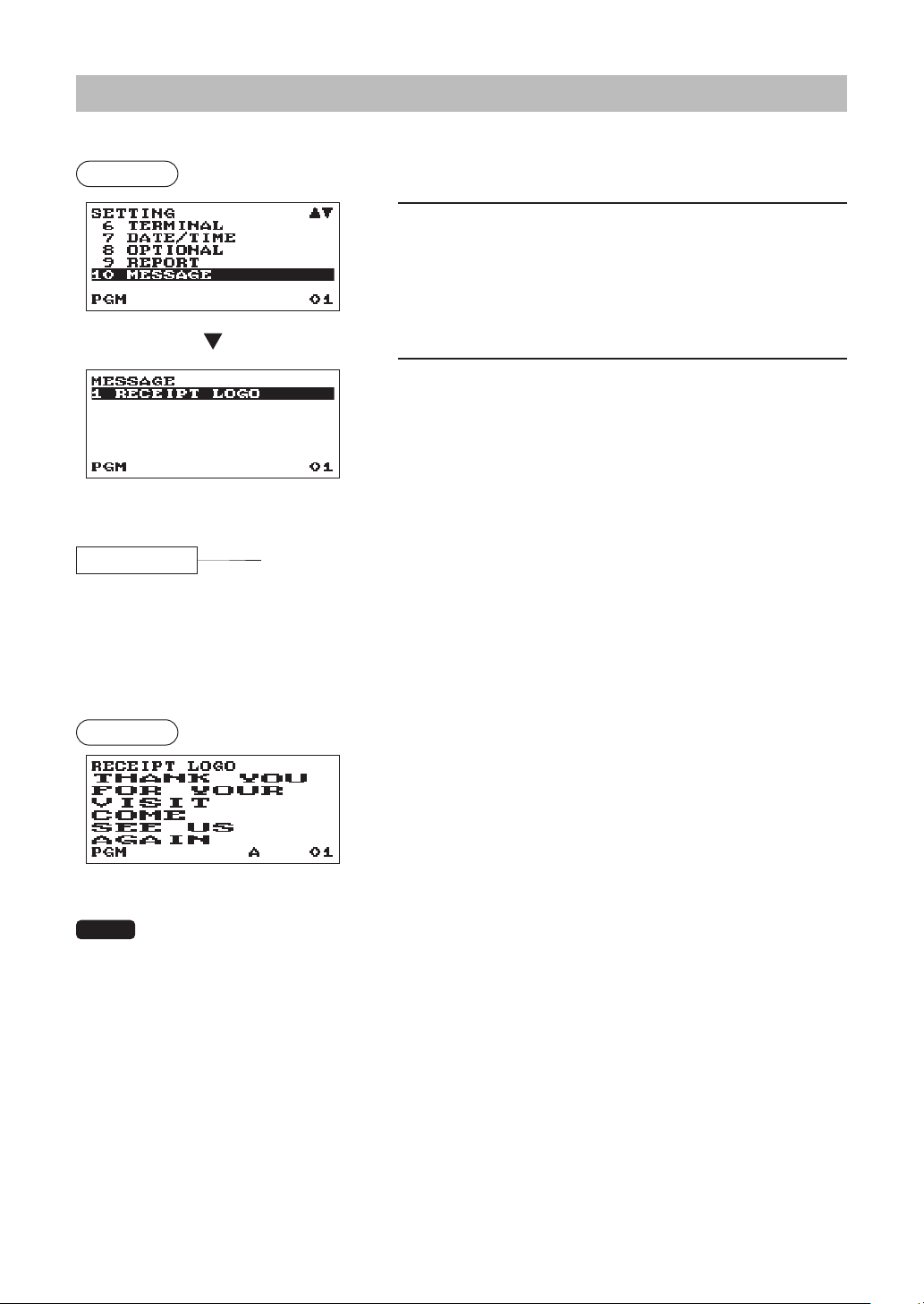
81
MessageProgramming
Use the following procedure to select any option included in the message group:
Procedure
1.
In the SETTING window, select “10 MESSAGE.”
• The MESSAGE window will appear.
2.
Select any option from the following options list:
1
RECEIPT LOGO
Receipt logo
The following illustration shows those options included in this programming group.
10 MESSAGE 1 RECEIPT LOGO
l
See “Receipt logo” this page.
■
Receiptlogo
Your register can print programmed messages for customers on every receipt.
The logo text is printed in a centering form on the receipt.
Procedure
Program each item as follows:
•RECEIPTLOGO(Usethecharacterentry)
Logo text for the receipt (max. 30 characters x 6 lines)
NOTE
The programmable number of lines for a message varies according to the following message
types:
PATTERN 1: 3 line text header
PATTERN 2: Image logo header
PATTERN 3: Image logo header + 3 line text footer
PATTERN 4: 6 line text header
PATTERN 5: Image logo header + 3 line text header
PATTERN 6: 3 line text header + 3 line text footer
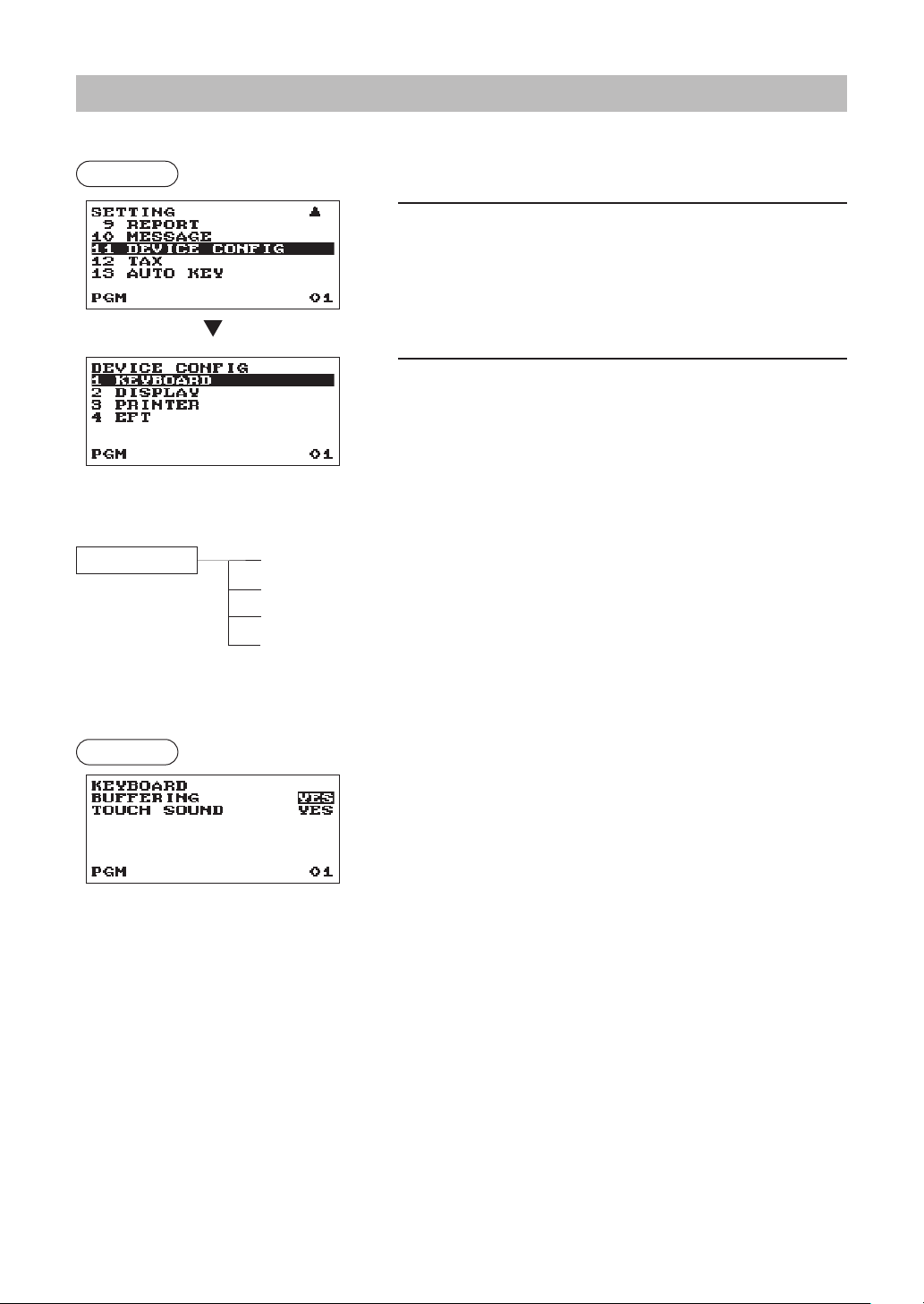
82
DeviceCongurationProgramming
Use the following procedure to select a device conguration programming:
Procedure
1.
In the SETTING window, select “11 DEVICE CONFIG.”
• The DEVICE CONFIG window will appear.
2.
Select any option from the following options list:
1 KEYBOARD
Keyboard
2 DISPLAY
Display
3 PRINTER
Printer
4 EFT
EFT
The following illustration shows those options included in this programming group.
11 DEVICE CONFIG
1 KEYBOARD
l
See “Keyboard” this page.
2 DISPLAY
l
See “Display” on page 83.
3 PRINTER
l
See “Printer” on page 83.
4 EFT
l
See “EFT” on page 83.
■
Keyboard
Procedure
Program each item as follows:
•BUFFERING(Usetheselectiveentry)
YES: Enables the buffering keyboard.
NO: Disables the buffering keyboard.
•TOUCHSOUND(Usetheselectiveentry)
YES: Set to sound
NO: Not to sound
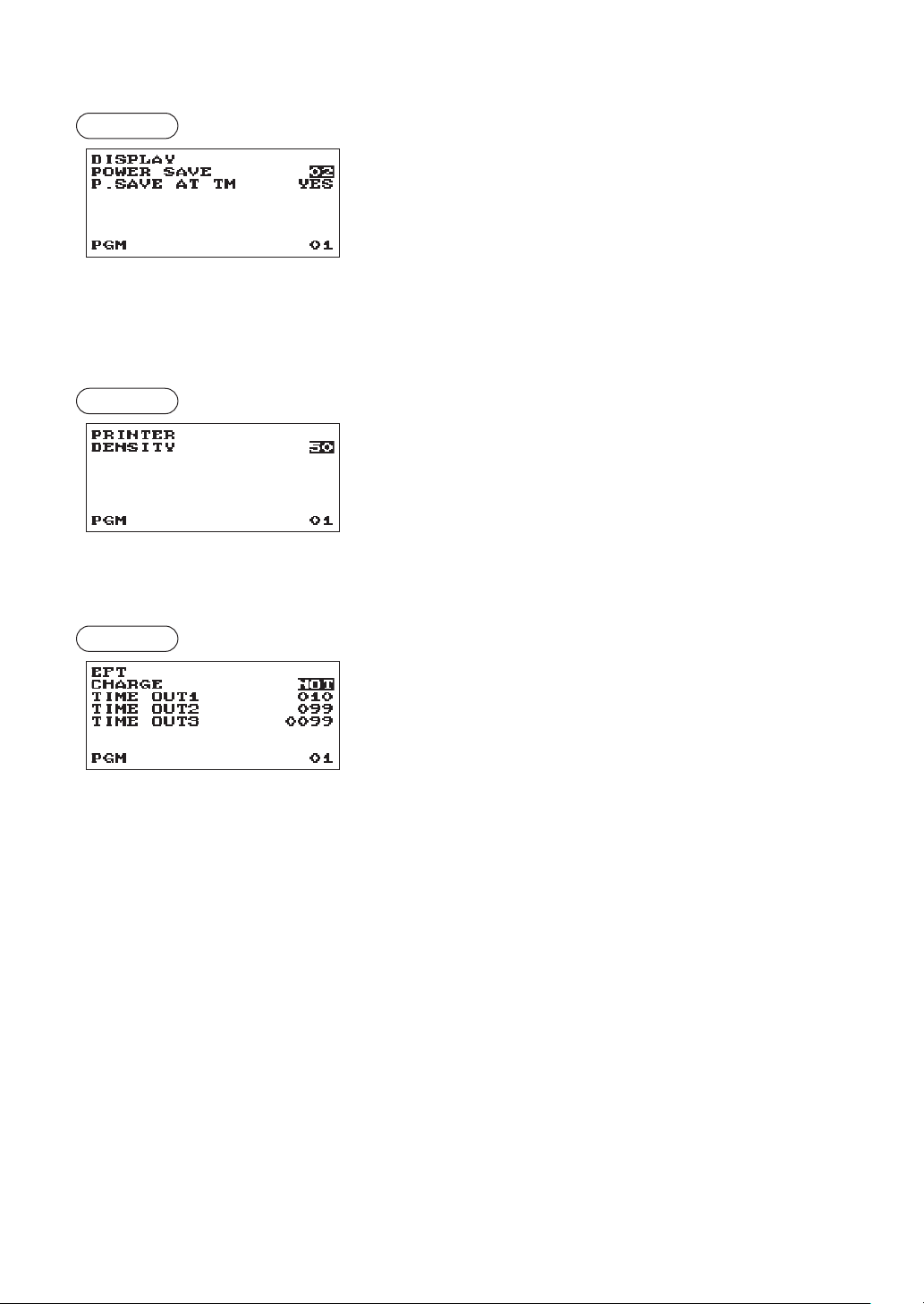
83
■
■
Display
Procedure
Program each item as follows:
•■POWER■SAVE■(Use■the■numeric■entry)
Time of the power save (2 digits: 0,1 to 99 minutes 0:100
minutes)
•■P.■SAVE■AT■TM■(Use■the■selective■entry)
Power saving during time display:
YES: Enables power saving during time display
NO: Disables power saving during time display
■
■
Printer
Procedure
Program each item as follows:
•■DENSITY■(Use■the■numeric■entry)
Select a density level (2 digits: 00 to 99)
00: 89% for standard
50: 100% for standard
99: 111% for standard
■
■
EFT
Procedure
Program each item as follows:
•■CHARGE■(Use■the■selective■entry)
USED: Credit/Debit
NOT: Not to assign for credit/debit.
•■TIME■OUT1■(Use■the■numeric■entry)
Time out timer for ACK/NAK
(3 digits: 1 to 255 (sec))
•■TIME■OUT2■(Use■the■numeric■entry)
Time out timer for response of authorization
(3 digits: 1 to 255 (sec))
•■TIME■OUT3■(Use■the■numeric■entry)
Time out timer for batch close
(4 digits: 1 to 3000 (sec))
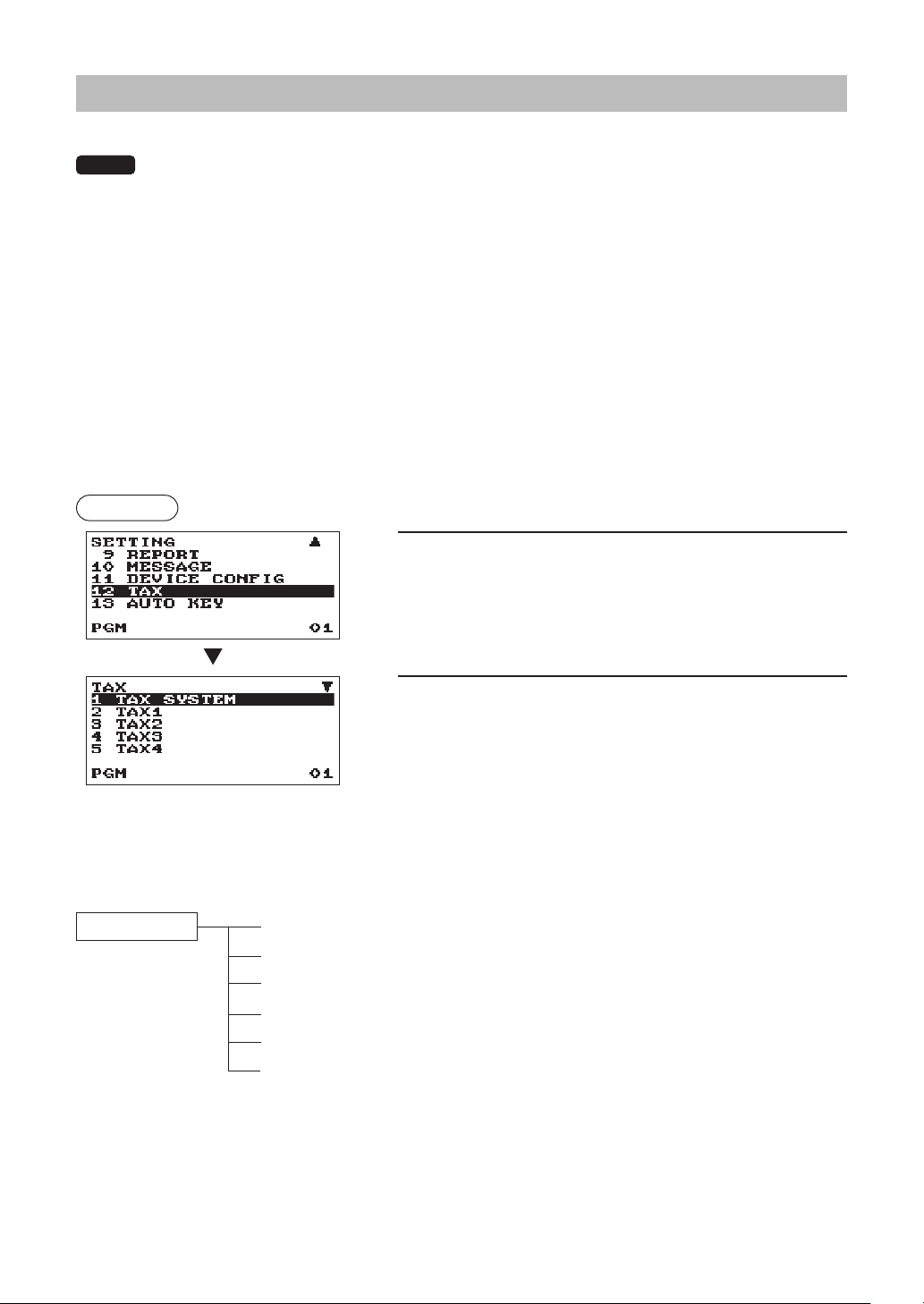
84
TaxProgramming
Use the following procedure to select any option included in the tax group:
NOTE
The register is adapted to US and Canadian tax systems. If the Canadian tax system is required,
the tax system must be changed, then program the tax rate or tax table and quantity for doughnut
exempt which are described in this section.
Prior to the entry of sales transactions, the tax programming must be performed in accordance with the
laws of the state. The register is provided with programming four different tax rate. The one-tax system is
sufcient to cover most areas. However, in some areas that has a separate local tax (such as a Parish tax)
or a hospitality tax, the multi-tax system is useful.
If the taxable item is entered, the tax will be automatically added to merchandise subtotal according to the
programmed tax status for the department. The tax can be also entered manually.
The register is provided with two types of tax programming methods. The % tax method is used for a straight
percentage rate per dollar. The table tax method requires tax break information from the state or local tax
ofces. Use the method which is acceptable in the state. The necessary data of tax programming will be
presented at local tax ofce.
Procedure
1.
In the SETTING window, select “12 TAX.”
• The TAX window will appear.
2.
Select any option from the following options list:
1 TAX SYSTEM
Tax system
2 TAX1
Tax1
3 TAX2
Tax2
4 TAX3
Tax3
5 TAX4
Tax4
6 DOUGHNUT EXEMPT
Doughnut exempt
The following illustration shows those options included in this programming group.
12 TAX 1 TAX SYSTEM
l
See “Tax system” on page 85.
2 TAX1
l
See “Tax1” on page 86.
3 TAX2
l
See “Tax2” on page 86.
4 TAX3
l
See “Tax3”on page 86.
5 TAX4
l
See “Tax4”on page 86.
6
DOUGHNUT EXEMPT
l
See “Doughnut exempt”on page 88.
The screen continues.
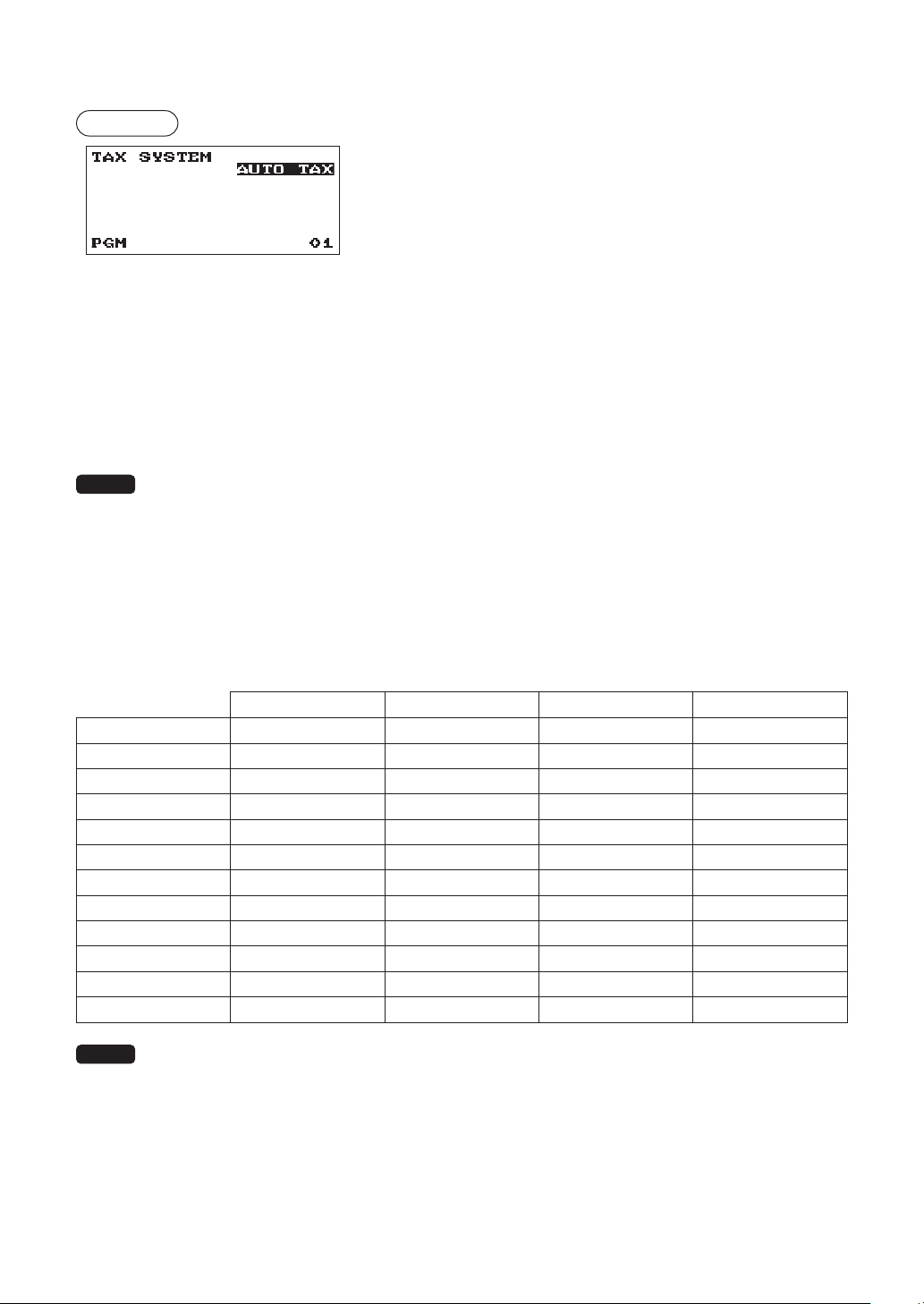
85
■
Taxsystem
Procedure
•Taxsystem(Usetheselectiveentry)
Selection of the tax system
AUTO TAX
CANADA TAX 01
CANADA TAX 02
CANADA TAX 03
CANADA TAX 04
CANADA TAX 05
CANADA TAX 06
CANADA TAX 07
CANADA TAX 08
CANADA TAX 09
CANADA TAX 10
CANADA TAX 11
NOTE
Tax system:
• For US tax system, select “AUTO TAX”.
• For Canadian tax, from the table below, specify a tax system suitable for your province (if
necessary contact your local tax ofce for correct sales tax information) and for your type of
retail business.
In the register, four kinds of tax can be programmed and each tax is arranged to match GST or
PST as follows:
TAX1: PST, TAX2: PST, TAX3: PST or GST, TAX4: GST
(The most common type for Canada is type “CANADA TAX 06”.)
TAX1 TAX2 TAX3 TAX4
AUTO TAX Add on tax Add on tax Add on tax Add on tax
CANADA TAX 01 PST (Add on tax)* PST (Add on tax)* GST (VAT) GST (VAT)
CANADA TAX 02 PST (Add on tax) PST (Add on tax) GST (VAT) GST (VAT)
CANADA TAX 03 PST (Add on tax)* PST (Add on tax)* PST (Add on tax)* GST (VAT)
CANADA TAX 04 PST (Add on tax) PST (Add on tax) PST (Add on tax) GST (VAT)
CANADA TAX 05 PST (Add on tax)* PST (Add on tax)* PST (Add on tax)* GST (Add on tax)
CANADA TAX 06 PST (Add on tax) PST (Add on tax) PST (Add on tax) GST (Add on tax)
CANADA TAX 07 PST (Add on tax)* PST (Add on tax)* GST (VAT) GST (Add on tax)
CANADA TAX 08 PST (Add on tax) PST (Add on tax) GST (VAT) GST (Add on tax)
CANADA TAX 09 PST (Add on tax)* PST (Add on tax)* GST (Add on tax) GST (Add on tax)
CANADA TAX 10 PST (Add on tax) PST (Add on tax) GST (Add on tax) GST (Add on tax)
CANADA TAX 11 PST (Add on tax)* PST (Add on tax)* PST (VAT) GST (VAT)
NOTE
* Tax on tax system: If the “PST taxable & GST (add on tax) taxable” item is entered,
GST tax is imposed on PST tax.
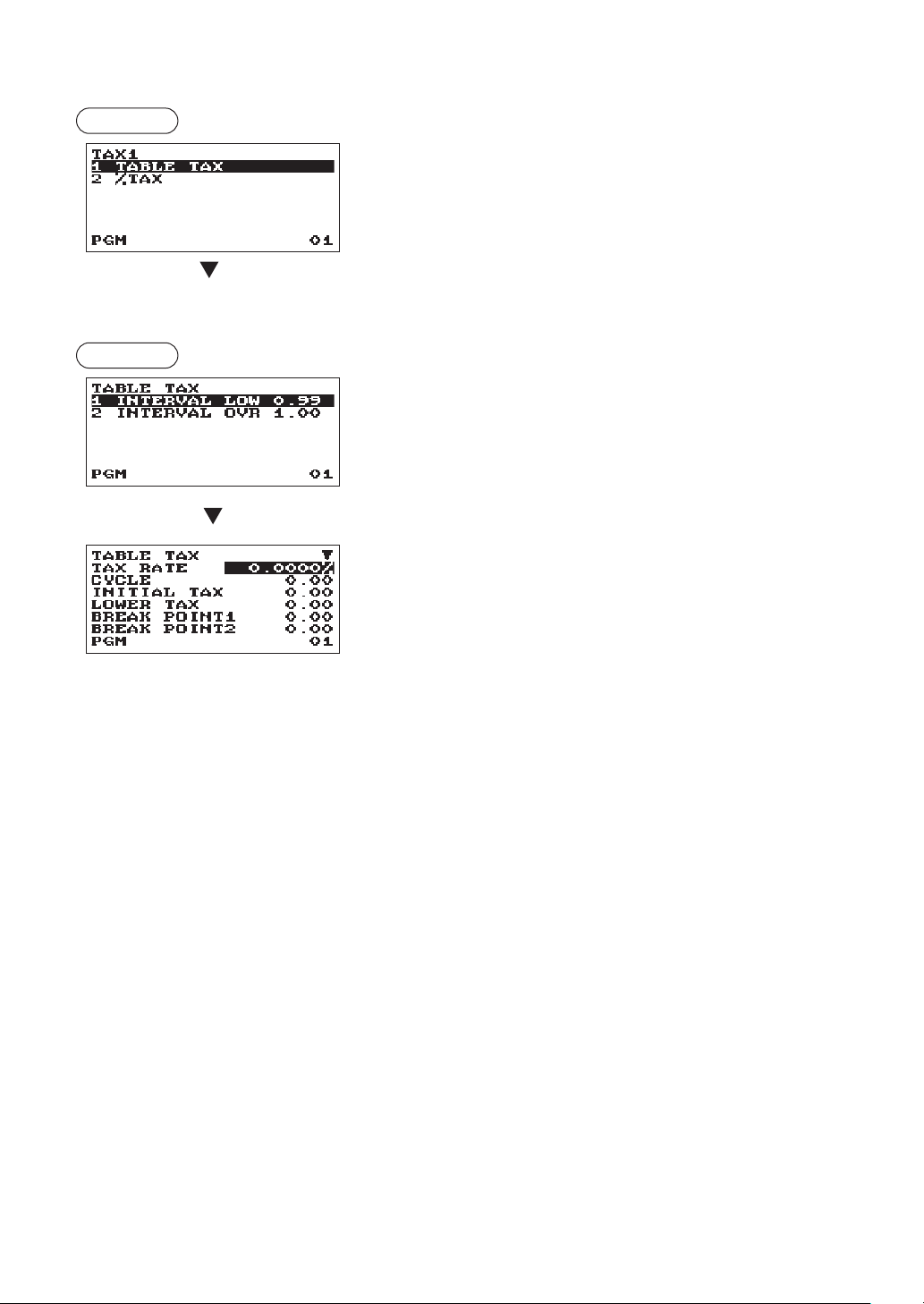
86
■
Tax1through4
Procedure
Selection of tax method
(To the following table tax or % tax)
TABLE TAX:
Programmed tax table is used.
% TAX:
Programmed % tax rate is used.
•Tabletax
Procedure
Selection of the interval
The screen continues.
•INTERVAL(Usetheselectiveentry)
LOW 0.99: Less than 0.99 (max. 72 break points)
OVR 1.00: More than 1.00 (max. 36 break points)
Program each item as follows:
•TAXRATE(Usethenumericentry)
Tax rate (max. 7 digits: 0.0000 to 999.9999%).
•CYCLE(Usethenumericentry)
Tax table cycle (max. 4 digits: 0.01 to 99.99).
•INITIALTAX(Usethenumericentry)
Initial tax (max. 3 digits: 0.01 to 9.99).
•LOWERTAX(Usethenumericentry)
Lowest taxable amount (max. 5 digits: 0.00 to 999.99).
•BREAKPOINT1through72(Usethenumericentry)
Break point amount (max. 5 digits: 0.01 to 999.99).
The programming data of tax table are as follows.
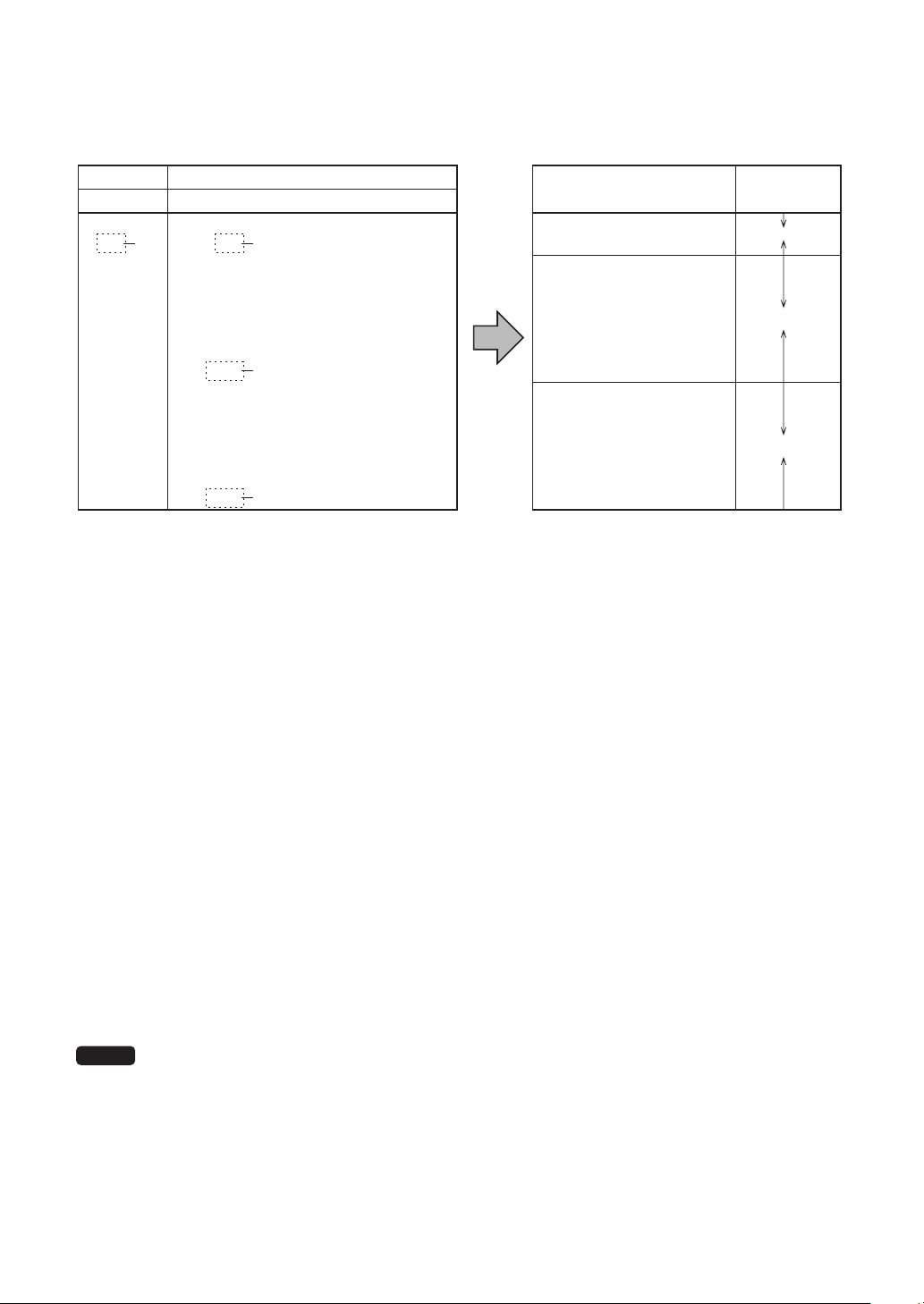
87
<Sampletaxtable>
New Jersey tax table: 6%
To program a tax table, rst make a table like the right table shown below.
Taxes
Range of sales amount
Minimum breakpoint
.00
.01
.02
.03
.04
.05
.06
.07
.08
.09
.10
.11
.12
.13
.01
.11
.23
.39
.57
.73
.89
1.11
1.23
1.39
1.57
1.73
1.89
2.11
Maximum breakpoint
.10
.22
.38
.56
.72
.88
1.10
1.22
1.38
1.56
1.72
1.88
2.10
2.22
to
to
to
to
to
to
to
to
to
to
to
to
to
to
T Q
M1
M2
A: Difference between the
minimum breakpoint and
the next one (¢)
–
10 (0.11 - 0.01)
12 (0.23 - 0.11)
16 (0.39 - 0.23)
18 (0.57 - 0.39)
16 (0.73 - 0.57)
16 (0.89 - 0.73)
22 (1.11 - 0.89)
12 (1.23 - 1.11)
16 (1.39 - 1.23)
18 (1.57 - 1.39)
16 (1.73 - 1.57)
16 (1.89 - 1.73)
22 (2.11 - 1.89)
B: Non-cyclic
C: Cyclic-1
D: Cyclic-2
From the tax table, calculate the differences between a minimum break point and the next one (A). Then,
from the differences, nd irregular cycles (B) and regular cycles (C and D). These cycles will show you the
following items necessary to program the tax table:
T: The tax amount collected on the minimum taxable amount (Q) →INITIALTAX
Q: The minimum taxable amount → LOWERTAX
M1: The maximum value of the minimum breakpoint on a regular cycle (C)
We call this point “MAX point.”
M2: The maximum value of the minimum breakpoint on a regular cycle (D)
We call this point “MAX point.”
M: Range of the minimum breakpoint on a regular cycle: difference → CYCLE
between Q and M1 or between M1 and M2
ExampledataofNewJerseytaxtable(6%)
TAXRATE: 6.0000 (enter 6)
CYCLE: 1.00 (enter 100)
INITIALTAX: 0.01 (enter 1)
LOWERTAX: 0.11 (enter 11)
BREAKPOINT1: 0.23 (enter 23)
BREAKPOINT2: 0.39 (enter 39)
BREAKPOINT3: 0.57 (enter 57)
BREAKPOINT4: 0.79 (enter 79)
BREAKPOINT5: 0.89 (enter 89)
BREAKPOINT6: 1.11 (enter 111)
NOTE
If the tax is not provided for every cent, modify the tax table by setting the tax for every
cent in the following manner.
When setting the tax, consider the minimum breakpoint corresponding to unprovided tax to be the same as
the one corresponding to the tax provided on a large amount.
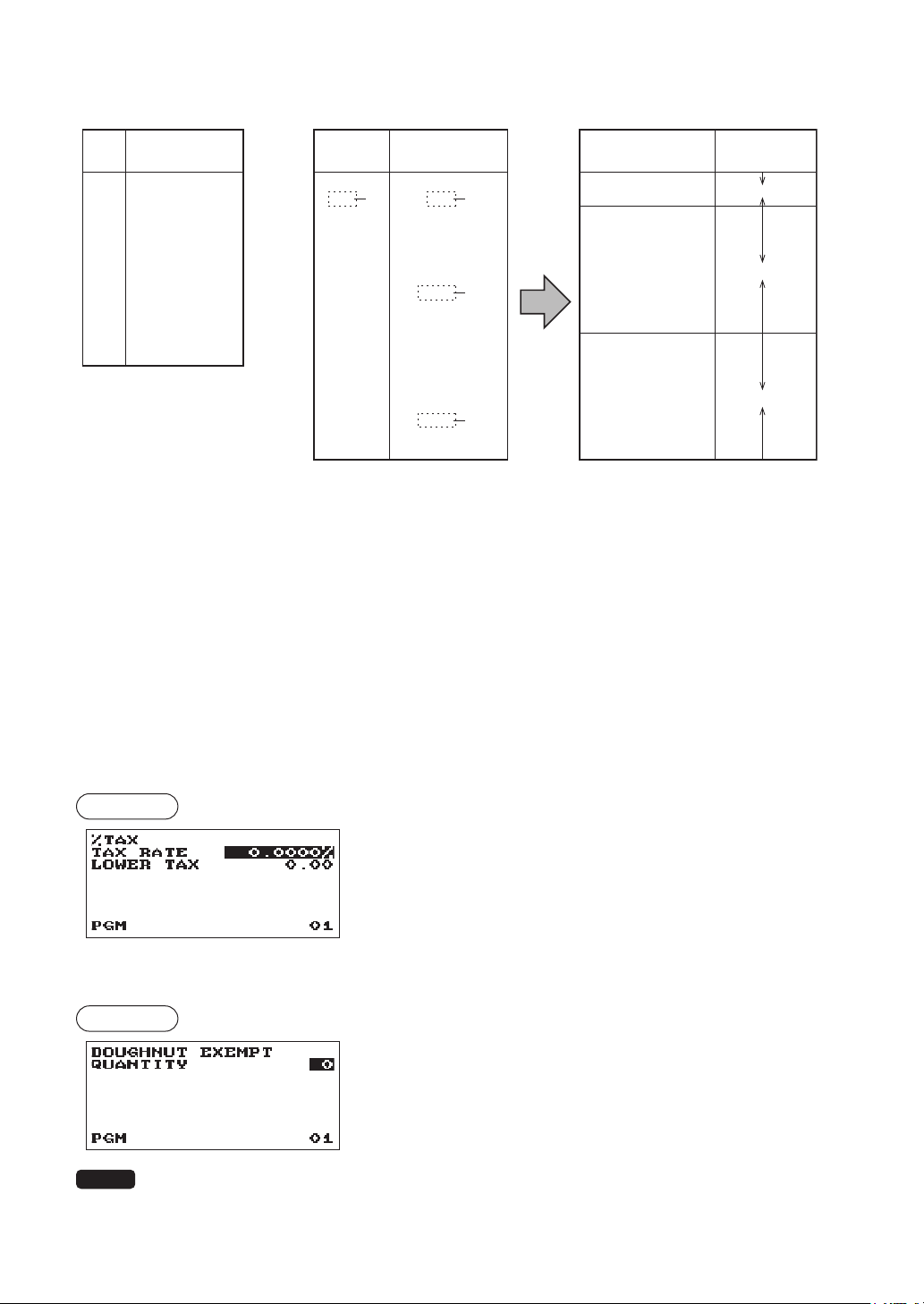
88
Exampledataofabovetaxtable(8%)
TAXRATE: 8.0000 (enter 8)
CYCLE: 1.00 (enter 100)
INITIALTAX: 0.01 (enter 1)
LOWERTAX: 0.11 (enter 11)
BREAKPOINT1: 0.26 (enter 26)
BREAKPOINT2: 0.47 (enter 47)
BREAKPOINT3: 0.68 (enter 68)
BREAKPOINT4: 0.89 (enter 89)
BREAKPOINT5: 0.89 (enter 89)
BREAKPOINT6:1.11 (enter 111)
BREAKPOINT7:1.11 (enter 111)
BREAKPOINT8: 1.11 (enter 111)
•%Tax
Procedure
Program each item as follows:
•TAXRATE(Usethenumericentry)
Tax rate (max. 7 digits: 0.0000 to 999.9999%).
•LOWERTAX(Usethenumericentry)
Lowest taxable amount (max. 5 digits: 0.00 to 999.99).
■
Doughnutexempt
Procedure
Program each item as follows:
•QUANTITY(Usethenumericentry)
Quantity for doughnut tax exempt (2 digits: 1 to 99/0).
NOTE
The programming is effective for “taxable 1 & taxable 3” items on Canadian tax (CANADA TAX
01 or CANADA TAX 10).
Sample tax table Modification of the left tax table
Example 8%
Tax
Minimum
breakpoint
.00
.01
.02
.03
.04
.05
.06
.07
.08
.09
.10
.11
.12
.13
.14
.15
.16
.17
.01
.11
.26
.47
.68
.89
.89
1.11
1.11
1.11
1.26
1.47
1.68
1.89
1.89
2.11
2.11
2.11
T Q
M1
M2
Tax
Minimum
breakpoint
.00
.01
.02
.03
.04
.06
.09
.10
.11
.12
.14
.17
.01
.11
.26
.47
.68
.89
1.11
1.26
1.47
1.68
1.89
2.11
Breakpoint
difference (¢)
1
10 (0.11-0.01)
15 (0.26-0.11)
21 (0.47-0.26)
21 (0.68-0.47)
21 (0.89-0.68)
0 (0.89-0.89)
22 (1.11-0.89)
0 (1.11-1.11)
0 (1.11-1.11)
15 (1.26-1.11)
21 (1.47-1.26)
21 (1.68-1.47)
21 (1.89-1.68)
0 (1.89-1.89)
22 (2.11-1.89)
0 (2.11-2.11)
0 (2.11-2.11)
B: Non-cyclic
C: Cyclic-1
D: Cyclic-2
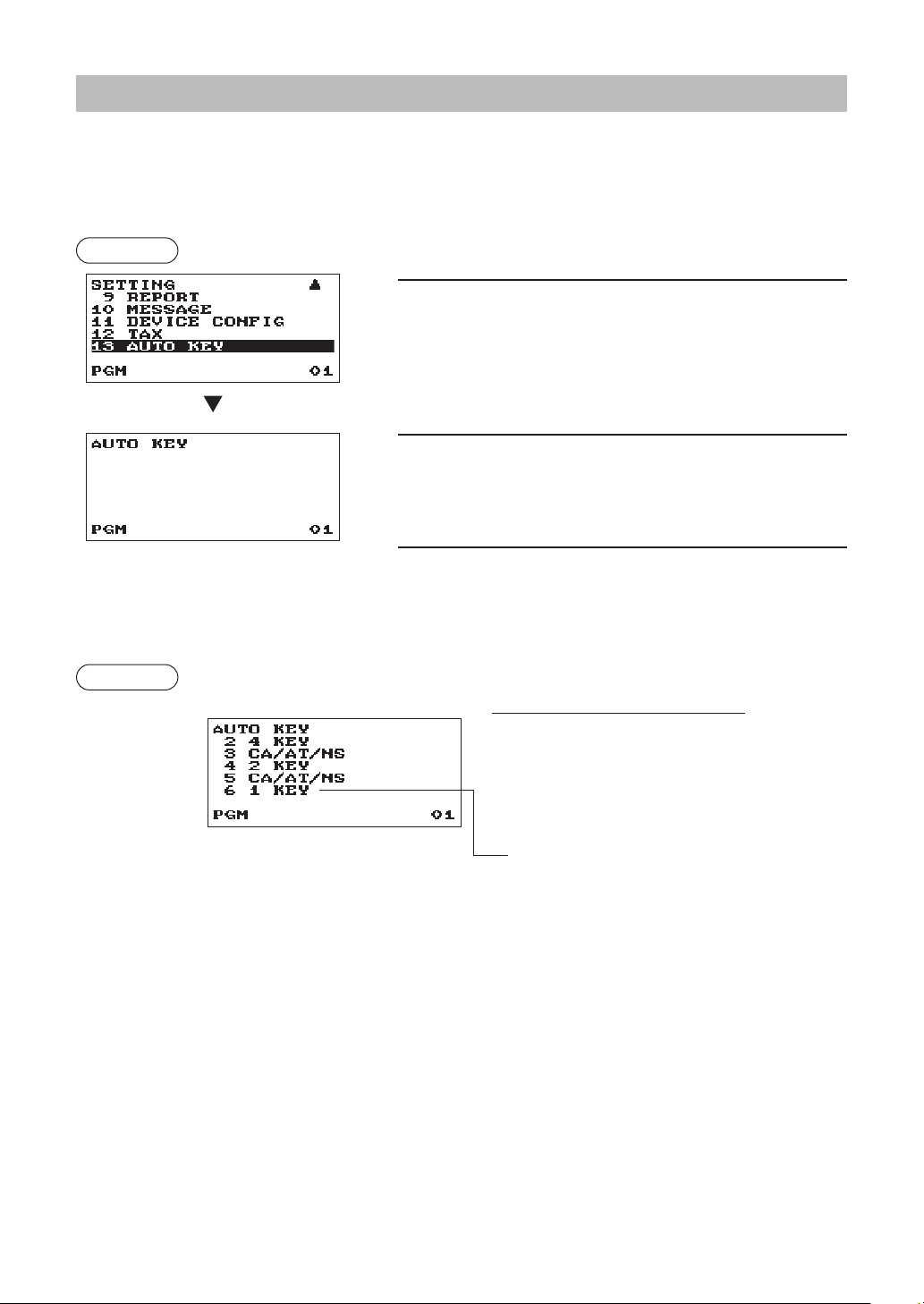
89
AutomaticSequencingKeyProgramming
If you program frequently performed key operations for the
a
key, you can enter those key operations
simply by pressing the corresponding
a
key in key operations.
■
KeySequence
Procedure
1.
In the SETTING window, select “13 AUTO KEY.”
• The AUTO KEY window will appear.
2.
Enter the key operation sequence by any key except the
a
key.
The register allows to program up to 25 keys for the
a
key.
3.
To terminate the procedure enter the
a
key, the conrmation
window will appear for sequence data saving. Select “SAVE”
or “ABANDON” and enter the
A
key.
Example
In case of the X1 General report printing.
Keyoperation
m
4=(select X1/Z1 MODE)
A
2=(select READING)
A
1=(select GENERAL)
a
A

90
ReadingofStoredPrograms
You can read programs stored in the PROGRAM mode.
■
Programreadingsequence
To read those programs stored in the PROGRAM mode, use the following procedure:
1. Select the PROGRAM mode from the mode selection window.
2. Select “1 READING” from the PROGRAM mode to display the items list, and press the
A
key.
Select an item listed in the table shown later.
Item: Description:
1 DEPARTMENT Department (Full or specied range)
2 PLU/UPC PLU/UPC (Full or specied range)
3 FUNCTIONS Function
4 MEDIA Media
5 FUNCTION TEXT Function Text
6 CLERK Clerk
7 MANAGER Manager
8 MODE PASS CODE Mode pass code
9 TRAINING CLK Training clerk
10 OPTIONAL Optional feature
11 REPORT Report setting
12 MESSAGE Message
13 DEVICE CONFIG Device conguration
14 TAX Tax
15 AUTO KEY Auto key
16 ROM VERSION ROM version
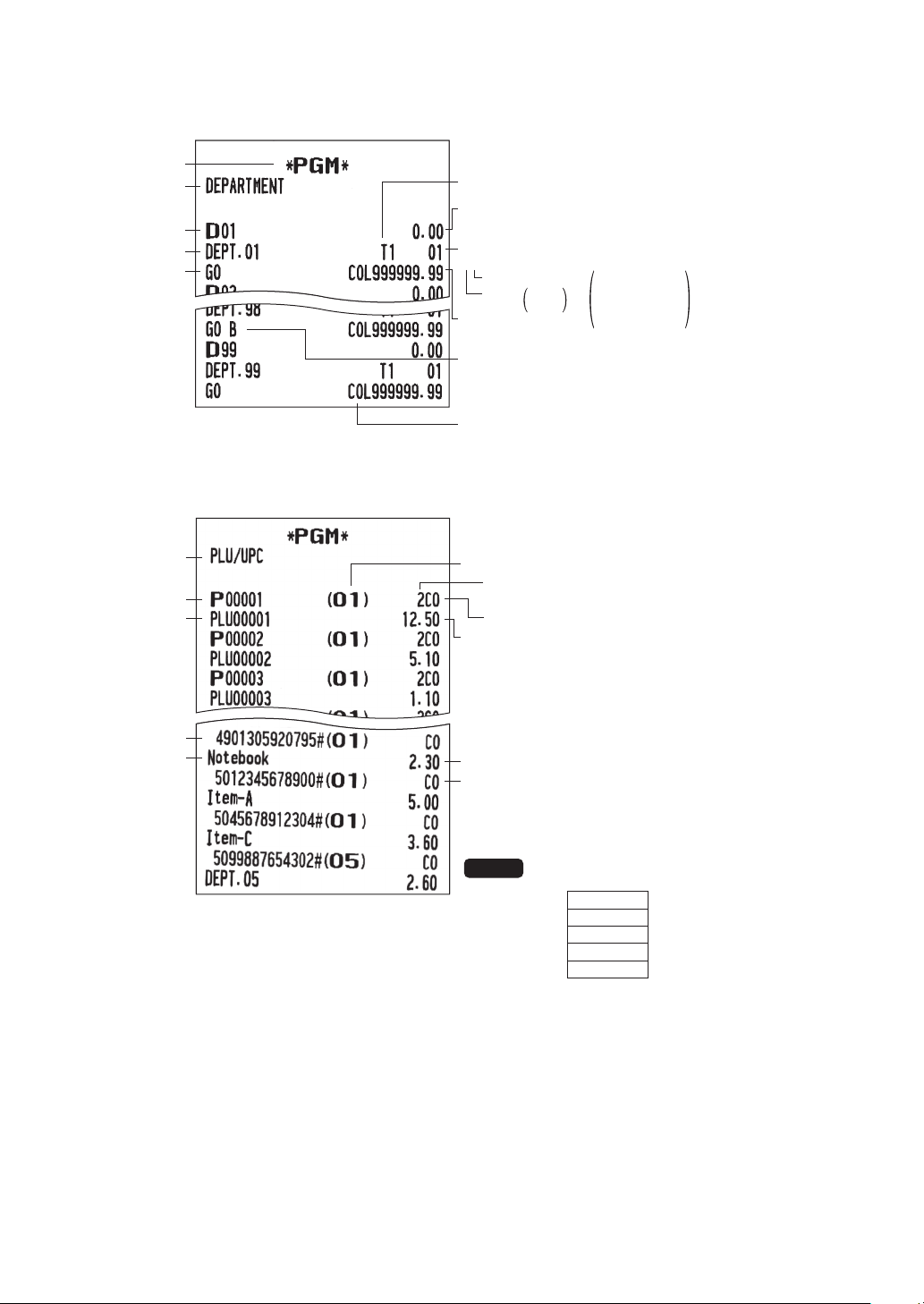
91
■
Sampleprintouts
•Departments
Tax status
Operating mode
Report type
Dept. code
Description
Group no.
HALO limit
Amount entry type
SICS
Function programming
Unit price
01
0:Inhibit
1:Open
2:Preset
3:Open&Preset
0:No
1:Yes
Bottle return item
Commission group no.
•PLU/UPC
Description
UPC code
Description
Report type
PLU code
Commission group no.
Unit price
Unit price
Commission group no.
UPC code are printed out in
the sequence shown below.
EAN-13
EAN-8
UPC-A
UPC-E
ITF-14
Associated dept. code
Amount entry type
NOTE
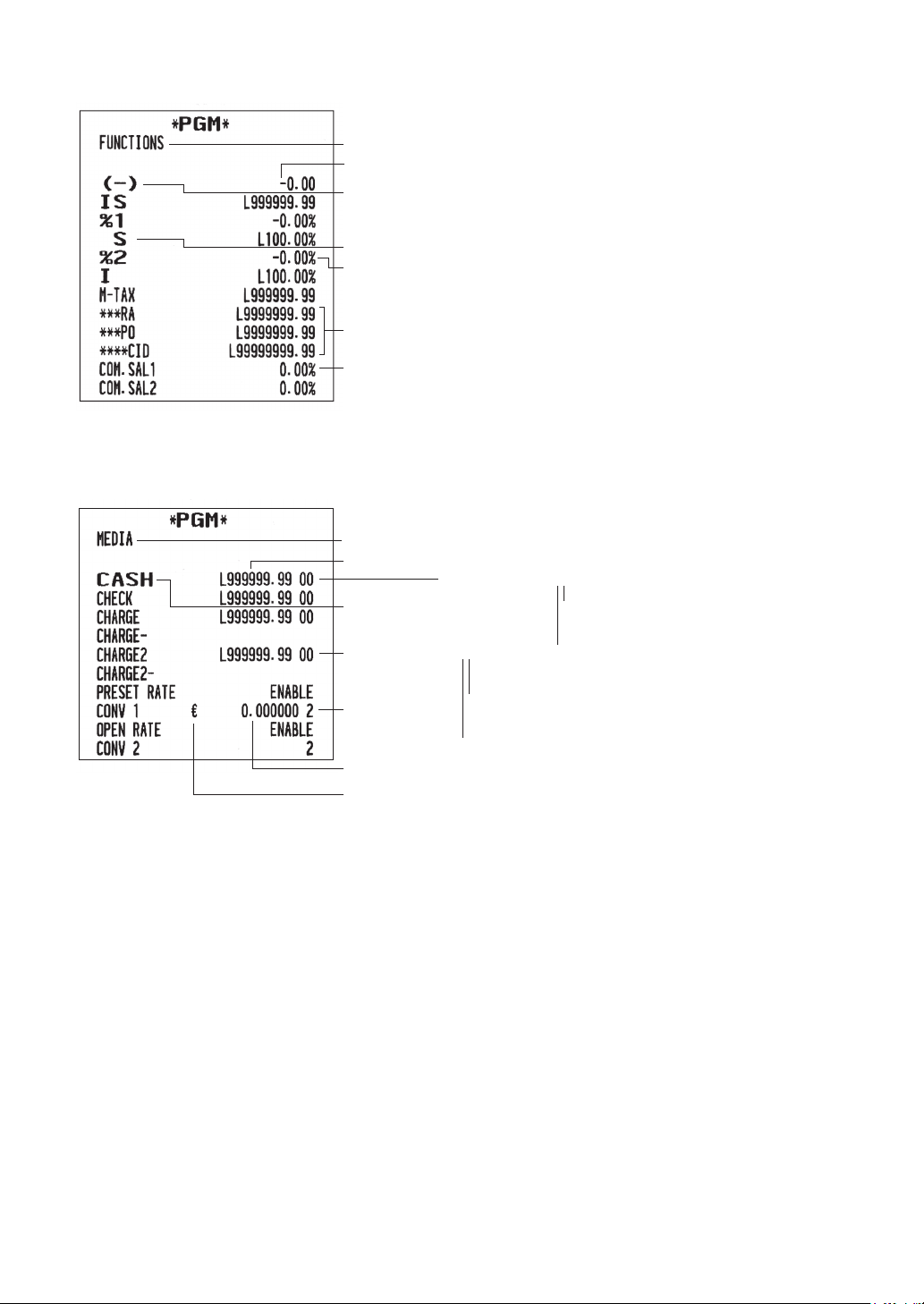
92
•Functions
Report type
Sign (plus/minus)
HALO limit
Commission rate
Function text
Type I=Item S=Subtotal
Rate
•Media
Report type
HALO
Function text
Rate
Foreign currency symbol
(Printed if programmed)
Tab
Programming data (00)
Programming data (00)
Entry of amount tendered
(0:Non-Compulsory, 1:Compulsory)
Footer print on receipt
(0:No, 1:Yes)
Entry of amount tendered
(0:Inhibit, 1:Compulsory)
Footer print on receipt
(0:No, 1:Yes)
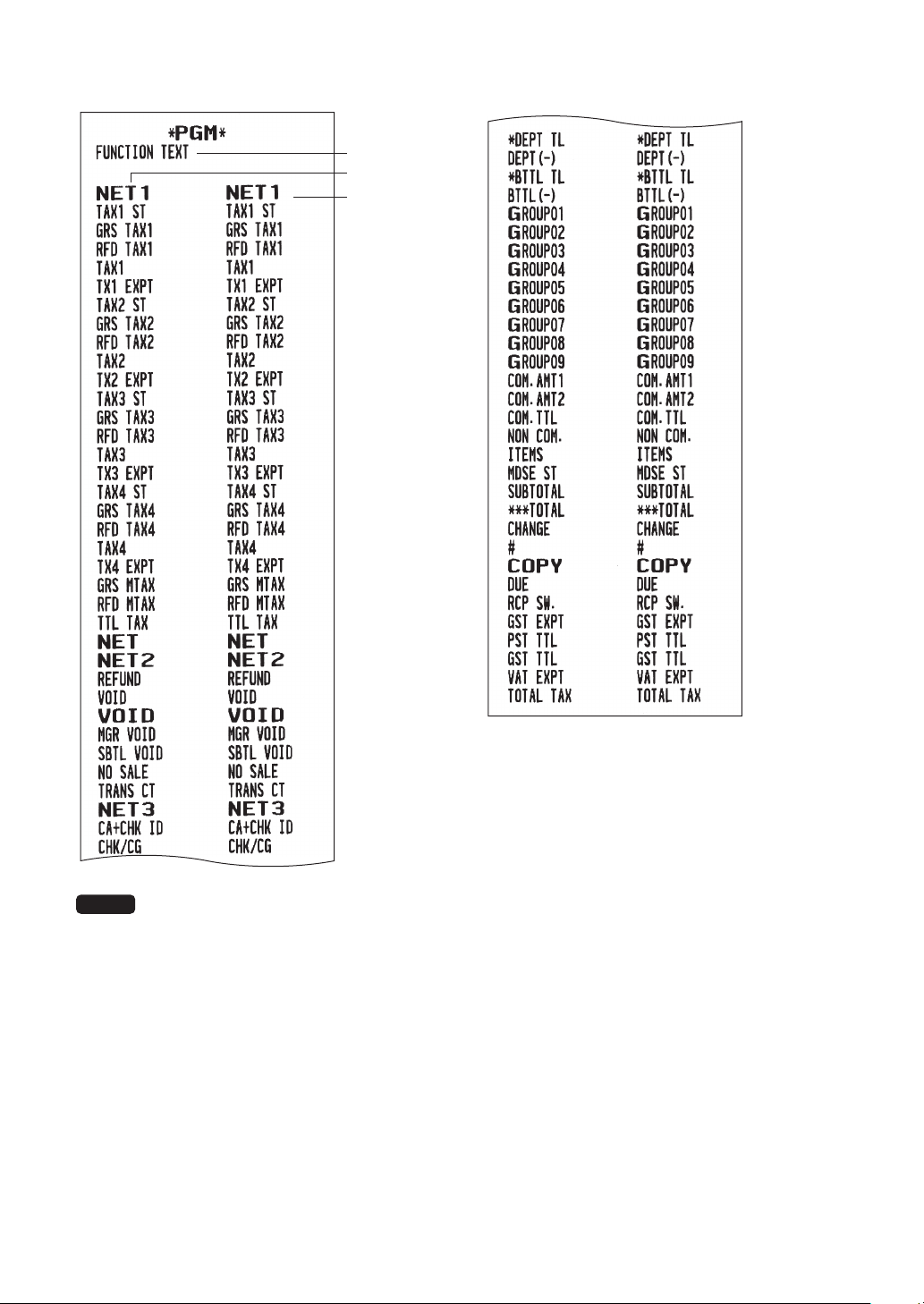
93
•Functiontext
Report type
Function
Text
NOTE
The text of “GST EXMPT”, “PST TTL” and “GST TTL” appears only when Canadian tax is
selected.
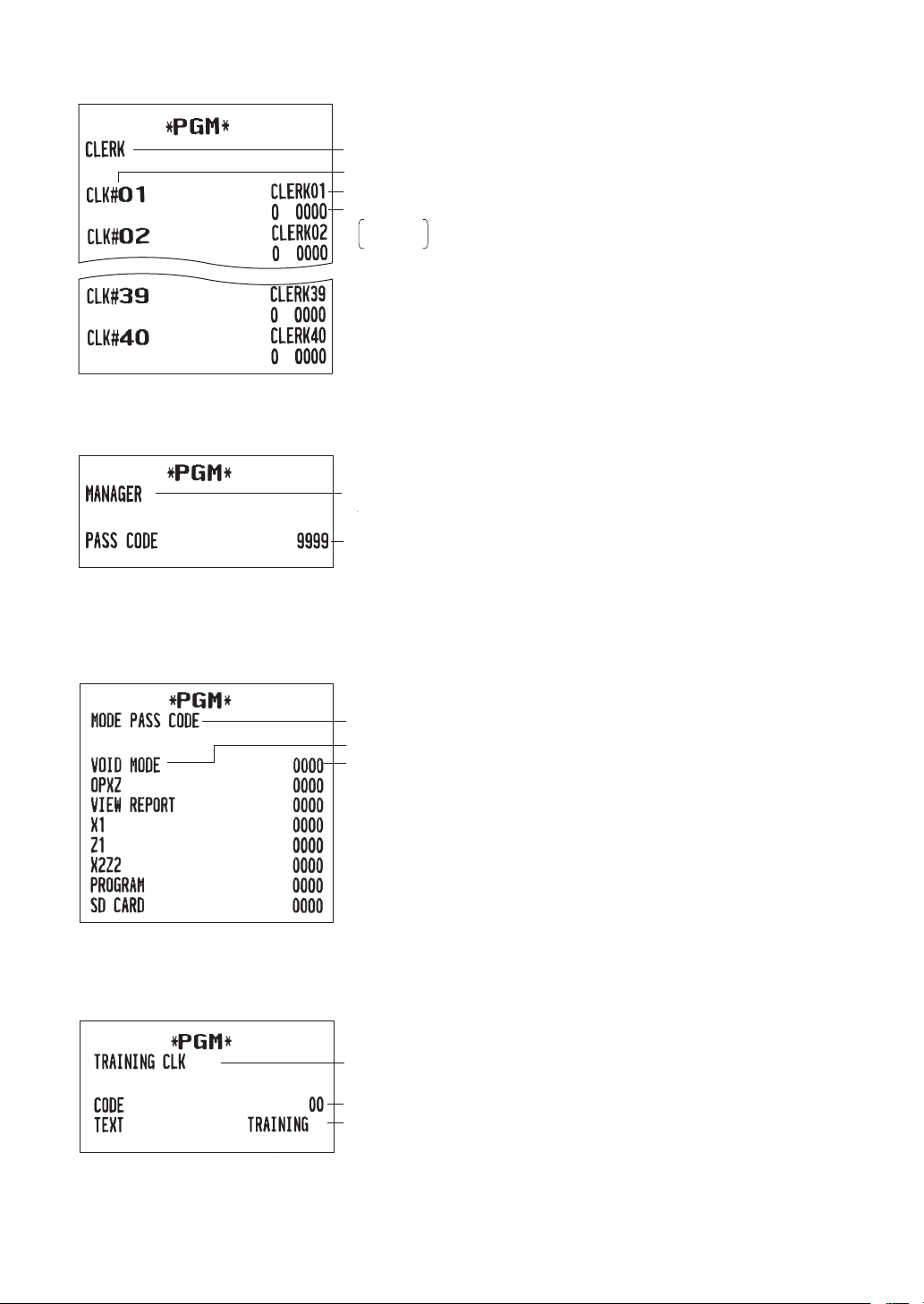
94
•Clerk
Report type
Clerk name
Clerk code
Auto key operation/Pass code
0: Enable
1: Disable
•Manager
Report type
Pass code
•Modepasscode
Report type
Mode
Pass code
•Trainingclerk
Training mode title text
Report type
Training clerk code
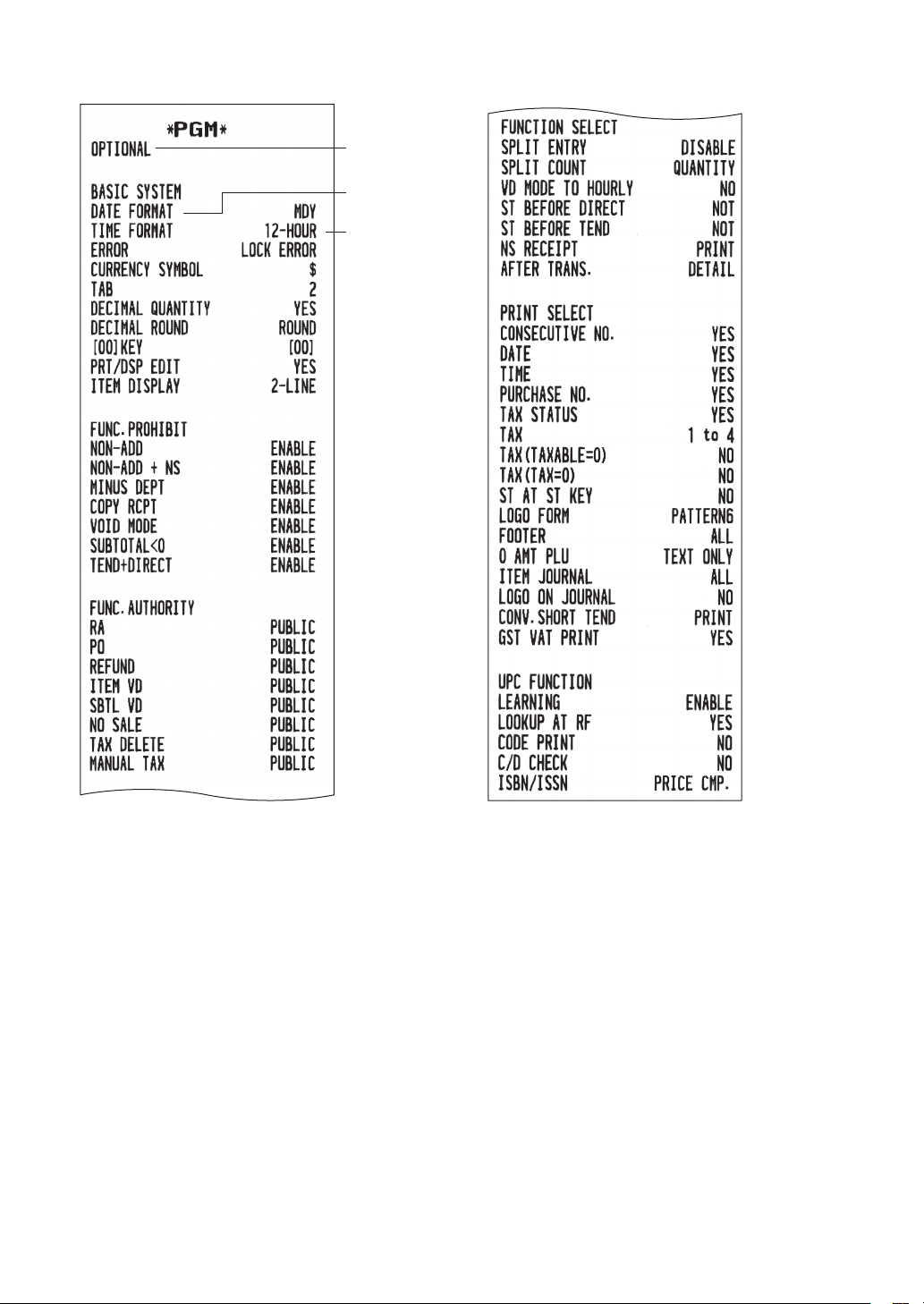
95
•Optionalfeature
Item
Setting
Report type
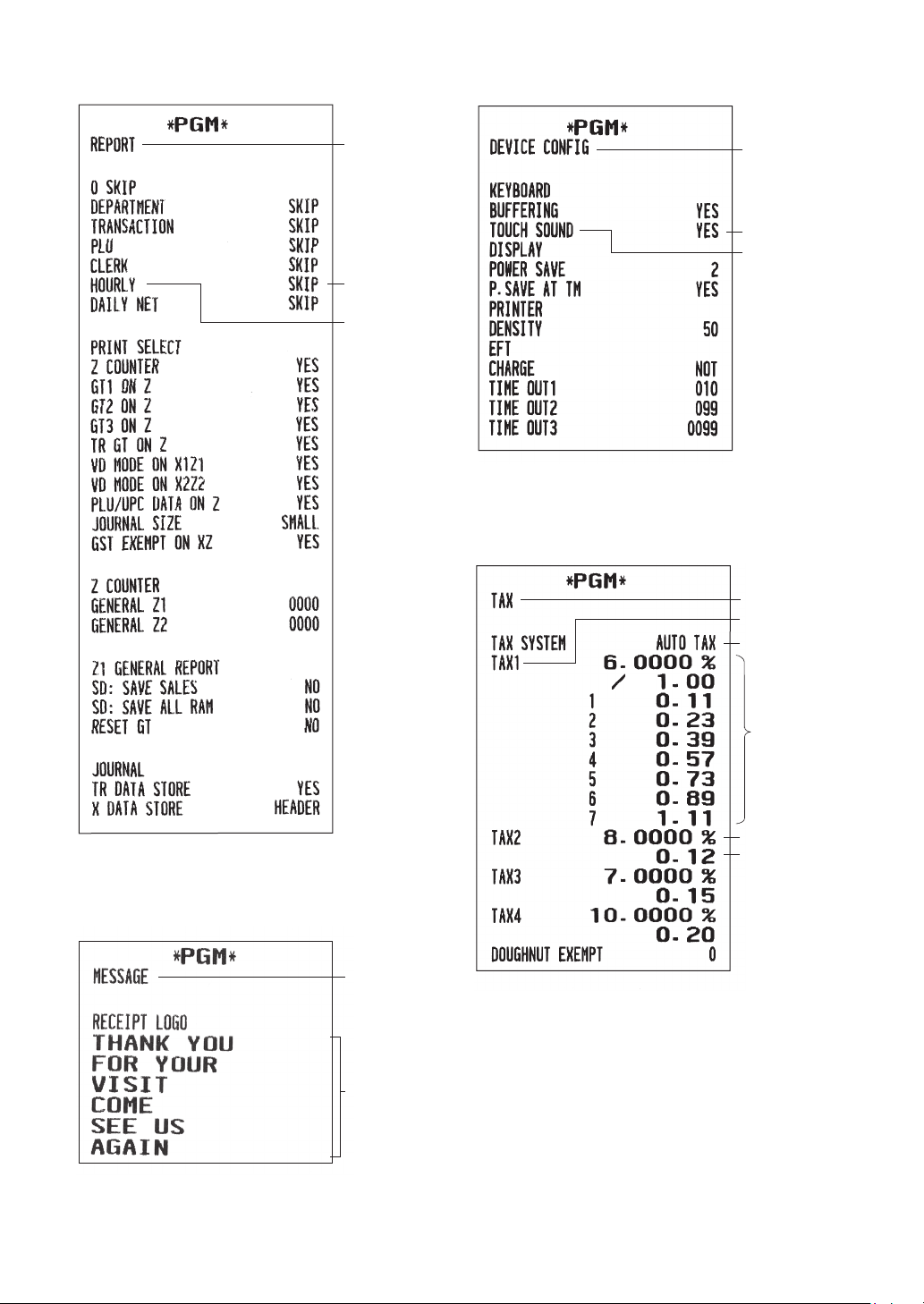
96
•Reportsetting
Report type
Setting
Item
•Message
Report type
Receipt logo text
•Deviceconguration
Report type
Setting
Item
•Tax
Report type
Tax no.
Tax system
Lower taxable
amount
Tax rate
Tax table
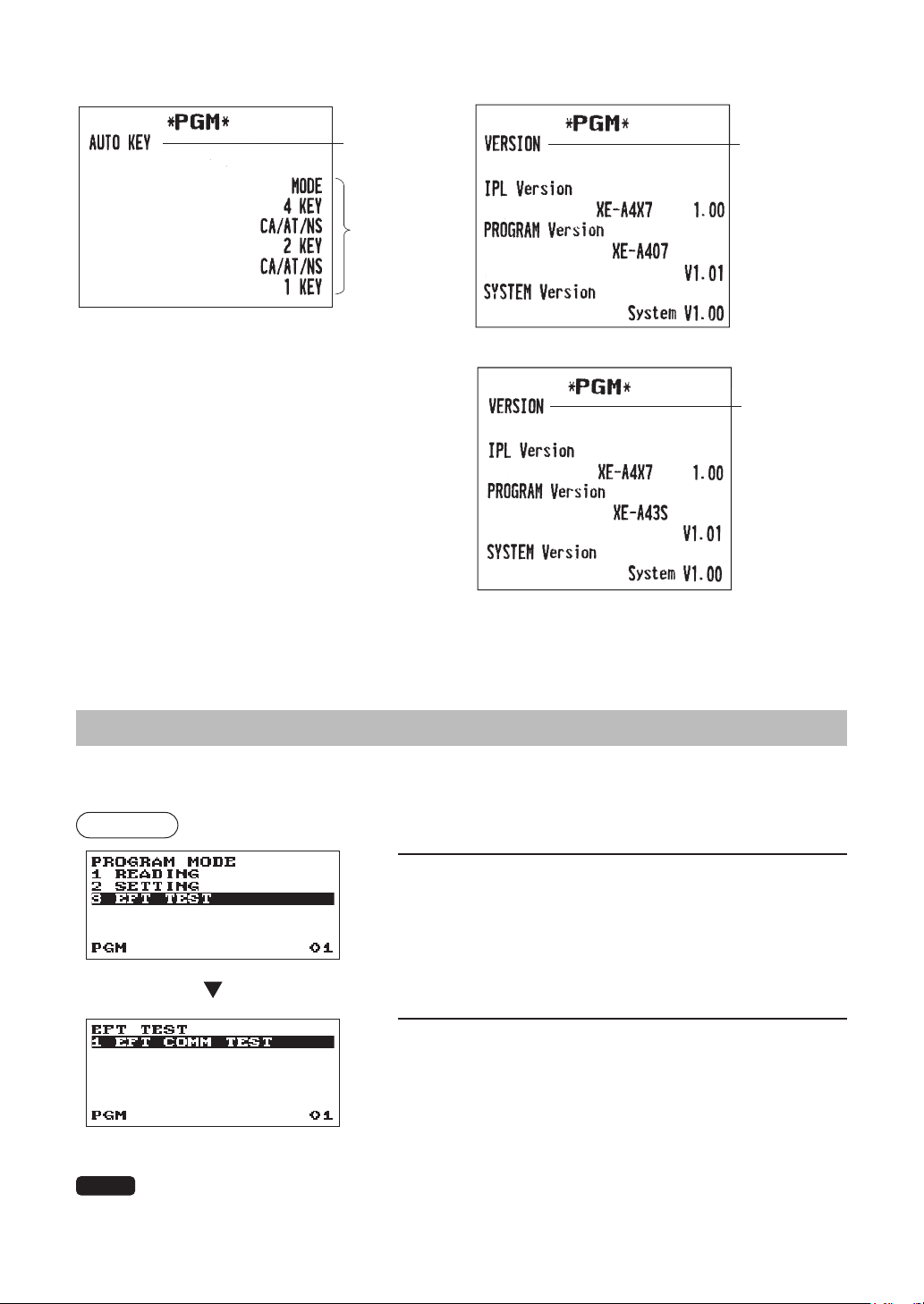
97
•AUTOkey
Report type
Key operation
•ROMversion
Report type
(For XE-A407)
Report type
(For XE-A43S)
EFTTestFunction
Use the following procedure to perform the EFT test function.
Procedure
1.
Press the
j
key and select the “6 PROGRAM MODE” and
press the
A
key. In the “PROGRAM MODE” window,
select “3 EFT TEST” and press the
A
key, The EFT
TEST window will appear.
2.
Press the
A
key to perform the test function.
NOTE
When the EFT terminal (CREDIT CARD terminal) is not connected, the EFT test function causes
an error.
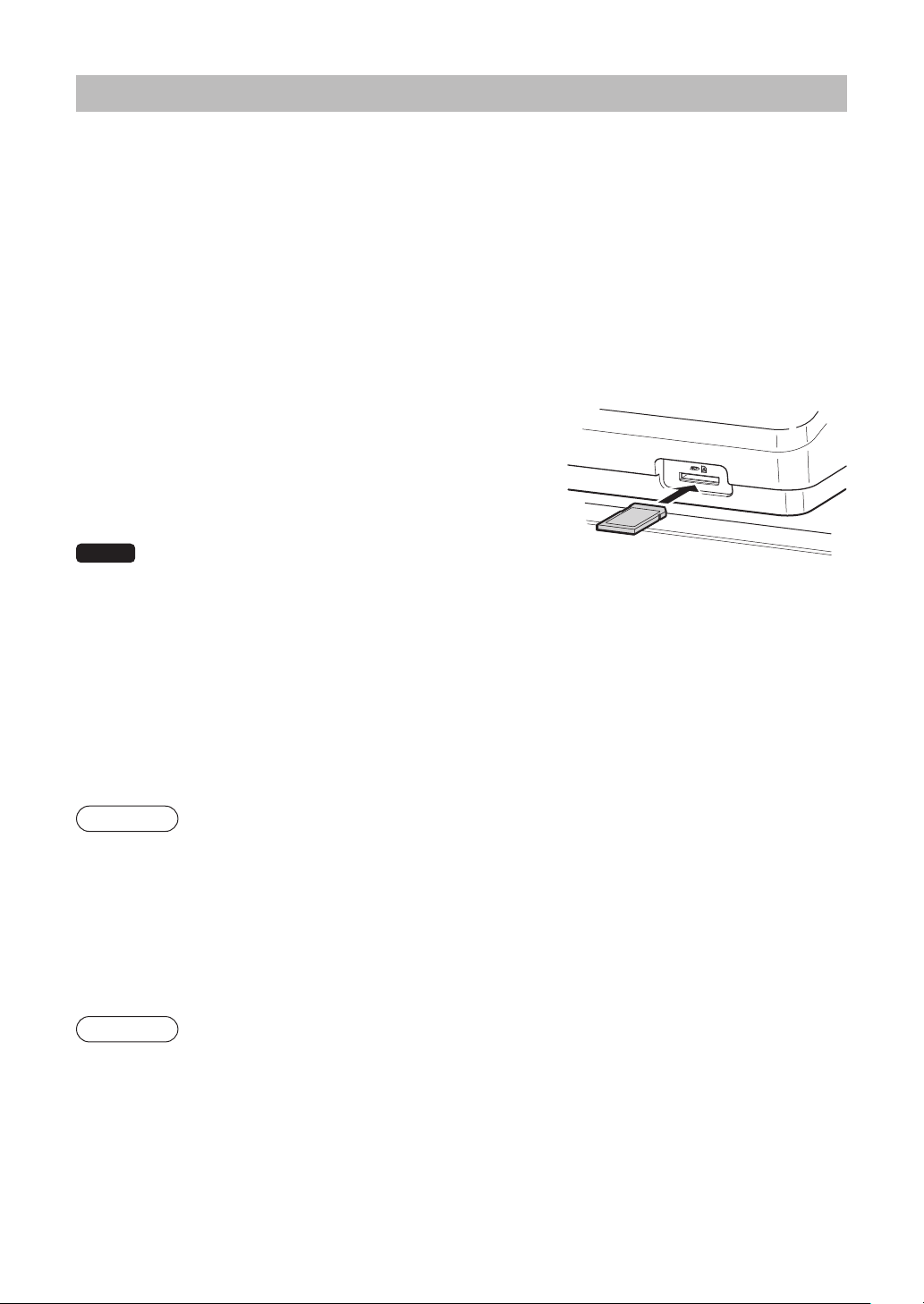
98
SD CARD Mode
You can exchange data through an SD memory card between your register and a PC when managing the
data in your register by using the SHARP’s PC software “Customer Support Tool”.
Customer Support Tool can be downloaded from the Sharp web site.
Please visit the Sharp web site: http://www.sharpusa.com/registersoftware
You can also save all necessary data in the register to an SD memory card for backup.
To use the SD memory card function, select the “7 SD CARD MODE” in the mode selection window and
perform the following operations.
This instruction manual describes only those operations needed on the register. For details, please refer to
the help section in the “Customer Support Tool”.
■
Inserting and removing an SD memory card
The SD card slot is located on the front side of your register.
Inserting an SD memory card
Insert an SD memory card into the SD card slot with the printed
SD logo facing upwards. Push the card in steady with a nger
until it clicks and release it slowly.
Removing the SD memory card
Push the card in gently with a nger and release it. The card will
come out.
NOTE
•ThismodelsupportsSDcardsonly.Useofanyothertypesof
SDcardssuchasminiSD,microSD,etc.withanadapterisnotsupported.
•WheninsertingorremovingtheSDmemorycard,besuretoreleaseitslowly.Otherwise,thecardmaypop
outandinjureyournger.
•NevertouchorremovetheSDmemorycardwhileitisaccessed,otherwisethedatastoredinitmaybe
damaged.
•FormattingtheSDmemorycarderasesallthedatainit.
CAUTION: Never turn the power off, while the SD memory card is accessed.
■
SD card formatting
When the SD card is not formatted yet, take the formatting operation.
Procedure
(1) Select “4 FORMATTING” in the SD CARD mode and press the
A
key, the conrmation window
is displayed.
(2) To perform the format operation, select OK and press the
A
key.
To cancel the operation, select CANCEL and press the
A
key.
■
Folder creating
A user folder can be created in the following location:
SHARP/ECRXE4X7/nnnnnnnn (nnnnnnnn: user folder name)
Procedure
(1) Select “3 FOLDER CONTROL” in the SD CARD mode and press the
A
key.
(2) Select “1 CREATE FOLDER” and press the
A
key, the folder name entry window is displayed.
(3) Enter the required folder name and press the
A
key.
To cancel the operation, press the
a
key.
99
■
■
Folder■name■selecting
Procedure
(1)
Select“3FOLDERCONTROL”intheSDCARDmodeandpressthe
A
key,theFOLDER
CONTROLwindowisdisplayed.
(2)Select“2SELECTFOLDER”andpressthe
A
key,thefoldernamelistwindowisdisplayed.
(3)Selecttherequiredfoldernamefromthelist,andpressthe
A
key.
Tocanceltheoperation,pressthe
a
key.
■
■
Data■saving■
ThesalesdataorprogrammingdatacanbesavedtotheSDcard.
Procedure
(1)Select“1SAVING”intheSDCARDmodeandpressthe
A
key,thefollowingdatalistwindowis
displayed.
Item Datalist
SALESDATA Salesdata(CSVformat)
IND.PROGRAM
Selecttheindividualprogrammingdata:
DEPARTMENT
PLU/UPC
CLERK
GRAPHICLOGO
LOGOTEXT
TAX
ALLPROGRAM Allprogrammingdata
ALLRAMDATA AllRAMdata
(2)Selectthedatamenufromthelistandpressthe
A
key,theconrmationwindowisdisplayed.
Tosavetherequireddatale,selectOKandpressthe
A
key.
Tocanceltheoperation,selectCANCELandpressthe
A
key.
100
■
Dataloading
The programming data can be loaded from the SD card.
Procedure
(1) Select “2 LOADING” in the SD CARD mode and press the
A
key. The following selection window
is displayed.
Item Data list
IND. PROGRAM
Select the individual programming data:
DEPARTMENT
PLU/UPC
CLERK
GRAPHIC LOGO
LOGO TEXT
TAX
ALL PROGRAM All programming data
ALL RAM DATA* All RAM data
(2) Select the data menu from the list and press the
A
key, the conrmation window is displayed.
To load the programming data le, select OK and press the
A
key.
To cancel the operation, select CANCEL and press the
A
key.
* When “ALL RAM DATA” is selected, the register resets the program in the last save point after loading all
the RAM data.
NOTE
The loading operation must be circumspect in execution, the sales data and/or all programming
data will be recovered with the back-up data.
ErrormessagetableoftheSDcardfunction
Error message (display) Error status and action
CARD FULL
The SD memory card is full. Delete unnecessary data from the card on a PC or
replace the card with a new one. When using a new SD memory card, be sure
to format it in advance.
CARD PROTECT
The write-protect switch on the SD memory card is in the “PROTECTED”
position. Set the switch on the “NOT PROTECTED” position.
FILE FAILED
The data stored in the SD memory card is incorrect. Write correct data into the
SD memory card on a PC.
NO CARD
No SD memory card is found. Insert an SD memory card into the SD card slot
or reinsert it correctly.
NO FILE The designated le is not found.
NO FOLDER The user folder is not found. (SHARP/ECRXE4X7/user folder name)
OVER LIMIT.
The maximum allowable number of times of sales data writing is exceeded.
Delete unnecessary data from the SD memory card on a PC or replace the
card with a new one. When using a new SD memory card, be sure to format it
in advance.
SD ACC POWER OFF
A power failure has occurred while the SD memory card is accessed. Perform
the interrupted operation again from the beginning after power recovery.
SD ERROR
An error other than the above mentioned has occurred while the SD memory
card is accessed. Perform the interrupted operation again from the beginning.
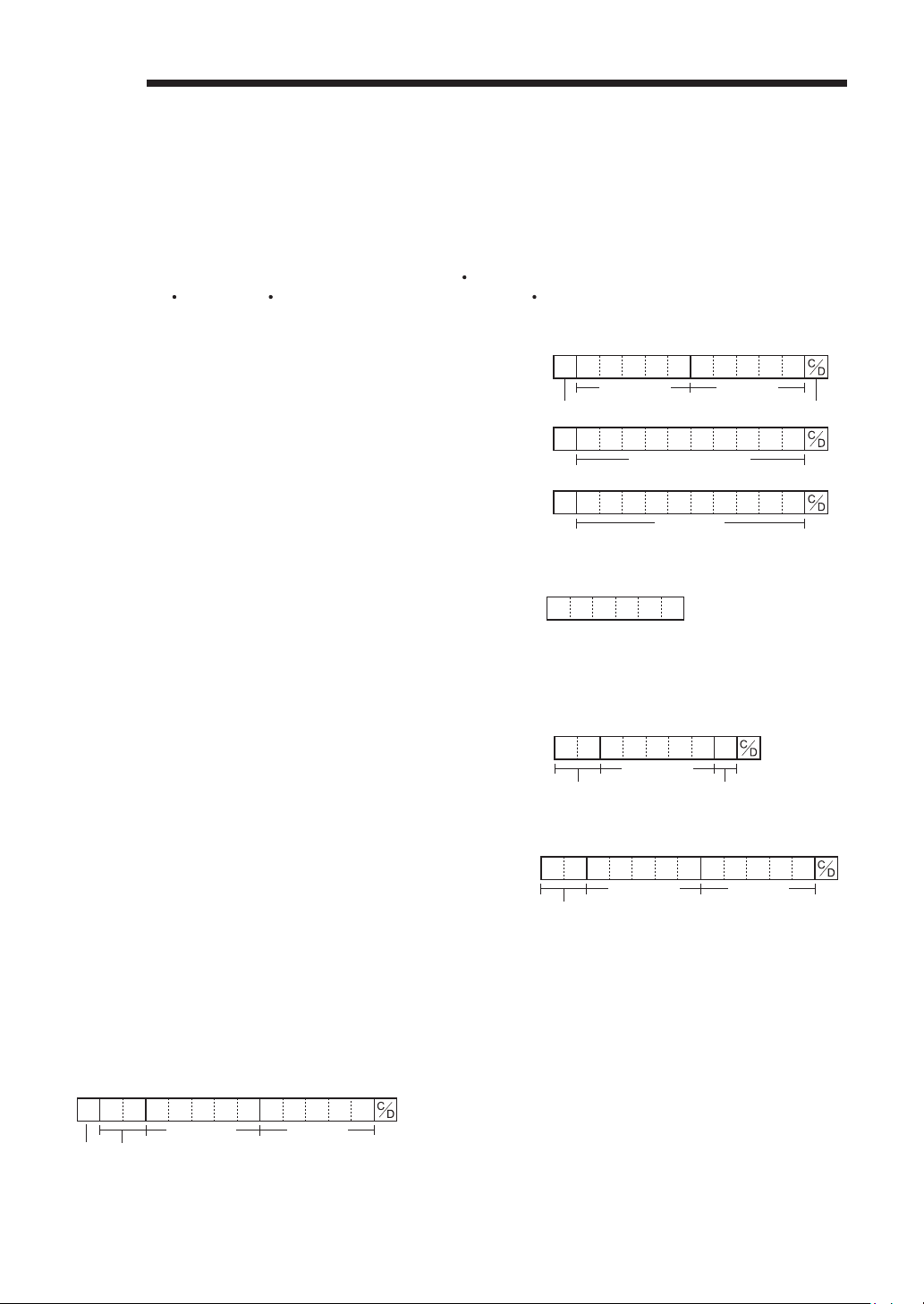
101
b
UniversalProductCode(UPC)or
EuropeanArticleNumber(EAN)
■
UPCorEANcode
Your register can transact the following codes:
• UPC-A (Number system character: 0, 2, 3, 4)
UPC-E
• EAN-8
EAN-13 Internal code EAN-8/EAN-13 ITF-14
UPC-A
• Number system character: 0 <used in the source marking>
• Number system character: 3 <used as NDC or HRI>
For entry, a full 12 digits number or 11 digits number (omitting
the check digits) must be entered.
• Number system character: 4 <In-store marking PLU type>
For entry, a full 12 digits number, 11 digits number (omitting the
check digit), or a leading zero plus 12 digits number must be entered.
0
Maker code
Number system character
Item code
Check digit
3
NCD (or HRI) format
4
(Free code)
UPC-E
• UPC-E is a zero-suppressed version of UPC-A that conforms to the
UPC-E Standards. This code is used for marking small package.
For entry, a 6 digits number or a leading zero plus 6 digits
number must be entered.
EAN-8
• Ordinary EAN-8 code (ag: neither 0 nor 2) <used in the source
marking>
For entry, a full 8 digits number must be entered.
Maker code
Item codeNation code
EAN-13
• Ordinary EAN-13 code (used in the source marking)
For entry, you must enter a full of 13 digits number.
In case of the leading code is “977”, “978” or “979”, the code
is recognized as ISBN code or ISSN code. For the ISBN/
ISSN code, the compulsive price entry can be programmed.
Refer to the programming section “UPC Function” in “Optional
Feature Selection”.
Maker code
Nation code
Item code
ITF-14
Maker code
Nation code
Item code
P.I

102
■
Add-oncode
UPC-A and EAN-13 may be followed by a two digits number or a ve digits number as add-on code,
excepting UPC-A without a check digit plus two or ve digits add-on code.
Therefore, the total number of digits enterable for sales entries are as shown below:
NOTE
Your register does not read automatically the encoded price of the press code and does not store
the 2-digit and 5-digit Add-On code.
Codeentry Noadd-oncode 2-digitadd-oncode 5-digitadd-oncode
UPC-A 12 15 (“0” + 14) 17
UPC-A w/leading zero 13 15 18
UPC-A w/o check digit 11 – –
UPC-E 6 – –
EAN-8 8 – –
EAN-13 13 15 18

103
c
OperatorMaintenance
InCaseofPowerFailure
When power is lost, the register retains its memory contents and all information on sales entries.
• When power failure is encountered in register idle state or during an entry, the register returns to the
normal state of operation after power recovery.
• When power failure is encountered during a printing cycle, the register carries out the correct printing
procedure after power recovery.
InCaseofPrinterError
If the printer runs out of paper, the printer will stall, and “PAPER EMPTY” will appear on the display. Key
entries will not be accepted. Referring to “Replacing the Paper Roll” in this chapter, install a new paper roll
in the proper position, then press the
l
key. The printer will print the power failure symbol and resume
printing.
If the print roller arm comes up, the printer stalls, and “PAPER EMPTY” will appear on the display. Key
entries will not be accepted. Push down the arm until it is securely locked, then press the
l
key. The
printer will print the power failure symbol and resume printing.
CautionsinHandlingthePrinterandRecordingPaper
■
Cautionsinhandlingtheprinter
• Avoid the following environments:
Dusty and humid places
Direct sunlight
Iron powder (A permanent magnet and electromagnet are used in this register.)
• Never pull the paper when the print roller arm is locked. First lift up the arm, and then remove the paper.
• Never touch the surface of the print head and print roller.
■
Cautionsinhandlingtherecordingpaper(thermalpaper)
• Use only the paper specied by SHARP.
• Do not unpack the thermal paper until you are ready to use it.
• Avoid heat. The paper will color at around 70°C.
• Avoid dusty and humid places for storage. Avoid direct sunlight.
• The printed text on the paper can discolor under the following conditions:
Exposure to high humidity and temperature
Exposure to the direct sunlight
Contact with glue, thinner or a freshly copied blueprint.
Heat caused by friction from scratching or other such means.
Contact with a rubber eraser or adhesive tape.
• Be very careful when handling the thermal paper. If you want to keep a permanent record, copy the printed
text with a photocopier.
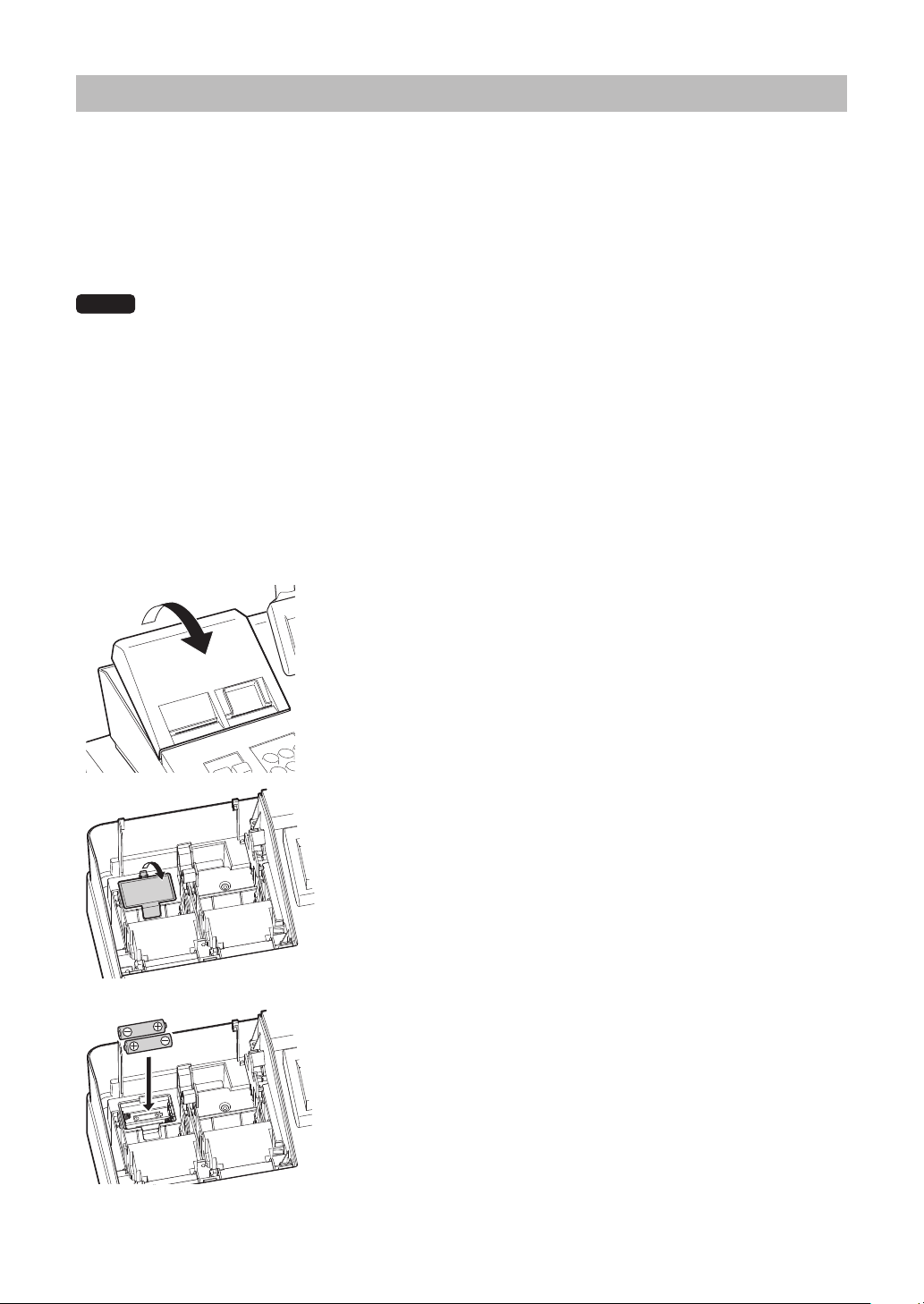
104
InstallingBatteries
This register displays a low battery warning message “LOW BATTERY” when the batteries are low, and
displays a no battery warning message “NO BATTERY” when batteries are extremely low or batteries are
not installed.
If no batteries are installed, install two new alkaline batteries LR6 (“AA” size) at once. If batteries are already
installed, replace them with new ones as soon as possible. If the AC power cord is disconnected or a power
failure occurs when the batteries are dead or not installed, all the programmed settings will be reset to the
default settings and any data stored in memory will be cleared.
NOTE
Improper use of batteries could cause them to burst or leak, which might damage the interior of
the register. Please take the following precautions:
• Be sure that the positive (+) and negative (-) poles of each battery are oriented properly.
• Never mix batteries of different types.
• Never mix old batteries and new ones.
• Never leave dead batteries in the battery compartment.
• Remove the batteries if you plan not to use the register for long periods.
• Should a battery leak, clean out the battery compartment immediately, taking care not to let the
battery uid come into direct contact with your skin.
• If an incorrect battery is used, it may explode or leak.
• For battery disposal, follow the relevant law or regulation in your country.
Replacement
1.
Be sure the register is plugged in.
2.
Remove the printer cover.
3.
Open the battery cover and remove the old batteries.
4.
Install two new LR6 (“AA” size) batteries into the battery
compartment.
5.
Close the battery cover.
6.
Replace the printer cover.
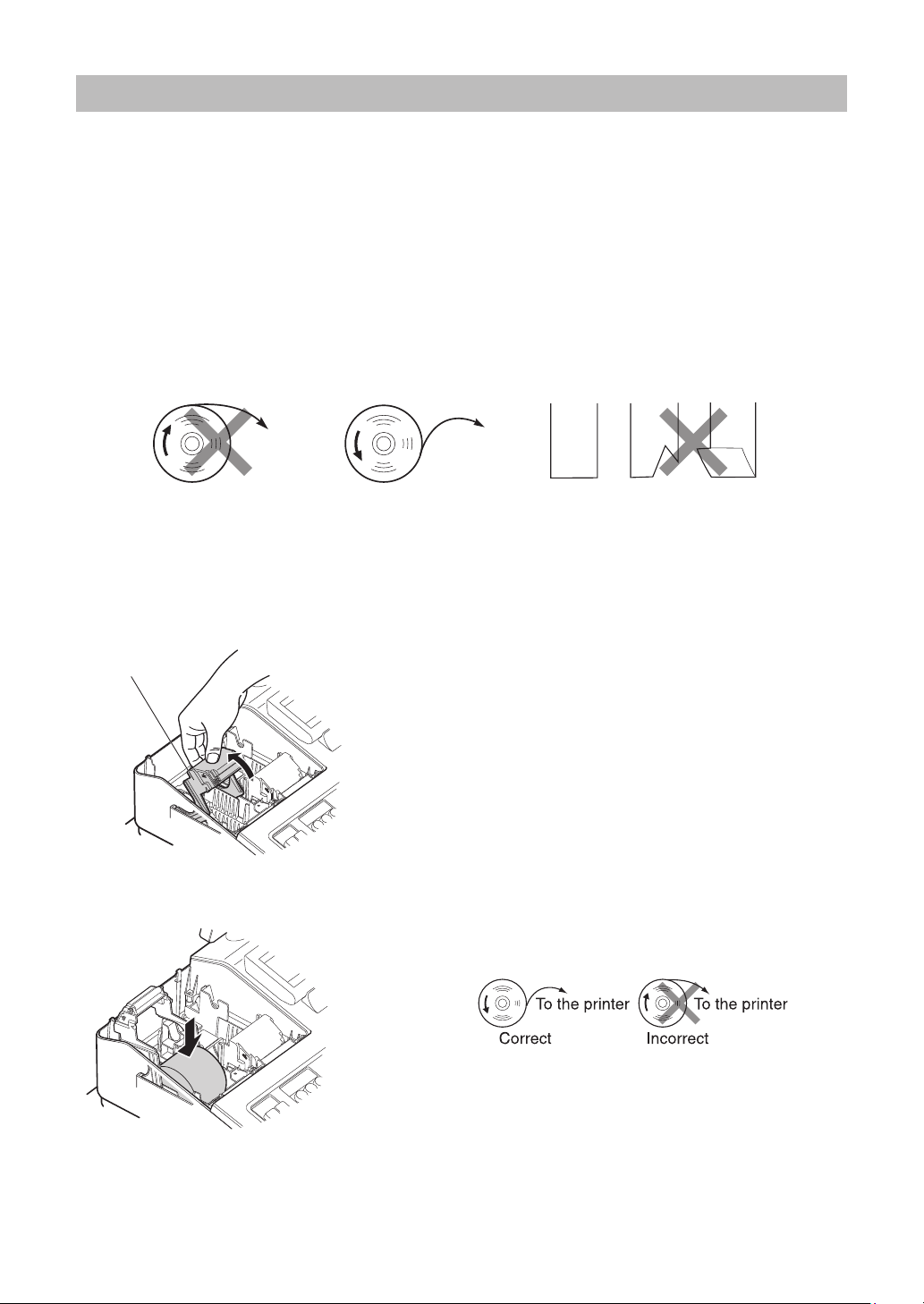
105
ReplacingthePaperRoll
■
Recordingpaperspecications
Be sure to use paper rolls specied by SHARP.
The use of any other paper rolls than specied could cause paper jamming, resulting in register malfunction.
Paperspecication
Paper width: 57.5 ± 0.5 mm
Max. outside diameter: 80 mm
Quality: High quality (0.06 to 0.08 mm thickness)
•Besuretosetapaperrollpriortousingyourregister,otherwiseitmaycauseamalfunction.
Install the paper roll in the printer. Be careful then to set the roll and cut the paper end correctly.
■
InstallingPaperRolls
The register can print receipts and journals. For the printer, you must install the paper rolls (receipt and
journal paper rolls) provided with the register.
1.
Remove the printer cover.
2.
Lift up the print roller arm of the receipt side.
3.
Set a paper roll in the paper roll cradle of the receipt side as per
the diagram.
To the printer
Incorrect
To the printer
Correct
Correct Incorrect
(How to set the paper roll) (How to cut the paper end)
Print roller arm
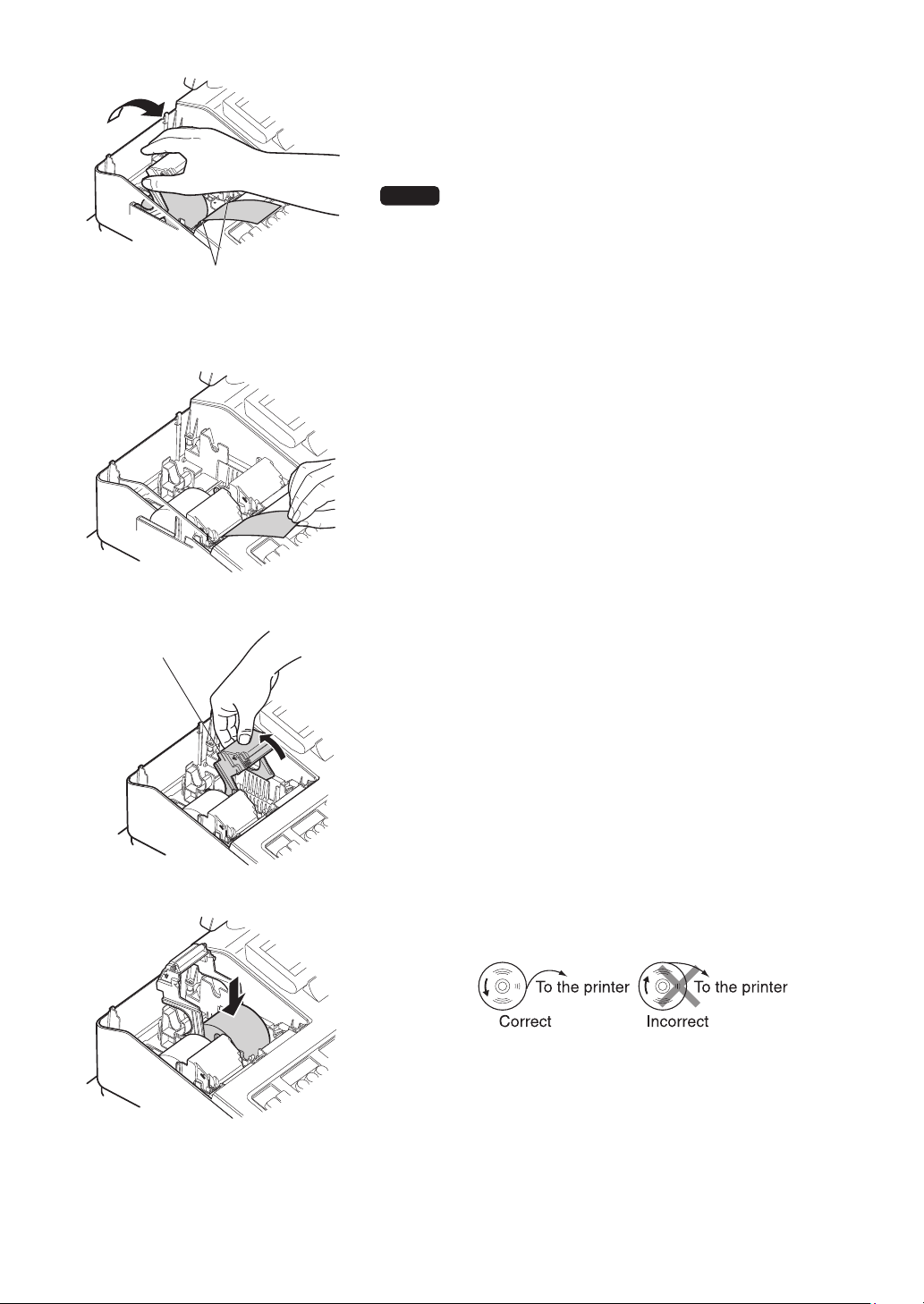
106
4.
Feed the end of the paper along with the paper positioning guides
as per the diagram.
5.
While holding down the paper, slowly close the print roller arm
of the receipt side, and push down the arm until you hear a click
locking the arm.
NOTE
If the print roller arm is not securely locked, printing is
not done right. If this problem occurs, open the arm,
and close the arm instructed above.
6.
Cut off the excess paper.
7.
Lift up the print roller arm of the journal side.
8.
Set a paper roll in the paper roll cradle of the journal side as per
the diagram.
Paper positioning
guides
Print roller arm
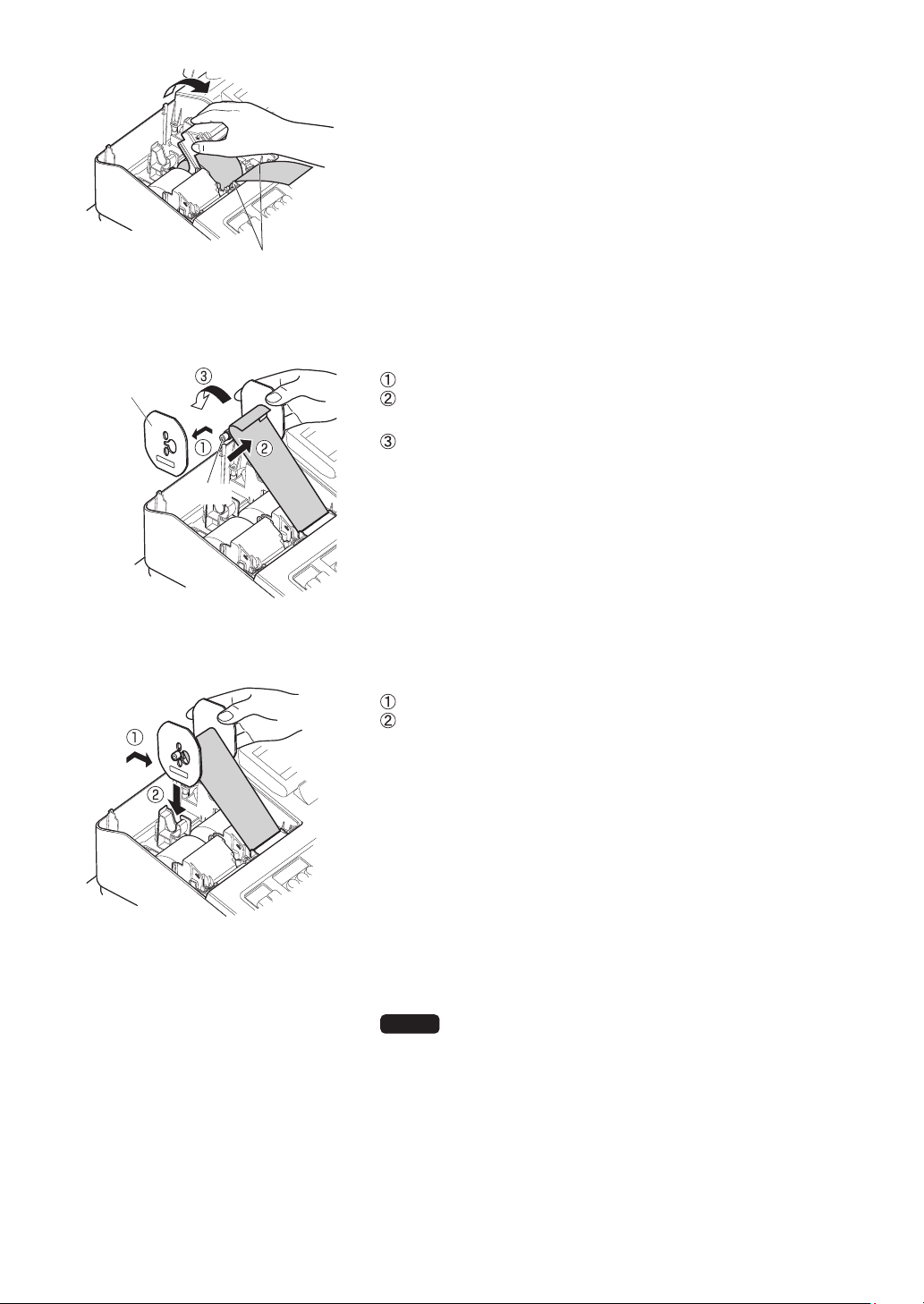
107
9.
While holding down the paper, slowly close the print roller arm
of the journal side, and push down the arm until you hear a click
locking the arm.
10.
Remove the paper holding plate from the spool.
Insert the end of the paper into the slit in the spool. (Press the
journal paper feed key to feed more paper if required.)
Wind the paper two or three turns around the spool shaft.
11.
Mount the paper holding plate onto the take-up spool.
Set the spool on the bearing, and press the journal paper feed
key to take up excess slack in the paper.
12.
Replace the printer cover.
13.
For the receipt paper, press the
{
key to make sure the paper
end comes out of the printer cover and clean paper appears.
NOTE
If the paper end does not come out, open the printer
cover, and pass the paper end between the paper
cutter and the paper guide of the printer cover, and
replace the printer cover.
Paper positioning
guides
Spool
Paper holding
plate

108
■
Replacingthepaperroll
When colored dye appears on the edges of the paper roll, it is time to replace the paper roll.
Use paper of 57.5 ± 0.5 mm in width. To prevent jamming be sure to use paper specied by SHARP.
Replacingthereceiptpaperroll:
1.
Conrm that the REG mode has been selected.
2.
Remove the printer cover.
3.
Lift up the print roller arm of the receipt side.
4.
Remove the paper roll from the paper roll cradle of the receipt side.
NOTE
Do not pull the paper through the printer.
5.
Install a new paper roll correctly by following the steps in “Installing Paper Rolls”.
Replacingthejournalpaperroll:
1.
Conrm that the REG mode has been selected.
2.
Remove the printer cover.
3.
Press the journal paper feed key to advance the journal paper until its printed part is out of the way.
4.
Cut the paper and remove the take-up spool from the bearing.
NOTE
Do not pull the paper through the printer.
5.
Lift up the print roller arm of the journal side.
6.
Remove the paper roll from the paper roll cradle of the journal side.
7.
Remove the paper holding plate of the take-up spool.
8.
Remove the printed journal roll from the take-up spool.
9.
Install a new paper roll correctly by following the steps in “Installing Paper Rolls”.
■
RemovingaPaperJam
CAUTION: Thepapercutterismountedontheprintercover.Becarefulnottocutyourself.Never
touchtheprinterheadimmediatelyafterprinting,astheheadmaystillbehot.
1.
Remove the printer cover.
2.
Lift up the print roller arm.
3.
Remove the paper jam. Check for and remove any shreds of paper that may remain in the printer.
4.
Reset the paper roll correctly by following the steps in “Installing Paper Rolls”.
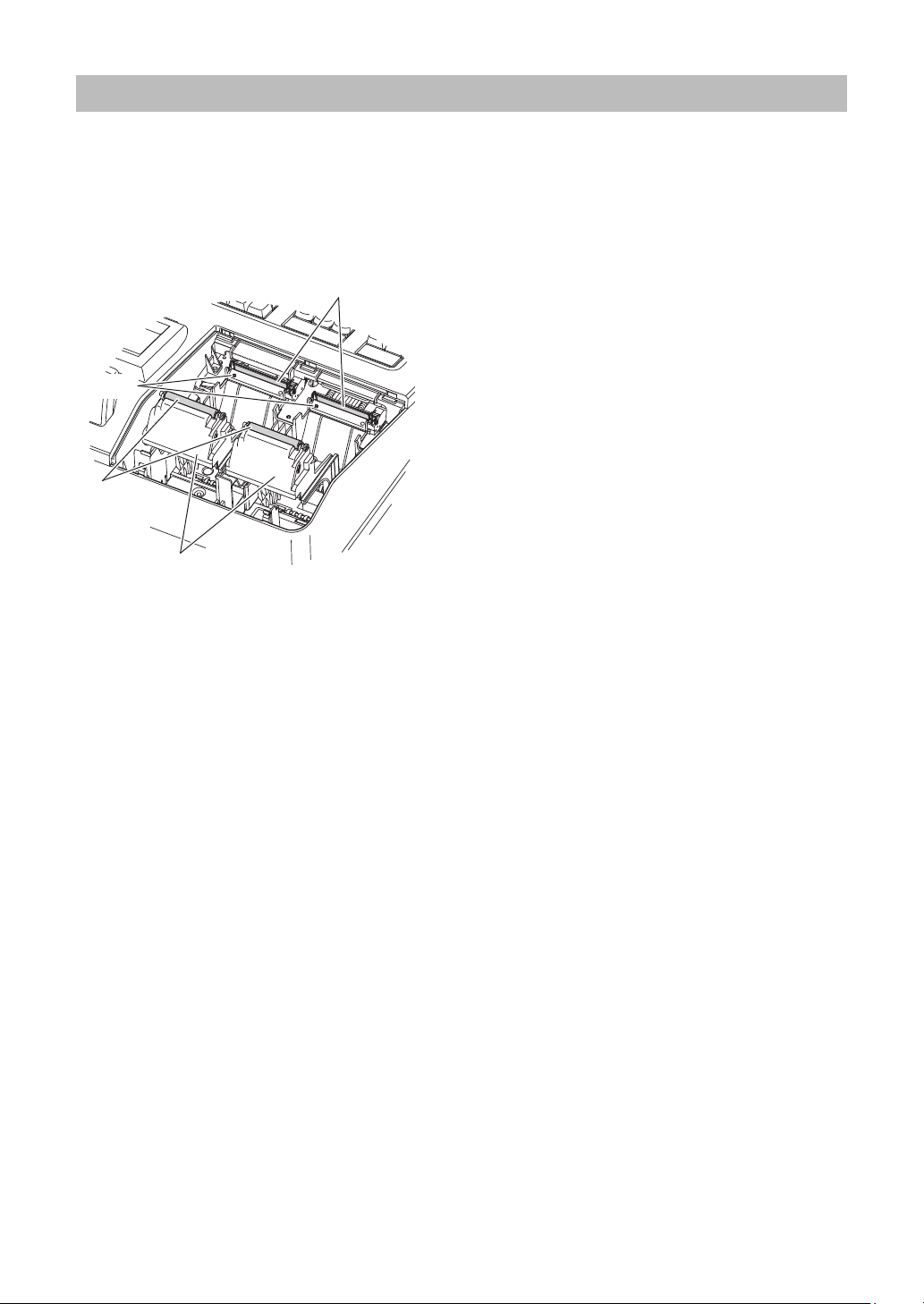
109
CleaningthePrinter(PrinterHead/Sensor/Roller)
When the printed text is getting dark or faint, paper dust may be stuck to the printer head, sensor and/or
roller. Clean them as follows:
CAUTION:Nevertouchtheprinterheadwithatooloranythinghardasitmaydamagethehead.
Thepapercutterismountedontheprintercover.Becarefulnottocutyourself.
1.
Select the OFF mode.
2.
Remove the printer cover.
3.
Lift up the print roller arm.
4.
Remove the paper roll referring to the “Removing a
Paper Jam” section.
5.
Clean the printer head with a cotton swab or soft rag
moistened with ethyl alcohol or isopropyl alcohol.
Clean the roller and the sensor in the same manner.
6.
Reset the paper roll correctly by following the steps in
“Installing Paper Rolls”.
Print roller arm
Printer head
Sensor
Roller
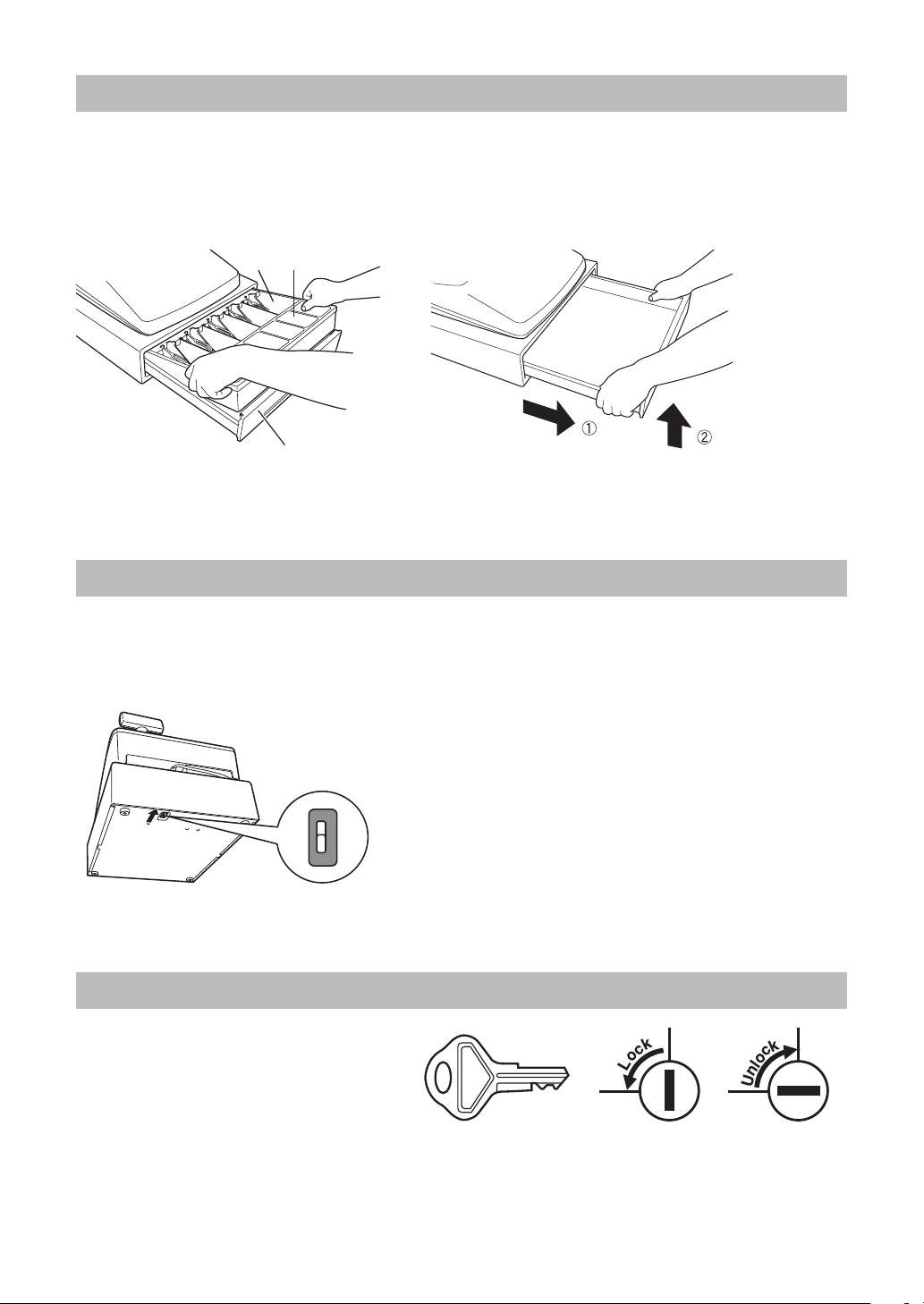
110
RemovingtheTillandtheDrawer
The till in the register is detachable. After closing your business for the day, remove the till from the drawer
and keep the drawer open. The coin case is also detachable from the till. To detach the drawer, pull it
forward fully with the till removed, and remove it by lifting it up.
Till
Coin case
Drawer
OpeningtheDrawerbyHand
The drawer automatically opens in the usual way. However, when power failure is encountered or the
register becomes out of order, slide the lever located on the bottom of the register in the direction of the
arrow. (See the gure below.) The drawer will not open, if it is locked with a drawer lock key.
DrawerLockKey
This key locks and unlocks the drawer.
To lock it, turn 90 degrees counterclockwise.
To unlock it, turn 90 degrees clockwise.
TL-1
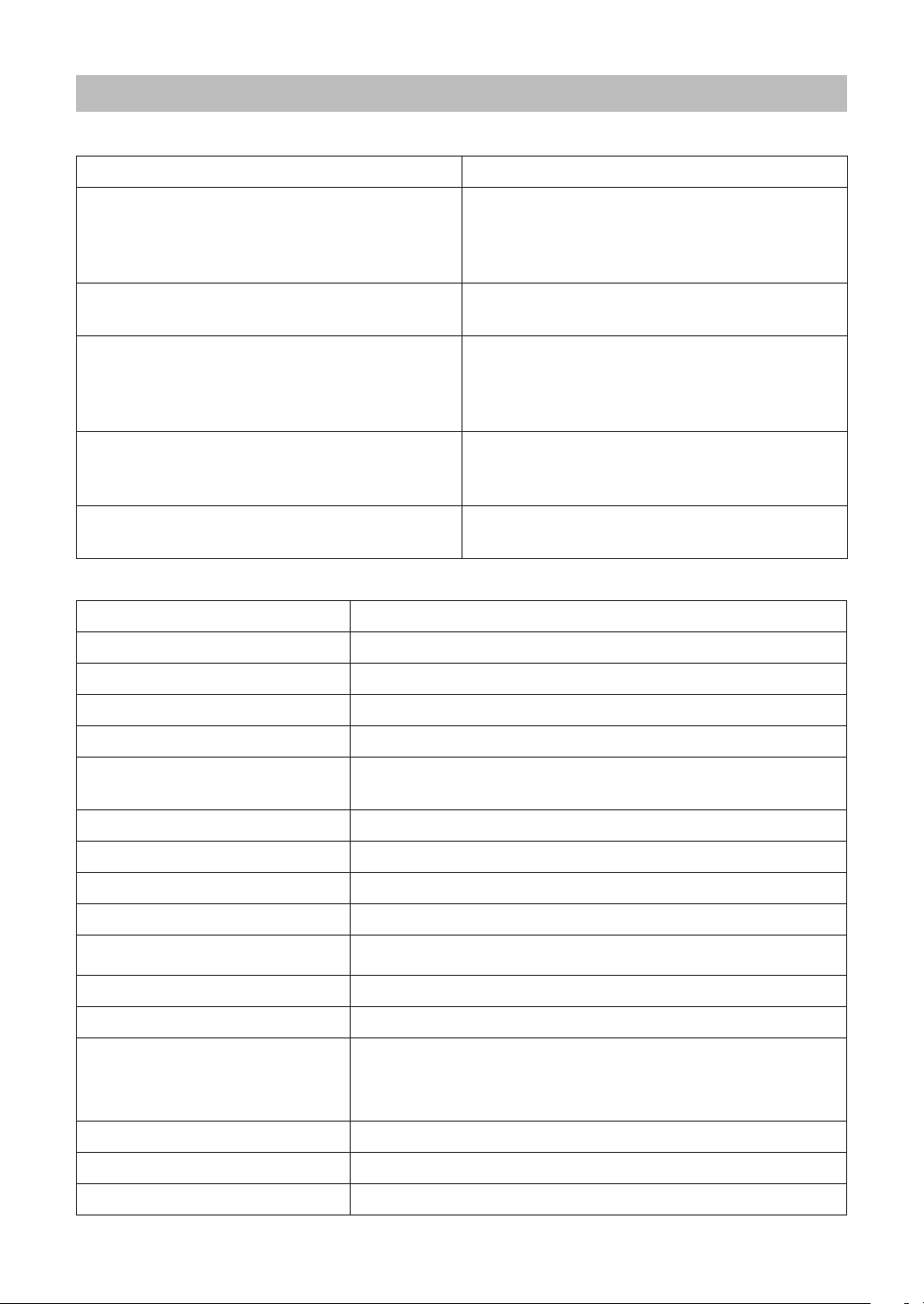
111
BeforeCallingforService
If you encounter any of the following problems, please read below before calling for service.
Fault Checking
• The display does not illuminate. • Is power supplied to the electric outlet?
• Is the power cord plug out or loosely connected to
the electric outlet?
• Is the register in screen-save mode?
• The display is illuminated, but the whole register
refuses entries.
• Is a clerk code assigned to the register?
• Is the register in the REG mode?
• No receipt is issued. • Is the receipt paper roll properly installed?
• Is there a paper jam?
• Is the receipt function in the “OFF” status?
• Is the print roller arm securely locked?
• No journal paper is taken up. • Is the take-up spool installed on the bearing
properly?
• Is there a paper jam?
• Printing is unusual. • Are the printer head/sensor/roller clean?
• Is the paper roll properly installed?
Errormessagetable
Error message (display) Error status and action
AMT. TEND ONLY The amount tendering is compulsory.
COMM. ERROR A communication error occurred.
DEPARTMENT IS INHIBITED Operated department is programmed as “INHIBIT”.
ENTRY INHIBITED NN▪▪N Perform the correct key operation.
ENTRY OVERFLOW PLEASE
CHECK ENTERED DIGITS
The correct numeric data must be entered.
INVALID CODE ENTRY The correct code data must be entered.
MISOPERATION INVALID KEY Perform the correct key operation.
OPEN PRICE ENTRY INHIBITED The open price entry is inhibited. (Only preset price entry)
OVER LIMIT. Overow limitation error
PAPER EMPTY Install a new (receipt or journal) paper roll, and press the
l
key.
PLU IS SET TO INHIBIT Operated PLU is programmed as “INHIBIT”.
PRESET PRICE ENTRY INHIBITED The preset price entry is inhibited. (Only open price entry)
PRINTER ERROR
The temperature/voltage of printer head is too high.
Turn off the power, and repair the printer. Then turn on the power
and press
l
key.
STACK OVER Turn off the power, and consult a Sharp Authorized Servicer.
UNDEFINED CODE Desired code is not programmed yet.
UPC CODE IS NOT EXISTING Desired UPC/EAN code is not programmed yet.

112
d
Specications
Model: XE-A407
XE-A43S
Dimensions: 16.7 (W) x 15.6 (D) x 12.6 (H) in. (425 (W) x 395 (D) x 320 (H) mm)
Weight: Approx. 24.3 Ib (11 kg)
Power Source: 120V AC, 60Hz
Power Consumption: Stand-by: 6.3 W
Operating: 13.9 W (max.)
Working Temperature: 32 to 104 °F (0 to 40 °C)
Humidity: 20 % to 85 %
Display: Operator display: LCD display with Tilt mechanism
160 (W) x 64 (H) (dots)
Customer display: 7-segment LED display
Printer: Type: Two-station thermal printer
Printing speed: Approx. 12 lines/second
Printing capacity: 30 digits each for receipt/journal paper
Other functions:
- Receipt (ON-OFF) function
- Compression print for the journal
- Receipt and journal independent paper feed function
Logo: Graphic logo printing:
Size: 130 (H) x 360 (W) pixel
Area of black must be less than 35% of all area.
Logo message printing:
Logo message for the receipt (max. 30 characters x 6 lines)
Paper Roll: Width: 2.25 ± 0.02 in (57.5 ± 0.5 mm)
Max. diameter: 3.15 in (80 mm)
Quality: High quality (0. 06 to 0.08 mm thickness)
Cash Drawer: 5 slots for bills and 6 for coin denominations
Accessories: Quick Start Guide: 1 copy
Instruction manual: 1 copy
Paper roll: 2
Take-up spool: 1
Paper holding plate: 1
Drawer lock key: 1
EFT yer: 1
*Specications and appearance are subject to change without notice for improvement.

END-USER LIMITED WARRANTY
SHARP ELECTRONICS CORPORATION warrants to the first end-user purchaser (the "Purchaser")
that this Sharp brand product (the "Product"), when new and shipped in its original container, will be
free from defective workmanship and materials, and agrees that it will, at its option, either repair the
defect or replace the defective Product or part thereof with a new or remanufactured equipment at
no charge to the Purchaser for parts or labor for the period(s) set forth below.
This warranty does not apply to any appearance items of the Product nor to the additional excluded
item(s) set forth below nor to any Product the exterior of which has been damaged or defaced,
which has been subjected to improper voltage or other misuse, abnormal service or handling, or
which has been altered or modified in design or construction.
In order to enforce the rights under this limited warranty, the Purchaser should follow the steps set
forth below and provide proof of purchase to the servicer.
To the extent permitted by applicable state law, the warranties set forth herein are in lieu of, and
exclusive of, all other warranties, express or implied. Specifically, ALL OTHER WARRANTIES
OTHER THAN THOSE SET FORTH ABOBE ARE EXCLUDED. ALL EXPRESS AND IMPLIED
WARRANTIES INCLUDING THE WARRANTIES OF MERCHANTABILITY, FITNESS FOR USE,
AND FITNESS FOR A PARTICULAR PURPOSE ARE SPECIFICALLY EXCLUDED. If, under
applicable state law, implied warranties may not validly be disclaimed or excluded, the duration of
such implied warranties is limited to the period(s) from the date of purchase set forth below.
Neither the sales personnel of the seller nor any other person is authorized to make any warranties
other than those described herein, or to extend the duration of any warranties beyond the time
period described herein on behalf of Sharp.
The warranties described herein shall be the sole and exclusive warranties granted by Sharp and
shall be the sole and exclusive remedy available to the Purchaser. Correction of defects, in the
manner and for the period of time described herein, shall constitute complete fulfillment of all
liabilities and responsibilities of Sharp to the Purchaser with respect to the Product, and shall
constitute full satisfaction of all claims, whether based on contract, negligence, strict liability or
otherwise. In no event shall Sharp be liable, or in any way responsible, for any damages or defects
in the Product which were caused by repairs or attempted repairs performed by anyone other than
an authorized servicer. Nor shall Sharp be liable or in any way responsible for any incidental or
consequential economic or property damage. Some states do not allow limits on warranties or on
remedies for branch in certain transactions; in such states, the limits herein may not apply.
Model Specific Section (Carry-in Service)
Your Product Model Number
& Description: XE-A407/XE-A43S Cash Register
(Be sure to have this information available when
you need service for your product.)
Warranty Period for this Product:
One (1) year parts and 90 days labor from date of
purchase
Additional Item(s) Excluded from
Warranty Coverage (if any): Any consumable items such as paper supplied with
the Product.
Where to Obtain Service:
From a Sharp Authorized Servicer located in the
United States. To find the location of the nearest
Sharp Authorized Servicer, call SHARP toll free at
1-800-BE-SHARP.
What to do to Obtain Service:
Ship prepaid or carry in your Product to a Sharp
Authorized Servicer. Be sure to have Proof of
Purchase available. If you ship the Product, be
sure it is insured and packaged securely.
TO OBTAIN PRODUCT INFORMATION, CALL 1-800-BE-SHARP OR VISIT www.sharpusa.com

ELECTRONIC CASH REGISTER
INSTRUCTION MANUAL
SHARP ELECTRONICS CORPORATION
Sharp Plaza, Mahwah, New Jersey 07495-1163
1-800-BE-SHARP
For additional information and product registration,
please visit
www.sharpusa.com
Printed in Korea
T(TINSE2625BHZZ)
XE-A407/XE-A43S
MODEL
XE-A407
XE-A43S