Register your product and get support at
www.philips.com/welcome
EN User manual
DA Brugervejledning
DE Benutzerhandbuch
ES Manual del usuario
FR Mode d’emploi
IT Manuale utente
NL Gebruiksaanwijzing
SV Användarhandbok
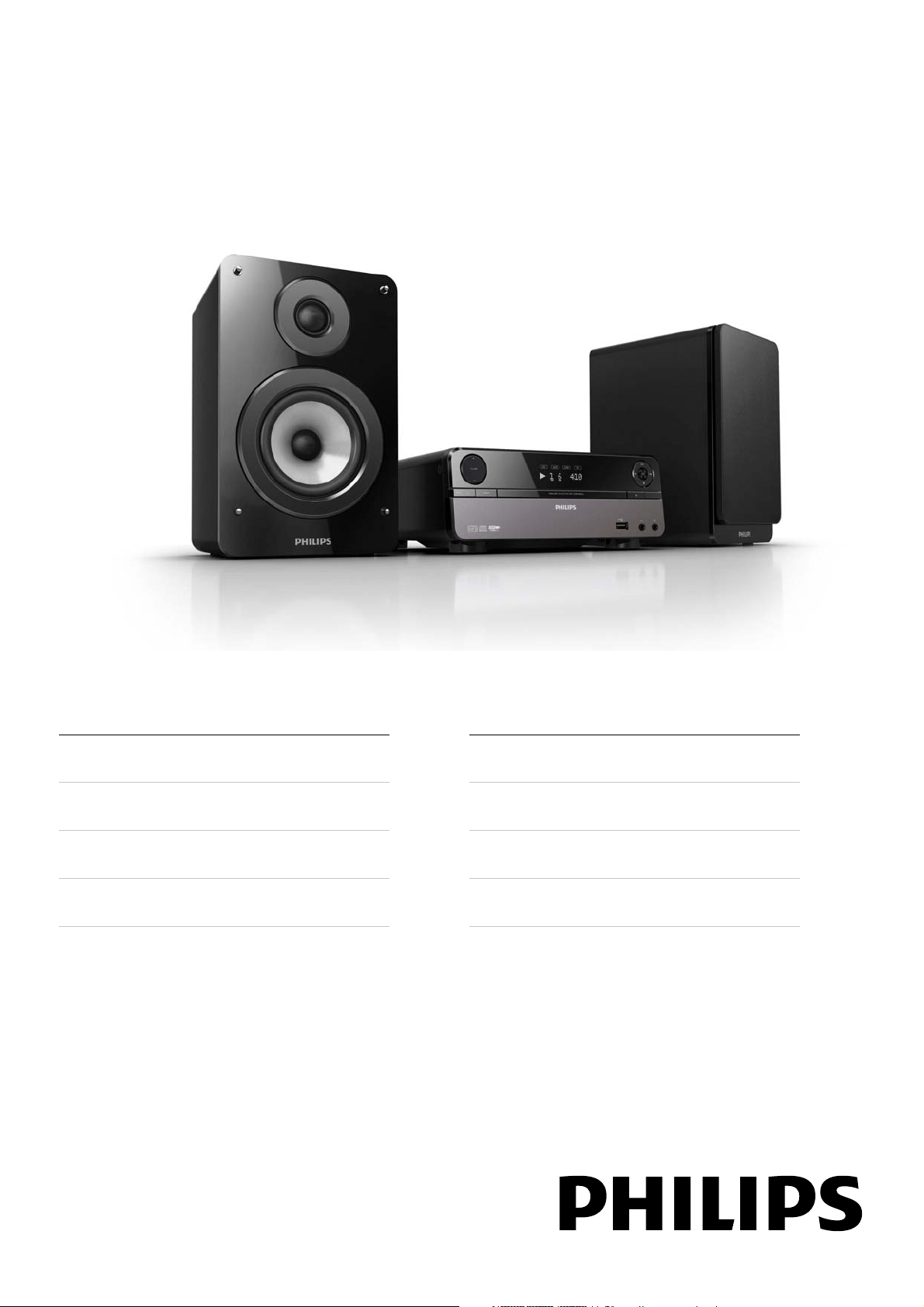
MCD122
3
5 Play 18
Play a disc 18
Use the disc menu 18
Select an audio language 18
Select a subtitle language 18
Play from USB 19
Play DivX video 19
Play MP3/WMA/picture fi les 19
Play control 19
Select repeat/shuffl e play options 19
Repeat A-B (DVD/VCD/CD/MP3/
WMA) 20
Search forward/backward 20
Search by time or chapter/track
number 20
Resume video play from last
stopped point 20
Play options 20
Display play information 20
Zoom in/out image 20
Slow-motion play 20
Change the audio channel 21
Select a camera angle 21
Picture view options 21
Preview pictures 21
Rotate picture 21
6 Adjust settings 22
General setup 22
Audio setup 22
Video setup 22
Preferences 23
7 Tune to FM radio stations 24
Program radio stations automatically 24
Program radio stations manually 24
Tune to a preset radio station 24
Set RDS clock 25
Show RDS information 25
Contents
1 Important 5
Safety 5
Important Safety Instructions 5
Safety-Important notes for users in
the U.K. 6
Hearing safety 7
Notice 7
2 Your DVD Micro Theater 9
Introduction 9
What’s in the box 9
Overview of the main unit 10
Overview of the remote control 11
3 Connect 13
Place the unit 13
Connect speakers 13
Connect FM antenna 13
Connect TV 14
Connect video cables 14
Option 1: Connect through SCART 14
Option 2: Connect through
component video 14
Option 3: Connect through
S-Video 15
Option 4: Connect through
composite video 15
Connect audio cables 15
Connect power 15
4 Get started 16
Prepare the remote control 16
Set clock 16
Turn on 16
Switch to standby mode 16
Find the correct viewing channel 17
Select the correct TV system 17
Change system menu language 17
Turn on Progressive Scan 17
English
EN

4
8 Adjust volume level and sound effect
26
Adjust volume level 26
Select a sound effect 26
Select a preset sound effect 26
Enhance bass 26
Select automatic loudness control 26
Mute sound 26
Listen through headphone 26
9 Other features 27
Activate demonstration mode 27
Adjust brightness of display panel 27
Set the alarm timer 27
Set the sleep timer 27
Connect other devices 27
Listen to an audio player 27
Record to a digital recorder 28
10 Product information 29
Specifi cations 29
Amplifi er 29
Disc 29
Tuner (FM) 29
Speakers 29
General information 29
Supported disc formats 30
USB playability information 30
RDS program types 31
11 Troubleshooting 32
EN
5
g Do not block any ventilation openings.
Install in accordance with the
manufacturer’s instructions.
h Do not install near any heat sources such
as radiators, heat registers, stoves, or
other apparatus (including amplifi ers) that
produce heat.
i Protect the power cord from being
walked on or pinched, particularly at
plugs, convenience receptacles, and the
point where they exit from the apparatus.
j Only use attachments/accessories
specifi ed by the manufacturer.
k Use only with the cart, stand, tripod,
bracket, or table specifi ed by the
manufacturer or sold with the apparatus.
When a cart is used, use caution when
moving the cart/apparatus combination to
avoid injury from tip-over.
l Unplug this apparatus during lightning
storms or when unused for long periods
of time.
m Refer all servicing to qualifi ed service
personnel. Servicing is required when
the apparatus has been damaged in any
way, such as power-supply cord or plug
is damaged, liquid has been spilled or
objects have fallen into the apparatus, the
apparatus has been exposed to rain or
moisture, does not operate normally, or
has been dropped.
n Battery usage CAUTION – To prevent
battery leakage which may result in bodily
injury, property damage, or damage to the
unit:
Install all batteries correctly, + and - as •
marked on the unit.
1 Important
Safety
Know these safety symbols
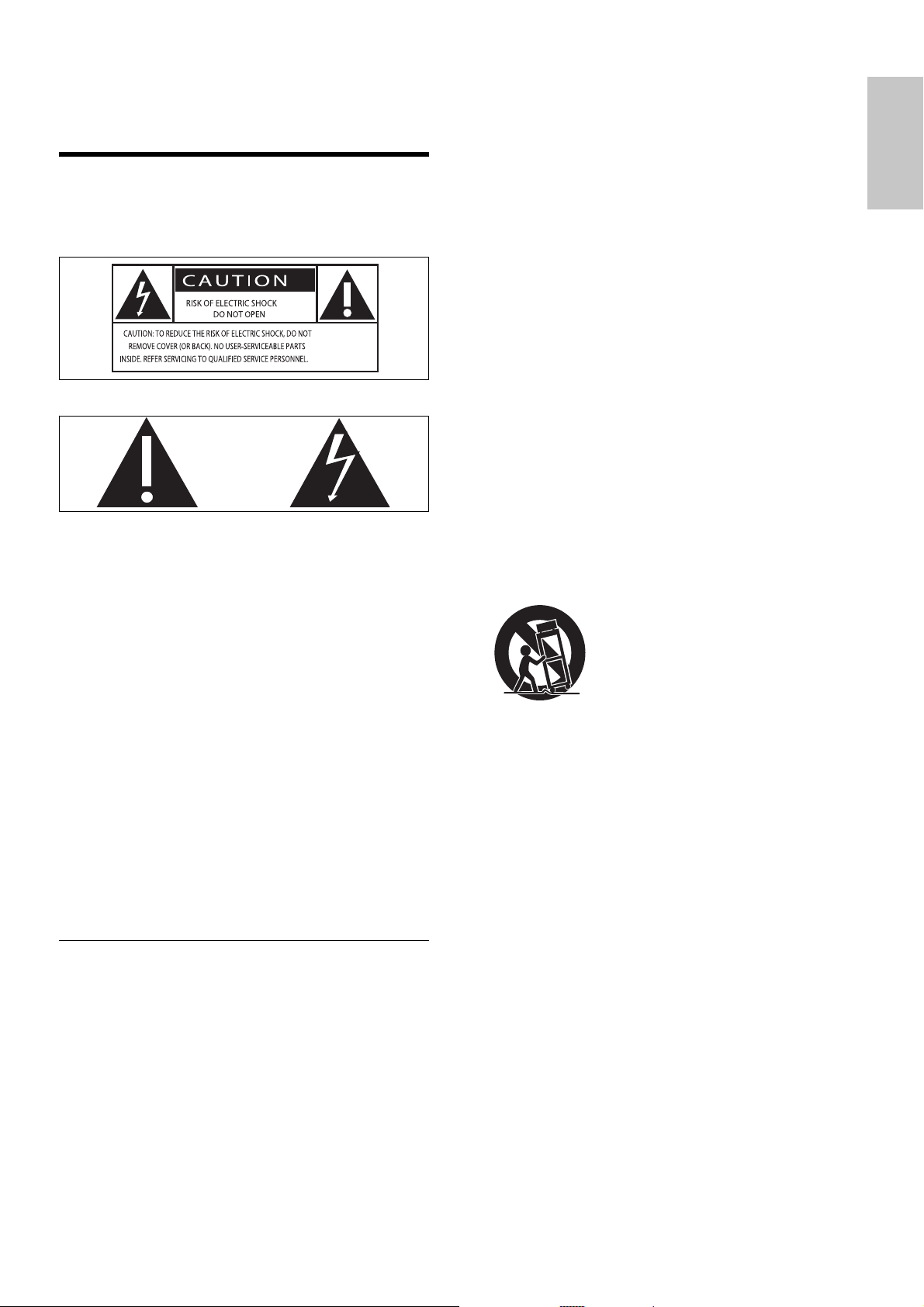
This ‘bolt of lightning’ indicates uninsulated
material within your unit may cause an electrical
shock. For the safety of everyone in your
household, please do not remove product
covering.
The ‘exclamation point’ calls attention to
features for which you should read the enclosed
literature closely to prevent operating and
maintenance problems.
WARNING: To reduce the risk of fi re or electric
shock, this apparatus should not be exposed to
rain or moisture and objects fi lled with liquids,
such as vases, should not be placed on this
apparatus.
CAUTION: To prevent electric shock, match
wide blade of plug to wide slot, fully insert.
Important Safety Instructions
a Read these instructions.
b Keep these instructions.
c Heed all warnings.
d Follow all instructions.
e Do not use this apparatus near water.
f Clean only with dry cloth.
English
EN
6
As these colours may not correspond with the
colour markings identifying the terminals in your
plug, proceed as follows:
Connect the blue wire to the terminal •
marked N or coloured black.
Connect the brown wire to the terminal •
marked L or coloured red.
Do not connect either wire to the earth •
terminal in the plug, marked E (or e) or
coloured green (or green and yellow).
Before replacing the plug cover, make certain
that the cord grip is clamped over the sheath of
the lead - not simply over the two wires.
Copyright in the U.K.
Recording and playback of material may require
consent. see Copyright Act 1956 and The
performer’s Protection Acts 1958 to 1972.
Norge
Typeskilt fi nnes på apparatens bakside.
Observer: Nettbryteren er sekundert innkoplet.
Den innebygde netdelen er derfor ikke
fraktoplet nettet så lenge apparatet er tilsluttet
nettkontakten.
For å redusere faren for brann eller elektrisk
støt, skal apparatet, ikke utsettes for regn eller
fuktighet.
Caution
Use of controls or adjustments or performance of •
procedures other than herein may result in hazardous
radiation exposure or other unsafe operation.
Warning
Where the MAINS plug or an appliance coupler is used •
as the disconnect device, the disconnect device shall
remain readily operable.
Warning
Never remove the casing of this unit. •
Never lubricate any part of this unit.•
Place this unit on a fl at, hard and stable surface.•
Never place this unit on other electrical equipment.•
Only use this unit indoors. Keep this unit away from •
water, moisture and liquid-fi lled objects.
Keep this unit away from direct sunlight, naked fl ames
•
or heat.
Never look into the laser beam inside the unit.
•
Do not mix batteries (old and new or •
carbon and alkaline, etc.).
Remove batteries when the unit is not •
used for a long time.
o Apparatus shall not be exposed to
dripping or splashing.
p Do not place any sources of danger on
the apparatus (e.g. liquid fi lled objects,
lighted candles).
q This product may contain lead and
mercury. Disposal of these materials
may be regulated due to environmental
considerations. For disposal or recycling
information, please contact your local
authorities or the Electronic Industries
Alliance: www.eiae.org.
Safety-Important notes for users in
the U.K.
Mains plug
This apparatus is fi tted with an approved 13
Amp plug. To change a fuse in this type of plug
proceed as follows:
a Remove fuse cover and fuse.
b Fix new fuse which should be a BS1362 5
Amp, A.S.T.A. or BSI approved type.
c Refi t the fuse cover.
If the fi tted plug is not suitable for your socket
outlets, it should be cut off and an appropriate
plug fi tted in its place.
If the mains plug contains a fuse, this should
have a value of 5 Amp. If a plug without a fuse
is used, the fuse at the distribution board should
not be greater than 5 Amp.
Note: The severed plug must be disposed off
to avoid a possible shock hazard should it be
inserted into a 13 Amp socket elsewhere.
How to connect a plug
The wires in the mains lead are coloured with
the following code: blue = neutral (N), brown
= live (L).
EN
7
Notice
This product complies with the radio
interference requirements of the European
Community.
Any changes or modifi cations made to this
device that are not expressly approved by
Philips Consumer Lifestyle may void the user’s
authority to operate the equipment.
Your product is designed and manufactured
with high quality materials and components,
which can be recycled and reused.
When this crossed-out wheeled bin symbol is
attached to a product it means that the product
is covered by the European Directive 2002/96/
EC.
Please inform yourself about the local separate
collection system for electrical and electronic
products.
Please act according to your local rules and
do not dispose of your old products with your
normal household waste. Correct disposal of
your old product helps to prevent potential
negative consequences for the environment and
human health.
Your product contains batteries covered by
the European Directive 2006/66/EC, which
cannot be disposed with normal household
waste. Please inform yourself about the local
rules on separate collection of batteries
because correct disposal helps to prevent
negative consequences for the environmental
and human health.
Hearing safety
Listen at a moderate volume.
Using headphones at a high volume can •
impair your hearing. This product can
produce sounds in decibel ranges that may
cause hearing loss for a normal person,
even for exposure less than a minute. The
higher decibel ranges are offered for those
that may have already experienced some
hearing loss.
Sound can be deceiving. Over time your •
hearing ‘comfort level’ adapts to higher
volumes of sound. So after prolonged
listening, what sounds ‘normal’ can actually
be loud and harmful to your hearing. To
guard against this, set your volume to a safe
level before your hearing adapts and leave
it there.
To establish a safe volume level:
Set your volume control at a low setting. •
Slowly increase the sound until you can •
hear it comfortably and clearly, without
distortion.
Listen for reasonable periods of time:
Prolonged exposure to sound, even at •
normally ‘safe’ levels, can also cause hearing
loss.
Be sure to use your equipment reasonably •
and take appropriate breaks.
Be sure to observe the following guidelines
when using your headphones.
Listen at reasonable volumes for •
reasonable periods of time.
Be careful not to adjust the volume as your •
hearing adapts.
Do not turn up the volume so high that •
you can’t hear what’s around you.
You should use caution or temporarily •
discontinue use in potentially hazardous
situations. Do not use headphones while
operating a motorized vehicle, cycling,
skateboarding, etc.; it may create a traffi c
hazard and is illegal in many areas.
English
EN
8
Note
The type plate is located on the bottom of the •
apparatus.
Environmental information
All unnecessary packaging has been omitted.
We have tried to make the packaging easy to
separate into three materials: cardboard (box),
polystyrene foam (buffer) and polyethylene
(bags, protective foam sheet.)
Your system consists of materials which can
be recycled and reused if disassembled by
a specialized company. Please observe the
local regulations regarding the disposal of
packaging materials, exhausted batteries and old
equipment.
The making of unauthorized copies of copy-
protected material, including computer
programs, fi les, broadcasts and sound
recordings, may be an infringement of
copyrights and constitute a criminal offence.
This equipment should not be used for such
purposes.
‘DVD Video’ is a trademark of DVD Format/
Logo Licensing Corporation.
Manufactured under license from Dolby
Laboratories. Dolby and the double-D symbol
are trademarks of Dolby Laboratories.
This apparatus includes this label:
EN
9
DVD region code Countries
Europe
What’s in the box
Check and identify the contents of your
package:
Main unit•
2 speakers•
Remote control with battery•
Composite video cable (yellow)•
Power cord•
FM wire antenna•
User manual•
Quick start guide•
2 Your DVD
Micro Theater
Congratulations on your purchase, and
welcome to Philips! To fully benefi t from the
support that Philips offers, register your product
at www.Philips.com/welcome.
Introduction
With this unit, you can:
watch video from DVD/VCD/SVCD or •
USB devices
enjoy audio from discs or USB devices•
view pictures from discs or USB devices•
Listen to FM radio•
You can enrich sound output with these
sound effects:
Digital Sound Control (DSC)•
Dynamic Bass Boost (DBB)•
Bass/treble enhancement•
The unit supports these media/disc formats:
You can play DVD discs with the following
region codes:
Recordable
ReWritable
English
EN
10
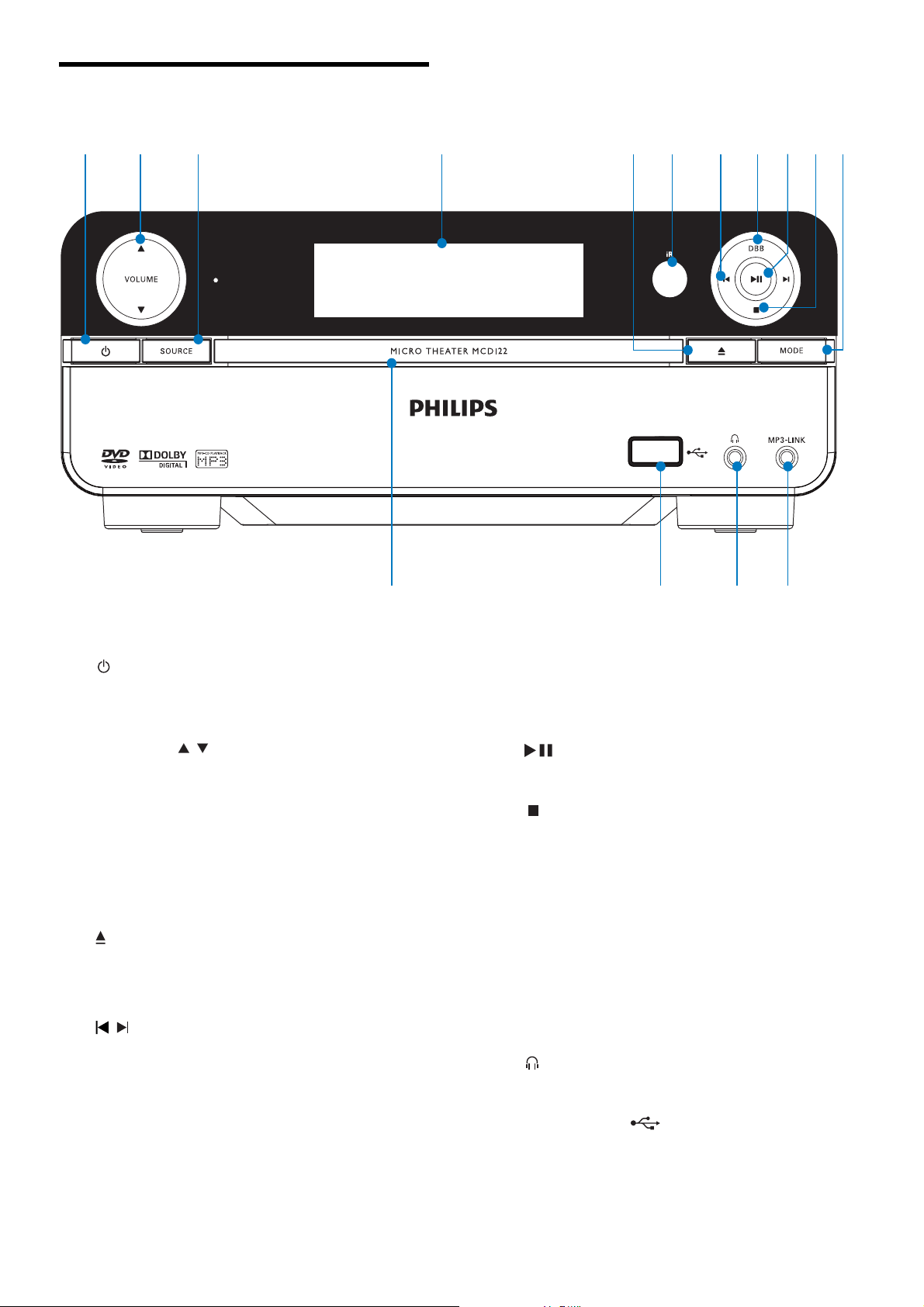
h DBB
Turn on or off dynamic bass •
enhancement.
i
Start or pause play.•
j
Stop play.•
In demo mode, activate or deactivate •
demonstration.
k MODE
Select repeat play modes.•
Select shuffl e play modes.•
l MP3-LINK
Jack for an external audio device.•
m
Headphone socket.•
n USB DIRECT
USB socket.•
o Disc compartment
Overview of the main unit
a
Turn on the apparatus or switch to •
the Eco Power standby mode.
b VOLUME
/
Adjust volume.•
Adjust time. •
c SOURCE
Select a source.•
d Display panel
Display current status.•
e
Open or close the disc compartment.•
f Remote control sensor
g
/
Skip to the previous/next track.•
Skip to the previous/next title or •
chapter.
Select a preset radio station.•
a b c d fe g kh ij
lmno
EN
11
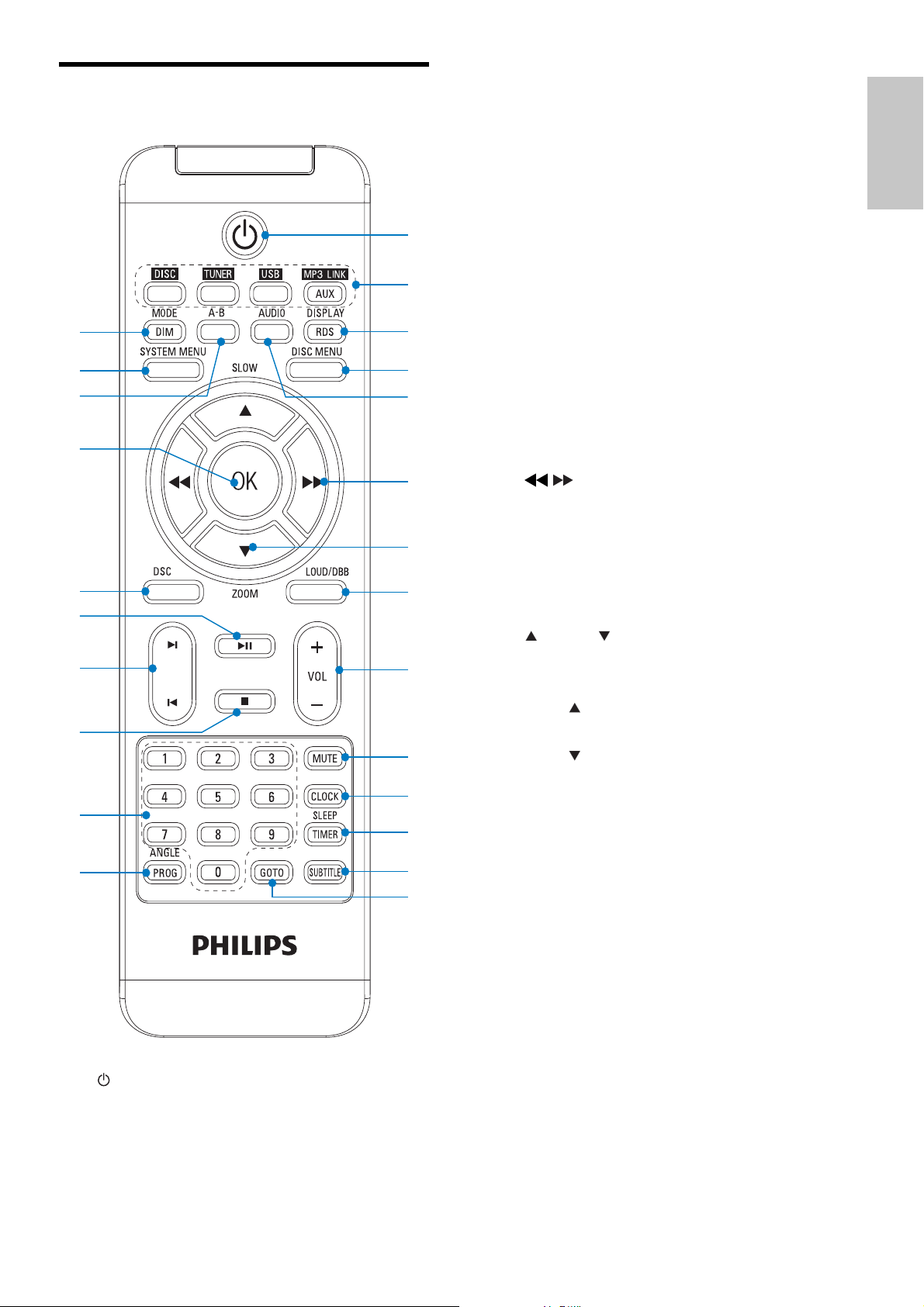
c DISPLAY/RDS
Display play information on a •
connected TV.
For selected FM radio stations: display •
RDS information.
d DISC MENU
For video discs: access or exit the disc •
menu.
For video discs with playback •
control(PBC): turn on/off PBC.
e AUDIO
For VCD, select stereo, mono-left or •
mono-right channel.
For DVD/DivX video, select an audio •
language.
f
/
Search within a track.•
Tune to a radio station.•
For menus, navigate left/right.•
Move an enlarged image left/right.•
Rotate or invert pictures.•
g
SLOW / ZOOM
For menus, navigate up/down.•
Rotate or invert pictures.•
(•
SLOW) For video: select a slow
play mode.
(•
ZOOM) For video: zoom in/out.
h LOUD/DBB
Turn on or off automatic loudness •
adjustment.
Turn on or off dynamic bass •
enhancement.
i VOL +/-
Adjust volume.•
Adjust time. •
j MUTE
Mute or restore volume.•
k CLOCK
Set the clock.•
l SLEEP/TIMER
Set the sleep timer.•
Set the alarm timer.•
Overview of the remote
control
a
Turn on the apparatus or switch to •
the Eco Power standby mode.
b Source selection keys
Select a source.•
x
w
t
s
q
r
o
p
u
v
i
l
j
k
m
n
c
b
a
d
h
f
g
e
English
EN

12
m SUBTITLE
Select a subtitle language.•
n GOTO
During disc play, specify a position to •
start play.
o ANGLE/PROG
Select a DVD camera angle.•
Program radio stations.•
p Numeric keypad
Select a title/chapter/track directly.•
q
Stop play.•
r
/
Skip to the previous/next track.•
Skip to the previous/next title or •
chapter.
Select a preset radio station.•
s
Start or pause play.•
t DSC
Select a preset sound setting.•
u OK
Confi rm a selection.•
v A-B
Repeat a specifi c section within a •
track/disc.
w SYSTEM MENU
Access or exit the system setup menu.•
x MODE/DIM
Select repeat play modes.•
Select shuffl e play modes.•
Select a brightness level for the display •
screen.
EN
13
Connect speakers
Note
Ensure that the colors of the speaker wires and •
terminals are matched.
For optimal sound, use the supplied speakers only.
•
Connect only speakers with impedance that is the •
same or higher than the supplied speakers. Refer to the
Specifi cations section of this manual.
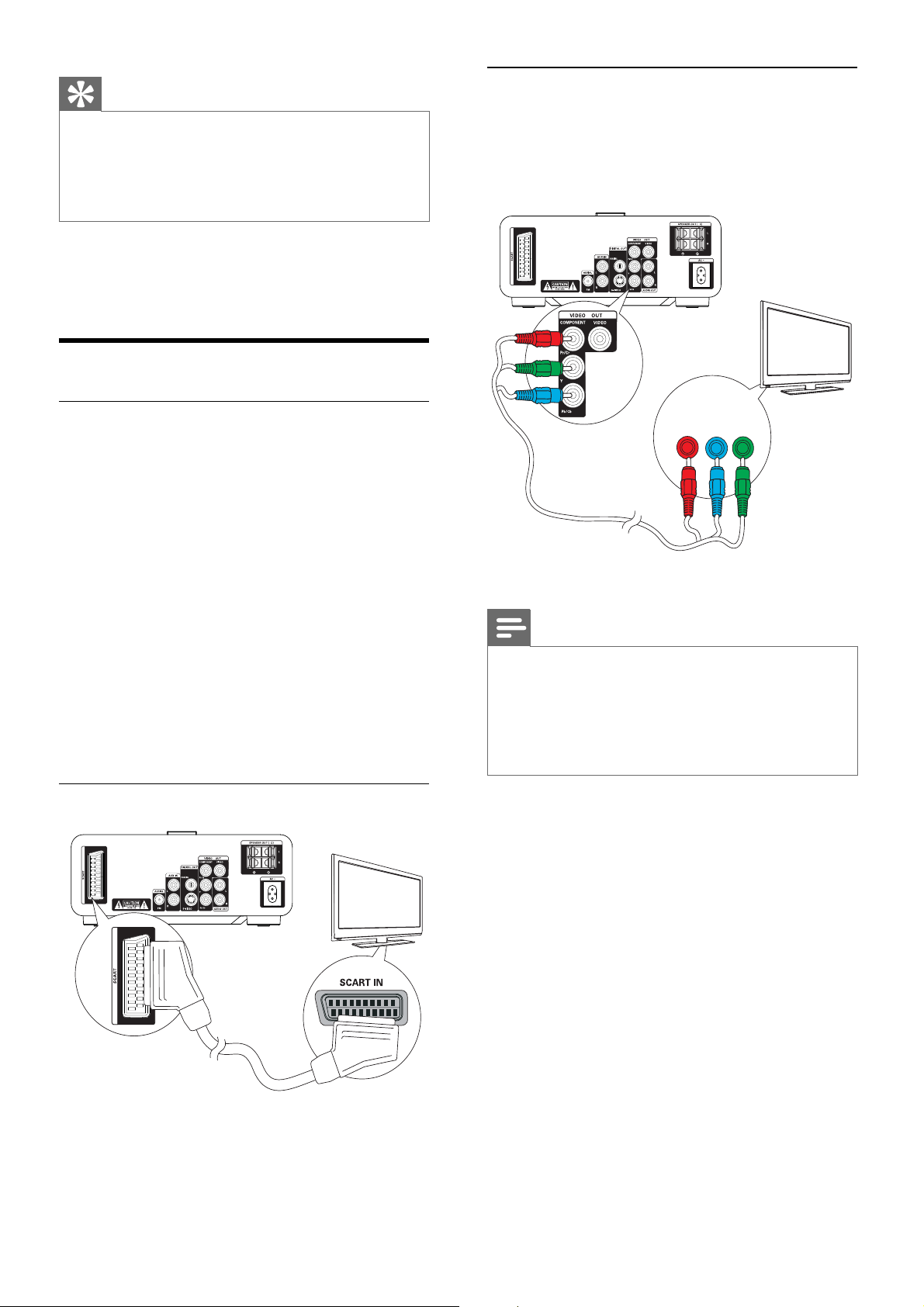
1 Hold down the socket fl ap.
2 Insert the stripped part of the wire
completely.
Insert the right speaker wires to “ • R”,
left speaker wires to “ L”.
Insert the red wires to “ • +”, black wires
to “ -”.
3 Release the socket fl ap.
Connect FM antenna
abc
8
3 Connect
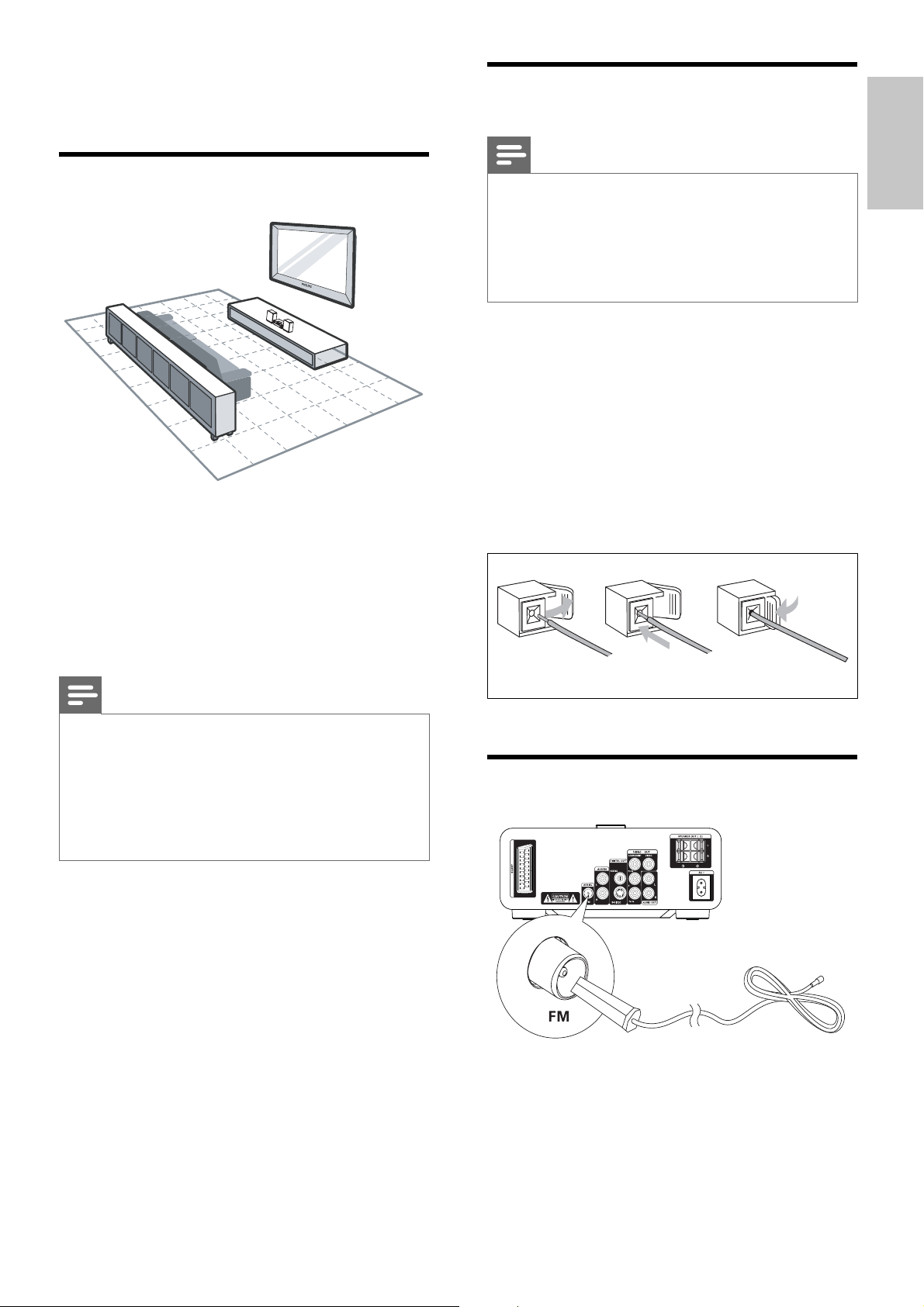
Place the unit
1
Place the unit near to the TV.
2 Place the left and right speakers at equal
distance from the TV and at an angle
of approximately 45 degrees from the
listening position.
Note
To avoid magnetic interference or unwanted noise, •
never place this apparatus and speakers too close to
any radiation devices.
Place this unit on top of a table or mount it on the wall.
•
Never place this unit in an enclosed cabinet.•
Install this unit near the AC outlet where the AC power •
plug can be easily reached.
English
EN
14
Option 2: Connect through
component video
Connect a progressive scan TV through
component video for higher quality video.
Note
The progressive scan video quality is only available •
when a progressive scan TV is connected.
If your TV does not support progressive scan, you
•
cannot view the picture.
For how to activate progressive scan on your TV, refer
•
to the TV user manual.
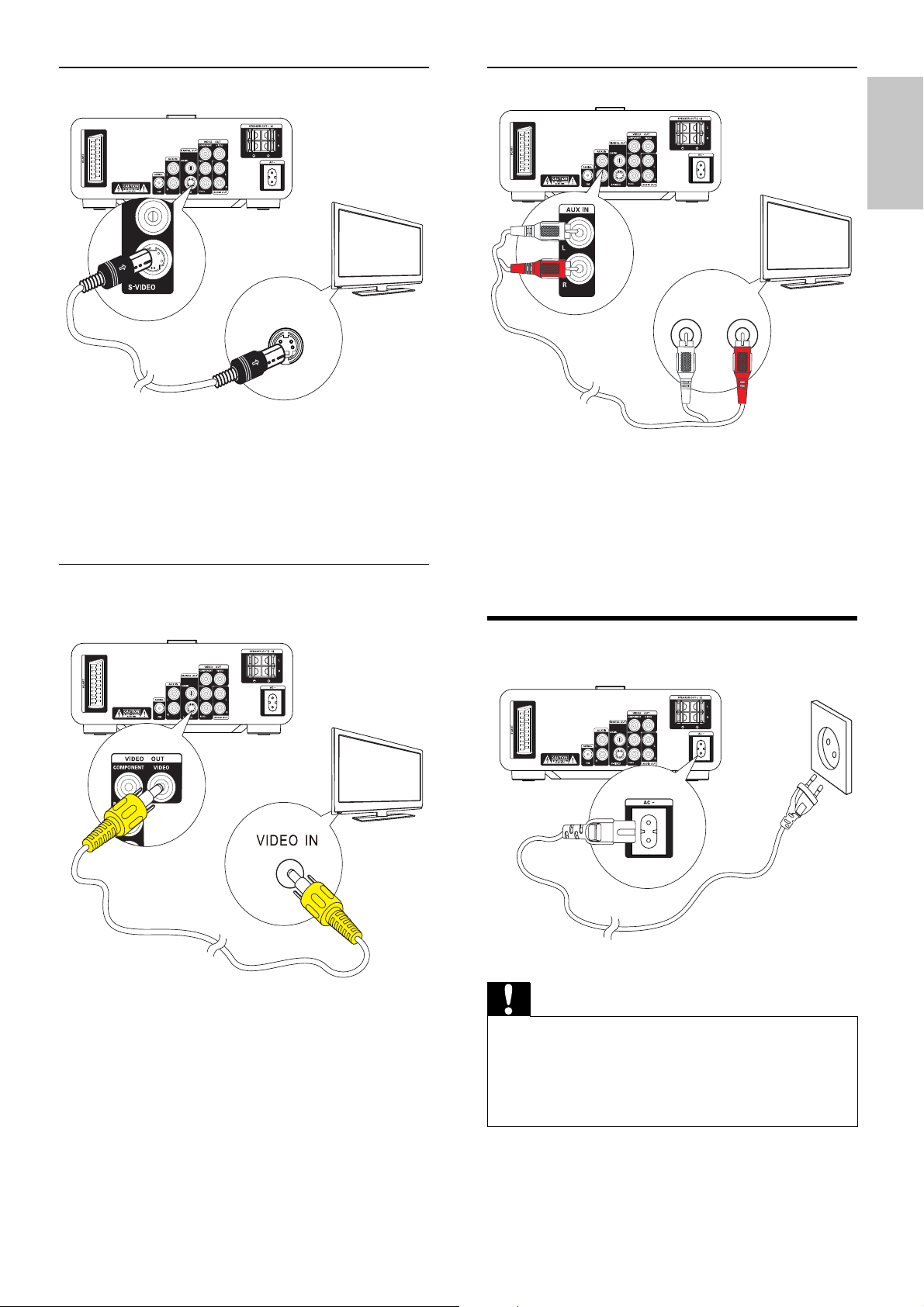
Connect a progressive scan TV through
component video for higher quality video.
1 Connect component video cables (red/
blue/green - not supplied) to:
the• VIDEO OUT ( Pr/Cr Pb/Cb Y)
sockets on this unit.
the component input sockets on the •
TV.
TV
Pr/Cr Pb/Cb Y
COMPONENT VIDEO IN PUT
8
Tip
For optimal reception, fully extend and adjust the •
position of the antenna.
For better FM stereo reception, connect an outdoor
•
FM antenna to the FM AERIAL jack.
The unit does not support MW radio reception.
•
1 Connect the supplied FM wire antenna to
the FM AERIAL socket on the unit.
Connect TV
Connect video cables
With this connection, you can watch video from
the unit on the TV screen.
You can select the best video connection that
your TV supports.
Option 1: Connect through SCART •
(for a standard TV).
Option 2: connect through •
component video (for a standard TV
or Progressive Scan TV).
Option 3: connect through S-Video •
(for a standard TV).
Option 4: connect through composite •
video (CVBS) (for a standard TV).
Option 1: Connect through SCART
1 Connect a scart cable (not supplied) to:
the• SCART socket on this unit.
the• SCART socket on the TV.
TV
8
EN
15
Connect audio cables
1 To play sound from the TV through this
unit, connect audio cables (red/white - not
supplied) to:
the• AUX IN L/R sockets on this unit.
the audi• o output sockets on the TV.
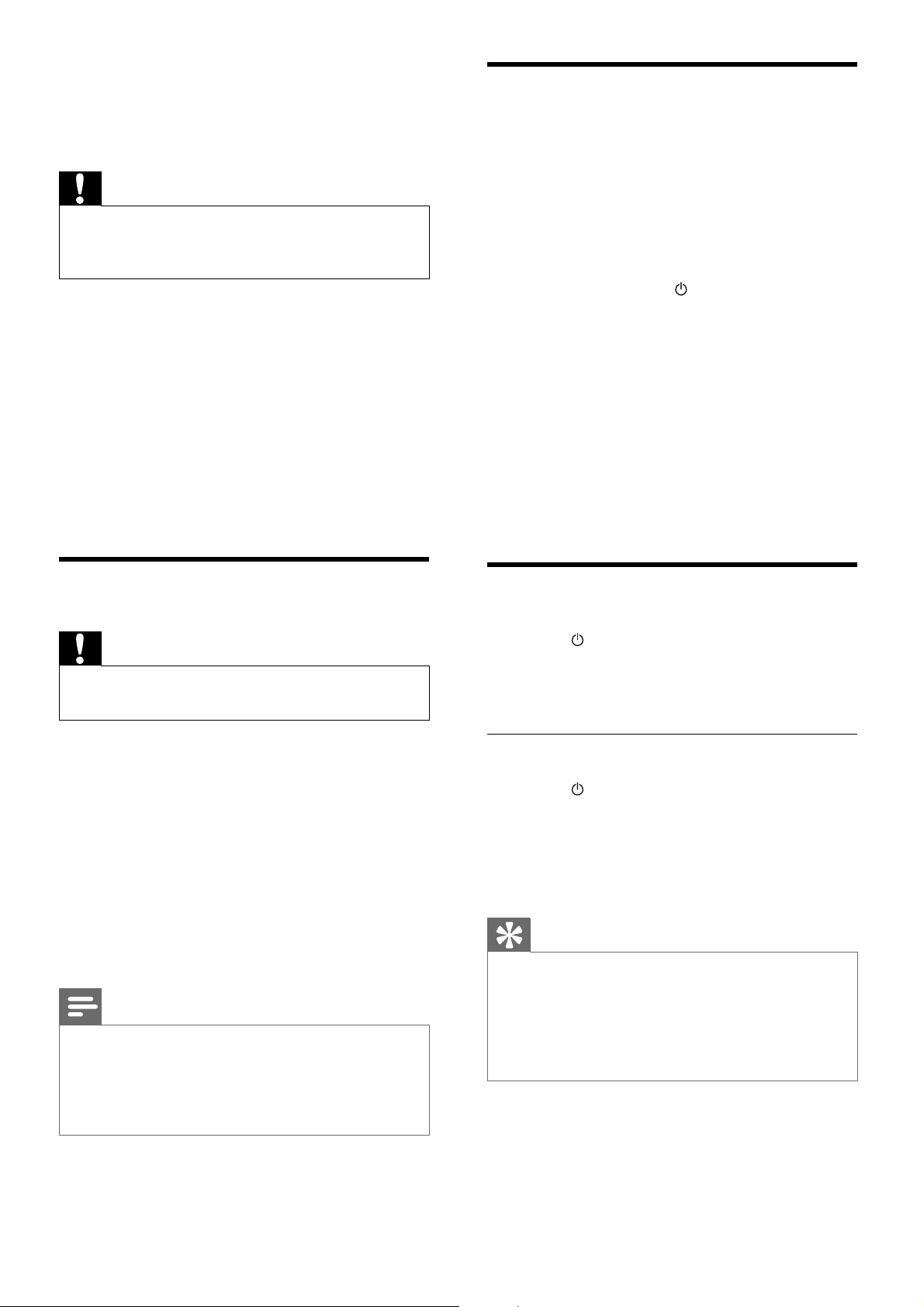
Connect power
Caution
Risk of product damage! Ensure that the power supply •
voltage corresponds to the voltage printed on the back
or the underside of the unit.
Before connecting the AC power cord, ensure you have
•
completed all other connections.
1 Connect the AC power cord to the wall
socket.
TV
L LINE IN R
8
8
Option 3: Connect through S-Video
1 Connect an S-video cable (not supplied)
to:
the• S-Video socket on this unit.
the• S-Video socket on the TV.
Option 4: Connect through
composite video
1 Connect the supplied composite video
cable to:
the• VIDEO OUT socket on this unit.
the video input socket on the TV.•
TV
S-VIDEO IN
8
TV
8
English
EN
16
Set clock
1
In the standby mode, press and hold
CLOCK to activate the clock setting
mode.
The hour digits are displayed and begin »
to blink.
If the hour digits are not displayed, »
press and hold
for more than 2
seconds to switch to standby mode,
then repeat step 1.
2 Press + VOL - to set the hour, then press
CLOCK again..
The minute digits are displayed and »
begin to blink.
3 Press + VOL - to set the minute.
4 Press CLOCK to confi rm the clock setting.
Turn on
1
Press .
The unit switches to the last selected »
source.
Switch to standby mode
1 Press to switch the unit to Eco Power
Standby mode.
The backlight on the display panel »
turns off.
The blue Eco Power indicator turns on.»
Tip
In the Eco Power mode, you can press • CLOCK to
switch to the standby mode and view the clock (if set).
If the system remains in the standby mode for more
•
than 90 seconds, it switches to the Eco Power mode
automatically.
4 Get started
Caution
Use of controls or adjustments or performance of •
procedures other than herein may result in hazardous
radiation exposure or other unsafe operation.
Always follow the instructions in this chapter in
sequence.
If you contact Philips, you will be asked for the
model and serial number of this apparatus. The
model number and serial number are on the
bottom of the apparatus. Write the numbers
here:
Model No. __________________________
Serial No. ___________________________
Prepare the remote control
Caution
Risk of explosion! Keep batteries away from heat, •
sunshine or fi re. Never discard batteries in fi re.
For fi rst-time use:
1 Remove the protective tab to activate the
remote control battery.
To replace the remote control batteries:
1 Open the battery compartment.
2 Insert one lithium CR2025 battery with
correct polarity (+/-) as indicated.
3 Close the battery compartment.
Note
Before you press any function button on the remote •
control, fi rst select the correct source with the remote
control.
If you are not going to use the remote control for a
•
long time, remove the battery.
EN
17
Change system menu
language
1
Press SYSTEM MENU.
2 Select [General Setup].
3 Select [OSD language] and then press .
4 Select a setting and then press OK.
5 To exit the menu, press SYSTEM MENU.
Turn on Progressive Scan
Progressive scan displays twice the number of
frames per seconds than interlaced scanning
(ordinary TV system). With nearly double the
number of lines, progressive scan offers higher
picture resolution and quality.
Before you turn on this feature, ensure that:
The TV supports progressive scan •
signals.
You have connected this unit with the •
TV through component video.
1 Turn on the TV.
2 Ensure that the TV progressive scan mode
is deactivated (see the TV user manual).
3 Switch the TV to the correct viewing
channel for this unit.
4 Press DISC.
5 Press SYSTEM MENU.
6 Press / to select [Video Setup] in the
menu, then press
.
7 Select [Component Video], then press .
8 Select [P-Scan], then press OK.
The progressive setup is complete.»
Find the correct viewing
channel
1
Press to turn on the unit.
2 Press DISC to switch to disc mode.
3 Turn on the TV and switch to the correct
video-in channel in one of the following
ways:
Go to the lowest channel on your TV, •
then press the Channel Down button
until you see the blue screen.
Press the source button repeatedly on •
the remote control of your TV.
Tip
The video-in channel is between the lowest and highest •
channels and may be called FRONT, A/V IN, VIDEO etc.
See the TV user manual on how to select the correct
input on the TV.
Select the correct TV system
Change this setting if the video does not appear
correctly. By default, this setting matches the
most common setting for TVs in your country.
1 Press SYSTEM MENU.
2 Select [Video Setup].
3 Select [TV System] and then press .
4 Select a setting and then press OK.
• [NTSC] - For TV with NTSC color
system.
• [PAL] - For TV with PAL color system.
• [Multi] - For TV that is compatible
with both PAL and NTSC.
5 To exit the menu, press SYSTEM MENU.
English
EN
18
To access or exit the menu manually:
1 Press DISC MENU.
For VCD with PlayBack Control (PBC) feature
(version 2.0 only):
With the PBC feature, you can play VCD
interactively according to the menu screen.
1 During play, press DISC MENU to enable/
disable PBC.
When PBC is enabled, the menu »
screen is displayed.
When PBC is disabled, normal play is »
resumed.
Select an audio language
You can select an audio language on DVDs or
DiVx video.
1 During disc play, press AUDIO.
The language options appear. If the »
selected audio channels is unavailable,
the default disc audio channel is used.
Note
For some DVDs, the language can only be changed •
from the disc menu. Press DISC MENU to access the
menu.
Select a subtitle language
You can select a subtitle language on DVDs or
DivX® Ultra discs.
During play, press • SUBTITLE.
Tip
For some DVDs, the language can only be changed •
from the disc menu. Press DISC MENU to access the
menu.
5 Play
Note
With some disc/fi le types, play may differ.•
Play a disc
Caution
Never look at the laser beam inside the unit.•
Risk of product damage! Never play discs with •
accessories such as disc stabilizer rings or disc
treatment sheets.
Never put any objects other than discs into the disc
•
compartment.
1 Press DISC to select the DISC source.
2 Press on the front panel.
The disc tray opens.»
3 Place a disc onto the tray and press .
Ensure that the label faces up.»
4 Play starts automatically.
To stop play, press •
.
To pause or resume play, press •
.
To skip to the previous/next title/•
chapter/track, press
/ .
If play does not start automatically:
Select a title/chapter/track and then press •
.
Tip
To play a locked DVD, enter the 4-digit parental control •
password.
Use the disc menu
When you load a DVD/(S)VCD disc, a menu
may be displayed on the TV screen.
EN
19
3 Select a fi le to play and press .
To stop play, press •
.
To pause or resume play, press •
.
To change a subtitle language, press •
SUBTITLE.
Note
You can only play DivX videos rented or purchased •
through the DivX registration code of this unit.
Subtitle fi les with the following fi lename extensions (.srt,
•
.smi, .sub, .ssa, .ass) are supported but do not appear on
the fi le navigation menu.
The subtitle fi lename has to be the same as the fi le
•
name of the video.
Play MP3/WMA/picture fi les
You can play MP3/WMA/picture fi les copied
onto a CD-R/RW, recordable DVD or USB
device.
1 Insert a disc or connect a USB device.
2 Select a source:
For discs, press • DISC.
For USB devices, press • USB.
3 Press / to select a folder, then press OK
to confi rm.
4 Press / to select a fi le from the folder.
5 Press to start play.
To stop play, press •
.
To pause or resume play, press •
.
To skip to the previous/next fi le, press •
/ .
To return to the upper-level menu, •
press DISC MENU, then press OK to
confi rm.
Play control
Select repeat/shuffl e play options
1 During play, press MODE/DIM repeatedly
to select a repeat option or the shuffl e play
mode.
Play from USB
Note
Ensure that the USB device contains playable music, •
pictures or video.
1 Insert the USB device.
2 Press USB to select the USB source.
3 Press / to select a folder, then press OK
to confi rm.
4 Press / to select a fi le from the folder.
5 Press to start play.
To stop play, press •
.
To pause or resume play, press •
.
To skip to the previous/next fi le, press •
/ .
To return to the upper-level menu, •
press DISC MENU, then press OK to
confi rm.
Play DivX video
You can play DivX fi les copied onto a CD-R/
RW, recordable DVD or USB device.
1 Insert a disc or connect a USB device.
2 Select a source:
For discs, press • DISC.
For USB devices, press • USB.
English
EN
20
Resume video play from last stopped
point
Note
This feature is only available for DVD/VCD play. •
1 In stop mode and when the disc has not
been removed, press
.
To cancel resume mode and stop play
completely:
1 In stop mode, press .
Play options
Display play information
1 During play, press DISPLAY/RDS
repeatedly to display play information.
Zoom in/out image
1 During video play, press ( ZOOM)
repeatedly to zoom in/out the image.
When the image is zoomed in, you •
can press
/ to pan through the
image.
Slow-motion play
1 During video play, press ( SLOW)
repeatedly to select a slow play option.
The sound is muted.»
To resume play at normal speed, press »
.
To resume normal play, press • MODE/
DIM repeatedly until no option is
displayed.
Repeat A-B (DVD/VCD/CD/MP3/
WMA)
1 During music or video play, press A-B at
the start point.
2 Press A-B at the end point.
The selected section starts to play »
repeatedly.
To cancel repeat play, press • A-B again.
Note
The section A and B can be set only within the same •
track/title.
Search forward/backward
1 During play, press / repeatedly to
select a search speed.
To resume play at normal speed, press •
.
Search by time or chapter/track
number
1 During video/audio play, press GOTO
until a time fi eld or chapter/track fi eld is
displayed.
For the time fi eld, enter the play •
position in hours, minutes and
seconds.
For the chapter/track fi eld, enter the •
chapter/track.
Play starts automatically at your •
selected point.
EN
21
Change the audio channel
Note
This feature is only available for VCD/DivX play.•
1 During play, press AUDIO repeatedly to
select an audio channel available on the
disc:
Mono Left•
Mono Right•
Stereo•
Select a camera angle
Note
This feature is only available for DVDs recorded with •
multiple camera angles.
1 During play, press ANGLE/PROG
repeatedly to select a camera angle.
Picture view options
Preview pictures
1 During play, press .
The pictures in the current folder are »
displayed.
2 Press / to select a picture from the
folder.
A thumbnail of the selected picture is »
displayed in the right pane.
3 Press OK to start slideshow from the
selected picture.
Rotate picture
1 During play, press / / / to rotate the
picture anti-clockwise/clockwise.
English
EN

22
• [All] – If the connected device
supports multi-channel audio formats,
select this option.
[Night Mode]
Make loud sound level softer and soft sound
level louder so that you can watch the DVD
movies at a low volume, without disturbing
others.
• [On] – enjoy quiet viewing at night
(DVDs only).
• [Off] – enjoy surround sound with its
full dynamic range.
Video setup
On the [Video Setup] page, you can set the
following options:
[TV System]
Change this setting if the video does not appear
correctly. By default, this setting matches the
most common setting for TVs in your country.
• [NTSC] - For TV with NTSC color
system.
• [PAL] - For TV with PAL color system.
• [Multi] - For TV that is compatible
with both PAL and NTSC.
[TV Display]
The TV format determines the aspect ratio of
display according to the type of TV you have
connected.
• [4:3 Pan Scan] – For 4:3 screen TV:
full-height display with the trimmed
sides.
• [4:3 Letter Box] – For 4:3 screen TV:
wide-screen display with black bars on
the top and bottom of the screen.
• [Wide Screen] – For wide-screen TV:
display ratio 16:9.
4:3 Letter Box (LB)
4:3 Pan Scan (PS)
16:9 (Wide Screen)
6 Adjust settings
1 Press SYSTEM MENU.
2 Select a setup page.
3 Select an option and then press .
4 Select a setting and then press OK.
To return to the previous menu, press •
.
To exit the menu, press • SYSTEM
MENU.
General setup
On the [General Setup] page, you can set the
following options:
[OSD language]
Select the preferred language for on-screen
display.
[DivX® VOD Code]
Display the DivX® registration code.
Tip
Enter this DivX registration code when you rent or •
purchase video from http://vod.divx.com/. The DivX
videos rented or purchased through the DivX® VOD
(Video On Demand) service can be played only on the
device to which it is registered.
Audio setup
On the [Audio Setup] page, you can set the
following options:
[Digital Output]
Select audio formats supported by the
connected device.
• [Off] – Turn off the digital output.
• [PCM] – If the connected device
cannot decode multichannel audio,
select this option.
EN
23
[Parental Control]
Restricts access to discs that are unsuitable for
children. These types of discs must be recorded
with ratings.
Press OK.
Select a rating level, then press OK.
Press the numeric keys to enter the password.
Note
Rated discs above the level you set in • [Parental
Control] require a password to be played.
The ratings are country-dependent. To allow all discs to
•
play, select [8. Adult].
Some discs have ratings printed on them but are not
•
recorded with ratings. This function has no effect on
such discs.
[Password]
This setting allows you to change the password
for parental control. The default password is
0000.
1) Press the numeric keys to enter ‘0000’ or
your last set password at [Old Password] fi eld.
2) Enter the new password at [New
Password] fi eld.
3) Enter the new password again at [Confi rm
new password] fi eld.
4) Press OK to exit the menu.
Note
If you forget the password, enter ‘0000’ before you set •
a new password.
[Version Info]
Display the software version of this apparatus.
[Default]
Resets all the settings of this unit to factory
default, except for the password and parental
settings.
[Picture Setting]
Customize picture color settings.
[Component Video]
Set the video output according to the video
connection. If the composite connection is used,
this setting is not required.
• [S-VIDEO] – If the S-Video
connection is used, select this option.
• [RGB] – If the SCART connection is
used, select this option.
• [Interlaced] – For ordinary TV: turn
on the interlace mode.
• [P-Scan] – For progressive scan TV:
turn on the progressive scan mode.
Preferences
On the [Preferences] page, you can set the
following options:
[Audio]
Select the preferred audio language for disc play.
[Subtitle]
Select the preferred subtitle language for disc
play.
[Disc Menu]
Select the preferred disc menu language.
Note
If the language you have set is not available on the disc, •
the disc uses its own default language.
For some discs, the subtitle/audio language can only be
•
changed from the disc menu.
[DivX Subtitle]
Select a character set that supports the DivX
subtitle.
Note
Ensure that the subtitle fi le has the exact same fi le •
name as the movie fi le. If for example the fi le name of
the movie is ‘Movie.avi’, then you will need to name the
text fi le ‘Movie.sub’ or ‘Movie.srt’.
English
EN
24
Program radio stations
manually
Note
You can program a maximum of 20 preset radio •
stations.
1 Tune to a radio station.
2 Press ANGLE/PROG to activate
programming.
3 Press / to allocate a number from
1 to 20 to this radio station, then press
ANGLE/PROG to confi rm.
The preset number and the frequency »
of the preset station are displayed.
4 Repeat the above steps to program other
stations.
Note
To overwrite a programmed station, store another •
station in its place.
Tune to a preset radio station
1
Press / to select a preset number
that you want.
Tip
You can also use the numerical keypad to select a •
preset station directly.
7 Tune to FM
radio stations
1 Ensure that you have connected and fully
extended the supplied FM antenna.
2 Press TUNER.
3 Press and hold / .
4 When the frequency indication starts to
change, release the button.
The FM tuner tunes to a station with »
strong reception automatically.
5 Repeat steps 3-4 to tune to more stations.
To tune to a weak station:
Press
/ repeatedly until you fi nd optimal
reception.
Program radio stations
automatically
Note
You can program a maximum of 20 preset radio •
stations.
1 Press / to select a preset number to
start programing.
2 Press and hold ANGLE/PROG for
2 seconds to activate automatic
programming.
» [AUTO] (auto) is displayed briefl y.
All available stations are programmed »
in the order of waveband reception
strength.
The last programed radio station is »
broadcast automatically.
EN
25
Set RDS clock
You can use time signal broadcast together
with the RDS signal to set the clock of the unit
automatically.
1 Tune to a RDS radio station that transmits
time signals.
The unit reads the RDS time and sets »
the clock automatically.
Note
The accuracy of the transmitted time depends on the •
RDS station that transmits the time signal.
Show RDS information
RDS (Radio Data System) is a service
that allows FM stations to show additional
information. If you tune to a RDS station, a RDS
icon and the station name are displayed.
When automatic programming is used, RDS
stations are programmed fi rst.
1 Tune to a RDS station.
2 Press DISPLAY/RDS repeatedly to scroll
through the following information (if
available):
Station name»
Program type such as » [NEWS] (news),
[SPORT] (sport), [POP M] (pop
music)...
Frequency»
Note
• There are defi nitions of RDS program types (see ‘RDS
program types’ on page 31).
English
EN
26
the volume, the lower the treble and bass
levels).
1 To turn on automatic loudness control,
press LOUD/DBB during play until the
loudness icon is displayed.
To turn off automatic loudness •
control, press LOUD/DBB until the
loudness icon disappears.
Mute sound
1
During play, press MUTE to mute/unmute
sound.
Listen through headphone
1
Plug a headphone into the socket on
the unit.
8 Adjust volume
level and sound
effect
Adjust volume level
1
During play, press VOL +/- to increase/
decrease the volume level.
Select a sound effect
Note
You cannot use different sound effects at the same •
time.
Select a preset sound effect
1 During play, press DSC repeatedly to
select:
• [Classic]
• [Rock]
• [Jazz]
• [Pop]
• [FLAT] (fl at)
Enhance bass
1 To turn on bass enhancement, press
LOUD/DBB repeatedly during play until
the DBB logo is displayed.
To turn off bass enhancement, press •
LOUD/DBB repeatedly until the DBB
logo disappears.
Select automatic loudness control
Automatic loudness control increases the treble
and bass effect at low volume levels (the higher
EN
27
The unit turns on automatically at »
the set time and switches to the last
selected source.
To deactivate the alarm timer, select »
[OFF] (off) at step 6.
Set the sleep timer
1
When the unit is turned on, press SLEEP/
TIMER repeatedly to select a set period of
time (in minutes).
The unit turns off automatically after »
the set period of time.
Connect other devices
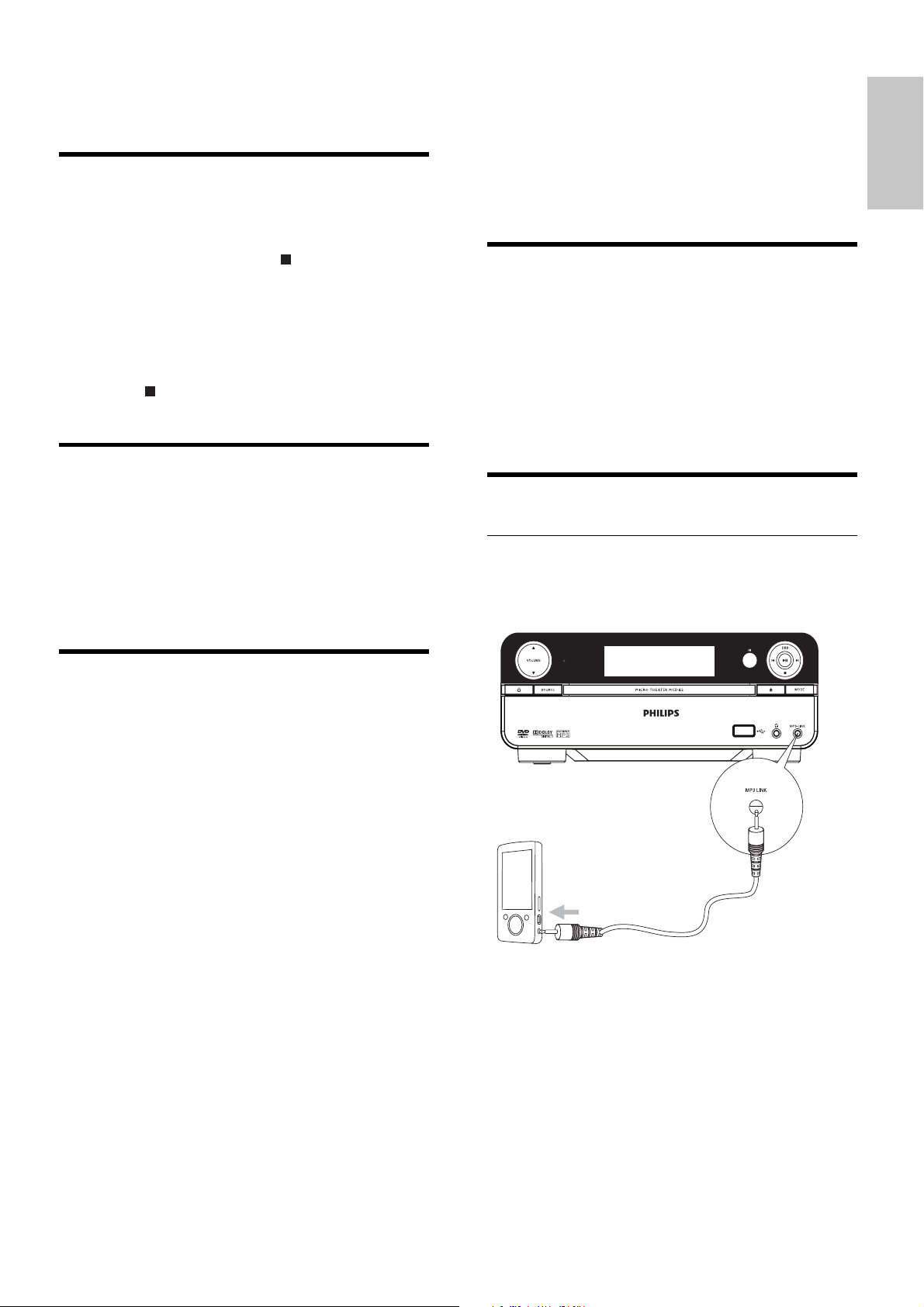
Listen to an audio player
You can listen to audio player through this unit.
1 Connect the audio player.
For audio players with red/white •
audio output sockets:
Connect a red/white audio cable (not
supplied) to the AUX IN L/R sockets
and to the audio output sockets on
the audio player.
9 Other features
Activate demonstration mode
You can see an overview of all features.
1 In standby mode, press on the main unit
to activate the demonstration mode.
A demonstration of major available »
features starts.
To deactivate the demonstration mode:
1 Press on the main unit again.
Adjust brightness of display
panel
1
In standby mode, press MODE/DIM
repeatedly to select different levels of
brightness for the display panel.
Set the alarm timer
1
Ensure that you have set the clock
correctly .
2 In standby mode, press and hold SLEEP/
TIMER.
The hour digits are displayed and begin »
to blink.
3 Press + VOL - to set the hour, then press
SLEEP/TIMER again.
The minute digits are displayed and »
begin to blink.
4 Press + VOL - to set the minute.
5 Press SLEEP/TIMER to confi rm.
» [OFF] (off) begins to blink.
6 To activate the wake-up timer, press + VOL
- to select [ON] (on) while [OFF] (off) is
blinking.
A clock icon appears on the display.»
English
EN
28
For audio players with headphone •
sockets:
Connect the supplied MP3 Link cable
to the MP3 LINK socket and to the
headphone socket on the audio player.
2 Select the MP3 Link/AUX source.
3 Start play on the audio player.
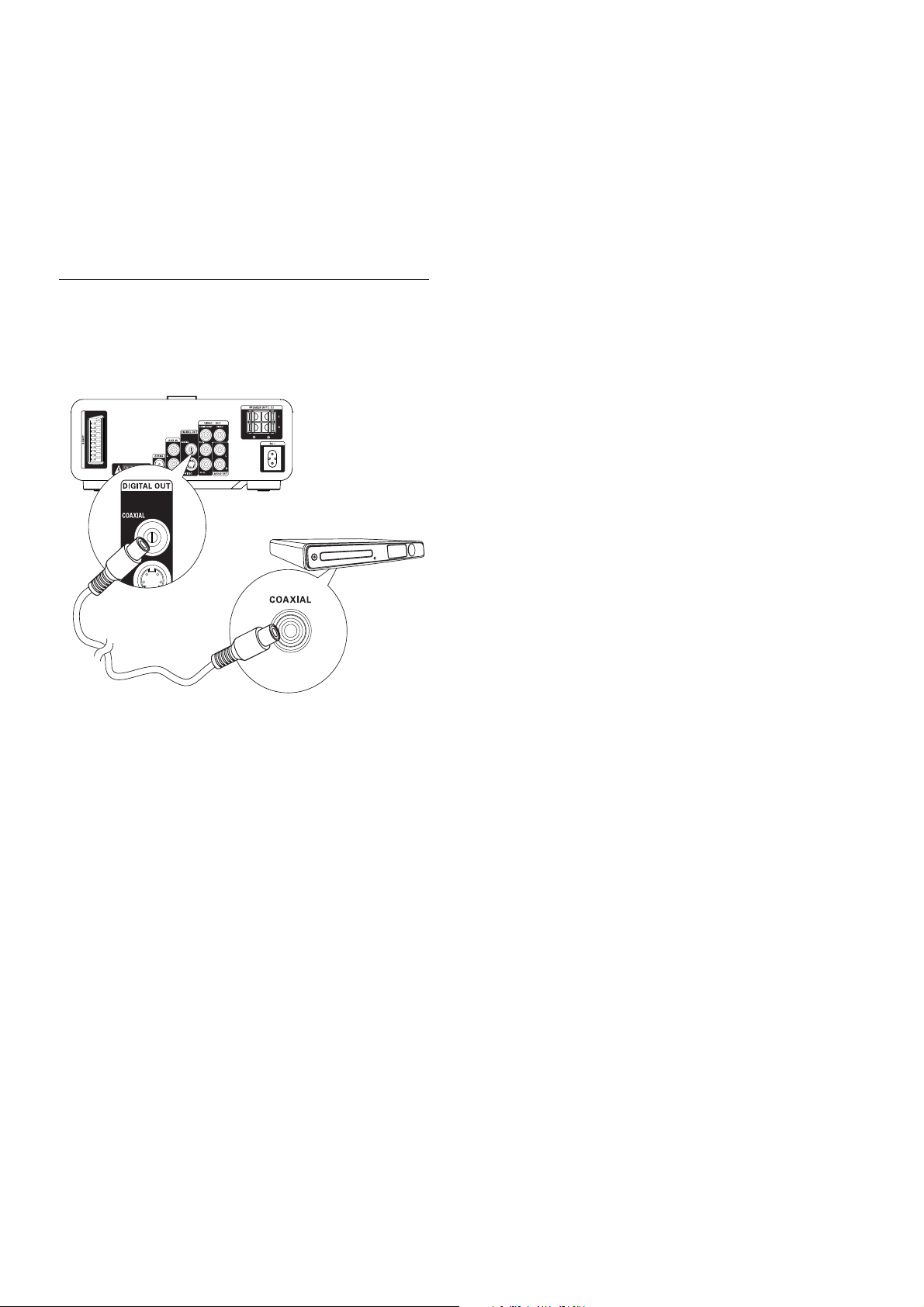
Record to a digital recorder
You can record audio from this unit to a digital
recorder.
1 Connect a coaxial cable (not supplied) to:
the• COAXIAL socket
the digital input socket on the digital •
recorder
2 Play audio to be recorded.
3 Begin to record on the digital recorder
(see the digital recorder user manual).
8
EN
29
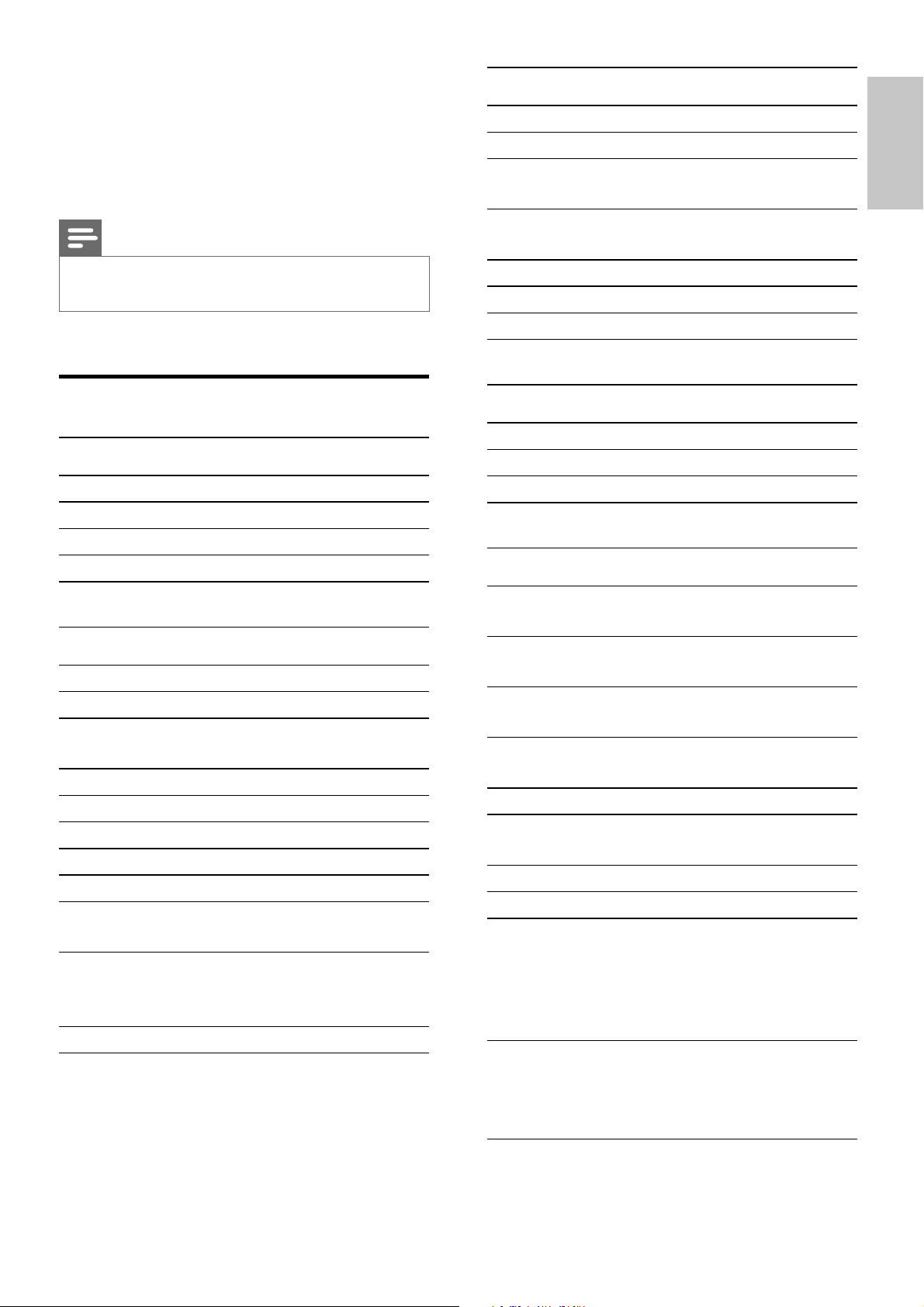
Tuner (FM)
Tuning Range 87.5 - 108MHz
Tuning grid 50KHz
Sensitivity - Mono, 26dB
S/N Ratio
<22 dBf
Sensitivity - Stereo, 46dB
S/N Ratio
>43 dBf
Search Selectivity >28dBf
Total Harmonic Distortion <3%
Signal to Noise Ratio >50dB
Speakers
Speaker Impedance 8ohm
Speaker Driver 4” Full range
Sensitivity >82dB/m/W
General information
AC power 220 - 230 V, 50
Hz
Operation Power
Consumption
25W
Eco Standby Power
Consumption
0.8W
Standby Power
Consumption
<6W
Composite Video Output 1.0Vp-p, 75ohm
Coaxial Output 0.5Vpp ± 0.1Vpp
75ohm
Headphone Output 2X15mW 32ohm
USB Direct Version 2.0
Dimensions
- Main Unit (W x H x D)
- Speaker Box (W x H x
D)
220 x 90 x
240mm
140 x 220 x 160
mm
Weight
- With Packing
- Main Unit
- Speaker Box
6 kg
1.65 kg
2 x 1.5 kg
10 Product
information
Note
Product information is subject to change without prior •
notice.
Specifi cations
Amplifi er
Rated Output Power 2X20W RMS
Frequency Response 20 -20000 Hz, ±3dB
Signal to Noise Ratio >67dB
Aux Input 1 V RMS 20kohm
Disc
Laser Type Semiconductor
Disc Diameter 12cm/8cm
Video Decoding MPEG-1 / MPEG-2 /
DivX
Video DAC 12Bits
Signal System PAL / NTSC
Video Format 4:3 / 16:9
Video S/N >48dB
Audio DAC 24Bits / 96kHz
Total Harmonic
Distortion
<1% (1 kHz)
Frequency
Response
4Hz - 20kHz (44.1kHz)
4Hz - 22kHz (48kHz)
4Hz - 24kHz (96kHz)
S/N Ratio >67dBA
English
EN

30
WMA v9 or earlier•
Directory nesting up to a maximum •
of 8 levels
Number of albums/ folders: maximum •
99
Number of tracks/titles: maximum 999•
ID3 tag v2.0 or later•
File name in Unicode UTF8 •
(maximum length: 128 bytes)
Unsupported formats:
Empty albums: an empty album is an •
album that does not contain MP3/
WMA fi les, and is not be shown in the
display.
Unsupported fi le formats are skipped. •
For example, Word documents (.doc)
or MP3 fi les with extension .dlf are
ignored and not played.
AAC, WAV, PCM audio fi les•
DRM protected WMA fi les (.wav, •
.m4a, .m4p, .mp4, .aac)
WMA fi les in Lossless format•
Supported disc formats
Digital Video Discs (DVDs)•
Video CDs (VCDs)•
Super Video CDs (SVCDs)•
Digital Video Discs + Rewritable •
(DVD+RW)
Compact Discs (CDs)•
Picture (Kodak, JPEG) fi les on CDR(W)•
DivX(R) disc on CD-R(W):•
DivX 3.11, 4.x and 5.x•
WMA•
Supported MP3-CD formats:
ISO 9660•
Max. title/album name: 12 characters•
Max. title number plus album: 255.•
Max. nested directory: 8 levels.•
Max. album number: 32.•
Max. MP3 track number: 999.•
Supported sampling frequencies for MP3 •
disc: 32 kHz, 44.1 kHz, 48 kHz.
Supported Bit-rates of MP3 disc are: 32, 64, •
96, 128, 192, 256 (kbps).
The following formats are not supported:•
Files like *.VMA, *.AAC, *.DLF, *.M3U,•
*.PLS, *.WAV•
Non-English Album/Title name•
Discs recorded in Joliet format•
MP3 Pro and MP3 with ID3 tag•
USB playability information
Compatible USB devices:
USB fl ash memory (USB 2.0 or •
USB1.1)
USB fl ash players (USB 2.0 or USB1.1)•
memory cards (requires an additional •
card reader to work with this
apparatus)
Supported formats:
USB or memory fi le format FAT12, •
FAT16, FAT32 (sector size: 512 bytes)
MP3 bit rate (data rate): 32-320 Kbps •
and variable bit rate
EN

31
RDS program types
NO TYPE No RDS programme
type
NEWS News services
AFFAIRS Politics and current affairs
INFO Special information
programs
SPORT Sports
EDUCATE Education and advanced
training
DRAMA Radio plays and literature
CULTURE Culture, religion and
society
SCIENCE Science
VARIED Entertainment programs
POP M Pop music
ROCK M Rock music
MOR M Light music
LIGHT M Light classical music
CLASSICS Classical music
OTHER M Special music programs
WEATHER Weather
FINANCE Finance
CHILDREN Children’s programs
SOCIAL Social Affairs
RELIGION Religion
PHONE IN Phone In
TRAVEL Travel
LEISURE Leisure
JAZZ Jazz Music
COUNTRY Country Music
NATION M National Music
OLDIES Oldies Music
FOLK M Folk Music
DOCUMENT Documentary
TES Alarm Test
ALARM Alarm
English
EN

32
A distorted picture may appear during •
progressive scan setup.
The aspect ratio of the TV screen cannot be
changed even though you have set the TV
display format.
The aspect ratio if fi xed on the loaded •
DVD disc.
The aspect ratio may not be changed for •
some TV systems.
No sound or poor sound
Adjust the volume.•
Disconnect the headphones.•
Check that the speakers are connected •
correctly.
Check if the stripped speaker wires are •
clamped.
Remote control does not work
Before you press any function button, fi rst •
select the correct source with the remote
control instead of the main unit.
Reduce the distance between the remote •
control and the unit.
Insert the battery with its polarities (+/– •
signs) aligned as indicated.
Replace the battery.•
Aim the remote control directly at the •
sensor on the front of the unit.
Disc does not play
Insert a readable disc and ensure that the •
label side faces up.
Check the disc type, color system and •
regional code. Check for any scratches or
smudges on the disc.
Press• SYSTEM MENU to exit the system
setup menu.
Disable the password for parental control •
or change the rating level.
Moisture has condensed inside the system. •
Remove the disc and leave the system
turned on for about an hour. Disconnect
and reconnect the AC power plug, and
then turn on the system again.
As a power-saving feature, the system •
turns off automatically 15 minutes after
disc play reaches the end and no control is
operated.
11 Troubleshooting
Caution
Never remove the casing of this unit.•
To keep the warranty valid, never try to repair
the system yourself.
If you encounter problems when using this unit,
check the following points before requesting
service. If the problem remains unsolved, go to
the Philips web site (www.Philips.com/support).
When you contact Philips, ensure that your
unit is nearby and the model number and serial
number are available .
No power
Ensure that the AC cord of the apparatus •
is connected properly.
Ensure that there is power at the AC •
outlet.
As a power-saving feature, the system •
switches off automatically 15 minutes after
track play reaches the end and no control
is operated.
No disc detected
Insert a disc.•
Check if the disc is inserted upside down.•
Wait until the moisture condensation at •
the lens has cleared.
Replace or clean the disc.•
Use a fi nalized CD or correct format disc.•
No picture
Check the video connection.•
Turn on the TV to the correct Video-In •
channel.
Progressive scan is activated but the TV •
does not support progressive scan.
Black and white or distorted picture
The disc does not match the TV color •
system standard (PAL/NTSC).
Sometimes a slight picture distortion may •
appear. This is not a malfunction.
Clean the disc.•
EN

33
Poor radio reception
Increase the distance between the unit and •
your TV or VCR.
Fully extend the FM antenna.•
Connect an outdoor FM antenna instead.•
Audio or subtitle languages cannot be set
The disc is not recorded with sound or •
subtitles in multiple languages.
The audio or subtitle language setting is •
prohibited on the disc.
Cannot display some fi les in USB device
The number of folders or fi les in the USB •
device has exceeded a certain limit. This
phenomenon is not a malfunction.
The formats of these fi les are not •
supported.
USB device not supported
The USB device is incompatible with the unit.
Try another one.
Timer does not work
Set the clock correctly.•
Switch on the timer.•
Clock/timer setting erased
Power has been interrupted or the power •
cord has been disconnected.
Reset the clock/timer.•
English
EN

© 2010 Koninklijke Philips Electronics N.V.
All rights reserved.
Document order number: MCD122_12_UM_V3.0