
Guía del Usuario
GH68-42827A Printed in USA
User Guide
User Guide

MOBILE PHONE
User Manual
Please read this manual before operating your device
and keep it for future reference.

i
Legal Notices
Legal Notices
Warning: This product contains chemicals known to
the State of California to cause cancer and reproductive
toxicity.
Intellectual Property
All Intellectual Property, as defined below, owned by
or which is otherwise the property of Samsung or its
respective suppliers relating to the SAMSUNG Phone,
including but not limited to, accessories, parts, or
software relating there to (the “Phone System”), is
proprietary to Samsung and protected under federal
laws, state laws, and international treaty provisions.
Intellectual Property includes, but is not limited to,
inventions (patentable or unpatentable), patents, trade
secrets, copyrights, software, computer programs, and
related documentation and other works of authorship.
You may not infringe or otherwise violate the rights
secured by the Intellectual Property. Moreover,
you agree that you will not (and will not attempt to)
modify, prepare derivative works of, reverse engineer,
decompile, disassemble, or otherwise attempt to
create source code from the software. No title to or
ownership in the Intellectual Property is transferred to
you. All applicable rights of the Intellectual Property
shall remain with SAMSUNG and its suppliers.
Open Source Software
Some software components of this product, including
but not limited to ‘PowerTOP’ and ‘e2fsprogs’,
incorporate source code covered under GNU General
Public License (GPL), GNU Lesser General Public
License (LGPL), OpenSSL License, BSD License and
other open source licenses. To obtain the source code
covered under the open source licenses, please visit:
http://opensource.samsung.com.
VZW_U680N_UM_Eng_NK2_TN_120814_R4

ii
Legal Notices
Disclaimer of Warranties;
Exclusion of Liability
EXCEPT AS SET FORTH IN THE EXPRESS
WARRANTY CONTAINED ON THE WARRANTY
PAGE ENCLOSED WITH THE PRODUCT, THE
PURCHASER TAKES THE PRODUCT “AS IS”, AND
SAMSUNG MAKES NO EXPRESS OR IMPLIED
WARRANTY OF ANY KIND WHATSOEVER WITH
RESPECT TO THE PRODUCT, INCLUDING BUT
NOT LIMITED TO THE MERCHANTABILITY OF THE
PRODUCT OR ITS FITNESS FOR ANY PARTICULAR
PURPOSE OR USE; THE DESIGN, CONDITION OR
QUALITY OF THE PRODUCT; THE PERFORMANCE
OF THE PRODUCT; THE WORKMANSHIP OF THE
PRODUCT OR THE COMPONENTS CONTAINED
THEREIN; OR COMPLIANCE OF THE PRODUCT
WITH THE REQUIREMENTS OF ANY LAW, RULE,
SPECIFICATION OR CONTRACT PERTAINING
THERETO. NOTHING CONTAINED IN THE
INSTRUCTION MANUAL SHALL BE CONSTRUED
TO CREATE AN EXPRESS OR IMPLIED WARRANTY
OF ANY KIND WHATSOEVER WITH RESPECT TO
THE PRODUCT. IN ADDITION, SAMSUNG SHALL
NOT BE LIABLE FOR ANY DAMAGES OF ANY KIND
RESULTING FROM THE PURCHASE OR USE OF THE
PRODUCT OR ARISING FROM THE BREACH OF THE
EXPRESS WARRANTY, INCLUDING INCIDENTAL,
SPECIAL OR CONSEQUENTIAL DAMAGES, OR LOSS
OF ANTICIPATED PROFITS OR BENEFITS.
Modification of Software
SAMSUNG IS NOT LIABLE FOR PERFORMANCE
ISSUES OR INCOMPATIBILITIES CAUSED BY YOUR
EDITING OF REGISTRY SETTINGS, OR YOUR
MODIFICATION OF OPERATING SYSTEM SOFTWARE.
USING CUSTOM OPERATING SYSTEM SOFTWARE
MAY CAUSE YOUR DEVICE AND APPLICATIONS
TO WORK IMPROPERLY. YOUR CARRIER MAY
NOT PERMIT USERS TO DOWNLOAD CERTAIN
SOFTWARE, SUCH AS CUSTOM OS.
IF YOUR CARRIER PROHIBITS THIS, IF YOU
ATTEMPT TO DOWNLOAD SOFTWARE ONTO THE
DEVICE WITHOUT AUTHORIZATION, YOU WILL
BE NOTIFIED ON THE SCREEN THAT THE PHONE
WILL NO LONGER OPERATE AND BE INSTRUCTED
TO POWER DOWN THE DEVICE. YOU MUST THEN
CONTACT YOUR CARRIER TO RESTORE THE DEVICE
TO THE CARRIER AUTHORIZED SETTINGS.

iii
Samsung Telecommunications
America (STA), LLC
Headquarters:
1301 E. Lookout Drive
Richardson, TX 75082
1-800-SAMSUNG (726-7864)
1-888-987-HELP (4357)
Internet Address:
www.samsung.com
©2014 Samsung Telecommunications America,
LLC. Samsung is a registered trademark of
SamsungElectronics Co., Ltd.
Do you have questions about your
Samsung Mobile Phone?
For 24 hour information and assistance, we offer a
new FAQ/ARS System (Automated Response System)
at: www.samsung.com/us/support
The actual available capacity of the internal memory is
less than the specified capacity because the operating
system and default applications occupy part of the
memory. The available capacity may change when you
upgrade the device.
Nuance
®
, VSuite
™
, T9
®
Text Input, and the Nuance logo
are trademarks or registered trademarks of Nuance
Communications, Inc., or its affiliates in the United
States and/or other countries.
ACCESS
®
and NetFront
™
are trademarks or registered
trademarks of ACCESS Co., Ltd. in Japan and other
countries.
Legal Notices

iv
The Bluetooth
®
word mark, figure mark (stylized “B
Design”), and combination mark (Bluetooth word mark
and “B Design”) are registered trademarks and are
wholly owned by the Bluetooth SIG.
microSD
™
and the microSD logo are Trademarks of the
SD Card Association.
Openwave
®
is a registered Trademark of
Openwave,Inc.
Online Legal Information
The online version of the Health/Safety and Warranty
guide for your device can be found at:
English
www.samsung.com/us/Legal/Phone-HSGuide
Spanish
www.samsung.com/us/Legal/Phone-HSGuide-SP
The online version of the End User Licensing
Agreement for your device can be found online at:
www.samsung.com/us/Legal/SamsungLegal-EULA3.
Legal Notices

v
Table of Contents
Table of Contents
Getting Started............................................................1
Front View........................................................................2
Side View.........................................................................4
Open View.......................................................................6
Assemble Your Device..................................................8
Set Up Your Device .....................................................12
Know Your Device...................................................15
Front View......................................................................16
Status Bar......................................................................18
Navigation......................................................................19
Entering Text .................................................................27
Calling and Push to Talk (PTT) ......................34
Making and Answering Calls.....................................35
Push to Talk (PTT) .......................................................42
Main Menu ...................................................................45
Contacts.........................................................................46
Messaging.....................................................................66
Recent Calls..................................................................81
Mobile Web ...................................................................83
Media Center ................................................................84
Tools ...............................................................................94
Apps ............................................................................ 106
VZ Navigator .............................................................. 107
Settings....................................................................... 108

Getting Started
Learn about your mobile
device hardware, assembly
procedures, and how to get
started using your new device.
2
Front View
Getting Started
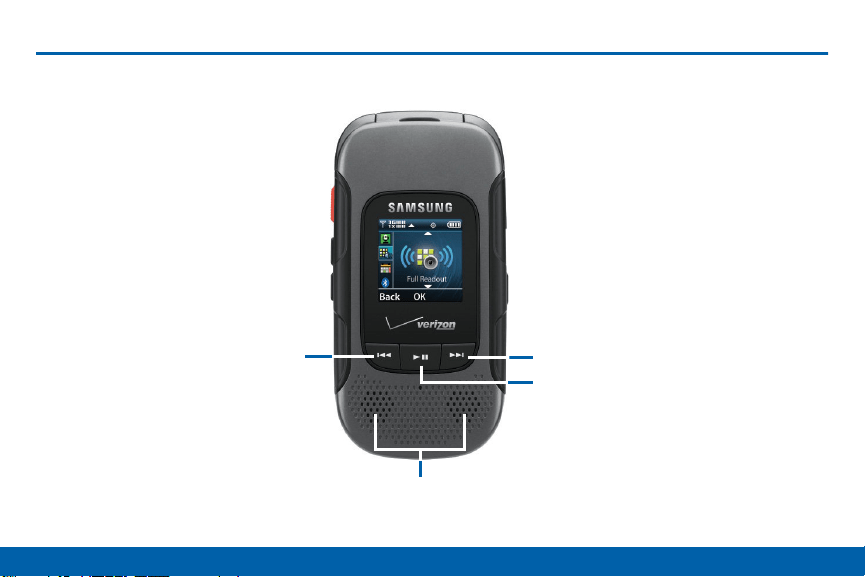
Front View
Rewind
Fast Forward
Play/Pause
Speakers

3
Front View
Getting Started
Here are some key features on the
front of your device.
•
Rewind: During music playback, press and hold to
rewind music. Press to go to the previous song.
•
Play/Pause: During music playback, press to play/
pause music. When the phone is closed, press to
access an external menu of applications.
•
Fast Forward: When the phone is closed, press to
Lock or Unlock external keys (press Fast Forward
Key, then press and hold the Rewind Key to unlock
external keys). During music playback, press and
hold to fast forward music. Press to go to the next
song.
•
Speakers: Plays Music, Ringtones and Sounds.

4
Side View
Getting Started
Side View
Headset Jack
Shortcut/
PTT Key
Volume
Speakerphone
microSD
Charging/
Card Slot
USB Port

5
Side View
Getting Started
Here are some key features on the
sides of your device.
•
Charging/USB Port: The charging port is used to
plug in the charging accessories and also connect
any available accessory cables to your phone.
• Shortcut Key/PTT (Push To Talk) Key: Press and
hold to launch a shortcut menu. When PTT Mode is
turned on, press to initiate PTT.
• Volume: Press to adjust master volume, or voice
volume during a call. Press to mute an incoming
call ringtone. Press and hold down to activate
Sound Off mode, or press and hold up to return to
the Master Volume level. When using the external
menu, press to navigate lists. With the phone
closed, press down four times to initiate the Fake
Call feature.
• microSD Card Slot: Insert an optional microSD™
or microSDHC™ memory card (not included) for
additional storage capacity.
• Headset Jack: Plug in an optional 3.5 mm headset
(not included) for safe, convenient conversations.
• Speakerphone: When the phone is closed, press
and hold to turn Driving Mode on or off. When the
phone is open, press to turn Speakerphone on
or off.
6
Open View
Getting Started
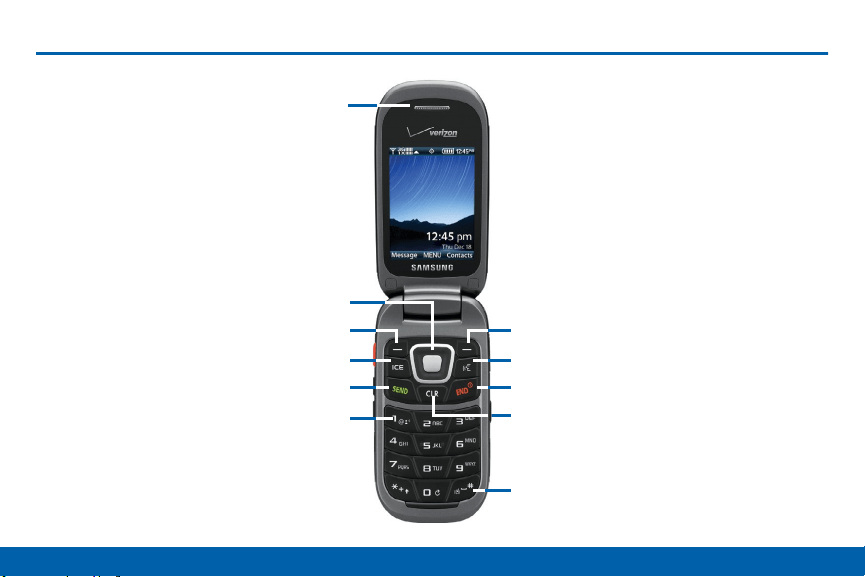
Open View
Earpiece
Directional and
Center Select Keys
Left Soft Key Right Soft Key
ICE Key Voice Commands
Send End/Power
Clear
Voicemail
Vibration Mode

7
Open View
Getting Started
Here are some key features found on
the opened phone.
•
Center Select Key: Press to select the highlighted
item.
•
Clear: Press to delete a character, or go back.
Press and hold to delete the previous word. When
navigating menus and pages, press to go back to
the previous screen.
•
Directional Keys: Press to scroll phone menus.
•
Earpiece: Hear call sounds, including the caller.
•
End/Power: Press to end a call. Press and hold
to turn the phone On or Off. Press to send an
incoming call to voicemail.
•
ICE Key: Quickly access emergency contacts by
pressing this key. ICE is an acronym for “In Case of
Emergency”.
•
Left Soft Key: Press to select the lower left menu
item on the display.
•
Right Soft Key: Press to select the lower right
menu item on the display.
• Send: Press to dial a call. From the Home screen,
press to view Recent Calls.
• Vibration mode: With the flip open, press and hold
to switch between Vibrate Mode and Master
Volume level.
• Voice Commands: With the flip open, press to
launch Voice Commands.
• Voicemail: Press and hold to dial voicemail.
Getting Started
Assemble Your Device
Prior to use, install the battery. You
can also install an optional memory
card (not included).
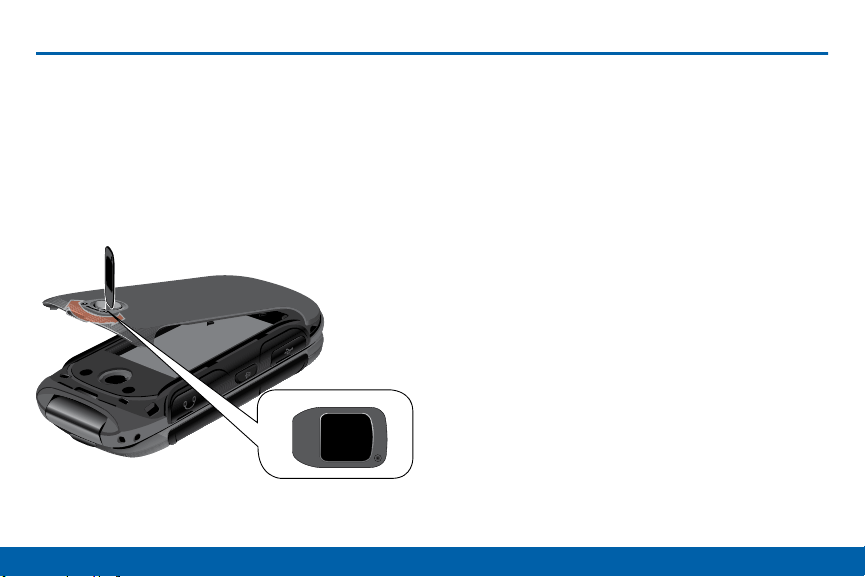
Remove the Back Cover
Included
1. Use an object, such as a coin, and insert it in the
slot on the back cover lock. Turn the lock counter-
clockwise to open the battery cover. Lift the cover
up and away from the phone.
2. Use the groove at the top left corner of the cover
to lift the cover up and away from the back of the
phone.
Warning: Do not bend or twist the back cover
excessively. Doing so may damage the cover.
8
Assemble Your Device

Getting Started
Replace the Back Cover
Included
1. Insert the battery into the opening on the back of
the phone, making sure the connectors align.
Install the Battery
2. Gently press down to secure the battery.
1. Place the cover back on the bottom of the handset
then press down firmly.
2. Press down along the edges to make sure the
cover is flush with the phone and that there is a
tight seal.
3. Turn the slot on the back cover lock clockwise until
the cover locks.
9
Assemble Your Device
Getting Started
Note: When placing the cover back on the phone, press
down firmly along the edges to ensure that the cover
is flush with the phone. This ensures that the battery
compartment is pressurized.
Charge the Battery
Your device is powered by a rechargeable, standard
Li-Ion battery. A Wall/USB Charger (charging head
and USB cable) is included with the device for
charging the battery from any standard outlet.
The battery comes partially charged. A fully
discharged battery requires up to four hours of charge
time. You can use the device while charging.
Caution: Use only Samsung-approved charging devices
and batteries. Samsung accessories are designed to
maximize battery life. Using other accessories may
invalidate your warranty and may cause damage.
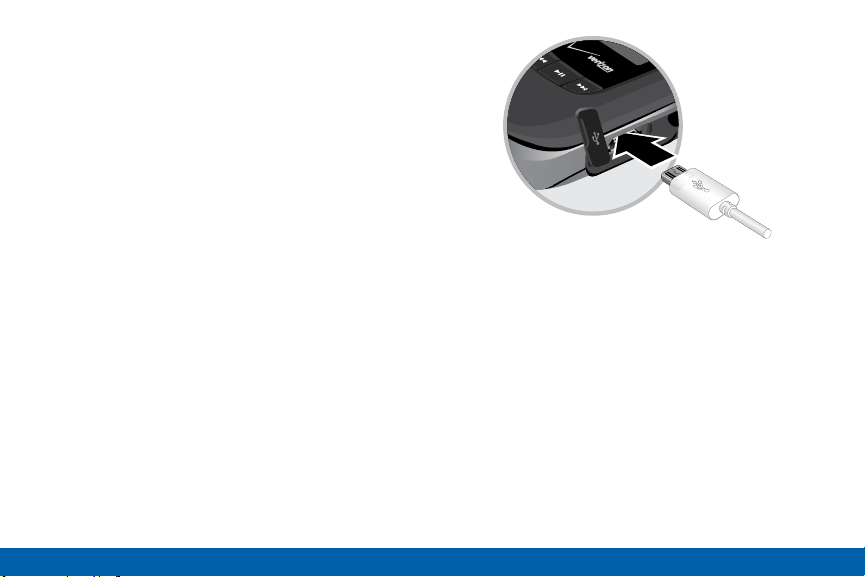
1. Open the side slot and plug the connector of the
travel adapter jack into the jack on the side of the
phone.
2. Insert the USB cable into the port.
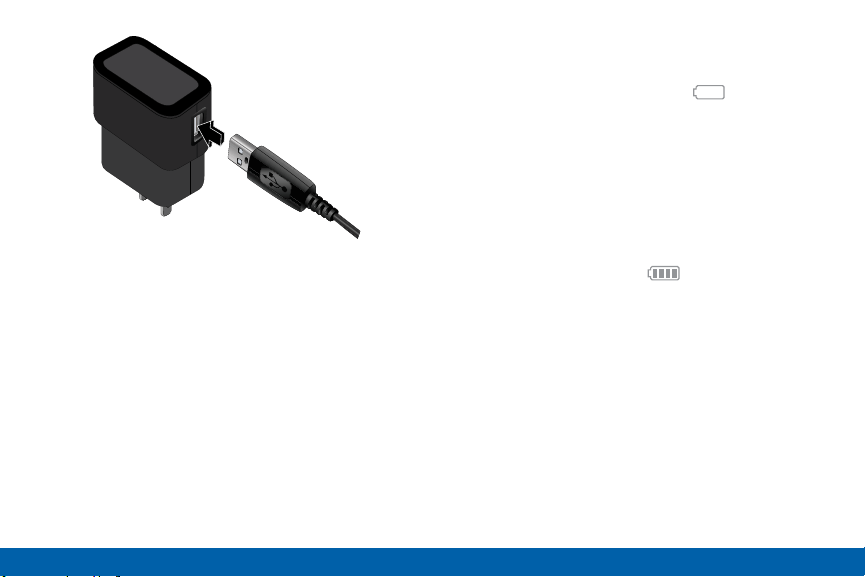
3. Connect the USB cable to the charging head, and
then plug the charging head into a standard outlet.
10
Assemble Your Device
( )
)
Getting Started
Charging Head
USB Cable
4. When charging is complete, unplug the charging
head from the outlet and remove the USB cable
from the device.
Caution: Failure to unplug the wall charger before you
remove the battery can cause damage to the device.
When to Charge the Battery
When the battery is weak and only a few minutes of
operation remain, the battery icon blinks and
the device sounds a warning tone at regular intervals.
In this condition, your device conserves its remaining
battery power by dimming the screen.
When the battery level becomes too low, the device
automatically turns off.
► For a quick check of your battery level, view the
battery charge indicator located in the StatusBar
of the display. Four bars (
indicates a full
charge.
11
Assemble Your Device
12
Set Up Your Device
Getting Started
Set Up Your Device
Turning the Phone On or Off
1. Open the phone.
2. Press and hold the Power key until the phone
power-on screen displays.
Note: Do not turn on the phone when mobile phone use
is prohibited.
3. If the phone requests a password, enter it and
press
OK or the Center key. For more
information, see Security.
The Home screen displays while the phone
searches for your network. After the phone finds
your network and displays adequate signal strength
bars, you can make or receive calls.
Note: The display language is preset to Automatic at
the factory. To change the language, use the Language
menu. For more information, see Language.
4. When you want to switch off the phone, press and
hold the
Power key until the power-off image
displays.
Initial Setup
The first time you turn on your phone, Set-up Wizard
will prompt you to configure basic preferences, to
quickly get started using your phone.
You can also access Set-up Wizard at any time in
Settings.
From the Home screen, press
MENU > Settings >
Set-up Wizard.
Use the
Left Soft key (Preview), Right Soft
key (Skip), and Center Select key (NEXT) or (SET)
to follow the prompts and set preferences:
•
Font Style: Choose a font style for the dial,
menus, and messaging.
•
Font Size: Choose a font size for the dial,
menus, and messaging.
•
Volume Key Control: When enabled, you can
adjust the display’s font size by pressing the
Volume Key.

13
Set Up Your Device
Getting Started
•
Front Screen Menu: View information about the
menu available on the Front Screen when the
phone is closed.
•
Call Sounds: Choose how your phone alerts you
to incoming calls.
•
Display Themes: Choose the look of your
phone’s screen.
•
Menu Layout: Choose the look of the
Mainmenu.
•
Main Clock: Select a format for the clock on the
Home screen.
•
Front Clock: Select a format for the clock on the
external display when the phone is closed.
Setting Up Your Voicemail
Note: If your service provider did not preconfigure your
voicemail server number, store the voicemail server
number before accessing the server. Your service
provider can give you the number.
Setting Up Your Personal Options
To set up your personal options:
1. Open the phone to access the keypad.
2. From a Home screen, press and hold the
One
key.
3. Follow the voicemail prompts. If you need additional
help setting up your voicemail, contact your service
provider.
14
Set Up Your Device
Getting Started
Install an Optional
MemoryCard
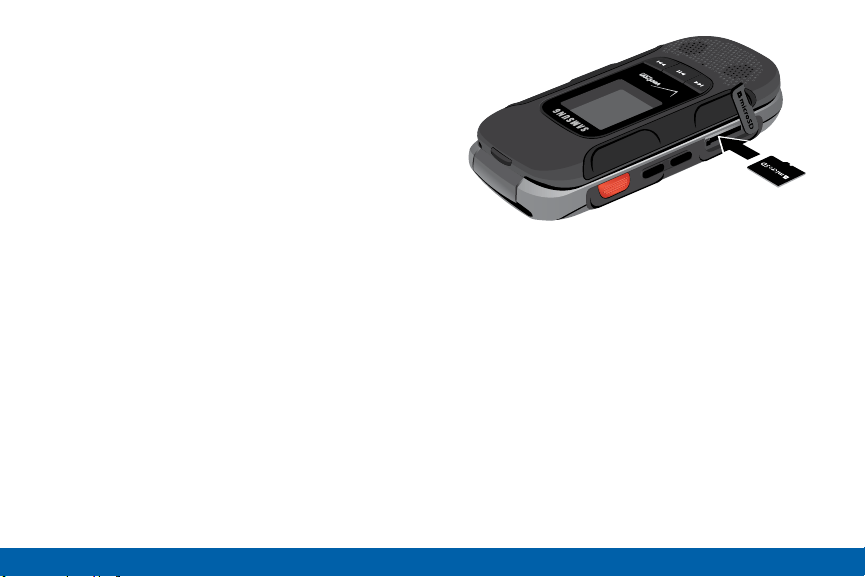
You can install an optional microSD or microSDHC
memory card (not included) to expand available
memory space.
Note: A memory card can be installed at any time; it is
not necessary to install it prior to using the device.
To add additional memory to your phone, you can
insert a microSD card into the memory card slot on
the side of the phone.
Use the following instructions and illustrations to
properly install a microSD card.
Note: Your phone supports microSD cards to a
maximum size of 32GB.
1. Lift the memory card cover out and turn it to
expose the card slot.
2. With the gold contacts facing down, carefully push
the memory card into the slot until it “clicks” into
place.
3. Replace the memory card cover.
To remove a microSD card:
1. Lift the memory card cover out and turn it to
expose the card slot.
2. Push the memory card inward to release and
carefully slide the card out of the memory card slot.
3. Replace the memory card cover.

Know Your Device
Learn some of the key
features of your mobile
device, including the screens
and icons, as well as how to
navigate the device and enter
text using the keyboard.
16
Front View
Know Your Device
Front View
Status Bar
Home Screen
Event Status
(appears when there
is a notification)
Message MENU Contacts
Shortcut Shortcut Shortcuts

17
Front View
Know Your Device
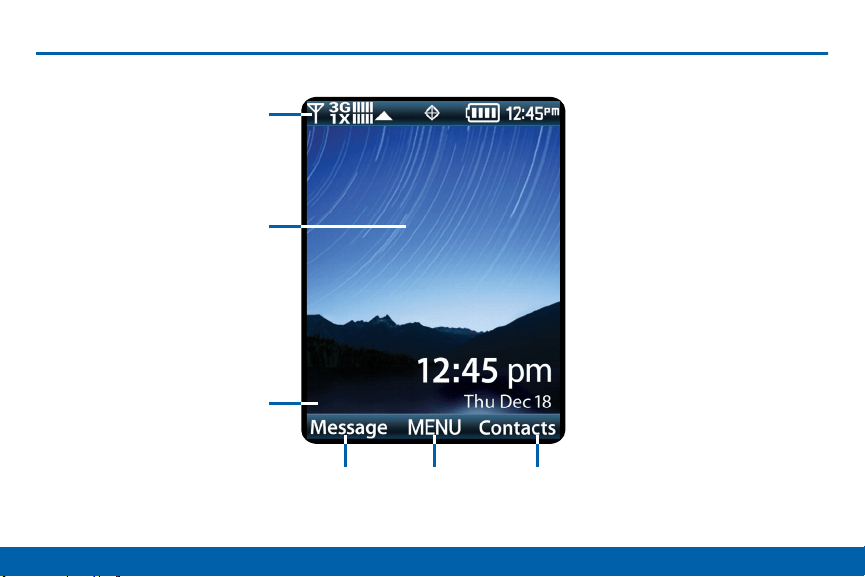
The Home screen is the starting
point for using your device. Here are
some features of the Homescreen.
•
Contacts Shortcut: Opens the Contacts
application.
•
Event Status: Displays icons to indicate active
alerts, reminders, and alarms.
•
Home Screen: Displays Wallpaper, Banners,
andClock.
•
MENU Shortcut: Opens the Menu screen.
•
Message Shortcut: Opens the Messaging or
Messages application. Status Bar: Displays
icons to show network status, battery power, and
connection details.
Change Display Appearance
You can change and customize several features of the
Main and Cover display. See Display Settings for more
details.

18
Status Bar
Know Your Device
Status Bar
The Status Bar at the top of the Main
display provides device information
(such as network status, battery
charge, and time) and message
notifications.
Icon Glossary
The Icon Glossary is a list of all icons used on your
phone.
► From the Home screen, press
MENU >
Settings > Phone Info > Icon Glossary.

19
Navigation
Know Your Device
Navigation
Command Keys
There are several command keys that you can use
to navigate your phone. These keys are referenced
throughout this user manual.
Soft Keys
There are two soft keys: the Left Soft key and
the Right Soft key. The roles of the soft keys vary
depending on the function you are currently using.
The labels on the bottom line of the display, just above
each soft key, indicate the current function of the
corresponding key.
Left Soft key
Some functions of the Left soft key are:
•
On a Home screen, press the left soft key to open
the Menu.
•
When in a menu, the left soft key function is
Options.
Right Soft Key
Some functions of the Right soft key are:
•
In a Home screen, press the right soft key to open
the Contacts or Shortcuts.
•
When in a menu mode, the right soft key function
is Back.
20
Navigation
Know Your Device
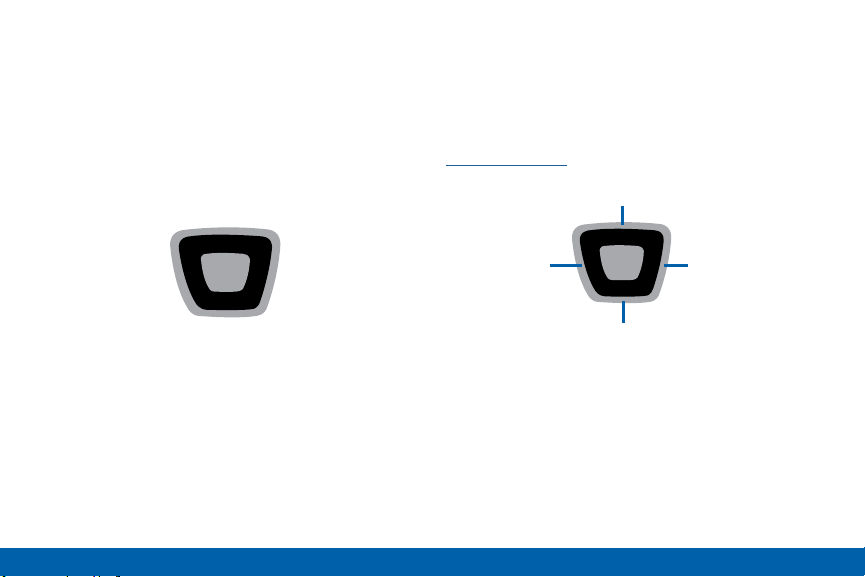
Directional Key
Press the Directional Key UP, DOWN, LEFT or RIGHT
to browse menus and lists, or to launch applications
from the Home screen with Directional Key Shortcuts.
While navigating, you can also press the number key
corresponding to an menu item to launch the item.
UP
LEFT RIGHT
DOWN
Directional Key Shortcuts
From the Home screen, press the Directional Key to
launch favorite applications.
Customize Directional Key Shortcuts with Set
Shortcuts under Phone Settings. For details, see
Set My Shortcuts.
My Pictures
My Verizon
My Shortcuts
1. Alarm Clock
2. Phone Search
3. Bluetooth On/Off
New Text
4. Calendar
Message

21
Navigation
Know Your Device
Center Select Key
Press the Center Select key to select a highlighted
item or perform the highlighted action.
For example, from the Home screen, press MENU to
launch the Menu.
Clear Key
The Clear key can be used for the following
functions:
•
If you enter an incorrect character, briefly press it to
backspace and delete the character.
•
Press and hold it to erase an entire sentence.
•
Briefly press it to back up one menu level.
End/Power Key
The End/Power key can be used for the following
functions:
•
Press and hold it to turn your phone on or off.
•
Press it once to disconnect a call.
•
Press it to return to the Home screen from
anymenu.
•
Press it to cancel the last input.
•
Press it to send an incoming call directly to
Voicemail.

22
Navigation
Know Your Device
Send Key
Use the Send key to for the following functions:
•
Press it once to answer calls.
•
Enter a number and briefly press it to make a call.
•
Briefly press it in the Home screen to display a list
of recent calls to and from your phone.
•
Press it twice in standby mode to call the most
recent number.
•
Press it to pick up a waiting call.
•
Press and hold it to turn on your phone when the
phone is off.
Voice Commands Key
Press the Voice Commands key to launch Voice
Commands.
Voicemail Key
Press and hold the Voicemail key to call Voicemail.
Navigation Keypad
Use the directional keys on the Navigation keypad to
browse menus, sub-menus, and lists. Press the Up or
Down Navigation keys when browsing the web to jump
highlighted links on the web page.
Tip: The
Center Navigation key can often be used
instead of the Select soft key.

23
Navigation
Know Your Device
Using the Front Keys as
SoftKeys
When the phone is closed, use the front keys as soft
keys to navigate a special menu.
With the phone closed, press the
Play/Pause key
to launch the special MENU. Press the Volume keys to
navigate the menu:
•
Message: View messages and reply using Quick
Text.
•
My Music: Play music.
•
Voice Commands: Open Voice Commands.
•
Full Readout: Numbers, menus, alerts, and
messages will be read aloud.
•
Today’s Schedule: List events scheduled
fortoday.
•
Bluetooth: Turns Bluetooth on or off.
In this menu, the
Play key functions as the
Center Select Key , and the Rewind key
functions as the BACK key, and may be used to return
to the previous menu.
Locking and Unlocking the Front Keys
The front keys can be locked or disabled, preventing
them from being pressed accidentally.
To lock (disable) the front keys, press the
FastForward key.
To unlock (enable) the front keys, press the
FastForward key, then press and hold the
Rewind key

24
Navigation
Know Your Device
Menu Navigation
Menus and sub-menus can be accessed by scrolling
through them using the Navigation keys or by using
the shortcut keys.
1. Accessing a menu by scrolling.
1. From a Home screen, press
Menu.
2. Scroll using the Right and Left Navigation keys to
reach a main menu item, such as Settings. Press
the Select key (OK) to enter the menu.
3. If the menu contains sub-menus, you can access
them by first highlighting the option and then by
pressing Select.
4. If the menu you selected contains further options,
repeat this step.
5. To scroll through these menus, press either the Up
or Down Navigation key or the Volume key (located
on the left side of your phone). Press Select to
make your selection.
6. To return to the previous menu level, press
Clear.
7. To exit the menu without changing the settings,
press End.
Using Shortcut Numbers
Numbered menu items, such as menus, sub-menus,
and options can be quickly accessed by using their
shortcut numbers. In Menu mode, Main Menus can
be accessed by pressing the number keys (1 to 9)
corresponding to their location on the screen.

25
Navigation
Know Your Device
•
Display Settings: Access the display
Shortcuts
settingsmenu.
Your phone offers shortcuts from Idle mode that can
be customized for your ease and specific needs. The
shortcuts menu is accessed by pressing the
Right
Soft key when on a Home screen. Up to four shortcuts
can be configured.
•
Driving Mode: Access the Driving Mode page.
•
Fake Call: Access the Fake Call settings page.
•
Media Center: Access the Media Center menu.
•
Messaging Inbox: View and write messages.
To see the shortcuts that can be added, from Idle
mode, press MENU > Settings > Phone Settings
> Set
Shortcuts > Set My Shortcuts > EDIT . The
following shortcuts are available:
•
Mobile Web: Open the Internet browser.
•
Music & Tones: Access the Music & Tones menu.
•
My Music: View music stored on your phone.
•
Alarm Clock: Set and edit alarms.
•
My Pictures: View pictures stored on your phone.
•
Advanced Voice Command: Access the voice
commands menu.
•
My Ringtones: View ringtones.
•
My Sounds: View sounds stored on your phone.
•
APPS: Access the APPS menu.
•
My Verizon: Access your Verizon account.
•
Backup Assistant: Access the Backup Assistant
menu.
•
My Videos: View videos stored on your phone.
•
Bluetooth Menu: Access the Bluetooth menu.
•
New Contact: Add a new contact.
•
Bluetooth On/Off: Enable or disable Bluetooth.
•
New Message: Compose a new message.
•
Calculator: Access the Calculator.
•
Notepad: Access the Notepad.
•
Calendar: Access the Calendar app.
•
Phone Search: Search your phone for files.
•
Call Settings: Access the call settings menu.
•
Phone Settings: Access the Phone Settings menu.

26
Navigation
Know Your Device
•
Picture & Video: Access the Picture & Video menu.
•
Play All Songs: Start playing all songs.
•
Settings: Access the Settings menu.
•
Social Networks: Access social network apps.
•
Sounds Settings: Access the Sounds Settings
menu.
•
Stopwatch: Access the Stopwatch.
•
Tip Calculator: Access the Tip Calculator.
•
Tools: Access the Tools menu.
•
USB Mass Storage: Set the USB connection to
Mass Storage.
•
VZ Navigator: Access the VZ Navigator app.
•
World Clock: Access the World Clock.
Selecting Options
To view the various functions and options available
and to select the one you want:
► Press the appropriate soft key.
To select the function displayed or the option
highlighted:
► Press
Select.
To view the next function or highlight the next option
on a list:
► Press the Down Navigation key.
To move back to the previous function or option on a
list:
► Press the Up Navigation key.
To move back up one level in the menu structure:
► Press
Clear.
To exit the menu structure without changing the
settings:
► Press
End.

27
Entering Text
Know Your Device
Entering Text
Learn how to select the desired
text input method when entering
text and characters. This section
also describes how to use the T9
predictive text system to reduce the
key strokes required to enter text.
Your phone offers multiple ways to enter text:
•
Abc/ABC/abc: Standard text entry for phones
•
123: Numbers
•
XT9 Word: English predictive text
•
Symbols: Common text symbols
•
Domain Extensions: Web domain extensions for
email addresses or URLs.
•
XT9 Palabra: Spanish predictive text.
•
拼音: Chinese text entry for phones.
•
가: Korean text entry for phones.
•
Tiěng viět: Vietnamese text entry for phones.
•
XT9 Tiěng viět: Vietnamese predictive text.
•
Smileys: Common emoticons to express emotion.
•
Quick Text: Pre-entered phrases (text fields only).
Note: Available text entry modes depend on the type of
text field.
Changing the Text Entry Mode
You can change the entry mode to your preference.
1. While entering text, press the
Left Soft key to
display a list of entry modes.
2. Highlight an entry mode, then press OK.

28
Entering Text
Know Your Device
Entering Text Using XT9 Word
XT9 Word is a predictive text entry mode that
recognizes common English words matching the
sequence of your key presses and inserts the most
common word into your text. XT9 Word requires only
one key press per letter of the word, and is much
faster than traditional text entry.
To switch to XT9 Word mode:
► Press the
Left Soft key, then press XT9 Word.
While entering text:
•
Press the key for each letter only once.
•
Enter the entire word before editing or deleting
characters. Press the Clear key to backspace
and clear one character, or press and hold to clear
an entire word.
•
If XT9 Word inserts the wrong word, press Zero
to toggle between other matching words.
•
Press to switch between Type (initial case), type
(lower case) and TYPE (upper case).
•
To enter a space, press .
•
Press once to enter a period.
•
Press and hold any key to enter the number on
thekey.
Entering Text Using
XT9Palabra
XT9 Palabra is a predictive text entry mode for
Spanish that recognizes common words matching the
sequence of your key presses and inserts the most
common word into your text. XT9 Palabra requires
only one key press per letter of the word, and is much
faster than traditional text entry.
► To switch to XT9 Palabra mode, press the
Left
Soft key, then press XT9 Palabra.
While entering text:
•
Press the key for each letter only once.
•
Enter the entire word before editing or deleting
characters. Press the Clear key to backspace
and clear one character, or press and hold to clear
an entire word.

29
Entering Text
Know Your Device
•
If XT9 Palabra inserts the wrong word, press to
toggle between other matching words.
•
Press to switch between Type (initial case),
type (lower case) and TYPE (upper case).
•
To enter a space, press .
•
Press once to enter a period.
•
Press and hold any key to enter the number on
thekey.
Entering Text Using Abc Mode
Abc Mode is standard text entry mode for mobile
telephones.
► To switch to Abc mode, press the
Left Soft
key, then press Abc.
While entering text:
•
Press the appropriate key once for the first letter on
the key, twice for the second letter, three times for
the third letter, and four times for the fourth letter.
•
When the correct letter displays, pause briefly to
advance to the next letter, or press another key.
•
Press the Clear key to backspace and clear
one character, or press and hold to clear an entire
word.
•
Press to switch between Abc (initial case),
abc(lower case) and ABC (upper case).
•
To enter a space, press .
•
Press once to enter a period, twice for an “at”
symbol (@),three times for a question mark (?), four
times for an exclamation mark (!), five times for a
hyphen (-), six times for a comma, seven times for
an ampersand (&), eight times for a colon (:), nine
times for an apostrophe (’), and ten times for a
slash (/).
•
Press and hold any key to enter the number on
thekey.

30
Entering Text
Know Your Device
Entering Numbers
Use 123 mode to enter numbers into a text field.
► To switch to 123 mode, press the Left Soft
key, then press 123.
While entering numbers:
•
Press the appropriate key for each number.
•
Press the Clear key to backspace to clear one
number. Press and hold to clear multiple numbers
in a string.
Entering Symbols
Use Symbols mode to enter common symbols into a
text field.
► To switch to Symbols mode, press the
Left
Soft key, then press Symbols.
To enter symbols:
•
Use the Directional key to highlight a symbol,
then press the Center Select key to insert it.
•
There are three pages of symbols. Press the
Left Soft key (Prev) to move to the previous
page, or the Right Soft key (Next) to move to
the next page of symbols.
Tip: You can also press the key for the number
corresponding to a symbol.

31
Entering Text
Know Your Device
Entering Smileys
Use Smileys mode to enter common symbols into a
text field.
To switch to Smileys mode:
► Press the
Left Soft key, then press Smileys.
► Use the Directional key to highlight a smiley,
then press the Center Select key (OK) to
insertit.
To enter smileys:
Tip: You can also press the key for the number
corresponding to a smiley.
Entering Quick Text
Use Quick Text mode to insert preloaded messages
into a text message or to create and insert your own
Quick Text phrases.
To switch to Quick Text mode:
► Press the
Left Soft key, then select
QuickText.
While in Quick Text mode:
► Use the
Directional key to highlight a phrase,
then press the Center Select key (OK) to
insertt.
To erase a Quick Text phrase:
► Use the
Directional key to highlight a phrase,
then press the Left Soft key (Erase).
For additional options:
► Press the
Right Soft key (Options). The
following options display:
•
New: Create a new phrase.
•
Edit: Modify the highlighted phrase.
•
Move: Change the order of the phrases.
Tip: You can also press the key for the number
corresponding to a Quick Text phrase.

32
Entering Text
Know Your Device
Entering Domain Extensions
Use Domain Extensions to insert common Internet
symbols or phrases, such as @ or .com.
Note: Domain Extensions mode is only available in
fields where you enter addresses, such as in Contacts,
or when creating a recipient list in a message.
To switch to Domain Extensions mode:
► Press the
Left Soft key, then press Domain
Extensions.
While in Domain Extensions mode:
► Use the
Directional key to highlight a phrase,
then press the Center Select key (OK) to
insertit.
To erase a Domain Extension:
► Use the
Directional key to highlight a phrase,
then press the Left Soft key (Erase).
To create a new Domain Extension:
► Press the
Right Soft key (New).
Tip: You can also press the key for the number
corresponding to a Domain Extension.

33
Entering Text
Know Your Device
Keys
The following chart lists the keys and the characters
associated with each key. English and Spanish letters
are shown:
. @ ¿ ? ¡ ! - , & : ’ / 1
A a B b C c Á á Ã ã Ç ç 2
D d E e F f É é 3
G g H h I i Í í 4
J j K k L l 5
M m N n O o Ó ó Ñ ñ Õ õ 6
P p Q q R r S s 7
✶, +
0
(space), #
T t U u V v Ú ú Ü ü 8
W w X x Y y Z z 9

Calling and Push to Talk (PTT)
Make telephone calls using a
variety of calling features and
services.

35
Making and Answering Calls
Calling
Making and Answering Calls
Learn how to make or answer a call.
Explore features and functionality
associated with making or answering
a call.
Making a Call
1. Open the phone.
2. Using the keypad, enter the phone number, then
press the Send key.
Note: To make a call using a speed dial, enter the
speed dial digits, holding down the last digit until the
phone dials the stored telephone number.
Making an International Call
1. Press and hold the Star key. The plus (+)
character displays.
2. Enter the local country exit code, the destination
country code, area code, and phone number
3. Press Send.

36
Making and Answering Calls
Calling
Answering Calls
You can answer a call, or send the caller to voicemail.
•
If the phone is closed, open the flip to answer the
call automatically.
•
If the phone is open, press the Send key.
Note: These are default answer options. You can choose
other options for answering calls.
Sending a Call to Voicemail
To send a call to voicemail:
•
Press the Right Soft key (Ignore) to send the
call to voicemail.
•
To send the call to voicemail and send a reply
message to the caller, press the Center Select
key (TXT), then select a message.
Note: To silence the ringtone for an incoming call, press
the Left Soft key (Quiet).
Answering Call-Waiting Calls
When you receive a call while on a call:
•
Press the Send key to answer the new call. The
original call is placed on hold.
•
Press the Send key again to return to your
original call.

37
Making and Answering Calls
Calling
Call In-Progress Options
While on a call, you can answer an incoming call, or
access other features.
•
While in a call, press the Left Soft key (Mute)
to mute the microphone so the other party cannot
hear your voice.
•
While in a call, press the Right Soft key
(Options) for these options:
•
Messaging: Launch Messaging, to create a new
message or view messages.
•
Contact List: Open the Contact list.
•
Recent Calls: Display recent received, missed
and dialed calls.
•
Bluetooth Menu: Display the Bluetooth menu.
•
Main Menu: Display the Main menu.
•
Notepad: Open the Notepad.
•
Voice Privacy: Improve the security of a
voicecall.
•
Whisper Mode: Increase the microphone to
maximum volume level, to make your voice
easier to hear for the other party.
•
Noise Cancellation: Reduce external noise on
the call.
Ending a Call
When you want to end your call, press End or
close the phone.
38
Making and Answering Calls
Calling
Recent Calls
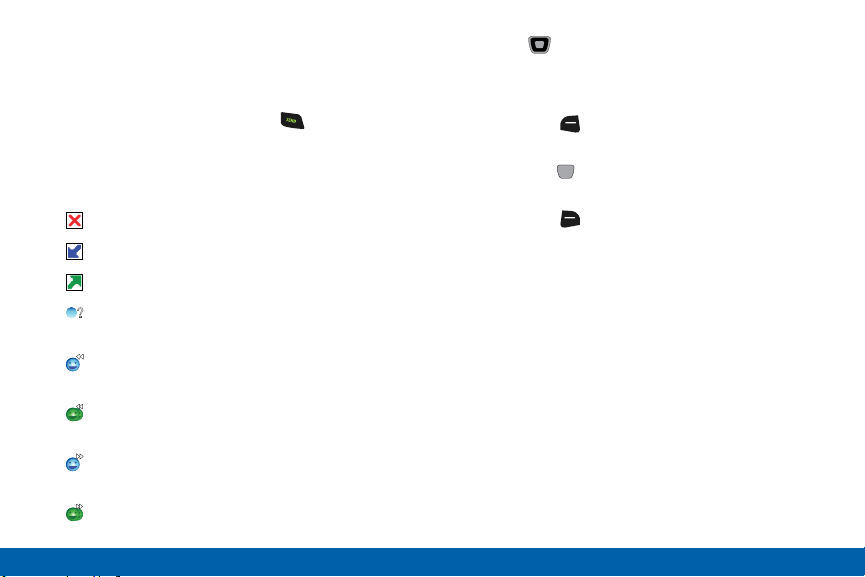
Recent Calls contains a record of calls to and from
your phone.
1. With the phone open, press the
Send key.
2. ALL CALLS display by date, time, and contact
name or phone number, plus an icon to show the
type ofcall:
Missed Call: Calls you did not answer.
Received Call: Calls you answered.
Dialed Call: Calls made from your phone.
PTT Missed Call: PTT calls you did not
answer.
PTT Individual Incoming: PTT calls you
answered.
PTT Group Incoming: PTT group calls you
answered.
PTT Individual Outgoing: PTT calls made
from your phone.
PTT Group Outgoing: PTT group calls made
from your phone.
3. Use the
Directional key to scroll right or left to
view Calls filtered by type.
4. Highlight a call to use these options:
•
Press the Left Soft key (Message) to create
a new message addressed to the phone number.
•
Press the Center Select key (OPEN) to view
call details.
•
Press the Right Soft key (Options) for these
options:
•
Save to Contacts/Details: Save the number
to Contacts (only available if the number is
not already saved), or view the contact’s
information.
•
Save to PTT Contacts: Save the number to
PTT Contacts (only available if the number is
not already saved).
•
Erase: Delete the call record.
•
Lock/Unlock: Enable or remove protection.
Locked call records cannot be deleted.
•
Erase All: Delete all recent call records.
•
View Timers: View call statistics.

39
Making and Answering Calls
Calling
Making Calls Using Recent Calls
1. With the flip open, press the Send key.
2. Use the Directional key to highlight a call,
then press the Send key.
Creating or Updating Contacts Using
Recent Calls
1. With the flip open, press the Send key.
2. Use the Directional key to highlight a call,
then press the Right Soft key (Options) to
select:
•
Save to Contacts
•
Save to PTT Contacts
3. Use the
Directional key to highlight an option,
then press the Center Select key (OK):
•
Add New Contact
•
Update Existing
4. Continue entering contact information, as desired.
Deleting Recent Call Records
1. With the flip open, press the Send key.
2. Use the Directional key to highlight a call,
then press the Right Soft key (Options).
3. Select Erase or Erase All, then follow the prompts
to erase records.

40
Making and Answering Calls
Calling
Fake Call
Use Fake Call to have your phone ring with a fake call
when you press the Volume key down four times in
arow.
Setting Up Fake Calls
Enable and choose options for Fake Calls.
► From the Home screen, press
MENU > Settings
> Call Settings > Fake Call.
Initiating a Fake Call
► From Idle mode with the phone closed and the
external keys unlocked, press the Volume key
down four times.
After the Fake Call Timer period elapses, your phone
rings to notify you of the fake call. If you entered Fake
contact Info, it appears on the screen. Otherwise the
screen displays “Restricted.”
When you answer the Fake Call, you’ll hear the Fake
Call Voice, if you selected it in Fake Call settings.
Driving Mode
When Driving Mode is enabled, your phone uses
sounds to alert you to notifications, regardless of other
phone or call settings.
For example, when you receive a call or message, your
phone reads out the caller’s (or sender’s) name and
number, and Call Alert sounds will play, even if you
have set Master Volume to Sounds Off or Vibrate Only.
Enabling Driving Mode with
Voice Commands
1. With the flip open, press the Voice Commands
key.
2. At the audio prompt, say “Turn driving mode on.”

41
Making and Answering Calls
Calling
Enabling Driving Mode in Settings
1. From the Home screen, press MENU >
Settings> Sounds Settings > DrivingMode.
2. Choose a setting:
•
Caller ID Only: Reads Caller ID for incoming
calls and messages.
•
ID & Message: Reads Caller ID and the message
content for incoming messages.
•
Off: Disable Driving Mode.
42
Push to Talk (PTT)
Calling
Push to Talk (PTT)
Push one button to contact other
Verizon Wireless Push to Talk PTT
customers.
A Barge call automatically connects, while an Alert call
sends a tone — giving the recipient the option to either
answer or ignore the call.
For complete details, go to verizonwireless.com/ptt.
Turn PTT On/Off
1. Press MENU > Settings > PTT Settings >
PTTMode.
2. Select On/Off, then press the Center Select
key (OK).
Making a Barge Call
3. Press the PTT key to access your PTT
Contact List, and use the Directional key to
highlight the entry you wish to call. (Or, if you
prefer, you can enter the 10-digit number of the
Verizon Wireless PTT subscriber.)
4. Press and hold the PTT key. Listen for the
tone. The message “Connecting to” will appear
on the display. When connected, “Talking to” will
appear on the display. Speak while pressing the
PTT key.
5. Release the PTT key when finished speaking.
This allows the called party to reply.
6. Press the End/Power key to end the call.

43
Push to Talk (PTT)
Calling
Receiving a Barge Call
1. When your phone receives a Barge call, the
Barge tone plays. You then hear the calling party
speaking through the speaker phone. The calling
party’s wireless number or saved contact name will
appear on your display.
2. Press and hold the PTT key to talk.
3. Release the PTT key to let another party talk.
4. Press the End/Power key to end the call.
Making an Alert Call
1. Press the PTT key to access your PTT
Contact List and use the Directional key to
highlight the entry you wish to call.
2. Press the Left Soft key (Alert).
3. Press and release the PTT key to alert the
selected individual. The PTT Outgoing Alert tone
sounds, and “Alerting...” appears on the display.
4. If the called party answers the alert, “Listeningto”
appears on the display and you will hear the called
party speaking. If the called party chooses to
ignore the alert, or if the phone is unavailable, an
Unavailable message will appear on your display.
5. When the called party is finished speaking, you will
hear the Floor Available tone and the Connected
screen will appear on your display.
6. Press and hold the PTT key to talk.
7. Release the PTT key when finished speaking.
This allows the called party to reply.
8. Press the End/Power key to end the call.
44
Push to Talk (PTT)
Calling
Receiving an Alert Call
1. When your phone receives an alert, the PTTAlert
tone plays. The message Incoming Alert is
displayed with the phone number or contact name
of the calling party. The PTT Alert tone repeats
every 2 seconds until it is answered or ignored, or
until 20 seconds have passed. If you do not answer
within 20 seconds, the PTT call is automatically
disconnected.
2. To answer the alert, press and hold the PTT
key and begin talking. To ignore the alert, press the
Right Soft key (Ignore).
3. Release the PTT Key to let another partytalk.
4. Press the End/Power key to end the call.
PTT Contacts
Note: PTT Mode must be activated in order to see the
PTT Contact List.
1. Press
MENU > Contacts > PTT Contact List.
2. Press the Directional key UP or DOWN to
scroll through your Contact List.
3. Press the Right Soft key (Options) to select
one of the following options: New PTT Contact,
Copy To Contacts, Temp PTT Group, Erase, Edit,
Do Not Disturb-On, Do Not Disturb List, Call,
New Message, Sort.
4. Press the Left Soft key (Alert).
5. Press and release the PTT key to alert the
selected individual.

Main Menu
The Menu screen displays all
applications installed on your
device. Learn how to use and
arrange your apps.
46
Contacts
Main Menu
Contacts
Store information about your daily contacts in
Contacts, to make calling and messaging easier.
Your phone supports both normal phone contacts and
PTT Contacts. A contact record can be copied to a
PTT contact.
Note: PTT (Push-To-Talk) Mode must be enabled to see
PTT Contacts and PTT Groups.
For quick access to the Contacts List:
► From the Home screen, press the
Right Soft
key (Contacts).
To access Contacts for all features:
► From the Home screen, press MENU >
Contacts.
Adding a Contact
1. From the Home screen, press the Right Soft
key (Contacts).
2. Press the Right Soft key (Options) >
NewContact.
3. In the Name: field, enter a name for the contact
using the keypad.
4. Use the Directional keys to highlight fields to
enter information for the contact, including at least
one phone number or email.
5. When finished, press SAVE.

47
Contacts
Main Menu
Adding a Contact from the Keypad
Enter a telephone number with the keypad, then save
it as a Contact.
1. From the Home screen, use the keypad to enter a
telephone number.
2. If PTT Mode is ON, press the
Right Soft key
(Options) > Save > Add New Contact.
– or –
If PTT Mode is OFF, press Left Soft key (Save)
> Add New Contact.
3. Use the Directional keys to highlight Mobile1,
Mobile2, Home, Business or Fax, then press
OK.
4. In the Name: field, enter a name for the contact
using the keypad.
5. Use the Directional keys to highlight fields to
enter information for the contact.
6. When finished, press SAVE.
Adding a Contact from Recent Calls
Save a telephone number from a recent call record as
a contact.
1. With the flip open, press the
Send key to
display Recent Calls.
2. Use the Directional keys to highlight a
recentcall.
3. Press the Right Soft key (Options) >
SavetoContacts > Add New Contact.
4. Use the Directional keys to highlight Mobile1,
Mobile 2, Home, Business or Fax, then press
OK.
5. Enter a name for the contact in the Name: field.
6. Continue adding information to fields or press
SAVE.

48
Contacts
Main Menu
Erasing Contacts
1. From the Home screen, press the Right Soft
key (Contacts).
2. Press the Right Soft key (Options) >
ManageContacts > Erase.
3. Highlight a contact, then press MARK to mark
it for erasure or press the Right Soft key
(Options) > Mark All to mark all contacts.
4. Press the Left Soft key (Done), then follow the
prompts to confirm the erasure.
5. At the prompt, enter the Lock Code. By default, the
Lock Code is the last four digits of your telephone
number.
Editing a Contact
To make changes to an existing contact:
1. From the Home screen, press the Right Soft
key (Contacts).
2. Highlight a contact, then press the Left Soft
key (Edit).
3. Use the Directional keys to move to fields to
modify or add information for the contact.
4. When finished, press SAVE.

49
Contacts
Main Menu
Editing a Contact from the Keypad
Enter a telephone number with the keypad, then save
it to an existing contact.
1. From the Home screen, use the keypad to enter a
telephone number.
2. If PTT Mode is On, press the
Right Soft key
(Options) > Save > Update Existing.
– or –
If PTT Mode is Off, press the Left Soft key
(Save) > Update Existing.
3. Use the Directional keys to highlight a
contact, then press OK.
4. Use the Directional keys to highlight Mobile1,
Mobile 2, Home, Business or Fax, then press
SAVE.
5. Use the Directional keys to move to fields to
modify or add information for the contact.
6. When finished, press SAVE.
Editing a Contact from Recent Calls
Save a telephone number from a recent call record to
a contact.
1. With the flip open, press the
Send key to
display recent calls.
2. Use the Directional keys to highlight a
recentcall.
3. Press the Right Soft key (Options) >
SavetoContacts > UpdateExisting.
4. Use the Directional keys to highlight a
contact, then press OK.
5. Use the Directional keys to highlight Mobile1,
Mobile 2, Home, Business or Fax, then press
OK.
6. Enter a name for the contact in the Name: field.
7. Continue adding information to fields, or press
SAVE.

50
Contacts
Main Menu
Managing Contacts
Use Manage Contacts to perform actions such as
erasing, locking, or unlocking multiple contacts at one
time.
1. From the Home screen, press the
Right Soft
key (Contacts).
2. Press the Right Soft key (Options) >
ManageContacts.
3. Choose an option:
•
Erase: Mark multiple contact(s) for deletion.
•
Lock: Mark multiple contact(s) to lock. Locked
contacts cannot be deleted.
•
Unlock: Mark multiple contact(s) to unlock.
•
Copy To Card: Copy contacts to an optional
installed memory card (available if a card is
installed).
4. Find contacts by pressing the
Directional keys
to browse the list.
5. Highlight contacts, then press
MARK for each
contact, or press the Right Soft key (Options) >
Mark All to mark all contacts.
6. Press the Left Soft key (Done), then follow the
prompts to confirm the changes.
51
Contacts
Main Menu
Adding Pauses or Waits
Calls to automated systems can require you to enter
numbers to navigate menus, or to enter a password or
account number. You can store phone numbers with
special pause or wait characters to make entering
these numbers easier.
1. From the Home screen, press the
Right Soft
key (Contacts).
2. Create a new contact or edit an existing contact.
3. Enter the phone number up to the pause or wait,
then press the Right Soft key (Options) to
select an option:
•
Add 2-Sec Pause: Stops the dialing sequence
for two seconds, then automatically dials the
remaining digits. A “P” appears in the field to
indicate the pause.
•
Add Wait: Stops the dialing sequence, waiting
for input from you. A “W” appears in the field to
indicate the wait.
4. When finished, press
SAVE.
Note: Entering multiple pauses extends the length of a
pause, and each pause counts as a digit. For example,
two consecutive pauses create a total pause of four
seconds, and count as two digits.
Finding Contacts
1. From the Home screen, press the Right Soft
key (Contacts). The Contact List displays, with the
cursor in the Go To field.
2. In the Go To field, enter the first few characters of
the Contact name to see matching entries.
3. Use the Directional keys to highlight a
contact, then use these options:
•
Press the Send key to call the contact.
•
Press VIEW to open the contact entry.
•
Press the Left Soft key (Edit) to edit the
contact entry.
•
Press the Right Soft key (Options) for
contacts options.

52
Contacts
Main Menu
Using Contacts
Making Calls Using Contacts
1. From the Home screen, press the
key (Contacts).
Right Soft
2. Highlight a contact, then press the
call the contact.
Send key to
Sending Messages Using Contacts
1. From the Home screen, press the Right Soft
key (Contacts).
2. Highlight a contact, then press the Right Soft
key (Options) > New Message to type your text
message.
Backup Assistant
Backup Assistant is a wireless service that saves a
copy of your phone’s address book to a secure web
site. If your phone is lost, stolen, or damaged, Backup
Assistant can restore your saved address book to a
new phone - wirelessly. Schedule daily backups to
save your information manually or automatically. Log
in to your web account for full access to your contacts
for viewing, printing, adding, deleting, and editing.
Visit verizonwireless.com/backupassistant, or contact
Verizon Wireless for more information.
Note: Standard TXT messaging rates apply. Backup
Assistant is free for My Verizon subscribers.
► From the Home screen, press
MENU >
Contacts > Backup Assistant.
53
Contacts
Main Menu
Favorites
Set contacts as Favorites, to quickly find contacts to
view, send a message, or call the contact.
Assigning Favorites
1. From the Home screen, press MENU >
Contacts > Favorites.
2. Use the Directional keys to highlight a an
empty Favorite.
3. Press ADD, then choose an option:
•
From Contacts: Highlight and mark contact(s)
to assign as favorites. You can mark multiple
contacts at once to create a Favorite for each.
•
From Groups: Choose a group to assign as a
Favorite.
4. Press the
Left Soft key (Done) to create the
favorite(s).
Removing Favorites
1. From the Home screen, press MENU >
Contacts > Favorites.
2. Highlight a Favorite and press the Right Soft
key (Options).
3. Choose an option, then press OK:
•
Remove: Erase the selected contact from the
Favorites list.
•
Remove All: Erase all favorites from the list.
54
Contacts
Main Menu
Using Favorites
Use Favorites to quickly view a favorite’s contact
record, send a message to a favorites, or view
messages to and from the favorite.
1. From the Home screen, press
MENU >
Contacts > Favorites.
2. Highlight a favorite contact to use these options:
•
To send a message, press the Right Soft key
(Options) > New Message.
•
To view the favorite’s contact record, press
VIEW.
•
To call the favorite, highlight the favorite, and
then press the Send key.
•
To view all messages to and from the favorite,
press the Left Soft key (Messages).
Groups
You can assign contacts to categories, called Groups,
to make searching your contacts faster, or to quickly
send messages to group members.
Adding Contacts to Groups
1. From the Home screen, press MENU >
Contacts > Groups.
2. Use the Directional keys to highlight a group.
3. Press Right Soft key (Options) > Add.
4. Highlight contact(s) and press MARK to place a
check mark beside the contact.
5. Press the Left Soft key (Done) to add the
contacts to the group.
Note: You can also assign a contact to a group when
you create or edit the contact record.
55
Contacts
Main Menu
Changing a Contact’s Group
Assignment
1. From the Home screen, press the Right Soft
key (Contacts).
2. Use the Directional keys to highlight the
contact you wish to reassign.
3. Press the Left Soft key (Edit).
4. Highlight the Group field, then press the Left
Soft key (Edit).
5. Highlight groups, and press MARK to mark or
unmark groups for assignment.
6. Press the Left Soft key (Done).
7. Press SAVE to save the new group
assignment(s).
Creating a New Group
In addition to the default groups, you can create
additional groups.
1. From the Home screen, press
MENU >
Contacts > Groups.
2. Press Left Soft key (New).
3. At the prompt, enter a name for the new group.
4. Press SAVE to save the new group.

56
Contacts
Main Menu
Sending a Message to Group
Members
Send a message to all members of a group at once.
Note: Messaging availability varies when roaming
outside the Verizon Wireless Network.
1. From the Home screen, press
MENU >
Contacts > Groups.
2. Use the Directional keys to highlight a group,
then press VIEW to view it.
3. Press the Right Soft key (Options) >
NewMessage.
4. Continue creating the new message, then press
SEND.
Speed Dials
Speed dial numbers are 1-, 2-, or 3-digit shortcuts
assigned to contacts that allow you to quickly call the
contacts.
The following Speed Dials are reserved by default and
cannot be reassigned:
•
Speed Dial 1 is reserved for Voicemail.
•
Speed Dial 96 is reserved for Data Usage inquiries
(#DATA).
•
Speed Dial 97 is reserved for Balance inquiries
(#BAL).
•
Speed Dial 98 is reserved for Minute Usage (#MIN).
•
Speed Dial 99 is reserved for Payment information
(#PMT).
•
Speed Dial 211 is reserved for health and human
services.
•
Speed Dial 311 is reserved for non-emergency
municipal services.
•
Speed Dial 411 is reserved for directory assistance.
•
Speed Dial 611 is reserved for customer service
access.
•
Speed Dial 911 is reserved for emergency calls.
57
Contacts
Main Menu
Assigning Speed Dials
1. From the Home screen, press MENU >
Contacts > Speed Dials.
2. Use the Directional keys to highlight a speed
dial.
– or –
Enter a speed dial in the Go To field.
3. Press SET.
4. At the prompt, use the Directional keys to
highlight a contact.
– or –
Enter the first field characters in the Go To field.
5. Press OK.
6. At the prompt, confirm the assignment.
Emergency Contacts
Set up to 3 emergency contacts, plus enter personal
information that may be helpful to others using your
phone in an emergency.
Tip: Emergency contacts display in red in Contacts.
Assigning Emergency Contacts
1. From the Home screen, press the Right Soft
key (Contacts).
In Case of Emergency is highlighted automatically.
2. Press VIEW to set emergency contacts.
3. Highlight Contact 1, Contact 2, or Contact 3 and
press ADD.
4. At the ADD CONTACT screen, highlight an option
and press OK:
•
From Contacts: Choose an existing contact
from Contacts List.
•
New Contact: Enter a new contact.

58
Contacts
Main Menu
5. At the prompt, use the
Directional keys
to highlight a contact, or enter the first field
characters in the Go To field.
6. Press OK.
Re-assigning or Unassigning an
Emergency Contact
1. From the Home screen, press the Right Soft
key (Contacts).
In Case of Emergency is highlighted automatically.
2. Press VIEW to display emergency contacts.
3. Highlight a contact, then press the Right Soft
key (Options) for these options:
•
Re-assign: Choose another contact from
Contacts List, or create a new contact for this
assignment.
•
Unassign: Remove the contact from this
emergency contact.
Entering Personal Information
Enter up to 3 notes containing information that
might be helpful to others using your phone in an
emergency.
1. From the Home screen, press the
Right Soft
key (Contacts).
In Case of Emergency is highlighted automatically.
2. Press VIEW to display emergency contacts.
3. Press Personal Info, then press VIEW.
4. Highlight Note 1, Note 2, or Note 3, then press
ADD.
5. Enter your personal information, then press
SAVE to save the note.
59
Contacts
Main Menu
My Name Card
My Name Card is your personal contact entry in
Contacts, which you can send to recipients as a virtual
business card (vCard) attached to a message, or via
Bluetooth.
Editing My Name Card
By default, My Name Card contains your mobile
telephone number. You can edit My Name Card to
include other information.
1. From the Home screen, press
MENU >
Contacts > My Name Card.
2. Press Edit.
3. Use the Directional keys to move to fields to
modify or add information.
4. When finished, press SAVE.
Sending My Name Card (vCard) by
Message
Send your contact information, as My Name Card, as
an attachment to a message.
1. From the Home screen, press
MENU >
Contacts > My Name Card.
2. Press the Right Soft key (Options) >
SendviaMessage and press OK.
3. Press the Right Soft key (Add) to select
contacts.
4. Press OK and enter your message text.
5. Continue creating the new message, then press
SEND.
60
Contacts
Main Menu
Sending My Name Card (vCard) by
Bluetooth
Send your contact information, as My Name Card, to
Bluetooth devices that support vCards.
1. From the Home screen, press
MENU >
Contacts > My Name Card.
2. Press the Right Soft key (Options) >
SendviaBluetooth and press OK.
3. At the CHOOSE DEVICE screen, use the
Directional keys to highlight an option, then
press OK.
•
Add New Device: Searches for a new Bluetooth
device for pairing.
•
<Device Name>: Sends My Name Card to a
previously-paired Bluetooth device.
4. Continue with the Bluetooth transfer.
Sharing Contacts
You can share contacts as Name Cards (vCards) via
message, or via Bluetooth.
Sending Name Cards (vCards)
byBluetooth
Send individual contacts, or your entire contact list, to
Bluetooth devices that support vCards.
Not all Bluetooth devices will accept a name card,
and not all devices support transfers of multiple name
cards. Check your target device’s documentation.
1. From the Home screen, press the
Right Soft
key (Contacts).
2. Press the Right Soft key (Options), then press
Send Name Card.
3. At the SEND NAME CARD screen, highlight
Bluetooth and press OK.

61
Contacts
Main Menu
4. At the SEND VIA BLUETOOTH screen, highlight
contacts individually and press
MARK or press
the Right Soft key (Options) > Mark All, then
press the Left Soft key (Done).
5. At the CHOOSE DEVICE screen, highlight an
option, then press OK:
•
Add New Device: Search for a new Bluetooth
device for pairing.
•
<Device Name>: Send to a previously-paired
Bluetooth device.
6. Continue with the Bluetooth transfer.
Sending Name Cards (vCard)
byMessage
Send a contact record, or your entire contact list, as
attachment(s) to a message.
1. From the Home screen, press the
Right Soft
key (Contacts).
2. Press the Right Soft key (Options), then press
Send Name Card.
3. At the SEND NAME CARD screen, highlight
Message and press OK.
4. At the SEND WITH MESSAGE screen, highlight
contacts individually and press MARK, then
press the Left Soft key (Done).
5. Continue creating the new message, then press
SEND.
62
Contacts
Main Menu
Adding PTT Contacts
You can create PTT contacts to make finding and
contacting them easier. A contact’s mobile telephone
number may be their PTT number, if they are also
subscribed to PTT service.
Note: PTT contact options are only available when PTT
Mode is On.
1. From the Home screen, press
MENU >
Contacts > New PTT Contact.
2. Press the Right Soft key (Options) >
NewContact.
3. In the Name: field, enter a name for the contact
using the keypad.
4. Use the Directional keys to highlight
the PTTNumber field to enter the contact’s
PTTnumber.
5. Use the Directional keys to highlight the
PTTGroup field, then press the Left Soft key
(Add) to assign the PTT contact to a PTT group
(optional).
6. When finished, press SAVE.
Adding a PTT Contact from
Recent Calls
Save a telephone number from a recent call record as
a contact.
1. From the Home screen, press the
Send key to
display recent calls.
2. Use the Directional keys to highlight a
recentcall.
3. Press the Right Soft key (Options) >
SavetoPTT Contacts > Add New Contact.
4. Use the Directional keys to highlight Mobile1,
Mobile 2, Home, Business or Fax, then press
OK.
5. Enter a name for the contact in the Name: field.
6. Continue adding information, or press SAVE.
63
Contacts
Main Menu
Copying a Contact to PTT Contacts
You may have some contacts that you wish to save as
a regular contact, and also as a PTT contact.
1. From the Home screen, press the Right Soft
key (Contacts).
2. Highlight a contact, then press the Right Soft
key (Options) > Copy to PTT Contacts.
3. When finished, press SAVE.
Editing a PTT Contact
Make changes to an existing PTT contact.
1. From the Home screen, press MENU >
Contacts > PTT Contact List.
2. Highlight a PTT contact, then press the
RightSoft key (Edit).
3. Use the Directional keys to move to fields to
modify or add information for the contact.
4. When finished, press SAVE.
Editing a PTT Contact from
Recent Calls
Save a telephone number from a recent call record to
a contact.
1. From the Home screen, press the
Send key to
display recent calls.
2. Use the Directional keys to highlight a
recentcall.
3. Press the Right Soft key (Options) >
SavetoPTT Contacts > Update Existing.
4. Enter a name for the contact in the Name: field,
and assign the contact to a group, if desired.
5. When finished, press SAVE.
64
Contacts
Main Menu
PTT Groups
You can assign PTT contacts to Groups, to make
searching your contacts faster, or to quickly make a
PTT Group call.
Adding Contacts to Groups
1. From the Home screen, press MENU >
Contacts > Groups.
2. Use the Directional keys to highlight a group.
3. Press RightSoft key (Options) > Add.
4. Highlight contact(s) and press MARK to place a
check mark beside the contact.
5. Press the Left Soft key (Done) to save the
group.
Note: You can also assign a contact to a group when
you create or edit the contact record.
Creating a PTT Group
1. From the Home screen, press MENU >
Contacts > PTT Groups.
2. Press Left Soft key (New).
3. At the prompt, enter a name for the new group,
then press SAVE.

65
Contacts
Main Menu
Changing a Contact’s PTT Group
Assignment
Change a contact’s PTT Group assignment by
removing it from one group and adding it to another.
1. From the Home screen, press
MENU >
Contacts > PTT Groups.
2. Use the Directional keys to highlight the
PTTgroup containing the PTT contact, then press
VIEW.
3. Press the Left Soft key (Remove), then
highlight contact(s) and press MARK to mark or
unmark groups for assignment.
4. Press the Left Soft key (Done) to remove the
contact from the group.

66
Messaging
Main Menu
Messaging
This section explains how to send
and receive messages, and other
features and functionality related to
messaging.
Types of Messages
Your phone can send and receive:
•
Text Messages
•
Multimedia Messages
•
Social Networks
Text Messages are simple messages containing
text, which can be sent to another mobile phone.
Your phone also supports long text messages. Text
messaging is also known as SMS (Simple Messaging
Service).
Multimedia Messages contain text, as well as
attachments such as sounds, graphics, animations,
and name cards. Multimedia messaging is also known
as MMS (Multimedia Messaging Service.
Creating and Sending
Messages
1. From the Home screen, press the Left Soft key
(Message) > New Message.
2. At the NEW TEXT MSG screen, enter recipients in
the To : fields:
•
Use the keypad to enter a recipient’s phone
number, contact name, or email address.
•
Press the RightSoft key (Add) to select
recipients From Contacts, Recent Calls,
Favorites, or Groups.
– or –
Choose To Contacts or To PTT Contacts to
save a number you enter as a contact.

67
Messaging
Main Menu
•
As you enter characters, matching contacts
display in a list. Use the Directional keys
to highlight a contact, then press OK to select
it, or press the RightSoft key (Add) to
save the number you entered To Contacts or
ToPTTContacts.
3. Use the
Directional keys to move to the Text :
field to compose your message.
4. While entering text, press the RightSoft key
(Options) for the following options:
•
Attach: Add an attachment to the message.
•
Save As Draft: Save a copy of the message in
the Drafts folder.
•
Insert Quick Text: Insert a preloaded phrase.
•
Copy: Select and copy text, for pasting into
another field. Use the Directional keys to
highlight text in the field, then press DONE.
•
Paste: If you have copied text, paste the
copiedtext.
•
Add Subject: Add subject text.
•
Priority Level: Set the urgency of the message,
to High or Normal.
•
Callback #: Include a callback number
with the message. By default, this is your
mobile telephone number, or you can enter a
differentnumber.
•
Cancel Message: Cancel the message, with the
option to save it in the Drafts folder.
5. Press
SEND, or the Send key to send
themessage.
Note: Multimedia messages are only available within
Verizon Wireless Enhanced Services Area.

68
Messaging
Main Menu
Adding Attachments
Adding an attachment converts the text message
to a multimedia message. Blank slides are created
for additional attachments, making it easy to add
additional attachments.
Note: Videos cannot be added to messages containing
pictures or sound.
1. Use the
Directional keys to move to the Text
field. Press the RightSoft key (Options) >
Attach. Adding an attachment converts the text
message to a multimedia message.
Attachment options are:
•
Picture: Select a picture from your phone or
optional memory card.
•
Video: Select a video from your phone or
optional memory card.
•
Sound: Select a sound recording from your
phone or optional memory card.
•
Record Sound: Create a new sound recording
using the microphone.
•
Name Card: Attach your Name Card or Name
Cards for your Contacts.
•
Calendar Event: Select or create a new
Calendar Event.
2. Use the
Directional keys to highlight the
attachment, then press the RightSoft key
(Options) for these options:
•
Attach: Add an attachment to the message.
•
Preview: View the message before sending.
•
Save As Draft: Save a copy of the message in
the Drafts folder.
•
Add Slide: Insert a second slide to the message.
•
Priority Level: Set the urgency of the message,
to High or Normal.
•
Remove Picture/Video/Sound/Name Card/
Calendar Event: Removes the attachment.
•
Remove Slide: Delete the current slide (available
if more than one slide is attached).
•
Cancel Message: Cancel the message, with the
option to save it in the Drafts folder.

69
Messaging
Main Menu
3. Press
SEND, or the Send key to send
themessage.
Message Settings
This menu allows you to define settings for messages
sent or received on your phone. To access your
message settings, use the following steps:
1. From the Home screen, press
MENU >
Messaging.
2. Press the Left Soft key (Settings) for these
options:
•
Inbox View: Set the default message view. Press
Time to display messages by time received,
or Contact to display messages by name or
number (also known as threaded view ).
•
Entry Mode: Choose a default text entry
mode, from Abc, ABC, 123, XT9 Word,
XT9Palabra, Chinese, Korean, Vietnamese, or
XT9Vietnamese.
•
Auto Save Sent: Choose the save mode for
messages you send. Press On to save all sent
messages, Off to discard sent messages,
or Prompt to have the phone prompt you
eachtime.
•
Auto Erase Inbox: Press On to automatically
replace the oldest message of the same type
when the Inbox exceeds the maximum number
of messages of that type. For example, when
the Inbox exceeds 300 text messages, the
oldest text message is replaced with a new one.
Picture and video messages are replaced when
the phone’s memory is full. Press Off to disable
automatic erasures.
•
Messaging Font Size: Set the default size for
message text, Normal or Large.
•
TXT Auto View: Press On to automatically
display text messages when they arrive, or Off to
have the phone prompt you.
•
Multimedia Auto Receive: Press On to
automatically accept new multimedia messages.
Press Off to have the phone prompt you to
download new multimedia messages.

70
Messaging
Main Menu
•
Group Messaging: Configure default settings
for messages sent to multiple contacts. Press
Individual Messages to allow recipients to
only reply to you (not the group), or press
GroupConversation to allow recipients to reply
to the whole group.
•
Domain Extensions: Create and manage a list
of web and Email extensions for the Domain
Extensions entry mode. Press the Left
Soft key (Erase) to delete extensions. Press
the RightSoft key (New) to create new
extensions. To modify an extension, highlight the
extension and press EDIT.
•
Quick Text: Create and manage preloaded
phrases to add to messages. Press the Left
Soft key (Erase) to delete phrases. Press the
RightSoft key (Options) > (New) to add
new phrases. To modify a phrase, highlight the
phrase and press EDIT.
•
Emergency Alerts: This device is designed
to receive Wireless Emergency Alerts from
the Commercial Mobile Alert Service (CMAS),
including Presidential Alerts, Imminent Alerts
(Severe or Extreme), and AMBER Alerts (missing
persons). You may choose not to receive
Imminent and AMBER alerts, but Presidential
Alerts cannot be disabled.
•
Voicemail #: Enter a new Voicemail speed dial.
The default is *86.
•
Callback #: Press On to add a callback phone
number to your messages, and set the phone
number. Press Off to omit a callback number
(you can manually add a callback number to
individual messages).
•
Signature: Press Custom to add a signature
to all messages, then use the Directional
keys to move to the signature field to create the
signature. Press None to disable signatures.

71
Messaging
Main Menu
•
Delivery Receipt: Choose whether you are
notified when a message you send is delivered.
Press On to be notified for every message,
or Off to disable notification (you can set an
optional delivery receipt for individual messages
when you create them).
•
Social Networks: Select your preferred social
network as the default. Press Facebook, Twitter,
or Let Me Choose.
Receiving Messages
When you receive a message, you can choose to:
•
View Now: Open the message for viewing.
•
View Later: Dismiss the alert, and save the
message in the Messages folders.
•
Reject: If you have disabled the Multimedia Auto
Receive setting, reject the message. The message
is not saved to Messages.
Tip: If you want to control when you download
multimedia content, you can disable Multimedia Auto
Receive.
Viewing Text Messages
When you receive a text message, the alert sounds
(unless turned off), and New Text Message displays
on the screen.
1. At the New Text Message prompt, press
OK to
View Now.
2. Press REPLY to respond to the message with a
new Text, Picture, Video or Voice message.
3. Press the Left Soft key (Erase) to delete
themessage.
4. While viewing the message, press the
RightSoft key (Options) for these message
options:
•
Forward: Send the message to another
recipient.
•
Reply w. Copy: Reply to the sender, plus other
recipients if desired, and include a copy of the
original message.
•
Save As Quick Text: Save the message text to
the Quick Text list.

72
Messaging
Main Menu
•
Lock/Unlock: Lock or unlock the message to
prevent deletion.
•
Add To Contacts: Save the number of the
sender to Contacts as a new entry or update to
an existing entry.
•
Add To PTT Contacts: Save the number of the
sender to Contacts as a new PTT Contacts entry.
•
Messaging Font Size: Select the font size,
Normal or Large.
•
Extract Addresses: Display all Contact
Numbers, Email Addresses, and URLs extracted
from the message, to call, send an email, or
open the web page.
•
Message Info: Display details about the
message.
Viewing Multimedia Messages
When you receive a multimedia message, an alert
sounds (unless turned off), and New Multimedia
Message displays on the screen.
Note: This procedure describes default behavior. If you
make changes to Message Settings, options or steps
may be different.
1. At the New Message prompt, press
OK to
ViewNow.
2. After loading, the attachment (and text, if any)
displays. Use the Directional keys to scroll to
see the entire message, if necessary.
3. Press REPLY to respond to the message with a
new Text, Picture, Video or Voice message.
4. Press the Left Soft key (Erase) to delete the
message.

73
Messaging
Main Menu
5. While viewing the message, press the Right
Soft key (Options) for these message options:
•
Play again: Play the attached video or sound
again.
•
Forward: Send the message to another
recipient.
•
Reply w. Copy: Reply to the sender, plus other
recipients if desired, and include a copy of the
original message.
•
Erase: (Voice or Picture message with attached
Sound) Delete the message.
•
Save Picture: (Picture messages only) Save the
attached picture to My Pictures.
•
Save Video: (Video messages only) Save the
attached video to My Videos.
•
Save Sound: (Voice or Picture message with
attached Sound) Save the attached sound to My
Sounds.
•
Save as Ringtone: (Voice or Picture message
with attached Sound) Save the attached sound
as a ringtone.
•
View Name Card: (If Name card is attached)
Display the attached name card.
•
Save Name Card: (If Name card is attached)
Save the attached name card to Contacts.
•
Set As: Assign the attached picture as
Wallpaper or Picture ID.
•
Save As Quick Text: Save the message text to
the Quick Text list.
•
Lock/Unlock: Lock or unlock the message to
prevent deletion.
•
Add To Contacts/Add To PTT Contacts: Save
the number of the sender to Contacts as a new
entry or addition to an existing entry, or as a new
PTT Contact.
•
Extract Addresses: Display all Contact
Numbers, Email Addresses, and URLs extracted
from the message, to call, send an email, or
open the web page.
•
Message Info: Display details about the
message.

74
Messaging
Main Menu
Emergency Alerts
Emergency Alerts allows customers to receive
geographically-targeted Wireless Emergency Alerts.
Alerts will alert customers of imminent threats to
their safety within their area. There is no charge for
receiving an Emergency Alert.
There are three types of Emergency Alerts:
•
Presidential
•
Imminent (Severe or Extreme)
•
AMBER Alerts (missing person alert)
Customers may choose not to receive Imminent Alerts
and AMBER Alerts. Presidential Alerts can not be
disabled.
To disable Imminent Threat Alerts (Extreme
and Severe) and AMBER Alerts, follow these
instructions:
1. From the Home screen, press
MENU >
Messaging.
2. Press the Left Soft key Settings >
EmergencyAlerts for the following options:
•
Receive Alerts: All alerts are enabled by default
(check mark showing).
To disable alerts, highlight an alert and press
UNMARK, then press Done.
•
Alert Reminder: Set alerts to repeat Once,
Every 2 minutes, Every 15 minutes, or
Off(norepeats).
•
Alert Vibrate: Press On to have the phone
vibrate when new messages arrive. Press Off to
disable this feature.

75
Messaging
Main Menu
Message Folders
Messages are stored in the message folders. You can
choose how messages appear with the Inbox View
setting in Message Settings.
Tip: To scroll through all messages in the Messages,
Sent, or Drafts folder, open one message, then press the
Directional keys LEFT or RIGHT to scroll through
the folders.
Viewing Messages by Contact
By default, the Inbox View setting is set to Contact.
All incoming and sent messages are stored in the
Messages folder, grouped by contact name (if the
sender/recipient is stored as a contact), or phone
number, to provide a threaded view of the message
exchange.
1. From the Home screen, press the
Left Soft key
(Message).
The most recent message from each contact
displays. The icon shows whether the message is
new or already opened, and a number to the right
indicates the number of unread messages from this
contact/number.
2. Highlight New Message to create a new message.
3. To view a message thread, use the Directional
keys to highlight a contact/number, then press
OPEN.
4. To send a reply message, press the Left Soft
key (Reply).
5. While viewing the list of contacts/messages,
use the
Directional keys to highlight a
contact/number, then press the Right Soft key
(Options) for these options:
•
Erase: Delete the highlighted message thread.
•
Add To Contacts: Save the sender or recipient’s
number to a contact record (available If the
number is not already saved).
•
Add To PTT Contacts: Save the sender or
recipient’s number to a PTT contact record
(available if the number is not already saved, and
PTT Mode is On).
•
New Message: Create a new message
addressed to the contact/number.

76
Messaging
Main Menu
•
Manage Messages: Perform actions on multiple
messages, including Erase, Lock, Unlock, Mark
as Read, Mark as Unread, and Copy to Card
(available if the memory card inserted).
•
Sort Alphabetically: Display message threads
by contact/phone number.
•
Messaging Menu: Return to the Messaging
menu.
•
Social Networks: Update your networks by
message.
Viewing Messages by Time
When the Inbox View setting is set to Time, incoming
messages are stored in the Inbox, and sent messages
are stored in the Sent folder, sorted by time.
Note: The Inbox folder is only present when the Inbox
View setting is set to Time.
Inbox Folder
1. From the Home screen, press the Left Soft key
(Message) > Inbox.
2. Use the Directional keys to scroll the list of
messages. Highlight a message, then press the
Left Soft key (Erase) to delete the message, or
press OPEN to view the message.
3. Highlight a message, then press the Right Soft
key (Options) for message options:
•
Reply: Reply to the sender with a new message.
•
Reply w. Copy: Reply to the sender, plus
other recipients if desired, and include the first
100 characters of the original message in the
Textfield.

77
Messaging
Main Menu
•
Forward: Send the message to another
recipient.
•
Add To Contacts: Save the number of the
sender to Contacts as a new entry or additional
to an existing entry (available if the number is
not already saved).
•
Add To PTT Contacts: Save the number of the
sender to Contacts as a new entry or additional
to an existing entry (available if the number is
not already saved and PTT Mode is On).
•
Extract Addresses: Display numbers, Email
Addresses, and URLs from the message, to call,
send an email, or open the web page.
•
Message Info: Display details about the
highlighted message.
•
Manage Inbox: Perform actions on multiple
messages, including Erase, Lock, Unlock,
Markas Read, Mark as Unread, and
CopytoCard (available if the memory card
inserted).
•
Sort by Sender: List all messages in the Inbox
by Sender.
•
Sort by Size: List all messages in the Inbox by
Size.
Sent Folder
When the Inbox View setting is set to Time, outgoing
messages are stored in the Sent folder by date and
time.
Note: The Sent folder is only present when the Inbox
View setting is set to Time.
1. From the Home screen, press the
Left Soft key
(Message) > Sent.
2. Use the Directional keys to scroll the list of
messages. Highlight a message, then use these
options:
•
Press the Left Soft key (Erase) to delete the
message.
•
Press OPEN to view the message.

78
Messaging
Main Menu
•
Press the Right Soft key (Options) for
message options:
-
Forward: Send the message to another
recipient.
-
Resend: Send the message again, to the
original recipient(s), plus new recipients if
desired.
-
Add To Contacts: Save the number of
the sender to Contacts as a new entry or
additional to an existing entry (available if the
number is not already saved).
-
Add To PTT Contacts: Save the number of
the sender to Contacts as a new entry or
additional to an existing entry (available if the
number is not already saved and PTT Mode
is On).
-
Message Info: Display details about the
highlighted message.
-
Manage Sent: Perform actions on multiple
messages, including Erase, Lock, Unlock, and
Copy to Card (available if the memory card
inserted).
-
Sort by Recipient: List messages by the first
addressee.
-
Sort by Time/Type: List messages by type
(Text, Picture, Video or Voice) or by time
received.
Drafts Folder
Drafts are messages you have created, but have not
yet sent. You can review, edit or send a draft message.
1. From the Home screen, press
MENU >
Messaging > Drafts.
2. Use the Directional keys to scroll the list of
messages. While viewing the list of messages,
press the Right Soft key (Options) for message
options:
•
Send: Send the message, as-is, to the listed
recipients.
•
Add To Contacts: Save the number of the
sender to Contacts as a new entry or additional
to an existing entry (available if the number is
not already saved).

79
Messaging
Main Menu
•
Add To PTT Contacts: Save the number of the
sender to Contacts as a new entry or additional
to an existing entry (available if the number is
not already saved and PTT Mode is On).
•
Manage Drafts: Perform actions on multiple
messages, including Erase, Lock, Unlock, and
Copy to Card (available if the memory card
inserted).
•
Sort by Recipient: List all messages by the first
addressee.
•
Sort by Time/Type: List messages by type (Text,
Picture, Video or Voice) or by time created.
3. Highlight a message, then press the
Left
Soft key (Erase) to delete the message, or press
EDIT to edit the message before sending.
Voicemail
From the Messaging menu, you can view the total of
new voicemail messages, clear the voicemail counter,
and call voicemail to check messages.
1. From the Home screen, press
MENU >
Messaging > Voicemail.
2. On the Voicemail screen, view the number of new
messages. Press CALL to dial voicemail to
check messages, or press the Left Soft key
(Clear) to clear the voicemail counter.

80
Messaging
Main Menu
Social Networks
Update your social networking sites from your phone.
After setting up your accounts on your phone, you can
update your status and upload media right from your
phone.
Note: You must add your phone number to your social
networking accounts before accessing them with your
phone. For more information, press the
Right Soft
key (Help).
1. From the Home screen, press
MENU >
Messaging > Social Networks.
2. Use the Directional keys to highlight
anoption:
•
Update Status: Enter text, then press the
SEND to select site(s) to update.
•
Facebook: Access options for updating and
accessing your account.
•
Twitter: Access options for updating and
accessing your account.
81
Recent Calls
Main Menu
Recent Calls
Recent Calls shows you all calls
received, dialed, and missed, as well
as call timers.
To access the Recent Calls category:
► From the Home screen, press MENU >
Recent Calls.
The following pages are available:
•
Missed: View all missed calls.
•
Received: View all received calls.
•
Dialed: View all calls dialed from your phone.
•
All: View all calls from all categories.
•
View Timers: View a variety of timers for calls made
to and from your phone, as well as data usage.
Call History Options
1. When viewing calls in Recent Calls, use the
Directional keys to highlight a call.
2. Press the Left Soft key (Message) to compose
a text message to send to the highlighted number.
3. Press the Right Soft key (Options) for the
following options:
•
Save to Contacts: Save the number as a
contact if it is not already saved to your phone.
– or –
Details: View contact details if the number is
saved in your phone.
•
Save to PPT Contacts: Save the number as
a PPT contact if it is not already saved to your
phone.
•
Erase: Remove the call entry.

82
Recent Calls
Main Menu
•
Lock: Prevent the call entry from being erased.
•
Erase All: Remove all call entries.
•
View Timers: Open the View Timers page to see
all call timers.
Reset Call Timers
Call timers can be reset individually or all at once as
follows:
1. From the Home screen, press
MENU >
Recent Calls > View Timers.
2. Use the Directional keys to highlight a timer.
3. Press the Left Soft key (Reset) to reset the
timer to zero.
– or –
Press the Right Soft key (Reset All) to reset all
call timers.

83
Mobile Web
Main Menu
Mobile Web
Mobile Web is your access to the
Internet.
To launch Mobile Web:
1. From the Home screen, press MENU >
MobileWeb.
2. Use the Left Soft key, Center Select key,
and Right Soft key to browse the Internet.
Tip: By default, you can use a Directional key shortcut to
launch Mobile Web from the Home screen by pressing
the LEFT Directional key .

84
Media Center
Main Menu
Media Center
Media Center includes applications
for downloading, creating, viewing,
and managing multimedia content,
right on your phone.
Important: If your service plan does not include
an unlimited data feature, you will incur either
airtime charges if you exceed your minutes bundle,
or megabyte(MB) charges at applicable rates for
downloading and/or using applications.
Apps
Browse and download applications to your phone,
from the Apps store.
1. From the Home screen, press
MENU >
MediaCenter > Apps.
2. Use the Left Soft key, Center Select key,
and Right Soft key to browse and download
applications.
Note: For more information about Apps, press the
LeftSoft key (Options) > Help.

85
Media Center
Main Menu
Mobile Web
Use the Mobile Web Browser to browse the Internet.
1. From the Home screen, press
MENU >
MediaCenter > MobileWeb.
2. Use the Left Soft key, Center Select key,
and Right Soft key to browse the Internet.
Tip: By default, you can use a Directional key shortcut to
launch Mobile Web from the Home screen by pressing
the LEFT Directional key .
Music & Tones
Create and manage music and sounds on your phone.
1. From the Home screen, press
MENU >
MediaCenter > Music & Tones.
2. Select an option:
•
My Ringtones: Set tones on your phone for
incoming call Ringtone, as a ringtone for Contact
ID, and Alert Sounds.
•
My Music: Manage music you have loaded on
your phone.
•
My Sounds: Record and manage sounds for use
as alerts for calls and messages.
My Music
Play music that you transfer from your PC, or from an
optional installed memory card. You can play music
with the phone open or closed.
1. From the Home screen, press
MENU >
MediaCenter > Music & Tones > My Music.
2. At the My Music screen, you have these options:
•
Play All Songs: Play all songs stored on your
phone and installed memory card.
•
All Songs: Display all songs stored on your
phone and memory card, to choose songs to
play and manage your music.

86
Media Center
Main Menu
•
Playlists: Display and manage playlists. Highlight
a playlist, then press the Left Soft key (View)
to display it, or press the Center Select
key (PLAY) to play it. Press the Right Soft
key (Options) to create a new playlist, erase or
rename the highlighted playlist, or change the
input language.
•
Artists: Display songs by artist. Highlight an
artist, then press the Left Soft key (View)
to display songs by the artist, or press the
Center Select key (PLAY) to play the songs.
•
Genres: Display songs by music type. Highlight
a genre, then press the Left Soft key (View)
to display songs from the genre, or press the
Center Select key (PLAY) to play the songs.
•
Albums: Display songs by album title. Highlight
an album, then press the Left Soft key
(View) to display songs from the album, or
press the Center Select key (PLAY) to play
thesongs.
•
Manage My Music: Erase songs, lock or unlock
songs, or move music between your phone’s
memory and an optional installed memory card.
•
Music Settings:
-
Repeat: Choose a playback mode, from
Repeat All, Repeat All, Repeat One, or Off.
-
Shuffle: Choose On to play songs in random
order, or Off to play them in the order they
appear.
-
Music Only Mode: When On, all wireless
communications, including calls, are disabled,
and the phone acts as a music player only.
Playing Music
1. From the Home screen, press MENU >
MediaCenter > Music & Tones > My Music.
2. Select an option, then press Center Select key
(PLAY) to play the selection.
3. Use the Center Select key and Directional
key to control playback:
•
Press the Center Select key to Pause
playback. Press the Center Select key again
to Play.

87
Media Center
Main Menu
•
Press the Directional key LEFT for Rewind,
to go to the previous song, or press and hold to
scan backward through the song.
•
Press the Directional key RIGHT for
Forward, to go to the next song, or press
and hold to scan forward through the song.
•
Press the Directional key UP to choose
playback modes, from Shuffle,
Repeat Track, or Repeat All.
•
Press the Directional key DOWN to Stop
playback.
4. During playback, press the Left Soft key (Mute)
to mute the playback.
5. During playback, press the Right Soft key
(Options) for these options:
•
Library: Continue playback and return to the
Library.
•
Audio to Phone/Device: Switch the audio
output to phone or Bluetooth headset. This
option is only available when a Bluetooth
headset is connected to the phone.
•
Exit Player: Stop playback and close My Music.
•
Add to Playlist: Add the current song to a
playlist.
•
Sound Effect: Choose an effect to add to the
music.
•
Skin: Choose a theme for the music player.
•
Song Info: View details about the current song.
•
Memory Info: View the amount of memory
available, used and total for the Phone and Card
memory.
•
Music Settings: Choose Repeat mode, Shuffle
mode, or Music Only mode. In Music Only mode,
access to the wireless networks is disabled and
you cannot send or receive calls or messages.

88
Media Center
Main Menu
Creating a Playlist
1. From the Home screen, press MENU >
MediaCenter > Music & Tones > My Music >
Playlists.
2. Highlight Yes and press OK to create the first
playlist.
– or –
Press the Right Soft key (Options) > (Create
New) to create additional lists.
3. Enter a name for the playlist, then press OK.
Adding Songs to a Playlist
1. From the Home screen, press MENU >
MediaCenter > Music & Tones > My Music >
Playlists.
2. Press the Left Soft key (Add) to open the
playlist, then highlight songs and press MARK
to select them.
3. Press the Left Soft key (Done).
Note: To add songs to playlists while playing music,
press Options > Add To Playlist, then select a playlist.
Playing Music with the Phone Closed
1. With the phone closed, press the Play/Pause
key.
2. Use the Volume key to highlight My Music and
press the Play/Pause key.
3. Use the Fast Forward key, Play/Pause
key, and Rewind key to control playback.
Note: To stop playback and close My Music, open the
phone and press the End/Power key.

89
Media Center
Main Menu
Picture & Video
Manage pictures and videos on your phone.
My Pictures
View and manage pictures preloaded on your phone
or downloaded and stored on your phone or optional
memory card.
Note: Copyright-protected pictures cannot be uploaded
or sent as a message attachment. This includes pictures
that are preloaded on your phone.
1. From the Home screen, press
MENU
> MediaCenter > Picture & Video >
MyPictures.
2. Use the Directional keys to browse picture
thumbnails. Highlight a thumbnail, and then use
these options:
•
Press the Center Select key (VIEW)
to display the picture larger. Press the
CenterSelect key (LIST) to return to
thumbnails.
•
While viewing thumbnails, press the Right
Soft key (Options) for these options:
-
Send: Attach the picture to a new Picture
Message, send it via Bluetooth, post it to
Blogs or to Facebook.
-
Set As: Set the picture as the Main Wallpaper,
Front Wallpaper or Picture ID for a contact.
-
Manage Pictures: Erase pictures, Lock (or
Unlock) pictures to prevent deletion, or move
pictures to the phone’s memory or optional
memory card.
-
Rename: Change the name of the highlighted
picture.
-
Full View: Display the picture full-screen.
-
Slide Show: Set the duration, then play a
slideshow of all pictures in My Pictures.
-
File Info: View details about the picture.
3. To view a picture, highlight a thumbnail and press
VIEW. While viewing the picture, press the
Right Soft key (Options) for options to modify
the picture.

90
Media Center
Main Menu
Creating a Slide Show
View all the pictures in My Pictures as a slide show,
where you choose the duration of each slide.
1. From the Home screen, press
MENU
> MediaCenter > Picture & Video >
MyPictures.
2. Press the Right Soft key (Options) >
SlideShow.
3. Press the Directional key RIGHT or LEFT
to choose a duration for each slide, then press
PLAY.
4. While viewing the slide show, use the Left Soft
key, Center Select key, and Right Soft key
to control playback.
Viewing and Modifying a Picture
My Pictures offers powerful tools for
modifyingpictures.
1. From the Home screen, press
MENU
> MediaCenter > Picture & Video >
MyPictures.
2. Use the Directional key to browse picture
thumbnails. To view a picture, highlight a thumbnail
and press VIEW.
3. While viewing the picture, press the Right Soft
key (Options) for these options:
•
Send: Attach the picture to a new Picture
Message, send it via Bluetooth, post it to Blogs
or to Facebook.
•
Set As: Set the picture as the Main Wallpaper,
Front Wallpaper or Picture ID for a contact.
•
Zoom/Rotate: Change the zoom level or
orientation of the picture.

91
Media Center
Main Menu
•
Edit: Modify the selected picture:
-
Effects: Choose an effect to apply to the
picture. Press the Directional key RIGHT
or LEFT to see different effects, then press
SAVE to save the effect to the picture.
-
Decorate: Press the Left Soft key (Add)
to add a Frame or Clip Art to the picture.
-
Revision: Adjust the Brightness, Saturation,
Contrast or Blur.
-
Merge: Choose two pictures to combine.
Press the Left Soft key (Set) to choose
another picture, then press OK. Press MERGE
to combine the pictures.
-
Copy/Paste: Select a portion of one picture
(the Foreground) to paste on another picture
(the Background). Highlight Foreground or
Background, then press the Left Soft key
(Set) and follow the prompts.
-
Resize: Change the resolution of the picture.
-
Rotate/Flip: Rotate the selected picture
in incremental steps or flip the picture
horizontally or vertically.
•
Rename: Change the name of the picture.
•
Move: Move the picture to the phone or optional
memory card.
•
Lock/Unlock: Lock the picture to protect it from
erasure, or Unlock.
•
Full View: Display the picture full-screen.
•
Slide Show: Set a duration, then play a slide
show of all pictures in My Pictures.
•
File Info: View details about the picture.

92
Media Center
Main Menu
My Videos
View and manage videos.
Note: Copyright-protected videos cannot be uploaded or
sent as a message attachment.
1. From the Home screen, press
MENU >
MediaCenter > Picture & Video > MyVideos.
2. Use the Directional key to browse video
thumbnails. Highlight a thumbnail, then use these
options:
•
Press the Center Select key (PLAY) to view
the video.
•
Press the Clear key to return to thumbnails.
3. While viewing thumbnails, press the
Right Soft
key (Options) for these options:
•
Send: Attach the video to a new Video Message
or post to Blogs.
•
Set As Wallpaper: Set the video as an animated
wallpaper on the Home screen.
•
Manage Videos: Erase videos, Lock (and
Unlock) videos to prevent erasure, and move
videos to the phone or optional memory card.
•
Rename: Change the name of the highlighted
video.
•
File Info: Display information about the video.
4. To view a video, highlight a thumbnail and press the
Center Select key (PLAY). While viewing the
video, use these options:
•
Use the Directional key to control playback:
-
Press UP to switch to Full-screen playback.
-
Press RIGHT to move to the next video, or
press and hold to scan forward though the
current video.
-
Press DOWN to stop playback.
-
Press LEFT to move to the previous video, or
press and hold to scan backward through the
current video.

93
Media Center
Main Menu
•
Press the Left Soft key (Mute/Unmute) to
control audio playback.
•
Press the Right Soft key (Options) for
options:
-
My Videos: Return to My Videos.
-
File Info: Display information about the video.
-
Help: View information about using the
Directional key with playback.

94
Tools
Main Menu
Tools
In Tools, a variety of useful electronic
tools are provided, including a voice
recorder, calculator, calendar, timer,
and stopwatch.
Voice Commands
Voice Commands is advanced speech recognition
software that recognizes your spoken commands to
dial phone numbers, create messages, and launch
applications such as Contacts, Calendar and My
Pictures.
To use Voice Commands, speak naturally into your
phone, at a distance of 3-12 inches. There is no need
to “train” Voice Commands, it is designed to recognize
natural speech.
1. With the flip open, press the
Voice Commands
key to launch Voice Commands.
– or –
From the Home screen, press MENU >
Tools > Voice Commands.
2. At the audio prompt, speak a command:
•
Call <Name or #>: Dial a call by saying a Name
in your Contacts List, a Name and a Location
(home, work, mobile) or the phone number.
•
Send Message <Name or #>: Send a text,
picture, or video message to a number or to
someone in your Contacts List.
•
Go To <Menu>: Open any application installed
on your device.

95
Tools
Main Menu
•
Check <Item>: View details of your phone
Status, Voicemail, Messages, Missed Calls, Time,
Signal Strength, Battery Level, Volume, Balance,
Minutes, Payment, and My Number.
•
Contacts <Name>: Open a contact record from
Contacts.
•
Redial: Call the last number you dialed.
•
Play <Playlist>: Open the My Music menu, plays
songs in a playlist, or all songs.
•
Turn Driving Mode On: Activate Driving Mode.
•
My Verizon: Launch the My Verizon application.
•
Help: View a helpful tutorial about using Voice
Commands.
Voice Commands Settings
Note: When using the Voice Command system, there
are four commands that are available at all times:
Repeat will repeat the Voice Command prompt.
Readout will read out the phone status or contact
details. Info will offer more information command or
read out available options. Quit will exit the Voice
Command system.
You can adjust the settings and preferences by
opening Voice Commands menu. Using this menu, you
can change the following Voice Command features:
1. With the flip open, press the
Voice Commands
key to launch Voice Commands.
2. Press the Right Soft key (Settings) to
configure:
•
Confirm Choices: Control whether Voice
Commands asks you to confirm a command.
Choose Automatic, Always Confirm, or
NeverConfirm.
•
Sensitivity: Set the sensitivity of speech
recognition. Press More Sensitive if Voice
Commands often misses commands, Automatic
for default sensitivity, or Less Sensitive.

96
Tools
Main Menu
•
Adapt Voice: Train speech recognition to your
voice.
•
Prompts: Choose the type of prompts Voice
Commands gives you:
-
Mode: Choose the type of prompts, from
Prompts (voice prompts, as by default),
Readout (reads out each screen), or
TonesOnly (plays only tones to prompt you
for commands).
-
Audio Playback: Set playback location to
Speakerphone or Earpiece.
-
Timeout: Control how long Voice commands
listens for a command.
•
Key Setting: Choose how to launch Voice
Commands, from Voice Key Only (press the
VoiceCommands key) or Voice Key/Headset
(Press the Voice Commands key, or insert a
headset).
•
About: View information about Voice Commands.
Tip: Press the
Left Soft key (Info) for descriptions of
Voice Commands settings.
Calculator
You can perform calculations, including addition,
subtraction, multiplication and division using your
phone.
Normal
1. From the Home screen, press MENU >
Tools > Calculator > Normal.
2. Enter the first number in your equation, up to
15digits.
3. Use the Directional key to enter an operator:
•
UP: [ + ] Addition
•
DOWN: [ – ] Subtraction
•
RIGHT: [ x ] Multiplication
•
LEFT: [ ÷ ] Division

97
Tools
Main Menu
While entering equations, you can use these
options:
•
Press the Left Soft key (Clear) or the
Clear key to delete entries.
•
Press the Right Soft key (Operator) to enter
Left [ ( ] and Right [ ) ] parentheses or raise a
number by a power.
•
Press after a number to change the sign.
•
To enter a decimal point, press .
4. Press
OK to perform the calculation.
Converter
1. From the Home screen, press MENU >
Tools > Calculator > Converter.
2. Use the Directional key to select:
•
Temperature: Convert between Celsius and
Fahrenheit.
•
Length: Convert between inch, foot, yard, mile,
millimeter, centimeter, meter, and kilometer.
•
Weight: Convert between ounce, pound, ton,
grain, milligram, gram, and kilogram.
•
Area: Convert between inch
2
, foot
2
, yard
2
,
centimeter
2
, meter
2
, kilometer
2
, acre, and
hectare.
•
Volume: Convert between gallon, inch
3
, foot
3
,
yard
3
, liter, centimeter
3
, and meter
3
.
•
Currency: Convert between major international
currencies.
3. Using the
Directional key, select a From unit
of measurement, a number to convert, and To a
unit of measurement.
•
To enter a decimal point, press .
The converted value is displayed.
98
Tools
Main Menu
Tip Calculator
Calculate a tip and how much each person should
pay.
1. From the Home screen, press
MENU >
Tools > Tip Calculator.
2. Use the Directional key to move to each field:
•
Bill: Enter the amount of the bill.
•
Tip: Enter the tip percentage.
•
# Paying: Enter the number of people paying.
Note: Press
to enter a decimal point.
As you enter numbers in the fields, the Calculator
automatically displays the Tip, Total bill including
the tip, and Each person’s share of the bill.
Calendar
Set up events, with reminders, to be alerted to an
upcoming event.
Adding an Event
1. From the Home screen, press MENU >
Tools > Calendar.
2. Press the Left Soft key (New).
3. Use the Directional key to highlight fields,
then enter the details:
•
Subject: Enter the name of the event.
•
Start Time: Enter a time. Use the
Directional key to set am or pm.
•
End Time: Enter a time. Use the Directional
key to set am or pm.
•
Start Date: Enter the start date for the event.
•
End Date: Enter the end date for the event.
•
Recurrence: Press the Left Soft key (Set) to
set the frequency.

99
Tools
Main Menu
•
Alert Time: Use the Directional key to set
an alert to sound.
•
Reminder: Use the Directional key to set a
reminder for the event.
•
Alert Tone: Press the Left Soft key (Set) to
choose a tone for the reminder alert.
•
Vibrate: Use the Directional key to turn
alert vibration On or Off.
4. Press
SAVE to save the event.
Reviewing and Editing Events
1. From the Home screen, press MENU >
Tools > Calendar.
2. From the Calendar screen, find an event:
•
Use the Directional key to highlight a date
on the calendar, then press VIEW to display the
day’s events.
•
Press the Right Soft key (Options), then
press Go To Date and enter a date to view.
3. While viewing an all events screen, press the
Right Soft key (Options) for these options:
•
Monthly View/Weekly View: Select a calendar
view.
•
Go To Date: Enter a date to show it on the
calendar.
•
Send: Send event(s) as vCalendar object(s) to a
Bluetooth device, or as a message attachment.
•
Erase: Delete the highlighted event from the
calendar.
•
Erase All: Delete all events from the calendar.
•
Erase All Old: Delete events prior to today.
•
Search: Enter keywords to find an event.
•
Copy Event: Create a duplicate of an existing
event.
4. Use the
Directional key to highlight a single
event, then press VIEW to display it.
100
Tools
Main Menu
5. While viewing an event, press the Right Soft
key (Options) for these options:
•
Send: Send event(s) as vCalendar object(s) to a
Bluetooth device, or as a message attachment.
•
Copy Event: Create a copy of the event.
•
View Calendar: Return to calendar view.
Alarm Clock
Set alarms, to go off once, or recur periodically at a
specific time. Once set, alarms are easy to change or
turn off.
Note: When an alarm is scheduled in the next 24 hours,
the Alarm icon appears in the Event Status line on the
Home screen.
Setting an Alarm
1. From the Home screen, press MENU >
Tools > Alarm Clock.
2. Press ADD, then use the Directional key to
highlight fields to enter alarm details:
•
Alarm: Use the Directional key to toggle
the alarm On or Off.
•
Time: Enter the time for the alarm. Use the
Directional key to select am or pm.
•
Frequency: Press the Left Soft key (Set),
then choose days for the alarm to sound.
•
Snooze: Press the Left Soft key (Set), then
choose settings for snooze (delaying the alarm
when it sounds).
•
Ringer: Use the Directional key to set a
type of alert, and select a ringtone.
3. When you finish entering information, press
SAVE.
101
Tools
Main Menu
Disabling an Alarm
You can turn an alarm off to control whether the alarm
goes off, without changing any other settings. This can
be useful when you want to skip a day, but to retain
the same alarm settings.
1. From the Home screen, press
MENU >
Tools > Alarm Clock.
2. Use the Directional key to highlight the alarm
you wish to turn off.
3. Press the Right Soft key (Options), then press
Turn Off.
Removing an Alarm
Erase alarm(s) to remove them from Alarm Clock.
1. From the Home screen, press
MENU >
Tools > Alarm Clock.
2. Use the Directional key to highlight the alarm
you wish to disable.
3. Press the Right Soft key (Options) and press
Erase to remove the alarm, or press Erase All to
remove all alarms.
Snoozing an Alarm
If the alarm includes a snooze setting, you can snooze
the alarm according to the settings you chose when
you created the alarm.
To snooze an alarm:
► When the phone is open, press
OK to snooze
the alarm.
Dismissing an Alarm
You can dismiss an alarm using these options:
•
When the phone is open, press the End key.
•
When the phone is open, use the Directional
key to highlight Dismiss, then press OK.
Tip: If the phone is closed, you can silence an alarm by
pressing the Volume Key Down. You must flip the phone
open to respond to the alarm.
102
Tools
Main Menu
Stop Watch
Measure lap times and total elapsed time.
1. From the Home screen, press
MENU >
Tools > Stopwatch.
2. Press START to start timing.
3. During timing, press the Left Soft key record
lap times.
4. Press STOP to stop timing.
5. Press the Right Soft key (Reset) to discard
times.
World Clock
World Clock allows you to view the current time in your
location, and anywhere in the world.
1. From the Home screen, press
MENU >
Tools > World Clock.
2. Current Time Zone displays automatically for your
location.
3. Use the Directional key to scroll time zones
around the world. Use these options:
•
Press the Left Soft key (Cities) to choose a
city to display.
•
Press the Right Soft key (DST On/DST Off)
to adjust the time for Daylight Savings Time.
103
Tools
Main Menu
Notepad
Create, read, edit and erase text notes.
1. From the Home screen, press MENU >
Tools > Notepad.
If you have any stored notes, they appear in the
display. If this is your first time in Notepad, then
NoNotes displays.
2. To add a new note, press the
(Add), then enter the note.
Left Soft key
3. While entering text, press the
(Options) for these options:
Right Soft key
•
Copy: Return to the note to use the
Directional key to highlight text to copy,
then press DONE.
•
Paste: Insert previously-copied text into the note.
4. When you are finished entering note text, press
SAVE.
Reviewing and Editing Notes
1. From the Home screen, press MENU >
Tools > Notepad.
2. Use the Directional key to highlight a note,
then press VIEW.
3. Press the Left Soft key (Edit) to make changes.
While editing text, press the Right Soft key
(Options) for these options:
•
Copy: Return to the note to use the
Directional key to highlight text to copy,
then press DONE.
•
Paste: Insert previously-copied text into the note.
•
Cancel: Discard changes and return to the note.
4. When you are finished editing the note, press
SAVE.
104
Tools
Main Menu
Managing Notes
1. From the Home screen, press MENU >
Tools > Notepad.
2. Press the Right Soft key (Options) for these
options:
•
Edit: Open the highlighted note to modify it.
•
Erase: Delete the highlighted note.
•
Erase Notes: Mark multiple notes for deletion.
•
Lock/Unlock: Add or remove protection from
erasure.
USB Mass Storage
Connect your phone to a PC, to copy files, such as
music, pictures or videos, between your phone and
the PC.
Note: While connected to a PC, your phone cannot
make or receive calls.
1. Insert an optional memory card in your phone.
2. Plug in a USB cable to your phone and connect it
to a USB port on a PC.
3. From the Home screen, press
MENU >
Tools > USB Mass Storage.
4. At the prompt on your PC, select a method for
transferring files.
5. After transferring files, press DISCONNECT,
and confirm the disconnection.

105
Tools
Main Menu
Phone Search
Use Phone Search to find items on your phone.
1. From the Home screen, press
MENU >
Tools > Phone Search.
2. Enter search criteria in the search box.
3. To select categories to search, use the
Directional key to highlight them, then press
MARK to select, or press the Right Soft key
(Mark All) to select all categories.
4. Press the Left Soft key (Done), then press
SEARCH to perform a search of the selected
categories with the criteria.
5. Highlight a search result, then VIEW to display
the item.
106
Apps
Main Menu
Apps
Browse and download applications to
your phone, from the Apps store.
Important: If your service plan does not include
an unlimited data feature, you will incur either
airtime charges if you exceed your minutes bundle,
or megabyte(MB) charges at applicable rates for
downloading and/or using applications.
Shop Apps
1. From the Home screen, press MENU >
Apps.
2. Use the Directional key and Center Select
Key to browse applications, then use options
available on the Left Soft key and Right
Soft key to rate and manage applications.
Tip: For help using Apps, press the Left Soft key
(Options) > Help.

107
VZ Navigator
Main Menu
VZ Navigator
VZ Navigator
®
uses GPS positioning
to tell you where you are, what is
nearby, and to quickly and easily give
you directions. With audible turn-by-
turn directions, you can locate points
of interest in the U.S., including
landmarks, restaurants, and even
ATMs.
Note: VZ Navigator requires service activation. Contact
Verizon Wireless for more information.
1. From the Home screen, press
MENU >
VZNavigator.
2. The first time you launch VZ Navigator, you are
prompted to download and install the application,
and to agree to the terms of service.
Tip: To use VZ Navigator, you must enable the Location
Detection setting.
108
Settings
Main Menu
Settings
You can configure settings for your
phone under Settings.
My Verizon
My Verizon connects to the Verizon Wireless Mobile
Web. You can setup Favorites or choose from the
available applications.
► From the Home screen, press
MENU >
Settings > My Verizon.
Master Volume
Set the volume for all ringtones and alerts.
1. From the Home screen, press
MENU >
2.
Settings > Master Volume.
Use the
Directional key or Volume key to
highlight a volume level, then press SET.
Bluetooth Menu
Use Bluetooth to exchange information over a distance
of about 30 feet without a physical connection.
Turning Bluetooth On or Off
Turn Bluetooth on to exchange information with a
Bluetooth device. To save battery life, or in situations
where use of wireless devices is prohibited, turn
Bluetooth off.
1. From the Home screen, press
MENU >
Settings > Bluetooth Menu.
2. Press the Left Soft key (Turn On) or (Turn Off).
– or –
From the Home screen, press the Directional
key RIGHT, highlight Bluetooth On/Off, then press
OK.
Note: When Bluetooth is turned on, the BluetoothOn
icon appears in the Status Bar of thedisplay.
109
Settings
Main Menu
Supported Profiles
Bluetooth profiles are specifications for services
supported by individual devices. Profiles improve the
ability of different devices to work together.
Note: This phone does not support all Bluetooth
profiles. For more information about compatible
Bluetooth devices, visit the Verizon Wireless website at:
verizonwireless.com.
► From the Home screen, press
MENU >
Settings > Bluetooth Menu > Right Soft
key (Options) > Supported Profiles.
Your phone supports these Bluetooth profiles:
•
Headset: HSP 1.1 supports the use of a compatible
Bluetooth headset for mono voice.
•
Handsfree: HFP 1.5 supports Bluetooth headsets,
and may also support other installed compatible
Bluetooth devices with speakerphone capabilities,
such as car kits or conference devices.
•
Dial Up Networking: DUN 1.1 allows the phone
to be used as a data modem with a compatible
Bluetooth device, such as a laptop or PDA. This
functionality may require specific services on your
wireless plan; contact Verizon Wireless for more
information.
•
Stereo: A2DP 1.0, AVRCP 1.0, GAVDP 1.0, AVDTP
1.0, and AVCTP 1.0 support delivery of stereo audio
to a compatible Bluetooth device.
•
Phonebook Access: PBAP 1.0 allows sharing of
your name card and contact entries as vCards
(v3.0) with compatible Bluetooth devices.
•
Object Push: OPP 1.1 allows sending and receiving
of contact name cards (vCard 3.0), calendar events
(vCalendar 2.0), and other non-protected data
between devices.
•
Serial Port: SPP 1.1 allows a remote Bluetooth
device to act as a virtual serial port.

110
Settings
Main Menu
Bluetooth Options
Use Bluetooth options to view and change your
phone’s name, display supported profiles, and set
visibility and pairing.
1. From the Home screen, press
MENU >
Settings > Bluetooth Menu.
2. Press the Right Soft key (Options) for these
options:
•
My Phone Info: Enter a custom name for your
phone, visible to other Bluetooth devices during
searches. You can also view the phone type,
Status, and Address.
•
Discovery Mode: Press On for other Bluetooth
devices to detect your device, or Off for no
visibility. After selecting On, your phone will be
discoverable for one minute, then Discovery
Mode will automatically reset to Off.
•
Supported Profiles: View a list of supported
Bluetooth profiles and their descriptions.
Highlight a profile and press View to see a
description.
•
Search Setting: Choose types of devices to
search during pairings, from All, Audio Device,
PC, Phone, or Printer.
•
Auto Pairing: Choose On to allow your phone to
pair with other Bluetooth devices with a default
device code, or Off to prevent automatic pairing.
Adding a New Device
Search for a Bluetooth device and pair with it, to
exchange information between your phone and the
device.
1. From the Home screen, press
MENU >
Settings > Bluetooth Menu > Add New
Device. Bluetooth turns on, if it is not already on.
2. At the prompt “PLACE DEVICE YOU ARE
CONNECTING TO IN DISCOVERABLE MODE,”
activate the target device’s Bluetooth discoverable
mode, then press OK.
3. Your phone searches for discoverable Bluetooth
devices and displays them.

111
Settings
Main Menu
4. Use the Directional key to highlight the target
device and press PAIR. Follow the prompts:
•
Auto Pairing: If you enabled Auto Pairing in
Bluetooth Options, and the selected device
supports it, your phone sends a default device
code to the device. At the prompt, confirm the
device code to complete pairing.
•
Pairing with Passkey: Enter a passkey, then
press SET. Follow the prompts on the target
device to enter the same passkey and complete
the pairing.
5. At the prompt, set incoming security for future
pairings:
•
Always Ask: Your phone will prompt you to
accept future pairings from this device.
•
Always Connect: Your phone will automatically
accept future pairing requests from this device.
6. Use the Directional Key to highlight the new device,
then press the
Right Soft key (Options) to set
options for this paired device:
•
Remove Device: Remove this device from your
phone’s pairing list.
•
Rename Device: Change the name of this
device in the pairing list.
•
Incoming Security: Choose Always Ask or
Always Connect for future pairings with this
device.
•
Service Discovery: View the service profiles
supported for pairing with this device.
•
Device Info: View information about the paired
device.

112
Settings
Main Menu
PTT Settings
Configure your phone’s PTT feature, and set the
functionality of the PTT Key.
The PTT feature uses the PTT Key. When PTT Mode is
On, pressing the Side Key initiates PTT Mode.
When PTT Mode is disabled, the
PTT Key acts
as a shortcut key.
PTT Mode
Turn PTT Mode On to use the PTT feature.
1. From the Home screen, press
MENU >
Settings > PTT Settings > PTT Mode.
2. Press On to enable PTT Mode, or Off to disable.
PTT Alert
When PTT Mode is On, use PTT Alert to set your
phone’s alerts for new PTT events.
1. From the Home screen, press
MENU >
Settings > PTT Settings > PTT Alert.
2. Configure these settings, then press SET
to save:
•
Alert Tone: Select from a list of preloaded tones.
•
Alert Vibrate: Press On to have the phone
vibrate for PTT alerts.
113
Settings
Main Menu
PTT Missed Call
When PTT Mode is On, use the PTT Missed Call
setting to set your phone’s notifications for missed
PTT calls.
1. From the Home screen, press
MENU >
Settings > PTT Settings > PTT Missed Call.
2. Press On to enable PTT Missed Call alerts, or Off
to disable.
PTT Speaker Notice
When PTT Speaker Notice is On, you will be asked
before the phone turns off the PTT Speaker.
1. From the Home screen, press
MENU
> Settings > PTT Settings >
PTTSpeakerNotice.
2. Press Yes to enable PTT Speaker Notice or press
No to disable it.
Sounds Settings
Configure the sounds your phone plays for calls,
alerts, key presses, and other actions.
Easy Set-up
Use Easy Set-up to quickly set sounds for your phone.
1. From the Home screen, press
MENU >
Settings > Sounds Settings > Easy Set-up.
Directional key, Left Soft key,
Right Soft key, and Center Select
key to follow the prompts to configure Call
Sounds, Keypad Volume, Text MSG Alert,
MultimediaMSGAlert, and Voicemail MSG Alert.
2. Use the

114
Settings
Main Menu
Call Sounds
Configure sound and vibration settings for incoming
calls.
1. From the Home screen, press
MENU >
Settings > Sounds Settings > Call Sounds.
2. Configure these settings, then press SET to
save:
•
Call Ringtone: Select from a list of preloaded
ringtones.
•
Call Vibrate: Press On to select a vibration
pattern for use with the Call Ringtone, or
pressOff.
•
Caller ID Readout: Press Ring Only to have
the phone play the Call Ringtone for incoming
calls. Press Caller ID + Ring to have the phone
announce the caller ID, plus play the Call
Ringtone for incoming calls. Press Name Repeat
to have the phone repeat the caller’s information
for incoming calls.
Alert Sounds
Choose sound and vibration settings for new
messages and other alerts.
► From the Home screen, press
MENU >
Settings > Sounds Settings > Alert Sounds to
configure these settings:
•
TXT Message: Choose an Alert Tone,
AlertVibrate setting and Reminder options for
incoming text messages.
•
Multimedia Message: Choose an Alert Tone,
Alert Vibrate setting and Reminder options for
incoming multimedia messages.
•
Voicemail: Choose an Alert Tone, Alert Vibrate
setting and Reminder options for incoming
voicemail messages.
115
Settings
Main Menu
• Emergency Tone:
- Alert: Plays the Emergency Dialing tone,
except when the master volume setting is
Vibrate or All Sounds Off.
- Vibrate: Vibrates only and does not play the
Emergency Dialing tone.
- Off: The phone will not play the Emergency
Dialing tone, or vibrate.
• Missed Call: Choose an Alert Tone, Alert
Vibrate setting and Reminder options for missed
call alerts.
• Device Connect: Choose whether a tone is
played when you connect the phone to another
device with a USB cable.
• PTT Alert: (Available when PTT Mode is On.)
Choose a Alert Tone and/or Alert Vibrate for
PTT Alerts.
• Battery Charge Alert: Choose an Alert, Vibrate,
or Off for receiving an alert when the battery
needs charging.
Keypad Sounds
Choose the sounds your phone plays when you press
keys.
1. From the Home screen, press
MENU >
Settings > Sounds Settings > KeypadSounds.
2. Press Default or Lucid, then press SET to save.
Keypad Volume
Set the volume of key press sounds.
1. From the Home screen, press
MENU >
Settings > Sounds Settings > Keypad Volume.
2. Press the Directional key or the Volume key to
adjust the keypad volume.
3. Press SET to save.

116
Settings
Main Menu
Readout
When Readout is On, your phone reads out numbers,
menus, alerts, and messages.
1. From the Home screen, press
MENU >
Settings > Sounds Settings > Readout.
2. Choose On or Off for these alerts:
•
Full Readout: All items are read aloud.
•
Menu Readout: Menu items are read aloud.
•
Digit Dial Readout: Numbers on the keypad are
read aloud.
•
Alert Readout: Alert messages are read aloud.
•
Flip Open & Talk: Voice Command is activated
when the phone is flipped open.
•
TXT Message Readout: Text messages are read
aloud.
3. Press
Set to save.
Voice Command Settings
Voice Commands is advanced speech recognition
software that recognizes your spoken commands to
dial phone numbers, create messages, and launch
applications such as Contacts, Calendar and My
Pictures.
► From the Home screen, press
MENU
> Settings > Sounds Settings >
VoiceCommand Settings.

117
Settings
Main Menu
Service Alerts
Configure settings for sounds your phone plays to
notify you of changes in system or service status.
1. From the Home screen, press
MENU >
Settings > Sounds Settings > Service Alerts.
2. Choose On or Off for these alerts:
•
ERI: A sound plays when you enter and exit
network coverage areas.
•
Minute Beep: During calls, a beep plays once
per minute.
•
Call Connect: A sound plays when a call
connects and ends.
•
Software Update: A sound plays when a
software update is complete.
3. Press
Set to save.
Power On/Off
Control the sounds your phone plays when you turn
the phone on or off.
1. From the Home screen, press
MENU >
Settings > Sounds Settings > Power On/Off.
2. Choose Power On or Power Off, then press
SET.
118
Settings
Main Menu
Driving Mode
Driving Mode overrides the Master Volume level and
converts all visual notifications to sounds. When
Driving Mode is On, Master Volume is set to High,
and Call Alert sounds will play regardless of the
sound setting. You can choose to have Caller ID read
out for incoming calls or messages, or choose to
have Caller ID and message contents read out.
1. From the Home screen, press
MENU >
Settings > Sounds Settings > Driving Mode.
2. Choose a setting:
•
Caller ID Only: Reads out Caller ID for incoming
calls and messages.
•
ID & Message: Reads out Caller ID and the
message content for incoming messages.
•
Off: Driving Mode is not enabled.
Display Settings
Configure settings for your phone’s screen.
Easy Set-Up
Use Easy Set-up to quickly set the display settings for
your phone.
1. From the Home screen, press
MENU >
Settings > Display Settings > Easy Set-up.
2. Use the Directional keys, Left Soft
key, Right Soft key, and CenterSelect
key to follow the prompts to configure
PersonalBanner, Display Backlight, Keypad
Backlight, MainWallpaper, Front Wallpaper,
DisplayThemes, Menu Layout, Dial Fonts,
Volume Key Control, Main Clock, and
FrontClock.
119
Settings
Main Menu
Banner
Display a personal greeting or network status banner
on the Home screen.
Personal Banner
Create a greeting to appear on the Home screen.
1. From the Home screen, press
MENU >
Settings > Display Settings > Banner >
PersonalBanner.
2. Enter up to 18 characters in the Enter Text field.
3. Use the Directional keys to move to
SelectText Color, and choose a color for
thebanner.
•
Press the Left Soft key (Abc) to select text
input method and language.
•
Press the Right Soft key (Options) > Cancel
to discard your changes.
4. Press
SET to display the banner on the
Homescreen.
ERI Banner
When enabled, the ERI banner displays on the front
screen and the Home screen to show current network
coverage.
1. From the Home screen, press
MENU >
Settings > Display Settings > Banner >
ERIBanner.
2. Press the Directional key left or right to toggle
the banner On to enable and Off to disable.
3. Move to Main Screen to choose a color for the
banner on the Home screen.
4. Move to Front Screen to choose a color for the
banner on the front screen.
5. Press SET to save your selections.

120
Settings
Main Menu
Backlight
Set the duration and brightness of the backlight for the
display and keypad.
Tip: The backlight setting also determines how long the
screen is illuminated before locking.
1. From the Home screen, press
MENU >
Settings > Display Settings > Backlight.
2. Press Display for these settings:
•
Duration: Set the duration of the backlight.
•
Brightness: Press the Directional key left or
right to adjust the brightness.
3. Keypad: Select a duration for the keypad backlight.
Wallpaper
Set the background image for the Home screen and
the front LCD screen. When you select wallpaper for
the front LCD screen, it will not display a clock.
1. From the Home screen, press
MENU >
Settings > Display Settings > Wallpaper.
2. Press Main Screen to set the Home screen
wallpaper:
•
Main Screen: Press My Pictures to select a
preloaded image, or your own picture. Press
MyVideos to select a video for an animated
Home screen.
•
Front Screen: Choose a preloaded image, or
your own picture from My Pictures.
Note: While selecting wallpaper, press the
Left Soft
key (View) to see a preview of the selection, or press
the Right Soft key (Options) to rename the picture
or see file information for the image.

121
Settings
Main Menu
Display Themes
Customize the appearance of your phone’s menus and
screens.
1. From the Home screen, press
MENU >
Settings > Display Settings > Display
Themes.
2. Select a theme, then press SET. Press the
Left Soft key (Preview) to see an example of
a theme, or press the Right Soft key (Help) for
more information.
3. Press SET to save your selections.
Main Menu Settings
Customize the appearance of the Main menu.
Menu Layout
Choose from 3 preset layouts for the menu display.
1. From the Home screen, press
MENU
> Settings > Display Settings >
MainMenuSettings > Menu Layout.
2. Highlight a layout:
•
Tab: Displays items as tabs, to allow scrolling
right and left.
•
List: Displays items in a list, to allow scrolling up
and down.
•
Grid: Displays items in a 3x3 grid, to allow
scrolling up, down, right or left. Grid is the
default layout.
3. Press
SET to save your selections.
Tip: While selecting a layout, press the Left Soft key
(Preview) to see an example of the layout.

122
Settings
Main Menu
Replace Menu Items
When the Menu Layout is set to List or Grid, you can
customize the menu by replacing some items with your
favorite applications or tools.
Note: Some menu items, such as Settings and
Contacts, cannot be replaced.
1. From the Home screen, press
MENU
> Settings > Display Settings >
MainMenuSettings > Replace Menu Items.
2. Highlight an item and press EDIT.
3. Highlight a new menu item, then press SET to
save your selection.
4. Continue replacing items, then press the Left
Soft key (Done) to save your settings.
Position Menu Items
When the Menu Layout is set to List or Grid, you can
change the location of the menu items on the menu
display.
1. From the Home screen, press
MENU
> Settings > Display Settings >
MainMenuSettings > Position Menu Items.
2. Use the Directional key to highlight an item to
move to another location, then press MOVE.
3. Use the Directional key to select a new item,
then press SWAP to save the new menu.
4. Continue positioning items, then press the Left
Soft key (Done) to save your settings.
123
Settings
Main Menu
Reset Menu Layout
Reset Menu Layout, items, and positions to the default
settings.
1. From the Home screen, press
MENU
> Settings > Display Settings >
MainMenuSettings > Reset Menu Settings.
2. Highlight an options, then press OK to reset:
•
Menu Layout: Revert to the default menu layout.
•
Menu Items: Restore the default list of menu
items.
•
Item Positions: Restore items to their default
menu locations.
•
All: Reset all menu settings.
Fonts
Style
Set the style and size of characters in the display.
1. From the Home screen, press
MENU >
Settings > Display Settings > Fonts > Style.
2. In the Dial Font Style field, press the
Directional key left or right to choose a font for
the Dialer.
3. Press the Directional key down to highlight
Menu Font Style, then press it left or right to
choose a font for the menu.
4. Press SET to save your selections.
Tip: Press the Left Soft key (Preview) to scroll
through examples of the font attributes, then make your
selection by pressing SET.

124
Settings
Main Menu
Size
Set the size of characters in the display.
1. From the Home screen, press
MENU >
Settings > Display Settings > Fonts > Size.
2. In the Dial Font Size field, press the
Directional key left or right to choose a size for
the Dialer.
3. Press the Directional key DOWN to highlight
Menu Font Size, then press it left or right to
choose a size for the menu.
4. Press the Directional key DOWN to highlight
Messaging Font Size, then press it left or right to
choose a font for the menu.
5. Press SET to save your selections.
Tip: Press the Left Soft key (Preview) to scroll
through examples of the font attributes, then make your
selection by pressing SET.
Volume Key Control
When set to On, you can use the Volume Key to adjust
the size of fonts in the display temporarily, while using
your phone.
1. From the Home screen, press
MENU >
Settings > Display Settings > Fonts >
VolumeKey Control.
2. Highlight On or Off, then press SET to save
your selection.

125
Settings
Main Menu
Clock Format
Choose the type of clock to display on the Home
(Main) screen and the Front display.
Main Clock
1. From the Home screen, press MENU >
Settings > Display Settings > Clock Format >
Main Clock.
2. Highlight a format: Analog, Large Analog,
Digital12 (hour), Large Digital 12 (hour),
Digital24 (hour), Large Digital 24 (hour), or Off
for no clock.
3. Press the Directional key DOWN to highlight
Clock Color, then press it left or right to choose a
color clock.
4. Press SET to save the setting.
Front Clock
1. From the Home screen, press MENU >
Settings > Display Settings > Clock Format >
Front Clock.
2. Highlight a format: Analog, Orange Analog,
LimeAnalog, Digital 12 (hour), Digital 24
(hour), Digital Orange 12, Digital Orange 24,
DigitalLime 12, Digital Lime 24, Dual Clock, or
Off for no clock.
3. Press SET to save the setting.
Tip: Press the Left Soft key (Preview) to scroll
through examples of the clock attributes, then make your
selection by pressing SET. Press the Right Soft key
(Help) for more information.
126
Settings
Main Menu
Phone Settings
Airplane Mode
When Airplane Mode is On, all network functions of
your phone are disabled, and you cannot send or
receive calls or messages. While in Airplane Mode,
you can use other features of your phone, such as
tools.
1. From the Home screen, press
MENU >
Settings > Phone Settings > Airplane Mode.
2. Highlight On or Off and press SET.
Set Shortcuts
Customize My Shortcuts and Directional Key
shortcuts, for easy access to your favorite applications
or features.
Set My Shortcuts
From the Home screen, press the Directional key
RIGHT to access the four My Shortcuts.
1. From the Home screen, press
MENU >
Settings > Phone Settings > Set Shortcuts >
Set My Shortcuts.
2. Use the Directional key to highlight a shortcut,
then press EDIT.
3. Highlight an item, then press SET to set the
shortcut.
4. While setting shortcuts, press the Right Soft
key (Options) for these options:
•
Reset Shortcut (#): Reset the highlighted
shortcut to its default.
•
Reset My Shortcuts: Reset all shortcuts to the
defaults.
Tip: You can also set shortcuts from My Shortcuts. From
the Home screen, press the
Directional key RIGHT
to launch My Shortcuts, then press the Left Soft key
(Settings).

127
Settings
Main Menu
Set Directional Keys
From the Home screen, press the Directional key
to access your favorite items.
1. From the Home screen, press MENU >
Settings > Phone Settings > Set Shortcuts >
Set Directional Keys.
2. Use the Directional key to highlight UP
Directional key, LEFT Directional key, or DOWN
Directional key, then press EDIT.
3. Highlight an item, then press SET to set the
shortcut.
4. While setting shortcuts, press the Right Soft
key (Options) for these options:
•
Reset (xx) Key: Reset the highlighted directional
key to its default.
•
Reset Directional Keys: Reset all shortcuts to
the defaults.
Tip: You can also set shortcuts from My Shortcuts. From
the Home screen, press the Directional key RIGHT
to launch My Shortcuts, then press the Left Soft key
(Settings) to select Set Directional Keys.
Set Side Key
When PTT Mode is off, the PTT Key acts as a shortcut
key, to launch a favorite application or feature. Use this
setting to assign the Side Key shortcut.
Note: The Set Side Key setting is only available when
PTT Mode is Off.
1. From the Home screen, press
MENU >
Settings > Phone Settings > Set Shortcuts >
Set Side Key.
2. Highlight an application or feature from the list,
then press SET to save the setting.
128
Settings
Main Menu
External Keys Locked
Choose a time period for the external keys to remain
active after you close the phone, after which the
external keys will lock to prevent accidental key
presses.
1. From the Home screen, press
MENU >
Settings > Phone Settings > External Keys
Locked.
2. Highlight an option, then press SET to save the
setting:
•
Always Off: External keys will not lock
automatically when you close the phone (you
can lock the keys manually using the front keys).
•
7 seconds: External keys remain active for seven
seconds after you close the phone.
•
15 seconds: External keys remain active for
fifteen seconds after you close the phone.
•
30 seconds: External keys remain active for
thirty seconds after you close the phone.
Voice Command Settings
Voice Commands is advanced speech recognition
software that recognizes your spoken commands to
dial phone numbers, create messages, and launch
applications such as Contacts, Calendar and My
Pictures.
For details, see Voice Commands.
► From the Home screen, press
MENU >
Settings > Phone Settings > Voice Command
Settings.
Language
Choose a language for your phone’s displays.
1. From the Home screen, press
MENU >
Settings > Phone Settings > Language.
2. Highlight a language, then press SET to save
the setting.
129
Settings
Main Menu
Location Detection
Choose whether your phone’s GPS (Global Positioning
System) location is available to the network at all
times, or only when you have dialed an Emergency
Number, such as 911.
1. From the Home screen, press
MENU
> Settings > Phone Settings >
LocationDetection.
2. Highlight a setting, then press SET to save the
setting:
•
On: GPS location is on whenever the feature is
available.
•
E911 Only: GPS location turns on only when you
dial 911.
Current Country
Select your current location, to allow the phone to
apply the correct country code when dialing.
Note: If you travel to a different country, the network
may not report the correct location. In that case, you will
see the message PLEASE VERIFY YOUR CURRENT
LOCATION.
1. From the Home screen, press
MENU >
Settings > Phone Settings > Current Country.
2. Highlight a country from the list, then press
SET.

130
Settings
Main Menu
Security
Lock your phone, set restrictions, and choose other
security options.
Access to all Security settings requires the phone’s
Lock Code. By default the Lock Code is the last four
digits of your number.
Important: For security reasons, your phone does not
display lock codes. If you change the lock code, be sure
to record the new code for future reference.
Edit Codes
Set a new Phone Only lock code (for unlocking and
locking the phone), or Calls & Services lock code (for
restricting access to calls and other features).
1. From the Home screen, press
MENU >
Settings > Phone Settings > Security.
2. Enter the Phone Only lock code at the prompt.
The default lock code is the last four digits of your
phone number.
3. Press Edit Codes, then highlight a code:
•
Phone Only: Enter a new lock code at the
prompt, then enter the new code again to
confirm the change.
•
Calls & Services: Enter a new lock code at
the prompt, then enter the new code again to
confirm the change.

131
Settings
Main Menu
Restrictions
1. From the Home screen, press MENU >
Settings > Phone Settings > Security.
2. Enter the Phone Only lock code at the prompt.
The default lock code is the last four digits of your
phone number.
3. Press Restrictions.
4. Enter the Calls & Services lock code at the prompt.
The default lock code is the last four digits of your
phone number.
5. Press Location Setting for these options:
•
Unlock Setting: Allow changes to the Location
setting with no code.
•
Lock Setting: Require the Calls & Services lock
code to change the Location setting.
6. Press Calls for these options:
•
Incoming Calls: Press Allow All to allow all
incoming calls. Press Contacts Only to allow
calls from numbers stored in Contacts. Press
Block All to block all incoming calls.
•
Outgoing Calls: Press Allow All to allow all
outgoing calls. Press Contacts Only to allow
calls from numbers stored in Contacts. Press
Block All to block all outgoing calls.
7. Press Messages for these options:
•
Incoming Messages: Press Allow All to allow all
incoming messages. Press Block All to block all
incoming messages.
•
Outgoing Messages: Press Allow All to allow all
outgoing messages. Press Block All to block all
outgoing messages.
8. Press Dial-Up Mode, to Allow or Block use of your
phone as a modem.

132
Settings
Main Menu
Phone Lock Setting
Set the locking behavior of your phone. When the
phone is locked, you must enter the Phone Only
lock code to use it, except when dialing emergency
numbers.
1. From the Home screen, press
MENU >
Settings > Phone Settings > Security.
2. Enter the Phone Only lock code at the prompt.
The default lock code is the last four digits of your
phone number.
3. Press Phone Lock Setting for these options:
•
Unlocked: The phone is unlocked at all times.
•
On Power Up: The phone is automatically locked
when you turn it on. You can make emergency
calls, but must enter the Phone Only lock code
to access other features.
Lock Phone Now
1. From the Home screen, press MENU >
Settings > Phone Settings > Security.
2. Enter the Phone Only lock code at the prompt.
The default lock code is the last four digits of your
phone number.
3. Press Lock Phone Now. The phone locks and
returns to the Home screen. To unlock the phone,
press Unlock and enter the Phone Only lock code.

133
Settings
Main Menu
Restore Phone
Return all phone settings to the factory defaults and
permanently erase all user information.
Warning: Choosing Restore Phone will return your
phone to the default settings and permanently erase
all your entries and information saved on the phone,
including pictures, videos, music, messages, contacts
and downloaded applications.
1. From the Home screen, press
MENU >
Settings > Phone Settings > Security.
2. Enter the Phone Only lock code at the prompt.
The default lock code is the last four digits of your
phone number.
3. Press Restore Phone.
4. At the prompt, highlight Yes, then press OK to
restore default settings.
Note: After the phone power cycles back on, press *228
and press the Send Key to connect to the network and
program your phone with default network settings.
Note: For the VZ Navigator preloaded app, if you delete
it manually, it will be deleted permanently and will not be
restored by Restore Phone. You can download it again at
anytime from Apps.
Reset Settings
Return all phone settings to the factory defaults.
Note: Choosing Reset Settings will return your phone to
the default settings, but does not delete your entries and
information.
1. From the Home screen, press
MENU >
Settings > Phone Settings > Security.
2. Enter the Phone Only lock code at the prompt.
The default lock code is the last four digits of your
phone number.
3. Press Reset Settings.
4. At the prompt, highlight Yes, then press OK to
restore default settings.

134
Settings
Main Menu
Global Data Roaming Access
Set preferences for data access when your phone is
outside the home network area.
Important: Accessing data services while roaming may
result in significant charges. Consult Verizon Wireless for
more information.
1. From the Home screen, press
MENU
> Settings > Phone Settings >
GlobalDataRoaming Access.
2. Choose a setting, then press SET:
•
Allow Access for All Trips: Enable access to
data networks at any time, by any application.
•
Allow Access Only for This Trip: Enable access
to data network currently available.
•
Deny Data Roaming Access: Block data usage
while roaming.
System Select
Set preferences for roaming behavior.
1. From the Home screen, press
MENU >
Settings > Phone Settings > System Select.
2. Choose a setting:
•
Home Only: Restrict the phone’s operation to
your home network, with no roaming. When
outside the coverage area, call functions and
other features are not available.
•
Automatic: Allow the phone to automatically
acquire service, using the Verizon Wireless
network and the networks of roaming partners.
135
Settings
Main Menu
NAM Select
Select the primary NAM (Number Assignment
Module).
1. From the Home screen, press
MENU >
Settings > Phone Settings > NAM Select.
2. Highlight an option, then press OK:
•
NAM Select: Press NAM1 or NAM2.
•
Auto NAM Select: Press Enable to allow
automatic NAM selection, or Disable to use the
NAM Select setting.
Call Settings
Customize settings related to placing and receiving
calls.
Answer Options
Select a method for answering incoming calls.
1. From the Home screen, press
MENU >
Settings > Call Settings > Answer Options.
2. Use the Directional key to highlight option(s)
and press MARK to mark them for selection, or
press the Right Soft key (Mark All):
•
Flip Open: Answer incoming calls by flipping the
phone open.
•
Any Key: When the phone is open, answer calls
by pressing any key.
•
Auto with Handsfree: Incoming calls are
answered automatically, after a short delay.
3. Press the
Left Soft key (Done) to save the
settings.

136
Settings
Main Menu
Auto Retry
Select settings for automatic redialing of unanswered
calls.
1. From the Home screen, press
MENU >
Settings > Call Settings > Auto Retry.
2. Select a time period, or choose Off for no
automatic retries.
3. Select an option and press SET.
TTY Mode
Your phone is fully TTY compatible, allowing you to
connect a TTY device to the phone’s headset jack. To
use your phone with a TTY device, enable TTY Mode.
1. From the Home screen, press
MENU >
Settings > Call Settings > TTY Mode.
2. Highlight Yes, then press OK to enable TTY.
3. Follow the prompts to select a TTY mode, from
TTYFull, TTY + Talk (VCO), TTY + Hear (HCO), or
TTY Off.
One Touch Dial
One Touch Dial controls the speed dial feature of your
phone. You must turn One Touch Dial On to use speed
dials on the phone.
1. From the Home screen, press
MENU >
Settings > Call Settings > One Touch Dial.
2. Highlight On or Off and press SET.
Voice Privacy
Note: This feature is only available on the
VerizonWireless network.
When enabled, voice signals are encrypted for
enhanced privacy.
1. From the Home screen, press
MENU >
Settings > Call Settings > Voice Privacy.
2. Highlight On or Off and press SET.

137
Settings
Main Menu
PTT Missed Call
Set your PTT missed call notification.
1. From the Home screen, press
MENU >
Settings > Call Settings > PTT Missed Call.
2. Highlight On or Off and press SET.
Data Settings
Select a port for connecting the phone to a PC, and
set maximum connection speed.
1. From the Home screen, press
MENU >
Settings > Call Settings > Data Settings.
2. Configure these data settings:
•
Select Port: Press USB to allow connections via
the USB port, BLUETOOTH to allow connections
via Bluetooth, or NULL to prevent connections.
Press SET to save the setting.
•
Port Speed: Choose a speed, from Auto, 19200,
38400, 57600, 115200, or 230400. Press SET
to save the setting.
DTMF Tones
Set DTMF tone length. DTMF tones are used as input
by some automated phone systems, where you may
need to transmit DTMF tones to make selections.
1. From the Home screen, press
MENU >
Settings > Call Settings > DTMF Tones.
2. Highlight Normal or Long, then press SET.
PTT Mode
Turn PTT Mode On or Off.
1. From the Home screen, press
MENU >
Settings > Call Settings > PTT Mode.
2. Highlight On or Off, then press OK.
Note: You can also set PTT Mode from Settings >
PTTSettings > PTT Mode.

138
Settings
Main Menu
Assisted Dialing
Assisted dialing makes international dialing easier, by
inserting the appropriate access codes automatically,
based on the Reference Country .
1. From the Home screen, press
MENU >
Settings > Call Settings > Assisted Dialing.
2. Use the Directional key to highlight On or Off.
3. Highlight Reference Country and press the
Left Soft key (Set) to select a different
reference country.
•
Press the Left Soft key (Details) to enter
additional dialing information for that country.
4. Press
OK.
Note: When Assisted Dialing is On, the Home screen
will display “Assisted Dialing” when dialing an
international number.
Fake Call
Use the Fake Call feature to cause your phone to
ring with a fake call any time you press the Volume
key down four times quickly, from idle mode with the
phone closed and the external keys unlocked.
1. From the Home screen, press
MENU >
Settings > Call Settings > Fake Call.
2. Configure these options:
•
Fake Call On/Off: Press On to enable or Off to
disable the Fake Call feature.
•
Fake Call Timer: Choose the length of time, to
elapse between pressing the Volume Key down
4 times and the ringing of the fake call.
•
Fake Call Voice: Press No Voice to have no
audio through the earpiece when you answer
a fake call, or Use Fake Call Voice to choose
sound to play via the earpiece when you answer
a fake call.
•
Fake Contact Info: Enter fake contact
information to appear in the phone’s display
when a fake call is ringing.

139
Settings
Main Menu
Noise Cancellation
Enable Noise Cancellation to minimize the effect of
noisy environments on voice quality in calls.
1. From the Home screen, press
MENU >
Settings > Call Settings > Noise Cancellation.
2. Select On or Off, then press SET.
Memory
Manage memory settings for saving pictures, videos,
music, sounds and ringtones to your phone’s memory,
or to an optional installed memory card.
Note: Your phone does not include a memory card.
1. From the Home screen, press
MENU >
Settings > Memory.
2. Configure these options:
•
Save Options: Set the default save location for
Pictures, Videos, and Sounds to Phone Memory
or Card Memory.
•
Phone Memory: View and manage usage of your
phone’s internal memory.
-
Phone Memory Usage: Memory usage and
allocation for the phone’s internal memory.
-
My Pictures: Pictures saved in the phone’s
internal memory.

140
Settings
Main Menu
-
My Videos: Videos saved in the phone’s
internal memory.
-
My Ringtones: Ringtones saved in the
phone’s internal memory.
-
My Music: Music saved in the phone’s internal
memory.
-
My Sounds: Sounds saved in the phone’s
internal memory.
-
My Contacts: Contacts saved in the phone’s
internal memory.
-
My Messages: Messages saved in the
phone’s internal memory.
-
Move All To Card: Move all files from the
phone’s memory to an optional installed
memory card.
•
Card Memory: View and manage memory usage
of an optional installed memory card.
-
Card Memory Usage: Memory usage and
allocation for the memory card.
-
My Pictures: Pictures saved on the memory
card.
-
My Videos: Videos saved on the memory
card.
-
My Ringtones: Ringtones saved on the
memory card.
-
My Music: Music saved on the memory card.
-
My Sounds: Sounds saved on the memory
card.
-
My Contacts: Contacts saved on the memory
card.
-
My Messages: Messages saved on the
memory card.
-
Move All To Phone: Move all files from the
memory card to the phone’s internal memory.
-
Format Card: Permanently erase all contents
on the card, and prepare the card for use in
the phone.

141
Settings
Main Menu
USB Mode
Use the USB Mode setting to set the functionality
when you connect your phone to a PC with a USB
cable.
1. From the Home screen, press
Settings > USB Mode.
MENU >
2. Highlight a setting, then press SET:
•
USB Mass Storage: Enable access to your
phone’s memory, and an optional installed
memory card.
•
Charging Only: Connecting your phone to a PC
with a USB cable will charge the phone only.
•
Ask On Plug: When you attach your phone to a
device via USB, you are prompted to choose the
USB mode.
Phone Info
View software and hardware information for your
phone, your assigned telephone number, an icon
glossary, and manage software updates.
1. From the Home screen, press
MENU >
Settings > Phone Info.
2. Press My Number to display the Mobile Device and
Identification numbers.
3. Press SW/HW Version to view version information
about your phone’s software.
4. Press Icon Glossary to view the list of icons with a
brief description.
5. Press Software Update to check the status of
your phone’s software and to check for view new
software updates that you can download for your
phone.

142
Settings
Main Menu
Set-Up Wizard
Set-up Wizard assists you with configuring basic
preferences so you can quickly get started using your
phone.
► From the Home screen, press
MENU >
Settings > Set-up Wizard.