
EN-1
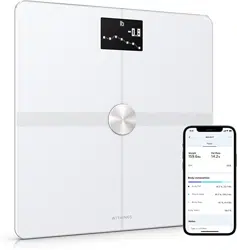
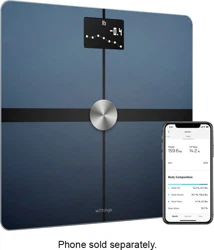
Withings Body
v3.1 | October, 2020
Withings Body
BMI - Wi-Fi scale
Installation and operating instructions

EN-2
Withings Body
v3.1 | October, 2020
Table of contents
Minimum requirements ��������������������������������������������������������������������� 5
Internet access ......................................................................................................................................5
Smartphone or device ......................................................................................................................5
OS version ...............................................................................................................................................5
Health Mate App version .................................................................................................................5
Withings Body description ������������������������������������������������������������� 6
Overview ..................................................................................................................................................6
Box contents ..........................................................................................................................................6
Product description ...........................................................................................................................7
Scale screens description ................................................................................................................7
Setting up the Withings Body ������������������������������������������������������� 8
Installing the Health Mate app ......................................................................................................8
Installing your Withings Body .......................................................................................................8
Customizing your Withings Body ��������������������������������������������� 20
Changing the configuration of your Withings Body .......................................................20
Changing the settings of your Withings Body .................................................................. 23
Using your Withings Body ������������������������������������������������������������28
Tracking your weight ...................................................................................................................... 28
Checking the weather .................................................................................................................... 32
Using Baby mode ............................................................................................................................. 33
Using Pregnancy Mode ................................................................................................................. 35
Linking your account to MyFitnessPal ��������������������������������������37
Syncing your data �����������������������������������������������������������������������������38
Dissociating your Withings Body �����������������������������������������������39
Performing a factory reset of your Withings Body ��������������41
Cleaning and maintenance ����������������������������������������������������������� 42
Cleaning your Withings Body ....................................................................................................42
Changing the batteries .................................................................................................................. 42
Installing the carpet feet ...............................................................................................................43

EN-3
Withings Body
v3.1 | October, 2020
Updating your Withings Body ................................................................................................... 43
Technology description ����������������������������������������������������������������� 46
Weight ...................................................................................................................................................46
Body Mass Index ...............................................................................................................................46
User guide copyright �����������������������������������������������������������������������47
Legal notice �����������������������������������������������������������������������������������������47
Personal data ...................................................................................................................................... 47
Safety instructions ��������������������������������������������������������������������������� 48
Use and storage ................................................................................................................................48
Location ................................................................................................................................................48
Service and maintenance .............................................................................................................48
Specifications ������������������������������������������������������������������������������������ 49
Document release overview ����������������������������������������������������������51
Warranty ����������������������������������������������������������������������������������������������� 52
Regulatory statements �������������������������������������������������������������������53


EN-5
Withings Body
v3.1 | October, 2020
Minimum requirements
Internet access
Access to the Internet is required to:
• Download the Health Mate app,
• Set up your Withings Body,
• Upgrade the firmware.
For more details, refer to “Specifications” on page49.
We recommend using the app on a device connected to the Internet to enjoy all
features.
Smartphone or device
An iOS device or Android device (with operational Bluetooth and Wi-Fi or
3G/4G) is required to:
• Set up your Withings Body,
• Retrieve data from your Withings Body,
• Access specific functions of your Withings Body.
Bluetooth Low Energy (BLE) compatibility is recommended to install your
Withings Body.
For more details, refer to “Specifications” on page49.
OS version
You need iOS 8 or higher or Android 5.0 or higher to install and run the
Health Mate App.
Health Mate App version
We recommend that you use the latest available version of the Health Mate app
to have all the latest features available.

EN-6
Withings Body
v3.1 | October, 2020
Withings Body description
Overview
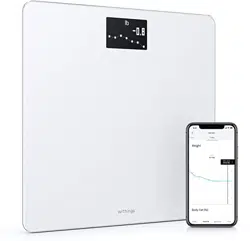
The Withings Body allows you to easily track your weight and monitor your
progress. Not only does it let you know how much you weigh, it also calculates
your Body Mass Index (BMI) to give you a better idea of where you stand as far
as weight-related risks are concerned.
Of course that’s not all your Withings Body does. If you activate the Weather
screen, you also get your daily weather report everytime you weigh in.
Because the Withings Body is a connected scale, its true potential is achieved
when you use it along with the Health Mate app. Beside allowing you to install
your scale, the Health Mate app allows you to customize its display, to set a
weight goal, and to check the entire history of your weight data.
Thanks to its in-app activity tracking feature and the numerous partner apps you
can connect it to, the Health Mate app helps you reach your weight goal faster by
helping you track your activity and check your calorie balance.
Box contents
(1)Withings Body (2)Carpet feet (3)Batteries (inserted)

EN-7
Withings Body
v3.1 | October, 2020
Product description
(1)Screen
(4)Battery cover
(2)Feet (3)Unit and pairing
button
Scale screens description
You can select a number of screens to be displayed on your Withings Body:
• Weight: Displays your weight. This screen cannot be disabled.
• BMI: Displays your Body Mass Index.
• Weather
1
: Displays the weather for the day.
• Steps
1, 2
: Displays the number of steps you did the previous day.
You can disable or change the order of these screens as you like after you install
your Withings Body. Otherwise, they will appear in the default order. Refer to
“Changing the screen order” on page23 for more information.
1
This screen can only be used if you set up your Withings Body in Wi-Fi.
2
You either need to own a Withings tracker, or to use the in-app tracking of the
Health Mate app to display your number of steps on this screen. If you don’t have
a Withings tracker, tap on Activity in your Dashboard in the Health Mate app and
tap Activate now. Your mobile device will then start tracking your steps.

EN-8
Withings Body
v3.1 | October, 2020
Setting up the Withings Body
Installing the Health Mate app
If the Health Mate app is not already installed on your device, perform the
following steps:
1. Go to go�withings�com in your device’s web browser.
2. Tap Download on the App Store or on the Play Store.
3. Tap Get.
The installation process starts.
Installing your Withings Body
Overview
Installing your Withings Body in Wi-Fi gives you access to all the features and
screens available. Installing your Withings Body in Bluetooth limits the features
and screens available. For example, you can’t use the Weather screen and the
Steps screen, as they require access to the Internet.
You can change the configuration of your Withings Body anytime you want. Refer
to “Changing the configuration of your Withings Body” on page20 for more
information.
Note that once you’ve installed your Withings Body on your account, all the users
of the account can use it. You are also free to install it on various accounts. There
is, however, a limit of eight users per scale at the moment.

EN-9
Withings Body
v3.1 | October, 2020
I’m new to Health Mate
1. Pull the tab out of the battery compartment if it’s the first time you install your
Withings Body.
2. Open the Health Mate app.
3. Tap Get Started.

EN-10
Withings Body
v3.1 | October, 2020
4. Tap Scales.
5. Tap Withings Body.
6. Tap Install.

EN-11
Withings Body
v3.1 | October, 2020
7. Press the button at the back of the scale for three seconds and tap Next.
8. Tap Next.
9. Tap Pair (iOS only).

EN-12
Withings Body
v3.1 | October, 2020
10. Tap Pair. (iOS only).
11. Tap Next.
12. Enter your email and password. Tap Create.
13. Enter your first name, surname and birthday.
14. Select your gender and enter your height and weight. Tap Next.

EN-13
Withings Body
v3.1 | October, 2020
15. Tap Change the avatar if you want to change it.
16. Tap Next.
You have the possibility to add a family member if you want to.
17. To install your scale in Wi-Fi, perform the following steps:
a. Tap Quick setup to use the same Wi-Fi network as your mobile device or
Setup another network to use another one.
b. Tap Allow.
You will need to update the Wi-Fi configuration if you change the
network name or password. Refer to “Changing the configuration of your
Withings Body” on page20 for more information.
18. To install your scale in Bluetooth, tap I don’t have a Wi-Fi Network.
19. Tap OK.
20. Tap Close.
The Health Mate now prompts you to select your target weight. Tap Cancel
if you don’t want to set a weight goal. You can set one later on if you change
your mind. Refer to “Changing your weight goal” on page29 for more
information.
The Withings Body is updating and restarting.

EN-14
Withings Body
v3.1 | October, 2020
21. Tap Done.
I already have a Health Mate account
1. Pull the tab out of the battery compartment if it’s the first time you install your
Withings Body.
2. Open the Health Mate app.
3. Go to Devices.
4. Tap +.

EN-15
Withings Body
v3.1 | October, 2020
5. Tap Scales.
6. Tap Withings Body.
7. Tap Install.

EN-16
Withings Body
v3.1 | October, 2020
8. Press the button at the back of the scale for three seconds and tap Next.
9. Tap Next.
10. Tap Pair (iOS only).

EN-17
Withings Body
v3.1 | October, 2020
11. Tap Pair (iOS only).
12. Tap Next.
13. To install your scale in Wi-Fi, perform the following steps:
a. Tap Quick setup to use the same Wi-Fi network as your mobile device or
Setup another network to use another one.

EN-18
Withings Body
v3.1 | October, 2020
b. Tap Allow.
You will need to update the Wi-Fi configuration if you change the
network name or password. Refer to “Changing the configuration of your
Withings Body” on page20 for more information.
14. To install your scale in Bluetooth, tap I don’t have a Wi-Fi Network.
15. Tap OK.
16. Tap Close.
The Withings Body is updating and restarting.
17. Tap Done.
The Health Mate now prompts you to select your target weight.

EN-19
Withings Body
v3.1 | October, 2020
Selecting your weight goal
To select your weight goal, perform the following steps:
1. Tap and slide up or down to select your target weight.
2. Tap Next.
3. Tap and slide up or down to select the pace at which you want to achieve your
weight goal.
4. Tap OK.

EN-20
Withings Body
v3.1 | October, 2020
Customizing your Withings Body
Changing the configuration of your Withings Body
You may need to change the configuration of your Withings Body:
• If you want to use a dierent Wi-Fi network,
• If you want to switch to a Wi-Fi configuration,
• If you want to switch to a Bluetooth configuration.
To change your configuration, perform the following steps:
1. Open the Health Mate app.
2. Go to Devices.
3. Tap Withings Body.
4. Tap Update Wi-Fi Configuration.

EN-21
Withings Body
v3.1 | October, 2020
5. Press the button at the back of the scale and tap Next.
6. Tap Next.
7. To install your scale in Wi-Fi, perform the following steps:
a. Tap Quick setup to use the same Wi-Fi network as your mobile device or
Setup another network to use another one.

EN-22
Withings Body
v3.1 | October, 2020
b. Tap Allow.
8. To install your scale in Bluetooth, tap I don’t have a Wi-Fi Network.
9. Tap OK.
10. Tap Close.

EN-23
Withings Body
v3.1 | October, 2020
Changing the settings of your Withings Body
Changing the weight unit
You have the choice between three weight units: kilogram (kg), stone (stlb) and
pound (lb). To change the units on your Withings Body, perform the following
steps:
1. Press and hold the button at the back of your Withings Body for a few second.
2. Press the button again to change the unit.
3. Check the screen of your scale to see the unit change. The unit change is
confirmed a few seconds after you stop pressing the button.
Changing the screen order
You can change the order of the screens of your Withings Body, for example
if you want to display the Weather or BMI screens first. To do so, perform the
following steps:
1. Open the Health Mate app.
2. Go to Devices.
3. Tap Withings Body.

EN-24
Withings Body
v3.1 | October, 2020
4. Tap Screens customization.
5. Tap the user profile for which you want to change the screen order.
6. Select the screens you want to display:
- Tap the black circles on the left to hide a screen.
- Tap the empty circles on the left to display a screen.

EN-25
Withings Body
v3.1 | October, 2020
7. Tap and hold the icon on the right to drag a screen up or down.
8. Tap the back button to confirm.
9. Weigh yourself once to synchronize your Withings Body with your app and
finalize the change.
The change will be eective for your next weigh-in.

EN-26
Withings Body
v3.1 | October, 2020
Changing the location of your scale
The location of your scale is used to provide you with the correct weather
forecast if you have activated the Weather screen. It is based on your IP address
but it is not always accurate. If the preset location of your scale happens to be
incorrect, you are free to change it anytime you want. To do so, perform the
following steps:
1. Open the Health Mate app.
2. Go to Devices.
3. Tap Withings Body.
4. Tap Locate.

EN-27
Withings Body
v3.1 | October, 2020
5. Tap Allow.
6. Tap OK.
EN-28
Withings Body
v3.1 | October, 2020
Using your Withings Body
Tracking your weight
Overview
The Withings Body allows you to track your weight and Body Mass Index (BMI). It
also lets you see how your weight trend changes over time.
Make sure you follow the recommendations below to get accurate and
representative weight measurements:
• Make sure you always weigh yourself around the same time to improve the
consistency of your measurements.
• Wait five seconds before weighing yourself if you have just moved your scale.
• If your scale is on a carpet, make sure you’re using the carpet feet. Refer to
“Installing the carpet feet” on page43 for more information.
Weighing yourself
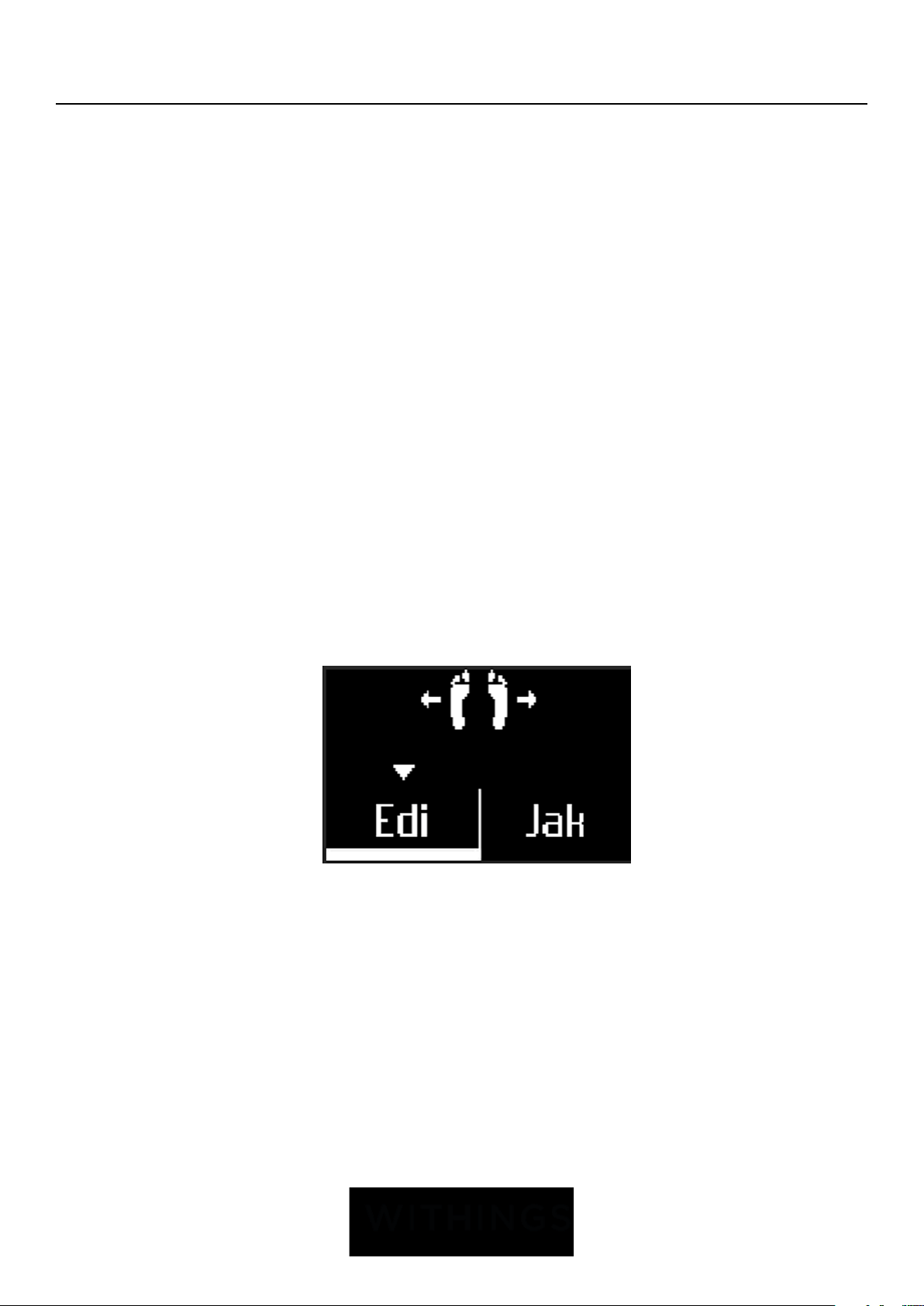
Thanks to the Position Control ™ technology, getting an accurate weight
measurement has never been easier. If your weight is not properly distributed
on your Withings Body, arrows are displayed on the scale to indicate in which
direction you should lean to stabilize your weight.
If several users have a similar weight, the following screen can be displayed:
Simply lean left or right to select the correct name.
Retrieving your weight data
As soon as you weigh yourself, your weight is displayed on the display of
your scale. If you’ve activated the Weight Trend screen, you’ll also see a graph
showing your eight last measurements as well as the delta between the latest
measurement and the previous one.

EN-29
Withings Body
v3.1 | October, 2020
To see detailed graphs about your weight and see your full history, you have to
check your data on the Health Mate app.
You can access your graphs:
• By tapping the Weight widget on your Dashboard.
• By tapping any weight measurement item in your Timeline.
Once you’re viewing the weight graph, you can alternate between the tabs to
view your weight graph and your BMI graph.
Changing your weight goal
To change your weight goal, perform the following steps:
1. Open the Health Mate app.
2. Select the Dashboard view.
3. Tap Weight.
4. Tap on three dots in the upper right hand corner
5. Tap Change my weight goal

EN-30
Withings Body
v3.1 | October, 2020
6. Tap and slide up or down to select your target weight.
7. Tap Next.
8. Tap and slide up or down to select the pace at which you want to achieve your
weight goal.
9. Tap OK.
Retrieving unknown measurements
If your Withings Body doesn’t recognize you when you weigh in, your weight
measurements will be listed as unknown measurements. To assign them to a user,
perform the following steps:
1. Open the Health Mate app.
2. Go to Devices.

EN-31
Withings Body
v3.1 | October, 2020
3. Tap Unknown measurements.
4. Select the Unknown measurement.
5. Tap the user you want to assign the measurement to.

EN-32
Withings Body
v3.1 | October, 2020
Checking the weather
Overview
You can check the local weather forecast for the day directly on your
Withings Body if the following conditions are met:
• Your Withings Body is set up in Wi-Fi. Refer to “Changing the configuration of
your Withings Body” on page20 for more information on how to switch to
a Wi-Fi configuration.
• The Weather screen is enabled. Refer to “Changing the screen order” on
page23 for more information.
Retrieving weather information
All you have to do to retrieve weather information on your Withings Body is to
step on the scale and wait for the Weather screen to be displayed.
The Weather screen provides you with information about the average weather
and temperature for the morning (between 6:00 AM and 12:00 PM) and for the
afternoon (between 12:00 PM and 9:00 PM).
If you weigh yourself in the morning, the data of the day is displayed. If you weigh
after 7:00 PM, the data of the next day is displayed.

EN-33
Withings Body
v3.1 | October, 2020
Using Baby mode
Baby mode allows you to find out the weight of your baby by weighing yourself
on the scale while holding your baby. To use this mode, you must create a profile
for your baby in the Health Mate app. Then enter the height and weight of your
baby and weigh yourself while holding your baby in your arms. The weight of
your baby will be automatically detected by the scale.
Important: your baby must weigh between 7 and 33 lbs (3 and 15 kg) to be
detected by the scale. As Baby mode is enabled by default on the Withings Body,
you do not need to enable it in the Health Mate app.
Follow the steps below to use Baby mode:
1. Create a profile for your baby in the Health Mate app.
2. Enter the height and weight of your baby.
3. Weigh yourself on your own.
Your weight will be displayed on the screen of the Withings Body.
4. Weigh yourself with your baby (within 5 minutes of first weighing yourself).
The scale will display your weight plus your baby’s weight, followed by the
weight of your baby on its own.

EN-34
Withings Body
v3.1 | October, 2020
For best results, we recommend you to weigh yourself when your baby is calm.
Note: you can use Baby mode for several members of your family. For example,
you may wish to add a profile for your baby to your account or create a separate
account for your baby. Please note that you can add up to 8 users to your
Withings account.

EN-35
Withings Body
v3.1 | October, 2020
Using Pregnancy Mode
Pregnancy Mode provides an enriched Health Mate experience for pregnant
women, oering advice, tips, and easy weight tracking throughout pregnancy.
Pregnant women will receive the following information on a weekly basis in their
Health Mate Timeline:
• an overview of the week with the current stage of pregnancy and
cumulative weight gain, along with how it compares with your personalized
recommendations
• health-related and obstetrician-reviewed information relevant to the current
week of pregnancy
Activating Pregnancy Mode
Pregnancy Mode can be activated by any woman at any time during pregnancy.
To do so, perform the following steps:
1. Open the Health Mate app.
2. Go to Wellness Programs.
3. Tap Learn more.

EN-36
Withings Body
v3.1 | October, 2020
4. Tap Join.

EN-37
Withings Body
v3.1 | October, 2020
Linking your account to MyFitnessPal
Overview
When you monitor your weight, it can also be useful to monitor your calorie
intake with apps such as MyFitnessPal to help you reach your weight goal.
Once you link both accounts, your Withings account will be able to retrieve your
daily calorie intake from MyFitnessPal. You can then check the MyFitnessPal
widget from your Dashboard to see your calorie balance.
MyFitnessPal can also retrieve information from your Withings account: your
weight and your calorie outtake.
Your calorie outtake is based on any activity data coming from a Withings activity
tracker or the in-app tracking feature of the Health Mate app. Note that tracking
your activity can be a great way to help you achieve your weight goal.
Connecting to MyFitnessPal
To connect your Withings account to your MyFitnessPal account, perform the
following steps:
1. Open the Health Mate app.
2. Tap Profile.
3. Tap MyFitnessPal.
4. Tap Open.
5. Log in to your MyFitnessPal account.
You can unlink your MyFitnessPal account and your Withings account anytime
you want from your Profile.

EN-38
Withings Body
v3.1 | October, 2020
Syncing your data
Data from your Withings Body is automatically synced, without any action
required on your part. Your weight data is synced with the Health Mate app within
a few minutes after you weigh in.
• 14 hours after your last weigh-in and then every 14 hours (default behavior)
• Once a night (if the Steps screen is activated)
If you’ve set up your Withings Body in Bluetooth, we advise that you weigh in
regularly.

EN-39
Withings Body
v3.1 | October, 2020
Dissociating your Withings Body
All data that wasn’t synced before dissociating your Withings Body will
be lost permanently.
Dissociating your Withings Body allows you to remove it from your account.
Dissociating your Withings Body will not remove any of the data that
was synced from the Health Mate app.
To dissociate your Withings Body, perform the following steps:
1. Open the Health Mate app.
2. Go to Devices.
3. Tap Withings Body.
4. Tap Dissociate this product.


EN-41
Withings Body
v3.1 | October, 2020
Performing a factory reset of your
Withings Body
All data that wasn’t synced before factory resetting your
Withings Body will be lost permanently.
Factory resetting your Withings Body allows you to delete the data stored on it.
Factory resetting completes the dissociation process.
Factory resetting your Withings Body will not remove any of the data
from the Health Mate app.
1. Go to the Bluetooth settings of your device and “forget” your Withings Body
from the list of Bluetooth devices.
2. Remove one of the batteries for ten seconds.
3. Put the battery back.
4. When “Hello” appears on the display of your scale, press and hold the unit
button at the back of the scale for 20 seconds until “Factory” appears.
At this time, you can start the installation process for the Withings Body. Refer to
“Setting up the Withings Body” on page8 for more information.

EN-42
Withings Body
v3.1 | October, 2020
Cleaning and maintenance
Cleaning your Withings Body
You can clean your Withings Body using a cloth dampened with water. If water is
not enough to clean it, you can also use crystal vinegar.
Do not, under any circumstance, use any solvent to clean your
Withings Body.
Changing the batteries
Your Withings Body uses four standard AAA batteries and has a battery life of 18
months. To check the battery level of your Withings Body, perform the following
steps:
1. Open the Health Mate app.
2. Go to Devices.
3. Check the battery level displayed on the left.
If the battery level is below 20% and you’re having syncing issues, we advise that
you change the batteries.
EN-43
Withings Body
v3.1 | October, 2020
Installing the carpet feet
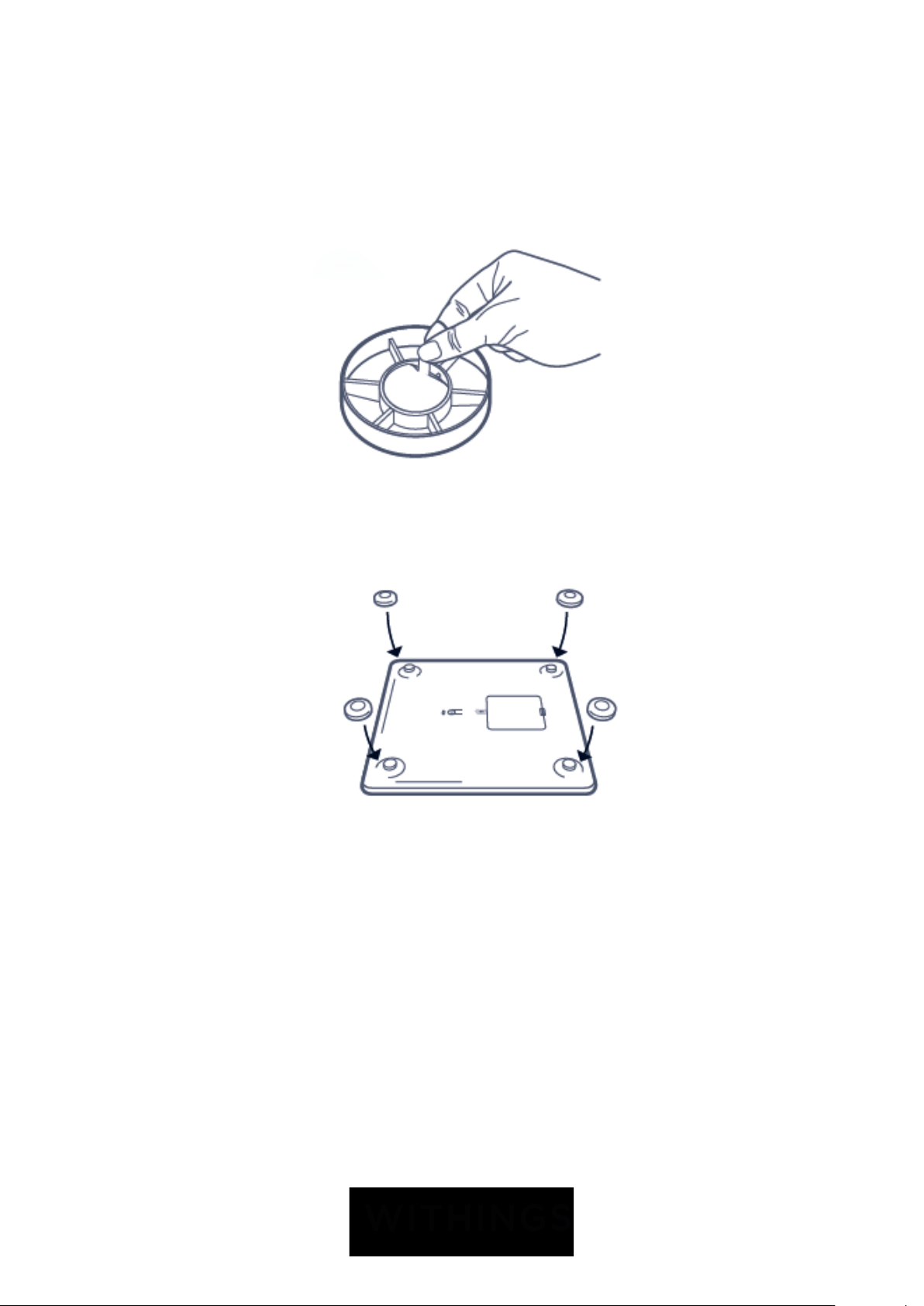
If you are using your Withings Body on a carpet, we recommend that you use the
carpet feet included with your scale. To do so, perform the following steps:
1. Remove the tab below each carpet foot.
2. Stick each carpet foot on the Withings Body feet.
Updating your Withings Body
We regularly oer new firmware so that you can benefit from the latest features
we add to our products. When new firmware is available, it is automatically
installed without any prompt from the Health Mate app (only in Wi-Fi).
However, you can check if updates are available and force their installation
whenever you want. To do so, perform the following steps:
1. Open the Health Mate app.
2. Go to Devices.

EN-44
Withings Body
v3.1 | October, 2020
3. Tap Withings Body.
4. Tap Check for updates.
5. Press the button at the back of the scale and tap Next.
6. Tap Upgrade.
7. Tap Close when the upgrade is complete.

EN-45
Withings Body
v3.1 | October, 2020
Note: You can check which firmware version your Withings Body uses in Devices
> Withings Body.

EN-46
Withings Body
v3.1 | October, 2020
Technology description
Weight
Your weight is measured thanks to four weight sensors placed below the surface
of your Withings Body.
Body Mass Index
The Body Mass Index (BMI) is calculated based on your weight and height. It is
an international standard adopted by the World Health Organization which helps
evaluate the health risks linked to abnormal weight.
Generally speaking, a BMI between 18 and 25 is considered as “normal”, meaning
that weight-related risks to your health are low. Please note, however, that BMI is
only an indicator, and that it doesn’t take into account a person’s morphology.

EN-47
Withings Body
v3.1 | October, 2020
User guide copyright
This User Guide is protected by Intellectual Property laws and copyright. Any
reproduction, modification, representation, and/or publication without Withings
prior approval is strictly prohibited. You may print this User Guide for your
personal use exclusively.
For any questions, please contact Withings at: https://support�withings�com/hc/
en-us/requests/new
Legal notice
By using your Withings Body you expressly agree to the Withings
Services Terms and Conditions available on our website.
Personal data
• Make sure you have read our privacy policy, which you can find on our Privacy
Policy.
• Make sure your Withings account password is secure enough to restrict access
to your account. It should be at least eight-character long, have mixed case,
and use a combination of alphanumeric and special characters.
• We recommend that you protect access to the Health Mate app with an
additional passcode and/or Touch ID. You can do so from the app by going to
Settings in the app and activating Touch ID and Passcode.
• We recommend that you export your data on a regular basis to local storage
on your home computer. You can do so from the Health Mate web interface
by clicking your Profile picture > Settings > User Preference > Download my
data.

EN-48
Withings Body
v3.1 | October, 2020
Safety instructions
Use and storage
• Use the product at temperatures between 5°C and 35°C (41°F and 95°F) with
a relative humidity between 30% and 80%.
• Product may be stored in a clean location between -10°C and 50°C (14°F and
122°F) when it is not in use, with a relative humidity between 10% and 90%.
• This product is not a toy. Do not allow children to play with it.
• This device is designed for indoor use only.
• Do not allow the device to come in contact with liquids.
Location
• Do not use your Withings Body in a place that is too humid as it can aect the
batteries.
• Make sure you use the carpet feet if you place your Withings Body on a
carpet.
Service and maintenance
• Do not attempt to repair or modify your Withings Body yourself. Service
and maintenance not described in this User Guide should be performed by
professional technicians.
• If you have any issues, feel free to contact customer service at: https://support�
withings�com/hc/en-us/requests/new.

EN-49
Withings Body
v3.1 | October, 2020
Specifications
Withings Body
• Length: 325 mm (12.8’’) 300 mm (11.9‘‘)
• Width: 325 mm (12.8’’) 300 mm (11.9‘‘)
• Depth: 23 mm (0.90’’) 33 mm (1.3‘‘)
• Weight: 2.1 kg (4.6 lbs) 2 kg (4.4 lbs‘)
• Weight range: 5 kg - 180 kg (9 lbs - 396 lbs)
• Weight units: kg, lb, stlb
• Precision: 100 g (3.5 oz)
Display
• 6.1 cm x 4.1 cm (2.4’’ x 1.6’’)
• 128 x 64 pixels
• High-contrast lighting
Connectivity
• Wi-Fi 802.11 b/g/n (2.4 GHz only), compatible with WEP/WPA/WPA2 personal
networks
• Bluetooth / Bluetooth Low Energy (Bluetooth Smart Ready)
Sensors
• 4 weight sensors
• Patented Body Position Detector via Position Control™ technology
Metrics
• Weight
• Body Mass Index (BMI)
Batteries
• 18 months battery life
• 4 LR3 batteries
Features
• Automatic user recognition
• Weather forecast
• Baby mode
• Pregnancy mode
Compatible devices
• iPhone 4s (or higher)
• iPod Touch 5th Gen (or higher)

EN-50
Withings Body
v3.1 | October, 2020
• iPad (2nd Gen or higher, as well as any iPad Mini)
• Bluetooth Low Energy compatible Android device
Compatible OS
• iOS 8.0 (or higher)
• Android 5.0 (or higher)

EN-51
Withings Body
v3.1 | October, 2020
Document release overview
Release date Modifications
June 2017 v1.0 First release
April 2018 v2.0 Privacy update
April 2019 v3.0 Withings version
October 2020 v.3.1 Battery life update
The screenshots in this manual are used for explanatory purposes. Your
actual screens may dier from the screenshots in this manual.

EN-52
Withings Body
v3.1 | October, 2020
Warranty
Withings One (1) Year Limited Warranty - Withings Body
Withings warrants the Withings branded hardware product (“Withings Body”)
against defects in materials and workmanship when used normally in accordance
with Withings’ published guidelines for a period of ONE (1) YEAR from the
date of original retail purchase by the end-user purchaser (“Warranty Period”).
Withings’s published guidelines include but are not limited to information
contained in technical specifications, safety instructions, or quick start guide.
Withings does not warrant that the operation of the Withings Body will be
uninterrupted or error-free. Withings is not responsible for damage arising from
failure to follow instructions relating to the Withings Body’s use.
The warranty does not extend to:
• Any damage to the device resulting from abnormal or abusive use, negligence
or lack of care, or accidental damage (such as dents).
• Indirect damages of any kind.

EN-53
Withings Body
v3.1 | October, 2020
Regulatory statements
FCC ID: XNA-WBS06
This device complies with Part 15 of the FCC Rules. This equipment complies with
FCC radiation exposure limits set forth for an uncontrolled environment. End
users must follow the specific operating instructions for satisfying RF exposure
compliance. This transmitter must not be co-located or operated in conjunction
with any other antenna or transmitter.
Operation is subject to the following two conditions:
(1) This device may not cause harmful interference, and
(2) This device must accept any interference received, including interference that
may cause undesired operation.
This device complies with the R&TTE Directive 1999/5/CE.
A copy of the EU Declaration of Conformity is available online at https://www�
withings�com/fr/en/compliance