Noise ColorFit Pro2 Oxy Smartwatch - Troubleshooting
Latest Firmware Version : 7.1
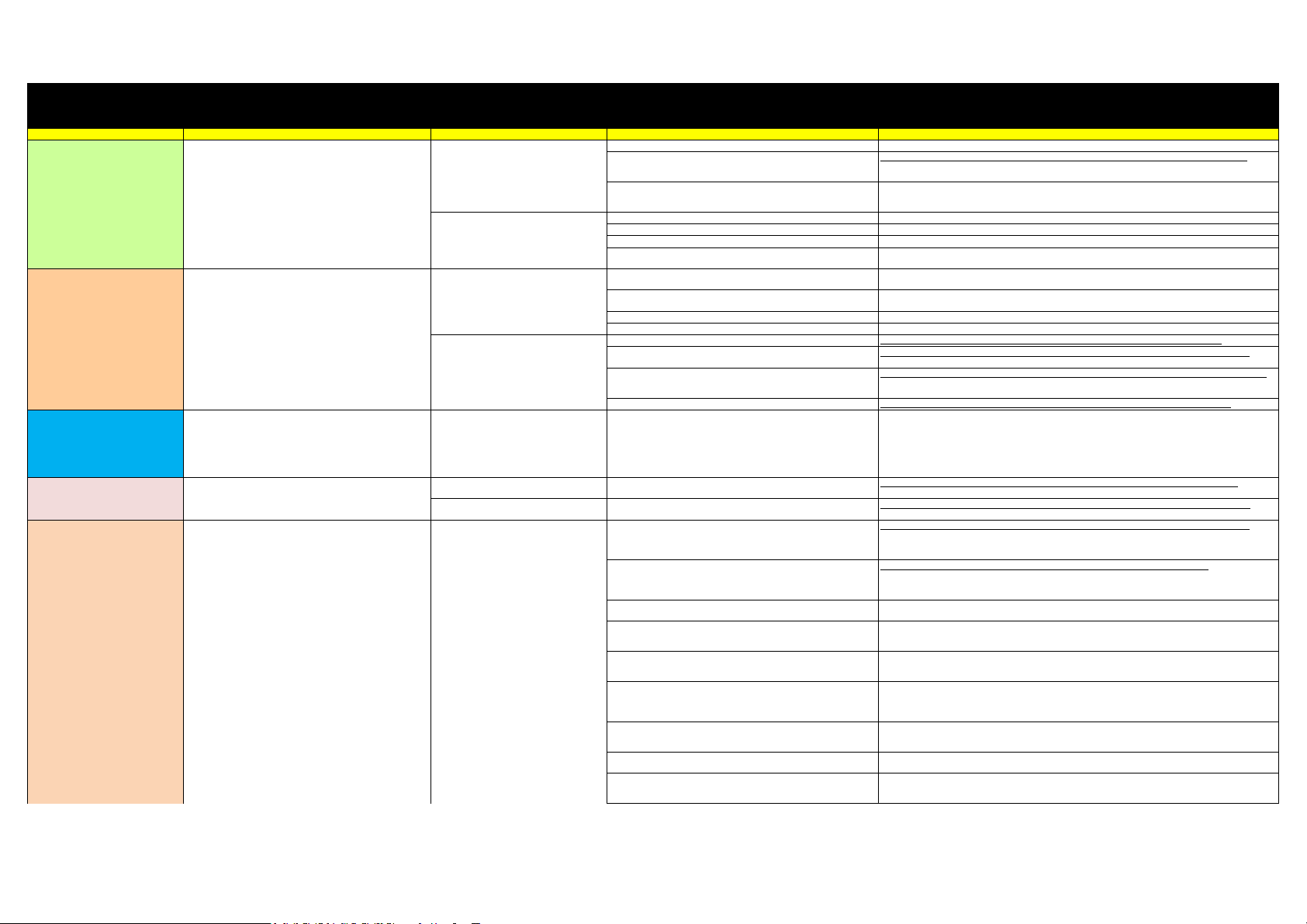
Sub Issue / Customer's response Recommendation Title Steps Images Link
Device not charging Please charge your watch in a well-ventilated environment. Before charging,
make sure the charging port is dry. Wipe off any water or sweat. Please Use 5V
1 Amp charger ,Do not use turbo charger
1.1 How do I charge my watch 1.Connect the charging cradle to a power adapter, and plug in the power adapter.
2.Plug your watch with the charging cradle. Align and attach the charging contacts of
your watch to those of the charging cradle until you can see the battery level on the
watch face.
https://www.dropbox.com/sh/mhgmpinbi8hgly9/AAD-gQbeesPj3wAGXld5Xm3-a?dl=0&preview=Charger+connect.png
3.When your watch is fully charged, 100% will be displayed on the watch screen and
the charging will stop automatically. If the battery level is below 100% and the charger
is still connected to the watch, the charging will start automatically.
1.2 Charging using an adapter Connect the Charger's USB end to the USB port on the adapter
Make sure that the wall socket is functioning properly and not loose or damaged
If it still doesn't work try to charge from a different wall socket
If it still doesn't work try to clean the charging point of the watch and the charging
pins of the charger.
Low Battery Backup x 1.3 Battery of my watch drain quickly 1.This may occur if the number of screen wake-up times increases when you raise
your wrist in special scenarios.
2.The power consumption of your watch may increase when you enable Auto heart
rate monitoring.
3. The power consumption will increase if the the screen brightness is at 100 %.
4. The power consumption will increase if auto stress is turned on.
1.4 Reduce the battery consumption of Watch 1. Disable Continuous heart rate monitoring in the Noisefit app. https://www.dropbox.com/sh/mhgmpinbi8hgly9/AAD-gQbeesPj3wAGXld5Xm3-a?dl=0&preview=Auto+HR.png
2. Disable Notifications in the NoiseFit app if you do not need the notification
function.
https://www.dropbox.com/sh/mhgmpinbi8hgly9/AAD-gQbeesPj3wAGXld5Xm3-a?dl=0&preview=Notification+Alert.png
3. Disable Raise wrist to wake screen in the NosieFit app if you do not need to use this
function.You can do the same by Swiping to the right on the watch from the
homescreen and turning off Raise to wake up Function
https://www.dropbox.com/sh/mhgmpinbi8hgly9/AAD-gQbeesPj3wAGXld5Xm3-a?dl=0&preview=Wrist+sense+from+app.png
4. Disable stress monitoring from noisefit app https://www.dropbox.com/sh/mhgmpinbi8hgly9/AAD-gQbeesPj3wAGXld5Xm3-a?dl=0&preview=Auto+stress.png
Data Synchronize Issue Ensure that the watch is connected to the phone using the NoiseFit app. Open
the NoiseFit app and swipe down on the Homepage screen to sync data. If the
issue persists, restart the watch and try again.
If you are still unable to sync data, close the NoiseFit app and make sure it is
not running in the background. Open the app again and try syncing data once
more.
2.1 Takes a long time to sync the activity data to my phone
Activity data is usually very large, and therefore takes longer to sync. So Swipe Up
from the Homepage screen and wait for the watch to be synced. The Syncing is
displayed on the top in Percenatage value.
Know the Watch Version / Mac Address
3.1 Unable to view Bluetooth name and MAC address of your watch
1. Go to setting on your watch, select About, you can see the watch's blueetooth
name and MAC address
https://www.dropbox.com/sh/mhgmpinbi8hgly9/AAD-gQbeesPj3wAGXld5Xm3-a?dl=0&preview=MAC+Address.png
3.2 Unble to view watch's Firmware version. 1. Open the NoiseFit app, go to Settings and then tap on the connected device, your
watch's firmware version will be present on the screen
https://www.dropbox.com/sh/mhgmpinbi8hgly9/AAD-gQbeesPj3wAGXld5Xm3-a?dl=0&preview=Firmware+Version.png
Notification Issue Ensure that your watch and the Noisefit app are fully updated & you have
connected your Colorfit Pro 2 Oxy to your phone properly. Check that the
watch is firmly attached to your wrist.
4.1 Unable to receive Notifications in my watch Check that you have enabled Notifications in the Noisefit app. To do this, open the
NoiseFit app, go to Settings. Select Colorfit pro 2 Oxy. select Notifications & alerts .
Then select the apps that you want to receive notifications from.
Make sure you give notification access to noisefit
https://www.dropbox.com/sh/mhgmpinbi8hgly9/AAD-gQbeesPj3wAGXld5Xm3-a?dl=0&preview=Notification+Alert.png
Check whether you have disabled Do not Disturb. If this mode is enabled, new
notifications will not be displayed on your wearable devices. To check whether you
have disabled Do not Disturb, swipe up on the home screen of your watch. Check
wether DND is enabled if so please disable the same.
https://www.dropbox.com/sh/mhgmpinbi8hgly9/AAD-gQbeesPj3wAGXld5Xm3-a?dl=0&preview=DND.png
If you still not receive notification please lock your app in the background or white list
the app from the recently used apps list
Your watch can only remind you of notifications that are displayed on the status bar.
In this case, ensure that you have enabled notifications to be displayed in the status
bar. Perform the following:
For Android users (taking EMUI 9.0 as an example): Go to Settings > Notifications,
select apps you want to receive notifications from, enable Allow notifications and
Display in status bar, Banners, and set Lock screen notifications to Show.
For iOS users: Go to Settings > Notifications, select apps you want to receive
notifications from, enable Allow Notifications and Notification Center. Follow settings
in your Message app to configure settings in WhatsApp and other third-party social
media apps.
If messages from your WhatsApp still cannot be displayed, open WhatsApp, go to Me
> Settings > Notifications, and enable Notifications Center, and check whether this
issue can be resolved.
If the issue persists, restart your phone and connect your phone to the watch, and try
to see whether you can receive notifications on your watch.
If you connect your watch to a phone running iOS 11.0 or later, go to Settings >
Notifications. Touch the app for which you want to receive notifications and enable
Show in History.
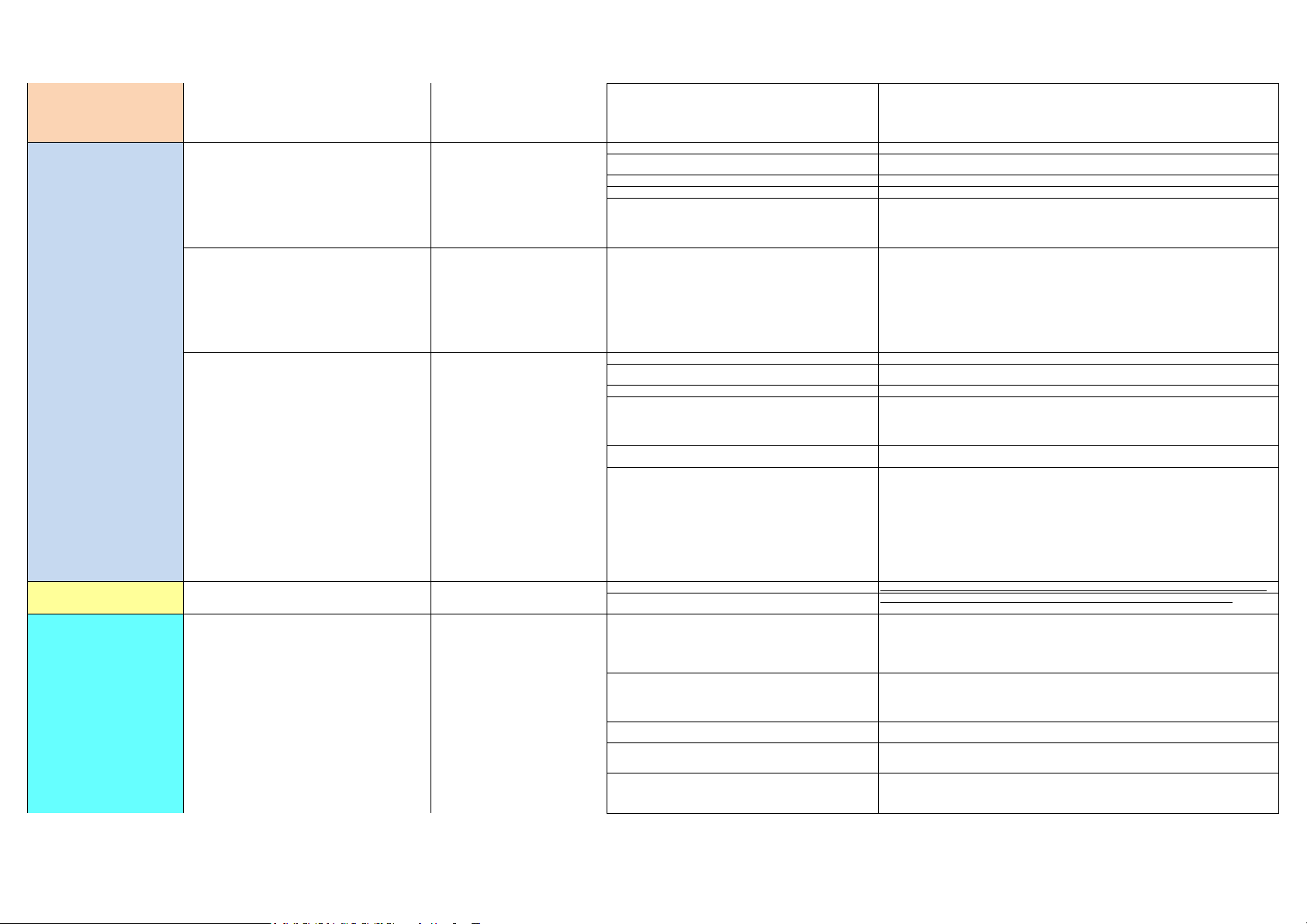
Notification Issue Ensure that your watch and the Noisefit app are fully updated & you have
connected your Colorfit Pro 2 Oxy to your phone properly. Check that the
watch is firmly attached to your wrist.
4.1 Unable to receive Notifications in my watch
Restart your phone if you still encounter this issue after connecting your wearable
device to other Android phones and adding the NoiseFit app to the protected
background app list. If this issue still cannot be solved, this is an issue caused by your
phone's manufacturer. The NoiseFit app is not an app developed by those
manufactures, so it will be cleared from the background app list when the phone's
power consumption is high.
Not pairing with bluetooth & Auto disconnect Try pairing with the mobile using the steps mentioned, if this doesn't work
proceed with the next step
5.1 Unable to find Bluetooth name in the NoiseFit app upon pairing
Check that you have performed the right steps to start the pairing.
Restart your phone or disable and re-enable the Bluetooth on your phone, then re-
pair the watch with your phone.
Restart the watch, then re-pair it with your phone.
Re-install the NoiseFit app, then re-pair the watch with your phone.
If the watch is paired with other devices , unpair it from the other devices, then re-
pair it with your phone. If the original paired device cannot be found, try re-pairing
the watch in a relatively less disruptive environment (such as an open outdoor area
with fewer people).
If the issue persists, try pairing the watch with a different phone.
Restarting your mobile device gives it a fresh start and is sometimes all you
need to fix your issue.
*Press and hold the Power button on your smartphone to Restart the device
(If restart isn't available, turn Off and then turn On your smartphone).
Try pairing the watch after restarting your mobile device.
If this doesn't work proceed with the next step
5.2 Noisefit app prompt me "Pairing failed" Re-install the Noisefit app, then re-pair the watch with your phone.
If the watch's name is not visible on BT search result, Try pairing with a
different mobile
Chances are, you might have an issue with the mobile. You can check if the
headset is working well using a different mobile. If the watch's name is still not
visible in a different mobile proceed with the next step
5.3 Unable to connect phone after disconnection Check that your watch and the Noisefit app are fully updated.
Turn on Bluetooth and GPS on your phone and grant the Location permission for the
NoiseFit app.
Open the NoiseFit app and check to see if your watch can connect automatically.
If the watch can connect automatically, this issue may have occurred because the
NoiseFit app is prevented from running in the background. If you are using an Android
phone, you need to add the NoiseFit app to the protected list in the background. If
you have installed third-party phone manager apps on your phone, add the NoiseFit
app to the white list using the apps.
If your watch cannot connect automatically, connect them manually. To do this, open
the NoiseFit app, go to Devices, and then go to pair device.
If this issue persists, perform the following to troubleshoot:
Disable and enable Bluetooth on your phone and try again.
Restart your phone and reconnect the phone and the watch again.
To reduce the chance that the NoiseFit app is cleared from the background, Lock the
App in the background.
Unpair your watch from the phone using the NoiseFit app and then pair them again.
For Android users: Open the NoiseFit app, go to settings > select Devices and then
select unbind and pair two devices again.
For iOS users: Open the NoiseFit app, go to settings > select Devices and then select
unbind and pair the devices again. On your phone, go to Settings > Bluetooth, touch
the exclamation icon next to the Bluetooth name of the paired watch, and then touch
Forget This Device to delete the pairing records for reconnection.
Screen Wake Issue 6.1 Watch screen turn on when I raise my wrist 1. Check that you have enabled wrist sense to wake screen in the NoiseFit app https://www.dropbox.com/sh/mhgmpinbi8hgly9/AAD-gQbeesPj3wAGXld5Xm3-a?dl=0&preview=Wrist+sense+from+app.png
2. Check if wrist sense is switched ON on the watch, you can do the same by swiping
up on the watch from the homescreen and turning on Wrist sense setting.
https://www.dropbox.com/sh/mhgmpinbi8hgly9/AAD-gQbeesPj3wAGXld5Xm3-a?dl=0&preview=Wrist+sense.png
Heart rate /Spo2/Stress Data Inaccurate Heart rate /Spo2/Stress monitoring can be affected by various environmental
and situational factors. If you find that your heart rate measurement is
unsuccessful during use, or the data is incorrect, please refer to the following:
6.2 The Heart rate /Spo2/Stress data is inaccurate If your watch is loosely worn or is not well-attached to your wrist, it will not be able to
obtain data through the fluctuations of your blood flow. In this case, check that your
watch is on your wrist properly and that the watch face is facing upwards. It is
recommended that you wear it slightly above your wrist joint for maximum comfort.
Check that your watch is attached correctly to your wrist while you are exercising to
prevent it from slipping.
Ensure that the back of your watch is clean, dry, and free of obstruction from foreign
objects. Excessive sweating during exercise can cause your watch to slip or obstruct
light reflecting off the skin that is used for the measurement, resulting in inaccurate
data. In this case, remove your watch and wipe off any sweat or smudges, then
reattach it to your wrist.
Ensure that the back of the watch is clear of foreign objects that may block the heart
rate monitoring sensor.
Extreme low temperatures may also alter the blood flow of the human body and
cause the heart rate measurement to be inaccurate. In this case, it is recommended
that you initiate a heart rate measurement once you have warmed up.
Heart rates are much easier to measure during regular movement exercises (such as
running, walking, and riding) compared to irregular movement exercises (such as
basketball and free activities), while wrist strength exercises (such as weightlifting)
may even complicate the process.
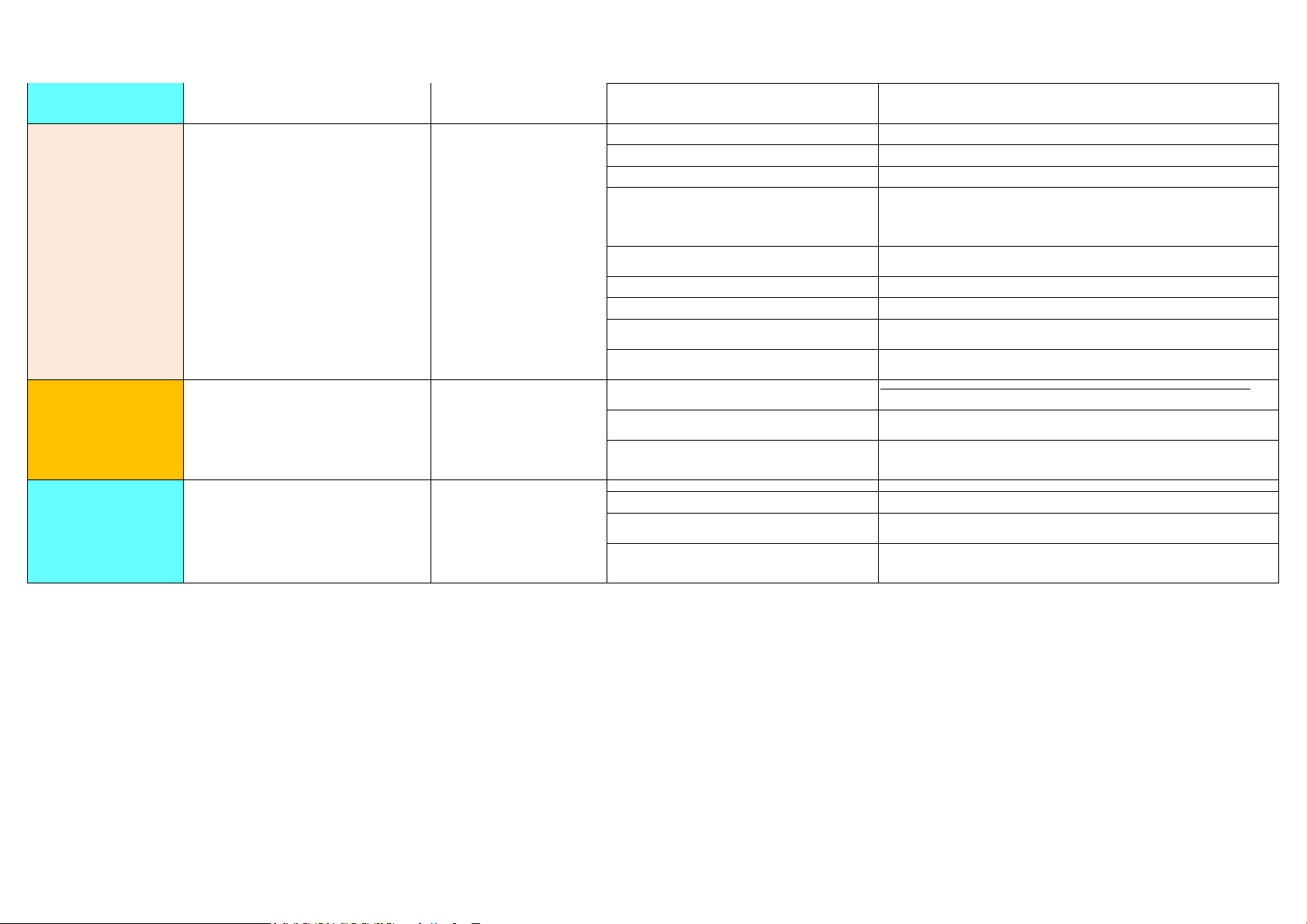
Heart rate /Spo2/Stress Data Inaccurate Heart rate /Spo2/Stress monitoring can be affected by various environmental
and situational factors. If you find that your heart rate measurement is
unsuccessful during use, or the data is incorrect, please refer to the following:
6.2 The Heart rate /Spo2/Stress data is inaccurate
If you find that your heart rate is abnormal during an exercise, keep your watch facing
upwards and stand still for approximately 10 to 15 seconds to check whether your
heart rate returns to normal. If your heart rate cannot be measured after multiple
attempts, it is recommended that you restart your watch and try again.
Sleep Data Inaccurate This can be caused by wrist or arm movement during sleep, leading your
watch to fail to recognize that you were sleeping, and thus will not record
sleep data. To prevent inaccurate readings, try wearing the watch on your
non-dominant hand while sleeping (on your left hand if you are right-handed,
and vice versa).
6.3 Sleep Data is Missing If you sleep less than 4 hrs , your watch may not be able to detect this as sleep time,
and will not record this sleep data in this instance.
If the watch is worn too loosely, it may fail to record sleep data. Make sure that you
wear the device correctly.
When you are traveling, and sleeping on when in transit, such as on the metro, or on a
bus or train, the movement of the train or vehicle may affect the recorded sleep data.
Your watch determines whether it is being worn through a built-in PPG sensor, which
reflects light off your skin. The built-in sensor in the watch usually detects light
reflected from human skin at different wavelengths. When the wearable device is
placed on surfaces such as a desk, sofa, or quilt with the sensor facing down, light
reflected from these surfaces may be similar to that from human skin. In this case, the
watch may think that you are wearing the device, and start recording sleeping data.
If you turned over or accidentally touched the wearable device screen multiple times
while sleeping, the device may exit Sleep mode and record false wake up times, based
on the detected movements.
If there is minimal movement after waking up, the wearable device may remain in
Sleep mode, and fail to record the actual wake up time.
The accuracy of sleep monitoring is closely related to how you wear the watch and
your wrist movement.
Make sure that you keep the wearable device facing upward and wear it slightly back
on the wrist. Do not wear the wearable device too tight or too loose to avoid
inaccurate sleep data.
When you do not use your wearable device for a while, turn it to its side and place it
on a flat surface to minimize any inaccurate sleep data recorded. Power off your
wearable device if you do not use it for a long time.
Update my watch During an update, your watch will automatically disconnect from Bluetooth,
and will reconnect once the update is complete.
8.1 How to update my watch Method 1: Connect your watch to the phone using the NoiseFit app. Open the
NoiseFit app, go to setings, select Colorfit pro 2 Oxy and then click on check for
update. Follow the onscreen instructions to update your watch.
https://www.dropbox.com/sh/mhgmpinbi8hgly9/AAD-gQbeesPj3wAGXld5Xm3-a?dl=0&preview=Firmware+Update.png
3. Check the network signal quality of the area where the user is located. The call
signal may be poor if the network connection is not stable. Advise the user to try
making calls in an open area with stable network connection.
4. If the issue persists, unpair your watch from the phone, then pair the watch with
another phone, and try again. If issue can be well received, it indicates that there is an
issue with your phone's Bluetooth. It is recommended that you change another
phone. If the issue still persists, this is an issue with your watch's Bluetooth.
Unable to Update 8.2 Takes a long time to update watch 1. Before updating, ensure that your watch battery level is above 50%.
2. The length of time required for an update can vary depending on the network
performance. Ensure that you have a stable 3G/4G or Wi-Fi connection.
3. Over the air (OTA) updates require your phone to have a stable connection with
your watch. The length of time required to finish the update depends on how long it
takes to download the new version and Bluetooth transfer rate.
4. After the update package is transferred through the NoiseFit app, the wearable
device needs to decompress and install the package. The update screen (with an
upward arrow ) will be displayed on the wearable device. Wait for the device to
restart after the installation has been completed successfully.
