EL
-
W516B Calculator
Teaching Activities
For The Classroom
Jeremy Ross

Copyright © 2008 by Sharp Electronics Corporation.
All rights reserved. This publication may not be reproduced, stored in a retrieval system,
or transmitted in any form or by any means, electronic, mechanical, photocopying,
recording, or otherwise without written permission.
Sharp is a registered trademark of Sharp Corporation.

Table of Contents
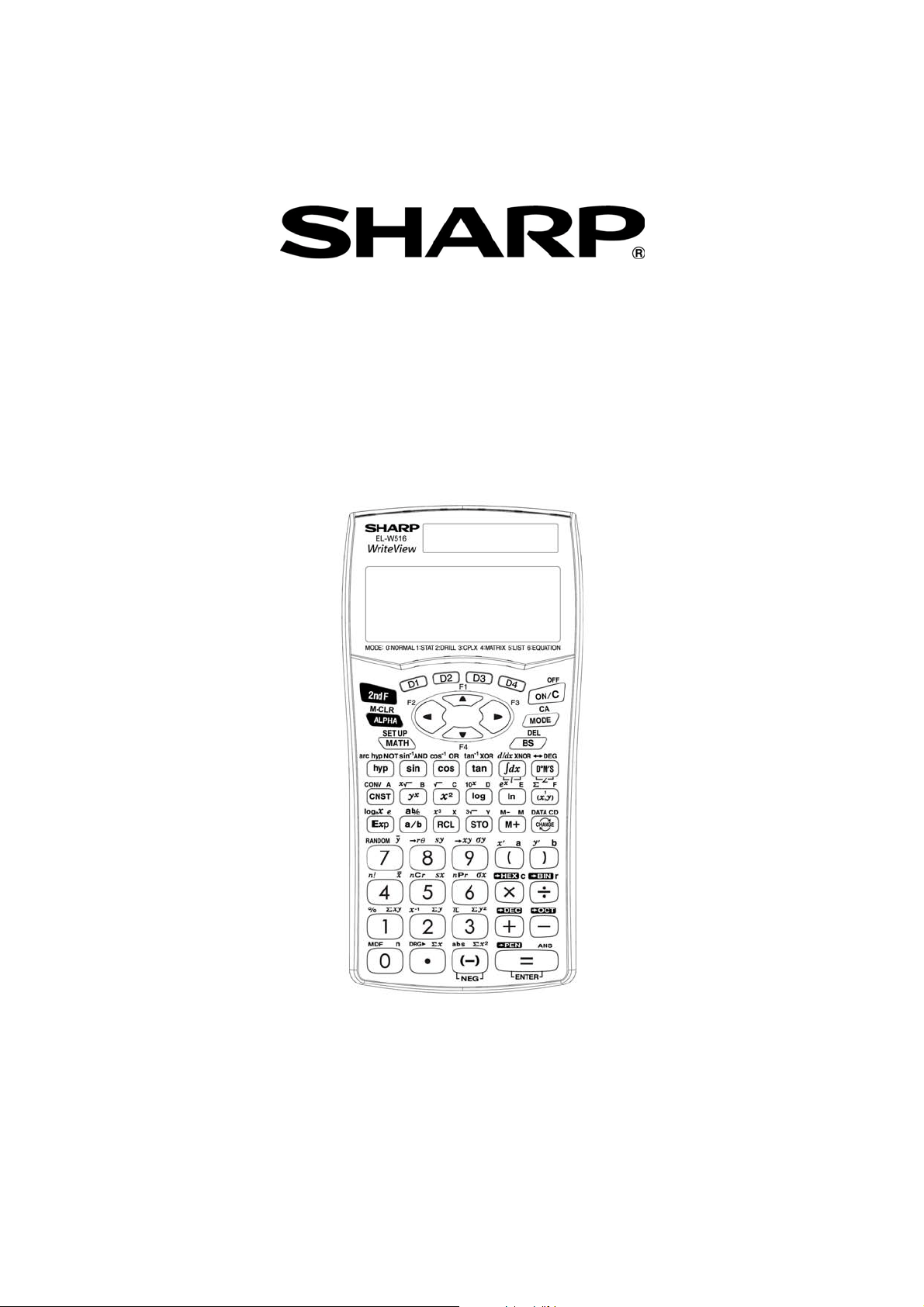
Calculator Layout
Special Functions
Examples
Using the Sharp EL-W516B Calculator
TEACHING ACTIVITIES FOR THE CLASSROOM
BASIC ARITHMETIC
Calculator Activity
Practice Activity
FRACTIONS
Calculator Activity
Practice Activity
POWERS AND ROOTS
Calculator Activity
Practice Activity
PARENTHESES AND EDITING
Calculator Activity
Practice Activity
ANGLE CONVERSIONS
Calculator Activity
Practice Activity
TRIGONOMETRIC FUNCTIONS
Calculator Activity
Practice Activity
INVERSE TRIGONOMETRIC FUNCTIONS
Calculator Activity
Practice Activity
COORDINATE CONVERSIONS
Calculator Activity
Practice Activity
LOGARITHMS
Calculator Activity
Practice Activity
INVERSE LOGARITHMS
Calculator Activity
Practice Activity
BASE CONVERSIONS
Calculator Activity
Practice Activity
CONSTANTS AND CONVERSIONS
Calculator Activity
Practice Activity
RANDOM NUMBERS, DIE, COINS, AND INTEGERS
Calculator Activity
Practice Activity
1
2
7
8
9
10
11
12
13
14
15
16
17
18
19
20
21
22
23
24
25
26
27
28
29
30
31
32
33
34
35

PROBABILITY
Calculator Activity
Practice Activity
1 VARIABLE STATISTICS
Calculator Activity
Practice Activity
2 VARIABLE STATISTICS & LINEAR REGRESSION
Calculator Activity
Practice Activity
COMPLEX NUMBERS
Calculator Activity
Practice Activity
MATRIX CALCULATIONS
Calculator Activity
Practice Activity
LIST CALCULATIONS
Calculator Activity
Practice Activity
LINEAR, QUADRATIC, AND CUBIC EQUATIONS
Calculator Activity
Practice Activity
SUMMATION
Calculator Activity
Practice Activity
DERIVATIVES
Calculator Activity
Practice Activity
INTEGRALS
Calculator Activity
Practice Activity
ANSWERS
36
37
38
39
40
41
42
43
44
45
46
47
48
49
50
51
52
53
54
55
56
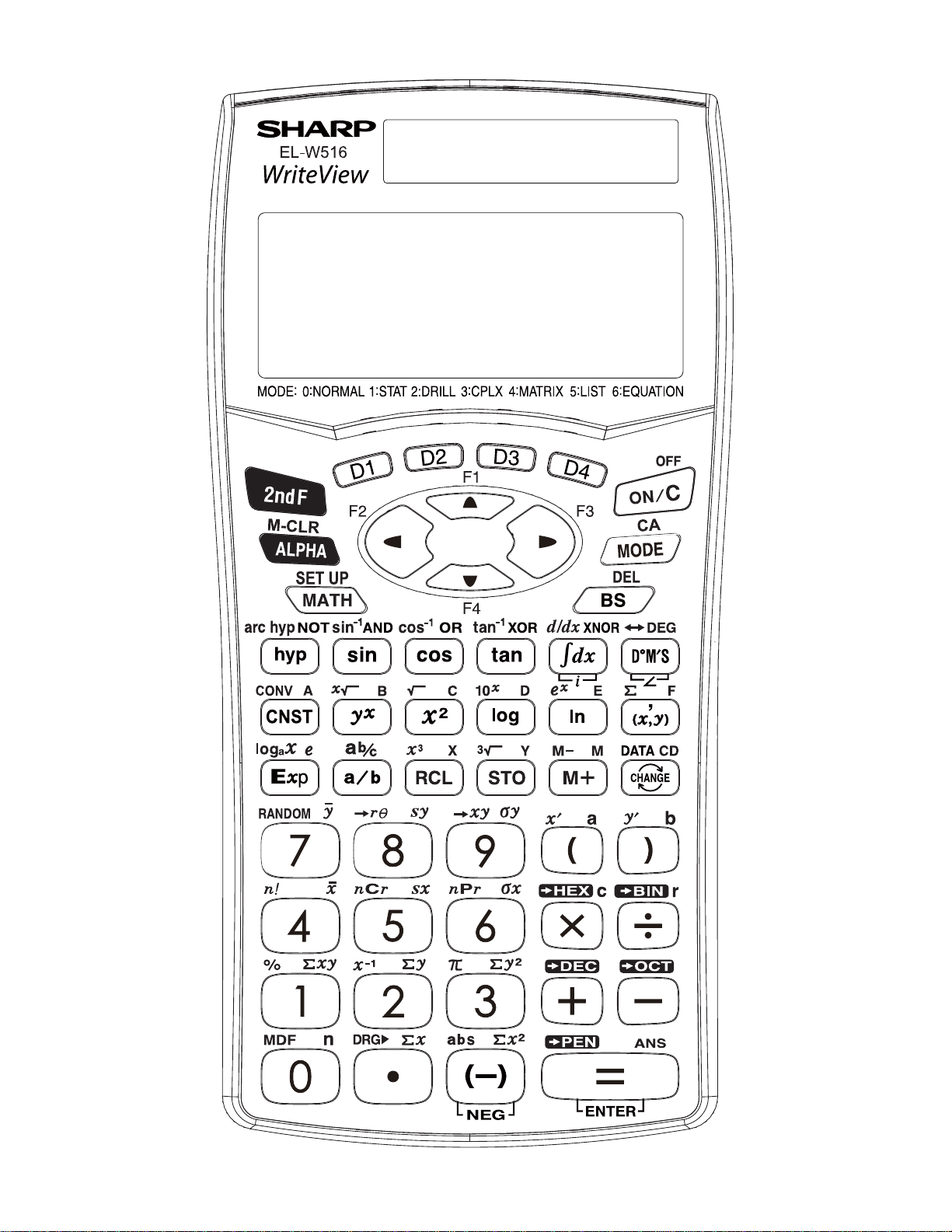
1
Special Functions of the Sharp EL
-
W516B Calculator
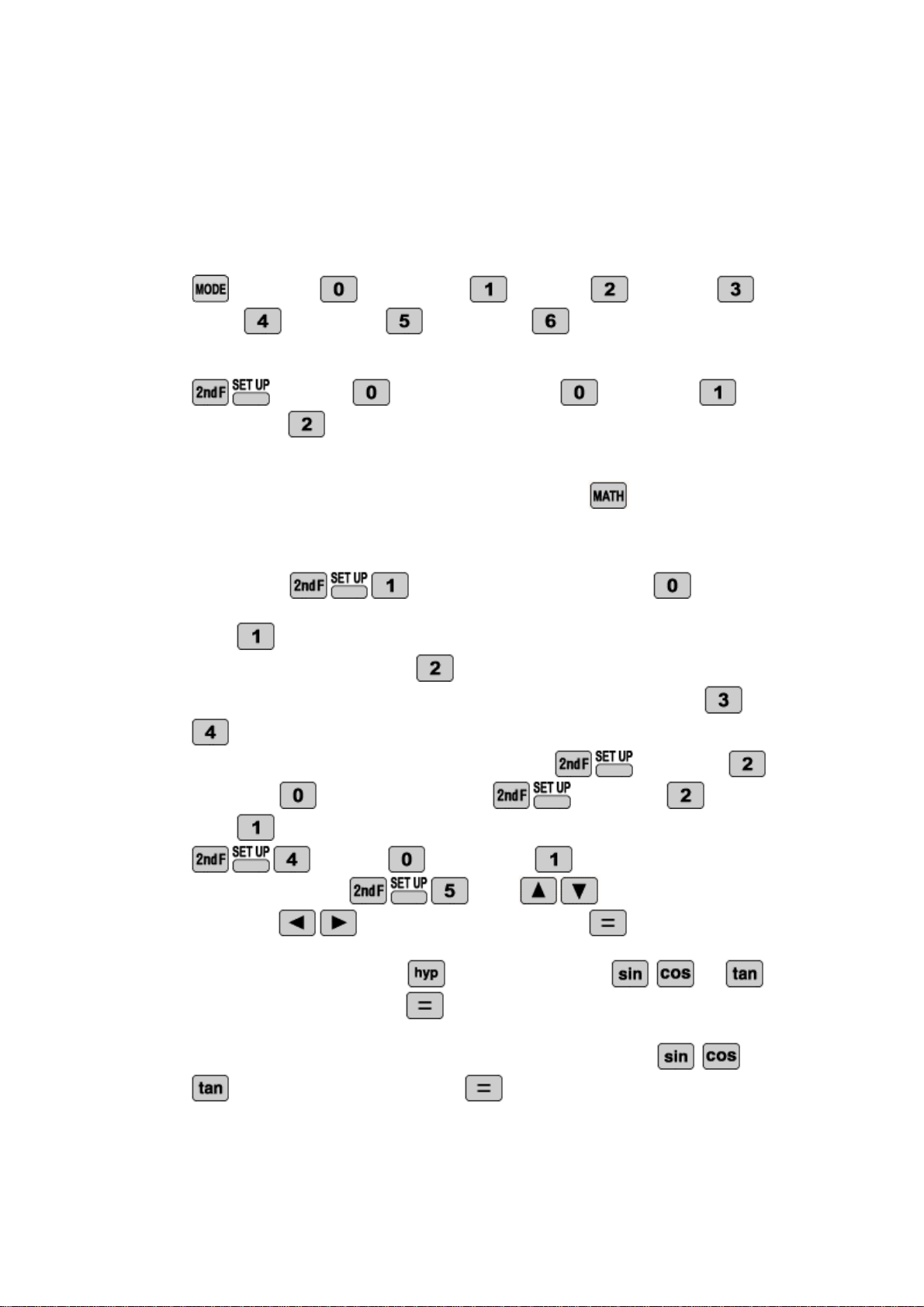
Modes.
This calculator has seven modes: NORMAL, STAT, DRILL, CPLX,
MATRIX, LIST, and EQUATION mode. To access these modes press
followed by
for NORMAL,
for STAT,
for DRILL,
for
CPLX,
for MAT
RIX,
for LIST, and
for EQUATION.
Degrees.
The EL
-
W516B can be set to degrees, radians, or grads. Press
and enter
for DRG. Then press
for degrees,
for
radians, and
for grads.
Math.
The math menu has different contents that can be access
ed for each
mode. To access the math menu for any mode press
. Then choose the
desired tab.
Display.
There are five display notation systems. To set the number of decimals
places press
for FSE. For fixed decimal type
and then
choose your TAB o
r decimal setting. To set the calculator for scientific notation
press
. Now enter the number of significant figures. To set the calculator
for engineering notation press
and then enter the desired TAB setting. To
set the floating
-
point number system
in scientific notation press either
or
to choose NORM1 or NORM2. To choose WriteView, which displays
formulas and equations just like textbooks, press
followed by
.
Then press
. For Line Editor press
followed by
. Then
press
. If in Lin
e Editor you can choose an entry mode by pressing
and then
for insert and
for overwrite. To name
your calculator press
. Use
to select your
characters,
to move the cursor, and press
to finish your entry.
Hyperbolic Functions.
Press
and the function key,
,
, or
.
Enter the angle. Then press
.
Trigonometric Functions.
Press the trigonometric function key,
,
, or
. Enter the angle. Then press
.
2
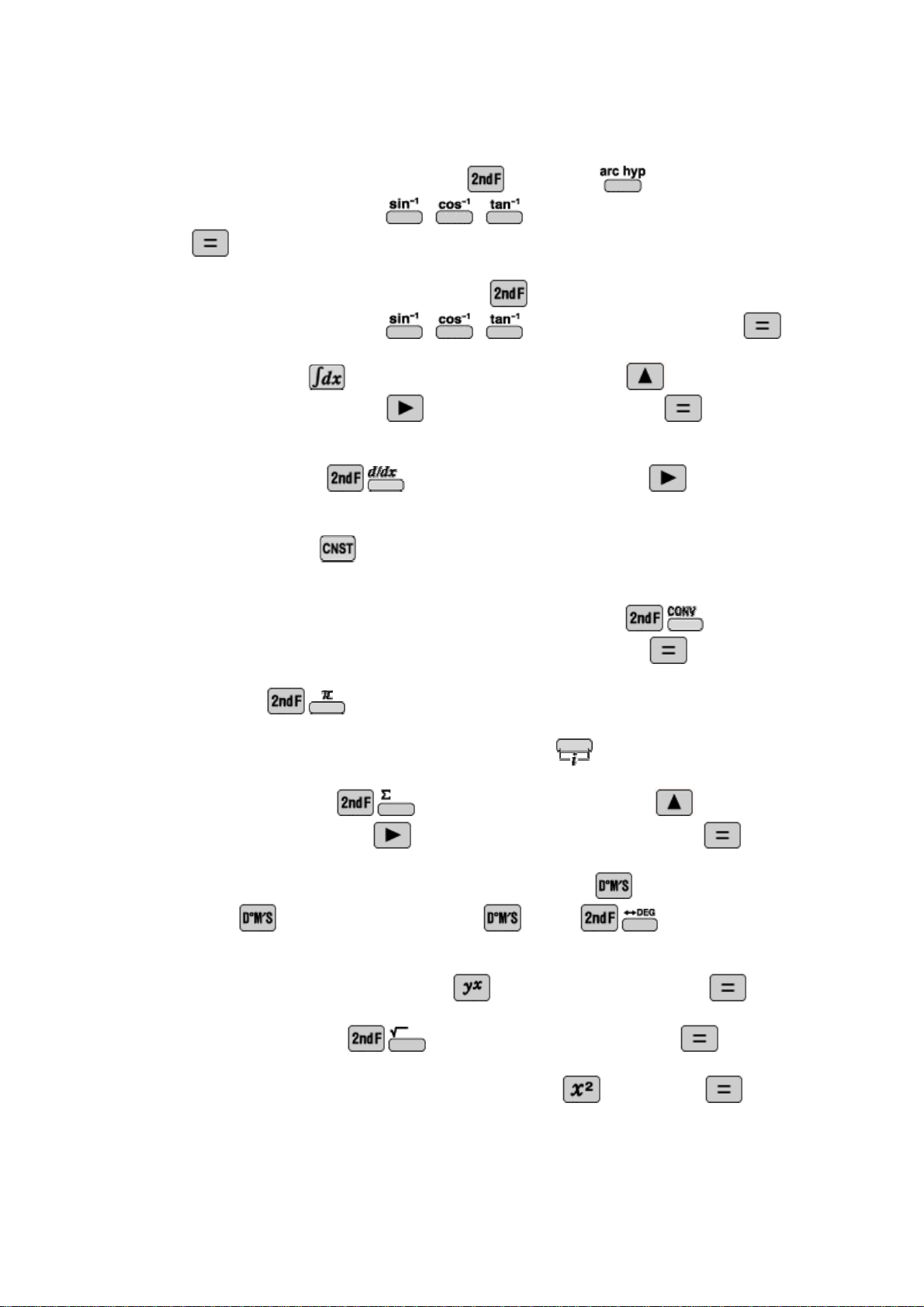
Inverse Hyperbolic Functions.
Press
followed by
and the inverse
trigonom
etric function key
,
,
. Enter the value. Then press
.
Inverse Trigonometric Functions.
Press
followed by the inverse
trigonometric function key
,
,
. Enter the value, then press
.
Integral.
Press
. Enter the lower bound. Then press
a
nd enter the
upper bound. Then press
and enter the integrand. Press
for the
solution.
Derivative.
Press
. Enter the function. Then press
and enter
the value, which the function is being evaluated at.
Constant.
Press
and then enter the corr
esponding value for the constant
you want.
Conversion.
Enter the number you wish to convert. Press
and then
enter the corresponding value for the conversion. Then press
.
Pi.
Press
.
Imaginary Numbers.
When in CPLX mode press
.
Summation.
Press
. Enter the lower bound. Press
and enter
the upper bound. Press
and enter the expression. Then press
.
Degrees
-
Minutes
-
Seconds.
Enter the degrees. Press
. Enter the minutes.
Press
. Enter the seconds. Press
. Press
to convert t
o
decimal degrees.
Exponents.
Enter the base. Press
. Enter the exponent. Press
.
Square roots.
Press
. Enter the radicand. Then press
.
Squares.
Enter the number to be squared. Press
. Then press
.
3
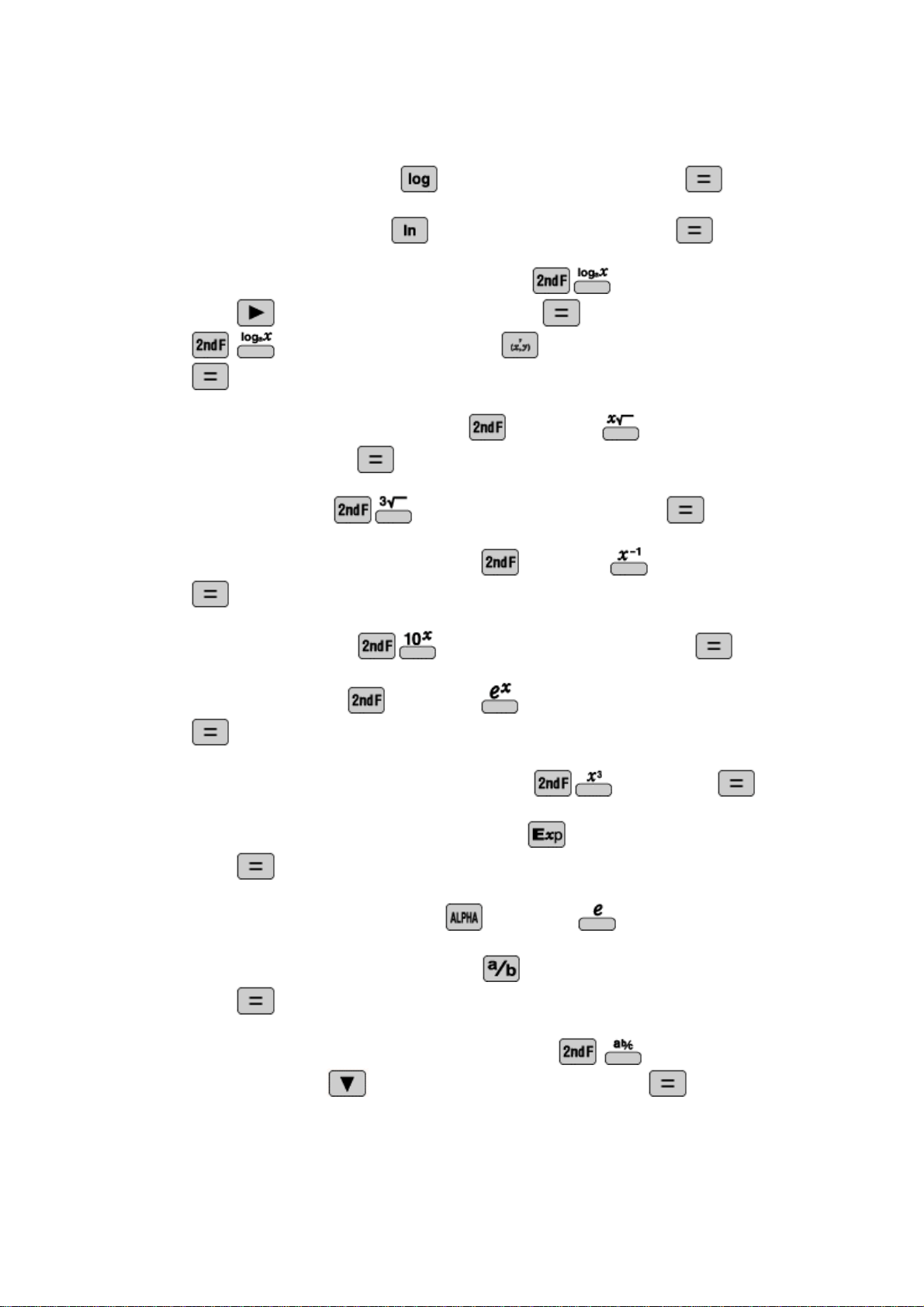
Base 10 Logarithms.
Press
. Enter
the number. Then press
.
Base e Logarithms.
Press
. Enter the number. Then press
.
Base Logarithms.
If in WriteView mode press
. Enter the base. Then
press
and enter the number. Then press
. If in Line Editor press
. Enter the base.
Then press
. Enter the number. Then Press
.
Higher roots.
Enter the index. Press
followed by
. Enter the
radicand. Then press
.
Cube roots.
Press
. Enter the radicand. Then press
.
Reciprocals.
Enter the number. Press
followed by
. Then press
.
Antilogarithms.
Press
. Enter the exponent. Then press
.
Exponentials.
Press
followed by
. Enter the exponent. Then press
.
Cubes.
Enter the number to be cubed. Press
. Then press
.
Scientific Notation.
Enter the
number. Press
. Enter the power. Then
press
.
Euler’s Number.
To enter
e
press
followed by
.
Fractions.
Enter the numerator. Press
. Enter the denominator. Then
press
.
Mixed Numbers.
Enter the whole number. Press
. Enter the
numerator. Press
. Enter the denominator. Then press
.
4
Memory.
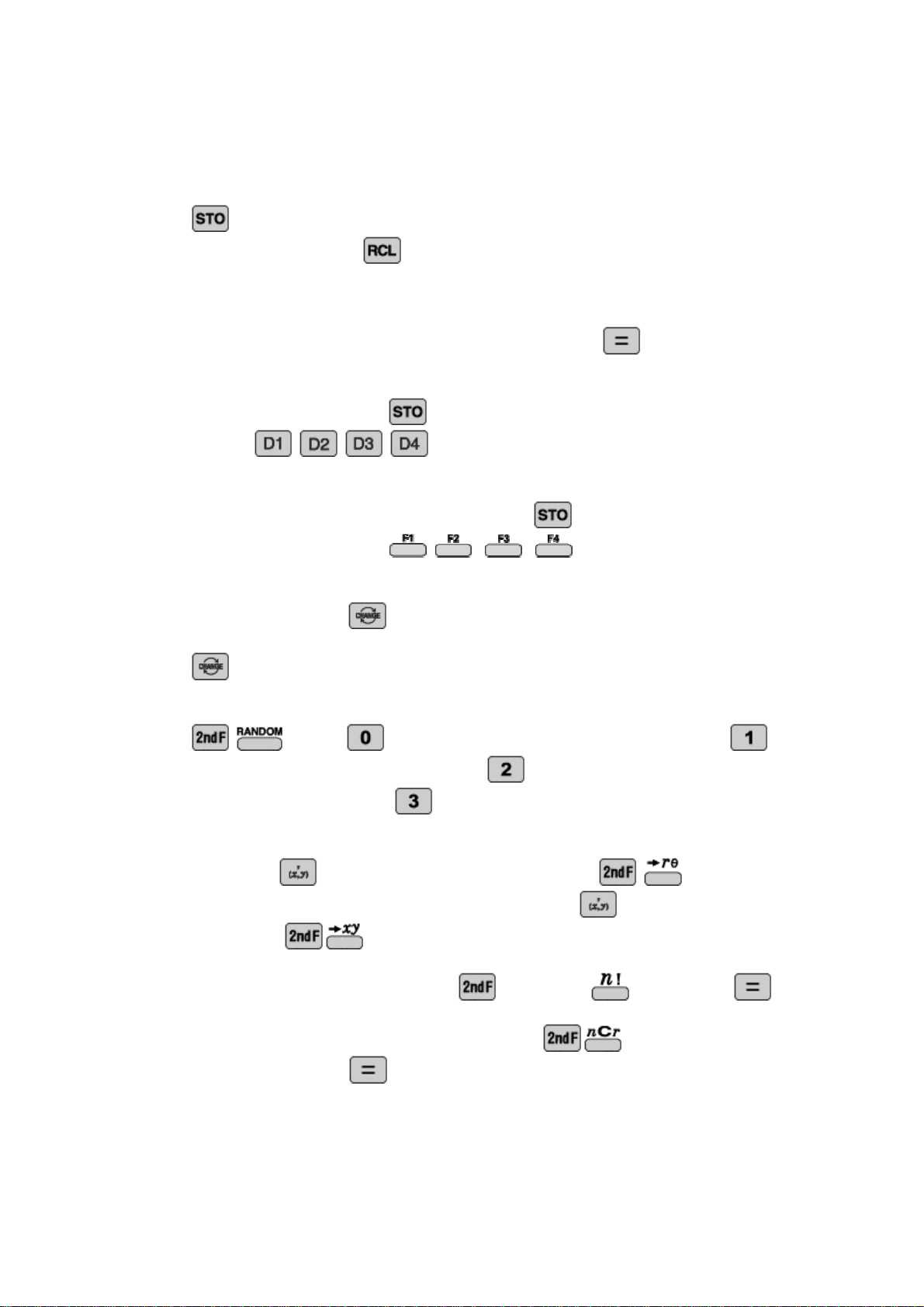
The calculator has 9 memories. Memory calculations can be
performed in NORMAL and STAT modes. Enter the value to be stored. Press
. Press the location you wish to sto
re the value A
-
F, M, X, or Y.
Recall Memory.
Press
. Press the location you wish to access A
-
F, M, X,
or Y.
Last Answer Recall.
Perform a calculation. Press the operation key. The last
answer will be recalled. Enter the number. Then press
.
De
finable Memories.
You can store functions or operations in definable
memories (D1
-
D4). Press
. Press the location you wish to store your
function
,
,
,
. Press the operation you want to store.
Formula Memories.
You can store expressions in formula
memories (F1
-
F4).
Enter the expression you wish to store. Press
. Press the location you
wish to store your function
,
,
,
.
Change.
You can change your answer from decimals to mixed numbers to
fractions by pressing
. Also, you can change your
answer from decimals or
fractions to answer containing the pi symbol or square root symbol by pressing
.
Random.
You can generate random numbers, dice, coin flips, or integers. Press
. Press
for random numbers between 0 and 1. Press
for rando
m dice rolls from 1 to 6. Press
for random coin flips where 0 is
heads and 1 is tails. Press
for random integers between 0 and 99.
P<
-
>R Conversion.
To convert to polar coordinates enter your x
-
coordinate first.
Then press
. Then enter the y
-
coo
rdinate. Press
. To convert
to rectangular coordinates enter your r
-
value. Press
. Then enter your
theta. Press
.
Factorial.
Enter the number. Press
followed by
. Then press
.
Combinations.
Enter the larger number. Press
. Enter the
smaller
number. Then press
.
5
Permutations.
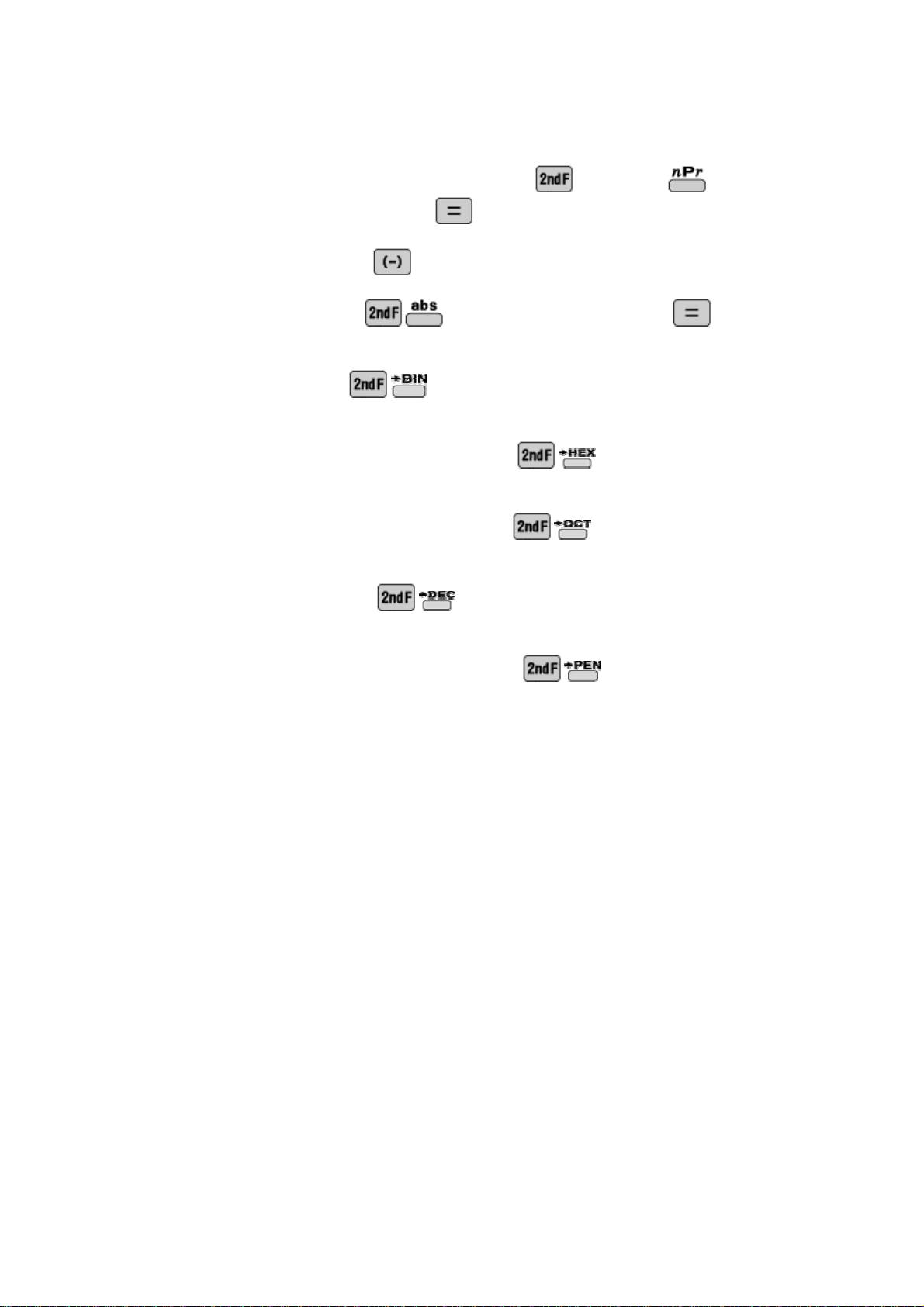
Enter the larger number. Press
followed by
. Enter
the smaller number. Then press
.
Signed Numbers.
Enter
. Enter the number.
Absolute Value.
Press
. Enter the expression. Press
.
Binary.
To convert from one of the supported base systems into binary enter the
number. Then press
.
Hexadecimal.
To convert from one of the supported base systems into
hexadecimal enter the number. Then press
.
Octadecimal.
To convert from one of the s
upported base systems into
octadecimal enter the number. Then press
.
Decimal.
To convert from one of the supported base systems into decimal enter
the number. Then press
.
Pentadecimal.
To convert from one of the supported base systems into
pent
adecimal enter the number. Then press
.
6
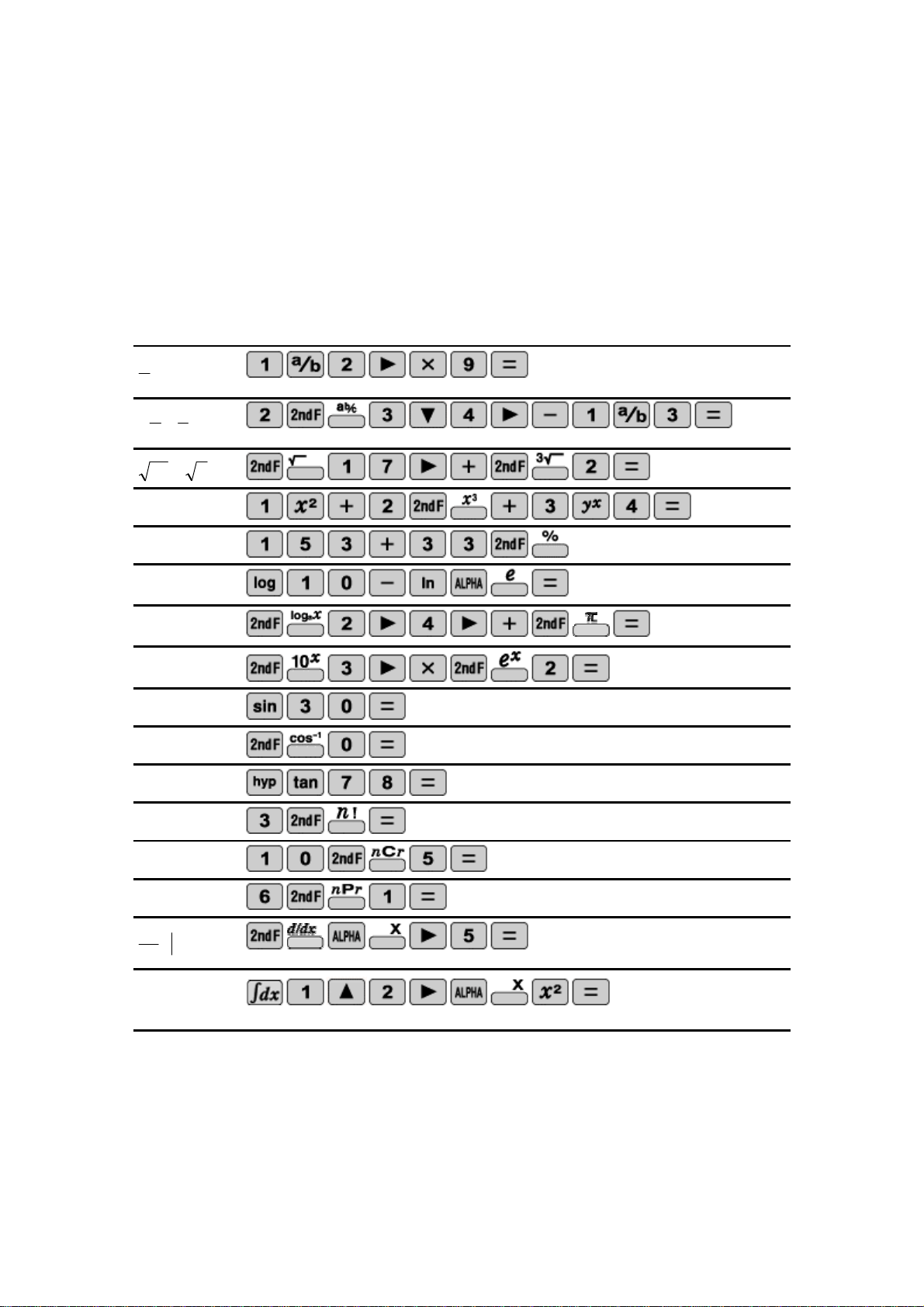
Examples:
Please refer to the following examples and the keystrokes required to enter each
problem. From these simple examples more complicated expressions can be easily
entered.
9
2
1
3
1
4
3
2
3
2
17
4
3
2
3
2
1
%
33
153
e
ln
10
log
4
log
2
2
3
10
e
30
sin
0
cos
1
78
tanh
!
3
5
10
C
1
6
P
5
x
x
dx
d
dx
x
2
1
2
7

Using the Sharp EL
-
W516B Calculator
GETTING STARTED
The National Council of Teachers of Mathematics and many other organizations with a
commitment to the mathematics education of our youth have all given their support to
the ongoing and appropriate use of calculators. In this document, con
vincing arguments
for the ongoing use of calculators to enhance the mathematical capabilities of students
at all grade levels are presented as well as a description of the features expected to be
available on calculators. The EL
-
W516B uses WriteView
tech
nology and allows
students to enter equations as they are seen in their textbooks.
ACTIVITY AND PRACTICE SHEETS
The twenty
-
four calculator activities and practice sheets found in this book have been
designed to be used with the Sharp EL
-
W516B calculator
. The activities have been
written and developed for students in grades nine through twelve. Some of the activities
will be more appropriate for students in a particular grade, while others could be used at
any grade level. Of course, the classroom teac
her can and should make the decision as
the appropriateness of each activity.
Each activity page has an objective statement and some practice key strokes. The
activity page does not attempt to teach mathematics. It only identifies the mathematics
being
used and demonstrates the calculator key strokes necessary to conduct a
calculation. The practice page provides activities for the students to practice using the
key strokes presented on the activity page. Answers to the activity and practice sheets
are
provided at the end of this booklet.
8

TEACHING ACTIVITIES
FOR THE CLASSROOM
The Sharp EL
-
W516B was designed with you and your students in mind. The following
activities have been written to provide the practice students need to succeed in
mathematics, as they become familiar with the wonderful features of this exciting and
pow
erful mathematical tool.
9
Calculator Activity
BASIC ARITHMETIC
OBJECTIVE:
To perform basic operations by developing a sequence of numbers.
Performing a specified operation repeatedly can generate a sequence of
numbers. For example, if you start with the number 4 and add 2
repeatedly you will generate the sequence
10
,
8
,
6
,
4
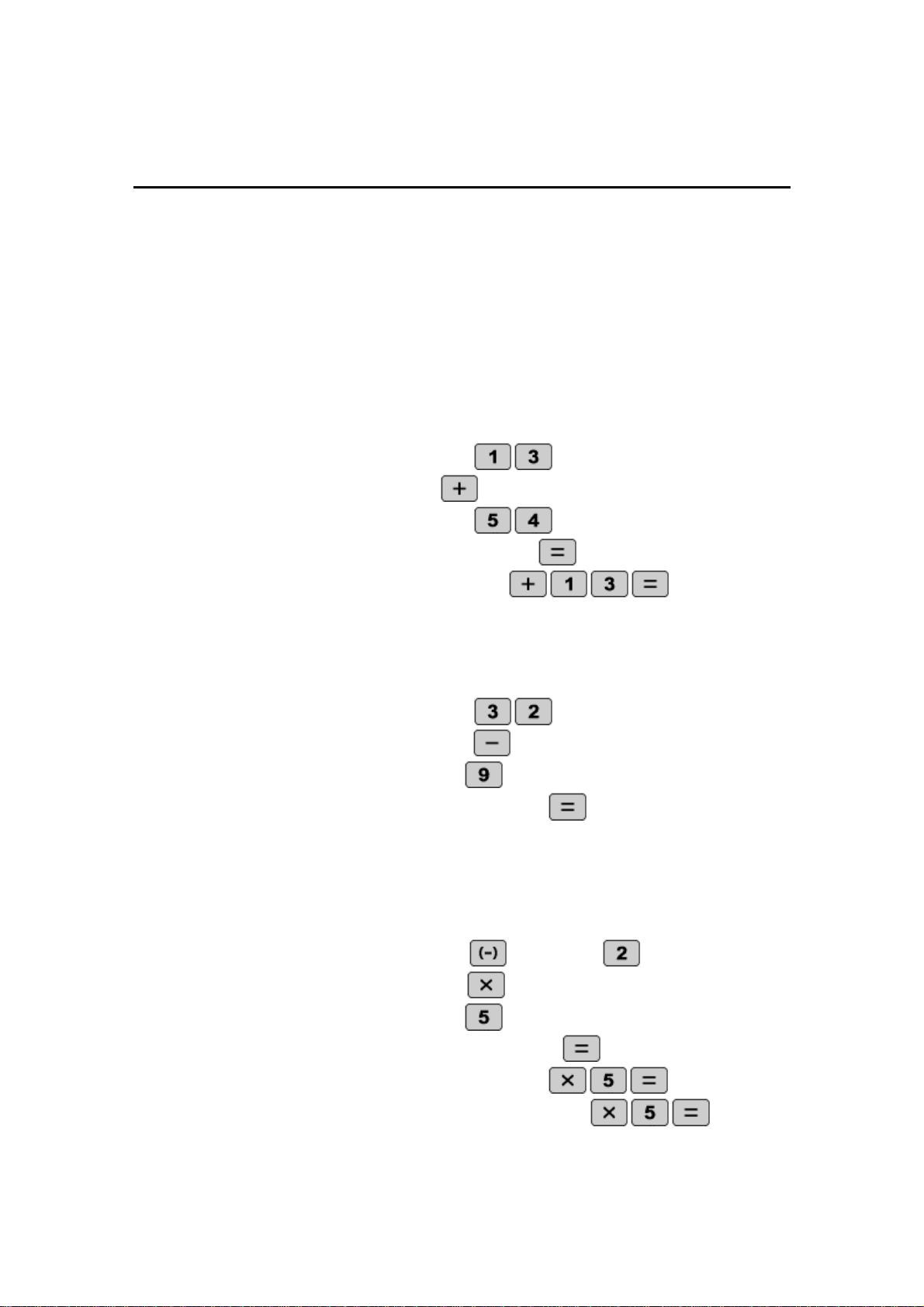
1. Add 13 to 54 twice:
STEP 1: Enter 13 by pressing
.
STEP 2: Add by pressing
.
STEP 3: Enter 54 by pressing
.
STEP 4: Find the first sum by pressing
.
STEP 5: Add 13 again by pressing
.
2. Subtract
9 from 32 once.
STEP 1: Enter 32 by pressing
.
STEP 2: Subtract by pressing
.
STEP 3: Enter 9 by pressing
.
STEP 4: Find the difference by pressing
.
3. Multiply
-
2 by 5 three times.
STEP 1: Enter
–
2 by pressing
followed by
.
STEP
2: Multiply by pressing
.
STEP 3: Enter 5 by pressing
.
STEP 4: Find the first product by pressing
.
STEP 5: Multiply by 5 again by pressing
.
STEP 6: Multiply by 5 a third time by pressing
.
10

NAME ___________________________________________ DATE________________
BASIC ARITHMETIC
Use your EL
-
W516B to develop a series of sequences.
1.
Find the first seven numbers of the sequence starting with
–
3 where each
additional term is found by adding 4.
-
3, ___, ___, ___, ___, ___, ___, …
2.
Find the first four numbers of the sequence starti
ng with 2 where each
additional term is found by adding 1.
2, ___, ___, ___, …
3.
Find the first five numbers of the sequence starting with 6 where each
additional term is by adding 3.
6, ___, ___, ___, ___, …
4.
Find the first three numbers of the sequenc
e starting with 144 where each
additional term is found by dividing by 2.
144, ___, ___, …
5.
Find the first six terms of the sequence starting with 729 where each
additional term is found by dividing by
–
3.
729, ___, ___, ___, ___, ___, …
6.
Find the first
three terms of the sequence starting with 1 where each
additional term is found by multiplying by 45.
1, ___, ___, …
7.
Find the first five terms of the sequence starting with 100 where each
additional term is found by subtracting 10.
100, ___, ___, ___,
___, …
8.
Find the first four terms of the sequence starting with 1 where each
additional term is found by adding 20.
1, ___, ___, ___, …
11
Calculator Activity
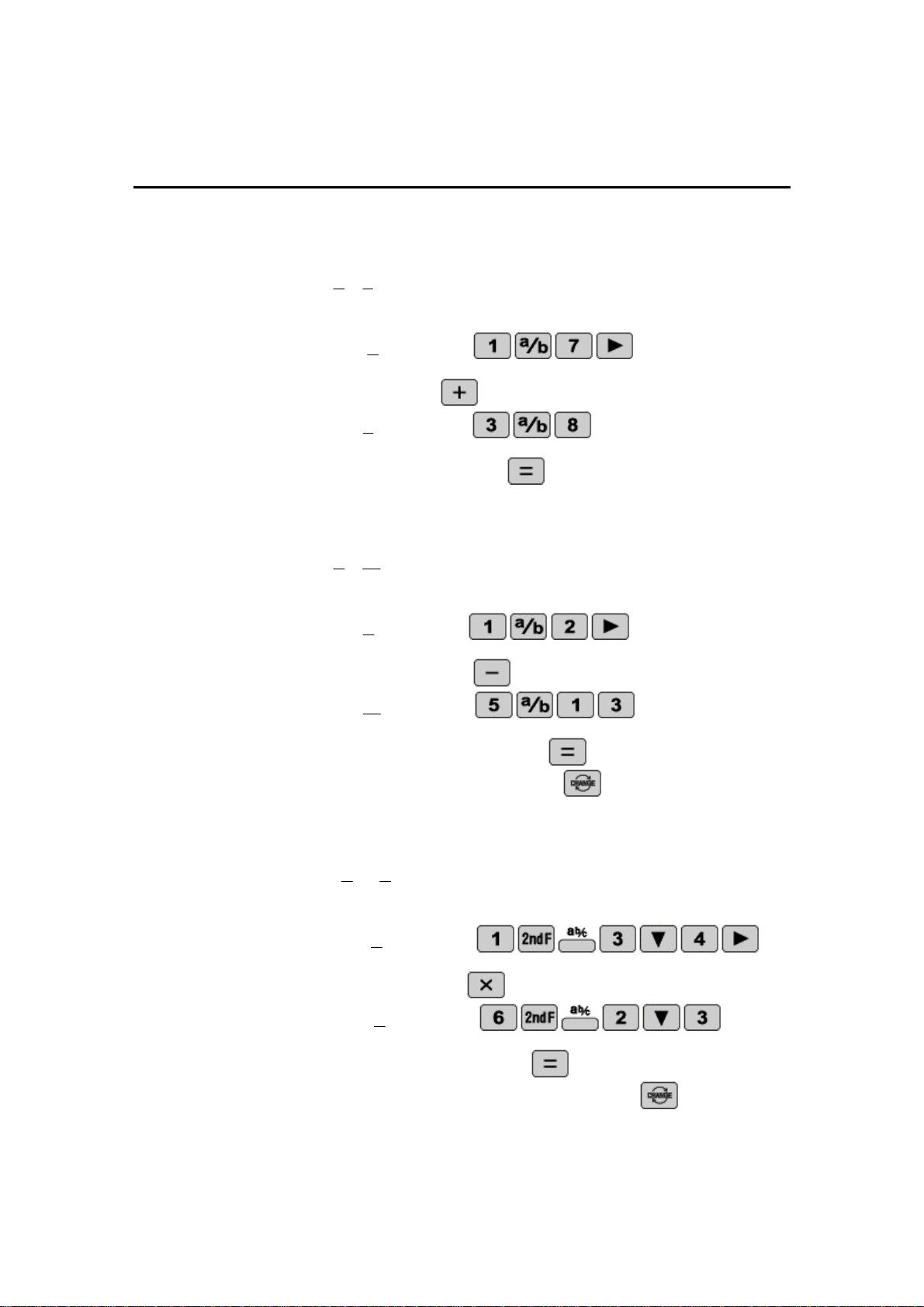
FRACTIONS
OBJECTIVE:
To perform basic operations with fractions.
1. Simplify
8
3
7
1
STEP 1:
Enter
7
1
by pressing
.
STEP 2: Add by pressing
.
STEP 3: Enter
8
3
by pressing
.
STEP 4: Find the sum by pressing
.
2. Simplify
13
5
2
1
. Then convert to a decimal
STEP 1: Enter
2
1
by pressing
.
STEP 2: Subtract by pressing
.
STEP 3: Enter
13
5
by pressing
.
STE
P 4: Find the difference by pressing
.
STEP 5: Convert to a decimal by pressing
.
3. Simplify
3
2
6
4
3
1
. Then convert to an improper fraction.
STEP 1: Enter
4
3
1
by pressing
.
STEP 2: Multiply by pressing
.
STEP 3: Enter
3
2
6
by pressing
.
STEP 4: Find the product by pressing
.
STEP 5: Convert to an improper fraction by pressing
.
12

NAME ___________________________________________ DATE________________
FRACTIONS
Perform the indicated operations with fractions using your
EL
-
W516B.
1.
Find the arithmetic mean of the following fractions
16
1
,
4
1
,
2
1
.
2.
Find the arithmetic mean of the following fractions and convert to a
decimal
12
5
,
11
4
,
10
3
,
9
2
,
8
1
.
3.
Simplify
5
1
9
7
6
20
1
1
.
4.
Simplify
8
7
6
5
4
3
2
1
.
5.
Simplify
3
1
2
1
1
3
1
2
1
1
.
6.
Simplify
11
6
2
1
11
6
2
1
8
5
3
3
4
and convert to an improper fraction.
7.
Simplify
6
1
6
2
3
5
8
.
8.
Simplify
2
2
2
4
5
4
5
2
.
13
Calculator Activity
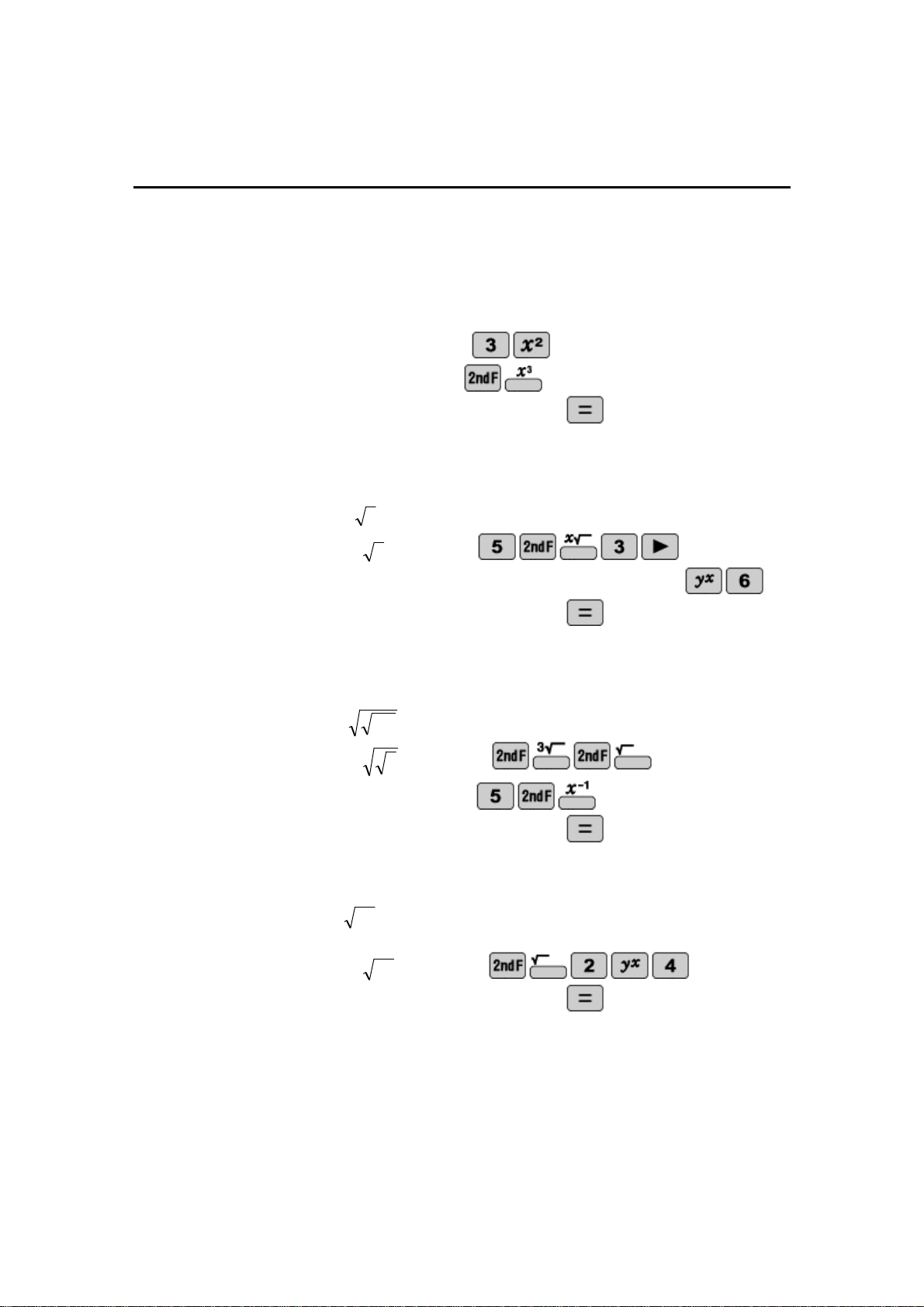
POWERS AND ROOTS
OBJECTIVE:
To perform basic operations with powers and roots.
1.
Calculate
3
2
3
STEP 1: Enter
2
3
by pressing
.
STEP 2: Cube it by pressing
.
STEP 3: Calculate the answer by pressing
.
2.
Calculate
6
5
)
3
(
.
STEP 1: Enter
5
3
by pressing
.
STEP 2: Raise the expression to the 6
th
power by pressing
.
STEP 3: Calculate the answer by pressing
.
3.
Calculate
3
1
5
STEP 1: Enter
3
by pressing
.
STEP 2: Enter
1
5
by pressing
.
STEP 3: Calculate the answer by pressing
.
4.
Evaluate
4
2
STEP 1: Enter
4
2
by pressing
.
STEP 2: Calculate the answer by pressing
.
14

NAME ___________________________________________ DATE________________
POWERS AND ROOTS
Use your EL
-
W516B to perform the indicated operations with the
following equations that contain powers and roots.
1.
Simplify
2
2
2
2
2
5
4
3
2
1
____________________________
2.
Simplify
5
4
3
2
1
____________________________
3.
Is
?
7
3
)
7
3
(
2
2
2
Explain your answer.
____________________________
____________________________
____________________________
4.
Simplify
3
3
2
____________________________
5.
Simplify
3
33
2
________________________
____
6.
Simplify
2
2
2
4
5
5
2
2
2
4
5
5
2
2
____________________________
15
Calculator Activity
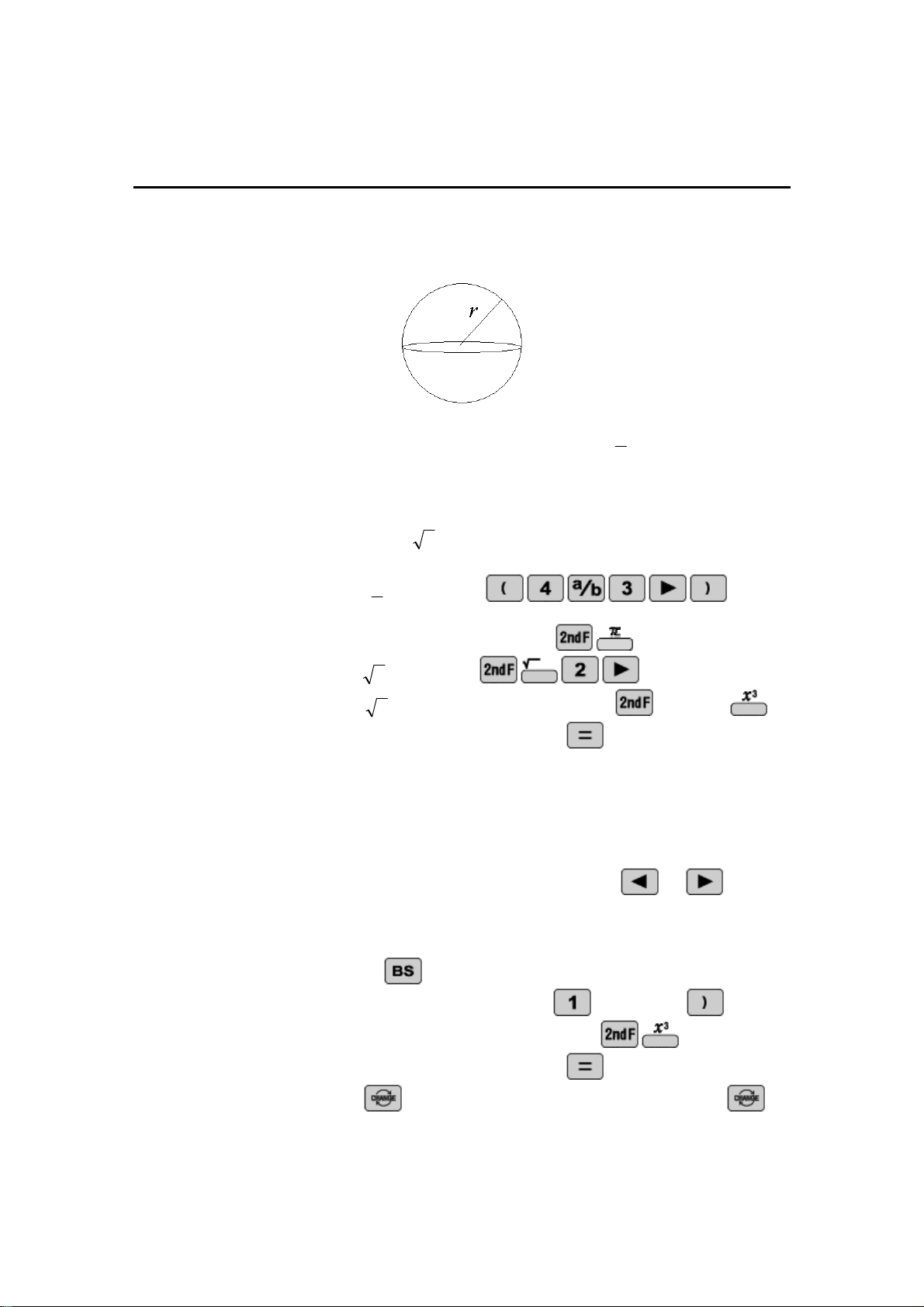
PARENTHESES AND EDITING
OBJECTIVE:
To perform basic operations with parentheses by finding the volume of a
sphere, by recalling the expressions, and editing them to perform a new
calculation.
The volume of a sphere is defined to be Volume
3
3
4
r
, where
r
is the
radius of the sphere.
1. Given the radius is
2
find the volume of the sphere.
STEP 1: Enter
3
4
by pressing
.
STEP 2: Insert the pi symbol by pressing
.
STEP 3: Enter
2
by pressing
.
STEP 4: Raise
2
to the third power by pressing
and then
.
STEP 5: Calculate the answer by pressing
.
2. Edit the previous equation and solve the volume of the sphere given
the radius is 1. Then co
nvert the answer to a decimal
STEP 1: Recall the previous equation by pressing
or
.
STEP 2: Move the cursor so it is to the immediate right of the third
power.
STEP 3: Delete the power, the parenthesis, the 2, and the square root by
pressing
five
times.
STEP 4: Enter the number 1 by pressing
followed by
.
STEP 5: Raise 1 to the third power by pressing
.
STEP 6: Calculate the answer by pressing
.
STEP 7: Press
to convert it to an improper fraction. Press
one more time to convert it t
o a decimal.
16

NAME ___________________________________________ DATE________________
PARENTHESE
S AND EDITING
Use your EL
-
W516B and the formula to find the volume of
a sphere. Recall and edit previous equation to prevent
typing the whole expression over and over again.
1.
Find the volume of the sphere whose radius is 6.
______________
______________
2.
Find the volume of the sphere whose radius is 5.
____________________________
3.
Find the volume of the sphere whose radius is 9.
____________________________
4.
Find the volume of the sphere whose radius is 10.
_______________________
_____
5.
Find the volume of the sphere whose diameter is 10.
____________________________
6.
Find the volume of a sphere whose diameter is 12.
____________________________
Volume
3
3
4
r
17
Calculator Activity
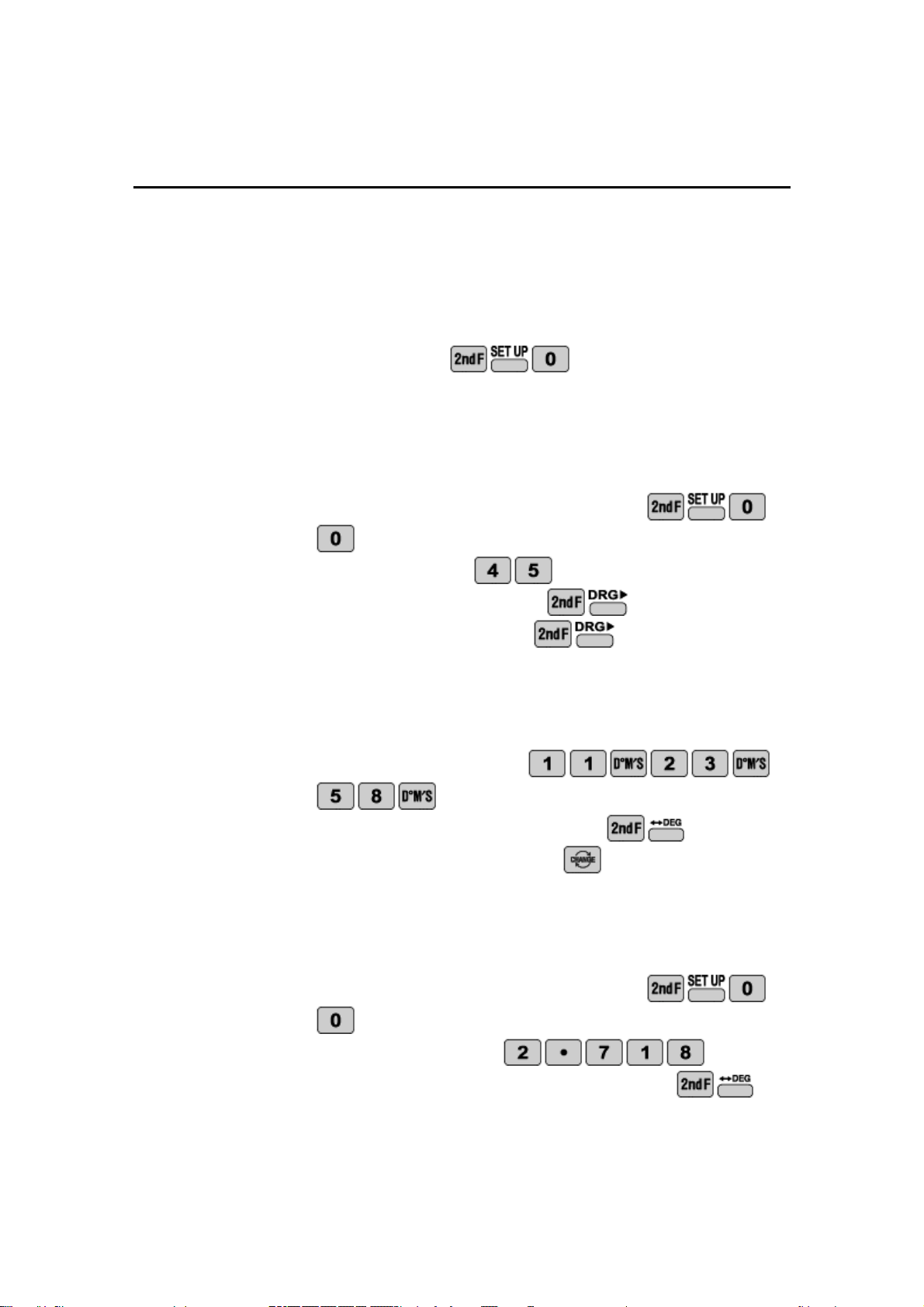
ANGLE CONVERSIONS
OBJECTIVE:
To make angle conversions by finding the missing angle of a polygon.
Angles can be expressed in degrees, radians and grads. Degrees can be
expressed in either decimal degrees or degrees
-
minutes
-
seconds.
Remember 180
=
radians = 200 grads.
The formula for the sum of the
angles of an n
-
side polygon in degrees is 180(n
-
2). Before inputting an
angle for conversion, press
and then choose the
appropriate angular units.
1.
Convert 45
to radians and grads.
STEP 1: Set the angular units t
o degrees by pressing
.
STEP 2: Enter 45 by pressing
.
STEP 3: Convert to radians by pressing
.
STEP 4: Convert to grads by pressing
.
2.
Convert
"
58
'
23
11
to decimal degrees.
STEP 1: Enter
"
58
'
23
11
by pressing
.
STEP 2: Calculate decimal degrees by pressing
.
STEP 3: Convert to a decimal by pressing
.
3.
Convert 2.718
to degrees
-
minutes
-
seconds.
STEP 1: Set the angular units to degrees by pressing
.
STEP 2: Enter 2.718
by pressing
.
STEP 3: Calculate degrees
-
minutes
-
seconds by pressing
.
18

NAME ___________________________________________ DATE________________
ANGLE CON
VERSIONS
The sum of the angles in degrees of an n
-
side polygon is 180(n
-
2).
Remember
180
radians
200
grads. Before inputting an angle for
conversion press
and then choose the corresponding
angular units. Use your EL
-
W516
B to find the missing angle in the
specified units.
1.
A triangle has two angles, which are 45
and 60
. Find the missing
angle and express your answer in radians.
_____________________
2.
A pentagon has four angles, which are 30
, 30
, 60
, and 100
. F
ind
the missing angle and express your answer in grads.
_____________________
3.
A triangle has two angles, which are 100 grads and 20 grads. Find
the missing angle and express your answer in radians.
_____________________
4.
A hexagon has five angles,
which are
5
.
1
radians,
3
.
radians,
4
.
radians,
5
.
radians, and
radians. Find the missing angle and
express your answer in degrees.
_____________________
5.
A four
-
sided figure has three angles, which are 16.3
, 22.1
, and 45
.
Find the missing angle and express your answer in degrees
-
minutes
-
seconds.
_____________________
19
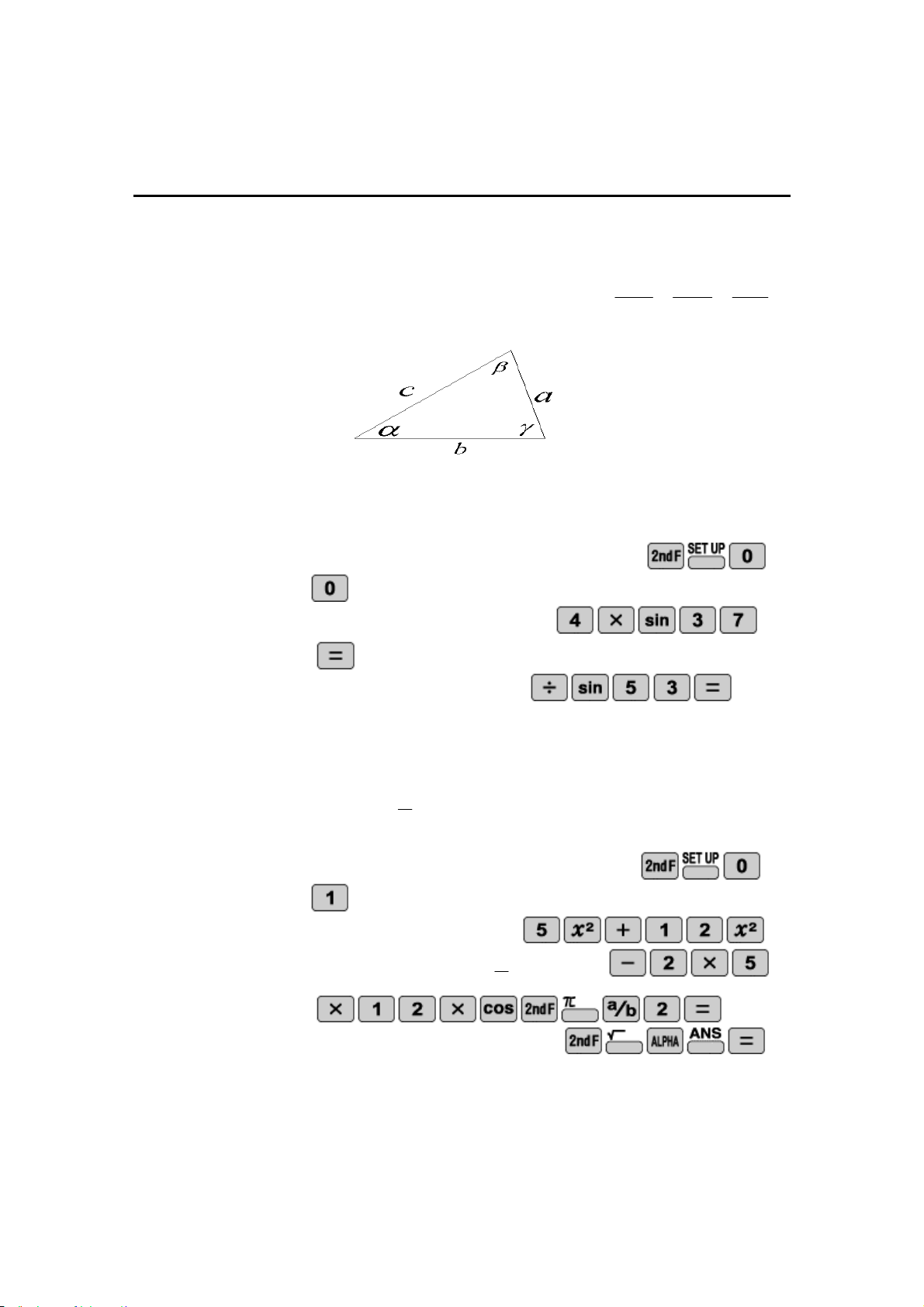
Calculator Activity
TRIGONOM
ETRIC FUNCTIONS
OBJECTIVE:
To find the distance between points by using trigonometric functions.
The law of sines and the law of cosines can help determine the sides and
angles of triangles. The law of sines is as follows
sin
sin
sin
c
b
a
.
The law of cosines is
as follows
cos
2
2
2
2
ab
b
a
c
.
1.
Using the law of sines find the length of side a given
4
,
53
,
37
b
.
STEP 1: Set the angular units to degrees by pressing
.
STEP 2: Multiply 4 by
)
37
sin(
by pressing
.
STEP 3: Divide by
)
53
sin(
by pressing
.
2.
Using the law of cosines fine the length of c given
radians
b
a
2
,
12
,
5
.
STEP 1: Set the angular units to radians by pressing
.
STEP 2: Add
2
5
and
2
12
by pressing
.
STEP 3: Subtract
)
2
cos(
12
5
2
by pressing
.
STEP 4: Take the square root by pressing
.
Note:
Tangent can be used in a similar manner as sine as cosine.
20
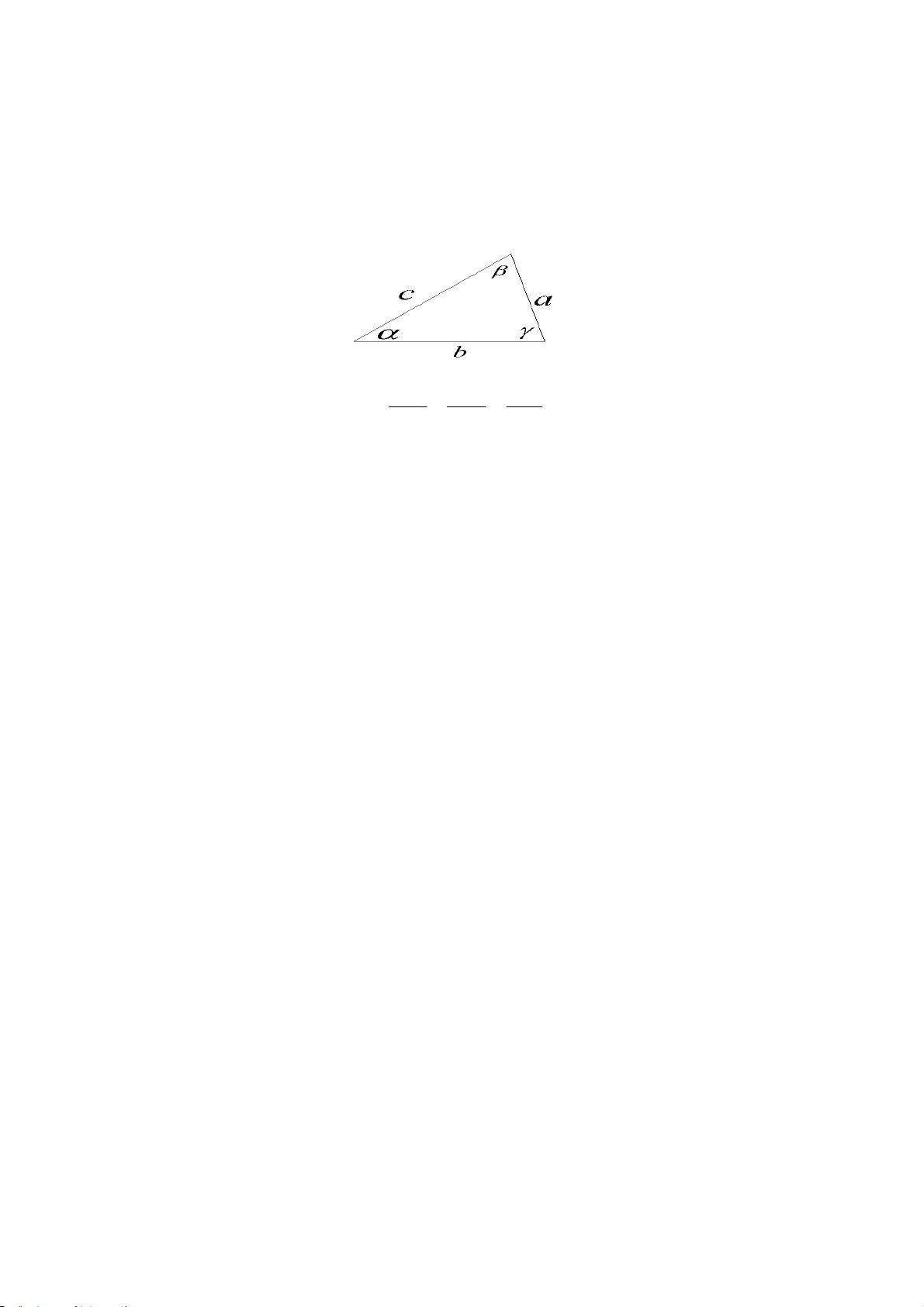
NAME _____________________________
______________ DATE________________
TRIGONOMETRIC FUNCTIONS
Use your EL
-
W516B together with the law of sines and the law of cosines
to find the distance of the missing side
The law of sines is
sin
sin
sin
c
b
a
.
The law of cosines is
cos
2
2
2
2
ab
b
a
c
.
1.
Given
11
,
63
,
30
a
determine the length of side c.
___________________
2.
Given
16
grads,
69
grads,
123
b
find the length of side a.
___________________
3.
Given
5
.
1
,
40
,
30
b
a
radians find the length
of side c.
___________________
4.
Given
45
,
30
,
15
c
a
find the length of side b.
___________________
5.
Given
100
,
23
,
13
c
b
grads find the length of side a using the
law of sines.
___________________
21
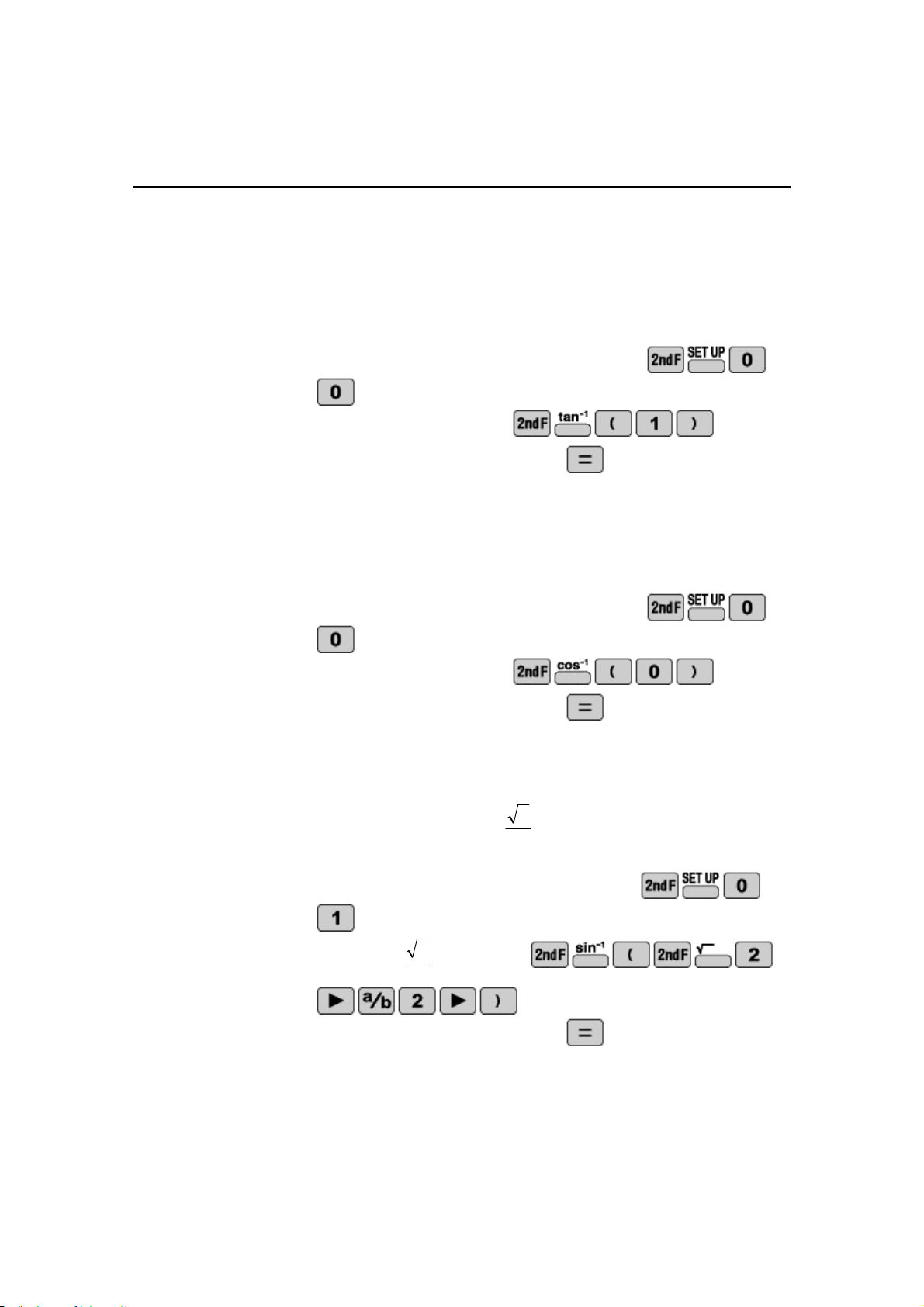
Calculator Activity
INVERSE TRIGONOMETRIC FUNCTIONS
OBJECTIVE:
To perform operations with inverse trigonometric functions.
1.
Find
in degrees when
1
tan
STEP 1: Set the angular units to degrees by pressing
.
STEP 2: Enter
)
1
(
tan
1
by pressing
.
STEP 3: Calculate the answer by pressing
.
2.
Find
in degrees when
0
cos
STEP 1: Set the angular units to degrees by pressing
.
STEP 2: Enter
)
1
(
cos
1
by pressing
.
STEP 3: Ca
lculate the answer by pressing
.
3.
Find
in radians when
2
2
sin
STEP 1: Set the angular units to radians by pressing
.
STEP 2: Enter
)
2
2
(
sin
1
by pressing
.
STEP 3: Calculate the
answer by pressing
.
22
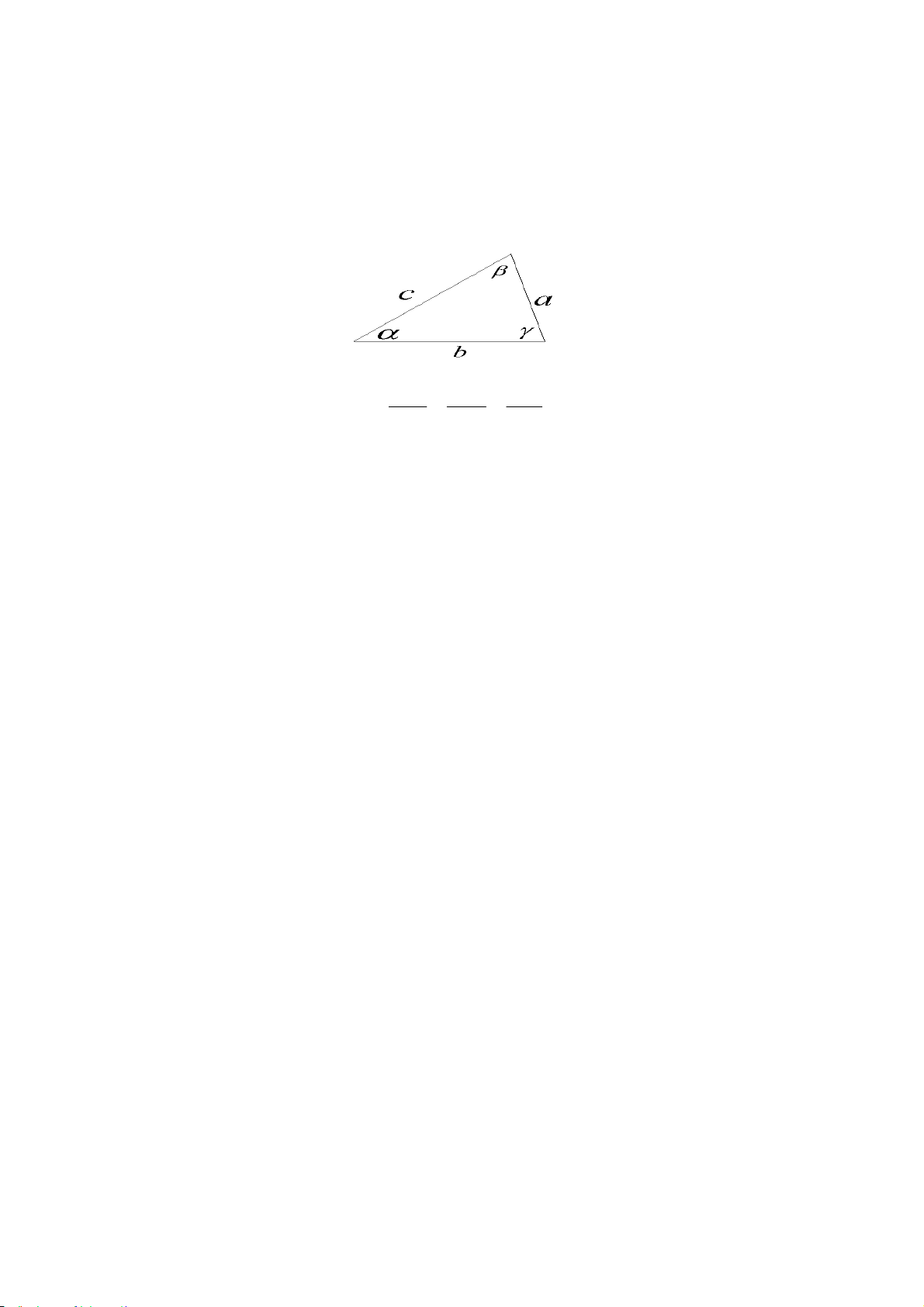
NAME ___________________________________________ DATE________________
INVERSE
TRIGONMETRIC FUNCTIONS
Use your EL
-
W516B and the law of sines and the law of cosines to find
the missing angle.
The law of sines is
sin
sin
sin
c
b
a
.
The law of cosines is
cos
2
2
2
2
ab
b
a
c
.
1.
Given
23
,
7
,
2
b
a
find
in grads.
___________________
2.
Given
94
,
21
,
34
c
a
grads, find
in radians.
___________________
3.
Given
5
,
4
,
3
c
b
a
find
in degrees.
___________________
4.
Given
17
,
24
,
40
c
b
a
find
in radians
___________________
5.
Given
13
,
12
,
5
c
b
a
find
in degrees.
___________________
23
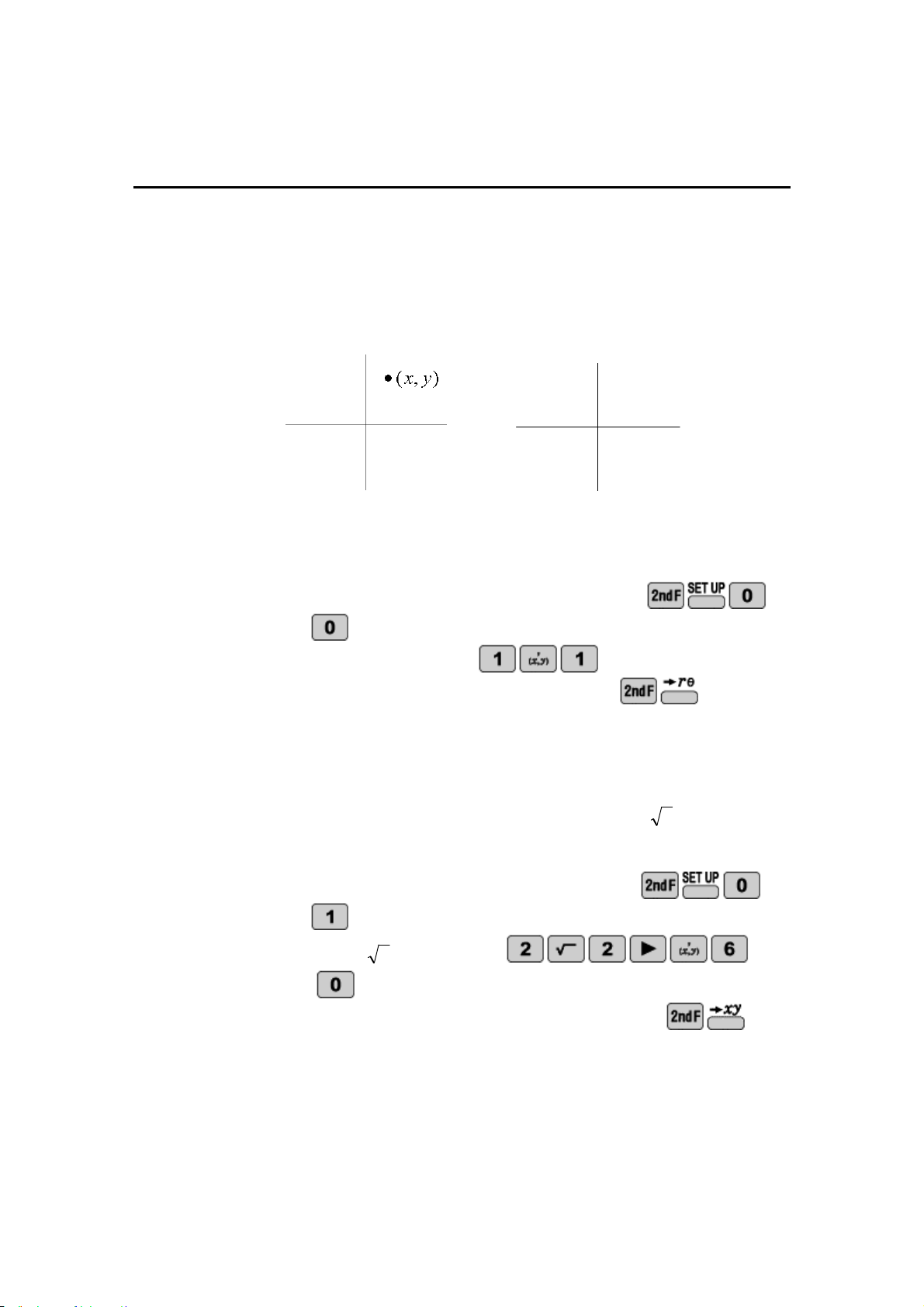
Calculator Activity
COORDINATE CONVERSIONS
OBJECTIVE:
To convert from polar coordinates to rectangular coordinates and vice
versa.
A point on a circle can be described with rectangular coordinates
)
,
(
y
x
or
polar coordinates
)
,
(
r
, where
r
is the radius of the circle and
is the
angle counterclockwise from the positive x
-
axis.
1.
While in degrees convert the rectangular coordinates (1,1) to polar
coordinates.
STEP 1: Set the angular units to degrees by pres
sing
.
STEP 2: Enter 1,1 by pressing
.
STEP 3: Convert to polar coordinates by pressing
.
2.
While in radians convert the polar coordinates of
)
60
,
2
2
(
to
rectangular coordinates.
STEP 1: Set the angular units to radians by pr
essing
.
STEP 2: Enter
60
,
2
2
by pressing
.
STEP 3: Convert to rectangular coordinates by pressing
.
)
,
(
r
24

NAME ___________________________________________ DATE________________
COORDINATE CONVERSIONS
A point on a circle can be described with rectangular coordinates
)
,
(
y
x
or
polar coordinates
)
,
(
r
, where
r
is the radius of the circle and
is the
angle counterclockwise for t
he positive x
-
axis.
Before converting, press
and then choose degrees,
radians, or grads. Use your EL
-
W516B to find the corresponding point on
the circle.
1.
While in degrees convert the rectangular coordinates (2,2) to polar
coordinates
)
,
(
r
.
______
__________
r
______
__________
2.
While in radians convert the rectangular coordinates
)
3
,
3
2
(
to polar
coordinates
)
,
(
r
.
______
__________
r
______
__________
3.
While in degrees convert the polar coordinates
)
5
3
,
4
(
to rectangular
coordinates
)
,
(
y
x
.
______
__________
x
______
__________
y
4.
While in degrees convert the polar coordinates (1,1.5
) to rectangular
coordinates
)
,
(
y
x
.
______
__________
x
______
__________
y
5.
While in grads convert the rectangular coordinates
)
1
,
1
(
to polar
coordinates
)
,
(
r
.
______
__________
r
______
__________
25
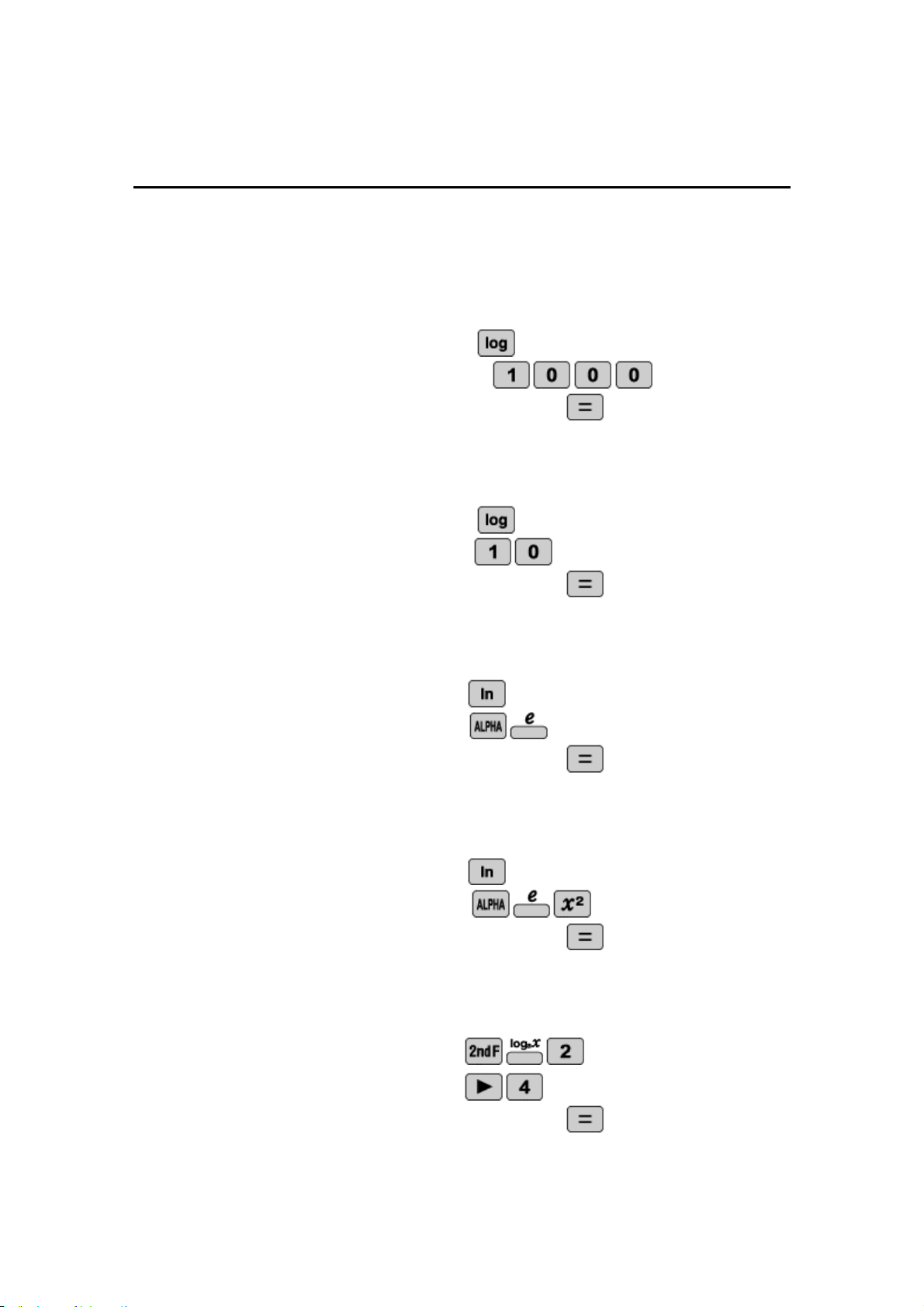
Calculator Activity
LOGARITHMS
OBJECTIVE:
To get a basic understanding of logarithms base 10, base
e
, and other
bases by solving equations.
1.
Find
1000
log
.
STEP 1: Enter log by pressing
.
STEP 2: Enter 1000 by pressing
.
STEP 3: Calculate
the answer by pressing
.
2. Find
10
log
.
STEP 1: Enter log by pressing
.
STEP 2: Enter 10 by pressing
.
STEP 3: Calculate the answer by pressing
.
3. Find
e
ln
.
STEP 1: Enter ln by pressing
STEP 2:
Enter
e
by pressing
.
STEP 3: Calculate the answer by pressing
.
4. Find
2
ln
e
.
STEP 1: Enter ln by pressing
STEP 2: Enter
2
e
by pressing
.
STEP 3: Calculate the answer by pressing
.
5. Find
4
log
2
STEP 1: To enter
2
log
press
.
STEP 2: Enter 4 by pressing
.
STEP 3: Calculate the answer by pressing
.
26

NAME ___________________________________________ DATE________________
LOGARITHMS
Use your EL
-
W516B to solve to following equations for the unknown.
1.
Solve for
x
.
123
log
2
5
x
_____________________
2.
Solve for
y
.
)
3
ln
1
(
5
21
y
_____________________
3.
Solve for
z
.
2
36
log
54
6
z
_____________________
4.
Solve for
x
.
2
1
ln
100
log
e
x
_____________________
5.
Solve for
y
.
2
21
ln
100
log
y
_____________________
6.
Solve for
z
.
200
ln
25
log
32
log
2
z
_____________________
27
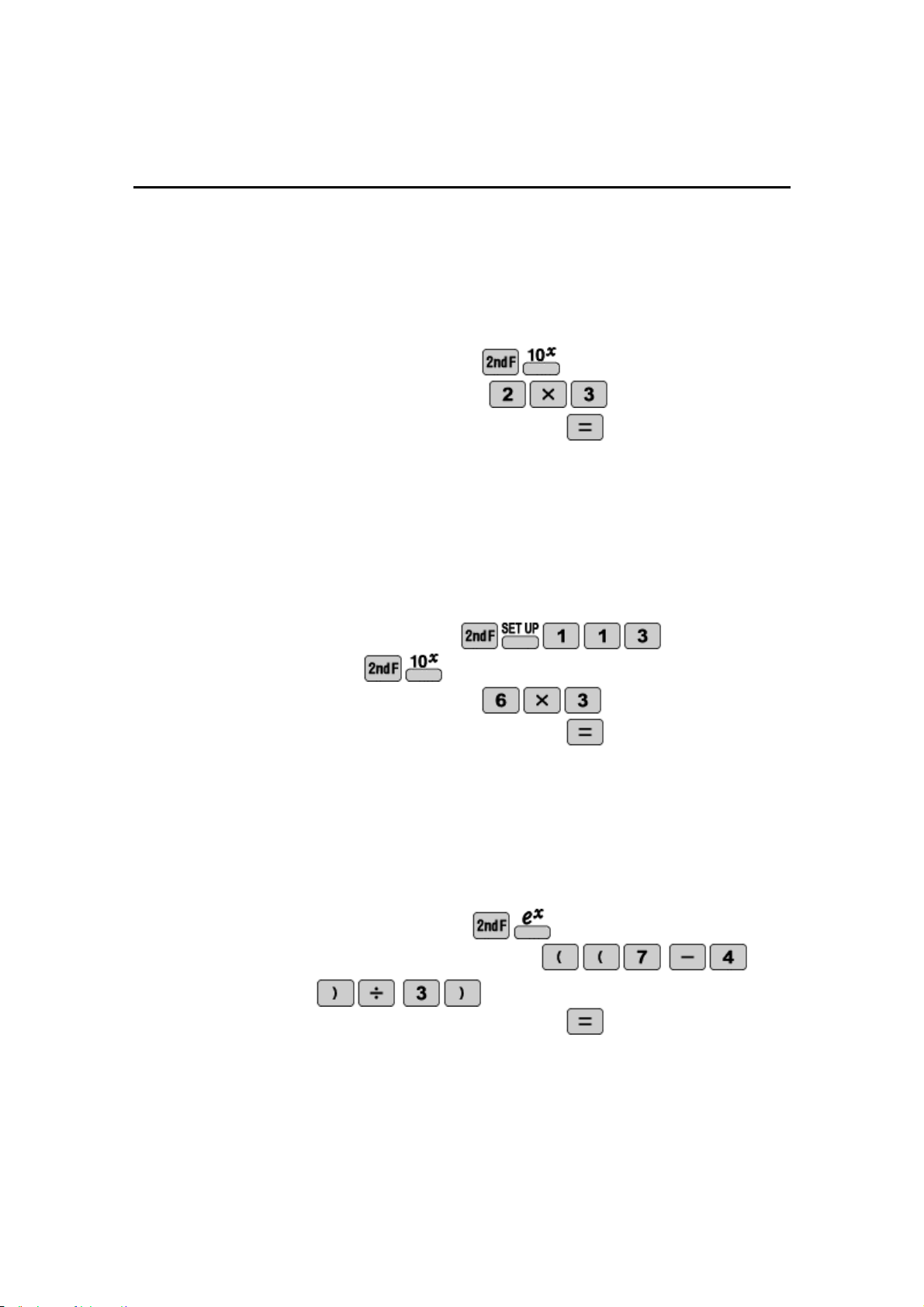
Calculator Activity
INVERSE LOGARITHMS
OBJECTIVE:
To perform antilogarithmic operations.
1.
Calculate
3
2
10
STEP 1: Enter 10^ by pressing
.
STEP 2: Enter
3
2
by pressing
.
STEP 3: Calculate the answer by pressing
.
2.
Find
3
6
10
in scientific notation with three significant figures.
STEP 1: Set the calculator to scientific notation with three significant
figures by pressing
.
STEP 2: Press
.
STEP 3: Enter 6x3 by pressing
STEP 4: Calculate the answer by pressin
g
.
3.
Find
)
3
)
4
7
((
e
STEP 1: Enter e^ by pressing
.
STEP 2: Enter
3
4
7
by pressing
STEP 3: Calculate the answer by pressing
.
28

NAME ___________________________________________ DATE________________
INVERSE LOGARITHMS
Use your EL
-
W516B to solve the following equations for the given
unknown.
1.
Solve for
x
.
2
*
6
5
10
2
x
_____________________
2.
Solve for
y
.
2
5
e
y
_____________________
3.
Solve for
z
.
3
2
10
3
1
z
_____________________
4.
Solve for
x
.
4
5
2
5
10
e
x
_____________________
5.
Solve for
y
.
1
3
10
2
2
e
y
_____________________
6.
Solve for
z
.
)
1
3
(
2
6
3
2
10
10
e
z
_____________________
29
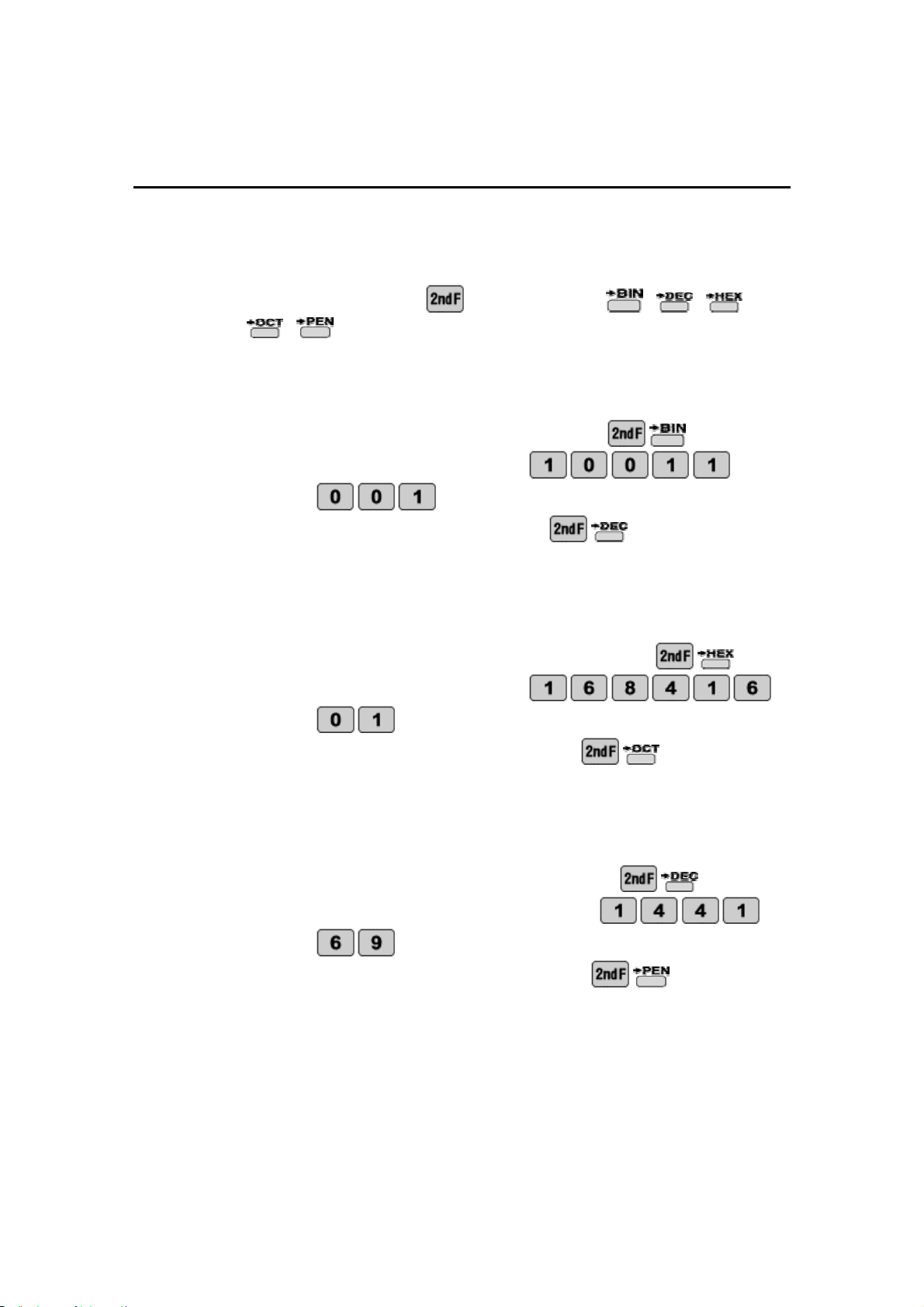
Calculator Activity
BASE CONVERSIONS
OBJECTIVE:
To convert to and from binary, decimal, hexadecimal, octadecimal, and
pentadecimal base systems.
Before converting press
followed by either
,
,
,
,
.
1.
Convert the binary number 10011001 to decimal.
STEP 1: Set the calculator to bin
ary by pressing
.
STEP 2: Enter 10011001 by pressing
.
STEP 3: Convert to decimal by pressing
.
2.
Convert the hexadecimal number 16841601 to octadecimal.
STEP 1: Set the calculator to hexadecimal by pressing
.
STEP 2: Enter 16841601 by
pressing
.
STEP 3: Convert to octadecimal by pressing
.
3.
Convert the decimal number 144169 to pentadecimal.
STEP 1: Set the calculator to decimal by pressing
.
STEP 2: Enter the number 144169 by pressing
.
STEP 3: Convert to pen
tadecimal by pressing
.
30

NAME ___________________________________________ DATE________________
BASE CONVERSIONS
Use your EL
-
W516B to convert to and from binary, decimal, hexadecimal,
octadecimal, and pentadecimal base systems.
Before converting make sure you are in the right base system by pressing
followed by either
,
,
,
,
.
1.
Convert the octadecimal nu
mber
161033 to pentadecimal.
____________________________
2.
Convert the hexadecimal number 123 to binary.
____________________________
3.
Perform the indicated operations in hexadecimal and then convert
your answer to octadecimal.
)
12
3
2
(
2
8
____________________________
4.
Perform the indicated operations in decimal and then convert your
answer to binary.
24
36
6
1
3
15
____________________________
5.
Convert the binary number 10101010 to decimal, octadecimal, and
pentadecimal.
____________________________
____________________________
____________________________
31
Calculator Activity
CONSTANTS AND CONVERSIONS
OBJECTIVE:
To use constants to aid in solving
2
mc
E
and to perform conversions.
Use Einstein’s equation to solve for energy:
2
mc
E
.
1.
What is the energy of an object given the mass of that object is 100
kilograms?
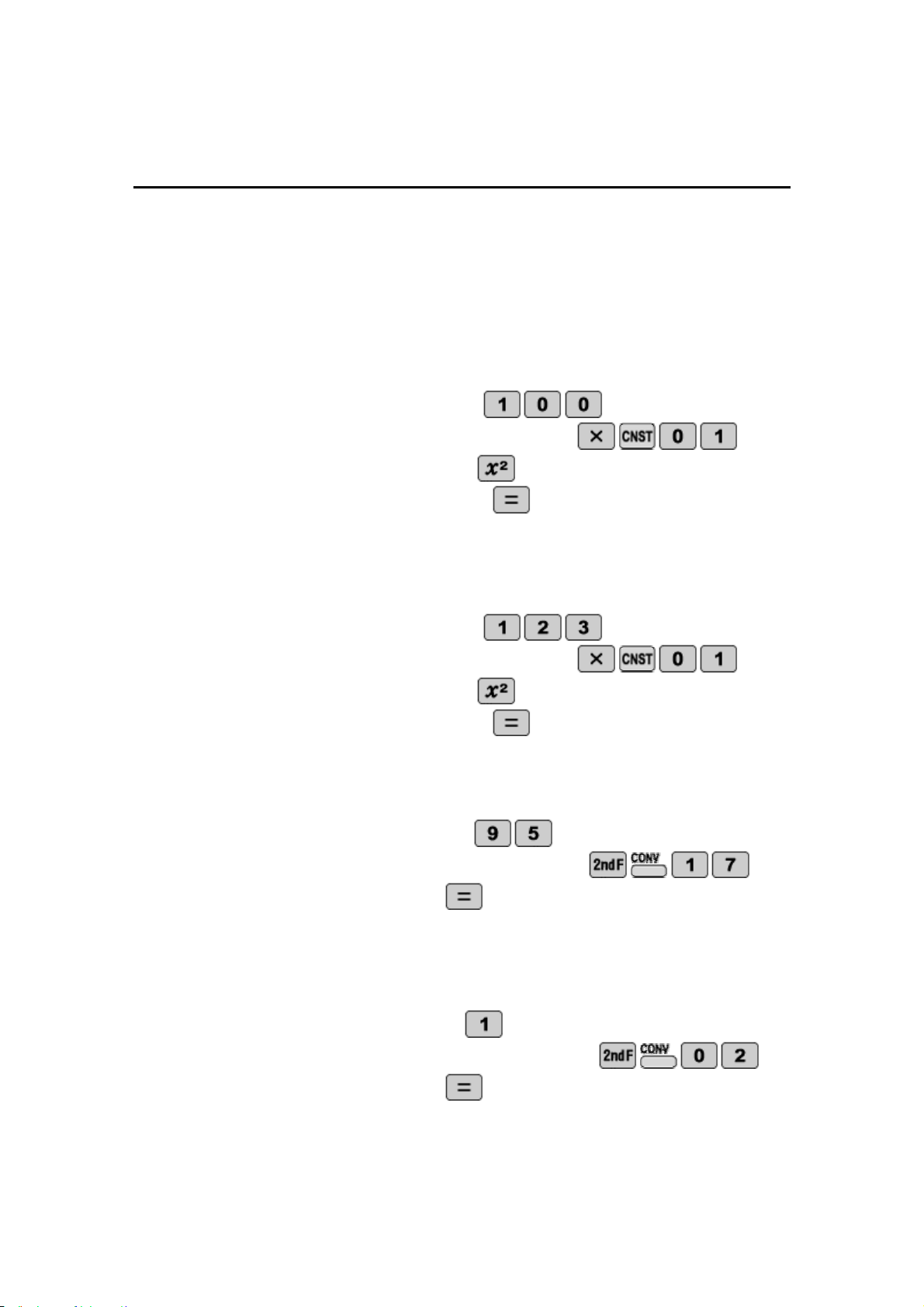
ST
EP 1: Enter 100 by pressing
.
STEP 2: To multiply by the constant c press
.
STEP 3: Square c by pressing
.
STEP 4: Solve for E by pressing
.
2.
What is the energy of an object given the mass of that object is 123
kilograms?
STEP 1: Enter 123
by pressing
.
STEP 2: To multiply by the constant c press
.
STEP 3: Square c by pressing
.
STEP 4: Solve for E by pressing
.
3.
What is
F
95
equal to in Celsius?
STEP 1: Enter 95 by pressing
.
STEP 2: To select to convert
to Celsius press
.
STEP 3: To convert press
.
4.
How many inches are in 1 centimeter?
STEP 1: Enter 1 by pressing
.
STEP 2: Choose convert to inches by pressing
.
STEP 3: To convert press
.
32

NAME ___________________________________________ DATE________________
CONSTANTS AND CONVERSIONS
Use your EL
-
W516B to use constants and to convert when necessary.
Use Einstein’s equation to help solve some of the questions:
2
mc
E
.
1.
How much energy does a particle whose mass is 10
kilograms have?
____________________
2.
How much
energy does a particle whose mass is 5
kilograms have?
____________________
3.
How many feet are in 3 meters?
____________________
4.
How many yards in are 5 meters?
____________________
5.
How much energy does a particle whose weight is 200
pounds have
?
____________________
6.
How much energy does an object whose weight is 16
pounds have?
____________________
33
Calculator Activity
RANDOM NUMBERS, DIE, COINS, AND INTEGERS
OBEJCTIVE:
To generate random numbers, dice throws, coin tosses, and integers.
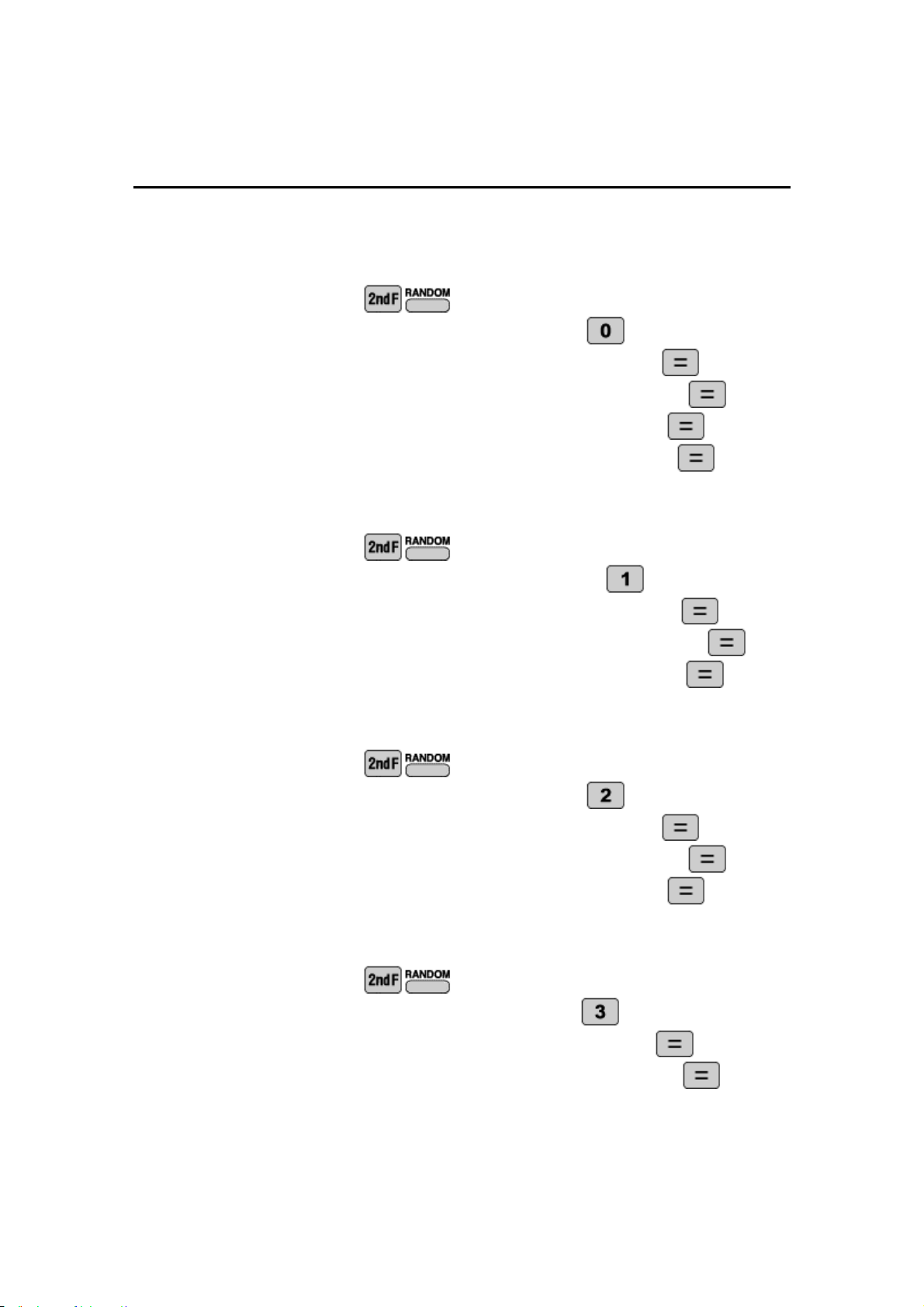
1.
Generate 4 random numbers.
STEP 1: Press
.
STEP 2: To generate random numbers press
.
STEP 3: Generate the first random number by pressing
.
STEP 4: Generate the seco
nd random number by pressing
.
STEP 5: Generate the third random number by pressing
.
STEP 6: Generate the fourth random number by pressing
.
2.
Generate 3 random dice throws.
STEP 1: Press
.
STEP 2: To generate random dice throws press
.
STEP 3:
Generate the first random dice throw by pressing
.
STEP 4: Generate the second random dice throw by pressing
.
STEP 5: Generate the third random dice throw by pressing
.
3.
Generate 3 random coin tosses.
STEP 1: Press
.
STEP 2: To generate random
coin flips press
.
STEP 3: Generate the first random coin flip by pressing
.
STEP 4: Generate the second random coin flip by pressing
.
STEP 5: Generate the third random coin flip by pressing
.
4.
Generate 2 random integers.
STEP 1: Press
.
STEP 2
: To generate random integers press
.
STEP 3: Generate the first random integer by pressing
.
STEP 4: Generate the second random integer by pressing
.
34

NAME ___________________________________________ DATE________________
RANDOM NUMBERS, DIE, COINS, AND INTEGERS
Use your EL
-
W516B to help generated a sequence of random numbers,
dice, coins, and integers.
1.
Generate a sequence of 4 random integers.
___, ___, ___, ___
2.
Generate a sequence of 5 random dice throws.
___, ___, ___, ___, ___
3.
Generate a sequence of 1
0 random coin flips.
___, ___, ___, ___, ___, ___, ___, ___, ___, ___
4.
Generate a sequence of 3 random integers.
___, ___, ___
5.
Generate a sequence of 12 dice throws and based on that sequence
what is the probability of rolling a 6?
___, ___, ___, ___
, ___, ___, ___, ___, ___, ___, ___, ___
_______________
6.
Generate a sequence of 10 random coin flips and based on that
sequence what is the probability of getting heads?
___, ___, ___, ___, ___, ___, ___, ___, ___, ___
______________
_
35
Calculator Activity
PROBABILITY
OBJECTIVE:
To get a basic understanding factorials, combinations, and permutations.
A combination is used when order does not matter. A permutation is used
when order does matter.
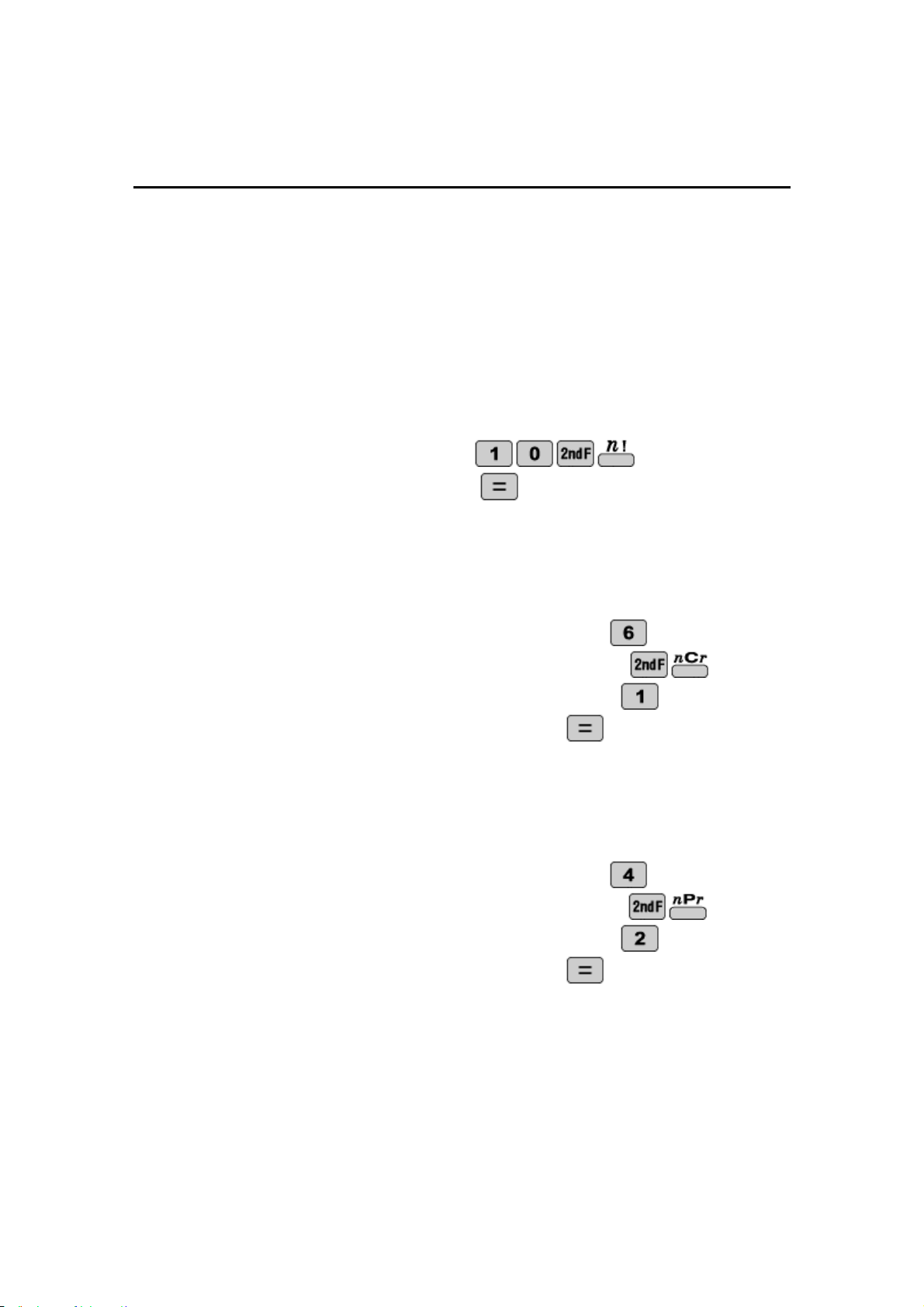
1.
Find
!
10
.
STEP 1: Enter
!
10
by pressing
.
STEP 2: Calculate by pressing
.
2.
How many different ways can you choose 1 from a group of 6?
STEP 1: Enter the larger number, 6, by pressing
.
STEP 2: Enter the combination symbol by pressing
.
STEP 3: Enter the smaller n
umber, 1, by pressing
.
STEP 4: Calculate the answer by pressing
.
3.
Find the number of permutations of 4 things taken 2 at a time.
STEP 1: Enter the larger number, 4, by pressing
.
STEP 2: Enter the permutation symbol by pressing
.
STEP 3: Ent
er the smaller number, 2, by pressing
.
STEP 4: Calculate the answer by pressing
.
36

NAME ___________________________________________ DATE________________
PROBABILITY
Use your EL
-
W516B to find the following number of combinations and
permutations and to evaluate factorials.
1.
How many groups or 4 can be formed from a class of 10 where order
does not matter?
____________________________
2.
How many groups of 4 can be fo
rmed from a class of 10 where order
does matter?
____________________________
3.
How many sets of 3 officers can be formed from a group of 15 where
order does not mater?
____________________________
4.
How many sets of 3 officers can be formed from a group
of 15 where
order does matter?
____________________________
5.
Evaluate
!
5
____________________________
6.
What is
!
0
? What is
!
1
? Explain why the answer is so.
___________________________
_________________________
____________________________________________________
____________________________________________________
37
Calculator Activity
1 VARIABLE STATISTICS
OBJECTIVE:
To perform 1 variable statistics.
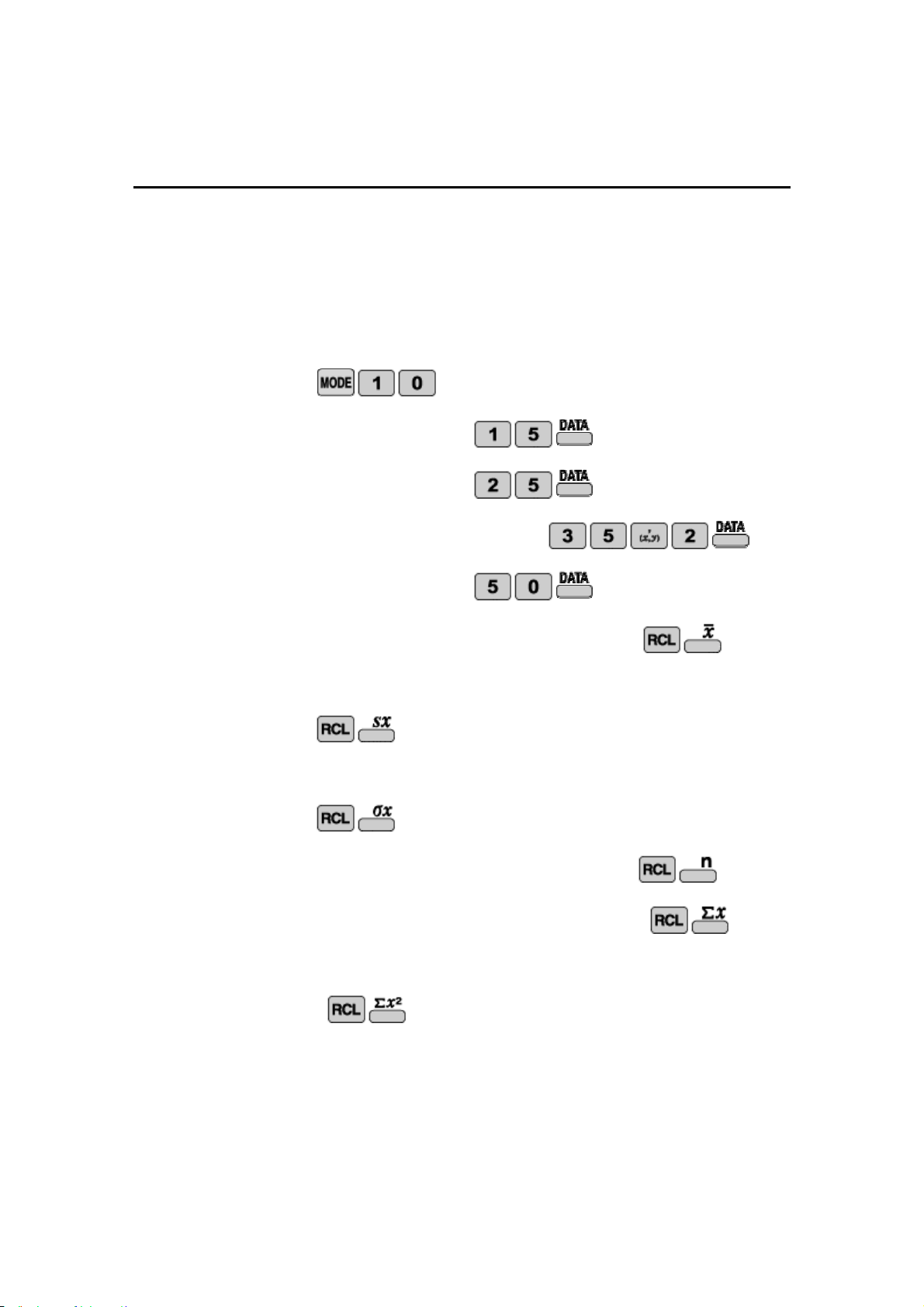
1. Analyze the set
50
,
35
,
35
,
25
,
15
using 1 variable statistics.
STEP 1: Set the calculator to single variable statistics by pressing
.
STEP 2: Enter 15 by pressing
.
STEP 3: Enter 25 by pr
essing
.
STEP 4: Enter 35 two times by pressing
.
STEP 5: Enter 50 by pressing
.
STEP 6: To determine the mean of the sample press
.
STEP 7: To determine the sample mean standard deviation press
.
STEP 8: To determine the population sta
ndard deviation press
.
STEP 9: To determine the number of samples press
.
STEP 10: To determine the sum of the samples press
.
STEP 11: To determine the sum of squares of samples press
.
38

NAME ___________________________________________ DATE________
________
1 VARIABLE STATISTICS
Use your EL
-
W516B to analyze the following sets using 1 variable
statistics.
1.
Analyze the set
}
3
,
3
,
3
,
3
,
2
,
2
,
2
,
1
,
1
{
x
______________
sx
______________
x
______________
n
______________
x
______________
2
x
______________
2.
Analyze the set
}
25
,
25
,
20
,
15
,
10
{
x
______________
sx
______________
x
__
____________
n
______________
x
______________
2
x
______________
3.
Analyze the set
}
8
,
5
,
3
,
2
,
1
,
1
{
x
______________
sx
___________
___
x
______________
n
______________
x
______________
2
x
______________
4.
Analyze the set
}
32
,
16
,
8
,
4
,
2
,
1
{
x
______________
sx
______________
x
______________
n
______________
x
______________
2
x
______________
39
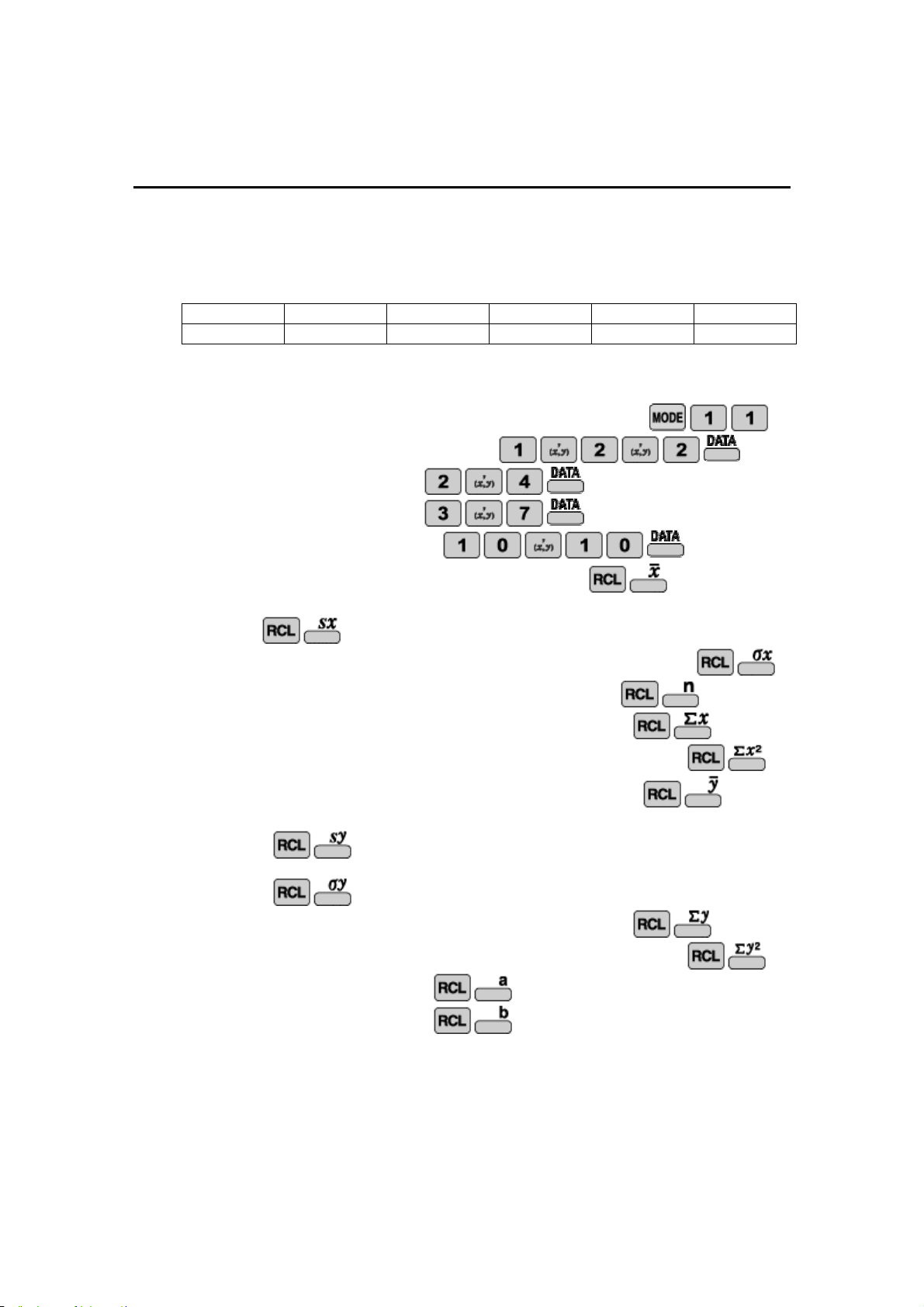
Calculator Activity
2 VARIABLE STATISTICS & LINEAR REGRESSION
OBJECTIVE:
To perform 2 variable statistics and run a linear regression
Analyze the data set using 2 variable statistics and perform a linear regression.
X
1
1
2
3
10
Y
2
2
4
7
10
STEP 1: Set the calculator to 2 variable statistics by pressing
.
STEP 2: Enter 1,2 two times by pressing
.
STEP 3: Enter 2,4 by pressing
.
STEP 4: Enter 3,7 by pressing
.
STEP 5: Enter 10,10 by pressing
.
STEP 6: To determine the mean of the sample press
.
STEP 7: To determine the sample
mean standard deviation for x press
.
STEP 8: To determine the population standard deviation for x press
.
STEP 9: To determine the number of samples for x press
.
STEP 10: To determine the sum of the samples for x press
.
STEP 11: To determine
the sum of squares of samples for x press
.
STEP 12: To determine the mean of the samples for y press
.
STEP 13: To determine the sample mean standard deviation for y press
STEP 14: To determine the population standard deviation for y press
.
STEP 15: To determine the sum of the samples for y press
.
STEP 16: To determine the sum of squares of samples for y press
.
STEP 17: To determine a press
.
STEP 18: To determine b press
.
NOTE:
Other regressions can be done in a similar man
ner by just setting your
EL
-
W516B to the proper STATS Mode.
40
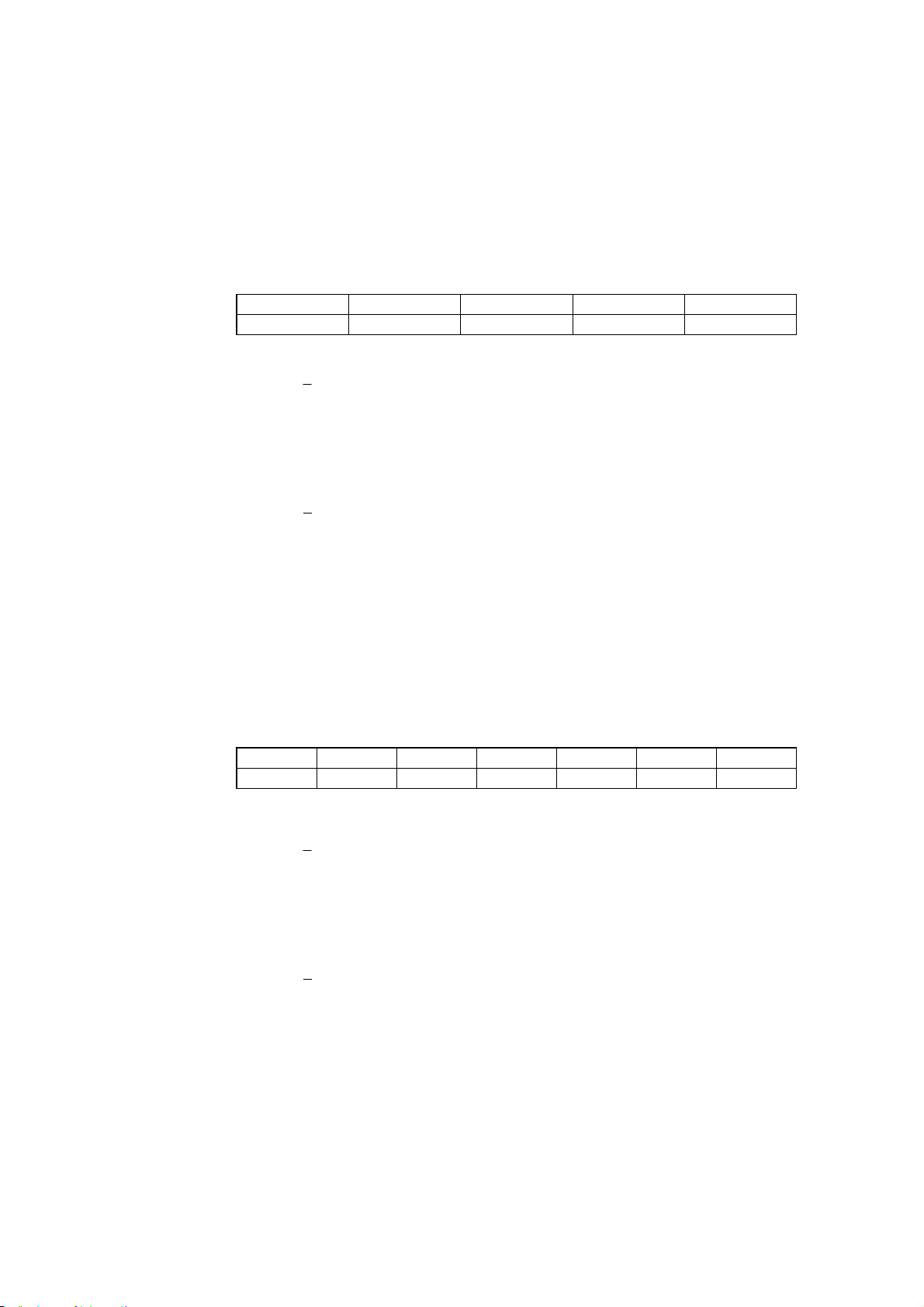
NAME ___________________________________________ DATE________________
2 VARIABLE STATISTICS & LINEAR REGRESSION
Use your EL
-
W516B to analyze the following sets using 2 variable
statistics and to perform a linear regression.
1.
Analyze the set and run a linear regression.
X
1
2
3
4
Y
1
2
4
8
x
______________
sx
______________
x
______________
n
______________
x
______________
2
x
______________
y
______________
sy
______________
y
______________
y
______________
2
y
______________
a
______________
b
______________
2.
Analyze the set and run a linear re
gression.
X
1
2
3
4
5
6
Y
2
7
1
8
2
8
x
______________
sx
______________
x
______________
n
______________
x
______________
2
x
______________
y
______________
sy
______________
y
______________
y
______________
2
y
______________
a
___
___________
b
______________
41
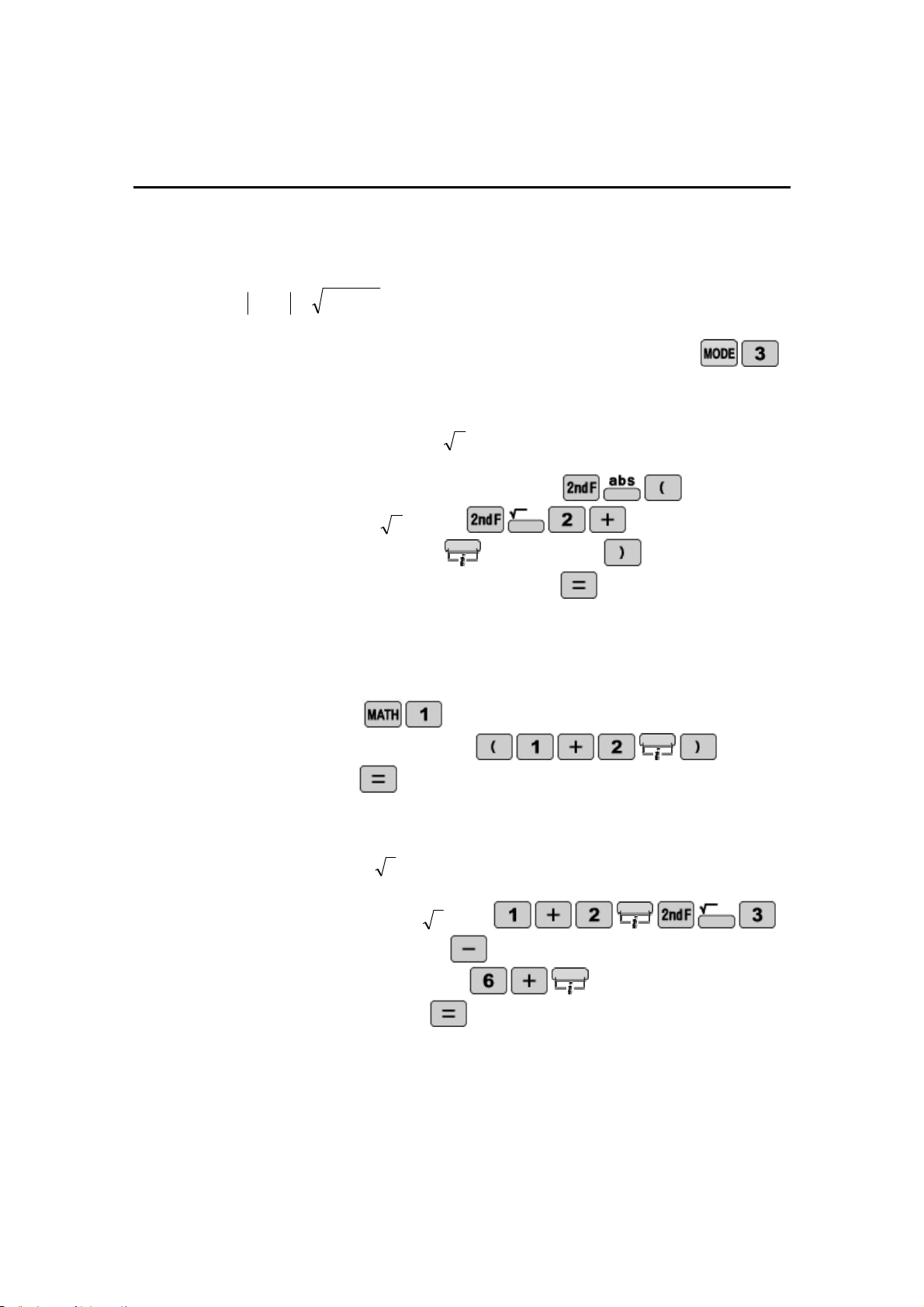
Calculator Activity
COMPLEX NUMBERS
OBJECTIVE:
To calculate the modulus, the complex conjugate, and to simplify complex
expressions.
The absolute value or modulus of a complex numbers is defined as
2
2
y
x
iy
x
.
Before starting put your calculator in CPLX mode by pressing
.
1.
What is the modulus of
i
2
?
STEP 1: To start the absolute value press
.
STEP 2: To enter
2
press
.
STEP 3: To enter
i
press
and then press
.
STEP 4: To determine the modulus pre
ss
.
2.
What is the complex conjugate of
i
2
1
?
STEP 1: Press
.
STEP 2: To enter
i
2
1
press
.
STEP3: Press
to get the complex conjugate.
3.
Simplify
i
i
6
3
2
1
STEP 1: To enter
3
2
1
i
press
.
STEP 2: To subtract press
.
STEP 3: To enter
i
6
press
.
STEP 4: To solve press
.
42

NAME ___________________________________________ DATE________________
COMPLEX NUMBERS
Use your EL
-
W516B to find the modulus, the complex conjugate, and to
simplify complex expressions.
1.
What is the modulus of
i
?
____________________
2.
What is the modulus of
2
3
i
?
____________________
3.
What is
the complex conjugate of
i
?
____________________
4.
Simplify
i
i
1
1
____________________
5.
Simplify
)
(
2
2
i
i
____________________
6.
What is
3
2
1
0
,
,
,
i
i
i
i
?
____________________
7.
Simpli
fy
sin
cos
i
____________________
43
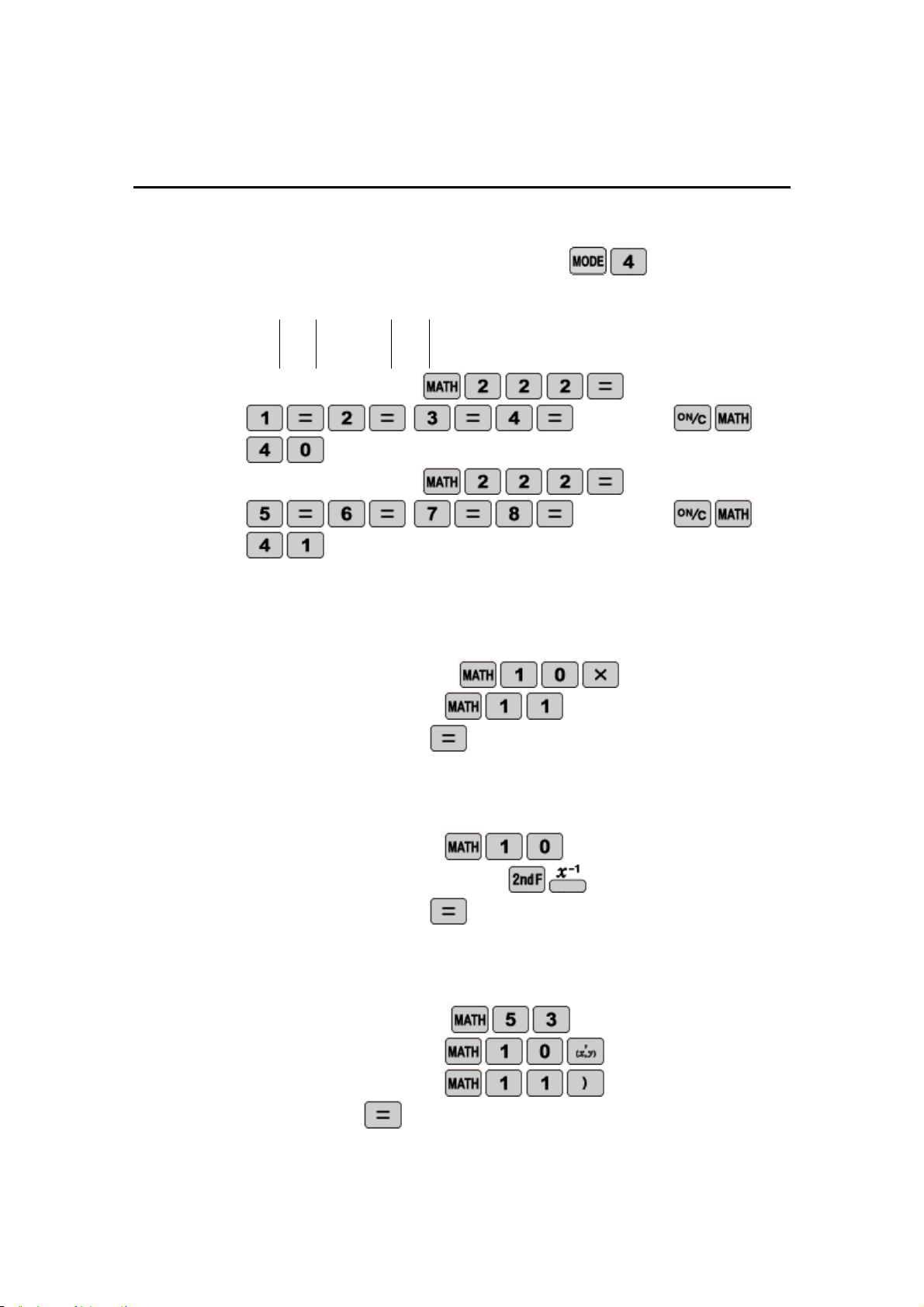
Calculator Activity
MATRIX CALCULATIONS
OBJECTIVE:
To perform calculations, take inverses, augment, and calculate
the determinant of matrices.
To set your calculator to Matrix mode press
.
For the following examples there will be two matrices: A and B
4
3
2
1
A
and
8
7
6
5
B
.
To enter matrix A press
. Then press
. Then press
.
To enter matrix B press
. Then press
. Then press
.
Now matrix A and B are stored.
1.
Evaluate
AxB
STEP 1: To enter A x Press
.
STEP 2: To enter B press
.
STEP 3: To solve press
.
2.
What is the inverse of A?
STEP 1: To enter A press
.
STEP 2: To take the inverse press
.
STEP 3: To solve press
.
3.
Augment A with B.
STEP 1: To augment press
.
STEP 2: To enter
A press
.
STEP 3: To enter B press
.
STEP 4: Press
to see the augmented matrix.
44

NAME ___________________________________________ DATE________________
MATRIX CALCULATIONS
Use your EL
-
W516B to perform calculations with matrices.
For the following problems use:
8
6
4
2
A
,
7
5
3
1
B
,
34
21
13
8
5
3
2
1
1
C
,
1
0
0
0
1
0
0
0
1
D
.
1.
Calculate
1
D
____________________
2.
Evaluate
CD
____________________
3.
Evaluate
DC
____________________
4.
Augment matrix A with matrix B
____________________
5.
What is the determinant of matrix A? The determinant is done by
entering
.
____________________
45
Calculator Activity
LIST CALCULATIONS
OBJECTIVE:
To perform calculations and to determine statistical information with lists.
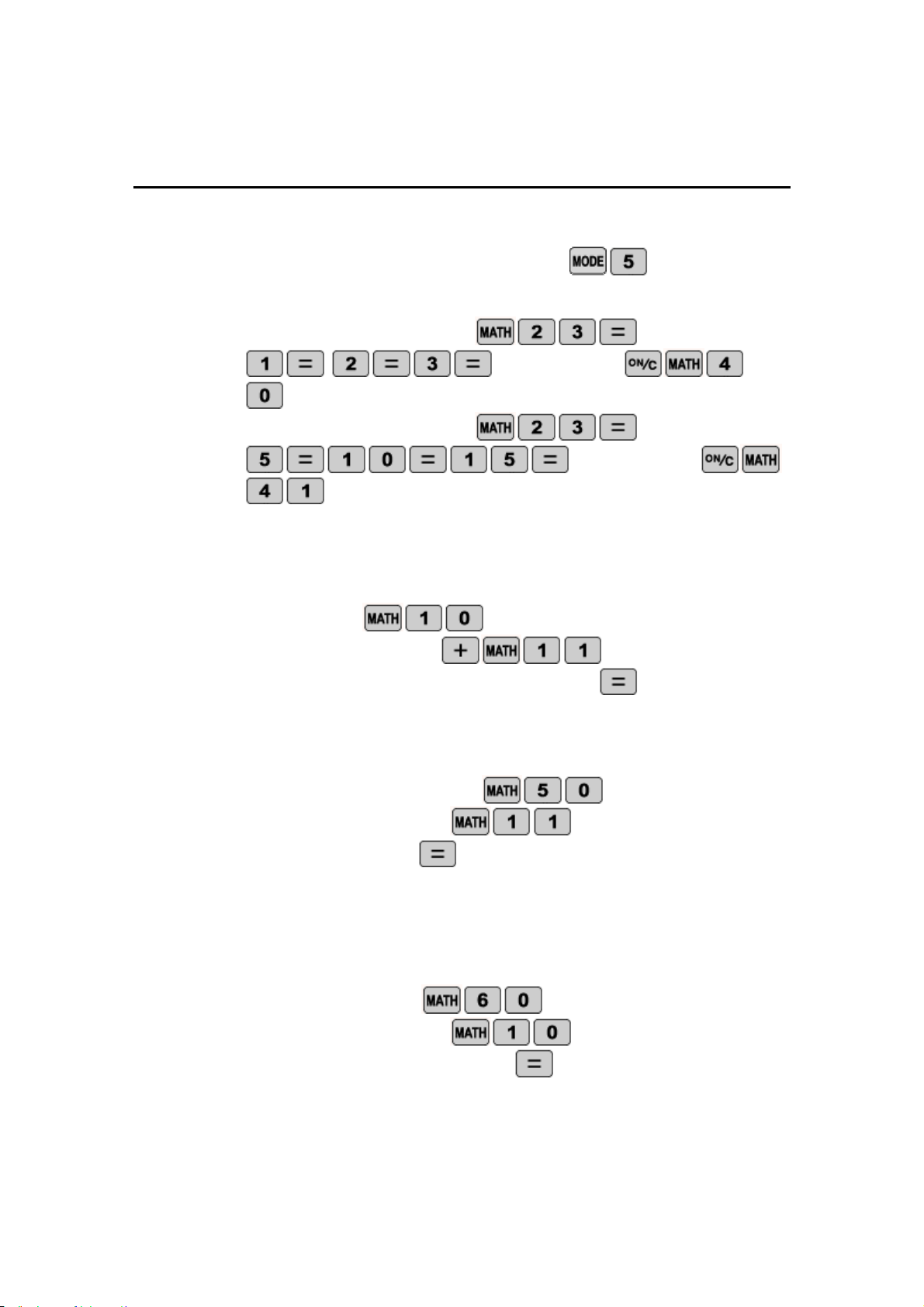
To set your calculator to Matrix mode press
.
For the following examples L1={1,2,3} and L2={5,10,15}.
To enter the data into L1 press
. Then press
.
After this press
.
To enter the data into L2 press
. Then press
. After this press
.
Now L1 and L2 are stored.
1.
Evaluate L1+L2
STEP 1: Press
to enter L1.
STEP 2: To add L2 press
.
STEP 3: To calculate the sum of the l
ists press
.
2.
Sort L2 descending
STEP 1: To bring up sort press
.
STEP 2: To enter L2 press
.
STEP 3: To sort press
.
NOTE:
To sort ascending can be done in a similar manner.
3.
Calculate the min L1
STEP 1: For min press
.
STEP 2: To ent
er L1 press
.
STEP 3: To calculate the min press
.
NOTE:
max, mean, median, sum, product, standard deviation, and
variance can be calculated in a similar way to min.
46

NAME ___________________________________________ DATE_______
_________
LIST CALCULATIONS
Use your EL
-
W516B to perform the necessary calculations.
1.
Put {1,3,5} in L1 and {2,4,6} in L2. Multiply L1 and L2 and put this
new list into L3. Then determine the min, max, mean, median, sum,
product, standard deviation, and variance of L3.
Min
=
____________________
Max
=
____________________
Mean
=
____________________
Median =
____________________
Sum
=
____________________
Product =
____________________
Standard
Deviation =
____________________
Variance =
____________________
2.
Pu
t {3,1,4,1,5,9} in L1 and {2,7,1,8,2,8} in L2. Add L1 and L2 and put
this new list into L3. Then determine the min, max, mean, median,
sum, product, standard deviation, and variance of L3.
Min
=
____________________
Max
=
____________________
Mean
=
____________________
Median =
____________________
Sum
=
____________________
Product =
____________________
Standard
Deviation =
____________________
Variance =
____________________
47
Calculator Activity
LINEAR, QUADRATIC, AND CUBIC EQUATIONS
OBJECTIVE:
To solve linear, quadratic, and cubic equations.
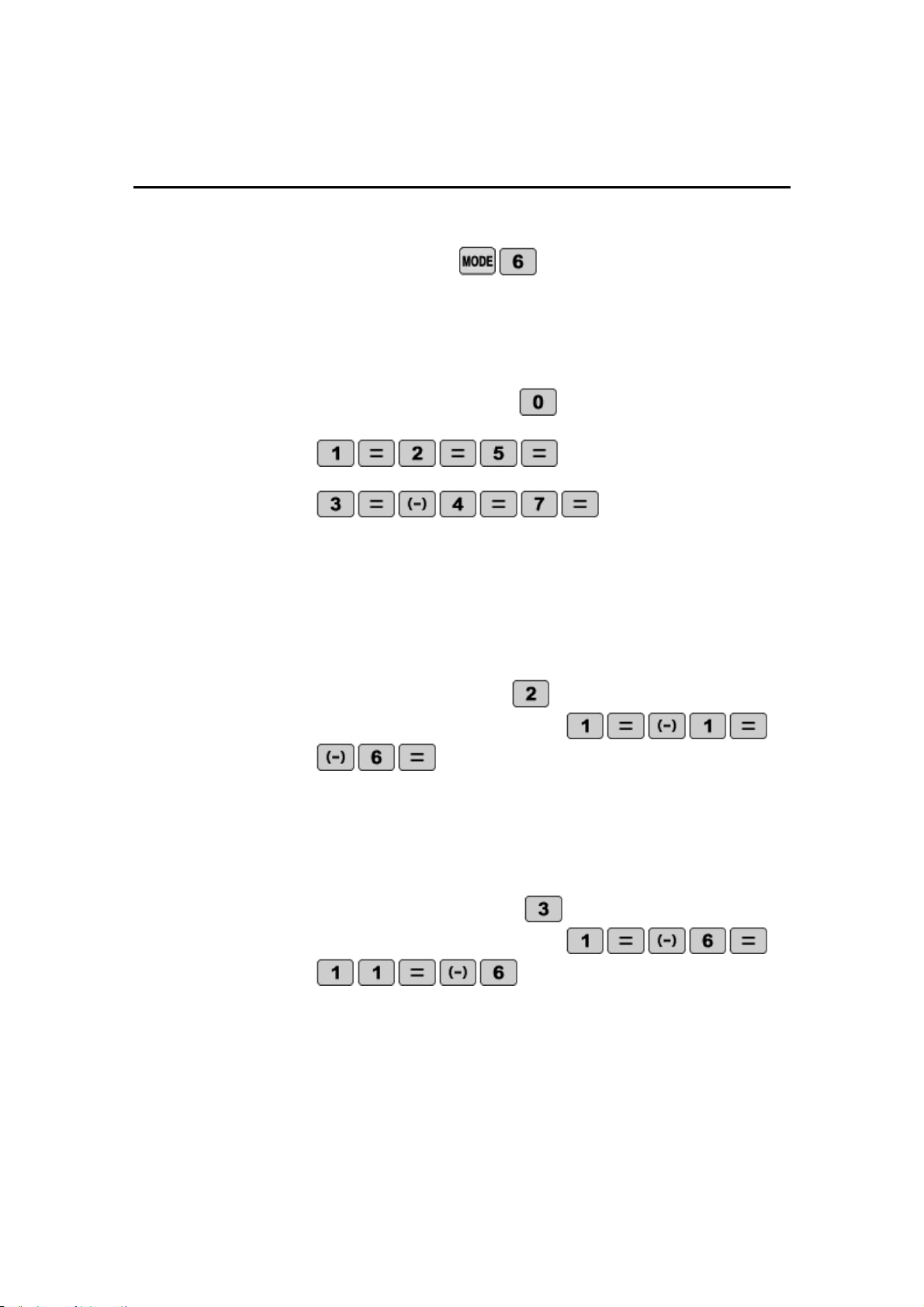
For EQUATION mode press
.
1.
Solve the two equations for x and y:
7
4
3
5
2
1
y
x
y
x
STEP 1: Choose 2
-
VLE by pressing
.
STEP 2: Enter the coefficients for the first equation by pressi
ng
.
STEP 3: Enter the coefficients for the second equation by pressing
.
NOTE:
3 simultaneous equations can be done by choosing 3
-
VLE and
entered in a simlar fashion as 2
-
VLE.
2.
Solve the following quadratic equation
0
6
2
x
x
STEP 1: Chose QUAD by pressing
.
STEP 2: Enter the coefficients by pressing
.
3.
Solve the following cubic equation and express the answer in factored
form:
0
6
11
6
2
3
x
x
x
STEP 1: Choose CUBIC by pressing
.
STEP 2: Enter the c
oefficients by pressing
.
48

NAME ___________________________________________ DATE________________
LINEAR, QUADRATIC, AND CUBIC EQUATIONS
Use your EL
-
W516B to solve the following linear, quadratic, and cubic
equations.
Set your calculator to EQUATION mode by pressing
.
1. Solve the two linear equations for x and y:
0
5
3
10
2
y
x
y
x
____________________
2.
Solve the three
linear equations for x, y, and z:
0
6
5
z
y
z
y
x
y
x
____________________
3.
Solve the following quadratic equation:
0
1
2
x
x
____________________
4.
Solve the following cubic equation and express the
answer in factored form:
0
1
2
3
x
x
x
____________________
____________________
49
Calc
ulator Activity
SUMMATION
OBJECTIVE:
To calculate the sum of a series.
1.
Evaluate
5
0
!
x
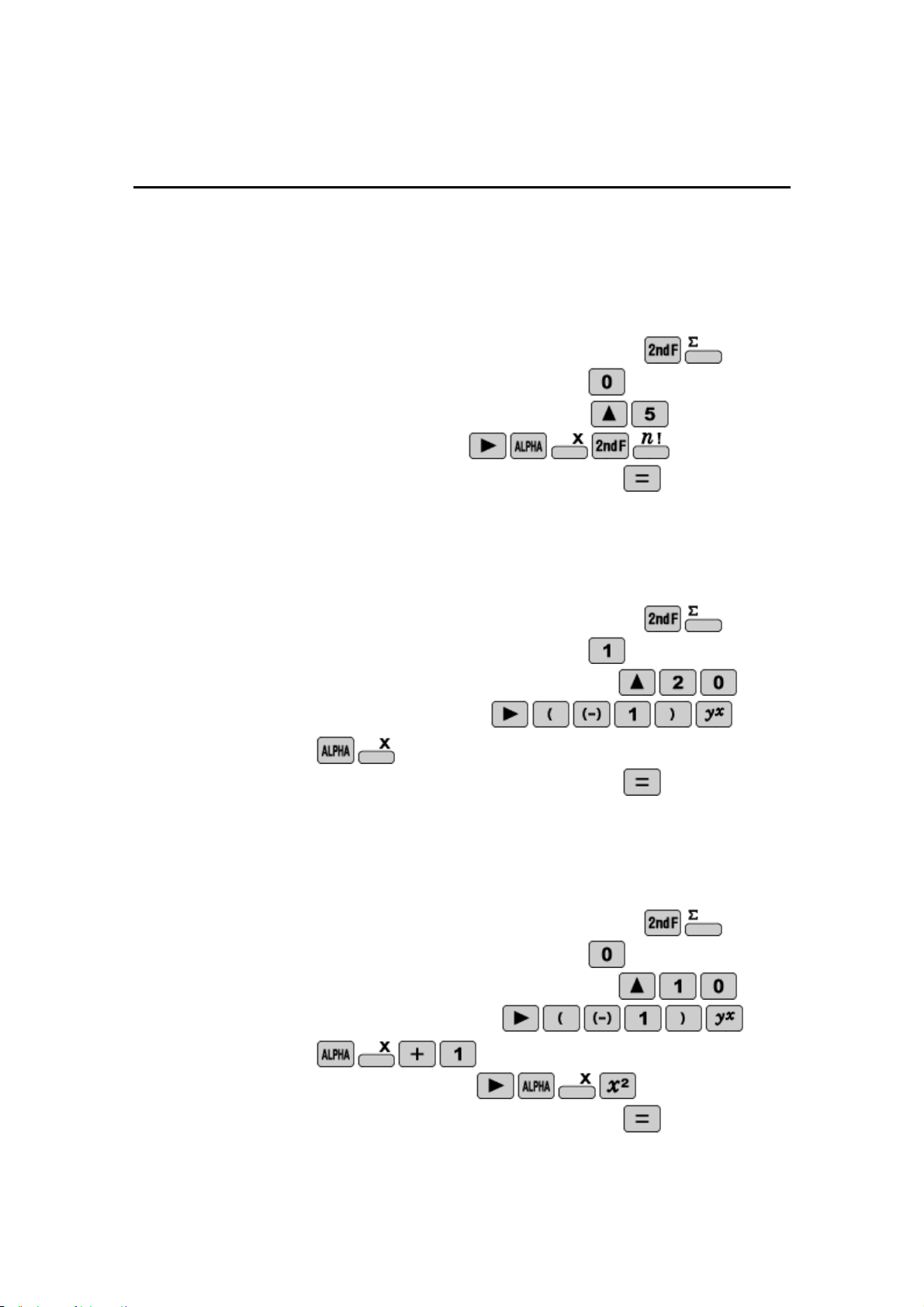
STEP 1: Bring up the summation symbol by pressing
.
STEP 2: Enter the lower bound 0 by pressing
.
STEP 3: Enter the upper bound 5 by pressing
.
STEP 4: Enter
!
x
by pressing
.
STEP 5: To determine the sum of the series press
.
2.
Evaluate
20
1
1
x
STEP 1: Bring up the summation symbol by pressing
.
STEP 2: Enter the lower bound 1 by pressing
.
STEP 3: Enter the upper bou
nd of 20 by pressing
.
STEP 4: Enter
x
1
by pressing
.
STEP 5: To determine the sum of the series press
.
3.
Evaluate
10
0
2
1
1
x
x
STEP 1: Bring up the summation symbol by pressing
.
STEP 2: Enter the lower
bound 0 by pressing
.
STEP 3: Enter the upper bound of 10 by pressing
.
STEP 4: Enter
1
1
x
by pressing
.
STEP 5: Enter
2
x
by pressing
.
STEP 6: To determine the sum of the series press
.
50

NAME ___________________________________________ DATE________________
SUMMATION
Use your EL
-
W516B to calculate the sum of the series.
1.
Evaluate
5
1
2
x
____________________
2.
Evaluate
10
3
3
1
2
x
____________________
3.
Evaluate
4
0
2
x
e
____________________
4.
Evaluate
9
1
ln
x
x
x
____________________
5.
Evaluate
20
10
x
x
____________________
6.
Evaluate
100
1
1
x
____________________
51
Calculator Activity
DER
IVATIVES
OBJECTIVE:
To calculate the derivative at a given point.
1.
Evaluate
3
x
dx
d
where
5
x
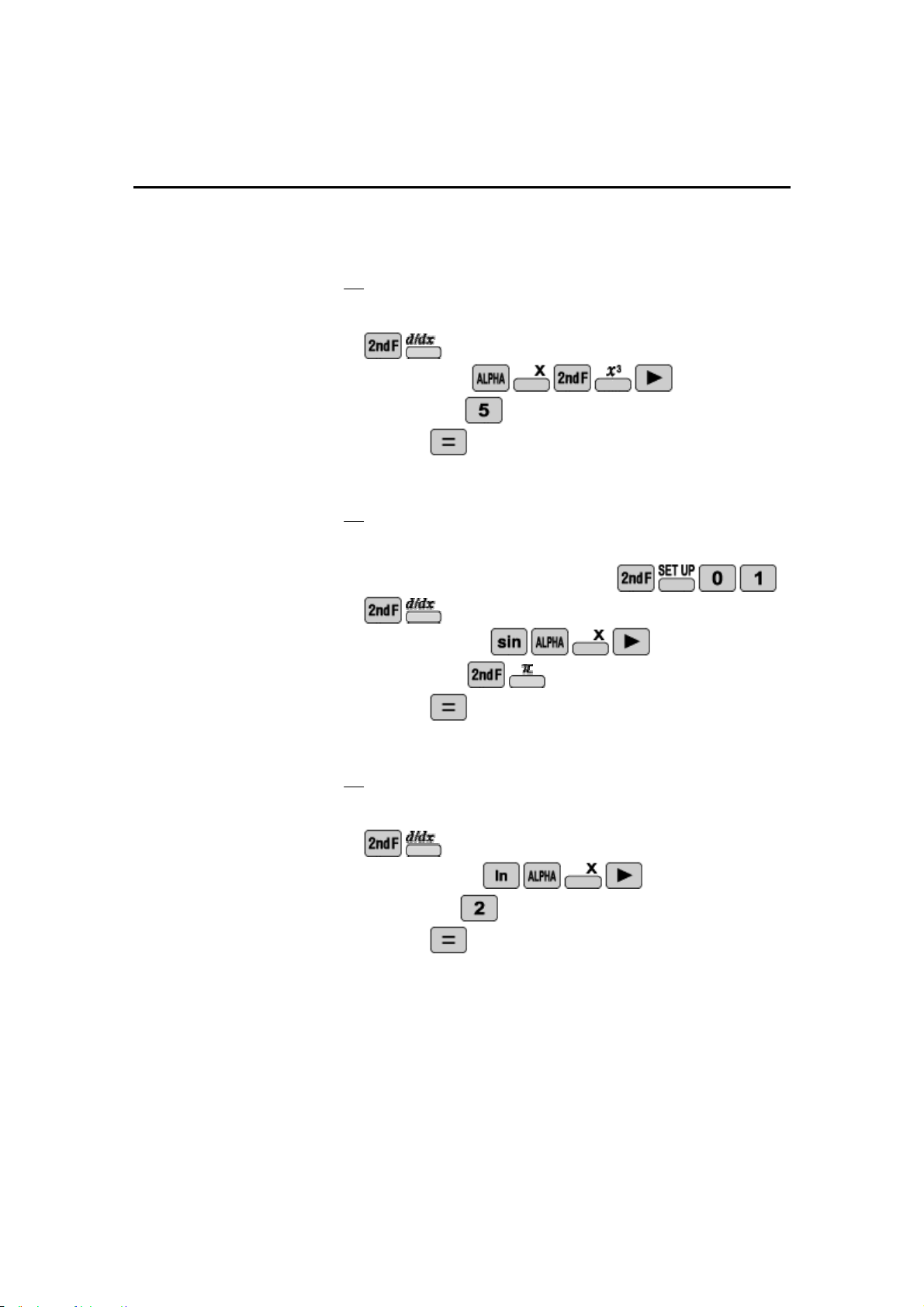
STEP 1: Press
.
STEP 2: Enter
3
x
by pressing
.
STEP 3: Enter 5 by pressing
.
STEP 4: To solve press
.
2.
Evaluate
x
dx
d
sin
where
x
radians
STEP 1: Set the calculator to radians by pressing
.
STEP 2: Press
.
STEP 3: Enter
x
sin
by pressing
.
STEP 4: Enter
by pressin
g
.
STEP 5: To solve press
.
3.
Evaluate
x
dx
d
ln
when
2
x
STEP 1: Press
.
STEP 2: Enter
x
ln
by pressing
.
STEP 3: Enter 2 by pressing
.
STEP 4: To solve press
.
52

NAME ___________________________________________ DATE________________
DERIVATIVES
Use your EL
-
W516B to calculate the derivative.
1.
Evaluate
x
dx
d
when
2
x
___________________
2.
Evaluate
x
x
dx
d
when
5
x
___________________
3.
Evaluate
x
x
dx
d
2
3
when
1
.
3
x
___________________
4.
Evaluate
x
e
dx
d
when
4
x
___________________
5.
Evaluate
x
e
dx
d
x
ln
when
5
x
___________________
6.
Evaluate
x
dx
d
1
sin
when
0
x
grads
___________________
53
Calculator Activity
INTEGRALS
OBJECTIVE:
To find the area under a curve by evaluating integrals.
1.
Find the area under the curve of
x
given the lower bound is 1 and the
upper bound is 2.
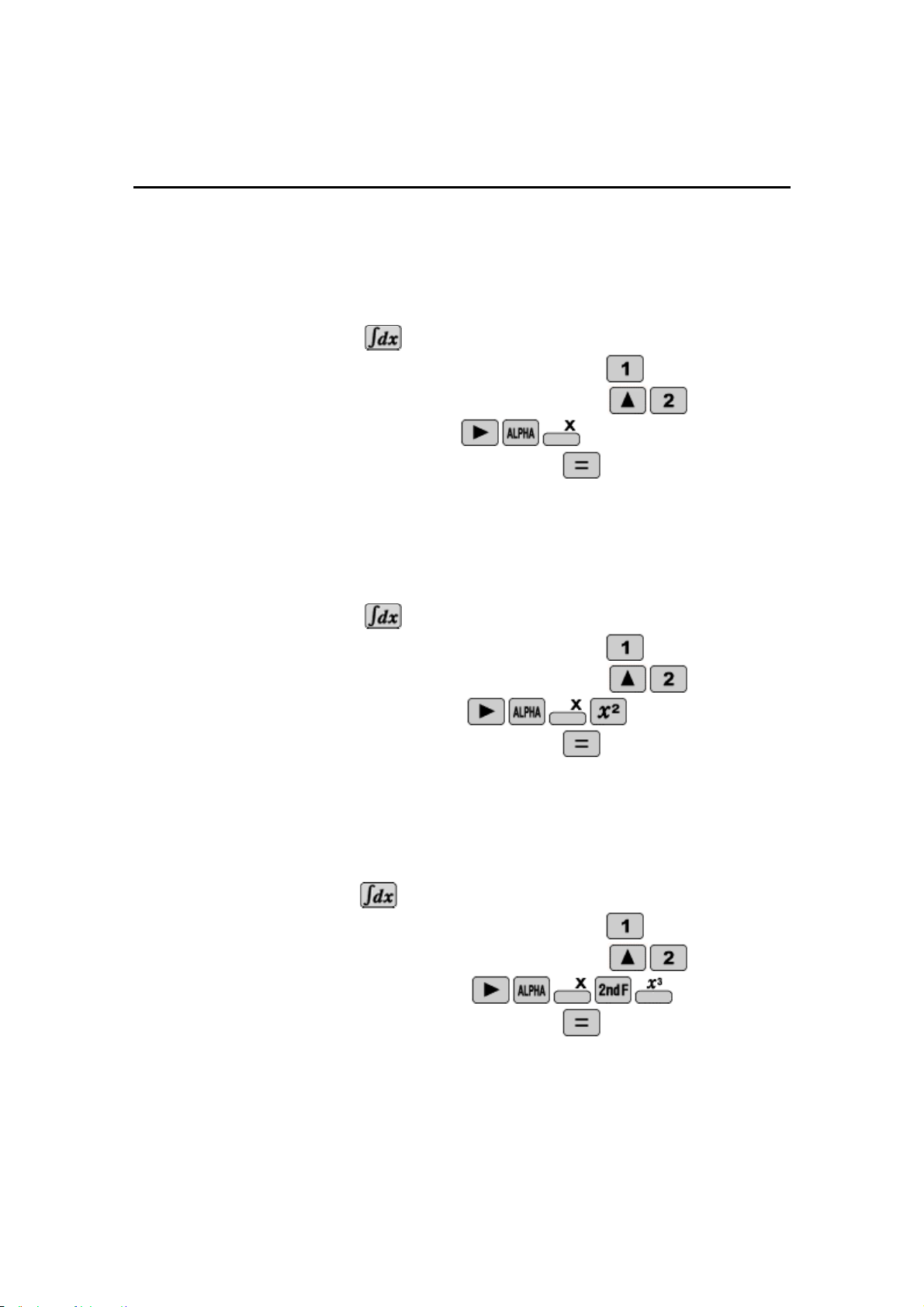
STEP 1: Press
.
STEP 2: Enter the lower bound of 1 by pressing
.
STEP 3
: Enter the upper bound of 2 by pressing
.
STEP 4: Enter
x
by pressing
.
STEP 5: Evaluate the integral by pressing
.
2.
Find the area under the curve of
2
x
given the lower bound is 1 and
the upper bound is
2.
STEP 1: Press
.
STEP 2: Enter the lower bound of 1 by pressing
.
STEP 3: Enter the upper bound of 2 by pressing
.
STEP 4: Enter
2
x
by pressing
.
STEP 5: Evaluate the integral by pressing
.
3.
Find the area under the cur
ve of
3
x
given the lower bound is 1 and the
upper bound is 2.
STEP 1: Press
.
STEP 2: Enter the lower bound of 1 by pressing
.
STEP 3: Enter the upper bound of 2 by pressing
.
STEP 4: Enter
3
x
by pressing
.
STEP 5: Evaluate the integral by pressing
.
54

NAME ___________________________________________ DATE________________
INTEGRALS
Use your EL
-
W516B to find the area under the given curve using
integration.
1.
Find the area under the curve of
x
given the lower bound is
-
1 and
the upper bound is 1
____________________
2.
Find the area under of
2
x
given the lower bound is
-
1 and the upper
bound is 1
____________________
3.
Find the area under the curve of
3
x
given the lower bound is
–
1 and
the upper bound is 1
____________________
4.
Find the area of
2
x
x
given the lower bound is
-
1 and the upper
bound is 1
____________________
5.
Find the area under the curve of
100
y
given the lower bound is
–
1
and the upper bound is 1
____________________
6.
Find the area under the curve of
x
given the lower bound is 0 and the
upper bound is 1
____________________
55

ANSWERS
Basic Arithmetic
p. 10: 1.
67, 80
2.
23
3.
–
10,
-
50,
-
250
p. 11: 1.
21
,
17
,
13
,
9
,
5
,
1
,
3
2.
5
,
4
,
3
,
2
3.
18
,
15
,
12
,
9
,
6
4.
36
,
72
,
144
5.
,
243
,
729
3
,
9
,
27
,
81
6.
2025
,
45
,
1
7.
60
,
70
,
80
,
90
,
100
8.
61
,
41
,
21
,
1
Inverse Trigonometric Functions
p. 22: 1.
45
2.
90
3.
4
p. 23: 1.
12
.
7
2.
0.662
3.
90
4.
692
.
2
5.
620
.
22
Fractions
p. 12: 1.
56
29
2.
.115
3.
3
35
p. 13: 1.
48
13
2.
0.286
3.
28
3
11
4.
24
7
5.
3
2
6.
264
995
7.
6
5
45
8.
4
17
5
Coordinate Conversions
p. 24: 1.
1.414, 45
2.
-
2.694,
-
0.862
p. 25: 1.
2.828, 45
2.
4.583, 0.714
3.
3.973, 0.467
4.
1.000, 0.026
5.
1.414, 1
50
Powers and Roots
p. 14: 1.
729
2.
3.737
3.
0.765
4.
4
p. 15: 1.
55
2.
8.382
3.
No
4.
512
5.
2048
6.
2
1
Logarithms
p. 26: 1.
3
2.
1
3.
1
4.
2
5.
2
p. 27: 1.
180
.
9
2.
507
.
10
3.
55
4.
2
2
2
5.
777
.
0
6.
950
.
18
Parentheses and Editing
p. 16: 1.
11.848
2.
4.189
p. 17: 1.
288
2.
3
2
166
3.
972
4.
3
1
1333
5.
3
2
166
6.
288
Inverse Logarithms
p. 28: 1.
1000000
2.
18
10
00
.
1
3.
2.718
p. 29: 1.
17
10
1
2.
677
.
0
3.
925
.
12
4.
230
.
0
5.
405
.
8
6.
052
.
98
Angle Conversions
p. 18: 1.
4
,
50
2.
11.399
3.
"
8
.
4
'
43
2
p. 19: 1.
12
5
2.
9
5
355
3.
5
2
4.
54
5.
"
0
'
36
276
Base Conversion
p. 30: 1.
153
2.
2641013001
3.
14103134
p. 31: 1.
3323013
2.
100100011
3.
4
4.
10
5.
170, 252,
1140
Trigonometric Functions
p. 20: 1.
014
.
3
2.
13
p. 21: 1.
602
.
19
2.
611
.
34
3.
272
.
48
4.
104
.
22
5.
974
.
18
Constants and Conversions
p.
32: 1.
18
10
988
.
8
2.
19
10
105
.
1
3.
35
4.
0
.
394
p. 33: 1.
17
10
988
.
8
2.
17
10
494
.
4
3.
843
.
9
4.
468
.
5
5.
18
10
153
.
8
6.
17
10
523
.
6
56

ANSWERS
Random
p. 34:
Answers will vary
p. 35:
Answers will vary
List Calculations
p. 46: 1.
18
,
12
,
6
2.
5
,
10
,
15
3.
1
p. 47: 1.
333
.
201
,
189
.
14
,
720
,
44
,
12
,
67
.
14
,
30
,
2
2.
9
.
19
,
461
.
4
,
214200
,
51
,
5
.
7
,
5
.
8
,
17
,
5
Probability
p. 36: 1.
3628
800
2.
6
3.
12
p. 37: 1.
210
2.
5040
3.
455
4.
2730
5.
120
6.
1, 1
Linear, Quadratic, and Cubic Equations
p. 48: 1.
8
.
0
,
4
.
3
y
x
2.
3
,
2
x
3.
3
,
2
,
1
x
,
0
)
3
)(
2
)(
1
(
x
x
x
p. 49: 1.
727
.
2
,
545
.
4
y
x
2.
333
.
0
,
333
.
0
,
333
.
5
z
y
x
3.
618
.
1
,
618
.
0
x
4.
i
i
x
,
,
1
,
0
)
1
)(
)(
(
x
i
x
i
x
1 Variable Statistics
p. 38:
1.
32,1
3.038, 11.662, 5, 160, 5800
p. 39: 1.
2.222, 0.833, 0.786, 9, 20, 50
2.
19, 6.519, 5.831, 5, 95, 1975
3.
3.333,
2.733, 2.494, 6, 20, 104
4.
10.5, 11.862,
10.828, 6, 63, 1365
Summation
p. 50: 1.
154
2.
0
3.
–
55
p. 51: 1.
62
2.
0.103
3.
34
47.374
4.
34.057
5.
26
10
069
.
1
6.
5.187
2 Variable Statistics
p. 40: 1.
3.4, 3.782, 3.382, 5, 17, 115, 5,
3.464, 3.382, 25, 173, 2.147, 0.839
p. 41: 1.
2.5, 1.291, 1.118, 4, 10, 30, 3.75,
3.096, 2.681, 15, 85,
-
2, 2.3
2.
3.5, 1.871
,
1.708, 6, 21, 91, 4.667, 3.327, 3.037, 28,
186, 2.467, 0.629
Derivatives
p. 52: 1.
75
2.
–
1
3.
0.5
p. 53: 1.
1
2.
8154.493
3.
26.83
4.
54.598
5.
–
0.009
6.
63.662
Complex Numbers
p. 42: 1.
1.732
2.
i
2
1
3.
i
464
.
4
5
p. 43: 1.
1
2.
3.317
3.
i
4.
i
5.
i
2
2
6.
i
i
,
1
,
,
1
7.
1
Integrals
p. 54: 1.
2
1
1
2.
3
1
2
3.
4
3
3
p. 55: 1.
0
2.
3
2
3.
0
4.
3
2
5.
200
6.
2
1
Matrix Calculations
p. 44: 1.
50
43
22
19
2.
5
.
0
5
.
1
1
2
3.
8
7
4
3
6
5
2
1
p. 45:
1.
1
0
0
0
1
0
0
0
1
2.
34
21
13
8
5
3
2
1
1
3.
34
21
13
8
5
3
2
1
1
4.
7
5
8
6
3
1
4
2
5.
–
8
57