
2
TABLE OF CONTENTS
INITIAL SETUP 4
Smartphone Requirement 4
Download VeryFitPro app 4
Charge Your Device 4
Touchscreen 5
APP Synchronization 5
Time Setup 6
KNOW YOUR DEVICE 7
Wearing Method 7
Heart Rate Monitoring 7
Default Heart Rate Zones 7
Customize Heart Rate Zone 7
Enter Sport Mode to Track Workout 8
Battery Life 8
Interface 8
HIGHLIGHTED FEATURES 10
Tracking Daily Activity 10
Choosing a Goal 10
Tracking Daily Activity 10
Tracking Exercise 10
Sleep Tracking 11
Silent Alarms 12
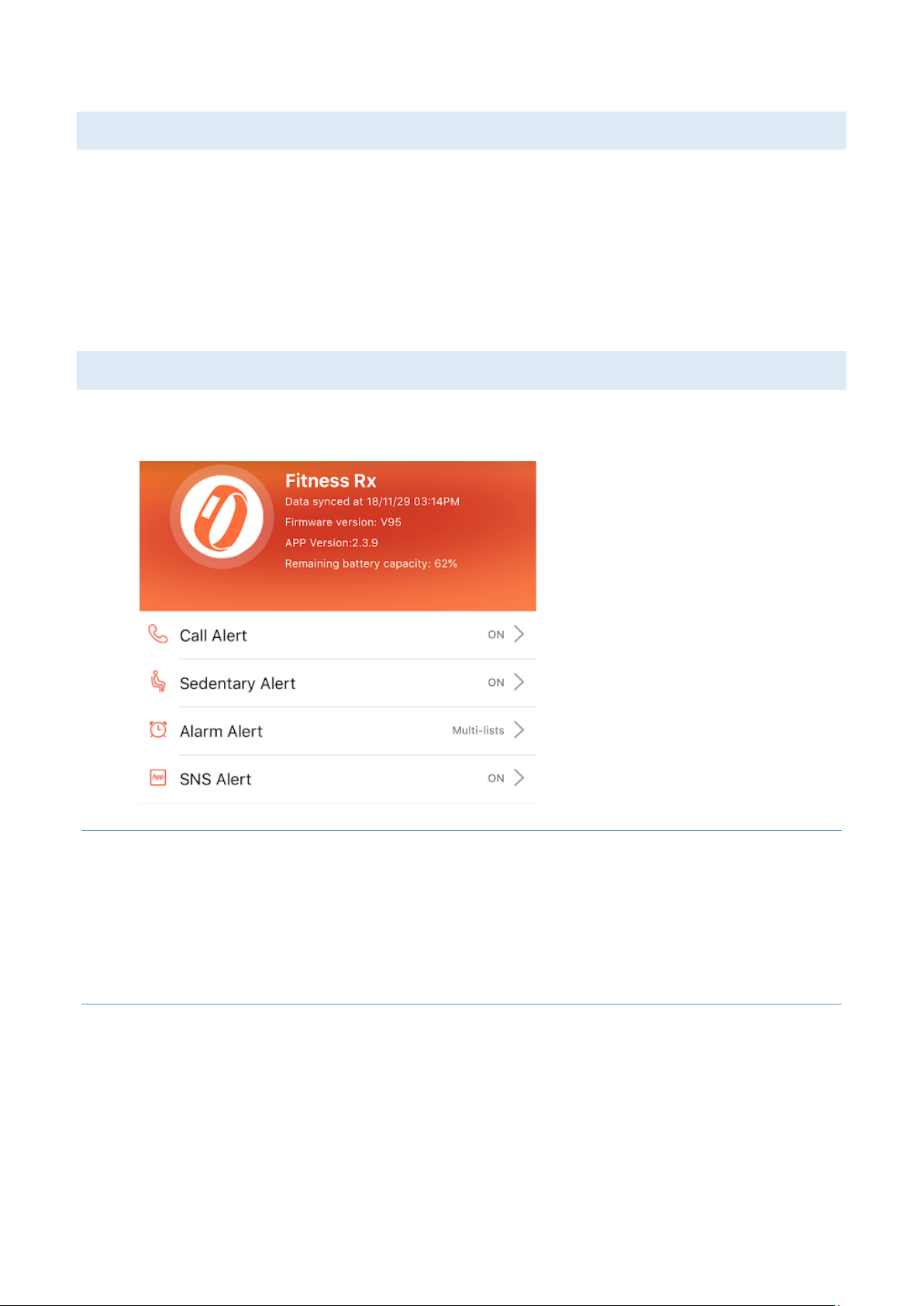
Call Alert 12
Sedentary Alert 12

3
Alarm Alert 13
Message Alert 14
Mindfulness Training 15
Weather Forecast 16
Music Control 16
More Functions and Settings 17
In the Device 17
In the App 18
PRODUCT SPECIFICATIONS 21
MAINTENANCE 22
TROUBLESHOOTING 22
Heart Rate Monitor Issues 22
Touch Screen Problems 23
Battery Issues 23
Bluetooth/Software Sync Issues 23
Other Questions 23
CONTACT US 24
4
INITIAL SETUP
SMARTPHONE REQUIREMENT
o Please note: hardware and software specifications should meet these requirements:
iOS 7.1 & Above Android 4.4 & Above Support Bluetooth 4.0
DOWNLOAD VERYFITPRO APP
o Search and download “VeryFitPro app” from the Apple Store or Google Play.
CHARGE YOUR DEVICE
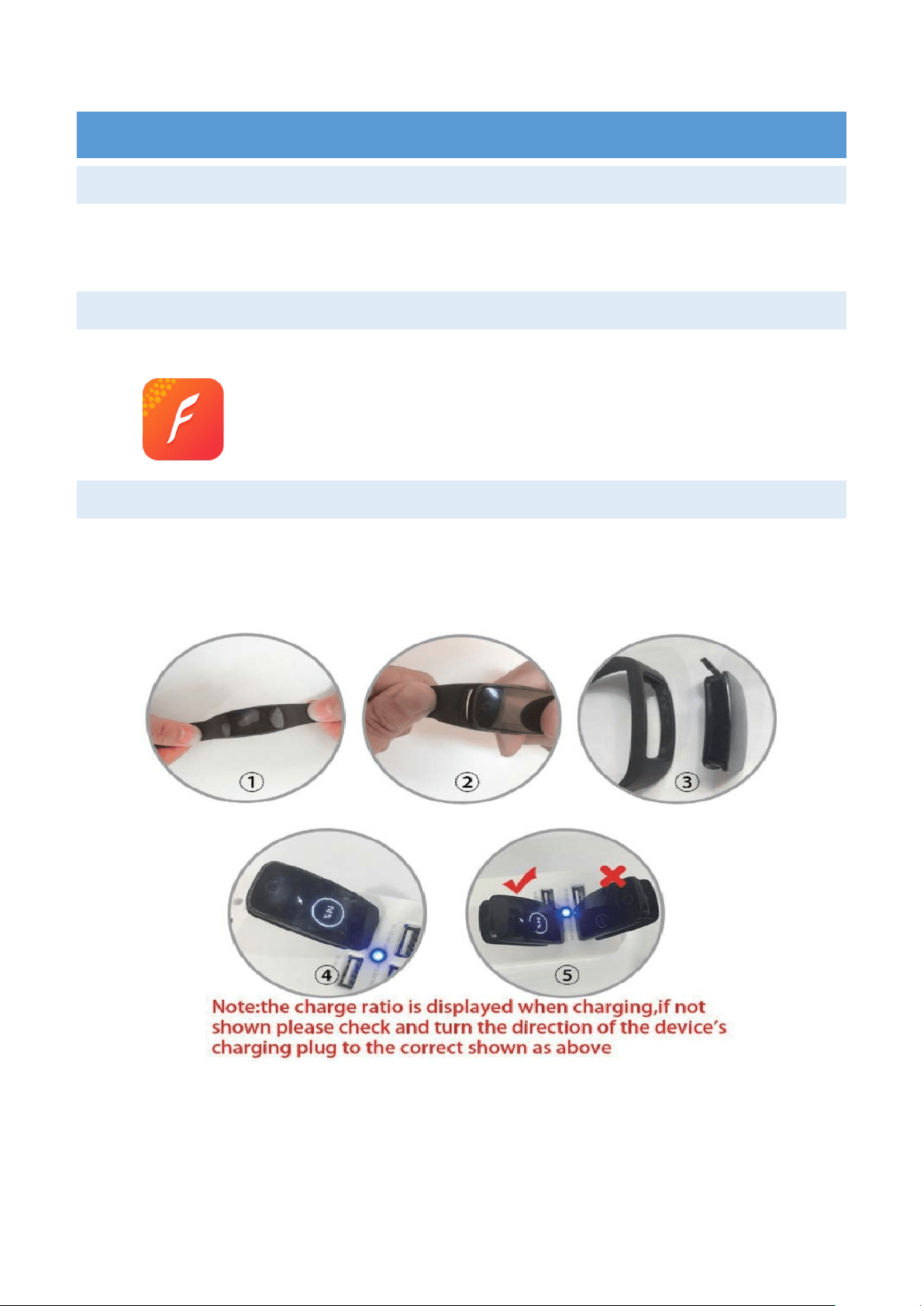
o Pull the strap gently, and pick the device out of the strap.
o Connect the device to the USB charger (5V/500mA) and fully charge the battery
before initial use.
o Note: both direction of the charging plug can fit into the USB charger, BUT
only one direction works!
5
o ONLY IF you insert into the correct direction, the device will vibrate once, and
the charge ratio will be displayed.
TOUCHSCREEN
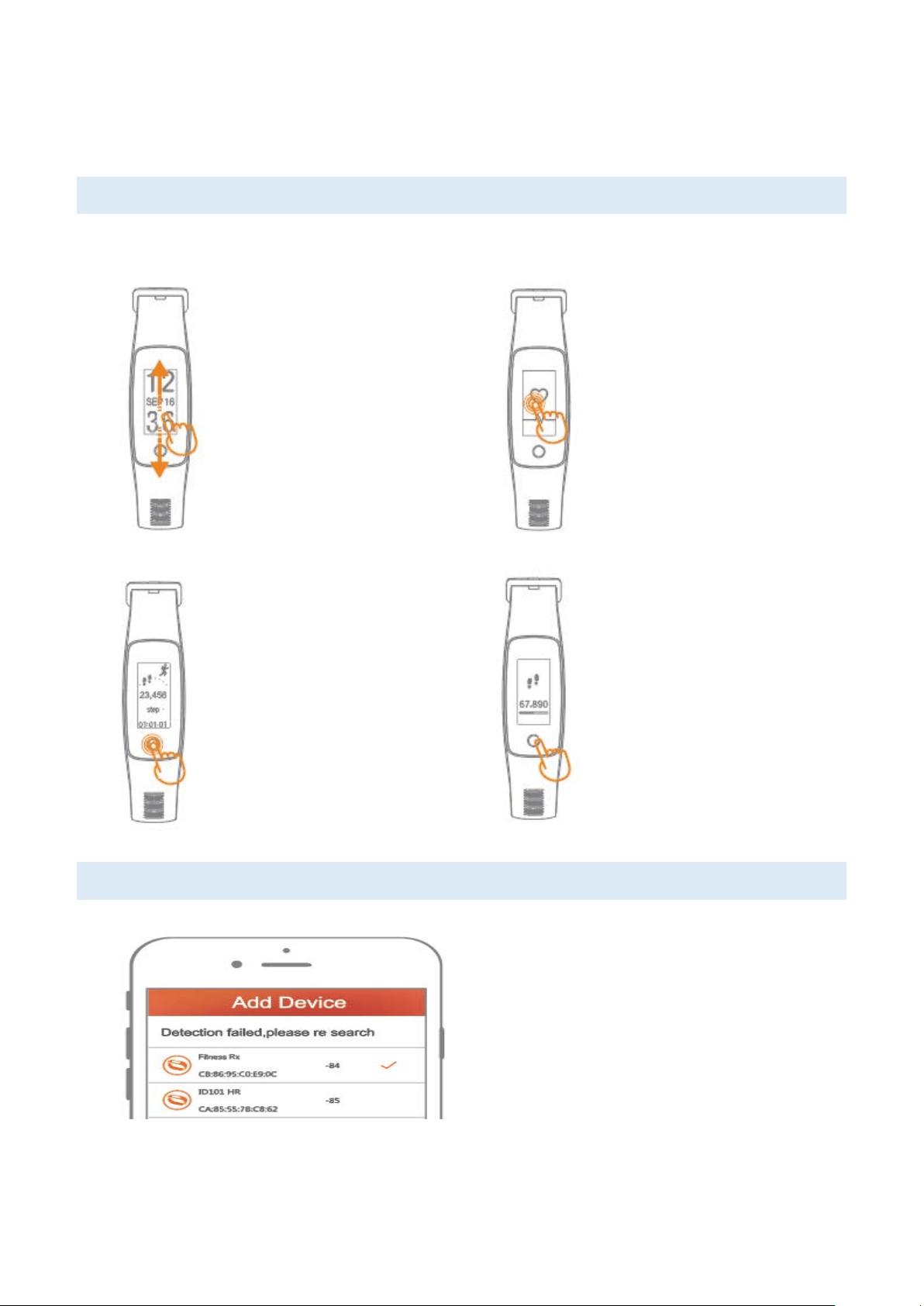
o The Fitness Rx provides multi-points touchscreen technology. Please use the
correct gesture to control the device:
Slide up/down
Mode switch/screen wake-up
Tap the screen
Switch type or confirmation
Touch the button
Click the home button to
return to the main interface /
return
Press and hold for 3
seconds
Get into one Sport Mode.
APP SYNCHRONIZATION
o Make sure the bluetooth on your
smartphone is ON,
o Open “VeryFitPro” app. Navigate to
Device > Bind. Select the Fitness
RX on the device list, click select and
bind. Confirm and you are done!
o Fitness Rx will vibrate once sync is
successful.

6
TIME SETUP
o Once your device is successfully sync with the app, the time on your device will be
automatically sync with your smartphone.
o You can’t change the time on the device.
7
KNOW YOUR DEVICE
WEARING METHOD
Wear the device on your wrist horizontally, the same method as wearing watches.
HEART RATE MONITORING
To monitor the heart rate more accurately, please wear the device on the upper position of
your wrist. Wear it bit tighter than usual when you are doing exercise. Automatic heart rate
monitoring is On as default, you can turn it off manually in the VeryFitPro app.
DEFAULT HEART-RATE ZONES
o Default heart-rate zones are calculated using your estimated maximum heart rate.
o Fitness Rx calculates your maximum heart rate with the common formula of 220
minus your age.
Zone Calculation Description
Basic Tracking
Exercise
50% - 69% of maximum heart
rate
Good Recovery rate, body fat
consumption, sugar
consumption in general.
Cardiopulmonary
Exercise
70% to 84% of your maximum
heart rate
This zone is moderate to high
intensity exercise interval.
Peak Exercise
Greater than 85% of your
maximum heart rate
High intensity exercise zone.
Improve tolerance of an aerobic
exercise capacity and muscle.
CUSTOMIZE HEART RATE ZONE
o If you’d like to customize your heart rate zone, open “VeryFitPro” app home page,
select the “More” option under “Device”, then click “Heart rate zones”, and click
“customize maximum heart rate”.
8
ENTER SPORT MODE TO TRACK WORKOUT
o Fitness Rx provides multi-sports mode in the Training Section, including Workout,
Basketball, Badminton, Walking, Running, Biking, Treadmill, Hiking.
o When you are doing exercise, make sure you enter one sport mode by press
that mode for 3 seconds to enter the mode to accurately track your dynamic
heart rate. A complete summary of the workout will be provided at the end of
your exercise.
BATTERY LIFE
Your fully charged Fitness Rx has a battery life of up to 7 days. Battery life and charge
cycles vary with use and other factors; actual results will vary.
INTERFACE
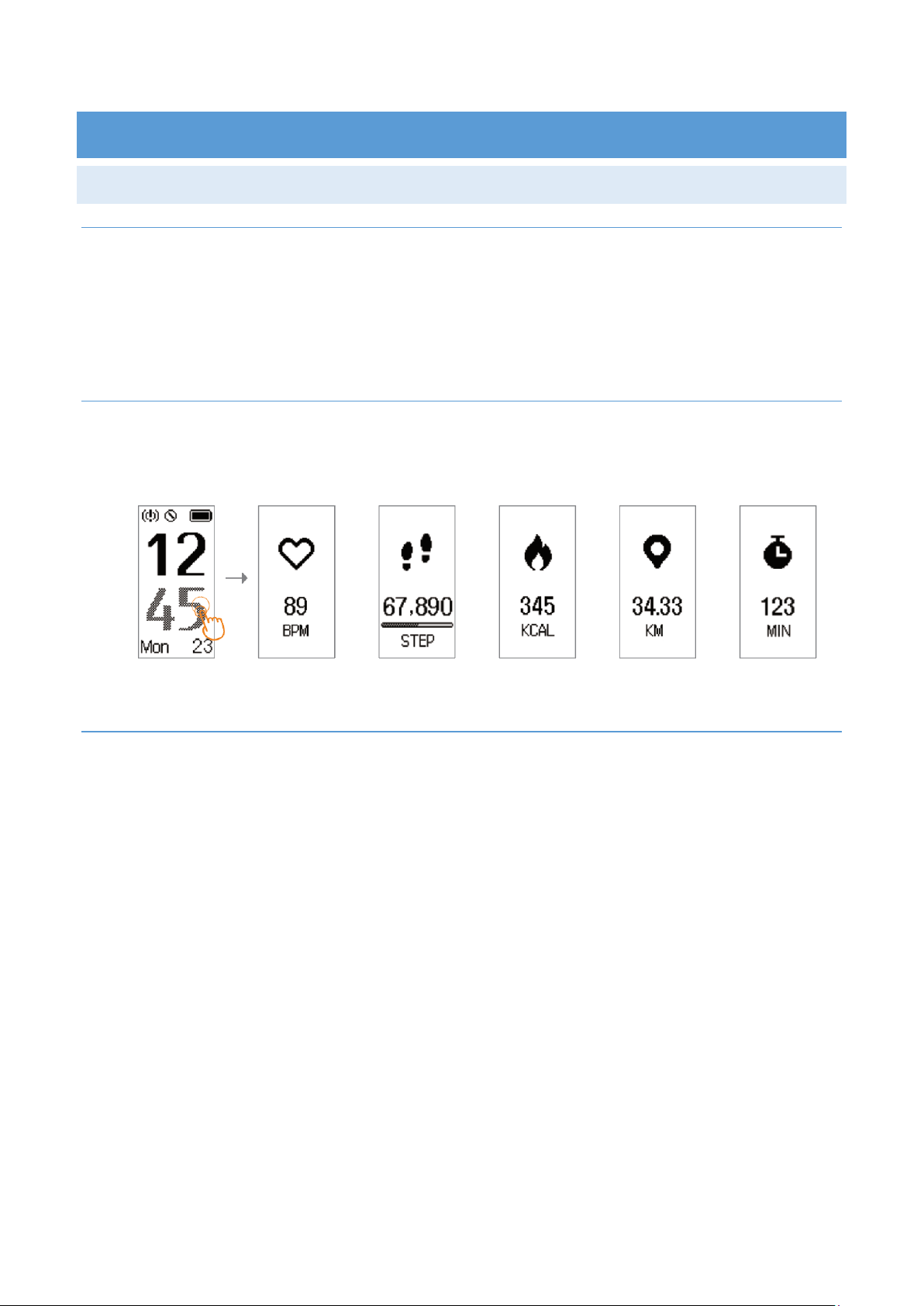
o You can find the following interface on Fitness Rx.
o Please swipe up and down to find different interface; tap the screen to get into the
function and click home button to go back to the main menu.
o Please note: Weather, message alert, music control won’t show up on the device
unless they are enabled in the app.
Screen Protection
Interface
Main Interface
Mind Training
Weather

9
Multi-sport Mode
Message Alert
Music Control
Function Menu
10
HIGHLIGHTED FEATURES
TRACKING DAILY ACTIVITY
CHOOSING A GOAL
o By default your goal is 10,000 steps per day, but you can change the goal in the app.
Open “VeryFitPro” app, click “User”, “Target Setting” to change your daily step
target.
TRACKING DAILY ACTIVITY
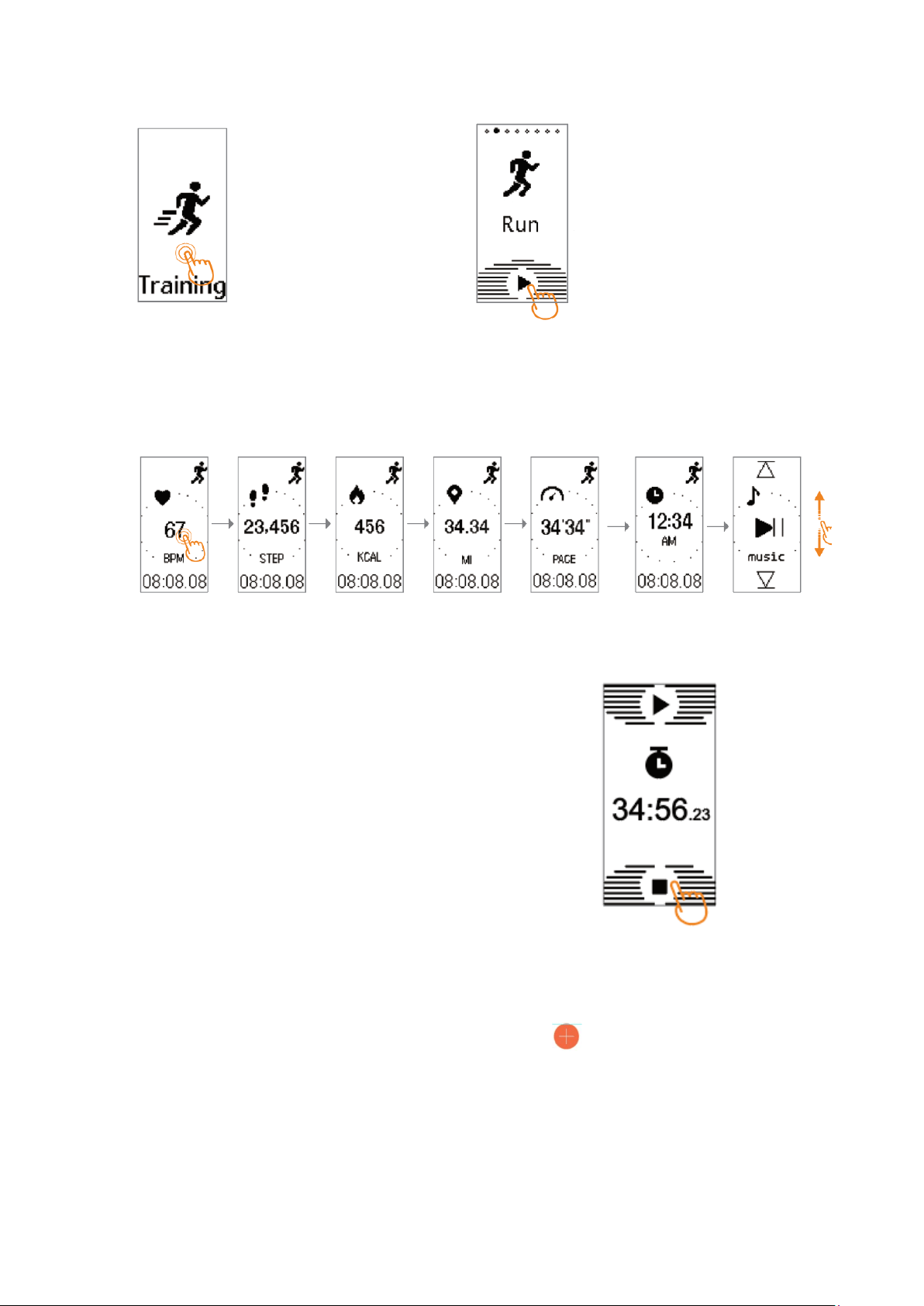
o Swipe up the screen to show the main interface, then tap the screen to check heart
rate, steps, calories, distance and workout duration.
TRACKING EXERCISE
o Fitness Rx provides multi-sports mode in the Training Section, including Hike,
Workout, Basketball, Badminton, Walk, Run, Bike, Treadmill, Hike.
o When you are doing exercise, make sure you select one sport mode by
pressing that mode for 3 seconds so that the device will accurately record your
dynamic data when you are doing different exercises.
11
Tap the screen to
choose one sport mode
Long press the start
button for 3 seconds to
enter the sport mode.
o Once a sport mode is selected, tap the screen to check heart rate, steps, calories,
pace, time and distance.
o Tap the home button to the Sport-pause mode.
o Press and hold stop button for 3 seconds to end the
mode.
o Please note: to record GPS track movement, you need to bring your smartphone
while running. In the app, click the navigation bar [ ] at the bottom of the app to
enter the page, then click the GPS icon to start GPS tracker.
12
SLEEP TRACKING
o Wear your Fitness Rx to bed to automatically track both your time spent asleep and
your sleep quality. Deep, light and wake sleep will be display the next time the data
is synchronized.
o To see your sleep information, sync your tracker with VeryFitPro APP: go to app
Mainpage, pull down the page to update data.
o Sleep tracker helps to learn about your sleep habits.
SILENT ALARMS
o Fitness Rx allows to set up alerts of incoming phone call, test message, alarm and
sedentary alert in the app.
CALL ALERT
o In the app, click Call alert, turn on the switch, click save button on the top of the
screen.
o You can change incoming call notification after how many seconds. Default is to
receive call alert after 3 seconds.
SEDENTARY ALERT
o Set up alert to remind yourself when you have been sedentary for too long.
13
ALARM ALERT
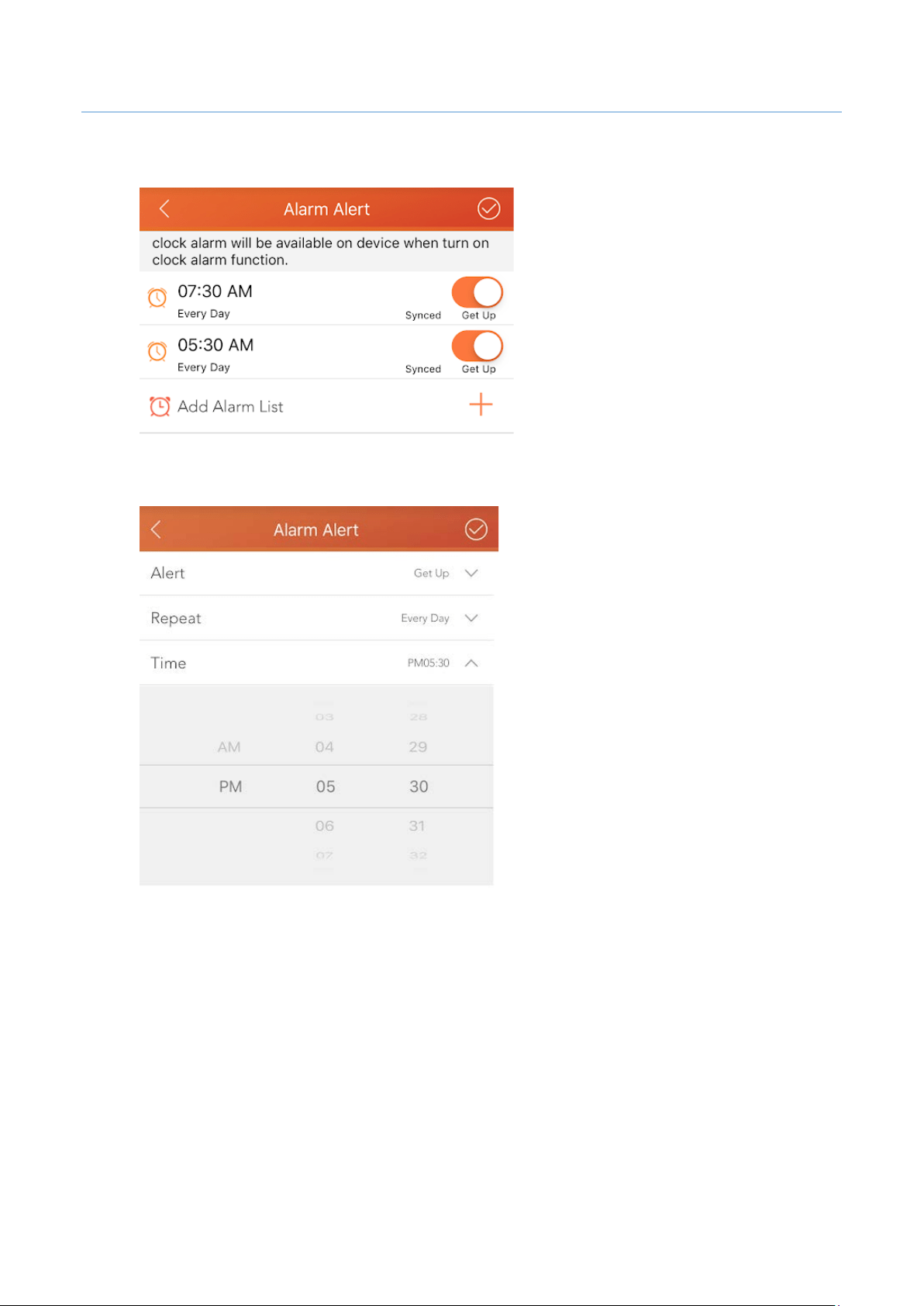
o Enter Alarm Alert page in the app. This can be found under “Device” > “Alarm Alerts”
o Click Clock icon to set up the time.
o Click Save button on the right top of the page. Maximum to add 10 alarms.
14
MESSAGE ALERT
o Fitness Rx support message notification from various apps, including:
● Calendar
● Mail
● SMS
● Facebook
● Wechat
● QQ
● Twitter
● Whatsapp
● LinkedIn
● Instagram
● Facebook Messenger
● Line
● Viber
● Skype
● KaKaoTalk
● VKontakte
o Enter SNS Alert in the app.
o Turn on “Allow notification” button.
o Turn on the apps you’d like to receive notification.
o Click Save button on the Right top of the page.
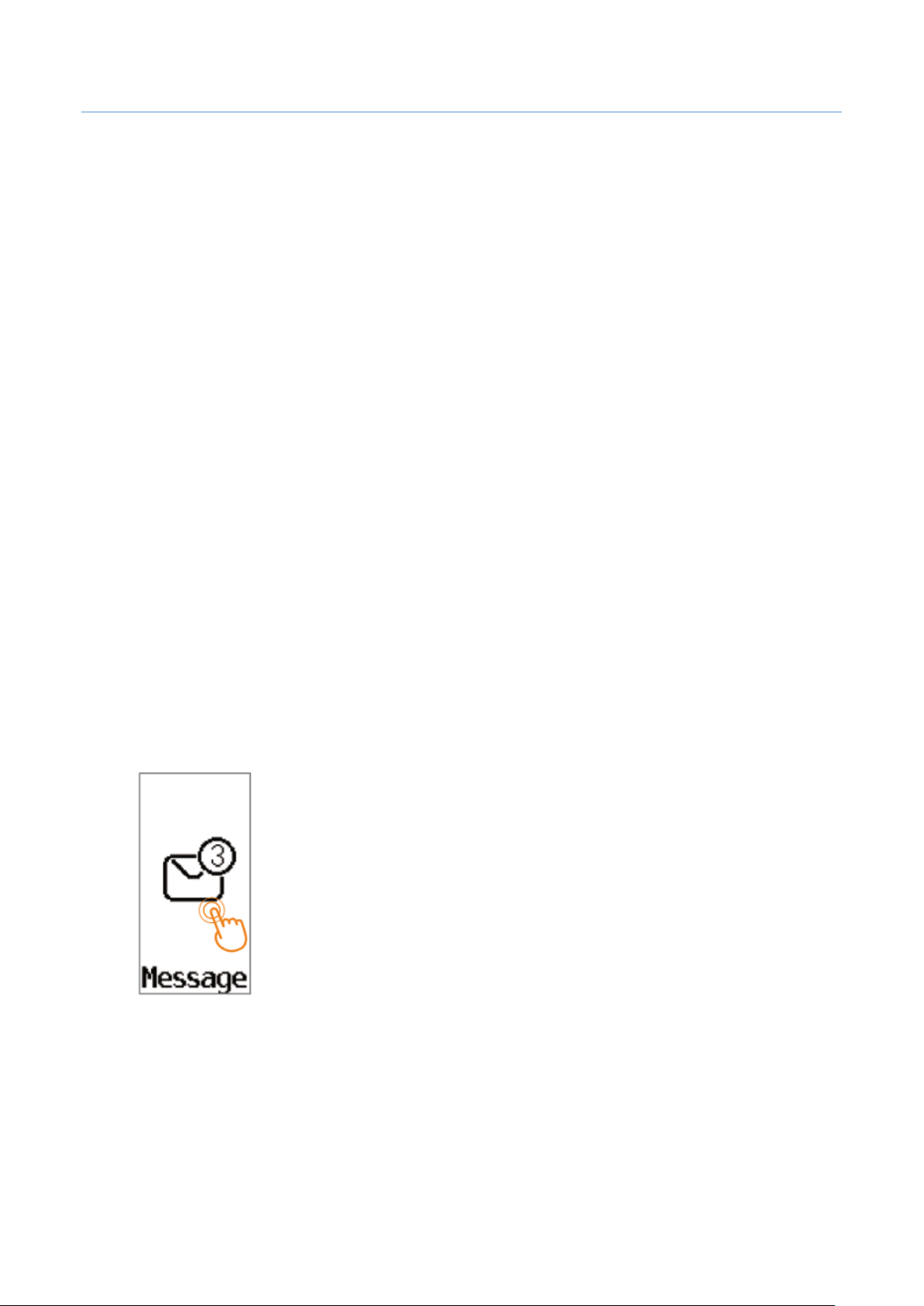
o To check the message on your device,
Tap the screen to enter the view details mode in the
information display page “click on the screen” view
information flip.
15
In the information display page, “scroll up and down” to
view the next message.
MINDFULNESS TRAINING
o Deep breathing practice draws more oxygen in to our lungs, which increases our
cardiovascular capacity. It also triggers our parasympathetic nervous system,
neutralizes stress and elicits a calming feeling.
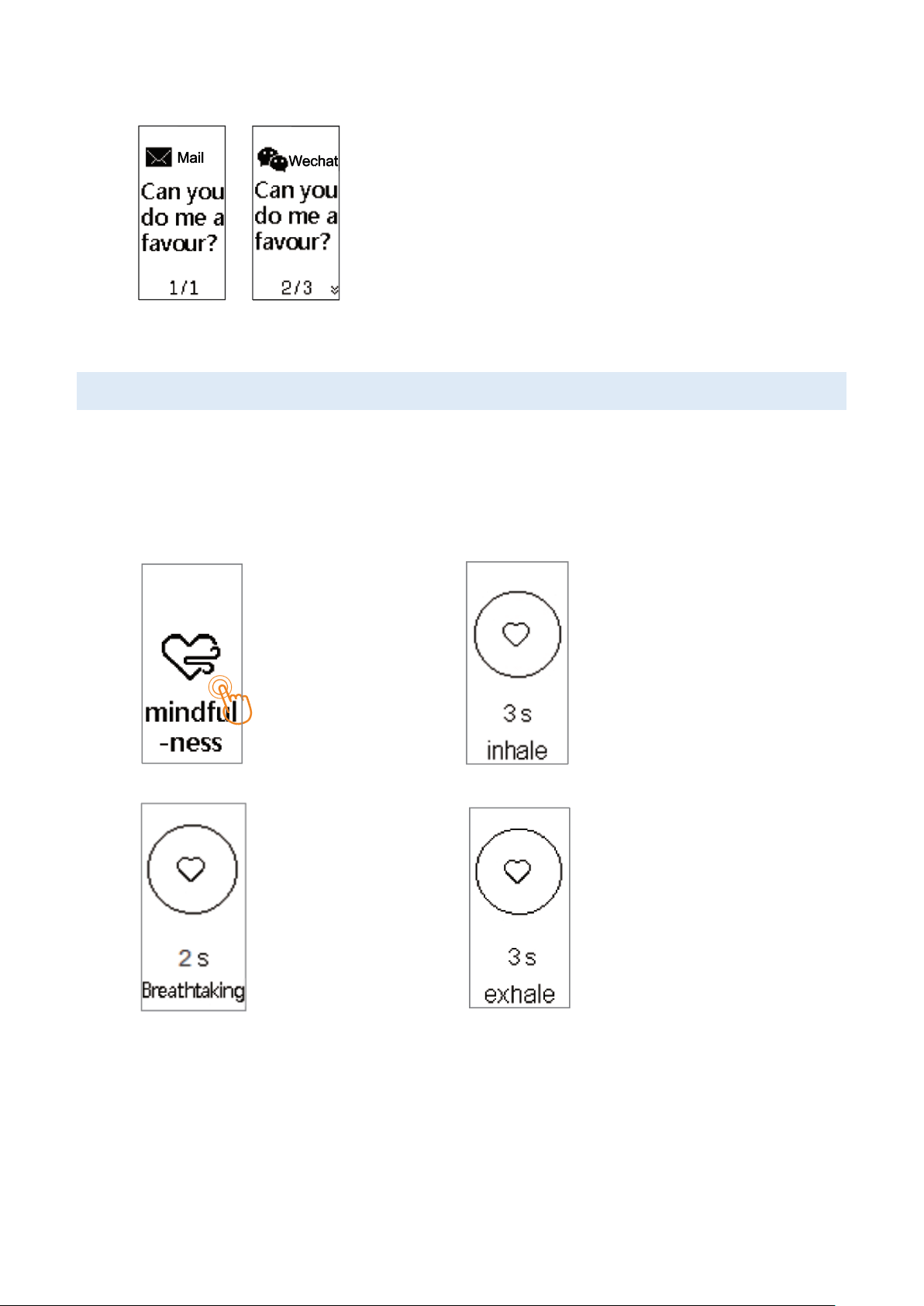
o To do deep breath exercise, tap “Mindfulness Training” on the device:
Tap the screen to
enter the mind
training
Deep inspiration 3s (at the
beginning, the motor is very
slight shock)
Press 2s (at the
beginning, the
motor is very
slightly shocked)
Deep breath 3s (at the
beginning, the motor very
little shock), cycle 5 times,
the display has been lit.
16
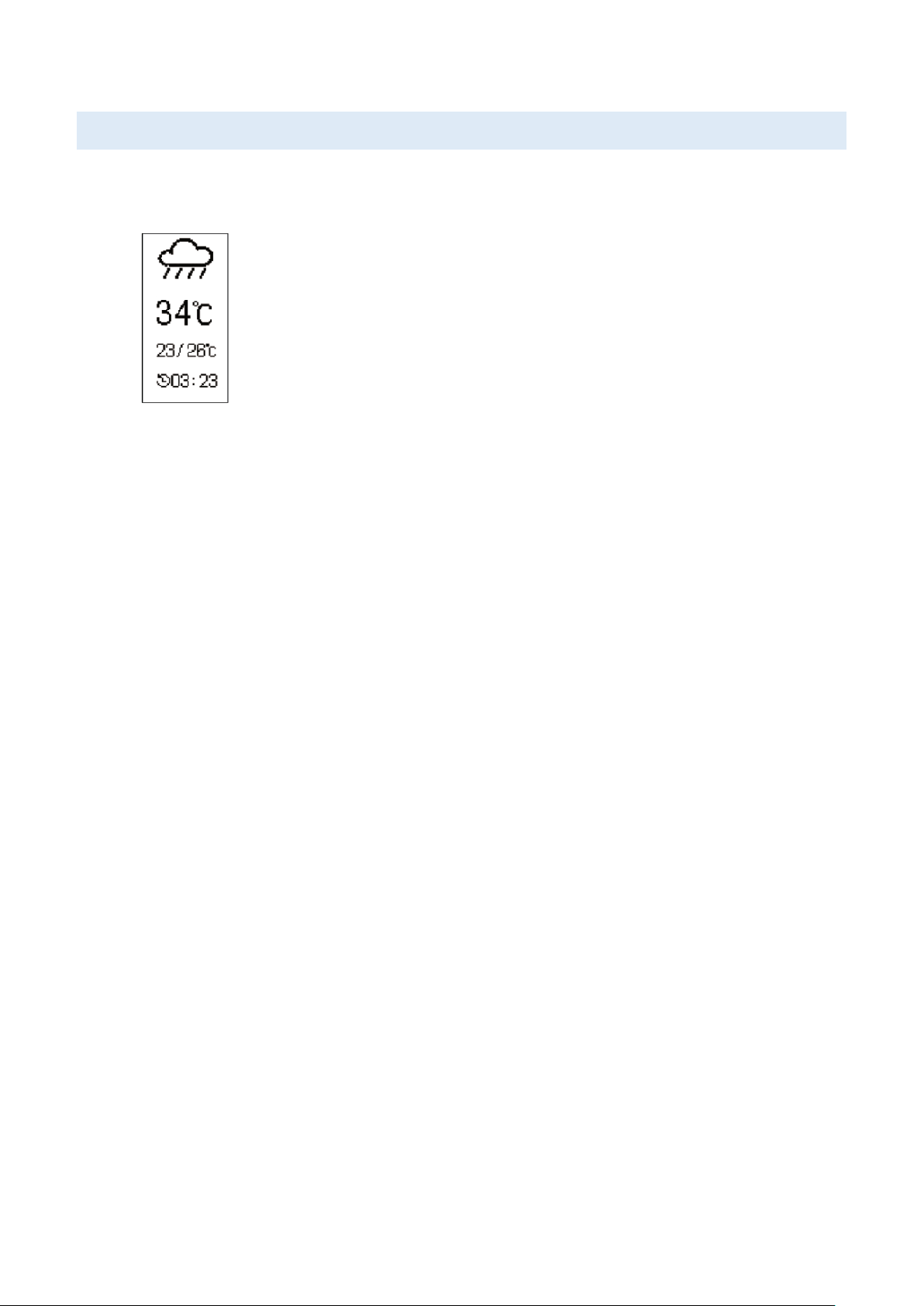
WEATHER FORECAST
o Open “VeryFitPro” app home page, Under “Device” select “More”, enable “Weather
forecast” function.
On the device, tap the screen to switch among future weather
information. Screen vibrates when there is no weather information, and
will not enter this mode.
o Note:
● No weather information display on the device screen when this switch is
“OFF” in the App.
● Further weather information only will be updated when this switch is “ON”
after connecting with Bluetooth. No weather data display on device when
there is no further weather information within 24 hours in the App.
● Phone needs internet to obtain weather information.
● At the App side switch between degrees Fahrenheit (℉) and degrees Celsius
(℃).
17
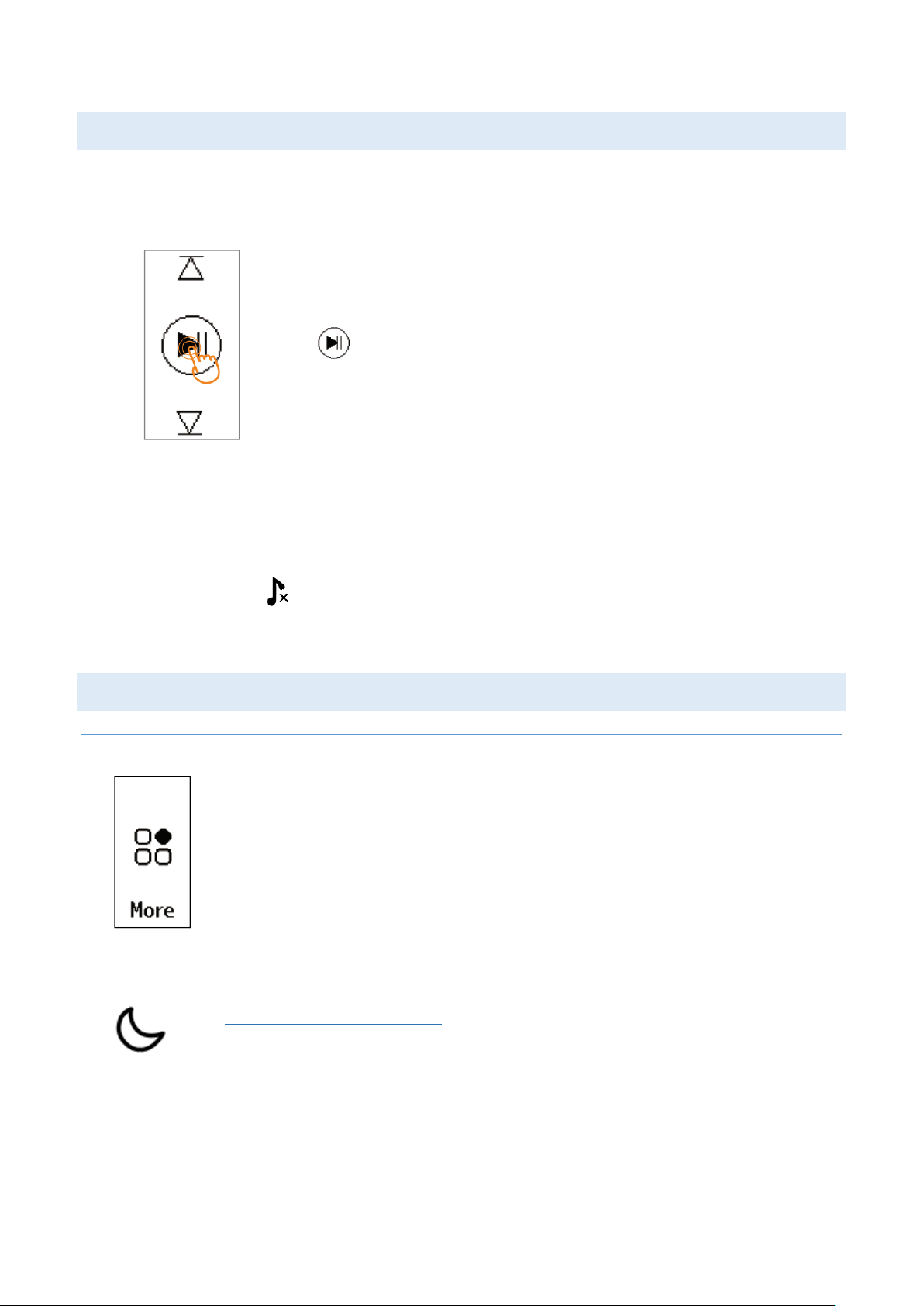
MUSIC CONTROL
o Enable Music Control function in the app.
o Once the function is enabled, the following interface will show in the device,
Click to Start/Pause the music, motor vibrates slightly.
o Note:
● If the Music Function is off in the App, this interface will not be displayed.
● If Music function is ON in the App, while Bluetooth connection is off, bracelet
display:
MORE FUNCTIONS AND SETTINGS
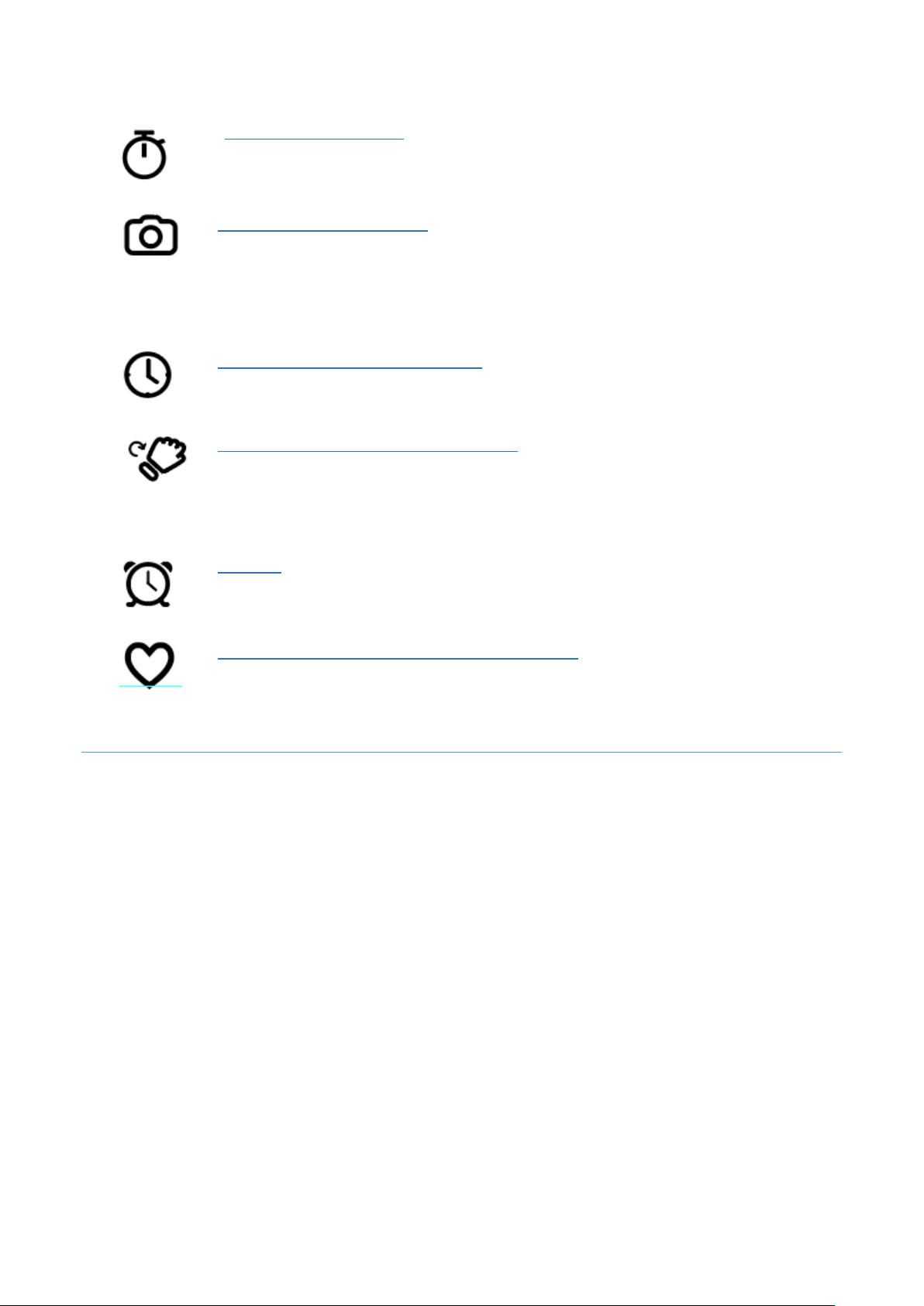
IN THE DEVICE
Tap “More” interface on the device to find more functions
DO NOT DISTURB MODE: click this button to enter DO NOT
DISTURB mode.
18
STOPWATCH MODE: turn the fitness tracker into a stopwatch when
needed.
CAMERA SHOOT MODE: to use this function, make sure your
smartphone isn’t locked; click the button on the fitness tracker to take
a photo using your smartphone.
NOTE: The Fitness RX does not have an internal camera.
TIME DISPLAY SWITCH MODE: Fitness Rx provide 5 display modes.
Click to select the display mode you like.
SHAKE WRIST TO DISPLAY MODE: if you don’t want to swipe up
every time to wake up the screen, turn on this function in the device.
You can also turn on this function in the App – “Lift the wrist bright
screen”.
ALAMS: See different alarms you’ve set up. Display 10 alarms
maximum. To change alarm setting, please do it in the app.
HEART RATE MONITOR ON/OFF SWTICH: you can choose to turn on
or off the heart rate monitor here. If you don’t see your heart rate data,
check the function to see if it was accidently turned off.
19
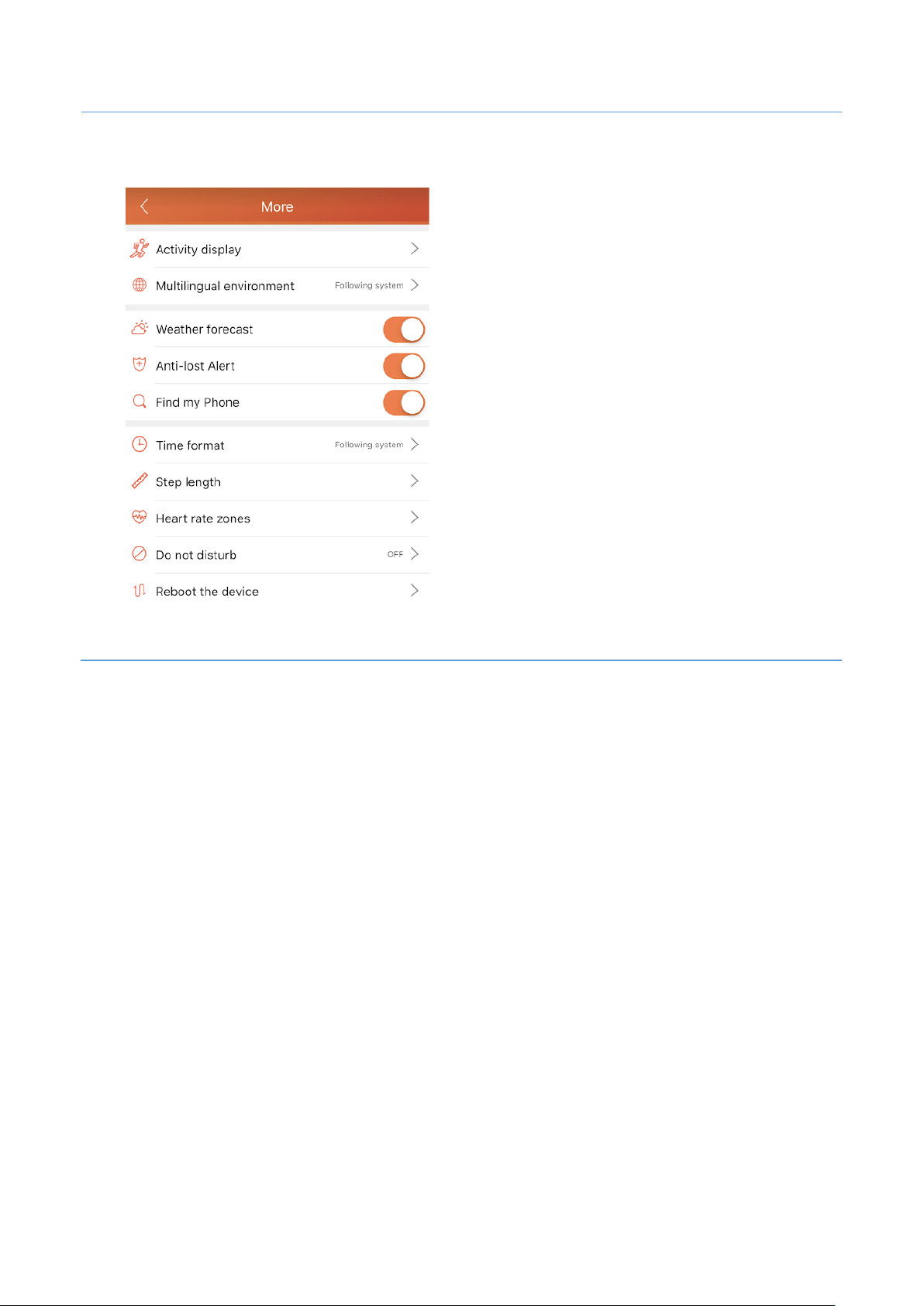
IN THE APP
You can find more functions in the app by click “Device” > “More”.
ACTIVITY DISPLAY
There are 8 activity mode in Fitness Rx: walking, running, riding, hiking, badminton, fitness,
treadmill, basketball. The first 4 activity modes have GPS tracker. You MUST have your
smartphone with you for this feature to work.
20
MULTILINGUAL ENVIRONMENT
Fitness Rx provide seven languages for your selection, including English, Chinese, French,
German, Italian, Spanish and Japanese.
WEATHER FORECAST
Enable the weather forecast function in the app so that the Weather will be displayed on the
device.
ANTI-LOST ALERT
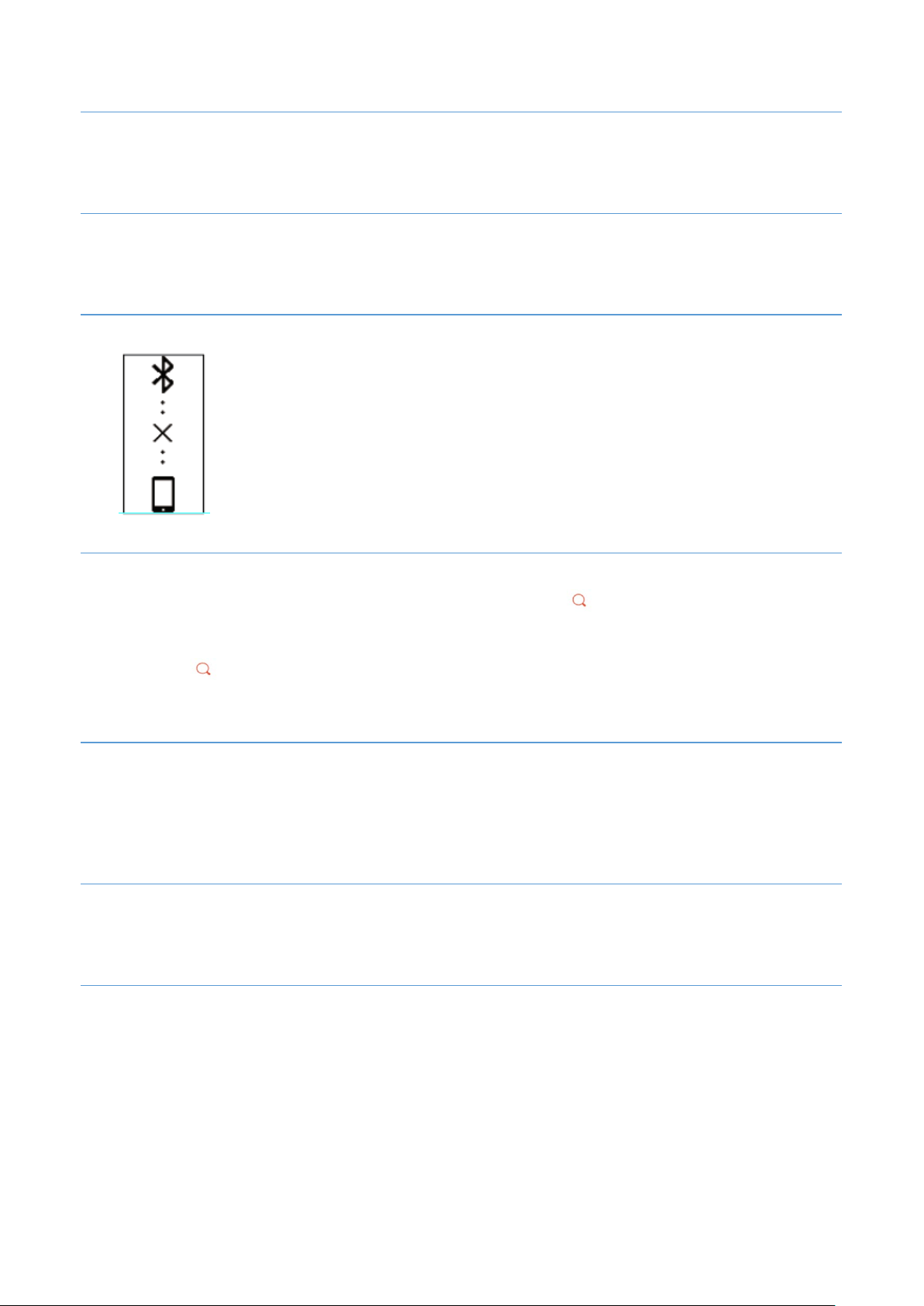
Once this function is enabled, the device will vibrate when it lost
connection with your smartphone.
FIND MY PHONE
o Enable this function in the app, then you can find a [ ] icon in the fitness tracker,
“More” tab.
o Click [ ] on your fitness tracker, your smart phone will ring if it is nearby.
o Please note: if your smart phone is muted, the software can’t make it ring.
TIME FORMAT
o You can select 12h mode or 24h mode in this function.
o Please note: you can’t set up time in the fitness tracker. Once the device is
synchronized with the smartphone, time will be automatically updated.
STEP LENGTH
If you know your step length, please input the value so that Fitness Rx can more accurately
record distance.
HEART RATE ZONES
o You can find heart rate zone description in this section.
o In this function, you can customize your maximum heart rate, which will customize
your heart rate zone accordingly.

21
DO NOT DISTURB
You can either choose to turn on and off this function in the app or in the device.
REBOOT THE DEVICE
Reboot the device if necessary.
22
PRODUCT SPECIFICATIONS
Model No. Fitness Rx
Battery Capacity 65mAh
Working Voltage 3.7V
Host Weight About 30g
Sync Bluetooth 4.0
Working Temperature
14℉ - 113℉
Waterproof IP67
Working Time About 7 days
Frequency Bands 2402 – 2480 MHz
Maximum Output Power odBm

23
MAINTENANCE
Microtella warrants to the original purchaser that your Microtella-branded device and
Microtella-branded device accessories (collectively, the “Product”) shall be free from
defects in materials and workmanship under normal use for a period of one (1) year from
the date of purchase(the “Warranty Period”). Warranty area is limited in the United States of
America. For more details of the warranty policy, please check https://miicrotella.com.
Our products are designed for you to wear throughout the day. So please follow a few brief
instructions when you are wearing and maintaining your smart devices. To keep your
wristband clean and your skin comfortable, we put forward the following tips:
o Regularly clean your wrist and the smart wristband, especially after sweating in the
exercise or being exposed to substances such as soap or detergent which may
attach on the internal side of the wristband.
o Do not wash the wristband with household cleanser. Please use soapless detergent,
rinse thoroughly and wipe with a piece of soft towel or napkin.
o For spots or stains that are not easy to remove, scrub with alcohol and then follow
the above steps.

24
TROUBLESHOOTING
HEART RATE MONITOR ISSUES
HEART RATE SIGNAL MISSING
If you’re not getting a heart rate signal, please make sure you’re wearing your tracker
correctly, either moving it higher or lower on your wrist or tightening or loosening the strap.
After holding your arm still and straight for a short wait, you should see your heart rate
again. It the signal is still missing, check your heart rate setting on the device to make sure
it is On.
HEART RATE INACCURATE
Please input your age and weight correctly in the app -> “User” page. Please select one of
the sport mode to measure your heart rate when you are exercising. Dynamic heart rate
can be inaccurate when you are just using the daily tracker to track heart rate.
TOUCH SCREEN PROBLEMS
Fitness Rx uses multi-point touch screen instead of single point touch screen. To wake up
the screen, please swipe up and down. More gestures, please find it in the “Touch Screen”
section of the User Manual.
BATTERY ISSUES
Your fully charged Fitness Rx has a battery life of 5 to 7 days. Battery life and charge cycles
vary with use and other factors; actual results will vary. However, if your battery only lasts
less than 2 days, please contact customer@microtella.com for technical support.
BLUETOOTH/SOFTWARE SYNC ISSUES
FAILED TO CONNECT WITH BLUETOOTH OCCASIONALLY?
It may be caused by the abnormality of bluetooth service. Make sure the bluetooth is
enabled on both the Fitness RX and your smartphone. If problem persists, reboot the
bluetooth service on the smartphone, and try to connect again.
OTHER QUESTIONS
Please find more Questions & Answers on https://microtella.com/faq/. You can also find
“How to use videos” on https://microtella.com/videos/
If you still can’t find a solution, please email customer@microtella.com. Our technical
support team will reply as soon as possible.