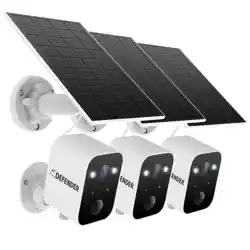
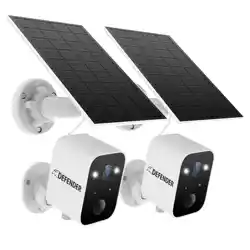
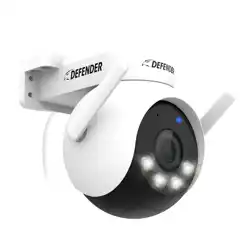
Packing list
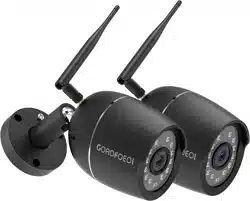
1.Camera*2
2.Mounting kit*2
3.Power Supply *2
4.Antenna*2
5.Operation instruction*1
Network settings
Note: Please download and install App and connect camera to the App first before mounting camera on the wall. Plug in and power on all cameras near your router for initial setup. Fasten the antennas (if applicable) onto the cameras.
- Make sure that you have a strong WiFi connection at the location of your cameras.
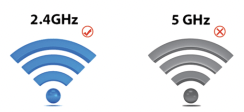
- Make sure you know the SSID (WiFi network name) and password of the 2.4GHz WPA-PSK/WPA2-PSK WiFi network that you want your cameras to connect to. Your network cannot be hidden.
- Make sure your network has at least 1Mbps upload speed for each camera when live viewing or 2Mbps upload speed for each camera when using the cloud service.
- Download and install the “meShare” app from Google Play or the App Store (compatibility: iOS 9.0+ or Android 4.0+). Launch the app and sign up for a free maShare account. All of your devices will be bound to this account.
Quick start
Note: Please download and install App and connect camera to the App first before mounting camera on the wall, Getting Started , In order to set up your device,all you need to do is:
1.Download the free "meShare" app from Google Play or the App Store using an Android or iOS moblie device. Launch the app and sign up for a free account.
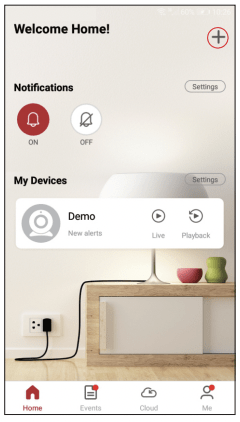
2.Log into the app and press the Add Device(+) icon on the upper right corner. Power on the camera with the supplied power adapter.
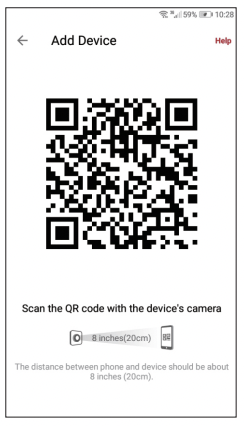
3.Select the "QR Code" connection method to connect your device(s). Your device(s) will be added to your "meShare"account.
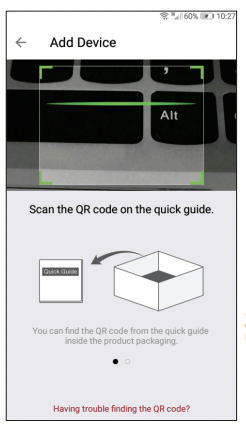
 (Scan the QR code shown on the right when prompted by the App)
4.Enter the password of the WiFi that you want your device(s) to connect to. Please make sure that your WiFi password is correct. Tap “Next” to proceed. Note: The WiFi password is case-sensitive
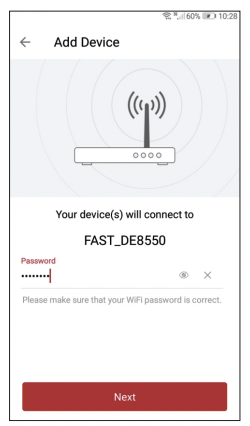
5.Steadily hold your phone's display in front of your GOAOFOEOIcamera until you hear “Device connected”. The distance between your phone and the camera should be about 8 inches. Note: If you're setting up multiple devices, you will only need to scan the QR code with one of your devices.
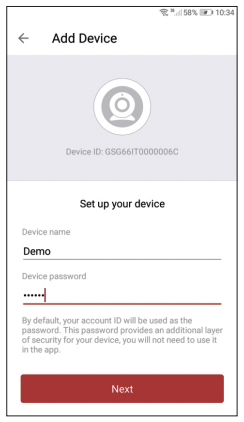
6. your device(s) and set a password for it. Tap "Next" to proceed.Note: The password provides an additional layer of security for your devices. You will not need to use this password when accessing your devices from the meShare app. It is not required, but it is highly recommended.
7. meShare provides 30-day Free Trial, 24/7 continuous recording on cloud. You can choose to subscribe for the service or not after the trial ends. Motion video clips from the past 12 hours are saved freely on cloud even without the subscription.
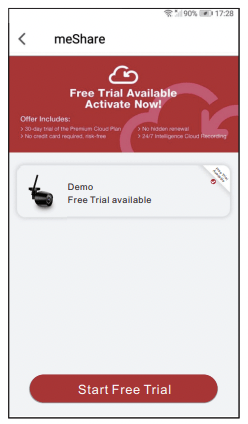
8.Your device(s) have been successfully configured! Tap “Demo” to finish. You can now share or view your device(s).
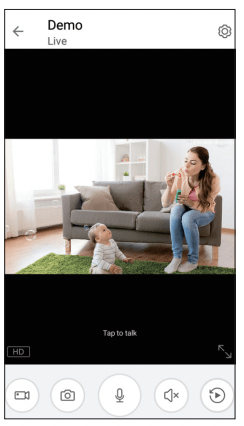
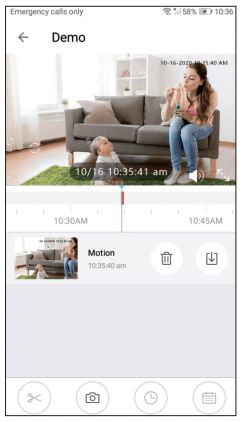
9. If there is a suspicious motion, an alert will be generated immediately and automatically save snapshots and videos to micro SD card or cloud storage.
Product specification

Image resolution Max. 19.20 X 1080
Camera lens Field of view: 120° Infrared LED 12pcs IR-led 10M
Storage media Micro SD card (Up to 128GB)
Weatherproof Level IP 65
Adapter requirement 12V 1.5A
Working temperature -4°F to 140°F
Size 74*64*165(mm*mm*mm)
Status Light Definitions
Your camera has an LED light that indicates the status of the camera. Please refer to the guide below:
 Blinking red
Waiting to connect to the network
 Blinking blue
Connecting to the network
 Solid blue
Network connection successful
Troubleshooting
If you were unable to connect your camera successfully:
- Make sure that you are connecting to a 2.4GHz WPAPSK/WPA2-PSK WiFi network, and your network is not hidden.
- Please make sure that you entered the network name and password correctly. Note: Both are case-sensitive.
- During the QR code scan, please make sure that your phone's display brightness is high, and avoid glare on your phone's display.
- Please make sure that your camera is not already bound to another user account.
- Make sure that you have fastened the antenna (if applicable) onto your camera, and try moving your camera closer to the router for the initial setup. (Setting up multiple cameras) If you were able to connect some, but not all of your cameras:
- Power cycle the camera(s) that are not connected to the WiFi and repeat the setup process.
Note: You can check the status light of the device to see if it has been successfully connected to the WiFi or not. If the status light is blinking red, it means that it has not connected to a WiFi network. If it is solid blue, it means that it is already connected to the WiFi network.
Quick Guide
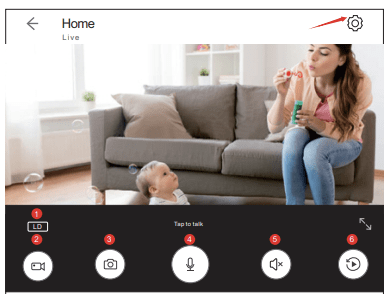
- Change the video resolution(HD 1080P /LD)
- Click here to start recording until you exit the device preview
- Click here to take a screenshot, and there will ask if you want to save it in your phone
- Press and hold this button and you can speak to others who is by the camera
- Only after open voice here and you will be able to hear the sound from around the camera
- Click here to view the video playback
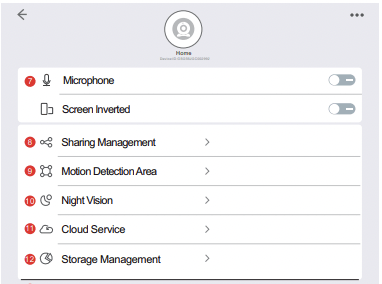
7. You can choose to turn on/off the two way talk
8. You can share the device with others(up to three people)
9. You can set the monitoring area of the device here
10. Set the sensitivity of night vision trigger and night vision will be trigger automatically when in dark
11. Learn about the cloud service price and functions if you need.
12. Check your SD card. It will be better to format your SD card so that video of your camera will be automatically save in SD card.
About this item
- 【Full Metal Camera & Weather Proof】For safer and working more time, our WI-FI camera uses full metal material case. IP65 Waterproof, it can withstand temperature ranges from -4°F to 140°F(-20°C to 60°C). GOAOFOEOI camera is strong enough to withstand storm,lighting and snowy weather and vandal resistant.
- 【1080P Full HD & IR Night Vision】With 120° wide angle view and 3MP lens, GOAOFOEOI outdoor security camera covers more spaces and creates clearer high quality images and videos all the time. This outside camera has 12 advanced infrared LED lights, so you can get high quality and light images up to 40ft in darkness. (Note: 2.4GHz Wi-Fi network only, not for 5.0GHz)
- 【Smart Motion Detection & Real-time Alerts & US Server Cloud】You can set the monitoring area and it can reduce false alarms. Real-time alert and immediate notification, automatically save snapshots and 10s videos to SD card or cloud storage. Download them easily. Server of this camera is in US. Any operation can get a quick response. Low latency.
- 【SD Card/Cloud Service & Work With Alexa】Support micro SD card(up to 128G,not included), first 30-days free cloud service. Our safe financial encryption technology can protect your data and privacy most. Perfectly compatible with Alexa. You can ask Alexa to display the live feed of your camera directly on the screen of your Echo Show.
- 【Two-Way Audio & Multiple Remote Access】With great noise cancellation speaker and built-in microphone, it allows you to communicate with your family or strangers conveniently and clearly. Talk with your elders, kids, postman or warm uninvited people. Multiple accounts sharing, your family and friends can view the video simultaneously.
Note: Products with electrical plugs are designed for use in the US. Outlets and voltage differ internationally and this product may require an adapter or converter for use in your destination. Please check compatibility before purchasing.
Frequently Asked Questions
Q:Can i use SD card for storage?
A:Sure you can use Micro SD card for storage and our camera support 128 G Micro SD Max.
Q:Do these cameras have to be connected to a power outlet?
A:Yes, it need to be connected to a power outlet.
Q:How to connect to alexa?
A:1. First find the operator “meshare” through the alexa account to bind=>2. Synchronize the device in the alexa terminal =>3. On-demand video on alexa terminal.
Q:After the camera has been used for a period of time, why is it disconnected and then the red light flashes?
A:1. Check whether the router network connected to the device is normal; 2. Make sure that the connected SSID and password have not changed;
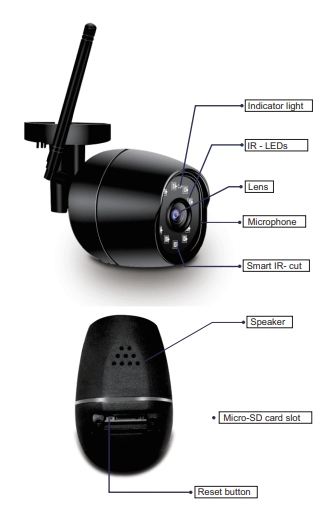
3. Reset the camera/power off and restart, scan the code to reconfigure the network (the reset button is located in the card slot at the bottom of the camera, long press for 3-5s to clear the network information of the camera pairing)
Q:What is the working mechanism of the SD card? Why can't my phone detect the camera's SD card?
1. Confirm the format of the SD card; our camera supports 1. FAT32; 2. exFAT two formats of SD card, you can check the format of your SD card on your computer; 2. Confirm the direction of the card, (make sure the direction of the card is correct); 3. Insert the card after power off, (hot swap is not supported). After the SD card is full, the previous records will be overwritten periodically.
Q:Is wifi required for these cameras to work and how far does the wifi connection reach?
A:The camera needs WIFI to work. It will be better if the distance between the camera and WIFI is within 32.8 ft.
If you have any other problem when using our camera, we will give you a satisfy solution!