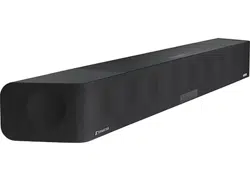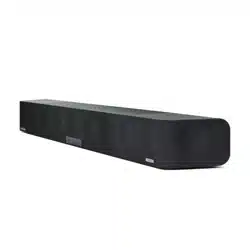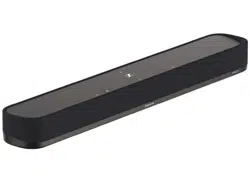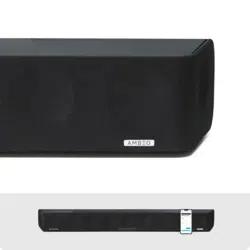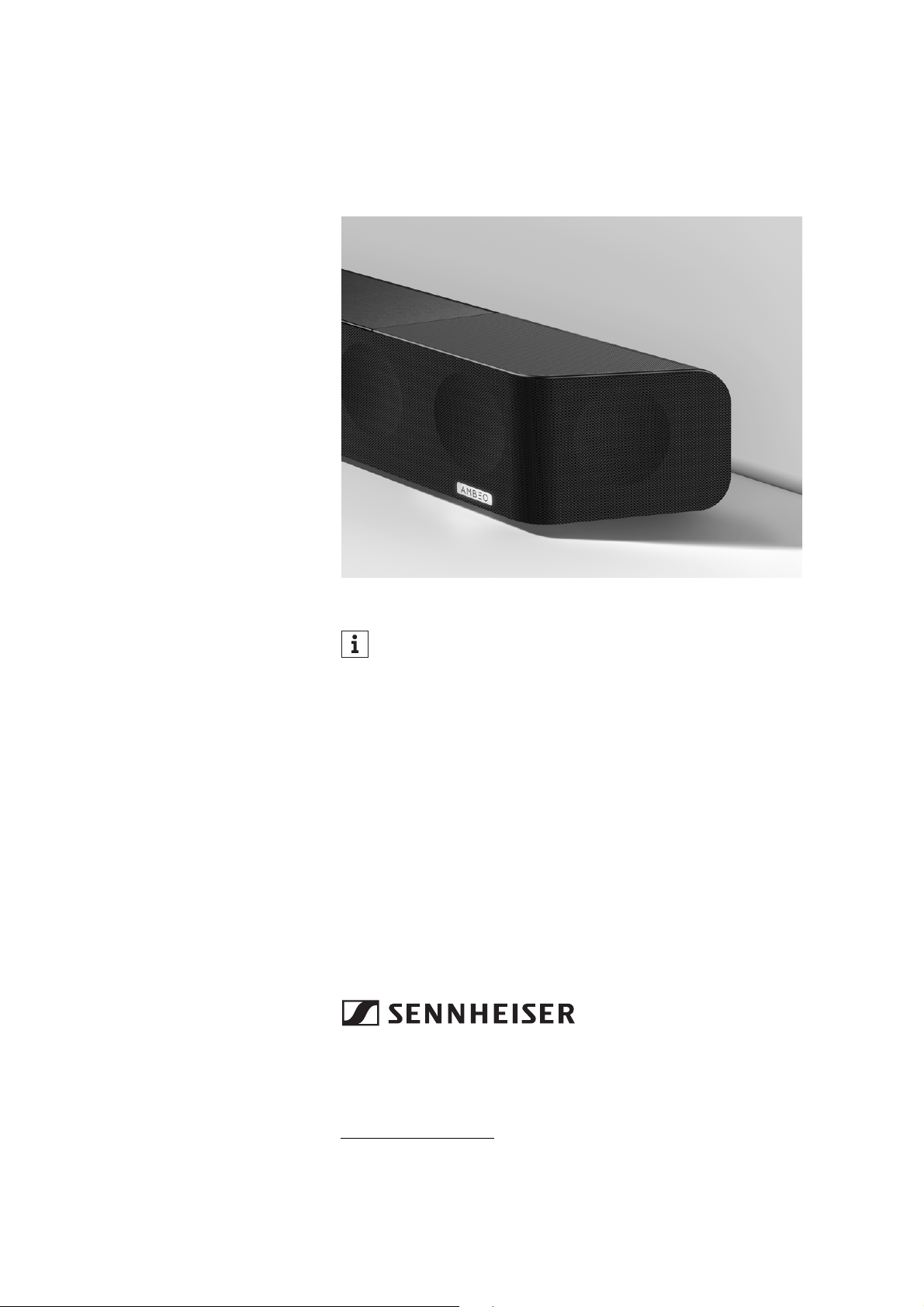
AMBEO Soundbar
SB01
Instruction manual
Use the search function, the navigation (left) or the following links:
Start
“Product overview”
“Getting started”
“Installing the AMBEO Soundbar”
“Connecting devices to the AMBEO Soundbar”
“Putting the AMBEO Soundbar into operation”
“Using the AMBEO Soundbar”
“Using the AMBEO Soundbar”
“Maintaining the AMBEO Soundbar”
“Specifications”
Sennheiser electronic GmbH & Co. KG
Am Labor 1
30900 Wedemark
Germany
www.sennheiser.com
Version: 03/20 A02
This instruction manual contains all information on the current
firmware version. Firmware updates can be downloaded free of
charge from the Internet (
> 51).

Important safety instructions
2 | AMBEO Soundbar
Important safety instructions
1. Read these safety instructions.
2. Keep these safety instructions. Always include these safety
instructions when passing the product on to others.
3. Heed all warnings.
4. Follow all instructions.
5. Do not use the product near water.
6. Only clean the product when it is not connected to the power sup-
ply system. Clean only with a dry cloth.
7. Ensure circulating ventilation. The product generates heat which
is dissipated through the housing. Install in accordance with the
manufacturer's instructions.
8. Do not install near any heat sources such as radiators, stoves, or
other products that produce heat and do not expose to direct sun
-
light.
9. Do not defeat the safety purpose of the polarized or grounding-
type plug. A polarized plug has two blades with one wider than
the other. A grounding type plug has two blades and a third
grounding prong. The wide blade or the third prong are provided
for your safety. If the provided plug does not fit into your outlet,
consult an electrician for replacement of the obsolete outlet.
10. Protect the power supply cord from being walked on or pinched,
particularly at plugs, convenience receptacles, and the point
where it exits from the product.
11. Use only attachments/accessories/spare parts supplied or rec-
ommended by Sennheiser.
12. Use only with shelves, racks, or tables that can safely support the
weight of the product (see instruction manual).
13. Unplug the product during lightning storms or when unused for
long periods of time.
14. Refer all servicing to qualified service personnel. Servicing is
required when the product has been damaged in any way, such as
power supply cord or plug is damaged, liquid has been spilled or
objects have fallen into the product, when the product has been
exposed to rain or moisture, does not operate normally, or has
been dropped.
15.WARNING: To reduce the risk of fire and electric shock, do not
expose the product to dripping or splashing and ensure that no
objects filled with liquids, such as vases, are placed on the prod
-
uct.
16. To completely disconnect this product from the AC mains, dis-
connect the power supply cord plug from the AC receptacle.
17. The plug of the power supply cord shall remain readily accessible.
Important safety instructions
AMBEO Soundbar | 3
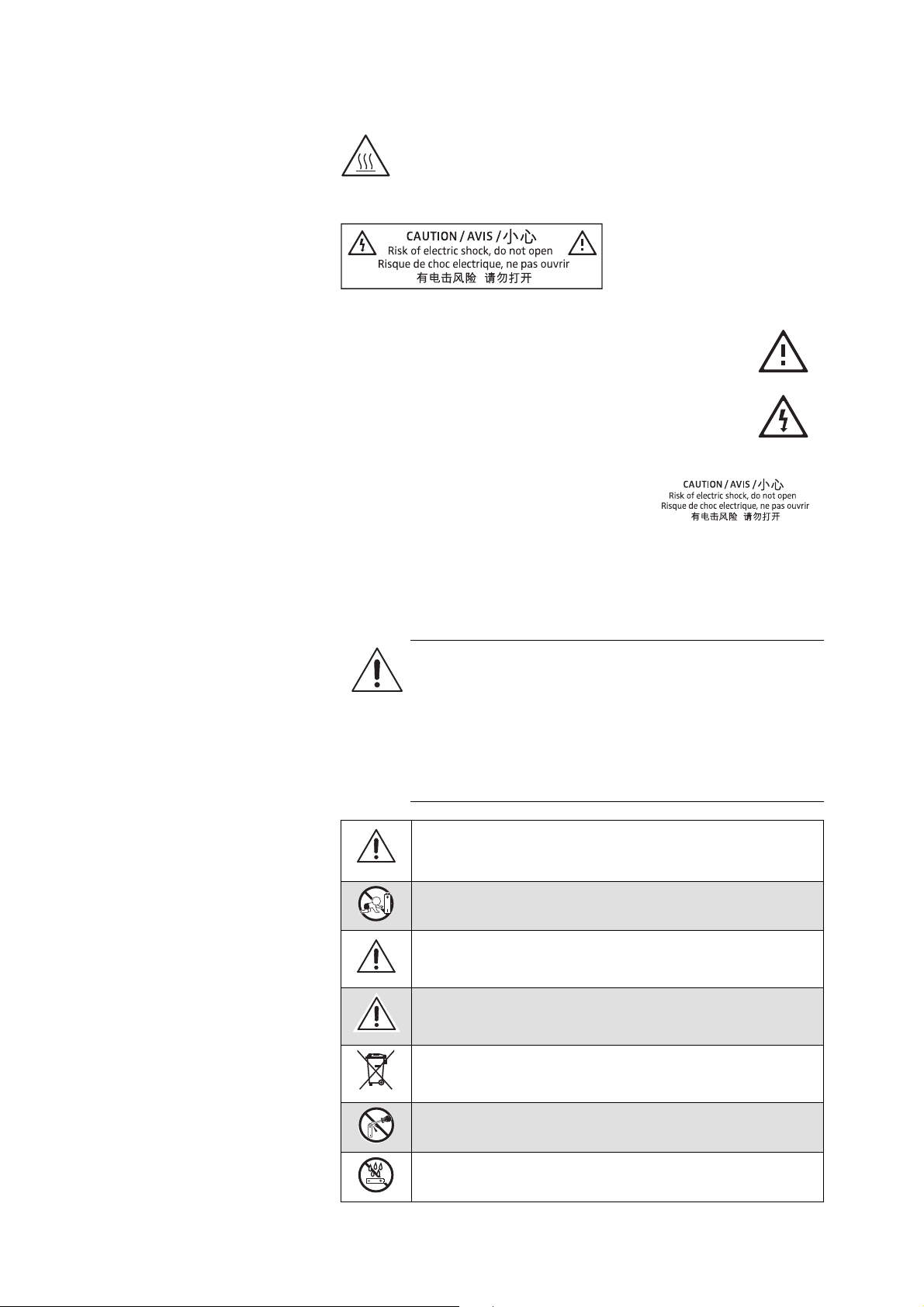
Hazard warnings on the bottom of the product
The product generates heat which is dissipated through
the housing! Do not touch when in use or directly after
use!
The following label is attached to the bottom of the product.
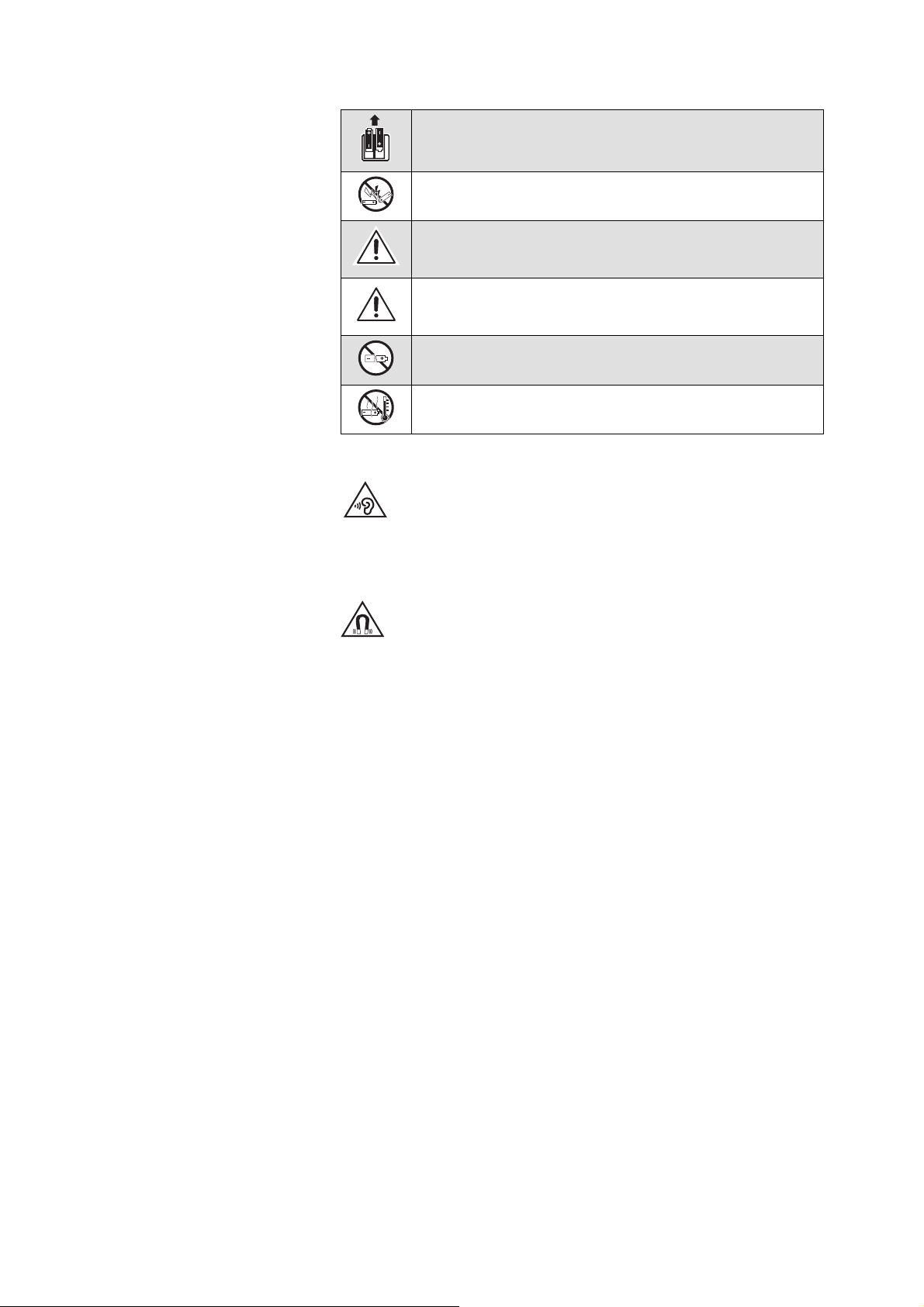
The symbols on this label have the following meaning:
Read and follow the safety and operating instructions
contained in this instruction manual.
Presence of uninsulated dangerous voltage within the
product's enclosure that may be of sufficient magnitude
to constitute a risk of fire or electric shock.
Never open the product. There is a risk of
electric shock when touching live parts.
There are no user serviceable parts inside
the product. Refer repairs to an authorized
Sennheiser service partner.
Safety instructions for lithium batteries
(remote control)
WARNING
If abused or misused, the batteries may leak. In extreme
cases, they may even present a risk of:
•explosion,
• fire development,
• heat generation,
• smoke or gas development.
If you think batteries might have been swallowed or
placed inside any part of the body, seek immediate
medical attention.
Keep away from children.
Observe correct polarity.
Immediately remove the batteries from obviously
defective product.
Dispose of batteries at special collection points or return
them to your specialist dealer.
Do not mutilate or dismantle.
Do not expose to moisture.
Important safety instructions
4 | AMBEO Soundbar
Preventing damage to health and accidents
▷ Protect your hearing from high volume levels. Permanent hearing
damage may occur when listening at high volume levels for long
periods of time.
▷ The product generates stronger permanent magnetic fields that
could cause interference with cardiac pacemakers, implanted
defibrillators (ICDs) and other implants. Always maintain a dis
-
tance of at least 3.94"/10 cm between the product component
containing the magnet and the cardiac pacemaker, implanted
defibrillator, or other implant.
▷ Keep the product, accessories and packaging parts out of reach
of children and pets to prevent accidents. Swallowing and chok
-
ing hazard.
▷ Do not use the product in an environment that requires your spe-
cial attention (e.g. when performing skilled jobs).
Preventing damage to the product and malfunctions
▷ If the product was moved from a cold environment to a warm one,
allow the product to stand for at least 2 hours before putting it
into operation.
Intended use/Liability
This product has been designed for playing TV sound and music via
cable connections, Bluetooth, WiFi or Ethernet. This product is
intended for private domestic use only. It is not intended for commer
-
cial use.
It is considered improper use when this product is used for any appli-
cation not named in the instruction manual. Sennheiser is not liable
for damages to USB devices that are not consistent with the USB
specifications. Sennheiser does not accept liability for damage aris
-
ing from improper use or misuse of this product and its attach-
ments/accessories.
Remove the batteries if the product will not be used for
extended periods of time.
Pack/store batteries so that the terminals cannot
contact each other – danger of shorting out/fire hazard.
Only use batteries specified by Sennheiser.
Store the products in a cool and dry place at room
temperature (approx. 20 °C/68 °F).
Do not continue to use defective batteries.
Do not heat above 70 °C/158 °F, e.g. do not expose to
sunlight or throw into a fire.

Important safety instructions
AMBEO Soundbar | 5
Before putting the product into operation, please observe the
respective country-specific regulations.
Notes on data collection and processing and on firmware updates
This product stores individual settings such as volume, sound and UI
settings (e.g. LED brightness), selected input and designations,
Bluetooth addresses of paired devices, WiFi settings and usage data
(e.g. power-on cycles and operating times). This data is required for
the operation of the product and is not transferred to Sennheiser or
companies commissioned by Sennheiser and is not processed.
You can update the firmware of the product for free via an Internet
connection. If the product is connected to the Internet, the following
data is automatically transferred to and processed by Sennheiser
servers in order to provide and transfer suitable firmware updates:
MAC address, IP address. The data will only be used as specified and
will not be stored permanently. If you do not want this data to be
transferred and processed, do not connect to the Internet.
Notes on the packaging
We recommend using the original packaging to ensure safe storage
and transport of the Soundbar. Damage during transport is often
caused by the use of unsuitable packaging. The original packaging of
the Soundbar provides optimal protection and minimizes the risk of
damage during transport.
Package contents
6 | AMBEO Soundbar
Package contents
Online you can find:
• this detailed instruction manual and additional information
(
www.sennheiser.com/download)
• the Sennheiser Smart Control app for configuring the AMBEO
Soundbar and for additional functions
(www.sennheiser.com/smartcontrol)
Optional accessories
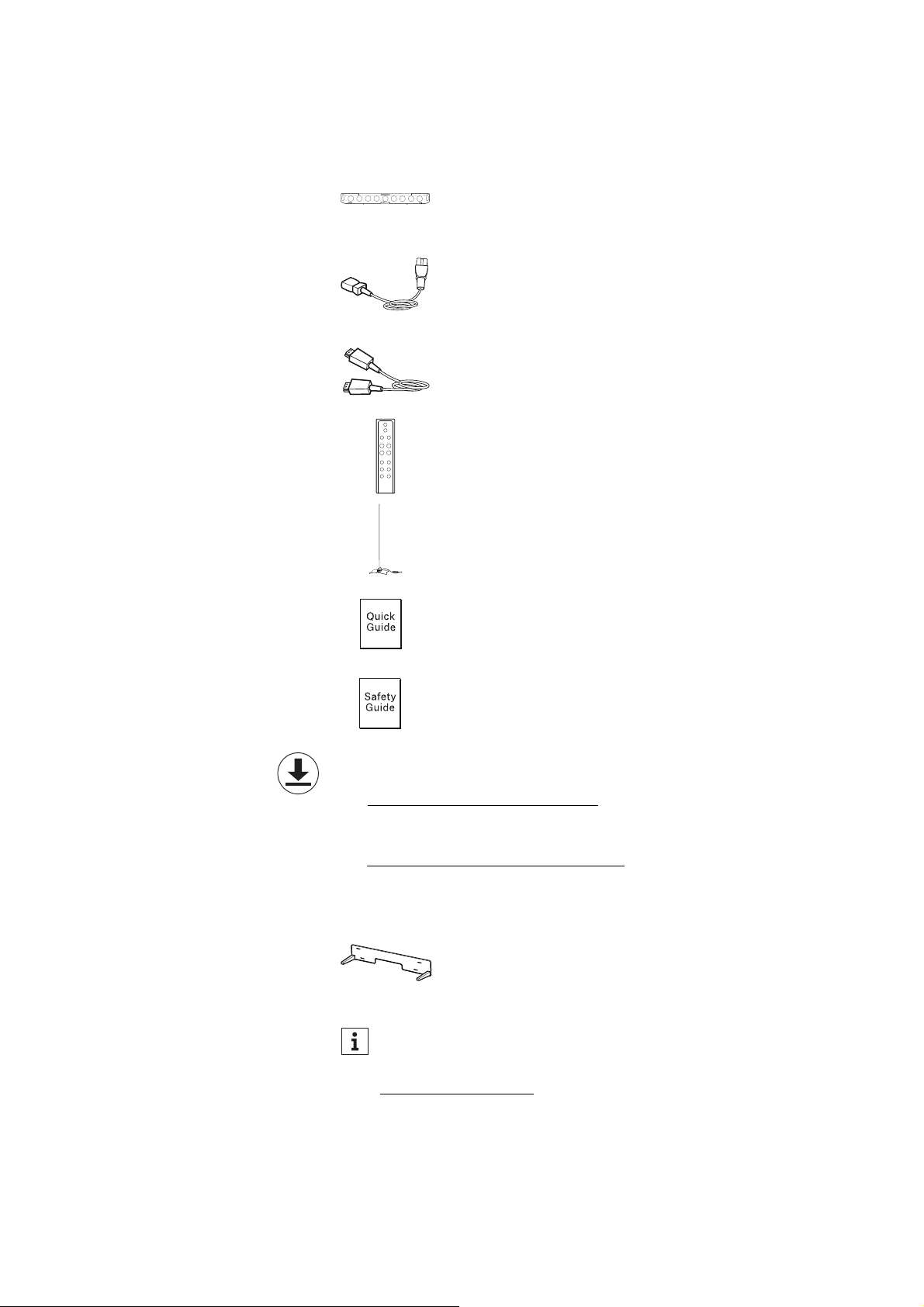
SB01 AMBEO Soundbar
Power cable, country-specific
High Speed HDMI® Cable, length approx. 1 m
SB01-RC remote control (incl. 1x CR2032 battery)
SB01-MS microphone for room calibration
with microphone holder, cable length approx. 5 m
Quick guide
Safety guide
SB01-WM wall mount for the AMBEO Soundbar,
bracket for wall mounting (article no.: 508612)
You can find a list of accessories on the AMBEO Soundbar
product page at www.sennheiser.com or contact your local
Sennheiser partner:
www.sennheiser.com > “Service & Support”.
Product overview
AMBEO Soundbar | 7
Product overview
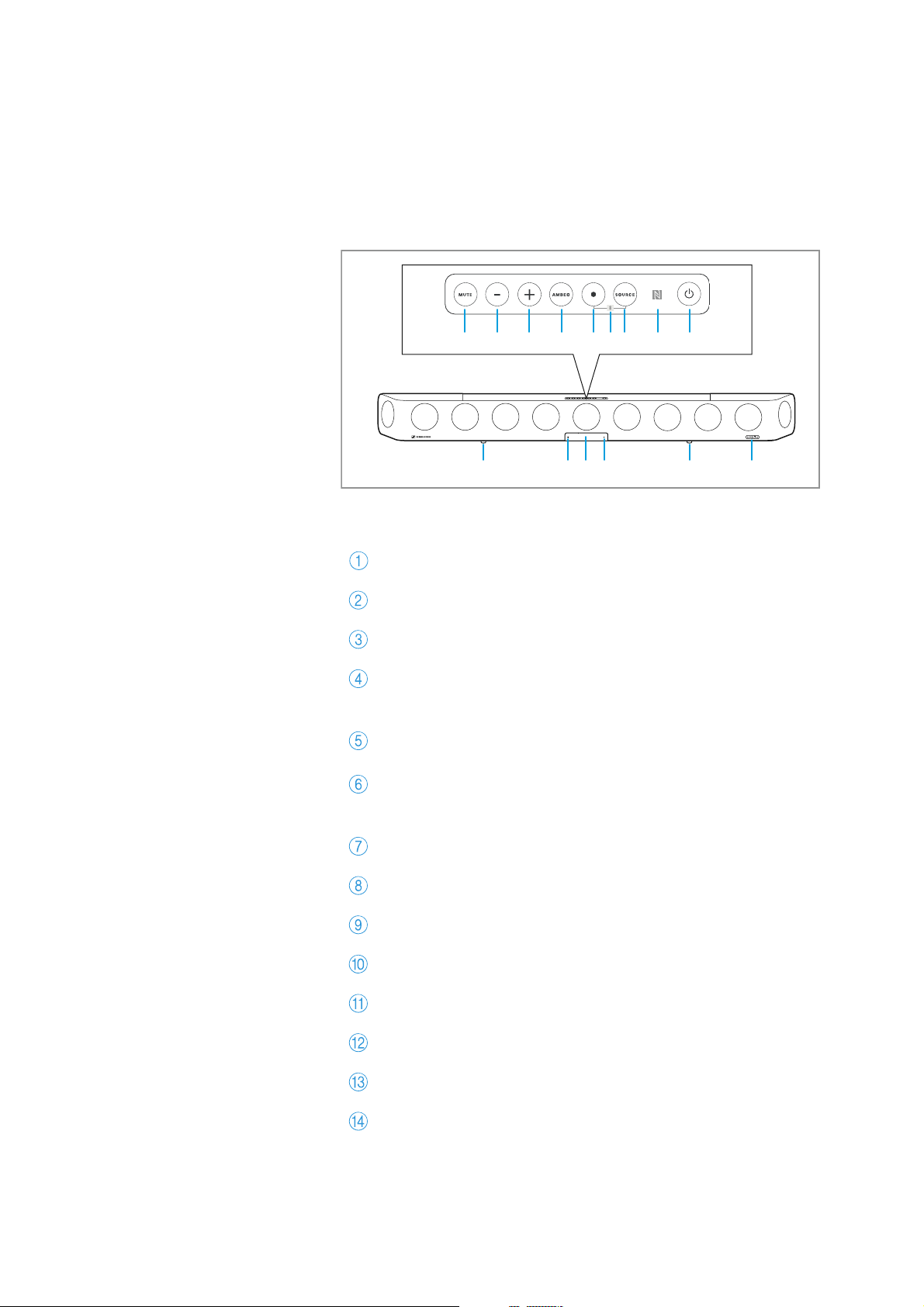
SB01 AMBEO Soundbar
Front
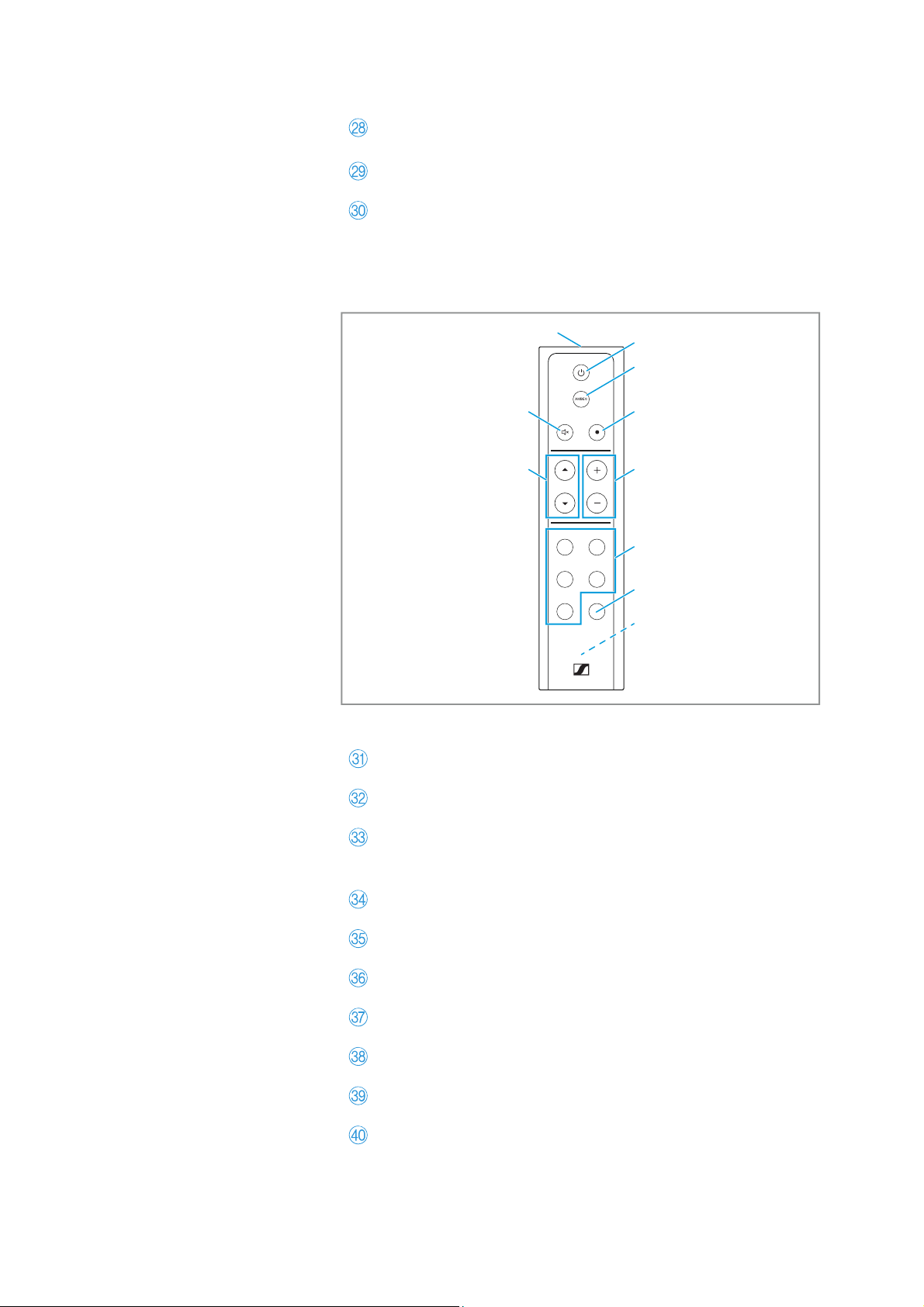
Control panel
MUTE button
Volume button - (volume down)
Volume button + (volume up)
AMBEO button
for activating AMBEO
(pressing for 4 seconds activates the room calibration)
Multi-function button •
for controlling the media playback
Bluetooth pairing
(by simultaneously pressing the multi-function button and
the input source button for 2 seconds)
SOURCE button (input source selection)
NFC antenna
On/off button
Vibration absorbing feet
Input for room calibration microphone
OLED display with matt, scratch-resistant surface
Status LED
AMBEO display
76 8 9
4
53
2
1
0AC0DB
Product overview
8 | AMBEO Soundbar
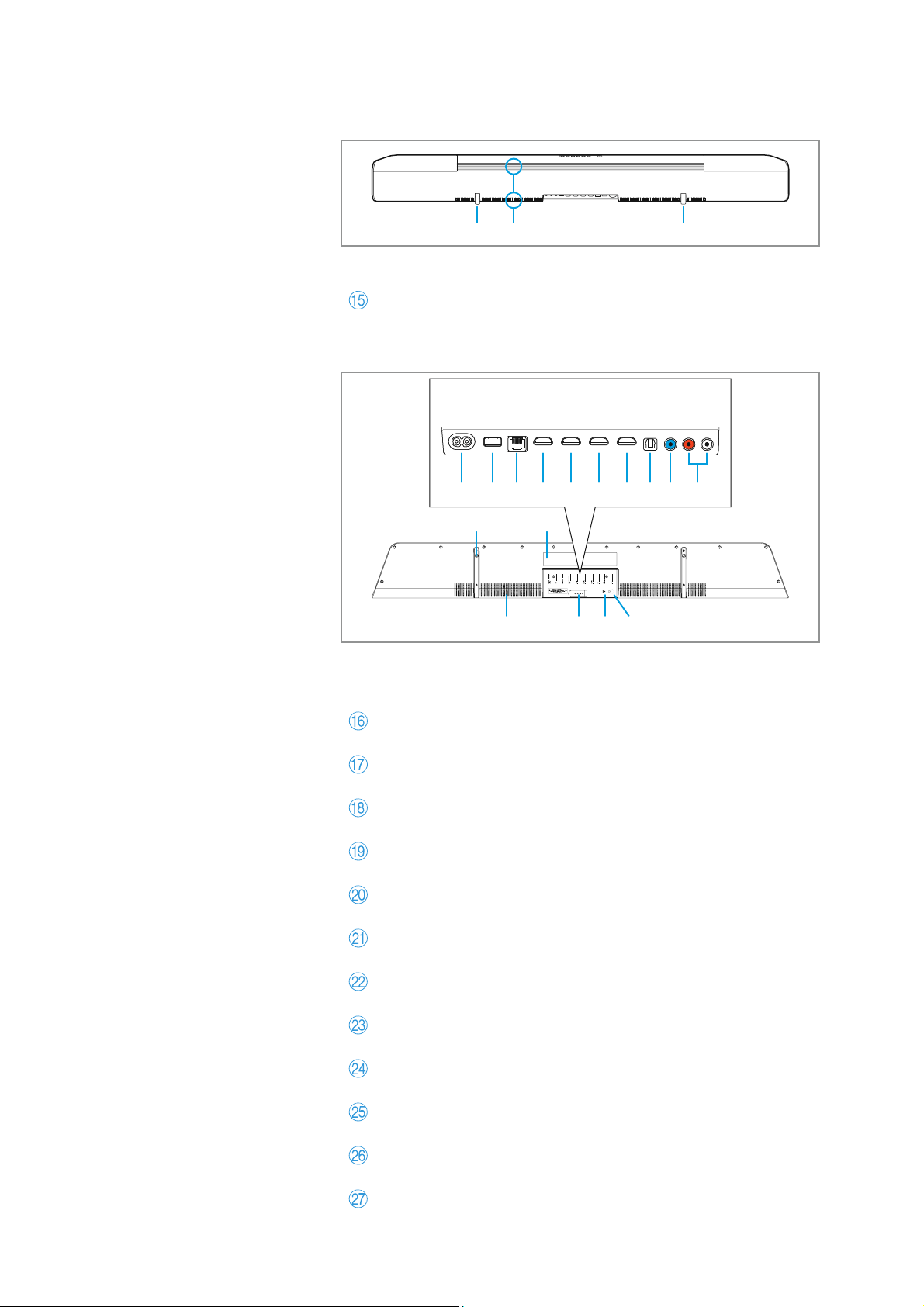
Back
Bottom
Connections
Cooling vents
IEC mains socket
POWER 100 - 240 V~, 50/60 Hz, 250 W
USB input (for updates only)
type B, USB 5 V⎓, 1 A
Ethernet input
RJ45, ETHERNET
HDMI output
HDMI TV (eARC) OUT 5 V⎓, 1 A
HDMI input
HDMI 1 IN
HDMI input
HDMI 2 IN
HDMI input
HDMI 3 IN
S/PDIF input,
optical, OPT IN
Output for connecting a subwoofer with power amplifier
RCA socket SW PRE OUT
RCA input sockets for an analog audio source
AUX IN
Mounting thread (under the rubber foot) for the SB01-WM
wall mount (optional accessory)
Type plate
0 0E
5 V⎓ 1 A
AUX IN
SW PRE
OUT
OPT IN
HDMI 3 IN
HDMI 2 IN
HDMI 1 IN
HDMI TV
(eARC) OUT
ETHERNET
USB
POWER
F G H JI M N OK L
6 TR S
QP
Product overview
AMBEO Soundbar | 9
SB01-RC remote control
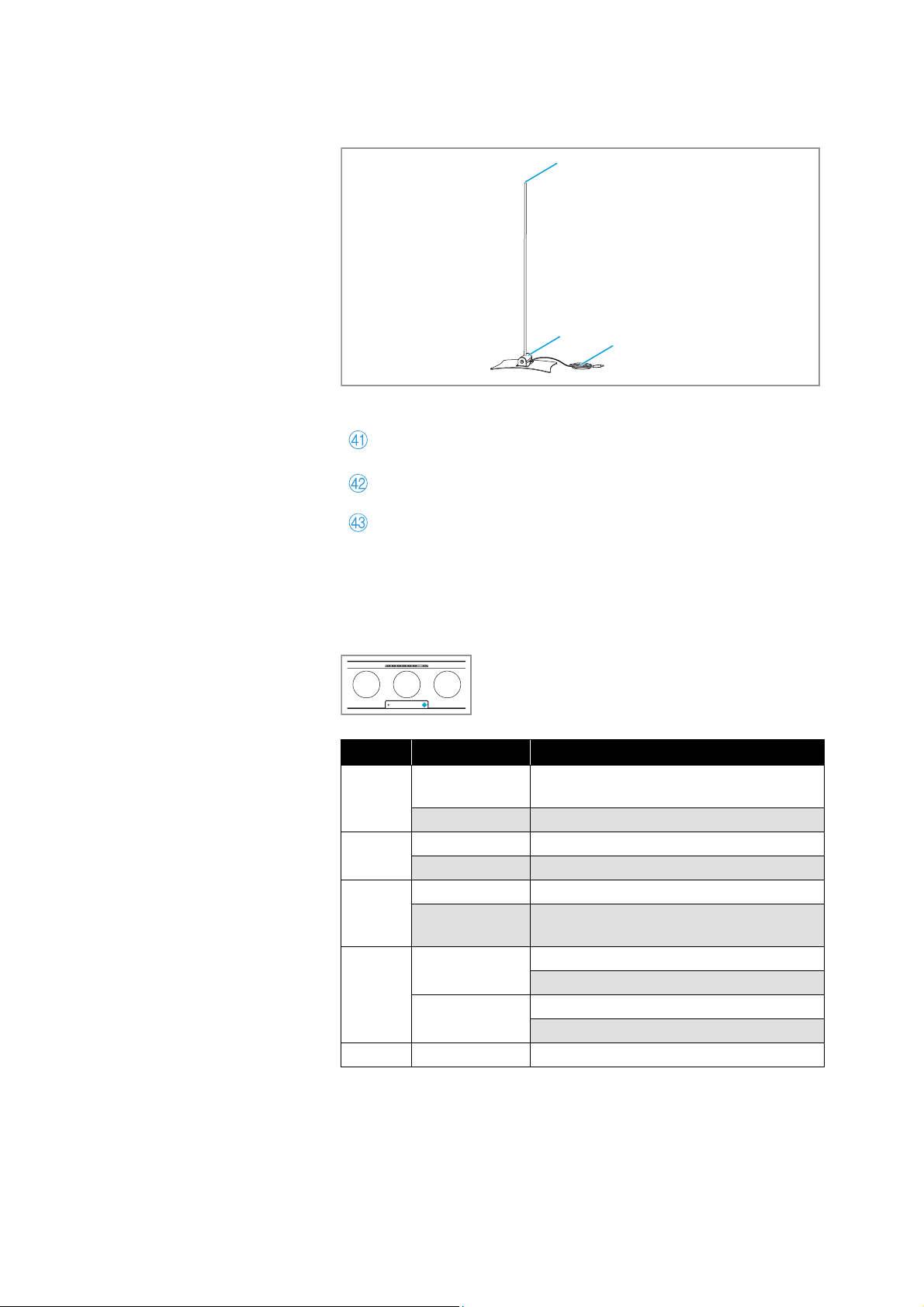
Cable tie for bundling and strain-relieving the connected
cables
RESET button
SETUP button
for WiFi setup (WiFi Protected Setup; WPS)
Infrared transmitting diode
On/off button
AMBEO button
for activating AMBEO
(pressing for 4 seconds activates the room calibration)
Multi-function button
Volume buttons
Sound profile button
Night mode button
Battery compartment (for 1x CR2032 battery)
Input source button
Mute button
NEWS SPORTS
NEUTRAL NIGHT
MUSICMOVIE
VOLSOURCE
U
V
W
\
[
X_
Y
Z
]
Product overview
10 | AMBEO Soundbar
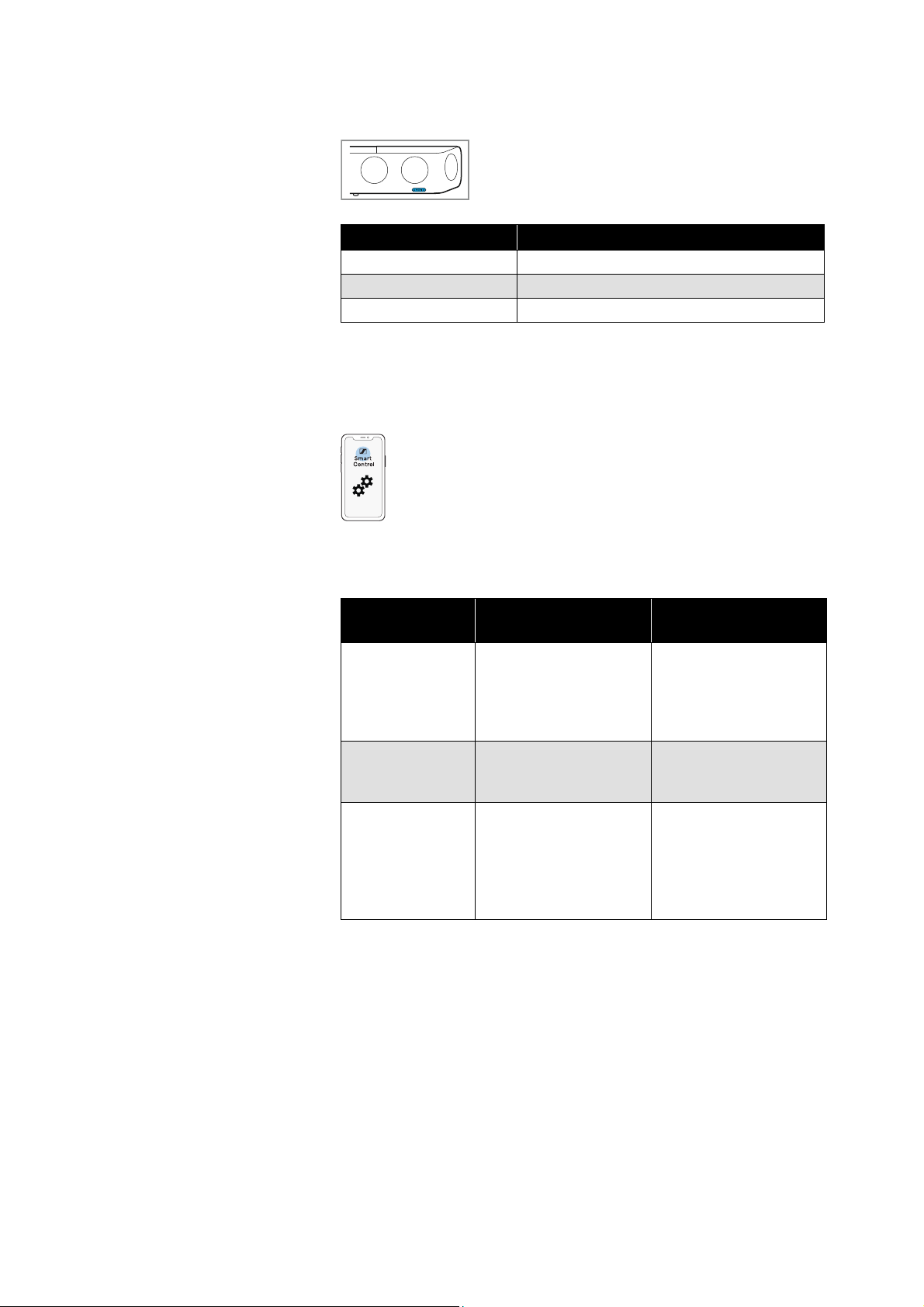
SB01-MS microphone for room calibration
Overview of the displays
Status LED
Microphone head,
omni-directional pick-up pattern
Microphone holder
Cable with 2.5 mm jack plug
a
b
c
Color Status Meaning
white
lights up 1x
Status change e.g. volume adjustment,
sound profile selection
pulses Booting, connecting via Chromecast
blue
lights up Connected via Bluetooth
yellow Connecting via Bluetooth
yellow
pulses Update is being loaded and installed
flashes
WiFi lost (check router settings, restart
router if necessary)
orange
lights up
Reset is terminated
WPS found
pulses
Reset in progress
WPS search
red lights up Soundbar in standby mode
Product overview
AMBEO Soundbar | 11
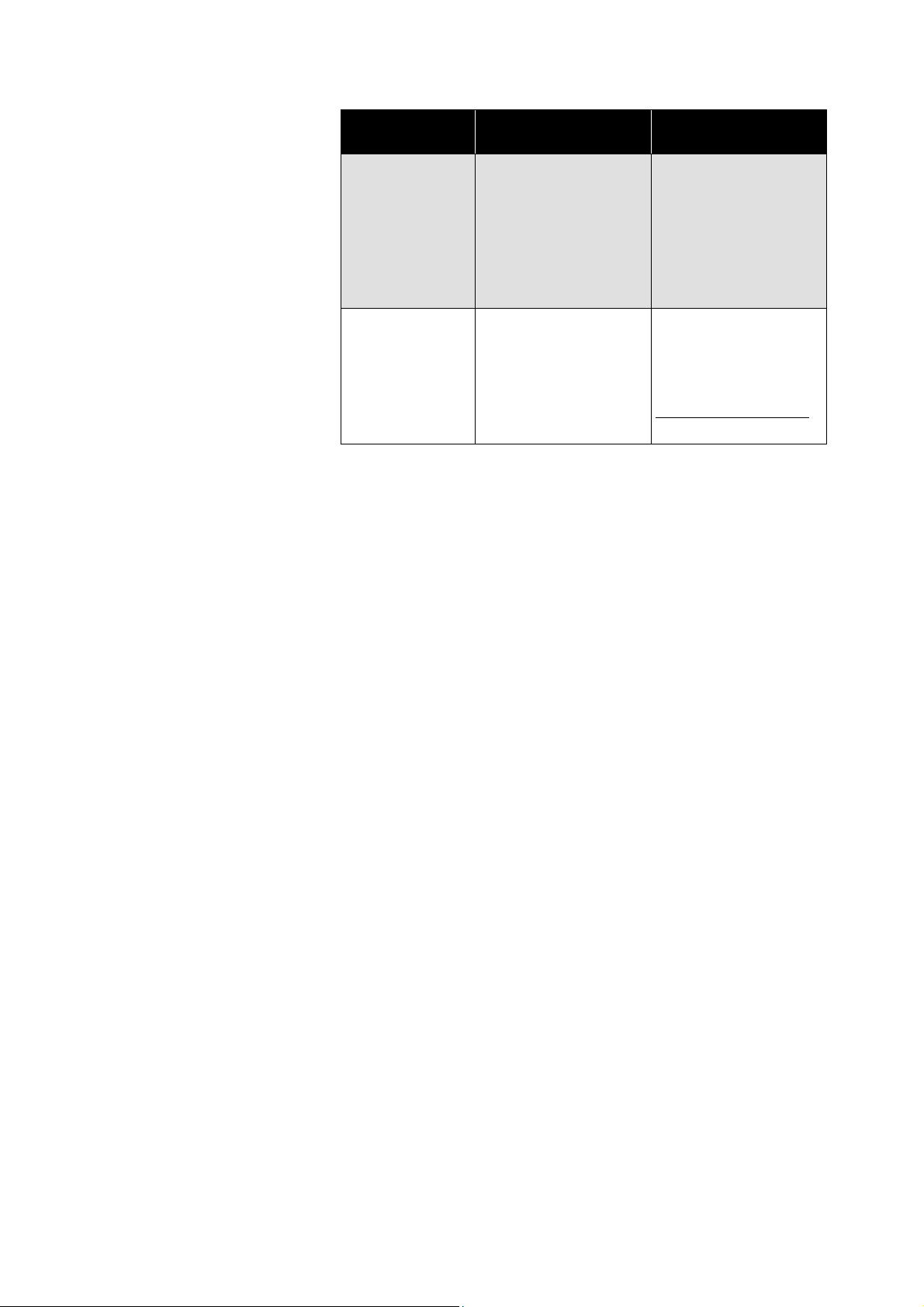
AMBEO display
The brightness of the AMBEO display and the OLED display can be
adjusted via the Smart Control app.
Messages on the display
AMBEO display Meaning
lights up white AMBEO mode is on
off AMBEO mode is off
pulses white Room calibration in progress
Message on the
display
Meaning/possible
errors
Possible solution
TV Speakers On
The Soundbar mutes
itself when the TV
speakers are selected
as the audio output.
In the TV settings,
select the Soundbar as
the audio output
(“HDMI ARC Audio
Output”).
OVER HEAT
Overheating of the
Soundbar
Switch the Soundbar
off and let it cool down
(
> 35).
DOLBY Pass-
Through
Selected function (e.g.
sound profile or
AMBEO mode) cannot
be activated because
the “Dolby Virtualizer”
is activated.
Deactivate the “Dolby
Virtualizer” in the
Smart Control app (
>
47).
Product overview
12 | AMBEO Soundbar
Network Off
The Soundbar is in
standby mode and all
network connections
are switched off
(including remote con
-
trol). Standby power
consumption is mini
-
mized (> 36).
Switch the Soundbar
off via the normal
standby mode (
> 35).
Please contact
Service
The Soundbar has
detected a serious
error. Operation is not
possible.
Disconnect the Sound-
bar from the power
supply system (
> 30).
Contact your local
Sennheiser partner:
www.sennheiser.com >
“Service & Support”.
Message on the
display
Meaning/possible
errors
Possible solution
Getting started
AMBEO Soundbar | 13
Getting started
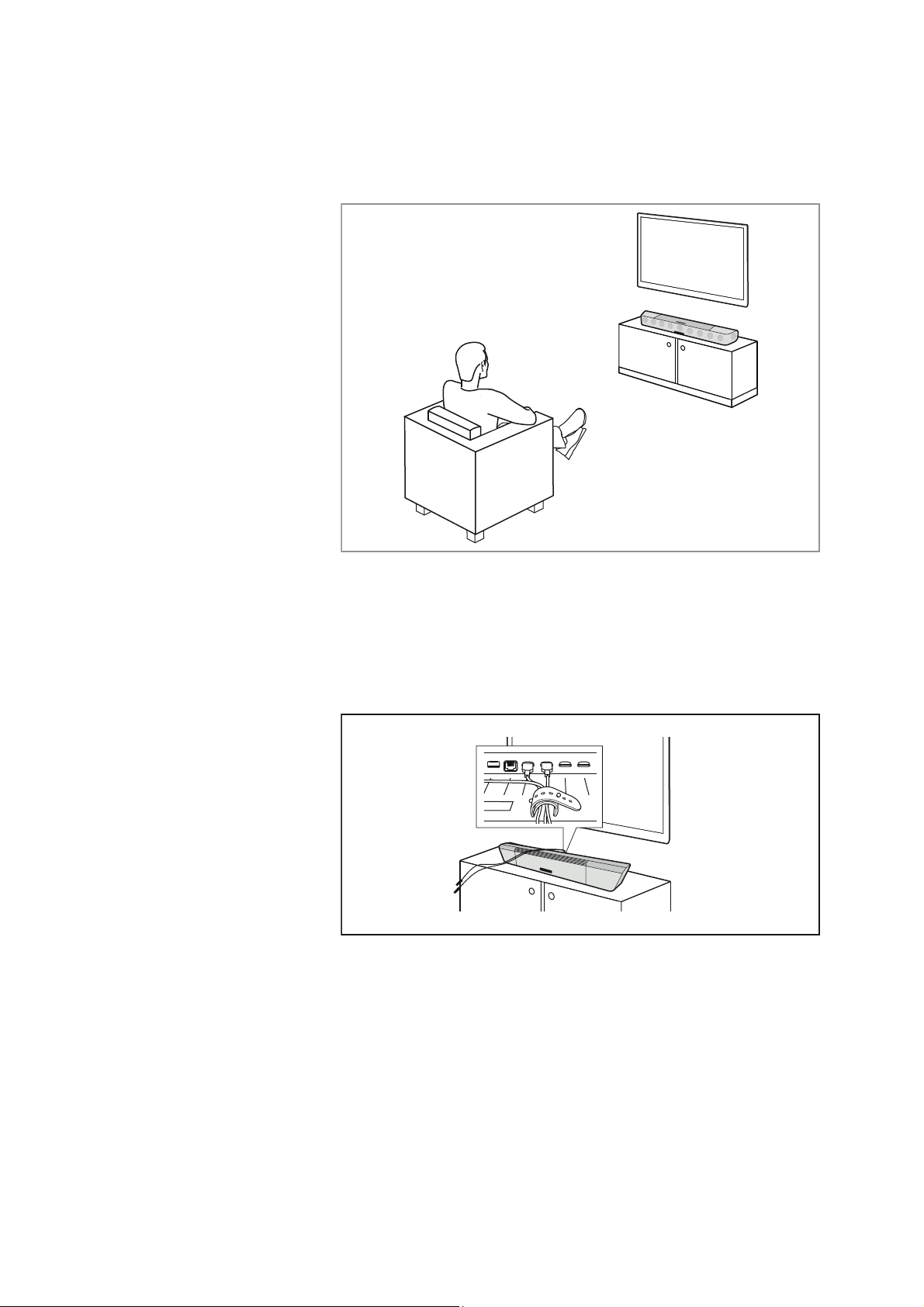
1. Setting up the Soundbar
The correct placement and setup of the AMBEO Soundbar is import-
ant for an optimum sound experience. You can place the AMBEO
Soundbar on a piece of furniture (
> 16) or mount it directly to a wall
using the wall mount (optional accessory) (> 19).
2. Connecting a TV and/or audio devices
Connect your TV to the Soundbar. You can also connect other audio/
video devices (
> 20) or play wireless audio via Bluetooth or WiFi (>
41).
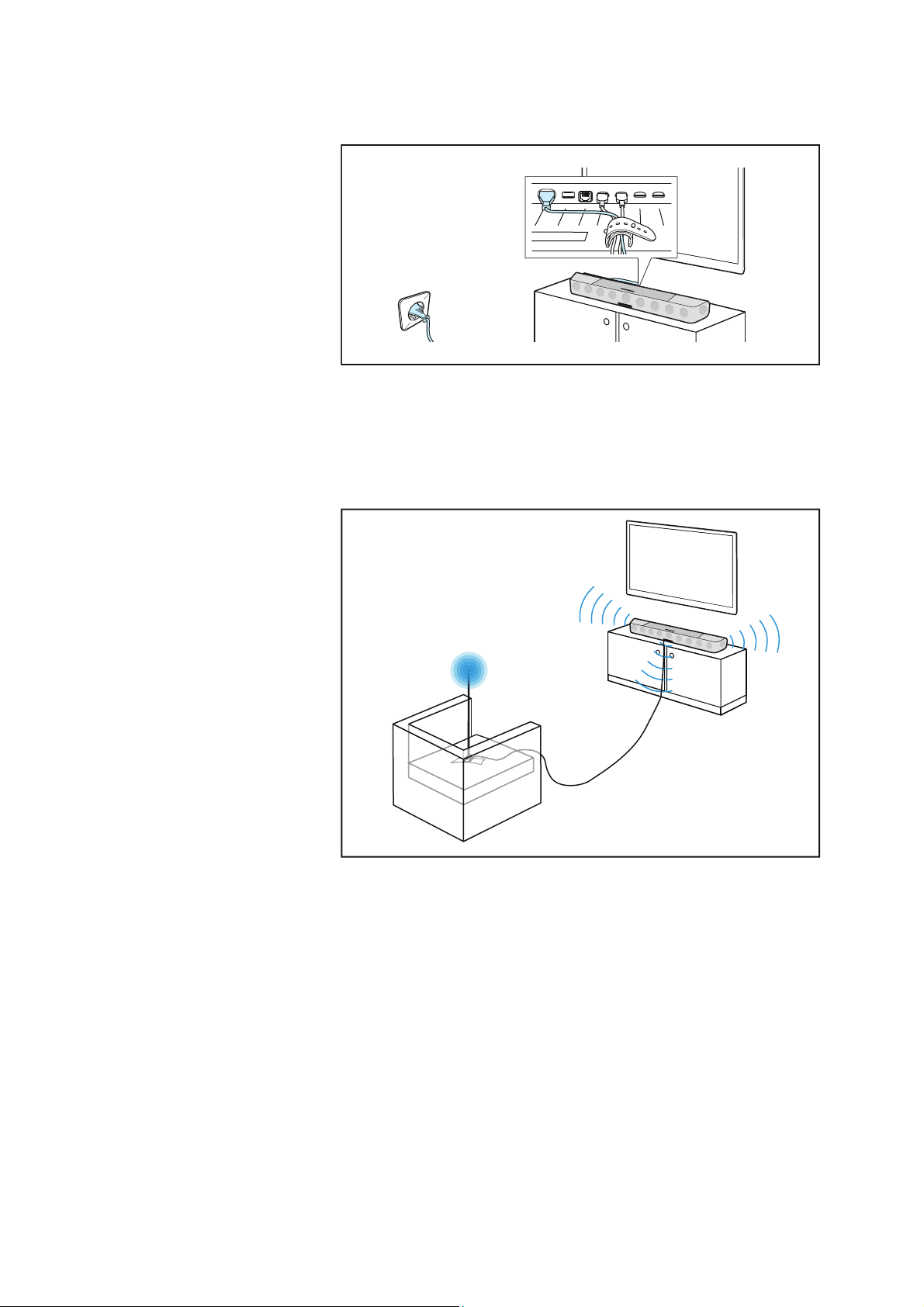
3. Connecting the AMBEO Soundbar to the
Getting started
14 | AMBEO Soundbar
power supply system
Connect the AMBEO Soundbar to the power supply system - the
AMBEO Soundbar comes to life and guides you through the initial
switch-on process (>
30).
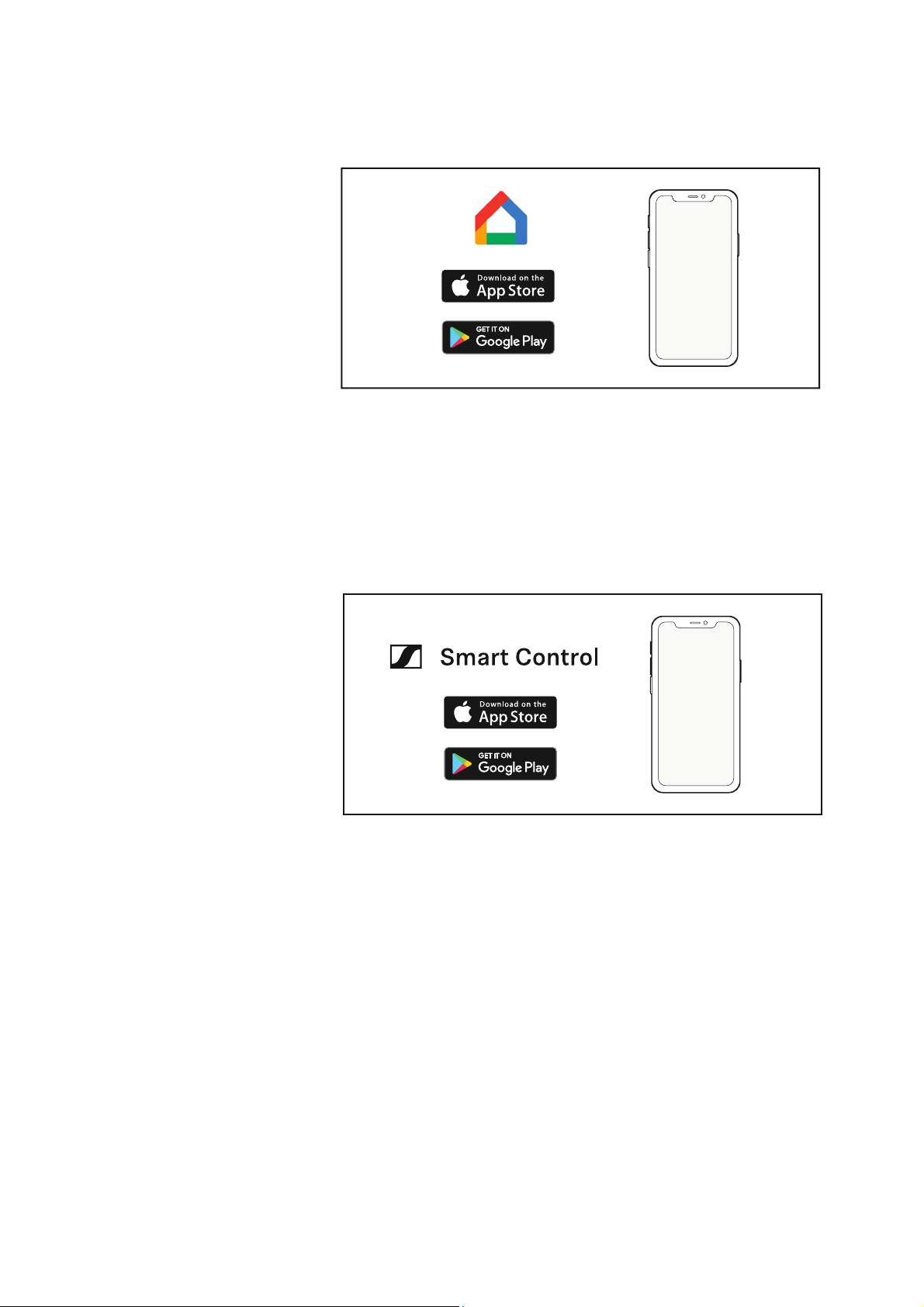
4. Starting the room calibration
For an optimum spatial sound experience, the AMBEO Soundbar
must perform a room calibration. Connect the microphone for the
room calibration and start the calibration. The calibration takes only
a few minutes and leads to the best possible 3D spatial sound (
> 31).
Getting started
AMBEO Soundbar | 15
5. Installing the Google Home app on your
smartphone
The Google Home app allows you to configure the WiFi settings of
the AMBEO Soundbar. Via the Internet connection/WiFi, you receive
the latest firmware updates for the AMBEO Soundbar and you can
use the Chromecast built-in functionality. In the Google Home app,
follow the setup process for the AMBEO Soundbar.
6. Installing the Smart Control app on your
smartphone
The Sennheiser Smart Control app allows you to use all functions
and settings of the AMBEO Soundbar and to e.g. adjust the sound to
your liking using the equalizer (>
43).
Installing the AMBEO Soundbar
16 | AMBEO Soundbar
Installing the AMBEO Soundbar
Placing the Soundbar on the device feet
▷ With the help of a second person, take the Soundbar out of the
packaging.
▷ Remove the protective foil.
▷ Remove the protective foil from the OLED display.
▷ With the help of a second person, place the Soundbar on a sturdy,
level, horizontal piece of furniture that can safely carry the weight
of the Soundbar (approx. 18.5 kg).
▷ Observe the following:
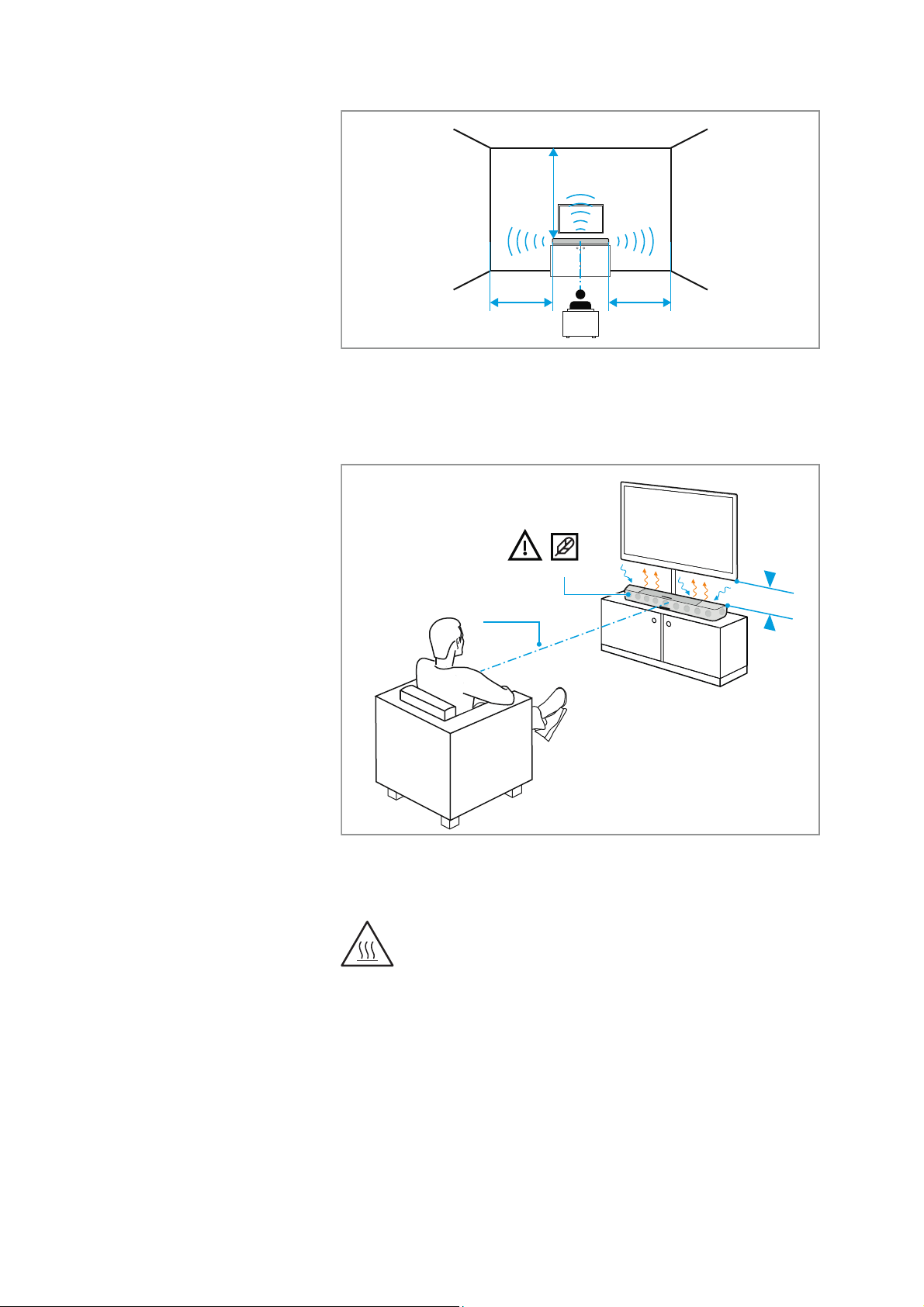
–The distance X of the Soundbar to the side walls should ideally
be the same so that the Soundbar is centered in the room. The
optimum distance between the Soundbar and the walls is
between 1 and 5 meters.
– There must be no objects that block the sound or have a strong
sound-absorbing effect (e.g. furniture such as shelves or arm
-
chairs, room dividers, curtains, flower pots) between the
Soundbar and the side walls and the ceiling of the room.
–The distance X of the Soundbar to the ceiling should be
between 1 to 5 meters, but should not exceed 5 meters. The ceil
-
ing should be flat and horizontal (no pitched roof or domed
roof).
– The Soundbar should be positioned below the TV.
CAUTION
Material damage due to overheating
Inadequate ventilation may cause the Soundbar to overheat.
▷ Do not place any objects on the Soundbar, keep the minimum
clearances and ensure circulating ventilation.
CAUTION
Risk of staining of furniture surfaces!
Varnish or furniture polish may degrade the feet of the product,
which could stain your furniture.
▷ Do not place the product on delicate surfaces; if necessary, use a
non-slip pad under the product.
Installing the AMBEO Soundbar
AMBEO Soundbar | 17
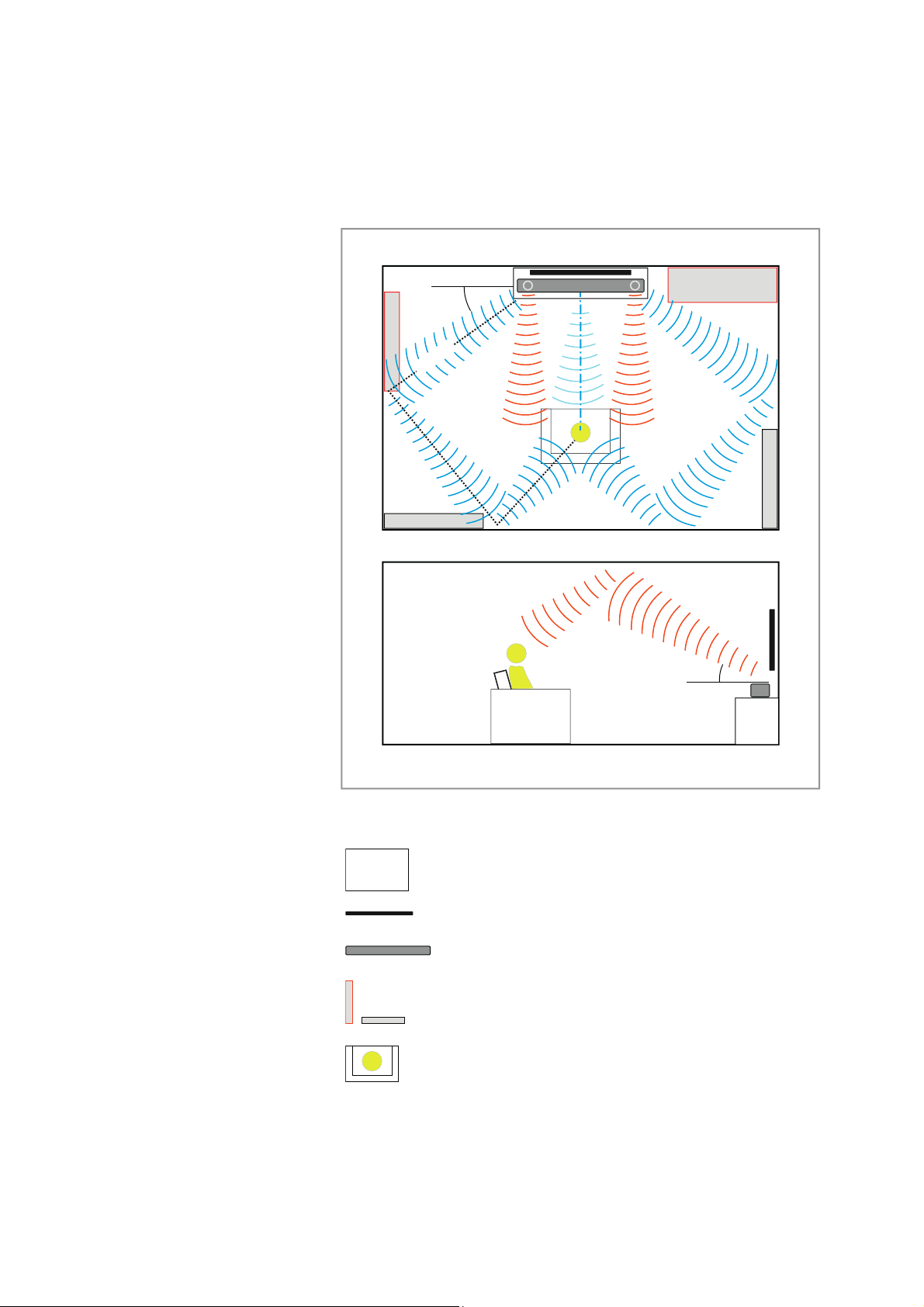
• The distance of the Soundbar to the TV should be at least 10 cm.
• The seat (optimal point “sweet spot”) should be positioned cen-
trally in front of the Soundbar and have a distance of at least 2
meters to the Soundbar.
▷ Ensure circulating ventilation. The product generates heat which
is dissipated through the housing. Do not touch when in use or
directly after use!
XX
X
≥2 m
18.5 kg
>10 cm
Installing the AMBEO Soundbar
18 | AMBEO Soundbar
Optimum positioning
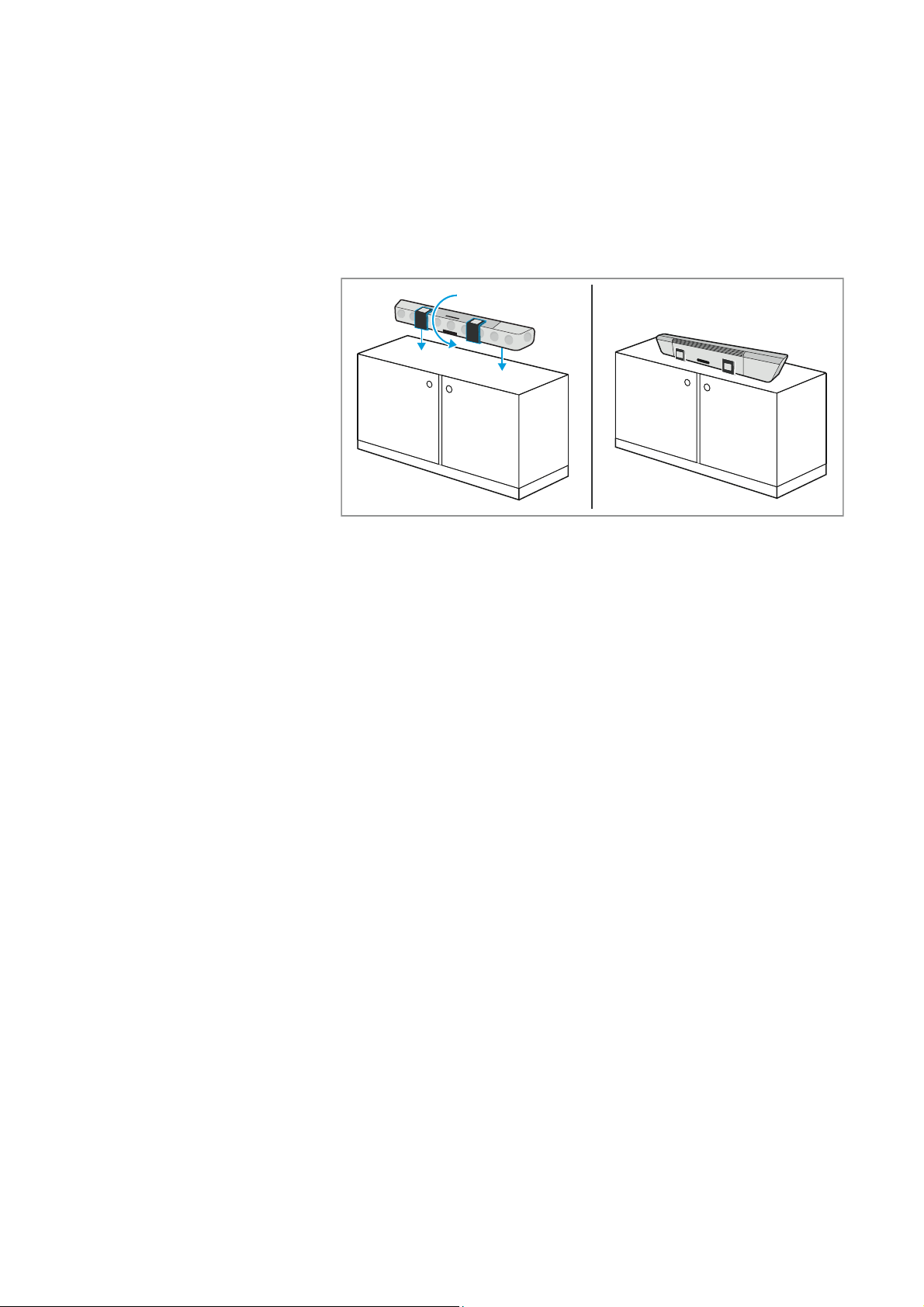
Schematic structure of the sound waves from the Soundbar, which
are reflected by walls and objects and thus reach the optimal point
(“sweet spot”). Thus, a virtual surround sound can be created with a
Soundbar.
Object Meaning
Reflecting surface
TV
Soundbar
Furniture/curtain
Optimal point “sweet spot”
30°
≤15 m
≥2 m
20°

Installing the AMBEO Soundbar
AMBEO Soundbar | 19
Mounting the Soundbar to a wall
To mount the Soundbar to a wall, you require the SB01-WM wall
mount (optional accessory, >
6).
▷ Proceed as described in the mounting instructions (enclosed with
the SB01-WM wall mount) and use the drilling template.
Sound waves of the loudspeakers
Sound waves from the top-firing loudspeakers
to the ceiling
When positioning the Soundbar, keep in mind that the sound is
reflected by the walls and ceiling. Many curtains, thick carpets
and other rough surfaces can affect the 3D spatial sound.
Object Meaning
Connecting devices to the AMBEO Soundbar
20 | AMBEO Soundbar
Connecting devices to the AMBEO
Soundbar
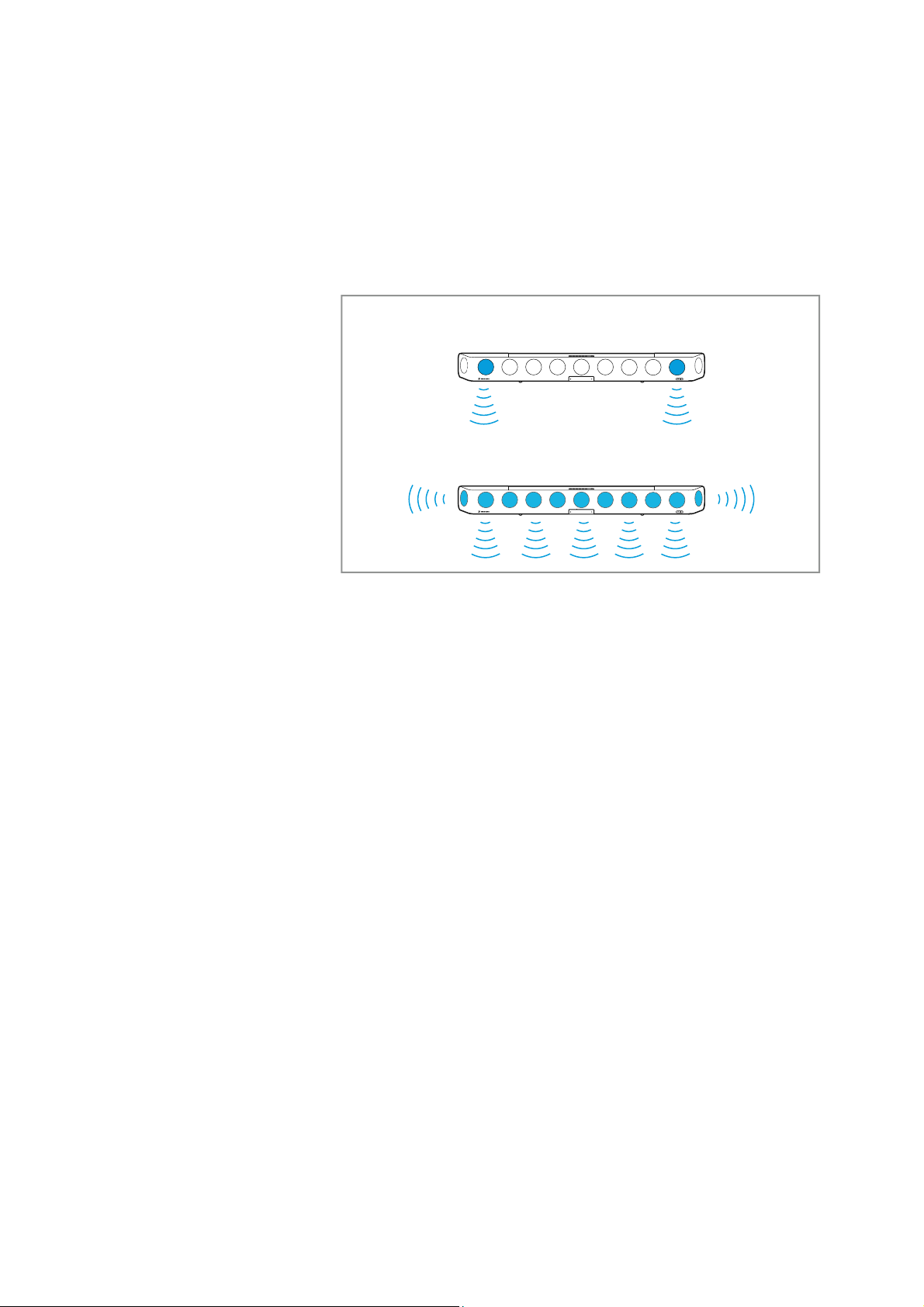
▷ Put a protective material (e.g. the foam parts of the packaging or
a blanket) between the piece of furniture and the Soundbar.
▷ Carefully turn the Soundbar on its front.

Connecting devices to the AMBEO Soundbar
AMBEO Soundbar | 21
Connection diagram (example)
Connect your audio sources to the AMBEO Soundbar and your TV
according to the following diagram (example). Sennheiser recom
-
mends connecting the audio sources for high-resolution surround
formats directly to the AMBEO Soundbar using a High Speed HDMI
®
Cable.
AUX IN
SW PRE
OUT
OPT IN
HDMI 3 IN
HDMI 2 IN
HDMI 1 IN
HDMI TV
(eARC) OUT
ETHERNET
USB
POWER
HDMI IN
eARC or ARC
OPTICAL
OUT
Streaming device e.g.
Apple TV, Netflix, ...
Gaming console e.g.
PS4, Xbox, ...
CD
Gaming console
e.g. Wii, ...
Blu-ray
Connect additional
devices to the HDMI IN
of your TV.
The audio will be routed to
the AMBEO Soundbar via
the HDMI eARC/ARC or
OPTICAL connection.
If no eARC/ARC is available, use the
OPTICAL connection of the TV (for audio)
and HDMI IN (for video)
High-definition audio content
Auto/Bypass/Pass-Through
Downmix/Stereo
TV/Player sound menu*:
HDMI Audio OUT/Optical OUT
Sound
settings
* sound menu can vary
Sound
settings
Sound
settings
In case of more than
3 audio sources:
Stereo audio
content
TV connection via HDMI eARC or HDMI ARC
(for audio and video)
Connecting devices to the AMBEO Soundbar
22 | AMBEO Soundbar
Preparation
Adjust the sound settings on the TV and on the audio/video device.
▷ On your devices, adjust the sound settings for the HDMI and opti-
cal output from “Downmix/Stereo” to “Auto/Bypass/Pass-
Through”. (The menu of the devices may use different names
depending on the manufacturer).
This ensures that the audio signals for 3D spatial sound from the
source (e.g. TV) are passed on to the AMBEO Soundbar.
▷ On your TV, set the Soundbar as the audio output.
Auto/Bypass/Pass-Through
Downmix/Stereo
Connecting devices to the AMBEO Soundbar
AMBEO Soundbar | 23
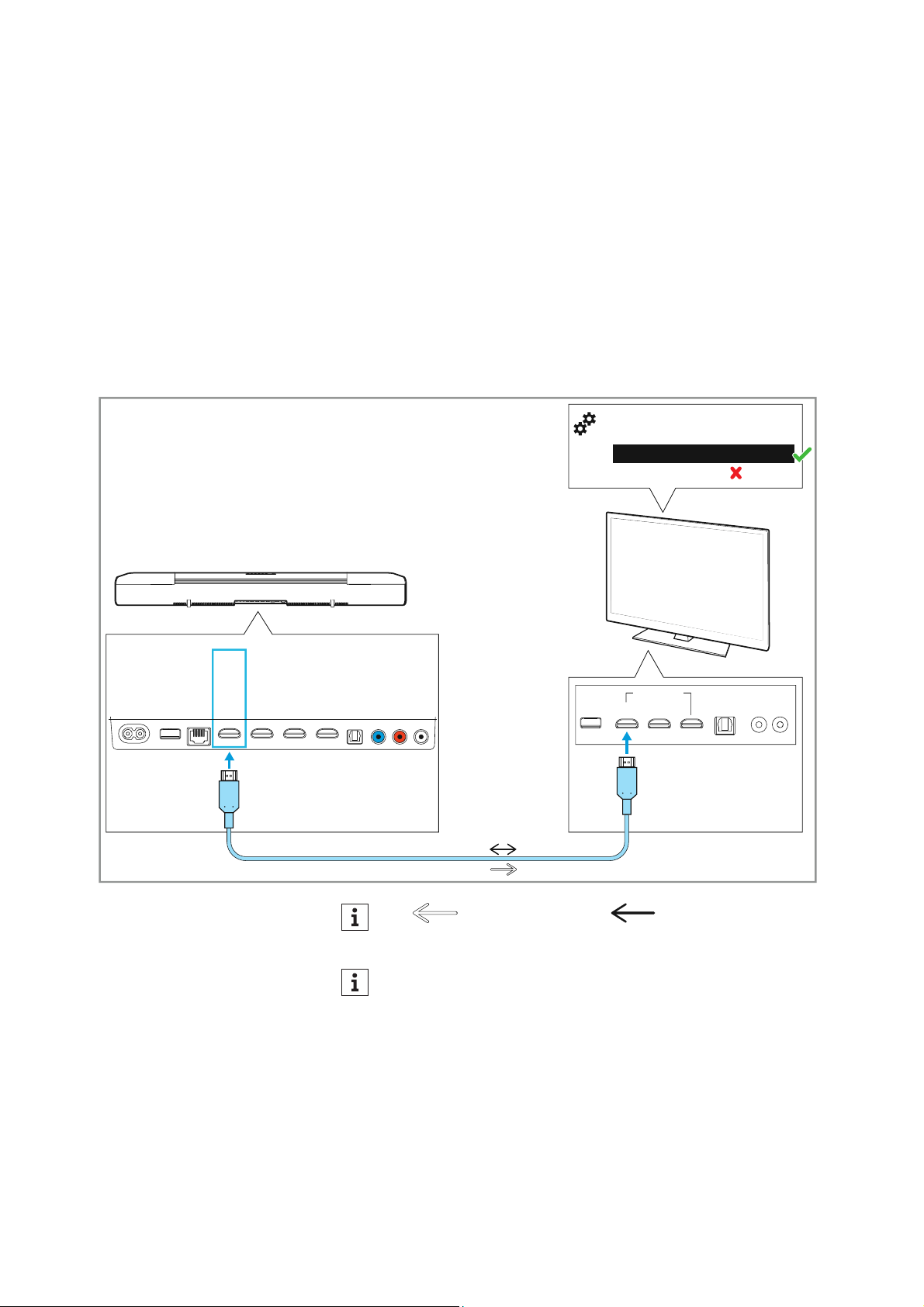
Connecting a TV
Connection to the HDMI eARC socket (recommended)
• Required cable: High-speed HDMI cable (supplied)
To connect the Soundbar to a TV with an HDMI IN socket labeled
“ARC/eARC”:
▷ Connect one connector of the supplied high-speed HDMI cable to
the
HDMI TV (eARC) OUT socket on the Soundbar.
▷ Connect the other connector of the cable to the HDMI (eARC) IN
socket of your TV.
▷ Please note the settings of your devices, > 22.
AUX IN
SW PRE
OUT
OPT IN
HDMI 3 IN
HDMI 2 IN
HDMI 1 IN
HDMI TV
(eARC) OUT
ETHERNET
USB
POWER
HDMI IN
High Speed HDMI Cable *
*
eARC
Auto/Bypass/Pass-Through
Downmix/Stereo
TV/Player sound menu
*
:
HDMI Audio OUT/Optical OUT
Video signal Audio signal
TV sets with an “ARC” output (not “eARC”) can transmit sur-
round formats only to a limited extent.
*
*
Connecting devices to the AMBEO Soundbar
24 | AMBEO Soundbar
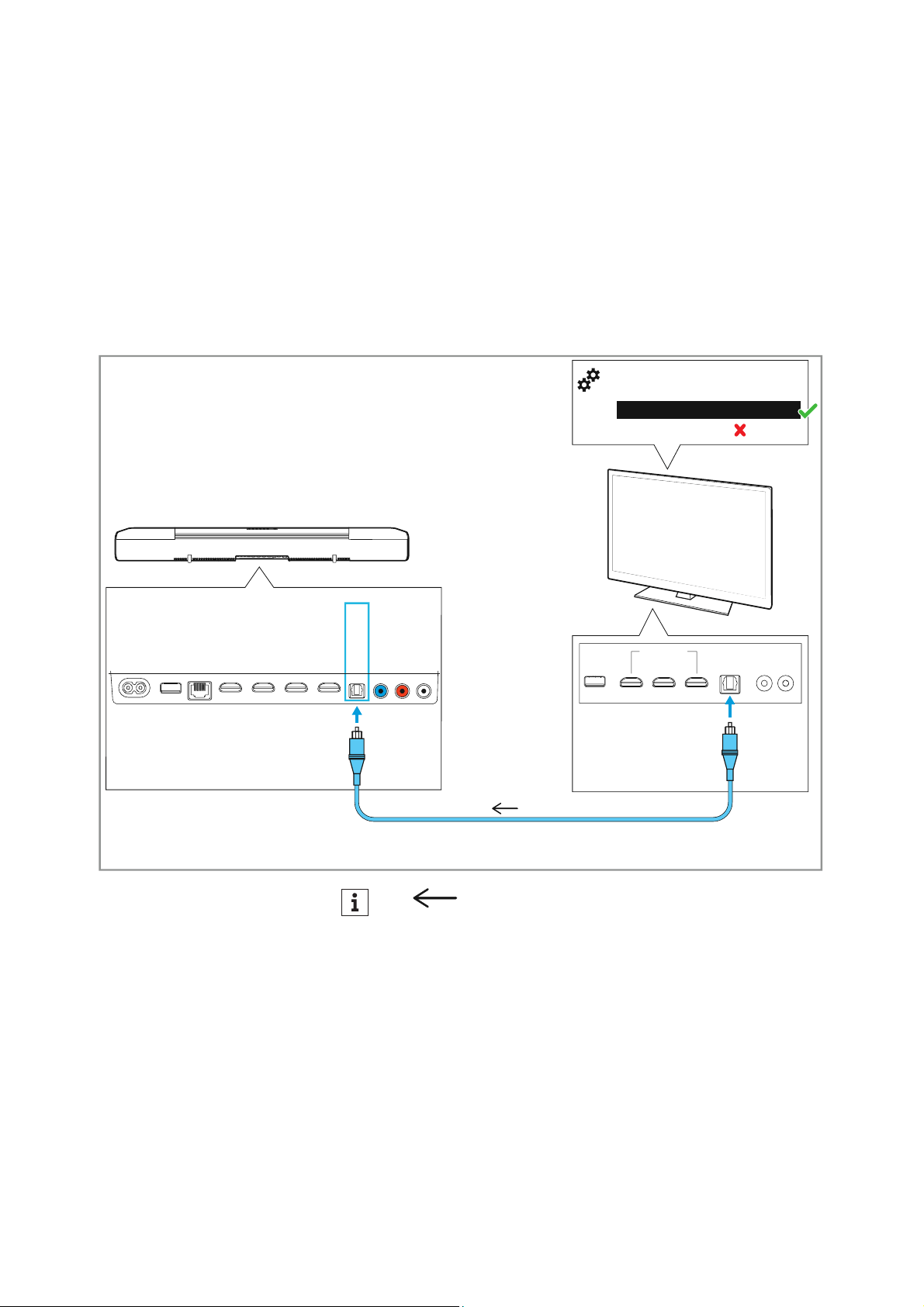
Connection without HDMI eARC socket
• Required cable: optical cable (recommended length: max. 5 m)
To connect the Soundbar to a TV without an HDMI IN socket labeled
“ARC/eARC”:
▷ Connect one connector of an optical cable (to be ordered sepa-
rately) to the OPT IN socket on the Soundbar.
▷ Connect the other connector of the cable to the OPTICAL OUT
socket of your TV.
▷ Please note the settings of your devices, > 22.
AUX IN
SW PRE
OUT
OPT IN
HDMI 3 IN
HDMI 2 IN
HDMI 1 IN
HDMI TV
(eARC) OUT
ETHERNET
USB
POWER
HDMI IN
OPTICAL
OUT
Auto/Bypass/Pass-Through
Downmix/Stereo
TV/Player sound menu
*
:
HDMI Audio OUT/Optical OUT
*
Audio signal
*
Connecting devices to the AMBEO Soundbar
AMBEO Soundbar | 25
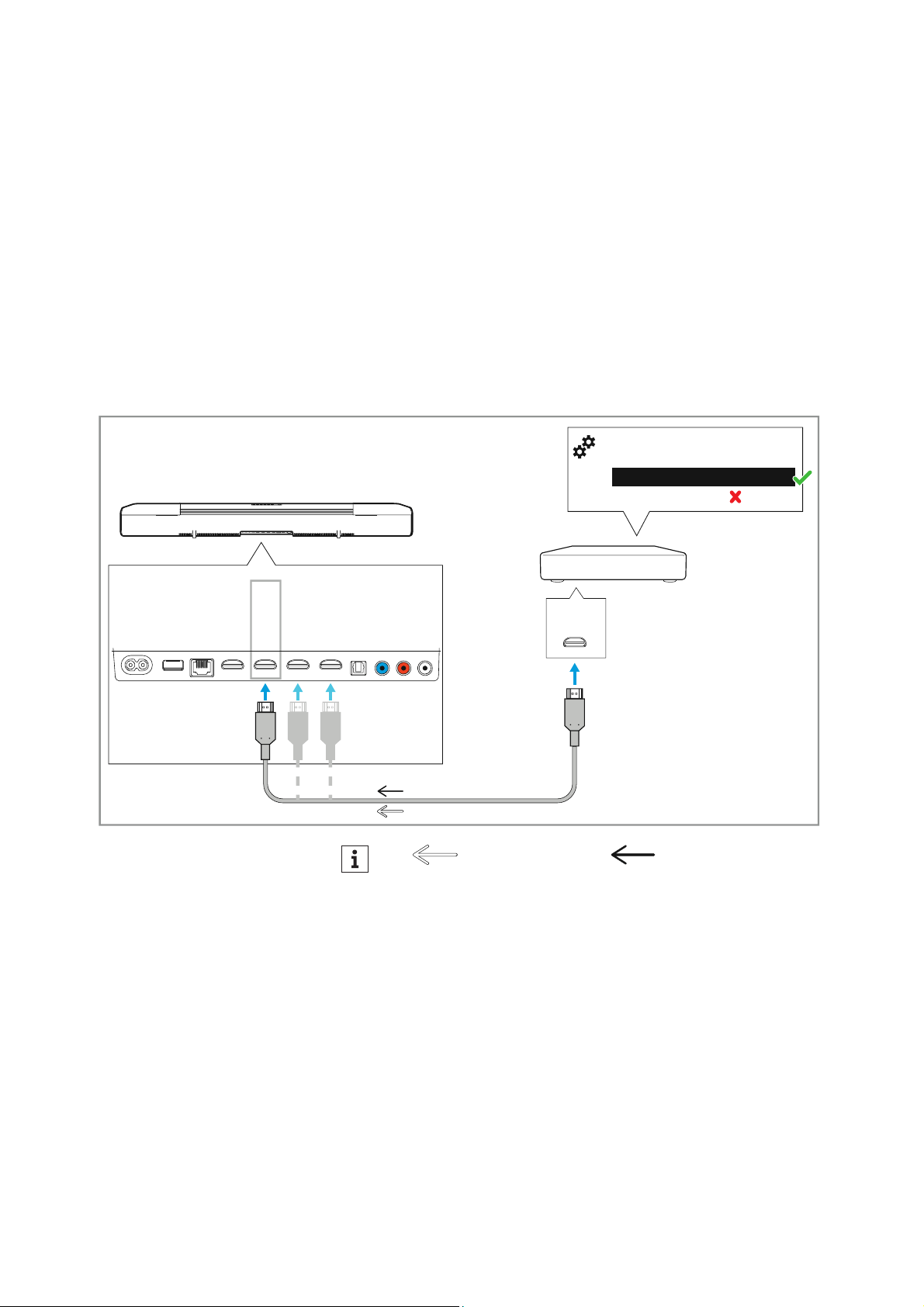
Connecting an audio/video device
Digital connection
• Required cable: HDMI
To connect the Soundbar to an audio source (e.g. Blu Ray player, DVD
player):
▷ Connect one connector of an HDMI cable (to be ordered sepa-
rately) to one of the three HDMI sockets (HDMI 1 IN, HDMI 2 IN,
HDMI 3 IN
) on the Soundbar.
▷ Connect the other connector of the cable to the HDMI OUT socket
of your audio source.
▷ Please note the settings of your devices, > 22.
AUX IN
SW PRE
OUT
OPT IN
HDMI 3 IN
HDMI 2 IN
HDMI 1 IN
HDMI TV
(eARC) OUT
ETHERNET
USB
POWER
HDMI
OUT
Blu-ray player,
DVD player,
cable or satellite
receiver
Auto/Bypass/Pass-Through
Downmix/Stereo
TV/Player sound menu
*
:
HDMI Audio OUT/Optical OUT
*
*
Video signal Audio signal
*
*
Connecting devices to the AMBEO Soundbar
26 | AMBEO Soundbar
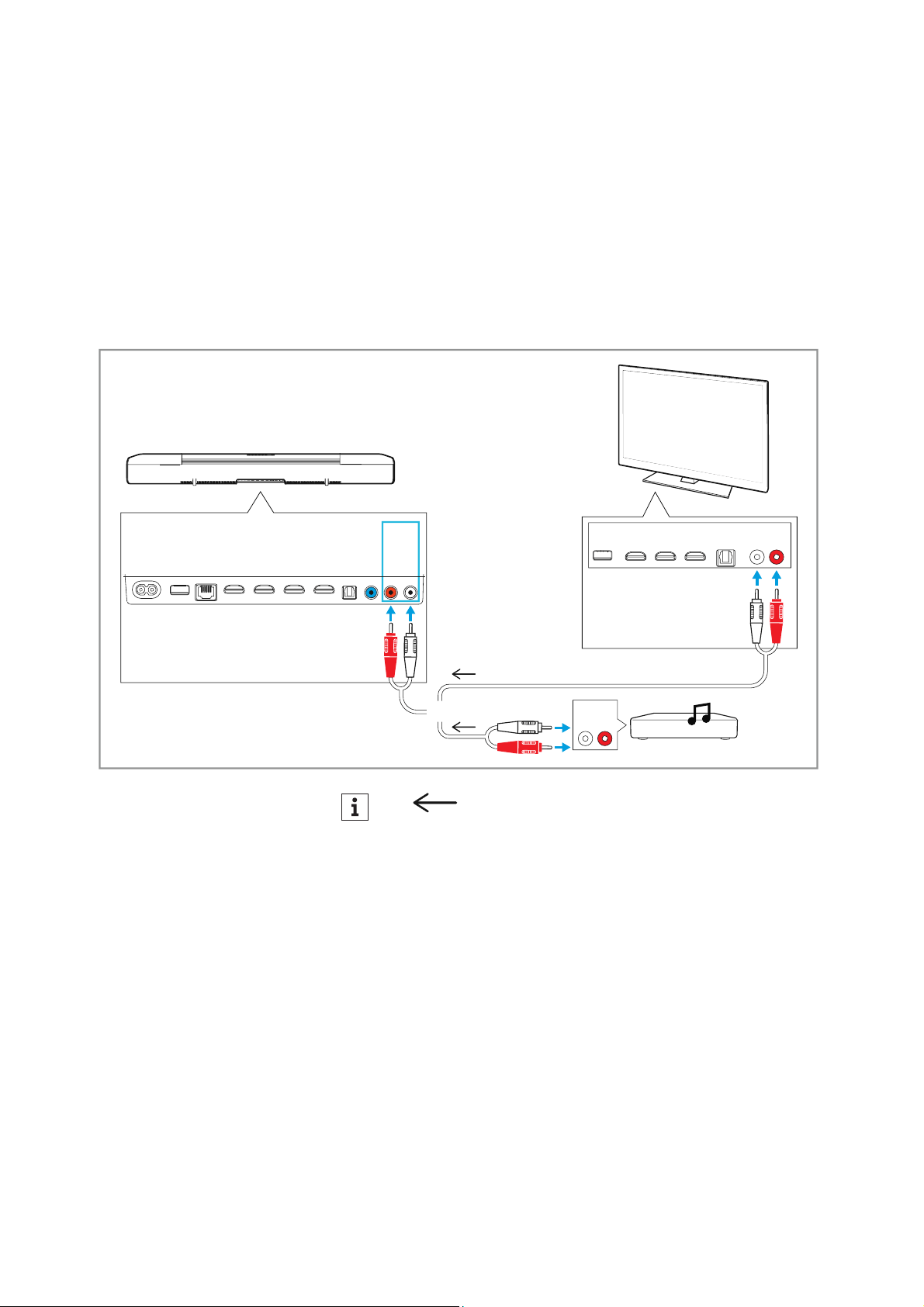
Analog connection
• Required cable: stereo RCA cable
To connect the Soundbar to a TV or an audio source (e.g. CD player):
▷ Connect the red connector of an RCA cable (to be ordered sepa-
rately) to the red AUX IN socket and the white connector of the
same cable end to the white
AUX IN socket on the Soundbar.
▷ Connect the other red connector of the cable to the red socket
and the white connector of the same cable end to the white
socket of the TV or audio source.
L
AUDIO
R
AUX IN
SW PRE
OUT
OPT IN
HDMI 3 IN
HDMI 2 IN
HDMI 1 IN
HDMI TV
(eARC) OUT
ETHERNET
USB
POWER
e.g. CD
player
L
AUDIO
R
OR
*
*
Audio signal
*
Connecting devices to the AMBEO Soundbar
AMBEO Soundbar | 27
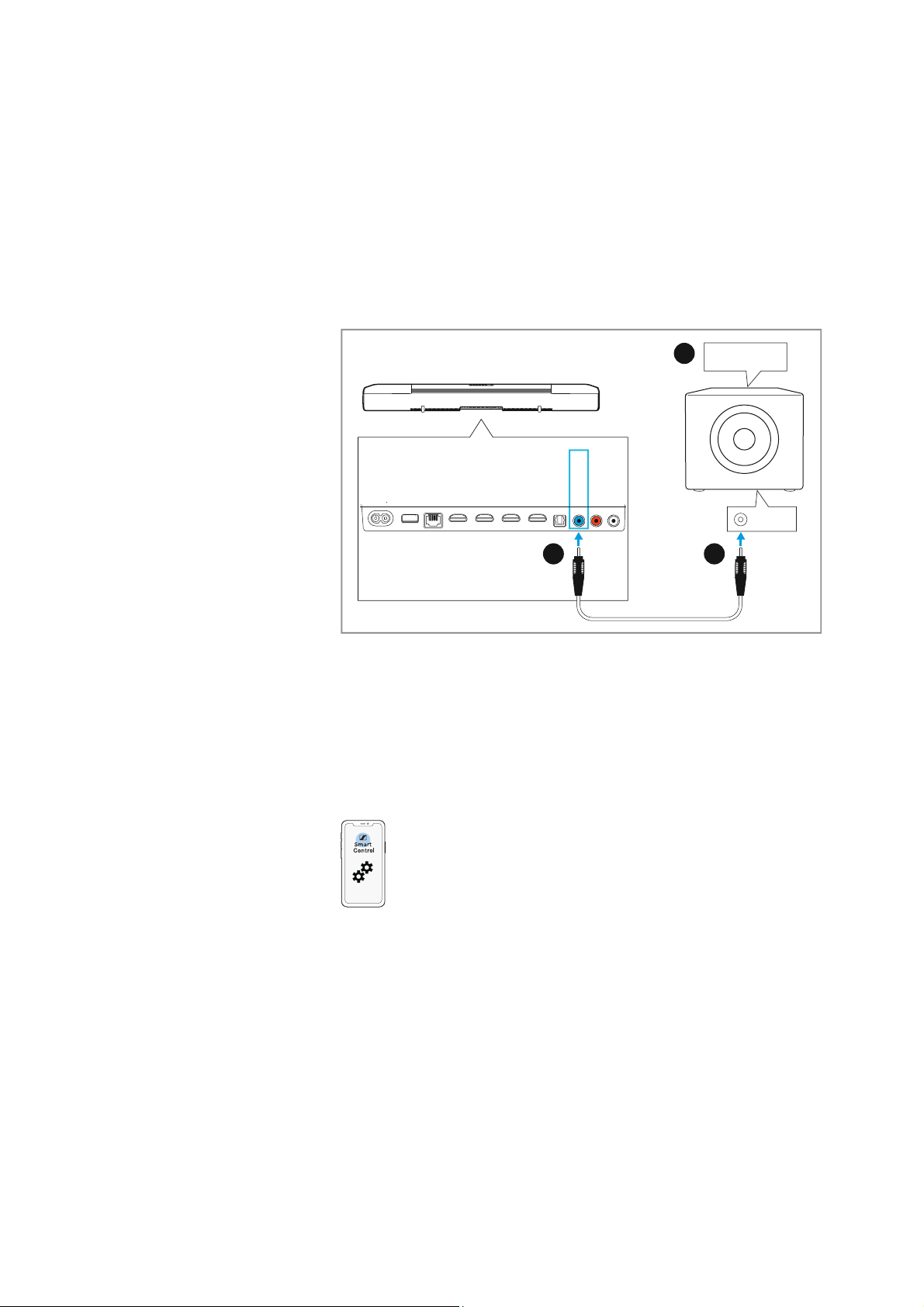
Connecting a subwoofer (optional)
Optionally, you can connect a subwoofer to the Soundbar.
▷ Recommended settings: Adjust the volume on the subwoofer to
“approx. 50%” and set the crossover to “Max”.
▷ Connect one connector of the mono RCA cable (to be ordered
separately) to the SW PRE OUT
socket on the Soundbar.
▷ Connect the other connector of the cable to the socket LOW
LEVEL IN/MONO of the subwoofer.
▷ Calibrate the Soundbar (> 31).
Disconnecting the subwoofer
When the subwoofer is disconnected from the Soundbar, the Sound-
bar will use the previous calibration without subwoofer, if one exists.
The app allows you to choose between the calibration with and with-
out subwoofer.
AUX IN
SW PRE
OUT
OPT IN
HDMI 3 IN
HDMI 2 IN
HDMI 1 IN
HDMI TV
(eARC) OUT
ETHERNET
USB
POWER
LOW LEVEL
IN/MONO
2
1
3
Volume: 50 %
Crossover: Max
Connecting devices to the AMBEO Soundbar
28 | AMBEO Soundbar
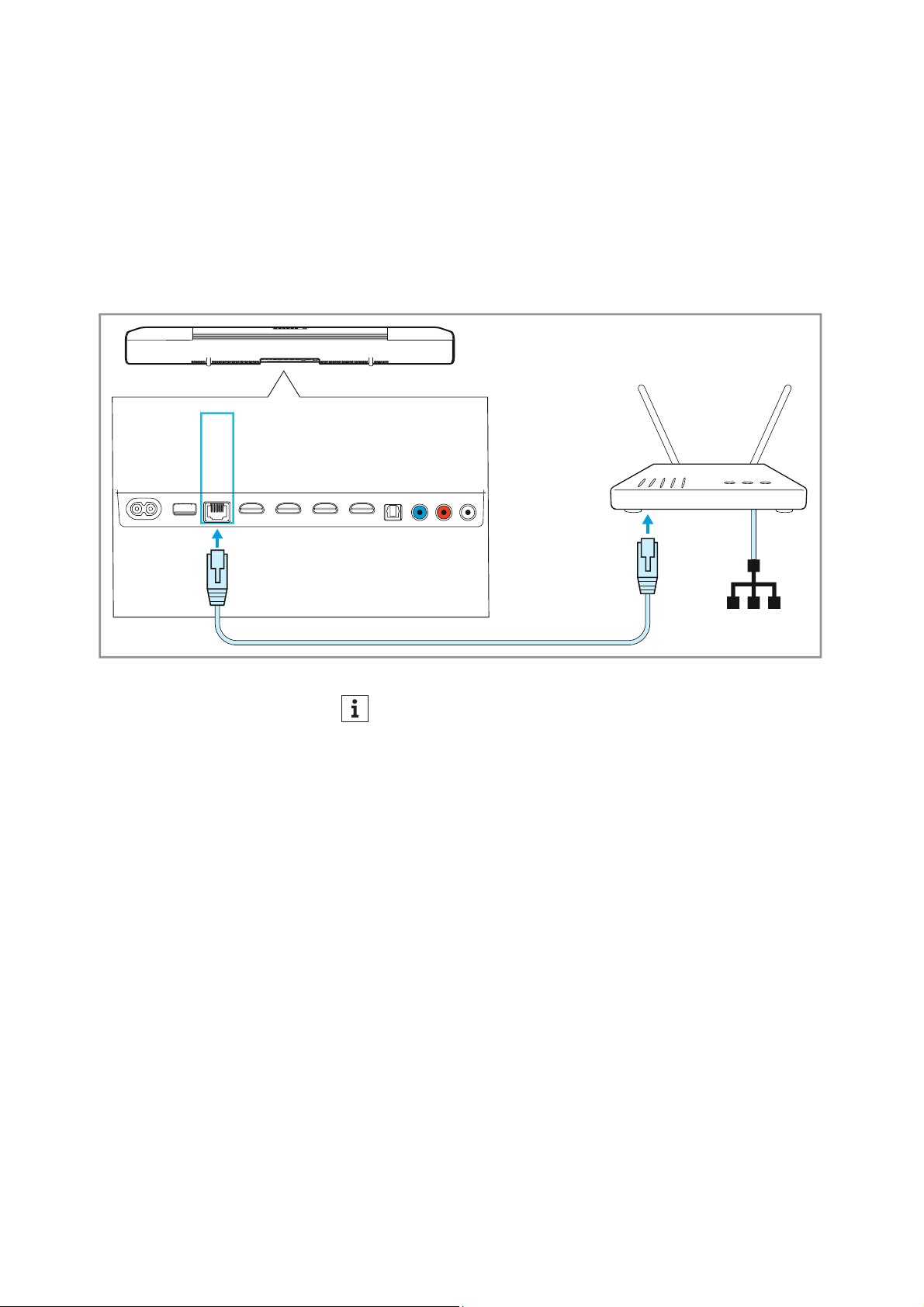
Connecting an Ethernet cable
To connect the Soundbar to a wired network:
▷ Connect one connector of a network cable (with RJ-45 connector,
to be ordered separately) to the ETHERNET
socket on the Sound-
bar.
▷ Connect the other connector of the cable to the network socket of
your router.
You may have to make settings to your router.
Alternatively, the Soundbar can be connected to the Internet via
WiFi. For more information,
> 43.
LAN
AUX IN
SW PRE
OUT
OPT IN
HDMI 3 IN
HDMI 2 IN
HDMI 1 IN
HDMI TV
(eARC) OUT
ETHERNET
USB
POWER
Router
If you connect the Soundbar to the Internet/Ethernet via cable,
the WiFi function of the Soundbar is automatically deactivated.
Connecting devices to the AMBEO Soundbar
AMBEO Soundbar | 29
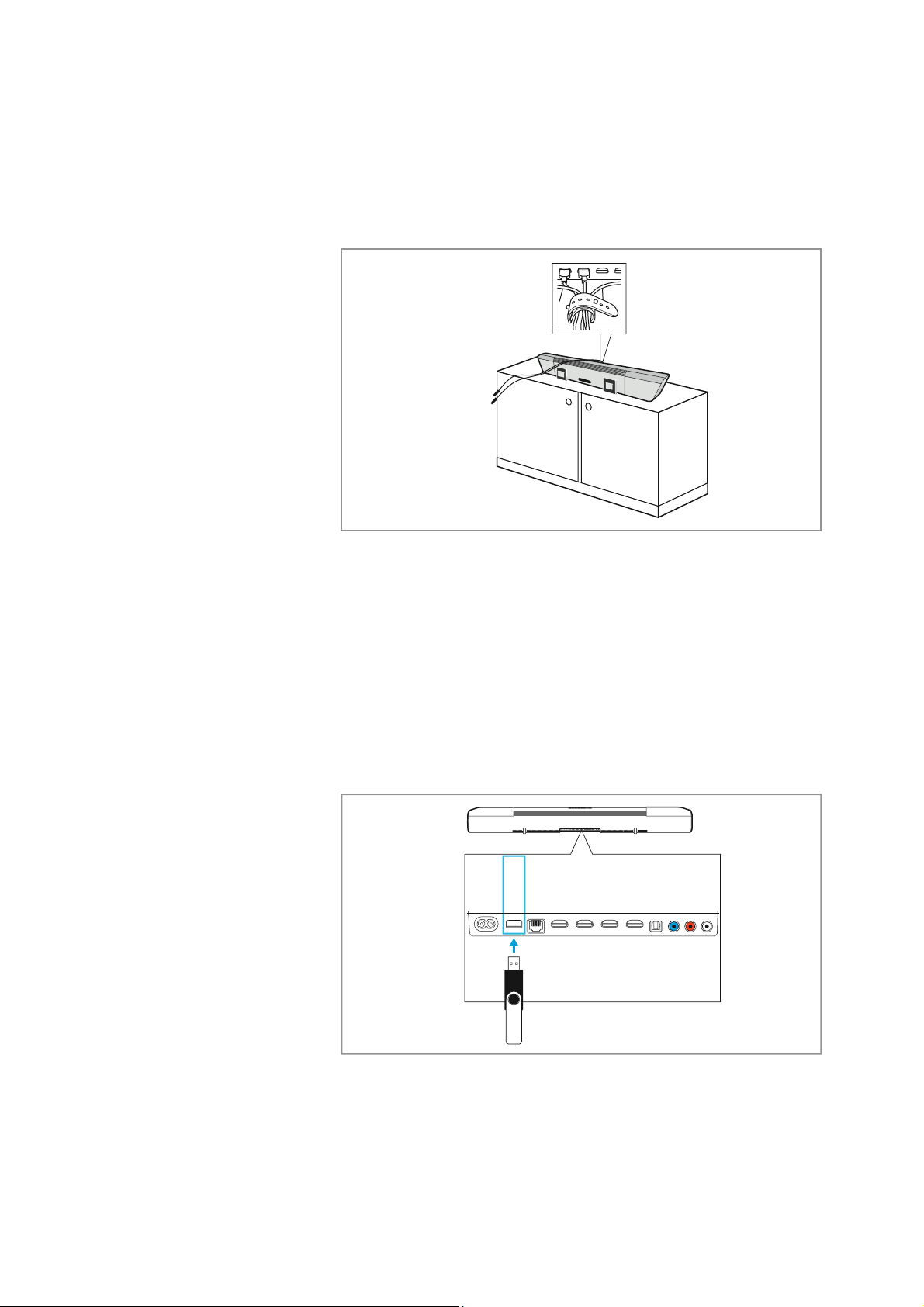
Using the cable tie
To achieve strain relief on the sockets of the Soundbar:
▷ Bundle the cables.
▷ Place the cables in the cable tie and tighten it.
▷ Close the cable tie.
Using the USB socket for updates
If the Soundbar is not connected to the Internet, you can install a
firmware update on the Soundbar using a USB flash drive. For more
information on the update,
> 51.
A power supply of 5 V ⎓, 1 A for accessories (external devices) is pos-
sible.
▷ Insert a USB flash drive or external accessory powered by USB
(type B, to be ordered separately) into the
USB socket on the
Soundbar.
AUX IN
SW PRE
OUT
OPT IN
HDMI 3 IN
HDMI 2 IN
HDMI 1 IN
HDMI TV
(eARC) OUT
ETHERNET
USB
POWER
Putting the AMBEO Soundbar into operation
30 | AMBEO Soundbar
Putting the AMBEO Soundbar into
operation
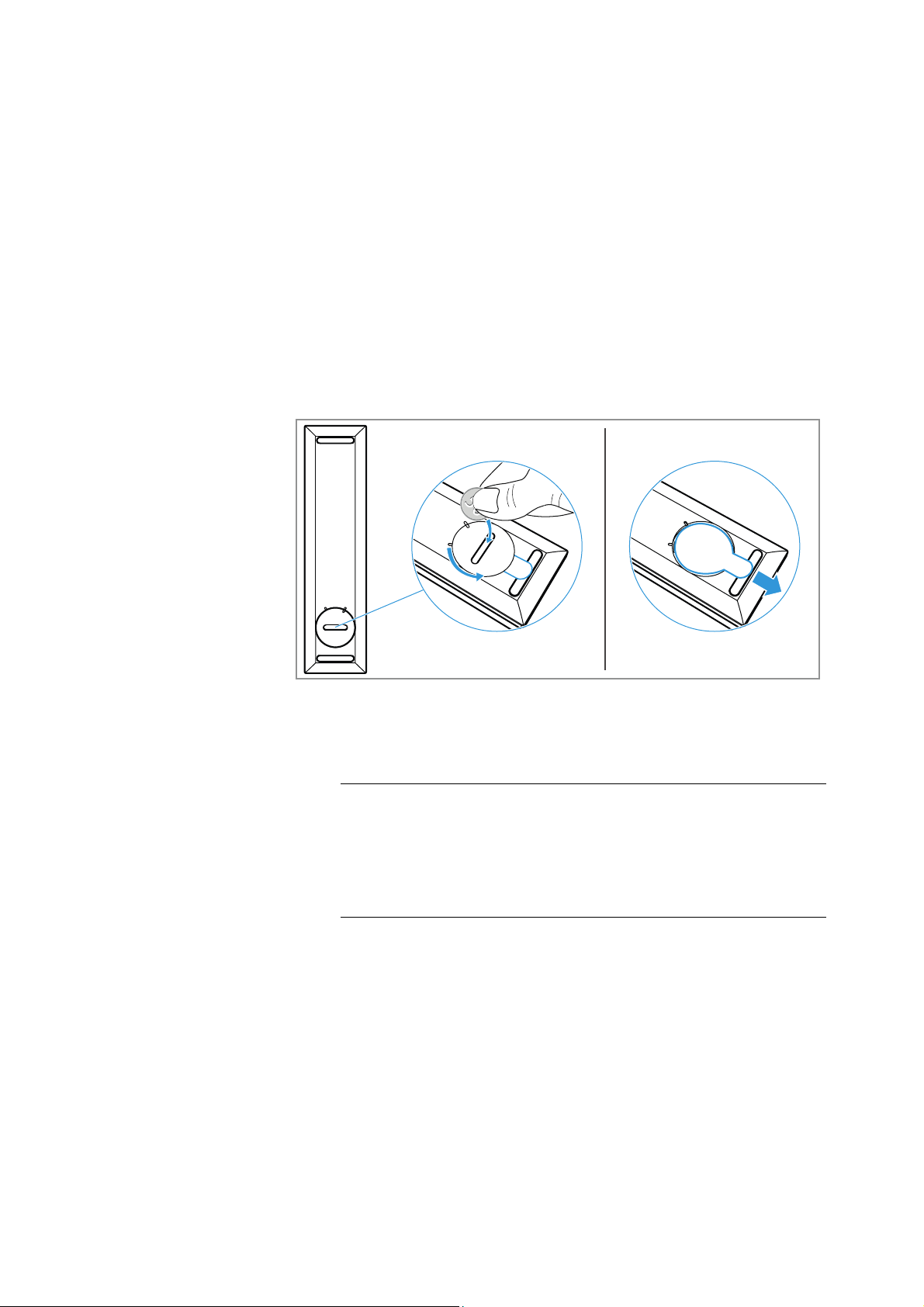
Preparing the SB01-RC remote control
To remove the transport protection of the battery:
▷ Use a suitable object (e.g. a coin) to open the battery compart-
ment cover (located on the bottom side of the remote control) by
turning one turn counter-clockwise.
▷ Remove the plastic strip.
▷ Close the battery compartment cover by turning one turn clock-
wise.
Connecting/disconnecting the Soundbar
to/from the power supply system
Connecting the Soundbar to the power supply system
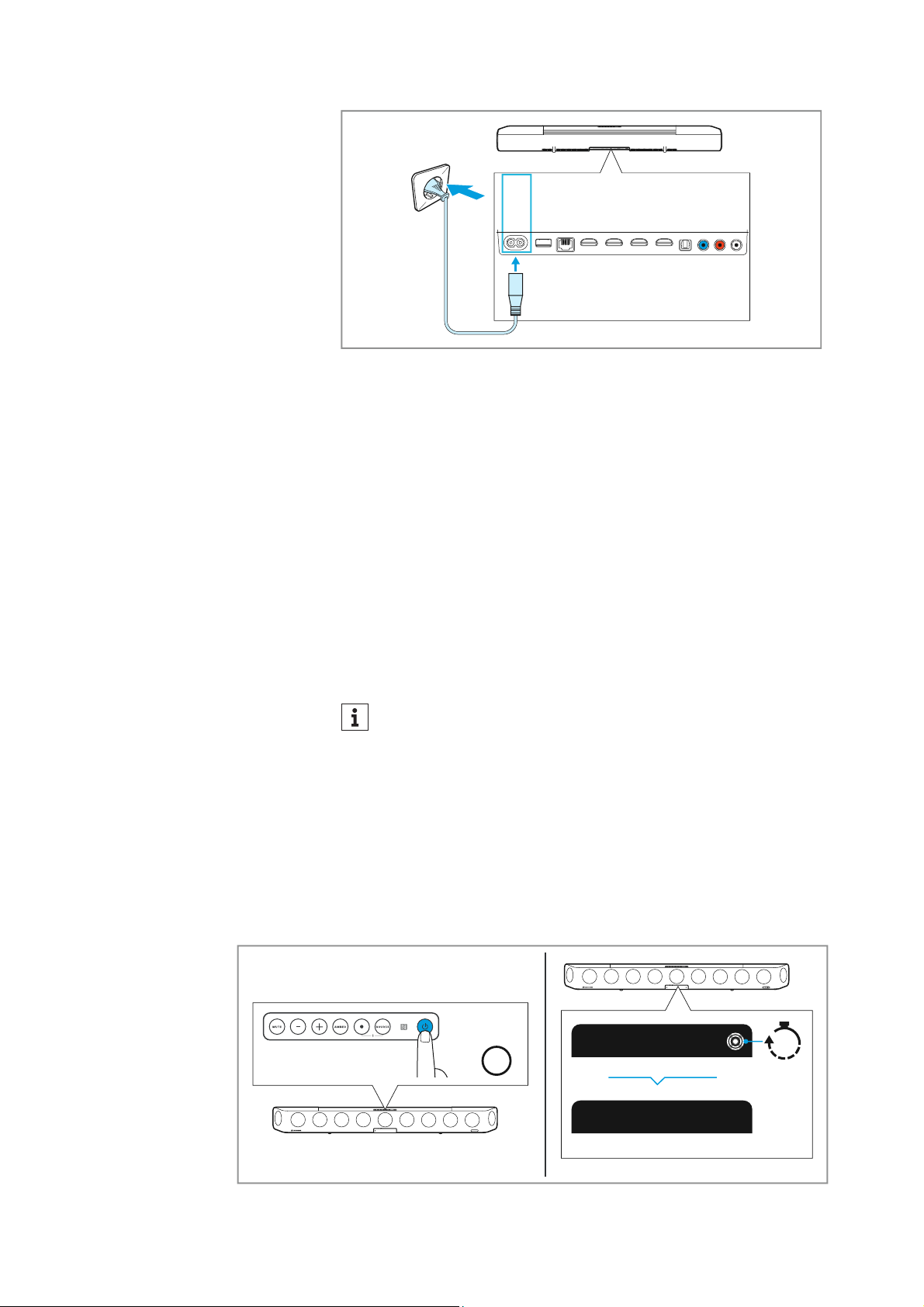
▷ Connect the plug of the power cable to the POWER socket on the
Soundbar.
▷ Connect the power plug of the power cable to a suitable wall
socket.
CAUTION
Danger of damage to the product!
If you connect to an unsuitable power supply, the product can be
damaged.
▷ Use a suitable power cable to connect the product to the power
supply system (100 - 240 V~, 50/60 Hz).
Putting the AMBEO Soundbar into operation
AMBEO Soundbar | 31
Disconnecting the Soundbar from the power supply system
▷ Unplug the power plug of the power cable from the wall socket.
▷ Unplug the plug of the power cable from the POWER socket on
the Soundbar.
Starting the room calibration
The room calibration is necessary for the measurement of the room
in order to let you get the optimum spatial sound experience.
Therefore, the room calibration should be performed when
• the Soundbar is put into operation for the first time in a room,
• the position of the Soundbar has been changed,
• a subwoofer has been connected or disconnected,
• the room has been changed (e.g. furniture has been moved).
Preparations for calibration
▷ Connect the Soundbar to the power supply system (> 30).
The Soundbar switches on. This process takes about 15 seconds.
The
status LED pulses white.
▷ Press the on/off button on the top of the Soundbar or the on/off
button on the remote control.
The display shows “Hello” and the prompt “Set up microphone”.
AUX IN
SW PRE
OUT
OPT IN
HDMI 3 IN
HDMI 2 IN
HDMI 1 IN
HDMI TV
(eARC) OUT
ETHERNET
USB
POWER
If the “Dolby Virtualizer” is activated, you cannot perform a
room calibration. If necessary, deactivate the “Dolby Virtual
-
izer” in the Smart Control app (> 47).
Hello!
15s
1x
Press
On/Off
Putting the AMBEO Soundbar into operation
32 | AMBEO Soundbar
Calibrating the Soundbar
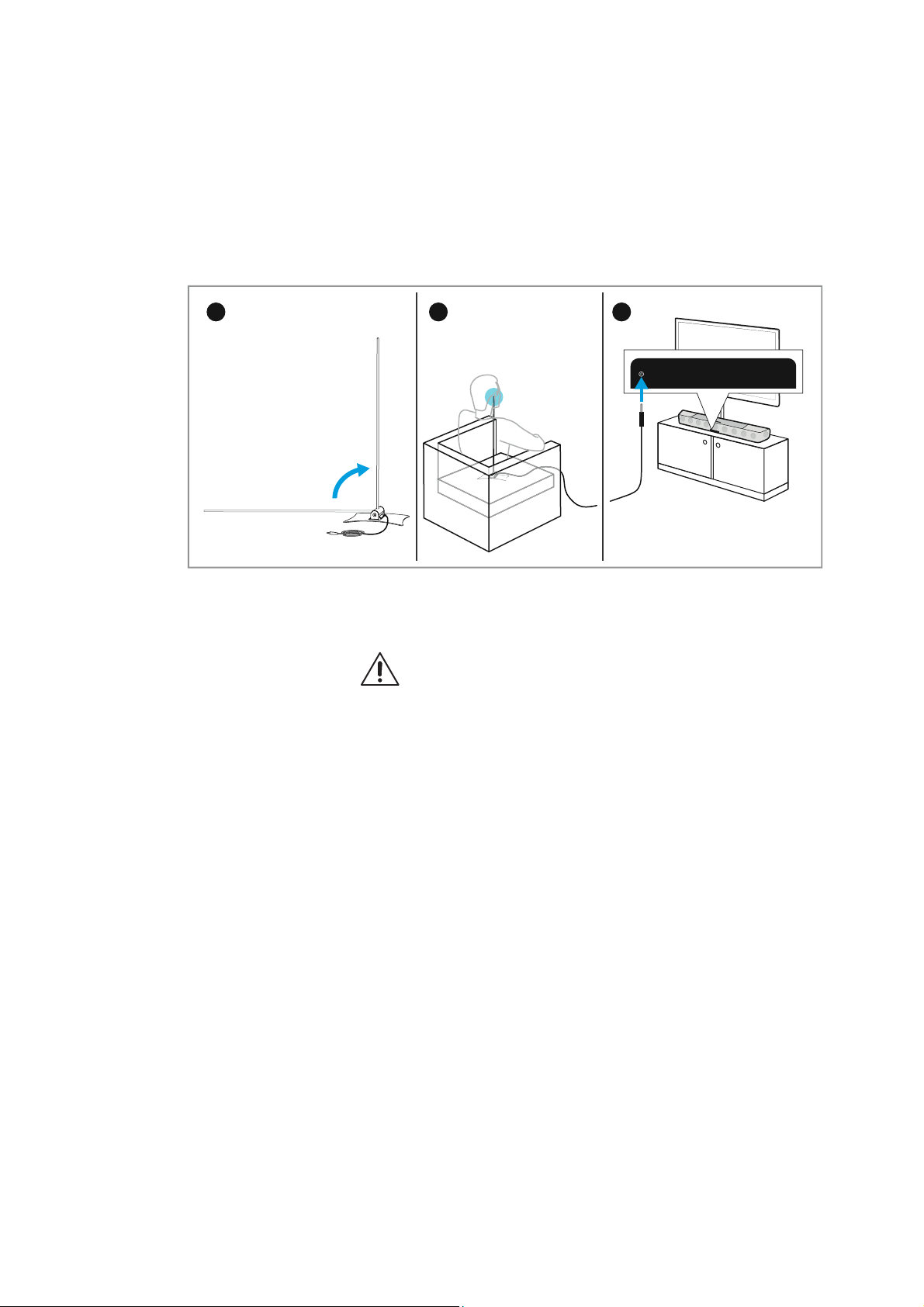
▷ Straighten up the microphone in the microphone holder.
▷ Place the microphone with the microphone holder on the seat in
front of the Soundbar. The microphone head should be located
approximately at ear height during normal use.
▷ Connect the jack plug of the microphone cable to the microphone
input
on the Soundbar.
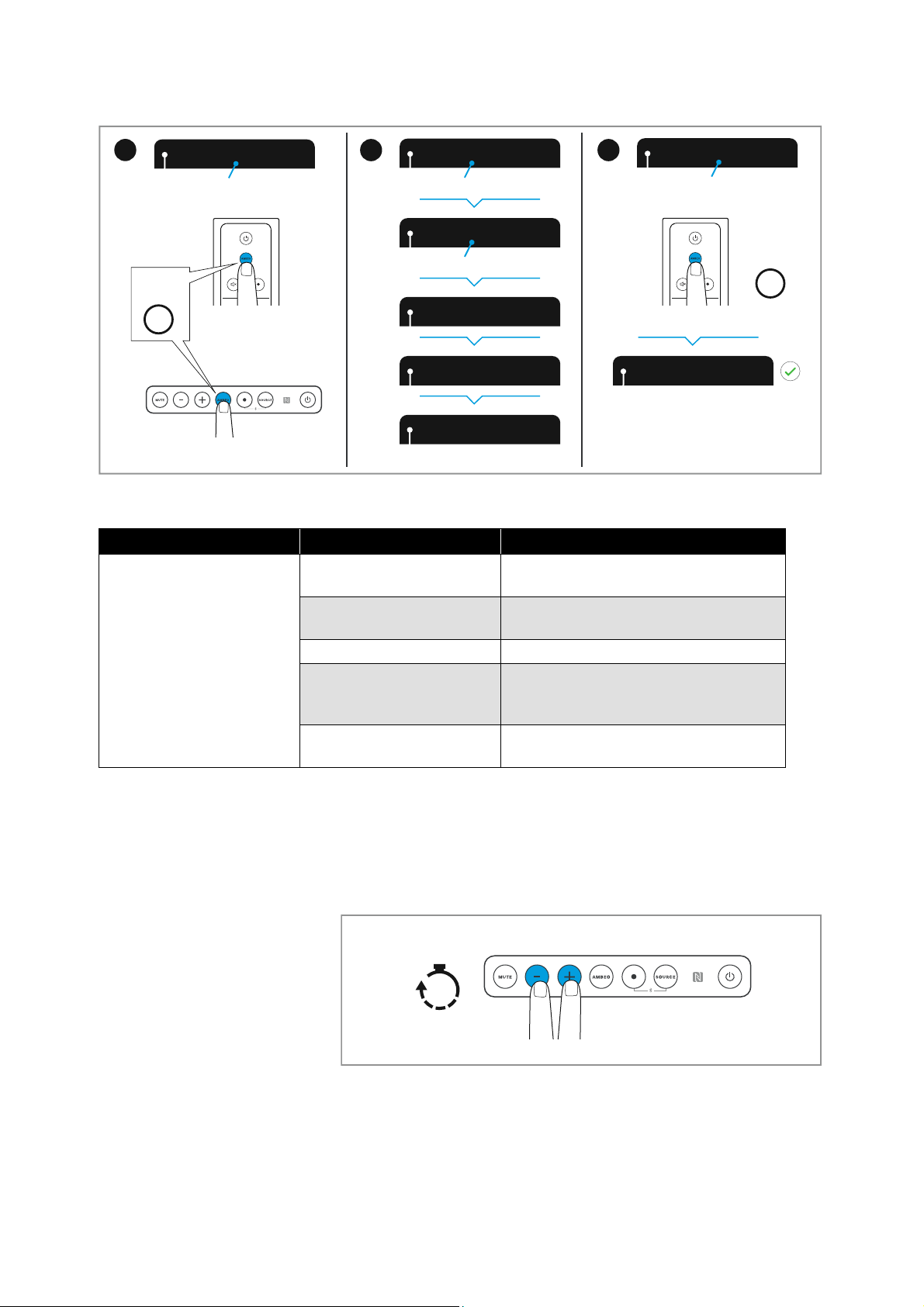
▷ Press the AMBEO button on the top of the Soundbar or the
AMBEO button on the remote control.
The display shows “Please step to the side”.
Please note that the test tones are played at a high volume during
calibration.
▷ Avoid disturbing noises (open windows, household appliances,
etc.) and do not stay between the Soundbar and the microphone
as this can falsify the calibration.
The display shows a countdown for the start of the calibration
“Calibration starts in 10 / 9 / ...”.
The calibration process takes several minutes.
The display shows “Done!” and “Press AMBEO to finalize”.
▷ Press the AMBEO button on the top of the Soundbar or the
AMBEO button on the remote control.
The display shows “Welcome”. The AMBEO demo sound is played
(approx. 10 seconds).
▷ Disconnect the jack plug of the microphone cable from the micro-
phone input on the Soundbar.
21
3
Putting the AMBEO Soundbar into operation
AMBEO Soundbar | 33
Error messages during room calibration
Canceling the calibration
To cancel the calibration:
Press the volume buttons – (volume down) and + (volume up) for 4
seconds.
Repeating the calibration
If you want to repeat the calibration, you have the following options:
•Press the AMBEO button on the Soundbar for 4 seconds.
•Press the AMBEO button on the remote control for 4 seconds.
Press AMBE
O
Please step
t
Calibration s
Calibration
Processing
Done!
Welcome
Press AMBE
O
1x
1x
Press
AMBEO
Press AMBEO to finalize
Please step to the side
Calibration starts in 10 / 9 / ..
Press AMBEO to start callibration
Press
AMBEO
4
OR
5
6
Message on the display Possible error Possible solution
Calibration failed. Please
press AMBEO to cancel.
Subwoofer volume is too
low
Increase the volume of the subwoofer
and restart the calibration
Microphone is not
connected
Connect the microphone
Ambient noise is too high Reduce ambient noise
Not enough sound-
reflecting surfaces in the
room
Change the position of the
microphone in the room
General error An error has occurred, restart the
calibration
4s
Hold

Putting the AMBEO Soundbar into operation
34 | AMBEO Soundbar
• Use the Smart Control app.
The app provides more detailed calibration options and an
overview of the status of the calibration.

Using the AMBEO Soundbar
AMBEO Soundbar | 35
Using the AMBEO Soundbar
Switching the AMBEO Soundbar on
If you want to switch the Soundbar on, you have the following
options:
•Press the on/off button on the Soundbar.
•Press the on/off button on the remote control.
• Press the on/off button on the TV remote control (if the TV is con-
nected to the Soundbar via HDMI CEC).
• Use the Smart Control app.
If you want to switch the Soundbar on from standby mode without
network connection (
> 36):
•Press the on/off button on the Soundbar for 1 second.
Switching the AMBEO Soundbar off
(standby mode)
If you want to switch the Soundbar off (standby mode), you have the
following options:
•Press the on/off button on the Soundbar.
•Press the on/off button on the remote control.
• Press the on/off button on the TV remote control (if the TV is con-
nected to the Soundbar via HDMI CEC).
• Use the Smart Control app.
The Soundbar is in standby mode. The status LED lights up red.
Any existing network connection is retained so that the Soundbar
can be switched on automatically via the network or HDMI sig
-
nals.
You can put the Soundbar in standby mode and switch off all network
connections,
> 36.
To completely disconnect the Soundbar from the power supply sys-
tem, > 30.
WARNING
Danger of hearing damage due to high volume levels!
Listening at high volume levels can lead to permanent
hearing defects.
▷ Adjust the volume to a low level before selecting a
source.
▷ Do not continuously expose yourself to high volume
levels.
If the Soundbar is inactive for 20 minutes (default setting), it
automatically switches to standby mode (
> 37).
Using the AMBEO Soundbar
36 | AMBEO Soundbar
Switching the AMBEO Soundbar off
(standby mode without network
connection)
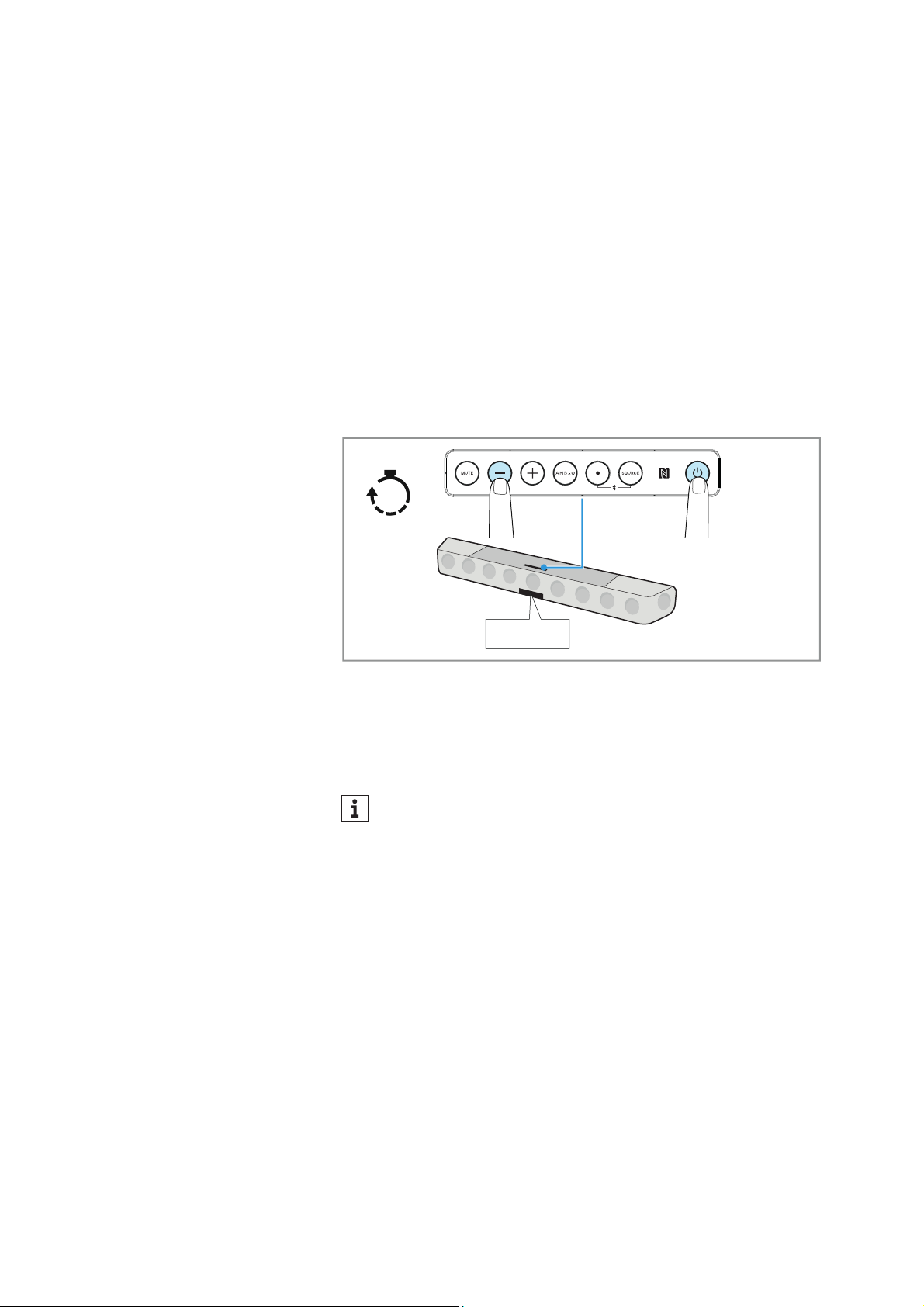
You can switch the Soundbar off (standby mode) and also switch off
all network connections. Please note that without network connec
-
tions, Chromecast and Bluetooth playback is not possible, the
Soundbar does not switch on automatically when HDMI signals are
input and no automatic firmware updates can be installed. Operation
via the remote control or the Smart Control app is also not possible.
• On the Soundbar, simultaneously press the on/off button and the
volume button - (volume down) for 1 second.
The Soundbar is in standby mode. The network connections are
disconnected (WiFi, HDMI, Ethernet). The
status LED goes off.
The display shows “Network Off” permanently.
To switch off the display of “Network Off”:
• Press the multi-function button • for 1 second.
The display goes off.
ECO standby mode
The Soundbar has an ECO standby mode. You can set the mode via
the Smart Control app. Booting the Soundbar takes longer when ECO
standby mode is activated.
• ECO standby mode is activated: Booting takes approx. 20 sec-
onds. The power consumption of the Soundbar is approx. 1.9 W
(activated upon delivery).
• ECO standby mode is deactivated: Booting takes approx. 1 sec-
onds. The power consumption of the Soundbar is approx. 5.5 W.
If you have activated the standby mode without network con-
nection and the Soundbar switches to auto standby after
normal operation (
> 37), the standby mode without network
connection is activated again.
Network Off
1s
Hold
Using the AMBEO Soundbar
AMBEO Soundbar | 37
Auto standby
If there is no playback for 20 minutes, the Soundbar automatically
switches to standby mode.
No playback:
• Bluetooth or Chromecast input is paused
• Bluetooth or Chromecast connection is disconnected
• Analog, optical or HDMI input: no playback available
Auto standby always activates the standby mode that was last used
(standby or standby without network connections).
The time after which the Soundbar switches to auto standby can be
adjusted via the Smart Control app.
Selecting the input source
In addition to the ECO standby mode, you can switch off the
Soundbar and at the same time switch off all network connec
-
tions (> 36). In this mode, power consumption is minimal, but
the Soundbar must then be switched on on the device itself.
When playback is muted (“MUTE”), auto standby is not active.
WARNING
Danger of hearing damage due to high volume levels!
Listening at high volume levels can lead to permanent hear-
ing defects.
▷ Adjust the volume to a low level before selecting a
source.
▷ Do not continuously expose yourself to high volume lev-
els.
Using the AMBEO Soundbar
38 | AMBEO Soundbar
If you want to change the input source, you have the following
options:
•Press the SOURCE button on the Soundbar.
•Press the SOURCE button on the remote control.
• Use the Smart Control app.
Source selection:
•HDMI TV
•HDMI 1
•HDMI 2
•HDMI 3
•AUX
•Optical
• Bluetooth
•Streaming:
–Casting Spotify
– Casting TuneIn
– Casting Soundcloud
•Media
The sources Streaming (e.g. Chromecast) and Media can not be
selected via the
input source buttons. The Soundbar automatically
switches to the source when playback is started from the corre
-
sponding app.
If the connection is disconnected, the Soundbar jumps to the previ-
ous source.
The name of the source can be changed via the Smart Control app.
The new name can consist of up to 9 characters (A-Z, a-z and 0-9).
Adjusting the volume
If you want to adjust the volume of the Soundbar, you have the fol-
lowing options:
WARNING
Danger of hearing damage due to high volume levels!
Listening at high volume levels can lead to permanent hear-
ing defects.
▷ Adjust the volume to a low level before selecting a source.
▷ Do not continuously expose yourself to high volume lev-
els.

Using the AMBEO Soundbar
AMBEO Soundbar | 39
•Press the volume button – (volume down) or + (volume up) on the
Soundbar.
•Press the volume buttons on the remote control.
• Press the volume button on the TV remote control (if the TV is
connected to the Soundbar via HDMI CEC).
• Use the Smart Control app.
• Use your connected Bluetooth device to adjust the volume.
The volume can be adjusted from 0 - 50.
If the volume is adjusted to 0, the mute function is activated (>
40).

Using the AMBEO Soundbar
40 | AMBEO Soundbar
Activating/deactivating the mute
function
If you want to activate the mute function, you have the following
options:
•Press the MUTE button on the Soundbar.
•Press the MUTE button on the remote control.
• Press the mute button on the TV remote control (if the TV is con-
nected to the Soundbar via HDMI CEC).
• Use the Smart Control app.
• Adjust the volume to 0.
If you want to deactivate the mute function, you have the following
options:
• Increase the volume (> 38).
• Press one of the mute buttons again.
The mute function remains activated when the input source is
changed.
The mute function deactivates the auto standby function (> 37).
Using the AMBEO Soundbar
AMBEO Soundbar | 41
Using the AMBEO Soundbar
Connecting the AMBEO Soundbar to a
Bluetooth/NFC device
Information on the Bluetooth wireless connection
The Soundbar is compatible with the Bluetooth standard 4.2.
If your audio source supports one of the following high-resolution
audio encoding methods, music is automatically played in high audio
quality: AAC. Otherwise the Soundbar will play your music in normal
audio quality (SBC).
When selecting the “Bluetooth” input or when switching on with the
last used input “Bluetooth”, the Soundbar automatically tries to con
-
nect to the last used Bluetooth device.
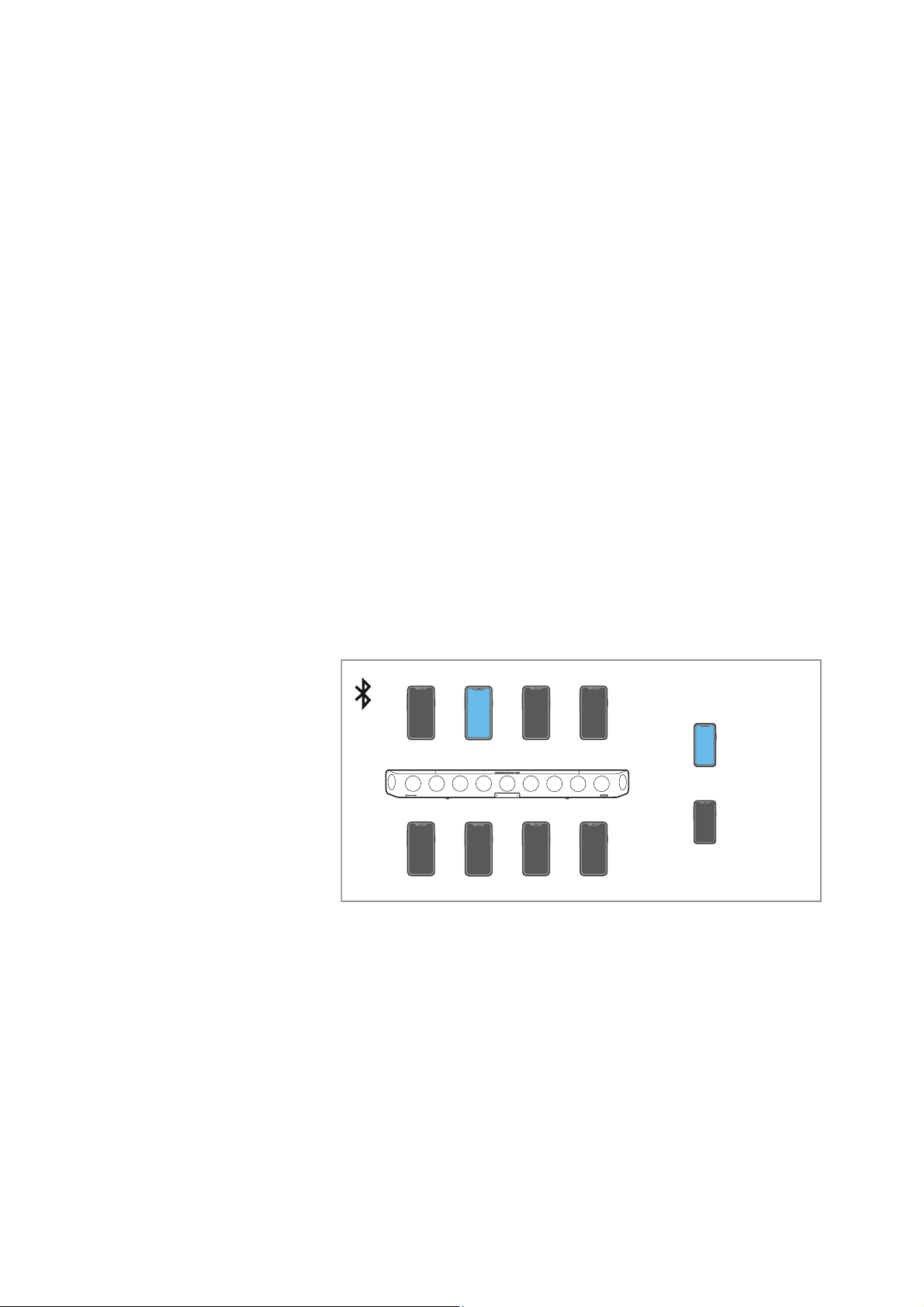
The Soundbar can save the connection profiles of up to eight Blue-
tooth devices with which it has been paired.
If you pair the Soundbar with the ninth Bluetooth device, the saved
connection profile of the least used Bluetooth device will be over
-
written. If you want to re-establish a connection with the overwritten
Bluetooth device, you have to pair the earphones again.
If a device is connected, you first have to disconnect it to connect a
new device.
You can use the Near Field Communication (NFC) function for easy
pairing of the devices.
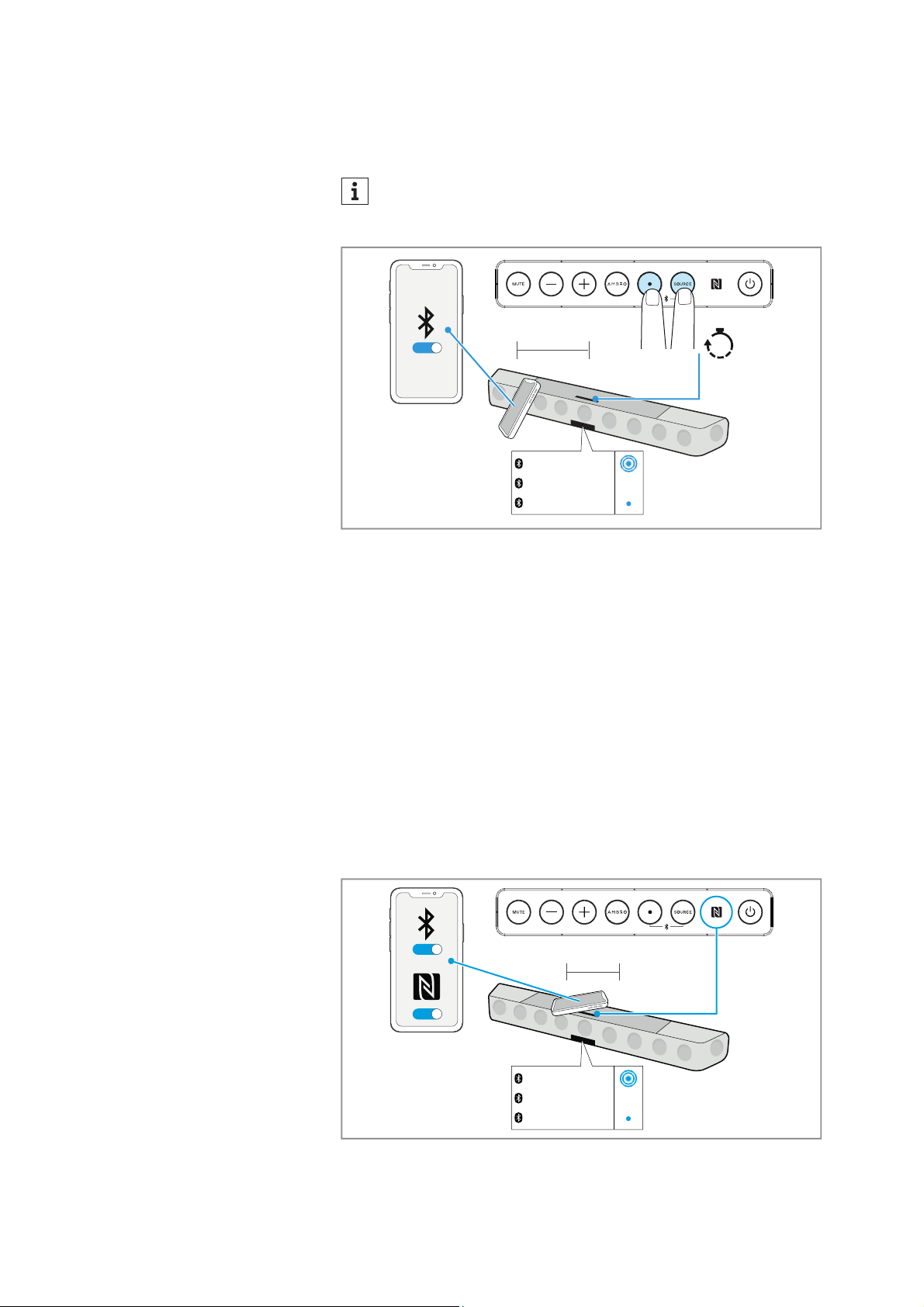
Pairing the AMBEO Soundbar with a Bluetooth device
▷ Activate Bluetooth on your Bluetooth device.
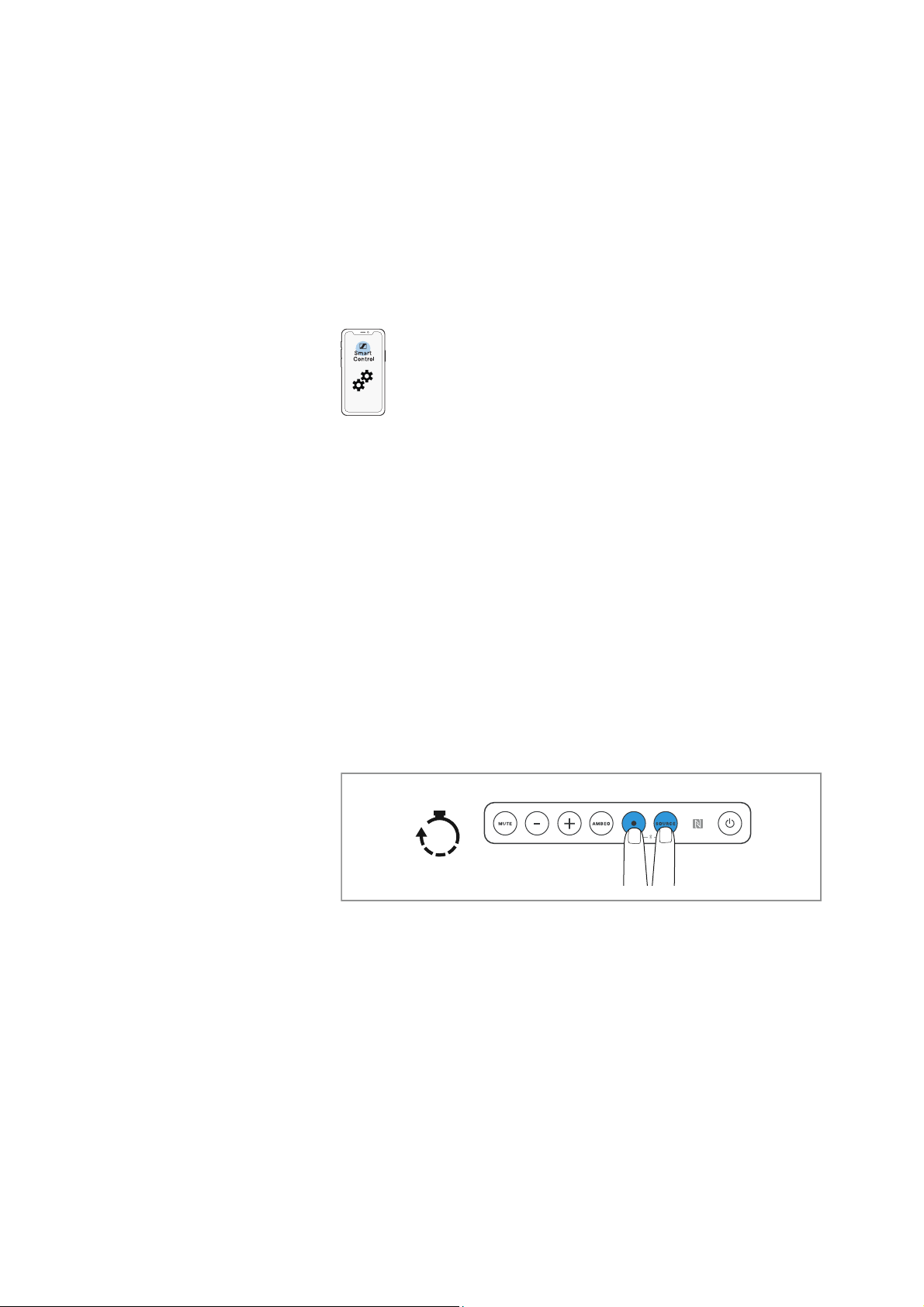
▷ Press the multi-function button and the SOURCE button for 2 sec-
onds.
The status LED pulses blue.
The Soundbar is in pairing mode.
▷ Hold your Bluetooth device at a distance of approx. 20 cm to the
Soundbar.
▷ Via the menu of your Bluetooth device, start the search for new
Bluetooth devices.
All active Bluetooth devices in the proximity of your smartphone
are displayed.
paired +
connected
paired
Using the AMBEO Soundbar
42 | AMBEO Soundbar
▷ From the list of found Bluetooth devices, select “AMBEO Sound-
bar”. If necessary, enter the default pin code “0000”.
If pairing was successful, the status LED lights up blue.
The device name of the Soundbar can be changed in the Chromecast
app (e.g. “Soundbar family room”).
Disconnecting the AMBEO Soundbar from a Bluetooth device
▷ Via the menu of your Bluetooth device, disconnect the connection
to the Soundbar.
The Soundbar is disconnected from the Bluetooth device. The
display shows “Disconnected”. The
status LED goes off.
Pairing the AMBEO Soundbar with an NFC device (NFC pairing)
▷ Activate Bluetooth and NFC on your Bluetooth device.
▷ Place your NFC device close (distance < 3 cm) to the NFC antenna
on the Soundbar.
The status LED pulses blue. The devices are being paired.
If pairing was successful, the status LED lights up blue.
If no connection is established within 3 minutes, pairing mode
is terminated. If necessary, start the pairing mode again.
ON
2s
Hold
< 20 cm
Pairing
Connected
Stan‘s iPhone
ON
ON
< 3 cm
Pairing
Connected
Stan‘s iPhone
Using the AMBEO Soundbar
AMBEO Soundbar | 43
Disconnecting the AMBEO Soundbar from an NFC device
▷ Place your paired NFC device close (distance < 3 cm) to the NFC
antenna
on the Soundbar.
The Soundbar is disconnected from the NFC device. The display
shows “Disconnected”. The
status LED goes off.
Installing the Smart Control app
To control the Soundbar using a smartphone, Bluetooth Low Energy
(Bluetooth LE, at least version 4.2) is required.
To make full use of all the settings and functions of the AMBEO
Soundbar, you need to have the free Sennheiser Smart Control app
installed on your smartphone.
Download the app from the Apple App Store or from Google Play and
install it on your smartphone. Alternatively, you can visit the follow
-
ing website:
http://www.sennheiser.com/smartcontrol
▷ Start the Smart Control app.
▷ Follow the instructions in the app.
▷ Press the multi-function button and the SOURCE button for 2 sec-
onds to accept the Bluetooth Low Energy connection.
The Smart Control app recognizes the Soundbar and activates all
available settings and functions.
Network connection via WiFi or Ethernet
Use the WiFi connection or the Ethernet connection for:
•Chromecast
• UPnP (Universal Plug and Play)
•Updates
Using Chromecast
To use Chromecast:
▷ Download the Google Home app.
▷ Start the setup in the app.
2s
Hold
Using the AMBEO Soundbar
44 | AMBEO Soundbar
Establishing a WiFi connection
To establish a WiFi connection:
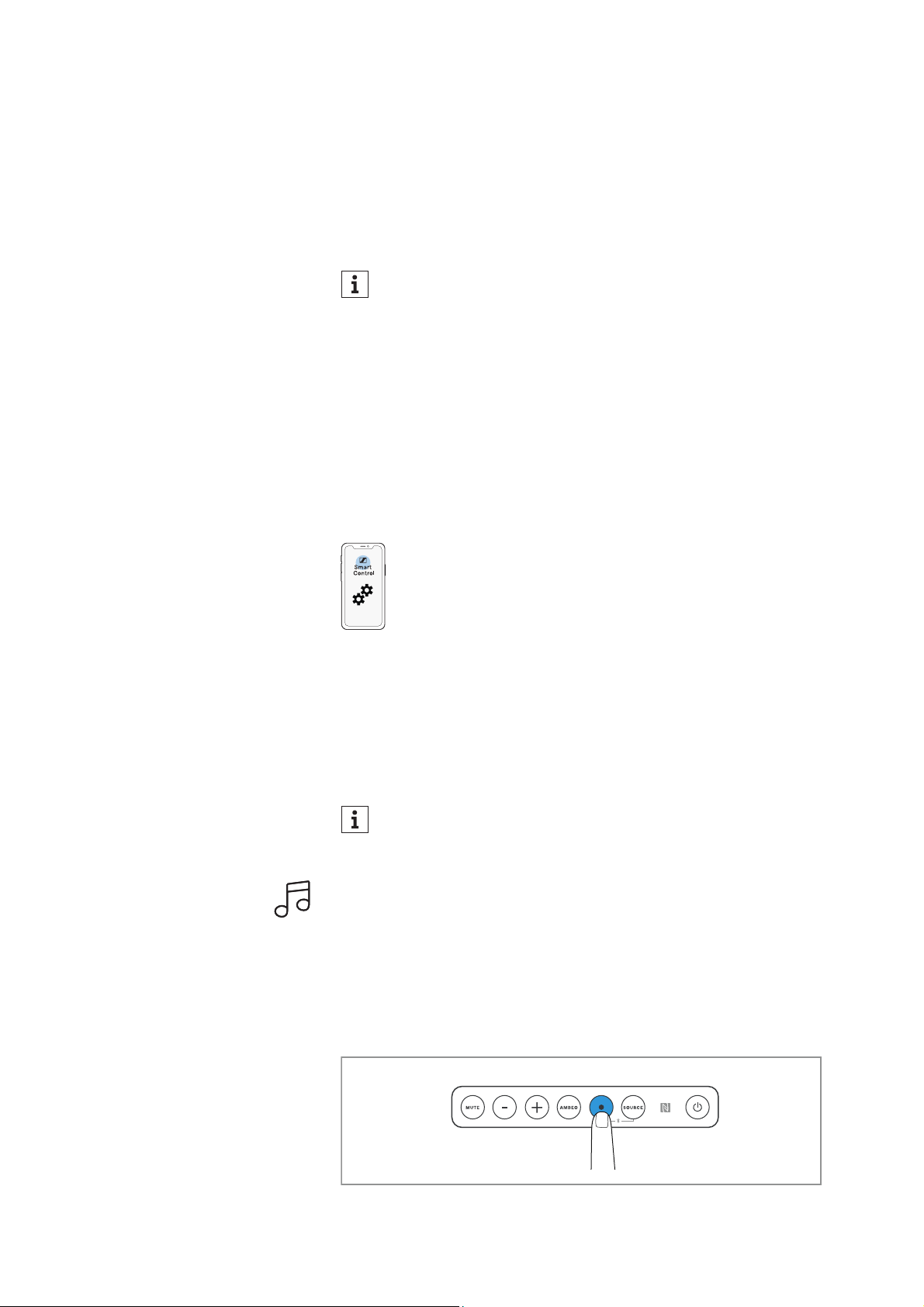
▷ Press the SETUP button for approx. 2 seconds to activate WPS
(WiFi Protected Setup).
The Soundbar searches for a connection.
The display shows “WPS searching” and the status LED flashes
orange.
▷ Press the WPS button on your router.
The Soundbar connects to the WiFi.
The display shows “WiFi connected” for 4 seconds and the status
LED
lights up orange.
The Soundbar must be on the same network as the devices the
Soundbar wants to communicate with.
The WiFi connection can be set up via the Google Home app and
managed via the Smart Control app.
Establishing an Ethernet network connection
▷ Make sure that the Ethernet cable is properly connected to the
Soundbar and your network (
> 28).
▷ The Ethernet connection can be set up via the Google Home app
and managed via the Smart Control app.
Controlling music playback
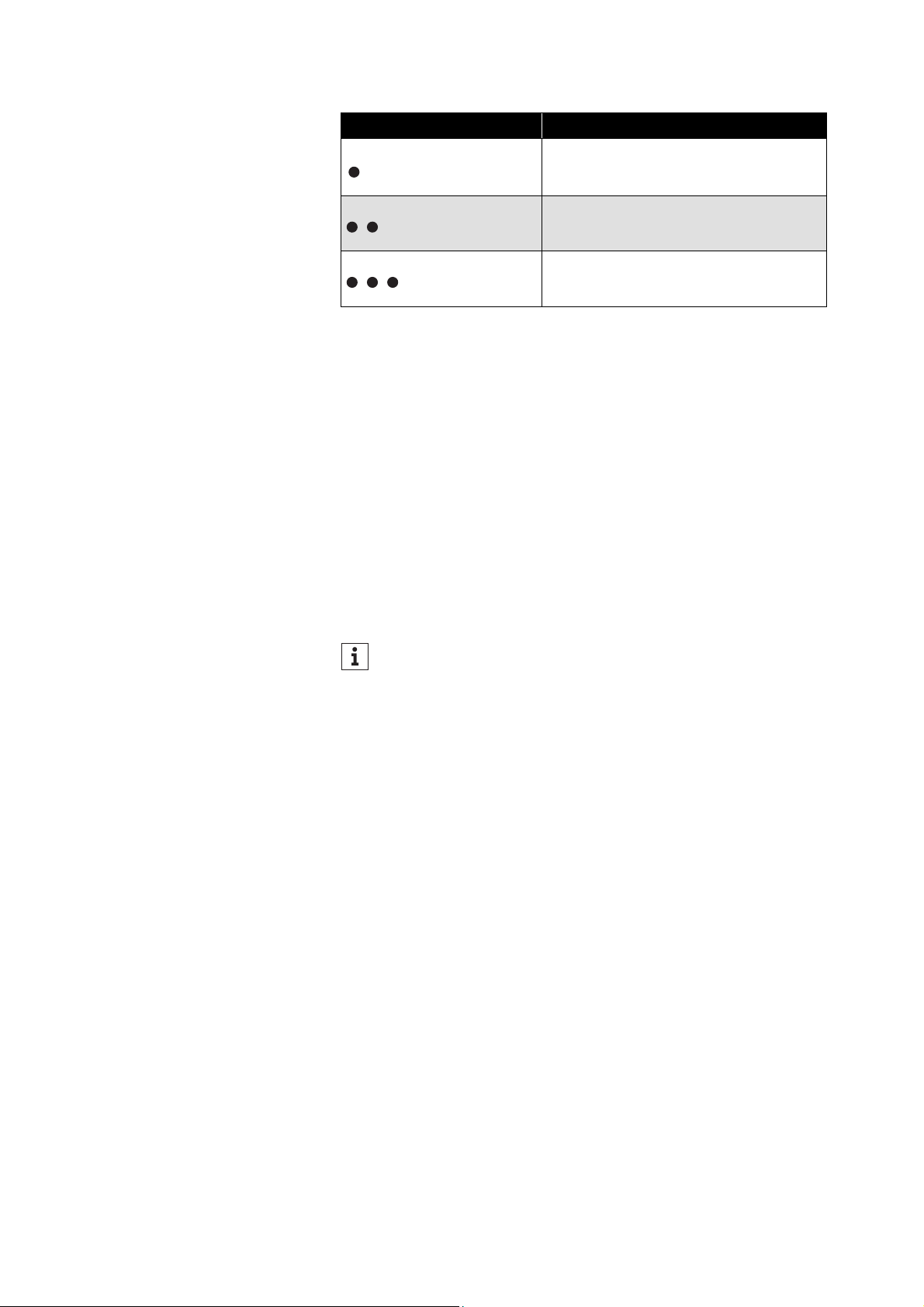
You can control music playback by pressing the multi-function
button
on the Soundbar or the multi-function button on the remote
control. The function is available for playback via Bluetooth or net
-
work connection.
Functions of the multi-function button
▷ Press the multi-function button.
If no connection is established within 2 minutes, the search is
terminated.
If you connect the Soundbar to the Internet/Ethernet via cable,
the WiFi function of the Soundbar is automatically deactivated.
Using the AMBEO Soundbar
AMBEO Soundbar | 45
Using the sound profiles
If you want to activate a sound profile, you have the following
options:
•Press the sound profile buttons on the remote control.
• Use the Smart Control app.
There are the following sound profiles:
•Movie
•Music
•News
•Sports
• Neutral
Adjusting the AMBEO modes
If you want to activate an AMBEO mode, you have the following
options:
•Press the AMBEO button on the Soundbar.
•Press the AMBEO button on the remote control.
• Use the Smart Control app.
The AMBEO display lights up.
Order of modes
•Off
•AMBEO Light
• AMBEO Standard
• AMBEO Boost
The preset mode for all inputs is AMBEO Standard.
The modes Light, Standard and Boost can be adjusted in the app and
assigned to the sound profiles (
> 45).
Multi-function button Result
Press 1x Plays or pauses music
Press 2x Plays the next track in the playlist
Press 3x Plays the previous track in the playlist
If the “Dolby Virtualizer” is activated, you cannot use the sound
profiles (
> 47).
Using the AMBEO Soundbar
46 | AMBEO Soundbar
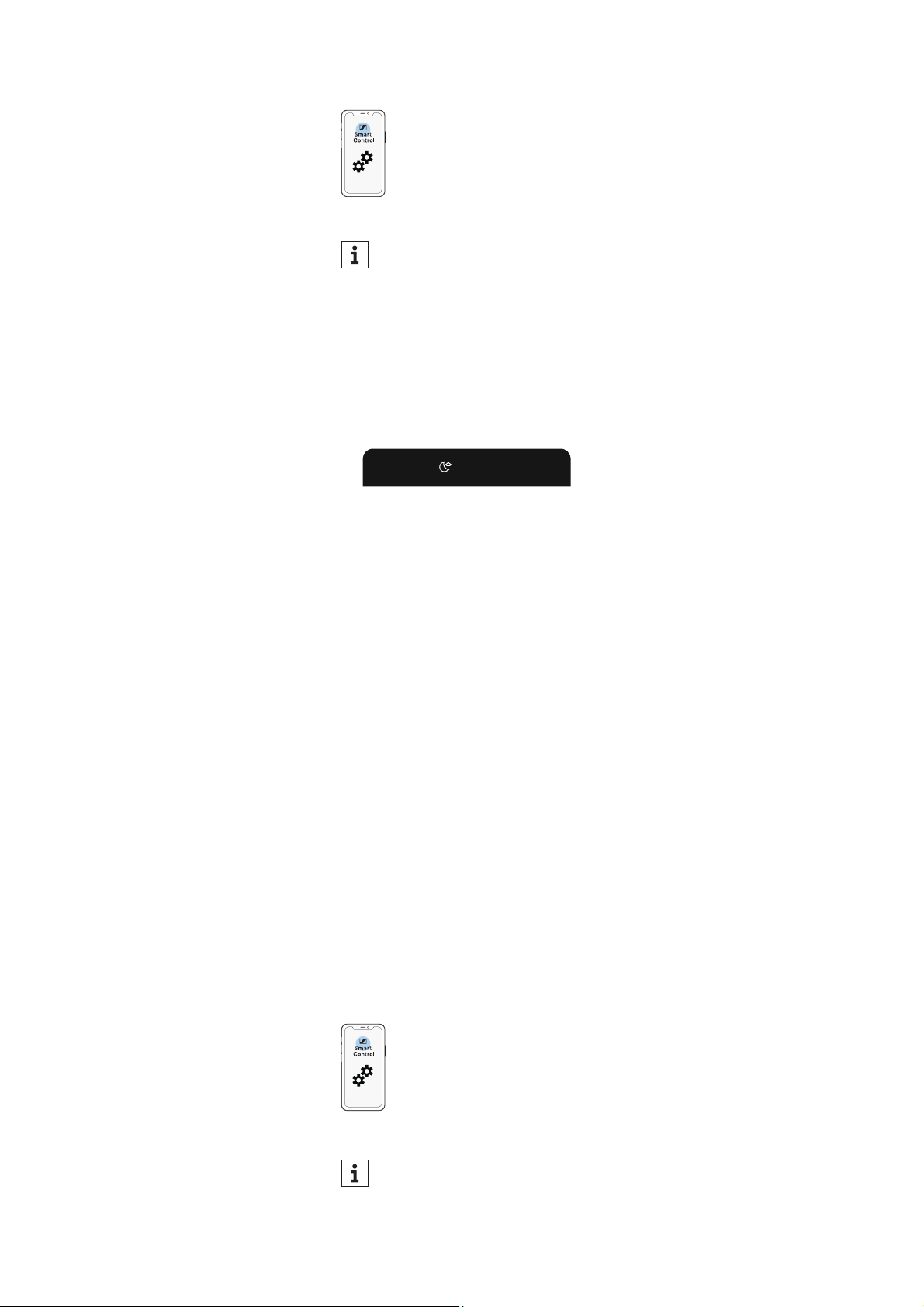
Using the night mode “NIGHT”
To activate the night mode:
▷ Press the night mode button on the remote control.
When the night mode is activated, the display shows an icon in
front of the name of the sound profile.
The bass is compressed (reduced).
The night mode can be applied to all sound profiles and modes,
except AMBEO Boost.
Adjusting the equalizer
To be able to use the equalizer, you require the Smart Control app (>
43).
▷ Adjust the equalizer via the Smart control app.
The settings are stored in the Soundbar. These settings are active
even without using the Smart Control app, i.e. when you are using
another Bluetooth device for music playback.
Parameters:
•4-band EQ split into
–Foundation
– Low-Mid
–Clarity
– Brillance
• Adjustment range + 10 dB to -10 dB
The app allows you to make additional acoustical settings in addition
to the equalizer settings.
If the “Dolby Virtualizer” is activated, you cannot use the
AMBEO modes (
> 47).
Movie
If the “Dolby Virtualizer” is activated, you cannot use the equal-
izer (> 47).

Using the AMBEO Soundbar
AMBEO Soundbar | 47
Using the Dolby DRC
You can use the “Dolby DRC” (“Dynamic Range Compression”) to
play back Dolby audio content. This function compresses the
dynamics of the audio signal, thus changing differences from soft to
loud passages.
The “Dolby DRC” function can be activated/deactivated in the codec
settings of the Smart Control app.
• “Off”: no change, full dynamics
• “Auto”: automatic reduction of dynamics; changes in volume can
be perceived during playback
• “Normal”: slight compression of dynamics
• “Heavy”: heavy compression of dynamics
Using the Dolby Dialog Normalizer
You can use the “Dolby Dialog Normalizer” to play back Dolby audio
content. This function makes dialogs easier to understand by reduc
-
ing loud music/background noise and amplifying softer dialog audio.
The “Dolby Dialog Normalizer” can be activated/deactivated in the
codec settings of the Smart Control app.
Using the Dolby Virtualizer
You can use the “Dolby Virtualizer” to play back Dolby audio content.
This function plays back Dolby audio content unchanged.
The “Dolby Virtualizer” can be activated/deactivated in the codec
settings of the Smart Control app.
If the “Dolby Virtualizer” is activated, you can no longer use the fol-
lowing functions/settings:
• Sound profiles
•AMBEO modes
• Equalizer
• Room calibration data (the measured room data is not used for
Dolby audio content)
Adjusting the brightness of the display
and the AMBEO display
The brightness of the display and the AMBEO display can be
adjusted via the Smart Control app.
There are three brightness levels:
• low brightness
• high brightness

Using the AMBEO Soundbar
48 | AMBEO Soundbar
• automatic brightness (activated upon delivery)
If “automatic brightness” is selected, the display and the AMBEO dis-
play automatically adjust to the ambient brightness.
The brightness of the display and the AMBEO display can also be
adjusted independently of each other via the app.
Sound feedback
The beep tones can be switched off via the app.
Transporting the AMBEO Soundbar
Use the original packaging to transport the Soundbar.
To transport the Soundbar:
▷ Switch the Soundbar off (> 35).
▷ Disconnect the Soundbar from the power supply system (> 30).
▷ Disconnect all other cables and connections from the Soundbar
(
> 20).
▷ With the help of a second person, place the Soundbar, the acces-
sories and the foam parts in the original packaging as shown.
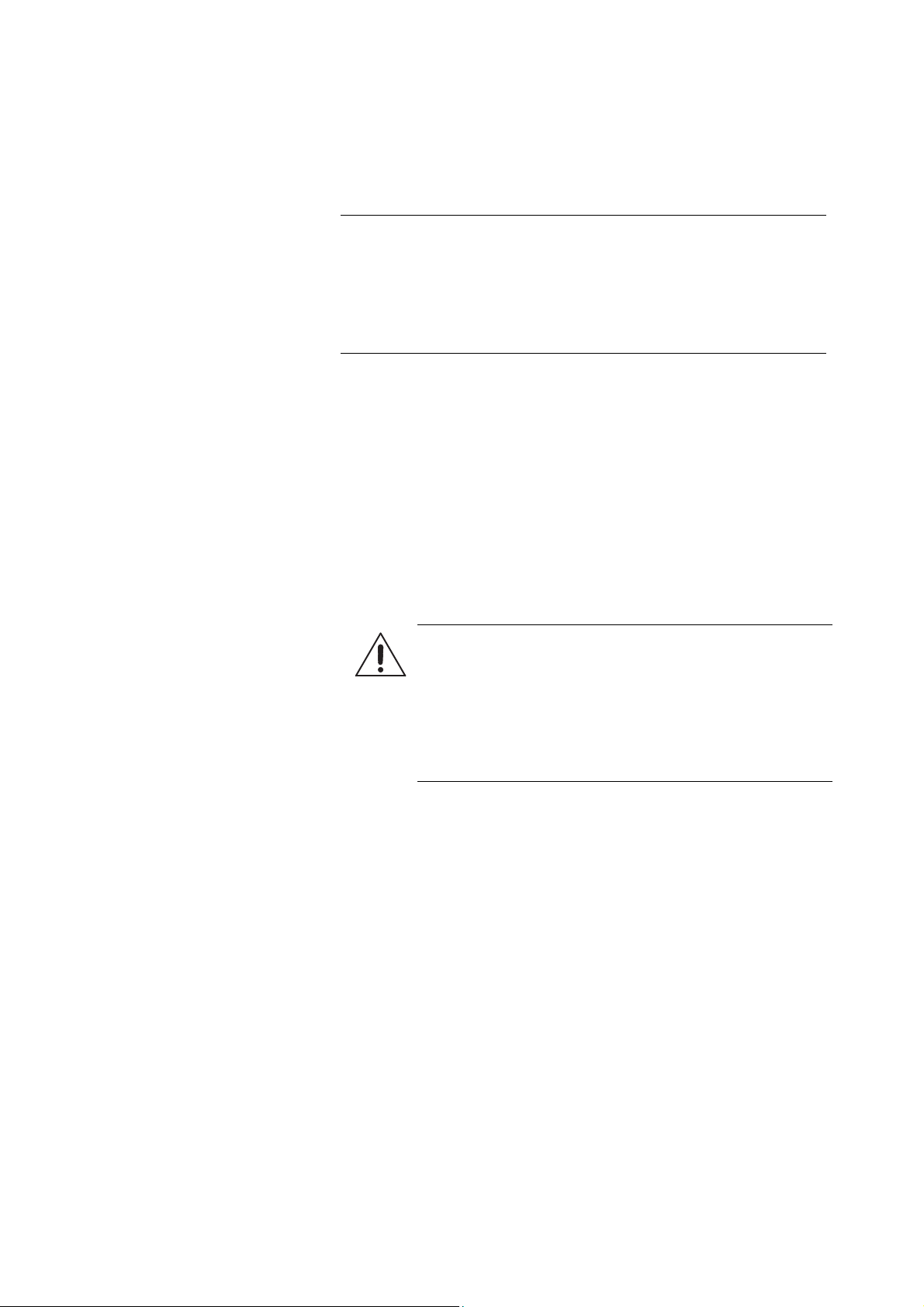
ATTENTION
Material damage due to improper transport!
Incorrect packing of the Soundbar may cause damage to the Sound-
bar during transport.
▷ Only transport the Soundbar in the original packaging with its
protective foam parts.
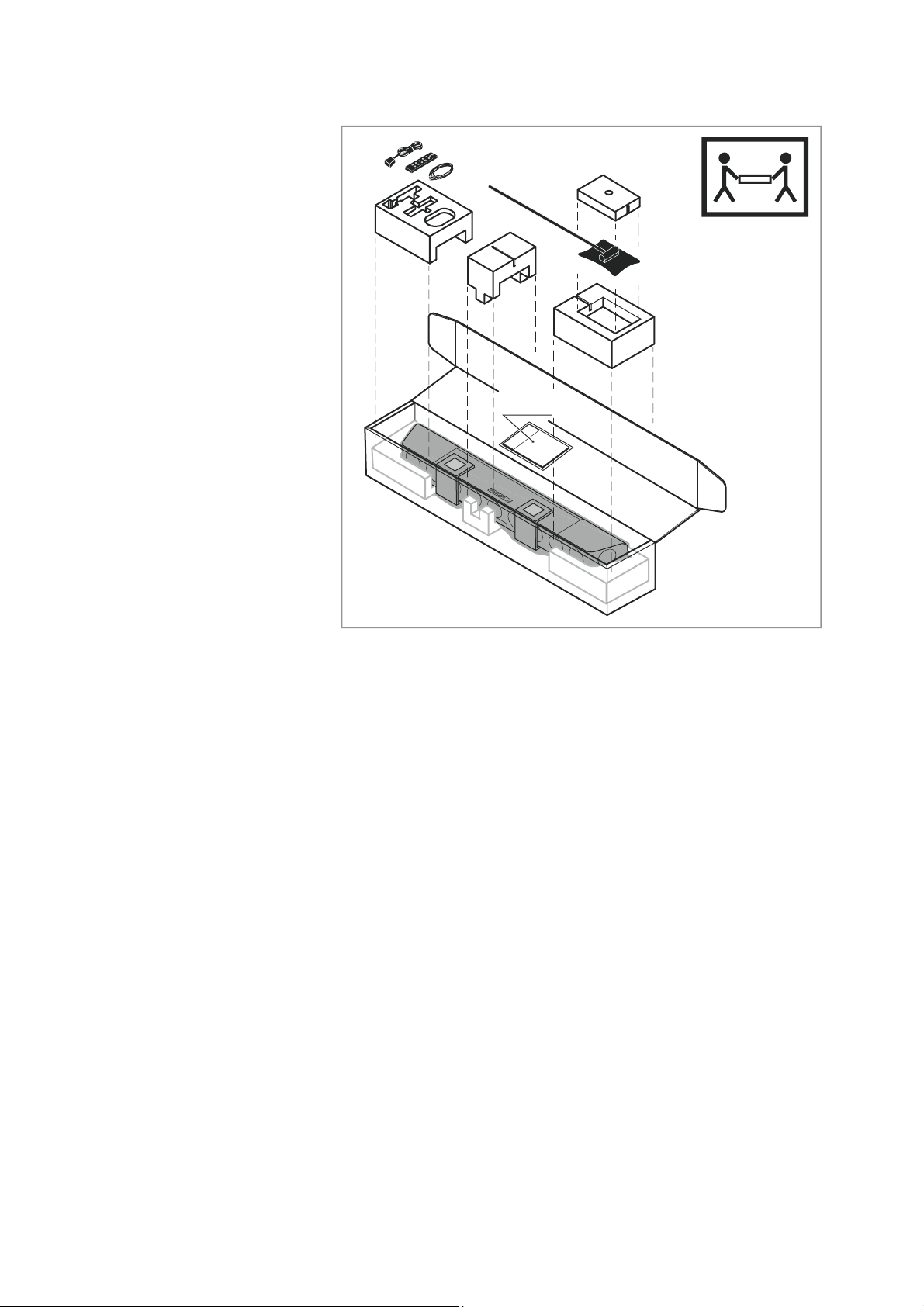
Using the AMBEO Soundbar
AMBEO Soundbar | 49
▷ Close the packaging.
▷ Close the packaging so that it does not open during transport.
▷ The Soundbar in its packaging must be carried by at least two
people.
Quick Guide,
Safety Guide
Maintaining the AMBEO Soundbar
50 | AMBEO Soundbar
Maintaining the AMBEO Soundbar
Cleaning the Soundbar
▷ Clean the product only with a soft, dry cloth.
The fabric of the Soundbar cannot be removed.
▷ Clean the fabric with a soft brush.
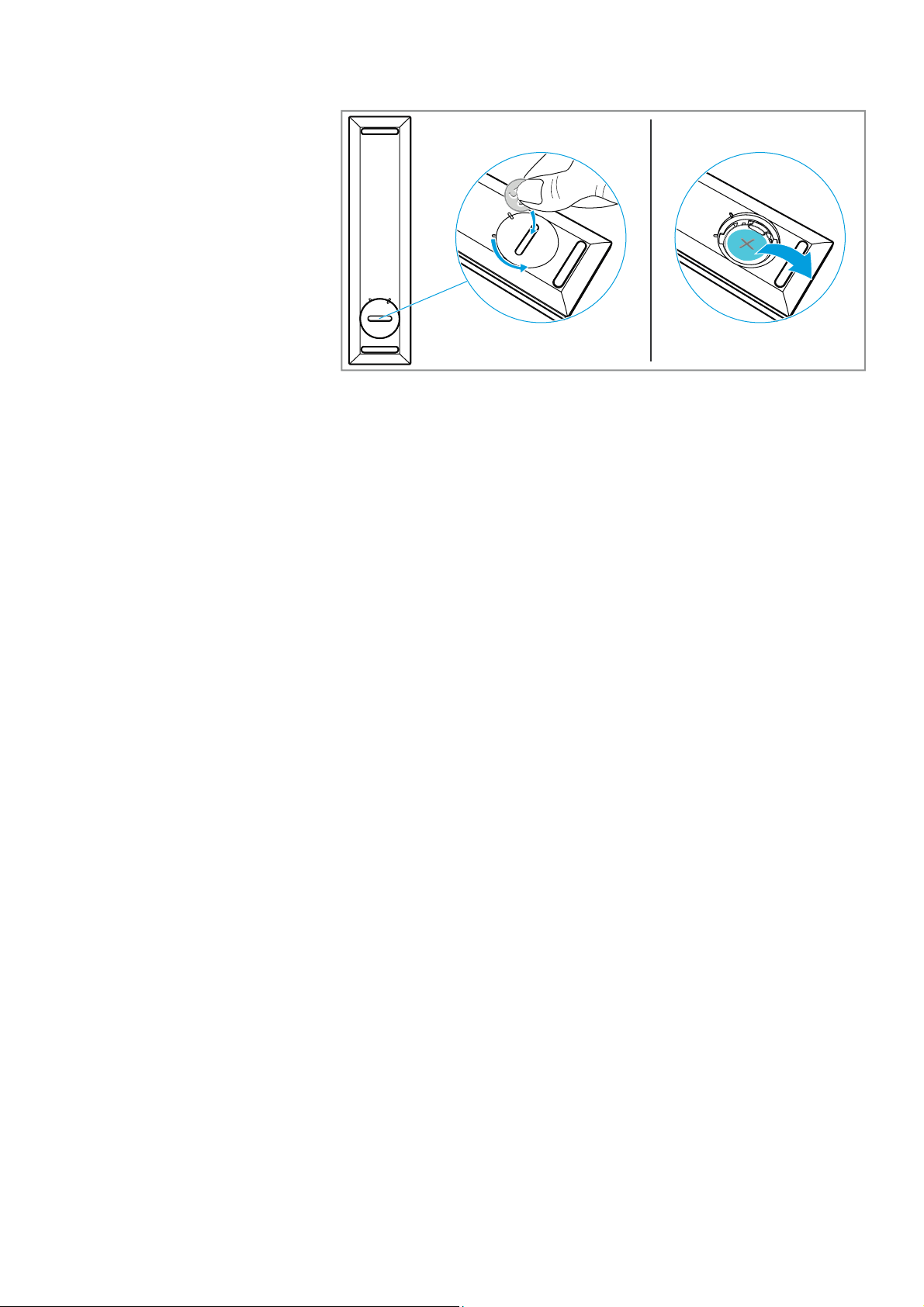
Replacing the battery of the remote
control
If the range of the remote control decreases, you have to replace the
battery.
▷ Use a suitable object (e.g. a coin) to open the battery compart-
ment cover by turning one turn counter-clockwise.
▷ Remove the used battery. In order to protect the environment, dis-
pose of used batteries at special collection points or return them
to your specialist dealer.
▷ Insert the new battery (type CR2032, 3 V) into the battery com-
partment. Observe correct polarity when inserting the battery.
▷ Close the battery compartment cover by turning one turn clock-
wise.
ATTENTION
Liquids can damage the electronics of the product!
Liquids entering the housing of the product can cause a short-circuit
and damage the electronics.
▷ Keep all liquids far away from the product.
▷ Do not use any solvents or cleansing agents.
CAUTION
Danger of accidents!
Misuse or swallowing of batteries can cause injuries and
health problems.
▷ Observe the safety instructions for lithium batteries (>
3).
▷ Keep batteries away from children.
Maintaining the AMBEO Soundbar
AMBEO Soundbar | 51
Installing firmware updates
Firmware updates are available free of charge and serve to enhance
product improvement and also function extension.
You can update the Soundbar's firmware via a USB flash drive or
using the Sennheiser Smart Control app.
Update via the Smart Control app
To update the firmware via the Smart Control app, the Soundbar
must be connected to the Internet via WiFi or Ethernet (
> 43).
▷ Start the Smart Control app on your smartphone.
▷ The app provides information on available firmware updates and
guides you through the installation process.
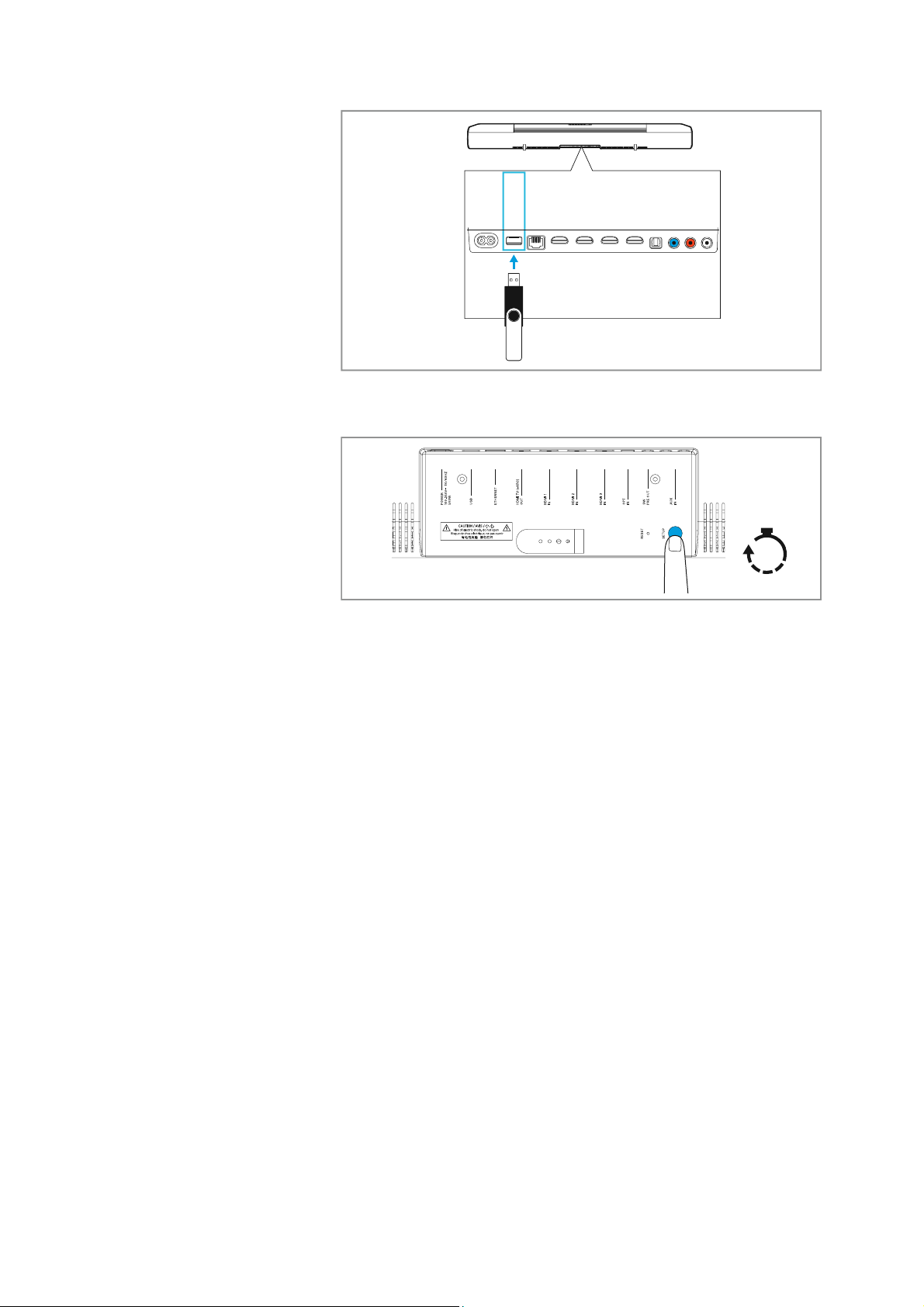
Update via a USB flash drive
Required USB flash drive:
•Memory size: 1 GB
• File system: FAT
▷ Download the update file with the file name “image.swu” from the
website www.sennheiser.com/download and save it on a USB
flash drive.
▷ Do not change the file name!
▷ Switch the Soundbar on.
▷ Connect the USB flash drive to the USB socket on the Soundbar.
Maintaining the AMBEO Soundbar
52 | AMBEO Soundbar
▷ Press the SETUP button for 5 seconds.
The display shows “Updating” and the status LED pulses yellow.
The Soundbar restarts several times during the update. The process
can take up to 8 minutes.
AUX IN
SW PRE
OUT
OPT IN
HDMI 3 IN
HDMI 2 IN
HDMI 1 IN
HDMI TV
(eARC) OUT
ETHERNET
USB
POWER
5 V⎓ 1 A
5s
Hold

Maintaining the AMBEO Soundbar
AMBEO Soundbar | 53
Resetting the Soundbar
▷ Switch the Soundbar on.
If you want to reset the Soundbar, you have the following options:
• Insert a paper clip into the RESET recess on the bottom side of the
Soundbar and press the paper clip for 2 seconds.
• Use the Smart Control app.
Action Display Status LED
Reset in progress RESET pulses orange
Reset terminated RESET OK lights up orange

Specifications
54 | AMBEO Soundbar
Specifications
SB01 AMBEO Soundbar
Number of channels 5.1.4
Amplifier class D
Total audio power 250 W (RMS)
500 W (peak)
Total number of speakers 13
Low and mid-range
speakers
quantity: 6
⌀ 10 cm/4 inches
cellulose sandwich cones
Tweeters quantity: 5 (sideways: right and left,
front: right, center and left)
⌀ 2.5 cm/1 inch
aluminum cones
Top-firing broadband
speakers
quantity: 2
⌀ 9 cm/3.5 inches
cellulose sandwich cones
Frequency response 30 Hz to 20 kHz (-3 dB)
Audio processors Dual Core 1.2 GHz ARM Cortex-A7
processor
2 x Dual Core 500 MHz SHARC DSP
Display graphic OLED with brightness sensor,
status LED, AMBEO LED
Power plug county-specific
Voltage range 100 – 240 V~ 50/60 Hz
Power consumption 250 W
Standby power
consumption
ECO standby activated: 1.9 W
ECO standby deactivated: 5.5 W
standby without network connection:
< 1 W
Temperature range operation: 0 °C to +45 °C
storage: -20 °C to +70 °C
Relative humidity
(non condensing)
operation: 20 to 85 %
storage: 10 to 95 %
Dimensions (W x H x D) approx. 126.5 x 13.5 x 17.1 cm incl. feet
approx. 126.5 x 12.5 x 17.1 cm without
feet
Weight approx. 18.5 kg
Magnetic field strength 9 mT

Specifications
AMBEO Soundbar | 55
Inputs/outputs
SB01-RC remote control
WiFi
HDMI TV (eARC) OUT default: HDMI 2.0a, eARC (HDMI 2.1)
control: CEC
video formats: up to 4K (60 Hz), Full
HD, MHL 2.1
encoding: HDCP 1.4
power supply for accessories
(external devices):
5 V ⎓, 1 A
HDMI 1 IN
HDMI 2 IN
HDMI 3 IN
default: HDMI 2.0a
encoding: HDCP 2.2
control: CEC
video formats: up to 4K (60 Hz), Full
HD, MHL 2.1
HDR formats: Dolby Vision Pass-
Through
OPT IN S/PDIF
supported sampling rates: up to
192
kHz
AUX IN stereo RCA sockets
USB USB socket (type A), for power supply
for accessories (external devices): 5 V
⎓, 1 A; service socket for updates
ETHERNET RJ-45 socket, 100/10 MBit
Subwoofer SW Pre-OUT mono RCA, max. 2 V
Microphone input for room
calibration
2.5 mm jack socket, mono
Transmission infra-red
Range approx. 8 m
Power supply coin cell, type CR2032, 3 V
Standard IEEE 802.11 a/b/g/n/ac
Transmission system 2 x 2 MIMO
Transmission frequency
(country-specific)
2,400 MHz to 2,483.5 MHz
5,170 MHz to 5,835 MHz
Modulation 2.4 GHz band CCK, DQPSK, DBPSK für DSSS
64QAM, 16QAM, QPSK, BPSK for
OFDM
Modulation 5 GHz band 64QAM, 16QAM, QPSK, BPSK
Output power 100 mW (max)

Specifications
56 | AMBEO Soundbar
Bluetooth
Network streaming
Playable audio formats
Version 4.2, class 1, BR/EDR, BLE
Transmission frequency 2,400 MHz to 2,483.5 MHz
Modulation GFSK, π/4 DQPSK, 8DPSK
Profiles A2DP, AVRCP, GATT
Output power 10 mW (max)
Codec AAC, SBC
Pairing option Near Field Communication (NFC)
Network Ethernet
WiFi
Services Chromecast built-in
uPnP
Audio format/codec File extension
MP3 .mp3
AAC/HE-AAC
.m4a
.aac
.mp4
.3gp
LPCM .wav
FLAC .flac
AIFF
.aiff
.aif
ALAC .m4a
Vorbis .ogg

Specifications
AMBEO Soundbar | 57
Supported audio formats/surround formats
* not all streaming services support the playback of all codecs
** TV sets with an “ARC” output can transmit surround formats only
to a limited extent
Format Audio source via:
HDMI, HDMI
eARC, network
streaming*
HDMI ARC** OPTICAL
LPCM 2 Channel yes – yes
LPCM 5.1 Channel yes – yes
LPCM 7.1 Channel yes – yes
Dolby Digital yes yes yes
Dolby Digital Plus yes yes yes
Dolby True HD yes – –
Dolby Atmos - Dolby
TrueHD
yes – –
Dolby Atmos - Dolby
Digital Plus
yes yes yes
DTS yes yes yes
DTS-ES Discrete 6.1,
DTS-ES Matrix 6.1
yes yes yes
DTS 96/24 yes yes yes
DTS-HD High
Resolution Audio
yes – –
DTS-HD Master
Audion
yes – –
DTS-HD LBR yes – –
DTS:X yes – –
MPEG-H (Fraunhofer) yes – yes

Manufacturer Declarations
58 | AMBEO Soundbar
Manufacturer Declarations
Warranty
Sennheiser electronic GmbH & Co. KG gives a warranty of 24 months
on this product.
For the current warranty conditions, please visit our website at
www.sennheiser.com or contact your Sennheiser partner.
In compliance with the following requirements
EU declaration of conformity
• ErP Directive (2009/125/EC)
• RoHS Directive (2011/65/EU)
Hereby, Sennheiser electronic GmbH & Co. KG declares that the
radio equipment type SB01 is in compliance with the Radio Equip
-
ment Directive (2014/53/EU).
The full text of the EU declaration of conformity is available at the fol-
lowing Internet address: www.sennheiser.com/download.
Notes on disposal
• Battery Directive (2006/66/EC & 2013/56/EU)
• WEEE Directive (2012/19/EU)
The symbol of the crossed-out wheeled bin on the product, the bat-
tery/rechargeable battery (if applicable) and/or the packaging indi-
cates that these products must not be disposed of with normal
household waste, but must be disposed of separately at the end of
their operational lifetime. For packaging disposal, please observe the
legal regulations on waste segregation applicable in your country.
Further information on the recycling of theses products can be
obtained from your municipal administration, from the municipal col
-
lection points, or from your Sennheiser partner.
The separate collection of waste electrical and electronic equip-
ment, batteries/rechargeable batteries (if applicable) and packag-
ings is used to promote the reuse and recycling and to prevent neg-
ative effects caused by e.g. potentially hazardous substances
contained in these products. Herewith you make an important con
-
tribution to the protection of the environment and public health.
Trademarks and licenses
Sennheiser is a registered trade mark of
Sennheiser
electronic GmbH & Co. KG.
Other product and company names mentioned in the user documen-
tation may be the trademarks or registered trademarks of their
respective holders.
Licenses are available at: www.sennheiser.com/download.

Manufacturer Declarations
AMBEO Soundbar | 59
This product includes software developed by the University of Cali-
fornia, Berkeley and its contributors.
App Store is a service mark of Apple Inc.
Android, Google play, Google play logo, Google Chromecast and
Google Home are trademarks of Google Inc.
The AAC logo is a trademark of Dolby Laboratories.
The Bluetooth® word mark and logos are registered trademarks
owned by Bluetooth SIG, Inc. and any use of such marks by Sennhe
-
iser electronic GmbH & Co. KG is under license.
The N-Mark is a trademark or registered trademark of NFC Forum,
Inc. in the United States and in other countries.
Manufactured under license from Dolby laboratories. Dolby, Dolby
Atmos, Dolby Vision and the Double-D symbol are trademarks of
Dolby laboratories.
Manufactured under license from DTS Licensing Limited. DTS, the
Symbol, & DTS and the Symbol together, DTS:X, and the DTS:X logo
are registered trademarks or trademarks of DTS, Inc. in the United
States and/or other countries. © DTS, Inc. All Rights Reserved. This
product is made under license to certain US patents and/or foreign
counterparts.
The MPEG-H TV Audio system logo is a trademark of Fraunhofer IIS
in Germany and other countries.
This system incorporates High-Definition Multimedia Interface
(HDMI™) technology.
The terms HDMI and HDMI High-Definition Multimedia Interface,
and the HDMI logo, are trademarks or registered trademarks of
HDMI Licensing, LLC in the USA and other countries.

Appendix
60 | AMBEO Soundbar
Appendix
Open Source license terms and
conditions
The AMBEO Soundbar SB01 has a user interface to call up additional
license terms and conditions for the open source software used. You
can open the license terms and conditions on your computer or a
mobile device in an Internet browser. This requires that the com
-
puter/mobile device is connected to the WiFi of the Soundbar
(“AMBEO Soundbar [serial number]”).
▷ Open an Internet browser on your computer/mobile device and
enter http://ambeo.soundbar
in the address bar. The user inter-
face is loaded and you can open the license terms and conditions.
In addition, you can access the license terms and conditions via the
free “Sennheiser Smart Control” app.