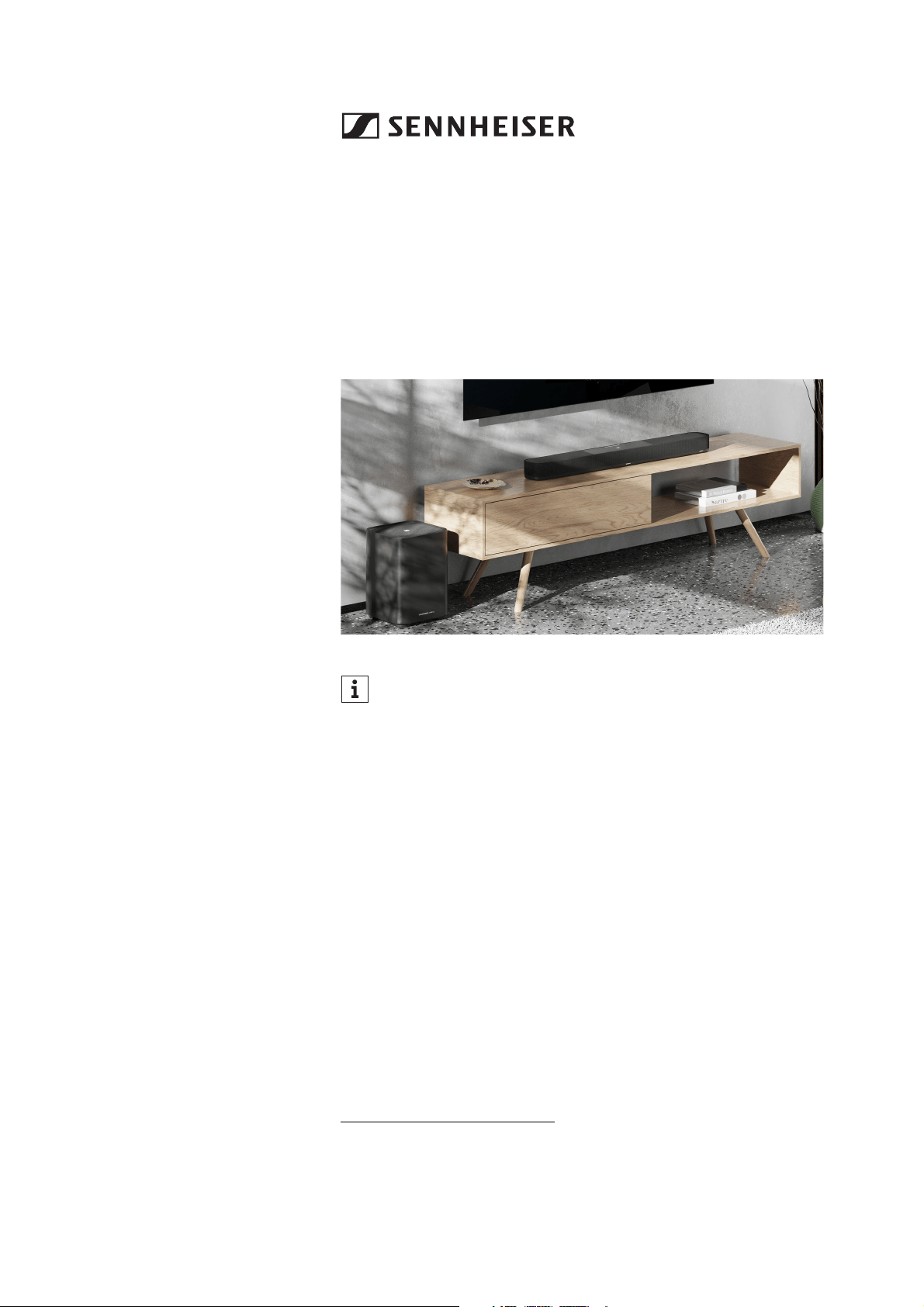
AMBEO Soundbar System SB02
Multi-speaker home cinema system
• AMBEO Soundbar | Plus
Model: SB02M
•AMBEO Sub
Model: SW02
Instruction manual
Use the search function, the navigation (left) or the following links:
Start
“Product overview”
“Getting started”
“Setting up the Soundbar and a Sub”
“Connecting devices to the Soundbar”
“Putting the Soundbar into operation”
“Operating the Soundbar”
“Using the Soundbar”
“Care and maintenance of the Soundbar”
“Specifications”
Sonova Consumer Hearing GmbH
Am Labor 1
30900 Wedemark
Germany
www.sennheiser-hearing.com
Version: 09/22 A02
This instruction manual contains all information on the current
firmware version. Firmware updates can be downloaded free of
charge from the Internet (> 69).

Important safety instructions
2 | Sennheiser AMBEO Soundbar System SB02
Important safety instructions
1. Read these safety instructions and the instruction manual of the
product.
2. Keep these safety instructions and the instruction manual of the
product. Always include the safety instructions and the instruc-
tion manual when passing the product on to other users.
3. Heed all warnings.
4. Follow all instructions.
5. Do not use the product near water.
6. Only clean the product when it is not connected to the power
supply system. Clean only with a dry cloth.
7. Ensure circulating ventilation. The product generates heat which
is dissipated through the housing. Install in accordance with the
manufacturer’s instructions.
8. Do not install near any heat sources such as radiators, stoves, or
other products that produce heat and do not expose to direct sun-
light.
9. Do not defeat the safety purpose of the polarized or grounding-
type plug. A polarized plug has two blades with one wider than
the other. A grounding type plug has two blades and a third
grounding prong. The wide blade or the third prong are provided
for your safety. If the provided plug does not fit into your outlet,
consult an electrician for replacement of the obsolete outlet.
10. Protect the power supply cord from being walked on or pinched,
particularly at plugs, convenience receptacles, and the point
where it exits from the product.
11. Use only attachments/accessories/spare parts supplied or rec-
ommended by Sonova Consumer Hearing.
12. Use only with shelves, racks, or tables that can safely support the
weight of the product (see instruction manual).
13. Unplug the product during lightning storms or when unused for
long periods of time.
14. Refer all servicing to qualified service personnel. Servicing is
required when the product has been damaged in any way, such as
power supply cord or plug is damaged, liquid has been spilled or
objects have fallen into the product, when the product has been
exposed to rain or moisture, does not operate normally, or has
been dropped.
15.WARNING: To reduce the risk of fire and electric shock, do not
expose the product to dripping or splashing and ensure that no
objects filled with liquids, such as vases, are placed on the prod-
uct.
16. To completely disconnect this product from the AC mains, dis-
connect the power supply cord plug from the AC receptacle.
17. The plug of the power supply cord and the AC receptacle shall
remain readily accessible.
18. Use the product only at altitudes up to 6562 ft/2000 m above
mean sea level.
Important safety instructions
Sennheiser AMBEO Soundbar System SB02 | 3
Hazard warnings on the bottom of the product
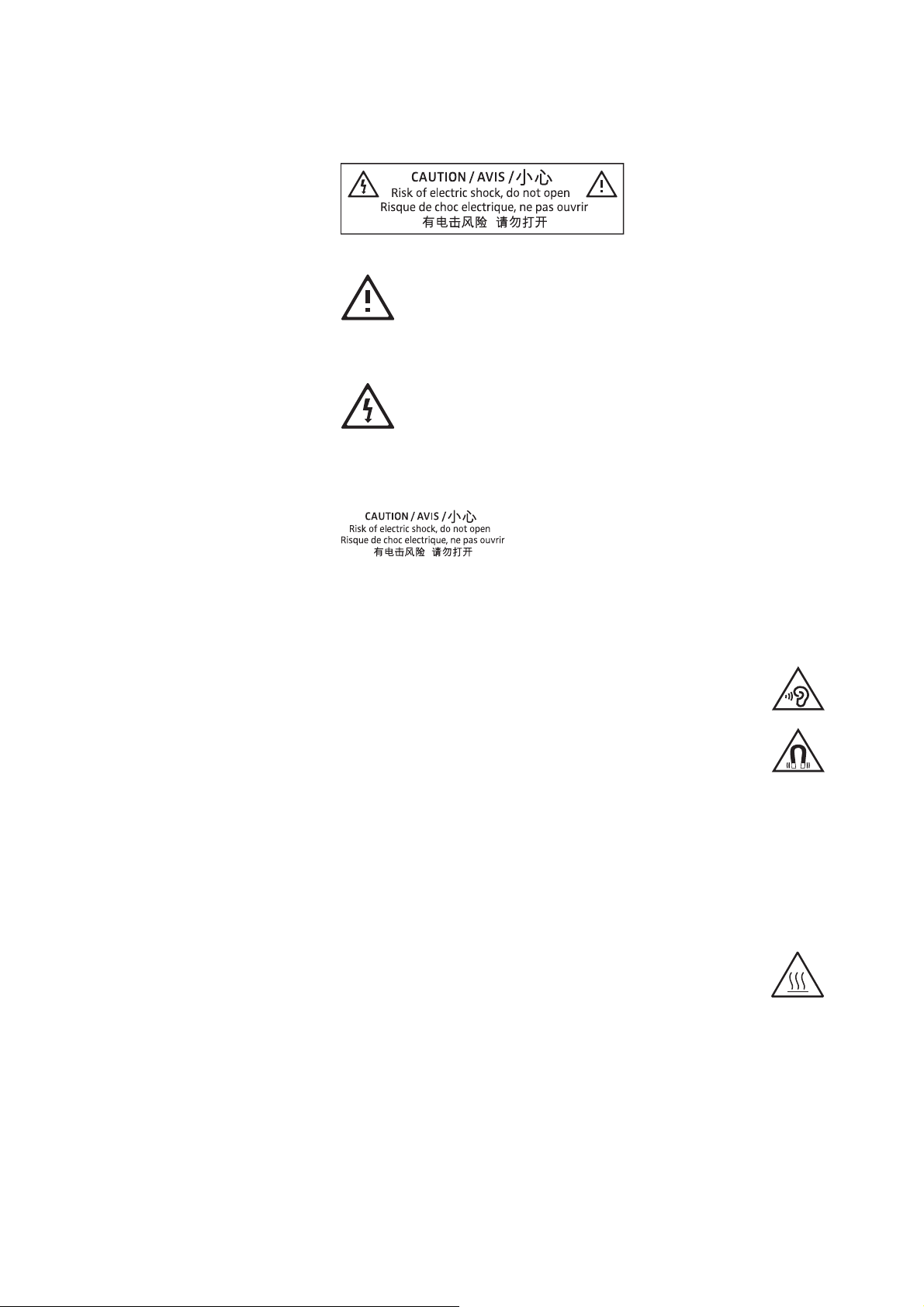
The following label is attached to the bottom of the product.
The symbols on this label have the following meaning:
Read and follow the safety and operating instructions contained in
this instruction manual.
Presence of uninsulated dangerous voltage within the product’s
enclosure that may be of sufficient magnitude to constitute a risk of
fire or electric shock.
Never open the product. There is a risk of electric shock when touch-
ing live parts. There are no user serviceable parts inside the product.
Refer repairs to an authorized Sonova Consumer Hearing partner.
Preventing damage to health and accidents
▷ Protect your hearing from high volume levels. Do not
listen at high volume levels for long periods of time to
prevent hearing damage.
▷ The product generates stronger permanent magnetic
fields that could cause interference with cardiac pace-
makers, implanted defibrillators (ICDs) and other
implants. Always maintain a distance of at least 3.94"/10 cm
between the product component containing the magnet and the
cardiac pacemaker, implanted defibrillator, or other implant.
▷ Keep the product, accessories and packaging parts out of reach
of children and pets to prevent accidents. Swallowing and chok-
ing hazard.
▷ Do not use the product in an environment that requires your spe-
cial attention (e.g. when performing skilled jobs).
▷ The product generates heat which is dissipated through
the housing. Avoid prolonged skin contact with the prod-
uct during use and immediately afterwards to prevent
skin irritation.
Preventing damage to the product and malfunctions
▷ If the product was moved from a cold environment to a warm one,
allow the product to stand for at least 2 hours before putting it
into operation.
Important safety instructions
4 | Sennheiser AMBEO Soundbar System SB02
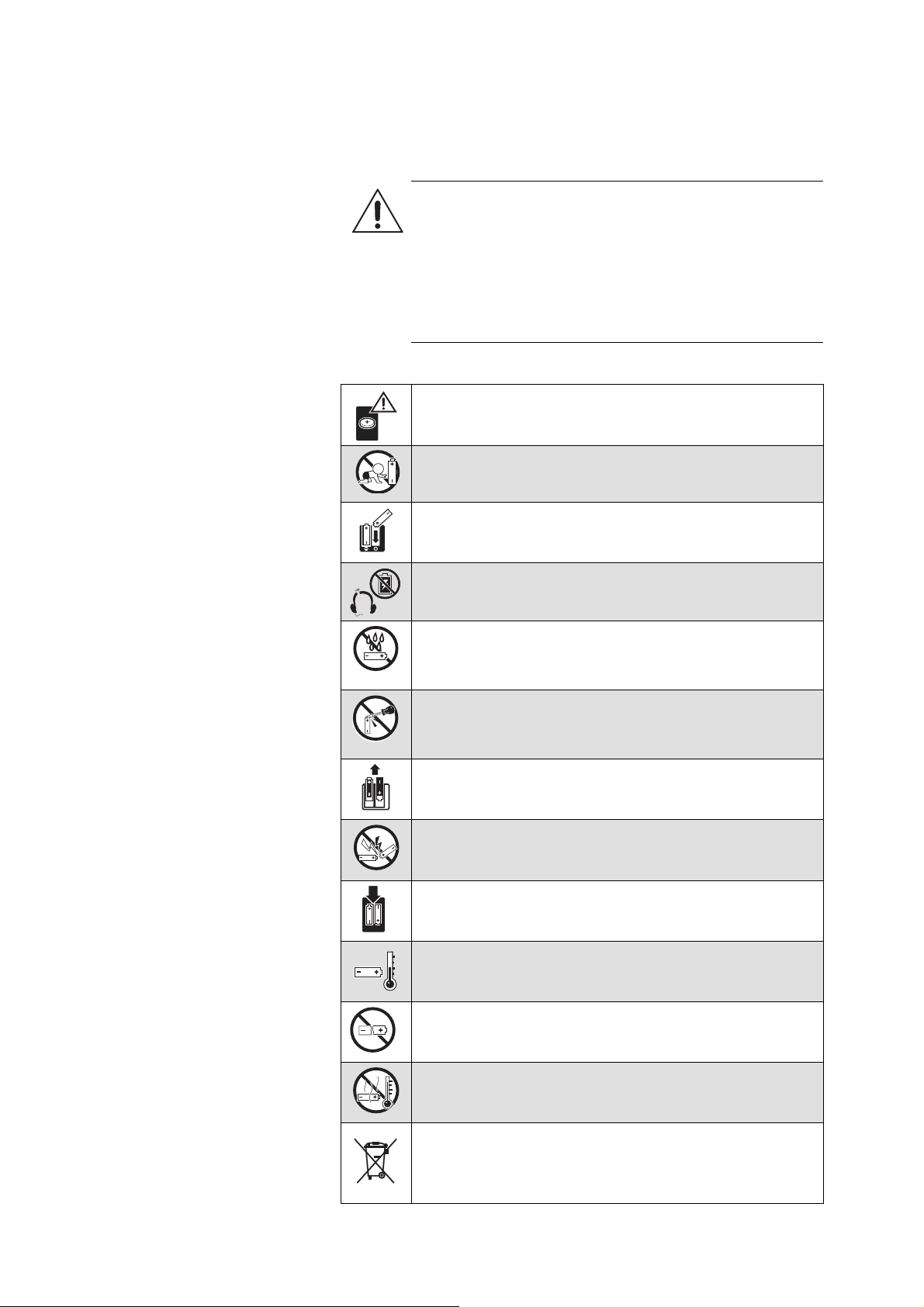
Safety instructions for Lithium coin batteries (marking with CR
or Li)
The coin battery is for use with the SB02-RC remote control.
WARNING
If abused or misused, batteries may leak. In extreme
cases, they may even present a risk of:
•explosion
• heat and fire development
• smoke and/or gas development
• damage to health and/or the environment
If you think batteries have been swallowed or are lodged
in the body, seek medical assistance immediately.
Keep away from children.
Observe correct polarity.
Immediately remove the batteries from obviously
defective product.
Do not expose to moisture.
Do not mutilate or dismantle.
Remove the batteries if the product will not be used for
extended periods of time.
Pack/store batteries so that the terminals cannot
contact each other – danger of shorting out/fire hazard.
Only use batteries specified by Sonova Consumer
Hearing.
Store the product in a cool and dry place (approx. 20 °C/
68 °F).
Do not continue to use defective batteries.
Do not heat above 70 °C/158 °F, e.g. do not expose to
sunlight or throw into a fire.
Dispose of exhausted batteries at special collection
points or return them to your specialist dealer to
facilitate recycling. To avoid short circuits, cover the
poles of the batteries with tape.

Important safety instructions
Sennheiser AMBEO Soundbar System SB02 | 5
For AUSTRALIA: If you suspect your child has swallowed or inserted
a coin battery, call the Poisons Information Centre immediately on
131126 for 24/7 fast, expert advice. If your child is having any diffi-
culty breathing, call 000.
Notes on data collection and processing and on firmware updates
This product stores individual settings such as volume, sound and UI
settings (e.g. LED brightness), selected input and designations,
Bluetooth addresses of paired devices, WiFi settings and usage data
(e.g. power-on cycles and operating times). This data is required for
the operation of the product and is not transferred to Sonova Con-
sumer Hearing GmbH or companies commissioned by Sonova Con-
sumer Hearing GmbH and is not processed.
You can update the firmware of the product for free via an Internet
connection. If the product is connected to the Internet, the following
data is automatically transferred to and processed by Sonova Con-
sumer Hearing servers in order to provide and transfer suitable firm-
ware updates: MAC address, IP address. The data will only be used
as specified and will not be stored permanently. If you do not want
this data to be transferred and processed, do not connect to the
Internet.
Intended use/Liability
This product has been designed for playing TV sound and music via
cable connections, Bluetooth, WiFi or Ethernet. This product is
intended for private domestic use only. It is not intended for commer-
cial use.
It is considered improper use when this product is used for any appli-
cation not named in the instruction manual. Sonova Consumer Hear-
ing GmbH is not liable for damages to devices that are not consistent
with the interface specifications (USB, HDMI, Ethernet). Sonova
Consumer Hearing GmbH does not accept liability for damage aris-
ing from misuse or improper use of this product and its attach-
ments/accessories.
Before putting the product into operation, please observe the
respective country-specific regulations.
Notes on the packaging
We recommend using the original packaging to ensure safe storage
and transport of the products. Damage during transport is often
caused by the use of unsuitable packaging. The original packaging of
the products provides optimal protection and minimizes the risk of
damage during transport.
Presentation conventions
6 | Sennheiser AMBEO Soundbar System SB02
Presentation conventions
In this manual, the labels of the product’s controls and connectors
are highlighted in
blue.
Example:
OPTICAL IN input
The original English texts of the user interface of the Sennheiser
Smart Control app such as names of menus and buttons are high-
lighted in blue.
Example:
Calibrate now button
▷ A triangle indicates a request for action.
• A period indicates bulleted lists.
1. Ordinal numbers simplify orientation in complex action
sequences and enumerations.
Presentation of warnings
In this manual, warnings are placed at the beginning of sections
when hazards may occur during the situations described in the sec-
tions.
Warnings are structured as follows:
The warning sign indicates dangers to life and injury to persons.
Warnings without a warning sign warn of damage to property.
The signal word indicates the severity of the danger:
The information on the type and source of the hazard describes the
type of hazard and what causes the hazard.
The information on consequences of non-observance describes
what will happen if the warning is not observed and the hazard is not
avoided.
The information on measures to avoid the hazard describes how you
can avoid the hazard.
SIGNAL WORD
Type and source of danger!
Consequences if the warning is not observed.
▷ Measures to avoid danger
Signal
word
Meaning
Warning
The signal word Warning warns of possible hazards
that can lead to death or serious injury.
Caution
The signal word Caution warns of possible hazards
that can lead to injuries.
Attention
The signal word Attention warns of situations that can
lead to property damage.
Package contents
Sennheiser AMBEO Soundbar System SB02 | 7
Package contents
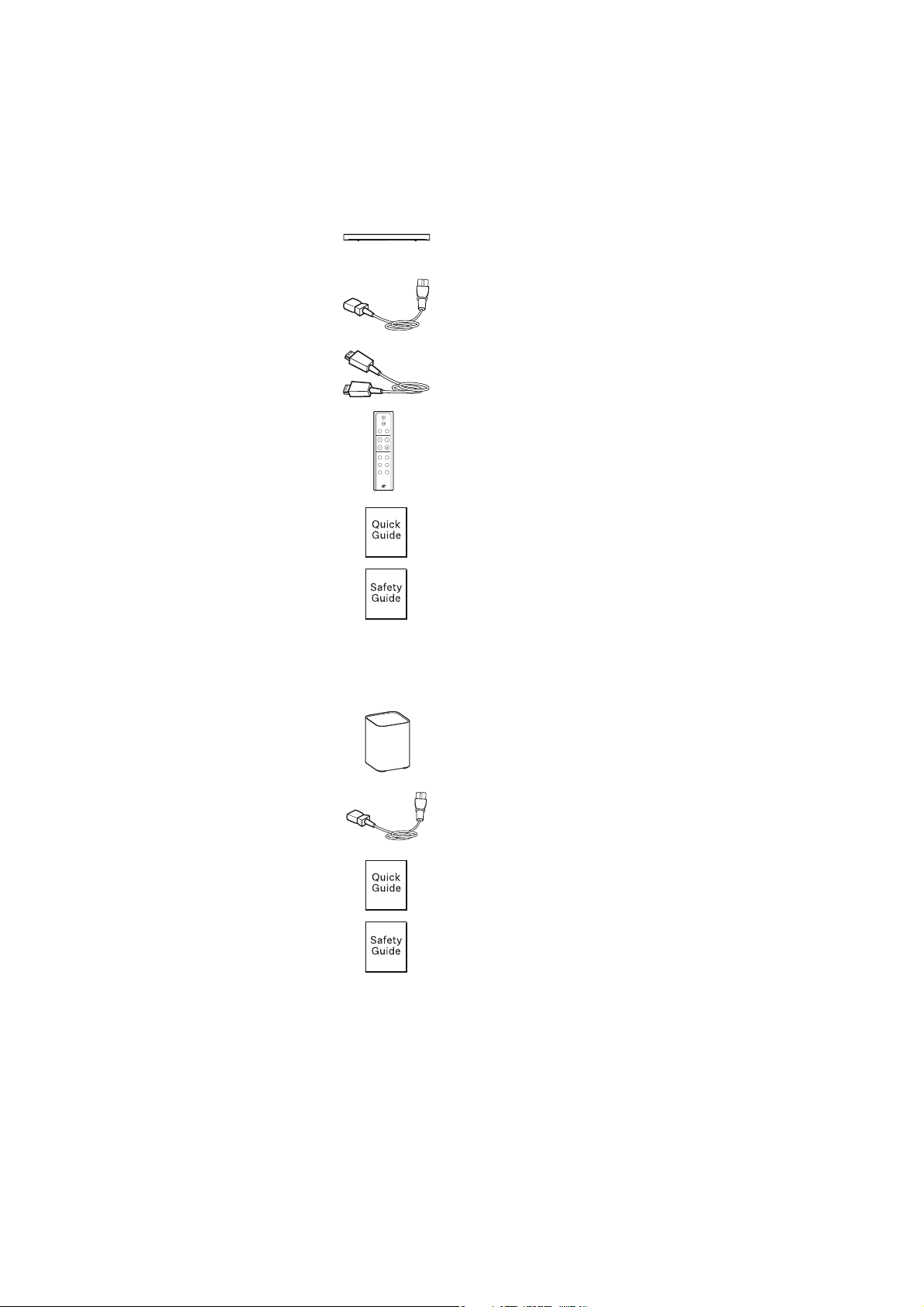
AMBEO Soundbar | Plus
AMBEO Sub
AMBEO Soundbar | Plus
Model: SB02M
Power cable, country-specific, length approx. 1 m
Premium High-Speed HDMI® Cable, length approx.
1 m
Remote control, model: SB02-RC
(incl. 1x CR2032 battery)
Quick guide
Safety guide
AMBEO Sub
Model: SW02
Power cable, country-specific, length approx. 1 m
Quick guide
Safety guide
NEWS SPORTS
NEUTRAL ADAPTIVE
MUSICMOVIE
VOLSOURCE
VOICENIGHT

Package contents
8 | Sennheiser AMBEO Soundbar System SB02
SB02-WM wall mount
Online you can find:
• this detailed instruction manual and additional information
(www.sennheiser-hearing.com/download
)
• the Sennheiser Smart Control app for configuring the AMBEO
Soundbar SB02 and for additional functions (www.sennheiser-
hearing.com/smartcontrol)
• a list of accessories on the AMBEO Soundbar SB02 product page
at
www.sennheiser-hearing.com/ambeo-soundbar-plus/
or
www.sennheiser-hearing.com/ambeo-sub/
(to purchase online or contact your local Sonova Consumer Hear-
ing partner:
www.sennheiser-hearing.com/service-support)
Wall mount for Soundbar | Plus
2 screws (M4x15) for wall mounting the Soundbar
Allen key (HX 3)
Mounting instructions
Mounting
manual
Product overview
Sennheiser AMBEO Soundbar System SB02 | 9
Product overview
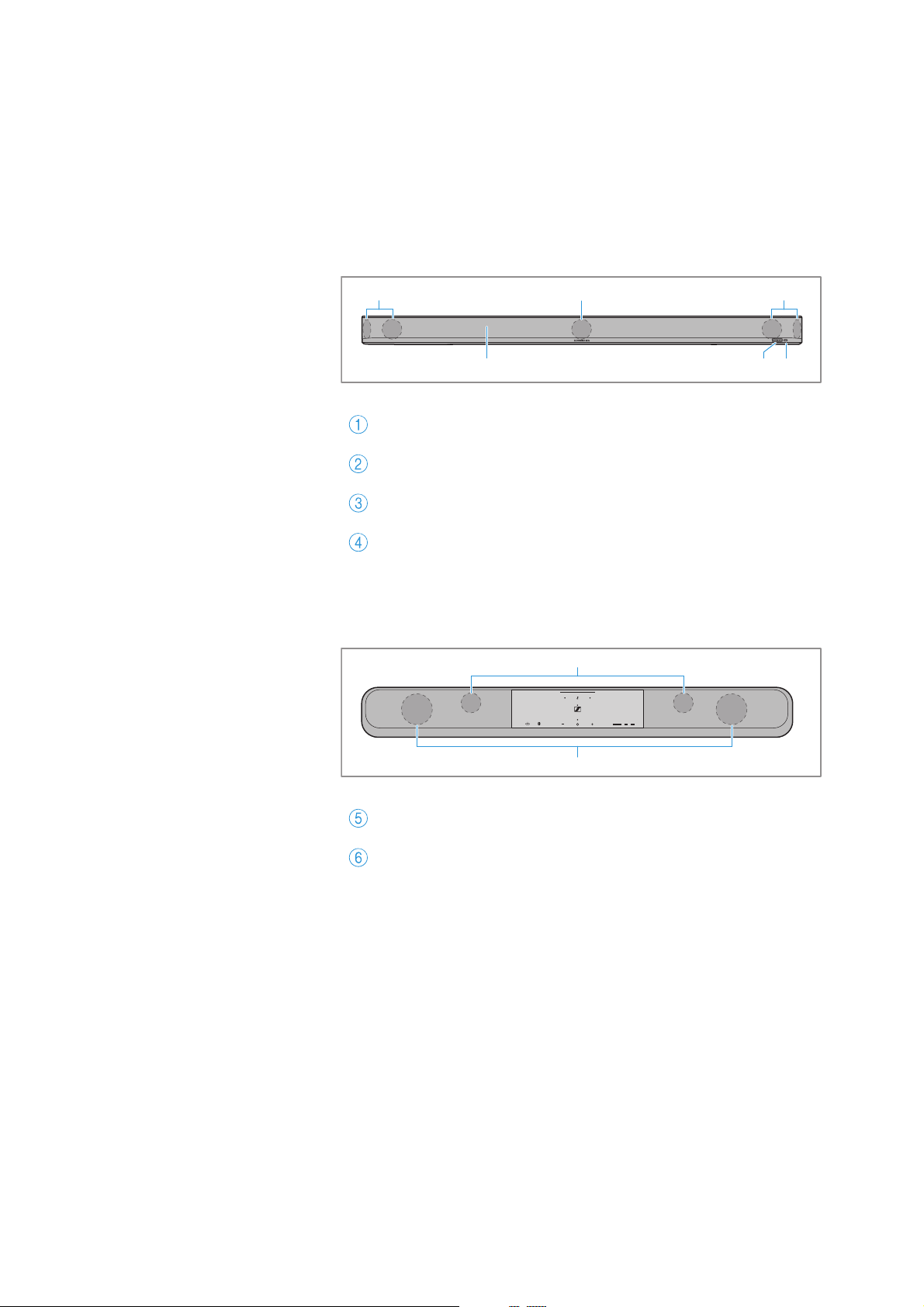
AMBEO Soundbar | Plus
Model: SB02M
Front
Top
Full-range speakers
Infra-red receiver for SB02-RC remote control
AMBEO display
Cover (not removable)
Top-firing full-range speakers
Woofer
23
1
4
11
5
6
Product overview
10 | Sennheiser AMBEO Soundbar System SB02
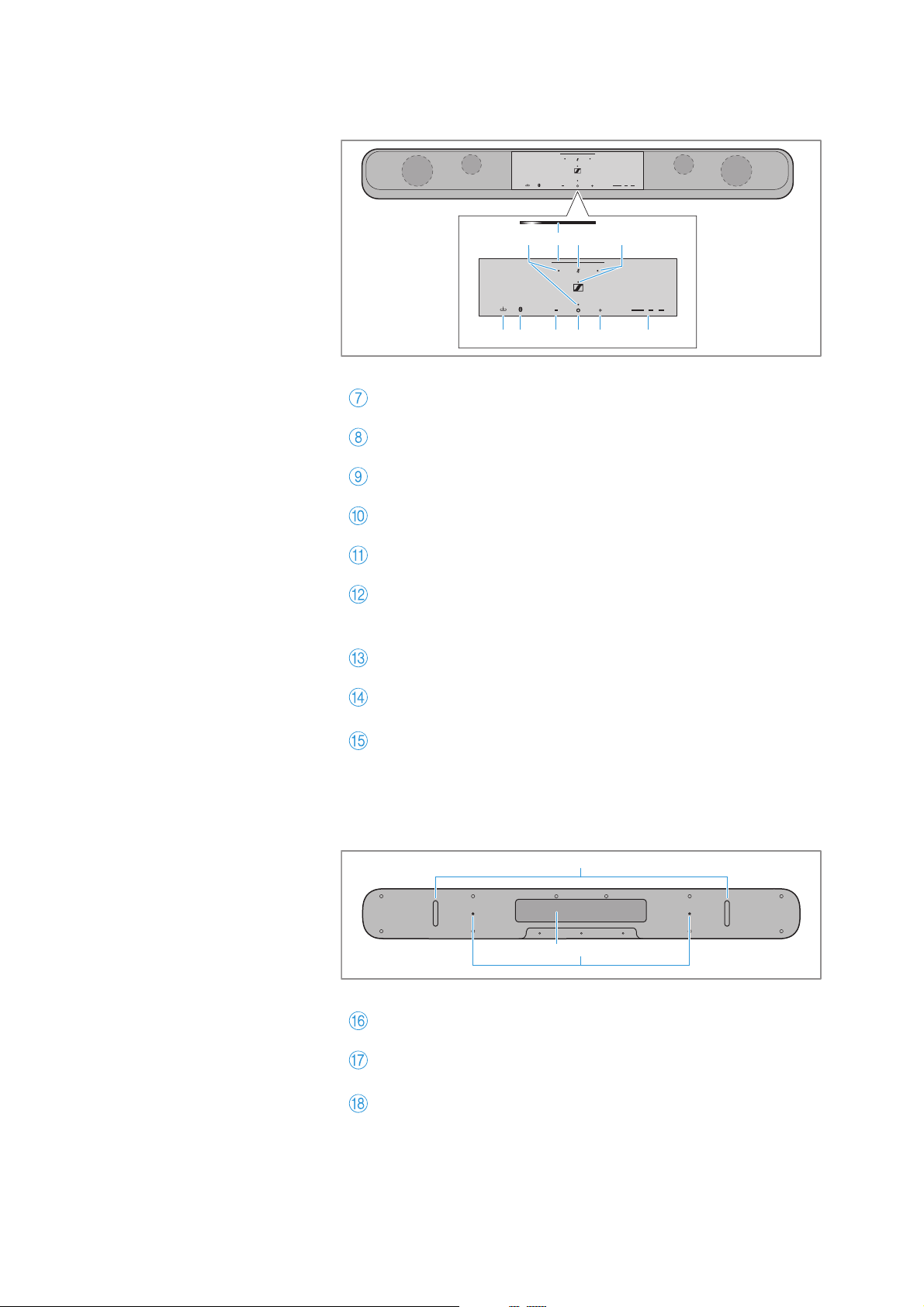
Control panel
Bottom
Microphones for room calibration and voice assistants
LED status bar
Mic Mute button with LED for microphone and WiFi status
Active Codec display
Volume
+ button
Multi-purpose O button
for playback control and ECO mode or Action button for
Amazon Alexa (if Alexa is activated)
Volume
– button
Bluetooth button
(press for 3 seconds to activate Bluetooth pairing)
Source button (input selection) to select connected and
active devices
Vibration absorbing feet
Mounting thread for SB02-WM wall mount (optional
accessory)
Type plate
0
8 9
ABCDE
7
7
H
F
G
Product overview
Sennheiser AMBEO Soundbar System SB02 | 11
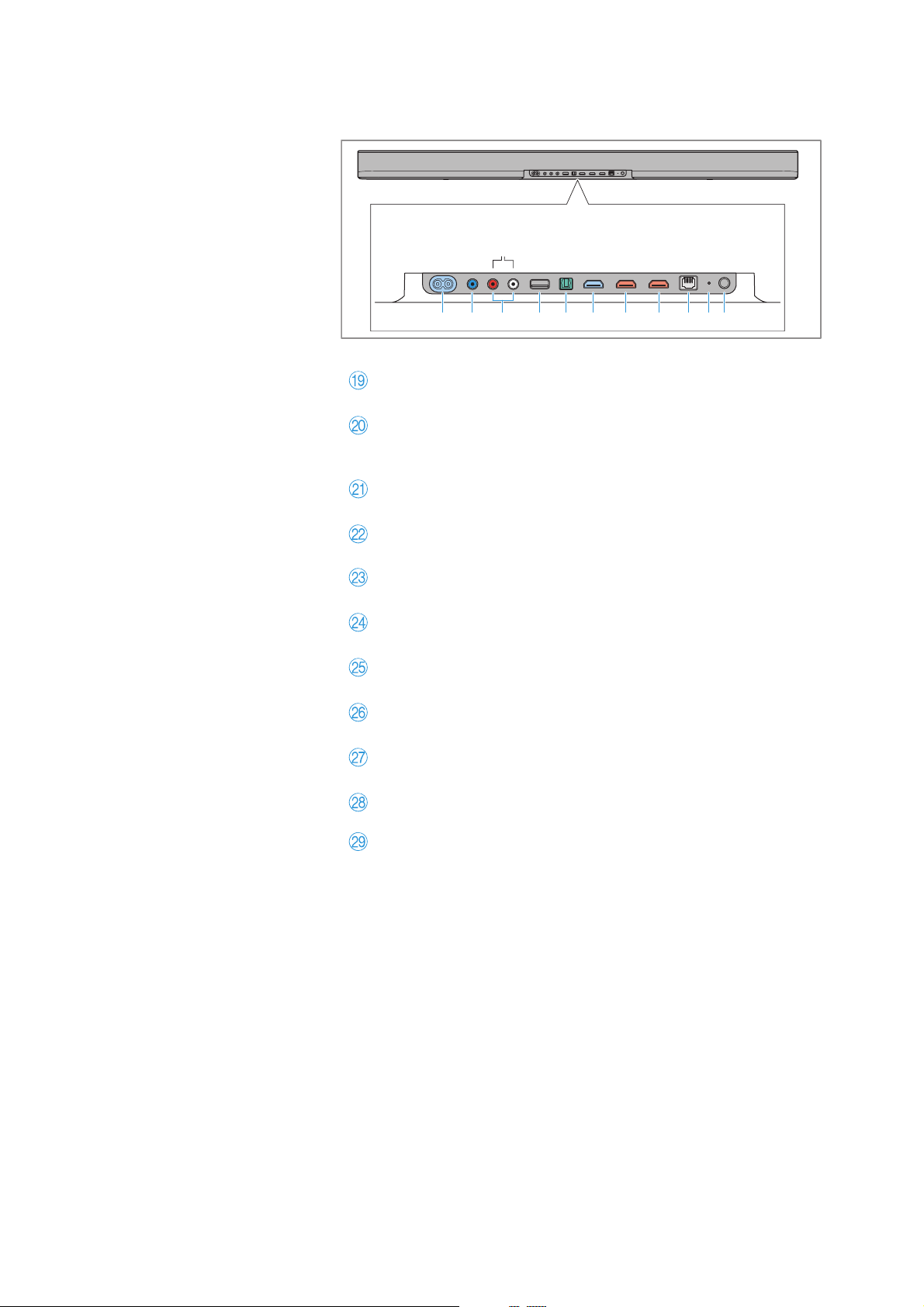
Inputs
POWER IN socket
100-240 V~, 50/60 Hz, max. 2.5 A
PRE OUT SUB output
RCA socket for connecting a subwoofer with power ampli-
fier
AUX IN L and AUX IN R inputs
RCA sockets for an analog audio source
USB socket
type A, 5 V, ⎓ 1 A
OPTICAL IN input
for S/PDIF, optical
HDMI TV (e)ARC socket
for HDMI
HDMI 1 IN input
for HDMI
HDMI 2 IN input
for HDMI
ETHERNET socket
for Ethernet, RJ45
Reset button
Setup button
for WiFi setting (press for 3 seconds to start WiFi Pro-
tected Setup; WPS) and for connecting AMBEO Subs
(press 1x).
PRE OUT
SUB
IN
OPTICAL
IN
HDMI 2
IN
HDMI 1
HDMI TV
(e)ARC
ETHERNET
SETUP
RESET
USB
5V⎓1A
IN
AUX
R
L
100-240V∿ 50/60Hz max. 2A
POWER IN
SRQPONMLJI K
Product overview
12 | Sennheiser AMBEO Soundbar System SB02
Overview of the Soundbar displays
LED status bar
The brightness of the displays can be adjusted via the
Sennheiser Smart Control app (> 54).
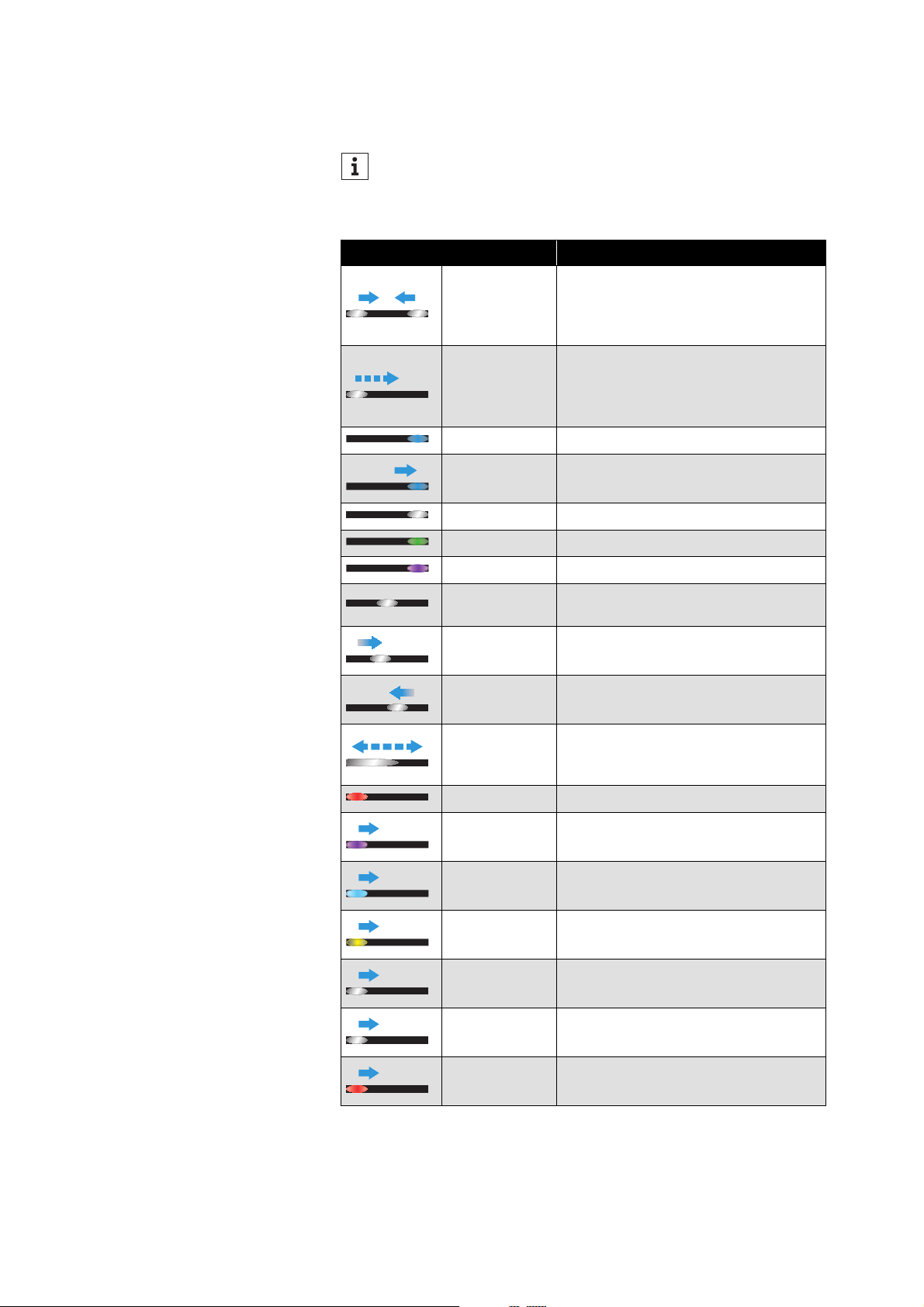
LED status bar Meaning
white
sequence
from left and
right
System boots
white in steps
from left
Change of input
If the LED status bar lights up red
when the input is changed, no other
active input is available.
blue right Bluetooth input
blue sequence Bluetooth pairing mode
white right Network streaming input
green right Network streaming “Spotify” input
purple right Network streaming “Tidal” input
white lighting
up
Playback start/stop
white swiping
to the right
Playback of next title
white swiping
to the left
Playback of previous title
white
ascending or
descending
Increase or decrease of volume
red left Minimum volume/volume muted
purple
sequence
Night mode “Night” activated/deac-
tivated
light blue
sequence
Voice mode “Voice” activated/deac-
tivated
yellow
sequence
AMBEO Sub is being connected
white
sequence
Room calibration is being performed
white
sequence
Firmware update is being installed
red-white
sequence
Reset to the factory default settings
Product overview
Sennheiser AMBEO Soundbar System SB02 | 13
Mic LED
Active Codec LED
Only active if the input source (device, streaming contents, and the
input used by the Soundbar) supports one of the codecs.
LED AMBEO
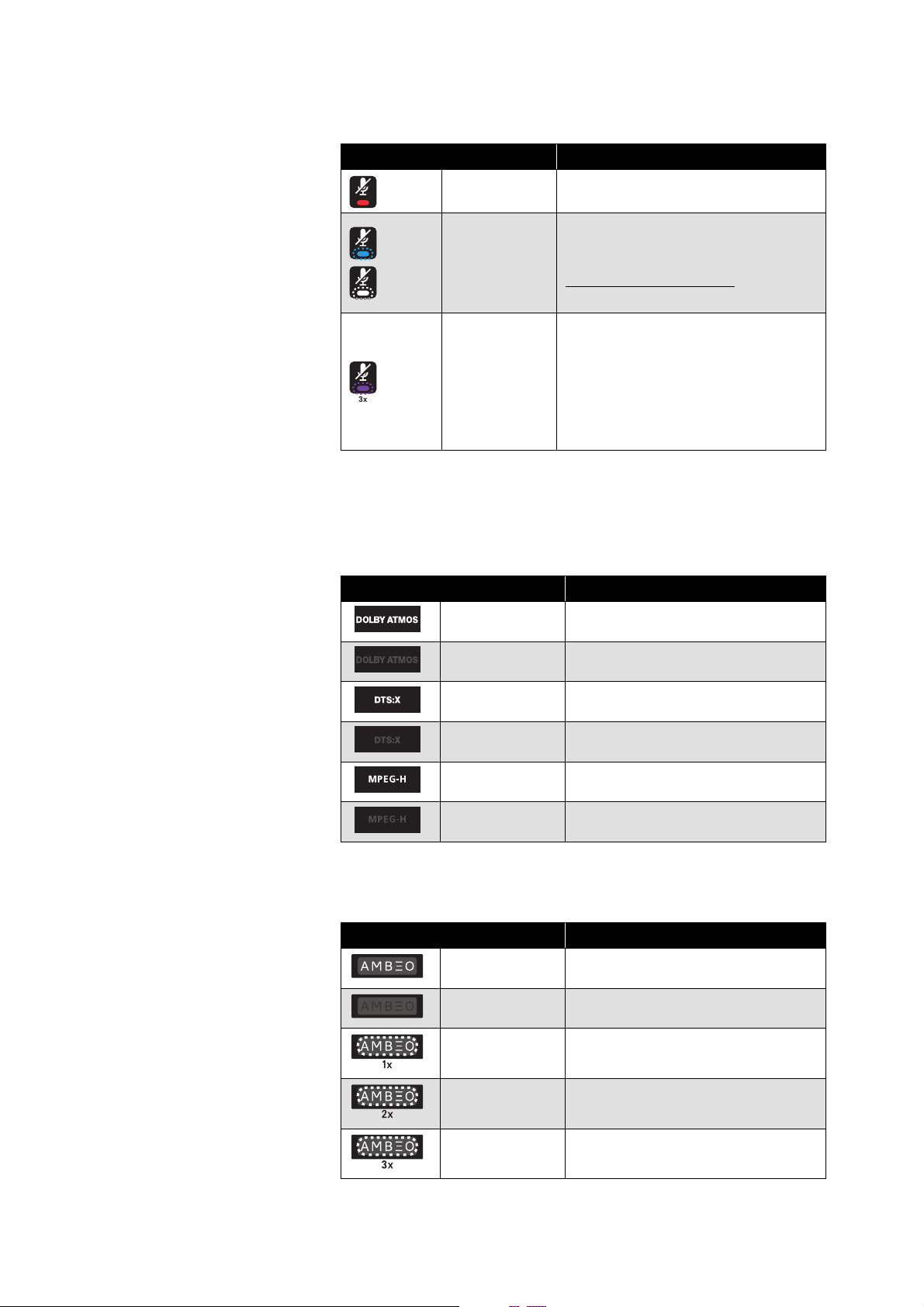
Mic LED Meaning
lights up red Microphones are switched off
or
flashes light
blue or white
(for max. 2
minutes)
Soundbar has not found WiFi set-
tings/cannot connect to WiFi
WiFi hotspot
(http://192.168.255.249/
)
is available
flashes purple
3x
Room calibration via the Volume
+
and Volume – buttons on the Sound-
bar is not possible because the
microphone is switched off
(press the
Mic Mute button on the
Soundbar to deactivate the mute
function)
Active Codec LED Meaning
lights up white DOLBY ATMOS active
off DOLBY ATMOS not active
lights up white DTS:X active
off DTS:X not active
lights up white MPEG-H active
off MPEG-H not active
LED AMBEO Meaning
lights up white AMBEO active
off AMBEO not active
flashes white 1x AMBEO “Light” activated
flashes white 2x AMBEO “Standard” activated
flashes white 3x AMBEO “Boost” activated
Product overview
14 | Sennheiser AMBEO Soundbar System SB02
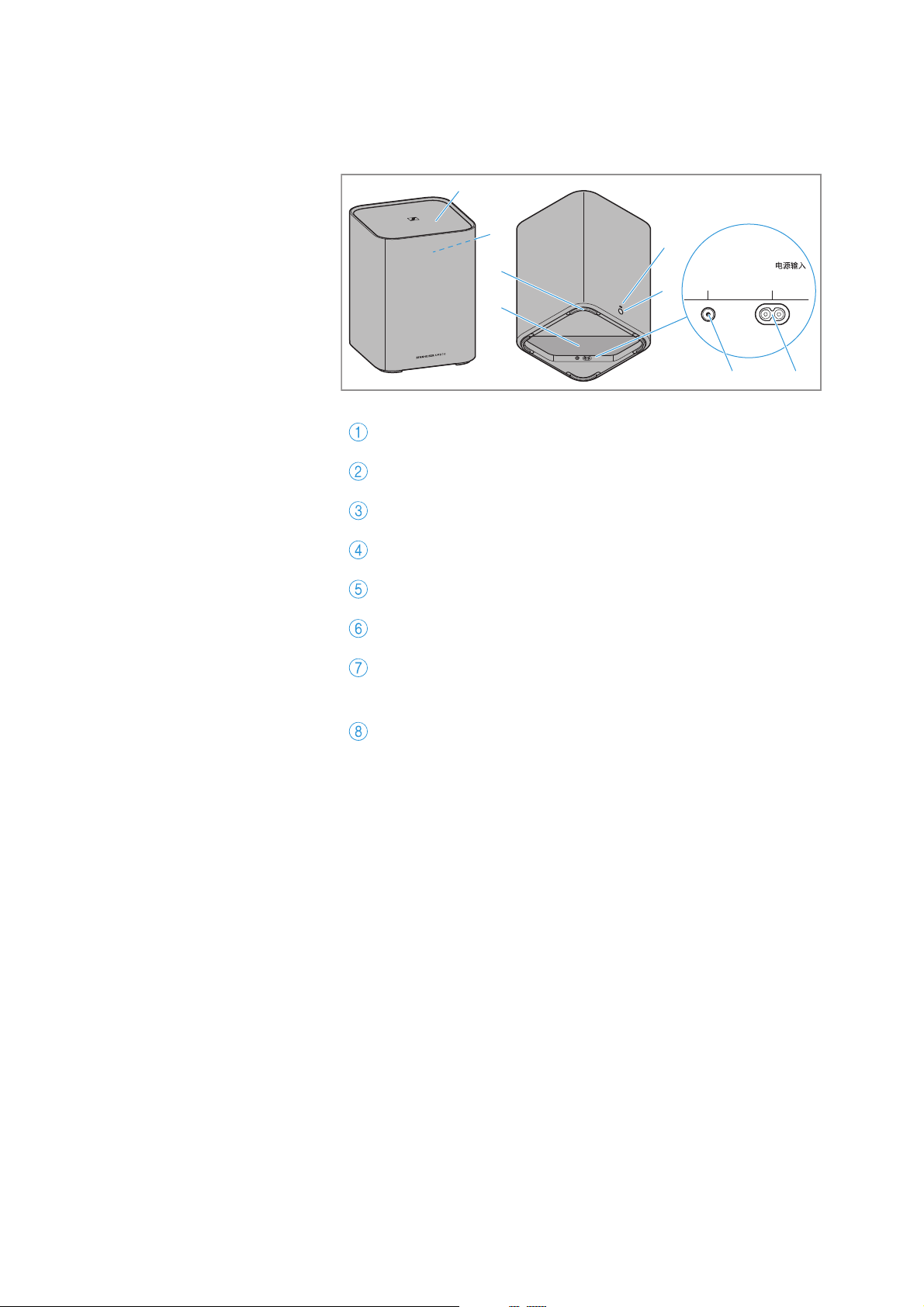
AMBEO Sub subwoofer
Model: SW02
Cover (not removable)
Woofer (not visible, radiation direction upwards)
Vibration absorbing feet
Type plate
Status LED
Setup button
IN SUB input
RCA socket for analog subwoofer signal (only required if
no wireless connection to the Soundbar is possible)
POWER IN socket
100 – 240 V~, 50/60 Hz, max. 3 A
SUB
IN
100-240V∿ 50/60Hz
max. 3A
POWER IN/
1
2
3
4
87
5
6
Product overview
Sennheiser AMBEO Soundbar System SB02 | 15
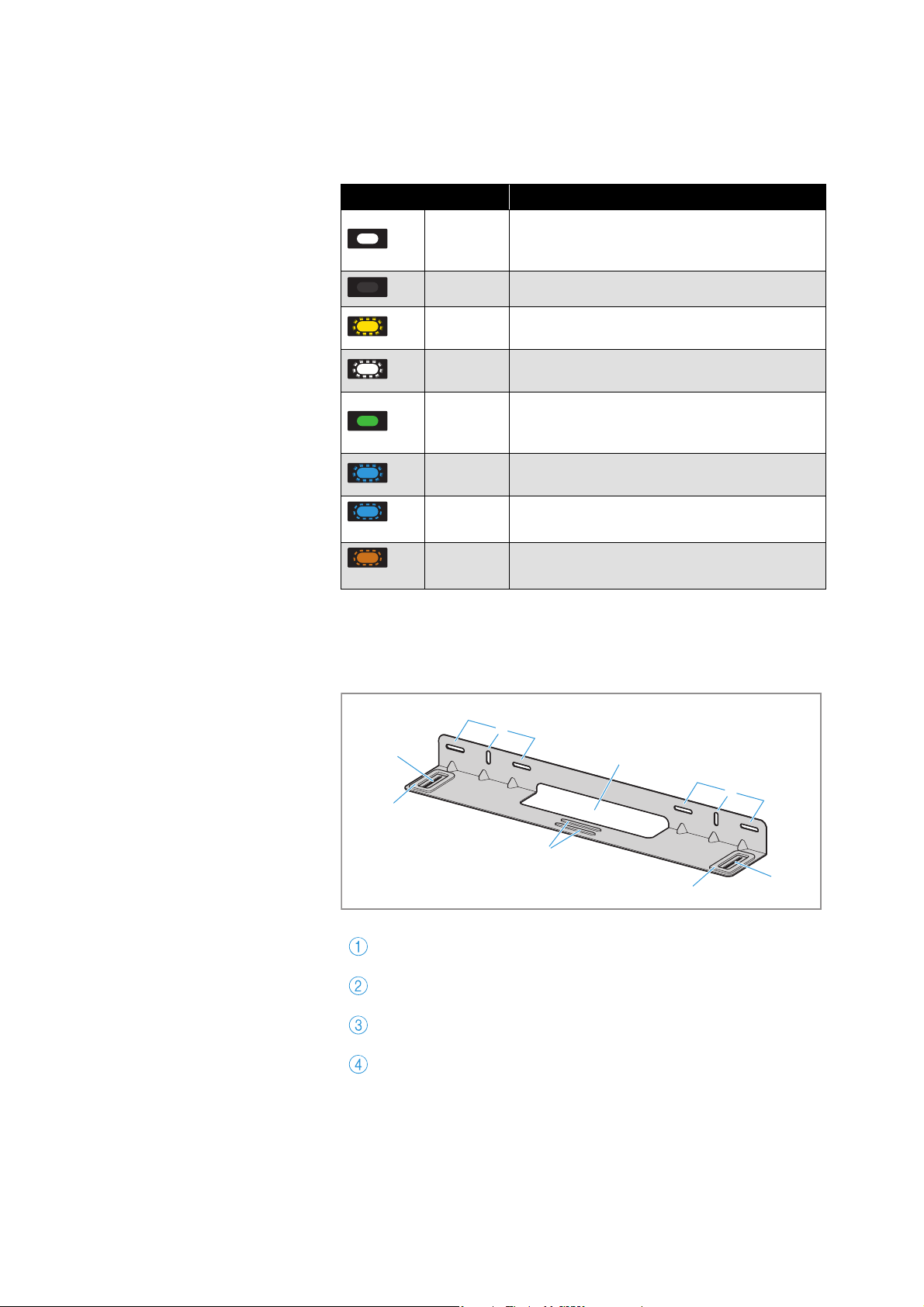
Overview of the subwoofer displays
Status LED
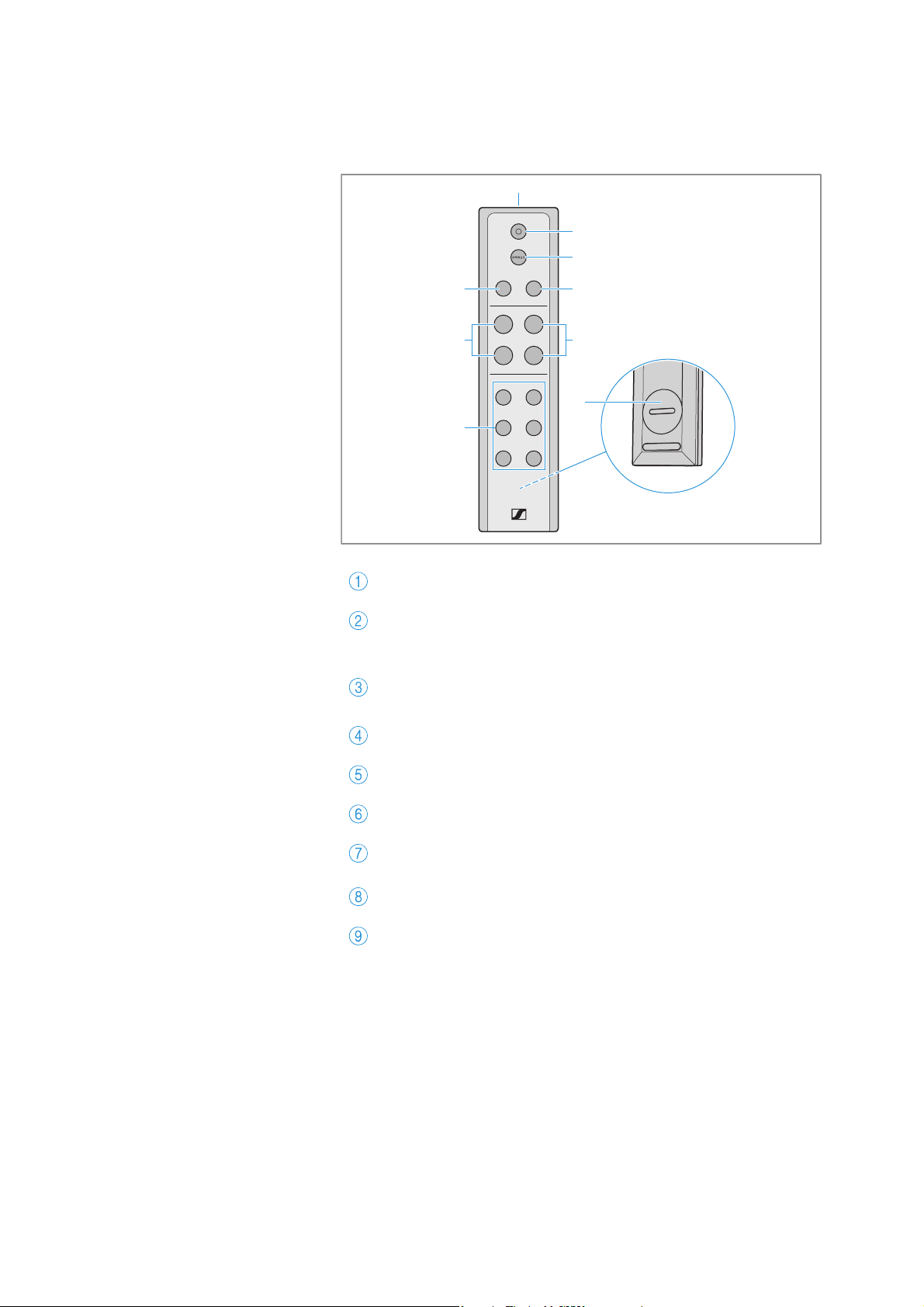
Wall mount
Model: SB02-WM
Status LED Meaning
lights up
white
Sub switched on, is booting or wirelessly
connected to the Soundbar
Off Standby/no power connection
pulses
yellow
Initial pairing mode, Sub searches for the
Soundbar in pairing mode
pulses
white
Connection mode, Sub searches for the
paired Soundbar
lights up
green
Sub switched on, connected to the Sound-
bar via RCA cable, wireless connection
deactivated
pulses
blue
Room calibration active
flashes
blue 3x
Room calibration successful
flashes
orange 3x
All connection settings deleted
Recesses for mounting (screws) to the wall
Recess for cables
Recesses for mounting the Soundbar with M4x15 screws
Damping elements
3x
3x
2
3
4
3
4
1
1
4
Product overview
16 | Sennheiser AMBEO Soundbar System SB02
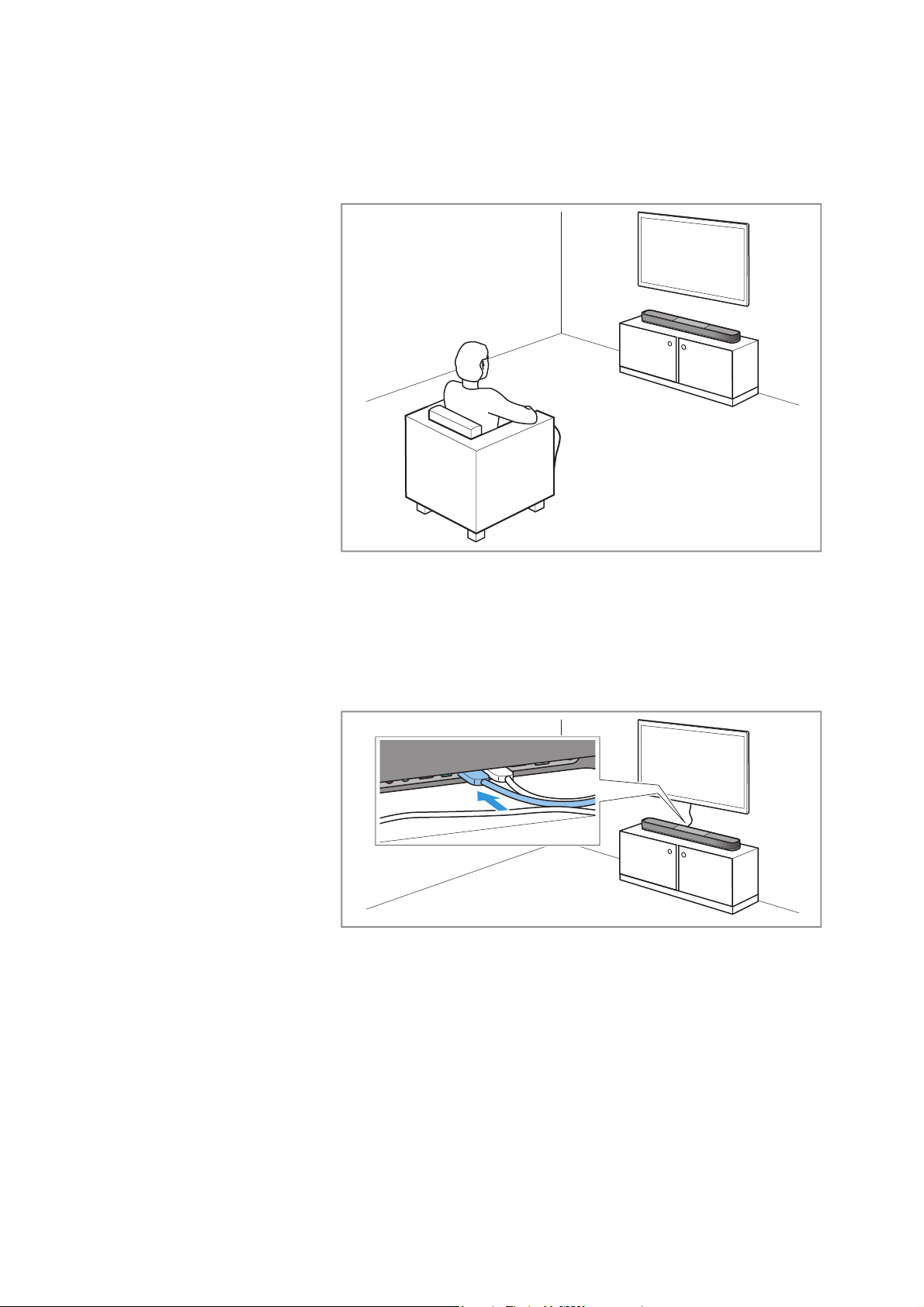
Remote control
Model: SB02-RC
Infra-red transmitting diode
Multi-purpose
o button
for playback control and to activate the ECO mode or
Action button for Amazon Alexa (if Alexa is activated)
AMBEO button
for activating AMBEO
Voice button (voice mode)
Volume
+/– button
Battery compartment (for 1x CR2032 battery)
Sound profile buttons
Movie, Music, News, Sports, Neutral, Adaptive
Source button (input selection)
Night button (night mode)
VOICE
NIGHT
VOL
SOURCE
MUSIC
MOVIE
SPORTSNEWS
ADAPTIVENEUTRAL
1
2
3
4
6
58
9
7
Getting started
Sennheiser AMBEO Soundbar System SB02 | 17
Getting started
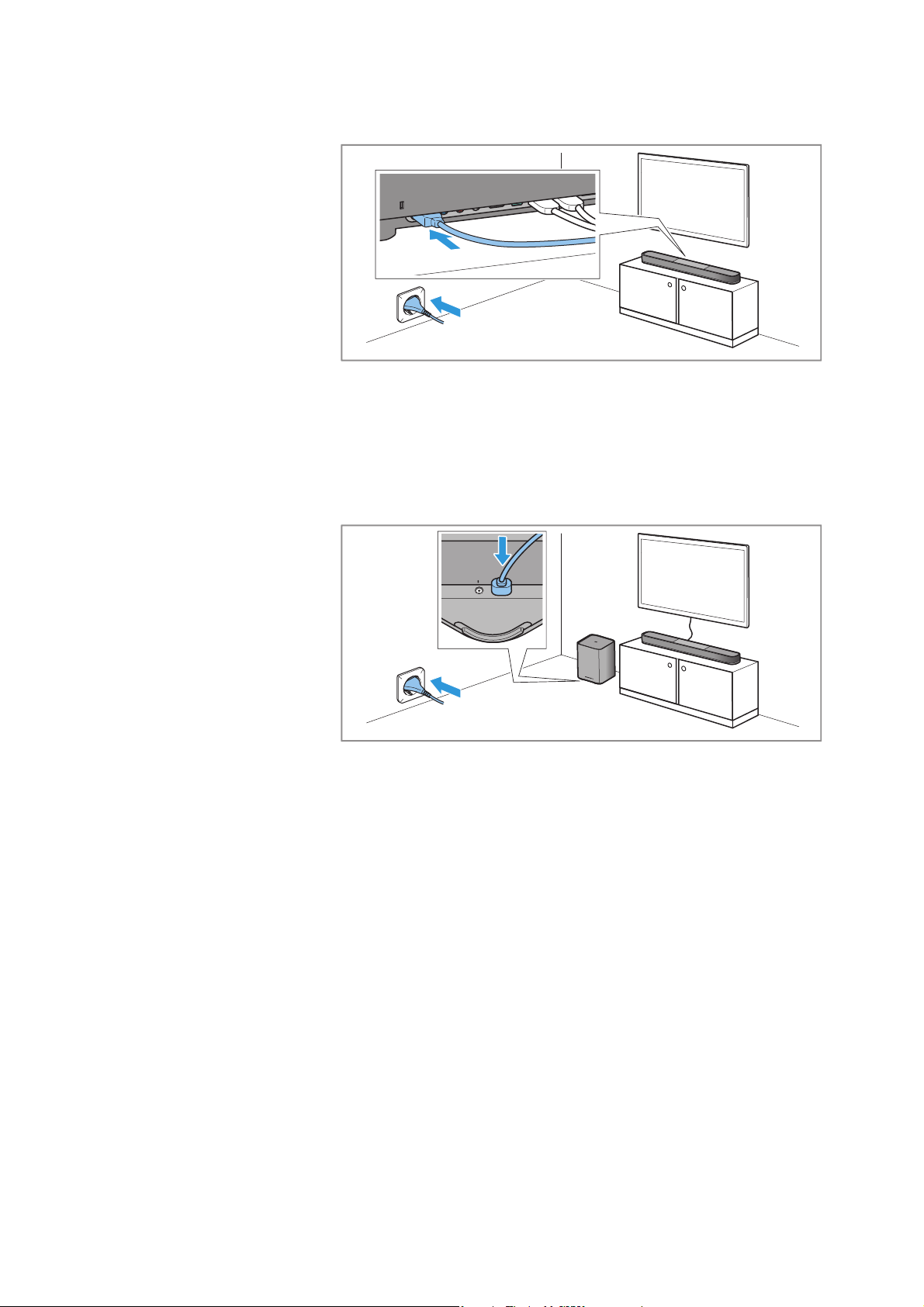
1. Setting up the Soundbar
The correct placement and setup of the AMBEO Soundbar is import-
ant for an optimum sound experience. You can place the AMBEO
Soundbar on a piece of furniture (> 21) or mount it directly to a wall
using the wall mount (optional accessory) (> 24).
2. Connecting a TV and/or audio devices
Connect your TV to the Soundbar. You can also connect other audio/
video devices (> 32) or play wireless audio via Bluetooth or WiFi/
Ethernet (> 51).
Getting started
18 | Sennheiser AMBEO Soundbar System SB02
3. Connecting to the power supply system
Connect the AMBEO Soundbar to the power supply system – the
AMBEO Soundbar comes to life and guides you through the initial
switch-on process via the Sennheiser Smart Control app (> 17).
4. Setting up an optional AMBEO Sub and
connecting to the power supply system
You can optionally extend the bass performance of the AMBEO
Soundbar with up to 4 wirelessly connected AMBEO Subs. Place the
subwoofer(s) in the same room as the Soundbar (> 21) and connect
the AMBEO Sub(s) to the power supply system (> 35).
SUB
100-240V∿ 50/60Hz
max. 3A
POWER IN/
Getting started
Sennheiser AMBEO Soundbar System SB02 | 19
5. Installing the Sennheiser Smart Control
app on your smartphone and establishing a
WiFi connection
The Sennheiser Smart Control app allows you to use all the functions
and settings of the AMBEO Soundbar and further guides you through
setup process such as WiFi, name of the Soundbar, connection of the
AMBEO Subs (optional) and room calibration.
6. Starting the room calibration
For an optimum spatial sound experience, the AMBEO Soundbar
together with the optional AMBEO Subs must perform a room cali-
bration. The calibration takes only a few minutes and leads to the
best possible 3D spatial sound (> 41).
www.sennheiser-hearing.com/smartcontrol
Smart Co
ntr
o
R
oom
calibration
l
Getting started
20 | Sennheiser AMBEO Soundbar System SB02
Configuring an optional assistant such as
Amazon Alexa or Ok Google
You can optionally configure the Soundbar to use the Amazon Alexa
or Ok Google voice assistants. The Smart Control app will guide you
through the setup process (Internet connection and user account
required, availability of Amazon Alexa, Alexa Cast and Ok Google and
Chromecast is region-dependent).
Smart Control

Setting up the Soundbar and a Sub
Sennheiser AMBEO Soundbar System SB02 | 21
Setting up the Soundbar and a
Sub
Placing the Soundbar on the device feet
and positioning it
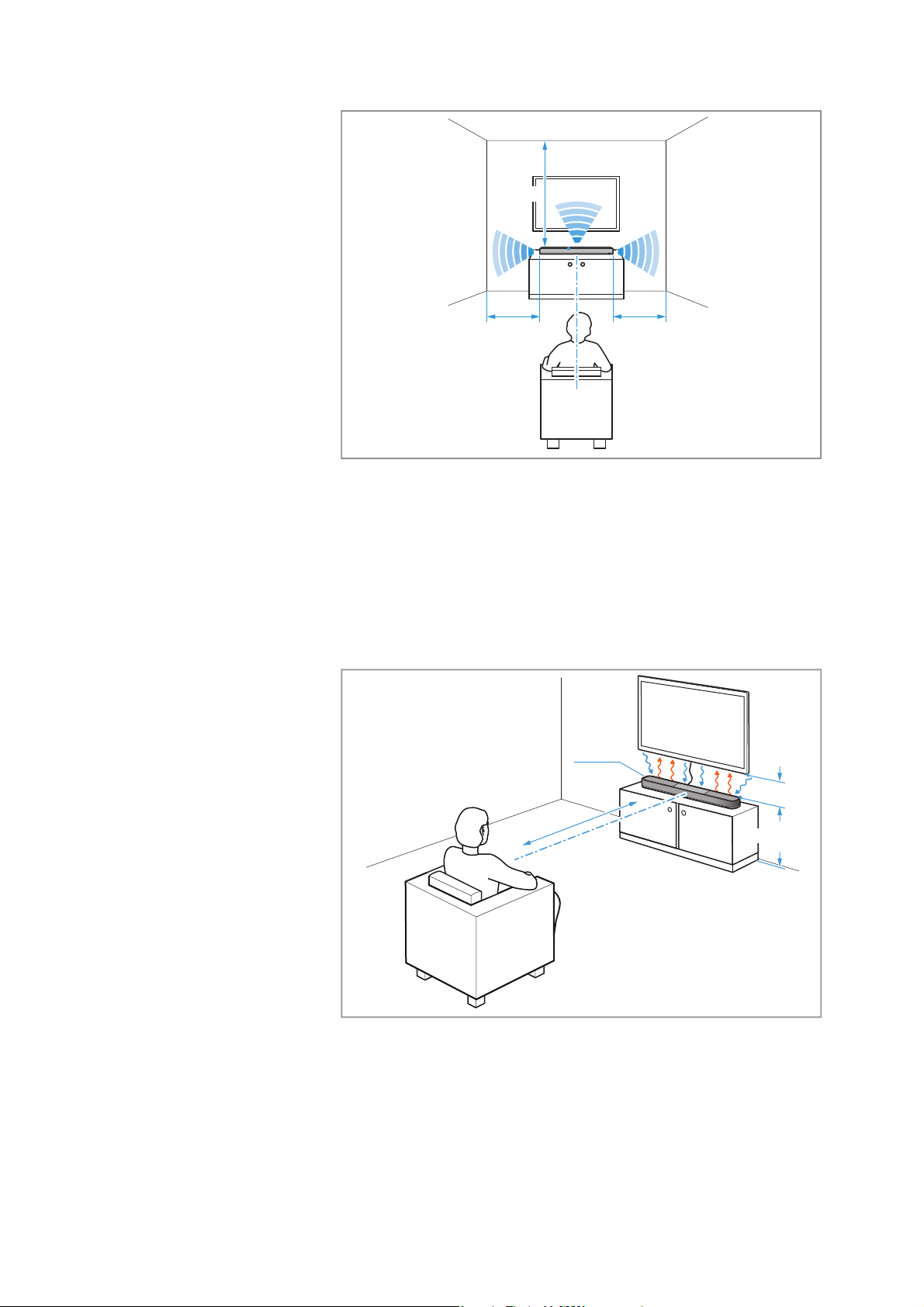
▷ Place the Soundbar on a sturdy, level, horizontal piece of furniture
that can safely carry the weight of the Soundbar.
▷ Observe the following:
–The distance
X of the Soundbar to the side walls should ideally
be the same so that the Soundbar is centered in the room. The
optimum distance between the Soundbar and the walls is
between 1 and 5 meters.
– The Soundbar should be placed in an elevated position, at least
27.55"/70 cm high (e.g. on a piece of furniture).
– There must be no objects between the Soundbar, the side walls
and the ceiling of the room that block sound or have a strong
sound-absorbing effect (e.g. furniture such as shelves or arm-
chairs, room dividers, curtains, flower pots).
–The distance
Y of the Soundbar to the ceiling should be
between 1 and 5 meters, but should not exceed 5 meters. The
ceiling should be flat and horizontal (no pitched roof or domed
roof).
– The Soundbar should be positioned centrally below the TV.
– You can optionally connect the Soundbar to 1 to 4 AMBEO Subs
to give the spatial sound more volume and presence. For the
positioning of the AMBEO Sub, see > 25.
ATTENTION
Material damage due to overheating
Inadequate ventilation may cause the Soundbar to overheat.
▷ Do not place any objects on the Soundbar, keep the minimum
clearances and ensure circulating ventilation.
ATTENTION
Risk of staining of furniture surfaces!
Varnish or furniture polish may degrade the feet of the product,
which could stain your furniture.
▷ Do not place the product on delicate surfaces; if necessary, use a
non-slip pad under the product.
Setting up the Soundbar and a Sub
22 | Sennheiser AMBEO Soundbar System SB02
• The distance of the Soundbar to the TV should be at least 3.94"/
10 cm.
• Note that with some TVs, the sensor of the remote control may be
covered by the Soundbar and the remote control will no longer
work. In this case, increase the distance between the Soundbar
and the TV or use a commercially available IR repeater.
• The seat (optimal point “sweet spot”) should be positioned cen-
trally in front of the Soundbar and have a distance of at least
2 meters to the Soundbar.
▷ Ensure circulating ventilation. The product generates heat which
is dissipated through the housing.
Y
X X
>10 cm
ca. 70 cm
≥2 m
6,3 kg
Setting up the Soundbar and a Sub
Sennheiser AMBEO Soundbar System SB02 | 23
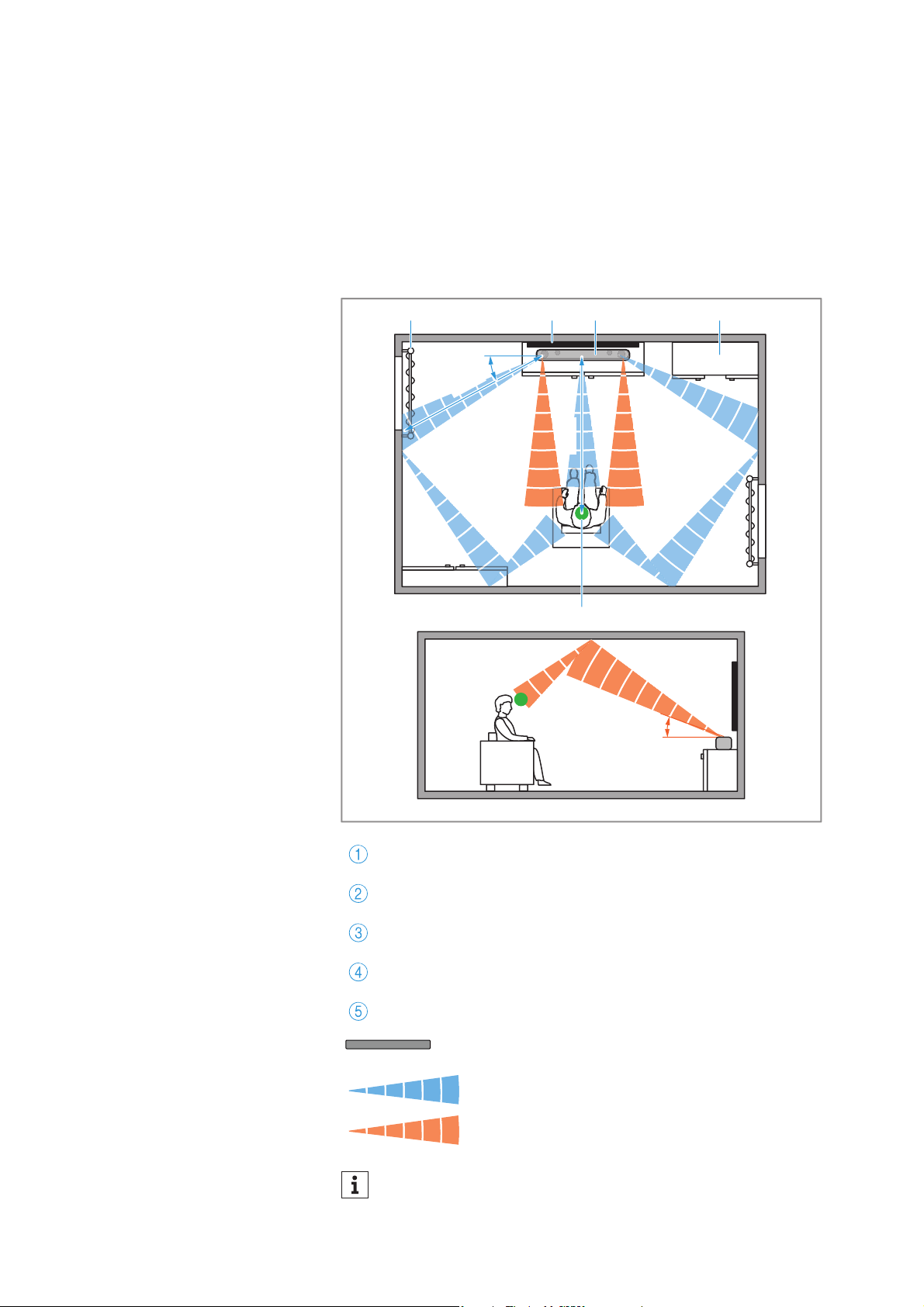
Optimum positioning
The following illustration shows the schematic structure of the
sound waves starting from the Soundbar, which are reflected by
walls and objects and thus reach the optimal point (“sweet spot”).
Thus, virtual spatial sound can be created with a Soundbar.
Theoretically, the AMBEO Sub can be placed anywhere in the room,
since the low bass sound waves cannot be located by hearing. If you
are using multiple subwoofers (up to 4 are possible), note that the
subwoofers have to be placed on one side/wall.
Curtain
TV
Soundbar
Furniture
Optimal point “sweet spot”
Reflecting surface
Sound waves of the loudspeakers
Sound waves from the top-firing loudspeakers
to the ceiling
When positioning the Soundbar, keep in mind that the sound is
reflected by the walls and ceiling. Many curtains, thick carpets
and other rough surfaces can affect the 3D spatial sound.
≤15 m
≥2 m
30°
20°
1 2 3 4
5
Setting up the Soundbar and a Sub
24 | Sennheiser AMBEO Soundbar System SB02
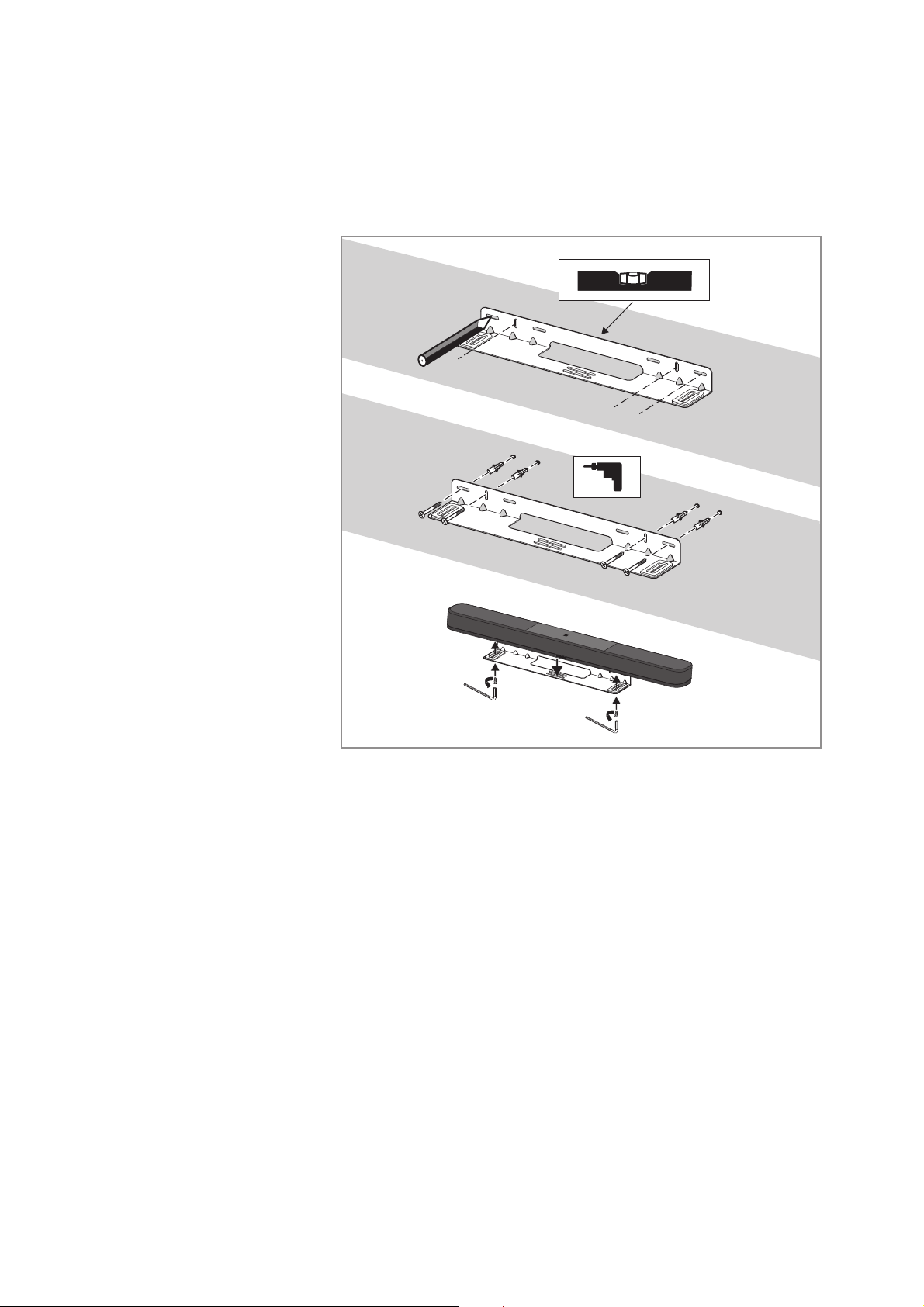
Mounting the Soundbar to a wall
To mount the Soundbar to a wall, you require the SB02-WM wall
mount (optional accessory, > 15) for the AMBEO Soundbar | Plus.
▷ Proceed as described in the mounting instructions (enclosed with
the SB02-WM wall mount).
*
*
M4x15
M4x15
HX 3
HX 3
Setting up the Soundbar and a Sub
Sennheiser AMBEO Soundbar System SB02 | 25
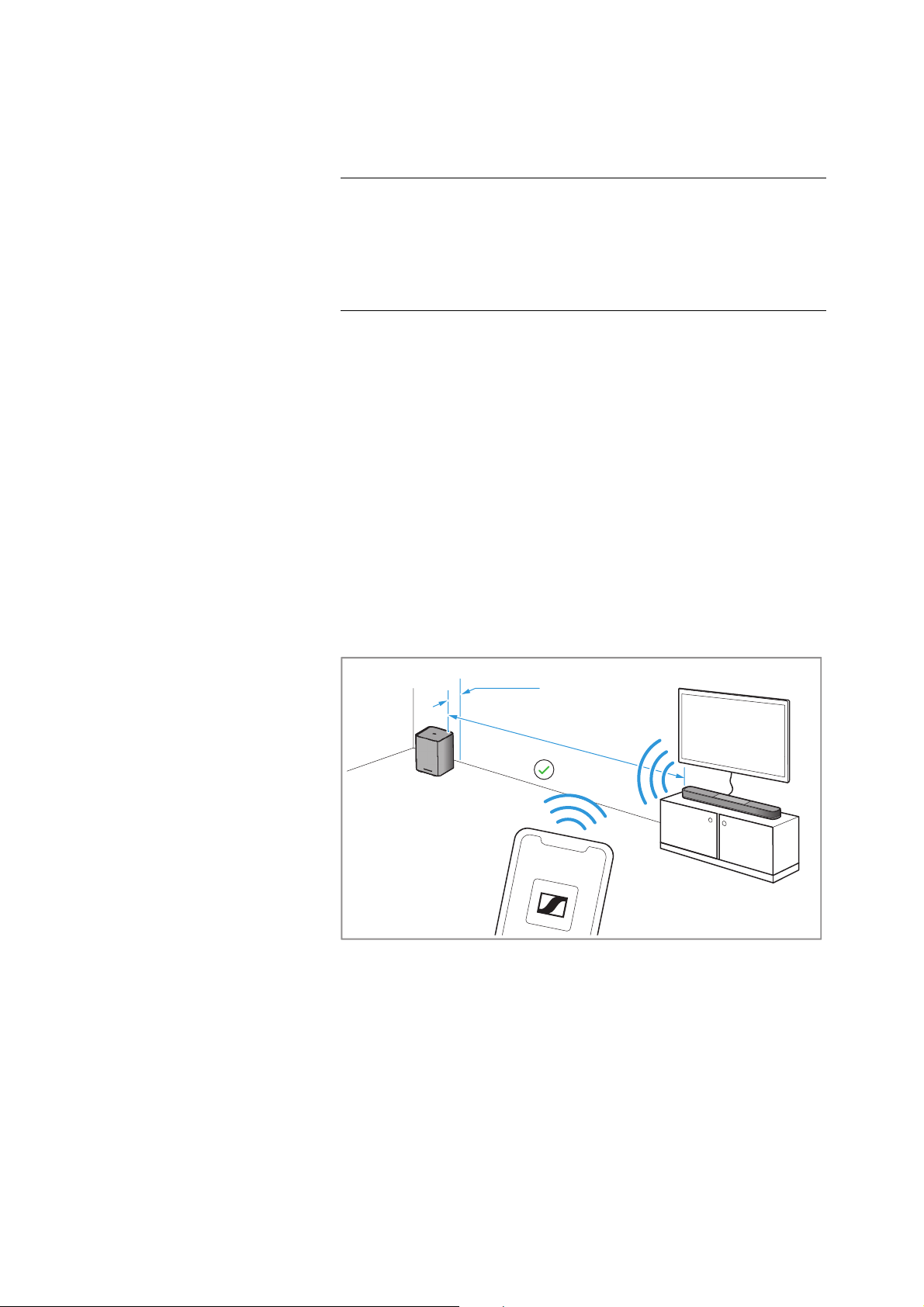
Placing a Sub on the device feet and
positioning it
▷ Place the Sub on the floor. The floor has to be firm and level.
▷ Observe the following:
– The subwoofer should be placed to the side of the Soundbar.
The distance to walls should be approx. 5.90"/15 cm.
– The transmission range between the subwoofer and the Sound-
bar is up to 10 m.
– The radiation angle of the subwoofer leads upwards. Do not
place any objects on top of the subwoofer and do not cover it.
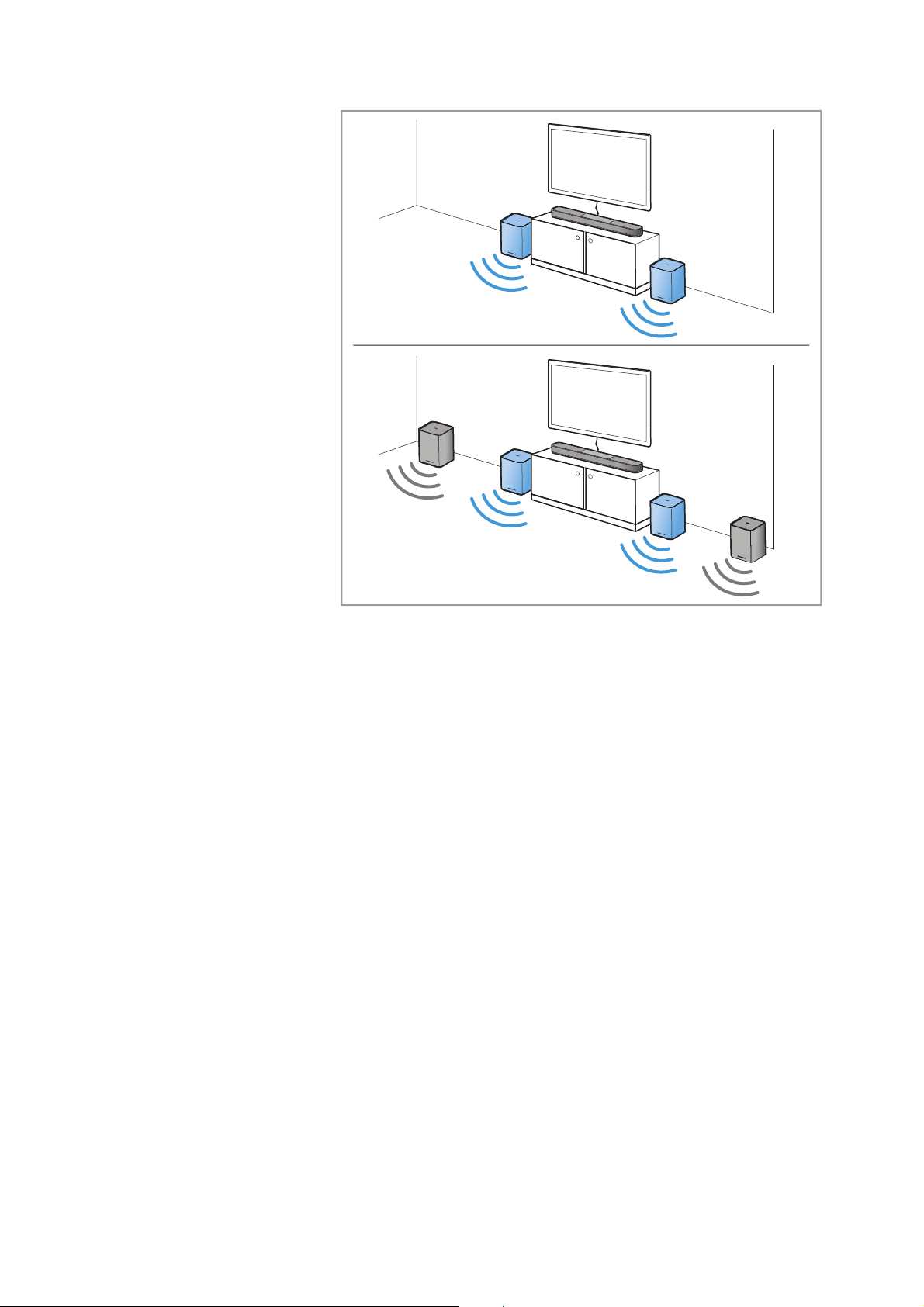
– If you are using more than one subwoofer (up to 4 are possible),
place the subwoofers on one side/wall. It is possible to distrib-
ute the subwoofers in the room instead, but in this case the
bass performance may not build up optimally.
– Placing the subwoofer in the front area of the room will result in
optimal sound mixing between the speakers.
– Placing the subwoofer in the rear area of the room minimizes
the localization effect.
ATTENTION
Risk of staining of furniture surfaces!
Varnish or furniture polish may degrade the feet of the product,
which could stain your furniture.
▷ Do not place the product on delicate surfaces; if necessary, use a
non-slip pad under the product.
Smart Co
ntr
ol
≤10 m
ca. 15 cm
Auto connect
Setting up the Soundbar and a Sub
26 | Sennheiser AMBEO Soundbar System SB02
Connecting devices to the Soundbar
Sennheiser AMBEO Soundbar System SB02 | 27
Connecting devices to the
Soundbar
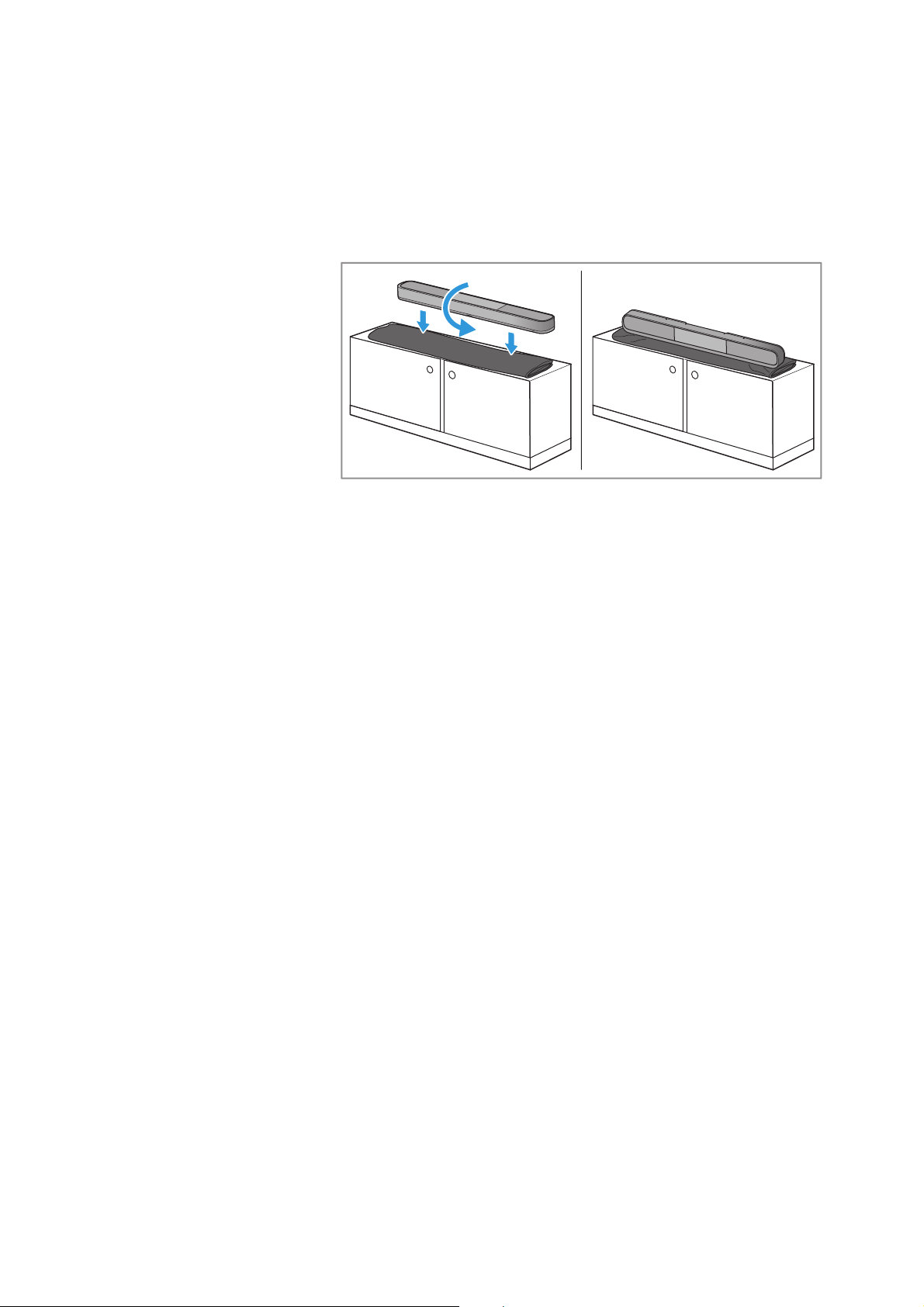
▷ Put a protective material (e.g. a blanket) between the piece of fur-
niture and the Soundbar.
▷ Carefully turn the Soundbar on its front.
Connecting devices to the Soundbar
28 | Sennheiser AMBEO Soundbar System SB02
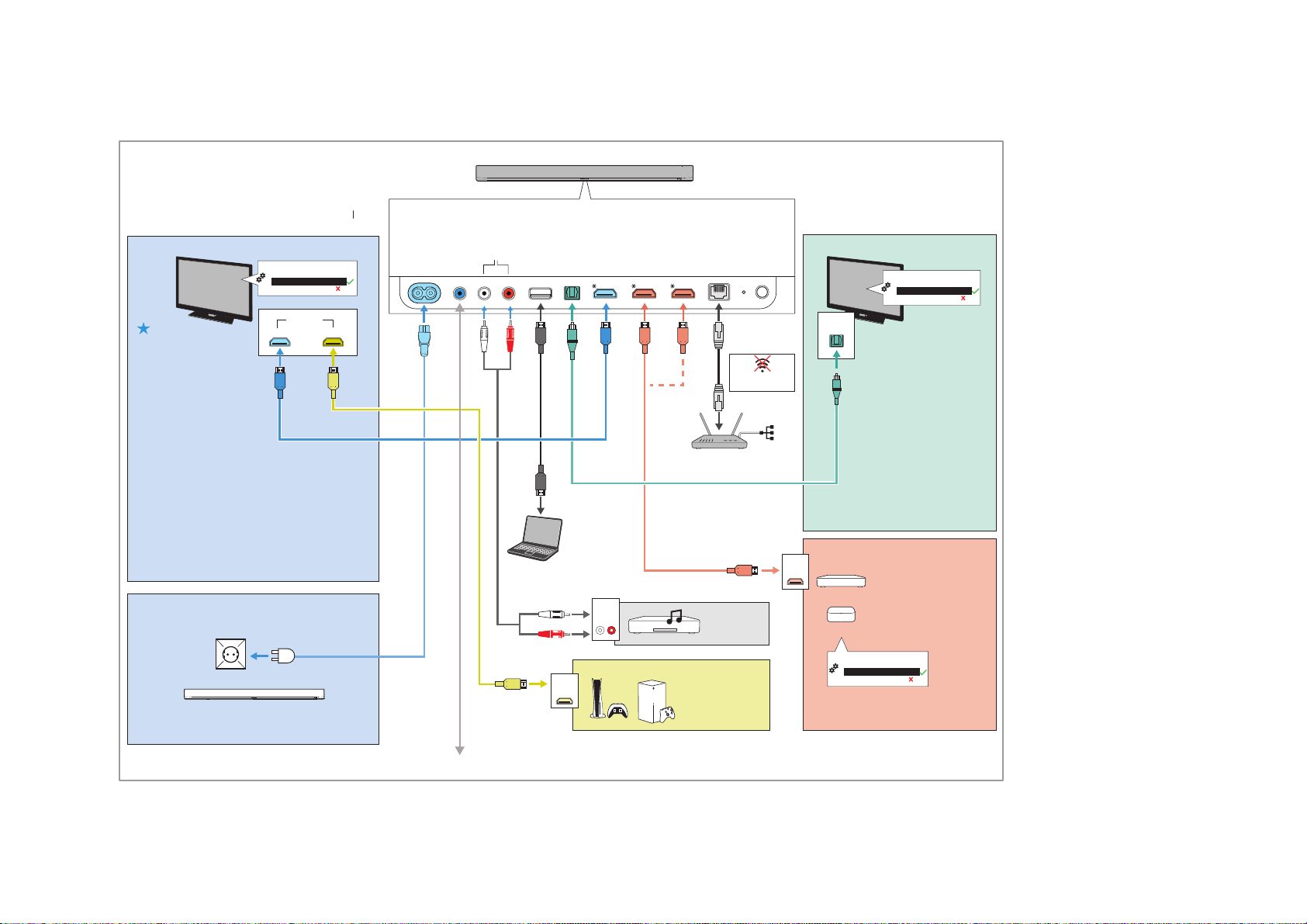
Connection diagram (example)
Connect your audio sources to the AMBEO Soundbar and your TV
according to the diagram (example) in the supplied quick guide.
Sennheiser recommends connecting the audio sources for high-res-
olution surround formats directly to the AMBEO Soundbar using a
High Speed HDMI® Cable.
Note that video contents with a resolution of 8K cannot be transmit-
ted to the Soundbar. Connect your video device directly to your TV if
you want to transmit video contents in 8K.
TV with HDMI eARC/ARC TV: no HDMI eARC/ARC
eARC
HDMI IN
PRE OUT
SUB
IN
OPTICAL
IN
HDMI 2
IN
HDMI 1
HDMI TV
(e)ARC
ETHERNET
Setup
Reset
USB
5V⎓1A
e.g. CD player
L
AUDIO
OUT
R
RCA stereo cable
not included
USB-A cable
not included
HDMI 4K
HDMI 8K or higher
Auto Power
ON/ECO Mode
Streaming device e.g.
Apple TV, Netflix, ...
Gaming console e.g.
PS5, Xbox, ...
Blu-ray player, DVD player,
cable or satellite receiver
Optical Cable not included
Recommended
Ultra High Speed
HDMI cable
not included
Recommended
Premium High Speed
HDMI cable
not included
*
Premium High Speed
HDMI Cable
included
Power cable included
RJ-45 cable
not included
Router
HDMI
OUT
HDMI
OUT
Auto/Bypass/Pass-Through
Downmix/Stereo/PCM
TV/Player sound menu
*
:
HDMI Audio OUT/Optical OUT
Auto/Bypass/Pass-Through
Downmix/Stereo/PCM
Player sound menu
*
:
HDMI Audio OUT/Optical OUT
Auto/Bypass/Pass-Through
Downmix/Stereo/PCM
TV/Player sound menu
*
:
HDMI Audio OUT/Optical OUT
IN
AUX
L
R
max. 4K 60Hz
more than 4K 60Hz
(e.g. 8k, 120Hz)
OPTICAL
OUT
100-240V∿ 50/60Hz max. 2A
POWER IN
/
WiFi off when Ethernet
cable is connected
* sound menu can vary
* sound menu can vary
* sound menu can vary
Recommended
Empfohlen
Recommandé
Recomendado
Recomendado
Aanbevolen
Consigliato
Anbefales
Rekommenderas
Optionally, use HDMI eArc if
possible.
Optional, verwenden Sie HDMI
eARC wenn möglich.
En option, utilisez HDMI eArc si
possible.
Opcionalmente, utilice HDMI eArc
si es posible
Opcional, utilize o HDMI eArc se
possível.
Gebruik optioneel de HDMI eArc
waar mogelijk.h
Opzionale, utilizzare HDMI eArc,
se possibile.
Anvend som option HDMI eArc,
hvis det er muligt.
Använd HDMI eArc som alternativ
om detta skulle vara möjligt.
*
Only use a Premium High Speed HDMI cable to connect the soundbar to your TV.
Verwenden Sie ausschließlich ein Premium High Speed HDMI Kabel.
Utilisez uniquement un câble Premium HDMI haute vitesse.
Opcionalmente, utilice Premium HDMI eArc si es posible.
Opcional, utilize o Premium HDMI eArc se possível.
Gebruik optioneel de Premium HDMI eArc waar mogelijk.
Opzionale, utilizzare Premium HDMI eArc, se possibile.
Anvend som option Premium HDMI eArc, hvis det er muligt.
Använd Premium HDMI eArc som alternativ om detta skulle vara möjligt.
*
Optional | Optional | En option | Opcional | Opcional | Optie | Opzionale | Option | Valfritt
Connecting devices to the Soundbar
Sennheiser AMBEO Soundbar System SB02 | 29
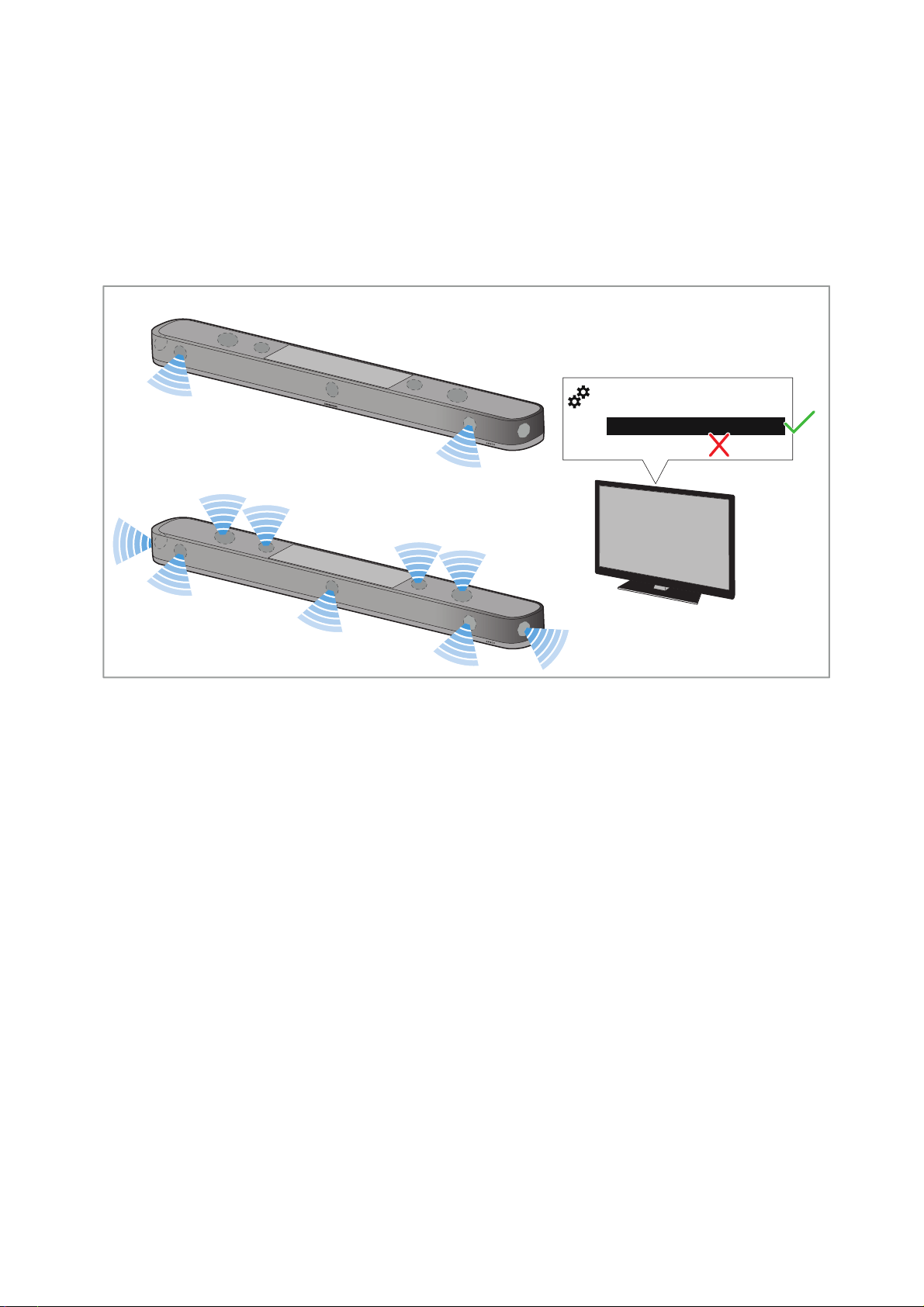
Preparation
Adjust the sound settings on the TV and on the audio/video device.
▷ On your devices, adjust the sound settings for the HDMI output
and the optical output from “Downmix/Stereo” to “Auto/Bypass/
Pass-Through”. (The menu of the devices may use different
names depending on the manufacturer).
This ensures that the audio signals for 3D spatial sound from the
source (e.g. TV) are passed on to the AMBEO Soundbar.
Auto/Bypass/Pass-Through
Downmix/Stereo
TV/Player sound menu:
HDMI Audio OUT/Optical OUT
Downmix/Stereo
Auto/Bypass/Pass-Through
Connecting devices to the Soundbar
30 | Sennheiser AMBEO Soundbar System SB02
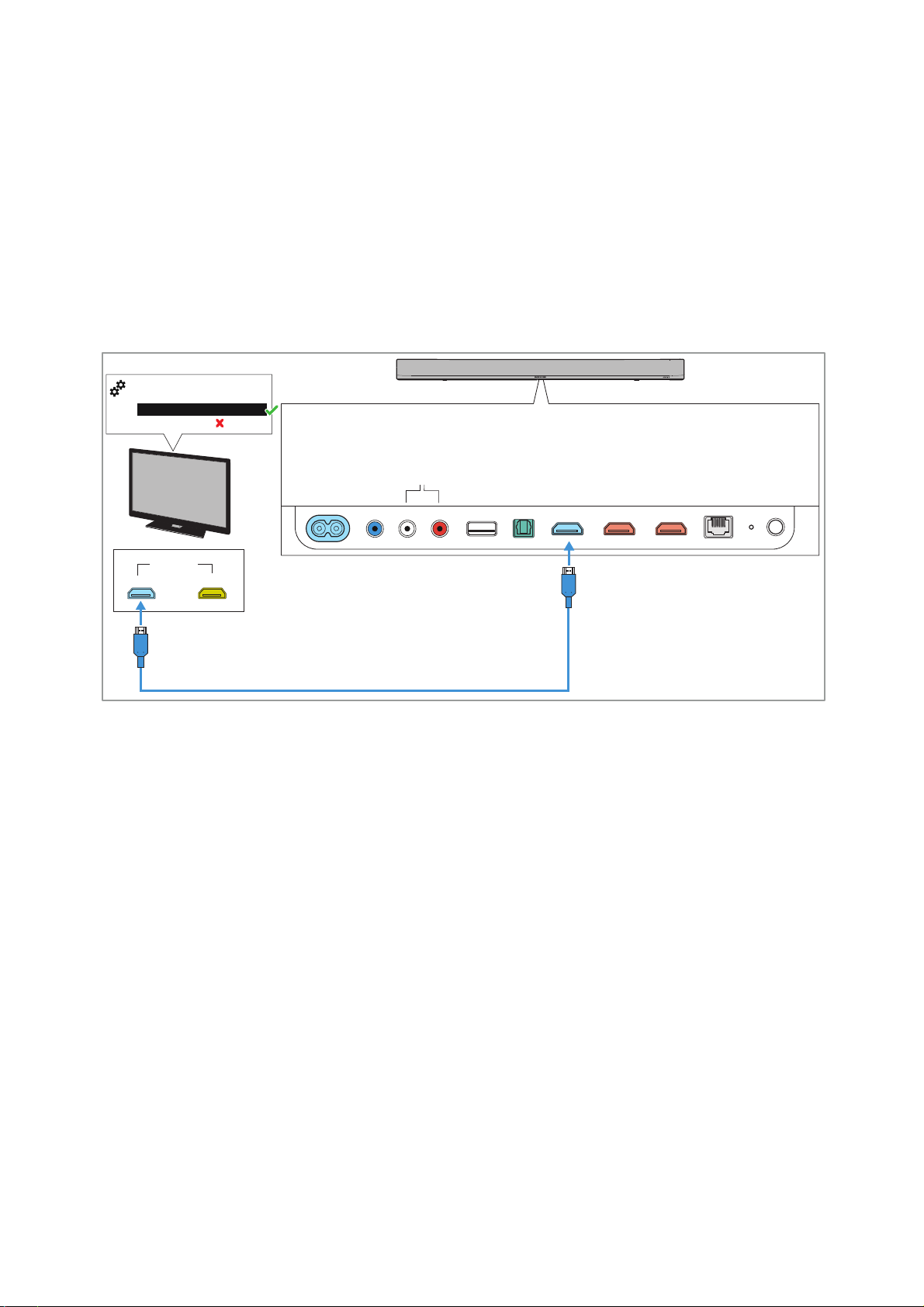
Connecting a TV
Connection to the HDMI eARC socket (recommended)
Required cable: Premium High-Speed HDMI Cable (supplied)
To connect the Soundbar to a TV with an HDMI IN socket labeled
“ARC/eARC”:
▷ Connect one connector of the supplied Premium High-Speed
HDMI Cable to the
HDMI TV (eARC) socket on the Soundbar.
▷ Connect the other connector of the cable to the HDMI (eARC) IN
socket of your TV.
▷ Observe the settings of your devices (> 29).
eARC
HDMI IN
Auto/Bypass/Pass-Through
Downmix/Stereo
TV/Player sound menu:
HDMI Audio OUT/Optical OUT
PRE OUT
SUB
IN
OPTICAL
IN
HDMI 2
IN
HDMI 1
HDMI TV
(e)ARC
ETHERNET
Setup
Reset
USB
5V⎓1A
IN
AUX
L
R
POWER IN
Connecting devices to the Soundbar
Sennheiser AMBEO Soundbar System SB02 | 31
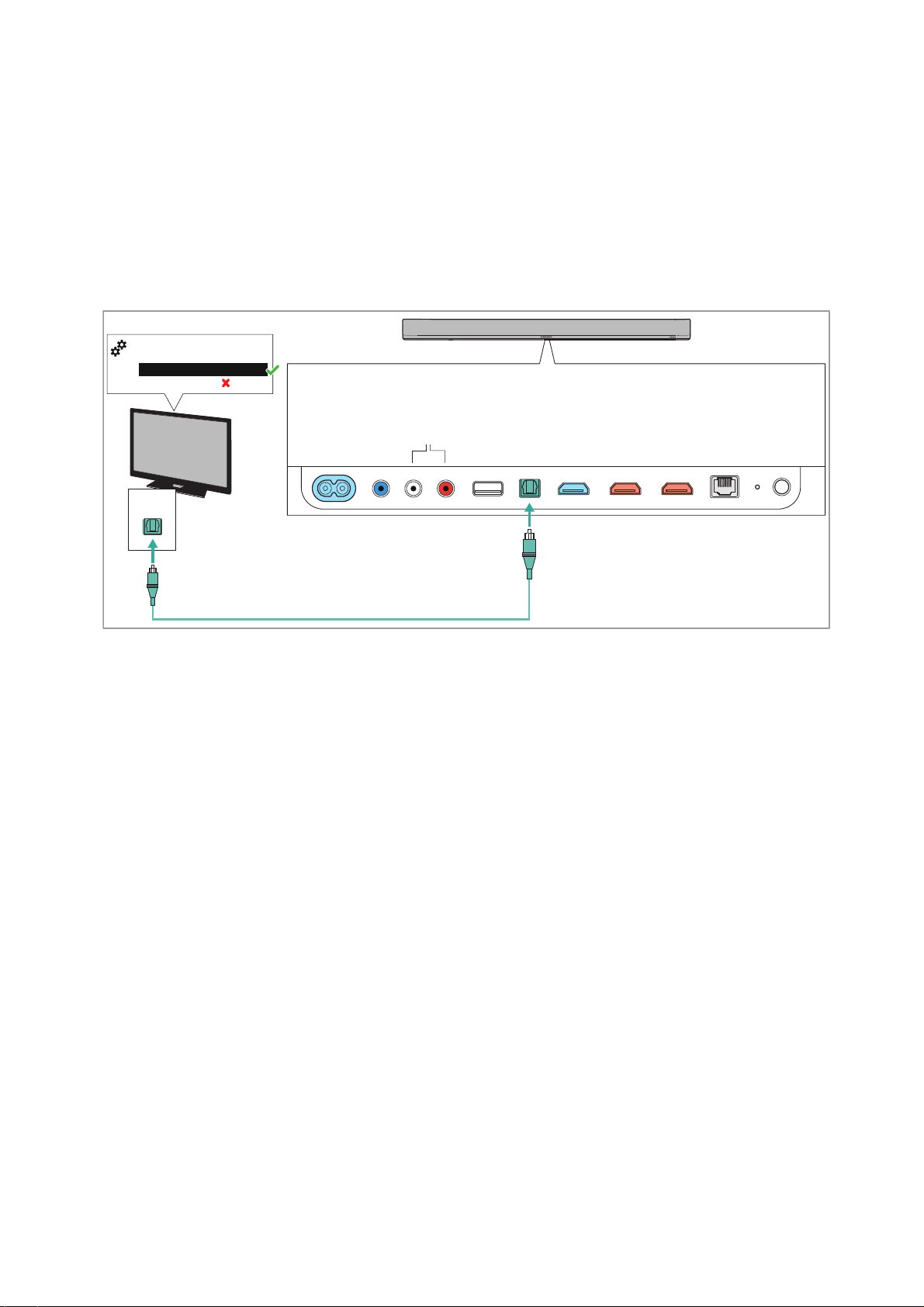
Connection without HDMI eARC socket
Required cable: optical cable (recommended length: max. 5 m)
To connect the Soundbar to a TV without an HDMI IN socket labeled
“ARC/eARC”:
▷ Connect one connector of an optical cable (to be ordered sepa-
rately) to the
OPTICAL IN socket on the Soundbar.
▷ Connect the other connector of the cable to the OPTICAL OUT
socket on your TV.
▷ Observe the settings of your devices (> 29).
Auto/Bypass/Pass-Through
Downmix/Stereo
TV/Player sound menu:
HDMI Audio OUT/Optical OUT
PRE OUT
SUB
IN
OPTICAL
IN
HDMI 2
IN
HDMI 1
HDMI TV
(e)ARC
ETHERNET
Setup
Reset
USB
5V⎓1A
IN
AUX
L
R
POWER IN
OPTICAL
OUT
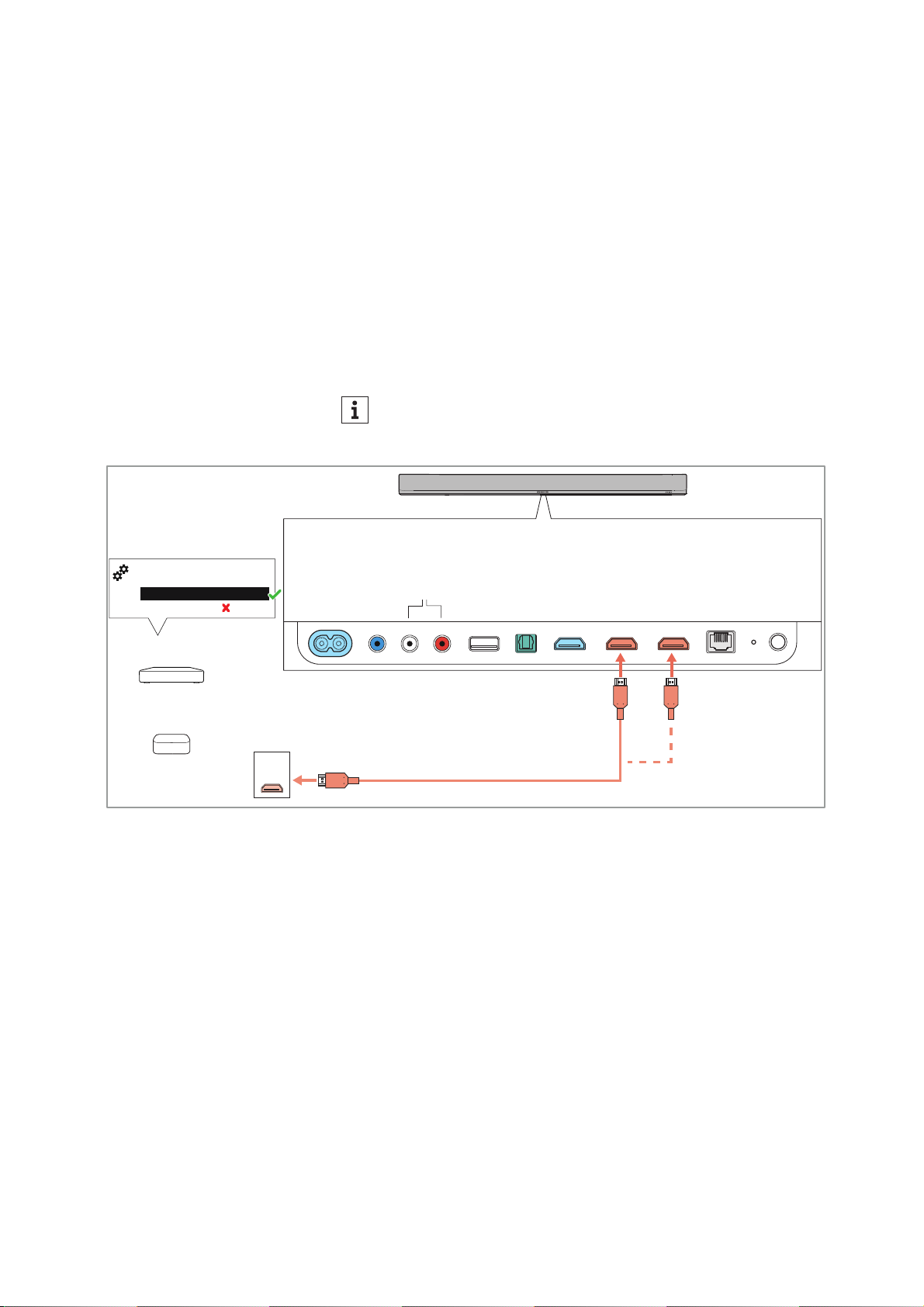
Connecting devices to the Soundbar
32 | Sennheiser AMBEO Soundbar System SB02
Connecting an audio/video device
Digital connection
Required cable: HDMI (recommended: at least Premium High-Speed
HDMI Cable)
To connect the Soundbar to an audio source (e.g. Blu-ray player, DVD
player):
▷ Connect one connector of an HDMI cable (to be ordered sepa-
rately) to one of the two HDMI sockets (
HDMI 1 IN, HDMI 2 IN) on
the Soundbar.
▷ Connect the other connector of the cable to the HDMI OUT socket
of your audio source.
▷ Observe the settings of your devices (> 29).
Video contents with a resolution of 8K cannot be transmitted to
the Soundbar. Connect your video device directly to your TV if
you want to transmit video contents in 8K.
PRE OUT
SUB
IN
OPTICAL
IN
HDMI 2
IN
HDMI 1
HDMI TV
(e)ARC
ETHERNET
Setup
Reset
USB
5V⎓1A
IN
AUX
L
R
POWER IN
HDMI 4K
Streaming device e.g.
Apple TV, Netflix, ...
Blu-ray player, DVD player,
cable or satellite receiver
HDMI
OUT
Auto/Bypass/Pass-Through
Downmix/Stereo
Player sound menu:
HDMI Audio OUT/Optical OUT
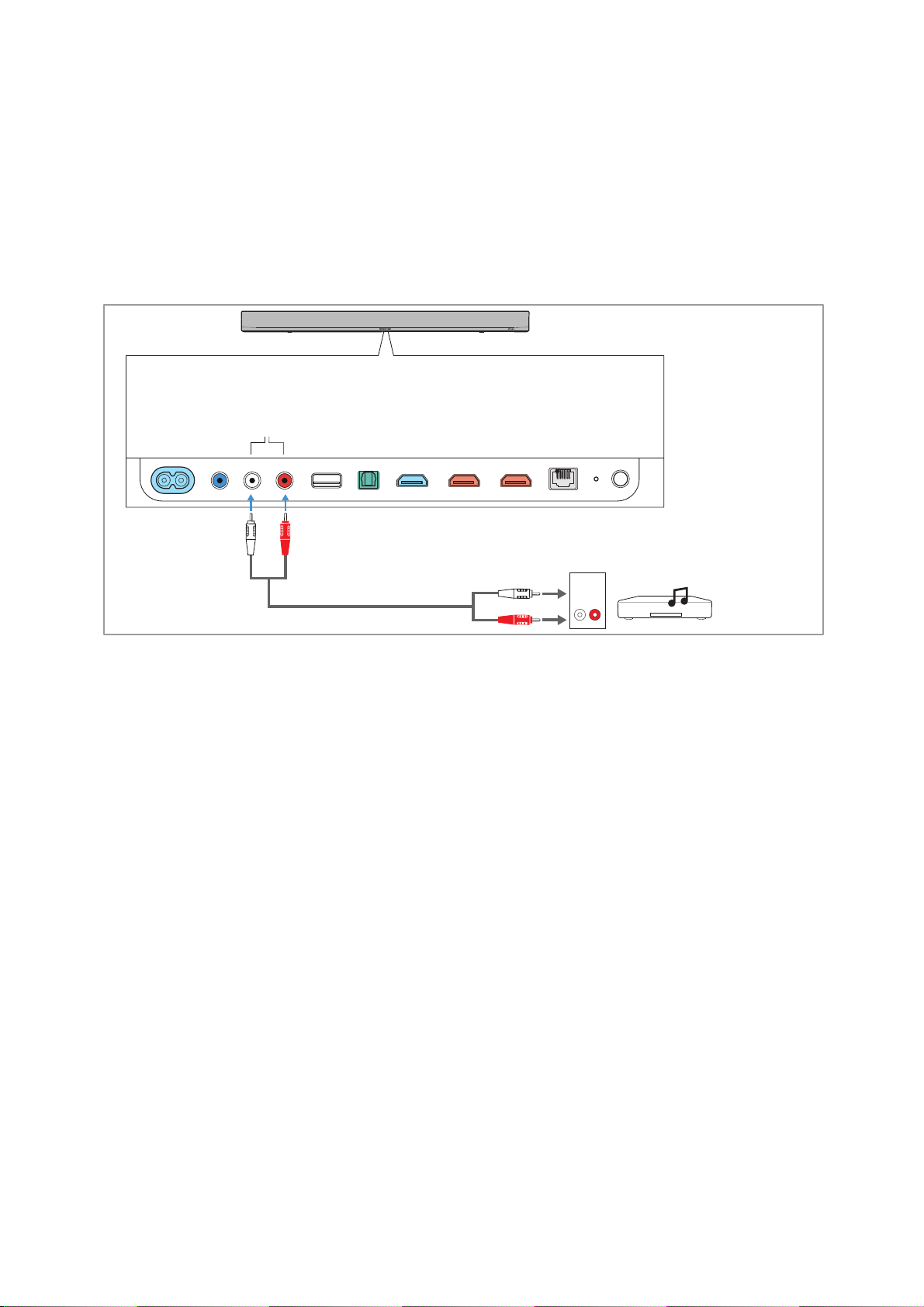
Connecting devices to the Soundbar
Sennheiser AMBEO Soundbar System SB02 | 33
Analog connection
Required cable: stereo RCA cable
To connect the Soundbar to a TV or an audio source (e.g. CD player):
▷ Connect the red connector of an RCA cable (to be ordered sepa-
rately) to the red
AUX IN R socket and the white connector of the
same cable end to the white AUX IN L socket on the Soundbar.
▷ Connect the other red connector of the cable to the red socket
and the white connector of the same cable end to the white
socket of the TV or audio source.
PRE OUT
SUB
IN
OPTICAL
IN
HDMI 2
IN
HDMI 1
HDMI TV
(e)ARC
ETHERNET
Setup
Reset
USB
5V⎓1A
IN
AUX
L
R
POWER IN
e.g. CD player
L
AUDIO
OUT
R
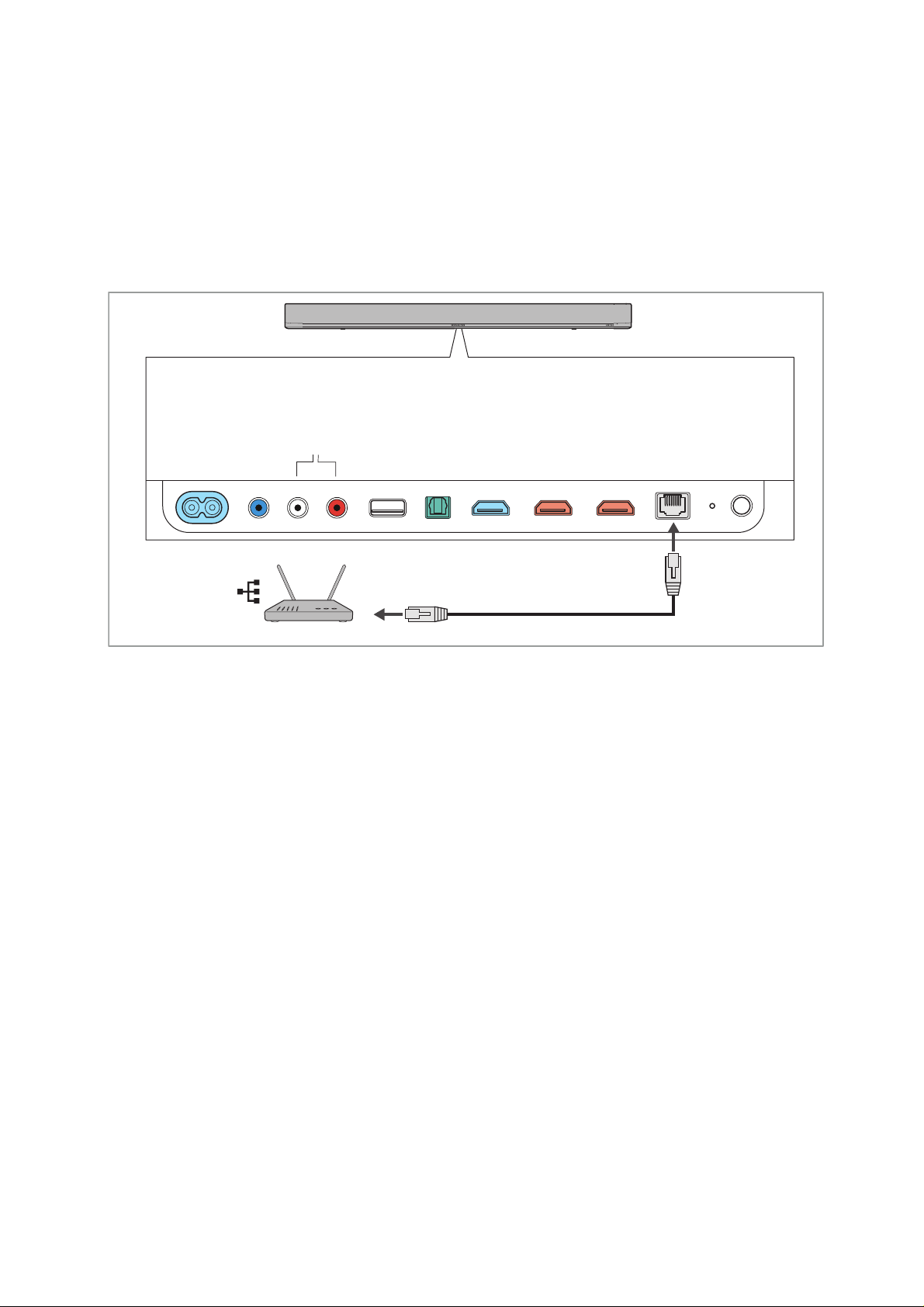
Connecting devices to the Soundbar
34 | Sennheiser AMBEO Soundbar System SB02
Connecting an Ethernet cable
To connect the Soundbar to a wired network:
▷ Connect one connector of a network cable (with RJ-45 connector,
to be ordered separately) to the
ETHERNET
socket on the Sound-
bar.
▷ Connect the other connector of the cable to the network socket of
your router.
You may have to make settings on your router.
If you connect the Soundbar to the Internet/Ethernet via cable, the
WiFi function of the Soundbar is automatically deactivated.
Alternatively, the Soundbar can be connected to the Internet via WiFi
(> 53).
PRE OUT
SUB
IN
OPTICAL
IN
HDMI 2
IN
HDMI 1
HDMI TV
(e)ARC
ETHERNET
Setup
Reset
USB
5V⎓1A
IN
AUX
L
R
POWER IN
Router
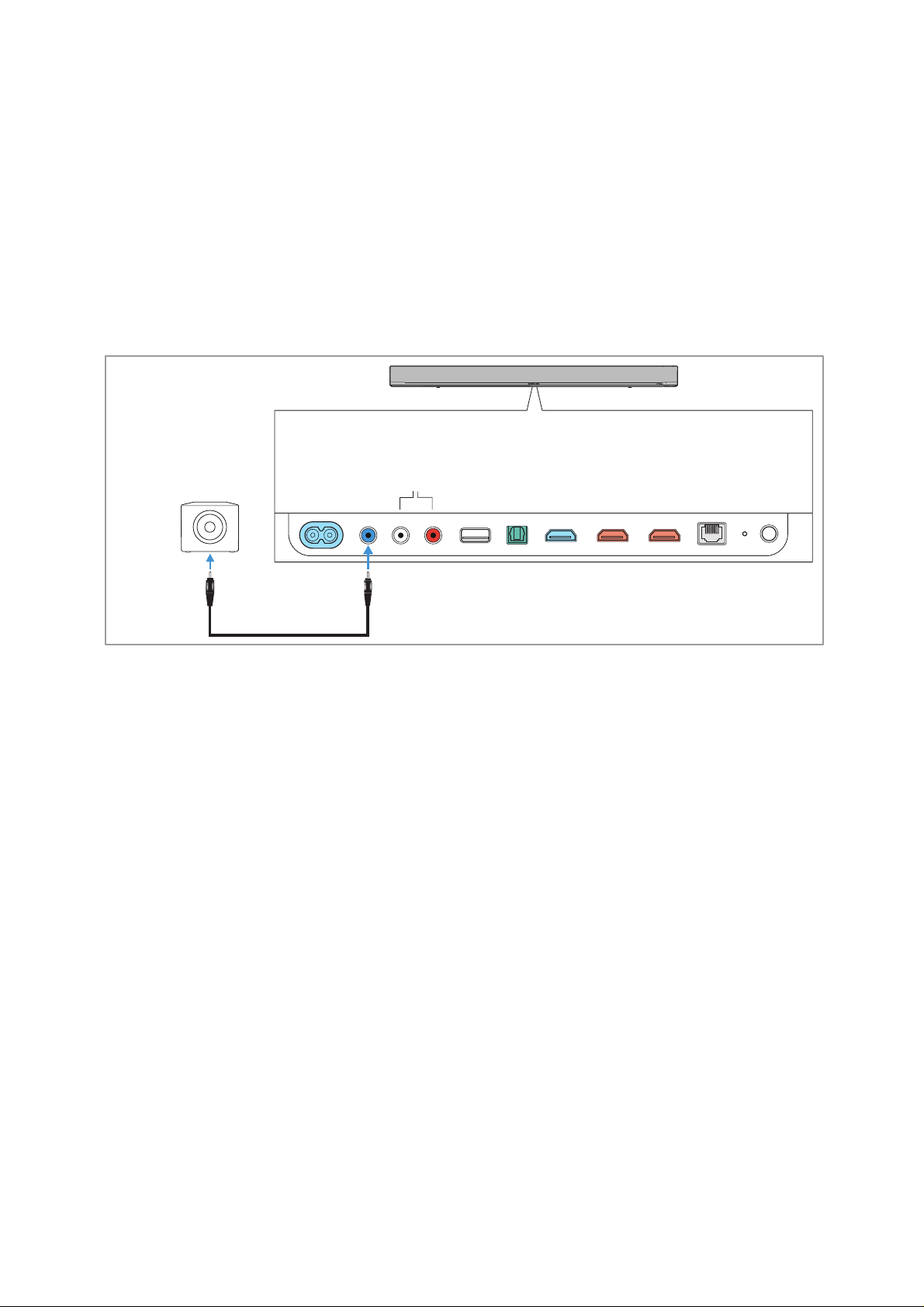
Connecting devices to the Soundbar
Sennheiser AMBEO Soundbar System SB02 | 35
Connecting a subwoofer (optional)
Optionally, you can connect a subwoofer to the Soundbar.
Analog connection
Required cable: mono RCA cable
▷ Recommended settings: Adjust the volume on the subwoofer to
“approx. 50%” and set the crossover to “Max”.
▷ Connect one connector of the mono RCA cable (to be ordered
separately) to the
PRE OUT SUB socket on the Soundbar.
▷ Connect the other connector of the cable to the socket
LOW LEVEL IN/MONO of the subwoofer.
PRE OUT
SUB
IN
OPTICAL
IN
HDMI 2
IN
HDMI 1
HDMI TV
(e)ARC
ETHERNET
Setup
Reset
USB
5V⎓1A
IN
AUX
L
R
POWER IN
LOW LEVEL
IN/MONO
Connecting devices to the Soundbar
36 | Sennheiser AMBEO Soundbar System SB02
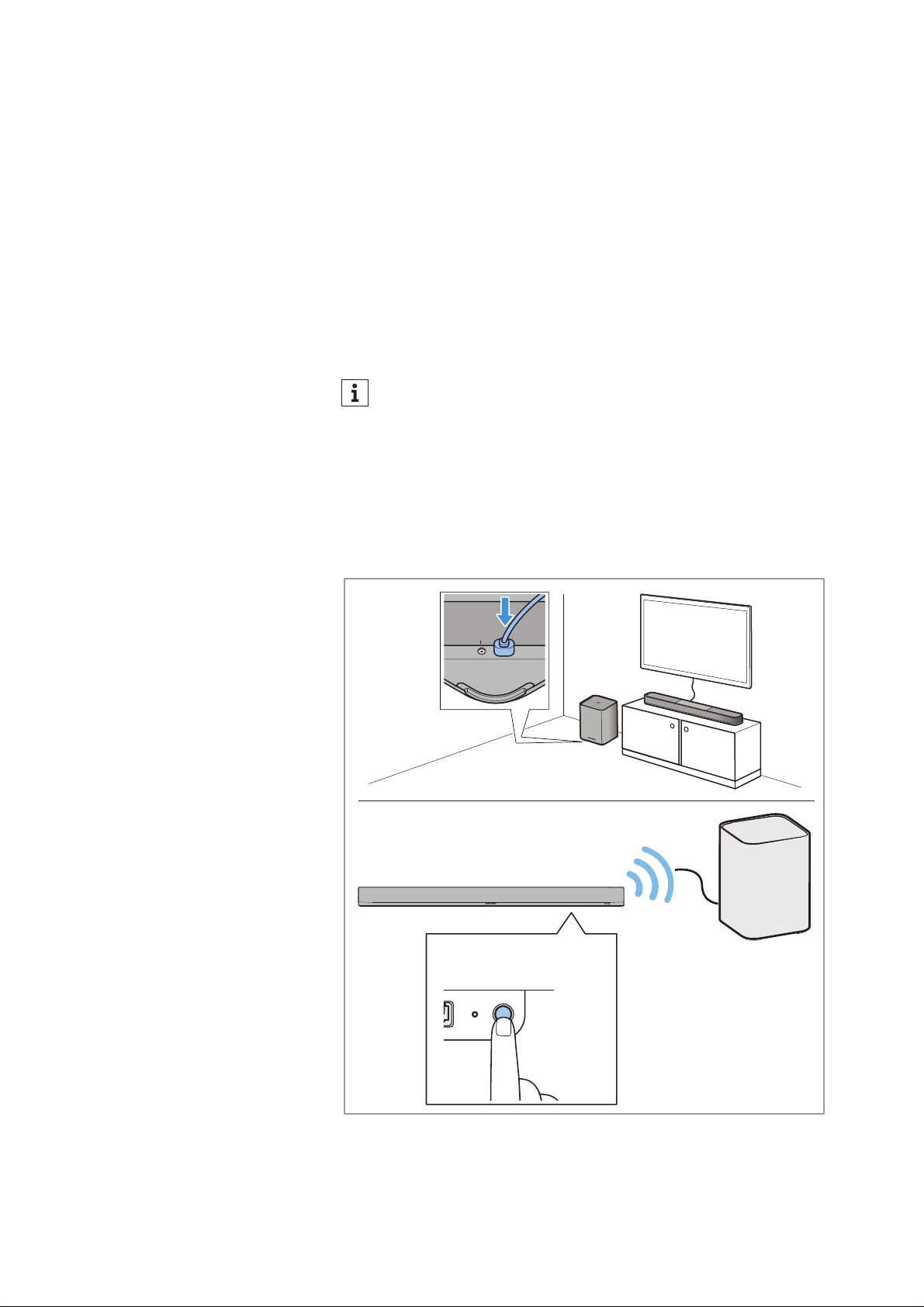
Wireless connection (with AMBEO Sub only)
You can wirelessly connect up to 4 AMBEO Subs to the Soundbar.
You can set up and manage the wireless connections of all AMBEO
Subs via the Sennheiser Smart Control app (> 57). To do so, the
Smart Control app has to be installed on your smartphone and con-
nected to the Soundbar.
If the Smart Control app is not available, you can establish the wire-
less connection via the Setup button on the Soundbar.
▷ Make sure that the Soundbar and the AMBEO Sub are connected
to the power supply (> 38, > 39).
Upon delivery, the AMBEO Sub is automatically in pairing mode
and searches for a new connection. During this process, the Sta-
tus LED of the AMBEO Sub pulses yellow.
▷ Briefly press the Setup button of the Soundbar.
The Soundbar connects to the AMBEO Sub.
The Status LED of the AMBEO Sub lights up white after a suc-
cessful connection.
▷ If necessary, connect additional AMBEO Subs in the same way.
▷ Calibrate the Soundbar (> 41).
If the AMBEO Sub’s Status LED pulses white instead, the
AMBEO Sub is searching for an already known connection to a
device with which the AMBEO Sub has already been paired
once. To delete this known connection, you have to reset the
AMBEO Sub. (>
37).
SUB
100-240V∿ 50/60Hz
max. 3A
POWER IN/

Connecting devices to the Soundbar
Sennheiser AMBEO Soundbar System SB02 | 37
Deleting the pairing settings of the AMBEO Sub
If the AMBEO Sub is already paired with a device, the AMBEO Sub’s
Status LED will pulse white instead of yellow during the connection
search. The AMBEO Sub automatically tries to pair with the known
device.
To be able to connect the AMBEO Sub to a new device, you have to
delete the known pairing settings.
You can delete the pairing settings of all connected AMBEO Subs
directly via the Smart Control app (> 58).
Alternatively, you can reset the pairing settings via the Setup button
of the AMBEO Sub.
To reset the AMBEO Sub via the Setup button:
▷ Press the Setup button of the AMBEO Sub for 3 seconds.
The Status LED of the AMBEO Sub flashes orange 3x and then
pulses yellow. The AMBEO Sub searches for a new connection.
If you reset the pairing settings of the AMBEO Sub via the Setup
button, you then have to manually delete the pairing settings of
the AMBEO Sub from the Sennheiser Smart Control app (> 58).
After you have deleted the pairing settings of the AMBEO Sub,
you have to perform a room calibration (> 41).
Disconnecting the subwoofer
As long as the subwoofer is connected to the Soundbar, you can
deactivate it in the Sennheiser Smart Control app. In doing so, you
can prevent a subwoofer from being used during audio playback
without having to disconnect the subwoofer from the Soundbar
(>
58).
When the subwoofer is deactivated, the Soundbar uses the room cal-
ibration data without subwoofer, if there is one.
3x
3s
Connecting devices to the Soundbar
38 | Sennheiser AMBEO Soundbar System SB02
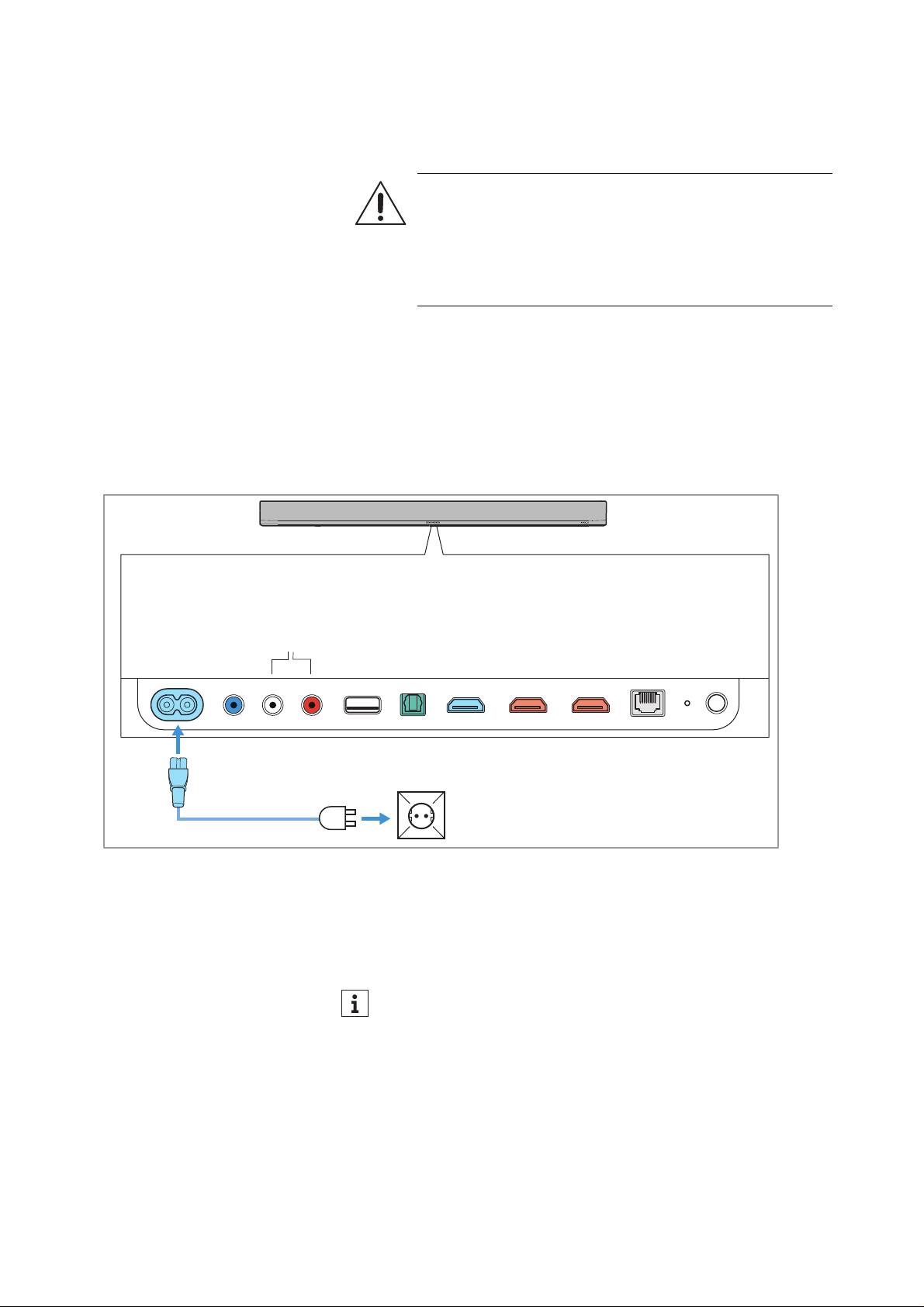
Connecting/disconnecting the Soundbar
to/from the power supply system
Connecting to the power supply system
▷ Connect the plug of the power cable to the POWER IN socket on
the Soundbar.
▷ Connect the power plug of the power cable to a suitable wall
socket.
The Soundbar automatically switches on after being connected to
the power supply.
The LED status bar of the Soundbar lights up white.
Disconnecting from the power supply system
▷ Disconnect the power plug of the power cable from the wall
socket.
▷ Disconnect the plug of the power cable from the
POWER IN
socket on the Soundbar.
ATTENTION
Danger of damage to the product!
If you connect to an unsuitable power supply, the product
can be damaged.
▷ Use a suitable power cable to connect the product to
the power supply system (100 – 240 V, 50 Hz/60 Hz).
PRE OUT
SUB
IN
OPTICAL
IN
HDMI 2
IN
HDMI 1
HDMI TV
(e)ARC
ETHERNET
Setup
Reset
USB
5V⎓1A
IN
AUX
L
R
POWER IN
The Soundbar does not have to be switched on or off manually.
When the Soundbar is not in use, it automatically switches to
the power-saving ECO mode (> 46). The Soundbar automati-
cally switches on from ECO mode when you start audio play-
back from an audio source.
Alternatively, you can put the Soundbar in standby mode with-
out network connection (> 46).
Connecting devices to the Soundbar
Sennheiser AMBEO Soundbar System SB02 | 39
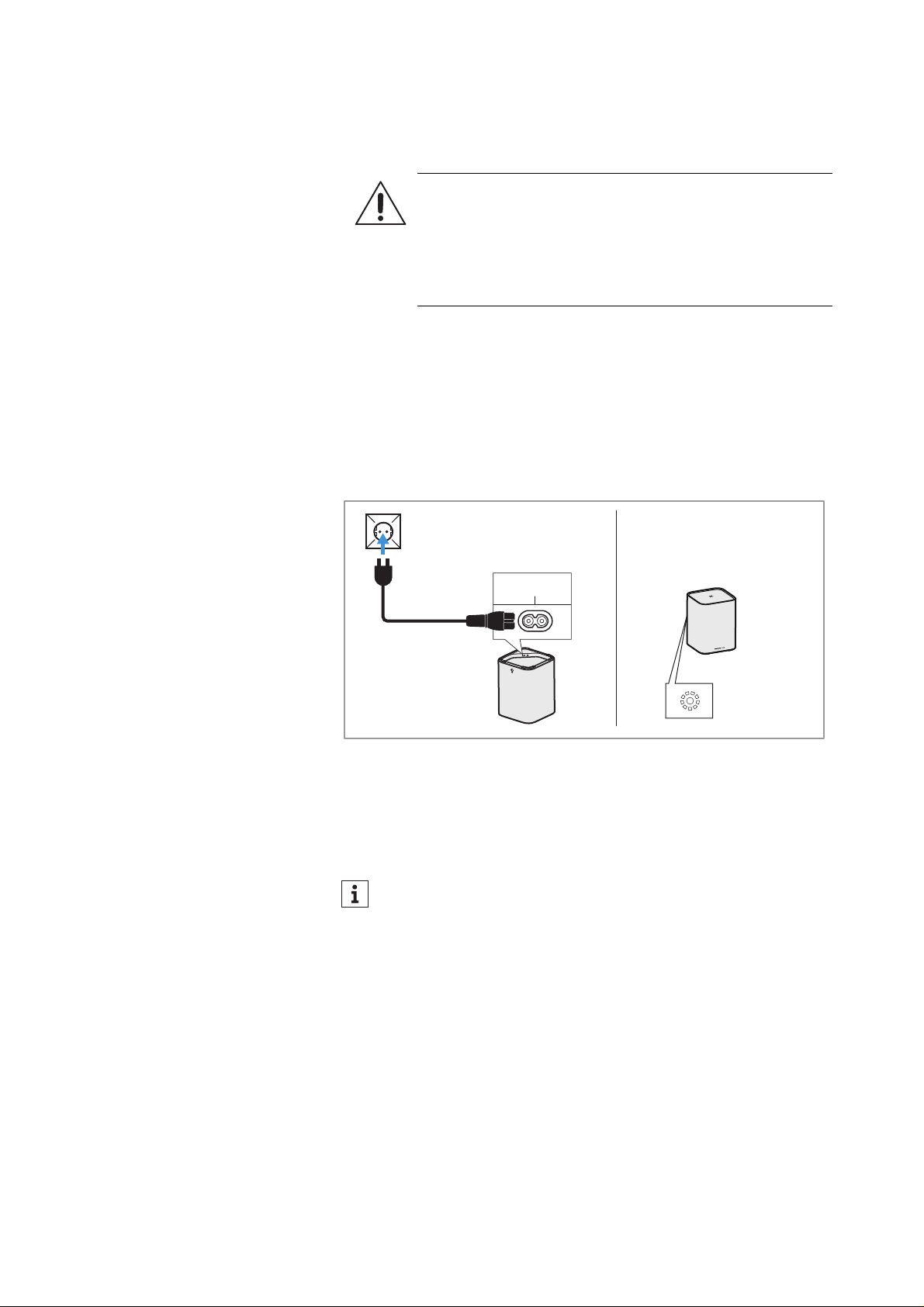
Connecting/disconnecting an AMBEO
Sub to/from the power supply system
Connecting to the power supply system
▷ Connect the plug of the power cable to the POWER IN socket on
the AMBEO Sub.
▷ Connect the power plug of the power cable to a suitable wall
socket.
The AMBEO Sub automatically switches on after being con-
nected to the power supply.
The Status LED of the AMBEO Sub lights up white.
Disconnecting from the power supply system
▷ Disconnect the power plug of the power cable from the wall
socket.
▷ Disconnect the plug of the power cable from the
POWER IN
socket on the AMBEO Sub.
ATTENTION
Danger of damage to the product!
If you connect to an unsuitable power supply, the product
can be damaged.
▷ Use a suitable power cable to connect the product to
the power supply system (100 – 240 V, 50 Hz/60 Hz).
The AMBEO Sub does not have to be switched on or off manu-
ally. If the AMBEO Sub is wirelessly connected to the Soundbar
and the Soundbar switches to ECO mode, the AMBEO Sub
automatically switches to standby mode after 5 minutes. If the
AMBEO Sub is connected to the Soundbar via cable, the
AMBEO Sub will only switch to standby mode after 15 minutes.
The AMBEO Sub automatically switches on from standby mode
as soon as you start audio playback via the Soundbar.
POWER IN
Connecting devices to the Soundbar
40 | Sennheiser AMBEO Soundbar System SB02
Putting the Soundbar into
operation
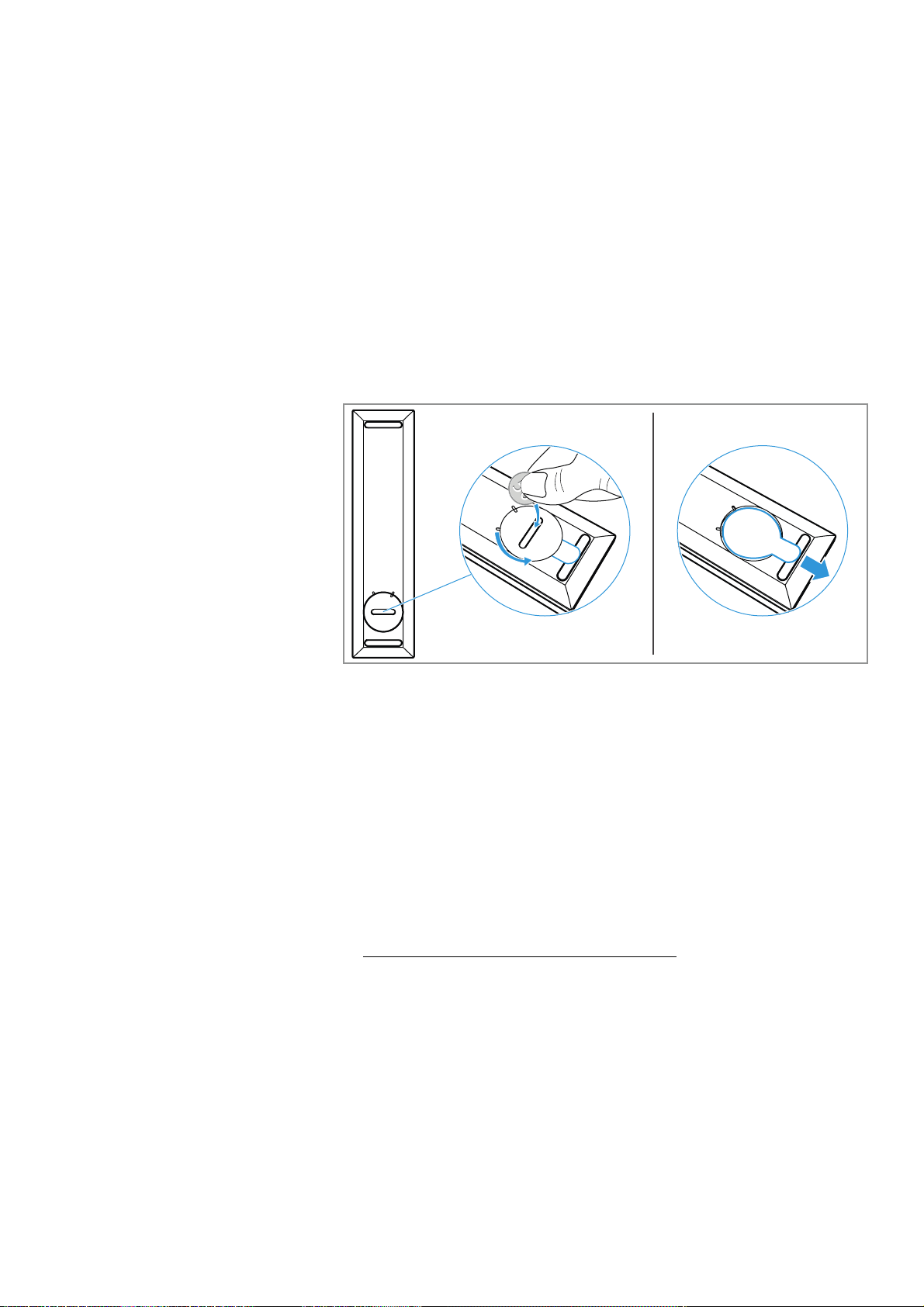
Preparing the SB02-RC remote control
To remove the transport protection of the battery:
▷ Use a suitable object (e.g. a coin) to open the battery compart-
ment cover (located on the bottom side of the remote control) by
turning one turn counter-clockwise.
▷ Remove the plastic strip.
▷ Close the battery compartment cover by turning one turn clock-
wise.
Installing the Sennheiser Smart Control
app
To be able to control the Soundbar using a smartphone, the Sound-
bar and the smartphone on which you install the Sennheiser Smart
Control app has to be connected to the same WiFi network.
To make full use of all the settings and functions of the AMBEO
Soundbar, you have to have the free Sennheiser Smart Control app
installed on your smartphone.
▷ Download the Sennheiser Smart Control app from the Apple App
Store or from Google Play and install it on your smartphone. Alter-
natively, you can visit the following website:
www.sennheiser-hearing.com/smartcontrol
Establishing the initial connection between the Sennheiser Smart
Control app and the Soundbar
The initial connection between the Sennheiser Smart Control app
and the Soundbar is established via Bluetooth Low Energy. For this,
Bluetooth has to be activated on your smartphone.
After the initial connection via Bluetooth is established, you can set
up a WiFi connection for the Soundbar in the Smart Control app. In
doing so, the Smart Control app can then connect to the Soundbar
via WiFi (> 53).

Connecting devices to the Soundbar
Sennheiser AMBEO Soundbar System SB02 | 41
▷ Make sure that the Soundbar is properly connected to the power
supply.
▷ Make sure that the smartphone you want to connect to has the
Smart Control app installed and Bluetooth and WiFi are activated.
▷ Start the Smart Control app.
▷ Follow the instructions in the Smart Control app.
The Smart Control app recognizes the Soundbar and activates all
available settings and functions.
Confi
Configuring the Soundbar without the Sennheiser Smart Control
app
▷ Connect your smartphone or computer to the Soundbar’s WiFi
hotspot.
The Soundbar’s WiFi network name is “AMBEO Soundbar [serial
number]”.
▷ Go to the Soundbar page in your web browser
(address: http://192.168.255.249/
or, if the Soundbar and your smartphone or computer are on the
same network, go to: http://ambeo).
Starting the room calibration
The room calibration is necessary for the measurement of the room
in order to let you get the optimum spatial sound experience.
Therefore, the room calibration should be performed when
• the Soundbar is put into operation for the first time in a room,
• the position of the Soundbar has been changed,
• a subwoofer has been connected or disconnected, or
• the room has been changed (e.g. furniture has been moved).
Preparing the calibration
▷ Connect the Soundbar to the power supply system (> 38).
▷ The Soundbar switches on. This process takes about 20 seconds.
The LED status bar lights up white.
▷ Make sure that the microphones of the Soundbar are not muted
(> 48).
▷ Make sure that the subwoofers are set up correctly and con-
nected to the power supply system (> 25, > 39).
▷ Make sure that it is quiet in the room where you calibrate the
Soundbar.
If the initial connection between the Smart Control and the
Soundbar via Bluetooth fails, the Soundbar may have already
been paired with the smartphone via Bluetooth.
In this case, you have to delete all entries of the Soundbar in the
Bluetooth menu of the smartphone.
Then start a new connection attempt.
Connecting devices to the Soundbar
42 | Sennheiser AMBEO Soundbar System SB02
Starting the calibration
You can start the calibration either via the Sennheiser Smart Control
app or via the Volume + and Volume – buttons on the Soundbar.
The Smart Control app allows you to check the status of the calibra-
tion in progress.
To start the calibration via the Sennheiser Smart Control app:
▷ Open the Smart Control app.
▷ In the
System Calibration section, tap the Start button and follow
the on-screen instructions.
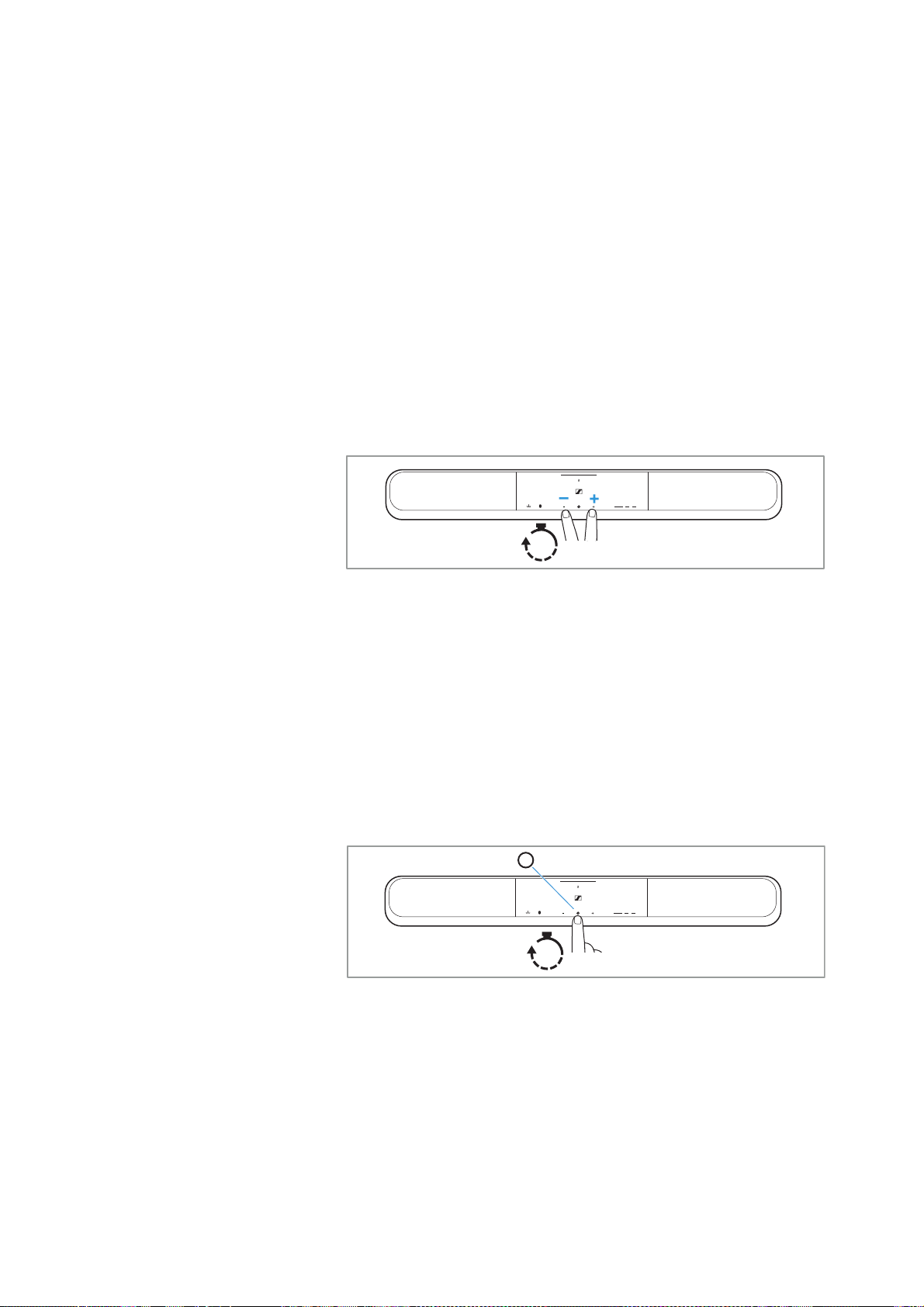
To start the calibration via the Soundbar’s Volume + and Volume –
buttons:
▷ Simultaneously press the Volume
+ and Volume – buttons for
3 seconds.
The calibration process takes several minutes. The calibration of
the Soundbar takes longer if connected subwoofers are cali-
brated as well.
▷ Avoid interfering noises during calibration (open windows, house-
hold appliances, etc.), do not stand too close to the Soundbar and
do not cover the Soundbar’s microphones, as this can falsify the
calibration.
After the calibration is complete, the Soundbar plays a demo
tune.
Canceling the calibration
To cancel the calibration:
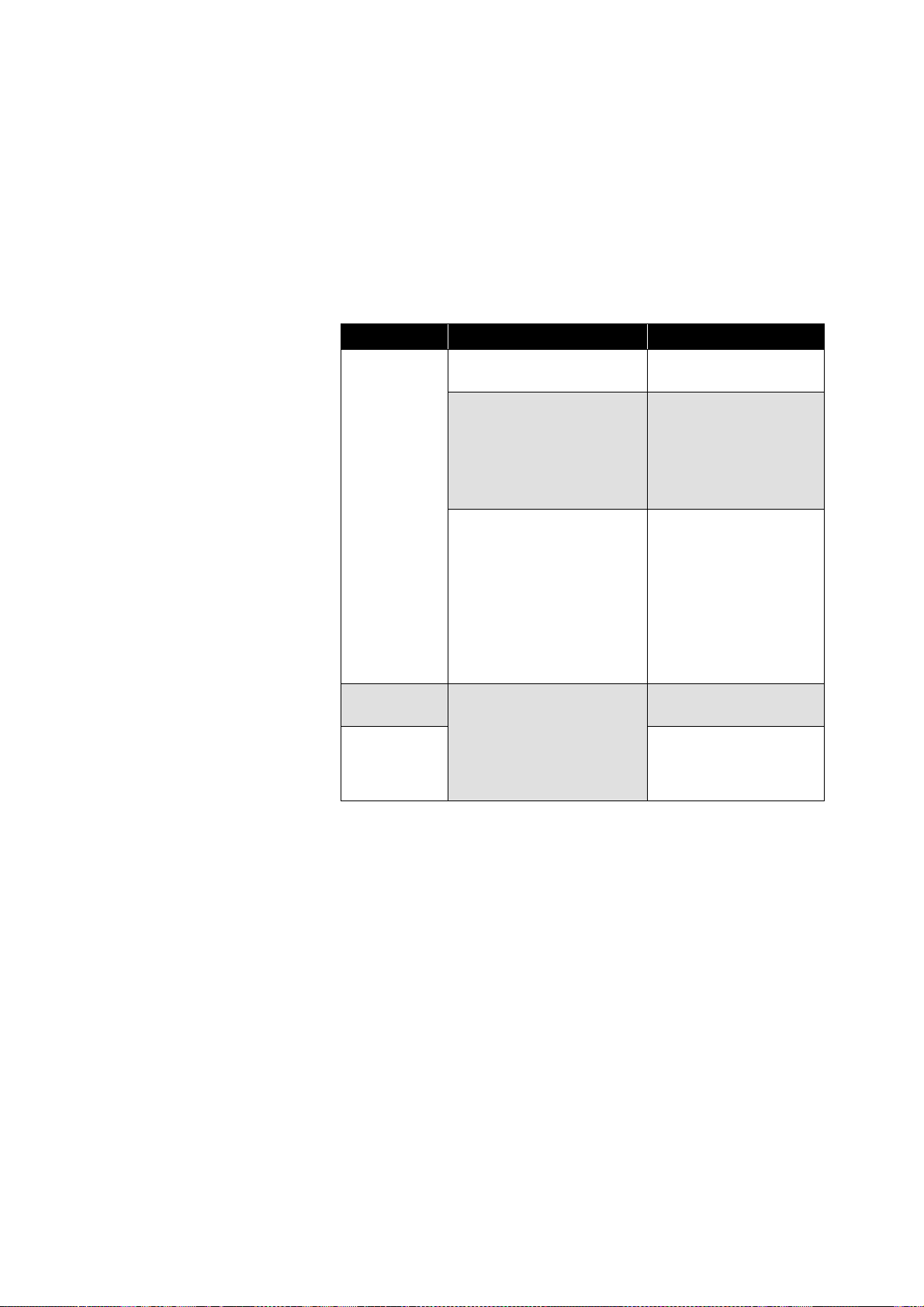
▷ Press the Multi-purpose
o button on the Soundbar for 3 seconds.
The LED status bar lights red.
The Soundbar is in an uncalibrated state and has to be recali-
brated.
3s
3s

Operating the Soundbar
Sennheiser AMBEO Soundbar System SB02 | 43
Operating the Soundbar
Switching the Soundbar on and off
The Soundbar automatically switches on after being connected to
the power supply.
The Soundbar does not have an on/off button to switch the Soundbar
off. When you are not using the Soundbar, it will automatically switch
to ECO mode (> 46).
When audio playback is started from an input source, the Soundbar
automatically switches on from ECO mode and plays back the input
source.
WARNING
Danger due to high volume levels!
Listening at high volume levels can lead to permanent
hearing defects.
▷ Adjust the volume to a low level before selecting a
source.
▷ Do not continuously expose yourself to high volume
levels.
If an AMBEO Sub that is in standby mode is wirelessly con-
nected to the Soundbar, the AMBEO Sub will automatically
switch on when you start audio playback from the Soundbar.
Operating the Soundbar
44 | Sennheiser AMBEO Soundbar System SB02
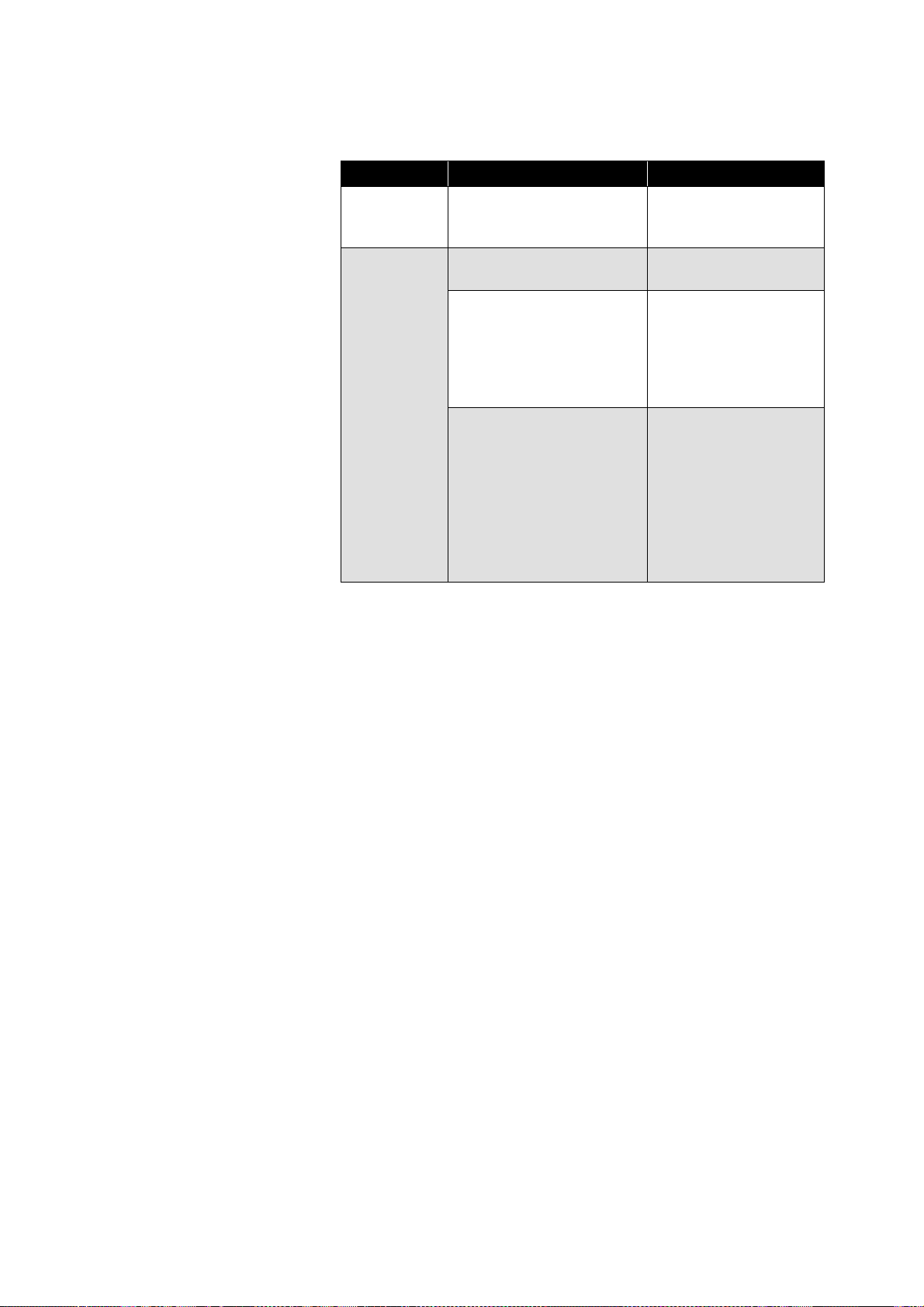
Functions of the Multi-purpose o button
The Soundbar and the remote control of the Soundbar are equipped
with the Multi-purpose o button. Which function is started by press-
ing the Multi-purpose o button depends on how often you press the
button in quick succession and whether the Amazon Alexa voice
assistant is activated. You can activate Amazon Alexa via the Senn-
heiser Smart Control app.
Functions of the Multi-purpose o button with the Amazon Alexa
voice assistant deactivated
Button Condition Function
Press 1x
No playback of audio con-
tents
Starts audio playback
Audio playback in prog-
ress via input sources that
allow control of a playback
progress bar (e.g. stream-
ing via Bluetooth or net-
work connection)
Pauses audio playback
Audio playback in prog-
ress via input sources that
do not allow control of a
playback progress bar
(e.g. analog AUX input
sources such as CD play
-
ers)
Mutes the Soundbar
When sound is played
back through an HDMI
input, the sound may
be played back through
the TV’s speakers after
the Soundbar is muted,
depending on the input
source settings.
Press 2x
Audio playback in prog-
ress via input sources that
allow control of a playback
progress bar (e.g. stream-
ing via Bluetooth or net-
work connection)
Plays the next track in
the playlist
Press 3x
Plays the previous
track in the playlist
Operating the Soundbar
Sennheiser AMBEO Soundbar System SB02 | 45
Functions of the Multi-purpose o button with the Amazon Alexa
voice assistant activated
Button Condition Function
Press 1x –
Triggers Amazon Alexa
or cancels a command
to Amazon Alexa.
Hold for 3
sec
No playback of audio con-
tents
Starts audio playback
Audio playback in prog-
ress via input sources that
allow control of a playback
progress bar (e.g. stream-
ing via Bluetooth or net-
work connection)
Pauses audio playback
Audio playback in prog-
ress via input sources that
do not allow control of a
playback progress bar
(e.g. analog AUX input
sources such as CD play
-
ers)
Mutes the Soundbar
When sound is played
back through an HDMI
input, the sound may
be played back through
the TV’s speakers after
the Soundbar is muted,
depending on the input
source settings.
Operating the Soundbar
46 | Sennheiser AMBEO Soundbar System SB02
Standby/ECO mode
If there is no audio playback for at least 10 seconds, the Soundbar
switches to the power-saving ECO mode. The AMBEO logo on the
Soundbar dims and the ECO button appears in the Sennheiser Smart
Control app.
If you want to pause audio playback, you have the following options:
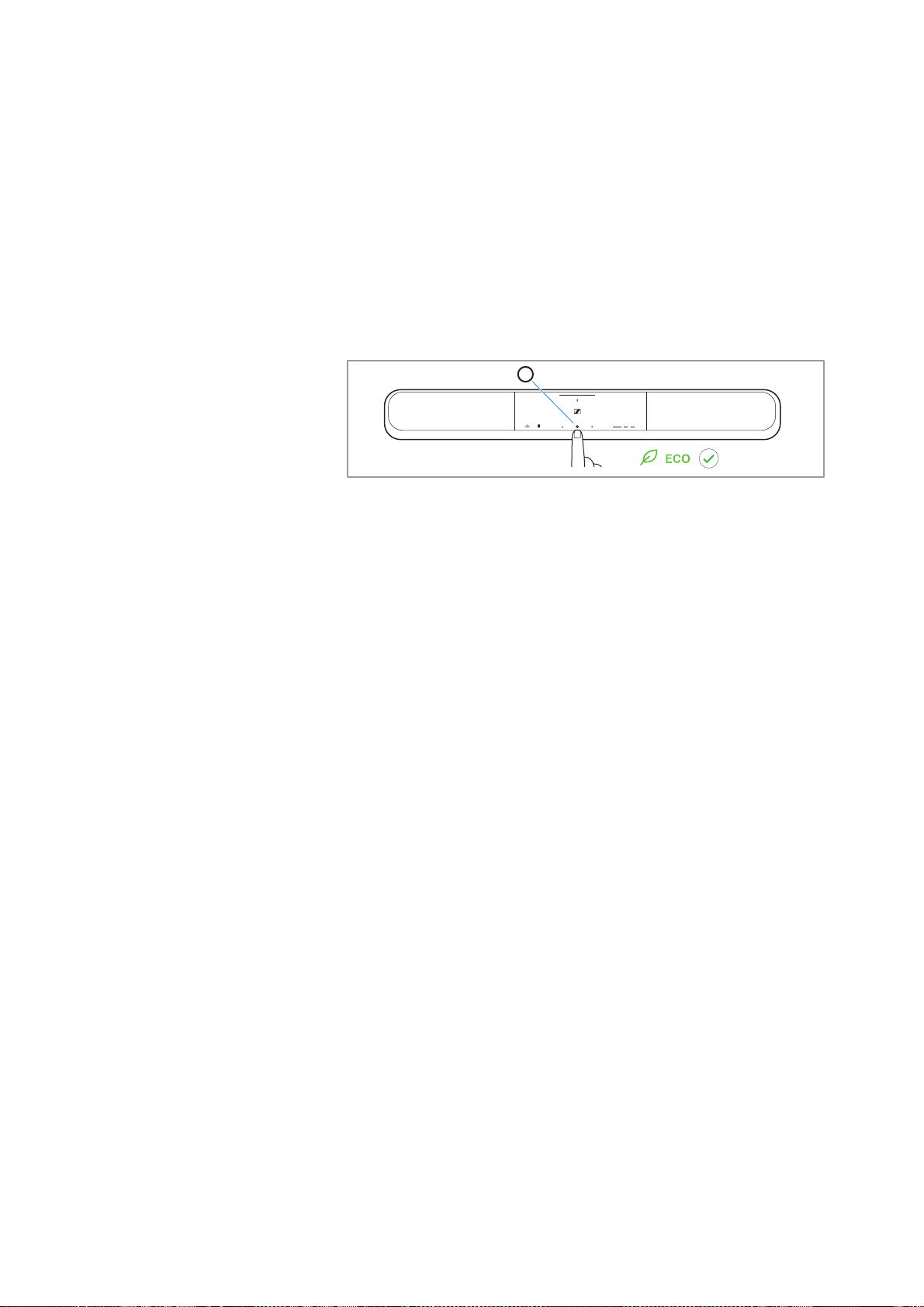
• Briefly press the Multi-purpose o button on the Soundbar or the
remote control.
• Tap the Pause button in the playback area of the Smart Control
app.
• Stop playback at the input source.
If an AMBEO Sub is wirelessly connected to the Soundbar, the
AMBEO Sub automatically switches to standby mode after 5 minutes
when the Soundbar switches to ECO mode. If the AMBEO Sub is con-
nected via cable, the AMBEO Sub will only switch to standby mode
after 15 minutes.
Activating/deactivating standby mode
without network connection
You can manually put the Soundbar into standby mode without a net-
work connection. Compared to ECO mode, this also disconnects all
network connections of the Soundbar.
If the Soundbar is in standby mode without a network connection, it
cannot switch on again automatically. You have to manually deacti-
vate the standby mode without network connection.
To activate standby mode without network connection:
▷ Simultaneously press the Multi-purpose
o button and the
Volume – button on the Soundbar or the remote control and hold
the buttons for 5 seconds.
If you want to deactivate standby mode without network connection,
you have the following options:
• Briefly press the Multi-purpose o button.
• Briefly press the Source button.
Since the network connections have to be restored when you switch
the Soundbar on again, the switch-on process may take up to one
minute.
1x

Operating the Soundbar
Sennheiser AMBEO Soundbar System SB02 | 47
Adjusting the volume
Adjusting the volume on the Soundbar or via the remote control
To decrease or increase the volume in small increments:
▷ Briefly press the Volume
+ button or the Volume – button 1x.
To decrease or increase the volume in large increments:
▷ Press the Volume
+ button or the Volume – button until the
desired volume is reached.
Adjusting the volume in the Sennheiser Smart Control app
In the Sennheiser Smart Control app, you can only adjust the volume
after an audio source has been selected.
▷ Move the volume slider in the playback area of the Smart Control
app with a swiping motion.
WARNING
Danger due to high volume levels!
Listening at high volume levels can lead to permanent
hearing defects.
▷ Adjust the volume to a low level before selecting a
source.
▷ Do not continuously expose yourself to high volume
levels.
Operating the Soundbar
48 | Sennheiser AMBEO Soundbar System SB02
Activating/deactivating the mute
function
Activating/deactivating the mute function of the loudspeakers
If you want to activate the mute function, you have the following
options:
•Press the Multi-purpose o button on the Soundbar or the remote
control. Depending on the settings of the input source, audio may
then be played back via the loudspeakers of the input source (e.g.
TV).
• Activate the mute function on the input source (e.g. with the TV
remote control).
• Reduce the volume to 0 (see > 47).
If you want to deactivate the mute function, you have the following
options:
• Press one of the mute buttons again.
•Adjust a volume > 0 ( > 47).
Activating/deactivating the mute function of the microphones
The Soundbar features 4 microphones for calibrating the Soundbar
and controlling the Soundbar with a voice assistant.
When you mute the microphones, the microphones are discon-
nected from the power supply. This prevents the microphones from
being used unintentionally.
You have to deactivate the muting of the microphones if
• you want to calibrate the Soundbar or
• you want to use the Soundbar with a voice assistant.
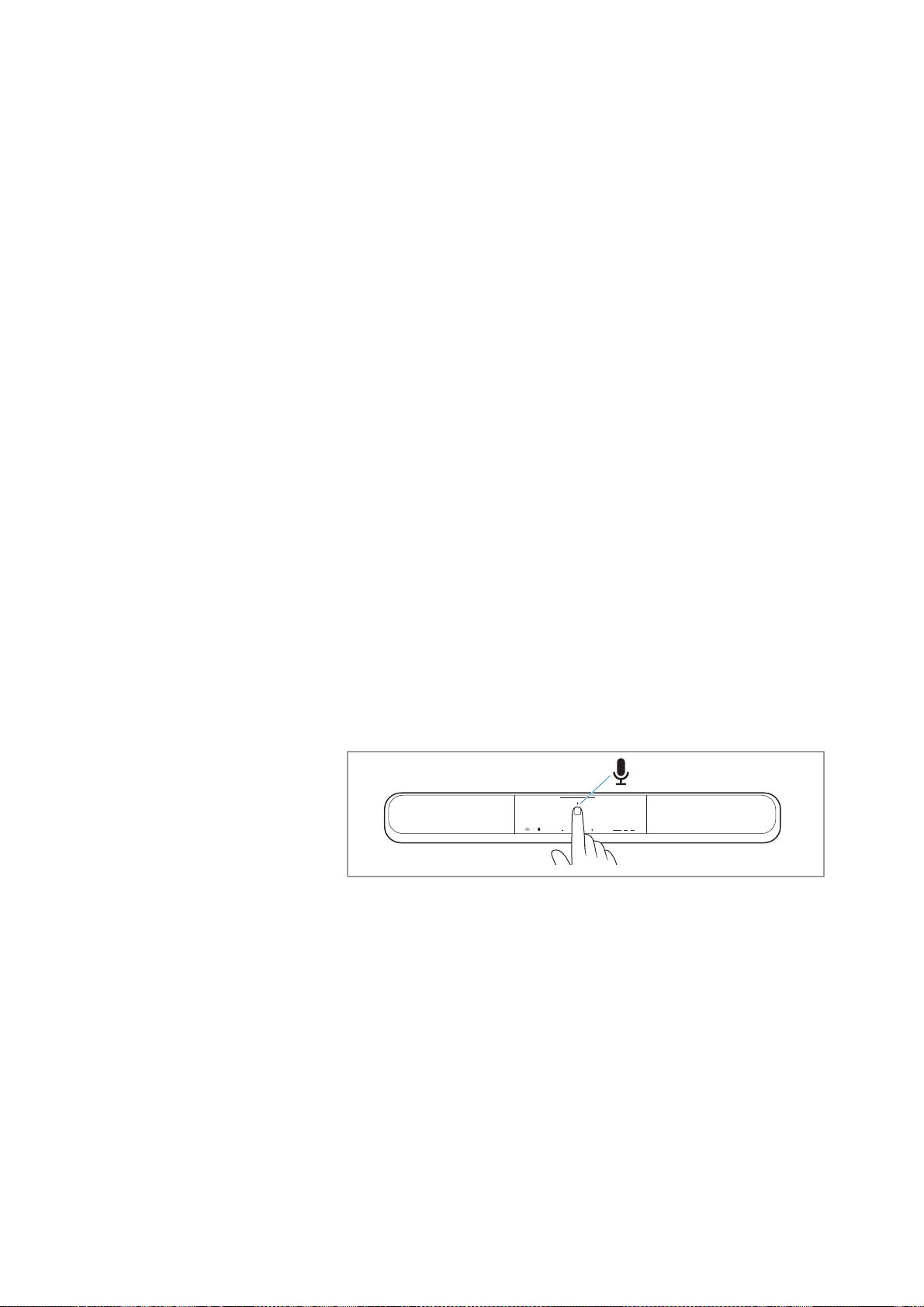
To mute or unmute the microphones:
▷ Press the
Mic Mute button on the Soundbar.
When the microphones are muted, the Mic LED lights up red.
1x
Operating the Soundbar
Sennheiser AMBEO Soundbar System SB02 | 49
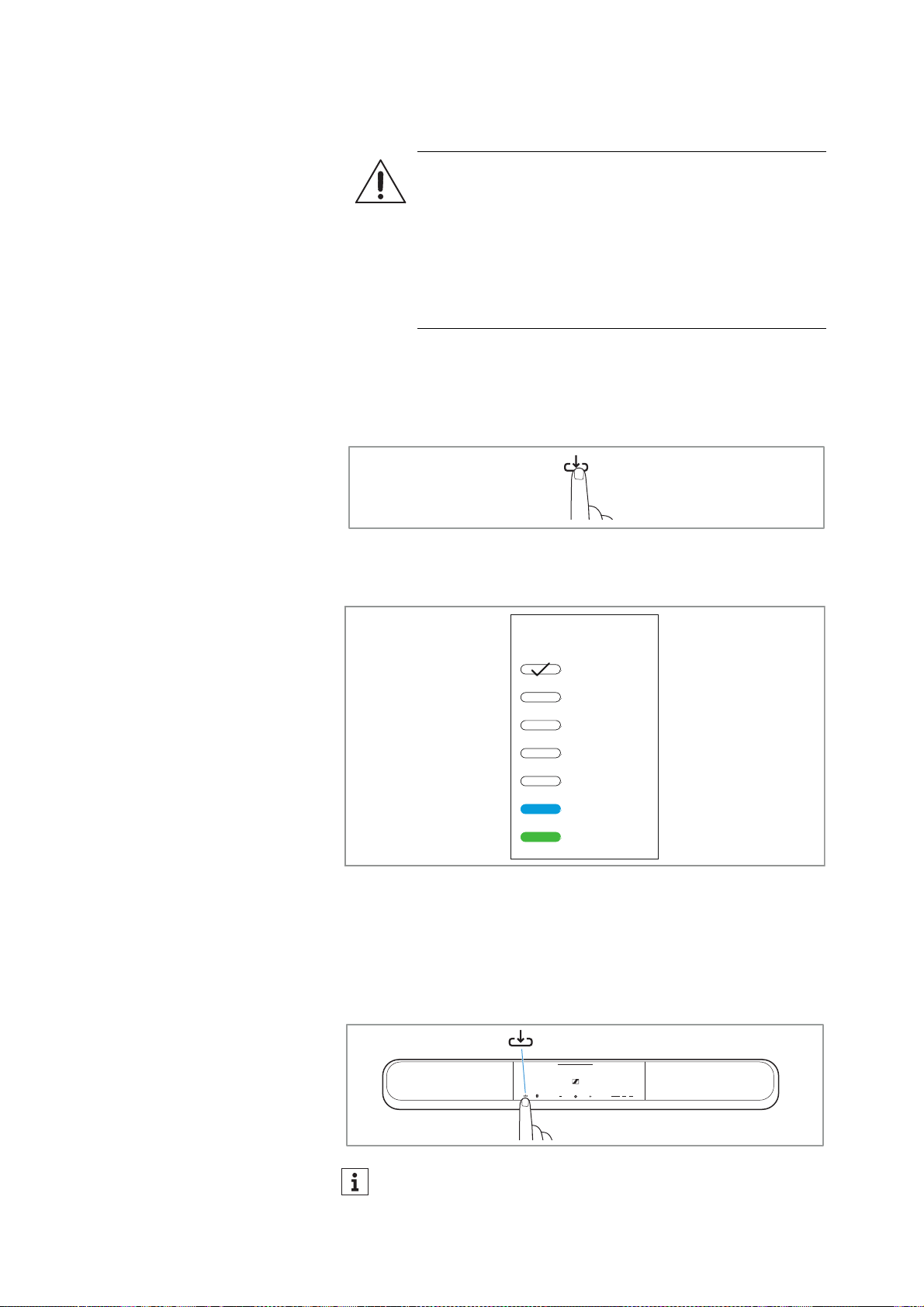
Selecting the input source
Selecting the input source via the Sennheiser Smart Control app
▷ Open the Smart Control app.
▷ At the top of the playback area in the Smart Control app, tap the
Input source button.
A list of available input sources is displayed.
If a sound signal is present at the input, a loudspeaker symbol is
also displayed.
▷ Tap the desired input source.
Selecting the input source via the Soundbar
▷ Use the Source button to switch between the available input
sources.
The Source button switches only between connected and
switched-on input sources.
WARNING
Danger due to high volume levels!
Listening at high volume levels can lead to permanent
hearing defects.
▷ Adjust the volume to a low level before selecting a
source.
▷ Do not continuously expose yourself to high volume
levels.
If only one input has a switched-on sound source connected,
the input source cannot be changed. The LED status bar then
flashes red.
AUX
OPTICAL
HDMI TV
Input sources
HDMI 1
HDMI 2
Bluetooth
not connected
Spotify Connect
1x

Operating the Soundbar
50 | Sennheiser AMBEO Soundbar System SB02
Selecting the input source via the remote control
▷ Use the Source + and Source – buttons to switch between the
available input sources.
The Source + and Source – buttons switch only between con-
nected and switched-on input sources.
Streaming sources
Streaming sources (e.g. Tidal Connect), with the exception of Spotify
Connect, cannot be selected using the Source button.
If you are using Spotify Connect, you can use the Source button to
access the most recent playlist.
The Soundbar automatically switches to the streaming source when
playback is started from a streaming service.
If the streaming source is disconnected, the Soundbar jumps back to
the previous source.
Customizing the name and color of the input source
If you have selected an input source, the name of the input source is
displayed in the playback area of the Smart Control app. You can
change the name of the input source, except for the input sources
Bluetooth and Spotify Connect, in the Smart Control app.
You can also assign a color to each input source, except for the input
sources Bluetooth and Spotify Connect. The LED status bar of the
Soundbar lights up in the color of the active input source.
▷ Open the Smart Control app.
▷ At the very top of the header of the Sennheiser Smart Control app,
tap the
Settings menu.
▷ In the
Settings menu, tap the Input button.
A drop-down list appears.
▷ Tap the
Input names item in the drop-down list.
▷ Tap the pencil icon next to the input source whose name or LED
color you want to change.
▷ Type a name in the input field or tap the desired LED color.
▷ Confirm your selection with the OK button.
You cannot customize the input sources Bluetooth and Spotify Con-
nect.
You can also have the Spotify Connect streaming service start
automatically when you switch on the Soundbar and then
select it as the input source using the Source button.
To do so, activate the “Auto-play Function” function in the
Spotify Connect submenu of the Services menu via the
Sennheiser Smart Control app (> 62).
Using the Soundbar
Sennheiser AMBEO Soundbar System SB02 | 51
Using the Soundbar
Connecting the Soundbar to a Bluetooth
device
Information on the Bluetooth wireless connection
The Soundbar is compatible with the Bluetooth standard 5.0.
If your audio source supports the high-resolution audio encoding
method AAC, music is automatically played back in high audio qual-
ity. Otherwise the Soundbar will play back your music in normal
audio quality (SBC).
When selecting the “Bluetooth” input or when switching on with the
last used input “Bluetooth”, the Soundbar automatically tries to con-
nect to the last used Bluetooth device.
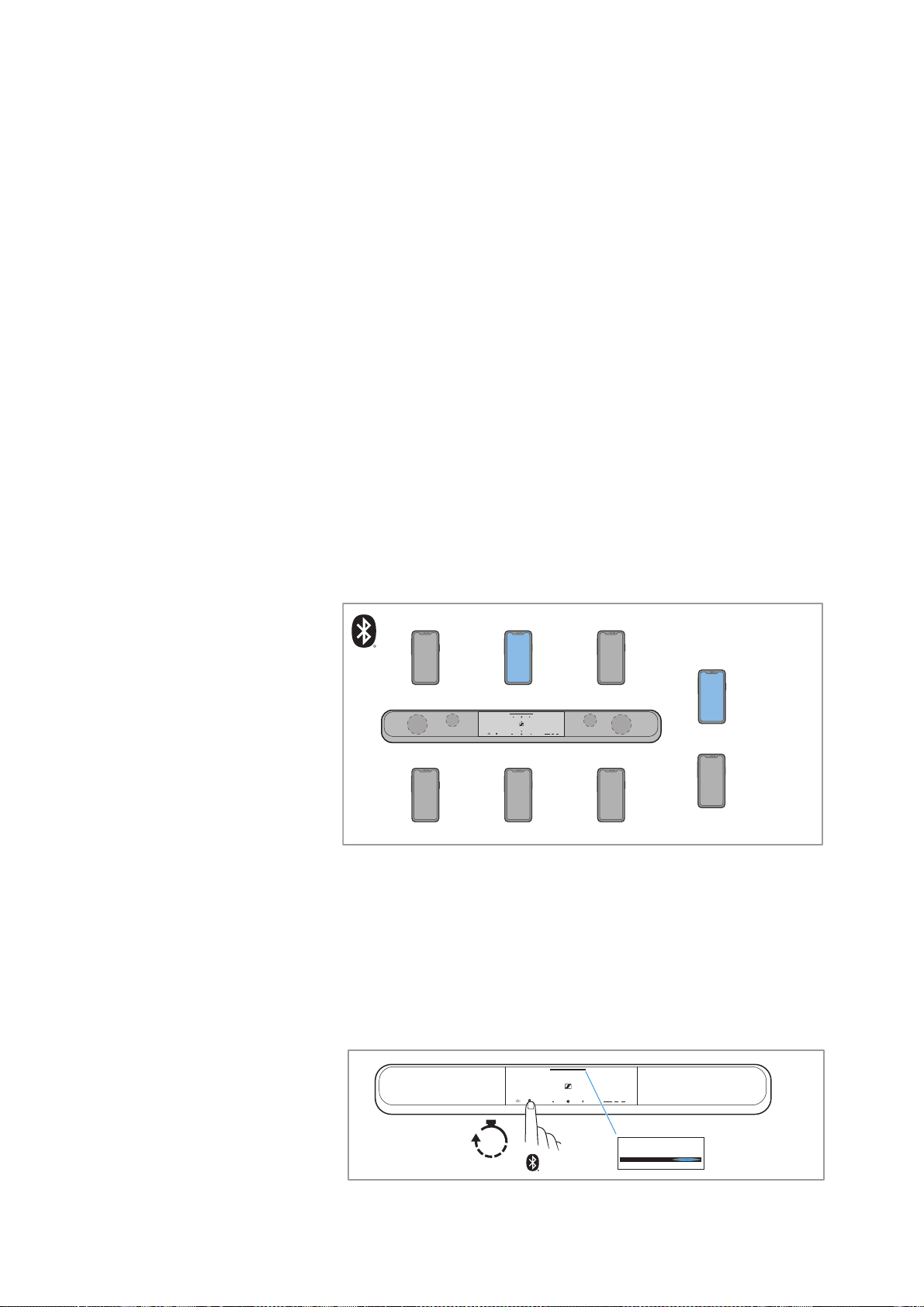
The Soundbar can save the connection profiles of up to six Bluetooth
devices with which it has been paired.
If you pair the Soundbar with the seventh Bluetooth device, the con-
nection profile of the least used Bluetooth device will be overwritten.
If you want to reconnect to this Bluetooth device later, you have to
pair the Soundbar again.
If a device is connected, you first have to disconnect it to connect a
new device.
Pairing the AMBEO Soundbar with a Bluetooth device
To establish a Bluetooth connection without the Sennheiser Smart
Control app:
▷ Activate Bluetooth on your Bluetooth device.
▷ To start the pairing mode of the Soundbar, press the Bluetooth
button of the Soundbar for 3 seconds.
While the Soundbar is in pairing mode, the LED status bar of the
Soundbar pulses blue.
paired +
connected
paired
Bluetooth
3s
LED

Using the Soundbar
52 | Sennheiser AMBEO Soundbar System SB02
▷ Hold your Bluetooth device at a distance of approx. 7.87"/20 cm
to the Soundbar.
▷ Via the menu of your Bluetooth device, start the search for new
Bluetooth devices.
All active Bluetooth devices in the proximity of your smartphone
are displayed.
▷ From the list of found Bluetooth devices, select “AMBEO Sound-
bar”. If necessary, enter the default pin code “0000”.
If pairing was successful, the LED status bar lights up blue.
To establish a Bluetooth connection with the Sennheiser Smart Con-
trol app:
▷ Activate Bluetooth on your Bluetooth device.
▷ Tap the
Network button in the Settings menu of the Smart Control
app.
A drop-down list appears.
▷ Tap the
Bluetooth item in the drop-down list to open the Bluetooth
menu.
The Your Devices section displays Bluetooth devices that the
Soundbar has already been paired with.
The
Other Devices section displays unpaired Bluetooth devices.
In the Bluetooth menu, you can either pair the Soundbar directly with
one of the listed Bluetooth devices or start the pairing mode.
To pair the Soundbar directly with one of the listed Bluetooth
devices:
▷ Tap one of the displayed Bluetooth devices in the
Your Devices or
Other Devices section.
The Soundbar tries to pair with the selected Bluetooth device.
To start the pairing mode:
▷ Tap the
Start Bluetooth Pairing button.
Disconnecting the AMBEO Soundbar from a Bluetooth device
To disconnect via the Bluetooth device:
▷ Via the menu of your Bluetooth device, disconnect the connection
to the Soundbar.
To disconnect via the Sennheiser Smart Control app:
▷ Tap the
Network button in the Settings menu of the Smart Control
app.
A drop-down list appears.
▷ Tap the
Bluetooth item in the drop-down list.
▷ Tap the paired device.
▷ Tap the
Disconnect button to disconnect the desired Bluetooth
device.
If no connection can be established within 3 minutes, the pair-
ing mode is terminated. If necessary, start the pairing mode
again.

Using the Soundbar
Sennheiser AMBEO Soundbar System SB02 | 53
Configuring the network connection via
WiFi or Ethernet
Use the WiFi connection or the Ethernet connection for:
• controlling the Soundbar via the Sennheiser Smart Control app
• streaming via Apple AirPlay, Google Chromecast, Spotify Con-
nect and Tidal Connect
• activating the Alexa and OK Google voice assistants
• downloading firmware updates
Establishing a WiFi connection
To establish a WiFi connection:
▷ Press the Setup button on the Soundbar for approx. 5 seconds.
WPS (WiFi Protected Setup) is activated.
The Soundbar searches for a connection.
▷ Press the WPS button on your router.
The Soundbar connects to the WiFi.
▷ Note that the Soundbar has to be on the same network as the
devices with which the Soundbar is to communicate.
Establishing an Ethernet connection
▷ Make sure that the Ethernet cable is properly connected to the
Soundbar and your network (> 34).
Managing a network connection via the Sennheiser Smart Control
app
▷ Tap the Network button in the Settings menu of the Smart Control
app.
A drop-down list appears.
▷ Depending on the desired connection type, tap the
WiFi or Ether-
net item in the drop-down list.
▷ Adjust the WiFi connection or Ethernet connection as desired.
If you connect the Soundbar to the Internet/Ethernet via cable,
the WiFi function of the Soundbar is automatically deactivated.
If no connection can be established within 2 minutes, the
Soundbar stops searching. If necessary, start the search again.
Router
Setup
Reset
WPS
5s
1 2
Using the Soundbar
54 | Sennheiser AMBEO Soundbar System SB02
Adjusting the Soundbar settings using
the Sennheiser Smart Control app
You can use the Smart Control app to control your Soundbar, adjust
network settings, activate streaming services and voice assistants,
and adjust the sound of the Soundbar to your needs.
The most important settings of the Smart Control app are described
in the following sections.
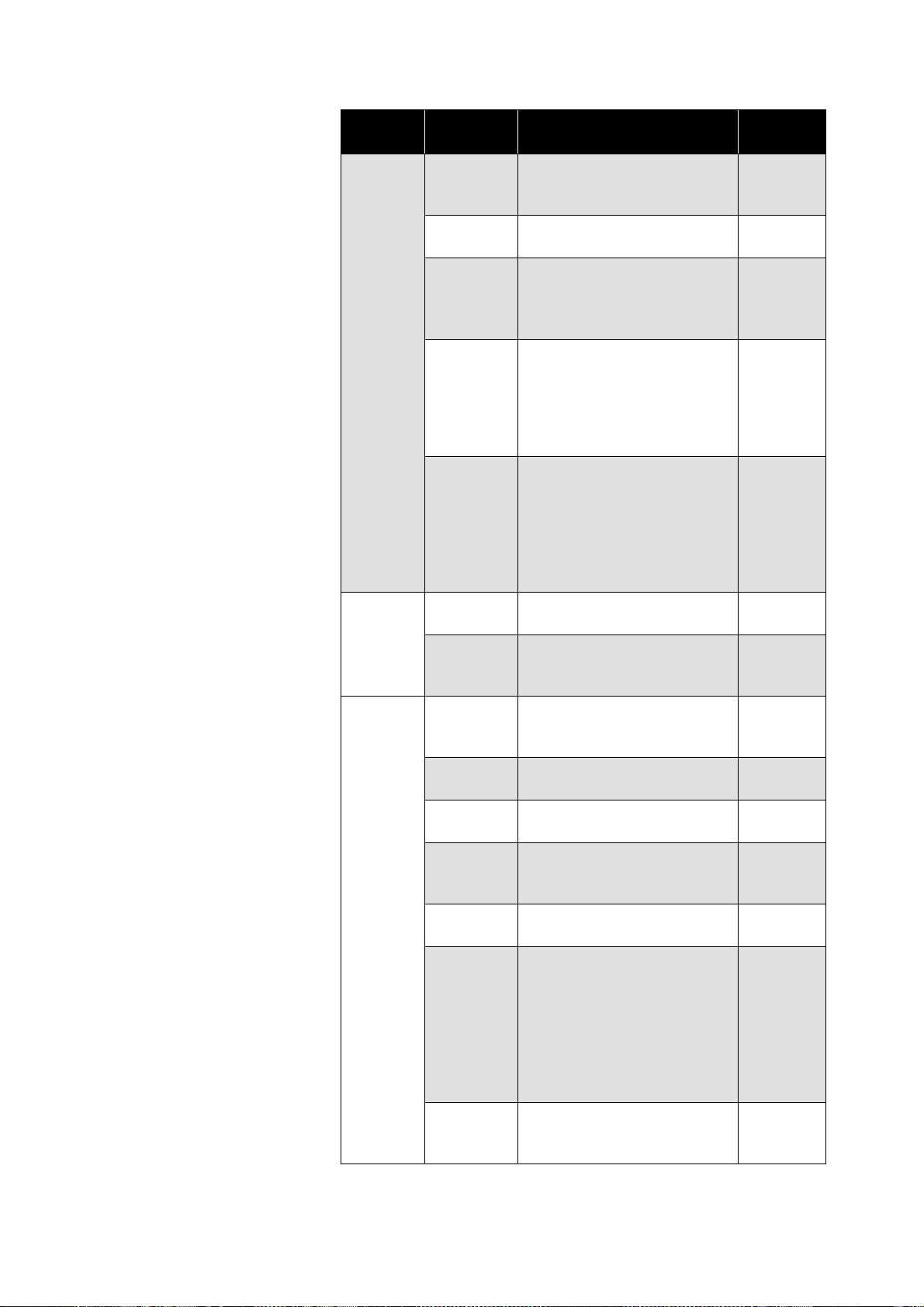
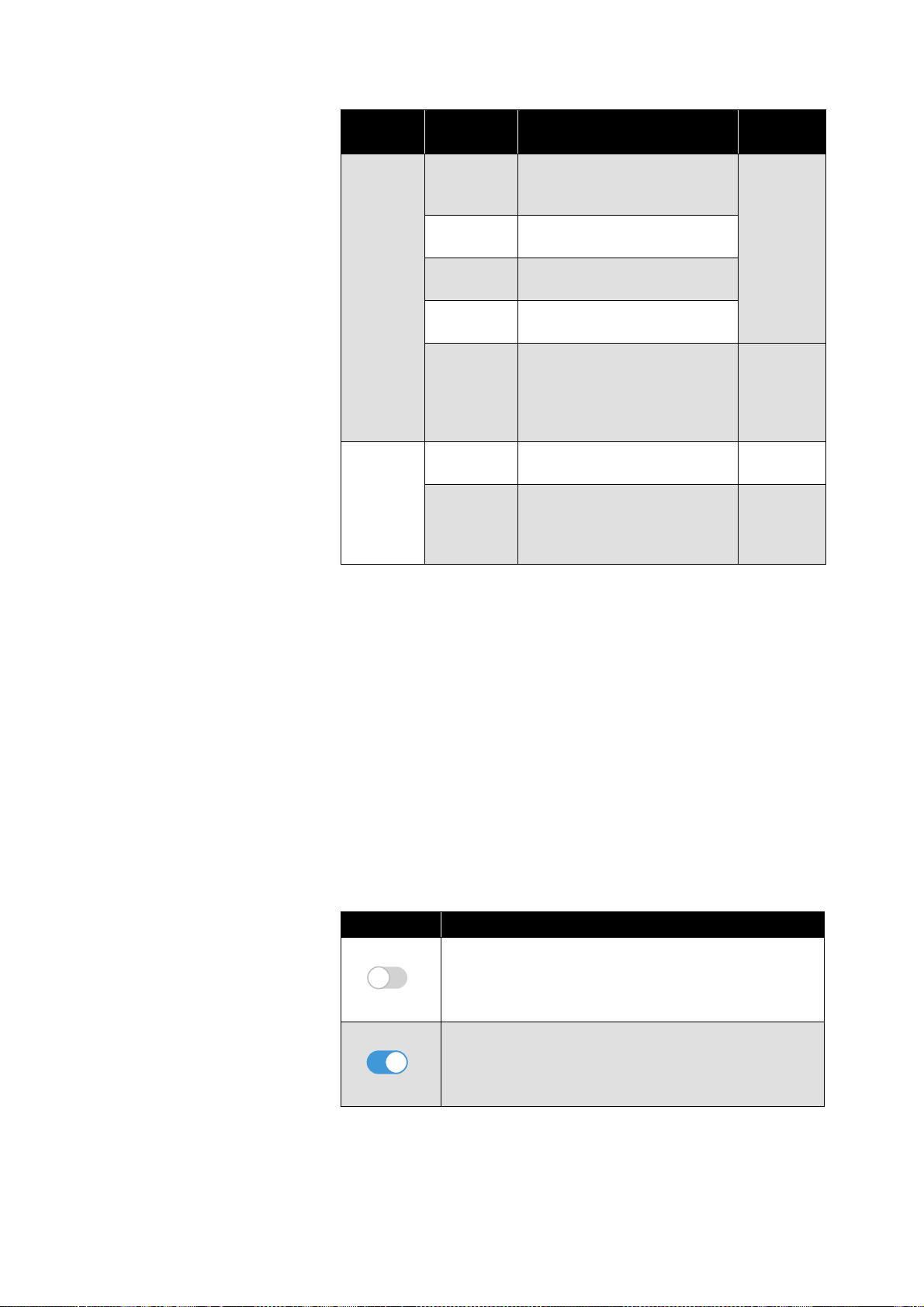
Using the
Settings menu of the Smart Control app, you can view and
adjust the following settings:
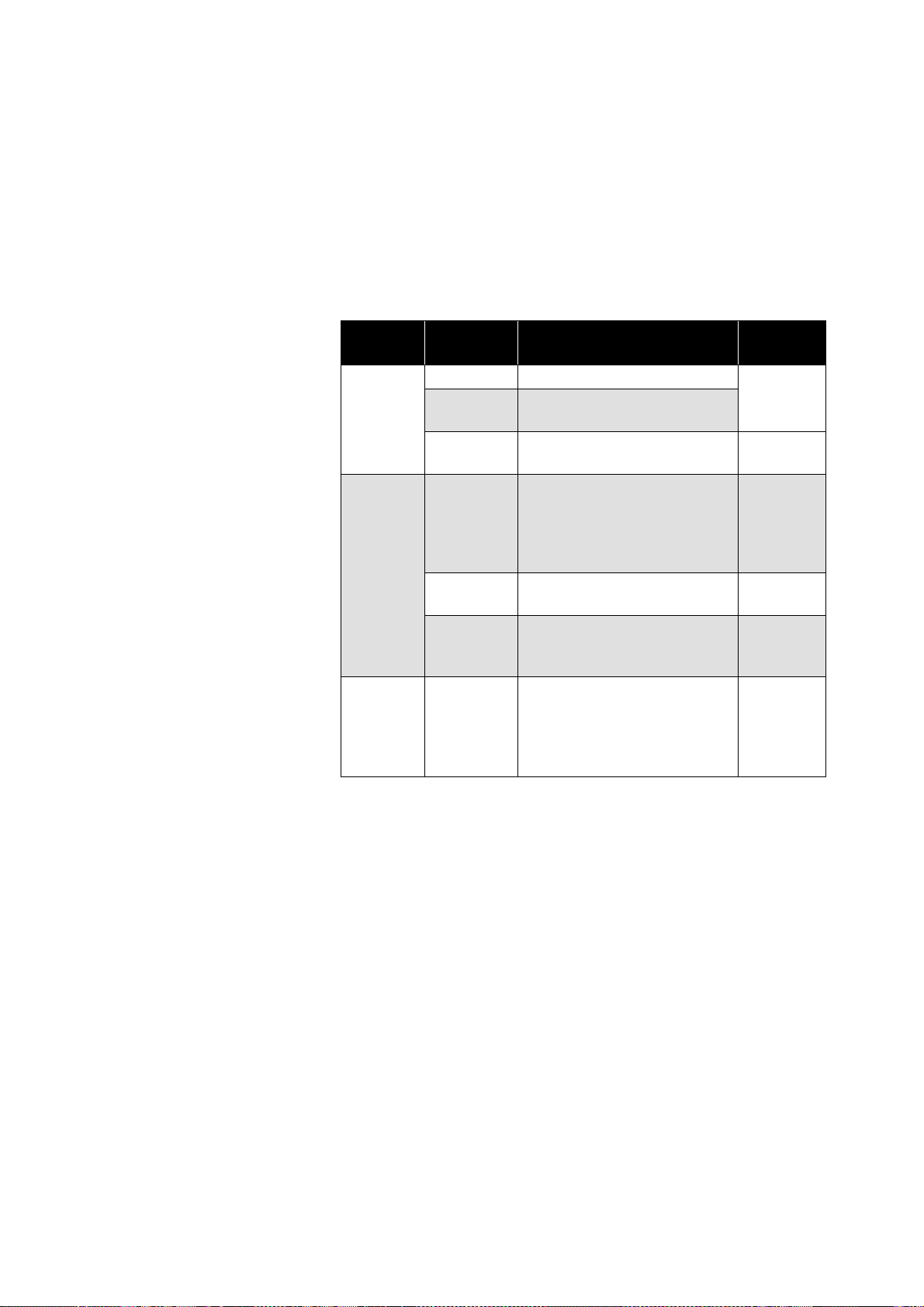
Menu
level 1
Menu
level 2
Description Reference
Network
WiFi
Manage the WiFi connection.
> 53
Ethernet
Manage the Ethernet con-
nection.
Bluetooth
Manage the Bluetooth con-
nection.
> 51
Audio
Calibration
Start a calibration, view the
calibration status of the
Soundbar or activate/deacti-
vate the use of the room cali-
bration data.
> 57,
> 58,
Center
Settings
Adjust the Center volume.
Subwoofer
Manage your subwoofers
(e.g. connect, disconnect,
adjust bass volume).
> 57
Codec
[Codec
Name]
Settings
Adjust the settings of the
audio codec used.
Which audio codec is used is
determined by the input
source.
> 60
Using the Soundbar
Sennheiser AMBEO Soundbar System SB02 | 55
Input
Lip sync
Adjust the latency of the
audio playback to match
audio and video content.
Input
names
Assign names and LED colors
to input sources.
> 50
CEC
Control
Adjust the CEC settings.
With CEC, control signals
from your input source are
transmitted to the Soundbar.
Auto Wake
Up In AUX
If you activate the “Auto
Wake Up In AUX” function via
the software switch, the
Soundbar wakes up from
ECO mode as soon as it
receives an AUX input signal.
Auto Wake
Up In OPT
If you activate the “Auto
Wake Up In OPT” function via
the software switch, the
Soundbar wakes up from
ECO mode as soon as it
receives an optical input sig
-
nal.
User
Interface
LEDs
Adjust the brightness of the
LEDs.
Sound
Feedback
Activate/deactivate the
audio feedback via the soft-
ware switch.
System
System
Firmware
View the current firmware
version and available firm-
ware updates.
> 69
Language
Set the language of the
Soundbar’s web browser.
> 41
Soundbar
name
Assign a name to the Sound-
bar.
Country
Set the region in which the
Soundbar is operated (e.g. for
WiFi settings).
Restart
Soundbar
Restart the Soundbar.
Reset
Three options to reset the
Soundbar:
• Reset all settings of the
Soundbar.
• Reset the Soundbar’s net-
work settings.
• Reset the room calibration
data.
> 70
Subwoofer
Manage your subwoofers
(e.g. connect, disconnect,
adjust bass volume).
> 57
Menu
level 1
Menu
level 2
Description Reference
Using the Soundbar
56 | Sennheiser AMBEO Soundbar System SB02
Opening the “Settings” menu
▷ Open the Smart Control app.
▷ At the very top of the header of the Sennheiser Smart Control app,
tap the
Settings menu.
Exiting the submenu and returning to the previous menu
▷ Tap the arrow next to the menu name.
The submenu closes and you return to the previous menu level.
Exiting the “Settings” menu
▷ At the very top of the header of the Sennheiser Smart Control app,
tap My Device.
Using the software switches
You can activate or deactivate some functions of the Smart Control
software via software switches.
Services
Google
Chromecas
t
Configure Google Chrome-
cast for your Soundbar.
> 62
Tidal
Connect
Configure Tidal Connect for
your Soundbar.
AirPlay
Configure AirPlay for your
Soundbar.
Spotify
Connect
Configure Spotify Connect
for your Soundbar.
Add
services
Configure other services
such as voice assistants for
your Soundbar or make addi-
tional settings for your
streaming services.
> 62,
> 62
Info
Licences
View license information (pri-
vacy policy, terms of use)
Device
Information
View device information,
such as serial number, net-
work connection status, or
firmware ID.
Symbol Description
If a function is deactivated, the software switch is
grayed out.
If you tap the software switch, the function is acti-
vated.
If a function is activated, the software switch is high-
lighted in blue.
If you tap the software switch, the function is deacti-
vated.
Menu
level 1
Menu
level 2
Description Reference

Using the Soundbar
Sennheiser AMBEO Soundbar System SB02 | 57
Managing room calibration data via the
Sennheiser Smart Control app
After you have performed a room calibration, the Soundbar can use
the data obtained during the calibration to create the best possible
3D spatial sound matched to the environment.
In the Sennheiser Smart Control app, you can activate or deactivate
the Soundbar’s use of this data.
The Soundbar can store different data sets: The data of a calibration
with subwoofer and the data of a calibration without subwoofer.
When the subwoofer connected to the Soundbar is deactivated or
disconnected from the Soundbar, the Soundbar uses the data from a
previous calibration without a subwoofer, if there is one.
To activate/deactivate the use of the room calibration data:
▷ Tap the
Audio button in the Settings menu of the Smart Control
app.
A drop-down list appears.
▷ Tap the
Calibration item in the drop-down list.
▷ In the
Calibrated Sound section, activate or deactivate the use of
room calibration data using the software switch.
If you are using “Dolby Virtualizer”, the use of room calibration data
is automatically deactivated and cannot be activated as long as
“Dolby Virtualizer” is activated (> 60).
Managing a subwoofer via the Sennheiser
Smart Control app
Connecting an AMBEO Sub wirelessly to the Soundbar via the
Sennheiser Smart Control app
If an AMBEO Sub is already connected wirelessly to the Soundbar,
you can connect additional AMBEO Subs wirelessly to the Soundbar
via the Smart Control app.
▷ Make sure that the Soundbar and the AMBEO Sub are connected
to the power supply.
▷ Tap the
Audio button or the System button in the Settings menu
of the Smart Control app.
A drop-down list appears.
▷ Tap the
Subwoofer item in the drop-down list.
▷ Tap
Add a new subwoofer and follow the instructions in the Smart
Control app

Using the Soundbar
58 | Sennheiser AMBEO Soundbar System SB02
Deleting pairing settings of the connected AMBEO Subs via the
Sennheiser Smart Control app
When the Soundbar connects wirelessly to an AMBEO Sub, the
Soundbar stores the pairing settings of the AMBEO Sub. To discon-
nect the connected AMBEO Sub from the Soundbar, you have to
delete the pairing settings of all connected AMBEO Subs. It is not
possible to delete the pairing settings of only one AMBEO Sub.
▷ Tap the
Audio button or the System button in the Settings menu
of the Smart Control app.
A drop-down list appears.
▷ Tap the
Subwoofer item in the drop-down list.
▷ Tap
Remove all.
The pairing settings of all connected AMBEO Subs will be deleted
and you can pair the AMBEO Subs again if needed.
Deactivating/activating subwoofers via the Sennheiser Smart
Control app
Using the Smart Control app, you can deactivate all connected sub-
woofers so that no subwoofer is used during audio playback without
having to disconnect the subwoofers from the Soundbar. It is not
possible to deactivate only one subwoofer.
To deactivate the connected subwoofers:
▷ Tap the
Audio button or the System button in the Settings menu
of the Smart Control app.
A drop-down list appears.
▷ Tap the
Subwoofer item in the drop-down list.
The Subwoofer menu opens.
▷ Tap the software switch next to
Subwoofer.
All connected subwoofers are deactivated.
To activate the connected subwoofers again:
▷ In the
Subwoofer menu of the Smart Control app, tap the grayed-
out software switch next to Subwoofer.
All connected subwoofers are activated.
Adjusting the volume of the AMBEO Sub
▷ Tap the Audio button or the System button in the Settings menu
of the Smart Control app.
A drop-down list appears.
▷ Tap the
Subwoofer item in the drop-down list.
The Subwoofer menu opens.
▷ Move the slider in the
Volume section to reduce or increase the
volume of the AMBEO Sub.
Starting the room calibration with a subwoofer
After you have newly connected a subwoofer to the Soundbar, you
have to perform a room calibration.
If you want to start the room calibration, you have the following
options:
• Tap the Start button in the System Calibration area of the start
screen of the Sennheiser Smart Control app (> 42).
•Press the Volume
+ and Volume – buttons on the Soundbar (> 42).
• Tap the Start calibration button in the Calibration menu.
• Tap the Calibrate now button in the Subwoofer menu.

Using the Soundbar
Sennheiser AMBEO Soundbar System SB02 | 59
Before calibrating, make sure that
• the Soundbar is connected to the power supply system and
switched on (> 38),
• the subwoofer is connected to the power supply system and
switched on (> 39),
• the microphones of the Soundbar are not muted (> 48) and
• it is quiet in the room where you are calibrating the Soundbar and
the subwoofer.
To start the room calibration via the Subwoofer menu:
▷ Tap the
Audio button or the System button in the Settings menu
of the Smart Control app.
A drop-down list appears.
▷ Tap the
Subwoofer item in the drop-down list.
The Subwoofer menu opens.
If calibration is required, the
Calibrate now button appears.
▷ Tap the
Calibrate now button to start the room calibration.
▷ Follow the instructions in the Smart Control app.
To start the room calibration via the
Calibration menu:
▷ Tap the
Calibration button in the Settings menu of the Smart Con-
trol app.
A drop-down list appears.
▷ Tap the
Calibration item in the drop-down list.
The Calibration menu opens.
▷ Tap the
Start calibration button to start the room calibration.
▷ Follow the instructions in the Smart Control app.

Using the Soundbar
60 | Sennheiser AMBEO Soundbar System SB02
Adjusting the settings of the audio codec
If one of the following codecs is active via an input source, you can
adjust the codec settings in the Sennheiser Smart Control app:
•Dolby
•DTS
•MPEG-H
Setting options for Dolby codecs
Setting options for DTS codecs
Parameters Meaning
Loudness
Manage-
ment
If you activate “Loudness Management” via the soft-
ware switch, the volume of background noise/back-
ground music is reduced to make dialog tracks more
audible.
Dynamic
Range
Control
Compress the dynamics of the audio signal to com-
pensate for differences between quiet and loud pas-
sages.
• OFF: The audio signal is not compressed.
• High: The audio signal is strongly compressed.
• AUTO: The audio signal is compressed automati-
cally. Changes in volume are noticeable during
playback.
Dolby
Virtualizer
Activate “Dolby Virtualizer” via the software switch
to play back Dolby audio content unchanged.
If you activate “Dolby Virtualizer”, you cannot use
the following settings and functions:
• Sound profiles
•AMBEO
•Equalizer
• Room calibration data (as long as a “Dolby Virtu-
alizer” is activated, the data obtained during
room calibration will not be used during Dolby
Audio content playback).
Parameters Meaning
Neural:X
Disabled
Use the software switch to activate upmixing of DTS
audio content to create an immersive surround
experience, even when only a stereo signal is pres-
ent at the input source.
Dynamic
Range
Control
Compress the dynamics of the audio signal to com-
pensate for differences between quiet and loud pas-
sages.
To do so, move the slider between “OFF” and “100
%”.
• OFF: The audio signal is not compressed.
• 100 %: Loud passages become quieter, quiet pas-
sages become louder.
Dialog
Control
Move the slider to reduce the volume of background
noise/background music and make dialog tracks
more audible.

Using the Soundbar
Sennheiser AMBEO Soundbar System SB02 | 61
Setting options for MPEG-H codecs
Adjusting the codec settings
▷ Tap the Codec button in the Settings menu of the Smart Control
app.
The active codec is displayed.
▷ Tap the name of the codec.
A submenu for the active codec opens.
▷ Adjust the desired settings for the active codec.
Parameters Meaning
Dialog Nor-
malization
If you activate “Dialog Normalization” via the soft-
ware switch, the volume of background noise/back-
ground music is reduced to make dialog tracks more
audible.
Dynamic
Range
Control
Adjust the dynamics of the audio signal to compen-
sate for differences between quiet and loud pas-
sages or to boost the volume of loud passages.
To do so, move the slider between “Compression”,
“OFF” and “Boosting”.
• Compression: Loud passages become quieter,
quiet passages become louder.
• OFF: The audio signal is not compressed.
• Boosting: The volume of loud passages is
boosted.

Using the Soundbar
62 | Sennheiser AMBEO Soundbar System SB02
Using streaming services
You can activate audio playback via streaming services in the Senn-
heiser Smart Control app. To be able to use a streaming service, you
have to have an account with the streaming service.
The following services are already available upon delivery:
• Tidal Connect
•Spotify Connect
• Chromecast built-in
• Works with Apple AirPlay
Configuring a streaming service
▷ Tap the Services button in the Settings menu of the Smart Control
app.
A drop-down list appears.
▷ Tap the desired service and configure it as a streaming source.
Adjusting the settings for streaming services
You can adjust additional settings for your streaming services in the
Smart Control app.
▷ Tap the
Services button in the Settings menu of the Smart Control
app.
A drop-down list appears.
▷ Select
Add services from the drop-down list.
The Set up your services menu opens.
▷ Adjust the desired settings.
Activating and using voice assistants
You can optionally connect the Soundbar to the following voice
assistants:
•Alexa (built-in)
• OK Google (works with)
To do so, you have to have an account with the respective voice
assistant.
The voice assistants are deactivated upon delivery. To use the voice
assistants, you have to first activate them in the Sennheiser Smart
Control app.
Activating a voice assistant
▷ Tap the Services button in the Settings menu of the Smart Control
app.
A drop-down list appears.
▷ Select
Add services from the drop-down list.
The Set up your services menu opens.
▷ In the
Setup section, activate the desired voice assistant.

Using the Soundbar
Sennheiser AMBEO Soundbar System SB02 | 63
Notes on the use of voice assistants
To be able to use a voice assistant with the Soundbar, make sure that
the Soundbar’s microphones are not muted (> 48).
Note that activating the Amazon Alexa voice assistant changes the
function of the Multi-purpose o button on the Soundbar and the
remote control (> 44). When Alexa is activated, pressing the Multi-
purpose o button will trigger Alexa or cancel a command to Alexa.
When a voice assistant is triggered by an activation word (e.g. “Okay
Google” or “Alexa”) or, in the case of Amazon Alexa, by pressing the
Multi-purpose o button and processes a command, the volume of the
audio playback is briefly reduced. This ensures that the voice assis-
tant can hear your commands.
Controlling audio playback
Audio playback is only possible after an input source has been
selected.
If you want to control audio playback, you have the following options:
• The context-sensitive buttons in the playback area of the Sennhe-
iser Smart Control app
•The Multi-purpose
o button on the Soundbar or the remote con-
trol (> 44)
Ending audio playback
If you want to end audio playback, you have the following options:
• End audio playback using the context-sensitive buttons in the
playback area of the Sennheiser Smart Control app.
• Briefly press the Multi-purpose
o button on the Soundbar or the
remote control (> 44).
• End audio playback at the input source (e.g. your TV).
If there is no audio playback for at least 10 seconds, the Sound-
bar automatically switches to ECO mode.
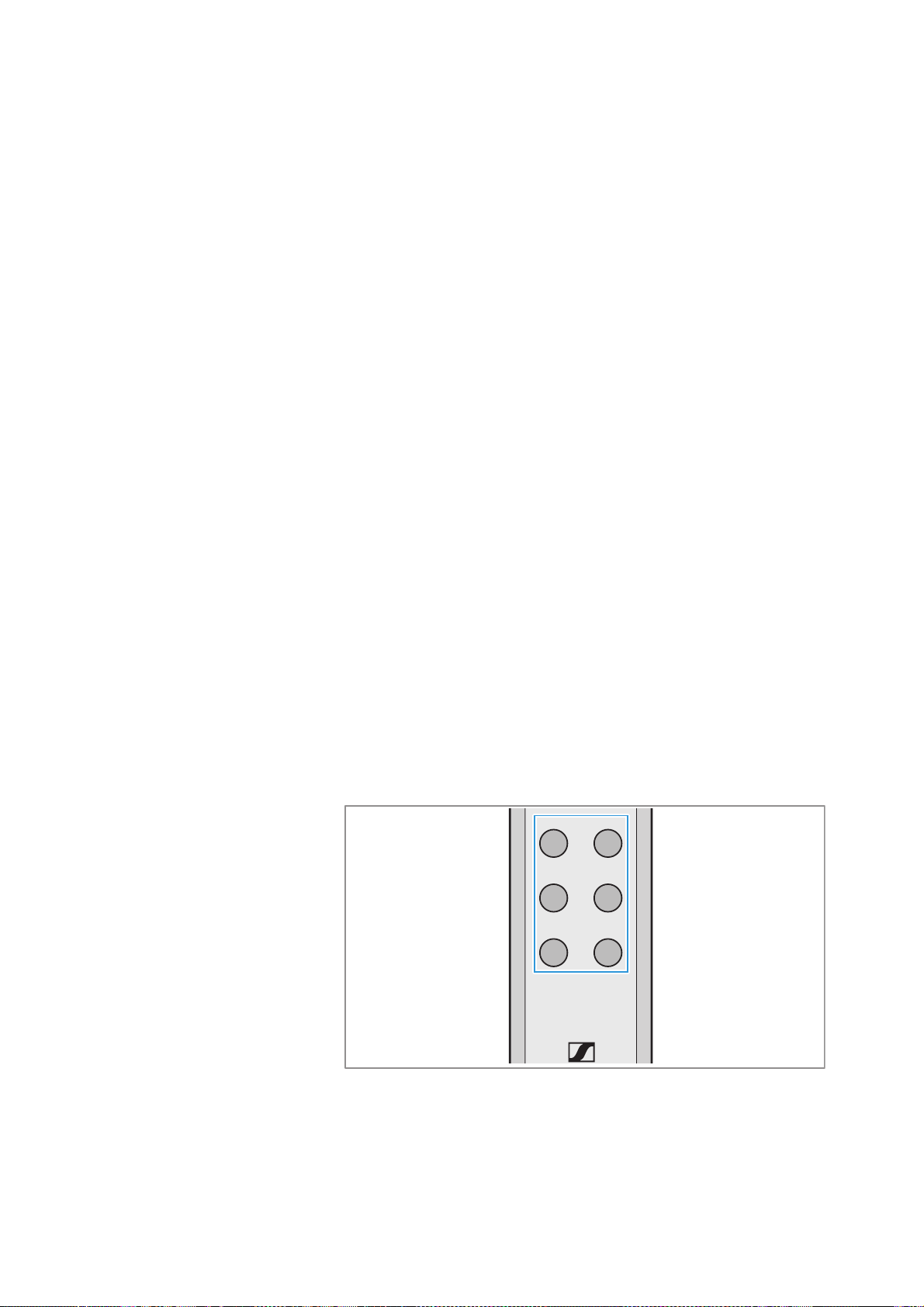
Using the Soundbar
64 | Sennheiser AMBEO Soundbar System SB02
Selecting a sound profile
The Soundbar comes with various preset sound profiles upon deliv-
ery. The sound profiles are optimized for playing back different audio
contents (e.g. music, news broadcasts, movies).
The following sound profiles are available:
•
Adaptive
The settings of the sound profile Adaptive are changed automat-
ically during playback. In this way, the sound profile continuously
adapts to the content being played back.
• Music
The sound profile Music is optimized for the playback of music.
• Movie
The sound profile Movie is optimized for the playback of movies.
• News
The sound profile New is optimized for the playback of news
broadcasts.
• Neutral
The sound profile Neutral reproduces the sound of the input
source unchanged.
• Sports
The sound profile Sports is optimized for the playback of sports
broadcasts.
Once you have activated a sound profile for an input source, the
sound profile for this input source is saved until you activate another
sound profile for this input source.
Using the Soundbar’s remote control and the Sennheiser Smart Con-
trol app, you can also switch between the different sound profiles
during audio playback.
Activating a sound profile
To activate a sound profile via the Soundbar’s remote control:
▷ Press the sound profile button of the desired sound profile.
To activate a sound profile using the Sennheiser Smart Control app:
▷ Open the Smart Control app.
▷ Tap the desired sound profile.
The active sound profile is marked with a check mark.
MUSICMOVIE
SPORTSNEWS
ADAPTIVENEUTRAL

Using the Soundbar
Sennheiser AMBEO Soundbar System SB02 | 65
Deactivating a sound profile
To deactivate a sound profile via the Soundbar’s remote control:
▷ Press the sound profile button of the desired sound profile.
To deactivate a sound profile via the Sennheiser Smart Control app:
▷ Tap the check mark with which the active sound profile is marked.
The sound profile is deactivated. The check mark is removed.
Editing a sound profile
You can edit the sound settings of the sound profiles to suit your
needs.
▷ Activate the desired sound profile.
The Edit button appears.
▷ Tap the
Edit button.
The settings menu of the sound profile opens.
You can adjust the following settings in the settings menu of the
sound profile:
• AMBEO 3D Sound
When AMBEO is activated (> 66), you can adjust the intensity of
the AMBEO 3D surround effect by selecting one of 3 modes:
•
Light
light AMBEO spatial sound
•
Regular
normal AMBEO spatial sound
•
Boost
maximum AMBEO spatial sound
• Foundation
Adjust the bass of the frequency range.
• Low-Mid
Adjust the lower midrange.
• Clarity and Brilliance
Adjust the treble of the frequency range.
• Preset reset
Reset the sound profile to the factory default settings.

Using the Soundbar
66 | Sennheiser AMBEO Soundbar System SB02
Activating/deactivating AMBEO
To activate AMBEO:
▷ Open the Sennheiser Smart Control app.
▷ In the AMBEO section, tap the On button.
AMBEO is activated and the button is highlighted in blue.
To deactivate AMBEO:
▷ In the
AMBEO section, tap the Off button.
AMBEO is deactivated and the blue highlighting of the button is
removed.
You can further adjust the AMBEO effect for each sound profile
(> 64).
Activating/deactivating the night mode
“Night”
In night mode, the Soundbar does not reproduce any deep bass.
The night mode “Night” can be used in addition to a sound profile.
The night mode is globally applied to all sound profiles.
When the night mode “Night” is activated, the LED status bar of the
Soundbar lights up purple.
Activating/deactivating the night mode “Night” via the remote
control
▷ Press the Night button on the remote control.
Activating/deactivating the night mode “Night” via the Sennheiser
Smart Control app
▷ In the Smart Control app, tap the software switch next to the dis-
play Night mode.
When the night mode “Night” is activated, the software switch is
highlighted in blue.

Using the Soundbar
Sennheiser AMBEO Soundbar System SB02 | 67
Activating/deactivating the voice mode
“Voice”
In voice mode, speech is output particularly clearly and distinctly.
The voice mode “Voice” can be used in addition to a sound profile.
The voice mode is globally applied to all sound profiles.
When the voice mode “Voice” is activated, the LED status bar of the
Soundbar lights up light blue.
Activating/deactivating the voice mode “Voice” via the remote
control
▷ Press the Voice button on the remote control.
Activating/deactivating the voice mode “Voice” via the Sennheiser
Smart Control app
▷ In the Smart Control app, tap the software switch next to the dis-
play Voice Enhancement.
When the voice mode “Voice” is activated, the software switch is
highlighted in blue.

Care and maintenance of the Soundbar
68 | Sennheiser AMBEO Soundbar System SB02
Care and maintenance of the
Soundbar
Cleaning the Soundbar
▷ Clean the product only with a soft, dry cloth.
The fabric of the Soundbar cannot be removed.
▷ Clean the fabric with a soft brush.
Replacing the battery of the remote
control
If the range of the remote control decreases, you have to replace the
battery.
▷ Use a suitable object (e.g. a coin) to open the battery compart-
ment cover by turning one turn counter-clockwise.
▷ Remove the used battery. In order to protect the environment, dis-
pose of used batteries at special collection points or return them
to your specialist dealer.
▷ Insert the new battery (type CR2032, 3 V) into the battery com-
partment. Observe correct polarity when inserting the battery.
▷ Close the battery compartment cover by turning one turn clock-
wise.
ATTENTION
Liquids can damage the electronics of the product!
Liquids entering the housing of the product can cause a short-circuit
and damage the electronics.
▷ Keep all liquids far away from the product.
▷ Do not use any solvents or cleansing agents.
CAUTION
Danger of accidents!
Misuse or swallowing of batteries can cause injuries and
health problems.
▷ Observe the safety instructions for lithium batteries (>
4).
▷ Keep batteries away from children.
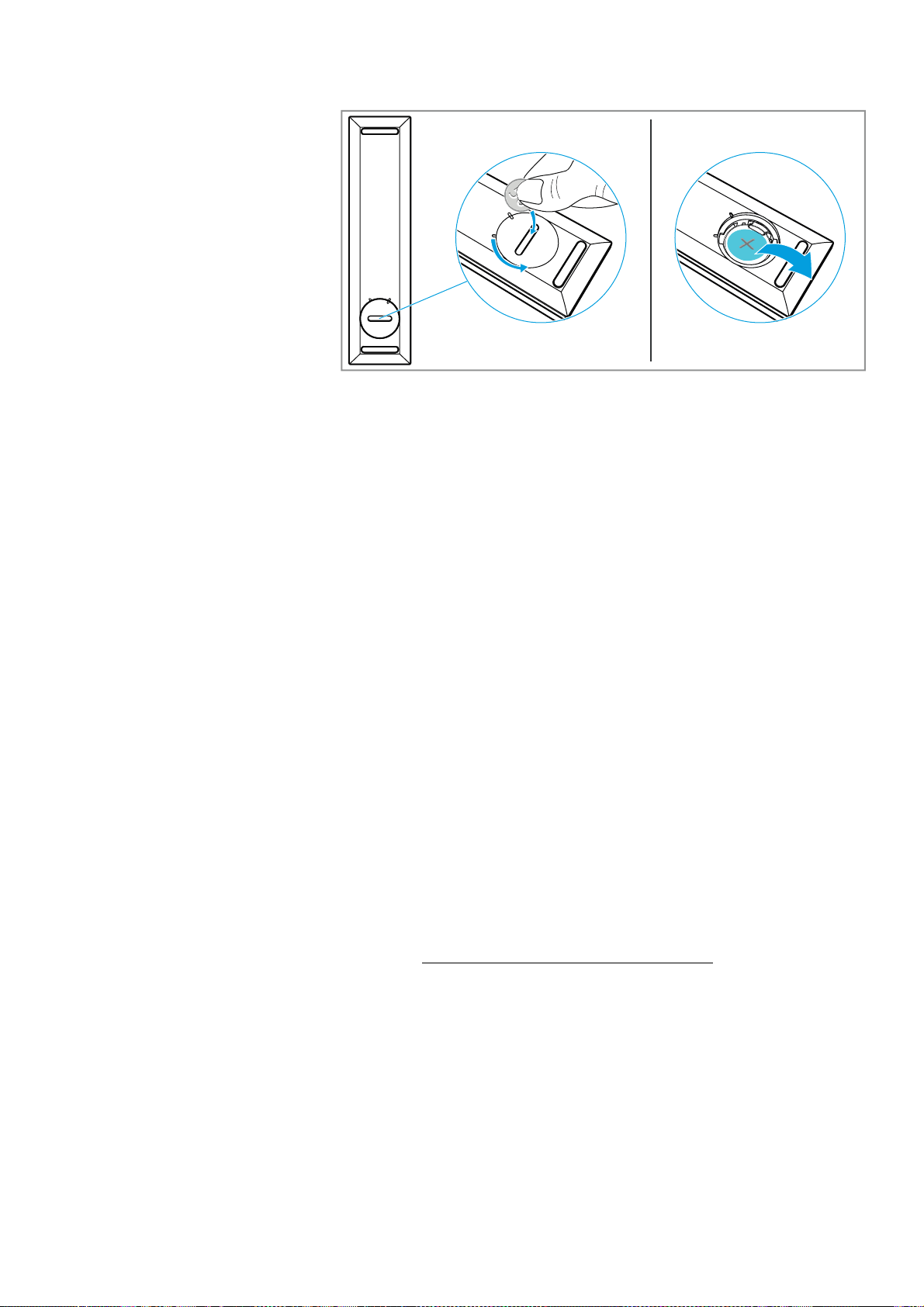
Care and maintenance of the Soundbar
Sennheiser AMBEO Soundbar System SB02 | 69
Installing firmware updates
Firmware updates are available free of charge and serve to enhance
product improvement and also function extension. Sonova Con-
sumer Hearing recommends to always install the latest firmware
version to ensure the best performance of your product.
You can update the firmware of the Soundbar and the AMBEO Sub(s)
using a USB flash drive or via the Internet using the Sennheiser
Smart Control app.
Update via the Sennheiser Smart Control app
To update the firmware via the Smart Control app, the Soundbar has
to be connected to the Internet via WiFi or Ethernet (> 53).
If you want to update the firmware, you have the following options:
• Tap the Update button in the start screen of the Smart Control
app (only visible if an update is available).
• Tap the Update button in the “Firmware” menu.
Update via a USB flash drive
Required USB flash drive:
•Memory size: 1 GB
•USB-A connection
• File system: FAT
1. Download the update file with the file name “image.swu” from the
website www.sennheiser-hearing.com/download
and save it on a
USB flash drive.
Do not change the file name!
▷ Switch the Soundbar on.
2. Connect the USB flash drive to the USB socket on the Soundbar.
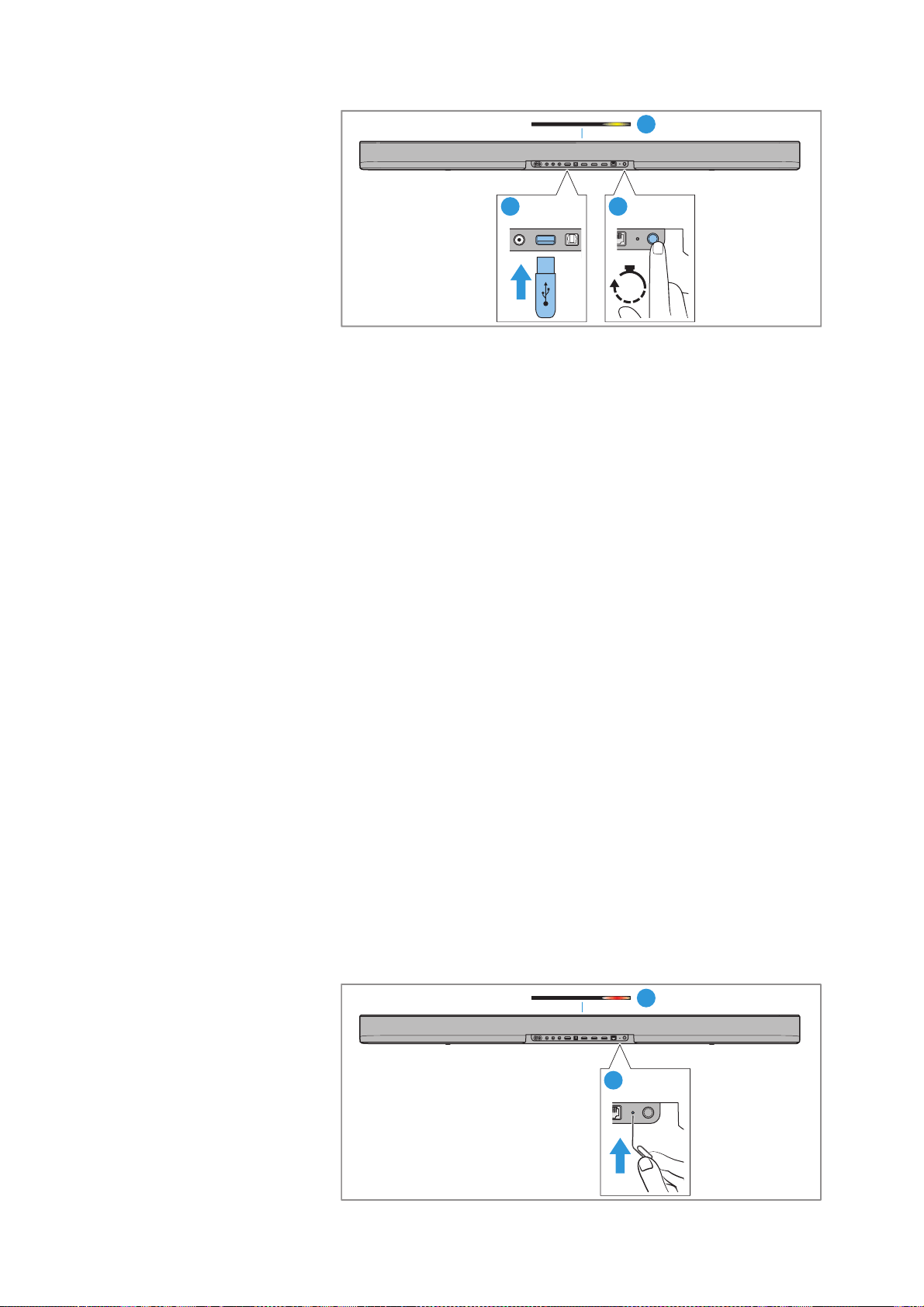
Care and maintenance of the Soundbar
70 | Sennheiser AMBEO Soundbar System SB02
3. Press the Setup button for 5 seconds.
The update starts and the LED status bar pulses yellow.
The Soundbar restarts several times during the update. The pro-
cess can take up to 8 minutes.
Resetting the Soundbar
▷ Switch the Soundbar on.
If you want to reset the Soundbar, you have the following options:
• Reset of all Soundbar settings to the factory default settings
• Reset of all network connections
• Reset of all room calibration data
Resetting the Soundbar to the factory default settings
If you reset the Soundbar to factory default settings, the network set-
tings and the room calibration data will also be reset.
To reset the Soundbar to the factory default settings without the
Sennheiser Smart Control app:
▷ Insert e.g. a paper clip into the
RESET recess on the rear of the
Soundbar and press the paper clip for 2 seconds.
To reset the Soundbar to the factory default settings via the Sennhe-
iser Smart Control app:
▷ Tap the
System button in the Settings menu of the Smart Control
app.
A drop-down list appears.
▷ Select
Reset from the drop-down list.
▷ In the
Reset all settings area, tap the Reset button.
During the reset, the LED status bar displays a red and white
sequence.
SETUP
RESET
IN
OPTIC
A
USB
5V⎓1A
5s
Hold
21
3
SETUP
RESET
1
2

Care and maintenance of the Soundbar
Sennheiser AMBEO Soundbar System SB02 | 71
Resetting all network connections
You can only reset the network connections via the Sennheiser
Smart Control app.
▷ Tap the
System button in the Settings menu of the Smart Control
app.
A drop-down list appears.
▷ Select
Reset from the drop-down list.
▷ In the
Reset network settings area, tap the Reset button.
Resetting all room calibration data
You can only reset the room calibration data via the Sennheiser
Smart Control app.
▷ Tap the
System button in the Settings menu of the Smart Control
app.
A drop-down list appears.
▷ Select
Reset from the drop-down list.
▷ In the
Reset system calibration area, tap the Reset button.

FAQ/If a problem occurs ...
72 | Sennheiser AMBEO Soundbar System SB02
FAQ/If a problem occurs ...
If a problem has occurred, proceed in the following order until the
problem is solved and you can use the AMBEO Soundbar system
again:
1. Disconnect the Soundbar and/or the subwoofer from the power
supply system. Wait for at least 10 seconds before connecting the
device to the power supply system again (> 38).
2. Connect the Soundbar and/or the subwoofer to the Sennheiser
Smart Control app to install the latest firmware (> 40).
3. Check the list of frequently asked questions to see if there is a
solution to the problem (> 72).
4. Reset the Soundbar and/or the subwoofer to the factory default
settings (> 70).
5. Contact your Sonova Consumer Hearing partner to solve the
problem (> 72).
Current list of frequently asked questions (FAQ)
Visit the AMBEO Soundbar system SB02 product pages at
www.sennheiser-hearing.com/ambeo-soundbar-plus/
or
www.sennheiser-hearing.com/ambeo-sub/
There you will find a current list of frequently asked questions (FAQ)
and suggested solutions.
Your question has not been answered or the problem persists?
If a problem occurs that is not listed in the FAQ section or if the prob-
lem cannot be solved with the proposed solutions, please contact
your Sonova Consumer Hearing partner for assistance.
To find a partner in your country, search at
www.sennheiser-hearing.com/service-support.

Specifications
Sennheiser AMBEO Soundbar System SB02 | 73
Specifications
AMBEO Soundbar | Plus
Model SB02M
Number of channels 7.1.4
Amplifier class D
Total audio power 400 W (RMS)
Total number of speakers 9
Woofer quantity 2 (top: right and left)
⌀ 10 cm/4 inches
cellulose cone drivers
Full-range speakers quantity 7 (lateral: right and left,
top: right and left,
front: right, center and left)
⌀ 5 cm/2 inches
aluminum cone drivers
Frequency response 38 Hz to 20 kHz (-3 dB)
Audio processor quad-core SOC processor, 1.8 GHz
Microphones for room
calibration and voice
assistants
4 built-in high-precision far-field
microphones
Displays LED status bar
AMBEO display
Active Codec display
Microphones Off/WiFi Status display
Power plug county-specific
Voltage range 100 – 240 V~ 50/60 Hz
Power consumption max. 2 A
Standby power
consumption
standby: 1.9 W
standby w/o network connection:
< 0.5 W
Temperature range operation:
0 °C to +40 °C/+32 °F to +104 °F
storage:
–20 °C to +70 °C/–13 °F to +158 °F
Relative humidity
(non condensing)
operation/storage: 10 % to 90 %
Dimensions (W x H x D) approx. 105.1 x 7.7 x 12.1 cm incl. feet
approx. 105.1 x 7.5 x 12.1 cm w/o feet
Weight approx. 6.3 kg
Magnetic field strength 23.5 mT

Specifications
74 | Sennheiser AMBEO Soundbar System SB02
Inputs/outputs
AMBEO Soundbar | Plus
WiFi
AMBEO Soundbar SB02
Bluetooth
AMBEO Soundbar SB02
HDMI TV (e)ARC default: HDMI eARC 2.1
control: CEC
encryption: HDCP 1.4
Power supply for accessories (external
devices): 5 V ⎓, 1 A
HDMI 1 IN
HDMI 2 IN
default: HDMI 2.0a
encryption: HDCP 2.2
control: CEC
video formats: up to 4K (60 Hz), Full HD,
MHL 2.1
HDR formats: Dolby Vision Pass-
Through
OPTICAL IN S/PDIF
Supported sampling rates: up to 192 kHz
AUX IN L and R stereo RCA sockets
USB USB socket (type A), power supply for
accessories (external devices): 5 V ⎓,
1 A; service socket for updates
ETHERNET RJ-45 socket, 100/10 MBit
Subwoofer SW Pre-OUT mono RCA, max. 2 V
Standard IEEE 802.11 a/b/g/n/ac/ax
Transmission system 2 x 2 MIMO
Transmission frequency
(country-specific)
2,400 MHz to 2,483.5 MHz
5170 MHz to 5835 MHz
Modulation 2.4 GHz band CCK, DQPSK, DBPSK für DSSS
64QAM, 16QAM, QPSK, BPSK for OFDM
Modulation 5 GHz band 1024-QAM, 256-QAM, 64QAM, 16QAM,
QPSK, BPSK
Output power 100 mW (max)
Version 5.0 Classic, BLE
for AMBEO Sub connection: 5.2,
Bluetooth Low Energy
Transmission frequency 2,400 MHz to 2,483.5 MHz
Modulation GFSK, π/4 DQPSK, 8DPSK
Profiles A2DP, AVRCP, GATT
Output power 10 mW (max)
Codec AAC, SBC
for AMBEO Sub connection: LC3

Specifications
Sennheiser AMBEO Soundbar System SB02 | 75
Network streaming, services and control
AMBEO Soundbar SB02
Playable audio formats for network streaming
AMBEO Soundbar SB02
Network Ethernet
WiFi
Services Chromecast built-in
AirPlay 2
Spotify Connect
Tidal Connect
uPnP
Voice assistants
(depending on region)
Alexa built-in
Works with OK Google
Control/Setup Sennheiser Smart Control app
(available for iOS and Android)
Web browser (accessible via hotspot
(“AMBEO Soundbar [serial number]”)
and address:
http://192.168.255.249/
or (with established WiFi connection):
http://ambeo)
Audio format/Codec File extension
DSD yes
MP3 yes
AAC/HE-AAC yes
LPCM yes
FLAC yes
AIFF yes
ALAC yes
Vorbis yes
Dolby Atmos Music yes
Sony 360 Reality Audio yes

Specifications
76 | Sennheiser AMBEO Soundbar System SB02
Supported audio/surround formats
AMBEO Soundbar SB02
Remote control
Model SB02-RC
AMBEO Sub
Model SW02
Audio format/Codec HDMI OPTICAL
LPCM 2 Channel yes yes
LPCM 5.1 Channel yes yes
LPCM 7.1 Channel yes yes
Dolby Digital yes yes
Dolby Digital Plus yes yes
Dolby True HD yes -
Dolby Atmos - Dolby TrueHD yes -
Dolby Atmos - Dolby Digital Plus yes yes
DTS yes yes
DTS-ES Discrete 6.1, yes yes
DTS-ES Matrix 6.1 yes -
DTS 96/24 yes yes
DTS-HD High Resolution Audio yes -
DTS-HD Master Audion yes -
DTS-HD LBR yes -
DTS:X yes -
MPEG-H (Fraunhofer) yes yes
Dolby Atmos Music yes -
Sony 360 Reality Audio yes yes
Transmission infra-red
Range approx. 8 m
Power supply coin cell, type CR2032, 3 V
Amplifier class D
Total audio power 350 W (RMS)
Total number of speakers 1
Woofer
⌀ 20 cm/8 inches
long-throw cellulose cone driver
Frequency response 27 Hz to 80 Hz (-3 dB)
Power plug county-specific
Voltage range 100 – 240 V~ 50/60 Hz
Power consumption max. 2.5 A
Standby power
consumption
wireless operation: < 1.9 W
wired operation: < 0.4 W

Specifications
Sennheiser AMBEO Soundbar System SB02 | 77
Temperature range operation:
0 °C to +40 °C/+32 °F to +104 °F
storage:
–20 °C to +70 °C/–13 °F to +158 °F
Relative humidity
(non condensing)
operation/storage: 10 % to 90 %
Dimensions (W x H x D) approx. 27.7 x 36.9 x 27.4 cm
Weight approx. 8.2 kg
Magnetic field strength 2 mT
Bluetooth version 5.2, Bluetooth Low Energy
Transmission frequency 2,400 MHz to 2,483.5 MHz
Modulation GFSK
Output power 10 mW (max)
Codec LC3
Range up to 10 m

Manufacturer declarations
78 | Sennheiser AMBEO Soundbar System SB02
Manufacturer declarations
Warranty
Sonova Consumer Hearing GmbH gives a warranty of 24 months on
this product.
For the current warranty conditions, please visit our website at
www.sennheiser-hearing.com/warranty or contact your
Sonova Consumer Hearing partner.
In compliance with the following requirements
EU declaration of conformity
• RoHS Directive (2011/65/EU)
• ErP Directive (2009/125/EC)
Hereby, Sonova Consumer Hearing GmbH declares that the radio
equipment type SB02M, SW02 is in compliance with the Radio
Equipment Directive (2014/53/EU).
The full text of the EU declaration of conformity is available at the fol-
lowing Internet address: www.sennheiser-hearing.com/download.
UK declaration of conformity
• RoHS Regulations (2012)
• The Ecodesign for Energy-Related Products and Energy Informa-
tion (Amendment) (EU Exit) Regulations (2019)
•Radio Equipment Regulations (2017)
Notes on disposal
• EU: Battery Directive (2006/66/EC & 2013/56/EU)
• EU: WEEE Directive (2012/19/EU)
• UK: Battery Regulations (2015)
• UK: WEEE Regulations (2013)
The symbol of the crossed-out wheeled bin on the product, the bat-
tery/rechargeable battery (if applicable) and/or the packaging indi-
cates that these products must not be disposed of with normal
household waste, but must be disposed of separately at the end of
their operational lifetime. For packaging disposal, observe the legal
regulations on waste segregation applicable in your country.
Improper disposal of packaging materials can harm your health and
the environment.
The separate collection of waste electrical and electronic equip-
ment, batteries/rechargeable batteries (if applicable) and packag-
ings is used to promote the reuse and recycling and to prevent neg-
ative effects on your health and the environment, e.g. caused by
potentially hazardous substances contained in these products.
Recycle electrical and electronic equipment and batteries/recharge-
able batteries at the end of their operational lifetime in order to make
contained recyclable materials usable and to avoid littering the envi-
ronment.

Manufacturer declarations
Sennheiser AMBEO Soundbar System SB02 | 79
If batteries/rechargeable batteries can be removed without damag-
ing them, you are obliged to dispose of them separately (for the safe
removal of batteries/rechargeable batteries, see the instruction
manual of the product). Handle lithium-containing batteries/
rechargeable batteries with special care, as they pose particular
risks, such as the risk of fire and/or the risk of ingestion in the case
of coin batteries. Reduce the generation of battery waste as much as
possible by using longer-life batteries or rechargeable batteries.
Further information on the recycling of theses products can be
obtained from your municipal administration, from the municipal col-
lection points, or from your Sonova Consumer Hearing partner. You
can also return electrical or electronic equipment to distributors who
have a take-back obligation. Herewith you make an important contri-
bution to the protection of the environment and public health.
Trademarks
Apple, iPhone, the Apple logo and Siri are trademarks of Apple Inc.,
registered in the U.S. and other countries. App Store is a service
mark of Apple Inc. The trademark “iPhone” is used in Japan with a
license from Aiphone K.K.
Google Play and the Google Play logo are trademarks of Google LLC.
The Bluetooth® word mark and logos are registered trademarks
owned by Bluetooth SIG, Inc. and any use of such marks by Sonova
Consumer Hearing GmbH is under license.
Qualcomm aptX is a product of Qualcomm Technologies Interna-
tional, Ltd. Qualcomm is a trademark of Qualcomm Incorporated,
registered in the United States and other countries, used with per-
mission.
aptX is a trademark of Qualcomm Technologies International, Ltd.,
registered in the United States and other countries, used with per-
mission.
Other product and company names mentioned in the user documen-
tation may be the trademarks or registered trademarks of their
respective holders.