
Table of Contents
1. Important ...................................... 1
1.1 Safety precautions and
maintenance ................................. 1
1.2 Notational Descriptions ............ 3
1.3 Disposal of product and packing
material .......................................... 4
2. Setting up the monitor .............. 5
2.1 Installation .................................... 5
2.2 Operating the monitor ...............7
2.3 Remove the Base Assembly for
VESA Mounting ........................... 9
3. Image Optimization ..................10
3.1 SmartImage .................................10
3.2 SmartContrast .............................. 11
4. SmoothTouch ............................. 12
5. Technical Specications .......... 13
5.1 Resolution & Preset Modes ....16
6. Power Management ................. 17
7. Customer care and warranty .. 18
7.1 Philips’ Flat Panel Monitors
Pixel Defect Policy .....................18
7.2 Customer Care & Warranty ...... 21
8. Troubleshooting & FAQs ......... 22
8.1 Troubleshooting ........................ 22
8.2 General FAQs .............................24
8.3 SmoothTouch .............................26

1
1. Important
1. Important
This electronic user’s guide is intended
for anyone who uses the Philips
monitor. Take time to read this user
manual before you use your monitor.
It contains important information and
notes regarding operating your monitor.
The Philips guarantee applies provided
the product is handled properly for
its intended use, in accordance with
its operating instructions and upon
presentation of the original invoice
or cash receipt, indicating the date of
purchase, dealer’s name and model
and production number of the product.
1.1 Safety precautions and
maintenance
Warnings
Use of controls, adjustments or
procedures other than those specified
in this documentation may result in
exposure to shock, electrical hazards
and/or mechanical hazards.
Read and follow these instructions
when connecting and using your
computer monitor.
Excessive sound pressure from
earphones and headphones can cause
hearing loss. Adjustment of the
equalizer to maximum increases the
earphones and headphones output
voltage and therefore the sound
pressure level.
Operation
• Please Keep the monitor out of
direct sunlight, very strong bright
lights and away from any other heat
source. Lengthy exposure to this
type of environment may result in
discoloration and damage to the
monitor.
• Remove any object that could fall
into ventilation holes or prevent
proper cooling of the monitor’s
electronics.
• Do not block the ventilation holes
on the cabinet.
• When positioning the monitor, make
sure the power plug and outlet are
easily accessible.
• If turning off the monitor by
detaching the power cable or DC
power cord, wait for 6 seconds
before attaching the power cable
or DC power cord for normal
operation.
• Please use approved power cord
provided by Philips all the time. If
your power cord is missing, please
contact with your local service
center. (Please refer to Service
contact information listed in
Important information manual.)
• Operate under the specified power
supply. Be sure to operate the
monitor only with the specified
power supply. Use of an incorrect
voltage will cause malfunction and
may cause fire or electric shock.
• Protect the cable. Do not pull or
bend the power cable and signal
cable. Do not place the monitor
or any other heavy objects on the
cables, if damaged, the cables may
cause fire or electric shock.
• Do not subject the monitor to
severe vibration or high impact
conditions during operation.
• To avoid potential damage, for
example the panel peeling from the
bezel, ensure that the monitor does
not tilt downward by more than -5
degrees. If the -5 degree downward
tilt angle maximum is exceeded, the
monitor damage will not be covered
under warranty.

2
1. Important
• Do not knock or drop the monitor
during operation or transportation.
• Excessive usage of monitor can
cause eye discomfort, it’s better to
take shorter breaks more often at
your workstation than longer breaks
and less often; for example a 5-10
minute break after 50-60-minute
continuous screen use is likely to
be better than a 15-minute break
every two hours. Try to keep your
eyes from eye strain while using the
screen for a constant period of time
by :
• Looking at something varying
distances after a long period
focusing on the screen.
• Conscious Blinking often while
you work.
• Gently closing and rolling your
eyes to relax.
• Reposition your screen to ap-
propriate height and angle ac-
cording to your height.
• Adjusting the brightness and
contrast to appropriate level.
• Adjusting the environment light-
ing similar to that of your screen
brightness, avoid the uorescent
lighting, and surfaces that don’t
reect too much light.
• Seeing a doctor if your symp-
toms.
• Keep the display away from oil. Oil
may damage the plastic cover of the
display and void the warranty.
Maintenance
• To protect your monitor from
possible damage, do not put
excessive pressure on the LCD
panel. When moving your monitor,
grasp the frame to lift; do not lift
the monitor by placing your hand or
fingers on the LCD panel.
• Unplug the monitor if you are not
going to use it for an extensive
period of time.
• Unplug the monitor if you need to
clean it with a slightly damp cloth.
The screen may be wiped with a
dry cloth when the power is off.
However, never use organic solvent,
such as, alcohol, or ammonia-based
liquids to clean your monitor.
• To avoid the risk of shock or
permanent damage to the set, do
not expose the monitor to dust,
rain, water, or excessive moisture
environment.
• If your monitor gets wet, wipe it
with dry cloth as soon as possible.
• If foreign substance or water gets in
your monitor, please turn the power
off immediately and disconnect
the power cord. Then, remove the
foreign substance or water, and
send it to the maintenance center.
• Do not store or use the monitor in
locations exposed to heat, direct
sunlight or extreme cold.
• In order to maintain the best
performance of your monitor and
use it for a longer lifetime, please
use the monitor in a location
that falls within the following
temperature and humidity ranges.
• Temperature: 0-40°C 32-104°F
• Humidity: 20-80% RH
• Oil-based cleaning solutions may
damage the plastic parts and void
the warranty.
Important information for Burn-in/
Ghost image
• Always activate a moving screen
saver program when you leave
your monitor unattended. Always
activate a periodic screen refresh
application if your monitor will
display unchanging static content.

3
1. Important
Uninterrupted display of still or
static images over an extended
period may cause “burn-in”, also
known as “after-imaging” or “ghost
imaging”, on your screen.
• “Burn-in”, “after-imaging”, or
“ghost imaging” is a well-known
phenomenon in LCD panel
technology. In most cases, the
“burn-in” or “after-imaging” or
“ghost imaging” will disappear
gradually over a period of time after
the power has been switched off.
Warning
Failure to activate a screen saver, or
a periodic screen refresh application
may result in severe “burn-in” or “after-
image” or “ghost image” symptoms
that will not disappear and cannot be
repaired. The damage mentioned above
is not covered under your warranty.
Service
• The casing cover should be opened
only by qualified service personnel.
• If there is any need for any
document for repair or integration,
please contact with your local
service center. (Please refer to
Service contact information listed in
Important information manual.)
• For transportation information,
please refer to “Technical
Specifications”.
• Do not leave your monitor in a car/
trunk under direct sun light.
Note
Consult a service technician if the
monitor does not operate normally, or
you are not sure what procedure to take
when the operating instructions given
in this manual have been followed.
1.2 Notational Descriptions
The following subsections describe
notational conventions used in this
document.
Notes, Cautions and Warnings
Throughout this guide, blocks of text
may be accompanied by an icon and
printed in bold or italic type. These
blocks contain notes, cautions or
warnings. They are used as follows:
Note
This icon indicates important
information and tips that help you make
better use of your computer system.
Caution
This icon indicates information that
tells you how to avoid either potential
damage to hardware or loss of data.
Warning
This icon indicates the potential for
bodily harm and tells you how to avoid
the problem.
Some warnings may appear in alternate
formats and may not be accompanied
by an icon. In such cases, the specific
presentation of the warning is
mandated by the relevant regulatory
authority.

6
2. Setting up the monitor
2
3
1
Connect to PC
1. Connect the power cord to the back
of the monitor firmly.
2. Turn off your computer and unplug
its power cable.
3. Connect the monitor signal cable to
the video connector on the back of
your computer.
4. Connect USB upstream cable
between monitor and PC for the
touch functionality.
5. Plug the power cord of your
computer and your monitor into a
nearby outlet.
6. Turn on your computer and monitor.
If the monitor displays an image,
installation is complete.
3
USB hub
To comply with International energy
standards, the USB hub/ports of this
display are disabled during Sleep and
Power Off modes.
Connected USB devices will not work in
this state.
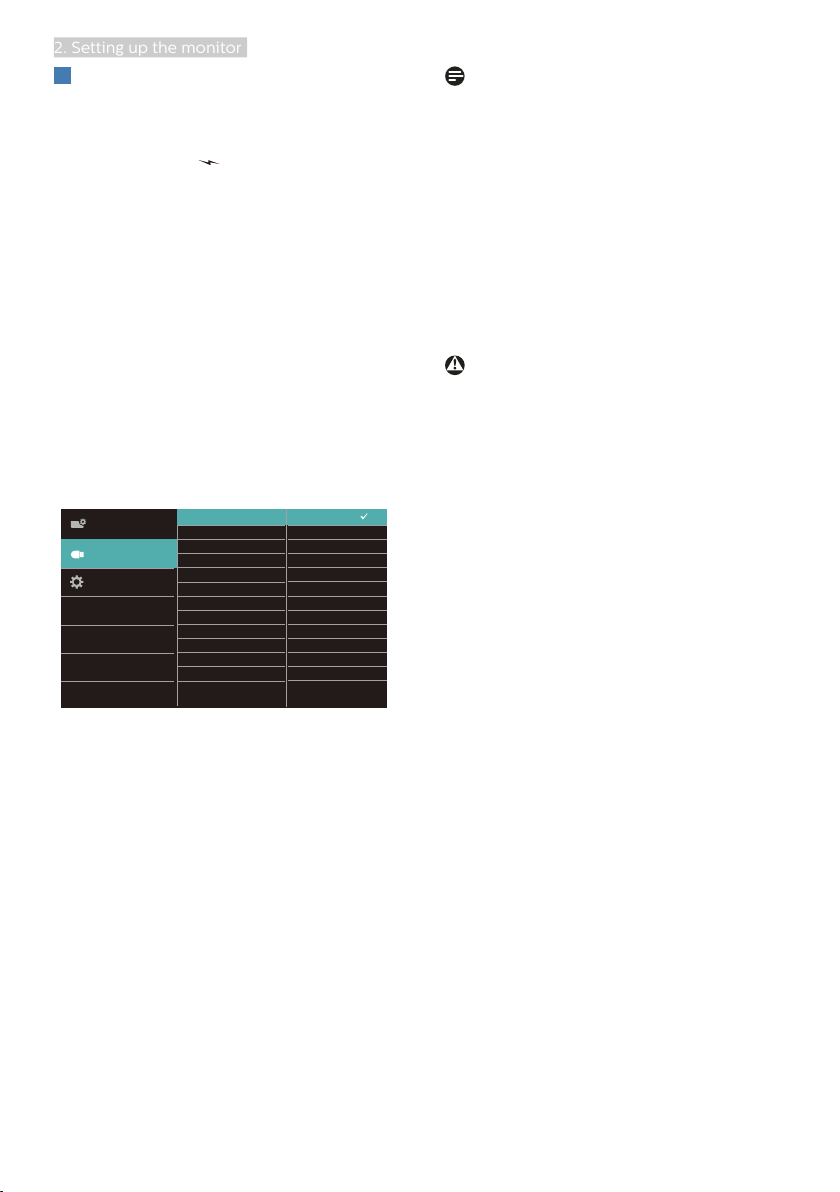
To permanently put the USB function
in “ON” state, please go to OSD Menu,
then select “USB standby mode”, and
switch it to “ON” state. Somehow if your
monitor reset to factory setting, ensure
to select "USB standby mode" to “ON”
state in OSD Menu.
7
2. Setting up the monitor
4
USB charging
This display has USB ports capable of
standard power output including some
with USB Charging function (identifiable
with power icon
USB
). You can use these
ports to charge your Smart phone or
power your external HDD, for example.
The display must be powered ON at all
times to be able to use this function.
Some select Philips displays may not
Power or Charge your device when it
enters to “Sleep” mode (White power
LED blinking). In that case, please enter
to OSD Menu and select “USB Standby
Mode”, then, turn the function to “ON”
mode (default=OFF). This will then keep
the USB power and charging functions
active even when the monitor is in sleep
mode.
<
Note
• If you Turn OFF your monitor via the
power switch at any given time, all
the USB ports will power OFF.
• Allows you to enable or disable USB
function during montior standby
mode.
• USB ON/OFF under standby mode
is only available when the USB
upstream cable is unplugged. This
option will be greyed out when the
USB upstream cable plugs in.
Warning
USB 2.4Ghz wireless devices, such
as, wireless mouse, keyboard, and
headphones, maybe have interference
by the high-speed signal of USB
3.2 devices, which may result in a
decreased efficiency of the radio
transmission. Should this happen,
please try the following methods to
help reduce the effects of interference.
• Try to keep USB2.0 receivers away
from USB3.2 connection port.
• Use a standard USB extension cable
or USB hub to increase the space
between your wireless receiver and
the USB3.2 connection port.

11
3. Image Optimization
3. Image Optimization
3.1 SmartImage
What is it?
SmartImage provides presets that
optimize display for different types
of content, dynamically adjusting
brightness, contrast, color and
sharpness in real time. Whether
you're working with text applications,
displaying images or watching a video,
Philips SmartImage delivers great
optimized monitor performance.
Why do I need it?
You want a monitor that delivers
optimized display all your favorite
types of content, SmartImage software
dynamically adjust brightness,
contrast, color and sharpness in real
time to enhance your monitor viewing
experience.
How does it work?
SmartImage is an exclusive, leading
edge Philips technology that analyzes
the content displayed on your screen.
Based on a scenario you select,
SmartImage dynamically enhances the
contrast, color saturation and sharpness
of images to enhance the contents
being displayed - all in real time with
the press of a single button.
How to enable SmartImage?
1. Press to launch the SmartImage
on screen display.
2. Keep pressing to toggle among
EasyRead, Office, Photo, Movie,
Game, Economy, LowBlue Mode,
Off.
3. The SmartImage on screen display
will remain on screen for 5 seconds,
or you can also press "OK" to make
confirmation.
There are multiple selections: EasyRead,
Office, Photo, Movie, Game, Economy,
LowBlue Mode, Off.
• EasyRead: Helps improve reading
of text based application like PDF
ebooks. By using a special algorithm
which increases the contrast and
boundary sharpness of text content,
the display is optimized for a
stress-free reading by adjusting
the brightness, contrast and color
temperature of the monitor.
• Office: Enhances text and dampens
brightness to increase readability
and reduce eye strain. This mode
significantly enhances readability
and productivity when you’re
working with spreadsheets, PDF
files, scanned articles or other
general office applications.
• Photo: This profile combines color
saturation, dynamic contrast and
sharpness enhancement to display
12
3. Image Optimization
photos and other images with
outstanding clarity in vibrant colors
- all without artifacts and faded
colors.
• Movie: Ramped up luminance,
deepened color saturation, dynamic
contrast and razor sharpness
displays every details in darker
areas of your videos without
color washout in brighter areas
maintaining a dynamic natural
values for the ultimate video
display.
• Game: Turn on over drive circuit for
best response time, reduce jaggy
edges for fast moving objects on
screen, enhance contrast ratio for
bright and dark scheme, this profile
delivers the best gaming experience
for gamers.
• Economy: Under this profile,
brightness, contrast are adjusted
and backlighting finetuned for just
right display of everyday office
applications and lower power
consumption.
• LowBlue Mode: LowBlue Mode
for easy on-the-eyes productivity
Studies have shown that just as
ultra-violet rays can cause eye
damage, shortwave length blue light
rays from LED displays can cause
eye damage and affect vision over
time. Developed for wellbeing,
Philips LowBlue Mode setting uses
a smart software technology to
reduce harmful shortwave blue
light.
• Off: No optimization by
SmartImage.
Note
Philips LowBlue mode, mode 2
compliance with TUV Low Blue Light
certification, you can have this mode by
simply press the hotkey , then press
to select LowBlue Mode, see above
SmartImage selection steps.
3.2 SmartContrast
What is it?
Unique technology that dynamically
analyzes displayed content and
automatically optimizes a Monitor's
contrast ratio for maximum visual clarity
and viewing enjoyment, stepping up
backlighting for clearer, crisper and
brighter images or dimming backlighting
for clear display of images on dark
backgrounds.
Why do I need it?
You want the very best visual clarity
and viewing comfort for every type of
content. SmartContrast dynamically
controls contrast and adjusts
backlighting for clear, crisp, bright
gaming and video images or displays
clear, readable text for office work.
By reducing your monitor's power
consumption, you save on energy costs
and extend the lifetime of your monitor.
How does it work?
When you activate SmartContrast, it will
analyse the content you are displaying
in real time to adjust colors and control
backlight intensity. This function will
dynamically enhance contrast for a
great entertainment experience when
viewing videos or playing games.

13
4.SmoothTouch
4. SmoothTouch
What is it?
This is a display which uses “Projected
capacitive” 10 point touch panel
technology. Used with latest OS like
Windows 10, it offers you groovy
touch gestures like tap, grab, pinch,
rotate, zoom, swipe, etc. Your older
applications come to life, and now you
can fully utilize the new capabilities of
touch based applications. Now you can
view and scroll through finger-touch
directly without using keyboard or
mouse.
How do I use it?
To activate touch functionality, connect
the display with the provided USB cable
to your computer. You can softly touch
the screen surface to interact with the
applications with different gestures
like swipe, tap, pinch, etc. You can use
either single finger touch, or multi-finger
touch upto maximum simultaneous 10
touch points.
2
USB A-B
or
1
or
Operating System requirements
The touch function works on the
operating systems shown on the below
table.
OS OS Version/Name
Kernel
version
Touche finger Need Driver
Windows Win10 non multi-touch No
Note
• Do not touch the screen with sharp
objects, it may result in damage,
and it is not covered under your
warranty.
• Do not push hard, or rest anything
on the glass surface (if in horizontal
position) as it will damage the
screen and it is not covered under
your warranty. Using the touch
screen with fingers or stylus are
recommended.
• The touch function works only on
OS and applications which support
touch functions, see the table listed
above.
• *Some operating systems require
driver for the touch function. The
driver is available in the CD disk
or you can access them from the
Philips website supporting pages.

14
5.Technical Specifications
5. Technical Specifications
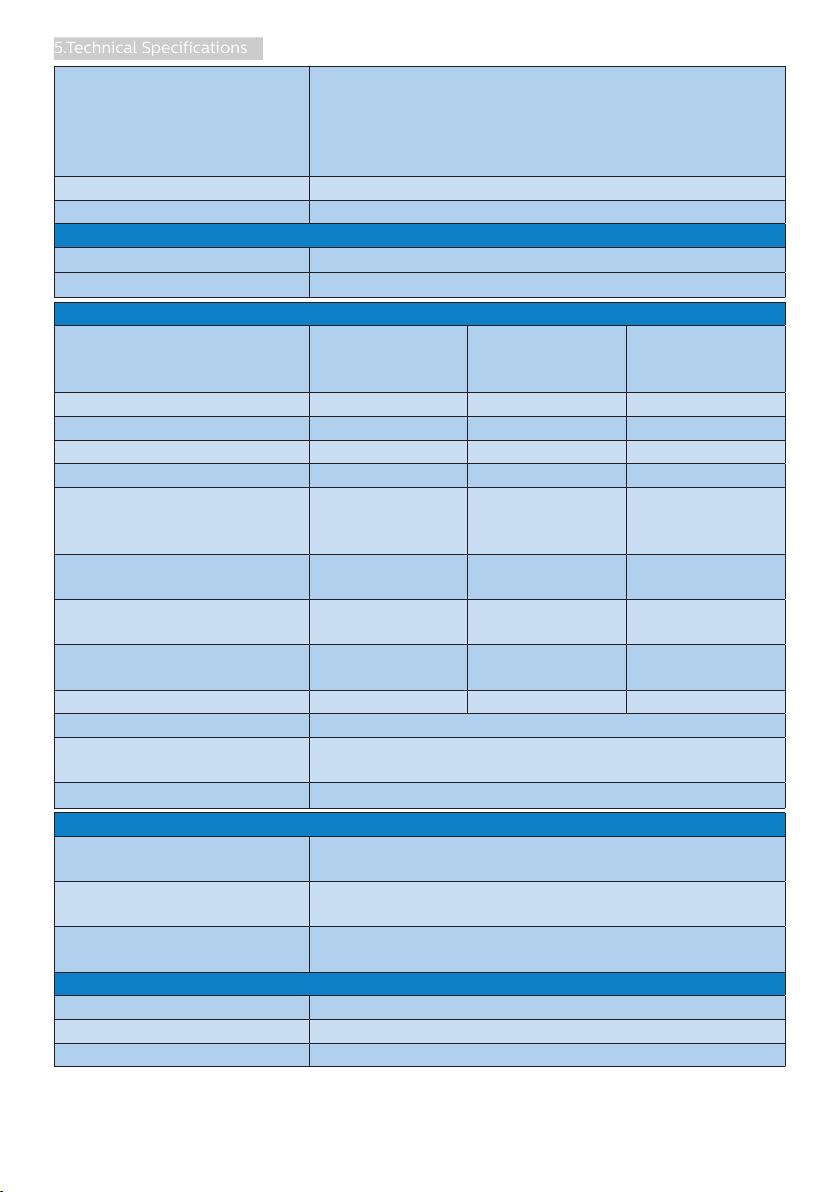
Picture/Display
Monitor Panel Type IPS technology
Backlight W-LED
Panel Size 21.5" W (54.6 cm)
Aspect Ratio 16:9
Pixel Pitch 0.24795 (H) mm x 0.24795 (V) mm
Contrast Ratio (typ.)
1000:1
Optimum Resolution 1920 x 1080 @ 60 Hz
Viewing Angle 178° (H) / 178° (V) @ C/R > 10 (typ.)
Display Colors 16.7M
Flicker Free YES
Picture Enhancement SmartImage
Vertical Refresh Rate
48 Hz - 75 Hz (HDMI/DP)
48 Hz – 60 Hz (VGA)
Horizontal Frequency 30 kHz - 85 kHz
sRGB YES
LowBlue Mode YES
EasyRead YES
SmoothTouch
Touch Technology Self Capacitive
Touch Points 10
Touch method Finger
Touch interface USB
Touch active area 476.06 mm (H) x 267.79 mm (V)
Touch Response time
≤
35 ms
Operation system Windows 10
Brightness 250 nits (typ)
Ingress Protection NA
Sealability NA
Connectivity
Signal Input/Output
Analog: VGA
Digital: DP1.2, HDMI 1.4
USB
USB UP x 1 (upstream)
USB3.2x3: downstream with x 1 fast charge B.C 1.2
(5V/1.5A)
Input Signal Separate Sync, Sync on Green
Audio In/Out PC audio-in, headphone out
Convenience
Built-in speaker 2 W x 2
User Convenience
15
5.Technical Specifications
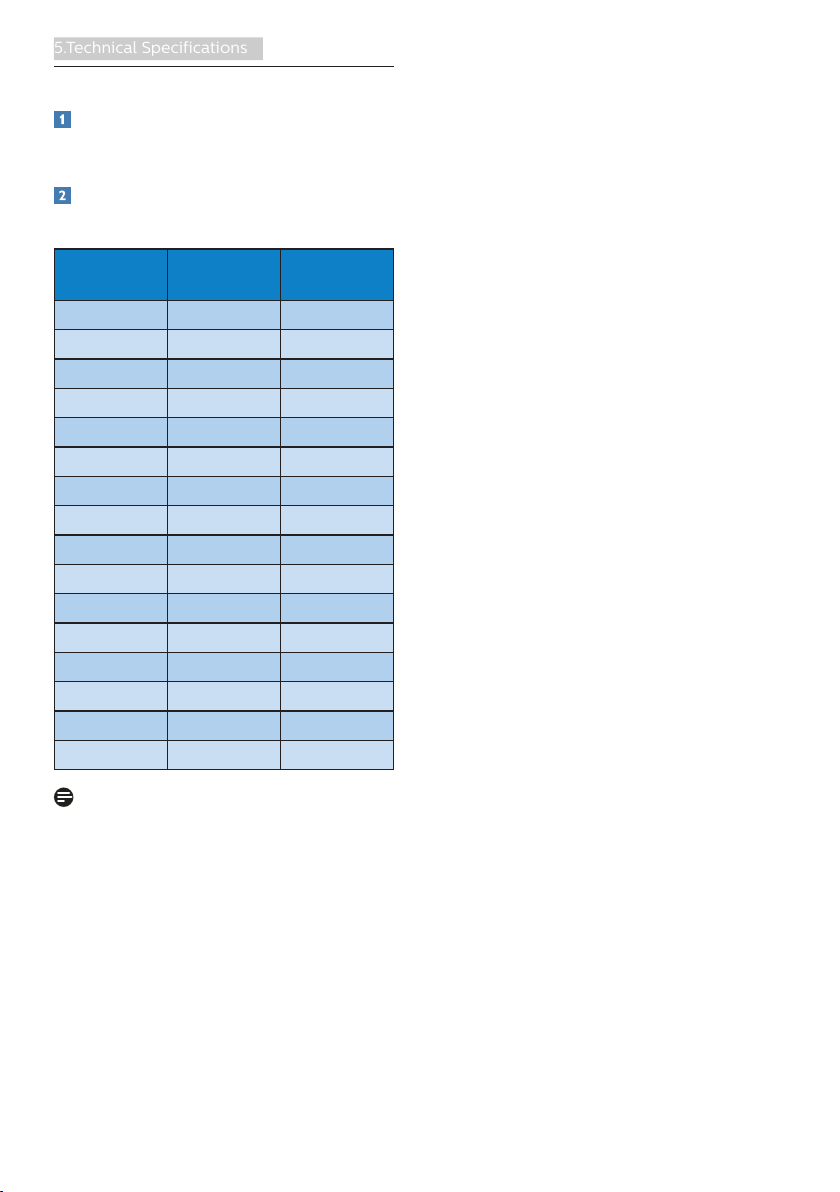
OSD Languages
English, German, Spanish, Greek, French, Italian,
Hungarian, Dutch, Portuguese, Brazil Portuguese,
Polish, Russian, Swedish, Finnish, Turkish, Czech,
Ukranian, Simplified Chinese, Traditional Chinese,
Japanese, Korean
Other Convenience VESA mount (100 x 100 mm), Kensington Lock
Plug & Play Compatibility DDC/CI, sRGB, Windows 10/8.1/8/7
Stand
Tilt -5 / +90 degree
Folding angle 0 / +70 degree
Power
Consumption
AC Input
Voltage at
100VAC , 60Hz
AC Input
Voltage at
115VAC , 60Hz
AC Input
Voltage at
230VAC, 50Hz
Normal Operation 18.0 W (typ.) 17.9 W (typ.) 17.8 W (typ.)
Sleep (Standby mode) 0.3 W (typ.) 0.3 W (typ.) 0.3 W (typ.)
Off mode 0.3 W (typ.) 0.3 W (typ.) 0.3 W (typ.)
Off mode (AC switch) 0 W 0 W 0 W
Heat Dissipation*
AC Input
Voltage at
100VAC , 60Hz
AC Input
Voltage at
115VAC , 60Hz
AC Input
Voltage at
230VAC , 50Hz
Normal Operation
61.43 BTU/hr
(typ.)
61.09 BTU/hr
(typ.)
60.75 BTU/hr
(typ.)
Sleep (Standby mode)
1.02 BTU/hr
(typ.)
1.02 BTU/hr
(typ.)
1.02 BTU/hr
(typ.)
Off mode
1.02 BTU/hr
(typ.)
1.02 BTU/hr
(typ.)
1.02 BTU/hr
(typ.)
Off mode (AC switch) 0 BTU/hr 0 BTU/hr 0 BTU/hr
On Mode (ECO mode) 10.5 W (typ.)
Power LED indicator
On mode: White, Standby/Sleep mode: White
(blinking)
Power Supply Built-in, 100-240V AC, 50-60Hz
Dimensions
Product with stand
(WxHxD)
489 x 384 x 227 mm
Product without stand
(WxHxD)
489 x 294 x 52 mm
Product with packaging
(WxHxD)
585 x 400 x 138 mm
Weight
Product with stand 6.13 kg
Product without stand 2.79 kg
Product with packaging 8.27 kg

16
5.Technical Specifications
Operating Condition
Temperature range
(operation)
0°C to 40 °C
Relative humidity
(operation)
20% to 80%
Atmospheric pressure
(operation)
700 to 1060hPa
Temperature range
(Non-operation)
-20°C to 60°C
Relative humidity
(Non-operation)
10% to 90%
Atmospheric pressure
(Non-operation)
500 to 1060hPa
Environmental and energy
ROHS YES
Packaging 100% recyclable
Specific Substances 100% PVC BFR free housing
Cabinet
Color Black
Finish Texture
Note
1. This data is subject to change without notice. Go to www.philips.com/support to
download the latest version of leaflet.
2. *Some operating systems require driver for the touch function. The driver is avail-
able in the CD disk or you can access them from the Philips website supporting
pages.
3. In order to comply with international energy standards, power consumptions are
under the PC/Display test mode and the monitor needs to connect with USB up-
stream cable.
17
5.Technical Specifications
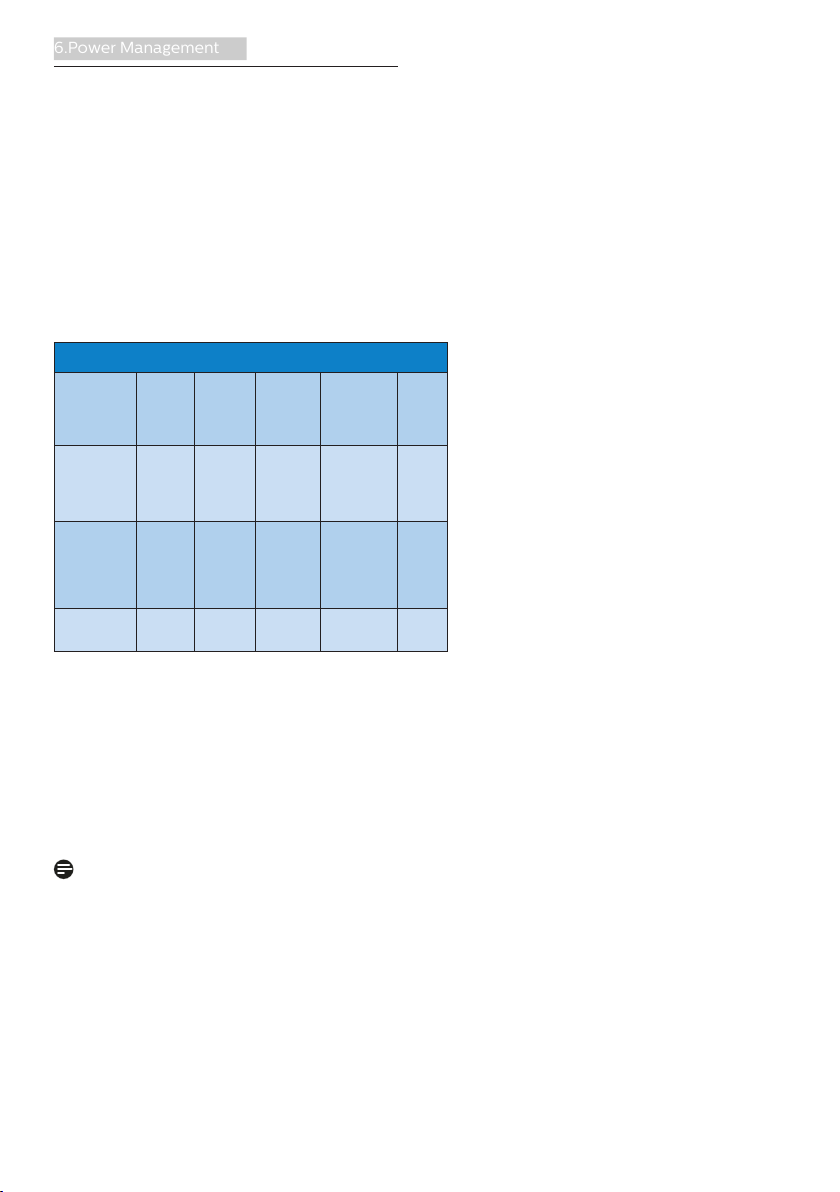
5.1 Resolution & Preset Modes
Maximum Resolution
1920 x 1080 @ 60 Hz (VGA)
1920 x 1080 @ 75 Hz (HDMI/DP)
Recommended Resolution
1920 x 1080 @ 60 Hz
H. freq
(kHz)
Resolution V. freq (Hz)
31.47 720 x 400 70.09
31.47 640 x 480 59.94
35.00 640 x 480 66.67
37.86 640 x 480 72.81
37.50 640 x 480 75.00
37.88 800 x 600 60.32
46.88 800 x 600 75.00
48.36 1024 x 768 60.00
60.02 1024 x 768 75.03
44.77 1280 x 720 59.86
63.89 1280 x 1024 60.02
79.98 1280 x 1024 75.03
55.94 1440 x 900 59.89
70.64 1440 x 900 74.98
65.29 1680 x 1050 59.95
67.50 1920 x 1080 60.00
Note
Please notice that your display works
best at native resolution of 1920 x 1080
@ 60Hz. For best display quality,please
follow this resolution recommendation.
18
6.Power Management
6. Power Management
If you have VESA DPM compliance
display card or software installed in
your PC, the monitor can automatically
reduce its power consumption when
not in use. If an input from a keyboard,
mouse or other input device is detected,
the monitor will 'wake up' automatically.
The following table shows the power
consumption and signaling of this
automatic power saving feature:
Power Management Definition
VESA
Mode
Video H-sync V-sync
Power
Used
LED
Color
Active ON Yes Yes
17.9 W
(typ.)
57.2 W
(max.)
White
Sleep
(Standby
mode)
OFF No No
0.3 W
(typ.)
White
(blink)
Off mode
(AC switch)
OFF - - 0 W (typ.) OFF
The following setup is used to measure
power consumption on this monitor.
• Native resolution: 1920 x 1080
• Contrast: 50%
• Brightness: 90%
• Color temperature: 6500k with full
white pattern
Note
This data is subject to change without
notice.
20
7.Customer care and warranty
Proximity of Pixel Defects
Because pixel and sub pixels defects
of the same type that are near to one
another may be more noticeable,
Philips also specifies tolerances for the
proximity of pixel defects.
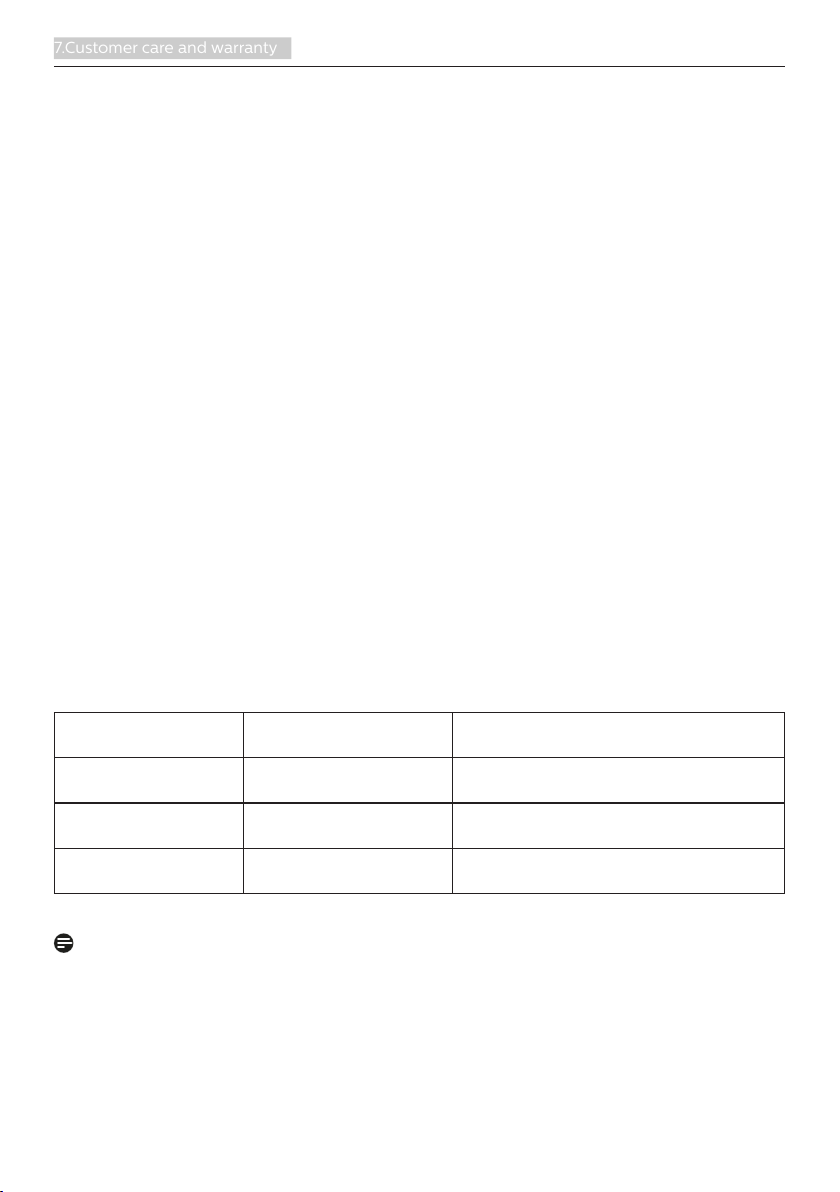
Pixel Defect Tolerances
In order to qualify for repair or
replacement due to pixel defects during
the warranty period, a TFT Monitor
panel in a Philips flat panel monitor
must have pixel or sub pixel defects
exceeding the tolerances listed in the
following tables.
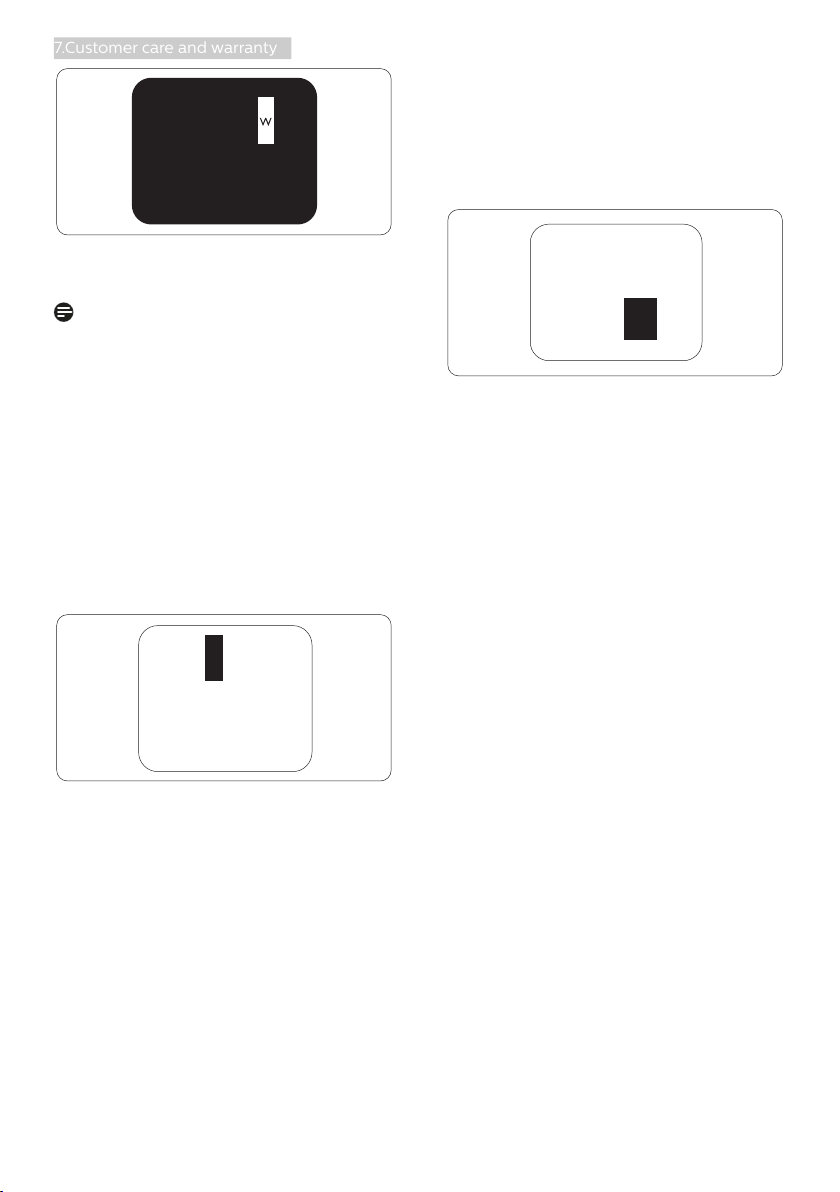
Three adjacent lit sub pixels (one white
pixel).
Note
A red or blue bright dot must be
more
than 50 percent brighter than
neighboring dots while a green
bright dot is 30 percent brighter than
neighboring dots.
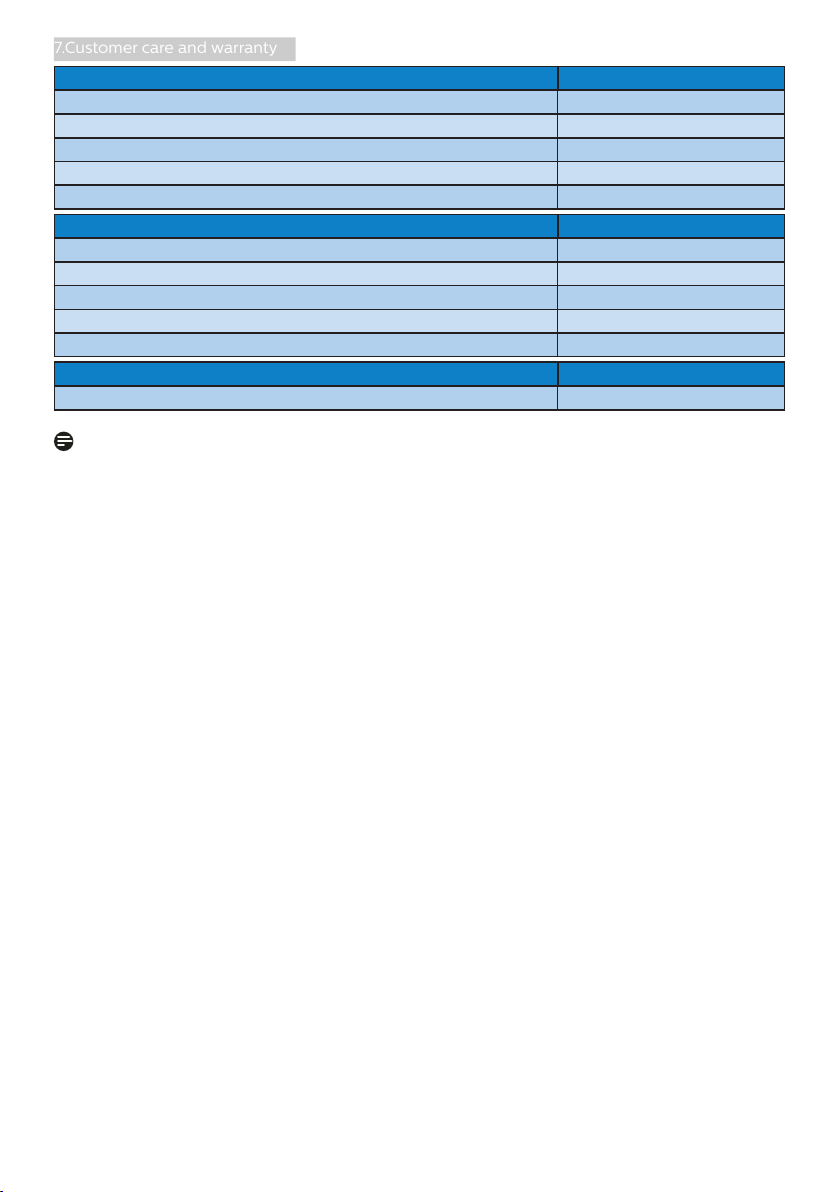
Black Dot Defects
Black dot defects appear as pixels or
sub pixels that are always dark or 'off'.
That is, a dark dot is a sub-pixel that
stands out on the screen when the
monitor displays a light pattern. These
are the types of black dot defects.
21
7.Customer care and warranty
BRIGHT DOT DEFECTS ACCEPTABLE LEVEL
1 lit subpixel 2
2 adjacent lit subpixels 1
3 adjacent lit subpixels (one white pixel) 0
Distance between two bright dot defects* >10mm
Total bright dot defects of all types 3
BLACK DOT DEFECTS ACCEPTABLE LEVEL
1 dark subpixel 5 or fewer
2 adjacent dark subpixels 2 or fewer
3 adjacent dark subpixels 1
Distance between two black dot defects* >10mm
Total black dot defects of all types 5 or fewer
TOTAL DOT DEFECTS ACCEPTABLE LEVEL
Total bright or black dot defects of all types 5 or fewer
Note
1. 1 or 2 adjacent sub pixel defects = 1 dot defect
22
7.Customer care and warranty
7.2 Customer Care & Warranty
For warranty coverage information and additional support requirements valid for your
region, please visit www.philips.com/support website for details or contact your local
Philips Customer Care Center.
For Warranty Period please refer to Warranty Statement in Important Information
Manual.
For extended warranty, if you would like to extend your general warranty period, an
Out of Warranty service package is offered via our Certified Service Center.
If you wish to make use of this service, please be sure to purchase the service within
30 calendar days of your original purchase date. During the extended warranty
period, the service includes pickup, repair and return service, however the user will be
responsible for all costs accrued.
If the Certified Service Partner cannot perform the required repairs under the offered
extended warranty package, we will find alternative solutions for you, if possible, up
to the extended warranty period you have purchased.
Please contact our Philips Customer Service Representative or local contact center (by
Consumer care number) for more details.
Philips Customer Care Center number listed below.
•
Local Standard
Warranty Period
•
Extended Warranty
Period
•
Total Warranty Period
•
Depend on
different Regions
•
+ 1 Year
•
Local Standard warranty period
+1
•
+ 2 Years
•
Local Standard warranty period
+2
•
+ 3 Years
•
Local Standard warranty period
+3
**
Proof of original purchase and extended warranty purchase required.
Note
Please refer to important information manual for regional service hotline, which is
available on the Philips website support page.
23
8.Troubleshooting & FAQs
8. Troubleshooting &
FAQs
8.1 Troubleshooting
This page deals with problems that can
be corrected by a user. If the problem
still persists after you have tried these
solutions, contact Philips customer
service representative.
Common Problems
No Picture (Power LED not lit)
• Make sure the power cord is
plugged into the power outlet and
into the back of the monitor.
• First, ensure that the power button
on the front of the monitor is in the
OFF position, then press it to the
ON position.
No Picture (Power LED is White)
• Make sure the computer is turned
on.
• Make sure the signal cable is
properly connected to your
computer.
• Make sure the monitor cable has
no bent pins on the connect side. If
yes, repair or replace the cable.
• The Energy Saving feature may be
activated
Screen says
Check cable connection
• Make sure the monitor cable
is properly connected to your
computer. (Also refer to the Quick
Start Guide).
• Check to see if the monitor cable
has bent pins.
• Make sure the computer is turned
on.
AUTO button doesn't function
• The auto function is applicable only
in VGA-Analog mode. If the result is
not satisfactory, you can do manual
adjustments via the OSD menu.
Note
The Auto Function is not applicable in
DVI-Digital mode as it is not necessary.
Visible signs of smoke or sparks
• Do not perform any troubleshooting
steps
• Disconnect the monitor from mains
power source immediately for safety
• Contact with Philips customer
service representative immediately.
Imaging Problems
Image is not centered
• Adjust the image position using
the “Auto” function in OSD Main
Controls.
• Adjust the image position using
the Phase/Clock of Setup in OSD
Main Controls. It is valid only in VGA
mode.
Image vibrates on the screen
• Check that the signal cable is
properly securely connected to the
graphics board or PC.
Vertical flicker appears
• Adjust the image using the “Auto”
function in OSD Main Controls.
• Eliminate the vertical bars using
the Phase/Clock of Setup in OSD
Main Controls. It is valid only in VGA
mode.

2021 © TOP Victory Investments Ltd. All rights reserved.
This product has been manufactured by and is sold under
the responsibility of Top Victory Investments Ltd., and Top
Victory Investments Ltd. is the warrantor in relation to this
product. Philips and the Philips Shield Emblem are regis-
tered trademarks of Koninklijke Philips N.V. and are used
under license.
Specications are subject to change without notice.
Version: M122BTSE1WWL