
SPECIAL NOTE FOR USERS IN THE U.K.
The mains lead of this product is fitted with a non-rewireable (moulded) plug incorporating a 3A fuse. Should the
fuse need to be replaced, a BSI or ASTA approved BS 1362 fuse marked or and of the same rating as
above, which is also indicated on the pin face of the plug, must be used.
Always refit the fuse cover after replacing the fuse. Never use the plug without the fuse cover fitted.
In the unlikely event of the socket outlet in your home not being compatible with the plug supplied, cut off the
mains plug and fit an appropriate type.
DANGER:
The fuse from the cut-off plug should be removed and the cut-off plug destroyed immediately and disposed of in
a safe manner.
Under no circumstances should the cut-off plug be inserted elsewhere into a 3A socket outlet, as a serious
electric shock may occur.
To fit an appropriate plug to the mains lead, follow the instructions below:
IMPORTANT:
The wires in the mains lead are coloured in accordance with the following code:
Blue: Neutral
Brown: Live
As the colours of the wires in the mains lead of this product may not correspond with the coloured markings
identifying the terminals in your plug, proceed as follows:
• The wire which is coloured blue must be connected to the plug terminal which is marked N or coloured black.
• The wire which is coloured brown must be connected to the plug terminal which is marked L or coloured red.
Ensure that neither the brown nor the blue wire is connected to the earth terminal in your three-pin plug.
Before replacing the plug cover make sure that:
• If the new fitted plug contains a fuse, its value is the same as that removed from the cut-off plug.
• The cord grip is clamped over the sheath of the mains lead, and not simply over the lead wires.
IF YOU HAVE ANY DOUBT, CONSULT A QUALIFIED ELECTRICIAN.
This equipment complies with the requirements of Directives 89/336/EEC and 73/23/EEC as amended by 93/68/
EEC.
Dieses Gerät entspricht den Anforderungen der EG-Richtlinien 89/336/EWG und 73/23/EWG mit Änderung 93/
68/EWG.
Ce matériel répond aux exigences contenues dans les directives 89/336/CEE et 73/23/CEE modifiées par la
directive 93/68/CEE.
Dit apparaat voldoet aan de eisen van de richtlijnen 89/336/EEG en 73/23/EEG, gewijzigd door 93/68/EEG.
Dette udstyr overholder kravene i direktiv nr. 89/336/EEC og 73/23/EEC med tillæg nr. 93/68/EEC.
Quest’ apparecchio è conforme ai requisiti delle direttive 89/336/EEC e 73/23/EEC, come emendata dalla
direttiva 93/68/EEC.
« „ͷًÛÙ·ÛÁ ·ıÙfi ·ÌÙ·ÔÍÒflÌÂÙ·È ÛÙÈÚ ··ÈÙfiÛÂÈÚ Ù˘Ì Ô‰Á„È˛Ì ÙÁÚ EıÒ˘·˙ÍfiÚ EÌ˘ÛÁÚ 89/336/EOK
Í·È 73/23/EOK, ¸˘Ú ÔÈ Í·ÌÔÌÈÛÏÔfl ·ıÙÔfl ÛıÏÎÁÒ˛ËÁÍ·Ì ·¸ ÙÁÌ Ô‰Á„fl· 93/68/EOK.
Este equipamento obedece às exigências das directivas 89/336/CEE e 73/23/CEE, na sua versão corrigida
pela directiva 93/68/CEE.
Este aparato satisface las exigencias de las Directivas 89/336/CEE y 73/23/CEE, modificadas por medio de la
93/68/CEE.
Denna utrustning uppfyller kraven enligt riktlinjerna 89/336/EEC och 73/23/EEC så som kompletteras av 93/68/
EEC.
Dette produktet oppfyller betingelsene i direktivene 89/336/EEC og 73/23/EEC i endringen 93/68/EEC.
Tämä laite täyttää direktiivien 89/336/EEC ja 73/23/EEC vaatimukset, joita on muutettu direktiivillä 93/68/EEC.
Important
Information
1
IMPORTANT
For your assistance in reporting the loss or theft of your
projector, please record the Serial Number located on
the bottom of the projector and retain this information.
Before recycling the packaging, please be sure that
you have checked the contents of the carton thoroughly
against the list of “Supplied Accessories” on page 12.
Before using the projector, please read this operation manual carefully.
OPERATION MANUAL ENGLISH
Model No.: PG
-
M15X
Serial No.:
There are two important reasons for prompt warranty registration of your new SHARP Projector, using
the REGISTRATION CARD packed with the projector.
1. WARRANTY
This is to assure that you immediately receive the full benefit of the parts, service and labor
warranty applicable to your purchase.
2. CONSUMER PRODUCT SAFETY ACT
To ensure that you will promptly receive any safety notification of inspection, modification, or
recall that SHARP may be required to give under the 1972 Consumer Product Safety Act, PLEASE
READ CAREFULLY THE IMPORTANT “LIMITED WARRANTY” CLAUSE.
U.S.A. ONLY
U.S.A. ONLY
WARNING: High brightness light source. Do not stare into the beam of light, or view directly. Be especially
careful that children do not stare directly into the beam of light.
WARNING: To reduce the risk of fire or electric shock, do not expose this product to rain or moisture.
WARNING: FCC Regulations state that any unauthorized changes or modifications to this equipment not
expressly approved by the manufacturer could void the user’s authority to operate this equip-
ment.
CAUTION: TO REDUCE THE RISK OF ELECTRIC SHOCK,
DO NOT REMOVE COVER.
NO USER-SERVICEABLE PARTS EXCEPT LAMP UNIT.
REFER SERVICING TO QUALIFIED SERVICE
PERSONNEL.
CAUTION
RISK OF ELECTRIC SHOCK.
DO NOT REMOVE SCREWS
EXCEPT SPECIFIED USER
SERVICE SCREWS.
The lightning flash with arrowhead symbol,
within an equilateral triangle, is intended to
alert the user to the presence of uninsulated
“dangerous voltage” within the product’s
enclosure that may be of sufficient magnitude
to constitute a risk or electric shock to
persons.
The exclamation point within a triangle is
intended to alert the user to the presence of
important operating and maintenance
(servicing) instructions in the literature
accompanying the product.
Model No.: PG
-
M15S
Serial No.:
The enclosed computer cable must be used with the device. The cable is provided to ensure that the device
complies with FCC Class A verification.
U.S.A. ONLY
INFORMATION
This equipment has been tested and found to comply with the limits for a Class A digital device, pursuant to
Part 15 of the FCC Rules. These limits are designed to provide reasonable protection against harmful inter-
ference in a residential installation. This equipment generates, uses, and can radiate radio frequency energy
and, if not installed and used in accordance with the operation manual, may cause harmful interference to radio
communications. However, there is no guarantee that interference will not occur in a particular installation. If
this equipment does cause harmful interference to radio or television reception, which can be determined by
turning the equipment off and on, the user is encouraged to try to correct the interference by one or more of the
following measures:
• Reorient or relocate the receiving antenna.
• Increase the separation between the equipment and the receiver.
• Connect the equipment into an outlet on a circuit different from that to which the receiver is connected.
• Consult the dealer or an experienced radio/TV technician for help. U.S.A. ONLY

Important
Information
2
PRODUCT DISPOSAL
This product utilizes tin-lead solder, and high intensity discharge lamp (HID lamp) containing a small amount of
mercury. Disposal of these materials may be regulated due to environmental considerations. For disposal or
recycling information, please contact your local authorities or the Electronics Industries Alliance: www.eiae.org .
Caution Concerning the Lamp Replacement
See “Replacing the Projection Lamp” on pages 47 and 48.
REMPLACEMENT DE LA LAMPE.
PRECAUTIONS A OBSERVER LORS DU
USER SERVICE SCREWS
VIS POUR ENTRETIEN PAR L’UTILISATEUR
DEBRANCHER LE CORDON D’ALIMENTATION AVANT DE RETIRER LES VIS.
L’INTERIEUR DU BOITIER ETANT EXTREMEMENT CHAUD, ATTENDRE 1 HEURE
AVANT DE PROCEDER AU REMPLACEMENT DE LA LAMPE.
NE REMPLACER QUE PAR UNE LAMPE SHARP DE TYPE BQC-PGM15X//1.
RAYONS ULTRAVIOLETS : PEUVENT ENDOMMAGER LES YEUX.
ETEINDRE LA LAMPE AVANT DE PROCEDER A L’ENTRETIEN.
LAMPE A MOYENNE PRESSION : RISQUE D’EXPLOSION. DANGER POTENTIEL
DE PARTICULES DE VERRE EN CAS D’ECLATEMENT DE LA LAMPE.
A MANIPULER AVEC PRECAUTION, SE REPORTER AU MODE D’EMPLOI.
BEFORE REMOVING THE SCREW, DISCONNECT POWER CORD. HOT SURFACE
INSIDE. ALLOW 1 HOUR TO COOL BEFORE REPLACING THE LAMP.
REPLACE WITH SAME SHARP LAMP UNIT TYPE BQC-PGM15X //1 ONLY.
UV RADIATION : CAN CAUSE EYE DAMAGE. TURN OFF LAMP BEFORE
SERVICING. MEDIUM PRESSURE LAMP : RISK OF EXPLOSION. POTENTIAL
HAZARD OF GLASS PARTICLES IF LAMP HAS RUPTURED. HANDLE WITH
CARE. SEE OPERATION MANUAL.
LAMP REPLACEMENT CAUTION
WARNING:
The cooling fan in this projector continues to run for about 90 seconds after the projector is turned off. During
normal operation, when turning the power off, always use the ON/OFF button on the projector or the POWER
button on the remote control. Ensure the cooling fan has stopped before disconnecting the power cord.
DURING NORMAL OPERATION, NEVER TURN THE PROJECTOR OFF BY DISCONNECTING THE POWER
CORD. FAILURE TO OBSERVE THIS WILL RESULT IN PREMATURE LAMP FAILURE.
WARNING:
This is a class A product. In a domestic environment this product may cause radio interference in which case
the user may be required to take adequate measures.
Important
Information
3
Electrical energy can perform many useful functions. This product has been engineered and manufactured to ensure your
personal safety. However IMPROPER USE CAN RESULT IN POTENTIAL ELECTRICAL SHOCK OR FIRE HAZARD. In order
not to defeat the safeguards incorporated into this Projector, observe the following basic rules for its installation, use and
servicing. For your own protection and reliable usage of your projector, please be sure to read these “IMPORTANT
SAFEGUARDS” carefully before use.
1. Read Instructions
All the safety and operating instructions should be read
before the product is operated.
2. Retain Instructions
The safety and operating instructions should be retained
for future reference.
3. Heed Warnings
All warnings on the product and in the operating
instructions should be adhered to.
4. Follow Instructions
All operating and use instructions should be followed.
5. Cleaning
• Unplug this product from the wall outlet before cleaning.
Do not use liquid cleaners or aerosol cleaners. Use a
damp cloth for cleaning.
• Never use strong detergents or solvents such as alcohol
or thinner.
• Use a blower or lens paper to clean the lens, and be
careful not to scratch or mar the lens.
6. Attachments
Do not use attachments not recommended by the product
manufacturer as they may cause hazards.
7. Water and Moisture
Do not use this product near water–for example, near a
bathtub, wash bowl, kitchen sink, or laundry tub; in a wet
basement; or near a swimming pool; and the like.
8. Accessories
Do not place this product on an unstable cart, stand,
tripod, bracket, or table. The product may fall, causing
serious injury to a child or adult, and serious damage to
the product. Use only with a cart, stand, tripod, bracket,
or table recommended by the manufacturer, or sold with
the product. Any mounting of the product should follow
the manufacturer’s instructions, and should use a
mounting accessory recommended by the manufacturer.
9. Transportation
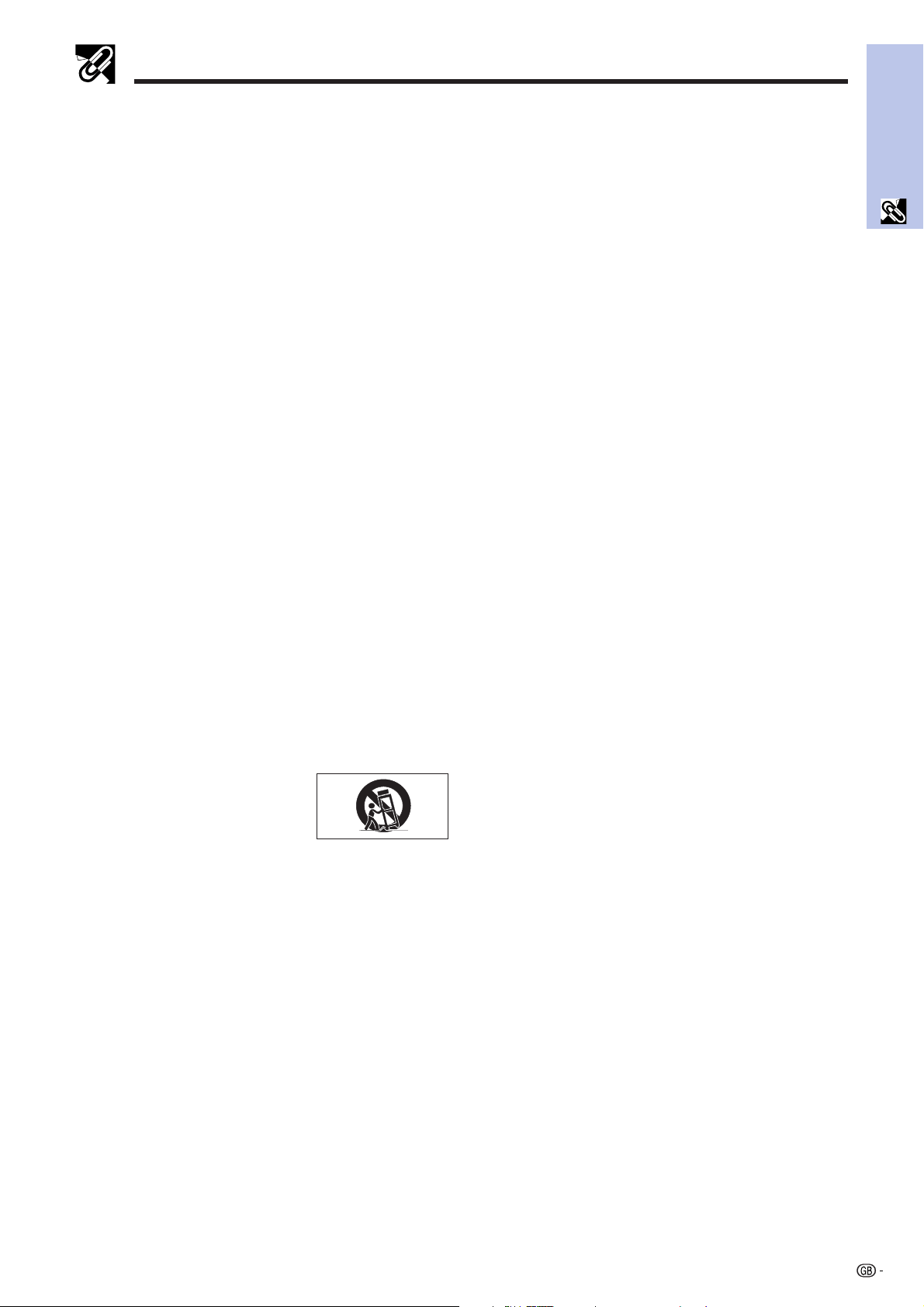
A product and cart combination
should be moved with care. Quick
stops, excessive force, and
uneven surfaces may cause the
product and cart combination to
overturn.
10. Ventilation
Slots and openings in the cabinet are provided for
ventilation to ensure reliable operation of the product and
to protect it from overheating. The openings should never
be covered or blocked by placing the product on a bed,
sofa, rug, or other similar surface. This product should
not be placed in a built-in installation such as a bookcase
or rack unless proper ventilation is provided or the
manufacturer’s instructions have been adhered to.
11. Power Sources
This product should be operated only from the type of
power source indicated on the marking label. If you are
not sure of the type of power supply to your home, consult
your product dealer or local power company. For products
intended to operate from battery power, or other sources,
refer to the operating instructions.
12. Grounding or Polarization
This product is provided with one of the following types of
plugs. If the plug should fail to fit into the power outlet,
please contact your electrician.
Do not defeat the safety purpose of the plug.
a. Two-wire type (mains) plug.
b. Three-wire grounding type (mains) plug with a
grounding terminal.
This plug will only fit into a grounding type power
outlet.
13. Power-Cord Protection
Power-supply cords should be routed so that they are not
likely to be walked on or pinched by items placed upon
or against them, paying particular attention to cords at
plugs, convenience receptacles, and the point where they
exit from the product.
14. Lightning
For added protection for this product during a lightning
storm, or when it is left unattended and unused for long
periods of time, unplug it from the wall outlet and
disconnect the power cord. This will prevent damage to
the product due to lightning and power-line surges.
15. Overloading
Do not overload wall outlets, extension cords, or integral
convenience receptacles as this can result in a risk of fire
or electric shock.
16. Object and Liquid Entry
Never push objects of any kind into this product through
openings as they may touch dangerous voltage points or
short-out parts that could result in a fire or electric shock.
Never spill liquid of any kind on the product.
17. Servicing
Do not attempt to service this product yourself as opening
or removing covers may expose you to dangerous voltage
or other hazards. Refer all servicing to qualified service
personnel.
18. Damage Requiring Service
Unplug this product from the wall outlet and refer servicing
to qualified service personnel under the following
conditions:
a. If the power-supply cord or plug is damaged.
b. If liquid has been spilled, or objects have fallen into
the product.
c. If the product has been exposed to rain or water.
d. If the product does not operate normally by following
the operating instructions. Adjust only those controls
that are covered by the operating instructions, as an
improper adjustment of other controls may result in
damage and will often require extensive work by a
qualified technician to restore the product to normal
operation.
e. If the product has been dropped or damaged in any
way.
f. If the product exhibits a distinct change in
performance, this indicates a need for service.
19. Replacement Parts
When replacement parts are required, be sure the service
technician has used replacement parts specified by the
manufacturer or with the same characteristics as the
original part. Unauthorized substitutions may result in fire,
electric shock, or other hazards.
20. Safety Check
Upon completion of any service or repairs to this product,
ask the service technician to perform safety checks to
determine that the product is in proper operating
condition.
21. Heat
This product should be situated away from heat sources
such as radiators, heat registers, stoves, or other products
(including amplifiers) that produce heat.
IMPORTANT SAFEGUARDS
Important
Information
4
IMPORTANT SAFEGUARDS
24. Lamp Replacement
• Be sure to replace the lamp when the LAMP indicator
comes on. If you continue to use the lamp after 1,500
hours of usage, the lamp will turn off (See pages 47 and
48).
25. Fire and Shock Precautions
• Ensure that there is sufficient ventilation and that vents
are unobstructed to prevent the buildup of heat inside
the product. Allow at least 7
7
/8 inches (20 cm) of space
between the unit and surrounding obstructions.
• Prevent foreign objects such as paper clips and bits of
paper from falling into the product. Do not attempt to
retrieve any objects that fell into the product. Do not
insert any metal objects such as a wire or screwdriver
into the product. If something should fall into the product,
immediately disconnect the power cable from the
product and have the object removed by a Sharp
Authorized Projector Dealer or Service Center.
• Do not place any liquids on top of the product.
• Do not look into the lens while the product is on.
Serious damage to your eyes could result.
22. Installation
• For best results, use the product in a darkened room.
• Place the product on a flat, level surface in a dry area
away from dust and moisture.
• Do not place the product in direct sunlight, near heaters
or heat radiating appliances.
• Exposure to direct sunlight, smoke or steam can harm
internal components.
• Handle the product carefully. Dropping or jarring can
damage internal components.
• Do not place heavy objects on top of the product.
23. Power Supply
• The product is designed to operate on a power supply
of 100 to 240 V 50/60 Hz AC. Ensure that your power
supply fits these requirements before attempting to use
the unit.
• For PLUGGABLE EQUIPMENT, the socket-outlet shall
be installed near the equipment and shall be accessible.
• Disconnect the power cable (main lead) from the power
outlet after using the product.
Before disconnecting the power cable, make sure the
POWER indicator lamp is orange and not flashing.
• Handle the power cable carefully and avoid excessive
bending. A damaged cord can cause electric shock or
fire.
IMPORTANT
• DLP (Digital Light Processing) and DMD (Digital
Micromirror Device) are trademarks of Texas Instruments,
Inc.
• Microsoft and Windows are registered trademarks in the
United States and other countries of Microsoft
Corporation.
• PC/AT is a registered trademark in the United States of
International Business Machines Corporation.
• Macintosh is a registered trademark in the United States
and other countries of Apple Computer, Inc.
• The other company and product names mentioned are
trademarks or registered trademarks of each respective
company.
Important
Information
5
Outstanding Features
1. SMALL, LIGHTWEIGHT & USER-FRIENDLY DESIGN
Small and lightweight design (3.5 lbs/1.6 kg, 2.0 liter) enhances projector portability.
2. 1.2
ⴒ
MANUAL ZOOM/FOCUS
Adjusts image size without relocating the projector.
3. EASY-TO-USE GRAPHICAL USER INTERFACE (GUI)
Multi-color interface lets you select functions easily.
4. AUTO SYNC TECHNOLOGY FOR AUTOMATIC IMAGE
OPTIMIZATION
Automatically makes any necessary adjustments for perfectly synced computer images.
5. HIGH RESOLUTION IMAGES WITH INTELLIGENT
COMPRESSION TECHNOLOGY
PG-M15X
Native XGA resolution (1,024 ⳯ 768) and compatibility with SXGA using intelligent compression
PG-M15S
Native SVGA resolution (800 ⳯ 600) and compatibility with SXGA and XGA using intelligent compression
6. DIRECT DIGITAL COMPUTER INPUT (DVI)
Signals remain digital from the source device to the projector resulting in sharper, clearer, noiseless and adjustment-
free computer images.
7. RGB MONITOR OUTPUT TERMINAL
Presenters can simultaneously view their presentation on a LCD or CRT display while the image is being projected to
an audience.
8. ANTI-ALIASING DIGITAL KEYSTONE CORRECTION
Digitally adjusts image projected at an angle to maintain overall image quality
and brightness.
9. WIRELESS MOUSE REMOTE CONTROL
Allows you to operate the projector and your computer mouse.
10. COLOR TEMPERATURE ADJUSTMENT
Ensures perfect color rendering.
Important
Information
6
Important Information
Contents
IMPORTANT SAFEGUARDS …………………… 3
Outstanding Features …………………………… 5
Contents …………………………………………… 6
Usage Guidelines ………………………………… 7
How to Access the PDF Operation Manuals
(for Windows and Macintosh) ……………… 8
Part Names ………………………………………… 9
Setup & Connections
Supplied Accessories …………………………… 12
Connecting the Projector ……………………… 13
Basic Operations ………………………………… 18
Setting up the Screen …………………………… 20
Operating the Wireless Mouse from the
Remote Control ……………………………… 24
Using the GUI (Graphical User Interface)
Menu Screens ………………………………… 26
Selecting the On-screen Display Language … 30
Selecting the Video Input System Mode
(INPUT 2 or 3 only) …………………………… 30
Picture Adjustments ……………………………… 31
Adjusting the Picture …………………………… 31
Selecting the Color Temperature …………… 32
Computer Image Adjustments
(INPUT 1 (RGB) mode only) ………………… 33
Auto Sync Adjustment ………………………… 33
Adjusting the Computer Image ……………… 33
Operation
Useful Features
Freeze Function …………………………………… 34
Digital Image Magnification …………………… 35
Selecting the Picture Display Mode …………… 36
Gamma Correction ……………………………… 38
Checking the Input Signal
(INPUT 1 (DVI) or (RGB) mode only) ………… 39
Checking the Lamp Usage Time ……………… 39
Turning On/Off the AV Mute Message ………… 40
On-screen Display Override Function ………… 41
Automatic Power Shutoff Function …………… 42
Detecting the Input Source Automatically …… 43
Selecting a Background Image ………………… 43
Reverse/Invert Image Function ………………… 44
Setup & Connections
Operation
Useful Features
Maintenance &
Troubleshooting
Appendix
Lamp/Maintenance Indicators ………………… 46
Replacing the Projection Lamp ………………… 47
Using the Kensington Lock …………………… 48
Troubleshooting …………………………………… 48
Appendix
Maintenance & Troubleshooting
Using the Soft Carrying Pouch ………………… 49
Connection Pin Assignments…………………… 50
RS-232C Port Specifications …………………… 52
Computer Compatibility Chart ………………… 53
Specifications ……………………………………… 54
Dimensions ………………………………………… 55
Glossary …………………………………………… 56
Index ………………………………………………… 57
For SHARP Assistance ………………………… 58
Important
Information
7
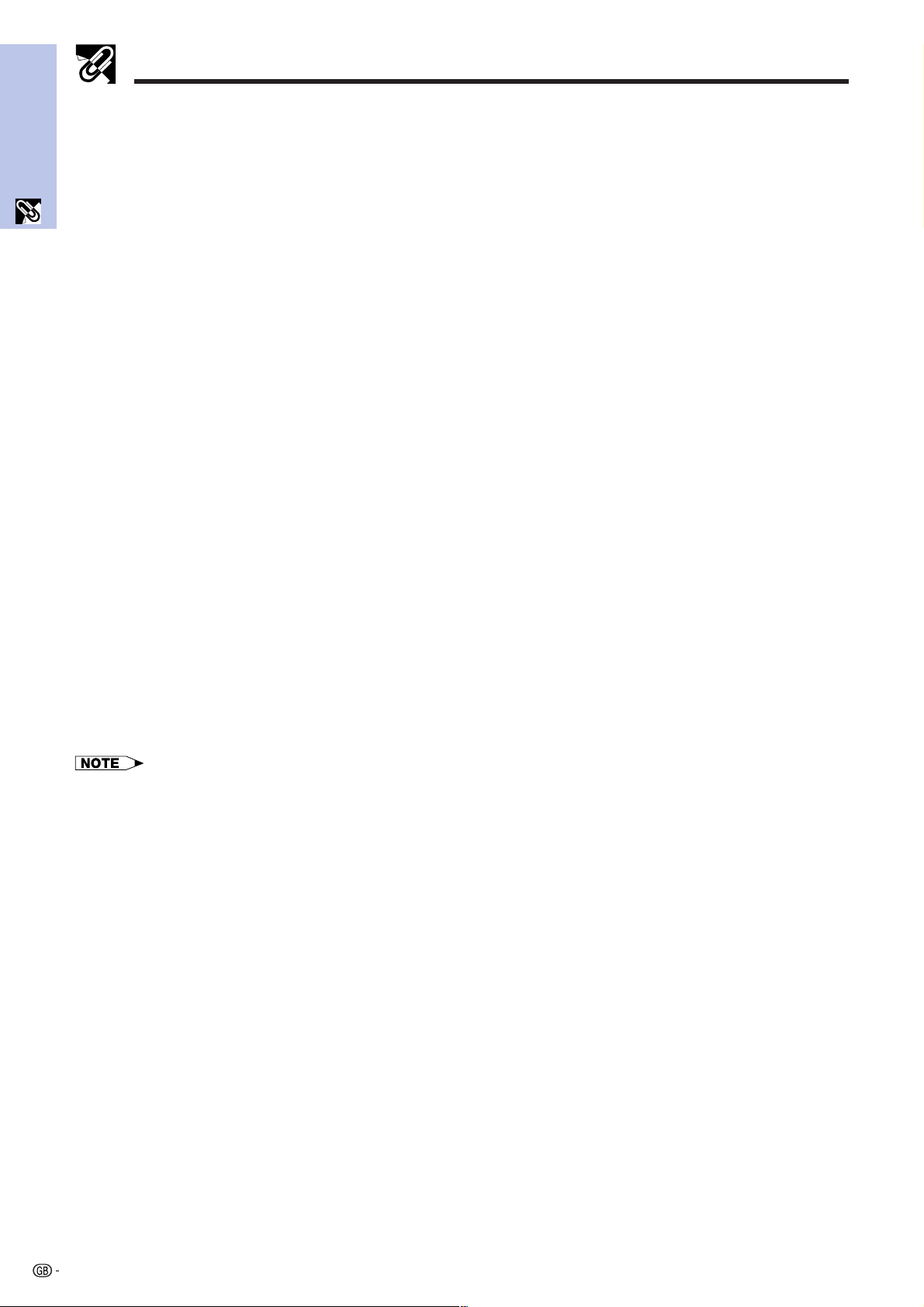
Temperature Monitor Function
If the projector starts to overheat due to setup problems, “TEMP.” will appear in
the lower-left corner of the picture. If the temperature continues to rise, the lamp
will turn off, the TEMPERATURE WARNING indicator on the projector will flash,
and after a 90-second cooling-off period the power will shut off. Refer to “Lamp/
Maintenance Indicators” on page 46, for details.
• The cooling fan regulates the internal temperature, and its performance is automatically
controlled. The sound of the fan may change during projector operation due to changes
in the fan speed.
Lamp Monitor Function
When the projector is turned on after the lamp has been used for 1,400 hours,
“LAMP” will appear in the lower-left corner of the picture to advise you to replace
the lamp. See pages 47 and 48 for lamp replacement. If the lamp has been used
for 1,500 hours, the projector power will automatically turn off and the projector
will enter standby mode. Refer to “Lamp/Maintenance Indicators” on page 46,
for details.
Usage Guidelines
Caution Concerning the Lamp Unit
Potential hazard of glass particles if lamp ruptures. Please have Sharp Authorized
Projector Dealer or Service Center replace lamp if rupture occurs.
See “Replacing the Projection Lamp” on pages 47 and 48.
Cautions Concerning the Setup of the Projector
For minimal servicing and to maintain high image quality, SHARP recommends
that this projector be installed in an area free from humidity, dust and cigarette
smoke. When the projector is subjected to these environments, the lens must be
cleaned more often. Periodically the projector should be cleaned internally. As
long as the projector is properly maintained in this manner, use in these
environments will not reduce the overall operation life. Please note that all internal
cleaning must be performed by a Sharp Authorized Projector Dealer or Service
Center.
• Do not expose the projector to extreme heat or cold.
Operating temperature: 41°F to 95°F (Ⳮ5°C to Ⳮ35°C)
Storage temperature: 14°F to 140°F (ⳮ10°C to Ⳮ60°C)
• The mark shown on the left calls the user’s attention to locations on the projector
that emit intense heat during operation.
• The exhaust vent, the lamp cage cover and adjacent areas may be extremely
hot during projector operation. To prevent injury, do not touch these areas until
they have sufficiently cooled.
• Allow at least 4 inches (10 cm) of space between the cooling fan (exhaust
vent) and the nearest wall or obstruction.
• If the cooling fan becomes obstructed, a protection device will automatically
turn off the projector lamp. This does not indicate a malfunction. Remove the
projector power cord from the wall outlet and wait at least 10 minutes. Then
reconnect the power cord and restart the projector. This will return the projector
to normal operating condition.
Notes on Operation
95˚F
(Ⳮ35˚C)
41˚F
(Ⳮ5˚C)
CAUTION
PRECAUCIÓN
PRÉCAUTION
BQC-PGM15X//1
Important
Information
8
How to Access the PDF Operation Manuals (for Windows and Macintosh)
PDF operation manuals in several languages are included in the CD-ROM. To utilize these manuals, you need to
install Adobe Acrobat Reader on your PC (Windows or Macintosh). If you have not installed Acrobat Reader yet,
you can download it from the Internet (http://www.adobe.com) or install it from the CD-ROM.
To Install Acrobat Reader from the CD-ROM
For Windows:
1 Insert the CD-ROM in the CD-ROM drive.
2 Double click on the “My Computer” icon.
3 Double click on the “CD-ROM” drive.
4 Double click on the “manuals” folder.
5 Double click on the “acrobat” folder.
6 Double click on the “windows” folder.
7 Double click on the desired installation program
and follow the instructions on the screen.
For Macintosh:
1 Insert the CD-ROM in the CD-ROM drive.
2 Double click on the “CD-ROM” icon.
3 Double click on the “manuals” folder.
4 Double click on the “acrobat” folder.
5 Double click on the “mac” folder.
6 Double click on the desired installation program
and follow the instructions on the screen.
For other operating systems:
Please download Acrobat Reader from the Internet (http://www.adobe.com).
For other languages:
If you prefer using Acrobat Reader for languages other than those included in the CD-ROM, please download the appropriate
version from the Internet.
Accessing the PDF Manuals
For Windows:
1 Insert the CD-ROM in the CD-ROM drive.
2 Double click on the “My Computer” icon.
3 Double click on the “CD-ROM” drive.
4 Double click on the “manuals” folder.
5 Double click on the “pg-m15” folder.
6 Double click on the language (name of the folder)
that you want to view.
7 Double click on the pdf file.
For Macintosh:
1 Insert the CD-ROM in the CD-ROM drive.
2 Double click on the “CD-ROM” icon.
3 Double click on the “manuals” folder.
4 Double click on the “pg-m15” folder.
5 Double click on the language (name of the folder)
that you want to view.
6 Double click on the pdf file.
• If the desired pdf file cannot be opened by double clicking the mouse, start Acrobat Reader first, then specify the desired file
using the “File”, “Open” menu.
• See the “readme.txt” file on the CD-ROM for important information on the CD-ROM not included in this operation manual.
Important
Information
9
Projector
Part Names
Numbers next to the part names refer to the main pages in this manual where the topic is explained.
Front and Top View
MENU button
ON/OFF button
POWER indicator
LAMP REPLACEMENT
indicator
TEMPERATURE WARNING
indicator
INPUT/BACK button
AUTO SYNC/ENTER button
KEYSTONE (Ⳮ/ⳮ)/
SELECT/ADJUST (∂/ƒ) buttons
46
23
26
26
33
19
27
46
18
18
26
13
7
19
25
22
19
13
15
22
48
25
13
17
15
17
S-VIDEO INPUT 2 terminal
(4-pin Mini DIN)
DVI-DIGITAL/ANALOG
INPUT 1 port (29-pin)
ANALOG OUTPUT port for
INPUT 1 (HD 15)
Remote control sensor
VIDEO INPUT 3 terminal
(RCA)
AUDIO INPUT terminal
(3.5 mm stereo Minijack)
RS-232C/MOUSE port
(7-pin Mini DIN)
Kensington Security Standard
connector
Adjuster
Intake vent
AC socket
Speaker
ZOOM knob
HEIGHT ADJUST button
FOCUS ring
Remote control sensor
Cooling fan (Exhaust vent)
Side and Rear View
Important
Information
10
Front View
Part Names
Rear View
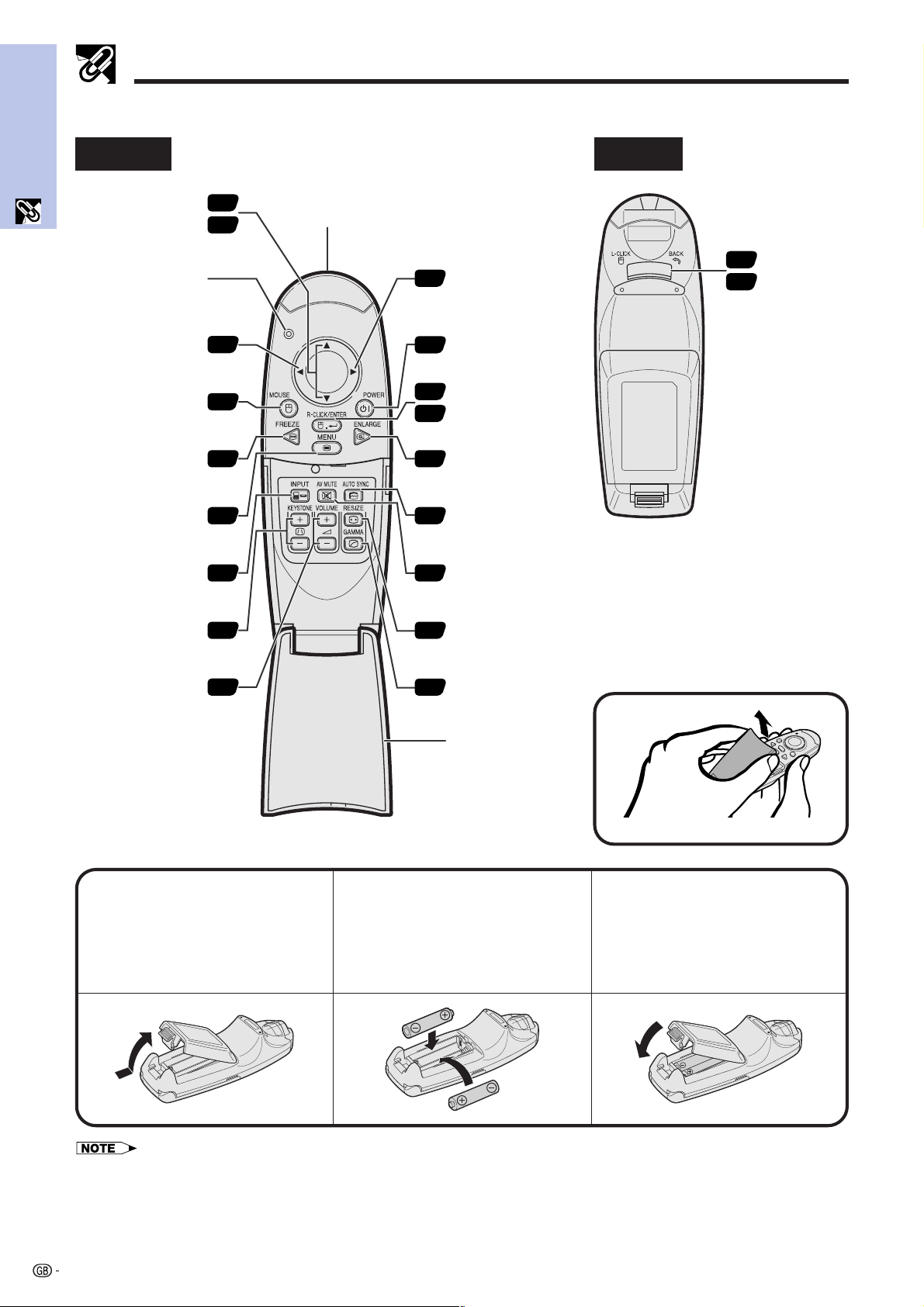
Remote Control
Mouse (∂/ƒ)/
Adjustment (∂/ƒ)
buttons
25
27
FREEZE button
Mouse (ß) button
MOUSE button
INPUT button
MENU button
KEYSTONE (Ⳮ/ⳮ)
buttons
VOLUME buttons
POWER button
RIGHT-CLICK/
ENTER button
ENLARGE button
AUTO SYNC button
RESIZE button
LEFT-CLICK/
BACK button
AV MUTE button
GAMMA button
Flip cover
Mouse (©) button
Inserting the Batteries
13
Press the tab and lift open
the battery cover in the
direction of the arrow.
2
Insert two AAA size
batteries, making sure
their polarities match the
ⴐ and ⴑ marks inside
the battery compartment.
Insert the tabs on the
end of the battery cover
into their slots and press
the cover into position.
• If the remote control gets wet, wipe it dry immediately.
• Avoid excessive heat and humidity.
• If you will not be using the remote control for a long time, remove the batteries.
• Do not mix new and old or different types of batteries.
• There are operations that can only be carried out by remote control. Handle the remote control carefully.
Opening the Flip Cover
18
25
26
35
33
19
36
38
25
26
25
25
25
34
26
19
23
19
Remote control signal
transmitter indicator
(Flashes when remote
control sends a signal)
Remote control signal
transmitting window
Setup & Connections
11
Setup & Connections
Setup & Connections
12
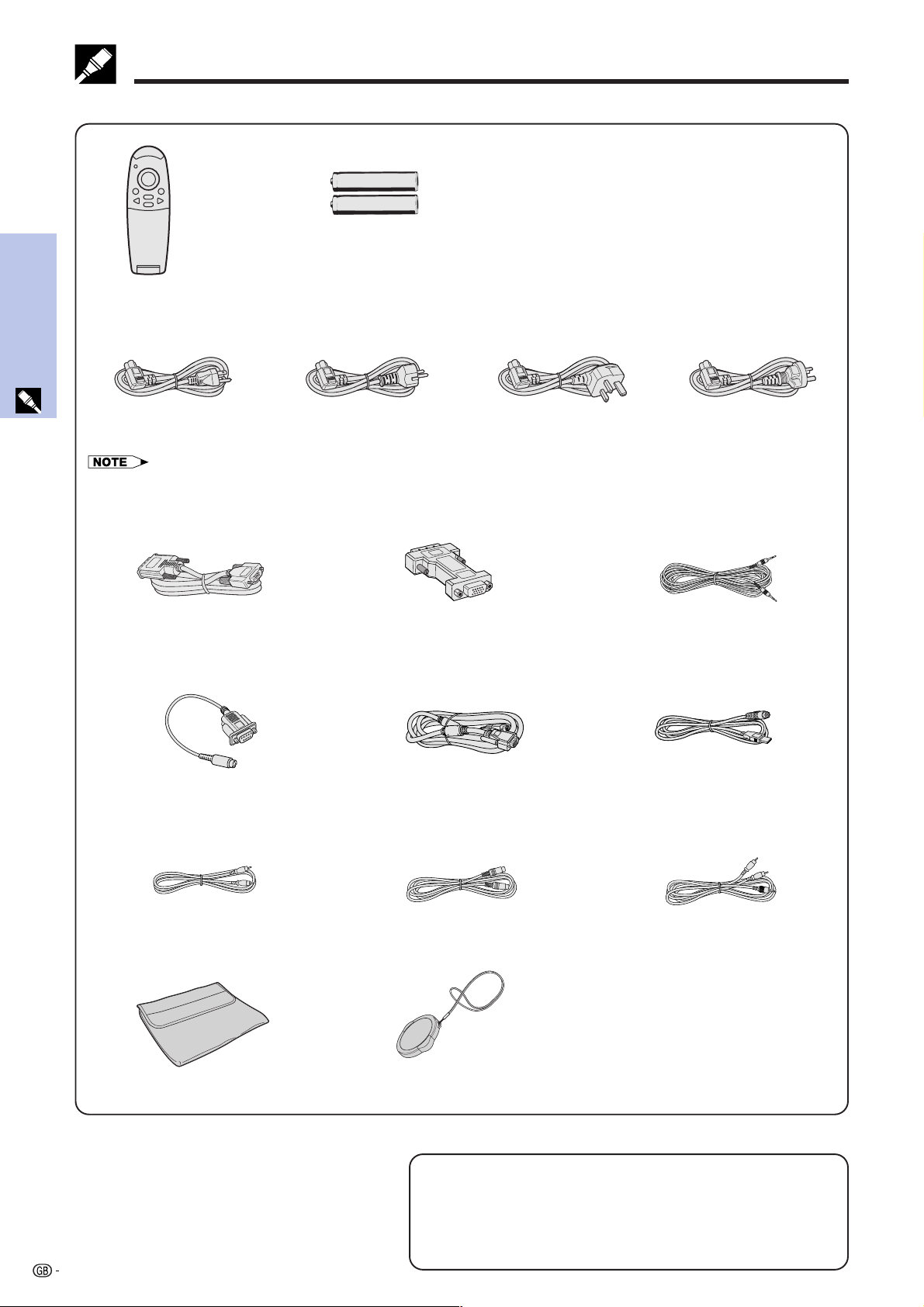
Supplied Accessories
Supplied Accessories
Remote control
9HJ7583104001
Two AAA size batteries
9HJ4683101001
USB mouse control cable
9HJ4283122001
Computer RGB cable
9HJ4283111001
Soft carrying pouch
9HJ5383101001
Power cord
For U.S., Canada etc.
9HJ4283114001
For Europe, except U.K.
9HJ4283116001
For U.K., Hong Kong
and Singapore
9HJ4283117001
For Australia, New
Zealand and Oceania
9HJ4283118001
• Depending on the region, projectors only ship with one power cord (See above). Use the power cord that corresponds to the wall
outlet in your country.
PC audio cable
9HJ4283120001
DVI-Analog to VGA adaptor
9HJ4283124001
DVI-Analog to VGA cable
9HJ4283119001
Video cable
9HJ4283112001
S-video cable
9HJ4283113001
AV audio cable
9HJ4283121001
DIN-D-sub RS-232C cable
9HJ4283123001
(1) (2) (3) (4)
Lenscap with strap
9HJ7083117001
Optional Cables
DVI digital cable (9⬘10⬙, 3.0 m)
AN-C3DVU
HD-15/RCA cable (9⬘10⬙, 3.0 m)
AN-C3CP
RS-232C cable (32⬘10⬙, 10.0 m)
AN-C10RS
CD-ROM
9HJ3683104001
Projector operation manual
9HJ3683107001
Projector quick reference guide
9HJ3683110001
Setup & Connections
13
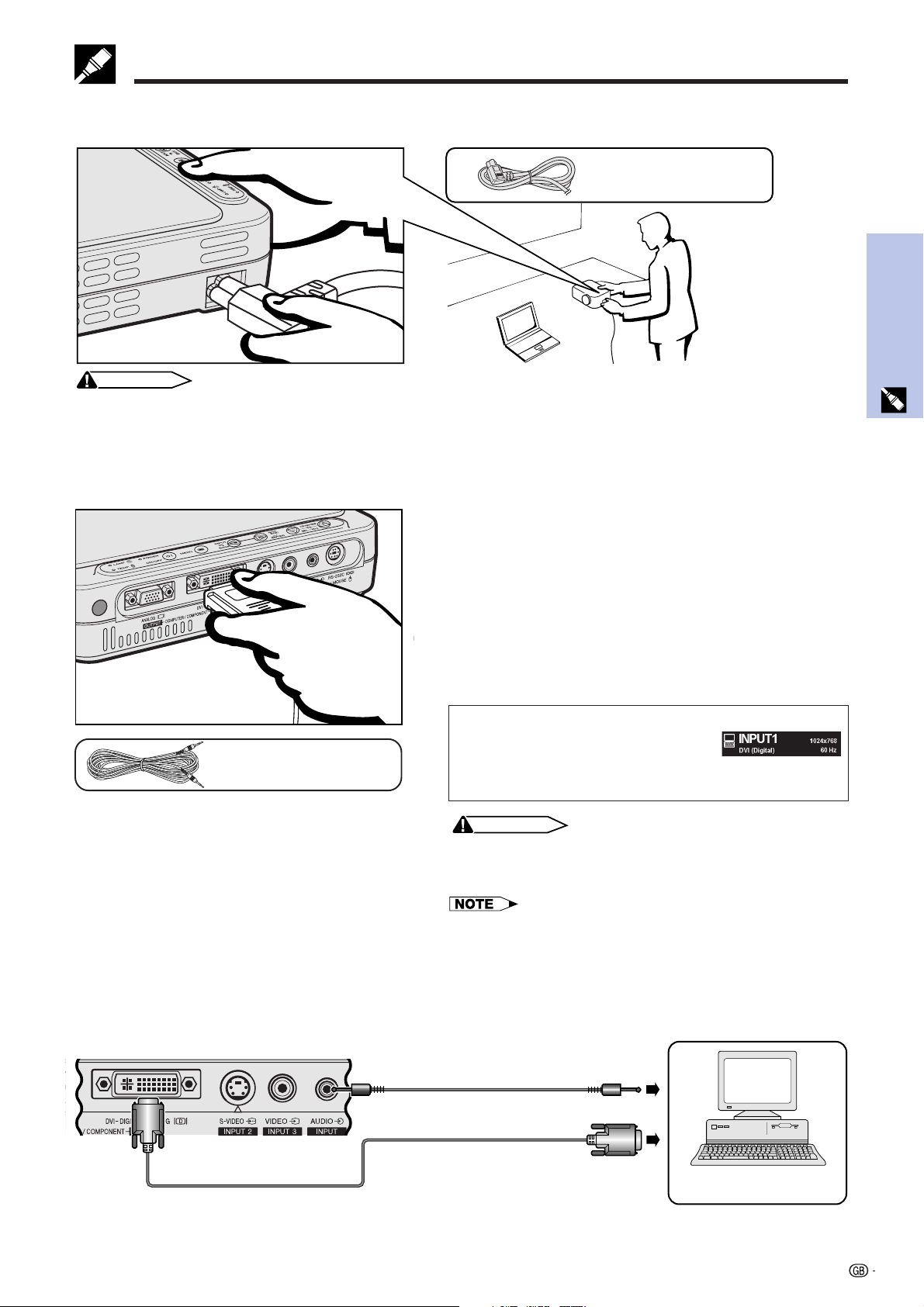
Connecting the Power Cord
Plug the supplied power cord into the AC socket on the side of the projector.
Power cord
Connecting the Projector
CAUTION
• Make sure you connect the power cord firmly into the AC socket.
Connecting the Projector to a Computer
You can connect your projector to a computer for projection of full color computer images.
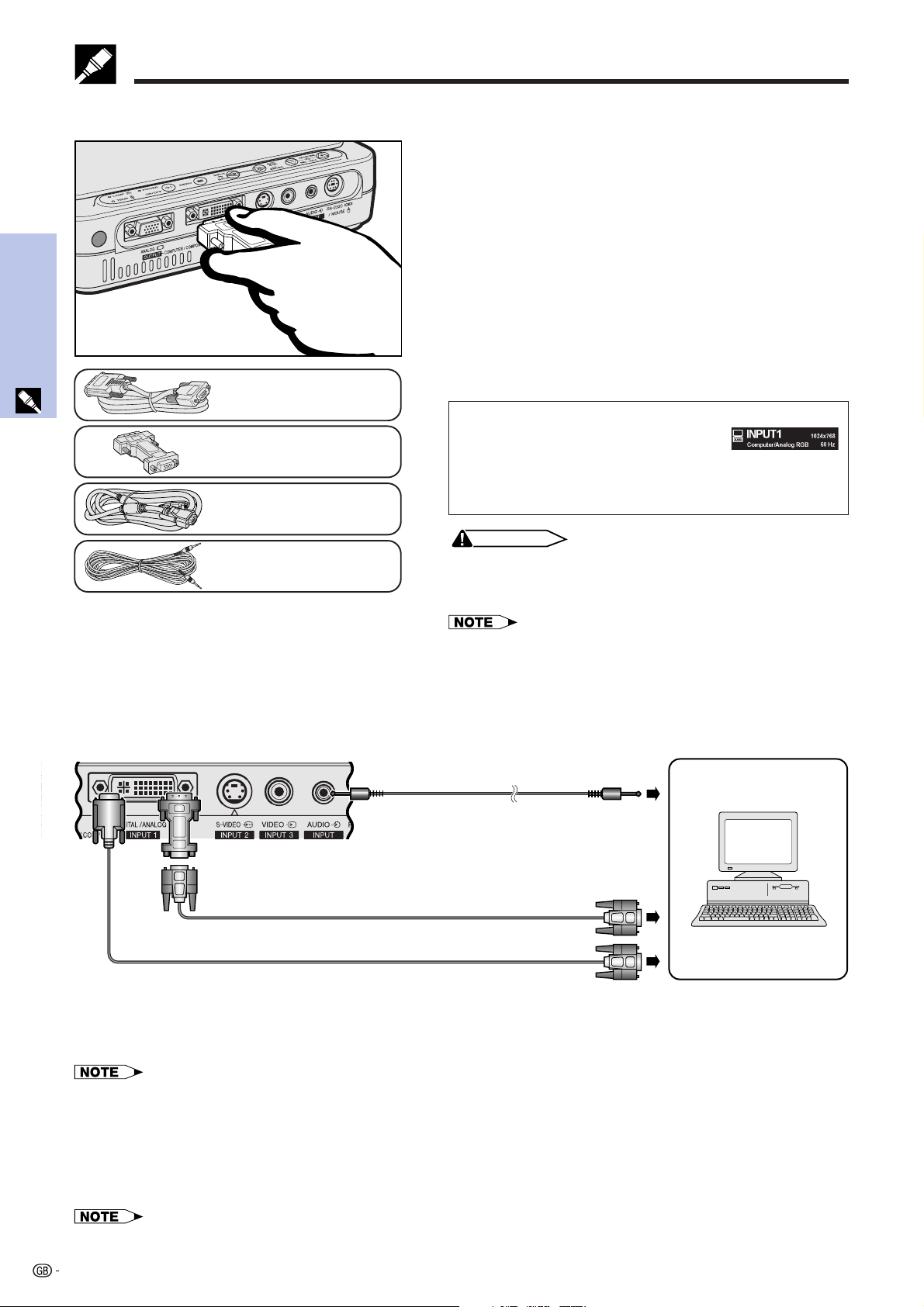
Connecting a computer to the projector using the DVI digital cable—Digital connection instructions
1 Connect one end of the DVI digital cable (sold
separately) to the DVI-DIGITAL/ANALOG INPUT 1 port
on the projector.
2 Connect the other end to the Monitor output port (DVI)
on the computer. Secure the connectors by tightening
the thumb screws.
3 To use the built-in audio system, connect one end of
the supplied PC audio cable to the AUDIO INPUT
terminal on the projector.
4 Connect the other end to the audio output terminal on
the computer.
CAUTION
• Before connecting, be sure to turn both the projector and the
computer off. After making all connections, turn the projector
on first. The computer should always be turned on last.
• Please read the computer’s operation manual carefully.
• Refer to page 53 “Computer Compatibility Chart” for a list of
computer signals compatible with the projector. Use with
computer signals other than those listed may cause some of
the functions not to work.
• This DVI port is DVI version 1.0 compatible. Therefore when the
signal is input from copy guard system compatible (DVI version
2.0) equipment, no signal will be received.
PC audio cable
Computer
Projector
PC audio cable
1
4
2
3
DVI digital cable
(sold separately)
Model name AN-C3DVU
Projecting the image
When connecting with this method,
press INPUT on the remote control or
the projector and select the input signal
type to INPUT 1 DVI (Digital).
Setup & Connections
14
Connecting the Projector
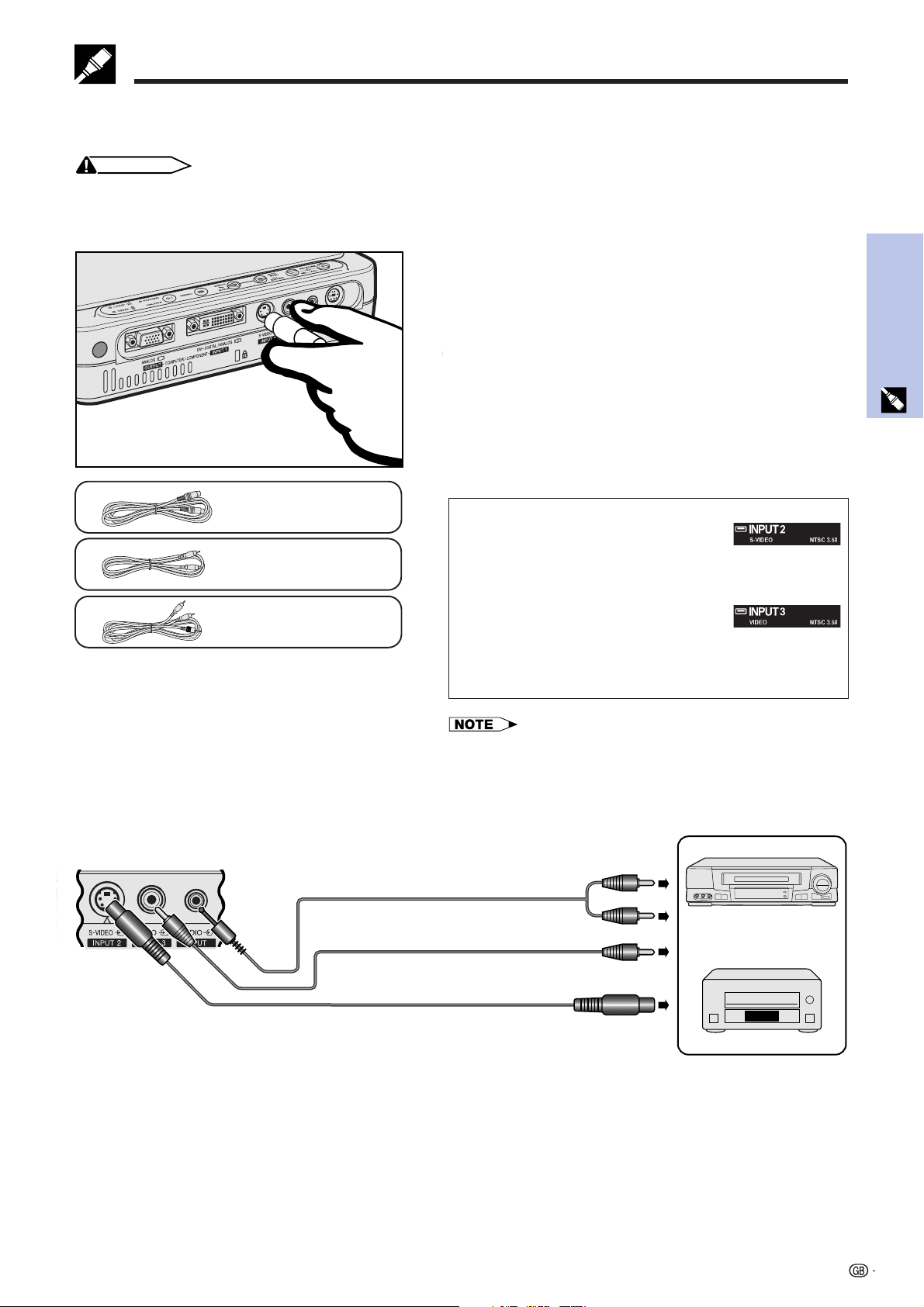
Connecting a computer to the projector using the DVI-Analog to VGA adaptor or the DVI-Analog
to VGA cable—Analog connection instructions
1 Connect one end of the supplied computer RGB cable
using the supplied DVI-Analog to VGA adaptor to the
DVI-DIGITAL/ANALOG INPUT 1 port on the projector,
or connect the DVI side of the supplied DVI-Analog to
VGA cable to the DVI-DIGITAL/ANALOG INPUT 1 port
on the projector.
2 Connect the other end of the computer RGB cable or
the VGA side of the DVI-Analog to VGA cable to the
computer. Secure the connectors by tightening the
thumb screws.
3 To use the built-in audio system, connect one end of
the supplied PC audio cable to the AUDIO INPUT
terminal on the projector.
4 Connect the other end to the audio output terminal on
the computer.
CAUTION
• Before connecting, be sure to turn both the projector and the
computer off. After making all connections, turn the projector
on first. The computer should always be turned on last.
• Please read the computer’s operation manual carefully.
• Refer to page 53 “Computer Compatibility Chart” for a list of
computer signals compatible with the projector. Use with
computer signals other than those listed may cause some of
the functions not to work.
• A Macintosh adaptor may be required for use with some
Macintosh computers. Contact your nearest Sharp Authorized
Projector Dealer or Service Center.
Computer RGB cable
PC audio cable
DVI-Analog to VGA cable
DVI-Analog to VGA
adaptor
Projector
PC audio cable
Connecting other compatible computers
“Plug and Play” function
• This projector is compatible with VESA-standard DDC 1/DDC 2B. The projector and a VESA DDC compatible
computer will communicate their setting requirements, allowing for quick and easy setup.
• Before using the “Plug and Play” function, be sure to turn on the projector first and the connected computer last.
• The DDC, Plug and Play function of this projector operates only when used in conjunction with a VESA DDC compatible
computer.
When connecting the projector to a compatible computer other than an IBM-PC (VGA/SVGA/XGA/SXGA) or
Macintosh (i.e. Workstation), a separate cable may be needed. Please contact your dealer for more information.
• Connecting computers other than the recommended types may result in damage to the projector, the computer, or both.
Computer RGB cable
DVI-Analog to VGA adaptor
1
2
Computer
DVI-Analog to VGA cable
3
4
Projecting the image
When connecting with this method,
press INPUT on the remote control or
the projector and select the input signal
type to INPUT 1 Computer/Analog
RGB.
Setup & Connections
15
Connecting the Projector
Connecting the Projector to Video Equipment
You can connect your projector to a VCR, laser disc player and other audiovisual equipment.
CAUTION
• Always turn off the projector while connecting to audiovisual equipment, in order to protect both the projector and the
equipment being connected.
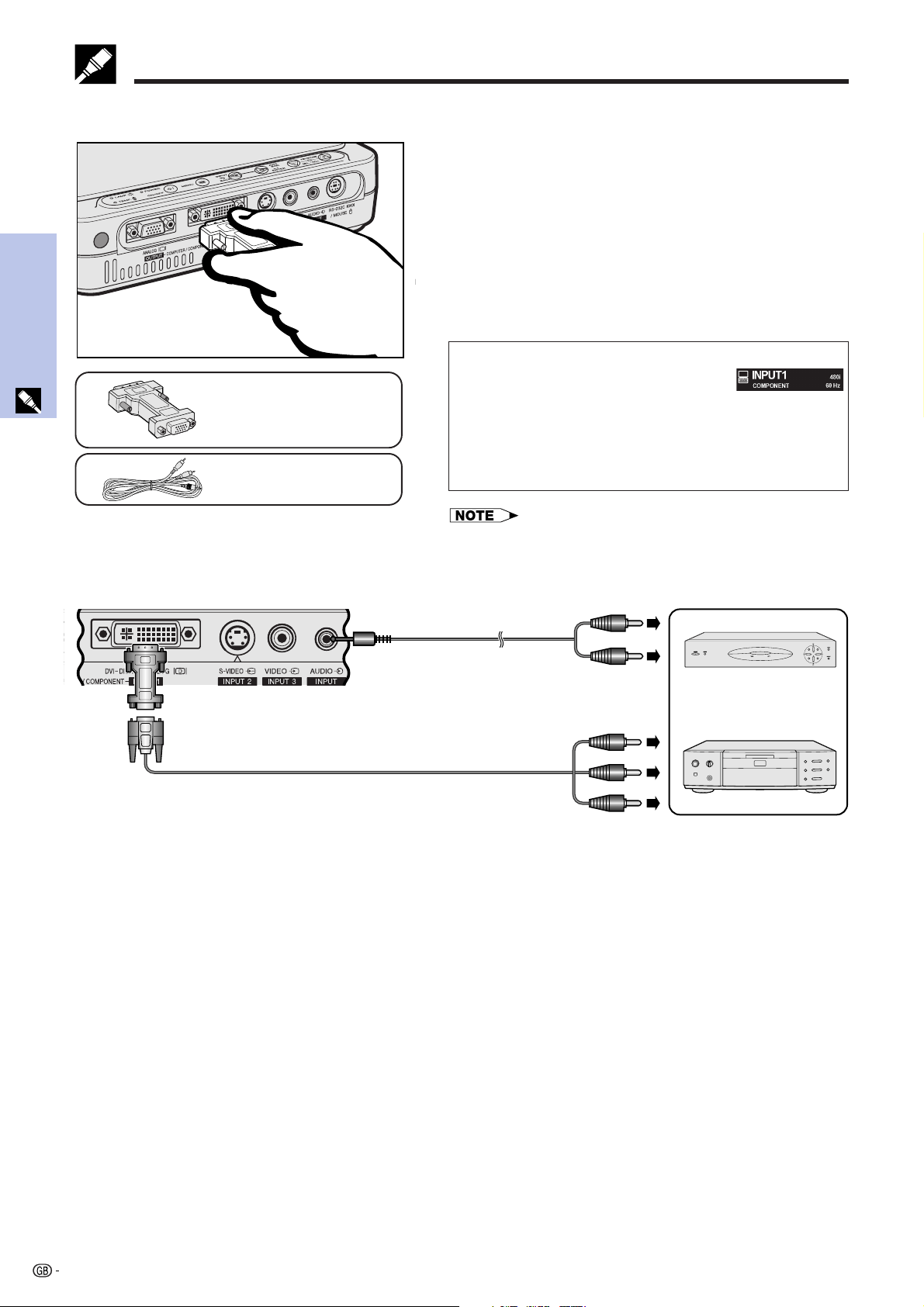
Connecting a video source (VCR or laser disc player) using the standard video input
S-video cable
1 Connect the supplied S-video cable to the S-VIDEO
INPUT 2 terminal on the projector and the S-video output
terminal on the video source, or connect the supplied
video cable to the VIDEO INPUT 3 terminal on the
projector and the video output terminal on the video
source.
2 To use the built-in audio system, connect the supplied
AV audio cable to the AUDIO INPUT terminal on the
projector and the audio output terminals on the video
source.
The S-VIDEO INPUT 2 terminal uses a video signal system
in which the picture is separated into a color and a
luminance signal to realize a higher-quality image.
• For higher quality video, you may use the S-VIDEO INPUT 2
terminal on the projector.
• If your video equipment does not have an S-video output
terminal, use the composite video output terminal.
2
1
S-video cable
AV audio cable
VCR or
Laser disc player
Projecting the image
• When connecting to the S-VIDEO
INPUT 2 terminal on the projector,
press INPUT on the remote control
or the projector and select the input
signal type to INPUT 2 S-VIDEO.
• When connecting to the VIDEO
INPUT 3 terminal on the projector,
press INPUT on the remote control
or the projector and select the input
signal type to INPUT 3 VIDEO.
Video cable
1
Projector
2
To S-video output terminal
AV audio cable
To audio output terminals
Video cable
To video output terminal
Setup & Connections
16
Connecting the Projector
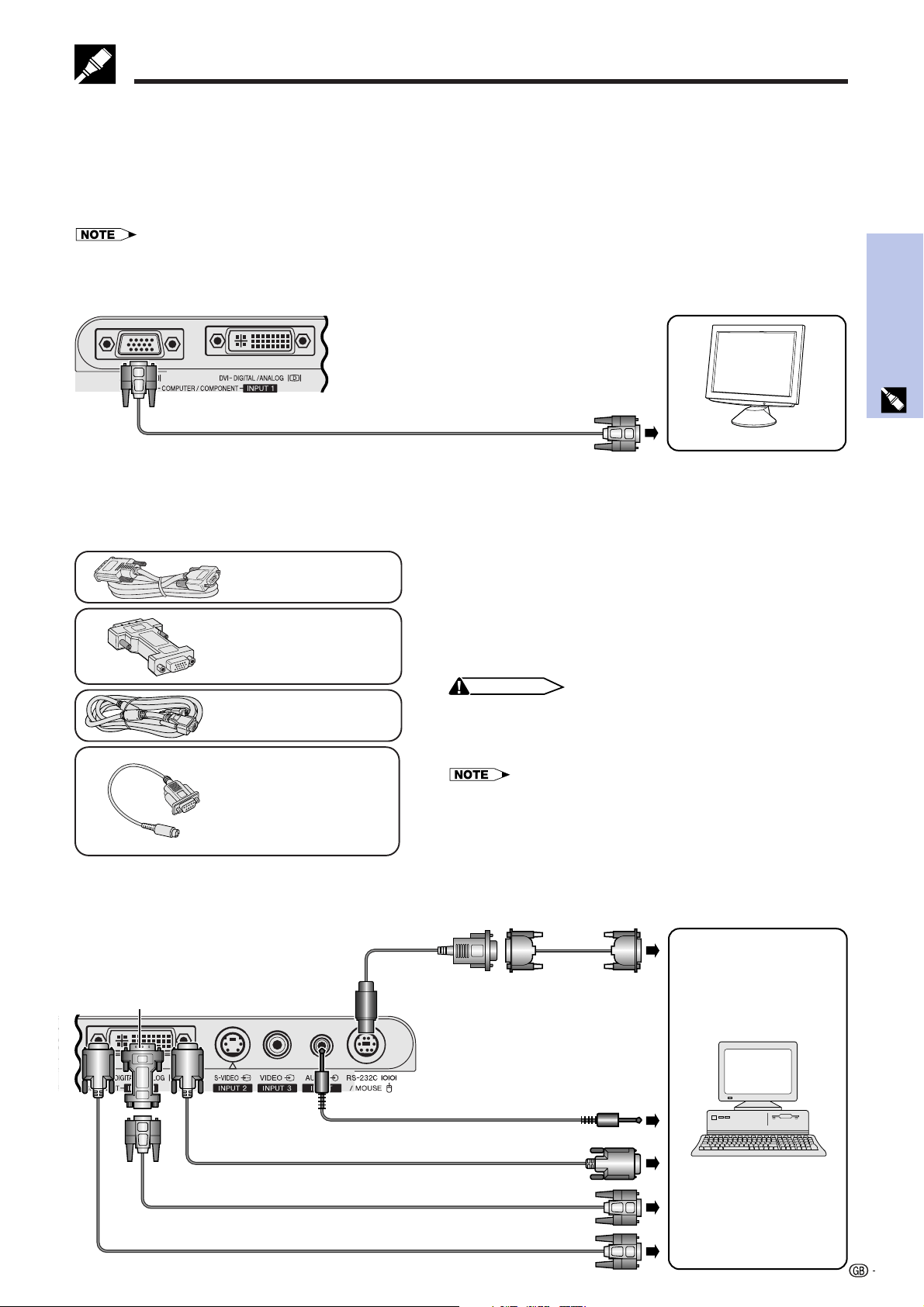
Connecting a video source (DTV* decoder or DVD player) using the DVI-DIGITAL/ANALOG INPUT
1 port
1 Connect one end of the supplied DVI-Analog to VGA
adaptor to the DVI-DIGITAL/ANALOG INPUT 1 port on
the projector.
2 Connect the other end of the DVI-Analog to VGA adaptor
to the video source using the HD-15/RCA cable (sold
separately).
3 To use the built-in audio system, connect one end of
the supplied AV audio cable to the AUDIO INPUT
terminal on the projector.
4 Connect the other end to the audio output terminal on
the video source.
• The image quality may become lower depending on DTV signal
compatibility.
• The projector can only accept 480i signals.
2
4
AV audio cable
Projecting the image
• When connecting the DTV decoder
or DVD player to the DVI-DIGITAL/
ANALOG INPUT 1 port on the
projector, press INPUT on the remote
control or the projector and select the
input signal type to INPUT 1
COMPONENT.
DTV decoder
or
DVD player
Projector
*DTV is the umbrella term used to describe the new digital television system in the United States.
Model name AN-C3CP
1
HD-15/RCA cable (sold separately)
DVI-Analog to VGA adaptor
AV audio cable
3
DVI-Analog to VGA
adaptor
Setup & Connections
17
Connecting the Projector
Connecting the Projector to a Monitor
When the ANALOG OUTPUT port on the projector is connected to a monitor with RGB input, the computer can be
used to display the output image to the projector and the monitor simultaneously. Use the supplied computer RGB
cable to connect them.
1 Connect one end of the supplied computer RGB cable to the ANALOG OUTPUT port on the projector.
2 Connect the other end to the RGB input port on the monitor.
3 RS-232C cable
(null modem, cross type, sold separately)
Projector
DVI-Analog to VGA adaptor
2 DIN-D-sub
RS-232C cable
• The analog output is deactivated when the projector is in standby mode.
• An additional RGB cable may be necessary to connect the projector to an external monitor if the supplied cable is utilized for projector
data input.
1
Projector
Computer RGB cable
2
Monitor
Connecting to RS-232C/MOUSE Port
When the RS-232C/MOUSE port on the projector is connected to a computer with an RS-232C cable (null modem,
cross type, sold separately), the computer can be used to control the projector and check the status of the
projector. See page 52 for details.
DVI-Analog to VGA cable
DIN-D-sub RS-232C
cable
1 Connect the projector and computer in advance, as
described on page 13 or 14.
2 Connect the supplied DIN-D-sub RS-232C cable to
the RS-232C/MOUSE port on the projector.
3 Connect an RS-232C cable (null modem, cross type,
sold separately) to the other end of DIN-D-sub RS-232C
cable and to the serial port on the computer.
CAUTION
• Do not connect or disconnect an RS-232C cable to or from the
computer while it is on. This may damage your computer.
• When you turn off the power, be sure to turn the projector off
first, and then turn the connected computer off.
• The wireless mouse or RS-232C function may not operate if your
computer port is not correctly set up. Please refer to the operation manual
of the computer for details on setting up/installing the correct mouse
driver.
• A Macintosh adaptor may be required for use with some Macintosh
computers. Contact your nearest Sharp Authorized Projector Dealer or
Service Center.
Computer RGB cable
Computer
Model name AN-C10RS
PC audio cable
Computer RGB cable
DVI digital cable (sold separately)
Model name AN-C3DVU
DVI-Analog to VGA cable
DVI-Analog to VGA
adaptor
Operation
18
Operation
Basic Operations
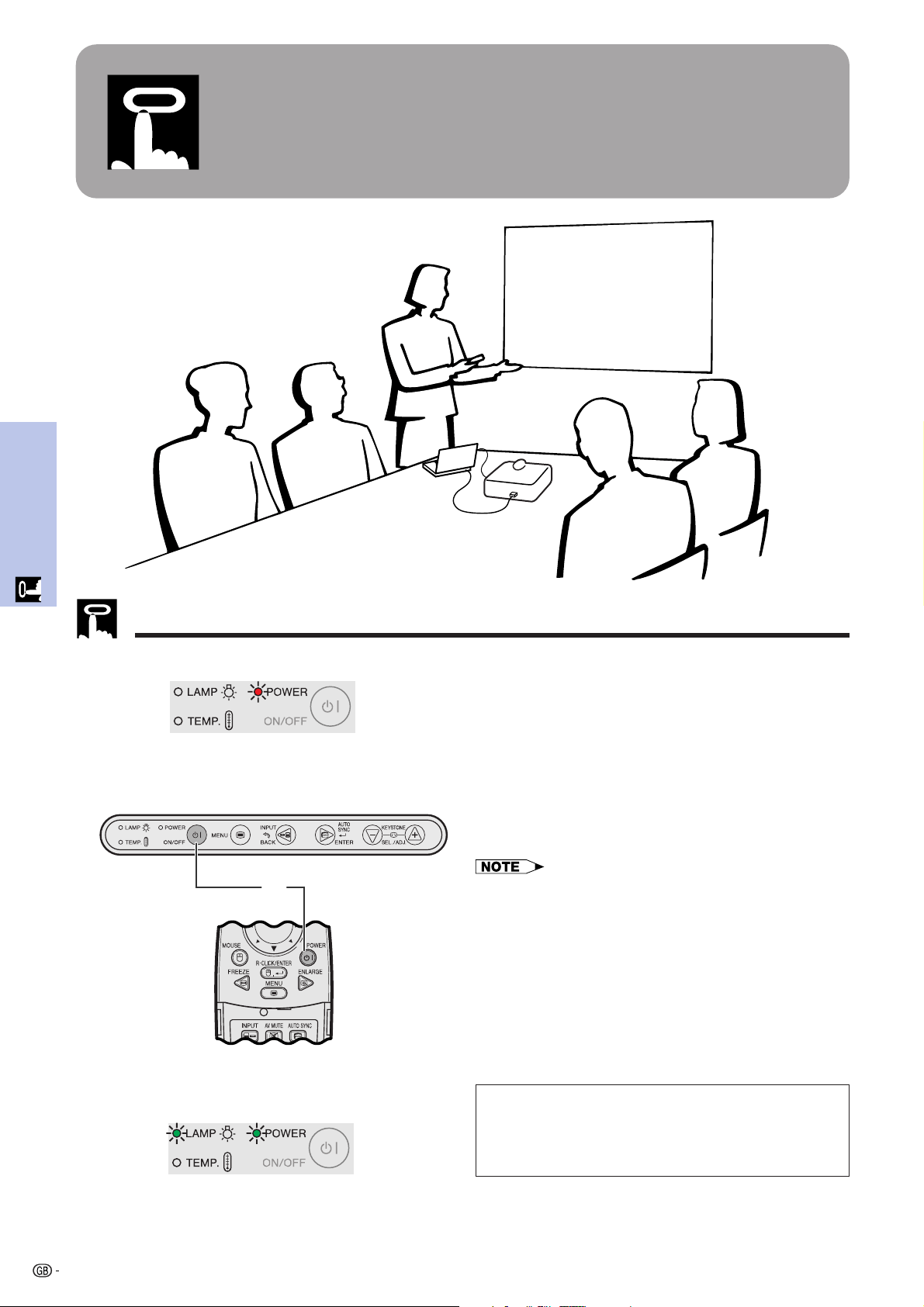
1 Make the necessary connections before pro-
ceeding. Connect the power cord to a wall outlet.
The POWER indicator illuminates red and the
projector enters standby mode.
2 Press ON/OFF on the projector or POWER on the
remote control to turn on the power.
Projector
Maintenance indicators
When the power is on, the LAMP REPLACEMENT indicator
lights indicating the status of the lamp.
Green: Lamp is ready.
Flashing green: Warming up.
Red: Change the lamp.
Maintenance indicators
Remote control
2
• The flashing green LAMP REPLACEMENT indicator shows
that the lamp is warming up. Wait until the indicator stops
flashing before operating the projector.
• The power can not be turned off for one minute after the
initial warm-up sequence has begun.
• After the projector is unpacked and turned on for the first
time, a slight odor may be emitted from the exhaust vent.
This odor will soon disappear with use.
Operation
19
58
7
6
Basic Operations
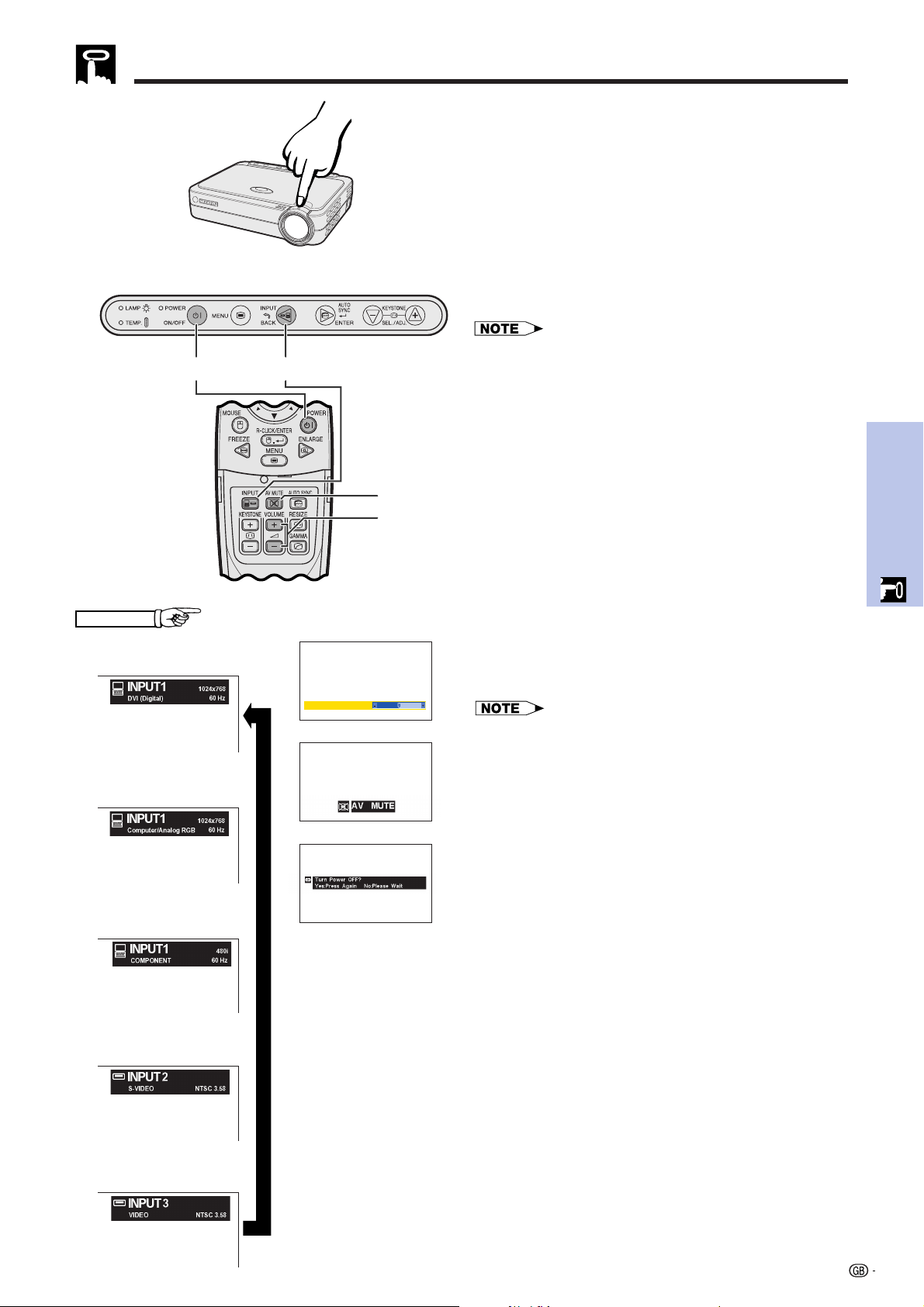
3 Rotate the ZOOM knob. The image can be
adjusted to the desired size within the zoom range.
4 Rotate the FOCUS ring until the image on the
screen becomes clear.
5 Press INPUT to select the desired input mode.
Press INPUT again to change the mode.
Projector
• When the selected input signal is being received, “Adjusting
The Image” will be displayed.
• When no signal is being received, “NO SIGNAL” will be
displayed. When a signal that the projector is not preset to
receive is being received, “NOT REG.” will be displayed.
• You can display all input modes one by one when “Auto
Source” is set to “OFF”.
5
EXAMPLE
6
7
8
Remote control
Zooming/Focusing
INPUT 1
(DVI) Mode
INPUT 1
(RGB) Mode
INPUT 2
(S-VIDEO) Mode
INPUT 1
(COMPONENT) Mode
f
f
f
INPUT 3
(VIDEO) Mode
f
6 Press VOLUME on the remote control to adjust
the volume.
7 Press AV MUTE on the remote control to
temporarily turn off the picture and the sound.
Press AV MUTE again to turn the picture and the
sound back on.
8 Press ON/OFF on the projector or POWER on the
remote control, and then press ON/OFF or
POWER again while the message is displayed to
turn off the power.
• If you accidentally pressed ON/OFF or POWER and do not
want to turn off the power, wait until the power off screen
disappears.
• When ON/OFF or POWER is pressed twice, the POWER
indicator illuminates red and the cooling fan will run for about
90 seconds. The projector will then enter standby mode.
• Wait until the cooling fan stops before disconnecting the
power cord.
• The power can be turned on again by pressing ON/OFF or
POWER. When the power is turned on, the POWER indicator
and the LAMP REPLACEMENT indicator light green.
VOLUME 51
Operation
20
Position the projector perpendicular to the screen with all feet flat and level to achieve an optimal image.
Move the projector forward or backward if the edges of the image are distorted.
• The projector lens should be centered in the middle of the screen. If the lens center is not perpendicular to the screen, the image will be
distorted, making viewing difficult.
• Position the screen so that it is not in direct sunlight or room light. Light falling directly onto the screen washes out colors, making viewing
difficult. Close the curtains and dim the lights when setting up the screen in a sunny or bright room.
• A polarizing screen cannot be used with this projector.
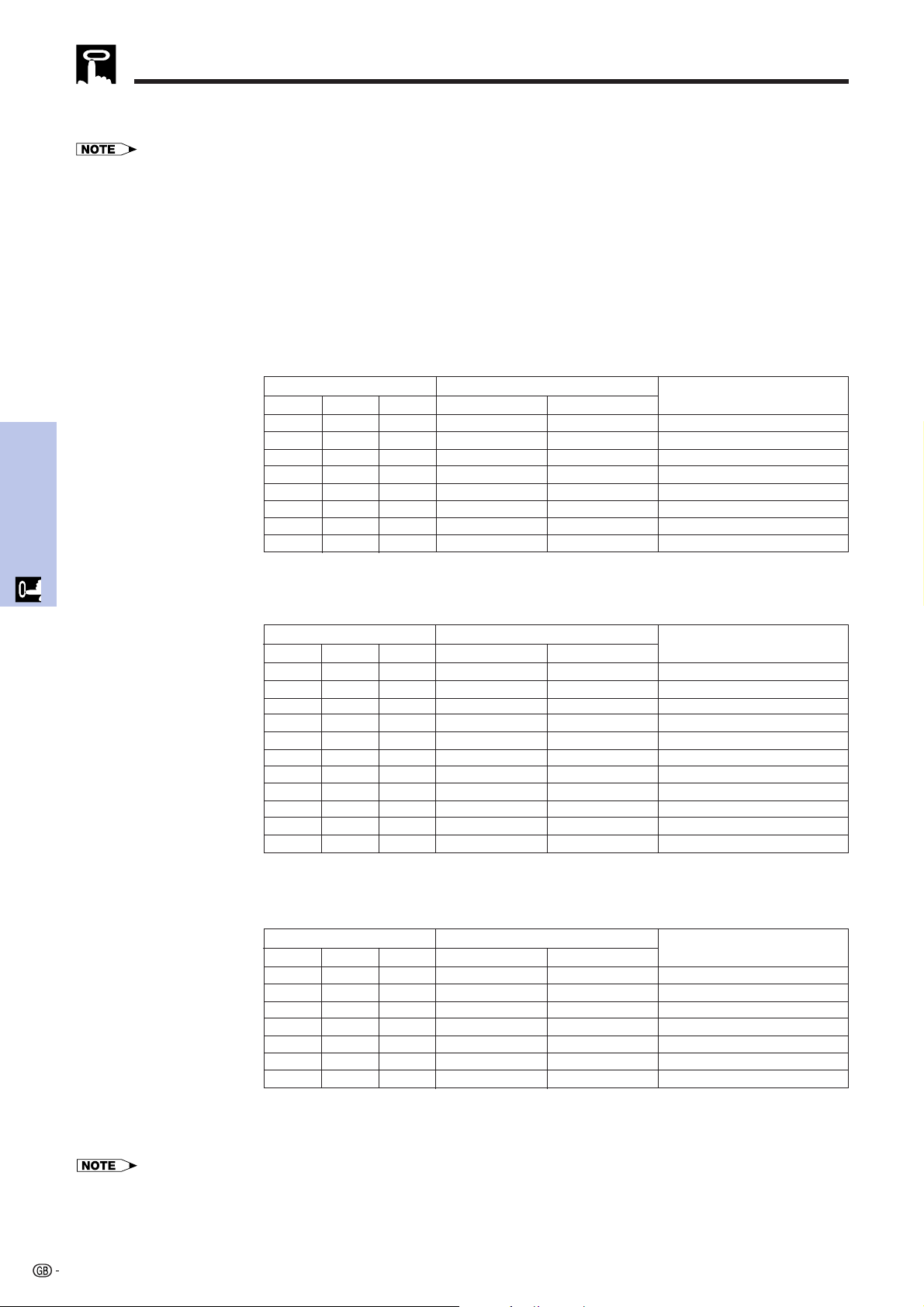
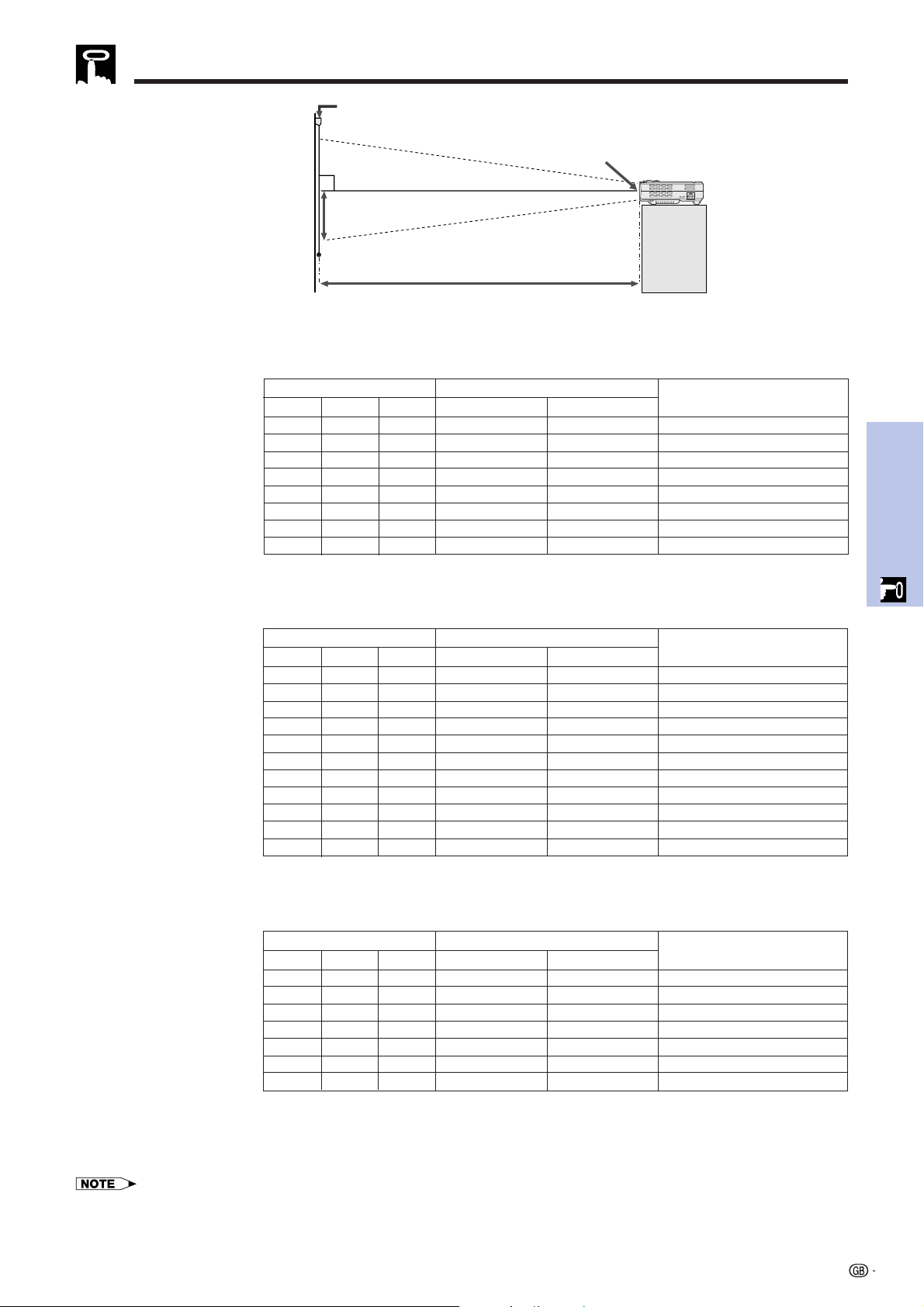
Place the projector at the required distance from the screen according to the desired picture size. (See the table
below.)
Setting up the Screen
Standard Setup (Front Projection)
The formula for picture size and projection distance
Width
196
174
131
116
92
87
80
73
63
52
35
Height
110
98
74
65
52
49
45
41
35
29
20
Diag. (x)
225
200
150
133
106
100
92
84
72
60
40
17
1
⁄64 (43.2 cm)
13
39
⁄64 (34.6 cm)
10
13
⁄64 (25.9 cm)
6
51
⁄64 (17.3 cm)
5
46
⁄64 (14.5 cm)
4
57
⁄64 (12.4 cm)
4
5
⁄64 (10.4 cm)
2
46
⁄64 (6.9 cm)
Maximum (L
1
)
40 0 (12.2 m)*1
32 0 (9.8 m)
24 0 (7.3 m)
16 0 (4.9 m)
13 5 (4.1 m)
11 6 (3.5 m)
9 7 (2.9 m)
6 5 (2.0 m)
Minimum (L
2
)
33 4 (10.2 m)*2
26 8 (8.1 m)
20 0 (6.1 m)
13 4 (4.1 m)
11 2 (3.4 m)
9 7 (2.9 m)
8 0 (2.4 m)
5 4 (1.6 m)
Projection distance (L)
Picture size
The formula for picture size and projection distance
NORMAL Mode
(4:3)
STRETCH Mode
(16:9)
Diag. (x)
250
200
150
100
84
72
60
40
Width
200
160
120
80
67
58
48
32
Height
150
120
90
60
50
43
36
24
35
4
⁄64 (89.1 cm)
31
11
⁄64 (79.2 cm)
23
24
⁄64 (59.4 cm)
20
46
⁄64 (52.6 cm)
16
33
⁄64 (42.0 cm)
15
37
⁄64 (39.6 cm)
14
22
⁄64 (36.4 cm)
13
6
⁄64 (33.2 cm)
11
14
⁄64 (28.5 cm)
9
22
⁄64 (23.7 cm)
6
15
⁄64 (15.8 cm)
Distance from the lens center to
the
bottom of the image (H)
Maximum (L
1
)
39 2 (12.0 m)*3
34 10 (10.6 m)*5
26 3 (8.0 m)
23 2 (7.1 m)
18 6 (5.6 m)
17 5 (5.3 m)
16 0 (4.9 m)
14 8 (4.5 m)
12 7 (3.8 m)
10 5 (3.2 m)
7 0 (2.1 m)
Minimum (L
2
)
32 8 (10.0 m)*4
29 1 (8.9 m)
21 9 (6.6 m)
19 4 (5.9 m)
15 5 (4.7 m)
14 6 (4.4 m)
13 4 (4.1 m)
12 2 (3.7 m)
10 6 (3.2 m)
8 9 (2.7 m)
5 10 (1.8 m)
Projection distance (L)
Picture size
PG-M15X
Throw distance ratio
L
1
(feet) = 0.04875x 3.281
L
2
(feet) = 0.04064x 3.281
H (inches) = 0.06804x
x : Picture size (Diag.) (inches)
L
1
: Maximum projection distance (feet)
L
2
: Minimum projection distance (feet)
H: Distance from the lens center to the
bottom of the image (inches)
L
1
(feet) = 0.05315x 3.281
L
2
(feet) = 0.04428x 3.281
H (inches) = 0.1558x
• There is an error of 3% in the formula above.
• Values with a minus () sign indicate the distance of the lens center below the bottom of the screen.
• The values do not match up when applying the formula in *1 to *6 above. However, this is not a calculation error.
• For optimum focus, the recommended projection distance (L) is from 3 9 (1.15m) to 32 10 (10.0m).
Width
144
120
80
67
58
48
32
Height
108
90
60
50
43
36
24
Diag. (x)
180
150
100
84
72
60
40
34
21
⁄64 (87.2 cm)
28
39
⁄64 (72.7 cm)
19
5
⁄64 (48.4 cm)
16
1
⁄64 (40.7 cm)
13
47
⁄64 (34.9 cm)
11
28
⁄64 (29.1 cm)
7
40
⁄64 (19.4 cm)
Distance from the lens center to
the
bottom of the image (H)
Maximum (L
1
)
38 5 (11.7 m)*6
32 0 (9.8 m)
21 4 (6.5 m)
17 11 (5.5 m)
15 4 (4.7 m)
12 10 (3.9 m)
8 6 (2.6 m)
Minimum (L
2
)
32 0 (9.8 m)
26 8 (8.1 m)
17 9 (5.4 m)
14 11 (4.6 m)
12 10 (3.9 m)
10 8 (3.3 m)
7 1 (2.2 m)
Projection distance (L)
Picture size
The formula for picture size and projection distance
BORDER Mode
(4:3)
Distance from the lens center to
the
bottom of the image (H)
L
1
(feet) = 0.06504x 3.281
L
2
(feet) = 0.05419x 3.281
H (inches) = 0.1907x
Operation
21
Setting up the Screen
PG-M15S
Throw distance ratio
x : Picture size (Diag.) (inches)
L
1
: Maximum projection distance (feet)
L
2
: Minimum projection distance (feet)
H: Distance from the lens center to the
bottom of the image (inches)
17
41
⁄64 (44.8 cm)
14
7
⁄64 (35.8 cm)
10
37
⁄64 (26.9 cm)
7
4
⁄64 (17.9 cm)
5
59
⁄64 (15.1 cm)
5
5
⁄64 (12.9 cm)
4
15
⁄64 (10.8 cm)
2
53
⁄64 (7.2 cm)
Distance from the lens center to
the
bottom of the image (H)
Maximum (L
1
)
41 8 (12.7 m)*1
33 4 (10.2 m)*3
25 0 (7.6 m)
16 8 (5.1 m)
14 0 (4.3 m)
12 0 (3.7 m)
10 0 (3.0 m)
6 8 (2.0 m)
Minimum (L
2
)
35 0 (10.7 m)*2
28 0 (8.5 m)
21 0 (6.4 m)
14 0 (4.3 m)
11 9 (3.6 m)
10 1 (3.1 m)
8 5 (2.6 m)
5 7 (1.7 m)
Projection distance (L)
Picture size
NORMAL Mode
(4:3)
Diag. (x)
250
200
150
100
84
72
60
40
Width
200
160
120
80
67
58
48
32
Height
150
120
90
60
50
43
36
24
The formula for picture size and projection distance
Width
196
174
131
116
92
87
80
73
63
52
35
Height
110
98
74
65
52
49
45
41
35
29
20
Diag. (x)
225
200
150
133
106
100
92
84
72
60
40
STRETCH Mode
(16:9)
35
43
⁄64 (90.6 cm)
31
47
⁄64 (80.6 cm)
23
50
⁄64 (60.4 cm)
21
7
⁄64 (53.6 cm)
16
52
⁄64 (42.7 cm)
15
55
⁄64 (40.3 cm)
14
39
⁄64 (37.1 cm)
13
20
⁄64 (33.8 cm)
11
27
⁄64 (29.0 cm)
9
34
⁄64 (24.2 cm)
6
22
⁄64 (16.1 cm)
Distance from the lens center to
the
bottom of the image (H)
Maximum (L
1
)
40 10 (12.5 m)*4
36 4 (11.1 m)*6
27 3 (8.3 m)
24 2 (7.4 m)
19 3 (5.9 m)
18 2 (5.5 m)
16 8 (5.1 m)
15 3 (4.6 m)
13 1 (4.0 m)
10 11 (3.3 m)
7 3 (2.2 m)
Minimum (L
2
)
34 4 (10.5 m)*5
30 6 (9.3 m)
22 11 (7.0 m)
20 4 (6.2 m)
16 2 (4.9 m)
15 3 (4.7 m)
14 0 (4.3 m)
12 10 (3.9 m)
11 0 (3.3 m)
9 2 (2.8 m)
6 1 (1.9 m)
Projection distance (L)
Picture size
L
1
(feet) = 0.05080x 3.281
L
2
(feet) = 0.04269x 3.281
H (inches) = 0.07056x
L
1
(feet) = 0.05535x 3.281
L
2
(feet) = 0.04651x 3.281
H (inches) = 0.1586x
Width
144
120
80
67
58
48
32
Height
108
90
60
50
43
36
24
Diag. (x)
180
150
100
84
72
60
40
34
60
⁄64 (88.7 cm)
29
7
⁄64 (73.9 cm)
19
26
⁄64 (49.3 cm)
16
19
⁄64 (41.4 cm)
13
62
⁄64 (35.5 cm)
11
41
⁄64 (29.6 cm)
7
49
⁄64 (19.7 cm)
Distance from the lens center to
the
bottom of the image (H)
Maximum (L
1
)
40 0 (12.2 m)*7
33 4 (10.2 m)*9
22 3 (6.8 m)
18 8 (5.7 m)
16 0 (4.9 m)
13 4 (4.1 m)
8 11 (2.7 m)
Minimum (L
2
)
33 7 (10.2 m)*8
28 0 (8.5 m)
18 8 (5.7 m)
15 8 (4.8 m)
13 5 (4.1 m)
11 2 (3.4 m)
7 6 (2.3 m)
Projection distance (L)
Picture size
The formula for picture size and projection distance
BORDER Mode
(4:3)
L
1
(feet) = 0.06774x 3.281
L
2
(feet) = 0.05692x 3.281
H (inches) = 0.1941x
• There is an error of 3% in the formula above.
• Values with a minus () sign indicate the distance of the lens center below the bottom of the screen.
• The values do not match up when applying the formula in *1 to *9 above. However, this is not a calculation error.
• For optimum focus, the recommended projection distance (L) is from 3 9 (1.15m) to 32 10 (10.0m).
The formula for picture size and projection distance
Screen
H
90˚
Lens center
L: Projection distance
Operation
22
Setting up the Screen
Using the Adjustment Feet
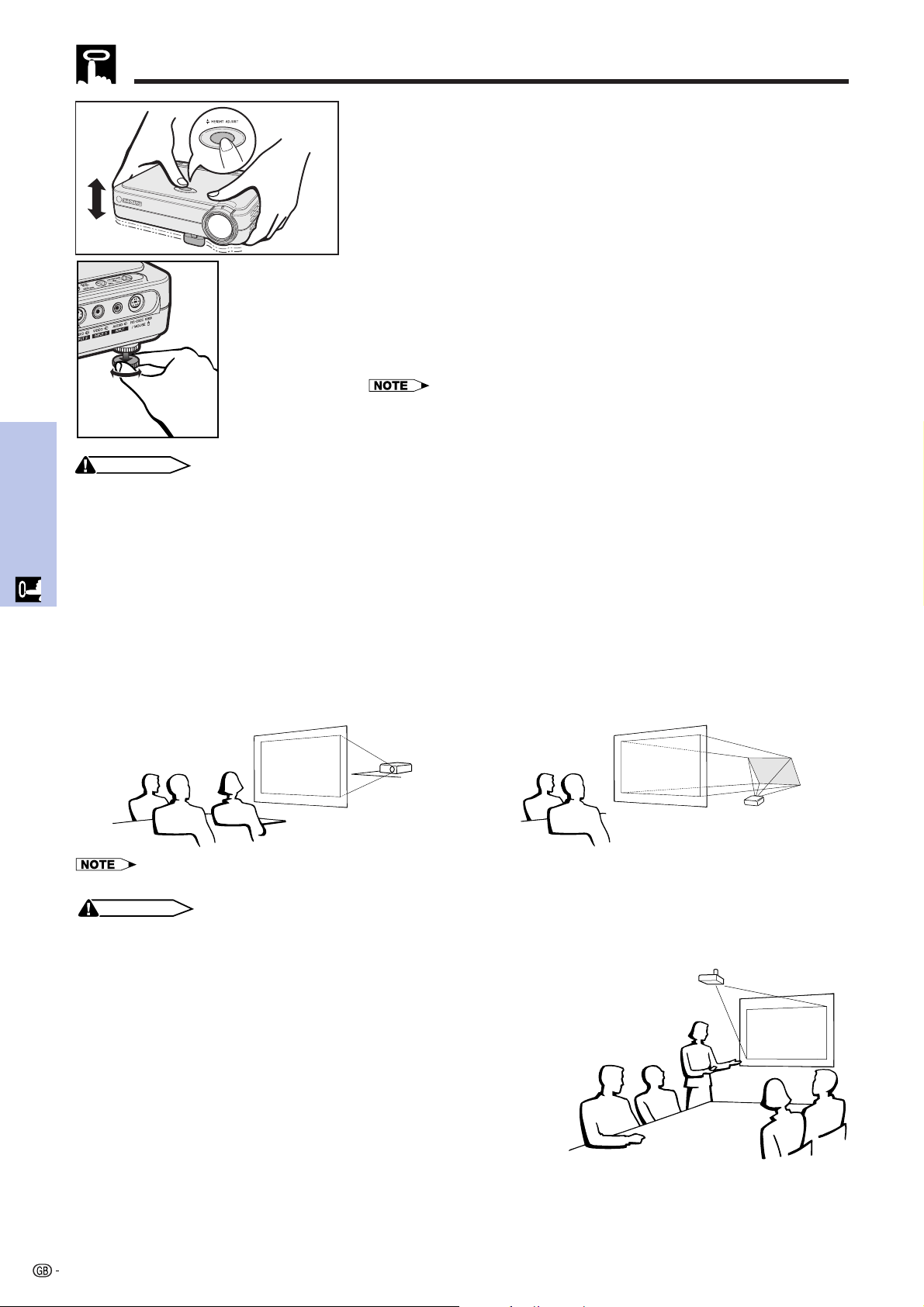
You can adjust the height of the image by raising the projector with the
foot release.
1 Lift the projector and press HEIGHT ADJUST.
(The adjuster comes out.)
2 While pressing HEIGHT ADJUST, lower the projector to adjust
the height. (Adjustable up to approximately 8° from the standard
position)
3 Remove your finger from HEIGHT ADJUST at the desired angle.
4 Rotate the rear adjuster to adjust the projector exactly.
(Adjustable up to approximately 1° from the left rear foot)
Returning the projector to its original position
While holding the projector, press HEIGHT ADJUST and slowly lower the
projector to its original position.
• When an adjustment is made, the image may become distorted (keystoned), depending
on the relative positions of the projector and the screen.
• Optimal image quality can be achieved when the projector is positioned perpendicular to the screen with all feet flat and level.
Reversed Image Setup
Projection using a mirror
• When the distance between the projector and screen
is not sufficient for normal rear projection, you can
use a mirror to reflect the image onto the screen.
• Place a mirror (normal flat type) in front of the lens.
• Project the normal image onto the mirror.
• The image reflected from the mirror is projected onto
the translucent screen.
Rear projection
• Place a translucent screen between the projector and
the audience.
• Use the projector’s menu system to reverse the
projected image. (See page 44 for use of this
function.)
CAUTION
• When using a mirror, be sure to carefully position both the projector and the mirror so the light does not shine into the eyes of
the audience.
Ceiling-mount Setup
• It is recommended that you use the optional Sharp ceiling-mount
bracket for this installation.
• Before mounting the projector, contact your nearest Sharp
Authorized Projector Dealer or Service Center to obtain the
recommended ceiling-mount bracket (sold separately). (AN-
PGCM85 ceiling-mount bracket and its AN-EP101A extension tube
(for U.S.A.), or AN-M15T ceiling-mount bracket and its AN-TK201/
AN-TK202 extension tubes (for countries other than the U.S.A.))
• When the projector is in the inverted position, use the upper edge
of the screen as the base line.
• Use the projector’s menu system to select the appropriate projection
mode. (See page 44 for use of this function.)
CAUTION
• Do not press HEIGHT ADJUST when the adjustment foot is extended without firmly holding the projector.
• Do not hold the lens when lifting or lowering the projector.
• When lowering the projector, be careful not to get your fingers caught between the table and the projector.
Operation
23
1
2
2
Setting up the Screen
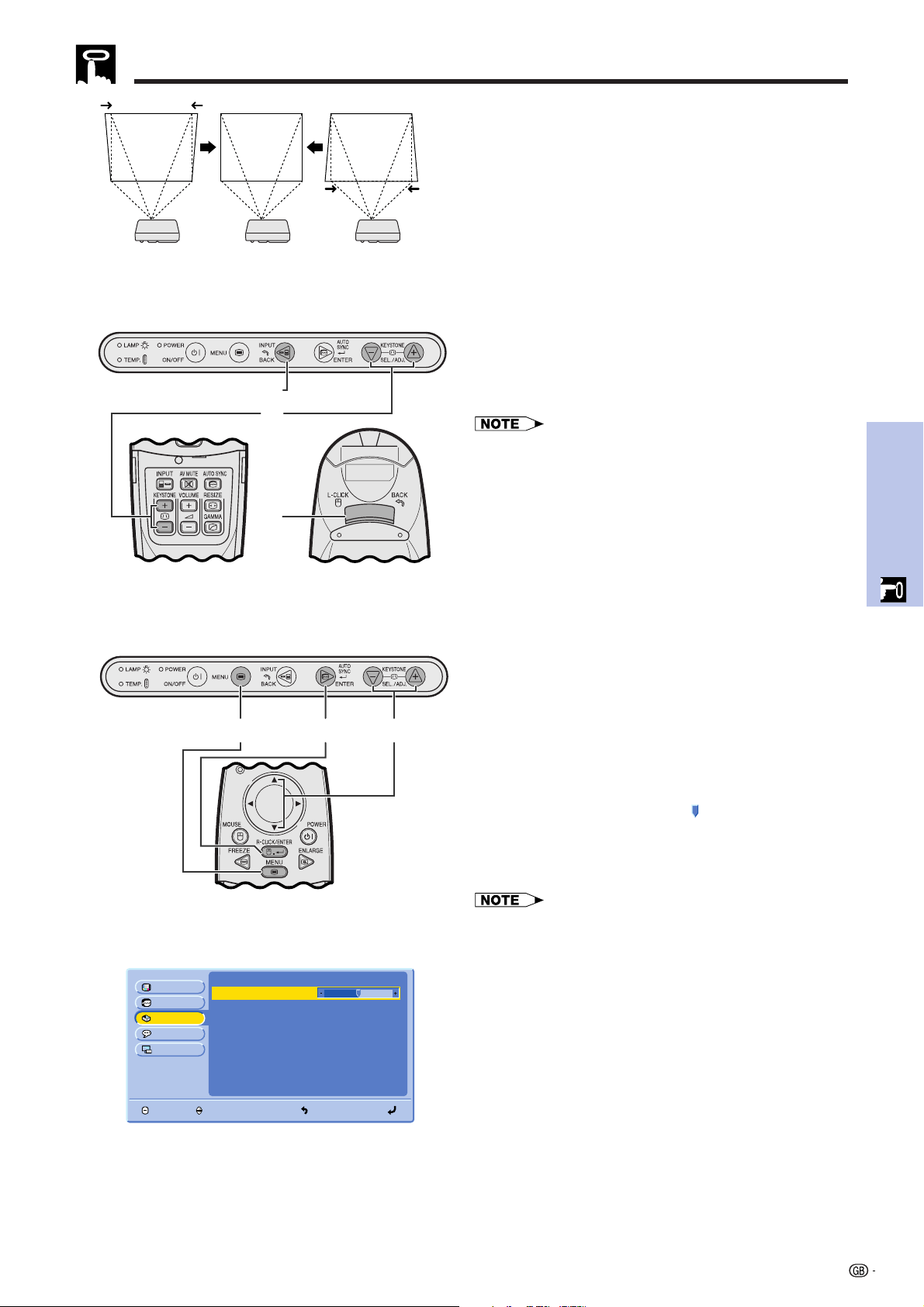
Digital Keystone Correction
• When the image is distorted due to the projection
angle, the digital keystone correction function allows
you to correct it.
• The digital keystone correction can be made by
pressing KEYSTONE (/).
Projector Using the KEYSTONE buttons
1 Press KEYSTONE (/) to adjust the setting.
2 To reset the keystone setting, press BACK.
Remote control
(GUI) On-screen Display
Lamp Timer
Keystone
Picture
Options
Fine Sync
Language
PRJ Mode
END SELECT BACK ENTER
AV Mute Disp.
OSD Display
Auto Power Off
Background Blue
ON
ON
ON
Auto Source ON
100
0
Using the GUI menu
1 Press MENU.
2 Press ∂/ƒ to select “Options”, and then press
ENTER.
3 Press ∂/ƒ to select “Keystone”, and then press
ENTER.
4 Press ∂/ƒ to move the mark to the desired
setting.
5 To exit from the GUI, press MENU.
• Straight lines and the edges of the displayed image may
appear jagged, when adjusting the keystone setting.
Projector
2,3,42,31,5
Remote control
• Whenever "Keystone" is displayed on the screen, you can
reset the setting by pressing BACK.
Operation
24
Operating the Wireless Mouse from the Remote Control
You can use the remote control to operate the mouse of the computer image projected to the screen.
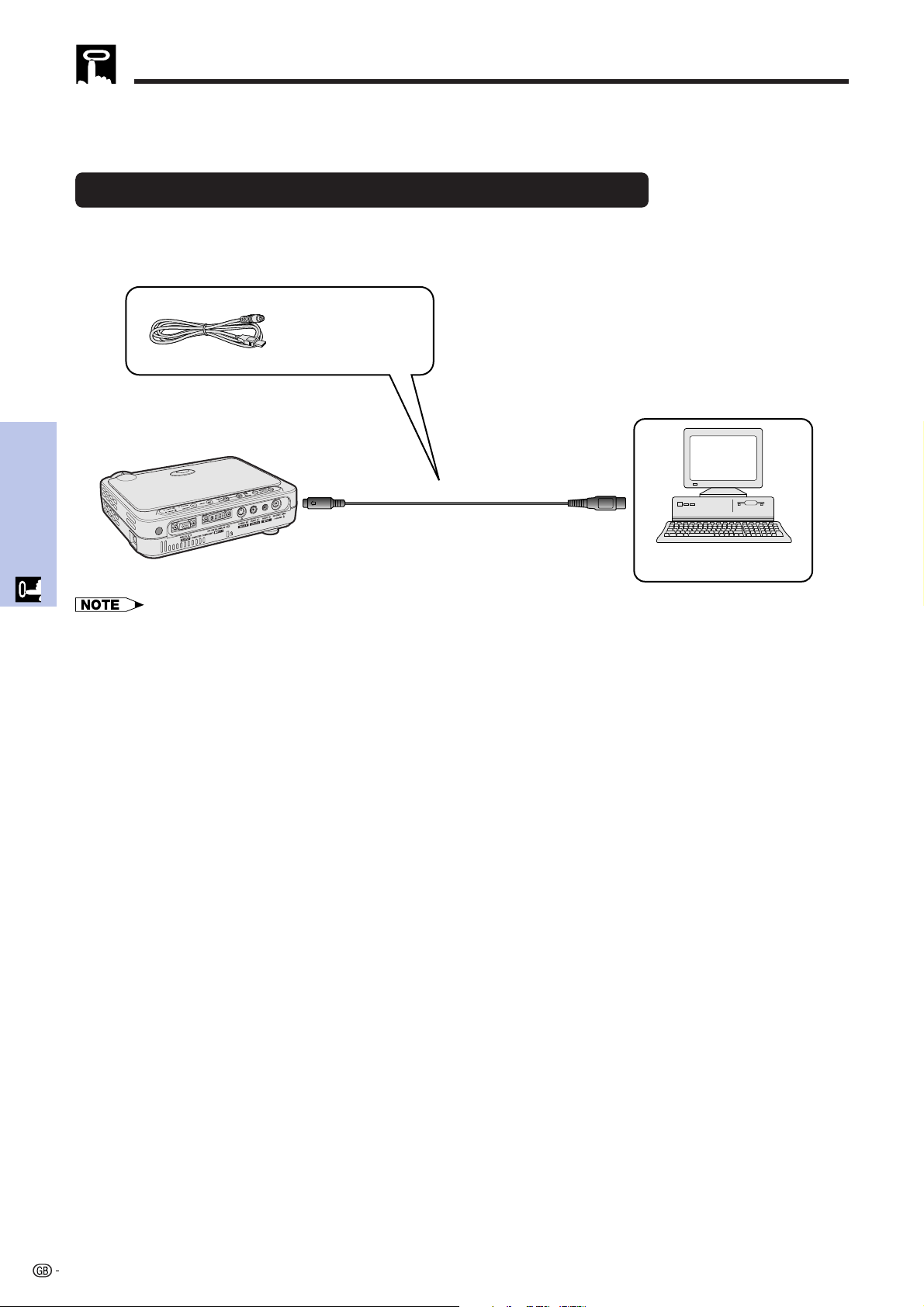
Connecting the projector to a computer using a USB mouse control cable
1 Connect one end of the supplied USB mouse control cable to the RS-232C/MOUSE port on the projector.
2 Connect the other end to the corresponding terminal on the computer.
Connecting to the USB port on a PC or Macintosh
USB mouse control
cable
To USB port
Computer
• Windows 95 does not support USB mouse driver software.
• The minimum system requirements for the USB type mouse system are shown below.
Windows
Hardware: PC/AT compatible machine with USB port
OS: Windows 98/Windows 2000/Windows Me
Macintosh
Hardware: Macintosh series with USB port
OS: Mac OS 8.5 or higher
• The wireless mouse functions can be used to operate computers compatible with USB type mouse system.
To RS-232C/MOUSE port
1
2
Operation
25
Remote Control/Wireless Mouse Positioning
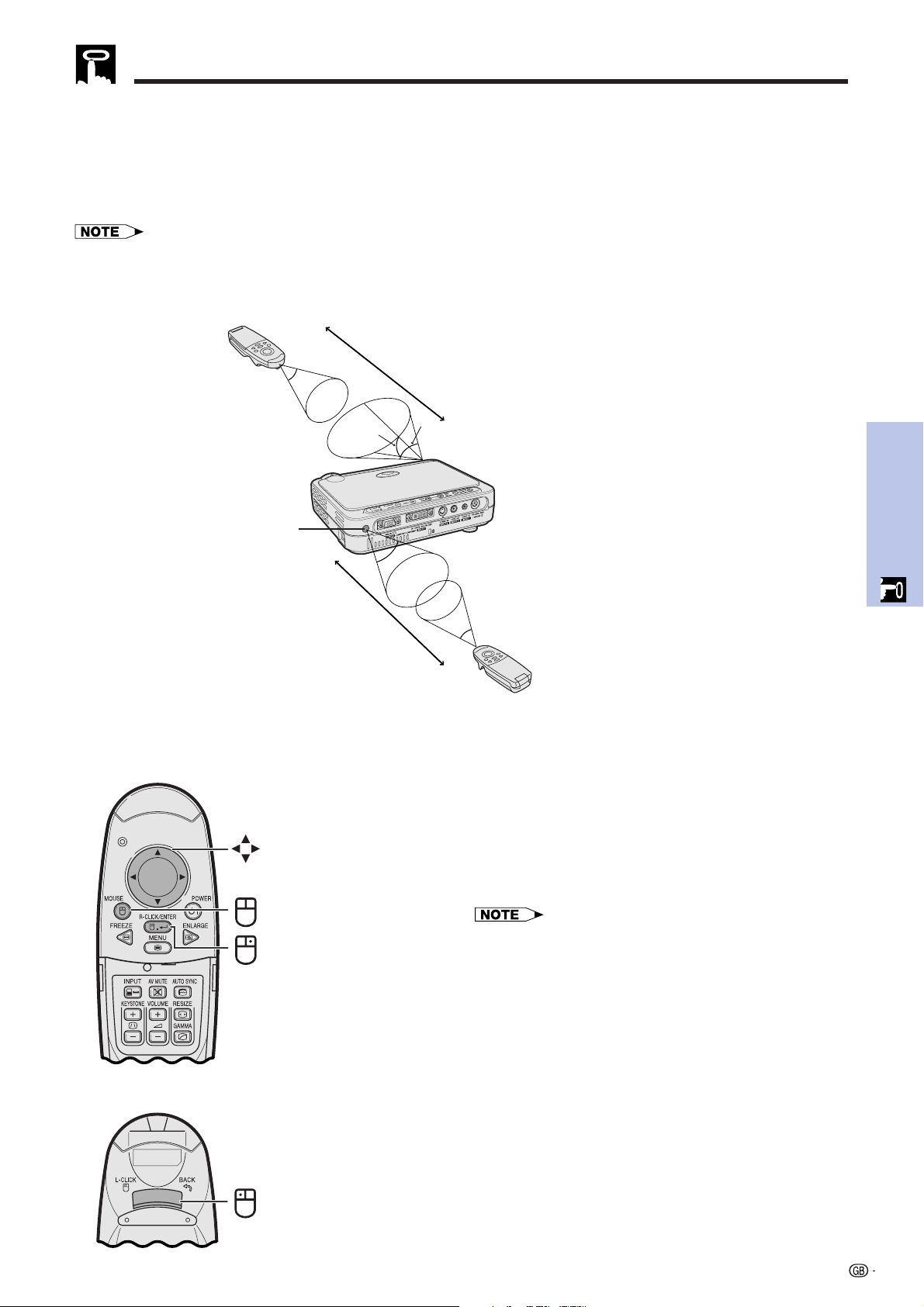
• The remote control and the wireless mouse functions can be used to control the projector within the ranges
shown below.
• The remote control can be used with the wireless mouse functions to control the mouse operation on the computer
connected to the projector.
• The signal from the remote control can be reflected off a screen for easy operation. However, the effective distance of the
signal may differ due to the screen material.
Operating the Wireless Mouse from the Remote Control
Controlling the Projector or Using the Wireless Mouse Functions
Remote control
Using as a Wireless Mouse
• When MOUSE is pressed, the buttons on the remote
control light up and the remote control enters MOUSE
mode.
• During MOUSE mode, the cursor can be used as the
pointer. MOUSE mode is for about ten seconds while
the buttons are lighting.
• When MENU or ENLARGE is pressed, MOUSE mode
is released to the normal mode.
• The wireless mouse may not operate correctly if your
computer is not correctly set up. Refer to the computer’s
operation manual for details of setting up/installing the
mouse driver.
• For one-button mouse systems, use either LEFT-CLICK or
RIGHT-CLICK.
• To conserve battery life, MOUSE stays active for
approximately 10 seconds. Reactivate by pressing MOUSE
again.
Effective buttons in MOUSE mode
Remote control
(Front view)
Remote control
(Rear view)
Mouse
RIGHT-CLICK
LEFT-CLICK
23 (7 m)
23 (7 m)
30˚
30˚
30˚
45˚
45˚
Remote control
Remote control sensor
MOUSE CONTROL
OPERATION
26
Operation
Contrast
Picture
Options
Language
PRJ Mode
END SELECT BACK ENTER
Bright
Color
Tint
Sharp
Red
Blue
CLR Temp
0
0
0
0
0
0
0
High
Reset
Using the GUI (Graphical User Interface) Menu Screens
This projector has four sets of menu screens (INPUT 1 (DVI), INPUT 1 (RGB), INPUT 1 (COMPONENT) and INPUT
2 (S-VIDEO) or 3 (VIDEO)) that allow you to adjust the image and various projector settings. These menu screens
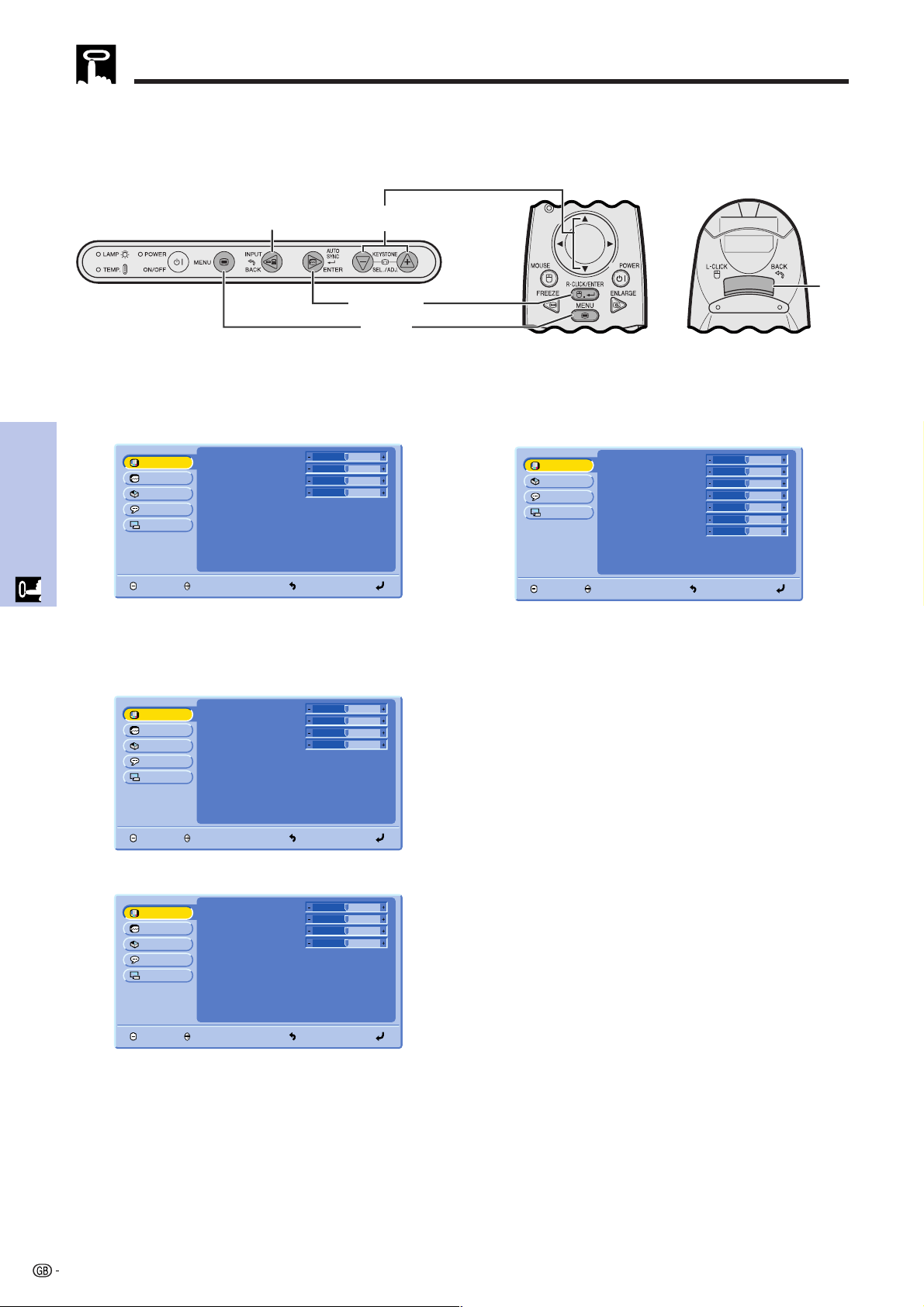
can be operated from the projector or the remote control with the following buttons.
(GUI) On-screen Display
3,5,6
2,4,78
8
1,9
Projector
Remote control
Contrast
Picture
Options
Fine Sync
Language
PRJ Mode
END SELECT BACK ENTER
Bright
Red
Blue
CLR Temp
Reset
0
0
0
0
High
INPUT 1 (DVI) or (RGB) Mode
Menu Screen (Example)
INPUT 1 (COMPONENT), INPUT 2 (S-VIDEO) or
INPUT 3 (VIDEO) Mode Menu Screen (Example)
Basic Operation of the Menu Screen
Contrast
Picture
Options
Fine Sync
Language
PRJ Mode
END SELECT BACK ENTER
Bright
Red
Blue
CLR Temp
Reset
0
0
0
0
High
1
Contrast
Picture
Options
Fine Sync
Language
PRJ Mode
END SELECT BACK ENTER
Bright
Red
Blue
CLR Temp
Reset
0
0
0
0
High
2, 3
1 Press MENU to display the main menu.
2 Press ∂/ƒ to select an adjustment item in the
main menu.
3 Press ENTER to display the sub menu.
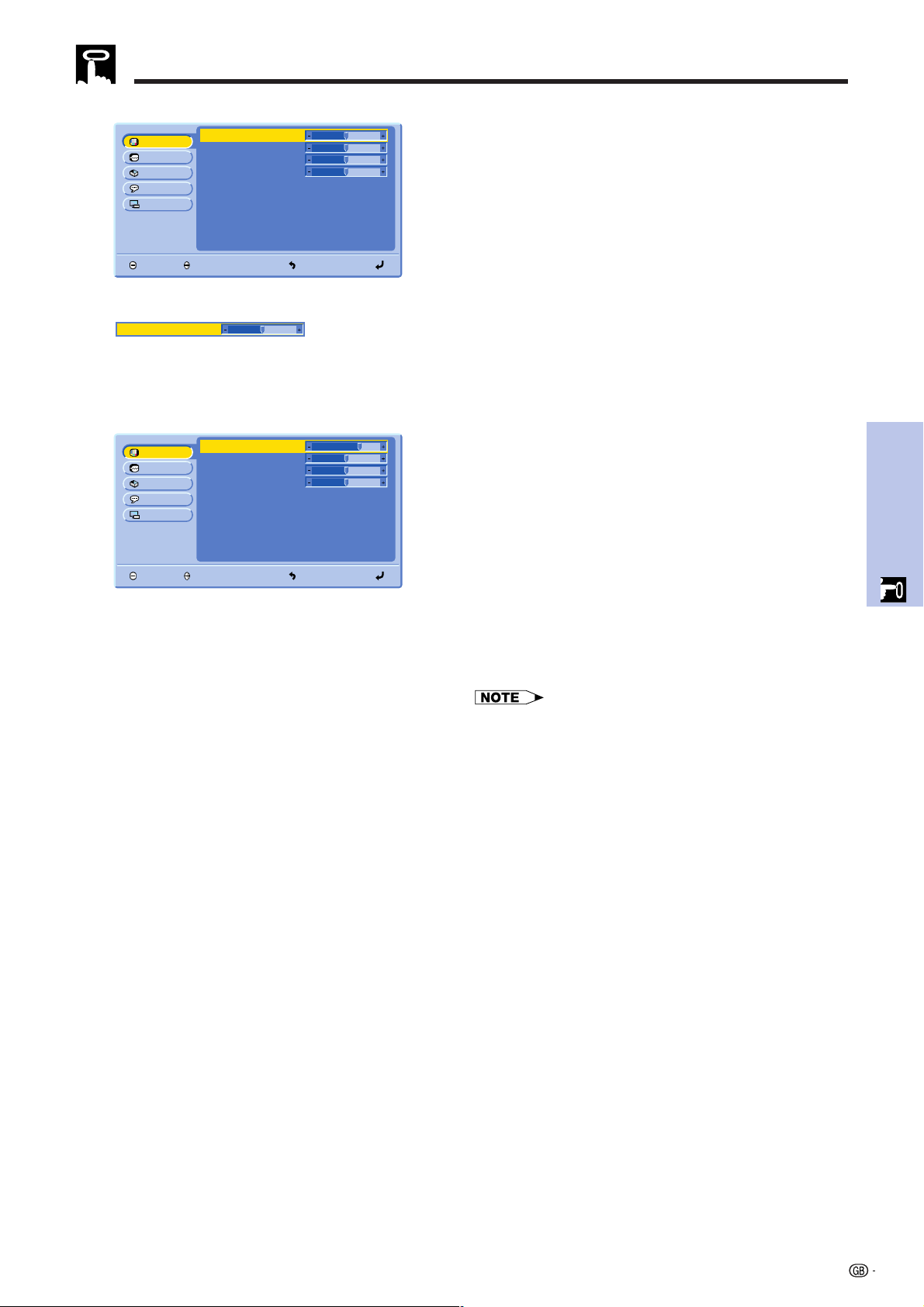
27
Operation
Using the GUI (Graphical User Interface) Menu Screens
Contrast
Picture
Options
Fine Sync
Language
PRJ Mode
END SELECT BACK ENTER
Bright
Red
Blue
CLR Temp
Reset
0
0
0
0
High
4, 5
6
4 Press ∂/ƒ to select an adjustment item in the
sub menu.
5 Press ENTER to activate the selected adjustment
item.
6 To display a single adjustment item, press ENTER
after selecting the item.
Only the menu bar and the selected adjustment
item will appear.
Contrast
Picture
Options
Fine Sync
Language
PRJ Mode
END SELECT BACK ENTER
Bright
Red
Blue
CLR Temp
Reset
01
0
0
0
High
Contrast 0
7 Press ∂/ƒ to adjust the item.
7
8 Press BACK to return to the previous screen.
9 Press MENU to exit from the GUI.
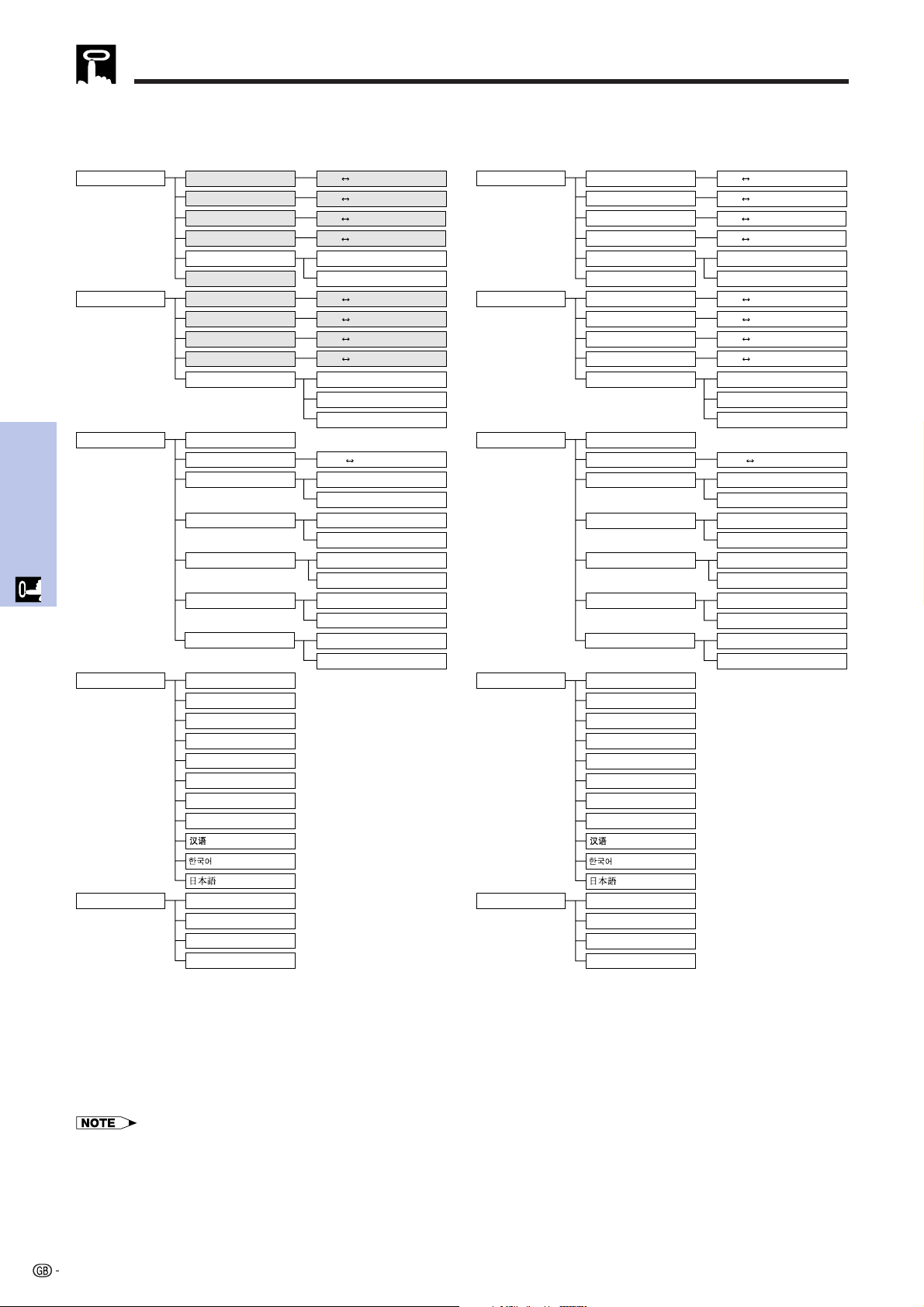
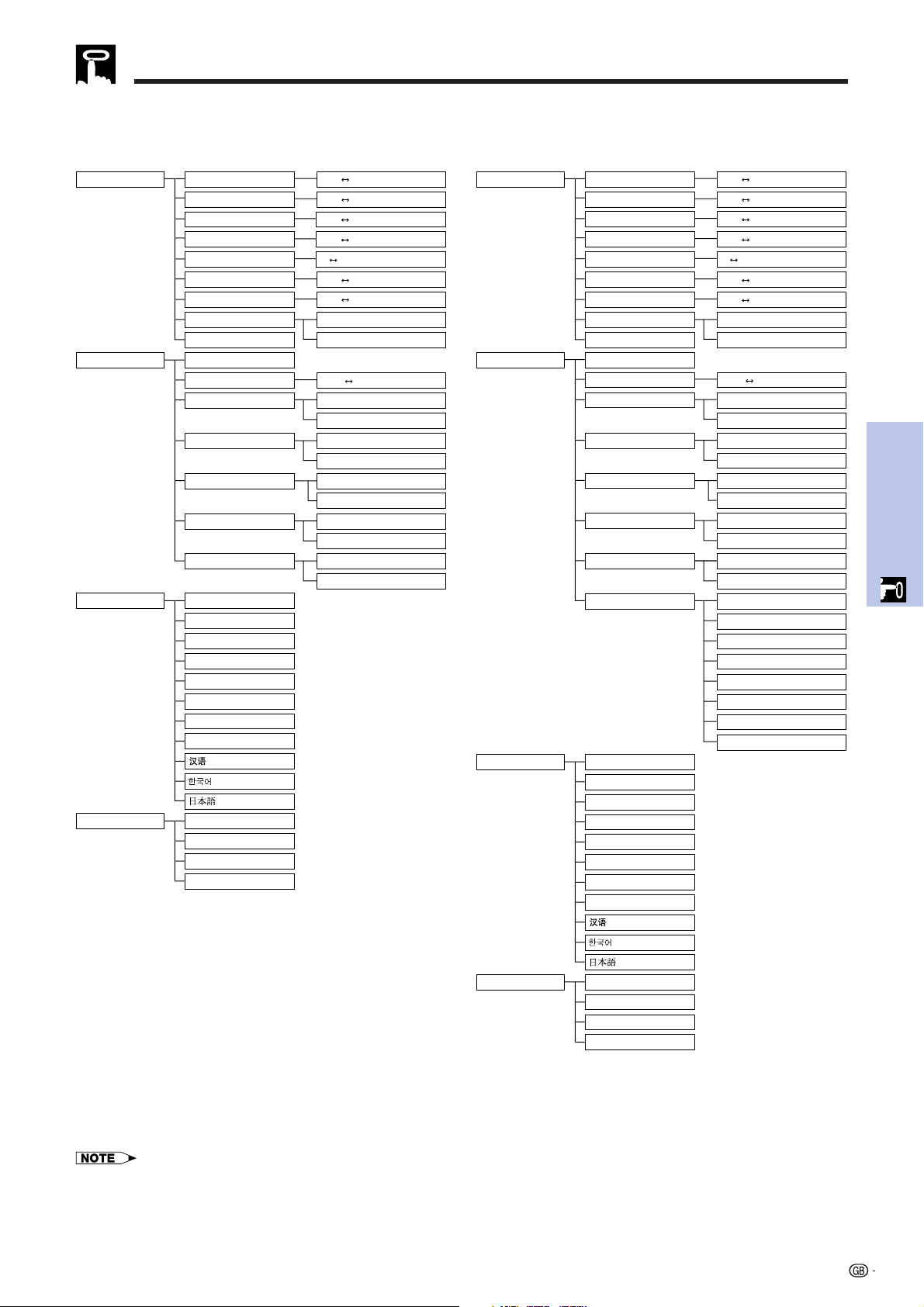
• For details on items on the menu screen, see the tree charts
on pages 28 and 29.
28
Operation
Items on the INPUT 1 (DVI) Mode Menu Bar
Using the GUI (Graphical User Interface) Menu Screens
Main menu Main menu
Sub menuSub menu
Fine Sync
Options Lamp Timer
AV Mute Disp.
Language English
PRJ Mode
CeilingⳭFront
CeilingⳭRear
Deutsch
Español
Nederlands
Français
Italiano
Svenska
Português
Front
Rear
OSD Display
Auto Power Off
Phase
Clock
H-Pos
V-Pos
Signal Info
Contrast
Picture
Bright
Red
Blue
Reset
Background
OFF
Keystone
ON
ON
OFF
Auto Source ON
OFF
ON
Ⳮ127ⳮ127
OFF
None
Blue
Resolution
Hor Freq
Vert Freq
XXX ⳯ YYY
XXX kHz
XXX Hz
CLR Temp
Low
High
Ⳮ30ⳮ30
Ⳮ30ⳮ30
Ⳮ30ⳮ30
Ⳮ30ⳮ30
Ⳮ30ⳮ30
Ⳮ15ⳮ15
Ⳮ30ⳮ30
Ⳮ30ⳮ30
Items on the INPUT 1 (RGB) Mode Menu Bar
Fine Sync
Options Lamp Timer
AV Mute Disp.
Language English
PRJ Mode
CeilingⳭFront
CeilingⳭRear
Deutsch
Español
Nederlands
Français
Italiano
Svenska
Português
Front
Rear
OSD Display
Auto Power Off
Phase
Clock
H-Pos
V-Pos
Signal Info
Contrast
Picture
Bright
Red
Blue
Reset
Background
OFF
Keystone
ON
ON
OFF
Auto Source ON
OFF
ON
Ⳮ127ⳮ127
OFF
None
Blue
Resolution
Hor Freq
Vert Freq
XXX ⳯ YYY
XXX kHz
XXX Hz
CLR Temp
Low
High
Ⳮ30ⳮ30
Ⳮ30ⳮ30
Ⳮ30ⳮ30
Ⳮ30ⳮ30
Ⳮ30ⳮ30
Ⳮ15ⳮ15
Ⳮ30ⳮ30
Ⳮ30ⳮ30
• The darkened items in the above chart will be displayed in gray and can not be selected.
29
Operation
Using the GUI (Graphical User Interface) Menu Screens
Items on the INPUT 1 (COMPONENT) Mode
Menu Bar
Main menu Sub menu
Color
Tint
Sharp
Options Lamp Timer
Language English
PRJ Mode
CeilingⳭFront
CeilingⳭRear
Deutsch
Español
Nederlands
Français
Italiano
Svenska
Português
Front
Rear
Contrast
Picture
Bright
Red
Blue
Background
Ⳮ30ⳮ30
Ⳮ30ⳮ30
Ⳮ30ⳮ30
Ⳮ30ⳮ30
None
Blue
CLR Temp
Reset
Low
High
Keystone
Ⳮ127ⳮ127
Ⳮ30ⳮ30
Ⳮ30ⳮ30
Ⳮ70
AV Mute Disp.
OSD Display
Auto Power Off
OFF
ON
ON
OFF
Auto Source ON
OFF
ON
OFF
Items on the INPUT 2 (S-VIDEO) or INPUT 3
(VIDEO) Mode Menu Bar
Main menu Sub menu
Color
Tint
Sharp
Options Lamp Timer
Language English
PRJ Mode
CeilingⳭFront
CeilingⳭRear
Deutsch
Español
Nederlands
Français
Italiano
Svenska
Português
Front
Rear
Contrast
Picture
Bright
Red
Blue
Background
Ⳮ30ⳮ30
Ⳮ30ⳮ30
Ⳮ30ⳮ30
Ⳮ30ⳮ30
None
NTSC 4.43
Blue
CLR Temp
Reset
Low
High
Video System
PAL
Auto
PAL-M
PAL-N
PAL (60 Hz)
NTSC 3.58
SECAM
Keystone
Ⳮ127ⳮ127
AV Mute Disp.
OSD Display
Auto Power Off
OFF
ON
ON
OFF
Auto Source ON
OFF
ON
OFF
Ⳮ30ⳮ30
Ⳮ30ⳮ30
Ⳮ70
•“Tint” does not appear when receiving “PAL”, “SECAM”, “PAL-M”, “PAL-N“ or “PAL (60Hz)” in the INPUT 2 (S-VIDEO) or INPUT 3 (VIDEO)
mode.
30
Operation
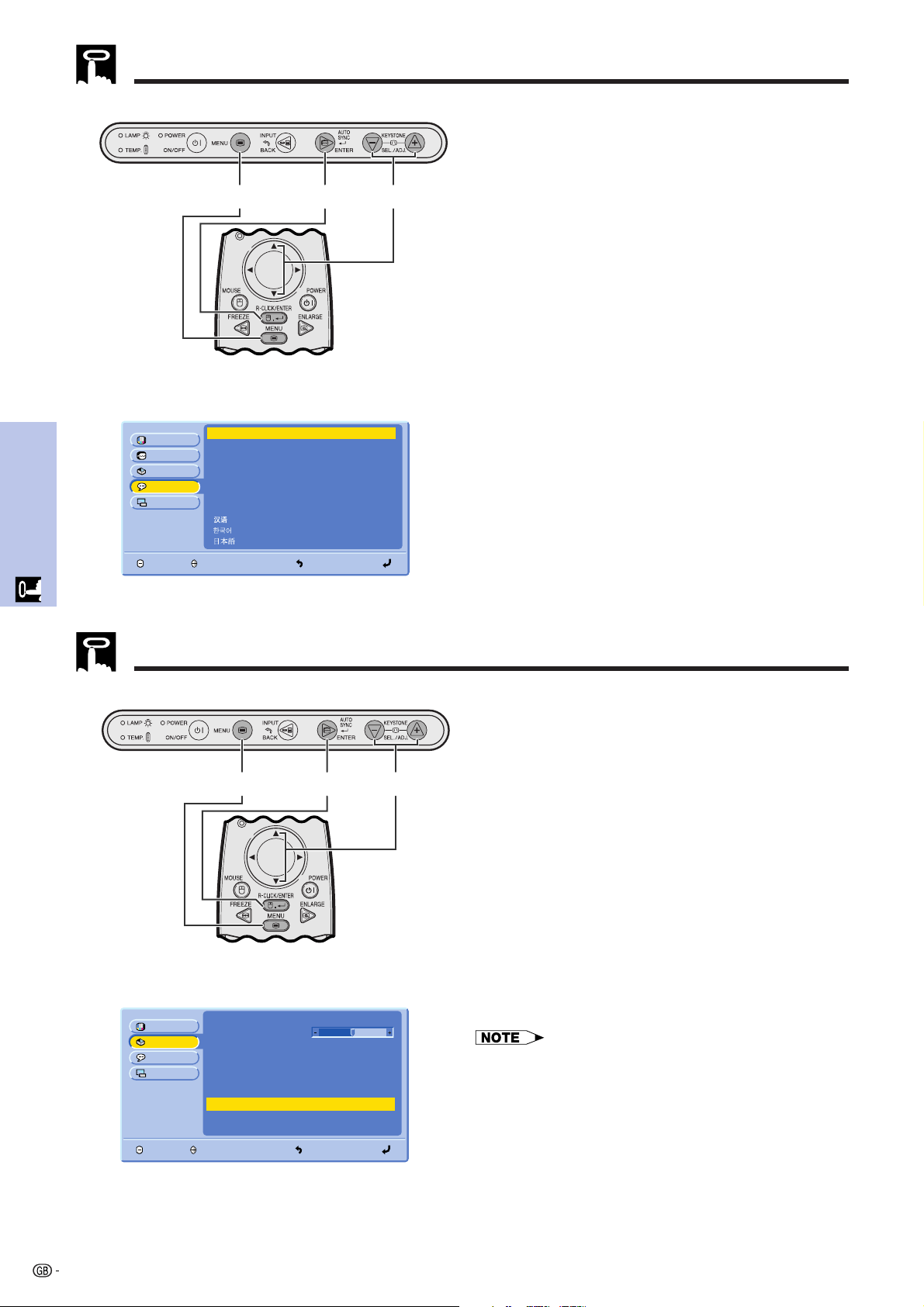
Selecting the On-screen Display Language
Projector
(GUI) On-screen Display
English is the preset language for the On-screen
Display. The language can be set to English, German,
Spanish, Dutch, French, Italian, Swedish, Portuguese,
Chinese, Korean or Japanese.
1 Press MENU.
2 Press ∂/ƒ to select “Language”, and then press
ENTER.
3 Press ∂/ƒ to select the desired language.
4 Press ENTER to save the setting. The On-screen
Display is now programed to display in the
language selected.
5 To exit from the GUI, press MENU.
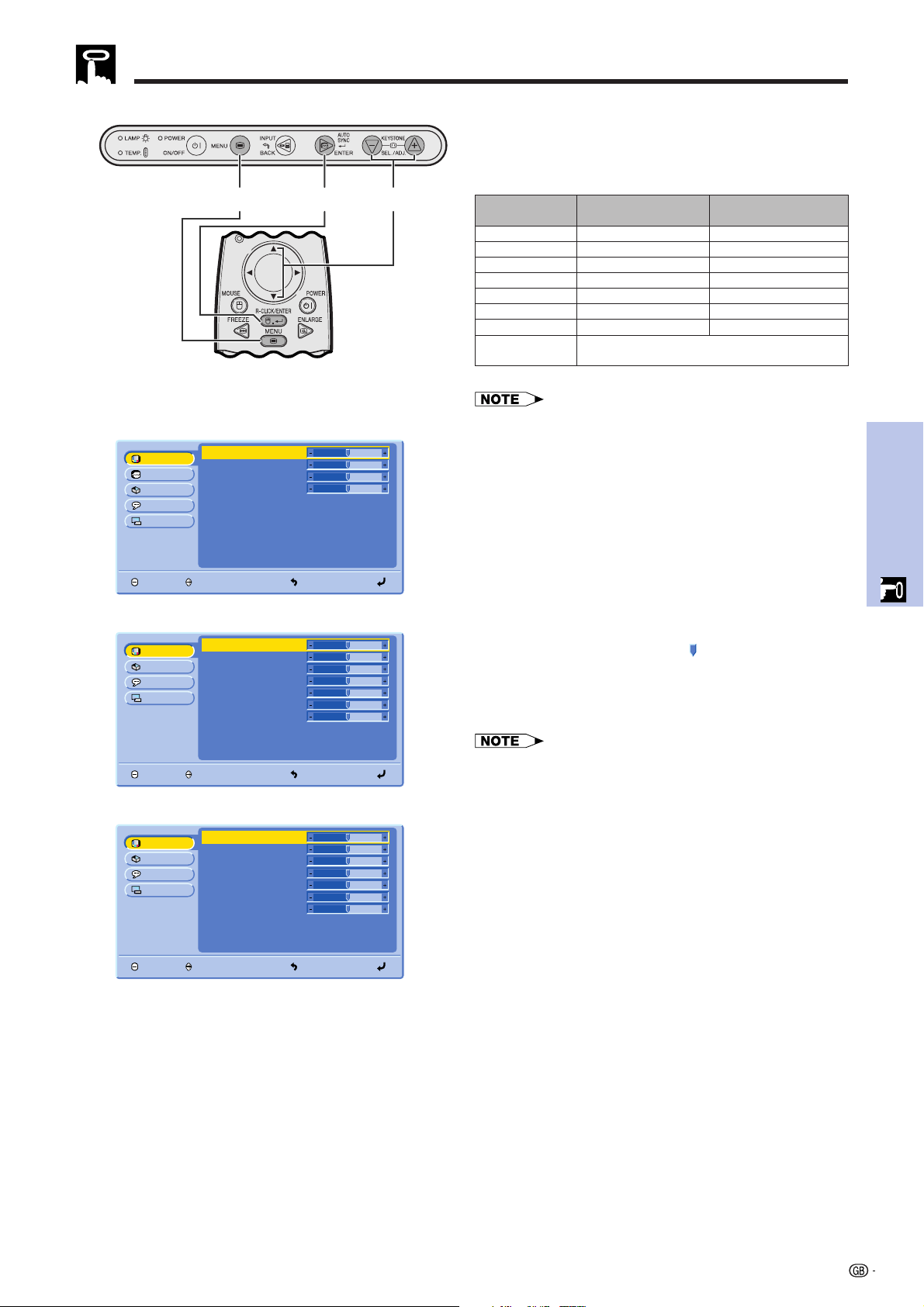
Selecting the Video Input System Mode (INPUT 2 or 3 only)
Projector
The video input system mode is preset to “Auto”;
however, it can be changed to a specific system mode,
if the selected system mode is not compatible with the
connected audiovisual equipment.
1 Press MENU.
2 Press ∂/ƒ to select “Options”, and then press
ENTER.
3 Press ∂/ƒ to select “Video Systems”, and then
press ENTER.
4 Press ∂/ƒ to select the desired video system
mode.
5 Press ENTER to save the setting.
6 To exit from the GUI, press MENU.
• When the system mode is set to “Auto”, you may not receive
a clear picture due to signal differences. Should this occur,
switch to the video system of the source signal.
(GUI) On-screen Display
2, 32, 41, 5
Remote control
2,3,42,3,51,6
Remote control
English
Picture
Options
Fine Sync
Language
PRJ Mode
END SELECT BACK ENTER
Español
Deutsch
Nederlands
Français
Italiano
Svenska
Português
Picture
Options
Language
PRJ Mode
END SELECT BACK ENTER
Lamp Timer
Keystone
AV Mute Disp.
OSD Display
Auto Power Off
Background
Video System
Blue
Auto
ON
ON
ON
Auto Source ON
100
0
31
Operation
Contrast
Picture
Options
Fine Sync
Language
PRJ Mode
END SELECT BACK ENTER
Bright
Red
Blue
CLR Temp
Reset
0
0
0
0
High
Contrast
Picture
Options
Language
PRJ Mode
END SELECT BACK ENTER
Bright
Color
Tint
Sharp
Red
Blue
CLR Temp
0
0
0
0
0
0
0
High
Reset
Picture Adjustments
Projector
(GUI) On-screen Display
INPUT 1 (RGB) Mode
INPUT 2 (S-VIDEO) or INPUT 3 (VIDEO) Mode
2,3,42,31,5
Remote control
Contrast
Picture
Options
Language
PRJ Mode
END SELECT BACK ENTER
Bright
Color
Tint
Sharp
Red
Blue
CLR Temp
0
0
0
0
0
0
0
High
Reset
INPUT 1 (COMPONENT) Mode
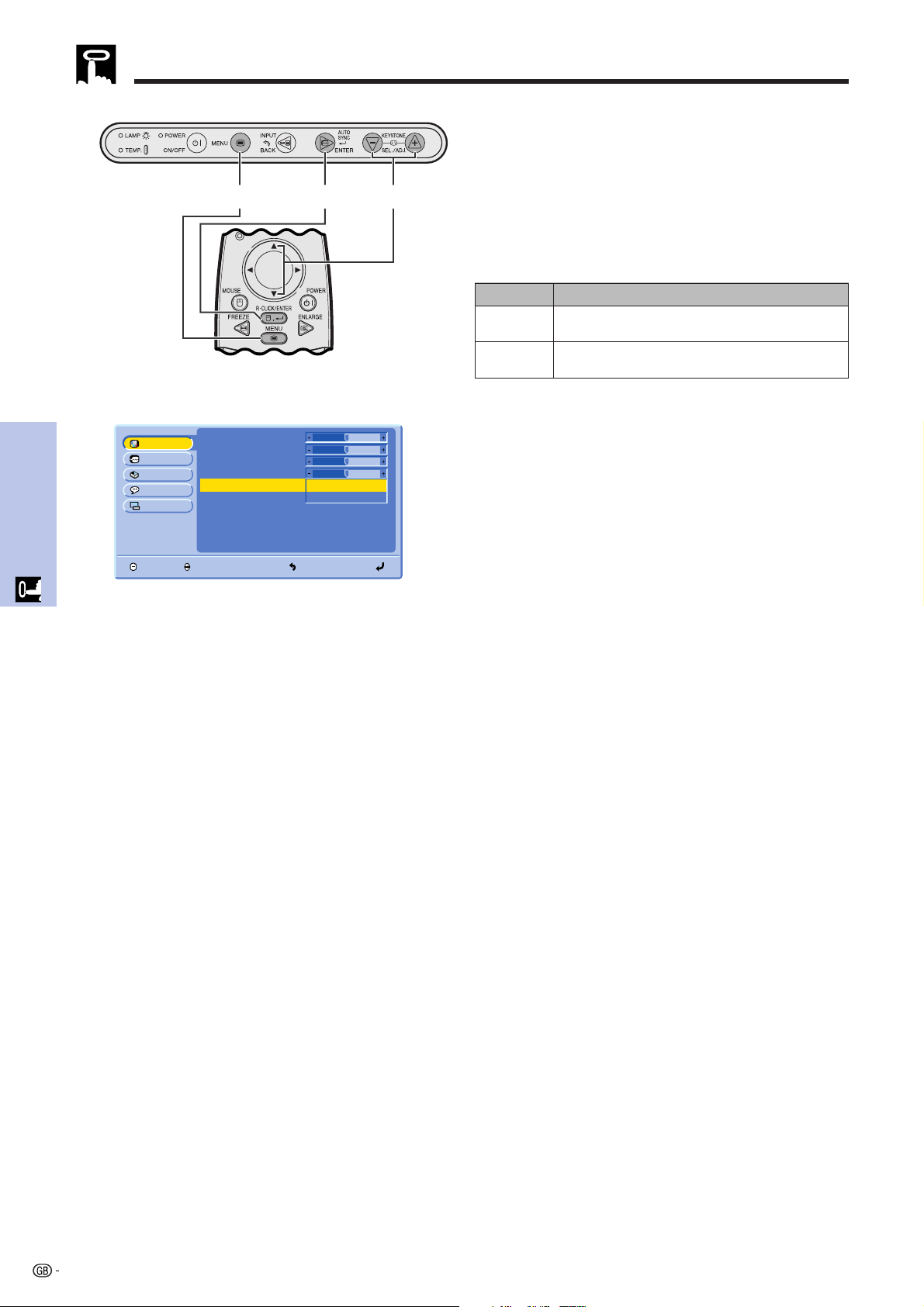
Adjusting the Picture
You can adjust the projector’s picture to your prefer-
ences with the following picture settings.
All image adjustment items are returned to the factory preset
settings.
Description of Adjustment Items
For less contrast
For less brightness
For less color intensity
Skin tones become purplish
For less sharpness
For weaker red
For weaker blue
Selected item
For more contrast
For more brightness
For more color intensity
Skin tones become greenish
For more sharpness
For stronger red
For stronger blue
ƒ button
∂ button
Contrast
Bright
Color
Tint
Sharp
Red
Blue
Reset
• These adjustments do not work in INPUT 1 (DVI) mode.
•“Color”, “Tint” and “Sharp” do not appear in INPUT 1 (DVI)
or (RGB) mode.
1 Press MENU.
2 Press ∂/ƒ to select “Picture”, and then press
ENTER.
3 Press ∂/ƒ to select a specific adjustment item,
and then press ENTER.
The items except the selected one will be
displayed in gray.
4 Press ∂/ƒ to move the mark of the selected
adjustment item to the desired setting.
5 To exit from the GUI, press MENU.
• To reset all adjustment items, select “Reset”, and then press
ENTER.
32
Operation
Contrast
Picture
Options
Fine Sync
Language
PRJ Mode
END SELECT BACK ENTER
Bright
Red
Blue
CLR Temp
Reset
0
0
0
0
High
Low
Picture Adjustments
Selecting the Color Temperature
(GUI) On-screen Display
Projector
2,3,42,3,41,5
This function can be used to adjust the color
temperature to suit the type of image input to the
projector (video, computer image, TV broadcast, etc.).
Decrease the color temperature to create warmer,
reddish images for natural flesh tones. Increase the color
temperature to create cooler, bluish images for a brighter
picture.
Description of Color Temperature
Remote control
Increases color temperature for cooler, bluish,
florescent-like images. (High color temperature)
Decreases color temperature for warmer, reddish,
incandescent-like images. (Low color temperature)
Selected item Description
High
Low
1 Press MENU.
2 Press ∂/ƒ to select “Picture”, and then press
ENTER.
3 Press ∂/ƒ to select “CLR Temp”, and then press
ENTER.
4 Press ∂/ƒ to select “High” or “Low”, and then
press ENTER.
5 To exit from the GUI, press MENU.
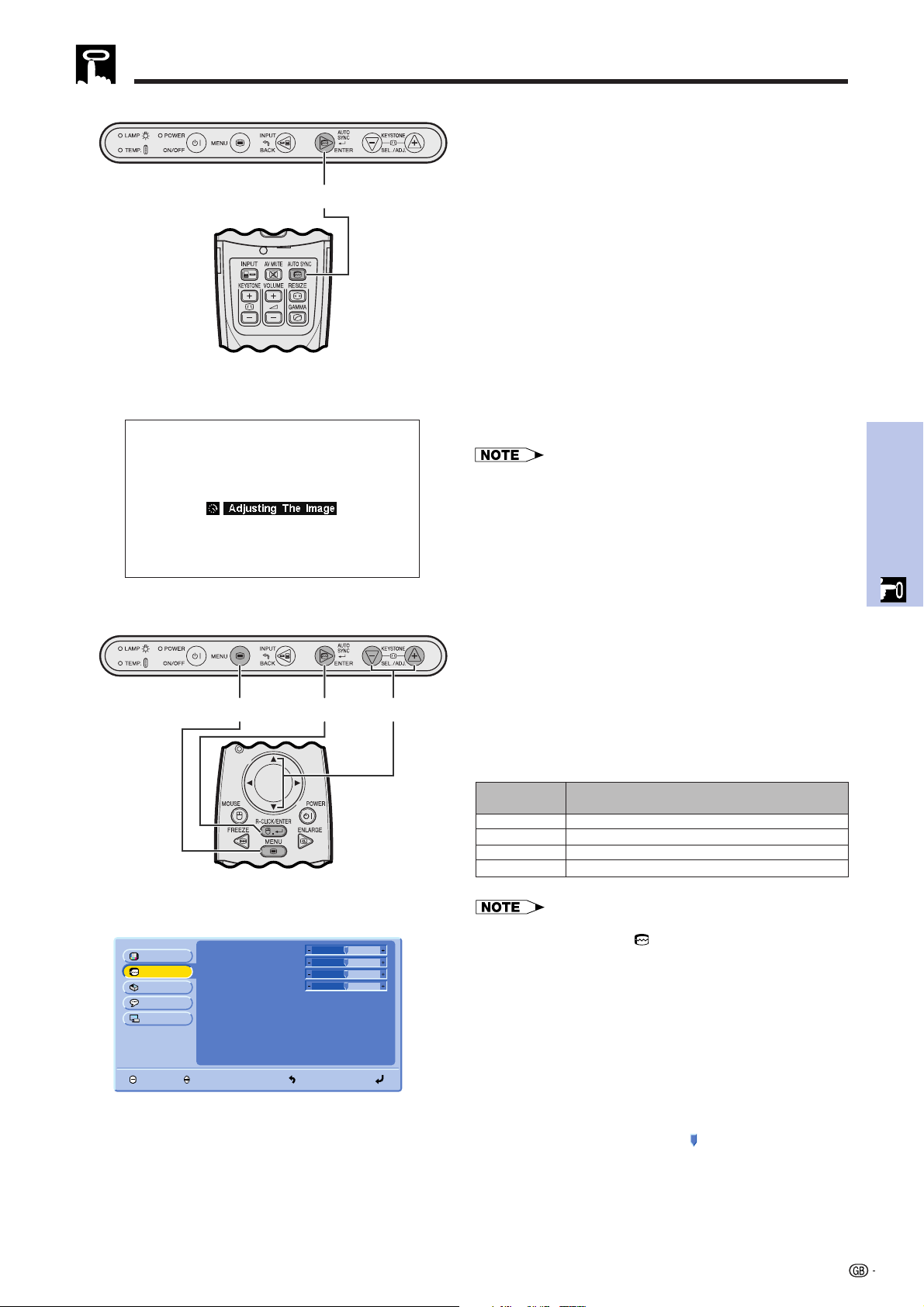
33
Operation
Computer Image Adjustments (INPUT 1 (RGB) mode only)
Auto Sync Adjustment
• Used to automatically adjust a computer image.
• Auto Sync adjustment can be made manually by
pressing AUTO SYNC.
1 Press AUTO SYNC.
During Auto Sync adjustment, “Adjusting The Image”
is displayed as shown on the left.
• Auto Sync adjustment may take some time to complete,
depending on the image of the computer connected to the
projector.
• When the optimum image cannot be achieved with Auto
Sync adjustment, use manual adjustments. (See the steps
below.)
Projector
On-screen Display
1
Clock
Picture
Options
Fine Sync
Language
PRJ Mode
END SELECT BACK ENTER
Phase
H-Pos
V-Pos
Signal Info
0
0
0
0
Adjusting the Computer Image
When displaying computer patterns which are very
detailed (tiling, vertical stripes, etc.), interference may
occur, causing flickering, vertical stripes, or contrast
irregularities in portions of the screen. Should this occur,
adjust “Clock”, “Phase”, “H-Pos” and “V-Pos” for the
optimum computer image.
• Computer image adjustments can be made easily by
pressing AUTO SYNC (
). See the step above for details.
(GUI) On-screen Display
Projector
Adjusts vertical noise.
Adjusts horizontal noise (similar to tracking on your VCR).
Centers the on-screen image by moving it to the left or right.
Centers the on-screen image by moving it up or down.
Clock
Phase
H-Pos
V-Pos
Description of Adjustment Items
(Select the desired computer input mode with INPUT.)
1 Press MENU.
2 Press ∂/ƒ to select “Fine Sync”, and then press
ENTER.
3 Press ∂/ƒ to select a specific adjustment item,
and then press ENTER.
4 Press ∂/ƒ to move the mark of the selected
adjustment item to the desired setting.
5 To exit from the GUI, press MENU.
DescriptionSelected item
Remote control
2,3,42,31,5
Remote control
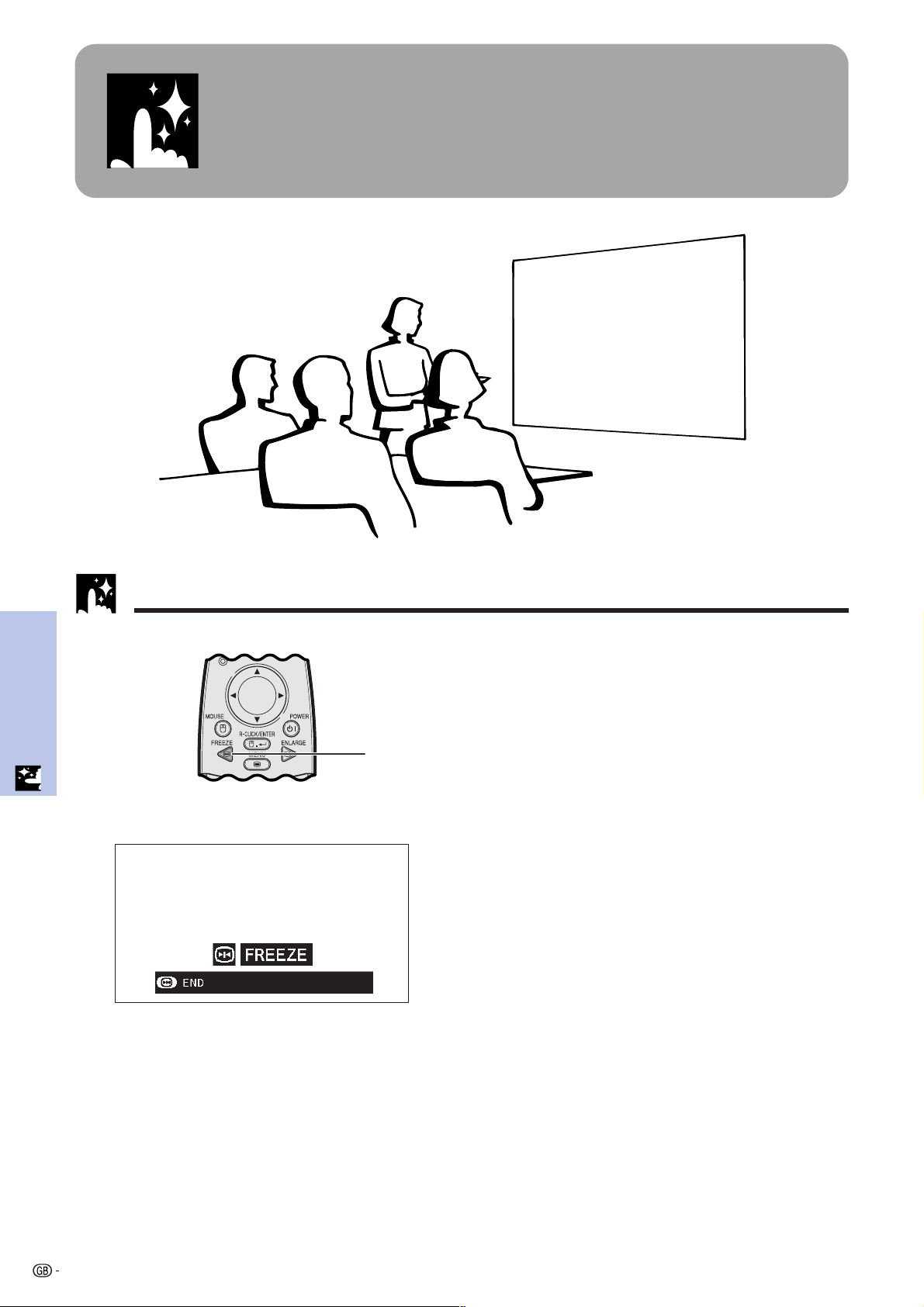
34
Useful Features
Useful Features
Freeze Function
This function allows you to instantly freeze a moving
image. This is useful when you want to display a still
image from a computer or video, giving you more time
to explain the image to the audience.
You can also use this function to display a still image
from a computer while you make preparations for the
next computer images to be presented.
1 Press FREEZE on the remote control to freeze
the image.
2 Press FREEZE again to return to the moving
image.
Remote control
1, 2
• If the input signal is changed by pressing INPUT during
FREEZE, the function releases.
On-screen Display
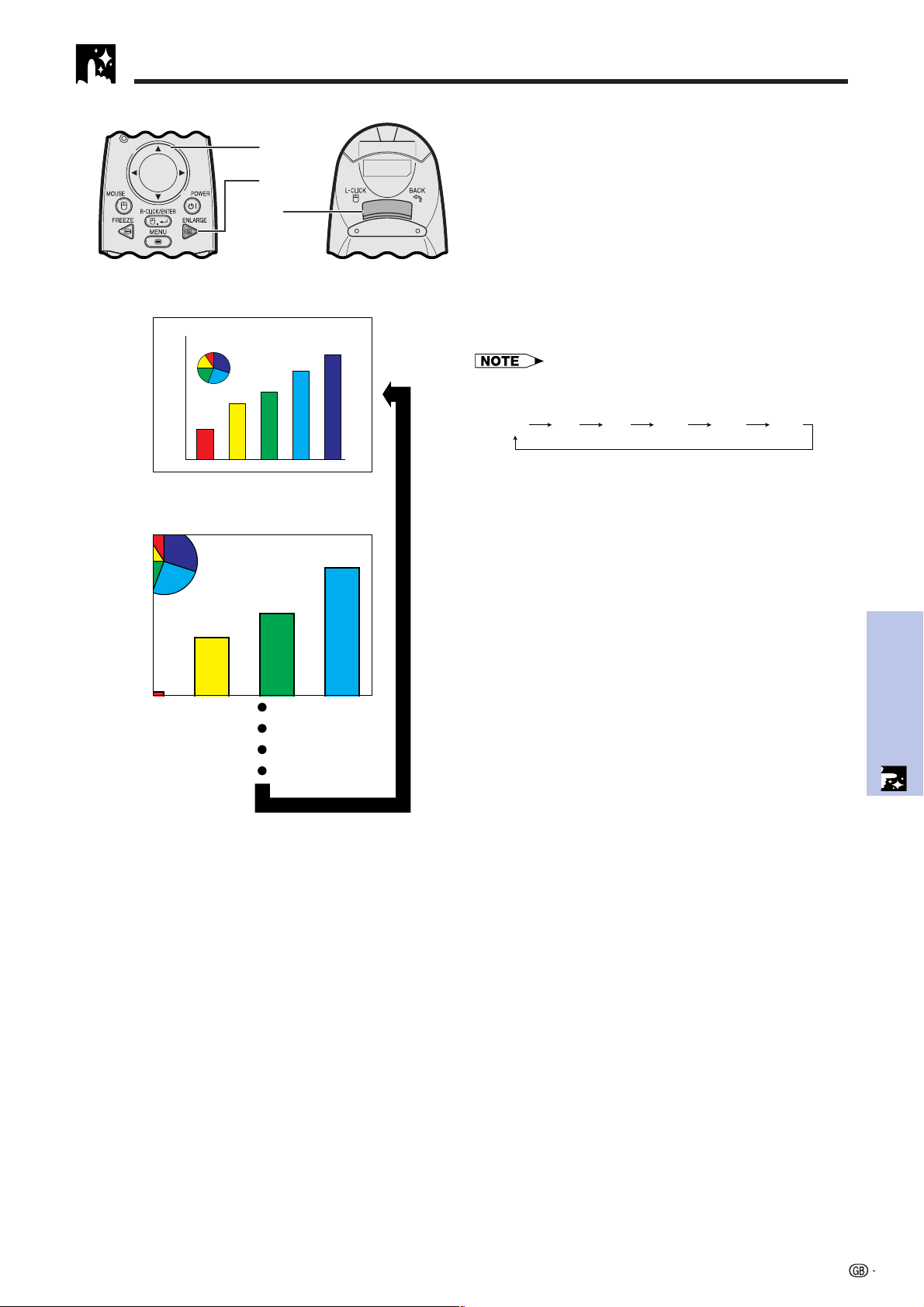
35
Useful Features
Digital Image Magnification
This function allows you to magnify a specific portion of
an image. This is useful when you want to display a
detailed portion of the image.
1 Press ENLARGE on the remote control. Each time
ENLARGE is pressed, the image will be
magnified.
2 When the image is magnified, you can pan and
scan around the image by using ∂/ß/ƒ/©.
3 To return to ⳯ 1, press BACK (on the remote
control only).
• Each time ENLARGE is pressed, image magnification
toggles as shown below.
ⴒ1 ⴒ4 ⴒ9 ⴒ16 ⴒ36 ⴒ64
• If the input signal is changed during digital image
magnification, the image will return to ⳯1. The input signal
is changed
(a) when INPUT is pressed,
(b) when the input signal is interrupted, or
(c) when the input resolution and refresh rate changes.
Remote control
s
On-screen Display
3
1
2
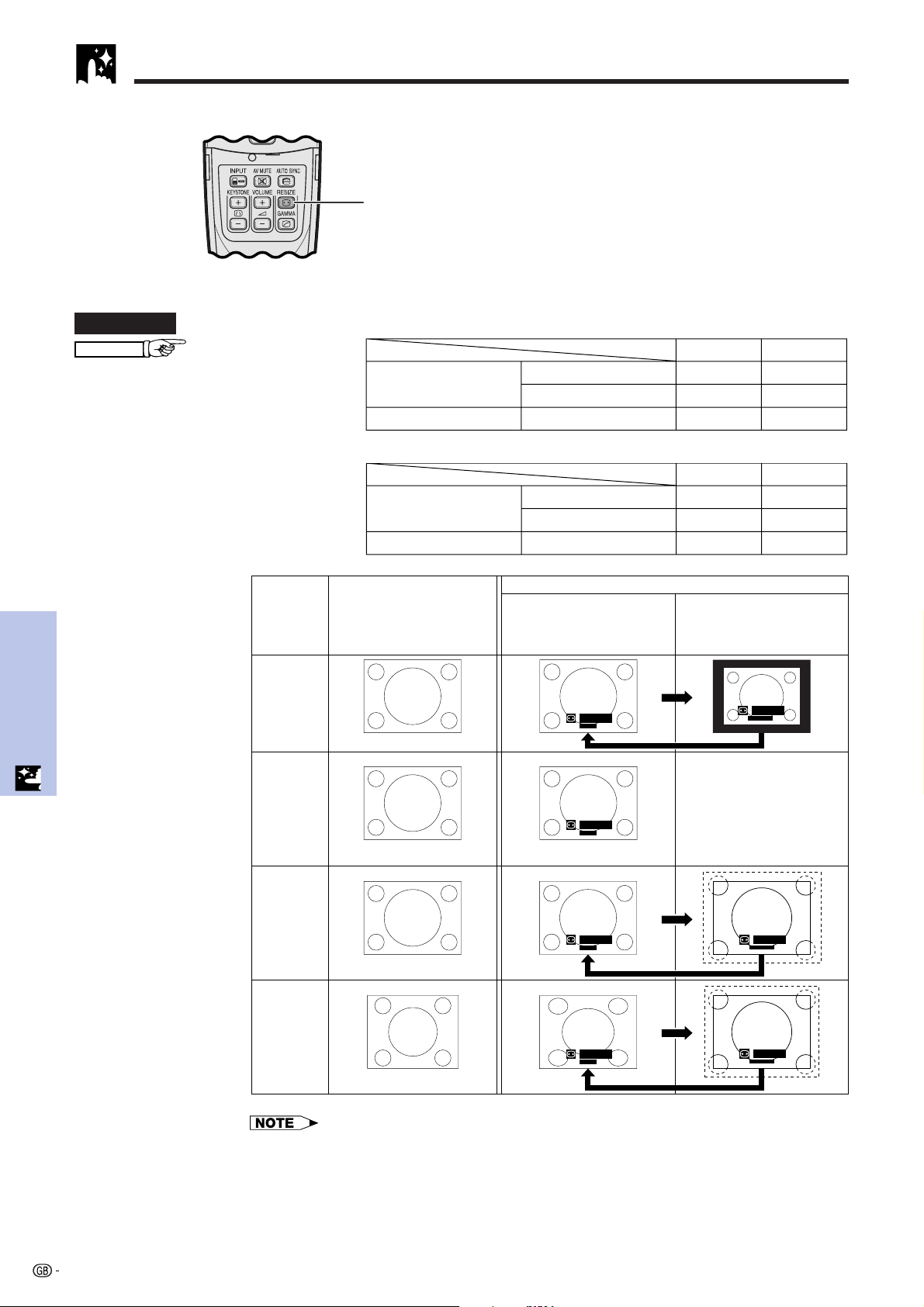
36
Useful Features
1
Selecting the Picture Display Mode
Remote control This function allows you to modify or customize the
picture display mode to enhance the input image.
Depending on the input signal, you can choose the
picture display mode preferred.
1 Press RESIZE on the remote control. Each time
RESIZE is pressed, the picture mode changes
as shown below.
COMPUTER
EXAMPLE
SVGA (800 ⳯ 600)
XGA (1024 ⳯ 768)
SXGA (1280 ⳯ 1024)
1024 ⳯ 768
1024 ⳯ 768
1024 ⳯ 768
800 ⳯ 600
–
1280 ⳯1024
PG-M15X
NORMAL DOT BY DOT
4:3 aspect ratio
Other aspect ratios
PG-M15S
SVGA (800 ⳯ 600)
XGA (1024 ⳯ 768)
SXGA (1280 ⳯ 1024)
800 ⳯ 600
800 ⳯ 600
800 ⳯ 600
–
1024 ⳯ 768
1280 ⳯ 1024
NORMAL DOT BY DOT
4:3 aspect ratio
Other aspect ratios
VGA,
SVGA
(PG-M15X)
VGA
(PG-M15S)
XGA
(PG-M15S)
XGA
(PG-M15X)
SVGA
(PG-M15S)
SXGA
(PG-M15X)
SXGA
(PG-M15S)
Output screen image
Input Signal
NORMAL DOT BY DOT
RESIZE
NORMAL
NORMAL
RESIZE
NORMAL
RESIZE
RESIZE
DOT BY DOT
RESIZE
DOT BY DOT
RESIZE
NORMAL
RESIZE
DOT BY DOT
PG-M15X
• When inputting an XGA (1024⳯768) signal, the image display is set in NORMAL mode, and
DOT BY DOT selection is not available.
PG-M15S
• When inputting an SVGA (800⳯600) signal, the image display is set in NORMAL mode, and
DOT BY DOT selection is not available.
Projects a full screen image.
Projects the original resolution
signal of the image.
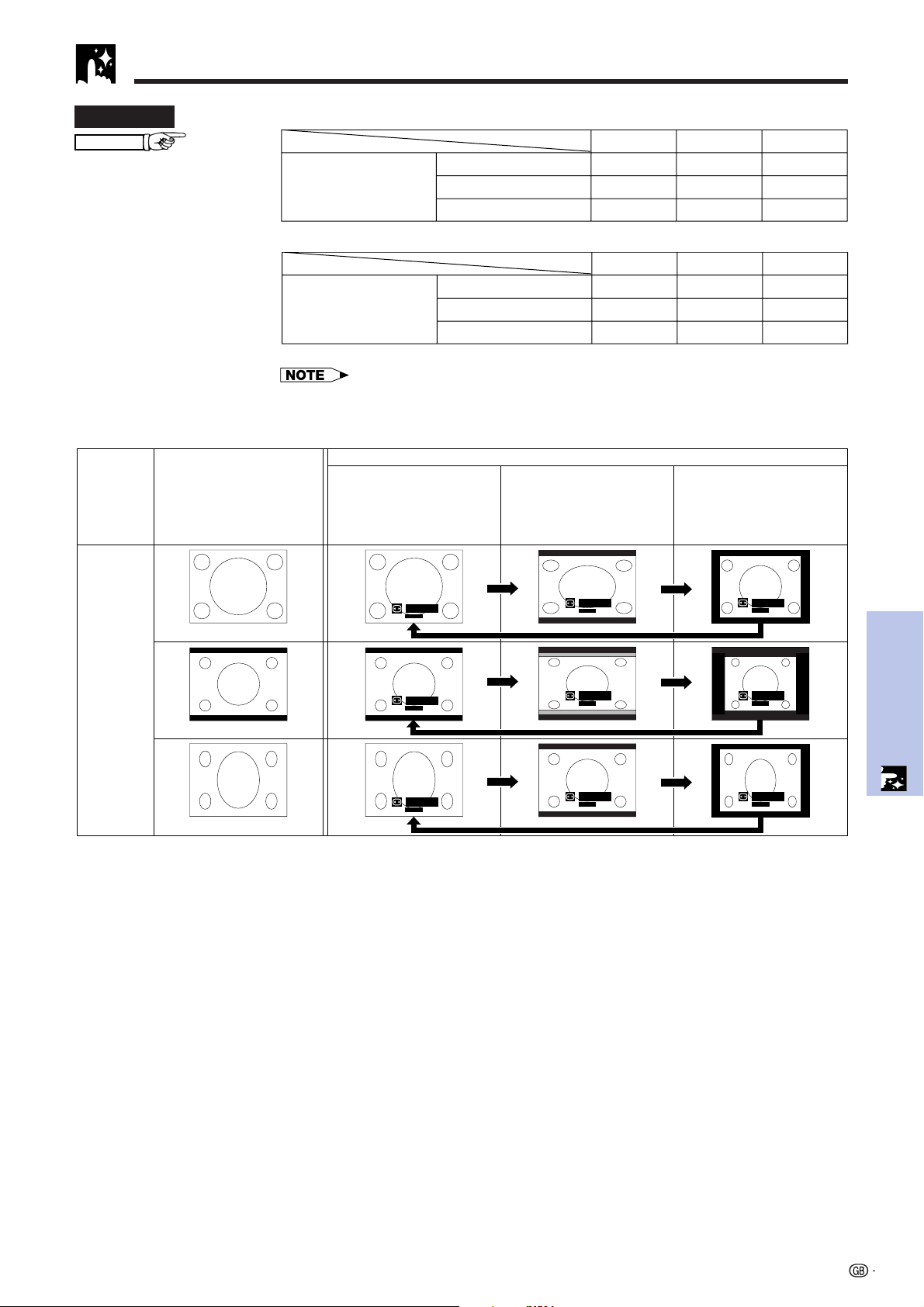
37
Useful Features
Selecting the Picture Display Mode
DVD/VIDEO
EXAMPLE
4:3 1024 ⳯ 768
1024 ⳯ 768
1024 ⳯ 768
1024 ⳯ 576
1024 ⳯ 576
1024 ⳯ 576
768 ⳯ 576
768 ⳯ 576
768 ⳯ 576
PG-M15X
NORMAL BORDERSTRETCH
4:3 aspect ratio
480I, NTSC,
PAL, SECAM
Squeeze
Letterbox
PG-M15S
4:3
800 ⳯ 600
800 ⳯ 600
800 ⳯ 600
800 ⳯ 450
800 ⳯ 450
800 ⳯ 450
600 ⳯ 450
600 ⳯ 450
600 ⳯ 450
NORMAL BORDERSTRETCH
4:3 aspect ratio
480I, NTSC,
PAL, SECAM
Letterbox
Squeeze
• Letterbox: The 4:3 pixel area where the image is recorded. The black bands at the top
and bottom are unused pixels.
• Squeeze: Compresses an enhanced image (e.g. 16:9) to a 4:3 image display.
480I,
NTSC,
PAL,
SECAM
Output screen image
Input Signal
NORMAL STRETCH BORDER
4:3 aspect ratio
Letterbox
Squeeze
RESIZE
NORMAL
RESIZE
NORMAL
RESIZE
NORMAL
RESIZE
STRETCH
RESIZE
STRETCH
RESIZE
STRETCH
RESIZE
BORDER
RESIZE
BORDER
RESIZE
BORDER
Projects a full screen image.
Projects 16:9 image evenly
over entire screen (top/bottom
cut out).
Projects 4:3 image fully (left/
right cut out) in stretched 16:9
image display (see left).
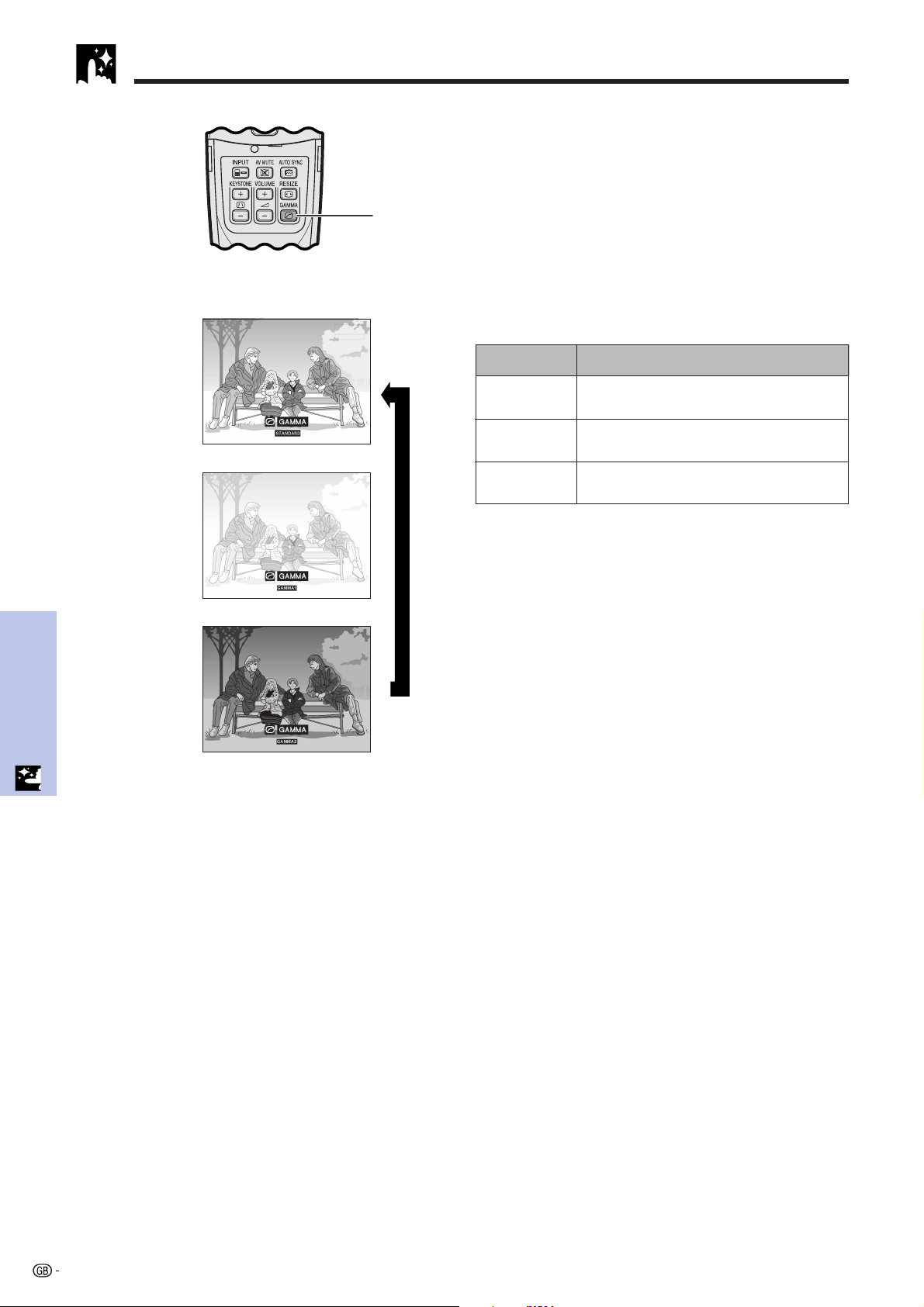
38
Useful Features
Gamma Correction
• Gamma is an image quality enhancement function
that offers a richer image by brightening the darker
portions of the image without altering the brightness
of the brighter portions.
• Three gamma settings are available to allow for
differences in the images displayed and in the
brightness of the room.
• When you are displaying images with frequent, dark
scenes, such as a film or concert, or when you are
displaying images in a bright room, this feature makes
the dark scenes easier to see and gives the impres-
sion of greater depth in the image.
Gamma Modes
Remote control
On-screen Display
ss
STANDARD
GAMMA 1
GAMMA 2
1
1 Press GAMMA on the remote control. Each time
GAMMA is pressed, the gamma level toggles as
shown on the left.
Gamma mode
Selected Mode
Standard picture without gamma correction.
Brightens darker portions of image for more
enhanced presentations.
Gives greater depth to darker portions of image
for a more exciting theater experience.
STANDARD
GAMMA 1
GAMMA 2
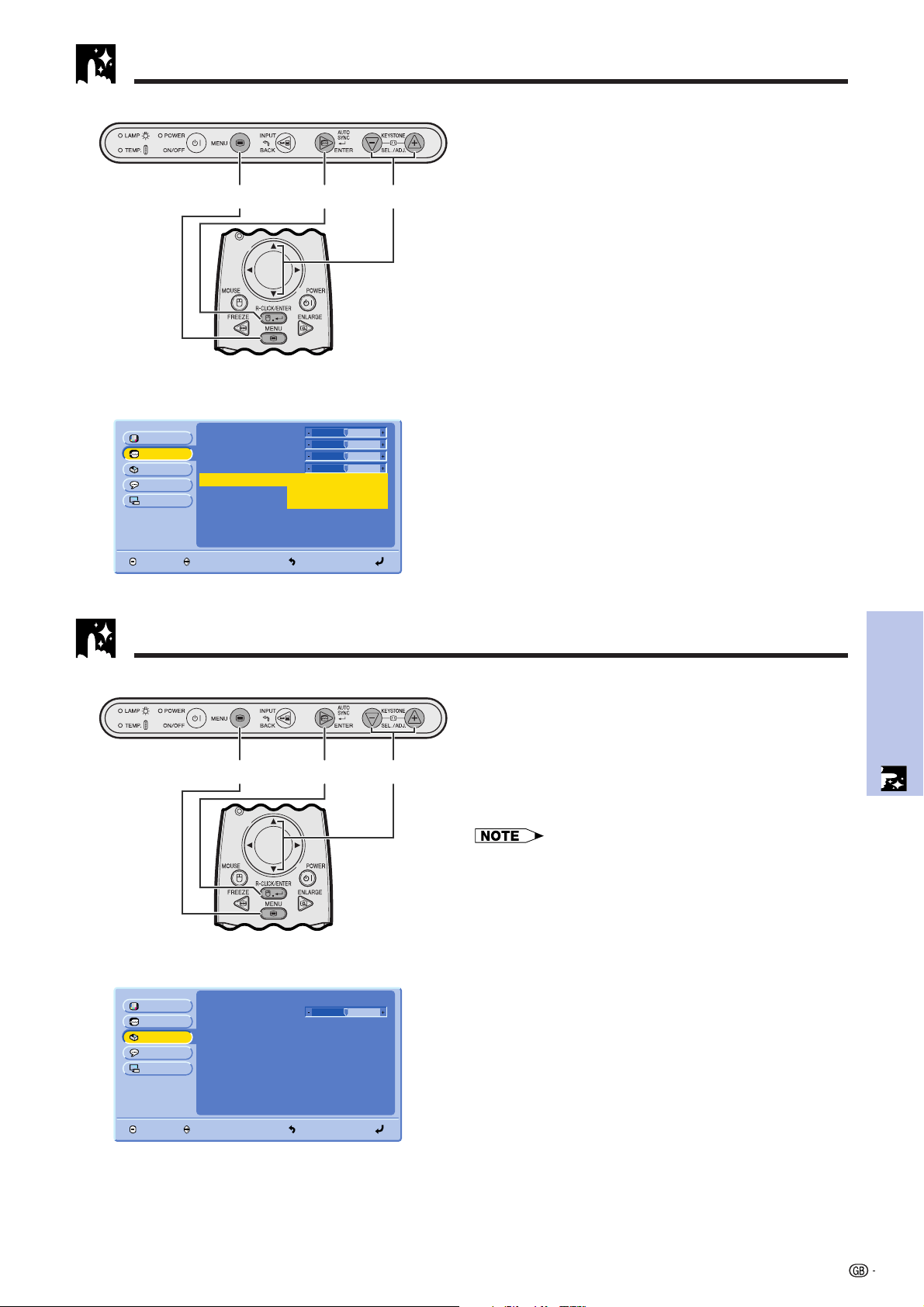
39
Useful Features
Checking the Input Signal (INPUT 1 (DVI) mode or (RGB) mode only)
Clock
Picture
Options
Fine Sync
Language
PRJ Mode
END SELECT BACK ENTER
Phase
H-Pos
V-Pos
Signal Info
Resolution
Hor Freq
Vert Freq
1024 ⳯ 768
46.3 kHz
60 Hz
0
0
0
0
Checking the Lamp Usage Time
This function allows you to check the current input signal
information.
1 Press MENU.
2 Press ∂/ƒ to select “Fine Sync”, and then press
ENTER.
3 Press ∂/ƒ to select “Signal Info”, and then press
ENTER.
4 To exit from the GUI, press MENU.
Projector
(GUI) On-screen Display
2, 32, 31, 4
Remote control
Lamp Timer
Keystone
Picture
Options
Fine Sync
Language
PRJ Mode
END SELECT BACK ENTER
AV Mute Disp.
OSD Display
Auto Power Off
Background Blue
ON
ON
ON
Auto Source ON
100
0
This function allows you to check the accumulated lamp
usage time.
1 Press MENU.
2 Press ∂/ƒ to select “Options”, and then press
ENTER. The current lamp usage time will be
displayed.
• It is recommended that the lamp be replaced after
approximately 1,400 hours of usage. See pages 47 and 48
for lamp replacement.
(GUI) On-screen Display
Projector
221
Remote control
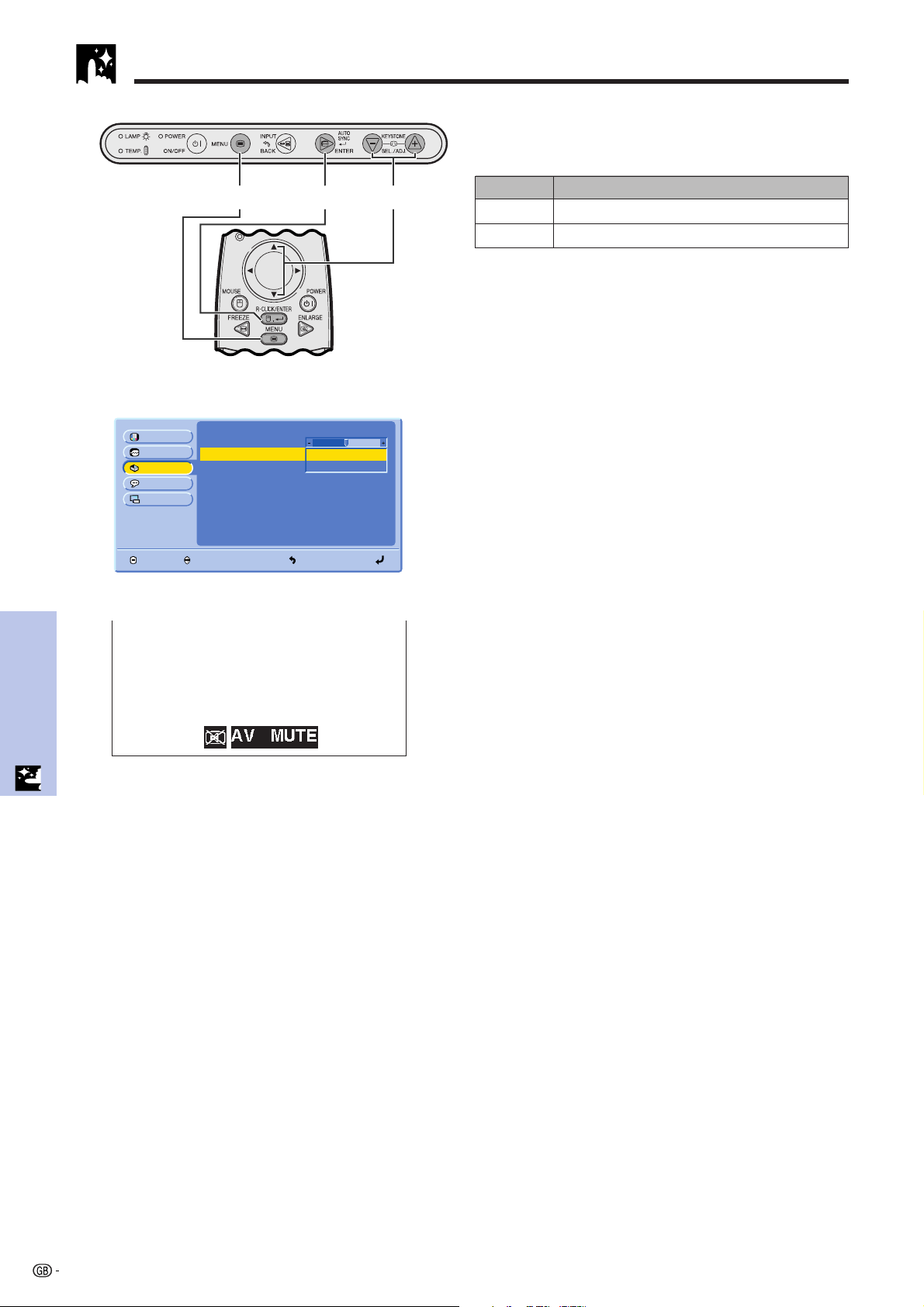
40
Useful Features
Turning On/Off the AV Mute Message
Lamp Timer
Keystone
Picture
Options
Fine Sync
Language
PRJ Mode
END SELECT BACK ENTER
AV Mute Disp.
OSD Display
Auto Power Off
Background Blue
ON
Auto Source ON
100
0
ON
OFF
This function allows you to turn off the on-screen
message that appears during AV mute is on.
Description of AV Mute Display
1 Press MENU.
2 Press ∂/ƒ to select “Options”, and then press
ENTER.
3 Press ∂/ƒ to select “AV Mute Disp”, and then
press ENTER.
4 Press ∂/ƒ to select “ON” or “OFF”, and then
press ENTER.
5 To exit from the GUI, press MENU.
Projector
(GUI) On-screen Display
2,3,42,3,41,5
Remote control
“AV MUTE” is displayed.
“AV MUTE” is not displayed.
OFF
Selected item Description
ON
On-screen Display
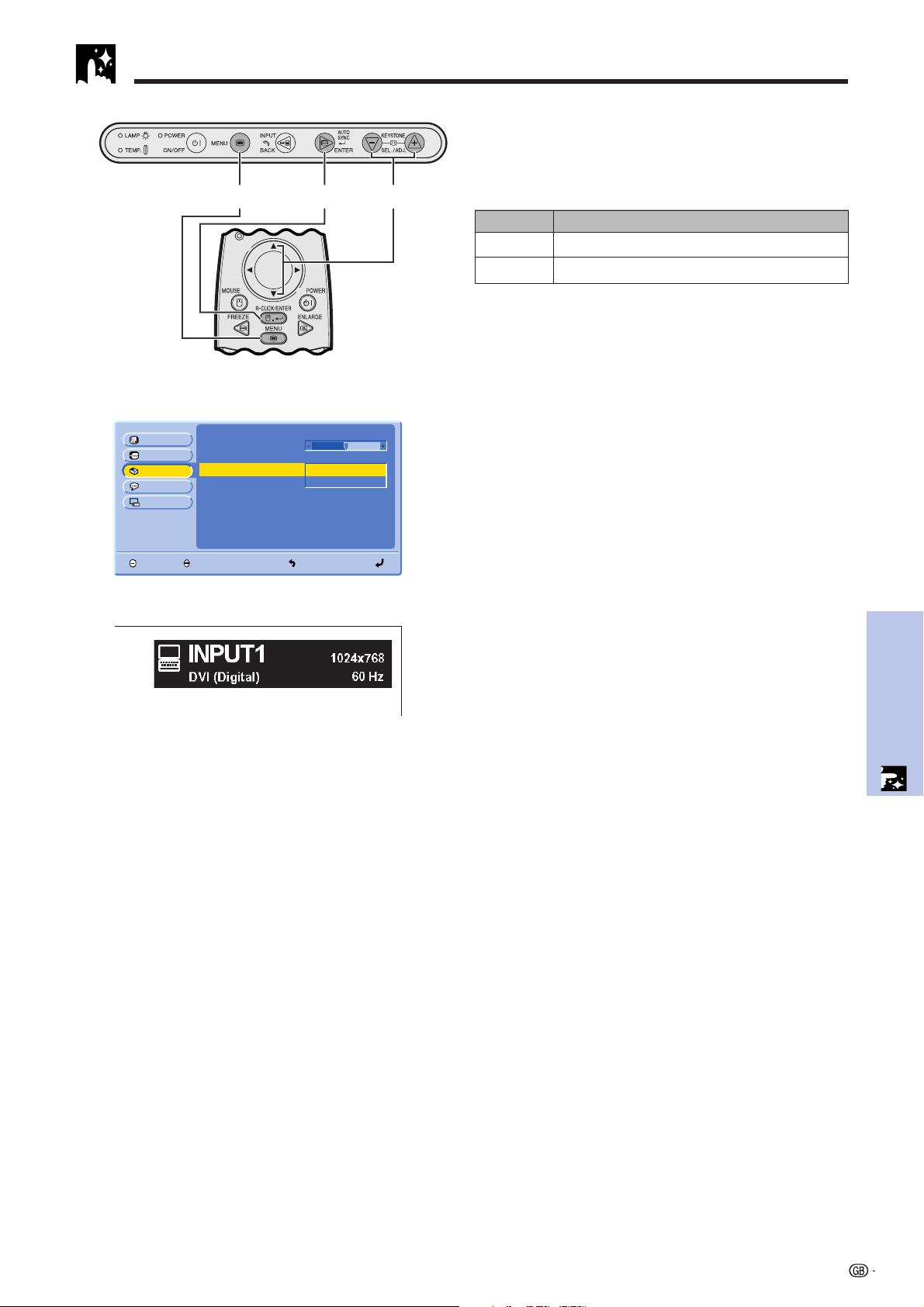
41
Useful Features
Lamp Timer
Keystone
Picture
Options
Fine Sync
Language
PRJ Mode
END SELECT BACK ENTER
AV Mute Disp.
OSD Display
Auto Power Off
Background Blue
ON
Auto Source ON
100
0
ON
OFF
On-screen Display Override Function
This function allows you to turn off the on-screen
messages that appear during input select. Once “OSD
Display” is set to “OFF” in the GUI menu, the on-screen
messages will not appear.
Description of OSD Display
1 Press MENU.
2 Press ∂/ƒ to select “Options”, and then press
ENTER.
3 Press ∂/ƒ to select “OSD Display”, and then
press ENTER.
4 Press ∂/ƒ to select “ON” or “OFF”, and then
press ENTER.
5 To exit from the GUI, press MENU.
Projector
(GUI) On-screen Display
2,3,42,3,41,5
Remote control
On-screen Display is displayed.
ON
Selected item Description
On-screen Display is not displayed.
OFF
On-screen Display
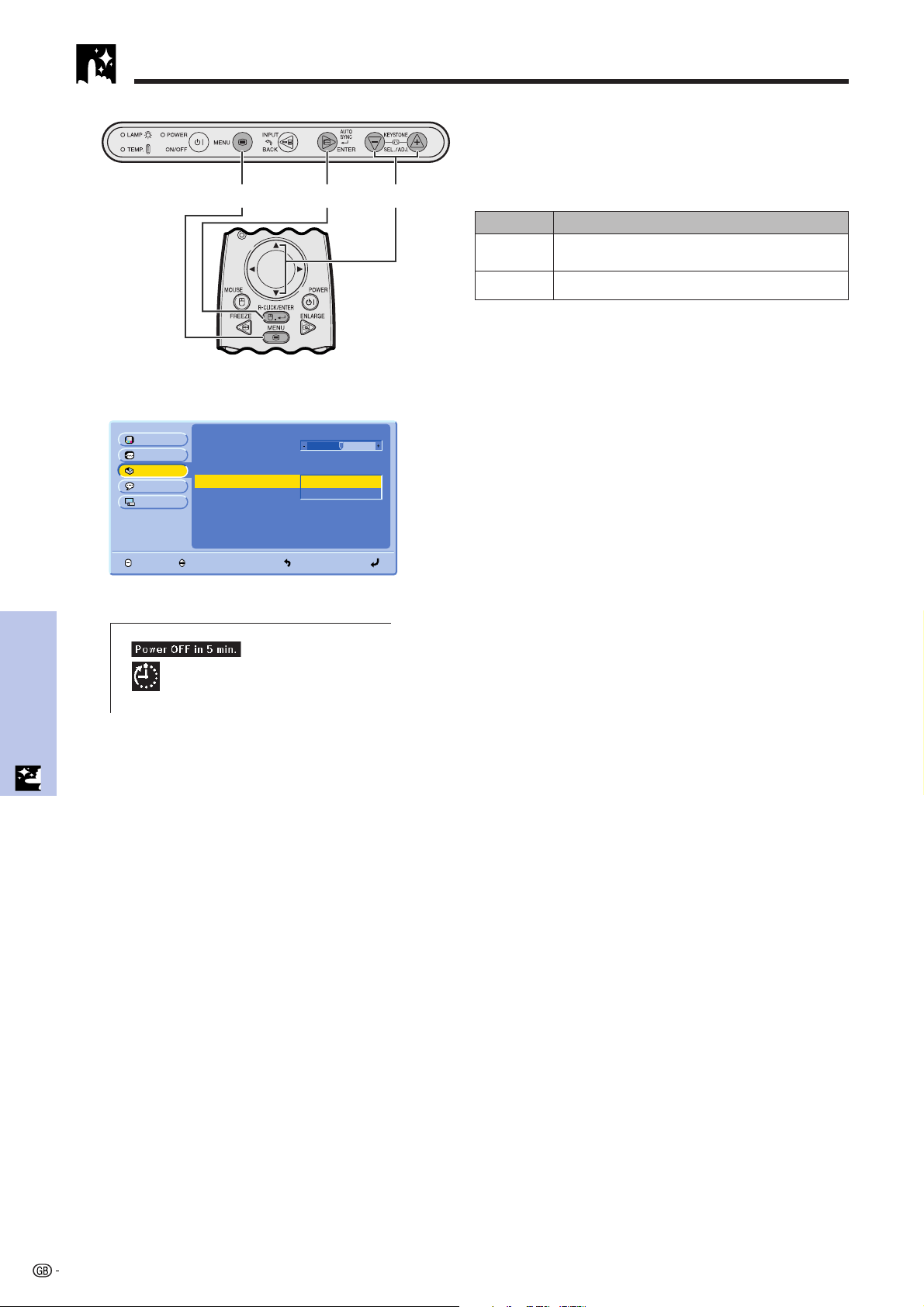
42
Useful Features
Lamp Timer
Keystone
Picture
Options
Fine Sync
Language
PRJ Mode
END SELECT BACK ENTER
AV Mute Disp.
OSD Display
Auto Power Off
Background Blue
ON
ON
Auto Source
100
0
ON
OFF
When no input signal is detected for approximately 15
minutes, the projector will automatically shut off. The
on-screen message as below will appear five minutes
before the power automatically shuts off.
Description of Automatic Power Shutoff
1 Press MENU.
2 Press ∂/ƒ to select “Options”, and then press
ENTER.
3 Press ∂/ƒ to select “Auto Power Off”, and then
press ENTER.
4 Press ∂ /ƒ to select “ON” or “OFF”, and then
press ENTER.
5 To exit from the GUI, press MENU.
Automatic Power Shutoff Function
(GUI) On-screen Display
Projector
2,3,42,3,41,5
Remote control
On-screen Display
Power automatically shuts off after approximately
15 minutes if no signal is input.
Automatic Power Shutoff disabled.
ON
OFF
Selected item Description
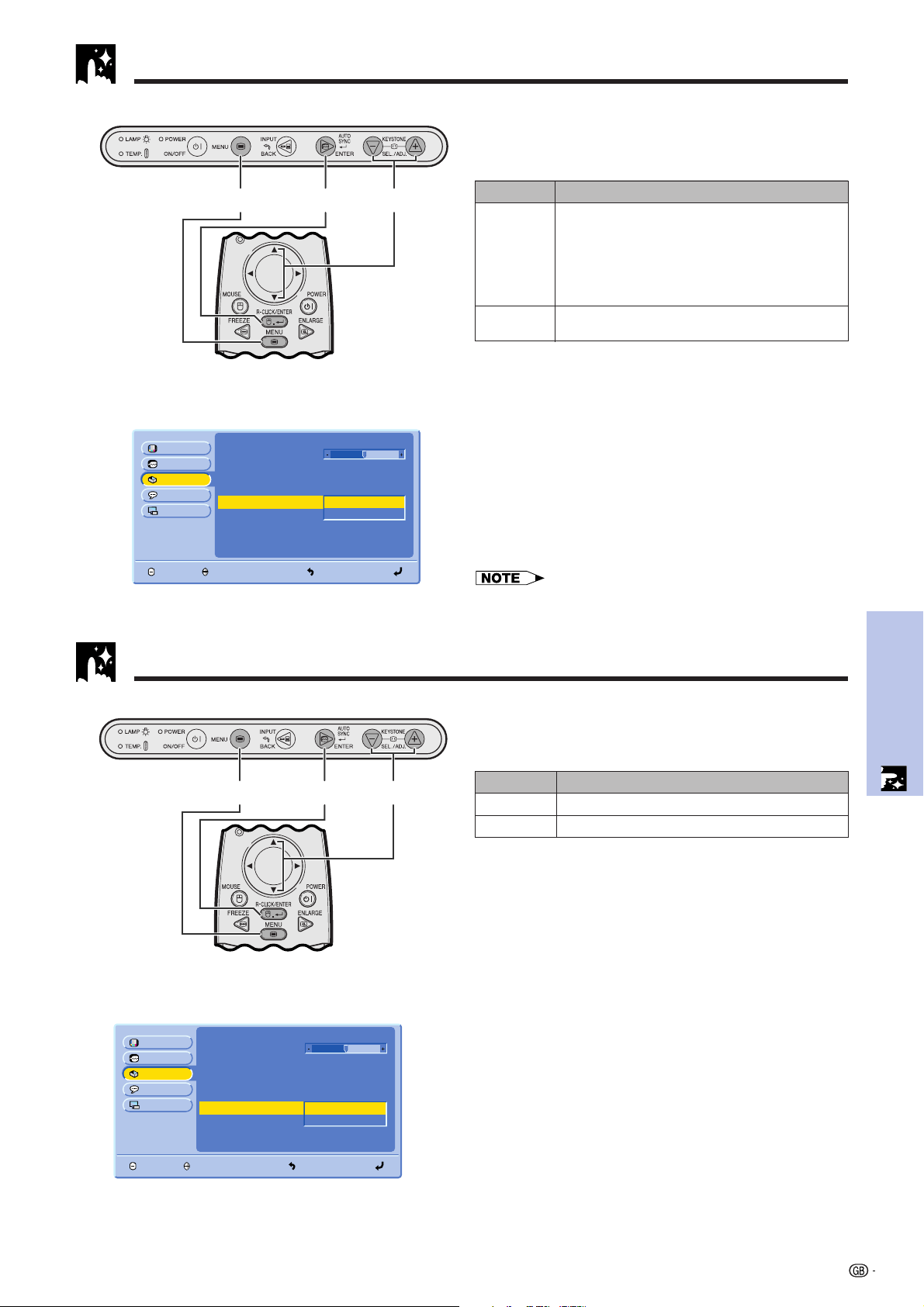
43
Useful Features
This function is used to detect the input source
automatically.
Description of Auto Source
1 Press MENU.
2 Press ∂/ƒ to select “Options”, and then press
ENTER.
3 Press ∂/ƒ to select “Auto Source”, and then
press ENTER.
4 Press ∂ /ƒ to select “ON” or “OFF”, and then
press ENTER.
5 To exit from the GUI, press MENU.
Detecting the Input Source Automatically
(GUI) On-screen Display
Projector
2,3,42,3,41,5
Remote control
Lamp Timer
Keystone
Picture
Options
Fine Sync
Language
PRJ Mode
END SELECT BACK ENTER
AV Mute Disp.
OSD Display
Auto Power Off
Background
ON
ON
ON
Auto Source
100
0
ON
OFF
• When set to “ON”, you will be unable to manually select an
inactive input by pressing INPUT.
Selected item Description
• Automatically selects the input source
connected to the projector.
• If the signal stops, automatically switches to an
input source that is transmitting a signal.
• For multiple signal input, can skip the input
source that has no input signal and selects the
one that has a signal.
• Manually select the input source connected to
the projector.
ON
OFF
Selecting a Background Image
Lamp Timer
Keystone
Picture
Options
Fine Sync
Language
PRJ Mode
END SELECT BACK ENTER
AV Mute Disp.
OSD Display
Auto Power Off
Background Blue
ON
ON
ON
Auto Source ON
100
0
None
This function allows you to select the image displayed
when no signal is being sent to the projector.
Description of Background Images
1 Press MENU.
2 Press ∂/ƒ to select “Options”, and then press
ENTER.
3 Press ∂/ƒ to select “Background”, and then
press ENTER.
4 Press ∂/ƒ to select “Blue” or “None”, and then
press ENTER.
5 To exit from the GUI, press MENU.
Projector
(GUI) On-screen Display
2,3,42,3,41,5
Selected item
Blue
None
Description
Blue screen
Black screen
Remote control
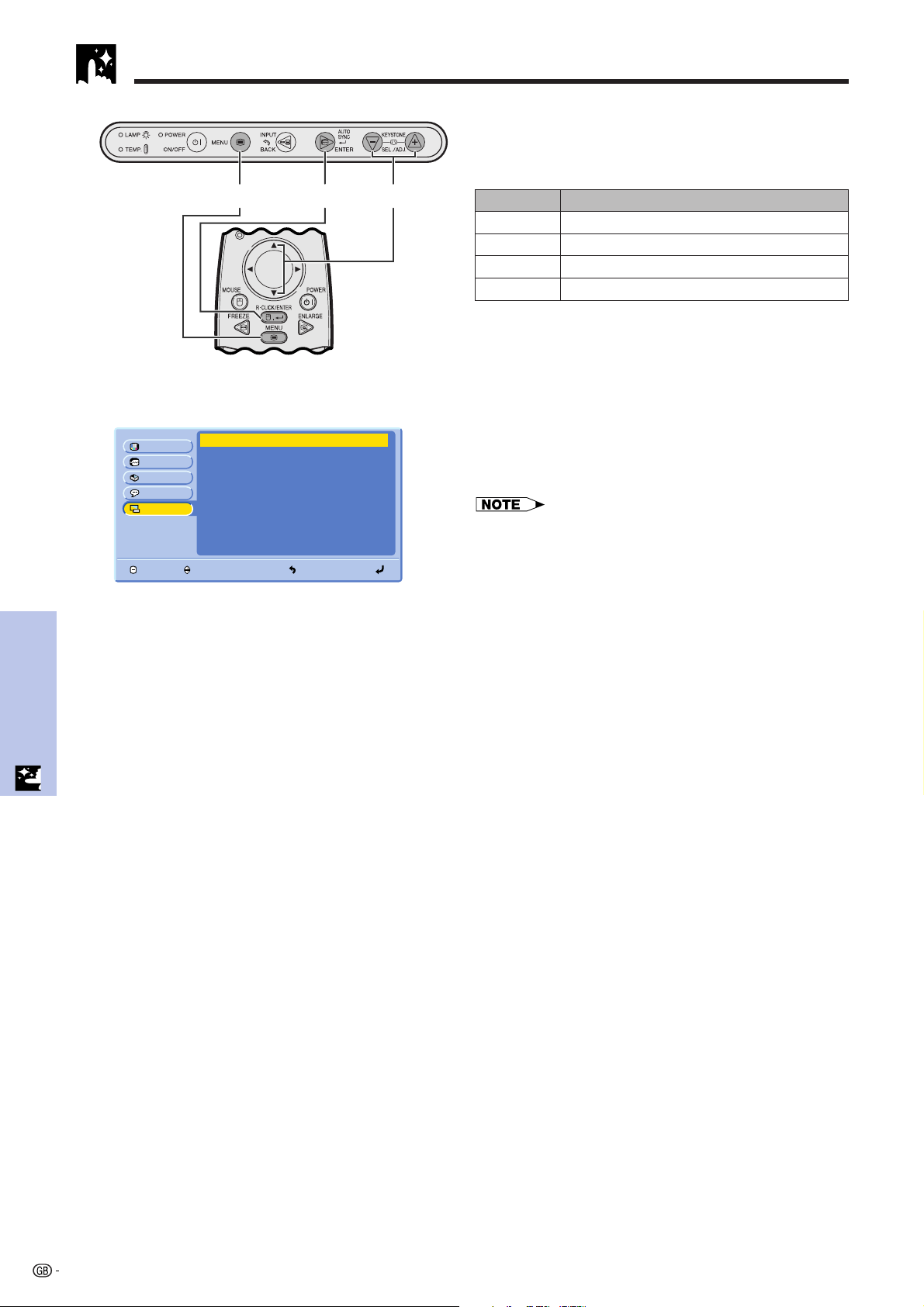
44
Useful Features
Front
Picture
Options
Fine Sync
Language
PRJ Mode
END SELECT BACK ENTER
Ceiling ⴐ Front
Rear
Ceiling ⴐ Rear
This projector is equipped with a reverse/invert image
function which allows you to reverse or invert the pro-
jected image for various applications.
Description of Projected Images
Projector
(GUI) On-screen Display
Selected item
Front
CeilingⳭFront
Rear
CeilingⳭRear
Projected image
Normal image
Inverted image
Reversed image
Reversed and inverted image
1 Press MENU.
2 Press ∂/ƒ to select “PRJ Mode”, and then press
ENTER.
3 Press ∂/ƒ to select the desired projection mode,
and then press ENTER.
4 To exit from the GUI, press MENU.
2, 32, 31, 4
Remote control
• This function is used for the reversed image and ceiling-
mount setups. See page 22 for these setups.
Reverse/Invert Image Function
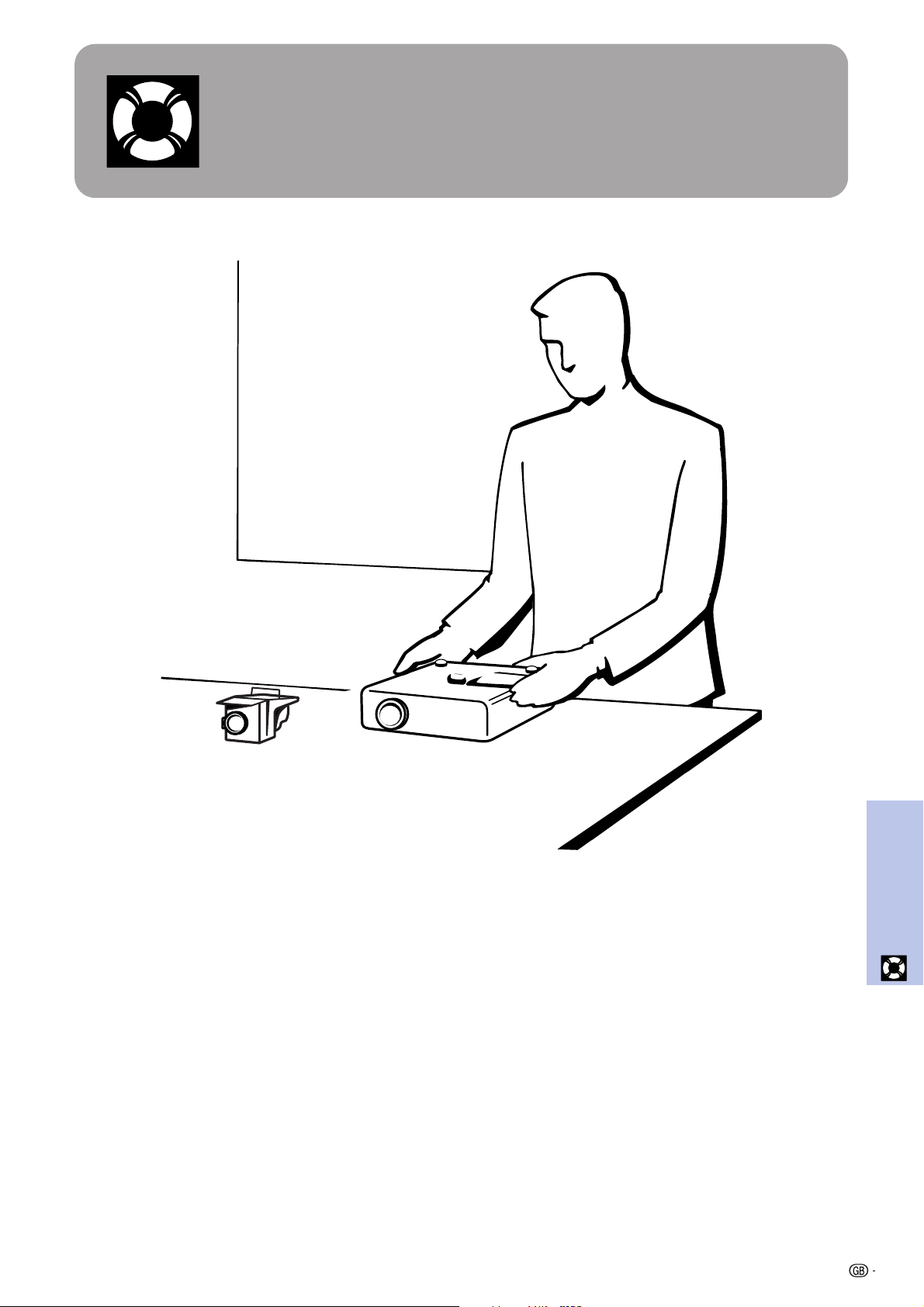
45
Maintenance &
Troubleshooting
Maintenance &
Troubleshooting
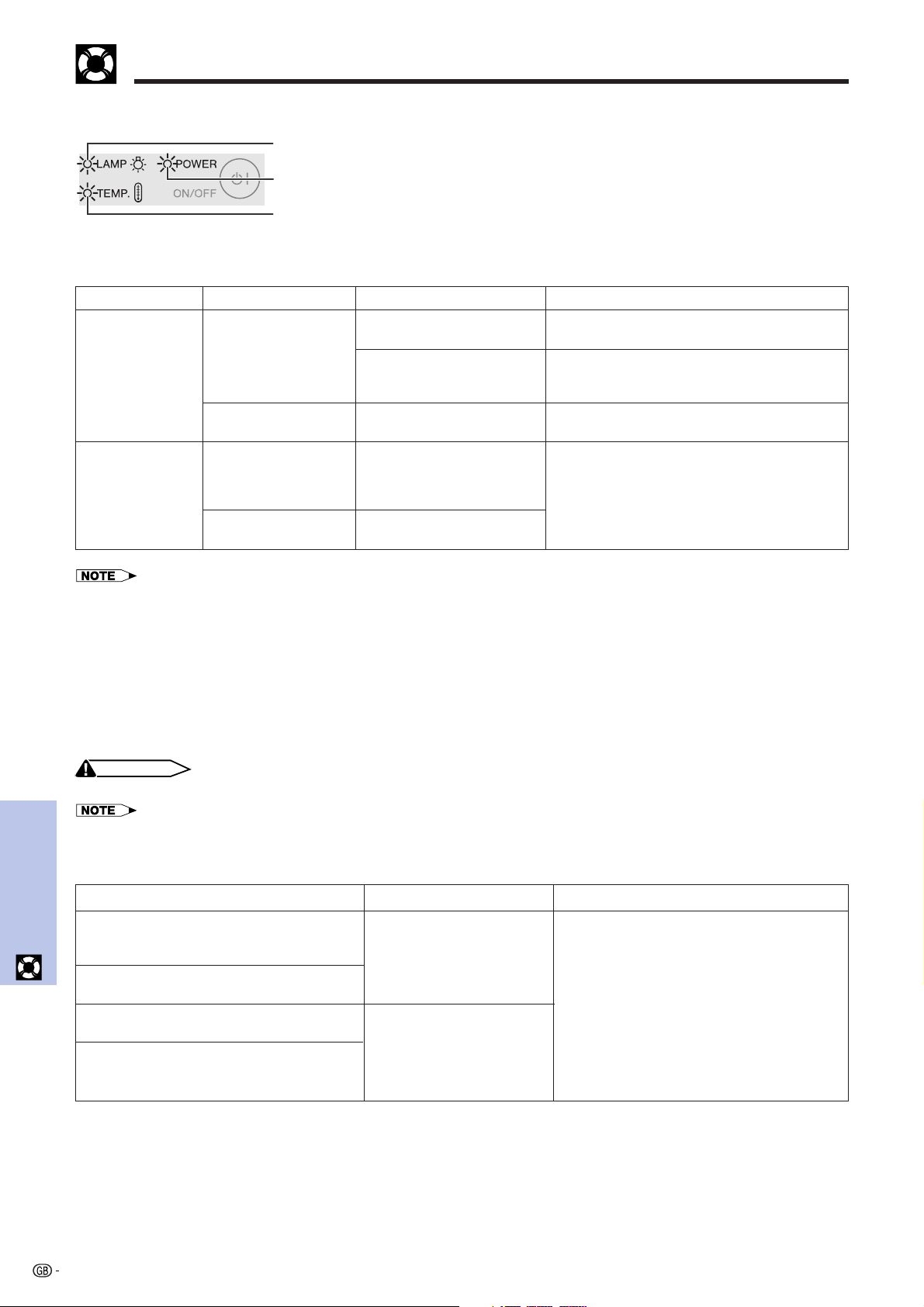
46
Maintenance &
Troubleshooting
Lamp/Maintenance Indicators
Maintenance Indicators
• The warning lights on the projector indicate problems
inside the projector.
• There are two warning lights: a TEMPERATURE
WARNING indicator which warns that the projector is too
hot, and a LAMP REPLACEMENT indicator which lets
you know when to change the lamp.
• If a problem occurs, either the TEMPERATURE WARNING
indicator or the LAMP REPLACEMENT indicator will
illuminate red. After turning off the power, follow the
procedures given below.
TEMPERATURE WARNING
indicator
Problem
Maintenance Indicator
Condition Possible Solution
TEMPERATURE
WARNING
indicator
The internal
temperature is
abnormally high.
• Blocked air intake.
• Relocate the projector to an area with proper
ventilation.
POWER indicator
LAMP REPLACEMENT
indicator
• Cooling fan breakdown.
• Internal circuit failure.
• Take the projector to your nearest Sharp
Authorized Projector Dealer or Service
Center for repair.
• Cooling down. • Wait until the indicator stops flashing and
turns off.
The indicator flashes in
red.
LAMP
REPLACEMENT
indicator
The lamp does not
illuminate.
• Burnt-out lamp.
• Lamp circuit failure.
• The lamp cage cover is
not securely installed.
• Carefully replace the lamp. (See pages 47
and 48.)
• Take the projector to your nearest Sharp
Authorized Projector Dealer or Service
Center for repair.
The lamp requires
replacement.
• Lamp has been used for
over 1,400 hours.
Problem
• Lamp has been used for
over 1,400 hours.
• Lamp has been used for
over 1,500 hours.
Possible Solution
• Purchase a replacement lamp unit (lamp
cage/module) of the current type BQC-
PGM15X//1 from your nearest Sharp
Authorized Projector Dealer or Service
Center.
• Replace the lamp. (See pages 47 and 48.)
If you wish, you may have the lamp
replaced at your nearest Sharp Authorized
Projector Dealer or Service Center.
Condition
The LAMP REPLACEMENT indicator
illuminates red, and “LAMP” will appear in
yellow in the lower-left corner of the picture.
A significant deterioration of the picture and
color quality occurs.
The power will automatically turn off and
the projector will enter standby mode.
“LAMP” will appear in red in the lower-left
corner of the picture, and the power will
turn off.
Lamp
The lamp in this projector operates for approximately 1,500 cumulative hours, depending on the usage environ-
ment. It is recommended that the lamp be replaced after 1,400 cumulative hours of use or when you notice a
significant deterioration of the picture and color quality. The lamp usage time can be checked with the On-screen
Display. (See page 39.)
CAUTION
• Intense light hazard. Do not attempt to look into the aperture and lens while the projector is operating.
• As the usage environment can vary significantly, the projector lamp may not operate for 1,500 hours.
•“1,500 hours” above indicates average life span and should be used for reference only. This is different than the warranty period.
• For safety, the power will not be turned on from the fourth time when turning on the power without changing the lamp after use for 1,500
hours.
• If the TEMPERATURE WARNING indicator illuminates, follow the above possible solutions and then wait until the projector has cooled down
completely before turning the power back on. (At least 5 minutes.)
• If the power is turned off and then turned on again, as during a brief rest, the LAMP REPLACEMENT indicator may be triggered, preventing
the power from going on. Should this occur, take the power cord out of the wall outlet and put it back in again.
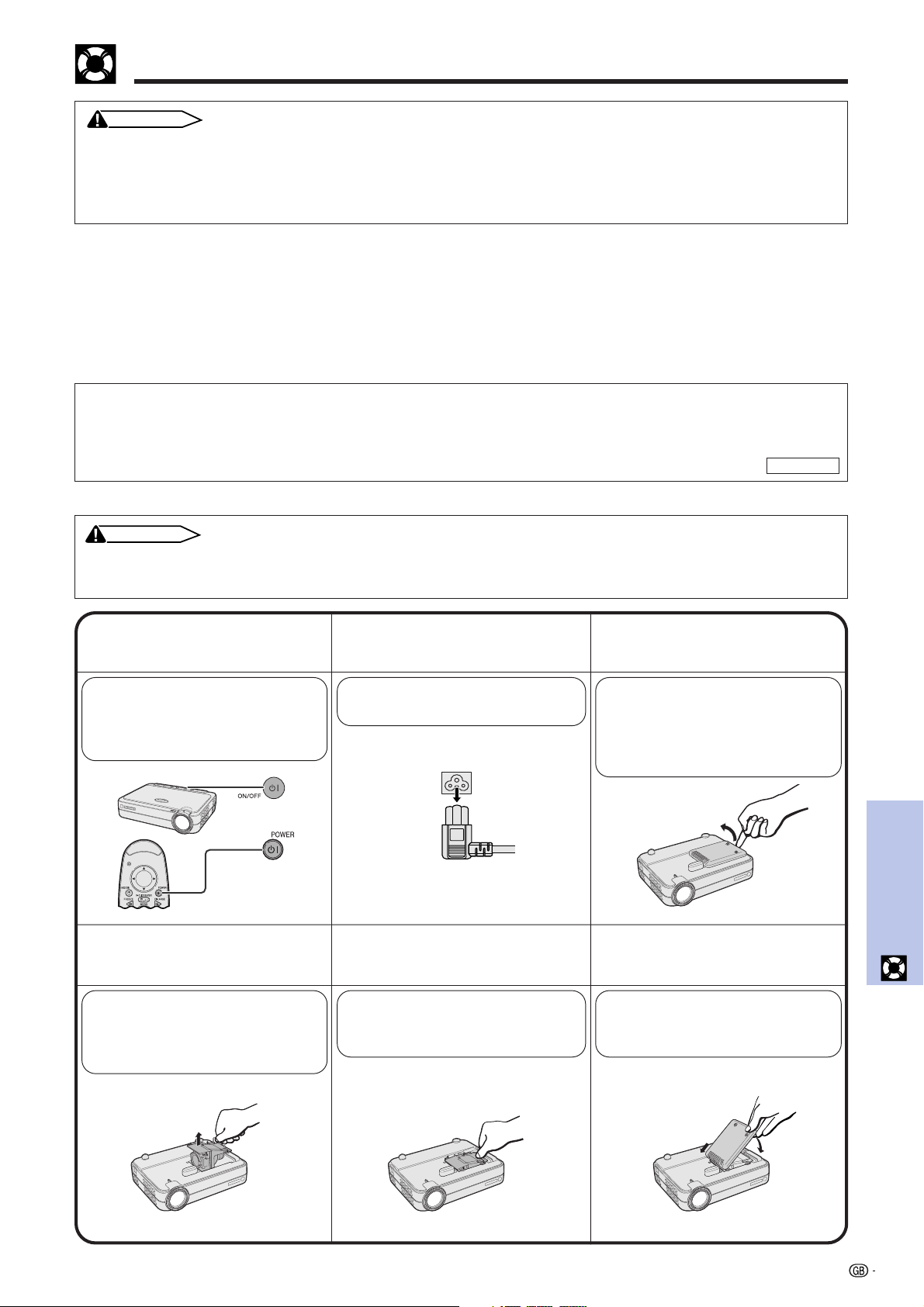
47
Maintenance &
Troubleshooting
Replacing the Projection Lamp
CAUTION
• Potential hazard of glass particles if lamp ruptures. Please have Sharp Authorized Projector Dealer
or Service Center replace lamp if rupture occurs.
• Do not remove the lamp cage directly after operation of the projector. The lamp may be extremely
hot. Wait at least one hour after the power cord is disconnected to allow the surface of the lamp cage
to fully cool before removing the lamp cage.
46
Remove the lamp
cage.
5
Insert the new lamp cage.
1 3
Turn off the power.
2
Disconnect the power
cord.
Unplug the power cord from the
AC socket.
Remove the lamp cage
cover.
Attach the lamp cage
cover.
Slide the lamp cage cover in the
direction of the arrow. Then
tighten the user service screws.
Loosen the securing screws on
the lamp cage. Hold the lamp
cage by the handle and pull it
towards you.
Turn over the projector and
loosen the user service screws
that secure the lamp cage cover.
Then lift open the cover in the
direction of the arrow.
Press ON/OFF on the projector
or POWER on the remote
control. Wait until the cooling
fan stops.
Press the lamp cage firmly into
the lamp cage compartment.
Fasten the securing screws.
It is recommended that the lamp be replaced after approximately 1,400 cumulative hours of use or when you
notice a significant deterioration of the picture and color quality. Carefully change the lamp by following the steps
below.
If the new lamp does not light after replacement, take your projector to the nearest Sharp Authorized Projector
Dealer or Service Center for repair. Purchase a replacement lamp unit (lamp cage/module) of the current type
BQC-PGM15X//1 from your nearest Sharp Authorized Projector Dealer or Service Center. Then carefully change
the lamp by following the instructions below. If you wish, you may have the lamp replaced at your nearest Sharp
Authorized Projector Dealer or Service Center.
IMPORTANT NOTE TO U.S. CUSTOMERS:
The lamp included with this projector is backed by a 90-day parts and labor limited warranty. All service of this
projector under warranty, including lamp replacement, must be obtained through a Sharp Authorized Projector Dealer
or Service Center. For the name of the nearest Sharp Authorized Projector Dealer or Service Center, please call toll-
free: 1-888-GO-SHARP (1-888-467-4277).
U.S.A. ONLY
Removing and installing the lamp unit
CAUTION
• Be sure to remove the lamp cage by the handle. Be sure not to touch the glass surface of the lamp cage or the inside of
the projector.
• To avoid injury to yourself and damage to the lamp, be sure to carefully follow the steps below.
or
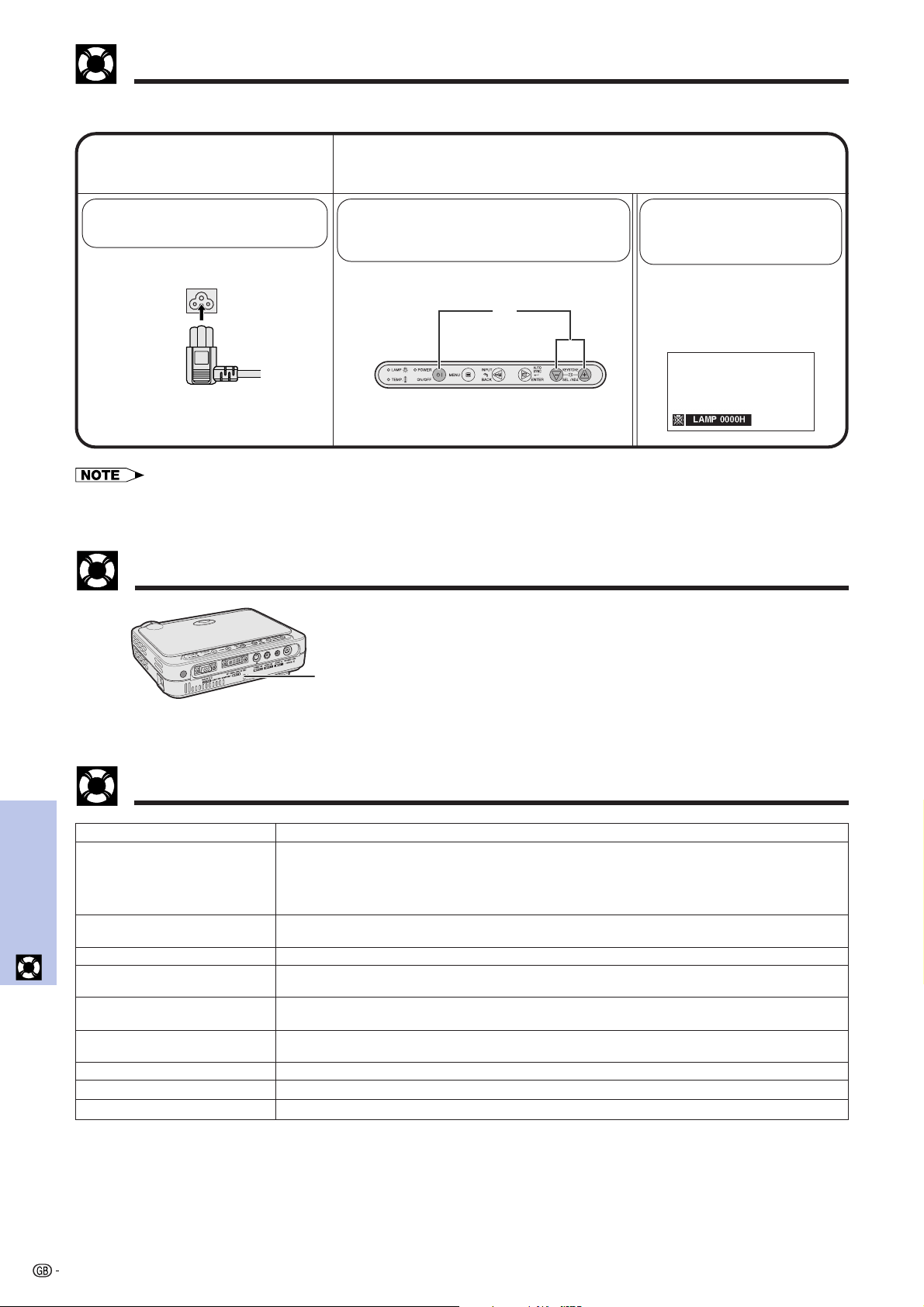
48
Maintenance &
Troubleshooting
Replacing the Projection Lamp
1
Connect the power
cord.
Reset the lamp timer.
1 Press KEYSTONE (+) and
KEYSTONE (–) simultaneously and
ON/OFF at the same time.
Plug the power cord into the AC
socket of the projector.
Resetting the lamp timer
“LAMP 0000H” is
displayed, indicating that
the lamp timer is reset.
2
• Reset the lamp timer only after replacing the lamp.
Using the Kensington Lock
This projector has a Kensington Security Standard
connector for use with a Kensington MicroSaver Security
System. Refer to the information that came with the
system for instructions on how to use it to secure the
projector.
Kensington Security
Standard connector
Check
• Projector power cord is not plugged into the wall outlet.
• Selected input is wrong. (See page 19.)
• Cables incorrectly connected to the rear panel of the projector. (See pages 13–17.)
• Remote control batteries have run down. (See page 10.)
• The lamp cage cover is not securely installed (See page 47.).
• Cables incorrectly connected to the rear panel of the projector. (See pages 13–17.)
•“Contrast” and “Bright” adjustments are set to minimum position. (See page 31.)
•“Color” and “Tint” adjustments are not correct. (See page 31.)
• Adjust the focus. (See page 19.)
• Projection distance is too long or too short to allow for proper focus. (See pages 20–21.)
• Cables incorrectly connected to the rear panel of the projector. (See pages 13–17.)
• Volume is set to minimum. (See page 19.)
• If the picture is normal, the sound is due to cabinet shrinkage caused by temperature changes.
This will not affect operation or performance.
• Refer to “Lamp/Maintenance Indicators” on page 46.
• Adjust the “Phase” setting. (See page 33.)
• The lamp cage cover is not securely installed (See page 47.).
Problem
No picture and no sound.
Sound is heard but no picture
appears.
Color is faded or poor.
Picture is blurred.
Picture appears but no sound is
heard.
An unusual sound is occasionally
heard from the cabinet.
Maintenance indicator illuminates.
Picture noise appears.
Lamp does not light.
Troubleshooting
1

49
Appendix
Appendix
Using the Soft Carrying Pouch
Use the soft carrying pouch to prevent damage to your projector and its lens when transporting.
CAUTION
• Do not lift or carry the projector by the lens or the lens cap as this may damage
the lens.
• Besides the projector, do not put anything else into the soft carrying pouch.
• Be sure that the projector has cooled properly before placing the unit into its soft
carrying pouch.
• Use the soft carrying pouch only when storing or carrying the projector.
• Do not leave the projector exposed to direct sunlight, locked up in a car without
proper ventilation, or near equipment that radiates heat.
Lens cap installation
Install as shown in image on the right.
When removing the lens cap, pull off
by pressing the two convex areas.
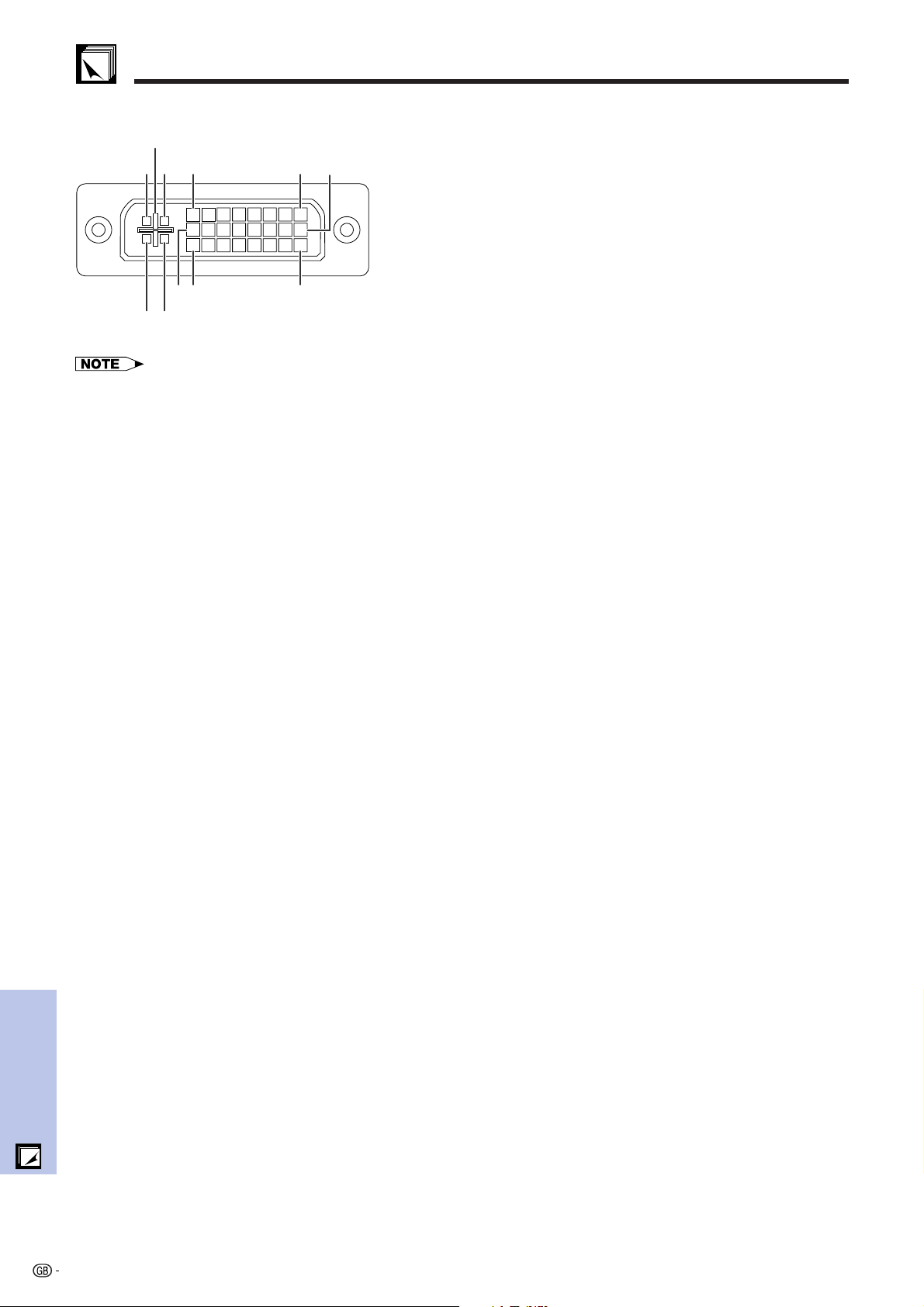
50
Appendix
Pin No. Name
1 T.M.D.S. Data 2
2 T.M.D.S. Data 2
3 T.M.D.S. Data 2/4 Shield
4 T.M.D.S. Data 4*
2
5 T.M.D.S. Data 4*
2
6 DDC Clock
7 DDC Data
8 Vertical Sync
9 T.M.D.S. Data 1
10 T.M.D.S. Data 1
11 T.M.D.S. Data 1/3 Shield
12 T.M.D.S. Data 3*
2
13 T.M.D.S. Data 3*
2
14 5 V Power
15 Ground*
1
16 Hot Plug Detect
17 T.M.D.S. Data 0
18 T.M.D.S. Data 0
19 T.M.D.S. Data 0/5 Shield
20 T.M.D.S. Data 5*
2
21 T.M.D.S. Data 5*
2
22 T.M.D.S. Clock Shield
23 T.M.D.S. Clock
24 T.M.D.S. Clock
C1 Analog input Red
C2 Analog input Green
C3 Analog input Blue
C4 Horizontal Sync
C5 Ground
Connection Pin Assignments
DVI INPUT 1 Port: 29-pin
Pin No. Name
1 Not connected
2 Not connected
3 Not connected
4 Not connected
5 Not connected
6 DDC Clock
7 DDC Data
8 Vertical Sync
9 Not connected
10 Not connected
11 Not connected
12 Not connected
13 Not connected
14 5 V Power
15 Ground
16 Not connected
17 Not connected
18 Not connected
19 Not connected
20 Not connected
21 Not connected
22 Not connected
23 Not connected
24 Not connected
C1 Analog input Red
C2 Analog input Green
C3 Analog input Blue
C4 Horizontal sync
C5 Ground
RGB input
C4 C3
C2 C1
24 17
816 1
9
C5
• *
1
Return for 5 V, Hsync. and Vsync.
• *
2
These pins are not used on this equipment.
COMPONENT input
Pin No. Name
1 Not connected
2 Not connected
3 Not connected
4 Not connected
5 Not connected
6 Not connected
7 Not connected
8 Not connected
9 Not connected
10 Not connected
11 Not connected
12 Not connected
13 Not connected
14 Not connected
15 Ground
16 Not connected
17 Not connected
18 Not connected
19 Not connected
20 Not connected
21 Not connected
22 Not connected
23 Not connected
24 Not connected
C1 Analog input Pr
C2 Analog input Y
C3 Analog input Pb
C4 Not connected
C5 Ground
DVI input
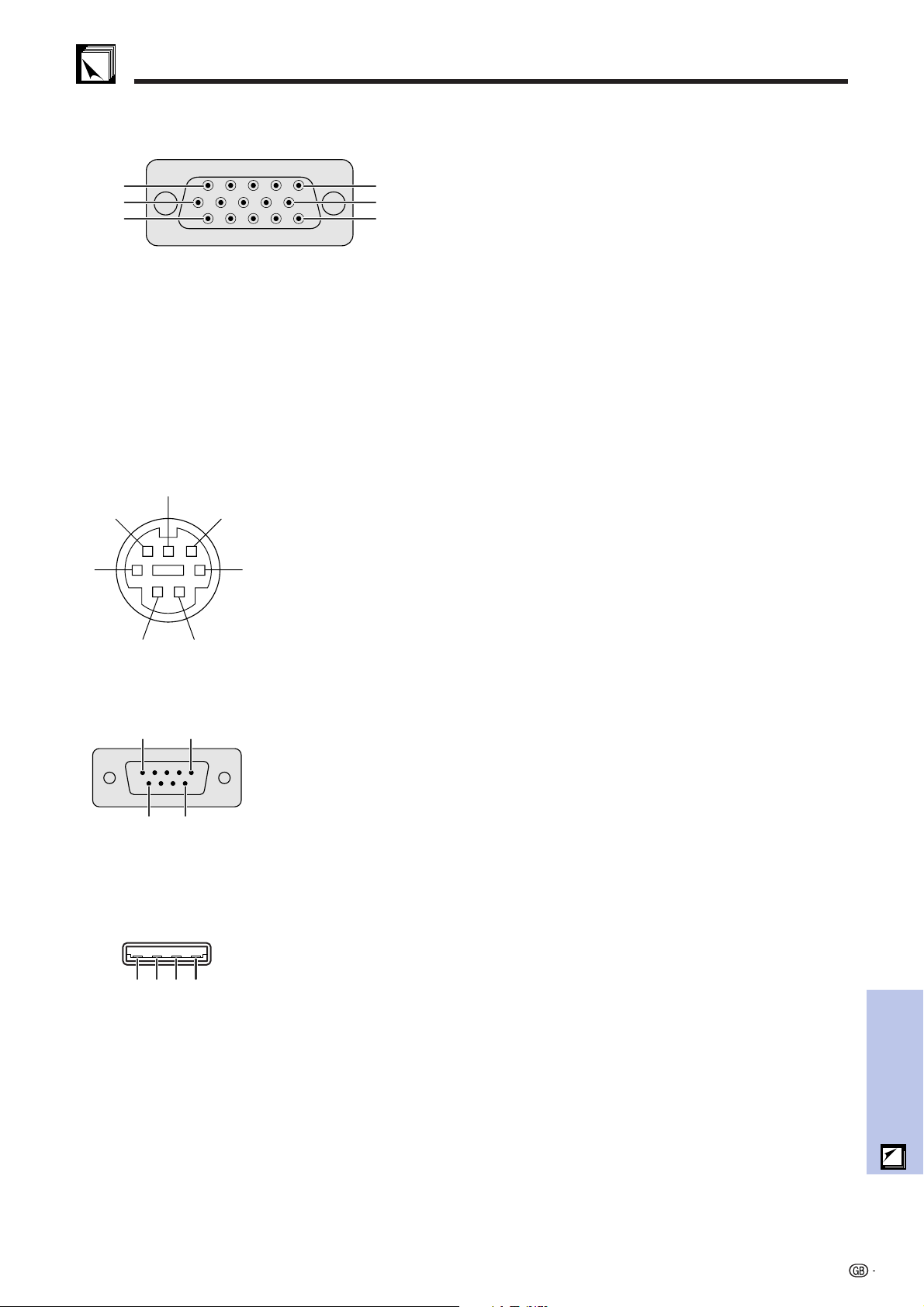
51
Appendix
Pin No. Signal Name
1 VCC (USB) USB Power
2 RD Receive Data
3 SD Send Data
4 USB () USB Data ()
5 GND Signal Ground
6 USB () USB Data ()
7 NC (Reserved)
RS-232C Terminal: 7-pin Mini DIN female connector
4
6
7
5
3
21
OUTPUT (INPUT 1) Signal Port: 15-pin Mini D-sub female connector
RGB output
Analog
1 Video output (red)
2 Video output
(green/sync on green)
3 Video output (blue)
4 Not connected
5 Not connected
6 Earth (red)
7 Earth (green/sync on green)
8 Earth (blue)
9 Not connected
10 GND
11 GND
12 Not connected
13 Horizontal sync signal
14 Vertical sync signal
15 Not connected
11
6
1
15
10
5
Connection Pin Assignments
COMPONENT output
Analog
1P
R (CR)
2Y
3P
B (CB)
4 Not connected
5 Not connected
6 Earth (P
R)
7 Earth (Y)
8 Earth (P
B)
9 Not connected
10 Not connected
11 Not connected
12 Not connected
13 Not connected
14 Not connected
15 Not connected
RS-232C Port: 9-pin D-sub male connector of the DIN-D-sub RS-232C cable
Pin No. Signal Name
1CD
2 RD Receive Data
3 SD Send Data
4ER
5 SG Signal Ground
6 DR Data Set Ready
7 RS Request to Send
8 CS Clear to Send
9CI
USB connector: 4-pin USB connector of the USB mouse control cable
Pin No. Signal Name
1 VCC USB Power
2 USB USB Data
3 USB USB Data
4 SG Signal Ground
15
69
4321
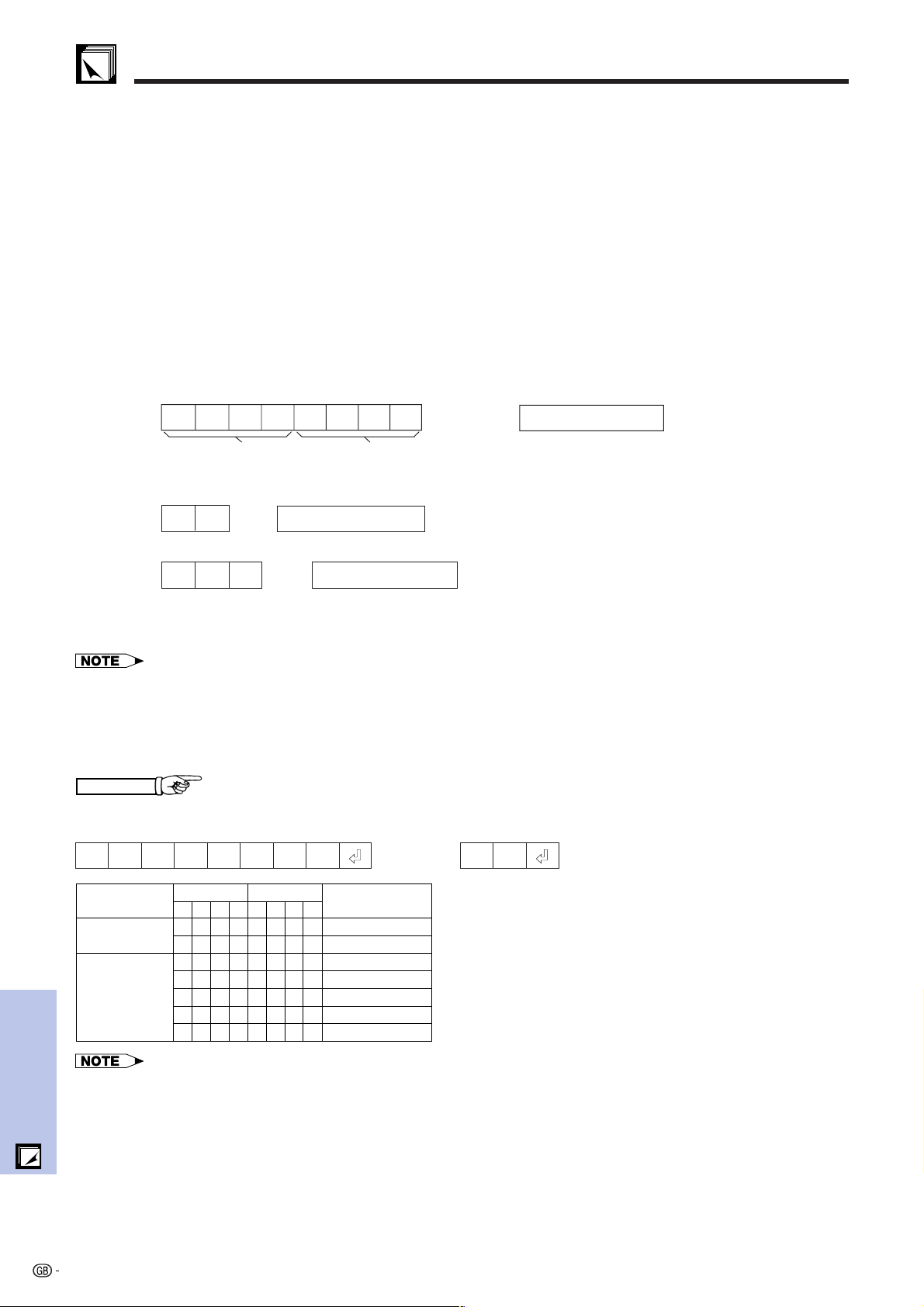
52
Appendix
PC control
A computer can be used to control the projector by connecting an RS-232C cable (null modem, cross type, sold
separately) to the projector. (See page 17 for connection.)
Communication conditions
Set the serial port settings of the computer to match that of the table.
Signal format: Conforms to RS-232C standard.
Baud rate: 9,600 bps
Data length: 8 bits
Parity bit: NON
Stop bit: 1 bit
Flow control: None
Basic format
Commands from the computer are sent in the following order: command, parameter, and return code. After the
projector processes the command from the computer, it sends a response code to the computer.
RS-232C Port Specifications
Return code (0DH)
C1 C2 C3 C4 P1 P2 P3 P4
Response code format
Normal response
O K
Return code (0DH)
Problem response (Failure due to incorrect command/parameter or the other communication errors)
E R R
Return code (0DH)
Command 4-digit Parameter 4-digit
Command format
When more than one code is being sent, send each command only after the OK response code for the previous
command from the projector is verified.
• When using the computer control function of the projector, the projector operating status cannot be read to the computer.
Therefore, confirm the status by transmitting the display commands for each adjustment menu and checking the status with
the On-screen Display. If the projector receives a command other than a menu display command, it will execute the com-
mand without displaying the On-screen Display.
Commands
EXAMPLE
• When INPUT SWITCHING is set to INPUT 1 (DVI).
→
←
IRGB _ 1__
OK
ProjectorComputer
• If an underbar (_) appears in the parameter column, enter a space.
P
P
I
I
I
I
I
O
O
R
R
R
V
V
W
W
G
G
G
E
E
R
R
B
B
B
D
D
_
_
_
_
_
_
_
_
_
_
_
_
_
_
_
_
_
_
_
_
_
0
1
1
2
3
1
2
POWER OFF (STANDBY)
POWER ON
INPUT1 (DVI)
INPUT1 (RGB)
INPUT1 (COMPONENT)
INPUT2 (S-VIDEO)
INPUT3 (VIDEO)
INPUT SWITCHING
POWER SETTING
CONTROL ITEM
COMMAND
C1 C2 C3 C4 P1 P2 P3 P4
PARAMETER
CONTROL
CONTENTS
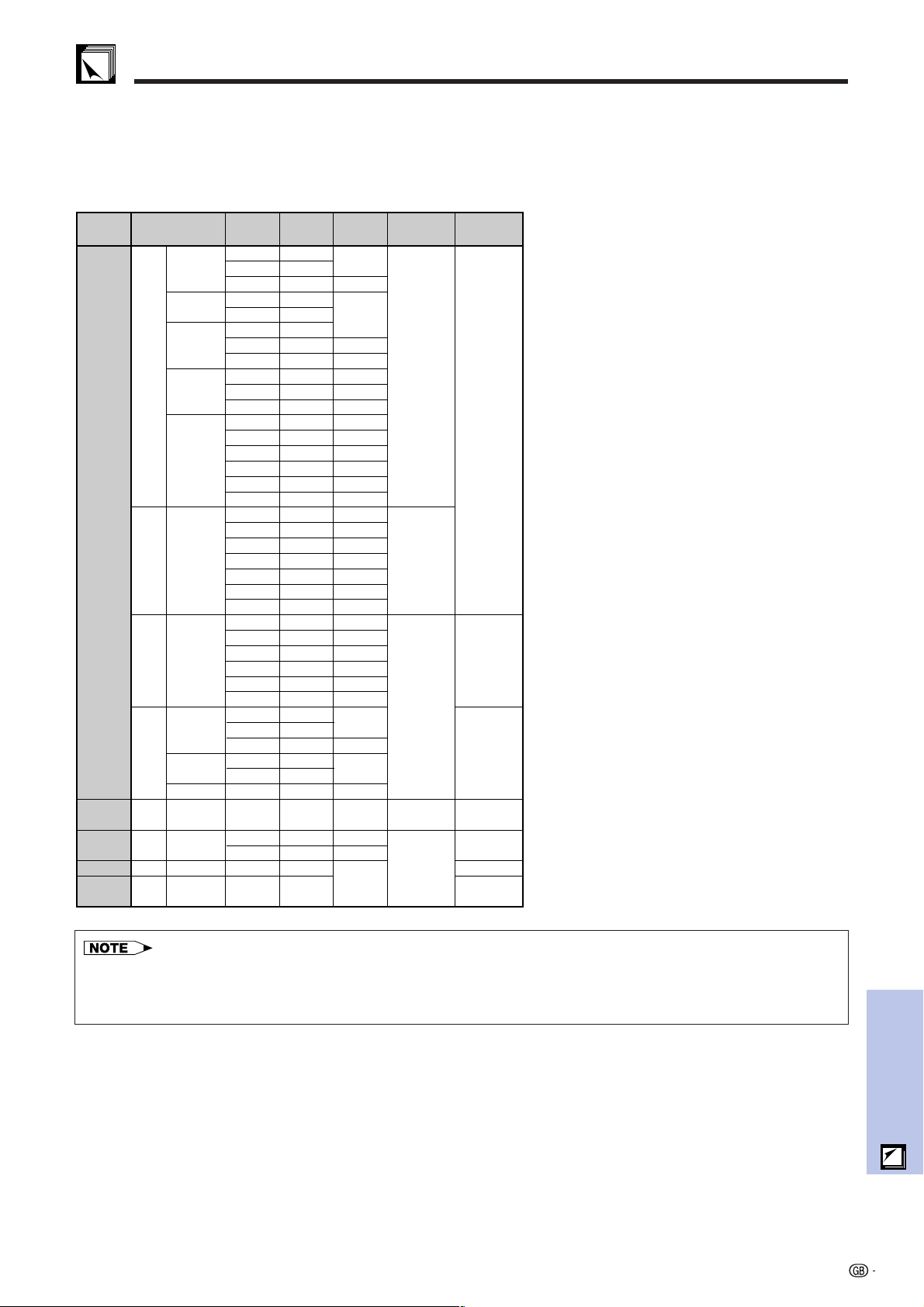
53
Appendix
Horizontal Frequency: 31.5–80 kHz
Vertical Frequency: 56–85 Hz
Pixel Clock: 25–135 MHz
Compatible with sync on green and composite sync signals
SXGA (1,280 1,024) compatible in intelligent compression
XGA (1,024 768) compatible in intelligent compression (PG-M15S only)
Computer Compatibility Chart
PC/
MAC/
WS
Horizontal
Frequency
(kHz)
Vertical
Frequency
(Hz)
VGA
PC
SVGA
XGA
VESA
Standard
Resolution
640 350
1,152 864
1,152 882
1,280 1,024
720 350
640 400
720 400
640 480
800 600
1,024 768
Display
M15S
Display
M15X
Upscale
Upscale
True
Upscale
Upscale
True
Intelligent
Compression
Intelligent
Compression
True
27.0 60
27.0 60
27.0 60
60
31.5 70
31.5 70
31.5
70
31.5
60
34.7
70
37.9
72
37.5
75
43.3
85
31.3 50
35.1 56
37.9 60
44.5 70
48.1 72
46.9 75
53.7 85
31.5 70
37.9 85
37.9
27.0
85
37.9
85
26.2
50
Intelligent
Compression
55.0 60
67.5 75
65.9 72
54.8 60
64.0 60
SXGA
MAC 16"
MAC 21"
PC/
MAC 13"
PC/
MAC 19"
640 480
832 624
Upscale35.0
1,152 870
68.7
67
60.0
1,024 768
VGA
SVGA
SXGA
XGA
Intelligent
Compression
48.4 60
75
49.7 75
75
66.2 70
35.5 43
40.3 50
60.0 75
68.7 85
56.5 70
48.4 60
• This projector may not be able to display images from notebook computers in simultaneous (CRT/LCD) mode. Should this
occur, turn off the LCD display on the notebook computer and output the display data in “CRT only” mode. Details on how
to change display modes can be found in your notebook computer’s operation manual.
• This projector can receive 640 350 VESA format VGA signals, however, “640 400” will appear on the screen.

54
Appendix
Specifications
Product type
Model
Video system
Display method
DMD panel
Lens
Projection lamp
Contrast ratio
Video input signal
S-video input signal
Component input signal
Horizontal resolution
Computer RGB input signal
Pixel clock
Vertical frequency
Horizontal frequency
Audio input signal
Audio output
Speaker system
Rated voltage
Input current
Rated frequency
Power consumption
Power dissipation
Operating temperature
Storage temperature
Cabinet
I/R carrier frequency
Dimensions (approx.)
Weight (approx.)
Supplied accessories
Replacement parts
Digital Multimedia Projector
PG-M15X/PG-M15S
NTSC/NTSC 4.43/PAL/PAL-M/PAL-N/PAL 60/SECAM/DTV480i
Single Chip Digital Micromirror Device™ (DMD™) by Texas Instruments
Panel size: 0.7 (17.8 mm), 1 chip XGA DMD/SVGA DMD
No. of dots: 786,432 dots (1,024 [H] 768 [V])/PG-M15X
480,000 dots (800 [H] 600 [V])/PG-M15S
1-1.2 X zoom lens, F2.2–2.4, f 28.5–34.2 mm
High Intensity Discharge Lamp (HID Lamp), AC 120 W
500:1
RCA Connector (INPUT 3): VIDEO, composite video, 1.0 Vp-p, sync negative, 75 Ω
terminated
4-pin Mini DIN connector (INPUT 2)
Y (luminance signal): 1.0 Vp-p, sync negative, 75 Ω terminated
C (chrominance signal): Burst 0.286 Vp-p, 75 Ω terminated
29-pin Connector (INPUT 1)
Y: 1.0 Vp-p, sync negative, 75 Ω terminated
P
B: 0.7 Vp-p, 75 Ω terminated
P
R: 0.7 Vp-p, 75 Ω terminated
700 TV lines (video input)
29-pin
CONNECTOR (INPUT 1)
RGB separate/sync on green type analog input: 0–0.7 Vp-p, positive, 75 Ω terminated
H
ORIZONTAL SYNC. SIGNAL: TTL level (positive/negative)
V
ERTICAL SYNC. SIGNAL: Same as above
25–135 MHz
56–85 Hz
31.5–80 kHz
3.5 ø M
INIJACK: AUDIO, 0.4 Vrms, more than 47 kΩ (stereo)
2.0 W (monaural)
4 2.8 cm
AC 100–240 V
2.0 A
50/60 Hz
180 W
<680 BTU/hour
41°F to 95°F (5°C to 35°C)
14°F to 140°F (10°C to 60°C)
Magnesium alloy (Terminal panel, Lamp cover and Side vent cover constructed of plastic)
38 kHz
8
55
⁄64 1
31
⁄32 6
59
⁄64 (225 (W) 50 (H) 176 (D) mm) (main body only)
8
55
⁄64 2
19
⁄32 6
31
⁄32 (225 (W) 66 (H) 177 (D) mm) (including adjustment feet
and projecting parts)
3.5 lbs (1.6 kg)
Remote control, Two AAA size batteries, Power cord for U.S., Canada etc. (5 11, 1.8 m),
Power cord for Europe, except U.K. (5 11, 1.8 m), Power cord for U.K., Hong Kong and
Singapore (5 11, 1.8 m), Power cord for Australia, New Zealand and Oceania (5 11, 1.8
m), DVI-Analog to VGA cable (5 11, 1.8 m), DVI-Analog to VGA adaptor, PC audio cable
(6 7, 2.0 m), DIN-D-sub RS-232C cable (6
1
/2, 16.5 cm), Computer RGB cable (5 11,
1.8 cm), USB mouse control cable (5 11, 1.8 m), Video cable (5 11, 1.8 m), S-video
cable (5 11, 1.8 m), AV audio cable (5 11, 1.8 m), Soft carrying pouch, Lenscap with
strap, CD-ROM, Projector operation manual, Projector quick reference guide
Remote control (9HJ7583104001), AAA size battery (9HJ4683101001), Power cord for
U.S., Canada etc. (9HJ4283114001), Power cord for Europe, except U.K.
(9HJ4283116001), Power cord for U.K., Hong Kong and Singapore (9HJ4283117001),
Power cord for Australia, New Zealand and Oceania (9HJ4283118001), DVI-Analog to
VGA cable (9HJ4283119001), DVI-Analog to VGA adaptor (9HJ4283124001), PC audio
cable (9HJ4283120001), DIN-D-sub RS-232C cable (9HJ4283123001), Computer RGB
cable (9HJ4283111001), USB mouse control cable (9HJ4283122001), Video cable
(9HJ4283112001), S-video cable (9HJ4283113001), AV audio cable (9HJ4283121001),
Soft carrying pouch (9HJ5383101001), Lens cap with strap (9HJ7083117001), CD-ROM
(9HJ3683104001), Projector operation manual (9HJ3683107001), Projector quick
reference guide (9HJ3683110001)
This unit has some inactive pixels within acceptable tolerances which
may result in inactive dots on the picture screen. This will not affect
the picture quality or the life expectancy of the unit.
This SHARP projector uses a DMD panel. This very sophisticated
panel contains 786,432 (PG-M15X)/480,000 (PG-M15S) pixels. As
with any high technology electronic equipment such as large screen
TVs, video systems and video cameras, there are certain acceptable
tolerances that the equipment must conform to.
Specifications are subject to change without notice.
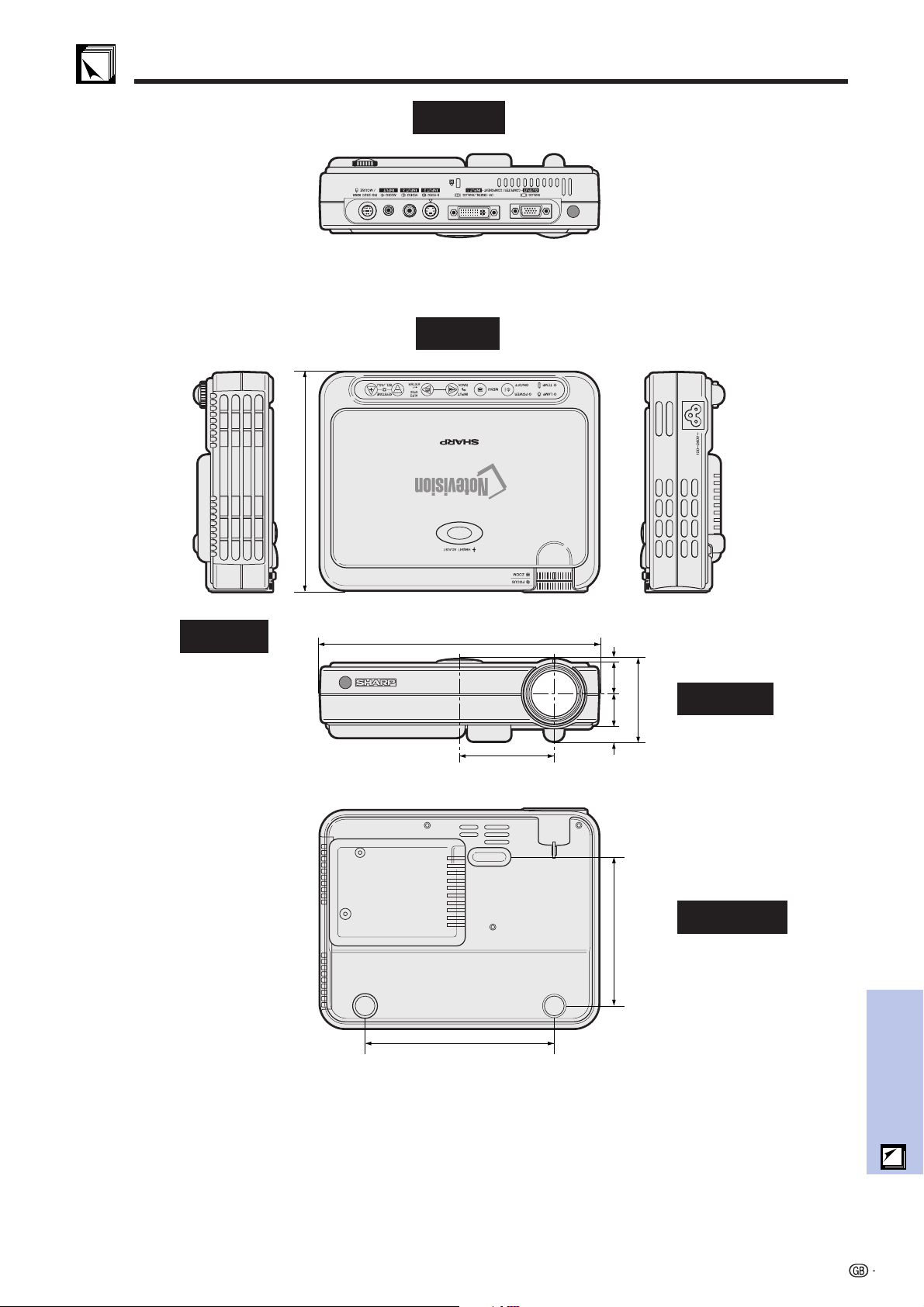
55
Appendix
2
19
/
32
(66)
6
59
/
64
(176)
1 (25.5)
31
/
32
(24.5)
8
55
/
64
(225)
3
1
/
64
(76.5)
33
/
64
(13)
1
/
3
(3)
4
3
/
4
(120.5)
6
1
/
32
(153)
Units: inches (mm)
Top View
Rear View
Side View
Front View
Bottom View
Dimensions

56
Appendix
Anti-aliasing digital keystone correction
Function to digitally correct a distorted image when the projector is set up at an angle.
Aspect ratio
Width and height ratio of an image. The normal aspect ratio of a computer and video image is 4 : 3. There are also
wide images with an aspect ratio of 16 : 9 and 21 : 9.
Auto sync
Optimizes projected computer images by automatically adjusting certain characteristics.
Background
Initial setting image projected when no signal is being input.
Clock
Clock adjustment is used to adjust vertical noise when clock level is incorrect.
Compatibility
Ability to use with various image signal modes.
Composite sync
Signal combining horizontal and vertical sync pulses.
Dot by dot
Mode that projects images in their native resolution.
DVI
Digital Visual Interface that supports both digital and analog displays.
FREEZE
Function to freeze a moving image.
GUI
Graphical User Interface. User interface with graphics that allow easier operation.
Intelligent compression technology
High quality resizing of lower and higher resolution images to fit the projector’s native resolution.
Magnification
Digitally zooms in on a portion of an image.
PDF
Portable Document Format. Documentation format used to transfer text and images from the CD-ROM.
Phase
Phase shift is a timing shift between isomorphic signals with the same resolution. When phase level is incorrect,
the projected image typically displays horizontal flicker.
RESIZE
Allows you to modify or customize the picture display mode to enhance the input image. You can select four
different modes: NORMAL, DOT BY DOT, STRETCH and BORDER.
RS-232C
Function to control the projector from the computer by using the RS-232C ports on the projector and computer.
SVGA resolution
Resolution with 800 600 pixels that uses the signal of an IBM/AT compatible (DOS/V) computer.
Sync
Synchronizes the resolution and phase shift of two signals. When receiving an image with a resolution different
from that of the computer, the projected image may be distorted.
Sync on green
Video signal mode of a computer which overlaps horizontal and vertical sync signal to green color signal pin.
Wireless mouse
Function to operate the mouse control of a computer with the supplied remote control.
XGA resolution
Resolution with 1,024 768 pixels that uses the signal of an IBM/AT compatible (DOS/V) computer.
Glossary

57
Appendix
Index
M
MENU button.................................................................... 26
MOUSE button ................................................................. 25
MOUSE port ..................................................................... 24
O
ON/OFF button ................................................................. 18
On-screen display language ........................................... 30
OSD Display..................................................................... 41
P
PC audio cable ................................................................ 13
PDF .................................................................................. 8
Phase ............................................................................... 33
Picture adjustments ......................................................... 31
POWER button ................................................................. 18
Power cord ....................................................................... 13
POWER indicator ............................................................. 18
PRJ Mode......................................................................... 44
R
Rear projection................................................................. 22
Remote control ................................................................. 25
Remote control sensor ..................................................... 25
Remote control signal transmitter indicator ..................... 10
Remote control signal transmitting window ..................... 10
RESIZE button .................................................................. 36
RIGHT-CLICK button ........................................................ 25
RS-232C port ................................................................... 17
S
SELECT/ADJUST buttons ................................................ 26
Signal Info ........................................................................ 39
Soft carrying pouch ......................................................... 49
Speaker ............................................................................ 9
SVGA resolution ............................................................... 5
S-video cable ................................................................... 15
S-VIDEO INPUT 2 terminal ............................................... 15
T
TEMPERATURE WARNING indicator ............................... 46
U
USB mouse control cable ................................................ 24
V
Video cable ...................................................................... 15
VIDEO INPUT 3 terminal .................................................. 15
VOLUME buttons ............................................................. 19
W
Wireless mouse ................................................................ 25
X
XGA resolution ................................................................. 5
Z
ZOOM knob ..................................................................... 19
A
AC socket......................................................................... 13
Adjuster ............................................................................ 22
ANALOG OUTPUT port ................................................... 9
Aspect ratio ...................................................................... 36
AUDIO INPUT terminal .................................................... 9
Auto Power Off ................................................................. 42
Auto Source ..................................................................... 43
Auto sync adjustment ...................................................... 33
AUTO SYNC button.......................................................... 33
AV audio cable ................................................................. 15
AV MUTE button ............................................................... 19
AV Mute Disp ................................................................... 40
B
BACK button .................................................................... 27
Background ..................................................................... 43
C
Ceiling-mount ................................................................... 22
CeilingRear ................................................................... 44
Clock ................................................................................ 33
Computer RGB cable....................................................... 14
Cooling fan (Exhaust vent) ............................................... 9
D
Digital image magnification ............................................. 35
DIN-D-sub RS-232C cable............................................... 17
DVI-Analog to VGA adaptor ............................................. 14
DVI-Analog to VGA cable ................................................ 14
DVI-DIGITAL/ANALOG INPUT 1 port ............................... 9
E
ENLARGE button ............................................................. 35
ENTER button................................................................... 26
F
Flip cover ......................................................................... 10
FOCUS ring ...................................................................... 9
FREEZE button ................................................................. 34
G
GAMMA button ................................................................ 38
GUI (Graphical User Interface) ........................................ 26
H
HEIGHT ADJUST ............................................................. 22
I
INPUT button.................................................................... 19
Intake vent........................................................................ 9
Intelligent compression technology ................................. 5
K
Kensington Security Standard connector ........................ 48
KEYSTONE buttons.......................................................... 23
Keystone correction ......................................................... 23
L
LAMP REPLACEMENT indicator ...................................... 46
Lamp Timer ...................................................................... 39
LEFT-CLICK button .......................................................... 25

58
Appendix
For SHARP Assistance
If you encounter any problems during setup or operation of this projector, first refer to the “Troubleshooting”
section on page 48. If this operation manual does not answer your question, please contact the Service Department
of your nearest SHARP Authorized Distributor.
USA Sharp Electronics Corporation
1-888-GO-SHARP (1-888-467-4277)
http://www.sharplcd.com
Canada Sharp Electronics of Canada Ltd.
Sharp Customer Care Center
(905) 568-7140 (Local) of 877-742-7722 (toll free)
http://www.sharp.ca
Mexico Sharp Electronics Corporation Mexico Branch
Servicío al cliente llame:
SHARP GENIAL
Respuestas Inmediatas
(525) 716-9000
Germany Sharp Electronics (Europe) GMBH
01805-234675
http://www.sharp.de
U.K. Sharp Electronics (U.K.) Ltd.
0161-205-2333
Italy Sharp Electronics (Italy) S.P.A.
(39) 02-89595-1
(39) 02-89595-293 (Fax)
http://www.sharp.it
Australia Sharp Corporation of Australia Pty.Ltd.
02-9830-4600
02-9672-1216 (Fax)
http://www.sharp.net.au
New Zealand Sharp Corporation of New Zealand
(09) 634-2059
(09) 636-6972
http://www.sharpnz.co.nz
Singapore Sharp-Roxy Sales (Singapore) Pte., Ltd.
65-4294342
http://www.sharp.com.sg
Malaysia Sharp-Roxy Sales & Service Co.
(M) Sdn. Bhd.
No: 1A, Persiaran Kuala Langat,
Section 27, 40400 Shan Alam,
Selangor Arul Ehsan, Malaysia
(60) 3-5125678
(60) 3-5154868 (Fax)
U.A.E. Sharp Middle East Fze
971-4-81-5311
Thailand Sharp Thebnakorn Co., Ltd.
02-236-0170
02-236-9188 (Fax)
http://www.sharp-th.com
Korea Sharp Electronics Incorporated of Korea
(82) 2-3660-2002
(82) 2-3660-2029 (Fax)
http://www.sharp-korea.co.kr
webmaster@sharp-korea.co.kr

SHARP CORPORATION