2018 EDGE Owner’s Manual
2018 EDGE Owner’s Manual
July 2017
First Printing
Owner’s Manual
Edge
Litho in U.S.A.
JT4J 19A321 AA
ford.ca
owner.ford.com

The information contained in this publication was correct at the time of going to print. In the interest of
continuous development, we reserve the right to change specifications, design or equipment at any time
without notice or obligation. No part of this publication may be reproduced, transmitted, stored in a
retrieval system or translated into any language in any form by any means without our written permission.
Errors and omissions excepted.
© Ford Motor Company 2017
All rights reserved.
Part Number: 201706 20170622184017


Introduction
About This Manual...........................................7
Symbols Glossary.............................................7
Data Recording..................................................9
California Proposition 65..............................11
Perchlorate.........................................................11
Ford Credit..........................................................11
Replacement Parts
Recommendation.......................................12
Special Notices................................................12
Mobile Communications
Equipment.....................................................13
Export Unique Options..................................13
Environment
Protecting the Environment........................15
At a Glance
Instrument Panel Overview........................16
Child Safety
General Information.......................................18
Installing Child Restraints............................19
Booster Seats...................................................27
Child Restraint Positioning.........................29
Child Safety Locks.........................................30
Seatbelts
Principle of Operation...................................32
Fastening the Seatbelts...............................33
Seatbelt Height Adjustment......................37
Seatbelt Warning Lamp and Indicator
Chime..............................................................37
Seatbelt Reminder........................................38
Child Restraint and Seatbelt
Maintenance................................................39
Seatbelt Extension........................................40
Personal Safety System™
Personal Safety System™...........................41
Supplementary Restraints
System
Principle of Operation..................................42
Driver and Passenger Airbags...................43
Front Passenger Sensing System............44
Side Airbags.....................................................47
Driver and Passenger Knee Airbags........47
Safety Canopy™............................................48
Crash Sensors and Airbag Indicator.......49
Airbag Disposal..............................................50
Keys and Remote Controls
General Information on Radio
Frequencies...................................................51
Remote Control...............................................51
Replacing a Lost Key or Remote
Control...........................................................56
MyKey™
Principle of Operation...................................57
Creating a MyKey...........................................58
Clearing All MyKeys.......................................59
Checking MyKey System Status..............60
Using MyKey With Remote Start
Systems..........................................................61
MyKey Troubleshooting................................61
Doors and Locks
Locking and Unlocking.................................63
Keyless Entry....................................................67
Liftgate
Manual Liftgate...............................................70
Power Liftgate...................................................71
Security
Passive Anti-Theft System.........................74
Anti-Theft Alarm............................................75
1
Edge (CDQ) Canada/United States of America, enUSA, Edition date: 201706, First Printing
Table of Contents

Steering Wheel
Adjusting the Steering Wheel - Vehicles
With: Manual Adjustable Steering
Column...........................................................77
Adjusting the Steering Wheel - Vehicles
With: Power Adjustable Steering
Column...........................................................77
Audio Control...................................................78
Voice Control...................................................80
Cruise Control.................................................80
Information Display Control......................80
Heated Steering Wheel...............................80
Wipers and Washers
Windshield Wipers.........................................81
Autowipers........................................................81
Windshield Washers.....................................82
Rear Window Wiper and Washers...........82
Lighting
General Information.....................................84
Lighting Control..............................................84
Autolamps........................................................85
Instrument Lighting Dimmer.....................85
Headlamp Exit Delay....................................86
Daytime Running Lamps............................86
Automatic High Beam Control..................87
Direction Indicators.......................................88
Interior Lamps.................................................88
Ambient Lighting...........................................89
Windows and Mirrors
Power Windows.............................................90
Global Opening................................................91
Exterior Mirrors.................................................91
Interior Mirror...................................................93
Sun Visors.........................................................93
Moonroof...........................................................93
Instrument Cluster
Gauges...............................................................95
Warning Lamps and Indicators................98
Audible Warnings and Indicators............101
Information Displays
General Information....................................102
Information Messages..................................111
Climate Control
Manual Climate Control - Vehicles With:
Electronic Manual Temperature
Control (EMTC).........................................126
Automatic Climate Control - Vehicles
With: AM/FM/CD/SYNC/Touchscreen
Display/Dual Automatic Temperature
Control (DATC)..........................................127
Automatic Climate Control - Vehicles
With: Sony Audio System......................129
Automatic Climate Control - Vehicles
With: AM/FM/CD/SYNC.........................131
Hints on Controlling the Interior
Climate.........................................................134
Heated Windows and Mirrors..................136
Cabin Air Filter...............................................136
Remote Start..................................................137
Seats
Sitting in the Correct Position..................138
Head Restraints............................................138
Manual Seats.................................................140
Power Seats...................................................140
Memory Function.........................................142
Rear Seats.......................................................144
Heated Seats.................................................145
Climate Controlled Seats..........................146
Rear Seat Armrest........................................147
Universal Garage Door
Opener
Universal Garage Door Opener...............148
2
Edge (CDQ) Canada/United States of America, enUSA, Edition date: 201706, First Printing
Table of Contents

Auxiliary Power Points
Auxiliary Power Points................................153
Storage Compartments
Center Console..............................................155
Overhead Console........................................155
Starting and Stopping the
Engine
General Information....................................156
Keyless Starting............................................156
Starting a Gasoline Engine........................157
Engine Block Heater....................................159
Unique Driving Character-
istics
Auto-Start-Stop............................................161
Fuel and Refueling
Safety Precautions......................................163
Fuel Quality.....................................................163
Fuel Filler Funnel Location........................164
Running Out of Fuel....................................164
Refueling..........................................................165
Fuel Consumption.......................................168
Engine Emission Control
Emission Law.................................................170
Catalytic Converter........................................171
Transmission
Automatic Transmission............................174
All-Wheel Drive
Using All-Wheel Drive.................................178
Brakes
General Information....................................183
Hints on Driving With Anti-Lock
Brakes...........................................................183
Electric Parking Brake.................................184
Hill Start Assist.............................................186
Traction Control
Principle of Operation.................................187
Using Traction Control................................187
Stability Control
Principle of Operation................................188
Using Stability Control...............................189
Parking Aids
Principle of Operation................................190
Rear Parking Aid...........................................190
Front Parking Aid...........................................191
Side Sensing System..................................192
Active Park Assist.........................................194
Rear View Camera......................................200
180 Degree Camera....................................203
Cruise Control
Principle of Operation...............................204
Using Cruise Control..................................204
Using Adaptive Cruise Control...............205
Driving Aids
Driver Alert........................................................211
Lane Keeping System..................................212
Blind Spot Information System..............216
Cross Traffic Alert.........................................218
Steering...........................................................220
Pre-Collision Assist.....................................222
Drive Control..................................................224
Load Carrying
Rear Under Floor Storage.........................225
Cargo Nets......................................................225
Roof Racks and Load Carriers.................225
Load Limit.......................................................226
3
Edge (CDQ) Canada/United States of America, enUSA, Edition date: 201706, First Printing
Table of Contents

Towing
Towing a Trailer..............................................231
Trailer Sway Control....................................232
Recommended Towing Weights............232
Essential Towing Checks..........................234
Towing the Vehicle on Four Wheels -
6-Speed Automatic Transmission -
6F35.............................................................236
Towing the Vehicle on Four Wheels -
6-Speed Automatic Transmission -
6F50/6F55................................................236
Driving Hints
Breaking-In.....................................................239
Economical Driving.....................................239
Cold Weather Precautions.......................239
Driving Through Water...............................239
Floor Mats......................................................240
Roadside Emergencies
Roadside Assistance...................................241
Hazard Flashers............................................242
Fuel Shutoff...................................................242
Jump Starting the Vehicle........................243
Post-Crash Alert System..........................244
Transporting the Vehicle...........................245
Customer Assistance
Getting the Services You Need..............246
In California (U.S. Only).............................247
The Better Business Bureau (BBB) Auto
Line Program (U.S. Only).....................248
Utilizing the Mediation/Arbitration
Program (Canada Only).......................249
Getting Assistance Outside the U.S. and
Canada........................................................249
Ordering Additional Owner's
Literature....................................................250
Reporting Safety Defects (U.S.
Only)..............................................................251
Reporting Safety Defects (Canada
Only)..............................................................251
Fuses
Fuse Specification Chart...........................253
Changing a Fuse..........................................263
Maintenance
General Information...................................265
Opening and Closing the Hood..............265
Under Hood Overview - 2.0L
EcoBoost™................................................267
Under Hood Overview - 2.7L
EcoBoost™...............................................268
Under Hood Overview - 3.5L..................269
Engine Oil Dipstick - 2.0L
EcoBoost™................................................270
Engine Oil Dipstick - 2.7L
EcoBoost™................................................270
Engine Oil Dipstick - 3.5L..........................270
Engine Oil Check..........................................270
Oil Change Indicator Reset.......................272
Engine Coolant Check................................272
Automatic Transmission Fluid Check -
2.0L EcoBoost™......................................276
Automatic Transmission Fluid Check -
2.7L EcoBoost™/3.5L............................276
Brake Fluid Check........................................278
Power Steering Fluid Check.....................279
Washer Fluid Check....................................279
Fuel Filter........................................................279
Changing the 12V Battery.........................279
Checking the Wiper Blades......................281
Changing the Wiper Blades......................281
Adjusting the Headlamps.........................282
Removing a Headlamp.............................284
Changing a Bulb..........................................284
Bulb Specification Chart..........................286
Changing the Engine Air Filter................288
Vehicle Care
General Information...................................289
Cleaning Products.......................................289
4
Edge (CDQ) Canada/United States of America, enUSA, Edition date: 201706, First Printing
Table of Contents

Cleaning the Exterior..................................289
Waxing............................................................290
Cleaning the Engine.....................................291
Cleaning the Windows and Wiper
Blades...........................................................291
Cleaning the Interior...................................292
Cleaning the Instrument Panel and
Instrument Cluster Lens.......................292
Cleaning Leather Seats.............................293
Repairing Minor Paint Damage..............293
Cleaning the Wheels..................................293
Vehicle Storage............................................294
Body Styling Kits.........................................296
Wheels and Tires
General Information...................................297
Tire Sealant and Inflator Kit....................299
Tire Care..........................................................305
Using Summer Tires....................................321
Using Snow Chains.....................................322
Tire Pressure Monitoring System...........323
Changing a Road Wheel...........................326
Technical Specifications............................331
Capacities and Specific-
ations
Engine Specifications - 2.0L
EcoBoost™................................................332
Engine Specifications - 2.7L
EcoBoost™................................................332
Engine Specifications - 3.5L....................333
Motorcraft Parts - 2.0L EcoBoost™......334
Motorcraft Parts - 2.7L EcoBoost™......335
Motorcraft Parts - 3.5L..............................336
Vehicle Identification Number................337
Vehicle Certification Label.......................338
Transmission Code Designation............338
Capacities and Specifications - 2.0L
EcoBoost™................................................339
Capacities and Specifications - 2.7L
EcoBoost™................................................343
Capacities and Specifications - 3.5L.....347
Audio System
General Information...................................352
Audio Unit - Vehicles With: AM/FM/CD/
SYNC............................................................353
Audio Unit - Vehicles With: AM/FM/CD/
SYNC/Touchscreen Display................358
Audio Unit - Vehicles With: Sony Audio
System........................................................359
Digital Radio...................................................361
Satellite Radio..............................................363
USB Port.........................................................366
SYNC™
General Information...................................367
Using Voice Recognition...........................369
Using SYNC™ With Your Phone.............371
SYNC™ Applications and Services......383
Using SYNC™ With Your Media
Player...........................................................388
SYNC™ Troubleshooting..........................397
SYNC™ 3
General Information...................................405
Home Screen.................................................418
Using Voice Recognition............................419
Entertainment..............................................426
Climate............................................................436
Phone...............................................................439
Navigation......................................................444
Apps.................................................................452
Settings...........................................................455
SYNC™ 3 Troubleshooting.....................468
Accessories
Accessories.....................................................481
Ford Protect
Ford Protect..................................................483
5
Edge (CDQ) Canada/United States of America, enUSA, Edition date: 201706, First Printing
Table of Contents

Scheduled Maintenance
General Maintenance Information.......485
Normal Scheduled Maintenance..........488
Special Operating Conditions Scheduled
Maintenance..............................................491
Scheduled Maintenance Record...........493
Appendices
Electromagnetic Compatibility..............503
End User License Agreement.................505
6
Edge (CDQ) Canada/United States of America, enUSA, Edition date: 201706, First Printing
Table of Contents
ABOUT THIS MANUAL
Thank you for choosing Ford. We
recommend that you take some time to
get to know your vehicle by reading this
manual. The more that you know about
your vehicle, the greater the safety and
pleasure you will get from driving it.
WARNING
Driving while distracted can result in
loss of vehicle control, crash and
injury. We strongly recommend that
you use extreme caution when using any
device that may take your focus off the
road. Your primary responsibility is the safe
operation of your vehicle. We recommend
against the use of any hand-held device
while driving and encourage the use of
voice-operated systems when possible.
Make sure you are aware of all applicable
local laws that may affect the use of
electronic devices while driving.
Note: This manual describes product
features and options available throughout
the range of available models, sometimes
even before they are generally available. It
may describe options not fitted to the
vehicle you have purchased.
Note: Some of the illustrations in this
manual may show features as used in
different models, so may appear different
to you on your vehicle.
Note: Always use and operate your vehicle
in line with all applicable laws and
regulations.
Note: Pass on this manual when selling
your vehicle. It is an integral part of your
vehicle.
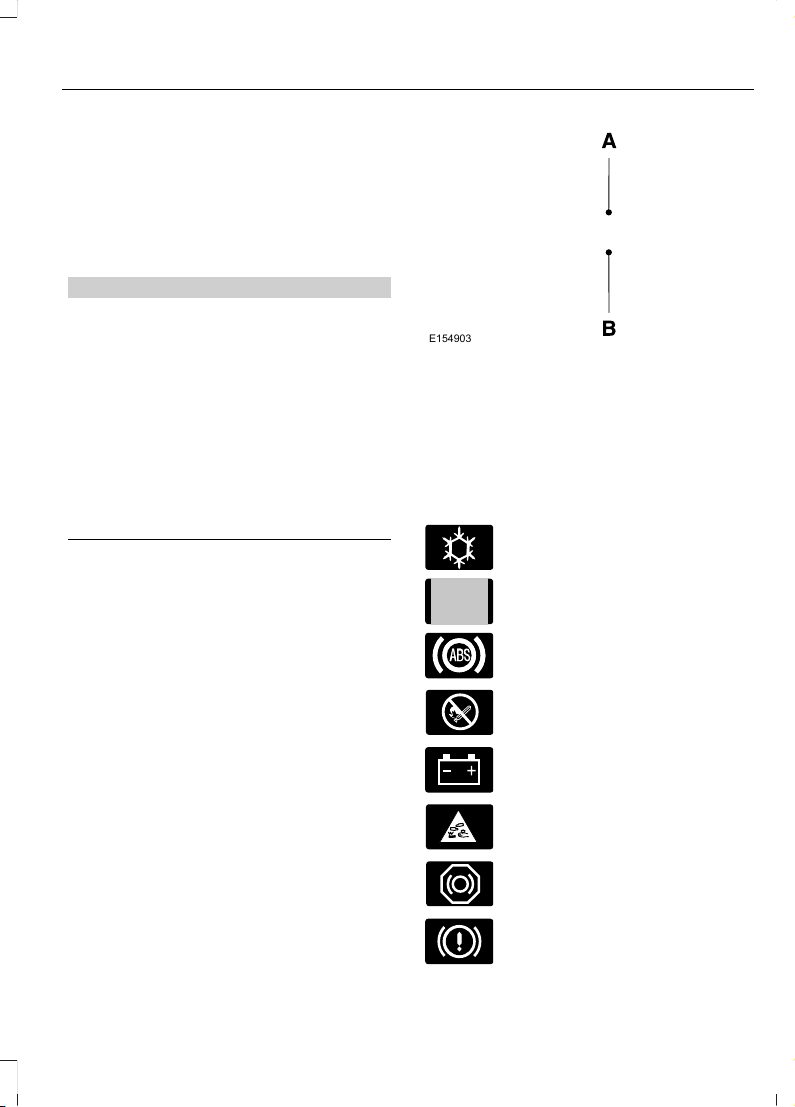
This manual may qualify the location of a
component as left-hand side or right-hand
side. The side is determined when facing
forward in the seat.
E154903
Right-hand side.A
Left-hand side.B
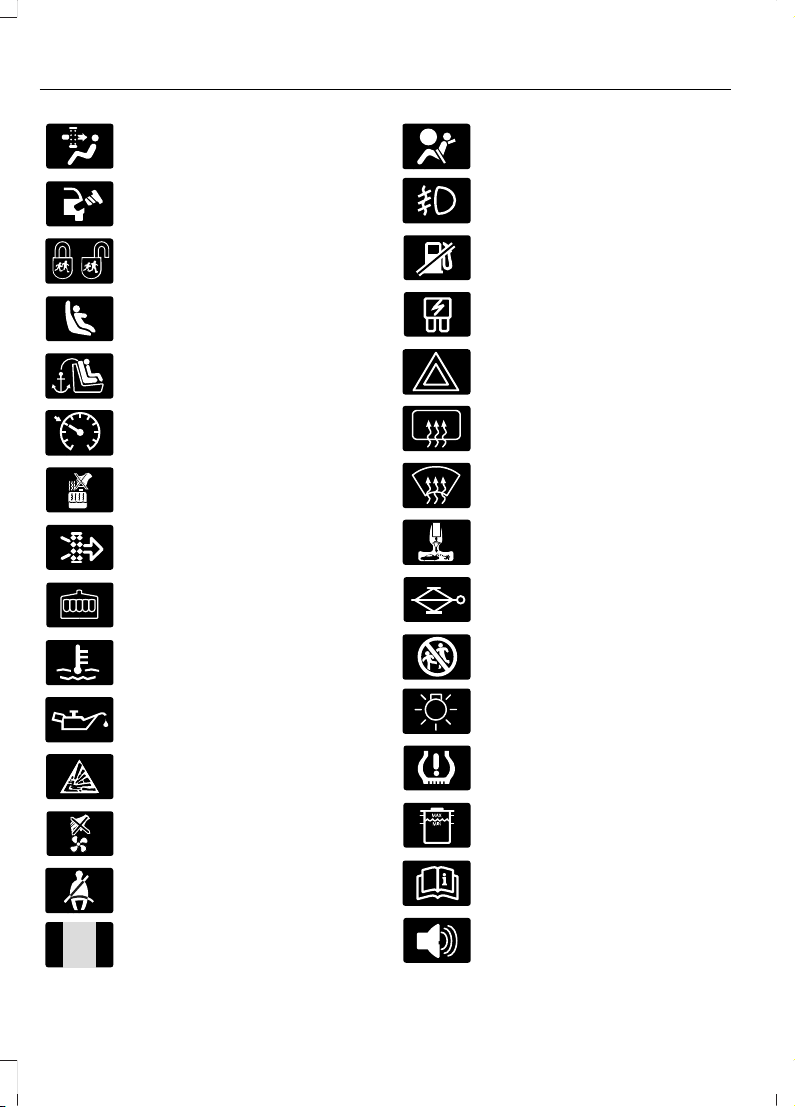
SYMBOLS GLOSSARY
These are some of the symbols you may
see on your vehicle.
E162384
Air conditioning system
E231157
Air conditioning system lubricant
type
Anti-lock braking system
Avoid smoking, flames or sparks
Battery
Battery acid
Brake fluid - non petroleum
based
Brake system
7
Edge (CDQ) Canada/United States of America, enUSA, Edition date: 201706, First Printing
Introduction
Cabin air filter
Check fuel cap
Child safety door lock or unlock
Child seat lower anchor
Child seat tether anchor
E71340
Cruise control
Do not open when hot
Engine air filter
Engine coolant
Engine coolant temperature
Engine oil
Explosive gas
Fan warning
E71880
Fasten seatbelt
E231160
Flammable
E67017
Front airbag
Front fog lamps
Fuel pump reset
Fuse compartment
Hazard warning flashers
Heated rear window
Heated windshield
Interior luggage compartment
release
Jack
E161353
Keep out of reach of children
Lighting control
Low tire pressure warning
Maintain correct fluid level
Note operating instructions
Panic alarm
8
Edge (CDQ) Canada/United States of America, enUSA, Edition date: 201706, First Printing
Introduction
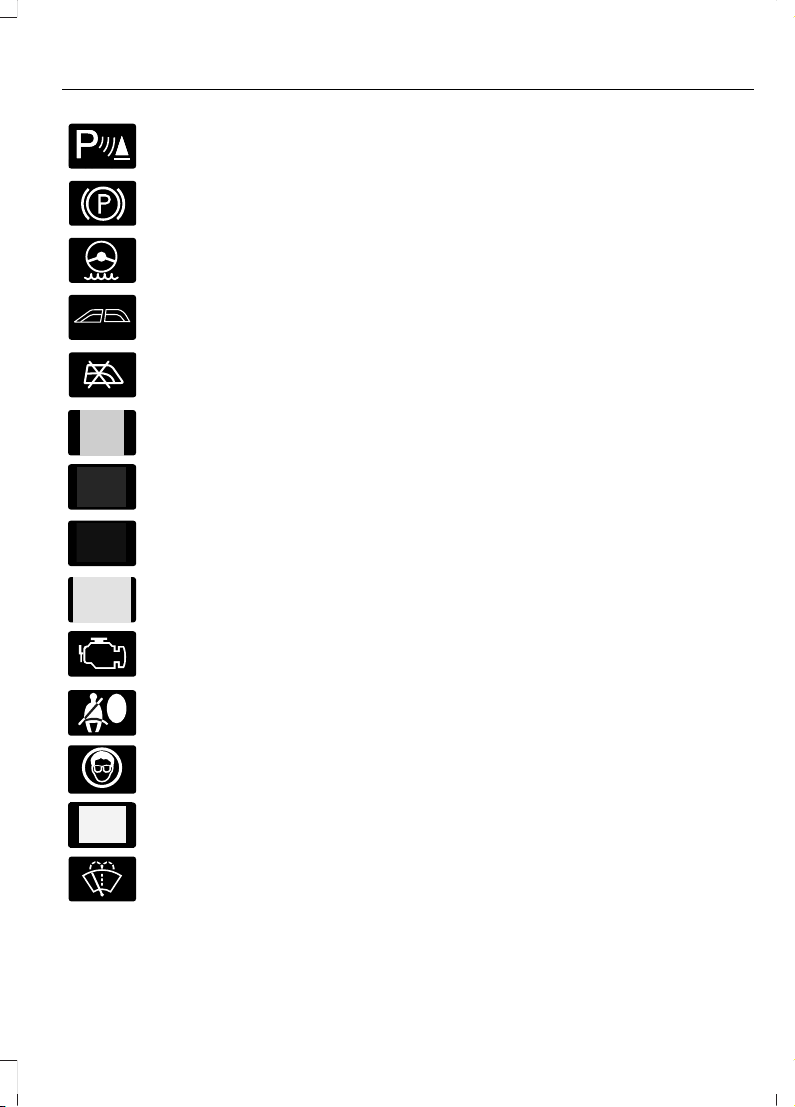
E139213
Parking aid
Parking brake
Power steering fluid
Power windows front/rear
Power window lockout
E231159
Requires registered technician
Safety alert
See Owner's Manual
E231158
See Service Manual
Service engine soon
Side airbag
E167012
Shield the eyes
E138639
Stability control
Windshield wash and wipe
DATA RECORDING
Service Data Recording
Service data recorders in your vehicle are
capable of collecting and storing
diagnostic information about your vehicle.
This potentially includes information about
the performance or status of various
systems and modules in the vehicle, such
as engine, throttle, steering or brake
systems. In order to properly diagnose and
service your vehicle, Ford Motor Company
(Ford of Canada in Canada), and service
and repair facilities may access or share
among them vehicle diagnostic
information received through a direct
connection to your vehicle when
diagnosing or servicing your vehicle.
Additionally, Ford Motor Company (Ford
of Canada, in Canada) may, where
permitted by law, use vehicle diagnostic
information for vehicle improvement or
with other information we may have about
you, (for example, your contact
information), to offer you products or
services that may interest you. Data may
be provided to our service providers such
as part suppliers that may help diagnose
malfunctions, and who are similarly
obligated to protect data. We retain this
data only as long as necessary to perform
these functions or to comply with law. We
may provide information where required
in response to official requests to law
enforcement or other government
authorities or third parties acting with
lawful authority or court order, and such
information may be used in legal
proceedings. For U.S. only (if equipped), if
you choose to use connected apps and
services, such as SYNC Vehicle Health
Report or MyFord Mobile App, you consent
that certain diagnostic information may
also be accessed electronically by Ford
Motor Company and Ford authorized
service facilities, and that the diagnostic
information may be used to provide
9
Edge (CDQ) Canada/United States of America, enUSA, Edition date: 201706, First Printing
Introduction

services to you, personalizing your
experience, troubleshoot, and to improve
products and services and offer you
products and services that may interest
you, where permitted by law. For Canada
only, for more information, please review
the Ford of Canada privacy policy at
www.ford.ca, including our U.S. data
storage and use of service providers in
other jurisdictions who may be subject to
legal requirements in Canada, the United
States and other countries applicable to
them, for example, lawful requirements to
disclose personal information to
governmental authorities in those
countries. See SYNC™ (page 367).
Event Data Recording
This vehicle is equipped with an event
data recorder. The main purpose of an
event data recorder is to record, in
certain crash or near crash-like
situations, such as an airbag
deployment or hitting a road obstacle;
this data will assist in understanding
how a vehicle’s systems performed.
The event data recorder is designed to
record data related to vehicle dynamics
and safety systems for a short period
of time, typically 30 seconds or less.
The event data recorder in this vehicle
is designed to record such data as:
• How various systems in your vehicle
were operating;
• Whether or not the driver and
passenger safety belts were
buckled/fastened;
• How far (if at all) the driver was
depressing the accelerator and/or
the brake pedal; and
• How fast the vehicle was traveling;
and
• Where the driver was positioning
the steering wheel.
This data can help provide a better
understanding of the circumstances in
which crashes and injuries occur.
Note: Event data recorder data is
recorded by your vehicle only if a
non-trivial crash situation occurs; no data
is recorded by the event data recorder
under normal driving conditions and no
personal data or information (e.g., name,
gender, age, and crash location) is
recorded (see limitations regarding 911
Assist and Traffic, directions and
Information privacy below). However,
parties, such as law enforcement, could
combine the event data recorder data
with the type of personally identifying
data routinely acquired during a crash
investigation.
To read data recorded by an event data
recorder, special equipment is required,
and access to the vehicle or the event
data recorder is needed. In addition to
the vehicle manufacturer, other
parties, such as law enforcement, that
have such special equipment, can read
the information if they have access to
the vehicle or the event data recorder.
Ford Motor Company and Ford of
Canada do not access event data
recorder information without obtaining
consent, unless pursuant to court order
or where required by law enforcement,
other government authorities or other
third parties acting with lawful
authority. Other parties may seek to
access the information independently
of Ford Motor Company and Ford of
Canada.
10
Edge (CDQ) Canada/United States of America, enUSA, Edition date: 201706, First Printing
Introduction

Note: Including to the extent that any
law pertaining to Event Data Recorders
applies to SYNC or its features, please
note the following: Once 911 Assist (if
equipped) is enabled (set ON), 911 Assist
may, through any paired and connected
cell phone, disclose to emergency
services that the vehicle has been in a
crash involving the deployment of an
airbag or, in certain vehicles, the
activation of the fuel pump shut-off.
Certain versions or updates to 911 Assist
may also be capable of being used to
electronically or verbally provide to 911
operators the vehicle location (such as
latitude and longitude), and/or other
details about the vehicle or crash or
personal information about the
occupants to assist 911 operators to
provide the most appropriate emergency
services. If you do not want to disclose
this information, do not activate the 911
Assist feature. See SYNC™ (page 367).
Additionally, when you connect to
Traffic, Directions and Information (if
equipped, U.S. only), the service uses
GPS technology and advanced vehicle
sensors to collect the vehicle’s current
location, travel direction, and speed
(“vehicle travel information”), only to
help provide you with the directions,
traffic reports, or business searches
that you request. If you do not want
Ford or its vendors to receive this
information, do not activate the
service. For more information, see
Traffic, Directions and Information,
Terms and Conditions. See SYNC™
(page 367).
CALIFORNIA PROPOSITION 65
WARNINGS
Some constituents of engine
exhaust, certain vehicle components,
certain fluids contained in vehicles
and certain products of component wear
contain or emit chemicals known to the
State of California to cause cancer and
birth defects or other reproductive harm.
Battery posts, terminals and related
accessories contain lead and lead
compounds, chemicals known to the
State of California to cause cancer and
reproductive harm. Batteries also contain
other chemicals known to the State of
California to cause cancer. Wash your
hands after handling.
PERCHLORATE
Certain components in your vehicle such
as airbag modules, seatbelt pretensioners
and remote control batteries may contain
perchlorate material. Special handling
may apply for service or vehicle end of life
disposal.
For more information visit:
Web Address
www.dtsc.ca.gov/hazard-
ouswaste/perchlorate
FORD CREDIT
US Only
Ford Credit offers a full range of financing
and lease plans to help you acquire your
vehicle. If you have financed or leased your
vehicle through Ford Credit, thank you for
your business.
11
Edge (CDQ) Canada/United States of America, enUSA, Edition date: 201706, First Printing
Introduction

We offer a number of convenient ways for
you to contact us, and to manage your
account.
Call 1-800-727-7000.
For more information about Ford Credit
and access to Account Manager, go to
www.ford.com/finance.
REPLACEMENT PARTS
RECOMMENDATION
We have built your vehicle to the highest
standards using quality parts. We
recommend that you demand the use of
genuine Ford and Motorcraft parts
whenever your vehicle requires scheduled
maintenance or repair. You can clearly
identify genuine Ford and Motorcraft parts
by looking for the Ford, FoMoCo or
Motorcraft branding on the parts or their
packaging.
Scheduled Maintenance and
Mechanical Repairs
One of the best ways for you to make sure
that your vehicle provides years of service
is to have it maintained in line with our
recommendations using parts that
conform to the specifications detailed in
this Owner’s Manual. Genuine Ford and
Motorcraft parts meet or exceed these
specifications.
Collision Repairs
We hope that you never experience a
collision, but accidents do happen.
Genuine Ford replacement collision parts
meet our stringent requirements for fit,
finish, structural integrity, corrosion
protection and dent resistance. During
vehicle development we validate that
these parts deliver the intended level of
protection as a whole system. A great way
to know for sure you are getting this level
of protection is to use genuine Ford
replacement collision parts.
Warranty on Replacement Parts
Genuine Ford and Motorcraft replacement
parts are the only replacement parts that
benefit from a Ford Warranty. The Ford
Warranty may not cover damage caused
to your vehicle as a result of failed
non-Ford parts. For additional information,
refer to the terms and conditions of the
Ford Warranty.
SPECIAL NOTICES
New Vehicle Limited Warranty
For a detailed description of what is
covered and what is not covered by your
vehicle’s New Vehicle Limited Warranty,
see the Warranty Manual that is provided
to you along with your Owner’s Manual.
Special Instructions
For your added safety, your vehicle is fitted
with sophisticated electronic controls.
WARNINGS
You risk death or serious injury to
yourself and others if you do not
follow the instruction highlighted by
the warning symbol. Failure to follow the
specific warnings and instructions could
result in personal injury.
NEVER use a rearward facing child
restraint on a seat protected by an
ACTIVE AIRBAG in front of it, DEATH
or SERIOUS INJURY to the CHILD can
occur.
12
Edge (CDQ) Canada/United States of America, enUSA, Edition date: 201706, First Printing
Introduction

On Board Diagnostics Data Link
Connector
WARNING
Do not connect wireless plug-in
devices to the data link connector.
Unauthorized third parties could gain
access to vehicle data and impair the
performance of safety related systems.
Only allow repair facilities that follow our
service and repair instructions to connect
their equipment to the data link connector.
Your vehicle has an OBD Data Link
Connector (DLC) that is used in
conjunction with a diagnostic scan tool for
vehicle diagnostics, repairs and
reprogramming services. Installing an
aftermarket device that uses the DLC
during normal driving for purposes such as
remote insurance company monitoring,
transmission of vehicle data to other
devices or entities, or altering the
performance of the vehicle, may cause
interference with or even damage to
vehicle systems. We do not recommend
or endorse the use of aftermarket plug-in
devices unless approved by Ford. The
vehicle Warranty will not cover damage
caused by an aftermarket plug-in device.
MOBILE COMMUNICATIONS
EQUIPMENT
WARNING
Driving while distracted can result in
loss of vehicle control, crash and
injury. We strongly recommend that
you use extreme caution when using any
device that may take your focus off the
road. Your primary responsibility is the safe
operation of your vehicle. We recommend
against the use of any hand-held device
while driving and encourage the use of
voice-operated systems when possible.
Make sure you are aware of all applicable
local laws that may affect the use of
electronic devices while driving.
Using mobile communications equipment
is becoming increasingly important in the
conduct of business and personal affairs.
However, you must not compromise your
own or others’ safety when using such
equipment. Mobile communications can
enhance personal safety and security when
appropriately used, particularly in
emergency situations. Safety must be
paramount when using mobile
communications equipment to avoid
negating these benefits. Mobile
communication equipment includes, but
is not limited to, cellular phones, pagers,
portable email devices, text messaging
devices and portable two-way radios.
EXPORT UNIQUE OPTIONS
For your particular global region, your
vehicle may be equipped with features and
options that are different from the features
and options that are described in this
Owner’s Manual. A market unique
supplement may be supplied that
complements this book. By referring to the
market unique supplement, if provided,
you can properly identify those features,
13
Edge (CDQ) Canada/United States of America, enUSA, Edition date: 201706, First Printing
Introduction

recommendations and specifications that
are unique to your vehicle. This Owner’s
Manual is written primarily for the U.S. and
Canadian Markets. Features or equipment
listed as standard may be different on units
built for export. Refer to this Owner’s
Manual for all other required
information and warnings.
14
Edge (CDQ) Canada/United States of America, enUSA, Edition date: 201706, First Printing
Introduction
PROTECTING THE
ENVIRONMENT
You should play your part in protecting the
environment. Correct vehicle usage and
the authorized disposal of waste, cleaning
and lubrication materials are significant
steps toward this aim.
For details about Ford Motor
Company's sustainability progress and
initiatives visit:
Web Address
www.sustainability.ford.com
15
Edge (CDQ) Canada/United States of America, enUSA, Edition date: 201706, First Printing
Environment
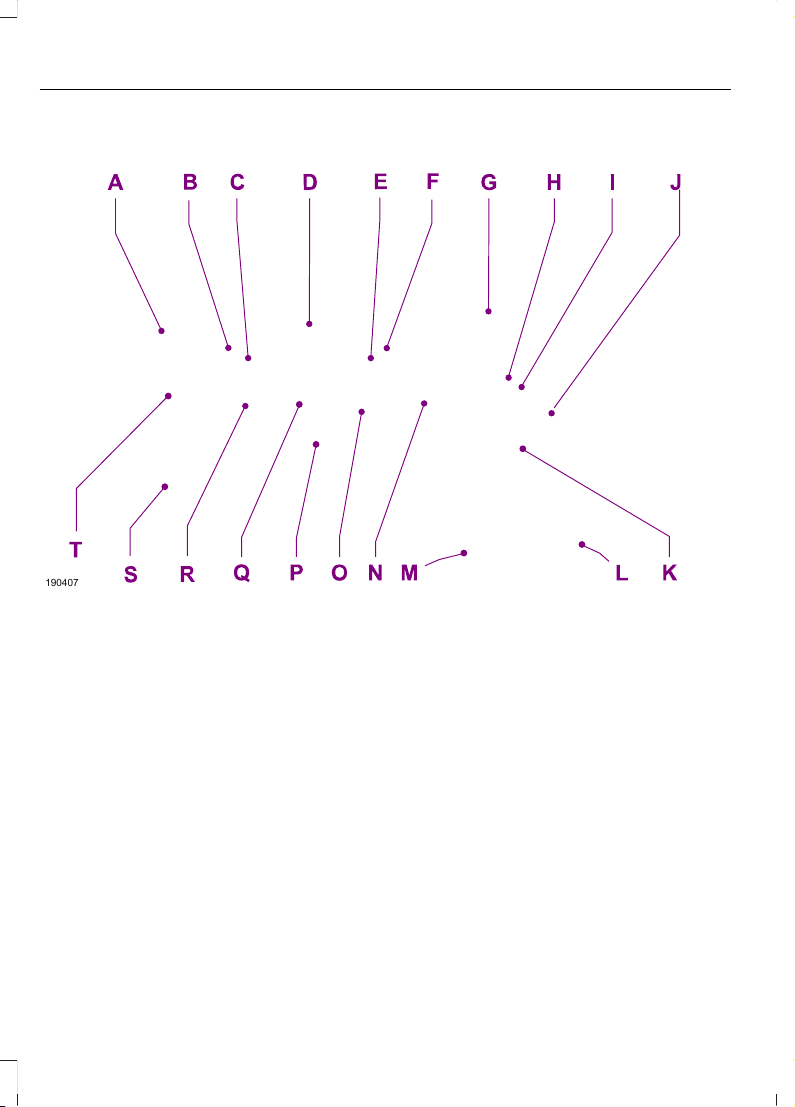
INSTRUMENT PANEL OVERVIEW
E190407
Air vents.A
Direction indicator lever. See Direction Indicators (page 88).B
Information display controls. See Information Display Control (page 80).C
Instrument cluster. See Instrument Cluster (page 95).D
Information display controls. See Information Display Control (page 80).E
Wiper lever. See Windshield Wipers (page 81).F
Information and entertainment display.G
Hazard flasher switch. See Hazard Flashers (page 242).H
Audio unit. See Audio System (page 352).I
Climate control. See Climate Control (page 126).J
Heated seat switch. See Climate Controlled Seats (page 146).K
Parking aid switch. Auto-start-stop switch. See Parking Aids (page 190). See
Auto-Start-Stop (page 161).
L
Parking brake. See Electric Parking Brake (page 184).M
16
Edge (CDQ) Canada/United States of America, enUSA, Edition date: 201706, First Printing
At a Glance

Keyless start button. See Keyless Starting (page 156).N
Audio control. Voice control. See Audio Control (page 78). See Voice Control
(page 80).
O
Steering wheel adjustment. See Adjusting the Steering Wheel (page 77).P
Horn.Q
Cruise control buttons. See Cruise Control (page 80).R
Hood release lever. See Opening and Closing the Hood (page 265).S
Lighting control. Power liftgate release button. See Lighting Control (page
84). See Power Liftgate (page 71).
T
17
Edge (CDQ) Canada/United States of America, enUSA, Edition date: 201706, First Printing
At a Glance

GENERAL INFORMATION
See the following sections for directions
on how to properly use safety restraints
for children.
WARNINGS
Always make sure your child is
secured properly in a device that is
appropriate for their height, age and
weight. Child safety restraints must be
bought separately from your vehicle.
Failure to follow these instructions and
guidelines may result in an increased risk
of serious injury or death to your child.
All children are shaped differently.
The National Highway Traffic Safety
Administration and other safety
organizations, base their recommendations
for child restraints on probable child height,
age and weight thresholds, or on the
minimum requirements of the law. We
recommend that you check with a NHTSA
Certified Child Passenger Safety
WARNINGS
Technician (CPST) to make sure that you
properly install the child restraint in your
vehicle and that you consult your
pediatrician to make sure you have a child
restraint appropriate for your child. To
locate a child restraint fitting station and
CPST, contact NHTSA toll free at
1-888-327-4236 or go to
www.nhtsa.dot.gov. In Canada, contact
Transport Canada toll free at
1-800-333-0371 or go to www.tc.gc.ca to
find a Child Car Seat Clinic in your area.
Failure to properly restrain children in child
restraints made especially for their height,
age and weight, may result in an increased
risk of serious injury or death to your child.
On hot days, the temperature inside
the vehicle can rise very quickly.
Exposure of people or animals to
these high temperatures for even a short
time can cause death or serious heat
related injuries, including brain damage.
Small children are particularly at risk.
18
Edge (CDQ) Canada/United States of America, enUSA, Edition date: 201706, First Printing
Child Safety

Recommendations for Safety Restraints for Children
Recommended restraint
type
Child size, height, weight, or ageChild
Use a child safety seat
(sometimes called an
infant carrier, convertible
seat, or toddler seat).
Children weighing 40 lb (18 kg) or less
(generally age four or younger).
Infants or
toddlers
Use a belt-positioning
booster seat.
Children who have outgrown or no longer
properly fit in a child safety seat (gener-
ally children who are less than 4 ft. 9 in.
(1.45 m) tall, are greater than age four
and less than age 12, and between 40 lb
(18 kg) and 80 lb (36 kg) and upward to
100 lb (45 kg) if recommended by your
child restraint manufacturer).
Small children
Use a vehicle safety belt
having the lap belt snug
and low across the hips,
shoulder belt centered
across the shoulder and
chest, and seatback
upright.
Children who have outgrown or no longer
properly fit in a belt-positioning booster
seat (generally children who are at least
4 ft. 9 in. (1.45 m) tall or greater than
80 lb (36 kg) or 100 lb (45 kg) if recom-
mended by child restraint manufacturer).
Larger children
• You are required by law to properly use
safety seats for infants and toddlers in
the United States and Canada.
• Many states and provinces require that
small children use approved booster
seats until they reach age eight, a
height of 4 feet 9 inches (1.45 meters)
tall, or 80 lb (36 kg). Check your local
and state or provincial laws for specific
requirements about the safety of
children in your vehicle.
• When possible, always properly
restrain children 12 years of age and
under in a rear seating position of your
vehicle. Accident statistics suggest that
children are safer when properly
restrained in the rear seating positions
than in a front seating position. See
Front Passenger Sensing System
(page 44).
INSTALLING CHILD
RESTRAINTS
Child Seats
E142594
19
Edge (CDQ) Canada/United States of America, enUSA, Edition date: 201706, First Printing
Child Safety
Use a child safety seat (sometimes called
an infant carrier, convertible seat, or
toddler seat) for infants, toddlers, or
children weighing 40 lb (18 kg) or less
(generally age four or younger).
Using Lap and Shoulder Belts
WARNINGS
Airbags can kill or injure a child in a
child restraint. Never place a
rear-facing child restraint in front of
an active airbag. If you must use a
forward-facing child restraint in the front
seat, move the seat upon which the child
restraint is installed all the way back.
Airbags can kill or injure a child in a
child restraint. Properly restrain
children 12 and under in the rear seat
whenever possible.
Depending on where you secure a
child restraint, and depending on the
child restraint design, you may block
access to certain seatbelt buckle
assemblies and LATCH lower anchors,
rendering those features potentially
unusable. To avoid risk of injury, make sure
occupants only use seating positions
where they are able to be properly
restrained.
When installing a child safety seat with
combination lap and shoulder belts:
• Use the correct safety belt buckle for
that seating position.
• Insert the belt tongue into the proper
buckle until you hear a snap and feel it
latch. Make sure the tongue is securely
fastened in the buckle.
• Keep the buckle release button
pointing up and away from the safety
seat, with the tongue between the child
seat and the release button, to prevent
accidental unbuckling.
• Place the vehicle seat upon which the
child seat will be installed in the upright
position.
• Put the safety belt in the automatic
locking mode. See Step 5. This vehicle
does not require the use of a locking
clip.
Perform the following steps when
installing the child seat with combination
lap and shoulder belts:
Note: Although the child seat illustrated is
a forward facing child seat, the steps are
the same for installing a rear facing child
seat.
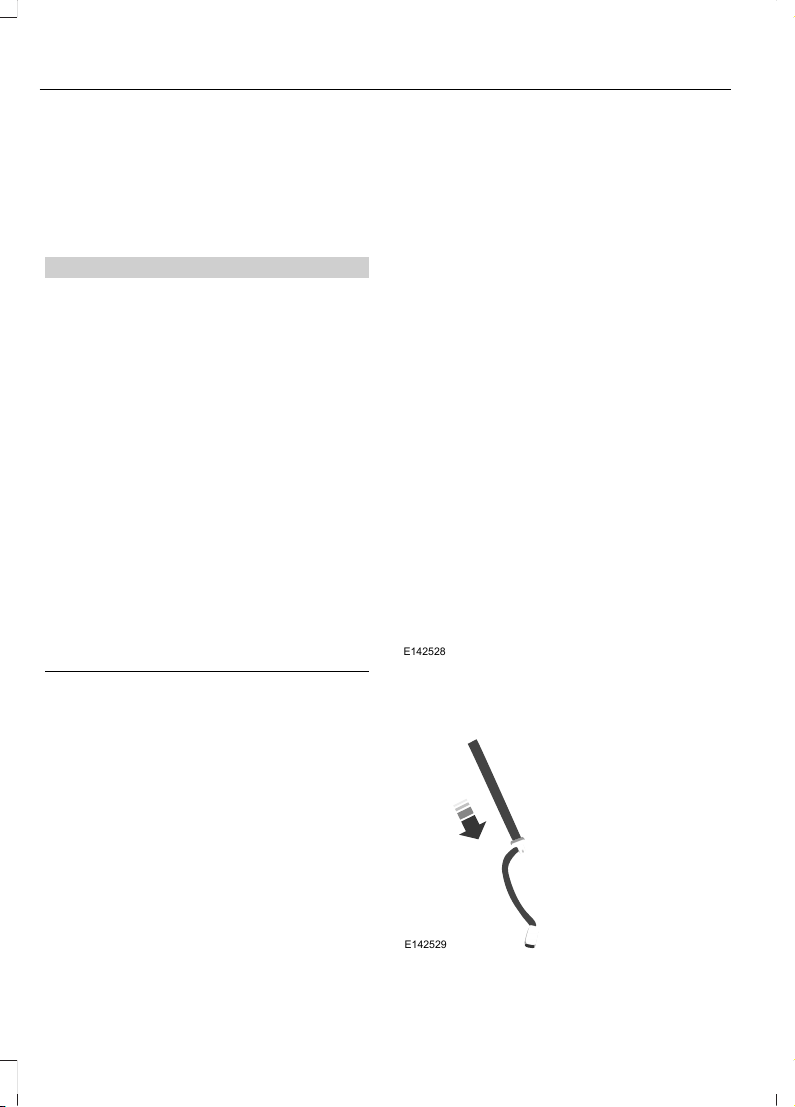
Standard safety belts
E142528
1. Position the child safety seat in a seat
with a combination lap and shoulder
belt.
E142529
20
Edge (CDQ) Canada/United States of America, enUSA, Edition date: 201706, First Printing
Child Safety
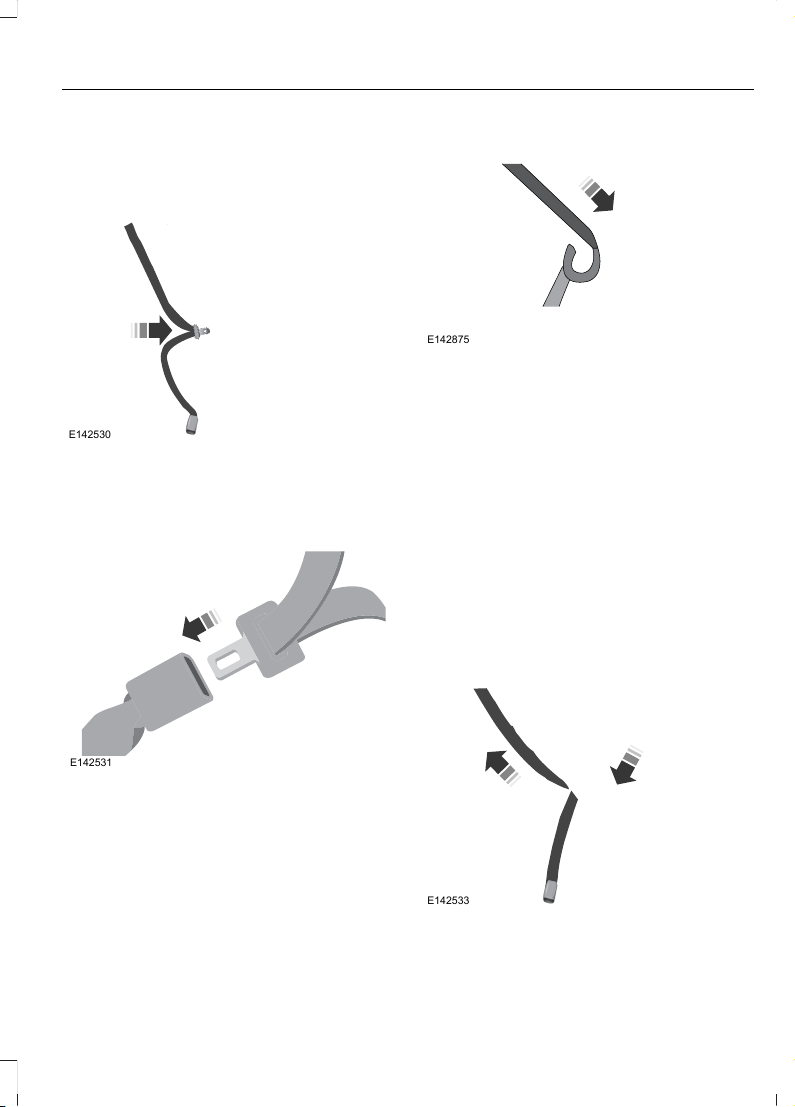
2. After positioning the child safety seat
in the proper seating position, pull
down on the shoulder belt and then
grasp the shoulder belt and lap belt
together behind the belt tongue.
E142530
3. While holding the shoulder and lap belt
portions together, route the tongue
through the child seat according to the
child seat manufacturer's instructions.
Be sure the belt webbing is not twisted.
E142531
4. Insert the belt tongue into the proper
buckle (the buckle closest to the
direction the tongue is coming from)
for that seating position until you hear
a snap and feel the latch engage. Make
sure the tongue is latched securely by
pulling on it.
E142875
5. To put the retractor in the automatic
locking mode, grasp the shoulder
portion of the belt and pull downward
until all of the belt is pulled out.
Note: The automatic locking mode is
available on the front passenger and rear
seats.
6. Allow the belt to retract to remove
slack. The belt will click as it retracts
to indicate it is in the automatic locking
mode.
7. Try to pull the belt out of the retractor
to make sure the retractor is in the
automatic locking mode (you should
not be able to pull more belt out). If the
retractor is not locked, unbuckle the
belt and repeat Steps 5 and 6.
E142533
21
Edge (CDQ) Canada/United States of America, enUSA, Edition date: 201706, First Printing
Child Safety
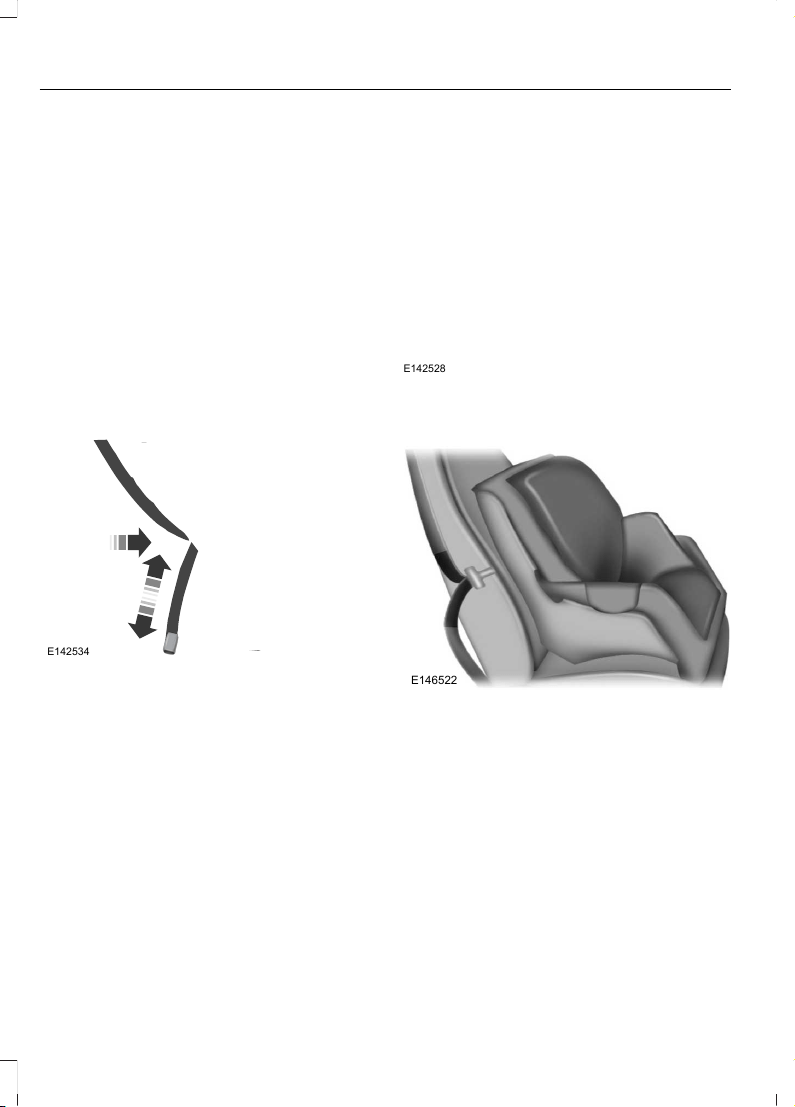
8. Remove remaining slack from the belt.
Force the seat down with extra weight,
for example, by pressing down or
kneeling on the child restraint while
pulling up on the shoulder belt in order
to force slack from the belt. This is
necessary to remove the remaining
slack that will exist once the extra
weight of the child is added to the child
restraint. It also helps to achieve the
proper snugness of the child seat to
your vehicle. Sometimes, a slight lean
toward the buckle will provide extra
help to remove remaining slack from
the belt.
9. Attach the tether strap (if the child seat
is equipped).
E142534
10. Before placing the child in the seat,
forcibly move the seat forward and
back to make sure the seat is securely
held in place. To check this, grab the
seat at the belt path and attempt to
move it side to side and forward and
back. There should be no more than
1 in (2.5 cm) of movement for proper
installation.
We recommend checking with a NHTSA
Certified Child Passenger Safety
Technician to make certain the child
restraint is properly installed. In Canada,
check with Transport Canada for referral
to a Child Car Seat Clinic.
Inflatable safety belts
E142528
1. Position the child safety seat in a seat
with a combination lap and shoulder
belt.
E146522
2. After positioning the child safety seat
in the proper seating position, grasp the
shoulder belt and lap belt together
behind the belt tongue.
22
Edge (CDQ) Canada/United States of America, enUSA, Edition date: 201706, First Printing
Child Safety
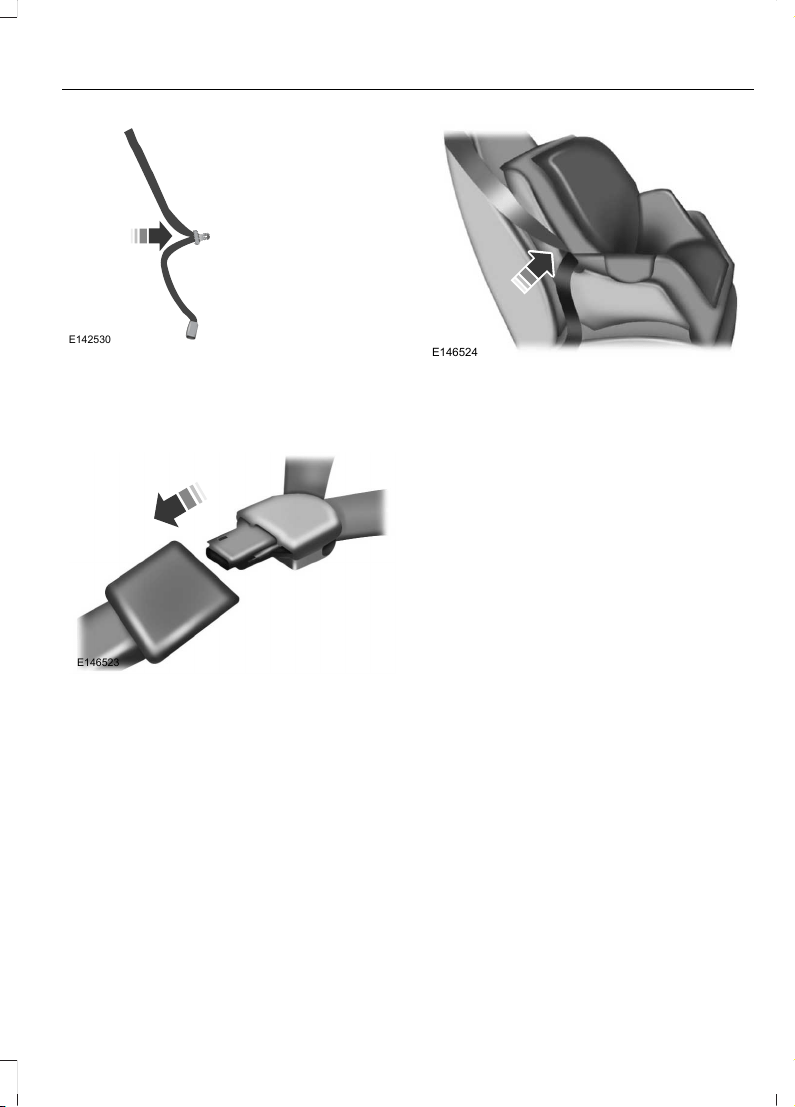
E142530
3. While holding the shoulder and lap belt
portions together, route the tongue
through the child seat according to the
child seat manufacturer's instructions.
Be sure the belt webbing is not twisted.
E146523
4. Insert the belt tongue into the proper
buckle (the buckle closest to the
direction the tongue is coming from)
for that seating position until you hear
a snap and feel the latch engage. Make
sure the tongue is latched securely by
pulling on it.
E146524
5. To put the retractor in the automatic
locking mode, grasp the lap portion of
the inflatable safety belt and pull
upward until all of the belt is pulled out.
Note: The automatic locking mode is
available on the front passenger and rear
seats.
Note: Unlike the standard safety belt, the
inflatable safety belt's unique lap portion
locks the child seat for installation. The
ability for the shoulder portion of the belt to
move freely is normal, even after the lap belt
has been put into the automatic locking
mode.
Note: The lock-off device on some child
restraints may not accommodate the
shoulder portion of the inflatable safety belt.
Follow all instructions provided by the
manufacturer of the child restraint regarding
the necessary and proper use of the lock-off
device. In some instances, these devices
have been provided only for use in vehicles
with safety belt systems that would
otherwise require a locking clip.
6. Allow the belt to retract to remove
slack. The belt will click as it retracts
to indicate it is in the automatic locking
mode.
23
Edge (CDQ) Canada/United States of America, enUSA, Edition date: 201706, First Printing
Child Safety
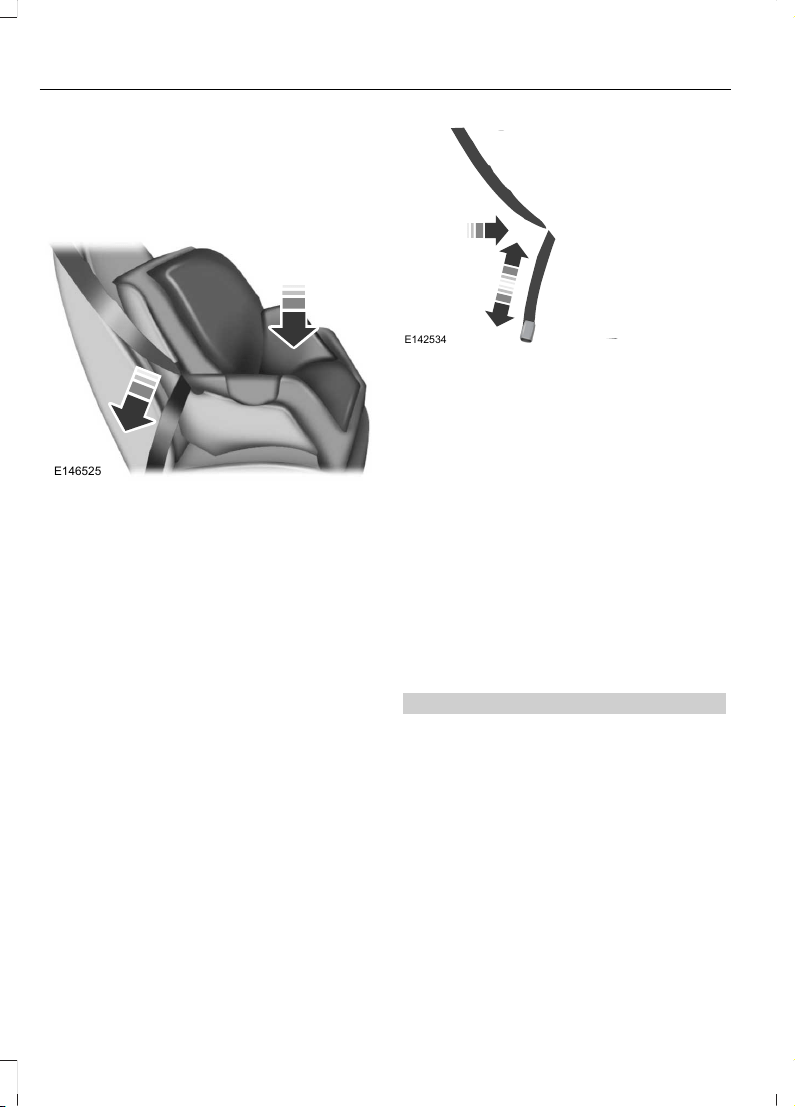
7. Try to pull the belt out of the retractor
to make sure the retractor is in the
automatic locking mode (you should
not be able to pull more belt out). If the
retractor is not locked, unbuckle the
belt and repeat Steps 5 and 6.
E146525
8. Remove remaining slack from the belt.
Force the seat down with extra weight,
for example, by pressing down or
kneeling on the child restraint while
pulling down on the lap belt in order to
force slack from the belt. This is
necessary to remove the remaining
slack that will exist once the extra
weight of the child is added to the child
restraint. It also helps to achieve the
proper snugness of the child seat to
your vehicle. Sometimes, a slight lean
toward the buckle will additionally help
to remove remaining slack from the
belt.
9. Attach the tether strap (if the child seat
is equipped).
E142534
10. Before placing the child in the seat,
forcibly move the seat forward and
back to make sure the seat is securely
held in place. To check this, grab the
seat at the belt path and attempt to
move it side to side and forward and
back. There should be no more than
1 in (2.5 cm) of movement for proper
installation.
We recommend checking with a NHTSA
Certified Child Passenger Safety
Technician to make certain the child
restraint is properly installed. In Canada,
check with Transport Canada for referral
to a Child Car Seat Clinic.
Using Lower Anchors and Tethers
for CHildren (LATCH)
WARNINGS
Do not attach two child safety
restraints to the same anchor. In a
crash, one anchor may not be strong
enough to hold two child safety restraint
attachments and may break, causing
serious injury or death.
24
Edge (CDQ) Canada/United States of America, enUSA, Edition date: 201706, First Printing
Child Safety
WARNINGS
Depending on where you secure a
child restraint, and depending on the
child restraint design, you may block
access to certain seatbelt buckle
assemblies and LATCH lower anchors,
rendering those features potentially
unusable. To avoid risk of injury, make sure
occupants only use seating positions
where they are able to be properly
restrained.
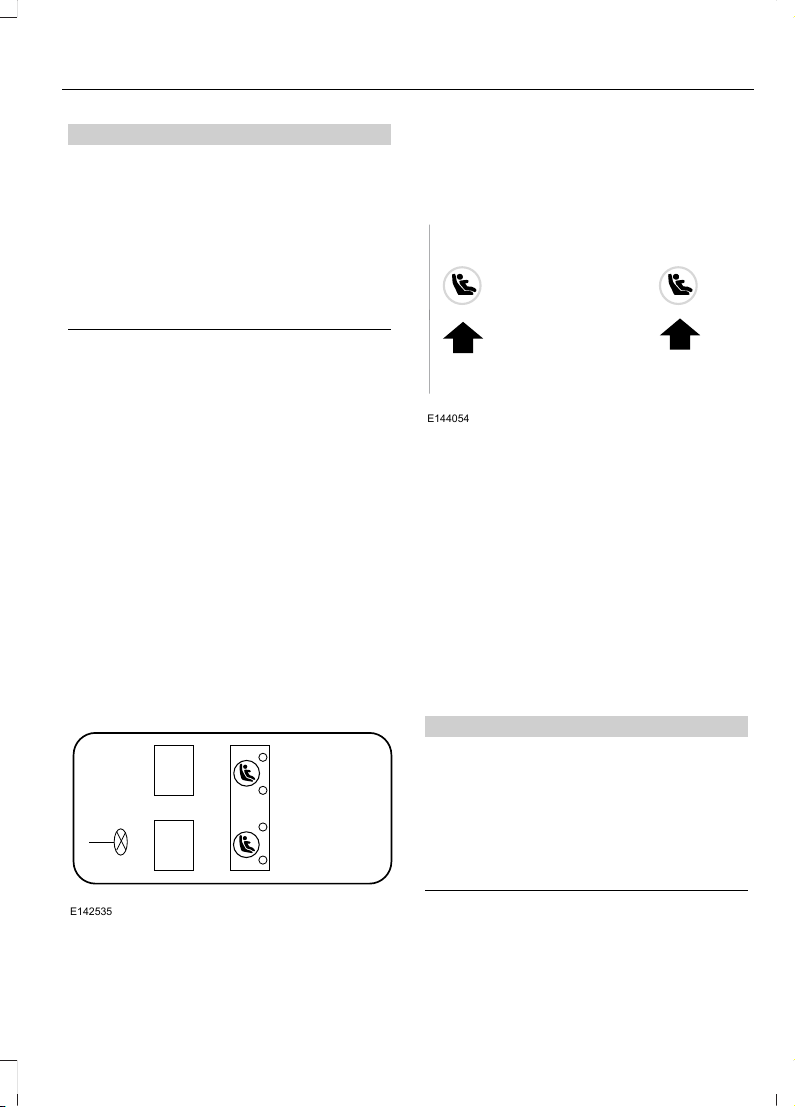
The LATCH system is composed of three
vehicle anchor points: two lower anchors
located where seat back and seat cushion
meet (called the seat bight) and one top
tether anchor located behind that seating
position.
LATCH compatible child safety seats have
two rigid or webbing mounted
attachments that connect to the two lower
anchors at the LATCH equipped seating
positions in your vehicle. This type of
attachment method eliminates the need
to use safety belts to attach the child seat,
however the safety belt can still be used
to attach the child seat. For forward-facing
child seats, the top tether strap must also
be attached to the proper top tether
anchor, if a top tether strap has been
provided with your child seat.
E142535
Your vehicle has LATCH lower anchors for
child seat installation at the seating
positions marked with the child seat
symbol.
E144054
The LATCH anchors are located at the rear
section of the rear seat between the
cushion and seat back below the symbols
as shown. Follow the child seat
manufacturer's instructions to properly
install a child seat with LATCH
attachments. Follow the instructions on
attaching child safety seats with tether
straps.
Attach LATCH lower attachments of the
child seat only to the anchors shown.
Use of Inboard Lower Anchors from the
Outboard Seating Positions (Center
Seating Use)
WARNING
The standardized spacing for LATCH
lower anchors is 11 in (280 mm)
center to center. Do not use LATCH
lower anchors for the center seating
position unless the child restraint
manufacturer's instructions permit and
specify using anchors spaced at least as
far apart as those in this vehicle.
25
Edge (CDQ) Canada/United States of America, enUSA, Edition date: 201706, First Printing
Child Safety
The lower anchors at the center of the
second row rear seat are spaced 20 inches
(51 centimeters) apart. A child seat with
rigid LATCH attachments cannot be
installed at the center seating position.
LATCH compatible child seats (with
attachments on belt webbing) can only be
used at this seating position provided that
the child seat manufacturer's instructions
permit use with the anchor spacing stated.
Do not attach a child seat to any lower
anchor if an adjacent child seat is attached
to that anchor.
Each time you use the safety seat, check
that the seat is properly attached to the
lower anchors and tether anchor, if
applicable. Tug the child seat from side to
side and forward and back where it is
secured to your vehicle. The seat should
move less than one inch when you do this
for a proper installation.
If the safety seat is not anchored properly,
the risk of a child being injured in a crash
greatly increases.
Combining Safety Belt and LATCH
Lower Anchors for Attaching Child
Safety Seats
When used in combination, either the
safety belt or the LATCH lower anchors
may be attached first, provided a proper
installation is achieved. Attach the tether
strap afterward, if included with the child
seat.
Using Tether Straps
Many forward-facing child safety
seats include a tether strap
which extends from the back of
the child safety seat and hooks to an
anchoring point called the top tether
anchor. Tether straps are available as an
accessory for many older safety seats.
Contact the manufacturer of your child
seat for information about ordering a
tether strap, or to obtain a longer tether
strap if the tether strap on your safety seat
does not reach the appropriate top tether
anchor in your vehicle.
Once the child safety seat has been
installed using either the safety belt, the
lower anchors of the LATCH system, or
both, you can attach the top tether strap.
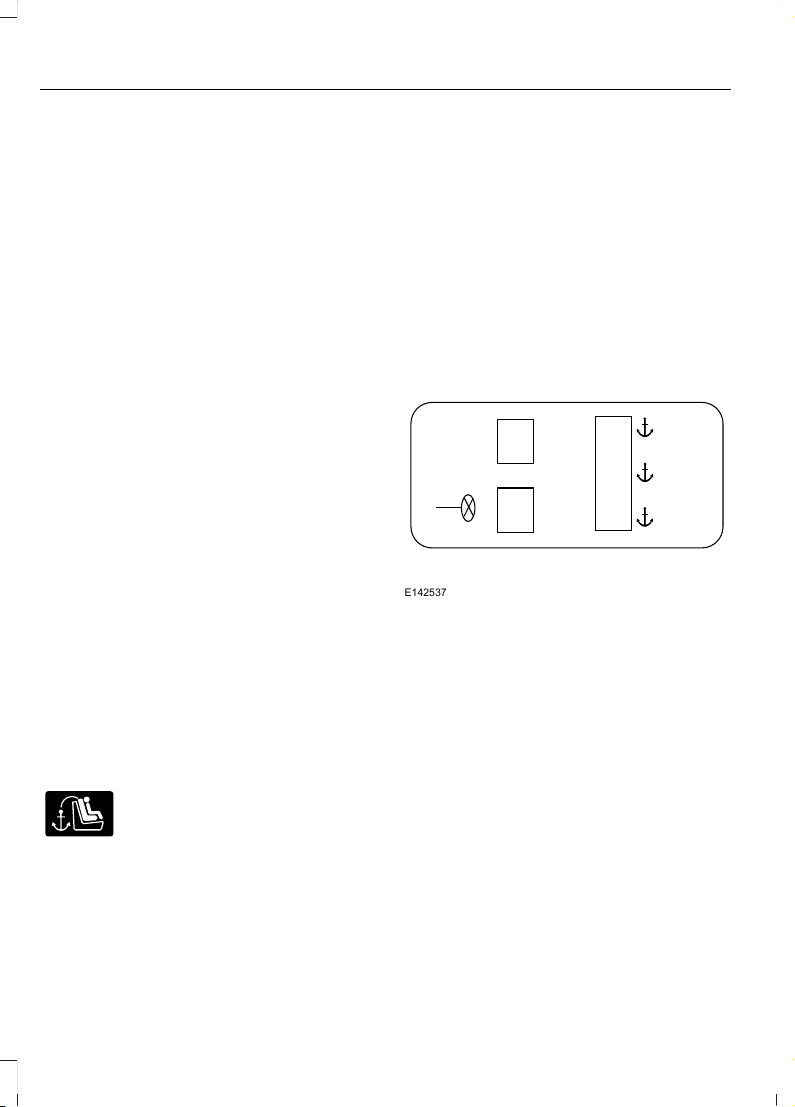
The tether strap anchors in your vehicle
are in the following positions (shown from
top view):
E142537
Perform the following steps to install a
child safety seat with tether anchors:
Note: If you install a child seat with rigid
LATCH attachments, do not tighten the
tether strap enough to lift the child seat off
your vehicle seat cushion when the child is
seated in it. Keep the tether strap just snug
without lifting the front of the child seat.
Keeping the child seat just touching your
vehicle seat gives the best protection in a
severe crash.
26
Edge (CDQ) Canada/United States of America, enUSA, Edition date: 201706, First Printing
Child Safety
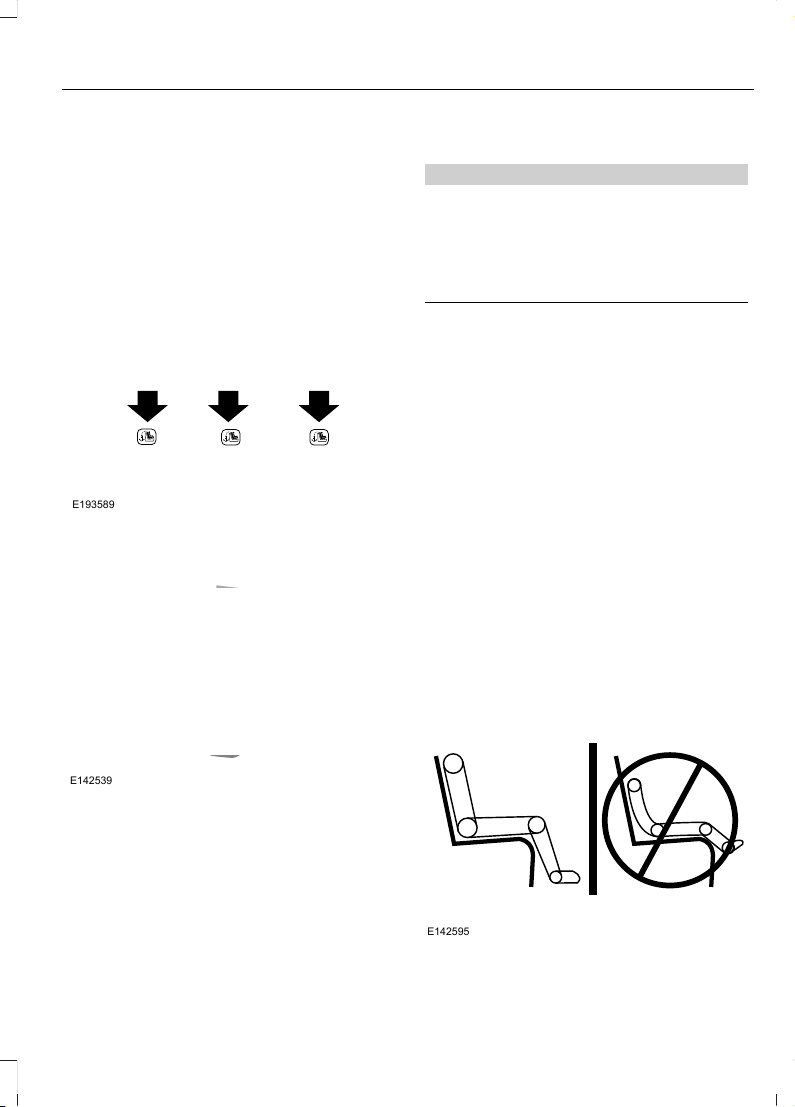
1. Route the child safety seat tether strap
over the back of the seat. For outboard
seating positions, route the tether strap
under the head restraint and between
the head restraint posts. For the center
seating positions, route the tether strap
over the top of the head restraint. If
needed, the head restraints can also
be removed.
E193589
2. Locate the correct anchor for the
selected seating position.
E142539
3. Clip the tether strap to the anchor as
shown.
4. Tighten the child safety seat tether
strap according to the manufacturer's
instructions.
If your child restraint system is equipped
with a tether strap, and the child restraint
manufacturer recommends its use, Ford
also recommends its use.
BOOSTER SEATS
WARNING
Never place, or allow a child to place,
the shoulder belt under a child's arm
or behind the back because it
reduces the protection for the upper part
of the body and may increase the risk of
injury or death in a crash.
Note: Some booster seat safety belt guides
may not accommodate the shoulder portion
of the inflatable safety belt.
Use a belt-positioning booster seat for
children who have outgrown or no longer
properly fit in a child safety seat (generally
children who are less than 4 feet 9 inches
(1.45 meters) tall, are greater than age four
(4) and less than age twelve (12), and
between 40 pounds (18 kilograms) and
80 pounds (36 kilograms) and upward to
100 pounds (45 kilograms) if
recommended by your child restraint
manufacturer). Many state and provincial
laws require that children use approved
booster seats until they reach age eight, a
height of 4 feet 9 inches (1.45 meters) tall,
or 80 pounds (36 kilograms).
Booster seats should be used until you can
answer YES to ALL of these questions
when seated without a booster seat:
E142595
27
Edge (CDQ) Canada/United States of America, enUSA, Edition date: 201706, First Printing
Child Safety
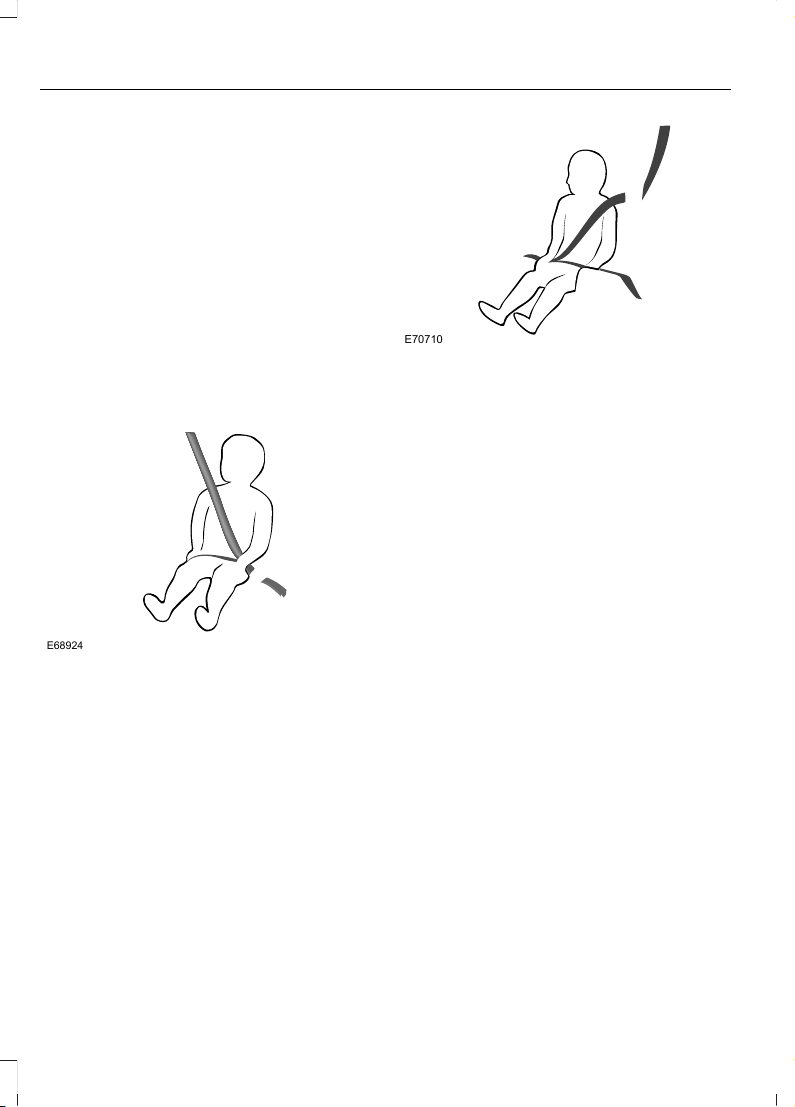
• Can the child sit all the way back
against their vehicle seat back with
knees bent comfortably at the edge of
the seat cushion?
• Can the child sit without slouching?
• Does the lap belt rest low across the
hips?
• Is the shoulder belt centered on the
shoulder and chest?
• Can the child stay seated like this for
the whole trip?
Always use booster seats in conjunction
with your vehicle lap and shoulder belt.
Types of Booster Seats
E68924
• Backless booster seats
If your backless booster seat has a
removable shield, remove the shield. If a
vehicle seating position has a low seat
back or no head restraint, a backless
booster seat may place your child's head
(as measured at the tops of the ears)
above the top of the seat. In this case,
move the backless booster to another
seating position with a higher seat back or
head restraint and lap and shoulder belts,
or consider using a high back booster seat.
E70710
• High back booster seats
If, with a backless booster seat, you cannot
find a seating position that adequately
supports your child's head, a high back
booster seat would be a better choice.
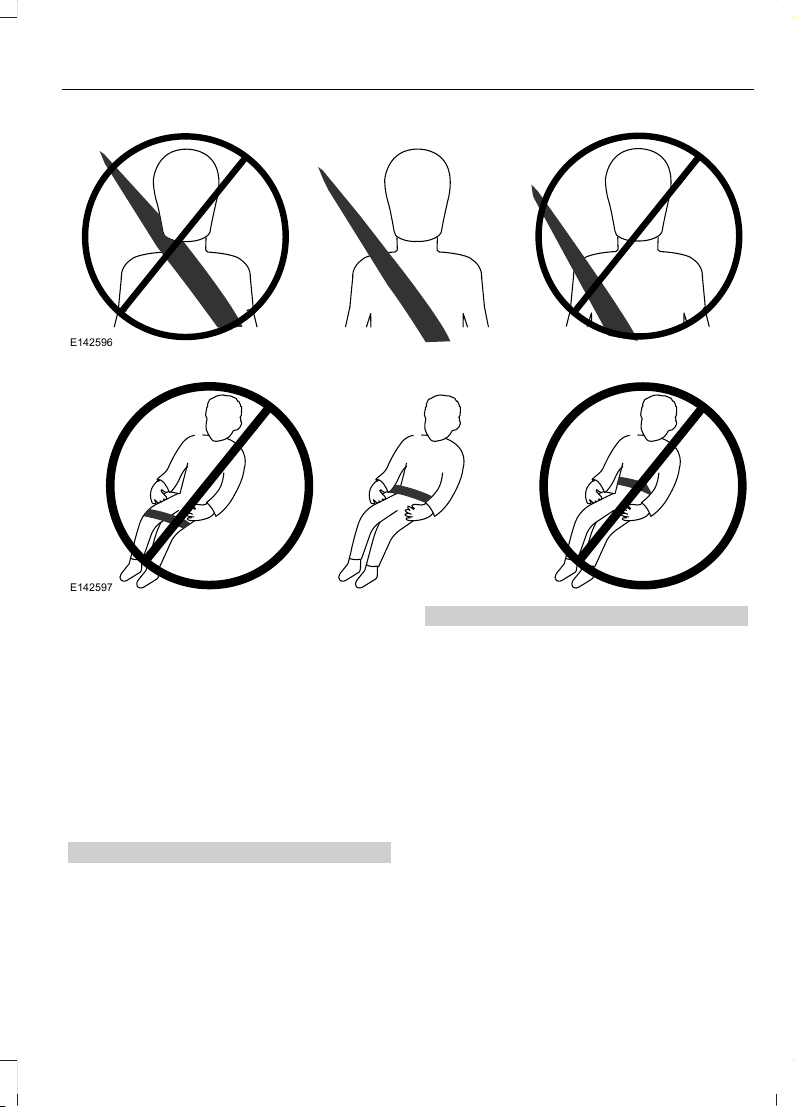
Children and booster seats vary in size and
shape. Choose a booster that keeps the
lap belt low and snug across the hips,
never up across the stomach, and lets you
adjust the shoulder belt to cross the chest
and rest snugly near the center of the
shoulder. The following drawings compare
the ideal fit (center) to a shoulder belt
uncomfortably close to the neck and a
shoulder belt that could slip off the
shoulder. The drawings also show how the
lap belt should be low and snug across the
child's hips.
28
Edge (CDQ) Canada/United States of America, enUSA, Edition date: 201706, First Printing
Child Safety
E142596
E142597
If the booster seat slides on the vehicle
seat upon which it is being used, placing a
rubberized mesh sold as shelf or carpet
liner under the booster seat may improve
this condition. Do not introduce any item
thicker than this under the booster seat.
Check with the booster seat
manufacturer's instructions.
CHILD RESTRAINT
POSITIONING
WARNINGS
Airbags can kill or injure a child in a
child seat. Never place a rear-facing
child seat in front of an active airbag.
If you must use a forward-facing child seat
in the front seat, move the vehicle seat
upon which the child seat is installed all
WARNINGS
the way back. When possible, all children
age 12 and under should be properly
restrained in a rear seating position. If all
children cannot be seated and restrained
properly in a rear seating position, properly
restrain the largest child in the front seat.
Always carefully follow the
instructions and warnings provided
by the manufacturer of any child
restraint to determine if the restraint device
is appropriate for your child's size, height,
weight, or age. Follow the child restraint
manufacturer's instructions and warnings
provided for installation and use in
conjunction with the instructions and
warnings provided by your vehicle
29
Edge (CDQ) Canada/United States of America, enUSA, Edition date: 201706, First Printing
Child Safety

WARNINGS
manufacturer. A safety seat that is
improperly installed or utilized, is
inappropriate for your child's height, age,
or weight or does not properly fit the child
may increase the risk of serious injury or
death.
Never let a passenger hold a child on
his or her lap while your vehicle is
moving. The passenger cannot
protect the child from injury in a crash,
which may result in serious injury or death.
Never use pillows, books, or towels
to boost a child. They can slide
around and increase the likelihood
of injury or death in a crash.
WARNINGS
Always restrain an unoccupied child
seat or booster seat. These objects
may become projectiles in a crash or
sudden stop, which may increase the risk
of serious injury.
Never place, or allow a child to place,
the shoulder belt under a child's arm
or behind the back because it
reduces the protection for the upper part
of the body and may increase the risk of
injury or death in a crash.
To avoid risk of injury, do not leave
children or pets unattended in your
vehicle.
Recommendations for attaching child safety restraints for children
Use any attachment method as indicated below by X
Combined
weight of
child and
child seat
Restraint
Type
Safety belt
only
Safety belt
and LATCH
(lower
anchors
and top
tether
anchor)
Safety belt
and top
tether
anchor
LATCH
(lower
anchors
only)
LATCH
(lower
anchors
and top
tether
anchor)
XX
Up to 65 lb
(29.5 kg)
Rear facing
child seat
X
Over 65 lb
(29.5 kg)
Rear facing
child seat
XXX
Up to 65 lb
(29.5 kg)
Forward
facing
child seat
XX
Over 65 lb
(29.5 kg)
Forward
facing
child seat
Note: The child seat must rest tightly
against the vehicle seat upon which it is
installed. It may be necessary to lift or
remove the head restraint. See Seats (page
138).
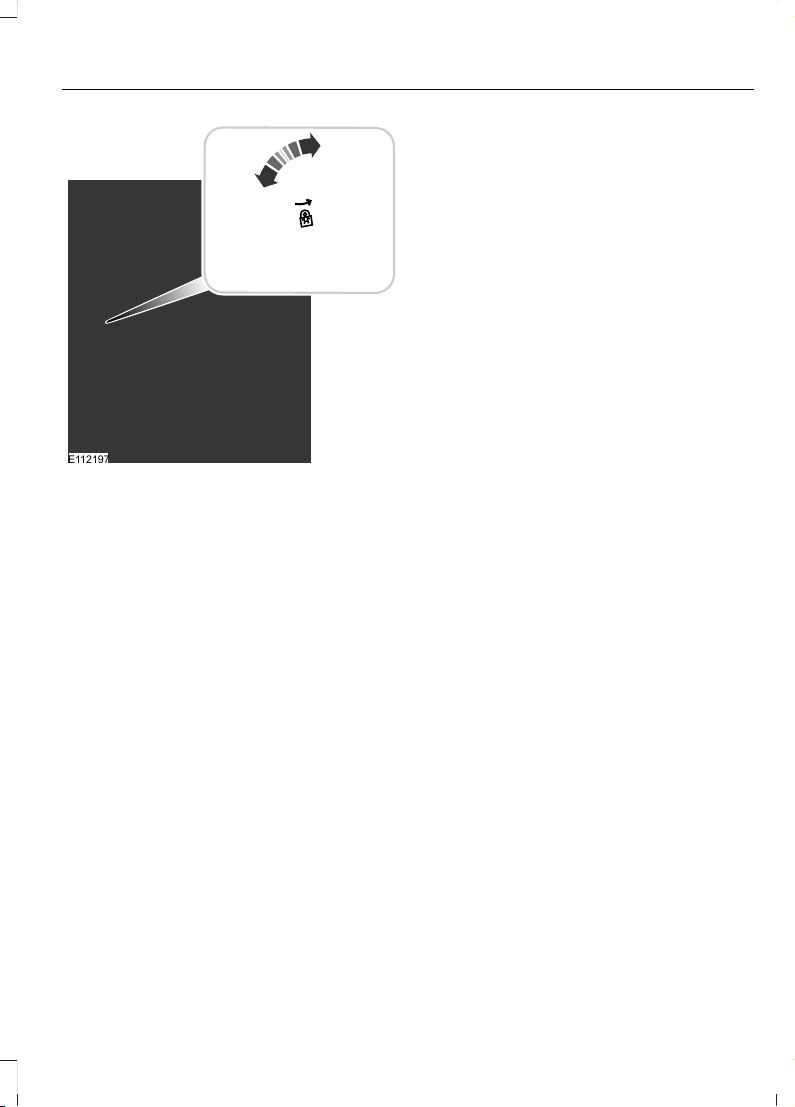
CHILD SAFETY LOCKS
When these locks are set, the rear doors
cannot be opened from the inside.
30
Edge (CDQ) Canada/United States of America, enUSA, Edition date: 201706, First Printing
Child Safety
E112197
The childproof locks are located on the
rear edge of each rear door and must be
set separately for each door.
Left-Hand Side
Turn counterclockwise to lock and
clockwise to unlock.
Right-Hand Side
Turn clockwise to lock and
counterclockwise to unlock.
31
Edge (CDQ) Canada/United States of America, enUSA, Edition date: 201706, First Printing
Child Safety
PRINCIPLE OF OPERATION
WARNINGS
Always drive and ride with your
seatback upright and the lap belt
snug and low across the hips.
To reduce the risk of injury, make
sure children sit where they can be
properly restrained.
Never let a passenger hold a child on
his or her lap while your vehicle is
moving. The passenger cannot
protect the child from injury in a crash.
All occupants of your vehicle,
including the driver, should always
properly wear their safety belts, even
when an airbag supplemental restraint
system is provided. Failure to properly wear
your safety belt could seriously increase
the risk of injury or death.
It is extremely dangerous to ride in a
cargo area, inside or outside of a
vehicle. In a crash, people riding in
these areas are more likely to be seriously
injured or killed. Do not allow people to ride
in any area of your vehicle that is not
equipped with seats and safety belts. Be
sure everyone in your vehicle is in a seat
and using a safety belt properly.
In a rollover crash, an unbelted
person is significantly more likely to
die than a person wearing a safety
belt.
Each seating position in your vehicle
has a specific safety belt assembly
which is made up of one buckle and
one tongue that are designed to be used
as a pair. 1) Use the shoulder belt on the
outside shoulder only. Never wear the
shoulder belt under the arm. 2) Never
swing the safety belt around your neck over
the inside shoulder. 3) Never use a single
belt for more than one person.
WARNINGS
When possible, all children 12 years
old and under should be properly
restrained in a rear seating position.
Failure to follow this could seriously
increase the risk of injury or death.
Safety belts and seats can become
hot in a vehicle that has been closed
up in sunny weather; they could burn
a small child. Check seat covers and
buckles before you place a child anywhere
near them.
Front and rear seat occupants,
including pregnant women, should
wear safety belts for optimum
protection in an accident.
All seating positions in your vehicle have
lap and shoulder safety belts. All
occupants of the vehicle should always
properly wear their safety belts, even when
an airbag supplemental restraint system
is provided.
The safety belt system consists of:
• Lap and shoulder safety belts.
• Shoulder safety belt with automatic
locking mode, (except driver safety
belt).
• Height adjuster at the front outboard
seating positions.
• Safety belt pretensioner at the front
outboard seating positions.
• Belt tension sensor at the front
outboard passenger seating position.
E71880
• Safety belt warning light and chime.
E67017
• Crash sensors and monitoring system
with readiness indicator.
32
Edge (CDQ) Canada/United States of America, enUSA, Edition date: 201706, First Printing
Seatbelts
The safety belt pretensioners at the front
seating positions are designed to tighten
the safety belts when activated. In frontal
and near-frontal crashes, the safety belt
pretensioners may be activated alone or,
if the crash is of sufficient severity, together
with the front airbags. The pretensioners
may also activate when a Safety Canopy
airbag is deployed.
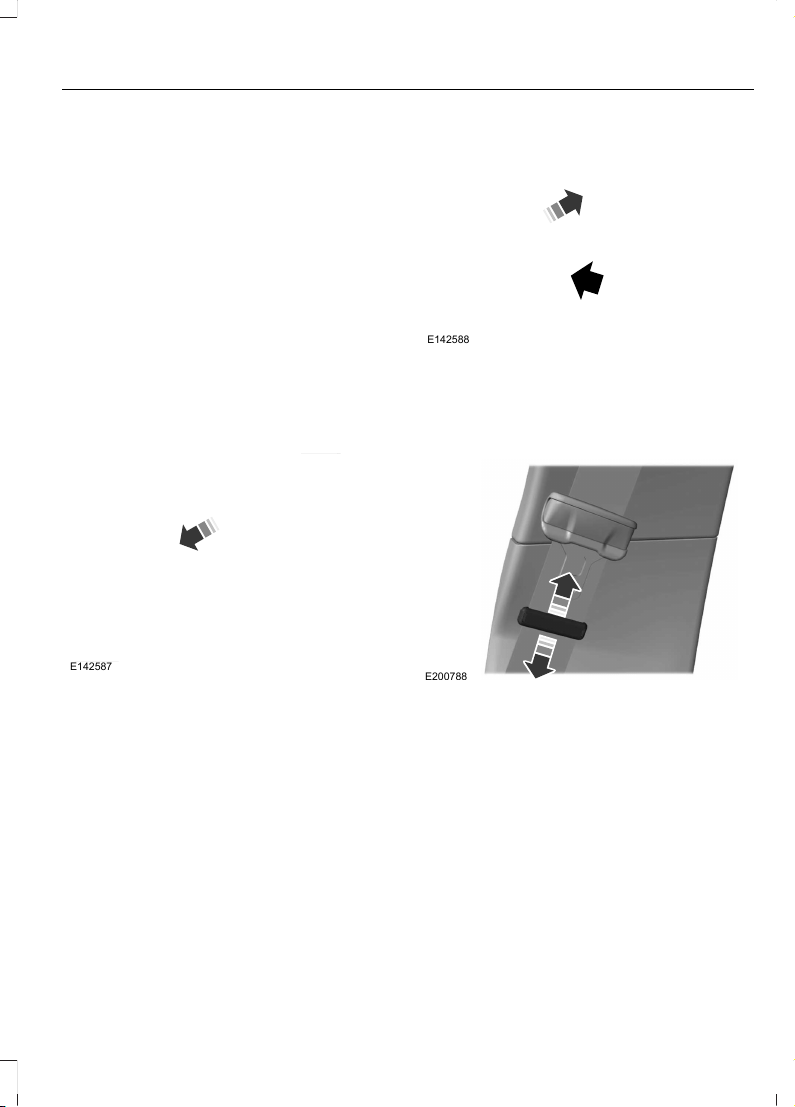
FASTENING THE SEATBELTS
Standard belts shown, inflatable belts
similar
The front outboard and rear safety
restraints in the vehicle are combination
lap and shoulder belts.
E142587
1. Insert the belt tongue into the proper
buckle (the buckle closest to the
direction the tongue is coming from)
until you hear a snap and feel it latch.
Make sure you securely fasten the
tongue in the buckle.
E142588
2. To unfasten, press the release button
and remove the tongue from the
buckle.
Using the Sliding Clip (If Equipped)
E200788
Slide the clip away from the tongue so
there is no loose webbing when an
occupant or child seat is buckled up. You
can also use the sliding clip to raise the
tongue and prevent it from rattling or to
ease access to the tongue.
33
Edge (CDQ) Canada/United States of America, enUSA, Edition date: 201706, First Printing
Seatbelts
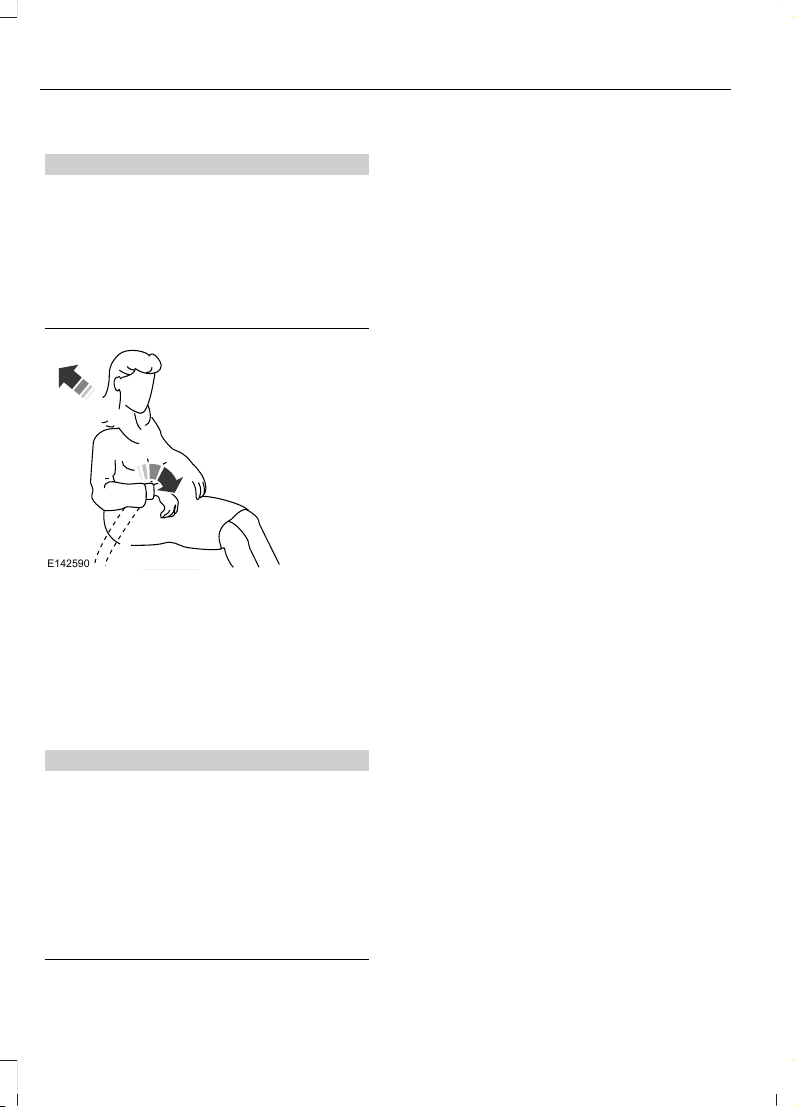
Using Seatbelts During Pregnancy
WARNING
Always ride and drive with your
seatback upright and properly fasten
your seatbelt. Fit the lap portion of
the seatbelt snugly and low across the
hips. Position the shoulder portion of the
seatbelt across your chest. Pregnant
women must follow this practice. See the
following figure.
E142590
Pregnant women should always wear their
seatbelt. Position the lap belt portion of a
combination lap and shoulder belt low
across the hips below the belly and worn
as tight as comfort allows. Position the
shoulder belt to cross the middle of the
shoulder and the center of the chest.
Seatbelt Locking Modes
WARNING
After a crash, have a qualified
technician check all the seatbelts to
make sure the seatbelts including
the automatic locking retractor feature for
child restraints operate properly. We
recommend replacing any system that has
damage or does not operate properly.
Failure to do so can result in personal injury
or death in the event of a sudden stop or
another crash.
All safety restraints in the vehicle are
combination lap and shoulder belts. The
driver seatbelt has the vehicle sensitive
locking mode. The front outboard
passenger and rear seat seatbelts have
both the vehicle sensitive locking mode
and the automatic locking mode.
Vehicle Sensitive Mode
This is the normal retractor mode, which
allows free shoulder belt length
adjustment to your movements and
locking in response to vehicle movement.
For example, if the driver brakes suddenly
or turns a corner sharply, or the vehicle
receives an impact of about 5 mph
(8 km/h) or more, the combination
seatbelts lock to help reduce forward
movement of the driver and passengers.
In addition, the retractor is designed to lock
if you pull the webbing out too quickly. If
the seatbelt retractor locks, slowly lower
the height adjuster to allow the seatbelt
to retract. If the retractor does not unlock,
pull the seatbelt out slowly then feed a
small length of webbing back toward the
stowed position. For rear seatbelts, recline
the rear seat backrest or push the seat
backrest cushion away from the seatbelt.
Feed a small length of webbing back
toward the stowed position.
Automatic Locking Mode
In this mode, the shoulder belt
automatically pre-locks. The belt retracts
to remove any slack in the shoulder belt.
The automatic locking mode is not
available on the driver seatbelt.
34
Edge (CDQ) Canada/United States of America, enUSA, Edition date: 201706, First Printing
Seatbelts
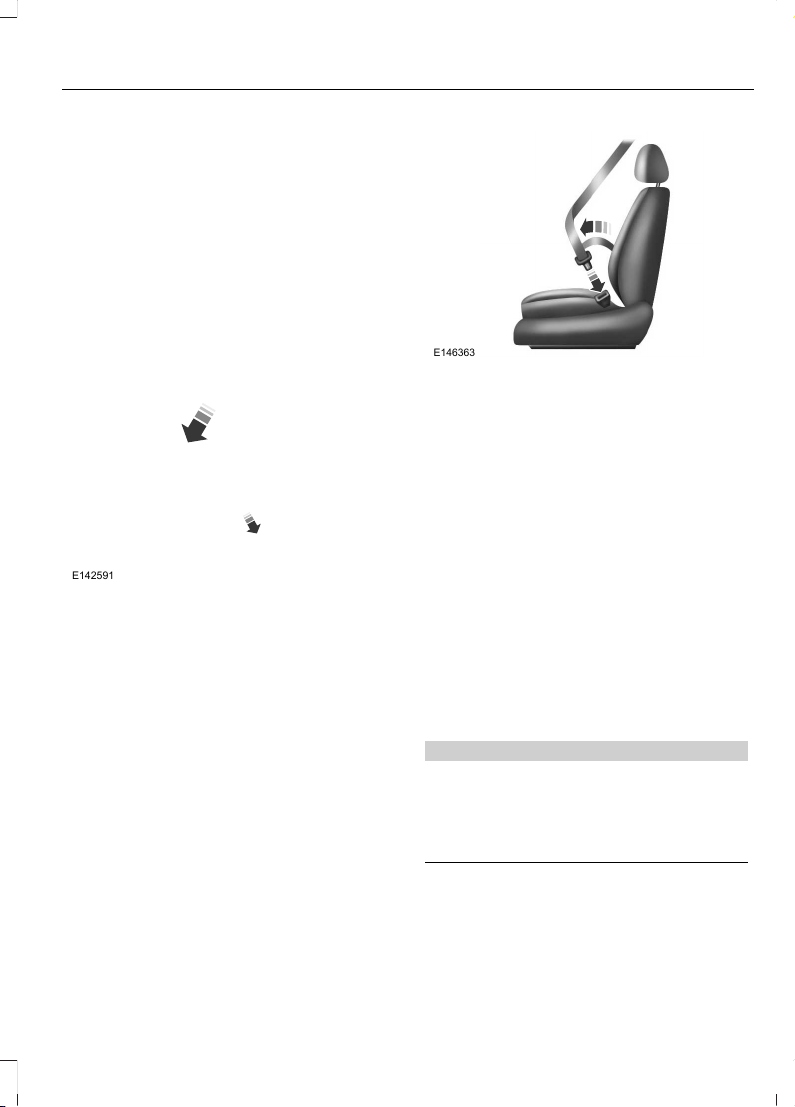
When to Use the Automatic Locking
Mode
Use this mode when you install a child
safety seat, except a booster seat, in the
passenger front or rear seating positions.
Properly restrain children 12 years old and
under in a rear seating position whenever
possible. See Child Safety (page 18).
How to Use the Automatic Locking
Mode
Non-inflatable seatbelts
E142591
1. Buckle the combination lap and
shoulder belt.
2. Grasp the shoulder portion and pull
downward until you pull the entire belt
out. As the belt retracts, you will hear
a clicking sound. This indicates the
seatbelt is now in the automatic
locking mode.
Rear outboard inflatable seatbelts
(second row only–if equipped)
E146363
1. Buckle the combination lap and
shoulder belt.
2. Grasp the lap portion of the belt and
pull upward until you pull the entire
belt out.
3. Allow the belt to retract. As the belt
retracts, you will hear a clicking sound.
This indicates the seatbelt is now in the
automatic locking mode.
How to Disengage the Automatic
Locking Mode
Unbuckle the combination lap and
shoulder belt and allow it to retract
completely to disengage the automatic
locking mode and activate the vehicle
sensitive (emergency) locking mode.
Rear Inflatable Seatbelt (If Equipped)
WARNING
Do not attempt to service, repair, or
modify the supplementary restraint
system or associated components.
Failure to follow this instruction could
result in personal injury or death.
The rear inflatable seatbelts are fitted in
the shoulder portion of the seatbelts of the
second-row outboard seating positions.
35
Edge (CDQ) Canada/United States of America, enUSA, Edition date: 201706, First Printing
Seatbelts
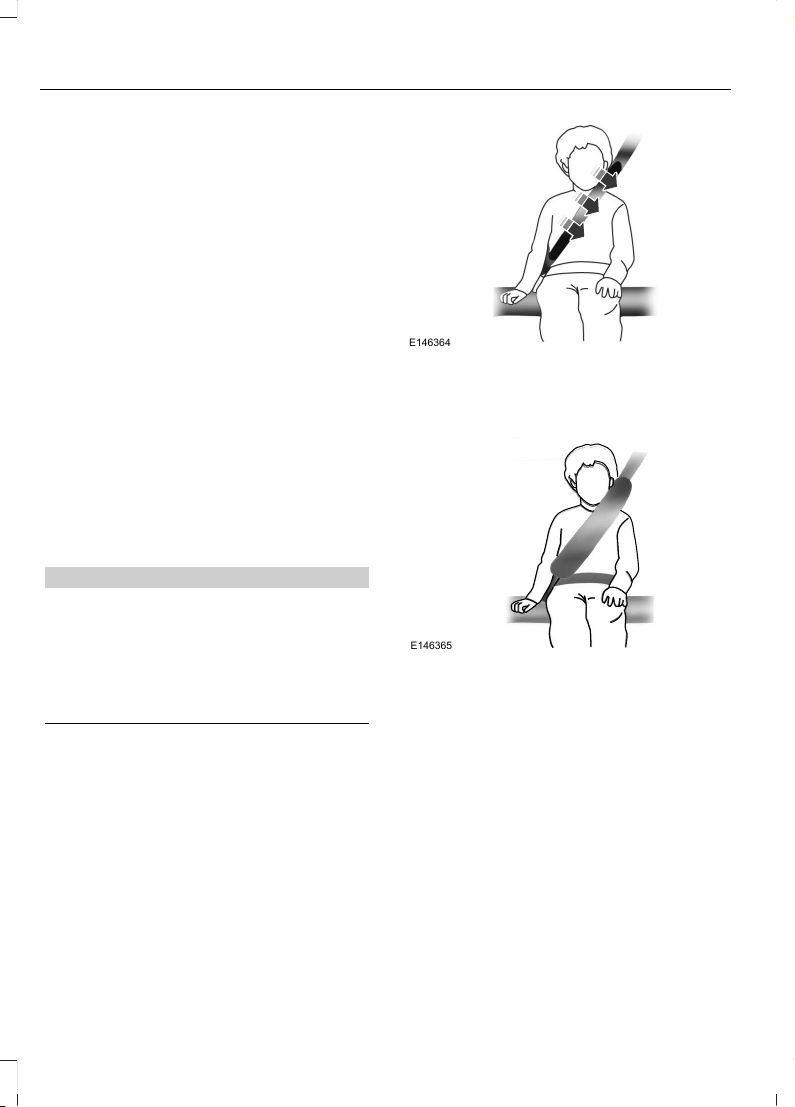
Note: The rear inflatable seatbelts are
compatible with most infant and child
safety car seats and belt positioning booster
seats when properly installed. This is
because they are designed to fill with a
cooled gas at a lower pressure and at a
slower rate than traditional airbags. After
inflation, the shoulder portion of the
seatbelt remains cool to the touch.
The rear inflatable seatbelt consists of the
following:
• An inflatable bag in the shoulder
seatbelt webbing.
• Lap seatbelt webbing with automatic
locking mode.
• The same warning light, electronic
control and diagnostic unit as used for
the front seatbelts.
• Impact sensors in various parts of the
vehicle.
How does the rear inflatable seatbelt
system work?
WARNING
If a supplementary restraint system
component has deployed, it will not
function again. Have the system and
associated components inspected as soon
as possible. Failure to follow this
instruction could result in personal injury
or death.
The rear inflatable seatbelts function like
standard restraints in everyday usage.
E146364
During a crash of sufficient force, the
inflatable belt inflates from inside the
webbing.
E146365
The fully inflated belt's increased diameter
more effectively holds the occupant in the
appropriate seating position, and spreads
crash forces over more area of the body
than regular seatbelts. This helps reduce
pressure on the chest and helps control
head and neck motion for passengers.
The rear inflatable seatbelts are designed
to inflate in frontal or near-frontal crashes
and some side impact crashes and
rollovers. The fact that the rear inflatable
seatbelt did not inflate in a crash does not
mean that something is wrong with the
system. Rather, it means the forces were
not of the type sufficient to cause
activation.
36
Edge (CDQ) Canada/United States of America, enUSA, Edition date: 201706, First Printing
Seatbelts
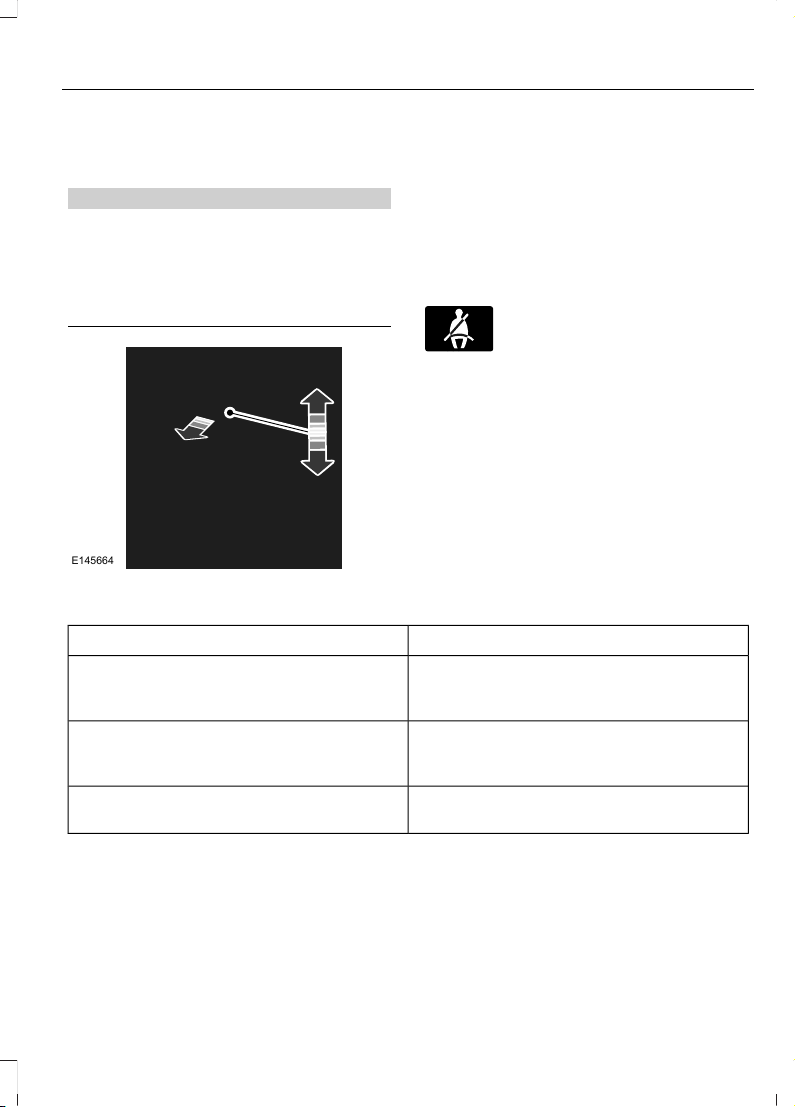
SEATBELT HEIGHT
ADJUSTMENT
WARNING
Position the seatbelt height adjuster
so that the seatbelt rests across the
middle of your shoulder. Failure to
adjust the seatbelt correctly could reduce
its effectiveness and increase the risk of
injury in a crash.
E145664
1. Pull the button and slide the height
adjuster up or down.
2. Release the button and pull down on
the height adjuster to make sure it is
locked in place.
SEATBELT WARNING LAMP
AND INDICATOR CHIME
E71880
This lamp illuminates and an
audible warning will sound if the
driver seatbelt has not been
fastened when the vehicle's ignition is
turned on.
Conditions of operation
ThenIf
The seatbelt warning light illuminates and
the warning chime sounds for a few
seconds.
The driver seatbelt is not buckled before
the ignition switch is turned to the on posi-
tion...
The seatbelt warning light and warning
chime turn off.
The driver seatbelt is buckled while the
indicator light is illuminated and the
warning chime is sounding...
The seatbelt warning light and indicator
chime remain off.
The driver seatbelt is buckled before the
ignition switch is turned to the on position...
37
Edge (CDQ) Canada/United States of America, enUSA, Edition date: 201706, First Printing
Seatbelts

SEATBELT REMINDER
Belt-Minder™
This feature supplements the safety belt
warning function by providing additional
reminders that intermittently sound a tone
and illuminate the safety belt warning light
when you are in the driver seat or you have
a front seat passenger and a safety belt is
unbuckled.
The system uses information from the
front passenger sensing system to
determine if a front seat passenger is
present and therefore potentially in need
of a warning. To avoid the system turning
on the Belt-Minder feature for objects you
place on the front passenger seat, only the
front seat passengers receive warnings as
determined by the front passenger sensing
system.
If the Belt-Minder warnings expire
(warnings for about five minutes) for one
passenger (driver or front passenger), the
other passenger can still cause the
Belt-Minder feature to turn on.
Then...If...
The Belt-Minder feature will not activate.You and the front seat passenger buckle
your safety belts before you switch the
ignition on or less than 1–2 minutes elapse
after you switch the ignition on...
The Belt-Minder feature activates, the
safety belt warning light illuminates and a
warning tone sounds for 6 seconds every
25 seconds, repeating for about 5 minutes
or until you and the front seat passenger
buckle your safety belts.
You or the front seat passenger do not
buckle your safety belts before your vehicle
reaches at least 6 mph (9.7 km/h) and 1–2
minutes elapse after you switch the ignition
on...
The Belt-Minder feature activates, the
safety belt warning light illuminates and a
warning tone sounds for 6 seconds every
25 seconds, repeating for about 5 minutes
or until you and the front seat passenger
buckle your safety belts.
The safety belt for the driver or front
passenger is unbuckled for about 1 minute
while the vehicle is traveling at least 6 mph
(9.7 km/h) and more than 1–2 minutes
elapse after you switch the ignition on...
38
Edge (CDQ) Canada/United States of America, enUSA, Edition date: 201706, First Printing
Seatbelts

Deactivating and Activating the
Belt-Minder Feature
WARNING
While the system allows you to
switch this feature off, the intent of
the system is to remind you to wear
your safety belt to improve your chance to
survive an accident. We recommend you
leave the system switched on for yourself
and others who may use the vehicle.
Note: The driver and front passenger
warnings switch on and off independently.
When you perform this procedure for one
seating position, do not buckle the other
position as this will terminate the process.
Read Steps 1–4 thoroughly before
proceeding with the programming
procedure.
Before following the procedure, make sure
that:
• The parking brake is set.
• The transmission is in park (P) or
neutral (N).
• The ignition is off.
• The driver and front passenger safety
belts are unbuckled.
1. Switch the ignition on. Do not start the
vehicle.
2. Wait until the safety belt warning light
turns off (about 1 minute). After Step
2, wait an additional 5 seconds before
proceeding with Step 3. Once you start
Step 3, you must complete the
procedure within 30 seconds.
3. For the seating position you are
switching off, buckle then unbuckle the
safety belt three times at a moderate
speed, ending in the unbuckled state.
After Step 3, the safety belt warning
light turns on.
4. While the safety belt warning light is
on, buckle and then unbuckle the
safety belt. After Step 4, the safety belt
warning light flashes for confirmation.
• This will switch the feature off for that
seating position if it is currently on.
• This will switch the feature on for that
seating position if it is currently off.
CHILD RESTRAINT AND
SEATBELT MAINTENANCE
Inspect the vehicle safety belts and child
safety seat systems periodically to make
sure they work properly and are not
damaged. Inspect the vehicle and child
seat safety belts to make sure there are no
nicks, tears or cuts. Replace if necessary.
All vehicle safety belt assemblies, including
retractors, buckles, front safety belt buckle
assemblies, buckle support assemblies
(slide bar-if equipped), shoulder belt
height adjusters (if equipped), shoulder
belt guide on seat back (if equipped), child
safety seat LATCH and tether anchors, and
attaching hardware, should be inspected
after a crash. Read the child restraint
manufacturer's instructions for additional
inspection and maintenance information
specific to the child restraint.
Ford Motor Company recommends that
all safety belt assemblies in use in vehicles
involved in a crash be replaced. However,
if the crash was minor and an authorized
dealer finds that the belts do not show
damage and continue to operate properly,
they do not need to be replaced. Safety
belt assemblies not in use during a crash
should also be inspected and replaced if
either damage or improper operation is
noted.
Properly care for safety belts. See Vehicle
Care (page 289).
39
Edge (CDQ) Canada/United States of America, enUSA, Edition date: 201706, First Printing
Seatbelts

SEATBELT EXTENSION
WARNINGS
Persons who fit into the vehicle's
seatbelt should not use an extension.
Unnecessary use could result in
serious personal injury in the event of a
crash.
Only use extensions provided free of
charge by Ford Motor Company
dealers. The dealer will provide an
extension designed specifically for this
vehicle, model year and seating position.
The use of an extension intended for
another vehicle, model year or seating
position may not offer you the full
protection of your vehicle’s seatbelt
restraint system.
Never use seatbelt extensions to
install child restraints.
Do not use a seatbelt extension with
an inflatable seatbelt.
Do not use extensions to change the
fit of the belt across the torso, over
the lap or to make the seatbelt
buckle easier to reach.
If, because of body size or driving position,
it is not possible to properly fasten the
seatbelt over your lap and shoulder, an
extension that is compatible with the
seatbelts is available free of charge from
Ford Motor Company dealers. Only Ford
seatbelt extensions made by the original
equipment seatbelts manufacturer should
be used with Ford seatbelts. Ask your
authorized dealer if your extension is
compatible with your Ford vehicle restraint
system.
40
Edge (CDQ) Canada/United States of America, enUSA, Edition date: 201706, First Printing
Seatbelts

The Personal Safety System provides an
improved overall level of frontal crash
protection to front seat occupants and is
designed to help further reduce the risk of
airbag-related injuries. The system is able
to analyze different occupant conditions
and crash severity before activating the
appropriate safety devices to help better
protect a range of occupants in a variety
of frontal crash situations.
The Vehicle Personal Safety System
consists of:
• Driver and passenger dual-stage airbag
supplemental restraints.
• Front seat outboard seatbelts with
pretensioners, energy management
retractors and seatbelt usage sensors.
• Driver seat position sensor.
• Front passenger sensing system.
• Passenger airbag off and on indicator
lamp.
• Front crash severity sensors.
• Restraints control module with impact
and safing sensors.
• Restraint system warning lamp and
tone.
• The electrical wiring for the airbags,
crash sensors, seatbelt pretensioners,
front seatbelt usage sensors, driver
seat position sensor, front passenger
sensing system and indicator lights.
How Does the Personal Safety
System Work?
The Personal Safety System can adapt the
deployment strategy of the safety devices
according to crash severity and occupant
conditions. A collection of crash and
occupant sensors provides information to
the restraints control module. During a
crash, the restraints control module may
deploy the seatbelt pretensioners, one or
both stages of the dual-stage airbags
based on crash severity and occupant
conditions.
41
Edge (CDQ) Canada/United States of America, enUSA, Edition date: 201706, First Printing
Personal Safety System™

PRINCIPLE OF OPERATION
WARNINGS
Airbags do not inflate slowly or
gently, and the risk of injury from a
deploying airbag is the greatest close
to the trim covering the airbag module.
All occupants of your vehicle,
including the driver, should always
properly wear their seatbelts, even
when an airbag supplemental restraint
system is provided. Failure to properly wear
your seatbelt could seriously increase the
risk of injury or death.
Even with advanced restraints
systems, properly restrain children
12 and under in a rear seating
position. Failure to follow this could
seriously increase the risk of injury or death.
Do not place your arms on the airbag
cover or through the steering wheel.
Failure to follow this instruction
could result in personal injury.
Keep the areas in front of the airbags
free from obstruction. Do not affix
anything to or over the airbag covers.
Objects could become projectiles during
airbag deployment or in a sudden stop.
Failure to follow this instruction could
result in personal injury or death.
Airbags can kill or injure a child in a
child restraint. Never place a
rear-facing child restraint in front of
an active airbag. If you must use a
forward-facing child restraint in the front
seat, move the seat upon which the child
restraint is installed all the way back.
Do not attempt to service, repair, or
modify the supplementary restraint
system or associated components.
Failure to follow this instruction could
result in personal injury or death.
WARNINGS
Several airbag system components
get hot after inflation. To reduce the
risk of injury, do not touch them after
inflation.
If a supplementary restraint system
component has deployed, it will not
function again. Have the system and
associated components inspected as soon
as possible. Failure to follow this
instruction could result in personal injury
or death.
The airbags are a supplemental restraint
system and are designed to work with the
seatbelts to help protect the driver and
right front passenger from certain upper
body injuries. Airbags do not inflate slowly;
there is a risk of injury from a deploying
airbag.
Note: You will hear a loud bang and see a
cloud of harmless powdery residue if an
airbag deploys. This is normal.
The airbags inflate and deflate rapidly
upon activation. After airbag deployment,
it is normal to notice a smoke-like, powdery
residue or smell the burnt propellant. This
may consist of cornstarch, talcum powder
(to lubricate the bag) or sodium
compounds (for example, baking soda)
that result from the combustion process
that inflates the airbag. Small amounts of
sodium hydroxide may be present which
may irritate the skin and eyes, but none of
the residue is toxic.
While the system is designed to help
reduce serious injuries, contact with a
deploying airbag may also cause abrasions
or swelling. Temporary hearing loss is also
a possibility as a result of the noise
associated with a deploying airbag.
Because airbags must inflate rapidly and
with considerable force, there is the risk of
death or serious injuries such as fractures,
facial and eye injuries or internal injuries,
42
Edge (CDQ) Canada/United States of America, enUSA, Edition date: 201706, First Printing
Supplementary Restraints System
particularly to occupants who are not
properly restrained or are otherwise out of
position at the time of airbag deployment.
Thus, it is extremely important that
occupants be properly restrained as far
away from the airbag module as possible
while maintaining vehicle control.
Routine maintenance of the airbags is not
required.
DRIVER AND PASSENGER
AIRBAGS
WARNINGS
Do not place your arms on the airbag
cover or through the steering wheel.
Failure to follow this instruction
could result in personal injury.
Keep the areas in front of the airbags
free from obstruction. Do not affix
anything to or over the airbag covers.
Objects could become projectiles during
airbag deployment or in a sudden stop.
Failure to follow this instruction could
result in personal injury or death.
Airbags can kill or injure a child in a
child restraint. Never place a
rear-facing child restraint in front of
an active airbag. If you must use a
forward-facing child restraint in the front
seat, move the seat upon which the child
restraint is installed all the way back.
E151127
The driver and front passenger airbags will
deploy during significant frontal and near
frontal crashes.
The driver and passenger front airbag
system consists of:
• Driver and passenger airbag modules.
• Front passenger sensing system.
E67017
· Crash sensors and monitoring
system with readiness indicator.
See Crash Sensors and Airbag
Indicator (page 49).
Proper Driver and Front Passenger
Seating Adjustment
WARNING
National Highway Traffic Safety
Administration (NHTSA)
recommends a minimum distance
of at least 10 in (25 cm) between an
occupant's chest and the driver airbag
module.
To properly position yourself away from
the airbag:
• Move your seat to the rear as far as you
can while still reaching the pedals
comfortably.
• Recline the seat slightly (one or two
degrees) from the upright position.
43
Edge (CDQ) Canada/United States of America, enUSA, Edition date: 201706, First Printing
Supplementary Restraints System

After all occupants have adjusted their
seats and put on seatbelts, it is very
important that they continue to sit
properly. A properly seated occupant sits
upright, leaning against the seatback, and
centered on the seat cushion, with their
feet comfortably extended on the floor.
Sitting improperly can increase the chance
of injury in a crash event. For example, if
an occupant slouches, lies down, turns
sideways, sits forward, leans forward or
sideways, or puts one or both feet up, the
chance of injury during a crash is greatly
increased.
Children and Airbags
WARNING
Airbags can kill or injure a child in a
child restraint. Never place a
rear-facing child restraint in front of
an active airbag. If you must use a
forward-facing child restraint in the front
seat, move the seat upon which the child
restraint is installed all the way back.
E142846
Children must always be properly
restrained. Accident statistics suggest that
children are safer when properly restrained
in the rear seating positions than in the
front seating position. Failure to follow
these instructions may increase the risk of
injury in a crash.
FRONT PASSENGER SENSING
SYSTEM
WARNINGS
Even with advanced restraints
systems, properly restrain children
12 and under in a rear seating
position. Failure to follow this could
seriously increase the risk of injury or death.
Sitting improperly, out of position or
with the seatback reclined too far
can take weight off the seat cushion
and affect the decision of the passenger
sensing system, resulting in serious injury
or death in the event of a crash. Always sit
upright against your seat back, with your
feet on the floor.
Any alteration or modification to the
front passenger seat may affect the
performance of the front passenger
sensing system. This could seriously
increase the risk of injury or death.
This system works with sensors that are
part of the front passenger seat and
seatbelt to detect the presence of a
properly-seated occupant and determine
if the front passenger frontal airbag should
be enabled (may inflate) or not.
E251869
The front passenger sensing system uses
a passenger airbag status indicator that
illuminates indicating that the front
passenger frontal airbag is either on
(enabled) or off (disabled).
The indicator lamp is in the center stack of
the instrument panel.
44
Edge (CDQ) Canada/United States of America, enUSA, Edition date: 201706, First Printing
Supplementary Restraints System

Note: The passenger airbag status
indicator off and on indicator lamps
illuminate for a short period of time when
you first switch the ignition on to confirm it
is functional.
The front passenger sensing system is
designed to disable (will not inflate) the
front passenger frontal airbag when a rear
facing infant seat, a forward-facing child
restraint, or a booster seat is detected.
Even with this technology, parents are
strongly encouraged to always properly
restrain children in the rear seat. The
sensor also turns off the passenger front
airbag and seat-mounted side airbag when
the passenger seat is empty.
• When the front passenger sensing
system disables (will not inflate) the
front passenger frontal airbag, the
passenger airbag status indicator
illuminates the off lamp and stays lit
to remind you that the front passenger
frontal airbag is disabled.
• If you install the child restraint and the
passenger airbag status indicator
illuminates the on lamp, then switch
the vehicle off, remove the child
restraint from the vehicle and reinstall
the restraint following the child
restraint manufacturer's instructions.
The front passenger sensing system is
designed to enable (may inflate) the front
passenger frontal airbag anytime the
system senses that a person of adult size
is sitting properly in the front passenger
seat.
• When the front passenger sensing
system enables the front passenger
frontal airbag (may inflate), the
passenger airbag status indicator
illuminates the on lamp and remains
illuminated.
If a person of adult size is sitting in the front
passenger seat, but the airbag off indicator
lamp is lit, it is possible that the person is
not sitting properly in the seat. If this
happens:
• Switch the vehicle off and ask the
person to place the seatback in the full
upright position.
• Have the person sit upright in the seat,
centered on the seat cushion, with the
person’s legs comfortably extended.
• Restart the vehicle and have the person
remain in this position for about two
minutes. This allows the system to
detect that person and enable the
passenger frontal airbag.
• If the indicator off lamp remains lit
even after this, advise the person to
ride in the rear seat.
Passenger airbagPassenger airbag status
indicator
Occupant
DisabledOFF: LitEmpty
ON: Unlit
DisabledOFF: LitChild
ON: Unlit
EnabledOFF: UnlitAdult
ON: Lit
45
Edge (CDQ) Canada/United States of America, enUSA, Edition date: 201706, First Printing
Supplementary Restraints System

Note: When the passenger airbag status
indicator off light illuminates, the passenger
(seat mounted) side airbag may be disabled
to avoid the risk of airbag deployment
injuries.
After all occupants have adjusted their
seats and put on seatbelts, it is very
important that they continue to sit
properly. A properly seated occupant sits
upright, leaning against the seatback, and
centered on the seat cushion, with their
feet comfortably extended on the floor.
Sitting improperly can increase the chance
of injury in a crash event. For example, if
an occupant slouches, lies down, turns
sideways, sits forward, leans forward or
sideways, or puts one or both feet up, the
chance of injury during a crash greatly
increases.
If you think that the status of the passenger
airbag off indicator lamp is incorrect, check
for the following:
• Objects lodged underneath the seat.
• Objects between the seat cushion and
the center console.
• Objects hanging off the seatback.
• Objects stowed in the seatback map
pocket.
• Objects placed on the occupant's lap.
• Cargo interference with the seat.
• Other passengers pushing or pulling on
the seat.
• Rear passenger feet and knees resting
or pushing on the seat.
The conditions listed above may cause the
weight of a properly seated occupant to
be incorrectly interpreted by the front
passenger sensing system. The person in
the front passenger seat may appear
heavier or lighter due to the conditions
described in the list above.
E67017
Make sure the front passenger
sensing system is operating
properly. See Crash Sensors
and Airbag Indicator (page 49).
If the airbag readiness light is lit, do the
following:
The driver and adult passengers should
check for objects lodged underneath the
front passenger seat, or cargo interfering
with the seat.
If there are lodged objects, or cargo is
interfering with the seat, take the following
steps to remove the obstruction:
• Pull the vehicle over.
• Switch the vehicle off.
• Driver and adult passengers should
check for any objects lodged
underneath the front passenger seat
or cargo interfering with the seat.
• Remove the obstruction(s) (if found).
• Restart the vehicle.
• Wait at least two minutes and verify
that the airbag readiness light is no
longer illuminated.
• If the airbag readiness light remains
illuminated, this may or may not be a
problem due to the front passenger
sensing system.
Do not attempt to repair or service the
system. Take your vehicle immediately to
an authorized dealer.
If it is necessary to modify an advanced
front airbag system to accommodate a
person with disabilities, contact the Ford
Customer Relationship Center. See
Getting the Services You Need (page
246).
46
Edge (CDQ) Canada/United States of America, enUSA, Edition date: 201706, First Printing
Supplementary Restraints System
SIDE AIRBAGS
WARNINGS
Do not place objects or mount
equipment on or near the airbag
cover, on the side of the seatbacks
(of the front seats), or in front seat areas
that may come into contact with a
deploying airbag. Failure to follow these
instructions may increase the risk of
personal injury in the event of a crash.
Do not use accessory seat covers.
The use of accessory seat covers
may prevent the deployment of the
side airbags and increase the risk of injury
in an accident.
Do not lean your head on the door.
The side airbag could injure you as it
deploys from the side of the
seatback.
Do not attempt to service, repair, or
modify the seat airbag supplemental
restraint systems, its fuses or the
seat cover on a vehicle containing seat
airbags as you could be seriously injured
or killed. Contact your authorized dealer
as soon as possible.
If the side airbag has deployed, the
airbag will not function again. The
side airbag system (including the
seat) must be inspected as soon as
possible. If the airbag is not replaced, the
unrepaired area will increase the risk of
injury in a crash.
The side airbags are on the outboard side
of the seatbacks of the front seats. The
airbag was designed to inflate between
the door panel and occupant to further
enhance the protection provided to
occupants in certain side impact crashes.
E152533
The system consists of the following:
• A label or embossed side panel
indicating that side airbags are fitted
to your vehicle.
• Side airbags inside the driver and front
passenger seatbacks.
• Front passenger sensing system.
E67017
Crash sensors and monitoring
system with readiness indicator.
See Crash Sensors and Airbag
Indicator (page 49).
The design and development of the side
airbag system included recommended
testing procedures that were developed
by a group of automotive safety experts
known as the Side Airbag Technical
Working Group. These recommended
testing procedures help reduce the risk of
injuries related to the deployment of side
airbags.
DRIVER AND PASSENGER
KNEE AIRBAGS
Note: Keep the glove box door closed while
driving for optimal performance of the
passenger knee airbag during a crash.
Note: To reduce risk of injury, do not
obstruct or place objects in the deployment
path of the knee airbag.
47
Edge (CDQ) Canada/United States of America, enUSA, Edition date: 201706, First Printing
Supplementary Restraints System
A driver knee airbag is located under or
within the instrument panel. A passenger
knee airbag is located within or under the
glove box door. During a crash, the
restraints control module may activate the
driver and passenger knee airbags based
on crash severity and occupant conditions.
Under certain crash and occupant
conditions, the driver and passenger knee
airbag may deploy but the driver front
airbag may not activate. As with front and
side airbags, it is important to be properly
seated and restrained to reduce the risk of
death or serious injury.
E67017
Make sure the knee airbags are
operating properly. See Crash
Sensors and Airbag Indicator
(page 49).
SAFETY CANOPY™
WARNINGS
Do not place objects or mount
equipment on or near the headliner
at the siderail that may come into
contact with a deploying curtain airbag.
Failure to follow these instructions may
increase the risk of personal injury in the
event of a crash.
Do not lean your head on the door.
The curtain airbag could injure you
as it deploys from the headliner.
Do not attempt to service, repair, or
modify the supplementary restraint
system or associated components.
Failure to follow this instruction could
result in personal injury or death.
All occupants of your vehicle,
including the driver, should always
properly wear their seatbelts, even
when an airbag supplemental restraint
system is provided. Failure to properly wear
your seatbelt could seriously increase the
risk of injury or death.
WARNINGS
To reduce risk of injury, do not
obstruct or place objects in the
deployment path of the airbag.
If a supplementary restraint system
component has deployed, it will not
function again. Have the system and
associated components inspected as soon
as possible. Failure to follow this
instruction could result in personal injury
or death.
The Safety Canopy deploys during
significant side crashes or when a certain
likelihood of a rollover event is detected
by the rollover sensor. The Safety Canopy
is mounted to the roof side rail sheet metal,
behind the headliner, above each row of
seats. In certain sideways crashes or
rollover events, the Safety Canopy will be
activated, regardless of which seats are
occupied. The Safety Canopy is designed
to inflate between the side window area
and occupants to further enhance
protection provided in side impact crashes
and rollover events.
E75004
48
Edge (CDQ) Canada/United States of America, enUSA, Edition date: 201706, First Printing
Supplementary Restraints System
The system consists of the following:
• Safety Canopy curtain airbags above
the trim panels over the front and rear
side windows identified by a label or
wording on the headliner or roof-pillar
trim.
• A flexible headliner which opens above
the side doors to allow air curtain
deployment
E67017
· Crash sensors and monitoring
system with a readiness
indicator. See Crash Sensors
and Airbag Indicator (page 49).
Properly restrain children 12 years old and
under in the rear seats. The Safety Canopy
will not interfere with children restrained
using a properly installed child or booster
seat because it is designed to inflate
downward from the headliner above the
doors along the side window opening.
The design and development of the Safety
Canopy included recommended testing
procedures that were developed by a
group of automotive safety experts known
as the Side Airbag Technical Working
Group. These recommended testing
procedures help reduce the risk of injuries
related to the deployment of side airbags
(including the Safety Canopy).
CRASH SENSORS AND
AIRBAG INDICATOR
WARNING
Modifying or adding equipment to
the front end of your vehicle
(including hood, bumper system,
frame, front end body structure, tow hooks
and hood pins) may affect the
performance of the airbag system,
increasing the risk of injury. Do not modify
or add equipment to the front end of your
vehicle.
Your vehicle has a collection of crash and
occupant sensors which provide
information to the restraints control
module. The restraints control module
deploys (activates) the front seatbelt
pretensioners, driver airbag, passenger
airbag, knee airbag(s), seat mounted side
airbags, the Safety Canopy and optional
rear inflatable seatbelts. Based on the type
of crash, the restraints control module
deploys the appropriate safety devices.
The restraints control module also
monitors the readiness of the above safety
devices plus the crash and occupant
sensors. The readiness of the safety
system is indicated by a warning indicator
light in the instrument cluster or by a
backup tone if the warning light is not
working. Routine maintenance of the
airbag is not required.
A difficulty with the system is indicated by
one or more of the following:
E67017
• The readiness light will not illuminate
immediately after the ignition is
switched on.
• The readiness light either flashes or
stays lit.
• A series of five beeps will be heard. The
tone pattern repeats periodically until
the problem, the light or both are
repaired.
If any of these things happen, even
intermittently, have the supplemental
restraint system serviced at an authorized
dealer immediately. Unless serviced, the
system may not function properly in the
event of a crash.
49
Edge (CDQ) Canada/United States of America, enUSA, Edition date: 201706, First Printing
Supplementary Restraints System

The seatbelt pretensioners and the front
airbag supplemental restraint system are
designed to activate when the vehicle
sustains frontal deceleration sufficient to
cause the restraints control module to
deploy a safety device.
The fact that the seatbelt pretensioners
or front airbags did not activate for both
front seat occupants in a crash does not
mean that something is wrong with the
system. Rather, it means the restraints
control module determined the accident
conditions (crash severity, belt usage)
were not appropriate to activate these
safety devices.
• The design of the front airbags is to
activate only in frontal and near-frontal
crashes (not rollovers, side impacts or
rear impacts) unless the crash causes
sufficient frontal deceleration.
• The design of the seatbelt
pretensioners and optional rear
inflatable seatbelts is to activate in
frontal, near-frontal and side crashes,
and in rollovers.
• The knee airbag(s) may deploy based
on crash severity and occupant
conditions.
• The design of the side airbags is to
inflate in certain side impact crashes.
Side airbags may activate in other
types of crashes if the vehicles
experiences sufficient sideways motion
or deformation.
• The design of the Safety Canopy is to
inflate in certain side impact crashes
or rollover events. The Safety Canopy
may activate in other types of crashes
if the vehicle experiences sufficient
sideways motion or deformation, or a
certain likelihood of rollover.
AIRBAG DISPOSAL
Contact your authorized dealer as soon as
possible. Airbags must be disposed of by
qualified personnel.
50
Edge (CDQ) Canada/United States of America, enUSA, Edition date: 201706, First Printing
Supplementary Restraints System

GENERAL INFORMATION ON
RADIO FREQUENCIES
This device complies with Part 15 of the
FCC Rules and with Licence exempt RSS
Standards of Industry Canada. Operation
is subject to the following two conditions:
• This device may not cause harmful
interference, and
• This device must accept any
interference received, including
interference that may cause undesired
operation.
WARNING
Changes or modifications not
expressively approved by the party
responsible for compliance could
void the user's authority to operate the
equipment. The term "IC:" before the radio
certification number only signifies that
Industry Canada technical specifications
were met.
The typical operating range for your
transmitter is approximately 33 ft (10 m).
Vehicles equipped with the remote start
feature have a greater range.
One of the following could cause a
decrease in operating range:
• Weather conditions.
• Nearby radio towers.
• Structures around your vehicle.
• Other vehicles parked next to your
vehicle.
The radio frequency used by your remote
control can also be used by other radio
transmitters, for example amateur radios,
medical equipment, wireless headphones,
wireless remote controls, cell phones,
battery chargers and alarm systems. If the
frequencies are jammed, you will not be
able to use your remote control. You can
lock and unlock the doors with the key.
Note: Make sure to lock your vehicle before
leaving it unattended.
Note: If you are in range, the remote control
will operate if you press any button
unintentionally.
Note: The remote control contains sensitive
electrical components. Exposure to moisture
or impact may cause permanent damage.
Intelligent Access
The system uses a radio frequency signal
to communicate with your vehicle and
authorize your vehicle to unlock when one
of the following conditions are met:
• You activate the front exterior door
handle switch.
• You press the luggage compartment
button.
• You press a button on the transmitter.
If excessive radio frequency interference
is present in the area or if the transmitter
battery is low, you may need to
mechanically unlock your door. You can
use the mechanical key blade in your
intelligent access key to open the driver
door in this situation. See Remote
Control (page 51).
REMOTE CONTROL
Intelligent Access Key
Note: You may not be able to shift out of
park (P) unless the intelligent access key is
inside your vehicle.
51
Edge (CDQ) Canada/United States of America, enUSA, Edition date: 201706, First Printing
Keys and Remote Controls
E253517
The intelligent access keys operate the
power locks and the remote start system.
The key must be in your vehicle to activate
the push-button start system.
Removable Key Blade
The intelligent access key also contains a
removable mechanical key blade that you
can use to unlock the driver door.
E254065
Push the release button and pull the key
blade out.
E151795
Note: Your vehicle keys came with a
security label that provides important key
cut information. Keep the label in a safe
place for future reference.
Replacing the Battery
Note: Refer to local regulations when
disposing of transmitter batteries.
Note: Do not wipe off any grease on the
battery terminals or on the back surface of
the circuit board.
52
Edge (CDQ) Canada/United States of America, enUSA, Edition date: 201706, First Printing
Keys and Remote Controls
Note: Replacing the battery does not delete
the transmitter programming to your vehicle.
The transmitter should operate normally
after you replace the battery.
A message appears in the information
display when the remote control battery
is low. See General Information (page
102).
Intelligent Access Key
The remote control uses one coin-type
three-volt lithium battery CR2032 or
equivalent.
E254065
1. Push the release button and pull the
key blade out.
E218401
2. Twist a thin coin under the tab hidden
behind the key blade head to remove
the battery cover.
53
Edge (CDQ) Canada/United States of America, enUSA, Edition date: 201706, First Printing
Keys and Remote Controls
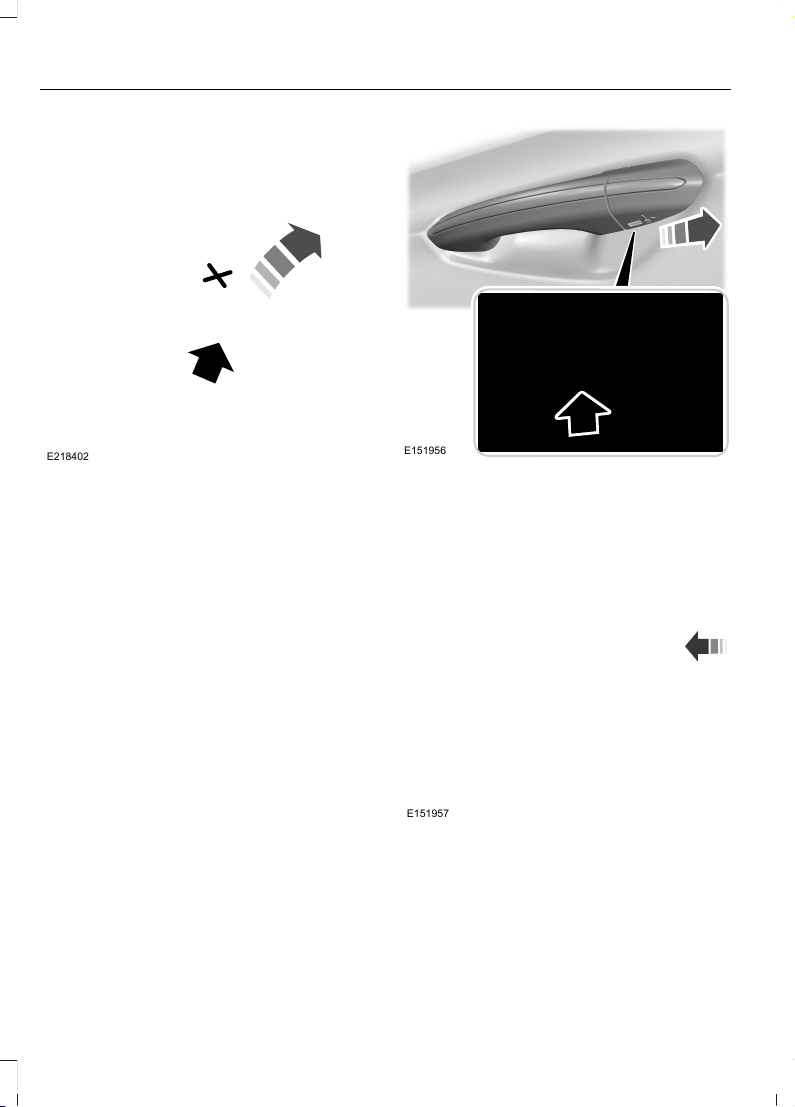
E218402
3. Insert a suitable tool, for example a
screwdriver, in the position shown and
carefully remove the battery.
4. Install new battery with the + facing
upward.
5. Reinstall the battery cover and the key
blade.
Using the Key Blade
The key cylinder is under a cap on the driver
door handle.
To remove the cap:
E151956
1. Insert the key blade into the slot on the
bottom of the handle and press up.
2. While maintaining upward pressure,
move the cap rearward to release it.
Gently remove the key while doing so.
To install the cap:
E151957
1. Place the cap just forward of the key
cylinder.
2. While applying pressure to the cap,
move it forward until it is in place. You
may hear a snap as it engages.
Make sure you have properly installed the
cap by trying to move it rearward.
54
Edge (CDQ) Canada/United States of America, enUSA, Edition date: 201706, First Printing
Keys and Remote Controls
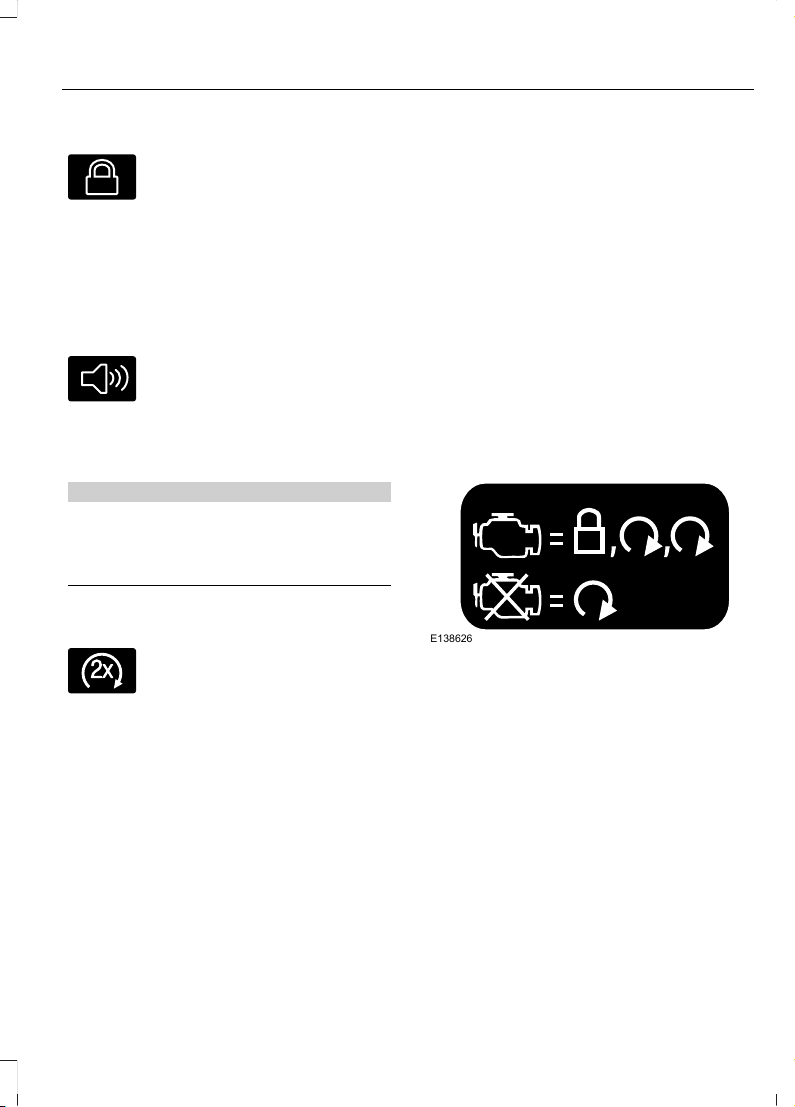
Car Finder
E138623
Press the button twice within
three seconds. The horn sounds
and the direction indicators
flash. We recommend you use this method
to locate your vehicle, rather than using
the panic alarm.
Sounding a Panic Alarm
Note: The panic alarm only operates when
the ignition is off.
E138624
Press the button to sound the
panic alarm. Press the button
again or switch the ignition on to
deactivate.
Remote Start (If Equipped)
WARNING
To avoid exhaust fumes, do not use
remote start if your vehicle is parked
indoors or in areas that are not well
ventilated.
Note: Do not use remote start if your fuel
level is low.
E138625
The remote start button is on the
transmitter.
This feature allows you to start your
vehicle from outside the vehicle. The
transmitter has an extended operating
range.
Vehicles with automatic climate control
can be configured to operate when the
vehicle is remote started. See Automatic
Climate Control (page 127).
Many states and provinces have
restrictions for the use of remote start.
Check your local and state or provincial
laws for specific requirements regarding
remote start systems.
The remote start system does not work if:
• The ignition is on.
• The alarm system is triggered.
• You switch off the feature in the
information display. See General
Information (page 102).
• The hood is open.
• The transmission is not in park (P).
• The vehicle battery voltage is too low.
• The service engine soon light is on.
Remote Starting Your Vehicle
Note: You must press each button within
three seconds of each other. If you do not
follow this sequence, your vehicle does not
start remotely, the direction indicators do
not flash twice and the horn does not sound.
E138626
The tag with your transmitter details the
starting procedure.
To remote start your vehicle:
1. Press the lock button.
2. Press the remote start button twice.
The exterior lamps flash twice.
The horn sounds if the system fails to start.
See General Information (page 102).
The power windows do not work during
the remote start and the radio does not
turn on automatically.
The parking lamps remain on and the
vehicle will run for 5, 10, or 15 minutes,
depending on the setting. See General
Information (page 102).
55
Edge (CDQ) Canada/United States of America, enUSA, Edition date: 201706, First Printing
Keys and Remote Controls
Extending the Vehicle Run Time
To extend the engine running time duration
of your vehicle during remote start, repeat
steps 1 and 2 while the engine is running.
If you programmed the duration to last 10
minutes, the second 10 minutes will begin
after what is left of the first activation
time. For example, if your vehicle had been
running from the first remote start for 5
minutes, your vehicle continues to run now
for a total of 20 minutes. You can extend
the remote start up to a maximum of 35
minutes.
Wait at least five seconds before remote
starting after a vehicle shutdown.
Turning Your Vehicle Off After Remote
Starting
E138625
Press the button once. The
parking lamps turn off.
You may have to be closer to
your vehicle to remotely switch off your
vehicle after remote starting. This is due
to the added noise of your running vehicle.
You can disable or enable the remote start
system through the information display.
See General Information (page 102).
Remote Control Feedback
An LED on the remote control provides
status feedback of remote start or stop
commands.
StatusLED
Remote start or
extension
successful
Solid green
Remote stop
successful; engine
off
Solid red
Remote start or
stop failed
Blinking red
Waiting for status
update from vehicle
Blinking green
Memory Feature (If Equipped)
You can use the remote control to recall
memory positions. If programmed to a
pre-set position, the remote control recalls
memory positions when you unlock your
vehicle. See Memory Function (page 142).
REPLACING A LOST KEY OR
REMOTE CONTROL
Replacement keys or remote controls can
be purchased from an authorized dealer.
Authorized dealers can program remote
controls for your vehicle. See Passive
Anti-Theft System (page 74).
56
Edge (CDQ) Canada/United States of America, enUSA, Edition date: 201706, First Printing
Keys and Remote Controls

PRINCIPLE OF OPERATION
MyKey allows you to program keys with
restricted driving modes to promote good
driving habits. All but one of the keys can
be activated with these restricted modes.
Any keys that remain unprogrammed are
referred to as administrator keys or admin
keys. They can be used to:
• Create a MyKey.
• Program configurable MyKey settings.
• Clear all MyKey features.
When you have created a MyKey, you can
access the following information by using
the information display to determine:
• How many admin keys and MyKeys are
programmed to your vehicle.
• The total distance your vehicle traveled
with a MyKey.
Note: Switch the vehicle on to use the
system.
Note: All MyKeys are programmed to the
same settings. You cannot program them
individually.
Note: For vehicles equipped with
push-button start, when both a MyKey and
an admin remote transmitter are present,
the admin remote transmitter will be
recognized by the vehicle while switching
the vehicle on to start the vehicle.
Non-configurable Settings
The following settings cannot be changed
by an admin key user:
• Safety belt reminder. You cannot
disable this feature. The audio system
will mute when the driver and front
seat passengers’ safety belts are not
fastened.
• Early low fuel or charge. The low-fuel
or low charge warning activates earlier,
giving the MyKey user more time to
refuel or recharge.
• Driver assist features, if equipped on
your vehicle, are forced on: parking aid,
Blind Spot Information System (BLIS)
with cross traffic alert and forward
collision warning.
• Satellite radio adult content
restrictions, if equipped on your vehicle.
Configurable Settings
With an admin key, you can configure
certain MyKey settings when you first
create a MyKey and before you recycle the
key or restart the vehicle. You can also
change the settings afterward with an
admin key.
• A vehicle speed limit can be set.
Warnings will be shown in the display
followed by an audible tone when your
vehicle reaches the set speed. You
cannot override the set speed by fully
depressing the accelerator pedal or by
setting cruise control.
WARNING
Do not set MyKey maximum speed
limit to a limit that will prevent the
driver from maintaining a safe speed
considering posted speed limits and
prevailing road conditions. The driver is
always responsible to drive in accordance
with local laws and prevailing conditions.
Failure to do so could result in accident or
injury.
57
Edge (CDQ) Canada/United States of America, enUSA, Edition date: 201706, First Printing
MyKey™

• Various vehicle speed minders can be
set. Once you select a speed, it will be
shown in the display, followed by an
audible tone when the preselected
vehicle speed is exceeded.
• Audio system maximum volume of
45%. A message will be shown in the
display when you attempt to exceed
the limited volume. Also, the
speed-sensitive or compensated
automatic volume control will be
disabled.
• Always on setting. When this is
selected, you will not be able to switch
off AdvanceTrac™ or traction control,
911 Assist or Emergency Assistance, or
the do not disturb feature (if your
vehicle is equipped with these
features).
CREATING A MYKEY
Use the information display to create a
MyKey:
1. Insert the key you want to program into
the ignition. See Starting a Gasoline
Engine (page 157). If your vehicle is
equipped with a push-button start,
place the remote control into the
backup position. See Passive
Anti-Theft System (page 74).
2. Switch the ignition on.
3. Access the main menu on the
information display controls. Use the
arrow keys to get to the following menu
selections:
Action and DescriptionMessage
Press the OK button or the right arrow key.Settings
Press the OK button or the right arrow key.MyKey
Press the OK button or the right arrow key.Create MyKey
When prompted, hold the OK button until
you see a message informing you to label
this key as a MyKey. The programmed
restrictions apply when you key off, open
and close the driver door and restart your
vehicle with the programmed key or
transmitter.
MyKey is successfully created. Make sure
you label it so you can distinguish it from
the admin keys.
You can also program configurable
settings for the key(s). See
Programming/Changing Configurable
Settings.
Programming/Changing
Configurable Settings
Use the information display to access your
configurable MyKey settings.
1. Switch the ignition on using the key or
the transmitter you want to program.
2. Access the main menu on the
information display controls. Use the
arrow keys to get to the following menu
selections:
58
Edge (CDQ) Canada/United States of America, enUSA, Edition date: 201706, First Printing
MyKey™

Action and DescriptionMessage
Press the OK button or the right arrow key.Settings
Press the OK button or the right arrow key.MyKey
The programmed restrictions apply when
you key off, open and close the driver door
and restart your vehicle with the
programmed key or transmitter.
Note: You can clear or change your MyKey
settings at any time during the same key
cycle as you created the MyKey. Once you
have switched the vehicle off, however, you
will need an admin key to change or clear
your MyKey settings.
CLEARING ALL MYKEYS
You can clear or change your MyKey
settings using the information display
control on the steering wheel. See
Information Displays (page 102).
Switch the ignition on using an admin key.
To clear all MyKeys of all MyKey settings, press the left arrow button to access
the main menu and scroll to:
Action and DescriptionMessage
Press the OK button or the right arrow button.Settings
Press the OK button or the right arrow button.MyKey
Press and hold the OK button until the instrument cluster
displays the following message.
Clear MyKey
All MyKeys
Cleared
Note: When you clear your MyKeys, you remove all restrictions and return all MyKeys to
their original admin key status.
59
Edge (CDQ) Canada/United States of America, enUSA, Edition date: 201706, First Printing
MyKey™
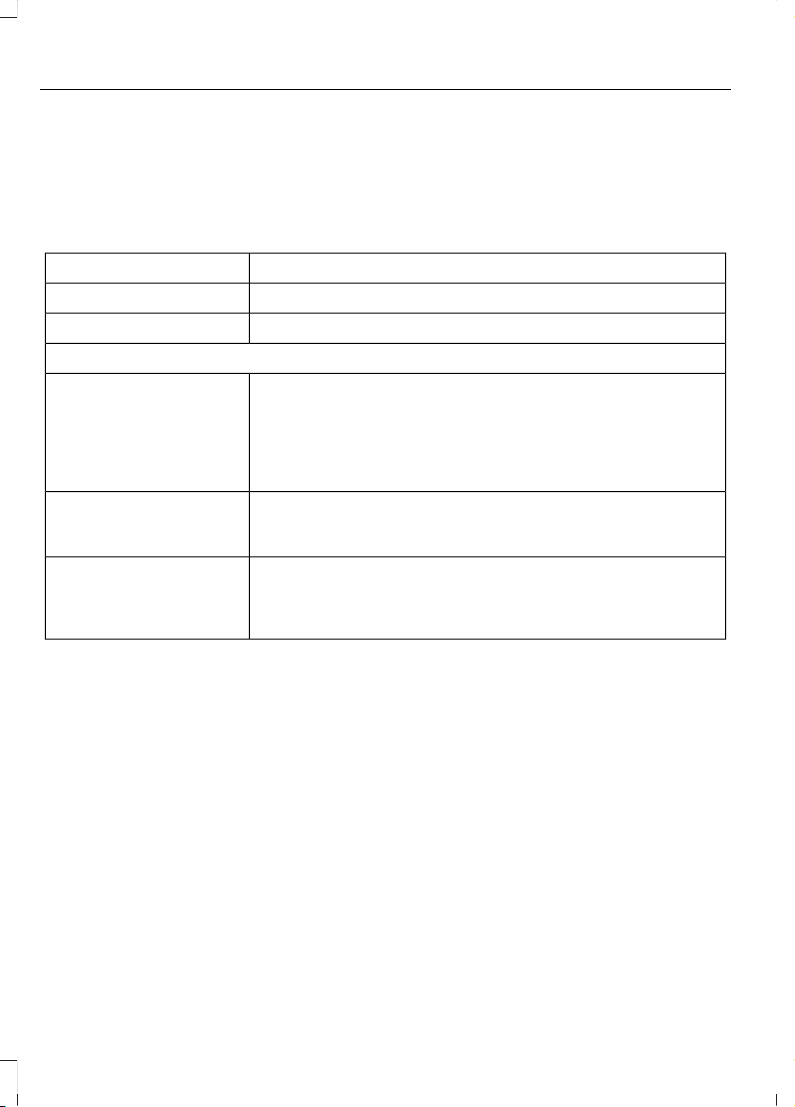
CHECKING MYKEY SYSTEM
STATUS
You can find information on programmed
MyKey(s) using the information display
control on the steering wheel. See
Information Displays (page 102).
To find information on programmed MyKey(s), press the left arrow button to
access the main menu and scroll to:
DescriptionMessage
Press the OK button.Settings
Press the OK button.MyKey
Select one of the following:
Tracks the distance when drivers use a MyKey. The only way
to delete the accumulated distance is by using an admin key
to clear your MyKeys. If the distance does not accumulate as
expected, then the intended user is not using the MyKey, or
an admin key user recently cleared and then recreated a
MyKey.
MyKey Dist.
Indicates the number of MyKeys programmed to your vehicle.
Use this feature to detect how many MyKeys you have for
your vehicle and determine when a MyKey has been deleted.
{0} MyKeys
Indicates how many admin keys are programmed to your
vehicle. Use this feature to determine how many unrestricted
keys you have for your vehicle, and detect if an additional
MyKey has been programmed.
{0} Admin Keys
60
Edge (CDQ) Canada/United States of America, enUSA, Edition date: 201706, First Printing
MyKey™

USING MYKEY WITH REMOTE
START SYSTEMS
MyKey is not compatible with non
Ford-approved, aftermarket remote start
systems. If you choose to install a remote
start system, see an authorized dealer for
a Ford-approved remote start system.
MYKEY TROUBLESHOOTING
Potential CausesCondition
I cannot create a MyKey. • The key or transmitter used to start the
vehicle does not have admin privileges.
• The key or transmitter used to start the
vehicle is the only admin key (there always
has to be at least one admin key).
• Vehicles with keyless start: The keyless
start transmitter is not placed in the backup
position. See Starting a Gasoline Engine
(page 157).
• SecuriLock passive anti-theft system is
disabled or in unlimited mode.
• The key or transmitter used to start your
vehicle does not have admin privileges.
• No MyKeys are created. See Creating a
MyKey (page 58).
I cannot program the configurable
settings.
• The key or transmitter used to start your
vehicle does not have admin privileges.
• No MyKeys are created. See Creating a
MyKey (page 58).
I cannot clear the MyKeys.
Purchase a new key from an authorized dealer.I lost the only admin key.
61
Edge (CDQ) Canada/United States of America, enUSA, Edition date: 201706, First Printing
MyKey™
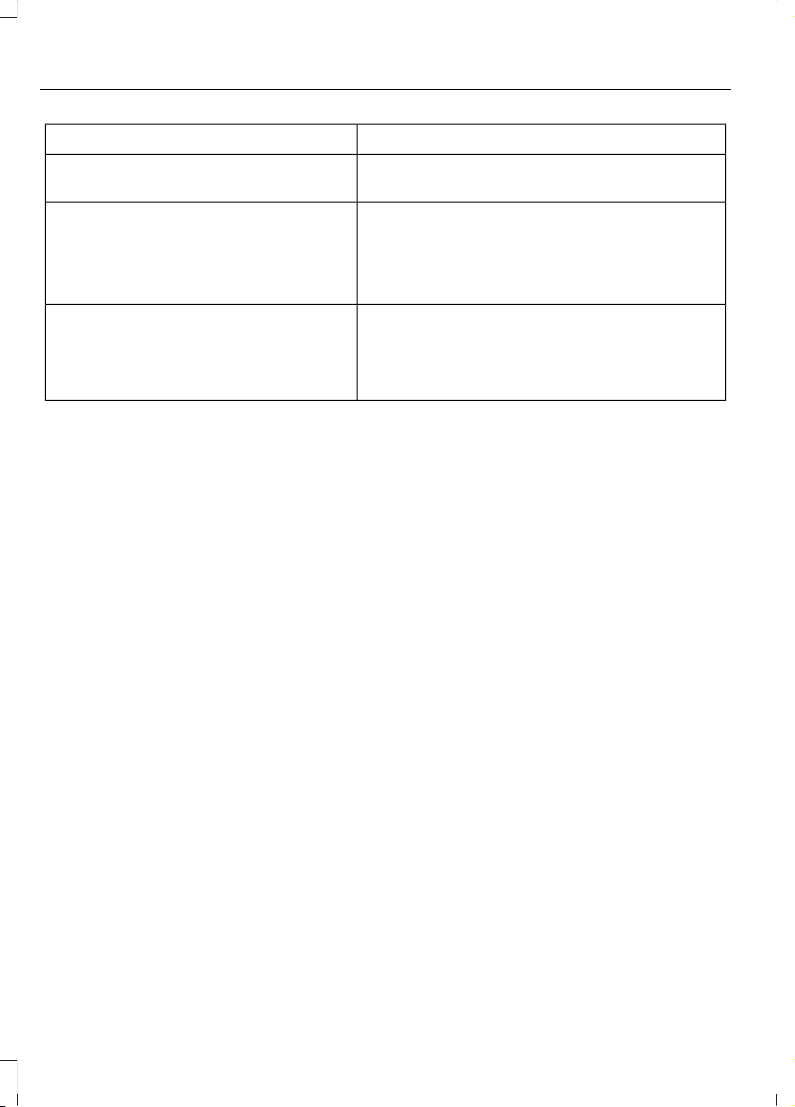
Potential CausesCondition
Program a spare key. See Passive Anti-Theft
System (page 74).
I lost a key.
MyKey distances do not accumulate. • The MyKey user is not using the MyKey.
• An admin key holder cleared the MyKeys
and created new MyKeys.
• The key system has been reset.
• An admin transmitter is present at vehicle
start.
• No MyKeys are created. See Creating a
MyKey (page 58).
No MyKey functions with the keyless
entry transmitter.
62
Edge (CDQ) Canada/United States of America, enUSA, Edition date: 201706, First Printing
MyKey™
LOCKING AND UNLOCKING
You can use the power door lock control
or the remote control to lock and unlock
your vehicle.
Power Door Locks
The power door lock control is on the driver
and front passenger door panels.
E138628
Unlock.A
Lock.B
Door Lock Indicator
An LED on each door window trim
illuminates when you lock the door. It
remains on for up to 10 minutes after you
switch the ignition off.
Door Lock Switch Inhibitor
When you electronically lock your vehicle,
the power door lock switch no longer
operates after 20 seconds. You must
unlock your vehicle with the remote control
or keyless keypad, or switch the ignition
on, to restore function to these switches.
You can switch this feature on or off in the
information display. See General
Information (page 102).
Rear Door Unlocking and Opening
Pull the interior door handle twice to
unlock and open a rear door. The first pull
unlocks the door and the second pull
unlatches the door.
Remote Control
You can use the remote control at any
time. The luggage compartment release
button only operates when your vehicle's
speed is less than 5 mph (8 km/h).
Unlocking the Doors
E138629
Press the button to unlock the
driver door.
Press the button again within
three seconds to unlock all doors. The
direction indicators flash.
Note: If the system does not function, use
the key blade to lock and unlock your
vehicle.
Press and hold both the lock and unlock
buttons on the remote control for three
seconds to change between driver door or
all doors unlock mode. The direction
indicators flash twice to indicate a change
to the unlocking mode. Driver door unlock
mode only unlocks the driver door when
the unlock button is pressed once. All door
unlock mode unlocks all doors when the
unlock button is pressed once. The
unlocking mode applies to the remote
control, keyless entry keypad and
intelligent access. You can also change the
mode in the information display. See
General Information (page 102).
Reprogramming the Unlocking Function
Note: When you press the unlock button,
either all the doors are unlocked or only the
driver door is unlocked. Pressing the unlock
button again unlocks all the doors.
Press and hold the unlock and lock buttons
on the remote control simultaneously for
at least four seconds with the ignition off.
The direction indicators flash twice to
confirm the change.
To return to the original unlocking function,
repeat the process.
63
Edge (CDQ) Canada/United States of America, enUSA, Edition date: 201706, First Printing
Doors and Locks
Locking the Doors
E138623
Press the button to lock all
doors. The direction indicators
flash. Press the button again
within three seconds to confirm that all
the doors are closed. The doors lock again,
the horn sounds and the direction
indicators flash if all the doors and the
luggage compartment are closed.
Note: If the system does not function, use
the key blade to lock and unlock your
vehicle.
Mislock
If any door or the luggage compartment is
open, or if the hood is open on vehicles
with an anti-theft alarm or remote start,
the horn sounds twice and the direction
indicators do not flash. You can switch
this feature on or off in the information
display. See General Information (page
102).
Opening the Luggage Compartment
E138630
Press twice within three seconds
to open the luggage
compartment.
Locking and Unlocking the Doors
with the Key Blade
Locking the Doors
E112203
If the central locking function does not
operate, lock the doors individually using
the key in the position shown.
Left-Hand Side
Turn clockwise to lock.
Right-Hand Side
Turn counterclockwise to lock.
Unlocking the Doors
If the central locking function fails to
operate, unlock the driver door and then
unlock all other doors individually by
pulling the interior door handles.
Note: If the doors have been unlocked using
this method, the doors must be locked
individually until the central locking function
has been repaired.
64
Edge (CDQ) Canada/United States of America, enUSA, Edition date: 201706, First Printing
Doors and Locks
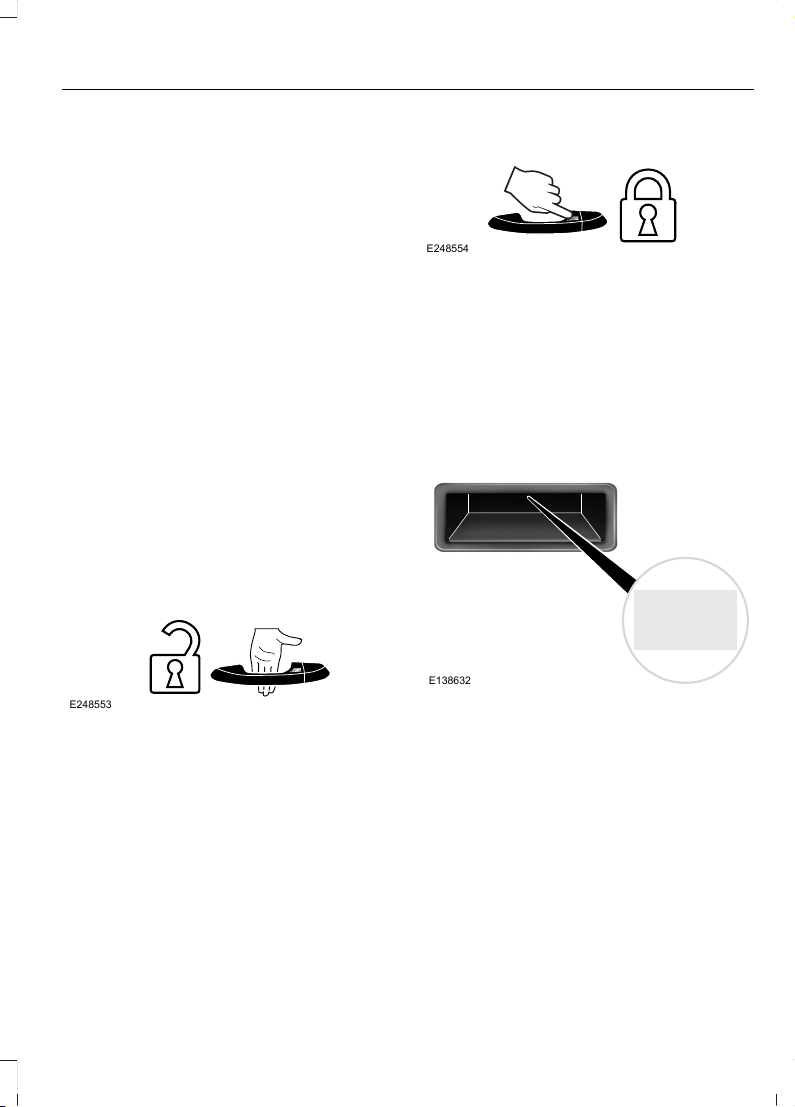
Activating Intelligent Access (If
Equipped)
General Information
You can unlock and lock the vehicle
without taking the keys out of your pocket
or purse when your intelligent access key
is within 3 ft (1 m) of your vehicle.
Intelligent access uses a sensor on the
back of the door handle for unlocking and
a separate sensor on the face of each door
handle for locking.
The system does not function if:
• Your vehicle battery has no charge.
• The key battery has no charge.
• The key frequencies are jammed.
Note: The system may not function if the
key is close to metal objects or electronic
devices, for example keys or a cell phone.
Note: If the system does not function, use
the key blade to lock and unlock your
vehicle. See Remote Control (page 51).
Unlocking Using Intelligent Access
E248553
With your intelligent access key within 3 ft
(1 m) of your vehicle, touch the unlock
sensor on the back of the door handle for
a brief period and then pull on the door
handle to unlock, being careful to not
touch the lock sensor at the same time or
pulling the door handle too quickly. The
intelligent access system requires a brief
delay to authenticate your intelligent
access key fob.
Locking Using Intelligent Access
E248554
With your intelligent access key within 3 ft
(1 m) of your vehicle, touch the outer door
handle lock sensor for approximately one
second to lock, being careful to not touch
the unlock sensor on the back of the door
handle at the same time. After locking, you
can immediately pull on the door handle
to confirm locking occurred without
inadvertently unlocking.
Opening the Luggage Compartment
E138632
Press the button located in the top of the
liftgate pull cup handle to unlatch the
liftgate, and then pull on the outside
handle.
Smart Unlocks for Intelligent
Access Keys
This helps to prevent you from locking your
key inside the passenger compartment or
rear cargo area.
65
Edge (CDQ) Canada/United States of America, enUSA, Edition date: 201706, First Printing
Doors and Locks

When you electronically lock your vehicle
with any door open, transmission in park
(P) and the ignition off, the system
searches for an intelligent access key in
the passenger compartment after you
close the last door. If the system finds a
key, all of the doors immediately unlock
and the horn sounds twice, indicating that
a key is inside.
You can override the smart unlock feature
and intentionally lock the intelligent access
key inside your vehicle. To do this, lock your
vehicle after you have closed all the doors
by:
• Using the keyless entry keypad.
• Pressing the lock button on another
intelligent access key.
• Touching the locking area on the
handle with another intelligent access
key in your hand.
When you open one of the front doors and
lock your vehicle using the power door lock
control, all doors lock then unlock if:
• The ignition is on.
• The ignition is off and the transmission
is not in park (P).
Auto Relock
If you press the unlock button on the
remote control and do not open a door
within 45 seconds, your vehicle locks and
the alarm arms. You can switch this
feature on or off in the information display.
See General Information (page 102).
Autolock (If Equipped)
Autolock locks all the doors when:
• All doors are closed.
• The ignition is on.
• You shift into any gear putting your
vehicle in motion.
• Your vehicle reaches a speed greater
than 12 mph (20 km/h).
Autolock repeats when:
• You open then close any door while the
ignition is on and your vehicle speed is
9 mph (15 km/h) or lower.
• Your vehicle reaches a speed greater
than 12 mph (20 km/h).
Autounlock
Autounlock unlocks all the doors when:
• The ignition is on, all the doors are
closed, and your vehicle has been
moving at a speed greater than 12 mph
(20 km/h).
• Your vehicle comes to a stop and you
switch the ignition off or to the
accessory position.
• You open the driver door within 10
minutes of switching the ignition off or
to accessory.
Note: The doors do not autounlock if you
electronically lock your vehicle after you
switch the ignition off and before you open
the driver door.
Enabling or Disabling Autounlock
You can enable or disable the autounlock
feature in the information display or an
authorized dealer can do it for you. See
General Information (page 102).
Illuminated Entry
The interior lamps and some exterior
lamps illuminate when you unlock the
doors with the remote control.
The lamps turn off if:
• The ignition is on.
• You press the remote control lock
button.
• 25 seconds have elapsed.
66
Edge (CDQ) Canada/United States of America, enUSA, Edition date: 201706, First Printing
Doors and Locks
The lamps do not turn off if:
• You turn them on with the lamp
control.
• Any door is open.
Illuminated Exit
The interior lamps and some exterior
lamps illuminate when all doors are closed,
you switch the ignition off and you remove
the key from the ignition.
The lamps turn off if all the doors remain
closed and:
• 25 seconds have elapsed.
• You press the START/STOP button.
Battery Saver
If you leave the courtesy lamps, dome
lamps or headlamps on, the battery saver
shuts them off 10 minutes after you switch
the ignition off.
Accessory Mode Battery Saver for
Intelligent Access Keys
If you leave the ignition switched on, it
shuts off once it detects a certain amount
of battery drain, or after 45 minutes.
KEYLESS ENTRY (If Equipped)
SECURICODE™ KEYLESS ENTRY
KEYPAD
The keypad is near the driver window. It
illuminates when touched.
Note: If you enter your entry code too fast
on the keypad, the unlock function may not
work. Enter your entry code again more
slowly.
E138637
You can use the keypad to do the
following:
• Lock or unlock the doors.
• Recall memory seat and mirror
positions.
• Program and erase user codes.
• Arm and disarm the anti-theft alarm.
You can operate the keypad with the
factory-set five-digit entry code. The code
is on the owner’s wallet card in the glove
box and is available from an authorized
dealer. You can also program up to five of
your own five-digit personal entry codes.
Programming a Personal Entry Code
1. Enter the factory-set five-digit code.
2. Press 1·2 on the keypad within five
seconds.
3. Enter your personal five-digit code.
You must do this within five seconds
of completing step 2.
4. Press 1·2 on the keypad to save
personal code 1.
The doors lock then unlock to confirm that
programming was successful.
67
Edge (CDQ) Canada/United States of America, enUSA, Edition date: 201706, First Printing
Doors and Locks
To program additional personal entry
codes, repeat steps 1 through 3, then for
step 4:
• Press 3·4 to save personal code 2.
• Press 5·6 to save personal code 3.
• Press 7·8 to save personal code 4.
• Press 9·0 to save personal code 5.
If your vehicle is fitted with MyFord Touch,
you can also program the system with a
personal entry code. See Settings (page
455).
Hints:
• Do not set a code that uses five of the
same number.
• Do not use five numbers in sequential
order.
• The factory-set code works even if you
have set your own personal code.
Erasing a Personal Code
1. Enter the factory-set five-digit code.
2. Press and release 1·2 on the keypad
within five seconds.
3. Press and hold 1·2 for two seconds.
You must do this within five seconds
of completing Step 2.
All personal codes erase and only the
factory-set five-digit code works.
Anti-Scan Feature
The keypad goes into an anti-scan mode
if you enter the wrong code seven times.
This mode turns off the keypad for one
minute and the keypad lamp flashes.
The anti-scan feature turns off after:
• One minute of keypad inactivity.
• You press the unlock button on the
remote control.
• You switch the ignition on.
• You unlock your vehicle using
intelligent access.
Locking and Unlocking the Doors
Locking All Doors
Press and hold 7·8 and 9·0 simultaneously
with the driver door closed. You do not
need to enter the keypad code first.
Unlocking the Driver Door
Enter the factory-set or your personal
five-digit code. You must press each
number within five seconds of each other.
The interior lamps illuminate.
Note: All doors unlock if you enable the
all-door unlocking mode. See Locking and
Unlocking (page 63).
Unlocking All Doors
Enter the factory-set or your personal
five-digit code, then press 3·4 within five
seconds.
Displaying the Factory-Set Code
Note: You need to have two programmed
intelligent access keys for this procedure.
E195807
1
1. Open the floor console storage
compartment lid.
68
Edge (CDQ) Canada/United States of America, enUSA, Edition date: 201706, First Printing
Doors and Locks

E195808
2
2. With the buttons facing the rear of your
vehicle and the key ring up, place the
first intelligent access key into the
backup slot inside the center console.
3. Press the START/STOP button once
and wait a few seconds.
4. Press the START/STOP button again
and remove the key.
5. Insert the second programmed key into
the backup slot, then press the
START/STOP button.
The factory-set code appears in the
information display for a few seconds.
Note: The code may not display until after
any other warning messages first display.
69
Edge (CDQ) Canada/United States of America, enUSA, Edition date: 201706, First Printing
Doors and Locks
MANUAL LIFTGATE
WARNINGS
It is extremely dangerous to ride in a
cargo area, inside or outside of a
vehicle. In a crash, people riding in
these areas are more likely to be seriously
injured or killed. Do not allow people to ride
in any area of your vehicle that is not
equipped with seats and seatbelts. Make
sure everyone in your vehicle is in a seat
and properly using a seatbelt. Failure to
follow this warning could result in serious
personal injury or death.
Make sure to close and latch the
liftgate to prevent drawing exhaust
fumes into your vehicle. This will also
prevent passengers and cargo from falling
out. If you must drive with the liftgate open,
keep the vents or windows open so outside
air comes into your vehicle. Failure to
follow this warning could result in serious
personal injury.
Note: Be careful when opening or closing
the liftgate in a garage or other enclosed
area to avoid damaging the liftgate.
Note: Do not hang anything, for example a
bike rack, from the glass or liftgate. This
could damage the liftgate and its
components.
Note: Do not leave the liftgate open while
driving. This could damage the liftgate and
its components.
Opening the Liftgate
Manually
E138632
Press the button located in the top of the
liftgate pull cup handle to unlatch the
liftgate, and then pull on the outside
handle.
With the Remote Control
E138630
Press the button twice within
three seconds.
Closing the Liftgate
E155976
A handle is located inside the liftgate to
help with closing.
70
Edge (CDQ) Canada/United States of America, enUSA, Edition date: 201706, First Printing
Liftgate

POWER LIFTGATE
WARNINGS
It is extremely dangerous to ride in a
cargo area, inside or outside of a
vehicle. In a crash, people riding in
these areas are more likely to be seriously
injured or killed. Do not allow people to ride
in any area of your vehicle that is not
equipped with seats and seatbelts. Make
sure everyone in your vehicle is in a seat
and properly using a seatbelt. Failure to
follow this warning could result in serious
personal injury or death.
Make sure to close and latch the
liftgate to prevent drawing exhaust
fumes into your vehicle. This will also
prevent passengers and cargo from falling
out. If you must drive with the liftgate open,
keep the vents or windows open so outside
air comes into your vehicle. Failure to
follow this warning could result in serious
personal injury.
Keep keys out of reach of children.
Do not allow children to operate or
play near an open or moving power
liftgate. You should supervise the
operation of the power liftgate at all times.
Note: Make sure that you close the liftgate
before operating or moving your vehicle,
especially in an enclosure, like a garage or
a parking structure. This could damage the
liftgate and its components.
Note: Do not hang anything, for example
a bike rack, from the glass or liftgate. This
could damage the liftgate and its
components.
For automatic transmissions, the liftgate
only operates with the transmission in park
(P).
For manual transmissions, the liftgate only
operates if the vehicle speed is less than
3 mph (5 km/h)
If there is a problem with the open or close
request, a tone will sound for one of the
following reasons:
• The ignition is on and the transmission
is not in park (P).
• The battery voltage is below the
minimum operating voltage.
• The liftgate is not fully closed and your
vehicle speed is at or above 3 mph
(5 km/h).
If the liftgate starts to close after it has
fully opened, this indicates there may be
excessive weight on the liftgate or a
possible strut failure. A repetitive tone
sounds and the liftgate closes under
control. Remove any excessive weight
from the liftgate. If the liftgate continues
to close after opening, have the system
checked by an authorized dealer.
Opening and Closing the Liftgate
WARNING
Make sure all persons are clear of the
power liftgate area before using the
power liftgate control.
Note: Make sure the area behind your
vehicle is free from obstruction and that
there is enough room for you to operate the
liftgate. Objects too close to your vehicle,
for example a wall, garage door or another
vehicle may come into contact with the
moving liftgate. This could damage the
liftgate and its components.
Note: Be careful when opening or closing
the liftgate in a garage or other enclosed
area to avoid damaging the liftgate.
Note: Do not leave the liftgate open when
you are driving. This could damage the
liftgate and its components.
71
Edge (CDQ) Canada/United States of America, enUSA, Edition date: 201706, First Printing
Liftgate

From the Instrument Panel
E138633
With the transmission in park
(P), press the button on the
instrument panel.
Remote Control
E138630
Press the button twice within
three seconds.
Outside Control Button
Opening the Liftgate
1. Unlock the liftgate with the remote
control or power door unlock control.
If an intelligent access key is within 3 ft
(1 m) of the liftgate, the liftgate unlocks
when you press the liftgate release
button.
E138632
2. Press the control button located in the
top of the liftgate pull-cup handle.
Note: Allow the system to open the
liftgate. Manually pushing or pulling the
liftgate may turn on obstacle detection and
stop the power operation or reverse its
direction. Manually interfering with the
liftgate motion may also replicate a strut
failure.
Stopping the Liftgate Movement
Note: Do not apply sudden excessive force
to the liftgate while it is in motion. This
could damage the power liftgate and its
components.
You can stop the liftgate movement by
doing any of the following:
• Pressing the liftgate control button.
• Pressing the liftgate button on the
remote control twice.
• Pressing the liftgate button on the
instrument panel.
• Moving your foot under and away from
the center rear bumper in a single-kick
motion.
*
*
This method only works for vehicles with
the hands-free liftgate feature.
Setting the Liftgate Open Height
1. Open the liftgate.
2. Stop the liftgate movement by pressing
the control button on the liftgate when
it reaches the desired height.
Note: Once the liftgate has stopped
moving, you can also manually move it to
the desired height.
3. Press and hold the liftgate control
button on the liftgate until you hear a
tone, indicating programming is
complete.
Note: You can only use the liftgate control
button to program the height.
Note: You cannot program the height if the
liftgate position is too low.
The new open liftgate height is recalled
when the power liftgate is opened. To
change the programmed height, repeat the
above procedure. Once you open the
power liftgate, you can manually move it
to a different height.
72
Edge (CDQ) Canada/United States of America, enUSA, Edition date: 201706, First Printing
Liftgate
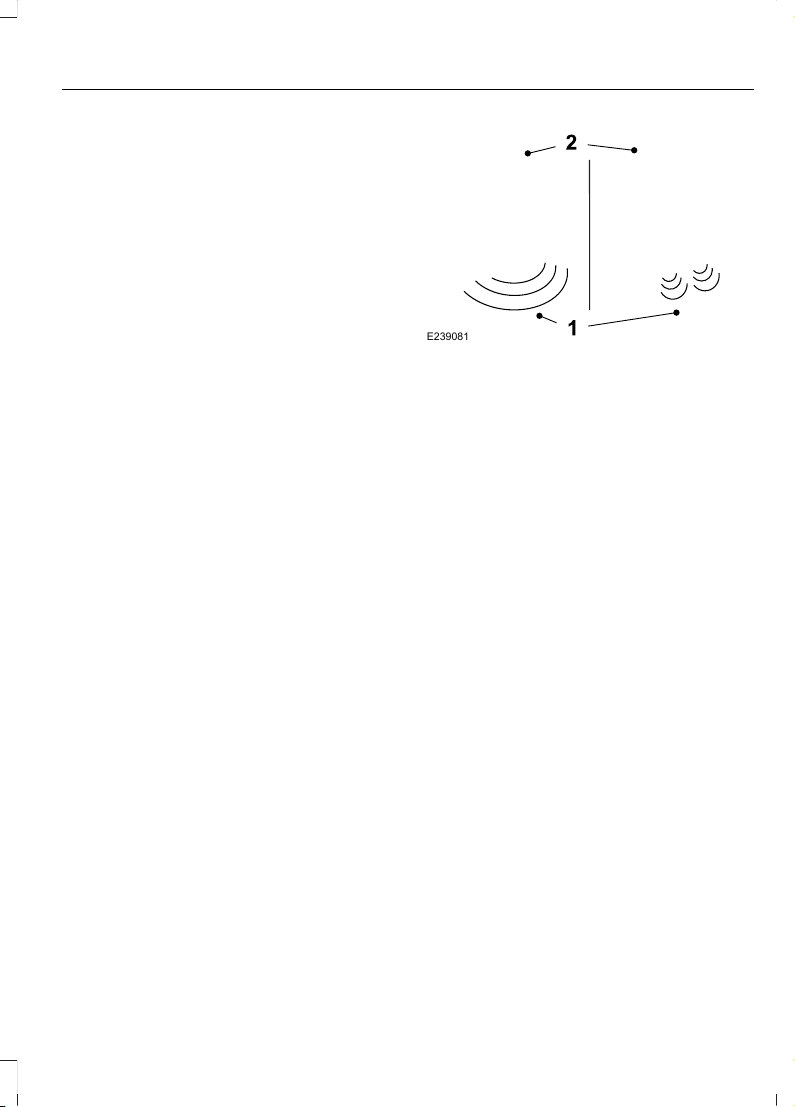
Note: The system recalls the new
programmed height until you reprogram it,
even if you disconnect the battery.
When operating the power liftgate after
you have programmed a lower height than
fully open, you can fully open the liftgate
by manually pushing it upward to the
maximum open position
Obstacle Detection
When Closing
The system stops when it detects an
obstacle. A tone sounds and the system
reverses to open. Once you remove the
obstacle, you can power close the liftgate.
Note: Entering your vehicle while the
liftgate is closing can cause your vehicle to
bounce and activate obstacle detection. To
prevent this, let the power liftgate close
completely before you enter your vehicle.
Before driving off, check the instrument
cluster for a liftgate or door ajar message or
warning indicator. Failure to do this could
result in unintentionally leaving the liftgate
open while driving.
When Opening
The system stops when it detects an
obstacle and a tone sounds. Once you
remove the obstacle, you can continue to
operate the liftgate.
Hands-Free Feature (If Equipped)
Make sure you have an intelligent access
transmitter within 3 ft (1 m) of the liftgate.
E239081
1. Move your foot under and away from
the rear bumper detection area in a
single-kick motion. Do not move your
foot sideways or the sensors may not
detect the motion. Kick between the
exhaust and hitch if your vehicle is
equipped with a hitch.
2. The liftgate will power open or close.
Note: Allow the system to open the
liftgate. Manually pushing or pulling the
liftgate may turn on obstacle detection and
stop the power operation or reverse its
direction. Manually interfering with the
liftgate motion may also replicate a strut
failure.
Note: Splashing water may cause the
hands-free liftgate to open. Keep the
intelligent access key away from the rear
bumper detection area when washing your
vehicle.
73
Edge (CDQ) Canada/United States of America, enUSA, Edition date: 201706, First Printing
Liftgate

PASSIVE ANTI-THEFT
SYSTEM
Note: The system is not compatible with
non-Ford aftermarket remote start systems.
Use of these systems may result in engine
starting problems and a loss of security
protection.
Note: Metallic objects, electronic devices
or a second coded key on the same key
chain may result in vehicle starting
problems, especially if they are too close to
the key when starting your vehicle. Prevent
these objects from touching the coded key
when starting your vehicle. Switch the
ignition off, move all objects on the key
chain away from the coded key and restart
your vehicle if a problem occurs.
Note: Do not leave a duplicate coded key
in your vehicle. Always take your keys and
lock all doors when leaving your vehicle.
SecuriLock®
The system helps prevent the engine from
starting unless you use a coded key
programmed to your vehicle. Using the
wrong key may prevent your vehicle from
starting. A message may appear in the
information display.
If you are unable to start your vehicle with
a coded key, it is not operating correctly.
A message may appear in the information
display.
Automatic Arming
The system arms when you switch the
ignition off.
Automatic Disarming
The system disarms when you switch the
ignition on with a coded key.
Replacement Keys
Note: Your vehicle comes with two keys.
The intelligent access key functions as a
programmed key that operates the driver
door lock and turns on the intelligent
access with push button start system, as
well as a remote control.
If your programmed transmitters are lost
or stolen and you do not have an extra
coded key, you will need to have your
vehicle towed to an authorized dealer. You
need to erase the key codes from your
vehicle and program new coded keys.
Store a spare intelligent access key away
from your vehicle in a safe place. You can
purchase replacement keys or remote
controls from an authorized dealer.
Programming a Spare Intelligent
Access Key
Note: You can program a maximum of four
keys to your vehicle.
You must have two previously
programmed intelligent access keys inside
your vehicle and the new unprogrammed
intelligent access key readily accessible.
You can purchase replacement keys or
remote controls from an authorized dealer.
Make sure that the ignition is switched off
before beginning this procedure. Make sure
that you close all the doors before
beginning and that they remain closed
throughout the procedure. Carry out all
steps within 30 seconds of starting the
sequence. Stop and wait for at least one
minute before starting again if you carry
out any steps out of sequence.
Read and understand the entire procedure
before you begin.
1. Remove the key blade from the
transmitter.
74
Edge (CDQ) Canada/United States of America, enUSA, Edition date: 201706, First Printing
Security
E260239
2. Open the center console lid. With the
buttons facing upward and the unlock
button facing the front of your vehicle,
place the first intelligent access key
into the backup slot.
3. Press the push button ignition switch.
4. Wait five seconds and then press the
push button ignition switch again.
5. Remove the intelligent access key.
6. Within 10 seconds, place a second
programmed intelligent access key in
the backup slot and press the push
button ignition switch.
7. Wait five seconds and then press the
push button ignition switch again.
8. Remove the intelligent access key.
9. Wait five seconds, then place the
unprogrammed intelligent access key
in the backup slot and press the push
button ignition switch.
Programming is now complete. Check that
the remote control functions operate and
your vehicle starts with the new intelligent
access key.
If programming was unsuccessful, wait 10
seconds and repeat steps 1 through 7. If it
still does not work, take your vehicle to an
authorized dealer.
ANTI-THEFT ALARM
The system will warn you of an
unauthorized entry to your vehicle. It will
be triggered if any door, the luggage
compartment or the hood is opened
without using the key, remote control or
keyless entry keypad.
The direction indicators will flash and the
horn will sound if unauthorized entry is
attempted while the alarm is armed.
Take all remote controls to an authorized
dealer if there is any potential alarm
problem with your vehicle.
Arming the Alarm
The alarm is ready to arm when there is
not a key in your vehicle. Electronically lock
your vehicle to arm the alarm.
Disarming the Alarm
Disarm the alarm by any of the following
actions:
75
Edge (CDQ) Canada/United States of America, enUSA, Edition date: 201706, First Printing
Security

• Unlock the doors or luggage
compartment with the remote control
or keyless entry keypad.
• Switch your vehicle on or start your
vehicle.
• Use a key in the driver door to unlock
your vehicle, then switch your vehicle
on within 12 seconds.
Note: Pressing the panic button on the
remote control will stop the horn and signal
indicators, but will not disarm the system.
76
Edge (CDQ) Canada/United States of America, enUSA, Edition date: 201706, First Printing
Security
ADJUSTING THE STEERING
WHEEL - VEHICLES WITH:
MANUAL ADJUSTABLE
STEERING COLUMN
WARNING
Do not adjust the steering wheel
when your vehicle is moving.
Note: Make sure that you are sitting in the
correct position. See Sitting in the Correct
Position (page 138).
E259854
1. Unlock the steering column.
2. Adjust the steering wheel to the desired
position.
E259855
3. Lock the steering column.
ADJUSTING THE STEERING
WHEEL - VEHICLES WITH:
POWER ADJUSTABLE
STEERING COLUMN
WARNING
Do not adjust the steering wheel
when your vehicle is moving.
Note: Make sure that you are sitting in the
correct position. See Sitting in the Correct
Position (page 138).
77
Edge (CDQ) Canada/United States of America, enUSA, Edition date: 201706, First Printing
Steering Wheel
E251370
Use the control on the side of the steering
column to adjust the position.
To adjust:
• Tilt: Press the top or bottom of the
control.
• Telescope: Press the front or rear of
the control.
End of Travel Position
The steering column sets a stopping
position just short of the end of the column
position to prevent damage to the steering
column. A new stopping position sets if
the steering column encounters an object
when tilting or telescoping.
To reset the steering column to its normal
stopping position:
1. Confirm there is nothing obstructing
the motion of the steering column.
2. Press and hold the steering column
control until the steering column stops
moving.
3. Press the steering column control
again.
Note: The steering column may begin to
move again.
4. When the steering column stops,
continue holding the control for a few
seconds.
5. Repeat for each direction as necessary.
A new stopping position sets. The next
time you tilt or telescope the steering
column, it stops just short of the end of the
column position.
Memory Feature
You can save and recall the steering
column position with the memory
function. See Memory Function (page
142).
Pressing the adjustment control during
memory recall cancels the operation.
Easy Entry and Exit Feature
The column moves to the full up and in
position when you switch the ignition off.
Switch the ignition on to return the system
to its previous settings. You can switch
this feature on or off in the information
display. See Information Displays (page
102).
AUDIO CONTROL
You can operate the following functions
with the control:
78
Edge (CDQ) Canada/United States of America, enUSA, Edition date: 201706, First Printing
Steering Wheel
Type One
E196496
Volume up.A
Volume down.B
Mute.C
Seek down or previous.D
Seek up or next.E
Seek, Next or Previous
Press the seek button to:
• Tune the radio to the next or previous
stored preset.
• Play the next or the previous track.
Press and hold the seek button to:
• Tune the radio to the next station up
or down the frequency band.
• Seek through a track.
Type Two
E168191
Volume up.A
Volume down.B
Mute.C
Media.D
Seek down or previous.E
Seek up or next.F
MEDIA
Press repeatedly to scroll through available
audio sources.
Seek, Next or Previous
Press the seek button to:
• Tune the radio to the next or previous
stored preset.
• Play the next or the previous track.
Press and hold the seek button to:
• Tune the radio to the next station up
or down the frequency band.
• Seek through a track.
79
Edge (CDQ) Canada/United States of America, enUSA, Edition date: 201706, First Printing
Steering Wheel

VOICE CONTROL (If Equipped)
E168194
See your SYNC information.
CRUISE CONTROL
Type One
E191246
Type Two
E191247
See Cruise Control (page 204).
INFORMATION DISPLAY
CONTROL
E144636
See Information Displays (page 102).
HEATED STEERING WHEEL (If
Equipped)
See your SYNC information.
80
Edge (CDQ) Canada/United States of America, enUSA, Edition date: 201706, First Printing
Steering Wheel
WINDSHIELD WIPERS
Note: Fully defrost the windshield before
you switch the windshield wipers on.
Note: Make sure you switch the windshield
wipers off before entering a car wash.
Note: If streaks or smears appear on the
windshield, clean the windshield and the
wiper blades. If that does not resolve the
issue, install new wiper blades.
Note: Do not operate the wipers on a dry
windshield. This may scratch the glass,
damage the wiper blades or cause the wiper
motor to burn out. Always use the
windshield washers before wiping a dry
windshield.
E197525
Single wipe.A
Intermittent wipe.B
Normal wipe.C
High speed wipe.D
Intermittent Wipe
E215460
Shortest wipe interval.A
Intermittent wipe.B
Longest wipe interval.C
Use the rotary control to adjust the
intermittent wipe interval.
Speed Dependent Wipers
When your vehicle speed increases, the
interval between wipes decreases.
AUTOWIPERS (If Equipped)
Note: Fully defrost the windshield before
you switch the windshield wipers on.
Note: Make sure you switch the windshield
wipers off before entering a car wash.
Note: If streaks or smears appear on the
windshield, clean the windshield and the
wiper blades. If that does not resolve the
issue, install new wiper blades.
Note: If you switch autolamps and
autowipers on, the headlamps turn on when
the windshield wipers continuously operate.
Wet or winter driving conditions with ice,
snow or salty road mist can cause
inconsistent and unexpected wiping or
smearing.
81
Edge (CDQ) Canada/United States of America, enUSA, Edition date: 201706, First Printing
Wipers and Washers
E215460
High sensitivity.A
On.B
Low sensitivity.C
Use the rotary control to adjust the
sensitivity of the autowipers. When you
select low sensitivity, the wipers operate
when the sensor detects a large amount
of water on the windshield. When you
select high sensitivity, the wipers operate
when the sensor detects a small amount
of water on the windshield.
Keep the outside of the windshield clean.
The rain sensor is very sensitive and the
wipers may operate if dirt, mist or insects
hit the windshield.
In these conditions, you can do the
following:
• Lower the sensitivity of the autowipers
to reduce the amount of smearing on
the windshield.
• Switch to normal or high-speed wipe.
• Switch autowipers off.
Autowipers Settings
Autowipers default to on and remain on
until you switch it off in the information
display. When you switch off autowipers,
the wipers operate in intermittent mode.
WINDSHIELD WASHERS
Note: Do not operate the washers when
the washer reservoir is empty. This may
cause the washer pump to overheat.
E197528
Pull the lever toward you to operate the
windshield washers. When you release the
lever, wiping continues for a short period
of time.
Front Camera Washer (If Equipped)
Operating the windshield washer also turns
on the front camera washer.
REAR WINDOW WIPER AND
WASHERS
Note: Make sure you switch the windshield
wipers off before entering a car wash.
82
Edge (CDQ) Canada/United States of America, enUSA, Edition date: 201706, First Printing
Wipers and Washers
E171615
Intermittent wipe.A
Low speed wipe.B
Off.C
Depending on your vehicle, when you
switch on the front wipers and move the
gearshift lever to reverse (R), the rear
intermittent wipe may turn on.
Rear Window Washer
E167407
Push the lever away from you to operate
the rear window washer.
When you release the lever, wiping
continues for a short period of time.
83
Edge (CDQ) Canada/United States of America, enUSA, Edition date: 201706, First Printing
Wipers and Washers

GENERAL INFORMATION
Condensation in the Exterior Front
Lamps and Rear Lamps
Exterior front lamps and rear lamps have
vents to accommodate normal changes
in air pressure.
Condensation can be a natural by-product
of this design. When moist air enters the
lamp assembly through the vents, there is
a possibility that condensation can occur
when the temperature is cold. When
normal condensation occurs, a fine mist
can form on the interior of the lens. The
fine mist eventually clears and exits
through the vents during normal operation.
Clearing time may take as long as 48 hours
under dry weather conditions.
Examples of acceptable condensation are:
• The presence of a fine mist (no streaks,
drip marks or large droplets).
• A fine mist covers less than 50% of the
lens.
Examples of unacceptable condensation
are:
• A water puddle inside the lamp.
• Streaks, drip marks or large droplets
present on the interior of the lens.
If you see any unacceptable condensation,
have your vehicle checked by an authorized
dealer.
LIGHTING CONTROL
E142449
Off.A
Parking lamps, instrument panel
lamps, license plate lamps and
tail lamps.
B
Headlamps.C
Headlamp High Beam
E162679
Push the lever away from you to switch
the high beam on.
Push the lever forward again or pull the
lever toward you to switch the high beams
off.
84
Edge (CDQ) Canada/United States of America, enUSA, Edition date: 201706, First Printing
Lighting
Headlamp Flasher
E162680
Slightly pull the lever toward you and
release it to flash the headlamps.
AUTOLAMPS
WARNING
The system does not relieve you of
your responsibility to drive with due
care and attention. You may need to
override the system if it does not turn the
headlamps on in low visibility conditions,
for example daytime fog.
E142451
When the lighting control is in the
autolamps position, the headlamps turn
on in low light situations, or when the
wipers turn on.
The headlamps remain on for a period of
time after you switch the ignition off. Use
the information display controls to adjust
the period of time that the headlamps
remain on.
Note: If you switch the autolamps on, you
cannot switch the high beams on until the
system turns the low beams on.
Windshield Wiper Activated
Headlamps
When you switch the autolamps on, the
headlamps turn on within 10 seconds of
switching the wipers on. They turn off
approximately 60 seconds after you switch
the windshield wipers off.
The headlamps do not turn on with the
wipers:
• During a single wipe.
• When using the windshield washers.
• If the wipers are in intermittent mode.
Note: If you switch the autolamps and the
autowipers on, the headlamps turn on when
the windshield wipers continuously operate.
INSTRUMENT LIGHTING
DIMMER
Note: If you disconnect and connect the
battery, or fully discharge and charge the
battery, the illuminated components switch
to the maximum setting.
85
Edge (CDQ) Canada/United States of America, enUSA, Edition date: 201706, First Printing
Lighting
E165337
A B
Press repeatedly or press and
hold to dim.
A
Press repeatedly or press and
hold to brighten.
B
HEADLAMP EXIT DELAY
After you switch the ignition off, you can
switch the headlamps on by pulling the
direction indicator lever toward you. You
will hear a short tone. The headlamps will
switch off automatically after three
minutes with any door open or 30 seconds
after the last door has been closed. You
can cancel this feature by pulling the
direction indicator toward you again or
switching the ignition on.
DAYTIME RUNNING LAMPS (If
Equipped)
WARNING
The daytime running lamps system
does not activate the rear lamps and
may not provide adequate lighting
during low visibility driving conditions.
Make sure you switch the headlamps on,
as appropriate, during all low visibility
conditions. Failure to do so may result in a
crash.
Type One - Conventional (Non-
Configurable)
The daytime running lamps turn on when:
1. Switching the ignition on.
2. The transmission is not in park (P) for
vehicles with automatic transmissions,
or releasing the parking brake for
vehicles with manual transmissions.
3. The lighting control is in the off, parking
lamp or autolamps positions.
4. The headlamps are off.
Type Two - Configurable
Switch the daytime running lamps on or
off using the information display. See
Information Displays (page 102).
The daytime running lamps turn on when:
1. The lamps are on in the information
display.
2. Switching the ignition on.
3. The transmission is not in park (P) for
vehicles with automatic transmissions,
or releasing the parking brake for
vehicles with manual transmissions.
4. The lighting control is in the autolamps
position.
5. The headlamps are off.
The other lighting control switch positions
do not turn on the daytime running lamps.
If the daytime running lamps are off in the
information display, the lamps stay off in
all switch positions.
86
Edge (CDQ) Canada/United States of America, enUSA, Edition date: 201706, First Printing
Lighting
AUTOMATIC HIGH BEAM
CONTROL (If Equipped)
WARNING
The system does not relieve you of
your responsibility to drive with due
care and attention. You may need to
override the system if it does not turn the
high beams on or off.
The system turns on high beams if it is dark
enough and no other traffic is present. If it
detects an approaching vehicle’s
headlamps or tail lamps, or street lighting
ahead, the system turns off high beams
before they can distract other road users.
Low beams remain on.
Note: The system may not operate properly
if the sensor is blocked. Keep the windshield
free from obstruction or damage.
Note: The system may not operate properly
in cold or inclement conditions. You can
switch on the high beams by overriding the
system.
Note: If the system detects a blockage, for
example bird droppings, bug splatter, snow
or ice, the system goes into low beam mode
until you clear the blockage. A message may
appear in the information display if the
camera is blocked.
Note: Using much larger tires or equipping
vehicle accessories such as snowplows can
modify your vehicle's ride height and
degrade automatic high beam control
performance.
A camera sensor, centrally mounted
behind the windshield of your vehicle,
continuously monitors conditions to turn
the high beams on and off.
Once the system is active, the high beams
turn on if:
• The ambient light level is low enough.
• There is no traffic in front of your
vehicle.
• The vehicle speed is greater than
approximately 32 mph (51 km/h).
The high beams turn off if:
• The ambient light level is high enough
that high beams are not required.
• The system detects an approaching
vehicle's headlamps or tail lamps.
• The vehicle speed falls below
approximately 27 mph (44 km/h).
• The system detects severe rain, snow
or fog.
• The camera is blocked.
Switching the System On and Off
Switch the system on using the information
display. See Information Displays (page
102).
E142451
Switch the lighting control to the
autolamps position. See Autolamps
(page 85).
Overriding the System
When you switch on the high beams,
pushing or pulling the stalk provides a
temporary override to low beam.
87
Edge (CDQ) Canada/United States of America, enUSA, Edition date: 201706, First Printing
Lighting
Automatic High Beam Indicator (If
Equipped)
The indicator lamp illuminates
to confirm when the system is
ready to assist.
DIRECTION INDICATORS
E162681
Push the lever up or down to use the
direction indicators.
Note: Tap the lever up or down to make the
direction indicators flash three times to
indicate a lane change.
INTERIOR LAMPS
The lamps turn on under the following
conditions:
• You open any door.
• You press a remote control button.
• You press the all lamps on button on
the front interior lamp.
Front Interior Lamp
Note: The front interior lamp switches are
on the overhead console. The exact location
of each button on the overhead console
depends upon your vehicle features.
Note: Press the button to switch the door
function off when you open any door. When
the door function is off and you open a door,
the courtesy and door lamps stay off. The
indicator lamp lights amber when the door
function is off.
Note: Press the button again to switch the
door function back on. When the door
function is on and you open a door, the
courtesy and door lamps turn on. The
indicator lamp lights blue when the door
function is on.
Type One
E192153
D D
CA
B
All lamps on.A
Door function.B
All lamps off.C
Individual dome lamps.D
88
Edge (CDQ) Canada/United States of America, enUSA, Edition date: 201706, First Printing
Lighting
Type Two
E199032
C C
A
B
Door function.A
All lamps on.B
Individual dome lamps.C
Press the button to switch the lamps on
or off.
Rear Interior Lamps (If Equipped)
Type One
E169470
Type Two
E199026
Type Three
E199027
Press the button to switch the lamps on
or off.
AMBIENT LIGHTING (If Equipped)
Adjust the ambient lighting using the
touchscreen. See your SYNC information.
89
Edge (CDQ) Canada/United States of America, enUSA, Edition date: 201706, First Printing
Lighting
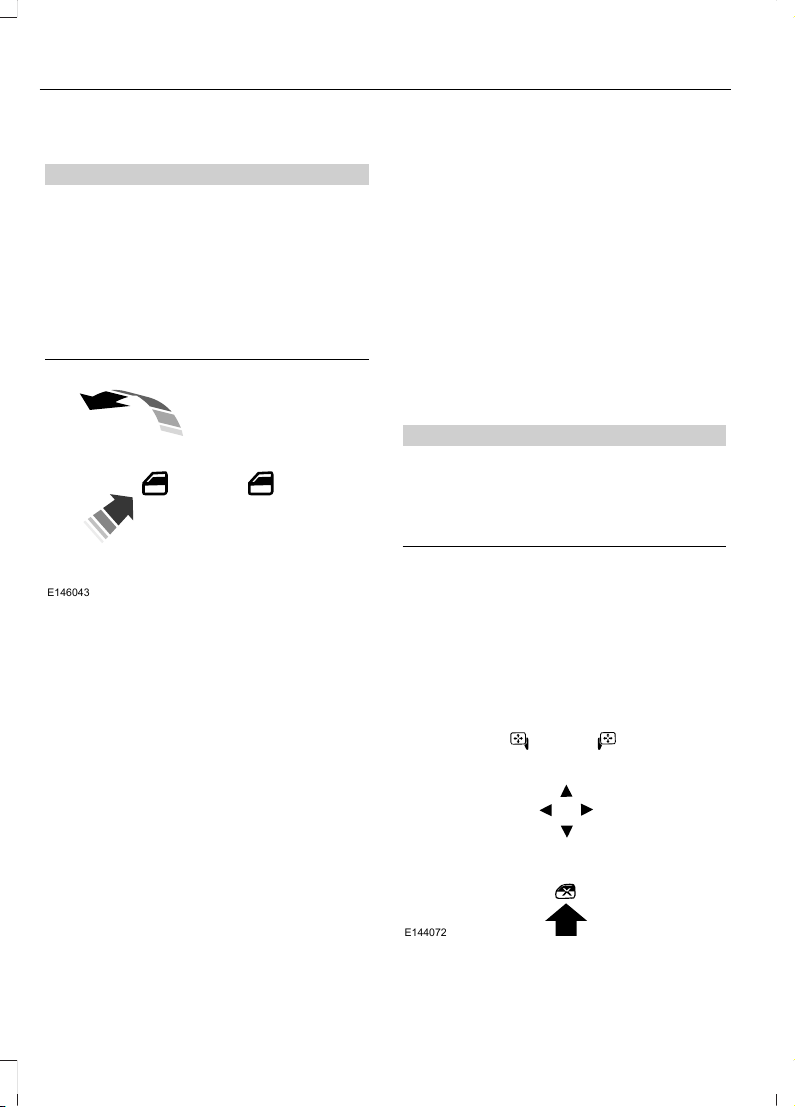
POWER WINDOWS
WARNINGS
Do not leave children unattended in
your vehicle and do not let them play
with the power windows. They may
seriously injure themselves.
When closing the power windows,
you should verify they are free of
obstructions and make sure that
children and pets are not in the proximity
of the window openings.
E146043
Note: You may hear a pulsing noise when
just one of the windows is open. Lower the
opposite window slightly to reduce this
noise.
Press the control to open the window.
Lift the control to close the window.
One-Touch Down
Press the control fully and release it. Press
again or lift it to stop the window.
One-Touch Up
Lift the control fully and release it. Press
again or lift it to stop the window.
Resetting One-Touch Up
1. Lift and hold the control until the
window is fully closed.
2. Release the control.
3. Open the window and then try to close
it automatically.
4. Repeat the procedure if the window
does not close automatically.
Note: The one-touch down and one-touch
up feature only applies to the front
windows.
Bounce-Back
The window will automatically stop and
reverse some distance if it detects an
obstacle while closing.
Overriding the Bounce-Back Feature
WARNING
When you override the bounce-back
feature the window will not reverse
if it detects an obstacle. Take care
when closing the windows to avoid
personal injury or damage to your vehicle.
Pull up the window switch and hold within
two seconds of the window reaching the
bounce-back position. The window travels
up with no bounce-back protection. The
window stops if you release the switch
before the window is fully closed.
Window Lock
E144072
90
Edge (CDQ) Canada/United States of America, enUSA, Edition date: 201706, First Printing
Windows and Mirrors
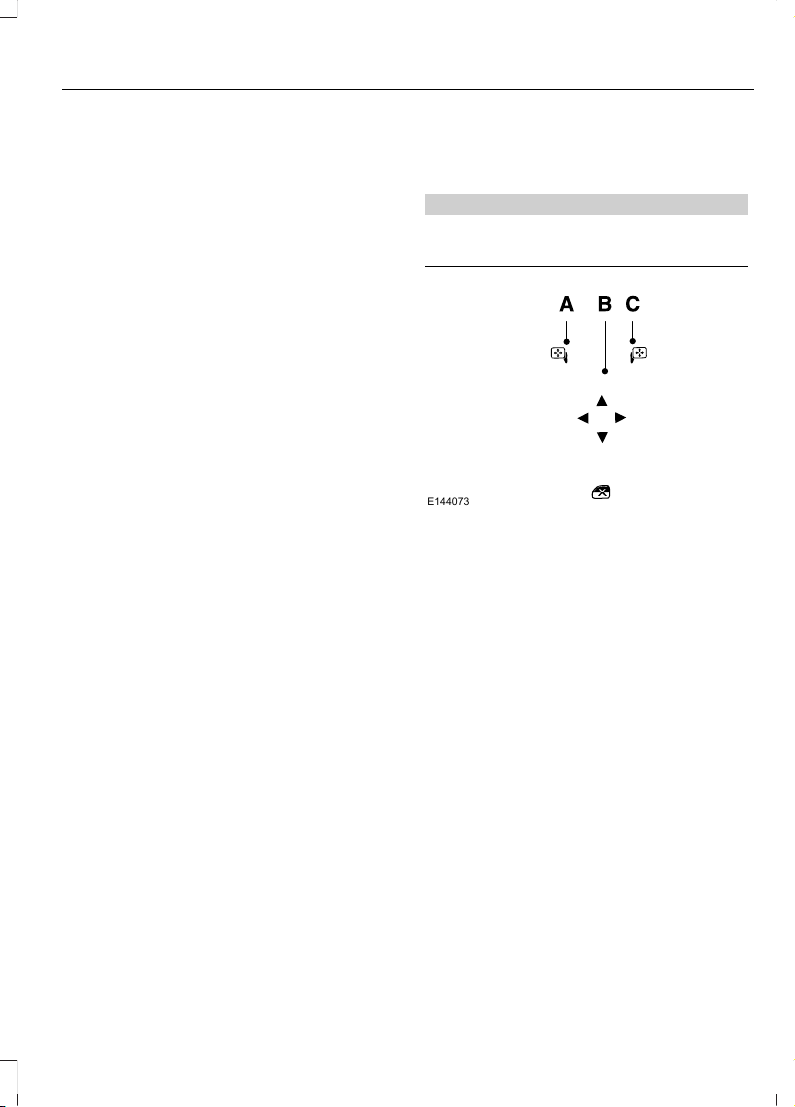
Press the control to lock or unlock the rear
window controls. It illuminates when you
lock the rear window controls.
Accessory Delay
The window switches remain operational
for several minutes when you switch the
ignition off or until you open either front
door.
GLOBAL OPENING
You can use the remote control to open
the windows and vent the moonroof with
the ignition off.
Note: You can enable or disable this feature
in the information display, or see an
authorized dealer. See General
Information (page 102).
Note: To operate this feature, accessory
delay must not be active.
Remote Control Front Windows
You can open the windows for a short time
after you unlock your vehicle with the
remote control. After you unlock your
vehicle, press and hold the remote control
unlock button to open the windows.
Release the button once movement starts.
Press the lock or unlock button to stop
movement.
Moonroof (If Equipped)
You can vent the moonroof after you
unlock your vehicle with the remote
control. After you unlock your vehicle, press
and hold the remote control unlock button
to vent the moonroof. Release the button
once movement starts. Press the lock or
unlock button to stop movement.
EXTERIOR MIRRORS
Power Exterior Mirrors
WARNING
Do not adjust the mirrors when your
vehicle is moving.
E144073
Left-hand mirror.A
Adjustment control.B
Right-hand mirror.C
To adjust your mirrors, switch your vehicle
on (with the ignition in accessory mode or
the engine running) and then:
1. Select the mirror you want to adjust.
The control lights.
2. Use the adjustment control to adjust
the position of the mirror.
3. Press the mirror control again. The
control light turns off.
Fold-Away Exterior Mirrors
Push the mirror toward the door window
glass. Make sure that you fully engage the
mirror in its support when returning it to its
original position.
91
Edge (CDQ) Canada/United States of America, enUSA, Edition date: 201706, First Printing
Windows and Mirrors
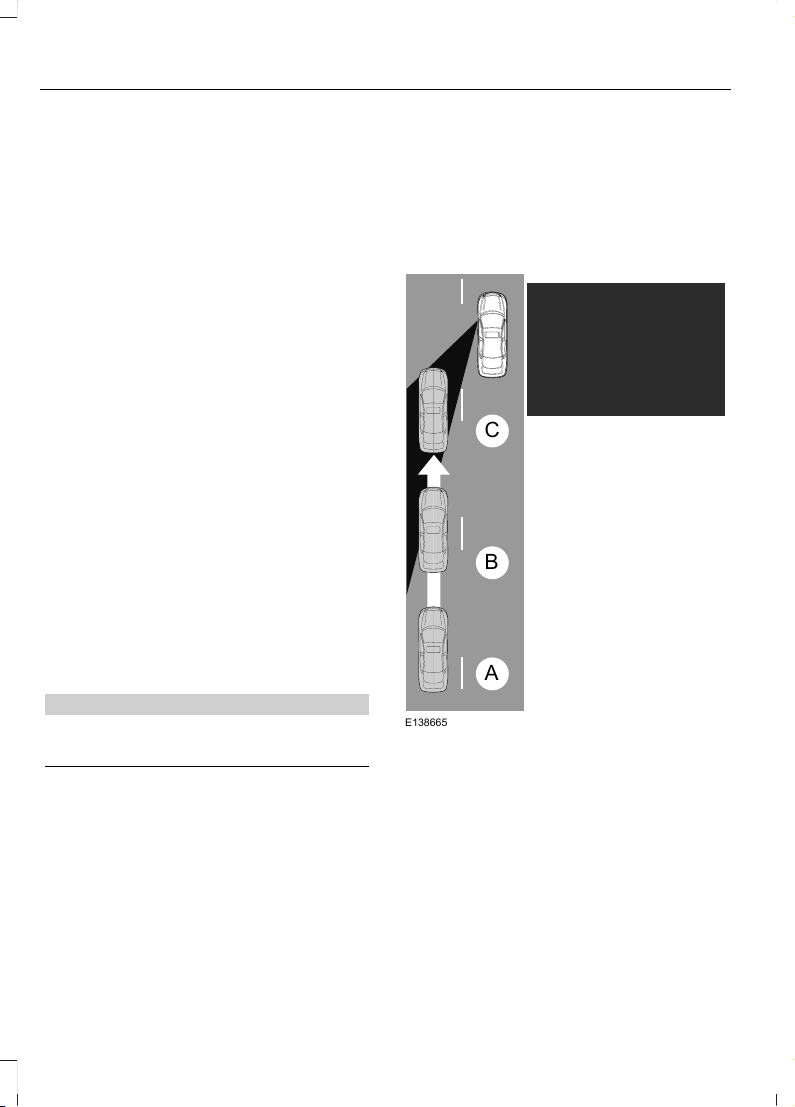
Heated Exterior Mirrors (If Equipped)
See Heated Windows and Mirrors (page
136).
Memory Mirrors (If Equipped)
You can save and recall the mirror
positions through the memory function.
See Memory Function (page 142).
Auto-dimming Feature (If Equipped)
The driver exterior mirror automatically
dims when the interior auto-dimming
mirror turns on.
Direction Indicator Mirrors (If Equipped)
While the vehicle is running, the
forward-facing portion of the appropriate
mirror housing blinks when you switch on
the direction indicator.
Puddle Lamps (If Equipped)
The lamps on the bottom part of the mirror
housing light when you use your
transmitter to unlock the doors or when
you open a door.
Integrated Blind Spot Mirror (If
Equipped)
WARNING
Objects in the blind spot mirror are
closer than they appear.
Blind spot mirrors have an integrated
convex mirror built into the upper outboard
corner of the exterior mirrors. They can
assist you by increasing visibility along the
side of your vehicle.
Check the main mirror first before a lane
change, then check the blind spot mirror.
If no vehicles are present in the blind spot
mirror and the traffic in the adjacent lane
is at a safe distance, signal that you are
going to change lanes. Glance over your
shoulder to verify traffic is clear, and
carefully change lanes.
A
B
C
E138665
The image of the approaching vehicle is
small and near the inboard edge of the
main mirror when it is at a distance. The
image becomes larger and begins to move
outboard across the main mirror as the
vehicle approaches (A). The image
transitions from the main mirror and begins
to appear in the blind spot mirror as the
vehicle approaches (B). The vehicle
transitions to your peripheral field of view
as it leaves the blind spot mirror (C).
92
Edge (CDQ) Canada/United States of America, enUSA, Edition date: 201706, First Printing
Windows and Mirrors
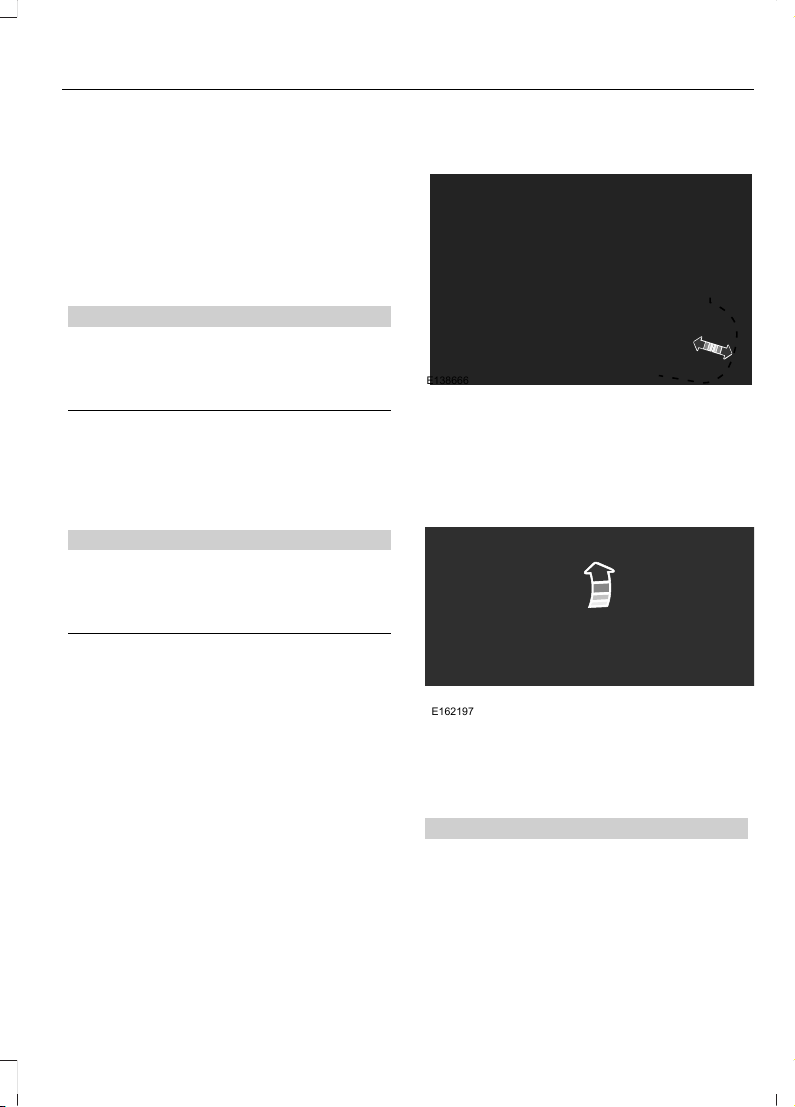
Blind Spot Information System (If
Equipped)
See Blind Spot Information System
(page 216).
INTERIOR MIRROR
Manual Dimming Mirror
WARNING
Do not adjust the mirrors when your
vehicle is moving. This could result
in the loss of control of your vehicle,
serious personal injury or death.
Pull the tab below the mirror toward you
to reduce the effect of bright light from
behind.
Automatic Dimming Mirror (If Equipped)
WARNING
Do not adjust the mirrors when your
vehicle is moving. This could result
in the loss of control of your vehicle,
serious personal injury or death.
The mirror dims to reduce the effect of
bright light from behind. It returns to
normal when the bright light from behind
is no longer present or if you shift into
reverse (R).
Do not block the sensors on the front and
back of the mirror.
Note: A rear center passenger or raised rear
center head restraint could prevent light
from reaching the sensor.
SUN VISORS
E138666
Rotate the sun visor toward the side
window and extend it rearward for extra
shade.
Illuminated Vanity Mirror
E162197
Lift the cover to switch the lamp on.
MOONROOF (If Equipped)
WARNINGS
Do not let children play with the
moonroof or leave them unattended
in the vehicle. They may seriously
hurt themselves.
93
Edge (CDQ) Canada/United States of America, enUSA, Edition date: 201706, First Printing
Windows and Mirrors
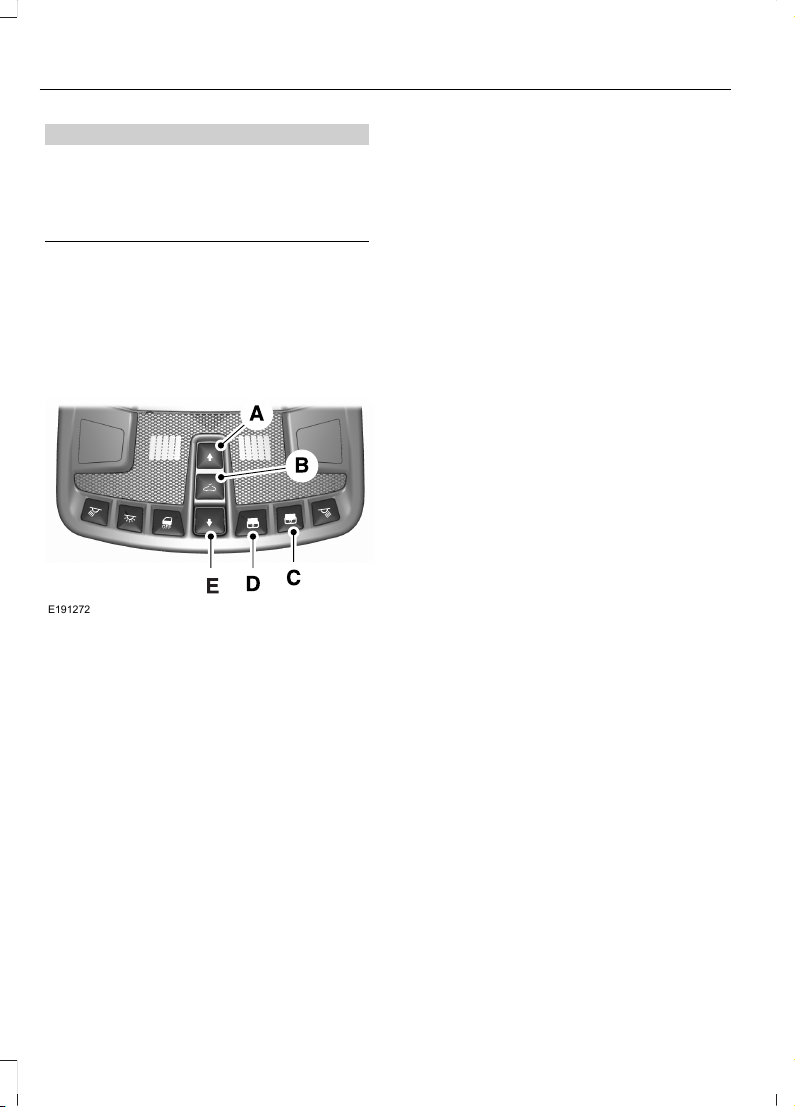
WARNINGS
When closing the moonroof, you
should verify that it is free of
obstructions and make sure that
children and pets are not in the proximity
of the roof opening.
The moonroof controls are located on the
overhead console and have a one-touch
open and close feature. To stop its
movement during one-touch operation,
press the control a second time.
Opening and Closing the Moonroof
E191272
Moonroof open. Press and
release to open the moonroof.
The moonroof stops short of the
fully opened position. Press and
release the control again to open
the moonroof fully.
A
Moonroof vent. Press and
release to vent the moonroof.
B
Sunshade open. Press and
release to open the sunshade.
The sunshade opens
automatically with the
moonroof. You can also open
the sunshade with the moonroof
C
closed. Note: The sunshade
stops short of its fully opened
position for the comfort of rear
passengers. To open the
sunshade fully, press the control
again.
Sunshade close. Press and
release to close the sunshade.
D
Moonroof close. Press and
release to close the moonroof
from either the open or vent
positions.
E
Note: The moonroof stops 8 in (200 mm)
from the closed position. To close the
moonroof, press and hold the moonroof
close control until the moonroof is in the
fully closed position.
94
Edge (CDQ) Canada/United States of America, enUSA, Edition date: 201706, First Printing
Windows and Mirrors
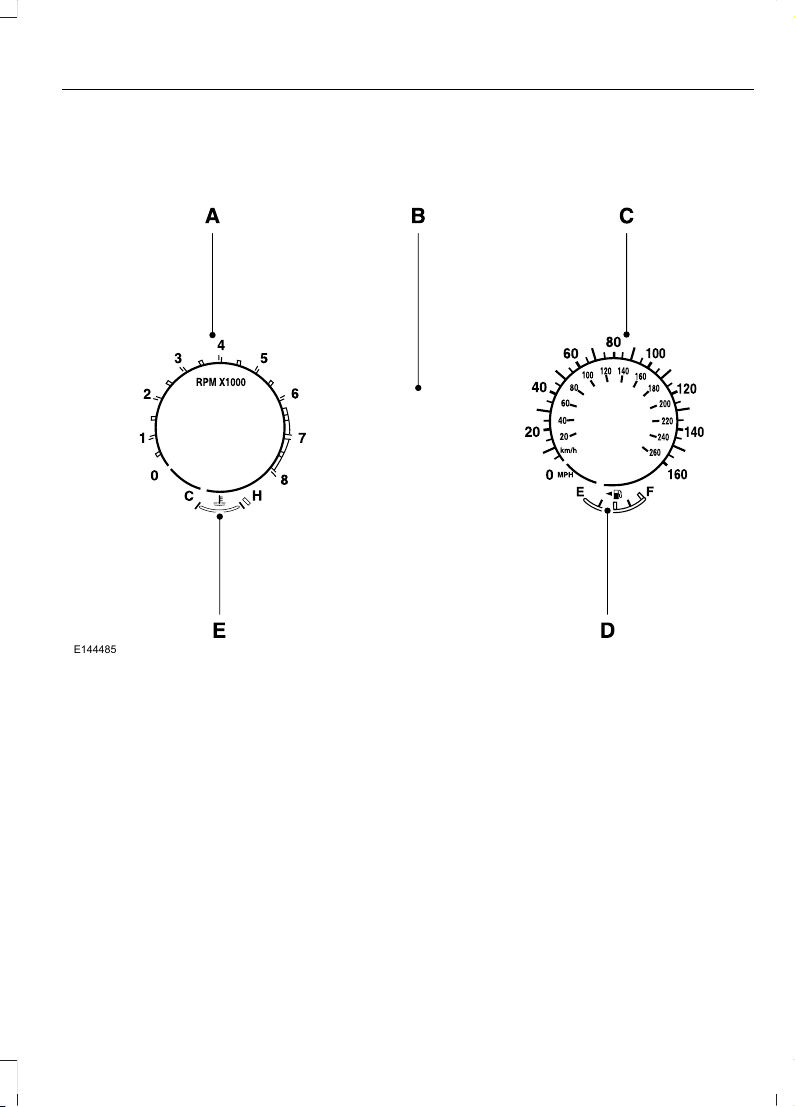
GAUGES
Type 1
E144485
TachometerA
Information DisplayB
SpeedometerC
Fuel GaugeD
Engine Coolant Temperature GaugeE
Information Display
Odometer
Located in the bottom of the information
display. Registers the accumulated
distance your vehicle has traveled.
Outside Air Temperature
Shows the outside air temperature.
Compass
Displays the vehicle’s heading direction.
95
Edge (CDQ) Canada/United States of America, enUSA, Edition date: 201706, First Printing
Instrument Cluster

Trip Computer
See General Information (page 102).
Vehicle Settings and Personalization
See General Information (page 102).
Engine Coolant Temperature
Gauge
Shows the temperature of the engine
coolant. At normal operating temperature,
the needle remains in the center section.
If the needle enters the red section, the
engine is overheating. Stop the engine,
switch the ignition off and determine the
cause once the engine has cooled down.
Note: Do not restart the engine until the
cause of overheating has been resolved.
WARNING
Never remove the coolant reservoir
cap while the engine is running or hot.
Fuel Gauge
Note: The fuel gauge may vary slightly
when your vehicle is moving or on a gradient.
Switch the ignition on. The fuel gauge
indicates approximately how much fuel is
left in the fuel tank. The arrow adjacent to
the fuel pump symbol indicates on which
side of your vehicle the fuel filler door is
located.
The needle should move toward F when
you refuel your vehicle. If the needle points
to E after adding fuel, this indicates your
vehicle needs service soon.
After refueling some variability in needle
position is normal:
• It may take a short time for the needle
to reach F after leaving the gas station.
This is normal and depends upon the
slope of pavement at the gas station.
• The fuel amount dispensed into the
tank is a little less or more than the
gauge indicated. This is normal and
depends upon the slope of pavement
at the gas station.
• If the gas station nozzle shuts off
before the tank is full, try a different
gas pump nozzle.
Low Fuel Reminder
A low fuel reminder triggers at 50 mi
(80 km) to empty.
96
Edge (CDQ) Canada/United States of America, enUSA, Edition date: 201706, First Printing
Instrument Cluster
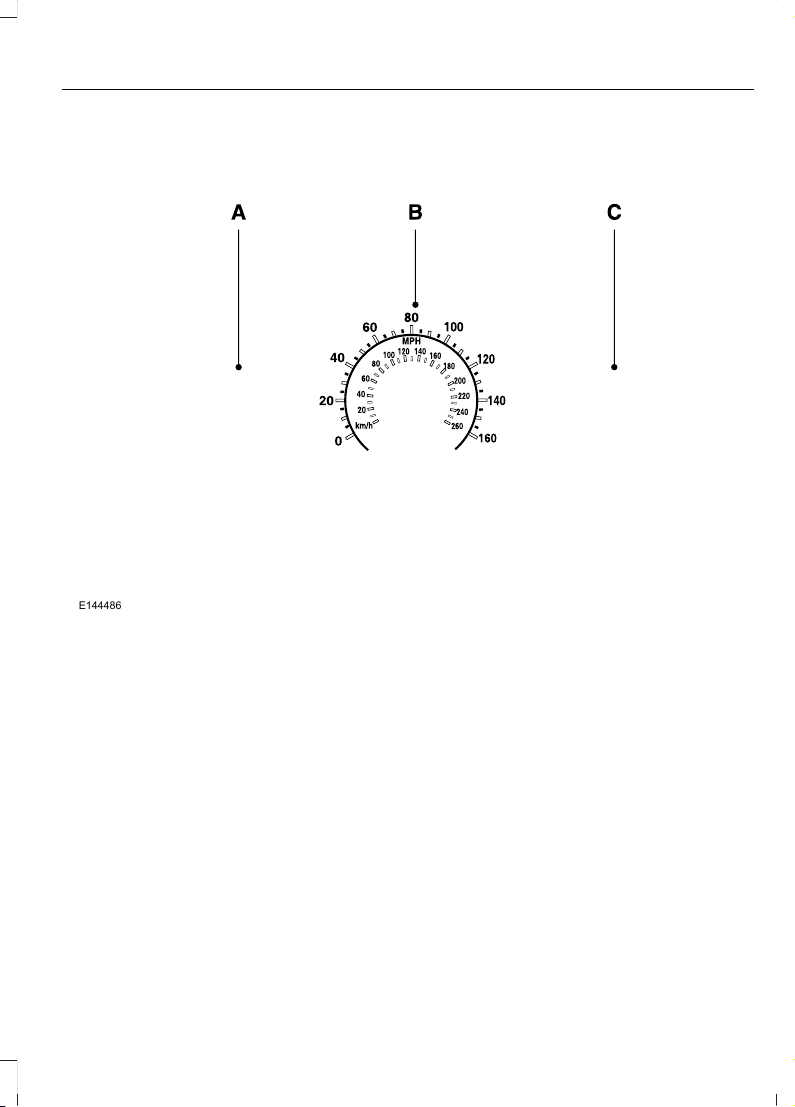
Type 2
E144486
Left Information DisplayA
SpeedometerB
Right Information Display. See General Information (page 102).C
Left Information Display
Odometer
Located in the bottom of the information
display. Registers the accumulated
distance your vehicle has traveled.
Trip Computer
See General Information (page 102).
Vehicle Settings and Personalization
See General Information (page 102).
97
Edge (CDQ) Canada/United States of America, enUSA, Edition date: 201706, First Printing
Instrument Cluster
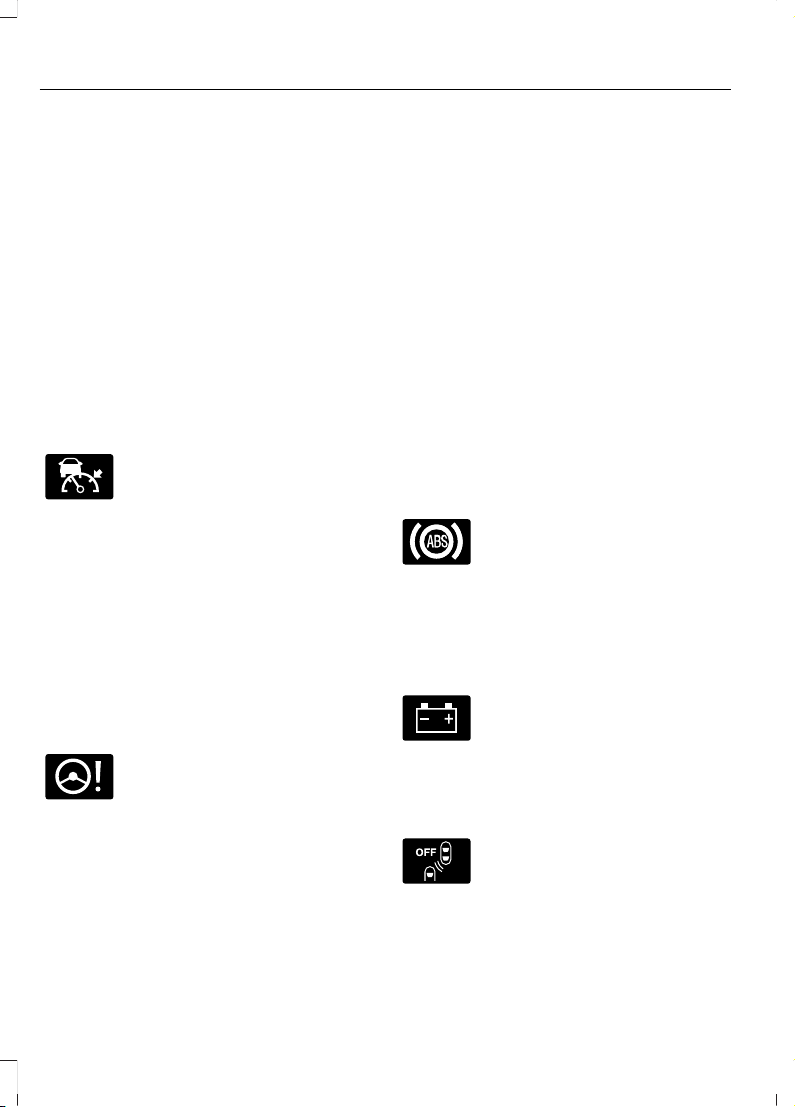
WARNING LAMPS AND
INDICATORS
The following warning lamps and
indicators alert you to a vehicle condition
that may become serious. Some lamps
illuminate when you start your vehicle to
make sure they work. If any lamps remain
on after starting your vehicle, refer to the
respective system warning lamp for further
information.
Note: Some warning indicators appear in
the information display and function the
same as a warning lamp, but do not display
when you start your vehicle.
Adaptive Cruise Control (If Equipped)
E144524
The speed control system
indicator light changes color to
indicate what mode the system
is in: See Using Adaptive Cruise Control
(page 205).
On (white light): Illuminates when you turn
the adaptive cruise control system on.
Turns off when you turn the speed control
system off.
Engaged (green light): Illuminates when
the adaptive cruise control system
engages. Turns off when the speed control
system is disengaged.
Adaptive Steering (If Equipped)
E223375
The adaptive steering system
indicator illuminates if the
system detects a fault during the
continuous diagnostic checks.
Adaptive Steering Initialization (yellow,
flashing): The adaptive steering system
has detected a difference between
steering wheel angle and the desired road
wheel angle. The steering wheel adjusts
itself to correct this difference. This
adjustment is part of normal system
operation.
Adaptive Steering Off (yellow, solid): The
adaptive steering system is off. It is
possible that the steering wheel may not
be straight when the vehicle is driving
straight ahead. If this message persists,
see an authorized dealer.
Adaptive Steering Loss (red, solid): The
adaptive steering system integrity cannot
be verified. Do not drive the vehicle and
contact an authorized dealer immediately.
See Steering (page 220).
Anti-Lock Braking System
If it illuminates when you are
driving, this indicates a
malfunction. You will continue
to have normal braking (without Anti-lock
braking system) unless the brake system
warning lamp is also illuminated. Have the
system checked by an authorized dealer.
Battery
If it illuminates while driving, it
indicates a malfunction. Switch
off all unnecessary electrical
equipment and have the system checked
by an authorized dealer immediately.
Blind Spot Monitor (If Equipped)
E151262
It will illuminate when you switch
this feature off or in conjunction
with a message. See Blind Spot
Information System (page 216).
98
Edge (CDQ) Canada/United States of America, enUSA, Edition date: 201706, First Printing
Instrument Cluster
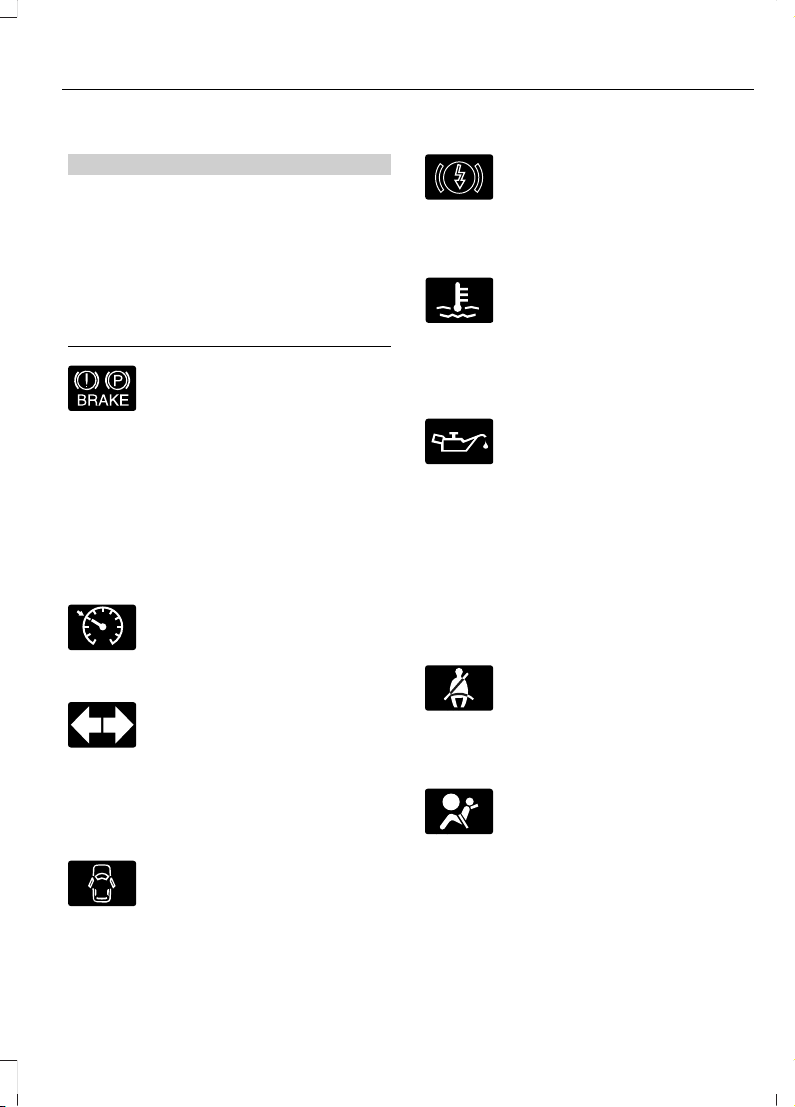
Brake System
WARNING
Driving your vehicle with the warning
lamp on is dangerous. A significant
decrease in braking performance
may occur. It may take you longer to stop
your vehicle. Have your vehicle checked as
soon as possible. Driving extended
distances with the parking brake engaged
can cause brake failure and the risk of
personal injury.
E144522
It will illuminate when you
engage the parking brake with
the ignition on.
If it illuminates when you are driving, check
that you do not have the parking brake
engaged. If you do not have the parking
brake engaged, this indicates low brake
fluid level or a brake system malfunction.
Have the system checked immediately by
an authorized dealer.
Cruise Control (If Equipped)
E71340
It will illuminate when you switch
this feature on.
Direction Indicator
Illuminates when you turn the
left or right direction indicator or
the hazard warning flasher on. If
the indicators stay on or flash faster, check
for a burned out bulb. See Changing a
Bulb (page 284).
Door Ajar
Displays when the ignition is on
and any door is not completely
closed.
Electric Park Brake
E146190
It will illuminate or flash when
the electric parking brake has a
malfunction. See Electric
Parking Brake (page 184).
Engine Coolant Temperature
Illuminates when the engine
coolant temperature is high.
Stop the vehicle as soon as
possible, switch off the engine and let cool.
See Engine Coolant Check (page 272).
Engine Oil
If it illuminates with the engine
running or when you are driving,
this indicates a malfunction.
Stop your vehicle as soon as it is safe to
do so and switch the engine off. Check the
engine oil level. See Engine Oil Check
(page 270).
Note: Do not resume your journey if it
illuminates despite the level being correct.
Have the system checked by your authorized
dealer immediately.
Fasten Seatbelt
E71880
It will illuminate and a chime will
sound to remind you to fasten
your seatbelt. See Seatbelt
Reminder (page 38).
Front Airbag
E67017
If it fails to illuminate when you
start your vehicle, continues to
flash or remains on, it indicates
a malfunction. Have the system checked
by an authorized dealer.
99
Edge (CDQ) Canada/United States of America, enUSA, Edition date: 201706, First Printing
Instrument Cluster
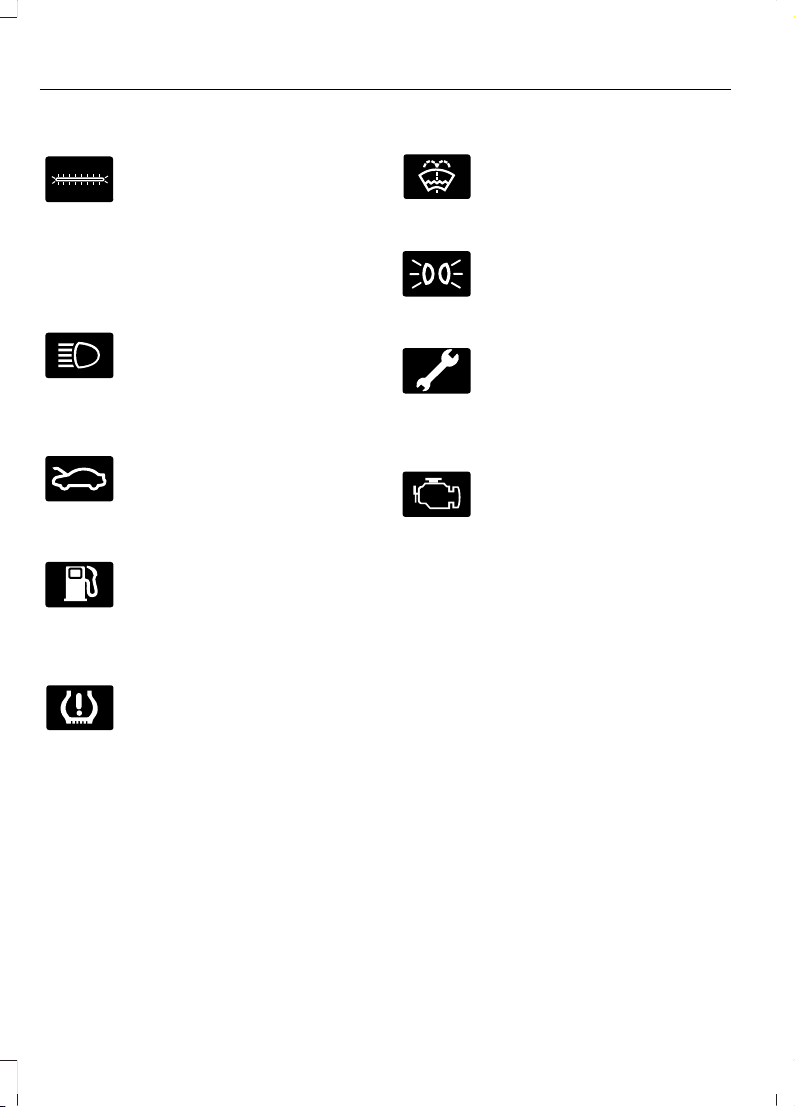
Heads Up Display (If Equipped)
E156133
A red beam of lights will
illuminate on the windshield in
certain instances when using
adaptive cruise control or the collision
warning system. It will also illuminate
momentarily when you start your vehicle
to make sure the display works.
High Beam
It will illuminate when you switch
the high beam headlamps on. It
will flash when you use the
headlamp flasher.
Hood Ajar
E159324
Displays when the ignition is on
and the hood is not completely
closed.
Low Fuel Level
It will illuminate when the fuel
level is low or the fuel tank is
nearly empty. Refuel as soon as
possible.
Low Tire Pressure Warning
It will illuminate when your tire
pressure is low. If the lamp
remains on with the engine
running or when driving, check your tire
pressure as soon as possible.
It will also illuminate momentarily when
you switch the ignition on to confirm the
lamp is functional. If it does not illuminate
when you switch the ignition on, or begins
to flash at any time, have the system
checked by an authorized dealer.
Low Washer Fluid
E132353
It will illuminate when the
windshield washer fluid is low.
Parking Lamps
It will illuminate when you switch
the parking lamps on.
Powertrain Fault
Illuminates when the system has
detected a powertrain or an
all-wheel drive fault. Contact an
authorized dealer as soon as possible.
Service Engine Soon
If it illuminates when the engine
is running this indicates a
malfunction. The On Board
Diagnostics system has detected a
malfunction of the vehicle emission control
system.
If it flashes, engine misfire may be
occurring. Increased exhaust gas
temperatures could damage the catalytic
converter or other vehicle components.
Drive in a moderate fashion (avoid heavy
acceleration and deceleration) and have
your vehicle immediately serviced.
It illuminates when you switch the ignition
on prior to engine start to check the bulb
and to indicate whether your vehicle is
ready for Inspection and Maintenance
(I/M) testing.
Normally, it illuminates until the engine is
cranked and automatically turns off if no
malfunctions are present. However, if after
15 seconds it flashes eight times, this
indicates that your vehicle is not ready for
Inspection and Maintenance (I/M) testing.
See Catalytic Converter (page 171).
100
Edge (CDQ) Canada/United States of America, enUSA, Edition date: 201706, First Printing
Instrument Cluster
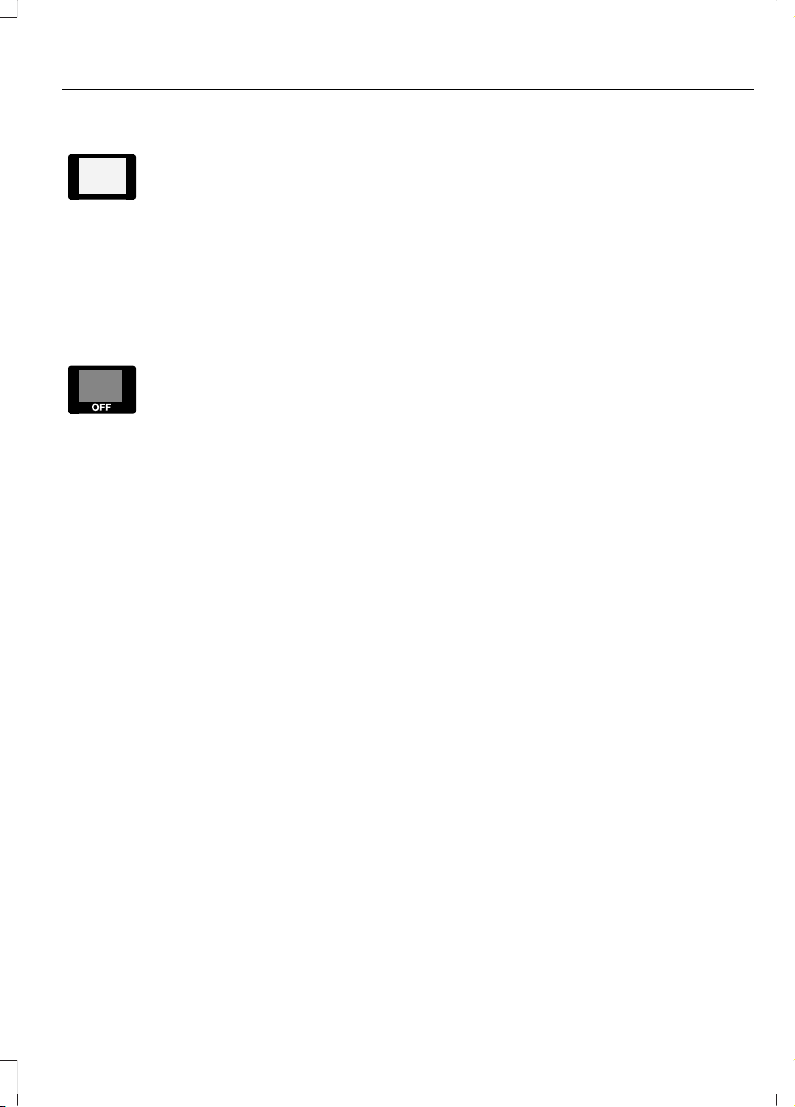
Stability Control
E138639
It will flash when the system is
active. If it remains illuminated
or does not illuminate when you
switch the ignition on, this indicates a
malfunction. During a malfunction, the
system will switch off. Have the system
checked by an authorized dealer
immediately. See Using Stability
Control (page 189).
Stability Control Off
E130458
It will illuminate when you switch
the system off. It will go out
when you switch the system
back on or when you switch the ignition
off. See Using Stability Control (page
189).
AUDIBLE WARNINGS AND
INDICATORS
Key in Ignition Warning Chime
Sounds when you open the driver's door
and you have left the key in the ignition.
Keyless Warning Alert (If Equipped)
Sounds the horn twice when you exit your
vehicle with the intelligent access key, after
the last door is closed and your keyless
vehicle is in RUN, indicating your vehicle is
still on.
Headlamps On Warning Chime
Sounds when you remove the key from the
ignition and open the driver's door and you
have left the headlamps or parking lamps
on.
Parking Brake On Warning Chime
Sounds when you have left the parking
brake on and drive your vehicle. If the
warning chime remains on after you have
released the parking brake, have the
system checked by an authorized dealer
immediately.
101
Edge (CDQ) Canada/United States of America, enUSA, Edition date: 201706, First Printing
Instrument Cluster
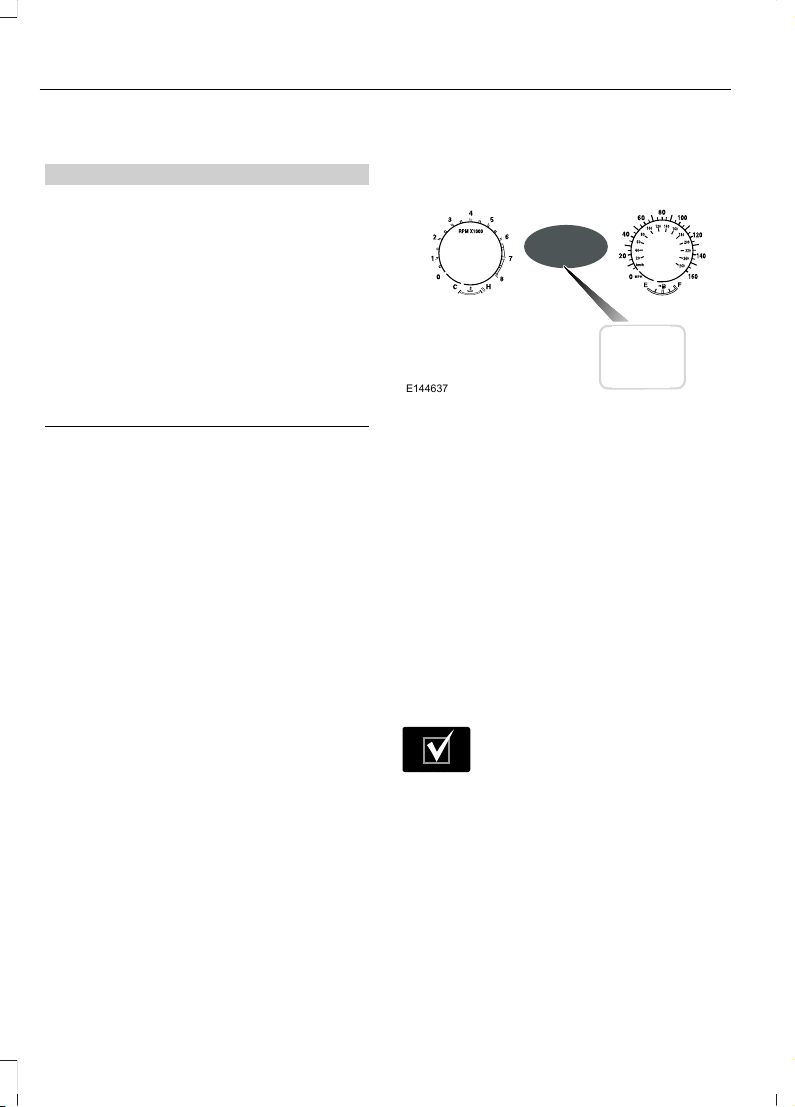
GENERAL INFORMATION
WARNING
Driving while distracted can result in
loss of vehicle control, crash and
injury. We strongly recommend that
you use extreme caution when using any
device that may take your focus off the
road. Your primary responsibility is the safe
operation of your vehicle. We recommend
against the use of any hand-held device
while driving and encourage the use of
voice-operated systems when possible.
Make sure you are aware of all applicable
local laws that may affect the use of
electronic devices while driving.
Note: Your vehicle may or may not be
equipped with all the messages listed in this
chapter. Your vehicle will not display
messages of systems it is not equipped with.
Various systems on your vehicle can be
controlled using the information display
controls on the steering wheel.
Corresponding information is displayed in
the information display.
Information Display Controls
(Type 1)
E144637
• Press the up and down arrow buttons
to scroll through and highlight the
options within a menu.
• Press the right arrow button to enter a
sub-menu.
• Press the left arrow button to exit a
menu.
• Press and hold the left arrow button at
any time to return to the main menu
display (escape button).
• Press the OK button to choose and
confirm settings or messages.
Menu
You can access the menu using the
information display control.
E204495
This icon gives you the ability to
switch a feature on or off. A
check in the box indicates the
feature is enabled, and unchecked
indicates the feature is disabled.
Note: Some options may appear slightly
different or not at all if the items are
optional.
102
Edge (CDQ) Canada/United States of America, enUSA, Edition date: 201706, First Printing
Information Displays
Trip 1 and 2
Digital Speedo
Distance to E
Trip Odometer
Trip Timer
Average Fuel
Outside Temp.
All Values
• Digital Speedo - Shows a digital display of your vehicle speed.
• Distance to E - Shows the approximate distance your vehicle can travel before running
out of fuel.
• Trip Odometer — Registers the distance of individual journeys.
• Trip Timer — The timer stops when you turn your vehicle off and restarts when you
restart your vehicle.
• Average Fuel — Shows the average fuel economy for a given trip.
• Outside Temperature — Shows the outside air temperature.
• All Values — Shows the Distance to E, Trip Odometer, Trip Timer and Average Fuel.
Note: Press and hold OK on the current screen to reset the respective trip, distance, time
and fuel information.
Fuel Economy
Distance to E
Inst Fuel Econ
Avg MPG
Long Term Fuel Economy
103
Edge (CDQ) Canada/United States of America, enUSA, Edition date: 201706, First Printing
Information Displays

Fuel Economy
All Values
Auto StartStop
• Distance to Empty - Shows the approximate distance your vehicle can travel before
running out of fuel.
• Inst Fuel Economy - Shows a visual graph of your instantaneous fuel economy along
with your Avg MPG since the function was last reset.
• Long Term Fuel Economy - Shows your long term fuel economy.
• Average MPG — Shows the average fuel economy for a given trip.
• All Values — Shows all fuel economy values (DTE, Inst Fuel Econ, Avg Fuel).
• Auto StartStop - Available Auto Start-Stop messaging will provide details about what
is happening with your system. See Information Messages (page 111).
Note: You can reset your average fuel economy by pressing and holding the OK button on
the left hand steering wheel controls.
Driver Assist
Traction Ctrl
Blindspot
Cross Traffic
Select settingCruise Control
Driver Alert
Driver Sel Susp
Hill Start Assist
Intelligent AWD
Select settingModeLane Keeping
Intensity
Alert SensitivityPre-Collision
Dist. Indication
Active Braking
Front Park Aid
104
Edge (CDQ) Canada/United States of America, enUSA, Edition date: 201706, First Printing
Information Displays
Driver Assist
Rear Park Aid
Tire MonitorTire Pressure
Trailer Sway
Settings
Auto Engine OffVehicle
InformationChimes
Select settingDTE
calcula-
tion
Easy Entry/Exit
Select settingAutolamp delayLighting
Daytime Lights
AutounlockLocks
Relock
Mislock
Select settingRemote Unlock
Switches inhibit
Hold OK to ResetOil Life
Reset
Select settingPower
Liftgate
Select settingClimate ControlRemote
Start
Seats or Seats and
Wheel
Duration
System
Remote OpenWindows
Remote Close
105
Edge (CDQ) Canada/United States of America, enUSA, Edition date: 201706, First Printing
Information Displays
Settings
Courtesy WipeWipers
Rain Sensing
Reverse Wiper
Hold OK to Create MyKeyCreate
MyKey
MyKey
Select setting911
Assist
Do Not
Disturb
Traction
Ctrl
Max
Speed
Speed
Minder
Volume Limiter
Hold OK to Clear All MyKeysClear
MyKeys
Select settingDistanceDisplay
Temper-
ature
Tire Pres-
sure
Language
106
Edge (CDQ) Canada/United States of America, enUSA, Edition date: 201706, First Printing
Information Displays
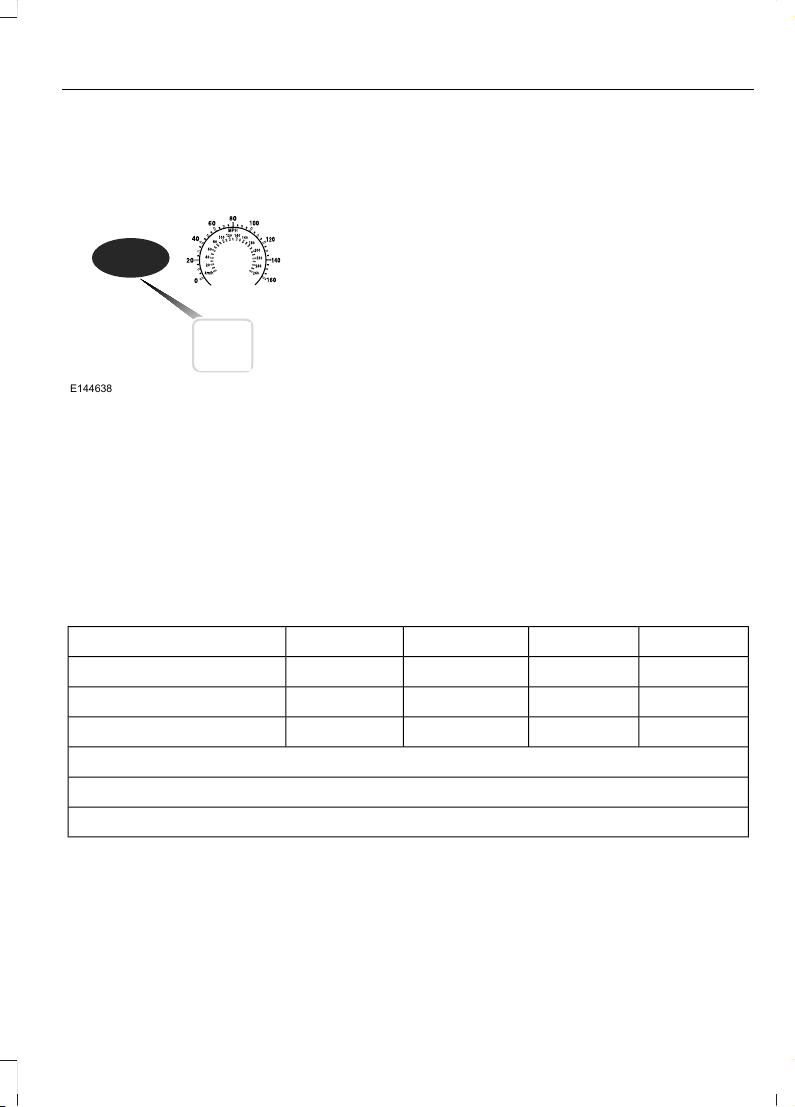
Information Display Controls
(Type 2)
E144638
• Press the up and down arrow buttons
to scroll through and highlight the
options within a menu.
• Press the right arrow button to enter a
sub-menu.
• Press the left arrow button to exit a
menu.
• Press and hold the left arrow button at
any time to return to the main menu
display (escape button).
• Press the OK button to choose and
confirm settings or messages.
Main menu
From the main menu bar on the left side
of the information display, you can choose
from the following categories:
• Display Mode
• Trip 1 & 2
• Fuel Economy
• Driver Assist
• Settings
Scroll up or down to highlight one of the
categories, then press the right arrow key
or OK to enter into that category. Press the
left arrow key as needed to exit back to the
main menu.
Display Mode
Use the up/down arrow buttons to choose
between the following display options.
Option 4Option 3Option 2Option 1
Display Mode
--XXXXX mi (km) to empty
XX--Round tachometer
--X-Vertical tachometer
Tire Pressure on demand screen
Digital Speedometer - XXX MPH - Press OK for km/h
Intelligent AWD
• XXX mi (km) to empty: Shows the approximate distance the vehicle will travel.
• Round tachometer: Indicates the engine speed in revolutions per minute. Driving with
your tachometer pointer continuously at the top of the scale may damage the engine.
During SelectShift Automatic™ transmission (SST) use, the currently selected gear
will appear in the display.
107
Edge (CDQ) Canada/United States of America, enUSA, Edition date: 201706, First Printing
Information Displays

Trip 1 & 2
You can access the menu using the
information display control.
Note: Some options may appear slightly
different or not at all if the items are
optional.
Trip 1 & 2
All Values
All Values — shows all trip values (Trip Timer, Odometer and Average Fuel).
• Trip Odometer — Shows your accumulated trip distance.
• Average Fuel — Shows your average fuel economy for a given trip.
• Trip Timer— The timer stops when you turn your vehicle off and restarts when you
restart your vehicle.
Note: You can reset your trip information by pressing and holding the OK button on the left
hand steering wheel controls.
Fuel Economy
Use the left and right arrow buttons to
choose the desired fuel economy display.
Fuel Economy
Instant Fuel Economy - Hold OK to Reset
Auto StartStop
• Inst Fuel Economy - shows a visual graph of your instantaneous fuel economy, average
fuel economy and distance to empty.
• Auto StartStop - available Auto Start-Stop messaging will provide details about what
is happening with your system. See Information Messages (page 111).
Note: You can reset your average fuel economy by pressing and holding the OK button on
the left hand steering wheel controls.
Driver Assist
In this mode, you can configure different
driver setting choices.
Note: Some items are optional and may
not appear.
108
Edge (CDQ) Canada/United States of America, enUSA, Edition date: 201706, First Printing
Information Displays
Driver Assist
Traction Control
Select settingSteering in DAdaptive Steering
Steering in S
Blindspot
Cross Traffic Alert
Select settingCruise Control
Driver Alert
Driver Sel. Susp.
Hill Start Assist
Select settingModeLane Keeping Sys
Intensity
Alert SensitivityPre-Collision
Active Braking
Front Park Aid
Rear Park Aid
Hold OK to ResetTire Monitor
Trailer Sway
Settings
In this mode, you can configure different
driver setting choices.
Note: Some items are optional and may
not appear.
Settings
Auto Engine OffVehicle
Select settingDTE
Calcula-
tion
Easy Entry/Exit
109
Edge (CDQ) Canada/United States of America, enUSA, Edition date: 201706, First Printing
Information Displays

Settings
Adaptive HeadlampsAdaptive HeadlampsLighting
Select
setting
Traffic Set Up
Auto Highbeam
Select settingAutolamp Delay
Daytime Lights
AutolockLocks
Autounlock
Relock
Mislock
Select settingRemote Unlock
Switch Inhibit
AutofoldMirrors
XXX% - Hold OK to ResetOil Life
Reset
Select settingPower
Liftgate
Select settingClimate ControlRemote
Start
Seats or Seats and
Wheel
Duration
System
Seatbelts
Remote OpenWindows
Remote Close
Courtesy WipeWipers
Rain Sensing
Hold OK to Create MyKeyCreate
MyKey
MyKey
110
Edge (CDQ) Canada/United States of America, enUSA, Edition date: 201706, First Printing
Information Displays
Settings
Select setting911
Assist
Do Not
Disturb
Traction
Ctrl
Max
Speed
Speed
Minder
Volume Limiter
Hold OK to Clear All MyKeysClear
MyKeys
Select settingDistanceDisplay
Setup
Temper-
ature
Gauge
Display
Tire Pres-
sure
Language
INFORMATION MESSAGES
Note: Depending on your vehicle options
and instrument cluster type, not all of the
messages will display or be available. The
information display may abbreviate or
shorten certain messages.
E144636
111
Edge (CDQ) Canada/United States of America, enUSA, Edition date: 201706, First Printing
Information Displays
Press the OK button to acknowledge and
remove some messages from the
information display. The information
display will automatically remove other
messages after a short time.
You need to confirm certain messages
before you can access the menus.
Active Park
ActionMessage
The system requires service due to a malfunction. Contact an
authorized dealer.
Active Park Fault
Adaptive Cruise Control
ActionMessage
A radar malfunction is preventing the adaptive cruise control
from engaging. See Using Adaptive Cruise Control (page
205).
Adaptive Cruise
Malfunction
A condition exists such that the adaptive cruise cannot func-
tion properly. See Using Adaptive Cruise Control (page
205).
Adaptive Cruise Not
Available
You have a blocked sensor due to bad weather, ice, mud or
water in front of the radar sensor. You can typically clean the
sensor to resolve. See Using Adaptive Cruise Control (page
205).
Adaptive Cruise Not
Available Sensor
Blocked See Manual
The system has disabled the automatic braking.Normal Cruise Active
Automatic Braking
Turned Off
A radar malfunction is preventing the adaptive cruise control
from engaging.
Front Sensor Not Aligned
The adaptive cruise has reinstated controls to the driver.Adaptive Cruise - Driver
Resume Control
Your vehicle speed is too slow to activate the adaptive cruise.Adaptive Cruise Speed
Too Low to Activate
The adaptive cruise is automatically adjusting the gap
distance and the driver needs to shift the transmission into a
lower gear.
Adaptive Cruise Shift
Down
112
Edge (CDQ) Canada/United States of America, enUSA, Edition date: 201706, First Printing
Information Displays
Adaptive Steering
ActionMessage
The adaptive steering system has detected a difference
between steering wheel angle and the desired road wheel
angle. The steering wheel adjusts itself to correct this differ-
ence. This adjustment is part of normal system operation.
Adaptive Steering Initial-
ization
The adaptive steering system is off. It is possible that the
steering wheel may not be straight when the vehicle is driving
straight ahead. If this message persists, see an authorized
dealer.
Adaptive Steering Fault
Service Required
The adaptive steering system integrity cannot be verified. Do
not drive the vehicle and contact an authorized dealer
immediately.
Adaptive Steering Loss
Do Not Drive
Airbag
ActionMessage
The system detects a malfunction due to a blocked sensor.
Remove blockage.
Occupant Sensor
BLOCKED Remove
Objects Near Passenger
Seat
Alarm
ActionMessage
Alarm triggered due to unauthorized entry. See Anti-Theft
Alarm (page 75).
Vehicle Alarm To Stop
Alarm, Start Vehicle.
The system requires service due to a malfunction. Contact
an authorized dealer.
Alarm malfunction Service
req'd
113
Edge (CDQ) Canada/United States of America, enUSA, Edition date: 201706, First Printing
Information Displays

All-Wheel Drive
ActionMessage
The all-wheel drive system temporarily turns off to protect
itself from overheating.
AWD Temporarily
Disabled
The all-wheel drive system temporarily turns off to protect
itself from overheating or if you are using the temporary spare
tire.
AWD OFF
The all-wheel drive system will resume normal function and
clear this message after driving a short distance with the road
tire re-installed or after the system cools.
AWD Restored
The all-wheel drive system is not operating properly. If the
warning stays on or continues to come on, contact an
authorized dealer.
AWD Malfunction
Service Required
Automatic Engine Shutdown
ActionMessage
The engine is getting ready to shut off.Engine Shuts Off In
{seconds to shut off:#0}
Seconds
The engine has shut off to help increase fuel economy.Engine Shut Off For Fuel
Economy
The engine is getting ready to shut off. You can press OK on
the left steering wheel button to override the shut down.
Engine Shuts Off in
{seconds to shut off:#0}
Seconds Press Ok to
Override
Automatic High Beam Control
ActionMessage
The front camera sensor has reduced visibility. Clean the
windshield.
Front Camera Low Visibility
Clean Screen
The system requires service due to a malfunction. Contact
an authorized dealer.
Front Camera Malfunction
Service Required
The front camera sensor has malfunctioned. Wait a short
period of time for the sensor to cool down.
Front Camera Temporarily
Not Available
114
Edge (CDQ) Canada/United States of America, enUSA, Edition date: 201706, First Printing
Information Displays
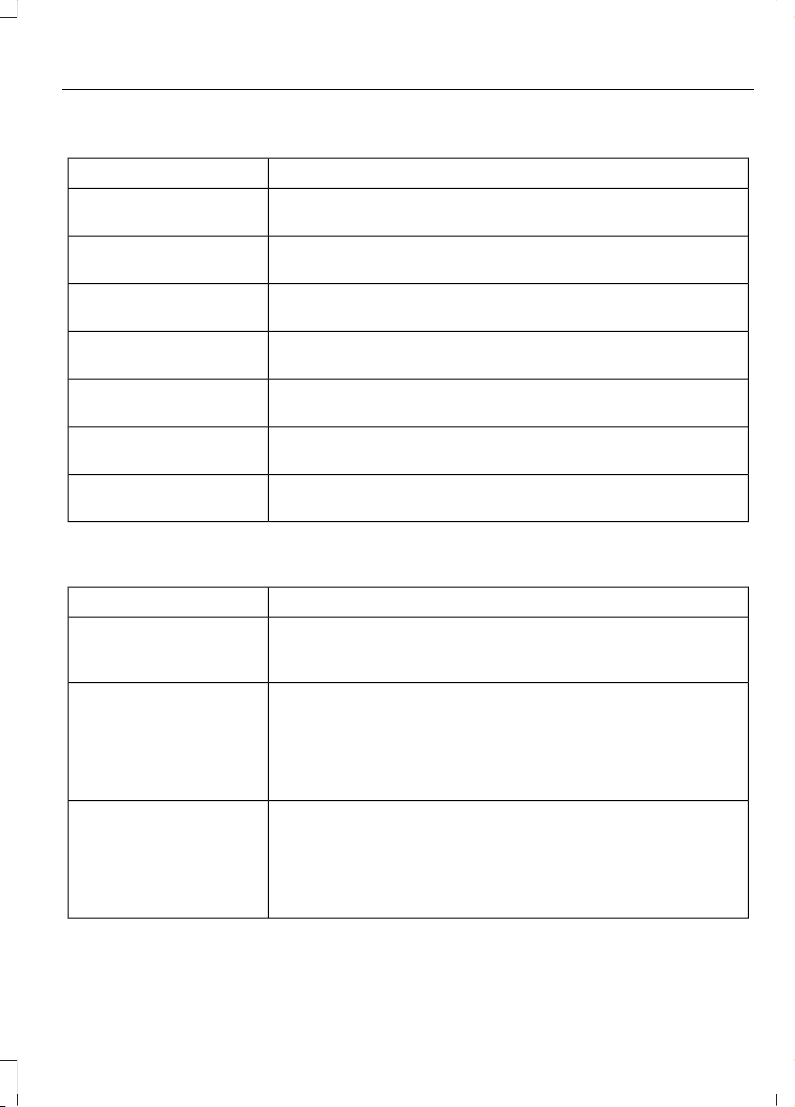
Auto Start-Stop
ActionMessage
The engine needs to be restarted, press the brake pedal to
start.
Auto StartStop Press
Brake to Start Engine
The engine needs to be restarted, press the brake pedal harder
to start.
Auto StartStop Press
Brake Harder to Activate
The engine needs to be restarted, press any pedal to start.Auto StartStop Press a
Pedal to Start Engine
Select neutral for the system to restart the engine.Auto StartStop Select
Neutral To Start Engine
Select park for the system to restart the engine.Auto StartStop Shift to
P, then Restart Engine
The system is not functioning. A manual restart is required.Auto StartStop Manual
Restart Required
Conditions are not met for the Auto StartStop system to
function properly.
Auto StartStop Not
Available
Battery and Charging System
ActionMessage
The charging system needs servicing. If the warning stays on
or continues to come on, contact an authorized dealer as soon
as possible.
Check Charging System
The battery management system detects an extended low-
voltage condition. Your vehicle will disable various features
to help preserve the battery. Turn off as many of the electrical
loads as soon as possible to improve system voltage. If the
system voltage has recovered, the disabled features will
operate again as normal.
Low Battery Features
Temporarily Turned Off
The battery management system determines that the battery
is at a low state of charge. Turn your ignition off as soon as
possible to protect the battery. This message will clear once
you restart your vehicle and the battery state of charge has
recovered. Turning off unnecessary electrical loads will allow
faster battery state-of-charge recovery.
Turn Power Off To Save
Battery
115
Edge (CDQ) Canada/United States of America, enUSA, Edition date: 201706, First Printing
Information Displays
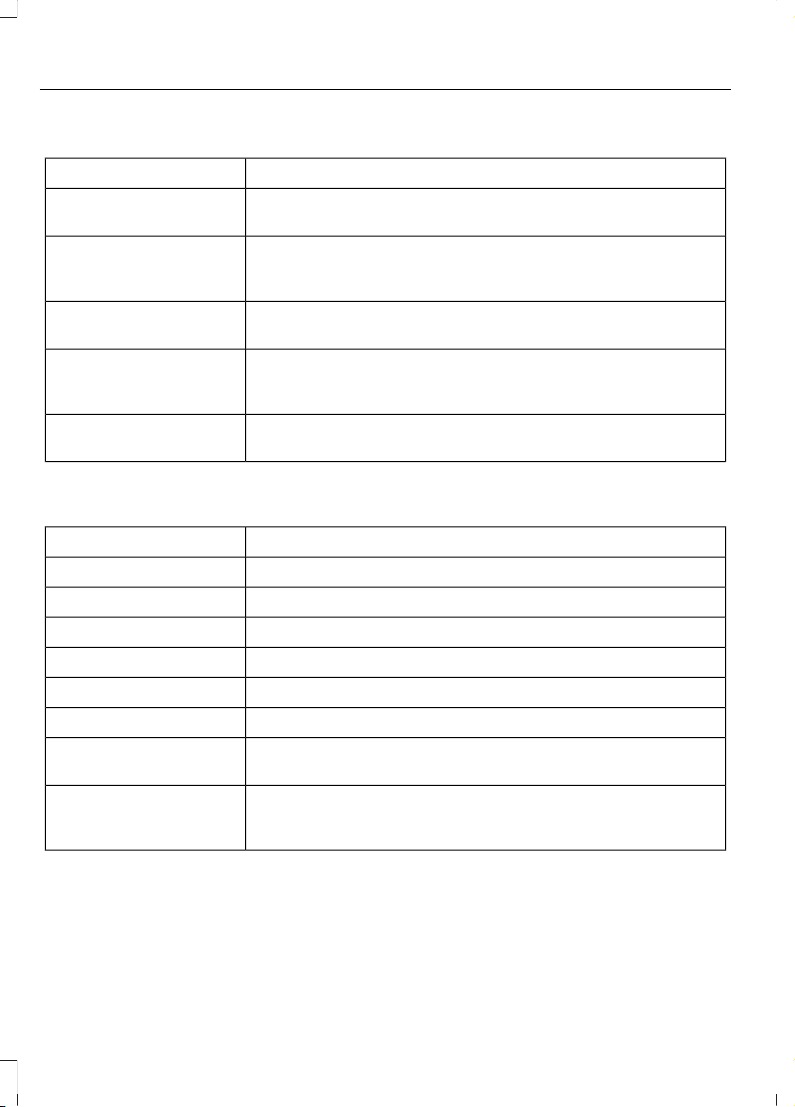
Blind Spot Information and Cross Traffic Alert System
ActionMessage
A fault with the system has occurred. Contact an authorized
dealer as soon as possible.
Blindspot System Fault
The system sensors are blocked. See Cross Traffic Alert
(page 218).
Blindspot Not Available
Sensor Blocked See
Manual
The system detects a vehicle. See Cross Traffic Alert (page
218).
Cross Traffic Vehicle
Coming From X
The system sensors are blocked. See Cross Traffic Alert
(page 218).
Cross Traffic Not Avail-
able Sensor Blocked See
Manual
A fault with the system has occurred. Contact an authorized
dealer.
Cross Traffic System
Fault
Doors and Locks
ActionMessage
The door listed is not completely closed.Driver Door Ajar
The door listed is not completely closed.Passenger Door Ajar
The door listed is not completely closed.Rear Left Door Ajar
The door listed is not completely closed.Rear Right Door Ajar
The door listed is not completely closed.Liftgate Ajar
The hood is not completely closed.Hood Ajar
The system has disabled the door switches.Switches Inhibited
Security Mode
The factory keypad code displays in the information display
after system resets the keypad. See Keyless Entry (page
67).
Factory Keypad Code {X
X X X X}
116
Edge (CDQ) Canada/United States of America, enUSA, Edition date: 201706, First Printing
Information Displays

Driver Alert
ActionMessage
Stop and rest as soon as it is safe to do so.Driver Alert Warning Rest
Now
Take a rest soon.Driver Alert Warning Rest
Suggested
Electronic Stability Control
ActionMessage
The system detects a malfunction due to a blocked sensor.Service AdvanceTrac
The traction control system status.AdvanceTrac Off
The traction control system status.AdvanceTrac On
The traction control system status.AdvanceTrac SPORT
MODE
Engine
ActionMessage
Displays when the engine temperature is too high. Stop
your vehicle in a safe place and allow the engine to cool.
If the problem persists, see an authorized dealer. See
Engine Coolant Check (page 272).
High Engine Temperature
Stop Safely
Engine service is required. See an authorized dealer.Engine Fault Service Now
Check the engine oil level See Engine Oil Check (page
270).
Engine Oil Level Low Check
Level
117
Edge (CDQ) Canada/United States of America, enUSA, Edition date: 201706, First Printing
Information Displays
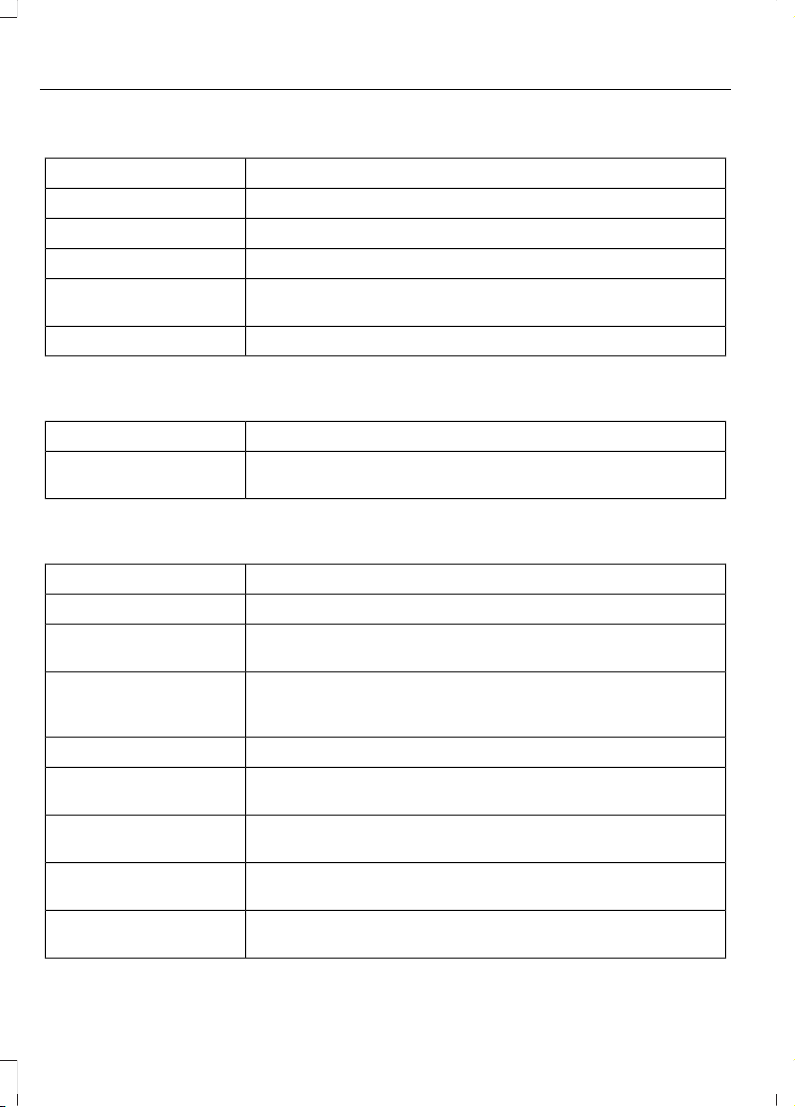
Fuel
ActionMessage
An early reminder of a low fuel condition.Fuel Level Low
The fuel fill inlet may not be properly closed.Check Fuel Fill Inlet
Wait for up to 15 seconds while the fuel system depressurizes.Fuel Door Opening
The fuel system has finished depressurizing and you can begin
to refuel.
Fuel Door Open
A reminder to close the fuel door.Close Fuel Door
Hill Start Assist
ActionMessage
Hill start assist is not available. Contact an authorized dealer.
See Hill Start Assist (page 186).
Hill Start Assist Not
Available
Keys and Keyless Entry
ActionMessage
A reminder to press the brake while starting the vehicle.To START Press Brake
The system does not detect a key in your vehicle. See Keyless
Starting (page 156).
No Key Detected
You pressed the start/stop button to switch off the engine
and your vehicle does not detect your intelligent access key
inside your vehicle.
Restart Now or Key is
Needed
Your vehicle is in the run ignition state.Run Power Active
There is a problem with your vehicle’s starting system. See
an authorized dealer for service.
Starting System Fault
You have successfully programmed an intelligent access key
to the system.
Key Program Successful
You have failed to program an intelligent access key to the
system.
Key Program Failure
You have programmed the maximum number of keys to the
system.
Max Number of Keys
Learned
118
Edge (CDQ) Canada/United States of America, enUSA, Edition date: 201706, First Printing
Information Displays

ActionMessage
You have not programmed enough keys to the system.Not Enough Keys
Learned
The key battery is low. Change the battery as soon as possible.Key Battery Low Replace
Soon
Informs you that they you are exiting your vehicle and the
engine is on.
Engine ON
Lane Keeping System
ActionMessage
The system has malfunctioned. Contact an authorized dealer
as soon as possible.
Lane Keeping Sys.
Malfunction Service
Required
The system has detected a condition that has caused the
system to be temporarily unavailable.
Front Camera Tempor-
arily Not Available
The system has detected a condition that requires you to
clean the windshield in order for it to operate properly.
Front Camera Low Visib-
ility Clean Screen
The system has malfunctioned. Contact an authorized dealer
as soon as possible.
Front Camera Malfunc-
tion Service Required
The system requests you to keep your hands on the steering
wheel.
Keep Hands on Steering
Wheel
Maintenance
ActionMessage
Stop your vehicle as soon as safely possible and turn off the
engine. Check the oil level. If the warning stays on or continues
to come on with your engine running, contact an authorized
dealer.
Low Engine Oil Pressure
The engine oil life remaining is 10% or less. See Engine Oil
Check (page 270).
Change Engine Oil Soon
The oil life left is at 0%. See Engine Oil Check (page 270).Oil Change Required
The brake fluid level is low, inspected the brake system
immediately. See Brake Fluid Check (page 278).
Brake Fluid Level Low
119
Edge (CDQ) Canada/United States of America, enUSA, Edition date: 201706, First Printing
Information Displays
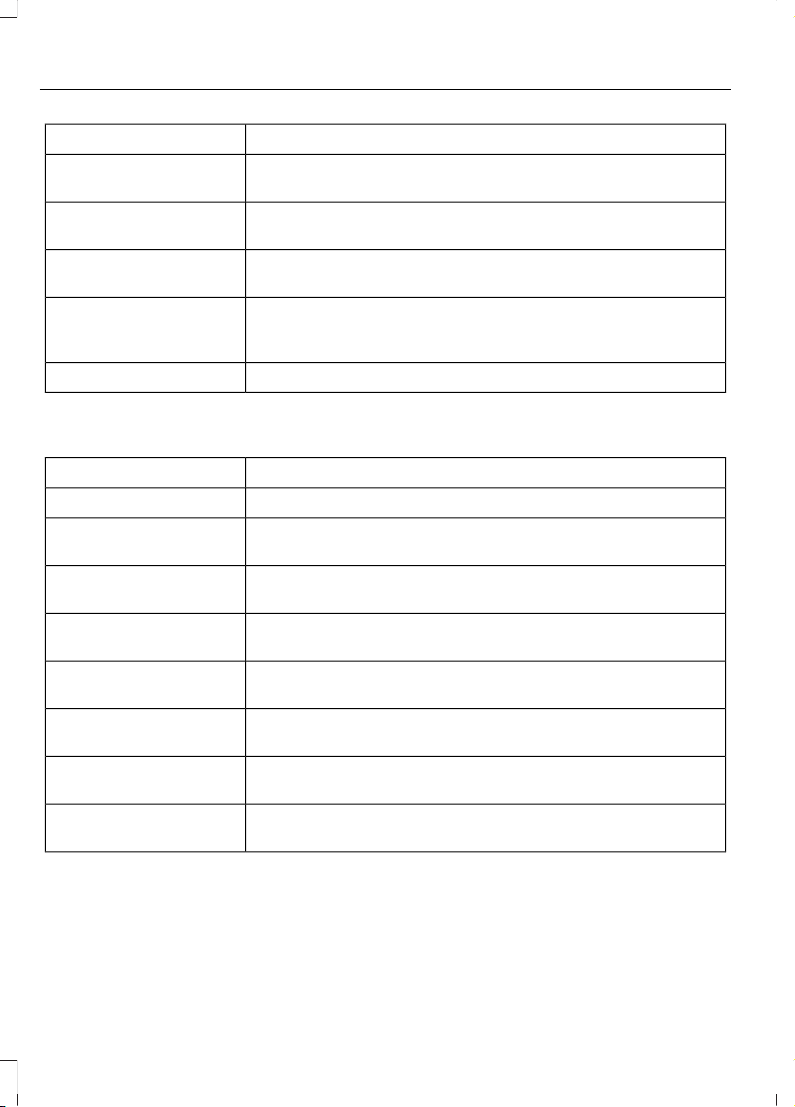
ActionMessage
The brake system needs servicing. Stop your vehicle in a safe
place. Contact an authorized dealer.
Check Brake System
The engine coolant temperature is excessively high.Engine Coolant Over
Temperature
The engine has reduced power to help reduce high engine
temperature.
Power Reduced to
Lower Engine Temp
Your vehicle is still in Transport or Factory mode. This may
not allow some features to operate properly. Contact an
authorized dealer.
Transport / Factory
Mode
The powertrain needs service due to a powertrain malfunction.See Manual
MyKey
ActionMessage
You cannot program a MyKey.MyKey not Created
MyKey is active.MyKey Active Drive
Safely
When switching on your vehicle and MyKey is in use, displays
that the MyKey speed limit is on.
Speed Limited to XX
MPH/km/h
MyKey is in use, the MyKey speed limit is on and your vehicle
speed is approaching 80 mph (130 km/h).
Near Vehicle Top Speed
You have reached the speed limit set for your MyKey.Vehicle at Top Speed of
MyKey Setting
You have an active MyKey with a programmed set speed limit.Check Speed Drive
Safely
Belt-Minder turns on with a MyKey in use.Buckle Up to Unmute
Audio
With a MyKey in use, AdvanceTrac turns on.AdvanceTrac On -
MyKey Setting
120
Edge (CDQ) Canada/United States of America, enUSA, Edition date: 201706, First Printing
Information Displays
ActionMessage
With a MyKey in use, traction control turns on.Traction Control On -
MyKey Setting
With a MyKey in use, park aid is always on.MyKey Park Aid Cannot
be Deactivated
With a MyKey in use, lane keeping alert turns on.Lane Keeping Alert On
MyKey Setting
Park Aid
ActionMessage
The system has detected a condition that requires service.
Contact an authorized dealer. See Principle of Operation
(page 190).
Check Front Park Aid
The system has detected a condition that requires service.
Contact an authorized dealer. See Principle of Operation
(page 190).
Check Rear Park Aid
Displays the park aid status.Front Park Aid On Off
Displays the park aid status.Rear Park Aid On Off
Park Brake
ActionMessage
You have set the parking brake and you have driven the vehicle
more than 3 mph (5 km/h). If the warning stays on after you
have released the parking brake, contact an authorized dealer.
Park Brake Engaged
The electric parking brake system has detected a condition
that requires service. See an authorized dealer.
Park Brake Malfunction
Service Now
The electric parking brake is not set.Park Brake Not Applied
The electric parking brake is running a diagnostic check.Park Brake Maintenance
Mode
The electric parking brake is set but you have not released it.Park Brake Use Switch
to Release
The electric parking brake is set but you have not released it
and your vehicle is moving.
To Release: Press Brake
and Switch
121
Edge (CDQ) Canada/United States of America, enUSA, Edition date: 201706, First Printing
Information Displays
ActionMessage
The electric park brake system has detected a condition that
requires service. See an authorized dealer.
Park Brake Limited
Function Service
Required
You have not released the electric parking brake causing it to
overheat.
Park Brake System
Overheated
The electric parking brake is set and you have started your
vehicle.
Park Brake Not Released
The electric parking brake is set.Park Brake Applied
You have released the electric parking brake.Park Brake Released
Power Steering
ActionMessage
The power steering system has detected a condition that
requires service. See an authorized dealer.
Steering Lock Malfunc-
tion Service Now
The power steering system is not working. Stop your vehicle
in a safe place. Contact an authorized dealer.
Steering Loss Stop
Safely
The power steering system has detected a condition within
the power steering system or passive entry or passive start
system requires service. Contact an authorized dealer.
Steering Assist Fault
Service Required
Pre-Collision Warning System
ActionMessage
A fault with the system has occurred. Contact an authorized
dealer.
Collision Warning
Malfunction
You have a blocked sensor due to bad weather, ice, mud or
water in front of the radar sensor. You can typically clean the
sensor to resolve. See Pre-Collision Assist (page 222).
Collision Warning Not
Available Sensor
Blocked See Manual
A fault with the system has occurred. Contact an authorized
dealer.
Collision Warning Not
Available
122
Edge (CDQ) Canada/United States of America, enUSA, Edition date: 201706, First Printing
Information Displays
Remote Start
ActionMessage
A reminder to apply the brake and push the gearshift button
to drive your vehicle after a remote start.
To Drive: Press Brake
and Gear Shift Button
Seats
ActionMessage
A reminder that memory seats are not available while driving.Memory Recall Not
Permitted While Driving
Shows where you have saved your memory setting.Memory {0} Saved
Starting System
ActionMessage
A reminder to apply the brake when starting your vehicle .To START Press Brake
The starter has exceeded its cranking time in attempting to
start your vehicle.
Cranking Time Exceeded
The starter is attempting to start your vehicle.Engine Start Pending
Please Wait
The system has cancelled the pending start.Pending Start Cancelled
Tire Pressure Monitoring System
ActionMessage
One or more tires on your vehicle has low tire pressure. See
Tire Pressure Monitoring System (page 323).
Tire Pressure Low
The tire pressure monitoring system is malfunctioning. If the
warning stays on or continues to come on, contact an
authorized dealer. See Tire Pressure Monitoring System
(page 323).
Tire Pressure Monitor
Fault
A tire pressure sensor is malfunctioning or your spare tire is in
use. See Tire Pressure Monitoring System (page 323). If
the warning stays on or continues to come on, contact an
authorized dealer.
Tire Pressure Sensor
Fault
123
Edge (CDQ) Canada/United States of America, enUSA, Edition date: 201706, First Printing
Information Displays
Towing
ActionMessage
Your trailer sway control has detected trailer sway so you
need to reduce your speed.
Trailer Sway Reduce
Speed
Traction Control
ActionMessage
The status of the traction control system. See Using Traction
Control (page 187).
Traction Control Off
The status of the traction control system. See Using Traction
Control (page 187).
Traction Control On
Transmission
ActionMessage
See an authorized dealer.Transmission Malfunc-
tion Service Now
The transmission is overheating and needs to cool. Stop in a
safe place as soon as possible.
Transmission Over
Temperature Stop
Safely
The transmission has overheated and needs to cool. Stop in
a safe place as soon as possible.
Transmission Over-
heating Stop Safely
See an authorized dealer.Transmission Service
Required
The transmission is getting hot. Stop to let it cool.Transmission Too Hot
Press Brake
The transmission has limited functionality. See an authorized
dealer.
Transmission Limited
Function See Manual
The transmission is too cold. Wait for it to warm up before
you drive.
Transmission Warming
Up Please Wait
A reminder to shift into park.Transmission Not in Park
A request for you to apply the brake as needed by the trans-
mission.
Press Brake Pedal
124
Edge (CDQ) Canada/United States of America, enUSA, Edition date: 201706, First Printing
Information Displays
ActionMessage
The transmission has adjusted the shift strategy.Transmission Adjusted
The transmission is adjusting the shift strategy.Transmission Adapt-
Mode
The transmission is locked and unable to select gears.Transmission Indicat-
Mode Lockup On
The transmission is unlocked and free to select gears.Transmission Indicat-
Mode Lockup Off
125
Edge (CDQ) Canada/United States of America, enUSA, Edition date: 201706, First Printing
Information Displays
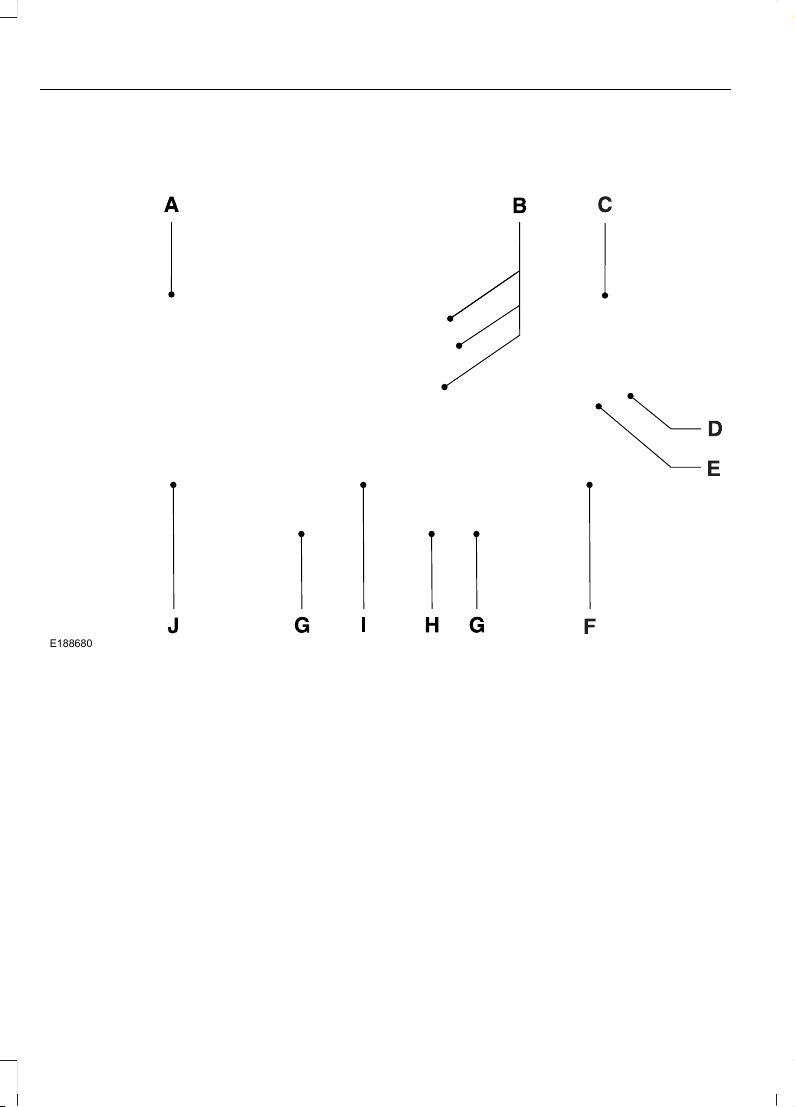
MANUAL CLIMATE CONTROL - VEHICLES WITH: ELECTRONIC
MANUAL TEMPERATURE CONTROL (EMTC)
E188680
Fan speed control: Adjusts the volume of air circulated in the vehicle.A
Air distribution control: Press to switch air flow from the windshield,
instrument panel, or footwell vents on or off. You can distribute air through any
combination of these vents.
B
Note: At least one of these buttons illuminates on when the system is on.
Temperature control: Adjusts the temperature of the air circulated in your
vehicle.
C
MAX Defrost: Turn to the right to switch on defrost. Air flows through the
windshield vents. You can also use this setting to defog and clear the windshield
of a thin covering of ice. The heated rear window also turns on when you select
maximum defrost.
D
Note: To prevent window fogging, you cannot select recirculated air when
maximum defrost is on.
126
Edge (CDQ) Canada/United States of America, enUSA, Edition date: 201706, First Printing
Climate Control

MAX A/C: Turn to the left for maximum cooling. Recirculated air flows through
the instrument panel vents, air conditioning turns on and the fan adjusts to the
highest speed.
E
Recirculated air: Press to switch between outside air and recirculated air. The
air currently in the passenger compartment recirculates. This may reduce the
time needed to cool the interior (when used with A/C) and reduce unwanted
odors from entering your vehicle.
F
Note: Recirculated air may turn off (or prevent you from switching on) in all air
flow modes except MAX A/C to reduce the risk of fogging. Recirculation may
also turn on and off in Panel or Panel/Floor air flow modes during hot weather
in order to improve cooling efficiency.
Heated seats: Press to switch the heated seats on and off. See Heated Seats
(page 145).
G
Heated rear window: Press to switch the heated rear window on and off. See
Heated Windows and Mirrors (page 136).
H
Power: Press to switch the system on and off. When the system is off, it
prevents outside air from entering the vehicle.
I
A/C: Press to switch the air conditioning on or off. Use A/C with recirculated
air to improve cooling performance and efficiency.
J
Note: In certain conditions (for example, maximum defrost), the air conditioning
compressor may continue to operate even though you switch off the air
conditioning.
AUTOMATIC CLIMATE
CONTROL - VEHICLES WITH:
AM/FM/CD/SYNC/
TOUCHSCREEN DISPLAY/
DUAL AUTOMATIC
TEMPERATURE CONTROL
(DATC)
Note: You can switch temperature units
between Fahrenheit and Celsius. See your
SYNC information.
127
Edge (CDQ) Canada/United States of America, enUSA, Edition date: 201706, First Printing
Climate Control
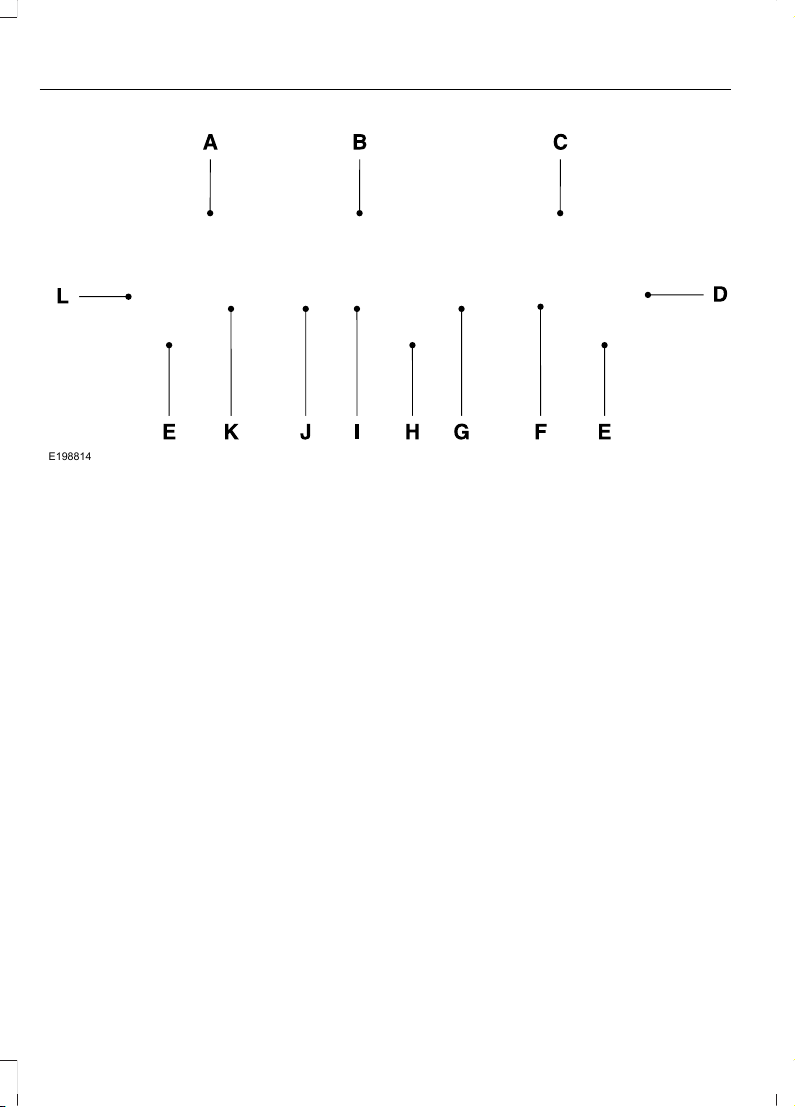
E198814
Driver temperature control: Adjusts the temperature setting on the driver
side. This control also adjusts the passenger side temperature when you switch
off dual zone mode.
A
Fan speed control: Adjusts the volume of air circulated in the vehicle.B
Passenger temperature control: Adjusts the temperature setting on the
passenger side.
C
Recirculated air: Press to switch between outside air and recirculated air. The
air currently in the passenger compartment recirculates. This may reduce the
time needed to cool the interior (when used with A/C) and reduce unwanted
odors from entering your vehicle.
D
Note: Recirculated air may turn off (or prevent you from switching on) in all air
flow modes except MAX A/C to reduce the risk of fogging. Recirculation may
also turn on and off in Panel or Panel/Floor air flow modes during hot weather
in order to improve cooling efficiency.
Heated seats: Press to switch the heated seats on and off. See Heated Seats
(page 145).
E
MAX A/C: Press for maximum cooling. The driver and passenger settings set
to LO, recirculated air flows through the instrument panel vents, air conditioning
turns on and the fan adjusts to the highest speed.
F
A/C: Press to switch the air conditioning on or off. Use A/C with recirculated
air to improve cooling performance and efficiency.
G
128
Edge (CDQ) Canada/United States of America, enUSA, Edition date: 201706, First Printing
Climate Control

Note: In certain conditions (for example, maximum defrost), the air conditioning
compressor may continue to operate even though you switch off the air
conditioning.
Power: Press to switch the system on and off. When the system is off, it
prevents outside air from entering the vehicle.
H
AUTO: Press to switch on automatic operation. Adjust to select the desired
temperature. Fan speed, air distribution, air conditioning operation, and outside
or recirculated air adjust to heat or cool the vehicle to maintain the desired
temperature. You can also switch off dual zone mode by pressing and holding
for more than two seconds.
I
Heated rear window: Press to switch the heated rear window on and off. See
Heated Windows and Mirrors (page 136).
J
MAX Defrost: Press to switch on defrost. The driver and passenger settings
set to HI, air flows through the windshield vents, and the fan adjusts to the
highest speed. You can also use this setting to defog and clear the windshield
of a thin covering of ice. The heated rear window also turns on when you select
maximum defrost.
K
Note: To prevent window fogging, you cannot select recirculated air when
maximum defrost is on.
Defrost: Press to distribute air through the windshield air vents and de-mister.
Air distribution to the instrument panel and footwell vents turns off. You can
also use this setting to defog and clear the windshield of a thin covering of ice.
L
AUTOMATIC CLIMATE
CONTROL - VEHICLES WITH:
SONY AUDIO SYSTEM
Note: You can switch temperature units
between Fahrenheit and Celsius. See your
SYNC information.
129
Edge (CDQ) Canada/United States of America, enUSA, Edition date: 201706, First Printing
Climate Control
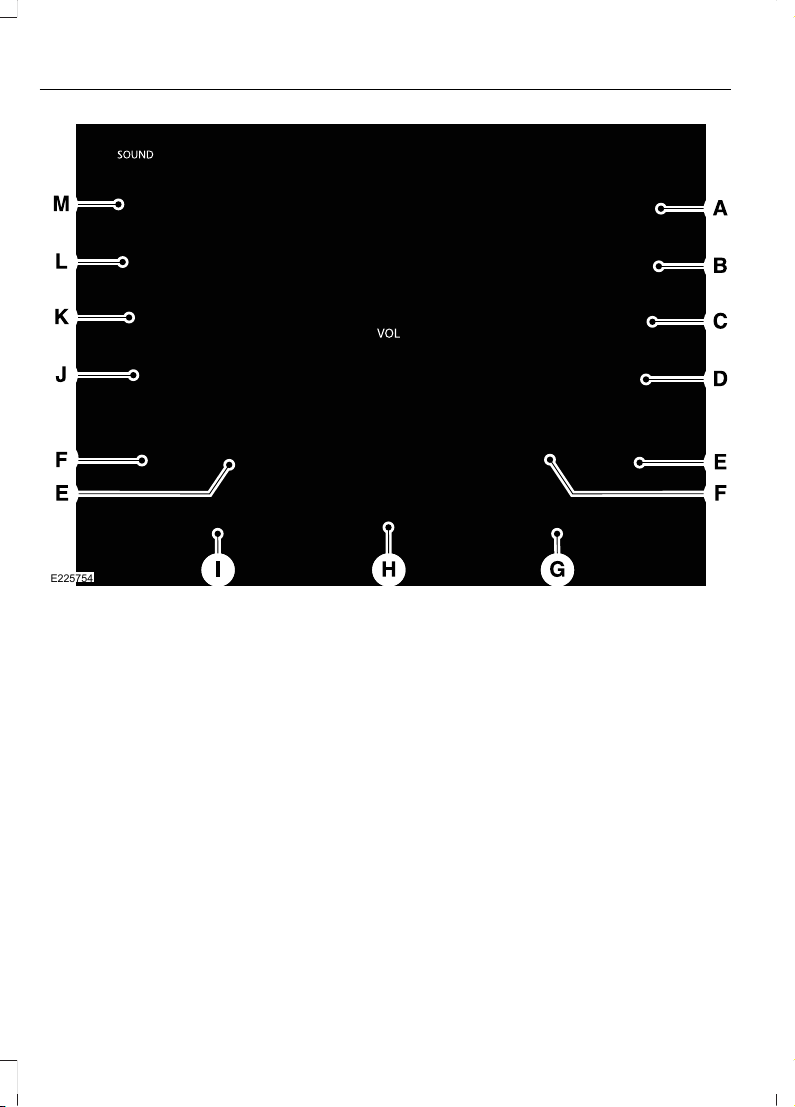
E225754
A/C: Press to switch the air conditioning on or off. Use A/C with recirculated
air to improve cooling performance and efficiency.
A
Note: In certain conditions (for example, maximum defrost), the air conditioning
compressor may continue to operate even though you switch off the air
conditioning.
MAX A/C: Press for maximum cooling. The driver and passenger settings set
to LO, recirculated air flows through the instrument panel vents, air conditioning
turns on and the fan adjusts to the highest speed.
B
Recirculated air: Press to switch between outside air and recirculated air. The
air currently in the passenger compartment recirculates. This may reduce the
time needed to cool the interior (when used with A/C) and reduce unwanted
odors from entering your vehicle.
C
Note: Recirculated air may turn off (or prevent you from switching on) in all air
flow modes except MAX A/C to reduce the risk of fogging. Recirculation may
also turn on and off in Panel or Panel/Floor air flow modes during hot weather
in order to improve cooling efficiency.
Power: Press to switch the system on and off. When the system is off, it
prevents outside air from entering the vehicle.
D
130
Edge (CDQ) Canada/United States of America, enUSA, Edition date: 201706, First Printing
Climate Control

Heated seats: Press to switch the heated seats on and off. See Heated Seats
(page 145).
E
Climate controlled seats: Press to switch the climate controlled seats on
and off. See Climate Controlled Seats (page 146).
F
Passenger temperature control: Adjusts the temperature setting on the
passenger side.
G
Fan speed control: Adjusts the volume of air circulated in the vehicle.H
Driver temperature control: Adjusts the temperature setting on the driver
side. This control also adjusts the passenger side temperature when you switch
off dual zone mode.
I
Heated rear window: Press to switch the heated rear window on and off. See
Heated Windows and Mirrors (page 136).
J
Defrost: Press to distribute air through the windshield air vents and de-mister.
Air distribution to the instrument panel and footwell vents turns off. You can
also use this setting to defog and clear the windshield of a thin covering of ice.
K
MAX Defrost: Press to switch on defrost. The driver and passenger settings
set to HI, air flows through the windshield vents, and the fan adjusts to the
highest speed. You can also use this setting to defog and clear the windshield
of a thin covering of ice. The heated rear window also turns on when you select
maximum defrost.
L
Note: To prevent window fogging, you cannot select recirculated air when
maximum defrost is on.
AUTO: Press to switch on automatic operation. Adjust to select the desired
temperature. Fan speed, air distribution, air conditioning operation, and outside
or recirculated air adjust to heat or cool the vehicle to maintain the desired
temperature. You can also switch off dual zone mode by pressing and holding
for more than two seconds.
M
AUTOMATIC CLIMATE
CONTROL - VEHICLES WITH:
AM/FM/CD/SYNC
Note: Depending on your vehicle option
package, your system may look different
from what you see here.
131
Edge (CDQ) Canada/United States of America, enUSA, Edition date: 201706, First Printing
Climate Control
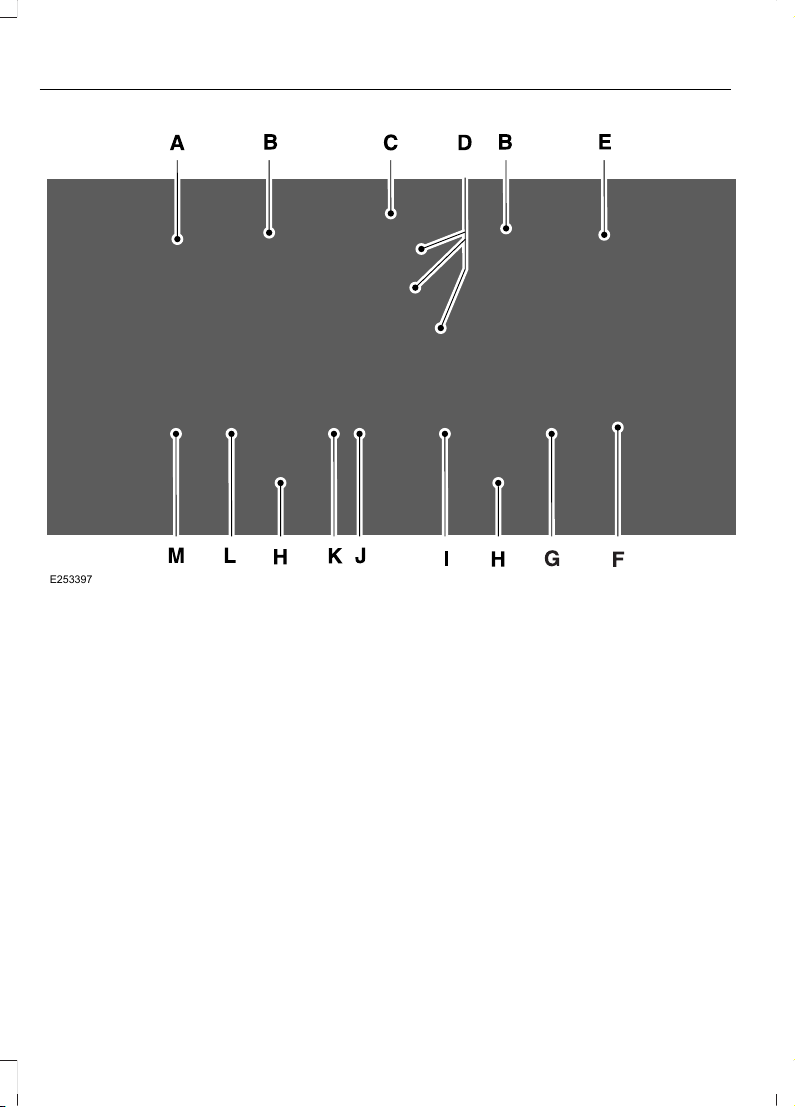
E253397
Driver temperature control: Adjusts the temperature setting on the driver
side. This control also adjusts the passenger side temperature when you switch
off dual zone mode.
A
Fan speed control: Adjusts the volume of air circulated in the vehicle.B
Fan speed indicator: Illuminates to indicate fan speed.C
Air distribution control: Press to switch air flow from the windshield,
instrument panel or footwell vents on or off. You can distribute air through any
combination of these vents.
D
Note: At least one of these buttons illuminates on when the system is on.
Passenger temperature control: Adjusts the temperature setting on the
passenger side.
E
Note: The system may limit the maximum difference between driver and
passenger settings. Whenever you make an adjustment that would result in a
larger difference, both settings change together.
132
Edge (CDQ) Canada/United States of America, enUSA, Edition date: 201706, First Printing
Climate Control

Recirculated air: Press to switch between outside air and recirculated air. The
air currently in the passenger compartment recirculates. This may reduce the
time needed to cool the interior (when used with A/C) and reduce unwanted
odors from entering your vehicle.
F
Note: Recirculated air may turn off (or prevent you from switching on) in all air
flow modes except MAX A/C to reduce the risk of fogging. Recirculation may
also turn on and off in Panel or Panel/Floor air flow modes during hot weather
in order to improve cooling efficiency.
MAX A/C: Press for maximum cooling. The driver and passenger settings set
to LO, recirculated air flows through the instrument panel vents, air conditioning
turns on and the fan adjusts to the highest speed.
G
Heated seats: Press to switch the heated seats on and off. See Heated Seats
(page 145).
H
A/C: Press to switch the air conditioning on or off. Use A/C with recirculated
air to improve cooling performance and efficiency.
I
Note: In certain conditions (for example, maximum defrost), the air conditioning
compressor may continue to operate even though you switch off the air
conditioning.
Power: Press to switch the system on and off. When the system is off, it
prevents outside air from entering the vehicle.
J
AUTO: Press to switch on automatic operation. Adjust to select the desired
temperature. Fan speed, air distribution, air conditioning operation, and outside
or recirculated air adjust to heat or cool the vehicle to maintain the desired
temperature. You can also switch off dual zone mode by pressing and holding
for more than two seconds.
K
MAX Defrost: Press to switch on defrost. The driver and passenger settings
set to HI, air flows through the windshield vents, and the fan adjusts to the
highest speed. You can also use this setting to defog and clear the windshield
of a thin covering of ice. The heated rear window also turns on when you select
maximum defrost.
L
Note: To prevent window fogging, you cannot select recirculated air when
maximum defrost is on.
Heated rear window: Press to switch the heated rear window on and off. See
Heated Windows and Mirrors (page 136).
M
133
Edge (CDQ) Canada/United States of America, enUSA, Edition date: 201706, First Printing
Climate Control

HINTS ON CONTROLLING THE
INTERIOR CLIMATE
General Hints
Note: Prolonged use of recirculated air may
cause the windows to fog up.
Note: You may feel a small amount of air
from the footwell air vents regardless of the
air distribution setting.
Note: To reduce humidity build-up inside
your vehicle, do not drive with the system
switched off or with recirculated air always
switched on.
Note: Do not place objects under the front
seats as this may interfere with the airflow
to the rear seats.
Note: Remove any snow, ice or leaves from
the air intake area at the base of the
windshield.
Note: To improve the time to reach a
comfortable temperature in hot weather,
drive with the windows open until you feel
cold air through the air vents.
Manual Climate Control
Note: To reduce fogging of the windshield
during humid weather, adjust the air
distribution control to the windshield air
vents position.
Automatic Climate Control
Note: Adjusting the settings when your
vehicle interior is extremely hot or cold is
not necessary. The system automatically
adjusts to heat or cool the interior to your
selected temperature as quickly as possible.
For the system to function efficiently, the
instrument panel and side air vents should
be fully open.
Note: If you select AUTO during cold
temperatures, the system directs airflow to
the windshield and side window vents. In
addition, the fan may run at a slower speed
until the engine warms up.
Note: If you select AUTO during hot
temperatures and the inside of the vehicle
is hot, the system automatically uses
recirculated air to maximize interior cooling.
Fan speed may also reduce until the air
cools.
Quickly Heating the Interior
Automatic climate controlManual climate control
Press AUTO.Adjust the fan speed to the highest
setting.
1
Adjust the temperature control to the
desired setting.
Adjust the temperature control to the
full heat setting.
2
Direct air to the footwell using the air
distribution buttons.
3
134
Edge (CDQ) Canada/United States of America, enUSA, Edition date: 201706, First Printing
Climate Control
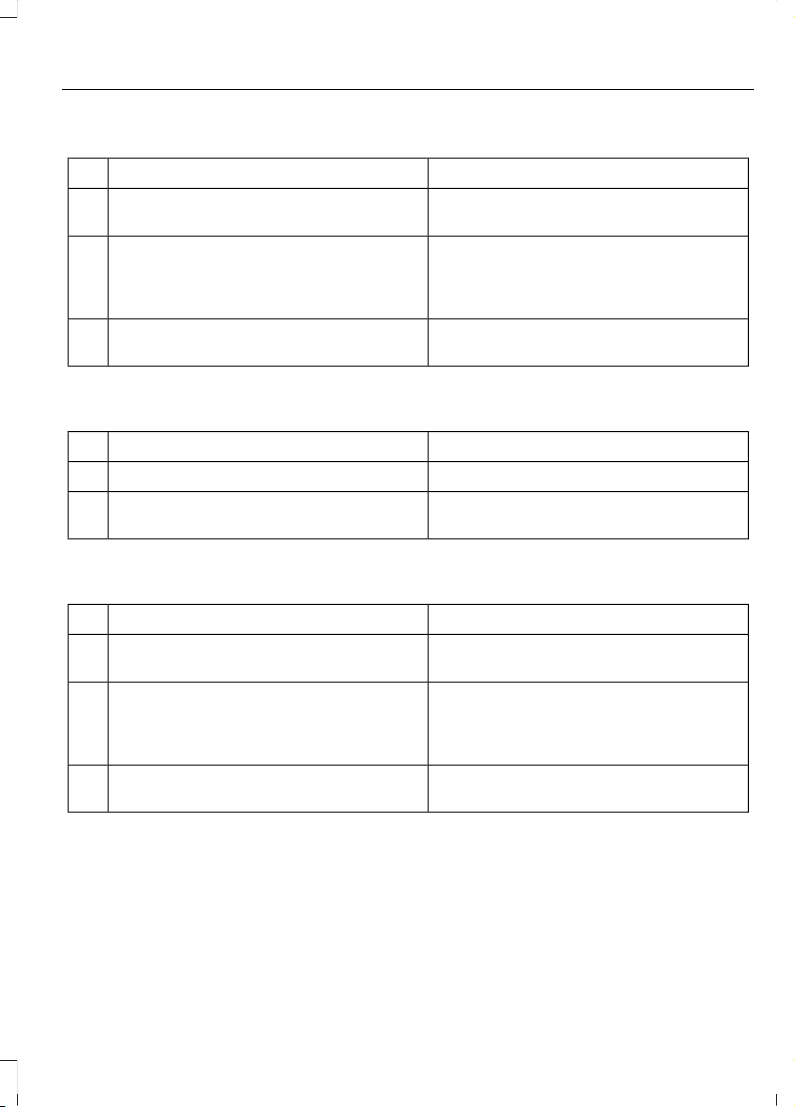
Recommended Settings for Heating
Automatic climate controlManual climate control
Press AUTO.Adjust the fan speed to the center
setting.
1
Adjust the temperature control to the
desired setting. Use 72°F (22°C) as a
starting point, then adjust the setting as
necessary.
Adjust the temperature control to the
midway point of the hot settings.
2
Direct air to the footwell using the air
distribution buttons.
3
Quickly Cooling the Interior
Automatic climate controlManual climate control
Select MAX A/C.Select MAX A/C.1
Drive with the windows open until you
feel cold air through the air vents.
2
Recommended Settings for Cooling
Automatic climate controlManual climate control
Press AUTO.Adjust the fan speed to the center
setting.
1
Adjust the temperature control to the
desired setting. Use 72°F (22°C) as a
starting point, then adjust the setting as
necessary.
Adjust the temperature control to the
midway point of the cold settings.
2
Direct air to the instrument panel using
the air distribution buttons.
3
135
Edge (CDQ) Canada/United States of America, enUSA, Edition date: 201706, First Printing
Climate Control

Defogging the Side Windows in Cold Weather
Automatic climate controlManual climate control
Press the defrost button.Direct air to the windshield using the air
distribution buttons.
1
Adjust the temperature control to the
desired setting. Use 72°F (22°C) as a
starting point, then adjust the setting as
necessary.
Press A/C.2
Adjust the temperature control to the
desired setting.
3
Adjust the fan speed to the highest
setting.
4
HEATED WINDOWS AND
MIRRORS
Note: Make sure the engine is running
before operating the heated windows.
Note: Depending on your remote start
settings, the heated windows, mirrors and
wipers may remain on after remote starting
the vehicle.
Heated Rear Window
E184884
Press the button to clear the
heated rear window of thin ice
and fog. The heated rear
window turns off after a short period of
time. Press the button again to switch it
off.
Note: Do not use razor blades or other
sharp objects to clean or remove decals
from the inside of the heated rear window.
The vehicle warranty does not cover
damage caused to the heated rear window
grid lines.
Heated Exterior Mirrors (If Equipped)
When you switch the heated rear window
on, the heated exterior mirrors turn on.
Note: Do not remove ice from the mirrors
with a scraper or adjust the mirror glass
when it is frozen in place.
Note: Do not clean the mirror housing or
glass with harsh abrasives, fuel or other
petroleum-based cleaning products.
Windshield Wiper De-icer (If Equipped)
When you switch the heated rear window
on, the windshield wiper de-icer turns on.
CABIN AIR FILTER
Your vehicle is equipped with a cabin air
filter, which gives you and your passengers
the following benefits:
• It improves your driving comfort by
reducing particle concentration.
• It improves the interior compartment
cleanliness.
• It protects the climate control
components from particle deposits.
136
Edge (CDQ) Canada/United States of America, enUSA, Edition date: 201706, First Printing
Climate Control

You can locate the cabin air filter behind
the glove box.
Note: Make sure you have a cabin air filter
installed at all times. This prevents foreign
objects from entering the system. Running
the system without a filter in place could
result in degradation or damage to the
system.
Replace the filter at regular intervals. See
Scheduled Maintenance (page 485).
For additional cabin air filter information,
or to replace the filter, see an authorized
dealer.
REMOTE START (If Equipped)
The system adjusts the interior
temperature depending on your chosen
settings during remote start.
You cannot adjust the climate control
setting during remote start operation.
When you switch the ignition on, the
climate control system returns to the
previous settings. You can now make
adjustments.
Some features may remain on if they turn
on during remote start:
• Driver heated seat.
• Driver cooled seat.
• Heated steering wheel.
• Heated mirrors.
• Heated rear window.
Note: If the passenger heated or cooled
seats are on when you switch the vehicle
off, they default to the driver setting when
you switch the vehicle on.
You can adjust the default remote start
settings using the information display
controls. See Information Displays
(page 102).
Automatic Settings
In hot weather, the system is set to 72°F
(22°C). The cooled seats are set to high
(if available, and you select AUTO in the
information display).
In moderate weather, the system either
heats or cools (based on pre-selected
settings). The rear defroster, heated
mirrors and heated or cooled seats do not
turn on.
In cold weather, the system is set to 72°F
(22°C). The heated seats and heated
steering wheel are set to high (if available,
and you select AUTO in the information
display). The rear defroster and heated
mirrors turn on.
137
Edge (CDQ) Canada/United States of America, enUSA, Edition date: 201706, First Printing
Climate Control
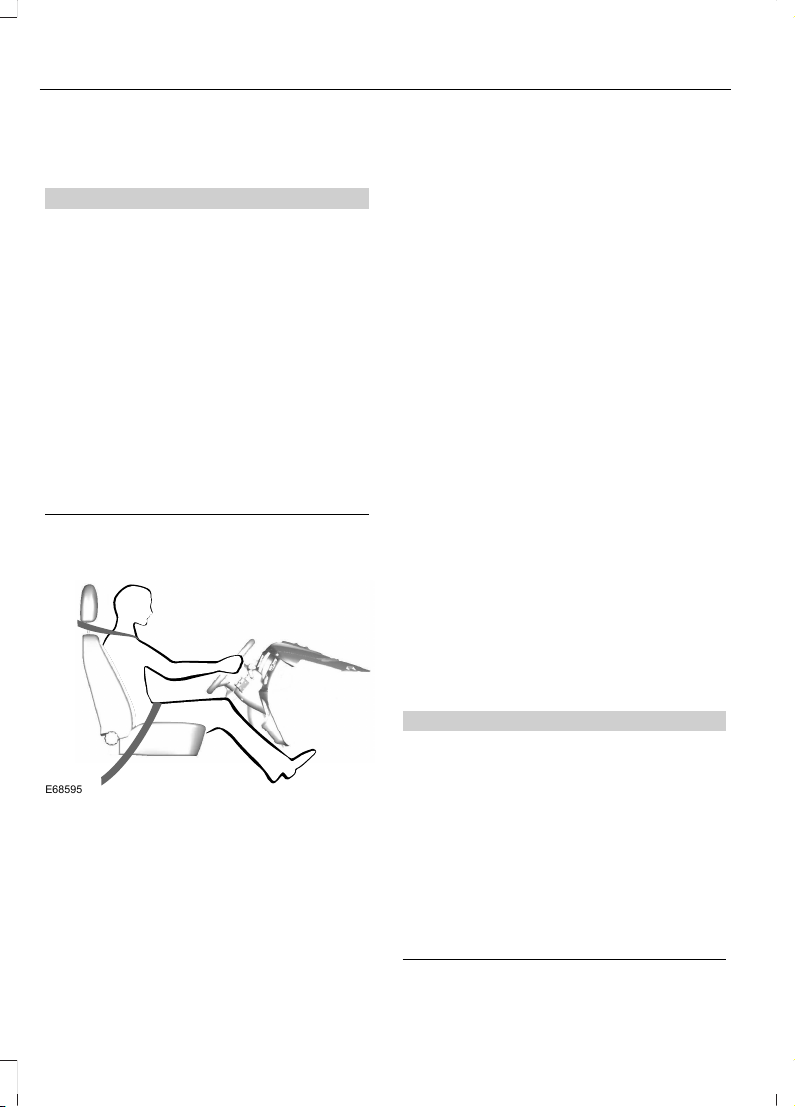
SITTING IN THE CORRECT
POSITION
WARNINGS
Sitting improperly, out of position or
with the seatback reclined too far
can take weight off the seat cushion
and affect the decision of the passenger
sensing system, resulting in serious injury
or death in the event of a crash. Always sit
upright against your seat back, with your
feet on the floor.
Do not recline the seatback as this
can cause the occupant to slide
under the safety belt, resulting in
serious injury in the event of a crash.
Do not place objects higher than the
seatback to reduce the risk of serious
injury in the event of a crash or during
heavy braking.
E68595
When you use them properly, the seat,
head restraint, safety belt and airbags will
provide optimum protection in the event
of a crash.
We recommend that you follow these
guidelines:
• Sit in an upright position with the base
of your spine as far back as possible.
• Do not recline the seatback more than
30 degrees.
• Adjust the head restraint so that the
top of it is level with the top of your
head and as far forward as possible.
Make sure that you remain
comfortable.
• Keep sufficient distance between
yourself and the steering wheel. We
recommend a minimum of 10 in
(25 cm) between your breastbone and
the airbag cover.
• Hold the steering wheel with your arms
slightly bent.
• Bend your legs slightly so that you can
press the pedals fully.
• Position the shoulder strap of the
safety belt over the center of your
shoulder and position the lap strap
tightly across your hips.
Make sure that your driving position is
comfortable and that you can maintain full
control of your vehicle.
HEAD RESTRAINTS
WARNINGS
Fully adjust the head restraint before
you sit in or operate your vehicle. This
will help minimize the risk of neck
injury in the event of a crash. Do not adjust
the head restraint when your vehicle is
moving.
The head restraint is a safety device.
Whenever possible it should be
installed and properly adjusted when
the seat is occupied. Failure to adjust the
head restraint properly could reduce its
effectiveness during certain impacts.
138
Edge (CDQ) Canada/United States of America, enUSA, Edition date: 201706, First Printing
Seats
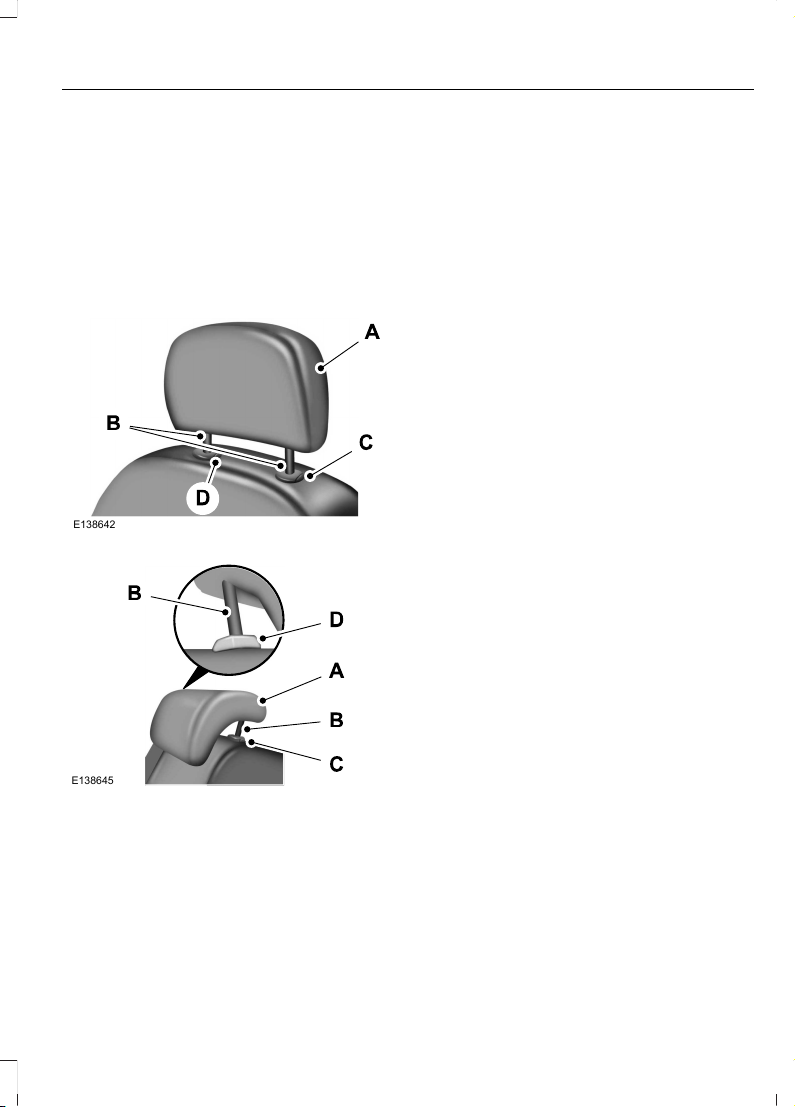
Note: Adjust the seat backrest to an upright
driving position before adjusting the head
restraint. Adjust the head restraint so that
the top of it is level with the top of your head
and as far forward as possible. Make sure
that you remain comfortable. If you are
extremely tall, adjust the head restraint to
its highest position.
Front Seat and Rear Seat Outermost
Head Restraints
E138642
Rear Center Head Restraint
E138645
The head restraints consist of:
An energy absorbing head
restraint.
A
Two steel stems.B
Guide sleeve adjust and unlock
button.
C
Guide sleeve unlock and remove
button.
D
Adjusting the Head Restraint
Raising the Head Restraint
Pull the head restraint up.
Lowering the Head Restraint
1. Press and hold button C.
2. Push the head restraint down.
Removing the Head Restraint
1. Pull the head restraint up until it
reaches its highest position.
2. Press and hold buttons C and D.
3. Pull the head restraint up.
Note: You cannot remove front seat head
restraints that have entertainment system
video screens.
Installing the Head Restraint
Align the steel stems into the guide sleeves
and push the head restraint down until it
locks.
Tilting Head Restraints
The front head restraints tilt for extra
comfort. To tilt the head restraint, do the
following:
139
Edge (CDQ) Canada/United States of America, enUSA, Edition date: 201706, First Printing
Seats
E144727
1. Adjust the seat backrest to an upright
driving or riding position.
2. Pivot the head restraint forward toward
your head to the desired position.
After the head restraint reaches the
forward-most tilt position, pivoting it
forward again will then release it to the
rearward, un-tilted position.
MANUAL SEATS (If Equipped)
WARNINGS
Do not adjust the driver seat or seat
backrest when your vehicle is
moving. This may result in sudden
seat movement, causing the loss of control
of your vehicle.
Make sure the seat fully locks into
place by rocking it backward and
forward. Not securing the seat into
the locked position can be dangerous in a
crash and could cause serious personal
injury or death.
Reclining the seatback can cause an
occupant to slide under the seat's
seatbelt, resulting in severe personal
injuries in the event of a crash.
The driver and passenger manual seats
may consist of:
A B C D
E144631
A bar to move the seat backward
and forward.
A
A control to adjust the lumbar of
the seatback (driver seat only).
B
A lever to adjust the height of the
seat (driver seat only).
C
A lever to adjust the angle of the
seatback.
D
POWER SEATS
WARNINGS
Do not adjust the driver seat when
your vehicle is moving.
Do not place cargo or any objects
behind the seatback before returning
it to the original position.
Note: Driver seat shown, passenger seat
similar.
140
Edge (CDQ) Canada/United States of America, enUSA, Edition date: 201706, First Printing
Seats
8-way power seat
E241858
Manual Recline
E241736
141
Edge (CDQ) Canada/United States of America, enUSA, Edition date: 201706, First Printing
Seats
10-way power seat
E254019
Power Lumbar (If Equipped)
E165608
MEMORY FUNCTION (If Equipped)
WARNINGS
Before activating the memory seat,
make sure that the area immediately
surrounding the seat is clear of
obstructions and that all occupants are
clear of moving parts.
Do not use the memory function
when your vehicle is moving.
This feature automatically recalls the
position of the following:
142
Edge (CDQ) Canada/United States of America, enUSA, Edition date: 201706, First Printing
Seats

• Driver seat.
• Power mirrors.
• Optional power steering column.
The memory control is on the driver door.
E142554
Saving a PreSet Position
1. Switch the ignition on.
2. Adjust the memory features to your
desired position.
3. Press and hold the desired preset
button until you hear a single tone.
You can save up to three preset memory
positions. You can save a memory preset
at any time.
Recalling a PreSet Position
Press and release the preset button
associated with your desired driving
position. The memory features move to
the position stored for that preset.
Note: You can only recall a preset memory
position when you switch the ignition off, or
when the transmission is in park (P) or
neutral (N) if the ignition is on.
You can also recall a preset memory
position by:
• Pressing the unlock button on your
intelligent access key fob if it is linked
to a preset position.
• Unlocking the intelligent driver door
handle if a linked key fob is present.
Note: Using a linked key fob to recall your
memory position when the ignition is off
moves the seat to the Easy Entry position.
Note: Pressing any active memory feature
adjustment control, or any memory button
during a memory recall, cancels the
operation.
Linking a PreSet Position to your
Remote Control or Intelligent
Access Key Fob
You can save preset memory positions for
up to three remote controls or intelligent
access (IA) keys.
1. With the ignition on, move the memory
positions to the desired positions.
2. Press and hold the desired preset
button for about five seconds. A tone
sounds after about two seconds.
Continue holding until you hear a
second tone.
3. Within three seconds, press the lock
button on the remote control you are
linking.
To unlink a remote control, follow the
same procedure – except in step 3, press
the unlock button on the remote control.
Note: If more than one linked remote
control or intelligent access key is in range,
the memory function moves to the settings
of the first key to initiate a memory recall.
143
Edge (CDQ) Canada/United States of America, enUSA, Edition date: 201706, First Printing
Seats
Easy Entry and Exit Feature
If you enable the easy entry and exit
feature, it automatically moves the driver
seat position rearward up to 2 in (5 cm)
when you switch the ignition off.
The driver seat returns to the previous
position when you switch the ignition on.
You can enable or disable this feature in
the information display. See Information
Displays (page 102).
REAR SEATS
Adjusting the Rear Seats
WARNING
To prevent possible damage to the
seat or safety belts, make sure that
the safety belts are not buckled
when folding the seatback.
E186789
Folding the Seatback
With the seat empty, pull the lever up to
fold the seatback forward.
Unfolding the Seatback
Rotate the seatback upward until the
seatback latches in the upright position.
The seatback will click when it is locked
into position.
Reclining the Seatback
With the seat occupied, pull the lever up
to recline the seatback.
Easy Fold™ Folding Seat (If Equipped)
WARNING
Make sure that the seat is
unoccupied when folding it down.
Folding the seat while occupied
could result in damage to the seat or injury.
Note: The power feature is operational
when the vehicle is in park (P) and the
liftgate has been open for less than 10
minutes.
The controls are located on the left-hand
rear quarter trim panel (accessible from
the liftgate area).
E190965
Folding the Seatback
Press and hold the top control to lower the
left seatback. Press and hold the bottom
control to lower the right seatback.
Unfolding the Seatback
Rotate the seatback up until the seatback
latches in the upright position. The
seatback will click when it is locked into
position.
144
Edge (CDQ) Canada/United States of America, enUSA, Edition date: 201706, First Printing
Seats
HEATED SEATS (If Equipped)
Front Seats
WARNING
People who are unable to feel pain
to their skin because of advanced
age, chronic illness, diabetes, spinal
cord injury, medication, alcohol use,
exhaustion or other physical conditions,
must use caution when using the heated
seat. The heated seat may cause burns
even at low temperatures, especially if
used for long periods of time. Do not place
anything on the seat that may block the
heat, such as a blanket or cushion. This can
cause the heated seat to overheat. Do not
puncture the seat with pins, needles or
other pointed objects. This damages the
heating element and can cause the heated
seat to overheat. An overheated seat may
cause serious personal injury.
Do not do the following:
• Place heavy objects on the seat.
• Operate the heated seat if water or any
other liquid spills on the seat. Allow the
seat to dry thoroughly.
Note: The heated seats will only function
when the engine is running.
E146322
Press the heated seat symbol to cycle
through the various heat settings and off.
More indicator lights indicate warmer
settings.
Note: After 90 minutes of operation, the
heated seats switch off. Press the heated
seat symbol to switch the heated seats on.
Rear Seats
WARNING
People who are unable to feel pain
to their skin because of advanced
age, chronic illness, diabetes, spinal
cord injury, medication, alcohol use,
exhaustion or other physical conditions,
must use caution when using the heated
seat. The heated seat may cause burns
even at low temperatures, especially if
used for long periods of time. Do not place
anything on the seat that may block the
heat, such as a blanket or cushion. This can
cause the heated seat to overheat. Do not
puncture the seat with pins, needles or
other pointed objects. This damages the
heating element and can cause the heated
seat to overheat. An overheated seat may
cause serious personal injury.
Do not do the following:
• Place heavy objects on the seat.
• Operate the seat heater if water or any
other liquid is spilled on the seat. Allow
the seat to dry thoroughly.
• Operate the heated seats unless the
engine is running. Doing so can cause
the battery to lose charge.
The rear seat heat controls are on the rear
of the center console.
E146322
145
Edge (CDQ) Canada/United States of America, enUSA, Edition date: 201706, First Printing
Seats

Press the heated seat symbol to cycle
through the various heat settings and off.
More indicator lights indicate warmer
settings.
CLIMATE CONTROLLED SEATS
(If Equipped)
Heated Seats
WARNING
People who are unable to feel pain
to their skin because of advanced
age, chronic illness, diabetes, spinal
cord injury, medication, alcohol use,
exhaustion or other physical conditions,
must exercise care when using the heated
seat. The heated seat may cause burns
even at low temperatures, especially if
used for long periods of time. Do not place
anything on the seat that insulates against
heat, such as a blanket or cushion. This
may cause the heated seat to overheat.
Do not puncture the seat with pins, needles
or other pointed objects. This may damage
the heating element which may cause the
heated seat to overheat. An overheated
seat may cause serious personal injury.
Note: Do not do the following:
• Place heavy objects on the seat.
• Operate the seat heater if water or any
other liquid spills on the seat. Allow the
seat to dry thoroughly.
Note: The heated seats only function when
the engine is running.
E146322
Press the heated seat symbol to cycle
through the various heat settings and off.
More indicator lights indicate warmer
settings.
Note: After 90 minutes of operation, the
heated seats switch off. Press the heated
seat symbol to switch the heated seats on.
Cooled Seats
Note: The cooled seats only function when
the engine is running.
E146309
Press the cooled seat symbol to cycle
through the various cool settings and off.
More indicator lights indicate cooler
settings.
Climate controlled seat air filter
replacement
Your vehicle is equipped with lifetime air
filters that are integrated with the seats.
Regular maintenance or replacement is
not needed.
146
Edge (CDQ) Canada/United States of America, enUSA, Edition date: 201706, First Printing
Seats

REAR SEAT ARMREST
E144635
Fold the armrest down to use the armrest
and cupholder.
147
Edge (CDQ) Canada/United States of America, enUSA, Edition date: 201706, First Printing
Seats

HomeLink Wireless Control
System
WARNINGS
Make sure that the garage door and
security device are free from
obstruction when you are
programming. Do not program the system
with the vehicle in the garage.
Do not use the system with any
garage door opener that does not
have the safety stop and reverse
feature as required by U.S. Federal Safety
Standards (this includes any garage door
opener manufactured before April 1, 1982).
A garage door opener which cannot detect
an object, signaling the door to stop and
reverse, does not meet current federal
safety standards. Using a garage door
opener without these features increases
the risk of serious injury or death.
Note: Make sure you keep the original
remote control transmitter for use in other
vehicles as well as for future system
programming.
Note: We recommend that upon the sale
or lease termination of your vehicle, you
erase the programmed function buttons for
security reasons. See Erasing the Function
Button Codes.
Note: You can program a maximum of
three devices. To change or replace any of
the three devices after it has been initially
programmed, you must first erase the
current settings. See Erasing the Function
Button Codes.
E142657
The universal garage door opener replaces
the common hand-held garage door
opener with a three-button transmitter
that is integrated into the driver’ s sun visor.
The system includes two primary features,
a garage door opener and a platform for
remote activation of devices within the
home. As well as being programmed for
garage doors, the system transmitter can
be programmed to operate entry gate
operators, security systems, entry door
locks and home or office lighting.
Additional system information can be
found online at www.homelink.com,
www.youtube.com/HomeLinkGentex or
by calling the toll-free help line on
1-800-355-3515.
In-Vehicle Programming
This process is to program your hand-held
transmitter and your in-vehicle HomeLink
button.
Note: The programming steps below
assume you will be programming HomeLink
that was not previously programmed.
Note: Put a new battery in the hand-held
transmitter. This will ensure quicker training
and accurate transmission of the
radio-frequency signal.
148
Edge (CDQ) Canada/United States of America, enUSA, Edition date: 201706, First Printing
Universal Garage Door Opener (If Equipped)
E142658
1. With your vehicle parked outside of the
garage, turn your ignition to the on
position, but do not start your vehicle.
2. Hold your hand-held garage door
transmitter 2–6 in (5–14 cm) away
from the HomeLink button you want
to program.
3. Using both hands, simultaneously,
press and hold the desired HomeLink
button and the hand-held transmitter
button. DO NOT release either one until
the HomeLink indicator light flashes
slowly and then rapidly. When the
indicator light flashes rapidly, both
buttons may be released. The rapid
flashing indicates successful training.
Note: You may need to use a different
method if you live in Canada or have
difficulties programming your gate operator
or garage door opener. See Gate Operator
/ Canadian Programming.
4. Press and hold the HomeLink button
you programmed for two seconds, then
release. You may need to do this twice
to activate the door. If your garage door
does not operate, watch the HomeLink
indicator light.
If the indicator light stays on, the
programming is complete. No further
action is needed.
If the indicator light flashes rapidly for 2
seconds and then turns to a constant light,
the HomeLink button is not programmed
yet. See Programming Your Garage Door
Opener Motor.
To program additional buttons, repeat
Steps 1 – 4.
For questions or comments, please contact
HomeLink at www.homelink.com,
www.youtube.com/HomeLinkGentex or
1-800-355-3515.
Programming Your Garage Door
Opener Motor
Note: You may need a ladder to reach the
unit and you may need to remove the cover
or lamp lens on your garage door opener.
E142659
1. Press the learn button on the garage
door opener motor and then you have
30 seconds to complete the next two
steps.
2. Return to your vehicle.
E142658
3. Press and hold the function button you
want to program for 2 seconds, then
release. Repeat this step. Depending
on your brand of garage door opener,
you may need to repeat this sequence
a third time.
149
Edge (CDQ) Canada/United States of America, enUSA, Edition date: 201706, First Printing
Universal Garage Door Opener (If Equipped)
Gate Operator / Canadian
Programming
Canadian radio-frequency laws require
transmitter signals to “time-out” (or quit)
after several seconds of transmission –
which may not be long enough for
HomeLink to pick up the signal during
programming. Similar to this Canadian law,
some U.S. gate operators are designed to
“time-out” in the same manner.
Note: If programming a garage door opener
or gate operator, it is advised to unplug the
device during the “cycling” process to
prevent possible overheating.
1. Press and hold the HomeLink button
while you press and release,every two
seconds, your hand-held transmitter
until the HomeLink indicator light
changes from a slow to a rapidly
blinking light.
2. Release both the HomeLink and
hand-held transmitter buttons.
3. Continue programing HomeLink. See
In-Vehicle Programming.
Erasing the Function Button Codes
Note: You cannot erase individual buttons.
E142660
1. Press and hold the outer two function
buttons simultaneously for
approximately 20 seconds until the
indicator lights above the buttons flash
rapidly.
2. When the indicator lights flash, release
the buttons. The codes for all buttons
are erased.
Reprogramming a Single Button
To program a device to a previously trained
button, follow these steps:
1. Press and hold the desired button. Do
NOT release the button.
2. The indicator light will begin to flash
after 20 seconds. Without releasing the
button, follow Step 1 in the
Programming section.
For questions or comments, contact
HomeLink at www.homelink.com,
www.youtube.com/HomeLinkGentex or
1-800-355-3515.
Programming to a Genie Intellicode 2
Garage Door Opener
Note: The Genie Intellicode 2 transmitter
must already be programmed to operate
with the garage door opener.
Note: To program HomeLink to the
transmitter you must first put the
transmitter into programming mode.
150
Edge (CDQ) Canada/United States of America, enUSA, Edition date: 201706, First Printing
Universal Garage Door Opener (If Equipped)
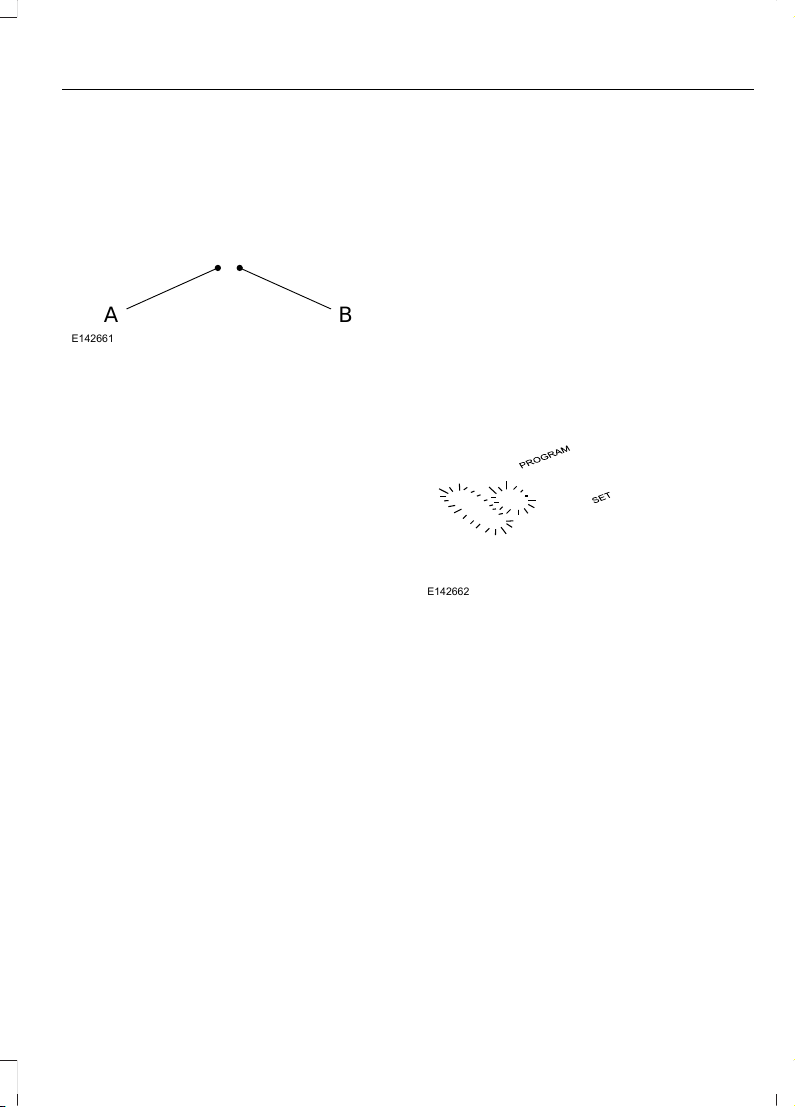
BA
E142661
Red indicator lightA.
Green indicator lightB.
1. Press and hold one of the buttons on
the hand-held transmitter for 10
seconds. The indicator light will change
from green to red and green.
2. Press the same button twice to confirm
the change to programming mode. If
done properly the indicator light will
appear red.
3. Hold the transmitter within 1–3 inches
(2–8 centimeters) of the button on the
visor you want to program.
4. Press and hold both the programmed
Genie button on the hand-held
transmitter and the button you want
to program. The indicator light on the
visor will flash rapidly when the
programming is successful.
Note: The Genie transmitter will transmit
for up to 30 seconds. If HomeLink does not
program within 30 seconds the Genie
transmitter will need to be pressed again. If
the Genie transmitter indicator light displays
green and red, release the button until the
indicator light turns off before pressing the
button again.
Once HomeLink has been programmed
successfully, the Genie transmitter must
be changed out of program mode. To do
this:
1. Press and hold the previously
programmed Genie button on the
hand-held transmitter for 10 seconds.
The indicator light will change from red
to red and green.
2. Press the same button twice to confirm
the change. If done correctly the
indicator light will turn green.
Programming HomeLink to the Genie
Intellicode Garage Door Opener Motor
Note: You may need a ladder to access the
garage door opener motor.
E142662
1. Press and hold the program button on
the garage door opener motor until
both blue indicator lights turn on.
2. Release the program button. Only the
smaller round indicator light should be
on.
3. Press and release the program button.
The larger purple indicator light will
flash.
Note: The next two steps must be
completed in 30 seconds.
4. Press and release the Genie Intellicode
2 hand-held transmitter’s previously
programmed button. Both indicator
lights on the garage door opener motor
unit should now flash purple.
151
Edge (CDQ) Canada/United States of America, enUSA, Edition date: 201706, First Printing
Universal Garage Door Opener (If Equipped)

5. Press and hold the previously
programmed button on the visor for 2
seconds. Repeat this step up to 3 times
until the garage door moves.
Programming is now complete.
Clearing a HomeLink Device
To erase programming from the three
HomeLink buttons press and hold the two
outer HomeLink buttons until the indicator
light begins to flash. The indicator light will
begin flashing in 10 to 20 seconds, at which
time both buttons should be released.
Programming has now been erased, and
the indicator light should blink slowly to
indicate the device is in train mode when
any of the three HomeLink buttons are
pressed.
FCC and RSS-210 Industry Canada
Compliance
This device complies with Part 15 of the
FCC Rules and with RSS-210 of Industry
Canada. Operation is subject to the
following two conditions: (1) this device
may not cause harmful interference, and
(2) this device must accept any
interference received, including
interference that may cause undesired
operation.
Changes or modifications to your device
not expressly approved by the party
responsible for compliance can void the
user’s authority to operate the equipment.
152
Edge (CDQ) Canada/United States of America, enUSA, Edition date: 201706, First Printing
Universal Garage Door Opener (If Equipped)

12 Volt DC Power Point
WARNING
Do not plug optional electrical
accessories into the cigar lighter
socket. Incorrect use of the cigar
lighter can cause damage not covered by
the vehicle warranty, and can result in fire
or serious injury.
Note: When you switch the ignition on, you
can use the socket to power 12 volt
appliances with a maximum current rating
of 15 amps.
If the power supply does not work after you
switch the ignition off, switch the ignition
on.
Note: Do not hang any accessory from the
accessory plug.
Note: Do not use the power point over the
vehicle capacity of 12 volt DC 180 watts or
a fuse may blow.
Note: Always keep the power point caps
closed when not in use.
Do not insert objects other than an
accessory plug into the power point. This
damages the power point and may blow
the fuse.
Run the vehicle for full capacity use of the
power point.
To prevent the battery from running out of
charge:
• Do not use the power point longer than
necessary when the vehicle is not
running.
• Do not leave devices plugged in
overnight or when you park your vehicle
for extended periods.
Locations
Power points may be in the following
locations:
• On the front of the center console.
• Inside the center console.
• On the rear of the center console.
• In the cargo area.
110 Volt AC Power Point (If Equipped)
WARNING
Do not keep electrical devices
plugged in the power point whenever
the device is not in use. Do not use
any extension cord with the 110 volt AC
power point, since it will defeat the safety
protection design. Doing so may cause the
power point to overload due to powering
multiple devices that can reach beyond
the 150 watt load limit and could result in
fire or serious injury.
Note: The power point turns off when you
switch off the ignition, or when the battery
voltage drops below 11 volts.
You can use the power point for electric
devices that require up to 150 watts. It is
on the rear of the center console.
E247586
153
Edge (CDQ) Canada/United States of America, enUSA, Edition date: 201706, First Printing
Auxiliary Power Points

When the indicator light on the power point
is:
• On: The power point is working, the
ignition is on and a device is plugged
in.
• Off: The power point is off, the ignition
is off or no device is plugged in.
• Flashing: The power point is in fault
mode.
The power outlet temporarily turns off
power when in fault mode if the device
exceeds the 150 watt limit. Unplug your
device and switch the ignition off. Switch
the ignition back on, but do not plug your
device back in. Let the system cool off and
switch the ignition off to reset the fault
mode. Switch the ignition back on and
make sure the indicator light remains on.
Do not use the power point for certain
electric devices, including:
• Cathode-ray, tube-type televisions.
• Motor loads, such as vacuum cleaners,
electric saws and other electric power
tools or compressor-driven
refrigerators.
• Measuring devices, which process
precise data, such as medical
equipment or measuring equipment.
• Other appliances requiring an
extremely stable power supply such as
microcomputer-controlled electric
blankets or touch-sensor lamps.
154
Edge (CDQ) Canada/United States of America, enUSA, Edition date: 201706, First Printing
Auxiliary Power Points
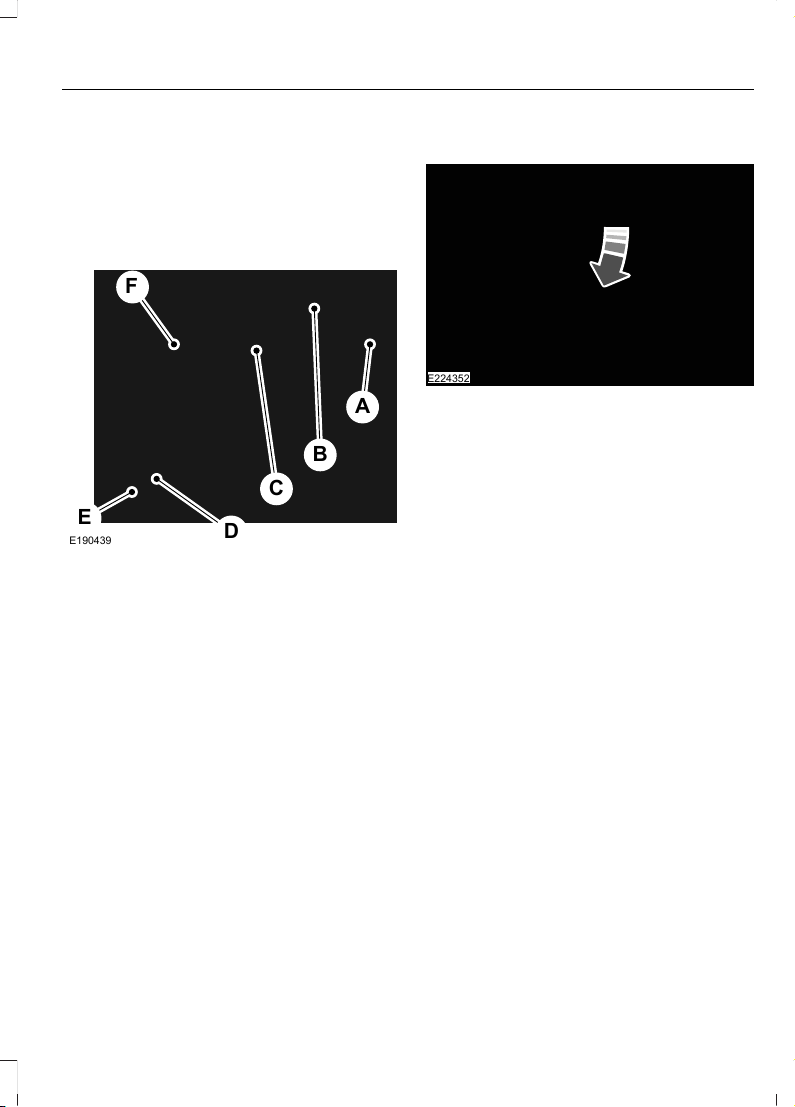
CENTER CONSOLE
Stow items in the cup holder carefully as
items may become loose during hard
braking, acceleration or crashes, including
hot drinks which may spill.
Available console features may include:
A
B
F
C
D
E
E190439
Auxiliary power point.A
Storage compartment with
media hub and optional USB
port.
B
Cup holder.C
Storage tray.D
Auxiliary power point with power
inverter or cigar lighter.
E
Storage compartment with
auxiliary power point or cigar
lighter.
F
Note: Depending on your vehicle, auxiliary
power point locations could be in locations
A or B.
Note: If your vehicle is equipped with the
smoker's package, auxiliary power points in
locations B, E, or F could be replaced with
a cigar lighter.
OVERHEAD CONSOLE
E224352
Press near the rear edge of the door to
open it.
155
Edge (CDQ) Canada/United States of America, enUSA, Edition date: 201706, First Printing
Storage Compartments

GENERAL INFORMATION
WARNINGS
Extended idling at high engine
speeds can produce very high
temperatures in the engine and
exhaust system, creating the risk of fire or
other damage.
Do not park, idle or drive your vehicle
on dry grass or other dry ground
cover. The emission system heats up
the engine compartment and exhaust
system, creating the risk of fire.
Do not start the engine in a closed
garage or in other enclosed areas.
Exhaust fumes can be toxic. Always
open the garage door before you start the
engine.
Exhaust leaks may result in entry of
harmful and potentially lethal fumes
into the passenger compartment. If
you smell exhaust fumes inside your
vehicle, have your vehicle inspected
immediately. Do not drive if you smell
exhaust fumes.
If you disconnect the battery, your vehicle
may exhibit some unusual driving
characteristics for approximately 5 mi
(8 km) after you reconnect it. This is
because the engine management system
must realign itself with the engine. You
can disregard any unusual driving
characteristics during this period.
The powertrain control system meets all
Canadian interference-causing equipment
standard requirements regulating the
impulse electrical field or radio noise.
When you start the engine, avoid pressing
the accelerator pedal before and during
operation. Only use the accelerator pedal
when you have difficulty starting the
engine.
KEYLESS STARTING
Note: The system may not function if the
intelligent access key is close to metal
objects or electronic devices, for example
keys or a cell phone.
Note: A valid intelligent access key must
be located inside your vehicle to switch the
ignition on and start your vehicle.
Ignition Modes
E144447
The keyless starting system has three
modes:
Off: Turns the ignition off.
• Without applying the brake pedal,
press and release the button once
when the ignition is in the on mode, or
when your vehicle is running but is not
moving.
On: All electrical circuits are operational
and the warning lamps and indicators
illuminate.
• Without applying the brake pedal,
press and release the button once.
Start: Starts your vehicle. The engine may
not start when your vehicle starts.
• Press the brake pedal, and then press
the button for any length of time. An
indicator light on the button illuminates
when the ignition is on and when your
vehicle starts.
156
Edge (CDQ) Canada/United States of America, enUSA, Edition date: 201706, First Printing
Starting and Stopping the Engine
STARTING A GASOLINE
ENGINE
When you start the engine, the idle speed
increases. This helps to warm up the
engine. If the engine idle speed does not
slow down automatically, have your
vehicle checked by an authorized dealer.
Note: You can crank the engine for a total
of 60 seconds without the engine starting
before the starting system temporarily
disables. The 60 seconds does not have to
be all at once. For example, if you crank the
engine three times for 20 seconds each
time, without the engine starting, you
reached the 60-second time limit. A
message appears in the information display
alerting you that you exceeded the cranking
time. You cannot attempt to start the
engine for at least 15 minutes. After 15
minutes, you are limited to a 15-second
engine cranking time. You need to wait 60
minutes before you can crank the engine for
60 seconds again.
Before starting the engine check the
following:
• Make sure all occupants have fastened
their seatbelts.
• Make sure the headlamps and
electrical accessories are off.
• Make sure the parking brake is on.
• Make sure the transmission is in park
(P) or neutral.
Note: Do not touch the accelerator pedal.
Note: A valid passive key must be located
inside your vehicle to switch the power on
and start your vehicle.
1. Fully depress the brake pedal.
2. Briefly press the push button ignition
switch.
The system does not function if:
• The passive key frequencies are
jammed.
• The key battery has no charge.
If you are unable to start the engine, do the
following:
E195807
1
1. Open the floor console storage
compartment lid.
E195808
2
2. With the buttons facing the rear of your
vehicle and the key ring up, place the
intelligent access key into the backup
slot.
157
Edge (CDQ) Canada/United States of America, enUSA, Edition date: 201706, First Printing
Starting and Stopping the Engine

3. With the key in this position, press the
brake pedal then the power button to
switch the ignition on and start your
vehicle.
Fast Restart
The fast restart feature allows you to
restart your vehicle within 10 seconds of
switching it off, even if it does not detect
a valid passive key.
Within 10 seconds of switching your vehicle
off, press the brake pedal and press the
push button ignition switch. After 10
seconds, you can no longer start your
vehicle if it does not detect a valid passive
key.
Once your vehicle starts, it remains running
until you press the push button ignition
switch, even if your vehicle does not detect
a valid passive key. If you open and close
a door while your vehicle is running, the
system searches for a valid passive key.
Failure to Start
If you cannot start the engine after three
attempts, wait 10 seconds and follow this
procedure:
1. Fully depress the brake pedal.
2. Shift into park (P) or neutral.
3. Fully depress the accelerator pedal.
4. Keep the accelerator pedal fully
pressed and press the push button
ignition switch until the engine starts.
Automatic Engine Shutdown
This feature automatically shuts down the
engine if it has been idling for an extended
period. The ignition also turns off to save
battery power. Before the engine shuts
down, a message appears in the
information display showing a timer
counting down from 30 seconds. If you do
not intervene within 30 seconds, the engine
shuts down. Another message appears in
the information display to inform you that
the engine has shut down in order to save
fuel. Start your vehicle as you normally do.
Automatic Engine Shutdown Override
Note: You cannot permanently switch off
the automatic shutdown. When you switch
it off temporarily, it turns on at the next
ignition cycle.
You can stop the shutdown, or reset the
timer, at any point before the 30-second
countdown has expired by doing any of the
following:
• Reset the timer by pressing the brake
or accelerator pedal.
• Temporarily switch off the shutdown
feature during the current ignition cycle
using the information display. See
General Information (page 102).
• Press OK or RESET to temporarily
switch the feature off during the
current ignition cycle.
Stopping the Engine When Your
Vehicle is Stationary
1. Shift into park (P).
2. Press the push button ignition switch.
3. Apply the parking brake.
Note: The ignition, all electrical circuits and
all warning lamps and indicators will be
turned off.
Note: If the engine is idling for 30 minutes,
the ignition and engine automatically shuts
down.
158
Edge (CDQ) Canada/United States of America, enUSA, Edition date: 201706, First Printing
Starting and Stopping the Engine

Stopping the Engine When Your
Vehicle is Moving
WARNING
Switching off the engine when the
vehicle is still moving will result in a
loss of brake and steering assistance.
The steering will not lock, but higher effort
will be required. When the ignition is
switched off, some electrical circuits,
including air bags, warning lamps and
indicators may also be off. If the ignition
was turned off accidentally, you can shift
into neutral (N) and re-start the engine.
1. Put the transmission into neutral (N)
and use the brakes to bring your vehicle
to a safe stop.
2. When your vehicle has stopped, shift
into park (P).
3. Press and hold the push button ignition
switch until the engine stops, or press
it three times within two seconds.
4. Apply the parking brake.
Guarding Against Exhaust Fumes
WARNING
Exhaust leaks may result in entry of
harmful and potentially lethal fumes
into the passenger compartment. If
you smell exhaust fumes inside your
vehicle, have your vehicle inspected
immediately. Do not drive if you smell
exhaust fumes.
Important Ventilating Information
If you stop your vehicle and then leave the
engine idling for long periods, we
recommend that you do one of the
following:
• Open the windows at least 1 in (3 cm).
• Set your climate control to outside air.
ENGINE BLOCK HEATER (If
Equipped)
WARNINGS
Failure to follow engine block heater
instructions could result in property
damage or serious personal injury.
Do not use your heater with
ungrounded electrical systems or
two-pronged adapters. There is a risk
of electrical shock.
Do not fully close the hood, or allow
it to drop under its own weight when
using the engine block heater. This
could damage the power cable and may
cause an electrical short resulting in fire,
injury and property damage.
Note: The heater is most effective when
outdoor temperatures are below 0°F
(-18°C).
The heater acts as a starting aid by
warming the engine coolant. This allows
the climate control system to respond
quickly. The equipment includes a heater
element (installed in the engine block) and
a wire harness. You can connect the
system to a grounded 120-volt AC
electrical source.
We recommend that you do the following
for a safe and correct operation:
• Use a 16-gauge outdoor extension cord
that is product certified by
Underwriter’s Laboratory (UL) or
Canadian Standards Association
(CSA). This extension cord must be
suitable for use outdoors, in cold
159
Edge (CDQ) Canada/United States of America, enUSA, Edition date: 201706, First Printing
Starting and Stopping the Engine

temperatures, and be clearly marked
Suitable for Use with Outdoor
Appliances. Do not use an indoor
extension cord outdoors. This could
result in an electric shock or become a
fire hazard.
• Use as short an extension cord as
possible.
• Do not use multiple extension cords.
• Make sure that when in operation, the
extension cord plug and heater cord
plug connections are free and clear of
water. This could cause an electric
shock or fire.
• Make sure your vehicle is parked in a
clean area, clear of combustibles.
• Make sure the heater, heater cord and
extension cord are firmly connected.
• Check for heat anywhere in the
electrical hookup once the system has
been operating for approximately 30
minutes.
• Make sure the system is unplugged and
properly stowed before starting and
driving your vehicle. Make sure the
protective cover seals the prongs of the
block heater cord plug when not in use.
• Make sure the heater system is
checked for proper operation before
winter.
Using the Engine Block Heater
Make sure the receptacle terminals are
clean and dry prior to use. Clean them with
a dry cloth if necessary.
The heater uses 0.4 to 1.0 kilowatt-hours
of energy per hour of use. The system does
not have a thermostat. It achieves
maximum temperature after
approximately three hours of operation.
Using the heater longer than three hours
does not improve system performance and
unnecessarily uses electricity.
160
Edge (CDQ) Canada/United States of America, enUSA, Edition date: 201706, First Printing
Starting and Stopping the Engine
AUTO-START-STOP (If Equipped)
The system helps reduce fuel consumption
by automatically stopping and restarting
the engine when your vehicle has stopped.
The engine restarts automatically when
you release the brake pedal.
In some situations, your vehicle may restart
automatically, for example:
• To maintain interior comfort.
• To recharge the battery.
Note: Power assist steering is turned off
when the engine is off.
WARNINGS
Always fully apply the parking brake.
Make sure you shift into park (P) for
vehicles with an automatic
transmission. Switch the ignition off and
remove the key whenever you leave your
vehicle.
Before opening the hood or
performing any maintenance, fully
apply the parking brake, shift into
park (P) or neutral (N) and switch the
ignition off.
Always switch the ignition off before
leaving the vehicle. If the ignition is
switched on an automatic restart
may occur at any time.
The system may require the engine
to automatically restart when the
auto-start-stop indicator illuminates
green or flashes amber. Failure to follow
this instruction could result in personal
injury.
The Auto-Start-Stop system status is
available at a glance within the information
display. See Information Displays (page
102).
Enabling Auto-Start-Stop
The system automatically enables every
time you start your vehicle if:
• You do not press the Auto-Start-Stop
button (not illuminated).
• Your vehicle exceeds an initial speed
of 3 mph (5 km/h) after you have
initially started your vehicle.
• Your vehicle is stopped.
• Your foot is on the brake pedal.
• The transmission is in drive (D).
• The driver door is closed.
• There is adequate brake vacuum.
• The interior compartment has been
cooled or warmed to an acceptable
level.
• The front windshield defroster is off.
• The steering wheel is not turned rapidly
or is not at a sharp angle.
• The vehicle is not on a steep road
grade.
• The battery is within optimal operating
conditions (battery state of charge and
temperature in range).
• The engine coolant is at operating
temperature.
• Elevation is below approximately
10000 feet (3048 meters).
• Ambient temperature is moderate.
Note: The system allows multiple
successive Auto-Start-Stop events, but it
may not operate in conditions of heavy
traffic or in extended low speed operation.
The green Auto-Start-Stop
indicator light on the instrument
cluster will illuminate to indicate
when the automatic engine stop occurs.
161
Edge (CDQ) Canada/United States of America, enUSA, Edition date: 201706, First Printing
Unique Driving Characteristics
E146361
If the instrument cluster is
equipped with a grey
Auto-Start-Stop indicator light,
it is illuminated when automatic engine
stop is not available due to one of the
above noted conditions not being met.
Automatic Engine Restart
Any of the following conditions will result
in an automatic restart of the engine:
• Your foot is removed from the brake
pedal.
• You press the accelerator pedal.
• You press the accelerator and the
brake pedal at the same time.
• The driver safety belt becomes
unfastened or the driver door is ajar.
• The transmission is moved from drive
(D).
• Your vehicle is moving.
• The interior compartment does not
meet customer comfort when air
conditioning or heat is on.
• Fogging of the windows could occur
and the air conditioning is on.
• The battery is not within optimal
operating conditions.
• The maximum engine off time is
exceeded.
• When you press the Auto-Start-Stop
button while the engine is stopped
automatically.
Any of the following conditions may result
in an automatic restart of the engine:
• The blower fan speed is increased or
the climate control temperature is
changed.
• An electrical accessory is turned on or
plugged in.
Disabling Auto-Start-Stop
P
R
N
D
S
E146362
Press the Auto-Start-Stop button located
on the center console to switch the system
off. The button will illuminate. The system
will only be deactivated for the current
ignition cycle. Press the button again to
restore Auto-Start-Stop function.
If your vehicle is in an Auto-Start-Stop
state and you shift the transmission to
reverse while the brake is not depressed,
a message telling you to press the brake
will appear. You must press the brake
pedal within 10 seconds, or a shift to park
and a manual restart will be required.
Note: If the Shift to P, Restart Engine
message appears and the amber
Auto-Start-Stop indicator light is flashing,
automatic restart is not available. The
vehicle must be restarted manually. See
Information Displays (page 102).
162
Edge (CDQ) Canada/United States of America, enUSA, Edition date: 201706, First Printing
Unique Driving Characteristics
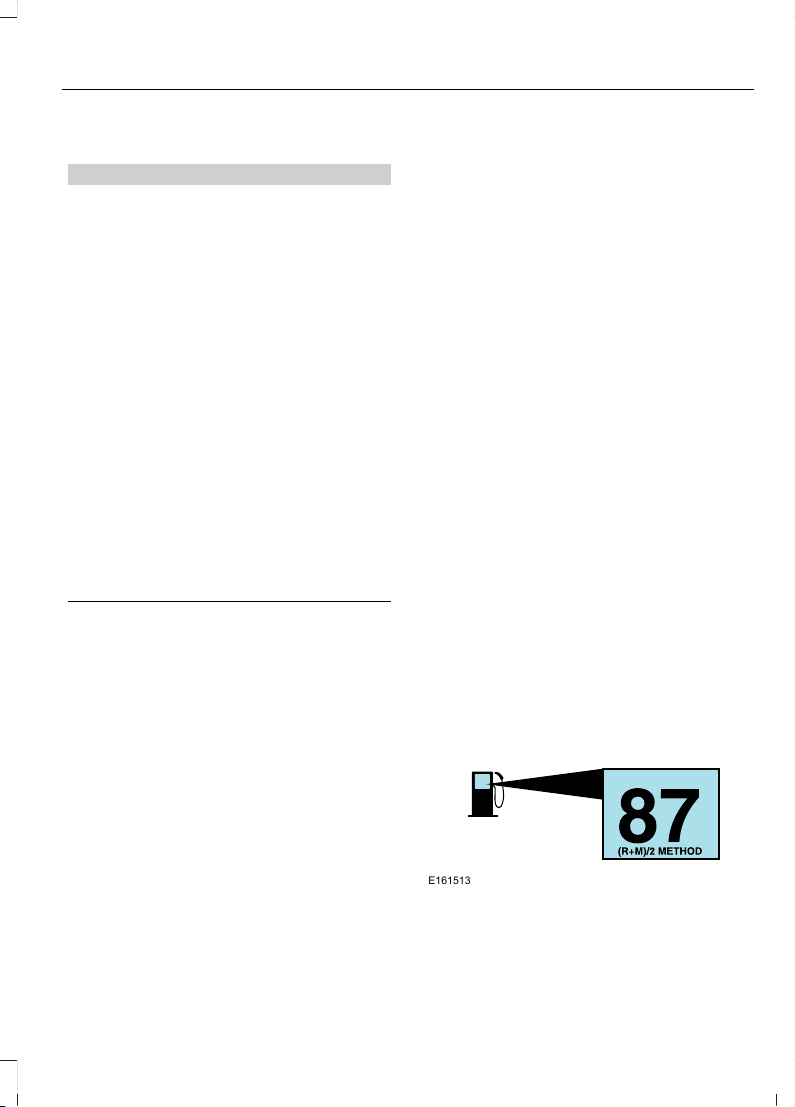
SAFETY PRECAUTIONS
WARNINGS
Do not overfill the fuel tank. The
pressure in an overfilled tank may
cause leakage and lead to fuel spray
and fire.
The fuel system may be under
pressure. If you hear a hissing sound
near the fuel filler inlet, do not refuel
until the sound stops. Otherwise, fuel may
spray out, which could cause serious
personal injury.
Fuels can cause serious injury or
death if misused or mishandled.
Fuel may contain benzene, which is
a cancer-causing agent.
When refueling always shut the
engine off and never allow sparks or
open flames near the fuel tank filler
valve. Never smoke or use a cell phone
while refueling. Fuel vapor is extremely
hazardous under certain conditions. Avoid
inhaling excess fumes.
Follow these guidelines when refueling:
• Extinguish all smoking materials and
any open flames before refueling your
vehicle.
• Always switch the engine off before
refueling.
• Automotive fuels can be harmful or
fatal if swallowed. Fuel is highly toxic
and if swallowed can cause death or
permanent injury. If fuel is swallowed
immediately call a physician, even if no
symptoms are immediately apparent.
The toxic effects of fuel may not be
apparent for hours.
• Avoid inhaling fuel vapors. Inhaling fuel
vapor can lead to eye and respiratory
tract irritation. In severe cases,
excessive or prolonged breathing of
fuel vapor can cause serious illness and
permanent injury.
• Avoid getting fuel in your eyes. If you
splash fuel in your eyes, immediately
remove contact lenses (if worn), flush
with water for 15 minutes and seek
medical attention. Failure to seek
proper medical attention could lead to
permanent injury.
• Fuels can be harmful if absorbed
through the skin. If you splash fuel on
your skin, clothing or both, promptly
remove contaminated clothing and
thoroughly wash your skin with soap
and water. Repeated or prolonged skin
contact causes skin irritation.
• Be particularly careful if you are taking
Antabuse or other forms of Disulfiram
for the treatment of alcoholism.
Breathing fuel vapors could cause an
adverse reaction, serious personal
injury or sickness. Immediately call a
physician if you experience any adverse
reactions.
FUEL QUALITY
Choosing the Right Fuel
E161513
Your vehicle is designed to operate on
regular unleaded gasoline with a minimum
pump (R+M)/2 octane rating of 87.
163
Edge (CDQ) Canada/United States of America, enUSA, Edition date: 201706, First Printing
Fuel and Refueling

Some fuel stations, particularly those in
high altitude areas, offer fuels posted as
regular unleaded gasoline with an octane
rating below 87. We do not recommend
these fuels.
For best overall vehicle and engine
performance, premium fuel with an octane
rating of 91 or higher is recommended. The
performance gained by using premium fuel
is most noticeable in hot weather as well
as other conditions, for example when
towing a trailer. See Towing (page 231).
Do not use any fuel other than those
recommended because they could lead to
engine damage that will not be covered by
the vehicle Warranty.
Note: Use of any fuel other than those
recommended can impair the emission
control system and cause a loss of vehicle
performance.
Do not use:
• Diesel fuel.
• Fuels containing kerosene or paraffin.
• Fuel containing more than 15% ethanol
or E85 fuel.
• Fuels containing methanol.
• Fuels containing metallic-based
additives, including manganese-based
compounds.
• Fuels containing the octane booster
additive, methylcyclopentadienyl
manganese tricarbonyl (MMT).
• Leaded fuel (using leaded fuel is
prohibited by law).
The use of fuels with metallic compounds
such as methylcyclopentadienyl
manganese tricarbonyl (commonly known
as MMT), which is a manganese-based
fuel additive, will impair engine
performance and affect the emission
control system.
Do not be concerned if the engine
sometimes knocks lightly. However, if the
engine knocks heavily while using fuel with
the recommended octane rating, contact
an authorized dealer to prevent any engine
damage.
FUEL FILLER FUNNEL
LOCATION
The fuel filler funnel is under the luggage
compartment floor covering.
RUNNING OUT OF FUEL
Running out of fuel can cause damage not
covered by the vehicle Warranty.
If your vehicle runs out of fuel:
• Add a minimum of 1.3 gal (5 L) of fuel
to restart the engine.
• You may need to switch the ignition
from off to on several times after
refueling to allow the fuel system to
pump the fuel from the tank to the
engine. When restarting, cranking time
takes a few seconds longer than
normal.
Note: If your vehicle is on a steep slope,
more fuel may be required.
Filling a Portable Fuel Container
WARNING
Flow of fuel through a fuel pump
nozzle can produce static electricity.
This can cause a fire if you are filling
an ungrounded fuel container.
164
Edge (CDQ) Canada/United States of America, enUSA, Edition date: 201706, First Printing
Fuel and Refueling
Use the following guidelines to avoid
electrostatic charge build-up, which can
produce a spark, when filling an
ungrounded fuel container:
• Only use an approved fuel container to
transfer fuel to your vehicle. Place the
container on the ground when filling it.
• Do not fill a fuel container when it is
inside your vehicle (including the cargo
area).
• Keep the fuel pump nozzle in contact
with the fuel container when filling it.
• Do not use a device that holds the fuel
pump nozzle lever in the fill position.
Adding Fuel From a Portable Fuel
Container
WARNINGS
Do not insert the nozzle of a fuel
container or an aftermarket funnel
into the fuel filler neck. This may
damage the fuel system filler neck or its
seal and cause fuel to run onto the ground.
Do not try to pry open or push open
the capless fuel system with foreign
objects. This could damage the fuel
system and its seal and cause injury to you
or others.
Do not dispose of fuel in the
household refuse or the public
sewage system. Use an authorized
waste disposal facility.
When refueling the vehicle fuel tank from
a fuel container, use the fuel filler funnel
included with your vehicle. See Fuel Filler
Funnel Location (page 164).
Note: Do not use aftermarket funnels as
they may not work with the capless fuel
system and can damage it.
When refueling the vehicle fuel tank from
a fuel container, do the following:
1. Fully open the fuel filler door.
2. Fully insert the fuel filler funnel into the
fuel filler inlet.
E157452
3. Add fuel to your vehicle from the fuel
container.
4. Remove the fuel filler funnel.
5. Fully close the fuel filler door.
6. Clean the fuel filler funnel and place it
back in your vehicle or correctly dispose
of it.
Note: Extra funnels can be purchased from
an authorized dealer if you choose to
dispose of the funnel.
REFUELING
WARNINGS
When refueling always shut the
engine off and never allow sparks or
open flames near the fuel tank filler
valve. Never smoke or use a cell phone
while refueling. Fuel vapor is extremely
hazardous under certain conditions. Avoid
inhaling excess fumes.
165
Edge (CDQ) Canada/United States of America, enUSA, Edition date: 201706, First Printing
Fuel and Refueling
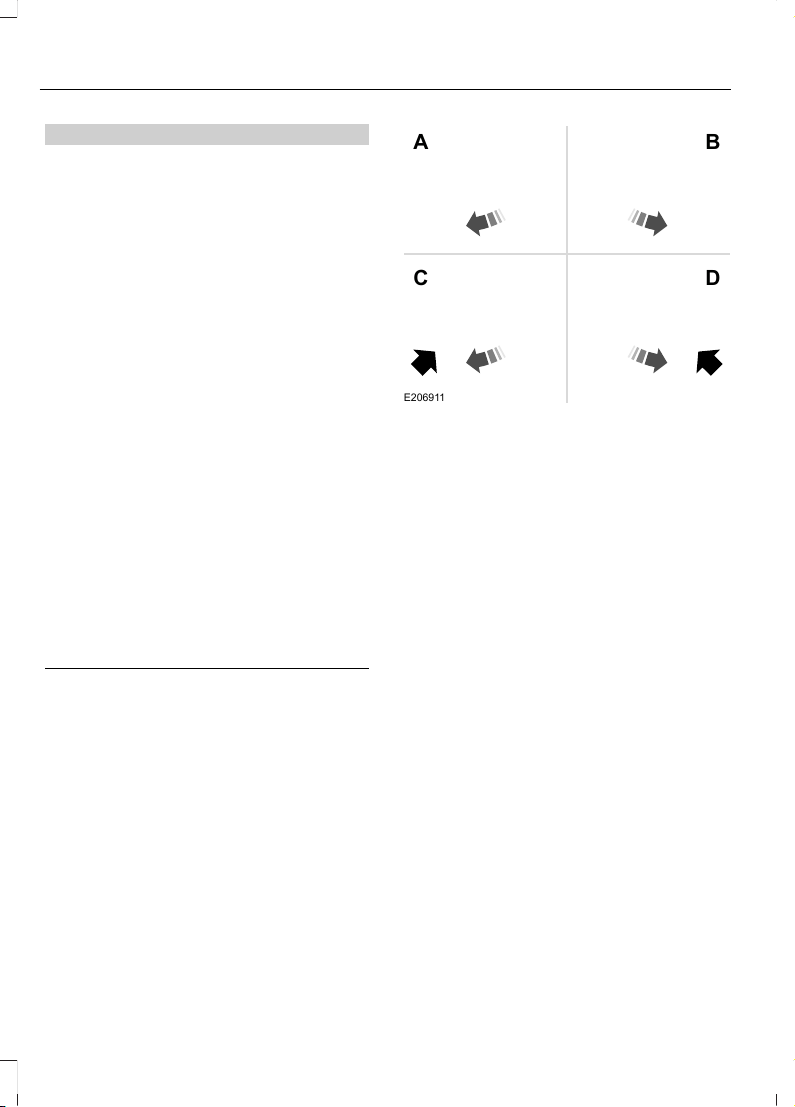
WARNINGS
The fuel system may be under
pressure. If you hear a hissing sound
near the fuel filler inlet, do not refuel
until the sound stops. Otherwise, fuel may
spray out, which could cause serious
personal injury.
Do not remove the fuel pump nozzle
from its fully inserted position when
refueling.
Do not overfill the fuel tank. The
pressure in an overfilled tank may
cause leakage and lead to fuel spray
and fire.
Stop refueling when the fuel pump
nozzle automatically shuts off for the
first time. Failure to follow this will
fill the expansion space in the fuel tank and
could lead to fuel overflowing.
Wait at least 10 seconds before
removing the fuel pump nozzle to
allow any residual fuel to drain into
the fuel tank.
Do not try to pry open or push open
the capless fuel system with foreign
objects. This could damage the fuel
system and its seal and cause injury to you
or others.
Note: Your vehicle does not have a fuel filler
cap.
E206911
A B
C D
Left-hand side. To open the fuel
filler door, press the center rear
edge of the fuel filler door and
then release.
A
Right-hand side. To open the
fuel filler door, press the center
rear edge of the fuel filler door
and then release.
B
Left-hand side. Pull the rear of
the fuel filler door to open it.
C
Right-hand side. Pull the rear of
the fuel filler door to open it.
D
1. Fully open the fuel filler door.
166
Edge (CDQ) Canada/United States of America, enUSA, Edition date: 201706, First Printing
Fuel and Refueling
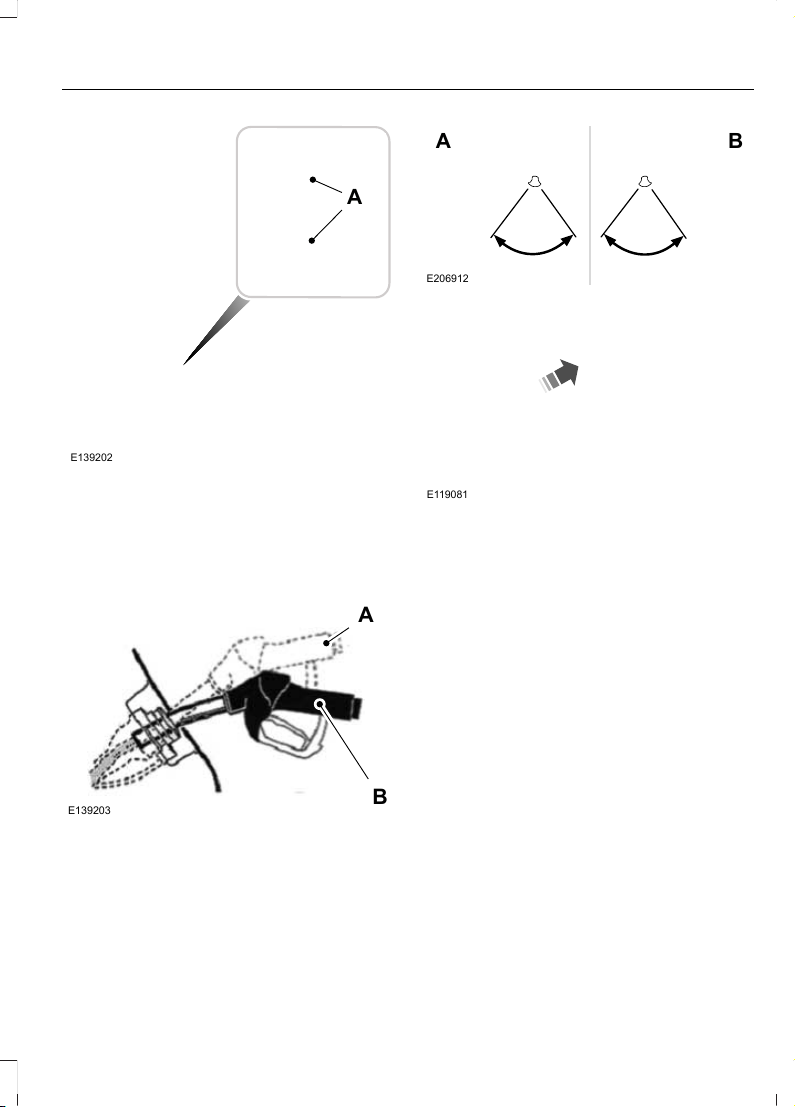
E139202
A
Note: When you insert the correct size fuel
pump nozzle a spring loaded inhibitor opens.
2. Insert the fuel pump nozzle up to the
first notch on the nozzle A. Keep it
resting on the cover of the fuel tank
filler pipe opening.
E139203
A
B
3. Hold the fuel pump nozzle in position
B when refueling. Holding the fuel
nozzle in position A can affect the flow
of fuel and shut off the fuel nozzle
before the fuel tank is full.
E206912
A B
4. Operate the fuel pump nozzle within
the area shown.
E119081
5. When you finish refueling slightly raise
the fuel pump nozzle and slowly
remove it.
6. Fully close the fuel filler door.
Note: Do not attempt to start the engine
if you have filled the fuel tank with incorrect
fuel. Incorrect fuel use can cause damage
not covered by the vehicle Warranty. Have
your vehicle immediately checked.
System Warnings (If Equipped)
If the fuel filler inlet does not fully close a
warning message appears in the
information display.
1. Stop your vehicle as soon as it is safe
to do so and switch the engine off.
2. Shift into park (P) or neutral (N).
3. Apply the parking brake.
4. Fully open the fuel filler door.
5. Check the fuel filler inlet and the area
around it for any items or debris that
may be obstructing its movement.
167
Edge (CDQ) Canada/United States of America, enUSA, Edition date: 201706, First Printing
Fuel and Refueling

6. Fully insert a fuel pump nozzle or the
fuel filler funnel provided with your
vehicle into the fuel filler inlet. This
action should dislodge any debris that
may be preventing the fuel filler inlet
from fully closing.
7. Fully close the fuel filler door.
Note: If this action corrects the problem
the message may not immediately reset. If
the message remains and a warning lamp
illuminates, have your vehicle checked as
soon as possible.
FUEL CONSUMPTION
The advertised capacity is the maximum
amount of fuel that you can add to the fuel
tank after running out of fuel. Included in
the advertised capacity is an empty
reserve. The empty reserve is an
unspecified amount of fuel that remains
in the fuel tank when the fuel gauge
indicates empty.
Note: The amount of fuel in the empty
reserve varies and should not be relied upon
to increase driving range.
Filling the Fuel Tank
For consistent results when refueling:
• Turn the ignition off before fueling; an
inaccurate reading results if the engine
is left running.
• Use the same fill rate
(low-medium-high) each time the tank
is filled.
• Allow no more than one automatic
shut-off when refueling.
Results are most accurate when the filling
method is consistent.
Calculating Fuel Economy
Do not measure fuel economy during the
first 1,000 mi (1,600 km) of driving (this is
your engine’s break-in period). A more
accurate measurement is obtained after
2,000 mi (3,200 km) to 3,000 mi
(4,800 km). Also, fuel expense, frequency
of fill ups or fuel gauge readings are not
accurate ways to measure fuel economy.
1. Fill the fuel tank completely and record
the initial odometer reading.
2. Each time you fill the fuel tank, record
the amount of fuel added.
3. After at least three fill ups, fill the fuel
tank and record the current odometer
reading.
4. Subtract your initial odometer reading
from the current odometer reading.
To calculate L/100 km (liters per 100
kilometers) fuel consumption, multiply the
liters used by 100, then divide by kilometers
traveled. To calculate MPG (miles per
gallon) fuel consumption, divide miles
traveled by gallons used.
Keep a record for at least one month and
record the type of driving (city or highway).
This provides an accurate estimate of your
vehicle's fuel economy under current
driving conditions. Keeping records during
summer and winter will show how
temperature impacts fuel economy.
Conditions
• Heavily loading your vehicle reduces
fuel economy.
• Carrying unnecessary weight in your
vehicle may reduce fuel economy.
• Adding certain accessories to your
vehicle such as bug deflectors, rollbars
or light bars, running boards and ski
racks may reduce fuel economy.
• Using fuel blended with alcohol may
lower fuel economy.
168
Edge (CDQ) Canada/United States of America, enUSA, Edition date: 201706, First Printing
Fuel and Refueling

• Fuel economy may decrease with lower
temperatures.
• Fuel economy may decrease when
driving short distances.
• You will get better fuel economy when
driving on flat terrain than when driving
on hilly terrain.
169
Edge (CDQ) Canada/United States of America, enUSA, Edition date: 201706, First Printing
Fuel and Refueling
EMISSION LAW
WARNING
Do not remove or alter the original
equipment floor covering or
insulation between it and the metal
floor of the vehicle. The floor covering and
insulation protect occupants of the vehicle
from the engine and exhaust system heat
and noise. On vehicles with no original
equipment floor covering insulation, do not
carry passengers in a manner that permits
prolonged skin contact with the metal
floor. Failure to follow these instructions
may result in fire or personal injury.
U.S. federal laws and certain state laws
prohibit removing or rendering inoperative
emission control system components.
Similar federal or provincial laws may
apply in Canada. We do not approve of any
vehicle modification without first
determining applicable laws.
Tampering with emissions
control systems including
related sensors or the Diesel
Exhaust Fluid system can result in reduced
engine power and the illumination of the
service engine soon light.
Tampering With a Noise Control
System
Federal laws prohibit the following acts:
• Removal or rendering inoperative by
any person other than for purposes of
maintenance.
• Repair or replacement of any device or
element of the design incorporated into
a new vehicle for the purpose of noise
control prior to its sale or delivery to
the ultimate purchaser or while it is in
use.
• The use of the vehicle after any person
removes or renders inoperative any
device or element of the design.
The U.S. Environmental Protection Agency
may presume to constitute tampering as
follows:
• Removal of hood blanket, fender apron
absorbers, fender apron barriers,
underbody noise shields or acoustically
absorptive material.
• Tampering or rendering inoperative the
engine speed governor, to allow engine
speed to exceed manufacturer
specifications.
If the engine does not start, runs rough,
experiences a decrease in engine
performance, experiences excess fuel
consumption or produces excessive
exhaust smoke, check for the following:
• A plugged or disconnected air inlet
system hose.
• A plugged engine air filter element.
• Water in the fuel filter and water
separator.
• A clogged fuel filter.
• Contaminated fuel.
• Air in the fuel system, due to loose
connections.
• An open or pinched sensor hose.
• Incorrect engine oil level.
170
Edge (CDQ) Canada/United States of America, enUSA, Edition date: 201706, First Printing
Engine Emission Control

• Incorrect fuel for climatic conditions.
• Incorrect engine oil viscosity for
climactic conditions.
Note: Some vehicles have a lifetime fuel
filter that is integrated with the fuel tank.
Regular maintenance or replacement is not
needed.
Note: If these checks do not help you
correct the concern, have your vehicle
checked as soon as possible.
Noise Emissions Warranty,
Prohibited Tampering Acts and
Maintenance
On January 1, 1978, Federal regulation
became effective governing the noise
emission on trucks over 10,000 lb
(4,536 kg) Gross Vehicle Weight Rating
(GVWR). The preceding statements
concerning prohibited tampering acts and
maintenance, and the noise warranty
found in the Warranty Guide, are
applicable to complete chassis cabs over
10,000 lb (4,536 kg) GVWR.
CATALYTIC CONVERTER
WARNINGS
Do not park, idle or drive your vehicle
on dry grass or other dry ground
cover. The emission system heats up
the engine compartment and exhaust
system, creating the risk of fire.
The normal operating temperature
of the exhaust system is very high.
Never work around or attempt to
repair any part of the exhaust system until
it has cooled. Use special care when
working around the catalytic converter.
The catalytic converter heats up to a very
high temperature after only a short period
of engine operation and stays hot after the
engine is switched off.
WARNINGS
Exhaust leaks may result in entry of
harmful and potentially lethal fumes
into the passenger compartment. If
you smell exhaust fumes inside your
vehicle, have your vehicle inspected
immediately. Do not drive if you smell
exhaust fumes.
Your vehicle has various emission control
components and a catalytic converter that
enables it to comply with applicable
exhaust emission standards.
To make sure that the catalytic converter
and other emission control components
continue to work properly:
• Do not crank the engine for more than
10 seconds at a time.
• Do not run the engine with a spark plug
lead disconnected.
• Do not push-start or tow-start your
vehicle. Use booster cables. See Jump
Starting the Vehicle (page 243).
• Use only the specified fuel listed.
• Do not switch the ignition off when your
vehicle is moving.
• Avoid running out of fuel.
• Have the items listed in scheduled
maintenance information performed
according to the specified schedule.
Note: Resulting component damage may
not be covered by the vehicle Warranty.
The scheduled maintenance items listed
in scheduled maintenance information are
essential to the life and performance of
your vehicle and to its emissions system.
If you use anything other than Ford,
Motorcraft or Ford-authorized parts for
maintenance replacements or for service
of components affecting emission control,
such non-Ford parts should be equivalent
to genuine Ford Motor Company parts in
performance and durability.
171
Edge (CDQ) Canada/United States of America, enUSA, Edition date: 201706, First Printing
Engine Emission Control
Illumination of the service engine soon
indicator, charging system warning light or
the temperature warning light, fluid leaks,
strange odors, smoke or loss of engine
power could indicate that the emission
control system is not working properly.
An improperly operating or damaged
exhaust system may allow exhaust to
enter the vehicle. Have a damaged or
improperly operating exhaust system
inspected and repaired immediately.
Do not make any unauthorized changes to
your vehicle or engine. By law, vehicle
owners and anyone who manufactures,
repairs, services, sells, leases, trades
vehicles, or supervises a fleet of vehicles
are not permitted to intentionally remove
an emission control device or prevent it
from working. Information about your
vehicle’ s emission system is on the Vehicle
Emission Control Information Decal
located on or near the engine. This decal
also lists engine displacement.
Please consult your warranty information
for complete details.
On-Board Diagnostics (OBD-II)
Your vehicle has a computer known as the
on-board diagnostics system (OBD-II) that
monitors the engine’s emission control
system. The system protects the
environment by making sure that your
vehicle continues to meet government
emission standards. The OBD-II system
also assists a service technician in properly
servicing your vehicle.
When the service engine soon
indicator illuminates, the OBD-II
system has detected a
malfunction. Temporary malfunctions may
cause the service engine soon indicator to
illuminate. Examples are:
1. Your vehicle has run out of fuel—the
engine may misfire or run poorly.
2. Poor fuel quality or water in the
fuel—the engine may misfire or run
poorly.
3. The fuel fill inlet may not have closed
properly. See Refueling (page 165).
4. Driving through deep water—the
electrical system may be wet.
You can correct these temporary
malfunctions by filling the fuel tank with
good quality fuel, properly closing the fuel
fill inlet or letting the electrical system dry
out. After three driving cycles without these
or any other temporary malfunctions
present, the service engine soon indicator
should stay off the next time you start the
engine. A driving cycle consists of a cold
engine startup followed by mixed city and
highway driving. No additional vehicle
service is required.
If the service engine soon indicator remains
on, have your vehicle serviced at the first
available opportunity. Although some
malfunctions detected by the OBD-II may
not have symptoms that are apparent,
continued driving with the service engine
soon indicator on can result in increased
emissions, lower fuel economy, reduced
engine and transmission smoothness and
lead to more costly repairs.
Readiness for Inspection and
Maintenance (I/M) Testing
Some state and provincial and local
governments may have
Inspection/Maintenance (I/M) programs
to inspect the emission control equipment
on your vehicle. Failure to pass this
inspection could prevent you from getting
a vehicle registration.
If the service engine soon
indicator is on or the bulb does
not work, your vehicle may need
service. See On-Board Diagnostics.
172
Edge (CDQ) Canada/United States of America, enUSA, Edition date: 201706, First Printing
Engine Emission Control

Your vehicle may not pass the I/M test if
the service engine soon indicator is on or
not working properly (bulb is burned out),
or if the OBD-II system has determined
that some of the emission control systems
have not been properly checked. In this
case, the vehicle is not ready for I/M
testing.
If the vehicle’s engine or transmission has
just been serviced, or the battery has
recently run down or been replaced, the
OBD-II system may indicate that the
vehicle is not ready for I/M testing. To
determine if the vehicle is ready for I/M
testing, turn the ignition key to the on
position for 15 seconds without cranking
the engine. If the service engine soon
indicator blinks eight times, it means that
the vehicle is not ready for I/M testing; if
the service engine soon indicator stays on
solid, it means that your vehicle is ready
for I/M testing.
The OBD-II system checks the emission
control system during normal driving. A
complete check may take several days.
If the vehicle is not ready for I/M testing,
you can perform the following driving cycle
consisting of mixed city and highway
driving:
1. 15 minutes of steady driving on an
expressway or highway followed by 20
minutes of stop-and-go driving with at
least four 30-second idle periods.
2. Allow your vehicle to sit for at least
eight hours with the ignition off. Then,
start the vehicle and complete the
above driving cycle. The vehicle must
warm up to its normal operating
temperature. Once started, do not turn
off the vehicle until the above driving
cycle is complete.
If the vehicle is still not ready for I/M
testing, you need to repeat the above
driving cycle.
173
Edge (CDQ) Canada/United States of America, enUSA, Edition date: 201706, First Printing
Engine Emission Control

AUTOMATIC TRANSMISSION
WARNINGS
Always fully apply the parking brake
and make sure you shift into park (P).
Failure to follow this instruction
could result in personal injury or death.
Do not apply the brake pedal and
accelerator pedal simultaneously.
Applying both pedals simultaneously
for more than a few seconds will limit
engine performance, which may result in
difficulty maintaining speed in traffic and
could lead to serious injury.
Hold the brake pedal down when
moving the gearshift lever. If you do
not hold down the brake pedal, the
vehicle may move unexpectedly, resulting
in property damage, personal injury or
death.
Note: You may not be able to shift out of
park (P) unless the intelligent access key is
inside your vehicle.
Understanding the Positions of
Your Automatic Transmission
Putting your vehicle in or out of gear:
1. Fully press down on the brake pedal.
2. Move the gearshift lever into the
desired gear.
3. When you are finished driving, come to
a complete stop.
4. Move the gearshift lever and securely
latch it in park (P).
P
R
N
D
S
E142628
Park (P)
This position locks the transmission and
prevents the wheels from turning.
Reverse (R)
With the gearshift lever in reverse (R), your
vehicle moves backward. Always come to
a complete stop before shifting into and
out of reverse (R).
Neutral (N)
With the gearshift lever in neutral (N), your
vehicle can be started and is free to roll.
Hold the brake pedal down while in this
position.
Drive (D)
Drive (D) is the normal driving position for
the best fuel economy. The overdrive
function allows automatic upshifts and
downshifts through gears one through six.
174
Edge (CDQ) Canada/United States of America, enUSA, Edition date: 201706, First Printing
Transmission
Sport (S)
Moving the gearshift lever to sport (S):
• Provides additional grade (engine)
braking and extends lower gear
operation to enhance performance for
uphill climbs, hilly terrain or
mountainous areas. This increases
engine RPM during engine braking.
• Provides additional lower gear
operation through the automatic
transmission shift strategy.
• Gears are selected more quickly and
at higher engine speeds.
SelectShift Automatic™
Transmission
Your vehicle is equipped with a SelectShift
Automatic transmission gearshift lever.
The SelectShift Automatic transmission
gives you the ability to change gears up or
down (without a clutch) as desired.
In order to prevent the engine from running
at too low an RPM, which may cause it to
stall, SelectShift still automatically makes
some downshifts if it has determined that
you have not downshifted in time.
Although SelectShift makes some
downshifts for you, it still allows you to
downshift at any time as long as the
SelectShift determines that damage will
not be caused to the engine from
over-revving.
Note: Engine damage may occur if you
maintain excessive engine revving without
shifting.
SelectShift does not automatically upshift,
even if the engine is approaching the RPM
limit. It must be shifted manually by
pressing the + button.
With your vehicle in drive (D), the paddle
shifters provide temporary manual control.
They allow you the ability to shift gears
quickly, without taking your hands off the
steering wheel.
You can achieve extensive manual control
by moving the gearshift lever to the sport
(S) position.
• Pull the right paddle (+) to upshift.
• Pull the left paddle (–) to downshift.
E144821
The system determines when temporary
manual control is no longer in use and
returns to automatic control.
Upshift to the recommended shift speeds
according to the following chart:
Upshifts when accelerating (recom-
mended for best fuel economy)
Shift from:
15 mph (24 km/h)1 - 2
25 mph (40 km/h)2 - 3
40 mph (64 km/h)3 - 4
45 mph (72 km/h)4 - 5
50 mph (80 km/h)5 - 6
The instrument cluster displays your
currently selected gear.
Note: The system stays in manual control
until you make another shift selection (for
example, drive [D]).
175
Edge (CDQ) Canada/United States of America, enUSA, Edition date: 201706, First Printing
Transmission
Brake-Shift Interlock
WARNINGS
Do not drive your vehicle until you
verify that the stoplamps are
working.
When doing this procedure, you need
to take the transmission out of park
(P) which means your vehicle can
roll freely. To avoid unwanted vehicle
movement, always fully apply the parking
brake prior to doing this procedure. Use
wheels chocks if appropriate.
If the parking brake is fully released,
but the brake warning lamp remains
illuminated, the brakes may not be
working properly. Have your vehicle
checked as soon as possible.
Note: For some markets this feature will be
disabled.
Your vehicle is equipped with a brake-shift
interlock feature that prevents moving the
gearshift lever from park (P) when the
ignition is in the on position and the brake
pedal is not pressed.
If you cannot move the gearshift lever out
of park (P) position with the ignition in the
on position and the brake pedal pressed,
a malfunction may have occurred. It is
possible that a fuse has blown or your
vehicle’s brake lamps are not operating
properly. See Fuse Specification Chart
(page 253).
If the fuse is not blown and the brake
lamps are working properly, the following
procedure will allow you to move the
gearshift lever from park (P):
E155984
1. Remove the side panel on the right side
of the gearshift lever.
E155985
2. Locate the access hole.
E155983
176
Edge (CDQ) Canada/United States of America, enUSA, Edition date: 201706, First Printing
Transmission

3. Insert the screwdriver (or similar tool)
into the access hole and press the lever
foreword while pulling the gearshift
lever out of the park (P) position and
into the neutral (N) position.
4. Remove the tool and reinstall the
panel.
5. Start the vehicle and release the
parking brake.
Automatic Transmission Adaptive
Learning
This feature may increase durability and
provide consistent shift feel over the life
of your vehicle. A new vehicle or
transmission may have firm shifts, soft
shifts or both. This operation is considered
normal and does not affect function or
durability of the transmission. Over time,
the adaptive learning process fully updates
transmission operation.
If Your Vehicle Gets Stuck In Mud
or Snow
Note: Do not rock the vehicle if the engine
is not at normal operating temperature or
damage to the transmission may occur.
Note: Do not rock the vehicle for more than
a minute or damage to the transmission and
tires may occur, or the engine may overheat.
If your vehicle gets stuck in mud or snow,
you may rock it out by shifting between
forward and reverse gears, stopping
between shifts in a steady pattern. Press
lightly on the accelerator in each gear.
177
Edge (CDQ) Canada/United States of America, enUSA, Edition date: 201706, First Printing
Transmission

USING ALL-WHEEL DRIVE
All-wheel drive uses all four wheels to
power the vehicle. This increases traction,
enabling you to drive over terrain and road
conditions that a conventional two-wheel
drive vehicle cannot. The AWD system is
active all the time and requires no input
from the operator.
Note: Your AWD vehicle is not intended for
off-road use. The AWD feature gives your
vehicle some limited off-road capabilities
in which driving surfaces are relatively level,
obstruction-free and otherwise similar to
normal on-road driving conditions.
Operating your vehicle under other than
those conditions could subject the vehicle
to excessive stress which might result in
damage which is not covered under your
warranty.
Note: A warning message will be displayed
in the information display when an AWD
system fault is present See Information
Messages (page 111). An AWD system fault
will cause the AWD system to default to
front-wheel drive only mode. When this
warning message is displayed, have your
vehicle serviced at an authorized dealer
Note: A warning message will be displayed
in the information display if the AWD system
has overheated See Information
Messages (page 111). This condition may
occur if the vehicle was operated in extreme
conditions with excessive wheel slip, such
as deep sand. To resume normal AWD
function as soon as possible, stop the
vehicle in a safe location and stop the
engine for at least 10 minutes. After the
engine has been restarted and the AWD
system has adequately cooled, the warning
message will turn off and normal AWD
function will return.
Do not use a spare tire of a different size
other than the tire provided. If the
mini-spare tire is installed, the AWD
system may disable automatically and
enter front-wheel drive only mode to
protect driveline components. This
condition will be indicated by a warning in
the information display See Information
Messages (page 111). If there is a warning
message in the information display from
using the spare tire, this indicator should
turn off after reinstalling the repaired or
replaced normal road tire and cycling the
ignition off and on. It is recommended to
reinstall the repaired or replaced road tire
as soon as possible. Major dissimilar tire
sizes between the front and rear axles
could cause the AWD system to stop
functioning and default to front-wheel
drive or damage the AWD system.
Driving In Special Conditions With
All-Wheel Drive (AWD)
AWD vehicles are equipped for driving on
sand, snow, mud and rough roads and have
operating characteristics that are
somewhat different from conventional
vehicles, both on and off the highway.
Under severe operating conditions, the A/C
may cycle on and off to protect
overheating of the engine.
Basic operating principles in special
conditions
• Drive slower in strong crosswinds which
can affect the normal steering
characteristics of your vehicle.
• Be extremely careful when driving on
pavement made slippery by loose sand,
water, gravel, snow or ice.
178
Edge (CDQ) Canada/United States of America, enUSA, Edition date: 201706, First Printing
All-Wheel Drive (If Equipped)

If Your Vehicle Goes Off the Edge of the
Pavement
• If your vehicle goes off the edge of the
pavement, slow down, but avoid severe
brake application, ease the vehicle
back onto the pavement only after
reducing your speed. Do not turn the
steering wheel too sharply while
returning to the road surface.
• It may be safer to stay on the apron or
shoulder of the road and slow down
gradually before returning to the
pavement. You may lose control if you
do not slow down or if you turn the
steering wheel too sharply or abruptly.
• It often may be less risky to strike small
objects, such as highway reflectors,
with minor damage to your vehicle
rather than attempt a sudden return to
the pavement which could cause the
vehicle to slide sideways out of control
or rollover. Remember, your safety and
the safety of others should be your
primary concern.
If Your Vehicle Gets Stuck
WARNINGS
Always set the parking brake fully
and make sure the transmission is in
P (Park). Turn the ignition to the lock
position or turn the vehicle off using the
start/stop button and remove the key
whenever you leave your vehicle.
If the parking brake is fully released,
but the brake warning lamp remains
illuminated, the brakes may not be
working properly. See your authorized
dealer.
Do not spin the wheels at over 35
mph (56 km/h). The tires may fail
and injure a passenger or bystander.
Note: Do not rock the vehicle if the engine
is not at normal operating temperature or
damage to the transmission may occur.
Note: Do not rock the vehicle for more than
a few minutes or damage to the
transmission and tires may occur or the
engine may overheat.
If your vehicle gets stuck in mud or snow it
may be rocked out by shifting between
forward and reverse gears, stopping
between shifts, in a steady pattern. Press
lightly on the accelerator in each gear.
If your vehicle is equipped with
AdvanceTrac® with Roll Stability
Control™, it may be beneficial to
disengage the AdvanceTrac® with Roll
Stability Control™ system while
attempting to rock the vehicle.
Emergency Maneuvers
• In an unavoidable emergency situation
where a sudden sharp turn must be
made, remember to avoid
"over-driving" your vehicle (i.e., turn the
steering wheel only as rapidly and as
far as required to avoid the
emergency). Excessive steering will
result in less vehicle control, not more.
Additionally, smooth variations of the
accelerator and/or brake pedal
pressure should be utilized if changes
in vehicle speed are called for. Avoid
abrupt steering, acceleration or braking
which could result in an increased risk
of loss of vehicle control, vehicle
rollover and/or personal injury. Use all
available road surface to return the
vehicle to a safe direction of travel.
• In the event of an emergency stop,
avoid skidding the tires and do not
attempt any sharp steering wheel
movements.
• If the vehicle goes from one type of
surface to another (i.e., from concrete
to gravel) there will be a change in the
way the vehicle responds to a
maneuver (steering, acceleration or
braking). Again, avoid these abrupt
inputs.
179
Edge (CDQ) Canada/United States of America, enUSA, Edition date: 201706, First Printing
All-Wheel Drive (If Equipped)
Sand
When driving over sand, try to keep all four
wheels on the most solid area of the trail.
Avoid reducing the tire pressures but shift
to a lower gear and drive steadily through
the terrain. Apply the accelerator slowly
and avoid spinning the wheels.
Do not drive your AWD vehicle in deep
sand. This will cause the AWD system to
overheat. After the system has cooled
down, normal AWD function will return.
Under severe operating conditions, the A/C
may cycle on and off to protect
overheating of the engine.
Avoid excessive speed because vehicle
momentum can work against you and
cause the vehicle to become stuck to the
point that assistance may be required from
another vehicle. Remember, you may be
able to back out the way you came if you
proceed with caution.
Mud and Water
If you must drive through high water, drive
slowly. Traction or brake capability may
be limited.
When driving through water, determine the
depth; avoid water higher than the bottom
of the wheel rims (for cars) or the bottom
of the hubs (for trucks) (if possible) and
proceed slowly. If the ignition system gets
wet, the vehicle may stall.
E142667
Once through water, always try the brakes.
Wet brakes do not stop the vehicle as
effectively as dry brakes. Drying can be
improved by moving your vehicle slowly
while applying light pressure on the brake
pedal.
Be cautious of sudden changes in vehicle
speed or direction when you are driving in
mud. Even AWD vehicles can lose traction
in slick mud. As when you are driving over
sand, apply the accelerator slowly and
avoid spinning your wheels. If the vehicle
does slide, steer in the direction of the slide
until you regain control of the vehicle.
After driving through mud, clean off residue
stuck to rotating driveshafts and tires.
Excess mud stuck on tires and rotating
driveshafts causes an imbalance that
could damage drive components.
Note: Driving through deep water may
damage the transmission.
If the front or rear axle is submerged in
water, have the power transfer unit (PTU)
or rear axle serviced by an authorized
dealer.
E143950
“Tread Lightly” is an educational program
designed to increase public awareness of
land-use regulations and responsibilities
in our nations wilderness areas. Ford Motor
Company joins the U.S. Forest Service and
the Bureau of Land Management in
encouraging you to help preserve our
national forest and other public and private
lands by “treading lightly.”
180
Edge (CDQ) Canada/United States of America, enUSA, Edition date: 201706, First Printing
All-Wheel Drive (If Equipped)

Driving on Hilly or Sloping Terrain
Note: Avoid driving crosswise or turning on
steep slopes or hills. A danger lies in losing
traction, slipping sideways and possibly
rolling over. Whenever driving on a hill,
determine beforehand the route you will
use. Do not drive over the crest of a hill
without seeing what conditions are on the
other side. Do not drive in reverse over a hill
without the aid of an observer.
Although natural obstacles may make it
necessary to travel diagonally up or down
a hill or steep incline, you should always
try to drive straight up or straight down.
When climbing a steep slope or hill, start
in a lower gear rather than downshifting to
a lower gear from a higher gear once the
ascent has started. This reduces strain on
the engine and the possibility of stalling.
If you do stall out, do not try to turnaround
because you might roll over. It is better to
back down to a safe location.
Apply just enough power to the wheels to
climb the hill. Too much power will cause
the tires to slip, spin or lose traction,
resulting in loss of vehicle control.
E143949
Descend a hill in the same gear you would
use to climb up the hill to avoid excessive
brake application and brake overheating.
Do not descend in neutral; instead,
disengage overdrive or manually shift to a
lower gear. When descending a steep hill,
avoid sudden hard braking as you could
lose control. The front wheels have to be
turning in order to steer the vehicle.
Your vehicle has anti-lock brakes, therefore
apply the brakes steadily. Do not “pump”
the brakes.
Driving on Snow and Ice
WARNING
If you are driving in slippery
conditions that require tire chains or
cables, then it is critical that you drive
cautiously. Keep speeds down, allow for
longer stopping distances and avoid
aggressive steering to reduce the chances
of a loss of vehicle control which can lead
to serious injury or death. If the rear end of
the vehicle slides while cornering, steer in
the direction of the slide until you regain
control of the vehicle.
Note: Excessive tire slippage can cause
driveline damage.
AWD vehicles have advantages over 2WD
vehicles in snow and ice but can skid like
any other vehicle.
Should you start to slide while driving on
snowy or icy roads, turn the steering wheel
in the direction of the slide until you regain
control.
Avoid sudden applications of power and
quick changes of direction on snow and
ice. Apply the accelerator slowly and
steadily when starting from a full stop.
181
Edge (CDQ) Canada/United States of America, enUSA, Edition date: 201706, First Printing
All-Wheel Drive (If Equipped)

Avoid sudden braking as well. Although an
AWD vehicle may accelerate better than
a two-wheel drive vehicle in snow and ice,
it won’t stop any faster, because as in other
vehicles, braking occurs at all four wheels.
Do not become overconfident as to road
conditions.
Make sure you allow sufficient distance
between you and other vehicles for
stopping. Drive slower than usual and
consider using one of the lower gears. In
emergency stopping situations, apply the
brake steadily. Since your vehicle is
equipped with a four wheel (ABS), do not
“pump” the brakes. See Hints on Driving
With Anti-Lock Brakes (page 183).
Maintenance and Modifications
The suspension and steering systems on
your vehicle have been designed and
tested to provide predictable performance
whether loaded or empty and durable load
carrying capability. For this reason, Ford
Motor Company strongly recommends that
you do not make modifications such as
adding or removing parts (such as lowering
kits or stabilizer bars) or by using
replacement parts not equivalent to the
original factory equipment.
Any modifications to a vehicle that raise
the center of gravity can make it more likely
the vehicle will rollover as a result of a loss
of control. Ford Motor Company
recommends that caution be used with
any vehicle equipped with a high load or
device (such as ladder or luggage racks).
Failure to maintain your vehicle properly
may void the warranty, increase your repair
cost, reduce vehicle performance and
operational capabilities and adversely
affect driver and passenger safety.
Frequent inspection of vehicle chassis
components is recommended if the vehicle
is subjected to off-highway usage.
182
Edge (CDQ) Canada/United States of America, enUSA, Edition date: 201706, First Printing
All-Wheel Drive (If Equipped)
GENERAL INFORMATION
Note: Occasional brake noise is normal. If
a metal-to-metal, continuous grinding or
continuous squeal sound is present, the
brake linings may be worn-out. Have the
system checked by an authorized dealer. If
your vehicle has continuous vibration or
shudder in the steering wheel while braking,
have it checked by an authorized dealer.
Note: Brake dust may accumulate on the
wheels, even under normal driving
conditions. Some dust is inevitable as the
brakes wear and does not contribute to
brake noise. See Cleaning the Wheels
(page 293).
Note: Depending on applicable laws and
regulations in the country for which your
vehicle was originally built, your brake lamps
may flash during heavy braking. Following
this, your hazard lights may also flash when
your vehicle comes to a stop.
E144522
See Warning Lamps and
Indicators (page 98).
Wet brakes result in reduced braking
efficiency. Gently press the brake pedal a
few times when driving from a car wash or
standing water to dry the brakes.
Brake Over Accelerator
In the event the accelerator pedal
becomes stuck or entrapped, apply steady
and firm pressure to the brake pedal to
slow the vehicle and reduce engine power.
If you experience this condition, apply the
brakes and bring your vehicle to a safe
stop. Move the transmission to park (P),
switch the engine off and apply the parking
brake. Inspect the accelerator pedal for
any interference. If none are found and the
condition persists, have your vehicle towed
to the nearest authorized dealer.
Brake Assist
Brake assist detects when you brake
rapidly by measuring the rate at which you
press the brake pedal. It provides
maximum braking efficiency as long as you
press the pedal, and can reduce stopping
distances in critical situations.
Anti-lock Brake System
This system helps you maintain steering
control during emergency stops by keeping
the brakes from locking.
This lamp momentarily
illuminates when you turn the
ignition on. If the light does not
illuminate during start up, remains on or
flashes, the system may be disabled. Have
the system checked by an authorized
dealer. If the anti-lock brake system is
disabled, normal braking is still effective.
E144522
If the brake warning lamp
illuminates when you release the
parking brake, have the system
checked by an authorized dealer.
HINTS ON DRIVING WITH
ANTI-LOCK BRAKES
The anti-lock braking system does not
eliminate the risks when:
• You drive too closely to the vehicle in
front of you.
• Your vehicle is hydroplaning.
• You take corners too fast.
• The road surface is poor.
Note: If the system activates, the brake
pedal may pulse and may travel further.
Maintain pressure on the brake pedal. You
may also hear a noise from the system. This
is normal.
183
Edge (CDQ) Canada/United States of America, enUSA, Edition date: 201706, First Printing
Brakes
ELECTRIC PARKING BRAKE
WARNING
Always fully apply the parking brake
and make sure you shift into park (P).
Failure to follow this instruction
could result in personal injury or death.
The electric parking brake replaces the
conventional handbrake. The operating
switch is in the center console.
Note: When you apply the electric parking
brake in certain conditions, for example, on
a steep hill, the electric parking brake may
reapply the brakes within three to ten
minutes.
Note: You may notice various noises when
you apply and release the electric parking
brake. This is normal and no cause for
concern.
Applying the Electric Parking
brake
WARNINGS
The brake system warning lamp will
flash when applying the electric
parking brake. If the brake system
warning lamp continues to flash there
could be a problem with your electric
parking brake. Have your vehicle checked
as soon as possible.
With the exception of emergency
conditions (for example, the brake
pedal is broken or is blocked), do not
apply the electric parking brake while the
vehicle is moving. On bends, or poor road
surfaces or weather conditions, emergency
braking can cause the vehicle to skid out
of control or off the road.
Note: The brake system warning lamp
illuminates for ten seconds if you switch the
ignition off after you apply the electric
parking brake, or you apply the electric
parking brake after you switch the ignition .
Note: The electric parking brake will not
automatically apply. You must apply the
electric parking brake using the electric
parking brake switch.
E147230
Pull the switch up to apply the electric
parking brake.
The brake system warning lamp flashes
for about two seconds and then
illuminates to confirm that you have
applied the electric parking brake. See
Information Displays (page 102).
If you apply the electric parking brake when
your vehicle is moving, the brake system
warning lamp illuminates and a warning
chime sounds. See Information Displays
(page 102).
If your vehicle speed is above 4 mph
(6 km/h), the braking force is applied as
long as you pull the switch. Releasing or
pressing the switch or pressing the
accelerator pedal stops the braking force.
184
Edge (CDQ) Canada/United States of America, enUSA, Edition date: 201706, First Printing
Brakes
Releasing the Electric Parking
Brake
E147231
Release the electric parking brake either
manually by pressing the switch or
automatically.
Manual release
WARNING
If the brake system warning light
remains illuminated or flashes for
more than four seconds after you
have released the parking brake, there
could be a problem with your braking
system. Have your vehicle checked as soon
as possible.
You can manually release the electric
parking brake by:
1. Switching the ignition on.
2. Pressing the brake pedal.
3. Pressing the electric parking brake
switch.
When you release the electric parking
brake, the brake system warning lamp
turns off.
Automatic release - drive away release
Your vehicle automatically releases the
parking brake if all of the following
conditions exist:
• You close the driver door.
• You press the accelerator pedal.
• There are no faults detected in the
parking brake system.
Note: If the electric parking brake warning
lamp stays illuminated, the electric parking
brake will not automatically release. You
must release the electric parking brake using
the electric parking brake switch.
The brake system warning lamp will go off
to confirm that you have released the
electric parking brake.
Note: The electric parking brake drive away
release makes starting on a hill easier. This
feature releases the parking brake
automatically when the vehicle has
sufficient drive force to move up the hill. To
assure drive away release when starting
uphill, press the accelerator pedal quickly.
Driving with a Trailer
Depending on the grade and the weight of
the trailer, your vehicle and trailer may roll
backwards slightly when you start on a
slope.
To prevent this from happening, do the
following:
1. Pull the switch up and hold it in this
position.
2. Drive your vehicle, then release the
switch when you notice that the engine
has developed sufficient driving force.
Battery With No Charge
WARNING
You will not be able to apply or
release the electric parking brake if
the battery is low or has no charge.
185
Edge (CDQ) Canada/United States of America, enUSA, Edition date: 201706, First Printing
Brakes

If the battery is low or has no charge, use
jumper cables and a booster battery.
HILL START ASSIST
WARNINGS
The system does not replace the
parking brake. When you leave your
vehicle, always apply the parking
brake. Failure to leave your vehicle securely
parked may lead to a crash or injury. See
Electric Parking Brake (page 184).
You must remain in your vehicle
when the system turns on. At all
times, you are responsible for
controlling your vehicle, supervising the
system and intervening, if required. Failure
to take care may result in the loss of
control of your vehicle, serious personal
injury or death.
The system will turn off if a
malfunction is apparent or if you rev
the engine excessively. Failure to
take care may result in the loss of control
of your vehicle, serious personal injury or
death.
The system makes it easier to pull away
when your vehicle is on a slope without the
need to use the parking brake.
When the system is active, your vehicle
remains stationary on the slope for two to
three seconds after you release the brake
pedal. This allows time to move your foot
from the brake to the accelerator pedal.
The system releases the brakes
automatically once the engine has
developed sufficient torque to prevent your
vehicle from rolling down the slope. This
is an advantage when pulling away on a
slope, for example from a car park ramp,
traffic lights or when reversing uphill into
a parking space.
Note: The system only functions when you
bring your vehicle to a complete standstill
in an uphill gear (for example, drive (D)
when facing uphill or reverse (R) when
facing downhill).
Note: There is no warning light to indicate
the system is either on or off.
Using Hill Start Assist
1. Press the brake pedal to bring your
vehicle to a complete standstill. Keep
the brake pedal pressed.
2. If the sensors detect that your vehicle
is on a slope, the system activates
automatically.
3. When you remove your foot from the
brake pedal, your vehicle remains on
the slope without rolling away for
about two to three seconds. This hold
time automatically extends if you are
in the process of driving off.
4. Drive off in the normal manner. The
system releases the brakes
automatically.
Note: When you remove your foot from the
brake pedal and press the pedal again when
the system is active, you will experience
significantly reduced brake pedal travel. This
is normal.
Switching the System On and Off
Vehicles with Manual Transmission
You can switch this feature on or off in the
information display. The system
remembers the last setting when you start
your vehicle.
Vehicles with Automatic Transmission
You cannot turn the system on or off.
When you switch the ignition on, the
system automatically turns on.
186
Edge (CDQ) Canada/United States of America, enUSA, Edition date: 201706, First Printing
Brakes
PRINCIPLE OF OPERATION
The traction control system helps avoid
drive wheel spin and loss of traction.
If your vehicle begins to slide, the system
applies the brakes to individual wheels
and, when needed, reduces engine power
at the same time. If the wheels spin when
accelerating on slippery or loose surfaces,
the system reduces engine power in order
to increase traction.
USING TRACTION CONTROL
WARNING
The stability and traction control
light illuminates steadily if the
system detects a failure. Make sure
you did not manually disable the traction
control system using the information
display controls or the switch. If the
stability control and traction control light
is still illuminating steadily, have the
system serviced by an authorized dealer
immediately. Operating your vehicle with
the traction control disabled could lead to
an increased risk of loss of vehicle control,
vehicle rollover, personal injury and death.
The system automatically turns on each
time you switch the ignition on.
If your vehicle is stuck in mud or snow,
switching traction control off may be
beneficial as this allows the wheels to spin.
Note: When you switch traction control off,
stability control remains fully active.
Switching the System Off
When you switch the system off or on, a
message appears in the information
display showing system status.
You can switch the system off by either
using the information display controls or
the switch.
Using the Information Display
Controls
You can switch this feature off or on in the
information display. See General
Information (page 102).
Using a Switch (If Equipped)
Use the traction control switch on the
instrument panel to switch the system off
or on.
System Indicator Lights and
Messages
E138639
The stability and traction control
light:
• Temporarily illuminates on engine
start-up.
• Flashes when a driving condition
activates either of the systems.
• Illuminates if a problem occurs in either
of the systems.
E130458
The stability and traction control
off light temporarily illuminates
on engine start-up and stays on
when you switch the traction control
system off.
187
Edge (CDQ) Canada/United States of America, enUSA, Edition date: 201706, First Printing
Traction Control

PRINCIPLE OF OPERATION
WARNINGS
Vehicle modifications involving
braking system, aftermarket roof
racks, suspension, steering system,
tire construction and wheel and tire size
may change the handling characteristics
of your vehicle and may adversely affect
the performance of the electronic stability
control system. In addition, installing any
stereo loudspeakers may interfere with
and adversely affect the electronic stability
control system. Install any aftermarket
stereo loudspeaker as far as possible from
the front center console, the tunnel, and
the front seats in order to minimize the risk
of interfering with the electronic stability
control sensors. Reducing the
effectiveness of the electronic stability
control system could lead to an increased
risk of loss of vehicle control, vehicle
rollover, personal injury and death.
Remember that even advanced
technology cannot defy the laws of
physics. It’s always possible to lose
control of a vehicle due to inappropriate
driver input for the conditions. Aggressive
driving on any road condition can cause
you to lose control of your vehicle
increasing the risk of personal injury or
property damage. Activation of the
electronic stability control system is an
indication that at least some of the tires
have exceeded their ability to grip the road;
this could reduce the operator’s ability to
control the vehicle potentially resulting in
a loss of vehicle control, vehicle rollover,
personal injury and death. If your electronic
stability control system activates, SLOW
DOWN.
The system automatically turns on each
time you switch the ignition on.
If a fault occurs in either the stability
control or the traction control system, you
may experience the following conditions:
• The stability and traction control light
illuminates steadily.
• The stability control and traction
control systems do not enhance your
vehicle's ability to maintain traction of
the wheels.
If a driving condition activates either the
stability control or the traction control
system you may experience the following
conditions:
• The stability and traction control light
flashes.
• Your vehicle slows down.
• Reduced engine power.
• A vibration in the brake pedal.
• The brake pedal is stiffer than usual.
• If the driving condition is severe and
your foot is not on the brake, the brake
pedal may move as the system applies
higher brake force.
The stability control system has several
features built into it to help you maintain
control of your vehicle:
Electronic Stability Control
The system enhances your vehicle’ s ability
to prevent skids or lateral slides by
applying brakes to one or more of the
wheels individually and, if necessary,
reducing engine power.
Roll Stability Control
The system enhances your vehicle’ s ability
to prevent rollovers by detecting your
vehicle’s roll motion and the rate at which
it changes by applying the brakes to one
or more wheels individually.
188
Edge (CDQ) Canada/United States of America, enUSA, Edition date: 201706, First Printing
Stability Control
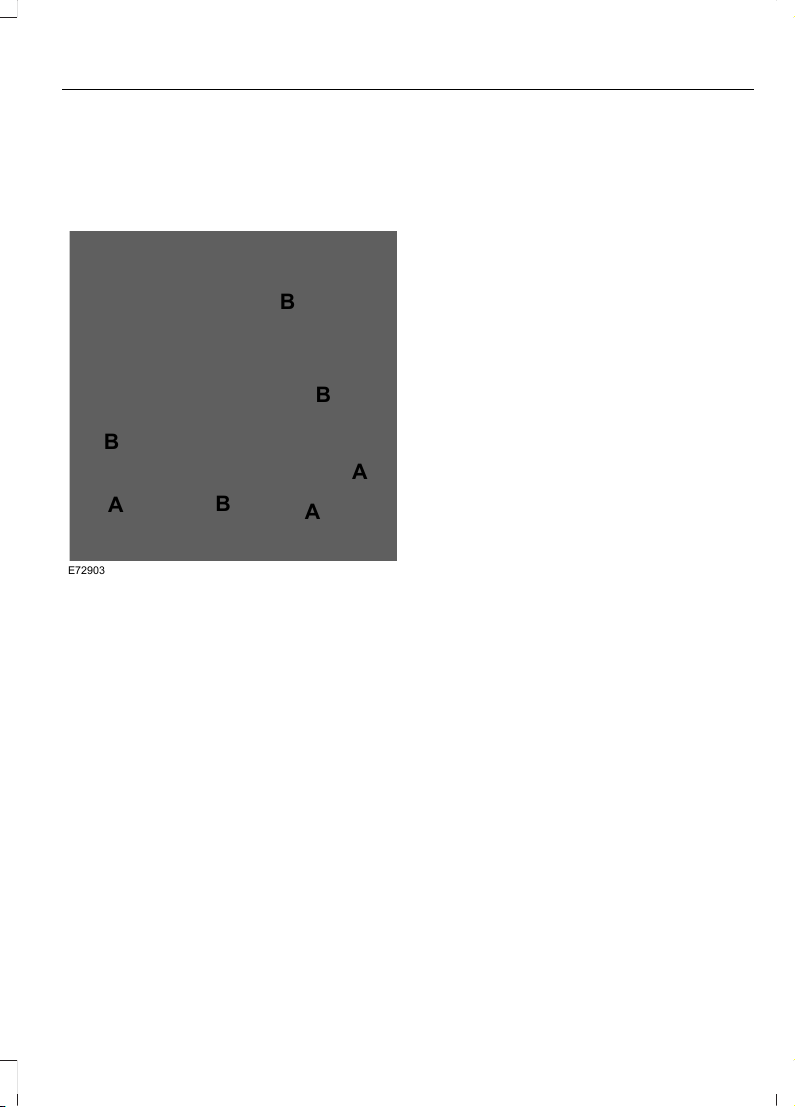
Traction Control
The system enhances your vehicle’ s ability
to maintain traction of the wheels by
detecting and controlling wheel spin. See
Using Traction Control (page 187).
E72903
A
A
A
B
B
B
B
Vehicle without stability control
skidding off its intended route.
A
Vehicle with stability control
maintaining control on a slippery
surface.
B
USING STABILITY CONTROL
The system automatically turns on each
time you switch the ignition on.
You cannot switch the stability control and
roll stability control systems off, but when
you shift into reverse (R), the systems
deactivate.
You can switch the traction control system
off or on. See Using Traction Control
(page 187).
189
Edge (CDQ) Canada/United States of America, enUSA, Edition date: 201706, First Printing
Stability Control

PRINCIPLE OF OPERATION
WARNINGS
To help avoid personal injury, always
use caution when in reverse (R) and
when using the sensing system.
The system may not detect objects
with surfaces that absorb reflection.
Always drive with due care and
attention. Failure to take care may result
in a crash.
Traffic control systems, inclement
weather, air brakes, external motors
and fans may affect the correct
operation of the sensing system.This may
cause reduced performance or false alerts.
The system may not detect small or
moving objects, particularly those
close to the ground.
Note: If your vehicle is equipped with
MyKey™, the sensing system cannot be
turned off when a MyKey™ is present. See
Principle of Operation (page 57).
Note: Keep the sensors, located on the
bumper or fascia, free from snow, ice and
large accumulations of dirt. If the sensors
are covered, the system’s accuracy can be
affected. Do not clean the sensors with
sharp objects.
Note: If your vehicle sustains damage to
the bumper or fascia, leaving it misaligned
or bent, the sensing zone may be altered
causing inaccurate measurement of
obstacles or false alerts.
Note: Certain add-on devices installed
around the bumper or fascia may create
false alerts. For example, large trailer
hitches, bike or surfboard racks, license plate
brackets, bumper covers or any other device
that may block the normal detection zone
of the system. Remove the add-on device
to prevent false alerts.
Note: When a trailer is connected to your
vehicle, the rear parking aid may detect the
trailer and therefore provide an alert. Disable
the rear parking aid when a trailer is
connected to prevent the alert.
The sensing system warns the driver of
obstacles within a certain range of your
vehicle. The system turns on automatically
whenever you switch the ignition on.
The system can be switched off through
the information display menu or from the
pop-up message that appears once you
shift the transmission into reverse (R). See
General Information (page 102).
If a fault is present in the system, a warning
message appears in the information
display. See General Information (page
102).
REAR PARKING AID (If Equipped)
The rear sensors are only active when the
transmission is in reverse (R). As your
vehicle moves closer to the obstacle, the
rate of the audible warning increases.
When the obstacle is less than 12 in
(30 cm) away, the warning sounds
continuously. If the system detects a
stationary or receding object farther than
12 in (30 cm) from the corners of the
bumper, the tone sounds for only three
seconds. Once the system detects an
object approaching, the warning sounds
again.
190
Edge (CDQ) Canada/United States of America, enUSA, Edition date: 201706, First Printing
Parking Aids
E130178
Coverage area of up to 6 ft (1.8 m) from
the rear bumper. There may be decreased
coverage area at the outer corners of the
bumper.
The system detects certain objects while
the transmission is in reverse (R) :
• Your vehicle is moving toward a
stationary object at a speed of 3 mph
(5 km/h) or less.
• Your vehicle is not moving, but a
moving object is approaching the rear
of your vehicle at a speed of 3 mph
(5 km/h) or less.
• Your vehicle is moving at a speed of
less than 3 mph (5 km/h) and a moving
object is approaching the rear of your
vehicle at a speed of less than 3 mph
(5 km/h).
The system provides audio warnings only
when your vehicle is moving or when your
vehicle is stationary and the detected
obstacle is less than 12 in (30 cm) away
from the bumper.
Obstacle Distance Indicator (If
Equipped)
The system provides obstacle distance
indication through the information display.
The distance indicator displays when the
transmission is in reverse (R).
The indicator displays:
• As the distance to the obstacle
decreases the indicator blocks
illuminate and move towards the
vehicle icon.
• If there is no obstacle detected, the
distance indicator blocks are grayed
out.
FRONT PARKING AID (If Equipped)
The front sensors are active when the
transmission is in any position other than
park (P) and your vehicle is traveling at low
speed.
E187330
Coverage area of up to 28 in (70 cm) from
the front bumper. The coverage area
decreases at the outer corners.
When your vehicle approaches an object,
a warning tone sounds. When your vehicle
moves closer to an object, the warning
tone repeat rate increases. The warning
tone sounds continuously when an object
is 12 in (30 cm) or less from the front
bumper.
191
Edge (CDQ) Canada/United States of America, enUSA, Edition date: 201706, First Printing
Parking Aids
You can switch the system off through the
information display menu or from the
pop-up message that appears once you
shift the transmission into reverse (R). See
General Information (page 102). If your
vehicle has a parking aid button, you can
switch the system off by pressing the
button.
Obstacle Distance Indicator (If
Equipped)
The system provides obstacle distance
indication through the information display.
The indicator displays:
• As the distance to the obstacle
decreases the indicator blocks
illuminate and move towards the
vehicle icon.
• If there is no obstacle detected, the
distance indicator blocks are grayed
out.
If the transmission is in reverse (R), the
front sensing system provides audio
warnings when your vehicle is moving and
the detected obstacle is moving towards
your vehicle. Once the vehicle is stationary,
the audio warning will be stopped after 2
seconds. Visual indication is always
present in reverse (R).
If the transmission is in drive (D) or any
other forward gear (for example, low (L),
sport (S) or any forward gear in a manual
transmission), the front sensing system
provides audio and visual warnings when
your vehicle is moving below a speed of
5 mph (8 km/h) and an obstacle is located
inside the detection area. Once the vehicle
is stationary, the audio warning will be
stopped after 2 seconds and the visual
indication stops after 4 seconds. If the
obstacles detected are within 12 in
(30 cm), the visual indication remains on.
If the transmission is in neutral (N), the
system provides visual indication only
when your vehicle is moving at 5 mph
(8 km/h) or below and an obstacle is
located inside the detection area. Once
your vehicle is stationary, the visual
indication will stop after 4 seconds.
SIDE SENSING SYSTEM (If
Equipped)
The side sensing system uses the front and
rear side sensors to detect and map
obstacles within the vehicle's driving path,
located near the sides of your vehicle. The
side sensors are active when the
transmission is in any position other than
park (P).
Note: Obstacles that enter the side
detection area without being detected and
mapped by the front or rear side sensors will
not be detected.
E187810
Coverage area is up to 24 in (60 cm) from
the sides of your vehicle.
When the system detects an object close
to the side of your vehicle, an audible
warning sounds. As your vehicle moves
closer to obstacles within the driving path
of your vehicle, the rate of the audible
warning increases.
192
Edge (CDQ) Canada/United States of America, enUSA, Edition date: 201706, First Printing
Parking Aids
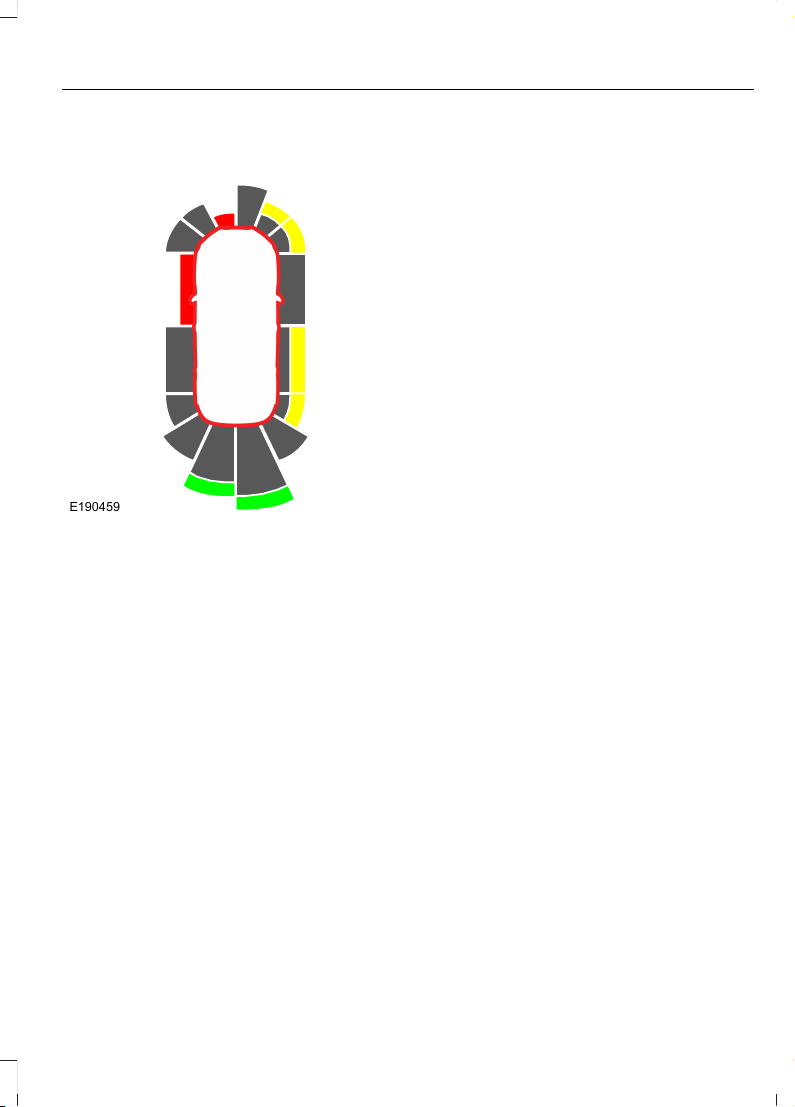
Obstacle Distance Indicator (If
Equipped)
E190459
The system provides obstacle distance
indication through the information display.
As the distance to the obstacle decreases,
the indicator blocks illuminate and move
toward the vehicle icon. If there is no
obstacle detected, the distance indicator
blocks show greyed out.
When you shift to reverse (R), the side
sensing system provides audible warnings
when your vehicle is moving and obstacles
are detected within 24 in (60 cm) and are
inside the driving path of your vehicle.
When you stop your vehicle the audible
warning stops after two seconds.
Note: Visual distance indication remains
on when the transmission is in reverse (R).
When you shift to drive (D) or any other
forward gear, for example, low (L), sport
(S) or any forward gear in manual
transmission, the side sensing system
provides audible and visual distance
warnings when your vehicle is moving
below a speed of 5 mph (8 km/h) and
obstacles are detected within 24 in
(60 cm) and are inside the driving path of
your vehicle. Once your vehicle reaches a
standstill condition, the audible warning
stops after two seconds and visual
indication stops after four seconds.
If the transmission is in neutral (N), the side
sensing system provides visual distance
indication only when your vehicle is moving
below a speed of 5 mph (8 km/h) and
there is a front or rear parking aid obstacle
detected, and the side obstacle is within
24 in (60 cm) from the side of your vehicle.
When you stop your vehicle the visual
distance indication stops after four
seconds.
If the side sensing system is not available,
the side distance indicator blocks do not
appear.
The side sensing system is not available
under the following condition:
• If you switch the traction control
system off.
The side sensing system may not be
available until you have driven
approximately the length of your vehicle
in order for the system to reinitialize if:
• You switch the ignition on, off and back
on.
• Your vehicle remains stationary for over
two minutes.
• The anti-lock brake system is
activated.
• The traction control system is
activated.
• When the steering wheel angle
information is not available, the side
sensing system is not available. The
vehicle must be driven at least 492 ft
(150 m) above 19 mph (30 km/h) to
recover the steering wheel angle
information.
193
Edge (CDQ) Canada/United States of America, enUSA, Edition date: 201706, First Printing
Parking Aids

ACTIVE PARK ASSIST (If Equipped)
Parallel Parking, Perpendicular
Parking, Parallel Park Out Assist
WARNINGS
You must remain in your vehicle
when the system turns on. At all
times, you are responsible for
controlling your vehicle, supervising the
system and intervening, if required. Failure
to take care may result in the loss of
control of your vehicle, serious personal
injury or death.
The sensors may not detect objects
in heavy rain or other conditions that
cause interference.
Active park assist does not apply the
brakes under any circumstances.
The system is designed to aid the
driver. It is not intended to replace
your attention and judgment. You are
still responsible to drive with due care and
attention.
Note: The Blind Spot Information System
does not detect traffic alongside or behind
your vehicle during an Active Park Assist
maneuver.
The system detects an available parallel
or perpendicular parking space and
automatically steers your vehicle into the
space (hands-free) while you control the
accelerator, gearshift and brakes. The
system visually and audibly guides you to
park your vehicle.
If you are uncomfortable with the proximity
to any vehicle or object, you may choose
to override the system by grabbing the
steering wheel or by pressing the button.
Parallel Park Out Assist automatically
steers your vehicle out of a parallel parking
space (hands-free) while you control the
accelerator, gearshift and brakes. The
system visually and audibly guides you to
enter traffic.
The system may not correctly operate in
any of the following conditions:
• You use a spare tire or a tire
significantly worn more than the other
tires.
• One or more tires are improperly
inflated.
• You try to park on a tight curve.
• Something passes between the front
bumper and the parking space. For
example, a pedestrian or cyclist.
• The edge of the neighboring parked
vehicle is high off the ground. For
example, a bus, tow truck or flatbed
truck.
• The weather conditions are poor. For
example, during heavy rain, snow or
fog.
Note: Keep the sensors on the bumper or
fascia free from snow, ice and large
accumulations of dirt. Covered sensors can
affect the system's accuracy. Do not clean
the sensors with sharp objects.
Note: The sensors may not detect objects
with surfaces that absorb ultrasonic waves
or cause ultrasonic interference. For
example, motorcycle exhaust, truck air
brakes or horns.
Note: Following a change in tire size, the
system must recalibrate and operation may
be impaired for a short time.
194
Edge (CDQ) Canada/United States of America, enUSA, Edition date: 201706, First Printing
Parking Aids

Do not use the system if:
• You have attached a foreign object
close to the sensors on the front or rear
of your vehicle. For example, a bike rack
or trailer.
• You attach an overhanging object to
the roof. For example, a surfboard.
• A foreign object damages or obstructs
the front or rear bumper or side
sensors.
• The correct tire size is not in use on your
vehicle. For example, a mini-spare tire.
Using Active Park Assist - Parallel
Parking
E146186
Press the Active Park Assist
button once to search for a
parallel parking space.
When driving at a speed less than 22 mph
(35 km/h), the system automatically scans
both sides of your vehicle for an available
parking space. The system displays a
message and a corresponding graphic to
indicate it is searching for a parking space.
Use the direction indicator to select
searching either to the left-hand side or
right-hand side of your vehicle.
Note: If the direction indicators are not
used, the system defaults to the passenger
side of your vehicle.
E130107
Note: You can also switch the system on
after you have already driven partially or
completely past a parking space. Press the
Active Park Assist button and the system
informs you if you have recently passed a
suitable parking space.
When the system finds a suitable space,
it displays a message and a tone sounds.
Stop your vehicle and follow the
instructions on the screen. If your vehicle
is moving very slowly, you may need to pull
forward a short distance before the system
is ready to park.
Note: You must observe that the space the
system selects remains clear of obstructions
at all times during the maneuver.
Note: Drive your vehicle within 5 ft (1.5 m)
and as parallel as possible to the other
vehicles while passing a parking space.
Note: The system always offers the last
parking space it detects. For example, if your
vehicle detects multiple spaces while you
are driving, it offers the last one.
Note: If driven above approximately 22 mph
(35 km/h), the system shows a message to
alert you to reduce your vehicle speed.
195
Edge (CDQ) Canada/United States of America, enUSA, Edition date: 201706, First Printing
Parking Aids
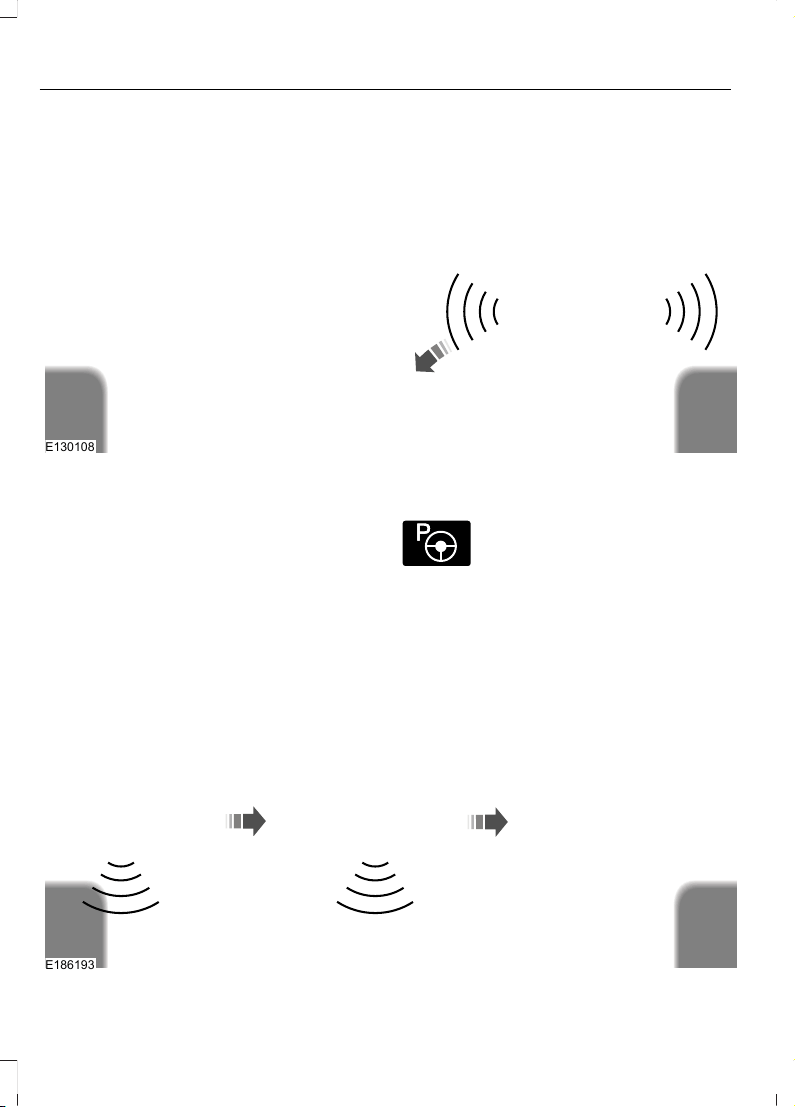
Automatically Steering into a Parking
Space
Note: If your vehicle speed exceeds
approximately 6 mph (10 km/h) or you
interrupt the maneuver, the system switches
off and you need to take full control of your
vehicle.
When you shift the transmission into
reverse (R), with your hands off the
steering wheel and nothing obstructing its
movement, your vehicle steers itself into
the space (hands-free). The system
displays instructions to move your vehicle
backward and forward in the space.
E130108
When you believe your vehicle is properly
parked, or you hear a solid tone
accompanied by a display message, bring
your vehicle to a complete stop.
When the Active Park Assist maneuver is
complete, the system displays a message
and a tone sounds.
Note: You are responsible for checking your
parked vehicle and making any necessary
corrections before leaving your vehicle.
Using Active Park Assist -
Perpendicular Parking
E146186
Press the Active Park Assist
button twice to search for a
perpendicular parking space.
When driving at a speed less than 19 mph
(30 km/h), the system displays a message
and a corresponding graphic to indicate it
is searching for a parking space. Use the
direction indicator to select searching
either to the left-hand side or right-hand
side of your vehicle.
Note: If you do not make a selection, the
system defaults to the passenger side.
E186193
196
Edge (CDQ) Canada/United States of America, enUSA, Edition date: 201706, First Printing
Parking Aids
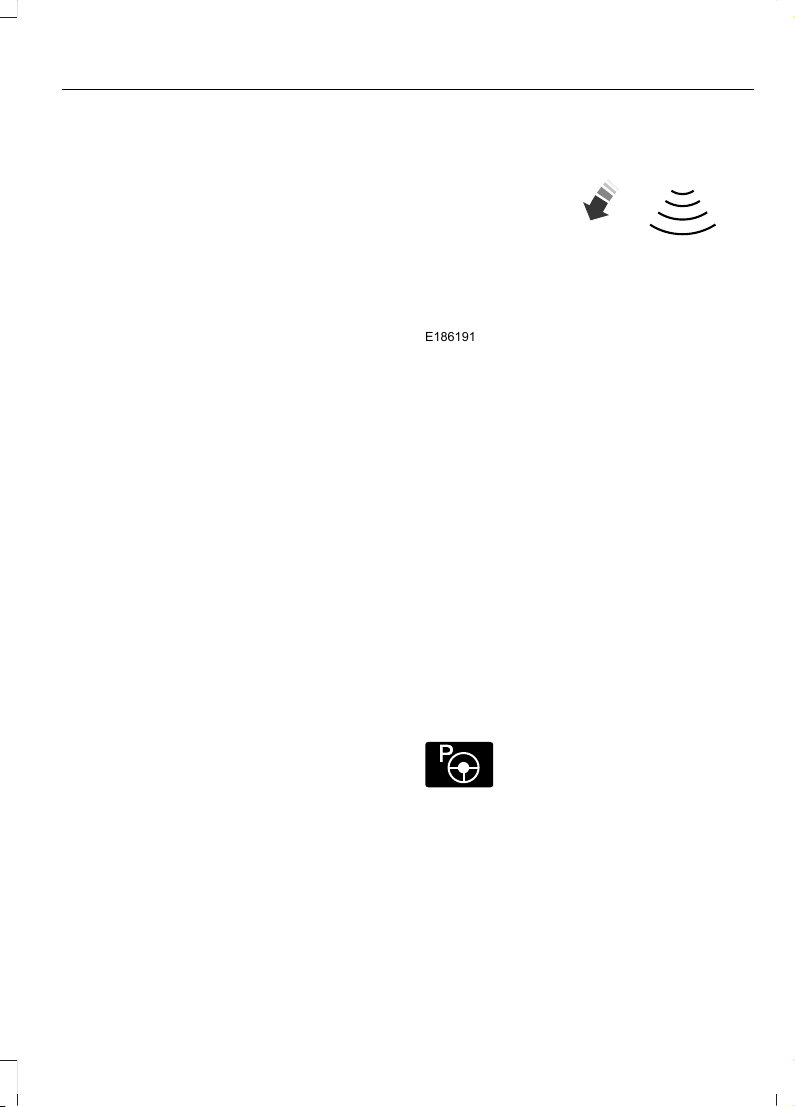
When the system finds a suitable space,
it displays a message and a tone sounds.
Stop your vehicle and follow the
instructions on the screen. If your vehicle
is moving very slowly, you may need to pull
forward a short distance before the system
is ready to park.
Note: You must observe that the space the
system selects remains clear of obstructions
at all times during the maneuver.
Note: You should drive your vehicle within
5 ft (1.5 m) and as perpendicular as possible
to the other vehicles while passing a parking
space.
Note: The system always offers the last
detected parking space. For example, if your
vehicle detects multiple spaces while you
are driving, it offers the last one.
Note: If driven above approximately 19 mph
(30 km/h), the system shows a message to
alert you to reduce your vehicle speed.
Automatically Steering into a Parking
Space
Note: If your vehicle speed exceeds
approximately 6 mph (10 km/h) or you
interrupt the maneuver, the system switches
off and you need to take full control of your
vehicle.
E186191
When you shift the transmission into
reverse (R), with your hands off the wheel
and nothing obstructing its movement,
your vehicle steers itself into the space.
The system displays instructions to move
your vehicle backward and forward in the
space.
When you believe your vehicle is properly
parked, or you hear a solid tone
accompanied by a display message, bring
your vehicle to a complete stop.
When the Active Park Assist maneuver is
complete, the system displays a message
and a tone sounds.
Note: You are responsible for checking your
parked vehicle and making any necessary
corrections before leaving your vehicle.
Using Active Park Assist - Parallel Park
Out Assist
E146186
Press the Active Park Assist
button once while your vehicle
is at rest in a parallel parking
space to use Parallel Park Out Assist.
The system displays a message instructing
you to select a side. Use the direction
indicator to select which side of your
vehicle you want to exit the parking space.
197
Edge (CDQ) Canada/United States of America, enUSA, Edition date: 201706, First Printing
Parking Aids
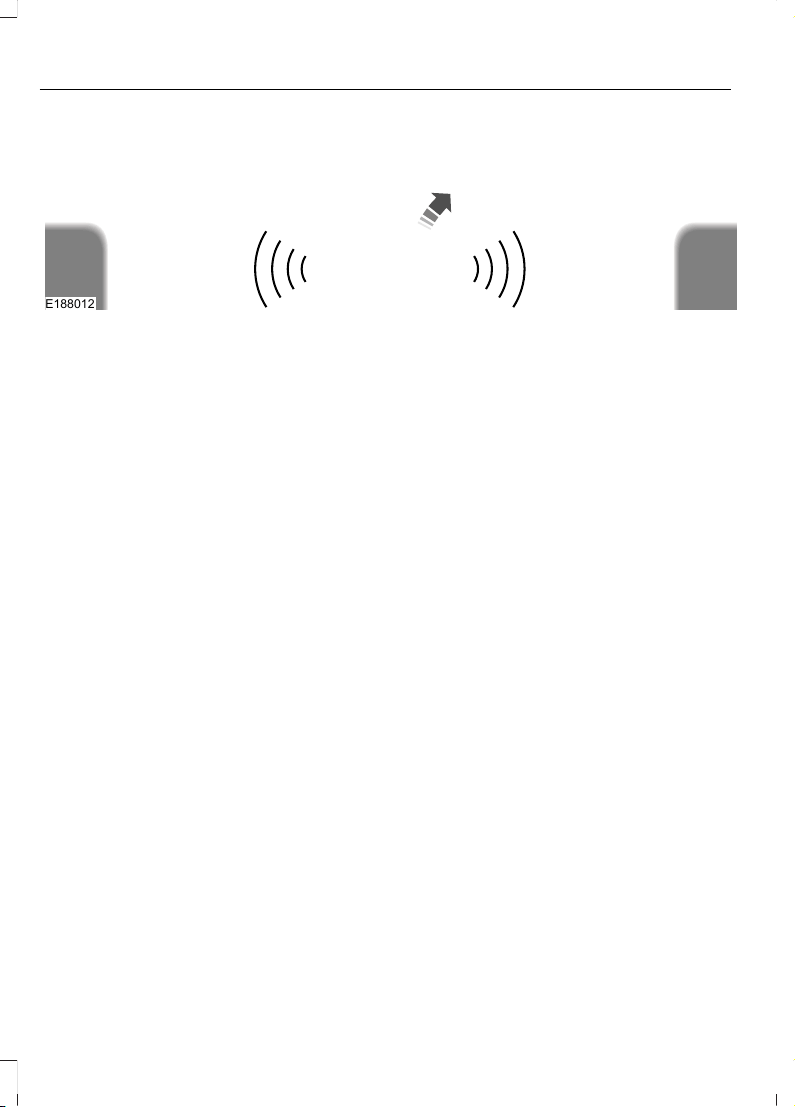
E188012
The system determines the clearance to
the front and rear of your vehicle and
automatically steers your vehicle out of a
parallel parking space (hands-free) while
you control the accelerator, gearshift and
brakes. The system visually and audibly
guides you to enter traffic.
After the system directs your vehicle past
the adjacent vehicle or object, it guides you
to take control of the steering to complete
the exit out of the parking space.
Note: If the clearance in front of your
vehicle allows easy departure, the Parallel
Park Out Assist feature may not be
available.
Note: You are responsible for controlling
your vehicle and making sure the path is
clear prior to pulling into traffic.
Note: Do not use this system to assist in
exiting perpendicular parking spaces.
Damages to your vehicle may occur.
Note: If your vehicle speed exceeds
approximately 3 mph (5 km/h) or you
interrupt the maneuver, the system switches
off and you need to take full control of your
vehicle.
Deactivating the Active Park
Assist Feature
You can manually deactivate the system
by:
• Pressing the Active Park Assist button
during an active maneuver.
• Grabbing the steering wheel during an
active maneuver.
• Driving above approximately 22 mph
(35 km/h) for 30 seconds while
searching for a parking space.
• Driving above approximately 6 mph
(10 km/h) during an active maneuver.
• Switching the traction control system
off.
Certain vehicle conditions may also
deactivate the system, for example:
• The traction control system activates.
• There is an anti-lock brake system
activation or failure.
If a problem occurs with the system, a
warning message displays accompanied
by a tone. Occasional system messages
may occur in normal operation. For
recurring or frequent system faults, contact
an authorized dealer.
198
Edge (CDQ) Canada/United States of America, enUSA, Edition date: 201706, First Printing
Parking Aids
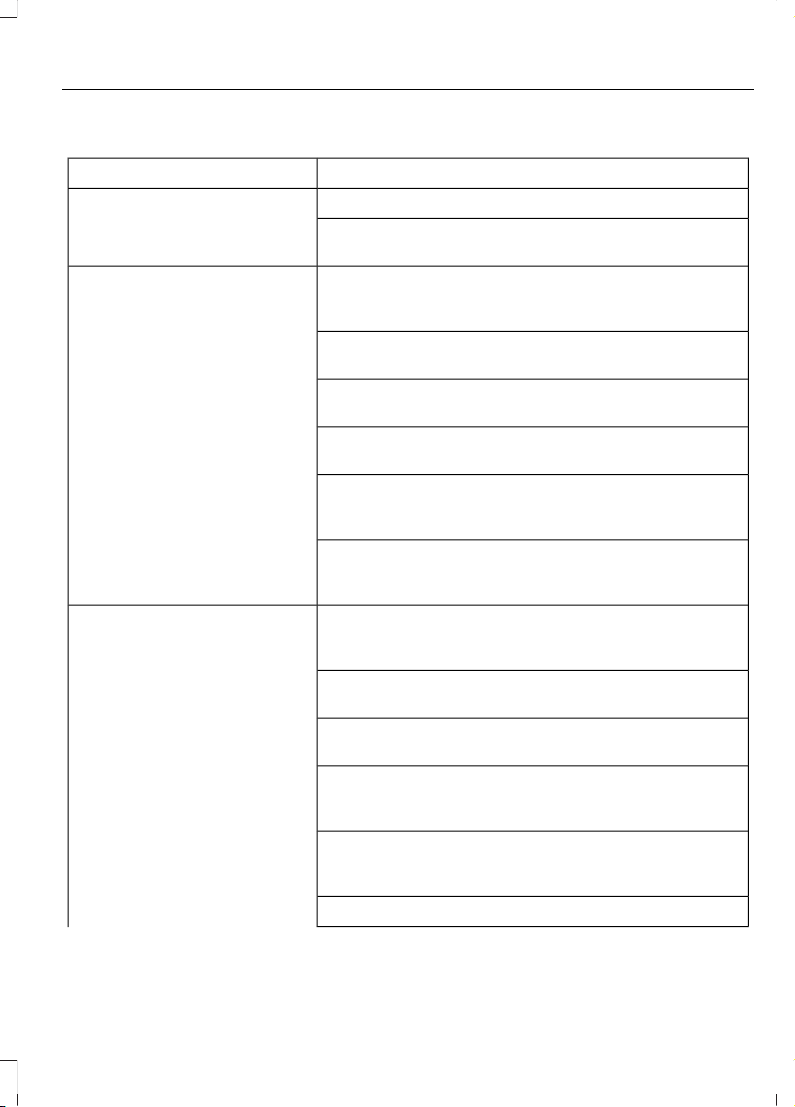
Troubleshooting the System
Possible CauseSymptom
You may have the traction control system switched off.
The system does not look for a
space.
The transmission is in reverse (R). Your vehicle must
be moving forward to be able to detect a parking space.
The sensors may be covered. For example, snow, ice
or dirt buildup. Covered sensors can affect how the
system functions.
The system does not offer a
parking space.
There is not enough room in the parking space for your
vehicle to safely park.
There is not enough space for the parking maneuver on
the opposite side of the parking space.
The parking space is more than 5 ft (1.5 m) or less than
16 in (0.4 m) away.
Your vehicle speed is greater than 22 mph (35 km/h)
for parallel parking, or greater than 19 mph (30 km/h)
for perpendicular parking.
You recently disconnected or replaced the battery. After
a battery disconnect, you must drive your vehicle on a
straight road for a short period of time.
Your vehicle is rolling in the opposite direction of the
current transmission position. For example, rolling
forward when in reverse (R).
The system does not position
the vehicle correctly.
An irregular curb along the parking space prevents the
system from aligning your vehicle properly.
Improperly parked vehicles or objects are boarding the
space.
Your vehicle is too far past the parking space. The
system performs best when you drive the same
distance past the parking space.
You have incorrectly installed or maintained the tires.
For example, not inflated correctly, improper size, or of
different sizes.
A repair or alteration changes the detection capabilities.
199
Edge (CDQ) Canada/United States of America, enUSA, Edition date: 201706, First Printing
Parking Aids
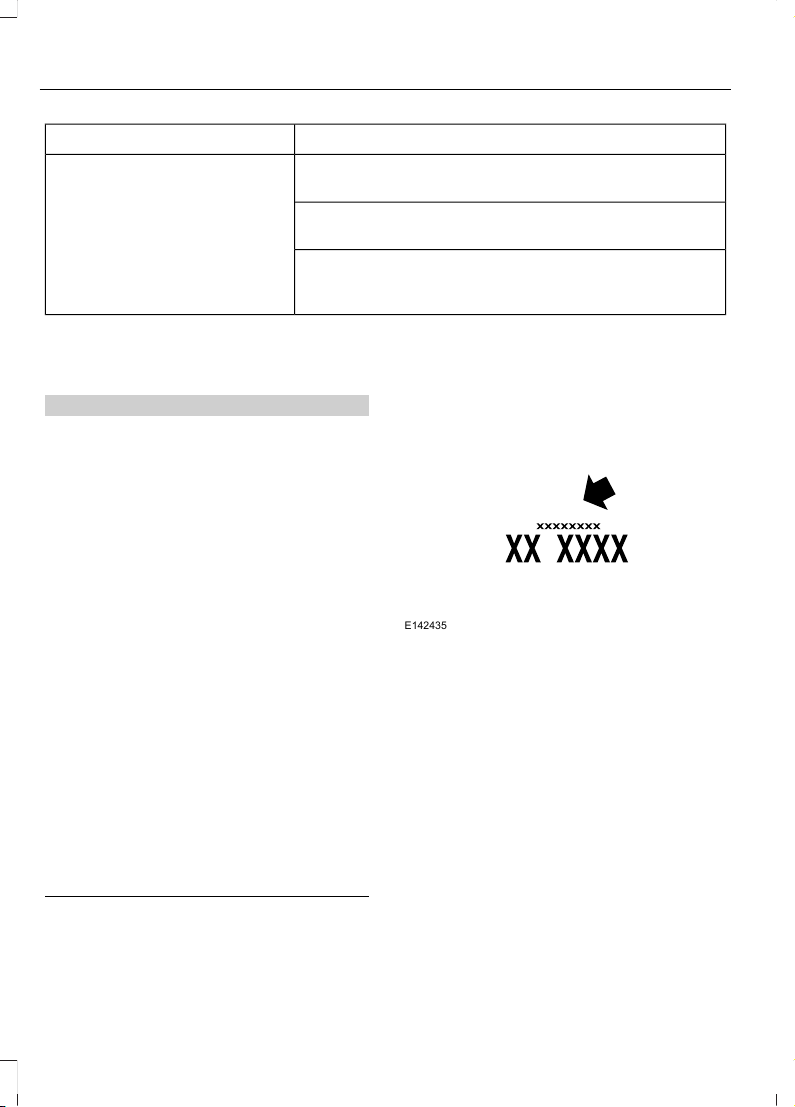
Possible CauseSymptom
A parked vehicle has a high attachment. For example,
a salt sprayer, snowplow or moving truck bed.
The parking space length or position of parked objects
changes after your vehicle passes the space.
The temperature around your vehicle quickly changes.
For example, driving from a heated garage into the cold,
or after leaving a car wash.
REAR VIEW CAMERA
WARNINGS
The rear view camera system is a
reverse aid supplement device that
still requires the driver to use it in
conjunction with the interior and exterior
mirrors for maximum coverage.
Objects that are close to either
corner of the bumper or under the
bumper, might not be seen on the
screen due to the limited coverage of the
camera system.
Reverse your vehicle as slow as
possible, higher speeds may limit
your reaction time to stop your
vehicle.
Use caution when the rear cargo door
is ajar. If the rear cargo door is ajar,
the camera will be out of position
and the video image may be incorrect. All
guidelines disappear when the rear cargo
door is ajar. Some vehicles may not come
equipped with guidelines.
Use caution when turning camera
features on or off when the
transmission is not in park (P). Make
sure your vehicle is not moving.
The rear view camera system provides a
video image of the area behind your
vehicle.
During operation, lines appear in the
display which represent your vehicle’s path
and proximity to objects behind your
vehicle.
E142435
The camera is located on the rear cargo
door.
Using the Rear View Camera
System
The rear view camera system displays
what is behind your vehicle when you place
the transmission in reverse (R).
Note: The reverse sensing system is not
effective at speeds above 3 mph (5 km/h)
and may not detect certain angular or
moving objects.
200
Edge (CDQ) Canada/United States of America, enUSA, Edition date: 201706, First Printing
Parking Aids
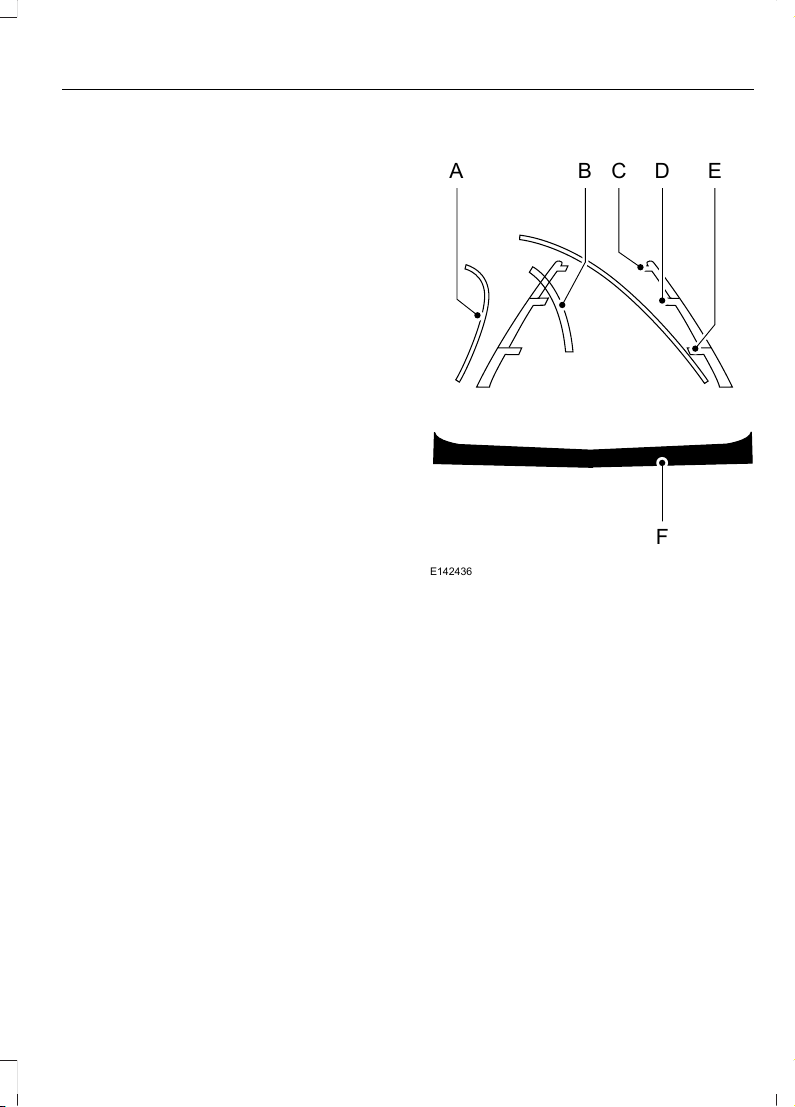
The system uses three types of guides to
help you see what is behind your vehicle:
• Active guidelines: Show the intended
path of your vehicle when reversing.
• Fixed guidelines: Show the actual path
your vehicle is moving in while reversing
in a straight line. This can be helpful
when backing into a parking space or
aligning your vehicle with another
object behind you.
• Centerline: Helps align the center of
your vehicle with an object (for
example, a trailer).
Note: If the transmission is in reverse (R)
and the rear cargo door is open, no rear view
camera features will display.
Note: When towing, the camera only sees
what you are towing. This might not provide
adequate coverage as it usually provides in
normal operation and some objects might
not be seen. In some vehicles, the guidelines
may disappear when you connect the trailer
tow connector.
The camera may not operate correctly
under the following conditions:
• Nighttime or dark areas if one or both
reverse lamps are not operating.
• Mud, water or debris obstructs the
camera's view. Clean the lens with a
soft, lint-free cloth and non-abrasive
cleaner.
• The rear of your vehicle is hit or
damaged, causing the camera to
become misaligned.
Camera System Settings
You can access the rear view camera
system settings through the display screen.
See General Information (page 102).
Camera Guidelines
Note: Active guidelines are only available
when the transmission is in reverse (R).
A B C D
F
E
E142436
Active guidelinesA
CenterlineB
Fixed guideline: Green zoneC
Fixed guideline: Yellow zoneD
Fixed guideline: Red zoneE
Rear bumperF
Active guidelines are only shown with fixed
guidelines. To use active guidelines, turn
the steering wheel to point the guidelines
toward an intended path. If you change the
steering wheel position while reversing,
your vehicle might deviate from the original
intended path.
201
Edge (CDQ) Canada/United States of America, enUSA, Edition date: 201706, First Printing
Parking Aids
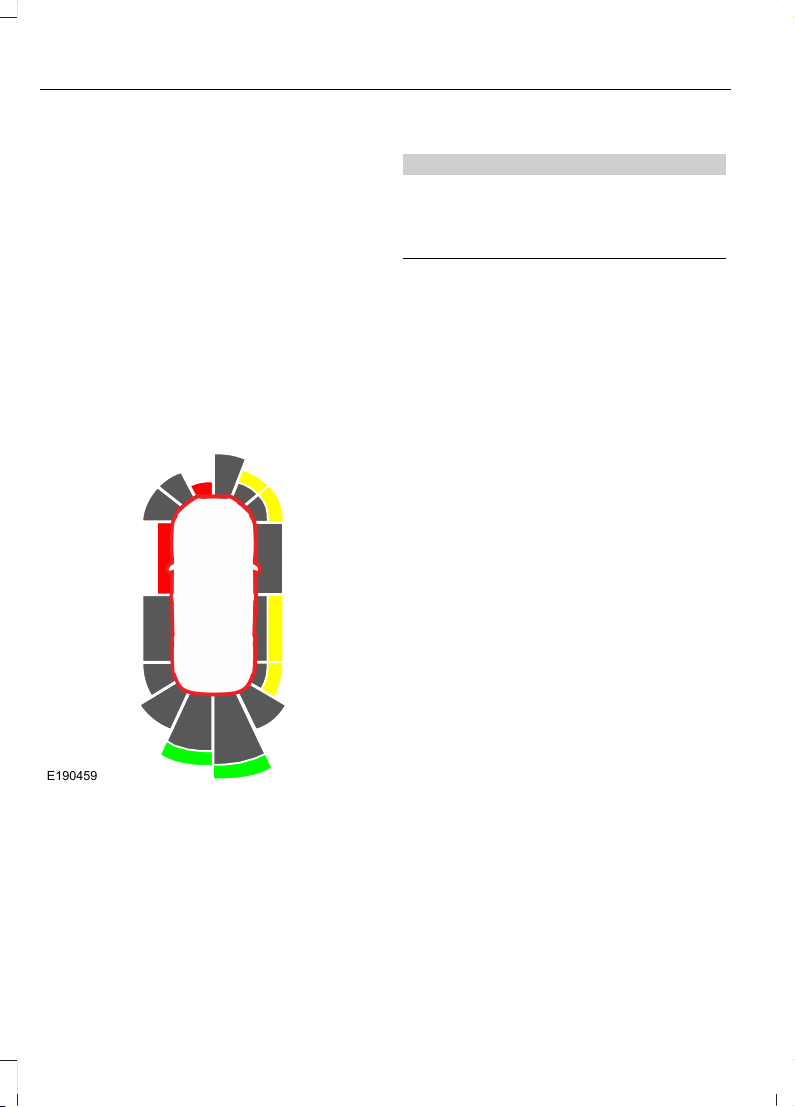
The fixed and active guidelines fade in and
out depending on the steering wheel
position. The active guidelines do not
display when the steering wheel position
is straight.
Always use caution while reversing.
Objects in the red zone are closest to your
vehicle and objects in the green zone are
farther away. Objects are getting closer to
your vehicle as they move from the green
zone to the yellow or red zones. Use the
side view mirrors and rear view mirror to
get better coverage on both sides and rear
of the vehicle.
Obstacle Distance Indicator (If
Equipped)
E190459
The system will provide an image of your
vehicle and the sensor zones. The zones
will highlight green, yellow and red when
the parking aid sensors detect an object in
the coverage area.
Manual Zoom
WARNING
When manual zoom is on, the full
area behind your vehicle may not
show. Be aware of your surroundings
when using the manual zoom feature.
Note: Manual zoom is only available when
the transmission is in reverse (R).
Note: When you enable manual zoom, only
the centerline is shown.
Selectable settings for this feature are
Zoom in (+) and Zoom out (-). Press the
symbol in the camera screen to change the
view. The default setting is Zoom OFF.
This allows you to get a closer view of an
object behind your vehicle. The zoomed
image keeps the bumper in the image to
provide a reference. The zoom is only
active while the transmission is in reverse
(R).
Rear Camera Delay
Selectable settings for this feature are ON
and OFF. The default setting for the rear
camera delay is OFF.
When shifting the transmission out of
reverse (R) and into any gear other than
park (P), the camera image remains in the
display until:
• Your vehicle speed sufficiently
increases.
• You shift your vehicle into park (P)
(automatic transmission).
• You apply the parking brake (manual
transmission).
202
Edge (CDQ) Canada/United States of America, enUSA, Edition date: 201706, First Printing
Parking Aids
180 DEGREE CAMERA (If Equipped)
WARNINGS
The camera system is a supplement
system that still requires the driver
to use it in conjunction with looking
out the windows, and checking the interior
and exterior mirrors for maximum
coverage.
You may not see objects that are
close to either corner of the bumper
or under the bumper due to the
limited coverage of the camera system.
Use caution when turning camera
features ON or OFF while out of park
(P). Make sure your vehicle is not
moving.
E188845
The front view camera is located in the
grille.
The front view camera provides a video
image of the area in front of your vehicle.
Note: The area displayed on the screen may
vary according to your vehicle's orientation
or road condition.
Note: The front view camera will switch off
if your vehicle speed exceeds 6 mph
(10 km/h). You will have to switch the
system back on by using the camera system
button once below the speed threshold.
Note: Additional camera information can
be found in the rear view camera section.
See Rear View Camera (page 200).
Using the 180 degree camera
system
The 180 degree camera system consists
of front and rear cameras. The system:
• Allows you to see what is directly in
front or behind your vehicle.
• Provides cross traffic view in front and
behind your vehicle.
• Provides visibility during parking
maneuvers.
E188847
The camera system button is
located on the audio unit and
allows you to toggle through
different camera views.
Note: The camera system may not operate
correctly if mud, water or debris obstructs
the camera's view. You can clean the lens
with a soft, lint-free cloth and non-abrasive
cleaner or by using your front or rear washer.
See Wipers and Washers (page 81).
Camera Views
Press the camera button to toggle
between different views.
• Normal Front View: Provides an
image of what is directly in front your
vehicle when your vehicle is in neutral
(N) or drive (D).
• Expanded Front View: Provides an
expanded 180 degree image of what
is directly in front your vehicle when
your vehicle is in neutral (N) or drive
(D).
203
Edge (CDQ) Canada/United States of America, enUSA, Edition date: 201706, First Printing
Parking Aids

PRINCIPLE OF OPERATION
Cruise control lets you maintain a set
speed without keeping your foot on the
accelerator pedal. You can use cruise
control when your vehicle speed is greater
than 20 mph (30 km/h).
USING CRUISE CONTROL
WARNINGS
Do not use cruise control on winding
roads, in heavy traffic or when the
road surface is slippery. This could
result in loss of vehicle control, serious
injury or death.
When you are going downhill, your
vehicle speed could increase above
the set speed. The system does not
apply the brakes.
Note: Cruise control disengages if the
vehicle speed decreases more than 10 mph
(16 km/h) below the set speed when driving
uphill.
E191246
The cruise controls are on the steering
wheel.
Switching Cruise Control On
Press ON.
E71340
The indicator appears in the
information display.
Setting the Cruise Speed
1. Drive to desired speed.
2. Press SET+ or SET-.
3. Take your foot off the accelerator
pedal.
Note: The indicator changes color.
Changing the Set Speed
Note: If you accelerate by pressing the
accelerator pedal, the set speed will not
change. When you release the accelerator
pedal, your vehicle returns to the speed that
you previously set.
• Press SET+ or SET- to change the set
speed in small increments.
• Press the accelerator or brake pedal
until you reach the desired speed. Press
SET+ or SET-.
• Press and hold SET+ or SET-. Release
the control when you reach the desired
speed.
Canceling the Set Speed
Press CNCL or tap the brake pedal. The
set speed does not erase.
Resuming the Set Speed
Press RES.
Switching Cruise Control Off
Note: You erase the set speed when you
switch the system off.
Press OFF when the system is in standby
mode, or switch the ignition off.
204
Edge (CDQ) Canada/United States of America, enUSA, Edition date: 201706, First Printing
Cruise Control
USING ADAPTIVE CRUISE
CONTROL (If Equipped)
WARNINGS
Always pay close attention to
changing road conditions when using
adaptive cruise control. The system
does not replace attentive driving. Failing
to pay attention to the road may result in
a crash, serious injury or death.
Do not use the adaptive cruise
control when entering or leaving a
highway, on roads with intersections
or roundabouts or non-vehicular traffic or
roads that are winding, slippery, unpaved,
or steep slopes.
Do not use the system in poor
visibility, for example fog, heavy rain,
spray or snow.
Do not use the system when towing
a trailer with aftermarket trailer
brake controls. Aftermarket trailer
brakes will not function properly when you
switch the system on because the brakes
are electronically controlled. Failing to do
so may result in loss of vehicle control,
which could result in serious injury.
Do not use tire sizes other than those
recommended because this can
affect the normal operation of the
system. Failure to do so may result in a loss
of vehicle control, which could result in
serious injury.
Adaptive cruise control may not
detect stationary or slow moving
vehicles below 6 mph (10 km/h).
Adaptive cruise control does not
detect pedestrians or objects in the
road.
Adaptive cruise control does not
detect oncoming vehicles in the
same lane.
WARNINGS
Adaptive cruise control is not a crash
warning or avoidance system.
Note: It is your responsibility to stay alert,
drive safely and be in control of the vehicle
at all times.
The system adjusts your vehicle speed to
maintain the set gap between you and the
vehicle in front of you in the same lane.
You can select four gap settings.
The system uses a radar sensor that
projects a beam directly in front of your
vehicle.
E191247
The adaptive cruise controls are on the
steering wheel.
Switching Adaptive Cruise Control
On
Press ON.
E144529
The indicator, current gap setting
and set speed appear in the
information display.
205
Edge (CDQ) Canada/United States of America, enUSA, Edition date: 201706, First Printing
Cruise Control
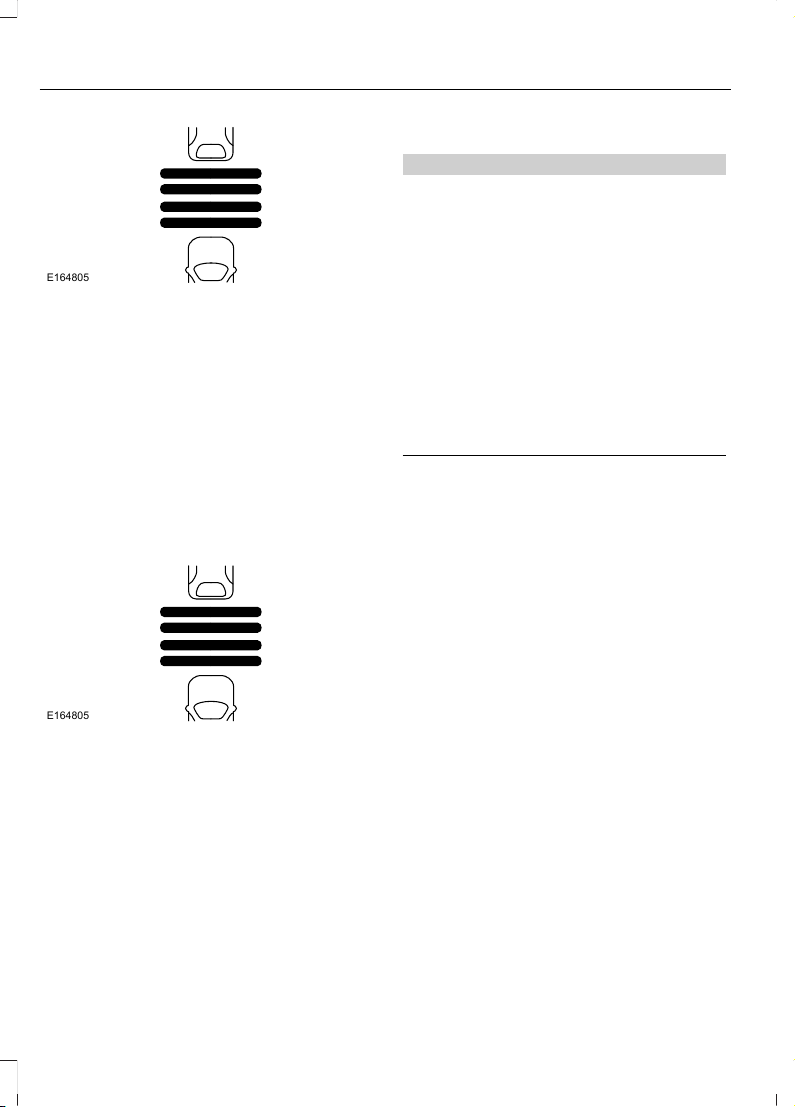
E164805
Setting the Adaptive Cruise Speed
Note: When adaptive cruise control is
active, the speedometer may vary slightly
from the set speed displayed in the
information display.
1. Drive to desired speed.
2. Press SET+ or SET-.
3. A green indicator light, the current gap
setting and your set speed appear in
the information display.
4. Take your foot off the accelerator
pedal.
E164805
5. A vehicle image illuminates if the
system detects a vehicle in front of you.
Following a Vehicle
WARNINGS
When following a vehicle, your
vehicle does not decelerate
automatically to a stop, nor does
your vehicle always decelerate quickly
enough to avoid a crash without driver
intervention. Always apply the brakes when
necessary. Failing to do so may result in a
crash, serious injury or death.
Adaptive cruise control only warns
of vehicles detected by the radar
sensor. In some cases there may be
no warning or a delayed warning. You
should always apply the brakes when
necessary. Failure to do so may result in a
crash, serious injury or death.
Note: When you are following a vehicle and
you switch on a direction indicator, adaptive
cruise control may provide a small
temporary acceleration to help you pass.
Note: The brakes may emit noise when
applied by the system.
When a vehicle ahead of you enters the
same lane or a slower vehicle is ahead in
the same lane, the vehicle speed adjusts
to maintain a preset gap distance. A
vehicle graphic illuminates in the
instrument cluster.
Your vehicle maintains a consistent gap
from the vehicle ahead until:
• The vehicle in front of you accelerates
to a speed above the set speed.
• The vehicle in front of you moves out
of the lane you are in.
• Your vehicle speed falls below 12 mph
(20 km/h).
• You set a new gap distance.
206
Edge (CDQ) Canada/United States of America, enUSA, Edition date: 201706, First Printing
Cruise Control
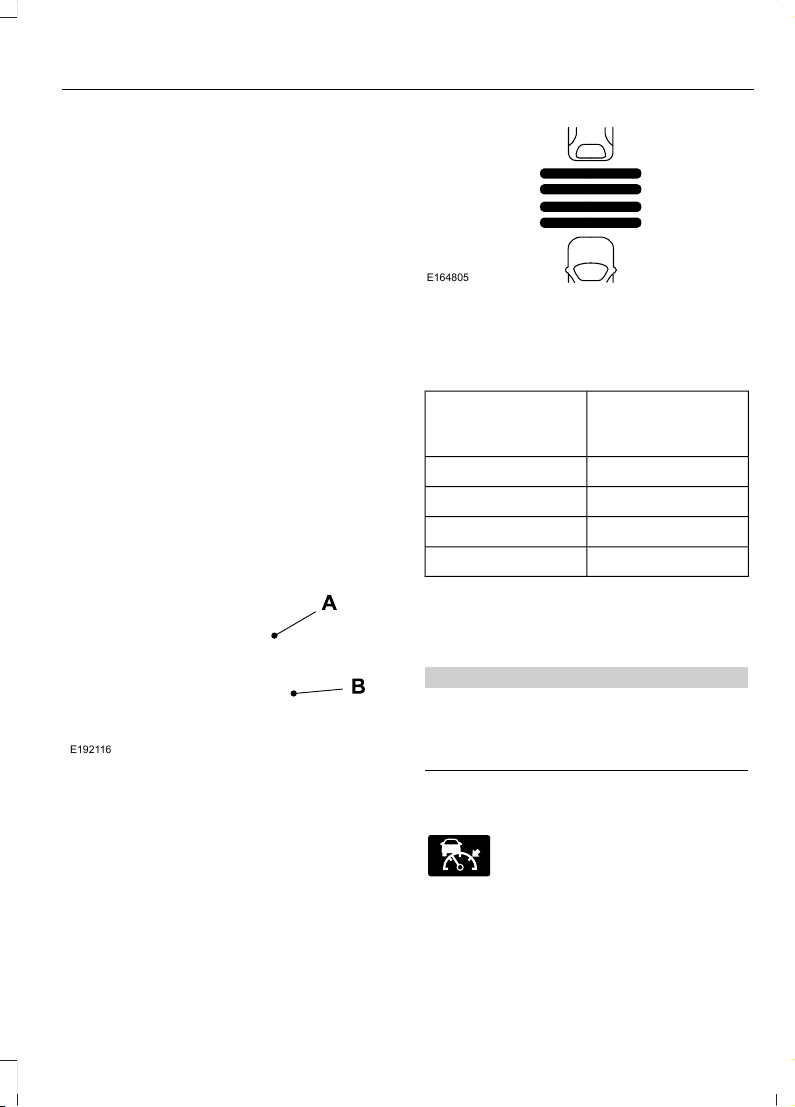
The system applies the brakes to slow your
vehicle to maintain a safe gap distance
from the vehicle in front. The system only
applies limited braking. You can override
the system by applying the brakes.
If the system determines that its maximum
braking level is not sufficient, an audible
warning sounds when the system
continues to brake. A red warning bar
displays on the windshield and you must
take immediate action.
Setting the Gap Distance
Note: The gap setting is time dependent
and therefore the distance adjusts with your
vehicle speed.
Note: It is your responsibility to select a gap
appropriate to the driving conditions.
You can decrease or increase the distance
between your vehicle and the vehicle in
front by pressing the gap control.
E192116
Gap decrease.A
Gap increase.B
E164805
The selected gap appears in the
information display as shown by the bars
in the image.
Adaptive Cruise Control Gap Settings
Dynamic behaviorGraphic display,
bars indicated
between vehicles
Sport.1
Normal.2
Normal.3
Comfort.4
Each time you switch the system on, it
selects the last chosen gap setting.
Overriding the Set Speed
WARNING
If you override the system by pressing
the accelerator pedal, it does not
automatically apply the brakes to
maintain a gap from any vehicle ahead.
When you press the accelerator pedal, you
override the set speed and gap distance.
E144529
When you override the system,
the green indicator light
illuminates and the vehicle
image does not appear in the information
display.
207
Edge (CDQ) Canada/United States of America, enUSA, Edition date: 201706, First Printing
Cruise Control

The system resumes operation when you
release the accelerator pedal. The vehicle
speed decreases to the set speed, or a
lower speed if following a slower vehicle.
Changing the Set Speed
• Press SET+ or SET- to change the set
speed in small increments.
• Press the accelerator or brake pedal
until you reach the desired speed. Press
and release SET+ or SET-.
• Press and hold SET+ or SET- to
change the set speed in large
increments. Release the control when
you reach the desired speed.
The system may apply the brakes to slow
the vehicle to the new set speed. The set
speed displays continuously in the
information display when the system is
active.
Canceling the Set Speed
Press CNCL or tap the brake pedal. The
set speed does not erase.
Resuming the Set Speed
Note: Only use resume if you are aware of
the set speed and intend to return to it.
Press RES. Your vehicle speed returns to
the previously set speed and gap setting.
The set speed displays continuously in the
information display when the system is
active.
Automatic Cancellation
Note: If the engine speed drops too low, an
audible warning sounds and a message
appears in the information display.
Automatic braking releases.
The system does not operate below
12 mph (20 km/h).
Automatic cancellation can also occur if:
• The tires lose traction.
• The engine speed is too low.
• You apply the parking brake.
Hilly Condition Usage
Note: An audible alarm sounds and the
system shuts down if it applies brakes for
an extended period of time. This allows the
brakes to cool. The system functions
normally again after the brakes cool.
Select a lower gear when the system is
active in situations such as prolonged
downhill driving on steep grades, for
example in mountainous areas. The
system needs additional engine braking in
these situations to reduce the load on the
vehicle’s regular brake system to prevent
it from overheating.
Switching Adaptive Cruise Control
Off
Note: You erase the set speed and gap
setting when you switch the system off.
Press OFF when the system is in standby
mode, or switch the ignition off.
Detection Issues
WARNINGS
On rare occasions, detection issues
can occur due to the road
infrastructures, for example bridges,
tunnels and safety barriers. In these cases,
the system may brake late or
unexpectedly. At all times, you are
responsible for controlling your vehicle,
supervising the system and intervening, if
required.
If the system malfunctions, have your
vehicle checked as soon as possible.
208
Edge (CDQ) Canada/United States of America, enUSA, Edition date: 201706, First Printing
Cruise Control
The radar sensor has a limited field of view.
It may not detect vehicles at all or detect
a vehicle later than expected in some
situations. The lead vehicle graphic does
not illuminate if the system does not
detect a vehicle in front of you.
E71621
Detection issues can occur:
When driving on a different line
than the vehicle in front.
A
With vehicles that edge into your
lane. The system can only detect
these vehicles once they move
fully into your lane.
B
There may be issues with the
detection of vehicles in front
when driving into and coming out
of a bend or curve in the road.
C
In these cases, the system may brake late
or unexpectedly. You should stay alert and
take action when necessary.
If something hits the front end of your
vehicle or damage occurs, the
radar-sensing zone may change. This could
cause missed or false vehicle detection.
System Not Available
The system may not turn on if there is:
• A blocked sensor.
• High brake temperature.
• A failure in the system or a related
system.
Blocked Sensor
E145632
Note: You cannot see the sensor. It is
behind a fascia panel.
A message displays if something obstructs
the radar signals from the sensor. The
sensor is in the lower grille. The system
cannot detect a vehicle ahead and does
not function when something blocks the
sensor.
209
Edge (CDQ) Canada/United States of America, enUSA, Edition date: 201706, First Printing
Cruise Control
Possible Causes and Actions for This Message Displaying:
ActionCause
Clean the grille surface in front of the radar
or remove the object causing the obstruc-
tion.
The surface of the radar is dirty or
obstructed.
Wait a short time. It may take several
minutes for the radar to detect that it is free
from obstruction.
The surface of the radar is clean but the
message remains in the display.
Do not use the system in these conditions
because it may not detect any vehicles
ahead.
Heavy rain or snow is interfering with the
radar signals.
Do not use the system in these conditions
because it may not detect any vehicles
ahead.
Water, snow or ice on the surface of the
road may interfere with the radar signals.
Due to the nature of radar technology, it is possible to get a blockage warning with no
actual block. This happens, for example, when driving in sparse rural or desert
environments. A false blocked condition either self clears, or clears after you restart your
vehicle.
Switching to Normal Cruise
Control
WARNING
Normal cruise control will not brake
when your vehicle is approaching
slower vehicles. Always be aware of
which mode you have selected and apply
the brakes when necessary.
You can change from adaptive cruise
control to normal cruise control through
the information display.
E71340
The cruise control indicator light
replaces the adaptive cruise
control indicator light if you
select normal cruise control. The gap
setting does not display, and the system
does not respond to lead vehicles.
Automatic braking remains active to
maintain set speed.
210
Edge (CDQ) Canada/United States of America, enUSA, Edition date: 201706, First Printing
Cruise Control
DRIVER ALERT
PRINCIPLE OF OPERATION
WARNINGS
The system is designed to aid the
driver. It is not intended to replace
your attention and judgment. You are
still responsible to drive with due care and
attention.
At all times, you are responsible for
controlling your vehicle, supervising
the system and intervening, if
required. Failure to take care may result in
the loss of control of your vehicle, serious
personal injury or death.
The system may not function if the
sensor is blocked.
Take regular rest breaks if you feel
tired. Do not wait for the system to
warn you.
Certain driving styles may result in
the system warning you even if you
are not feeling tired.
In cold and severe weather
conditions the system may not
function. Rain, snow and spray can
all limit sensor performance.
The system will not operate if the
sensor cannot track the road lane
markings.
If damage occurs in the immediate
area surrounding the sensor, have
your vehicle checked as soon as
possible.
Note: The system may not operate correctly
if you modify the ride height.
Note: Keep the windshield free from
obstructions. For example, bird droppings,
insects and snow or ice.
Note: If the camera is blocked or if the
windshield is damaged, the system may not
function.
Note: If enabled in the menu, the system
activates at speeds above 40 mph
(64 km/h). When below the activation
speed, the information display informs the
driver that the system is unavailable.
E249505
The system automatically monitors your
driving behavior using various inputs
including the front camera sensor.
If the system detects that your driving
alertness is reduced below a certain
threshold, the system alerts you using a
chime and a message in the information
display.
USING DRIVER ALERT
Switching the System On and Off
Switch the system on or off using the
information display. See General
Information (page 102).
When active, the system monitors your
alertness level based upon your driving
behavior in relation to the lane markings
and other factors.
System Warnings
Note: The system does not issue warnings
below approximately 40 mph (64 km/h).
211
Edge (CDQ) Canada/United States of America, enUSA, Edition date: 201706, First Printing
Driving Aids
The warning system has two stages. First,
the system issues a temporary warning
that you need to take a rest. This message
only appears for a short time. If the system
detects further reduction in driving
alertness, it may issue another warning
that remains in the information display for
a longer time. You can press OK on the
steering wheel control to clear the warning.
System Display
When active, the system runs
automatically in the background and only
issues a warning if required. You can view
the status at any time using the
information display. See General
Information (page 102).
The alertness level is shown by six steps
in a colored bar.
E131358
The current assessment of your alertness
is within a typical range.
E131359
The current assessment of your alertness
indicates that you should rest as soon as
safely possible.
The status bar travels from left to right as
the calculated alertness level decreases.
As the meter approaches the rest icon, the
color turns from green to yellow to red.
The yellow position indicates the first
warning is active and the red position
indicates the second warning is active.
Note: If you have recently received a
warning, you should consider resting, even
if the current assessment is within the
typical range.
Note: If the camera sensor cannot track the
road lane markings, or if your vehicle speed
drops below approximately 40 mph
(64 km/h), the alertness level changes to
grey for a short time and the information
display informs you that the system is
unavailable.
Resetting the System
You can reset the system by either:
• Switching the ignition off and on.
• Stopping the vehicle and then opening
and closing the driver’s door.
LANE KEEPING SYSTEM
WARNINGS
The system is designed to aid the
driver. It is not intended to replace
your attention and judgment. You are
still responsible to drive with due care and
attention.
Always drive with due care and
attention when using and operating
the controls and features on your
vehicle.
At all times, you are responsible for
controlling your vehicle, supervising
the system and intervening, if
required. Failure to take care may result in
the loss of control of your vehicle, serious
personal injury or death.
In cold and severe weather
conditions the system may not
function. Rain, snow and spray can
all limit sensor performance.
212
Edge (CDQ) Canada/United States of America, enUSA, Edition date: 201706, First Printing
Driving Aids
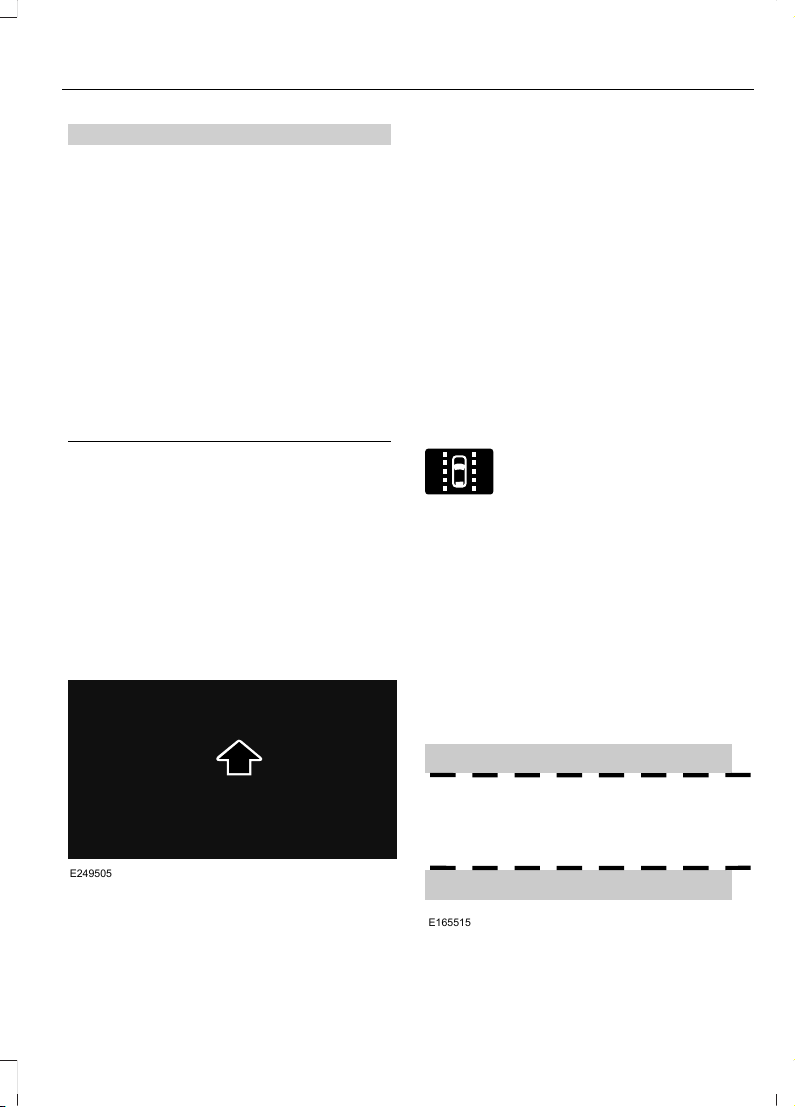
WARNINGS
The system will not operate if the
sensor cannot track the road lane
markings.
The sensor may incorrectly track lane
markings as other structures or
objects. This can result in a false or
missed warning.
The system may not operate
properly if the sensor is blocked.
Keep the windshield free from
obstruction.
If damage occurs in the immediate
area surrounding the sensor, have
your vehicle checked as soon as
possible.
Note: The system works above 40 mph
(64 km/h).
Note: The system works as long as the
camera can detect one lane marking.
Note: When Aid or both modes are selected
and the system detects no steering activity
for a short period, the system alerts you to
put your hands on the steering wheel. The
system may detect a light grip or touch on
the steering wheel as hands off driving.
E249505
The system notifies you to stay in your lane
through the steering system and the
instrument cluster display when the front
camera detects an unintentional drift out
of your lane is likely to occur. The system
automatically detects and tracks the road
lane markings using a camera mounted
behind the interior rear view mirror.
Switching the System On and Off
Note: The system on or off setting is stored
until it is manually changed, unless a MyKey
is detected. If the system detects a MyKey
it defaults to on and the mode is set to Alert.
Note: If a MyKey is detected, pressing the
button will not affect the on or off status of
the system.
E144813
Press the button on the steering
wheel stalk to switch the system
on or off.
System Settings
The system has optional setting menus
available. The system stores the
last-known selection for each of these
settings. You do not need to readjust your
settings each time you turn on the system.
Mode: This setting allows you to select
which of the system features you can
enable.
E165515
213
Edge (CDQ) Canada/United States of America, enUSA, Edition date: 201706, First Printing
Driving Aids
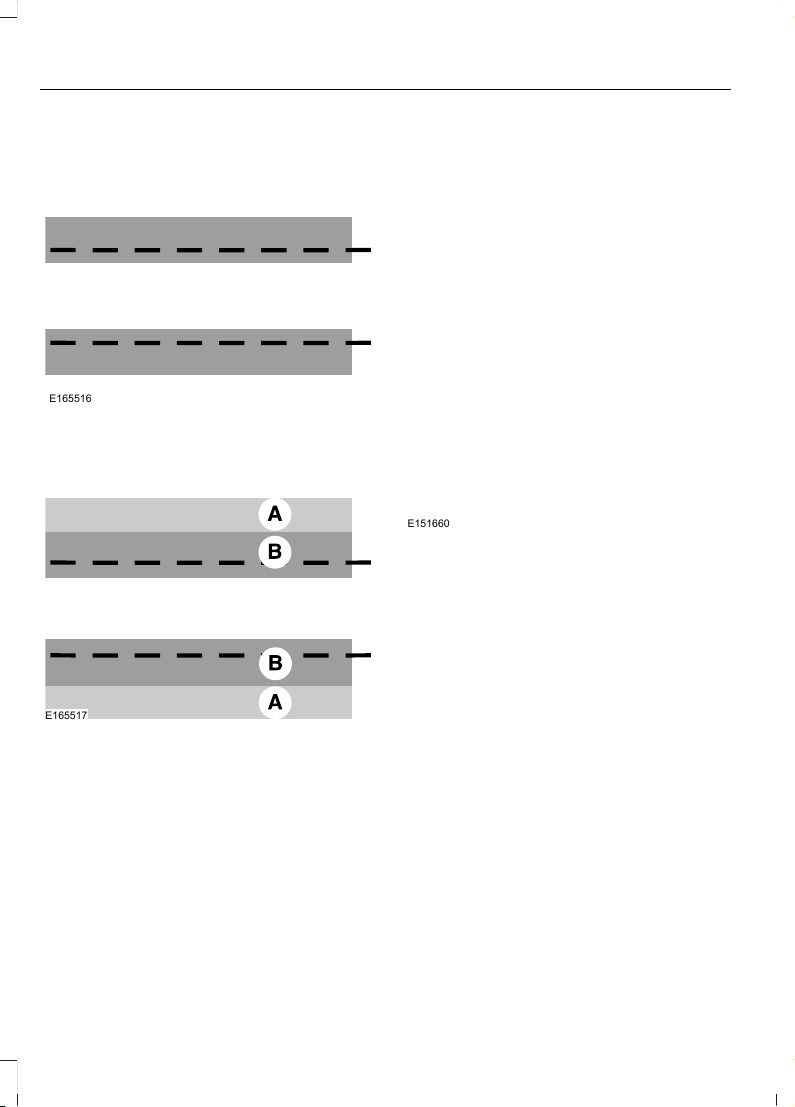
Alert only – Provides a steering wheel
vibration when the system detects an
unintended lane departure.
E165516
Aid only – Provides an assistance steering
torque input toward the lane center when
the system detects an unintended lane
departure.
E165517
AlertA
AidB
Alert + Aid – Provides an assistance
steering torque input toward the lane
center. If your vehicle continues drifting out
of the lane, the system provides a steering
wheel vibration.
Note: The alert and aid diagrams illustrate
general zone coverage. They do not provide
exact zone parameters.
Intensity: This setting affects the intensity
of the steering wheel vibration used for the
alert and alert + aid modes. This setting
does not affect the aid mode.
• Low
• Normal
• High
System Display
E151660
When you switch on the system, an
overhead graphic of a vehicle with lane
markings will display in the information
display. If you select aid mode when you
switch on the system, a separate white
icon will also appear or in some vehicles
arrows will display with the lane markings.
When you switch off the system, the lane
marking graphics will not display.
While the system is on, the color of the
lane markings will change to indicate the
system status.
Gray: Indicates that the system is
temporarily unable to provide a warning
or intervention on the indicated side(s).
This may be because:
• Your vehicle is under the activation
speed.
• The turn indicator is active.
• Your vehicle is in a dynamic maneuver.
214
Edge (CDQ) Canada/United States of America, enUSA, Edition date: 201706, First Printing
Driving Aids

• The road has no or poor lane markings
in the camera field-of-view.
• The camera is obscured or unable to
detect the lane markings due to
environmental conditions (significant
sun angles, shadows, snow, heavy rain
or fog), traffic conditions (following a
large vehicle that is blocking or
shadowing the lane), or vehicle
conditions (poor headlamp
illumination).
See Troubleshooting for additional
information.
Green: Indicates that the system is
available or ready to provide a warning or
intervention, on the indicated side(s).
Yellow: Indicates that the system is
providing or has just provided a lane
keeping aid intervention.
Red: Indicates that the system is providing
or has just provided a lane keeping alert
warning.
The system can be temporarily suppressed
at any time by the following:
• Quick braking.
• Fast acceleration.
• Using the turn signal indicator.
• Evasive steering maneuver.
Troubleshooting
Why is the feature not available (line markings are gray) when I can see the lane markings
on the road?
Vehicle speed is outside the operational range of the feature
Sun is shining directly into the camera lens
Quick intentional lane change
Staying too close to the lane marking
Driving at high speeds in curves
The last Alert warning or Aid intervention occurred a short time ago
Ambiguous lane markings (mainly in construction zones)
Rapid transition from light to dark or vice versa
Sudden offset in lane markings
ABS or AdvanceTrac activation
Camera blockage due to dirt, grime, fog, frost or water on the windshield
Driving too close to the vehicle in front of you
Transitioning between no lane markings to lane markings or vice versa
Standing water on the road
Faint lane markings (partial yellow lane markings on concrete roads)
215
Edge (CDQ) Canada/United States of America, enUSA, Edition date: 201706, First Printing
Driving Aids
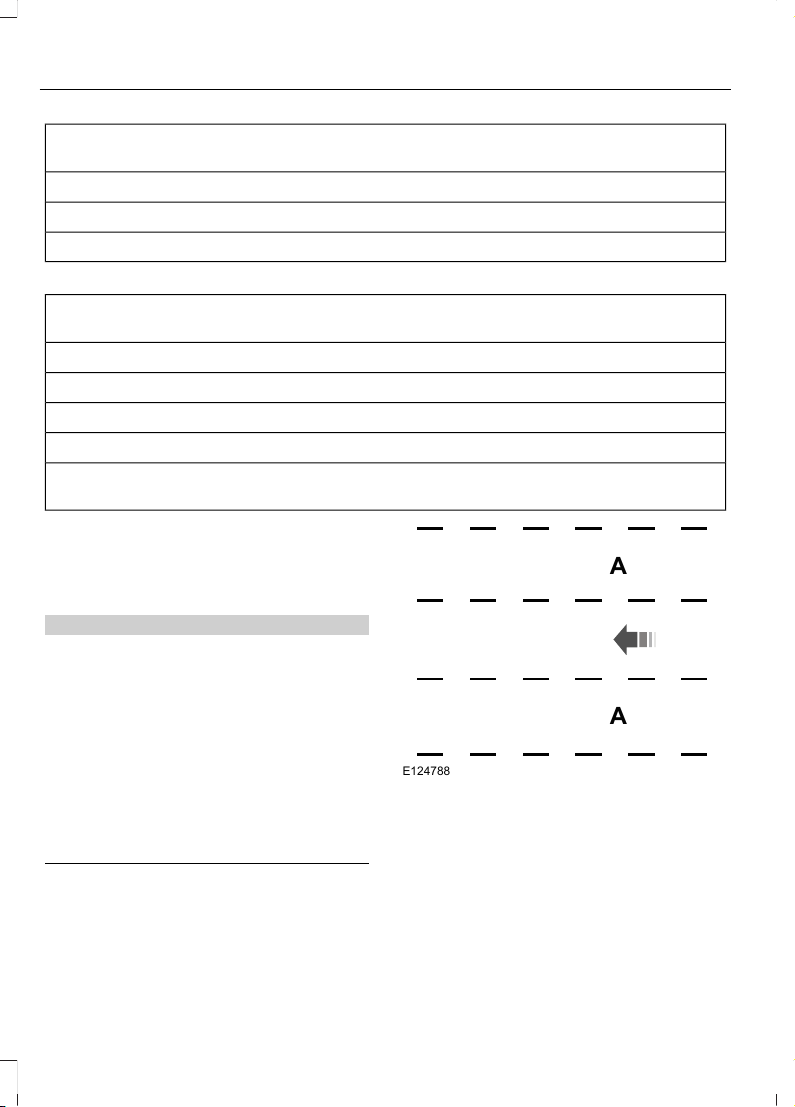
Why is the feature not available (line markings are gray) when I can see the lane markings
on the road?
Lane width too narrow or too wide
Camera not calibrated after a windshield replacement
Driving on tight roads or on uneven roads
Why does the vehicle not come back toward the middle of the lane, as expected, in the
Aid or Aid + Alert mode?
High cross winds
Large road crown
Rough roads, grooves, shoulder drop-offs
Heavy uneven loading of the vehicle or improper tire inflation pressure
If the tires have been exchanged (including snow tires), or the suspension has been
modified
BLIND SPOT INFORMATION
SYSTEM
WARNINGS
Do not use the blind spot information
system as a replacement for using
the interior and exterior mirrors or
looking over your shoulder before changing
lanes. The blind spot information system
is not a replacement for careful driving.
The system may not operate
properly during severe weather
conditions, for example snow, ice,
heavy rain and spray. Always drive with
due care and attention. Failure to take care
may result in a crash.
A
A
E124788
The system is designed to detect vehicles
that may have entered the blind spot zone
(A). The detection area is on both sides of
your vehicle, extending rearward from the
exterior mirrors to approximately 13 ft
(4 m) beyond the rear bumper.
Note: The system does not prevent contact
with other vehicles. It is not designed to
detect parked vehicles, pedestrians, animals
or other infrastructures.
216
Edge (CDQ) Canada/United States of America, enUSA, Edition date: 201706, First Printing
Driving Aids

Using the Blind Spot Information
System
Vehicles with Automatic Transmission
The system turns on when all of the
following occur:
• You start your vehicle.
• You shift into drive (D).
• The vehicle speed is greater than
6 mph (10 km/h).
Note: The system does not operate in park
(P) or reverse (R).
Vehicles with Manual Transmission
The system turns on when all of the
following occur:
• You start your vehicle.
• The vehicle speed is greater than
6 mph (10 km/h).
Note: The system does not operate in
reverse (R).
System Lights and Messages
E142442
When the system detects a vehicle, an
alert indicator illuminates in the exterior
mirror on the side the approaching vehicle
is coming from. If you turn the direction
indicator on for that side of your vehicle,
the alert indicator flashes.
Note: The system may not alert you if a
vehicle quickly passes through the detection
zone.
Blocked Sensors
E205199
The sensors are behind the rear bumper
on both sides of your vehicle.
Note: Keep the sensors free from snow, ice
and large accumulations of dirt.
Note: Do not cover the sensors with bumper
stickers, repair compound or other objects.
Note: Blocked sensors could affect system
performance.
If the sensors are blocked, a message may
appear in the information display. See
General Information (page 102). The alert
indicators remain illuminated but the
system does not alert you.
System Errors
If the system detects a fault, a warning
lamp illuminates and a message displays.
See General Information (page 102).
Switching the System Off and On
You can switch the system off using the
information display. See General
Information (page 102). When you switch
the system off, a warning lamp illuminates
and a message displays. When you switch
the system on or off, the alert indicators
flash twice.
Note: The system remembers the last
setting when you start your vehicle.
217
Edge (CDQ) Canada/United States of America, enUSA, Edition date: 201706, First Printing
Driving Aids
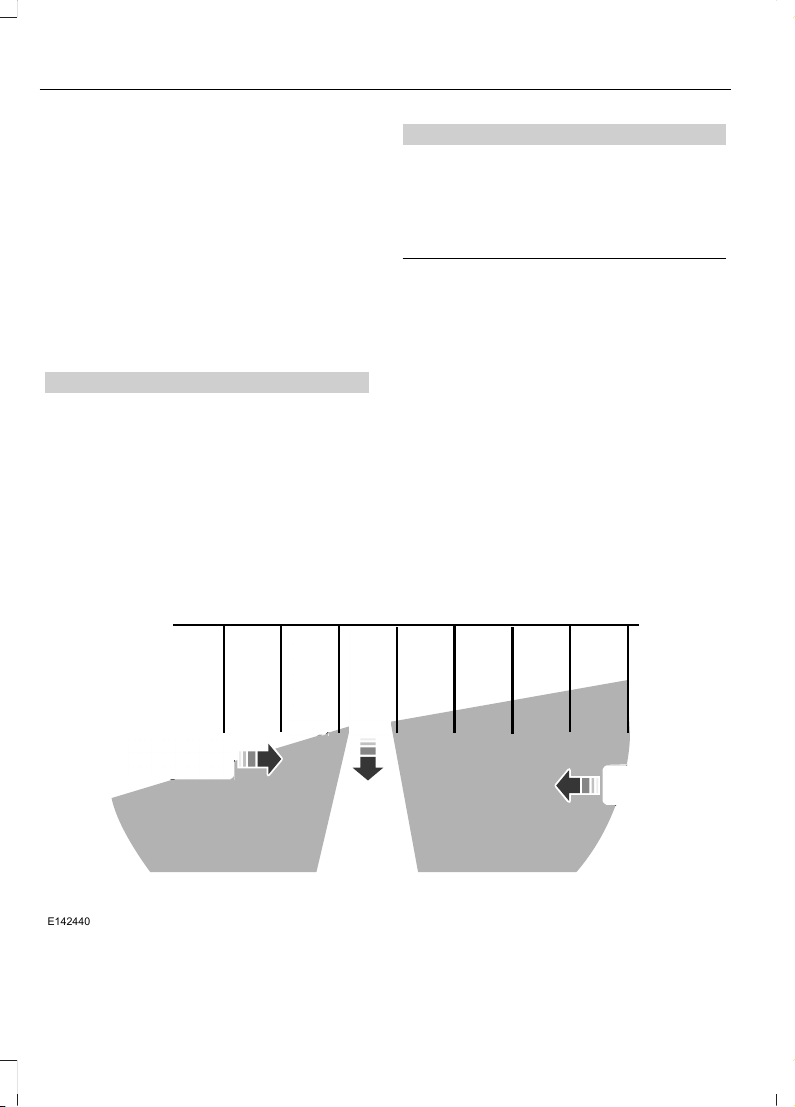
Note: The system may not correctly operate
when towing a trailer. For vehicles with a
trailer tow module and tow bar approved
by us, the system turns off when you attach
a trailer. For vehicles with an aftermarket
trailer tow module or tow bar, we
recommend that you switch the system off
when you attach a trailer.
To permanently switch the system off,
contact an authorized dealer.
CROSS TRAFFIC ALERT
WARNINGS
Do not use the cross traffic alert
system as a replacement for using
the interior and exterior mirrors or
looking over your shoulder before reversing
out of a parking space. The cross traffic
alert system is not a replacement for
careful driving.
WARNINGS
The system may not operate
properly during severe weather
conditions, for example snow, ice,
heavy rain and spray. Always drive with
due care and attention. Failure to take care
may result in a crash.
The system is designed to alert you of
vehicles approaching from the sides when
you shift into reverse (R).
Using the Cross Traffic Alert
System
The system is designed to detect vehicles
that approach with a speed up to 37 mph
(60 km/h). Coverage decreases when the
sensors are partially, mostly or fully
obstructed. Slowly reversing helps increase
the coverage area and effectiveness.
The system turns on when you start the
engine and you shift into reverse (R). The
system turns off when you shift out of
reverse (R).
E142440
218
Edge (CDQ) Canada/United States of America, enUSA, Edition date: 201706, First Printing
Driving Aids
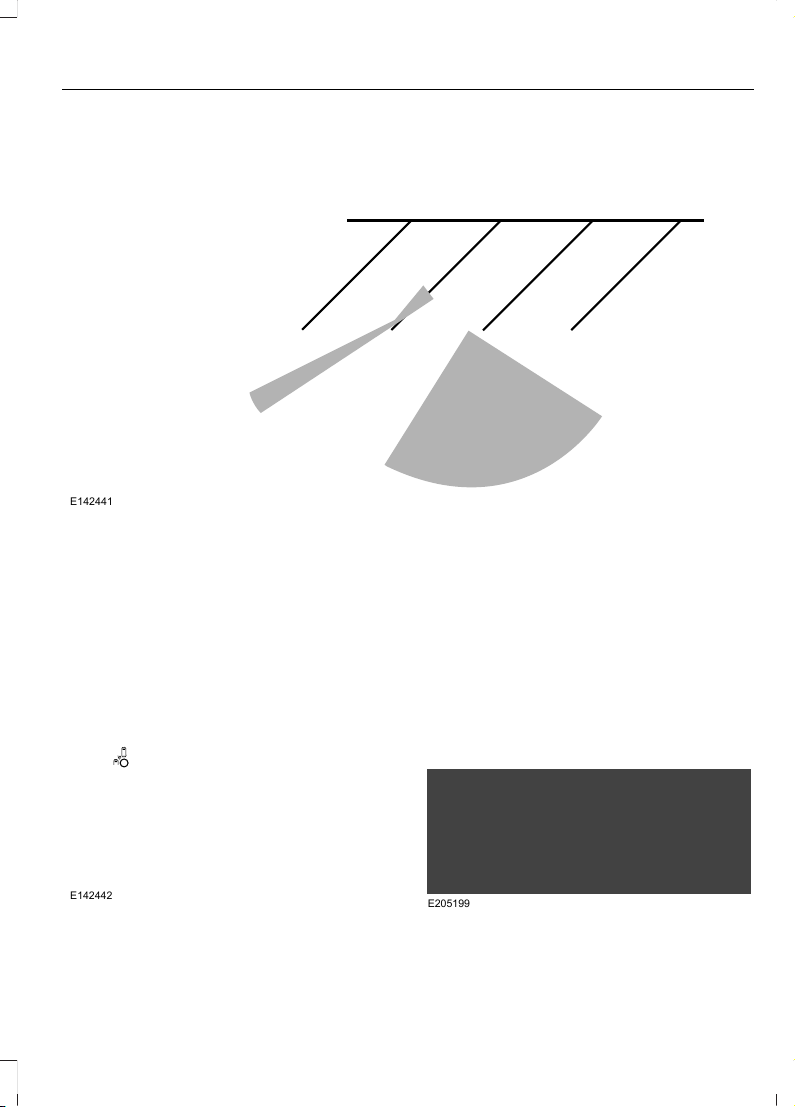
The sensor on the left-hand side is only
partially obstructed and zone coverage on
the right-hand side is maximized.
E142441
Zone coverage also decreases when
parking at narrow angles. The sensor on
the left-hand side is mostly obstructed and
zone coverage on that side is severely
reduced.
System Lights, Messages and
Audible Alerts
E142442
When the system detects a vehicle, an
indicator illuminates in the exterior mirror
on the side the approaching vehicle is
coming from. A tone sounds and a
message appears in the information
display.
Note: In exceptional conditions, the system
could alert you even when there is nothing
in the detection zone, for example a vehicle
passing in the distance.
Blocked Sensors
E205199
The sensors are behind the rear bumper
on both sides of your vehicle.
219
Edge (CDQ) Canada/United States of America, enUSA, Edition date: 201706, First Printing
Driving Aids

Note: Keep the sensors free from snow, ice
and large accumulations of dirt.
Note: Do not cover the sensors with bumper
stickers, repair compound or other objects.
Note: Blocked sensors could affect system
performance.
If the sensors are blocked, a message may
appear in the information display when
you shift into reverse (R). See General
Information (page 102).
System Limitations
The system may not correctly operate
when any of the following occur:
• The sensors are blocked.
• Adjacently parked vehicles or objects
are obstructing the sensors.
• Vehicles approach at speeds greater
than 37 mph (60 km/h).
• The vehicle speed is greater than 7 mph
(12 km/h).
• You reverse out of an angled parking
space.
System Errors
If the system detects a fault a message
displays. See Information Messages
(page 111).
Switching the System Off and On
You can temporarily switch the system off
using the information display. See
Information Messages (page 111). When
you switch system off, a message displays.
See General Information (page 102).
Note: The system turns on each time you
switch the ignition on and you shift into
reverse (R). If you temporarily switch the
system off, it turns on the next time you
switch the ignition on.
Note: The system may not correctly operate
when towing a trailer. For vehicles with a
trailer tow module and tow bar approved
by us, the system turns off when you attach
a trailer. For vehicles with an aftermarket
trailer tow module or tow bar, we
recommend that you switch the system off
when you attach a trailer.
To permanently switch the system off,
contact an authorized dealer.
STEERING
Electric Power Steering
WARNING
If the system detects an error, you
may not feel a difference in the
steering, however a serious condition
may exist. Have your vehicle checked as
soon as possible, failure to do so may
result in loss of steering control.
Note: The electric power steering system
has diagnostic checks that continuously
monitor the system. If a fault is detected a
message displays in the information display.
Stop your vehicle as soon as it is safe to do
so and switch the ignition off. After waiting
at least 10 seconds, switch the ignition on
and watch the information display for a
steering system warning message. If a
steering system warning message returns,
have the system checked as soon as
possible.
Your vehicle has an electric power steering
system. There is no fluid reservoir. No
maintenance is required.
If your vehicle loses electrical power while
you are driving, electric power steering
assistance is lost. The steering system still
operates and you can steer your vehicle
manually. Manually steering your vehicle
requires more effort.
220
Edge (CDQ) Canada/United States of America, enUSA, Edition date: 201706, First Printing
Driving Aids

Extreme continuous steering may increase
the effort required for you to steer your
vehicle. This increased effort prevents
overheating and permanent damage to
the steering system. You do not lose the
ability to steer your vehicle manually.
Typical steering and driving maneuvers
allow the system to cool and return to
normal operation.
Steering Tips
If the steering wanders or pulls, check for:
• Correct tire pressures.
• Uneven tire wear.
• Loose or worn suspension
components.
• Loose or worn steering components.
• Improper vehicle alignment.
Note: A high crown in the road or high
crosswinds may also make the steering
seem to wander or pull.
Adaptive Learning
The electronic power steering system
adaptive learning helps correct road
irregularities and improves overall handling
and steering feel. It communicates with
the brake system to help operate
advanced stability control and accident
avoidance systems. Additionally, whenever
the battery is disconnected or a new
battery installed, you must drive your
vehicle a short distance before the system
relearns the strategy and reactivates all
systems.
Adaptive Steering (If Equipped)
Note: The adaptive steering system has
diagnostic checks that continuously monitor
the system. If a fault is detected a message
displays in the information display. If a red
warning message displays, stop your vehicle
as soon as it is safe to do so. The message
may clear if the fault is no longer present. If
an adaptive steering system warning
message appears each time you start your
vehicle, have the system checked as soon
as possible.
The adaptive steering system continually
changes the steering ratio with changes to
vehicle speed, optimizing the steering
response in all conditions.
The adaptive steering system is designed
with a locking device. While the lock is
engaged, your vehicle returns to a fixed
steering ratio. You may also notice a sound
when you start or turn off your vehicle as
the lock is disengaged or engaged. If your
vehicle loses electrical power or detects a
fault while you are driving, the lock engages
and you are able to continue steering.
During this time it is possible that the
steering wheel may not be straight when
the vehicle is driving straight ahead. During
this time you may notice that the steering
wheel angle required to steer the vehicle
may be different. Extreme operating
conditions may also cause the lock to
engage. This strategy prevents overheating
and permanent damage to the adaptive
steering system. Typical steering and
driving maneuvers allow the system to cool
and return to normal operation.
221
Edge (CDQ) Canada/United States of America, enUSA, Edition date: 201706, First Printing
Driving Aids
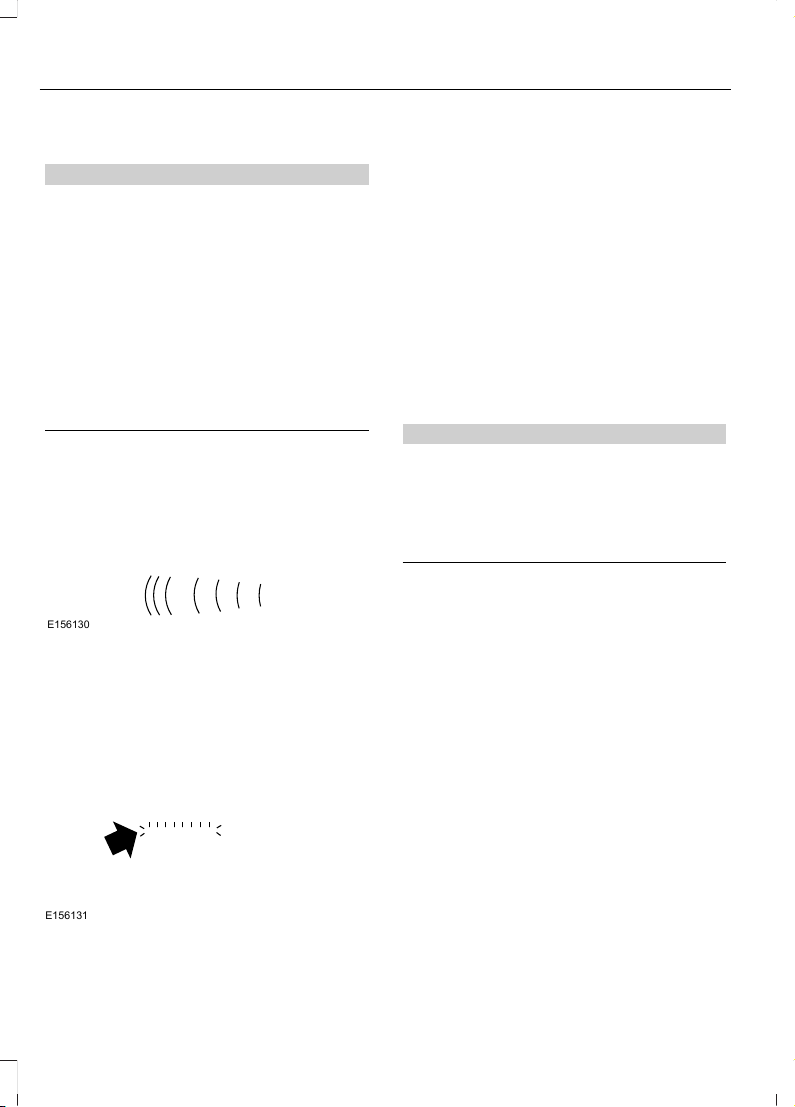
PRE-COLLISION ASSIST
WARNINGS
This system is an extra driving aid. It
does not replace your attention and
judgment, or the need to apply the
brakes. This system does NOT
automatically brake your vehicle. If you fail
to press the brake pedal when necessary,
you may collide with another vehicle.
The Pre-Collision Assist system with
brake support cannot help prevent
all collisions. Do not rely on this
system to replace your judgment and the
need to maintain correct distance and
speed.
Note: The system does not detect, warn or
respond to potential collisions with vehicles
to the rear or sides of your vehicle.
Note: The Pre-Collision Assist system is
active at speeds above approximately
5 mph (8 km/h).
E156130
The system alerts you of certain collision
risks. The system's sensor detects your
vehicle's rapid approach to other vehicles
traveling in the same direction as your
vehicle.
E156131
When your vehicle rapidly approaches
another vehicle, a red warning light flashes
and a tone sounds.
The brake support system assists you in
reducing any collision speed by
pre-charging the brakes. If the risk of
collision continues to increases after the
audio-visual warning, the brake support
prepares the brake system for rapid
braking. The system does not
automatically activate the brakes, but if
the brake pedal is pressed even lightly, the
brakes apply full stopping power.
Using the Pre-Collision Assist
System
WARNING
The Pre-Collision Assist system’s
brake support reduces collision
speed only if you brake your vehicle
before any collision. As in any typical
braking situation, you must press your
brake pedal.
You can adjust the warning system's
sensitivity through your information
display. See General Information (page
102).
Note: When possible, the manufacturer
recommends using the highest sensitivity
setting. If warnings are too frequent, you can
reduce your system's sensitivity. Reduced
sensitivity causes fewer and later system
warnings. See General Information (page
102).
222
Edge (CDQ) Canada/United States of America, enUSA, Edition date: 201706, First Printing
Driving Aids
Blocked Sensors
E145632
If a blocked sensor message appears in the
information display, dirt, water, or an object
is blocking the sensor. The sensor is
located behind a cover near the driver side
of the lower grille. If anything blocks the
sensor, your vehicle cannot see through
the sensor, and the pre-collision assist
system will not work. Possible causes for
the blocked sensor message and corrective
actions are listed below.
ActionCause
Clean the radar sensor cover or remove the
obstruction
The radar sensor cover in the grille is dirty
or obstructed
Wait a short time. The radar may take
several minutes to reset after you remove
the obstruction
The surface of the radar sensor cover is
clean but the message remains in the
display
The Pre-Collision Assist system is tempor-
arily disabled. Shortly after weather condi-
tions improve, the collision warning system
automatically reactivates
Heavy rain, spray, snow or fog in the air
interferes with the radar signals
The Pre-Collision Assist system is tempor-
arily disabled. Shortly after weather condi-
tions improve, the collision warning system
automatically reactivates
Swirling water, snow or ice on the road
surface interferes with the radar signals
System Limitations
WARNING
The Pre-Collision Assist system’s
brake support only reduces collision
speed if you first apply your brakes.
You must brake as you would in any typical
braking situation.
Due to the nature of radar technology,
there may be certain instances where
vehicles do not provide a collision warning.
These include:
• Stationary vehicles or vehicles moving
below 6 mph (10 km/h).
• Pedestrians or objects in the roadway.
• Oncoming vehicles in the same lane.
• Severe weather conditions (see
blocked sensor section).
• Debris build-up on the grille near the
headlamps (see blocked sensor
section).
• Small distance to vehicle ahead.
• Large steering wheel and pedal
movements (very active driving style).
223
Edge (CDQ) Canada/United States of America, enUSA, Edition date: 201706, First Printing
Driving Aids

Damage to the front end of your vehicle
may alter the radar sensor's coverage area.
This may result in missed or false collision
warnings. Have an authorized dealer check
your radar sensor for proper coverage and
operation.
DRIVE CONTROL (If Equipped)
Adaptive Steering
You can configure which of the modes are
active when your vehicle is in (D) drive or
in (S) sport. The configuration remains
active until modified from the main menu
on the information display. See General
Information (page 102).
Modes:
• Normal – Default factory setting.
• Sport – Slightly higher effort required
for steering with more road force felt
through the steering wheel.
Note: The Drive Control has diagnostic
checks that continuously monitor the
system to ensure proper operation. Certain
types of system errors will gray out the
mode selections within the information
display, preventing you from changing states
when the gear position is changed. Other
types of errors will produce a temporary
message that states a malfunction. If either
condition persists for multiple key cycles,
have your vehicle checked by an authorized
dealer.
224
Edge (CDQ) Canada/United States of America, enUSA, Edition date: 201706, First Printing
Driving Aids
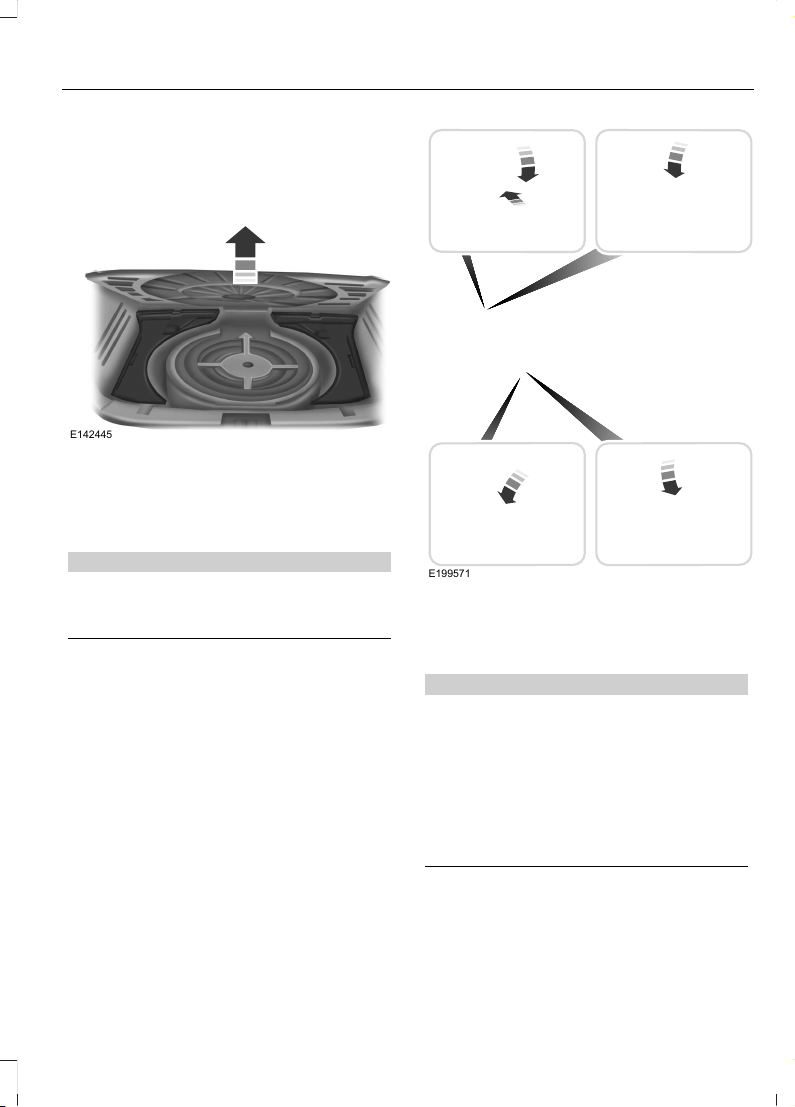
REAR UNDER FLOOR
STORAGE
Cargo Management System
E142445
The system is located in the floor of the
cargo area. Lift the handle to open.
CARGO NETS
WARNING
This net is not designed to restrain
objects during a collision or heavy
braking.
The cargo net secures lightweight objects
in the cargo area. Attach the net to the
anchors provided. Repeat the attachment
on both sides of the vehicle.
E199571
ROOF RACKS AND LOAD
CARRIERS (If Equipped)
WARNING
When loading the roof racks, we
recommend you evenly distribute the
load, as well as maintain a low
center of gravity. Loaded vehicles, with
higher centers of gravity, may handle
differently than unloaded vehicles. Take
extra precautions, such as slower speeds
and increased stopping distance, when
driving a heavily loaded vehicle.
The maximum recommended load, evenly
distributed on the roof rack, is 100 lb
(45 kg).
225
Edge (CDQ) Canada/United States of America, enUSA, Edition date: 201706, First Printing
Load Carrying
Note: Never place loads directly on the roof
panel. The roof panel is not designed to
directly carry a load.
For correct roof rack system function, you
must place loads directly on crossbars
affixed to the roof rack side rails. When
using the roof rack system, we recommend
you use Ford Genuine Accessory crossbars
designed specifically for your vehicle.
Make sure that you securely fasten the
load. Check the tightness of the load
before driving and at each fuel stop.
LOAD LIMIT
Vehicle Loading - with and
without a Trailer
This section guides you in the
proper loading of your vehicle,
trailer, or both. Keep your loaded
vehicle weight within its design
rating capability, with or without
a trailer. Properly loading your
vehicle provides maximum return
of vehicle design performance.
Before you load your vehicle,
become familiar with the
following terms for determining
your vehicle’s weight rating, with
or without a trailer, from the
vehicle’s Tire and Loading
Information label or Safety
Compliance Certification label.
Tire and Loading Label Information
Example:
E198719
226
Edge (CDQ) Canada/United States of America, enUSA, Edition date: 201706, First Printing
Load Carrying
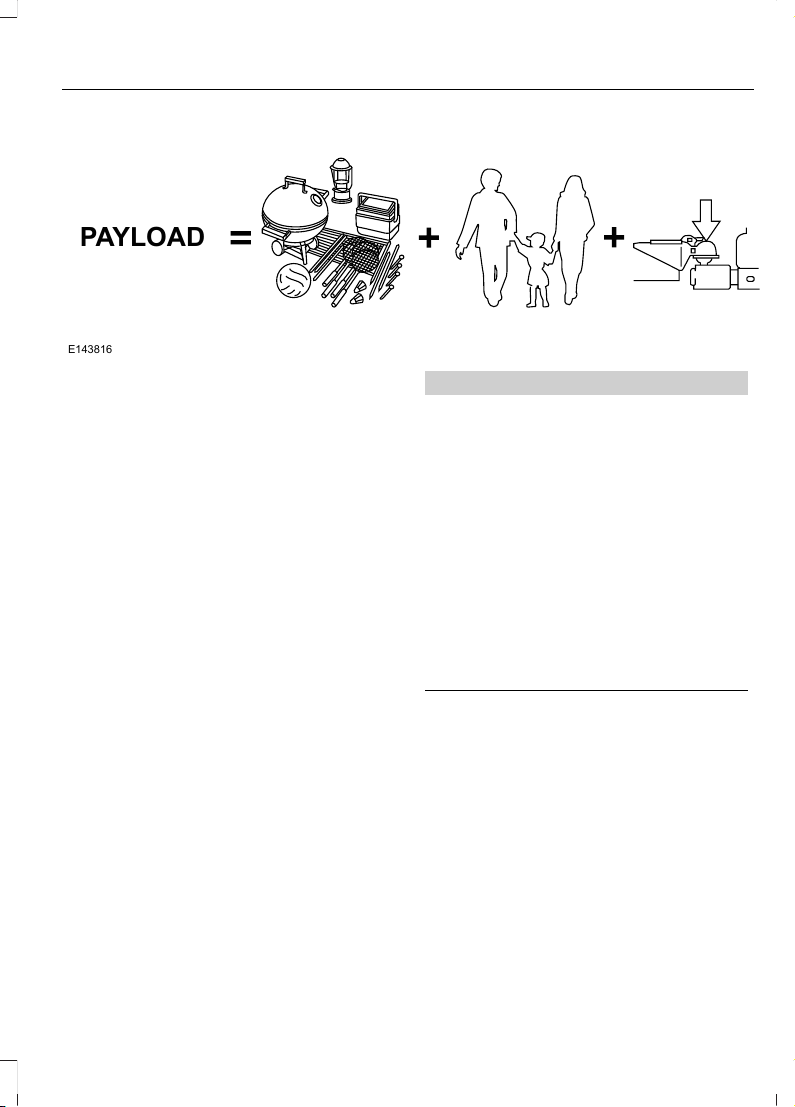
Payload
E143816
PAYLOAD
Payload is the combined weight
of cargo and passengers that your
vehicle is carrying. The maximum
payload for your vehicle appears
on the Tire and Loading label. The
label is either on the B-pillar or the
edge of the driver door. Vehicles
exported outside the US and
Canada may not have a tire and
loading label. Look for “The
combined weight of occupants
and cargo should never exceed
XXX kg OR XXX lb” for maximum
payload. The payload listed on the
Tire and Loading Information label
is the maximum payload for your
vehicle as built by the assembly
plant. If you install any additional
equipment on your vehicle, you
must determine the new payload.
Subtract the weight of the
equipment from the payload listed
on the Tire and Loading label.
When towing, trailer tongue
weight or king pin weight is also
part of payload.
WARNING
The appropriate loading
capacity of your vehicle can
be limited either by volume
capacity (how much space is
available) or by payload capacity
(how much weight the vehicle
should carry). Once you have
reached the maximum payload of
your vehicle, do not add more
cargo, even if there is space
available. Overloading or
improperly loading your vehicle
can contribute to loss of vehicle
control and vehicle rollover.
GAWR (Gross Axle Weight
Rating)
GAWR is the maximum allowable
weight that a single axle (front or
rear) can carry. These numbers
are on the Safety Compliance
Certification label. The label is
located on the door hinge pillar,
door-latch post, or the door edge
that meets the door-latch post,
next to the driver seating position.
227
Edge (CDQ) Canada/United States of America, enUSA, Edition date: 201706, First Printing
Load Carrying
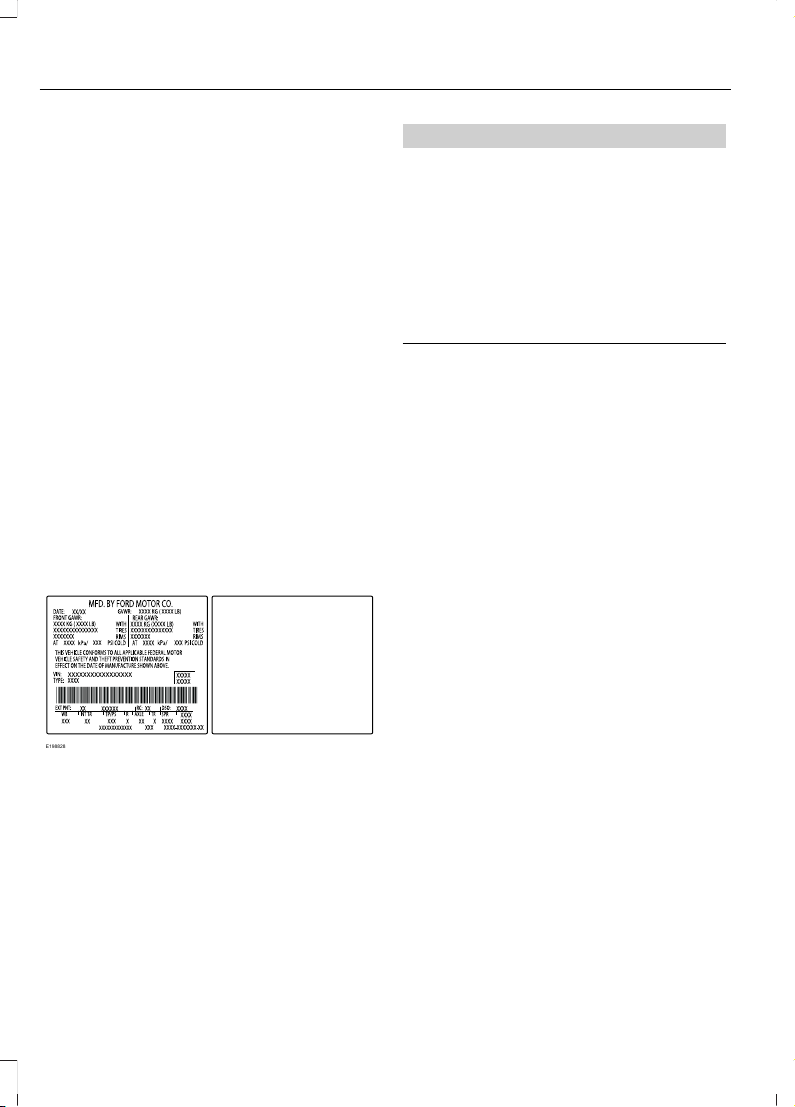
The total load on each axle must
never exceed its Gross Axle
Weight Rating.
GVWR (Gross Vehicle Weight
Rating)
GVWR is the maximum allowable
weight of the fully loaded vehicle.
This includes all options,
equipment, passengers and cargo.
It appears on the Safety
Compliance Certification label.
The label is located on the door
hinge pillar, door-latch post, or the
door edge that meets the
door-latch post, next to the driver
seating position.
The gross vehicle weight must
never exceed the Gross Vehicle
Weight Rating.
Safety Compliance Certification Label
Example:
E198828
WARNING
Exceeding the Safety
Compliance Certification
label vehicle weight rating limits
could result in substandard
vehicle handling or performance,
engine, transmission and/or
structural damage, serious
damage to the vehicle, loss of
control and personal injury.
Maximum Loaded Trailer
Weight
Maximum loaded trailer weight is
the highest possible weight of a
fully loaded trailer the vehicle can
tow. Consult an authorized dealer
(or the RV and Trailer Towing
Guide available at an authorized
dealer) for more detailed
information.
GCWR (Gross Combined
Weight Rating)
GCWR is the maximum allowable
weight of the vehicle and the
loaded trailer, including all cargo
and passengers, that the vehicle
can handle without risking
damage. (Important: The towing
vehicle’s braking system is rated
for operation at Gross Vehicle
Weight Rating, not at Gross
Combined Weight Rating.)
Separate functional brakes should
228
Edge (CDQ) Canada/United States of America, enUSA, Edition date: 201706, First Printing
Load Carrying

be used for safe control of towed
vehicles and for trailers where the
Gross Combined Weight of the
towing vehicle plus the trailer
exceed the Gross Vehicle Weight
Rating of the towing vehicle.
The gross combined weight must
never exceed the Gross Combined
Weight Rating.
Note: For trailer towing
information refer to the RV and
Trailer Towing Guide available at
an authorized dealer.
WARNINGS
Do not exceed the GVWR or
the GAWR specified on the
Safety Compliance Certification
label.
Do not use replacement tires
with lower load carrying
capacities than the original tires
because they may lower your
vehicle’s GVWR and GAWR
limitations. Replacement tires
with a higher limit than the original
tires do not increase the GVWR
and GAWR limitations.
Exceeding any vehicle weight
rating limitation could result
in serious damage to your vehicle,
personal injury or both.
Steps for determining the
correct load limit:
1. Locate the statement "The
combined weight of occupants
and cargo should never exceed
XXX kg or XXX lb." on your
vehicle’s placard.
2. Determine the combined
weight of the driver and
passengers that will be riding
in your vehicle.
3. Subtract the combined weight
of the driver and passengers
from XXX kg or XXX lb.
4. The resulting figure equals the
available amount of cargo and
luggage load capacity. For
example, if the “XXX” amount
equals 1,400 lb. and there will
be five 150 lb. passengers in
your vehicle, the amount of
available cargo and luggage
load capacity is 650 lb.
(1400-750 (5 x 150) = 650 lb.)
5. Determine the combined
weight of luggage and cargo
being loaded on the vehicle.
That weight may not safely
exceed the available cargo and
luggage load capacity
calculated in Step 4.
6. If your vehicle will be towing a
trailer, load from your trailer
will be transferred to your
vehicle. Consult this manual to
determine how this reduces the
available cargo and luggage
load capacity of your vehicle.
229
Edge (CDQ) Canada/United States of America, enUSA, Edition date: 201706, First Printing
Load Carrying

Helpful examples for calculating
the available amount of cargo
and luggage load capacity
Suppose your vehicle has a
1400-pound (635-kilogram) cargo
and luggage capacity. You decide
to go golfing. Is there enough load
capacity to carry you, four of your
friends and all the golf bags? You
and four friends average 220
pounds (99 kilograms) each and
the golf bags weigh approximately
30 pounds (13.5 kilograms) each.
The calculation would be: 1400 -
(5 x 220) - (5 x 30) = 1400 - 1100
- 150 = 150 pounds. Yes, you have
enough load capacity in your
vehicle to transport four friends
and your golf bags. In metric units,
the calculation would be: 635
kilograms - (5 x 99 kilograms) -
(5 x 13.5 kilograms) = 635 - 495 -
67.5 = 72.5 kilograms.
Suppose your vehicle has a
1400-pound (635-kilogram) cargo
and luggage capacity. You and
one of your friends decide to pick
up cement from the local home
improvement store to finish that
patio you have been planning for
the past two years. Measuring the
inside of the vehicle with the rear
seat folded down, you have room
for twelve 100-pound
(45-kilogram) bags of cement. Do
you have enough load capacity to
transport the cement to your
home? If you and your friend each
weigh 220 pounds (99 kilograms),
the calculation would be: 1400 -
(2 x 220) - (12 x 100) = 1400 - 440
- 1200 = - 240 pounds. No, you do
not have enough cargo capacity
to carry that much weight. In
metric units, the calculation would
be: 635 kilograms - (2 x 99
kilograms) - (12 x 45 kilograms) =
635 - 198 - 540 = -103 kilograms.
You will need to reduce the load
weight by at least 240 pounds
(104 kilograms). If you remove
three 100-pound (45-kilogram)
cement bags, then the load
calculation would be:1400 - (2 x
220) - (9 x 100) = 1400 - 440 -
900 = 60 pounds. Now you have
the load capacity to transport the
cement and your friend home. In
metric units, the calculation would
be: 635 kilograms - (2 x 99
kilograms) - (9 x 45 kilograms) =
635 - 198 - 405 = 32 kilograms.
The above calculations also
assume that the loads are
positioned in your vehicle in a
manner that does not overload
the front or the rear gross axle
weight rating specified for your
vehicle on the Safety Compliance
Certification label.
Special Loading Instructions
for Owners of Pick-up Trucks
and Utility-type Vehicles
WARNING
Loaded vehicles may handle
differently than unloaded
vehicles. Take extra precautions,
such as slower speeds and
increased stopping distance, when
driving a heavily loaded vehicle.
230
Edge (CDQ) Canada/United States of America, enUSA, Edition date: 201706, First Printing
Load Carrying

TOWING A TRAILER
WARNINGS
Do not exceed the GVWR or
the GAWR specified on the
certification label.
Towing trailers beyond the
maximum recommended
gross trailer weight exceeds the
limit of your vehicle and could
result in engine damage,
transmission damage, structural
damage, loss of vehicle control,
vehicle rollover and personal
injury.
Note: Your vehicle may have
electrical items, such as fuses or
relays, related to towing. See
Fuses (page 253).
Your vehicle's load capacity
designation is by weight, not by
volume, so you cannot necessarily
use all available space when
loading a vehicle or trailer.
Towing a trailer places an extra
load on your vehicle's engine,
transmission, axle, brakes, tires
and suspension. Inspect these
components periodically during,
and after, any towing operation.
Load Placement
To help minimize how trailer
movement affects your vehicle
when driving:
• Load the heaviest items closest
to the trailer floor.
• Load the heaviest items
centered between the left and
right side trailer tires.
• Load the heaviest items above
the trailer axles or just slightly
forward toward the trailer
tongue. Do not allow the final
trailer tongue weight to go
above or below 10-15% of the
loaded trailer weight.
• Select a ball mount with the
correct rise or drop. When both
the loaded vehicle and trailer
are connected, the trailer frame
should be level, or slightly
angled down toward your
vehicle, when viewed from the
side.
When driving with a trailer or
payload, a slight takeoff vibration
or shudder may be present due to
the increased payload weight.
Additional information regarding
proper trailer loading and setting
your vehicle up for towing is
located in the Load Carrying
chapter. See Load Limit (page
226).
You can also find information in
the RV & Trailer Towing Guide
available at your authorized
dealer, or online.
231
Edge (CDQ) Canada/United States of America, enUSA, Edition date: 201706, First Printing
Towing
RV & Trailer Towing Guide Online
http://www.fleet.ford.com/towing-guides/Website
TRAILER SWAY CONTROL (If
Equipped)
WARNING
Turning off trailer sway control
increases the risk of loss of vehicle
control, serious injury or death. Ford
does not recommend disabling this feature
except in situations where speed reduction
may be detrimental (such as hill climbing),
the driver has significant trailer towing
experience, and can control trailer sway
and maintain safe operation.
Note: This feature does not prevent trailer
sway, but reduces it once it begins.
Note: This feature cannot stop all trailers
from swaying.
Note: In some cases, if vehicle speed is too
high, the system may activate multiple
times, gradually reducing vehicle speed.
This feature applies your vehicle brakes at
individual wheels and, if necessary, reduces
engine power. If the trailer begins to sway,
the stability control light flashes and the
message TRAILER SWAY REDUCE
SPEED appears in the information display.
The first thing to do is slow your vehicle
down, then pull safely to the side of the
road and check for proper tongue load and
trailer load distribution. See Load
Carrying (page 225).
RECOMMENDED TOWING
WEIGHTS
Note: Do not exceed the trailer
weight for your vehicle
configuration listed in the chart
below.
Note: Make sure to take into
consideration trailer frontal area.
Do not exceed 20 ft² (1.86 m²) for
vehicles without towing package,
or 30 ft² (2.79 m²) for vehicles with
towing package.
Note: For high altitude operation,
reduce the gross combined weight
by 2% per 1,000 ft (305 m) starting
at the 1,000 ft (305 m) elevation
point.
Note: Certain states require
separate trailer brakes for trailers
over a specified weight. Check
state regulations for this specified
weight. The maximum trailer
weights listed may be limited to
this specified weight, as your
vehicle’s electrical system may not
include the wiring connector
needed to activate electric trailer
brakes.
232
Edge (CDQ) Canada/United States of America, enUSA, Edition date: 201706, First Printing
Towing
Your vehicle may tow a trailer
provided the maximum trailer
weight is less than or equal to the
maximum trailer weight listed for
your vehicle configuration on the
following chart.
Maximum trailer weight
1
Powertrain
1,500 lb (680 kg)
2.0L GTDI
2
3,500 lb (1,587 kg)
2.0L GTDI
3
2,000 lb (907 kg)
2.7L GTDI
2
2,000 lb (907 kg)
3.5L TiVCT
2
3,500 lb (1,587 kg)
3.5L TiVCT
3
1
Calculated with SAE J2807 method.
2
Vehicle without towing package.
3
Vehicle with towing package.
233
Edge (CDQ) Canada/United States of America, enUSA, Edition date: 201706, First Printing
Towing

ESSENTIAL TOWING CHECKS
Follow these guidelines for safe towing:
• Do not tow a trailer until you drive your
vehicle at least 1,000 mi (1,600 km).
• Consult your local motor vehicle laws
for towing a trailer.
• See the instructions included with
towing accessories for the proper
installation and adjustment
specifications.
• Service your vehicle more frequently if
you tow a trailer. See your scheduled
maintenance information.
• If you use a rental trailer, follow the
instructions the rental agency gives
you.
You can find information on load
specification terms found on the tire label
and Safety Compliance label as well as
instructions on calculating your vehicle's
load in the Load Carrying chapter. See
Load Limit (page 226).
Remember to account for the trailer
tongue weight as part of your vehicle load
when calculating the total vehicle weight.
Hitches
Do not use a hitch that either clamps onto
the bumper or attaches to the axle.
Distribute the trailer load so 10-15% of the
total trailer weight is on the tongue.
Safety Chains
Note: Never attach safety chains to the
bumper.
Always connect the safety chains to the
hook retainers of your vehicle hitch.
To connect the safety chains, cross them
under the trailer tongue and allow enough
slack for turning tight corners. Do not allow
the chains to drag on the ground.
Trailer Brakes
WARNING
Do not connect a trailer's hydraulic
brake system directly to your
vehicle's brake system. Your vehicle
may not have enough braking power and
your chances of having a collision greatly
increase.
Electric brakes and manual, automatic or
surge-type trailer brakes are safe if you
install them properly and adjust them to
the manufacturer's specifications. The
trailer brakes must meet local and federal
regulations.
The rating for the tow vehicle's braking
system operation is at the gross vehicle
weight rating, not the gross combined
weight rating.
Separate functioning brake systems
are required for safe control of towed
vehicles and trailers weighing more
than 1500 pounds (680 kilograms)
when load.
Trailer Lamps
WARNING
Never connect any trailer lamp wiring
to the vehicle's tail lamp wiring; this
may damage the electrical system
resulting in fire. Contact your authorized
dealer as soon as possible for assistance
in proper trailer tow wiring installation.
Additional electrical equipment may be
required.
Trailer lamps are required on most towed
vehicles. Make sure all running lights, brake
lights, turn signals and hazard lights are
working.
234
Edge (CDQ) Canada/United States of America, enUSA, Edition date: 201706, First Printing
Towing

Before Towing a Trailer
Practice turning, stopping and backing up
to get the feel of your vehicle-trailer
combination before starting on a trip.
When turning, make wider turns so the
trailer wheels clear curbs and other
obstacles.
When Towing a Trailer
• Do not drive faster than 70 mph
(113 km/h) during the first 500 mi
(800 km).
• Do not make full-throttle starts.
• Check your hitch, electrical connections
and trailer wheel lug nuts thoroughly
after you have traveled 50 miles (80
kilometers).
• When stopped in congested or heavy
traffic during hot weather, place the
gearshift in position P to aid engine and
transmission cooling and to help A/C
performance.
• Turn off the speed control with heavy
loads or in hilly terrain. The speed
control may turn off automatically
when you are towing on long, steep
grades.
• Shift to a lower gear when driving down
a long or steep hill. Do not apply the
brakes continuously, as they may
overheat and become less effective.
• If your transmission is equipped with a
Grade Assist or Tow/Haul feature, use
this feature when towing. This provides
engine braking and helps eliminate
excessive transmission shifting for
optimum fuel economy and
transmission cooling.
• Allow more distance for stopping with
a trailer attached. Anticipate stops and
brake gradually.
• Avoid parking on a grade. However, if
you must park on a grade:
1. Turn the steering wheel to point your
vehicle tires away from traffic flow.
2. Set your vehicle parking brake.
3. Place the automatic transmission in
position P.
4. Place wheel chocks in front and back
of the trailer wheels. (Chocks not
included with vehicle.)
Launching or Retrieving a Boat or
Personal Watercraft (PWC)
Note: Disconnect the wiring to the trailer
before backing the trailer into the water.
Note: Reconnect the wiring to the trailer
after removing the trailer from the water.
When backing down a ramp during boat
launching or retrieval:
• Do not allow the static water level to
rise above the bottom edge of the rear
bumper.
• Do not allow waves to break higher
than 6 in (15 cm) above the bottom
edge of the rear bumper.
Exceeding these limits may allow water to
enter vehicle components:
• Causing internal damage to the
components.
• Affecting driveability, emissions, and
reliability.
Replace the rear axle lubricant anytime
you submerge the rear axle in water. Water
may contaminate the rear axle lubricant,
which is not a normal maintenance
inspection item unless there is a possibility
of a leak or other axle repair is required.
235
Edge (CDQ) Canada/United States of America, enUSA, Edition date: 201706, First Printing
Towing

TOWING THE VEHICLE ON
FOUR WHEELS - 6-SPEED
AUTOMATIC TRANSMISSION
- 6F35
Emergency Towing
WARNING
If your vehicle has a steering wheel
lock make sure the ignition is in the
accessory or on position when being
towed.
If your vehicle becomes inoperable
(without access to wheel dollies or vehicle
transport trailer), it can be flat-towed (all
wheels on the ground, regardless of the
powertrain and transmission
configuration) under the following
conditions:
• Your vehicle is facing forward for
towing in a forward direction.
• Place the transmission in neutral (N).
If you cannot move the transmission
into neutral (N), you may need to
override it. See Transmission (page
174).
• Maximum speed is 35 mph (56 km/h).
• Maximum distance is 50 mi (80 km).
Recreational Towing
Note: Put your climate control system in
recirculated air mode to prevent exhaust
fumes from entering the vehicle. See
Climate Control (page 126).
Follow these guidelines if you have a need
for recreational (RV) towing. An example
of recreational towing would be towing
your vehicle behind a motorhome. We
designed these guidelines to prevent
damage to your transmission.
2.0L EcoBoost vehicles with automatic
transmission (6F35) CANNOT be
flat-towed (all wheels on the ground) as
vehicle or transmission damage may occur.
Front-wheel Drive Vehicles
We recommend you tow your vehicle with
the front wheels off the ground by using a
tow dolly, or with all four wheels off the
ground using a vehicle transport trailer. If
you are using a tow dolly, follow the
instructions specified by the equipment
provider.
All-wheel Drive Vehicles
We recommend you tow your vehicle with
all four (4) wheels off the ground using a
vehicle transport trailer. Otherwise, you
cannot recreational tow your vehicle.
TOWING THE VEHICLE ON
FOUR WHEELS - 6-SPEED
AUTOMATIC TRANSMISSION
- 6F50/6F55
Emergency Towing
WARNING
If your vehicle has a steering wheel
lock make sure the ignition is in the
accessory or on position when being
towed.
236
Edge (CDQ) Canada/United States of America, enUSA, Edition date: 201706, First Printing
Towing

If your vehicle becomes inoperable
(without access to wheel dollies or vehicle
transport trailer), it can be flat-towed (all
wheels on the ground, regardless of the
powertrain and transmission
configuration) under the following
conditions:
• Your vehicle is facing forward for
towing in a forward direction.
• Place the transmission in neutral (N).
If you cannot move the transmission
into neutral (N), you may need to
override it. See Transmission (page
174).
• Maximum speed is 35 mph (56 km/h).
• Maximum distance is 50 mi (80 km).
Recreational Towing
Note: Put your climate control system in
recirculated air mode to prevent exhaust
fumes from entering the vehicle. See
Climate Control (page 126).
Follow these guidelines if you have a need
for recreational (RV) towing. An example
of recreational towing would be towing
your vehicle behind a motorhome. We
designed these guidelines to prevent
damage to your transmission.
You can tow your 2.7L EcoBoost or 3.5L
(6F50 or 6F55) equipped vehicle with all
four wheels on the ground.
If you tow your vehicle with all four wheels
on the ground:
• Tow only in the forward direction.
• Release the parking brake.
Vehicles with Keyless Start (If
Equipped)
1. Start the vehicle by pressing the brake
pedal, and then pressing the keyless
start button until the vehicle starts.
2. Press the brake pedal and shift the
gearshift into neutral (N).
3. Turn the vehicle off by pressing the
keyless start button once.
4. Disconnect the negative (black) cable
from the battery. You need the door
key to lock and unlock doors when the
battery cable is disconnected. See
Changing the 12V Battery (page 279).
Note: The anti-theft system does not work
until you reconnect the battery cable.
Start the engine within 15 minutes of
reconnecting the battery cable.
Vehicles with an Ignition Key (If
Equipped)
1. Start the vehicle by pressing the brake
pedal, and then turning the ignition key
until the vehicle starts.
2. Press the brake pedal and shift the
transmission into neutral (N).
3. Turn the vehicle off by turning the
ignition key past the accessory position.
The key position is between the
accessory and off positions.
4. Disconnect the negative (black) cable
from the battery. See Changing the
12V Battery (page 279).
Note: The anti-theft system does not work
until you reconnect the battery cable.
Start the engine within 15 minutes of
reconnecting the battery cable.
237
Edge (CDQ) Canada/United States of America, enUSA, Edition date: 201706, First Printing
Towing

All Vehicles
• Do not exceed 65 mph (105 km/h).
• Start the engine and allow it to run for
five minutes at the beginning of each
day and every six hours thereafter. With
the engine running and your foot on the
brake, shift into drive (D) and then into
reverse (R) before shifting back into
neutral (N).
Front-wheel Drive Vehicles
Alternatively, you can tow your front-wheel
drive vehicle with the front wheels off the
ground by using a tow dolly, or with all four
wheels off the ground using a vehicle
transport trailer. If you are using a tow
dolly, follow the instructions specified by
the equipment provider.
All-wheel Drive Vehicles
Alternatively, you can tow your all-wheel
drive vehicle with all four wheels off the
ground using a vehicle transport trailer. Do
not tow your all-wheel drive vehicle with
the front wheels off the ground (by using
a tow dolly) and the rear wheels on the
ground. This causes damage to your
all-wheel drive system. If you are using a
vehicle transport trailer, follow the
instruction specified by the equipment
provider.
238
Edge (CDQ) Canada/United States of America, enUSA, Edition date: 201706, First Printing
Towing

BREAKING-IN
You need to break in new tires for
approximately 300 mi (480 km). During
this time, your vehicle may exhibit some
unusual driving characteristics.
Avoid driving too fast during the first
1,000 mi (1,600 km). Vary your speed
frequently and change up through the
gears early. Do not labor the engine.
Do not tow during the first 1,000 mi
(1,600 km).
ECONOMICAL DRIVING
Fuel economy is affected by several things
such as how you drive, the conditions you
drive under and how you maintain your
vehicle.
There are some things to keep in mind that
may improve your fuel economy:
• Accelerate and slow down in a smooth,
moderate fashion.
• Drive at steady speeds.
• Anticipate stops; slowing down may
eliminate the need to stop.
• Combine errands and minimize
stop-and-go driving (When running
errands, go to the furthest destination
first and then work your way back
home).
• Close the windows for high-speed
driving.
• Drive at reasonable speeds.
• Keep the tires properly inflated and use
only the recommended size.
• Use the recommended engine oil.
• Perform all regularly scheduled
maintenance.
There are also some things you may want
to avoid doing because they reduce your
fuel economy:
• Avoid sudden or hard accelerations.
• Avoid revving the engine before turning
off the car.
• Avoid long idle periods.
• Do not warm up your vehicle on cold
mornings.
• Reduce the use of air conditioning and
heat.
• Avoid using speed control in hilly
terrain.
• Do not rest your foot on the brake
pedal while driving.
• Avoid carrying unnecessary weight.
• Avoid adding particular accessories to
your vehicle (e.g. bug deflectors,
rollbars/light bars, running boards, ski
racks).
• Avoid driving with the wheels out of
alignment.
COLD WEATHER
PRECAUTIONS
The functional operation of some
components and systems can be affected
at temperatures below -13°F (-25°C).
DRIVING THROUGH WATER
WARNING
Do not drive through flowing or deep
water as you may lose control of your
vehicle.
Note: Driving through standing water can
cause vehicle damage.
Note: Engine damage can occur if water
enters the air filter.
239
Edge (CDQ) Canada/United States of America, enUSA, Edition date: 201706, First Printing
Driving Hints
Before driving through standing water,
check the depth. Never drive through water
that is higher than the bottom of the front
rocker area of your vehicle.
E176360
When driving through standing water, drive
very slowly and do not stop your vehicle.
Your brake performance and traction may
be limited. After driving through water and
as soon as it is safe to do so:
• Lightly press the brake pedal to dry the
brakes and to check that they work.
• Check that the horn works.
• Check that the exterior lights work.
• Turn the steering wheel to check that
the steering power assist works.
FLOOR MATS
WARNINGS
Use a floor mat designed to fit the
footwell of your vehicle that does not
obstruct the pedal area. Failure to
follow this instruction could result in the
loss of control of your vehicle, personal
injury or death.
Pedals that cannot move freely can
cause loss of vehicle control and
increase the risk of serious personal
injury.
WARNINGS
Secure the floor mat to both
retention devices so that it cannot
slip out of position and interfere with
the pedals. Failure to follow this instruction
could result in the loss of control of your
vehicle, personal injury or death.
Do not place additional floor mats
or any other covering on top of the
original floor mats. This could result
in the floor mat interfering with the
operation of the pedals. Failure to follow
this instruction could result in the loss of
control of your vehicle, personal injury or
death.
Always make sure that objects
cannot fall into the driver foot well
while your vehicle is moving. Objects
that are loose can become trapped under
the pedals causing a loss of vehicle control.
E142666
To install the floor mats, position the floor
mat eyelet over the retention post and
press down to lock in position.
To remove the floor mat, reverse the
installation procedure.
Note: Regularly check the floor mats to
make sure they are secure.
240
Edge (CDQ) Canada/United States of America, enUSA, Edition date: 201706, First Printing
Driving Hints

ROADSIDE ASSISTANCE
Vehicles Sold in the United States:
Getting Roadside Assistance
To fully assist you should you have a
vehicle concern, Ford Motor Company
offers a complimentary roadside
assistance program. This program is
separate from the New Vehicle Limited
Warranty.
The service is available:
• 24 hours a day, seven days a week.
• For the coverage period listed on the
Roadside Assistance Card included in
your Owner's Manual portfolio.
Roadside Assistance covers:
• A flat tire change with a good spare
(except vehicles supplied with a tire
inflation kit).
• Battery jump start.
• Lock-out assistance (key replacement
cost is the customer's responsibility).
• Fuel delivery — independent service
contractors, if not prohibited by state,
local or municipal law, shall deliver up
to 2 gal (8 L) of gasoline or 5 gal (20 L)
of diesel fuel to a disabled vehicle.
Roadside Assistance limits fuel delivery
service to two no-charge occurrences
within a 12-month period.
• Winch out — available within 100 ft
(30 m) of a paved or county
maintained road, no recoveries.
• Towing — independent service
contractors, if not prohibited by state,
local or municipal law, shall tow Ford
eligible vehicles to an authorized dealer
within 35 mi (56 km) of the
disablement location or to the nearest
authorized dealer. If a member
requests a tow to an authorized dealer
that is more than 35 mi (56 km) from
the disablement location, the member
shall be responsible for any mileage
costs in excess of 35 mi (56 km).
• Roadside Assistance includes up to
$200 for a towed trailer if the disabled
eligible vehicle requires service at the
nearest authorized dealer. If the towing
vehicle is operational but the trailer is
not, then the trailer does not qualify for
any roadside services.
Vehicles Sold in the United States:
Using Roadside Assistance
Complete the roadside assistance
identification card and place it in your
wallet for quick reference. This card is in
the owner's information portfolio in the
glove compartment.
United States vehicle customers who
require Roadside Assistance, call
1-800-241-3673.
If you need to arrange roadside assistance
for yourself, Ford Motor Company
reimburses a reasonable amount for
towing to the nearest dealership within
35 mi (56 km). To obtain reimbursement
information, United States vehicle
customers call 1-800-241-3673.
Customers need to submit their original
receipts.
241
Edge (CDQ) Canada/United States of America, enUSA, Edition date: 201706, First Printing
Roadside Emergencies
Vehicles Sold in Canada: Getting
Roadside Assistance
To fully assist you should you have a
vehicle concern, Ford Motor Company of
Canada, Limited offers a complimentary
roadside assistance program. This
program is eligible within Canada or the
continental United States.
This program is separate from the New
Vehicle Limited Warranty, but the coverage
is concurrent with the powertrain coverage
period of your vehicle.
Canadian customers who require roadside
assistance, call 1-800-665-2006.
Vehicles Sold in Canada: Using
Roadside Assistance
Complete the roadside assistance
identification card and place it in your
wallet for quick reference.
In Canada, this card is found in the
Warranty Guide in the glove compartment
of your vehicle.
Vehicles Sold in Canada: Roadside
Assistance Program Coverage
The service is available 24 hours a day,
seven days a week.
Canadian roadside coverage and benefits
may differ from the U.S. coverage.
If you require more information, please
refer to the coverage section of your
warranty guide, call us in Canada at
1-800-665-2006, or visit our website at
www.ford.ca.
HAZARD FLASHERS
Note: The hazard flashers operate when
the ignition is in any position, or if the key is
not in the ignition. If used when the vehicle
is not running, the battery loses charge. As
a result, there may be insufficient power to
restart your vehicle.
The flasher control is on the
instrument panel. Use your
hazard flashers when your
vehicle is creating a safety hazard for other
motorists.
• Press the flasher control and all front
and rear direction indicators flash.
• Press the button again to switch them
off.
FUEL SHUTOFF
WARNING
If your vehicle has been involved in a
crash, have the fuel system checked.
Failure to follow this instruction
could result in fire, personal injury or death.
Note: When you try to restart your vehicle
after a fuel shutoff, the vehicle makes sure
that various systems are safe to restart.
Once the vehicle determines the systems
are safe, then the vehicle allows you to
restart.
Note: In the event that your vehicle does
not restart after your third attempt, contact
a qualified technician.
The fuel pump shutoff stops the flow of
fuel to the engine in the event of a
moderate to severe crash. Not every
impact causes a shutoff.
Should your vehicle shut off after a crash,
you may restart your vehicle.
242
Edge (CDQ) Canada/United States of America, enUSA, Edition date: 201706, First Printing
Roadside Emergencies
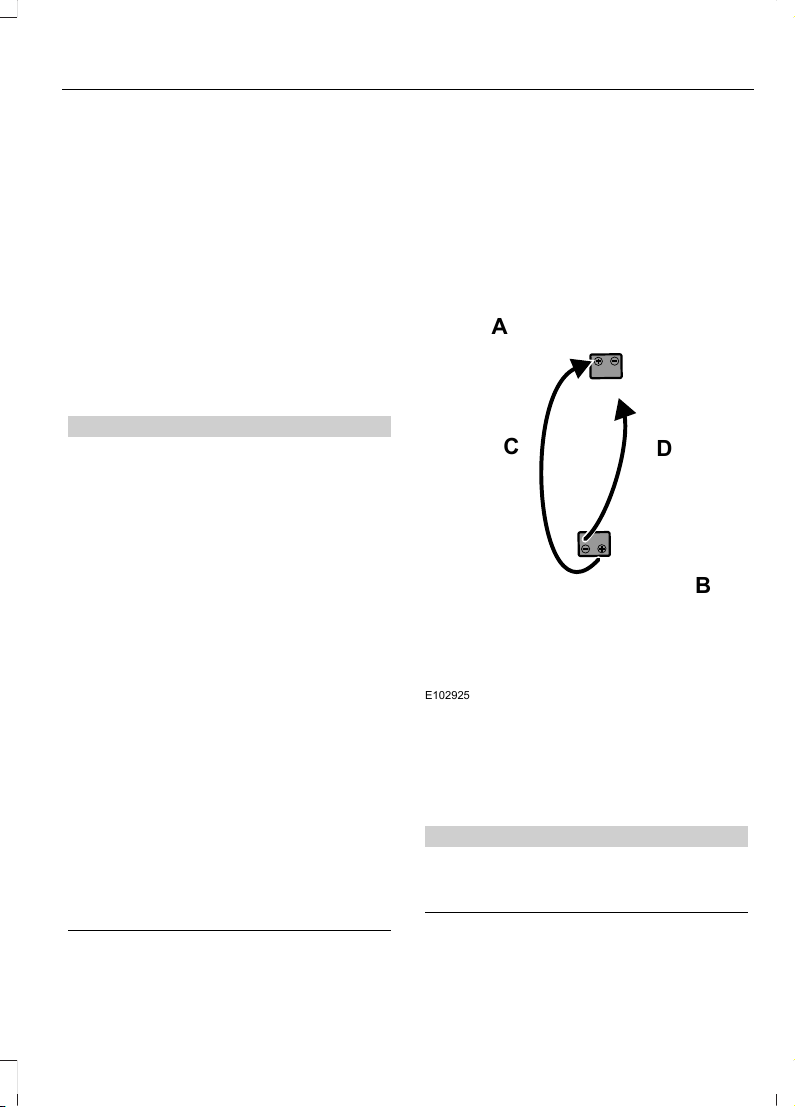
1. Press START/STOP to switch off your
vehicle.
2. Press the brake pedal and
START/STOP to switch on your
vehicle.
3. Remove your foot from the brake pedal
and press START/STOP to switch off
your vehicle.
4. You can attempt to start the vehicle
by pressing the brake pedal and
START/STOP, or press START/STOP
without pressing the brake pedal.
JUMP STARTING THE VEHICLE
WARNINGS
Keep batteries out of reach of
children. Batteries contain sulfuric
acid. Avoid contact with skin, eyes or
clothing. Shield your eyes when working
near the battery to protect against possible
splashing of acid solution. In case of acid
contact with skin or eyes, flush
immediately with water for a minimum of
15 minutes and get prompt medical
attention. If acid is swallowed, call a
physician immediately.
Batteries normally produce explosive
gases which can cause personal
injury. Therefore, do not allow
flames, sparks or lighted substances to
come near the battery. When working near
the battery, always shield your face and
protect your eyes. Always provide correct
ventilation.
Use only the specified jacking points.
If you use other positions, you may
damage the body, steering,
suspension, engine, braking system or the
fuel lines.
Use only adequately sized cables
with insulated clamps.
Note: Do not disconnect the battery of the
disabled vehicle as this could damage the
vehicle's electrical system.
To Connect the Booster Cables
A
B
C
D
E102925
Flat battery vehicle.A
Booster battery vehicle.B
Positive connection cable.C
Negative connection cable.D
WARNING
Make sure that the cables are clear
of any moving parts and fuel delivery
system parts.
243
Edge (CDQ) Canada/United States of America, enUSA, Edition date: 201706, First Printing
Roadside Emergencies

Park the booster vehicle close to the hood
of the disabled vehicle, making sure the
two vehicles do not touch.
1. Switch off the engine and any electrical
equipment.
2. Connect the positive (+) jumper cable
to the positive (+) terminal of the
discharged battery.
E152134
3. Make the final connection of the
negative (-) cable to an exposed metal
part of the stalled vehicle's engine,
away from the battery and the fuel
injection system, or connect the
negative (-) cable to a ground
connection point if available.
WARNINGS
Do not connect the end of the
second cable to the negative (-)
terminal of the battery to be jumped.
A spark may cause an explosion of the
gases that surround the battery.
Make sure that the cables are clear
of any moving parts and fuel delivery
system parts.
To Start the Engine
1. Start the engine of the booster vehicle
and rev the engine moderately, or press
the accelerator gently to keep your
engine speed between 2000 and 3000
RPM, as shown in your tachometer.
2. Start the engine of the disabled vehicle.
3. Once the disabled vehicle has been
started, run both vehicle engines for an
additional three minutes before
disconnecting the jumper cables.
Remove the jumper cables in the reverse
order that they were connected.
Note: Do not switch the headlamps on
when disconnecting the cables. The peak
voltage could blow the bulbs.
POST-CRASH ALERT SYSTEM
The system flashes the direction indicators
and sounds the horn (intermittently) in the
event of a serious impact that deploys an
airbag (front, side, side curtain or Safety
Canopy) or the seatbelt pretensioners.
The horn and indicators turn off when:
• You press the hazard control button.
• You press the panic button on the
remote entry transmitter (if equipped).
• Your vehicle runs out of power.
244
Edge (CDQ) Canada/United States of America, enUSA, Edition date: 201706, First Printing
Roadside Emergencies
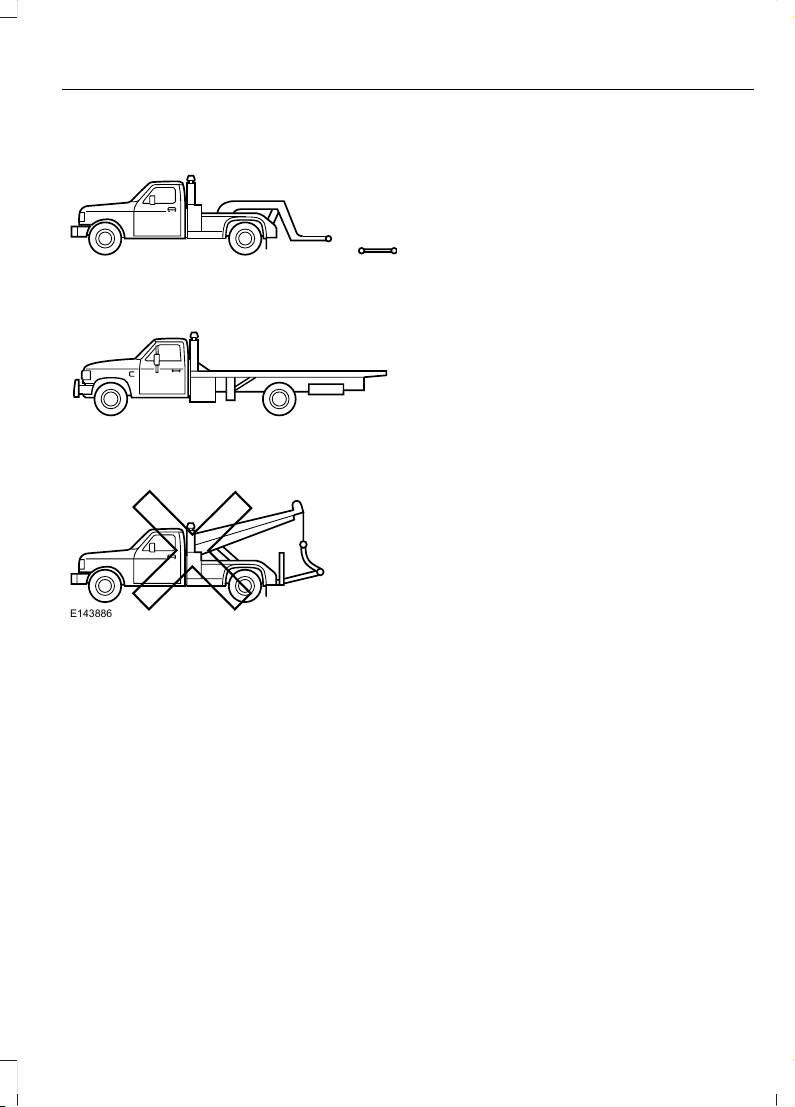
TRANSPORTING THE VEHICLE
E143886
If you need to have your vehicle towed,
contact a professional towing service or,
if you are a member of a roadside
assistance program, your roadside
assistance service provider.
We recommend the use of a wheel lift and
dollies or flatbed equipment to tow your
vehicle. Do not tow with a slingbelt. Ford
Motor Company has not approved a
slingbelt towing procedure. Vehicle
damage may occur if towed incorrectly, or
by any other means.
Ford Motor Company produces a towing
manual for all authorized tow truck
operators. Have your tow truck operator
refer to this manual for proper hook-up
and towing procedures for your vehicle.
It is acceptable to have your front-wheel
drive vehicle towed from the front if using
proper wheel lift equipment to raise the
front wheels off the ground. When towing
in this manner, the rear wheels can remain
on the ground.
Front-wheel drive vehicles must have the
front wheels placed on a tow dolly when
towing your vehicle from the rear using
wheel lift equipment. This prevents
damage to the transmission.
Towing an all-wheel or four-wheel drive
vehicle requires that all wheels be off the
ground, such as using a wheel lift and
dollies or flatbed equipment. This prevents
damage to the transmission, all-wheel or
four-wheel drive system and vehicle.
245
Edge (CDQ) Canada/United States of America, enUSA, Edition date: 201706, First Printing
Roadside Emergencies
GETTING THE SERVICES YOU
NEED
Warranty repairs to your vehicle must be
performed by an authorized dealer. While
any authorized dealer handling your vehicle
line will provide warranty service, we
recommend you return to your selling
authorized dealer who wants to ensure
your continued satisfaction.
Please note that certain warranty repairs
require special training and equipment, so
not all authorized dealers are authorized
to perform all warranty repairs. This means
that, depending on the warranty repair
needed, you may have to take your vehicle
to another authorized dealer.
A reasonable time must be allowed to
perform a repair after taking your vehicle
to the authorized dealer. Repairs will be
made using Ford or Motorcraft® parts, or
remanufactured or other parts that are
authorized by Ford.
Away From Home
If you are away from home when your
vehicle needs service, contact the Ford
Customer Relationship Center or use the
online resources listed below to find the
nearest authorized dealer.
In the United States:
Mailing address
Ford Motor Company
Customer Relationship Center
P.O. Box 6248
Dearborn, MI 48126
Telephone
1-800-392-3673 (FORD)
(TDD for the hearing impaired:
1-800-232-5952)
Additional information and resources are
available online:
Website
www.owner.ford.com
These are some of the items that can be
found online:
• U.S. dealer locator by Dealer Name,
City/State or Zip Code.
• Owner Manuals.
• Maintenance Schedules.
• Recalls.
• Ford Extended Service Plans.
• Ford Genuine Accessories.
• Service specials and promotions.
In Canada:
Mailing address
Customer Relationship Centre
Ford Motor Company of Canada, Limited
P.O. Box 2000
Oakville, Ontario L6K 0C8
Telephone
1-800-565-3673 (FORD)
Website
www.ford.ca
Twitter
@FordServiceCA (English Canada)
@FordServiceQC (Quebec)
Additional Assistance
If you have questions or concerns, or are
unsatisfied with the service you are
receiving, follow these steps:
1. Contact your Sales Representative or
Service Advisor at your selling or
servicing authorized dealer.
246
Edge (CDQ) Canada/United States of America, enUSA, Edition date: 201706, First Printing
Customer Assistance

2. If your inquiry or concern remains
unresolved, contact the Sales Manager,
Service Manager or Customer Relations
Manager.
3. If you require assistance or clarification
on Ford Motor Company policies,
please contact the Ford Customer
Relationship Center.
In order to help us serve you better, please
have the following information available
when contacting a Customer Relationship
Center:
• Vehicle Identification Number.
• Your telephone number (home and
business).
• The name of the authorized dealer and
city where located.
• The vehicle’ s current odometer reading.
In some states within the United States,
you must directly notify Ford in writing
before pursuing remedies under your
state's warranty laws, and Ford is also
allowed a final repair attempt.
Additionally, in some states within the
United States, a consumer has the option
of submitting a warranty dispute to the
BBB Auto Line before taking action under
the Magnuson-Moss Warranty Act, or to
the extent allowed by state law, before
pursuing replacement or repurchase
remedies provided by certain state laws.
This dispute handling procedure is not
required prior to enforcing state created
rights or other rights which are independent
of the Magnuson-Moss Warranty Act or
state replacement or repurchase laws.
IN CALIFORNIA (U.S. ONLY)
California Civil Code Section 1793.2(d)
requires that, if a manufacturer or its
representative is unable to repair a motor
vehicle to conform to the vehicle’s
applicable express warranty after a
reasonable number of attempts, the
manufacturer shall be required to either
replace the vehicle with one substantially
identical or repurchase the vehicle and
reimburse the buyer in an amount equal to
the actual price paid or payable by the
consumer (less a reasonable allowance
for consumer use). The consumer has the
right to choose whether to receive a refund
or replacement vehicle.
California Civil Code Section 1793.22(b)
presumes that the manufacturer has had
a reasonable number of attempts to
conform the vehicle to its applicable
express warranties if, within the first 18
months of ownership of a new vehicle or
the first 18,000 mi (29,000 km), whichever
occurs first:
1. Two or more repair attempts are made
on the same non-conformity likely to
cause death or serious bodily injury OR
2. Four or more repair attempts are made
on the same nonconformity (a defect
or condition that substantially impairs
the use, value or safety of the vehicle)
OR
3. The vehicle is out of service for repair
of nonconformities for a total of more
than 30 calendar days (not necessarily
all at one time).
In the case of 1 or 2 above, the consumer
must also notify the manufacturer of the
need for the repair of the nonconformity
at the following address:
Ford Motor Company
16800 Executive Plaza Drive
Mail Drop 3NE-B
Dearborn, MI 48126
247
Edge (CDQ) Canada/United States of America, enUSA, Edition date: 201706, First Printing
Customer Assistance

You are required to submit your warranty
dispute to BBB AUTO LINE before asserting
in court any rights or remedies conferred
by California Civil Code Section 1793.22(b).
You are also required to use BBB AUTO
LINE before exercising rights or seeking
remedies created by the Federal
Magnuson-Moss Warranty Act, 15 U.S.C.
sec. 2301 et seq. If you choose to seek
redress by pursuing rights and remedies
not created by California Civil Code Section
1793.22(b) or the Magnuson-Moss
Warranty Act, resort to BBB AUTO LINE is
not required by those statutes.
THE BETTER BUSINESS
BUREAU (BBB) AUTO LINE
PROGRAM (U.S. ONLY)
Your satisfaction is important to Ford
Motor Company and to your dealer. If a
warranty concern has not been resolved
using the three-step procedure outlined
earlier in this chapter in the Getting the
Services you need section, you may be
eligible to participate in the BBB AUTO
LINE program.
The BBB AUTO LINE program consists of
two parts – mediation and arbitration.
During mediation, a representative of the
BBB will contact both you and Ford Motor
Company to explore options for settlement
of the claim. If an agreement is not reached
during mediation or you do not want to
participate in mediation, and if your claim
is eligible, you may participate in the
arbitration process. An arbitration hearing
will be scheduled so that you can present
your case in an informal setting before an
impartial person. The arbitrator will
consider the testimony provided and make
a decision after the hearing.
Disputes submitted to the BBB AUTO LINE
program are usually decided within forty
days after you file your claim with the BBB.
You are not bound by the decision, and
may reject the decision and proceed to
court where all findings of the BBB Auto
Line dispute, and decision, are admissible
in the court action. Should you choose to
accept the BBB AUTO LINE decision, Ford
is then bound by the decision, and must
comply with the decision within 30 days
of receipt of your acceptance letter.
BBB AUTO LINE Application: Using the
information provided below, please call or
write to request a program application.
You will be asked for your name and
address, general information about your
new vehicle, information about your
warranty concerns, and any steps you have
already taken to try to resolve them. A
Customer Claim Form will be mailed that
will need to be completed, signed and
returned to the BBB along with proof of
ownership. Upon receipt, the BBB will
review the claim for eligibility under the
Program Summary Guidelines.
You can get more information by
calling BBB AUTO LINE at
1-800-955-5100, or writing to:
BBB AUTO LINE
3033 Wilson Boulevard, Suite 600
Arlington, Virginia 22201
BBB AUTO LINE applications can also be
requested by calling the Ford Motor
Company Customer Relationship Center
at 1-800-392-3673.
Note: Ford Motor Company reserves the
right to change eligibility limitations, modify
procedures, or to discontinue this process
at any time without notice and without
obligation.
248
Edge (CDQ) Canada/United States of America, enUSA, Edition date: 201706, First Printing
Customer Assistance

UTILIZING THE
MEDIATION/ARBITRATION
PROGRAM (CANADA ONLY)
For vehicles delivered to authorized
Canadian dealers. In those cases where
you continue to feel that the efforts by Ford
of Canada and the authorized dealer to
resolve a factory-related vehicle service
concern have been unsatisfactory, Ford of
Canada participates in an impartial third
party mediation/arbitration program
administered by the Canadian Motor
Vehicle Arbitration Plan (CAMVAP).
The CAMVAP program is a straight forward
and relatively speedy alternative to resolve
a disagreement when all other efforts to
produce a settlement have failed. This
procedure is without cost to you and is
designed to eliminate the need for lengthy
and expensive legal proceedings.
In the CAMVAP program, impartial
third-party arbitrators conduct hearings at
mutually convenient times and places in
an informal environment. These impartial
arbitrators review the positions of the
parties, make decisions and, when
appropriate, render awards to resolve
disputes. CAMVAP decisions are fast, fair,
and final as the arbitrator’s award is
binding on both you and Ford of Canada.
CAMVAP services are available in all
Canadian territories and provinces. For
more information, without charge or
obligation, call your CAMVAP Provincial
Administrator directly at 1-800-207-0685
or visit www.camvap.ca.
GETTING ASSISTANCE
OUTSIDE THE U.S. AND
CANADA
Before exporting your vehicle to a foreign
country, contact the appropriate foreign
embassy or consulate. These officials can
inform you of local vehicle registration
regulations and where to find unleaded
fuel or petrol/gas engines or the proper
sulfur fuel for diesel engines.
If you cannot find the proper fuel
recommended for your vehicle, contact
our Customer Relationship Center.
The use of improper fuels in your vehicle
without proper conversion may damage
the effectiveness of your emission control
system and may cause engine knocking or
serious engine damage. Ford Motor
Company or Ford of Canada is not
responsible for any damage caused by use
of improper fuel. Using improper fuels may
also result in difficulty importing your
vehicle back into the United States.
If your vehicle must be serviced while you
are traveling or living in Asia-Pacific Region,
Sub-Saharan Africa, U.S. Virgin Islands
and/or Puerto Rico , Central America, the
Caribbean, and Israel and the Middle East,
contact the nearest authorized dealer. If
the authorized dealer cannot help you,
contact the corresponding Ford Customer
Assistance Center:
FORD MOTOR COMPANY
Customer Relationship Centers in:
249
Edge (CDQ) Canada/United States of America, enUSA, Edition date: 201706, First Printing
Customer Assistance

E-mailFaxPhone
Customer Relation-
ship Center
apemcrc@ford.comN/AN/AAsia Pacific
expcac@ford.com-+1 313 594 4857
Caribbean and
Central America
menacac@ford.com971 4 3327 266
Ford
Middle East
80004443673
Lincoln
80004441067
UAE
80004441066
Saudi Arabia
8008443673
Mobily and Zain cell
phone users in Saudi
800850078
prcac@ford.comN/A+1-800-841-3673
Puerto Rico and U.S.
Virgin Islands
ssacrc@ford.comN/A+1-313-594-4857Sub-Saharan Africa
infokr1@ford.com or
infokr@lincoln.com
N/A+63-2-717-6410South Korea
If you buy your vehicle in North America
and then relocate to any of the above
locations, register your vehicle
identification number (VIN) and new
address with Ford Global Trade Services
by emailing, expcso@ford.com.
If you are in another foreign country,
contact the nearest authorized dealer. In
the event your inquiry is unresolved,
communicate your concern with the
dealership’s Sales Manager, Service
Manager or Customer Relations Manager.
If you require additional assistance or
clarification, please contact the respective
Customer Relationship Center as
previously listed.
Customers in the U.S. should call
1-800-392-3673.
ORDERING ADDITIONAL
OWNER'S LITERATURE
To order the publications in this portfolio,
contact Helm, Incorporated at:
HELM, INCORPORATED
47911 Halyard Drive
Plymouth, Michigan 48170
Attention: Customer Service
Or to order a free publication catalog, call
toll free: 1-800-782-4356
Monday-Friday 8:00 a.m. - 6:00 p.m. EST
250
Edge (CDQ) Canada/United States of America, enUSA, Edition date: 201706, First Printing
Customer Assistance

Helm, Incorporated can also be reached
by their website:
www.helminc.com
(Items in this catalog may be purchased
by credit card, check or money order.)
Obtaining a French Owner’s
Manual
French Owner’s Manual can be obtained
from your authorized dealer or by
contacting Helm, Incorporated using the
contact information listed previously in this
section.
REPORTING SAFETY DEFECTS
(U.S. ONLY)
E142557
If you believe that your vehicle has
a defect which could cause a
crash or could cause injury or
death, you should immediately
inform the National Highway
Traffic Safety Administration
(NHTSA) in addition to notifying
Ford Motor Company.
If NHTSA receives similar
complaints, it may open an
investigation, and if it finds that a
safety defect exists in a group of
vehicles, it may order a recall and
remedy campaign. However,
NHTSA cannot become involved
in individual problems between
you, your dealer, or Ford Motor
Company.
To contact NHTSA, you may call
the Vehicle Safety Hotline
toll-free at 1-888-327-4236 (TTY:
1-800-424-9153); go to
http://www.safercar.gov; or write
to:
Administrator
1200 New Jersey Avenue,
Southeast
Washington, D.C. 20590
You can also obtain other
information about motor vehicle
safety from
http://www.safercar.gov.
REPORTING SAFETY DEFECTS
(CANADA ONLY)
If you believe that your vehicle has a defect
which could cause a crash or could cause
injury or death, you should immediately
inform Transport Canada and Ford of
Canada.
251
Edge (CDQ) Canada/United States of America, enUSA, Edition date: 201706, First Printing
Customer Assistance
Transport Canada Contact Information
http://www.tc.gc.ca/eng/motorvehiclesafety/reporting-defects-motor-
vehicles.html (English)
Website
http://www.tc.gc.ca/fra/securiteautomobile/signaler-defauts-vehicules-
automobiles.html (French)
Website
1–800–333–0510Phone
Ford of Canada Contact Information
www.ford.caWebsite
1–800–565-3673Phone
252
Edge (CDQ) Canada/United States of America, enUSA, Edition date: 201706, First Printing
Customer Assistance
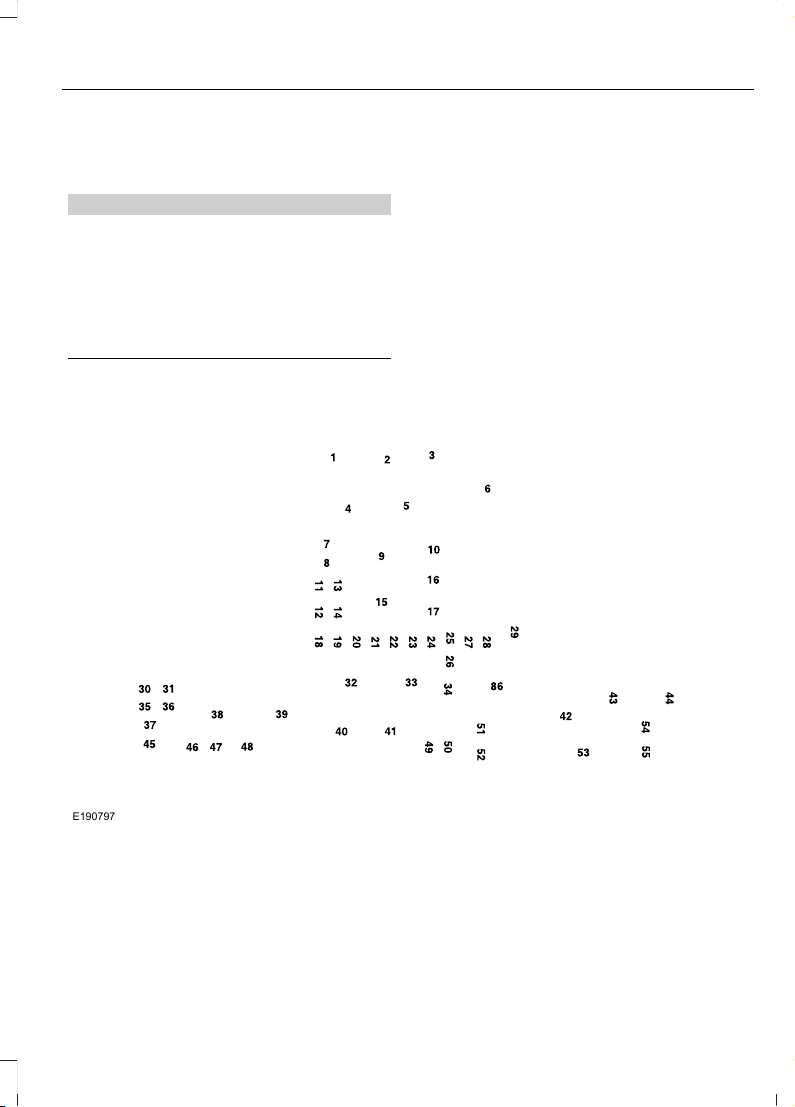
FUSE SPECIFICATION CHART
Power Distribution Box
WARNINGS
Always disconnect the battery before
servicing high current fuses.
To reduce risk of electrical shock,
always replace the cover to the
power distribution box before
reconnecting the battery or refilling fluid
reservoirs.
The power distribution box is located in
the engine compartment. It has
high-current fuses that protect your
vehicle's main electrical systems from
overloads.
If the battery has been disconnected and
reconnected, some features will need to
be reset. See Changing the 12V Battery
(page 279).
E190797
253
Edge (CDQ) Canada/United States of America, enUSA, Edition date: 201706, First Printing
Fuses

Protected ComponentsFuse RatingFuse or Relay
Number
Not used (spare).
30A
1
1
Starter relay.—2
Rear wiper.
15A
2
3
Rain sensor
Rear washer pump relay coil.
Blower motor relay.—4
Power point 3 - back of console.
20A
1
5
Not used.—6
Powertrain control module - vehicle power
1.
20A
2
7
Powertrain control module - vehicle power
2.
20A
2
8
Powertrain control module relay.—9
Power point 1 - driver front.
20A
1
10
Powertrain control module - vehicle power
4.
15A
3
11
Powertrain control module - vehicle power
3.
15A
3
12
Not used.—13
Not used.—14
Run-start relay.—15
Power point 2 - console bin.
20A
1
16
Power point 4 - luggage compartment.
20A
1
17
RH HID headlamp.
20A
2
18
Run-start electronic power assist steering.
10A
2
19
Run/start lighting.
10A
2
20
254
Edge (CDQ) Canada/United States of America, enUSA, Edition date: 201706, First Printing
Fuses
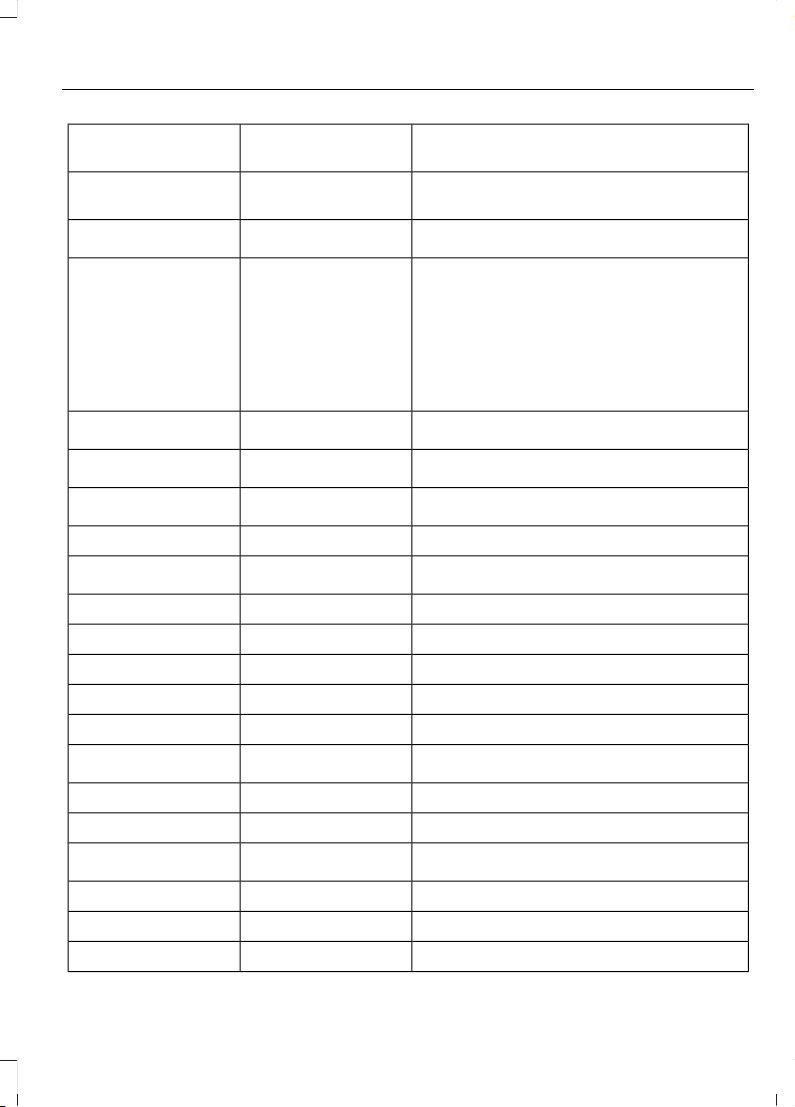
Protected ComponentsFuse RatingFuse or Relay
Number
Transmission oil pump logic power (start/
stop).
15A
2
21
Air conditioner clutch solenoid.
10A
2
22
Run-start 6.
15A
2
23
Blind spot information system.
Rear view camera.
Adaptive cruise control.
Heads-up display.
Voltage quality module (start/stop).
Front split view camera.
Front split view camera module.
Not used (spare).
10A
2
24
Run-start anti-lock brake system.
10A
3
25
Run-start powertrain control module.
10A
3
26
Not used.—27
Rear washer pump.
10A
2
28
Not used.—29
Not used.—30
Not used.—31
Electronic fan 1 relay.—32
A/C clutch relay.—33
Not used (spare).
15A
2
34
Not used.—35
Not used.—36
Power transfer unit fan.
10A
2
37
Electronic fan 2 relay—38
Electric fan 3 relay.—39
Horn relay.—40
255
Edge (CDQ) Canada/United States of America, enUSA, Edition date: 201706, First Printing
Fuses

Protected ComponentsFuse RatingFuse or Relay
Number
Not used.—41
Fuel pump relay.—42
2nd row easy fold seat release.
10A
2
43
LH HID headlamp.
20A
2
44
Not used.—45
Not used.—46
Not used.—47
Not used (spare).
15A
2
48
Not used.—49
Horn.
20A
2
50
Not used.—51
Not used.—52
Not used.—53
Brake on off switch.
10A
3
54
ALT sensor.
10A
3
55
Not used.–86
1
M case fuse.
2
Micro 2 fuse.
3
Micro 3 fuse.
Power Distribution Box - Bottom
There are fuses located on the bottom of
the fuse box. To access the bottom of the
fuse box, do the following:
256
Edge (CDQ) Canada/United States of America, enUSA, Edition date: 201706, First Printing
Fuses
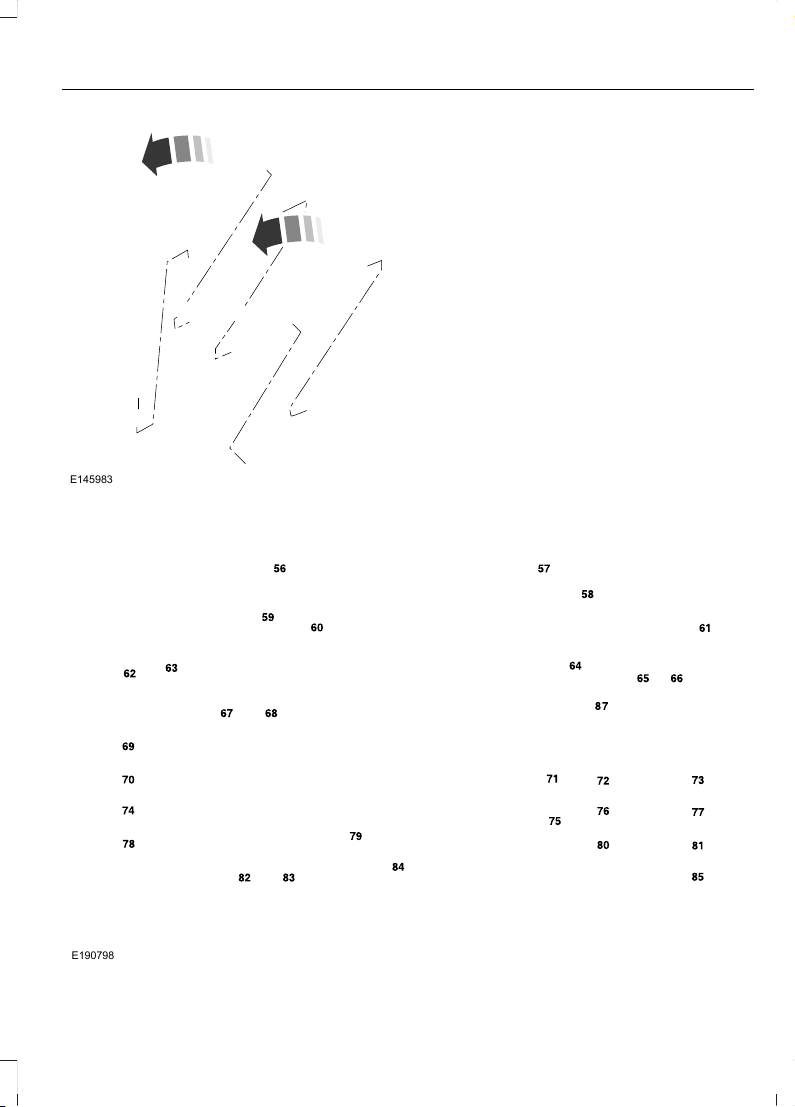
E145983
1. Release the two latches, located on
both sides of the fuse box.
2. Raise the inboard side of the fuse box
from the cradle.
3. Move the fuse box toward the center
of the engine compartment.
4. Pivot the outboard side of the fuse box
to access the bottom side.
E190798
257
Edge (CDQ) Canada/United States of America, enUSA, Edition date: 201706, First Printing
Fuses
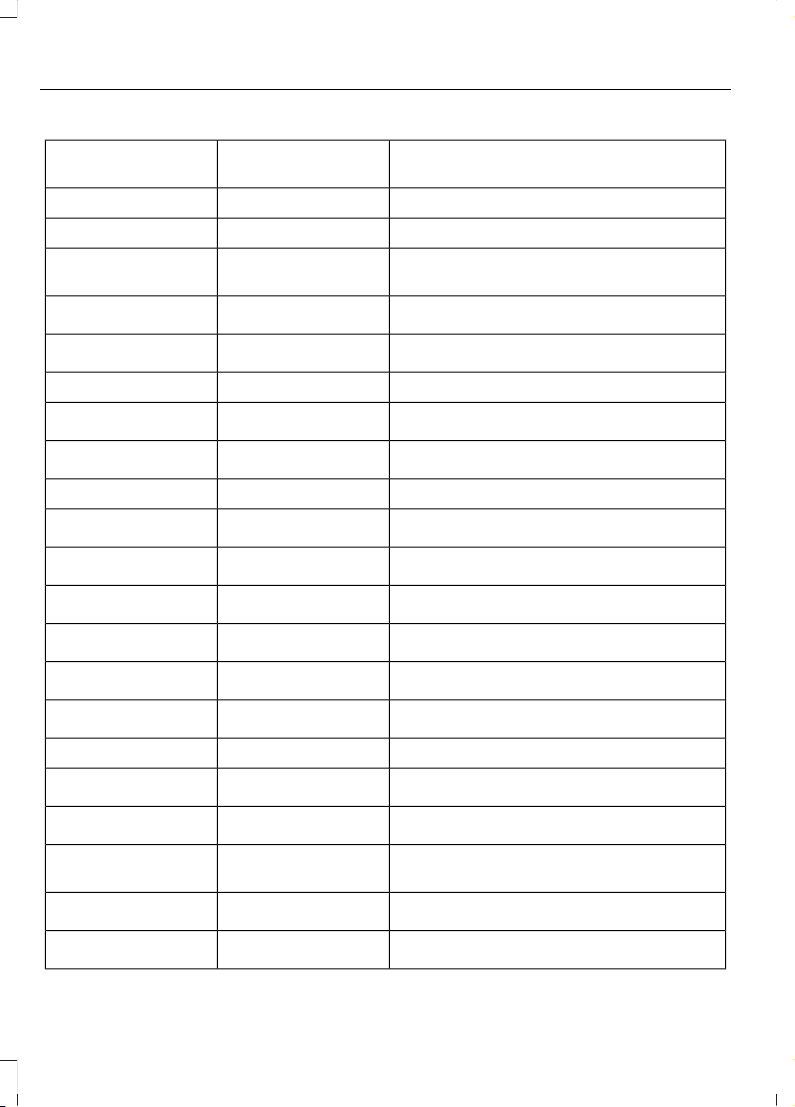
Protected ComponentsFuse RatingFuse or Relay
Number
Not used.—56
Not used.—57
Fuel pump feed.
30A
1
58
Port fuel injectors (3.5L).
Electronic fan 3.
40A
2
59
Electronic fan 1.
40A
2
60
Not used.—61
Body control module 1.
50A
2
62
Electronic fan 2.
25A
1
63
Not used.—64
Front heated seat.
20A
1
65
Heated wiper park.
15A
1
66
Body control module 2.
50A
2
67
Heated rear window.
40A
1
68
Anti-lock brake system valves.
30A
1
69
Passenger seat.
30A
1
70
Not used.—71
Transmission oil pump (start/stop).
20A
1
72
Rear heated seats.
20A
1
73
Driver seat module.
30A
1
74
Power driver seat (less memory).
Wiper motor 1.
25A
1
75
Power liftgate module.
30A
1
76
258
Edge (CDQ) Canada/United States of America, enUSA, Edition date: 201706, First Printing
Fuses

Protected ComponentsFuse RatingFuse or Relay
Number
Climate control seat module.
30A
1
77
Trailer lighting module.
40A
1
78
Blower motor.
40A
2
79
Wiper motor 2.
25A
1
80
110 volt inverter.
40A
1
81
Not used.–82
Not used (spare).
20A
1
83
Starter solenoid.
30A
1
84
Not used.—85
Anti-lock brake system pump.
60A
2
87
1
M case fuse.
2
J case fuse.
Passenger Compartment Fuse
Panel
The fuse panel is located under the
instrument panel to the left of the steering
column.
Note: It may be easier to access the fuse
panel if you remove the finish trim piece.
259
Edge (CDQ) Canada/United States of America, enUSA, Edition date: 201706, First Printing
Fuses
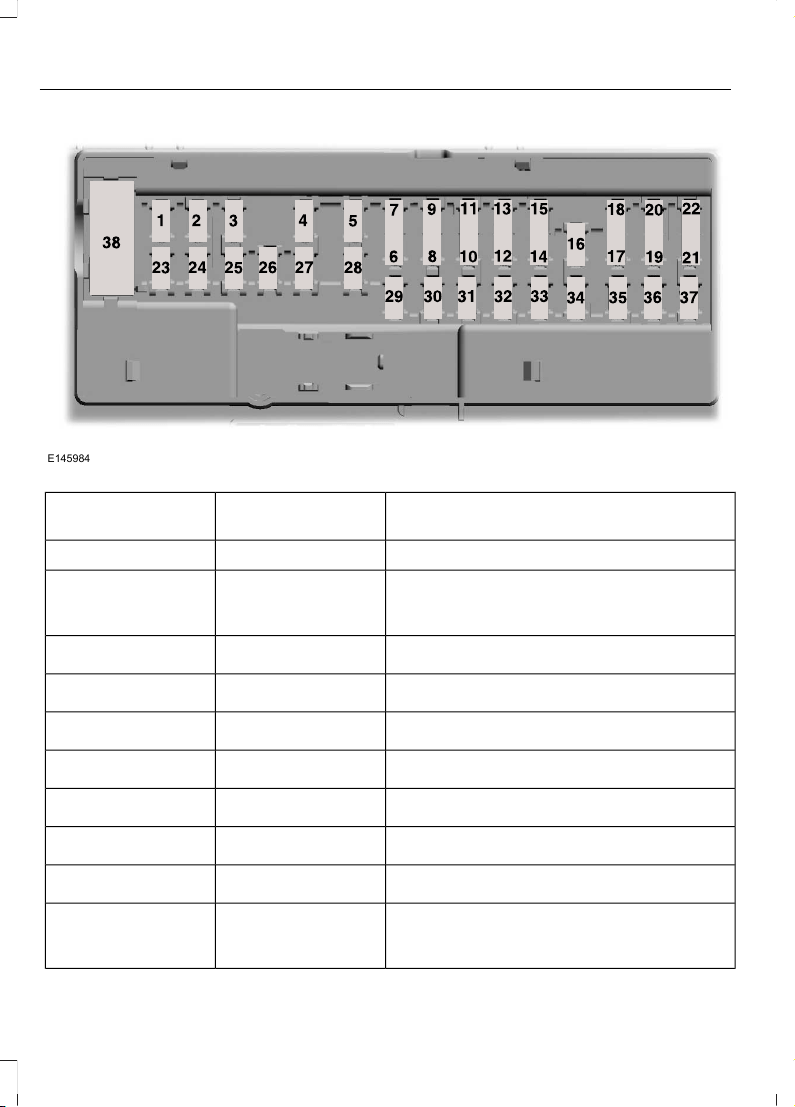
E145984
Protected ComponentsFuse RatingFuse or Relay
Number
Not used.—1
Memory seats.
7.5A
1
2
Lumbar.
Driver seat module logic power.
Driver door unlock.
20A
1
3
Not used (spare).
5A
1
4
Not used (spare).
20A
1
5
Not used (spare).
10A
2
6
Not used (spare).
10A
2
7
Not used (spare).
10A
2
8
Not used (spare).
10A
2
9
Keypad.
5A
2
10
Power liftgate module logic power.
Hands free liftgate module.
260
Edge (CDQ) Canada/United States of America, enUSA, Edition date: 201706, First Printing
Fuses
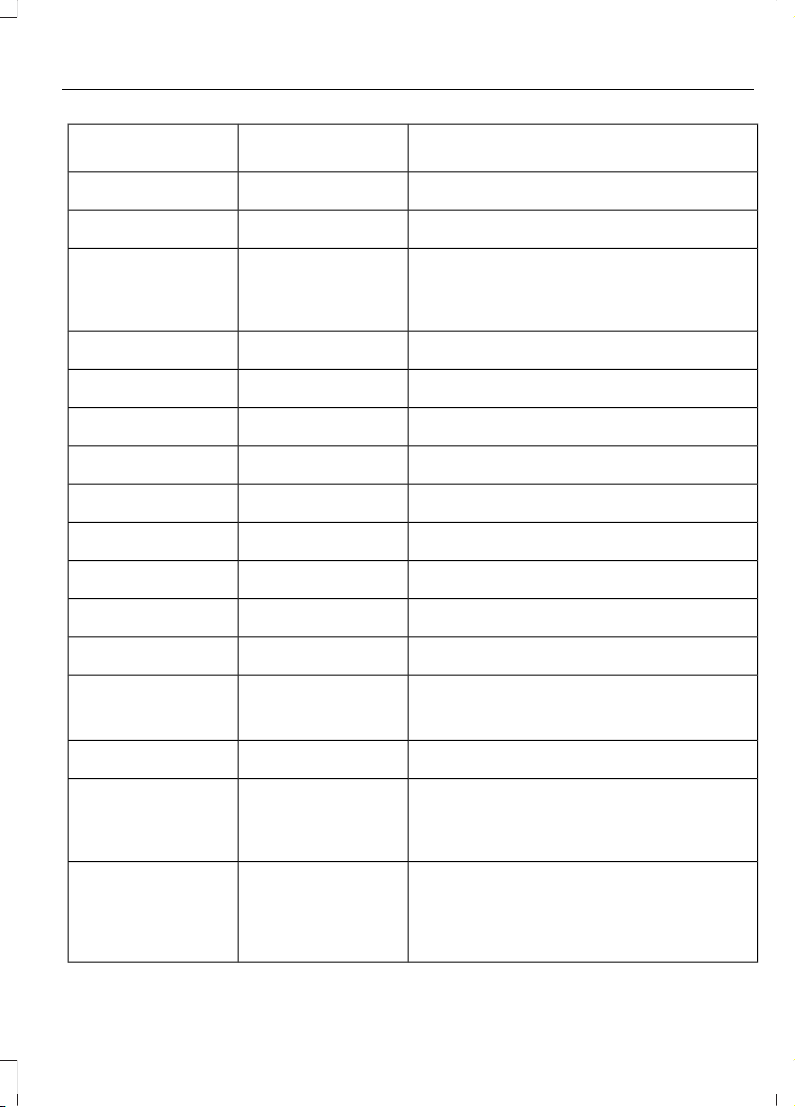
Protected ComponentsFuse RatingFuse or Relay
Number
Not used (spare).
5A
2
11
Climate control module.
7.5A
2
12
Cluster.
7.5A
2
13
Steering column control module.
Smart datalink connector (gateway)
module.
Extended power module.
10A
2
14
Datalink power.
10A
2
15
Not used (spare).
15A
1
16
Not used (spare).
5A
2
17
Push button start switch.
5A
2
18
Extended power module.
7.5A
2
19
Not used (spare).
7.5A
2
20
Humidity and in–car temperature sensor.
5A
2
21
Occupant classification system.
5A
2
22
Delayed accessory (power inverter logic,
moonroof logic, driver window switch
power).
10A
1
23
Central lock/unlock.
20A
1
24
Driver door (window, mirror).
30A
1
25
Driver door module.
Driver door lock indicator.
Driver lock switch illumination.
Front passenger door (window, mirror).
30A
1
26
Front passenger door module.
Front passenger lock indicator.
Front passenger switch illumination
(window, lock).
261
Edge (CDQ) Canada/United States of America, enUSA, Edition date: 201706, First Printing
Fuses

Protected ComponentsFuse RatingFuse or Relay
Number
Moonroof.
30A
1
27
Amplifier.
20A
1
28
Not used (spare).
30A
1
29
Not used (spare).
30A
1
30
Not used (spare).
15A
1
31
Global positioning system.
10A
1
32
Center stack display.
Voice control (SYNC).
Radio transceiver module.
Radio.
20A
1
33
Run-start bus (fuse 19, 20, 21, 22, 35, 36, 37,
circuit breaker 38).
30A
1
34
Not used (spare).
5A
1
35
Auto-dimming rear view mirror.
15A
1
36
Heated seat.
Auto high beam/lane departure mirror
module.
Rear heated seat module logic power.
Heated steering wheel module.
20A
1
37
Active front steering wheel.
Rear power windows.
30A
3
38
Rear window switch illumination.
1
Micro 2 fuse.
2
Micro 3 fuse.
3
Circuit breaker.
262
Edge (CDQ) Canada/United States of America, enUSA, Edition date: 201706, First Printing
Fuses
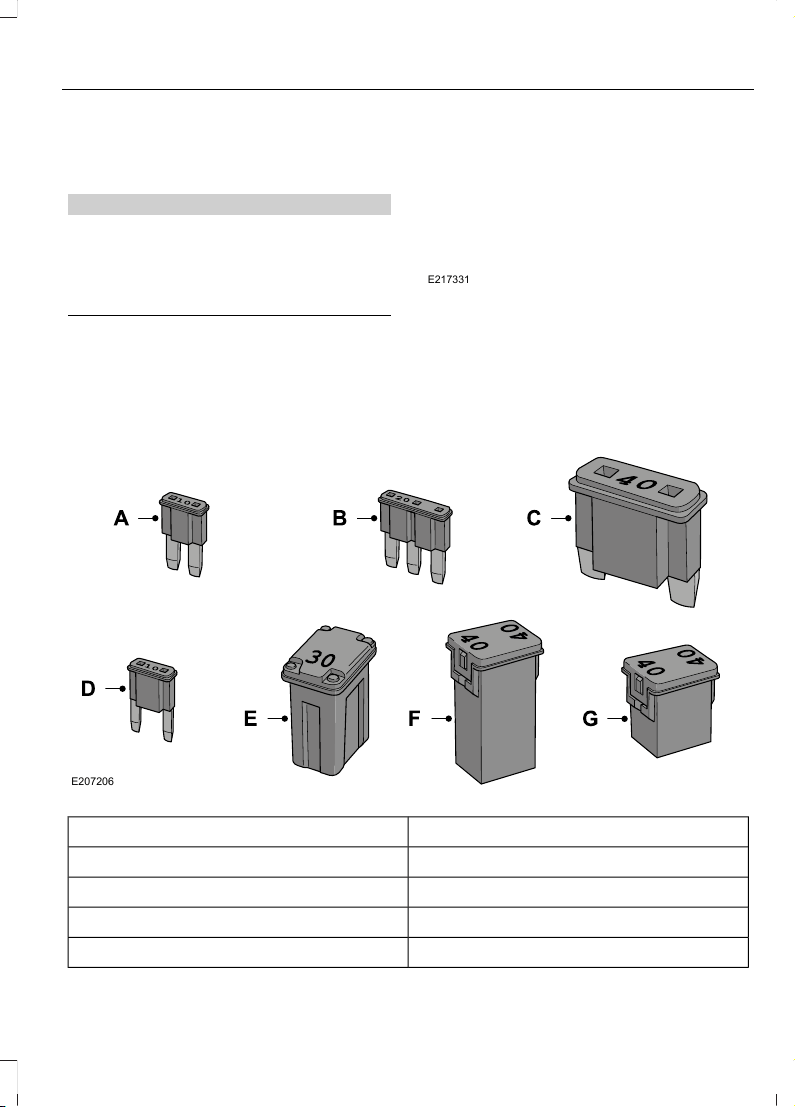
CHANGING A FUSE
Fuses
WARNING
Always replace a fuse with one that
has the specified amperage rating.
Using a fuse with a higher amperage
rating can cause severe wire damage and
could start a fire.
E217331
If electrical components in the vehicle are
not working, a fuse may have blown. Blown
fuses are identified by a broken wire within
the fuse. Check the appropriate fuses
before replacing any electrical
components.
Fuse Types
E207206
Fuse TypeCallout
Micro 2A
Micro 3B
MaxiC
MiniD
263
Edge (CDQ) Canada/United States of America, enUSA, Edition date: 201706, First Printing
Fuses

Fuse TypeCallout
M CaseE
J CaseF
J Case Low ProfileG
264
Edge (CDQ) Canada/United States of America, enUSA, Edition date: 201706, First Printing
Fuses
GENERAL INFORMATION
Have your vehicle serviced regularly to help
maintain its roadworthiness and resale
value. There is a large network of
authorized dealers that are there to help
you with their professional servicing
expertise. We believe that their specially
trained technicians are best qualified to
service your vehicle properly and expertly.
They are supported by a wide range of
highly specialized tools developed
specifically for servicing your vehicle.
If your vehicle requires professional service,
an authorized dealer can provide the
necessary parts and service. Check your
warranty information to find out which
parts and services are covered.
Use only recommended fuels, lubricants,
fluids and service parts conforming to
specifications. Motorcraft® parts are
designed and built to provide the best
performance in your vehicle.
Precautions
• Do not work on a hot engine.
• Make sure that nothing gets caught in
moving parts.
• Do not work on a vehicle with the
engine running in an enclosed space,
unless you are sure you have enough
ventilation.
• Keep all open flames and other burning
material (such as cigarettes) away
from the battery and all fuel related
parts.
Working with the Engine Off
1. Set the parking brake and shift to park
(P).
2. Switch off the engine.
3. Block the wheels.
Working with the Engine On
WARNING
To reduce the risk of vehicle damage
and/or personal burn injuries, do not
start your engine with the air cleaner
removed and do not remove it while the
engine is running.
1. Set the parking brake and shift to park
(P).
2. Block the wheels.
OPENING AND CLOSING THE
HOOD
Opening the Hood
E142457
1. Inside the vehicle, pull the hood release
handle located under the left-hand
side of the instrument panel.
265
Edge (CDQ) Canada/United States of America, enUSA, Edition date: 201706, First Printing
Maintenance
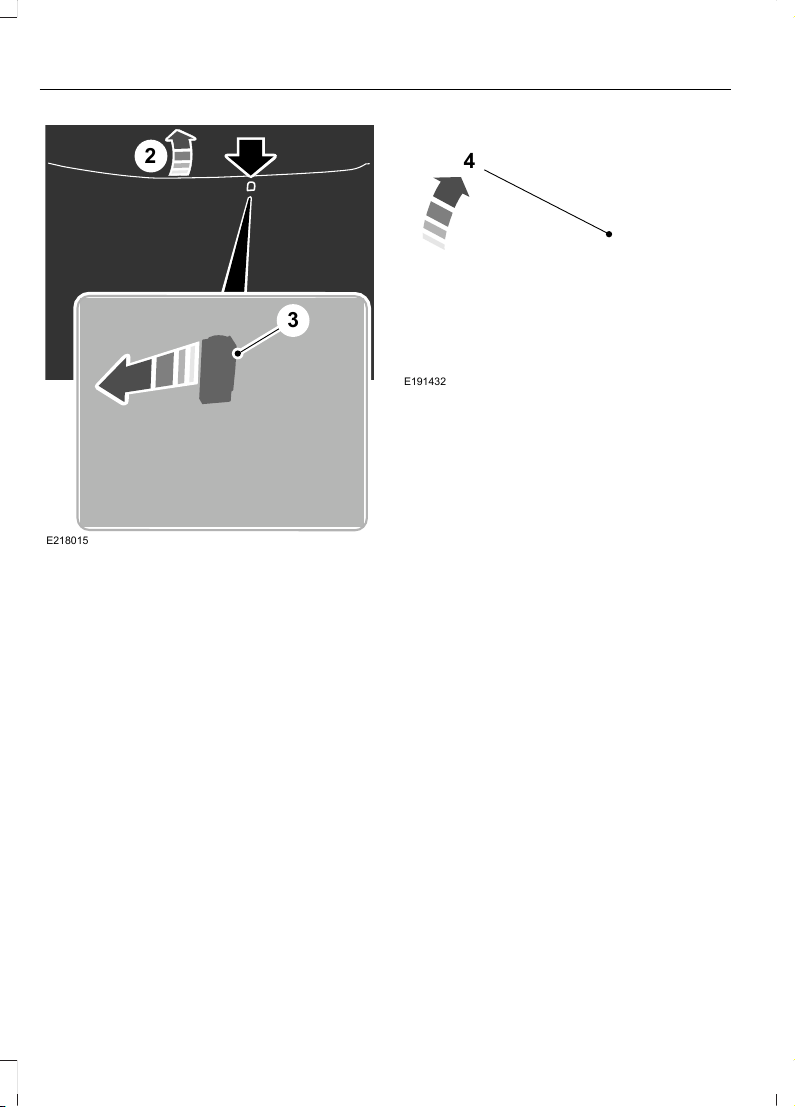
E218015
2
3
2. Slightly lift the hood.
3. Release the hood latch by pushing the
secondary release lever to your
left-hand side.
E191432
4
4. Open the hood. The hood strut
automatically supports the hood.
Closing the Hood
1. Lower the hood and allow it to drop
under its own weight for the last
8–12 in (20–30 cm).
Note: Make sure that the hood is correctly
closed.
266
Edge (CDQ) Canada/United States of America, enUSA, Edition date: 201706, First Printing
Maintenance
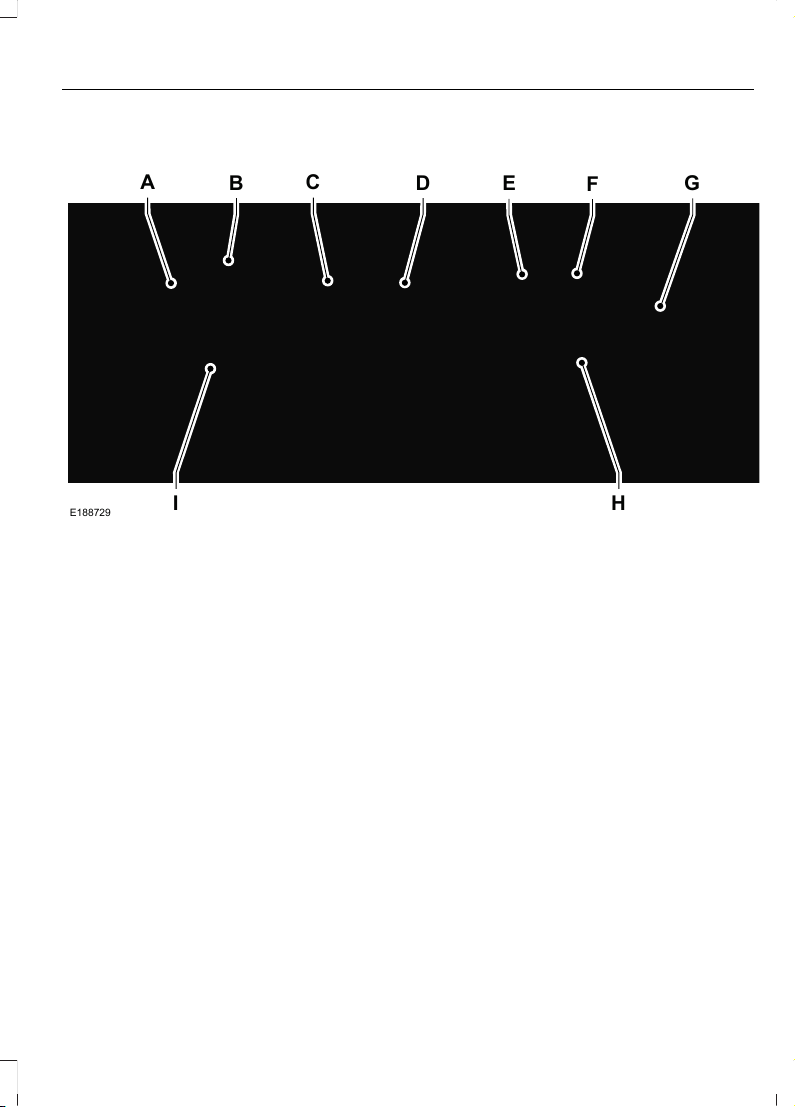
UNDER HOOD OVERVIEW - 2.0L ECOBOOST™
A
I H
EB
C
D
F
G
E188729
Engine coolant reservoir. See Engine Coolant Check (page 272).A
Brake fluid reservoir (right-hand drive). See Brake Fluid Check (page 278).B
Engine oil dipstick. See Engine Oil Dipstick (page 270).C
Engine oil filler cap. See Engine Oil Check (page 270).D
Brake fluid reservoir (left-hand drive). See Brake Fluid Check (page 278).E
Battery. See Changing the 12V Battery (page 279).F
Power distribution box. See Fuses (page 253).G
Air filter assembly. See Changing the Engine Air Filter (page 288).H
Windshield washer fluid reservoir. See Washer Fluid Check (page 279).I
267
Edge (CDQ) Canada/United States of America, enUSA, Edition date: 201706, First Printing
Maintenance
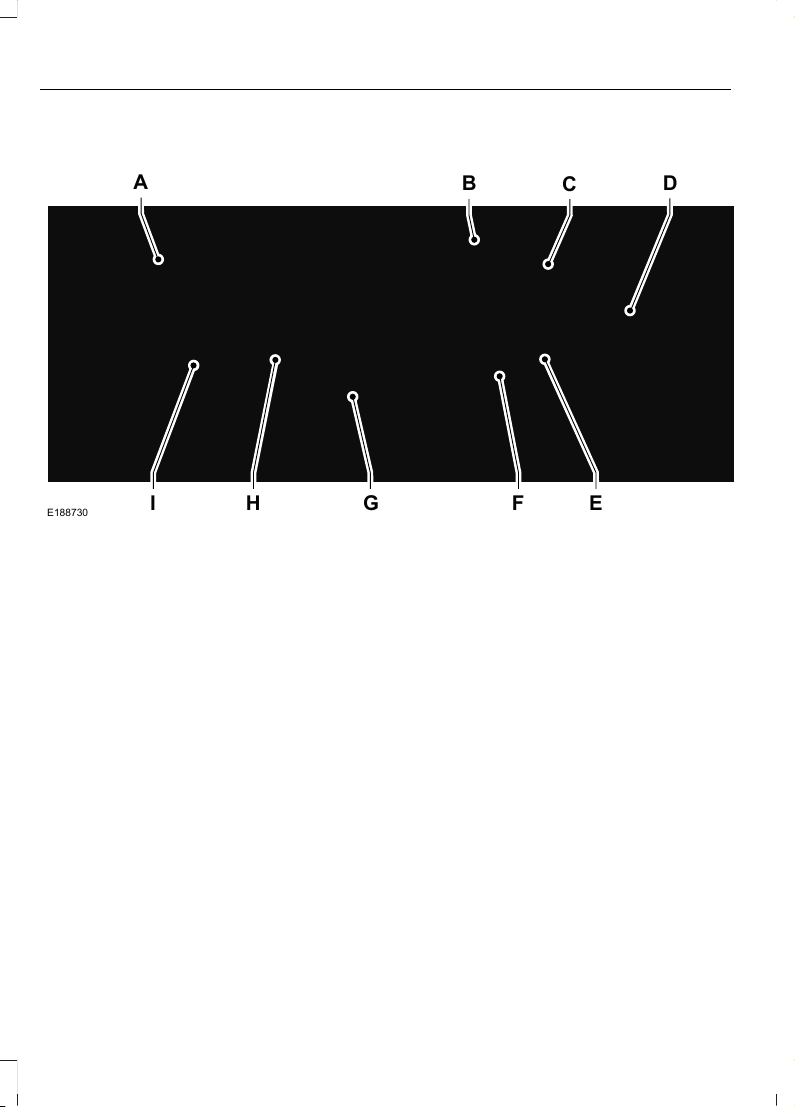
UNDER HOOD OVERVIEW - 2.7L ECOBOOST™
A
I EFGH
B
C
D
E188730
Engine coolant reservoir. See Engine Coolant Check (page 272).A
Brake fluid reservoir. See Brake Fluid Check (page 278).B
Battery. See Changing the 12V Battery (page 279).C
Power distribution box. See Fuses (page 253).D
Air filter assembly. See Changing the Engine Air Filter (page 288).E
Automatic transmission fluid dipstick. See Automatic Transmission Fluid
Check (page 276).
F
Engine oil dipstick. See Engine Oil Dipstick (page 270).G
Engine oil filler cap. See Engine Oil Check (page 270).H
Windshield washer fluid reservoir. See Washer Fluid Check (page 279).I
268
Edge (CDQ) Canada/United States of America, enUSA, Edition date: 201706, First Printing
Maintenance
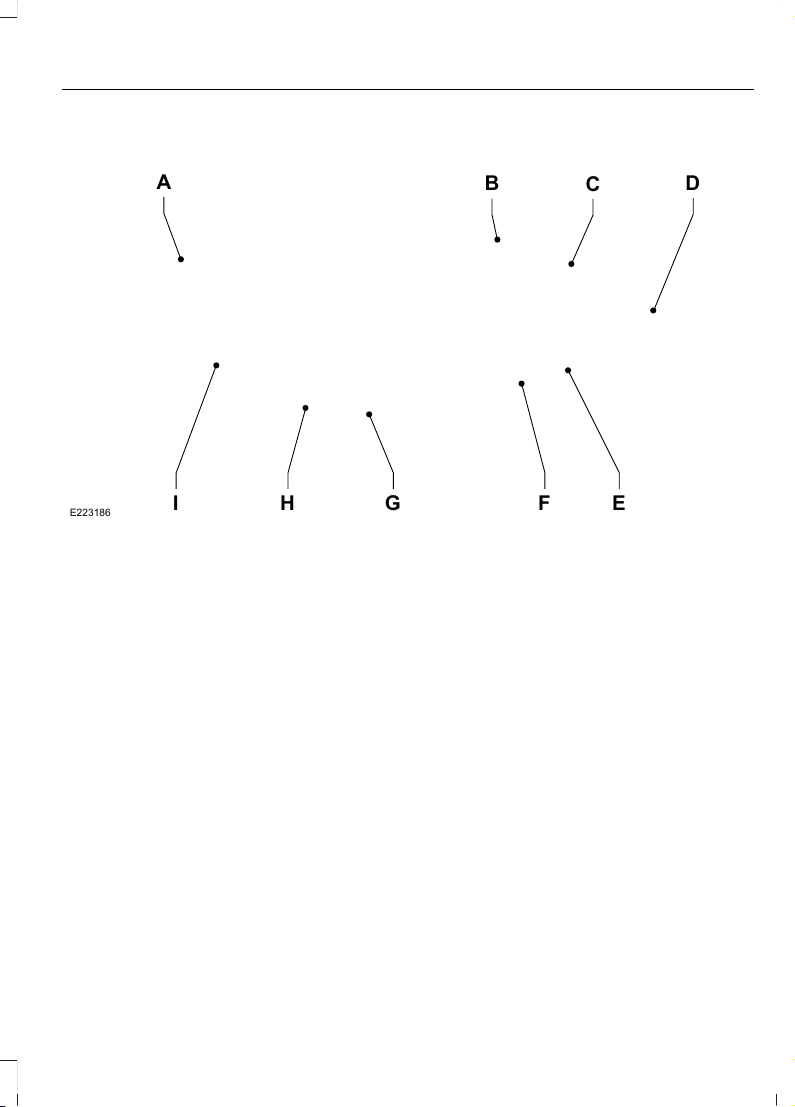
UNDER HOOD OVERVIEW - 3.5L
I EFGH
A
B
C
D
E223186
Engine coolant reservoir. See Engine Coolant Check (page 272).A
Brake fluid reservoir. See Brake Fluid Check (page 278).B
Battery. See Changing the 12V Battery (page 279).C
Engine compartment fusebox. See Fuse Specification Chart (page 253).D
Air filter assembly. See Changing the Engine Air Filter (page 288).E
Automatic transmission fluid dipstick. See Automatic Transmission Fluid
Check (page 276).
F
Engine oil dipstick. See Engine Oil Dipstick (page 270).G
Engine oil filler cap. See Engine Oil Check (page 270).H
Windshield washer fluid reservoir. See Washer Fluid Check (page 279).I
269
Edge (CDQ) Canada/United States of America, enUSA, Edition date: 201706, First Printing
Maintenance
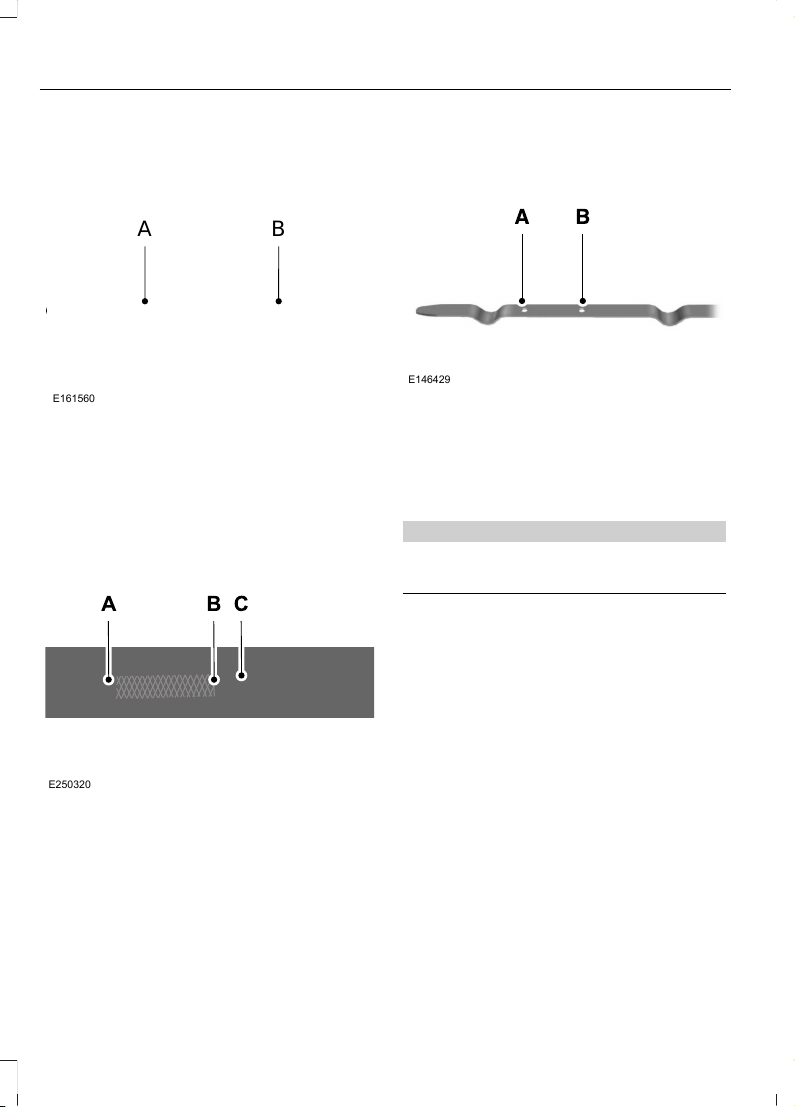
ENGINE OIL DIPSTICK - 2.0L
ECOBOOST™
E161560
A B
Minimum.A
Maximum.B
ENGINE OIL DIPSTICK - 2.7L
ECOBOOST™
E250320
Minimum.A
Nominal.B
Maximum.C
ENGINE OIL DIPSTICK - 3.5L
E146429
MINA
MAXB
ENGINE OIL CHECK
WARNING
Do not work on a hot engine.
To check the engine oil level consistently
and accurately, do the following:
1. Make sure the parking brake is on. Make
sure the transmission is in park (P) or
neutral (N).
2. Run the engine until it reaches normal
operating temperature.
3. Make sure that your vehicle is on level
ground.
4. Switch the engine off and wait 15
minutes for the oil to drain into the oil
pan. Checking the engine oil level too
soon after you switch the engine off
may result in an inaccurate reading.
5. Open the hood. See Opening and
Closing the Hood (page 265).
270
Edge (CDQ) Canada/United States of America, enUSA, Edition date: 201706, First Printing
Maintenance
6. Remove the dipstick and wipe it with
a clean, lint-free cloth. See Under
Hood Overview (page 267).
7. Replace the dipstick and remove it
again to check the oil level. See
Engine Oil Dipstick (page 270).
8. Make sure that the oil level is between
the maximum and minimum marks. If
the oil level is at the minimum mark,
add oil immediately. See Capacities
and Specifications (page 339).
9. If the oil level is correct, replace the
dipstick and make sure it is fully seated.
Note: Do not remove the dipstick when the
engine is running.
Note: If the oil level is between the
maximum and minimum marks, the oil level
is acceptable. Do not add oil.
Note: The oil consumption of new engines
reaches its normal level after approximately
3,000 mi (5,000 km).
Adding Engine Oil
WARNINGS
Do not add engine oil when the
engine is hot. Failure to follow this
instruction could result in personal
injury.
Do not remove the filler cap when
the engine is running.
Do not use supplemental engine oil
additives because they are unnecessary
and could lead to engine damage that may
not be covered by the vehicle Warranty.
E142732
Only use oils certified for gasoline engines
by the American Petroleum Institute (API).
An oil with this trademark symbol
conforms to the current engine and
emission system protection standards and
fuel economy requirements of the
International Lubricants Specification
Advisory Committee (ILSAC).
To top up the engine oil level do the
following:
1. Clean the area surrounding the engine
oil filler cap before you remove it.
2. Remove the engine oil filler cap. See
Under Hood Overview (page 267).
Turn it counterclockwise and remove
it.
3. Add engine oil that meets Ford
specifications. See Capacities and
Specifications (page 339). You may
have to use a funnel to pour the engine
oil into the opening.
4. Recheck the oil level.
5. If the oil level is correct, replace the
dipstick and make sure it is fully seated.
6. Replace the engine oil filler cap. Turn
it clockwise until you feel a strong
resistance.
Note: Do not add oil further than the
maximum mark. Oil levels above the
maximum mark may cause engine damage.
271
Edge (CDQ) Canada/United States of America, enUSA, Edition date: 201706, First Printing
Maintenance
Note: Make sure you install the oil filler cap
correctly.
Note: Soak up any spillage with an
absorbent cloth immediately.
OIL CHANGE INDICATOR
RESET
Use the information display controls on
the steering wheel to reset the oil change
indicator.
From the main menu scroll to:
Action and descriptionMessage
Press the right arrow button,
then from this menu scroll
to the following message.
Settings
Press the right arrow button,
then from this menu scroll
to the following message.
Vehicle
Press the right arrow button,
then from this menu scroll
to the following message.
Oil Life
Press and hold the OK
button until the instrument
cluster displays the
following message.
Hold OK to
Reset
Reset Successful
When the oil change indic-
ator resets the instrument
cluster displays 100%.
Remaining Life
{00}%
Action and descriptionMessage
If the instrument cluster
displays one of the following
messages, repeat the
process.
Not Reset
Reset Cancelled
ENGINE COOLANT CHECK
WARNINGS
Never remove the coolant reservoir
cap when the engine is running or
hot.
Do not put coolant in the windshield
washer reservoir. If sprayed on the
windshield, coolant could make it
difficult to see through the windshield.
To reduce the risk of personal injury,
make sure the engine is cool before
unscrewing the coolant pressure
relief cap. The cooling system is under
pressure. Steam and hot liquid can come
out forcefully when you loosen the cap
slightly.
Do not add coolant further than the
MAX mark.
When the engine is cold, check the
concentration and level of the coolant at
the intervals listed in the scheduled
maintenance information. See Scheduled
Maintenance (page 485).
Note: Make sure that the coolant level is
between the MIN and MAX marks on the
coolant reservoir.
Note: Coolant expands when it is hot. The
level may extend beyond the MAX mark.
272
Edge (CDQ) Canada/United States of America, enUSA, Edition date: 201706, First Printing
Maintenance

Maintain coolant concentration within
48% to 50%, which equates to a freeze
point between -29°F (-34°C) and -35°F
(-37°C). Coolant concentration should be
checked using a refractometer. We do not
recommend the use of hydrometers or
coolant test strips for measuring coolant
concentration.
Adding Coolant
WARNINGS
Do not add engine coolant when the
engine is hot. Failure to follow this
instruction could result in personal
injury.
Never remove the coolant reservoir
cap when the engine is running or
hot.
Note: Automotive fluids are not
interchangeable. Take care not to put
engine coolant in the windshield washer
fluid reservoir or windshield washer fluid in
the engine coolant reservoir.
Note: Do not use stop leak pellets, cooling
system sealants, or non-specified additives
as they can cause damage to the engine
cooling or heating systems. Resulting
component damage may not be covered by
the vehicle Warranty.
It is very important to use prediluted
coolant approved to the correct
specification in order to avoid plugging the
small passageways in the engine cooling
system. See Capacities and
Specifications (page 332). Do not mix
different colors or types of coolant in your
vehicle. Mixing of engine coolants or using
an incorrect coolant may harm the engine
or cooling system components and may
not be covered by the vehicle Warranty.
Note: If prediluted coolant is not available,
use the approved concentrated coolant
diluting it to 50/50 with distilled water. See
Capacities and Specifications (page 332).
Using water that has not been deionised
may contribute to deposit formation,
corrosion and plugging of the small cooling
system passageways.
Note: Coolants marketed for all makes and
models may not be approved to Ford
specifications and may cause damage to
the cooling system. Resulting component
damage may not be covered by the vehicle
Warranty.
If the coolant level is at or below the
minimum mark, add prediluted coolant
immediately.
To top up the coolant level do the
following:
1. Unscrew the cap slowly. Any pressure
escapes as you unscrew the cap.
2. Add prediluted coolant approved to
the correct specification. See
Capacities and Specifications (page
332).
3. Add enough prediluted coolant to
reach the correct level.
4. Replace the coolant reservoir cap, turn
it clockwise until you feel a strong
resistance.
5. Check the coolant level in the coolant
reservoir the next few times you drive
your vehicle. If necessary, add enough
prediluted engine coolant to bring the
coolant level to the correct level.
If you have to add more than 1.1 qt (1 L) of
engine coolant per month, have your
vehicle checked as soon as possible.
Operating an engine with a low level of
coolant can result in engine overheating
and possible engine damage.
273
Edge (CDQ) Canada/United States of America, enUSA, Edition date: 201706, First Printing
Maintenance

Note: During normal vehicle operation, the
coolant may change color from orange to
pink or light red. As long as the coolant is
clear and uncontaminated, this color change
does not indicate the coolant has degraded
nor does it require the coolant to be drained,
the system to be flushed, or the coolant to
be replaced.
In case of emergency, you can add a large
amount of water without engine coolant
in order to reach a vehicle service location.
In this instance, qualified personnel:
1. Must drain the cooling system.
2. Chemically clean the coolant system.
3. Refill with engine coolant as soon as
possible.
Water alone, without engine coolant, can
cause engine damage from corrosion,
overheating or freezing.
Do not use the following as a coolant
substitute:
• Alcohol.
• Methanol.
• Brine.
• Any coolant mixed with alcohol or
methanol antifreeze.
Alcohol and other liquids can cause engine
damage from overheating or freezing.
Do not add extra inhibitors or additives to
the coolant. These can be harmful and
compromise the corrosion protection of
the coolant.
Recycled Coolant
We do not recommend the use of recycled
coolant as an approved recycling process
is not yet available.
Dispose of used engine coolant in an
appropriate manner. Follow your
community's regulations and standards
for recycling and disposing of automotive
fluids.
Severe Climates
If you drive in extremely cold climates:
• It may be necessary to increase the
coolant concentration above 50%.
• A coolant concentration of 60%
provides improved freeze point
protection. Coolant concentrations
above 60% decrease the overheat
protection characteristics of the
coolant and may cause engine
damage.
If you drive in extremely hot climates:
• You can decrease the coolant
concentration to 40%.
• Coolant concentrations below 40%
decrease the freeze and corrosion
protection characteristics of the
coolant and may cause engine
damage.
Vehicles driven year-round in non-extreme
climates should use prediluted coolant for
optimum cooling system and engine
protection.
Coolant Change
At specific mileage intervals, as listed in
the scheduled maintenance information,
the coolant should be changed. Add
prediluted coolant approved to the correct
specification. See Capacities and
Specifications (page 332).
Fail-Safe Cooling
Fail-safe cooling allows you to temporarily
drive your vehicle before any incremental
component damage occurs. The fail-safe
distance depends on ambient
temperature, vehicle load and terrain.
How Fail-Safe Cooling Works
If the engine begins to overheat,
the coolant temperature gauge
moves toward the red zone:
274
Edge (CDQ) Canada/United States of America, enUSA, Edition date: 201706, First Printing
Maintenance

A warning lamp illuminates and
a message may appear in the
information display.
If the engine reaches a preset
over-temperature condition, the engine
automatically switches to alternating
cylinder operation. Each disabled cylinder
acts as an air pump and cools the engine.
When this occurs, your vehicle still
operates, however:
• Engine power is limited.
• The air conditioning system turns off.
Continued operation increases the engine
temperature, causing the engine to
completely shut down. Your steering and
braking effort increases in this situation.
When the engine temperature cools, you
can re-start the engine. Have your vehicle
checked as soon as possible to minimize
engine damage.
When Fail-Safe Mode Is Activated
WARNINGS
Fail-safe mode is for use during
emergencies only. Operate your
vehicle in fail-safe mode only as long
as necessary to bring your vehicle to rest
in a safe location and seek immediate
repairs. When in fail-safe mode, your
vehicle will have limited power, will not be
able to maintain high-speed operation, and
may completely shut down without
warning, potentially losing engine power,
power steering assist, and power brake
assist, which may increase the possibility
of a crash resulting in serious injury.
Never remove the coolant reservoir
cap when the engine is running or
hot.
Your vehicle has limited engine power
when in the fail-safe mode, drive your
vehicle with caution. Your vehicle does not
maintain high-speed operation and the
engine may operate poorly.
Remember that the engine is capable of
automatically shutting down to prevent
engine damage. In this situation:
1. Pull off the road as soon as safely
possible and switch the engine off.
2. If you are a member of a roadside
assistance program, we recommend
that you contact your roadside
assistance service provider.
3. If this is not possible, wait a short
period for the engine to cool.
4. Check the coolant level. If the coolant
level is at or below the minimum mark,
add prediluted coolant immediately.
5. When the engine temperature cools,
you can re-start the engine. Have your
vehicle checked as soon as possible to
minimize engine damage.
Note: Driving your vehicle without repair
increases the chance of engine damage.
Engine Coolant Temperature
Management (If Equipped)
WARNING
To reduce the risk of crash and injury,
be prepared that the vehicle speed
may reduce and the vehicle may not
be able to accelerate with full power until
the coolant temperature reduces.
If you tow a trailer with your vehicle, the
engine may temporarily reach a higher
temperature during severe operating
conditions, for example ascending a long
or steep grade in high ambient
temperatures.
275
Edge (CDQ) Canada/United States of America, enUSA, Edition date: 201706, First Printing
Maintenance

At this time, you may notice the coolant
temperature gauge moves toward the red
zone and a message may appear in the
information display.
You may notice a reduction in vehicle
speed caused by reduced engine power in
order to manage the engine coolant
temperature. Your vehicle may enter this
mode if certain high-temperature and
high-load conditions take place. The
amount of speed reduction depends on
vehicle loading, grade and ambient
temperature. If this occurs, there is no
need to stop your vehicle. You can
continue to drive.
The air conditioning may automatically
turn on and off during severe operating
conditions to protect the engine from
overheating. When the coolant
temperature decreases to the normal
operating temperature, the air conditioning
turns on.
If the coolant temperature gauge moves
fully into the red zone, or if the coolant
temperature warning or service engine
soon messages appear in your information
display, do the following:
1. Stop your vehicle as soon as it is safe
to do so. Fully apply the parking brake,
shift into park (P) or neutral (N).
2. Leave the engine running until the
coolant temperature gauge needle
returns to the normal position. After
several minutes, if the temperature
does not drop, follow the remaining
steps.
3. Switch the engine off and wait for it to
cool. Check the coolant level.
4. If the coolant level is at or below the
minimum mark, add prediluted coolant
immediately.
5. If the coolant level is normal, restart
the engine and continue.
AUTOMATIC TRANSMISSION
FLUID CHECK - 2.0L
ECOBOOST™
Note: Transmission fluid should be checked
by an authorized dealer. If required, fluid
should be added by an authorized dealer.
Have an authorized dealer check and
change the transmission fluid at the
correct service interval. See Maintenance
(page 265). Your transmission does not
consume fluid. However, the fluid level
should be checked if the transmission is
not working properly, (i.e., if the
transmission slips or shifts slowly) or if you
notice some sign of fluid leakage.
Do not use supplemental transmission
fluid additives, treatments or cleaning
agents. The use of these materials may
affect transmission operation and result
in damage to internal transmission
components.
AUTOMATIC TRANSMISSION
FLUID CHECK - 2.7L
ECOBOOST™/3.5L
WARNING
Do not use supplemental
transmission fluid additives,
treatments or cleaning agents. The
use of these materials may affect
transmission operation and result in
damage to internal transmission
components.
The transmission does not consume fluid.
However, if the transmission slips or shifts
slowly you should check the fluid level. If
you notice a sign of leaking fluid, contact
an authorized dealer.
276
Edge (CDQ) Canada/United States of America, enUSA, Edition date: 201706, First Printing
Maintenance

Checking the Transmission Fluid
Level
*
Only check the transmission fluid level
when the engine is at normal operating
temprature 179°F (82°C)-199°F (93°C).
Normal operating temprature is reached
after driving approximately 20 mi (30 km).
E190273
A
B
MinimumA
MaximumB
Note: Check the fluid level with the engine
running and the transmission in park (P).
1. Make sure that your vehicle is on level
ground.
2. Rotate the automatic transmission
fluid cap in a counterclockwise
direction. See Under Hood Overview
(page 269).
3. Remove the cap and dipstick and wipe
it with a clean, lint-free cloth. Replace
the cap and dipstick and remove it
again to check the fluid level.
4. Make sure that the fluid level is
between the MIN and the MAX marks.
If the fluid level is at the MIN mark, add
fluid immediately. See Adding
Transmission Fluid.
5. Replace the automatic transmission
fluid cap and dipstick. Turn it clockwise
until you feel a strong resistance.
Low Fluid Level
If the fluid level is within the minimum
range (below point A) add the correct
specification fluid to be within the hash
mark area. See Capacities and
Specifications (page 332).
Note: If the fluid level is below the
minimum range do not drive your vehicle.
An underfill conition can damage the
transmission.
Correct Fluid Level
If the fluid level is within the hash mark
area (between points A and B) do not add
any fluid.
High Fluid Level
If the fluid level is above the maximum
range (above point B) fluid may need to
be removed. High fluid levels may be
caused by a overheating condition. If you
have operated your vehicle at high speeds,
towing a trailer or in city traffic during hot
weather, allow your vehicle to cool for a
minimum of 30 minutes before rechecking
the level.
Note: An overfill conition can damage the
transmission.
Adding Transmission Fluid
*
1. Rotate the automatic transmission
fluid cap in a counterclockwise
direction.
*
2. Remove the cap and dipstick and wipe
it with a clean, lint-free cloth.
3. Add fluid that meets the Ford
specifications. See Capacities and
Specifications (page 343). Pour the
fluid directly into the automatic
transmission fluid cap and dipstick
hole.
4. Replace the cap and dipstick and
remove it again to check the fluid level.
277
Edge (CDQ) Canada/United States of America, enUSA, Edition date: 201706, First Printing
Maintenance
5. Make sure that the fluid level is
between the MIN and the MAX marks.
6. Replace the automatic transmission
fluid cap and dipstick. Turn it clockwise
until you feel a strong resistance.
*
Vehicles With 2.7L EcoBoost
WARNING
Do not run the engine with the air
filter disconnected.
E190367
x2
1. Remove the two air filter assembly
securing bolts.
2. Lift the air filter assembly to disengage
the locating pins.
3. Rotate the air filter assembly slightly
in a counterclockwise direction.
4. Check the fluid level. See Checking
the Transmission Fluid Level.
5. Install in reverse order. Tighten the two
air filter assembly securing bolts until
you feel a strong resistance.
BRAKE FLUID CHECK
WARNINGS
Do not use any fluid other than the
recommended brake fluid as this will
reduce brake efficiency. Use of
incorrect fluid could result in the loss of
vehicle control, serious personal injury or
death.
Only use brake fluid from a sealed
container. Contamination with dirt,
water, petroleum products or other
materials may result in brake system
damage or failure. Failure to adhere to this
warning could result in the loss of vehicle
control, serious personal injury or death.
Do not allow the fluid to touch your
skin or eyes. If this happens, rinse the
affected areas immediately with
plenty of water and contact your physician.
A fluid level between the MAX and
MIN lines is within the normal
operating range and there is no need
to add fluid. A fluid level not in the normal
operating range could compromise the
performance of the system. Have your
vehicle checked immediately.
278
Edge (CDQ) Canada/United States of America, enUSA, Edition date: 201706, First Printing
Maintenance

E170684
To avoid fluid contamination, the reservoir
cap must remain in place and fully tight,
unless you are adding fluid.
Only use fluid that meets Ford
specifications. See Capacities and
Specifications (page 332).
POWER STEERING FLUID
CHECK
Your vehicle is equipped with an electric
power steering (EPS) system. There is no
fluid reservoir to check or fill.
WASHER FLUID CHECK
WARNING
If you operate your vehicle in
temperatures below 40°F (5°C), use
washer fluid with antifreeze
protection. Failure to use washer fluid with
antifreeze protection in cold weather could
result in impaired windshield vision and
increase the risk of injury or accident.
Add fluid to fill the reservoir if the level is
low. Only use a washer fluid that meets
Ford specifications. See Capacities and
Specifications (page 332).
State or local regulations on volatile
organic compounds may restrict the use
of methanol, a common windshield washer
antifreeze additive. Washer fluids
containing non-methanol antifreeze
agents should be used only if they provide
cold weather protection without damaging
the vehicle’s paint finish, wiper blades or
washer system.
FUEL FILTER
Your vehicle is equipped with a lifetime
fuel filter that is integrated with the fuel
tank. Regular maintenance or replacement
is not needed.
CHANGING THE 12V BATTERY
WARNINGS
Batteries normally produce explosive
gases which can cause personal
injury. Therefore, do not allow
flames, sparks or lighted substances to
come near the battery. When working near
the battery, always shield your face and
protect your eyes. Always provide correct
ventilation.
When lifting a plastic-cased battery,
excessive pressure on the end walls
could cause acid to flow through the
vent caps, resulting in personal injury and
damage to the vehicle or battery. Lift the
battery with a battery carrier or with your
hands on opposite corners.
279
Edge (CDQ) Canada/United States of America, enUSA, Edition date: 201706, First Printing
Maintenance

WARNINGS
Keep batteries out of reach of
children. Batteries contain sulfuric
acid. Avoid contact with skin, eyes or
clothing. Shield your eyes when working
near the battery to protect against possible
splashing of acid solution. In case of acid
contact with skin or eyes, flush
immediately with water for a minimum of
15 minutes and get prompt medical
attention. If acid is swallowed, call a
physician immediately.
Battery posts, terminals and related
accessories contain lead and lead
compounds. Wash hands after
handling.
Your vehicle has a Motorcraft®
maintenance-free battery which normally
does not require additional water during
its life of service.
Note: If your vehicle's battery has a cover
or shield, make sure it is reinstalled after the
battery has been cleaned or replaced.
Note: See an authorized dealer for low
voltage battery access, testing, or
replacement.
When a low voltage battery replacement
is necessary, see an authorized dealer to
replace the low voltage battery with a Ford
recommended replacement low voltage
battery that matches the electrical
requirements of the vehicle.
To ensure proper operation of the battery
management system (BMS), do not allow
a technician to connect any electrical
device ground connection directly to the
low voltage battery negative post. A
connection at the low voltage battery
negative post can cause inaccurate
measurements of the battery condition
and potential incorrect system operation.
Note: If a person adds electrical or
electronic accessories or components to the
vehicle, the accessories or components may
adversely affect the low voltage battery
performance and durability and may also
affect the performance of other electrical
systems in the vehicle.
For longer, trouble-free operation, keep the
top of the battery clean and dry. Also,
make certain the battery cables are always
tightly fastened to the battery terminals.
If you see any corrosion on the battery or
terminals, remove the cables from the
terminals and clean with a wire brush. You
can neutralize the acid with a solution of
baking soda and water.
When a battery replacement is required,
the battery should only be replaced with
a Ford recommended replacement battery
that matches the electrical requirements
of the vehicle.
Because your vehicle’s engine is
electronically-controlled by a computer,
some engine control settings are
maintained by power from the low voltage
battery. Some engine computer settings,
like the idle trim and fuel trim strategy,
optimize the driveability and performance
of the engine. Some other computer
settings, like the clock and radio station
presets, are also maintained in memory by
power from the low voltage battery. When
a technician disconnects and connects the
low voltage battery, these settings are
erased. Complete the following procedure
in order to restore the settings:
1. With the vehicle at a complete stop,
set the parking brake.
2. Shift into park (P).
3. Switch off all accessories.
4. Fully press the brake pedal and start
the vehicle.
280
Edge (CDQ) Canada/United States of America, enUSA, Edition date: 201706, First Printing
Maintenance
5. Run the engine until it reaches normal
operating temperature. While the
engine is warming up, complete the
following: Reset the clock. See Audio
System (page 352). Reset the power
windows bounce-back feature. See
Windows and Mirrors (page 90).
Reset the radio station presets. See
Audio System (page 352).
6. Allow the engine to idle for at least one
minute. If the engine turns off, press
the accelerator pedal to start the
engine.
7. While the engine is running, press the
brake pedal and shift into neutral (N).
8. Allow the engine to run for at least one
minute by pressing on the accelerator
pedal.
9. Drive the vehicle at least 12 mi (20 km)
to completely relearn the idle and fuel
trim strategy.
Note: If you do not allow the engine to
relearn the idle and fuel trim strategy, the
idle quality of your vehicle may be adversely
affected until the engine computer
eventually relearns the idle trim and fuel
trim strategy.
Make sure that you dispose of old batteries
in an environmentally friendly way. Seek
advice from your local authority about
recycling old batteries.
CHECKING THE WIPER
BLADES
E142463
Run the tip of your fingers over the edge of
the blade to check for roughness.
Clean the wiper blades with washer fluid
or water applied with a soft sponge or
cloth.
CHANGING THE WIPER
BLADES
Note: If streaks or smears appear on the
windshield, clean the windshield and the
wiper blades. If that does not resolve the
issue, install new wiper blades.
Service Position
E75184
Set the windshield wipers in the service
position to change the wiper blades. The
windshield wipers return to the starting
position when you switch the ignition on.
1. Switch the ignition off.
2. Move the wiper arms to the service
position manually.
Note: You cannot move the wiper arms to
the service position manually when you
switch the ignition on.
Note: You can use the service position to
provide easier access to the wiper blades
for freeing them from snow and ice. Make
sure the windshield is free from snow and
ice before you switch the windshield wipers
on.
281
Edge (CDQ) Canada/United States of America, enUSA, Edition date: 201706, First Printing
Maintenance
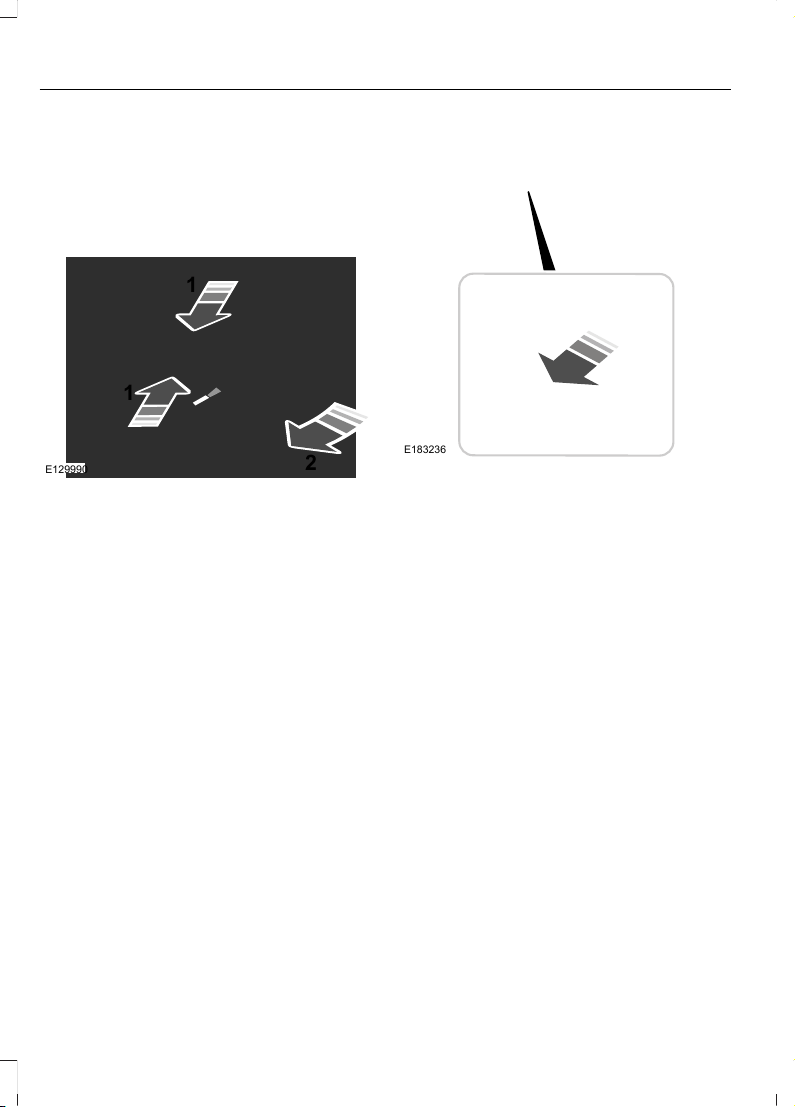
Changing the Windshield Wiper Blades
Note: Do not hold the wiper blade when
lifting the wiper arm.
Note: Make sure that the wiper arm does
not spring back against the glass when the
wiper blade is not attached.
E129990
1
1
2
1. Lift the wiper arm and then press the
wiper blade locking buttons together.
2. Remove the wiper blade.
3. Install in the reverse order.
Note: Make sure that the wiper blade locks
into place.
Note: Make sure the windshield is clean
before using new wiper blades.
Changing the Rear Window Wiper
Blade
Note: Do not hold the wiper blade when
lifting the wiper arm.
Note: Make sure that the wiper arm does
not spring back against the glass when the
wiper blade is not attached.
1. Lift the wiper arm.
E183236
2. Remove the wiper blade.
3. Install in the reverse order.
Note: Make sure that the wiper blade locks
into place.
ADJUSTING THE HEADLAMPS
Vertical Aim Adjustment
The headlamps on your vehicle are
properly aimed at the assembly plant. If
your vehicle has been involved in a crash,
have the aim of the headlamp beam
checked by an authorized dealer.
282
Edge (CDQ) Canada/United States of America, enUSA, Edition date: 201706, First Printing
Maintenance
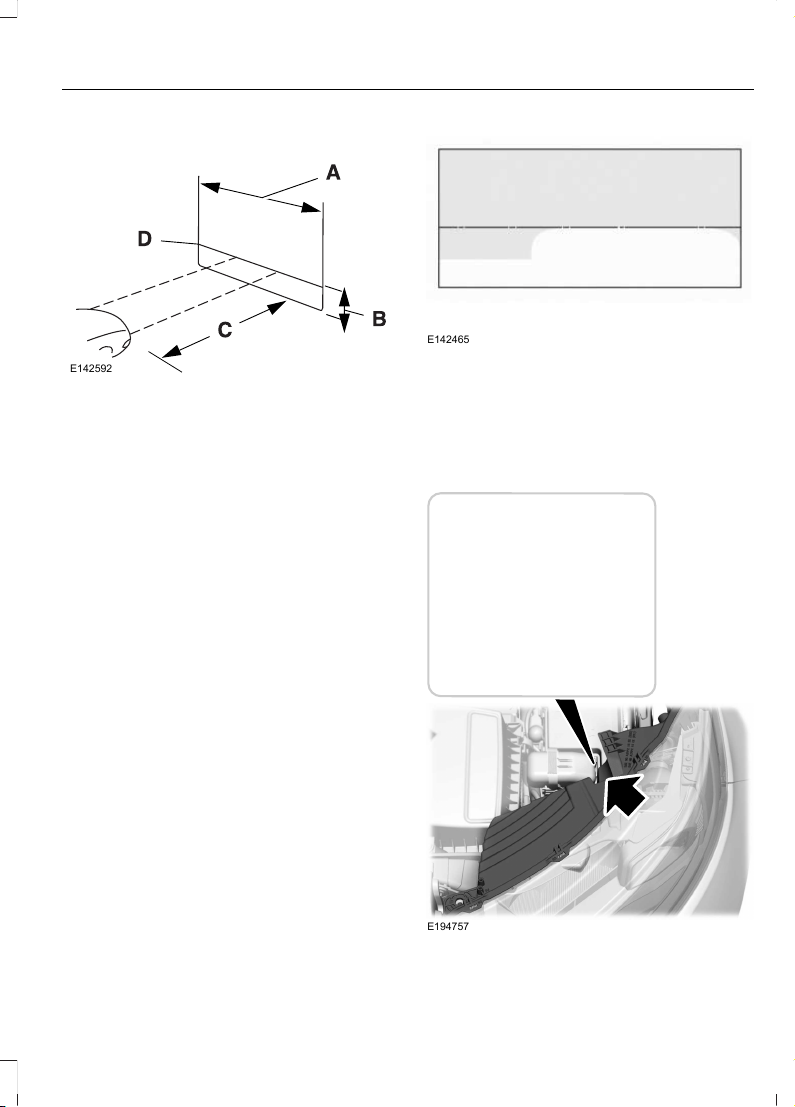
Headlamp Aiming Target
E142592
8 feet (2.4 meters).A
Center height of lamp to ground.B
25 feet (7.6 meters).C
Horizontal reference line.D
Vertical Aim Adjustment Procedure
1. Park the vehicle directly in front of a
wall or screen on a level surface,
approximately 25 feet (7.6 meters)
away.
2. Measure the height of the headlamp
bulb center from the ground and mark
an 8 foot (2.4 meter) horizontal
reference line on the vertical wall or
screen at this height.
Note: To see a clearer light pattern for
adjusting, you may want to block the light
from one headlamp while adjusting the
other.
3. Turn on the low beam headlamps to
illuminate the wall or screen and open
the hood.
E142465
4. On the wall or screen you will observe
a flat zone of high intensity light
located at the top of the right hand
portion of the beam pattern. If the top
edge of the high intensity light zone is
not at the horizontal reference line, the
headlamp will need to be adjusted.
E194757
283
Edge (CDQ) Canada/United States of America, enUSA, Edition date: 201706, First Printing
Maintenance
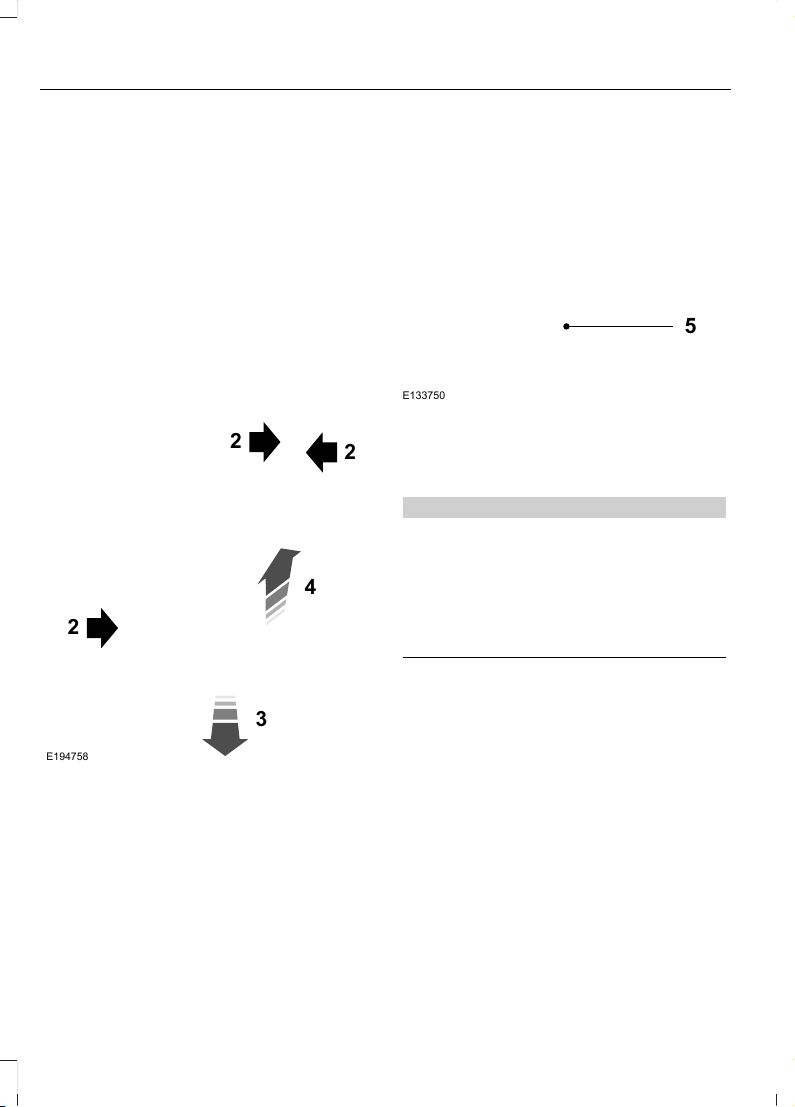
5. Locate the vertical adjuster on each
headlamp. Using a Phillips #2
screwdriver, turn the adjuster either
clockwise or counterclockwise in order
to adjust the vertical aim of the
headlamp. The horizontal edge of the
brighter light should touch the
horizontal reference line.
6. Close the hood and turn off the lamps.
REMOVING A HEADLAMP
1. Open the hood. See Opening and
Closing the Hood (page 265).
2
2
E194758
2
4
3
2. Remove the screws.
3. Pull the headlamp toward the front of
the vehicle to disengage it from the
lower fixing point.
4. Lift the headlamp up and remove it.
E133750
5
5. Disconnect the electrical connector.
CHANGING A BULB
WARNINGS
Switch all of the lamps and the
ignition off. Failure to follow this
warning could result in serious
personal injury.
Bulbs become hot when in use. Let
them cool down before you remove
them.
Use the correct specification bulb.
See Bulb Specification Chart (page 286).
Install in the reverse order unless otherwise
stated.
284
Edge (CDQ) Canada/United States of America, enUSA, Edition date: 201706, First Printing
Maintenance
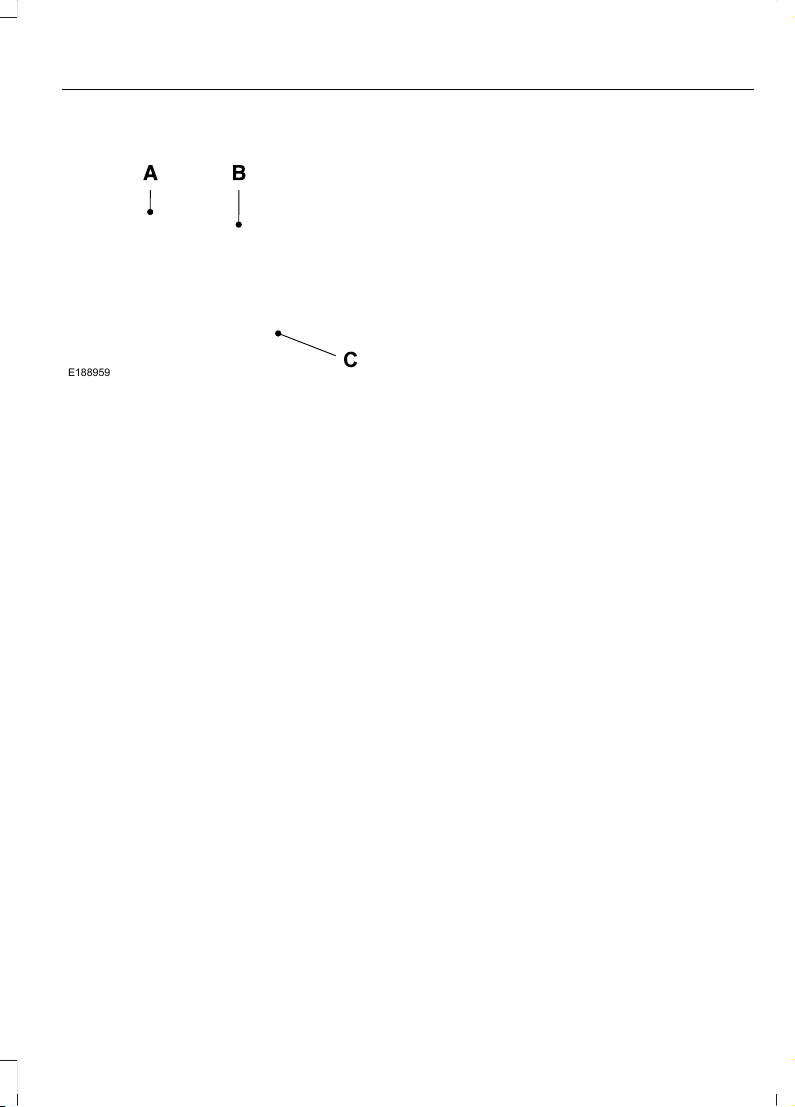
Headlamp
E188959
C
Headlamp low beam.A
Headlamp low and high beam -
vehicles with high-intensity
discharge headlamps.
Headlamp high beam.B
Daytime running lamp.
Front direction indicator.C
Front Direction Indicator
1. Remove the headlamp assembly. See
Removing a Headlamp (page 284).
2. Turn the bulb holder counterclockwise
and remove it.
3. Remove the bulb by pulling it straight
out.
Headlamp Low Beam
1. Remove the cover.
2. Turn the bulb counterclockwise and
remove it.
3. Disconnect the electrical connector.
Note: Do not touch the bulb glass.
Note: You cannot separate the bulb from
the bulb holder.
Headlamp High Beam
1. Remove the cover.
2. Turn the bulb counterclockwise and
remove it.
3. Disconnect the electrical connector.
Note: Do not touch the bulb glass.
Note: You cannot separate the bulb from
the bulb holder.
High-Intensity Discharge Headlamps
These lamps operate at a high voltage. See
an authorized dealer if they fail.
Daytime Running Lamp
1. Remove the cover.
2. Turn the bulb counterclockwise and
remove it.
3. Disconnect the electrical connector.
Note: Do not touch the bulb glass.
Note: You cannot separate the bulb from
the bulb holder.
LED Lamps
LED lamps are not serviceable items. See
an authorized dealer if they fail.
The following lamps are LED:
• Brake and rear lamps.
• Central high mounted brake lamp.
• Front side marker lamps.
• Front signature lamps.
• Rear direction indicators.
• Rear side marker lamps.
• Reversing lamps.
• Side direction indicators.
285
Edge (CDQ) Canada/United States of America, enUSA, Edition date: 201706, First Printing
Maintenance
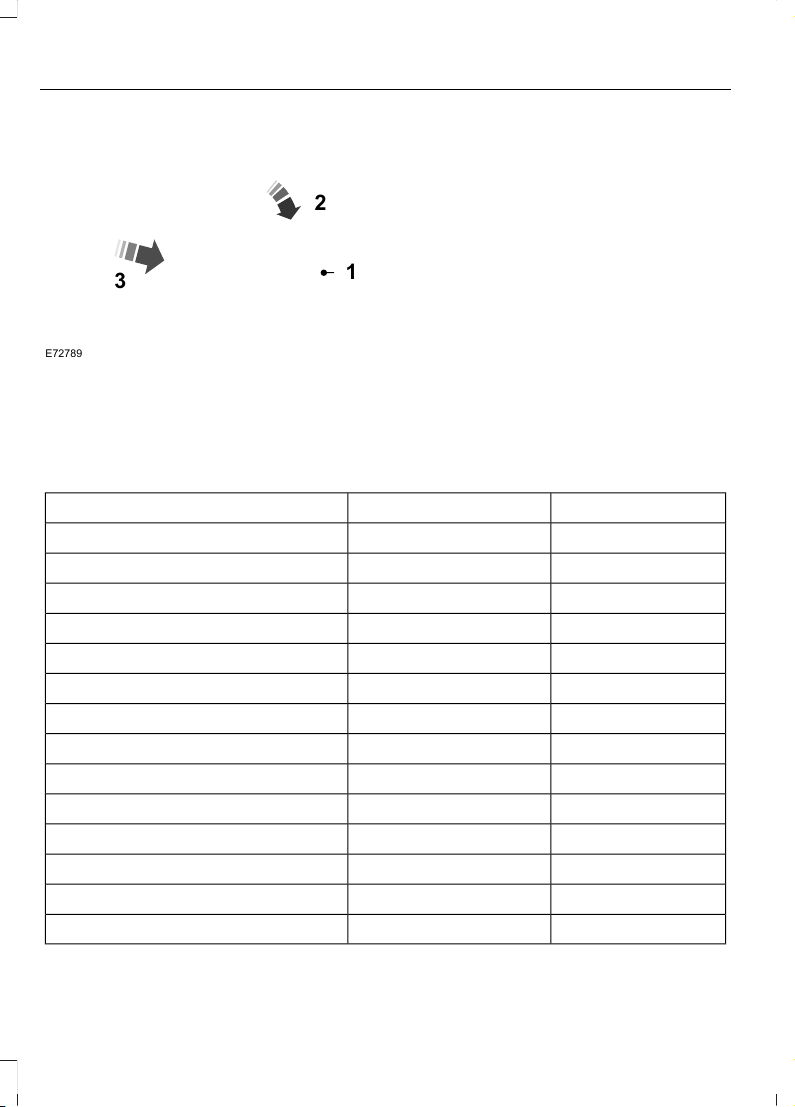
License Plate Lamp
3
2
1
E72789
1. Use a suitable tool, for example a
screwdriver, to carefully remove the
lamp.
2. Remove the lamp.
3. Turn the bulb holder counterclockwise
and remove it.
4. Remove the bulb by pulling it straight
out.
BULB SPECIFICATION CHART
Replacement bulbs are specified in the
chart below. Headlamp bulbs must be
marked with an authorized D.O.T. marking
for North America to make sure they have
the proper lamp performance, light
brightness, light pattern, and safe visibility.
The correct bulbs will not damage the
lamp assembly or void the lamp assembly
warranty and will provide quality bulb
illumination time.
Exterior Lamps
Power (Watt)SpecificationLamp
LEDLEDBrake and rear lamp.
LEDLEDCentral high mounted brake lamp.
PWMH15Daytime running lamps.
21WY21WFront direction indicator.
LEDLEDFront side marker lamp.
LEDLEDFront signature lamp.
559005LLHeadlamp high beam.
55H11LLHeadlamp low beam.
HIDD3SHigh-intensity discharge headlamps.
5W5WLicense plate lamp.
LEDLEDRear direction indicator.
LEDLEDRear side marker lamp.
LEDLEDReversing lamps.
LEDLEDSide direction indicator.
Note: LED lamps are not serviceable. See an authorized dealer if they fail.
286
Edge (CDQ) Canada/United States of America, enUSA, Edition date: 201706, First Printing
Maintenance

Interior Lamps
Power (Watt)SpecificationLamp
LEDLEDInterior lamp.
LEDLEDLuggage compartment lamp.
Note: LED lamps are not serviceable. See an authorized dealer if they fail.
287
Edge (CDQ) Canada/United States of America, enUSA, Edition date: 201706, First Printing
Maintenance
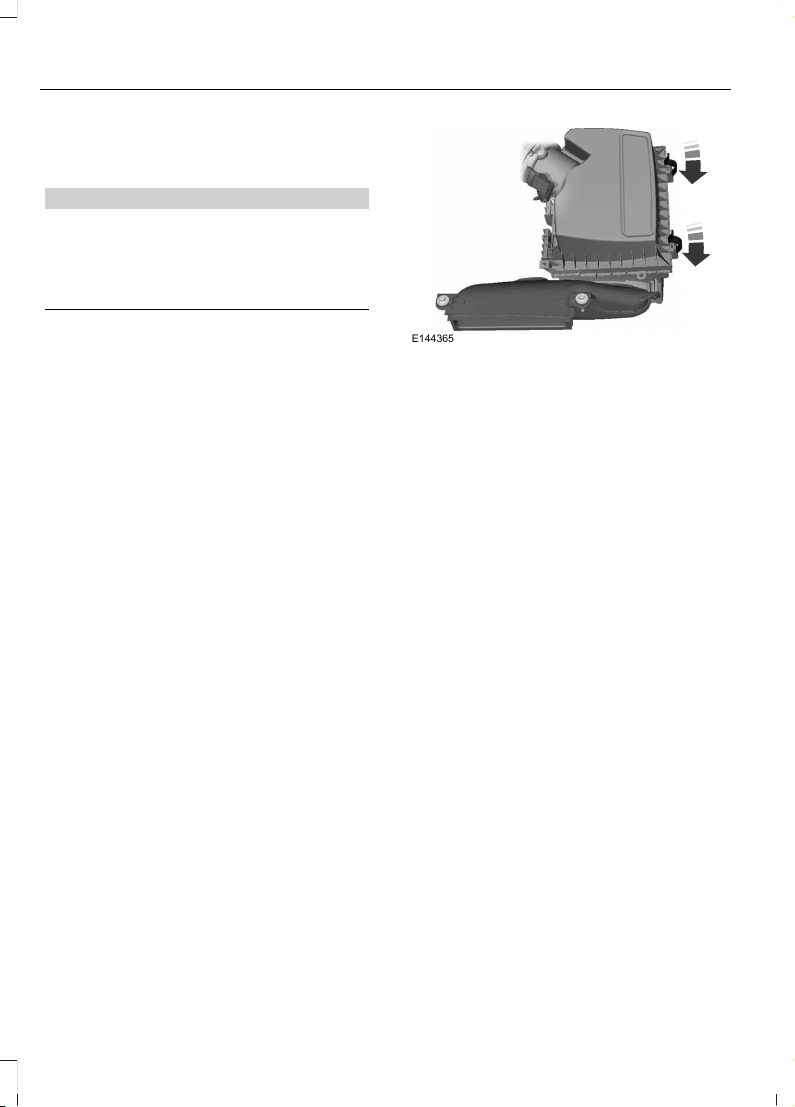
CHANGING THE ENGINE AIR
FILTER
WARNING
To reduce the risk of vehicle damage
and/or personal burn injuries do not
start your engine with the air cleaner
removed and do not remove it while the
engine is running.
When changing the air filter element, use
only the air filter element listed. See
Capacities and Specifications (page
332).
For EcoBoost equipped vehicles: When
servicing the air cleaner, it is important that
no foreign material enter the air induction
system. The engine and turbocharger are
susceptible to damage from even small
particles.
Change the air filter element at the proper
interval. See Scheduled Maintenance
(page 485).
Note: Failure to use the correct air filter
element may result in severe engine
damage. The customer warranty may be
void for any damage to the engine if the
correct air filter element is not used.
E144365
1. Release the clamps that secure the air
filter housing cover.
2. Carefully lift the air filter housing cover.
3. Remove the air filter element from the
air filter housing.
4. Wipe any dirt or debris from the air filter
housing and cover to make sure no dirt
gets in the engine and to make sure you
have a good seal.
5. Install a new air filter element. Be
careful not to crimp the filter element
edges between the air filter housing
and cover. This could cause filter
damage and allow unfiltered air to
enter the engine if not properly seated.
6. Install the air filter housing cover.
7. Engage the clamps to secure the air
filter housing cover to the air filter
housing.
288
Edge (CDQ) Canada/United States of America, enUSA, Edition date: 201706, First Printing
Maintenance
GENERAL INFORMATION
Your dealer has many quality products
available to clean your vehicle and protect
its finishes.
CLEANING PRODUCTS
Materials
For best results, use the following products
or products of equivalent quality:
SpecificationName
Motorcraft® Bug and Tar Remover ZC-42 (U.S. & Canada)
Motorcraft® Custom Bright Metal Cleaner ZC-15 (U.S. & Canada)
ESR-M14P4-AMotorcraft® Detail Wash ZC-3-A (U.S. & Canada)
Motorcraft® Engine Shampoo and Degreaser ZC-20 (U.S.)
Motorcraft® Engine Shampoo CXC-66-A (Canada)
Motorcraft® Leather and Vinyl Cleaner ZC-56 (U.S. & Canada)
Motorcraft® Multi-Purpose Cleaner CXC-101 (Canada)
WSS-M14P19-AMotorcraft® Premium Windshield Wash Concentrate with Bitterant
ZC-32-B2 (U.S.)
WSS-M14P19-AMotorcraft® Premium Windshield Wash Concentrate with Bitterant
CXC-37-A/B/D/F (Canada)
Motorcraft® Professional Strength Carpet & Upholstery Cleaner
ZC-54 (U.S. & Canada)
ESR-M14P5-AMotorcraft® Premium Glass Cleaner CXC-100 (Canada)
Motorcraft® Spot and Stain Remover ZC-14 (U.S.)
ESR-M14P5-AMotorcraft® Ultra-Clear Spray Glass Cleaner ZC-23 (U.S.)
Motorcraft® Wheel and Tire Cleaner ZC-37-A (U.S. & Canada)
CLEANING THE EXTERIOR
Wash your vehicle regularly with cool or
lukewarm water and a neutral pH
shampoo, we recommend Motorcraft
Detail Wash.
• Never use strong household detergents
or soap, for example dish washing or
laundry liquid. These products can
discolor and spot painted surfaces.
• Never wash your vehicle when it is hot
to the touch, or during strong or direct
sunlight.
• Dry your vehicle with a chamois or soft
terry cloth towel to eliminate water
spotting.
289
Edge (CDQ) Canada/United States of America, enUSA, Edition date: 201706, First Printing
Vehicle Care

• Immediately remove fuel spillages, bird
droppings, insect deposits and road tar.
These may cause damage to your
vehicle’s paintwork or trim over time.
We recommend Motorcraft Bug and
Tar Remover.
• Remove any exterior accessories, for
example antennas, before entering a
car wash.
Note: Suntan lotions and insect repellents
can damage painted surfaces. If these
substances come in contact with your
vehicle, wash the affected area as soon as
possible.
Cleaning the Headlamps
Note: Do not scrape the headlamp lenses
or use abrasives, alcoholic solvents or
chemical solvents to clean them.
Note: Do not wipe the headlamps when
they are dry.
Exterior Chrome Parts
• Apply a high quality-cleaning product
to bumpers and other chrome parts.
Follow the manufacturer’s instructions.
We recommend Motorcraft Custom
Bright Metal Cleaner.
• Do not apply the cleaning product to
hot surfaces. Do not leave the cleaning
product on chrome surfaces longer
than the time recommended.
• Using non-recommended cleaners can
result in severe and permanent
cosmetic damage.
Note: Never use abrasive materials, for
example steel wool or plastic pads as they
can scratch the chrome surface.
Note: Do not use chrome cleaner, metal
cleaner or polish on wheels or wheel covers.
Exterior Plastic Parts
For routine cleaning we recommend
Motorcraft Detail Wash. If tar or grease
spots are present, we recommend
Motorcraft Bug and Tar Remover.
Stripes or Graphics (If Equipped)
Hand washing your vehicle is preferred
however, pressure washing may be used
under the following conditions:
• Do not use water pressure higher than
2,000 psi (14,000 kPa).
• Do not use water hotter than 179°F
(82°C).
• Use a spray with a 40° wide spray
angle pattern.
• Keep the nozzle at a 12 in (305 mm)
distance and 90° angle to your
vehicle's surface.
Note: Holding the pressure washer nozzle
at an angle to the vehicle's surface may
damage graphics and cause the edges to
peel away from the vehicle's surface.
Underbody
Regularly clean the underside of your
vehicle using water. Keep body and door
drain holes free of debris or foreign
material.
Under Hood
For removing black rubber marks from
under the hood we recommend Motorcraft
Wheel and Tire Cleaner or Motorcraft Bug
and Tar Remover.
WAXING
Regular waxing is necessary to protect your
car's paint from the elements. We
recommend that you wash and wax the
painted surface once or twice a year.
290
Edge (CDQ) Canada/United States of America, enUSA, Edition date: 201706, First Printing
Vehicle Care

When washing and waxing, park your
vehicle in a shaded area out of direct
sunlight. Always wash your vehicle before
applying wax.
• Use a quality wax that does not contain
abrasives.
• Follow the manufacturer’s instructions
to apply and remove the wax.
• Apply a small amount of wax in a
back-and-forth motion, not in circles.
• Do not allow wax to come in contact
with any non-body (low-gloss black)
colored trim. The wax will discolor or
stain the parts over time.
• Roof racks.
• Bumpers.
• Grained door handles.
• Side moldings.
• Mirror housings.
• Windshield cowl area.
• Do not apply wax to glass areas.
• After waxing, your car's paint should
feel smooth, and be free of streaks and
smudges.
CLEANING THE ENGINE
Engines are more efficient when they are
clean because grease and dirt buildup keep
the engine warmer than normal.
When washing:
• Take care when using a power washer
to clean the engine. The high-pressure
fluid could penetrate the sealed parts
and cause damage.
• Do not spray a hot engine with cold
water to avoid cracking the engine
block or other engine components.
• Spray Motorcraft Engine Shampoo and
Degreaser on all parts that require
cleaning and pressure rinse clean. In
Canada, use Motorcraft Engine
Shampoo.
• Never wash or rinse the engine while it
is hot or running; water in the running
engine may cause internal damage.
• Never wash or rinse any ignition coil,
spark plug wire or spark plug well, or
the area in and around these locations.
• Cover the battery, power distribution
box, and air filter assembly to prevent
water damage when cleaning the
engine.
CLEANING THE WINDOWS AND
WIPER BLADES
Car wash chemicals and environmental
fallout can result in windshield and wiper
blade contamination. Dirty windshield and
wipers will result in poor windshield wiper
operation. Keep the windshield and wiper
blades clean to maintain windshield wiper
performance.
To clean the windshield and wiper blades:
• Clean the windshield with a
non-abrasive glass cleaner. When
cleaning the interior of the windshield,
avoid getting any glass cleaner on the
instrument panel or door panels. Wipe
any glass cleaner off these surfaces
immediately.
• For windshields contaminated with
tree sap, chemicals, wax or bugs, clean
the entire windshield using steel wool
(no greater than 0000 grade) in a
circular motion and rinse with water.
• Clean the wiper blades with isopropyl
rubbing alcohol or windshield washer
concentrate.
291
Edge (CDQ) Canada/United States of America, enUSA, Edition date: 201706, First Printing
Vehicle Care

Note: Do not use razor blades or other
sharp objects to clean or remove decals
from the inside of the heated rear window.
The vehicle warranty does not cover
damage caused to the heated rear window
grid lines.
CLEANING THE INTERIOR
WARNINGS
Do not use cleaning solvents, bleach
or dye on the vehicle's seatbelts, as
these actions may weaken the belt
webbing.
On vehicles equipped with
seat-mounted airbags, do not use
chemical solvents or strong
detergents. Such products could
contaminate the side airbag system and
affect performance of the side airbag in a
crash.
For fabric, carpets, cloth seats and seats
equipped with side airbags:
• Remove dust and loose dirt with a
vacuum cleaner.
• Remove light stains and soil with
Motorcraft Professional Strength
Carpet & Upholstery Cleaner.
• If grease or tar is present on the
material, spot-clean the area first with
Motorcraft Spot and Stain Remover. In
Canada, use Motorcraft Multi-Purpose
Cleaner.
• If a ring forms on the fabric after spot
cleaning, clean the entire area
immediately (but do not oversaturate)
or the ring will set.
• Do not use household cleaning
products or glass cleaners, which can
stain and discolor the fabric and affect
the flame retardant abilities of the seat
materials.
CLEANING THE INSTRUMENT
PANEL AND INSTRUMENT
CLUSTER LENS
WARNING
Do not use chemical solvents or
strong detergents when cleaning the
steering wheel or instrument panel
to avoid contamination of the airbag
system.
Note: Follow the same procedure as
cleaning leather seats for cleaning leather
instrument panels and leather interior trim
surfaces. See Cleaning Leather Seats
(page 293).
Clean the instrument panel and cluster
lens with a clean, damp and soft cloth,
then use a clean, dry and soft cloth to dry
these areas.
• Avoid cleaners or polishes that increase
the gloss of the upper portion of the
instrument panel. The dull finish in this
area helps protect you from
undesirable windshield reflection.
• Do not use any household cleaning
products or glass cleaners as these
may damage the finish of the
instrument panel, interior trim and
cluster lens.
• Wash or wipe your hands clean if you
have been in contact with certain
products such as insect repellent and
suntan lotion to avoid possible damage
to the interior painted surfaces.
• Do not allow air fresheners and hand
sanitizers to spill onto interior surfaces.
If a spill occurs, wipe off immediately.
Your warranty may not cover these
damages.
If a staining liquid like coffee or juice has
been spilled on the instrument panel or on
interior trim surfaces:
292
Edge (CDQ) Canada/United States of America, enUSA, Edition date: 201706, First Printing
Vehicle Care

1. Wipe up spilled liquid using a clean,
soft cloth as quickly as possible.
2. Use Motorcraft Premium Leather and
Vinyl Cleaner or a commercially
available leather cleaning product for
automotive interiors. Test any cleaner
or stain remover on an inconspicuous
area.
3. Alternatively, wipe the surface with a
clean, soft cloth and a mild soap and
water solution. Dry the area with a
clean, soft cloth.
4. If necessary, apply more soap and
water solution or cleaning product to
a clean, soft cloth and press it onto the
soiled area. Allow this to set at room
temperature for 30 minutes.
5. Remove the soaked cloth, then with a
clean, damp cloth, use a rubbing
motion for 60 seconds on the soiled
area.
6. Dry the area with a clean, soft cloth.
CLEANING LEATHER SEATS (If
Equipped)
Note: Follow the same procedure as
cleaning leather seats for cleaning leather
instrument panels and leather interior trim
surfaces.
Note: Clean and treat spills as soon as
possible. Test any cleaner or stain remover
on an inconspicuous area.
Note: Avoid soaking any surface.
Note: We recommend distilled water when
cleaning.
For cleaning and removing stains such as
dye transfer, use a commercially available
leather cleaning product for automotive
interiors.
Do not use the following products as these
may damage the leather:
• Oil and petroleum or silicone-based
leather conditioners.
• Household cleaners.
• Alcohol solutions.
• Solvents or cleaners intended
specifically for rubber, vinyl and
plastics.
To clean:
• Remove dust and loose dirt with a
vacuum cleaner.
• Wipe the surface with a soft, damp
cloth and a mild soap and water
solution. Dry the area with a clean, soft
cloth.
• Do not rub any stains into the leather.
• For perforated leather, do not use foam
cleaning products.
REPAIRING MINOR PAINT
DAMAGE
Authorized dealers have touch-up paint to
match your vehicle’s color. Your vehicle
color code is printed on a sticker on the
front, left-hand side door jamb. Take your
color code to your authorized dealer to
make sure you get the correct color.
Before repairing minor paint damage, use
a cleaner such as Motorcraft Bug and Tar
Remover to remove particles such as bird
droppings, tree sap, insect deposits, tar
spots, road salt and industrial fallout.
Always read the instructions before using
cleaning products.
CLEANING THE WHEELS
Note: Do not apply a cleaning chemical to
warm or hot wheel rims and covers.
293
Edge (CDQ) Canada/United States of America, enUSA, Edition date: 201706, First Printing
Vehicle Care

Note: Some automatic car washes may
cause damage to the finish on your wheel
rims and covers.
Note: Industrial-strength or heavy-duty
cleaners in combination with brush agitation
to remove brake dust and dirt, could wear
away the clear coat finish over a period time.
Note: Do not use hydrofluoric acid-based
or high caustic-based wheel cleaners, steel
wool, fuels or strong household detergents.
Note: If you intend parking your vehicle for
an extended period after cleaning the
wheels with a wheel cleaner, drive your
vehicle for a few minutes before doing so.
This will reduce the risk of increased
corrosion of the brake discs.
Alloy wheels and wheel covers are coated
with a clear coat paint finish. To maintain
their condition we recommend that you:
• Clean the wheels weekly using
Motorcraft Wheel and Tire Cleaner.
Apply using manufacturer's
instructions.
• Use a sponge to remove heavy
deposits of dirt and brake dust
accumulation.
• Rinse thoroughly with a strong stream
of water when you have completed the
cleaning process.
• To remove tar and grease, use
Motorcraft Bug and Tar Remover.
VEHICLE STORAGE
If you plan on storing your vehicle for 30
days or more, read the following
maintenance recommendations to make
sure your vehicle stays in good operating
condition.
We engineer and test all motor vehicles
and their components for reliable, regular
driving. Under various conditions,
long-term storage may lead to degraded
engine performance or failure unless you
use specific precautions to preserve engine
components.
General
• Store all vehicles in a dry, ventilated
place.
• Protect from sunlight, if possible.
• If vehicles are stored outside, they
require regular maintenance to protect
against rust and damage.
Body
• Wash your vehicle thoroughly to
remove dirt, grease, oil, tar or mud from
exterior surfaces, rear-wheel housing
and the underside of front fenders.
• Periodically wash your vehicle if it is
stored in exposed locations.
• Touch-up exposed or primed metal to
prevent rust.
• Cover chrome and stainless steel parts
with a thick coat of auto wax to prevent
discoloration. Re-wax as necessary
when you wash your vehicle.
• Lubricate all hood, door and luggage
compartment hinges and latches with
a light grade oil.
• Cover interior trim to prevent fading.
• Keep all rubber parts free from oil and
solvents.
294
Edge (CDQ) Canada/United States of America, enUSA, Edition date: 201706, First Printing
Vehicle Care

Engine
• Change the engine oil and filter prior to
storage because used engine oil
contains contaminates which may
cause engine damage.
• Start the engine every 15 days for a
minimum of 15 minutes. Run at fast idle
with the climate controls set to defrost
until the engine reaches normal
operating temperature.
• With your foot on the brake, shift
through all the gears while the engine
is running.
• We recommend that you change the
engine oil before you use your vehicle
again.
Fuel system
• Fill the fuel tank with high-quality fuel
until the first automatic shutoff of the
fuel pump nozzle.
Cooling system
• Protect against freezing temperatures.
• When removing your vehicle from
storage, check coolant fluid level.
Confirm that there are no cooling
system leaks and that fluid is at the
recommended level.
Battery
• Check and recharge as necessary. Keep
connections clean.
• If storing your vehicle for more than 30
days without recharging the battery,
we recommend that you disconnect
the battery cables to maintain battery
charge for quick starting.
Note: It is necessary to reset memory
features if battery cables are disconnected.
Brakes
• Make sure the brakes and parking brake
release fully.
Tires
• Maintain recommended air pressure.
Miscellaneous
• Make sure all linkages, cables, levers
and pins under your vehicle are covered
with grease to prevent rust.
• Move vehicles at least 25 ft (7.5 m)
every 15 days to lubricate working parts
and prevent corrosion.
Removing Vehicle From Storage
When your vehicle is ready to come out of
storage, do the following:
• Wash your vehicle to remove any dirt
or grease film build-up on window
surfaces.
• Check windshield wipers for any
deterioration.
• Check under the hood for any foreign
material that may have collected
during storage such as mice or squirrel
nests.
• Check the exhaust for any foreign
material that may have collected
during storage.
• Check tire pressures and set tire
inflation per the Tire Label.
• Check brake pedal operation. Drive
your vehicle 15 ft (4.5 m) back and
forth to remove rust build-up.
• Check fluid levels (including coolant,
oil and gas) to make sure there are no
leaks, and fluids are at recommended
levels.
• If you remove the battery, clean the
battery cable ends and check for
damage.
295
Edge (CDQ) Canada/United States of America, enUSA, Edition date: 201706, First Printing
Vehicle Care

Contact an authorized dealer if you have
any concerns or issues.
BODY STYLING KITS
The distance between the underside of
your vehicle and the ground is less than
that of other models. Drive with extreme
care to avoid damage to your vehicle.
296
Edge (CDQ) Canada/United States of America, enUSA, Edition date: 201706, First Printing
Vehicle Care

GENERAL INFORMATION
Use only approved wheel and tire sizes,
using other sizes could damage your
vehicle. If you change the diameter of the
tires from that fitted at the factory, the
speedometer may not display the correct
speed. Take your vehicle to an authorized
Ford dealer to have the system
reprogrammed. If you intend to change the
size of the wheels from that fitted by the
manufacturer, you can check the suitability
with an authorized dealer.
Additional information related to the
functionality and maintenance of your tires
can be found later in this chapter. See Tire
Care (page 305).
The Ford recommended tire inflation
pressures can be found on the Tire Label,
which is located on the B-pillar or the edge
of the driver's door. This information can
also be found on the Safety Compliance
Certification Label (affixed to either the
door hinge pillar, door-latch post, or the
door edge that meets the door last post;
next to the driver’s seating position).
Ford strongly recommends maintaining
these tire pressures at all times. Failure to
follow the tire pressure recommendations
can cause uneven treadwear patterns,
reduced fuel economy, and adversely
affect the way your vehicle handles.
Note: Check and set the tire pressure at the
ambient temperature in which you are
intending to drive your vehicle and when the
tires are cold.
Note: Check your tire pressures at least
once per month.
Set the pressure for your spare tire to the
highest value given for your vehicle and tire
size combination (if equipped).
Notice to utility vehicle and truck
owners
WARNINGS
Utility vehicles have a significantly
higher rollover rate than other types
of vehicles. To reduce the risk of
serious injury or death from a rollover or
other crash you must avoid sharp turns and
abrupt maneuvers, drive at safe speeds for
the conditions, keep tires inflated to Ford
recommended pressures, never overload
or improperly load your vehicle, and make
sure every passenger is properly restrained.
In a rollover crash, an unbelted
person is significantly more likely to
die than a person wearing a seat belt.
All occupants must wear seat belts and
children/infants must use appropriate
restraints to minimize the risk of injury or
ejection.
Do not become overconfident in the
ability of four-wheel drive vehicles.
Although a four-wheel drive vehicle
may accelerate better than a two-wheel
drive vehicle in low traction situations, it
won't stop any faster than two-wheel drive
vehicles. Always drive at a safe speed.
E145298
297
Edge (CDQ) Canada/United States of America, enUSA, Edition date: 201706, First Printing
Wheels and Tires
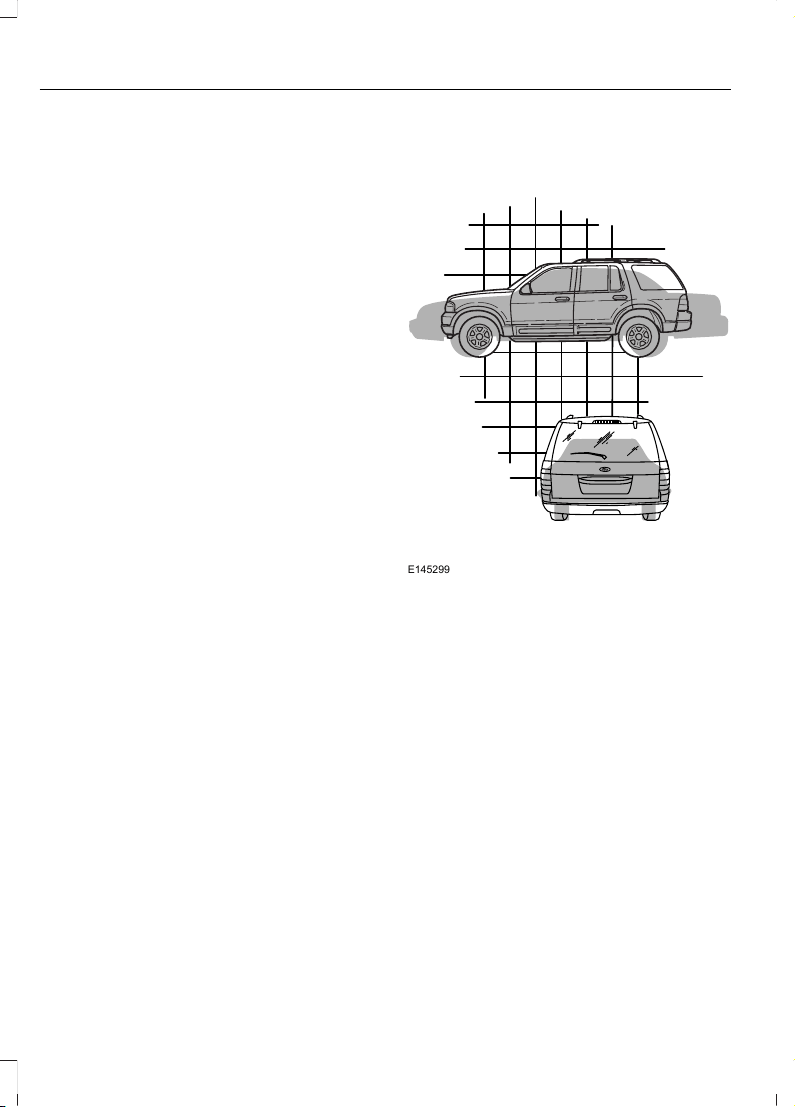
Utility vehicles and trucks handle
differently than passenger cars in the
various driving conditions that are
encountered on streets, highways and
off-road. Utility vehicles and trucks are not
designed for cornering at speeds as high
as passenger cars any more than low-slung
sports cars are designed to perform
satisfactorily under off-road conditions.
Study your owner's manual and any
supplements for specific information about
equipment features, instructions for safe
driving and additional precautions to
reduce the risk of an accident or serious
injury.
How your vehicle differs from
other vehicles
Sport utility vehicles and trucks can differ
from some other vehicles in a few
noticeable ways. Your vehicle may be:
E145299
• Higher - to allow higher load carrying
capacity and to allow it to travel over
rough terrain without getting hung up
or damaging underbody components.
• Shorter - to give it the capability to
approach inclines and drive over the
crest of a hill without getting hung up
or damaging underbody components.
All other things held equal, a shorter
wheelbase may make your vehicle
quicker to respond to steering inputs
than a vehicle with a longer wheelbase.
• Narrower - to provide greater
maneuverability in tight spaces,
particularly in off-road use.
298
Edge (CDQ) Canada/United States of America, enUSA, Edition date: 201706, First Printing
Wheels and Tires
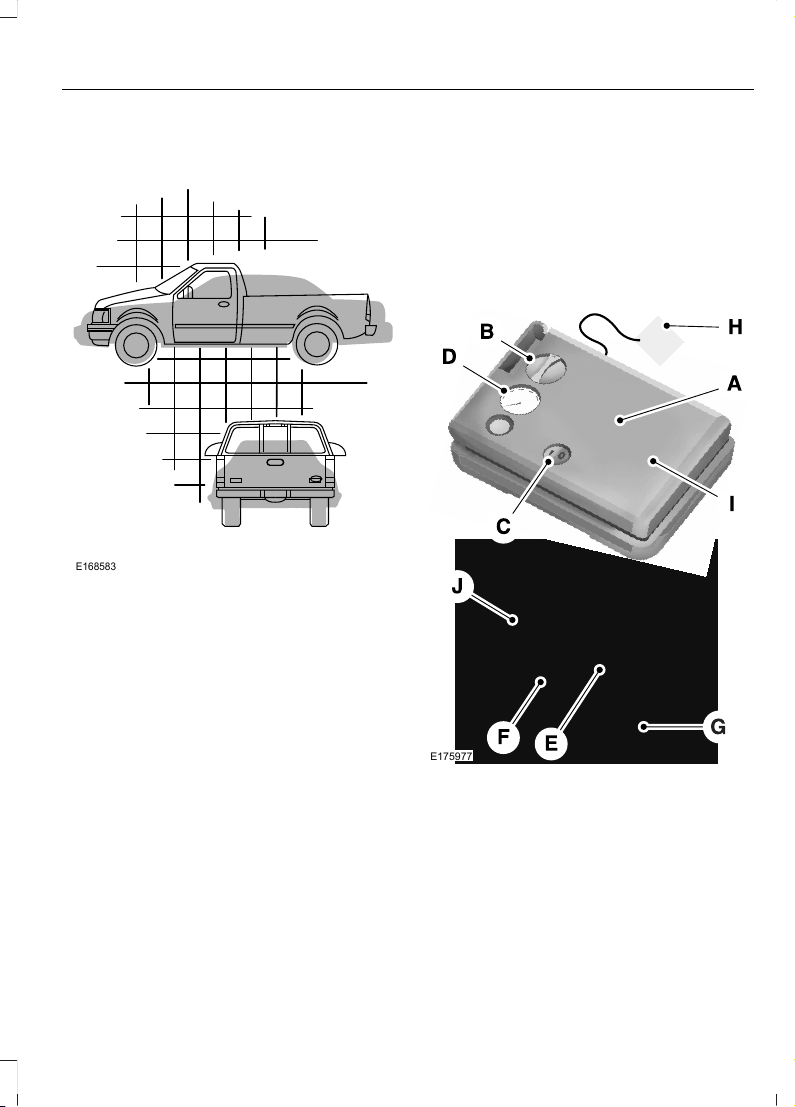
E168583
As a result of the above dimensional
differences, Sport utility vehicles and
trucks often will have a higher center of
gravity and a greater difference in center
of gravity between the loaded and
unloaded condition. These differences that
make your vehicle so versatile also make
it handle differently than an ordinary
passenger car.
TIRE SEALANT AND INFLATOR
KIT (If Equipped)
Note: The temporary mobility kit contains
enough sealant compound in the canister
for one tire repair only. See an authorized
Ford dealer for replacement sealant
canisters.
The kit is located under the load floor in
the trunk. The kit consists of an air
compressor to re-inflate the tire and a
canister of sealing compound that will
effectively seal most punctures caused by
nails or similar objects. This kit provides a
temporary tire repair, allowing you to drive
your vehicle up to 120 mi (200 km) at a
maximum speed of 50 mph (80 km/h) to
reach a tire service location.
E175977
Air compressor (inside).A
Selector switch.B
On and off button.C
Air pressure gauge.D
Sealant bottle and canister.E
Dual purpose hose: air and
repair.
F
299
Edge (CDQ) Canada/United States of America, enUSA, Edition date: 201706, First Printing
Wheels and Tires

Tire valve connector.G
Accessory power plug.H
Casing/housing.I
Bike/raft/sports ball adapters.J
General Information
WARNING
Failure to follow these guidelines
could result in an increased risk of
loss of vehicle control, injury or death.
Note: Do not use the kit if you have severely
damaged a tire. Only seal punctures located
within the tire tread with the kit.
Do not attempt to repair punctures larger
than ¼ inch (6 millimeters) or damage to
the tire's sidewall. The tire may not
completely seal.
Loss of air pressure may adversely affect
tire performance. For this reason:
Note: Do not drive the vehicle above
50 mph (80 km/h).
Note: Do not drive further than 120 mi
(200 km). Drive only to the closest
authorized Ford dealer or tire repair shop to
have your tire inspected.
• Drive carefully and avoid abrupt
steering maneuvers.
• Periodically monitor tire inflation
pressure in the affected tire; if the tire
is losing pressure, have the vehicle
towed.
• Read the information in the Tips for
Use of the Kit section to make sure safe
operation of the kit and your vehicle.
Tips for Use of the Kit
To ensure safe operation of the kit:
• Read all instructions and cautions fully.
• Before operating the kit, make sure
your vehicle is safely off the road and
away from moving traffic. Switch on
the hazard lights.
• Always set the parking brake to ensure
the vehicle does not move
unexpectedly.
• Do not remove any foreign objects,
such as nails or screws, from the tire.
• When using the kit, leave the engine
running (only if the vehicle is outdoors
or in a well-ventilated area) so the
compressor does not drain the
vehicle's battery.
• Do not allow the compressor to
operate continuously for more than 15
minutes. This will help prevent the
compressor from overheating.
• Never leave the kit unattended during
operation.
• Sealant compound contains latex.
Those with latex sensitivities should
use appropriate precautions to avoid
an allergic reaction.
• Keep the kit away from children.
• Only use the kit when the ambient
temperature is between -22°F (-30°C)
and 158°F (70°C).
• Only use the sealing compound before
the use-by date. The use-by date is on
a label on the sealant canister, which
you can see through the rectangular
viewing window on the bottom of the
compressor. Check the use-by date
regularly and replace the canister after
four years of non-use.
• Do not store the kit unsecured inside
the passenger compartment of the
vehicle as it may cause injury during a
sudden stop or crash. Always store the
kit in its original location.
300
Edge (CDQ) Canada/United States of America, enUSA, Edition date: 201706, First Printing
Wheels and Tires
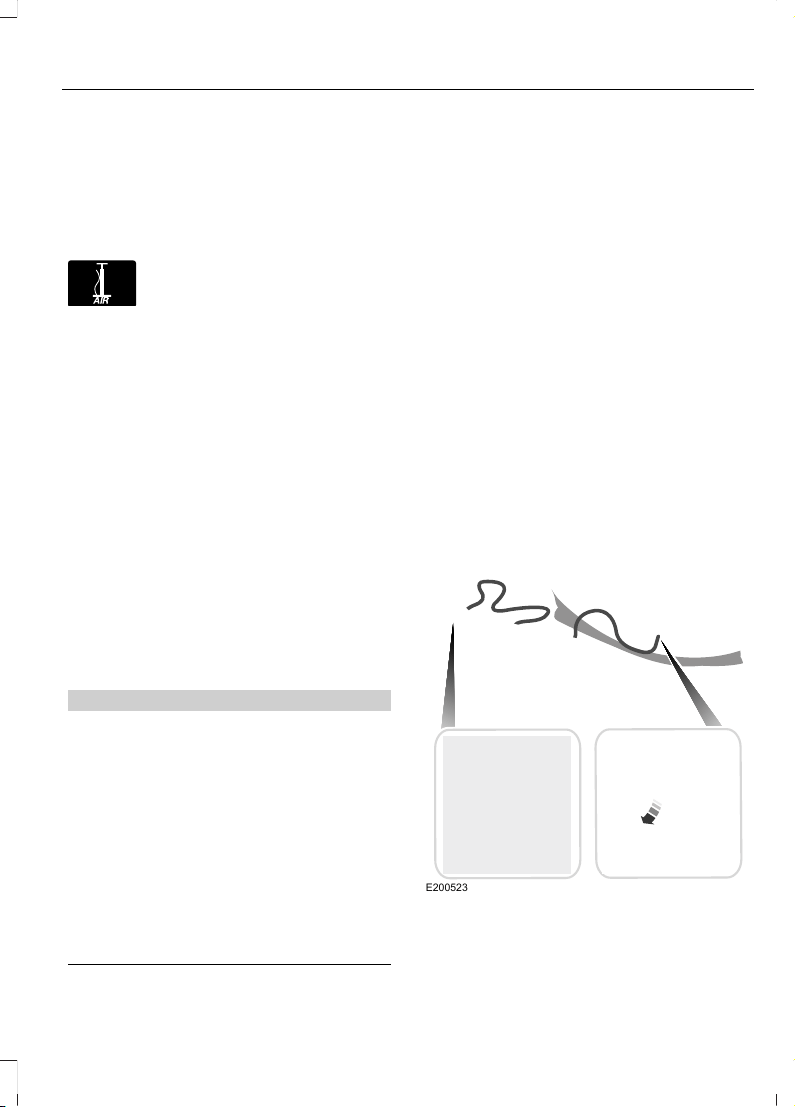
• After sealant use, an authorized Ford
dealer must replace the tire pressure
monitoring system sensor and valve
stem on the wheel.
• Operating the kit could cause an
electrical disturbance in radio, CD and
DVD player operation.
E175978
* When inflation only is required
for a tire or other objects, the
selector must be in the Air
position.
What to do When a Tire Is
Punctured
You can repair a tire puncture within the
tire's tread area in two stages with the kit.
• In the first stage, inflate the tire with a
sealing compound and air. After you
inflate the tire, you will need to drive
the vehicle a short distance 4 mi
(6 km) to distribute the sealant in the
tire.
• In the second stage, check the tire
pressure and adjust, if necessary, to the
vehicle's specified tire inflation
pressure.
First Stage: Inflating the Tire with
Sealing Compound and Air
WARNINGS
Do not stand directly over the kit
while inflating the tire. If you notice
any unusual bulges or deformations
in the tire's sidewall during inflation, stop
and call roadside assistance.
If the tire does not inflate to the
recommended tire pressure within
15 minutes, stop and call roadside
assistance.
Do not run the engine when
operating the air compressor unless
the vehicle is outdoors or in a
well-ventilated area.
Preparation: Park the vehicle in a safe, level
and secure area, away from moving traffic.
Switch the hazard lights on. Apply the
parking brake and switch the engine off.
Inspect the flat tire for visible damage.
Sealant compound contains latex. Use
appropriate precautions to avoid any
allergic reactions.
Do not remove any foreign object that has
pierced the tire. If a puncture is located in
the tire sidewall, stop and call roadside
assistance.
1. Remove the valve cap from the tire
valve.
2. Unwrap the dual purpose hose (black
tube) from the back of the compressor
housing.
3. Fasten the hose to the tire valve by
turning the connector clockwise.
Tighten the connection securely.
E200523
4. Plug the power cable into the 12-volt
power point in the vehicle.
301
Edge (CDQ) Canada/United States of America, enUSA, Edition date: 201706, First Printing
Wheels and Tires
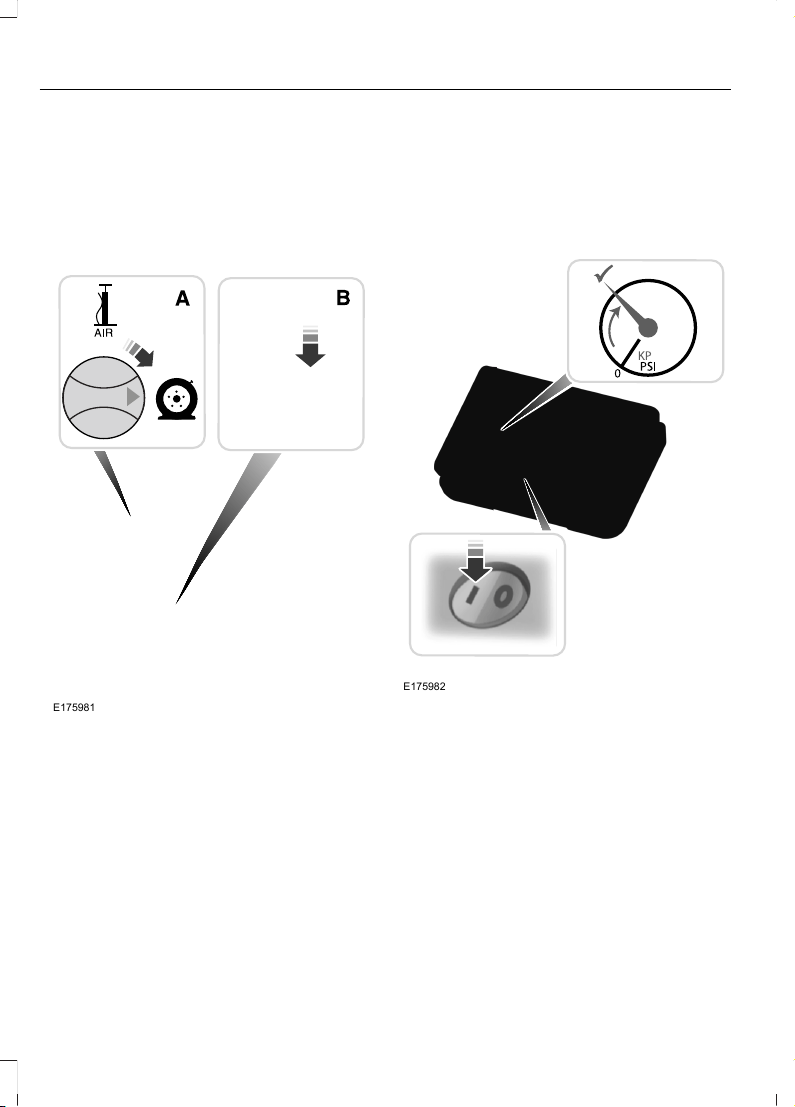
5. Remove the warning sticker found on
the casing/housing and place it on the
top of the instrument panel or the
center of the dash.
6. Start the vehicle and leave the engine
running so the compressor does not
drain the vehicle’s battery.
E175981
7. Turn dial (A) clockwise to the sealant
position. Switch the kit on by pressing
the on/off button (B).
8. Inflate the tire to the pressure listed on
the tire label located on the driver's
door or the door jamb area. The initial
air pressure gauge reading may indicate
a value higher than the label pressure
while you pump the sealing compound
into the tire. This is normal and should
be no reason for concern. The pressure
gauge reading will indicate the tire
inflation pressure after about 30
seconds of operation. You should
check the final tire pressure with the
compressor turned OFF in order to get
an accurate pressure reading.
E175982
9. When the tire reaches the
recommended tire pressure, switch off
the kit, unplug the power cable, and
disconnect the hose from the tire valve.
Re-install the valve cap on the tire
valve and return the kit to the stowage
area.
10. Immediately and cautiously, drive the
vehicle 4 mi (6 km) to distribute the
sealant evenly inside the tire. Do not
exceed 50 mph (80 km/h).
11. After 4 mi (6 km), stop and check the
tire pressure. See Second Stage:
Checking Tire Pressure.
302
Edge (CDQ) Canada/United States of America, enUSA, Edition date: 201706, First Printing
Wheels and Tires

Note: If you experience any unusual
vibration, ride disturbance or noise while
driving, reduce your speed until you can
safely pull off to the side of the road to call
for roadside assistance. Note: Do not
proceed to the second stage of this
operation.
Second Stage: Checking Tire
Pressure
Note: If you are proceeding from the First
Stage: Re-inflating the Tire with Sealing
Compound and Air section and have
injected sealant in the tire and the pressure
is below 20 psi (1.4 bar), continue to the
next step.
WARNING
The power plug may get hot after use
and should be handled carefully
when unplugging.
Check the air pressure of your tires as
follows:
E175983
1. Remove the valve cap from the tire
valve.
2. Firmly screw the air compressor hose
onto the valve stem by turning
clockwise.
3. Push and turn the dial clockwise to the
air position.
4. If required, switch on the compressor
and adjust the tire to the
recommended inflation pressure
shown on the tire label located on the
driver's door or door jamb area. You
should check the tire pressure with the
compressor turned OFF in order to get
an accurate pressure reading.
5. Unplug the hoses, re-install the valve
cap on the tire and return the kit to the
stowage area.
What to Do After the Tire has Been
Sealed
After using the kit to seal your tire, you will
need to replace the sealant canister. You
can obtain sealant canisters and spare
parts at an authorized Ford dealer. You can
dispose of empty sealant canisters at
home. However, you should dispose of
canisters still containing liquid sealant
through your local authorized Ford dealer
or tire dealer, or in accordance with local
waste disposal regulation.
Note: After you use the sealing compound,
the maximum vehicle speed is 50 mph
(80 km/h) and the maximum driving
distance is 120 mi (200 km). You should
inspect the sealed tire immediately.
You can check the tire pressure any time
within the 120 mi (200 km) by performing
the steps listed previously in the Second
Stage: Checking Tire Pressure procedure.
303
Edge (CDQ) Canada/United States of America, enUSA, Edition date: 201706, First Printing
Wheels and Tires
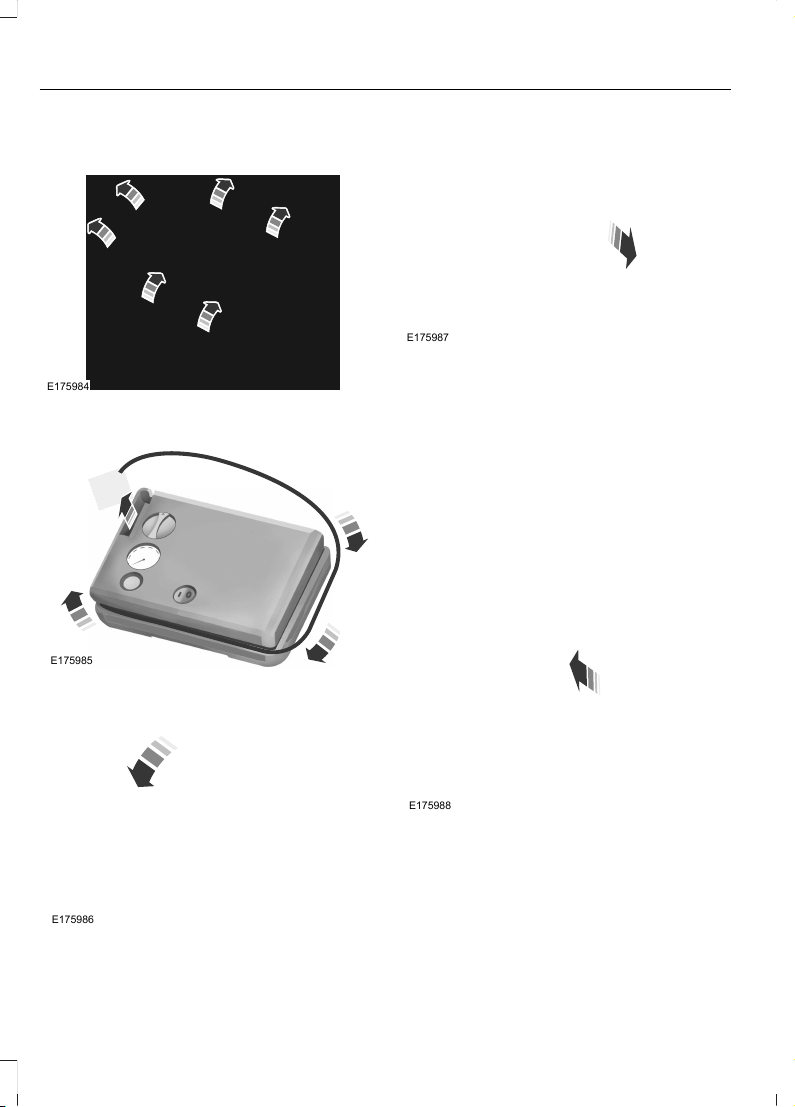
Removal of the sealant canister from
the kit
E175984
1. Unwrap the dual purpose hose (black
tube) from the compressor housing.
E175985
2. Unwrap the power cord.
E175986
3. Remove the back cover.
E175987
4. Rotate the sealant canister up 90
degrees and pull away from
casing/housing to remove.
Installation of the sealant canister to
the kit
1. With the canister held perpendicular
to the housing, insert the canister
nozzle into the connector and push
until seated.
2. Rotate the canister 90 degrees down
into the housing/casing.
E175988
3. Snap the back cover back into place.
304
Edge (CDQ) Canada/United States of America, enUSA, Edition date: 201706, First Printing
Wheels and Tires
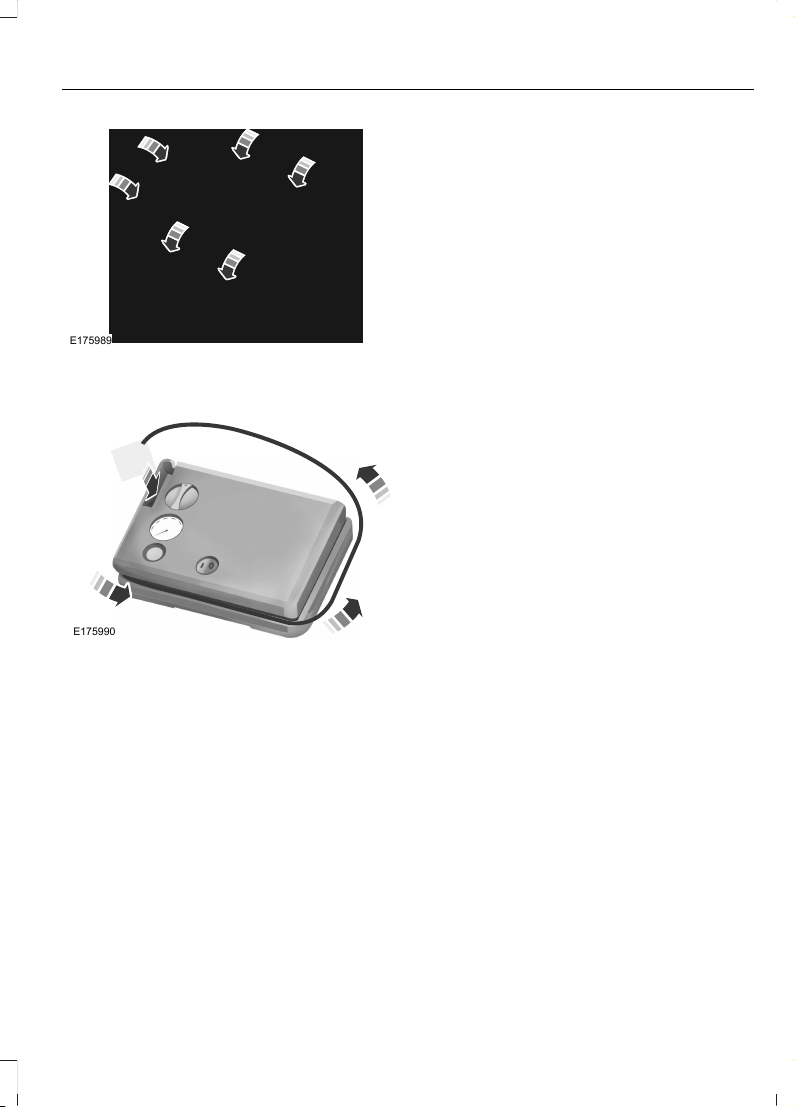
E175989
4. Wrap the dual purpose hose (black
tube) around the channel on the
bottom of the housing/casing.
E175990
5. Wrap the power cord around the
housing and stow the accessory power
plug into its storage area.
Note: If you experience any difficulties with
the removal or installation of the sealant
canister, consult an authorized Ford dealer
for assistance.
Make sure you check the sealant
compound’s use-by date regularly. The
use-by date is on a label located on the
sealant canister, which you can see
through the rectangular viewing window
on the bottom of the kit. You should
replace the sealant canister after four
years of non-use.
TIRE CARE
Important Information About
Low-Profile Tires
If your vehicle is equipped with
265/40R21 tires, they are
low-profile tires. These tires and
wheels are designed to give your
vehicle a sport appearance. With
low-profile tires, you may notice
an increase in road noise and
faster tire wear, depending on
road conditions and driving styles.
Due to their design, low-profile
tires and wheels are more prone
to road damage from potholes,
rough or unpaved roads, car wash
rails and curb contact than
standard tires and wheels.
Note: Your vehicle's warranty does
not cover these types of damages.
Extra caution should be taken
when operating on rough roads to
avoid impacts that could cause
wheel and tire damage.
Important Information About
Sport Tires and Wheels
Vehicles equipped with the
optional 265/40R21 tires are
designed to enhance
performance. To continue
providing this performance, extra
care must be taken when
operating and maintaining your
vehicle.
305
Edge (CDQ) Canada/United States of America, enUSA, Edition date: 201706, First Printing
Wheels and Tires

These low-profile
high-performance tires are
designed to optimize the driving
dynamics you expect in a sport
vehicle in both dry and wet
conditions. These tires are not
optimized for off-road or winter
(snow or cold weather)
performance; and their ride, noise,
and wear characteristics are
different than non-performance
tires. With low-profile tires, you
may notice an increase in road
noise and faster wear, depending
on road conditions and driving
habits. Also, because of their
lower profile, the tires are more
susceptible to road damage from
potholes, rough or unpaved roads,
car wash rails, and curb contact
than standard tires and wheels.
Note: Your vehicle’ s warranty does
not cover these types of damages.
Extra caution should be taken
when operating on rough roads to
avoid impacts that could cause
wheel and tire damage.
The optional 265/40R21 tires were
designed for track use and may
exhibit significantly reduced tread
life and increased tire noise
compared to the standard
equipment tires under normal
driving conditions. Increasing the
front camber settings beyond the
factory settings may further
accelerate tread wear and induce
tire noise.
Note: Do not use tire chains on
your vehicle’s optional 265/40R21
tires and wheels. The use of any
type of tire chain on these tires may
damage your vehicle. See Using
Snow Chains (page 322).
Notice to Crossover Vehicle
Owners
E200792
Crossover vehicles handle
differently than passenger cars in
the various driving conditions that
are encountered on streets,
highways and off-road. Crossover
vehicles are not designed for
cornering at speeds as high as
passenger cars any more than
low-slung sports cars are
designed to perform satisfactorily
under off-road conditions.
306
Edge (CDQ) Canada/United States of America, enUSA, Edition date: 201706, First Printing
Wheels and Tires
Crossover vehicles have a
significantly higher rollover rate
than other types of vehicles. To
reduce this risk of serious injury or
death from a rollover or other
crash you must:
• Avoid sharp turns and abrupt
maneuvers.
• Drive at safe speeds for the
conditions.
• Keep tires properly inflated.
• Never overload or improperly
load your vehicle.
• Make sure every passenger is
properly restrained.
WARNING
In a rollover crash, an
unbelted person is
significantly more likely to die than
a person wearing a seatbelt.
Information About Uniform
Tire Quality Grading
E142542
Tire Quality Grades apply to new
pneumatic passenger car tires.
The Tire Quality Grades can be
found where applicable on the tire
sidewall between tread shoulder
and maximum section width. For
example: Treadwear 200
Traction AA Temperature A.
These Tire Quality Grades are
determined by standards that the
United States Department of
Transportation has set.
Tire Quality Grades apply to new
pneumatic passenger car tires.
They do not apply to deep tread,
winter-type snow tires,
space-saver or temporary use
spare tires, light truck or LT type
tires, tires with nominal rim
diameters of 10 to 12 inches or
limited production tires as defined
in Title 49 Code of Federal
Regulations Part 575.104 (c)(2).
U.S. Department of
Transportation Tire quality
grades: The U.S. Department of
Transportation requires Ford
Motor Company to give you the
following information about tire
grades exactly as the government
has written it.
Treadwear
The treadwear grade is a
comparative rating based on the
wear rate of the tire when tested
under controlled conditions on a
specified government test course.
For example, a tire graded 150
would wear 1 ½ times as well on
307
Edge (CDQ) Canada/United States of America, enUSA, Edition date: 201706, First Printing
Wheels and Tires

the government course as a tire
graded 100. The relative
performance of tires depends
upon the actual conditions of their
use, however, and may depart
significantly from the norm due to
variations in driving habits, service
practices, and differences in road
characteristics and climate.
Traction AA A B C
WARNING
The traction grade assigned
to this tire is based on
straight-ahead braking traction
tests, and does not include
acceleration, cornering,
hydroplaning or peak traction
characteristics.
The traction grades, from highest
to lowest are AA, A, B, and C. The
grades represent the tire’s ability
to stop on wet pavement as
measured under controlled
conditions on specified
government test surfaces of
asphalt and concrete. A tire
marked C may have poor traction
performance.
Temperature A B C
WARNING
The temperature grade for
this tire is established for a
tire that is properly inflated and
not overloaded. Excessive speed,
underinflation, or excessive
loading, either separately or in
combination, can cause heat
buildup and possible tire failure.
The temperature grades are A
(the highest), B and C,
representing the tire’s resistance
to the generation of heat and its
ability to dissipate heat when
tested under controlled conditions
on a specified indoor laboratory
test wheel. Sustained high
temperature can cause the
material of the tire to degenerate
and reduce tire life, and excessive
temperature can lead to sudden
tire failure. The grade C
corresponds to a level of
performance which all passenger
car tires must meet under the
Federal Motor Vehicle Safety
Standard No. 139. Grades B and A
represent higher levels of
performance on the laboratory
test wheel than the minimum
required by law.
Glossary of Tire Terminology
*Tire label: A label showing the
original equipment tire sizes,
recommended inflation pressure
and the maximum weight the
vehicle can carry.
308
Edge (CDQ) Canada/United States of America, enUSA, Edition date: 201706, First Printing
Wheels and Tires

*Tire Identification Number
(TIN): A number on the sidewall
of each tire providing information
about the tire brand and
manufacturing plant, tire size and
date of manufacture. Also referred
to as DOT code.
*Inflation pressure: A measure
of the amount of air in a tire.
*Standard load: A class of
P-metric or Metric tires designed
to carry a maximum load at set
pressure. For example: for
P-metric tires 35 psi (2.4 bar) and
for Metric tires 36 psi (2.5 bar).
Increasing the inflation pressure
beyond this pressure will not
increase the tire’s load-carrying
capability.
*Extra load: A class of P-metric
or Metric tires designed to carry a
heavier maximum load at 42 psi
(2.9 bar). Increasing the inflation
pressure beyond this pressure will
not increase the tire’s
load-carrying capability.
*kPa: Kilopascal, a metric unit of
air pressure.
*PSI: Pounds per square inch, a
standard unit of air pressure.
*Cold tire pressure: The tire
pressure when the vehicle has
been stationary and out of direct
sunlight for an hour or more and
prior to the vehicle being driven for
1 mile (1.6 kilometers).
*Recommended inflation
pressure: The cold inflation
pressure found on the Safety
Compliance Certification Label
(affixed to either the door hinge
pillar, door-latch post, or the door
edge that meets the door-latch
post, next to the driver's seating
position) or Tire Label located on
the B-Pillar or the edge of the
driver’s door.
* B-pillar: The structural member
at the side of the vehicle behind
the front door.
*Bead area of the tire: Area of
the tire next to the rim.
* Sidewall of the tire: Area
between the bead area and the
tread.
*Tread area of the tire: Area of
the perimeter of the tire that
contacts the road when mounted
on the vehicle.
*Rim: The metal support (wheel)
for a tire or a tire and tube
assembly upon which the tire
beads are seated.
Information Contained on the
Tire Sidewall
Both United States and Canada
Federal regulations require tire
manufacturers to place
standardized information on the
sidewall of all tires. This
information identifies and
309
Edge (CDQ) Canada/United States of America, enUSA, Edition date: 201706, First Printing
Wheels and Tires
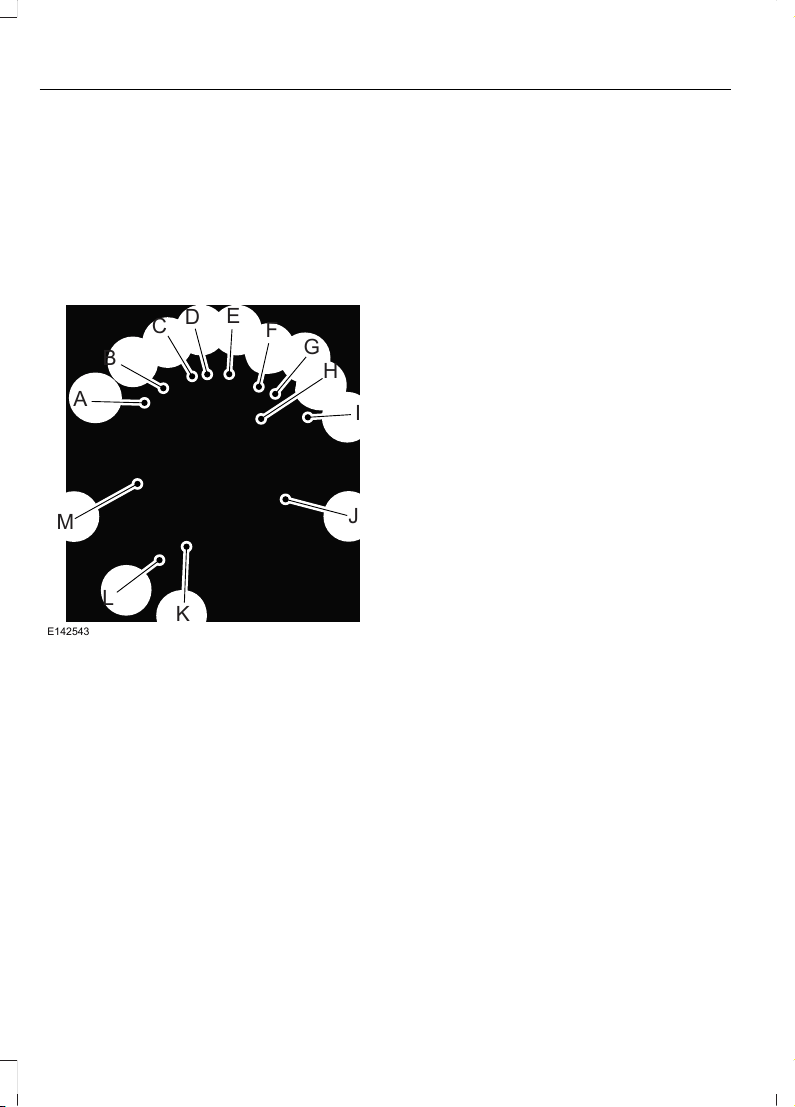
describes the fundamental
characteristics of the tire and also
provides a U.S. DOT Tire
Identification Number for safety
standard certification and in case
of a recall.
Information on P Type Tires
H
I
J
K
L
M
A
B
C
D
E
F
G
E142543
P215/65R15 95H is an example of
a tire size, load index and speed
rating. The definitions of these
items are listed below. (Note that
the tire size, load index and speed
rating for your vehicle may be
different from this example.)
A. P: Indicates a tire, designated
by the Tire and Rim Association,
that may be used for service on
cars, sport utility vehicles,
minivans and light trucks. Note: If
your tire size does not begin with
a letter this may mean it is
designated by either the European
Tire and Rim Technical
Organization or the Japan Tire
Manufacturing Association.
B. 215: Indicates the nominal
width of the tire in millimeters
from sidewall edge to sidewall
edge. In general, the larger the
number, the wider the tire.
C. 65: Indicates the aspect ratio
which gives the tire's ratio of
height to width.
D. R: Indicates a radial type tire.
E. 15: Indicates the wheel or rim
diameter in inches. If you change
your wheel size, you will have to
purchase new tires to match the
new wheel diameter.
F. 95: Indicates the tire's load
index. It is an index that relates to
how much weight a tire can carry.
You may find this information in
your owner’s manual. If not,
contact a local tire dealer.
Note: You may not find this
information on all tires because it
is not required by federal law.
310
Edge (CDQ) Canada/United States of America, enUSA, Edition date: 201706, First Printing
Wheels and Tires

G. H: Indicates the tire's speed
rating. The speed rating denotes
the speed at which a tire is
designed to be driven for extended
periods of time under a standard
condition of load and inflation
pressure. The tires on your vehicle
may operate at different
conditions for load and inflation
pressure. These speed ratings may
need to be adjusted for the
difference in conditions. The
ratings range from 81 mph
(130 km/h) to 186 mph
(299 km/h). These ratings are
listed in the following chart.
Note: You may not find this
information on all tires because it
is not required by federal law.
Speed ratingLetter
rating
81 mph (130 km/h)M
87 mph (140 km/h)N
99 mph (159 km/h)Q
106 mph (171 km/h)R
112 mph (180 km/h)S
118 mph (190 km/h)T
124 mph (200 km/h)U
130 mph (210 km/h)H
149 mph (240 km/h)V
Speed ratingLetter
rating
168 mph (270 km/h)W
186 mph (299 km/h)Y
Note: For tires with a maximum
speed capability over 149 mph
(240 km/h), tire manufacturers
sometimes use the letters ZR. For
those with a maximum speed
capability over 186 mph (299
km/h), tire manufacturers always
use the letters ZR.
H. U.S. DOT Tire Identification
Number (TIN): This begins with
the letters DOT and indicates that
the tire meets all federal
standards. The next two numbers
or letters are the plant code
designating where it was
manufactured, the next two are
the tire size code and the last four
numbers represent the week and
year the tire was built. For
example, the numbers 317 mean
the 31st week of 1997. After 2000
the numbers go to four digits. For
example, 2501 means the 25th
week of 2001. The numbers in
between are identification codes
used for traceability. This
information is used to contact
customers if a tire defect requires
a recall.
I. M+S or M/S: Mud and Snow, or
AT: All Terrain, or
AS: All Season.
311
Edge (CDQ) Canada/United States of America, enUSA, Edition date: 201706, First Printing
Wheels and Tires

J. Tire Ply Composition and
Material Used: Indicates the
number of plies or the number of
layers of rubber-coated fabric in
the tire tread and sidewall. Tire
manufacturers also must indicate
the ply materials in the tire and the
sidewall, which include steel,
nylon, polyester, and others.
K. Maximum Load: Indicates the
maximum load in kilograms and
pounds that can be carried by the
tire. See the Safety Compliance
Certification Label (affixed to
either the door hinge pillar,
door-latch post, or the door edge
that meets the door-latch post,
next to the driver's seating
position), for the correct tire
pressure for your vehicle.
L. Treadwear, Traction and
Temperature Grades:
*Treadwear The treadwear grade
is a comparative rating based on
the wear rate of the tire when
tested under controlled conditions
on a specified government test
course. For example, a tire graded
150 would wear one and one-half
times as well on the government
course as a tire graded 100.
*Traction: The traction grades,
from highest to lowest are AA, A,
B, and C. The grades represent the
tire's ability to stop on wet
pavement as measured under
controlled conditions on specified
government test surfaces of
asphalt and concrete. A tire
marked C may have poor traction
performance.
*Temperature: The temperature
grades are A (the highest), B and
C, representing the tire's
resistance to the generation of
heat and its ability to dissipate
heat when tested under controlled
conditions on a specified indoor
laboratory test wheel.
M. Maximum Inflation
Pressure: Indicates the tire
manufacturer's maximum
permissible pressure, or the
pressure at which the maximum
load can be carried by the tire. This
pressure is normally higher than
the vehicle manufacturer's
recommended cold inflation
pressure, which can be found on
the Safety Compliance
Certification Label (affixed to
either the door hinge pillar,
door-latch post, or the door edge
that meets the door-latch post,
next to the driver's seating
position), or Tire Label which is
located on the B-Pillar or the edge
of the driver’s door. The cold
inflation pressure should never be
set lower than the recommended
pressure on the vehicle label.
312
Edge (CDQ) Canada/United States of America, enUSA, Edition date: 201706, First Printing
Wheels and Tires
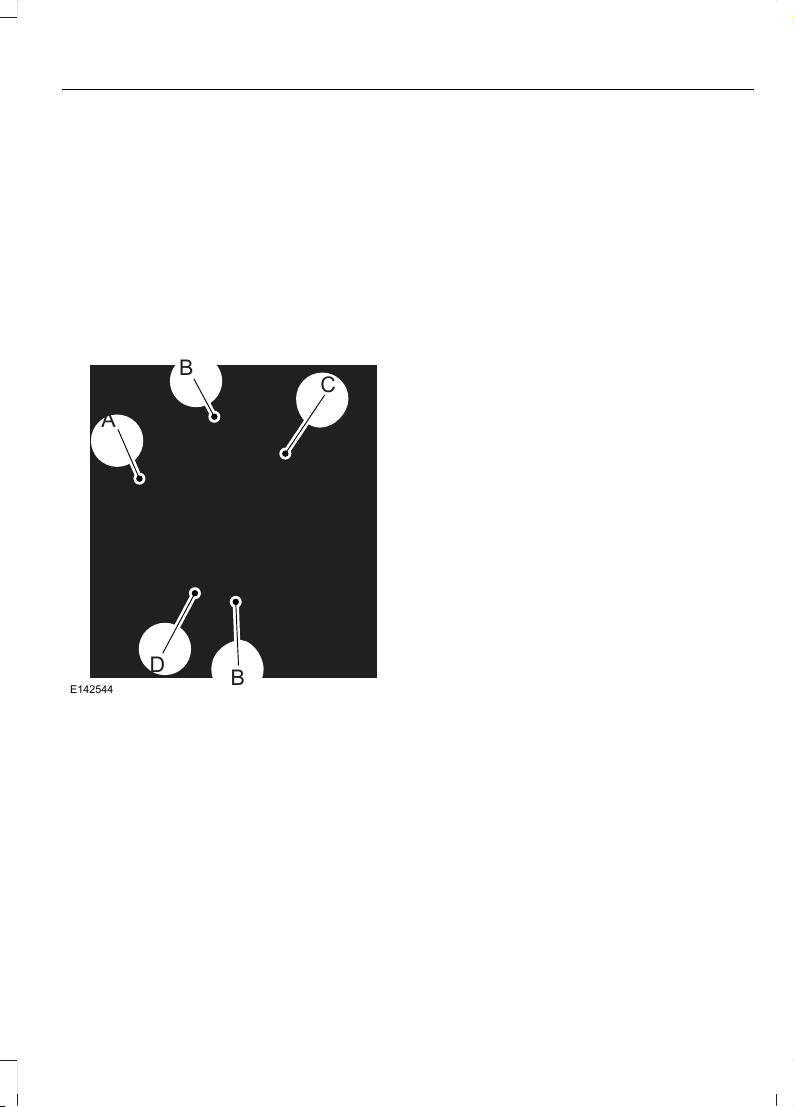
The tire suppliers may have
additional markings, notes or
warnings such as standard load
or radial tubeless.
Additional Information
Contained on the Tire Sidewall
for LT Type Tires
Note: Tire Quality Grades do not
apply to this type of tire.
A
B
C
B
D
E142544
LT type tires have some additional
information beyond those of P
type tires. These differences are
described below.
A. LT: Indicates a tire, designated
by the Tire and Rim Association,
that is intended for service on light
trucks.
B. Load Range and Load
Inflation Limits: Indicates the
tire's load-carrying capabilities
and its inflation limits.
C. Maximum Load Dual lb (kg)
at psi (kPa) cold: Indicates the
maximum load and tire pressure
when the tire is used as a dual,
defined as four tires on the rear
axle (a total of six or more tires on
the vehicle).
D. Maximum Load Single lb
(kg) at psi (kPa) cold: Indicates
the maximum load and tire
pressure when the tire is used as
a single, defined as two tires
(total) on the rear axle.
Information on T Type Tires
T145/80D16 is an example of a
tire size.
Note: The temporary tire size for
your vehicle may be different from
this example. Tire Quality Grades
do not apply to this type of tire.
313
Edge (CDQ) Canada/United States of America, enUSA, Edition date: 201706, First Printing
Wheels and Tires
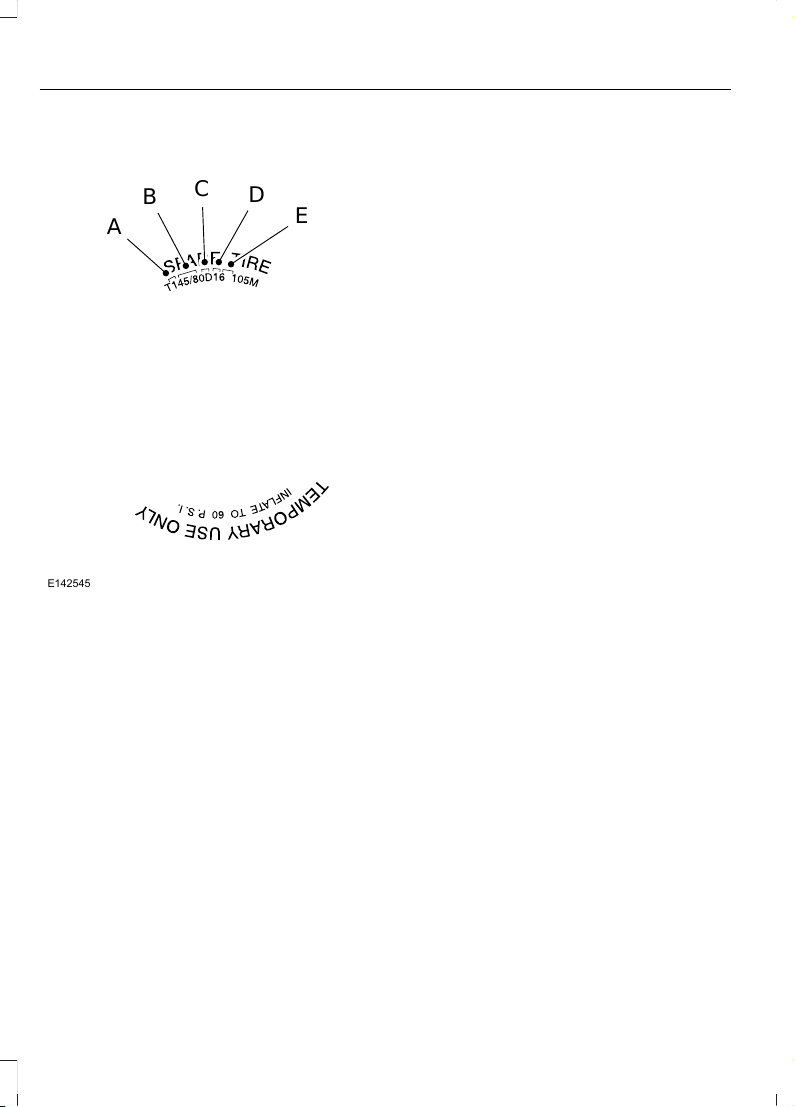
A
B
C
D
E
E142545
T type tires have some additional
information beyond those of P
type tires. These differences are
described below.
A. T: Indicates a type of tire,
designated by the Tire and Rim
Association, that is intended for
temporary service on cars,
sport-utility vehicles, minivans and
light trucks.
B. 145: Indicates the nominal
width of the tire in millimeters
from sidewall edge to sidewall
edge. In general, the larger the
number, the wider the tire.
C. 80: Indicates the aspect ratio,
which gives the tire's ratio of
height to width. Numbers of 70 or
lower indicate a short sidewall.
D. D: Indicates a diagonal type tire.
R: Indicates a radial type tire.
E. 16: Indicates the wheel or rim
diameter in inches. If you change
your wheel size, you will have to
purchase new tires to match the
new wheel diameter.
Location of the Tire Label
You will find a Tire Label
containing tire inflation pressure
by tire size and other important
information located on the B-Pillar
or the edge of the driver’s door.
Inflating Your Tires
Safe operation of your vehicle
requires that your tires are
properly inflated. Remember that
a tire can lose up to half of its air
pressure without appearing flat.
Every day before you drive, check
your tires. If one looks lower than
the others, use a tire gauge to
check pressure of all tires and
adjust if required.
At least once a month and before
long trips, inspect each tire and
check the tire pressure with a tire
gauge (including spare, if
equipped). Inflate all tires to the
inflation pressure recommended
by Ford Motor Company.
314
Edge (CDQ) Canada/United States of America, enUSA, Edition date: 201706, First Printing
Wheels and Tires

You are strongly urged to buy a
reliable tire pressure gauge, as
automatic service station gauges
may be inaccurate. Ford
recommends the use of a digital
or dial-type tire pressure gauge
rather than a stick-type tire
pressure gauge.
Use the recommended cold
inflation pressure for optimum tire
performance and wear.
Under-inflation or over-inflation
may cause uneven treadwear
patterns.
WARNING
Under-inflation is the most
common cause of tire failures
and may result in severe tire
cracking, tread separation or
blowout, with unexpected loss of
vehicle control and increased risk
of injury. Under-inflation increases
sidewall flexing and rolling
resistance, resulting in heat
buildup and internal damage to
the tire. It also may result in
unnecessary tire stress, irregular
wear, loss of vehicle control and
accidents. A tire can lose up to
half of its air pressure and not
appear to be flat!
Always inflate your tires to the
Ford recommended inflation
pressure even if it is less than the
maximum inflation pressure
information found on the tire. The
Ford recommended tire inflation
pressure is found on the Safety
Compliance Certification Label
(affixed to either the door hinge
pillar, door-latch post, or the door
edge that meets the door-latch
post, next to the driver's seating
position), or Tire Label which is
located on the B-Pillar or the edge
of the driver’s door. Failure to
follow the tire pressure
recommendations can cause
uneven treadwear patterns and
adversely affect the way your
vehicle handles.
Maximum Inflation Pressure is
the tire manufacturer's maximum
permissible pressure and the
pressure at which the maximum
load can be carried by the tire. This
pressure is normally higher than
the manufacturer’s recommended
cold inflation pressure, which can
be found on the Safety
Compliance Certification Label
(affixed to either the door hinge
pillar, door-latch post, or the door
edge that meets the door-latch
post, next to the driver's seating
position), or Tire Label which is
located on the B-Pillar or the edge
of the driver’s door. The cold
inflation pressure should never be
set lower than the recommended
pressure on the Safety
Compliance Certification Label or
Tire Label.
315
Edge (CDQ) Canada/United States of America, enUSA, Edition date: 201706, First Printing
Wheels and Tires

When weather temperature
changes occur, tire inflation
pressures also change. A 10°F
(6°C) temperature drop can
cause a corresponding drop of
1 psi (7 kPa) in inflation pressure.
Check your tire pressures
frequently and adjust them to the
proper pressure which can be
found on the Safety Compliance
Certification Label or Tire Label.
To check the pressure in your
tire(s):
1. Make sure the tires are cool,
meaning they are not hot from
driving even a mile.
Note: If you are checking tire
pressure when the tire is hot, (for
example, driven more than 1 mile
[1.6 kilometers], never bleed or
reduce air pressure. The tires are
hot from driving and it is normal for
pressures to increase above
recommended cold pressures. A
hot tire at or below recommended
cold inflation pressure could be
significantly under-inflated.
Note: If you have to drive a
distance to get air for your tire(s),
check and record the tire pressure
first and add the appropriate air
pressure when you get to the
pump. It is normal for tires to heat
up and the air pressure inside to go
up as you drive.
2. Remove the cap from the valve
on one tire, then firmly press the
tire gauge onto the valve and
measure the pressure.
3. Add enough air to reach the
recommended air pressure.
Note: If you overfill the tire, release
air by pressing on the metal stem
in the center of the valve. Then
recheck the pressure with your tire
gauge.
4. Replace the valve cap.
5. Repeat this procedure for each
tire, including the spare.
Note: Some spare tires operate at
a higher inflation pressure than the
other tires. For T type mini-spare
tires, see the Dissimilar Spare
Wheel and Tire Assembly section.
Store and maintain at 60 psi
(4.15 bar). For full-size and
dissimilar spare tires, see the
Dissimilar Spare Wheel and Tire
Assembly Information section.
Store and maintain at the higher of
the front and rear inflation pressure
as shown on the Tire Label.
6. Visually inspect the tires to
make sure there are no nails or
other objects embedded that
could poke a hole in the tire and
cause an air leak.
7. Check the sidewalls to make
sure there are no gouges, cuts or
bulges.
316
Edge (CDQ) Canada/United States of America, enUSA, Edition date: 201706, First Printing
Wheels and Tires
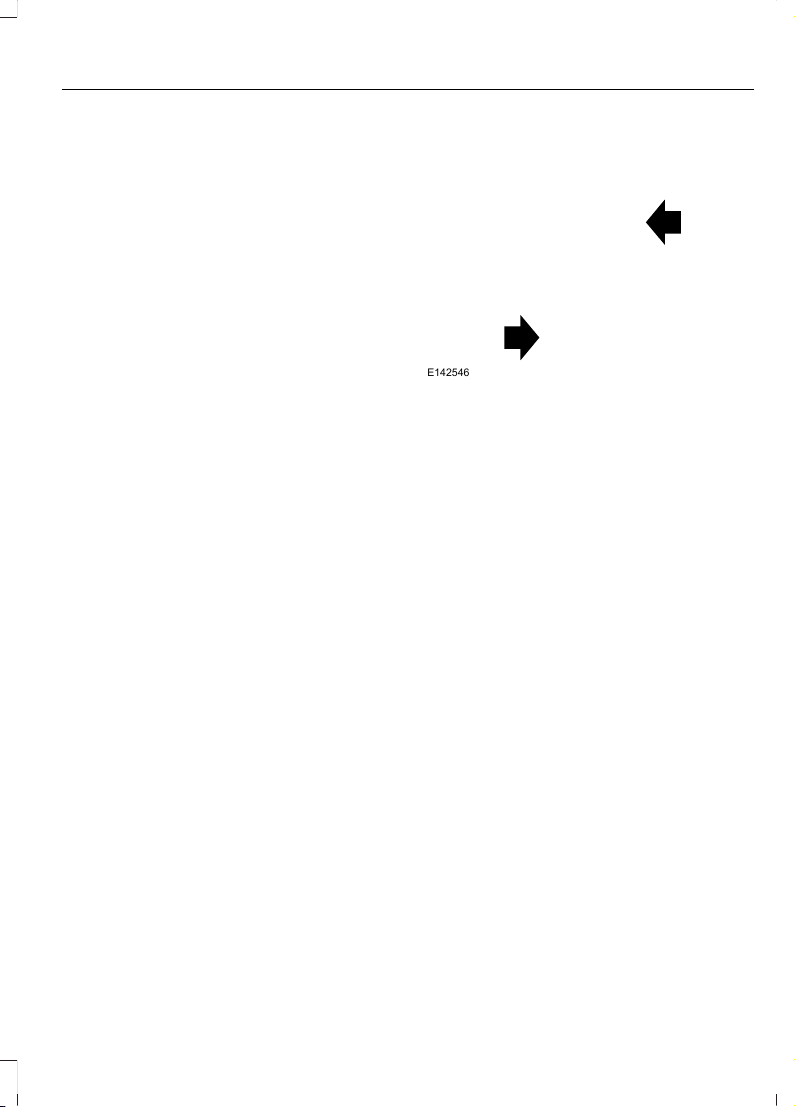
Inspecting Your Tires and
Wheel Valve Stems
Periodically inspect the tire treads
for uneven or excessive wear and
remove objects such as stones,
nails or glass that may be wedged
in the tread grooves. Check the tire
and valve stems for holes, cracks,
or cuts that may permit air
leakage and repair or replace the
tire and replace the valve stem.
Inspect the tire sidewalls for
cracking, cuts, bruises and other
signs of damage or excessive
wear. If internal damage to the tire
is suspected, have the tire
demounted and inspected in case
it needs to be repaired or replaced.
For your safety, tires that are
damaged or show signs of
excessive wear should not be used
because they are more likely to
blow out or fail.
Improper or inadequate vehicle
maintenance can cause tires to
wear abnormally. Inspect all your
tires, including the spare,
frequently, and replace them if
one or more of the following
conditions exist:
Tire Wear
E142546
When the tread is worn down to
one sixteenth of an inch (2
millimeters), tires must be
replaced to help prevent your
vehicle from skidding and
hydroplaning. Built-in treadwear
indicators, or wear bars, which
look like narrow strips of smooth
rubber across the tread will
appear on the tire when the tread
is worn down to one sixteenth of
an inch (2 millimeters).
When the tire tread wears down
to the same height as these wear
bars, the tire is worn out and must
be replaced.
Damage
Periodically inspect the tire treads
and sidewalls for damage (such
as bulges in the tread or sidewalls,
cracks in the tread groove and
separation in the tread or
sidewall). If damage is observed
317
Edge (CDQ) Canada/United States of America, enUSA, Edition date: 201706, First Printing
Wheels and Tires

or suspected have the tire
inspected by a tire professional.
Tires can be damaged during
off-road use, so inspection after
off-road use is also
recommended.
Age
WARNING
Tires degrade over time
depending on many factors
such as weather, storage
conditions, and conditions of use
(load, speed, inflation pressure)
the tires experience throughout
their lives.
You should replace your spare tire
when you replace the road tires or
after six years due to aging even if
it has not been used.
U.S. DOT Tire Identification
Number
Both United States and Canada
Federal regulations require tire
manufacturers to place
standardized information on the
sidewall of all tires. This
information identifies and
describes the fundamental
characteristics of the tire and also
provides a U.S. DOT Tire
Identification Number for safety
standard certification and in case
of a recall.
This begins with the letters DOT
and indicates that the tire meets
all federal standards. The next
two numbers or letters are the
plant code designating where it
was manufactured, the next two
are the tire size code and the last
four numbers represent the week
and year the tire was built. For
example, the numbers 317 mean
the 31st week of 1997. After 2000
the numbers go to four digits. For
example, 2501 means the 25th
week of 2001. The numbers in
between are identification codes
used for traceability. This
information is used to contact
customers if a tire defect requires
a recall.
Tire Replacement
Requirements
Your vehicle is equipped with tires
designed to provide a safe ride
and handling capability.
WARNINGS
Only use replacement tires
and wheels that are the same
size, load index, speed rating and
type (such as P-metric versus
LT-metric or all-season versus
all-terrain) as those originally
provided by Ford. The
recommended tire and wheel size
may be found on either the Safety
Compliance Certification Label
(affixed to either the door hinge
pillar, door-latch post, or the door
edge that meets the door-latch
post, next to the driver's seating
position), or the Tire Label which
318
Edge (CDQ) Canada/United States of America, enUSA, Edition date: 201706, First Printing
Wheels and Tires

WARNINGS
is located on the B-Pillar or edge
of the driver's door. If this
information is not found on these
labels, then you should contact
your authorized dealer as soon as
possible. Use of any tire or wheel
not recommended by Ford can
affect the safety and performance
of your vehicle, which could result
in an increased risk of loss of
vehicle control, vehicle rollover,
personal injury and death.
To reduce the risk of serious
injury, when mounting
replacement tires and wheels, you
should not exceed the maximum
pressure indicated on the sidewall
of the tire to set the beads without
additional precautions listed
below. If the beads do not seat at
the maximum pressure indicated,
re-lubricate and try again.
When inflating the tire for
mounting pressures up to
20 psi (136 kPa) greater than the
maximum pressure on the tire
sidewall, the following
precautions must be taken to
protect the person mounting the
tire:
1. Make sure that you have the
correct tire and wheel size.
2. Lubricate the tire bead and
wheel bead seat area again.
3. Stand at a minimum of 12 ft
(3.66 m) away from the wheel
and tire assembly.
WARNINGS
4. Use both eye and ear
protection.
For a mounting pressure more
than 20 psi (1.38 bar) greater than
the maximum pressure, a Ford
dealer or other tire service
professional should do the
mounting.
Always inflate steel carcass tires
with a remote air fill with the
person inflating standing at a
minimum of 12 ft (3.66 m) away
from the wheel and tire assembly.
Important: Remember to replace
the wheel valve stems when the
road tires are replaced on your
vehicle.
The two front tires or two rear tires
should generally be replaced as a
pair.
The tire pressure sensors mounted
in the wheels (originally installed
on your vehicle) are not designed
to be used in aftermarket wheels.
The use of wheels or tires not
recommended by Ford Motor
Company may affect the
operation of your tire pressure
monitoring system.
319
Edge (CDQ) Canada/United States of America, enUSA, Edition date: 201706, First Printing
Wheels and Tires

If the tire pressure monitoring
system indicator is flashing, the
system is malfunctioning. Your
replacement tire might be
incompatible with your tire
pressure monitoring system, or
some component of the system
may be damaged.
Safety Practices
WARNINGS
If your vehicle is stuck in
snow, mud or sand, do not
rapidly spin the tires; spinning the
tires can tear the tire and cause
an explosion. A tire can explode in
as little as three to five seconds.
Do not spin the wheels at
over 34 mph (55 km/h). The
tires may fail and injure a
passenger or bystander.
Driving habits have a great deal
to do with your tire mileage and
safety.
*Observe posted speed limits
*Avoid fast starts, stops and turns
*Avoid potholes and objects on
the road
*Do not run over curbs or hit the
tire against a curb when parking
Highway Hazards
No matter how carefully you drive
there’s always the possibility that
you may eventually have a flat tire
on the highway. Drive slowly to the
closest safe area out of traffic.
This may further damage the flat
tire, but your safety is more
important.
If you feel a sudden vibration or
ride disturbance while driving, or
you suspect your tire or vehicle
has been damaged, immediately
reduce your speed. Drive with
caution until you can safely pull
off the road. Stop and inspect the
tires for damage. If you cannot
detect a cause, have the vehicle
towed to the nearest repair facility
or tire dealer to have the vehicle
inspected.
Tire and Wheel Alignment
A bad jolt from hitting a curb or
pothole can cause the front end
of your vehicle to become
misaligned or cause damage to
your tires. If your vehicle seems to
pull to one side when you’re
driving, the wheels may be out of
alignment. Have an authorized
dealer check the wheel alignment
periodically.
320
Edge (CDQ) Canada/United States of America, enUSA, Edition date: 201706, First Printing
Wheels and Tires
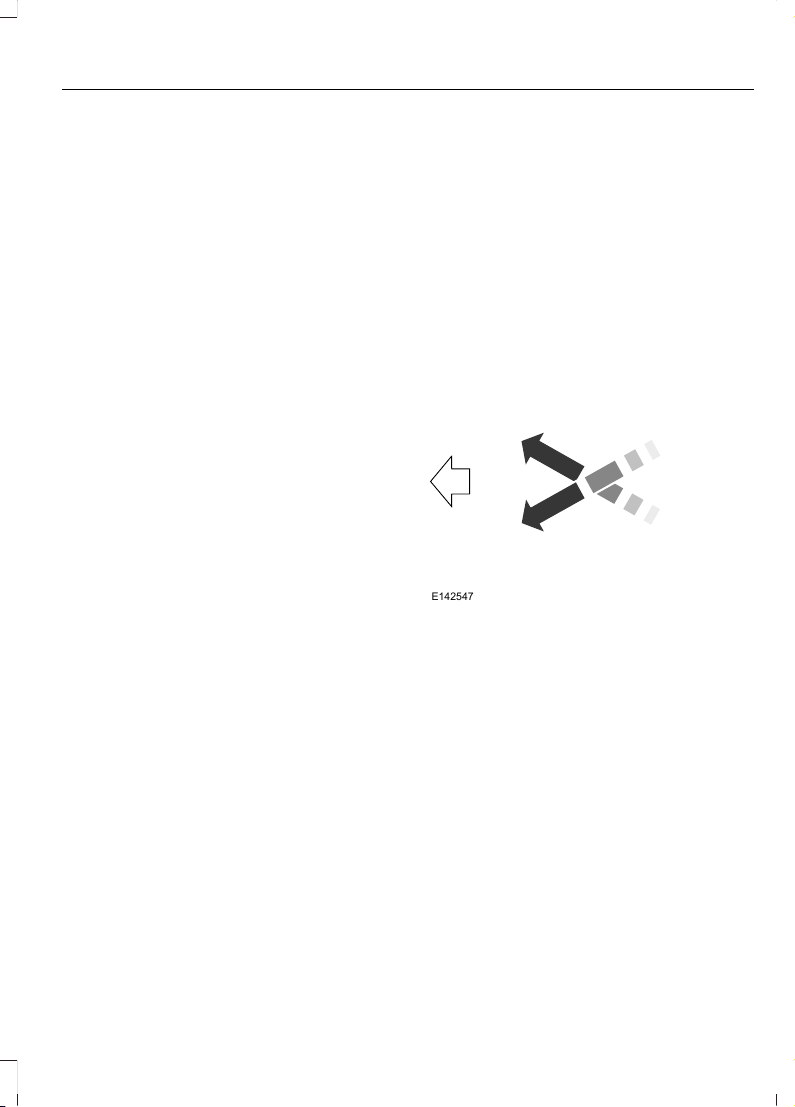
Wheel misalignment in the front
or the rear can cause uneven and
rapid treadwear of your tires and
should be corrected by an
authorized dealer. Front-wheel
drive vehicles and those with an
independent rear suspension may
require alignment of all four
wheels.
The tires should also be balanced
periodically. An unbalanced tire
and wheel assembly may result in
irregular tire wear.
Tire Rotation
Note: If your tires show uneven
wear ask an authorized dealer to
check for and correct any wheel
misalignment, tire imbalance or
mechanical problem involved
before tire rotation.
Note: Your vehicle may be
equipped with a dissimilar spare
wheel and tire assembly. A
dissimilar spare wheel and tire
assembly is defined as a spare
wheel and tire assembly that is
different in brand, size or
appearance from the road tires and
wheels. If you have a dissimilar
spare wheel and tire assembly it is
intended for temporary use only
and should not be used in a tire
rotation.
Note: After having your tires
rotated, inflation pressure must be
checked and adjusted to the
vehicle requirements.
Rotating your tires at the
recommended interval (as
indicated in the scheduled
maintenance information) will
help your tires wear more evenly,
providing better tire performance
and longer tire life. Sometime
irregular tire wear can be
corrected by rotating the tires.
Front-wheel drive and All-wheel
drive vehicles (front tires on the
left side of the diagram).
E142547
USING SUMMER TIRES (If
Equipped)
Summer tires provide superior
performance on wet and dry roads.
Summer tires do not have the Mud and
Snow (M+S or M/S) tire traction rating on
the tire side wall. Since summer tires do
not have the same traction performance
as All-season or Snow tires, we do not
recommend using summer tires when
temperatures drop to about 45°F (7°C) or
below (depending on tire wear and
environmental conditions) or in snow and
321
Edge (CDQ) Canada/United States of America, enUSA, Edition date: 201706, First Printing
Wheels and Tires

ice conditions. Like any tire, summer tire
performance is affected by tire wear and
environmental conditions. If you must drive
in those conditions, we recommend using
Mud and Snow (M+S, M/S), All-season or
Snow tires.
Always store your summer tires indoors at
temperatures above 19°F (-7°C). The
rubber compounds used in these tires lose
flexibility and may develop surface cracks
in the tread area at temperatures below
19°F (-7°C). If the tires have been
subjected to 19°F (-7°C) or less, warm
them in a heated space to at least 41°F
(5°C) for at least 24 hours before installing
them on a vehicle, or moving the vehicle
with the tires installed, or checking tire
inflation. Do not place tires near heaters
or heating devices used to warm the room
where the tires are stored. Do not apply
heat or blow heated air directly on the tires.
Always inspect the tires after storage
periods and before use.
USING SNOW CHAINS
WARNING
Snow tires must be the same size,
load index, speed rating as those
originally provided by Ford. Use of
any tire or wheel not recommended by
Ford can affect the safety and
performance of your vehicle, which could
result in an increased risk of loss of vehicle
control, vehicle rollover, personal injury and
death. Additionally, the use of
non-recommended tires and wheels could
cause steering, suspension, axle, transfer
case or power transfer unit failure.
The tires on your vehicle may have
all-weather treads to provide traction in
rain and snow. However, in some climates,
you may need to use snow tires and cables.
Your vehicle may not be compatible with
snow chain or cable usage with the
factory-fitted wheels and tires.
Follow these guidelines when using snow
tires and traction device:
• If possible, avoid fully loading your
vehicle.
• Purchase chains or cables from a
manufacturer that clearly labels body
to tire dimension restrictions.
• Use no larger than 10 mm cables or
chains ONLY on the front axle with
235/60R18 tires. Do not use chains or
cables on any other size tires.
• The snow chains or cables must be
mounted in pairs on the front axle.
• When driving with tire cables, do not
exceed 30 mph (48 km/h) or the
maximum speed recommended by the
chain manufacturer, whichever is less.
• Drive cautiously. If you hear the cables
rub or bang against the vehicle, stop
and re-tighten them. If this does not
work, remove the cables to prevent
vehicle damage.
• Remove the cables when you no longer
need them. Do not use cables on dry
roads.
• If a temporary spare tire is mounted on
your vehicle, do not use snow chains
on the axle with the temporary spare
tire.
If you have any questions regarding snow
chains or cables, please contact an
authorized dealer.
322
Edge (CDQ) Canada/United States of America, enUSA, Edition date: 201706, First Printing
Wheels and Tires
TIRE PRESSURE MONITORING
SYSTEM
WARNING
The tire pressure monitoring system
is not a substitute for manually
checking tire pressures. You should
periodically check tire pressures using a
pressure gauge. Failure to correctly
maintain tire pressures could increase the
risk of tire failure, loss of control, vehicle
rollover and personal injury.
Note: You should only use tire sealants in
roadside emergencies as they may cause
damage to the tire pressure monitoring
system sensor.
Note: If the tire pressure monitoring system
sensor becomes damaged, it may not
function.
Each tire, including the spare (if
provided), should be checked
monthly when cold and inflated
to the inflation pressure recommended by
the vehicle manufacturer on the vehicle
placard or tire inflation pressure label. (If
your vehicle has tires of a different size
than the size indicated on the vehicle
placard or tire inflation pressure label, you
should determine the proper tire inflation
pressure for those tires).
As an added safety feature, your vehicle
has been equipped with a Tire Pressure
Monitoring System (TPMS) that
illuminates a low tire pressure telltale
when one or more of your tires is
significantly under-inflated. Accordingly,
when the low tire pressure telltale
illuminates, you should stop and check
your tires as soon as possible, and inflate
them to the proper pressure. Driving on a
significantly under-inflated tire causes the
tire to overheat and can lead to tire failure.
Under-inflation also reduces fuel efficiency
and tire tread life, and may affect the
vehicle’s handling and stopping ability.
Please note that the TPMS is not a
substitute for proper tire maintenance, and
it is the driver’s responsibility to maintain
correct tire pressure, even if under-inflation
has not reached the level to trigger
illumination of the TPMS low tire pressure
telltale.
Your vehicle has also been equipped with
a TPMS malfunction indicator to indicate
when the system is not operating properly.
The TPMS malfunction indicator is
combined with the low tire pressure
telltale. When the system detects a
malfunction, the telltale will flash for
approximately one minute and then remain
continuously illuminated. This sequence
will continue upon subsequent vehicle
start-ups as long as the malfunction exists.
When the malfunction indicator is
illuminated, the system may not be able
to detect or signal low tire pressure as
intended. TPMS malfunctions may occur
for a variety of reasons, including the
installation of replacement or alternate
tires or wheels on the vehicle that prevent
the TPMS from functioning properly.
Always check the TPMS malfunction
telltale after replacing one or more tires or
wheels on your vehicle to ensure that the
replacement or alternate tires and wheels
allow the TPMS to continue to function
properly.
This device complies with Part 15 of the
FCC Rules and with License exempt RSS
Standards of Industry Canada. Operation
is subject to the following two conditions:
1. This device may not cause harmful
interference, and
323
Edge (CDQ) Canada/United States of America, enUSA, Edition date: 201706, First Printing
Wheels and Tires

2. This device must accept any
interference received, including
interference that may cause undesired
operation.
Note: Changes or modifications not
expressively approved by the party
responsible for compliance could void the
user's authority to operate the equipment.
The term "IC:" before the radio certification
number only signifies that Industry Canada
technical specifications were met.
Changing Tires With a Tire
Pressure Monitoring System
E142549
Note: Each road tire is equipped with a tire
pressure sensor located inside the wheel
and tire assembly cavity. The pressure
sensor is attached to the valve stem. The
pressure sensor is covered by the tire and is
not visible unless the tire is removed. Take
care when changing the tire to avoid
damaging the sensor.
You should always have your tires serviced
by an authorized dealer.
Check the tire pressure periodically (at
least monthly) using an accurate tire
gauge. See When Inflating Your Tires in
this chapter.
Understanding Your Tire Pressure
Monitoring System
E250820
The tire pressure monitoring system
measures pressure in your road tires and
sends the tire pressure readings to your
vehicle. You can view the tire pressure
readings through the information display.
See General Information (page 102). The
low tire pressure warning light will turn on
if the tire pressure is significantly low. Once
the light is illuminated, your tires are
under-inflated and need to be inflated to
the manufacturer’s recommended tire
pressure. Even if the light turns on and a
short time later turns off, your tire pressure
still needs to be checked.
When Your Temporary Spare Tire is
Installed
When one of your road tires needs to be
replaced with the temporary spare, the
system will continue to identify an issue to
remind you that the damaged road wheel
and tire assembly needs to be repaired and
put back on your vehicle.
To restore the full function of the tire
pressure monitoring system, have the
damaged road wheel and tire assembly
repaired and remounted on your vehicle.
324
Edge (CDQ) Canada/United States of America, enUSA, Edition date: 201706, First Printing
Wheels and Tires

When You Believe Your System is Not
Operating Properly
The main function of the tire pressure
monitoring system is to warn you when
your tires need air. It can also warn you in
the event the system is no longer capable
of functioning as intended. See the
following chart for information concerning
your tire pressure monitoring system:
Customer action requiredPossible cause
Low tire pressure
warning light
Make sure tires are at the proper pres-
sure. See Inflating your tires in this
chapter. After inflating your tires to the
manufacturer’s recommended pressure
as shown on the Tire Label (located on
the edge of driver’s door or the B-Pillar),
the vehicle must be driven for at least
two minutes over 20 mph (32 km/h)
before the light turns off.
Tire(s) under-inflated
Solid warning light Repair the damaged road wheel and tire
assembly and reinstall it on the vehicle
to restore system function. For a
description on how the system functions,
see When Your Temporary Spare Tire
is Installed in this section.
Spare tire in use
If the tires are properly inflated and the
spare tire is not in use but the light
remains on, contact your authorized
dealer as soon as possible.
TPMS malfunction
Repair the damaged road wheel and tire
assembly and reinstall it on the vehicle
to restore system function. For a
description on how the system functions,
see When Your Temporary Spare Tire
is Installed in this section.
Spare tire in use
Flashing warning
light
If the tires are properly inflated and the
spare tire is not in use but the light
remains on, contact your authorized
dealer as soon as possible.
TPMS malfunction
325
Edge (CDQ) Canada/United States of America, enUSA, Edition date: 201706, First Printing
Wheels and Tires

When Inflating Your Tires
WARNING
Do not use the tire pressure
displayed in the information display
as a tire pressure gauge. Failure to
follow this instruction could result in
personal injury or death.
When putting air into your tires (such as at
a gas station or in your garage), the tire
pressure monitoring system may not
respond immediately to the air added to
your tires.
It may take up to two minutes of driving
over 20 mph (32 km/h) for the light to turn
off after you have filled your tires to the
recommended inflation pressure.
How Temperature Affects Your Tire
Pressure
The tire pressure monitoring system
monitors tire pressure in each pneumatic
tire. While driving in a normal manner, a
typical passenger tire inflation pressure
may increase about 2–4 psi (14–28 kPa)
from a cold start situation. If the vehicle is
stationary overnight with the outside
temperature significantly lower than the
daytime temperature, the tire pressure may
decrease about 3 psi (21 kPa) for a drop of
30°F (17°C) in ambient temperature. This
lower pressure value may be detected by
the tire pressure monitoring system as
being significantly lower than the
recommended inflation pressure and
activate the system warning light for low
tire pressure. If the low tire pressure
warning light is on, visually check each tire
to verify that no tire is flat. If one or more
tires are flat, repair as necessary. Check
the air pressure in the road tires. If any tire
is under-inflated, carefully drive the vehicle
to the nearest location where air can be
added to the tires. Inflate all the tires to
the recommended inflation pressure.
CHANGING A ROAD WHEEL
WARNINGS
Do not use tire sealants as they may
damage the tire pressure monitoring
system.
If the tire pressure monitor sensor
becomes damaged it may not
function.
Note: The use of tire sealant may damage
your tire pressure monitoring system and
should only be used in roadside
emergencies. If you must use a sealant, the
Ford Tire Mobility Kit sealant should be
used. The tire pressure monitoring system
sensor and valve stem on the wheel must
be replaced by an authorized dealer after
use of the sealant.
Note: The tire pressure monitoring system
indicator light will illuminate when the spare
tire is in use. To restore the full function of
the monitoring system, all road wheels
equipped with tire pressure monitoring
sensors must be mounted on the vehicle.
If you get a flat tire while driving, do not
apply the brake heavily. Instead, gradually
decrease your speed. Hold the steering
wheel firmly and slowly move to a safe
place on the side of the road.
Have a flat serviced by an authorized
dealer in order to prevent damage to the
tire pressure monitoring system sensors.
See Tire Pressure Monitoring System
(page 323). Replace the spare tire with a
road tire as soon as possible. During
repairing or replacing of the flat tire, have
an authorized dealer inspect the tire
pressure monitoring system sensor for
damage.
326
Edge (CDQ) Canada/United States of America, enUSA, Edition date: 201706, First Printing
Wheels and Tires

Dissimilar Spare Wheel and Tire
Assembly Information
WARNING
Failure to follow these guidelines
could result in an increased risk of
loss of vehicle control, injury or death.
If you have a dissimilar spare wheel and
tire, then it is intended for temporary use
only. This means that if you need to use it,
you should replace it as soon as possible
with a road wheel and tire assembly that
is the same size and type as the road tires
and wheels that were originally provided
by Ford. If the dissimilar spare tire or wheel
is damaged, it should be replaced rather
than repaired.
A dissimilar spare wheel and tire assembly
is defined as a spare wheel and tire
assembly that is different in brand, size or
appearance from the road tires and wheels
and can be one of three types:
1. T-type mini-spare: This spare tire
begins with the letter T for tire size and
may have Temporary Use Only molded in
the sidewall.
2. Full-size dissimilar spare with label
on wheel: This spare tire has a label on
the wheel that states: THIS WHEEL AND
TIRE ASSEMBLY FOR TEMPORARY USE
ONLY.
When driving with one of the dissimilar
spare tires listed above, do not:
• Exceed 50 mph (80 km/h).
• Load the vehicle beyond maximum
vehicle load rating listed on the Safety
Compliance Label.
• Tow a trailer.
• Use snow chains on the end of the
vehicle with the dissimilar spare tire.
• Use more than one dissimilar spare tire
at a time.
• Use commercial car washing
equipment.
• Try to repair the dissimilar spare tire.
Use of one of the dissimilar spare tires
listed above at any one wheel location can
lead to impairment of the following:
• Handling, stability and braking
performance.
• Comfort and noise.
• Ground clearance and parking at curbs.
• Winter weather driving capability.
• Wet weather driving capability.
• All-wheel driving capability (if
applicable).
3. Full-size dissimilar spare without
label on wheel
When driving with the full-size dissimilar
spare wheel and tire assembly, do not:
• Exceed 70 mph (113 km/h).
• Use more than one dissimilar spare
wheel and tire assembly at a time.
• Use commercial car washing
equipment.
• Use snow chains on the end of the
vehicle with the dissimilar spare wheel
and tire assembly.
The usage of a full-size dissimilar spare
wheel and tire assembly can lead to
impairment of the following:
• Handling, stability and braking
performance.
• Comfort and noise.
• Ground clearance and parking at curbs.
• Winter weather driving capability.
• Wet weather driving capability.
• All-wheel driving capability.
327
Edge (CDQ) Canada/United States of America, enUSA, Edition date: 201706, First Printing
Wheels and Tires
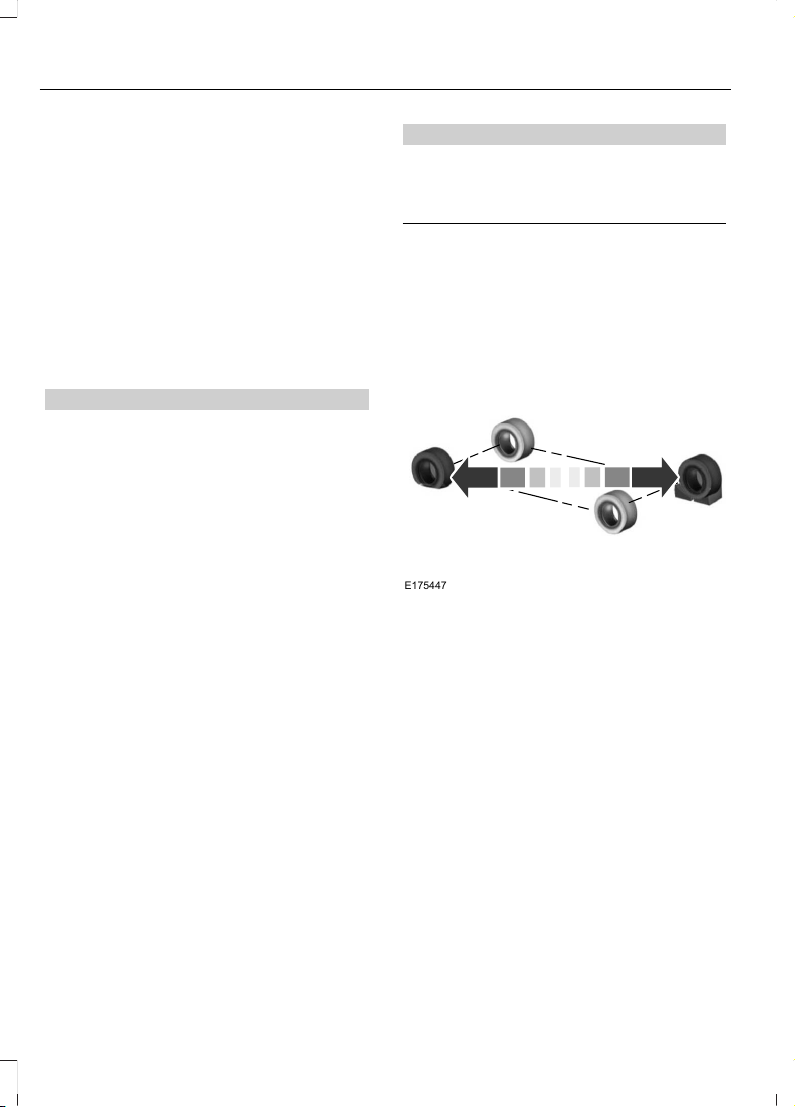
When driving with the full-size dissimilar
spare wheel and tire assembly additional
caution should be given to:
• Towing a trailer.
• Driving vehicles equipped with a
camper body.
• Driving vehicles with a load on the
cargo rack.
Drive cautiously when using a full-size
dissimilar spare wheel and tire assembly
and seek service as soon as possible.
Tire Change Procedure (If Equipped)
WARNINGS
When one of the front wheels is off
the ground, the transmission alone
will not prevent the vehicle from
moving or slipping off the jack, even if the
transmission is in park (P).
To help prevent your vehicle from
moving when changing a wheel, shift
the transmission into park (P), set
the parking brake and use an appropriate
block or wheel chock to secure the wheel
diagonally opposite to the wheel being
changed. For example, when changing the
front left wheel, place an appropriate block
or wheel chock on the right rear wheel.
No person should place any portion
of their body under a vehicle that is
supported by a jack.
Do not attempt to change a tire on
the side of the vehicle close to
moving traffic. Pull far enough off the
road to avoid the danger of being hit when
operating the jack or changing the wheel.
Always use the jack provided as
original equipment with your vehicle.
If using a jack other than the one
provided, make sure the jack capacity is
adequate for the vehicle weight, including
any vehicle cargo or modifications. If you
are unsure if the jack capacity is adequate,
contact the authorized dealer.
WARNINGS
Make sure there is no grease or oil on
the threads or the surface between
the wheel lugs and nuts. This can
cause the lug nuts to loosen while driving.
Note: Passengers should not remain in your
vehicle when the vehicle is being jacked.
1. Park on a level surface, set the parking
brake and activate the hazard flashers.
2. Place the transmission in park (P) and
turn the engine off.
E175447
3. Block both the front and rear of the
wheel diagonally opposite the flat tire.
For example, if the left front tire is flat,
block the right rear wheel.
4. Lift and remove the carpeted load floor
panel to access the minispare and jack
kit.
5. Remove the steel winged washer nut
securing the spare tire by turning it
counterclockwise.
6. Remove the spare tire from the spare
tire compartment.
7. Remove plastic wing nut and jack and
lug wrench assembly. Detach lug
wrench from jack by turning the jack
hex nut drive screw counterclockwise.
328
Edge (CDQ) Canada/United States of America, enUSA, Edition date: 201706, First Printing
Wheels and Tires
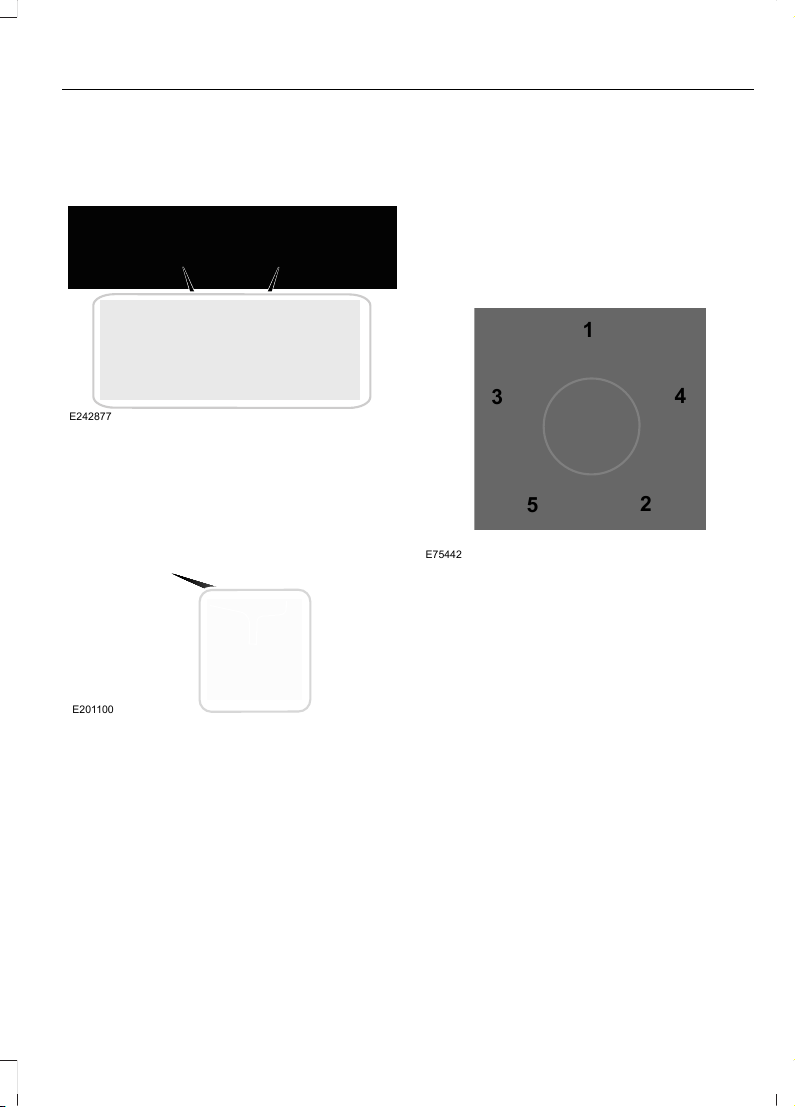
8. Loosen each wheel lug nut one-half
turn counterclockwise, but do not
remove them until the wheel is raised
off the ground.
E242877
9. The vehicle jacking points are depicted
by arrows on the underside of the
vehicle at the locations shown above.
E201100
10. Find the arrows embossed on the
vehicle downward flange next to the
tire you are changing. Position the
jack so that the vehicle downward
flange rests in the jack saddle flange
between the arrows, as shown above.
Raise the vehicle by using the lug
wrench to turn the jack nut clockwise.
Once the flat tire is raised above the
ground, remove the lug nuts with the
lug wrench.
11. Replace the flat tire with the spare
tire, making sure the valve stem is
facing outward. Reinstall the lug nuts
until the wheel is snug against the
hub. Do not fully tighten the lug nuts
until the wheel has been lowered.
12. Lower the wheel by turning the jack
handle counterclockwise.
1
2
3
4
5
E75442
13. Remove the jack and fully tighten the
lug nuts in the order shown. See
Technical Specifications (page
331).
14. Fold up the wrench/jack handle and
re-attach to the jack. Re-position
jack/wrench assembly into the
original vehicle position and secure
with the plastic wing nut. Make sure
the jack is fastened securely before
you drive.
15. Unblock the wheel.
Stowing the flat tire
You cannot store the full-sized road wheel
in the temporary spare tire well.
1. Find the flat tire retainer strap tucked
inside the jack channel. Lower the
carpeted load floor.
329
Edge (CDQ) Canada/United States of America, enUSA, Edition date: 201706, First Printing
Wheels and Tires

2. Stow the flat tire in the cargo area on
the load floor with the wheel facing up.
Secure the flat tire with the retainer
strap by following the next steps.
E142906
3. Locate the rear left side and right side
cargo tie-down rings. Push the loop end
of the retainer strap through one cargo
tie-down ring. Thread the non-loop end
through the loop.
4. Weave the retainer strap through the
wheel openings.
5. Locate the cargo tie-down in the
opposite rear corner of the cargo area.
Thread the retainer strap though the
tie-down and pull tight.
E143746
6. Secure the flat tire by tying a 2-half
hitch knot.
330
Edge (CDQ) Canada/United States of America, enUSA, Edition date: 201706, First Printing
Wheels and Tires
TECHNICAL SPECIFICATIONS
Wheel Lug Nut Torque Specifications
WARNING
When a wheel is installed, always remove any corrosion, dirt or foreign materials
present on the mounting surfaces of the wheel or the surface of the wheel hub,
brake drum or brake disc that contacts the wheel. Make sure that any fasteners
that attach the rotor to the hub are secured so they do not interfere with the mounting
surfaces of the wheel. Installing wheels without correct metal-to-metal contact at the
wheel mounting surfaces can cause the wheel nuts to loosen and the wheel to come off
while your vehicle is in motion, resulting in loss of control.
lb.ft (Nm)*Bolt size
162 lb.ft (220 Nm)M14 x 1.5
*Torque specifications are for nut and bolt threads free of dirt and rust. Use only Ford
recommended replacement fasteners.
Retighten the lug nuts to the specified torque within 100 miles (160 kilometers) after any
wheel disturbance (such as tire rotation, changing a flat tire, wheel removal).
E145950
Wheel pilot boreA
Inspect the wheel pilot hole and
mounting surface prior to installation.
Remove any visible corrosion or loose
particles.
331
Edge (CDQ) Canada/United States of America, enUSA, Edition date: 201706, First Printing
Wheels and Tires
ENGINE SPECIFICATIONS - 2.0L ECOBOOST™
SpecificationMeasurement
122Cubic inches
Minimum 87 octaneRequired fuel
9.3:1Compression ratio
0.027-0.031 in. (0.70-0.80 mm)Spark plug gap
Drivebelt Routing
E161383
A
B
A. Long drivebelt is on first pulley groove
closest to engine.
B. Short drivebelt is on second pulley
groove farthest from engine.
ENGINE SPECIFICATIONS - 2.7L ECOBOOST™
SpecificationMeasurement
164Cubic inches
Minimum 87 octaneRequired fuel
1-4-2-5-3-6Firing order
10.0:1Compression ratio
0.028-0.031 in. (0.7 - 0.8 mm)Spark plug gap
332
Edge (CDQ) Canada/United States of America, enUSA, Edition date: 201706, First Printing
Capacities and Specifications
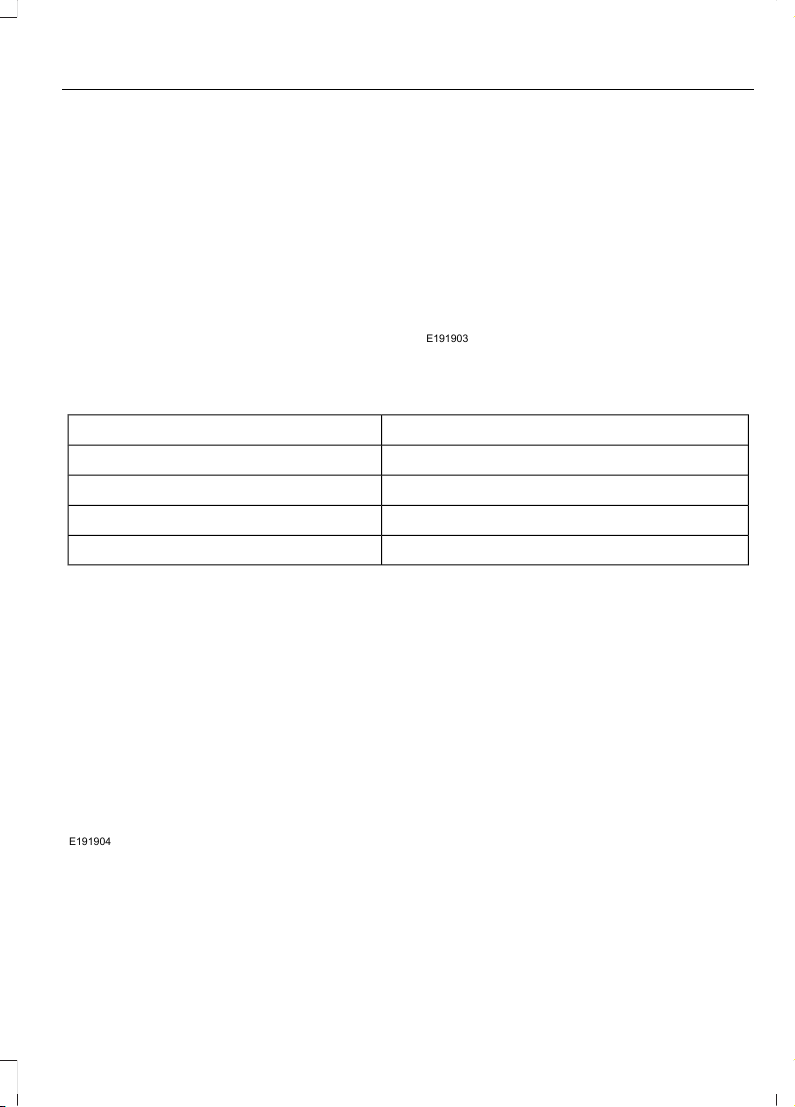
Drivebelt Routing
E191903
ENGINE SPECIFICATIONS - 3.5L
SpecificationMeasurement
214Cubic inches
Minimum 87 octaneRequired fuel
10.8:1Compression ratio
.049-.053 in. (1.25 - 1.35 mm)Spark plug gap
Drivebelt Routing
E191904
333
Edge (CDQ) Canada/United States of America, enUSA, Edition date: 201706, First Printing
Capacities and Specifications

MOTORCRAFT PARTS - 2.0L ECOBOOST™
2.0L EcoBoost EngineComponent
FA-1912Air filter
element
FL-910-SOil filter
BXT-90T5-590Battery
BAGM-48H6-760
1
SP-537Spark plugs
FP-71Cabin air filter
WW-2755 (driver side)Windshield
wiper blade WW-2760 (passenger side)
WW-1413 (rear window)
1
This motorcraft part is designed for vehicles with Automatic-Start-Stop.
We recommend Motorcraft replacement parts available at your Ford dealer or at
fordparts.com for scheduled maintenance. These parts meet or exceed Ford Motor
Company’s specifications and are engineered for your vehicle. Use of other parts may
impact vehicle performance, emissions and durability. Your warranty may be void for any
damage related to use of other parts.
If a Motorcraft oil filter is not available, use an oil filter that meets industry performance
specification SAE/USCAR-36.
For spark plug replacement, contact an authorized dealer. Replace the spark plugs at the
appropriate intervals. See Normal Scheduled Maintenance (page 488).
334
Edge (CDQ) Canada/United States of America, enUSA, Edition date: 201706, First Printing
Capacities and Specifications

MOTORCRAFT PARTS - 2.7L ECOBOOST™
2.7L EcoBoostComponent
FA-1912Air filter element
FL-2062Oil filter
BXT-90T5-590Battery
SP-542Spark plugs
FP-71Cabin air filter
WW-2755 (driver side)Windshield wiper
blade WW-2760 (passenger side)
WW-1413 (rear window)
We recommend Motorcraft replacement parts available at your Ford dealer or at
fordparts.com for scheduled maintenance. These parts meet or exceed Ford Motor
Company’s specifications and are engineered for your vehicle. Use of other parts may
impact vehicle performance, emissions and durability. Your warranty may be void for any
damage related to use of other parts.
For spark plug replacement, contact an authorized dealer. Replace the spark plugs at the
appropriate intervals. See Normal Scheduled Maintenance (page 488).
335
Edge (CDQ) Canada/United States of America, enUSA, Edition date: 201706, First Printing
Capacities and Specifications

MOTORCRAFT PARTS - 3.5L
3.5L V6 TiVCTComponent
FA-1912Air filter
element
FL-500-SOil filter
BXT-90T5-590Battery
SP-520Spark plugs
FP-71Cabin air filter
WW-2755 (driver side)Windshield
wiper blade WW-2760 (passenger side)
WW-1413 (rear window)
We recommend Motorcraft replacement parts available at your Ford dealer or at
fordparts.com for scheduled maintenance. These parts meet or exceed Ford Motor
Company’s specifications and are engineered for your vehicle. Use of other parts may
impact vehicle performance, emissions and durability. Your warranty may be void for any
damage related to use of other parts.
If a Motorcraft oil filter is not available, use an oil filter that meets industry performance
specification SAE/USCAR-36.
For spark plug replacement, contact an authorized dealer. Replace the spark plugs at the
appropriate intervals. See Normal Scheduled Maintenance (page 488).
336
Edge (CDQ) Canada/United States of America, enUSA, Edition date: 201706, First Printing
Capacities and Specifications
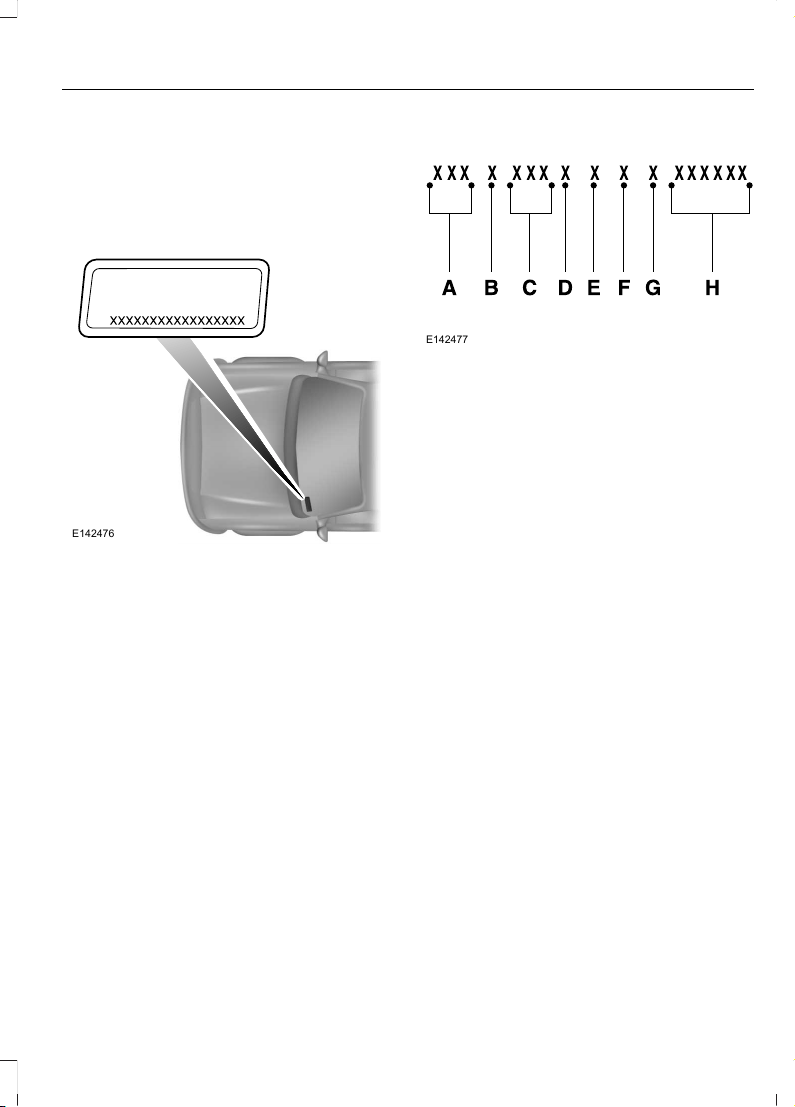
VEHICLE IDENTIFICATION
NUMBER
The vehicle identification number is
located on the left-hand side of the
instrument panel.
E142476
Please note that in the graphic, XXXX is
representative of your vehicle identification
number.
The Vehicle Identification Number contains
the following information:
E142477
World manufacturer identifierA
Brake system, Gross Vehicle
Weight Rating, Restraint Devices
and their locations
B
Make, vehicle line, series, body
type
C
Engine typeD
Check digitE
Model yearF
Assembly plantG
Production sequence numberH
337
Edge (CDQ) Canada/United States of America, enUSA, Edition date: 201706, First Printing
Capacities and Specifications
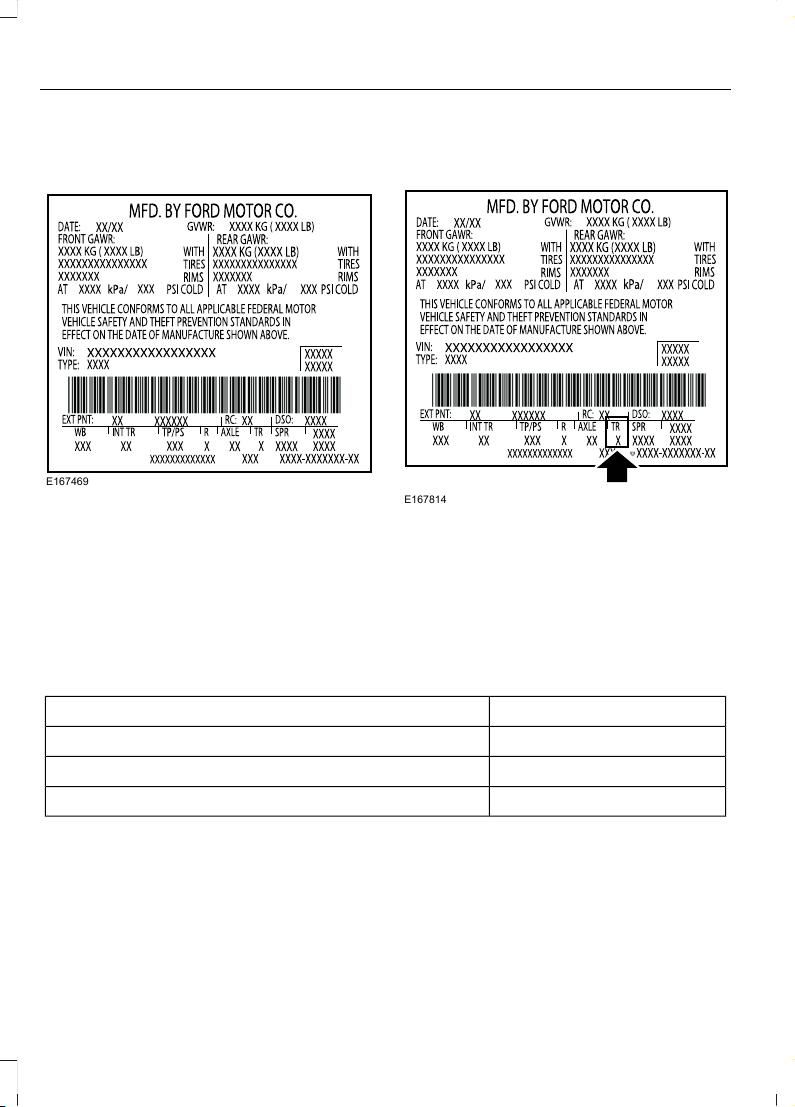
VEHICLE CERTIFICATION
LABEL
E167469
The National Highway Traffic Safety
Administration Regulations require that a
Safety Compliance Certification Label be
affixed to a vehicle and prescribe where
the Safety Compliance Certification Label
may be located. The Safety Compliance
Certification Label shall be affixed to either
the door hinge pillar, the door latch post,
or the edge of the door near the door latch,
next to the driver's seating position.
TRANSMISSION CODE
DESIGNATION
E167814
The transmission code is on the Safety
Compliance Certification Label. The
following table shows the transmission
code along with the transmission
description.
CodeDescription
6Six-speed automatic transmission 6F35
CSix-speed automatic transmission 6F55
JSix-speed automatic transmission 6F50
338
Edge (CDQ) Canada/United States of America, enUSA, Edition date: 201706, First Printing
Capacities and Specifications
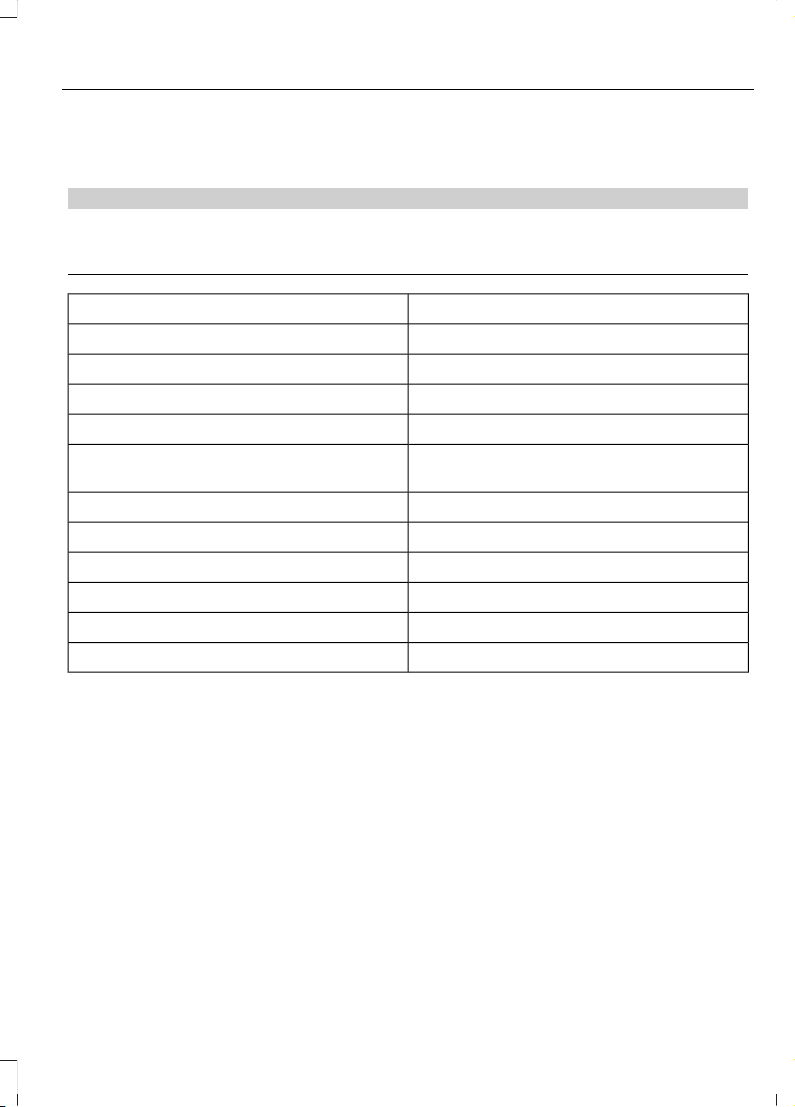
CAPACITIES AND SPECIFICATIONS - 2.0L ECOBOOST™
Capacities
WARNING
The air conditioning refrigerant system contains refrigerant under high pressure.
Only qualified personnel should service the air conditioning refrigerant system.
Opening the air conditioning refrigerant system can cause personal injury.
CapacityItem
5.7 qt (5.4 L)Engine oil
8.2 qt (7.8 L)Engine coolant
Between MIN/MAX on brake fluid reservoirBrake fluid
2.4 pt (1.15L)Rear differential fluid (All Wheel Drive)
15.2 fl oz (0.45 L)Power Transfer Unit (PTU) fluid (All Wheel
Drive)
9.0 qt (8.5 L)Automatic transmission fluid*
Fill as requiredWindshield washer fluid
18.4 gal (69.5 L)Fuel tank (Front Wheel Drive)
18.5 gal (70 L)Fuel tank (All Wheel Drive)
24 oz (0.68 kg)A/C refrigerant
5.2 fl oz (155 ml)A/C refrigerant compressor oil
*Approximate dry fill capacity. Actual amount may vary during fluid changes.
339
Edge (CDQ) Canada/United States of America, enUSA, Edition date: 201706, First Printing
Capacities and Specifications

Specifications
Materials
SpecificationName
WSS-M2C946-ARecommended motor oil (U.S.):
Motorcraft® SAE 5W-30 Premium Synthetic Blend Motor
Oil
XO-5W30-QSP
WSS-M2C946-ARecommended motor oil (Canada):
Motorcraft® SAE 5W-30 Super Premium Motor Oil
CXO-5W30-LSP12
WSS-M2C946-ARecommended motor oil (Mexico):
Motorcraft® SAE 5W-30 Synthetic Motor Oil
MXO-5W30-QSP
WSS-M2C946-AOptional motor oil (U.S. and Mexico):
Motorcraft® SAE 5W-30 Full Synthetic Motor Oil
XO-5W30-QFS
WSS-M2C946-AOptional motor oil (Canada):
Motorcraft® SAE 5W-30 Synthetic Motor Oil
CXO-5W30-LFS12
WSS-M97B44-D2Engine coolant (U.S. and Mexico):
Motorcraft® Orange Prediluted Antifreeze/Coolant
VC-3DIL-B
WSS-M97B44-D2Engine coolant (Canada):
Motorcraft® Orange Prediluted Antifreeze/Coolant
CVC-3DIL-B
WSS-M6C65-A2Brake fluid:
Motorcraft® DOT 4 Low Viscosity (LV) High Performance
Motor Vehicle Brake Fluid
PM-20
WSP-M2C197-ARear differential (All Wheel Drive) fluid:
Motorcraft® SAE 80W-90 Premium Rear Axle Lubricant
XY-80W90-QL
WSL-M2C192-APower Transfer Unit (PTU) fluid (All Wheel Drive):
Motorcraft® SAE 75W-140 Synthetic Rear Axle Lubricant
XY-75W140-QL
WSS-M2C938-AAutomatic transmission fluid (U.S. and Mexico):
MERCON LVMotorcraft® MERCON LV Automatic Transmission Fluid
XT-10-QLVC
340
Edge (CDQ) Canada/United States of America, enUSA, Edition date: 201706, First Printing
Capacities and Specifications
SpecificationName
WSS-M2C938-AAutomatic transmission fluid (Canada):
MERCON LVMotorcraft® MERCON LV Automatic Transmission Fluid
CXT-10-LV12
WSS-M14P19-AWindshield washer fluid (U.S. and Mexico):
Motorcraft® Premium Windshield Wash Concentrate
with Bitterant
ZC-32-B2
WSS-M14P19-AWindshield washer fluid (Canada):
Motorcraft® Premium Quality Windshield Washer Fluid
CXC-37-(A, B, D, F)
WSH-M17B19-AA/C refrigerant (U.S.):
Motorcraft® R-134a Refrigerant
YN-19
WSH-M17B19-AA/C refrigerant (Canada):
Motorcraft® R-134a Refrigerant
CYN-16-R
WSH-M17B19-AA/C refrigerant (Mexico):
Motorcraft® R-134a Refrigerant
MYN-19
WSH-M1C231-BA/C refrigerant compressor oil:
Motorcraft® PAG Refrigerant Compressor Oil
YN-12-D
ESB-M1C93-BMulti-purpose grease:
Motorcraft® Multi-Purpose Grease Spray
XL-5-A
-Lock cylinders (U.S.):
Penetrating and Lock Lubricant
XL-1
-Lock cylinders (Canada):
Penetrating Fluid
CXC-51-A
-Lock cylinders (Mexico):
Penetrating and Lock Lubricant
MXL-1
341
Edge (CDQ) Canada/United States of America, enUSA, Edition date: 201706, First Printing
Capacities and Specifications
If you use oil and fluids that do not meet
the defined specification and viscosity
grade, this may lead to:
• Component damage, which the vehicle
warranty does not cover.
• Longer engine cranking periods.
• Increased emission levels.
• Reduced engine performance.
• Reduced fuel economy.
• Degraded brake performance.
We recommend Motorcraft® motor oil for
your vehicle. If Motorcraft® oil is not
available, use motor oils of the
recommended viscosity grade that meet
API SN requirements and display the API
Certification Mark for gasoline engines. Do
not use oil labeled with API SN service
category unless the label also displays the
API certification mark.
E142732
An oil that displays this symbol conforms
to current engine, emission system and
fuel economy performance standards of
ILSAC.
Do not use supplemental engine oil
additives because they are unnecessary
and could lead to engine damage that may
not be covered by your vehicle warranty.
Note: Ford recommends using DOT 4 Low
Viscosity (LV) High Performance Brake Fluid
or equivalent meeting WSS-M6C65-A2. Use
of any fluid other than the recommended
fluid may cause degraded brake
performance and not meet the Ford
performance standards. Keep brake fluid
clean and dry. Contamination with dirt,
water, petroleum products or other
materials may result in brake system
damage and possible failure.
Note: Automatic transmissions that require
MERCON® LV transmission fluid should
only use MERCON® LV transmission fluid.
The use of any other fluid may cause
transmission damage.
Alternative Engine Oil for
Extremely Cold Climates
To improve engine cold start performance,
we recommend that you use the following
alternative engine oil in extremely cold
climates, where the ambient temperature
reaches -22.0°F (-30°C) or below.
Materials
SpecificationName
WSS-M2C953-A1
Motorcraft® SAE 0W-30 Premium Synthetic Blend Motor Oil:
Engine Oil - SAE 0W-30
XO-0W30-QSP
342
Edge (CDQ) Canada/United States of America, enUSA, Edition date: 201706, First Printing
Capacities and Specifications
E240523
CAPACITIES AND SPECIFICATIONS - 2.7L ECOBOOST™
Capacities
WARNING
The air conditioning refrigerant system contains refrigerant under high pressure.
Only qualified personnel should service the air conditioning refrigerant system.
Opening the air conditioning refrigerant system can cause personal injury.
CapacityItem
6.0 qt (5.7 L)Engine oil
10.6 qt (10 L)Engine coolant
Between MIN/MAX on brake fluid reservoirBrake fluid
2.4 pt (1.15L)Rear differential fluid
23.7 fl oz (0.7 L)Power Transfer Unit (PTU) fluid
11.0 qt (10.4 L)Automatic transmission fluid*
Fill as requiredWindshield washer fluid
18.5 gal (70 L)Fuel tank
21 oz (0.6 kg)A/C refrigerant
5.2 fl oz (155 ml)A/C refrigerant compressor oil
*Approximate dry fill capacity. Actual amount may vary during fluid changes.
343
Edge (CDQ) Canada/United States of America, enUSA, Edition date: 201706, First Printing
Capacities and Specifications

Specifications
Materials
SpecificationName
WSS-M2C946-ARecommended motor oil (U.S.):
Motorcraft® SAE 5W-30 Premium Synthetic Blend Motor
Oil
XO-5W30-QSP
WSS-M2C946-ARecommended motor oil (Canada):
Motorcraft® SAE 5W-30 Super Premium Motor Oil
CXO-5W30-LSP12
WSS-M2C946-ARecommended motor oil (Mexico):
Motorcraft® SAE 5W-30 Synthetic Motor Oil
MXO-5W30-QSP
WSS-M2C946-AOptional motor oil (U.S. and Mexico):
Motorcraft® SAE 5W-30 Full Synthetic Motor Oil
XO-5W30-QFS
WSS-M2C946-AOptional motor oil (Canada):
Motorcraft® SAE 5W-30 Synthetic Motor Oil
CXO-5W30-LFS12
WSS-M97B44-D2Engine coolant (U.S. and Mexico):
Motorcraft® Orange Prediluted Antifreeze/Coolant
VC-3DIL-B
WSS-M97B44-D2Engine coolant (Canada):
Motorcraft® Orange Prediluted Antifreeze/Coolant
CVC-3DIL-B
WSS-M6C65-A2Brake fluid:
Motorcraft® DOT 4 Low Viscosity (LV) High Performance
Motor Vehicle Brake Fluid
PM-20
WSP-M2C197-ARear differential (All Wheel Drive) fluid:
Motorcraft® SAE 80W-90 Premium Rear Axle Lubricant
XY-80W90-QL
WSL-M2C192-APower Transfer Unit (PTU) fluid (All Wheel Drive):
Motorcraft® SAE 75W-140 Synthetic Rear Axle Lubricant
XY-75W140-QL
WSS-M2C938-AAutomatic transmission fluid (U.S. and Mexico):
MERCON LVMotorcraft® MERCON LV Automatic Transmission Fluid
XT-10-QLVC
344
Edge (CDQ) Canada/United States of America, enUSA, Edition date: 201706, First Printing
Capacities and Specifications
SpecificationName
WSS-M2C938-AAutomatic transmission fluid (Canada):
MERCON LVMotorcraft® MERCON LV Automatic Transmission Fluid
CXT-10-LV12
WSS-M14P19-AWindshield washer fluid (U.S. and Mexico):
Motorcraft® Premium Windshield Wash Concentrate
with Bitterant
ZC-32-B2
WSS-M14P19-AWindshield washer fluid (Canada):
Motorcraft® Premium Quality Windshield Washer Fluid
CXC-37-(A, B, D, F)
WSH-M17B19-AA/C refrigerant (U.S.):
Motorcraft® R-134a Refrigerant
YN-19
WSH-M17B19-AA/C refrigerant (Canada):
Motorcraft® R-134a Refrigerant
CYN-16-R
WSH-M17B19-AA/C refrigerant (Mexico):
Motorcraft® R-134a Refrigerant
MYN-19
WSH-M1C231-BA/C refrigerant compressor oil:
Motorcraft® PAG Refrigerant Compressor Oil
YN-12-D
ESB-M1C93-BMulti-purpose grease:
Motorcraft® Multi-Purpose Grease Spray
XL-5-A
-Lock cylinders (U.S.):
Penetrating and Lock Lubricant
XL-1
-Lock cylinders (Canada):
Penetrating Fluid
CXC-51-A
-Lock cylinders (Mexico):
Penetrating and Lock Lubricant
MXL-1
345
Edge (CDQ) Canada/United States of America, enUSA, Edition date: 201706, First Printing
Capacities and Specifications
If you use oil and fluids that do not meet
the defined specification and viscosity
grade, this may lead to:
• Component damage, which the vehicle
warranty does not cover.
• Longer engine cranking periods.
• Increased emission levels.
• Reduced engine performance.
• Reduced fuel economy.
• Degraded brake performance.
We recommend Motorcraft® motor oil for
your vehicle. If Motorcraft® oil is not
available, use motor oils of the
recommended viscosity grade that meet
API SN requirements and display the API
Certification Mark for gasoline engines. Do
not use oil labeled with API SN service
category unless the label also displays the
API certification mark.
E142732
An oil that displays this symbol conforms
to current engine, emission system and
fuel economy performance standards of
ILSAC.
Do not use supplemental engine oil
additives because they are unnecessary
and could lead to engine damage that may
not be covered by your vehicle warranty.
Note: Ford recommends using DOT 4 Low
Viscosity (LV) High Performance Brake Fluid
or equivalent meeting WSS-M6C65-A2. Use
of any fluid other than the recommended
fluid may cause degraded brake
performance and not meet the Ford
performance standards. Keep brake fluid
clean and dry. Contamination with dirt,
water, petroleum products or other
materials may result in brake system
damage and possible failure.
Note: Automatic transmissions that require
MERCON® LV transmission fluid should
only use MERCON® LV transmission fluid.
The use of any other fluid may cause
transmission damage.
Alternative Engine Oil for
Extremely Cold Climates
To improve engine cold start performance,
we recommend that you use the following
alternative engine oil in extremely cold
climates, where the ambient temperature
reaches -22.0°F (-30°C) or below.
Materials
SpecificationName
WSS-M2C953-A1
Motorcraft® SAE 0W-30 Premium Synthetic Blend Motor Oil:
Engine Oil - SAE 0W-30
XO-0W30-QSP
346
Edge (CDQ) Canada/United States of America, enUSA, Edition date: 201706, First Printing
Capacities and Specifications
E240523
CAPACITIES AND SPECIFICATIONS - 3.5L
Capacities
WARNING
The air conditioning refrigerant system contains refrigerant under high pressure.
Only qualified personnel should service the air conditioning refrigerant system.
Opening the air conditioning refrigerant system can cause personal injury.
CapacityItem
6.0 qt (5.7 L)Engine oil
11.7 qt (11.1 L)Engine coolant
Between MIN/MAX on brake fluid reservoirBrake fluid
2.4 pt (1.15L)Rear differential fluid (All Wheel Drive)
17.9 fl oz (0.53 L)Power Transfer Unit (PTU) fluid (All Wheel
Drive)
11.0 qt (10.4 L)Automatic transmission fluid*
Fill as requiredWindshield washer fluid
18.4 gal (69.5 L)Fuel tank (Front Wheel Drive)
18.5 gal (70 L)Fuel tank (All Wheel Drive)
347
Edge (CDQ) Canada/United States of America, enUSA, Edition date: 201706, First Printing
Capacities and Specifications

CapacityItem
24.0 oz (0.68 kg)A/C refrigerant
5.2 fl oz (155 ml)A/C refrigerant compressor oil
*Approximate dry fill capacity. Actual amount may vary during fluid changes.
Specifications
Materials
SpecificationName
WSS-M2C945-ARecommended motor oil (U.S.):
Motorcraft® SAE 5W-20 Premium Synthetic Blend Motor
Oil
XO-5W20-QSP
WSS-M2C945-ARecommended motor oil (Canada):
Motorcraft® SAE 5W-20 Super Premium Motor Oil
CXO-5W20-LSP12
WSS-M2C945-ARecommended motor oil (Mexico):
Motorcraft® SAE 5W-20 Synthetic Motor Oil
MXO-5W20-QSP
WSS-M2C945-AOptional motor oil (U.S. and Mexico):
Motorcraft® SAE 5W-20 Full Synthetic Motor Oil
XO-5W20-QFS
WSS-M2C945-AOptional motor oil (Canada):
Motorcraft® SAE 5W-20 Synthetic Motor Oil
CXO-5W20-LFS12
WSS-M97B44-D2Engine coolant (U.S. and Mexico):
Motorcraft® Orange Prediluted Antifreeze/Coolant
VC-3DIL-B
WSS-M97B44-D2Engine coolant (Canada):
Motorcraft® Orange Prediluted Antifreeze/Coolant
CVC-3DIL-B
WSS-M6C65-A2Brake fluid:
Motorcraft® DOT 4 Low Viscosity (LV) High Performance
Motor Vehicle Brake Fluid
PM-20
WSP-M2C197-ARear differential (All Wheel Drive) fluid:
Motorcraft® SAE 80W-90 Premium Rear Axle Lubricant
348
Edge (CDQ) Canada/United States of America, enUSA, Edition date: 201706, First Printing
Capacities and Specifications
SpecificationName
XY-80W90-QL
WSL-M2C192-APower Transfer Unit (PTU) fluid (All Wheel Drive):
Motorcraft® SAE 75W-140 Synthetic Rear Axle Lubricant
XY-75W140-QL
WSS-M2C938-AAutomatic transmission fluid (U.S. and Mexico):
MERCON LVMotorcraft® MERCON LV Automatic Transmission Fluid
XT-10-QLVC
WSS-M2C938-AAutomatic transmission fluid (Canada):
MERCON LVMotorcraft® MERCON LV Automatic Transmission Fluid
CXT-10-LV12
WSS-M14P19-AWindshield washer fluid (U.S. and Mexico):
Motorcraft® Premium Windshield Wash Concentrate
with Bitterant
ZC-32-B2
WSS-M14P19-AWindshield washer fluid (Canada):
Motorcraft® Premium Quality Windshield Washer Fluid
CXC-37-(A, B, D, F)
WSH-M17B19-AA/C refrigerant (U.S.):
Motorcraft® R-134a Refrigerant
YN-19
WSH-M17B19-AA/C refrigerant (Canada):
Motorcraft® R-134a Refrigerant
CYN-16-R
WSH-M17B19-AA/C refrigerant (Mexico):
Motorcraft® R-134a Refrigerant
MYN-19
WSH-M1C231-BA/C refrigerant compressor oil:
Motorcraft® PAG Refrigerant Compressor Oil
YN-12-D
ESB-M1C93-BMulti-purpose grease:
Motorcraft® Multi-Purpose Grease Spray
XL-5-A
349
Edge (CDQ) Canada/United States of America, enUSA, Edition date: 201706, First Printing
Capacities and Specifications
SpecificationName
-Lock cylinders (U.S.):
Penetrating and Lock Lubricant
XL-1
-Lock cylinders (Canada):
Penetrating Fluid
CXC-51-A
-Lock cylinders (Mexico):
Penetrating and Lock Lubricant
MXL-1
If you use oil and fluids that do not meet
the defined specification and viscosity
grade, this may lead to:
• Component damage, which the vehicle
warranty does not cover.
• Longer engine cranking periods.
• Increased emission levels.
• Reduced engine performance.
• Reduced fuel economy.
• Degraded brake performance.
We recommend Motorcraft® motor oil for
your vehicle. If Motorcraft® oil is not
available, use motor oils of the
recommended viscosity grade that meet
API SN requirements and display the API
Certification Mark for gasoline engines. Do
not use oil labeled with API SN service
category unless the label also displays the
API certification mark.
E142732
An oil that displays this symbol conforms
to current engine, emission system and
fuel economy performance standards of
ILSAC.
Do not use supplemental engine oil
additives because they are unnecessary
and could lead to engine damage that may
not be covered by your vehicle warranty.
Note: Ford recommends using DOT 4 Low
Viscosity (LV) High Performance Brake Fluid
or equivalent meeting WSS-M6C65-A2. Use
of any fluid other than the recommended
fluid may cause degraded brake
performance and not meet the Ford
performance standards. Keep brake fluid
clean and dry. Contamination with dirt,
water, petroleum products or other
materials may result in brake system
damage and possible failure.
350
Edge (CDQ) Canada/United States of America, enUSA, Edition date: 201706, First Printing
Capacities and Specifications
Note: Automatic transmissions that require
MERCON® LV transmission fluid should
only use MERCON® LV transmission fluid.
The use of any other fluid may cause
transmission damage.
Alternative Engine Oil for Extreme
Cold Climates
To improve engine cold start performance,
we recommend that you use the following
alternative engine oil in extreme cold
climates, where the ambient temperature
reaches -22.0°F (-30°C) or below.
Materials
SpecificationName
WSS-M2C947-A
Motorcraft® SAE 0W-20 Premium Synthetic Blend Motor
Oil:
Engine Oil - SAE 0W-20
XO-0W20-QSP
E240522
351
Edge (CDQ) Canada/United States of America, enUSA, Edition date: 201706, First Printing
Capacities and Specifications
GENERAL INFORMATION
Radio Frequencies and Reception
Factors
AM and FM frequencies are established by
the Federal Communications Commission
(FCC) and the Canadian Radio and
Telecommunications Commission (CRTC).
Those frequencies are:
• AM: 530, 540-1700, 1710 kHz
• FM: 87.9-107.7, 107.9 MHz
Radio Reception Factors
The further you travel from an AM or FM station, the
weaker the signal and the weaker the reception.
Distance and strength
Hills, mountains, tall buildings, bridges, tunnels, freeway
overpasses, parking garages, dense tree foliage and
thunderstorms can interfere with the reception.
Terrain
When you pass a ground-based broadcast repeating
tower, a stronger signal may overtake a weaker one and
result in the audio system muting.
Station overload
CD and CD Player Information
Note: CD units play commercially pressed
4.7 in (12 cm) audio compact discs only. Due
to technical incompatibility, certain
recordable and re-recordable compact discs
may not function correctly when used in
Ford CD players.
Note: Do not insert CDs with homemade
paper (adhesive) labels into the CD player
as the label may peel and cause the CD to
become jammed. You should use a
permanent felt tip marker rather than
adhesive labels on your homemade CDs.
Ballpoint pens may damage CDs. Please
contact an authorized dealer for further
information.
Note: Do not use any irregularly shaped
discs or discs with a scratch protection film
attached.
Always handle discs by their edges only.
Clean the disc with an approved CD
cleaner only. Wipe it from the center of the
disc toward the edge. Do not clean in a
circular motion.
Do not expose discs to direct sunlight or
heat sources for extended periods.
MP3 and WMA Track and Folder
Structure
Audio systems capable of recognizing and
playing MP3 and WMA individual tracks
and folder structures work as follows:
• There are two different modes for MP3
and WMA disc playback: MP3 and
WMA track mode (system default) and
MP3 and WMA folder mode.
• MP3 and WMA track mode ignores any
folder structure on the MP3 and WMA
disc. The player numbers each MP3
and WMA track on the disc (noted by
the MP3 or WMA file extension) from
T001 to a maximum of T255. The
maximum number of playable MP3 and
WMA files may be less depending on
the structure of the CD and exact
model of radio present.
352
Edge (CDQ) Canada/United States of America, enUSA, Edition date: 201706, First Printing
Audio System

• MP3 and WMA folder mode represents
a folder structure consisting of one
level of folders. The CD player numbers
all MP3 and WMA tracks on the disc
(noted by the MP3 or WMA file
extension) and all folders containing
MP3 and WMA files, from F001 (folder)
T001 (track) to F253 T255.
• Creating discs with only one level of
folders helps with navigation through
the disc files.
If you are burning your own MP3 and WMA
discs, it is important to understand how
the system reads the structures you create.
While various files may be present (files
with extensions other than MP3 and
WMA), only files with the MP3 and WMA
extension are played; other files are
ignored by the system. This enables you to
use the same MP3 and WMA disc for a
variety of tasks on your work computer,
home computer and your in-vehicle
system.
In track mode, the system displays and
plays the structure as if it were only one
level deep (all MP3 and WMA files play,
regardless of being in a specific folder). In
folder mode, the system only plays the
MP3 and WMA files in the current folder.
AUDIO UNIT - VEHICLES WITH:
AM/FM/CD/SYNC
WARNING
Driving while distracted can result in
loss of vehicle control, crash and
injury. We strongly recommend that
you use extreme caution when using any
device that may take your focus off the
road. Your primary responsibility is the safe
operation of your vehicle. We recommend
against the use of any hand-held device
while driving and encourage the use of
voice-operated systems when possible.
Make sure you are aware of all applicable
local laws that may affect the use of
electronic devices while driving.
Note: Some features, such as SIRIUS
satellite radio, may not be available in your
location. Check with an authorized dealer.
Note: Depending on your vehicle option
package, your system may look different
from what you see here.
353
Edge (CDQ) Canada/United States of America, enUSA, Edition date: 201706, First Printing
Audio System
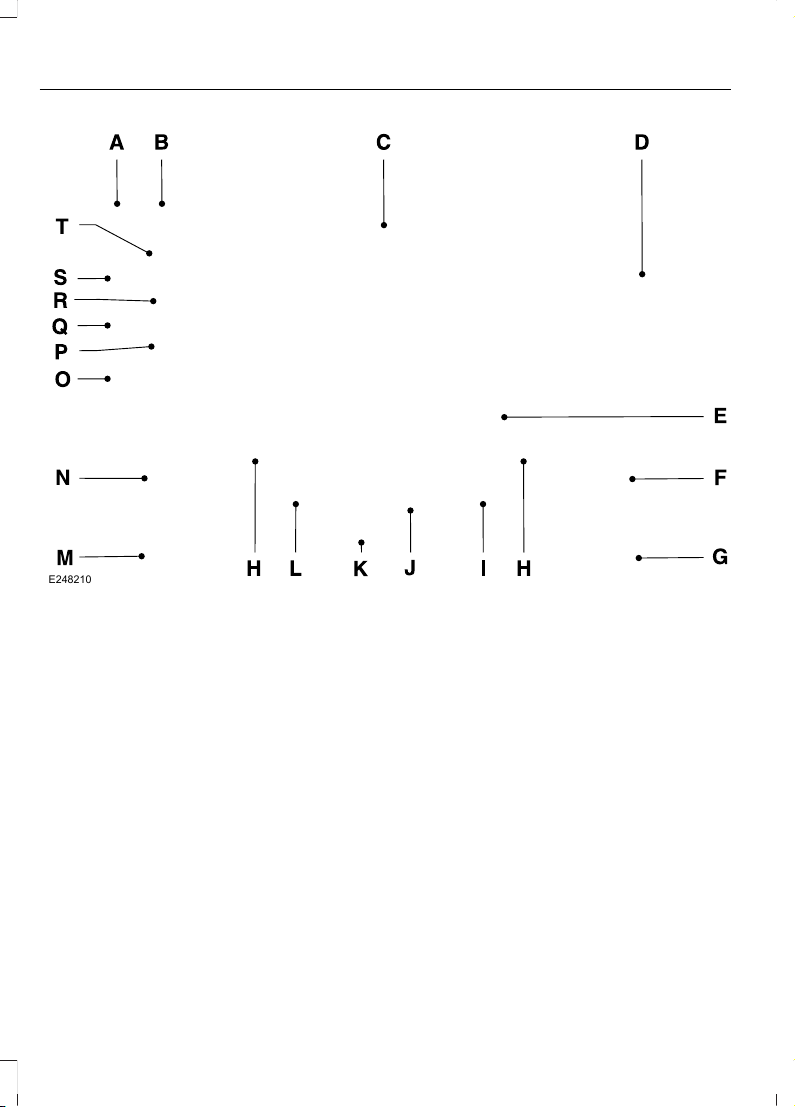
E248210
CD: Press to listen to a CD. Press the function buttons below the radio screen
to select on-screen options of Repeat or Shuffle.
A
SOUND: Press to access settings for Treble, Midrange, Bass, Fade and Balance.
Use the up and down arrow buttons to select the various settings. When you
make your selection, press the left and right arrow buttons to change the
settings. Press OK to set or press MENU to exit. Sound settings can be set for
each audio source independently.
B
Display screen: Shows audio and SYNC information.C
Number block: In radio mode, store and recall your favorite radio stations. To
store a radio station, tune to the station, then press and hold a preset button
until sound returns. In CD mode, select a track. In phone mode, enter a phone
number.
D
Function buttons: Select different functions of the audio system depending
on which mode you are in (such as Radio mode or CD mode).
E
TUNE: In radio mode, turn to search through the radio frequency band. In SIRIUS
mode, turn to find the previous or next available satellite radio station.
F
Eject: Press to eject a CD.G
354
Edge (CDQ) Canada/United States of America, enUSA, Edition date: 201706, First Printing
Audio System

Seek, Fast Forward and Reverse: In radio mode, select a frequency band
and press either button. The system stops at the first station it finds in that
direction. In SIRIUS mode, press to select the next or previous satellite radio
station. If you select a specific category (such as jazz, rock or news), press to
find the next or previous station in the selected category. In CD mode, press to
select the next or previous track. Press and hold to move quickly forward or
backward through the current track.
H
End phone call: Press and hold to end a phone call.I
OK and cursor arrows: Use the up and down arrow buttons to select the
various settings. When you make your selection, press the left and right arrow
buttons to change the settings. Press OK to set or press MENU to exit.
J
CD slot: Insert a CD.K
Answer or make phone call: Press to either answer or make a phone call.L
Play/Pause: Press to either play or pause a track when listening to a CD.M
Vol and Power: Turn to adjust the volume. Press to switch the system on and
off.
N
PHONE: Press to access the phone features of the SYNC system. See your
SYNC information.
O
MENU: Press to access different audio system features. See Menu Structure.P
MEDIA: Press to open the media source menu. You can press this multiple
times to change to CD or to a SYNC-Media device or scroll through the media
sources using the arrow buttons. Press OK to select a source.
Q
Clock: Press to access the clock setting. Use the center arrow controls to change
the hours and minutes. You can also set the clock by pressing MENU and
scrolling to Clock Settings. If not in phone mode, press to display the clock.
R
RADIO: Press to listen to the radio or change radio stations. Press the function
buttons below the radio screen to select different radio functions.
S
SIRIUS or MUTE: Press to listen to SIRIUS satellite radio, or if equipped, press
to mute the playing audio.
T
Menu Structure
Note: Depending on your system, some
options may appear slightly different.
Press MENU.
Press the up and down arrow buttons to
scroll through the options.
Press the right arrow to enter a menu.
Press the left arrow to exit a menu.
Press OK to confirm a selection.
355
Edge (CDQ) Canada/United States of America, enUSA, Edition date: 201706, First Printing
Audio System
Radio
Use the left and right arrows to go up or down the
frequency band.
Manual Tune
Select for a brief sampling of all available channels.Scan
Select to store the six strongest local stations on the AM-
AST and FM-AST frequency bands.
AST
Select to have the system search by certain music
categories (such as Rock, Pop or Country).
Set Category for Seek/Scan
Select to view additional broadcast data, if available. This
feature defaults to off. RBDS must be on for you to set a
category.
RDS Text Display
SIRIUS
Select for a brief sampling of all available channels.Scan
Select to view your satellite radio electronic serial number
(ESN). You will need this number when communicating
with SIRIUS to activate, modify or track your account.
Electronic Serial Number
(ESN)
Select to view available satellite radio channels. Press OK
to open a list of the following options for this channel.
Once you skip or lock a channel, you can only access it by
pressing Direct Tune and entering the channel number.
Locking or unlocking a channel requires your PIN.
Check Channel Guide
Select to view channel categories (such as Pop, Rock or
News). If you select a category, seek and scan functions
only stop on channels in that category.
Set Category for Seek/Scan
Select to switch alerts on or off for songs, artists or teams.
The system alerts you when the selection is playing on
another channel. Save up to 20 alerts.
Alerts
Use your PIN to unlock previously locked stations.Unlock All Stations
Use to restore any channels you previously skipped.Skip No Stations
Select to create a PIN, which allows you to lock or unlock
channels. Your initial PIN is 1234.
Parental Lockout
356
Edge (CDQ) Canada/United States of America, enUSA, Edition date: 201706, First Printing
Audio System
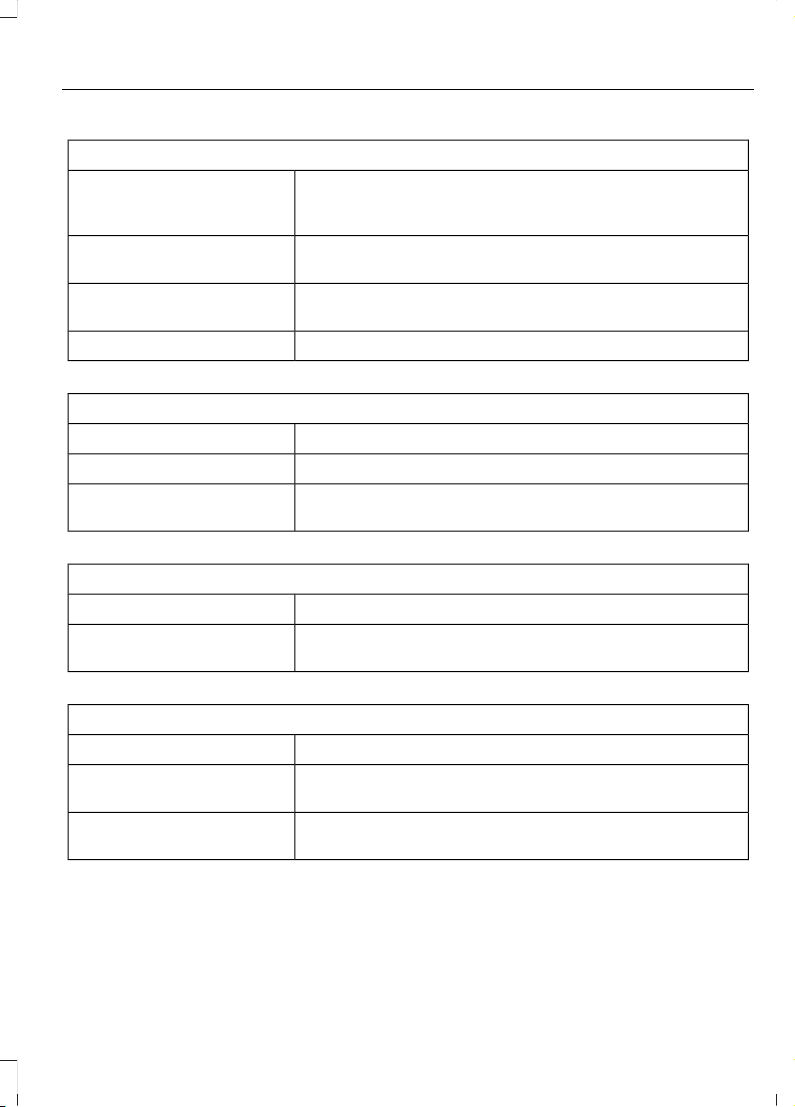
Audio Settings
Automatically adjusts the volume to compensate for
speed and wind noise. You can set the system between
0 and +7.
Speed Compensated
Volume
Select to adjust settings for Treble, Midrange, Bass, Fade
or Balance.
Sound
Select to optimize sound quality for the chosen seating
position.
Occupancy Mode
Choose between the stereo modes.DSP
CD Settings
Select to scan all disc selections.Scan All
Select to scan all music in the current MP3 folder.Scan Folder
Select to bring soft and loud passages together for a more
consistent listening level.
CD Compression
Clock Settings
Select to set the time and calendar date.Set Date and Time
Select to view clock time in a 12-hour mode or 24-hour
mode.
24 Hour
Display Settings
Select to change display brightness.Brightness
Select to display the language in English, French or
Spanish.
Language
Select to display the outside temperature in Fahrenheit
or Celsius.
Temp. Setting
357
Edge (CDQ) Canada/United States of America, enUSA, Edition date: 201706, First Printing
Audio System
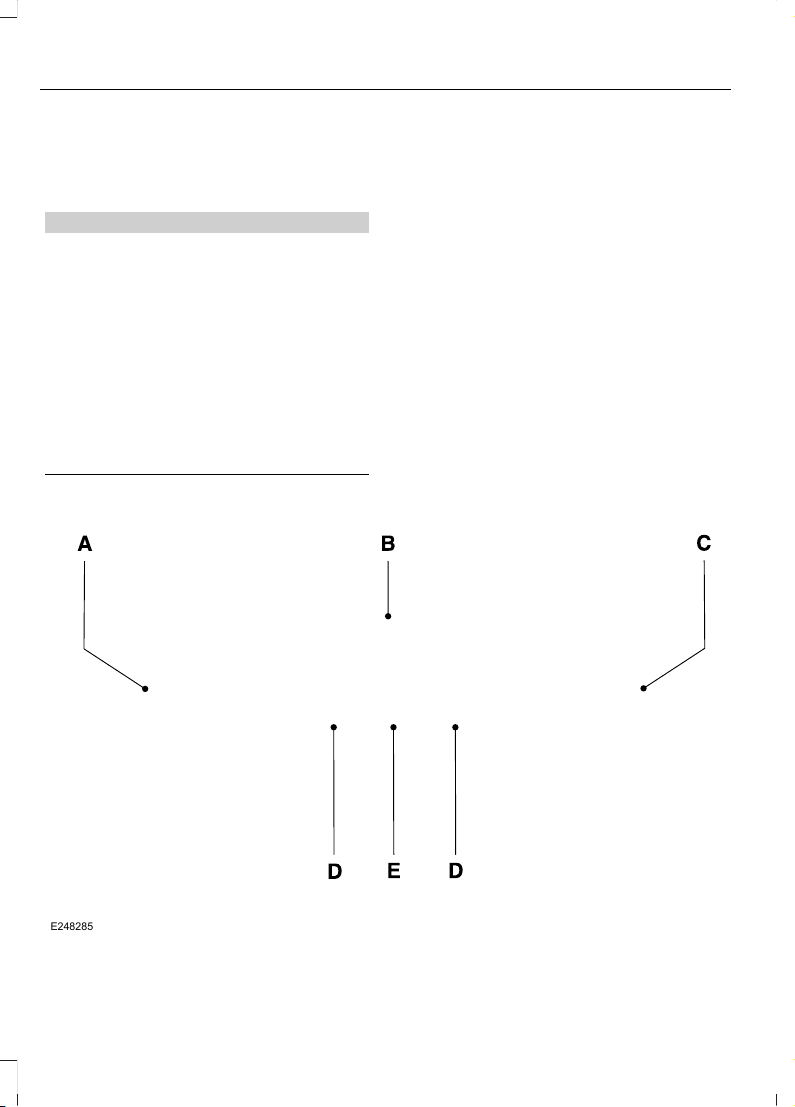
AUDIO UNIT - VEHICLES WITH:
AM/FM/CD/SYNC/
TOUCHSCREEN DISPLAY
WARNING
Driving while distracted can result in
loss of vehicle control, crash and
injury. We strongly recommend that
you use extreme caution when using any
device that may take your focus off the
road. Your primary responsibility is the safe
operation of your vehicle. We recommend
against the use of any hand-held device
while driving and encourage the use of
voice-operated systems when possible.
Make sure you are aware of all applicable
local laws that may affect the use of
electronic devices while driving.
Note: Depending on your vehicle option
package, your system may look different
from what you see here.
Note: The touchscreen system controls
most of the audio features. See your SYNC
information.
E248285
358
Edge (CDQ) Canada/United States of America, enUSA, Edition date: 201706, First Printing
Audio System

Vol and Power: Turn to adjust the volume. Press to switch the system on and
off.
A
CD slot: Insert a CD.B
TUNE: In radio mode, turn to search through the radio frequency band. In SIRIUS
mode, turn to find the previous or next available satellite radio station.
C
Seek, Fast Forward and Reverse: In radio mode, select a frequency band
and press either button. The system stops at the first station it finds in that
direction. In SIRIUS mode, press to select the next or previous satellite radio
station. If you select a specific category (such as jazz, rock or news), press to
find the next or previous station in the selected category. In CD mode, press to
select the next or previous track. Press and hold to move quickly forward or
backward through the current track.
D
Eject: Press to eject a CD.E
AUDIO UNIT - VEHICLES WITH:
SONY AUDIO SYSTEM
WARNING
Driving while distracted can result in
loss of vehicle control, crash and
injury. We strongly recommend that
you use extreme caution when using any
device that may take your focus off the
road. Your primary responsibility is the safe
operation of your vehicle. We recommend
against the use of any hand-held device
while driving and encourage the use of
voice-operated systems when possible.
Make sure you are aware of all applicable
local laws that may affect the use of
electronic devices while driving.
Note: Depending on your vehicle option
package, your system may look different
from what you see here.
Note: The touchscreen system controls
most of the audio features. See your SYNC
information.
359
Edge (CDQ) Canada/United States of America, enUSA, Edition date: 201706, First Printing
Audio System
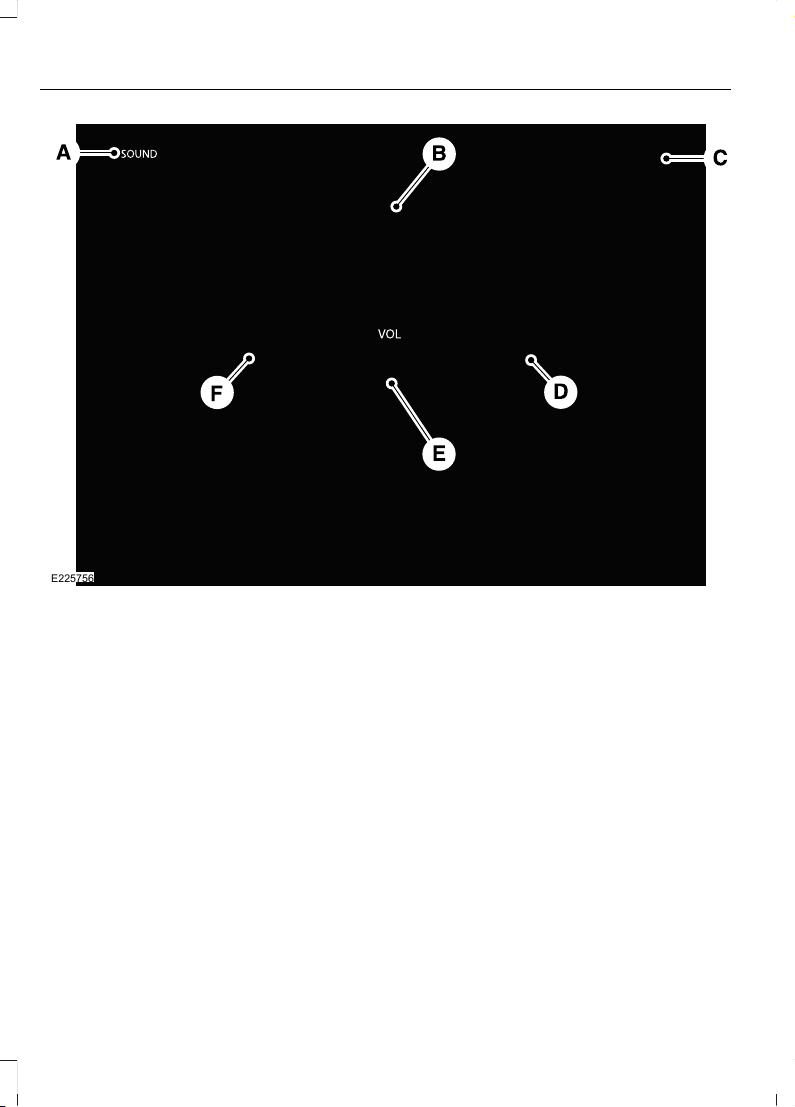
E225756
SOUND: Press to access settings for Treble, Midrange, Bass, Fade or Balance.A
CD slot: Insert a CD.B
Eject: Press to eject a CD.C
TUNE: In radio mode, press to search through the radio frequency band. In
SIRIUS mode, press to find the previous or next available satellite radio station.
D
Vol and Power: Turn to adjust the volume. Press to switch the system on and
off.
E
Seek, Fast Forward and Reverse: In radio mode, select a frequency band
and press either button. The system stops at the first station it finds in that
direction. In SIRIUS mode, press to select the next or previous satellite radio
station. If you select a specific category (such as jazz, rock or news), press to
find the next or previous station in the selected category. In CD mode, press to
select the next or previous track. Press and hold to move quickly forward or
backward through the current track.
F
360
Edge (CDQ) Canada/United States of America, enUSA, Edition date: 201706, First Printing
Audio System

DIGITAL RADIO (If Equipped)
Note: HD Radio broadcasts are not
available in all markets.
HD Radio technology is the digital
evolution of analog AM/FM radio. Your
system has a special receiver that allows
it to receive digital broadcasts (where
available) in addition to the analog
broadcasts, it already receives. Digital
broadcasts provide a better sound quality
than analog broadcasts with free,
crystal-clear audio and no static or
distortion. For more information, and a
guide to available stations and
programming, please visit
www.hdradio.com.
When HD Radio is on and you tune to a
station broadcasting HD Radio technology,
you may notice the HD Radio logo on your
screen. When this logo is available, you
may also see Title and Artist fields
on-screen.
The multicast indicator appears in FM
mode (only) if the current station is
broadcasting multiple digital broadcasts.
The highlighted numbers signify available
digital channels where new or different
content is available. HD1 signifies the main
programming status and is available in
analog and digital broadcasts. Other
multicast stations (HD2 through HD7) are
only available digitally.
When HD Radio broadcasts are active, you
can access the following functions:
• Scan allows you to hear a brief
sampling of all available stations. This
feature still works when HD Radio
reception is on, although it does not
scan for HD2-HD7 channels. You may
see the HD logo appear if the station
has a digital broadcast.
• Memory presets allow you to save an
active channel as a memory preset.
Touch and hold a memory preset slot
until the sound returns. There is a brief
mute while the radio saves the station.
Sound returns when finished. When
switching to an HD2 or HD3 memory
preset, the sound mutes before the
digital audio plays, because the system
has to reacquire the digital signal.
Note: As with any saved radio station, you
cannot access a station you save if your
vehicle is outside the station’s reception
area.
361
Edge (CDQ) Canada/United States of America, enUSA, Edition date: 201706, First Printing
Audio System

HD Radio Reception and Station Troubleshooting
Potential Reception Issues
If you are listening to a multicast station and you are on
the fringe of the reception area, the station may mute due
to weak signal strength.
Reception area
If you are listening to HD1, the system switches back to
the analog broadcast until the digital broadcast is available
again. However, if you are listening to any of the possible
HD2-HD7 multicast channels, the station mutes and stays
muted unless it is able to connect to the digital signal
again.
When the system first receives a station (aside from HD2-
HD7 multicast stations), it first plays the station in the
analog version. Once the receiver verifies the station is an
HD Radio station, it shifts to the digital version. Depending
on the station quality, you may hear a slight sound change
when the station changes from analog to digital. Blending
is the shift from analog to digital sound or digital back to
analog sound.
Station blending
In order to provide the best possible
experience, use the contact form to report
any station issues found while listening to
a station broadcasting with HD Radio
technology. Independent entities own and
operate each station. These stations are
responsible for ensuring all audio streams
and data fields are accurate.
362
Edge (CDQ) Canada/United States of America, enUSA, Edition date: 201706, First Printing
Audio System

Potential Station Issues
ActionCauseIssues
No action required. This is a
broadcast issue.
This is poor time alignment
by the radio broadcaster.
Echo, stutter, skip or repeat
in audio.
Increase or decrease in
audio volume.
No action required. The
reception issue may clear up
as you continue to drive.
The radio is shifting between
analog and digital audio.
Sound fading or blending in
and out.
No action required. This is
normal behavior. Wait until
the audio is available.
The digital multicast is not
available until the HD Radio
broadcast is decoded. Once
decoded, the audio is avail-
able.
There is an audio mute
delay when selecting HD2 or
HD3, multicast preset or
Direct Tune.
No action required. The
station is not available in
your current location.
The previously stored
multicast preset or direct
tune is not available in your
current reception area.
Cannot access HD2 or HD3
multicast channel when
recalling a preset or from a
direct tune.
Fill out the station issue
form at website listed
below.
*
Data service issue by the
radio broadcaster.
Text information does not
match currently playing
audio.
Fill out the station issue
form at website listed
below.
*
Data service issue by the
radio broadcaster.
There is no text information
shown for currently selected
frequency.
No action required. This is
normal behavior.
Pressing Scan disables
HD2-HD7 channel search.
HD2-HD7 stations not found
when Scan is pressed.
*
http://hdradio.com/stations/feedback
HD Radio Technology manufactured under
license from DTS U.S. and foreign patents.
HD Radio and the HD and HD Radio logos
are proprietary trademarks of DTS Ford
Motor Company and DTS are not
responsible for the content sent using HD
Radio technology. Content may be
changed, added or deleted at any time at
the station owner's discretion.
SATELLITE RADIO (If Equipped)
SiriusXM® broadcasts a variety of music,
news, sports, weather, traffic and
entertainment satellite radio channels. For
more information and a complete list of
SiriusXM satellite radio channels, visit
www.siriusxm.com in the United States,
www.siriusxm.ca in Canada, or call
SiriusXM at 1-888-539-7474.
363
Edge (CDQ) Canada/United States of America, enUSA, Edition date: 201706, First Printing
Audio System
Note: This receiver includes the eCos
real-time operating system. eCos is
published under the eCos License.
Satellite Radio Reception Factors
Potential satellite radio reception issues
For optimal reception performance, keep the antenna
clear of snow and ice build-up and keep luggage and other
material as far away from the antenna as possible.
Antenna obstructions
Hills, mountains, tall buildings, bridges, tunnels, freeway
overpasses, parking garages, dense tree foliage and
thunderstorms can interfere with your reception.
Terrain
When you pass a ground-based broadcast-repeating
tower, a stronger signal may overtake a weaker one and
the audio system may mute.
Station overload
Your display may show ACQUIRING . . . to indicate the
interference and the audio system may mute.
Satellite radio signal interfer-
ence
SiriusXM Satellite Radio Service
Note: SiriusXM reserves the unrestricted
right to change, rearrange, add or delete
programming including canceling, moving
or adding particular channels, and its prices,
at any time, with or without notice to you.
Ford Motor Company shall not be
responsible for any such programming
changes.
E208625
SiriusXM satellite radio is a
subscription-based satellite radio service
that broadcasts a variety of music, sports,
news, weather, traffic and entertainment
programming. Your factory-installed
SiriusXM satellite radio system includes
hardware and a limited subscription term,
which begins on the date of sale or lease
of your vehicle. See an authorized dealer
for availability.
For more information on extended
subscription terms (a service fee is
required), the online media player and a
complete list of SiriusXM satellite radio
channels, and other features, please visit
www.siriusxm.com in the United States,
www.siriusxm.ca in Canada, or call
SiriusXM at 1-888-539-7474.
Satellite Radio Electronic Serial
Number (ESN)
You need your ESN to activate, modify or
track your satellite radio account. When in
satellite radio mode, tune to channel 0.
364
Edge (CDQ) Canada/United States of America, enUSA, Edition date: 201706, First Printing
Audio System

Troubleshooting
ActionConditionMessage
No action required. This
message should disappear
shortly.
Radio requires more than
two seconds to produce
audio for the selected
channel.
Acquiring…
If this message does not
clear shortly, or with an igni-
tion key cycle, your receiver
may have a fault. See an
authorized dealer for service.
There is an internal module
or system failure present.
Satellite antenna fault
SIRIUS system failure
Tune to another channel or
choose another preset.
The channel is no longer
available.
Invalid Channel
Contact SiriusXM at 1-888-
539-7474 to subscribe to
the channel, or tune to
another channel.
Your subscription does not
include this channel.
Unsubscribed Channel
The signal is blocked. When
you move into an open area,
the signal should return.
The signal is lost from the
SiriusXM satellite or Siri-
usXM tower to your vehicle
antenna.
No Signal
No action required. The
process may take up to
three minutes.
Update of channel
programming in progress.
Updating…
Contact SiriusXM at 1-888-
539-7474 to resolve
subscription issues.
Your satellite service is no
longer available.
Questions? Call
1-888-539-7474
Use the channel guide to
turn off the Lock or Skip
function on that station.
All the channels in the
selected category are either
skipped or locked.
None found
Check Channel Guide
No action required.SiriusXM has updated the
channels available for your
vehicle.
Subscription Updated
365
Edge (CDQ) Canada/United States of America, enUSA, Edition date: 201706, First Printing
Audio System

USB PORT (If Equipped)
WARNING
Driving while distracted can result in
loss of vehicle control, crash and
injury. We strongly recommend that
you use extreme caution when using any
device that may take your focus off the
road. Your primary responsibility is the safe
operation of your vehicle. We recommend
against the use of any hand-held device
while driving and encourage the use of
voice-operated systems when possible.
Make sure you are aware of all applicable
local laws that may affect the use of
electronic devices while driving.
E205592
The USB port allows you to plug in media
playing devices, memory sticks and charge
devices (if supported). See your SYNC
information.
366
Edge (CDQ) Canada/United States of America, enUSA, Edition date: 201706, First Printing
Audio System
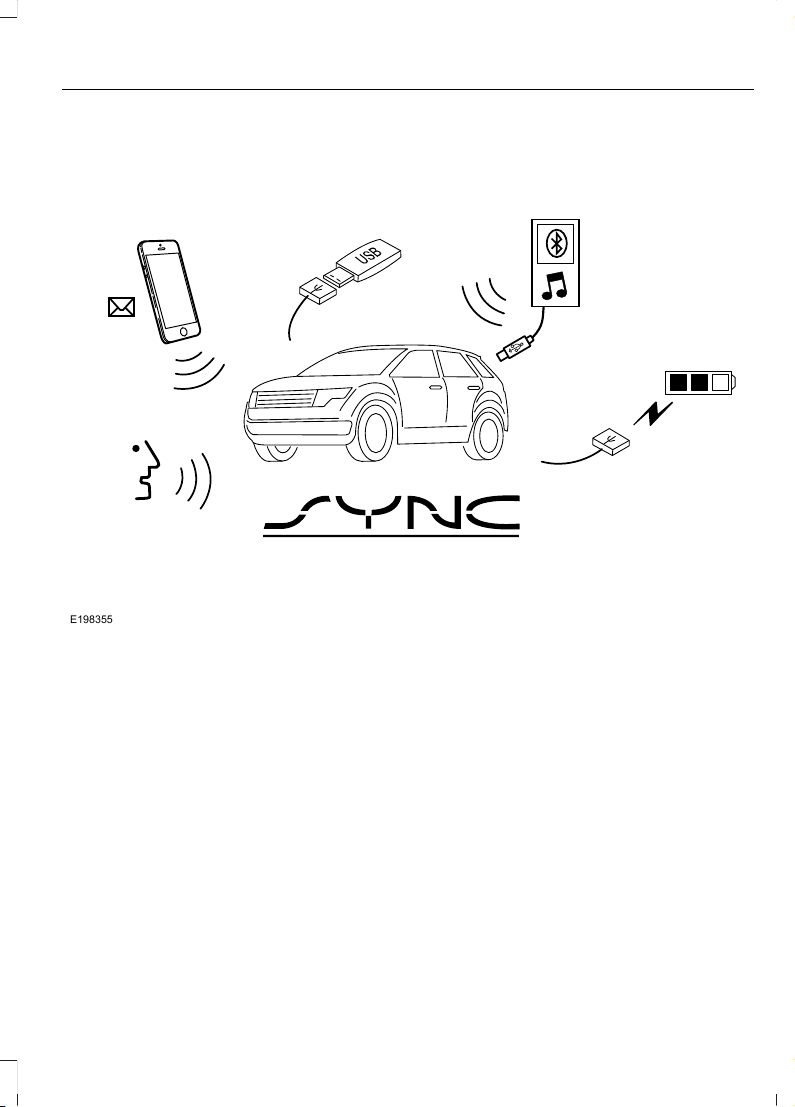
GENERAL INFORMATION
E198355
SYNC is an in-vehicle communications
system that works with your
Bluetooth-enabled cellular phone and
portable media player. This allows you to:
• Make and receive calls.
• Access and play music from your
portable music player.
• Use 911 Assist and applications, such
as Spotify and Glympse, via SYNC
AppLink.
*
• Access phonebook contacts and music
using voice commands.
• Stream music from your connected
phone.
• Text message.
• Use the advanced voice recognition
system.
• Charge your USB device (if your device
supports this).
*
These features are not available in all
markets and may require activation.
Available AppLink enabled apps vary by
market.
Make sure that you review your device's
manual before using it with SYNC.
Support
The SYNC support team is available to
help you with any questions you cannot
answer on your own.
Monday-Saturday, 8:30am-9:00pm EST.
367
Edge (CDQ) Canada/United States of America, enUSA, Edition date: 201706, First Printing
SYNC™

Sunday, 10:30am-7:30pm EST.
In the United States, call 1-800-392-3673.
In Canada, call 1-800-565-3673.
Times are subject to change due to
holidays.
SYNC Owner Account
Why do I need a SYNC owner account?
• Essential for keeping up with the latest
software downloads available for
SYNC.
• Access to customer support for any
questions you may have.
Driving Restrictions
For your safety, certain features are
speed-dependent and restricted when your
vehicle is traveling over 3 mph (5 km/h).
Safety Information
WARNING
Driving while distracted can result in
loss of vehicle control, crash and
injury. We strongly recommend that
you use extreme caution when using any
device that may take your focus off the
road. Your primary responsibility is the safe
operation of your vehicle. We recommend
against the use of any hand-held device
while driving and encourage the use of
voice-operated systems when possible.
Make sure you are aware of all applicable
local laws that may affect the use of
electronic devices while driving.
When using SYNC:
• Do not operate playing devices if the
power cords or cables are broken, split
or damaged. Place cords and cables
out of the way, so they do not interfere
with the operation of pedals, seats,
compartments or safe driving abilities.
• Do not leave playing devices in your
vehicle during extreme conditions as it
could cause them damage. See your
device's manual for further information.
• Do not attempt to service or repair the
system. See an authorized dealer.
Privacy Information
When a cellular phone is connected to
SYNC, the system creates a profile within
your vehicle that is linked to that cellular
phone. This profile is created in order to
offer you more cellular features and to
operate more efficiently. Among other
things, this profile may contain data about
your cellular phone book, text messages
(read and unread), and call history,
including history of calls when your cellular
phone was not connected to the system.
In addition, if you connect a media device,
the system creates and retains an index of
supported media content. The system also
records a short development log of
approximately 10 minutes of all recent
system activity. The log profile and other
system data may be used to improve the
system and help diagnose any problems
that may occur.
The cellular profile, media device index,
and development log will remain in the
vehicle unless you delete them and are
generally accessible only in the vehicle
when the cellular phone or media player
is connected. If you no longer plan to use
the system or the vehicle, we recommend
you perform a Master Reset to erase all
stored information.
368
Edge (CDQ) Canada/United States of America, enUSA, Edition date: 201706, First Printing
SYNC™
System data cannot be accessed without
special equipment and access to the
vehicle's SYNC module. Ford Motor
Company and Ford of Canada will not
access the system data for any purpose
other than as described absent consent, a
court order, or where required by law
enforcement, other government
authorities, or other third parties acting
with lawful authority. Other parties may
seek to access the information
independently of Ford Motor Company and
Ford of Canada. For further privacy
information, see the section on 911 Assist.
See SYNC™ Applications and Services
(page 383).
USING VOICE RECOGNITION
This system helps you control many
features using voice commands. This
allows you to keep your hands on the
wheel and focus on what is around you.
Initiating a Voice Session
E142599
Press the voice button. A list of
available voice commands
appears in the display.
Global Voice Commands
These voice commands are always
available. You can say them at any time.
Global voice commands
This command ends the voice session. You
can also cancel a session by holding the
voice button for two or more seconds.
(cancel | exit)
This command provides you with hints,
examples and instructions.
help
This command restarts the voice session
from the initial starting point.
(main menu | start again)
You can say any of the voice commands that appear within open and close brackets that
are separated by |. For example, where; (cancel | exit) appears you say; cancel or exit.
Helpful Hints
• Make sure the interior of your vehicle is
as quiet as possible. Wind noise from
open windows and road vibrations may
prevent the system from correctly
recognizing spoken commands.
• Before giving a voice command, wait
for the system announcement to finish,
followed by a single tone. Any
command spoken before this does not
register with the system.
• Speak naturally, without long pauses
between words.
• You can interrupt the system at any
time while it is speaking by pressing the
voice button. You can cancel a voice
session by pressing and holding the
voice button.
369
Edge (CDQ) Canada/United States of America, enUSA, Edition date: 201706, First Printing
SYNC™
System Interaction and Feedback
The system provides feedback through
audible tones, prompts, questions and
spoken confirmations depending on the
situation and the chosen level of
interaction. You can customize the voice
recognition system to provide more or less
instruction and feedback.
The default setting is to a higher level of
interaction in order to help you learn to use
the system. You can change these settings
at any time.
Adjusting the Interaction Level
E142599
Press the voice button. When
prompted, say:
Action and DescriptionVoice Command
voice settings
Then either of the following:
Provides more detailed interaction and
guidance. (Recommended for first time
users.)
interaction mode novice
Provides less audible interaction and guid-
ance.
interaction mode advanced
Confirmation Prompts
Confirmation prompts are short questions
the system asks when it is not sure of your
request or when there is more than one
possible response to your request.
To adjust this setting press the voice button, when prompted say:
Action and DescriptionVoice Command
voice settings
Then either of the following:
Make a best guess from the command; you
may still occasionally be asked to confirm
settings.
confirmation prompts off
Clarify your voice command with a short
question.
confirmation prompts on
Phone Confirmation
Using phone confirmations the system
asks you to verify before placing any calls.
370
Edge (CDQ) Canada/United States of America, enUSA, Edition date: 201706, First Printing
SYNC™
To adjust this setting press the voice button, when prompted say:
Action and DescriptionVoice Command
voice settings
Then any of the following:
When enabled, this feature will prompt you
to confirm any voice initiated call command
prior to the call being placed.
phone confirmation on
The system will make a best guess; you
may still occasionally be asked to confirm
settings.
phone confirmation off
Changing the Voice Settings
In addition to using voice commands to
change the voice settings, you can also use
the menu in the audio display.
To change the voice settings press the
Menu button then select:
Menu Item
SYNC-Settings
Voice settings
Note: Depending on the current climate
control settings, the fan speed may
automatically go down while issuing voice
commands or while making and receiving
phone calls via SYNC to reduce the amount
of background noise in the vehicle. The fan
speed will automatically return to normal
operation once the voice session ends. Fan
speed can also be adjusted normally during
a voice session, simply press fan buttons (or
turn fan knob) to increase or decrease fan
speed to desired setting.
To disable this automatic fan speed
reduction feature during voice sessions,
press and hold the climate control AC and
Recirculated air buttons simultaneously,
release and then increase fan speed within
2 seconds. To re-enable this feature, repeat
the above sequence.
USING SYNC™ WITH YOUR
PHONE
Hands-free calling is one of the main
features of SYNC. While the system
supports a variety of features, many are
dependent on your cellular phone's
functionality. At a minimum, most cellular
phones with Bluetooth wireless technology
support the following functions:
• Answering an incoming call.
• Ending a call.
• Using privacy mode.
• Dialing a number.
• Redialing.
• Call waiting notification.
• Caller ID.
371
Edge (CDQ) Canada/United States of America, enUSA, Edition date: 201706, First Printing
SYNC™
Other features, such as text messaging
using Bluetooth and automatic phonebook
download, are phone-dependent features.
To check your phone's compatibility, see
your phone's manual and visit
www.SYNCMyRide.com,
www.SYNCMyRide.ca or
www.syncmaroute.ca.
Pairing a Phone for the First Time
Wirelessly pairing your phone with SYNC
allows you to make and receive hands-free
calls.
Note: SYNC can support downloading up
to approximately 4000 entries per
Bluetooth-enabled cellular phone.
Note: Make sure to switch on the ignition
and the radio. Shift the transmission into
park (P) for automatic transmission or first
gear for manual transmission.
Using the Audio System
Note: To scroll through the menus, press
the up and down arrows on your audio
system.
1. Make sure to switch on your phone's
Bluetooth feature before starting the
search. See your device's manual if
necessary.
2. Press the PHONE button. When the
audio display indicates there is no
paired phone, select the option to add.
3. When a message to begin pairing
appears in the audio display, search for
SYNC on your phone to start the pairing
process.
4. When prompted on your cell phone’s
display, confirm that the PIN provided
by SYNC matches the PIN displayed
on your cell phone. Your phone is now
paired and the display indicates that
the pairing was successful. If you are
prompted to enter a PIN on your device,
enter the PIN displayed on the screen.
The display indicates when the pairing
is successful.
Depending on your phone's capability and
your market, the system may prompt you
with questions, such as setting the current
phone as the primary phone (the phone
SYNC automatically tries to connect with
first upon vehicle start-up) and
downloading your phonebook.
Using Voice Commands
E142599
Make sure to switch on your
phone's Bluetooth feature
before starting the search. See
your device's manual if necessary.
Press the voice and when prompted
say:
Action and Descrip-
tion
Voice Command
Follow the instruc-
tions on the audio
display.
(pair ([Bluetooth]
device | phone |
Bluetooth audio) |
add phone)
You can say any of the voice commands
that appear within open and close brackets
that are separated by |. For example,
where; (what's | what is) appears you say;
what's or what is.
The commands that have [ ] around the
word means that the word is optional.
372
Edge (CDQ) Canada/United States of America, enUSA, Edition date: 201706, First Printing
SYNC™
Depending on your phone's capability and
your market, the system may prompt you
with questions, such as setting the current
phone as the primary phone (the phone
SYNC automatically tries to connect with
first upon vehicle start-up) and
downloading your phonebook.
Pairing Subsequent Phones
Note: Make sure to switch on the ignition
and the radio. Shift the transmission into
park (P) for automatic transmission or first
gear for manual transmission.
Note: To scroll through the menus, press
the up and down arrows on your audio
system.
1. Make sure to switch on your phone's
Bluetooth feature before starting the
search. See your device's manual if
necessary.
2. Press the PHONE button.
3. Select the option for Bluetooth
Devices.
4. Press the OK button.
5. Select the option to add. This starts
the pairing process.
6. When a message to begin pairing
appears in the audio display, search for
SYNC on your device.
7. When prompted on your cell phone’s
display, confirm that the PIN provided
by SYNC matches the PIN displayed
on your cell phone. Your phone is now
paired and the display indicates that
the pairing was successful. If you are
prompted to enter a PIN on your device,
enter the PIN displayed on the screen.
The display indicates when the pairing
is successful.
SYNC may prompt you with more cell
phone options. Your cell phone may also
prompt you to give SYNC permission to
access information. For more information
on your cell phone’s capability, see your
cell phone’s manual and visit the website.
Phone Voice Commands
E142599
Press the voice button. When
prompted, say any of the
following:
Voice Command
(phone | Blackberry | iPhone)
Then say any of the following:
call (___)
call ___ at home
call ___ ((in|at) [the] office | at work)
call ___ on (cell | mobile)
call ___ on other
1
dial [[a] number]
2
([go to] privacy | transfer to phone
| privacy on)
2
(hold call [on] | place call on hold)
2
join (calls | call)
2
mute call [on]
2
(mute call off | un-mute call)
(turn ringer on | silent mode off)
(turn ringer off | silent mode [on])
373
Edge (CDQ) Canada/United States of America, enUSA, Edition date: 201706, First Printing
SYNC™
Voice Command
3
[text] (messages | message)
help
___ is a dynamic listing that should be the
name of a contact in your phonebook. For
example you could say "Call Home".
1
See Dial table below.
2
These commands are only valid while in
a phone call.
3
See the text message table below.
Dial Commands
Press the voice button and when prompted
say any of the following commands:
Voice Commands
411 (four-one-one), 911 (nine-one-one)
700 (seven hundred)
800 (eight hundred)
900 (nine hundred)
Clear (deletes all entered digits)
Delete (deletes last set of digits entered)
Number <0-9>
Plus
Pound (#)
Star (*)
Note: To exit dial mode, press and hold the
phone button or press any button on the
audio system.
To access text messages say:
Voice Command
[text] (messages | message)
Then say any of the following:
(listen to | read) ([text] message)
forward (text | [text] message)
reply to (text | [text] message)
call [sender]
Phonebook Hints
To hear how the SYNC system speaks a
name browse phonebook, select a contact
and press:
Menu Item
Hear it
Changing Devices Using Voice
Commands
Using SYNC, you can easily access multiple
phones, ipods, or USB devices. to switch
devices say:
374
Edge (CDQ) Canada/United States of America, enUSA, Edition date: 201706, First Printing
SYNC™
Voice Command
You can state the name of
the desired device, such as
“My iPhone”,“My Galaxy”
or“My iPod”. SYNC may
ask you to confirm the type
of device (Phone, USB, or
Bluetooth Audio).
(connect |
device) ___
Making Calls
E142599
Press the voice button. When
prompted, say:
Voice Command
call [[a] name]
SYNC prompts you to say
the numbers that you wish
to dial. After you say the
numbers, the system
confirms it. You can then
say:
dial [[a]
number]
When the system has stated the
number, you say any of the following:
Voice Command
This initiates the call.(dial | send)
This erases the spoken
digits.
(delete |
correct)
To end the call, press the end call button
on the steering wheel or select the end call
option in the audio display.
Receiving Calls
Accepting calls
When receiving a call, you can answer the
call by pressing the accept call button on
the steering wheel or use the screen.
To use the screen to accept a call
select:
Menu Item
Accept
Rejecting Calls
When receiving a call, you can reject the
call by pressing the reject call button on
the steering wheel or use the screen.
To use the screen to reject a call select:
Menu Item
Reject
Ignore the call by doing nothing.
Phone Options during an Active
Call
During an active call, you have more menu
features that become available, such as
putting a call on hold or joining calls.
To access this menu, choose one of the
options available at the bottom of the
audio display or select More to choose
from the following options:
375
Edge (CDQ) Canada/United States of America, enUSA, Edition date: 201706, First Printing
SYNC™

Description and actionMenu Item
Switch your vehicle's microphone off. To switch the
microphone on, select the option again.
Mic. off
Switch a call from an active hands-free environment to
your cellular phone for a more private conversation. When
selected, the audio display indicates the call is private.
Privacy
Put an active call on hold. When selected, the audio display
indicates the call is on hold.
Hold
Enter numbers using the audio system's numeric keypad
(for example, numbers for passwords).
Dial a number
Join two separate calls. The system supports a maximum
of three callers on a multiparty or conference call.
Join calls
1. Select the More option.
2. Access the desired contact through the system or use
voice commands to place the second call. Once actively
in the second call, select the More option.
3. Scroll to the option to join calls and press the OK button.
Access your phonebook contacts.Phonebook
1. Select the More option.
2. Scroll to the option for phonebook and press the OK
button.
3. Scroll through your phonebook contacts.
4. Press the OK button again when the desired contact
appears in the audio display.
5. Press the OK button or dial button to call the selection.
Access your call history log.Call History
1. Select the More option.
2. Scroll to the option for call history and press the OK
button.
3. Scroll through your call history options (incoming,
outgoing or missed).
4. Press the OK button again when the desired selection
appears in the audio display.
5. Press the OK button or dial button to call the selection.
Accessing Features through the
Phone Menu
You can access your call history,
phonebook, sent text messages, as well
as access phone and system settings.
1. Press the PHONE button to enter the
phone menu.
2. Select one of the options available.
376
Edge (CDQ) Canada/United States of America, enUSA, Edition date: 201706, First Printing
SYNC™

Description and actionDisplay
Enter numbers using the audio system's numeric keypad.Dial a number
Access your downloaded phonebook.Phonebook
1. Press the OK button to confirm and enter. You can use
the options at the bottom of the screen to access an
alphabetical category quickly. You can also use the letters
on the audio system's numeric keypad to jump in the list.
2. Scroll through your phonebook contacts.
3. Press the OK button again when the desired selection
appears in the audio display.
4. Press the OK button or dial button to call the selection.
Access any previously dialed, received or missed calls.Call History
1. Press the OK button to select.
2. Scroll to select incoming, outgoing or missed calls. Press
the OK button to make your selection.
3. Press the OK button or dial button to call the selection.
Select 1 of 10 speed dial entries. To set a speed dial entry,
go to the phonebook and then press and hold one of the
numbers on the audio system's numeric keypad.
Speed Dial
Send, download and delete text messages.Text messaging
Access the option for Bluetooth Device menu listings (add,
connect, set as primary, on or off, delete).
BT Devices
View various settings and features on your phone.Phone settings
Text Messaging
Note: This is a phone-dependent feature.
SYNC allows you to receive, send,
download and delete text messages. The
system can also read incoming text
messages to you so that you do not have
to take your eyes off the road.
Receiving a Text Message
Note: This is a phone-dependent feature.
Your phone must support downloading text
messages using Bluetooth to receive
incoming text messages.
Note: This is a speed-dependent feature
and is only available when your vehicle is
traveling at 3 mph (5 km/h) or less.
When a new message arrives, an audible
tone sounds and the audio display
indicates you have a new message.
To hear the message you can say:
Description and
action
Voice command
Select this option
to have the system
read the message
to you.
(listen to | read)
([text] message)
377
Edge (CDQ) Canada/United States of America, enUSA, Edition date: 201706, First Printing
SYNC™

Using the screen you also have the following options:
Description and actionMenu
Item
Select this option, or do nothing, and the message goes into your text message
inbox.
Ignore
Select the view option to open the text message. Once selected, you have
the ability to have the message read to you, to view other messages. For
additional options select:
View
If you select this option, use the arrow button to scroll through the
following options:
More...
Press the OK button to access, and then scroll
through a list of pre-defined messages to send.
Reply to
sender
Press the OK button to call the sender of the
message.
Call sender
Press the OK button to forward the message to
anyone in your phonebook or call history. You can
also choose to enter a number.
Forward
msg.
Sending, Downloading and Deleting
Your Text Messages
1. Press the PHONE button.
2. Select the text messaging option, and
then press the OK button.
Choose from the following options:
Description and actionMenu
Item
Allows you to send a new text message based on a pre-defined set of 15
messages.
New
Allows you to read the full message and, in addition, provides the option to
have the system read the message to you. To go to the next message, select
the More option. This allows you to reply to the sender, call the sender or
forward the message.
View
Allows you to delete current text messages from the system (not your cellular
phone). The audio display indicates when the system has deleted all your
text messages.
Delete
Allows you to delete all messages or manually trigger a download of all
unread messages from your cellular phone.
More...
378
Edge (CDQ) Canada/United States of America, enUSA, Edition date: 201706, First Printing
SYNC™

Sending a Text Message
Note: You can only send a text message to
one recipient at a time.
1. Select the send option when the
desired selection highlights in the audio
display.
2. Select the confirmation option when
the contact appears.
3. Press the OK button again to confirm
when the system asks if you want to
send the message. A pre-defined
signature appears on each text
message.
Note: You can send text messages either
by choosing a contact from the phonebook
and selecting the text option from the audio
display or by replying to a received message
in the inbox.
Accessing Your Phone Settings
These are phone-dependent features. Your
phone settings allow you to access and
adjust features such as your ring tone and
text message notification, modify your
phonebook, and set up automatic
download.
1. Press the PHONE button.
2. Scroll until the phone settings option
appears, and then press the OK button.
Scroll to select from the following options:
Description and actionMenu Item
If this option is checked, the system uses the cellular phone
as the master when there is more than one cellular phone
paired to the system. This option can be changed for all
cellular phones (not only the active phone) using the
Bluetooth Devices menu.
Set as master
See the cellular phone name, provider name, cellular
phone number, and signal level. When done, press the left
arrow buttons to return to the phone status menu.
Phone status
Select which ringtone sounds during an incoming call (one
of the system's tones or your cellular phone's). If your
phone supports in-band ringing, your phone's ringtone
sounds when you choose the cellular phone ringtone
option.
Set ringtone
1. Press the OK button to select and scroll to hear each
ringtone.
2. Press the OK button to select a ringtone.
Have the option of hearing an audible tone to notify you
when a text message arrives. Press the OK button to
switch the audible tone off or on.
Text msg notify
Modify the contents of your phonebook (such as add,
delete or download). Press the OK button to select and
scroll between the choices in the phonebook preferences
table below.
Phonebook pref.
379
Edge (CDQ) Canada/United States of America, enUSA, Edition date: 201706, First Printing
SYNC™

Phonebook preferencesMenu Item
Push the desired contacts on your cellular phone. See your
device's manual on how to push contacts. Press the OK
button to add more contacts from your phonebook.
Add contacts
When a message asking you to delete appears, select the
option to confirm. Press the OK button to delete the
current phonebook and call history. The system takes you
back to the menu for phone settings.
Delete
Press the OK button to select and download your phone-
book to the system.
Download now
When automatic download is on, the system deletes any
changes (additions or deletions) saved in the system since
your last download.
Auto-download
When automatic download is off, the system does not
download your phonebook when your cellular phone
connects to SYNC.
You can only access your phonebook, call history and text
messages when your paired cellular phone connects to
the system. Check or uncheck this option to download
your phonebook automatically each time your phone
connects to the system. Download times are phone-
dependent and quantity-dependent.
Enabling this feature allows you to select how your
contacts are displayed. You can select:
Sorting Pref.
Last/First nameFirst/Last name
Bluetooth Devices
The Bluetooth Devices menu allows you
to add, connect and delete devices as well
as set a phone as primary.
1. Press the PHONE button.
2. Scroll until Bluetooth Devices appears,
and then press the OK button.
Select from the following options:
Description and actionMenu Item
Pair additional phones to the system.Add
1. Select the option to add to start the pairing process.
380
Edge (CDQ) Canada/United States of America, enUSA, Edition date: 201706, First Printing
SYNC™

Description and actionMenu Item
2. When a message to begin pairing appears in the audio
display, search for SYNC on your phone. See your phone's
manual if necessary.
3. When prompted on your cell phone’s display, confirm
that the PIN provided by SYNC matches the PIN displayed
on your cell phone. Skip the next step. If you are prompted
to enter a PIN on your device, it does not support Secure
Simple Pairing. To pair, enter the PIN displayed on the
screen. The display indicates when the pairing is
successful.
4. When the option to set the phone as primary appears,
select either yes or no.
5. SYNC may prompt you with more cell phone options.
Your cell phone may also prompt you to give SYNC
permission to access information. For more information
on your cell phone’s capability, see your cell phone’s
manual and visit the website.
Select the delete option and confirm when the system
asks to delete the selected device. After deleting a phone
from the list, you have to repeat the pairing process to pair
it again.
Delete
The system attempts to connect with the primary cellular
phone each time you switch on the ignition. When you
select a cellular phone as primary, it appears first in the
list, marked with an asterisk. Set a previously paired phone
as master by selecting the master option and confirming
it as the primary.
Master
Connect a previously connected phone. You can only have
one phone connected at a time to use the phone's func-
tionality. When you connect another phone, the previous
phone disconnects from the telephone services. The
system allows you to use different Bluetooth devices for
the cellular phone functionality and the Bluetooth audio
music playback feature at the same time.
Conn.
Disconnects the selected cellular phone. Select this option
and confirm when asked. After disconnecting a phone,
you can reconnect it again without repeating the full pairing
process.
Discon.
System Settings
1. Press the MENU button.
2. Select the SYNC settings option, and
then press the OK button.
381
Edge (CDQ) Canada/United States of America, enUSA, Edition date: 201706, First Printing
SYNC™

Scroll to select from the following options:
Description and actionDisplay
Check or uncheck this option to switch the system's
Bluetooth interface off or on. Select this option, and then
press the OK button to change the option's status.
Bluetooth on
Return to the factory default settings without erasing your
indexed information (such as phonebook, call history, text
messages and paired devices). Select this option and
confirm when prompted in the audio display.
Set defaults
Completely erase all information stored in the system
(such as phonebook, call history, text messages and paired
devices) and return to factory default settings.
Master reset
Install downloaded applications or software updates.
Select this option and confirm when prompted in the audio
display. There must be a valid SYNC application or update
available on the USB drive in order to finish an installation
successfully.
Install on SYNC
Display the system's version numbers as well as its serial
number. Press the OK button to select.
System info
The voice settings submenu contains various options. See
Using Voice Recognition (page 369).
Voice settings
Browse the actual menu structure of the connected USB
device. Press the OK button and use the up and down
arrow buttons to scroll through the folders and files. Use
the left or right arrow buttons to enter or leave a folder.
You can select media content for playback from this menu.
Browse USB
382
Edge (CDQ) Canada/United States of America, enUSA, Edition date: 201706, First Printing
SYNC™

SYNC™ APPLICATIONS AND
SERVICES (If Equipped)
In order for the following features to work,
your cellular phone must be compatible
with SYNC. To check your phone's
compatibility, visit www.SYNCMyRide.com,
www.SYNCMyRide.ca or
www.syncmaroute.ca.
• 911 Assist: Can alert 911 in the event of
an emergency.
• SYNC AppLink: Allows you to connect
to and use certain applications such as
Spotify and Glympse (if your phone is
compatible).
These features may require activation.
Available AppLink enabled apps vary by
market.
911 Assist
WARNINGS
Unless the 911 Assist setting is set on
before a crash, the system will not
dial for help which could delay
response time, potentially increasing the
risk of serious injury or death after a crash.
Do not wait for 911 Assist to make an
emergency call if you can do it
yourself. Dial emergency services
immediately to avoid delayed response
time which could increase the risk of
serious injury or death after a crash. If you
do not hear 911 Assist within five seconds
of the crash, the system or phone may be
damaged or non-functional.
Always place your phone in a secure
location in your vehicle so it does not
become a projectile or get damaged
in a crash. Failure to do so may cause
serious injury to someone or damage the
phone which could prevent 911 Assist from
working properly.
Note: The SYNC 911 Assist feature must be
set on before the incident.
Note: The SYNC 911 Assist feature only
operates in the U.S., Canada or in a territory
in which 911 is the emergency number.
Note: Before setting this feature on, make
sure that you read the 911 Assist Privacy
Notice later in this section for important
information.
Note: If any user switches 911 Assist to on
or off, that setting applies for all paired
phones. If 911 Assist is switched off, either
a voice message plays or a display message
or an icon comes on when your vehicle is
started and after a previously paired phone
connects.
Note: Every phone operates differently.
While SYNC 911 Assist works with most
cellular phones, some may have trouble
using this feature.
If a crash deploys an airbag (excluding
knee airbags and rear inflatable safety
belts [if equipped]) or activates the fuel
pump shut-off, your SYNC-equipped
vehicle may be able to contact emergency
services by dialing 911 through a paired and
connected Bluetooth-enabled phone. You
can learn more about the 911 Assist
feature, visit www.SYNCMyRide.com,
www.SYNCMyRide.ca or
www.syncmaroute.ca.
See Supplementary Restraints System
(page 42). Important information about
airbag deployment is in this chapter.
See Roadside Emergencies (page 241).
Important information about the fuel pump
shut-off is in this chapter.
383
Edge (CDQ) Canada/United States of America, enUSA, Edition date: 201706, First Printing
SYNC™

Setting 911 Assist On or Off
Press Menu then select
Action and DescriptionMenu
Item
SYNC-Applications
Select the desired option, on
or off.
911 Assist
If you choose not to activate this
feature you will have the following
options:
Action and DescriptionMenu
Item
Provides a display and voice
reminder at phone connection
at vehicle start.
Voice
Reminder
ON
Provides a display reminder
only without a voice reminder
at phone connection.
Voice
Reminder
OFF
To make sure that 911 Assist works
properly:
• SYNC must be powered and working
properly at the time of the incident and
throughout feature activation and use.
• The 911 Assist feature must be set on
before the incident.
• You must pair and connect a
Bluetooth-enabled and compatible
cell phone to SYNC.
• A connected Bluetooth-enabled phone
must have the ability to make and
maintain an outgoing call at the time
of the incident.
• A connected Bluetooth-enabled phone
must have adequate network coverage,
battery power and signal strength.
• The vehicle must have battery power
and be located in the U.S., Canada or
in a territory in which 911 is the
emergency number.
In the Event of a Crash
Not all crashes deploy an airbag or activate
the fuel pump shut-off (the triggers for 911
Assist). If a connected cell phone sustains
damage or loses its connection to SYNC
during a crash, SYNC searches for and tries
to connect to a previously paired cell
phone; SYNC then attempts to call the
emergency services.
Before making the call:
• SYNC provides a short window of time
(about 10 seconds) to cancel the call.
If you fail to cancel the call, SYNC
attempts to dial 911.
• SYNC says the following, or a similar
message: "SYNC will attempt to call
911, to cancel the call, press Cancel on
your screen or press and hold the
phone button on your steering wheel".
If you do not cancel the call, and SYNC
makes a successful call, a pre-recorded
message plays for the 911 operator, and
then the occupant(s) in your vehicle is able
to talk with the operator. Be prepared to
provide your name, phone number and
location immediately, because not all 911
systems are capable of receiving this
information electronically.
911 Assist May Not Work If
• Your cellular phone or 911 Assist
hardware sustains damage in a crash.
• The vehicle's battery or the SYNC
system has no power.
• The phone(s) thrown from your vehicle
are the ones paired and connected to
the system.
384
Edge (CDQ) Canada/United States of America, enUSA, Edition date: 201706, First Printing
SYNC™

911 Assist Privacy Notice
When you switch on 911 Assist, it may
disclose to emergency services that your
vehicle has been in a crash involving the
deployment of an airbag or activation of
the fuel pump shut-off. Certain versions or
updates to 911 Assist may also be capable
of electronically or verbally disclosing to
911 operators your vehicle location or other
details about your vehicle or crash to assist
911 operators to provide the most
appropriate emergency services. If you do
not want to disclose this information, do
not switch the feature on.
SYNC Mobile Apps
The system enables voice and steering
wheel control of SYNC AppLink enabled
smartphone apps. When an app is running
through AppLink, you can control main
features of the app through voice
commands and steering wheel controls.
Note: You must pair and connect your
smartphone to SYNC to access AppLink.
Note: iPhone users need to connect the
phone to the USB port.
Note: Android users need to connect the
phone to SYNC using Bluetooth.
Note: For information on available apps,
supported smartphone devices and
troubleshooting tips please visit the Ford
website.
Availability of SYNC AppLink enabled Apps
will vary by region.
Note: Make sure you have an active account
for the app that you have downloaded.
Some apps work automatically with no
setup. Other apps want you to configure
your personal settings and personalize your
experience by creating stations or favorites.
We recommend you do this at home or
outside of your vehicle.
Note: AppLink is not available if your
vehicle is equipped with the MyFordTouch
system.
To Access Using the SYNC Menu
Press the MENU button to access the
menu on-screen. Then select:
Action and DescriptionMenu
Item
SYNC-Apps
Scroll through the list of
available applications and
select a particular app or
select:
Mobile
Apps
Find New Apps
Note: If you cannot find a compatible SYNC
AppLink app, make sure the required app is
running on the mobile device.
Accessing an App's Menu
When an app is running through SYNC,
press the right arrow button on the steering
wheel control to access the app menu.
You can access various app features from
here, for example thumbs up and thumbs
down.
Press the left arrow button on the steering
wheel control to exit the app menu.
385
Edge (CDQ) Canada/United States of America, enUSA, Edition date: 201706, First Printing
SYNC™
To Access Using Voice Commands
Press the voice button then when prompted say:
Action and DescriptionMenu Item
Say the name of the application after the tone.
The app should start. When an app is running through SYNC, you
can press the voice button and speak commands specific to the
app, for example "Play Playlist Road Trip".
mobile (apps |
applications)
Use this command to discover the available voice commands.help
SYNC Mobile App Voice Commands
The following voice commands are always available:
Action and DescriptionMenu Item
SYNC prompts you to say the name of an
app to start it on SYNC.
mobile (apps | applications)
SYNC lists all of the currently available
mobile apps.
list [mobile] (apps | applications)
Searches your connected mobile device for
SYNC-compatible mobile apps.
find [new] [mobile] (apps | applications)
help
You can say the name of a mobile app at any time to start the mobile app on SYNC.
App Permissions
App permissions are organized by groups.
You can grant these group permissions
individually. You can change a permission
group status any time when not driving, by
using the settings menu.
When you launch an app using SYNC, the
system may ask you to grant certain
permissions, for example:
• To allow your vehicle to provide vehicle
information to the app such as, but not
limited to: Fuel level, fuel economy, fuel
consumption, engine speed, rain
sensor, odometer, VIN, external
temperature, gear position, tire
pressure, and head lamp status.
• To allow your vehicle to provide driving
characteristic information such as, but
not limited to: MyKey, seat belt status,
engine revolutions per minute, gear
position, braking events, steering wheel
angle, and accelerator pedal position.
386
Edge (CDQ) Canada/United States of America, enUSA, Edition date: 201706, First Printing
SYNC™
• To allow your vehicle to provide
location information, including: GPS
and speed.
• To allow the app to send push
notifications using the vehicle display
and voice capabilities while running in
a background state. Push notifications
may be particularly useful for news or
location based apps.
Note: You only need to grant permissions
the first time you use an app with SYNC.
Note: Ford is not responsible or liable for
any damages or loss of privacy relating to
usage of an app, or dissemination of any
vehicle data that you approve Ford to
provide to an app.
Enabling and Disabling App Permissions Using the SYNC Menu
Press the MENU button to access the SYNC menu then select:
Action and DescriptionMenu Item
SYNC-Apps
Mobile Apps
You can also select a specific app.
If the app supports push notifications, this
setting is listed. Select to enable or disable
the feature as required.
All Apps
Enabling SYNC Mobile Apps
In order to enable mobile apps, SYNC
requires user consent to send and receive
app authorization information and updates
using the data plan associated with the
connected device.
Data is sent to Ford in the United States
through the connected device. The
information is encrypted and includes your
VIN, SYNC module number, anonymous
usage statistics and debugging
information. Updates may take place
automatically.
Note: You must enable mobile apps for
each connected device the first time you
select a mobile app using the system.
Note: Standard data rates apply. Ford is
not responsible for any additional charges
you may receive from your service provider,
when your vehicle sends or receives data
through the connected device. This includes
any additional charges incurred due to
driving in areas when roaming out of a home
network.
App Status
You can view the current status of an app
in the settings menu.
387
Edge (CDQ) Canada/United States of America, enUSA, Edition date: 201706, First Printing
SYNC™
There are three possible statuses:
Action and DescriptionMenu Item
The system has detected a new app
requiring authorization or a general
permissions update is required.
Update Needed
No update is required.Up-To-Date
The system is trying to receive an update.Updating...
Update settings
Action and DescriptionMenu Item
Select this option from the settings menu
to manually preform a needed update.
Request Update
Select this option from the settings menu
to disable automatic updates.
Disable Updates
Doing so also disables the use of Mobile
Apps on SYNC.
USING SYNC™ WITH YOUR
MEDIA PLAYER
You can access and play music from your
digital music player over your vehicle's
speaker system using the system's media
menu or voice commands. You can also
sort and play your music by specific
categories, such as artist and album.
Note: The system is capable of indexing up
to 15,000 songs.
SYNC is capable of hosting nearly any
digital media player including: iPod, Zune,
plays from device players, and most USB
drives. SYNC also supports audio formats,
such as MP3, WMA, WAV and ACC.
Confirm that the USB device has been
formatted correctly and has the following
specifications:
• USB 2.0.
• File format must be FAT16/32.
The format of the audio files on the USB
device must be:
• MP3.
• Non DRM protected WMA.
• WAV.
• AAC.
Connecting Your Digital Media
Player to the USB Port
Note: If your digital media player has a
power switch, make sure you switch it on
before plugging it in.
388
Edge (CDQ) Canada/United States of America, enUSA, Edition date: 201706, First Printing
SYNC™
To Connect Using Voice Commands
Plug the device into one of the vehicle's
USB ports.
Press the voice button and when
prompted, say:
Action and Descrip-
tion
Voice Command
You can now play
music by saying any
of the appropriate
voice commands.
See the media
voice commands.
(USB [stick] | iPod
| MP3 [player])
Words in brackets [ ] are optional and do
not have to be spoken for the system to
understand the command. For example,
for where (USB [stick] | iPOD | MP3
[player]) appears, you can say USB or USB
stick.
To Connect Using the System Menu
1. Plug the device into one of the vehicle's
USB ports.
2. Press the MEDIA button and select
either USB 1 or USB 2 from the media
source list in the audio display.
To view USB content select:
Description and ActionMessage
Depending on how many media files are on your connected
device, an indexing message may appear in the display. When
indexing is complete, the selected source starts to playback
audio automatically.
Browse USB
You can browse the files on the USB
device in categories. Select BROWSE
from the buttons at the bottom of the
audio display and choose from the
following:
Message
Play all
Playlists
Songs
Artists
Message
Albums
Genres
Browse USB
Reset USB
Media Voice Commands
E142599
Press the voice button and when
prompted say:
389
Edge (CDQ) Canada/United States of America, enUSA, Edition date: 201706, First Printing
SYNC™
Description and ActionVoice Command
You can now play music by saying any of the appropriate
voice commands.
(USB [stick] | iPod | MP3
[player])
You can say any of the voice commands that appear within open and close brackets that
are separated by |. For example, where; (what's | what is) appears you say; what's or
what is.
You must say any of the voice commands that appear outside of open and close brackets.
For example, where; (what's | what is) playing, you must say either "what's playing" or
"what is playing".
Description and ActionCommand
Pauses device playback.pause
Resumes device playback.play
play [album] ___
Play all media on the device from the first
track to the last.
play all
play [artist] ___
play [genre] ___
play [playlist] ___
Plays the next track on the current media.next [track | title | song | file | podcast |
chapter | episode]
Plays the previous track on current media.previous [track | title | song | file |
podcast | chapter | episode]
Creates a playlist with a similar genre to the
one currently playing.
[play] (similar music | more like this)
play [song | track | title | file] ___
repeat off
Repeats the current track.repeat (one | track) [on]
390
Edge (CDQ) Canada/United States of America, enUSA, Edition date: 201706, First Printing
SYNC™
Description and ActionCommand
Plays the current playlist in a random order.
(Not all devices support this command.)
shuffle [all] [on]
shuffle off
At any time during playback, you can press
the voice button and ask the system what is
playing. The system reads the metadata tags
(if populated) of the current track.
((who's | who is) this | who plays this |
(what's | what is) playing [now] | (what
| which) (song | track | artist) is this |
(who's | who is) playing | (what's | what
is) this)
___ is a dynamic listing, meaning that it
could be the name of anything, such as a
group, artist or song. For example you
could say "Play artist The Beatles".
Examples of USB Commands
SYNC provides the user with many intuitive
ways to find and play a song using voice.
For example, if we have a song called
"Penny Lane" from the album "Magical
Mystery Tour" we can say the following to
play this song:
• Play song "Penny Lane".
• Play "Penny Lane".
If we wanted to play the entire album, we
can say:
• Play album "Magical Mystery Tour".
• Play "Magical Mystery Tour".
Bluetooth Audio
The system is also capable of playing
music from your cellular phone through
Bluetooth.
To switch the Bluetooth Audio on, press
the MEDIA button and select:
Menu Item
BT audio
Then any of the following:
Voice Command
pause
play
next [track | title | song | file | podcast | chapter | episode]
previous [track | title | song | file | podcast | chapter | episode]
Media Menu Features
The media menu allows you to select how
to play your music (such as by artist, genre,
shuffle or repeat), find similar music or
reset the index of your USB devices.
Press the MEDIA button and select either
USB 1 or USB 2 from the media source list
in the audio display to start USB playback.
391
Edge (CDQ) Canada/United States of America, enUSA, Edition date: 201706, First Printing
SYNC™
Description and ActionMessage
This will enter the media menu.Options
Then any of the following:
Description and ActionMessage
Choose to shuffle or repeat your music. Once you make your
choice, it remains on until you switch it off.
Shuffle
Choose to shuffle or repeat your music. Once you make your
choice, it remains on until you switch it off.
Repeat track
You can play similar types of music to the current playlist
from the USB port. The system uses the metadata informa-
tion of each track to compile a playlist. The system then
creates a new list of similar tracks and then begins playing.
Each track must have the metadata tags populated for this
feature. With certain playing devices, if your metadata tags
Similar music
are not populated, the tracks will not be available in voice
recognition, the play menu or this option. However, if you
place these tracks onto your playing device in mass storage
device mode they are available in voice recognition, the play
menu or this option. The system places unknowns into any
unpopulated metadata tag.
Resets the USB index. After the new indexing is complete
you can choose what to play from the USB song library.
Reset USB
Accessing Your USB Song Library
1. Plug the device into your vehicle's USB
port.
2. Press the MEDIA button (next to the
audio display) to select USB playback.
Description and ActionMessage
This menu allows you to select and play your media files by
artist, album, genre, playlist or track.
Browse USB
If there are no media files to access, the
display indicates there is no media.
392
Edge (CDQ) Canada/United States of America, enUSA, Edition date: 201706, First Printing
SYNC™

If there are media files, you have the following options:
Description and ActionDisplay
Play all indexed media files from your device one at a time
in numerical order.
*
Play all
Press the OK button to select. The first track title appears
in the display.
Access your playlists (from formats like ASX, M3U, WPL,
or MTP).
*
Playlists
1. Press the OK button to select.
2. Scroll to select the desired playlist, and then press the
OK button.
Search for and play a specific indexed track.
*
Songs
1. Press the OK button to select.
2. Scroll to select the desired track, and then press the OK
button.
Sort all indexed media files by artist. The system then lists
and plays all artists and tracks alphabetically.
*
Artists
1. Press the OK button to select.
2. Scroll to select the desired artist, and then press the OK
button.
Sort all indexed media files by album.
*
Albums
1. Press the OK button to select.
2. Scroll to select the desired album, and then press the
OK button.
Sort all indexed media files by genre (category) type.
*
Genres
1. Press the OK button to select.
2. Scroll to select the desired genre, and then press the
OK button.
Browse all supported media files on your media player
connected to the USB port. You can only view media files
that are compatible with SYNC. (Other files are not
visible.)
Browse USB
1. Press the OK button to select.
393
Edge (CDQ) Canada/United States of America, enUSA, Edition date: 201706, First Printing
SYNC™
Description and ActionDisplay
2. Scroll to browse indexed media files on the device, and
then press the OK button.
Resets the USB index. After the new indexing is complete,
you can choose what to play from the USB song library.
Reset USB
*
You can use the buttons at the bottom of the audio display to jump to a certain
alphabetical category quickly. You can also use the letters on the audio system's numeric
keypad to jump in the list.
Using Voice Commands
You can access and view your USB songs
using voice commands.
Plug the device into your vehicle's USB
port.
Press the voice button and when
prompted, say any of the following
commands:
Accessing and Viewing USB Media
(browse | search | show) all (album |
albums)
(browse | search | show) all (artist |
artists)
(browse | search | show) all (genre |
genres)
(browse | search | show) all (playlist |
playlists)
(browse | search | show) all (song | songs
| title | titles | file | files | track | tracks)
(browse | search | show) album ___
(browse | search | show) artist ___
(browse | search | show) genre ___
(browse | search | show) playlist ___
USB 2 (If Equipped)
Your vehicle may come equipped with an
additional USB port. If so, USB 1 is located
at the front of the vehicle at the bottom of
the instrument panel. USB 2 is located
inside the storage compartment of the
vehicle's center console.
You can plug in an additional USB device
into the second USB port.
You can access both USB devices by using
voice commands.
To access a USB device press the voice
button and when prompted say:
Voice command
USB 1
USB 2
Note: SYNC only supports one connected
iOS (Apple) devices at a time (whichever
one you plug in first). When you connect a
second iOS device, the systems charges it,
but does not support playback from it.
Bluetooth Devices and System
Settings
You can access these menus using the
audio display. See Using SYNC™ With
Your Phone (page 371).
394
Edge (CDQ) Canada/United States of America, enUSA, Edition date: 201706, First Printing
SYNC™
Voice Commands for Audio
Sources
Your voice system allows you to change
audio sources with a simple voice
command.
E142599
Press the voice button and when
prompted say:
Voice Command
(music | audio | entertainment) [system]
Below are a few examples of voice
commands you can use.
[tune [to]] AM
[tune [to]] AM1
[tune [to]] AM (autostore | AST |
autoset)
[tune [to]] AM 2
Bluetooth (audio | stereo)
(disc | CD [player]) play
[tune [to]] FM
[tune [to]] FM1
[tune [to]] FM (autostore | AST |
autoset)
[tune [to]] FM 2
Radio
*
tune [to] SAT
*
Sirius
(USB [stick] | iPod | MP3 [player])
Voice Command
((who's | who is) this | who plays this |
(what's | what is) playing [now] | (what
| which) (song | track | artist) is this |
(who's | who is) playing | (what's | what
is) this)
help
*
If equipped.
Radio Voice Commands
E142599
If you are listening to the radio,
press the voice button, and then
say any of the commands in the
following table.
If you are not listening to the radio,
press the voice button and, after the
tone, say:
Voice Command
Radio
You can then say any of the following
commands.
[tune [to]] AM
[tune [to]] AM1
[tune [to]] AM (autostore | AST |
autoset)
[tune [to]] AM 2
[tune [to]] (AM ___ | ___ [AM])
[tune [to]] AM preset ___
[tune [to]] AM1 preset ___
[tune [to]] FM
[tune [to]] FM1
[tune [to]] FM (autostore | AST |
autoset) preset ___
395
Edge (CDQ) Canada/United States of America, enUSA, Edition date: 201706, First Printing
SYNC™
Voice Command
[tune [to]] FM 2
[tune [to]] (FM ___ | ___ [FM])
[tune [to]] FM preset ___
*
FM ___ HD ___
[tune [to]] FM 2 preset ___
*
HD ___
[tune [to]] preset ___
Tune
help
*
If equipped.
Sirius Satellite Radio Voice Commands
(If equipped)
E142599
To listen to Sirius satellite radio,
press the voice button and, after
the tone, say:
Voice Commands
Sirius
When you are listening to Sirius
satellite radio, you can press the voice
button, and say any of the commands
in the following table.
Voice Commands
tune [to] SAT
[tune [to]] SAT 1
[tune [to]] SAT 2
[tune [to]] SAT 3
[tune [to]] preset ___
[tune [to]] SAT 1 preset ___
Voice Commands
[tune [to]] SAT 2 preset ___
[tune [to]] SAT 3 preset ___
tune [to] [Sirius]
Help
You can say the
channel number (0-
233) to listen to that
Sirius station.
[tune [to]] Sirius
[channel] ___
CD Voice Commands
E142599
If you are listening to a CD, press
the voice button, and then say
any of the commands in the
following table.
If you are not listening to a CD, press
the voice button and, after the tone,
say:
Voice Command
(disc | CD [player]) play
You can then say any of the following
commands.
pause
play
[play] next track
[play] previous track
[play | change to] track [number] ___
repeat (track | song) [on]
repeat folder [on]
repeat off
(shuffle | random | mix) [on | (tracks |
songs) [on]]
396
Edge (CDQ) Canada/United States of America, enUSA, Edition date: 201706, First Printing
SYNC™

Voice Command
(shuffle | random | mix) (CD [player] |
disc) [on]
(shuffle | random | mix) folder [on]
shuffle off
SYNC™ TROUBLESHOOTING
Your SYNC system is easy to use. However,
should questions arise, see the tables
below.
Use the website at any time to check your
phone's compatibility, register your
account and set preferences as well as
access a customer representative via an
online chat (during certain hours). Visit
www.SYNCMyRide.com,
www.SYNCMyRide.ca or
www.syncmaroute.ca for more
information.
Phone issues
Possible solution(s)Possible cause(s)Issue
Review your phone's manual
about audio adjustments.
The audio control settings
on your phone may be
affecting SYNC perform-
ance.
There is excessive back-
ground noise during a phone
call.
Try turning off the device,
resetting the device,
removing the device's
battery, then trying again.
This may be a possible
phone malfunction.
During a call, I can hear the
other person but they
cannot hear me.
Go to the website to review
your phone's compatibility.
This is a phone-dependent
feature.
SYNC is not able to down-
load my phonebook.
Try turning off the device,
resetting the device or
removing the device's
battery, then trying again.
Try pushing your phonebook
contacts to SYNC by using
the Add Contacts feature.
This may be a possible
phone malfunction.
Use the SYNCmyphone
feature available on the
website.
Try pushing your phonebook
contacts to SYNC by using
the Add Contacts feature.
This may be a limitation on
your phone's capability.
The system says Phonebook
Downloaded but the
phonebook in SYNC is
empty or missing contacts.
397
Edge (CDQ) Canada/United States of America, enUSA, Edition date: 201706, First Printing
SYNC™

Phone issues
Possible solution(s)Possible cause(s)Issue
If the missing contacts are
stored on your SIM card, try
moving them to the device
memory.
Remove any pictures or
special ring tones associ-
ated with the missing
contact.
Depending upon your phone,
you may have to grant SYNC
permission to access your
phonebook contacts. Make
sure to confirm when
prompted by your phone
during the phonebook
download.
Go to the website to review
your phone's compatibility.
This is a phone-dependent
feature.
I am having trouble
connecting my phone to
SYNC.
Try turning off the device,
resetting the device or
removing the device's
battery, then trying again.
Try deleting your device
from SYNC, deleting SYNC
from your device and trying
again.
Check the security and auto
accept and prompt always
settings relative to the SYNC
Bluetooth connection on
your phone.
This may be a possible
phone malfunction.
Update your device's firm-
ware.
398
Edge (CDQ) Canada/United States of America, enUSA, Edition date: 201706, First Printing
SYNC™
Phone issues
Possible solution(s)Possible cause(s)Issue
Turn off the Auto phone-
book download setting.
Go to the website to review
your phone's compatibility.
This is a phone-dependent
feature.
Text messaging is not
working on SYNC.
Try turning off the device,
resetting the device or
removing the device's
battery, then trying again.
This may be a possible
phone malfunction.
USB and media issues
Possible solution(s)Possible cause(s)Issue
Try turning off the device,
resetting the device,
removing the device's
battery, then trying again.
This may be a possible
device malfunction.
I am having trouble
connecting my device.
Make sure you are using the
manufacturer's cable.
Make sure you insert the
USB cable correctly into the
device and the USB port.
Make sure that the device
does not have an auto-
install program or active
security settings.
Make sure you are not
leaving the device in your
vehicle during very hot or
cold temperatures.
This is a device limitation.
SYNC does not recognize
my device when I turn on the
car.
Review the device compatib-
ility chart on the SYNC
website to confirm your
phone supports the
Bluetooth audio streaming
function.
This is a phone-dependent
feature.
Bluetooth audio does not
stream.
399
Edge (CDQ) Canada/United States of America, enUSA, Edition date: 201706, First Printing
SYNC™
USB and media issues
Possible solution(s)Possible cause(s)Issue
Make sure you correctly
connect the device to SYNC,
and that you have pressed
play on your device.
The device is not connected.
Make sure that all song
details are populated.
Your music files may not
contain the correct artist,
song title, album or genre
information.
SYNC does not recognize
music that is on my device.
The file may be corrupted.
Some devices require you to
change the USB settings
from mass storage to MTP
class.
The song may have copy-
right protection, which does
not allow it to play.
Voice command issues
Possible solution(s)Possible cause(s)Issue
Review the phone voice
commands and the media
voice commands at the
beginning of their respective
sections.
You may be using the wrong
voice commands.
SYNC does not understand
what I am saying.
After pressing the voice icon,
wait until after the tone
sounds and Listening
appears before saying a
command. Any command
spoken before this does not
register with the system.
You may be speaking too
soon or at the wrong time.
Review the media voice
commands at the beginning
of the media section.
You may be using the wrong
voice commands.
SYNC does not understand
the name of a song or artist.
400
Edge (CDQ) Canada/United States of America, enUSA, Edition date: 201706, First Printing
SYNC™

Voice command issues
Possible solution(s)Possible cause(s)Issue
Say the song or artist
exactly as listed. If you say
"Play Artist Prince", the
system does not play music
by Prince and the Revolution
or Prince and the New
Power Generation.
You may be saying the
name differently than the
way you saved it.
Make sure you are saying the
complete title, such as
"California remix featuring
Jennifer Nettles".
If the song titles are in all
CAPS, you have to spell
them. LOLA requires you to
say "L-O-L-A".
The system may not be
reading the name the same
way you are saying it.
Do not use special charac-
ters in the title. The system
does not recognize them.
Review the Phone voice
commands at the beginning
of the phone section.
You may be using the wrong
voice commands.
SYNC does not understand
or is calling the wrong
contact when I want to
make a call.
Make sure you are saying the
contacts exactly as they are
listed. For example, if you
save a contact as Joe
Wilson, say "Call Joe
Wilson".
Using the SYNC phone
menu, open the phonebook
and scroll to the name
SYNC is having trouble
understanding. SYNC will
read the name to you, giving
you some idea of the
pronunciation SYNC is
expecting.
You may be saying the
name differently than the
way you saved it.
401
Edge (CDQ) Canada/United States of America, enUSA, Edition date: 201706, First Printing
SYNC™

Voice command issues
Possible solution(s)Possible cause(s)Issue
The system works better if
you list full names, such as
"Joe Wilson" rather than
"Joe".
The system may not be
reading the name the same
way you are saying it.
Do not use special charac-
ters, such as 123 or ICE, as
the system does not recog-
nize them.
Contacts in your phonebook
may be very short and
similar, or they may contain
special characters.
If a contact is in CAPS, you
have to spell it. JAKE
requires you to say "Call J-
A-K-E".
Your phonebook contacts
may be in CAPS.
AppLink issues
Possible solution(s)Possible cause(s)Issue
Ensure you have a compat-
ible smartphone; an Android
with OS 2.3 or higher or an
iPhone 3GS or newer with
iOS 5.0 or higher. Addition-
ally, ensure your phone is
An AppLink capable phone
is not connected to SYNC.
AppLink Mobile Applica-
tions: When I select "Find
New Apps," SYNC does not
find any applications.
paired and connected to
SYNC in order to find
AppLink-capable apps on
your device. iPhone users
must also connect to
SYNC's USB port with an
Apple USB cable.
Ensure you have down-
loaded and installed the
latest version of the app
from your phone's app store.
Ensure the app is running on
your phone. Some apps
AppLink-enabled apps are
not installed and running on
your mobile device.
My phone is connected, but
I still cannot find any apps.
require you to register or
402
Edge (CDQ) Canada/United States of America, enUSA, Edition date: 201706, First Printing
SYNC™

AppLink issues
Possible solution(s)Possible cause(s)Issue
login on the app on the
phone before using them
with AppLink. Also, some
may have a "Ford SYNC"
setting, so check the app's
settings menu on the phone.
Closing and restarting apps
may help SYNC find the
application if you cannot
discover it inside the vehicle.
On an Android device, if
apps have an "Exit' or 'Quit'
Sometime apps do not
properly close and re-open
their connection to SYNC,
over ignition cycles, for
example.
My phone is connected, my
app(s) are running, but I still
cannot find any apps.
option, select that then
restart the app. If the app
does not have that option,
you can also manually
"Force Close" the app by
going to the phone's settings
menu, selecting 'Apps.' then
finding the particular app
and choosing 'Force stop.'
Don't forget to restart the
app afterwards, then select
"Find New Apps" on SYNC.
On an iPhone with iOS7+, to
force close an app, double
tab the home button then
swipe up on the app to close
it. Tab the home button
again, then select the app
again to restart it. After a
few seconds, the app should
then appear in SYNC's
Mobile App's Menu.
Reset the Bluetooth on your
phone by turning it off and
then turning Bluetooth back
on. If you are in your vehicle,
SYNC should be able to
automatically re-connect to
your phone if you press the
"Phone" button.
There is a Bluetooth bug on
some older versions of the
Android operating system
that may cause apps that
were found on your previous
vehicle drive to not be found
again if you have not turned
off Bluetooth.
My Android phone is
connected, my app(s) are
running, I restarted them,
but I still cannot find any
apps.
403
Edge (CDQ) Canada/United States of America, enUSA, Edition date: 201706, First Printing
SYNC™
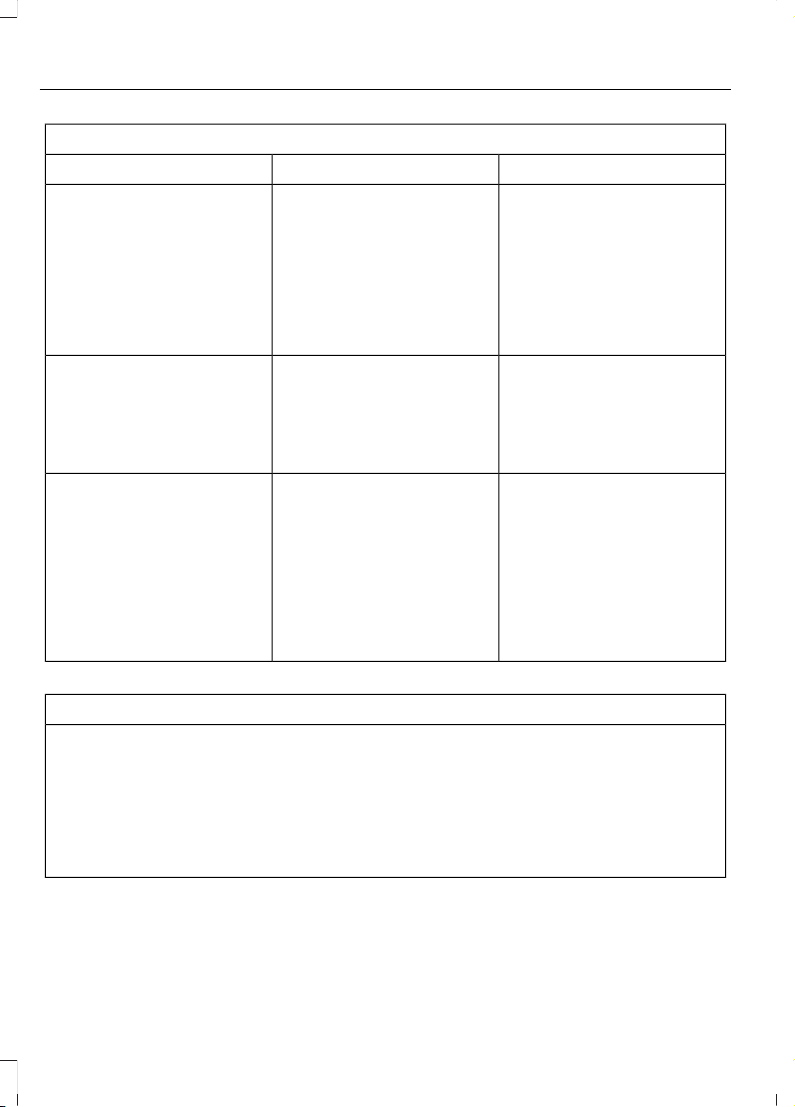
AppLink issues
Possible solution(s)Possible cause(s)Issue
Unplug the USB cable from
the phone, wait a moment,
and plug the USB cable
back in to the phone. After a
few seconds, the app should
appear in SYNC's Mobile
Apps Menu. If not, "Force
Close" the application and
restart it.
The USB connection to
SYNC may need to be reset.
My iPhone phone is
connected, my app is
running, I restarted the app
but I still cannot find it on
SYNC.
Try increasing the Bluetooth
volume of the device by
using the device's volume
control buttons which are
most often found on the
side of the device.
The bluetooth volume on
the phone may be low.
I have an Android phone. I
found and started my media
app on SYNC, but there is no
sound or the sound is very
low.
Force close or uninstall the
apps you do not want SYNC
to find. If the app has a "Ford
SYNC" setting, disable that
setting in the app's settings
menu on the phone.
Some Android devices have
a limited number of
bluetooth ports apps can
use to connect. If you have
more AppLink apps on your
phone than the number of
available Bluetooth ports,
you will not see all of your
apps listed in SYNC's mobile
apps menu.
I can only see some of the
AppLink apps running on my
phone listed in SYNC's
Mobile Apps Menu.
SYNC System Reset
The SYNC system in your vehicle has System Reset feature that can be performed if
the function of a SYNC feature is lost. This reset is intended to restore functionality and
will not erase any information previously stored in the system (Such as paired devices,
phonebook, call history, text messages, or user settings). To perform a System Reset,
press and hold the Seek Up (>>) button while pressing and holding the Radio Power
button. Release both buttons after 2-3 seconds. Please allow a few minutes for the
reset to complete. After a few minutes has passed you can resume using the SYNC
system.
404
Edge (CDQ) Canada/United States of America, enUSA, Edition date: 201706, First Printing
SYNC™
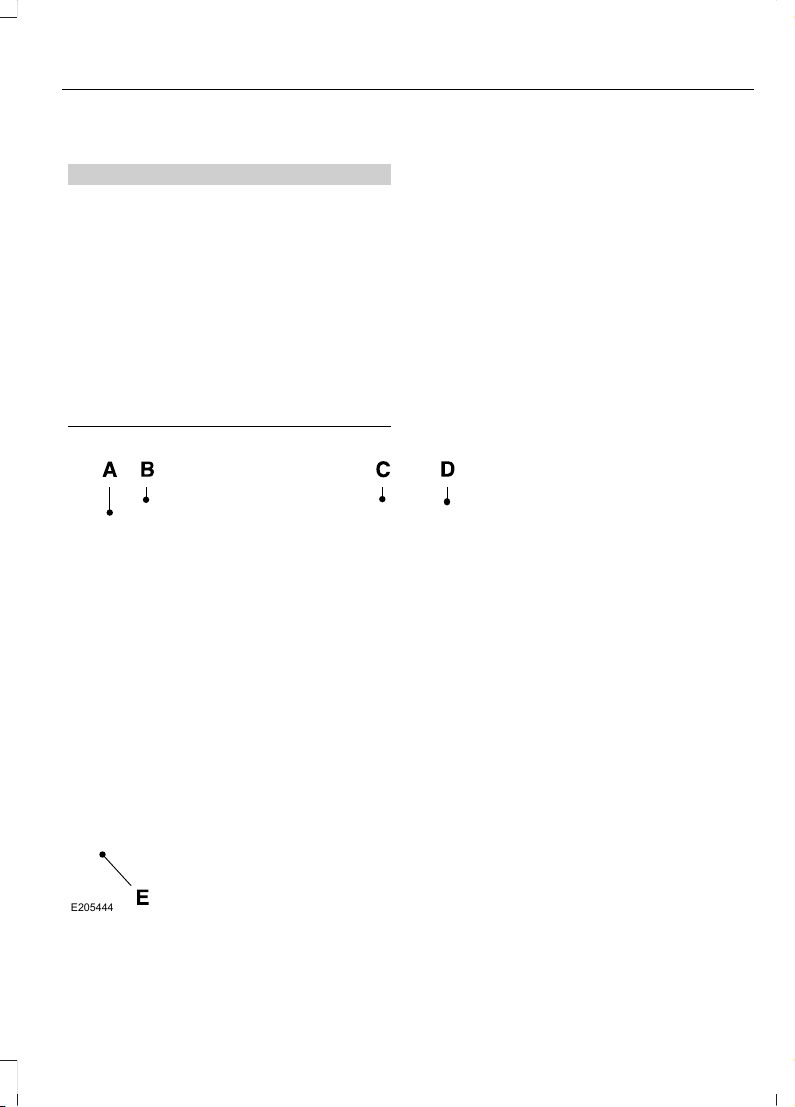
GENERAL INFORMATION
WARNING
Driving while distracted can result in
loss of vehicle control, crash and
injury. We strongly recommend that
you use extreme caution when using any
device that may take your focus off the
road. Your primary responsibility is the safe
operation of your vehicle. We recommend
against the use of any hand-held device
while driving and encourage the use of
voice-operated systems when possible.
Make sure you are aware of all applicable
local laws that may affect the use of
electronic devices while driving.
Getting to Know Your System
The SYNC 3 system allows you to interact
with a variety of features using the
touchscreen and voice commands. By
integrating with your Bluetooth-enabled
phone, the touchscreen provides easy
interaction with audio, multimedia, climate
control, navigation, and your phone's SYNC
3 compatible apps.
Using the Touchscreen
To operate the touchscreen, you can
simply touch the item or option that you
want to select. The button changes color
when you select it.
The SYNC 3 layout allows you to quickly
select the feature you wish to use.
E205444
405
Edge (CDQ) Canada/United States of America, enUSA, Edition date: 201706, First Printing
SYNC™ 3
Action and DescriptionMenu ItemItem
This bar displays icons and messages pertaining to current
system activities including climate settings, voice
commands and phone functions such as text messages.
Status BarA
This button is available on the main screens. Pressing it
takes you to the home screen view.
HomeB
This shows the current time. You can set the clock manually
or have it controlled by the vehicle's GPS location. See
Settings (page 455).
ClockC
This displays the current outside temperature.Outside
Temperature
D
You can touch any of the buttons on this bar to select a
feature.
Feature BarE
The touchscreen allows you quick access
to all of your comfort, navigation,
communication and entertainment
options. Using the status and feature bar
you can quickly select the feature you want
to use.
Note: Your system is equipped with a
feature that allows you to access and
control audio features for 10 minutes after
you switch the ignition off (and no doors
open).
The Status Bar
Additional icons also display in the status
bar depending on market, vehicle options
and current operation. If a feature is not
active, the icon does not display. Certain
icons may move to the left or right
depending on what options are active.
406
Edge (CDQ) Canada/United States of America, enUSA, Edition date: 201706, First Printing
SYNC™ 3
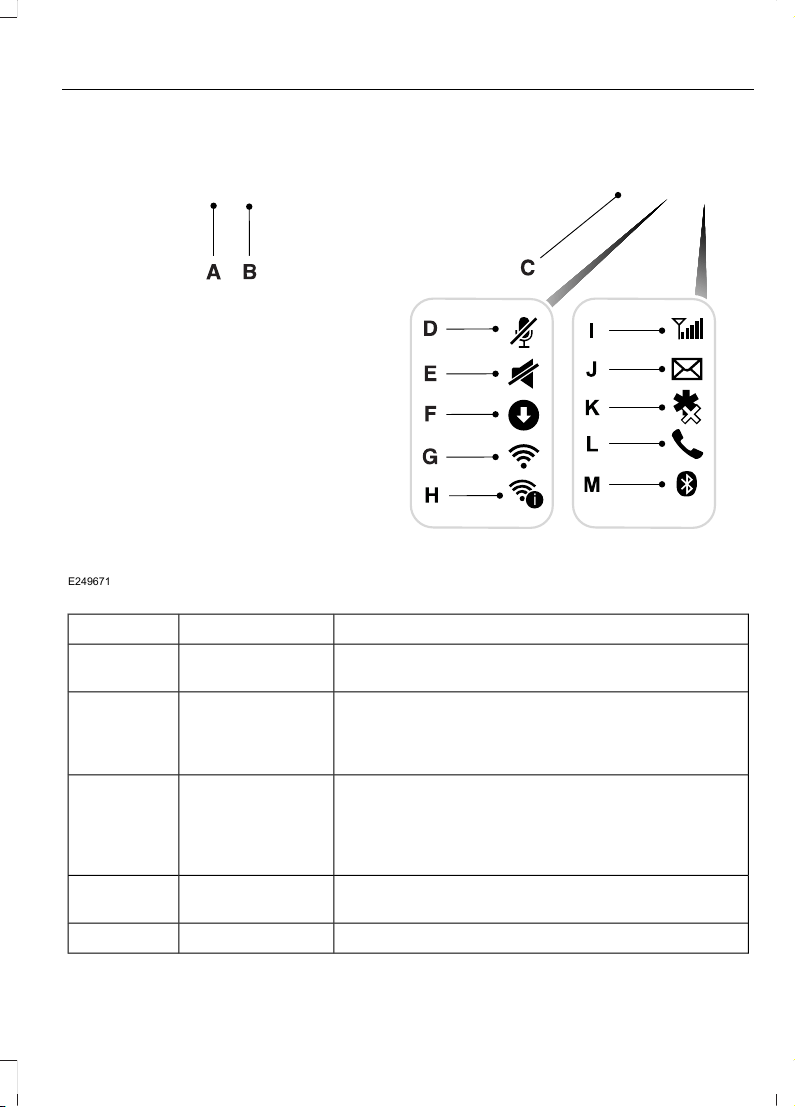
E249671
i
DescriptionItemCallout
This shows the temperature the driver selects through
the climate control system.
Driver Temper-
ature
A
When you activate the heated steering wheel option
on the touch screen, this icon displays. It only displays
when there is not a physical button for the heated
steering wheel.
Heated steering
wheel
B
(If equipped)
When the passenger's temperature has been
adjusted and is no longer linked to the driver's
temperature, it displays here. If Dual is turned off and
the temperatures are linked, the passenger's
temperature does not display.
Passenger
Temperature
C
This icon displays when your phone's microphone is
muted. A caller cannot hear you.
Microphone MuteD
This icon displays when the audio system is muted.MuteE
407
Edge (CDQ) Canada/United States of America, enUSA, Edition date: 201706, First Printing
SYNC™ 3
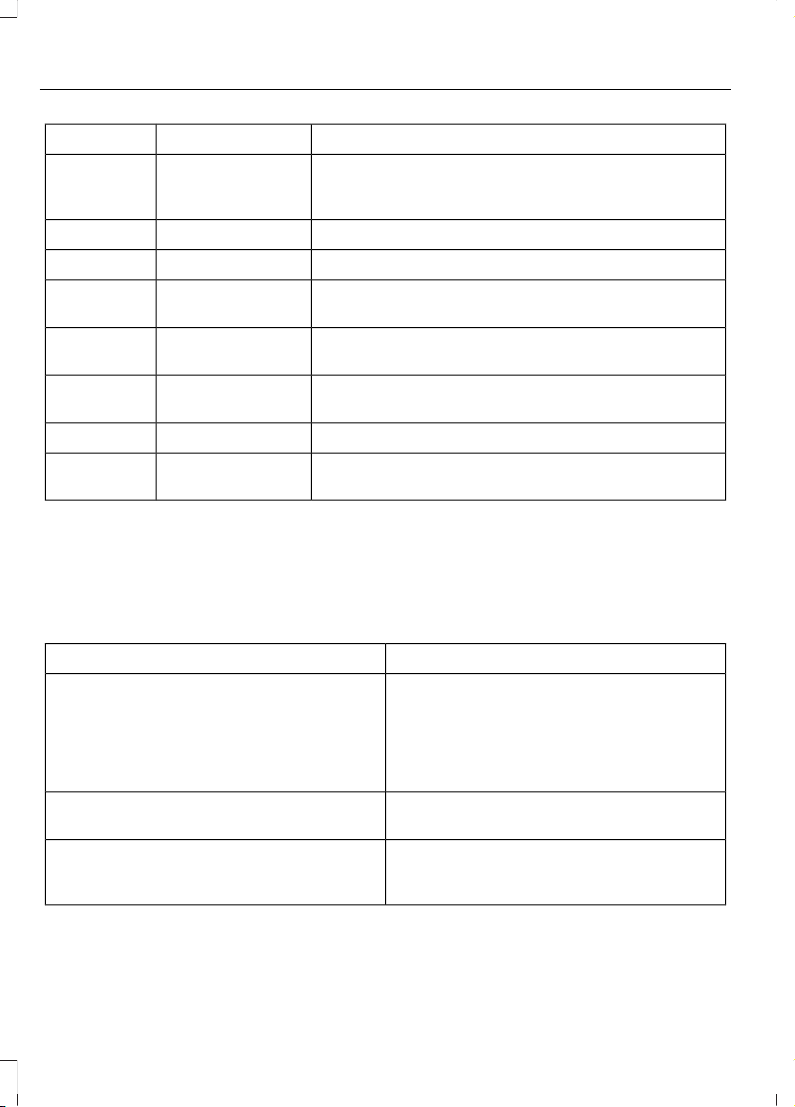
DescriptionItemCallout
This icon appears when SYNC 3 receives a software
update. Pressing the icon shows more details about
the new software.
DownloadF
This icon appears if a Wi-Fi network is connected.Wi-FiG
An available Wi-Fi network is within range.Wi-Fi in RangeH
This icon displays the phone signal strength and the
roaming signal strength.
Signal StrengthI
This icon displays when you receive a text message
on your phone.
Text MessageJ
This icon displays when 911 Assist is set to off and
your phone is connected to SYNC.
911 Assist OffK
This icon displays when a phone call is active.In-CallL
This icon displays to show an active Bluetooth
connection.
BluetoothM
Messages may also appear in the status
bar to provide you with notifications. You
can select the message to view the
associated feature.
Feature Bar
FunctionsFeature Bar Item
Allows you to control the media playing in
your vehicle. You can control all audio
features including AM, FM and satellite
radio, CDs, and media streaming over a
Bluetooth device or through a USB
connection.
Audio
Allows you to adjust the temperature, fan
speed and airflow within the vehicle.
Climate
Allows you to make calls, receive calls, and
access the phonebook of your connected
device.
Phone
408
Edge (CDQ) Canada/United States of America, enUSA, Edition date: 201706, First Printing
SYNC™ 3

FunctionsFeature Bar Item
Allows you to see your vehicle's location on
a virtual road map, get driving directions to
your destination and find points of interest
along your route.
Navigation
(If equipped)
Connect and control SYNC 3 compatible
apps running on your iphone or android
device. Also, access built-in additional
features such as SiriusXM Traffic and Travel
Link (if equipped).
Apps
If your vehicle is a hybrid, plug-in hybrid, or
electric this is also where your settings and
power information is located.
You can customize your system with
various settings for the touchscreen display,
feature preferences, and how you want to
interact with your vehicle.
Settings
Cleaning the Touchscreen
You can remove fingerprints with a dry,
clean, soft cloth.
If dirt or fingerprints are still on the screen,
apply a small amount of alcohol to the
cloth and try to clean it again.
Note: Do not use detergent or any type of
solvent to clean the touchscreen.
Note: Do not pour or spray alcohol onto the
touchscreen.
Using Voice Recognition
Using voice commands allows you to keep
your hands on the wheel and focus on
what is in front of you. The system provides
feedback through audible tones, prompts,
questions and spoken confirmations
depending on the situation and the chosen
level of interaction (voice settings).
The system also asks short questions
(confirmation prompts) when it is not sure
of your request or when there are multiple
possible responses to your request.
When using voice commands, words and
icons may appear in the status bar
indicating the status of the voice command
session. See Using Voice Recognition
(page 419).
Accessing and Adjusting Modes
Through Your Vehicle Information
Display (If Equipped)
Depending on your vehicle and selected
options you may be able to control some
of the SYNC 3 features on your information
display. The features are visible the right
hand display (A).
409
Edge (CDQ) Canada/United States of America, enUSA, Edition date: 201706, First Printing
SYNC™ 3
E208626
You can make the following adjustments
using the information display SYNC 3
screen:
InformationOption
Information for current audio playing.Entertain-
ment
Select source.
View current road and speed limit (if information is available).Naviga-
tion
View current route, next turn, time to your destination (depending on cluster
level), distance to destination (depending on cluster level), and ability to
cancel route.
If you do not have an active navigation route programed, the compass is
shown.
If you are not on a call, a call can be made by selecting:
1
Phone
410
Edge (CDQ) Canada/United States of America, enUSA, Edition date: 201706, First Printing
SYNC™ 3

InformationOption
Missed callsOutgoing callsIncoming callsAll calls
If you are on a call, the call information is displayed on the information display.
If you are receiving a call, you can accept it by selecting OK on the right-hand
steering wheel controls.
1
Depending on your vehicle options, all of these choices may not display.
Use the OK and arrow buttons on the right
side of your steering wheel to scroll
through the available modes.
The selection menu expands and different
options appear.
• Press the up and down arrows to scroll
through the modes.
• Press the right arrow to enter the mode,
use the left arrow to exit the mode.
• Press the up and down arrows to make
adjustments within the chosen mode.
• Press OK to confirm your selection.
Note: If your vehicle is not equipped with
navigation, compass appears in the display
instead of navigation. If you press the right
arrow to go into the compass menu, you can
see the compass graphic. The compass
displays the direction in which the vehicle
is traveling, not true direction (for example,
if the vehicle is traveling west, the middle
of the compass graphic displays west; north
displays to the left of west though its true
direction is to the right of west).
Using the Steering Wheel Controls
Depending on your vehicle and option
package, you can use different controls on
your steering wheel to interact with the
touchscreen system in different ways.
VOL: Control the volume of audio output.
Mute: Mute the audio output.
Voice: Press to start a voice session. Press
again to stop the voice prompt and
immediately begin speaking. Press and
hold to end a voice session.
SEEK NEXT:
• While in radio mode, press to seek
between memory presets.
• While in USB, Bluetooth Audio or CD
mode, press to seek between songs or
press and hold to fast seek.
SEEK PREVIOUS:
• While in radio mode, press to seek
between memory presets.
• While in USB, Bluetooth Audio or CD
mode, press to seek between songs or
press and hold to fast seek.
PHONE ACCEPT: Press to answer a call
or switch between calls.
PHONE REJECT: Press to end a call or
reject an incoming call.
Note: On some models, SEEK NEXT may
be combined with PHONE REJECT and
SEEK PREVIOUS may be combined with
PHONE ACCEPT.
M: Touch the control repeatedly to switch
between media sources (modes).
See Steering Wheel (page 77).
Using Your Bezel Controls
Depending on your vehicle and option
package, you may also have these controls
on your instrument panel:
411
Edge (CDQ) Canada/United States of America, enUSA, Edition date: 201706, First Printing
SYNC™ 3

• Power: Switch the audio system on
and off.
• VOL: Control the volume of playing
audio.
• Seek and Tune: Use as you normally
would in audio modes.
• Eject: Eject a CD from the audio
system.
• SOURCE or MEDIA: Press repeatedly
to advance through available media
modes.
• SOUND: Press to access the Sound
menu where you can adjust sound and
other audio settings.
• 1-6: Press and hold to store or press to
select an AM, FM or SIRIUS memory
preset. See Audio System (page 352).
• DISP: Switch the display on or off. You
can also touch the screen to switch the
display back on.
• Temperature, fan and climate
control buttons: Control the
temperature, fan speed or settings of
the climate control system. See
Climate Control (page 126).
911 Assist
WARNINGS
Unless the 911 Assist setting is set on
before a crash, the system will not
dial for help which could delay
response time, potentially increasing the
risk of serious injury or death after a crash.
Do not wait for 911 Assist to make an
emergency call if you can do it
yourself. Dial emergency services
immediately to avoid delayed response
time which could increase the risk of
serious injury or death after a crash. If you
do not hear 911 Assist within five seconds
of the crash, the system or phone may be
damaged or non-functional.
WARNINGS
Always place your phone in a secure
location in your vehicle so it does not
become a projectile or get damaged
in a crash. Failure to do so may cause
serious injury to someone or damage the
phone which could prevent 911 Assist from
working properly.
Note: The SYNC 911 Assist feature must be
set on before the incident.
Note: The SYNC 911 Assist feature only
operates in the U.S., Canada or in a territory
in which 911 is the emergency number.
Note: Before setting this feature on, make
sure that you read the 911 Assist Privacy
Notice later in this section for important
information.
Note: If any user sets 911 Assist to on or off,
that setting applies for all paired phones. If
911 Assist is switched off and the phone is
connected to SYNC, an icon displays on the
status bar.
Note: Every phone operates differently.
While SYNC 911 Assist works with most
cellular phones, some may have trouble
using this feature.
If a crash deploys an airbag (excluding
knee airbags and rear inflatable safety
belts [if equipped]) or activates the fuel
pump shut-off, your SYNC-equipped
vehicle may be able to contact emergency
services by dialing 911 through a paired and
connected Bluetooth-enabled phone. You
can learn more about the 911 Assist
feature, by visiting:
Website
www.owner.ford.com
www.syncmyride.ca
412
Edge (CDQ) Canada/United States of America, enUSA, Edition date: 201706, First Printing
SYNC™ 3

Website
www.syncmaroute.ca
For important information about airbag
deployment and the fuel pump shut-off
please see the Supplementary Restrains
and Roadside Emergencies sections of
your owner manual.
To switch 911 Assist on and off please view
the settings information. See Settings
(page 455).
To make sure that 911 Assist works
correctly:
• SYNC must be powered and working
properly at the time of the incident and
throughout feature activation and use.
• The 911 Assist feature must be set on
before the incident.
• You must pair and connect a
Bluetooth-enabled and compatible
cell phone to SYNC.
• A connected Bluetooth-enabled phone
must have the ability to make and
maintain an outgoing call at the time
of the incident.
• A connected Bluetooth-enabled phone
must have adequate network coverage,
battery power and signal strength.
• The vehicle must have battery power
and be located in the U.S., Canada or
in a territory in which 911 is the
emergency number.
In the Event of a Crash
Not all crashes will deploy an airbag or
activate the fuel pump shut-off (the
triggers for 911 Assist). If a connected cell
phone sustains damage or loses its
connection to SYNC during a crash, SYNC
will search for and try to connect to a
previously paired cell phone; SYNC will
then attempt to call the emergency
services.
Before making the call:
• SYNC provides a short window of time
(about 10 seconds) to cancel the call.
If you fail to cancel the call, SYNC
attempts to dial 911.
• SYNC says the following, or a similar
message: "SYNC will attempt to call
911, to cancel the call, press Cancel on
your screen or press and hold the
phone button on your steering wheel."
If you do not cancel the call, and SYNC
makes a successful call, a pre-recorded
message plays for the 911 operator, and
then the occupant(s) in your vehicle is able
to talk with the operator. Be prepared to
provide your name, phone number and
location immediately, because not all 911
systems are capable of receiving this
information electronically.
911 Assist May Not Work If
• Your cellular phone or 911 Assist
hardware sustains damage in a crash.
• The vehicle's battery or the SYNC
system has no power.
• The phone(s) thrown from your vehicle
are the ones paired and connected to
the system.
911 Assist Privacy Notice
When you switch on 911 Assist, it may
disclose to emergency services that your
vehicle has been in a crash involving the
deployment of an airbag or activation of
the fuel pump shut-off. Certain versions or
updates to 911 Assist may also be capable
of electronically or verbally disclosing to
911 operators your vehicle location or other
details about your vehicle or crash to assist
911 operators to provide the most
appropriate emergency services. If you do
not want to disclose this information, do
not switch the feature on.
413
Edge (CDQ) Canada/United States of America, enUSA, Edition date: 201706, First Printing
SYNC™ 3
Safety Information
WARNING
Driving while distracted can result in
loss of vehicle control, crash and
injury. We strongly recommend that
you use extreme caution when using any
device that may take your focus off the
road. Your primary responsibility is the safe
operation of your vehicle. We recommend
against the use of any hand-held device
while driving and encourage the use of
voice-operated systems when possible.
Make sure you are aware of all applicable
local laws that may affect the use of
electronic devices while driving.
• Do not attempt to service or repair the
system. Have an authorized dealer
check your vehicle.
• Do not operate playing devices if the
power cords or cables are broken, split
or damaged. Place cords and cables
out of the way, so they do not interfere
with the operation of pedals, seats,
compartments or safe driving abilities.
• Do not leave playing devices in your
vehicle during extreme conditions as it
could cause them damage. See your
device's user guide for further
information.
• For your safety, some SYNC 3 functions
are speed-dependent. Their use is
limited to when your vehicle is traveling
at speeds under 3 mph (5 km/h). Make
sure that you review your device's
manual before using it with SYNC 3.
Speed-restricted Features
Some features of this system may be too
difficult to use while your vehicle is moving
so they are restricted from use unless your
vehicle is stationary.
• Screens crowded with information,
such as Point of Interest reviews and
ratings, SiriusXM Traffic and Travel Link
sports scores, movie times or ski
conditions.
• Any action that requires you to use a
keyboard is restricted, such as entering
a navigation destination or editing
information.
• All lists are limited so the user can view
fewer entries (such as phone contacts
or recent phone call entries).
See the following table for more specific
examples.
Restricted features
Pairing a Bluetooth phone.Cellular Phone
Browsing of list entries is limited for phone contacts and
recent phone calls.
Editing the keypad code.System Functionality
Enabling Valet Mode.
Editing settings while the rear view camera or active park
assist are active.
414
Edge (CDQ) Canada/United States of America, enUSA, Edition date: 201706, First Printing
SYNC™ 3

Restricted features
Editing Wi-Fi settings.Wi-Fi
Editing the list of wireless networks.
Connecting to a new Wi-Fi network.
Viewing received text messages.Text Messages
Using the keyboard to enter a destination.Navigation
Adding or editing Navigation Favorites entries or Avoid
Areas.
Creating a SYNC Owner Account
Why do I need a SYNC owner account?
• Essential for keeping up with the latest
software and connected features.
• Access to customer support for any
questions you may have.
• Maintain account permissions.
Visit the website to sign up and register.
Website
www.owner.ford.com
www.syncmyride.ca
www.syncmaroute.ca
Updating Your System
You can choose to download the update
onto a USB drive or use Wi-Fi to deliver
automatic updates.
USB Updates
To use the USB update you need to log
into your owner account and visit the SYNC
software update page.
Website
www.owner.ford.com
www.syncmyride.ca
Website
www.syncmaroute.ca
The website notifies you if an update is
available. You can then select to download
the update.
You will need an empty USB drive. Please
check the website for minimum
requirements. Once you have inserted the
USB drive into your computer, choose to
start the download. Follow the instructions
provided to download the files to the USB
drive.
The installation of most files occurs in the
background, and does not interrupt your
use of the system. Navigation updates
cannot be installed in the background,
because the files are too large.
To install the update in your vehicle,
remove anything that is plugged in the USB
ports on the media hub and plug in the
USB drive containing the update. When
the USB drive is plugged in, the installation
should begin immediately. After a
successful installation, the update is
available the next time the vehicle is
started.
Please reference the website for any
further actions.
415
Edge (CDQ) Canada/United States of America, enUSA, Edition date: 201706, First Printing
SYNC™ 3
Updating Over Wi-Fi
To update your System over Wi-Fi your
vehicle must be connected to a Wi-Fi
access point. Data rates may apply.
To connect your system to Wi-Fi,
select:
Menu Item
Settings
Wi-Fi
You can then select your
Wi-Fi network. You may
have to enter the security
code if the network is
secured. The system
confirms when it has
connected to the network.
Available
Wi-Fi
Networks
You must also give the system permission
to update automatically. Upon vehicle
delivery, the System asks you if you would
like to use the automatic update feature.
If you agree to automatic updates, you can
press OK to confirm. If this selection does
not appear upon vehicle delivery you can
access it through the General Settings. See
Settings (page 455). You can also perform
a master reset. See SYNC™ 3
Troubleshooting (page 468).
If you would like to switch this feature
on later, select:
Menu Item
Settings
General
From this menu, you can
enable automatic updates.
If you have not done so
already, the system
prompts you to set up a
Wi-Fi connection when you
enable this feature.
Automatic
System
Updates
When the system is connected via Wi-Fi
and automatic updates are enabled, your
system checks for software updates
periodically. If a new version is available, it
downloads at that time. Software
downloads can take place for up to 30
minutes after you have switched your
vehicle off. The updates do not interrupt
the normal use of your SYNC 3 system. If
a download does not complete for any
reason, the download continues where it
left off at the next Wi-Fi connected
opportunity. Upon activation of an update,
a banner displays on the touchscreen
indicating the system update. Select the
icon to see more detail. This icon displays
for two ignition cycles.
To switch this feature off:
Menu Item
Settings
General
In this menu selection, you
can change the selection
for automatic updates to
OFF.
Automatic
System
Updates
416
Edge (CDQ) Canada/United States of America, enUSA, Edition date: 201706, First Printing
SYNC™ 3

Support
The SYNC support team is available to
help you with any questions you are not
able to answer on your own.
Monday-Saturday, 8:30am-8:00pm EST.
United States: 1-800-392-3673.
Canada: 1-800-565-3673.
Times are subject to change due to
holidays.
Privacy Information
When you connect a cellular phone to
SYNC 3, the system creates a profile within
your vehicle that links to that cellular
phone. This profile helps in offering you
more cellular features and operating more
efficiently. Among other things, this profile
may contain data about your cellular
phone book, text messages (read and
unread), and call history, including history
of calls when your cell phone was not
connected to the system. In addition, if you
connect a media device, the system
creates and retains an index of supported
media content. The system also records a
short diagnostic log of approximately 10
minutes of all recent system activity. The
log profile and other system data may be
used to improve the system and help
diagnose any problems that may occur.
The cellular profile, media device index,
and diagnostic log remain in your vehicle
unless you delete them and are generally
accessible only in your vehicle when the
cellular phone or media player is
connected.
If you no longer plan to use the system or
your vehicle, we recommend you perform
a Master Reset to erase all stored
information. You can find more information
about the Master Reset in General
Settings. See Settings (page 455). System
data cannot be accessed without special
equipment and access to your vehicle's
SYNC 3 module. Ford Motor Company,
Ford of Canada and The Lincoln Motor
Company do not access the system data
for any purpose other than as described
absent consent, a court order, or where
required by law enforcement, other
government authorities, or other third
parties acting with lawful authority. Other
parties may seek to access the information
independently of Ford Motor Company,
Ford of Canada and The Lincoln Motor
Company.
417
Edge (CDQ) Canada/United States of America, enUSA, Edition date: 201706, First Printing
SYNC™ 3
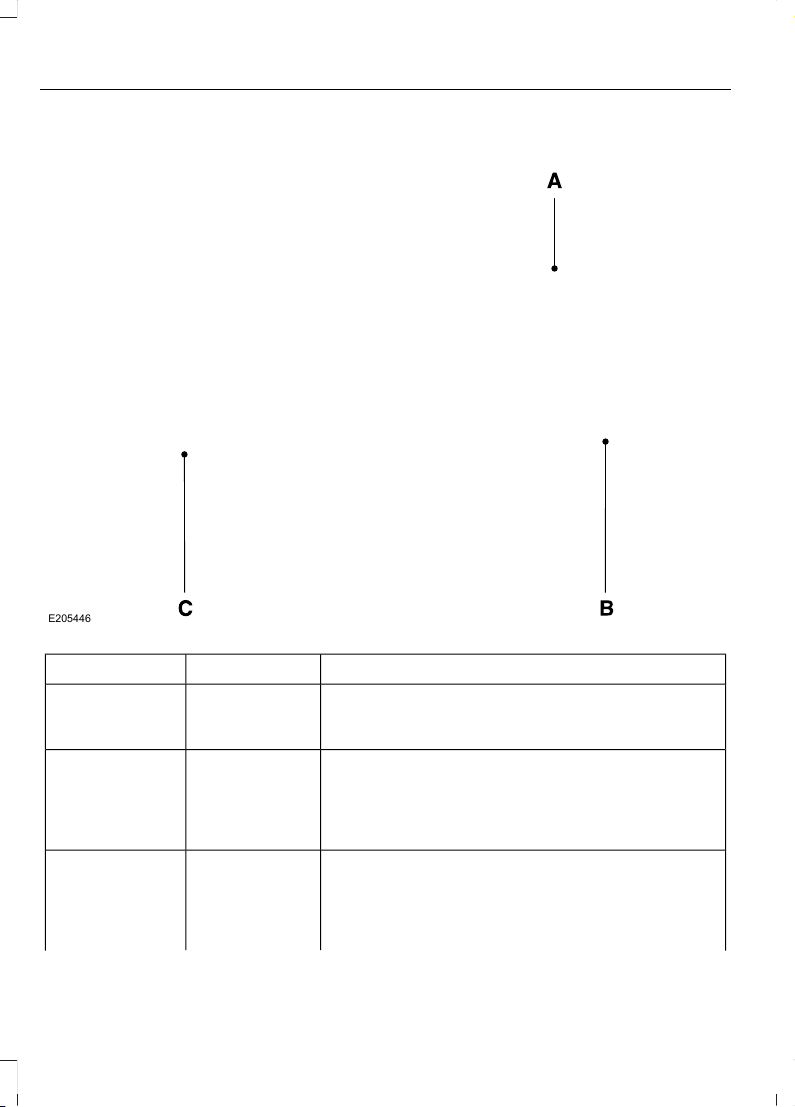
HOME SCREEN
E205446
Home screen displayTileItem
Shows the active media source.AudioA
If your vehicle does not have navigation, this space
contains the compass.
The name of the connected phone appears on the
screen. The status of the phone features also
appear. This includes signal strength, battery charge,
911 assist setting state (On or Off), text messaging
and roaming.
PhoneB
This map displays your current location or current
route in real time.
Navigation
1
C
When you have navigation active, you also see the
next turn and the length of time and distance to
your destination.
418
Edge (CDQ) Canada/United States of America, enUSA, Edition date: 201706, First Printing
SYNC™ 3
Home screen displayTileItem
If your vehicle does not have navigation, this space
contains the audio information.
1
If equipped.
You can touch any of the feature displays
to access that feature.
Anytime you select the home button, the
system returns you to this screen.
USING VOICE RECOGNITION
The SYNC 3 system allows you to use voice
commands, to control features like audio
and climate controls. By using voice
commands, you can keep your hands on
the wheel and your eyes on the road.
You can access each feature controlled by
SYNC 3 through a variety of commands.
E142599
To activate the SYNC 3 voice
commands push the voice
button on the steering wheel and
wait for the prompt.
___ is a dynamic listing, meaning that it can
be the name of anything, such as artist, the
name of contact or number. The context
and the description of the command tell
you what to say for this dynamic option.
There are some commands that work for
every feature, these commands are:
Action and DescriptionVoice Command
Brings you to the main menu.Main Menu
Returns you to the previous screen.Go back
Ends the voice session.Cancel
Gives you a list of possible voice commands.List of Commands
You can name any feature and the system gives a list of
commands available for the feature. For example, you could
say:
___ List of Commands
Phone List of Commands
Navigation List of Commands
You can use this command to view the next page of options on
any screen where multiple pages of choices are given.
Next Page
You can use this command to view the previous page of options
on any screen where multiple pages of choices are given.
Previous Page
Gives you available commands you can use on the current
screen.
Help
419
Edge (CDQ) Canada/United States of America, enUSA, Edition date: 201706, First Printing
SYNC™ 3
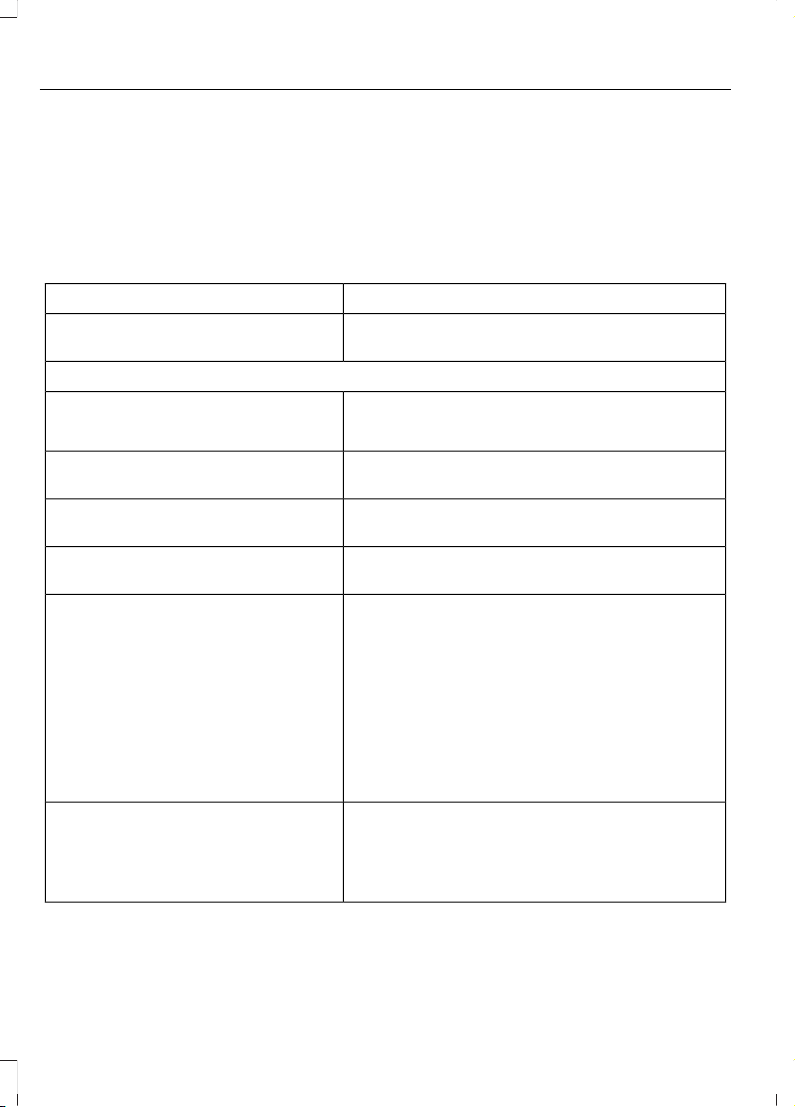
Included here are some of the most
popular commands for each SYNC 3
feature.
Audio Voice Commands
___ is a dynamic listing, meaning that for
audio voice commands it can be the name
of a Sirius channel or a channel number, a
radio frequency number, or the name of an
artist, album, song or a genre.
To control the media features, press the voice button and when prompted, say:
DescriptionVoice command
You can say the Sirius channel name or number
such as "Sirius channel 16".
1
Sirius Channel ___
You can also turn to a Sirius channel by saying the channel's name, such as "The Pulse".
Allows you to tune to a specific FM or AM
frequency such as "FM 88.7" or "AM 1580".
AM ___
FM ___
Allows you to tune to a specific HD frequency
such as “FM 88.7 HD 1”.
1
FM ___ HD ___
Allows you to listen to music on your Bluetooth-
connected device.
Bluetooth Audio
Allows you to listen to music on your USB
connected device.
USB
For USB audio only, you can say the name of an
artist, album, song or a genre to listen to that
selection. Your system must finish indexing
before this option is available. For example, you
could say "Play artist, The Beatles" or "Play song,
Penny Lane".
Play Genre ___
Play Playlist ___
Play Artist ___
Play Album ___
Play Podcast ___
Play Song ___
Play Audiobook ___
For USB audio only, you can say the name of an
artist, album, or a genre to browse by that selec-
tion. Your system must finish indexing before this
option is available. For example you can say
"Browse The Beatles" or "Browse folk".
Browse ___
1
This option may not be available in all markets or may require a subscription.
420
Edge (CDQ) Canada/United States of America, enUSA, Edition date: 201706, First Printing
SYNC™ 3

Climate Voice Commands
You can control the temperature of the
vehicle using voice commands.
___ is a dynamic listing, meaning that for
climate voice commands it can be the
desired degrees for the temperature
setting.
To adjust the temperature, say:
DescriptionVoice command
Adjust the temperature between 60–85°F
(15.5–29.5°C).
Climate Set Temperature ___
Phone Voice Commands
Pairing a Phone
You can use voice commands to connect
your Bluetooth-enabled phone to the
system.
To pair your phone, press the voice button and when prompted, say:
DescriptionVoice command
Follow the on-screen instructions to complete the pairing
process. See Settings (page 455).
Pair Phone
Making Calls
___ is a dynamic listing, meaning that for
phone voice commands it can be the name
of the contact you wish to call or the digits
you want to dial.
Press the voice button and say a command similar to the following:
DescriptionVoice command
Allows you to call a specific contact from your phonebook
such as "Call Jenny".
Call ___
Allows you to call a specific contact from your phonebook
at a specific location such as "Call Jenny at Home".
Call ___ at ___
Allows you to dial a specific number such as “Dial 867-5309” .Dial ___
421
Edge (CDQ) Canada/United States of America, enUSA, Edition date: 201706, First Printing
SYNC™ 3
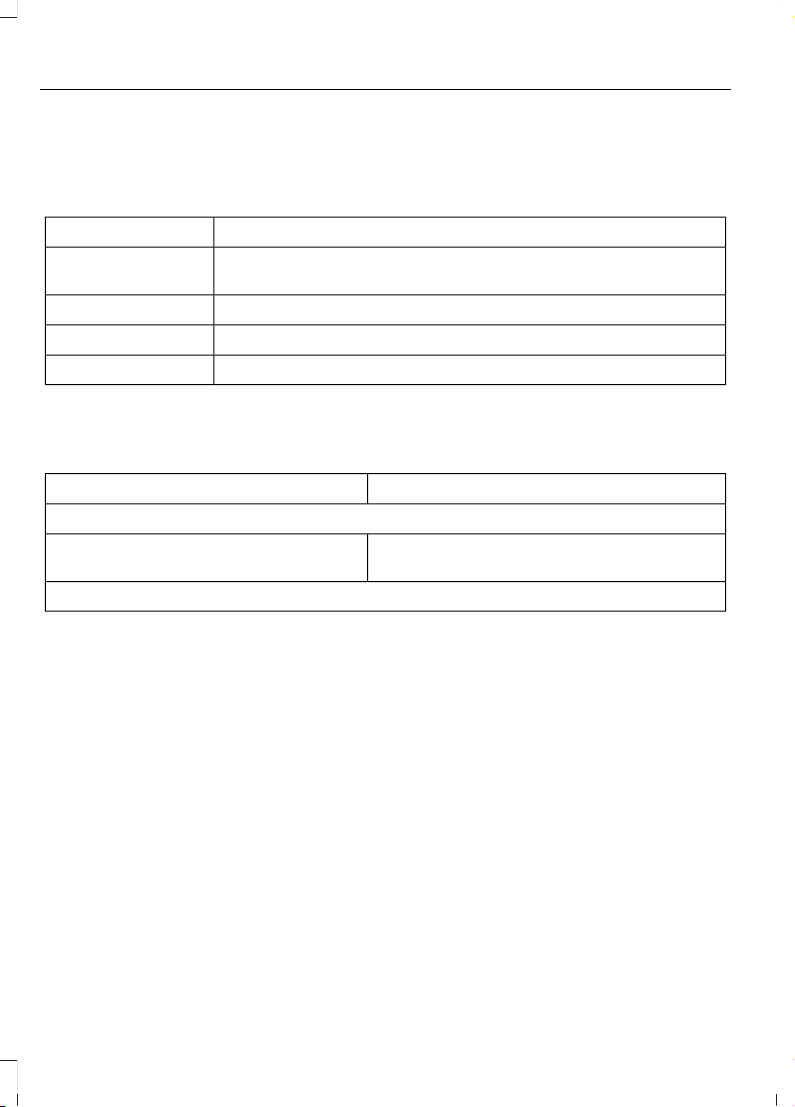
Please make sure that you are saying the
contact name exactly as it appears in your
contact list.
Once you have provided the digits of the phone number, you can say the following
commands:
DescriptionVoice Command
If the full number was not entered with the first command, you
can continue saying the number.
<0-9>
Tells SYNC 3 to make the phone call.Dial
Tells SYNC 3 to erase the last block of digits stated.Delete
Tells SYNC 3 to erase the entire number.Clear
Text Message Voice Commands
To access text message options, press the voice button and say:
DescriptionVoice command
Listen to Message
You can say the number of the message you
would like to hear.
Listen to text message ___
Reply to Message
Navigation Voice Commands (If
Equipped)
Setting a Destination
You can use any of the following
commands to set a destination or find a
point of interest.
___ is a dynamic listing, meaning that for
navigation voice commands it can be a POI
category or a major brand name, where
major brand name is a chain with more
than 20 locations
422
Edge (CDQ) Canada/United States of America, enUSA, Edition date: 201706, First Printing
SYNC™ 3
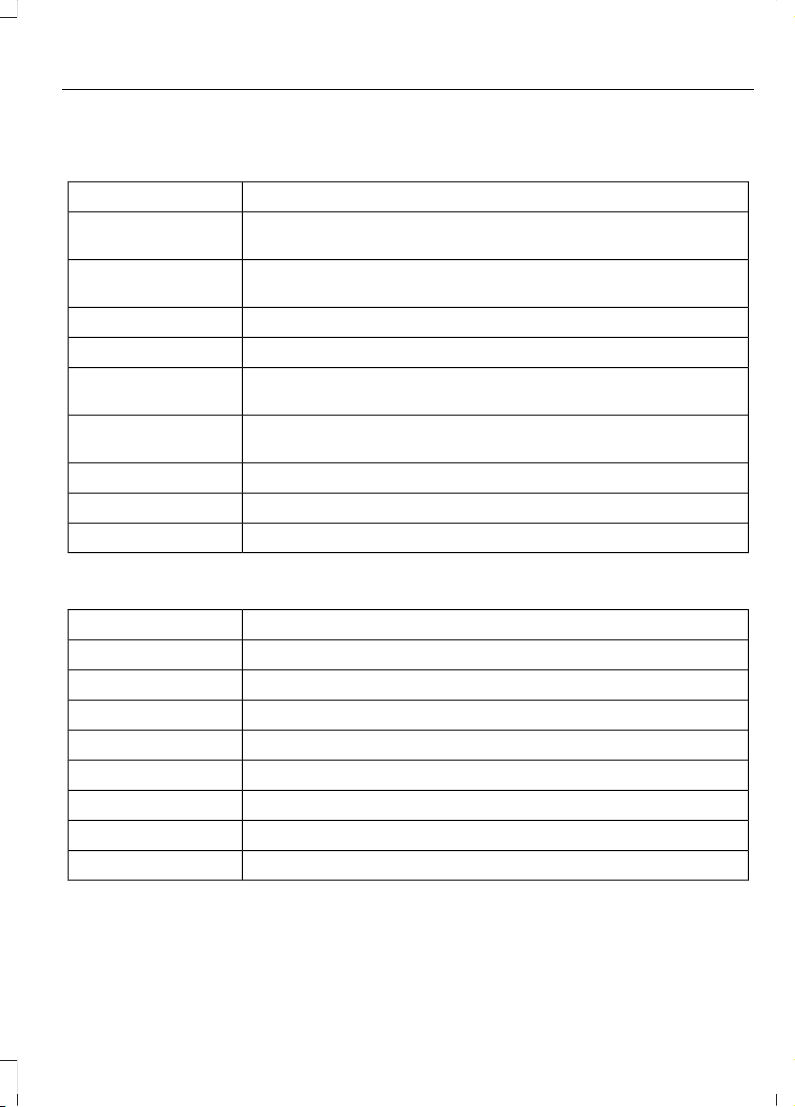
You can find an address, a point of interest (POI), or search for points of interest
by category:
DescriptionVoice command
Allows you to enter the address search functionality. You can
also search for an address in a specific state or province.
Find an Address
State the name of the POI category or major brand name you
would like to search for such as "Find restaurants".
Find a ___
Allows you to enter the POI search functionality.Find POI
Allows you to enter the intersection search functionality.Find Intersection
State the name of a POI category or major brand name you would
like to search for.
Destination Nearest
___
Allows you to see a list of your previous destinations.Destination Previous
Destination
Allows you to see a list of your favorite destinations.Favorite Destinations
Allows you to route to your home address.Destination Home
Allows you to route to your work address.Destination My Work
In addition, you can say these commands when a route is active:
DescriptionVoice command
Cancels the current route.Cancel Route
Allows you to select an alternate route.Detour
Repeats the last guidance prompt.Repeat Instruction
Displays the active route.Show Route
Displays the list of upcoming maneuvers.Route Summary
Provides current location.Where Am I
Allows you to zoom in on the map.Zoom in
Allows you to zoom out from the map.Zoom out
423
Edge (CDQ) Canada/United States of America, enUSA, Edition date: 201706, First Printing
SYNC™ 3

Mobile App Voice Commands (If Equipped)
The following voice commands are always available:
DescriptionVoice command
SYNC 3 will prompt you to say the name of an app to start it on
SYNC 3.
Mobile Apps
SYNC 3 will list all of the currently available Mobile Apps.List Mobile Apps
SYNC 3 will search and connect to compatible app(s) running on
your mobile device.
Find New Apps
There are also voice commands that you can use when app(s) are connected to
SYNC 3:
DescriptionVoice command
At any time, you can say the name of a mobile app to start the
mobile app on SYNC 3.
Say the name of an
app
SYNC 3 will list the available voice commands for the specified
app if the app is running on SYNC 3.
Say the name of an
app, followed by
help
SiriusXM Traffic and Travel Link
Voice Commands (If Equipped)
SiriusXM Traffic and Travel Link may not
be available in all markets. Activation and
a subscription are required.
You can say the following commands to access SiriusXM Traffic and Travel Link:
DescriptionVoice command
Displays a list of traffic incidents.Show Traffic
Displays the current weather map.Show Weather Map
Displays a list of fuel prices.Show Fuel Prices
Displays the 5 day weather forecast.Show 5 Day Fore-
cast
Help
424
Edge (CDQ) Canada/United States of America, enUSA, Edition date: 201706, First Printing
SYNC™ 3

Voice Settings Commands
You can say the following commands to access the voice settings:
DescriptionVoice command
Allows you to enter the voice settings functionality.Voice Settings
Sets standard prompting with longer prompts.Interaction Mode
Standard
Sets advanced prompting with shorter prompts.Interaction Mode
Advanced
Allows the system to confirm before making a phone call.Phone Confirmation On
The system does not confirm before placing a call.Phone Confirmation Off
The system displays a short list of available commands.Voice Command Lists On
The system does not display the list of commands.Voice Command Lists Off
You can use the volume control to adjust
the volume of the system voice prompts.
While prompt is active, adjust the volume
control up or down to your desired setting.
Note: Depending on the current climate
control settings, the fan speed may
automatically go down while issuing voice
commands or while making and receiving
phone calls via SYNC to reduce the amount
of background noise in the vehicle. The fan
speed will automatically return to normal
operation once the voice session ends. Fan
speed can also be adjusted normally during
a voice session, simply press fan buttons (or
turn fan knob) to increase or decrease fan
speed to desired setting.
To disable this automatic fan speed
reduction feature during voice sessions,
press and hold the climate control AC and
Recirculated air buttons simultaneously,
release and then increase fan speed within
2 seconds. To re-enable this feature, repeat
the above sequence.
425
Edge (CDQ) Canada/United States of America, enUSA, Edition date: 201706, First Printing
SYNC™ 3
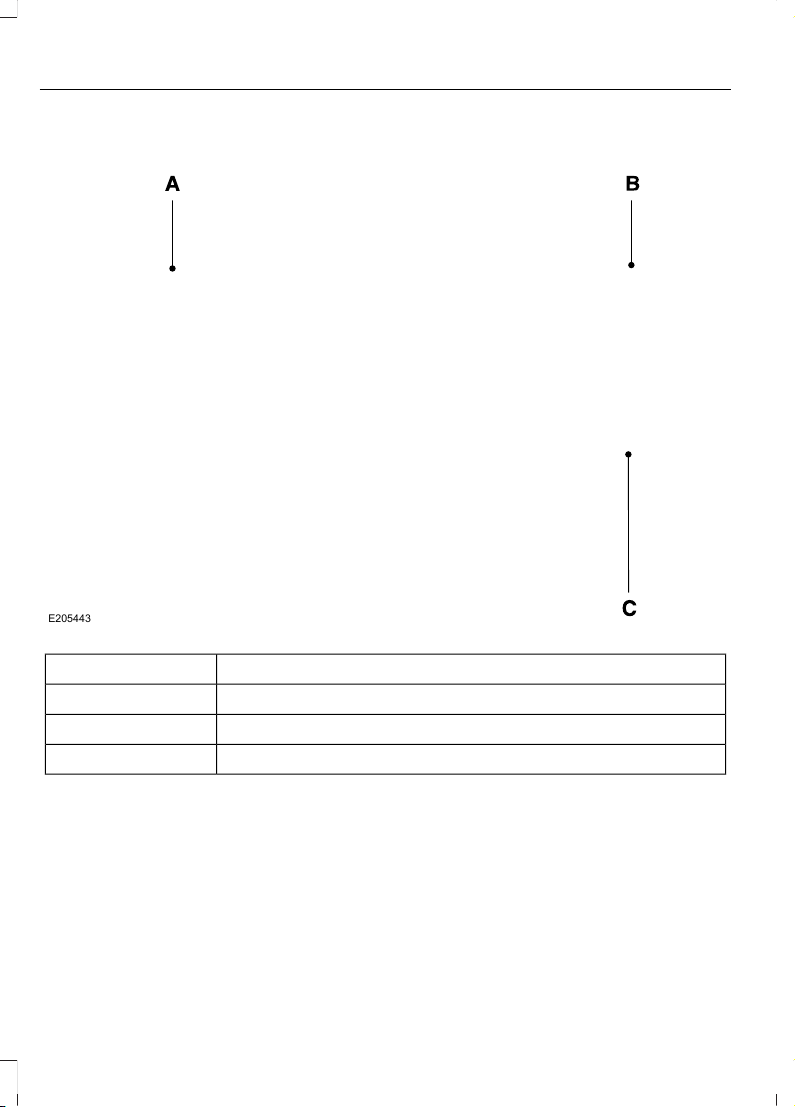
ENTERTAINMENT
E205443
Message and descriptionMessage
SourcesA
Direct TuneB
PresetsC
You can access these options using the
touchscreen or voice commands.
Sources
Press this button to select the source of
media you want to listen to.
426
Edge (CDQ) Canada/United States of America, enUSA, Edition date: 201706, First Printing
SYNC™ 3

Menu item
AM
FM
1
SIRIUS
1
CD
The name of the USB that is plugged in displays here.USB
Bluetooth Stereo
If you have SYNC 3 compatible apps on your connected smart phone, they
display here as individual source selections.
Apps
1
This feature may not be available in all markets and requires an active subscription.
AM/FM Radio
Tuning a Station
You can use the tune or seek controls on
the radio bezel to select a station.
To tune a station using the
touchscreen, select:
Menu item
Direct Tune
A pop up appears, allowing you to type in
the frequency of a station. You can only
enter a valid station for the source you are
currently listening to.
You can press the backspace button to
delete the previously entered number.
Once you have entered the station's
call numbers, you can select:
Action and descrip-
tion
Menu item
Press to begin
playing the station
you have entered.
Enter
Press to exit
without changing
the station.
Cancel
Presets
To set a new preset, tune to the station
and then press and hold one of the
memory preset buttons. The audio mutes
briefly while the system saves the station
and then returns.
There are two preset banks available for
AM and three banks for FM. To access
additional presets, tap the preset button.
The indicator on the preset button shows
which bank of presets you are currently
viewing.
427
Edge (CDQ) Canada/United States of America, enUSA, Edition date: 201706, First Printing
SYNC™ 3
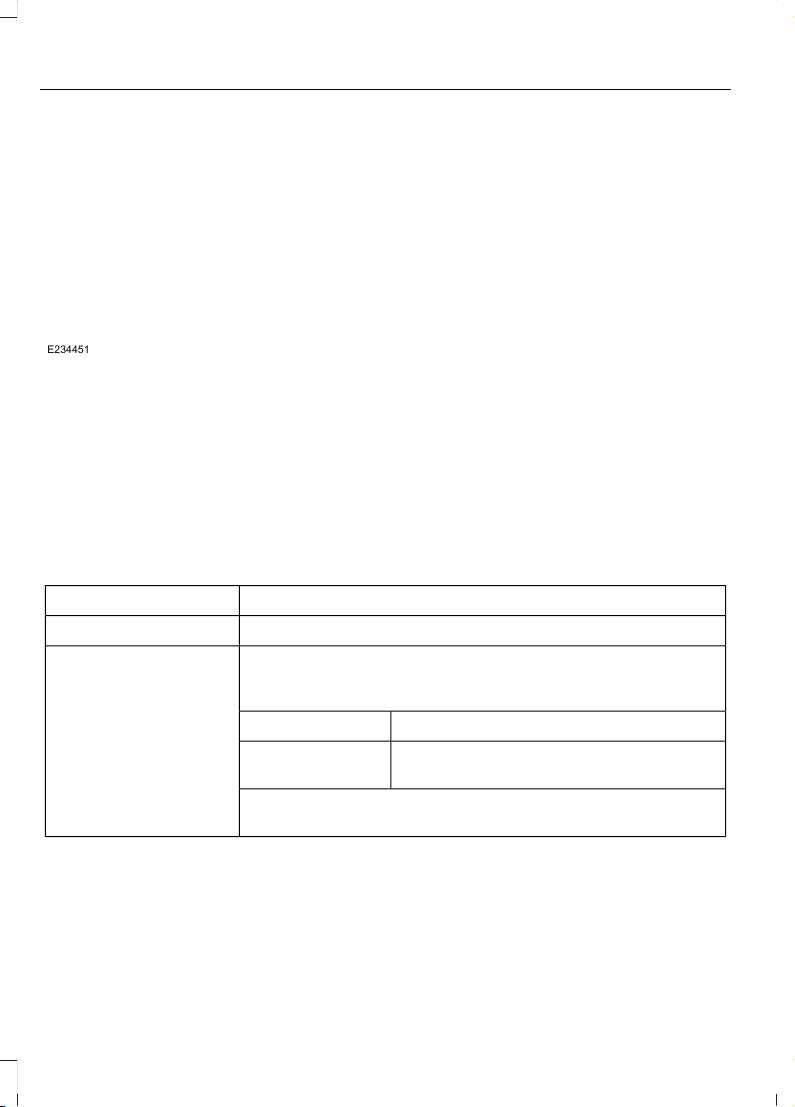
SiriusXM® Satellite Radio (If
Activated)
Note: This feature may not be available in
all markets and requires an active
subscription.
E234451
SiriusXM satellite radio is a
subscription-based satellite radio service
that broadcasts a variety of music, sports,
news, weather, traffic and entertainment
programming. Your factory-installed
SiriusXM satellite radio system includes
hardware and a limited subscription term
that begins on the date of sale or lease of
your vehicle. See an authorized dealer for
availability.
For more information on extended
subscription terms (a service fee is
required), the online media player and a
list of SiriusXM satellite radio channels,
and other features, please visit
www.siriusxm.com in the United States,
www.siriusxm.ca in Canada, or call
SiriusXM at 1-888-539-7474.
Note: SiriusXM reserves the unrestricted
right to change, rearrange, add or delete
programming. This includes canceling,
moving or adding particular channels, and
its prices, at any time, with or without notice
to you. Ford Motor Company shall not be
responsible for any such programming
changes.
Note: This receiver includes the eCos
real-time operating system. eCos is
published under the eCos License.
The following buttons are available for SiriusXM:
Action and descriptionMenu item
Touch this button to see a list of available stations.Browse
A pop-up appears, allowing you to type in the call numbers of
a station.
Direct Tune
Once you enter the stations call numbers, you can select:
The system tunes to the station you select.Enter
You exit the pop-up and the current station
continues to play.
Cancel
You can press the backspace button to delete the previous
number.
428
Edge (CDQ) Canada/United States of America, enUSA, Edition date: 201706, First Printing
SYNC™ 3

Action and descriptionMenu item
Replay audio on the current channel. You can replay approx-
imately 45 minutes of audio as long as you remain tuned to
the current station. Changing stations erases the previous
audio.
Replay
When you are in replay mode, you are not
able to select a different preset until you
return to live audio. Pressing this button
returns you to the live broadcast.
Live
Save the current song, artist, or team as a favorite. The system
alerts you when it plays again on any channel.
ALERT
Selecting this button allows you to enable and edit alerts. See
Settings (page 455).
Memory Presets
To set a preset, tune to the station then
press and hold one of the memory preset
buttons. The audio mutes briefly while the
system saves the station and returns once
the station is stored.
There are three preset banks available for
SiriusXM. To access additional presets, tap
the preset button. The indicator on the
preset button shows which bank of presets
you are currently viewing.
Satellite Radio Electronic Serial
Number (ESN)
You need your ESN to activate, modify or
track your satellite radio account. See
Settings (page 455).
SiriusXM Satellite Radio Reception Factors and Troubleshooting
Potential reception issues
For optimal reception performance, keep the antenna clear
of snow and ice build-up and keep luggage and other
materials as far away from the antenna as possible.
Antenna obstructions
Hills, mountains, tall buildings, bridges, tunnels, freeway
overpasses, parking garages, dense tree foliage and thunder-
storms can interfere with your reception.
Terrain
When you pass a ground-based broadcast-repeating tower,
a stronger signal may overtake a weaker one and the audio
system may mute.
Station overload
Your display may show ACQUIRING... to indicate the interfer-
ence and the audio system may mute.
Satellite radio signal
interference
429
Edge (CDQ) Canada/United States of America, enUSA, Edition date: 201706, First Printing
SYNC™ 3

Troubleshooting tips
ActionCauseMessage
No action required. This
message should disappear
shortly.
Radio requires more than two
seconds to produce audio for
the selected channel.
Acquiring Signal
If this message does not clear
shortly, or with an ignition key
cycle, your receiver may have
a fault. See an authorized
dealer for service.
There is an internal module or
system failure present.
Satellite antenna fault
SIRIUS system failure
Tune to another channel or
choose another preset.
The channel is no longer avail-
able.
Invalid Channel
Contact SiriusXM at 1-888-
539-7474 to subscribe to the
channel, or tune to another
channel.
Your subscription does not
include this channel.
Unsubscribed Channel
The signal is blocked. When
you move into an open area,
the signal should return.
The signal is lost from the Siri-
usXM satellite or SiriusXM
tower to your vehicle antenna.
Satellite acquiring
signal…
No action required. The
process may take up to three
minutes.
Update of channel program-
ming in progress.
Updating…
Contact SiriusXM at 1-888-
539-7474 to resolve subscrip-
tion issues.
Your satellite service is no
longer available.
Questions? Call 1-
888-539-7474
Use the channel guide to turn
off the Lock or Skip function on
that station.
All the channels in the selected
category are either skipped or
locked.
None found. Check
channel guide.
No action required.SiriusXM has updated the
channels available for your
vehicle.
SIRIUS Subscription
updated
HD Radio™ Information (If
Available)
Note: This feature may not be available in
all markets.
To activate HD radio, please see the Radio
Settings in the Settings Chapter. See
Settings (page 455).
Note: HD Radio broadcasts are not
available in all markets.
430
Edge (CDQ) Canada/United States of America, enUSA, Edition date: 201706, First Printing
SYNC™ 3
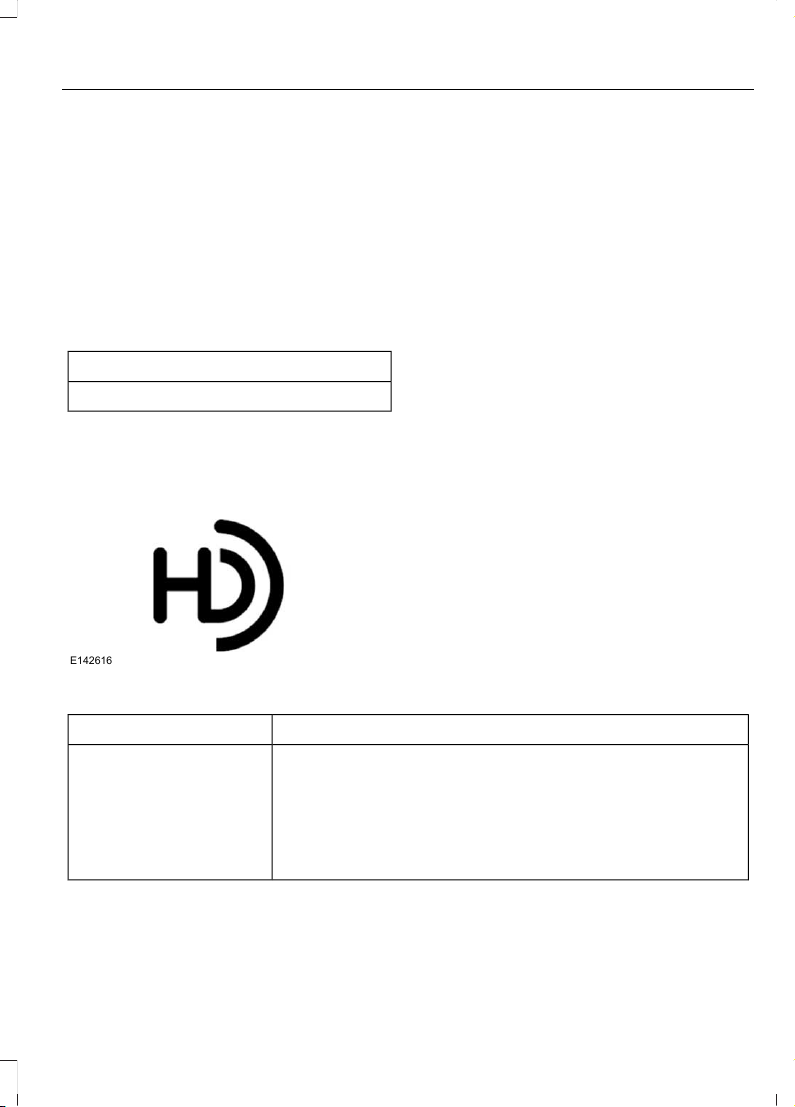
HD Radio technology is the digital
evolution of analog AM/FM radio. Your
system has a special receiver that allows
it to receive digital broadcasts (where
available) in addition to the analog
broadcasts, it already receives. Digital
broadcasts provide a better sound quality
than analog broadcasts with free,
crystal-clear audio and no static or
distortion. For more information, and a
guide to available stations and
programming, please visit:
Website
www.hdradio.com
When HD Radio is on and you tune to a
station broadcasting HD Radio technology,
you may notice the following indicators on
your screen:
E142616
The HD logo is grey when acquiring a digital
station, and then changes to orange when
digital audio is playing. When this logo is
available, you may also see Title and Artist
fields on-screen.
The multicast indicator appears in FM
mode (only) if the current station is
broadcasting multiple digital broadcasts.
The highlighted numbers signify available
digital channels where new or different
content is available. HD1 signifies the main
programming status and is available in
analog and digital broadcasts. Other
multicast stations (HD2 through HD7) are
only available digitally.
Note: There is also an additional feature
for stations that have more than 1 HD
multicast (For example, HD1 or HD2). The
HD logo and Radio text appears as a button.
Pressing this button allows you cycle
through all of the HD stations on that
specific frequency. For example, if you are
on 101.1 and it has HD1, HD2, HD3, pressing
the button repeatedly causes the radio to
cycle through the HD stations in a cyclic
increasing order.
When HD Radio broadcasts are active, you can access the following functions:
Action and descriptionMessage
Allows you to save an active channel as a memory preset.
Touch and hold a memory preset slot until the sound returns.
There is a brief mute while the radio saves the station. Sound
returns when the channel saves. When switching to an HD2
or HD3 memory preset, the sound mutes before the digital
audio plays, because the system has to reacquire the digital
signal.
Presets
Note: As with any station you save, you cannot access the saved station if your vehicle is
outside the station’s reception area.
431
Edge (CDQ) Canada/United States of America, enUSA, Edition date: 201706, First Printing
SYNC™ 3

HD Radio Reception and Station Troubleshooting
Potential reception issues
If you are listening to a multicast station and you are on the
fringe of the reception area, the station may mute due to
weak signal strength.
Reception area
If you are listening to HD1, the system changes back to the
analog broadcast until the digital broadcast is available again.
However, if you are listening to any of the possible HD2-HD7
multicast channels, the station mutes and stays muted unless
it is able to connect to the digital signal again.
When the system first receives a station (aside from HD2-
HD7 multicast stations), it first plays the station in the analog
version. Once the receiver verifies the station is an HD Radio
station, it shifts to the digital version. Depending on the station
quality, you may hear a slight sound change when the station
changes from analog to digital. Blending is the shift from
analog to digital sound or digital back to analog sound.
Station blending
In order to provide the best possible
experience, use the contact form to report
any station issues found while listening to
a station broadcasting with HD Radio
technology. Independent entities own and
operate each station. These stations are
responsible for ensuring all audio streams
and data fields are accurate.
Potential station issues
ActionCauseIssues
No action required. This is a
broadcast issue.
This is poor time alignment by
the radio broadcaster.
Echo, stutter, skip or
repeat in audio.
Increase or decrease in
audio volume.
No action required. The recep-
tion issue may clear up as you
continue to drive.
The radio is shifting between
analog and digital audio.
Sound fading or
blending in and out.
No action required. This is
normal behavior. Wait until the
audio is available.
The digital multicast is not
available until the HD Radio
broadcast is decoded. Once
decoded, the audio is available.
There is an audio mute
delay when selecting
HD2 or HD3, multicast
preset or Direct Tune.
432
Edge (CDQ) Canada/United States of America, enUSA, Edition date: 201706, First Printing
SYNC™ 3
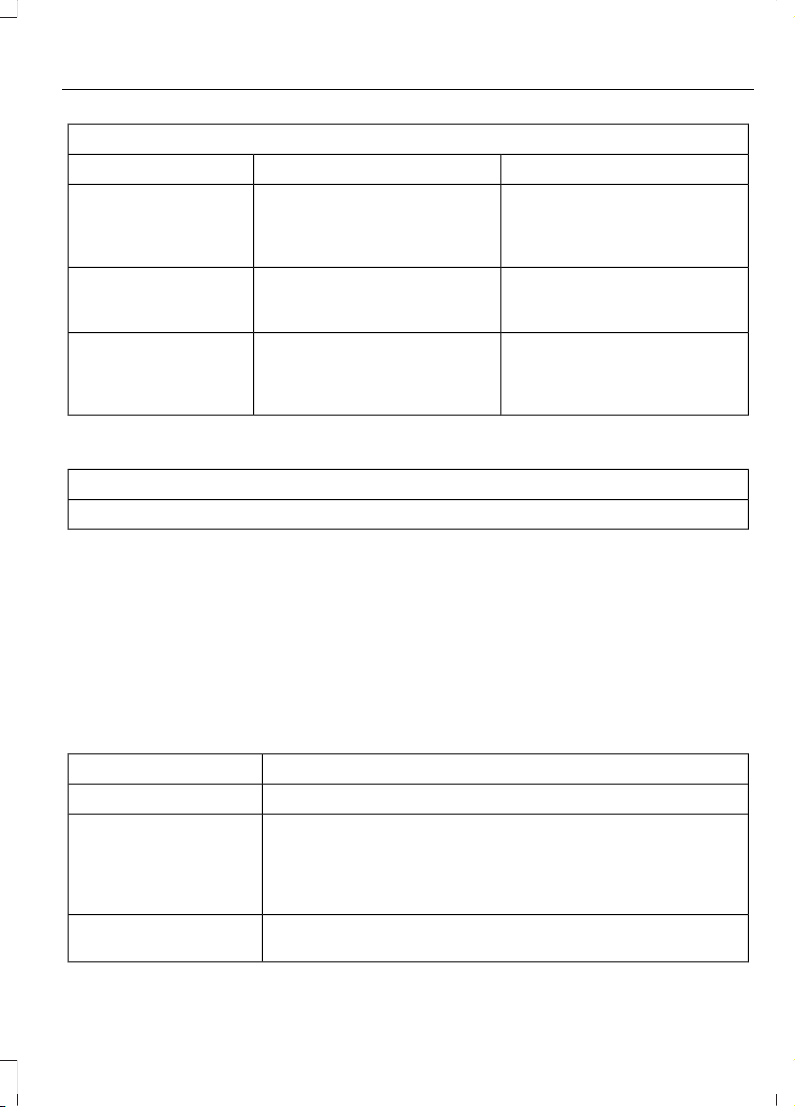
Potential station issues
ActionCauseIssues
No action required. The station
is not available in your current
location.
The previously stored multicast
preset or direct tune is not
available in your current recep-
tion area.
Cannot access HD2 or
HD3 multicast channel
when recalling a preset
or from a direct tune.
Fill out the station issue form.
1
Data service issue by the radio
broadcaster.
Text information does
not match currently
playing audio.
Fill out the station issue form.
1
Data service issue by the radio
broadcaster.
There is no text
information shown for
currently selected
frequency.
1
You can find the form here:
Website
http://hdradio.com/stations/feedback
HD Radio Technology manufactured under
license from DTS Inc. and foreign patents.
HD Radio and the HD and HD Radio logos
are proprietary trademarks of DTS Inc. Ford
Motor Company and DTS Inc. are not
responsible for the content sent using HD
Radio technology. Content may be
changed, added or deleted at any time at
the station owner's discretion.
CD (If equipped)
Once you select this option, the system
returns you to the main audio screen.
The current audio information appears on
the screen.
The following buttons are also available:
FunctionButton
You can use the browse button to select a track.Browse
Select this button and a small number one displays to indicate
the track is set to repeat.
Repeat
For MP3 CDs, this button allows you to toggle through repeat
off, repeat one track (a small number one displays), and repeat
current folder (a small folder displays).
Select the shuffle symbol to have the audio on the disk play
in random order.
Shuffle
433
Edge (CDQ) Canada/United States of America, enUSA, Edition date: 201706, First Printing
SYNC™ 3
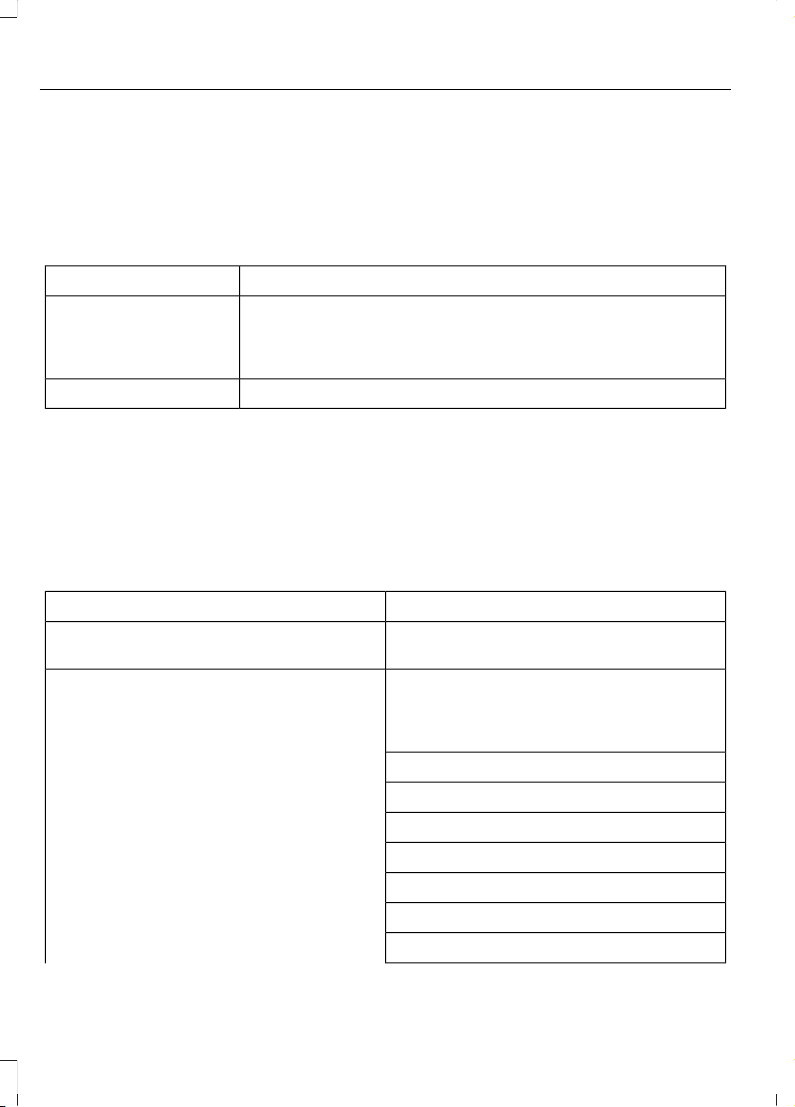
You can use the forward, reverse, pause or
play buttons to control the audio playback.
Bluetooth Stereo or USB
Bluetooth Stereo and USB allow you to
access media that you store on your
Bluetooth device or USB device such as
music, audio books or podcasts.
The following buttons are available for Bluetooth and USB:
FunctionButton
Pressing the repeat button toggles the repeat setting through
three modes: repeat off (button not highlighted), repeat all
(button highlighted) and repeat track (button highlighted with
a small number one).
Repeat
Play the tracks in random order.Shuffle
You can use the forward, reverse, pause or
play buttons to control the audio playback.
To get more information about the
currently playing track, press the cover art
or Info button.
For some devices, SYNC 3 is able to
provide 30-second skip buttons when you
listen to audio books or podcasts. These
buttons allow you to skip forward or
backward within a track.
While playing audio from a USB device you
can look for certain music by selecting the
following:
FunctionButton
If available, displays the list of tracks in the
Now Playing playlist.
Browse
This option, which is available under
browse, allows you to play all tracks or to
filter the available media into one of the
below categories.
New Search
Play All
Playlists
Artists
Albums
Songs
Genres
Podcasts
434
Edge (CDQ) Canada/United States of America, enUSA, Edition date: 201706, First Printing
SYNC™ 3
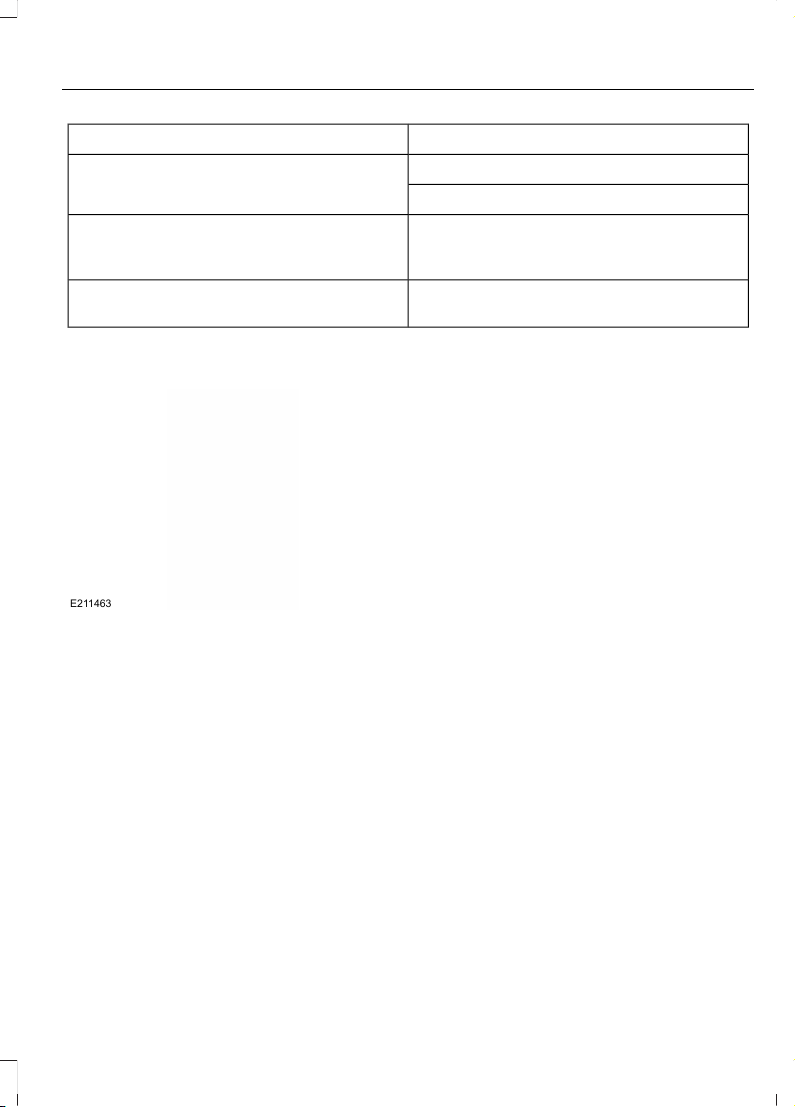
FunctionButton
Audio books
Composers
This button allows you to choose a specific
letter to view within the category you are
browsing.
A-Z Jump
If available, this allows you to browse the
folders and files on your USB device.
Explore Device
USB Ports
E211463
The USB ports are in the center console or
behind a small access door in the
instrument panel.
This feature allows you to plug in USB
media devices, memory sticks, flash drives
or thumb drives, and charge devices if they
support this feature.
Select this option to play audio from your
USB device.
Apps
The system supports the use of certain
audio apps such as iHeartRadio through a
USB or bluetooth-enabled device.
Each app gives you different on-screen
options depending on the app's content.
See Apps (page 452).
Supported Media Players, Formats
and Metadata Information
The system is capable of hosting nearly
any digital media player, including iPod,
iPhone, and most USB drives.
Supported audio formats include MP3,
WMA, WAV, AAC, and FLAC.
Supported audio file extensions include
MP3, WMA, WAV, M4A, M4B, AAC, and
FLAC.
Supported USB file systems include: FAT,
exFAT, and NTFS.
SYNC 3 is also able to organize the media
from your USB device by metadata tags.
Metadata tags, which are descriptive
software identifiers embedded in the
media files, provide information about the
file.
If your indexed media files contain no
information embedded in these metadata
tags, SYNC 3 may classify the empty
metadata tags as unknown.
SYNC 3 is capable of indexing up to
50,000 songs per USB device, for up to 10
devices.
435
Edge (CDQ) Canada/United States of America, enUSA, Edition date: 201706, First Printing
SYNC™ 3
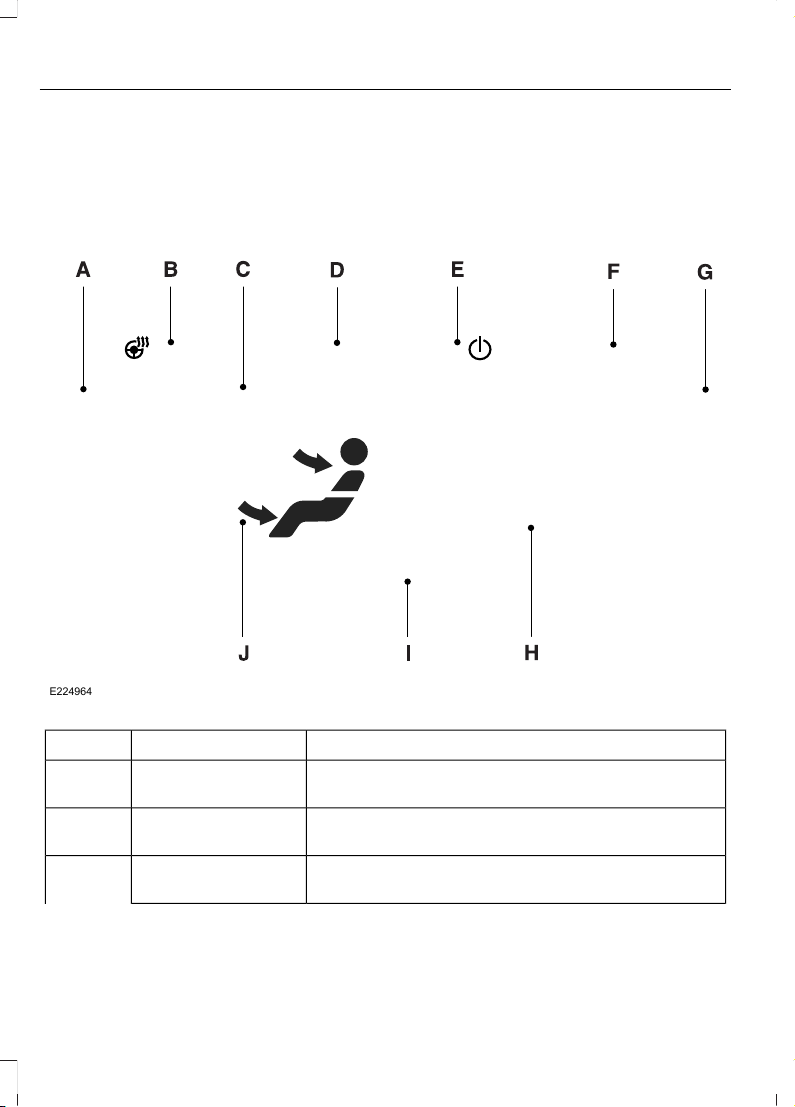
CLIMATE
Touch the climate button on the
touchscreen to access your climate control
features. Depending on your vehicle line
and option package, your climate screen
may look different from one of the screens
shown below. Your screen may not contain
all of the features shown.
Note: You can switch temperature units
between Fahrenheit and Celsius. See
Settings (page 455).
E224964
DescriptionItemCallout
Touch up or down to adjust the temperature.Left-hand front seat
temperature:
A
Touch the heated steering wheel icon to switch the
heated steering wheel on and off (if equipped).
Heated steering
wheel:
B
A pop up appears on the screen to display the defrost
options.
DefrostC
436
Edge (CDQ) Canada/United States of America, enUSA, Edition date: 201706, First Printing
SYNC™ 3

DescriptionItemCallout
Touch the button to maximize
defrosting. Outside air flows
through the windshield vents,
the fan automatically adjusts to
the highest speed and the
temperature dial returns to the
MAX Defrost:
full heat position. You can use
this setting to defog or clear a
thin covering of ice from the
windshield. The heated rear
window also automatically turns
on when you select MAX Defrost.
Touch to clear the windshield of
fog and thin ice. Touch again to
return to the previous airflow
selection. When on, defrost
provides outside air to reduce
window fogging and distributes
air through the windshield
defroster vents and demister
vents.
Defrost
Note: To prevent window
fogging, you cannot select recir-
culated air when Defrost is on.
Touch the button to switch on automatic operation.
Select the desired temperature using the temperature
control. The system adjusts fan speed, air distribution,
air conditioning operation, and selects outside air or
recirculated air to heat or cool the vehicle in order to
maintain the desired temperature.
AUTOD
Touch the button to switch the system on and off.
Switching off the climate control system prevents
outside air from entering the vehicle.
PowerE
This button lights up when the passenger controls are
active. To switch the dual zone operation off and link
the passenger temperature to the driver temperature,
touch the DUAL button to switch it off.
DUALF
Touch up or down to adjust the temperature.Right-hand front seat
temperature
G
Touch up or down to increase or decrease the volume
of air circulated in your vehicle.
Fan speed:H
437
Edge (CDQ) Canada/United States of America, enUSA, Edition date: 201706, First Printing
SYNC™ 3

DescriptionItemCallout
A popup appears on the screen to display the air
conditioning options.
A/CI
Touch to cool your vehicle with
recirculated air. Touch again for
normal A/C operation. MAX A/C
distributes air through instru-
ment panel vents and may help
reduce odors from entering your
vehicle. MAX A/C is more
economical and efficient than
normal A/C mode.
MAX A/C
Touch to switch the air condi-
tioning on or off. Use A/C with
recirculated air to improve
cooling performance and effi-
ciency. A/C engages automatic-
ally in MAX A/C, defrost and
footwell/defrost
A/C
Touch to switch the recirculated
air on or off which may reduce
the amount of time needed to
cool down the interior and help
reduce odors from reaching the
interior. Recirculated air also
Recirculated air:
engages automatically when
you select MAX A/C. You can
engage this manually in any
airflow mode except defrost. It
may also turn off in all airflow
modes except MAX A/C to
reduce fog potential.
Select these controls individually, together or with
Defrost to direct the air flow to the area you desire.
Manual airflow distri-
bution controls:
J
Distributes air through the instrument panel vents.Panel:
Distributes air through the demister vents, floor vents
and rear seat floor vents.
Floor:
438
Edge (CDQ) Canada/United States of America, enUSA, Edition date: 201706, First Printing
SYNC™ 3
PHONE
WARNING
Driving while distracted can result in
loss of vehicle control, crash and
injury. We strongly recommend that
you use extreme caution when using any
device that may take your focus off the
road. Your primary responsibility is the safe
operation of your vehicle. We recommend
against the use of any hand-held device
while driving and encourage the use of
voice-operated systems when possible.
Make sure you are aware of all applicable
local laws that may affect the use of
electronic devices while driving.
Hands-free calling is one of the main
features of the system. Once you pair your
cell phone, you can access many options
using the touchscreen or voice commands.
While the system supports a variety of
features, many are dependent on your cell
phone’s functionality.
Pairing Your Cell Phone for the
First Time
Pair your Bluetooth-enabled phone with
the system before using the functions in
hands-free mode.
Switch on Bluetooth on your device to
begin pairing. See your phone’s manual if
necessary.
To add a phone, select:
Menu Item
Add Phone
1. Follow the on-screen instructions.
2. A prompt alerts you to search for the
system on your phone.
3. Select your vehicle's make and model
as it displays on your phone.
4. Confirm that the six-digit number
appearing on your phone matches the
six-digit number on the touchscreen.
5. The touchscreen indicates when the
pairing is successful.
6. Your phone may prompt you to give
the system permission to access
information. To check your phone’s
compatibility, see your phone’s manual
or visit the website.
Alternatively, to add a phone, select:
Menu Item
Add Phone
Then select:
Discover Other Bluetooth Devices
1. Follow the on-screen instructions.
2. Select your phone's name when it
appears on the touchscreen.
3. Confirm that the six-digit number
appearing on your phone matches the
six-digit number on the touchscreen.
4. The touchscreen indicates when the
pairing is successful.
5. Your phone may prompt you to give
the system permission to access
information. To check your phone’s
compatibility, see your phone’s manual
or visit the website.
At a minimum, most cell phones with
Bluetooth wireless technology support the
following functions:
• Answering an incoming call.
• Ending a call.
• Dialing a number.
• Call waiting notification.
• Caller identification.
439
Edge (CDQ) Canada/United States of America, enUSA, Edition date: 201706, First Printing
SYNC™ 3
Other features, such as text messaging
using Bluetooth and automatic phonebook
download, are phone-dependent features.
To check your phone’s compatibility,
see your phone’s manual or visit the
website:
Websites
owner.ford.com
Websites
www.syncmyride.ca
www.syncmaroute.ca
Phone Menu
This menu becomes available after pairing
a phone.
E251249
G
Action and DescriptionMenu ItemItem
Displays your recent calls.Recent
Call List
A
You can place a call by selecting an entry from this list.
440
Edge (CDQ) Canada/United States of America, enUSA, Edition date: 201706, First Printing
SYNC™ 3

Action and DescriptionMenu ItemItem
You can also sort the calls by selecting the drop down
menu at the top of the screen. You can choose:
MissedOutgoingIncomingAll
All of your contacts from your phone display in alphabet-
ical order.
ContactsB
Selecting this button allows
you to choose a specific letter
to view.
A-Z Jump
Displays the name of your phone and takes you to the
phone settings options.
Phone
Settings
C
From this menu, you can pair subsequent devices, set ring
tones and alerts.
Gives you access to the list of paired or connected
Bluetooth devices allowing you to change or select a
device.
Change
Device
D
Displays all recent text messages.Text
Messages
E
Use this keypad to dial in a phone number.Phone
Keypad
F
Use the backspace button to delete numbers.
Press this button to begin a
call.
Call
Touch this button to reject all incoming calls automatic-
ally. Text message notifications do not display on the
screen. All ringtones and alerts are set to silent.
Do Not
Disturb
G
Users with phones having voice services
may see a button to access the feature.
For example, iPhone users see a Siri button.
A press and hold of the voice button on the
steering wheel also accesses this feature.
Making Calls
There are many ways to make calls from
the SYNC 3 system, including using voice
commands. See Using Voice
Recognition (page 419). You can use the
touchscreen to place calls as well.
441
Edge (CDQ) Canada/United States of America, enUSA, Edition date: 201706, First Printing
SYNC™ 3
To call a number in your contacts,
select:
Action and DescriptionMenu Item
You can then select the
name of the contact you
want to call. Any numbers
stored for that contact
display along with any
stored contact photos. You
can then select the
number that you want to
call. The system begins the
call.
Contacts
To call a number from your recent calls,
select:
Action and DescriptionMenu Item
You can then select an
entry that you want to call.
The system begins the call.
Recent Call
List
To call a number that is not stored in
your phone, select:
Action and DescriptionMenu Item
Select the digits of the
number you wish to call.
Phone
Keypad
The system begins the call.Call
Pressing the backspace button deletes the
last digit you typed.
Receiving Calls
During an incoming call, an audible tone
sounds. Caller information appears in the
display if it is available.
To accept the call, select:
Menu Item
Accept
Note: You can also accept the call by
pressing the phone button on the steering
wheel.
To reject the call, select:
Menu Item
Reject
Note: You can also reject the call by
pressing the phone button on the steering
wheel.
Ignore the call by doing nothing. SYNC 3
logs it as a missed call.
During a Phone Call
During a phone call, the contacts name
and number display on the screen along
with the call duration.
The phone status items are also visible:
• Signal Strength.
• Battery.
• 911 Assist (United States and Canada
only). See Settings (page 455).
You can select any of the following during
an active phone call:
442
Edge (CDQ) Canada/United States of America, enUSA, Edition date: 201706, First Printing
SYNC™ 3

Item
Immediately end a
phone call. You can
also press the
button on the
steering wheel.
End Call
Press this to access
the phone keypad.
Keypad
You can switch the
microphone off so
the caller does not
hear you.
Mute
Item
Privacy Transfer the call to
the cell phone or
back to SYNC 3.
Text Messaging
Note: Downloading and sending text
messages using Bluetooth are cell
phone-dependent features.
Note: Certain features in text messaging
are speed-dependent and not available
when your vehicle is traveling at speeds over
3 mph (5 km/h).
Receiving a Text Message
When a new message arrives, an audible tone sounds and the screen displays a
pop-up with the caller name and ID, if supported by your cell phone. You can select:
Action and DescriptionMenu Item
Have SYNC 3 read the message to you.Hear It
View the text on the touchscreen.View
To call the sender.Call
You can select from 15 preset messages. Press the message
that you would like to use and confirm to send the message.
SYNC 3 confirms when the message is sent successfully.
Reply
To exit the screen.Close
Smartphone Connectivity (If Equipped)
SYNC 3 allows you to use Apple CarPlay
and Android Auto to access your phone.
When you use Apple CarPlay or Android
Auto, you can:
• Make calls.
• Send and receive messages.
• Listen to music.
• Use your phone's voice assistant.
Apple CarPlay and Android Auto disable
some SYNC 3 features.
Most Apple CarPlay and Android Auto
features use mobile data.
Apple CarPlay
Apple CarPlay requires an iPhone 5 or
newer with iOS 7.1 or newer. Updating to
the latest iOS version is recommended.
1. Plug your phone into a USB port. See
USB Port (page 366).
443
Edge (CDQ) Canada/United States of America, enUSA, Edition date: 201706, First Printing
SYNC™ 3
2. Follow the prompts on the
touchscreen.
3. Follow the prompts that appear on
your phone to allow access to Apple
CarPlay.
After completing the setup, your phone
connects to CarPlay automatically when
plugged into a USB port.
To disable this feature from the
Settings screen, select:
Menu Item
Apple CarPlay Preferences
Your device is listed if SYNC detects
Apple CarPlay. Select the name of your
device and select:
Disable
To return to SYNC 3, go to the Apple
CarPlay home screen and select the SYNC
app.
Note: Contact Apple for Apple CarPlay
support.
Android Auto
Android Auto is compatible with most
devices with Android 5.0 or newer.
1. Download the Android Auto app to
your device from Google Play to
prepare your device (this may require
mobile data usage).
Note: The Android Auto App may not be
available within your current market.
2. Plug your device into a USB port. See
USB Port (page 366).
3. To switch this feature on from the
Settings screen, scroll left on the
screen and select:
Menu Item
Android Auto Preferences
Enable Android Auto
Note: Android Auto must be switched on
after plugging in your device.
To disable this feature from the
Settings screen, select:
Menu Item
Android Auto Preferences
Your device is listed if SYNC detects
Android Auto. Select the name of your
device and select:
Disable
Note: You may need to slide your Settings
screen to the left to select Apple CarPlay
Preferences or Android Auto Preferences.
To return to SYNC 3, select the
speedometer icon in the Android Auto
menu bar at the bottom of the
touchscreen, and then touch the option to
return to SYNC.
Note: Contact Google for Android Auto
support.
NAVIGATION
Your navigation system is comprised of
two main features, destination mode and
map mode.
444
Edge (CDQ) Canada/United States of America, enUSA, Edition date: 201706, First Printing
SYNC™ 3
Map Mode
Map mode shows advanced viewing
comprised of 2D city maps, 3D landmarks
and 3D city models (when available). 2D
city maps show detailed outlines of
buildings, visible land use, landscape
features, and detailed railroad
infrastructure for the most essential cities
around the globe.
3D landmarks appear as clear, visible
objects that are typically recognizable and
have a certain tourism value.
3D city models are complete 3D models
of entire city areas including navigable
roads, parks, rivers and rendered buildings.
3D landmarks and city models appear in
3D map mode only. Coverage of these
varies and improves with updated map
releases.
E207752
Select the zoom in icon to see a
closer view of the map.
E207753
Select the zoom out icon to see
a farther away view of the map.
You can adjust the view in preset
increments. You can also pinch to zoom in
or out of the map.
The information bar tells you the names
of streets, cities or landmarks as you hover
over them with the crosshair curser.
You can change your view of the map by
tapping on the location indicator icon on
the right hand side of the screen. You can
choose from the following options:
E207750
Heading up (2D map) This
always shows the direction of
forward travel to be upward on
the screen. This view is available
for map scales up to 3 mi (5 km).
E207749
North up (2D map) always
shows the northern direction to
be upward on the screen.
E207748
3D map mode provides an
elevated perspective of the map.
Adjust this viewing angle and
rotate the map 180 degrees by
touching the map twice, and
then dragging your finger along the shaded
bar with arrows at the bottom of the map.
E207751
Re-center the map by pressing
this icon whenever you scroll the
map away from your vehicle’s
current location.
E251780
E251779
Mute: Press to mute the audio
navigation guidance. Press the
button again to un-mute the
guidance.
E207754
Points of Interest (POI)
grouping icon: You can choose
up to three POI icons to display
on the map. If the chosen POIs
are located close together or are
at the same location a box is used to
display a single category icon instead of
repeating the same icon, in order to reduce
clutter. When you select the box on the
map, a pop-up appears indicating how
many POIs are in this location. Select the
pop up to see a list of the available POIs.
You can scroll through and select POIs
from this list.
If your vehicle is low on charge or fuel,
station icons automatically display on the
map.
445
Edge (CDQ) Canada/United States of America, enUSA, Edition date: 201706, First Printing
SYNC™ 3
If you have subscribed to SiriusXM Traffic
and Travel Link (where available), traffic
flow will be indicated on the map by green
(clear), yellow (slowing), and red
(stopped) road highlights. Traffic flow is
indicated where the information is
available and varies across the US.
You can choose to display traffic icons on
the map representing twelve different
types of incidents. See Settings (page
455).
You can set a destination by hovering
above a location and selecting:
Button
Start
Destination Mode
To set a destination, press:
DescriptionMenu Item
Destination
Enter a navigation destination in any of the following formats:
Street AddressSearch
(number, street, city, state)
For example "12 Mainstreet Dearborn MI"
Partial Address
(number, street) if searching in current state
(number, street and zip code (or postal code in Canada)) if searching
out of state
You can enter unique addresses that contain door number prefixes
with or without the prefix. For example, you could enter "6N340
Fairway Lane" or "340 Fairway Lane".
City
(name or zip code)
Point of Interest
(name or category)
Intersection
(street 1 / street 2)
(street 1 and street 2)
(street 1 & street 2)
(street 1 @ street 2)
(street 1 at street 2)
446
Edge (CDQ) Canada/United States of America, enUSA, Edition date: 201706, First Printing
SYNC™ 3

DescriptionMenu Item
Latitude and Longitude
(##.###### , ##.######)
This is in a decimal degrees format, one to six decimal places are
accepted.
You are given autocomplete options below the address bar to select
as you type.
If you do not give an exact destination, a menu displays with your
possible selections.
Collections of your last 40 navigation destinations display here.Previous Destina-
tions You can select any option from the list to select it as your destination.
Select this option to remove all previous destinations.Delete
All
Select to navigate to your set Home destination.Home
The time it takes to travel from your current location to Home displays.
To set your Home, press:
A prompt appears asking if you would like to create a
favorite for home. Select:
Home
Enter a location into the search bar and press:Yes
Save
Select to navigate to your set Work destination.Work
The time it takes to travel from your current location to Work displays.
To set your Work:
A prompt appears asking if you would like to create a
favorite for work. Select:
Work
Enter a location into the search bar and press:Yes
Save
Favorites include any location you have previously saved.Favorites
To add Favorites:
Select this button and enter a location into the destination
bar.
Add a
Favorite
Select this option to have the system locate the address
you have entered.
Search
Select this button when the address you have entered
appears on the screen.
Save
447
Edge (CDQ) Canada/United States of America, enUSA, Edition date: 201706, First Printing
SYNC™ 3
DescriptionMenu Item
The address saves as a favorite and you see the favorites screen. You
can now select this address from the favorites screen.
POI categories that may display (based on market and vehicle
configuration):
Point of Interest
(POI) Categories
Food
Fuel
Hotel
ATM
Press to view additional categories. Once you have selected
a category, follow the menus to find what you are looking
for.
See All
Inside of these categories you can search by:
Nearby
Along Route
Near Destination
In a City
Once you have chosen your destination, press:
Action and DescriptionMenu Item
This saves the destination to your favorites.Save
This shows you a map of your entire route. You can then choose your
route from three different options.
Start
Uses the fastest moving roads
possible.
Fastest
Uses the shortest distance possible.Shortest
Uses the most fuel-efficient route.Economical Route
The time and distance for each route also displays.
On the route screen, you can choose to cancel the current navigation.
The system asks for confirmation then returns you to the map mode
screen.
Cancel
448
Edge (CDQ) Canada/United States of America, enUSA, Edition date: 201706, First Printing
SYNC™ 3

Once you have chosen you destination, press:
Action and DescriptionMenu Item
The system uses a variety of screens and prompts to guide you to your
destination.
Start
During Route guidance, you can press the maneuver arrow icon on the
map if you want the system to repeat route guidance instructions.
When the system repeats the last guidance instruction, it updates the
distance to the next guidance instruction, since it detects that the
vehicle is moving.
The navigation map shows your estimated time of arrival, remaining
travel time and the distance to your destination.
SYNC 3 may not always announce vehicle arrival at the exact point
of your destination and you may have to cancel a route manually.
Navigation Menu
In map mode and during active navigation
you can access the navigation menu.
During active navigation, touch the bottom
of the screen to view the menu and other
buttons.
To access the Navigation menu, press:
Button
Menu
You can then select:
A full screen map displays during navigation.Full MapScreen View
Highway exit information displays on the right hand side
of the screen during navigation.
Highway
Exit Info
Points of interest icons display for restaurants, hotels,
fuel stations and ATMs when they are present at the
exit. You can select the POI icons to receive a listing of
specific locations. You can select the POI location as a
waypoint or destination if desired.
Only available during an active route. Displays all of the
turns on the current route.
Turn List
You can choose to avoid any road on the turn list by
selecting the road from the list. A screen then appears
and you can press:
Avoid
The system calculates a new route and displays a new
turn list.
449
Edge (CDQ) Canada/United States of America, enUSA, Edition date: 201706, First Printing
SYNC™ 3
Button
You can find the SiriusXM Traffic and Travel Link information by
pressing this button. This information requires an active subscription
to SiriusXM Traffic and Travel Link.
Traffic List
When a route is not active, a list of nearby traffic incidents displays
(if any are present).
When a route is active, you can choose to display a list of traffic nearby
or on the route.
Press this button to adjust your preferences. See Settings (page 455).Navigation
Settings
Provides your current location city and the nearest road.Where Am I?
The following are only available on the menu during an active navigation route:
The system asks for confirmation and then returns you to the map
mode screen.
Cancel Route
Press this to see a map of the full route.View Route
An alternate route displays in comparison with the current route.Detour
Only available if you have an active waypoint on your route. See
Waypoints later in this section for information on how to set
waypoints.
Edit Waypoints
Use this button to re-order or remove your waypoints.
Optimize OrderYou can
also have
the system
set the
order for
you by
pressing:
GoTo return to
your route
press:
Waypoints
You can add a waypoint to a navigation
route as a destination along your route.
To add a waypoint:
1. Select the search icon (magnifying
glass) while on an active route. This
brings up the destination menu.
2. Set your destination using any of the
given methods. Once the destination
has been selected, the screen allows
you to set the destination as a
waypoint by selecting:
450
Edge (CDQ) Canada/United States of America, enUSA, Edition date: 201706, First Printing
SYNC™ 3
Menu Item
The waypoint list then appears and you are
able to re-order all of your waypoints by
selecting the menu icon on the right hand
side of the location. You can select up to
five waypoints.
Add Waypoint
Optimize OrderYou can also have the system set the order
for you by pressing:
GoTo return to your route, press:
SYNC AppLink
The AppLink app allows you to use some
SYNC 3 navigation features on your phone.
First Mile Navigation
When you switch your ignition off, the
location of your vehicle is recorded and
sent to your SYNC AppLink app. The
location of your vehicle can be viewed
within the app. You can also view walking
directions to your vehicle.
Last Mile Navigation
When you park near your destination, the
system provides walking directions to your
destination.
POI Search
Your paired phone can be used to access
additional points of interest (POI). These
points of interest can only be access when
your phone is paired.
Send To Car
You can send destinations to your
navigation system using a computer or
phone using AppLink.
cityseeker (If Equipped)
Note: cityseeker point of interest (POI)
information is limited to approximately 1,110
cities (1,049 in the United States, 36 in
Canada and 15 in Mexico).
E225487
cityseeker, when available, is a service that
provides more information about certain
points of interest such as restaurants,
hotels and attractions.
When you have selected a point of interest,
the location and information appear, such
as address, phone number and a star
rating.
Press More Information to see a photo,
a review, a list of services and facilities, the
average room or meal price and the web
address. This screen displays the point of
interest icons.
451
Edge (CDQ) Canada/United States of America, enUSA, Edition date: 201706, First Printing
SYNC™ 3
For restaurants, cityseeker can provide
information such as star rating, average
cost, review, handicap access, hours of
operation, and website address.
For hotels, cityseeker can provide
information such as star rating, price
category, review, check-in and checkout
times, hotel service icons and website
address. Hotel service icons include:
• Restaurant
• Business center
• Handicap facilities
• Laundry
• Refrigerator
• 24 hour room service
• Fitness center
• Internet access
• Pool
• Wi-Fi
Attractions include nearby landmarks,
amusement parks, historic buildings and
more. cityseeker can provide information
such as star rating, reviews, hour of
operation and admission price.
SiriusXM Traffic and Travel Link
SiriusXM Traffic and Travel Link is available
on vehicles equipped with navigation and
only in select markets. You must activate
and subscribe to receive SiriusXM Traffic
and Travel Link information. It helps you
locate the best gas prices, find movie
listings, get current traffic alerts, view the
weather map, get accurate ski conditions
and see current sports scores. See Apps
(page 452).
The system calculates a reasonable
efficient route based on available speed
limits, traffic, and road conditions. You may
know a local short cut that is more efficient
at a given time than the route provided by
SYNC 3, but you should expect a slight
difference in minutes or miles with the
SYNC 3 route.
Navigation Map Updates
Annual navigation map updates are
available for purchase through your
dealership, by calling 1-866-462-8837 in
the United States and Canada or
01-800-557-5539 in Mexico. You can also
visit:
Website
www.navigation.com/sync
You need to specify the make and model
of your vehicle to determine if there is an
update available.
HERE is the digital map provider for the
navigation application. If you find map data
errors, you may report them directly to
HERE by going to
www.here.com/mapcreator. HERE
evaluates all reported map errors and
responds with the result of their
investigation by e-mail.
Map coverage includes the USA (including
Puerto Rico and the US Virgin Islands),
Canada and Mexico.
APPS
The system enables voice, steering wheel,
and touch screen control of SYNC 3
AppLink enabled smartphone apps.
When an app is running through AppLink,
you can control main features of the app
through voice commands and steering
wheel controls.
452
Edge (CDQ) Canada/United States of America, enUSA, Edition date: 201706, First Printing
SYNC™ 3
Note: Available AppLink enabled apps will
vary by market.
Note: You must pair and connect your
smartphone via Bluetooth to SYNC 3 to
access AppLink.
Note: iPhone users need to connect the
phone to the USB port.
Note: For information on available apps,
supported smartphone devices and
troubleshooting tips please visit:
Websites
owner.ford.com
www.syncmyride.ca
www.syncmaroute.ca
Note: Make sure you have an active account
for the app that you have downloaded.
Some apps will work automatically with no
setup. Other apps will want you to configure
your personal settings and personalize your
experience by creating stations or
favorites.We recommend you do this at
home or outside of your vehicle.
Note: We encourage you to review the
smartphone app’s terms of service and
privacy policies because Ford is not
responsible for your app or its use of data.
Note: AppLink is a native SYNC system
feature. Accessing mobile apps through
AppLink is only possible when Android Auto
or Apple CarPlay are disabled. Some apps
may only be accessible in the car through
AppLink and others only through Android
Auto or Apple CarPlay. Please refer to the
Smartphone Connectivity information to
disable Android Auto or Apple CarPlay.
Note: In order to use an app with SYNC 3,
the app needs to be running in the
background of your phone. If you shut down
the app on your phone, it shuts down the
app on SYNC 3 as well.
Note: If a SYNC 3 AppLink compatible app
is not shown in the Apps Domain, make sure
the required app is running on the mobile
device.
Action and Descrip-
tion
Menu Item
SYNC 3 will search
and connect to
compatible app(s)
running on your
mobile device.
Find Mobile Apps
Enabling SYNC 3 Mobile Apps
In order to enable mobile apps, SYNC 3
requires user consent to send and receive
app authorization information and updates
using the data plan associated with the
connected device.
The connected device sends data to Ford
in the United States. The information is
encrypted and includes your VIN, SYNC 3
module number, odometer, usage
statistics and debugging information. We
retain this data for only as long as
necessary to provide this service,
troubleshoot, and improve products and
services and to offer you products and
services that may interest you where
allowed by law.
Note: You must enable mobile apps for
each connected device the first time you
select a mobile app using the system.
Note: Ford reserves the right to limit
functionality or deactivate mobile apps at
any time.
Note: Standard data rates apply. Ford is
not responsible for any additional charges
you may receive from your service provider,
when your vehicle sends or receives data
through the connected device. This includes
any additional charges incurred due to
driving in areas when roaming out of a home
network.
453
Edge (CDQ) Canada/United States of America, enUSA, Edition date: 201706, First Printing
SYNC™ 3

You can enable and disable apps through
settings. See Settings (page 455).
App Permissions
The system organizes the aFpp
permissions into groups. You can grant
these group permissions individually. You
can change a permission group status any
time when not driving, by using the settings
menu. While in the settings menu, you can
also see the data included in each group.
When you launch an app using SYNC 3,
the system may ask you to grant certain
permissions, for example Vehicle
information, Driving characteristics, GPS
and Speed, and/or Push notifications. You
can enable all groups or none of them
during the initial app permissions prompts.
The settings menu offers individual group
permission control.
Note: You are only prompted to grant
permissions the first time you use an app
with SYNC 3.
Note: If you disable group permissions,
apps will still be enabled to work with SYNC
3 unless you deactivate All Apps in the
settings menu.
SiriusXM Traffic and Travel Link (If
Equipped)
WARNING
Driving while distracted can result in
loss of vehicle control, crash and
injury. We strongly recommend that
you use extreme caution when using any
device that may take your focus off the
road. Your primary responsibility is the safe
operation of your vehicle. We recommend
against the use of any hand-held device
while driving and encourage the use of
voice-operated systems when possible.
Make sure you are aware of all applicable
local laws that may affect the use of
electronic devices while driving.
Note: SiriusXM Traffic and Travel Link may
not be available in all markets.
Note: In order to use SiriusXM Traffic and
Travel Link, your vehicle must have
navigation.
Note: A paid subscription is required to
access and use these features. Go to
www.siriusxm.com/travellink for more
information.
Note: Visit www.siriusxm.com/traffic and
click on Coverage map and details for a
complete listing of all traffic areas covered
by SiriusXM Traffic and Travel Link.
Note: Neither Sirius nor Ford is responsible
for any errors or inaccuracies in the SiriusXM
Traffic and Travel Link services or its use in
vehicles.
When you subscribe to SiriusXM Traffic
and Travel Link, it can help you locate the
best gas prices, find movie listings, get
current traffic alerts, view the current
weather map, get accurate ski conditions
and see scores to current sports games.
454
Edge (CDQ) Canada/United States of America, enUSA, Edition date: 201706, First Printing
SYNC™ 3

Action and DescriptionMenu Item
Touch these buttons to identify traffic incidents on your route,
near your vehicle’s current location or near any of your favorite
places, if programmed.
Traffic on Route
Traffic Nearby
Touch this button to view fuel prices at stations close to your
vehicle’s location or on an active navigation route.
Fuel Prices
Touch this button to view nearby movie theaters and their
show times, if available.
Movie Listings
Touch this button to view the nearby weather, current weather,
or the five-day forecast for the chosen area.
Weather
Select to see the weather map,
which can show storms, radar
information, charts and winds.
Map
Select to choose from a listing of
weather locations.
Area
Touch this button to view scores and schedules from a variety
of sports. You can also save up to 10 favorite teams for easier
access. The score automatically refreshes when a game is in
progress.
Sports Info
Touch this button to view ski conditions for a specific area.Ski Conditions
SETTINGS
Under this menu, you can access and
adjust the settings for many of the system
features. To access additional settings,
swipe the screen left or right.
Sound
Pressing this button allows you to adjust
the following:
Sound Settings
Returns Treble, Midrange, and Bass sound settings to factory levels.Reset All
Adjusts the high frequency level.Treble
Adjusts the middle frequency level.Midrange
Adjusts the low frequency level.Bass
Adjusts the sound ratio from side to side or front to back.Balance / Fade
455
Edge (CDQ) Canada/United States of America, enUSA, Edition date: 201706, First Printing
SYNC™ 3

Sound Settings
Adjusts the amount the audio system volume increases with speed,
or turns the feature off.
Speed
Compensated
Vol.
Optimizes the sound based on the location of the listeners.Occupancy Mode
StereoSound Settings
Surround
Your vehicle might not have all of these features.
Media Player
This button is available when a media
device such as a Bluetooth Stereo or USB
device is the active audio source. Pressing
the button allows you to access the
following options for active devices only.
Action and DescriptionMenu Item
For some USB devices, SYNC 3 can adjust the playback speed of
podcasts. When a podcast is playing, you can choose:
Podcast Speed
FasterNormalSlower
For some USB devices, SYNC 3 can adjust the playback speed of
audiobooks. When an audiobook is playing, you can choose:
Audiobook Speed
FasterNormalSlower
Cover art displays from your device’s music
files. If no cover art for the files exists on the
device, then the Gracenote Database provides
cover art.
Media PlayerCover Art Priority
The Gracenote Database supplied cover art is
used for your music files. This overrides any
cover art from your device.
Gracenote®
Switches on and off Gracenote® to provide metadata information
such as genre, artist, album.
Gracenote®
Management
456
Edge (CDQ) Canada/United States of America, enUSA, Edition date: 201706, First Printing
SYNC™ 3

Action and DescriptionMenu Item
This allows you to view the version level of the Gracenote Database.Gracenote® Data-
base Info
This allows you to view the manufacturer and model number of your
media device.
Device Informa-
tion
Erase the stored in media information in order to re-index.Update Media
Index
Clock
To adjust the time, select the up and down
arrows on either side of the screen. The
arrows on the left adjust the hour and
arrows on the right adjust the minute. You
can then select AM or PM.
You can adjust the following features:
Action and DescriptionMenu Item
Select how time displays.Clock Format
When active, the clock adjusts to time zone changes.Auto Time Zone
Update This feature is only available in vehicles with navigation.
When selected, the vehicle clock resets to GPS satellite time.Reset Clock to
GPS Time
The system automatically saves any
updates you make to the settings.
Bluetooth
Pressing this button allows you to access
the following:
ActionMenu Item
Turning Bluetooth off disconnects all devices and does not permit
new connections.
Bluetooth
You must activate Bluetooth to pair a
Bluetooth-enabled device.
The process of pairing a Bluetooth device
is the same as pairing a phone. See
Pairing a Device in Phone settings for how
to pair a device and the available options.
Phone
Pair your Bluetooth-enabled phone with
the system before using the functions in
hands-free mode.
Switch on Bluetooth on your device to
begin pairing. See your phone’s manual if
necessary.
457
Edge (CDQ) Canada/United States of America, enUSA, Edition date: 201706, First Printing
SYNC™ 3

To add a phone, select:
Menu Item
Add Phone
1. Follow the on-screen instructions.
2. A prompt alerts you to search for the
system on your phone.
3. Select your vehicle's make and model
as it displays on your phone.
4. Confirm that the six-digit number
appearing on your phone matches the
six-digit number on the touchscreen.
5. The touchscreen indicates when the
pairing is successful.
6. Your phone may prompt you to give
the system permission to access
information. To check your phone’s
compatibility, see your phone’s manual
or visit the website.
Alternatively, to add a phone, select:
Menu Item
Add Phone
Then select:
Discover Other Bluetooth Devices
1. Follow the on-screen instructions.
2. Select your phone's name when it
appears on the touchscreen.
3. Confirm that the six-digit number
appearing on your phone matches the
six-digit number on the touchscreen.
4. The touchscreen indicates when the
pairing is successful.
5. Your phone may prompt you to give
the system permission to access
information. To check your phone’s
compatibility, see your phone’s manual
or visit the website.
Other features, such as text messaging
using Bluetooth and automatic phonebook
download, are phone-dependent features.
To check your phone’s compatibility,
see your phone’s manual or visit the
website:
Website
owner.ford.com
www.syncmyride.ca
www.syncmaroute.ca
Once you have paired a device you can
adjust the following options.
Action and DescriptionMenu Item
View Devices
You can then select:
You can add a Bluetooth-enabled device by following the steps in
the previous table.
Add a Bluetooth
Device
You can select a phone by touching the name of the phone on the screen. You then
have the following options:
Depending on the status of the device, you can select either of these
options to interact with the selected device.
Connect
458
Edge (CDQ) Canada/United States of America, enUSA, Edition date: 201706, First Printing
SYNC™ 3

Action and DescriptionMenu Item
Disconnect
Allows you to select this device to be your preferred device.Make Primary
Removes the selected device from the system.Delete
Pressing the info icon next to the device
name allows you to see phone and device
information.
Action and DescriptionMenu Item
Manage Contacts
You can then select:
Enable this option to have SYNC 3 periodically re-download your
phonebook to keep your contact list up to date.
Auto-Download
Contacts
Choose how you would like the system to display your contacts. You
can choose:
Sort By:
Last NameFirst Name
Select this option to re-download your contact list manually.Re-download
Contacts
Select this option to delete the in vehicle contact list. Deleting the
in vehicle list does not erase the contact list on the connected phone.
Delete Contacts
Action and DescriptionMenu Item
Set Phone Ringtone
You can then select:
No sound plays when a call comes to your phone.No Ringtone
The currently selected ringtone on your phone plays when you receive
a call. This option may not be available for all phones. If this option
is available, it is the default setting.
Use Phone Ring-
tone
You can also select one of the three available ringers.
459
Edge (CDQ) Canada/United States of America, enUSA, Edition date: 201706, First Printing
SYNC™ 3
Action and DescriptionMenu Item
Text Messaging
You can then select:
No sound plays when a message comes to your phone.No Alert
(Silence)
You can select one of the three available notification sounds.
When enabled, a voice prompt alerts you when you receive a new
message.
Voice Readout
You can enable and disable the following options as well:
Action and DescriptionMenu Item
When enabled, vehicle audio (such as radio or apps) is muted for the
duration of the phone call even when the phone call is in privacy.
Mute Audio in
Privacy
When enabled, an alert displays that your phone is roaming when
you attempt to place a call.
Roaming
Warning
When enabled, a message displays when the battery on your phone
is running low.
Low Battery
Notification
911 Assist
Note: This service is only available in the
United States and Canada.
Select this button to modify the on or off
setting for this feature. If the mobile
phone’s contacts have been downloaded,
you can adjust the following option:
Action and DescriptionMenu Item
You can select up to two numbers from your mobile device's phone-
book as emergency contacts for quick access at the end of the 911
Assist call process.
Set Emergency
Contacts
Radio
This button is available if a Radio source
such as AM or FM is the active media
source. Pressing the button allows you to
access the following features:
460
Edge (CDQ) Canada/United States of America, enUSA, Edition date: 201706, First Printing
SYNC™ 3

Action and DescriptionMenu Item
Activation of this feature allows you to listen to HD radio broadcasts.FM HD Radio
AM HD Radio
(Dependent on
current radio
source, If Avail-
able)
This feature is available when FM Radio is your active media source.
Activate this feature to have the system display radio text.
Radio Text
RefreshAutoset Presets
(AST)
Selecting this option stores the six strongest stations in your current
location to the last preset bank of the currently tuned source.
Navigation
You can adjust many of the Navigation
preferences by selecting the following
menus.
Map Preferences
Action and DescriptionMenu Item
Map Preferences
Then select any of the following:
When this option is active, the system shows 3D renderings of build-
ings.
3D City Model
When enabled, your vehicle’s previously traveled route displays with
white dots.
Breadcrumbs
Enable this feature to display up to 3 POI icons on the navigation map.POI Icons
A rest area POI icon may display on the map regardless of this setting.
Select POIsOnce this feature is activated you can select
the icons you want displayed by selecting:
This menu allows you to choose which incident icons you would like
to have displayed on the navigation map.
Incident Map
Icons
461
Edge (CDQ) Canada/United States of America, enUSA, Edition date: 201706, First Printing
SYNC™ 3
Route Preferences
Second Level Messages, Actions and DescriptionsMenu Item
Route Preferences
Then select any of the following:
Choose to have the system display your chosen route type.Preferred Route
EcoFastestShortest
Bypass route selection in destination programming. The system only
calculates one route based on your preferred route setting.
Always Use ___
Route
When activated, the system uses your selected route type to calculate
only one route to the desired destination.
The system selects High Occupancy Vehicle or car pool lanes when
providing route guidance.
Use HOV Lanes
The system searches for and displays available parking locations as
you approach your destination.
Automatically
Find Parking
Select a level of cost for the calculated Eco Route. The higher the
setting, the longer the time allotment is for the route.
Eco Time
Penalty
Enable or disable considering traffic information when planning a
route. The system can find a faster route based on heavy traffic flow
information or detect a Road Closed incident and find a detour route
if possible.
Dynamic Route
Guidance
If selected, SYNC 3 avoids freeways when computing a navigation
route.
Avoid Freeways
If selected, SYNC 3 avoids Toll Roads when computing a navigation
route.
Avoid Toll
Roads
If selected, SYNC 3 avoids the use of Ferries or Trains when computing
a navigation route.
Avoid
Ferries/Car
Trains
462
Edge (CDQ) Canada/United States of America, enUSA, Edition date: 201706, First Printing
SYNC™ 3

Navigation Preferences
Action and DescriptionMenu Item
Navigation Preferences
You can adjust how the system provides prompts.Guidance
Prompts
Then select any of the following:
A tone sounds followed by voice instructions.Voice and Tones
Only voice instructions are given.Voice Only
Only a tone sounds to prompt you.Tones Only
Navigation Source Selection
The screen lists available alternative
navigation sources using Applink.
Mobile Apps
You can enable the control of compatible
mobile apps running on your Bluetooth or
USB device on SYNC 3. In order to enable
mobile apps, SYNC 3 requires user consent
to send and receive app authorization
information and updates using the data
plan associated with the connected device.
The connected devices send data to Ford
in the United States. The encrypted
information includes your VIN, SYNC 3
module number, anonymous usage
statistics and debugging information.
Updates may take place automatically.
Note: Not all Mobile Apps will be
compatible with the system.
Note: Standard data rates will apply. Ford
is not responsible for any additional charges
you may receive from your service provider,
when your vehicle sends or receives data
through the connected device. This includes
any additional charges incurred due to
driving in areas when roaming out of a home
network.
Action and DescriptionMenu Item
Enable or disable the use of mobile apps on SYNC 3.Mobile Apps
Disabling mobile apps in the settings menu disables automatic
updates and the use of mobile apps on SYNC 3.
You can view the status of mobile app permissions in the settings
menu.
Once Mobile Apps is enabled, you have the following options:
This provides information on the current state of available app
updates.
Update Mobile
Apps
463
Edge (CDQ) Canada/United States of America, enUSA, Edition date: 201706, First Printing
SYNC™ 3
Action and DescriptionMenu Item
There are three possible statuses:
Updating Mobile Apps…Up-To-DateUpdate Needed
The system is trying to receive
an update.
No update is
required.
The system has
detected a new app
requiring authoriza-
tion or a general
permissions update is
required.
Select this button if an
update is required and you
want to request this update
manually. For example, when
your mobile device is
connected to a Wi-Fi hotspot,
select:
Request Update
Request Update
Grant or deny permissions to all apps at once.All Apps
Grant or deny an individual app particular permissions. App permis-
sions are organized into groups. By pressing the info book icon, you
can see which signals are included in each group.
There may also
be SYNC 3
enabled apps
listed under
these options.
Note: Ford is not responsible or liable for
any damages or loss of privacy relating to
usage of an app, or dissemination of any
vehicle data that you approve Ford to
provide to an app.
General
Access and adjust the system settings,
voice features, as well as phone, navigation
and wireless settings.
Menu Item
Select to have the touchscreen display in English,
Spanish or French.
Language
Select to display units in kilometers or miles.Distance
Select to display units in Celsius or Fahrenheit.Temperature
Select to have the system beep to confirm choices
made through the touchscreen.
Touch Screen Beep
464
Edge (CDQ) Canada/United States of America, enUSA, Edition date: 201706, First Printing
SYNC™ 3

Menu Item
When you activate this option, the system automatic-
ally updates when you have an available Internet
connection through a Wi-Fi network or mobile
connection.
Automatic System Updates
Information pertaining to the system and its software.About SYNC
Documentation of the software license for the system.Software Licenses
Select to restore factory defaults. This erases all
personal settings and personal data.
Master Reset
Wi-Fi & Hotspot
Access SYNC Wi-Fi and Vehicle Hotspot
settings and information.
System Wi-Fi
You can access the following:
Action and DescriptionMenu Item
Enable this option to connect to Wi-Fi for SYNC 3 vehicle software
updates.
Wi-Fi
This provides you with a list of available Wi-Fi networks within range.View Available
Networks
Clicking on a network from the list allows you to connect or disconnect
from that network. The system may require a security code to
connect.
When you click the information button next to a network, more
information about the network displays such as the signal strength,
connection status and security type.
The system alerts you when your vehicle is parked and a Wi-Fi
network is within range if SYNC is not already connected.
Wi-Fi Available
Notifications
Vehicle Hotspot (If Equipped)
You can access the following:
465
Edge (CDQ) Canada/United States of America, enUSA, Edition date: 201706, First Printing
SYNC™ 3

Action and DescriptionMenu Item
Allows you to turn the hotspot on and off.Wi-Fi Hotspot
On/Off
Allows you to view and edit hotspot settings such as the SSID and
password.
Settings
Allows you to view your vehicle's hotspot plan and data usage.Data Usage
Allows you to manage devices connected to your hotspot.Manage Devices
Note: The Vehicle Wi-Fi Hotspot (Vehicle
Hotspot) may be operational while ignition
is On and may remain operational while the
ignition is Off.
Note: Vehicle Hotspot services are provided
by the vehicle network carrier, subject to
your vehicle network carrier agreement,
coverage and availability.
Note: It is the account owner’s
responsibility to remove the vehicle from
the vehicle network carrier account when
ownership of the vehicle is transferred. If the
owner would like to remove the vehicle from
the account for any reason, please contact
your vehicle network carrier for more
information.
Note: : Data, e.g. the Vehicle Identification
Number (VIN), SIM Card ID, and data plan
usage, is shared between Ford and the
vehicle network carrier to provide the
Vehicle Hotspot service in accordance with
your vehicle network carrier agreement,
coverage and availability, and may be used
to enable a seamless transition from an old
to new embedded modem and to confirm
any updates are successfully delivered.
Note: : For your convenience data usage
may be available for monitoring under
Settings but may not reflect actual or
current usage. The vehicle network carrier
is responsible for providing information
about your account. Please contact the
vehicle network carrier for more information.
Note: : Ford may need to update operating
system software on your vehicle, including
security updates and bug fixes, to keep
connected services current, like Vehicle
Hotspot, without prior notice to you.
Note: If you do not have an active vehicle
hotspot data plan, open your web browser
and go to a website using the HTTP protocol
to be automatically redirected to the vehicle
network carrier landing page where you can
purchase data. Websites using HTTPS will
not automatically redirect.
Ambient Lighting (If Equipped)
Tap a color once to active ambient lighting.
This sets the color to the highest intensity.
You can drag the colors up and down to
increase or decrease the intensity.
To switch ambient lighting off, press the
active color once or drag the active color
all the way down to zero intensity.
Vehicle
Note: Your vehicle may not have all of
these features.
You can select the following features to
update their settings.
466
Edge (CDQ) Canada/United States of America, enUSA, Edition date: 201706, First Printing
SYNC™ 3

Door Keypad Code
Select this button to add or erase a
personal door keypad code. To add or
erase a personal code, you first need to
enter the five-digit factory set code. You
can find this code on the owner's wallet
card in the glove box or from your
authorized dealer.
Camera Settings
To make adjustments using the touchscreen, select:
Action and DescriptionMessage
Camera Settings
Then select from the following:
You can enable or disable this option using the slider.Rear Camera
Delay
You can find more information on the rear-view camera system in the parking aids chapter
of your owner manual.
Onboard Modem Serial Number (ESN)
Selecting this button on the settings menu
shows you the ESN number for your
system. You need this number for certain
registrations such as Satellite Radio.
Display
To make adjustments using the touchscreen, select:
Action and DescriptionMenu Item
The screen goes black and does not display anything. To switch the
screen back on, simply tap the screen.
Display Off
Make the screen display brighter or dimmer.Brightness
You can select:Mode
The screen automatically switches between day and
night modes based on the outside light level.
Auto
467
Edge (CDQ) Canada/United States of America, enUSA, Edition date: 201706, First Printing
SYNC™ 3

Action and DescriptionMenu Item
The screen displays with a light background to enhance
daytime viewing.
Day
The screen displays with a darker background to make
nighttime viewing easier.
Night
Enable this option to automatically dim the display brightness based
on ambient lighting conditions.
Auto Dim
Voice Control
You can adjust the voice control settings
by selecting the following options.
Menu Item
Enable this option to remove additional voice prompts
and confirmations.
Advanced Mode
Enable this option to have the system confirm a contacts
name with you before making a call.
Phone Confirmation
Enable this option to have the system display a list of
available voice commands when the voice button is
pressed.
Voice Command List
Valet Mode
Valet mode allows you to lock the system.
No information is accessible until the
system is unlocked with the correct PIN.
When you select valet mode a pop up
appears informing you that a four digit
code must be entered to enable and
disable valet mode. You can use any PIN
you chose but you must use the same PIN
to disable valet mode. The system asks
you to input the code.
Note: If the system is locked and you
cannot remember the PIN, please contact
the Customer Relationship Center.
United States: 1-800-392-3673
Canada: 1-800-565-3673
To enable valet mode, enter your chosen
PIN. The system then asks to confirm your
PIN by reentering it. The system then locks.
To unlock the system, enter the same pin
number. The system reconnects to your
phone and all of your options are available
again.
SYNC™ 3 TROUBLESHOOTING
Your SYNC 3 system is easy to use.
However, should questions arise, please
refer to the tables below.
To check your cell phone's compatibility,
visit the Ford website.
468
Edge (CDQ) Canada/United States of America, enUSA, Edition date: 201706, First Printing
SYNC™ 3

Website
owner.ford.com
Website
www.syncmyride.ca
www.syncmaroute.ca
Cell phone issues
Possible solutionPossible causeIssue
Refer to your device's manual about audio
adjustments.
The audio control
settings on your cell
phone may be affecting
SYNC 3 performance.
There is back-
ground noise
during a phone
call.
Try switching your cell phone off, resetting
it or removing the battery, then try again.
Possible cell phone
malfunction.
During a call, I
can hear the
other person
but they cannot
hear me.
Make sure that the microphone for SYNC
3 is not set to off. Look for the microphone
icon on the phone screen.
To restart your system, shut down the
engine, open and close the door, and then
lock the door and wait for 2-3 minutes.
Make sure that your SYNC 3 screen is black
and the lighted USB port is off.
The system may need to
be restarted.
During a call, I
cannot hear the
other person
and they cannot
hear me.
Check your cell phone's compatibility.
This is a cell phone-
dependent feature.
SYNC 3 is not
able to down-
load my phone-
book.
Make sure you allow SYNC 3 to retrieve
contacts from your phone. Refer to your
cell manual.
Possible cell phone
malfunction.
You must switch on your cell phone and
the automatic phonebook download
feature on SYNC 3.
Try switching your cell phone off, resetting
it or removing the battery, then try again.
Make sure you allow SYNC 3 to retrieve
contacts from your phone. Refer to your
cell manual.
Limitations on your cell
phone's capability.
The system
says "Phone-
book down-
loaded" but my
SYNC 3 phone-
book is empty or
is missing
contacts.
If the missing contacts are stored on your
SIM card, move them to your cell phone's
memory.
469
Edge (CDQ) Canada/United States of America, enUSA, Edition date: 201706, First Printing
SYNC™ 3

Cell phone issues
Possible solutionPossible causeIssue
You must switch on your cell phone and
the automatic phonebook download
feature on SYNC 3.
Check your cell phone's compatibility.
This is a cell phone-
dependent feature.
I am having
trouble
connecting my
cell phone to
SYNC 3.
Try switching your cell phone off, resetting
it or removing the battery, then try again.
Possible cell phone
malfunction.
Try deleting your device from SYNC 3 and
deleting SYNC from your device, then trying
again.
Always check the security and auto accept
prompt settings relative to the SYNC 3
Bluetooth connection on your cell phone.
Update your cell phone's firmware.
Switch the auto download setting off.
Check your cell phone's compatibility.
This is a cell phone-
dependent feature.
Text messaging
is not working
on SYNC 3.
Try switching your cell phone off, resetting
it or removing the battery, then try again.
Possible cell phone
malfunction.
iPhone • Go to your cell phone's Settings.
• Go to the Bluetooth Menu.
• Press the blue circle to the right of the
device named with your vehicle make
and model to enter the next menu.
• Turn Show Notifications on.
• Disconnect then reconnect your iPhone
from the SYNC 3 system to activate this
settings update.
Your iPhone is now set up to forward
incoming text messages to SYNC 3.
Repeat these steps for every other SYNC 3
vehicle that you connect. Your iPhone will
only forward incoming text messages to
SYNC 3 if the iPhone is not unlocked in the
messaging application.
470
Edge (CDQ) Canada/United States of America, enUSA, Edition date: 201706, First Printing
SYNC™ 3
Cell phone issues
Possible solutionPossible causeIssue
Replying to text messages using SYNC 3 is
not supported by iPhone.
Text messages from WhatsApp and Face-
book Messenger are not supported.
Your cell phone must support downloading
text messages through Bluetooth to receive
incoming text messages.
This is a cell phone-
dependent feature.
Audible text
messages do
not work on my
cell phone.
Because each cell phone is different, refer
to your device's manual for the specific cell
phone you are pairing. In fact, there can be
differences between cell phones due to
brand, model, service provider and software
version.
This is a cell phone limita-
tion.
USB and Bluetooth Stereo issues
Possible solutionPossible causeIssue
Disconnect the device from SYNC 3. Try
switching your device off, resetting it or
removing the battery, then reconnect it to
SYNC 3.
Possible device malfunc-
tion.
I am having
trouble
connecting my
device.
Make sure you are using the manufacturer's
cable.
Make sure to correctly insert the USB cable
into the device and your vehicle's USB port.
Make sure that the device does not have
an auto-install program or active security
settings.
Make sure your device is unlocked before
connecting it to SYNC 3.
The device has a lock
screen enabled.
Make sure you are not leaving the device in
your vehicle during very hot or cold
temperatures.
This is a device limitation.
SYNC 3 does
not recognize
my device when
I start my
vehicle.
471
Edge (CDQ) Canada/United States of America, enUSA, Edition date: 201706, First Printing
SYNC™ 3

USB and Bluetooth Stereo issues
Possible solutionPossible causeIssue
Make sure you connect the device to SYNC
3 and that you have started the media
player on your device.
This is a device-
dependent feature.
Bluetooth audio
does not
stream.
The device is not
connected.
Make sure that all song details are popu-
lated.
Your music files may not
contain the correct artist,
song title, album or genre
information.
SYNC 3 does
not recognize
music that is on
my device.
Try replacing the corrupt file with a new
version.
The file may be
corrupted.
Some devices require you to change the
USB settings from mass storage to media
transfer protocol class.
The song may have
copyright protection that
does not allow it to play.
Convert the file to a supported format. See
Entertainment (page 426).
The file format is not
supported by SYNC 3.
Update media index. See Settings (page
455).
The device needs to be
re-indexed.
Make sure your device is unlocked before
connecting it to SYNC 3.
The device has a lock
screen enabled.
Disconnect the device from SYNC 3. Try
switching your device off, resetting it or
removing the battery, then connect it back
to SYNC 3.
This is a device limitation.
When I connect
my device, I
sometimes do
not hear any
sound.
To listen to Apple devices through USB,
select AirPlay from the devices Control
Center, then select Dock Connector.
To listen to Apple devices through
Bluetooth Stereo, select AirPlay from the
devices Control Center, then select SYNC.
472
Edge (CDQ) Canada/United States of America, enUSA, Edition date: 201706, First Printing
SYNC™ 3

Wi-Fi Issues
Possible solutionPossible causeIssue
Verify password.Password error.Failed connection.
Check for a poor Wi-Fi
signal.
Weak signal.
Use a unique name for your
SSID, don’t use the default
name unless it contains a
unique identifier, such as
part of the MAC address.
Multiple Access points
within range with the same
SSID.
Position the vehicle close to
the hotspot with the front of
the vehicle facing the
hotspot direction and
remove obstacles if
possible. Other Wi-Fi,
Bluetooth, microwave and
cordless phones may cause
interference.
Weak signal probably due
to distance from the
hotspot, obstruction or high
interference.
Disconnecting after
successful connection.
If the vehicle is equipped
with heated windshield, try
positioning the vehicle so
that the windshield is not
facing the hotspot. If you
have metallic window tinting
There may be an obstruction
between SYNC 3 and the
hotspot.
Poor signal seen by SYNC 3
despite being near a
hotspot.
but not on the windshield,
position the vehicle to face
the hotspot. If all windows
are tinted, you can open the
windows in the direction of
the hotspot if that is feas-
ible.
Try to remove other
obstructions that may
impact signal quality such
as opening the garage door.
Please set the network to
visible and try again.
The hotspot was defined as
a hidden network.
A hotspot is not listed in the
list of available networks.
473
Edge (CDQ) Canada/United States of America, enUSA, Edition date: 201706, First Printing
SYNC™ 3

Wi-Fi Issues
Possible solutionPossible causeIssue
SYNC 3 currently does not
provide a hotspot
SYNC 3 does not currently
provide a hotspot.
SYNC 3 is not seen when
searching for Wi-Fi networks
from your phone or other
devices.
Check the signal quality
(under network details), if
SYNC 3 indicates good or
excellent, test with another
high-speed equipped
hotspot where the environ-
ment is more predictable.
Poor signal strength, too far
from the hotspot, hotspot is
supporting multiple
connections, slow Internet
connection or other prob-
lems.
Software download takes
too long.
Test the connection with
another device, if the
hotspot requires a subscrip-
tion, you may contact the
service provider.
It is possible that there is no
new software. The
connected hotspot may be
a managed one and it
requires either a subscrip-
tion or agreeing to the terms
and conditions.
SYNC 3 seems to connect
with a hotspot and the
signal strength is excellent
but the software is not being
updated.
AppLink issues
Possible solution(s)Possible cause(s)Issue
Make sure you have a
compatible smartphone; an
Android with OS 2.3 or
higher or an iPhone 3GS or
newer with iOS 5.0 or higher.
Additionally, make sure you
You did not connect an
Applink Compatible phone
to SYNC 3.
AppLink Mobile Applica-
tions: When I select
"Connect Mobile Apps,"
SYNC 3 does not find any
applications.
pair and connect your phone
474
Edge (CDQ) Canada/United States of America, enUSA, Edition date: 201706, First Printing
SYNC™ 3

AppLink issues
Possible solution(s)Possible cause(s)Issue
to SYNC 3 in order to find
AppLink-capable apps on
your device. iPhone users
must also connect to a USB
port with an Apple USB
cable.
Make sure you have down-
loaded and installed the
latest version of the app
from your phone's app store.
Make sure the app is running
on your phone. Some appsAppLink-enabled apps are
not installed and running on
your mobile device.
My phone is connected, but
I still cannot find any apps.
require you to register or
login to the app on the
phone before using them
with AppLink. Also, some
may have a "Ford SYNC"
setting, so check the app's
settings menu on the phone.
Closing and restarting apps
may help SYNC 3 find the
application if you cannot
discover it inside the vehicle.
On an Android device, if
apps have an 'Exit' or 'Quit'
Sometimes apps do not
properly close and re-open
their connection to SYNC 3,
over ignition cycles, for
example.
My phone is connected, my
app(s) are running, but I still
cannot find any apps.
option, then select it and
restart the app. If the app
does not have that option,
select the phone's settings
menu and select 'Apps',
then find the particular app
and choose 'Force stop.' Do
not forget to restart the app
afterward, then select
"Connect Mobile Apps" on
SYNC 3.
475
Edge (CDQ) Canada/United States of America, enUSA, Edition date: 201706, First Printing
SYNC™ 3

AppLink issues
Possible solution(s)Possible cause(s)Issue
On an iPhone with iOS7+, to
force close an app, double
tap the home button then
swipe up on the app to close
it. Tap the home button
again, then select the app
again to restart it. After a
few seconds, the app should
then appear in SYNC 3's
Mobile App's Menu.
Switch Bluetooth off and
then on to reset it on your
phone. If you are in your
vehicle, SYNC 3 should be
able to automatically re-
connect to your phone if you
press the "Phone" button.
There is a Bluetooth issue
on some older versions of
the Android operating
system that may cause apps
that were found on your
previous vehicle drive to not
be found again if you did not
switch Bluetooth off.
My Android phone is
connected, my app(s) are
running, I restarted them,
but I still cannot find any
apps.
476
Edge (CDQ) Canada/United States of America, enUSA, Edition date: 201706, First Printing
SYNC™ 3
AppLink issues
Possible solution(s)Possible cause(s)Issue
Unplug the USB cable from
the phone, wait a moment,
and plug the USB cable
back in to the phone. After a
few seconds, the app should
appear in SYNC 3's Mobile
Apps Menu. If not, "Force
Close" the application and
restart it.
You may need to reset the
USB connection to SYNC 3.
My iPhone is connected, my
app is running, I restarted
the app but I still cannot find
it on SYNC 3.
Increase the Bluetooth
volume of the device by
using the device's volume
control buttons which are
most often found on the
side of the device.
The Bluetooth volume on
the phone may be low.
I have an Android phone. I
found and started my media
app on SYNC 3, but there is
no sound or the sound is
very low.
Force close or uninstall the
apps you do not want SYNC
3 to find. If the app has a
"Ford SYNC" setting, disable
that setting in the app's
settings menu on the phone.
Some Android devices have
a limited number of
Bluetooth ports that apps
can use to connect. If you
have more AppLink apps on
your phone than the number
of available Bluetooth ports,
you will not see all of your
apps listed in the SYNC 3
mobile apps menu.
I can only see some of the
AppLink apps running on my
phone listed in the SYNC 3
Mobile Apps Menu.
Voice command issues
Possible solutionPossible causeIssue
Review the cell phone voice commands
and the media voice commands at the
beginning of their respective sections.
You may be using the
wrong voice commands.
SYNC 3 does
not understand
what I am
saying.
Refer to the audio display during an active
voice session to find a list of voice
commands there.
Wait for the system to prompt you before
you state your command.
You may be speaking too
soon or at the wrong
time.
477
Edge (CDQ) Canada/United States of America, enUSA, Edition date: 201706, First Printing
SYNC™ 3

Voice command issues
Possible solutionPossible causeIssue
Review the media voice commands at the
beginning of the media section.
You may be using the
wrong voice commands.
SYNC 3 does
not understand
the name of a
song or artist.
Say the song or artist name exactly as it is
displayed on your device. For example, say
"Play Artist Prince" or "Play song Purple
Rain".
You may not be saying
the name exactly as it
appears on your device.
Make sure you are saying the complete title
such as "California remix featuring Jennifer
Nettles".
If there are any abbreviations in the name,
like ESPN or CNN, you have to spell those:
"E-S-P-N" or "C-N-N".
Make sure that song titles, artists, album,
and playlists names do not have any special
characters like *, - or +.
The song or artist name
may have some special
characters that are not
being recognized by
SYNC 3.
Make sure that you are saying the name
exactly as it appears on your phone. For
example, if your contact is "Joe Wilson",
say "Call Joe Wilson". If your contact name
is "Mom", say "Call Mom".
You may not be saying
the name exactly as it
appears on your phone-
book.
SYNC 3 does
not understand
or is calling the
wrong contact
when I want to
make a call.
Make sure that your contact names do not
have any special characters like *, - or +.
The contact name may
contain special charac-
ters.
SYNC 3 applies the phonetic pronunciation
rules of the selected language to the
contact names stored on your cell phone.
You may not be saying
the name exactly as it
appears on your phone-
book.
The SYNC 3
voice control
system is having
trouble recog-
nizing foreign
names stored
on my cell
phone.
Helpful Hint: You can select your contact
manually. Press PHONE. Select the option
for phonebook and then contact name.
Press the soft-key option to hear it. SYNC
3 will read the contact name to you, giving
you some idea of the pronunciation it is
expecting.
478
Edge (CDQ) Canada/United States of America, enUSA, Edition date: 201706, First Printing
SYNC™ 3

Voice command issues
Possible solutionPossible causeIssue
SYNC 3 applies the phonetic pronunciation
rules of the selected language to the names
stored on your media player or USB flash
drive. It is able to make some exceptions
for very popular artist names (for example,
U2) such that you can always use the
English pronunciation for these artists.
You may be saying the
foreign names using the
currently selected
language for SYNC 3.
The SYNC 3
voice control
system is having
trouble recog-
nizing foreign
tracks, artists,
albums, genres
and playlist
names from my
media player or
USB flash drive.
SYNC 3 uses a synthetically generated
voice rather than pre-recorded human
voice.
SYNC 3 uses text-to-
speech voice prompt
technology.
The system
generates voice
prompts and
the pronunci-
ation of some
words may not
be accurate for
my language.
SYNC 3 offers several new voice control
features for a wide range of languages.
Dialing a contact name directly from the
phonebook without pre-recording (for
example, “call John Smith”) or selecting a
track, artist, album, genre or playlist directly
from your media player (for example, "play
artist Madonna").
479
Edge (CDQ) Canada/United States of America, enUSA, Edition date: 201706, First Printing
SYNC™ 3
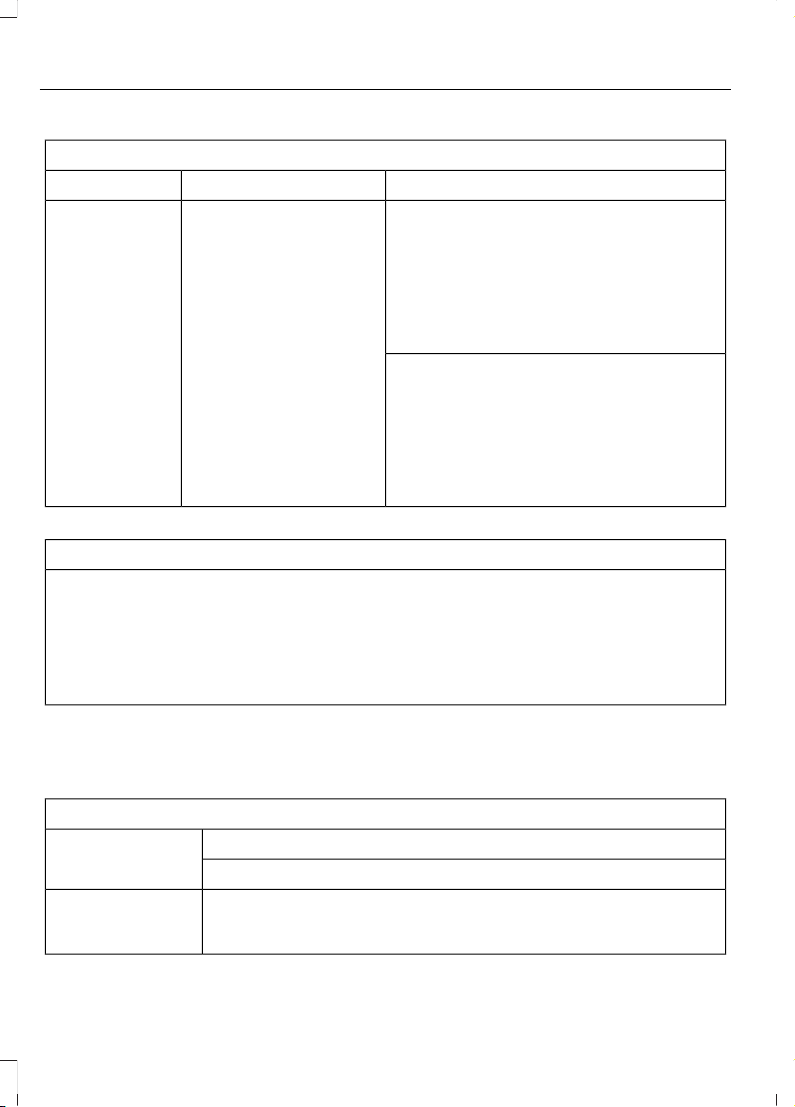
General
Possible solutionPossible causeIssue
SYNC 3 only supports four languages in a
single module for text display, voice control
and voice prompts. The country where you
bought your vehicle dictates the four
languages based on the most popular
languages spoken. If the selected language
is not available, SYNC 3 remains in the
current active language.
SYNC 3 does not support
the currently selected
language for the instru-
ment cluster and inform-
ation and entertainment
display.
The language
selected for the
instrument
cluster and
information and
entertainment
display does not
match the
SYNC 3
SYNC 3 offers several new voice control
features for a wide range of languages.
Dialing a contact name directly from the
phonebook without pre-recording (for
example, “call John Smith”) or selecting a
track, artist, album, genre or playlist directly
from your media player (for example, "play
artist Madonna").
language
(phone, USB,
Bluetooth
audio, voice
control and
voice prompts).
SYNC 3 System Reset
The system has a System Reset feature that can be performed if the function of a SYNC
3 feature is lost. This reset is intended to restore functionality and will not erase any
information previously stored in the system (such as paired devices, phonebook, call
history, text messages, or user settings). To perform a System Reset, press and hold
the Seek Up (>>|) button while pressing and holding the Radio Power button. After
approximately 5 seconds the screen will go black. Allow 1-2 minutes for the system
reset to complete. You may then resume using the SYNC 3 system.
For additional assistance with SYNC 3
troubleshooting please call or visit the Ford
Website.
Ford Support
United States: 1-800-392-3673Customer Relation-
ship Center
Canada: 1-800-565-3673
owner.ford.comWebsite
www.syncmyride.ca
www.syncmaroute.ca
480
Edge (CDQ) Canada/United States of America, enUSA, Edition date: 201706, First Printing
SYNC™ 3
For a complete listing of the accessories
that are available for your vehicle, please
contact your authorized dealer or visit the
online store web site:
Web Address (United States)
www.Accessories.Ford.com
Web Address (Canada)
www.Accessories.Ford.ca
Ford Motor Company will repair or replace
any properly authorized dealer-installed
Ford Original Accessory found to be
defective in factory-supplied materials or
workmanship during the warranty period,
as well as any component damaged by the
defective accessories.
Ford Motor Company warrants your
vehicle's accessory through the warranty
that provides the greatest benefit:
• 24 months, unlimited mileage.
• The remainder of your new vehicle
limited warranty.
Contact an authorized dealer for details
and a copy of the warranty.
Exterior Style
• Hood protector.
• Side window deflectors*.
• Splash guards.
Interior Style
• Ambient lighting.
• Floor liners.
• Floor mats.
• Rear seat entertainment system*.
Lifestyle
• Ash cup or coin holder.
• Cargo organization and management.
• Cross bars*.
• In-vehicle safe.
• Roof rack and carriers*.
• SUV camping tent*.
• Tablet cradle.
• Trailer hitches, wiring harnesses and
accessories.
Peace of Mind
• Bumper protector.
• Car cover*.
• Cargo area protector.
• Cargo security shade.
• Keyless entry keypad.
• Remote start.
• Roadside assistance kit.
• Vehicle security.
• Warning sensor system.
• Wheel locks.
*Ford Licensed Accessory. The accessory
manufacturer designs, develops and
therefore warrants Ford Licensed
Accessories, and does not design or test
these accessories to Ford Motor Company
engineering requirements. Contact an
authorized Ford dealer for the accessory
manufacturer's limited warranty details
and request a copy of the Ford Licensed
Accessories product limited warranty from
the accessory manufacturer.
481
Edge (CDQ) Canada/United States of America, enUSA, Edition date: 201706, First Printing
Accessories

For maximum vehicle performance, keep
the following information in mind when
adding accessories or equipment to your
vehicle:
• When adding accessories, equipment,
passengers and luggage to your
vehicle, do not exceed the total weight
capacity of the vehicle or of the front
or rear axle (GVWR or GAWR as
indicated on the Safety Compliance
Certification label). Ask an authorized
dealer for specific weight information.
• The Federal Communications
Commission (FCC) and Canadian
Radio Telecommunications
Commission (CRTC) regulate the use
of mobile communications systems
that are equipped with radio
transmitters, for example two-way
radios, telephones and theft alarms.
Any such equipment installed in your
vehicle should comply with Federal
Communications Commission (FCC)
and Canadian Radio
Telecommunications Commission
(CRTC) regulations and should be
installed only by an authorized dealer.
• Mobile communications systems may
harm the operation of your vehicle,
particularly if their manufacturer did
not design them specifically for
automotive use.
• If you or an authorized Ford dealer add
any non-Ford electrical or electronic
accessories or components to your
vehicle, you may adversely affect
battery performance and durability. In
addition, you may also adversely affect
the performance of other electrical
systems in the vehicle.
482
Edge (CDQ) Canada/United States of America, enUSA, Edition date: 201706, First Printing
Accessories

PROTECT YOURSELF FROM THE RISING
COST OF VEHICLE REPAIRS WITH A FORD
PROTECT EXTENDED SERVICE PLAN.
Ford Protect Extended Service
Plans (U.S. Only)
Ford Protect extended service plan means
peace of mind. It’s the extended service
plan backed by Ford Motor Company, and
provides more protection beyond the New
Vehicle Limited Warranty coverage. When
you visit your Ford Dealer, Insist on Ford
Protect extended service plans!
Ford Protect Can Quickly Pay for Itself
One trip to the Service Center could easily
exceed the price of your Ford Protect
extended service plan. With Ford Protect
extended service plan you minimize your
risk for unexpected repair bills and rising
repair costs.
Up to 1,000+ Covered Vehicle
Components
There are four mechanical Ford Protect
extended service plans with different levels
of coverage. Ask your authorized dealer for
details.
1. PremiumCARE - Our most
comprehensive coverage. With over
1,000 covered components, this plan
is so complete it’s probably easier to
list what’s not covered.
2. ExtraCARE - Covers 113 components,
and includes many high-tech items.
3. BaseCARE - Covers 84 components.
4. PowertrainCARE - Covers 29 critical
components.
Ford Protect extended service plans are
honored by all authorized Ford dealers in
the U.S., Canada and Mexico.
That means you get:
• Reliable, quality service at any Ford or
Lincoln dealership.
• Repairs performed by factory trained
technicians, using genuine parts.
Rental Car Reimbursement
1st day Rental Benefit
If you bring your car into your dealer for
service, we’ll give you a loaner to use for
the day.
Extended Rental Benefits
If your vehicle is kept overnight for covered
repairs, you are eligible for rental car
coverage, including warranty repairs, and
Field Service Actions.
Roadside Assistance
Exclusive 24/7 roadside assistance,
including:
• Towing, flat-tire change and battery
jump starts.
• Out of fuel and lock-out assistance.
• Travel expense reimbursement for
lodging, meals and rental car.
• Assistance for taxi, shuttle, rental car
coverage or other transportation.
Transferable Coverage
If you sell your vehicle before your Ford
Protect extended service plan coverage
expires, you can transfer any remaining
coverage to the new owner. Which should
give you and your potential buyer a little
more peace of mind.
483
Edge (CDQ) Canada/United States of America, enUSA, Edition date: 201706, First Printing
Ford Protect

Less Cost to Properly Maintain Your
Vehicle
Ford Protect extended service plan also
offers a Premium Maintenance Plan that
covers all scheduled maintenance, and
selected wear items. The coverage is
prepaid, so you never have to worry about
the cost of your vehicle’s maintenance.
Covered maintenance includes:
• Windshield wiper blades.
• Spark plugs.
• The clutch disc (if equipped).
• Brake pads and linings.
• Shock absorbers.
• Struts.
• Engine Belts.
• Engine coolant hoses, clamps and
o-rings.
• Diesel exhaust fluid replenishment (if
equipped).
• Cabin air filter replacement every
20,000 mi (32,000 km) (electric
vehicles only).
Interest Free Finance Options
Just a 10% down payment will provide you
with an affordable, no interest, no fee
payment program allowing you all the
security and benefits Ford Protect
extended service plan has to offer while
paying over time. You are pre-approved
with no credit check or hassles. To learn
more, call our Ford Protect extended
service plan specialists at 800-367-3377.
Ford Protect Extended Service Plan
P.O. Box 321067
Detroit, MI 48232
Ford Protect Extended Service
Plan (CANADA ONLY)
You can get more protection for your
vehicle by purchasing a Ford Protect
extended service plan. Ford Protect
extended service plan is the only service
contract backed by Ford Motor Company
of Canada, Limited. Depending on the plan
you purchase, Ford Protect extended
service plan provides benefits such as:
• Rental reimbursement.
• Coverage for certain maintenance and
wear items.
• Protection against repair costs after
your New Vehicle Limited Warranty
Coverage expires.
• Roadside Assistance benefits.
There are several Ford Protect extended
service plans available in various time,
distance and deductible combinations.
Each plan is tailored to fit your own driving
needs, including reimbursement for towing
and rental. When you purchase Ford
Protect extended service plan, you receive
added peace-of-mind protection
throughout Canada, the United States and
Mexico, provided by a network of
participating authorized Ford Motor
Company dealers.
Note: Repairs performed outside of
Canada, the United States and Mexico are
not eligible for Ford Protect extended
service plan coverage.
This information is subject to change. For
more information; visit your local Ford of
Canada dealer or www.ford.ca to find the
Ford Protect extended service plan that is
right for you.
484
Edge (CDQ) Canada/United States of America, enUSA, Edition date: 201706, First Printing
Ford Protect

GENERAL MAINTENANCE
INFORMATION
Why Maintain Your Vehicle?
Carefully following the maintenance
schedule helps protect against major repair
expenses resulting from neglect or
inadequate maintenance and may help to
increase the value of your vehicle when
you sell or trade it. Keep all receipts for
completed maintenance with your vehicle.
We have established regular maintenance
intervals for your vehicle based upon
rigorous testing. It is important that you
have your vehicle serviced at the proper
times. These intervals serve two purposes;
one is to maintain the reliability of your
vehicle and the second is to keep your cost
of owning your vehicle down.
It is your responsibility to have all
scheduled maintenance performed and to
make sure that the materials used meet
the specifications identified in this owner's
manual. See Capacities and
Specifications (page 332).
Failure to perform scheduled maintenance
invalidates warranty coverage on parts
affected by the lack of maintenance.
Why Maintain Your Vehicle at Your
Dealership?
Factory-Trained Technicians
Service technicians participate in extensive
factory-sponsored certification training to
help them become experts on the
operation of your vehicle. Ask your
dealership about the training and
certification their technicians have
received.
Genuine Ford and Motorcraft®
Replacement Parts
Dealerships stock Ford, Motorcraft and
Ford-authorized branded re-manufactured
replacement parts. These parts meet or
exceed our specifications. Parts installed
at your dealership carry a nationwide
24-month or unlimited mile (kilometer)
parts and labor limited warranty.
If you do not use Ford authorized parts they
may not meet our specifications and
depending on the part, it could affect
emissions compliance.
Convenience
Many dealerships have extended evening
and Saturday hours to make your service
visit more convenient and they offer one
stop shopping. They can perform any
services that are required on your vehicle,
from general maintenance to collision
repairs.
Note: Not all dealers have extended hours
or body shops. Please contact your dealer
for details.
Protecting Your Investment
Maintenance is an investment that pays
dividends in the form of improved
reliability, durability and resale value. To
maintain the proper performance of your
vehicle and its emission control systems,
make sure you have scheduled
maintenance performed at the designated
intervals.
Your vehicle is equipped with the
Intelligent Oil-Life Monitor system, which
displays a message in the information
display at the proper oil change interval.
This interval may be up to one year or
10,000 mi (16,000 km).
485
Edge (CDQ) Canada/United States of America, enUSA, Edition date: 201706, First Printing
Scheduled Maintenance

When the oil change message appears in
the information display, it is time for an oil
change. Make sure you perform the oil
change within two weeks or 500 mi
(800 km) of the message appearing. Make
sure you reset the Intelligent Oil-Life
Monitor after each oil change. See Oil
Change Indicator Reset (page 272).
If your information display resets
prematurely or becomes inoperative, you
should perform the oil change interval at
six months or 5,000 mi (8,000 km) from
your last oil change. Never exceed one year
or 10,000 mi (16,000 km) between oil
change intervals.
Your vehicle is very sophisticated and built
with multiple, complex, performance
systems. Every manufacturer develops
these systems using different
specifications and performance features.
That is why it is important to rely upon your
dealership to properly diagnose and repair
your vehicle.
Ford Motor Company has recommended
maintenance intervals for various parts
and component systems based upon
engineering testing. Ford Motor Company
relies upon this testing to determine the
most appropriate mileage for replacement
of oils and fluids to protect your vehicle at
the lowest overall cost to you and
recommends against maintenance
schedules that deviate from the scheduled
maintenance information.
We strongly recommend the use of only
genuine Ford, Motorcraft or
Ford-authorized re-manufactured
replacement parts engineered for your
vehicle.
Additives and Chemicals
This owner's manual and the Ford
Workshop Manual list the recommended
additives and chemicals for your vehicle.
We do not recommend using chemicals or
additives not approved by us as part of
your vehicle’ s normal maintenance. Please
consult your warranty information.
Oils, Fluids and Flushing
In many cases, fluid discoloration is a
normal operating characteristic and, by
itself, does not necessarily indicate a
concern or that the fluid needs to be
changed. However, a qualified expert, such
as the factory-trained technicians at your
dealership, should inspect discolored fluids
that also show signs of overheating or
foreign material contamination
immediately.
Make sure to change your vehicle’s oils and
fluids at the specified intervals or in
conjunction with a repair. Flushing is a
viable way to change fluid for many vehicle
sub-systems during scheduled
maintenance. It is critical that systems are
flushed only with new fluid that is the same
as that required to fill and operate the
system or using a Ford-approved flushing
chemical.
Owner Checks and Services
Make sure you perform the following basic
maintenance checks and inspections every
month or at six-month intervals.
486
Edge (CDQ) Canada/United States of America, enUSA, Edition date: 201706, First Printing
Scheduled Maintenance

Check Every Month
Engine oil level.
Function of all interior and exterior lights.
Tires (including spare) for wear and proper pressure.
Windshield washer fluid level.
Check Every Six Months
Battery connections. Clean if necessary.
Body and door drain holes for obstructions. Clean if necessary.
Cooling system fluid level and coolant strength.
Door weatherstrips for wear. Lubricate if necessary.
Hinges, latches and outside locks for proper operation. Lubricate if necessary.
Parking brake for proper operation.
Safety belts and seat latches for wear and function.
Safety warning lamps (brake, ABS, airbag and safety belt) for operation.
Washer spray and wiper operation. Clean or replace blades as necessary.
Multi-Point Inspection
In order to keep your vehicle running right,
it is important to have the systems on your
vehicle checked regularly. This can help
identify potential issues and prevent major
problems. We recommend having the
following multi-point inspection performed
at every scheduled maintenance interval
to help make sure your vehicle keeps
running great.
487
Edge (CDQ) Canada/United States of America, enUSA, Edition date: 201706, First Printing
Scheduled Maintenance
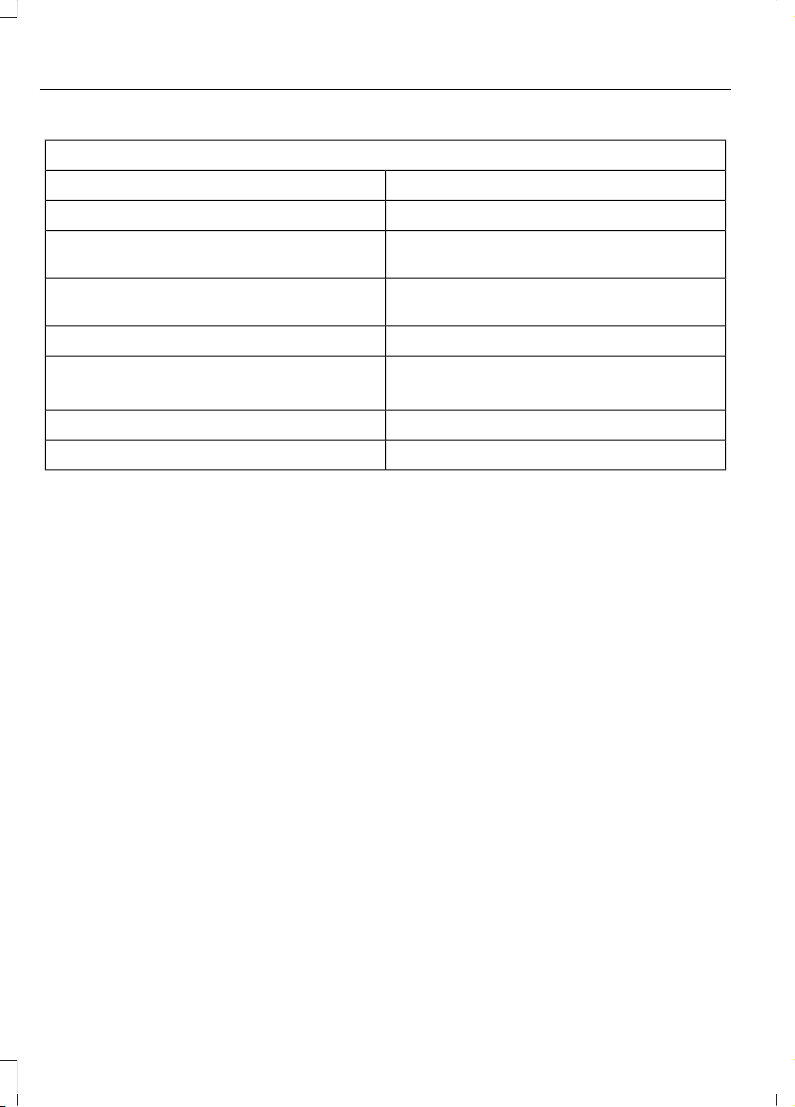
Multi-Point Inspection
Hazard warning system operationAccessory drive belt(s)
Horn operationBattery performance
Radiator, cooler, heater and air conditioning
hoses
Engine air filter
Suspension components for leaks or
damage
Exhaust system
Steering and linkageExterior lamps operation
Tires (including spare) for wear and proper
pressure
2
Fluid levels
1
; fill if necessary
Windshield for cracks, chips or pitsFor oil and fluid leaks
Washer spray and wiper operationHalf-shaft dust boots
1
Brake, coolant recovery reservoir, automatic transmission and window washer
2
If your vehicle is equipped with a temporary mobility kit, check the tire sealant expiration
Use By date on the canister. Replace as needed.
Be sure to ask your dealership service
advisor or technician about the multi-point
vehicle inspection. It is a comprehensive
way to perform a thorough inspection of
your vehicle. Your checklist gives you
immediate feedback on the overall
condition of your vehicle.
NORMAL SCHEDULED
MAINTENANCE
Intelligent Oil-Life Monitor™
Your vehicle is equipped with an Intelligent
Oil-Life Monitor that determines when you
should change the engine oil based on how
you use your vehicle. By using several
important factors in its calculations, the
monitor helps reduce the cost of owning
your vehicle and reduces environmental
waste at the same time.
This means you do not have to remember
to change the oil on a mileage-based
schedule. Your vehicle lets you know when
an oil change is due by displaying a
message in the information display.
The following table provides examples of
vehicle use and its impact on oil change
intervals. It is a guideline only. Actual oil
change intervals depend on several factors
and generally decrease with severity of
use.
488
Edge (CDQ) Canada/United States of America, enUSA, Edition date: 201706, First Printing
Scheduled Maintenance
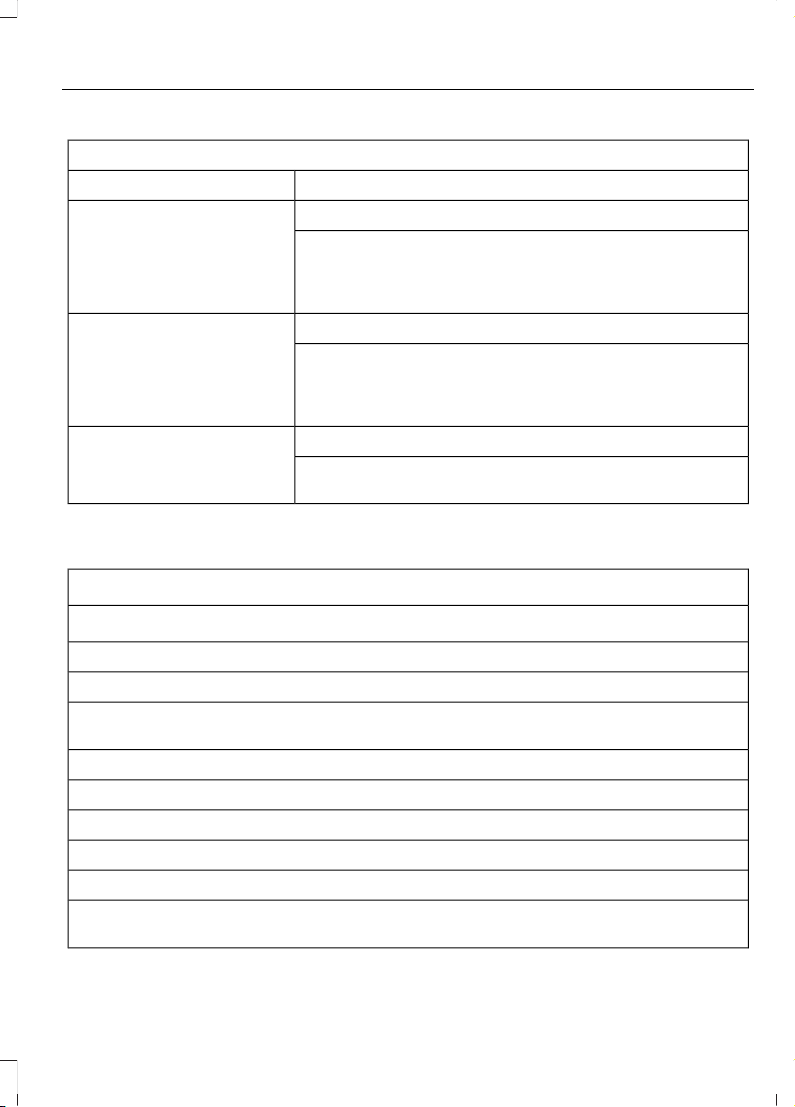
When to expect the OIL CHANGE REQUIRED Message
Vehicle Use and ExampleInterval
Normal
7,500–10,000 mi
(12,000–16,000 km)
Normal commuting with highway driving
No, or moderate, load or towing
Flat to moderately hilly roads
No extended idling
Severe
5,000–7,500 mi
(8,000–12,000 km)
Moderate to heavy load or towing
Mountainous or off-road conditions
Extended idling
Extended hot or cold operation
Extreme
3,000–5,000 mi
(5,000–8,000 km)
Maximum load or towing
Extreme hot or cold operation
Normal Maintenance Intervals
At Every Oil Change Interval as Indicated by the Information Display
1
Change engine oil and filter.
2
Rotate the tires.
Perform a multi-point inspection (recommended).
Inspect the automatic transmission fluid level (if equipped with a dipstick). Consult
your dealer for requirements.
Inspect the brake pads, rotors, hoses and parking brake.
Inspect the engine cooling system strength and hoses.
Inspect the exhaust system and heat shields.
Inspect the rear axle and U-joints (All-wheel Drive only).
Inspect the half-shaft boots.
Inspect the steering linkage, ball joints, suspension, tie-rod ends, driveshaft and U-joints
(All-wheel Drive only).
489
Edge (CDQ) Canada/United States of America, enUSA, Edition date: 201706, First Printing
Scheduled Maintenance

At Every Oil Change Interval as Indicated by the Information Display
1
Inspect the tires, tire wear and measure the tread depth.
Inspect the wheels and related components for abnormal noise, wear, looseness or
drag.
1
Do not exceed one year or 10,000 mi (16,000 km) between service intervals.
2
Reset the Intelligent Oil-Life Monitor after engine oil and filter changes. See Oil Change
Indicator Reset (page 272).
Other Maintenance Items
1
Replace cabin air filter.
2
Every 20,000 mi
(32,000 km)
Replace engine air filter.Every 30,000 mi
(48,000 km)
Change engine coolant.
3
At 100,000 mi
(160,000 km)
Replace spark plugs.
Every 100,000 mi
(160,000 km)
Inspect accessory drive belt(s).
4
Change automatic transmission fluid.
Every 150,000 mi
(240,000 km)
Replace accessory drive belt(s).
5
1
Perform these maintenance items within 3,000 mi (4,800 km) of the last engine oil and
filter change. Do not exceed the designated distance for the interval.
2
Inspect every 6,200 mi (10,000 km).
3
Initial replacement at six years or 100,000 mi (160,000 km), then every three years or
5,000 mi (8,000 km).
4
After initial inspection, inspect every other oil change until replaced.
5
If not replaced within the last 100,000 mi (160,000 km).
490
Edge (CDQ) Canada/United States of America, enUSA, Edition date: 201706, First Printing
Scheduled Maintenance
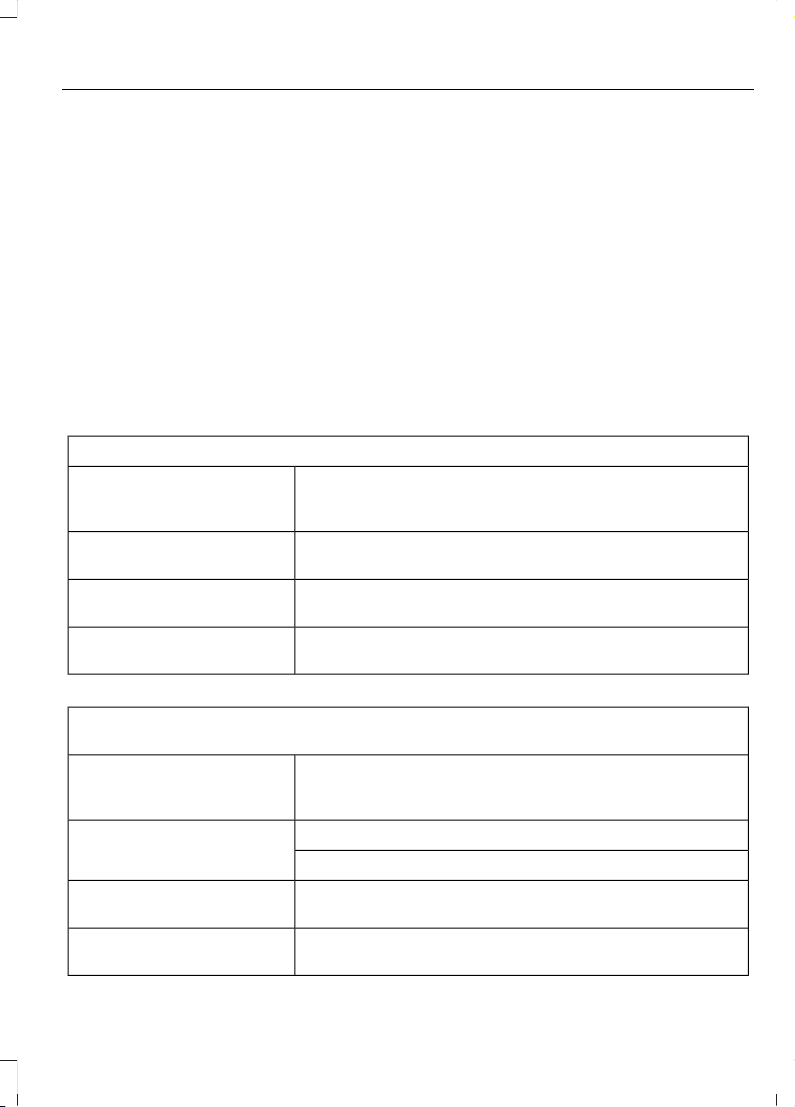
SPECIAL OPERATING
CONDITIONS SCHEDULED
MAINTENANCE
If you operate your vehicle primarily in any
of the following conditions, you need to
perform extra maintenance as indicated.
If you operate your vehicle occasionally
under any of these conditions, it is not
necessary to perform the extra
maintenance. For specific
recommendations, see your dealership
service advisor or technician.
Perform the services shown in the
following tables when specified or within
3,000 mi (4,800 km) of the message
appearing in the information display
prompting you to change your oil.
• Example 1: The message comes on at
28,751 mi (46,270 km). Perform the
30,000 mi (48,000 km) automatic
transmission fluid replacement.
• Example 2: The message has not
come on, but the odometer reads
30,000 mi (48,000 km) (for example,
the Intelligent Oil-Life Monitor you
reset at 25,000 mi (40,000 km)).
Perform the engine air filter
replacement.
Towing a Trailer or Using a Car-top Carrier
Change engine oil and filter as indicated by the information
display and perform services listed in the Normal Sched-
uled Maintenance chart.
As required
Inspect rear axle and U-joints (All-Wheel Drive only).Inspect frequently, service
as required
Change automatic transmission fluid.Every 30,000 mi
(48,000 km)
Replace spark plugs.Every 60,000 mi
(96,000 km)
Extensive Idling or Low-speed Driving for Long Distances, as in Heavy Commercial Use
(Such as Delivery, Taxi, Patrol Car or Livery)
Change engine oil and filter as indicated by the information
display and perform services listed in the Normal Sched-
uled Maintenance chart.
As required
Replace cabin air filter.Inspect frequently, service
as required
Replace engine air filter.
Change automatic transmission fluid.Every 30,000 mi
(48,000 km)
Replace spark plugs.Every 60,000 mi
(96,000 km)
491
Edge (CDQ) Canada/United States of America, enUSA, Edition date: 201706, First Printing
Scheduled Maintenance

Operating in Dusty or Sandy Conditions (Such as Unpaved or Dusty Roads)
Replace cabin air filter.Inspect frequently, service
as required
Replace engine air filter.
Inspect the wheels and related components for abnormal
noise, wear, looseness or drag.
Every 5,000 mi (8,000 km)
Rotate tires, inspect tires for wear and measure tread
depth.
Change engine oil and filter.
1
Every 5,000 mi (8,000 km)
or six months
Perform multi-point inspection.
Change automatic transmission fluid.Every 30,000 mi
(48,000 km)
1
Reset your Intelligent Oil-Life Monitor after engine oil and filter changes. See Oil Change
Indicator Reset (page 272).
Exceptions
There are several exceptions to the Normal
Schedule:
Rear Axle and PTU Maintenance
The Power Transfer Unit (PTU) and rear
axle (All-wheel Drive only) in your vehicle
does not require any normal scheduled
maintenance, unless the vehicle has
experienced extended periods of extreme
or severe duty cycle driving or both PTU
and the axle has been submerged in water.
Checking the PTU and rear axle fluid is not
necessary unless the unit shows signs of
leakage. Contact an authorized dealer for
service.
California Fuel Filter Replacement
If you register your vehicle in California, the
California Air Resources Board has
determined that the failure to perform this
maintenance item does not nullify the
emission warranty or limit recall liability
before the completion of your vehicle's
useful life. Ford Motor Company, however,
urges you to have all recommended
maintenance services performed at the
specified intervals and to record all vehicle
service.
Hot Climate Oil Change Intervals
Vehicles operating in the Middle East,
North Africa, Sub-Saharan Africa or
locations with similar climates using an
American Petroleum Institute (API)
Certified for Gasoline Engines (Certification
mark) oil of SM or SN quality, the normal
oil change interval is 3,000 mi (5,000 km).
If the available API SM or SN oils are not
available, then the oil change interval is
2,000 mi (3,000 km).
492
Edge (CDQ) Canada/United States of America, enUSA, Edition date: 201706, First Printing
Scheduled Maintenance
Engine Air Filter and Cabin Air Filter
Replacement
The life of the engine air filter and cabin air
filter is dependent on exposure to dusty
and dirty conditions. Vehicles operated in
these conditions require frequent
inspection and replacement of the engine
air filter and cabin air filter.
SCHEDULED MAINTENANCE RECORD
E146852
Repair Order #:
Distance:
Engine hours (optional):
Multi-point inspection (recommended):
Signature:
Dealer stamp
E146852
Repair Order #:
Distance:
Engine hours (optional):
Multi-point inspection (recommended):
Signature:
Dealer stamp
493
Edge (CDQ) Canada/United States of America, enUSA, Edition date: 201706, First Printing
Scheduled Maintenance
E146852
Repair Order #:
Distance:
Engine hours (optional):
Multi-point inspection (recommended):
Signature:
Dealer stamp
E146852
Repair Order #:
Distance:
Engine hours (optional):
Multi-point inspection (recommended):
Signature:
Dealer stamp
494
Edge (CDQ) Canada/United States of America, enUSA, Edition date: 201706, First Printing
Scheduled Maintenance
E146852
Repair Order #:
Distance:
Engine hours (optional):
Multi-point inspection (recommended):
Signature:
Dealer stamp
E146852
Repair Order #:
Distance:
Engine hours (optional):
Multi-point inspection (recommended):
Signature:
Dealer stamp
495
Edge (CDQ) Canada/United States of America, enUSA, Edition date: 201706, First Printing
Scheduled Maintenance
E146852
Repair Order #:
Distance:
Engine hours (optional):
Multi-point inspection (recommended):
Signature:
Dealer stamp
E146852
Repair Order #:
Distance:
Engine hours (optional):
Multi-point inspection (recommended):
Signature:
Dealer stamp
496
Edge (CDQ) Canada/United States of America, enUSA, Edition date: 201706, First Printing
Scheduled Maintenance
E146852
Repair Order #:
Distance:
Engine hours (optional):
Multi-point inspection (recommended):
Signature:
Dealer stamp
E146852
Repair Order #:
Distance:
Engine hours (optional):
Multi-point inspection (recommended):
Signature:
Dealer stamp
497
Edge (CDQ) Canada/United States of America, enUSA, Edition date: 201706, First Printing
Scheduled Maintenance
E146852
Repair Order #:
Distance:
Engine hours (optional):
Multi-point inspection (recommended):
Signature:
Dealer stamp
E146852
Repair Order #:
Distance:
Engine hours (optional):
Multi-point inspection (recommended):
Signature:
Dealer stamp
498
Edge (CDQ) Canada/United States of America, enUSA, Edition date: 201706, First Printing
Scheduled Maintenance
E146852
Repair Order #:
Distance:
Engine hours (optional):
Multi-point inspection (recommended):
Signature:
Dealer stamp
E146852
Repair Order #:
Distance:
Engine hours (optional):
Multi-point inspection (recommended):
Signature:
Dealer stamp
499
Edge (CDQ) Canada/United States of America, enUSA, Edition date: 201706, First Printing
Scheduled Maintenance
E146852
Repair Order #:
Distance:
Engine hours (optional):
Multi-point inspection (recommended):
Signature:
Dealer stamp
E146852
Repair Order #:
Distance:
Engine hours (optional):
Multi-point inspection (recommended):
Signature:
Dealer stamp
500
Edge (CDQ) Canada/United States of America, enUSA, Edition date: 201706, First Printing
Scheduled Maintenance
E146852
Repair Order #:
Distance:
Engine hours (optional):
Multi-point inspection (recommended):
Signature:
Dealer stamp
E146852
Repair Order #:
Distance:
Engine hours (optional):
Multi-point inspection (recommended):
Signature:
Dealer stamp
501
Edge (CDQ) Canada/United States of America, enUSA, Edition date: 201706, First Printing
Scheduled Maintenance
E146852
Repair Order #:
Distance:
Engine hours (optional):
Multi-point inspection (recommended):
Signature:
Dealer stamp
E146852
Repair Order #:
Distance:
Engine hours (optional):
Multi-point inspection (recommended):
Signature:
Dealer stamp
502
Edge (CDQ) Canada/United States of America, enUSA, Edition date: 201706, First Printing
Scheduled Maintenance
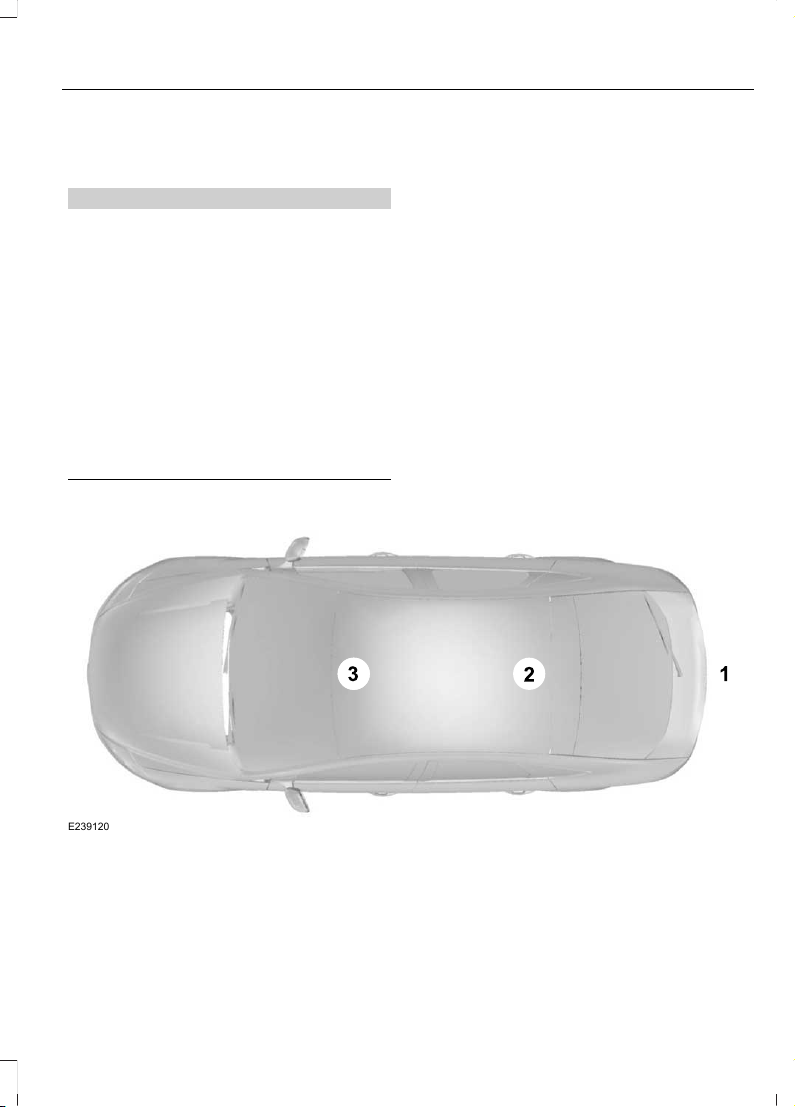
ELECTROMAGNETIC
COMPATIBILITY
WARNINGS
Do not place objects or mount
equipment on or near the airbag
cover, on the side of the seatbacks
(of the front seats), or in front seat areas
that may come into contact with a
deploying airbag. Failure to follow these
instructions may increase the risk of
personal injury in the event of a crash.
Do not fasten antenna cables to
original vehicle wiring, fuel pipes and
brake pipes.
Keep antenna and power cables at
least 4 in (10 cm) from any electronic
modules and airbags.
Note: We test and certify your vehicle to
meet electromagnetic compatibility
legislation (UNECE Regulation 10 or other
applicable local requirements). It is your
responsibility to make sure that any
equipment an authorized dealer installs on
your vehicle complies with applicable local
legislation and other requirements.
Note: Any radio frequency transmitter
equipment in your vehicle (such as cellular
telephones and amateur radio transmitters)
must keep to the parameters in the
following table. We do not provide special
provisions or conditions for installations or
use.
Car
E239120
503
Edge (CDQ) Canada/United States of America, enUSA, Edition date: 201706, First Printing
Appendices
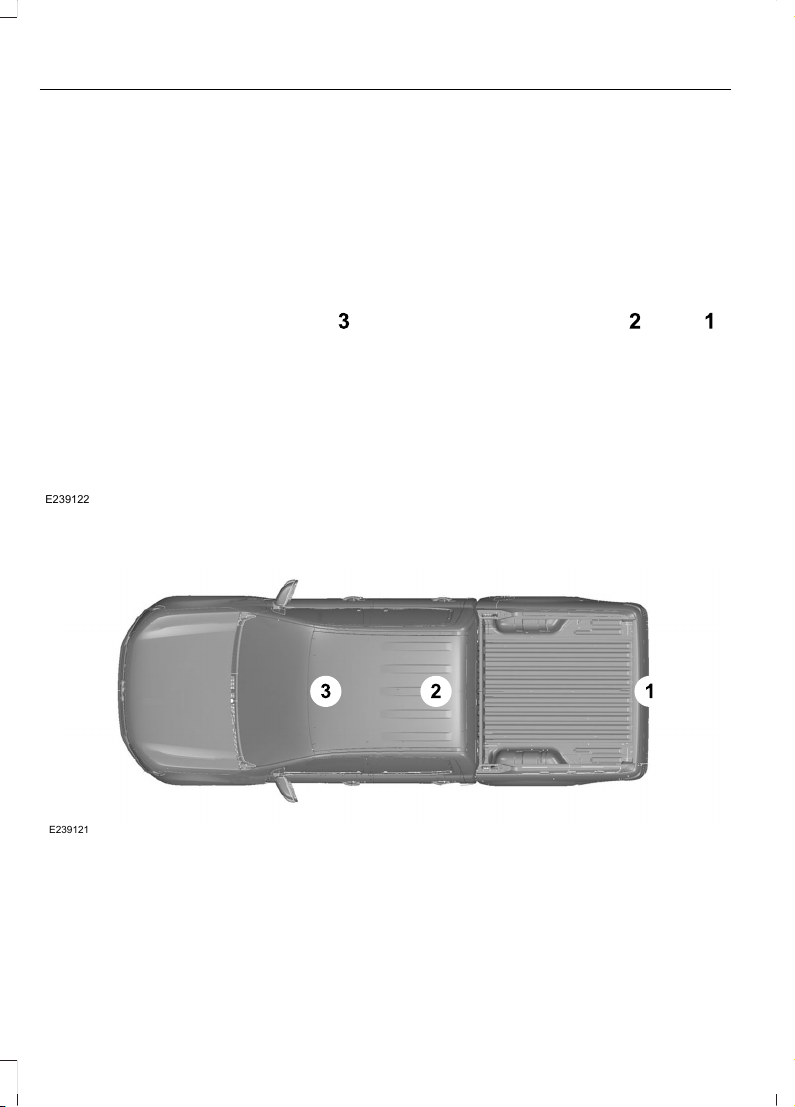
Van
E239122
Truck
E239121
504
Edge (CDQ) Canada/United States of America, enUSA, Edition date: 201706, First Printing
Appendices
Antenna PositionsMaximum output power Watt (Peak
RMS)
Frequency Band
MHz
1501-30
2, 35050-54
2, 35068-88
2, 350142-176
2, 350380-512
2, 310806-870
Note: After the installation of radio
frequency transmitters, check for
disturbances from and to all electrical
equipment in your vehicle, both in the
standby and transmit modes.
Check all electrical equipment:
• With the ignition ON.
• With the engine running.
• During a road test at various speeds.
Check that electromagnetic fields
generated inside your vehicle cabin by the
transmitter installed do not exceed
applicable human exposure requirements.
END USER LICENSE
AGREEMENT
VEHICLE SOFTWARE END USER
LICENSE AGREEMENT (EULA)
• You (“You” or “Your” as applicable)
have acquired a vehicle having several
devices, including SYNC ® and various
control modules, ("DEVICES") that
include software licensed or owned by
Ford Motor Company and its affiliates
("FORD MOTOR COMPANY"). Those
software products of FORD MOTOR
COMPANY origin, as well as associated
media, printed materials, and "online"
or electronic documentation
("SOFTWARE") are protected by
international intellectual property laws
and treaties. The SOFTWARE is
licensed, not sold. All rights reserved.
• The SOFTWARE may interface with
and/or communicate with, or may be
later upgraded to interface with and/or
communicate with additional software
and/or systems provided by FORD
MOTOR COMPANY.
505
Edge (CDQ) Canada/United States of America, enUSA, Edition date: 201706, First Printing
Appendices

IF YOU DO NOT AGREE TO THIS END
USER LICENSE AGREEMENT ("EULA")
DO NOT USE THE DEVICES OR COPY
THE SOFTWARE. ANY USE OF THE
SOFTWARE, INCLUDING BUT NOT
LIMITED TO USE ON THE DEVICES,
WILL CONSTITUTE YOUR AGREEMENT
TO THIS EULA (OR RATIFICATION OF
ANY PREVIOUS CONSENT).
GRANT OF SOFTWARE LICENSE: This
EULA grants you the following license:
• You may use the SOFTWARE as
installed on the DEVICES and as
otherwise interfacing with systems
and/or services provide by or through
FORD MOTOR COMPANY or its third
party software and service providers.
Description of Other Rights and
Limitations
• Speech Recognition: If the
SOFTWARE includes speech
recognition component(s), you should
understand that speech recognition is
an inherently statistical process and
that recognition errors are inherent in
the process. Neither FORD MOTOR
COMPANY nor its suppliers shall be
liable for any damages arising out of
errors in the speech recognition
process. It is your responsibility to
monitor any speech recognition
functions included in the system.
• Limitations on Reverse Engineering,
Decompilation and Disassembly:
You may not reverse engineer,
decompile, translate, disassemble or
attempt to discover any source code
or underlying ideas or algorithms of the
SOFTWARE nor permit others to
reverse engineer, decompile or
disassemble the SOFTWARE, except
and only to the extent that such activity
is expressly permitted by applicable
law notwithstanding this limitation or
to the extent as may be permitted by
the licensing terms governing use of
any open source components included
with the SOFTWARE.
• Limitations on Distributing,
Copying, Modifying and Creating
Derivative Works: You may not
distribute, copy, make modifications
to or create derivative works based on
the SOFTWARE, except and only to the
extent that such activity is expressly
permitted by applicable law
notwithstanding this limitation or to
the extent as may be permitted by the
licensing terms governing use of any
open source components included with
the SOFTWARE.
• Single EULA: The end user
documentation for the DEVICES and
related systems and services may
contain multiple EULAs, such as
multiple translations and/or multiple
media versions (e.g., in the user
documentation and in the software).
Even if you receive multiple EULAs, you
are licensed to use only one (1) copy of
the SOFTWARE.
506
Edge (CDQ) Canada/United States of America, enUSA, Edition date: 201706, First Printing
Appendices

• SOFTWARE Transfer: You may
permanently transfer your rights under
this EULA only as part of a sale or
transfer of the DEVICES, provided you
retain no copies, you transfer all of the
SOFTWARE (including all component
parts, the media and printed materials,
any upgrades, and, if applicable, the
Certificate(s) of Authenticity), and the
recipient agrees to the terms of this
EULA. If the SOFTWARE is an upgrade,
any transfer must include all prior
versions of the SOFTWARE.
• Termination: Without prejudice to any
other rights, FORD MOTOR COMPANY
may terminate this EULA if you fail to
comply with the terms and conditions
of this EULA.
• Internet-Based Services
Components: The SOFTWARE may
contain components that enable and
facilitate the use of certain
Internet-based services. You
acknowledge and agree that FORD
MOTOR COMPANY, third party
software and service suppliers, its
affiliates and/or its designated agent
may automatically check the version
of the SOFTWARE and/or its
components that you are utilizing and
may provide upgrades or supplements
to the SOFTWARE that may be
automatically downloaded to your
DEVICES.
• Additional Software/Services: The
SOFTWARE may permit FORD MOTOR
COMPANY, third party software and
service suppliers, its affiliates and/or
its designated agent to provide or make
available to you SOFTWARE updates,
supplements, add-on components, or
Internet-based services components
of the SOFTWARE after the date you
obtain your initial copy of the
SOFTWARE ("Supplemental
Components".) SOFTWARE updates
may cause you to incur additional
charges from your wireless service
provider. If FORD MOTOR COMPANY
or third party software and services
suppliers provide or make available to
you Supplemental Components and
no other EULA terms are provided
along with the Supplemental
Components, then the terms of this
EULA shall apply. FORD MOTOR
COMPANY, its affiliates and/or its
designated agent reserve the right to
discontinue without liability any
Internet-based services provided to
you or made available to you through
the use of the SOFTWARE.
• Links to Third Party Sites: The
SOFTWARE may provide you with the
ability to link to third party sites. The
third party sites are not under the
control of FORD MOTOR COMPANY,
its affiliates and/or its designated
agent. Neither FORD MOTOR
COMPANY nor its affiliates nor its
designated agent are responsible for
(I) the contents of any third party sites,
any links contained in third party sites,
or any changes or updates to third
party sites, or (ii) webcasting or any
other form of transmission received
from any third party sites. If the
SOFTWARE provides links to third
party sites, those links are provided to
you only as a convenience, and the
inclusion of any link does not imply an
endorsement of the third party site by
FORD MOTOR COMPANY, its affiliates
and/or its designated agent.
• Obligation to Drive Responsibly:
You recognize your obligation to drive
responsibly and keep attention on the
road. You will read and abide with the
DEVICES operating instructions
particularly as they pertain to safety
and you agree to assume any risk
associated with the use of the
DEVICES.
507
Edge (CDQ) Canada/United States of America, enUSA, Edition date: 201706, First Printing
Appendices

UPGRADES AND RECOVERY MEDIA:
If the SOFTWARE is provided by FORD
MOTOR COMPANY separate from the
DEVICES on media such as a ROM chip,
CD ROM disk(s) or via web download or
other means, and is labeled "For Upgrade
Purposes Only" or "For Recovery Purposes
Only" you may install one (1) copy of such
SOFTWARE onto the DEVICES as a
replacement copy for the existing
SOFTWARE, and use it in accordance with
this EULA, including any additional EULA
terms accompanying the upgrade
SOFTWARE.
INTELLECTUAL PROPERTY RIGHTS:
All title and intellectual property rights in
and to the SOFTWARE (including but not
limited to any images, photographs,
animations, video, audio, music, text and
"applets" incorporated into the
SOFTWARE), the accompanying printed
materials, and any copies of the
SOFTWARE, are owned by FORD MOTOR
COMPANY, or its affiliates or suppliers. The
SOFTWARE is licensed, not sold. You may
not copy the printed materials
accompanying the SOFTWARE. All title
and intellectual property rights in and to
the content which may be accessed
through use of the SOFTWARE is the
property of the respective content owner
and may be protected by applicable
copyright or other intellectual property
laws and treaties. This EULA grants you no
rights to use such content outside its
intended use. All rights not specifically
granted under this EULA are reserved by
FORD MOTOR COMPANY, its affiliates,
and third party software and service
providers and suppliers. Use of any on-line
services which may be accessed through
the SOFTWARE may be governed by the
respective terms of use relating to such
services. If this SOFTWARE contains
documentation that is provided only in
electronic form, you may print one copy of
such electronic documentation.
EXPORT RESTRICTIONS: You
acknowledge that the SOFTWARE is
subject to U.S. and European Union export
jurisdiction. You agree to comply with all
applicable international and national laws
that apply to the SOFTWARE, including
the U.S. Export Administration Regulations,
as well as end-user, end-use and
destination restrictions issued by U.S. and
other governments.
TRADEMARKS: This EULA does not grant
you any rights in connection with any
trademarks or service marks of FORD
MOTOR COMPANY, its affiliates, and third
party software and service providers.
PRODUCT SUPPORT: Please refer to
FORD MOTOR COMPANY instructions
provided in the documentation for the
DEVICES product support, such as the
vehicle owner guide.
Should you have any questions concerning
this EULA, or if you desire to contact FORD
MOTOR COMPANY for any other reason,
please refer to the address provided in the
documentation for the DEVICES.
No Liability for Certain Damages:
EXCEPT AS PROHIBITED BY LAW, FORD
MOTOR COMPANY, ANY THIRD PARTY
SOFTWARE OR SERVICES SUPPLIERS,
AND THEIR AFFILIATES SHALL HAVE NO
LIABILITY FOR ANY INDIRECT, SPECIAL,
CONSEQUENTIAL OR INCIDENTAL
DAMAGES ARISING FROM OR IN
CONNECTION WITH THE USE OR
PERFORMANCE OF THE SOFTWARE. THIS
LIMITATION SHALL APPLY EVEN IF ANY
REMEDY FAILS OF ITS ESSENTIAL
PURPOSE. THERE ARE NO WARRANTIES
OTHER THAN THOSE THAT MAY BE
EXPRESSLY PROVIDED FOR YOUR NEW
VEHICLE.
508
Edge (CDQ) Canada/United States of America, enUSA, Edition date: 201706, First Printing
Appendices

SYNC® Automotive Important Safety
Information Read and follow
instructions:
• Before using your SYNC® system, read
and follow all instructions and safety
information provided in this end user
manual ("Owner Guide".) Not
following precautions found in the
Owner Guide can lead to an accident
or other serious injuries.
General Operation
• Voice Command Control: Certain
functions within the SYNC® system
may be accomplished using voice
commands. Using voice commands
while driving helps you to operate the
system without removing your hands
from the wheel or eyes from the road.
• Prolonged Views of Screen: Do not
access any function requiring a
prolonged view of the screen while you
are driving. Pull over in a safe and legal
manner before attempting to access a
function of the system requiring
prolonged attention.
• Volume Setting: Do not raise the
volume excessively. Keep the volume
at a level where you can still hear
outside traffic and emergency signals
while driving. Driving while unable to
hear these sounds could cause an
accident.
• Navigation Features: Any navigation
features included in the system are
intended to provide turn by turn
instructions to get you to a desired
destination. Please make certain all
persons using this system carefully
read and follow instructions and safety
information fully.
• Distraction Hazard: Any navigation
features may require manual
(non-verbal) setup. Attempting to
perform such set-up or insert data
while driving can distract your attention
and could cause an accident or other
serious injury. Stop the vehicle in a safe
and legal manner before attempting
these operations.
• Let Your Judgment Prevail: Any
navigation features are provided only
as an aid. Make your driving decisions
based on your observations of local
conditions and existing traffic
regulations. Any such feature is not a
substitute for your personal judgment.
Any route suggestions made by this
system should never replace any local
traffic regulations or your personal
judgment or knowledge of safe driving
practices.
• Route Safety: Do not follow the route
suggestions if doing so would result in
an unsafe or illegal maneuver, if you
would be placed in an unsafe situation,
or if you would be directed into an area
that you consider unsafe. The driver is
ultimately responsible for the safe
operation of the vehicle and therefore,
must evaluate whether it is safe to
follow the suggested directions.
• Potential Map Inaccuracy: Maps
used by this system may be inaccurate
because of changes in roads, traffic
controls or driving conditions. Always
use good judgment and common sense
when following the suggested routes.
• Emergency Services: Do not rely on
any navigation features included in the
system to route you to emergency
services. Ask local authorities or an
emergency services operator for these
locations. Not all emergency services
such as police, fire stations, hospitals
and clinics are likely to be contained in
the map database for such navigation
features.
509
Edge (CDQ) Canada/United States of America, enUSA, Edition date: 201706, First Printing
Appendices

Your Responsibilities and Assumptions of
Risk
• You agree to each of the following:(a)
Any use of the SOFTWARE while
driving an automobile or other vehicle
in violation of applicable law or
otherwise driving in an unsafe manner
presents a significant risk of distracted
driving and should not be attempted
under any circumstances;(b) Use of
the SOFTWARE at excessive volume
poses a significant risk of hearing
damage and should not be attempted
under any circumstances;(c) The
SOFTWARE may not be compatible
with new or different versions of an
operating system, third party software,
or third party services, and the
SOFTWARE may potentially cause a
critical failure of an operating system,
third party software, or third party
service.(d) Any third party service
accessed by or third party software
used with the SOFTWARE (I) may
charge an additional fee for access, (ii)
may not work correctly, on an
uninterrupted basis, or error free, (iii)
may change streaming formats or
discontinue operation, (iv) may contain
adult, profane or offensive content; and
(v) may contain inaccurate, false or
misleading traffic, weather, financial
or safety information or other content;
and (e) Use of the SOFTWARE may
cause you to incur additional charges
from your wireless service provider
(WSP) and any data or minute
calculators that may be included in the
software program are for reference
only, are not warranted in any way and
should not be relied upon in anyway.
• When using the SOFTWARE, you agree
to be responsible for and assume the
entire risk to the items set forth in
Section (a) – (e) above.
Disclaimer of Warranty
YOU EXPRESSLY ACKNOWLEDGE AND
AGREE THAT USE OF THE DEVICES AND
SOFTWARE IS AT YOUR SOLE RISK AND
THAT THE ENTIRE RISK AS TO
SATISFACTORY QUALITY,
PERFORMANCE, COMPATIBILITY,
ACCURACY AND EFFORT IS WITH YOU.
TO THE MAXIMUM EXTENT PERMITTED
BY APPLICABLE LAW, THE SOFTWARE
AND ANY THIRD PARTY SOFTWARE OR
THIRD-PARTY SERVICES ARE PROVIDED
"AS IS" AND “AS AVAILABLE”, WITH ALL
FAULTS AND WITHOUT WARRANTY OF
ANY KIND, AND FORD MOTOR COMPANY
HEREBY DISCLAIMS ALL WARRANTIES
AND CONDITIONS WITH RESPECT TO
THE SOFTWARE, THIRD PARTY
SOFTWARE, AND THIRD-PARTY
SERVICES, EITHER EXPRESS, IMPLIED OR
STATUTORY, INCLUDING, BUT NOT
LIMITED TO, THE IMPLIED WARRANTIES
AND/OR CONDITIONS OF
MERCHANTABILITY, OF SATISFACTORY
QUALITY, OF FITNESS FOR AN
ARTICULAR PURPOSE, OF ACCURACY,
OF QUIET ENJOYMENT, AND
NON-INFRINGEMENT OF THIRD-PARTY
RIGHTS. FORD MOTOR COMPANY DOES
NOT WARRANT (a) AGAINST
INTERFERENCE WITH YOUR ENJOYMENT
OF THE SOFTWARE, THIRD PARTY
SOFTWARE, OR THIRD-PARTY SERVICES,
(b) THAT THE SOFTWARE, THIRD PARTY
SOFTWARE, OR THIRD-PARTY SERVICES
WILL MEET YOUR REQUIREMENTS, (c)
THAT THE OPERATION OF THE
SOFTWARE, THIRD PARTY SOFTWARE,
OR THIRD-PARTY SERVICES WILL BE
UNINTERRUPTED OR ERROR-FREE, (d)
OR THAT DEFECTS IN THE SOFTWARE,
THIRD PARTY SOFTWARE, OR
THIRD-PARTY SERVICES WILL BE
CORRECTED. NO ORAL OR WRITTEN
INFORMATION OR ADVICE GIVEN BY
FORD MOTOR COMPANY OR ITS
AUTHORIZED REPRESENTATIVE SHALL
510
Edge (CDQ) Canada/United States of America, enUSA, Edition date: 201706, First Printing
Appendices

CREATE A WARRANTY. SHOULD THE
SOFTWARE, THIRD PARTY SOFTWARE,
OR THIRD-PARTY SERVICES PROVE
DEFECTIVE, YOU ASSUME THE ENTIRE
COST OF ALL NECESSARY SERVICING,
REPAIR OR CORRECTION. SOME
JURISDICTIONS DO NOT ALLOW THE
DISCLAIMER OF IMPLIED WARRANTIES
OR LIMITATIONS ON APPLICABLE
STATUTORY RIGHTS OF A CONSUMER,
SO THE ABOVE DISCLAIMER MAY NOT
FULLY APPLY TO YOU. THE SOLE
WARRANTY PROVIDED BY FORD MOTOR
COMPANY SHALL BE FOUND IN THE
WARRANTY INFORMATION INCLUDING
WITH YOUR OWNER GUIDE. TO THE
EXTENT THAT THERE IS ANY CONFLICT
BETWEEN THE TERMS OF THIS SECTION
AND THE WARRANTY BOOKLET, THE
WARRANTY BOOKLET SHALL CONTROL.
Applicable Law, Venue, Jurisdiction
• The laws of the State of Michigan
govern this EULA and Your use of the
SOFTWARE. Your use of the
SOFTWARE may also be subject to
other local, state, national, or
international laws. Any litigation arising
out of or related to this EULA shall be
brought and maintained exclusively in
a court of the State of Michigan
located in Wayne County or in the
United States District Court for the
Eastern District of Michigan. You hereby
consent to submit to the personal
jurisdiction of a court in the State of
Michigan located in Wayne County and
the United States District Court for the
Eastern District of Michigan for any
dispute arising out of or relating to this
EULA.
Binding Arbitration and Class Action
Waiver
(a) Application. This Section applies to
any dispute EXCEPT IT DOES NOT
INCLUDE A DISPUTE RELATING TO
COPYRIGHT INFRINGEMENT, OR TO THE
ENFORCEMENT OR VALIDITY OF YOUR,
FORD MOTOR COMPANY, OR ANY OF
FORD MOTOR COMPANY’S LICENSORS’
INTELLECTUAL PROPERTY RIGHTS.
Dispute means any dispute, action, or other
controversy between You and FORD
MOTOR COMPANY, other than the
exceptions listed above, concerning the
SOFTWARE (including its price) or this
EULA, whether in contract, warranty, tort,
statute, regulation, ordinance, or any other
legal or equitable basis.
(b) Notice of Dispute. In the event of a
Dispute, You or FORD MOTOR COMPANY
must give the other a “Notice of Dispute”,
which is a written statement of the name,
address, and contact information of the
party giving it, the facts giving rise to the
dispute, and the relief requested. You and
FORD MOTOR COMPANY will attempt to
resolve any dispute through informal
negotiation within 60 days from the date
the Notice of Dispute is sent. After 60 days,
You or FORD MOTOR COMPANY may
commence arbitration.
(c) Small claims court. You may also
litigate any dispute in small claims court
in your county of residence or FORD
MOTOR COMPANY’S principal place of
business, if the dispute meets all
requirements to be heard in the small
claims court. You may litigate in small
claims court whether or not You
negotiated informally first.
(d) Binding arbitration. If You and FORD
MOTOR COMPANY, do not resolve any
dispute by informal negotiation or in small
claims court, any other effort to resolve
the dispute will be conducted exclusively
by binding arbitration. You are giving up
511
Edge (CDQ) Canada/United States of America, enUSA, Edition date: 201706, First Printing
Appendices

the right to litigate (or participate in as a
party or class member) all disputes in court
before a judge or jury. Instead, all disputes
will be resolved before a neutral arbitrator,
whose decision will be final except for a
limited right of appeal under the Federal
Arbitration Act. Any court with jurisdiction
over the parties may enforce the
arbitrator’s award.
(e) Class action waiver. Any proceedings
to resolve or litigate any dispute in any
forum will be conducted solely on an
individual basis. Neither you nor FORD
MOTOR COMPANY, will seek to have any
dispute heard as a class action, as a private
attorney general action, or in any other
proceeding in which any party acts or
proposes to act in a representative
capacity. No arbitration or proceeding will
be combined with another without the
prior written consent of all parties to all
affected arbitrations or proceedings.
(f) Arbitration procedure. Any
arbitration will be conducted by the
American Arbitration Association (the
“AAA”), under its Commercial Arbitration
Rules. If You are an individual and use the
SOFTWARE for personal or vehicle use, or
if the value of the dispute is $75,000 or
less whether or not You are an individual
or how You use the SOFTWARE, the AAA
Supplementary Procedures for
Consumer-Related Disputes will also
apply. To commence arbitration, submit a
Commercial Arbitration Rules Demand for
Arbitration form to the AAA. You may
request a telephonic or in-person hearing
by following the AAA rules. In a dispute
involving $10,000 or less, any hearing will
be telephonic unless the arbitrator finds
good cause to hold an in-person hearing
instead. For more information, see adr.org
or call 1-800-778-7879. You agree to
commence arbitration only in your county
of residence or FORD MOTOR COMPANY’S
principal place of business. The arbitrator
may award the same damages to You
individually as a court could. The arbitrator
may award declaratory or injunctive relief
only to You individually, and only to the
extent required to satisfy Your individual
claim.
(g) Arbitration fees and incentives.
• I. Disputes involving $75,000 or less.
FORD MOTOR COMPANY will
promptly reimburse your filing fees and
pay the AAA’s and arbitrator’ s fees and
expenses. If you reject FORD MOTOR
COMPANY’S last written settlement
offer made before the arbitrator was
appointed (“last written offer”), your
dispute goes all the way to an
arbitrator’s decision (called an
“award”), and the arbitrator awards
you more than the last written offer,
FORD MOTOR COMPANY will give you
three incentives: (1) pay the greater of
the award or $1,000; (2) pay twice your
reasonable attorney’s fees, if any; and
(3) reimburse any expenses (including
expert witness fees and costs) that
your attorney reasonably accrues for
investigating, preparing, and pursuing
your claim in arbitration. The arbitrator
will determine the amounts.
• ii. Disputes involving more than
$75,000. The AAA rules will govern
payment of filing fees and the AAA’s
and arbitrator’s fees and expenses.
• iii. Disputes involving any amount. In
any arbitration you commence, FORD
MOTOR COMPANY will seek its AAA
or arbitrator’s fees and expenses, or
Your filing fees it reimbursed, only if the
arbitrator finds the arbitration frivolous
or brought for an improper purpose. In
any arbitration FORD MOTOR
COMPANY commences, it will pay all
512
Edge (CDQ) Canada/United States of America, enUSA, Edition date: 201706, First Printing
Appendices

filing, AAA, and arbitrator’s fees and
expenses. It will not seek its attorney’s
fees or expenses from you in any
arbitration. Fees and expenses are not
counted in determining how much a
dispute involves.
(h) Claims or disputes must be filed
within one year. To the extent permitted
by law, any claim or dispute under this
EULA to which this Section applies must
be filed within one year in small claims
court (Section c) or in arbitration (Section
d). The one-year period begins when the
claim or dispute first could be filed. If such
a claim or dispute is not filed within one
year, it is permanently barred.
(I) Severability. If the class action waiver
(Section e) is found to be illegal or
unenforceable as to all or some parts of a
dispute, then that portion of Section e will
not apply to those parts. Instead, those
parts will be severed and proceed in a court
of law, with the remaining parts proceeding
in arbitration. If any other provision of that
portion Section e is found to be illegal or
unenforceable, that provision will be
severed with the remainder of Section e
remaining in full force and effect.
Telenav Software End User License
Agreement
Please read these terms and conditions
carefully before you use the TeleNav
Software. Your use of the TeleNav
Software indicates that you accept these
terms and conditions. If you do not accept
these terms and conditions, do not break
the seal of the package, launch, or
otherwise use the TeleNav Software.
TeleNav may revise this Agreement and
the privacy policy at any time, with or
without notice to you. You agree to visit
http://www.telenav.com from time to time
to review the then current version of this
Agreement and of the privacy policy.
1. Safe and Lawful Use
You acknowledge that devoting attention
to the TeleNav Software may pose a risk
of injury or death to you and others in
situations that otherwise require your
undivided attention, and you therefore
agree to comply with the following when
using the TeleNav Software:
(a) observe all traffic laws and otherwise
drive safely;
(b) use your own personal judgment while
driving. If you feel that a route suggested
by the TeleNav Software instructs you to
perform an unsafe or illegal maneuver,
places you in an unsafe situation, or directs
you into an area that you consider to be
unsafe, do not follow such instructions;
(c) do not input destinations, or otherwise
manipulate the TeleNav Software, unless
your vehicle is stationary and parked;
(d) do not use the TeleNav Software for
any illegal, unauthorized, unintended,
unsafe, hazardous, or unlawful purposes,
or in any manner inconsistent with this
Agreement;
(e) arrange all GPS and wireless devices
and cables necessary for use of the
TeleNav Software in a secure manner in
your vehicle so that they will not interfere
with your driving and will not prevent the
operation of any safety device (such as an
airbag).
You agree to indemnify and hold TeleNav
harmless against all claims resulting from
any dangerous or otherwise inappropriate
use of the TeleNav Software in any moving
vehicle, including as a result of your failure
to comply with the directions above.
513
Edge (CDQ) Canada/United States of America, enUSA, Edition date: 201706, First Printing
Appendices

2. Account Information
You agree: (a) when registering the
TeleNav Software, to provide TeleNav with
true, accurate, current, and complete
information about yourself, and (b) to
inform TeleNav promptly of any changes
to such information, and to keep it true,
accurate, current and complete.
3. Software License
• Subject to your compliance with the
terms of this Agreement, TeleNav
hereby grants to you a personal,
non-exclusive, non-transferable license
(except as expressly permitted below
in connection with your permanent
transfer of the TeleNav Software
license), without the right to
sublicense, to use the TeleNav
Software (in object code form only) in
order to access and use the TeleNav
Software. This license shall terminate
upon any termination or expiration of
this Agreement. You agree that you will
use the TeleNav Software only for your
personal business or leisure purposes,
and not to provide commercial
navigation services to other parties.
3.1 License Limitations
• (a) reverse engineer, decompile,
disassemble, translate, modify, alter
or otherwise change the TeleNav
Software or any part thereof; (b)
attempt to derive the source code,
audio library or structure of the
TeleNav Software without the prior
express written consent of TeleNav;
(c) remove from the TeleNav
Software, or alter, any of TeleNav's or
its suppliers' trademarks, trade names,
logos, patent or copyright notices, or
other notices or markings; (d)
distribute, sublicense or otherwise
transfer the TeleNav Software to
others, except as part of your
permanent transfer of the TeleNav
Software; or (e) use the TeleNav
Software in any manner that
I. infringes the intellectual property or
proprietary rights, rights of publicity or
privacy or other rights of any party,
ii. violates any law, statute, ordinance or
regulation, including but not limited to laws
and regulations related to spamming,
privacy, consumer and child protection,
obscenity or defamation, or
iii. is harmful, threatening, abusive,
harassing, tortuous, defamatory, vulgar,
obscene, libelous, or otherwise
objectionable; and (f) lease, rent out, or
otherwise permit unauthorized access by
third parties to the TeleNav Software
without advanced written permission of
TeleNav.
4. Disclaimers
• To the fullest extent permissible
pursuant to applicable law, in no event
will TeleNav, its licensors and suppliers,
or agents or employees of any of the
foregoing, be liable for any decision
made or action taken by you or anyone
else in reliance on the information
provided by the TeleNav Software.
TeleNav also does not warrant the
accuracy of the map or other data used
for the TeleNav Software. Such data
may not always reflect reality due to,
among other things, road closures,
construction, weather, new roads and
other changing conditions. You are
responsible for the entire risk arising
out of your use of the TeleNav
Software. For example but without
limitation, you agree not to rely on the
TeleNav Software for critical
navigation in areas where the
well-being or survival of you or others
514
Edge (CDQ) Canada/United States of America, enUSA, Edition date: 201706, First Printing
Appendices

is dependent on the accuracy of
navigation, as the maps or functionality
of the TeleNav Software are not
intended to support such high risk
applications, especially in more remote
geographical areas.
• TELENAV EXPRESSLY DISCLAIMS
AND EXCLUDES ALL WARRANTIES IN
CONNECTION WITH THE TELENAV
SOFTWARE, WHETHER STATUTORY,
EXPRESS OR IMPLIED, INCLUDING ALL
WARRANTIES WHICH MAY ARISE
FROM COURSE OF DEALING, CUSTOM
OR TRADE AND INCLUDING, BUT NOT
LIMITED TO, THE IMPLIED
WARRANTIES OF MERCHANTABILITY,
FITNESS FOR A PARTICULAR
PURPOSE AND NON-INFRINGEMENT
OF THIRD PARTY RIGHTS WITH
RESPECT TO THE TELENAV
SOFTWARE.
• Certain jurisdictions do not permit the
disclaimer of certain warranties, so this
limitation may not apply to you.
5. Limitation of Liability
• TO THE EXTENT PERMITTED UNDER
APPLICABLE LAW, UNDER NO
CIRCUMSTANCES SHALL TELENAV
OR ITS LICENSORS AND SUPPLIERS
BE LIABLE TO YOU OR TO ANY THIRD
PARTY FOR ANY INDIRECT,
INCIDENTAL, CONSEQUENTIAL,
SPECIAL OR EXEMPLARY DAMAGES
(INCLUDING IN EACH CASE, BUT NOT
LIMITED TO, DAMAGES FOR THE
INABILITY TO USE THE EQUIPMENT
OR ACCESS DATA, LOSS OF DATA,
LOSS OF BUSINESS, LOSS OF
PROFITS, BUSINESS INTERRUPTION
OR THE LIKE) ARISING OUT OF THE
USE OF OR INABILITY TO USE THE
TELENAV SOFTWARE, EVEN IF
TELENAV HAS BEEN ADVISED OF THE
POSSIBILITY OF SUCH DAMAGES.
NOTWITHSTANDING ANY DAMAGES
THAT YOU MIGHT INCUR FOR ANY
REASON WHATSOEVER (INCLUDING,
WITHOUT LIMITATION, ALL DAMAGES
REFERENCED HEREIN AND ALL
DIRECT OR GENERAL DAMAGES IN
CONTRACT, TORT (INCLUDING
NEGLIGENCE) OR OTHERWISE), THE
ENTIRE LIABILITY OF TELENAV AND
OF ALL OF TELENAV'S SUPPLIERS
SHALL BE LIMITED TO THE AMOUNT
ACTUALLY PAID BY YOU FOR THE
TELENAV SOFTWARE. SOME STATES
AND/OR JURISDICTIONS DO NOT
ALLOW THE EXCLUSION OR
LIMITATION OF INCIDENTAL OR
CONSEQUENTIAL DAMAGES, SO THE
ABOVE LIMITATIONS OR EXCLUSIONS
MAY NOT APPLY TO YOU.
6. Arbitration and Governing Law
• You agree that any dispute, claim or
controversy arising out of or relating to
this Agreement or the TeleNav
Software shall be settled by
independent arbitration involving a
neutral arbitrator and administered by
the American Arbitration Association
in the County of Santa Clara, California.
The arbitrator shall apply the
Commercial Arbitration Rules of the
American Arbitration Association, and
the judgment upon the award rendered
by the arbitrator may be entered by any
court having jurisdiction. Note that
there is no judge or jury in an arbitration
proceeding and the decision of the
arbitrator shall be binding upon both
parties. You expressly agree to waive
your right to a jury trial. This Agreement
and performance hereunder will be
governed by and construed in
accordance with the laws of the State
of California, without giving effect to
its conflict of law provisions. To the
extent judicial action is necessary in
connection with the binding arbitration,
both TeleNav and you agree to submit
515
Edge (CDQ) Canada/United States of America, enUSA, Edition date: 201706, First Printing
Appendices

to the exclusive jurisdiction of the
courts of the County of Santa Clara,
California. The United Nations
Convention on Contracts for the
International Sale of Goods shall not
apply.
7. Assignment
• You may not resell, assign, or transfer
this Agreement or any of your rights or
obligations, except in totality, in
connection with your permanent
transfer of the TeleNav Software, and
expressly conditioned upon the new
user of the TeleNav Software agreeing
to be bound by the terms and
conditions of this Agreement. Any such
sale, assignment or transfer that is not
expressly permitted under this
paragraph will result in immediate
termination of this Agreement, without
liability to TeleNav, in which case you
and all other parties shall immediately
cease all use of the TeleNav Software.
Notwithstanding the foregoing,
TeleNav may assign this Agreement to
any other party at any time without
notice, provided the assignee remains
bound by this Agreement.
8. Miscellaneous
8.1
This Agreement constitutes the entire
agreement between TeleNav and you with
respect to the subject matter hereof.
8.2
Except for the limited licenses expressly
granted in this Agreement, TeleNav retains
all right, title and interest in and to the
TeleNav Software, including without
limitation all related intellectual property
rights. No licenses or other rights which are
not expressly granted in this Agreement
are intended to, or shall be, granted or
conferred by implication, statute,
inducement, estoppel or otherwise, and
TeleNav and its suppliers and licensors
hereby reserve all of their respective rights
other than the licenses explicitly granted
in this Agreement.
8.3
By using the TeleNav Software, you
consent to receive from TeleNav all
communications, including notices,
agreements, legally required disclosures
or other information in connection with the
TeleNav Software (collectively, "Notices")
electronically. TeleNav may provide such
Notices by posting them on TeleNav's
Website or by downloading such Notices
to your wireless device. If you desire to
withdraw your consent to receive Notices
electronically, you must discontinue your
use of the TeleNav Software.
8.4
TeleNav's or your failure to require
performance of any provision shall not
affect that party's right to require
performance at any time thereafter, nor
shall a waiver of any breach or default of
this Agreement constitute a waiver of any
subsequent breach or default or a waiver
of the provision itself.
8.5
If any provision herein is held
unenforceable, then such provision will be
modified to reflect the intention of the
parties, and the remaining provisions of
this Agreement will remain in full force and
effect.
516
Edge (CDQ) Canada/United States of America, enUSA, Edition date: 201706, First Printing
Appendices

8.6
The headings in this Agreement are for
convenience of reference only, will not be
deemed to be a part of this Agreement,
and will not be referred to in connection
with the construction or interpretation of
this Agreement. As used in this Agreement,
the words "include" and "including" and
variations thereof, will not be deemed to
be terms of limitation, but rather will be
deemed to be followed by the words
"without limitation".
9. Other Vendors Terms and Conditions
• The Telenav Software utilizes map and
other data licensed to Telenav by third
party vendors for the benefit of you and
other end users. This Agreement
includes end-user terms applicable to
these companies (included at the end
of this Agreement), and thus your use
of the Telenav Software is also subject
to such terms. You agree to comply
with the following additional terms and
conditions, which are applicable to
Telenav’s third party vendor licensors::
9.1 End User Terms Required by HERE
North America, LLC
The data (“Data”) is provided for your
personal, internal use only and not for
resale. It is protected by copyright, and is
subject to the following terms and
conditions which are agreed to by you, on
the one hand, and Telenav (“Telenav”) and
its licensors (including their licensors and
suppliers) on the other hand.
© 2013 HERE. All rights reserved.
The Data for areas of Canada includes
information taken with permission from
Canadian authorities, including: © Her
Majesty the Queen in Right of Canada, ©
Queen's Printer for Ontario, © Canada Post
Corporation, GeoBase®, © Department of
Natural Resources Canada.
HERE holds a non-exclusive license from
the United States Postal Service® to
publish and sell ZIP+4® information.
©United States Postal Service® 2014.
Prices are not established, controlled or
approved by the United States Postal
Service®. The following trademarks and
registrations are owned by the USPS:
United States Postal Service, USPS, and
ZIP+4
The Data for Mexico includes certain data
from Instituto Nacional de Estadística y
Geografía.
9.2 End User Terms Required by NAV2
(Shanghai) Co., Ltd
The data (“Data”) is provided for your
personal, internal use only and not for
resale. It is protected by copyright, and is
subject to the following terms and
conditions which are agreed to by you, on
the one hand, and NAV2 (Shanghai) Co.,
Ltd (“NAV2”) and its licensors (including
their licensors and suppliers) on the other
hand. 20xx. All rights reserved
Terms and Conditions
Permitted Use. You agree to use this Data
together with the Telenav Software solely
for the internal business and personal
purposes for which you were licensed, and
not for service bureau, time-sharing or
other similar purposes. Accordingly, but
subject to the restrictions set forth in the
following paragraphs, you agree not to
otherwise reproduce, copy, modify,
decompile, disassemble, create any
derivative works of, or reverse engineer any
portion of this Data, and may not transfer
or distribute it in any form, for any purpose,
except to the extent permitted by
mandatory laws.
517
Edge (CDQ) Canada/United States of America, enUSA, Edition date: 201706, First Printing
Appendices

Restrictions. Except where you have been
specifically licensed to do so by Telenav,
and without limiting the preceding
paragraph, you may not use this Data (a)
with any products, systems, or applications
installed or otherwise connected to or in
communication with vehicles, capable of
vehicle navigation, positioning, dispatch,
real time route guidance, fleet
management or similar applications; or (b)
with or in communication with any
positioning devices or any mobile or
wireless-connected electronic or computer
devices, including without limitation
cellular phones, palmtop and handheld
computers, pagers, and personal digital
assistants or PDAs.
Warning. The Data may contain
inaccurate or incomplete information due
to the passage of time, changing
circumstances, sources used and the
nature of collecting comprehensive
geographic data, any of which may lead to
incorrect results.
No Warranty. This Data is provided to you
“as is,” and you agree to use it at your own
risk. Telenav and its licensors (and their
licensors and suppliers) make no
guarantees, representations or warranties
of any kind, express or implied, arising by
law or otherwise, including but not limited
to, content, quality, accuracy,
completeness, effectiveness, reliability,
fitness for a particular purpose, usefulness,
use or results to be obtained from this
Data, or that the Data or server will be
uninterrupted or error-free.
Disclaimer of Warranty: TELENAV AND
ITS LICENSORS (INCLUDING THEIR
LICENSORS AND SUPPLIERS) DISCLAIM
ANY WARRANTIES, EXPRESS OR IMPLIED,
OF QUALITY, PERFORMANCE,
MERCHANTABILITY, FITNESS FOR A
PARTICULAR PURPOSE OR
NON-INFRINGEMENT. Some States,
Territories and Countries do not allow
certain warranty exclusions, so to that
extent the above exclusion may not apply
to you.
Disclaimer of Liability: TELENAV AND
ITS LICENSORS (INCLUDING THEIR
LICENSORS AND SUPPLIERS) SHALL NOT
BE LIABLE TO YOU: IN RESPECT OF ANY
CLAIM, DEMAND OR ACTION,
IRRESPECTIVE OF THE NATURE OF THE
CAUSE OF THE CLAIM, DEMAND OR
ACTION ALLEGING ANY LOSS, INJURY OR
DAMAGES, DIRECT OR INDIRECT, WHICH
MAY RESULT FROM THE USE OR
POSSESSION OF THE INFORMATION; OR
FOR ANY LOSS OF PROFIT, REVENUE,
CONTRACTS OR SAVINGS, OR ANY
OTHER DIRECT, INDIRECT, INCIDENTAL,
SPECIAL OR CONSEQUENTIAL DAMAGES
ARISING OUT OF YOUR USE OF OR
INABILITY TO USE THIS INFORMATION,
ANY DEFECT IN THE INFORMATION, OR
THE BREACH OF THESE TERMS OR
CONDITIONS, WHETHER IN AN ACTION
IN CONTRACT OR TORT OR BASED ON A
WARRANTY, EVEN IF TELENAV OR ITS
LICENSORS HAVE BEEN ADVISED OF THE
POSSIBILITY OF SUCH DAMAGES. Some
States, Territories and Countries do not
allow certain liability exclusions or
damages limitations, so to that extent the
above may not apply to you.
Export Control. You shall not export from
anywhere any part of the Data or any direct
product thereof except in compliance with,
and with all licenses and approvals
required under, applicable export laws,
rules and regulations, including but not
limited to the laws, rules and regulations
administered by the Office of Foreign
Assets Control of the U.S. Department of
Commerce and the Bureau of Industry and
Security of the U.S. Department of
Commerce. To the extent that any such
518
Edge (CDQ) Canada/United States of America, enUSA, Edition date: 201706, First Printing
Appendices

export laws, rules or regulations prohibit
HERE from complying with any of its
obligations hereunder to deliver or
distribute Data, such failure shall be
excused and shall not constitute a breach
of this Agreement.
Entire Agreement. These terms and
conditions constitute the entire agreement
between Telenav (and its licensors,
including their licensors and suppliers) and
you pertaining to the subject matter hereof,
and supersedes in their entirety any and
all written or oral agreements previously
existing between us with respect to such
subject matter.
Governing Law. The above terms and
conditions shall be governed by the laws
of the State of Illinois [insert “Netherlands”
where European HERE Data is used],
without giving effect to (i) its conflict of
laws provisions, or (ii) the United Nations
Convention for Contracts for the
International Sale of Goods, which is
explicitly excluded. You agree to submit to
the jurisdiction of the State of Illinois
[insert “The Netherlands” where European
HERE Data is used] for any and all
disputes, claims and actions arising from
or in connection with the Data provided to
you hereunder.
Government End Users. If the Data is
being acquired by or on behalf of the
United States government or any other
entity seeking or applying rights similar to
those customarily claimed by the United
States government, this Data is a
“commercial item” as that term is defined
at 48 C.F.R. (“FAR”) 2.101, is licensed in
accordance with these End-User Terms,
and each copy of Data delivered or
otherwise furnished shall be marked and
embedded as appropriate with the
following “Notice of Use,” and shall be
treated in accordance with such Notice:
NOTICE OF USE
CONTRACTOR (MANUFACTURER/
SUPPLIER) NAME: HERE
CONTRACTOR (MANUFACTURER/
SUPPLIER) ADDRESS: c/o Nokia, 425
West Randolph Street, Chicago, Illinois
60606
This Data is a commercial item as
defined in FAR 2.101 and is subject to
these End-User Terms under which this
Data was provided.
© 1987 – 2014 HERE – All rights reserved.
If the Contracting Officer, federal
government agency, or any federal official
refuses to use the legend provided herein,
the Contracting Officer, federal
government agency, or any federal official
must notify HERE prior to seeking
additional or alternative rights in the Data.
I. US/Canada Territory
A. United States Data. The End-User
Terms for any Application containing
Data for the United States shall contain
the following notices:
“HERE holds a non-exclusive license
from the United States Postal
Service® to publish and sell ZIP+4®
information.”
“©United States Postal Service®
20XX. Prices are not established,
controlled or approved by the United
States Postal Service®. The following
trademarks and registrations are
owned by the USPS: United States
Postal Service, USPS, and ZIP+4.”
519
Edge (CDQ) Canada/United States of America, enUSA, Edition date: 201706, First Printing
Appendices

B. Canada Data. The following provi-
sions apply to the Data for Canada,
which may include or reflect data from
third party licensors (“Third Party
Data”), including Her Majesty the Queen
in Right of Canada (“Her Majesty”),
Canada Post Corporation (“Canada
Post”) and the Department of Natural
Resources of Canada (“NRCan”):
1. Disclaimer and Limitation: Client
agrees that its use of the Third Party
Data is subject to the following provi-
sions:
a. Disclaimer: The Third Party Data
is licensed on an “as is” basis. The
licensors of such data, including Her
Majesty, Canada Post and NRCan,
make no guarantees, representa-
tions or warranties respecting such
data, either express or implied,
arising by law or otherwise, including
but not limited to, effectiveness,
completeness, accuracy or fitness
for a particular purpose.
b. Limitation on Liability: The Third
Party Data licensors, including Her
Majesty, Canada Post and NRCan,
shall not be liable: (i) in respect of
any claim, demand or action, irre-
spective of the nature of the cause
of the claim, demand or action
alleging any loss, injury or damages,
direct or indirect, which may result
from the use or possession of such
Data; or (ii) in any way for loss of
revenues or contracts, or any other
consequential loss of any kind
resulting from any defect in the
Data.
2. Copyright Notice: In connection with
each copy of all or any portion of the
Data for the Territory of Canada, Client
shall affix in a conspicuous manner the
following copyright notice on at least
one of: (i) the label for the storage
media of the copy; (ii) the packaging
for the copy; or (iii) other materials
packaged with the copy, such as user
manuals or end user license agree-
ments: “This data includes information
taken with permission from Canadian
authorities, including © Her Majesty
the Queen in Right of Canada, ©
Queen's Printer for Ontario, © Canada
Post Corporation, GeoBase®, © The
Department of Natural Resources
Canada. All rights reserved.”
3. End-User Terms: Except as other-
wise agreed by the parties, in connec-
tion with the provision of any portion
of the Data for the Territory of Canada
to End-Users as may be authorized
under the Agreement, Client shall
provide such End-Users, in a reason-
ably conspicuous manner, with terms
(set forth with other end user terms
required to be provided under the
Agreement, or as otherwise may be
provided, by Client) which shall include
the following provisions on behalf of
the Third Party Data licensors,
including Her Majesty, Canada Post
and NRCan:
The Data may include or reflect
data of licensors, including Her
Majesty the Queen in the Right of
Canada (“Her Majesty”), Canada
Post Corporation (“Canada Post”)
and the Department of Natural
Resources Canada (“NRCan”). Such
data is licensed on an “as is” basis.
The licensors, including Her Majesty,
Canada Post and NRCan, make no
guarantees, representations or
warranties respecting such data,
520
Edge (CDQ) Canada/United States of America, enUSA, Edition date: 201706, First Printing
Appendices

either express or implied, arising by
law or otherwise, including but not
limited to, effectiveness, complete-
ness, accuracy or fitness for a
particular purpose. The licensors,
including Her Majesty, Canada Post
and NRCan, shall not be liable in
respect of any claim, demand or
action, irrespective of the nature of
the cause of the claim, demand or
action alleging any loss, injury or
damages, direct or indirect, which
may result from the use or posses-
sion of the data or the Data. The
licensors, including Her Majesty,
Canada Post and NRCan, shall not
be liable in any way for loss of
revenues or contracts, or any other
consequential loss of any kind
resulting from any defect in the data
or the Data.
End User shall indemnify and save
harmless the licensors, including Her
Majesty, Canada Post and NRCan,
and their officers, employees and
agents from and against any claim,
demand or action, irrespective of
the nature of the cause of the claim,
demand or action, alleging loss,
costs, expenses, damages or injuries
(including injuries resulting in death)
arising out of the use or possession
of the data or the Data.
4. Additional Provisions: The terms
contained in this Section are in addi-
tion to all of the rights and obligations
of the parties under the Agreement.
To the extent that any of the provi-
sions of this Section are inconsistent
with, or conflict with, any other provi-
sions of the Agreement, the provisions
of this Section shall prevail.
II. Mexico. The following provision applies
to the Data for Mexico, which includes
certain data from the Instituto Nacional
de Estadística y Geografía (“INEGI”):
A. Any and all copies of the Data and/or
packaging containing Data for Mexico
shall contain the following notice:
“Fuente: INEGI (Instituto Nacional de
Estadística y Geografía)”
III. Latin America Territory
A. Third Party Notices. Any and all copies
of the Data and/or packaging relating
thereto shall include the respective Third
Party Notices set forth below and used
as described below corresponding to
the Territory (or portion thereof)
included in such copy:
NoticeTerritory
“INSTITUTO GEOGRAFICO
MILITAR DEL ECUADOR
AUTORIZACION N° IGM-
2011-01- PCO-01 DEL 25 DE
ENERO DE 2011”
Ecuador
“source: © IGN 2009 - BD
TOPO ®”
“Fuente: INEGI (Instituto
Nacional de Estadística y
Geografía)”
Guade-
loupe,
French
Guiana
and
Marti-
nique
Mexico
IV. Middle East Territory
521
Edge (CDQ) Canada/United States of America, enUSA, Edition date: 201706, First Printing
Appendices

A. Third Party Notices. Any and all copies
of the Data and/or packaging relating
thereto shall include the respective Third
Party Notices set forth below and used
as described below corresponding to
the Territory (or portion thereof)
included in such copy:
NoticeCountry
“© Royal Jordanian
Geographic Centre”. The
foregoing notice requirement
for Jordan Data is a material
term of the Agreement. If
Client or any of its permitted
Jordan
sublicensees (if any) fail to
meet such requirement, HERE
shall have the right to
terminate Client’s license
with respect to the Jordan
Data.
B. Jordan Data. Client and its permitted
sublicensees (if any) are restricted from
licensing and/or otherwise distributing
HERE’s database for the country of
Jordan (“Jordan Data”) for use in Enter-
prise Applications to (i) non-Jordanian
entities for use of the Jordan Data solely
in Jordan or (ii) Jordan-based customers.
In addition, Client, its permitted subli-
censees (if any) and End-Users are
restricted from using the Jordan Data in
Enterprise Applications if such party is
(i) a non-Jordanian entity using the
Jordan Data solely in Jordan or (ii) a
Jordan-based customer. For purposes
of the foregoing, “Enterprise Applica-
tions” shall mean Geomarketing applic-
ations, GIS applications, mobile business
asset management applications, call
center applications, telematics applica-
tions, public organization Internet
applications or for providing geocoding
services.
V. Europe Territory
A. Use of Certain Traffic Codes in Europe
1. General Restrictions Applicable to
Traffic Codes. Client acknowledges
and agrees that in certain countries of
the Europe Territory, Client will need
to obtain rights directly from third
party RDS-TMC code providers to
receive and use the Traffic Codes in
the Data and to deliver to End-Users
Transactions in any way derived from
or based on such Traffic Codes. For
such countries, HERE shall deliver the
Data incorporating Traffic Codes to
Client only after receiving certification
from Client of its having obtained such
rights.
2. Display of Third Party Rights
Legends for Belgium. Client shall, for
each Transaction that uses Traffic
Codes for Belgium, provide the
following notice to the End-User:
“Traffic Codes for Belgium are
provided by the Ministerie van de
Vlaamse Gemeenschap and the
Ministèrie de l’Equipement et des
Transports.”
B. Paper Maps. With respect to any
license granted to Client relating to
making, selling or distributing paper
maps (i.e., a map fixed on a paper or
paper-like medium): (a) such license
with respect to Data for the Territory of
Great Britain is conditioned on Client’s
entering into and complying with a
separate written agreement with the
Ordnance Survey (“OS”) to create and
sell paper maps, Client’s paying to the
OS any and all applicable paper map
royalties, and Client’s complying with
the OS copyright notice requirements;
(b) such license for selling or otherwise
distributing for charge with respect to
Data for the Territory of Czech Republic
522
Edge (CDQ) Canada/United States of America, enUSA, Edition date: 201706, First Printing
Appendices

is conditioned on Client’ s obtaining prior
written consent from Kartografie a.s.;
(c) such license for selling or distributing
with respect to Data for the Territory of
Switzerland is conditioned on Client’s
obtaining a permit from Bundesamt für
Landestopografie of Switzerland; (d)
Client is restricted from using Data for
the Territory of France to create paper
maps with a scale between 1:5,000 and
1:250,000; and (e) Client is restricted
from using any Data to create, sell or
distribute paper maps that are the same
or substantially similar, in terms of data
content and specific use of color,
symbols and scale, to paper maps
published by the European national
mapping agencies, including without
limitation, Landervermessungämter of
Germany, Topografische Dienst of the
Netherlands, Nationaal Geografisch
Instituut of Belgium, Bundesamt für
Landestopografie of Switzerland,
Bundesamt für Eich-und Vermessung-
swesen of Austria, and the National
Land Survey of Sweden.
C. OS Enforcement. Without limiting
Section IV(B) above, with respect to
Data for the Territory of Great Britain,
Client acknowledges and agrees that
the Ordnance Survey (“OS”) may bring
a direct action against Client to enforce
compliance with the OS copyright notice
(see Section IV(D) below) and paper
map requirements (see Section IV(B)
above) contained in this Agreement.
D. Third Party Notices. Any and all copies
of the Data and/or packaging relating
thereto shall include the respective Third
Party Notices set forth below and used
as described below corresponding to
the Territory (or portion thereof)
included in such copy:
NoticeCountry(ies)
“© Bundesamt für Eich-
und Vermessungswesen”
Austria
“© EuroGeographics”
Croatia
Cyprus,
Estonia,
Latvia,
Lithuania,
Moldova,
Poland,
Slovenia
and/or
Ukraine
“source: © IGN 2009 – BD
TOPO ®”
France
“Die Grundlagendaten
wurden mit Genehmigung
der zuständigen Behörden
entnommen”
Germany
“Contains Ordnance
Survey data © Crown
copyright and database
right 2010 Contains Royal
Mail data © Royal Mail
copyright and database
right 2010”
Great Britain
“Copyright Geomatics
Ltd.”
Greece
“Copyright © 2003; Top-
Map Ltd.”
Hungary
“La Banca Dati Italiana è
stata prodotta usando
quale riferimento anche
cartografia numerica ed
al tratto prodotta e fornita
dalla Regione Toscana.”
Italy
“Copyright © 2000;
Norwegian Mapping
Authority”
Norway
“Source: IgeoE – Portugal”Portugal
523
Edge (CDQ) Canada/United States of America, enUSA, Edition date: 201706, First Printing
Appendices

“Información geográfica
propiedad del CNIG”
Spain
“Based upon electronic
data © National Land
Survey Sweden.”
Sweden
“Topografische
Grundlage: © Bundesamt
für Landestopographie.
Switzerland
E. Respective Country Distribution. Client
acknowledges that HERE has not
received approvals to distribute map
data for the following countries in such
respective countries: Albania, Belarus,
Kyrgyzstan, Moldova and Uzbekistan.
HERE may update such list from time to
time. The license rights granted to Client
under this TL with respect to the Data
for such countries are contingent upon
Client’s compliance with all applicable
laws and regulations, including, without
limitation, any required licenses or
approvals to distribute the Application
incorporating such Data in such
respective countries.
VI. Australia Territory
A. Third Party Notices. Any and all copies
of the Data and/or packaging relating
thereto shall include the respective Third
Party Notices set forth below and used
as described below corresponding to
the Territory (or portion thereof)
included in such copy:
Copyright. Based on data provided
under license from PSMA Australia
Limited (www.psma.com.au).
Product incorporates data which is ©
20XX Telstra Corporation Limited, GM
Holden Limited, Intelematics Australia
Pty Ltd and Continental Pty Ltd.
B. Third Party Notices for Australia. In
addition to the foregoing, the End-User
Terms for any Application containing
RDS-TMC Traffic Codes for Australia
shall contain the following notice:
“Product incorporates traffic location
codes which is © 20XX Telstra Corpora-
tion Limited and its licensors.”
AT&T Vehicle Network Carrier
Telematics Disclosure
END USER FOR PURPOSES OF THIS
SECTION MEANS YOU AND YOUR HEIRS,
EXECUTORS, LEGAL PERSONAL
REPRESENTATITVES AND PERMITED
ASSIGNS. FOR PURPOSES OF THIS
SECTION “UNDERLYING WIRELESS
SERVICE CARRIER” INCLUDES ITS
AFFILIATES AND CONTRACTORS AND
THEIR RESPECTIVE OFFICERS,
DIRECTORS, EMPLOYEES, SUCCESSORS
AND ASSIGNS. END USER HAS NO
CONTRACTUAL RELATIONSHIP WITH
THE UNDERLYING WIRELESS SERVICE
CARRIER AND END USER IS NOT A THIRD
PARTY BENEFICIARY OF ANY
AGREEMENT BETWEEN FORD AND
UNDERLYING CARRIER. END USER
UNDERSTANDS AND AGREES THAT THE
UNDERLYING CARRIER HAS NO LEGAL,
EQUITABLE, OR OTHER LIABILITY OF ANY
KIND TO END USER. IN ANY EVENT,
REGARDLESS OF THE FORM OF THE
ACTION, WHETHER FOR BREACH OF
CONTRACT, WARRANTY, NEGLIGENCE,
STRICT LIABILITY IN TORT OR
OTHERWISE, END USER'S EXCLUSIVE
REMEDY FOR CLAIMS ARISING IN ANY
WAY IN CONNECTION WITH THIS
AGREEMENT, FOR ANY CAUSE
WHATSOEVER, INCLUDING BUT NOT
LIMITED TO ANY FAILURE OR
524
Edge (CDQ) Canada/United States of America, enUSA, Edition date: 201706, First Printing
Appendices

DISRUPTION OF SERVICE PROVIDED
HEREUNDER, IS LIMITED TO PAYMENT
OF DAMAGES IN AN AMOUNT NOT TO
EXCEED THE AMOUNT PAID BY END USER
FOR THE SERVICES DURING THE
TWO-MONTH PERIOD PRECEDING THE
DATE THE CLAIM AROSE.
(ii) END USER AGREES TO INDEMNIFY
AND HOLD HARMLESS THE UNDERLYING
WIRELESS SERVICE CARRIER AND ITS
OFFICERS, EMPLOYEES, AND AGENTS
AGAINST ANY AND ALL CLAIMS,
INCLUDING WITHOUT LIMITATION
CLAIMS FOR LIBEL, SLANDER, OR ANY
PROPERTY DAMAGE, PERSONAL INJURY
OR DEATH, ARISING IN ANY WAY,
DIRECTLY OR INDIRECTLY, IN
CONNECTION WITH THIS AGREEMENT
OR THE USE, FAILURE TO USE, OR
INABILITY TO USE THE DEVICE EXCEPT
WHERE THE CLAIMS RESULT FROM THE
UNDERLYING CARRIER’S GROSS
NEGLIGENCE OR WILLFUL MISCONDUCT.
THIS INDEMNITY WILL SURVIVE THE
TERMINATION OF THE AGREEMENT.
(iii) END USER HAS NO PROPERTY RIGHT
IN ANY NUMBER ASSIGNED TO THE
DEVICE.
(iv) END USER UNDERSTANDS THAT
FORD AND THE UNDERLYING CARRIER
CANNOT GUARANTY THE SECURITY OF
WIRELESS TRANSMISSIONS, AND WILL
NOT BE LIABLE FOR ANY LACK OF
SECURITY RELATING TO THE USE OF THE
SERVICES
THE SERVICE IS FOR [END USER’S] USE
ONLY AND END USER MAY NOT RESELL
THE SERVICE TO ANY OTHER PARTY END
USER UNDERSTANDS THAT THE
UNDERLYING CARRIER DOES NOT
GUARANTEE ANY END USER
UNINTERRUPTED SERVICE OR
COVERAGE. THE UNDERLYING CARRIER
DOES NOT WARRANT THAT END USERS
CAN OR WILL BE LOCATED USING THE
SERVICE. THE UNDERLYING CARRIER
MAKES NO WARRANTY, EXPRESS OR
IMPLIED, OF MERCHANTABILITY OR
FITNESS FOR A PARTICULAR PURPOSE,
SUITABILITY, OR PERFORMANCE
REGARDING ANY SERVICES OR GOODS,
AND IN NO EVENT SHALL AT&T BE
LIABLE, WHETHER OR NOT DUE TO ITS
OWN NEGLIGENCE, FOR ANY: (A) ACT OR
OMISSION OF A THIRD PARTY; (B)
MISTAKES, OMISSIONS, INTERRUPTIONS,
ERRORS, FAILURES TO TRANSMIT,
DELAYS, OR DEFECTS IN THE SERVICE
PROVIDED BY OR THROUGH THE
UNDERLYING CARRIER; (C) DAMAGE OR
INJURY CAUSED BY SUSPENSION OR
TERMINATION BY THE UNDERLYING
CARRIER; OR (D) DAMAGE OR INJURY
CAUSED BY A FAILURE OR DELAY IN
CONNECTING A CALL TO ANY ENTITY,
INCLUDING 911 OR ANY OTHER
EMERGENCY SERVICE. TO THE FULL
EXTENT ALLOWED BY LAW, THE END
USER RELEASES, INDEMNIFIES AND
HOLDS THE UNDERLYING CARRIER
HARMLESS FROM AND AGAINST ANY
AND ALL CLAIMS OF ANY PERSON OR
ENTITY FOR DAMAGES OF ANY NATURE
ARISING IN ANY WAY FROM OR RELATING
TO, DIRECTLY OR INDIRECTLY, SERVICES
PROVIDED BY THE UNDERLYING CARRIER
OR ANY PERSON’S USE THEREOF,
INCLUDING CLAIMS ARISING IN WHOLE
OR IN PART FROM THE ALLEGED
NEGLIGENCE OF THE UNDERLYING
CARRIER.
VII. China Territory
Personal Use Only
You agree to use this Data together with
[insert name of Client Application] for the
solely personal, non-commercial purposes
for which you were licensed, and not for
service bureau, time-sharing or other
similar purposes. Accordingly, but subject
to the restrictions set forth in the following
paragraphs, you may copy this Data only
as necessary for your personal use to (i)
525
Edge (CDQ) Canada/United States of America, enUSA, Edition date: 201706, First Printing
Appendices

view it, and (ii) save it, provided that you
do not remove any copyright notices that
appear and do not modify the Data in any
way. You agree not to otherwise reproduce,
copy, modify, decompile, disassemble or
reverse engineer any portion of this Data,
and may not transfer or distribute it in any
form, for any purpose, except to the extent
permitted by mandatory laws.
Restrictions
Except where you have been specifically
licensed to do so by NAV2 , and without
limiting the preceding paragraph, you may
not (a) use this Data with any products,
systems, or applications installed or
otherwise connected to or in
communication with vehicles, capable of
vehicle navigation, positioning, dispatch,
real time route guidance, fleet
management or similar applications; or (b)
with or in communication with any
positioning devices or any mobile or
wireless-connected electronic or computer
devices, including without limitation
cellular phones, palmtop and handheld
computers, pagers, and personal digital
assistants or PDAs. You agree to cease
using this Data if you fail to comply with
these terms and conditions.
Limited Warranty
NAV2 warrants that (a) the Data will
perform substantially in accordance with
the accompanying written materials for a
period of ninety (90) days from the date
of receipt, and (b) any support services
provided by NAV2 shall be substantially as
described in applicable written materials
provided to you by NAV2, and NAV2’s
support engineers will make commercially
reasonable efforts to solve any problem
issues.
rigCustomer Remedies
NAV2 and its suppliers’ entire liability and
your exclusive remedy shall be, at NAV2’s
sole discretion, either (a) return of the price
paid, if any, or (b) repair or replacement of
the Data that do not meet NAV2’s Limited
Warranty and that are returned to NAV2
with a copy of your receipt. This Limited
Warranty is void if failure of the Data has
resulted from accident, abuse, or
misapplication. Any replacement Data will
be warranted for the remainder of the
original warranty period or thirty (30) days,
whichever is longer. Neither these remedies
nor any product support services offered
by NAV2 are available without proof of
purchase from an authorized international
source.
No Other Warranty:
EXCEPT FOR THE LMITED WARRANTY
SET FORTH ABOVE AND TO THE EXTENT
PERMITTED BY APPLICABLE LAW, NAV2
AND ITS LICENSORS (INCLUDING THEIR
LICENSORS AND SUPPLIERS) DISCLAIM
ANY WARRANTIES, EXPRESS OR IMPLIED,
OF QUALITY, PERFORMANCE,
MERCHANTABILITY, FITNESS FOR A
PARTICULAR PURPOSE, OWNERSHIP OR
NON-INFRINGEMENT. Certain warranty
exclusions may not be permitted under
applicable law, so to that extent the above
exclusion may not apply to you.
Limited Liability:
TO THE EXTENT PERMITTED BY
APPLICABLE LAW, NAV2 AND ITS
LICENSORS (INCLUDING THEIR
LICENSORS AND SUPPLIERS) SHALL NOT
BE LIABLE TO YOU: IN RESPECT OF ANY
CLAIM, DEMAND OR ACTION,
IRRESPECTIVE OF THE NATURE OF THE
CAUSE OF THE CLAIM, DEMAND OR
ACTION ALLEGING ANY LOSS, INJURY OR
DAMAGES, DIRECT OR INDIRECT, WHICH
MAY RESULT FROM THE USE OR
POSSESSION OF THE INFORMATION; OR
526
Edge (CDQ) Canada/United States of America, enUSA, Edition date: 201706, First Printing
Appendices

FOR ANY LOSS OF PROFIT, REVENUE,
CONTRACTS OR SAVINGS, OR ANY
OTHER DIRECT, INDIRECT, INCIDENTAL,
SPECIAL OR CONSEQUENTIAL DAMAGES
ARISING OUT OF YOUR USE OF OR
INABILITY TO USE THIS INFORMATION,
ANY DEFECT IN THE INFROMATION, OR
THE BREACH OF THESE TERMS OR
CONDITIONS, WHETHER IN AN ACTION
IN CONTRACT OR TORT OR BASED ON A
WARRANTY, EVEN IF NAV2 OR ITS
LICENSORS HAVE BEEN ADVISED OF THE
POSSIBILITY OF SUCH DAMAGES. UNDER
NO CIRCUMSTANCES SHALL NAV2’s OR
ITS SUPPLIERS’ LIABILITY HEREUNDER
EXCEED THE PRICE PAID. Certain liability
exclusions may not be permitted under
applicable law, so to that extent the above
exclusion may not apply to you.
Export Control
You agree not to export to anywhere any
part of the Data provided to you or any
direct product thereof except in
compliance with, and with all licenses and
approvals required under, applicable
export laws, rules and regulations.
IP Protection
The Data are owned by NAV2 or its
suppliers and are protected by applicable
copyright and other intellectual property
law and treaties. The Data are provided
solely on the basis of a license to use, not
sale.
Entire Agreement
These terms and conditions constitute the
entire agreement between NAV2(and its
licensors, including their licensors and
suppliers) and you pertaining to the subject
matter hereof, and supersedes in their
entirety any and all written or oral
agreements previously existing between
us with respect to such subject matter.
Governing Law.
The above terms and conditions shall be
governed by the laws of the People’s
Republic of China, without giving effect to
(i) its conflict of laws provisions, or (ii) the
United Nations Convention for Contracts
for the International Sale of Goods, which
is explicitly excluded. Any dispute arising
from or in connection with the Data
provided to you hereunder shall be
submitted to the Shanghai International
Economic and Trade Arbitration
Commission for arbitration.
Gracenote® Copyright
CD and music-related data from
Gracenote, Inc., copyright©
2000-2007 Gracenote. Gracenote
Software, copyright © 2000-2007
Gracenote. This product and service may
practice one or more of the following U.S.
Patents 5,987,525; 6,061,680; 6,154,773;
6,161,132; 6,230,192; 6,230,207; 6.240,459;
6,330,593 and other patents issued or
pending. Some services supplied under
license from Open Globe, Inc. for U.S.
Patent 6,304,523.
Gracenote and CDDB are registered
trademarks of Gracenote. The Gracenote
logo and logotype, and the "Powered by
Gracenote™" logo are trademarks of
Gracenote.
Gracenote® End User License Agreement
(EULA)
This device contains software from
Gracenote, Inc. of 2000 Powell Street
Emeryville, California 94608
("Gracenote").
The software from Gracenote (the
"Gracenote Software") enables this device
to do disc and music file identification and
obtain music-related information, including
name, artist, track, and title information
("Gracenote Data") from online servers
527
Edge (CDQ) Canada/United States of America, enUSA, Edition date: 201706, First Printing
Appendices

("Gracenote Servers"), and to perform
other functions. You may use Gracenote
Data only by means of the intended End
User functions of this device. This device
may contain content belonging to
Gracenote's providers. If so, all of the
restrictions set forth herein with respect to
Gracenote Data shall also apply to such
content and such content providers shall
be entitled to all of the benefits and
protections set forth herein that are
available to Gracenote. You agree that you
will use the content from Gracenote
("Gracenote Content") , Gracenote Data,
the Gracenote Software, and Gracenote
Servers for your own personal,
non-commercial use only. You agree not
to assign, copy, transfer or transmit the
Gracenote Content, Gracenote Software
or any Gracenote Data (except in a Tag
associated with a music file) to any third
party. YOU AGREE NOT TO USE OR
EXPLOIT GRACENOTE CONTENT,
GRACENOTE DATA, THE GRACENOTE
SOFTWARE, OR GRACENOTE SERVERS,
EXCEPT AS EXPRESSLY PERMITTED
HEREIN.
You agree that your non-exclusive licenses
to use the Gracenote Content, Gracenote
Data, the Gracenote Software, and
Gracenote Servers will terminate if you
violate these restrictions. If your licenses
terminate, you agree to cease any and all
use of the Gracenote Content, Gracenote
Data, the Gracenote Software, and
Gracenote Servers.
Gracenote, respectively, reserve all rights
in Gracenote Data, the Gracenote
Software, and the Gracenote Servers and
Gracenote Content, including all ownership
rights. Under no circumstances will either
Gracenote become liable for any payment
to you for any information that you provide,
including any copyrighted material or
music file information. You agree that
Gracenote may enforce its respective
rights, collectively or separately, under this
agreement against you, directly in each
company's own name.
Gracenote uses a unique identifier to track
queries for statistical purposes. The
purpose of a randomly assigned numeric
identifier is to allow Gracenote to count
queries without knowing anything about
who you are. For more information, see the
web page at www.gracenote.com for the
Gracenote Privacy Policy.
THE GRACENOTE SOFTWARE, EACH ITEM
OF GRACENOTE DATA AND THE
GRACENOTE CONTENT ARE LICENSED
TO YOU "AS IS". NEITHER GRACENOTE
MAKES ANY REPRESENTATIONS OR
WARRANTIES, EXPRESS OR IMPLIED,
REGARDING THE ACCURACY OF ANY
GRACENOTE DATA FROM THE
GRACENOTE SERVERS OR GRACENOTE
CONTENT. GRACENOTE COLLECTIVELY
AND SEPARATELY RESERVE THE RIGHT
TO DELETE DATA AND/OR CONTENT
FROM THE COMPANIES' RESPECTIVE
SERVERS OR, IN THE CASE OF
GRACENOTE, CHANGE DATA
CATEGORIES FOR ANY CAUSE THAT
GRACENOTE DEEMS SUFFICIENT. NO
WARRANTY IS MADE THAT EITHER
GRACENOTE CONTENT OR THE
GRACENOTE SOFTWARE OR
GRACENOTE SERVERS ARE ERROR-FREE
OR THAT THE FUNCTIONING OF THE
GRACENOTE SOFTWARE OR
GRACENOTE SERVERS WILL BE
UNINTERRUPTED. GRACENOTE IS NOT
OBLIGATED TO PROVIDE YOU WITH ANY
ENHANCED OR ADDITIONAL DATA TYPES
THAT GRACENOTE MAY CHOOSE TO
PROVIDE IN THE FUTURE AND IS FREE
TO DISCONTINUE ITS ONLINE SERVICES
AT ANY TIME. GRACENOTE DISCLAIM ALL
WARRANTIES EXPRESS OR IMPLIED,
INCLUDING, BUT NOT LIMITED TO,
528
Edge (CDQ) Canada/United States of America, enUSA, Edition date: 201706, First Printing
Appendices

IMPLIED WARRANTIES OF
MERCHANTABILITY, FITNESS FOR A
PARTICULAR PURPOSE, TITLE, AND
NON-INFRINGEMENT. NEITHER
GRACENOTE WARRANTS THE RESULTS
THAT WILL BE OBTAINED BY YOUR USE
OF THE GRACENOTE SOFTWARE OR ANY
GRACENOTE SERVER. IN NO CASE WILL
GRACENOTE BE LIABLE FOR ANY
CONSEQUENTIAL OR INCIDENTAL
DAMAGES OR FOR ANY LOST PROFITS
OR LOST REVENUES FOR ANY REASON
WHATSOEVER. © Gracenote 2007.
Radio Frequency Statement
FCC ID: ACJ-SYNCG3-L
IC: 216B-SYNCG3-L
This device complies with Part 15 of the
FCC Rules and with RSS-210 of Industry
Canada. Operation is subject to the
following two conditions:
(1) This device may not cause harmful
interference, and
(2) this device must accept any
interference received, including
interference that may cause undesired
operation.
WARNING
Changes or modifications not
expressively approved by the party
responsible for compliance could
void the user's authority to operate the
equipment. The term "IC:" before the radio
certification number only signifies that
Industry Canada technical specifications
were met.
The antenna used for this transmitter must
not be co-located or operating in
conjunction with any other antenna or
transmitter.
Taiwan Territory
Note: In accordance with the management
approach of low-power radio wave
radiation motors:
Article 12: For approved and certified
low-power radiation motor models,
companies, firms or users must not alter
the frequency, increase the power or
change the characteristics and functions
of the original design without authorization.
Article 14: The usage of low-power
radio-frequency motors must not affect
aviation safety and interfere with legal
telecommunications. Should interference
be detected, immediately stop using the
device and only resume usage after
ensuring that there is no longer any
interference. For the legal
telecommunication and wireless
telecommunication of the telco, the
low-power radio frequency motor must be
able to tolerate legal limits of interference
from telecommunication, industrial,
scientific and radio wave equipment.
SUNA TRAFFIC CHANNEL – TERMS
AND CONDITIONS
By activating, using and/or accessing the
SUNA Traffic Channel, SUNA Predictive or
other content or material provided by
Intelematics (together, SUNA Products
and/or Services), you must accept
certain terms and conditions. The following
is a brief summary of the terms and
conditions that apply to you. To view the
full terms and conditions relevant to your
use of the SUNA Products and/or Services,
please consult:
Website
www.sunatraffic.com.au/termsandcon-
ditions/
1. Acceptance
529
Edge (CDQ) Canada/United States of America, enUSA, Edition date: 201706, First Printing
Appendices

By using SUNA Products and/or Services,
you will be deemed to have accepted and
agreed to be bound by the terms and
conditions fully detailed at:
Website
www.sunatraffic.com.au/termsandcon-
ditions/
2. Intellectual Property
SUNA Products and/or Services are for
your personal use. You may not record, or
retransmit the content, nor use the content
in association with any other traffic
information or route guidance service or
device not approved by Intelematics. You
obtain no right of ownership in any
Intellectual Property Rights (including
copyright) in the data that is used to
provide SUNA Products and/or Services.
3. Appropriate Use
SUNA Products and/or Services are
intended as an aid to personal motoring
and travel planning, and do not provide
comprehensive or accurate information on
all occasions. On occasions, you may
experience additional delay as a result of
using SUNA Products and/or Services. You
acknowledge that it is not intended, or
suitable, for use in applications where time
of arrival or driving directions may impact
the safety of the public or yourself.
4. Use of SUNA Products and Services
while driving
You, and other authorised drivers of the
vehicle in which SUNA Products and/or
Services are available or installed and
active, remain at all times responsible for
observing all relevant laws and codes of
safe driving. In particular, you agree to only
actively operate SUNA Products and/or
Services when the Vehicle is at a complete
stop and it is safe to do so.
5. Service Continuity and Reception of
the SUNA Traffic Channel
We will use reasonable endeavours to
provide the SUNA Traffic Channel 24 hours
a day, 365 days a year. The SUNA Traffic
Channel may occasionally be unavailable
for technical reasons or for planned
maintenance. We will try to perform
maintenance at times when congestion is
light. We reserve the right to withdraw
SUNA Products and/or Services at any
time.
Also, we cannot assure the uninterrupted
reception of the SUNA Traffic Channel
RDS-TMC signal at any particular location.
6. Limitation of Liability
Neither Intelematics (nor its suppliers or
the manufacturer of your device (the
“Suppliers”)) shall be liable to you or to
any third party for any damages either
direct, indirect, incidental, consequential
or otherwise arising out of the use of or
inability to use SUNA Products and/or
Services even if Intelematics or a Supplier
has been advised of the possibility of such
damages. You also acknowledge that the
neither Intelematics nor any Supplier
guarantees nor make any warranties that
relate to the availability, accuracy or
completeness of SUNA Products and/or
Services, and to the extent which it is
lawful to do so, both Intelematics and each
Supplier excludes any warranties which
might otherwise be implied by any State
or Federal legislation in relation to SUNA
Products and/or Services.
7. Please Note
Great care has been taken in preparing this
manual. Constant product development
may mean that some information is not
entirely up-to-date. The information in this
document is subject to change without
notice.
530
Edge (CDQ) Canada/United States of America, enUSA, Edition date: 201706, First Printing
Appendices

WARNING
Driving while distracted can result in
loss of vehicle control, crash and
injury. We strongly recommend that
you use extreme caution when using any
device that may take your focus off the
road. Your primary responsibility is the safe
operation of your vehicle. We recommend
against the use of any hand-held device
while driving and encourage the use of
voice-operated systems when possible.
Make sure you are aware of all applicable
local laws that may affect the use of
electronic devices while driving.
531
Edge (CDQ) Canada/United States of America, enUSA, Edition date: 201706, First Printing
Appendices

532
Edge (CDQ) Canada/United States of America, enUSA, Edition date: 201706, First Printing

1
180 Degree Camera....................................203
Camera Views.....................................................203
Using the 180 degree camera
system..............................................................203
A
A/C
See: Climate Control.........................................126
About This Manual...........................................7
ABS
See: Brakes...........................................................183
ABS driving hints
See: Hints on Driving With Anti-Lock
Brakes................................................................183
Accessories.....................................................481
Exterior Style........................................................481
Interior Style.........................................................481
Lifestyle..................................................................481
Peace of Mind......................................................481
Accessories
See: Replacement Parts
Recommendation............................................12
ACC
See: Using Adaptive Cruise Control...........205
Active Park Assist.........................................194
Deactivating the Active Park Assist
Feature..............................................................198
Parallel Parking, Perpendicular Parking,
Parallel Park Out Assist..............................194
Troubleshooting the System.........................199
Adjusting the Headlamps.........................282
Vertical Aim Adjustment.................................282
Adjusting the Steering Wheel - Vehicles
With: Manual Adjustable Steering
Column.............................................................77
Adjusting the Steering Wheel - Vehicles
With: Power Adjustable Steering
Column.............................................................77
End of Travel Position.........................................78
Airbag Disposal..............................................50
Air Conditioning
See: Climate Control.........................................126
Air Filter
See: Changing the Engine Air Filter............288
Alarm
See: Anti-Theft Alarm.........................................75
All-Wheel Drive.............................................178
Ambient Lighting...........................................89
Anti-Theft Alarm............................................75
Arming the Alarm.................................................75
Disarming the Alarm...........................................75
Appendices....................................................503
Apps..................................................................452
..................................................................................452
SiriusXM Traffic and Travel Link...................454
At a Glance........................................................16
Audible Warnings and Indicators............101
Headlamps On Warning Chime.....................101
Key in Ignition Warning Chime........................101
Keyless Warning Alert........................................101
Parking Brake On Warning Chime.................101
Audio Control...................................................78
Type One..................................................................79
Type Two.................................................................79
Audio System................................................352
General Information.........................................352
Audio Unit - Vehicles With: AM/FM/CD/
SYNC/Touchscreen Display.................358
Audio Unit - Vehicles With: AM/FM/CD/
SYNC.............................................................353
Menu Structure...................................................355
Audio Unit - Vehicles With: Sony Audio
System..........................................................359
Autolamps........................................................85
Windshield Wiper Activated
Headlamps........................................................85
Automatic Climate Control - Vehicles
With: AM/FM/CD/SYNC/Touchscreen
Display/Dual Automatic Temperature
Control (DATC)...........................................127
Automatic Climate Control - Vehicles
With: AM/FM/CD/SYNC..........................131
Automatic Climate Control - Vehicles
With: Sony Audio System.......................129
Automatic High Beam Control..................87
Automatic High Beam Indicator....................88
Switching the System On and Off.................87
Automatic Transmission............................174
Automatic Transmission Adaptive
Learning..............................................................177
Brake-Shift Interlock..........................................176
533
Edge (CDQ) Canada/United States of America, enUSA, Edition date: 201706, First Printing
Index

If Your Vehicle Gets Stuck In Mud or
Snow...................................................................177
SelectShift Automatic™
Transmission....................................................175
Understanding the Positions of Your
Automatic Transmission.............................174
Automatic Transmission Fluid Check -
2.0L EcoBoost™.......................................276
Automatic Transmission Fluid Check -
2.7L EcoBoost™/3.5L..............................276
Adding Transmission Fluid .............................277
Checking the Transmission Fluid Level
..............................................................................277
Auto-Start-Stop............................................161
Disabling Auto-Start-Stop..............................162
Enabling Auto-Start-Stop................................161
Autowipers........................................................81
Autowipers Settings............................................82
Auxiliary Power Points................................153
110 Volt AC Power Point...................................153
12 Volt DC Power Point.....................................153
Locations...............................................................153
AWD
See: All-Wheel Drive..........................................178
B
Battery
See: Changing the 12V Battery......................279
Blind Spot Information System..............216
Switching the System Off and On................217
System Errors........................................................217
Using the Blind Spot Information
System................................................................217
Body Styling Kits.........................................296
Bonnet Lock
See: Opening and Closing the Hood..........265
Booster Seats...................................................27
Types of Booster Seats......................................28
Brake Fluid Check........................................278
Brakes...............................................................183
General Information..........................................183
Breaking-In.....................................................239
Bulb Specification Chart..........................286
C
Cabin Air Filter...............................................136
California Proposition 65..............................11
Capacities and Specifications - 2.0L
EcoBoost™.................................................339
Alternative Engine Oil for Extremely Cold
Climates...........................................................342
Specifications.....................................................340
Capacities and Specifications - 2.7L
EcoBoost™.................................................343
Alternative Engine Oil for Extremely Cold
Climates...........................................................346
Specifications.....................................................344
Capacities and Specifications -
3.5L.................................................................347
Alternative Engine Oil for Extreme Cold
Climates............................................................351
Specifications.....................................................348
Capacities and Specifications................332
Cargo Nets......................................................225
Car Wash
See: Cleaning the Exterior..............................289
Catalytic Converter........................................171
On-Board Diagnostics (OBD-II)....................172
Readiness for Inspection and Maintenance
(I/M) Testing....................................................172
Center Console..............................................155
Changing a Bulb..........................................284
Headlamp.............................................................285
LED Lamps...........................................................285
License Plate Lamp..........................................286
Changing a Fuse..........................................263
Fuses......................................................................263
Changing a Road Wheel...........................326
Dissimilar Spare Wheel and Tire Assembly
Information......................................................327
Stowing the flat tire .........................................329
Tire Change Procedure....................................328
Changing the 12V Battery.........................279
Changing the Engine Air Filter................288
Changing the Wiper Blades......................281
Service Position...................................................281
Checking MyKey System Status..............60
Checking the Wiper Blades......................281
Child Restraint and Seatbelt
Maintenance.................................................39
Child Restraint Positioning.........................29
Child Safety.......................................................18
General Information.............................................18
534
Edge (CDQ) Canada/United States of America, enUSA, Edition date: 201706, First Printing
Index

Child Safety Locks.........................................30
Left-Hand Side.......................................................31
Right-Hand Side....................................................31
Cleaning Leather Seats.............................293
Cleaning Products.......................................289
Materials...............................................................289
Cleaning the Engine.....................................291
Cleaning the Exterior..................................289
Cleaning the Headlamps...............................290
Exterior Chrome Parts.....................................290
Exterior Plastic Parts........................................290
Stripes or Graphics...........................................290
Underbody...........................................................290
Under Hood.........................................................290
Cleaning the Instrument Panel and
Instrument Cluster Lens.........................292
Cleaning the Interior...................................292
Cleaning the Wheels..................................293
Cleaning the Windows and Wiper
Blades............................................................291
Clearing All MyKeys.......................................59
Climate............................................................436
Climate Control.............................................126
Climate Controlled Seats..........................146
Cooled Seats........................................................146
Cold Weather Precautions.......................239
Coolant Check
See: Engine Coolant Check............................272
Crash Sensors and Airbag Indicator.......49
Creating a MyKey...........................................58
Programming/Changing Configurable
Settings...............................................................58
Cross Traffic Alert.........................................218
Blocked Sensors.................................................219
Switching the System Off and On..............220
System Errors......................................................220
System Lights, Messages and Audible
Alerts..................................................................219
System Limitations...........................................220
Using the Cross Traffic Alert System..........218
Cruise Control.................................................80
Principle of Operation.....................................204
Type One.................................................................80
Type Two................................................................80
Cruise control
See: Using Cruise Control...............................204
Customer Assistance.................................246
D
Data Recording..................................................9
Event Data Recording..........................................10
Service Data Recording........................................9
Daytime Running Lamps............................86
Type One - Conventional
(Non-Configurable).......................................86
Type Two - Configurable...................................86
Digital Radio...................................................361
HD Radio Reception and Station
Troubleshooting............................................362
Direction Indicators.......................................88
Doors and Locks.............................................63
Drive Control..................................................224
Adaptive Steering..............................................224
Driver Alert........................................................211
PRINCIPLE OF OPERATION.............................211
USING DRIVER ALERT.......................................211
Driver and Passenger Airbags....................43
Children and Airbags..........................................44
Proper Driver and Front Passenger Seating
Adjustment........................................................43
Driver and Passenger Knee Airbags.........47
Driving Aids.......................................................211
Driving Hints..................................................239
Driving Through Water...............................239
DRL
See: Daytime Running Lamps........................86
E
Economical Driving.....................................239
Electric Parking Brake.................................184
Applying the Electric Parking brake.............184
Battery With No Charge...................................185
Releasing the Electric Parking Brake...........185
Electromagnetic Compatibility..............503
Emission Law.................................................170
Noise Emissions Warranty, Prohibited
Tampering Acts and Maintenance...........171
Tampering With a Noise Control
System...............................................................170
End User License Agreement.................505
VEHICLE SOFTWARE END USER LICENSE
AGREEMENT (EULA) ................................505
Engine Block Heater....................................159
Using the Engine Block Heater.....................160
535
Edge (CDQ) Canada/United States of America, enUSA, Edition date: 201706, First Printing
Index

Engine Coolant Check................................272
Adding Coolant...................................................273
Coolant Change..................................................274
Engine Coolant Temperature
Management..................................................275
Fail-Safe Cooling................................................274
Recycled Coolant...............................................274
Severe Climates..................................................274
Engine Emission Control............................170
Engine Immobilizer
See: Passive Anti-Theft System.....................74
Engine Oil Check..........................................270
Adding Engine Oil................................................271
Engine Oil Dipstick - 2.0L
EcoBoost™.................................................270
Engine Oil Dipstick - 2.7L
EcoBoost™.................................................270
Engine Oil Dipstick - 3.5L..........................270
Engine Specifications - 2.0L
EcoBoost™.................................................332
Drivebelt Routing...............................................332
Engine Specifications - 2.7L
EcoBoost™.................................................332
Drivebelt Routing...............................................333
Engine Specifications - 3.5L....................333
Drivebelt Routing...............................................333
Entertainment..............................................426
AM/FM Radio.......................................................427
Apps........................................................................435
Bluetooth Stereo or USB................................434
CD (If equipped)................................................433
HD Radio™ Information (If
Available)........................................................430
SiriusXM® Satellite Radio (If
Activated)........................................................428
Sources..................................................................426
Supported Media Players, Formats and
Metadata Information................................435
USB Ports.............................................................435
Environment......................................................15
EPB
See: Electric Parking Brake.............................184
Essential Towing Checks..........................234
Before Towing a Trailer....................................235
Hitches...................................................................234
Launching or Retrieving a Boat or Personal
Watercraft (PWC)........................................235
Safety Chains......................................................234
Trailer Brakes.......................................................234
Trailer Lamps.......................................................234
When Towing a Trailer.....................................235
Event Data Recording
See: Data Recording..............................................9
Export Unique Options..................................13
Exterior Mirrors.................................................91
Auto-dimming Feature......................................92
Blind Spot Information System......................93
Direction Indicator Mirrors ................................92
Fold-Away Exterior Mirrors................................91
Heated Exterior Mirrors .....................................92
Integrated Blind Spot Mirror.............................92
Memory Mirrors ....................................................92
Power Exterior Mirrors.........................................91
Puddle Lamps.......................................................92
F
Fastening the Seatbelts...............................33
Rear Inflatable Seatbelt.....................................35
Seatbelt Locking Modes....................................34
Using Seatbelts During Pregnancy................34
Using the Sliding Clip..........................................33
Flat Tire Inflation
See: Tire Sealant and Inflator Kit................299
Floor Mats......................................................240
Ford Credit..........................................................11
US Only......................................................................11
Ford Protect..................................................483
Ford Protect Extended Service Plan
(CANADA ONLY)..........................................484
Ford Protect Extended Service Plans (U.S.
Only)..................................................................483
Front Parking Aid...........................................191
Obstacle Distance Indicator...........................192
Front Passenger Sensing System............44
Fuel and Refueling.......................................163
Fuel Consumption.......................................168
Calculating Fuel Economy..............................168
Filling the Fuel Tank..........................................168
Fuel Filler Funnel Location........................164
Fuel Filter........................................................279
Fuel Quality.....................................................163
Choosing the Right Fuel...................................163
Fuel Shutoff...................................................242
Fuses................................................................253
536
Edge (CDQ) Canada/United States of America, enUSA, Edition date: 201706, First Printing
Index

Fuse Specification Chart...........................253
Passenger Compartment Fuse
Panel.................................................................259
Power Distribution Box....................................253
G
Garage Door Opener
See: Universal Garage Door Opener...........148
Gauges...............................................................95
Engine Coolant Temperature Gauge............96
Fuel Gauge.............................................................96
Information Display.............................................95
Left Information Display....................................97
Type 1........................................................................95
Type 2........................................................................97
Gearbox
See: Transmission...............................................174
General Information on Radio
Frequencies....................................................51
Intelligent Access..................................................51
General Maintenance Information.......485
Multi-Point Inspection.....................................487
Owner Checks and Services.........................486
Protecting Your Investment..........................485
Why Maintain Your Vehicle?.........................485
Why Maintain Your Vehicle at Your
Dealership?.....................................................485
Getting Assistance Outside the U.S. and
Canada.........................................................249
Getting the Services You Need..............246
Away From Home..............................................246
Global Opening................................................91
Moonroof..................................................................91
Remote Control Front Windows.....................91
H
Hazard Flashers............................................242
Headlamp Adjusting
See: Adjusting the Headlamps.....................282
Headlamp Exit Delay....................................86
Headlamp Removal
See: Removing a Headlamp..........................284
Head Restraints............................................138
Adjusting the Head Restraint.........................139
Tilting Head Restraints ....................................139
Heated Seats..................................................145
Front Seats............................................................145
Rear Seats.............................................................145
Heated Steering Wheel...............................80
Heated Windows and Mirrors..................136
Heated Exterior Mirrors.....................................136
Heated Rear Window........................................136
Windshield Wiper De-icer...............................136
Heating
See: Climate Control.........................................126
Hill Start Assist.............................................186
Switching the System On and Off...............186
Using Hill Start Assist.......................................186
Hints on Controlling the Interior
Climate..........................................................134
Defogging the Side Windows in Cold
Weather.............................................................136
General Hints.......................................................134
Quickly Cooling the Interior.............................135
Quickly Heating the Interior............................134
Recommended Settings for Cooling...........135
Recommended Settings for Heating..........135
Hints on Driving With Anti-Lock
Brakes............................................................183
Home Screen.................................................418
Hood Lock
See: Opening and Closing the Hood..........265
I
In California (U.S. Only).............................247
Information Display Control......................80
Information Displays...................................102
General Information..........................................102
Information Messages..................................111
Active Park..............................................................112
Adaptive Cruise Control....................................112
Adaptive Steering................................................113
Airbag.......................................................................113
Alarm........................................................................113
All-Wheel Drive....................................................114
Automatic Engine Shutdown..........................114
Automatic High Beam Control.......................114
Auto Start-Stop....................................................115
Battery and Charging System.........................115
Blind Spot Information and Cross Traffic
Alert System.....................................................116
Doors and Locks..................................................116
537
Edge (CDQ) Canada/United States of America, enUSA, Edition date: 201706, First Printing
Index

Driver Alert..............................................................117
Electronic Stability Control...............................117
Engine.......................................................................117
Fuel...........................................................................118
Hill Start Assist.....................................................118
Keys and Keyless Entry......................................118
Lane Keeping System........................................119
Maintenance.........................................................119
MyKey......................................................................120
Park Aid....................................................................121
Park Brake...............................................................121
Power Steering.....................................................122
Pre-Collision Warning System.......................122
Remote Start........................................................123
Seats........................................................................123
Starting System ..................................................123
Tire Pressure Monitoring System..................123
Towing.....................................................................124
Traction Control...................................................124
Transmission........................................................124
Installing Child Restraints............................19
Child Seats...............................................................19
Using Lap and Shoulder Belts.........................20
Using Lower Anchors and Tethers for
CHildren (LATCH)...........................................24
Using Tether Straps.............................................26
Instrument Cluster........................................95
Instrument Lighting Dimmer.....................85
Instrument Panel Overview........................16
Interior Lamps.................................................88
Front Interior Lamp.............................................88
Rear Interior Lamps............................................89
Interior Mirror...................................................93
Automatic Dimming Mirror...............................93
Manual Dimming Mirror.....................................93
Introduction.........................................................7
J
Jump Starting the Vehicle........................243
To Connect the Booster Cables...................243
To Start the Engine...........................................244
K
Keyless Entry....................................................67
SECURICODE™ KEYLESS ENTRY
KEYPAD...............................................................67
Keyless Starting............................................156
Ignition Modes.....................................................156
Keys and Remote Controls..........................51
L
Lane Keeping System..................................212
Switching the System On and Off................213
Liftgate...............................................................70
Lighting Control..............................................84
Headlamp Flasher...............................................85
Headlamp High Beam.......................................84
Lighting..............................................................84
General Information...........................................84
Load Carriers
See: Roof Racks and Load Carriers.............225
Load Carrying................................................225
Load Limit.......................................................226
Special Loading Instructions for Owners of
Pick-up Trucks and Utility-type
Vehicles............................................................230
Vehicle Loading - with and without a
Trailer.................................................................226
Locking and Unlocking.................................63
Activating Intelligent Access............................65
Autolock..................................................................66
Auto Relock............................................................66
Battery Saver..........................................................67
Illuminated Entry..................................................66
Illuminated Exit.....................................................67
Locking and Unlocking the Doors with the
Key Blade...........................................................64
Power Door Locks................................................63
Remote Control....................................................63
Smart Unlocks for Intelligent Access
Keys......................................................................65
Lug Nuts
See: Changing a Road Wheel.......................326
M
Maintenance.................................................265
General Information.........................................265
Manual Climate Control - Vehicles With:
Electronic Manual Temperature
Control (EMTC)..........................................126
Manual Liftgate...............................................70
Closing the Liftgate.............................................70
538
Edge (CDQ) Canada/United States of America, enUSA, Edition date: 201706, First Printing
Index

Opening the Liftgate...........................................70
Manual Seats.................................................140
Memory Function..........................................142
Easy Entry and Exit Feature............................144
Linking a PreSet Position to your Remote
Control or Intelligent Access Key
Fob......................................................................143
Saving a PreSet Position..................................143
Message Center
See: Information Displays...............................102
Mirrors
See: Heated Windows and Mirrors..............136
See: Windows and Mirrors...............................90
Mobile Communications Equipment.......13
Moonroof...........................................................93
Opening and Closing the Moonroof.............94
Motorcraft Parts - 2.0L
EcoBoost™.................................................334
Motorcraft Parts - 2.7L
EcoBoost™.................................................335
Motorcraft Parts - 3.5L..............................336
MyKey Troubleshooting................................61
MyKey™.............................................................57
Principle of Operation.........................................57
N
Navigation......................................................444
cityseeker...............................................................451
Destination Mode..............................................446
Map Mode............................................................445
Navigation Map Updates................................452
Navigation Menu...............................................449
SiriusXM Traffic and Travel Link...................452
SYNC AppLink.....................................................451
Waypoints............................................................450
Normal Scheduled Maintenance..........488
Intelligent Oil-Life Monitor™........................488
Normal Maintenance Intervals....................489
O
Oil Change Indicator Reset.......................272
Oil Check
See: Engine Oil Check......................................270
Opening and Closing the Hood..............265
Closing the Hood...............................................266
Opening the Hood.............................................265
Ordering Additional Owner's
Literature.....................................................250
Obtaining a French Owner’s Manual...........251
Overhead Console........................................155
P
Parking Aids...................................................190
Principle of Operation......................................190
Passive Anti-Theft System.........................74
SecuriLock®...........................................................74
PATS
See: Passive Anti-Theft System.....................74
Perchlorate.........................................................11
Personal Safety System™...........................41
How Does the Personal Safety System
Work?...................................................................41
Phone...............................................................439
During a Phone Call..........................................442
Making Calls.........................................................441
Pairing Your Cell Phone for the First
Time...................................................................439
Phone Menu........................................................440
Receiving Calls....................................................442
Smartphone Connectivity..............................443
Text Messaging...................................................443
Post-Crash Alert System..........................244
Power Door Locks
See: Locking and Unlocking.............................63
Power Liftgate...................................................71
Hands-Free Feature.............................................73
Obstacle Detection..............................................73
Opening and Closing the Liftgate....................71
Setting the Liftgate Open Height...................72
Stopping the Liftgate Movement...................72
Power Seats...................................................140
10-way power seat.............................................142
8-way power seat................................................141
Power Lumbar.....................................................142
Power Steering Fluid Check.....................279
Power Windows.............................................90
Accessory Delay.....................................................91
Bounce-Back.........................................................90
One-Touch Down................................................90
One-Touch Up......................................................90
Window Lock.........................................................90
539
Edge (CDQ) Canada/United States of America, enUSA, Edition date: 201706, First Printing
Index

Pre-Collision Assist.....................................222
Using the Pre-Collision Assist
System..............................................................222
Protecting the Environment........................15
R
Rear Parking Aid...........................................190
Obstacle Distance Indicator............................191
Rear Seat Armrest........................................147
Rear Seats.......................................................144
Adjusting the Rear Seats.................................144
Rear Under Floor Storage.........................225
Cargo Management System..........................225
Rear View Camera......................................200
Camera Guidelines............................................201
Manual Zoom......................................................202
Obstacle Distance Indicator..........................202
Rear Camera Delay...........................................202
Using the Rear View Camera
System.............................................................200
Rear View Camera
See: Rear View Camera..................................200
Rear Window Wiper and Washers...........82
Rear Window Washer.........................................83
Recommended Towing Weights............232
Refueling..........................................................165
System Warnings................................................167
Remote Control...............................................51
Car Finder................................................................55
Intelligent Access Key..........................................51
Memory Feature...................................................56
Remote Start.........................................................55
Replacing the Battery.........................................52
Sounding a Panic Alarm....................................55
Using the Key Blade............................................54
Remote Start..................................................137
Automatic Settings............................................137
Removing a Headlamp.............................284
Repairing Minor Paint Damage..............293
Replacement Parts
Recommendation........................................12
Collision Repairs....................................................12
Scheduled Maintenance and Mechanical
Repairs..................................................................12
Warranty on Replacement Parts.....................12
Replacing a Lost Key or Remote
Control............................................................56
Reporting Safety Defects (Canada
Only)...............................................................251
Reporting Safety Defects (U.S.
Only)...............................................................251
Roadside Assistance...................................241
Vehicles Sold in Canada: Getting Roadside
Assistance.......................................................242
Vehicles Sold in Canada: Roadside
Assistance Program Coverage.................242
Vehicles Sold in Canada: Using Roadside
Assistance.......................................................242
Vehicles Sold in the United States: Getting
Roadside Assistance....................................241
Vehicles Sold in the United States: Using
Roadside Assistance....................................241
Roadside Emergencies...............................241
Roof Racks and Load Carriers.................225
Running-In
See: Breaking-In.................................................239
Running Out of Fuel....................................164
Adding Fuel From a Portable Fuel
Container..........................................................165
Filling a Portable Fuel Container..................164
S
Safety Canopy™............................................48
Safety Precautions.......................................163
Satellite Radio..............................................363
Satellite Radio Electronic Serial Number
(ESN)................................................................364
Satellite Radio Reception Factors..............364
SiriusXM Satellite Radio Service.................364
Troubleshooting.................................................365
Scheduled Maintenance Record...........493
Scheduled Maintenance..........................485
Seatbelt Extension........................................40
Seatbelt Height Adjustment......................37
Seatbelt Reminder........................................38
Belt-Minder™........................................................38
Seatbelts...........................................................32
Principle of Operation.........................................32
Seatbelt Warning Lamp and Indicator
Chime...............................................................37
Conditions of operation.....................................37
Seats.................................................................138
Security...............................................................74
540
Edge (CDQ) Canada/United States of America, enUSA, Edition date: 201706, First Printing
Index

Settings...........................................................455
911 Assist..............................................................460
Ambient Lighting...............................................466
Bluetooth..............................................................457
Clock.......................................................................457
Display...................................................................467
General..................................................................464
Media Player........................................................456
Mobile Apps.........................................................463
Navigation.............................................................461
Phone.....................................................................457
Radio......................................................................460
Sound.....................................................................455
Valet Mode..........................................................468
Vehicle...................................................................466
Voice Control......................................................468
Wi-Fi & Hotspot.................................................465
Side Airbags......................................................47
Side Sensing System..................................192
Obstacle Distance Indicator...........................193
Sitting in the Correct Position..................138
Snow Chains
See: Using Snow Chains..................................322
Special Notices................................................12
New Vehicle Limited Warranty.........................12
On Board Diagnostics Data Link
Connector............................................................13
Special Instructions..............................................12
Special Operating Conditions Scheduled
Maintenance...............................................491
Exceptions............................................................492
Speed Control
See: Cruise Control...........................................204
Stability Control............................................188
Principle of Operation......................................188
Starting a Gasoline Engine........................157
Automatic Engine Shutdown........................158
Failure to Start.....................................................158
Guarding Against Exhaust Fumes................159
Important Ventilating Information...............159
Stopping the Engine When Your Vehicle is
Moving...............................................................159
Stopping the Engine When Your Vehicle is
Stationary.........................................................158
Starting and Stopping the Engine.........156
General Information..........................................156
Steering...........................................................220
Adaptive Steering...............................................221
Electric Power Steering...................................220
Steering Wheel................................................77
Storage Compartments.............................155
Sunroof
See: Moonroof.......................................................93
Sun Visors.........................................................93
Illuminated Vanity Mirror...................................93
Supplementary Restraints System.........42
Principle of Operation.........................................42
Symbols Glossary.............................................7
SYNC™ 3.......................................................405
General Information.........................................405
SYNC™ 3 Troubleshooting.....................468
SYNC™ Applications and
Services........................................................383
911 Assist...............................................................383
SYNC Mobile Apps............................................385
SYNC™............................................................367
General Information..........................................367
SYNC™ Troubleshooting..........................397
T
Technical Specifications
See: Capacities and Specifications............332
The Better Business Bureau (BBB) Auto
Line Program (U.S. Only)......................248
Tire Care..........................................................305
Glossary of Tire Terminology........................308
Important Information About Low-Profile
Tires...................................................................305
Important Information About Sport Tires
and Wheels.....................................................305
Information About Uniform Tire Quality
Grading.............................................................307
Information Contained on the Tire
Sidewall...........................................................309
Notice to Crossover Vehicle Owners.........306
Temperature A B C...........................................308
Tire Rotation.........................................................321
Traction AA A B C..............................................308
Treadwear.............................................................307
Tire Inflation When Punctured
See: Tire Sealant and Inflator Kit................299
Tire Pressure Monitoring System...........323
Changing Tires With a Tire Pressure
Monitoring System.......................................324
541
Edge (CDQ) Canada/United States of America, enUSA, Edition date: 201706, First Printing
Index

Understanding Your Tire Pressure
Monitoring System ......................................324
Tire Repair Kit
See: Tire Sealant and Inflator Kit................299
Tire Sealant and Inflator Kit....................299
First Stage: Inflating the Tire with Sealing
Compound and Air........................................301
General Information........................................300
Second Stage: Checking Tire
Pressure...........................................................303
Tips for Use of the Kit......................................300
What to Do After the Tire has Been
Sealed...............................................................303
What to do When a Tire Is Punctured........301
Tires
See: Wheels and Tires......................................297
Towing a Trailer..............................................231
Load Placement..................................................231
Towing the Vehicle on Four Wheels -
6-Speed Automatic Transmission -
6F35...............................................................236
Emergency Towing............................................236
Recreational Towing.........................................236
Towing the Vehicle on Four Wheels -
6-Speed Automatic Transmission -
6F50/6F55.................................................236
Emergency Towing............................................236
Recreational Towing.........................................237
Towing...............................................................231
Traction Control............................................187
Principle of Operation.......................................187
Trailer Sway Control....................................232
Transmission Code Designation............338
Transmission...................................................174
Transporting the Vehicle...........................245
U
Under Hood Overview - 2.0L
EcoBoost™.................................................267
Under Hood Overview - 2.7L
EcoBoost™.................................................268
Under Hood Overview - 3.5L...................269
Unique Driving Characteristics.................161
Universal Garage Door Opener...............148
HomeLink Wireless Control System...........148
USB Port.........................................................366
Using Adaptive Cruise Control...............205
Automatic Cancellation..................................208
Blocked Sensor..................................................209
Canceling the Set Speed................................208
Changing the Set Speed................................208
Detection Issues................................................208
Following a Vehicle...........................................206
Hilly Condition Usage......................................208
Overriding the Set Speed................................207
Resuming the Set Speed...............................208
Setting the Adaptive Cruise Speed............206
Setting the Gap Distance................................207
Switching Adaptive Cruise Control
Off......................................................................208
Switching Adaptive Cruise Control
On.......................................................................205
Switching to Normal Cruise Control............210
System Not Available......................................209
Using All-Wheel Drive.................................178
Driving In Special Conditions With
All-Wheel Drive (AWD)...............................178
Using Cruise Control..................................204
Switching Cruise Control Off........................204
Switching Cruise Control On.........................204
Using MyKey With Remote Start
Systems...........................................................61
Using Snow Chains.....................................322
Using Stability Control...............................189
Using Summer Tires....................................321
Using SYNC™ With Your Media
Player............................................................388
Accessing Your USB Song Library...............392
Bluetooth Devices and System
Settings............................................................394
Connecting Your Digital Media Player to the
USB Port..........................................................388
Media Menu Features.......................................391
Media Voice Commands................................389
USB 2.....................................................................394
Voice Commands for Audio Sources.........395
Using SYNC™ With Your Phone.............371
Accessing Features through the Phone
Menu..................................................................376
Accessing Your Phone Settings....................379
Bluetooth Devices.............................................380
Making Calls.........................................................375
Pairing a Phone for the First Time...............372
Pairing Subsequent Phones...........................373
542
Edge (CDQ) Canada/United States of America, enUSA, Edition date: 201706, First Printing
Index

Phone Options during an Active Call..........375
Phone Voice Commands................................373
Receiving Calls....................................................375
System Settings..................................................381
Text Messaging....................................................377
Using Traction Control................................187
Switching the System Off................................187
System Indicator Lights and
Messages..........................................................187
Using a Switch.....................................................187
Using the Information Display
Controls.............................................................187
Using Voice Recognition...........................369
Audio Voice Commands.................................420
Climate Voice Commands..............................421
Initiating a Voice Session................................369
Mobile App Voice Commands......................424
Navigation Voice Commands.......................422
Phone Voice Commands.................................421
SiriusXM Traffic and Travel Link Voice
Commands.....................................................424
System Interaction and Feedback..............370
Voice Settings Commands............................425
Utilizing the Mediation/Arbitration
Program (Canada Only)........................249
V
Vehicle Care...................................................289
General Information.........................................289
Vehicle Certification Label.......................338
Vehicle Identification Number................337
Vehicle Storage............................................294
Battery...................................................................295
Body.......................................................................294
Brakes....................................................................295
Cooling system...................................................295
Engine....................................................................295
Fuel system..........................................................295
General..................................................................294
Miscellaneous.....................................................295
Removing Vehicle From Storage.................295
Tires........................................................................295
Ventilation
See: Climate Control.........................................126
VIN
See: Vehicle Identification Number.............337
Voice Control...................................................80
W
Warning Lamps and Indicators................98
Adaptive Cruise Control....................................98
Adaptive Steering................................................98
Anti-Lock Braking System................................98
Battery.....................................................................98
Blind Spot Monitor..............................................98
Brake System........................................................99
Cruise Control.......................................................99
Direction Indicator...............................................99
Door Ajar.................................................................99
Electric Park Brake...............................................99
Engine Coolant Temperature..........................99
Engine Oil................................................................99
Fasten Seatbelt....................................................99
Front Airbag...........................................................99
Heads Up Display..............................................100
High Beam............................................................100
Hood Ajar..............................................................100
Low Fuel Level....................................................100
Low Tire Pressure Warning.............................100
Low Washer Fluid..............................................100
Parking Lamps....................................................100
Powertrain Fault.................................................100
Service Engine Soon.........................................100
Stability Control...................................................101
Stability Control Off...........................................101
Washer Fluid Check....................................279
Washers
See: Cleaning the Exterior..............................289
See: Wipers and Washers..................................81
Waxing............................................................290
Wheel Nuts
See: Changing a Road Wheel.......................326
Wheels and Tires.........................................297
General Information..........................................297
Technical Specifications..................................331
Windows and Mirrors...................................90
Windshield Washers.....................................82
Front Camera Washer........................................82
Windshield Wipers.........................................81
Intermittent Wipe..................................................81
Speed Dependent Wipers.................................81
Wiper Blades
See: Checking the Wiper Blades...................281
Wipers and Washers......................................81
543
Edge (CDQ) Canada/United States of America, enUSA, Edition date: 201706, First Printing
Index