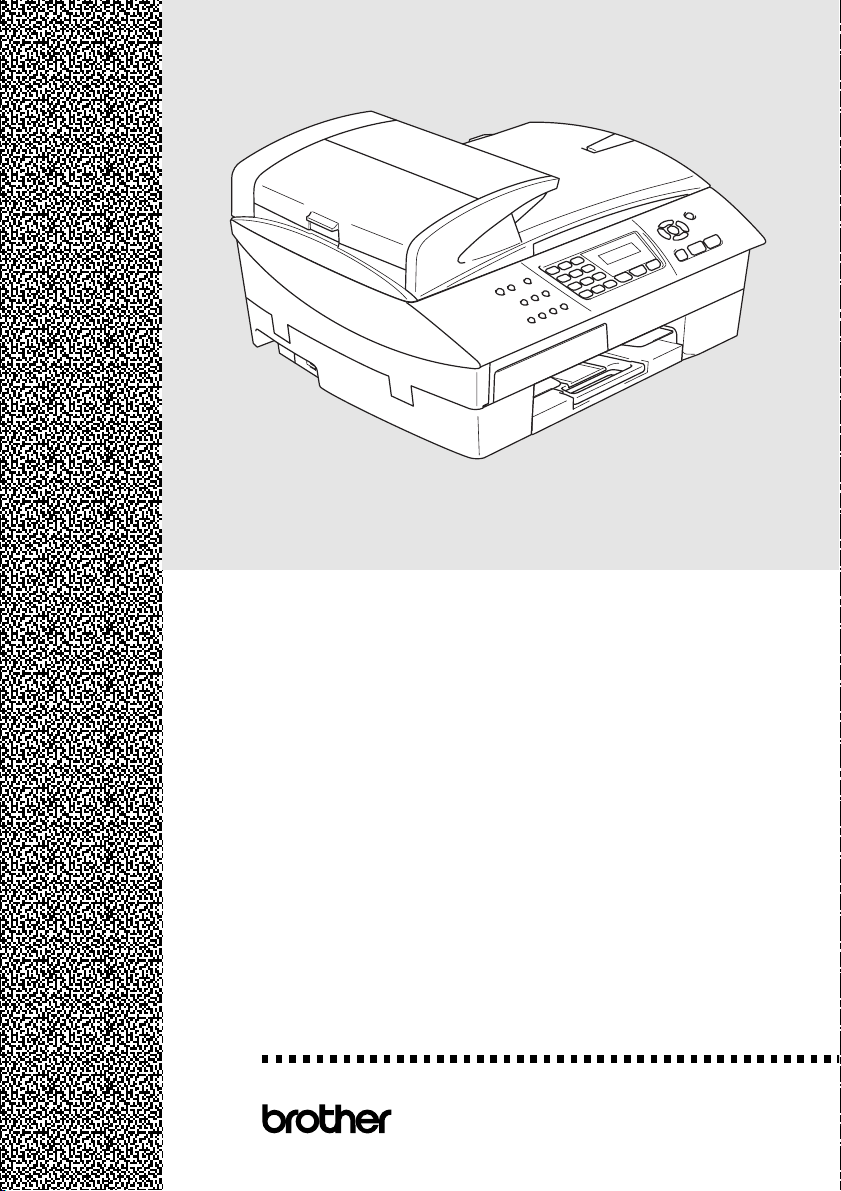
USER’S GUIDE
®
MFC-5440CN
MFC-5840CN
Version D

If you need to call Customer Service
Please complete the following information for future
reference:
Model Number: MFC-5440CN and MFC-5840CN
(Circle your model number)
Serial Number:*
Date of Purchase:
Place of Purchase:
* The serial number is on the back of the unit. Retain this
User’s Guide with your sales receipt as a permanent
record of your purchase, in the event of theft, fire or
warranty service.
Register your product on-line at
By registering your product with Brother International
Corporation, you will be recorded as the original owner of the
product. Your registration with Brother:
■
may serve as confirmation of the purchase date of your
product should you lose your receipt;
■
may support an insurance claim by you in the event of
product loss covered by insurance; and,
■
will help us notify you of enhancements to your product and
special offers.
The most convenient and efficient way to register your new
product is on-line at http://www.brother.com/registration
http://www.brother.com/registration
©1996-2004 Brother Industries, Ltd.
i
Brother numbers
Register your product
By registering your product with Brother International Corporation, you will be
recorded as the original owner of the product. Your registration with Brother:
■
may serve as confirmation of the purchase date of your product
should you lose your receipt;
■
may support an insurance claim by you in the event of product
loss covered by insurance; and,
■
will help us notify you of enhancements to your product and special offers.
Please complete and fax the Brother Warranty Registration And Test Sheet
or, for your convenience and most efficient way to register your new
product, register on-line at
Frequently asked questions (FAQs)
The Brother Solutions Center is our one-stop resource for all your Fax
Machine/Multi-Function Center needs. You can download the latest
software and utilities, read FAQs and troubleshooting tips, and go to the
“Solutions” section to learn how to get the most from your Brother product.
For Customer Service
Service Center Locator (USA only)
For the location of a Brother authorized service center, call 1-800-284-4357.
Service Center Locations (Canada only)
For the location of a Brother authorized service center, call 1-877-BROTHER.
IMPORTANT
For technical help, you must call the country where you bought the MFC.
Calls must be made from within that country.
You can check here for Brother driver updates.
In USA: 1-800-284-4329 (voice)
1-901-379-1215 (fax)
1-800-284-3238 (TTY service for the hearing-impaired)
In Canada: 1-877-BROTHER (voice)
(514) 685-4898 (fax)
http://www.brother.com/registration
http://solutions.brother.com

vi
BROTHER MULTIFUNCTION CENTER/FACSIMILE MACHINE
LIMITED WARRANTY
(Canada only)
Pursuant to this limited warranty of 1 year from the date of purchase for labour and parts,
Brother International Corporation (Canada) Ltd. (“Brother”), or its Authorized Service
Centers, will repair this MFC/Facsimile machine free of charge if defective in material or
workmanship. This Limited Warranty does not include cleaning, consumables
(including, without limitation, print cartridges, print head, toner and drum) or damage
caused by accident, neglect, misuse or improper installation or operation, any damage
caused from service, maintenance, modifications, or tampering by anyone other than a
Brother Authorized Service Representative, or from the use of supplies or consumable
items that are non-Brother products. Operation of the MFC/Facsimile machine in excess
of the specifications or with the Serial Number or Rating Label removed shall be deemed
abuse and all repairs thereafter shall be the sole liability of the end-user/purchaser. In
order to obtain warranty service, the MFC/Facsimile machine must be delivered or
shipped freight prepaid by the end user/purchaser to a “Brother” Authorized Service
Center, together with your Proof of Purchase in the form of a Sales Receipt.
For laser products: Failure to remove the Toner Cartridge (and Toner Drum Unit on
applicable models) during shipping will cause severe damage to the MFC/Facsimile and
will VOID the Warranty. (Refer to your User’s Guide for proper packaging.)
For ink-jet products: Do not remove the ink cartridges during shipping. Damage to your
print head resulting from packing without the ink cartridges will VOID your warranty.
(Refer to your User’s Guide for proper packaging.)
BROTHER DISCLAIMS ALL OTHER WARRANTIES EXPRESSED OR IMPLIED
INCLUDING, WITHOUT LIMITATION, ANY IMPLIED WARRANTIES OF
MERCHANTABILITY OR FITNESS FOR A PARTICULAR PURPOSE, EXCEPT TO
THE EXTENT THAT ANY WARRANTIES IMPLIED BY LAW CANNOT BE VALIDLY
WAIVED.
No oral or written information, advice or representation provided by Brother, its
Authorized Service Centers, Distributors, Dealers, Agents or employees, shall create
another warranty or modify this warranty. This warranty states Brother’s entire liability
and your exclusive remedy against Brother for any failure of the MFC/Facsimile machine
to operate properly.
Neither Brother nor anyone else involved in the development, production, or delivery of
this MFC/Facsimile machine shall be liable for any indirect, incidental, special,
consequential, exemplary, or punitive damages, including lost profits, arising from the
use of or inability to use the product, even if advised by the end user/purchaser of the
possibility of such damages. Since some Provinces do not allow the above limitation of
liability, such limitation may not apply to you.
This Limited Warranty gives you specific legal rights and you may also have other rights
which vary from Providence to Providence.
Warranty Service is available at Brother Authorized Service Centers throughout
Canada. For Technical Support or for the name and location of your nearest Authorized
Service Center call 1-877-BROTHER.
Internet support: support@brother.ca or browse
Brother’s Web Site: www.brother.com
Brother International Corporation (Canada) Ltd.
1 Rue Hôtel de Ville
Dollard-Des-Ormeaux, QC H9B 3H6

vii
Safety precautions
To use the MFC safely
Please refer to these instructions for later reference and before
attempting any maintenance.
WARNI NG
There are high voltage
electrodes inside the MFC.
Before you clean the MFC,
make sure you have
unplugged the telephone line
cord first and then the power
cord from the AC power outlet.
Do not handle the plug with wet
hands. Doing this might cause
an electrical shock.
To prevent injuries, be careful
not to put your hands on the
edge of the MFC under the
scanner cover.
To prevent injuries, be careful
not to touch the area shaded in
the illustration.
When you move the MFC,
place a hand at each side of the
unit and grasp the grooved
panels so you are supporting
the base when you lift it. (See
the illustration on the right.) Do
not carry the MFC by holding
the scanner cover.
Most of the illustrations in this User’s Guide show the
MFC-5440CN.

xii
Setting the Ring Volume.............................................2-5
Setting the Beeper Volume.........................................2-5
Setting the Speaker Volume.......................................2-6
Turning on Automatic Daylight Savings Time.............2-6
Setting the LCD Contrast............................................2-7
Setting the Tray Use for Copy mode
(MFC-5840CN only) ...............................................2-7
Setting the Tray Use for Fax mode
(MFC-5840CN only) ...............................................2-8
3
Setup Send ........................................................................... 3-1
How to enter Fax mode ....................................................3-1
How to dial........................................................................3-1
Manual dialing.............................................................3-1
Speed-Dialing .............................................................3-2
Search ........................................................................3-2
Fax Redial...................................................................3-2
How to Fax (B&W and Color) ...........................................3-3
Color fax transmission ................................................3-3
Faxing from the ADF ..................................................3-3
Faxing from the scanner glass.................................... 3-4
Automatic transmission...............................................3-5
Manual transmission...................................................3-5
Out of Memory message ............................................3-6
Basic sending operations..................................................3-7
Sending faxes using multiple settings.........................3-7
Contrast ......................................................................3-7
Fax Resolution............................................................3-8
Dual Access (Not available for color faxes)................3-9
Real Time Transmission...........................................3-10
Checking job status ..................................................3-11
Canceling a fax in progress ......................................3-11
Canceling a scheduled job........................................3-11
Advanced sending operations ........................................3-12
Broadcasting (Not available for color faxes).............3-12
Overseas Mode ........................................................3-13
Delayed Fax (Not available for color faxes)..............3-14
Setting up Polled Transmit
(Not available for color faxes) ..............................3-14
Delayed Batch Transmission
(Not available for color faxes)...............................3-15
Faxing A4 size documents from the scanner glass....3-15

xiii
4
Setup Receive ...................................................................... 4-1
Basic receiving operations ...............................................4-1
Choosing the Receive Mode ...................................... 4-1
To select or change your Receive Mode................ 4-2
Setting the Ring Delay................................................4-2
Setting the F/T Ring Time (Fax/Tel mode only).......... 4-3
Easy Receive .............................................................4-4
Printing a reduced incoming fax (Auto Reduction) ..... 4-5
Printing a fax from the memory ..................................4-5
Polling ........................................................................ 4-6
Setting up Polling Receive ..................................... 4-6
Setting up Sequential Polling Receive ................... 4-6
5
Quick-Dial numbers and dialing options ........................... 5-1
Storing numbers for easy dialing...................................... 5-1
Storing Speed-Dial numbers ...................................... 5-1
Changing Speed-Dial numbers .................................. 5-2
Setting up Groups for Broadcasting ........................... 5-3
Dialing options..................................................................5-5
Access codes and credit card numbers......................5-5
Pause .........................................................................5-5
Tone or Pulse .............................................................5-6
6
Remote Fax Options (Not available for color faxes) ........ 6-1
Setting up Fax Forwarding ......................................... 6-1
Programming your pager number............................... 6-2
Setting Fax Storage.................................................... 6-3
Setting PC Fax Receive ............................................. 6-3
Turning off Remote Fax Options ................................ 6-4
Setting your Remote Access Code.............................6-4
Remote Retrieval..............................................................6-5
Using your Remote Access Code............................... 6-5
Remote commands .................................................... 6-6
Retrieving fax messages............................................ 6-7
Changing your Fax Forwarding number .....................6-7
7
Printing reports .................................................................... 7-1
Fax settings and activity ................................................... 7-1
Customizing the Transmission Verification Report..... 7-1
Setting the Journal Period..........................................7-2
Printing reports ...........................................................7-3
How to print a report...............................................7-3

xiv
8
Making copies ......................................................................8-1
Using the MFC as a copier ...............................................8-1
Enter Copy mode........................................................8-1
Making a single copy ..................................................8-2
Making multiple copies ...............................................8-2
Stop copying...............................................................8-2
Using the temporary Copy keys........................................8-3
Increasing copy speed or quality ................................8-4
Enlarging or reducing the image copied .....................8-5
Setting the paper type (MFC-5440CN only) ...............8-6
Using the Tray Select key (MFC-5840CN only)..........8-7
Changing the temporary copy settings.......................8-8
Setting paper type (MFC-5840CN only) .................8-9
Setting paper size...................................................8-9
Adjusting brightness .............................................8-10
Adjusting contrast.................................................8-11
Sorting copies using the ADF...............................8-11
Making N in 1 copies or a poster (Page Layout) ....8-12
Changing the default copy settings.................................8-16
Increasing copy speed or quality ..............................8-16
Adjusting brightness .................................................8-16
Adjusting contrast .....................................................8-16
Adjusting color saturation .........................................8-17
Out of Memory message ..........................................8-17
Legal limitations..............................................................8-18
9
Walk-Up PhotoCapture Center
™
(MFC-5840CN only) .......9-1
Introduction.......................................................................9-1
PhotoCapture Center
™
requirements ..................... 9-2
Getting started ..................................................................9-3
Printing the Index (Thumbnails)........................................9-5
Printing images .................................................................9-6
DPOF printing.............................................................9-8
Changing the default settings .....................................9-9
Increasing print speed or quality.............................9-9
Setting the paper & size .........................................9-9
Adjusting brightness .............................................9-10
Adjusting contrast.................................................9-10
Color enhancement (True2Life
®
)..........................9-10
Cropping...............................................................9-12
Borderless ............................................................9-12
Understanding the Error Messages ..........................9-13
Using PhotoCapture Center
™
from your PC...................9-14
Using PhotoCapture Center
™
for scanning documents....9-14

xvi
Before you choose the ring pattern to register ...... A-3
Registering the Distinctive Ring pattern..................... A-4
Turning off the Distinctive Ring.............................. A-4
Caller ID........................................................................... A-5
Viewing Caller ID List................................................. A-6
Printing Caller ID List................................................. A-6
Advanced receiving operations........................................ A-7
Operation from extension telephones........................ A-7
Fax/Tel mode when power key is On ........................ A-7
Fax/Tel mode when power key is Off ........................ A-7
Using a cordless external handset............................. A-8
Changing the remote codes....................................... A-8
Connecting an external device to your MFC.................... A-9
Connecting an external telephone............................. A-9
Connecting an external telephone answering
device (TAD)........................................................ A-10
Sequence ............................................................ A-10
Connections......................................................... A-12
Recording outgoing message (OGM) on
an external TAD............................................... A-12
Special line considerations...................................... A-13
Roll over phone lines ........................................... A-13
Two-line phone system........................................ A-13
Converting telephone wall outlets........................ A-14
Installing MFC, external two-line TAD and
two-line telephone ........................................... A-15
Multi-line connections (PBX).................................... A-16
If you are installing the MFC to work with a PBX ... A-16
Custom features on your phone line........................ A-16
B
Appendix B .......................................................................... B-1
On-screen programming.................................................. B-1
Menu table................................................................. B-1
Memory storage......................................................... B-1
Navigation keys ............................................................... B-2
Entering Text ........................................................... B-12
Inserting spaces .................................................. B-12
Making corrections .............................................. B-12
Repeating letters ................................................. B-12
Special characters and symbols.......................... B-13
G
Glossary ............................................................................... G-1

xvii
S
Specifications ......................................................................S-1
Product description...........................................................S-1
General.............................................................................S-1
Print media .......................................................................S-3
Copy .................................................................................S-4
PhotoCapture Center (MFC-5840CN only) ......................S-5
Fax....................................................................................S-6
Scanner ............................................................................S-7
Printer...............................................................................S-8
Interfaces .........................................................................S-8
Computer requirements....................................................S-9
Consumable items..........................................................S-10
Network (LAN) ................................................................S-11
Optional External Wireless Print/Scan Server
(NC-2200w) .................................................................S-11
12
Index ...................................................................................... I-1
13
Remote Retrieval Access card ......................................... R-1

INTRODUCTION 1 - 1
1
Using this Guide
Thank you for buying a Brother Multi-Function Center (MFC). Your
MFC is simple to use, with LCD screen instructions to guide you
through programming it. You can make the most of your MFC by
reading through this Guide.
Finding information
All the chapter headings and subheadings are listed in the Table of
Contents. You will be able to find information about a specific feature
or operation by checking the Index at the back of this Guide.
Symbols used in this Guide
Throughout this Guide you will see special symbols alerting you to
important warnings, notes and actions. To make things clearer and
to help you press the correct keys, we used special fonts and added
some of the messages that will appear in the LCD.
Introduction
Bold Bold typeface identifies specific keys on the MFC
control panel.
Italics Italicized typeface emphasizes an important point
or refers you to a related topic.
Courier New
Courier New type face identifies the messages on
the LCD of the MFC.
Warnings inform you what to do to avoid possible personal
injury.
Cautions specify procedures you must follow or avoid to
prevent possible damage to the MFC.
Notes tell you how you should respond to a situation that may
arise or give tips about how the current operation works with
other features.
Improper Setup alerts you to devices and operations that are
not compatible with the MFC.
1 - 6 INTRODUCTION
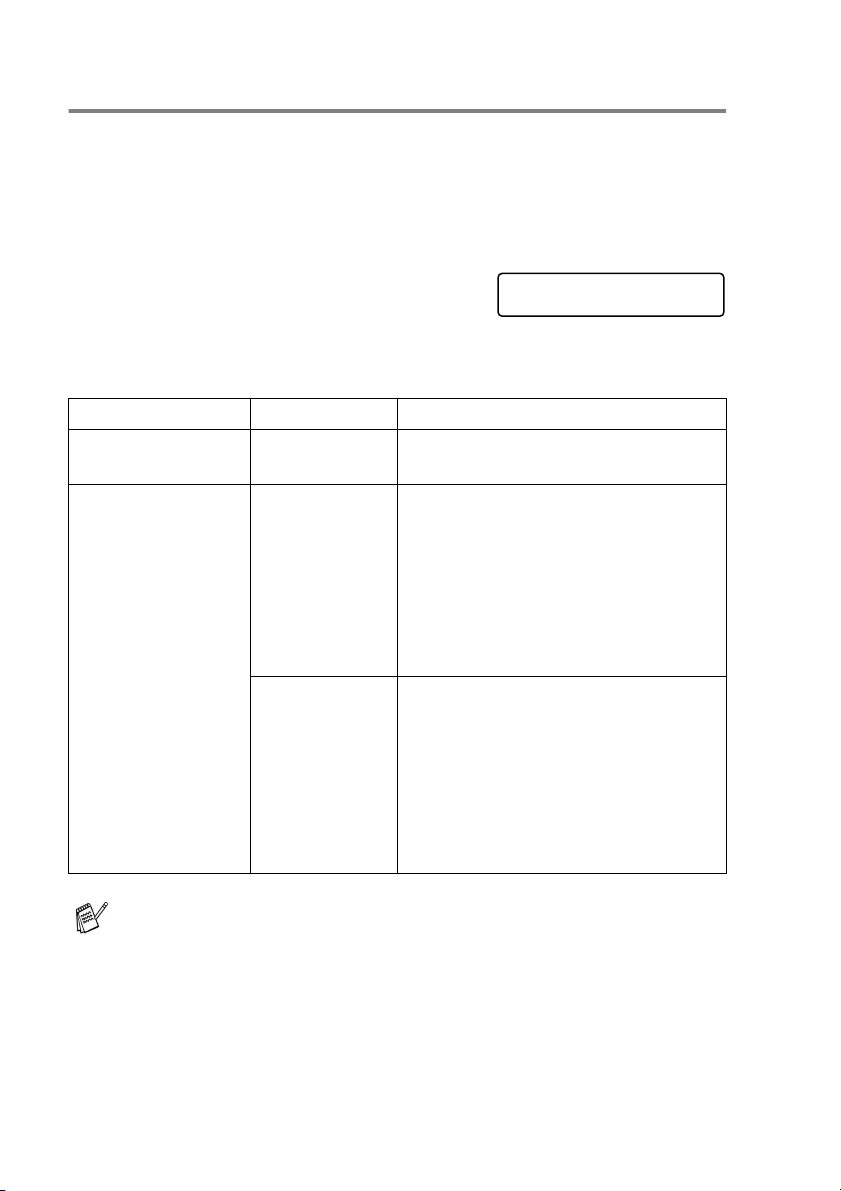
On/Off Setting
You can customize the MFC’s On/Off key. The default setting is
Fax Receive:Off
. Your MFC will not work when it is switched Off,
but it will purge the ink head periodically. If you turn this setting to
On
,
you can receive faxes or calls even when the MFC is switched
Off
.
(See
Turning the MFC on and off
on page 1-5.)
1
Press
Menu/Set
,
1
,
6
.
2
Press
▲
or
▼
to select
On
(or
Off
).
3
Press
Menu/Set
.
4
Press
Stop/Exit
.
On/Off Setting Receive Mode Available Operations
Fax Receive:Off
(default)
— No machine operations will be
available.
Fax Receive:On
Fax Only
External TAD
Fax Receive, Easy Receive, Delayed
Fax, Remote Fax Options, Remote
Retrieval.
■
You cannot receive a fax with
Black Start or Color Start.
■
Delayed Fax and Remote Fax
Options should be set before you
switch off the machine.
Manual
Fax/Tel
*
Delayed Fax, Easy Receive
■
You cannot receive a fax with
Black Start or Color Start.
■
* You cannot receive a fax
automatically even if you have set
the receive mode to
Fax/Tel
.
■
Delayed Fax should be set before
you switch off the MFC.
The external telephone or TAD is always available.
General Setup
6.On/Off Setting

INTRODUCTION 1 - 11
Handling and using special paper
■
Store paper in its original packaging, and keep it sealed. Keep the
paper flat and away from moisture, direct sunlight and heat.
■
The coated side of glossy paper is shiny. Avoid touching the
shiny (coated) side. Load glossy paper with the shiny side facing
down.
■
Avoid touching either side of transparencies, because they
absorb water and perspiration easily, and this may cause
decreased output quality. Transparencies designed for laser
printers/copiers may stain your next document. Use only
transparencies recommended for inkjet printing.
Do not use paper:
■
that are damaged, curled, wrinkled, or irregularly shaped
■
that are extremely shiny or highly textured
■
that were previously printed by a printer
■
that cannot be arranged uniformly when stacked
■
that are made with a short grain
0.08 in.
or longer
0.08 in.
or longer

INTRODUCTION 1 - 17
To load paper in paper tray#2 (MFC-5840CN only)
1
Pull the paper tray completely out of the MFC.
2
Press and slide the paper side guide and paper length guide to
fit the paper width and length.
You can use only plain paper sizes Letter, Legal, A4, Executive
or B5 in Tray#2.
Paper Side Guide
Paper Length Guide

1 - 18 INTRODUCTION
3
Fan the stack of paper well to avoid paper jams and mis-feeds.
4
Gently insert the paper into the paper tray print side face down
and the leading edge (top of the paper) in first.
Check that the paper is flat in the tray and below the maximum
paper mark.
When you use Legal size paper, open the tray cover, and then
press and hold the universal guide release button as you slide
out the front of the paper tray.
Make sure the paper side guides and paper length guide touch
the sides of the paper.
Tray Cover
Universal Guide
Release Button
Maximum Paper Mark
1 - 20 INTRODUCTION
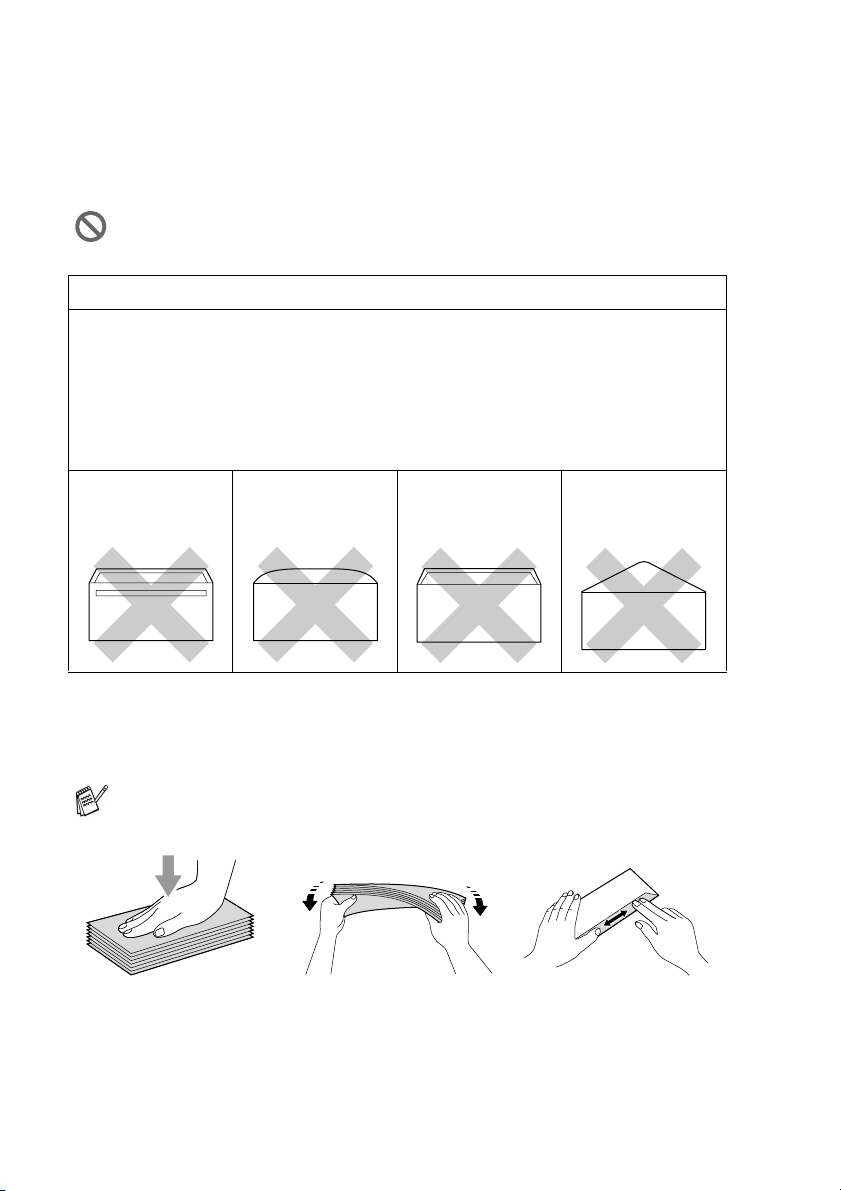
To load envelopes
■
Use envelopes that weigh from 20 to 25 lb.
■
Some envelopes require margin settings in the application. Make
sure you do a test print first.
How to load envelopes
1
Before loading, press the corners and sides of the envelopes to
make them as flat as possible.
To prevent possible damage to the feeding mechanism, do not
use the types of envelopes shown below.
DO NOT USE ENVELOPES:
■
that are of a baggy construction
■
that are embossed (have raised writing on them)
■
that have clasps on them
■
that are not sharply creased
■
that are preprinted on the inside
■
Glue
■
Rounded
flap
■
Double flap
■
Triangular
flap
If the envelopes are ‘double-feeding,’ put one envelope in the
paper tray at a time.
INTRODUCTION 1 - 21
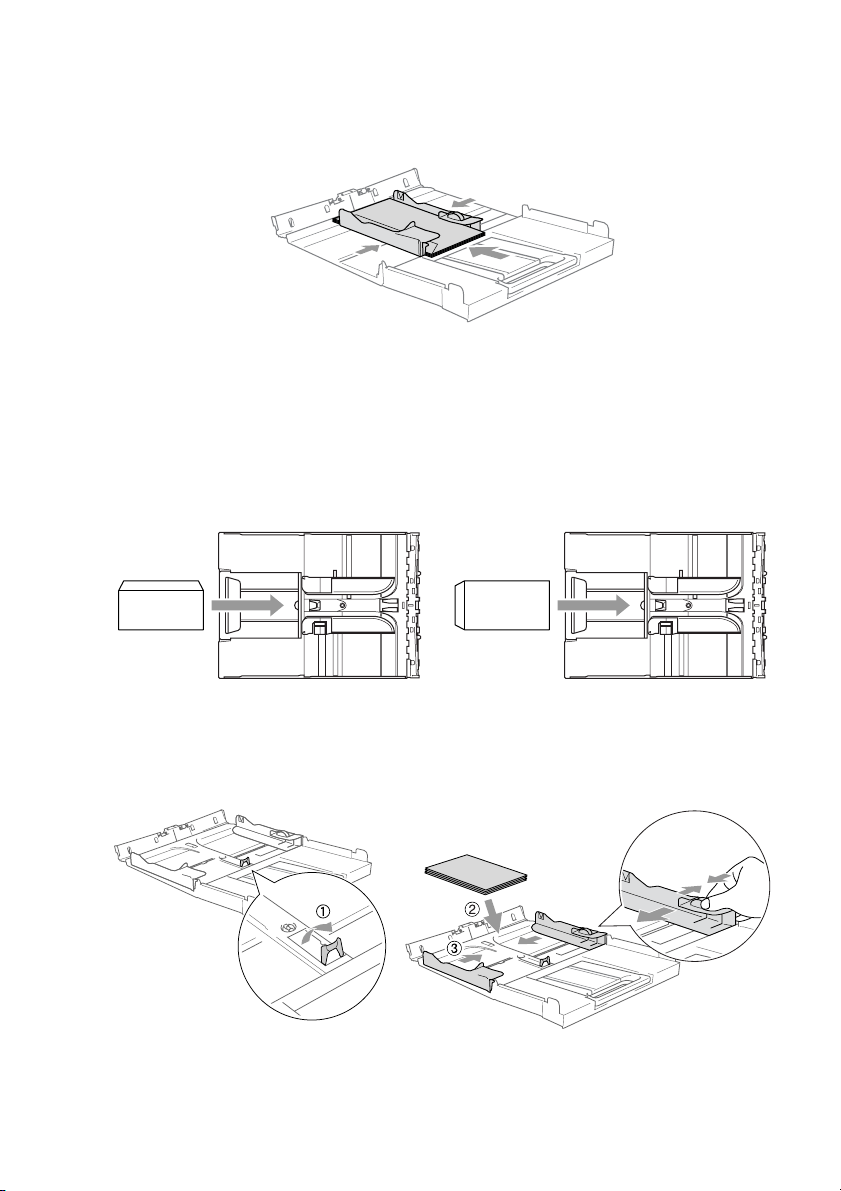
2
Insert the envelopes into the paper tray with the address side
down and the leading edge (top of the envelopes) in first. Slide
the paper side guide to fit the width of the envelopes.
If you have problems when printing on envelopes, try the
following suggestions:
1
Open the envelope flap.
2
Make sure the open flap is either to the side of the envelope or
to the back edge of the envelope when printing.
3
Adjust the size and margin in your application.
To load post cards
1
Raise the paper stop and insert the post cards into the paper
tray. Slide the paper side guide to fit the width of the post cards.

INTRODUCTION 1 - 23
Fax tones and handshake
When someone is sending a fax, the MFC sends fax calling tones
(CNG tones). These are quiet, intermittent beeps every 4-seconds.
You’ll hear them after you dial and press
Black Start
or
Color Start
and they will continue for about 60 seconds after
dialing. During that time, the sending machine must begin the
“handshake”, or connection, with the receiving machine.
Each time you use automatic procedures to send a fax, you are
sending CNG tones over the phone line. You will soon learn to listen
for these quiet beeps each time you answer a phone on your fax line,
so you will know if you are receiving a fax message.
The receiving fax responds with fax receiving tones, which are loud,
chirping sounds. A receiving fax chirps for about 40 seconds over the
phone line, and the LCD shows
Receiving
.
If your MFC is set to the Fax Only mode, it will answer every call
automatically with fax receiving tones. If the other person hangs up,
your MFC will continue to send the “chirps” for about 40 seconds,
and the LCD continues to show
Receiving
. To cancel receiving,
press
Stop/Exit
.
The fax ‘handshake’ is the time in which the sending machine’s CNG
tones and the receiving machine’s “chirps” overlap. This must be for
at least 2 to 4 seconds, so both machines can understand how each
is sending and receiving the fax. The handshake cannot begin until
the call is answered, and the CNG tones only last for about 60
seconds after the number is dialed. So it is important for the receiving
machine to answer the call in as few rings as possible.
When you have an external Telephone Answering Device (TAD)
on your fax line, your TAD will decide the number of rings before
the call is answered.

1 - 24 INTRODUCTION
ECM (Error Correction Mode)
The Error Correction Mode (ECM) is a way for the MFC to check a
fax transmission while it is in progress. If the MFC detects errors
during fax transmission, it resends the pages of the fax that had an
error. ECM transmissions are only possible between fax machines
that both have this feature. If they do, you may send and receive fax
messages that are continuously being checked by the MFC.
Your MFC must have enough memory for this feature to work.

2 - 4 GETTING STARTED
Setting the Paper Size
You can use five sizes of paper for printing copies: Letter, Legal, A4,
A5, and 4" x 6" and three sizes for printing faxes: Letter, Legal and
A4. When you change the type of paper you load in the MFC, you will
need to change the setting for Paper Size at the same time so your
MFC can fit an incoming fax on the page.
1
Press
Menu/Set
,
1
,
3
.
2
(MFC-5840CN only)
Press
▲
or
▼
to select
Tray#1
or
Tray#2
.
Press
Menu/Set
.
3
Press
▲
or
▼
to select
Letter
,
Legal
,
A4
,
A5
or
4"x6"
.
Press
Menu/Set
.
4
Press
Stop/Exit
.
(MFC-5840CN only)
You can only use plain paper sizes Letter, Legal or A4 in Tray#2.
General Setup
3.Paper Size

SETUP SEND 3 - 3
How to Fax (B&W and Color)
Color fax transmission
Your MFC can send a color fax to machines that support this feature.
However, color faxes cannot be stored in the memory. When you
send a color fax, the MFC will send it in real time (even if
Real Time
TX
is set to
Off
).
Faxing from the ADF
Put the document face up in the ADF. To cancel, press
Stop/Exit
.
1
If it is not illuminated in green, press (
Fax
).
2
Load your document.
3
Dial the fax number.
Press
Black Start
or
Color Start
. The MFC starts scanning
the first page.
Delayed fax and Polling Transmit features are not available in
color.
If the memory is full and you are faxing a single page, it will be
sent in real time.

3 - 6 SETUP SEND
Out of Memory message
If you get an
Out of Memory
message while scanning the first page
of a fax, press
Stop/Exit
to cancel the fax. If you get an
Out of
Memory
message while scanning a subsequent page, you will have
the option to press
Black Start
to send the pages scanned so far,
or to press
Stop/Exit
to cancel the operation.
If the memory is full and you are faxing a single page, it will be
sent in real time.

3 - 12 SETUP SEND
Advanced sending operations
Broadcasting (Not available for color faxes)
Broadcasting is when the same fax message is automatically sent to
more than one fax number. You can include Groups, Speed-Dial
numbers and up to 50 manually dialed numbers in the same
broadcast.
Press
Menu/Set
between each of the numbers. Use
Search/Speed Dial
to help you choose the numbers easily. (To set
up Group dial numbers, see Setting up Groups for Broadcasting on
page 5-3.)
After the broadcast is finished, a Broadcast Report will be printed to
let you know the results.
1
If it is not illuminated in green, press (
Fax
).
2
Load your document.
3
Enter a number using Speed-Dial, a Group number, Search or
manual dialing using the dial pad.
(Example: Group number)
4
When the LCD displays the fax number or name of the other
party, press
Menu/Set
.
You will be asked to enter the next number.
5
Enter the next number.
(Example: Speed-Dial number)
6
When the LCD displays the fax number or name of the other
party, press
Menu/Set
.
7
After you have entered all fax numbers by repeating Step 5 and
6, go to Step 8 to start the broadcast.
8
Press
Black Start
.

3 - 14 SETUP SEND
Delayed Fax (Not available for color faxes)
During the day you can store up to 50 faxes in the memory to be sent
within 24 hours. These faxes will be sent at the time of day you enter
in Step 4.
1
If it is not illuminated in green, press (
Fax
).
2
Load your document.
3
Press
Menu/Set
,
2
,
2
,
3
.
4
Press
Menu/Set
to accept the
displayed time.
—OR—
Enter the time you want the fax to be sent (in 24-hour format).
Press
Menu/Set
.
(For example, enter 19:45 for 7:45 PM.)
Setting up Polled Transmit
(Not available for color faxes)
Polled Transmit is when you set up your MFC to wait with a
document so another fax machine can call and retrieve it.
1
If it is not illuminated in green, press (
Fax
).
2
Load your document.
3
Press
Menu/Set
,
2
,
2
,
6
.
4
Press
▲
or
▼
to choose
On
(or
Off
).
Press
Menu/Set
.
The number of pages you can scan into the memory depends
on the amount of data that is printed on each page.
The document will be stored and can be retrieved from any other
fax machine until you delete the fax in memory by using the
Canceling a Job menu setting. (See
Canceling a scheduled job
on page 3-11.)
Setup Send
3.Delayed Fax
Setup Send
6.Polled TX

SETUP RECEIVE 4 - 6
Polling
Polling is the process of retrieving faxes from another fax machine.
You can use your MFC to ‘poll’ other machines, or you can have
someone poll your MFC.
Everyone who is involved in Polling needs to set up their fax
machines for Polling. When someone polls your MFC to receive a
fax, they pay for the call. If you poll someone’s fax machine to receive
a fax, you pay for the call.
Setting up Polling Receive
Polling Receive is when you call another fax machine to receive a fax
from it.
1
If it is not illuminated in green, press (
Fax
).
2
Press
Menu/Set
,
2
,
1
,
6
.
3
Enter the fax number you are
polling.
4
Press
Black Start
or
Color Start
.
The LCD shows
Dialing
.
Setting up Sequential Polling Receive
Your MFC can ask for faxes from several fax units in a single
operation (Sequential Polling Receive). Afterwards, a Sequential
Polling Report will be printed.
1
If it is not illuminated in green, press (
Fax
).
2
Press
Menu/Set
,
2
,
1
,
6
.
3
Enter the fax machines you want to
poll using Speed-Dial, a Group or
the dial pad. You must press
Menu/Set
between each fax
number.
4
Press
Black Start
or
Color Start
. Your MFC will poll each
number or Group number in turn to receive a fax.
Some fax machines do not respond to the Polling feature.
Setup Receive
6.Polling RX
Setup Receive
6.Polling RX

5 - 1 QUICK-DIAL NUMBERS AND DIALING OPTIONS
5
Storing numbers for easy dialing
You can set up your MFC to do two types of easy dialing: Speed-Dial
and Groups for Broadcasting faxes. When you dial a quick-dial
number, the LCD shows the name, if you stored it, or the number.
Storing Speed-Dial numbers
You can store Speed-Dial numbers, so that when you dial you will
only have to press a few keys (
Search/Speed Dial
,
#
, the two-digit
number, and
Black Start
or
Color Start
). The MFC-5440CN can
store 40 Speed-Dial numbers and the MFC-5840CN can store 100
numbers.
1
Press
Menu/Set
,
2
,
3
,
1
.
2
Use the dial pad to enter a
Speed-Dial location number
(01-40 for MFC-5440CN, 00-99 for MFC-5840CN.)
(For example, press
05
.)
Press
Menu/Set
.
3
Enter the phone or fax number (up to 20 digits).
Press
Menu/Set
.
4
Use the dial pad to enter the name (up to 15 characters).
Press
Menu/Set
.
(You can use the
chart on page B-12 to help you enter letters.)
—OR—
Press
Menu/Set
to store the number without a name.
5
Go to Step 2 to store another Speed-Dial number.
—OR—
Press
Stop/Exit
.
Quick-Dial numbers and
dialing options
If you lose electrical power, the quick-dial numbers that are in
the memory will not be lost.
Set Quick-Dial
1.Speed-Dial

5 - 3 QUICK-DIAL NUMBERS AND DIALING OPTIONS
Setting up Groups for Broadcasting
Groups allow you to send the same fax message to many fax
numbers by pressing only a few keys (
Search/Speed Dial
,
#
, the
two-digit number, and
Black Start
). First, you’ll need to store each
fax number as a Speed-Dial number.
Then, you can combine them into a Group. Each Group uses up a
Speed-Dial number. You can have up to six Groups, or you can
assign up to 39 numbers (MFC-5440CN) or up to 99 numbers
(MFC-5840CN) to one large Group.
(See Storing Speed-Dial numbers on page 5-1 and Broadcasting
(Not available for color faxes) on page 3-12.)
1
Press
Menu/Set
,
2
,
3
,
2
.
2
Use the dial pad to enter the
two-digit Speed-Dial number where
you want to store the Group.
Press
Menu/Set
.
(For example, press
07
and
Menu/Set
.)
3
Use the dial pad to enter the Group
number (1 to 6).
Press
Menu/Set
.
(For example, press
1
for Group 1.)
4
To include Speed-Dial numbers in
the Group, press them as follows:
For example, for Speed-Dial
numbers 05 and 09. Press
Search/Speed Dial
,
05
,
Search/Speed Dial
,
09
. The LCD shows:
#05#09
.
The Group number must be between 1 and 6.
Set Quick-Dial
2.Setup Groups
Setup Groups
Speed-Dial? #
Setup Groups
Setup Group:G01
Setup Groups
G01:#05#09

REMOTE FAX OPTIONS 6 - 2
Programming your pager number
When Paging is selected, your MFC dials the pager number you’ve
programmed, and then dials your Personal Identification Number
(PIN). This activates your pager so you will know that you have a fax
message in the memory.
1
Press
Menu/Set
,
2
,
5
,
1
.
2
Press
▲
or
▼
to select
Paging
.
3
Enter your pager phone number
followed by # # (up to 20 digits).
Press
Menu/Set
.
Do not include the area code if it is the same as that of your MFC.
For example, press
1
8
0
0
5
5
5
1
2
3
4
#
#
.
4
If your pager needs a PIN, enter the PIN, press
#
, press
Redial/Pause
, enter your fax number followed by
##
.
Press
Menu/Set
.
(For example, press
1
2
3
4
5
#
Redial/Pause
1
8
0
0
5
5
5
1
2
1
2
#
#
)
—
OR
—
If you do not need a PIN, press
Redial/Pause
, enter your fax
number followed by
##
.
Press
Menu/Set
.
(For example, press
Redial/Pause
1
8
0
0
5
5
5
1
2
1
2
#
#
)
5
Press
Stop/Exit
.
■
You cannot change a Paging number or PIN remotely.
■
If you have set Paging, a backup copy of the received fax will
automatically be printed at the MFC.
Remote Fax Opt
1.Fwd/Page/Store

6 - 3 REMOTE FAX OPTIONS
Setting Fax Storage
If you select Fax Storage, your MFC stores the received fax in the
memory. You will be able to retrieve fax messages from another
location using the Remote Retrieval commands.
1
Press
Menu/Set
,
2
,
5
,
1
.
2
Press
▲
or
▼
to select
Fax Storage
.
Press
Menu/Set
.
3
Press
Stop/Exit
.
Setting PC Fax Receive
If you select PC Fax Receive, your MFC will temporarily store your
received fax messages in its memory, and then automatically send
the faxes to the PC. You can then use your PC to view and store
these faxes.
1
Press
Menu/Set
,
2
,
5
,
1
.
2
Press
▲
or
▼
to select
PC Fax Receive
.
Press
Menu/Set
.
3
Press
▲
or
▼
to select
Backup Print:On
or
Backup Print:Off
.
Press
Menu/Set
.
4
Press
Stop/Exit
.
■
If you have turned on Fax Storage, a backup copy will
automatically be printed at the MFC.
■
If Fax Storage is turned on your machine cannot receive a
color fax unless the sending machine converts it to black &
white.
■
Before you can set up PC Fax Receive you must install the
MFL-Pro Suite software on your PC, make sure your PC is
connected and turned on. (For details, see
Using Brother
PC-FAX software
on page 5-1 in Software User’s Guide on
the CD-ROM.)
■
If you select
Backup Print:On
, the MFC will also print the
fax at your MFC so you will have a copy if there is a power
failure before it is sent to the PC.
Remote Fax Opt
1.Fwd/Page/Store
Remote Fax Opt
1.Fwd/Page/Store
PC Fax Receive
Backup Print:On

REMOTE FAX OPTIONS 6 - 4
Turning off Remote Fax Options
If you set the Remote Fax Options to
Off
and there are faxes in your
MFC’s memory, the LCD will give you two options.
■
If you press
1
, all unprinted faxes will be printed and erased
before the setting turns off. If a backup copy has already been
printed it will not be printed again.
■
If you press
2
, the memory will not be erased and the setting will
be unchanged.
(See
Printing a fax from the memory
on page 4-5.)
Setting your Remote Access Code
The remote access code lets you access the Remote Retrieval
features when you are away from your MFC. Before you use the
remote access and retrieval features, you have to set up your own
code. The default code is inactive code (--- ).
1
Press
Menu/Set
,
2
,
5
,
2
.
2
Enter a three-digit code using
numbers
0
-
9
or .
Press
Menu/Set
. (The preset ‘ ’ cannot be changed.)
3
Press
Stop/Exit
.
■
If you get an error message and the MFC cannot print the
faxes in memory, you can use this setting to transfer your
faxes to your PC. (For details, see Error messages on page
11-1.)
■
When PC Fax Receive is turned on your machine can only
print the color faxes it receives. It cannot store them it
memory.
Do not use the same code which is set in your Fax Receive
Code (
51
) or Telephone Answer Code (
#51
).
(See
Operation from extension telephones
on page A-7.)
You can change your code at any time by entering a new one.
If you want to make your code inactive, press
Stop/Exit
in Step
2 to restore the inactive setting (--- ).
Remote Fax Opt
2.Remote Access

6 - 5 REMOTE FAX OPTIONS
Remote Retrieval
You can call your MFC from any touch tone telephone or fax
machine, then use the Remote Access Code and remote commands
to retrieve fax messages. Be sure to cut out the Remote Retrieval
Access Card on the last page and keep it with you at all times.
Using your Remote Access Code
1
Dial your fax number from a telephone or another fax machine
using touch tone.
2
When your MFC answers, immediately enter your Remote
Access Code (3 digits followed by ).
3
The MFC signals if it has received fax messages:
1 long beep
—
Fax messages
No beeps
—
No messages
4
The MFC gives two short beeps to tell you to enter a command.
The MFC will hang up if you wait longer than 30 seconds to
enter a command. The MFC will beep three times, if you enter
an invalid command.
5
Press
90
to reset the MFC when you’ve finished.
6
Hang up.
If your MFC is set to
Manual
mode and you want to use the
remote retrieval features, you can access your MFC by waiting
about 2 minutes after it starts ringing, and then entering the
Remote Access Code within 30 seconds.

6 - 7 REMOTE FAX OPTIONS
Retrieving fax messages
You can call your MFC from any touch tone phone and have your fax
messages sent to a fax machine.
1
Dial your fax number.
2
When your MFC answers, immediately enter your Remote
Access Code (3 digits followed by ). If you hear one long
beep, you have messages.
3
As soon as you hear two short beeps, use the dial pad to press
962
.
4
Wait for the long beep, and then use the dial pad to enter the
number of the remote fax machine where you want your fax
messages sent to followed by
##
(up to 20 digits).
5
Hang up after you hear your MFC beep. Your MFC will call the
other machine, which will then print your fax messages.
Changing your Fax Forwarding number
You can change the default setting of your fax forwarding number
from another telephone or fax machine using touch tone.
1
Dial your fax number.
2
When your MFC answers, immediately enter your Remote
Access Code (3 digits followed by ). If you hear one long
beep, you have messages.
3
When you hear two short beeps, use the dial pad to press
954
.
4
Wait for the long beep, and then use the dial pad to enter the
new number of the remote fax machine where you want your fax
messages forwarded followed by
##
(up to 20 digits).
5
Hang up after you hear your MFC beep.
You cannot use and
#
as dial numbers. However, press
#
if
you want to store a pause.
You cannot use and
#
as dial numbers. However, press
#
if
you want to store a pause.

8 - 1 MAKING COPIES
8
Using the MFC as a copier
You can use your MFC as a copier, making up to 99 copies at a time.
Enter Copy mode
Before making copies, make sure that (
Copy
) is illuminated
in green. If it is not, press (
Copy
) to enter Copy mode. The
default setting is Fax. You can change the number of seconds or
minutes that the MFC stays in Copy mode. (See
Setting the Mode
Timer on page 2-3.)
Making copies
Copy Ratio
The LCD shows the default copy setting
Quality No of Copies
8 - 3 MAKING COPIES
Using the temporary Copy keys
When you want to quickly change the copy settings temporarily for
the next copy, use the temporary Copy keys. You can use different
combinations.
These settings are temporary, and the MFC returns to its default
settings 60 seconds after it finishes copying. However if you
have set the Mode Timer to 0 or 30 seconds, the MFC returns
to the default settings after the number of seconds that has been
set for mode timer. (See Setting the Mode Timer on page 2-3.)
You can save the copy settings you use most often by setting
them as default. (See Changing the default copy settings on
page 8-16.)
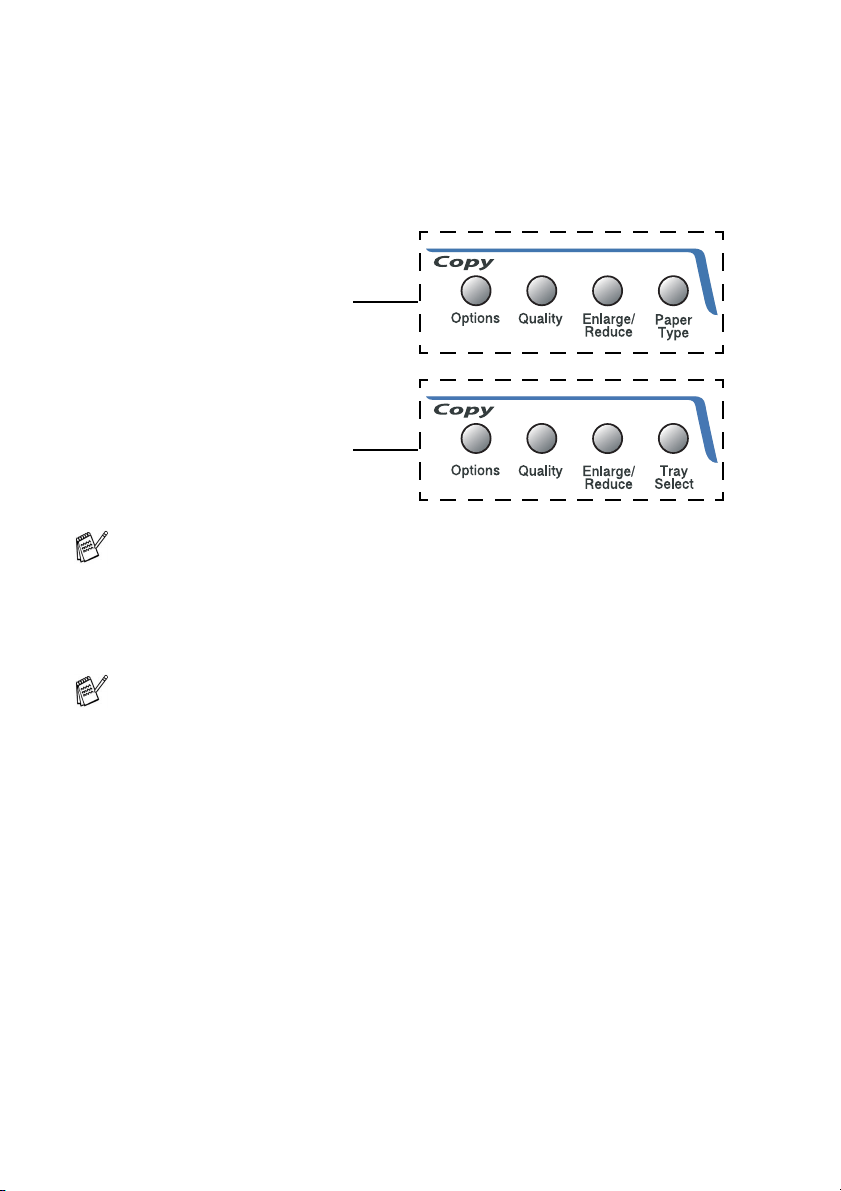
Temporary Copy keys
(For MFC-5440CN)
Temporary Copy keys
(For MFC-5840CN)

MAKING COPIES 8 - 8
Changing the temporary copy settings
Use the
Options
key to quickly set the following copy settings
temporarily for the next copy.
After you choose your settings by pressing
Menu/Set
, the LCD
shows
Set temporarily
.
Press
Black Start
or
Color Start
if you
’
re finished choosing
settings.
—OR—
Press
▲
or
▼
to select more settings.
Press
Options
Menu Selections Options Factory
Setting
Page
Paper Type
(MFC-5840CN only)
Plain
/
Inkjet
/
Glossy
/
Transparency
Plain
8-9
Paper Size Letter
/
Legal
/
A4
/
A5
/
4"(W)x 6"(H)
Letter
8-9
Brightness
- + - + 8-10
Contrast
- + - + 8-11
Stack/Sort Stack/Sort Stack
8-11
Page Layout Off(1 in 1)
/
2 in 1 (P)
/
2 in 1 (L)
/
4 in 1 (P)
/
4 in 1 (L)
/
Poster(3 x 3)
Off
(1 in 1)
8-12
No. of Copies No. of Copies:01
(01-99)
01
select select

8 - 9 MAKING COPIES
Setting paper type (MFC-5840CN only)
If copying on paper other than plain paper, select the type of paper
that you are using to get the best print quality.
1
Press (
Copy
) to illuminate it in green.
2
Load your document.
3
Use the dial pad to enter the number of copies you want
(up to 99).
4
Press
Options
and
▲
or
▼
to select
Paper Type
.
Press
Menu/Set
.
5
Press
▲
or
▼
to select the type of paper you are using (
Plain
,
Inkjet
,
Glossy
or
Transparency
).
Press
Menu/Set
.
6
Press
Black Start
or
Color Start
.
Setting paper size
If copying on paper other than Letter size, you will need to change
the paper size setting.
1
Press (
Copy
) to illuminate it in green.
2
Load your document.
3
Use the dial pad to enter the number of copies you want
(up to 99).
You can only use plain paper in Tray#2.
You can change the default Paper Type setting at any time.
(See
Setting the Paper Type
on page 2-3.)
■
You can copy on Letter, Legal, A4, A5 or
Photo Card (4"(W) x 6"(H)) paper.
■
You can only use this setting with Tray#1.

8 - 13 MAKING COPIES
If you are using the scanner glass:
8
After the MFC scans the page,
the LCD shows:
Press
1
to scan the next page.
9
Put the next document on
the scanner glass.
Press
Menu/Set
.
Repeat Steps 8 and 9 for each page of the layout.
10
After all the pages of the document have been scanned,
press
2
to end.
If
Inkjet
has been selected in the Paper Type setting for N in
1 copies, the MFC will print the images as if Plain paper had
been selected.
■
If you are producing multiple color copies, N in 1 copies are
not available.
■
For Poster copies, you cannot make more than one copy.
Next Page?
1.Yes 2.No
Set Next Page
Then Press Set

MAKING COPIES 8 - 14
If you are copying from the ADF, insert the document face up in
the direction shown below.
2 in 1 (P)
4 in 1 (P)
2 in 1 (L)
(P)
(L)
4 in 1 (L)
MAKING COPIES 8 - 16
Changing the default copy settings
You can save the copy settings you use most often by setting them
as default. These settings will remain until you change them again.
Increasing copy speed or quality
1
Press
Menu/Set
,
3
,
1
.
2
Press
▲
or
▼
to select
Normal
,
Best
or
Fast
.
Press
Menu/Set
.
3
Press
Stop/Exit
.
Adjusting brightness
1
Press
Menu/Set
,
3
,
2
.
2
Press
▲
to make a lighter copy.
—OR—
Press
▼
to make a darker copy.
Press
Menu/Set
.
3
Press
Stop/Exit
.
Adjusting contrast
You can change the contrast to help an image look sharper and more
vivid.
1
Press
Menu/Set
,
3
,
3
.
2
Press
▲
to increase the contrast.
—OR—
Press
▼
to decrease the contrast.
Press
Menu/Set
.
3
Press
Stop/Exit
.
Copy
1.Quality
Copy
2.Brightness
Copy
3.Contrast

8 - 17 MAKING COPIES
Adjusting color saturation
1
Press
Menu/Set
,
3
,
4
.
2
Press
▲
or
▼
to select
Red
,
Green
or
Blue
.
Press
Menu/Set
.
3
Press
▲
to increase the color saturation.
—OR—
Press
▼
to decrease the color saturation.
Press
Menu/Set
.
4
Return to Step 2 to select the next color.
—OR—
Press
Stop/Exit
.
Out of Memory message
If the memory becomes full while you are making copies, the LCD
message will guide you through the next step.
If the
Out of Memory
message appears, press
Stop/Exit
to
cancel or
Black Start
or
Color Start
to copy the scanned pages.
You will need to clear some jobs from the memory before you can
continue.
When you get an
Out of Memory
message, you may be able
to make copies if you first print incoming faxes in the memory to
restore the memory to 100%.
To gain extra memory, you can turn off Fax Storage.
(See
Setting Fax Storage
on page 6-3.)
—OR—
Print the faxes that are in the memory.
(See
Printing a fax from the memory
on page 4-5.)
Copy
4.Color Adjust
9 - 3 WALK-UP PHOTOCAPTURE CENTER
™
(MFC-5840CN ONLY)
Getting started
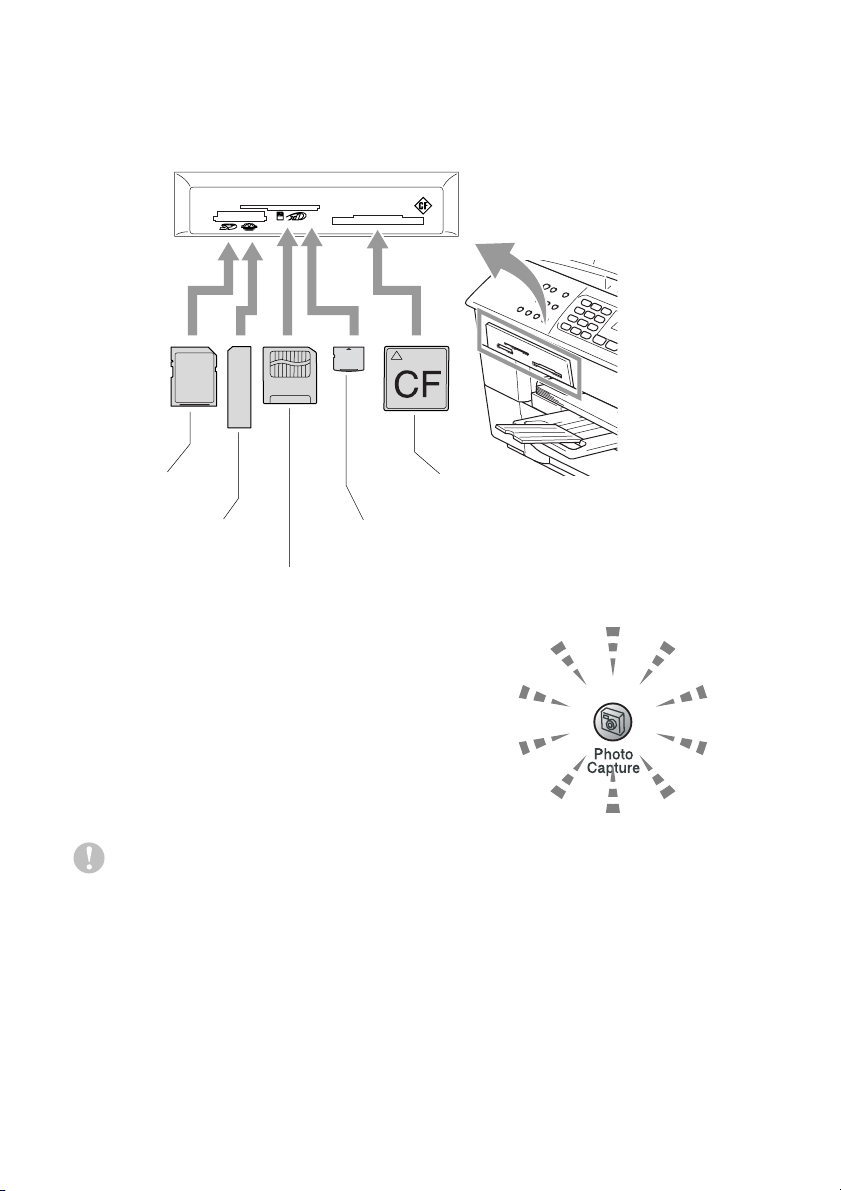
Firmly insert the card into the appropriate slot.
PhotoCapture
key lights:
■
PhotoCapture
light is ON, the media
card is inserted properly.
■
PhotoCapture
light is OFF, the media
card is not properly inserted.
■
PhotoCapture
light is BLINKING, the
media card is being read or written to.
The MFC can only read one media card at a time so do not insert
more than one card.
Do NOT unplug the power cord or remove the media card from
the media drive (slot) while the MFC is reading or writing to the
card (the
PhotoCapture
key is blinking). You will lose your
data or damage the card.
xD-Picture Card
™
SecureDigital
™
Memory Stick
®
CompactFlash
®
SmartMedia
®

WALK-UP PHOTOCAPTURE CENTER
™
(MFC-5840CN ONLY) 9 - 4
The steps below give a brief outline of the Direct Printing
feature. Please see the remaining pages of this chapter for more
detailed instructions.
1
Insert the media card firmly into the media drive (slot).
When you insert your media card
into the proper slot, the LCD shows.
2
Press
PhotoCapture
.
If your digital camera supports DPOF printing, see DPOF
printing on page 9-8.
3
Print the index that shows thumbnail views of images stored on
your media card. Your MFC will give an image number to each
thumbnail.
Press
Print Index
.
Press
Color Start
to start printing the index sheet.
(See Printing the Index (Thumbnails) on page 9-5.)
4
To print images, press
▲
or
▼
to select
Print Images
and then
press
Menu/Set
.
Enter the image number and press
Menu/Set
.
Press
Color Start
to start printing.
(See Printing images on page 9-6.)
The media active message will be shown for 60 seconds and
then disappear. Even in that case, you can enter the
PhotoCapture mode by pressing
PhotoCapture
.
You can change the settings for printing images, such as the
Paper Type & Paper Size, Print Size and number of copies.
(See
Printing images
on page 9-6.)
C.Flash Active
Press PhotoCapture key...

9 - 5 WALK-UP PHOTOCAPTURE CENTER
™
(MFC-5840CN ONLY)
Printing the Index (Thumbnails)
The PhotoCapture Center
™
assigns numbers for images (such as
No.1, No.2, No.3, and so on).
It does not recognize any other numbers or file names that your
digital camera or PC have used to identify the pictures. You can print
a thumbnail page (Index page with 6 or 5 images per line). This will
show all the pictures on the media card.
1
Make sure you have inserted the media card.
Press
PhotoCapture
. (See page 9-3.)
2
Press
Print Index
.
3
Press
▲
or
▼
to select
6 Images/Line
or
5 Images/Line
.
Press
Menu/Set
.
4
Press
Color Start
to start printing.
Index Index
5 Images/Line 6 Images/Line
Print time for 5 Images/Line will be slower than 6 Images/Line,
but the quality is better. To print an image, see
Printing images
on page 9-6.

9 - 9 WALK-UP PHOTOCAPTURE CENTER
™
(MFC-5840CN ONLY)
Changing the default settings
You can save the PhotoCapture Center
™
settings you use most often
by setting them as default. These settings will remain until you
change them again.
Increasing print speed or quality
1
Press
Menu/Set
,
4
,
1
.
2
Press
▲
or
▼
to select
Normal
or
Photo
.
Press
Menu/Set
.
3
Press
Stop/Exit
.
Setting the paper & size
1
Press
Menu/Set
,
4
,
2
.
2
Press
▲
or
▼
to select
Letter Glossy
,
4"x 6" Glossy
,
5"x 7" Glossy
,
A4 Glossy
,
Letter Plain
,
A4 Plain
,
Letter Inkjet
,
A4 Inkjet
or
4"x 6" Inkjet
.
Press
Menu/Set
.
If you selected
Letter
or
A4
, press
▲
or
▼
to select the print
size (
4"x 3"
,
5"x 3.5"
,
6"x 4"
,
7"x 5"
,
8"x 6"
or
Max. Size
).
Press
Menu/Set
.
3
Press
Stop/Exit
.
PhotoCapture
1.Print Quality
PhotoCapture
2.Paper & Size

9 - 11 WALK-UP PHOTOCAPTURE CENTER
™
(MFC-5840CN ONLY)
3
Press
▲
or
▼
to select
White Balance
,
Sharpness
or
Color Density
.
Press
Menu/Set
.
4
Press
▲
or
▼
to adjust the degree of the setting.
Press
Menu/Set
.
5
Press
Stop/Exit
.
■
White Balance
This setting adjusts the hue of the white areas of an image.
Lighting, camera settings and other influences will effect the
appearance of white. The white areas of a picture may be slightly
pink, yellow or some other color. By using this adjustment you
can correct this effect and bring the white areas back to pure
white.
■
Sharpness
This setting enhances the detail of an image. It is similar to
adjusting the fine focus on a camera. If the image is not in true
focus and you cannot see the fine details of the picture, then
adjust the sharpness.
■
Color Density
This setting adjusts the total amount of color in the image. You
can increase or decrease the amount of color in an image to
improve a washed out or weak picture.

9 - 13 WALK-UP PHOTOCAPTURE CENTER
™
(MFC-5840CN ONLY)
Understanding the Error Messages
Once you are familiar with the types of errors that can occur while
you’re using the PhotoCapture Center
™
, you can easily identify and
troubleshoot any difficulties.
When an error message appears on the LCD, the MFC will beep to
get your attention.
Media Error
—
This message will appear if you insert a media card
that is either bad or not formatted, or when there is a problem with
the media drive. To clear this error, take out the media card.
No File
—
This message will appear if you try to access a media
card in the drive (slot) that does not contain a .JPG file.
Out of Memory
—
This message will appear if you are working with
images that are too large for the MFC’s memory.

WALK-UP PHOTOCAPTURE CENTER
™
(MFC-5840CN ONLY) 9 - 14
Using PhotoCapture Center
™
from
your PC
You can access the media card that is in the media drive (slot) of the
MFC from your PC.
(See Using the PhotoCapture Center
™
from your PC on page 6-1 in
Software User’s Guide on the CD-ROM or Using the PhotoCapture
Center
™
from a Macintosh
®
(not available for MFC-3240C and
MFC-5440CN)
on page 8-47 in the Software User’s Guide on the
CD-ROM.)
Using PhotoCapture Center
™
for
scanning documents
You can scan documents and save them on a media card to quickly
and easily make documents portable. (See Scan to Card (not
available for MFC-3240C, MFC-210C and MFC-5440CN)
on page
2-23 in Software User’s Guide on the CD-ROM.)

10 - 1 IMPORTANT INFORMATION
10
Standard telephone and FCC Notices
These notices are in effect on models sold and
used in the United States only.
When programming emergency numbers or making test calls to
emergency numbers:
■
Remain on the line and briefly explain to the dispatcher the
reason for the call before hanging up.
■
Perform these activities in the off-peak hours, such as early
morning or late evening.
This equipment complies with Part 68 of the FCC rules and the
requirements adopted by the ACTA. On the backside of this
equipment is a label that contains, among other information, a
product identifier in the format US: AAAEQ##TXXXX. If requested,
this number must be provided to the telephone company.
You may safely connect this equipment to the telephone line by
means of a standard modular jack, USOC RJ11C.
A plug and jack used to connect this equipment to the premises
wiring and telephone network must comply with the applicable FCC
Part 68 rules and requirements adopted by the ACTA. A compliant
telephone cord and modular plug is provided with this product. It is
designed to be connected to a compatible modular jack that is also
compliant. See installation instructions for details.
The REN is used to determine the number of devices that may be
connected to a telephone line. Excessive RENs on a telephone line
may result in the devices not ringing in response to an incoming call.
In most but not all areas, the sum of RENs should not exceed five
(5.0). To be certain of the number of devices that may be connected
to a line, as determined by the total RENs, contact the local
telephone company. For products approved after July 23, 2001, the
REN for this product is part of the product identifier that has the
format US:AAAEQ##TXXXX.The digits represented by ## are the
REN without a decimal point (e.g., 06 is a REN of 0.6). For earlier
products, the REN is separately shown on the label.
Important information

10 - 3 IMPORTANT INFORMATION
WARNI NG
This MFC has been certified to comply with FCC standards, which
are applied to the USA only.
Federal Communications Commission (FCC)
Declaration of Conformity (USA only)
declares, that the products
Product Name: MFC-5440CN, MFC-5840CN
comply with Part 15 of the FCC Rules. Operation is subject to the
following two conditions: (1) This device may not cause harmful
interference, and (2) this device must accept any interference
received, including interference that may cause undesired operation.
This equipment has been tested and found to comply with the limits
for a Class B digital device, pursuant to Part 15 of the FCC Rules.
These limits are designed to provide reasonable protection against
harmful interference in a residential installation. This equipment
generates, uses, and can radiate radio frequency energy and, if not
installed and used in accordance with the instructions, may cause
harmful interference to radio communications. However, there is no
guarantee that interference will not occur in a particular installation.
If this equipment does cause harmful interference to radio or
television reception, which can be determined by turning the
equipment off and on, the user is encouraged to try to correct the
interference by one or more of the following measures:
■
Reorient or relocate the receiving antenna.
■
Increase the separation between the equipment and receiver.
■
Connect the equipment into an outlet on a circuit different from
that to which the receiver is connected.
■
Call the dealer or an experienced radio/TV technician for help.
Responsible Party: Brother International Corporation
100 Somerset Corporate Boulevard
Bridgewater, NJ 08807-0911 USA
TEL: (908) 704-1700

10 - 7 IMPORTANT INFORMATION
14
Unplug this product from the AC power outlet and refer servicing
to Authorized Service Personnel under the following conditions:
■ When the power cord is damaged or frayed.
■ If liquid has been spilled into the product.
■ If the product has been exposed to rain or water.
■ If the product does not operate normally when the operating
instructions are followed. Adjust only those controls that are
covered by the operating instructions. Improper adjustment
of other controls may result in damage and will often require
extensive work by a qualified technician to restore the
product to normal operation.
■ If the product has been dropped or the cabinet has been
damaged.
■ If the product exhibits a distinct change in performance,
indicating a need for service.
15
To protect your product against power surges, we recommend
the use of a power protection device (Surge Protector).
11 - 1 TROUBLESHOOTING AND ROUTINE MAINTENANCE
11
Troubleshooting
Error messages
As with any sophisticated office product, errors may occur. If this
happens, your MFC identifies the problem and displays an error
message. The most common error messages are shown below.
You can correct most problems by yourself. If you need additional
help, the Brother Solutions Center offers latest FAQs and
troubleshooting tips.
Visit us at http://solutions.brother.com
.
Troubleshooting and routine
maintenance
IMPORTANT
For technical help, you must call the country where you bought the
MFC. Calls must be made from within that country.
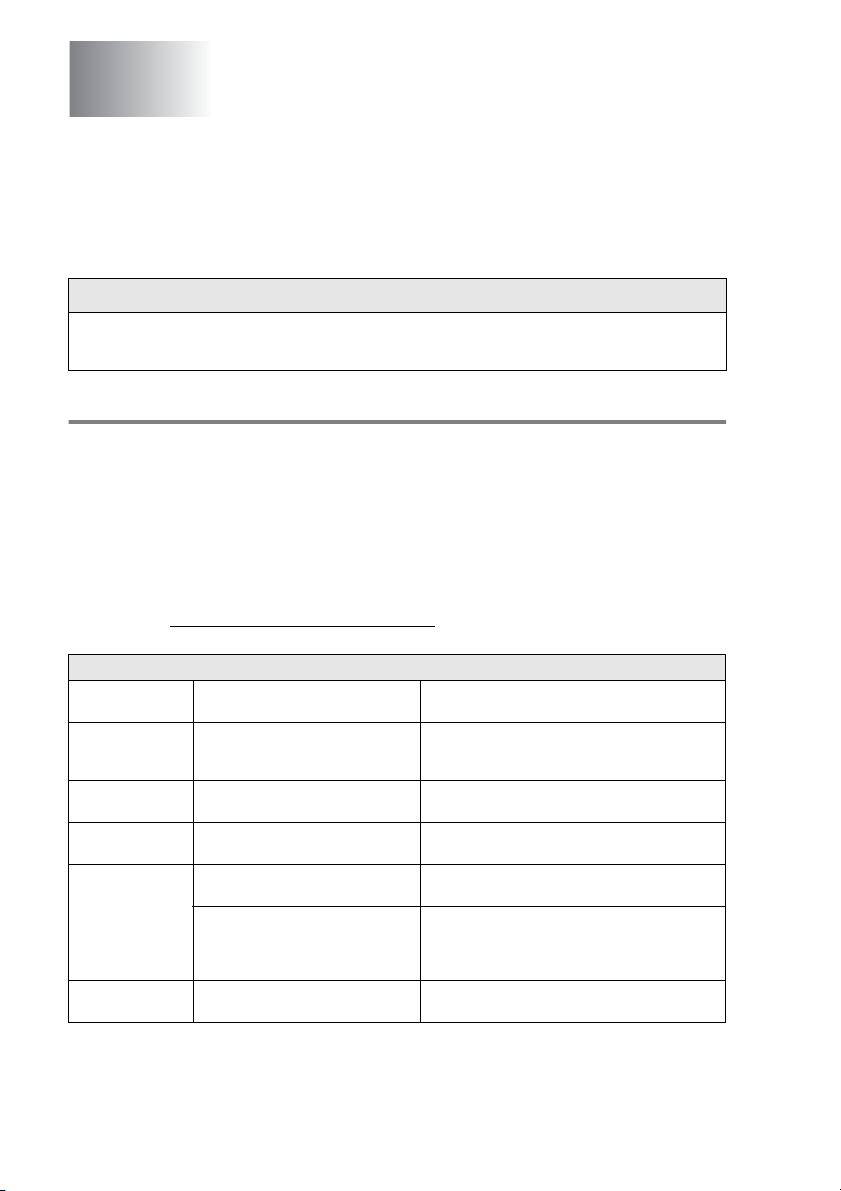
ERROR MESSAGES
ERROR
MESSAGE
CAUSE ACTION
Comm.Error Poor phone line quality caused a
communication error.
Try the call again. If the problem continues, call
the telephone company and ask them to check
your phone line.
Connection
Fail
You tried to poll a fax machine that
is not in Polled Waiting mode.
Check the other fax machine’s polling setup.
Cover is Open The scanner cover is not closed
completely.
Lift the scanner cover and then close it again.
Data
Remaining
Print data remains in the MFC’s
memory.
Re-start printing from your computer.
Print data remains in the MFC’s
memory. The USB cable was
unplugged while the computer
was sending the data to the MFC.
Press Stop/Exit. The MFC will cancel the job
and eject the page that is being printed.
Disconnected The other person or other person’s
fax machine stopped the call.
Try to send or receive again.

11 - 3 TROUBLESHOOTING AND ROUTINE MAINTENANCE
No
Response/Busy
The number you dialed does not
answer or is busy.
Verify the number and try again.
Not
Registered
You tried to access a Speed Dial
number that is not programmed.
Set up the Speed Dial number.
(See
Storing Speed-Dial numbers
on page
5-1.)
Document Jam The document scanned from ADF
was longer than about 35.4
inches.
See Using the automatic document feeder
(ADF) on page 1-7.
The document is jammed in the
MFC.
See Document jams on page 11-5.
Out of Memory The MFC’s memory is full. (Fax sending or copy operation in process)
Press Stop/Exit and wait until the other
operations in progress finish and then try again.
—OR—
Clear the data in the memory. To gain extra
memory, you can turn off Fax Storage.
(See Setting Fax Storage on page 6-3.)
—OR—
Print the faxes that are in the memory.
(See Printing a fax from the memory on page
4-5.)
(Printing operation in process)
Reduce print resolution.
Paper Jam Paper is jammed in the MFC. (See Printer jam or paper jam on page 11-6.)
Wrong Paper
Size
Paper is not the correct size. Reload the correct size of paper (Letter, Legal
or A4), and then press Black Start or
Color Start.
ERROR MESSAGES
ERROR
MESSAGE
CAUSE ACTION
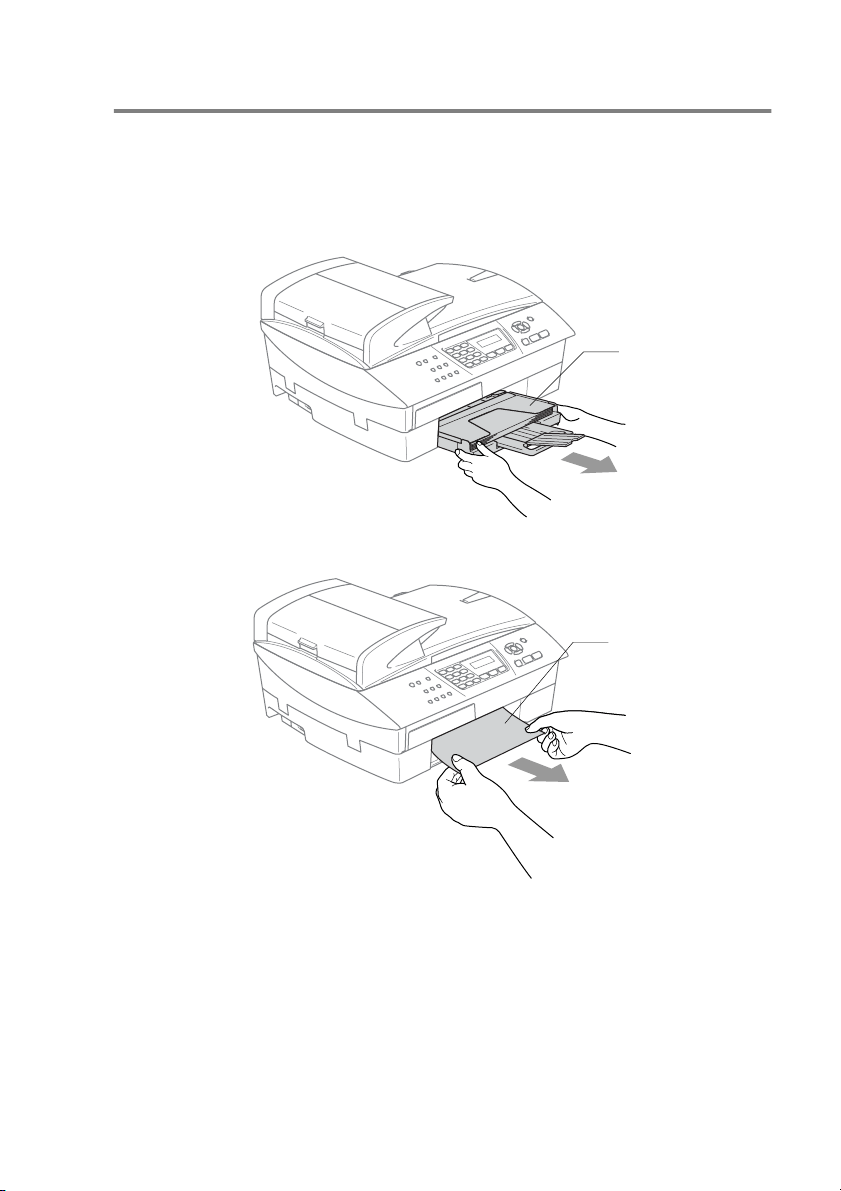
TROUBLESHOOTING AND ROUTINE MAINTENANCE 11 - 6
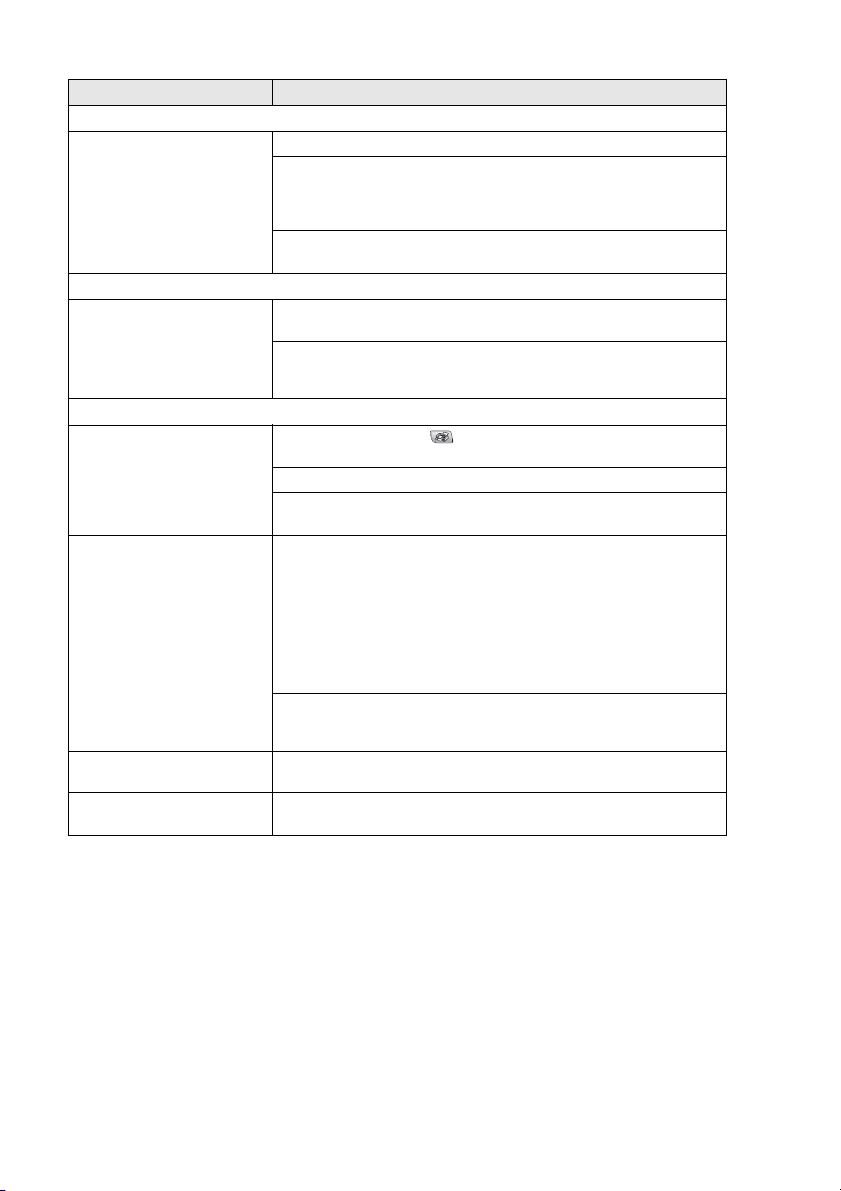
Printer jam or paper jam
Remove the jammed paper depending on where it is jammed in the MFC.
Paper is jammed inside the paper tray
1
Pull the paper tray out of the MFC.
2
Pull out the jammed paper to remove it.
Paper Tray
Jammed paper
11 - 11 TROUBLESHOOTING AND ROUTINE MAINTENANCE
Phone Line or Connections
Dialing does not work.
(No dial tone)
Check the MFC is plugged in.
Check for a dial tone. If possible, call your MFC to hear it answer. If there
is still no answer, check the telephone line cord connection and make
sure all telephone connections are secured. If there is no ringing when
you call your MFC, ask your telephone company to check the line.
Change Tone/Pulse setting. (See Setting Tone and Pulse dialing mode
on page 2-1.)
Receiving Faxes
Cannot receive a fax Make sure the MFC is in the correct receiving mode for your setup. (See
Basic receiving operations on page 4-1.)
If you frequently encounter interference on the phone line, try changing
the menu setting of Compatibility to Basic or Normal. (See
Compatibility
on page 11-14.)
Sending Faxes
Cannot send a fax Make sure that the Fax key is illuminated. (See
How to enter Fax
mode on page 3-1.)
Ask the other party to check that receiving machine has paper.
Print the Transmission Verification Report and check for an error. (See
Printing reports on page 7-3.)
Transmission Verification
Report says ‘Result:NG’ or
‘Result:ERROR’.
There is probably temporary noise or static on the line. Try sending the
fax again. If you send a PC FAX message and get ‘Result:NG’ on the
Transmission Verification Report, your MFC may be out of memory.
To gain extra memory, you can turn off Fax Storage (see Setting Fax
Storage on page 6-3), print fax messages in memory (see Printing a fax
from the memory
on page 4-5) or cancel a Delayed Fax or Polling Job
(see Canceling a scheduled job on page 3-11). If the problem continues,
ask the telephone company to check your phone line.
If you frequently get transmission error with possible interference on the
phone line, try to change the menu setting of Compatibility to Basic or
Normal. (See Compatibility on page 11-14.)
Poor sending quality. Try changing your resolution to Fine or S.Fine. Make a copy to check
your MFC’s scanner operation.
Vertical black lines when
sending.
If the copy you made shows the same problem, your scanner is dirty.
(See Cleaning the scanner on page 11-23.)
DIFFICULTY SUGGESTIONS

11 - 13 TROUBLESHOOTING AND ROUTINE MAINTENANCE
PhotoCapture Center
™
Difficulties (MFC-5840CN only)
Removable Disk does not
work properly.
a)Have you installed the Windows
®
2000 update?
If not, do the following:
1. Disconnect the USB cable.
2. Install the Windows
®
2000
update. Please see the Quick Setup
Guide. After the installation the PC will be automatically restarted.
3. Wait about 1 minute after you reboot the PC, and then connect the
USB cable.
b)Take out the media card and put it back in again.
c) If you have tried "Eject" from within Windows
®
, you must take out the
media card before you continue.
d)If an error message appears when you try to eject the media card, it
means the card is being accessed.
Wait a while and then try again.
e)If all of the above do not work, please turn off your PC and MFC, and
then turn them on again.
(You will have to unplug the power cord of the MFC to turn it off.)
Cannot access Removable
Disk from Desktop icon.
Make sure you have inserted the media card into the media slot.
Network Difficulties
I cannot print over the Network Make sure that your MFC is powered on and is On Line and in Ready
mode. Print Network Configuration list. (See Printing reports on page
7-1.) Then the current settings of the network are printed. Reconnect the
LAN cable to the hub to verify that the cabling and network connections
are good. If possible, try connecting the MFC to a different port on your
hub using a different cable. If the connections are good, the machine
shows LAN Active for 2 seconds.
DIFFICULTY SUGGESTIONS

TROUBLESHOOTING AND ROUTINE MAINTENANCE 11 - 14
Compatibility
If you are having difficulty sending or receiving a fax due to possible
interference on the phone line, we recommend that you adjust the
Equalization for compatibility. The MFC adjusts the modem speed
for fax operations.
1
Press
Menu/Set
,
2
,
0
,
1
.
2
Press
▲
or
▼
to select
Normal
,
Basic
(or
High
).
Press
Menu/Set
.
3
Press
Stop/Exit
.
■ Basic
reduces the default modem speed to 9600 bps.
Unless interference is a recurring problem on your phone
line, you may prefer to use it only when needed.
■ Normal
sets the modem speed at 14400 bps.
■ High
sets the modem speed at 33600 bps. (Default)
Miscellaneous
1.Compatibility

TROUBLESHOOTING AND ROUTINE MAINTENANCE 11 - 16
Checking the print quality
If faded or streaked colors and text appear on your output, some of
the nozzles may be clogged. You can check this by printing the Print
Quality Check Sheet and looking at the nozzle check pattern.
1
Press
Ink
.
2
Press
▲
or
▼
to select
Test Print
.
Press
Menu/Set
.
3
Press
▲
or
▼
to select
Print Quality
.
Press
Menu/Set
.
4
Press
Color Start
.
The MFC begins printing the Print Quality Check Sheet.
5
Check the sheet to see if the quality is OK by following these
steps:
Color block quality check
The LCD shows:
6
Check the quality of the four color blocks on the sheet.
7
If all lines are clear and visible, press
1
(
Yes
), and go to step 10.
—OR—
If you can see missing short lines as shown below, press
2
(
No
).
The LCD will ask you if the print
quality is OK for black and three
colors.
OK Poor
Is Quality OK?
1.Yes 2.No
Black OK?
1.Yes 2.No
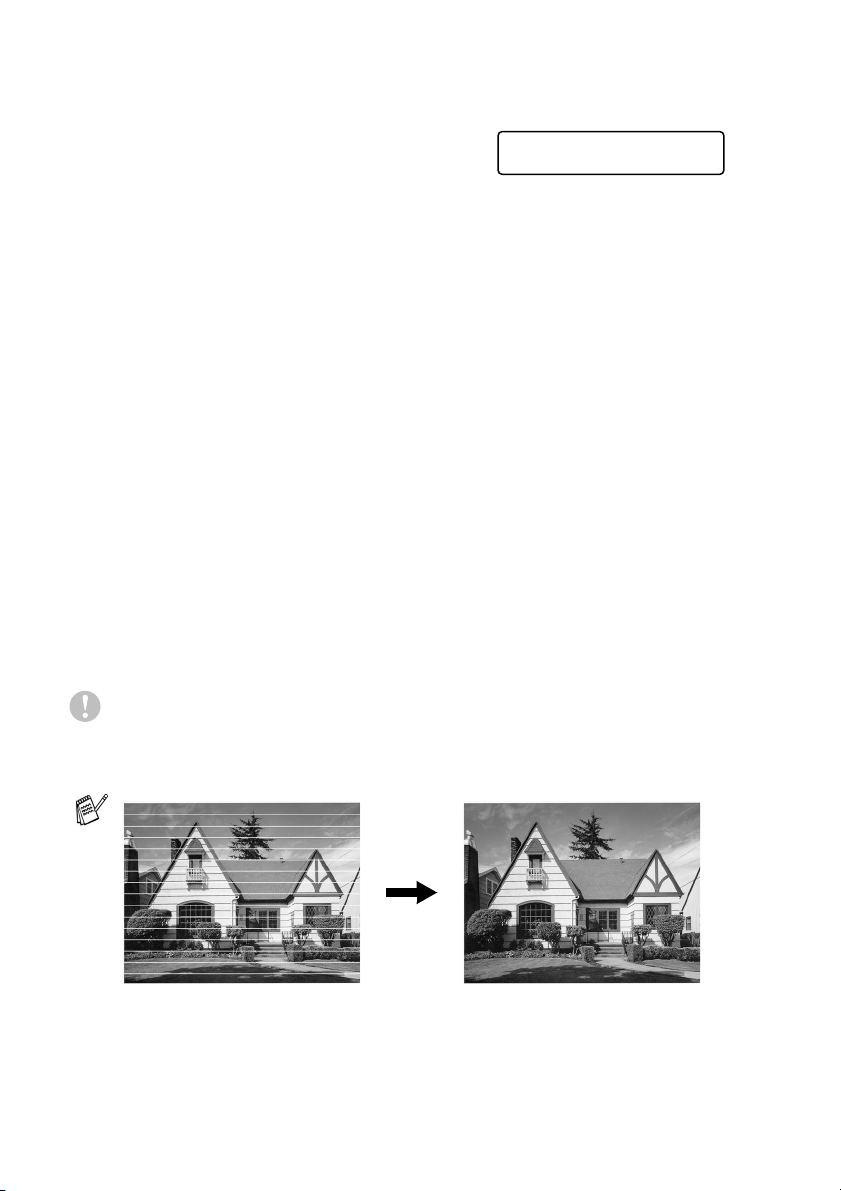
11 - 17 TROUBLESHOOTING AND ROUTINE MAINTENANCE
8
Press
2
(
No
) for Black or three colors
with a problem.
The LCD shows:
Press
1
(
Yes
).
The MFC will start cleaning the print head.
9
After cleaning is finished, press
Color Start
. The MFC will start
printing the Print Quality Check Sheet again and then return to
Step 5.
10
Press
Stop/Exit
.
If you still see missing ink in this Print Quality Check Sheet, repeat
the cleaning and test print procedures at least five times. If ink is still
missing after the fifth cleaning and test print, replace the ink cartridge
for the clogged color. (Perhaps the ink cartridge was in your MFC
over six months or the expiration date written on the cartridge
package has passed. Or, the ink may not have been stored properly
before use.)
After replacing the ink cartridge, check it by printing another Print
Quality Check Sheet. If the problem still exists, repeat the cleaning
and test print procedures at least five times for the new ink cartridge.
If ink is still missing, call Brother Customer Service (see Brother
numbers
on page i).
Caution
Do NOT touch the print head. Touching the print head may cause
permanent damage and may void the print head’s warranty.
When a print head nozzle is
clogged, the printed sample
looks like this.
After the print head nozzle is
cleaned, the horizontal lines
are gone.
Start Cleaning?
1.Yes 2.No

11 - 21 TROUBLESHOOTING AND ROUTINE MAINTENANCE
3
Lift the scanner cover to release the lock. Gently push the
scanner cover support down and close the scanner cover.
4
Unplug the MFC from the telephone wall jack and remove the
telephone line cord from MFC.
5
Unplug the MFC from the AC power outlet.
6
Unplug the USB cable or LAN cable from the MFC, if it is
connected.
7
Wrap the MFC in the bag and place it in the original carton with
the original packing material.
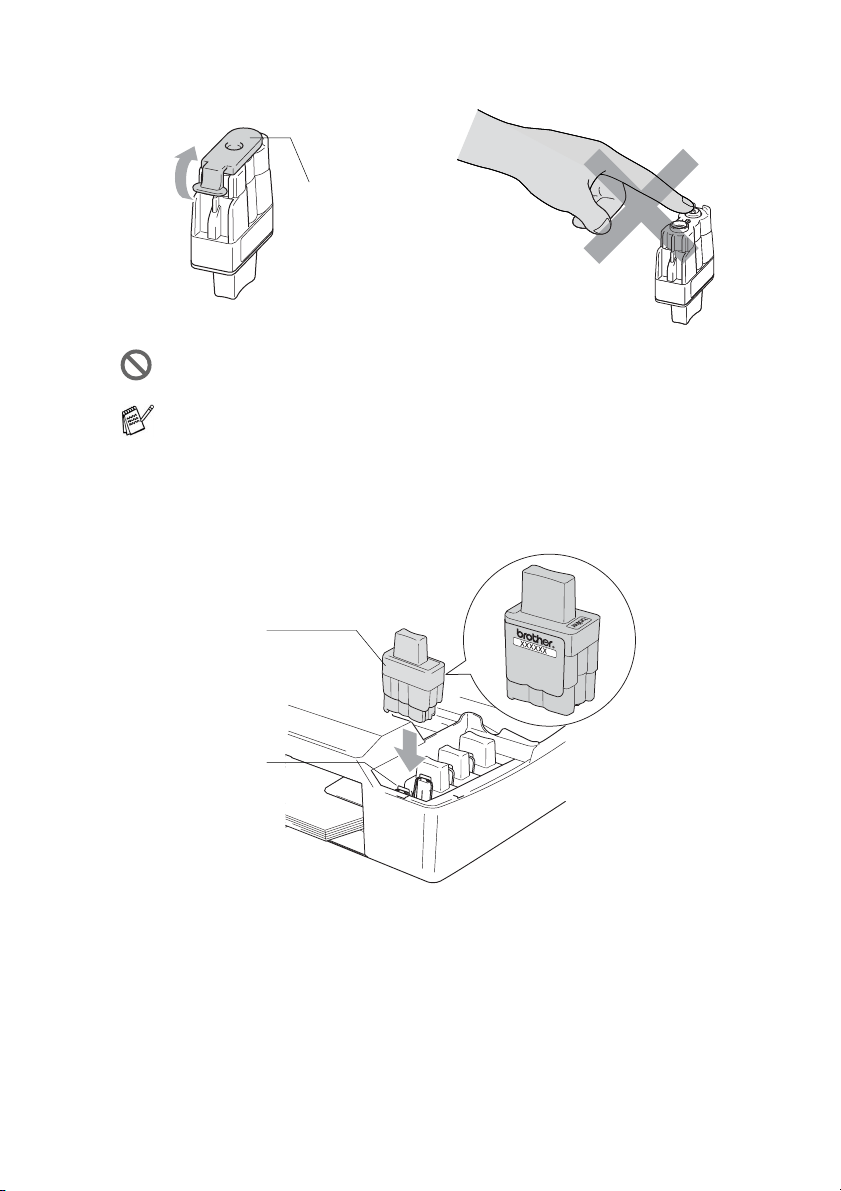
TROUBLESHOOTING AND ROUTINE MAINTENANCE 11 - 26
4
Remove the cartridge covers.
5
Each color has its own correct position. Keep the ink cartridge
in an upright position when you insert it into slot. Press down on
the ink cartridge until the hook snaps over it.
6
Lift the scanner cover to release the lock. Gently push the
scanner cover support down and close the scanner cover.
Do not touch the area shown in the illustration above.
If the cartridge cover comes off when you open the bag the
cartridge will not be damaged.
Cartridge Cover
DO NOT TOUCH
New Ink Cartridge
Ink Cartridge Hook

11 - 27 TROUBLESHOOTING AND ROUTINE MAINTENANCE
7
If you replaced an ink cartridge while
Near Empty
was
displayed on the LCD, the LCD may ask you to verify that it was
a brand new one. Example:
Did You Change
Blck? 1.Yes
2.No
. For each
new
cartridge you installed, press
1
on the dial
pad to automatically reset the ink dot counter for that color. If the
ink cartridge you installed is not a brand new one, please be
sure to select
2
.
WARNI NG
If ink gets in your eyes, irrigate them with water immediately and call
a doctor if you are concerned.
If you wait until
Ink Empty
message is displayed on the LCD,
the MFC will automatically reset the ink dot counter.
If the
Install
message is on the display after you have
installed ink cartridges, check that the ink cartridges are
installed properly.

TROUBLESHOOTING AND ROUTINE MAINTENANCE 11 - 28
Caution
■
Do not remove ink cartridges if you do not need to replace them.
If you do so, it may reduce the ink quantity and the MFC will not
know the quantity of ink left in the cartridge.
■
Do not touch the cartridge insertion slots. If you do so, the ink
may stain your skin.
■
If ink stains your skin or clothing, wash with soap or detergent
immediately.
■
If you install an ink cartridge in the wrong color position, you must
clean the print head several times before you start printing (after
correcting the cartridge installation) because the colors were
mixed.
■
Once you open an ink cartridge, install it in the MFC and use it up
within six months of installation. Use unopened ink cartridges by
the expiration date written on the cartridge package.
■
Do not dismantle or tamper with the ink cartridge, this can cause
the ink to leak out of the cartridge.
■
Brother strongly recommends that you do not refill the ink
cartridges provided with your machine. We also strongly
recommend that you continue to use only Genuine Brother Brand
replacement ink cartridges. Using or attempting to use potentially
incompatible inks and/or cartridges in your machine may cause
damage to the machine itself and/or it may result in unsatisfactory
print quality. Our warranty coverage does not apply to any
problem that was caused by the use of unauthorized third party
ink and/or cartridges. To protect your investment and guarantee
your print quality please continue to replace consumed ink
cartridges with only Genuine Brother Branded Supplies.

APPENDIX A A - 2
What does Brother’s ‘Distinctive Ring’ do?
The Brother MFC has a Distinctive Ring feature that allows you to
use your MFC to take full advantage of the telephone company’s
Distinctive Ring service. The new phone number on your line can just
receive faxes.
Do you have Voice Mail?
If you have Voice Mail on the phone line that you will install your new
MFC on, there is a strong possibility that Voice Mail and the MFC will
conflict with each other while receiving incoming calls. However, the
Distinctive Ring feature allows you to use more than one
number on your line, so both Voice Mail and the MFC can work
together without any problems. If each one has a separate phone
number, neither will interfere with the other’s operations.
If you decide to get the Distinctive Ring service from the telephone
company, you will need to follow the directions below to ‘register’ the
new Distinctive Ring pattern they give you. This is so your MFC can
recognize its incoming calls.
You must pay for your telephone company’s Distinctive Ring
service before you program the MFC to work with it.
You can change or cancel the Distinctive Ring pattern at any
time. You can switch it off temporarily, and turn it back on later.
When you get a new fax number, make sure you reset this
feature.

A - 3 APPENDIX A
Before you choose the ring pattern to register
You can only register one Distinctive Ring pattern with the MFC.
Some ring patterns cannot be registered. The ring patterns below are
supported by your Brother MFC. Register the one your telephone
company gives you.
■
The MFC will only answer calls to its registered number.
■
The first two rings are silent on the MFC. This is because the fax
must «listen» to the ring pattern (to compare it to the pattern that
was ‘registered’). (Other telephones on the same line will ring.)
■
If you program the MFC properly, it will recognize the registered
ring pattern of the ‘fax number’ within 2 ring patterns and then
answer with a fax tone. When the ‘voice number’ is called, the
MFC will not answer.
Ring
Pattern
Rings
1 long-long
2 short-long-short
3 short-short-long
4 very long (normal pattern)
If the ring pattern you received is not on this chart, please call
your telephone company and ask for one that is shown.

APPENDIX A A - 6
Viewing Caller ID List
Caller ID memory stores information for up to thirty calls. When the
thirty-first call comes in, information about the first call is erased. You
can scroll through Caller ID information to review those calls made to
your MFC.
1
Press
Menu/Set
,
2
,
0
,
3
.
2
Press
▲
or
▼
to select
Display#
.
Press
Menu/Set
.
If the name was not received, it will not be displayed.
3
Press
▲
or
▼
to scroll through the Caller ID memory to select the
Caller ID you want to view, and then press
Menu/Set
. The LCD
shows the caller’s name or number and the date and time of the
call.
4
Press to return to the Caller ID listing.
—OR—
Press
Stop/Exit
.
Printing Caller ID List
1
Press
Menu/Set
,
2
,
0
,
3
.
2
Press
▲
or
▼
to select
Print Report
.
Press
Menu/Set
.
3
Press
Black Start
or
Color Start
.
4
After printing has finished, press
Stop/Exit
.
Miscellaneous
3.Caller ID
▲
Miscellaneous
3.Caller ID

A - 7 APPENDIX A
Advanced receiving operations
Operation from extension telephones
If you answer a fax call on an extension telephone, or an external
telephone in the EXT. jack of the MFC, you can make your MFC take
the call by using the Fax Receive Code. When you press the Fax
Receive Code
51
, the MFC starts to receive a fax. (See
Easy
Receive
on page 4-4.)
If the MFC answers a voice call and pseudo/double-rings for you to
take over, use the Telephone Answer Code
#51
to take the call at an
extension phone. (See
Setting the F/T Ring Time (Fax/Tel mode
only) on page 4-3.)
If you answer a call and no one is on the line, you should assume that
you’re receiving a manual fax.
■
Press
51
and wait for the chirp or until the MFC’s LCD displays
Receiving
, and then hang up.
Your caller will have to press Start to send the fax.
Fax/Tel mode when power key is On
When the MFC is in Fax/Tel mode, it will use the F/T Ring Time
(pseudo/double-ringing) to alert you to pick up a voice call.
If you are at an extension phone, you’ll need to lift the handset during
the F/T Ring Time and then press
#51
between the pseudo/double
rings. If no one is on the line, or if someone wants to send you a fax,
send the call back to the MFC by pressing
51
.
Fax/Tel mode when power key is Off
Fax/Tel mode does not work when the power button is off. The MFC
will not answer telephone or fax calls and will keep ringing. If you are
at an external or extension phone, lift the handset of the extension
phone and talk. If you hear fax tones, hold the handset until Easy
Receive activates your MFC. If the other party says they want to
send you a fax, activate the MFC by pressing
51
.
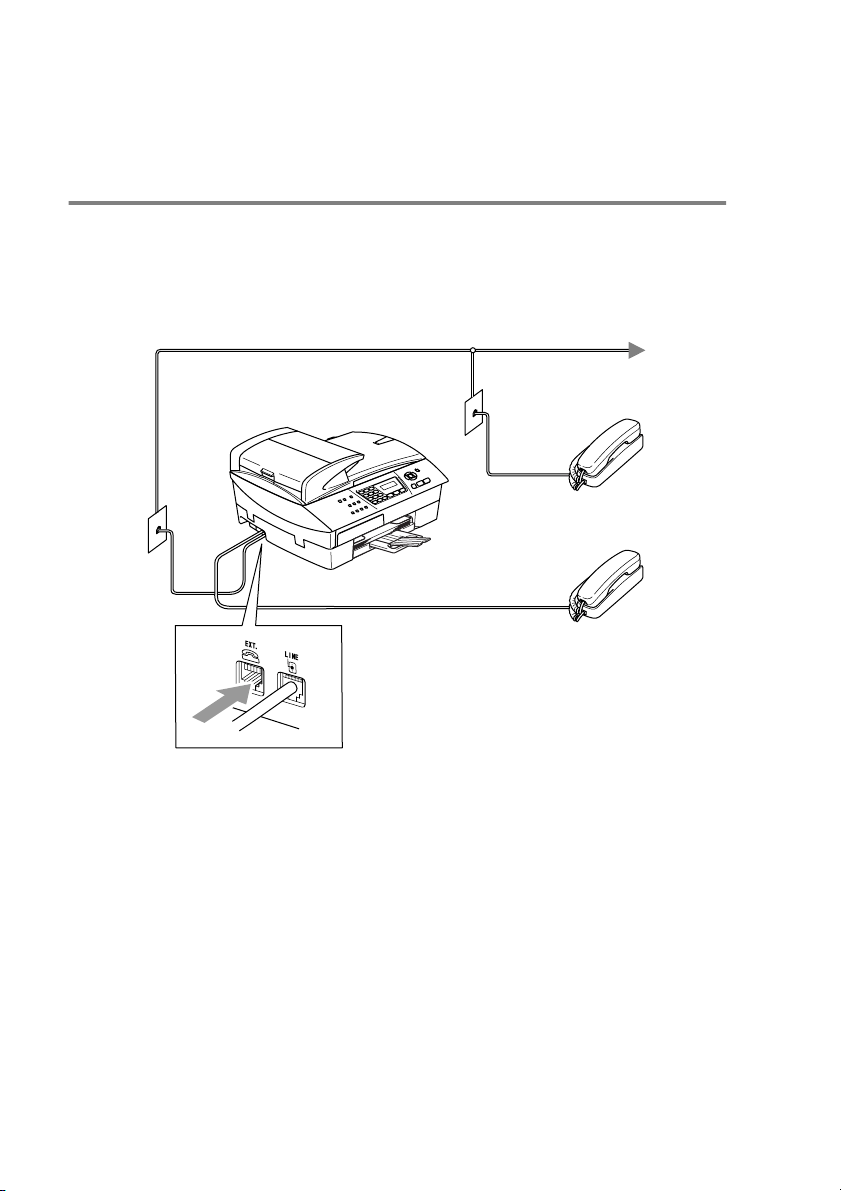
A - 9 APPENDIX A
Connecting an external device to your
MFC
Connecting an external telephone
You can connect a separate telephone (or telephone answering
device) directly to your MFC as shown in the diagram below.
Connect the telephone line cord to the jack labeled EXT. in the back
of the MFC.
When you are using an external or extension telephone, the LCD
shows
Telephone
.
Extension
Telephone
External
Telephone

APPENDIX A A - 10
Connecting an external telephone answering
device (TAD)
Sequence
You may choose to connect an additional answering device.
However, when you have an external TAD on the same telephone
line as the MFC, the TAD answers all calls and the MFC “listens” for
fax calling (CNG) tones. If it hears them, the MFC takes over the call
and receives the fax. If it does not hear CNG tones, the MFC lets the
TAD continue playing your outgoing message so your caller can
leave you a voice message.
The TAD must answer within four rings (the recommended setting is
two rings). The MFC cannot hear CNG tones until the TAD has
answered the call, and with four rings there are only 8 to 10 seconds
of CNG tones left for the fax “handshake”. Make sure you carefully
follow the instructions in this guide for recording your outgoing
message. We do not recommend using the toll saver feature on your
external answering machine if it exceeds five rings.
If you do not receive all your faxes, reduce the Ring Delay
setting on your external TAD.
If You Subscribe to your Telephone Company’s Distinctive Ring
Service:
You may connect an external TAD to a separate wall jack only
if you subscribe to your telephone company’s Distinctive Ring
service, have registered the distinctive ring pattern on your
MFC, and use that number as a fax number. The recommended
setting is at least four rings on the external TAD when you have
the telephone company’s Distinctive Ring Service. You cannot
use the Toll Saver setting.
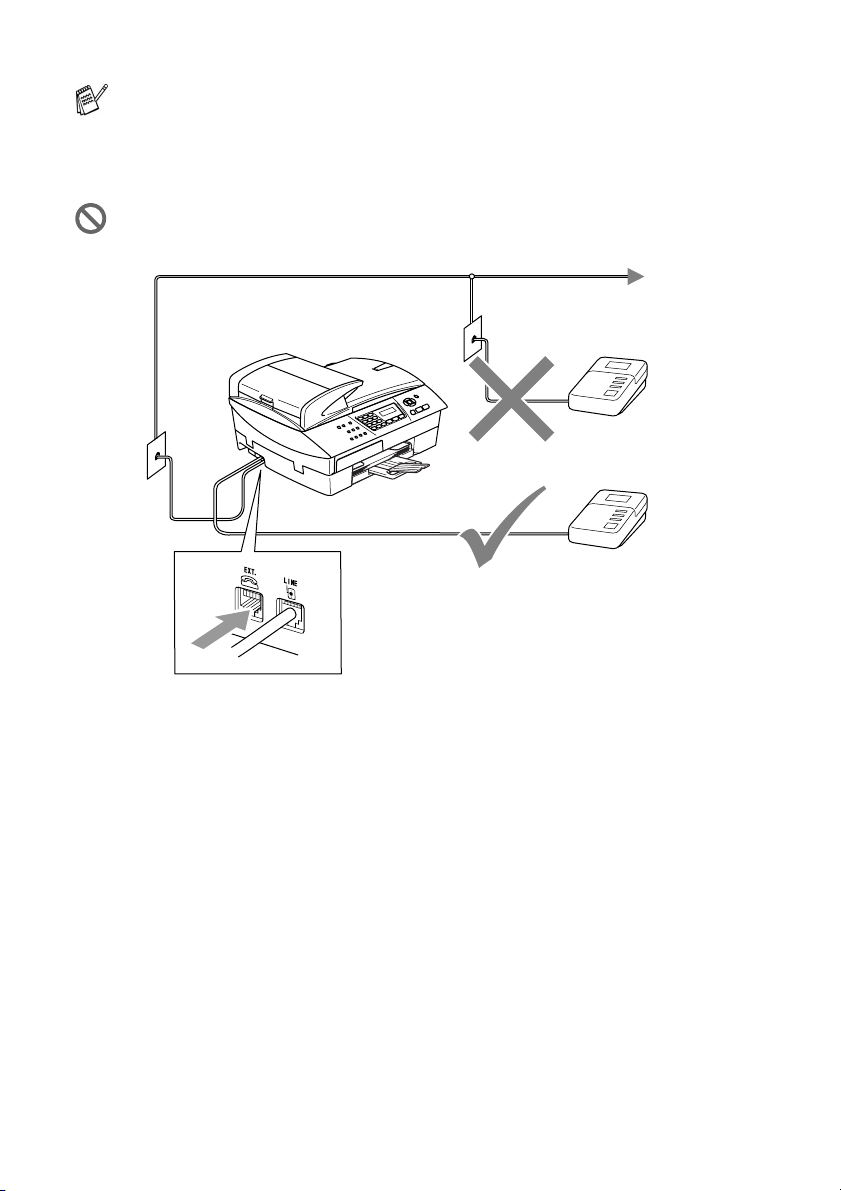
A - 11 APPENDIX A
When you are using a TAD, the LCD shows
Telephone
.
If You Do Not Subscribe to Distinctive Ring Service:
You must plug your TAD into the EXT. jack of your MFC. If your
TAD is plugged into a wall jack, both your MFC and the TAD will
try to control the phone line. (See illustration below.)
Unless you are using Distinctive Ring, do not connect a
TAD elsewhere on the same phone line.
TAD
TAD

B - 1 APPENDIX B
B
On-screen programming
Your MFC is designed to be easy to use with LCD on-screen
programming using the navigation keys. User-friendly programming
helps you take full advantage of all the menu selections your MFC
has to offer.
Since your programming is done on the LCD, we have created
step-by-step on-screen instructions to help you program your MFC.
All you need to do is follow the instructions as they guide you through
the menu selections and programming options.
Menu table
You can probably program your MFC without the User’s Guide if you
use the Menu table that begins on page B-3. These pages will help
you understand the menu selections and options that are found in the
MFC’s programs.
Memory storage
If there is a power failure, you will not lose your menu settings
because they are stored permanently. Temporary settings (such as
Contrast, Overseas Mode, and so on) will be lost. You may also have
to reset the date and time.
Appendix B
You can program your MFC by pressing
Menu/Set
, followed by
the menu numbers.
For example to set
Fax Resolution
to
Fine
:
Press
Menu/Set
,
2
,
2
,
2
and
▲
or
▼
to select
Fine
.
Press
Menu/Set
.

B - 3 APPENDIX B
Main Menu Submenu Menu
Selections
Options Descriptions Page
1.General
Setup
1.Mode Timer — 5 Mins
2 Mins
1 Min
30 Secs
0 Sec
Off
Sets the time to
return to Fax mode.
2-3
2.Paper Type — Plain
Inkjet
Glossy
Transparency
Sets the type of
paper in the paper
tray.
2-3
3.Paper Size
(MFC-5440CN
only)
— Letter
Legal
A4
A5
4"x6"
Sets the size of the
paper in the paper
tray.
2-4
3.Paper Size
(MFC-5840CN
only)
1.Tray#1 Letter
Legal
A4
A5
4”x 6”
Sets the size of paper
in Tray#1.
2-4
2.Tray#2 Letter
Legal
A4
Sets the size of paper
in Tray#2.
2-4
4.Volume 1.Ring High
Med
Low
Off
Adjusts the ring
volume.
2-5
2.Beeper High
Med
Low
Off
Adjusts the volume
level of the beeper.
2-5
3.Speaker High
Med
Low
Off
Adjusts the speaker
volume.
2-6
The factory settings are shown in Bold.
to
exit
Select & Set Select & Set
to
accept
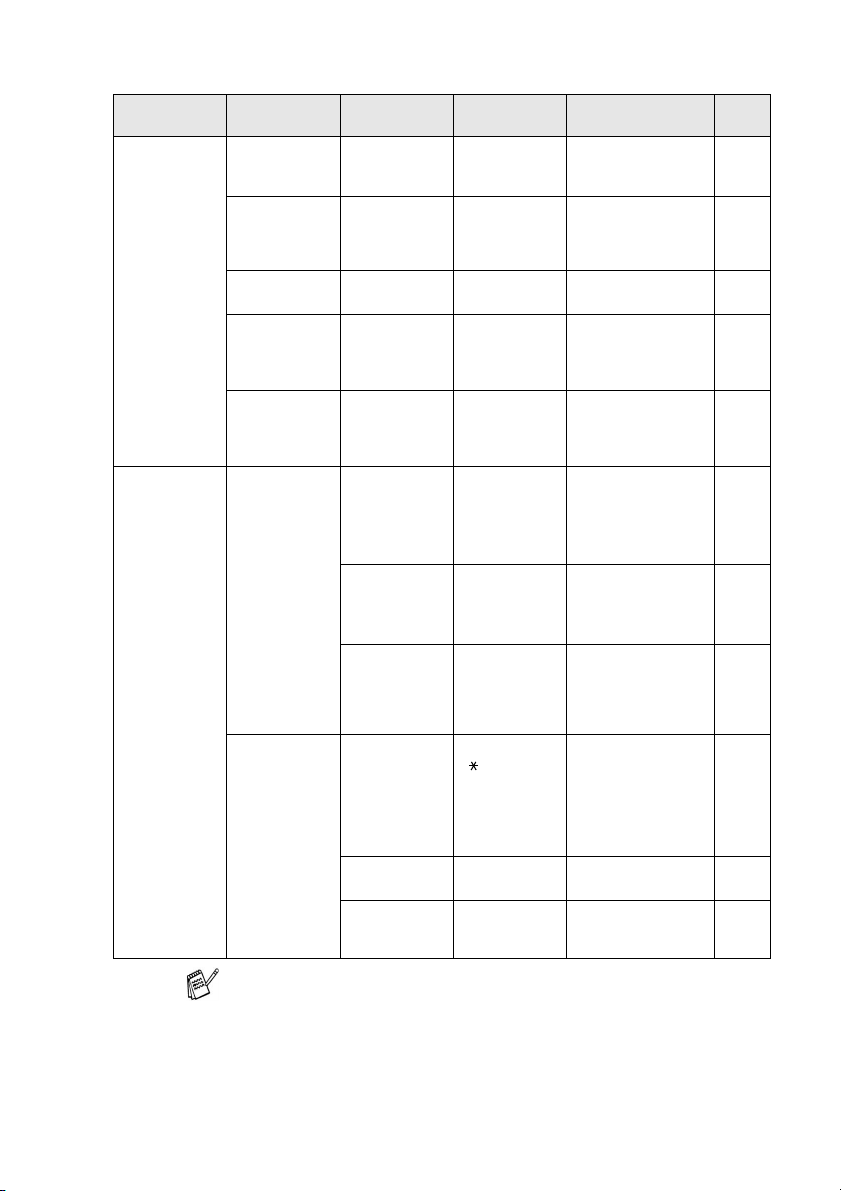
APPENDIX B B - 4
1.General
Setup
(Continued)
5.Auto
Daylight
— On
Off
Changes for Daylight
Savings Time
automatically.
2-6
6.On/Off
Setting
—
Fax Receive:On
Fax Receive:Off
Customizes the
On/Off key to receive
faxes even in OFF
mode.
1-6
7.LCD
Contrast
— Light
Dark
Adjust the contrast of
the LCD.
2-7
8.Tray
Use:Copy
(MFC-5840CN
only)
— Tray#1 Only
Tray#2 Only
Auto Select
Select the tray that
will be used for Copy
mode.
2-7
9.Tray
Use:Fax
(MFC-5840CN
only)
— Tray#1 Only
Tray#2 Only
Auto Select
Select the tray that
will be used for Fax
mode.
2-8
2.Fax 1.Setup
Receive
(In Fax mode
only)
1.Ring Delay 04
03
02
01
00
Sets the number of
rings before the MFC
answers in Fax Only
or Fax/Tel mode.
4-2
2.F/T Ring
Time
70 Sec
40 Sec
30 Sec
20 Sec
Sets the
pseudo/double-ring
time in Fax/Tel
mode.
4-3
3.Easy
Receive
On
Off
Receives fax
messages without
pressing the Black
Start or Color Start
key.
4-4
1.Setup
Receive
(In Fax mode
only)
(Continued)
4.Remote
Code
On
( 51, #51)
Off
You can answer all
calls at an extension
or external phone
and use codes to turn
the MFC on or off.
You can personalize
these codes.
A-8
5.Auto
Reduction
On
Off
Reduces the size of
incoming faxes.
4-5
6.Polling RX — Sets up your MFC to
poll another fax
machine.
4-6
Main Menu Submenu Menu
Selections
Options Descriptions Page
The factory settings are shown in Bold.
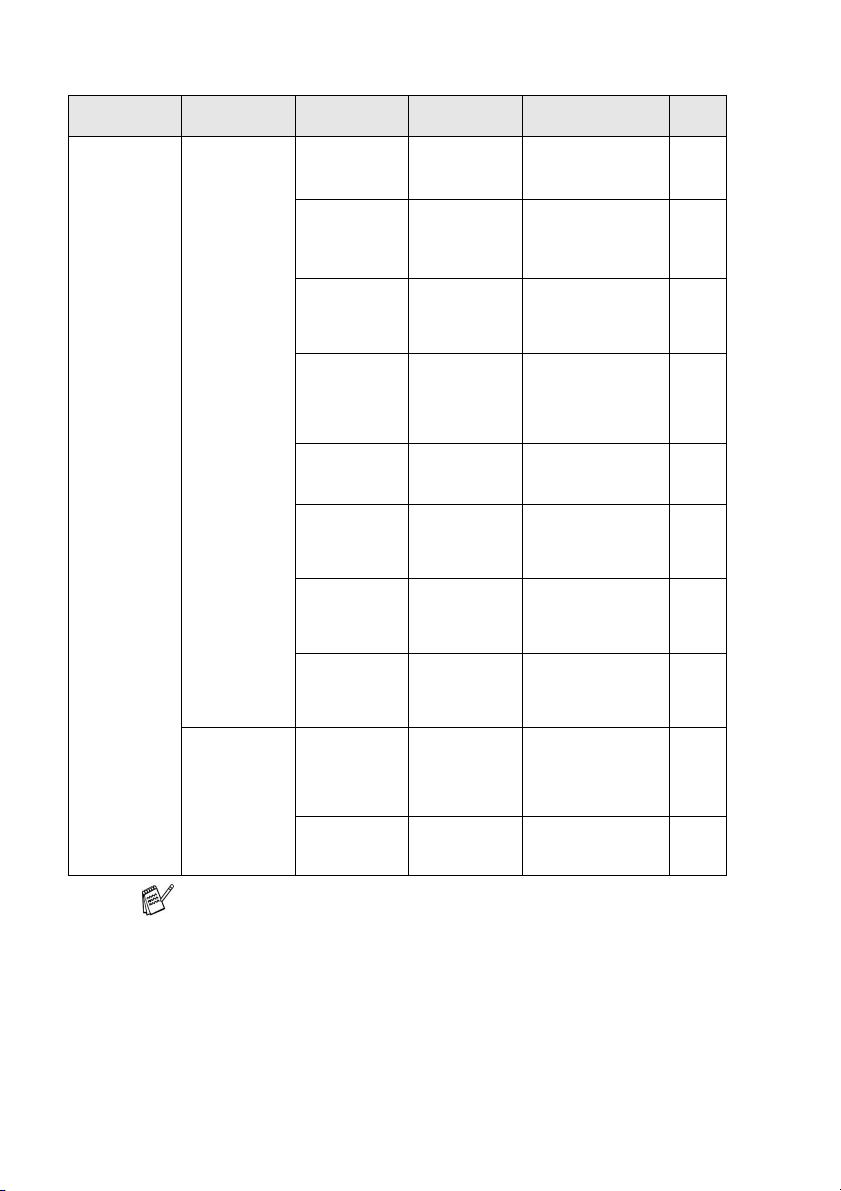
B - 5 APPENDIX B
2.Fax
(Continued)
2.Setup Send
(In Fax mode
only)
1.Contrast Auto
Light
Dark
Changes the
lightness or darkness
of faxes you send.
3-7
2.Fax
Resolution
Standard
Fine
S.Fine
Photo
Sets the default
resolution for
outgoing faxes.
3-8
3.Delayed
Fax
— Set the time of day in
24 hour format that
the delayed faxes will
be sent.
3-14
4.Batch TX On
Off
Combines delayed
faxes to the same fax
number at the same
time of day into one
transmission.
3-15
5.Real Time
TX
Off
On
Next Fax Only
You can send a fax
without using the
memory.
3-10
6.Polled TX On
Off
Sets up your MFC
with an document to
be retrieved by
another fax machine.
3-14
7.Overseas
Mode
On
Off
If you are having
difficulty sending
faxes overseas, set
this to On.
3-13
0.Glass Fax
Size
Letter
A4
Adjust the scan area
of the scanner glass
to the size of the
document.
3-15
3.Set
Quick-Dial
1.Speed-Dial — Stores Speed-Dial
numbers, so you can
dial by pressing only
a few keys (and
Start).
5-1
2.Setup
Groups
— Sets up a Group
number for
Broadcasting.
5-3
Main Menu Submenu Menu
Selections
Options Descriptions Page
The factory settings are shown in Bold.
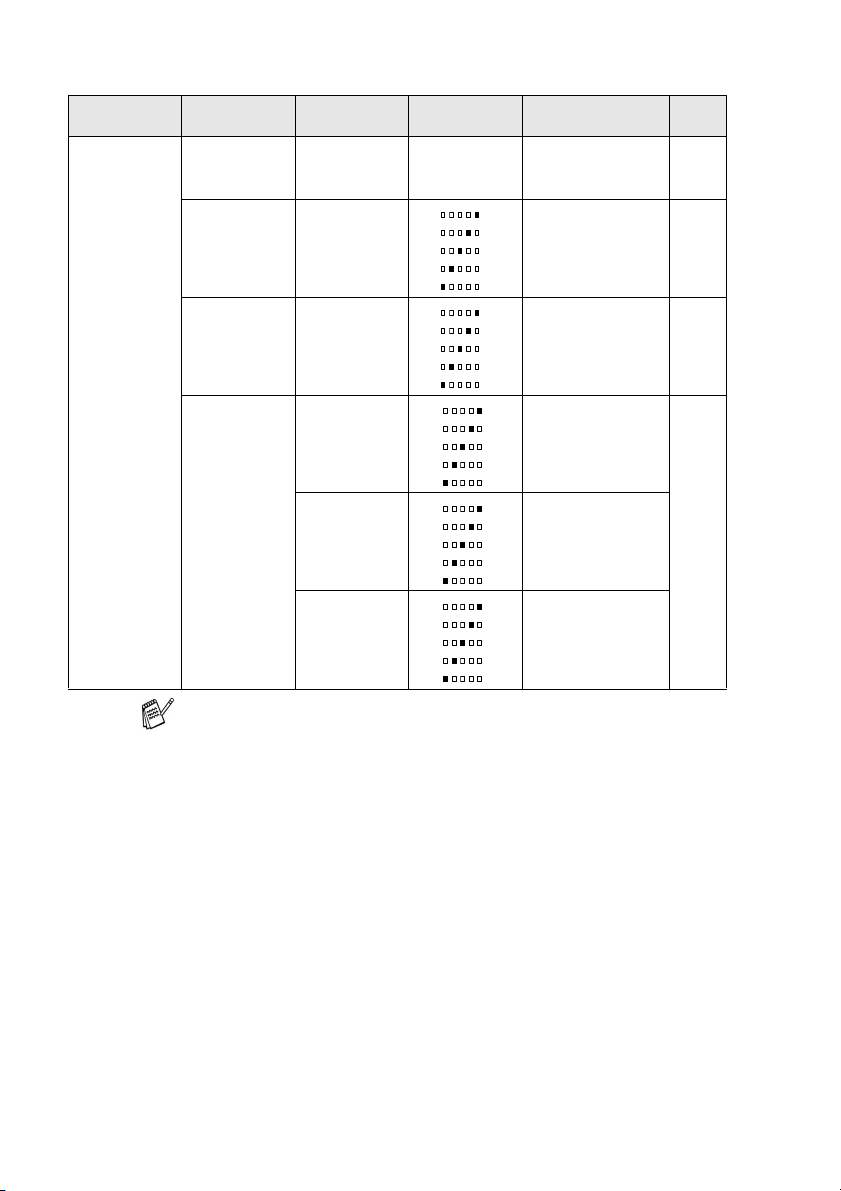
B - 7 APPENDIX B
3.Copy 1.Quality Best
Normal
Fast
Selects the Copy
resolution for your
type of document.
8-16
2.Brightness —- +
- +
- +
- +
- +
Adjusts the
brightness.
8-16
3.Contrast —- +
- +
- +
- +
- +
Adjusts the contrast
for copies.
8-16
4.Color
Adjust
1.Red R:- +
R:- +
R:- +
R:- +
R:- +
Adjusts the amount
of Red in copies.
8-17
2.Green G:- +
G:- +
G:- +
G:- +
G:- +
Adjusts the amount
of Green in copies.
3.Blue B:- +
B:- +
B:- +
B:- +
B:- +
Adjusts the amount
of Blue in copies.
Main Menu Submenu Menu
Selections
Options Descriptions Page
The factory settings are shown in Bold.

APPENDIX B B - 8
4
.
PhotoCapture
(MFC-5840CN
only)
1.Print
Quality
— Normal
Photo
Selects the print
quality.
9-9
2
.
Paper &
Size
—
Letter Glossy
4"x 6" Glossy
5"x 7" Glossy
A4 Glossy
Letter Plain
A4 Plain
Letter Inkjet
A4 Inkjet
4"x 6" Inkjet
Selects the paper
and print size.
9-9
3.Brightness —- +
- +
- +
- +
- +
Adjusts the
brightness.
9-10
4.Contrast —- +
- +
- +
- +
- +
Adjusts the contrast. 9-10
5.True2Life On
Off
1.
White
Balance
- +
- +
- +
- +
- +
Adjusts the hue of the
white areas.
9-10
2.
Sharpness
- +
- +
- +
- +
- +
Enhances the detail
of the image.
3.
Color
Density
- +
- +
- +
- +
- +
Adjusts the total
amount of color in the
image.
Main Menu Submenu Menu
Selections
Options Descriptions Page
The factory settings are shown in Bold.
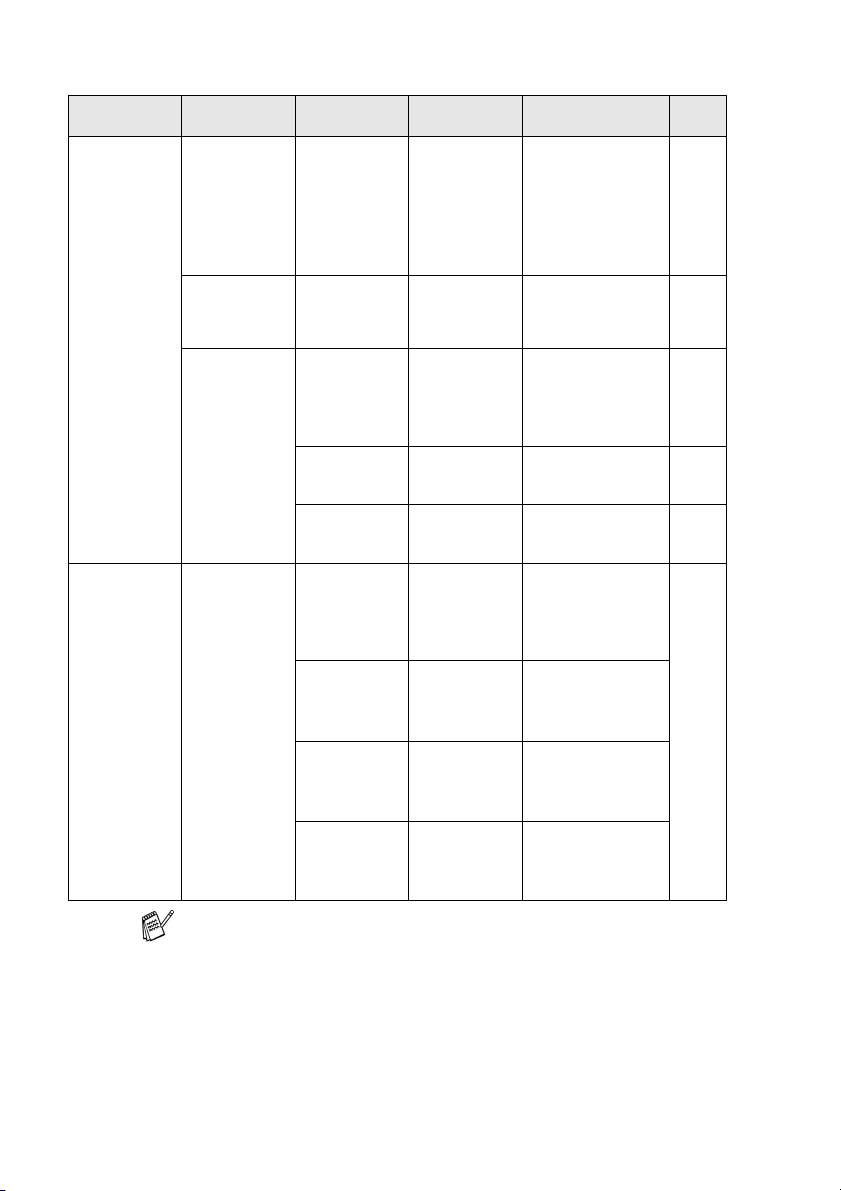
B - 9 APPENDIX B
4.
PhotoCapture
(Continued)
6.
Cropping
—
On
Off
Crops the image
around the margin to
fit the paper size or
print size. Turn this
feature Off if you
want to print whole
images or prevent
unwanted cropping.
9-12
7.Borderless — On
Off
Expands the
printable area to fit
the edges of the
paper
9-12
8.Scan to
Card
1.Quality
B/W 200x100 dpi
B/W 200 dpi
Color 150 dpi
Color 300 dpi
Color 600 dpi
Selects the Scan
resolution for your
type of document.
2-25*
1
2.B/W File
Type
TIFF
PDF
Selects the default
file format for black
and white scanning.
2-26*
1
3.ColorFile
Type
PDF
JPEG
Selects the default
file format for color
scanning.
2-27*
1
4.
LAN
(MFC-5440CN)
5.
LAN
(MFC-5840CN)
1.Setup
TCP/IP
1.BOOT
Method
Auto
Static
RARP
BOOTP
DHCP
You can choose the
BOOT method that
best suits you needs.
See
Network
User’s
Guide
on the
CD-ROM
2.IP Address [000-255].
[000-255].
[000-255].
[000-255]
Enter the IP address.
3.Subnet
Mask
[000-255].
[000-255].
[000-255].
[000-255]
Enter the Subnet
mask.
4.Gateway [000-255].
[000-255].
[000-255].
[000-255]
Enter the Gateway
address.
Main Menu Submenu Menu
Selections
Options Descriptions Page
The factory settings are shown in Bold.
*
1
See the complete Software User’s Guide on the CD-ROM.

B - 11 APPENDIX B
0.Initial
Setup
1.Receive
Mode
— Fax Only
Fax/Tel
External TAD
Manual
You can choose the
receive mode that
best suits your
needs.
4-1
4-2
2.Date/Time — — Puts the date and
time on the LCD and
in headings of faxes
you send.
2-1
3.Station ID — Fax:
Name:
Program your name
and fax number to
appear on each page
you fax.
2-2
4.Tone/Pulse — Tone
Pulse
Selects the dialing
mode.
2-1
0.Local
Language
(Canada only)
— English
French
Allows you to change
the LCD Language
for your country.
See
Quick
Setup
Guide
Main Menu Submenu Menu
Selections
Options Descriptions Page
The factory settings are shown in Bold.

APPENDIX B B - 12
Entering Text
When you are setting certain menu selections, such as the Station
ID, you may need to type text into the MFC. Most number keys have
three or four letters printed above them. The keys for
0
,
#
and do
not have printed letters because they are used for special
characters.
By pressing the appropriate number key repeatedly, you can access
the character you want.
Inserting spaces
To enter a space in the fax number, press once between
numbers. To enter a space in the name, press twice between
characters.
Making corrections
If you entered a letter incorrectly and want to change it, press to
move the cursor under the incorrect character. Then press
Stop/Exit
. All letters above and to the right of the cursor will be
deleted. Re-enter the correct character. You can also back up and
type over incorrect letters.
Repeating letters
If you need to enter a character that is on the same key as the
previous character, press to move the cursor to the right before
you press the key again.
Press Key one time two times three times four times
2 ABC2
3 DEF3
4 GH I 4
5 JKL5
6 MNO6
7 PQRS
8 TUV8
9 WXY Z
▲
▲
▲
▲

S - 1 SPECIFICATIONS
S
Product description
General
Specifications
Memory Capacity 16 MB
Automatic Document
Feeder (ADF)
Up to 35 pages
Temperature: 68°F - 86°F (20
°C
- 30
°C)
Humidity: 50% - 70%
Paper: 20 lb Letter size
Paper Tray 100 Sheets (20 lb)
Paper Tray#2
(MFC-5840CN only)
250 Sheets (20 lb)
Printer Type Ink Jet
Print Method Piezo with 74
×
5 nozzles
LCD (Liquid Crystal
Display)
16 characters
×
2 lines, Back light (MFC-5840CN only)
Power Source 100 - 120V AC 50/60Hz
Power Consumption (MFC-5440CN)
Off Mode:
Standby:
Operating:
Under 3.5 watts
9 Wh or less (25
°C
)
22 Wh or less
(MFC-5840CN)
Off Mode:
Standby:
Operating:
Under 4 watts
9 Wh or less (25
°C
)
24 Wh or less
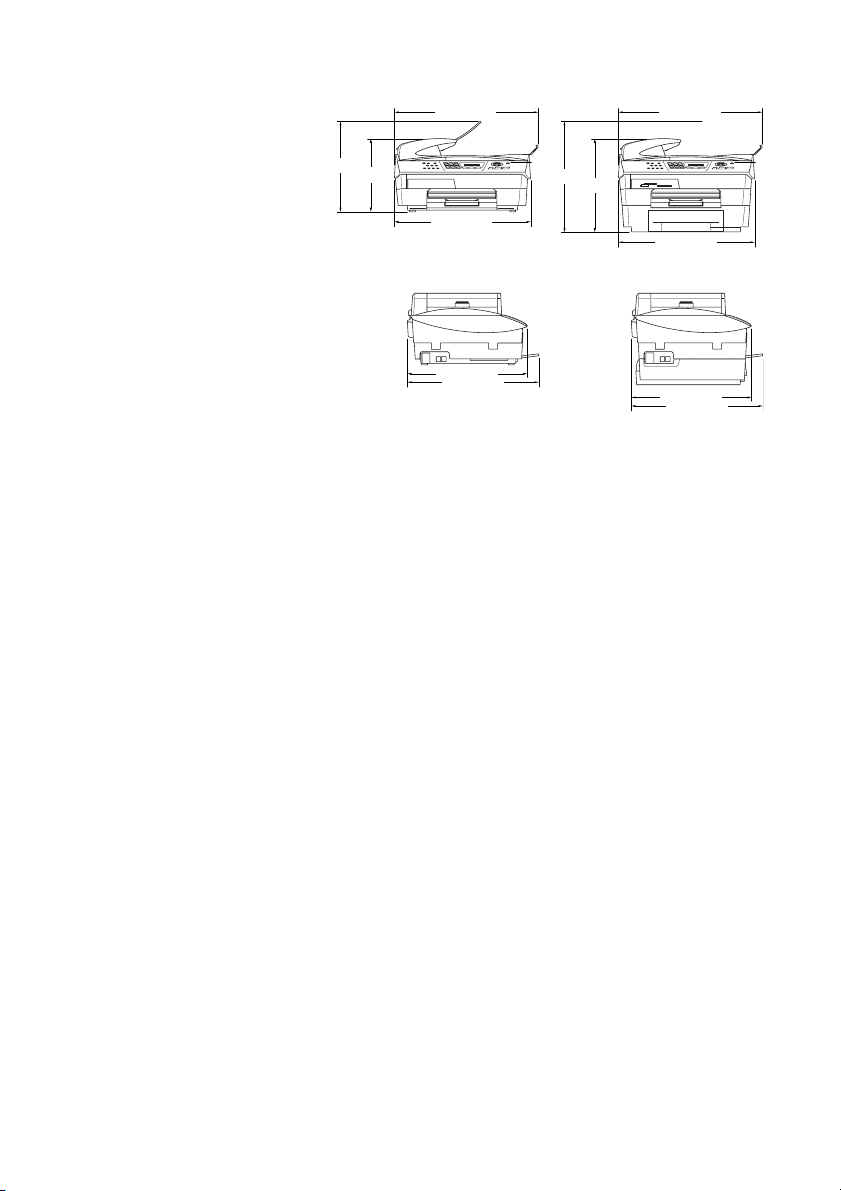
SPECIFICATIONS S - 2
Dimensions (MFC-5440CN) (MFC-5840CN)
Weight 17.6 lb (8.0 kg) (MFC-5440CN)
21.8 lb (9.9 kg) (MFC-5840CN)
Noise Operating: 42.5 to 51 dB*
* It depends on printing conditions.
Temperature Operating:
Best Print
Quality:
50°F - 95°F (10°C - 35°C)
68°F - 91°F (20°C - 33°C)
Humidity Operating:
Best Print
Quality:
20 to 80% (without condensation)
20 to 80% (without condensation)
15.6 inch (395 mm)
17.0 inch (433 mm)
17.5 inch (444 mm)
9.3 inch
(237 mm)
10.6 inch
(269 mm)
18.1 inch (461 mm)
15.6 inch (395 mm)
17.0 inch (433 mm)
17.5 inch (444 mm)
12.2 inch
(309 mm)
13.4 inch
(341 mm)
18.1 inch (461 mm)

SPECIFICATIONS S - 4
Copy
Color/Black Color/Black
Document Size ADF Width: 5.8" to 8.5"
ADF Height: 5.8" to 14"
Scanner Glass Width: 8.5 in.
Scanner Glass Height: 11.7 in.
Copy Speed Black
Up to 17 pages/minute (Letter paper)*
Color
Up to 11 pages/minute (Letter paper)*
* Does not include the time it takes to feed the paper.
Based on Brother standard pattern. (Fast mode/Stack Copy)
Copy speeds vary with the complexity of the document.
Multiple Copies Stacks/Sorts up to 99 pages
Enlarge/Reduce 25% to 400% (in increments of 1%)
Resolution Up to 600 x 1200 dpi copy resolution for plain,
1200 x 1200 dpi for inkjet, glossy paper and
OHP/transparency.

S - 7 SPECIFICATIONS
Scanner
Memory Transmission Up to 200*
1
/170*
2
pages (MFC-5440CN)
Up to 480*
1
/400*
2
pages (MFC-5840CN)
Out of Paper Reception Up to 200*
1
/170*
2
pages (MFC-5440CN)
Up to 480*
1
/400*
2
pages (MFC-5840CN)
*1
“Pages” refers to the “Brother Standard Chart No. 1” (a typical business letter, Standard resolution,
MMR code). Specifications and printed materials are subject to change without prior notice.
*2
"Pages" refers to the "ITU-T Test Chart #1" (a typical business letter, Standard resolution, MMR code).
Specifications and printed materials are subject to change without prior notice.
Color/Black
Color/Black
TWAIN Compliant Yes (Windows
®
98/98SE/Me/2000 Professional/XP)
Mac OS
®
8.6-9.2/Mac OS
®
X 10.2.4 or greater
WIA Compliant Yes (Windows
®
XP)
Color Depth 48 bit color Processing (Input)
48 bit color Processing (Output)
Resolution Up to 19200
×
19200 dpi (interpolated)*
Up to 1200
×
2400 dpi (optical)
* Maximum 1200 x 1200 dpi scanning with Windows
®
XP
(resolution up to 19200 x 19200 dpi can be selected by using the
Brother scanner utility)
Scanning Speed Color: up to 4.48 sec.
Black: up to 3.30 sec.
Letter size in 100
×
100 dpi)
Document Size ADF Width: 5.8" to 8.5"
ADF Height: 5.8" to 14"
Scanner Glass Width: Max. 8.5"
Scanner Glass Height: Max. 11.7"
Scanning Width 8.26 in.
Gray Scale 256 levels
Mac OS
®
X scanning is supported in Mac OS
®
X 10.2.4 or greater.

SPECIFICATIONS S - 8
Printer
Interfaces
Printer Driver Windows
®
98/98SE/Me/2000 Professional and XP
driver supporting Brother Native Compression
mode and bi-directional capability
Apple
®
Macintosh
®
QuickDraw
®
Driver
For Mac OS
®
8.6-9.2/Mac OS
®
X 10.2.4 or greater
Resolution Up to 1200 x 6000 dots per inch (dpi)*
1200 x 1200 dots per inch (dpi)
600 x 600 dots per inch (dpi)
600 x 150 dots per inch (dpi)
* Output image quality varies based upon many factors including
but not limited to input image resolution and quality and print
media.
Print Speed up to 20 pages/minute (Black)*
up to 15 pages/minute (Color)*
* Based on Brother standard pattern.
Letter size in draft mode.
Does not include the time it takes to feed the paper.
Printing Width 8.03 inches (8.5 inches)*
* When you set the Borderless feature to On.
Disk-Based Fonts 35 TrueType
Borderless Letter, A4, A6, Photo Card, Index Card, Post Card
(Not available for Tray#2 (MFC-5840CN only))
USB A Full-Speed USB 2.0 cable that is no longer than
6 feet (2.0 m)*
* Your MFC has a Full-Speed USB 2.0 interface. This interface is
compatible with Hi-Speed USB 2.0; however, the maximum
data transfer rate will be 12 Mbits/s. The MFC can also be
connected to a computer that has a USB 1.1 interface.
LAN cable Ethernet UTP cable category 5 or greater.
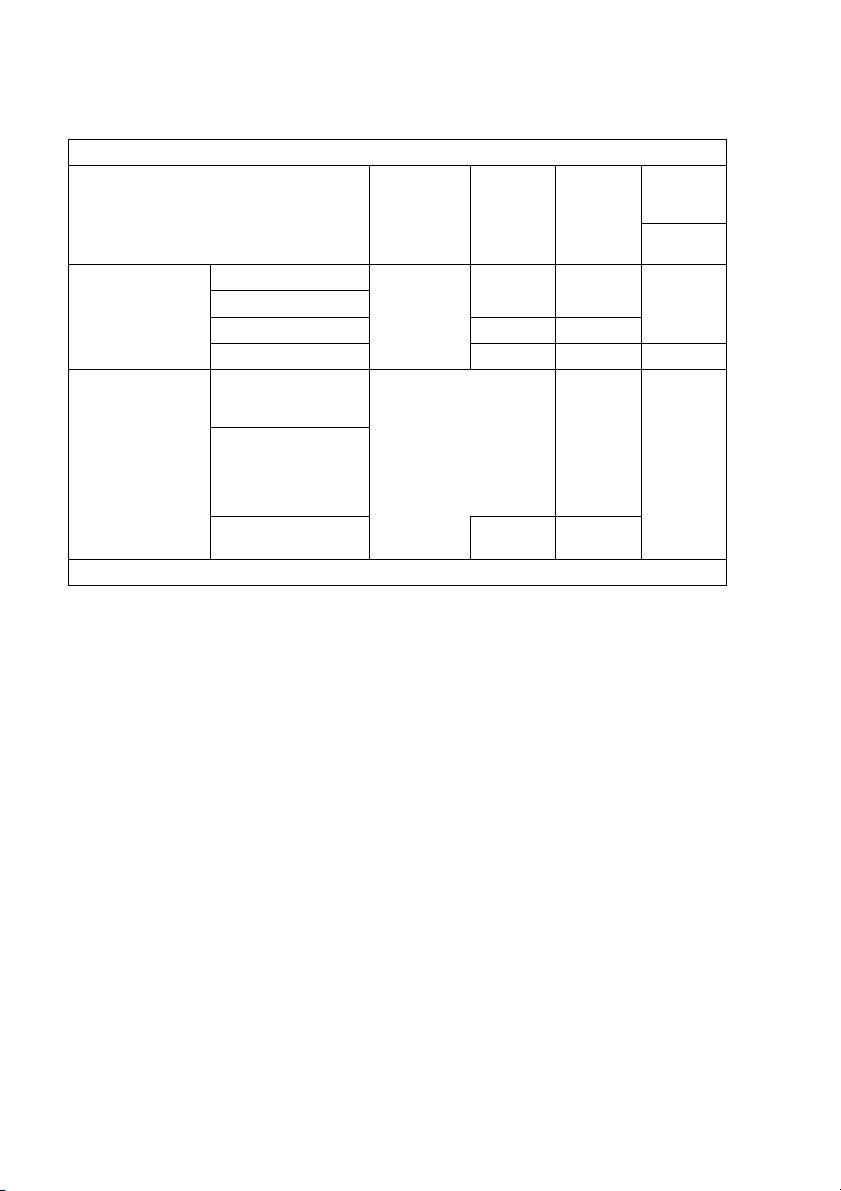
S - 9 SPECIFICATIONS
Computer requirements
Minimum System Requirements
Computer Platform & Operating System
Version
Processor
Minimum
Speed
Minimum
RAM
Recommended
RAM
Available
Hard Disk
Space
for
Drivers
Windows
®
*
1
Operating System
98, 98SE Pentium II or
equivalent
32 MB 64 MB 90 MB
Me
2000 Professional 64 MB 128 MB
XP*
2
128 MB 256 MB 150 MB
Apple
®
Macintosh
®
Operating System
Mac OS
®
8.6
(Printing and PC-FAX
Send*
4
Only)
All base models meet
minimum
Requirements
64 MB 80 MB
Mac OS
®
9.X
(Printing, Scanning*
3
,
PhotoCapture Center
™
and PC-FAX Send*
4
Only)
Mac OS
®
X 10.2.4 or
greater
128 MB 160 MB
NOTE: All registered trademarks referenced herein are the property of their respective companies.
*
1
Microsoft
®
Internet Explorer 5 or greater.
*
2
Maximum 1200 x 1200 dpi scanning with Windows
®
XP. (Resolutions up to 19200 x 19200 dpi can be
selected using the Brother Utility.)
*
3
Dedicated “Scan” key and direct Network Scanning supported in Mac
®
Operating Systems Mac OS
®
X
10.2.4 or greater.
*
4
PC Fax supports black and white faxing only.

INDEX I - 1
Index
A
Access codes, storing and
dialing ................................5-5
Accessories and supplies .......ii
ADF (automatic document
feeder) ........................1-7, 3-3
Answering machine (TAD)
...A-10
connecting ......................A-12
Automatic
fax receive ........................4-1
Easy Receive ................4-4
fax redial ...........................3-2
transmission .....................3-5
B
Broadcasting .....................3-12
setting up Groups for ........5-3
Brother
accessories and supplies .....ii
Brother numbers .................. i
Customer Service ................. i
fax back system ...................ii
Frequently asked questions
(FAQs) ................................ i
product support .................... i
Warranties ..................iii, iv, vi
C
Caller ID ..............................A-5
print list .............................A-6
view list .............................A-6
Canceling
Fax Forwarding ................6-6
fax jobs in memory .........3-11
jobs awaiting redial .........3-11
Paging ..............................6-6
Cleaning
print head ......................11-15
printer platen .................11-24
scanner .........................11-23
CNG tones .........................1-23
Connecting
external TAD ..................A-10
external telephone ........... A-9
two-line external TAD or
telephone ..................... A-15
Consumable items ............ S-10
Control Center
See Software User’s Guide on
the CD-ROM.........................
Control panel overview ........1-2
Copy
brightness .......................8-10
color adjustment .............8-17
contrast ...........................8-16
default settings ...............8-16
Enlarge/Reduce ........ 8-5, 8-8
enter Copy mode ..............8-1
keys ..................................8-3
multiple .............................8-2
Out of Memory ................8-17
Page Layout ...................8-12
paper ........................ 8-6, 8-9
Quality key ................ 8-4, 8-8
quality setting ..................8-16
setting tray use .................2-7
single ................................8-2
Sort (ADF only) ...............8-11
temporary settings ............8-3
using ADF .........................8-2
Cordless phone .................. A-8
Credit card numbers ............5-5
Custom telephone features
on a single line ....11-12, A-16

I - 2 INDEX
D
Date and Time .................... 2-1
Delayed Batch
Transmission .................. 3-15
Dialing
a pause ............................ 5-5
access codes and credit
card numbers ................. 5-5
automatic fax redial ......... 3-2
automatic transmission .... 3-5
Groups ........................... 3-12
manual transmission ........ 3-1
Speed-Dial ....................... 3-2
Distinctive Ring ...................A-1
setting ring pattern ...........A-4
turning off ......................... A-4
Dual Access ....................... 3-9
E
Easy Receive ..................... 4-4
ECM (Error Correction
Mode) ............................. 1-24
Envelopes ......................... 1-14
Equalization .................... 11-14
Error messages on LCD ... 11-1
Comm. Error .................. 11-1
Ink Empty ....................... 11-2
Near Empty .................... 11-2
No Paper Fed ................ 11-2
Not Registered ................. 3-2
Out of Memory ............... 11-3
while scanning
a document ............... 8-17
Unable to Change .......... 11-4
Unable to Clean ............. 11-4
Unable to Init. ................ 11-4
Unable to Print ............... 11-4
Unable to Scan .............. 11-4
Extension telephone,
using ................................. A-7
External telephone,
connecting ........................A-9
F
Fax codes
changing ...................6-4, A-8
Fax Receive Code ...........A-7
Remote Access Code ......6-4
Telephone Answer Code ...A-7
Fax Forwarding
changing remotely .....6-6, 6-7
programming a number .... 6-1
Fax Storage ........................ 6-3
printing from memory ....... 4-5
turning on ......................... 6-3
Fax, stand-alone
receiving ........................... 4-1
compatibility .............. 11-14
difficulties .................. 11-10
Fax Forwarding ............. 6-6
from extension phone ....A-7
Paging ........................... 6-2
Polling Receive .............4-6
reducing to fit on paper ... 4-5
retrieving from a remote
site ............................... 6-7
Ring Delay, setting ........ 4-2
Sequential Polling ......... 4-6
setting tray use .............. 2-8
sending ............................ 3-1
automatic ....................... 3-5
Broadcasting ...............3-12
canceling from
memory .....................3-11
color fax ......................... 3-3
compatibility .............. 11-14
contrast ......................... 3-7
enter Fax mode ............. 3-1
from memory
(Dual Access) .......3-2, 3-9

I - 6 INDEX
Troubleshooting ................ 11-1
checking ink volume .... 11-19
document jam ................ 11-5
error messages on LCD
... 11-1
if you are having difficulty
copying ..................... 11-12
incoming calls ........... 11-12
Network ..................... 11-13
phone line ................. 11-14
phone line difficulties
... 11-11
PhotoCapture Center
™
................................. 11-13
printing ........................ 11-9
printing or receiving
faxes ....................... 11-10
Printing Received
Faxes ...................... 11-10
receiving faxes .......... 11-11
scanning ................... 11-12
sending faxes ............ 11-11
software .................... 11-12
paper jam ....................... 11-6
print quality .................. 11-15
True2Life
®
PhotoCapture Center
™
... 9-10
Two-line phone system .... A-13
V
Volume, setting ................... 2-5
beeper ............................. 2-5
ring ................................... 2-5
speaker ............................ 2-6
W
Warranties ............................. iii
Canada ...............................vi
Notice-Disclaimer ............... iii
USA ....................................iv
World Wide Web .....................i

These machines are made for use in the USA and Canada only. We cannot recommend
using them overseas because it may violate the Telecommunications Regulations of that
country and the power requirements of your multi-function center may not be compatible
with the power available in foreign countries. Using USA or Canada models overseas is
at your own risk and may void your warranty.
Brother International Corporation
100 Somerset Corporate Boulevard
P.O. Box 6911
Bridgewater, NJ 08807–0911 USA
Brother International Corporation (Canada) Ltd.
1 rue Hôtel de Ville,
Dollard-des-Ormeaux, QC, CANADA H9B 3H6
®
*LF58860014*
USA/CAN
LF58860014
Visit us on the World Wide Web
http://www.brother.com