
2019
NAVIGATION MANUAL
The information and specifications included in this publication were in effect at the time of approval for printing. Honda Motor Co., Ltd., reserves the right,
however, to discontinue or change specifications or design at any time without notice and without incurring any obligation.
Accessories Precautions
The GPS antenna is located on the roof. Trees, tall buildings, highway overpasses, tunnels, or overhead electrical power wires can easily interrupt or interfere GPS reception.
Signal noise from devices such as radar detectors, vehicle tracking devices, remote starters, and additional amplifiers can disrupt the navigation system. If you
install any such item, install it away from the navigation display and antenna.
Important Safety Information
Avoid focusing on the screen or manually operating the system controls while driving.
Certain on-screen controls are disabled when driving, however most of the voice commands continue to function. Pull to the side of the road if you need to devote
more attention and time to look at the screen or access additional menus.
Route guidance may conflict with street closures, road construction, detours, and out-of-date map data.
The system itself may also have limitations. Verify route information by carefully observing roads, signs, and signals. Always use your own judgment and obey
traffic laws.
2
System Limitations
P. 106
NOTICE
This vehicle’s navigation display, if so equipped, includes mercury-containing components. Upon removal, please reuse, recycle, or dispose of as hazardous waste.
Clean the screen with a soft, damp cloth. You may use a mild cleaner intended for use on navigation screens.
3 WARNING
Using the navigation system while driving can take your
attention away from the road, causing a crash in which you
could be seriously injured or killed.
Only operate system controls when the conditions permit you
to safely do so.
00X31-TXM-8000 2019 Insight Navigation Manual NM-08209

Contents
2 System Setup P. 15
Start-up 16 Voice Control System 17 Personal Information 18 Display Mode Settings 30
Guidance Volume Settings 32 Map and Vehicle 33 Navigation 40 Traffic 48
Location History 49 About 50 Data Reset 51
2 Navigation P. 53
Entering a Destination 54 Calculating the Route 72 Driving to Your Destination 75 Map Operation 82
Changing Your Route 88 Changing Your Destination 94
2 Troubleshooting P. 99
Troubleshooting 100
2 Reference Information P. 105
System Limitations 106 Customer Assistance 108 Legal Information 110
2 Voice Commands P. 117
Voice Commands 118 List of Categories 121
Quick Reference Guide
P. 2
System Setup
P. 15
Navigation
P. 53
Troubleshooting
P. 99
Reference Information
P. 105
Voice Commands
P. 117
Index
P. 122
2
Quick Reference Guide
Quick Reference Guide
Overview—Functions at a Glance
Navigation
You can select any place/landmark as a destination by using the touchscreen. The navigation system gives you
turn-by-turn driving directions to your destination.
Store home address
(P18 )
Register
1
home address.
Track route
(P75 )
Follow your route in real-time with voice guidance.
Store contacts
(P19 )
Store locations to use as the destination.
Enter destination
(P54 )
Select your destination using several methods.
Select route
(P73 )
Set route preferences and select one of the available routes.
Avoid certain areas
(P43 )
Set streets and areas to detour around.
Add waypoints
(P90 )
Add “pit stops” along your route.
Traffic Information* (P80)
View and avoid congestion and traffic incidents.
*: Available only in certain areas.
3
Quick Reference Guide
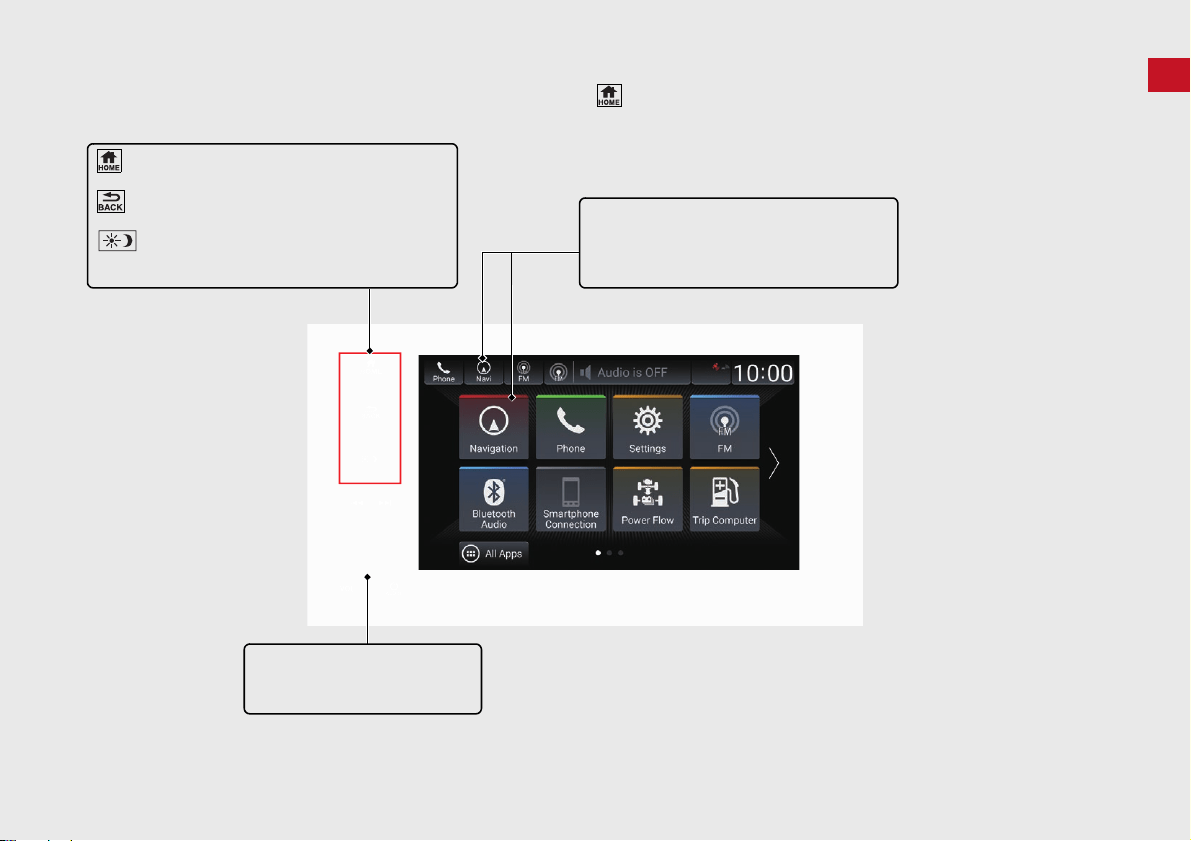
HOME Screen
The system displays various functions from the HOME screen. Press the (Home) button at any time to return to the main HOME screen.
(Home)
Display the HOME screen.
(Back)
Go back to the previous screen.
(Display Mode)
Switch between Day and Night modes manually.
VOL (Volume)
Increase or decrease the audio/
guidance volume.
Navigation
Display the navigation feature that was
used the last time.
At start-up, the map screen is displayed.
4
Quick Reference Guide
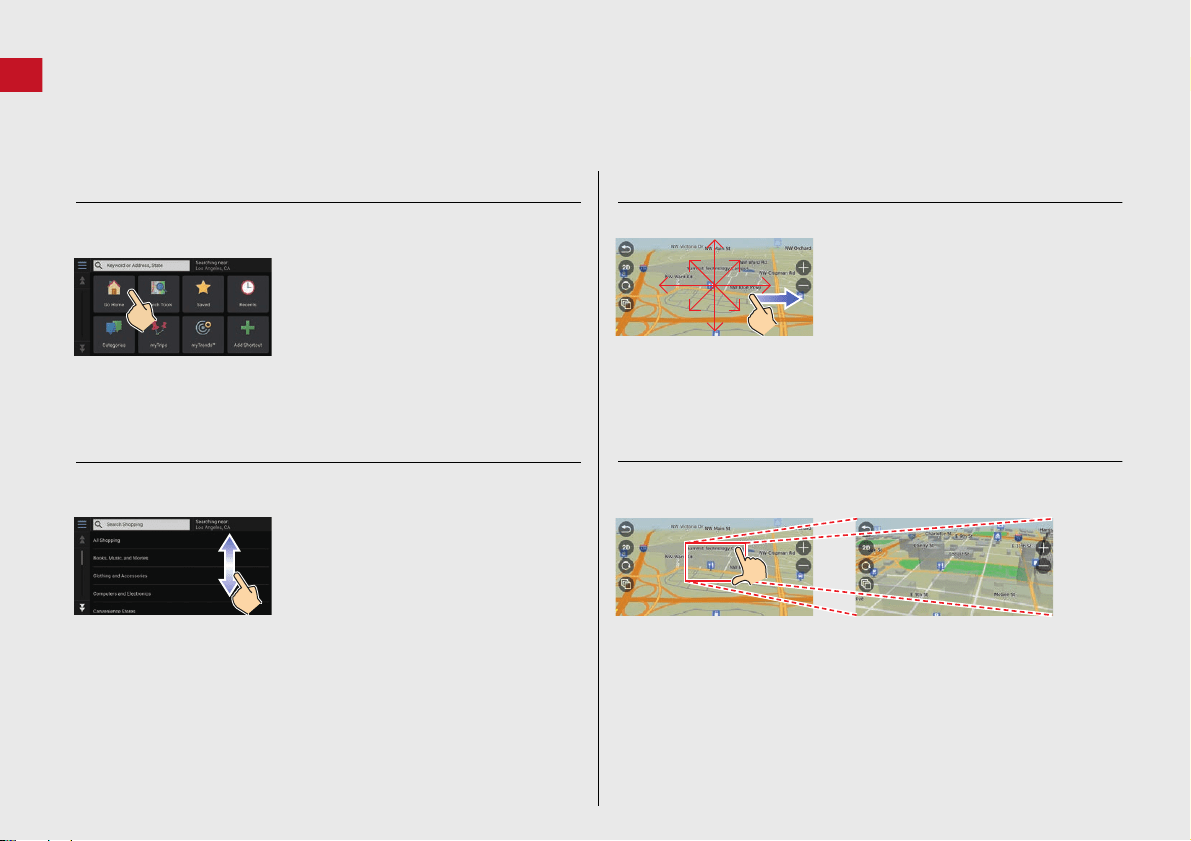
Touchscreen Operation
You can operate the system using your finger on the touchscreen.
The touchscreen can be operated if you are wearing thin gloves, but it may be more difficult for the system to respond.
Tap
Touch the screen lightly with your finger to select an option on the
screen.
Swipe
Lightly sweep your finger side to side or up and down to scroll a list
or map.
You can change the touchscreen sensitivity setting.
2 Refer to the Owners Manual.
Slide
Move your finger slowly across the screen to scroll the map.
Pinch In/Out
Open or close your fingers on the screen in a pinching motion to
zoom in or out of the map.
5
Quick Reference Guide
How to Enter Information
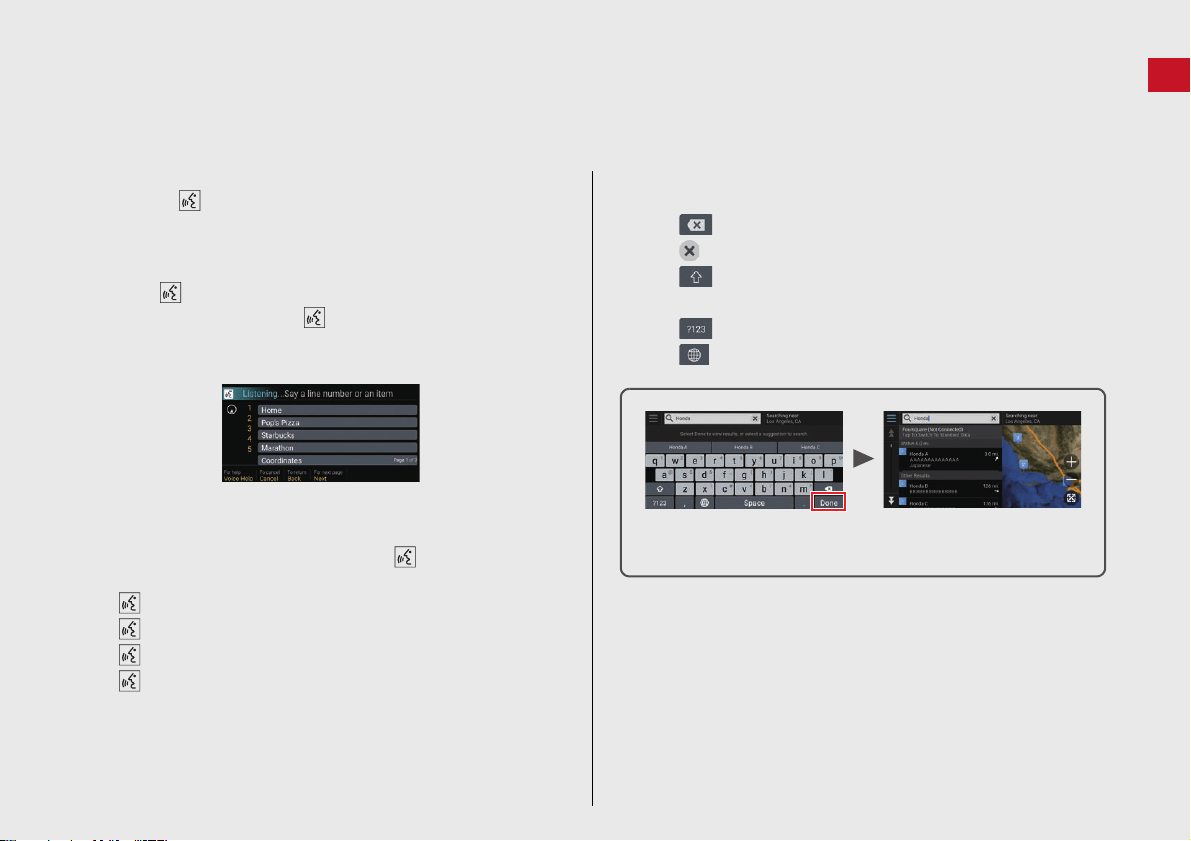
You can enter information (e.g., city names, street names, numbers, and symbols) when prompted on the input screen.
Using Voice Commands
When you see in this manual, voice commands are available for
that feature.
The system recognizes only certain commands.
Available navigation commands (P118 )
Press the (Talk) button, and say the command, phrase, letter,
number, or symbol (e.g., say “1”).
If a voice command is not recognized, a list is displayed with
possible options.
On list screens:
Say the number of the list item (e.g., say “Three” to select
item 3).
Say “Back” to return to the previous screen.
Say “Next” for next page.
Say “Previous” for previous page.
Say “Cancel” to end the voice command function.
Using the Touchscreen
Select a character or icon on the screen to select it.
Select to remove the last entered character.
Select to remove all entered characters.
Select to display upper/lower case characters.
Select Space to enter a space character.
Select to display other types of characters.
Select to change the keypad language.
On input search screens, the suggested search terms are
displayed. Select Done to display a list of possible entries.

7
Quick Reference Guide
During Route Guidance
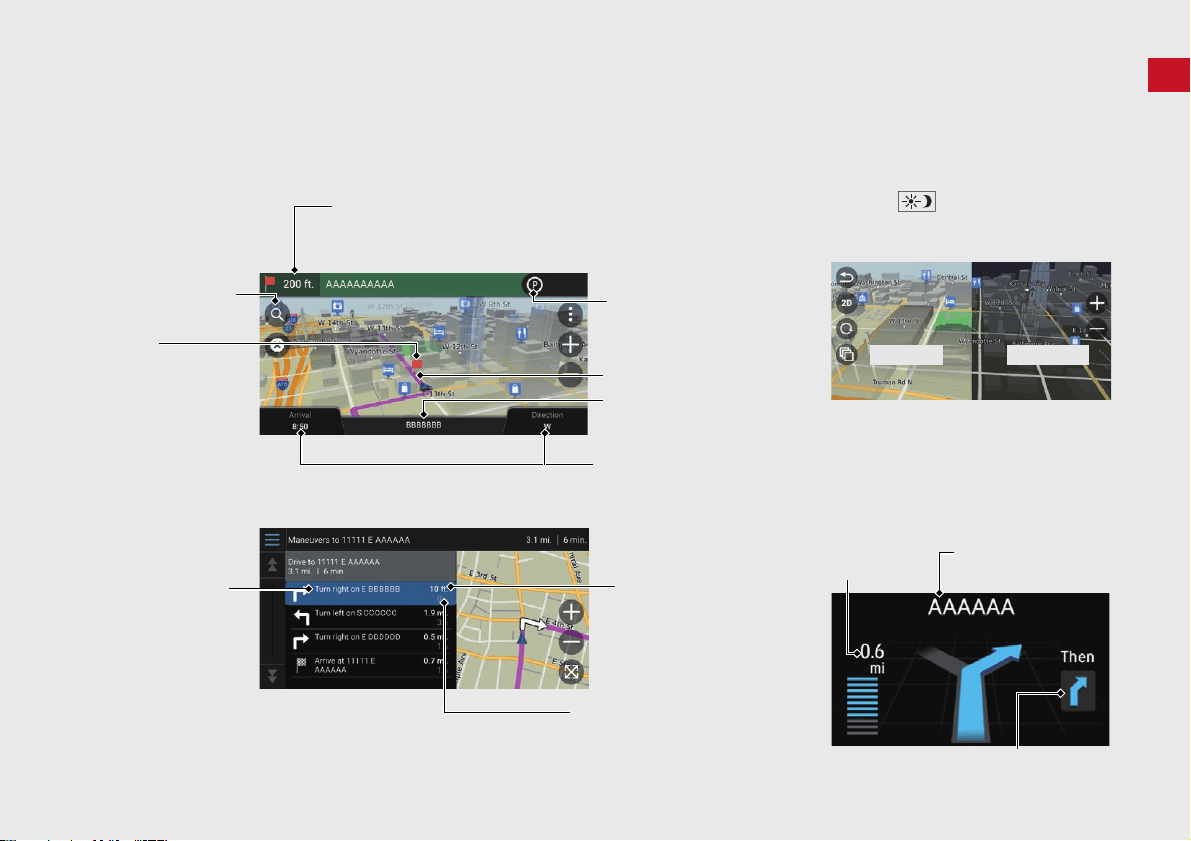
During route guidance, route information is displayed on the map screen.
You can see the detailed information on the turn list screen.
Map Screen
Guidance Screen
Dashboards (P75)
Next guidance indicator (P75)
Distance to the next guidance point and street name of
next guidance point.
Select to get next voice guidance.
Queue indicator
Where To? (P54 )
Calculated route
Current street name
Waypoint
Street name of next
guidance point
Distance to next
guidance point
Estimated time to
next guidance point
Day or Night Mode
Press the (Display Mode) button
to manually switch between Day and
Night modes.
Turn-by-Turn Directions
The next guidance point appears on
the Driver Information Interface.
Day Mode Night Mode
Remaining
distance
Street name of next
guidance point
Next driving maneuver is
approaching.
8
Quick Reference Guide
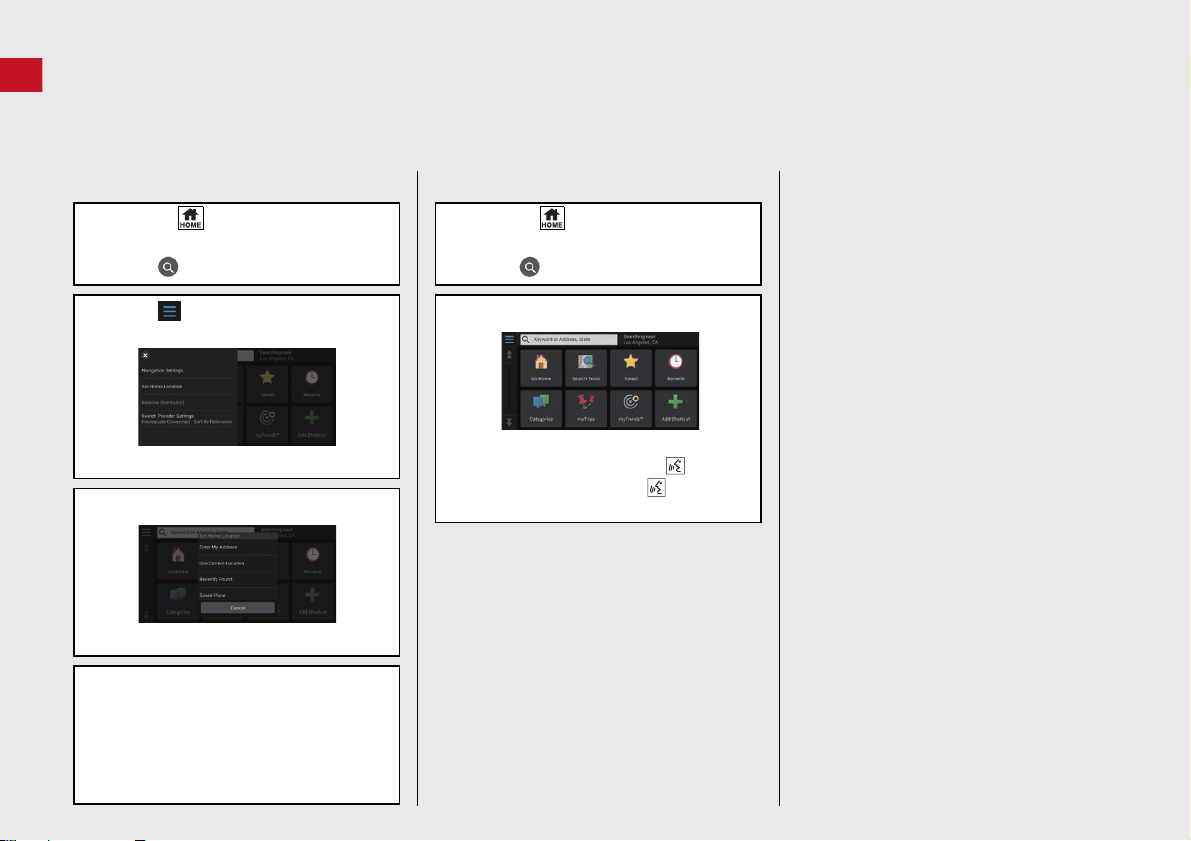
Navigation—Home Addresses and Going Home
The “Home” feature automatically routes you to your home address from any location simply by selecting Go Home.
You can store one home address. (P18 )
The order of the steps may change depending on the map data loaded on your system.
Storing Your Home Address
a Press the (Home) button and then
select Navigation.
b Select .
c Select and then select Set Home
Location.
d Select Enter My Address.
e Enter a house number and street
name.
f Select Done or a suggestion.
g Select an address from the list.
h Select Select.
Going Home
a Press the (Home) button and then
select Navigation.
b Select .
c Select Go Home.
Alternatively, you can say
“Navigation” and then “Go
Home” from any screen.
9
Quick Reference Guide
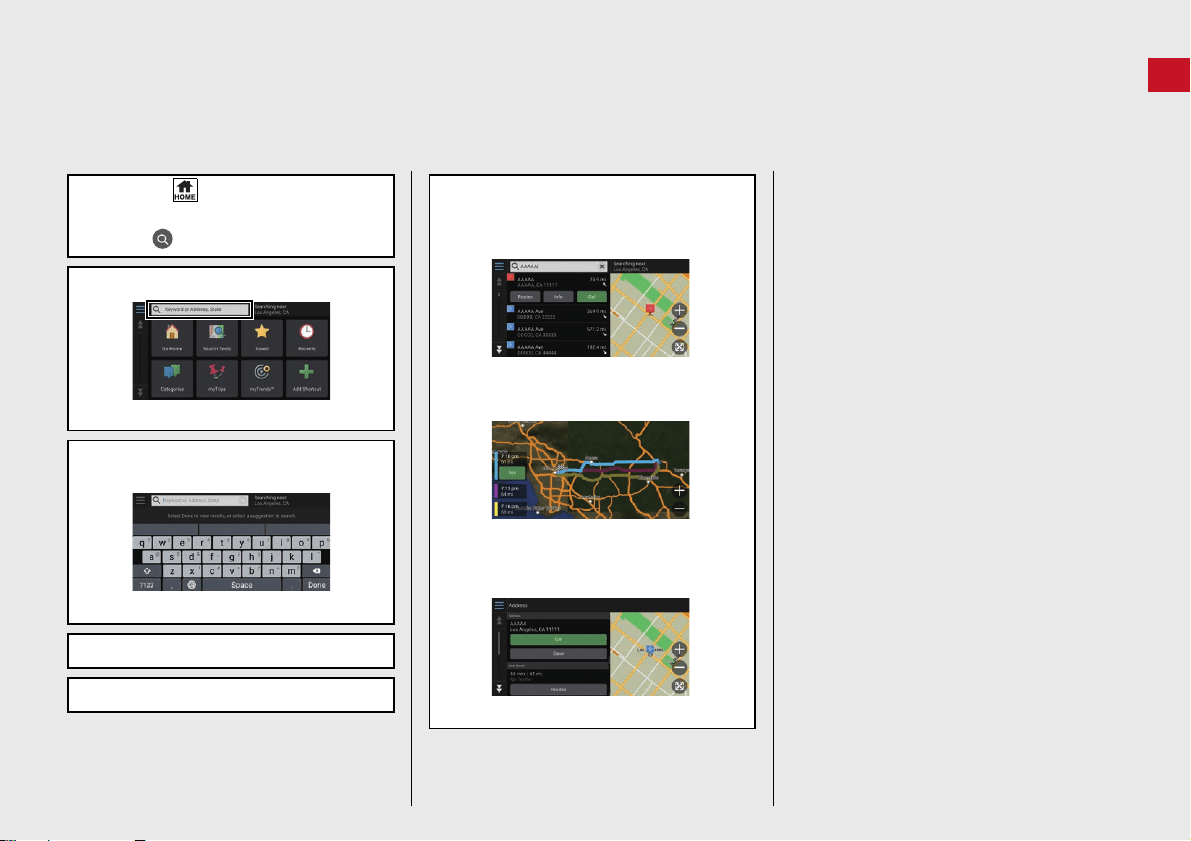
Navigation—Entering a Destination
Enter your destination using one of several methods, then follow route guidance on the map to your destination.
The order of the steps may change depending on the map data loaded on your system.
a Press the (Home) button and then
select Navigation.
b Select .
c Select the search bar.
d Enter the house number and street
name.
e Select Done or a suggestion.
f Select an address from the list.
g Select Go!.
Route guidance to the destination
begins.
Routes: Choose one of multiple routes.
Info: Display the location information
and save a place.
10
Quick Reference Guide
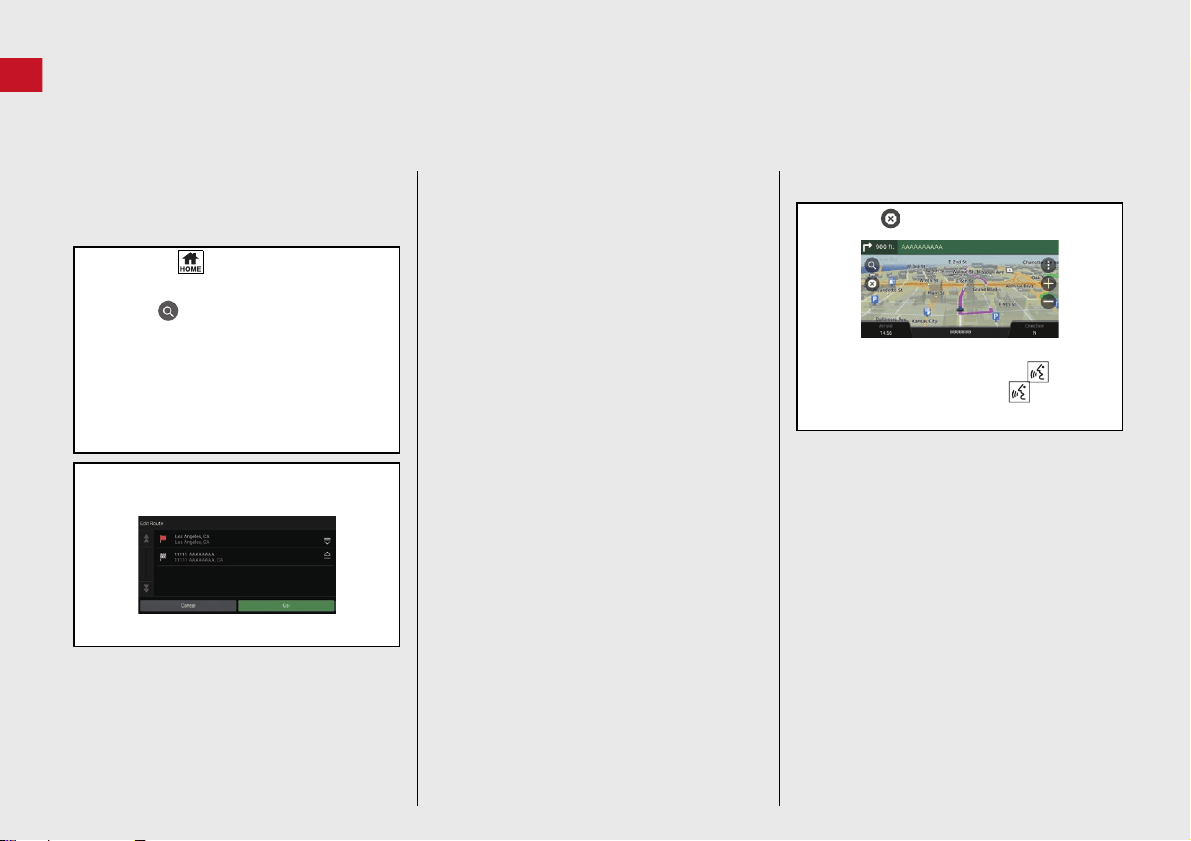
Navigation—Changing Route or Destination
You can alter your route by adding waypoints to visit, or changing your destination during route guidance.
Adding a Waypoint (“Pit Stop”)
You can add waypoints along your route.
(P90 )
a Press the (Home) button and then
select Navigation.
b Select .
c Select a search method.
d Select the location to add to the
destination list and select Go!.
e Select Add as Next Stop or Add to
Active Route.
f If necessary, edit the order of the
destinations.
Changing Your Destination
There are several methods you can use to
specify a new destination during route
guidance.
Searching nearby hospitals, police
stations, gas stations, or tow services
(P95 )
Select the vehicle icon and select an
option.
Selecting an icon on the map (P94 )
Select a place/landmark icon or a new
area on the map twice.
Entering a new destination (P97 )
Select Where To? and then enter a new
destination.
Canceling Your Route
a Select .
Alternatively, you can say
“Navigation” and then “Stop
route” from any screen.
11
Quick Reference Guide
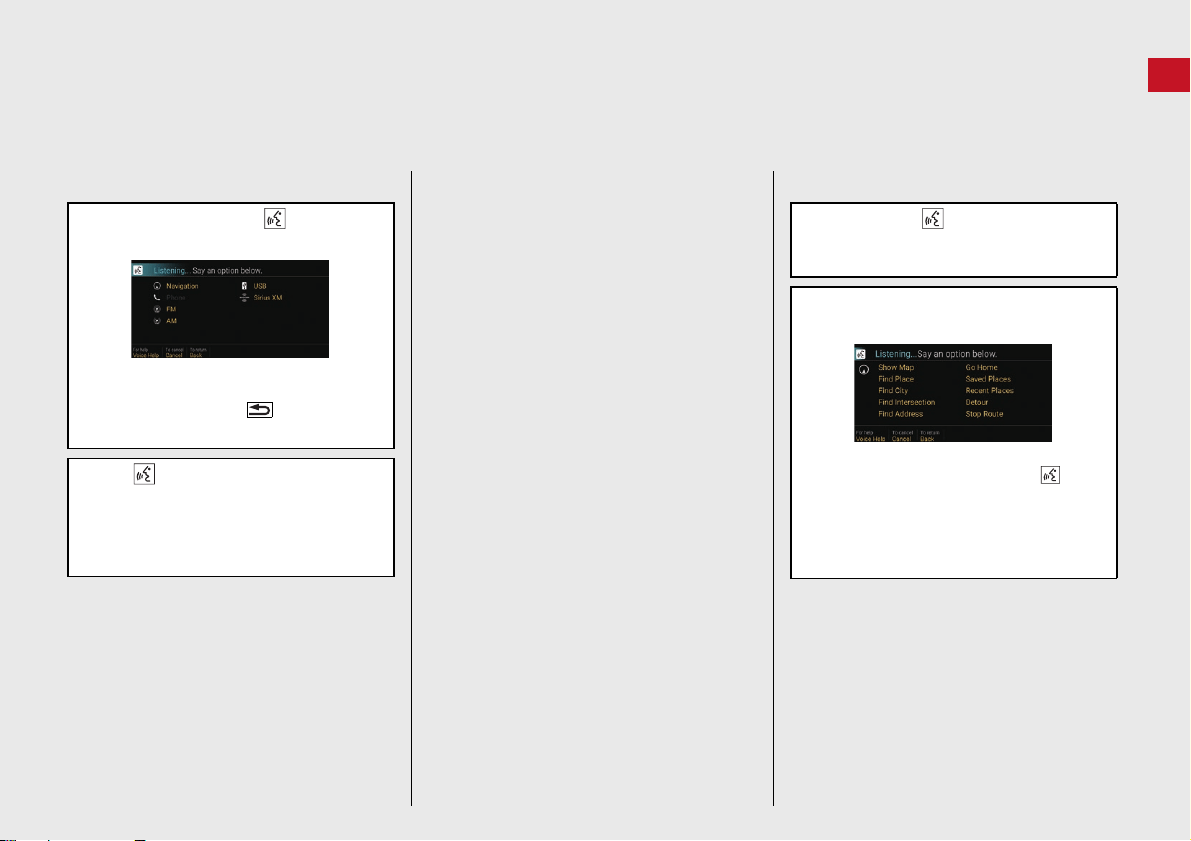
Voice Control Operation
Voice Portal Screen
a Press and release the (Talk)
button.
The system beeps when ready for a
command. Press the (Back) button
to cancel.
b Say “Navigation.”
The Voice Command screen is
displayed.
After that follow the voice prompt
and say a voice command.
The audio system is muted during voice
control mode.
You can use other voice commands on
the Voice Portal screen.
Carefully read the usage note for the
voice control.
Voice Control System (P17)
The system recognizes only certain
commands.
Available navigation commands
(P118 )
Voice Command Screen
a After saying “Navigation” from
the Voice Portal screen, the below
screen appears.
b Listen for the voice prompt, then say a
voice command.
You do not need to press the (Talk)
button again in the Voice Command
screen.
Available voice commands are
highlighted on the screen.
12
Quick Reference Guide
Troubleshooting
For more Information
(P99)
Why does the vehicle position icon on the map appear
slightly off my actual position, especially at intersections?
This is normal. The navigation system is unaware of the
width of intersections. Large differences in vehicle position
can indicate a temporary loss of the GPS signal.
Why does the “Arrival time” display sometimes increase
even though I am getting closer to my destination?
The “Arrival time” is based on the speed limit on each
road. Depending on the traffic conditions, the “Arrival
time” may be calculated to be earlier or later.
Why does my clock frequently change the time forward
and backward by one hour?
The clock setting is automatically updated based on your
GPS location. If you are driving near a time zone border,
the automatic update likely is the reason.
How do I turn on the navigation system voice guidance?
●
Adjust the volume using the volume knob during the
voice guidance.
●
Press the (Home) button.
Select Settings > System > System Volumes >
System Volumes.
Turn up volume level of Navigation On Guidance if it
is low.
How do I specify a destination when an entered city or
street could not be found?
Try selecting the destination directly from the map.
13
How to Use This Manual
This section explains different methods on how you can easily find information in this manual.
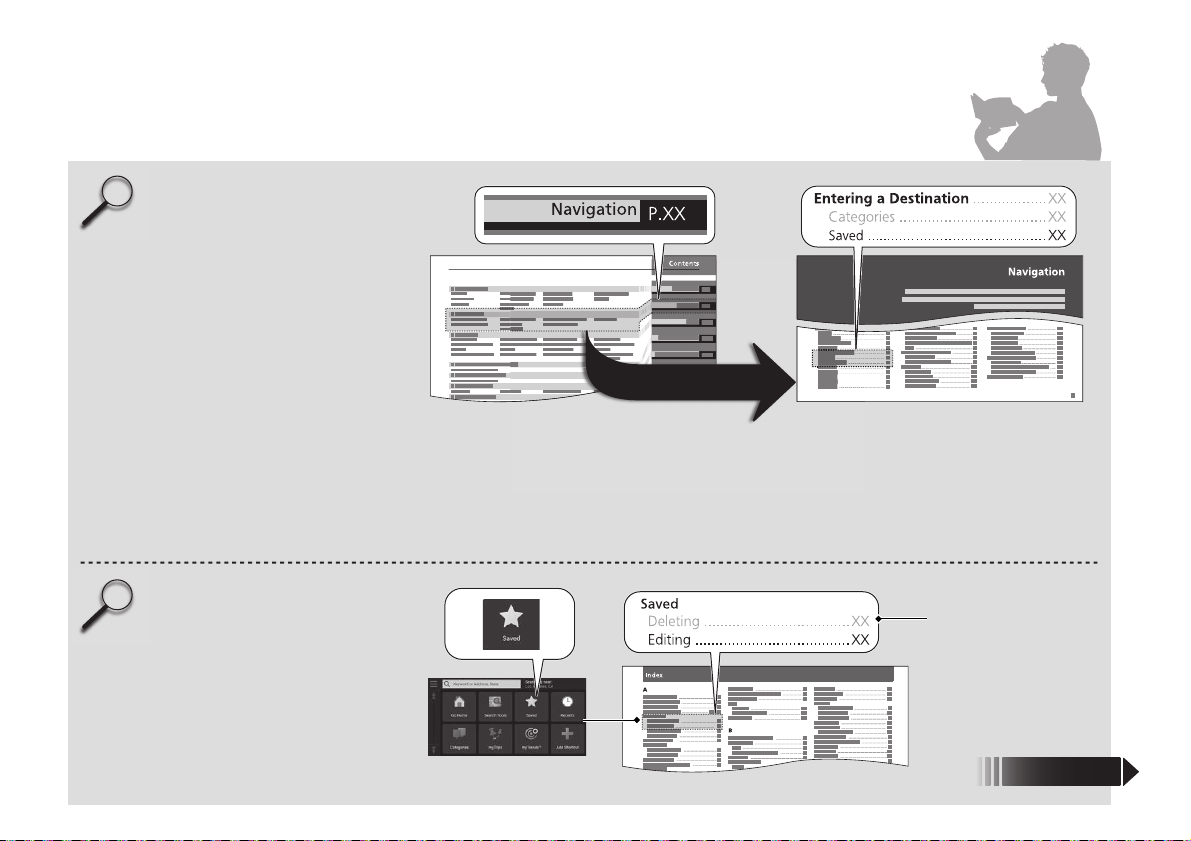
Searching the Table of Contents
(P1 )
First, find the general chapter related to
what you are looking for (e.g., entering
a destination from the Saved Places).
Then, go to that chapter to view a more
specific table of contents.
Searching the Index
(P122)
This more detailed table of contents
shows you exactly what information is
listed by section and title.
The Index consists of
main terms and sub-
entries. The sub-entries
help you get to the
desired page depending
on what you are looking
for.
Table of Contents
Chapter Contents
Navigation Screen
Index
Two types of Tables of Contents help
you find your desired information.
Menu items displayed on the
navigation screen (e.g., Saved) can be
found individually in the Index.
More Detailed
Contents
Go to the
Next Page
14
uuEntering a Destinationu Saved
Navigation
Saved
H (Home) u Navigation uuSaved
Select a saved location to use as the destination.
1. Select your destination from the
list.
2. Select Go! to set the route to your
destination.
2 Calculating the Route P. 72
Recents
H (Home) u Navigation uuRecents
Select a location from a list of your 50 most recent destinations to use as the
1 Saved
You can add, edit, or delete the saved place.
2 Saved Locations P. 19
Using Voice Command
You can utilize a saved place by using voice
commands.
From the Voice Portal screen, say “Navigation.”
Say “Saved Places” on the voice c ommand
screen, then say a saved place (e.g., “Honda”).
Say “Go” to set the route.
2 Using Voice Commands P. 5
2 Voice Control Operation P. 11
(Home)
Select the item on the system
control panel.
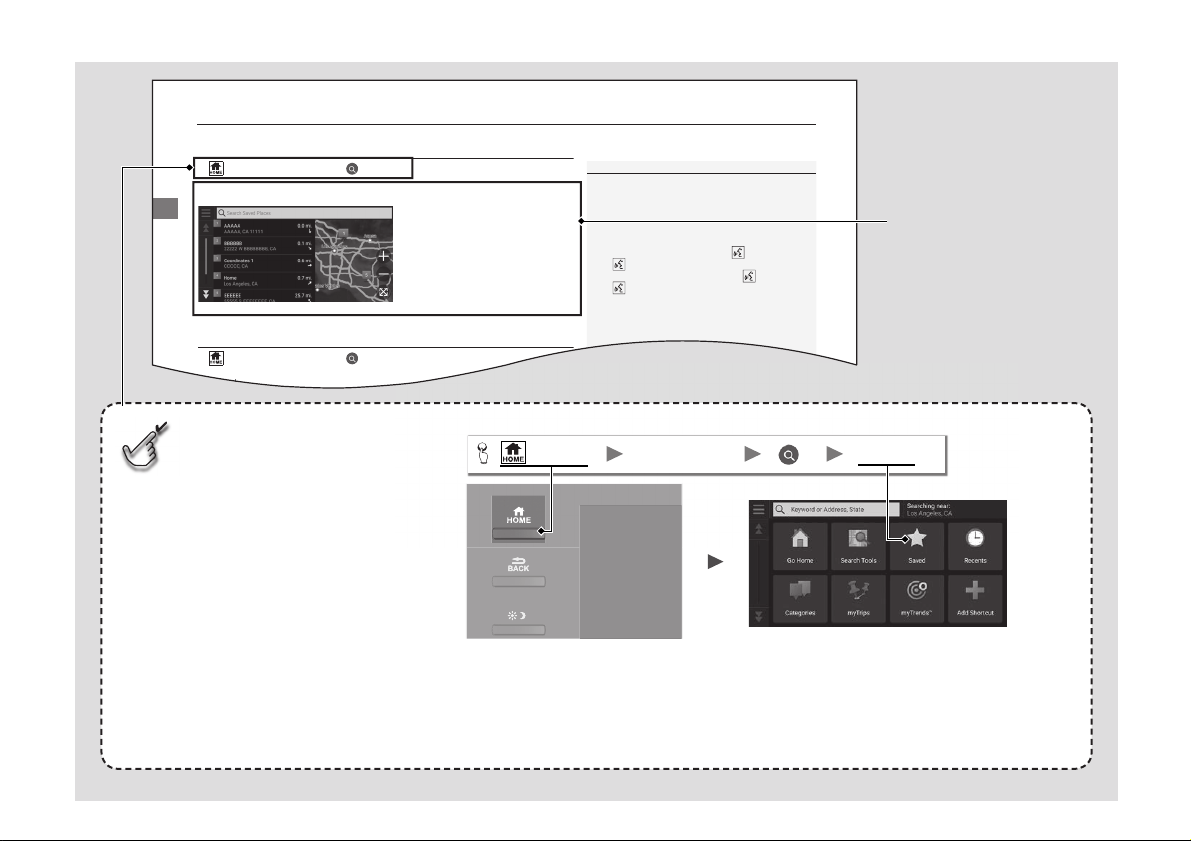
Menu Tree
The menu tree helps guide you
through the system’s menu options.
To get to your desired function, follow
the menu tree in order of the steps
shown.
Select the menu option.
After following the menu
tree, step-by-step
instructions explain how to
achieve the desired result.
* Sample pages and images in this section may differ from the actual ones.
Select Saved.
SavedNavigation

15
System Setup
This section describes the start-up procedure and the navigation and setup functions.
Start-up ....................................................16
Voice Control System ..............................17
Voice Recognition ...................................17
Personal Information...............................18
Setting Home Location............................18
Saved Locations ......................................19
Saved Trips .............................................26
Display Mode Settings ............................30
Switching Display Mode Manually ...........30
Guidance Volume Settings......................32
Map and Vehicle ......................................33
Vehicle Selection.....................................34
Driving Map View (Map Orientation) .......35
Map Theme ............................................36
Map Layer...............................................37
myMaps................................................. 38
Map Updates ......................................... 39
Navigation............................................... 40
Calculation Mode................................... 41
Avoidances ............................................ 42
Custom Avoidances ............................... 43
Satellite Status ....................................... 47
Traffic....................................................... 48
Location History...................................... 49
About....................................................... 50
Data Reset ............................................... 51
Reset Factory Default Settings ................ 51
16
System Setup
Start-up
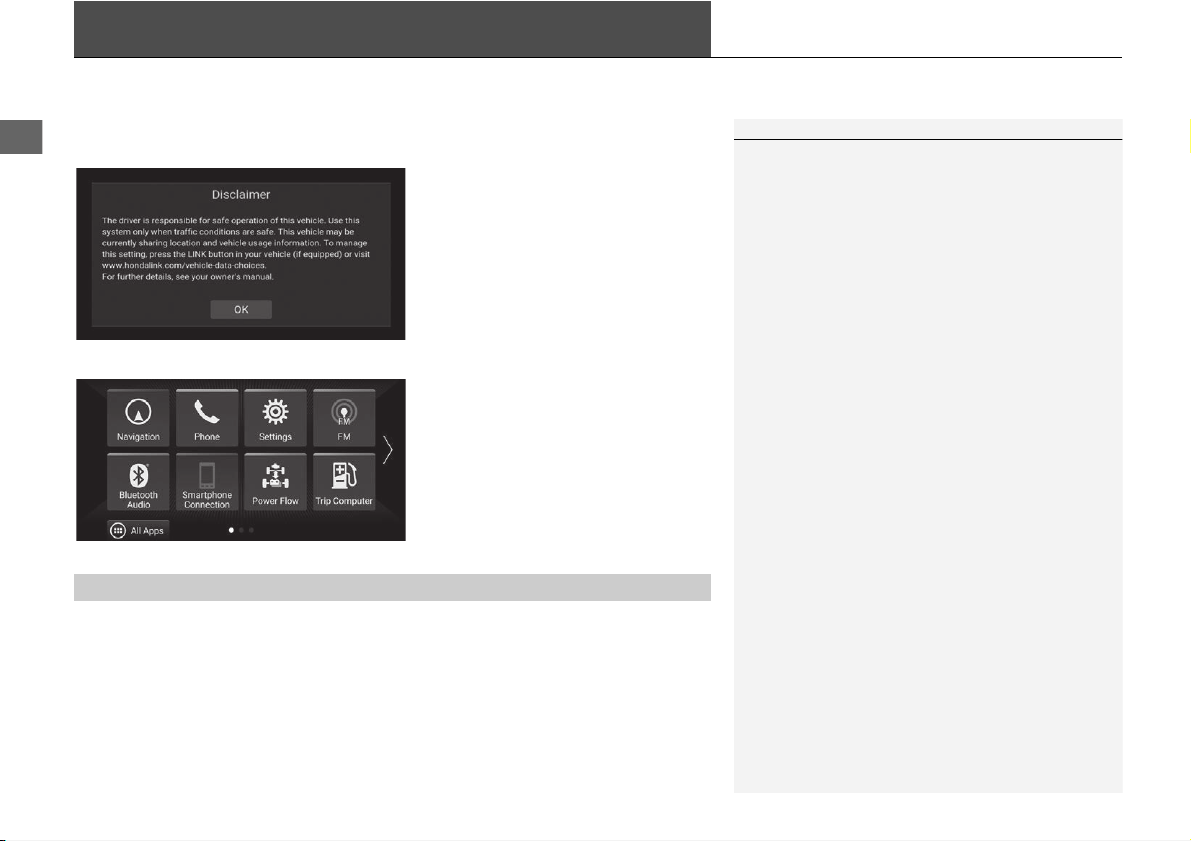
The navigation system starts automatically when you set the power mode to
ACCESSORY or ON. At start-up, the following confirmation screen is displayed.
1. Select OK.
u The HOME screen is displayed.
u If you do not select OK, the
system will automatically select
OK after a certain period of
time.
u The system will automatically
start up the feature that was
last in use.
2. Select Navigation.
u The map screen is displayed.
Certain manual functions are disabled or inoperable while the vehicle is in motion.
You cannot select a grayed-out option until the vehicle is stopped.
Voice commands are still operable while the vehicle is in motion.
1 Start-up
Avoid focusing on the screen and drive safely.
When you use the navigation system, the system may
close other apps.
When you select Navigation, the system displays the
navigation feature that was used the last time. At
start-up, the map screen is displayed.
■
Limitations for Manual Operation
17
System Setup
Voice Control System
Your vehicle has a voice control system that allows hands-free operation of the
navigation system functions.
The voice control system uses the (Talk) and (Back) buttons on the steering
wheel and a microphone near the map lights on the ceiling.
For details of the (Talk) button, (Back) button and microphone position, see
the Owner's Manual.
Voice Recognition
To achieve optimum voice recognition when using the navigation voice control
system:
• Make sure the correct screen is displayed for the voice command that you are
using. The system recognizes only certain commands.
Available navigation commands:
2 Voice Commands P. 118
• Close the windows and moonroof.
• Adjust the dashboard and side vents so air does not blow onto the microphone
on the ceiling.
• Speak in a clear, natural speaking voice without pausing between words.
• Reduce any background noise if possible. The system may misinterpret your
command if more than one person is speaking at the same time.
1 Voice Control System
When you press the (Talk) button, the system
prompts you to say a voice command. Press and
release the (Talk) button again to bypass this
prompt and give a command.
1 Voice Recognition
The voice control system can only be used from the
driver’s seat because the microphone unit removes
noises from the front passenger’s side.
18
System Setup
Personal Information
Setting Home Location
H (Home) u Navigation uu
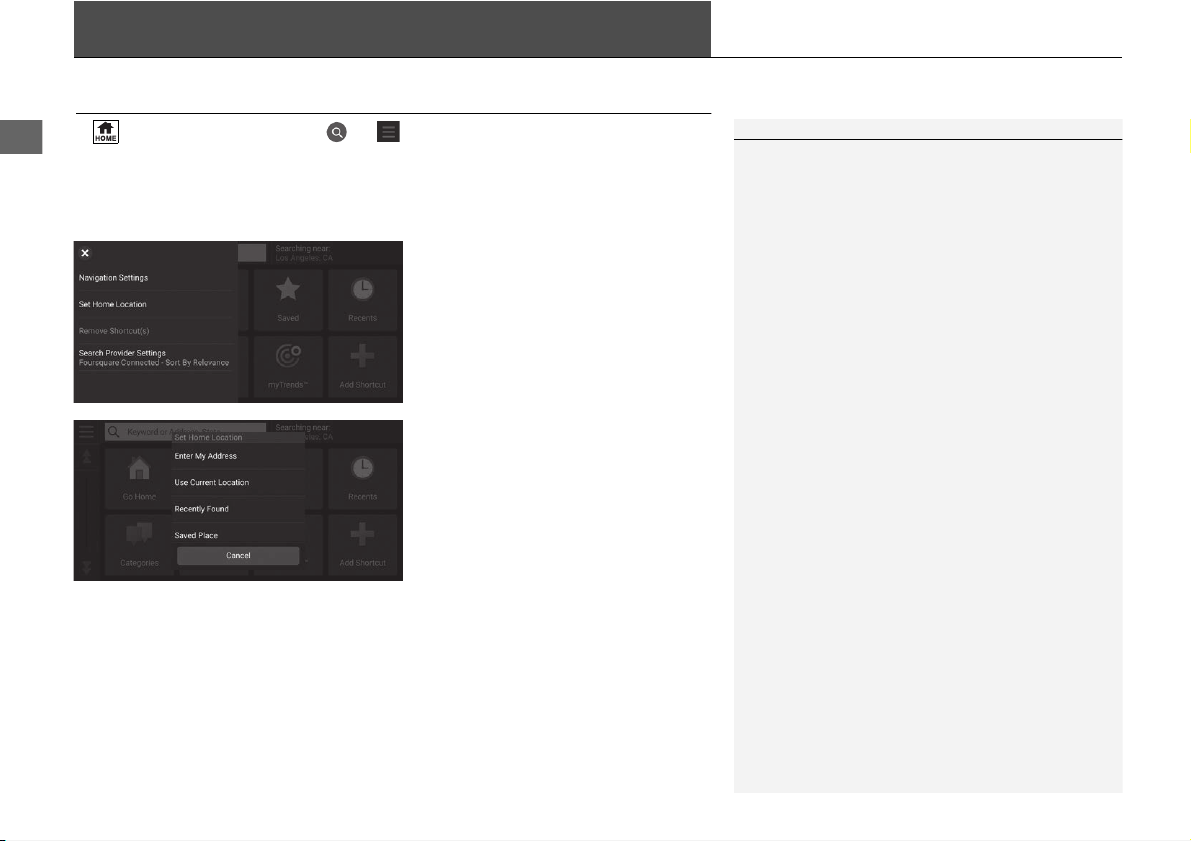
From any location, select Go Home and the system will provide you with one or
more return routes to your home. Before you can use this feature, you need to
register your home address with the system.
1. Select Set Home Location.
2. Select an option.
u Select Use Current Location
to set home location.
u If selecting Enter My Address,
Recently Found or Saved
Place, proceed to steps 3 and 4.
3. Select the home location.
4. Select Select.
The following options are available:
• Enter My Address: Sets the home location by entering the address.
2 Storing Your Home Address P. 8
• Use Current Location: Sets your current location as your home location.
• Recently Found: Sets the home location from a recently found location.
• Saved Place: Sets the home location from a saved place.
1 Personal Information
The home location can be overwritten. Select
Change Home Location in step 1.
19
uuPersonal InformationuSaved Locations
Continued
System Setup
Saved Locations
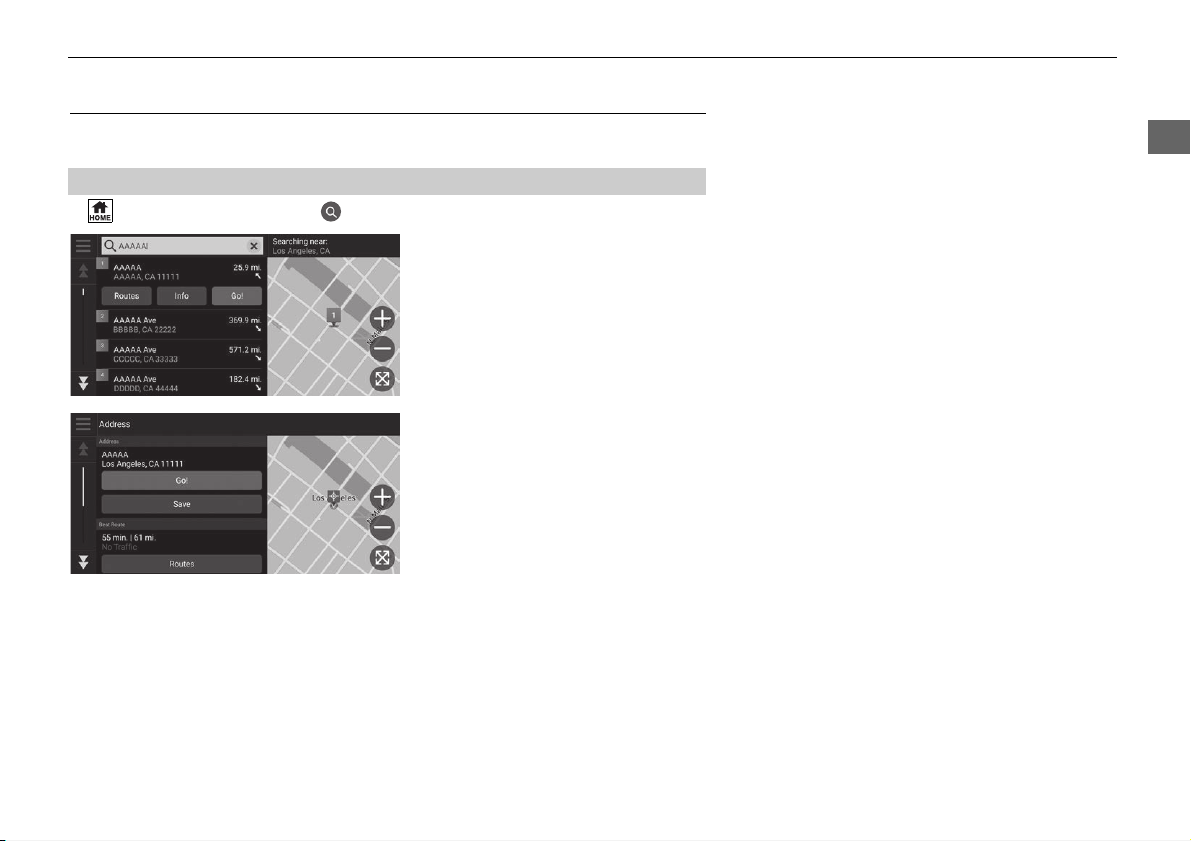
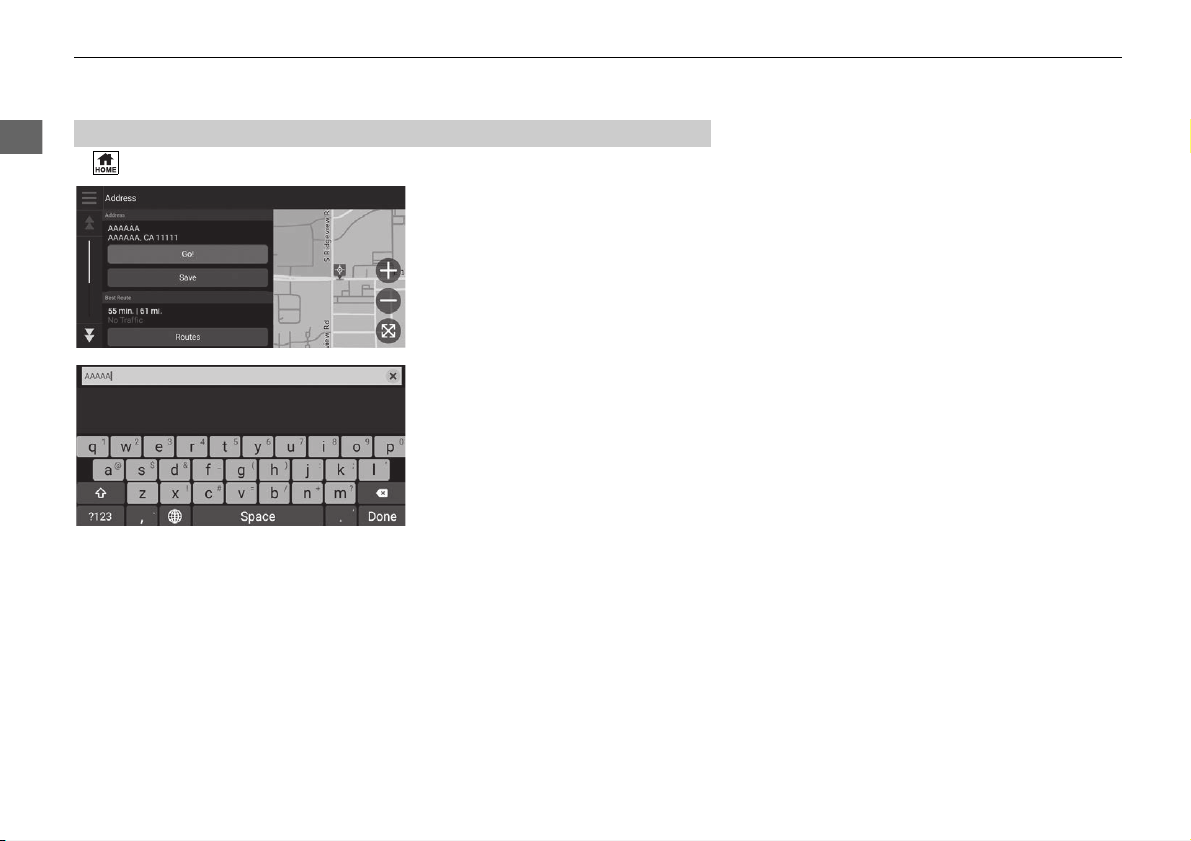
You can save locations so you can quickly find them and create routes to them.
H (Home) u Navigation u
1. Select a search method.
u Find a location that you want to
save.
2 Entering a Destination P. 54
2. Select Info.
3. Select Save.
4. Enter a name and select Done.
■
Saving a Location
Continued
21
uuPersonal InformationuSaved Locations
System Setup
H (Home) u Navigation
1. Select the vehicle icon.
2. Select Save.
3. Enter a name of the location.
4. Select Done.
■
Saving Your Current Location
1 Saving Your Current Location
Vehicle position may not be displayed when:
•
The vehicle is traveling off-road.
•
The vehicle position data cannot be updated.
22
uuPersonal InformationuSaved Locations
System Setup
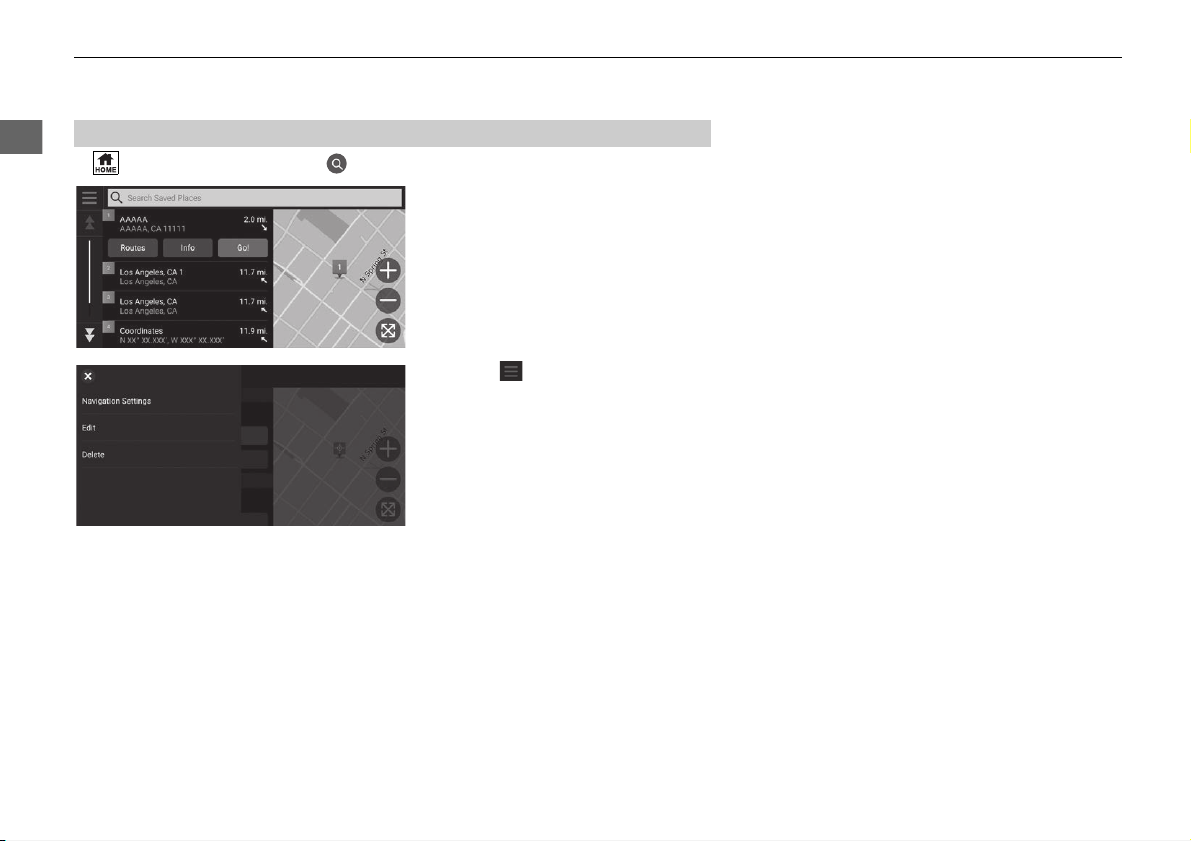
H (Home) u Navigation uuSaved
1. Select a saved location you want
to edit.
2. Select Info.
3. Select .
4. Select Edit.
■
Editing a Saved Location
23
uuPersonal InformationuSaved Locations
Continued
System Setup
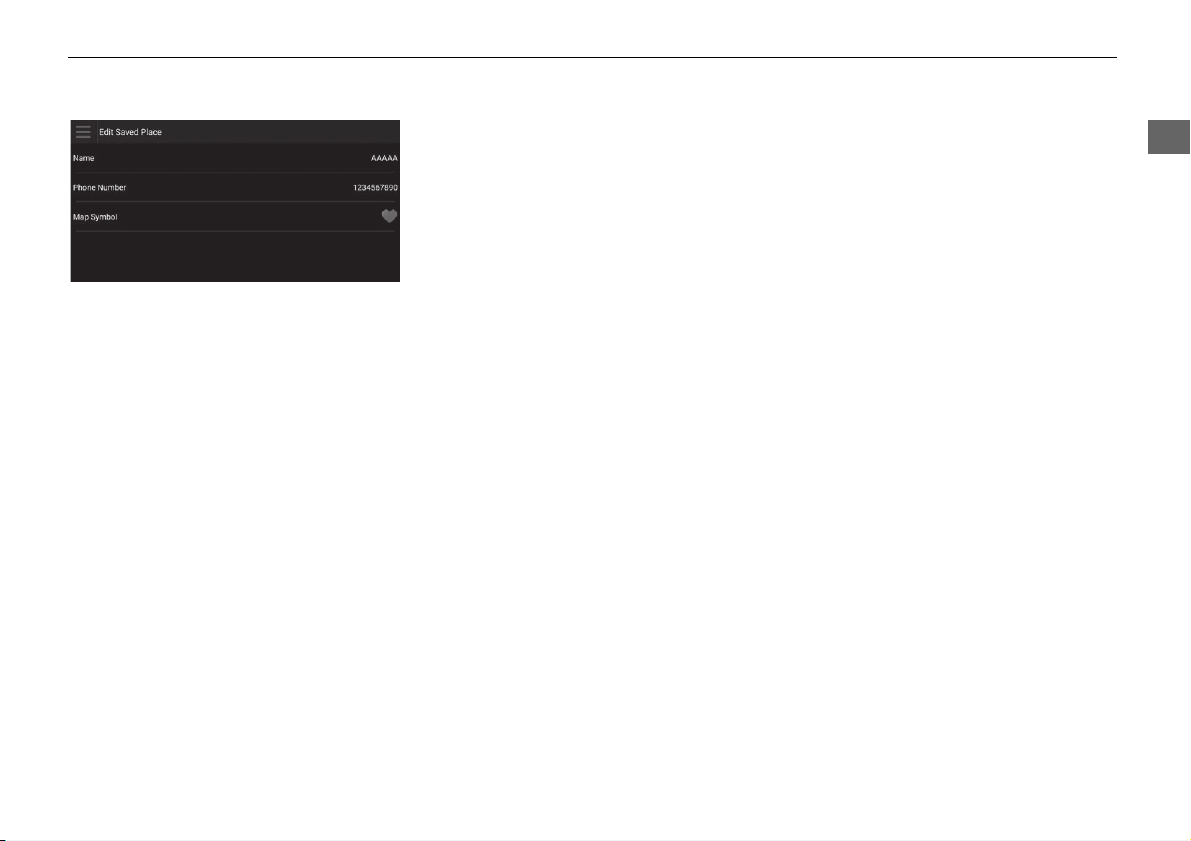
5. Select an option.
The following options are available:
• Name: Enters a new name for the location.
• Phone Number: Enters a phone number.
• Map Symbol: Select a symbol.
24
uuPersonal InformationuSaved Locations
System Setup
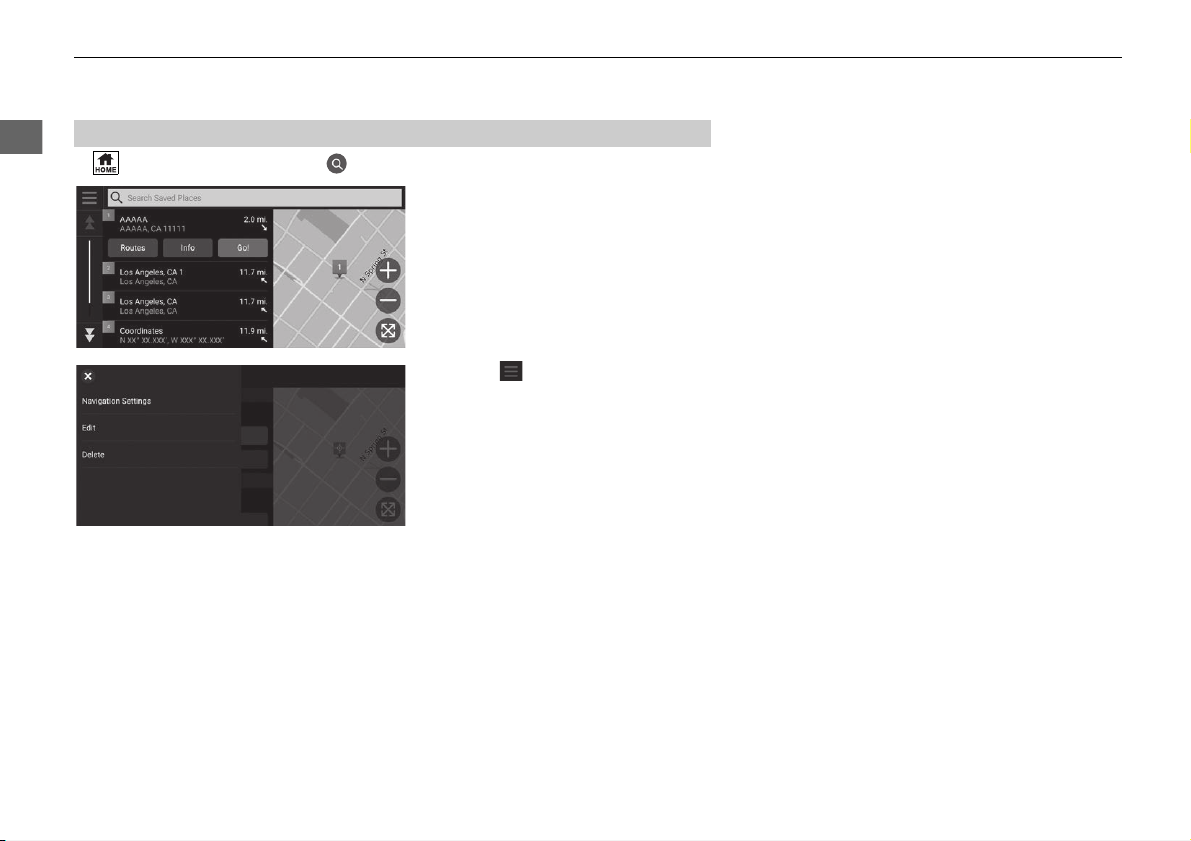
H (Home) u Navigation uuSaved
1. Select a saved location you want
to delete.
2. Select Info.
3. Select .
4. Select Delete.
5. Select Delete.
■
Deleting a Saved Location
25
uuPersonal InformationuSaved Locations
System Setup
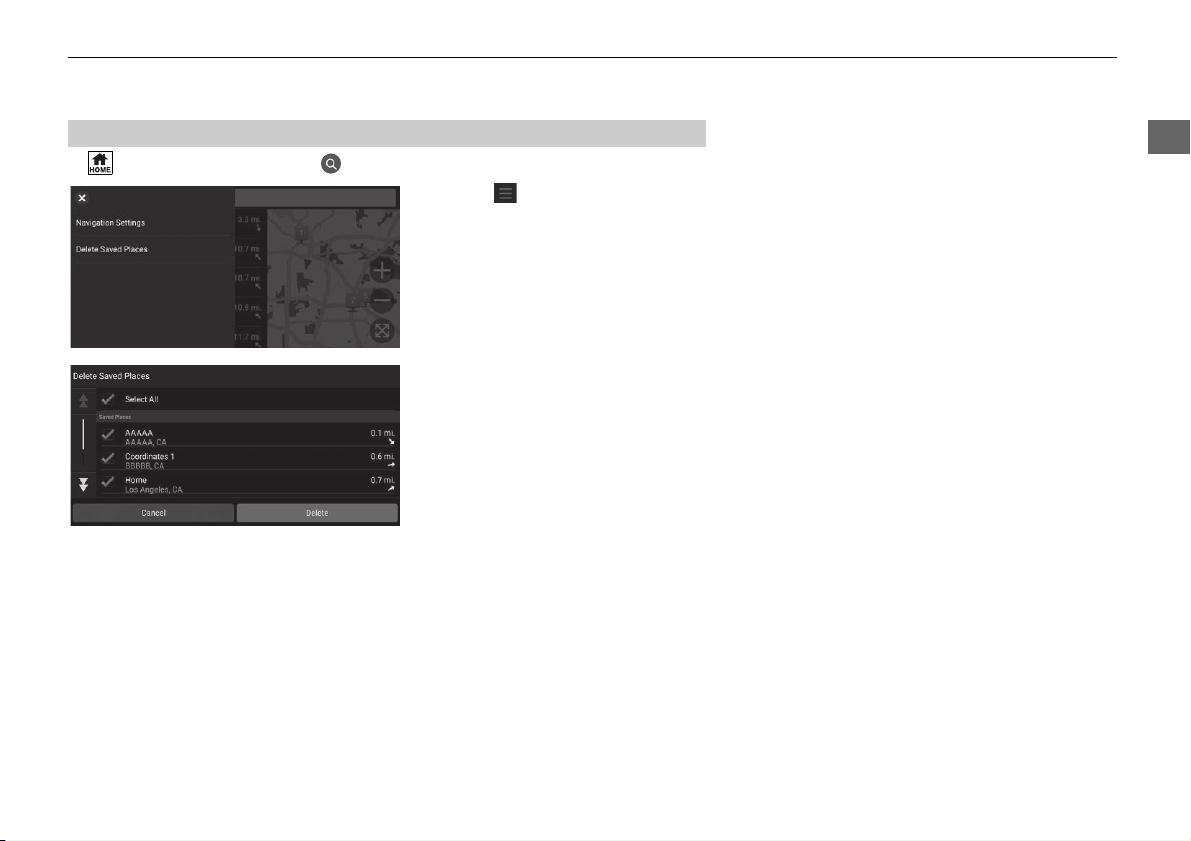
H (Home) u Navigation uuSaved
1. Select .
2. Select Delete Saved Places.
3. Select a saved location you want
to delete.
u Select Select All to delete all
saved locations.
4. Select Delete.
5. Select Delete.
■
Deleting Saved Locations
26
uuPersonal InformationuSaved Trips
System Setup
Saved Trips
You can use myTrips feature to create and save a route with multiple destinations.
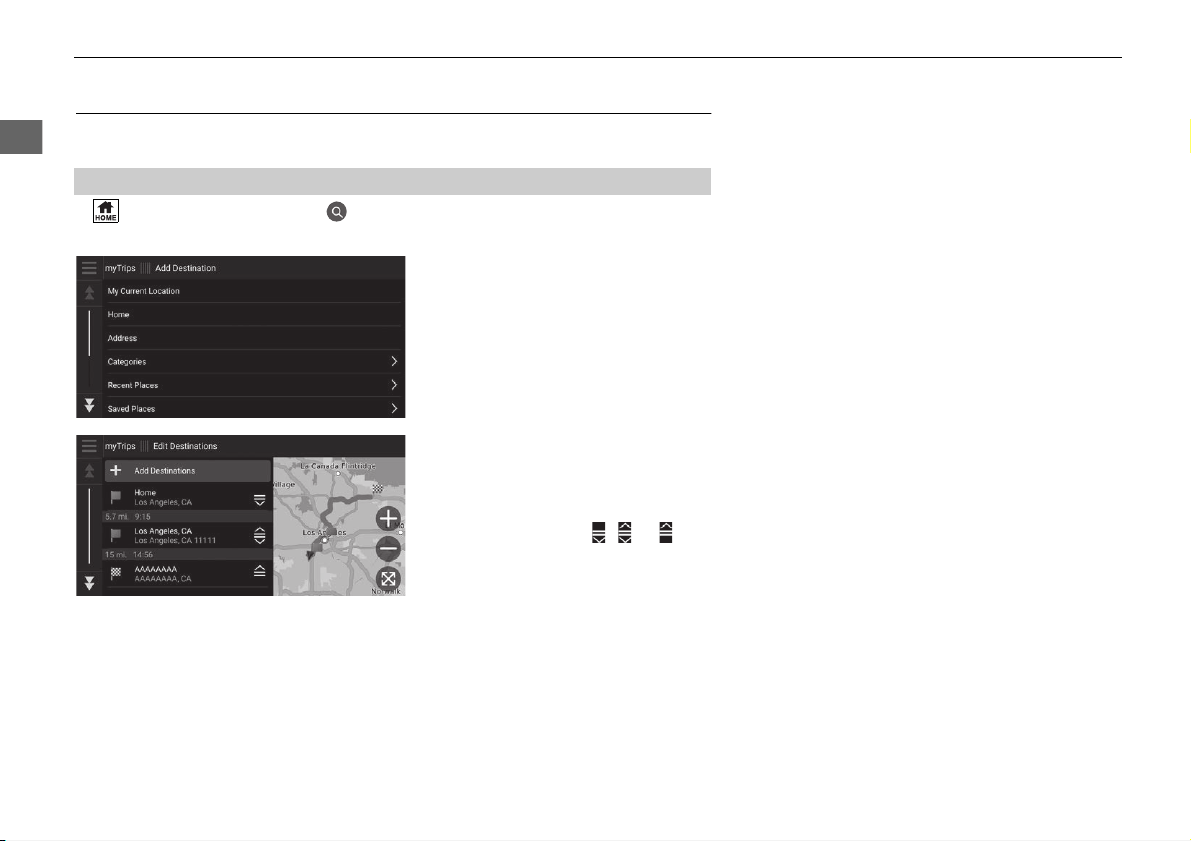
H (Home) u Navigation uumyTrips u Create Trip u Add Starting
Point
1. Select a method to enter a new
destination.
2 Entering a Destination P. 54
2. Select Select if necessary.
3. Select Add Destinations to add
additional locations.
u Repeat steps 1 and 2 to enter
the destination.
u Select and hold , or and
then move the destination to
the desired position.
■
Creating Your Trip
Continued
27
uuPersonal InformationuSaved Trips
System Setup
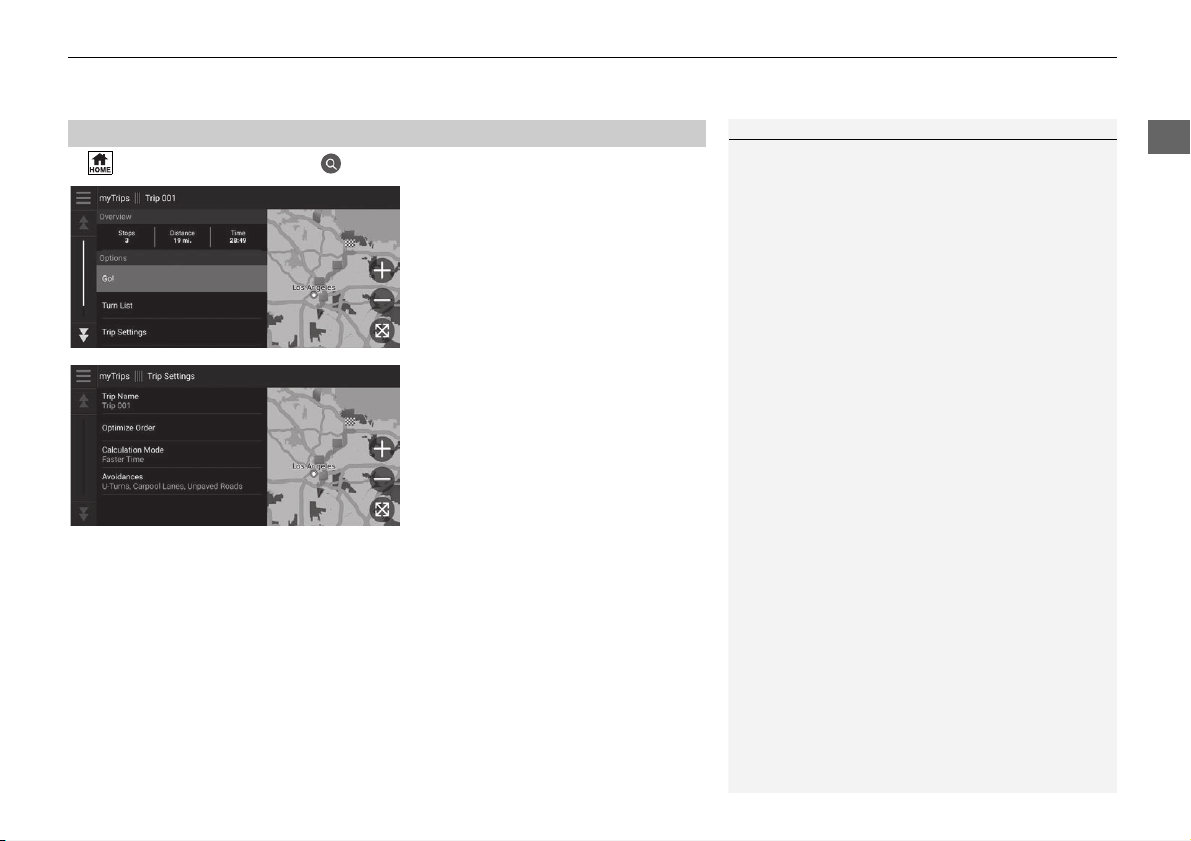
H (Home) u Navigation uumyTrips
1. Select a saved trip you want to
edit.
2. Select Trip Settings.
3. Select an option.
The following options are available:
• Trip Name: Enters a new name for the saved trip.
• Optimize Order: Automatically orders the waypoints in the destination list.
• Calculation Mode: Changes the route preferences (calculating method).
• Avoidances: Changes preferences for route options to avoid.
■
Editing a Saved Trip
1 Editing a Saved Trip
The route preference is just for the trip. If you want to
change the route preference for routing, change the
navigation settings.
2 Calculation Mode P. 41
2 Avoidances P. 42

28
uuPersonal InformationuSaved Trips
System Setup
■ Reordering Destinations
1. Select a trip from myTrips list.
2. Select Edit Destinations.
3. Select and hold , or and
then move the destination to the
desired position.
u Select Add Destinations to
add a new location.
u The route is automatically
recalculated.
■ Deleting a Destination
1. Select a trip from myTrips list.
2. Select Edit Destinations.
3. Select .
4. Select Remove Destinations.
5. Select the location to delete.
u Select Select All to delete all
destinations.
6. Select Remove.
29
uuPersonal InformationuSaved Trips
System Setup
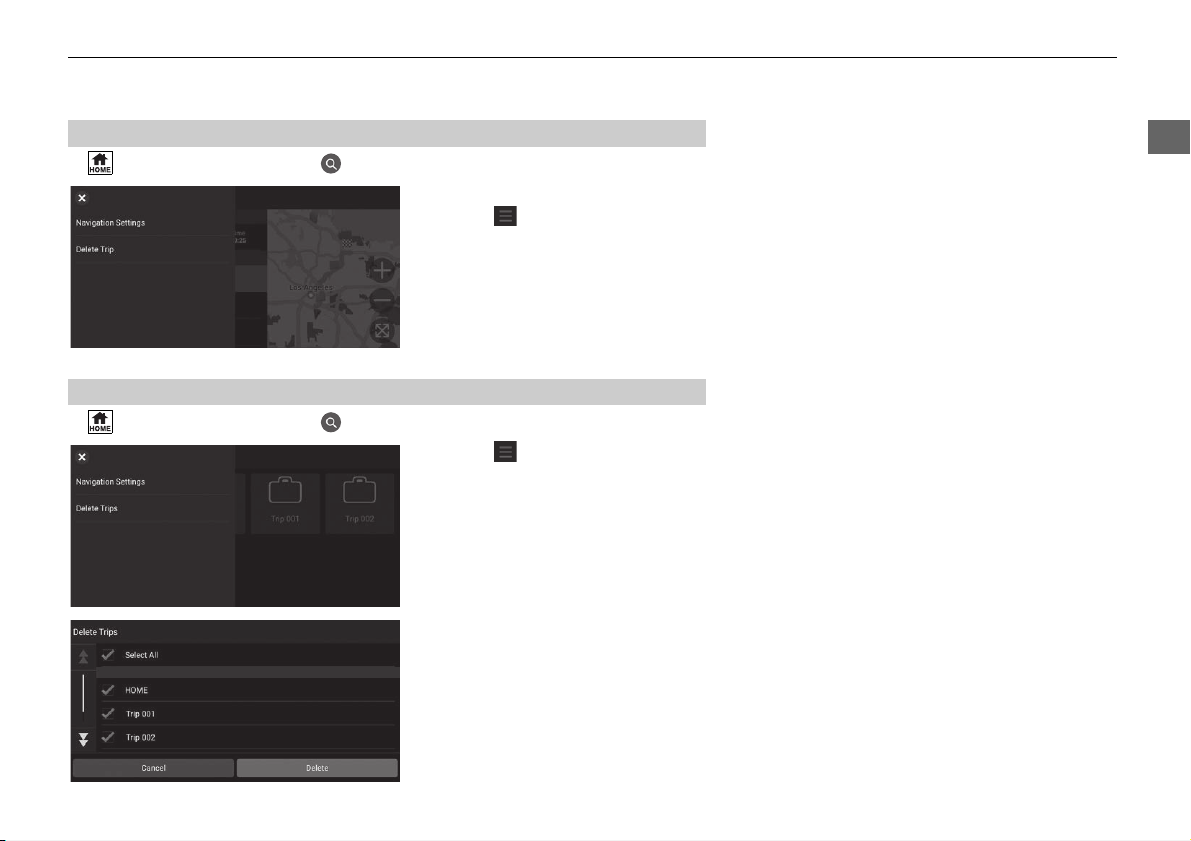
H (Home) u Navigation uumyTrips
1. Select a trip.
2. Select .
3. Select Delete Trip.
4. Select Delete.
H (Home) u Navigation uumyTrips
1. Select .
2. Select Delete Trips.
3. Select a trip to delete.
u Select Select All to delete all
trips.
4. Select Delete.
■
Deleting a Saved Trip
■
Deleting Saved Trips
30
System Setup
Display Mode Settings
Switching Display Mode Manually
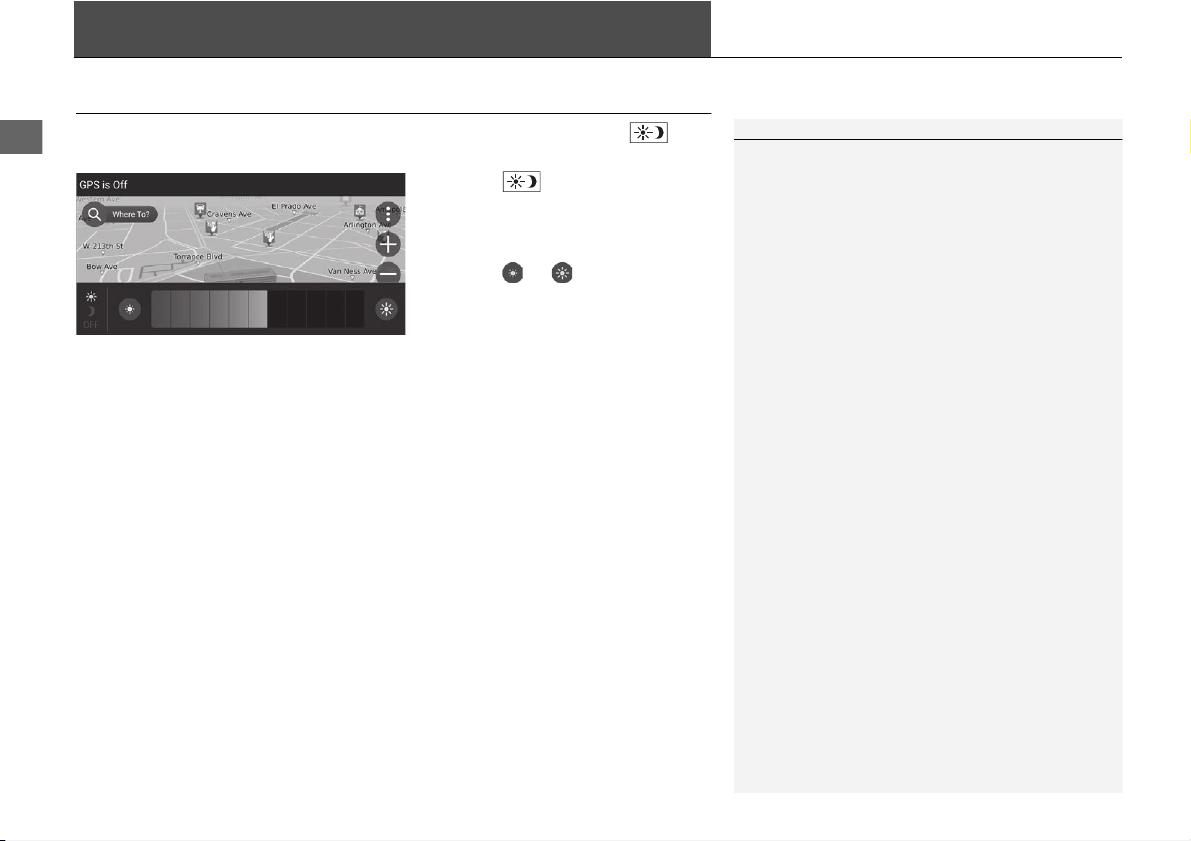
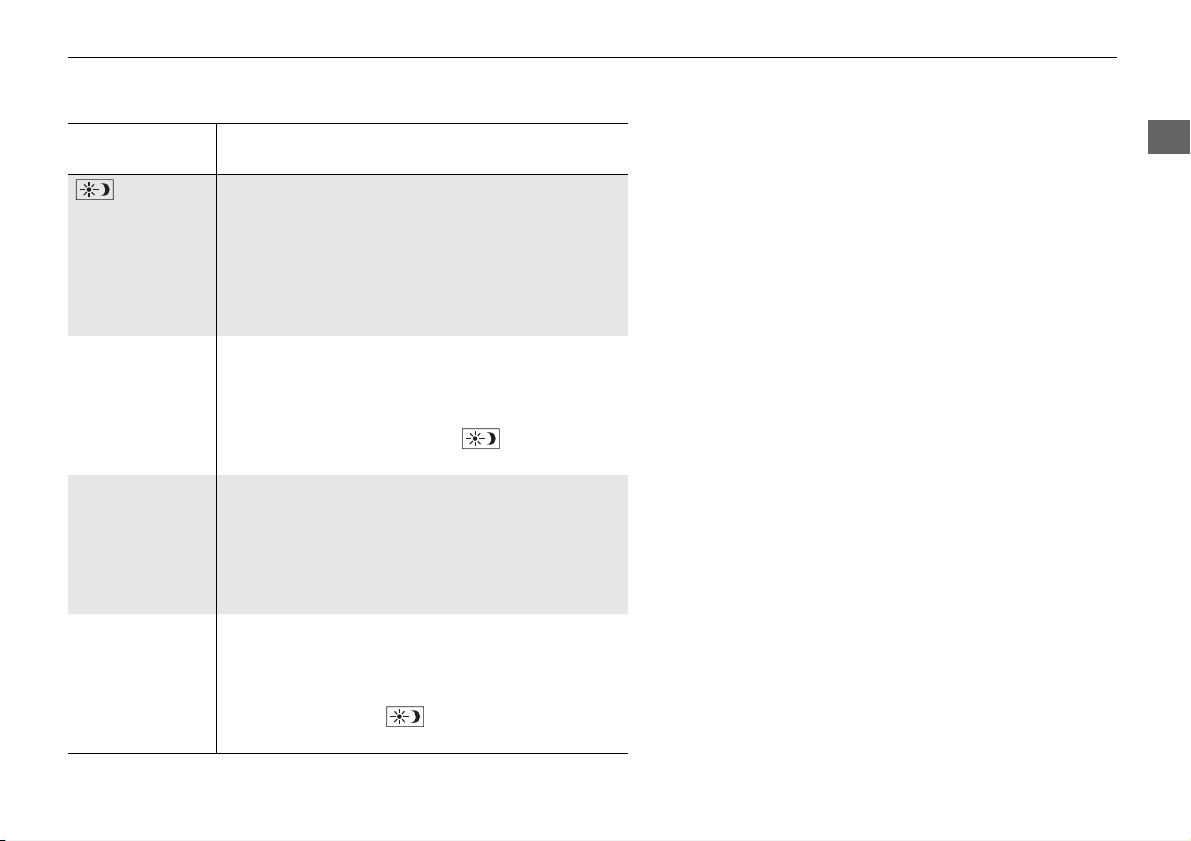
Set the screen brightness separately for Day and Night modes. Press the
(Display Mode) button to cycle through the display modes (Day to Night to Off).
Press the (Display Mode)
button.
u The brightness bar is displayed for
a few seconds.
u Select or to adjust the
brightness.
1 Switching Display Mode Manually
You can also adjust the display brightness by sliding
or swiping on the brightness bar.
You can change the touchscreen sensitivity setting.
2 Refer to the Owners Manual.
31
uuDisplay Mode SettingsuSwitching Display Mode Manually
System Setup
Illumination
control
Operation
(Display
Mode) button
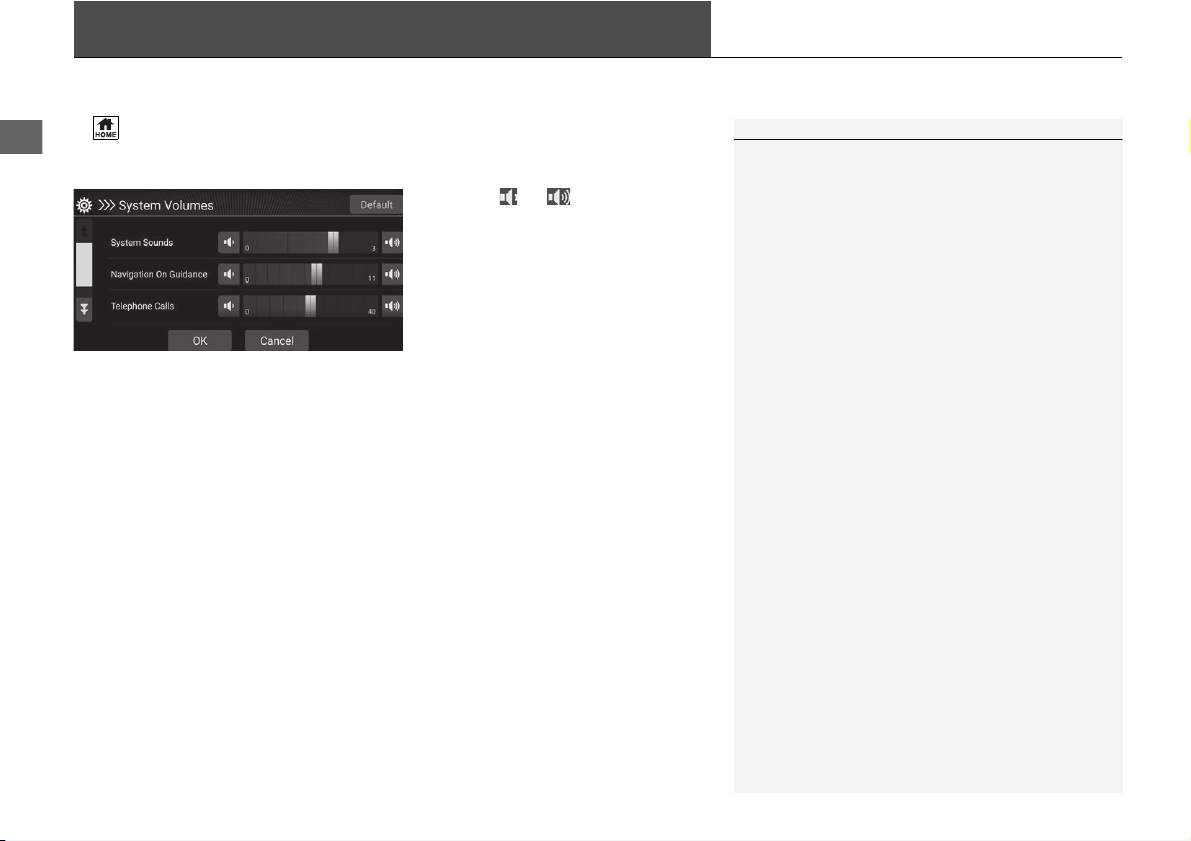
Selects Day or Night display mode when the user
wants to change the brightness of the display
temporarily.
Remember: This button overrides all other display
brightness adjustments either set automatically by
the sunlight sensor or manually from the System
settings screen.
Sunlight sensor
*
(see your Owner’s
Manual for
location)
If the sunlight sensor detects daylight and the
headlights are turned on, the system automatically
overrides the Night display and displays the Day
display mode.
Remember: If desired, use the (Display Mode)
button to override this automatic choice.
Dash illumination
adjustment knob
(see your Owner’s
Manual for
location)
When the headlights are turned on, and you wish to
have the Day display mode, adjust the illumination
to the full brightness (beeps).
Remember: Adjust the dash brightness back to
midrange to allow auto switching by sensing the
headlights are on or off.
Headlights
(Auto
*
/On/Off)
When turned on, the display changes to Night
display mode.
The previous three controls listed above can
“cancel” this function.
Remember: Use the (Display Mode) button to
adjust the brightness of the display.
* Not available on all models
32
System Setup
Guidance Volume Settings
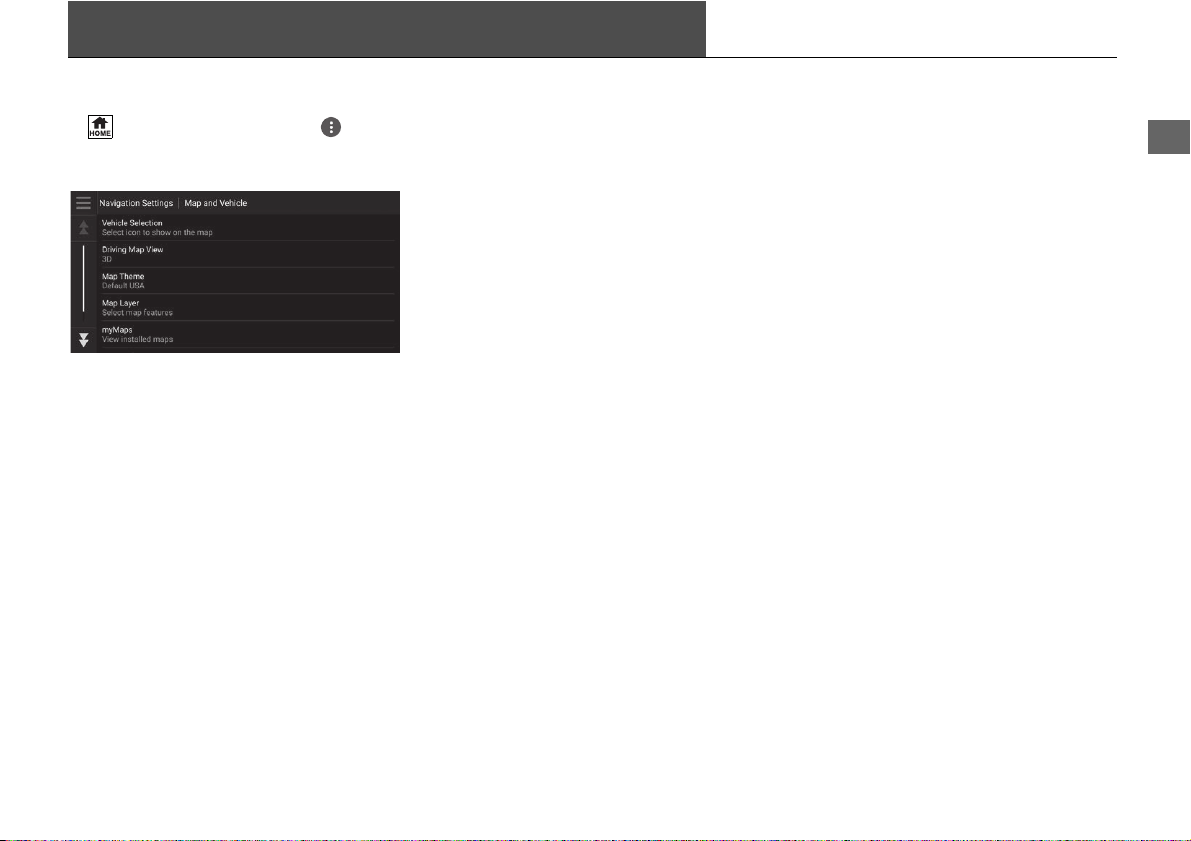
H (Home) u Settings u System u System Volumes u System Volumes
Adjust the navigation guidance volume.
1. Select or of Navigation
On Guidance.
2. Select OK.
1 Guidance Volume Settings
You can also adjust the volume by sliding or swiping
on the volume bar.
During the voice guidance, you can adjust the
guidance volume using the volume knob.
33
System Setup
Map and Vehicle
H (Home) u Navigation uuSettings u Map and Vehicle
Change the map settings.
Select an option.
The following options are available:
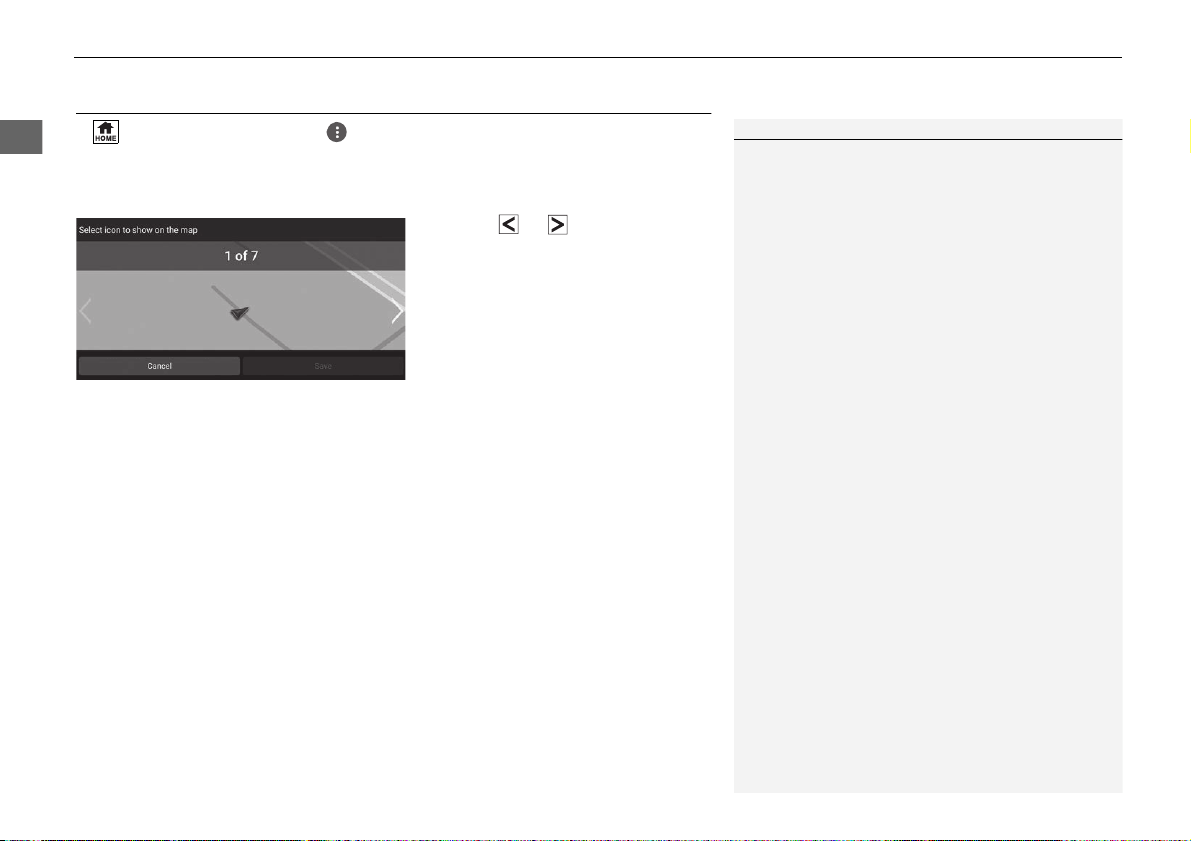
• Vehicle Selection: Changes the icon to represent your position on the map.
2 Vehicle Selection P. 34
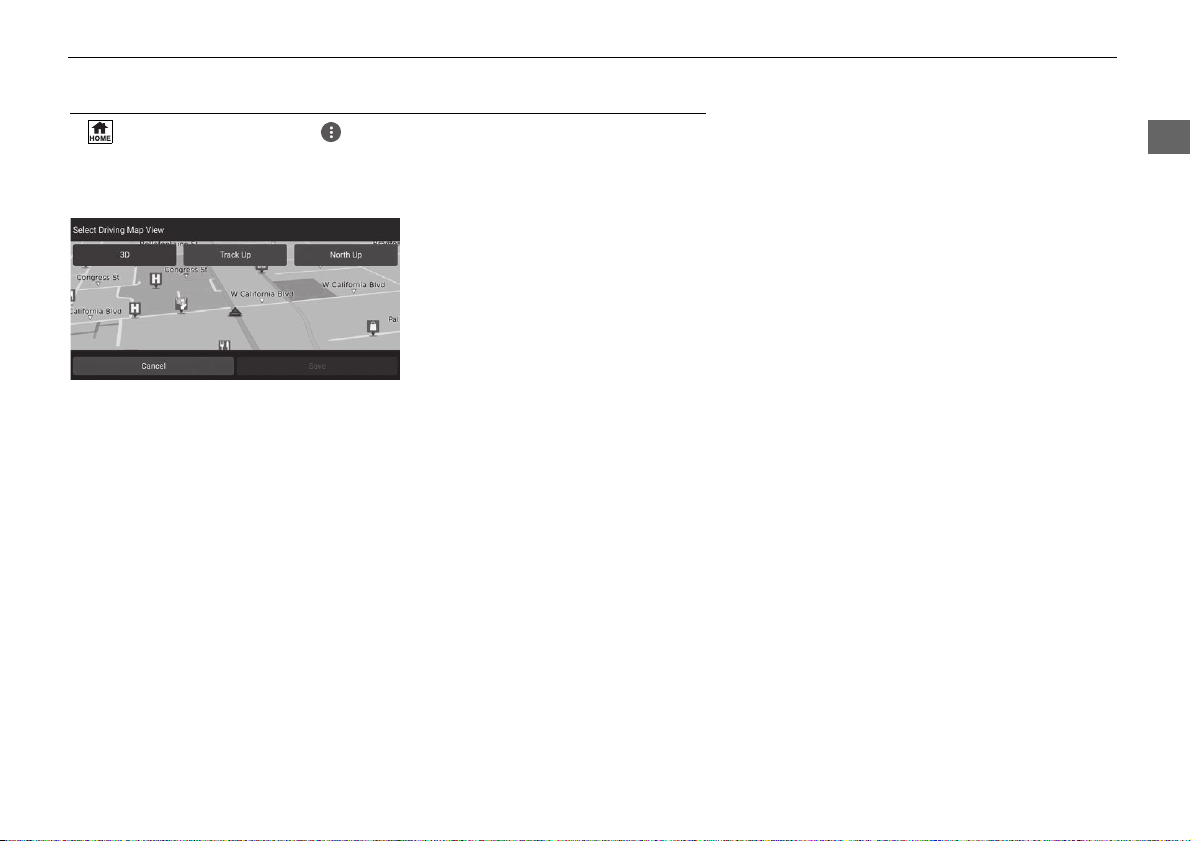
• Driving Map View: Sets the perspective on the map.
2 Driving Map View (Map Orientation) P. 35
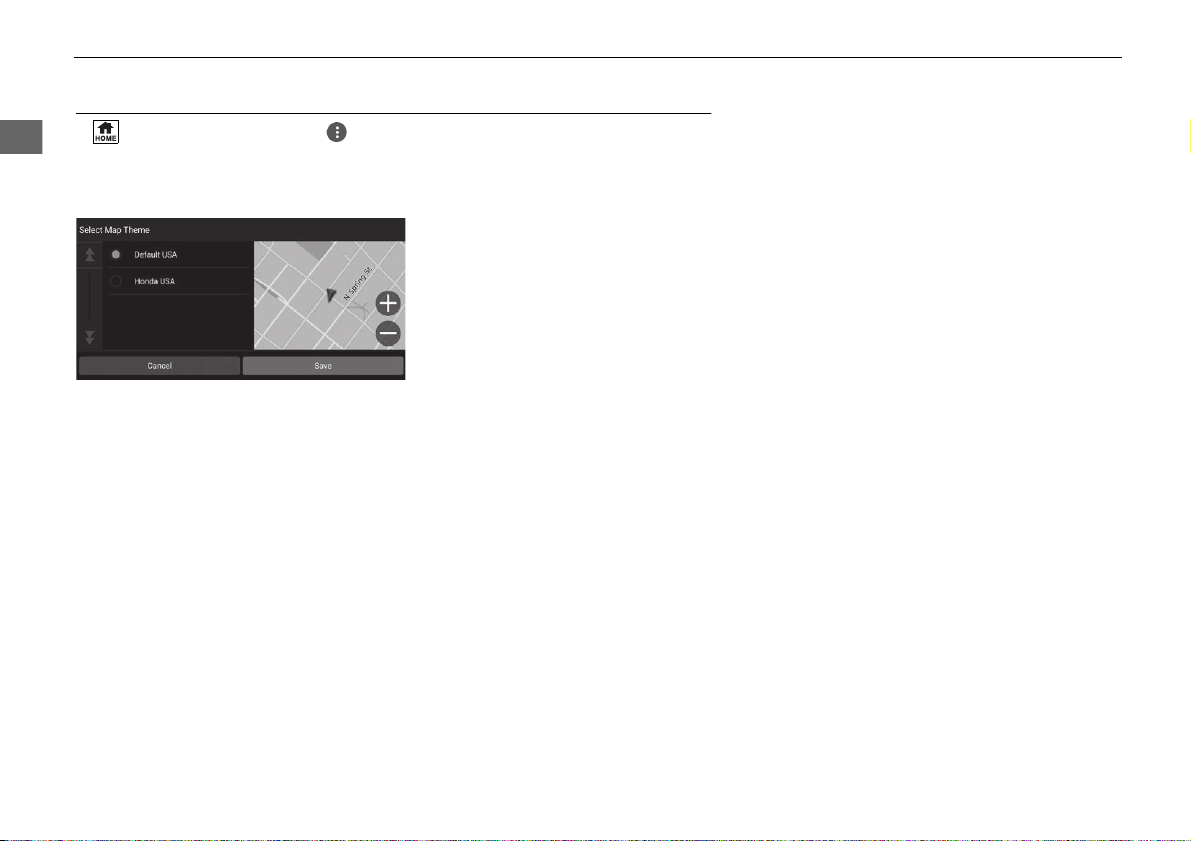
• Map Theme: Changes the color of the map data.
2 Map Theme P. 36
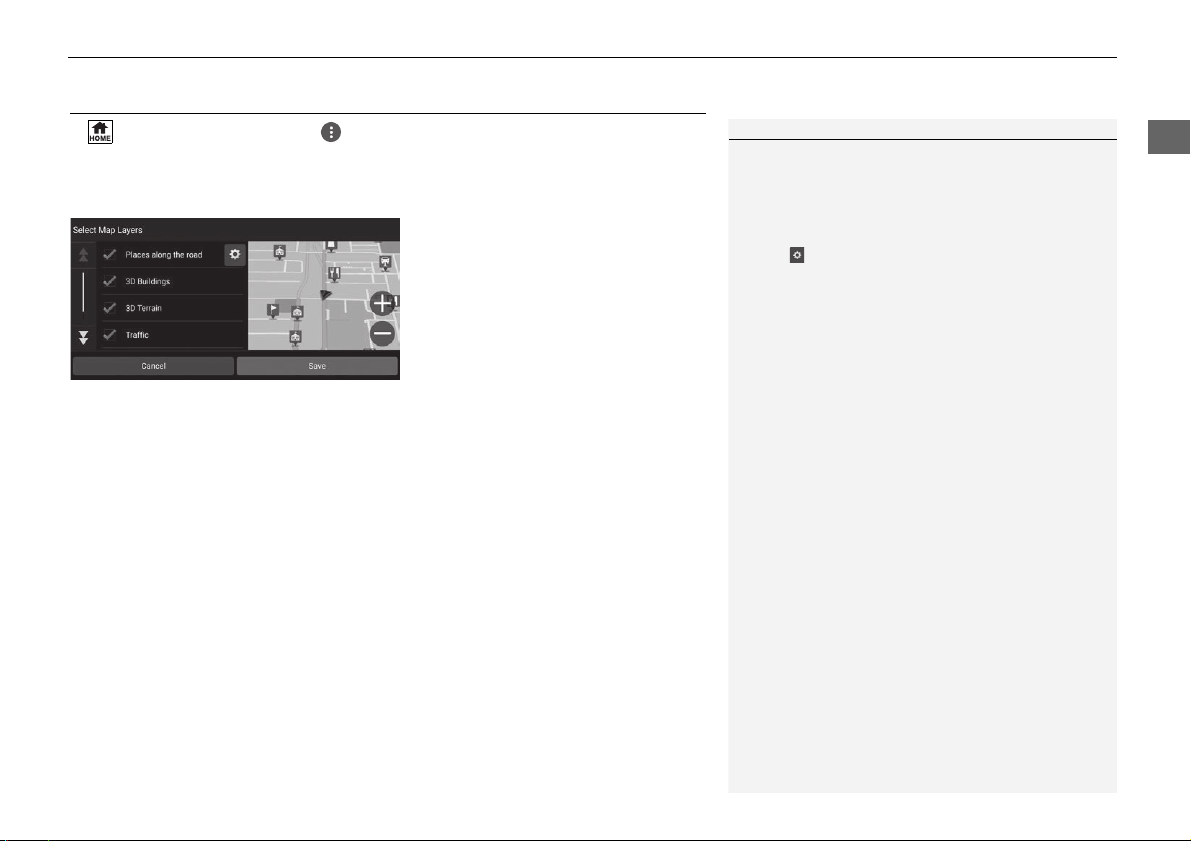
• Map Layer: Sets the data that appears on the map.
2 Map Layer P. 37
• myMaps: View installed maps.
2 myMaps P. 38
• Map Updates: Initiates or completes map update process.
2 Map Updates P. 39
35
uuMap and VehicleuDriving Map View (Map Orientation)
System Setup
Driving Map View (Map Orientation)
H (Home) u Navigation uuSettings u Map and Vehicle u Driving
Map View
Select the map orientation.
1. Select an option.
2. Select Save.
The following options are available:
• 3D (factory default): Displays the map in 3D with your direction of travel facing
upwards.
• Track Up: Displays the map with your direction of travel facing upwards.
• North Up: Displays the map with north always pointing up.
36
uuMap and VehicleuMap Theme
System Setup
Map Theme
H (Home) u Navigation uuSettings u Map and Vehicle u Map
Theme
Changes the color of the map data.
1. Select an option.
2. Select Save.
37
uuMap and VehicleuMap Layer
System Setup
Map Layer
H (Home) u Navigation uuSettings u Map and Vehicle u Map
Layer
Sets the data that appears on the map screen.
1. Select an option(s).
2. Select Save.
1 Map Layer
Off-Road Breadcrumbs is set to off as factory
default.
You can set the categories of places appear along the
road on the map screen.
Select beside Places along the road, select the
categories to show, and then select Save.
38
uuMap and VehicleumyMaps
System Setup
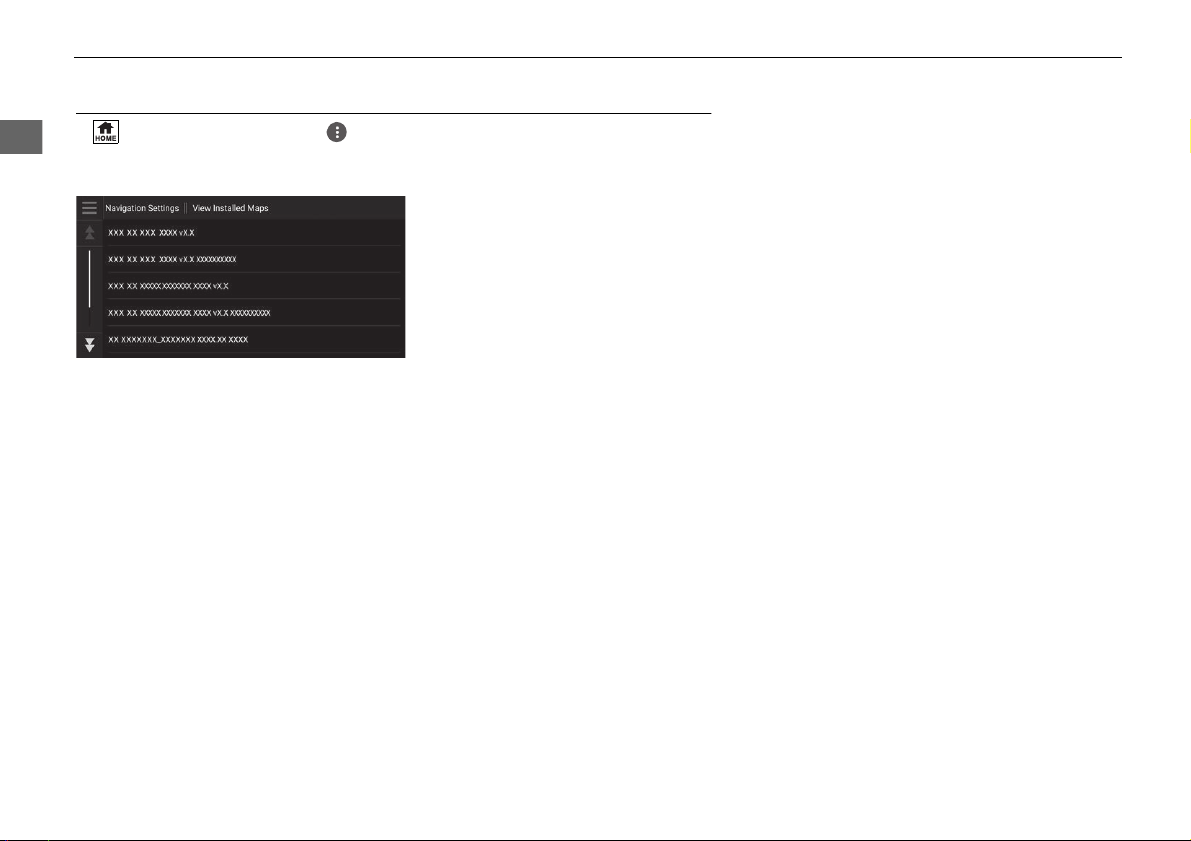
myMaps
H (Home) u Navigation uuSettings u Map and Vehicle u myMaps
View installed maps.
Select an item.
39
uuMap and VehicleuMap Updates
System Setup
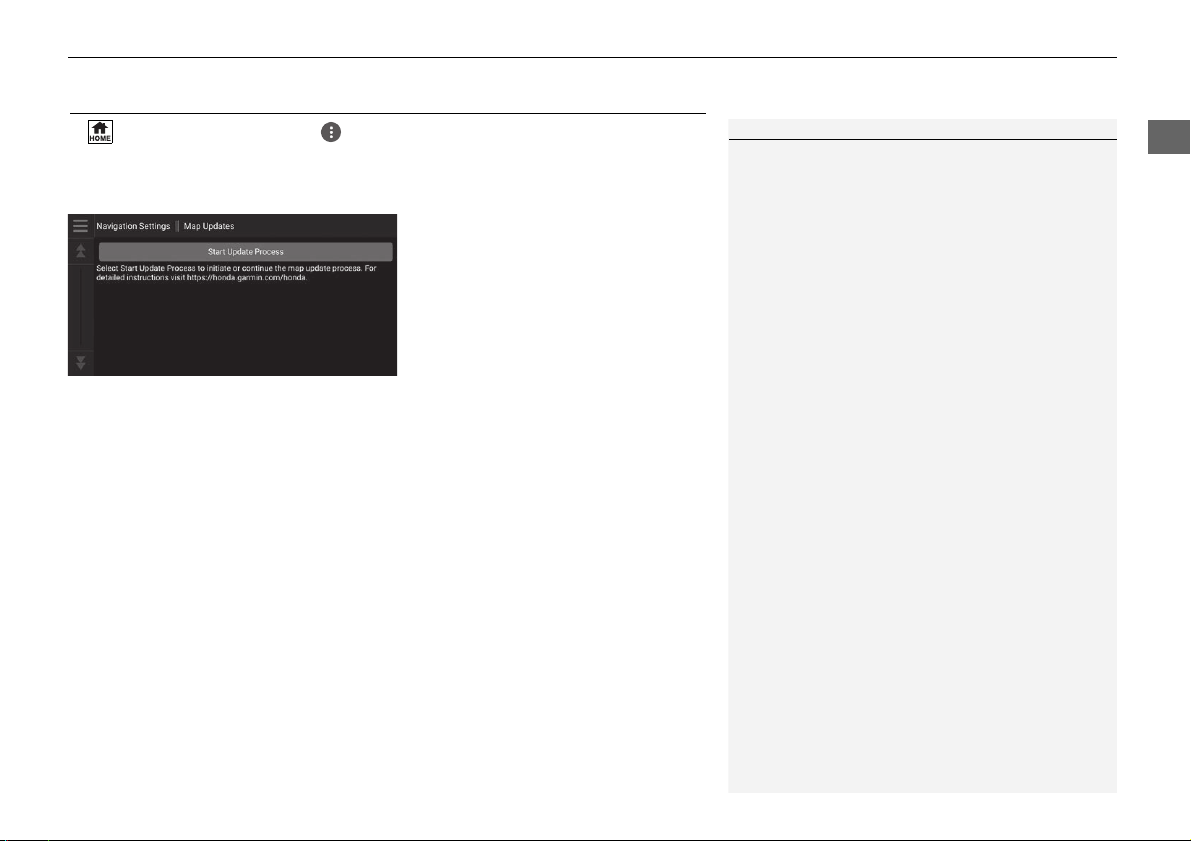
Map Updates
H (Home) u Navigation uuSettings u Map and Vehicle u Map
Updates
Start the map update process.
Follow the on-screen instructions.
1 Map Updates
For information on navigation updates for your
vehicle, please visit:
•
U.S.: hondanavi.navigation.com
•
Canada: www.honda.ca/owners/honda-services/
navigation
2 Obtaining a Navigation Update P. 108
40
System Setup
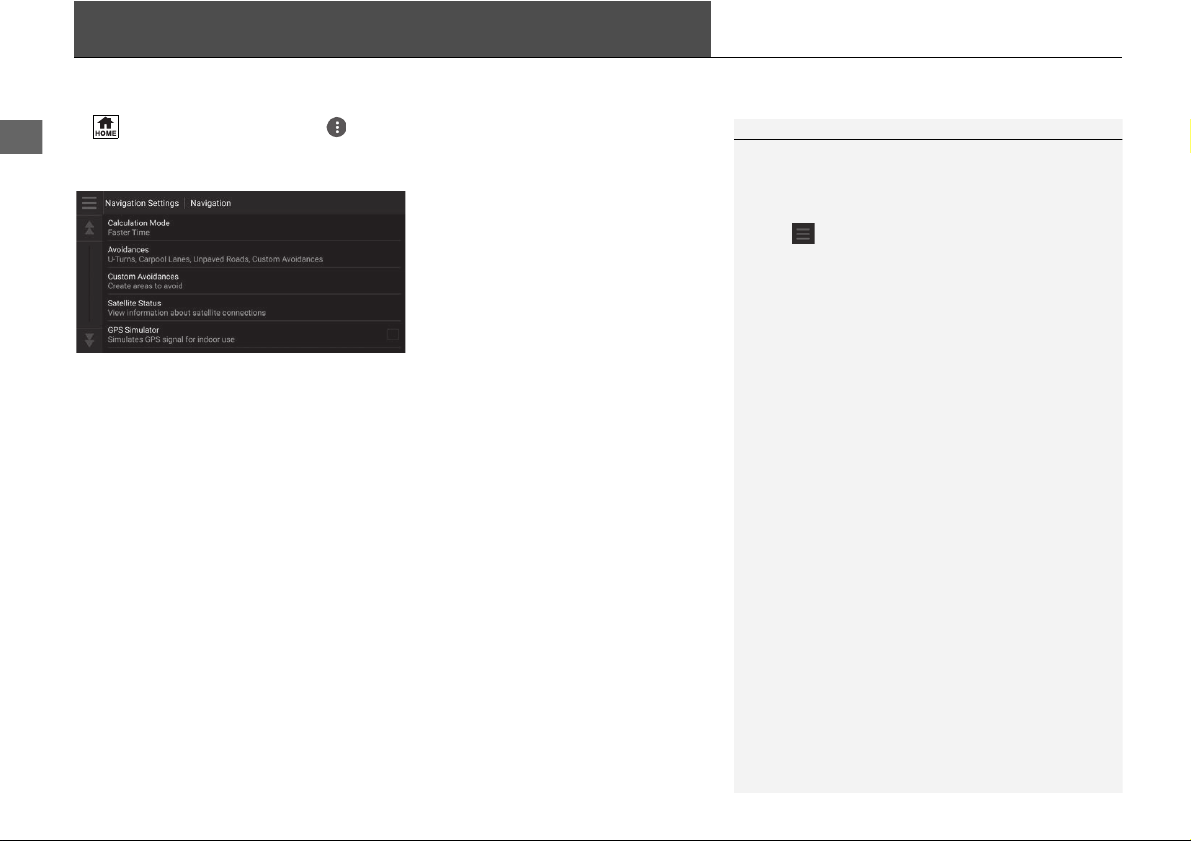
Navigation
H (Home) u Navigation uuSettings u Navigation
Changes the navigation settings.
The following options are available:
• Calculation Mode: Sets route preference.
2 Calculation Mode P. 41
• Avoidances: Sets road features to avoid on a route.
2 Avoidances P. 42
• Custom Avoidances: Allows you to avoid specific roads or areas.
2 Custom Avoidances P. 43
• Satellite Status: Displays the satellite' status.
2 Satellite Status P. 47
• GPS Simulator: Stops the system from receiving a GPS signal.
1 Navigation
GPS Simulator is set to off as factory default.
You can access the navigation settings from any
screen includes the options menu icon.
Select to open the options menu, and then select
Navigation Settings.
41
uuNavigationuCalculation Mode
System Setup
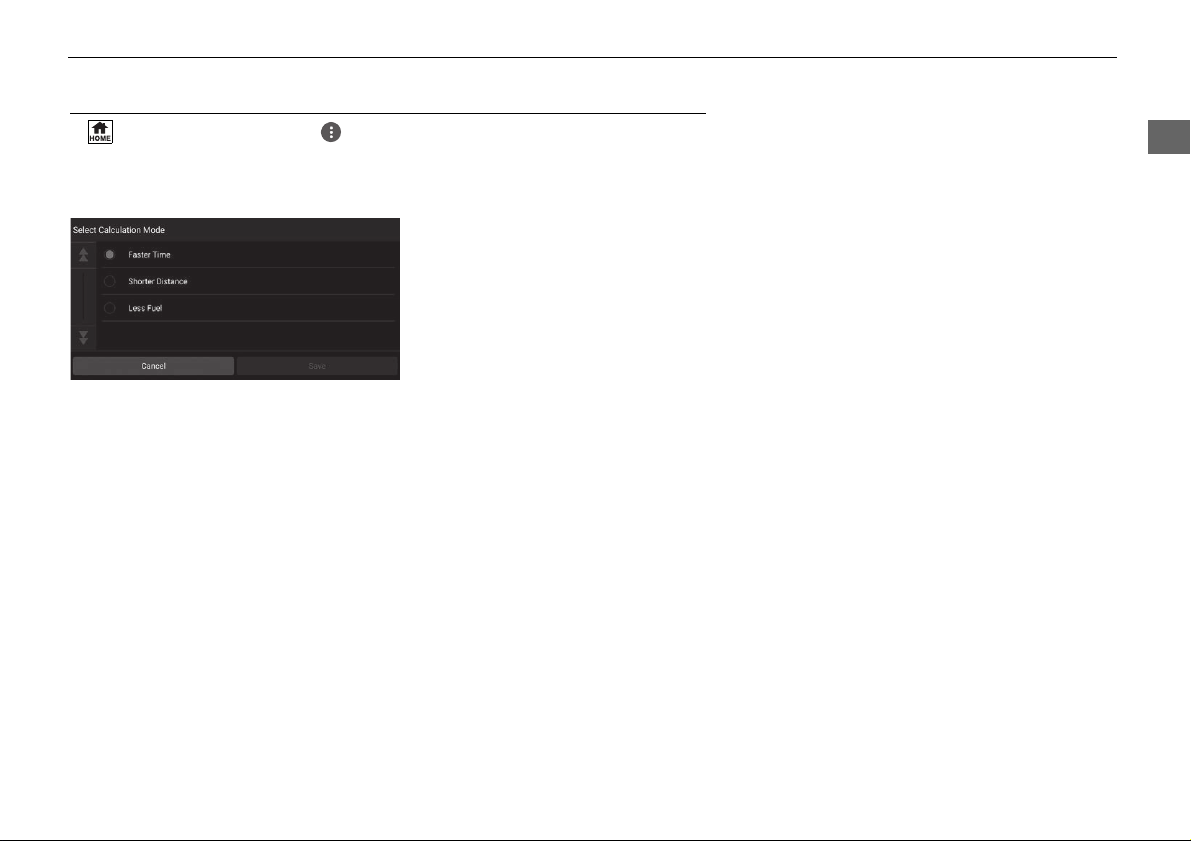
Calculation Mode
H (Home) u Navigation uuSettings u Navigation u Calculation
Mode
Sets the route preference.
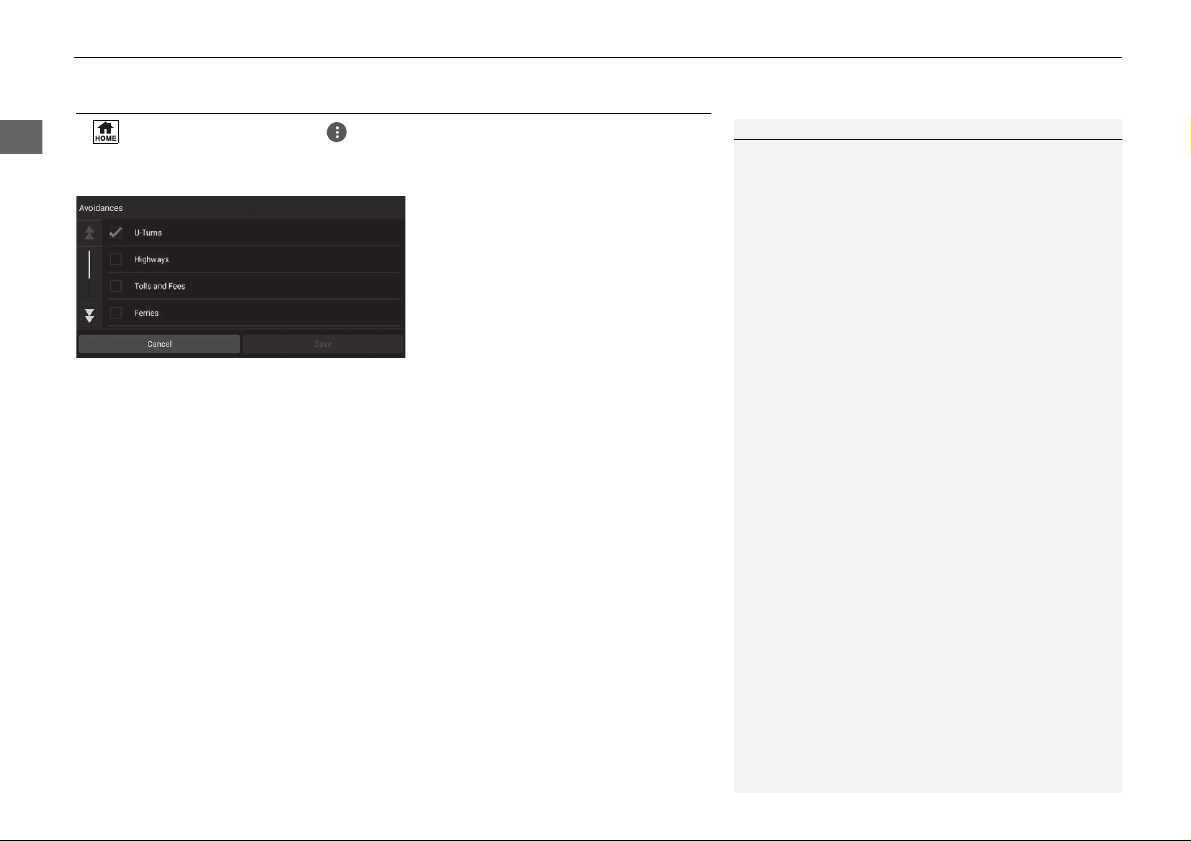
1. Select an option.
2. Select Save.
The following options are available:
• Faster Time (factory default): Calculates routes that are faster to drive but can be
longer in distance.
• Shorter Distance: Calculates routes that are shorter in distance but can take
more time to drive.
• Less Fuel: Calculates routes that could use less fuel than other routes.
42
uuNavigationuAvoidances
System Setup
Avoidances
H (Home) u Navigation uuSettings u Navigation u Avoidances
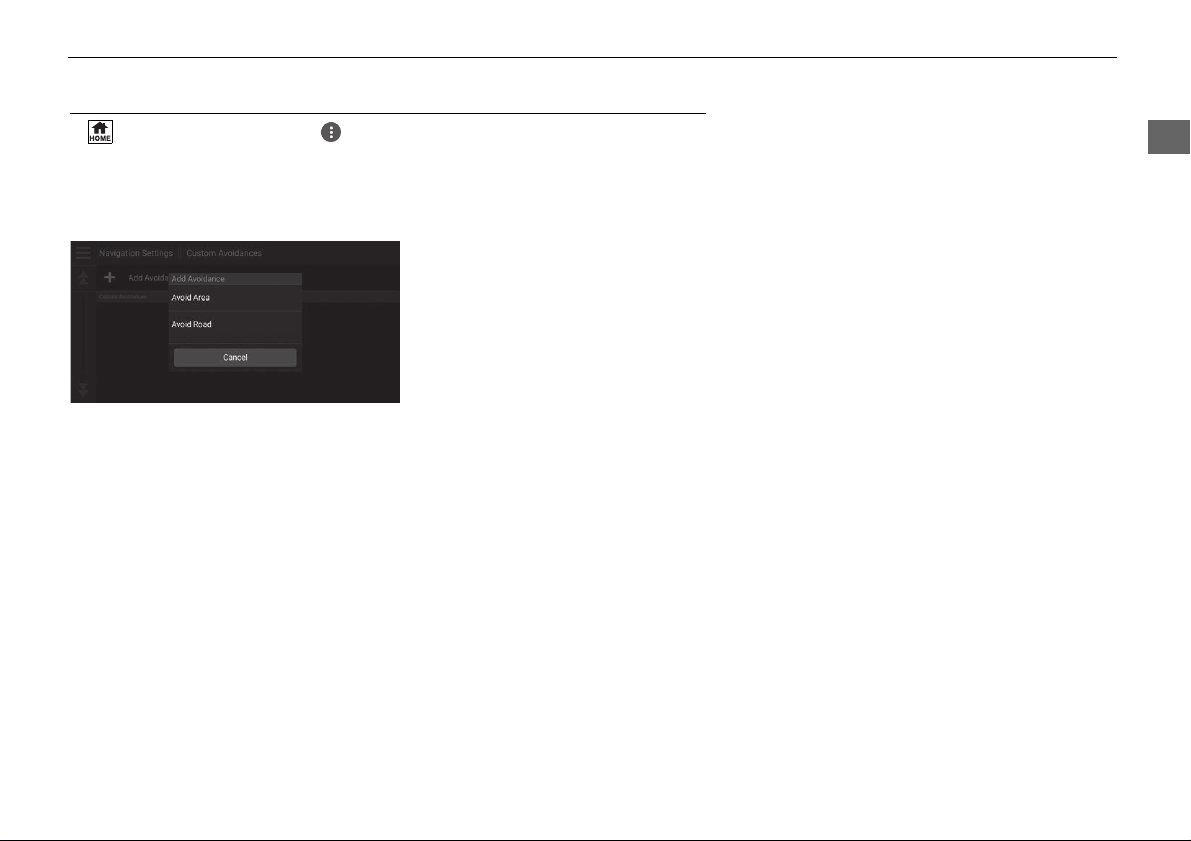
Set preferences for route options to avoid.
1. Select an option(s).
2. Select Save.
The following options are available:
• U-Turns: Avoids u-turns.
• Highways: Avoids highways.
• Tolls and Fees: Avoids toll roads.
• Ferries: Avoids ferries.
• Carpool Lanes: Avoids car share lanes.
• Unpaved Roads: Avoids unpaved roads.
• Custom Avoidances: Avoids specific areas and roads.
2 Custom Avoidances P. 43
1 Avoidances
Highways, Tolls and Fees, and Ferries are set to off
as factory default.
43
uuNavigationuCustom Avoidances
Continued
System Setup
Custom Avoidances
H (Home) u Navigation uuSettings u Navigation u Custom
Avoidances
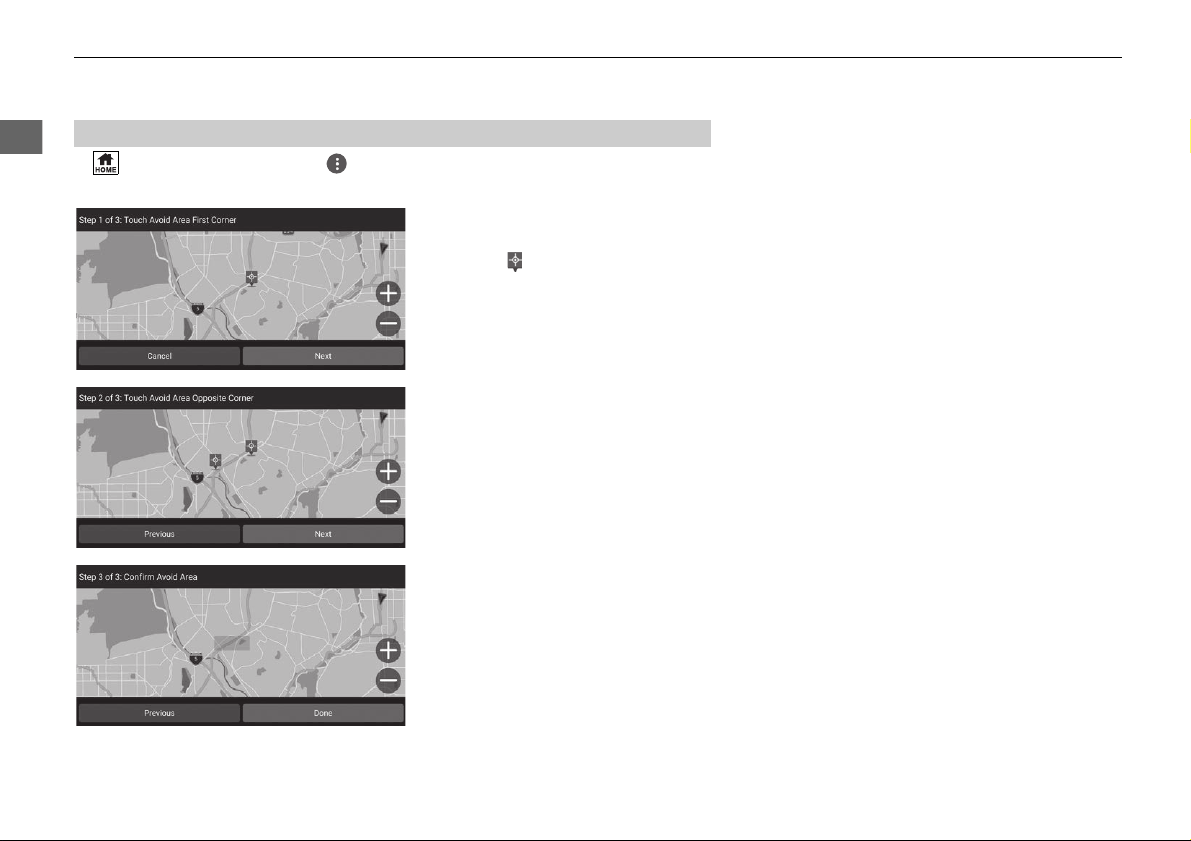
Allows you to avoid specific areas and sections of road. You can enable and disable
custom avoidances as needed.
1. Select Add Avoidance.
2. Select an option.
The following options are available:
• Avoid Area: Sets an area to avoid.
2 Adding an Avoid Area P. 44
• Avoid Road: Sets a road to avoid.
2 Adding an Avoid Road P. 45
44
uuNavigationuCustom Avoidances
System Setup
H (Home) u Navigation uuSettings u Navigation u Custom
Avoidances u Add Avoidance u Avoid Area
1. Select the upper-right (left) corner
of the area to avoid. Select Next.
u The icon is displayed on the
map.
2. Select the lower-left (right) corner
of the area to avoid. Select Next.
3. Select Done.
■
Adding an Avoid Area

45
uuNavigationuCustom Avoidances
Continued
System Setup
H (Home) u Navigation uuSettings u Navigation u Custom
Avoidances u Add Avoidance u Avoid Road
1. Select the starting point of the
section of road to avoid. Select
Next.
u The icon is displayed on the
map.
2. Select the ending point of the road
section. Select Next.
3. Select Done.
■
Adding an Avoid Road

46
uuNavigationuCustom Avoidances
System Setup
H (Home) u Navigation uuSettings u Navigation u Custom
Avoidances
1. Select the area or road to edit
from the list.
2. Select an item.
The following items are available:
• Enable: Sets whether to enable the avoidance.
• Rename: Enters a new name.
• Delete: Deletes a selected area or road.
■
Editing a Custom Avoidance
47
uuNavigationu Satellite Status
System Setup
Satellite Status
H (Home) u Navigation uuSettings u Navigation u Satellite
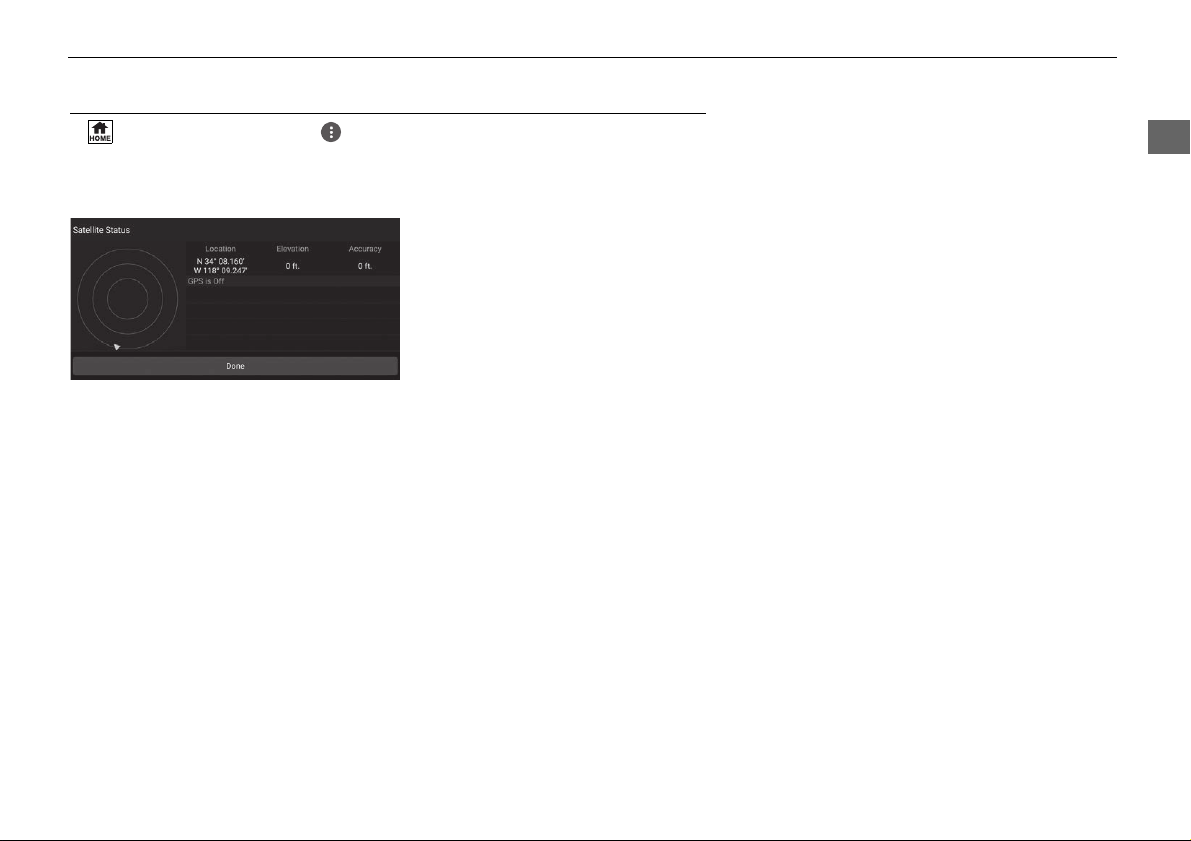
Status
View the satellites’ status.
48
System Setup
Traffic
H (Home) u Navigation uuSettings u Traffic
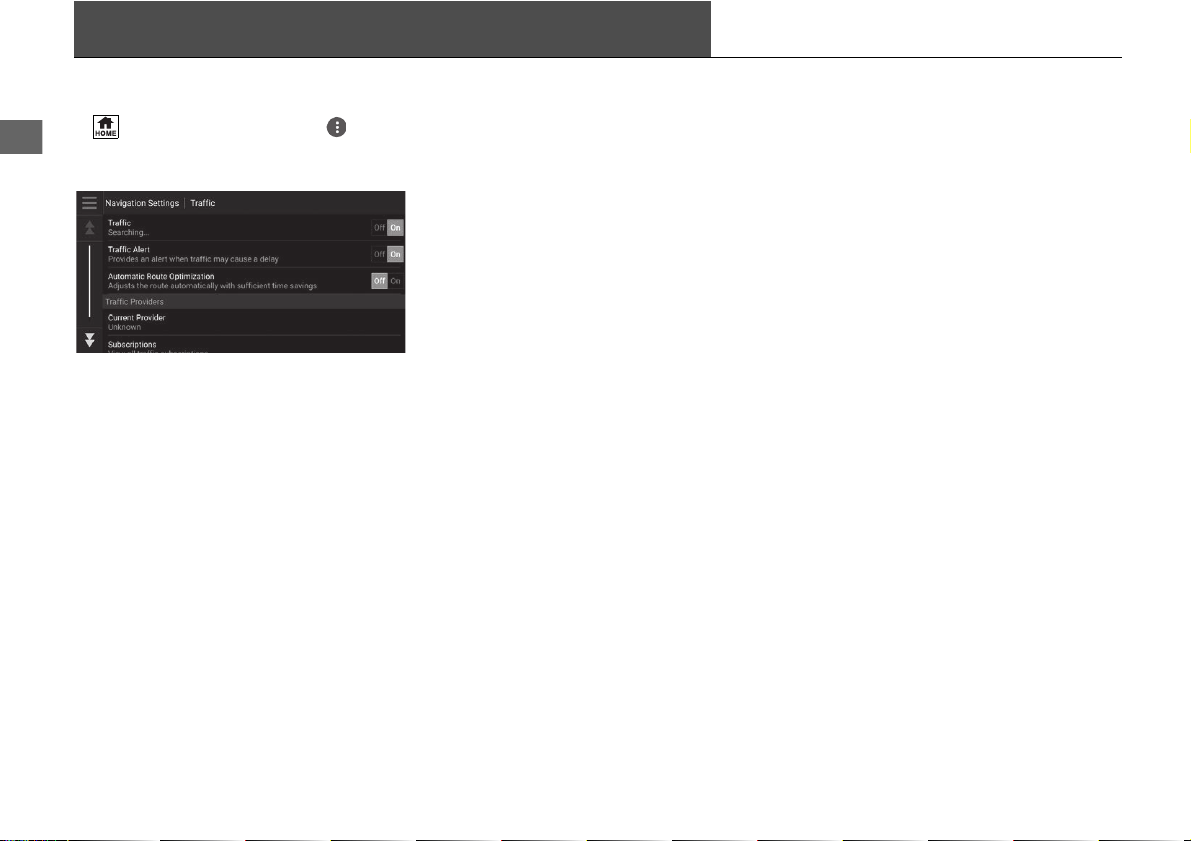
Sets the traffic feature.
Select an option.
The following options are available:
• Traffic: Enables the traffic feature.
2 Traffic Information P. 80
• Traffic Alert: Sets whether to receive an alert when traffic may cause a delay.
• Automatic Route Optimization: Sets whether to use optimized alternate
routes.
• Current Provider: Sets the traffic provider to use for traffic data.
• Subscriptions: Displays the lists of the current traffic subscriptions.
49
System Setup
Location History
H (Home) u Navigation uuSettings u Location History
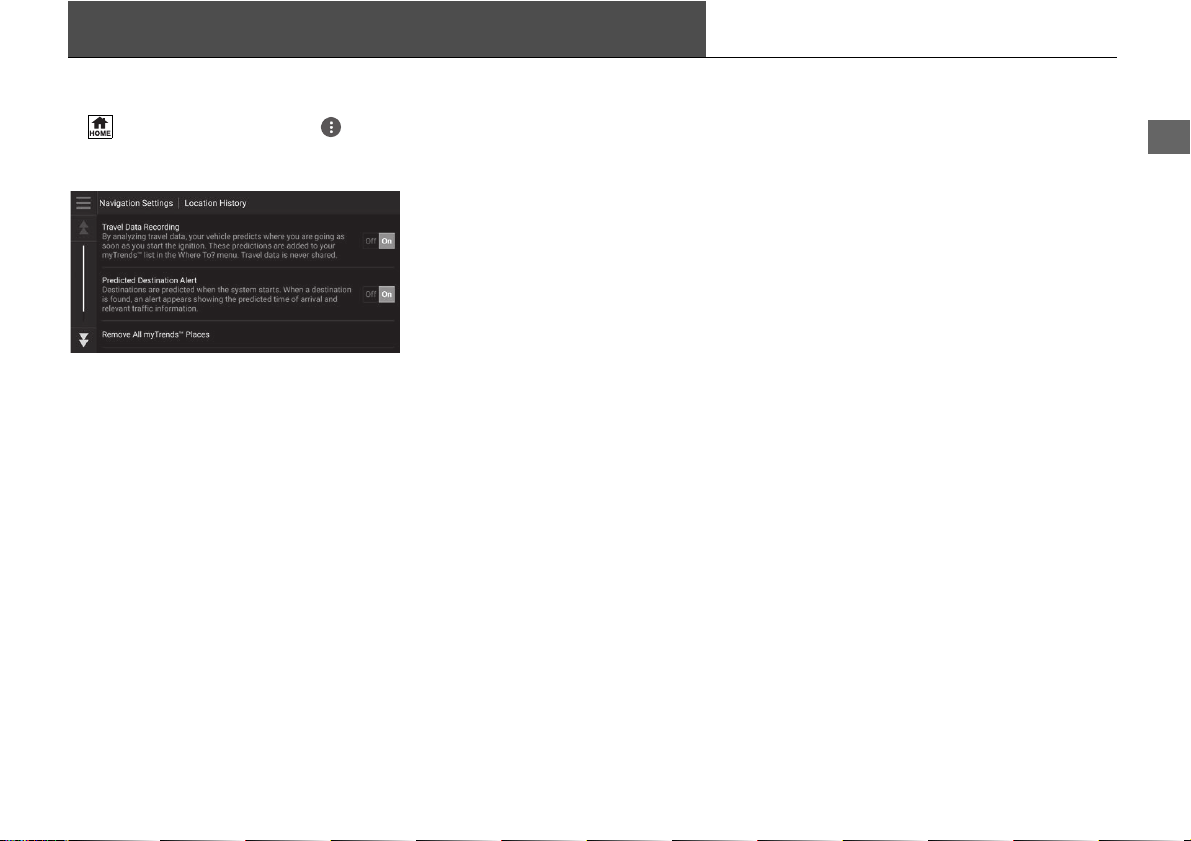
Set the history data usage or clear the travel data.
Select an option.
The following options are available:
• Travel Data Recording: Allows the system to record your travel data used for
predictions.
• Predicted Destination Alert: Sets whether the system provides the predicted
destination.
2 Predicted Destination P. 70
• Remove All myTrends
TM
Places: Deletes all myTrends places.
• Clear Off-Road Breadcrumbs: Clears off-road breadcrumbs appear on the
map.
50
System Setup
About
H (Home) u Navigation uuSettings u About
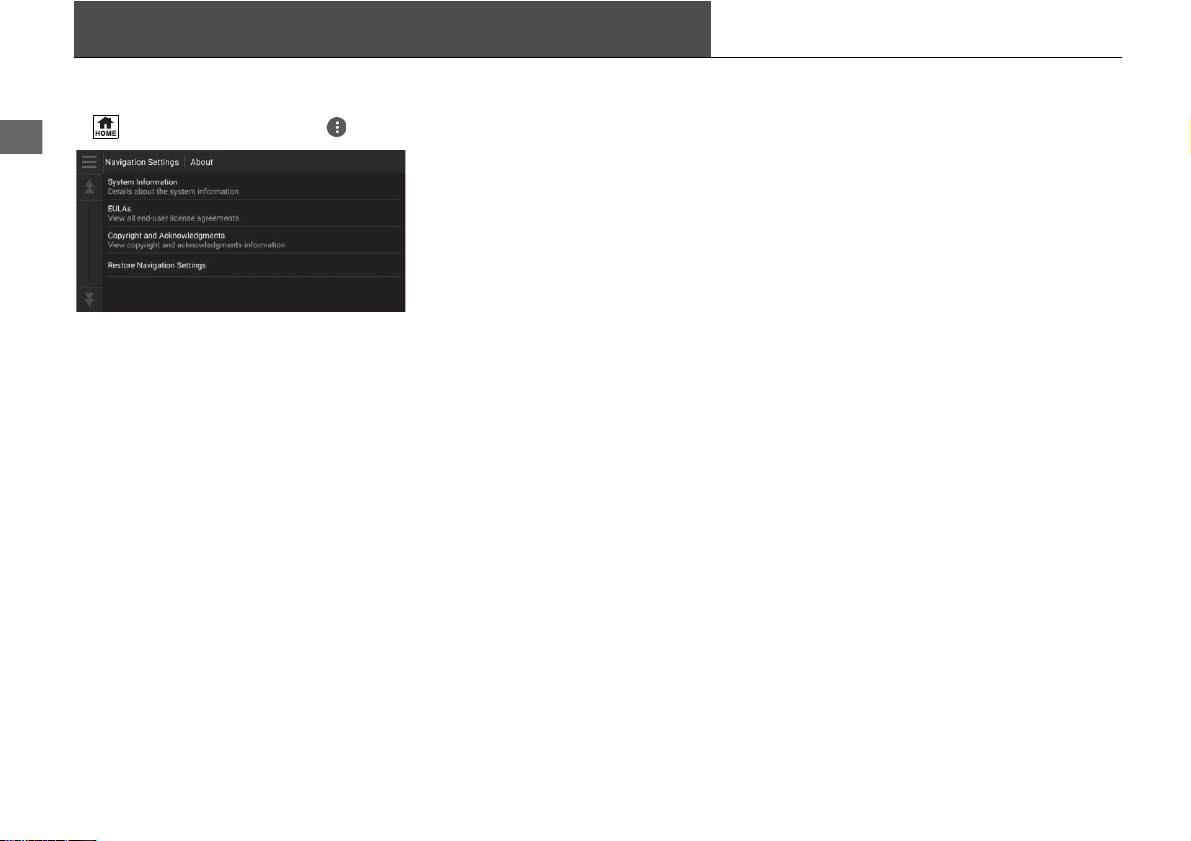
Select an option.
The following options are available:
• System Information: Displays the system information.
• EULAs: Displays end-user license agreements.
• Copyright and Acknowledgments: Displays copyright and acknowledgments
information.
• Restore Navigation Settings: Restores navigation settings to the factory
defaults.
2 Reset Factory Default Settings P. 51
51
System Setup
Data Reset
Reset Factory Default Settings
H (Home) u Navigation uuSettings u About
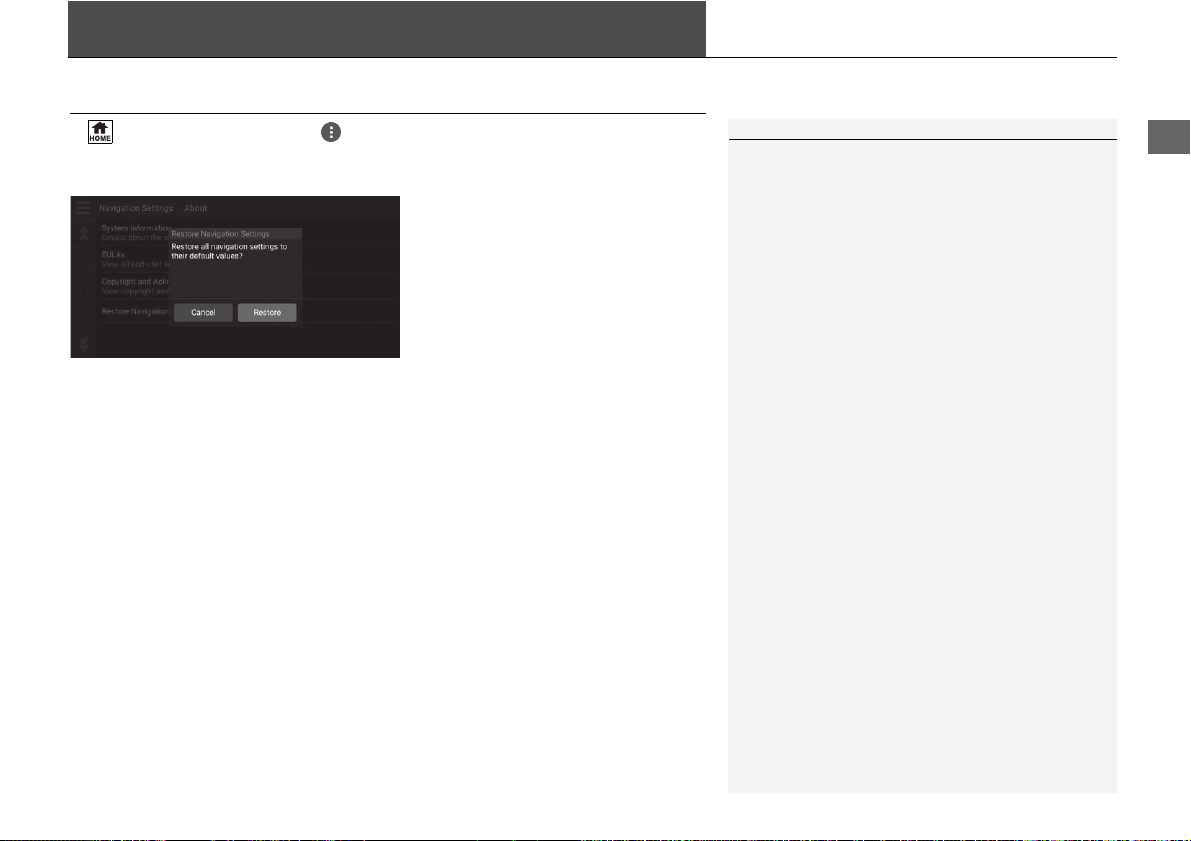
You can restore all settings to the factory default values.
1. Select Restore Navigation
Settings.
2. Select Restore.
1 Reset Factory Default Settings
When you want to reset the following options, see
the below references:
•
Home
2 Deleting Saved Locations P. 25
•
Saved
2 Deleting Saved Locations P. 25
•
Recents
2 Recents P. 68
•
myTrips
2 Deleting a Saved Trip P. 29
When you transfer the vehicle to a third party, reset
all settings to default and delete all personal data.

52

53
Navigation
This section describes how to enter a destination, select a route to take, and follow the
route to your destination. It also describes how to change your route or destination along
the way.
Entering a Destination ............................54
Search Tools ...........................................60
Categories ..............................................67
Saved......................................................68
Recents...................................................68
myTrips...................................................69
myTrends
TM
.............................................70
Map Input...............................................71
Calculating the Route ..............................72
Viewing and Selecting the Routes ...........73
Viewing the Location Information ...........74
Driving to Your Destination ...................75
Viewing the Route ..................................75
Traffic Information ..................................80
Map Operation........................................ 82
Map Tools.............................................. 83
Changing Your Route ............................. 88
Stopping the Route ................................ 88
Taking a Detour ..................................... 89
Adding Waypoints ................................. 90
Editing the Route ................................... 91
Changing Your Destination ................... 94
Selecting a Destination on the Map ........ 94
Searching Near Establishment ................ 95
Entering a New Destination.................... 97
54
Navigation
Entering a Destination
H (Home) u Navigation u
This section describes how to enter a destination for route guidance.
Select an option.
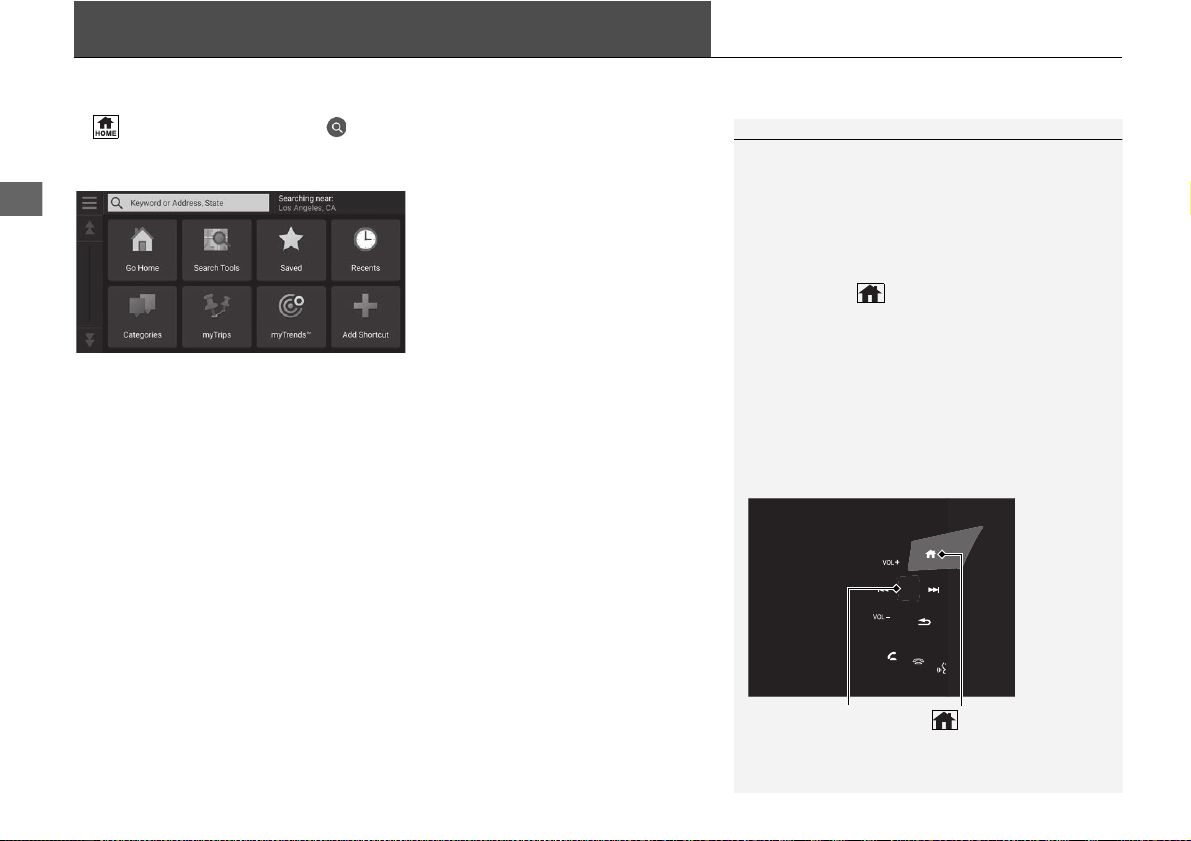
The following options are available:
• Keyword or Address, State: Sets a destination by entering a keyword, address
or state name.
2 Using the Search Bar P. 56
• Searching near: Selects the city to search near.
2 Changing the Search Area P. 57
• Go Home: Sets your home address as the destination.
2 Going Home P. 8
• Search Tools: Sets a destination by searching for a place.
2 Search Tools P. 60
• Saved: Sets a destination by selecting a place stored in the Saved list.
2 Saved P. 68
• Recents: Sets a destination by selecting a previous destination.
2 Recents P. 68
• Categories: Sets a destination by selecting a category.
2 Categories P. 67
• myTrips: Sets a destination by selecting a saved route.
2 myTrips P. 69
1 Entering a Destination
The Display Audio system can only provide route
guidance from one navigation system at a time.
When setting a destination on one system, any active
route guidance with the other system is canceled,
and the system you are currently using will direct you
to your destination.
If you press the (Home) button on the steering
wheel, select Navigation and then scroll the left
selector wheel, the following items are available. Use
the steering wheel buttons to select the items.
•
Go Home
•
Recent Destination
•
Calculation Mode
•
Saved Places
•
Stop
•
Save Location
(Home) Button
Left Selector Wheel

uuEntering a Destinationu
56
Navigation
H (Home) u Navigation uuKeyword or Address, State
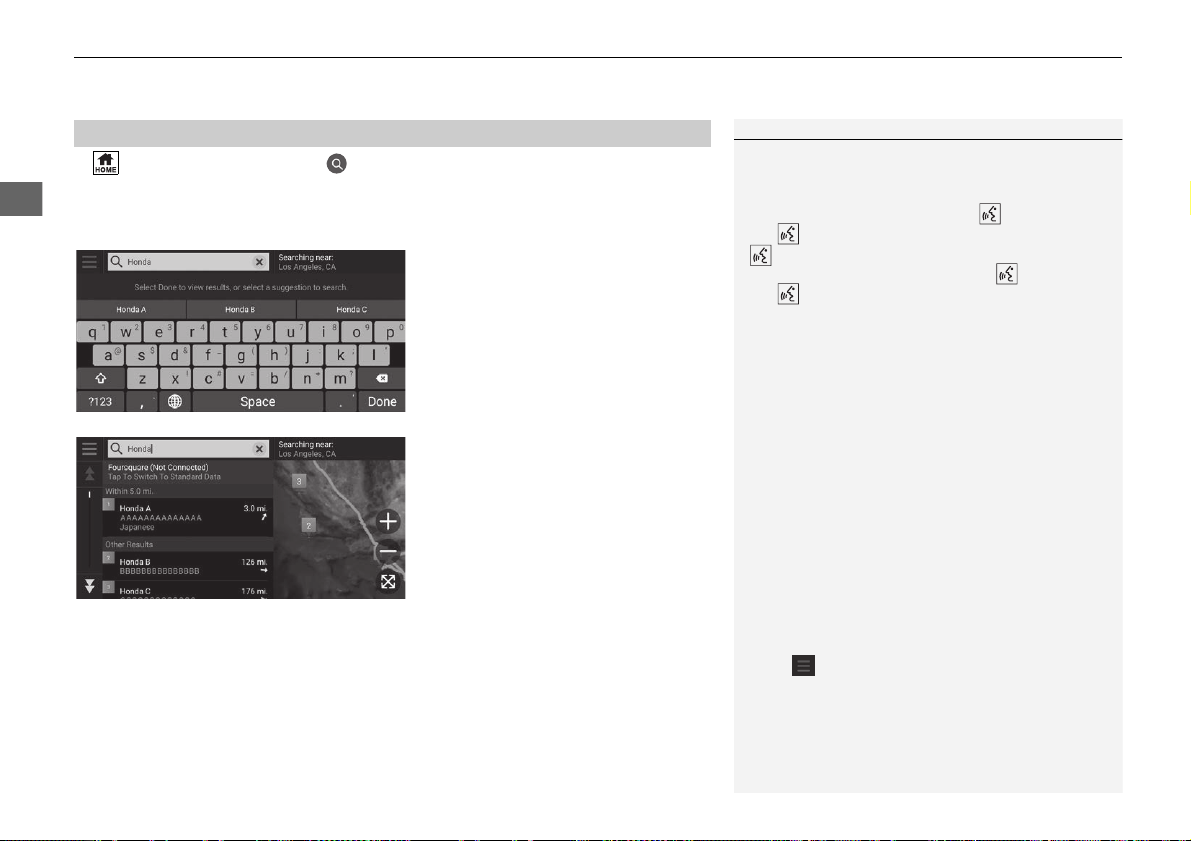
You can use the search bar to search for locations by entering a keyword, address,
or state name.
1. Enter a search term.
u The search history is displayed
below the search bar.
u Suggested search terms appear
below the search bar as you
type.
2. Select Done or a suggested search
term.
3. Select your destination from the
list.
4. Select Go! to set the route to your
destination.
2 Calculating the Route P. 72
■
Using the Search Bar
1 Using the Search Bar
Using Voice Command
You can say the names of popular, well-known
locations.
From the Voice Portal screen, say “Navigation.”
Say “Find Place,” then say a place name (e.g.,
“Honda”).
Say the line number of screen (e.g., “1”).
Say “Go” to set the route.
2 Using Voice Commands P. 5
2 Voice Control Operation P. 11
•
To search for a type of business, enter a category
name, such as “movie theaters.”
•
To search for a business by name, enter all or part
of the name.
•
To search for an address near you, enter the street
number and street name.
•
To search for an address in another city, enter the
street number, street name, city, and state.
•
To search for a city, enter the city and state.
If you want to delete the search history, reset the
navigation settings to default.
2 Reset Factory Default Settings P. 51
You can change the search provider and sort settings.
Select and then select Search Provider Settings.
Continued
57
uuEntering a Destinationu
Navigation
H (Home) u Navigation uuSearching near
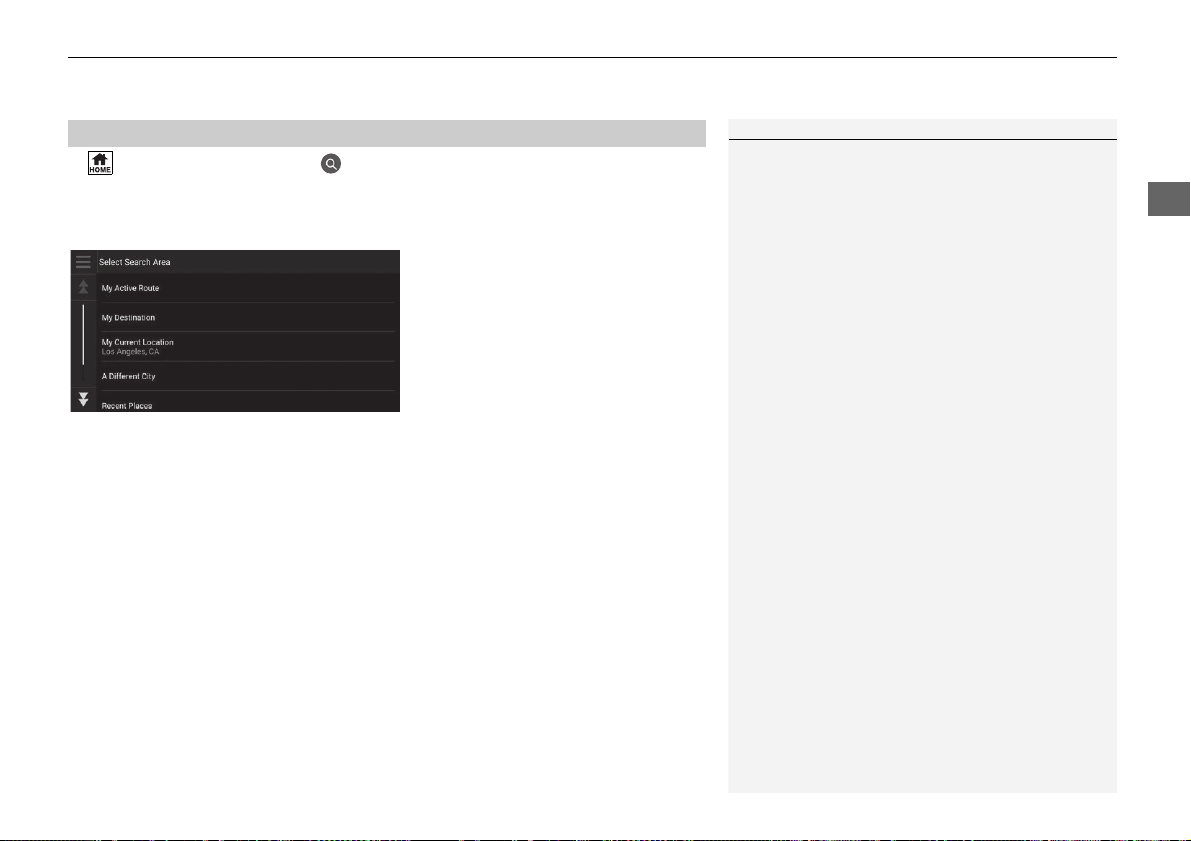
By default, your system finds locations closest to your current location. You can find
a location near another city or location.
Select an option.
The following options are available:
• My Active Route: Searches along your current route.
• My Destination: Searches near your current destination.
• My Current Location: Searches near your current location.
• A Different City: Searches near the city you select.
• Recent Places: Searches near a recent destination.
• Saved Places: Searches near a saved place.
■
Changing the Search Area
1 Changing the Search Area
My Active Route and My Destination can be set
when the route is active.
58
uuEntering a Destinationu
Navigation
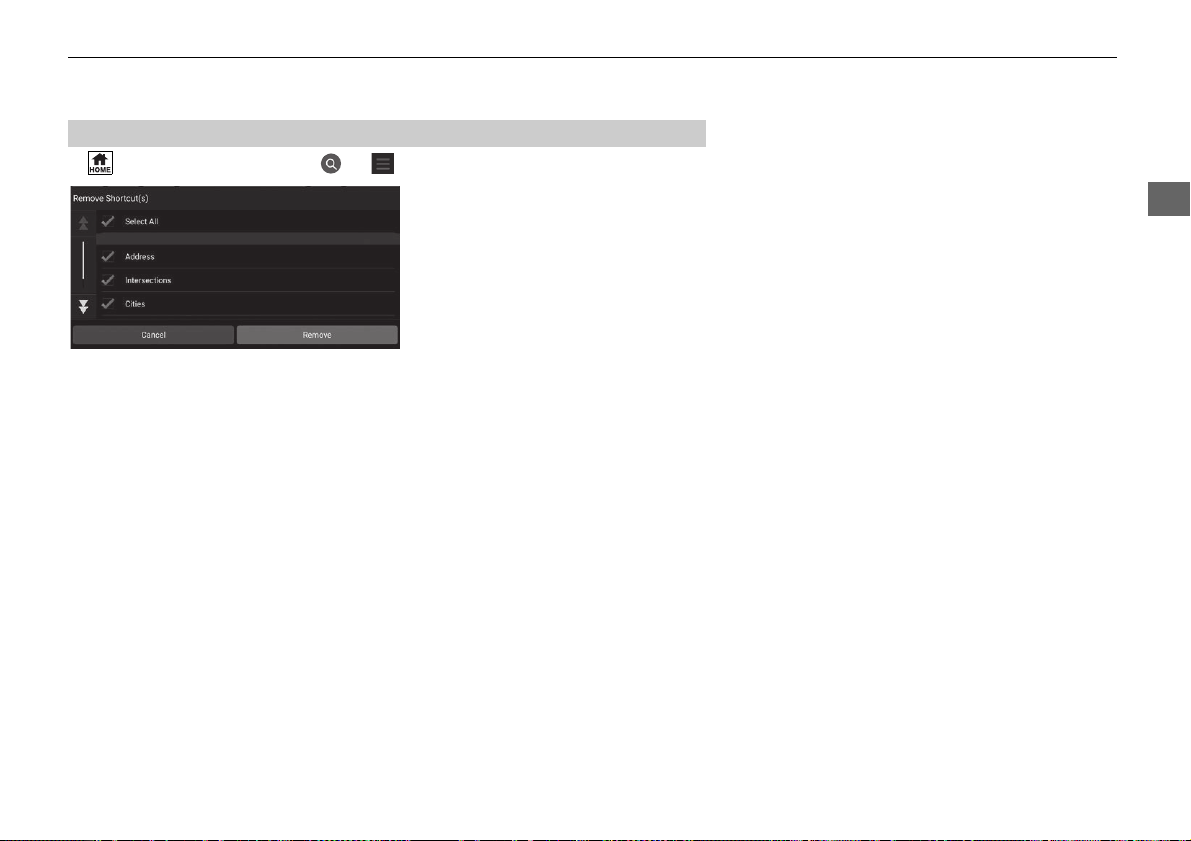
H (Home) u Navigation uuAdd Shortcut
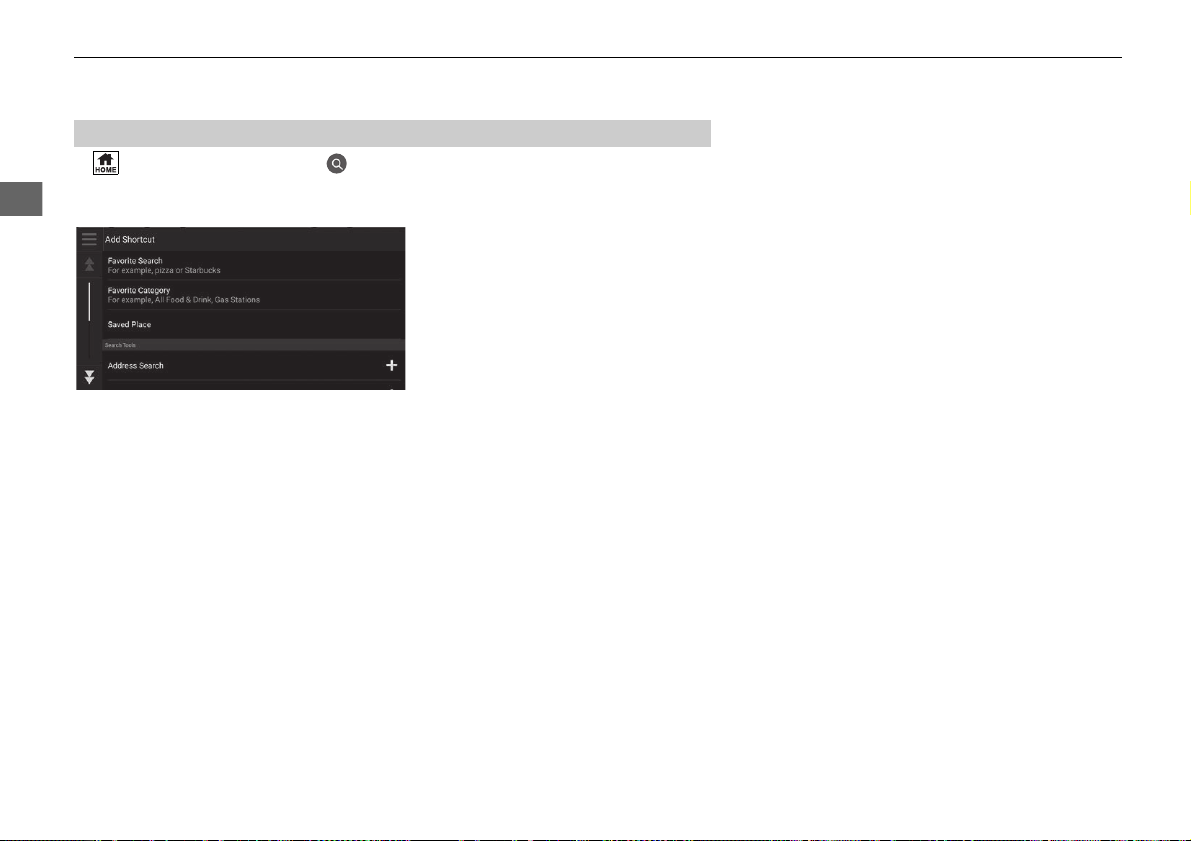
Up to 50 shortcut icons can be stored.
Select an option you want to add as
a shortcut.
■
Adding Shortcuts
59
uuEntering a Destinationu
Navigation
H (Home) u Navigation uuuRemove Shortcut(s)
1. Select a shortcut to delete.
u Select Select All to delete all
shortcuts.
2. Select Remove.
■
Deleting Shortcuts

60
uuEntering a DestinationuSearch Tools
Navigation
Search Tools
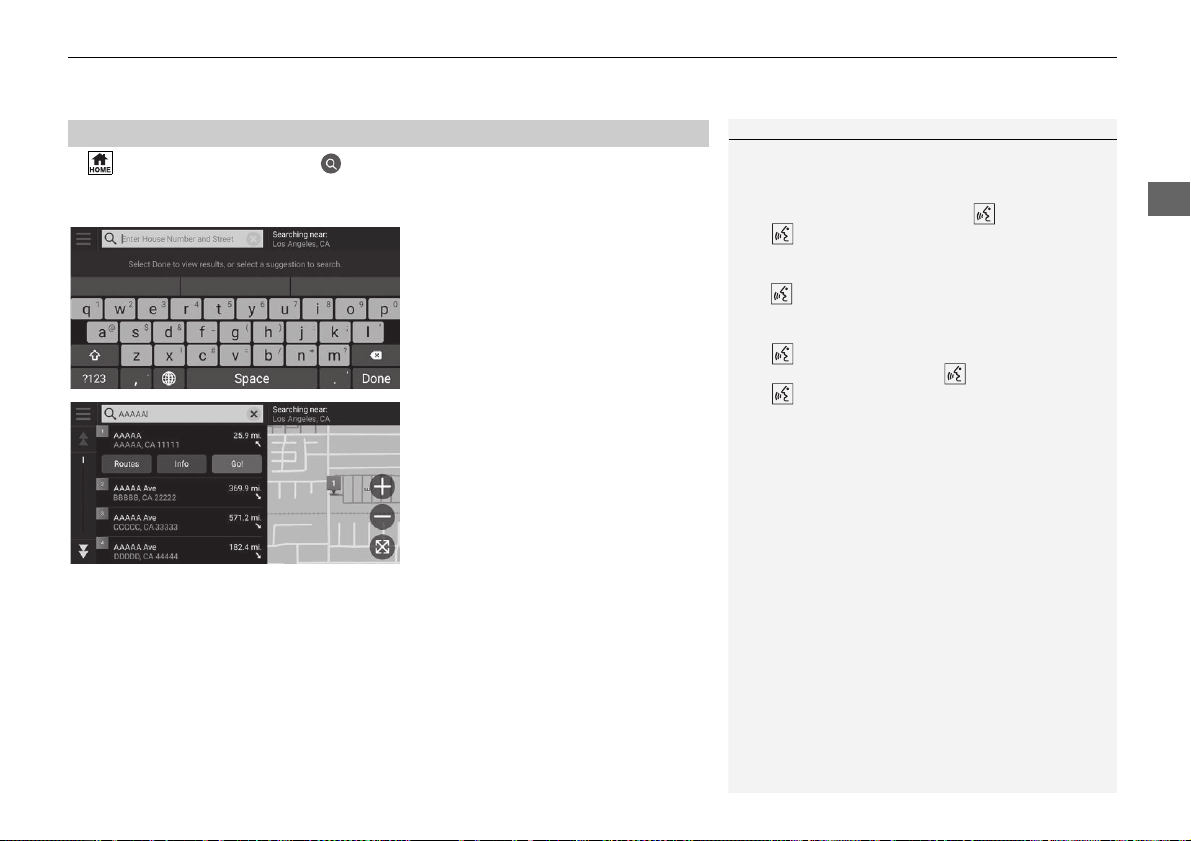
H (Home) u Navigation uuSearch Tools
Find a location to set as the destination by searching for an address, intersection,
city, dealership, coordinates or phone number.
Select an option.
The following options are available:
• Address: Sets a destination by entering an address.
2 Finding an Address P. 61
• Intersections: Sets a destination by finding an intersection.
2 Finding a Location by Intersections P. 62
• Cities: Sets a nearby city as the destination.
2 Finding a City P. 63
• Dealerships: Sets a nearby Honda authorized dealer as the destination.
2 Finding a Dealership P. 64
• Coordinates: Sets a destination by entering coordinates.
2 Finding a Location Using Coordinates P. 65
• Phone Number: Sets a destination by entering a phone number.
2 Finding a Location by Phone Number P. 66
Continued
61
uuEntering a DestinationuSearch Tools
Navigation
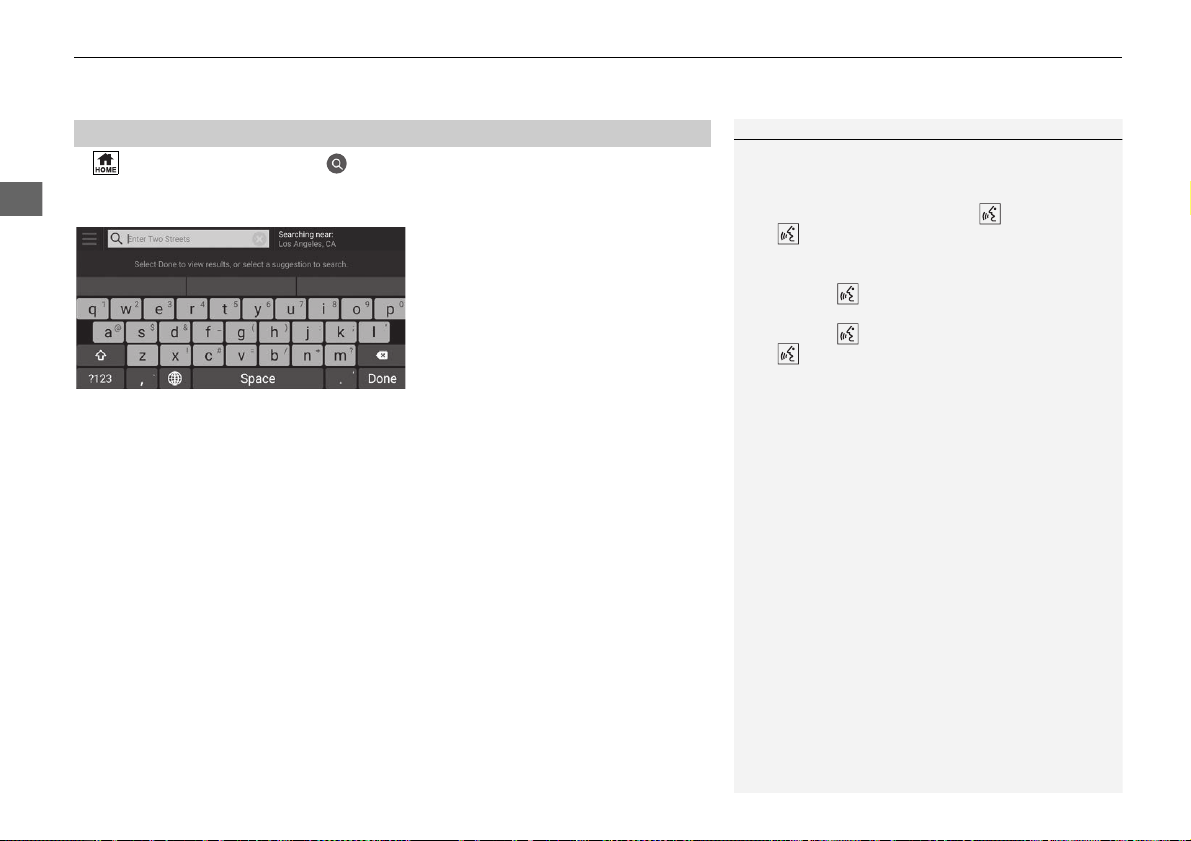
H (Home) u Navigation uuSearch Tools u Address
Enter an address to use as the destination.
1. Enter the house number and street
name.
u Select Searching near if you
want to search different city.
2. Select Done or a suggestion.
3. Select your destination from the
list.
4. Select Go! to set the route to your
destination.
2 Calculating the Route P. 72
■
Finding an Address
1 Finding an Address
Using Voice Command
You can say the entire address at once using voice
commands.
From the Voice Portal screen, say “Navigation.”
Say “Find Address” on the voice command
screen, then say the entire address (e.g., “1-2-3-4
Main Street, Los Angeles, California”).
Say “Change Country” if you want to change the
country.
The system interprets the address.
Say “Yes” or a line number of a screen if the
destination list appears (e.g., “1”).
Say “Go” to set the route.
2 Using Voice Commands P. 5
2 Voice Control Operation P. 11
The order of the steps may change depending on the
map data loaded on your system.
uuEntering a DestinationuSearch Tools
62
Navigation
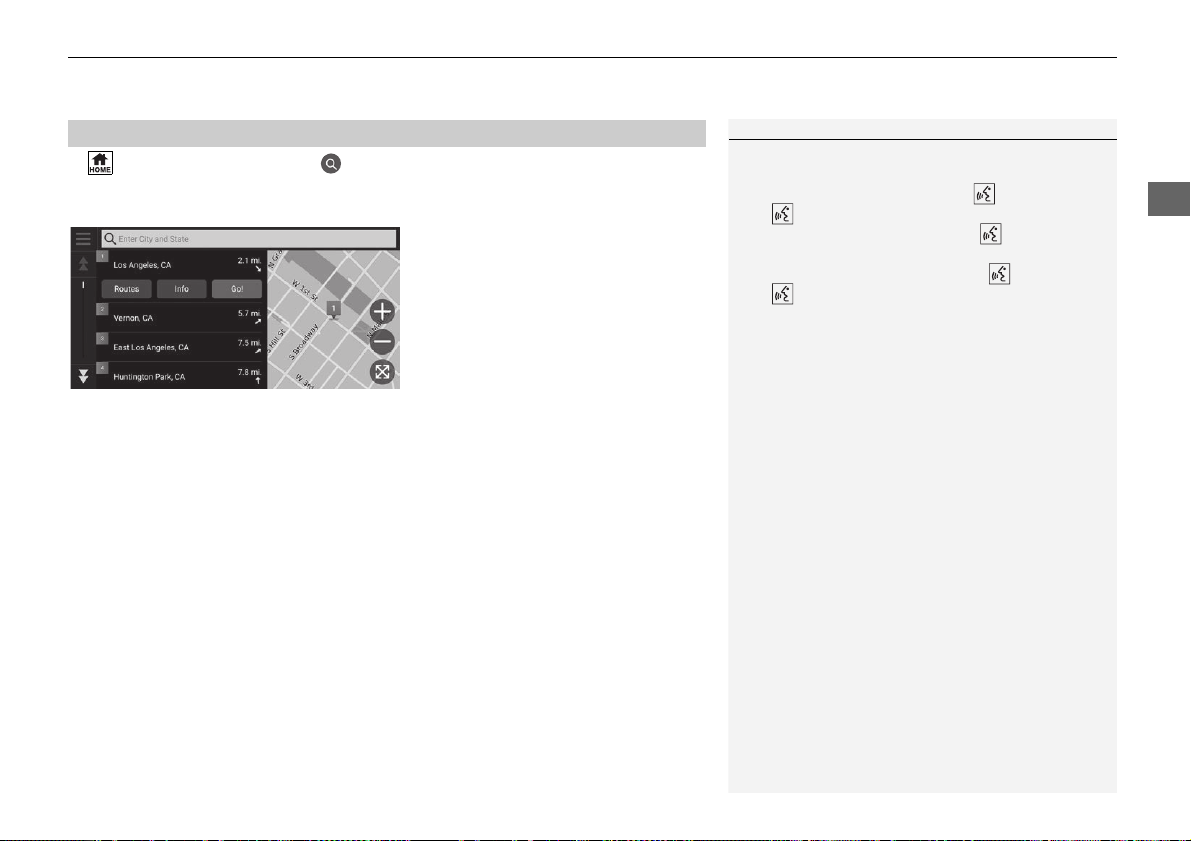
H (Home) u Navigation uuSearch Tools u Intersections
Select the intersection of two streets as the destination.
1. Enter two street names.
u A list of matching hits is
automatically displayed after
you enter several letters with
the closest match at the top of
the list.
2. Select Done or a suggestion.
3. Select the intersection from the
list.
4. Select Go! to set the route to your
destination.
2 Calculating the Route P. 72
■
Finding a Location by Intersections
1 Finding a Location by Intersections
Using Voice Command
You can find intersections by the street name using
voice commands.
From the Voice Portal screen, say “Navigation.”
Say “Find Intersection” on the voice command
screen and then say city and state names.
Say a street name 1, then say a line number of a
screen (e.g., “1”).
Say a street name 2, then say a line number of a
screen (e.g., “1”).
Say “Go” to set the route.
2 Using Voice Commands P. 5
2 Voice Control Operation P. 11
Continued
63
uuEntering a DestinationuSearch Tools
Navigation
H (Home) u Navigation uuSearch Tools u Cities
Selects your destination city.
1. Select a city.
u Cities near your current
position are listed.
Select Enter City and State
and enter city and state names
if you want to find different
city.
2. Select Go! to set the route to your
destination.
2 Calculating the Route P. 72
■
Finding a City
1 Finding a City
Using Voice Command
You can find a city by using voice commands.
From the Voice Portal screen, say “Navigation.”
Say “Find City” on the voice command screen,
then say city and state names (e.g., “Los Angeles,
California”).
Say a line number of a screen (e.g., “1”).
Say “Go” to set the route.
2 Using Voice Commands P. 5
2 Voice Control Operation P. 11

64
uuEntering a DestinationuSearch Tools
Navigation
H (Home) u Navigation uuSearch Tools u Dealerships
Find any Honda authorized dealers to set as a destination.
1. Select the desired name from the
list.
u Select the search bar and enter
a dealership name to narrow
down the number of matches.
2. Select Go! to set the route to your
destination.
2 Calculating the Route P. 72
■
Finding a Dealership
Continued
65
uuEntering a DestinationuSearch Tools
Navigation
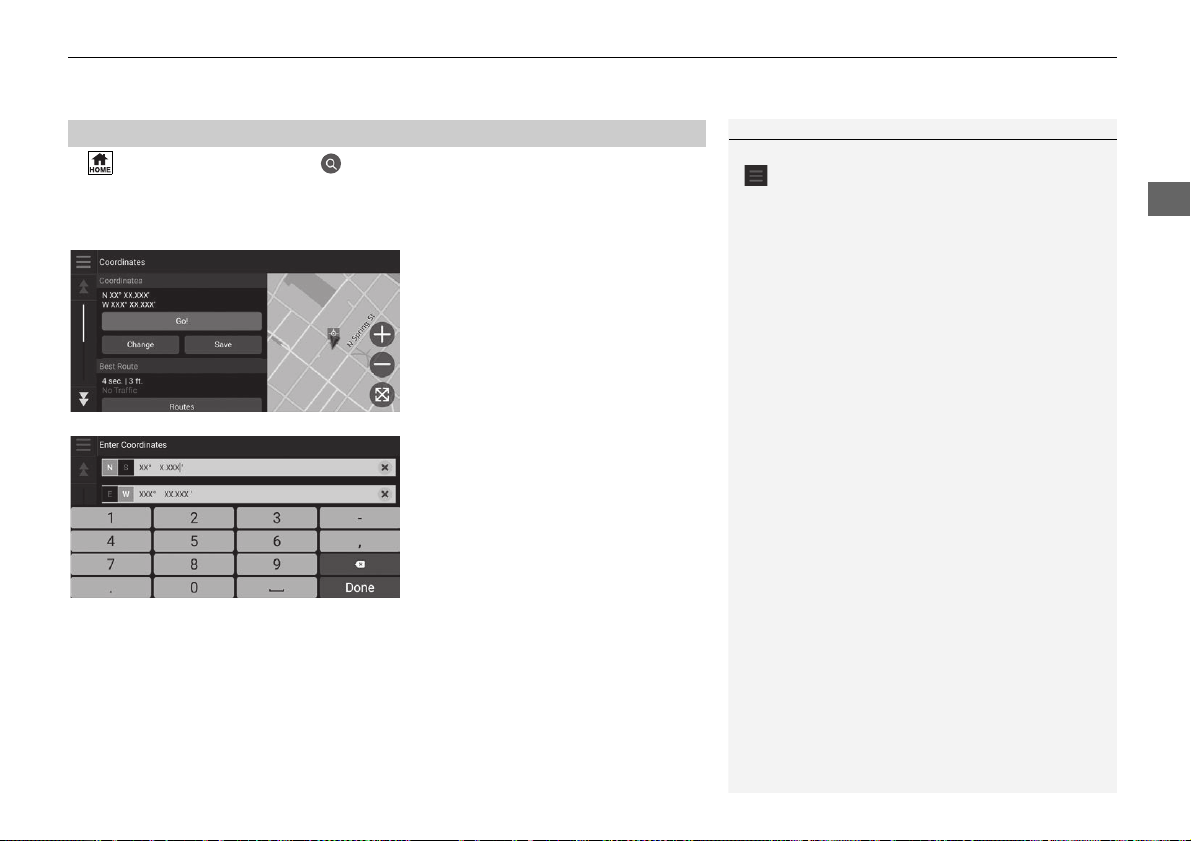
H (Home) u Navigation uuSearch Tools u Coordinates
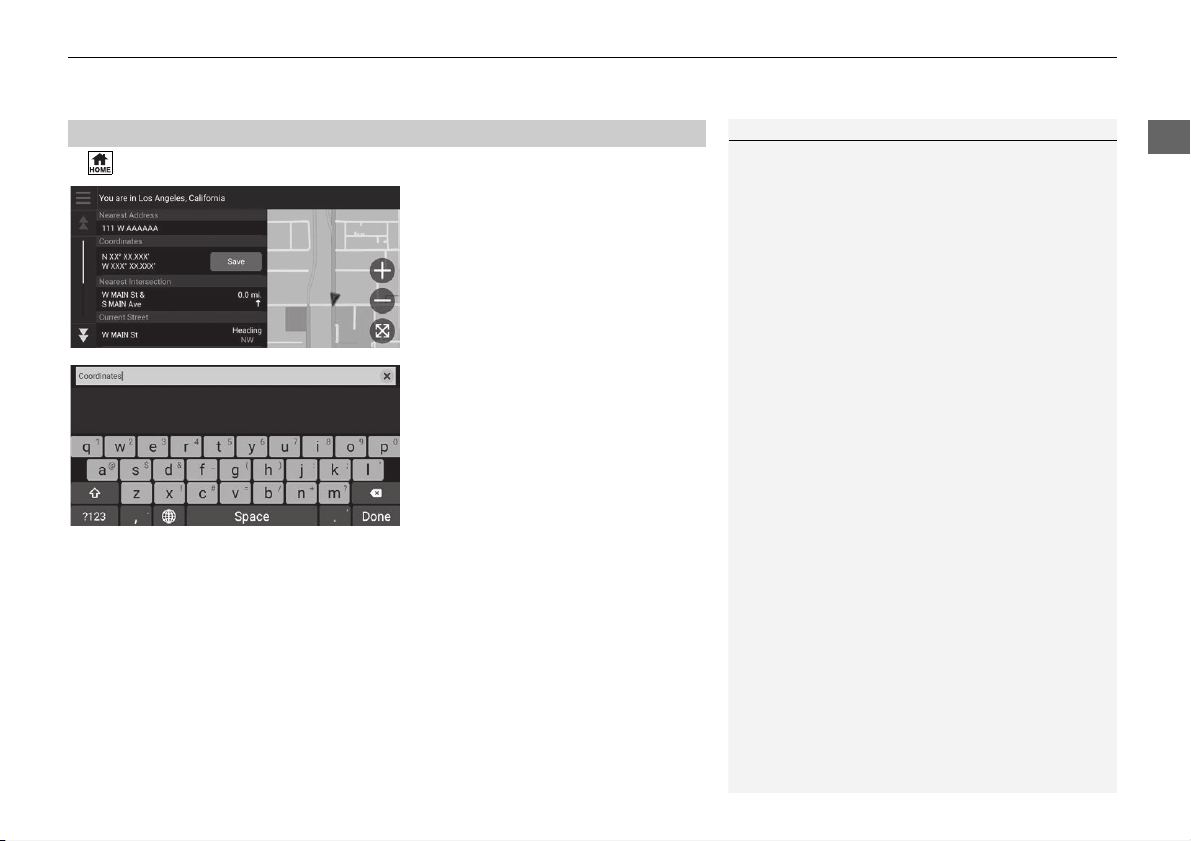
You can find a location using latitude and longitude coordinates. This can be helpful
when geocaching.
1. Select Change.
2. Select the latitude coordinate and
enter the new coordinate.
u Select N/S if necessary.
3. Select the longitude coordinate
and enter the new coordinate.
u Select E/W if necessary.
4. Select Done.
5. Select Go! to set the route to your
destination.
2 Viewing the Location
Information P. 74
■
Finding a Location Using Coordinates
1 Finding a Location Using Coordinates
If you want to change the coordinate format, select
and then select Coordinate Format.
You can add the coordinates location to the saved
location list by selecting Save.
66
uuEntering a DestinationuSearch Tools
Navigation
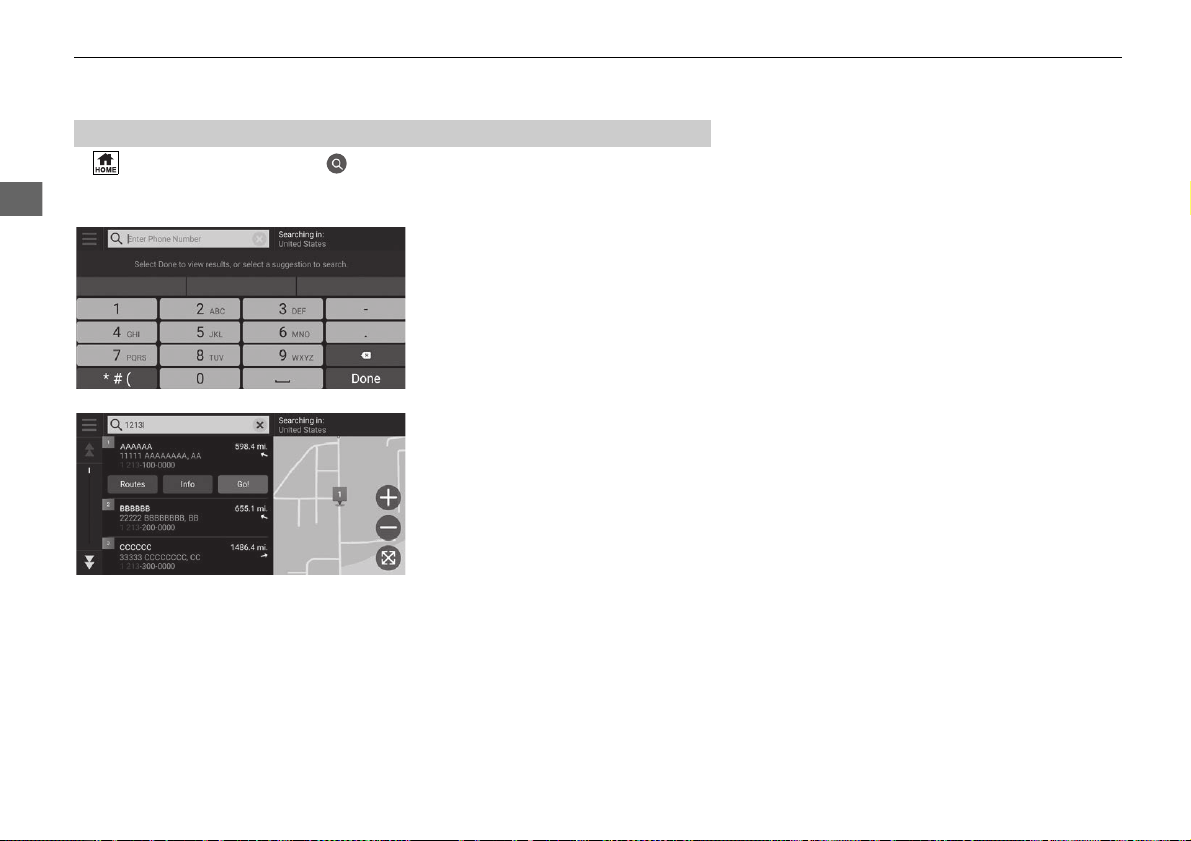
H (Home) u Navigation uuSearch Tools u Phone Number
Search for your destination by entering a phone number.
1. Enter the phone number.
u Select Searching in and select
another area if you want to
change the search area.
2. Select Done or a suggestion.
3. Select your destination from the
list.
4. Select Go! to set the route to your
destination.
2 Calculating the Route P. 72
■
Finding a Location by Phone Number
67
uuEntering a DestinationuCategories
Navigation
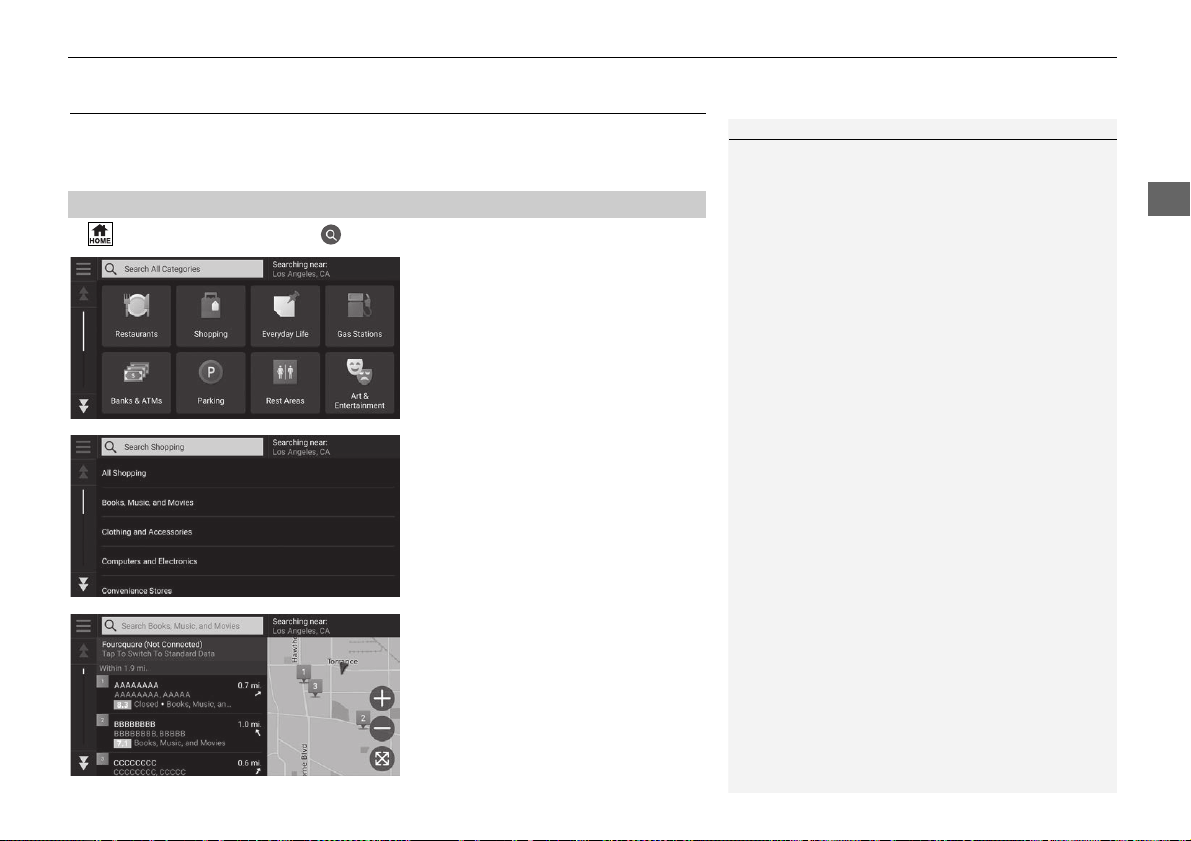
Categories
Select the category of a place (e.g., Restaurants, Gas Stations, Shopping) stored in
the map database to search for the destination.
H (Home) u Navigation uuCategories
1. Select a category.
2. Select a subcategory.
u If the subcategory screen is not
displayed, proceed to step 3.
3. Select a place name from the list.
4. Select Go! to set the route to your
destination.
2 Calculating the Route P. 72
■
Finding a Location by Category
1 Categories
This option is convenient if you do not know the
exact name of a place or if you want to narrow down
the number of matches returned for places with a
common name.
68
uuEntering a DestinationuSaved
Navigation
Saved
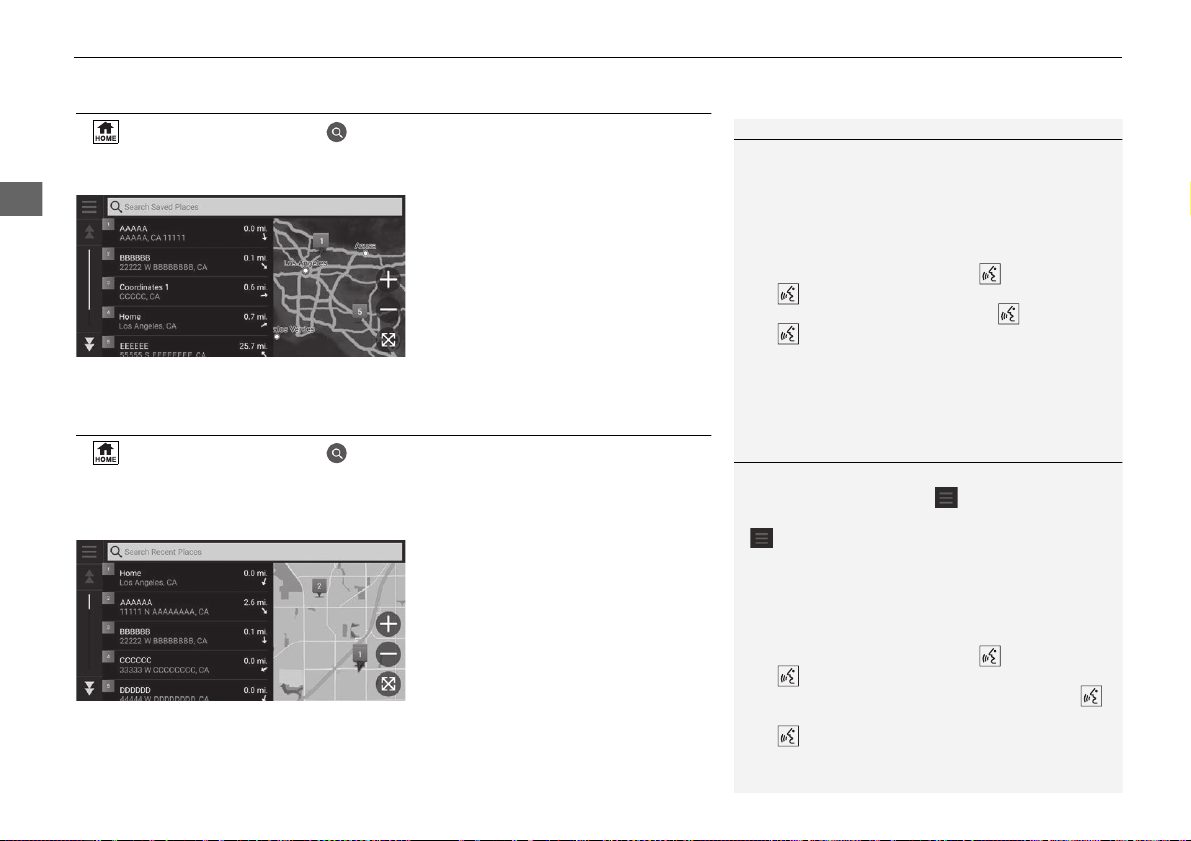
H (Home) u Navigation uuSaved
Select a saved location to use as the destination.
1. Select your destination from the
list.
2. Select Go! to set the route to your
destination.
2 Calculating the Route P. 72
Recents
H (Home) u Navigation uuRecents
Select a location from a list of your 50 most recent destinations to use as the
destination. The list is displayed with the most recent destination at the top.
1. Select your destination from the
list.
2. Select Go! to set the route to your
destination.
2 Calculating the Route P. 72
1 Saved
You can add, edit, or delete the saved place.
2 Saved Locations P. 19
Using Voice Command
You can utilize a saved place by using voice
commands.
From the Voice Portal screen, say “Navigation.”
Say “Saved Places” on the voice command
screen, then say a saved place (e.g., “Honda”).
Say “Go” to set the route.
2 Using Voice Commands P. 5
2 Voice Control Operation P. 11
1 Recents
You can delete a recent destination. Select a destination
to delete, then select
Info
> >
Delete
>
Delete
.
If you want to delete all recent destinations, select
in the list screen, and then select Clear All
Recent Places > Clear.
Using Voice Command
You can utilize a recent destination by using voice
commands.
From the Voice Portal screen, say “Navigation.”
Say “Recent Places” on the voice command
screen, then say a line number of a screen (e.g.,
“1”).
Say “Go” to set the route.
2 Using Voice Commands P. 5
2 Voice Control Operation P. 11
69
uuEntering a DestinationumyTrips
Navigation
myTrips
H (Home) u Navigation uumyTrips
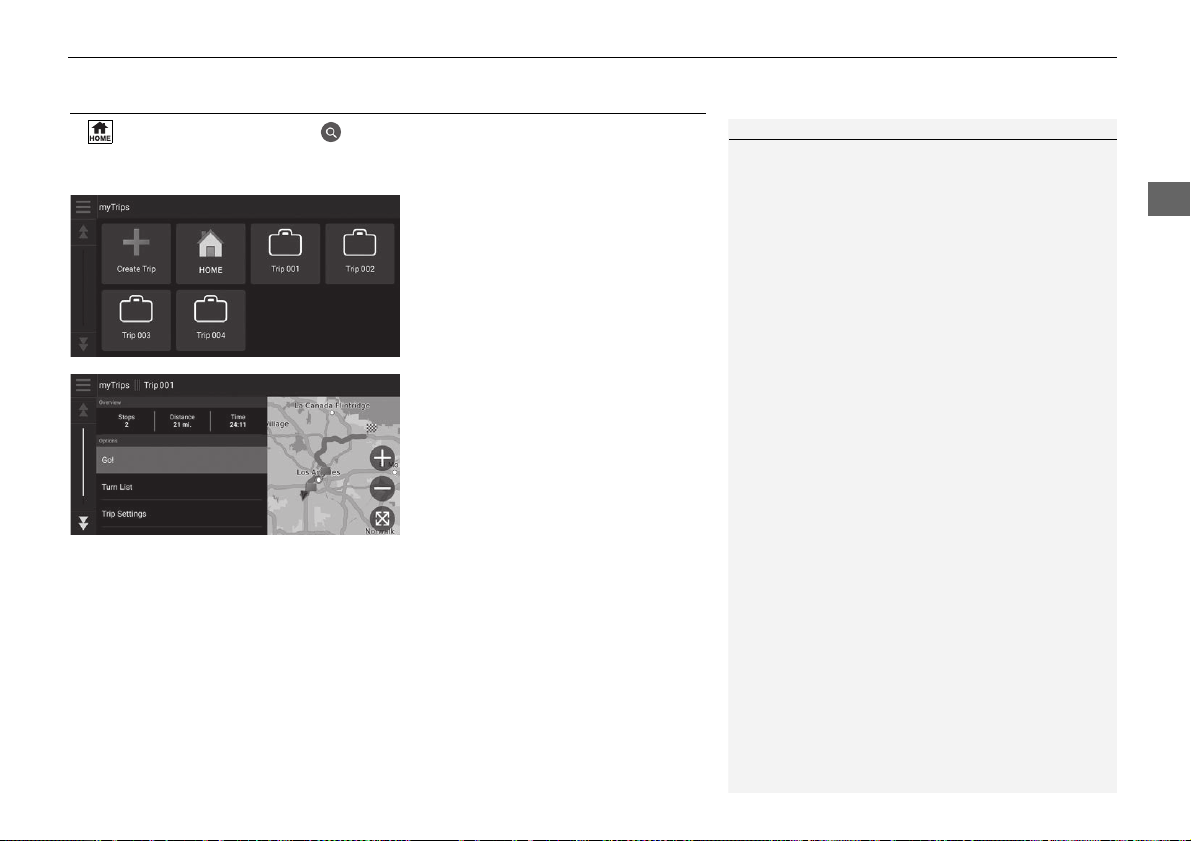
Set the route to your destination selecting a saved trip.
1. Select a trip.
2. Select Go! to set the route to your
destination.
u Select Turn List to display turn-
by-turn instructions and
information for each turn.
1 myTrips
You can create, edit, or delete trips.
2 Saved Trips P. 26
70
uuEntering a DestinationumyTrends
TM
Navigation
myTrends
TM
H (Home) u Navigation uumyTrends
TM
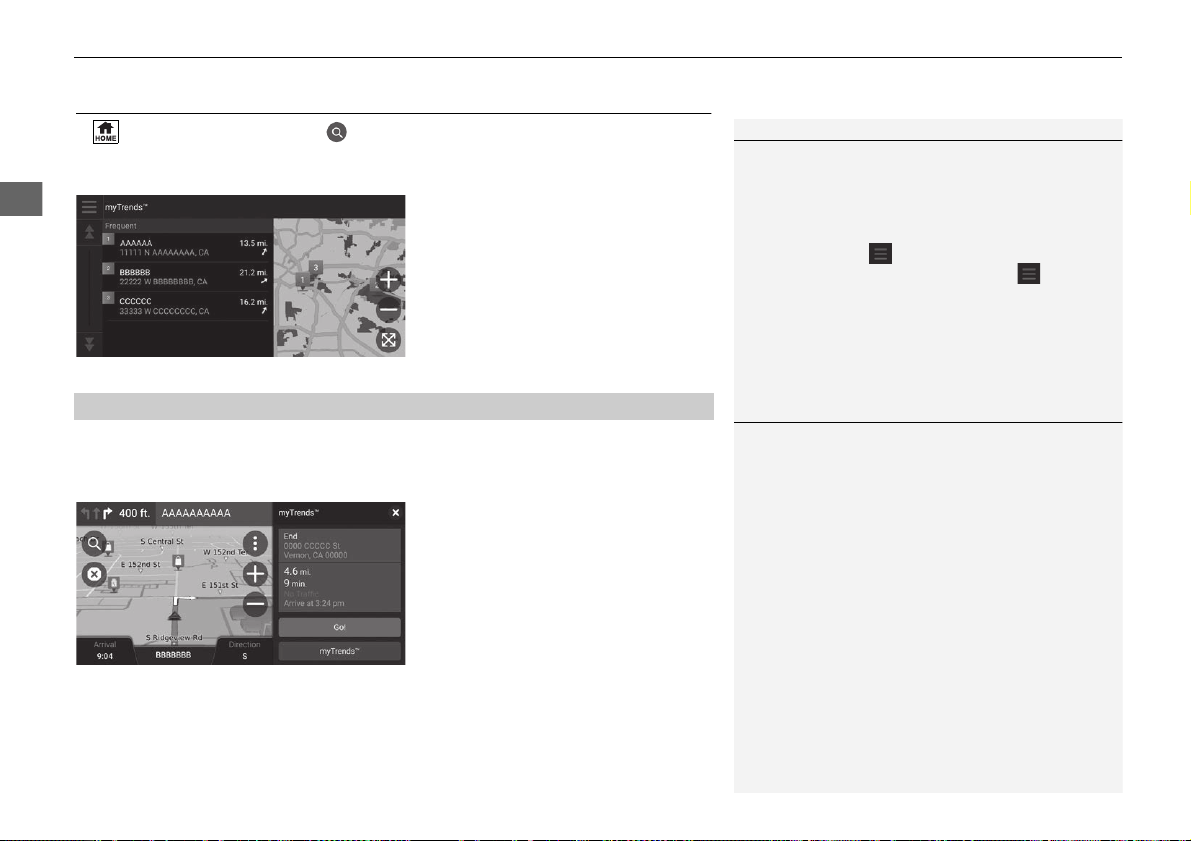
Select a frequently-visited place to use as the destination.
1. Select your destination from the
list.
2. Select Go! to set the route to your
destination.
2 Calculating the Route P. 72
When you start the vehicle, the system predicts the most-likely destination based on
your travel data. It displays the notification window to offer the destination and
show related information.
Select Go! to accept the predicted
destination.
1 myTrends
TM
Set Travel Data Recording to On to use myTrends
feature.
2 Location History P. 49
You can delete myTrends location. Select the location
to remove, select and then select Remove.
To delete all myTrends locations, select without
selecting any location and then select Remove All in
the myTrends list screen.
■
Predicted Destination
1 Predicted Destination
To use this feature, set Predicted Destination Alert
to On.
2 Location History P. 49
The notification will be queued in the queue indicator
after a certain period of time. Select the indicator to
display the predicted destination.
71
uuEntering a DestinationuMap Input
Navigation
Map Input
H (Home) u Navigation
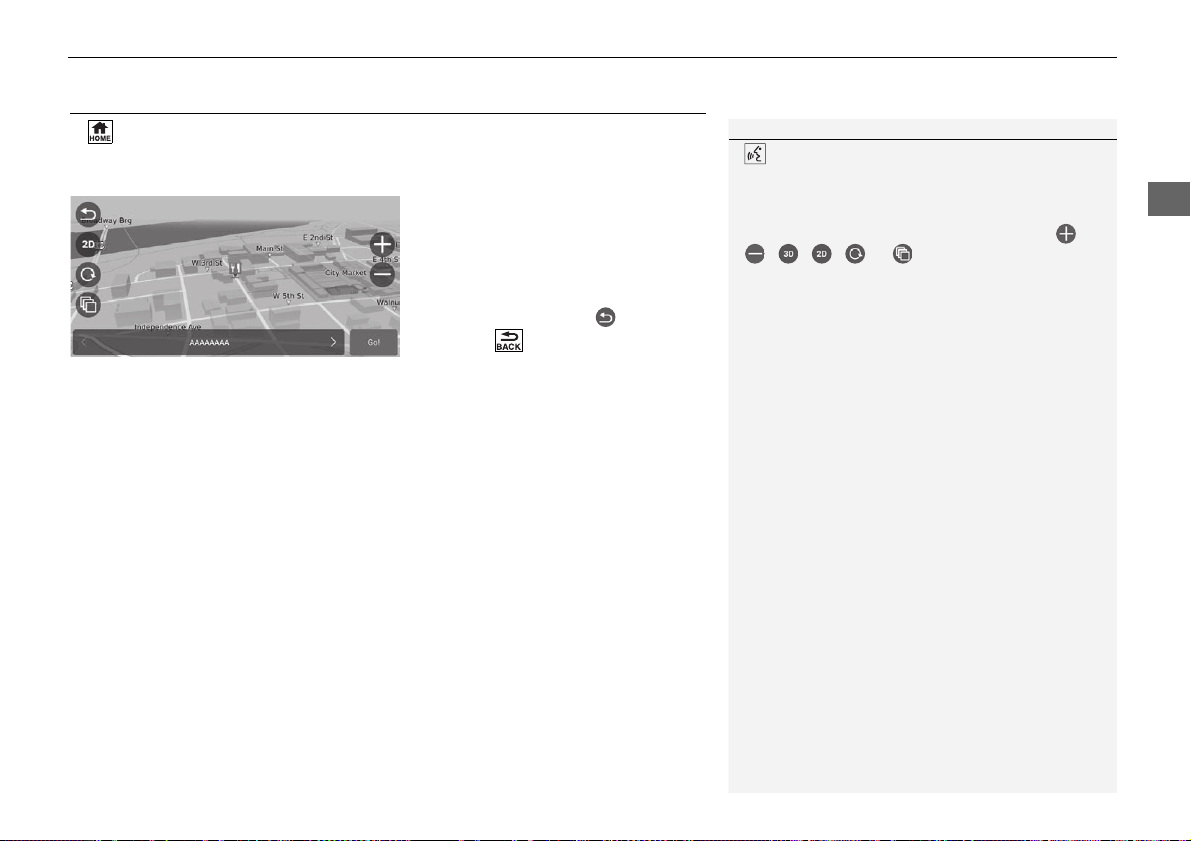
Scroll the map to manually select an icon or a location as the destination.
1. Tap on the map screen and then
select any point on the map, a
street, intersection, or category
icon.
u Return to the current location
when you select or press
the (Back) button twice.
2. Select Go! to set the route to your
destination.
2 Calculating the Route P. 72
1 Map Input
“Show Map”
2 Using Voice Commands P. 5
2 Voice Control Operation P. 11
You can customize the map as you like using ,
, , , or .
2 Map Operation P. 82
72
Navigation
Calculating the Route
This section describes how to calculate your route.
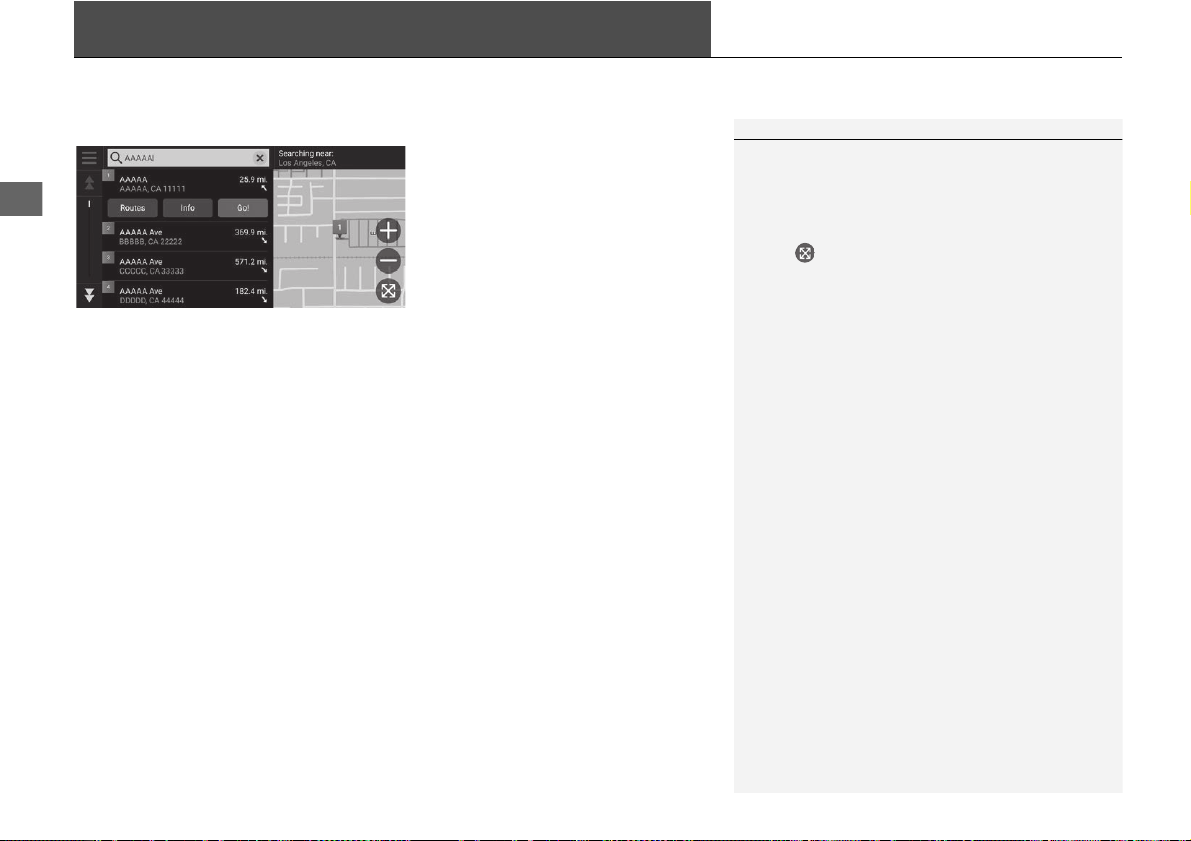
Select Go!.
u The system calculates and displays
the route line on the map screen.
The following options are available:
• Explore This Venue: Displays a list of all POIs within the venue.
This option is available for some multiple facilities, such as hospitals or shopping
centers.
• Routes: Displays different routes.
2 Viewing and Selecting the Routes P. 73
• Info: Displays detailed location information.
2 Viewing the Location Information P. 74
1 Calculating the Route
If the route is very long, the system will calculate the
route to the first guidance point and start the
guidance. The system will then continue calculation
to final destination as you proceed.
Select to view the map with the location
centered.
73
uuCalculating the RouteuViewing and Selecting the Routes
Navigation
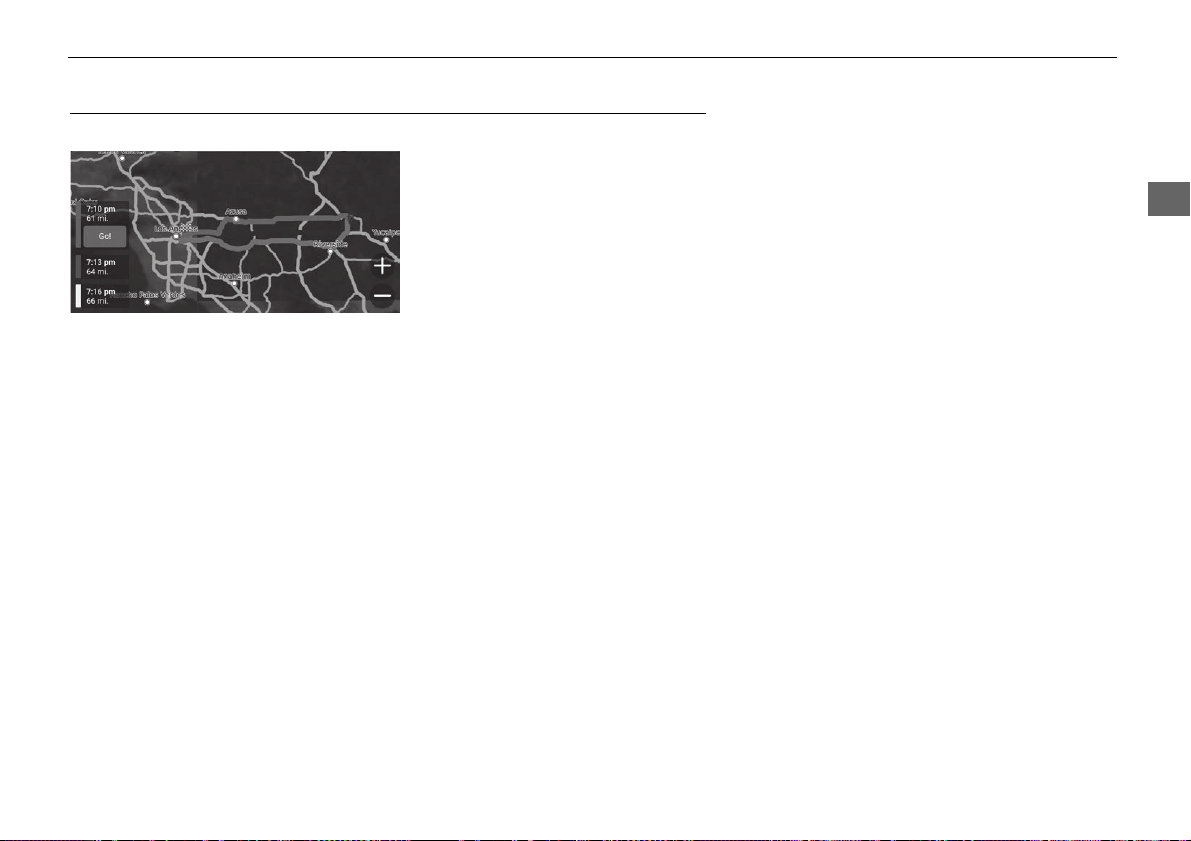
Viewing and Selecting the Routes
View and select different routes to your destination.
1. Select your desired route.
u The estimated arrival time and
travel distance are displayed for
each route.
2. Select Go!.
u The system calculates and
displays the route line on the
map screen.
74
uuCalculating the RouteuViewing the Location Information
Navigation
Viewing the Location Information
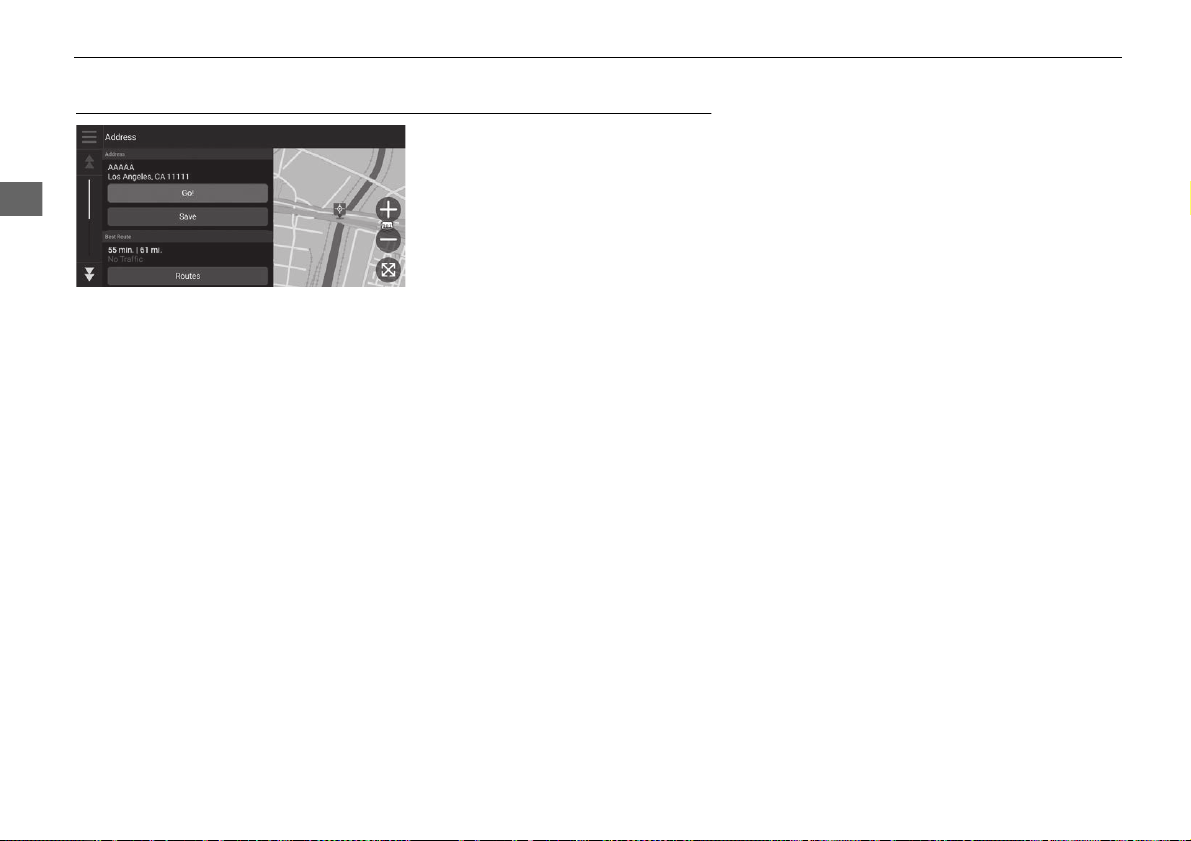
1. Select an option.
2. Select Go!.
u The system calculates and
displays the route line on the
map screen.
The following options are available:
• Save: Adds the destination to the saved location list.
2 Saved Locations P. 19
• Set Location: Sets the vehicle position when you are indoors or not receiving
satellite signals.
You can use this feature when GPS Simulator is set to on.
2 Navigation P. 40
• Routes: Displays different routes to the destination.
2 Viewing and Selecting the Routes P. 73
• Route Settings: Changes the route preferences.
2 Navigation P. 40
75
Continued
Navigation
Driving to Your Destination
Viewing the Route
This section describes how to follow the route guidance to your destination.
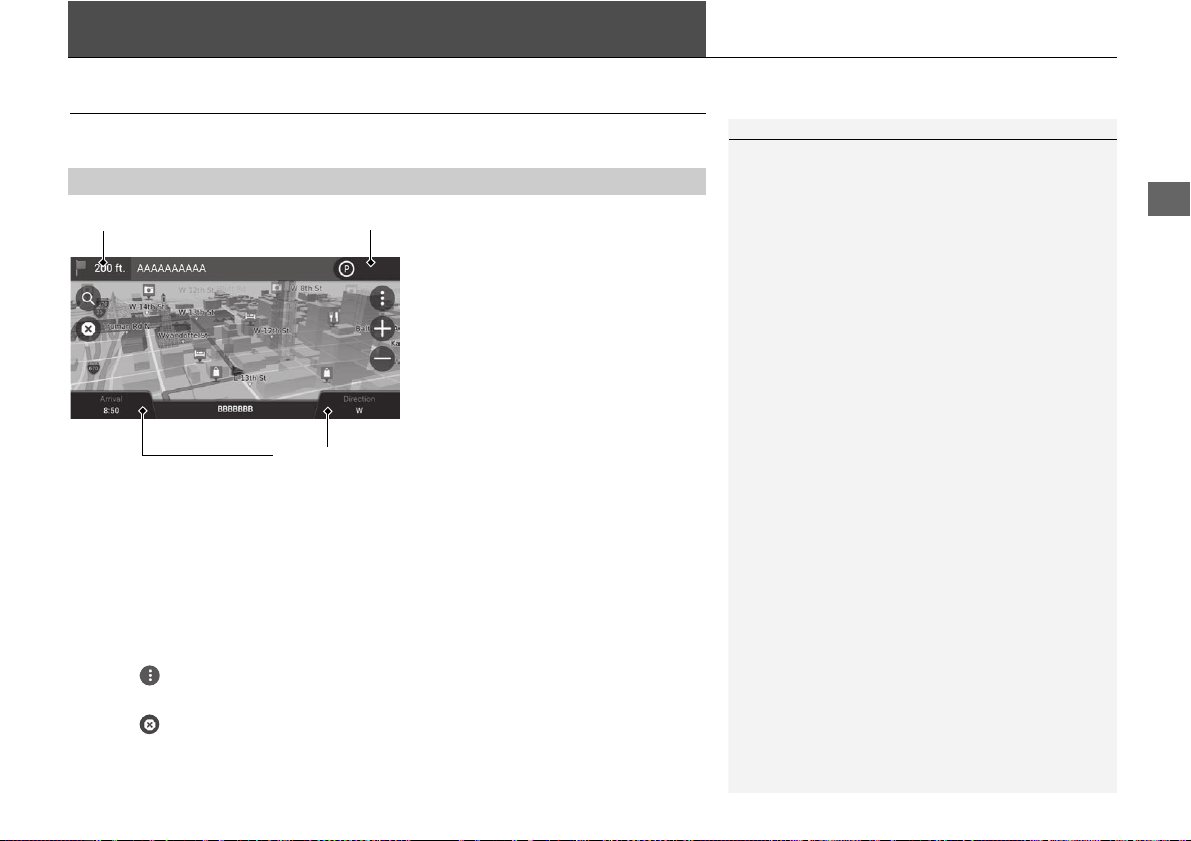
After calculating the route to your
destination, the route is displayed on
the map screen.
2 During Route Guidance P. 7
As you drive, the system tracks your
position on the map in real time and
provides guidance as you approach
each guidance point on the route.
The following options are available:
• Select the next guidance indicator to replay the voice guidance for the next
maneuver.
• Select the text bar on the top of the map to display the turn list screen.
2 Turn List Screen P. 77
• Select the queue indicator to display queued notifications.
2 Alert and Notification Banners P. 78
• Select to display the map tools window.
2 Map Tools P. 83
• Select to cancel the route guidance and remove your current route.
2 Canceling Your Route P. 10
■
Map Screen
1 Viewing the Route
When your phone is connected to Bluetooth®
HandsFreeLink®, the navigation screen will switch to
the incoming call screen when receiving a call.
Select the vehicle icon to view the Where Am I?
screen.
2 Viewing the Current Location Information
P. 87
You can stop your vehicle en route (e.g., to rest, stop
for gas, etc.), and then continue on your route.
If you did not complete your route, the navigation
restarts when you restart your vehicle.
When LaneWatch is activated, the navigation screen
will switch to the LaneWatch screen.
The next guidance indicator does not appear in the
following cases.
•
The vehicle speed is 3 mph (4.8 km/h) or less
•
The GPS signal is weak
•
The vehicle position on the map and current vehicle
position do not match
Next guidance indicator
Dashboards
Queue indicator
uuDriving to Your DestinationuViewing the Route
76
Navigation
• Select the map dashboards when you want to change the information that is
displayed. Select the following options:
Elevation, Direction, Location, Arrival, Distance, Arrive In, Via Arrival, Via
Distance, Via In.
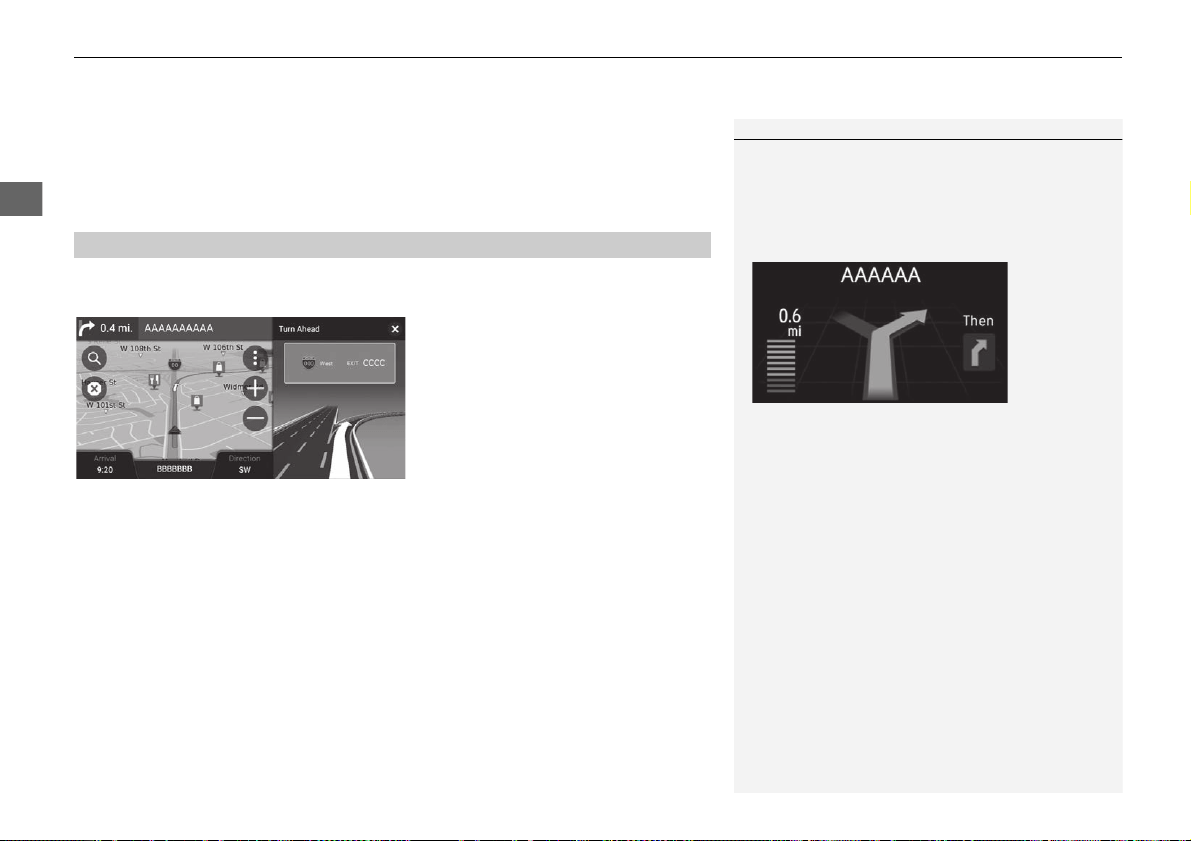
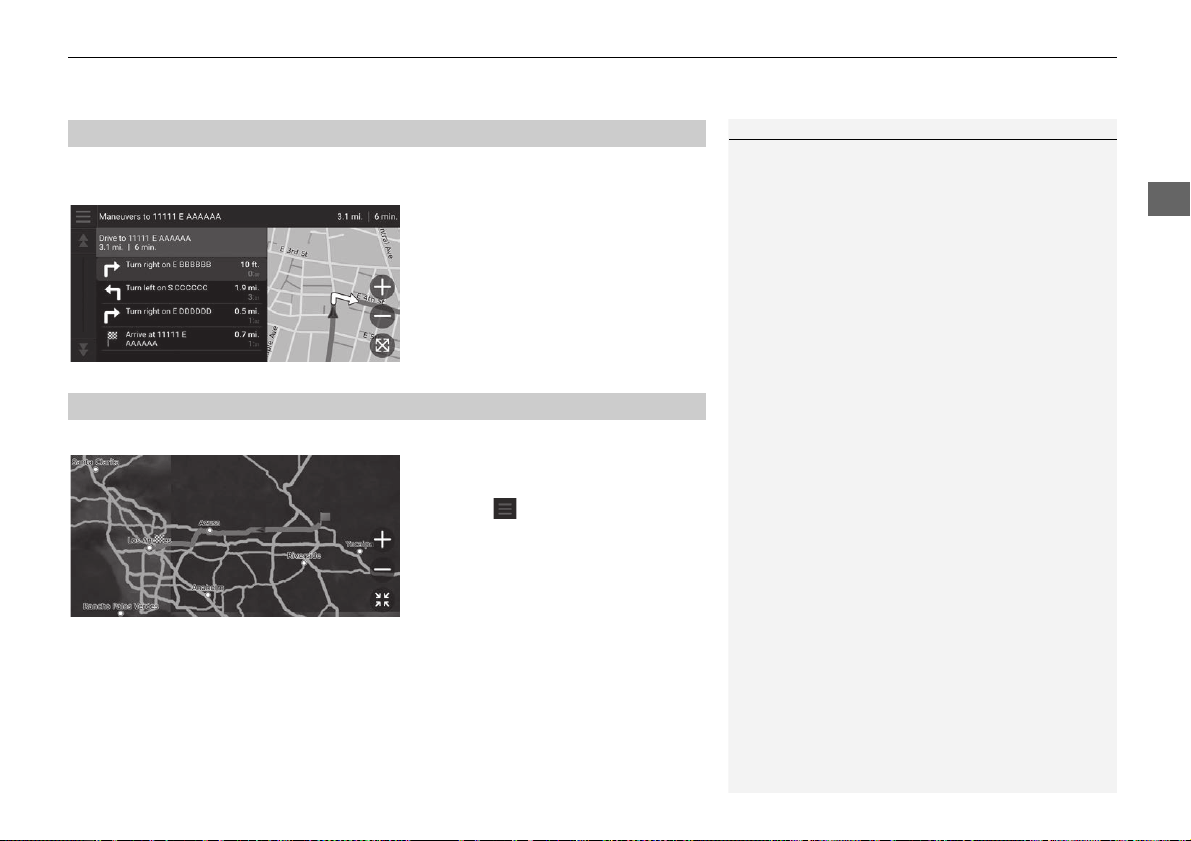
The intersection view screen displays a view of the upcoming intersection and which
lane you should be driving.
■
Intersection View Screen
1 Viewing the Route
Turn-by-Turn Directions
The next guidance point appears on the Driver
Information Interface.
The Turn-by-Turn directions may not be displayed if
the information cannot be received correctly.
Continued
77
uuDriving to Your DestinationuViewing the Route
Navigation
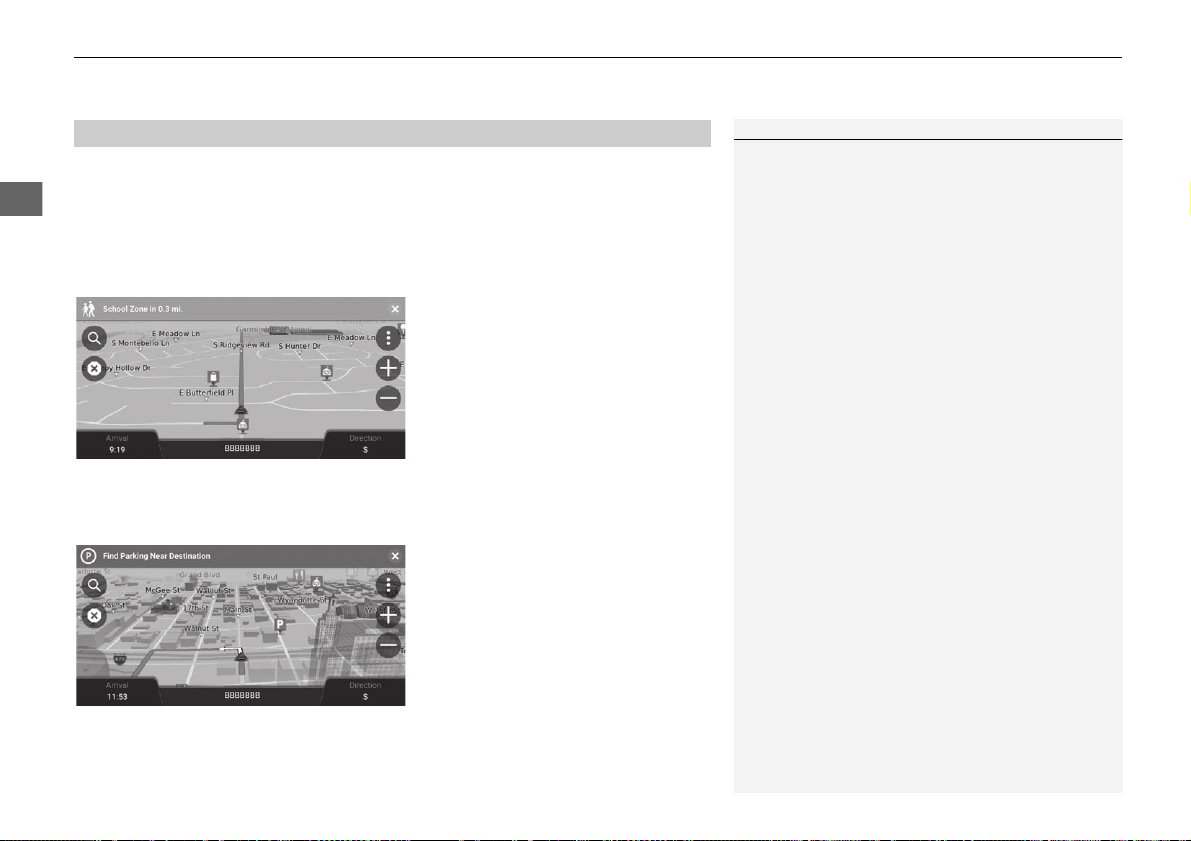
The turn list screen displays turn-by-turn instructions and the distance between
turns.
1. Select the text bar on the top of
the map.
2. Select a turn to display on the
map.
The full route screen displays the entire route and current vehicle position.
1. Select the text bar on the top of
the map.
2. Select .
3. Select View Full Route.
■
Turn List Screen
1 Turn List Screen
When you are on the multi-destination route, the list
is separated for each route leg. You can skip from the
current route leg to another route leg by selecting
Go! displayed on the top of each route leg.
■
Full Route Screen
uuDriving to Your DestinationuViewing the Route
78
Navigation
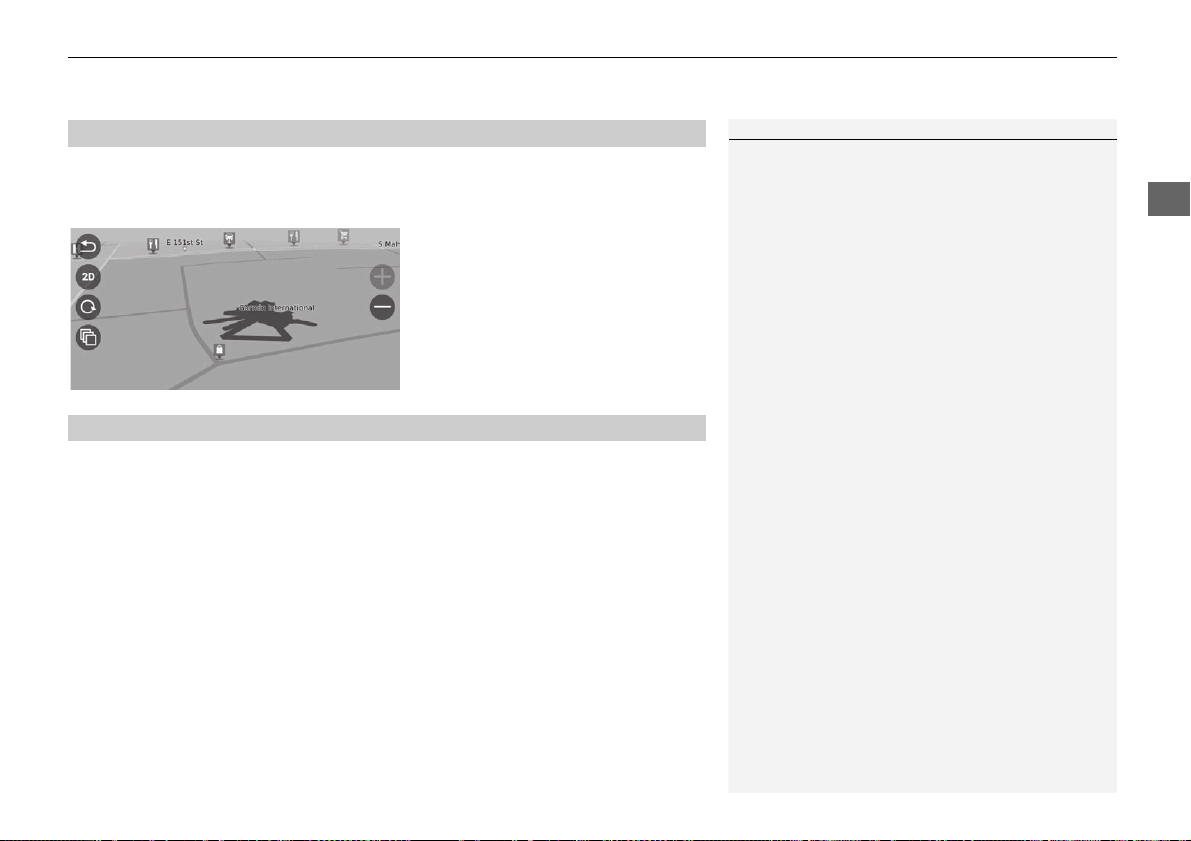
The slide-in banner appears on the top of the map screen when the system provides
an alert or notification.
■ School Zone Proximity Alert
A proximity alert for school zone is displayed when the system receives the
information.
Select the banner to display the
distance to the alert point, speed
limit, and map preview with the alert
point centered.
■ Parking Reminder Notification
A parking reminder notification is displayed when you approach your destination.
Select the banner to display the list of
parking near the destination.
■
Alert and Notification Banners
1 Alert and Notification Banners
After a certain time of period, the alert or notification
is queued in the queue indicator.
You can view the alert or notification again by
selecting the queue indicator.
If the notifications center window is displayed, select
the notification from the list.
79
uuDriving to Your DestinationuViewing the Route
Navigation
If you set the off-road breadcrumbs to show, a series of lines (breadcrumbs) are
displayed to track your movement on a off-road.
2 Map Layer P. 37
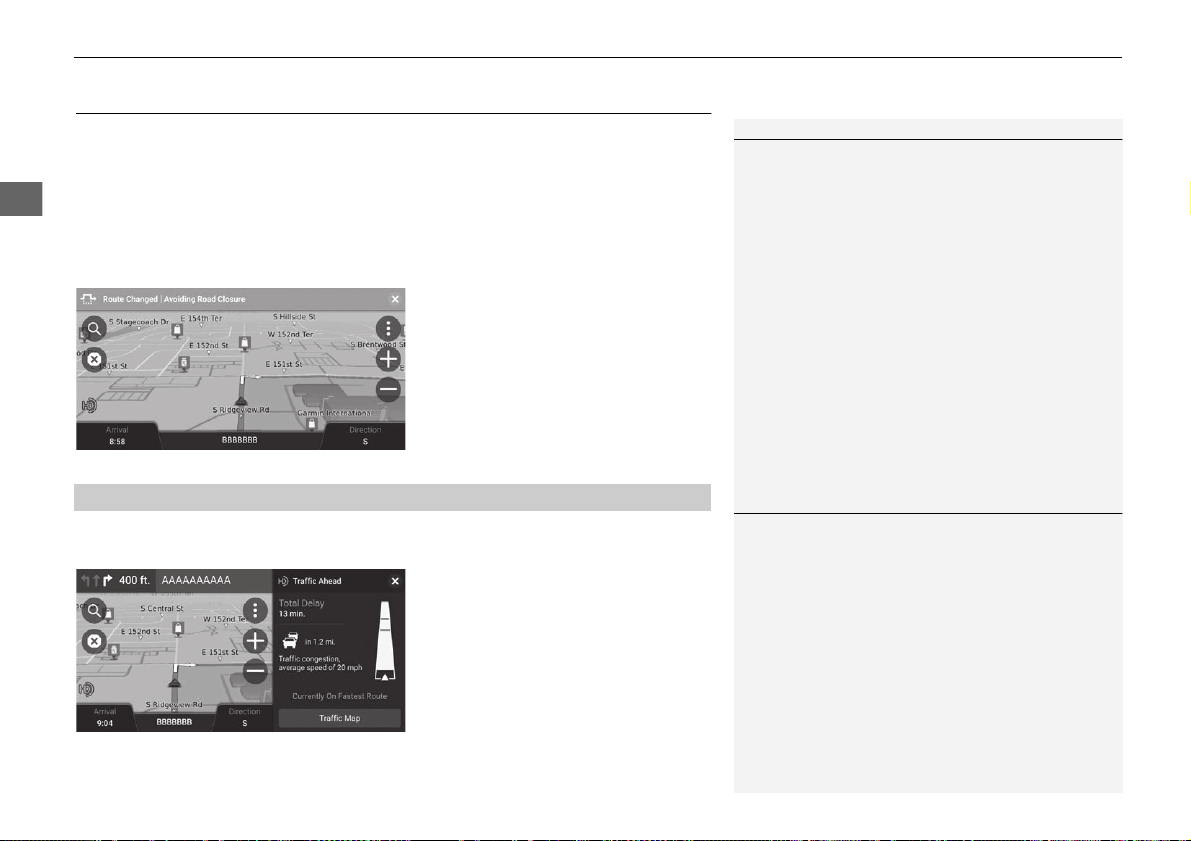
If you leave the calculated route, the system automatically recalculates a route to the
set destination based on your current location and direction.
If your vehicle is off a road segment, the system shows a dotted line indicating the
direction back to the calculated route.
■
Off-Road Breadcrumbs Display
1 Off-Road Breadcrumbs Display
You can delete the off-road breadcrumbs.
2 Location History P. 49
2 Reset Factory Default Settings P. 51
■
Deviating From the Planned Route
80
uuDriving to Your DestinationuTraffic Information
Navigation
Traffic Information
When you set the traffic feature, the system examines traffic conditions and
optimizes the route for the shortest time. If a severe traffic delay occurs while you
are navigating, the system searches for a faster route. If it finds one, the system will
automatically alter the route and display the reroute notification banner on the map
screen.
The system may route you through a traffic delay if a better alternative route does
not exist. The delay time is added into your estimated time of arrival automatically.
Select the reroute notification banner
to view the saved time and avoided
traffic events.
u Select Use Original Route to use
the original route.
The traffic alert window is displayed on the map screen when traffic may cause a
delay.
Select the window to view detailed
information and the map.
1 Traffic Information
Continuously updated traffic information is available
in major metropolitan areas across contiguous United
States and some cities in Canada.
You can change the traffic information settings.
2 Traffic P. 48
■
Viewing Traffic Alert
1 Viewing Traffic Alert
The notification will be queued in the queue indicator
after a certain period of time. Select the indicator to
display the notification again.
81
uuDriving to Your DestinationuTraffic Information
Navigation
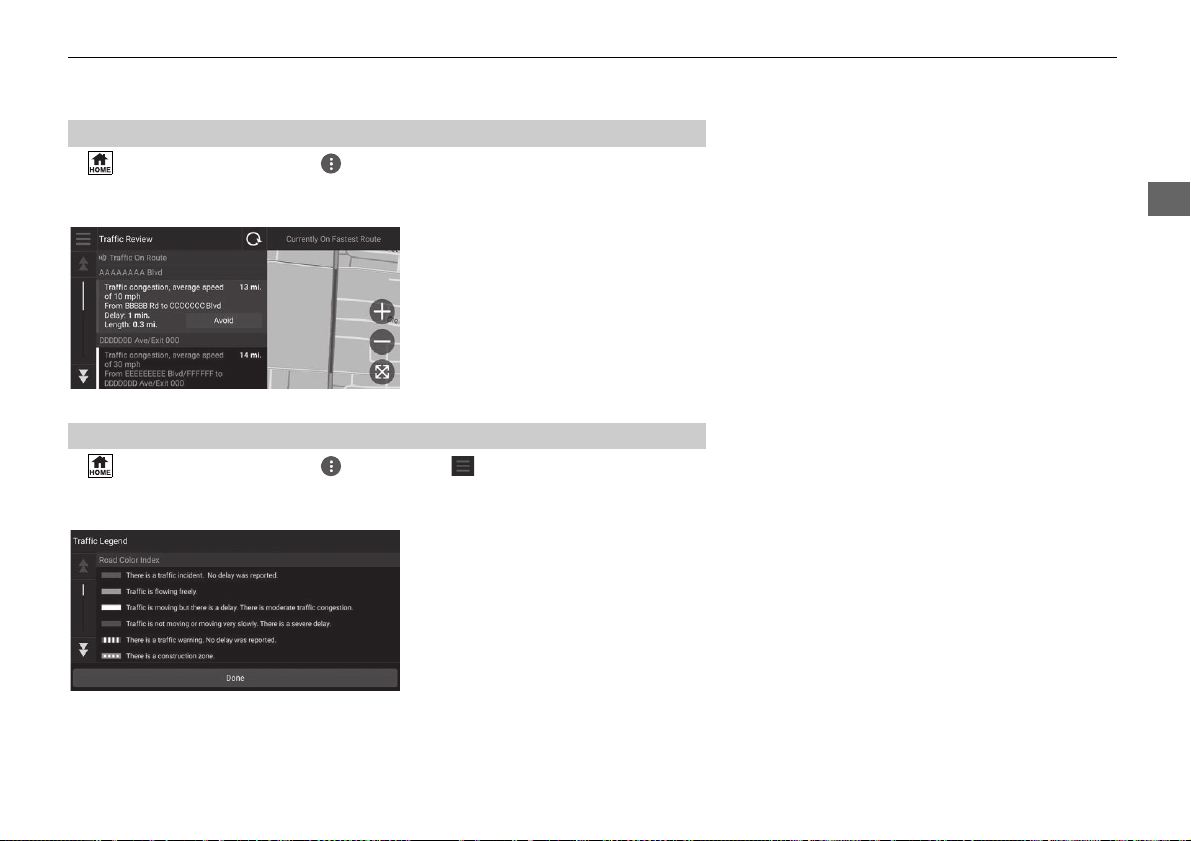
H (Home) u Navigation uuTraffic
View the traffic flow and delays on nearby roads.
Select the traffic information window
to view detailed information and
map.
H (Home) u Navigation uuTraffic uuTraffic Legend
See an overview of the icons and colors used on the traffic map.
The system displays the traffic
legend.
■
Viewing Traffic Delays Manually
■
Viewing Traffic Legends
82
Navigation
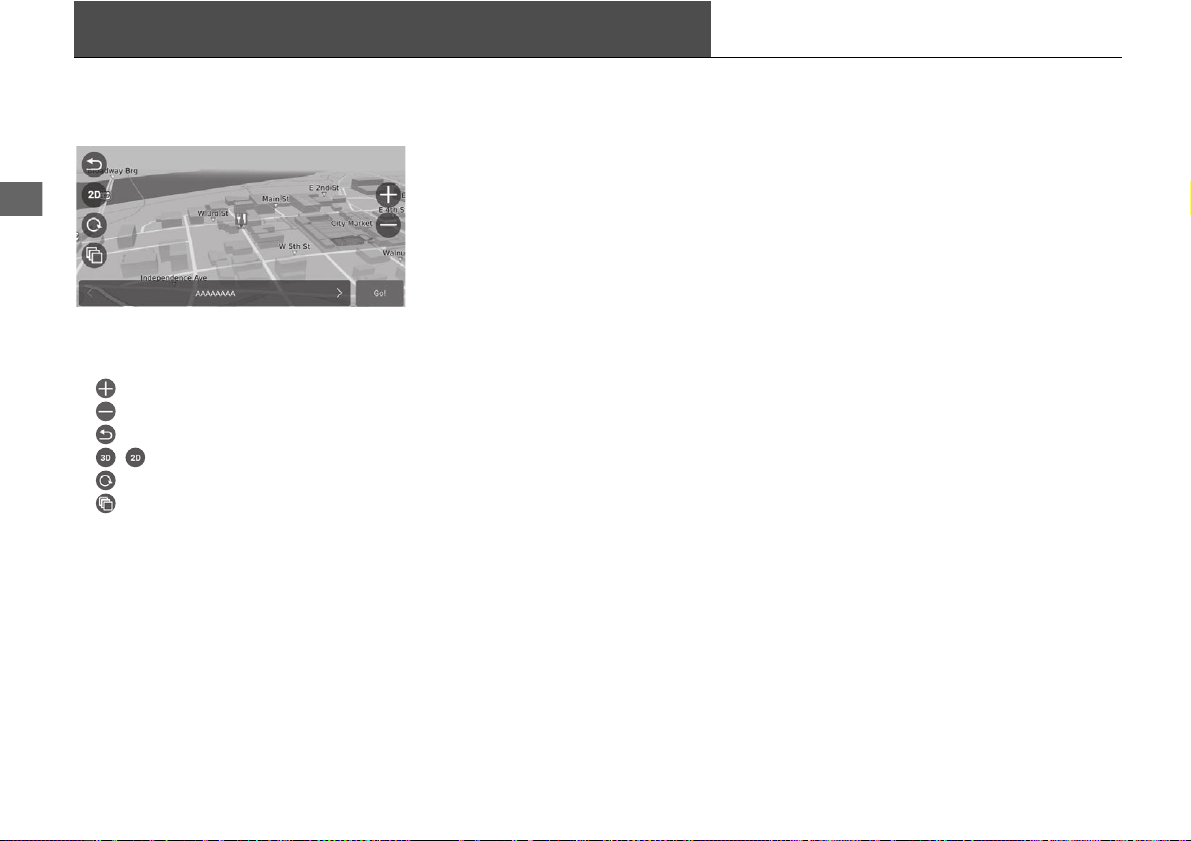
Map Operation
Customize the map, set a destination, and save a place from the map.
1. Select any point on the map.
2. Select an option.
u If you want to set a destination
or save a location in the map,
scroll the map and select the
desired location.
2 Saving a Location Manually
P. 20
2 Map Input P. 71
The following options are available:
• : Zooms in to an area.
• : Zooms out of an area.
• : Returns you to your current position.
• / : Switches the view from 2D to 3D or vice versa.
• : Rotates the map in 3D view.
• : Sets the data that appears on the map.
2 Map Layer P. 37
83
uuMap OperationuMap Tools
Continued
Navigation
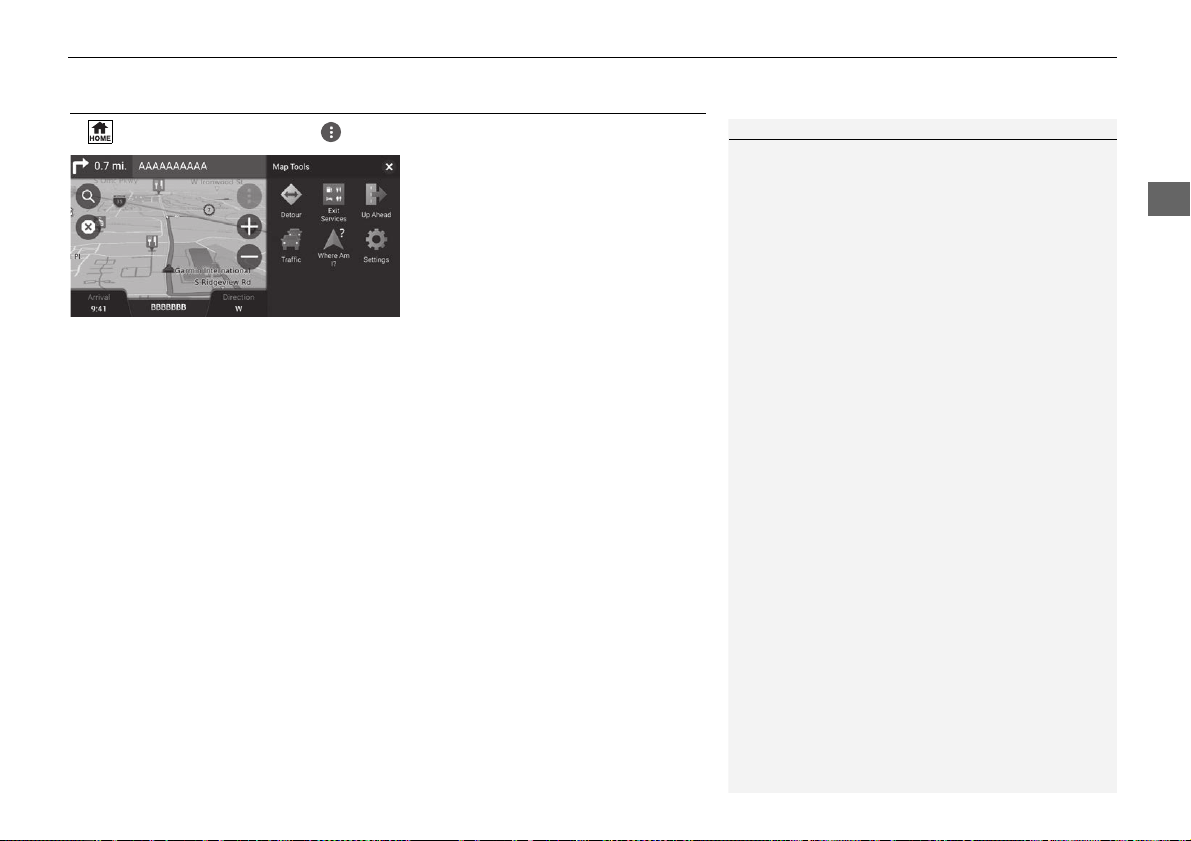
Map Tools
H (Home) u Navigation u
Select an option.
The following options are available:
• Detour: Calculates a detour route.
2 Taking a Detour P. 89
• Exit Services: Displays a list of the exit services for the route.
2 Viewing Exit Services P. 84
• Up Ahead: Displays the list of upcoming services along the road where you are
travelling.
2 Viewing Services Up Ahead P. 85
• Traffic: Displays traffic information.
2 Traffic Information P. 80
• Where Am I?: Displays the information about your current location.
2 Viewing the Current Location Information P. 87
• Settings: Changes settings for navigation functions.
2 System Setup P. 15
1 Map Tools
You can rearrange the order of menu icons.
Select and hold the icon and move it to the desired
position.
uuMap OperationuMap Tools
84
Navigation
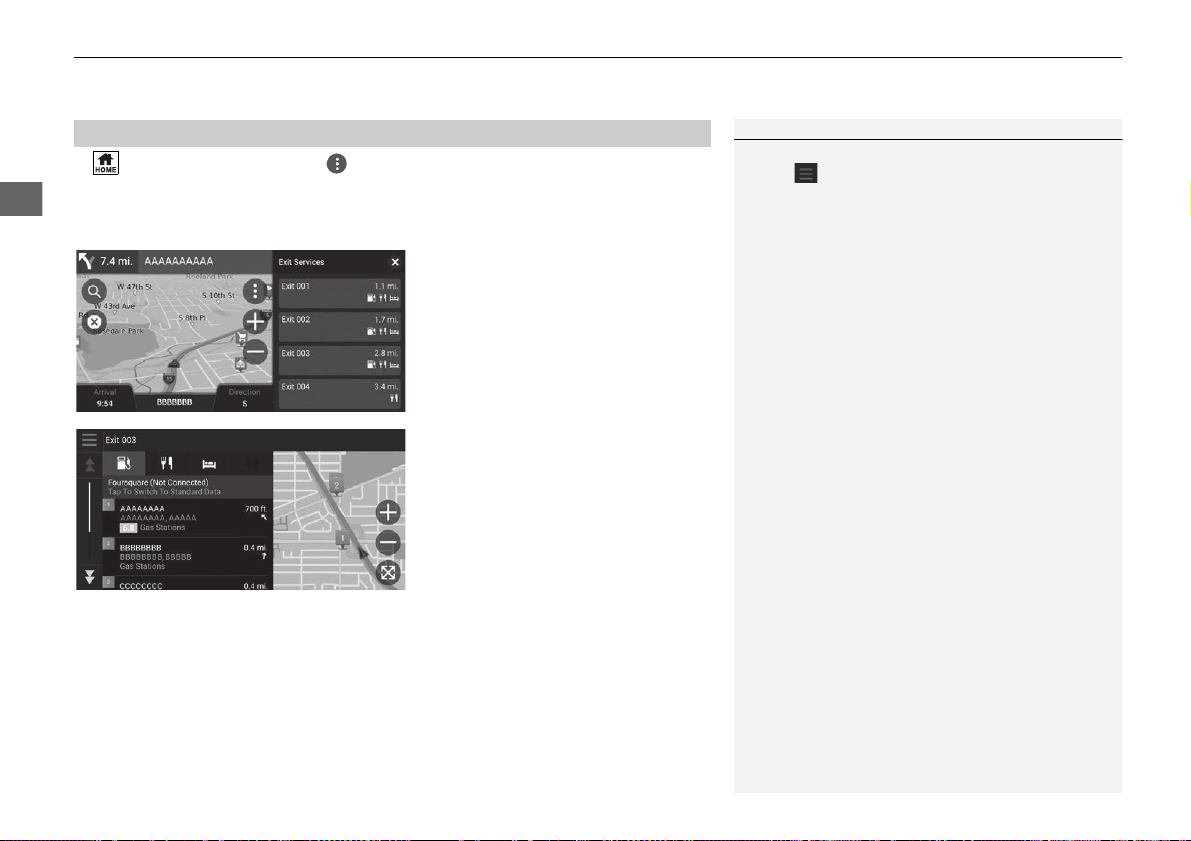
H (Home) u Navigation uuExit Services
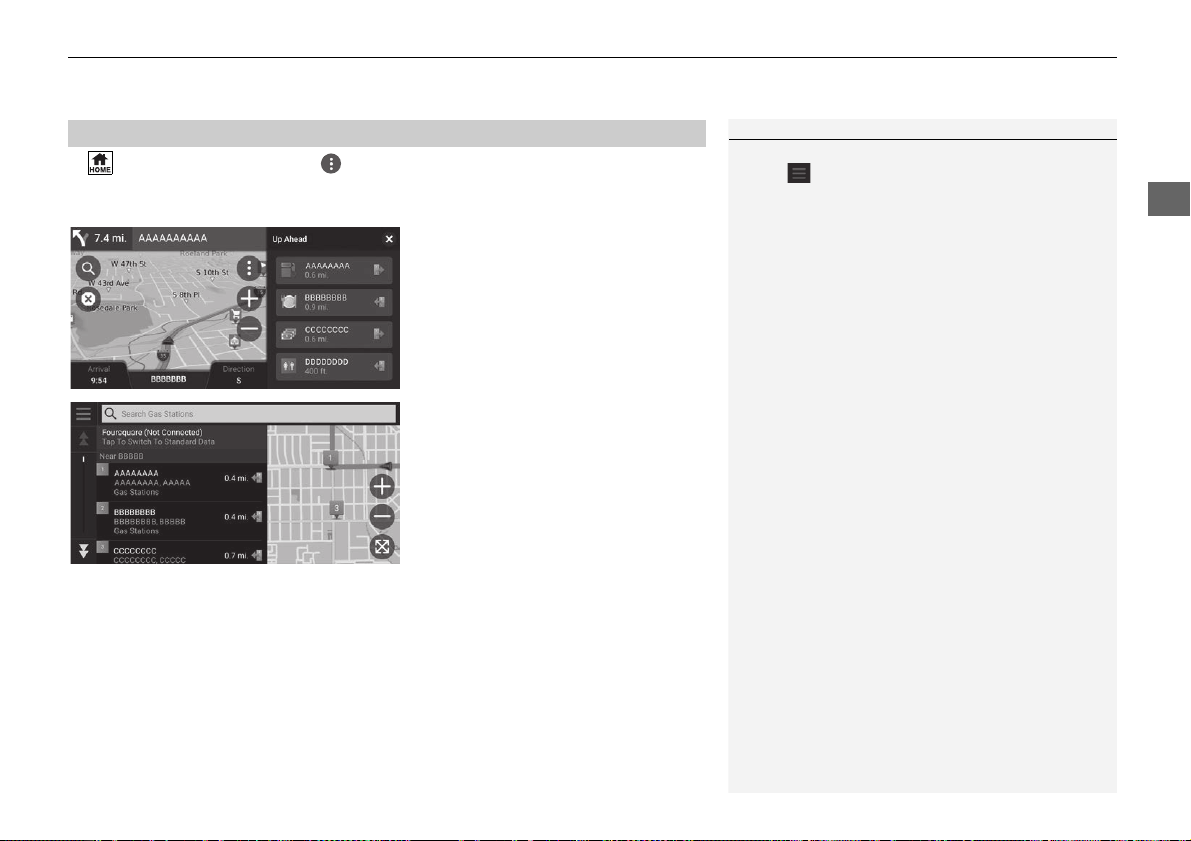
You can view exit services (e.g., whether the exit is near gas stations, restaurants,
etc.) and add new destinations or waypoints to the calculated route.
1. Select an exit.
2. Select a category.
3. Select a service.
4. Select an option.
2 Calculating the Route P. 72
2 Adding Waypoints P. 90
■
Viewing Exit Services
1 Viewing Exit Services
You can change the search provider and sort settings.
Select , select Search Provider Settings and
then select an option.
Continued
85
uuMap OperationuMap Tools
Navigation
H (Home) u Navigation uuUp Ahead
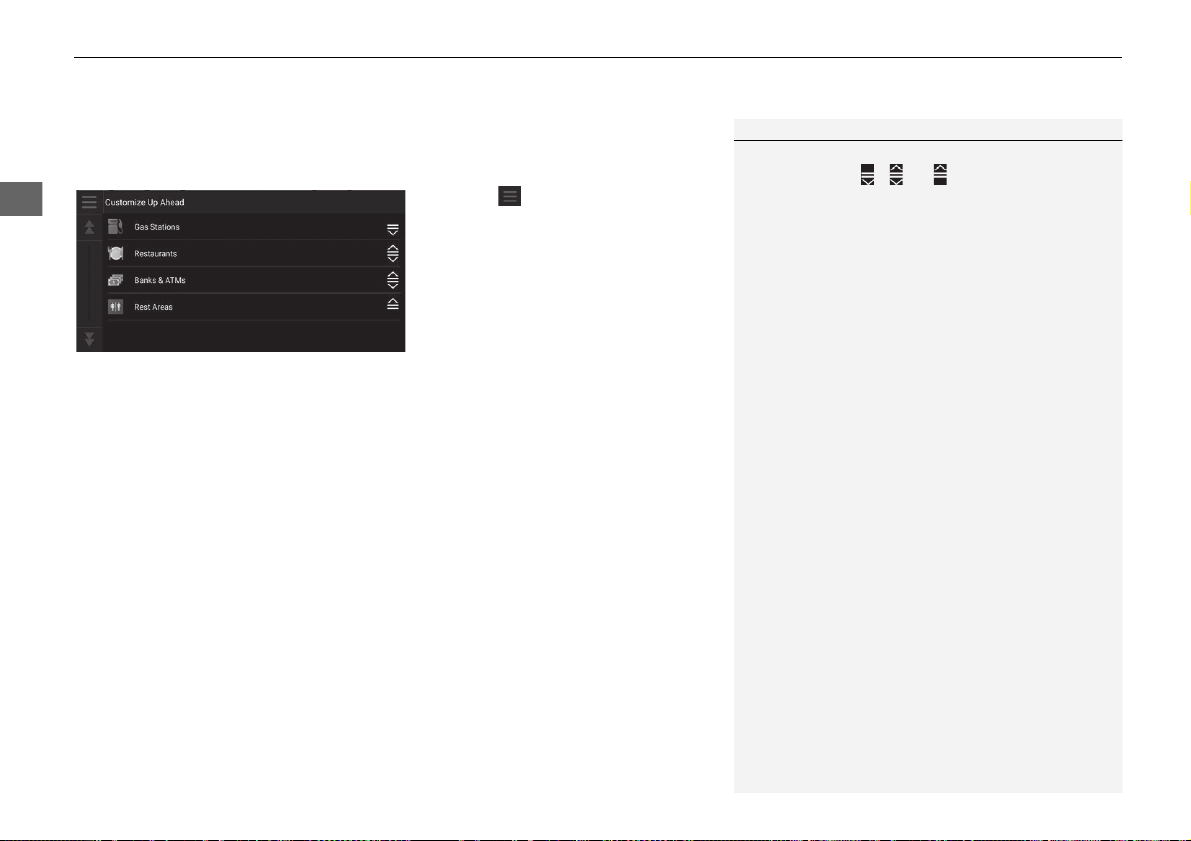
You can view the list of upcoming services along the road where you are travelling.
1. Select a category.
2. Select a service from the list.
3. Select an option.
2 Calculating the Route P. 72
2 Adding Waypoints P. 90
■
Viewing Services Up Ahead
1 Viewing Services Up Ahead
You can change the search provider and sort settings.
Select in the service list screen, select Search
Provider Settings and then select an option.
uuMap OperationuMap Tools
86
Navigation
■ Customizing the Up Ahead Categories
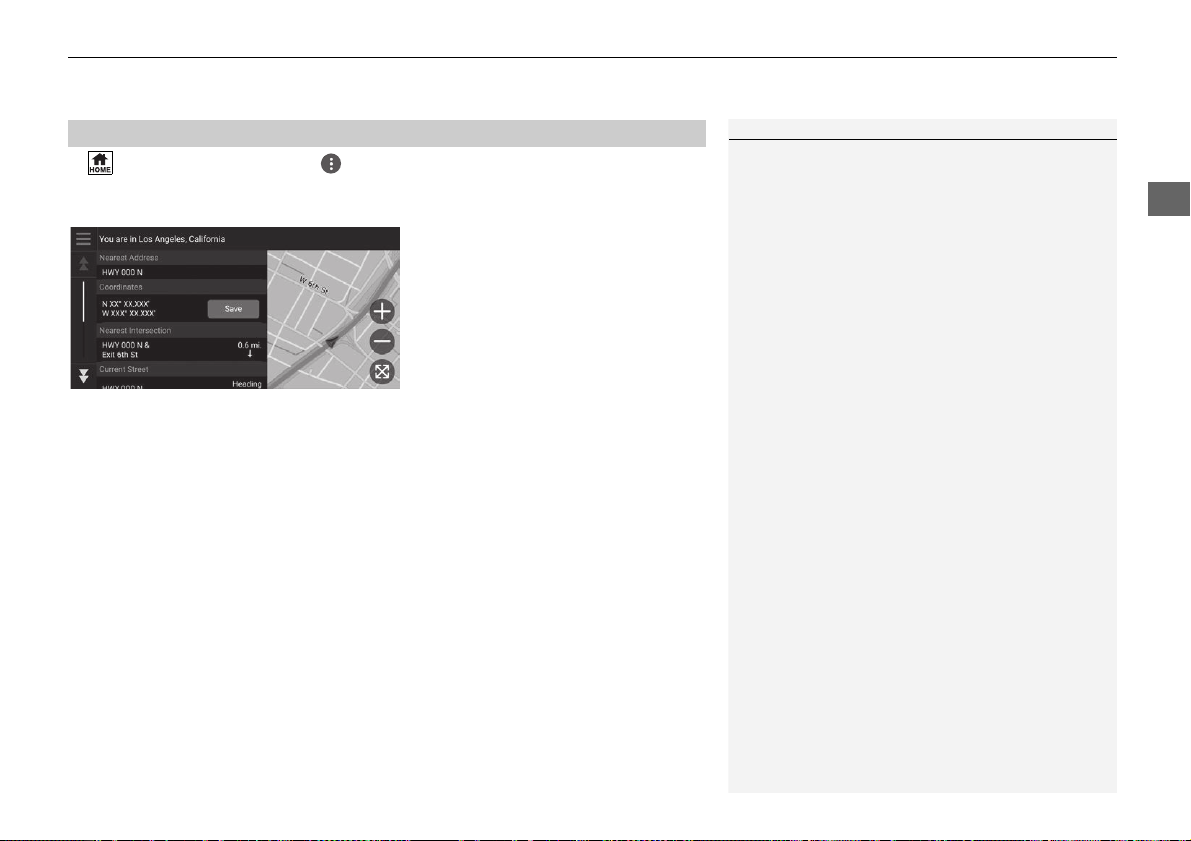
You can change the category to display.
1. Select in the service list screen.
2. Select Up Ahead Options.
3. Select the category to change.
4. Select a category to display.
u Select a subcategory if
necessary.
u Select Custom Search, and
enter the category to create a
custom category.
1 Customizing the Up Ahead Categories
You can change the order of categories.
Select and hold , or and then move the
category to the desired position.
87
uuMap OperationuMap Tools
Navigation
H (Home) u Navigation uuWhere Am I?
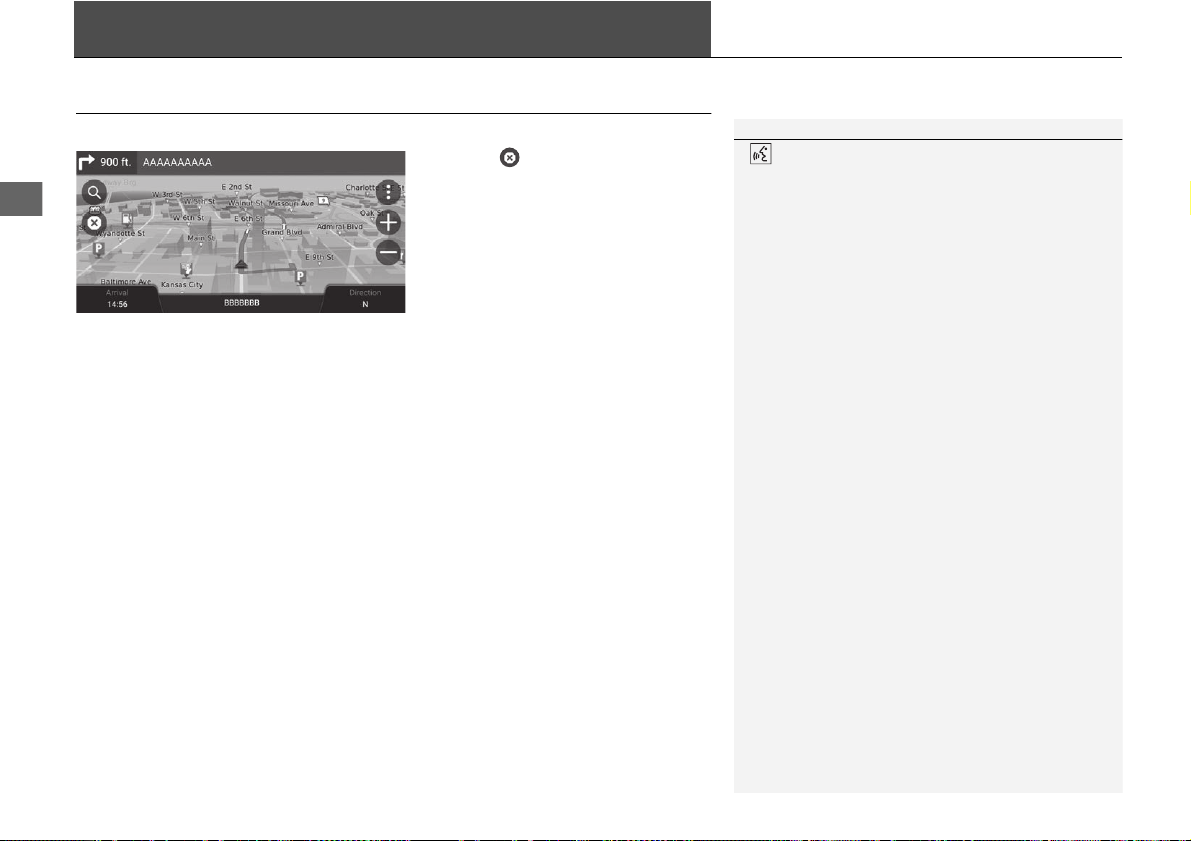
You can confirm your current location, address, and nearest intersection.
Select an option.
The following options are available:
• Save: Saves your current location.
2 Saving Your Current Location P. 21
• Hospitals/Police Stations/Gas Stations/Tow Services: Searches for a hospital,
police station, gas station or tow service around your current location.
2 Searching Near Establishment P. 95
■
Viewing the Current Location Information
1 Viewing the Current Location Information
Vehicle position may not be displayed when:
•
The vehicle is traveling off-road.
•
The vehicle position data cannot be updated.
When you deviated from the planned route, the
closest route-able road is also displayed.
89
uuChanging Your RouteuTaking a Detour
Navigation
Taking a Detour
H (Home) u Navigation uuDetour (when en route)
Calculates a new route to avoid something ahead of you. The system creates a new
route if possible. The system attempts to get you back on your original route as
quickly as possible.
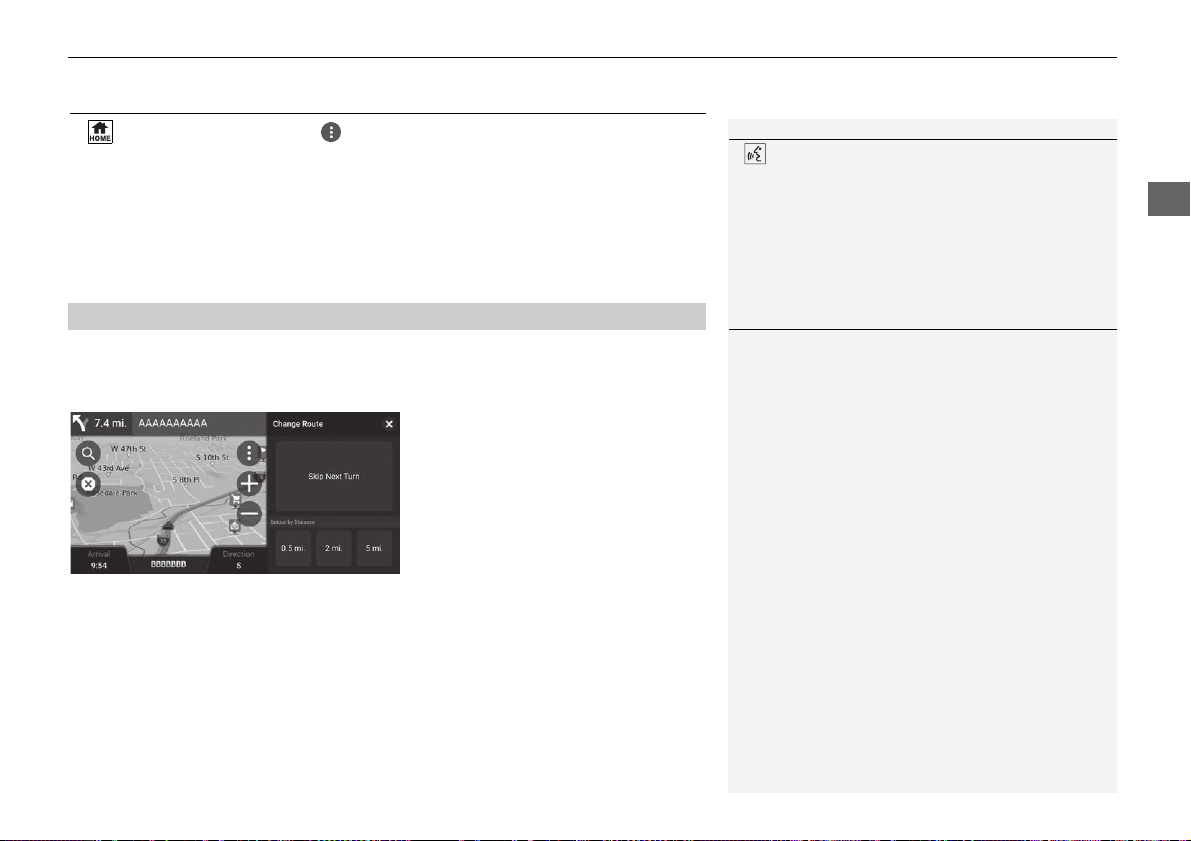
You can take a detour for a specified distance along your route or detour around
specific roads. This is useful if you encounter construction zones, closed roads, or
poor road conditions.
Select an option.
The following options are available:
• Skip Next Turn: Calculates a new route by avoiding the next turn on your route.
• 0.5 mi.: Calculates a new route by avoiding the next 0.5 mile on your route.
• 2 mi.: Calculates a new route by avoiding the next 2 miles on your route.
• 5 mi.: Calculates a new route by avoiding the next 5 miles on your route.
■
Taking a Detour Around Specified Areas
1 Taking a Detour
“Detour”
2 Using Voice Commands P. 5
2 Voice Control Operation P. 11
If your current route is the only reasonable option,
the system might not calculate a detour.
1 Taking a Detour Around Specified Areas
Skip Next Destination
Calculates a new route by skipping the next
waypoint.
This option is available when you are in the route
with multiple destinations.
90
uuChanging Your RouteuAdding Waypoints
Navigation
Adding Waypoints
Add waypoints (pit stops) along the route to your destination.
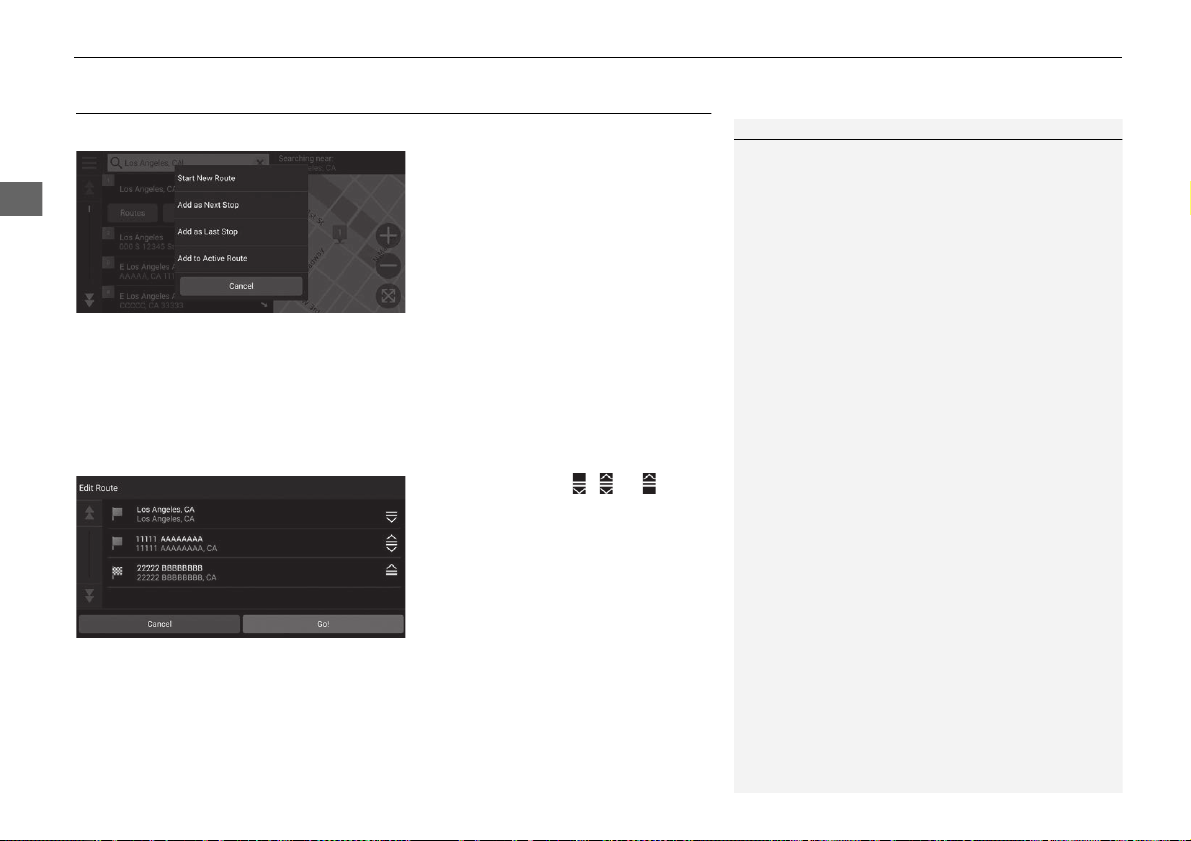
1. While en route, select a search
method to add a new destination
or waypoint.
2 Entering a Destination P. 54
2. Select a place. Select Go!.
3. Select Add as Next Stop or Add
to Active Route.
u Select Add as Next Stop to set
the location as your next
waypoint. The route is
automatically recalculated and
displayed on the map screen.
u If selecting Add to Active
Route, proceed to steps 4 and 5.
4. Select and hold , or and
then move the destination to the
desired position.
5. Select Go!.
u The route is automatically
recalculated and displayed on
the map screen.
1 Adding Waypoints
When you add a waypoint, the system may take
some time to update the arrival time.
Select Start New Route to set the location as your
new destination.
Select Add as Last Stop to add the location to the
end of your route.
2 Entering a New Destination P. 97
91
uuChanging Your RouteuEditing the Route
Continued
Navigation
Editing the Route
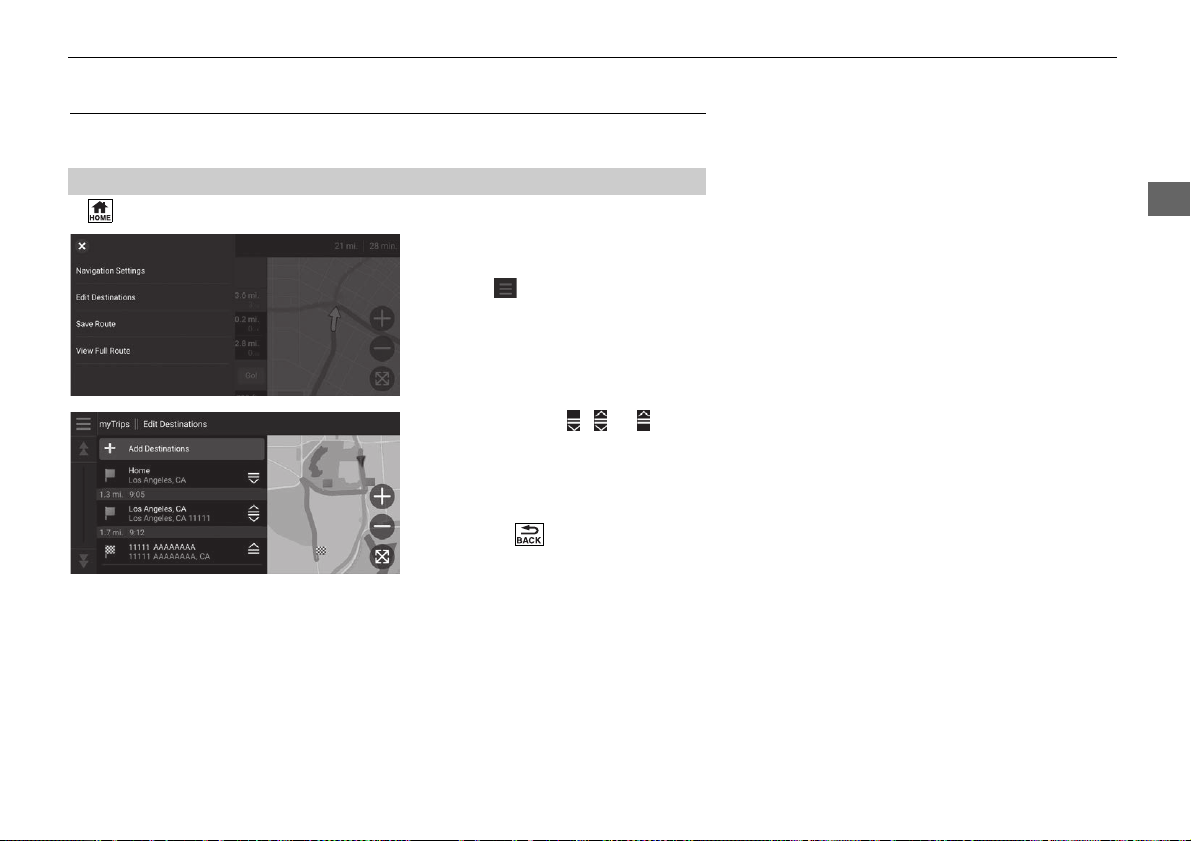
You can edit destinations on your route and save the route as your favorite trip.
H (Home) u Navigation
1. Select the text bar on the top of
the map.
2. Select .
3. Select Edit Destinations.
4. Select and hold , or and
then move the destination to the
desired position.
u Select Add Destinations to
add a new location.
5. Press the (Back) button.
u The route is automatically
recalculated.
■
Reordering Destinations
92
uuChanging Your RouteuEditing the Route
Navigation
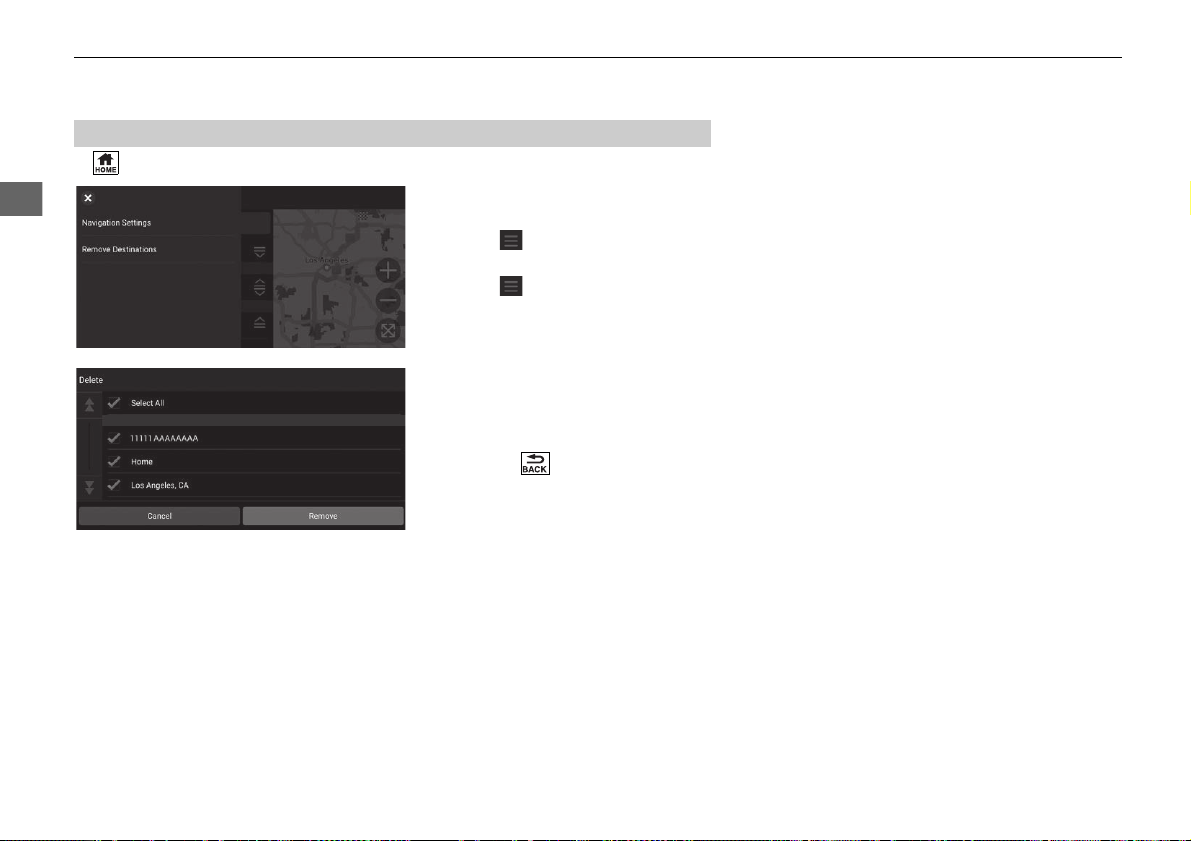
H (Home) u Navigation
1. Select the text bar on the top of
the map.
2. Select .
3. Select Edit Destinations.
4. Select .
5. Select Remove Destinations.
6. Select the location to delete.
u Select Select All to delete all
destinations.
7. Select Remove.
8. Press the (Back) button.
u The route is automatically
recalculated.
■
Deleting a Destination
93
uuChanging Your RouteuEditing the Route
Navigation
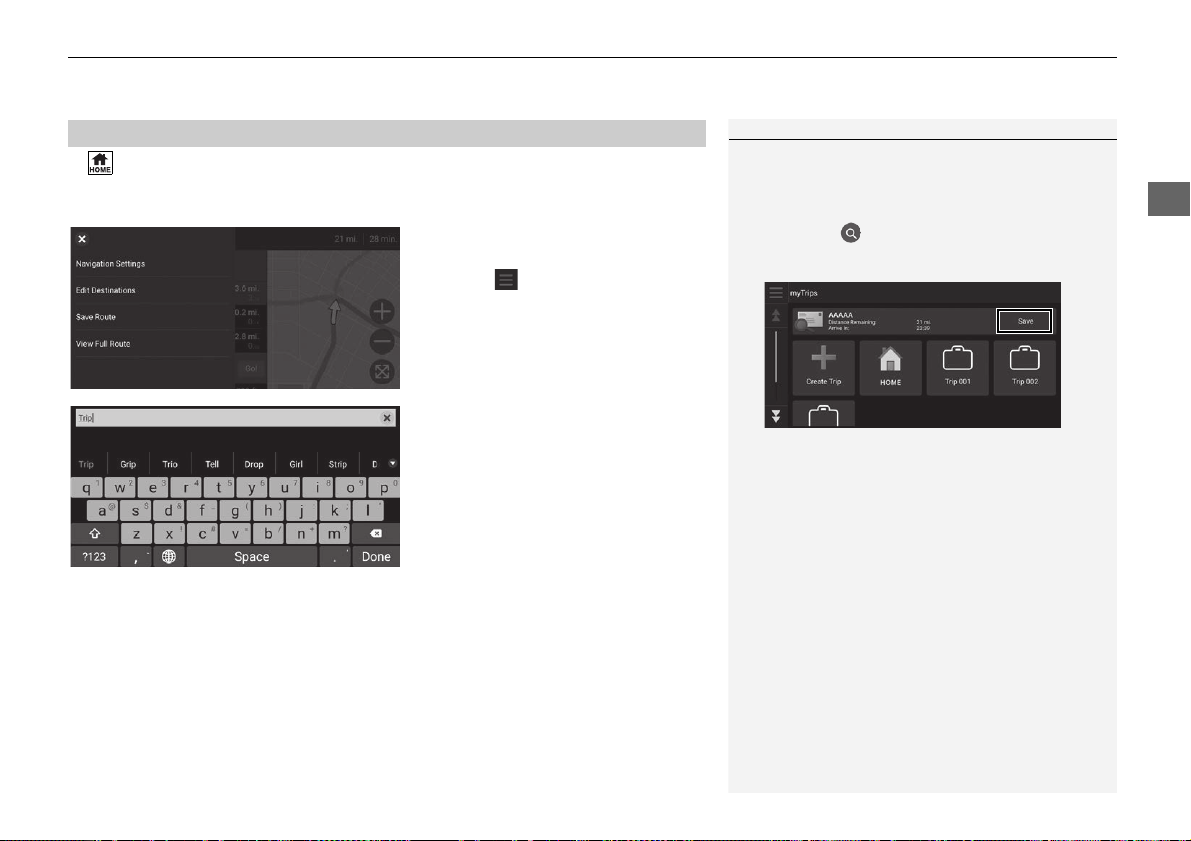
H (Home) u Navigation
You can add the current route to myTrips list.
1. Select the text bar on the top of
the map.
2. Select .
3. Select Save Route.
4. Enter a name.
5. Select Done.
■
Saving Your Current Route
1 Saving Your Current Route
You can use the saved trip from myTrips screen.
2 myTrips P. 69
You can also save your current route from myTrips
screen. Select on the routing map, and then
select myTrips. Select Save.
94
Navigation
Changing Your Destination
Selecting a Destination on the Map
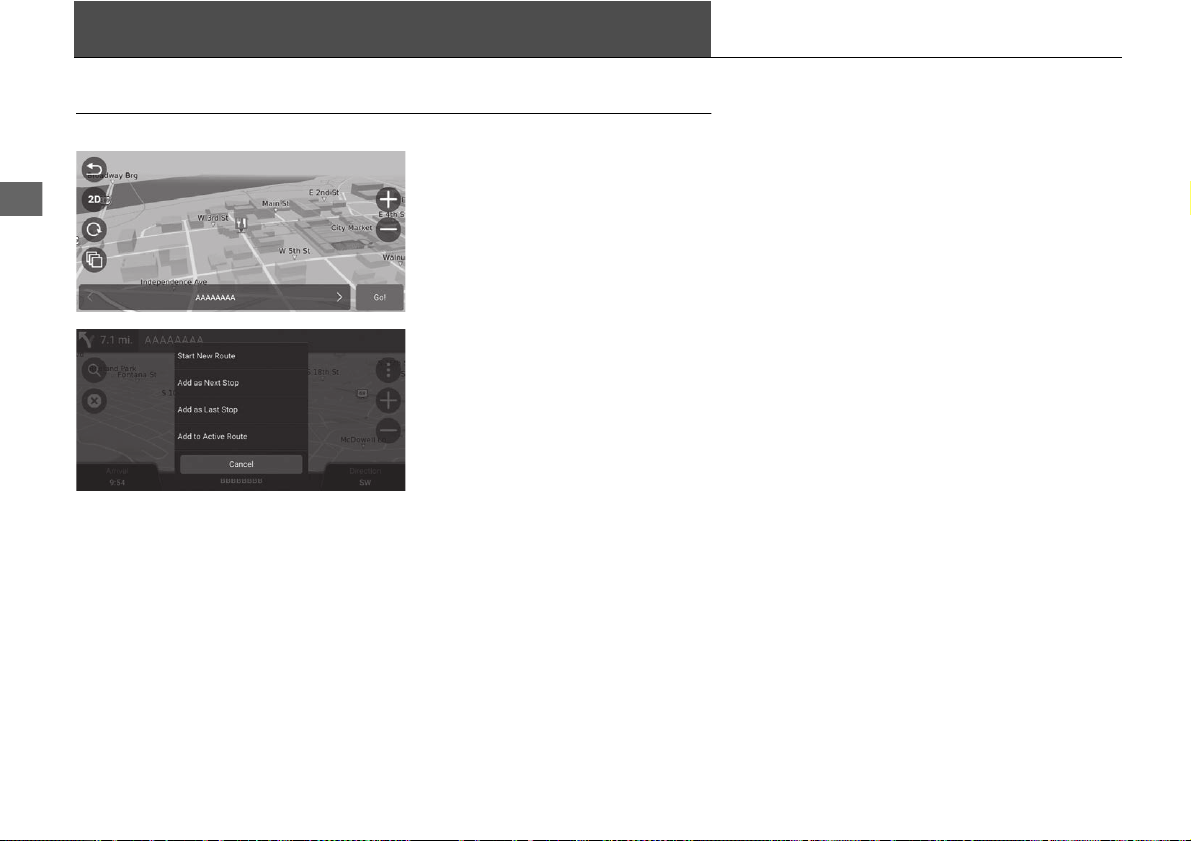
Select a new destination when en route by selecting a location on the map.
1. Select any point on the map, or a
street, intersection, or category
icon.
2. Select Go!.
3. Select an option.
The following options are available:
• Start New Route: Sets the location as your new destination.
• Add as Next Stop: Sets the location as the next waypoint.
• Add as Last Stop: Adds the location as your last destination.
• Add to Active Route: Sets the location as the waypoint and edits the order of
destinations in your route.
2 Adding Waypoints P. 90
95
uuChanging Your Destinationu Searching Near Establishment
Continued
Navigation
Searching Near Establishment
H (Home) u Navigation
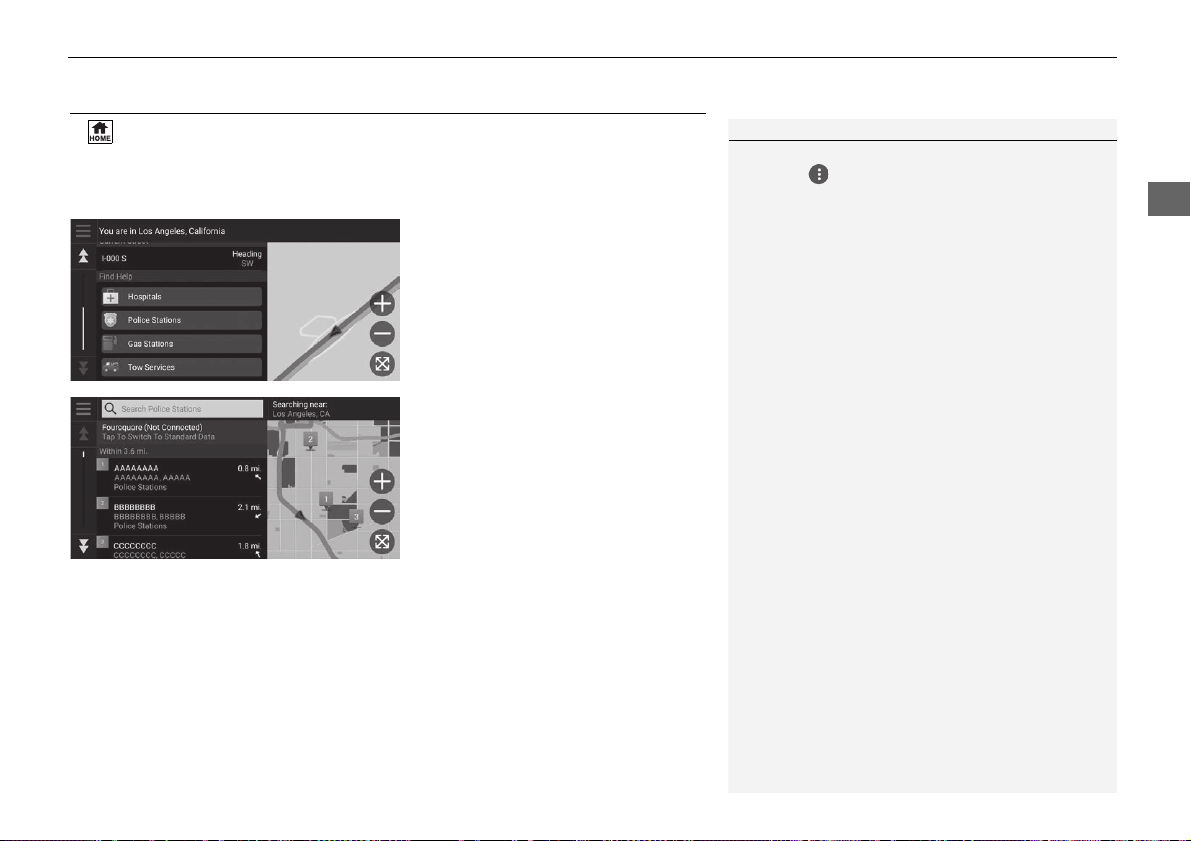
Search for a hospital, police station, gas station or tow service around your current
location.
1. Select your vehicle icon.
u You can also confirm your
current location, address, and
nearest intersection.
2. Scroll down to the bottom, and
then select a category type.
3. Select a place.
4. Select Go!.
1 Searching Near Establishment
You can also search for nearby establishment by
selecting on the map screen and select Where
Am I?.
96
uuChanging Your DestinationuSearching Near Establishment
Navigation
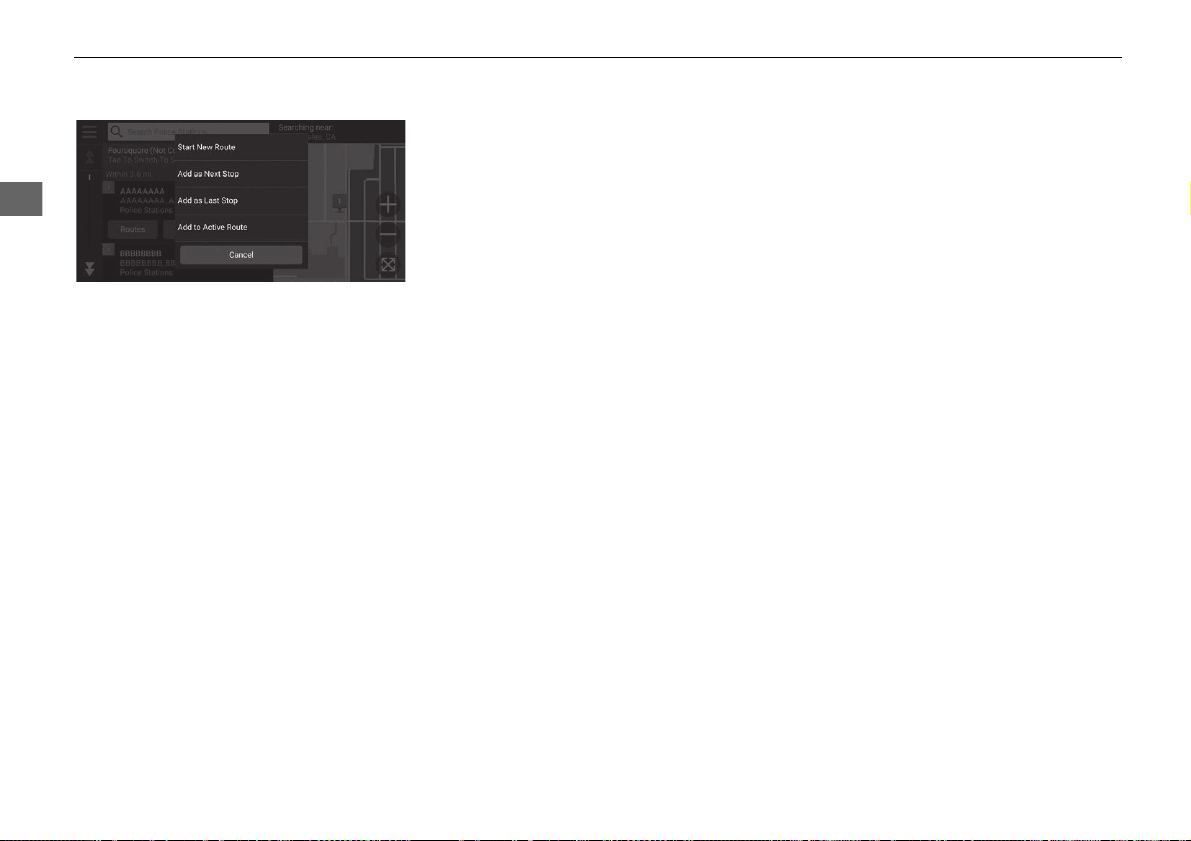
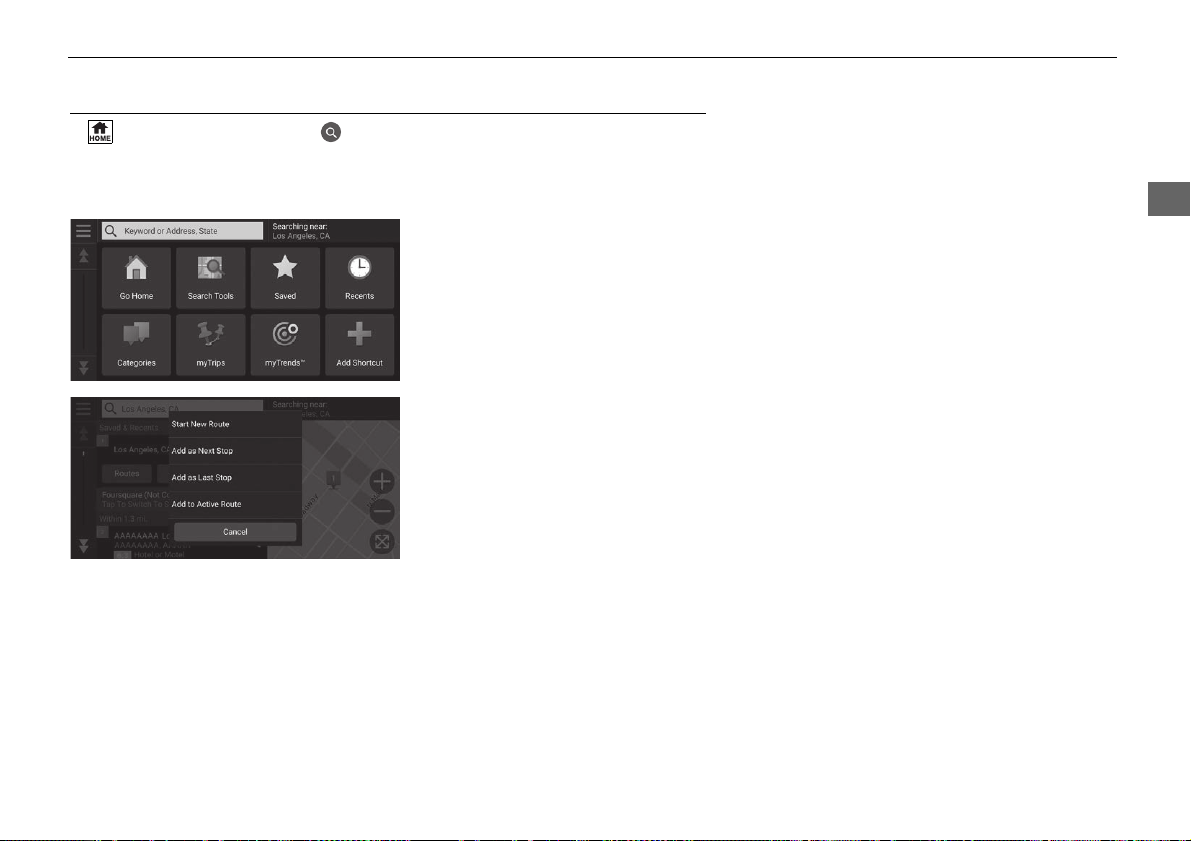
5. Select an option.
The following options are available:
• Start New Route: Sets the location as your new destination.
• Add as Next Stop: Sets the location as the next waypoint.
• Add as Last Stop: Adds the location as your last destination.
• Add to Active Route: Sets the location as the waypoint and edits the order of
destinations in your route.
2 Adding Waypoints P. 90
97
uuChanging Your Destinationu Entering a New Destination
Navigation
Entering a New Destination
H (Home) u Navigation u
Enter a new destination using the destination menu screen even when you are en
route.
1. Select a search method to enter a
new destination.
2 Entering a Destination P. 54
2. Select a place and then select Go!.
3. Select an option.
The following options are available:
• Start New Route: Sets the location as your new destination.
• Add as Next Stop: Sets the location as the next waypoint.
• Add as Last Stop: Adds the location as your last destination.
• Add to Active Route: Sets the location as the waypoint and edits the order of
destinations in your route.
2 Adding Waypoints P. 90

98

99
Troubleshooting
Troubleshooting ................................... 100
Map, Voice, Entering Destinations........ 100
Traffic .................................................. 101
Guidance, Routing ............................... 102
Update, Coverage, Map Errors ............. 103
Display, Accessories.............................. 103
Miscellaneous Questions ...................... 104
100
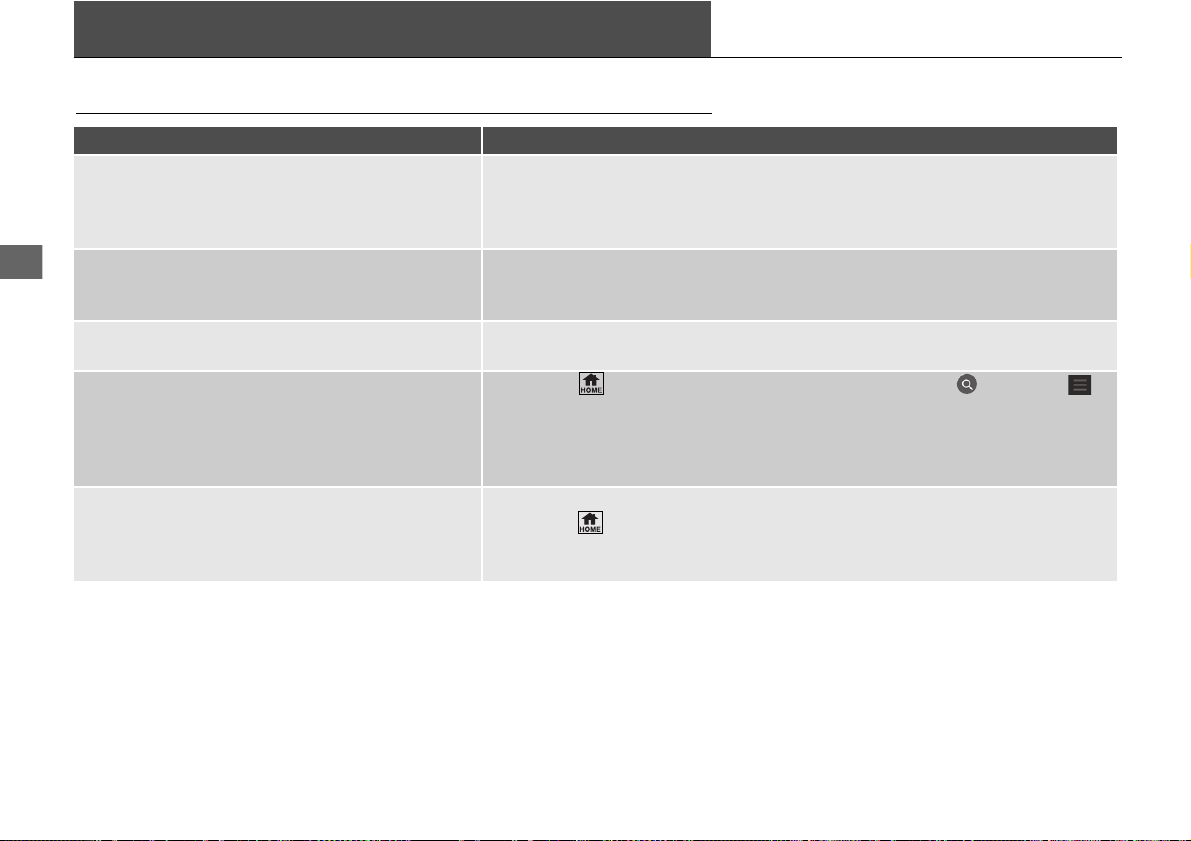
Troubleshooting
Troubleshooting
Map, Voice, Entering Destinations
Problem Solution
The Startup Confirmation screen is displayed every
time I start the car.
This is normal. The Startup Confirmation screen reminds you and your guest
drivers to always operate the navigation system in a safe manner. The Startup
Confirmation screen goes off after a certain period of time, even if you do not
select OK.
The navigation system reboots by itself (returns to
the opening screen).
A reboot can be caused by extreme temperatures or shock from bumpy roads, and
does not necessarily indicate a problem. If this happens frequently, please see your
dealer.
How do I specify a destination when an entered city
or street could not be found?
Try selecting the destination directly from the map.
2 Map Input P. 71
How do I delete saved places? 1. Press the (Home) button and then select Navigation > > Saved > >
Delete Saved Places.
2. Select saved places you want to delete.
3. Select Delete.
4. Select Delete.
I cannot hear the navigation system voice.
●
Adjust the volume using the volume knob during the voice guidance.
●
Press the (Home) button. Select Settings > System > System Volumes >
System Volumes.
Turn up volume level of Navigation On Guidance if it is low.
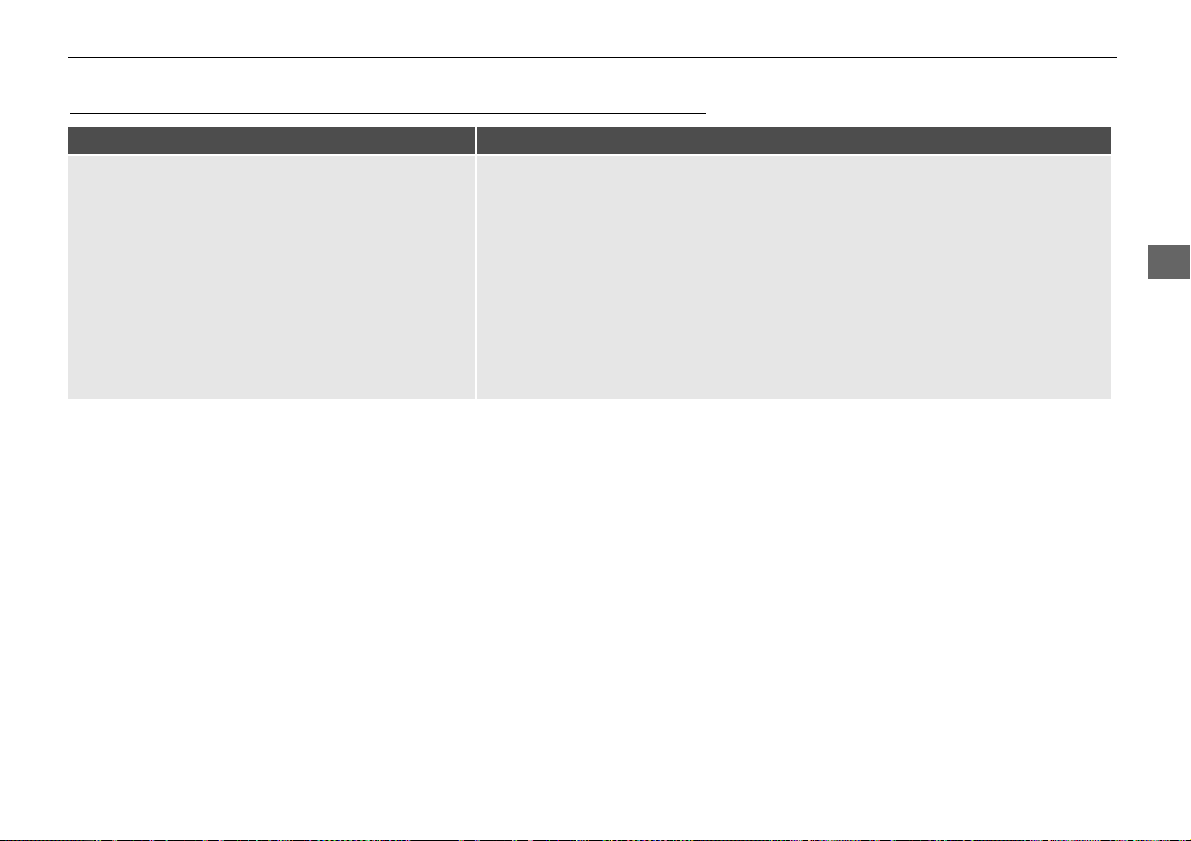
101
uuTroubleshootinguTraffic
Troubleshooting
Traffic
Problem Solution
Traffic information is missing or is not displaying
properly. What is wrong?
Verify the following:
●
Traffic information relies on a clear signal. If signal strength is low, traffic data
may not be available.
●
Check that the traffic feature is enabled.
2 Traffic P. 48
●
It is possible that there is a temporary technical problem with your metropolitan
area traffic provider. You can call Honda Automobile Customer Service to see if
there is an outage.
2 Honda Automobile Customer Service Contact Information P. 108
●
If the situation persists, see your Honda authorized dealer for assistance.
●
Traffic information is available only in certain areas.
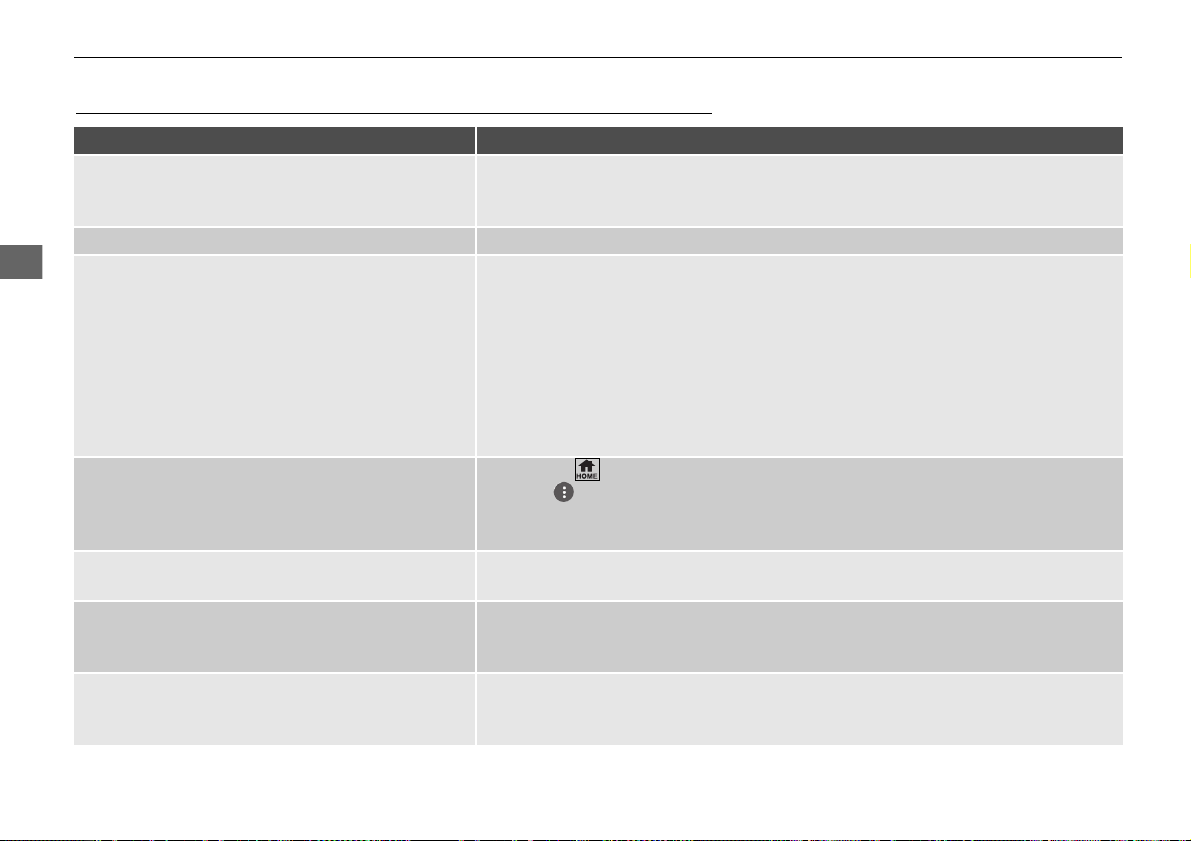
102
uuTroubleshootinguGuidance, Routing
Troubleshooting
Guidance, Routing
Problem Solution
The navigation system does not route me the same
way I would go or the same way as other mapping
systems.
The navigation system attempts to generate the optimal route. You can change the
route preferences used when calculating a route.
2 Calculation Mode P. 41
The street I’m on is not shown on the map screen. The mapping database is constantly undergoing revision.
The vehicle position icon is not following the road.
●
This is normal. The signals received from the GPS satellites are extremely weak
and can easily be interrupted or interfered as your vehicle travels near tall
buildings or in tunnels. Check your vehicle surroundings for anything that may be
blocking the reception.
If this happens frequently and there is no obstruction that is interfering the
reception, please see your dealer.
●
Metallic tinting or other aftermarket devices can interfere with GPS reception.
Please consult your dealer.
2 GPS P. 106
How do I stop the map from rotating as I drive
along?
1. Press the (Home) button and then select Navigation.
2. Select > Settings > Map and Vehicle > Driving Map View.
3. Check that Driving Map View is set to Track Up or 3D.
4. Select North Up and then select Save.
The “Arrival time” display sometimes increases
even though I am getting closer to my destination.
The “Arrival time” is based on the speed limit on each road. Depending on the
traffic conditions, the “Arrival time” may be calculated to be earlier or later.
My elevation (shown when I display the current
position) seems to fluctuate even though my
elevation has not changed.
This is normal. The elevation can vary ±100 ft (30 m) due to GPS calculation errors.
2 GPS P. 106
My elevation is missing on the “current position”
screen.
The elevation is only displayed if the GPS antenna can receive signals from at least
four satellites. Try moving the vehicle into an open area. The elevation is also not
displayed if the calculated elevation is zero or below sea level.
103
uuTroubleshootinguUpdate, Coverage, Map Errors
Troubleshooting
Update, Coverage, Map Errors
Display, Accessories
Problem Solution
My city is not part of a fully verified detailed
coverage area.
The mapping database is constantly undergoing revision.
Does the navigation system work outside North
America?
The system contains maps for the United States of America, Canada, Mexico,
Puerto Rico, US Virgin Islands, Cayman Islands, Bahamas, French Guiana,
Guadeloupe, Martinique, Saint Barthelemy, and Jamaica. The navigation system
will not work in other countries.
2 Map Coverage P. 109
Problem Solution
The display appears dim when starting the car in
really cold weather.
This is normal. The display will become brighter after a few minutes.
104
uuTroubleshootinguMiscellaneous Questions
Troubleshooting
Miscellaneous Questions
Problem Solution
My clock frequently changes forward and backward
by one hour.
The clock setting is automatically updated based on your GPS location. If you are
driving near a time zone border, the automatic update likely is the reason.
How do I change the interface language? Press the (Home) button and then select Settings > System > Language.
Select the desired language for system language.
For more information, see the Owner's Manual.

105
Reference Information
System Limitations ................................106
GPS ......................................................106
Address Calculation ..............................106
Database ..............................................106
Customer Assistance .............................108
Resolving Problems ...............................108
Obtaining a Navigation Update .............108
Honda Automobile Customer Service
Contact Information............................108
Visiting Your Dealer ..............................109
Map Coverage ......................................109
Traffic Information ................................109
Legal Information ................................. 110
End User License Agreement ................ 110
106
Reference Information
System Limitations
GPS
The signals received from GPS satellites are
extremely weak (less than a millionth of the
strength of a local FM station) and require
an unobstructed view of the sky. The GPS
antenna is located in the fin antenna. The
signal reception can easily be interrupted or
interfered with by the following:
• Audio electronic devices mounted near
the navigation unit
• Trees, tall buildings, highway overpasses,
tunnels, or overhead electrical power
wires
GPS is operated by the U.S. Department of
Defense. For security reasons, there are
certain inaccuracies built into GPS for which
the navigation system must constantly
compensate. This can cause occasional
positioning errors of up to several hundred
feet (meters).
Address Calculation
The destination icon shows only the
approximate location of a destination
address. This occurs if the number of
possible addresses is different from the
number of actual addresses on a block. For
example, the address 1425 on a 1400 block
with 100 possible addresses (because it is
followed by the 1500 block) will be shown a
quarter of the way down the block by the
system. If there are only 25 actual addresses
on the block, the actual location of address
1425 would be at the end of the block.
Database
The digitized map database reflects
conditions as they existed at various points
in time before production. Accordingly,
your database may contain inaccurate or
incomplete data or information due to the
passage of time, road construction,
changing conditions, or other causes.
For example, some places/landmarks may
be missing when you search the database
because the name was misspelled, the place
was improperly categorized, or a place/
landmark is not yet in the database. This is
also true for police stations, hospitals, and
other public institutions. Do not rely on the
navigation system if you need law
enforcement or hospital services. Always
check with local information sources.

107
uuSystem LimitationsuDatabase
Reference Information
The database does not include, analyze,
process, consider, or reflect any of the
following categories of information:
• Neighborhood quality or safety
• Population density
• Availability or proximity of law
enforcement
• Emergency, rescue, medical, or other
assistance
• Construction work, zones, or hazards
• Road and lane closures
• Legal restrictions (such as vehicular type,
weight, load, height, and speed
restrictions)
• Road slope or grade
• Bridge height, width, weight, or other
limits
• Traffic facilities safety
• Special events
• Pavement characteristics or conditions
Every effort has been made to verify that
the database is accurate. The number of
inaccuracies you experience increases the
longer you go without obtaining an
updated map database.
2 Obtaining a Navigation Update P. 108
We assume no liability for any incident that
may result from an error in the program, or
from changed conditions not noted above.

108
Reference Information
Customer Assistance
Resolving Problems
If you run into a specific issue that you
cannot resolve, consult the following help
resources:
• For navigation system issues:
2 Troubleshooting P. 100
Or, please contact your dealer.
• For traffic-related issues:
2 Traffic P. 101
• For reporting issues with the database or
places/landmarks:
• Visit
https://my.garmin.com/mapErrors/
report.faces
• Or call Garmin OEM support directly at
(855) 607-2536.
Obtaining a Navigation
Update
Honda is continuously updating the
navigation system and new software is
usually made available on an annual basis.
For information on navigation updates for
your vehicle, please visit:
• U.S.: hondanavi.navigation.com
• Canada: www.honda.ca/owners/honda-
services/navigation
You can also contact your Honda
authorized dealer for further information
regarding the update program available for
your vehicle.
Honda Automobile
Customer Service Contact
Information
Honda Navi
American Honda Motor Co., Inc.
Honda Automobile Customer Service
Mail Stop 100-5E-8A
1919 Torrance Blvd.
Torrance, CA 90501-2746
Tel: (800) 999-1009
Fax: (310) 783-3023
Honda Canada Inc.
Honda Customer Relations
180 Honda Blvd.
Markham, ON
L6C 0H9
Tel: (888)-9-HONDA-9
Hours: 8:00 am to 7:30 pm Mon to Fri (EST)

109
uuCustomer AssistanceuVisiting Your Dealer
Reference Information
Visiting Your Dealer
If you have a question that you cannot
resolve using the available help resources,
you can consult your dealer. Please identify
the specific issue (e.g., error occurs when
you enter a specific address, when driving
on a certain road, or just when it’s cold) so
that the service advisor can refer the issue to
the factory so that a solution can be found.
Be patient, the service advisor may be
unfamiliar with your specific issue.
Map Coverage
The system provides maps for the United
States of America, Canada, Mexico, Puerto
Rico, US Virgin Islands, Cayman Islands,
Bahamas, French Guiana, Guadeloupe,
Martinique, Saint Barthelemy, and Jamaica.
The navigation system will not work in other
countries.
Traffic Information
Continuously updated traffic information is
available in major metropolitan areas across
contiguous United States and some cities in
Canada.
110
Reference Information
Legal Information
End User License Agreement
The infotainment system you have
purchased for your vehicle may contain a
navigation solution ("Navigation Solution").
The software embedded in the Navigation
Solution (the "Software") is owned by the
navigation solution provider or its
subsidiaries (collectively, "Navigation
Provider"). The map data that may be
embedded in your Navigation Solution or
downloaded separately (the "Map Data") is
either owned by the Navigation Provider, or
by HERE North America LLC and/or its
affiliates ("HERE") or another third party
and licensed to the Navigation Provider.
The Navigation Provider also owns, or
licenses from third party providers,
information, traffic data, text, images,
graphics, photographs, audio, video,
images and other applications and data that
may be embedded in the Navigation
Solution, or downloaded separately ("Other
Content"). The Map Data and Other
Content are collectively the "Content". The
Software and Content (collectively, the
"Navigation Provider Products") are
protected under copyright laws and
international copyright treaties. The
Navigation Provider Products are licensed,
not sold. The structure, organization and
code of the Software are valuable trade
secrets of the Navigation Provider and/or its
third-party providers. The Navigation
Provider Products are each provided under
this License Agreement and are subject to
the following terms and conditions which
are agreed to by End User ("you" or
"your"), on the one hand, and the
Navigation Provider and its licensors and
affiliated companies of the Navigation
Provider and its licensors, on the other
hand. The Navigation Provider's licensors,
including the licensors, service providers,
channel partners, suppliers and affiliated
companies of the Navigation Provider and
its licensors, are each a direct and intended
third party beneficiary of this Agreement
and may enforce their rights directly against
you in the event of your breach of this
Agreement.
IMPORTANT: CAREFULLY READ THIS
ENTIRE LICENSE AGREEMENT BEFORE
PURCHASING OR USING YOUR
NAVIGATION SOLUTION OR CONTENT.
PURCHASING, INSTALLING, COPYING, OR
OTHERWISE USING YOUR NAVIGATION
SOLUTION OR CONTENT CONSTITUTES
YOUR ACKNOWLEDGMENT THAT YOU
HAVE READ THIS LICENSE AGREEMENT
AND AGREE TO ITS TERMS AND
CONDITIONS.
The Navigation Provider grants you a limited,
non-exclusive license to use the applicable
Navigation Provider Product in accordance
with the terms of this Agreement. You agree
to use the applicable Navigation Provider
Product for solely personal use, or if
applicable, for use in your business' internal
operations, and not for service bureau, time-
sharing, resale or other similar purposes. You
agree not to otherwise reproduce, archive,
copy, modify, decompile, disassemble, reverse
engineer or create derivative works of any
portion of the Navigation Solution, and may
not transfer or distribute it in any form, for any
purpose, except to the extent permitted by
mandatory laws. The Navigation Provider also
reserves the right to discontinue offering any
Content supplied by any third party supplier if
such supplier ceases to supply such content or
the Navigation Provider's contract with such
supplier terminates for any reason.
■
License Terms and Conditions

111
uuLegal InformationuEnd User License Agreement
Continued
Reference Information
Restrictions. Except where you have been
specifically licensed to do so by Navigation
Provider, and without limiting the preceding
paragraphs, you may not use the Navigation
Provider Products with any products,
systems, or applications installed or
otherwise connected to or in
communication with vehicles, and which
are capable of dispatch, fleet management
or similar applications where the Content is
used by a central control center in
dispatching a fleet of vehicles. In addition,
you are prohibited from renting or leasing
the Navigation Provider Products to any
other person or third party.
You agree to be fully responsible for your
own conduct and content while using the
Software and for any consequences
thereof. You agree to use the Software only
for purposes that are legal, proper and in
accordance with this Agreement and any
applicable policies or guidelines. By way of
example, and not as a limitation, you agree
that when using the Software, You will not:
• upload, post, email or transmit or
otherwise make available content that
infringes any patent, trademark,
copyright, trade secret or other
proprietary right of any party, unless you
are the owner of the rights or have the
permission of the owner to post such
Content;
• use the Software or other content for any
illegal or unauthorized purpose; or
• transmit any viruses, worms, defects,
Trojan horses, or any items of a
destructive nature.
In the event that you are located outside of
the United States, you agree to comply with
any laws, rules or regulations in your locale
or in the location of your web server
regarding online conduct and acceptable
content, including laws regulating the
export of data to the United States or your
country of residence.
No Warranty. The Navigation Provider
Products are provided to you "as is," and
you agree to use them at your own risk.
The Navigation Provider and its licensors
including the licensors, service providers,
channel partners and suppliers, and
affiliated companies of Navigation Provider
and its licensors, make no guarantees,
representations or warranties of any kind,
express or implied, arising by law or
otherwise, including but not limited to,
content, quality, accuracy, completeness,
effectiveness, reliability, merchantability,
fitness for a particular purpose, usefulness,
use or results to be obtained from the
Navigation Provider Products, or that the
Content or server will be uninterrupted or
error-free. The Navigation Provider
Products are intended to be used only as
supplementary travel aids and must not be
used for any purpose requiring precise
measurement of direction, distance,
location or topography. THE NAVIGATION
PROVIDER MAKES NO WARRANTY AS TO
THE ACCURACY OR COMPLETENESS OF
THE MAP DATA OR OTHER CONTENT.
Disclaimer of Warranty. THE
NAVIGATION PROVIDER AND ITS
LICENSORS, INCLUDING THE LICENSORS,
SERVICE PROVIDERS, CHANNEL PARTNERS,
SUPPLIERS AND AFFILIATED COMPANIES OF
THE NAVIGATION PROVIDER AND ITS
LICENSORS, DISCLAIM ANY WARRANTIES,
EXPRESS OR IMPLIED, OF QUALITY,
PERFORMANCE, MERCHANTABILITY,
FITNESS FOR A PARTICULAR PURPOSE OR
NONINFRINGEMENT OF THE NAVIGATION
PROVIDER PRODUCTS. NO ORAL OR

112
uuLegal InformationuEnd User License Agreement
Reference Information
WRITTEN ADVICE OR INFORMATION
PROVIDED BY THE NAVIGATION PROVIDER
OR ITS SUPPLIERS AND LICENSORS SHALL
CREATE A WARRANTY, AND YOU ARE NOT
ENTITLED TO RELY ON ANY SUCH ADVICE
OR INFORMATION. THIS DISCLAIMER OF
WARRANTIES IS AN ESSENTIAL CONDITION
OF THIS AGREEMENT. Some States,
Territories and Countries do not allow
certain warranty exclusions, so to that
extent the above exclusion may not apply to
you.
Disclaimer of Liability. THE NAVIGATION
PROVIDER AND ITS LICENSORS, INCLUDING
THE LICENSORS, SERVICE PROVIDERS,
CHANNEL PARTNERS, SUPPLIERS AND
AFFILIATED COMPANIES OF THE
NAVIGATION PROVIDER AND ITS
LICENSORS, SHALL NOT BE LIABLE TO YOU:
IN RESPECT OF ANY CLAIM, DEMAND OR
ACTION, IRRESPECTIVE OF THE NATURE OF
THE CAUSE OF THE CLAIM, DEMAND OR
ACTION ALLEGING ANY LOSS, INJURY OR
DAMAGES, DIRECT OR INDIRECT, WHICH
MAY RESULT FROM THE USE OR
POSSESSION OF THE NAVIGATION
PROVIDER PRODUCTS; OR FOR ANY LOSS
OF PROFIT, REVENUE, CONTRACTS OR
SAVINGS, OR ANY OTHER DIRECT,
INDIRECT, INCIDENTAL, SPECIAL OR
CONSEQUENTIAL DAMAGES ARISING OUT
OF YOUR USE OF OR INABILITY TO USE THE
NAVIGATION PROVIDER PRODUCTS, ANY
DEFECT IN THE CONTENT OR
INFORMATION, OR THE BREACH OF THESE
TERMS OR CONDITIONS, WHETHER IN AN
ACTION IN CONTRACT OR TORT OR BASED
ON A WARRANTY AND WHETHER
RESULTING FROM THE USE, MISUSE, OR
INABILITY TO USE THE NAVIGATION
PROVIDER PRODUCTS OR FROM DEFECTS
OR ERRORS IN THE APPLICATION, EVEN IF
GARMIN OR ITS LICENSORS HAVE BEEN
ADVISED OF THE POSSIBILITY OF SUCH
DAMAGES. THE NAVIGATION PROVIDER'S
AND ITS LICENSORS' TOTAL AGGREGATE
LIABILITY WITH RESPECT TO ITS
OBLIGATIONS UNDER THIS LICENSE
AGREEMENT OR OTHERWISE WITH
RESPECT TO THE APPLICATION OR THE
CONTENT SHALL NOT EXCEED $1.00.
Some States, Territories and Countries do
not allow certain liability exclusions or
damages limitations, so to that extent the
above may not apply to you.
ANY CONTENT OR MATERIAL
DOWNLOADED OR UPLOADED OR
OTHERWISE OBTAINED THROUGH THE
SOFTWARE IS DONE AT YOUR OWN
DISCRETION AND RISK. YOU WILL BE
SOLELY RESPONSIBLE FOR ANY DAMAGE
TO YOUR ELECTRONIC COMMUNICATION
DEVICE OR ANY LOSS OF DATA THAT MAY
RESULT FROM THE DOWNLOAD OR
UPLOAD OF ANY SUCH CONTENT OR
MATERIAL OR THE USE OF THE SOFTWARE.
Predictive Routing. Your Navigation
Solution may have a "predictive routing"
feature called myTrends that identifies your
driving routines. If it does have this feature,
when your device predicts a route, it will
display your estimated time to destination
and relevant traffic information regarding
the predicted route. Information related to
your driving routines would be accessible to
any other person who uses your device. If
you do not want your device to predict your
routes or display information related to
predicted routes, you may turn off
myTrends by accessing your navigation
system's Settings menu.

113
uuLegal InformationuEnd User License Agreement
Continued
Reference Information
Disclaimer of Endorsement; Change of
Content Providers. Reference to any
products, services, processes, hypertext
links to third parties or other Content by
trade name, trademark, manufacturer,
supplier or otherwise does not necessarily
constitute or imply its endorsement,
sponsorship or recommendation by the
Navigation Provider or its licensors. Product
and service information are the sole
responsibility of each individual vendor. The
HERE name and logo, the HERE and HERE
ON BOARD trademarks and logos, and
other trademarks and trade names owned
by HERE North America LLC may not be
used in any commercial manner without the
prior written consent of HERE. Content
providers may be changed by the
Navigation Provider during the term of this
Agreement, and your experience with the
Content provided by a new provider may
not duplicate your experience with the
previous Content supplier.
Export Control. You agree not to export
from anywhere any part of the Content or
any direct product thereof except in
compliance with and with all licenses and
approvals required under, applicable export
laws, rules and regulations.
Legal Compliance. You represent and
warrant that (i) you are not located in a
country that is subject to a U.S. Government
embargo, or has been designated by the
U.S. Government as a "terrorist
supporting" country, and (ii) you are not
listed on any U.S. Government list of
prohibited or restricted parties.
Indemnity. You agree to indemnify,
defend and hold the Navigation provider
and its licensors, including the respective
licensors, service providers, channel
partners, suppliers, assignees, subsidiaries,
affiliated companies, and the respective
officers, directors, employees, shareholders,
agents and representatives of the
Navigation Provider and its licensors, free
and harmless from and against any liability,
loss, injury (including injuries resulting in
death), demand, action, cost, expense, or
claim of any kind or character, including but
not limited to attorney's fees, arising out of
or in connection with any use or possession
by you of the Navigation Provider Products.
Map Data. Use of the Map Data is subject
to certain restrictions and/or requirements
imposed by third party suppliers and/or
governmental or regulatory authorities, and
in the case of HERE Data, as further set forth
at http://corporate.navteq.com/
supplier_terms.html.
Term. This Agreement is effective until such
time as (i) if applicable, your subscription
term is either terminated (by you or by the
Navigation Provider) or expires, or (ii)
Navigation Provider terminates this
Agreement for any reason, including, but
not limited to, if the Navigation Provider
finds that you have violated any of the
terms of this Agreement. In addition, this
Agreement shall terminate immediately
upon the termination of an agreement
between the Navigation Provider and any
third party from whom the Navigation
Provider (a) obtains services or distribution
necessary to support the Navigation
Provider Products, or (b) licenses Content.
You agree, upon termination, to destroy all
copies of the Content. The Disclaimers of
Warranty and Liability set out above shall
continue in force even after any
termination.

114
uuLegal InformationuEnd User License Agreement
Reference Information
Entire Agreement. These terms and
conditions constitute the entire agreement
between the Navigation Provider and its
licensors, including the licensors, service
providers, channel partners, suppliers and
affiliated companies of the Navigation
Provider and its licensors, and you
pertaining to the subject matter hereof, and
supersedes in their entirety any and all
written or oral agreements previously
existing between us with respect to such
subject matter.
Governing Law.
(a) For European Union HERE Data
The above terms and conditions shall be
governed by the laws of the Netherlands,
without giving effect to (i) its conflict of
laws provisions, or (ii) the United Nations
Convention for Contracts for the
International Sale of Goods, which is
explicitly excluded. You agree to submit to
the jurisdiction of the Netherlands for any
and all disputes, claims and actions arising
from or in connection with the HERE Data
provided to you hereunder.
(b) For North American HERE Data and
other non-European Union HERE Data
The above terms and conditions shall be
governed by the laws of Illinois, without
giving effect to (i) its conflict of laws
provisions, or (ii) the United Nations
Convention for Contracts for the
International Sale of Goods, which is
explicitly excluded. You agree to submit to
the jurisdiction of Illinois for any and all
disputes, claims and actions arising from or
in connection with the HERE Data provided
to you hereunder.
(c) For disputes, claims and actions not
related to the HERE Data
The above terms and conditions shall be
governed by the laws of Kansas, without
giving effect to (i) its conflict of laws
provisions, or (ii) the United Nations
Convention for Contracts for the
International Sale of Goods, which is
explicitly excluded. You agree to submit to
the jurisdiction of Kansas for any and all
disputes, claims and actions arising from or
in connection with the Application or
Content. Any translation of this Agreement
from English is provided as a convenience
only. If this Agreement is translated into a
language other than English and there is a
conflict of terms between the English
version and the other language version, the
English version will control.
Map Data Government End Users. If End
User is an agency, department, or other
entity of the United States Government, or
funded in whole or in part by the U.S.
Government, then use, duplication,
reproduction, release, modification,
disclosure or transfer of the Map Data is
subject to restrictions as set forth in DFARS
252.227-7014(a)(1) (JUN 1995) (DOD
commercial computer software definition),
DFARS 27.7202-1 (DOD policy on
commercial computer software), FAR
52.227-19 (JUN 1987) (commercial
computer software clause for civilian
agencies), DFARS 252.227-7015 (NOV
1995) (DOD technical data - commercial
items clause); FAR 52.227-14 Alternates I, II,
and III (JUN 1987) (civilian agency technical
data and noncommercial computer
software clause); and/or FAR 12.211 and
FAR 12.212 (commercial item acquisitions),
as applicable. In case of conflict between

115
uuLegal InformationuEnd User License Agreement
Reference Information
any of the FAR and DFARS provisions listed
herein and this License Agreement, the
construction that provides greater
limitations on the Government's rights shall
control. The contractor/manufacturer is
HERE North America LLC, 425 West
Randolph Street, Chicago, Illinois 60606
USA.
HERE is a trademark in the U.S. and other
countries. All other company names and
trademarks mentioned or referenced in this
documentation are the properties of their
respective owners. All rights reserved.

116

118
Voice Commands
Voice Commands
Navigation Commands
The system recognizes only the commands
on the following pages.
Navigation
The system accepts navigation commands
from the voice portal screen and the
navigation voice recognition screen.
Show Map
Go Home
Find Place
Find Address
Find City
Find Intersection
Saved Places
Recent Places
Stop Route
Detour
■
Voice Portal Commands
■
Navigation Commands
The system accepts other commands only
when they are displayed on the voice
recognition screen.
Back
Next
Previous
Cancel
Yes
No
Go
Start New Route
Add to Current Route
Change Country
Along Route
Near Destination
Near Current Location
1
2
3
4
5
■
Other Commands
■
Line Number Commands
Category commands can be accessed only
through “Find Place“ on the voice
recognition screen.
Restaurants
Everyday Life
Banks & ATMs
Rest Areas
Attractions
Medical Care
Shopping
Gas Stations
Parking
Art & Entertainment
Recreation
Transit
Lodging
Sub category commands can be accessed
only through “Find Place“ on the voice
recognition screen.
Restaurants
Barbecue
Coffee and Tea
Delis
Donuts and Baked Goods
■
Category Commands
■
Sub Category Commands

119
uuVoice CommandsuNavigation Commands
Continued
Voice Commands
Fast Food
Fish and Seafood
Grills
Pizza
Steakhouses
Wine, Beer, and Liquor
African
*1
American
*1
British Isles
*1
Cajun or Caribbean
*1
Chinese
*1
European
*1
French
*1
German
*1
Indian
*1
Italian
*1
Japanese
*1
Jewish or Kosher
Korean
*1
Latin America
*1
Mediterranean
*1
Mexican
*1
Middle Eastern
*1
Spanish
*1
Thai
*1
Vegan and Vegetarian
Vietnamese
*1
*1: Food type
Everyday Life
Auto Services
Car Washes
Colleges and Universities
Community Services
Convenience Store
Fitness and Gyms
Laundry Services
Libraries
Places of Worship
Post Offices
Schools
Veterinary Clinics
Attractions
Amusement Parks
Event Centers
Historical Landmarks
Museums and Galleries
Offbeat Places
Parks and Gardens
Tourist Information
Wineries and Breweries
Zoos and Aquariums
Medical Care
Hospitals
Doctor Offices
Pharmacies
Shopping
Books, Music, and Movies
Clothing and Accessories
Computers and Electronics
Convenience Store
Department Stores
Florists and Gifts
Grocery Stores
Home and Garden
Housewares
Office Supply and Shipping
Pharmacies
Shopping Centers
Sporting Goods
Wine, Beer, and Liquor

120
uuVoice CommandsuNavigation Commands
Voice Commands
Art & Entertainment
Bars and Pubs
Casinos
Movie Theaters
Museums and Galleries
Nightclubs
Performing Arts
Recreation
Amusement Parks
Bowling Center
Camps and Retreats
Golfing
Skiing and Winter Sports
Sport Centers
Stadiums and Tracks
Transit
Airports
Bus Stations
Car Rental
Ferry Terminals
Transit Service
Truck Stops
Train Stations
Travel Agents
Lodging
Bed and Breakfast or Inn
Campground or RV Park
Hotel or Motel
121
Voice Commands
List of Categories
Restaurants Everyday Life Recreation
Barbecue Fish and Seafood Auto Services Laundry Services Amusement Parks
Skiing and Winter Sports
Coffee and Tea Grills Car Washes Libraries Bowling Center Sport Centers
Delis Pizza
Colleges and Universities
Places of Worship Camps and Retreats Stadiums and Tracks
Donuts and Baked Goods
Steakhouses Community Services Post Offices Golfing
Fast Food Wine, Beer, and Liquor Convenience Store Schools Medical Care
Shopping Fitness and Gyms Veterinary Clinics Doctor Offices Pharmacies
Books, Music, and Movies
Home and Garden Art & Entertainment Hospitals
Clothing and Accessories
Housewares Bars and Pubs Museums and Galleries Transit
Computers and Electronics
Office Supply and Shipping
Casinos Nightclubs Airports Train Stations
Convenience Stores Pharmacies Movie Theaters Performing Arts Bus Stations Transit Service
Department Stores Shopping Centers Attractions Car Rental Travel Agents
Florists and Gifts Sporting Goods Major Attractions Offbeat Places Ferry Terminals Truck Stops
Grocery Stores Wine, Beer, and Liquor Amusement Parks Parks and Gardens Gas Stations
Lodging Event Centers Tourist Information Banks & ATMs
Bed and Breakfast or Inn
Hotel or Motel Historical Landmarks Wineries and Breweries Parking
Campground or RV Park
Museums and Galleries Zoos and Aquariums Rest Areas

Index
122
Index
Index
Symbols
a (Display Mode) Button .............. 3, 7, 30
d (Talk) Button ............................... 5, 11, 17
Numbers
3D Map........................................................ 35
A
About .......................................................... 50
Adding Waypoints...................................... 90
Avoidances .................................................. 42
C
Calculating the Route................................. 72
Calculation Mode ....................................... 41
Cancel Route ............................................... 10
Categories
List of Categories..................................... 121
Changing Your Destination ....................... 94
Changing Your Route................................. 88
Custom Avoidances .................................... 43
Customer Assistance................................. 108
D
Data Reset................................................... 51
Detour......................................................... 89
Display Mode Settings ............................... 30
Driving to Your Destination ...................... 75
E
Editing the Route ....................................... 91
Entering a Destination............................... 54
Categories................................................. 67
Map Input ................................................. 71
myTrends™............................................... 70
myTrips ..................................................... 69
Recents ..................................................... 68
Saved ........................................................ 68
Search Tools.............................................. 60
Entering a New Destination ...................... 97
G
Go Home....................................................... 8
Guidance Volume Settings ........................ 32
H
Home Location ........................................... 18
HOME Screen................................................ 3
Honda Customer Service.......................... 108
L
Legal Information .................................... 110
Location History ......................................... 49
M
Map and Vehicle ........................................ 33
Map Coverage.......................................... 109
Map Layer................................................... 37
Map Legend ................................................. 6
Map Operation .......................................... 82
Map Screen................................................. 75
Icon ............................................................ 6
Map Theme ................................................ 36
Map Tools................................................... 83
Map View ................................................... 35
myMaps ...................................................... 38
myTrips
Creating ................................................... 26
Deleting.................................................... 29
Editing ...................................................... 27
N
Navigation.................................................. 40
North Up..................................................... 35
O
Off-Road Breadcrumbs .............................. 79

123
Index
P
Personal Information................................. 18
Predicted Destination ................................ 70
S
Satellite Status ........................................... 47
Saved Locations.......................................... 19
Deleting.............................................. 24, 25
Editing ...................................................... 22
Saving....................................................... 19
Setting
About ....................................................... 50
Data Reset ................................................ 51
Display Mode Settings............................... 30
Guidance Volume ..................................... 32
Location History ........................................ 49
Map and Vehicle....................................... 33
Navigation ................................................ 40
Personal Information................................. 18
Traffic ....................................................... 48
Start-up....................................................... 16
Stopping the Route ................................... 88
System Limitations ................................... 106
T
Track Up ..................................................... 35
Traffic
Setting...................................................... 48
Traffic Information .................................... 80
Troubleshooting ................................ 12, 100
U
Update System Software
Map Updates............................................. 39
Obtaining Update Data............................ 108
V
Vehicle Selection ........................................ 34
Voice Commands
Basic Operation ........................................... 5
Voice Commands List .............................. 118
Voice Control System ................................ 17
Voice Control Operation............................ 11
Voice Recognition ...................................... 17


owners.honda.com (U.S.)
myhonda.ca (Canada)
2019 Honda Insight Navigation Manual
©2018 Honda Motor Co., Ltd. — All Rights Reserved
31TXM800
NM-08209
00X31-TXM-8000 Printed in U.S.A.