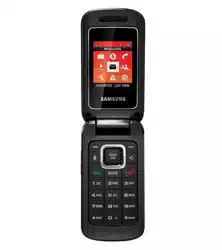
PORTABLE
MOBILE PHONE
User Manual
Please read this manual before operating your
phone, and keep it for future reference.

SPH-M575_EB14_CH_030811_F3
Intellectual Property
All Intellectual Property, as defined below, owned by or which is otherwise the property of Samsung or its respective
suppliers relating to the SAMSUNG Phone, including but not limited to, accessories, parts, or software relating there
to (the “Phone System”), is proprietary to Samsung and protected under federal laws, state laws, and international
treaty provisions. Intellectual Property includes, but is not limited to, inventions (patentable or unpatentable),
patents, trade secrets, copyrights, software, computer programs, and related documentation and other works of
authorship. You may not infringe or otherwise violate the rights secured by the Intellectual Property. Moreover, you
agree that you will not (and will not attempt to) modify, prepare derivative works of, reverse engineer, decompile,
disassemble, or otherwise attempt to create source code from the software. No title to or ownership in the
Intellectual Property is transferred to you. All applicable rights of the Intellectual Property shall remain with
SAMSUNG and its suppliers.
Samsung Telecommunications America (STA), LLC
©
2011 Samsung Telecommunications America, LLC is a registered trademark of Samsung Electronics America, Inc.
and its related entities.
Do you have questions about your Samsung Mobile Phone?
For 24 hour information and assistance, we offer a new FAQ/ARS System (Automated Response System) at:
http://www.samsung.com/us/support
Nuance
®
, VSuite™, T9
®
Text Input, and the Nuance logo are trademarks or registered trademarks of Nuance
Communications, Inc., or its affiliates in the United States and/or other countries.
Headquarters:
1301 E. Lookout Drive
Richardson, TX 75082
Toll Free Tel:
Customer Care Center:
1000 Klein Rd.
Plano, TX 75074
1.888.987.HELP (4357)
Internet Address:
http://www.samsung.com

Nuance
®
, VSuite™, T9
®
Text Input, and the Nuance logo are trademarks or registered trademarks of Nuance
Communications, Inc., or its affiliates in the United States and/or other countries.
The Bluetooth
®
word mark, figure mark (stylized “B Design”), and combination mark (Bluetooth word mark and “B
Design”) are registered trademarks and are wholly owned by the Bluetooth SIG.
Restore™ is a trademark of Samsung Telecommunications America, Inc.
microSD™ and the microSD logo are Trademarks of the SD Card Association.
Openwave
®
is a registered Trademark of Openwave, Inc.
Yahoo!® Mail is a registered Trademark of Yahoo!, Inc.
Hotmail® is a registered Trademark of Microsoft Corporation
Gmail® is a registered Trademark of Google, Inc.
AOL® Mail is a registered Trademark of America Online, Inc.
Dynamic Noise Suppression from Audience
Your phone is equipped with an advanced voice processing chip that delivers clear mobile calls by suppressing
background noise, intermittent sounds (like a siren or nearby conversation), and echoes, allowing you to hear and
be heard nearly anywhere.
How Does It Work?
Based on the intelligence of the human hearing system, the technology:
•
Captures, evaluates and distinguishes all the sound signals surrounding your phone, and the person you're speaking with.
•
Then isolates the primary voice in conversation and filters out the background noise - so the person you're calling hears only
your voice, without disturbing background noise.
•
Dynamically equalizes and adjusts voice volume to optimize your calling experience, so you can hear clearly and don't need to
speak louder to overcome surrounding noise.
The noise suppression technology is built-in and already enabled in your new mobile phone. So it's ready to
provide unsurpassed voice clarity with every call.
Open Source Software
Some software components of this product incorporate source code covered under GNU General Public License
(GPL), GNU Lesser General Public License (LGPL), OpenSSL License, BSD License and other open source licenses.
To obtain the source code covered under the open source licenses, please visit:
http://opensource.samsungmobile.com/index.jsp
.

Disclaimer of Warranties; Exclusion of Liability
EXCEPT AS SET FORTH IN THE EXPRESS WARRANTY CONTAINED ON THE WARRANTY PAGE ENCLOSED WITH THE
PRODUCT, THE PURCHASER TAKES THE PRODUCT "AS IS", AND SAMSUNG MAKES NO EXPRESS OR IMPLIED
WARRANTY OF ANY KIND WHATSOEVER WITH RESPECT TO THE PRODUCT, INCLUDING BUT NOT LIMITED TO THE
MERCHANTABILITY OF THE PRODUCT OR ITS FITNESS FOR ANY PARTICULAR PURPOSE OR USE; THE DESIGN,
CONDITION OR QUALITY OF THE PRODUCT; THE PERFORMANCE OF THE PRODUCT; THE WORKMANSHIP OF THE
PRODUCT OR THE COMPONENTS CONTAINED THEREIN; OR COMPLIANCE OF THE PRODUCT WITH THE
REQUIREMENTS OF ANY LAW, RULE, SPECIFICATION OR CONTRACT PERTAINING THERETO. NOTHING CONTAINED IN
THE INSTRUCTION MANUAL SHALL BE CONSTRUED TO CREATE AN EXPRESS OR IMPLIED WARRANTY OF ANY KIND
WHATSOEVER WITH RESPECT TO THE PRODUCT. IN ADDITION, SAMSUNG SHALL NOT BE LIABLE FOR ANY
DAMAGES OF ANY KIND RESULTING FROM THE PURCHASE OR USE OF THE PRODUCT OR ARISING FROM THE
BREACH OF THE EXPRESS WARRANTY, INCLUDING INCIDENTAL, SPECIAL OR CONSEQUENTIAL DAMAGES, OR LOSS
OF ANTICIPATED PROFITS OR BENEFITS.

Table of Contents
Section 1: Getting Started ................4
Setting Up Your Device . . . . . . . . . . . . . . . . . . 4
Your Device’s microSD Card and Adapter . . . . 6
Section 2: Understanding Your Phone9
Understanding Your Phone . . . . . . . . . . . . . . . 9
Features of Your Phone . . . . . . . . . . . . . . . . . 9
Your Device . . . . . . . . . . . . . . . . . . . . . . . . . . 9
Key Functions . . . . . . . . . . . . . . . . . . . . . . . . . 9
Viewing the Display Screen . . . . . . . . . . . . . 12
Turning the Phone On . . . . . . . . . . . . . . . . . . 15
Activating Your Virgin Mobile Phone Account 16
Programming Your Phone . . . . . . . . . . . . . . . 16
Navigating Through the Menus . . . . . . . . . . . 16
Displaying Your Phone Number . . . . . . . . . . 17
Using the Application Manager . . . . . . . . . . . 17
Section 3: microSD Card .................18
microSD Adapter . . . . . . . . . . . . . . . . . . . . . 18
microSD Card Folders . . . . . . . . . . . . . . . . . . 19
Connecting Your Phone to Your Computer . . 19
Section 4: Setting Up Service .........21
Activating Your Device . . . . . . . . . . . . . . . . . 21
Setting Up Voicemail . . . . . . . . . . . . . . . . . . 21
Getting Help . . . . . . . . . . . . . . . . . . . . . . . . . 22
Section 5: My Account ....................23
Checking your Account Balance . . . . . . . . . . 23
Top-Up Your Minutes . . . . . . . . . . . . . . . . . . 23
Additional Information . . . . . . . . . . . . . . . . . 23
Section 6: Call Functions ................24
Displaying Your Phone Number . . . . . . . . . . 24
Making Calls . . . . . . . . . . . . . . . . . . . . . . . . 24
Answering Calls . . . . . . . . . . . . . . . . . . . . . . 25
Ending a Call . . . . . . . . . . . . . . . . . . . . . . . . 25
Missed Call Notification . . . . . . . . . . . . . . . . 25
Calling Emergency Numbers . . . . . . . . . . . . . 25
Enhanced 911 (E911) Information . . . . . . . . . 26
In-Call Options . . . . . . . . . . . . . . . . . . . . . . . 26
Using the Speakerphone . . . . . . . . . . . . . . . . 27
End-of-Call Options . . . . . . . . . . . . . . . . . . . 27
Dialing and Saving Phone Numbers
with Pauses . . . . . . . . . . . . . . . . . . . . . . . 27
Abbreviated Dialing . . . . . . . . . . . . . . . . . . . 28
Dialing From the Contacts List . . . . . . . . . . . 28
Speed Dialing . . . . . . . . . . . . . . . . . . . . . . . . 28
Plus (+) Code Dialing . . . . . . . . . . . . . . . . . . 29
Voice Dialing . . . . . . . . . . . . . . . . . . . . . . . . 29
Making a Call From History . . . . . . . . . . . . . . 30
Saving a Number From History . . . . . . . . . . . 30
Section 7: Contacts .........................31
Creating a New Contacts Entry . . . . . . . . . . . 31
Saving a Phone Number . . . . . . . . . . . . . . . . 31
Contacts Entry Options . . . . . . . . . . . . . . . . . 32
Editing a Contacts Entry . . . . . . . . . . . . . . . . 32
Deleting a Contact . . . . . . . . . . . . . . . . . . . . 33
Secret Contacts Entries . . . . . . . . . . . . . . . . 33
Selecting an Entry Ringtone Type . . . . . . . . . 33
Assigning a Picture to an Entry . . . . . . . . . . . 34
Adding a New Group . . . . . . . . . . . . . . . . . . . 34
Assigning Speed Dial Numbers . . . . . . . . . . . 35
Contact History . . . . . . . . . . . . . . . . . . . . . . . 36
Saving a Number From History . . . . . . . . . . . 37
Erasing History . . . . . . . . . . . . . . . . . . . . . . . 37

Section 8: Entering Text ................. 38
Selecting a Text Input Mode . . . . . . . . . . . . . .38
Selecting a Text Message Option . . . . . . . . . .38
Entering Text Using Predictive Text . . . . . . . .39
ABC Mode . . . . . . . . . . . . . . . . . . . . . . . . . . .39
Entering Numbers, Symbols, Smileys and
Preset Messages . . . . . . . . . . . . . . . . . . . .40
Setting Text Options . . . . . . . . . . . . . . . . . . . .41
Entering Characters In Dual Language . . . . . .41
Entering Text in Landscape Mode . . . . . . . . .42
Navigation Key in Landscape Mode . . . . . . . .42
Entering Text Using the Keyboard . . . . . . . . . .42
Using the Keyboard . . . . . . . . . . . . . . . . . . . .43
Section 9: Messaging ..................... 46
Types of Messages . . . . . . . . . . . . . . . . . . . .46
Voicemail . . . . . . . . . . . . . . . . . . . . . . . . . . . .46
Messaging Settings . . . . . . . . . . . . . . . . . . . .47
Text and Picture Messaging . . . . . . . . . . . . . .48
Virgin Alert Messages . . . . . . . . . . . . . . . . . .50
Email and Instant Messages . . . . . . . . . . . . . .50
Instant Messages (IM) . . . . . . . . . . . . . . . . . .51
Section 10: Media ........................... 52
Taking Pictures . . . . . . . . . . . . . . . . . . . . . . .52
Recording Videos . . . . . . . . . . . . . . . . . . . . . .54
Storing Pictures and Videos . . . . . . . . . . . . . .55
Sending Pictures and Videos . . . . . . . . . . . . .56
Printing Pictures From Your Phone . . . . . . . . .58
Media Player . . . . . . . . . . . . . . . . . . . . . . . . .59
Downloading Games, Ringtones,
and More . . . . . . . . . . . . . . . . . . . . . . . . . .61
Downloading Graphics . . . . . . . . . . . . . . . . . .61
Downloading Applications . . . . . . . . . . . . . . .61
Section 11: GPS Services ............... 62
GPS Services . . . . . . . . . . . . . . . . . . . . . . . . .62
Web Options . . . . . . . . . . . . . . . . . . . . . . . . .62
Maps . . . . . . . . . . . . . . . . . . . . . . . . . . . . . . .63
Social Networking . . . . . . . . . . . . . . . . . . . . .63
Section 12: Connections ................64
Web Browsing . . . . . . . . . . . . . . . . . . . . . . . .64
Web Options . . . . . . . . . . . . . . . . . . . . . . . . .64
About Bluetooth . . . . . . . . . . . . . . . . . . . . . . .64
Using the Bluetooth Settings Menu . . . . . . . . .65
Pairing Bluetooth Devices . . . . . . . . . . . . . . . .65
Sending Items via Bluetooth . . . . . . . . . . . . . .66
Section 13: Tools ............................ 67
Alarm Clock . . . . . . . . . . . . . . . . . . . . . . . . . .67
Calendar . . . . . . . . . . . . . . . . . . . . . . . . . . . .67
Using the Task List . . . . . . . . . . . . . . . . . . . . .69
Using the Countdown . . . . . . . . . . . . . . . . . . .69
Using the Memo Pad . . . . . . . . . . . . . . . . . . .69
Creating a Voice Memo . . . . . . . . . . . . . . . . .69
Bluetooth . . . . . . . . . . . . . . . . . . . . . . . . . . . .71
Mass Storage . . . . . . . . . . . . . . . . . . . . . . . . .71
Voice Services . . . . . . . . . . . . . . . . . . . . . . . .71
Using the Calculator . . . . . . . . . . . . . . . . . . . .71
World Time . . . . . . . . . . . . . . . . . . . . . . . . . .71
Section 14: Settings .......................72
Display Settings . . . . . . . . . . . . . . . . . . . . . . .72
Adjusting the Phone’s Volume Settings . . . . . .74
Ringtone Types . . . . . . . . . . . . . . . . . . . . . . .74
Auto Keyguard Settings . . . . . . . . . . . . . . . . .75
Text Entry Settings . . . . . . . . . . . . . . . . . . . . .75
Phone Information . . . . . . . . . . . . . . . . . . . . .75
Locking the Phone . . . . . . . . . . . . . . . . . . . . .75
Location Settings . . . . . . . . . . . . . . . . . . . . . .76
Parental Controls . . . . . . . . . . . . . . . . . . . . . .76
Others . . . . . . . . . . . . . . . . . . . . . . . . . . . . . .78
Accessibility Settings . . . . . . . . . . . . . . . . . . .78

Section 15: Health and Safety
Information ...................................82
Exposure to Radio Frequency (RF) Signals . . 82
Specific Absorption Rate (SAR)
Certification Information . . . . . . . . . . . . . . 86
Smart Practices While Driving . . . . . . . . . . . 87
Battery Use and Safety . . . . . . . . . . . . . . . . . 88
Samsung Mobile Products and Recycling . . . 89
UL Certified Travel Charger . . . . . . . . . . . . . . 90
Display / Touch-Screen . . . . . . . . . . . . . . . . 91
GPS & AGPS . . . . . . . . . . . . . . . . . . . . . . . . . 91
Emergency Calls . . . . . . . . . . . . . . . . . . . . . . 92
Care and Maintenance . . . . . . . . . . . . . . . . . 93
Responsible Listening . . . . . . . . . . . . . . . . . . 93
Operating Environment . . . . . . . . . . . . . . . . . 95
FCC Hearing Aid Compatibility (HAC)
Regulations for Wireless Devices . . . . . . . 96
Restricting Children's Access to Your
Mobile Device . . . . . . . . . . . . . . . . . . . . . 98
FCC Notice and Cautions . . . . . . . . . . . . . . . 98
Other Important Safety Information . . . . . . . . 98
Section 16: Warranty Information ..99
Standard Limited Warranty . . . . . . . . . . . . . . 99
End User License Agreement
for Software . . . . . . . . . . . . . . . . . . . . . . 102
Index ...............................................106
4
Section 1: Getting Started
This section describes information about managing
your device, maximizing its performance.
Setting Up Your Device
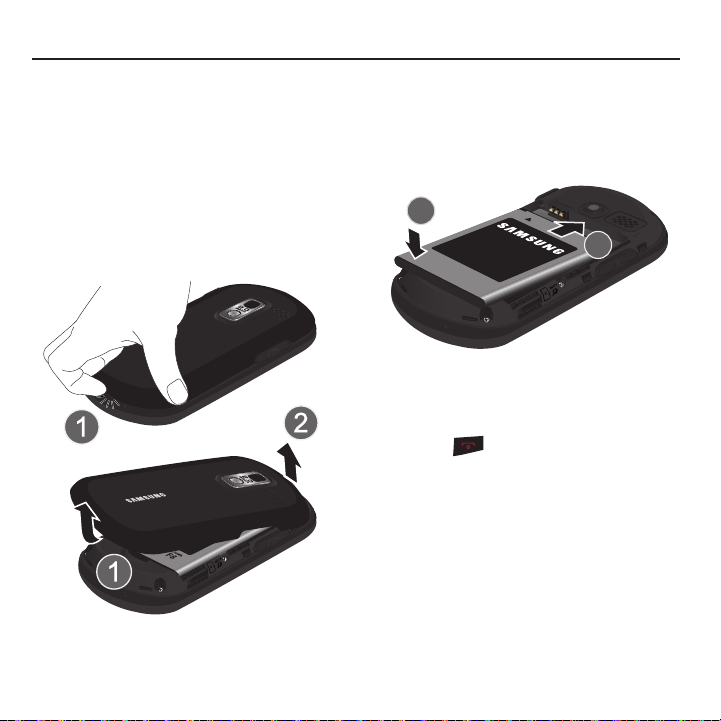
Installing the Battery
1. Remove the battery from its packaging.
2. Place your fingernail in the battery cover and
firmly “pop” the cover off the device (as
shown).
3. Insert the battery into the opening in the back
of the phone (3), making sure the connectors
align. Gently press down to secure the
battery (4).
4. Position the battery cover over the battery
compartment and press down until you hear a
click.
5. Press to turn the phone on.
•
If your phone is activated, it turns on, searches for
service, and enters standby mode.
•
If your phone is not activated, see
“Activating Your
Device”
on page 21.
Getting Started 5
Removing the Battery
1. Make sure the power is off so that you don’t
lose any stored numbers or messages.
2. Place your fingernail in the battery cover and
firmly “pop” the cover off the device.
Charging the Battery
Keeping track of your battery’s charge is important. If
the battery level becomes too low, the device
automatically turns off, and you lose any information
you were working on.
Note:
Although the battery comes partially charged, it is
recommended you fully charge the battery before using
your device for the first time.
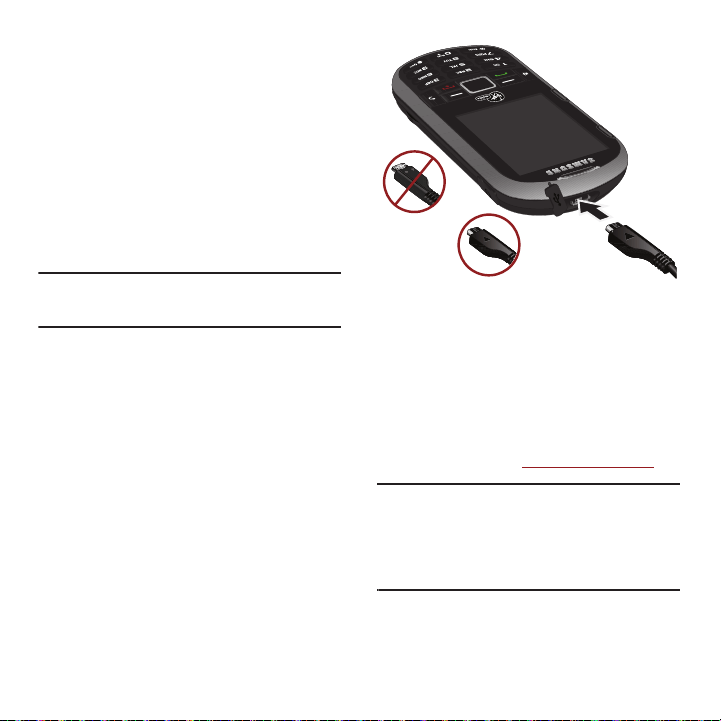
䊳
Plug the flat end of the cable into the device’s
charger/accessory jack and the other end into
an electrical outlet. The device turns on with
the screen locked and indicates both its charge
state and percent of charge.
With the Virgin Mobile-approved Li-Ion battery, you
can recharge the battery before it completely runs
down.
Battery and Charger
Virgin Mobile-approved or Samsung-approved
batteries and accessories can be found at stores or
through Samsung; or call 1-866-866-7509 to order.
They’re also available at
www.virginmobileusa.com
.
Warning!:
Use only Virgin Mobile-approved or approved
batteries and chargers with your device. The failure
to use a Virgin Mobile-approved or
Samsung-approved battery and charger may
increase the risk that your device will overheat,
catch fire, or explode, resulting in serious bodily
injury, death, or property damage.
Correct
Incorrect

6
Battery Capacity
This device is equipped with a Lithium Ion (Li-Ion)
battery. You can recharge the battery before it is fully
drained. The battery provides up to 6.0 hours of talk
time.
At 3% of charge capacity, there are only a few
minutes of talk time left, the device sounds an audible
alert, displays a critical charge icon ( ), and
then turns off.
Note:
Long backlight settings, searching for service, vibrate
mode, browser use, and other variables may reduce the
battery’s talk and standby times.
Extending Your Battery Life
Watch your device’s battery level indicator and charge
the battery before it runs out of power.
Active applications, light levels, Bluetooth usage, and
GPS functionality all act to drain your battery. The
following is a list of helpful tips that can help conserve
your battery power:
•
Reduce the backlight time.
•
Turn off Bluetooth when not in use.
•
Check the Running Services and close any unnecessary
applications.
•
Do not wait until your battery is completely depleted
before charging the device. Repeating this process of a
complete discharge and recharge can over time reduce
the storage capacity of any battery.
Your Device’s microSD Card and
Adapter
The microSD Card
An optional memory card will expand your phone’s
digital space. A memory card allows you to store
images, videos, and music in your phone.
Caution!:
Make sure your battery is fully charged before using
the memory card. Your data may become damaged or
unusable if the battery runs out while using the
microSD card.
Getting Started 7
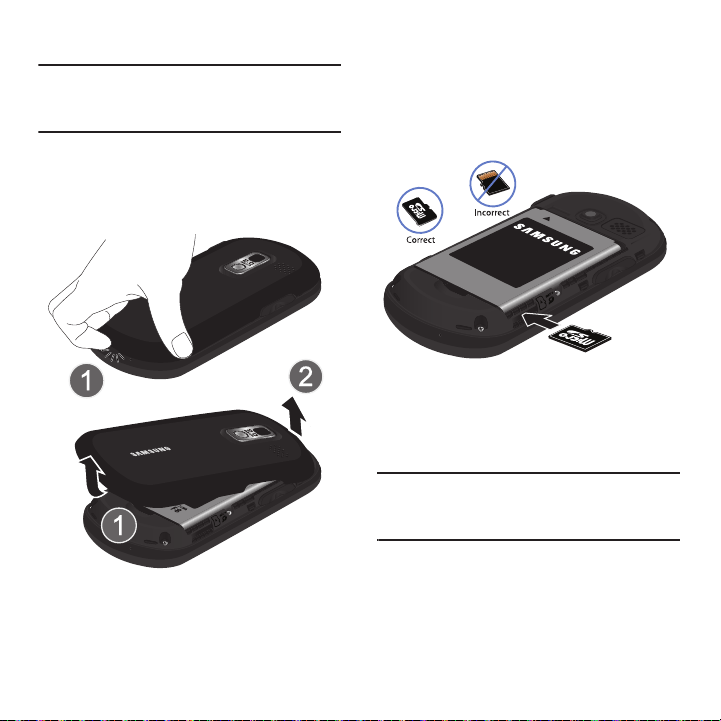
Inserting the microSD Card
Caution!:
It is easy to damage the microSD card and it’s
adapter with improper handling. Please be careful
when inserting, removing, or handling the microSD
card.
1. To remove the battery cover (located on the
back of the phone), place your fingernail in the
battery cover and firmly “pop” the cover off the
device (similar to a soda can).
2. Locate the microSD card slot along the side of
the device.
3. With the gold contact pins facing downward,
carefully insert the microSD card into the
opening and firmly push it in until you hear a
click indicating the card is securely
installed.
4. Replace the cover by lining up the tabs and
then firmly pressing the cover down until it
snaps into place. Ensure that the battery is still
properly installed before turning on the phone.
Caution!:
It is easy to damage the microSD card and it’s
adapter with improper handling. Please be careful
when inserting, removing, or handling the microSD
card.
8
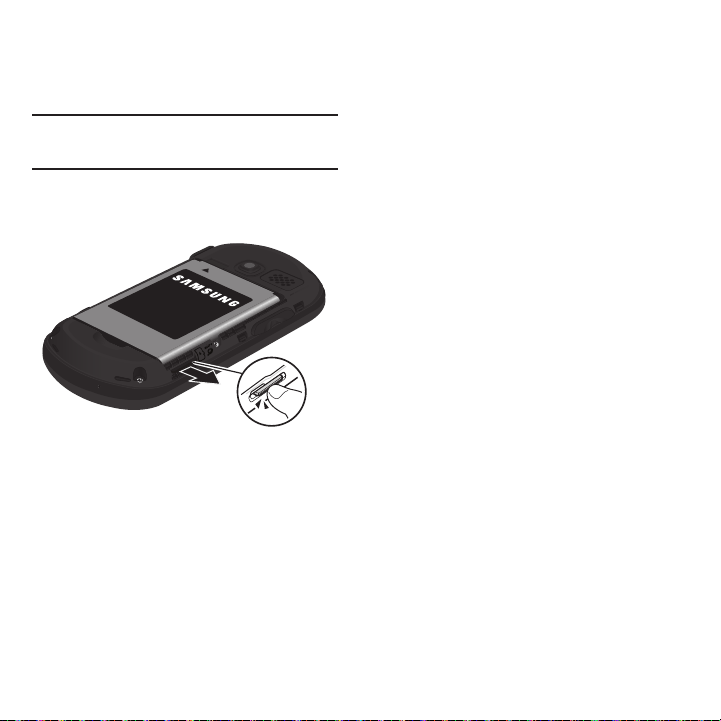
Removing the microSD Card
1. Locate the microSD card slot along the side of
the device.
Caution!:
DO NOT remove a microSD card while files are being
accessed or transferred. Doing so will result in loss or
damage of data.
2. Firmly press the card into the slot and release
(it should pop partially out of the slot).
3. Remove the card from the slot.
4. Replace the cover by lining up the tabs and
then firmly pressing the cover down until it
snaps into place.
5. Ensure the battery is still properly installed
before turning on the phone.
Understanding Your Phone 9
Section 2: Understanding Your Phone
Understanding Your Phone
This section outlines key features of your phone. It
also describes the phone’s keys, screen and the
icons that display when the phone is in use.
Features of Your Phone
The following list outlines a few of the features
included in your Samsung Restore™.
•
Large 2.4” display
•
Slide out, full 4-row QWERTY keyboard makes texting,
e-mailing, networking and instant messaging easy
•
Easy navigation
•
Synchronize calendar, e-mail and contacts
•
Dedicated keys for quick access to popular applications
•
Enhanced multimedia featuring built-in music player and
2.0 MP Camera
•
Pre-loaded games and applications
Your Device
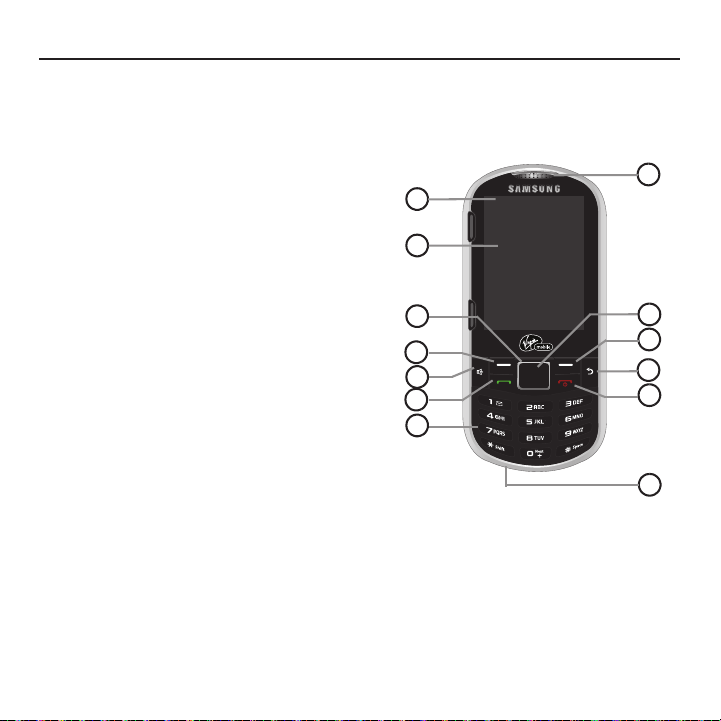
Front View of the Phone
Key Functions
1.
Status Bar Icons
provide information about your
phone’s status and options, such as signal
strength, ringtone settings, messaging, and
battery charge.
7
8
9
11
10
4
3
2
1
13
5
6
12

10
2.
Display Screen
displays all the information
needed to operate your phone, such as the call
status, the Contacts list, the date and time, and
the signal and battery strength.
3.
Navigation Key
from idle mode:
- Up
displays the MY ACCOUNT screen.
- Down
displays the MISSED ALERTS screen.
- Left
displays the TOOLS + SETTING screen.
- Right
displays the MESSAGING screen.
When navigating, this key displays the previous
selection or menu when accessing other menus
or features.
4.
Left Option Key
in Idle mode, selects the MENU.
Or, allows you select left option key actions or
menu items corresponding to the bottom left
line on the Display Screen when the phone is in
portrait mode.
5.
Speaker Key
in standby mode, displays recent
History events. During a call, this key activates
the speakerphone feature.
6.
TALK Key
allows you to place or receive calls,
answer Call Waiting, or activate Voice Dial.
7.
Keypad
lets you enter numbers, letters, and
characters, and navigate within menus. Press
and hold keys for speed dialing.
8.
Microphone
allows other callers to hear you
clearly when you are speaking to them.
9.
END/POWER Key
turns the phone on or off, ends
a call, or returns to standby mode. While in the
main menu, it returns the phone to standby
mode and cancels your input. When you
receive an incoming call, press to enter silent
mode and mute the ringtone.
10.
BACK/Clear Key
deletes characters from the
display in text entry mode. When in a menu,
pressing the Back key returns you to the
previous menu. This key also allows you to
return to the previous screen in a data session.
11.
Right Option Key
in Idle mode, displays the
CONTACTS list. Or, lets you select left and right
option key actions or menu items
corresponding to the bottom left and bottom
right lines on the Display Screen when the
phone is in portrait mode.
12.
MENU/OK
lets you access the phone’s menus
and selects the highlighted choice when
navigating through a menu.
13.
Earpiece
lets you hear the caller and automated
prompts.
Understanding Your Phone 11
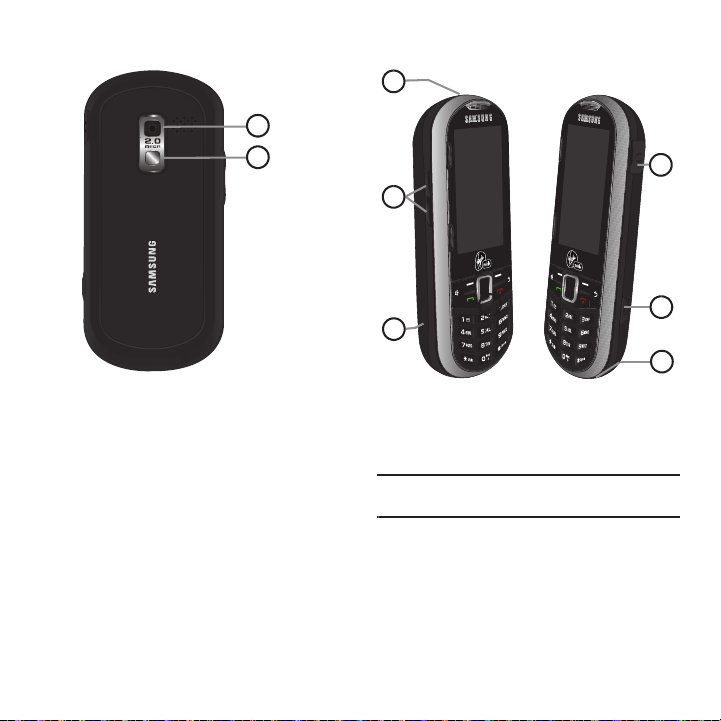
Camera View of the Phone
1.
Camera lens
contains the hardware enabling
you to capture pictures.
2.
Mirror
as part of the built-in camera, lets you
see yourself when taking a self-portrait
picture.
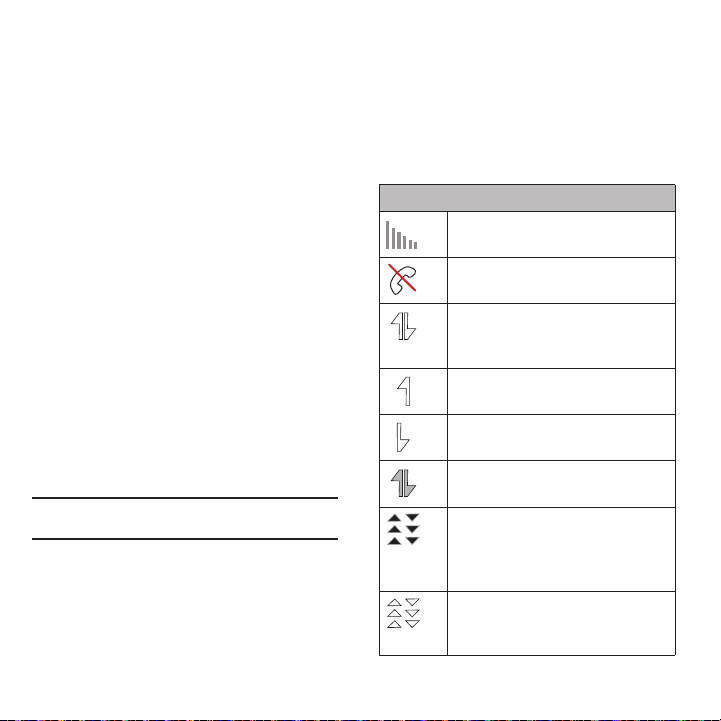
Side Views of the Phone
1.
Charger/Accessories Jack
allows you to
connect the phone charger or an optional USB
cable.
Caution!:
Inserting an accessory into the incorrect jack may
damage the phone.
2
1
1
2
1
3
4
5
6
12
2.
Volume Button
allows you to adjust the ringtone
volume in standby mode (with the phone open)
or adjust the voice volume during a call. The
volume button can also be used to scroll up or
down to navigate through the different menu
options.
3.
microSD Card (internal)
allows you use a
microSD card to expand the memory of your
phone. To gain access to this slot, you must
first remove the battery cover.
4.
Cover Release Latch
allows you remove the
battery cover and expose both the internal
battery compartment and internal microSD
card slot.
5.
Camera Button
allows you activate the camera
and camcorder and take pictures and videos.
6.
Headset Jack
allows you to plug in either a
stereo headset or an optional headset for
convenient, hands-free conversations.
Caution!:
CAUTION! Inserting an accessory into the incorrect
jack may damage the phone.
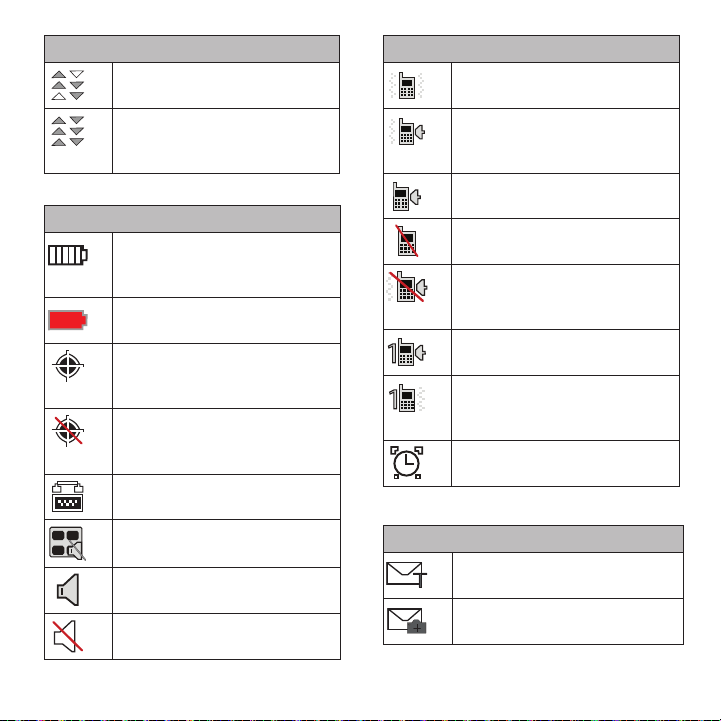
Viewing the Display Screen
Icon Glossary
Your device’s display screen provides information
about your device’s status and options. This list
identifies the symbols you will see on your device’s
display screen:
Status Bar - Service Icons
Signal Strength
– Your current signal
strength. (More bars = stronger signal.)
No Service
– Your phone cannot find a
usable signal.
Data Status
– 1xRTT data service is
available. When active, the icon is
animated.
Data Sending
– 1xRTT data service is
transmitting data.
Data Receiving
– 1xRTT data service is
receiving data.
Data Dormant
– Data service is currently
dormant.
EVDO Data Service Available
– Virgin
Mobile mobile broadband data service
(EVDO) is available. When active and
communicating, the icon is animated.
EVDO Data Service Status
– Current status
of the Virgin Mobile mobile broadband
data service.
Understanding Your Phone 13
EVDO Data Service Active
– mobile
broadband data service (EVDO) is active.
EVDO Data Service Dormant
– mobile
broadband data service (EVDO) is
dormant.
Status Bar – Status Icons
Battery Strength
– Your current battery
charge level. (Icon shown is fully
charged.)
Low battery
– Your current battery charge
level is low.
Location On
– Your phone’s location
feature is on and available for location-
based services such as GPS Navigation.
Location Off
– Your phone’s location
feature is off. Your location is available
only for 911.
TTY
– Your phone is operating in TTY
mode.
Keytones Muted
– Your phone’s key tones
are muted.
Speakerphone Enabled
– Your phone’s
speakerphone feature is enabled.
Silence All
– All incoming sounds are
turned off.
Status Bar - Service Icons
Vibrate Only
– The ringtone is set to vibrate
only.
Ring and Vibrate
– Your phone has the
ringtone volume set and the vibrate option
checked (enabled).
Ringtone
– The phone is set to ring only.
Ringtone Off
– The ringtone is turned off
and vibrate mode is disabled.
Ringtone Off and Vibrate
– Your phone has
the ringtone deactivated and the vibrate
option checked (enabled).
1 Beep
– Your phone is set to beep when
an incoming call is received.
1 Beep and Vibrate
– Your phone is set to
beep and vibrate when an incoming call is
received.
Alarm
– An alarm has been set on your
phone.
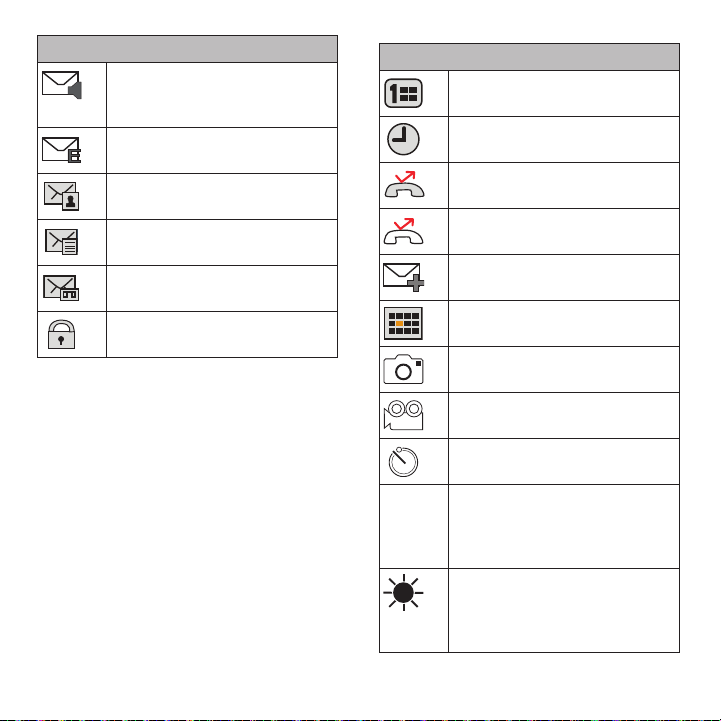
Status Bar - Message Icons
Text Message
– You have new text
messages.
Picture Mail Message
– You have new
picture mail messages.
Status Bar – Status Icons
14
Voicemail
– You have new voicemail
messages. Press and hold to call your
voicemail box.
E-mail Message
– You have new e-mail
messages.
Missed Picture Mail Message
– You have a
new Picture mail message.
Missed Text/E-mail Message
– You have
new unread text or e-mail messages.
Missed Voicemail Message
– You have new
unheard vociemail messages.
Locked Message
– You have new text
messages.
Status Bar - Message Icons
Status Bar - Other Icons
Missed Scheduler
– You have missed a
scheduled event.
Missed Alarm
– You have missed an alarm
event.
Missed Call
– You have missed an
incoming call.
Missed Call Alert
– You have missed a call
alert.
Multiple Alerts
– You have multiple alert
messages.
Calendar Event
– You have a pending event
scheduled.
Camera Mode
– The camera is enabled and
you are in Camera Mode.
Camcorder Mode
– The camcorder is
enabled and you are in Camcorder Mode.
Self Timer
– The self-timer function is
enabled.
White Balance (Auto)
– The white balance
has been set to Automatic. This is used for
taking pictures indoors or outdoors using
automatic white balance settings.
White Balance (Daylight)
– The white
balance has been set to Sunny. This is
used for taking pictures or movies
outdoors on bright sunny days.
AWB
Understanding Your Phone 15
Turning the Phone On
䊳
Press and hold to power on the phone.
Tip:
If the Password screen displays, use your keypad to enter
your four-digit password to unlock the phone. By default,
the password is the last four digits of the current phone
number.
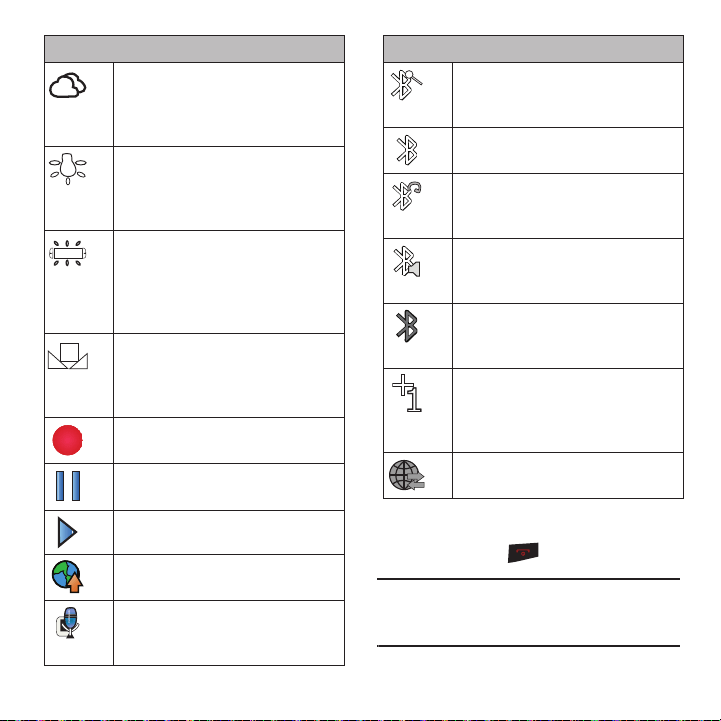
White Balance (Cloudy)
– The white
balance has been set to Cloudy. This is
used for taking pictures or movies
outdoors under cloudy conditions.
White Balance (Incandescent)
– The white
balance has been set to Tungsten. This is
used for taking pictures or movies indoors
under normal lighting conditions.
White Balance (Fluorescent)
– The white
balance has been set to Fluorescent. This
is used for taking pictures or movies
indoors under fluorescent lighting
conditions.
White Balance (Manual)
– The white
balance has been set to Manual. This is
used for taking pictures indoors or
outdoors using your own custom settings.
Recording
– A video or voice memo is
currently being recorded.
Paused
– A voice memo or video has been
paused.
Play
– A a voice memo or video is playing.
Media – Files have been uploaded to an
online album or folder.
Voice Caption
– Voice captioning is
enabled and that audio is currently being
recorded.
Status Bar - Other Icons
Bluetooth (Enabled/Active)
– The
Bluetooth technology is active and
enabled.
Bluetooth (Connected)
– The Bluetooth
device is connected.
Bluetooth (Headset Connected)
– The
Bluetooth Headset is connected and
visible.
Bluetooth (Stereo Connected)
– The
Bluetooth stereo device is connected and
visible.
Bluetooth (Hidden)
– The device is hidden
to other Bluetooth devices and not
transmitting its information.
Background Application +1
– Indicates
that more than one application is currently
running and one has been minimized and
placed in the background.
Wireless Backup
– A current wireless
backup session is in progress.
Status Bar - Other Icons

16
Activating Your Virgin Mobile Phone
Account
Prior to using your Samsung Restore™ for talking,
messaging, or surfing the Web, you must first activate
your service on this phone with Virgin Mobile. You
need your phone's serial number (MSID) to activate
your Phone.
To find your serial number (MSID)
1. From the Main screen, press
MENU
➔
Tools + Settings
➔
Settings
➔
Phone Information
➔
Phone Number/User ID
.
2. Locate the ten digit
MSID
number and write it
down.
Activating the Phone
To activate the phone:
1. From the Main screen, press
ACTIVATE
2. Press
Yes
at the prompt. The phone connects to
the network.
3. Follow the prompts or text on the screen to
complete activation.
Programming Your Phone
Once your account is activated, you need to program
your new phone number into your phone.
1. Turn on your phone.
2. Dial
##VIRGIN#
.
3. From the Programming menu, highlight
Activate Phone
and press .
4. When your screen displays “
do you want to
activate your phone now?
” select
Yes
and press
. The phone connects to the network and
validates itself.
5. When the screen displays “
Hi. Press Start to
continue the activation process
,” highlight
Start
and press . Your phone displays a
message and gets the phone number, then
displays your new Virgin Mobile phone number.
Write it down
.
Important!:
The Virgin Mobile Network may not recognize the
new number for a couple of hours. Once the
process completes, your phone receives a text
message to confirm the number and you can begin
making calls.
It may take up to 4 hour for Downloads, Voicemail,
or other related features to enable.
Navigating Through the Menus
Menu navigation can be accomplished using the
navigation keys on the keypad, or using the
directional keys on the QWERTY keyboard.
The navigation key on your phone lets you scroll
through and select on-screen items. Many menus
feature a scroll bar on the right to help you keep track
of your position in the menu.
Selecting Menu Items Using the Navigation Key
Use the navigation key to scroll through the phone’s
menu options and provide a shortcut to phone
functions from standby mode.

Understanding Your Phone 17
Selecting Menu Items Using the Arrow Keys
As you navigate through a menu, options highlight.
Select any option by pressing a directional arrow
from the QWERTY keyboard and moving the on-
screen selection, highlighting it and pressing ENTER.
If the option is numbered, press the corresponding
number on the phone’s keypad to select it.
For example, to view your messages:
1. From standby mode, press
MENU
to access the
main menu.
2. Highlight
Messaging
➔
Messages
and press
to display your available messages.
Displaying the Previous Menu
To display the previous menu:
䊳
Press the
Left Navigation
key.
To return to standby mode:
䊳
Press .
Displaying Your Phone Number
䊳
Highlight and press
MENU
➔
Tools + Settings
➔
Settings
➔
Phone Information
➔
Phone
Number/User ID
.
Your phone number and other phone
information displays.
Using the Application Manager
The application manager functions similarly to the
Task Manager on your PC.
When you use one of the applications such as Email,
Instant Messenger, Google Maps, or Virgin Mobile
Navigator, you can use the application manager to:
•
bring your application to the foreground
•
exit the application
•
exit all applications running in the background
•
launch a new application
1. Press
MENU
➔
My Stuff
➔
Application Manager
.
2. Select an application that is running and press
Options
.
3. Select one of the options associated with your
particular application.

18
Section 3: microSD Card
Your phone can use an optional memory card
(microSD™) to expand the phone’s available memory
space. The memory card allows you to store images,
videos, and music in your phone.
Refer to page 7, “Inserting the microSD card”, for
instructions on how to insert the microSD card.
microSD Adapter
The optional microSD adapter allows you to use
microSD cards in other SD-compatible devices, like
computers, cameras, and printers. Before using the
microSD card with an SD-compatible device, you will
need to insert the microSD card into the microSD
adapter.
To insert the microSD card into the microSD adapter:
䊳
With the label side of the microSD card facing
up, insert the card into the supplied microSD
adapter, and gently slide the card until it is fully
inserted.
To remove the microSD card from the microSD adapter:
䊳
Hold the front edge of the microSD card, and
gently pull it out to remove it from the adapter.
Write Protection
The microSD adapter has a built-in Write Protection
lock to prevent accidental overwriting or removal of
your data when the microSD card and adapter are
inserted in another device.
Slide the Write Protection lock tab down into the
“Lock” position to prevent overwriting data. To add or
remove data from the microSD card, slide the Write
Protection lock tab up into the normal position.
microSD Card Settings
Creating Folders in the microSD Card
The following steps allow your phone to create default
folders for storing files in your microSD card.
䊳
With an optional, memory card inserted, press
MENU
➔
Tools + Settings
➔
Tools
➔
Mass
Storage
➔
File Manager
➔
Memory Card
➔
OPTIONS
➔
Create Folder
.
With a formatted microSD card, there are no default
folders created. When you first access the Camera,
the phone creates a Graphic folder. The first time you
access the Music Player, the phone creates and
displays the Music/Tone folders.
The phone creates the microSD’s default folders.
Viewing Memory in the microSD Card
䊳
With an optional memory card inserted,
highlight and press
MENU
➔
Tools
➔
Mass
Storage
➔
Memory Info
➔
Card
.
The used and available memory space
displays.
microSD Card 19
Formatting the microSD Card
Formatting a microSD card permanently removes all
files stored on the card.
1. With an optional memory card inserted,
highlight and press
MENU
➔
Tools + Settings
➔
Tools
➔
Mass Storage
➔
Format Memory
Card
.
2. Enter your lock code.
3. Press
FORMAT
.
A warning displays.
Note:
The formatting procedure erases all the data on the
microSD card, after which the files CANNOT be retrieved.
To prevent the loss of important data, please check the
contents before you format the card.
microSD Card Folders
Displaying the microSD Card Folders
All the files stored in your microSD are accessible
through your microSD card folders.
1. Insert an optional, memory card, then highlight
and press
MENU
➔
Tools + Settings
➔
Tools
➔
Mass Storage
➔
File Manager
➔
Memory Card
.
2. Press or press the appropriate option key
to view or play a file.
Connecting Your Phone to Your
Computer
Before using your phone’s mass storage capabilities,
you need to prepare your phone’s data services to
synchronize with your desktop or laptop computer.
Once you connect the phone to the computer, you
can transfer your data to or from the microSD card.
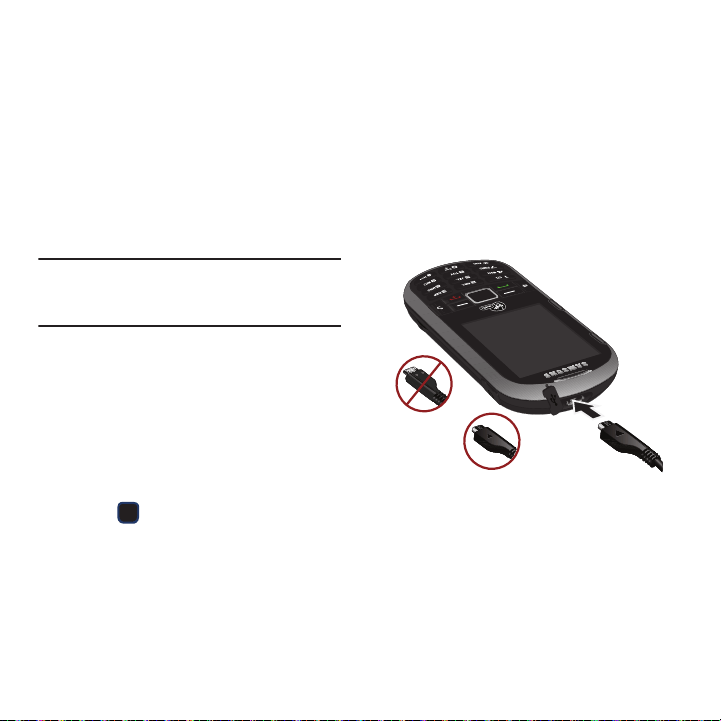
1. With the phone turned on, plug one end of a
compatible USB cable into the phone's
Charger/Accessories Jack.
2. Connect the other end of the cable to your
computer and turn on the phone.
3. With the optional memory card inserted, press
MENU
➔
Tools + Settings
➔
Tools
➔
Mass Storage
➔
Connect to PC
.
Correct
Incorrect

20
4.
Locate the newly created Drive letter on your
computer. You can begin using the memory
card as a storage device.
Note:
During this connection using the USB port, you are unable
to use your phone to make or receive calls.
To remove the connection when you finish
transferring data
1. Click the USB device icon on your computer’s
taskbar, and follow the on-screen instructions
to safely unplug the USB cable.
2. Press
DISCONNECT
➔
DISCONNECT
.
Important Connection Information
No driver installation is required. The USB drivers are
built into the phone and initiate during the connection
process.
•
To avoid loss of data, DO NOT remove the USB cable, the
microSD card, or the battery while files are accessed or
transferred.
•
DO NOT use your computer to change or edit folder or file
names on the microSD card, and do not attempt to
transfer large amounts of data from the computer to the
microSD card. Doing so may cause the microSD card to
fail.
•
DO NOT turn off or restart your computer, or put it into
standby mode, while using a mass storage device. Doing
so will result in loss or damage of data.
•
During this connection using the USB port, you are unable
to use your phone to make or receive calls.
•
If you connect a mass storage device to a peripheral
device, your device may not work properly.

Setting Up Service 21
Section 4: Setting Up Service
This section outlines details about activation, setting
up your voicemail and what to do when you need
help with your device.
Activating Your Device
After purchasing your Virgin Mobile Phone from an
authorized retailer, you need to activate your new
device.
You can activate the device in one of two ways:
From the phone
1. From the Main screen,
press
Menu
➔
Tools + Settings
➔
Settings
➔
Phone
Information
➔
Activation
.
2. Press
Yes
to activate the device.
The phone connects to the network and
validates.
3. Highlight
Get Started Now
and press ,
then follow the on-screen instructions.
– or –
From the computer’s Web browser:
1. From the Main screen, dial
##MEID#
.
2. Write down the 18-digit MEID number
displayed on your phone’s screen.
3. Navigate to
https://www1.virginmobileusa.com/activate/
activate.do?page=0
and complete the on-screen
instructions.
When you finish the process, make a phone call to
confirm your activation. If the phone is still not
activated or you do not have access to the Internet,
contact Virgin Mobile Customer Service
at
1-888-322-1122
for assistance.
Setting Up Voicemail
Your device automatically transfers all unanswered
calls to your voicemail, even if your device is in use or
turned off. You should set up your voicemail and
personal greeting as soon as your device is activated.
Always use a password to protect against
unauthorized access.
1. From the phone standby mode, touch and hold
.
2. Follow the system prompts to:
•
Create a 4 to 10-digit passcode.
•
Record your name announcement.
•
Record a greeting.
Note: Voicemail Password
- Virgin Mobile strongly recommends
that you create a password when setting up your
voicemail to protect against unauthorized access.
Without a password, anyone who has access to your
device is able to access your voicemail messages.

22
For more information about Voicemail and Voicemail
messages, see “Voicemail” on page 46.
Getting Help
Managing Your Account
Online:
www.virginmobileusa.com
•
View your monthly bills and payment history
•
View your current usage
•
View the status and information about a replacement
device
•
Update your Billing Address or switch to a paperless
billing statement
•
Make a Payment
•
Set up and manage Auto Bill Pay
•
Manage Referrals
•
Switch from one device to another, if you own multiple
devices
•
Manage your Add-On Services
•
Order Accessories
•
Get Downloads
Check your account any time by logging into My
Account at:
https://www1.virginmobileusa.com/myaccount/home.do
From your Phone:
Virgin Mobile At Your Service:
1-888-322-1122
.
Virgin 411
Virgin 411 gives you access to a variety of services
and information, including residential, business, and
government listings; movie listings or show times;
driving directions, restaurant reservations, and major
local event information.
There is a per-call charge to use Virgin 411, and you
will be billed for airtime.
䊳
Dial 4 1 1 Call
For more information or to see the latest in products
and services, visit us online at
www.virginmobileusa.com
.

My Account 23
Section 5: My Account
You can manage your Virgin Mobile account directly
from your phone. The most important tasks are
outlined here. For more information about your
account, go to www.virginmobileusa.com. Top-Up is
how you add money to your Virgin Mobile account
balance. You can Top-Up your Virgin Mobile account
right from your phone. First, buy a Top-Up card at one
of the thousands of retailers that carry them, or
register your debit card, credit card, or PayPal
account at
www.virginmobileusa.com
.
Checking your Account Balance
There are two ways to check your Virgin Mobile
account balance:
1. From the Main screen, press the navigation
key up.
– or –
2. From the Main screen, press
Menu
➔
My
Account
➔
Balance+Usage
. Your balance and
important account information display
on-screen.
When your balance is low, you can Top-Up your
account from your phone as follows:
Top-Up Your Minutes
1. Buy a Top-Up card from any available retailer.
2. From the Main screen,
press
Menu
➔
My
Account
.
3. Use the navigation keys to scroll to the
Top-Up
link and press .
4. With the
Top-Up card
field highlighted, enter
your
Top-Up PIN
number and press .
5. Select Top-Up Now and press .
6. At the “Confirmation” screen, press to
confirm.
7. At the “Approved” screen, scroll to
OK
and
press .
– or –
Highlight one of these payment methods:
•
Credit or Debit Card
•
Paypal
•
Find a Store
8. Press to exit the process.
Additional Information
To get more information about your Virgin Mobile
account, as well as other Virgin Mobile services, visit
us at
www.virginmobileusa.com
.
24
Section 6: Call Functions
This section describes features and functionality
associated with making or answering calls, and the
Contacts list, which is used to store contact
information.
Displaying Your Phone Number
䊳
Press
MENU
➔
Tools + Settings
➔
Settings
➔
Phone Information
➔
Phone Number/User ID
.
(Your phone number and other information
about your phone as well as your account
information displays.)
Making Calls
1. Enter a phone number from standby mode.
2. Press .
3. Press when you are finished.
Tip:
Press twice to redial your last outgoing call.
Press , highlight a number, and press
again to
redial other recent numbers.
You can also place calls from your phone by speed
dialing numbers from your Contacts list.
Dialing Options
When you enter numbers in standby mode, you will
see a variety of dialing options displayed as option
keys on the phone’s screen.
䊳
Press
SEND MESSAGE
to send a message to the
number.
– or –
Press
OPTIONS
, then press the corresponding
option key to initiate an option.
• Save contact
: saves this number to Contacts.
• Hard Pause
: enters a hard pause in the phone
number string.
•2-Sec Pause
: enters a 2-second pause in the phone
number string.
Call Functions 25
Answering Calls
1. Make sure your phone is on. (If your phone is
off, incoming calls are directed to voicemail.)
2. Press to answer an incoming call.
(Depending on your settings, you may also
answer incoming calls by opening the phone or
by pressing any number key.)
The phone notifies you of incoming calls in the
following ways:
•
The phone rings or vibrates.
•
The indicator light flashes.
•
The backlight illuminates.
•
The screen displays an incoming call message.
If the incoming call is from a number stored in your
Contacts, the entry’s name is displayed. You may also
see the caller’s phone number, if available.
Ending a Call
䊳
Press .
Missed Call Notification
When you do not answer an incoming call, your
screen displays the Missed Alerts Call log.
To display the Missed Call entry from the notification
screen:
䊳
Highlight the entry and press .
Tip:
Press to dial the phone number.
To display a Missed Call entry from standby mode:
1. Press ➔
Missed alert
.
2. Highlight an entry and press .
Calling Emergency Numbers
Dial 9 1 1 to dial this emergency service, even if your
phone is locked or your account is restricted.
Note:
When you place an emergency call, your phone
automatically enters Emergency mode.
Emergency Calling Options
䊳
During an emergency call, press
OPTIONS
to
display your options. Highlight an option and
press .
•Speaker On
:
activates speakerphone mode. (If you
are in speakerphone mode, the option displays as
Speaker Off to deactivate.)
• Unlock Phone
:
unlocks your phone (displays only if
the phone is locked).
• Close Menu
: closes the pop-up menu (displays only
if the phone is unlocked).
Tip:
Press My Phone # to display your phone number during an
emergency call.
To exit Emergency mode
:
䊳
Press * # until Emergency the phone exists
Emergency mode.

26
Enhanced 911 (E911) Information
This phone features an embedded Global Positioning
System (GPS) chip necessary for utilizing E911
emergency location services where available.
When you place an emergency 911 call, the GPS
feature of your phone seeks information to calculate
your approximate location. Depending on several
variables, including availability and access to satellite
signals, it may take up to 30 seconds or more to
determine and report your approximate location.
Important!:
Always report your location to the 911 operator
when placing an emergency call. Some designated
emergency call takers, known as Public Safety
Answering Points (PSAPs) may not be equipped to
receive GPS location information from your phone.
In-Call Options
1. During a call, press
OPTIONS
to display a list of
available in-call features.
2. Press the corresponding keypad number or
highlight the option and press to select
an option.
The following options may be available through
the Options menu:
•Save
: saves this number to the Contacts list if this
number is a new entry.
•Contacts
: displays your Contacts list.
• Voice Memo
: allows you to record incoming audio
from your conversation.
• Phone Info
: displays the following menu options:
–
Phone Number
- your phone number.
–
Icon Glossary
- a list of currently available icons.
–
Version
- phone software version.
–
Advanced
- additional technical information.
• Key Mute/Unmute
: allows you to mute the key tones
from being heard by the caller.
• Messaging
: accesses the Message menu options.
• Recent History
: checks your call log for Recent calls.
You can also erase the logs from this menu.
• Tools
accesses the Tools menu options.
–
Calendar
- your calendar entries.
–
Bluetooth
- a list of current Bluetooth devices.
–
Memo Pad
- on-screen memo pad.
–
Alarm
- your Alarm events and menu.
–
Calculator
- on-screen calculator.
3. Press
MUTE
during a call to mute the
microphone.
4. Press
UNMUTE
to unmute the microphone.

Call Functions 27
Using the Speakerphone
To use your phone handsfree or to share a call with
other people:
1. Press the Speaker key until “entering speaker
mode” displays on the screen to activate
Speaker mode.
Caution!:
Because of higher volume levels, do not place the
phone near your ear during speakerphone use.
2. Press the Speaker key until “Exit speaker
mode” displays on the screen to disable
Speaker Mode.
End-of-Call Options
After you receive a call from or make a call to a
phone number that is not in your Contacts, the phone
displays the phone number and the duration of the
call.
䊳
Press
OPTIONS
➔
Save
to add the new number
to your Contacts.
After you receive a call from or make a call to a
phone number that is already in your Contacts list,
the phone displays the entry name, phone number,
and the duration of the call.
䊳
Press
OPTIONS
➔
Contact Details
to view the
Contacts listing for the number.
Note:
The End-of-Call options do not display for calls identified
as No ID or Restricted.
Dialing and Saving Phone Numbers
with Pauses
You can dial or save phone numbers with pauses for
use with automated systems, such as voicemail or
credit card billing numbers.
There are two types of pauses available on your
phone:
•
Hard Pause
: sends the next set of numbers when you
press .
•
2-Second Pause
automatically sends the next set of
numbers after two seconds. (This is indicated with a t
within the number sequence.)
Note:
You can use multiple pauses in a phone number and
combine two-second and hard pauses.
To dial or save phone numbers with pauses:
1. Enter the phone number.
2. Press
OPTIONS
➔ Hard Pause or 2-Sec Pause.
3. Enter additional numbers.
4. Press to dial the number.
– or –
Press
OPTIONS
➔
Save Contact
to save the
number in your Contacts.
Note:
When dialing a number with a hard pause, press
SEND TONES
to send the next set of numbers.

28
Abbreviated Dialing
Abbreviated Dialing is similar to speed dialing. You
can use either of the following abbreviated dialing
features.
•
Contacts Match
– Retrieve any number saved in your
Contacts by entering the last four digits of the number.
Press to dial the retrieved number.
•
Prepend/Abbreviated Dialing
– Prepend the first five or
six digits (for example, the area code and prefix) to any
four or five digits you enter. Press
to dial the
resulting number.
To place a call using Contacts Match Abbreviated
Dialing:
1. Enter the last four to six digits of a Contacts
entry’s phone number.
2. Press to call the displayed number. (If
there is more than one matched number in your
Contacts, your phone displays the
Abbrev. Dial
list.
3. Highlight a contact name and press to
place a call.)
To place a call using Prepend Abbreviated Dialing:
1. Enter the last four or five digits of the number.
2. Press .
Dialing From the Contacts List
1. Press
MENU
➔
Contacts
.
2. Highlight the entry you want to call and press
to dial the entry’s default phone number.
– or –
To dial another number from the entry, highlight
the name and press , and then highlight a
number and press .
Speed Dialing
You can store up to 99 numbers in your phone’s speed
dial memory. Dial speed dial entries using one
keypress for locations 2–9 or two key presses for
locations 10–99.
Setting up Speed Dial
You can assign speed dial numbers when you add a
new Contacts entry, when you add a new phone
number to an existing entry, or when you edit an
existing number.
1. Add a phone number to a new or to an existing
Contacts entry.
2. Highlight the recently added number and press
OPTIONS
➔
Set Speed Dial
.
3. Highlight an available speed dial location and
press
ASSIGN
.

Call Functions 29
To assign a speed dial number to an existing
phone number:
1. Press
CONTACTS
, highlight an entry, and press
to view the contact’s details.
2. Highlight an existing entry’s phone number and
press
OPTIONS
➔
Set Speed Dial
.
3. Highlight an available speed dial location and
press
ASSIGN
.
To use One-Touch Dialing for speed dial
locations 2–9:
䊳
Press and hold the key you assigned the speed
dial number for approximately two seconds.
The display confirms that you have dialed the
number when it shows “Connecting...”.
To use Two-Touch Dialing for speed dial
locations 10–99:
1. Press the first digit.
2. Press and hold the second digit for
approximately two seconds. The display
confirms that you have dialed the number
when it shows “Connecting...”.
Plus (+) Code Dialing
When placing international calls, Plus Code Dialing
automatically enters the international access code for
your location (for example, 011 for international calls
made from the U.S.).
1. Press and hold 0 key until you see a “+” on
the display screen.
2. Dial the country code and phone number, and
then press . (The phone automatically
prepends the access code for international
dialing, followed by the country code and
phone number.)
Voice Dialing
You can use your phone’s built-in speech recognition
software to dial a phone number in your Contacts or
to launch phone functions. All you have to do is to
talk into the phone, and the software recognizes your
voice and completes the task.
1. Press
MENU
➔
Tools + Settings
➔
Tools
➔
Voice Service
.
2. At the “Say a command” prompt, say one of
these commands and follow the voice
prompts:
• Call <Name or#>
to call an entry in your Contacts list
or a spoken phone number.
• Send Message <Name or #>
to launch text
messaging on your phone and specify a recipient for
a new message.
30
• Lookup <Name>
to lookup a Contacts entry name
from your current list of available contacts.
• Go To <menu>
to jump directly to menu items or
applications.
•Check <item>
to check your phone’s status.
Tip:
Use the voice recognition software in a quiet environment
so it can accurately recognize your commands.
Press
Tutorial
after “Say a command” to view voice
recognition command instructions.
Making a Call From History
1. Press .
– or –
From the Standby screen, press to
display Recent History and select an entry.
2. Highlight an entry and press .
Note:
You cannot make a call from History to an entry identified
as
No Id
or
Restricted
.
Saving a Number From History
Your phone can store up to 1000 Contacts entries.
Contacts entries can store up to a total of 7000 phone
numbers, and each entry’s name can contain
64 characters.
1. Press .
– or –
From the Standby screen, press to
display Recent History and select an entry.
2. Highlight a History entry and press
OPTIONS
➔
Save
.
3. Select
New Entry
or
Existing Entry
and
press .
4. Highlight a label (Mobile, Home, Work, Pager,
Fax, or Other) and press .
5. Use the keypad or keyboard to type in the new
entry name.
– or –
Highlight an existing Contacts entry and
press .
6. Make any other selection or entries for this new
Contact.
7. Press
DONE
to save the new entry to your
Contacts list and exit.
After you have saved the number, your phone displays
the new Contacts entry.
Note:
You cannot save phone numbers already in your Contacts
or from calls identified as
No Id
or
Restricted
.

Contacts 31
Section 7: Contacts
This section explains how to use and manage your
Contacts List. You can save phone numbers to your
phone’s memory.
Creating a New Contacts Entry
Your phone can store up to 1000 Contacts entries.
Contacts entries can store up to a total of 7000 phone
numbers, and each entry’s name can contain
64 characters.
1. Press
MENU
➔
Contacts
.
– or –
From Idle mode, press
Contacts.
2. Select
Add New
and press .
3. Highlight
New Contact
and press .
4. Enter a name for the new entry and press the
Down Navigation key.
5. Enter a phone number for this entry and press
the Down Navigation key, then select a type for
the entry (Mobile, Home, Work, Pager, Fax, or
Other) and press .
6. Press
DONE
.
After saving the number, your phone displays the
new entry.
Tip: ICE – In Case of Emergency
To make it easier for emergency
personnel to identify important contacts, you can list your
local emergency contacts under “ICE” in your phone’s
Contacts list. For example, if your mother is your primary
emergency contact, list her as “ICE–Mom” in your
Contacts. To list more than one emergency contact, use
“ICE1–___,” “ICE2–___,” etc.
Adding a number to a Contacts Entry
1. Display a Contacts entry’s Contact Details
menu.
2. Press
OPTIONS
➔
Edit Contact
➔
[Add Number]
.
3. Enter the new phone number and press
4. Press the Down Navigation key, then select a
type for the entry and press .
5. Press
DONE
to save the new number.
Saving a Phone Number
To save a number from standby mode:
1. Enter a phone number and press
OPTIONS
➔
Save Contact
.
2. Highlight
New Entry
or
Existing Entry
and
press .
3. Select a type for the new entry (Mobile, Home,
Work, Pager, Fax, or Other) and press .

32
4.
Enter any additional information, then press
DONE
to save the record.
Contacts Entry Options
To display a Contacts entry:
1. Press
MENU
➔
Contacts
.
– or –
From Idle mode, press
Contacts
.
2. Highlight an entry and press to view the
Contact Details
menu.
Tip:
You can view the next entry by scrolling the navigation key
right or view the previous entry by scrolling the navigation
key left.
To access a Contacts entry’s options:
1. Display an entry from the Contact Details page
and press
OPTIONS
➔
Edit Contact
.
2. Highlight one of the following options and
press .
•[Contact Image]
to edit the image associated with
the contact entry.
• [Contact Name]
to edit the contact entry name.
• [Current number]
to edit the entry phone number.
• [Add Number]
to add a phone number to the entry.
•[E-mail]
to add an e-mail address to the entry.
•[IM]
to add an Instant Messenger address to the
entry.
• [Ring]
to assign a pre-programmed or downloaded
ringtone.
•[URL]
to add a website’s URL to the entry.
• [Address]
to add a physical address to the entry.
• [Birthday]
to add Birthday information to the entry.
•[Memo]
to add a note, street address, or other
information.
•[Job Title]
to add Job Title information to the entry.
•[Company]
to add Company information to the entry.
Editing a Contacts Entry
1. Display a Contacts entry and press
OPTIONS
➔
Edit Contact
.
2. Highlight a number and press to clear one
digit at a time, or press and hold to erase
the entire number.
3. Highlight the information you wish to edit
(Name, Number, Ringtone, etc.) and
press .
4. Re-enter or edit the number and press .
5. Press the Down Navigation key, highlight a
label for the number, and press .
– or –
6. Press
OPTIONS
➔
Set # Type
, highlight the
desired label and press .
Contacts 33
7.
Press
DONE
to save the number.
– or –
8. Press
OPTIONS
➔
Set Speed Dial
to assign a
speed dial location, and then press
ASSIGN
or
to return the
EDIT CONTACT
screen.
Other options include:
Hard Pause
,
2sec Pause
,
Set # Type
, and
Set as Main #
.
Deleting a Contact
1. Display a Contacts entry.
2. Select
OPTIONS
➔
Delete Contact
.
3. Select
DELETE
to confirm the deletion.
Secret Contacts Entries
Marking an entry secret hides its phone number(s)
and requires your lock code to edit the entry.
To make an entry secret:
1. Highlight a Contacts entry and press
OPTIONS
➔
Set as Secret
.
2. Press
DONE
to save the new setting.
To make an entry public:
1. Highlight a Contacts entry and press
OPTIONS
➔
Set as
Not Secret
.
2. Press
DONE
to save the new setting.
Selecting an Entry Ringtone Type
Assign a ringtone type to a Contacts entry so you can
identify the caller by the ringtone type.
1. Display a Contacts entry’s Contacts Details
menu and press
OPTIONS
➔
Edit
Contact
.
2. Highlight the current ring type and press
to display the Ringtone Type menu.
3. Select a ringtone menu, such as
Get More
Ringtones
,
Default Ringtone
,
Downloaded
Ringtones
,
Other Ringtone
,
My Videos
, or
No
Ringtone
.
4. Scroll through available ringtones (highlight a
ringtone type and press
PLAY
to listen to a
sample ringtone.)
5. Highlight a ringtone and press .
6. Press
DONE
to save the new ringtone type.
Tip:
If you select
Get More Ringtones
, you can purchase and
download new ringtones right from your phone.

34
Assigning a Picture to an Entry
Assign a picture to display each time a certain contact
calls you.
1. Display a Contacts entry’s Contacts Details
screen and press
OPTIONS
➔
Edit Contact
.
2. Highlight the current image or picture type and
press
ADD
.
3. Select an option, such as
Get More Graphics
,
None
,
New Picture
,
My Albums
,
or Graphics
.
4. Highlight a picture and press twice to
assign the selection.
If you selected
New Picture
, the camera
launches so you can take a picture. Press
ASSIGN to assign the picture to this entry.
If you selected
My Albums
, select
In Phone
or
Memory Card
to find the picture.
5. Press
DONE
to save the assigned picture.
Adding a New Group
Groups allow you to communicate simultaneously by
sending out a broadcast text message to every
member of a current group.
1. Press
MENU
➔
Contacts
.
– or –
From Idle mode, press
Contacts
.
2. Press
OPTIONS
➔
New Group
.
3. Read the on-screen information and press
START
.
4. Press to place a check mark next to each
name to add to the new group.
5. Press
CONTINUE
when you are finished adding
contacts to the group.
6. Enter a group name and press the Down
Navigation key.
7. Press
SAVE
to assign the selected entries.

Contacts 35
Assigning Speed Dial Numbers
Your phone can store up to 99 phone numbers in
speed dial locations. For more information about
making calls using speed dial numbers, see “Speed
Dialing” on page 28.
You can assign speed dial numbers when you add a
new Contacts entry, when you add a new phone
number to an existing entry, or when you edit an
existing number.
To assign a speed dial number to a new phone number:
1. Add a phone number to a new or to an existing
Contacts entry. (see “Creating a New Contacts
Entry” on page 31. or see “Adding a number to
a Contacts Entry” on page 31.
2. Highlight the recently added number and press
OPTIONS
➔
Set
Speed Dial
.
3. Highlight an available speed dial location and
press
ASSIGN
to return to the
EDIT CONTACT
screen.
To assign a speed dial number to an existing phone
number:
1. Display a Contacts Contact Details screen.
2. Highlight an existing entry’s phone number and
press
OPTIONS
➔
Set Speed Dial
.
3. Highlight an available speed dial location and
press
ASSIGN
.
4. Press
DONE
to return to the Contacts Details
menu.
Note:
If you attempt to assign an already in-use speed dial
location to a new phone number, you see a message
asking if you wish to replace the existing speed dial
assignment. Press
REPLACE
to assign the location to the
new phone number and delete the previous speed dial
assignment.
Locating Speed Dial Numbers
1. Press
MENU
➔
Contacts
➔
OPTIONS
➔
Settings
➔
Speed Numbers
.
2. Scroll through speed dial entries. Speed dial
numbers are displayed in numeric order.
– or –
Enter the number of a speed dial location using
your keypad.
3. To display an entry, highlight it and
press .
36
Contact History
Viewing Contact History
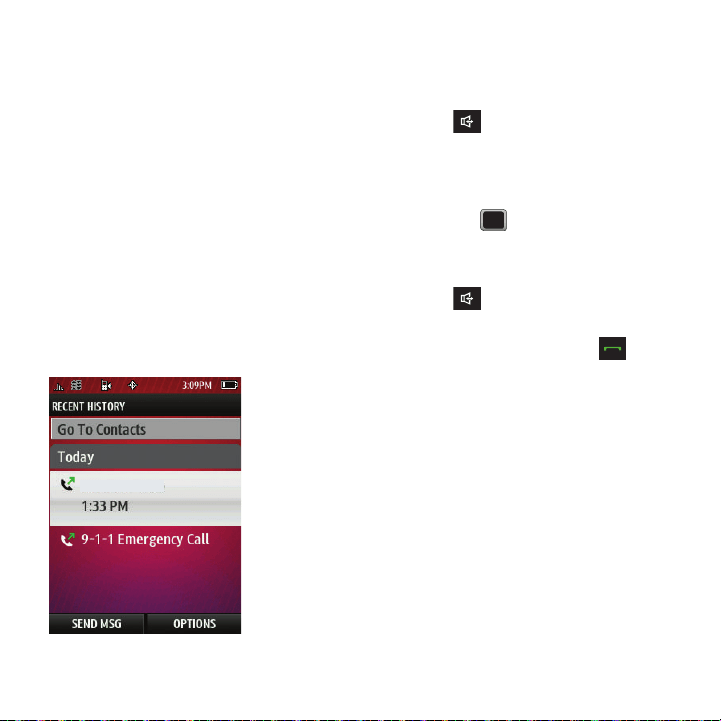
History is a list of the last 240 phone numbers for
calls you placed, accepted, or missed. History makes
redialing a number fast and easy. It is continually
updated as your phone automatically adds new
numbers to the beginning of the list and removes the
oldest entries from the bottom of the list.
When you place, accept, or miss a call, a record of the
call saves in the Recent History list. When you view
the numbers in this list, the phone icon to the left of
the number indicates the call type:
•
Missed
: Indicates any missed calls.
•
Received
: Indicates any received calls that were
answered.
•
Dialed
: Indicates all outgoing calls made from your phone.
Each entry contains the phone number (if it is
available) and Contacts entry name (if the number is
in your Contacts). Duplicate calls (same number and
type of call) may only display once on the list.
䊳
Press .
The History for today displays.
History Options
Highlight a History entry from the Recent History
screen and press to display the date and time of
the call, the phone number (if available), and the
caller’s name (if the number is already in your
Contacts).
1. Press .
– or –
From the Standby screen, press to
display Recent History and select an entry.
2. Press
SEND MSG
to send the currently selected
history entry a new text message.
– or –
Highlight an entry and press
OPTIONS
to display
the following options:
•New Group
to save the current history entry to a new
group.
•Save
to save the number if it is not already in your
Contacts.
• Contact Details
to display the Contact entries’ details.
555-555-5555
Contacts 37
•Delete
to delete the entry.
• Delete All
to delete all History entries.
Tip:
Press the Up or Down Navigation key to view the previous
or next History entry.
Saving a Number From History
Your phone can store up to 1000 Contacts entries.
Contacts entries can store up to a total of 7000 phone
numbers, and each entry’s name can contain
64 characters.
1. Press .
2. Highlight a History entry and press
OPTIONS
➔
Save
.
Note:
You cannot save phone numbers already in your Contacts
list or from calls identified as
No Id
or
Restricted
.
3. Highlight
New Entry
or
Existing Entry
and
press .
4. Highlight a label (Mobile, Home, Work, Pager,
Fax, or Other) and press .
5. Use the keypad or keyboard to type in the new
entry name.
– or –
Highlight an existing Contacts entry and
press .
6. Make any other selection or entries for this
new Contact.
7. Press
DONE
to save the new entry to your
Contacts list and exit.
After you saved the number, the new Contacts entry
displays on the screen.
Erasing History
To erase individual History entries, see “History
Options” on page 36.
1. Press .
– or –
From the Standby screen, press .
2. Press
OPTIONS
➔
Delete all
.
3. If you are certain you want to erase the History,
press
DELETE
.

38
Section 8: Entering Text
Your phone provides convenient ways to enter letters,
numbers, and symbols whenever you are prompted to
enter text (for example, when adding a Contacts entry
or when using Sprint Mail and Text Messaging).
In this section we’ll cover the steps necessary to enter
text while the phone is in portrait mode where the
keypad is the primary method of both text and
character entry.
Selecting a Text Input Mode
1. From a screen where you can enter text, press
OPTIONS
➔
Text Mode
to change the text input
mode.
2. Select one of the following options:
• Predictive Text
: to enter text using a predictive text
system that reduces the number of key presses
required while entering a word.
•Smiley’s
: to enter emoticons.
•Symbols
: to enter symbols.
• Text Settings
: to configure these options:
Auto-Capital, Auto-Space, Dual Language, Word
Choice List, Word Prediction, Word Completion, Use
My Words.
Tip:
When entering text, press to change letter
capitalization (
ABC
➔
Abc
➔
abc
).
Selecting a Text Message Option
1. From a screen where you can enter text, press
OPTIONS
.
2. Select one of the following options:
•Text Mode
: to change the text entry mode.
• Add Preset Message
: to enter pre-programmed
messages.
• Add/Change Recipients
: to return to the Send to
page and either add or change any previously chosen
recipients.
• Add/Change Attachments
: to return to the Send to
page and either add or change any current attached
files.
• Add/Change Subject Line
: to return to the Send to
page and either add or change the message
subject text.
• Save as Draft
: to store the current message as a draft
for later modification and delivery.
For complete information on text messaging, see
“Text and Picture Messaging” on page 48.
Entering Text 39
Entering Text Using Predictive Text
Predictive Text lets you enter text by pressing keys
just once per letter. (To select this mode when
entering text, see “Selecting a Text Input Mode” on
page 38.) This input method uses an intuitive word
database to analyze the letters you enter and create a
suitable word. (The word may change as you type.)
1. From a screen where you can enter text, press
OPTIONS
➔
Text Mode
➔
Predictive Text
➔
On
to activate this input mode.
2. Press the corresponding keys once per letter to
enter a word. (For example, to enter the word
“Bill,” press) (If you make a mistake, press to
erase a single character. Press and hold to
erase all previously entered text.)
ABC Mode
In its default mode, also known as ABC or multi-tap
entry, you press keys one, two, three, or four times to
enter the letters you see on the keypad. For example,
press once for “a,” twice for “b”, or three
times for “c”; or press once for “p,” twice for
“q,” three times for “r,” or four times for “s.”
䊳
Press the corresponding keys repeatedly until
the correct letter appears. (For example, to
enter the word “Bill,” press twice,
three times, three times, and three
times again.) (If you make a mistake,
press to erase a single character. Press
and hold to erase an entire word.)
By default, the first letter of an entry is capitalized
and the following letters are lower case. After
entering a character, the cursor automatically
advances to the next space after two seconds or
when you enter a character on a different key.
Characters scroll in the following order:
Key
English Sequence
Upper Case Lower Case
. ? ! , - ' @ : / 1
A B C 2 a b c 2
D E F 3 d e f 3
G H I 4 g h i 4
J K L 5 j k l 5
40
Entering Numbers, Symbols, Smileys
and Preset Messages
To enter numbers:
䊳
Press the corresponding keys repeatedly until
the correct number appears. Pressing a key
multiple times cycles the characters through its
available set. Press four times to
display the number two.
To enter symbols:
䊳
From a screen where you can enter text, press
OPTIONS
➔
Text Mode
➔
Symbols
to activate
this input mode.
– or –
With the cursor in the desired location, press
➔ .
Note:
These instructions assume you are using the QWERTY
keypad.
To enter emoticons (smileys):
1. From a screen where you can enter text, press
OPTIONS
➔
Text Mode
➔
Smiley’s
to activate
this input mode.
– or –
With the cursor in the desired location,
press .
Note:
These instructions assume you are using the QWERTY
keypad.
2. Press the numeric key corresponding to the
desired smiley or emoticon.
To enter preset messages:
1. From a screen where you can enter text, press
OPTIONS
➔
Add Preset Message
to activate this
input mode.
2. Highlight a message and press .
Note:
Preset messages make composing text messages easier
by allowing you to enter quick messages, such as “Meet
me at,” “Let’s get lunch,” or a customized message of
your own.
M N O 6 m n o 6
P Q R S 7 p q r s 7
T U V 8 t u v 8
W X Y Z 9 w x y z 9
Shift Caps Lock Unshift
0
Space
Key
English Sequence
Upper Case Lower Case
Entering Text 41
To edit specific text using the on-screen navigation
keys:
1. Use the navigation keys to place your cursor in
the desired location.
2. If you make a mistake, press to erase a
single character.
3. Press and hold to erase an entire word or
all entered characters.
Setting Text Options
The Text Options menu allows you to specify more
automated features during the text entry process.
These options can help streamline the text entry
process by correcting for capitalization, spelling,
spacing, and completing the most commonly entered
words for you.
1. From a screen where you can enter text, press
OPTIONS
➔
Text Mode
➔
Text Settings
and
then use your navigation key to scroll down the
list and activate the desired text entry option:
• Auto-Capital
: allows you to turn on or off the
capitalization of the next character after a full stop
punctuation is followed by a space.
•Auto-Space
allows you to turn on or off the ability to
insert a space automatically after a word is selected
from the candidate list.
• Dual Language
allows you to select word candidates
to display in English only (None) or in Spanish.
• Word Choice List
allows you to display an on-screen
list of available word choices.
•Word Prediction
allows you to configure the phone
to display possible word candidates after a preset
number of characters have been entered.
•Word Completion
allows you to turn on or off the
ability to insert predictive words into the text.
•Use My Words
allows you to turn on or off the ability
to use words from your own custom dictionary.
Note:
You can also access Text Entry options from the
Settings
menu. Press
Menu
➔
Tools + Settings
➔
Settings
➔
Text Entry
.
Entering Characters In Dual Language
By enabling the Dual Language text option, you can
use the keys for both English and Spanish text entry.
If the Word Prediction and Word Completion text
options are enabled, the available word choices
presented are from both language sets (English/
Spanish).
To enter characters in dual language mode:
1. From a screen where you can enter text, press
OPTIONS
➔
Text Mode
➔
Text Settings
➔
Dual Language
.
2. Select
Spanish
and press . (See
“Selecting a Text Input Mode” on page 38.)
To disable dual language mode:
1. From a screen where you can enter text, press
OPTIONS
➔
Text Mode
➔
Text Settings
➔
Dual Language
.
2. Select
None
and press .
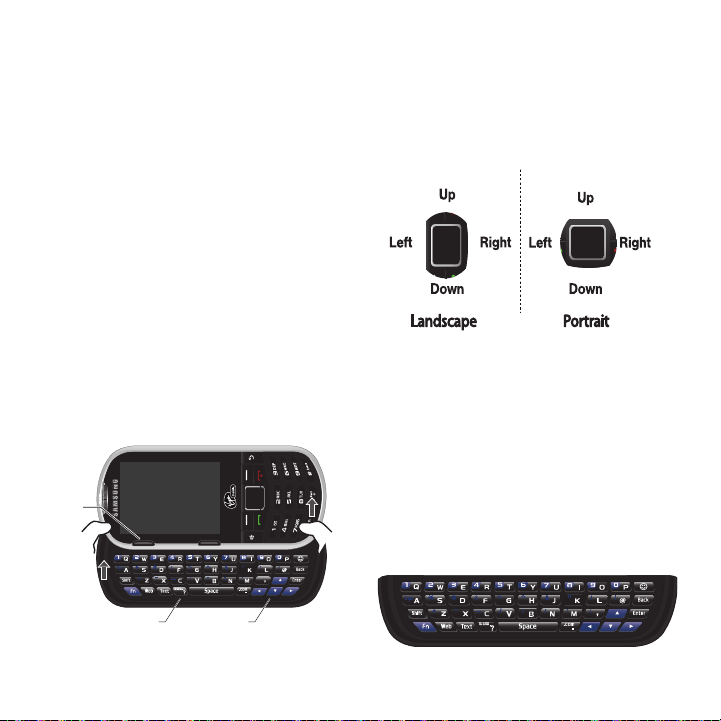
42
Entering Text in Landscape Mode
Accessing the QWERTY Keyboard
The phone has a built-in, keyboard-style keypad,
referred to as a full QWERTY keyboard. The keyboard
is located beneath the display screen and is accessed
by sliding it open. This orients the phone's display to
landscape (wide screen) mode.
Using the QWERTY keyboard, you can type letters,
numbers, punctuation, and other special characters
into text entry fields or other applications simpler and
faster than using the telephone keypad.
To open the phone and access the keyboard:
1. Rotate the phone 90 degrees counterclockwise.
2. Slide the top section of the phone up to open,
as shown in the following illustration. When you
slide the phone open, the display rotates from a
vertical viewing mode (portrait) to a horizontal
viewing mode (landscape).
Navigation Key in Landscape Mode
Just as the screen orientation is changed, so is the
functionality of both the option keys and the
navigation key. The Up/Down/Left/Right options of the
navigation key adjust when the phone changes from
portrait to landscape mode.
Entering Text Using the Keyboard
Your phone’s keyboard provides a convenient way to
enter letters, numbers, and symbols whenever you
are prompted to enter text. Using your phone's
keyboard is just like using any standard computer
keyboard, except that here each key has a primary
character in white on the bottom (usually letters) and
a secondary character in red on the top (numbers and
punctuation).
Secondary characters are accessed by first pressing
the Function key.
Option
QWERTY
Keyboard
Directional
Keys
Key
Landscape
LeftRight
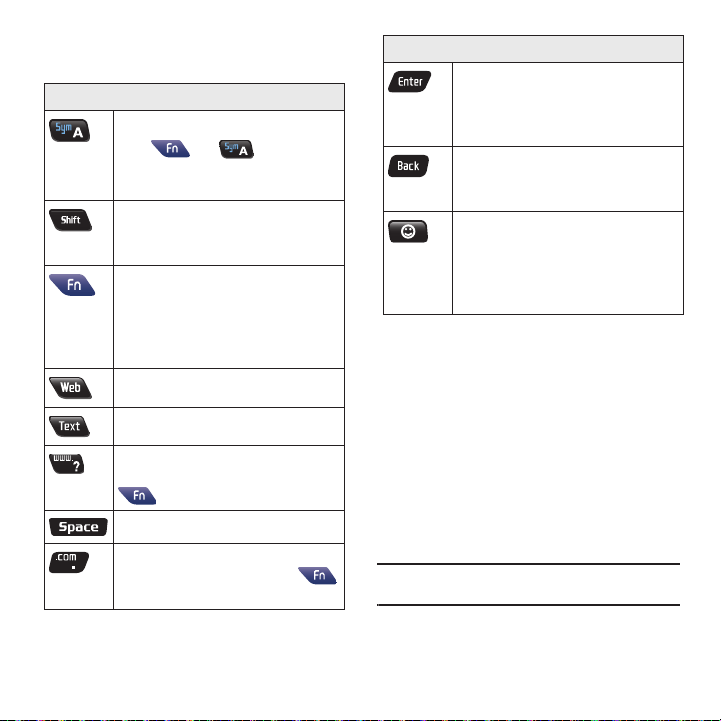
Entering Text 43
The following keys perform special functions when
entering text:
Using the Keyboard
Setting Text Options
The Text Mode menu allows you to specify more
automated features during the text entry process.
These options can help streamline the text entry
process by correcting for capitalization, spelling,
spacing, and completing the most commonly entered
words for you.
1. From a screen where you can enter text,
press
OPTIONS
.
Note:
When in Landscape mode, use the left and right option
keys located below the LCD.
Keyboard Functions
Sym
– Launches the Symbols page.
Press and to choose from
on-screen symbols by using their
associated numbers.
Shift
– Changes the text input mode
among Upper/Lower/Mixed case modes.
(Press twice to turn Shift lock on.)
Function
– Allows you to enter the
numbers or characters displayed in blue at
the top of the QWERTY keys.
Examples: 1, $, %, #, ! (Press twice to turn
Fn lock on.)
Web
– Launches an Internet connection.
Text
– Launches a new text message.
WWW
– Inserts either a question mark into
your text or when used in conjunction with
inserts www.
Space
– Inserts an empty space.
COM
– Inserts either a period into your text
or when used in conjunction with
inserts a .com.
OK/Enter
– Accepts a change or option.
While entering text, moves the insertion
point to the next line in a message, like the
Enter key on a computer keyboard.
Back
– Deletes the previous character,
similar to the backspace key on a
computer keyboard.
Smiley’s
– Launches the Smiley’s page.
Choose from an extensive list of smiley’s
(emoticons). Use the left and right
navigation keys to scroll to the different
pages.
Keyboard Functions
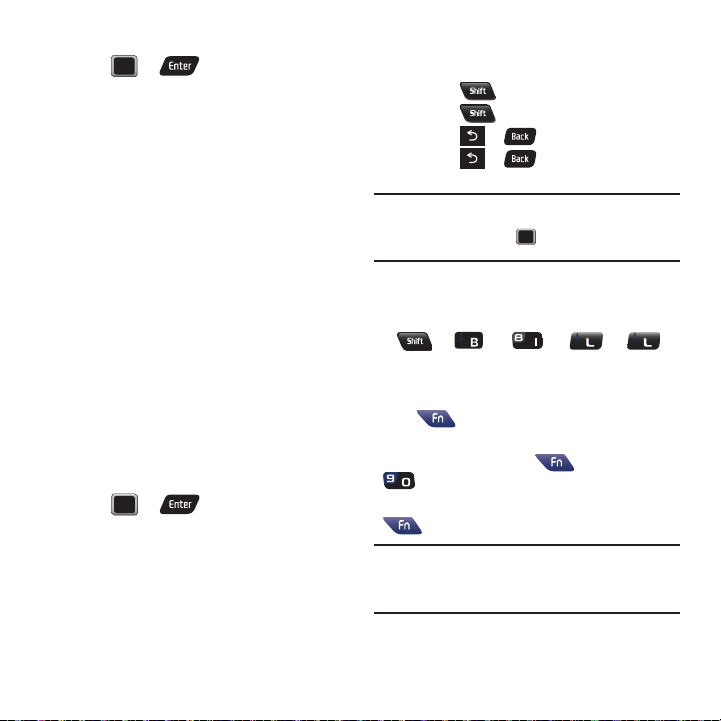
44
2.
Use the navigation keys on the keyboard and
press or to select the desired
text entry option:
•Text Mode
provides access to Predictive text Smiley’s,
Symbols, and Text Settings.
–
Predictive Text
allows you to configure the phone to
display possible word candidates as characters are
entered.
• Add Preset Message
to enter pre-programmed
messages.
• Add/Change Recipients
to return to the Send to
page and either add or change any previously chosen
recipients.
• Add/Change Attachments
to return to the Send to
page and either add or change any current attached
files.
• Add/Change Subject Line
to return to the Send to
page and either add or change the message subject
text.
• Save as Draft
to store the current message as a draft
for later modification and delivery.
• Mark as Urgent
to set a priority level of Urgent to the
outgoing message. This notifies any recipient of the
urgent read status for the outgoing message.
3. Press or to store the new
settings and return to the message screen.
Entering Letters
䊳
Press the desired letter keys to enter words.
•
Press once to capitalize the next letter.
•
Press twice to turn on Shift (Caps) lock.
•
Press or to erase the previous letter.
•
Press or and hold or to erase all
previous text.
Note:
During text entry, a list of possible word choices is
displayed. If your desired word is listed, select the entry
from the list and press to insert the selected word
into your message.
Example
: To enter the name "Bill" press the
following keys:
Entering Numbers and Punctuation
Press and then press the key with the desired
character displayed on top.
Example: to enter 9, press , then press
.
To enter only the top row of characters, double press
to fix all consecutive characters.
Note:
In some applications, certain fields may default to
entering numbers (such as the phone number fields in
Contacts). In others, you will need to use to enter
numbers.

Entering Text 45
Returning to Portrait Mode
When you close the QWERTY keyboard, the display
screen reverts back to Portrait mode until you slide
open the keyboard.

46
Section 9: Messaging
This section describes how to send or receive
different types of messages. It also explains the
features and functionality associated with messaging.
Types of Messages
Your phone provides the following message types:
•
Voicemail
•
Text Messages
•
Picture Messages
•
Virgin Alert Messages
•
E-mail Messages
•
Instant Messages (IM)
Voicemail
Your phone automatically transfers all unanswered
calls to your voicemail, even if your phone is in use or
turned off.
For information on how to setup voicemail, see
“Setting Up Voicemail” on page 21.
Voicemail Notification
There are several ways your phone alerts you to a
new message:
•
Message displays on the screen.
•
The assigned ringtone type sounds.
•
LED blinks red.
•
Voicemail icon displays at the top of your screen.
New Voicemail Message Alerts
When you receive a new voice message, your phone
alerts you and prompts you to call your voicemail.
To call your voicemail:
䊳
Press and hold .
Your phone dials the voicemail box.
To display your Missed Log:
䊳
Press ➔
Missed Alerts
.
Retrieving Voicemail Messages
You can review your messages directly from your
wireless phone or from any other touch-tone phone.
To dial from your wireless phone, either speed dial
your voicemail or use the menu keys.
Using the Menu Keys on Your Phone to
Access Messages
䊳
Press
MENU
➔
Messaging
➔
Voicemail
➔
Call Voicemail
.
Important!:
You are charged for airtime minutes when you are
accessing your voicemail from your wireless phone.
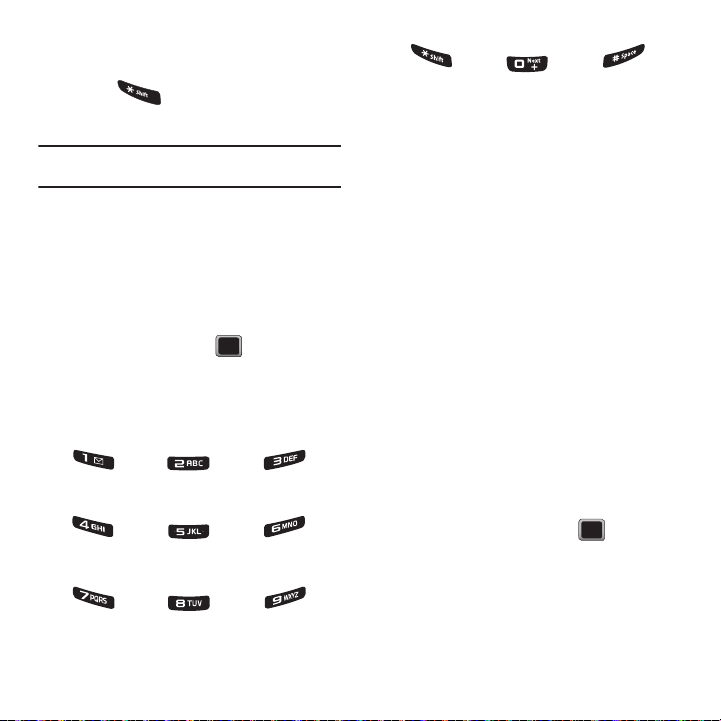
Messaging 47
Using Another Phone to Access Messages
1. Dial your wireless phone number.
2. Press when voicemail answers.
3. Enter your passcode.
Tip:
To skip directly to the message, press 4 during the
announcement (date, time, and sender information).
Clearing the Message Icon
Your phone may temporarily continue to display the
message icon after you have checked your voice and
text messages.
1. Press
MENU
➔
Messaging
➔
Voicemail
➔
Clear Envelope
.
2. Highlight
Yes
and press .
Voicemail Key Guide
Here’s a quick guide to your keypad functions while
listening to voicemail messages.
Messaging Settings
Your phone’s advanced messaging capabilities let
you send and receive many different kinds of text
messages without placing a voice call.
Messaging settings allow you to decide how you
would like to be notified of new messages, create a
signature with each sent message, and create your
own preset messages.
1. Press
MENU
➔
Messaging
➔
Settings
➔
Notification
.
2. Select
Message & Icon
or
Icon only
.
Adding a Customized Signature
Add a customized signature to each message you
send.
1. Press
MENU
➔
Messaging
➔
Settings
➔
Signature
➔
On
. (Select Off if you do not wish
to include a signature).
2. Enter a signature and press .
Date/Time Send Reply Advance
Replay Rewind Forward
Erase Return Call Save
Cancel Help Skip

48
Managing Preset Messages
Your phone is loaded with 20 preset messages to help
make sending text messages easier. Customize or
delete these messages, such as “Where are you?,”
“Let’s get lunch,” and “Meet me at” to suit your
needs, or add your own messages to the list.
To edit or delete a preset message:
1. Press
MENU
➔
Messages
➔
Messages
➔
Preset Messages
.
2. Select
EDIT
to edit the message and
press .
3. Highlight a message and press
OPTIONS
➔
Delete
to delete a single message.
– or –
Select
OPTIONS
➔
Delete All
to delete all
messages.
To add a new preset message:
1. Press
MENU
➔
Messages
➔
Messages
➔
Preset Messages
.
2. Select
OPTIONS
➔
Add New
to add a new
message.
3. Enter your message and press . (Your new
message is added to the beginning of the list.)
Text and Picture Messaging
With text and picture messaging (SMS/MMS), you can
send and receive instant text and picture messages
between your wireless phone and another messaging
ready phone. When you receive a new message, it
will automatically display on your phone’s screen.
In addition, text messaging includes a variety of
preset messages, such as “I’m running late, I’m on
my way,” that make composing messages fast and
easy. Use your phone to customize your own preset
messages (up to 160 characters).
Note:
See your service plan for applicable charges for
text messaging.
Composing Text/Picture Messages
1. Press
MENU
➔
Messaging
➔
Send Message
.
2. Select an entry method:
Go to Contacts
to select a recipient from your
Contacts.
Qualifying Contacts entries must contain a
wireless phone number or an e-mail address.
– or –
Press
MULTIPLE
to select more than one
recipient and press .
– or –
Press
NEW ADDR
to manually enter either a
phone number or e-mail address.

Messaging 49
3.
If you selected
NEW ADDR
, use the keypad to
enter a wireless phone number directly. Or
enter the e-mail Address.
4. Press
CONTINUE
when you have finished
entering recipients. (You may include up to 25
recipients per message.)
5. Enter a message, use a preset message, or
use smiley’s/symbol.
6. Add a picture, video, or voice message to a text
message as an attachment.
7. Press
OPTIONS
, highlight
Add/Change
Attachments
and press .
8. Select an attachment option and follow the
on-screen prompts to select a file. Options
include: My album, Take new picture, Take
new video, or Voice.
9. Press to deliver the message.
Accessing Text Messages
To read an SMS Text message:
䊳
Press to view the message.
To reply to a text message:
1. While the message is open, press
REPLY
.
2. Compose your reply or use the preset
messages or icons.
3. Type a message, use the keypad to enter the
message. Use the right option key to select an
input mode.
– or –
Press the right option key, press
OPTIONS
➔
Add Preset Message
, highlight a message and
press .
– or –
Press the right option key, press
OPTIONS
➔
Text Mode
➔
Smiley’s
or
Symbols
, highlight a
selection and press .
4. Review your reply and press to deliver
the message.

50
Preset Messages
Preset messages make it easy to compose text
messages.
To add or edit preset messages:
1. Press
MENU
➔
Messaging
➔
Settings
➔
Preset Messages
➔
OPTIONS
➔
Add New
.
– or –
Highlight a preset message and press
EDIT
.
2. Enter your new message or changes and
press
DONE
.
Virgin Alert Messages
Receive text alerts about the news, sports, weather,
your horoscope, MTV news, Comedy Central jokes
and even fun trivia.
To view received Virgin Alert messages:
䊳
Press
MENU
➔
Messaging
➔
Virgin Alert
.
Email and Instant Messages
You can send and receive e-mail and text messages
from your phone.
Email Messages
Your phone’s Email application lets you access and
manage multiple e-mail accounts simultaneously in
one convenient location.
Getting Started With Email
1. Press
MENU
➔
Messaging
➔
Email + IM
.
2. When the
Advice of charge
screen displays
press
Continue
.
3. Select an e-mail provider (such as Yahoo!®,
AOL®, Windows Live, or Gmail) and
press .
– or –
Select
IMAP/POP3
to set up a corporate e-mail
account using Outlook Web Access from a
Microsoft Exchange Server or set up your own
POP3 account.
4. Follow the setup wizard instructions to enter
the required sign-up information and
press
CONTINUE
.
Note:
The information required to sign in varies depending on
the selected e-mail provider.

Messaging 51
5.
If applicable to Work e-mail, read the notice
regarding Mail Push. Press
YES
to enable Mail
Push. If another notice displays, review it and
press
YES
again to enable Mail Push.
Note:
Mail Push allows your phone to automatically retrieve
new e-mail messages without having to select the Check
Mail option. When you enable Mail Push, you receive an
on-screen notice of new e-mail messages. These notices
may be charged as text messages. Please consult your
service plan for details.
Accessing Email
Using Email on your phone is even easier than using
multiple e-mail accounts on your computer. Launch
the application for instant access to all your
accounts.
1. Press
MENU
➔
Messaging
➔
Email + IM
.
2. Highlight the desired e-mail account and
press .
The first time you access Email, you have the
option to complete a Help program. This series
of screens demonstrates the application’s
navigation and available tools.
3. Use your keypad and directional keys to read,
manage, and reply to your e-mail messages.
4. Press
Menu
and select one of the following
options:
Delete
,
Reply to Sender
,
Reply All
,
Forward
,
Attachments
,
Call Sender
,
Read More
,
Save
, or
Mark as Unread
.
Instant Messages (IM)
1. Press
MENU
➔
Messaging
➔
Email + IM
.
2. Highlight the desired account and
press .
3. Sign in and enter your password then
press
OK
.
52
Section 10: Media
This section explains how to use the multimedia
features of your phone, including the Camera/
Camcorder, Music Player, and how to manage your
photos, images and sounds.
Taking Pictures
Taking pictures with your phone’s built-in camera is
as simple as choosing a subject, pointing the lens,
and pressing a button. You can activate the phone’s
camera mode whether the phone is open or closed.
To take a picture:
1. Press
MENU
➔
Photos + Videos
➔
Camera
to
activate the camera mode.
Additional camera options are available through
the camera mode
OPTIONS
menu.
Tip:
You can also press and hold the side camera button to
activate the camera.
2. Using the phone’s display screen as a
viewfinder, aim the camera lens at your
subject.
3. Press or the side camera button until the
shutter sounds.
The picture automatically saves to the selected
storage area.
4. Press to return to Camera mode and take
another picture.
5. Press
OPTIONS
for more options:
• Send Picture
to send your picture in a message.
•Camera
to return to the camera to take additional
pictures.
•Assign
to assign the picture as a Picture ID,
Wallpaper, or Screen Saver.
•Erase
to delete the picture you just took.
• Review Album
to go to the My Photos & Videos folder
where you can review your saved pictures.
Assigning Pictures
After taking a picture, assign it as a screen saver or
as a picture ID for a Contacts entry.
1. Press
MENU
➔
Photos + Videos
➔
Camera
to
activate the camera mode.
Additional camera options are available through
the camera mode
OPTIONS
menu.
Tip:
You can also press and hold the side camera button to
activate the camera.
2. Using the phone’s display screen as a
viewfinder, aim the camera lens at your
subject.
3. Press or the side camera button until the
shutter sounds.
The picture automatically saves to the selected
storage area.

Media 53
4.
With the picture displayed, press
OPTIONS
➔
Assign
, and select one of the following options:
• Picture ID
to assign the picture to either a Contacts
entry, Unsaved Numbers, or to a Private/Unknown
number. Highlight an entry and press to assign
the picture.
• Wallpaper
to assign the picture as wallpaper.
• Screensaver
to assign the picture as a screen saver.
Press to assign the picture.
Camera Mode Options
䊳
When the phone is open and in camera mode,
press
OPTIONS
to display additional camera
options:
•MODE
to select a cameras mode: Camera or
Camcorder. To switch to video mode.
•SHOOTING MODE
to select the picture mode. Choose
from the following:
–
Single Shot
to take a single image.
–
Continuous
to take multiple shots.
–
Mosaic
to take a series of pictures and then combine
them into a single image.
–
Panorama
to take multiple images and have them
combined to create a panoramic image.
–
Night Shot
to take a photo in low light conditions.
•RESOLUTION
to set the picture’s resolution (
2M
,
1.3M
,
High
,
Med
, and
Low
).
• WHITE BALANCE
to adjust white balance based on
changing lighting conditions (Auto, Daylight, Cloudy,
Incandescent, Fluorescent, or Manual). (The default
setting is Auto.)
• Brightness
to adjust the image brightness level.
Press the navigation key up (increase) or down
(decrease) to select a setting. (The default setting
is 0.)
• SELF TIMER
to activate the camera’s timer.
• EFFECT
to apply an image effect. No Color Tones is
the default setting.
•QUALITY
to select the picture quality setting (Fine,
Normal, or Economy).
• Shutter Sound
to select a shutter sound (Shutter 1-3
or Off).
•Storage
to select the destination for the image files
(Phone or Card).
Self Timer
1. From camera mode, press
OPTIONS
➔
SELF TIMER
.
2. Highlight the length of delay you want the timer
to use (5 Sec or 10 Sec) and press .
3. Press when you are ready to start the
timer. (The timer displays on the upper-left
portion of the display screen during the
self-timer countdown.)
4. Get ready for the picture. (When the timer is
down to three seconds, the self-timer icon
turns red and the phone starts to beep.)
5. Press to cancel the self-timer once it has
started.

54
Taking Multiple Shots
This feature allows you to take up to nine shots in a
continuous sequence.
1. From camera mode, press
OPTIONS
➔
SHOOTING MODE
➔
Continuous
.
2. Highlight an option and press :
•Off
: to deactivate the multiple shots option.
•5 Shots
: to take a series of five pictures.
• 10 Shots
: to take a series of ten pictures (image
resolution is set to Low).
Note:
Your phone automatically saves the pictures in your
selected storage area at 320 x 240 resolution.
Customized Screen
These features allow you to customize how the
on-screen viewfinder displays.
1. From camera mode, press the QWERTY up or
down arrows, or scroll over the navigation key
up or down to view the following options:
• Status off/Status on
to hide or display the camera,
status icons.
• Show grid off/Show grid on
to deactivate or activate
the grid lines that help you align and center the
subjects of this shot.
2. Press the side camera button to take the
picture.
Your phone automatically saves the picture in
your designated storage area.
Recording Videos
In addition to taking pictures, you can record, view,
and send videos with your phone’s built-in video
camera.
1. Press
MENU
➔
Photos + Videos
➔
Camcorder
to
activate video mode.
2. Select
Video Mail
or
Long Video
.
Note:
Video Mail can be at most 30 seconds in length, but the
length of a Long Video is dependent on both the quality
settings and storage type used (phone or memory card).
3. Using the phone’s display screen as a
viewfinder, aim the camera lens at your
subject.
4. Press or the side camera button to begin
recording.
5. Press to return to camcorder mode to
take another video.
6. Press , or the side camera button to stop
recording. (Your phone automatically saves the
video in your designated storage area.)
7. Press
OPTIONS
and select an option:
• Send Video
to send the video. (See “Sending Pictures
and Videos” on page 56.)
•Play
to play the video.
•Assign
to assign the video as a video ringtone or to
voice calls.
•Erase
to delete the video.

Media 55
• Camcorder
to return to camcorder mode.
• Review Album
to review all pictures and videos
saved in the In Phone folder.
Video Mode Options
䊳
When the phone is in camcorder mode, press
OPTIONS
to display additional camcorder
options:
•MODE
to select a cameras mode: Camera or
Camcorder. To switch to camera mode. (See “Taking
Pictures” on page 52.)
• WHITE BALANCE
to adjust white balance based on
changing lighting conditions (Auto, Daylight, Cloudy,
Incandescent, Fluorescent, or Manual). (The default
setting is Auto.)
• Brightness
to adjust the image brightness level.
Press the navigation key up (increase) or down
(decrease) to select a setting. (The default setting is
0.)
• SELF TIMER
to activate the camcorder’s timer. (See
“Self Timer” on page 53.)
• EFFECT
to apply an image effect. Selects a wide
variety of color tones for the video. (The default
setting is None.)
•QUALITY
to select the picture quality setting (Fine,
Normal, or Economy).
•Storage
to select the destination for the video files
(Phone or Card).
Storing Pictures and Videos
Your phone’s picture and video storage area is called
My Photos & Videos. There are two types of folders:
•
In Phone
•
Memory Card
Storage Options
1. Press
MENU
➔
Photos + Videos
➔
Settings
➔
Auto Save to
.
2. Select
Phone
or
Card
.
In Phone Folder
Your phone’s internal storage area is called the In
Phone folder. From the In Phone folder, you can view
all the pictures and videos you have stored there,
send items to your Places, delete files, and access
additional options.
To review your stored pictures and videos in the In
Phone folder:
1. Press
MENU
➔
Photos + Videos
➔
My
Photos + Videos
➔
In Phone
.
2. Use your navigation key to view and scroll
through the pictures and videos.

56
microSD Picture and Video Folders
You can save pictures and videos directly to the
microSD card using your phone’s pictures and videos
settings.
To review your stored pictures and videos on the
microSD card:
1. Press
MENU
➔
Photos + Videos
➔
My
Photos + Videos
➔
Memory Card
.
2. Use your navigation key to scroll through and
view saved pictures and videos.
In Phone Folder and microSD Card Options
When you are viewing the In Phone folder or the
memory Card folders-, press
OPTIONS
to display the
following options:
•
Expand view/Thumbnail view
to switch the display from
expanded view to thumbnail view (up to nine pictures per
screen).
•
Slide show
to view all current folder images as an on-
screen slideshow (only available when you save two or
more pictures to the folder). Press left or right keys (or
scroll over the navigation key) to skip or any other key to
stop the slideshow.
•
Select Multiple
to select multiple images or videos.
•
Play
to play a selected video.
•
Assign
to assign the current image as a Picture ID,
Wallpaper, or Screen Saver or the selected video clip as a
Video Ringtone or Voice Calls.
•
Delete
to erase the image or selected videos.
Note:
Deleting pictures will free up memory space in your
phone to enable you to take more pictures. Once deleted,
pictures cannot be uploaded to your online Sprint Picture
Mail account.
•
Print
to print an image using a Bluetooth connection.
•
Copy/Move
to copy or move an image or video to an
installed memory card.
•
Details/edits
to attach a text caption or view the media
information associated with a file.
•
Camera/Camcorder Mode
to switch to either the camera
or camcorder mode.
Sending Pictures and Videos
Once you have taken a picture or a video, you can use
the messaging capabilities of your phone to instantly
share it with family and friends. You can send a
picture to up to 25 people at a time using their e-mail
addresses or their wireless phone numbers.
Sending Pictures and Videos From Messaging
1. Press
MENU
➔
Messaging
➔
Send Message
.
2. Select an entry method:
•Go to Contacts
to select a recipient from your
Contacts. (Qualifying Contacts entries must contain a
wireless phone number or an e-mail address.)
•
Press
MULTIPLE
to select more than one recipient
and press
.
•
Press
NEW ADDR
to manually enter either a phone
number or e-mail address.
• Phone Number
to use the keypad to enter a wireless
phone number directly.

Media 57
• Email Address
to enter the recipient’s e-mail
address.
3. Press
CONTINUE
when finished entering the
recipients. (You may include up to 25 recipients
per message.)
4. Press
OPTIONS
, highlight
Add/Change
Attachment
and press .
5. Highlight an option and press .
• My album
to select a picture or video stored in the
phone.
• Take new picture
to take a new picture to attach to
the message.
• Take new video
to record a new video to attach to
the message.
•Voice
to attach a new voice memo.
6. Enter a message, use a preset message, or
use smiley’s/symbol.
7. Use the keypad to enter a message. Use the
right option key to select an input mode.
8. Press
OPTIONS
to select a Text Mode (such as
Predictive Text, Smiley’s, or Symbols).
9. Press
OPTIONS
, select
Add Preset Message
, and
then select a message and press .
10. Press
SEND
to send the message.
Sending Pictures and Videos From the
In Phone Folder
1. Press
MENU
➔
Photos + Videos
➔
My
Photos + Videos
➔
In Phone
.
2. Highlight a picture or video to send and
press .
3. Press
SEND
. and select the
Send File To:
method:
•Contact
to select recipients from your Contacts.
Highlight a recipient and press
.
• Bluetooth
to select a target Bluetooth device.
• Upload/Publish
to send your image or video to an
external site.
4. Follow the on-screen instructions.
Sending Pictures and Videos to an Email
You can also send a Sprint Picture Message from
your phone’s Messages menu.
1. Press
MENU
➔
Photos + Videos
➔
My
Photos + Videos
➔
In Phone
.
2. Highlight a picture or video to send and
press
SEND
.
3. Select
Contact
as the send method.
4. Select a contact from the list, or select
Go to
Contacts
.
Important!:
To automatically upload all new images and videos
to your designated e-mail address, enable the
“Automatically send...”field.

58
5.
Type a message in the text field and press
SEND
to send the picture or video.
Web Album
The Web Album option allows you to upload your
pictures to your MY PIX folder on the internet where
you can view them from your home computer.
1. Press
MENU
➔
Web
.
The Web screen displays.
2. Select
Web
➔
Album
and press .
Your phone connects to the Web Album
homepage.
3. Follow the on-screen instructions to upload
your pictures.
Uploading/Publishing Pictures to the Web
Use this procedure to upload or publish pictures to the
web.
1. Press
MENU
➔
Photos + Videos
➔
My
Photos + Videos
➔
In Phone/Memory Card
.
2. Highlight a picture or video to send and
press
SEND
➔
Upload/Publish
.
3. Enter a Title, Description, Tags, and Location
information (if desired), then press
Upload
.
Sending Pictures from the Web
Sending pictures to your friends is easy. Just follow
these instructions to send one or more of your favorite
pictures once you’ve uploaded them to the Web.
1. Login to your account at
www.virginmobileusa.com.
2. Select
MY PIX
.
3. Select a picture.
4. Select
Send this picture to email or to a phone
.
5. Enter a message if you wish and press
Next
.
6. Enter an e-mail address or phone number and
press
SEND
.
Important!:
Only Virgin Mobile phone numbers can accept
picture messages from the Web. My Pix is a Virgin
Mobile service.
Printing Pictures From Your Phone
Your phone allows you to print directly from your
phone without connecting to a computer. Simply
connect your phone to a Bluetooth-enabled printer
and print your photos.
Note:
Make sure your battery is fully charged before using this
feature.
To print pictures directly from your phone:
1. Press
MENU
➔
Photos + Videos
➔
My
Photos + Videos
.

Media 59
2.
Select a location (
In Phone
or
Memory Card
).
Thumbnail pictures display.
Note:
You must enable Bluetooth and pair this device with the
Bluetooth printer to use this feature. For more
information, refer to “About Bluetooth” on page 64.
3. Press
OPTIONS
➔
Print
.
4. Follow the prompts to print to your device.
Photo and Video Settings
This menu allows you to configure where pictures are
saved, view your account information, or set the view
between portrait or landscape mode.
1. Press
MENU
➔
Photos + Videos
➔
Settings
.
2. Select one of the following options:
•Auto Save to
to choose between Phone and Memory
Card as the default location to save pictures or
videos.
•Status Bar
to select whether the Status Bar displays
on-screen when the camera/camcorder is active.
Media Player
You can purchase and download music to your
memory card, then play it from the phone.
Note:
You must insert a memory card into the phone before you
can play music.
To view music by category:
1. Press
MENU
➔
Media Player
.
2. Select a category from the Library and
press :
• Now Playing
: displays the most recently played
song.
• All Songs
: browse through all of your downloaded
music and any additional songs you have loaded onto
your microSD card from your computer.
• Playlists
: select a customized playlist you’ve created
to organize your music.
•Artists
: displays your current local music files sorted
by artist.
•Albums
: displays your current local music files sorted
by album.
Creating a Playlist
1. Press
MENU
➔
Media Player
.
2. Select
Playlists
.
3. Press
OPTIONS
➔
New Playlist
.
4. Enter a name for the playlist using the
keyboard and press
DONE
when finished.
5. Highlight the name of the newly created
playlist and press ➔
OPTIONS
➔
Add songs
.
6. Select the folder that contains the song to add
and press .
7. Press and create a check mark to mark
each song to add to the playlist, or select
Select All
to include all the songs in the folder,
then press
ADD
.
The selected songs are added to the playlist.

60
Renaming a Playlist
1. Press
MENU
➔
Media Player
.
2. Select
Playlists
.
3. Highlight the name of the playlist to rename,
press
OPTIONS
➔
Rename Playlist
and
press .
4. Backspace to erase the playlist name, enter a
new name then press
DONE
.
Deleting a Playlist
1. Press
MENU
➔
Media Player
.
2. Select
Playlists
.
3. Highlight the name of the playlist to rename,
press
OPTIONS
➔
Delete Playlist
and
press .
4. Press
DELETE
.
Playlist Options
1. Press
MENU
➔
Media Player
.
2. Select Playlists and press .
3. Highlight a playlist and press .
4. Press
OPTIONS
and select one of the following
options:
• Add Songs
: adds a song to the playlist.
•Reorder
: reorders the playlist in alphabetical order.
•Remove
: allows you to remove one or more songs
from the playlist.
• Add to Playlist
: adds a selected song to the playlist.
•Properties
: displays the file properties for the selected
music file.
Playing a Music File
1. Press
MENU
➔
Media Player
.
2. Highlight a category and press .
3. Select a music file and press to play the
song.
4. While the song is playing, press
OPTIONS
for the
following options:
• Playing List
: displays the list of songs in the Playing
list.
• Repeat
: repeats the selected song.
• Shuffle On/Off
: turns the shuffle feature on or off.
•Switch to Headset
: plays music through the stereo
headset.
• Add To Playlist
: adds the currently playing song to the
selected playlist.
•Memory Info
: displays the amount of available, used,
and total memory on the memory card.
•Properties
: displays the properties for the selected
song including: Name, Artist, Album, Year, Folder, File
size, Comment, Genre, Duration, and Bit rate.
Music Player Shortcuts
While playing a music file you can use shortcut keys
to control and configure the music playing.
• pauses or plays the selected song.
•
Left Navigation key
: restarts the music file at the
beginning.

Media 61
•
Right Navigation key
: skips to the next song in the list.
•
Up Navigation key
: for each press toggles between
Shuffle Mode, song repeat, play all songs once, or repeat
current song.
•
Down Navigation key
: displays all songs in the My
Music folder.
Downloading Games, Ringtones,
and More
You have access to a dynamic variety of
downloadable content, such as games, ringtones,
graphics, ringback tones, and more.
Note:
Additional charges may apply when downloading games,
ringtones, graphics, ringback tones, or other
applications.
Follow the basic steps below to access and download
these items.
Purchasing Games
1. Press
MENU
➔
My Stuff
➔
Games
➔
Get More Games
.
2. Follow the prompts to purchase new games.
Downloading Ringtones
1. Press
MENU
➔
My Stuff
➔
Ringtones
➔
Get
More Ringtones
.
2. Follow the prompts to purchase ringtones.
Downloading Graphics
1. Press
MENU
➔
My Stuff
➔
Graphics
➔
Get More Graphics
.
2. Follow the prompts to purchase graphics.
Downloading Applications
1. Press
MENU
➔
My Stuff
➔
Applications
➔
Get More Applications
.
2. Follow the prompts to purchase new
applications.
Downloading Ringback Tones
1. Press
MENU
➔
My Stuff
➔
Ringback Tones
.
2. Follow the prompts to purchase ringback
tones.

62
Section 11: GPS Services
This section outlines the various entertainment
applications that are available on your device.
GPS Services
Your device’s built-in GPS capability gives you access
to location-based services, including Maps.
To receive better GPS signals, avoid using your
device:
•
inside a building or between buildings
•
in a tunnel or underground passage
•
in poor weather
•
around high-voltage or electromagnetic fields
•
in a vehicle with tinted windows
Activating Location Mode
Before using any of the location-based services, you
must turn on your device’s location mode.
Turning location on allows the network to detect your
position using GPS technology, making some Virgin
Mobile Power applications and services easier to use.
Turning location off disables the GPS location function
for all purposes except 911, but does not hide you
general location based on the cell site serving your
call.
Note:
No application or service may use your location without
your request or permission.
GPS enhanced 911 is not available in all areas.
1. Highlight
MENU
➔
Tools + Settings
➔
Settings
➔
Location
.
2. Press after reading the conditions.
3. Highlight
On
and press ➔
DONE
.
Web Options
If you press TOOLBAR while viewing the web, the
Options menu displays. Using Options you can change
the font size, configure privacy settings, and more.
1. Press
MENU
➔
Web
and press .
2. Press
TOOLBAR
➔
Options
3. Select one of the options and follow the menus
or prompts.
Accessing the Web
Your phone is equipped with a mobile web browser
which allows you to access Internet specified for
mobile phones.
1. Press
MENU
➔
Web
.
The Web screen displays.
2. Highlight
Web
and press to launch the
web browser.
The Virgin Mobile Surf the Web home page
displays.

GPS Services 63
Browser Toolbar
Although the home page offers a large selection of
sites and services, certain functions, such as
accessing favorite web sites, is not available. For
these and other functions, use the browser menu.
The browser menu offers additional options to
expand your use of the Web on your phone.
The browser toolbar can be opened anytime you have
an active web session, from any page.
To open the browser toolbar:
1. Press
TOOLBAR
.
2. Use the
Left
or
Right
Navigation key to access
the following:
• MY HOMEPAGE
: displays the browser home page.
• MY PAGES
: displays Favorites and recently viewed
pages.
• SEARCH
: displays the Yahoo! search utility.
•OPTIONS
: allows you to configure the font size,
privacy settings, and more.
•BACK
: displays the previously viewed page.
• FORWARD
: displays the next page.
Maps
Use your phone to connect directly to Maps. You can
map a location, get directions, find a business, find
gas prices, and check traffic.
1. Activate Location Mode. For more information,
refer to “Activating Location Mode” on
page 62.
2. Press
MENU
➔
Maps
.
3. Placeholder: additional information required.
Social Networking
Using the Social Networking menus you can connect
with friends and family through Facebook, MySpace,
or Twitter.
1. Press
MENU
➔
Social Networking
.
2. Select your social networking application and
press .
3. Sign in to your social networking application
and begin connecting with friends and family.

64
Section 12: Connections
This section describes how to connect to varied
web-based services.
Web Browsing
Your phone is equipped with a mobile web browser
which allows you to access Internet specified for
mobile phones.
Accessing the Web
䊳
Press
MENU
➔
Web
and press .
The Web browser launches.
Web Options
If you press TOOLBAR while viewing the web, the
Options menu displays. Using Options you can change
the font size, configure privacy settings, and more.
1. Press
MENU
➔
Web
and press .
2. Press
TOOLBAR
➔
Options
3. Select one of the options and follow the menus
or prompts.
About Bluetooth
Bluetooth is a short-range communications
technology that allows you to connect wirelessly to a
number of Bluetooth devices, such as headsets and
hands-free car kits, and Bluetooth-enabled
handhelds, computers, printers, and wireless phones.
The Bluetooth communication range is usually up to
approximately 30 feet.
Turning Bluetooth On and Off
By default, your device’s Bluetooth feature is set to
Off. Turning Bluetooth on activates the internal
Bluetooth antenna.
Note:
Activating Bluetooth can drain your battery faster and
reduce your available usage times. It is recommended
that if you do not need it active, turn it off. It is also
recommended to turn off your Bluetooth within locations
that prohibit its use.
By default, your device’s Bluetooth feature is set to
Off. Turning Bluetooth on makes your phone
“discoverable” by other in-range Bluetooth devices.
To turn Bluetooth on/off:
1. Press
MENU
➔
Tools + Settings
➔
Tools
➔
Bluetooth
.
2. Highlight
On/Off
and press to activate/
deactivate Bluetooth.

Connections 65
Using the Bluetooth Settings Menu
The Bluetooth Settings menu allows you to set up
many of the characteristics of your phone’s Bluetooth
service, including:
•
Entering or changing the name your phone uses for
Bluetooth communication
•
Setting your phone’s visibility (or “discoverability”) for
other Bluetooth devices
•
Displaying your phone’s Bluetooth address
To access the Bluetooth Settings menu:
1. Press
MENU
➔
Tools + Settings
➔
Tools
➔
Bluetooth
.
2. Set your Bluetooth options.
•
Select
Visibility
➔
Hidden
,
Visible for 3 Min
, or
Always Visible
to set your Bluetooth visibility.
•
Select
My Bluetooth Info
to display your phone’s
Bluetooth profiles and address. Press
EDIT
to rename
your phone for Bluetooth.
•
Select
Trusted Devices
to display your phone’s
current list of external trusted Bluetooth devices.
Pairing Bluetooth Devices
Paired Devices
The Bluetooth pairing process allows you to establish
trusted connections between your phone and another
Bluetooth device. When you pair devices, they share
a passkey, allowing for fast, secure connections
while bypassing the discovery and authentication
process.
To pair your phone with another Bluetooth device:
1. Press
MENU
➔
Tools + Settings
➔
Tools
➔
Bluetooth
➔
Add a New...
Your phone displays a list of discovered
in-range Bluetooth devices.)
2. Highlight a device and press . Different
device categories are indicated by a different
icon adjacent to the detected Bluetooth device.
3. Enter the passkey and press .
4. Enter a unique Device Name and press DONE.
Note:
Due to different specifications and features of other
Bluetooth-compatible devices, display and operations
may be different, and functions such as transfer or
exchange may not be possible with all Bluetooth
compatible devices.

66
Pairing with a Computer
If you are going to be pairing with a computer’s
Bluetooth interface, you will need to allow the
computer to initiate pairing with your phone.
1. Press
MENU
➔
Tools + Settings
➔
Tools
➔
Bluetooth
➔
Add a New...
2. Select a Bluetooth device from the list showing
an adjacent Computer icon.
3. Follow the on-screen prompts to enter your
passkey and press .
Sending Items via Bluetooth
Depending on your paired devices’ settings and
capabilities, you may be able to send pictures,
Contacts information, or other items using a Bluetooth
connection.
1. Press
MENU
➔
Tools + Settings
➔
Tools
➔
Bluetooth
to activate Bluetooth.
2. Select
Visibility
➔
Always visible
, and press
Done
. This activates the device so it can be
seen by another device during pairing.
3. Pair with the device in which you want to share
items through Bluetooth. For more information,
refer to “Paired Devices” on page 65.
4. Send your item to another device.
• Sending to a Bluetooth printer
: For more
information, refer to
“Printing Pictures From Your
Phone”
on page 58.
• Sending a Pictures or Video using Bluetooth
: For
more information, refer to
“
Sending a Pictures or
Video using Bluetooth
:”
on page 66.

Tools 67
Section 13: Tools
Alarm Clock
Your phone comes with a built-in alarm clock that has
multiple alarm capabilities.
Creating an Alarm
1. Press
MENU
➔
Tools + Settings
➔
Tools
➔
Alarm
.
2. Press
CREATE NEW
.
3. Press the Left or Right Navigation key to
select
On
.
4. Scroll down and enter a time for this alarm.
5. Highlight the ringtone and press .
6. Select the source of the new ringtone
(Downloaded, Preloaded, or No Ringtone) and
press .
7. Select a ringtone. Press
PLAY
to listen to a
sample of the tone before you select it.
8. Scroll to the
Repeat
field and press .
9. Press the to select Daily, then press
to insert a check mark next to each day
you want this alarm to repeat, and press
DONE
.
You can also select
Once
.
10. Highlight the
Snooze Interval
field and use the
Left or Right Navigation key to select a time.
11. Select the Volume field and use the Left or
Right Navigation key to select a volume level.
12. Press
DONE
when you are finished.
Calendar
Adding an Event to the Calendar
Your Calendar helps organize your time and reminds
you of important events.
To access the calendar:
䊳
Press
MENU
➔
Tools + Settings
➔
Tools
➔
Calendar
.
The calendar displays the following features:
•
Today
: view the events you have scheduled for today.
•
Scheduler
: schedule events, appointments, birthdays,
and more.
•
Task list
: allows you to manage daily tasks that include
dates, times, and priority levels.
•
Countdown
: allows you to initiate a timer that counts
down to an event based on a specified time and date.
Using the Scheduler
Adding an Event
1. Press
MENU
➔
Tools + Settings
➔
Tools
➔
Calendar
.
2. Select
Scheduler
and press .
3. Scroll to the date in which you want to add an
event and press .

68
4.
Press
ADD NEW
, enter a description for this
event and press
NEXT
.
5. Press the Left or Right Navigation key to select
a title for the event.
6. Highlight the alarm field and select a time for
the alarm to notify you before the event.
7. Press the Left or Right Navigation key to select
a repeat status for the alarm.
8. Highlight the ringtone field and press .
9. Select a ringtone source (Downloaded,
Preloaded, or No Ringtone) and press .
10. Select a ringtone and press
PLAY
to hear a
sample of ringtone, or press to select the
ringtone.
11. Highlight
Start
and enter a start time for
this event.
12. Scroll down and enter a date for this event
to start.
13. Select the
End
field and enter a time for this
event to end.
14. Scroll down and enter a date for this event
to end.
15. Highlight the
Go to Contact
field and select a
contact for this event, then press
ASSIGN
.
16. Press
DONE
when you are finished.
Viewing Today’s Events
1. Press
MENU
➔
Tools + Settings
➔
Tools
➔
Calendar
.
2. Select
Today
and press .
Viewing your Scheduled Events
1. Press
MENU
➔
Tools + Settings
➔
Tools
➔
Calendar
➔
Scheduler
.
2. Scroll to the date in which you want to view a
scheduled event and press
VIEW
.
Any events schedule for the selected day are
listed in chronological order.
3. Select the desired event and press to
display the details.
Deleting an Event
1. Press
MENU
➔
Tools + Settings
➔
Tools
➔
Calendar
➔
Scheduler
.
2. Scroll to the date in which you want to view a
scheduled event and press
VIEW
.
3. Press
OPTIONS
➔
Delete
or press
Delete All
to
delete all events for the selected day.
4. Press
Yes
at the prompt.

Tools 69
Using the Task List
This option allows you to manage daily tasks that
include dates, times, and priority levels.
Creating a New Task
1. Press
MENU
➔
Tools + Settings
➔
Tools
➔
Calendar
➔
Task List
.
2. Enter a title for the new task and press
NEXT
.
3. Press the Left or Right Navigation key to select
a priority level.
4. Highlight the
Due time
field and enter a time for
this task to begin.
5. Select the
Due date
field and enter a date this
task is due.
6. Press
DONE
to accept the settings.
7. Press
OPTIONS
. The following options display:
• Add New
: adds a new task.
•Set State
: sets the state of this task to Forward, In
Progress, or Completed.
•Delete
: deletes the selected task.
• Delete All
: deletes all the tasks in the list.
Using the Countdown
Creating a New Countdown
This option allows you to initiate a timer that counts
down to an event based on a specified time and date.
1. Press
MENU
➔
Tools + Settings
➔
Tools
➔
Calendar
➔
Countdown
.
2. Enter the countdown name using the keypad
and press NEXT.
3. Enter the
Time
for this countdown.
4. Enter the
Date
for this countdown.
5. Press
DONE
.
Using the Memo Pad
Your phone includes an internal memo pad used to
compose and store memos.
1. Press
MENU
➔
Tools + Settings
➔
Tools
➔
Memo Pad
.
2. Press
ADD NEW
.
3. Enter the memo text using the keypad and
press
DONE
.
Creating a Voice Memo
Voice Memo allows you to record a reminder
message that can be up to one minute (with a
maximum of ten memos).
1. Press
MENU
➔
Tools + Settings
➔
Tools
➔
Voice Memo
➔
Record.
2. Record a voice memo after the beep, then
press
FINISH
.
3. Press
OPTIONS
to select one of the following
options:
• Delete
: to erase the currently selected voice memo.
• Delete all
: to erase all stored voice memos.
• Edit Caption
: to change the current file name.
70
•Info
: displays details for the currently selected voice
memo such as: Title, Recorded Date, and Length.
To record a conversation during a phone call:
1. Press
OPTIONS
➔
Voice Memo
. A one-minute
counter displays on the screen and shows the
amount of time a single voice memo can be
recorder.
Note:
Incoming audio is recorded when Voice Memo is selected
during a call.
2. Press
STOP
or to end the conversation
recording.
Note:
Voice Memos recorded from a direct phone conversation
are shown in the list with the phone number used during
the recording process.
Reviewing Voice Memos
1. Press
MENU
➔
Tools + Settings
➔
Tools
➔
Voice Memo
➔
Review.
2. Select a voice memo from the list and press
REVIEW
.
Erasing Voice Memos
To erase all voice memos:
1. Press
MENU
➔
Tools + Settings
➔
Tools
➔
Voice Memo
➔
Review
.
2. Highlight the desired memo to erase and press
OPTIONS
➔
Delete All
.
3. Press
DELETE
.
Editing a Voice Memo Caption
By default, the caption assigned to a voice memo is a
sequential file name which consists of the date
(Month_Day) followed by the memo number. For
example, two memos recorded on February 2, 2010,
would be listed as: Feb_02x1 and Feb_02x2. These
file names (captions) can be changed.
1. Press
MENU
➔
Tools + Settings
➔
Tools
➔
Voice Memo
➔
Review
.
2. Highlight the desired memo and press
OPTIONS
➔
Edit Caption
.
3. Press to delete the previous text and then
use either the keypad or keyboard to enter a
new caption for the selected memo.
4. Press
DONE
to save the memo with the new
caption text.
Viewing the Information for a Voice Memo
1. Press
MENU
➔
Tools + Settings
➔
Tools
➔
Voice Memo
➔
Review
.
2. Highlight the desired memo to erase and press
OPTIONS
➔
Info
.

Tools 71
Bluetooth
Bluetooth is a short-range communications
technology that allows you to connect wirelessly to a
number of Bluetooth devices, such as headsets and
hands-free car kits, and Bluetooth-enabled
handhelds, computers, printers, and wireless
phones.
For more information, refer to “About Bluetooth” on
page 64.
Mass Storage
Your Mass Storage menu allows you to Connect to
your PC, manage files using the File Manager, format
the memory card, or view memory information.
For more information about the memory card see
“microSD Card” on page 18., connecting to the PC
see “Connections” on page 64.,formatting the
memory card see “microSD Card” on page 18. or
viewing memory information see “Viewing Memory in
the microSD Card” on page 18.
䊳
Press
MENU
➔
Tools + Settings
➔
Tools
➔
Mass Storage
➔
Memory Info
.
Voice Services
You can use your phone’s built-in speech recognition
software to dial a phone number in your Contacts or
to launch phone functions. All you have to do is to
talk into the phone, and the software recognizes your
voice and completes the task.
For more information, refer to “Voice Dialing” on
page 29.
Using the Calculator
Your phone comes with a built-in calculator.
1. Press
MENU
➔
Tools + Settings
➔
Tools
➔
Calculator
.
2. Enter numbers using your keypad.
•
enters decimal points.
•
changes the sign from positive to negative,
and multiplies or divides.
•CLEAR
clears the values.
•
Press
for the total.
World Time
To view the time in over 50 different locations:
1. Press
MENU
➔
Tools + Settings
➔
Tools
➔
World Time
.
2. Use the navigation key left or right to scroll
through different cities and time zones.
3. Press
SET DST
to turn daylight saving time on
or off.

72
Section 14: Settings
This section describes the sound and phone settings
for your device. It includes such settings as: display,
security, memory, and any extra settings associated
with your device.
Display Settings
Changing the Wallpaper
The phone comes preloaded with a default wallpaper
that you can change using the following procedure.
1. Press
MENU
➔
Tools + Settings
➔
Settings
➔
Display
➔
Wallpaper
.
2. Select from the following:
•No Image
: displays the Virgin Mobile, red
background.
• Take New Picture
: take a picture.
• My Albums
: select an image from your album.
• Downloaded
: select a downloaded image.
•Preloaded
: use the Left and Right Navigation key to
scroll through the preloaded images.
3. Select an image or take a picture, then
press
Assign
.
Changing the Foreground Display
You can configure your phone to display a clock or
calendar, or a greeting to display on top of the
wallpaper.
1. Press
MENU
➔
Tools + Settings
➔
Settings
➔
Display
➔
Foreground
.
2. Select one of the following:
• Clock/Calendar
: selections are Basic Clock, Analog,
Digital or Calendar.
• Greeting
: backspace to delete the current greeting,
enter a new greeting and press
Done
.
•None
: does not display anything on the foreground.
Changing the Display Screen
Choose what you see on the display screen while
powering on or off and when in standby mode (screen
saver).
1. Press
MENU
➔
Tools + Settings
➔
Settings
➔
Display
➔
Screen Saver
.
2. Choose where to obtain the image from (No
Image, Take New Picture, My Albums,
Downloaded, or Preloaded) and press to view
the image. (Once you see an image, use your
navigation key to scroll through and view other
available images.)
3. Highlight an image and press
ASSIGN
to
assign it.

Settings 73
Assigning Pictures
After taking a picture, assign it as a picture ID for a
Contacts entry, for unsaved numbers, or for private or
unknown numbers. For more information, refer to
“Assigning Pictures” on page 52.
Changing the Backlight Time Length
Select how long the display screen remains backlit or
when the backlight turns off after you press any key.
To adjust the Backlight dimming feature:
1. Press
MENU
➔
Tools + Settings
➔
Settings
➔
Display
➔
Backlight Control
➔
Backlight Dim
.
2. Select a time setting and press .
3. Select
Slide Open
,
8 seconds
,
15 seconds
,
30 seconds
, or
Always Dim
.
Important!:
Long backlight settings reduce the battery’s talk
and standby times.
To adjust the Backlight Off feature:
1. Press
MENU
➔
Tools + Settings
➔
Settings
➔
Display
➔
Backlight Control
➔
Backlight Off
.
2. Select a time setting and press .
3. Select
1 minute
,
30 seconds
, or
15 seconds
.
To adjust the Java Backlight feature:
Select how long the display screen remains backlit
while in a Java application.
1. Press
MENU
➔
Tools + Settings
➔
Settings
➔
Display
➔
Backlight Control
➔
Java Backlight
.
2. Select a time setting and press .
3. Select
Default
or
Continuous
.
Changing the Brightness
Adjust your screen’s brightness to suit your
surroundings.
1. Press
MENU
➔
Tools + Settings
➔
Settings
➔
Display
➔
Brightness
.
2. Scroll your navigation key left or right to adjust
the screen brightness and press or press
DONE
.
Activating the PowerSave Mode
1. Press
MENU
➔
Tools + Settings
➔
Settings
➔
Display
➔
PowerSave Mode
.
2. Highlight
On
or
Off
and press .

74
Adjusting the Phone’s Volume Settings
Adjust your phone’s volume settings to suit your
needs and your environment.
1. Press
MENU
➔
Tools + Settings
➔
Settings
➔
Volume
.
2. Select
Incoming Ringtone Volume
,
Playback
Volume
, or
Key Beeps
.
3. Using the navigation or volume keys, choose a
volume level and press .
Tip:
You can adjust the ringtone volume in standby mode (or the
earpiece volume during a call) by using the volume button
on the left side of your phone.
4. Select Always Vibrate (or VIB ON) if you wish
the phone to vibrate in addition to ringing at the
selected volume setting.
Ringtone Types
Ringtone types help you identify incoming calls and
messages. You can assign ringtone types to individual
Contacts entries, types of calls, and types of
messages.
Selecting Ringtone Types
Your phone provides a variety of ringtone options that
allow you to customize your ring and volume settings.
These options allow you to identify incoming calls by
the ring.
1. Press
MENU
➔
Tools + Settings
➔
Settings
➔
Ringtones
.
2. Select the entry for which you want to add a
ringtone type (Incoming Calls [Contact Entries,
Unsaved Numbers, Private/Unknown],
Voicemail, Text Messages, Alarm/Calendar,
Power Up/Down, and Battery Alert).
3. Highlight a ringtone type.
4. Highlight the file and press to assign a
ringtone.
Getting More Ringtones
A wide variety of new ringtones is available and you
can access them right from your phone.
Note:
Additional charges may apply, but some ringtones are
free.
1. Press
MENU
➔
My Stuff
➔
Ringtones
➔
Get
More Ringtones
.
2. Use your navigation key to search through
available ringtones. When you find one you
want, highlight it and press .
3. Highlight
Buy
and press to make a
purchase.
Your phone automatically downloads the
ringtone.

Settings 75
4.
When the download finishes, select an option
to continue:
•Listen
to listen to the ringtone.
•Set As
to assign the ringtone to a call or message
type or to a specific contact.
•Shop
to browse for other items to download.
Auto Keyguard Settings
This setting automatically protects the keyboard from
accidental key presses.
1. Press
MENU
➔
Tools + Settings
➔
Settings
➔
Auto Keyguard
.
2. Select
On
(to activate) or
Off
(to deactivate) the
keyguard.
Text Entry Settings
For more information about Text Entry settings, see
“Entering Text” on page 38.
•
Word Complete
•
Next Word Complete
Phone Information
You can access and display information about your
phone such as your phone number and User ID, the
phone’s memory status, an Icon glossary and
descriptions, PRL, software and hardware version
number, as well as browser information. Advanced
information is also available, such as the signal ID
(SID), Channel, Technology and Frequency.
In addition, you can also activate your phone from
this menu.
For more information about displaying your phone
number, see “Displaying Your Phone Number” on
page 24.
䊳
Press
MENU
➔
Tools + Settings
➔
Settings
➔
Phone Information
.
The following information menus display:
• Phone Number/User ID
: For more information, refer
to
“Displaying Your Phone Number”
on
page 17.
•Activation
: allows you to activate the phone. For
more information, refer to
“Activating Your Virgin
Mobile Phone Account”
on page 16.
•Memory Status
: displays the total memory available.
• Icon Glossary
: displays an icon glossary. For more
information, refer to
“Icon Glossary”
on page 12.
•Version
: displays the PRL, software and hardware
versions, as well as browser information.
• Advanced
: displays the SID, Channel, Technology,
and Frequency information.
Locking the Phone
When your phone is locked, you can only receive
incoming calls or make calls to 911, Customer
Service calls, or special numbers.
1. Press
MENU
➔
Tools + Settings
➔
Settings
➔
Lock Phone
.
2. Enter a lock code and press .

76
Changing the Lock Code
1. Press
MENU
➔
Tools + Settings
➔
Settings
➔
Lock code
.
2. Enter your lock code.
3. Enter a new lock code and press .
4. Re-enter your new lock code and press .
Location Settings
Turning location on allows the network to detect your
position using GPS technology, making some virgin
mobile Power applications and services easier to use.
Turning location off disables the GPS location function
for all purposes except 911, but will not hide your
general location based on the cell site serving your
call.
Note:
No application or service may use your location without
your request or permission.
GPS enhanced 911 is not available in all areas.
1. Press
MENU
➔
Tools + Settings
➔
Settings
➔
Location
.
2. Press after reading the conditions.
Parental Controls
Using Parental Controls
You can disable certain phone services without
turning off your phone. You can restrict access to all
data services, including Web and messaging.
Disabling data services will avoid any charges
associated with these services. While signed out, you
can still place or receive phone calls, check voicemail,
and use other voice services. You may enable data
services again at any time.
New Parental Controls provide restrictions to various
phone services such as Voice, Messaging, Data, and
Camera.
These restrictions are governed by an independent
Parental Code that is separate from the previously
mentioned Lock code.
To enable Parental Controls:
1. Press
MENU
➔
Tools + Settings
➔
Settings
➔
Parental Controls
.
2. Highlight
On/Off
and press .
3. Highlight
On
and press .
If this is your first time to setup these controls,
you are asked to setup a parental lock code
that manages the areas that are locked using
this menu.
4. Enter a new four-digit code and press .

Settings 77
5.
Re-enter the new code and press then
press
DONE
.
To disable Parental Controls:
1. Press
MENU
➔
Tools + Settings
➔
Settings
➔
Parental Controls
.
2. Enter your new parental lock code.
3. Highlight
On/Off
and press .
4. Highlight
Off
and press .
Configuring Restrictions
To disable data services:
1. Press
MENU
➔
Tools + Settings
➔
Settings
➔
Parental Controls
➔
Restrictions
.
Read the on-screen disclaimer and press
CONTINUE
.
2. Select any of the following entries to either
activate or deactivate an option.
• Voice Calls
to lock the phone and prevent outgoing
calls. Incoming calls can still be received.
•Text Messaging
to restrict access to the Messaging
folder, including all Text and Picture messages.
•Web
to restrict access to all data features such as
Internet, Video Streaming, and other data usage.
• Camera/Camcorder
to restrict access to both the
Camera and Camcorder functionality.
3. Force Location
On
to restrict access to the
Location functionality.
4. Highlight
On
or
Off
and press .
5. Press
BACK
to return to the previous page.
Changing the Parental Control Code
1. Press
MENU
➔
Tools + Settings
➔
Settings
➔
Parental Controls
➔
Change Parental Control
Code
.
2. Enter your current four-digit code.
3. Enter a new four-digit code.
Resetting the Phone Settings
Resetting the phone settings only restores all of the
factory defaults, including the ringtone types and
display settings.
1. Press
MENU
➔
Tools + Settings
➔
Settings
➔
Reset/Delete
.
2. Enter your lock code (if the phone has one).
3. Highlight
Reset Settings
and press .
Resetting the Phone
Resetting the phone restores all the factory defaults,
including the ringtone types and display settings. All
data, including downloaded applications are deleted.
Important!:
Locally stored parameters and stored contacts can
be lost during a reset, so it is always advised to
back up your important data before performing a
reset.
䊳
Press
MENU
➔
Tools + Settings
➔
Settings
➔
Reset/Delete
➔
Reset Phone
.

78
Deleting Phone Content
Use the Reset/Delete menu to quickly erase all the
content you have created or stored in your phone.
Important!:
Resting the phone does not delete any personal
information. Contacts, History, and Messaging are
not affected.
1. Press
MENU
➔
Tools + Settings
➔
Settings
.
2. Select
Reset/Delete
and enter your lock code.
3. Select
Delete Stuff
and select an option:
•Text Messages
to erase all text messages from your
phone.
•Call Logs
to erase your entire call log (history) from
your phone.
• Cookies and Cache
to erase all your website cookies
and Internet page/content cache from your phone.
• Downloaded Content
to erase all downloaded
content from your phone.
•Contacts
to erase all from your phone.
•Pictures/Videos
to erase all pictures and videos
stored on your phone.
Note:
This does not affect those image and videos stored on the
microSD card.
4. Press
DELETE
to confirm the deletion.
Changing the Lock Code
To change the lock code on your phone:
1. Press
MENU
➔
Tools + Settings
➔
Settings
.
2. Select
Reset/Delete
and enter your lock code.
3. Select
Change Lock Code
.
4. Enter a new 4-digit Lock Code.
5. Re-enter the new 4-digit Lock Code.
The Lock Code changes to the newly entered
Lock Code.
Others
Using this menu you can configure Abbreviated
Dialing, Accessibility, Airplane Mode, Contact Match,
Language, Contacts, and set TTY Options. Each of
these features are addressed in this manual in the
respective sections.
Accessibility Settings
The Samsung Restore™ uses built-in voice
recognition software which allows you to use preset
verbal commands to perform common functions
supported by your phone simply by speaking them
aloud. Say the predesignated command displayed on
your screen in a normal tone of voice to perform the
desired function.

Settings 79
Activating Voice Service
1. Press and hold .
The phone prompts you to “Say a command.”
– or –
Press
MENU
➔
Tools + Settings
➔
Tools
➔
Voice Service
.
2. Wait for the beep and then clearly say one of
the following commands:
• Call <Name or #>
• Send Message <Name>
• Lookup <Name>
• Go To <Menu>
• Check <Item>
Upon recognition of a command, the phone takes the
corresponding action. If the phone does not hear a
command within approximately eight seconds, it
prompts with “Please try again. Say a command.
Sorry command not recognized, try again?”
3. Press
Yes
to try again and say the command.
– or –
Press
No
to cancel
Voice Command Tutorial
䊳
Press
Tutorial
for a brief overview on how to
use the Voice Service option.
Voice Service Settings
䊳
Press
Settings
for the following options:
Confirmation
You can control how often the system asks you to
confirm the recognized name or number.
1. Press and hold .
The phone prompts you to “Say a command.”
– or –
Press
MENU
➔
Tools + Settings
➔
Tools
➔
Voice Service
.
2. Press
Settings
3. Select
Confirmation
and press .
4. Select one of the following options and
press .
•Automatic
: the system asks for confirmation if it is
not sure of what you said.
• Always Confirm
: the system always asks for
confirmation.
• Never Confirm
: the system always uses its best
guess as to what you said and never asks for
confirmation.
Adaptation
You can adapt the system to your voice for optimal
recognition accuracy.
Training the phone to recognize your voice takes
approximately three minutes and you should use a
quiet room while saying each word or digit needed to
train the phone.

80
1.
Press and hold .
The phone prompts you to “Say a command.”
– or –
Press
MENU
➔
Tools + Settings
➔
Tools
➔
Voice Service
.
2. Press
Settings
3. Select
Adaptation
➔
Adapt Voice
and
press .
Note:
Adaptation takes a couple of minutes to complete. Adapt
in a quiet room.
4. Press
START
to begin.
5. Say the word or digit displayed on the phone
and continue until all the words or digits are
spoken.
Audio Modes
You can control the level of audio guidance provided
by the system.
1. Press and hold .
The phone prompts you to “Say a command.”
– or –
Press
MENU
➔
Tools + Settings
➔
Tools
➔
Voice Service
.
2. Press
Settings
3. Select
Audio Modes
and press .
4. Press one of the following options and
press .
5. Select one of the following options and
press .
•Prompt Mode
: The system prompts for required
information (default).
•Expert Mode
: Audio guidance is provided by
beeps only.
About
This option displays information about the Voice
service system.
1. Press and hold .
The phone prompts you to “Say a command.”
– or –
Press
MENU
➔
Tools + Settings
➔
Tools
➔
Voice Service
.
2. Press
Settings
3. Select
About
and press .

Settings 81
TTY Settings
A TTY (also known as a TDD or Text Telephone) is a
telecommunications phone that allows people who
are deaf, hard of hearing, or who have speech or
language disabilities, to communicate by telephone.
Your phone is compatible with select TTY devices.
Please check with the manufacturer of your TTY
device to ensure that it is compatible with digital cell
phones. Your phone and TTY device will connect via a
special cable that plugs into your phone’s headset
jack. If this cable was not provided with your TTY
device, contact your TTY device manufacturer to
purchase the connector cable.
To turn TTY Mode on or off:
1. Press
MENU
➔
Tools + Settings
➔
Settings
➔
Others
➔
TTY Options
. An informal message
displays.
2. Press
DONE
.
3. Select
TTY Off
to turn TTY mode off.
– or –
Touch any of the following to enable the
feature:
TTY Full
,
TTY + Talk
, or
TTY + Hear
.
To access the state Telecommunications Relay Service
(TRS) for assistance with TTY calls:
䊳
Dial
711
, press and press to
reach an operator.
Caution!: 911 Emergency Calling
- it is recommended that TTY
users make emergency calls by other means,
including Telecommunications Relay Services (TRS),
analog cellular, and land line communications.
Wireless TTY calls to 911 may be corrupted when
received by public safety answering points (PSAPs),
rendering some communications unintelligible. The
problem encountered appears related to software
used by PSAPs. This matter has been brought to the
attention of the FCC, and the wireless industry and
the PSAP community are currently working to resolve
this.

82
Section 15: Health and Safety Information
This section outlines the safety precautions
associated with using your phone. The terms “mobile
device” or “cell phone” are used in this section to
refer to your phone.
Read this information before using
your mobile device
.
Exposure to Radio Frequency (RF)
Signals
The U.S. Food and Drug Administration (FDA) has
published information for consumers relating to Radio
Frequency (RF) exposure from wireless phones. The
FDA publication includes the following information:
Do cell phones pose a health hazard?
Many people are concerned that cell phone radiation
will cause cancer or other serious health hazards. The
weight of scientific evidence has not linked cell
phones with any health problems.
Cell phones emit low levels of Radio Frequency (RF)
energy. Over the past 15 years, scientists have
conducted hundreds of studies looking at the
biological effects of the radio frequency energy
emitted by cell phones. While some researchers have
reported biological changes associated with RF
energy, these studies have failed to be replicated. The
majority of studies published have failed to show an
association between exposure to radio frequency
from a cell phone and health problems.
The low levels of RF cell phones emit while in use are
in the microwave frequency range. They also emit RF
at substantially reduced time intervals when in the
stand-by mode. Whereas high levels of RF can
produce health effects (by heating tissue), exposure to
low level RF that does not produce heating effects
causes no known adverse health effects.
The biological effects of radio frequency energy
should not be confused with the effects from other
types of electromagnetic energy.
Very high levels of electromagnetic energy, such as is
found in X-rays and gamma rays, can ionize biological
tissues. Ionization is a process where electrons are
stripped away from their normal locations in atoms
and molecules. It can permanently damage biological
tissues including DNA, the genetic material.
The energy levels associated with radio frequency
energy, including both radio waves and microwaves,
are not great enough to cause ionization of atoms and
molecules. Therefore, RF energy is a type of non-
ionizing radiation. Other types of non-ionizing
radiation include visible light, infrared radiation (heat),
and other forms of electromagnetic radiation with
relatively low frequencies.

Health and Safety Information 83
While RF energy does not ionize particles, large
amounts can increase body temperatures and cause
tissue damage. Two areas of the body, the eyes and
the testes, are particularly vulnerable to RF heating
because there is relatively little blood flow in them to
carry away excess heat.
Research Results to Date: Is there a connection
between RF and certain health problems?
The results of most studies conducted to date say no.
In addition, attempts to replicate and confirm the few
studies that have shown a connection have failed.
The scientific community at large therefore believes
that the weight of scientific evidence does not show
an association between exposure to Radio Frequency
(RF) from cell phones and adverse health outcomes.
Still the scientific community has supported
additional research to address gaps in knowledge.
Some of these studies are described below.
Interphone Study
Interphone is a large international study designed to
determine whether cell phones increase the risk of
head and neck cancer. A report published in the
International Journal of Epidemiology (June, 2010)
compared cell phone usage for more than 5,000
people with brain tumors (glioma and meningioma)
and a similar number of healthy controls.
Results of this study did NOT show that cell phones
caused brain cancer. In this study, most people had
no increased risk of brain cancer from using cell
phones. For people with the heaviest use of cell
phones (an average of more than ½ hour per day,
every day, for over 10 years) the study suggested a
slight increase in brain cancer. However, the authors
determined that biases and errors prevented any
conclusions being drawn from this data. Additional
information about Interphone can be found at
http://com.iarc.fr/en/media-centre/pr/.
Interphone is the largest cell phone study to date, but
it did not answer all questions about cell phone
safety. Additional research is being conducted around
the world, and the FDA continues to monitor
developments in this field.
International Cohort Study on Mobile Phone
Users (COSMOS)
The COSMOS study aims to conduct long-term health
monitoring of a large group of people to determine if
there are any health issues linked to long-term
exposure to radio frequency energy from cell phone
use. The COSMOS study will follow approximately
300,000 adult cell phone users in Europe for 20 to 30
years. Additional information about the COSMOS
study can be found at
http://www.ukcosmos.org/
index.html
.

84
Risk of Brain Cancer from Exposure to Radio
Frequency Fields in Childhood and Adolescence
(MOBI-KIDS)
MOBI-KIDS is an international study investigating the
relationship between exposure to radio frequency
energy from communication technologies including
cell phones and brain cancer in young people. This is
an international multi-center study involving 14
European and non-European countries. Additional
information about MOBI-KIDS can be found at
http://www.creal.cat/programes-recerca/en_projectes-
creal/view.php?ID=39.
.
Surveillance, Epidemiology, and End Results (SEER)
Program of the National Cancer Institute
The National Cancer Institute (NCI) actively follows
cancer statistics in the United States to detect any
change in rates of new cases for brain cancer. If cell
phones play a role in risk for brain cancer, rates
should go up, because heavy cell phone use has been
common for quite some time in the U.S. Between
1987 and 2005, the overall age-adjusted incidence of
brain cancer did not increase. Additional information
about SEER can be found at
http://seer.cancer.gov/
.
Cell Phone Industry Actions
Although the existing scientific data do not justify FDA
regulatory actions, the FDA has urged the cell phone
industry to take a number of steps, including the
following:
•
Support-needed research on possible biological
effects of RF for the type of signal emitted by cell
phones;
•
Design cell phones in a way that minimizes any RF
exposure to the user; and
•
Cooperate in providing users of cell phones with the
current information on cell phone use and human
health concerns.
The FDA also is working with voluntary standard-
setting bodies such as the Institute of Electrical and
Electronics Engineers (IEEE), the International
Commission on Non-Ionizing Radiation Protection
(ICNIRP), and others to assure that safety standards
continue to adequately protect the public.

Health and Safety Information 85
Reducing Exposure: Hands-Free Kits and
Other Accessories
Steps to Reduce Exposure to Radio
Frequency Energy
If there is a risk from being exposed to radio
frequency energy (RF) from cell phones - and at this
point we do not know that there is - it is probably
very small. But, if you are concerned about avoiding
even potential risks, you can take a few simple steps
to minimize your RF exposure.
•
Reduce the amount of time spent using your cell phone;
•
Use speaker mode or a headset to place more distance
between your head and the cell phone.
Hands-Free Kits
Hands-free kits may include audio or Bluetooth®
headsets and various types of body-worn accessories
such as belt-clips and holsters. Combinations of
these can be used to reduce RF energy absorption
from cell phones.
Headsets can substantially reduce exposure because
the phone is held away from the head in the user's
hand or in approved body-worn accessories. Cell
phones marketed in the U.S. are required to meet RF
exposure compliance requirements when used
against the head and against the body.
Because there are no known risks from exposure to
RF emissions from cell phones, there is no reason to
believe that hands-free kits reduce risks. Hands-free
kits can be used for convenience and comfort. They
are also required by law in many states if you want to
use your phone while driving.
Cell Phone Accessories that Claim to Shield
the Head from RF Radiation
Because there are no known risks from exposure to
RF emissions from cell phones, there is no reason to
believe that accessories which claim to shield the
head from those emissions reduce risks. Some
products that claim to shield the user from RF
absorption use special phone cases, while others
involve nothing more than a metallic accessory
attached to the phone. Studies have shown that
these products generally do not work as advertised.
Unlike “hands-free” kits, these so-called “shields”
may interfere with proper operation of the phone. The
phone may be forced to boost its power to
compensate, leading to an increase in RF absorption.
Children and Cell Phones
The scientific evidence does not show a danger to
any users of cell phones from RF exposure, including
children and teenagers. The steps adults can take to
reduce RF exposure apply to children and teenagers
as well.
•
Reduce the amount of time spent on the cell phone;
•
Use speaker mode or a headset to place more distance
between the head and the cell phone.
Some groups sponsored by other national
governments have advised that children be
discouraged from using cell phones at all. For
example, The Stewart Report from the United
Kingdom made such a recommendation in December
2000. In this report, a group of independent experts
noted that no evidence exists that using a cell phone

86
causes brain tumors or other ill effects. Their
recommendation to limit cell phone use by children
was strictly precautionary; it was not based on
scientific evidence that any health hazard exists.
Additional information on the safety of RF exposures
from various sources can be obtained from the
following organizations (updated 10/1/2010):
•
FCC RF Safety Program:
http://www.fcc.gov/oet/rfsafety/.
•
Environmental Protection Agency (EPA):
http://www.epa.gov/radtown/wireless-tech.html.
•
Occupational Safety and Health Administration (OSHA):
http://www.osha.gov/SLTC/radiofrequencyradiation/.
(Note: This web address is case sensitive.)
•
National Institute for Occupational Safety and Health
(NIOSH):
http://www.cdc.gov/niosh/.
•
World Health Organization (WHO):
http://www.who.int/peh-emf/en/.
•
International Commission on Non-Ionizing Radiation
Protection:
http://www.icnirp.de.
•
Health Protection Agency:
http://www.hpa.org.uk/Topics/Radiation/.
•
US Food and Drug Administration:
http://www.fda.gov/Radiation-EmittingProducts/
RadiationEmittingProductsandProcedures/
HomeBusinessandEntertainment/CellPhones/default.htm.
Specific Absorption Rate (SAR)
Certification Information
Your wireless phone is a radio transmitter and
receiver. It is designed and manufactured not to
exceed the exposure limits for Radio Frequency (RF)
energy set by the Federal Communications
Commission (FCC) of the U.S. Government.
These FCC exposure limits are derived from the
recommendations of two expert organizations: the
National Council on Radiation Protection and
Measurement (NCRP) and the Institute of Electrical
and Electronics Engineers (IEEE).
In both cases, the recommendations were developed
by scientific and engineering experts drawn from
industry, government, and academia after extensive
reviews of the scientific literature related to the
biological effects of RF energy.
The exposure limit set by the FCC for wireless mobile
phones employs a unit of measurement known as the
Specific Absorption Rate (SAR). The SAR is a measure
of the rate of absorption of RF energy by the human
body expressed in units of watts per kilogram (W/kg).
The FCC requires wireless phones to comply with a
safety limit of 1.6 watts per kilogram (1.6 W/kg).
The FCC exposure limit incorporates a substantial
margin of safety to give additional protection to the
public and to account for any variations in
measurements.

Health and Safety Information 87
SAR tests are conducted using standard operating
positions accepted by the FCC with the phone
transmitting at its highest certified power level in all
tested frequency bands. Although the SAR is
determined at the highest certified power level, the
actual SAR level of the phone while operating can be
well below the maximum value. This is because the
phone is designed to operate at multiple power levels
so as to use only the power required to reach the
network. In general, the closer you are to a wireless
base station antenna, the lower the power output.
Before a new model phone is available for sale to the
public, it must be tested and certified to the FCC that
it does not exceed the exposure limit established by
the FCC. Tests for each model phone are performed
in positions and locations (e.g. at the ear and worn on
the body) as required by the FCC.
For body-worn operation, this phone has been tested
and meets FCC RF exposure guidelines when used
with an accessory that contains no metal and that
positions the mobile device a minimum of 1.5 cm
from the body.
Use of other accessories may not ensure compliance
with FCC RF exposure guidelines.
The FCC has granted an Equipment Authorization for
this mobile phone with all reported SAR levels
evaluated as in compliance with the FCC RF exposure
guidelines. The maximum SAR values for this model
phone as reported to the FCC are:
PCS mode(part 24)
–
Head: 0.53 W/Kg
–
Body-worn 0.58 W/Kg
SAR information on this and other model phones can
be viewed online at
http://www.fcc.gov/oet/ea
. To find
information that pertains to a particular model phone,
this site uses the phone FCC ID number which is
usually printed somewhere on the case of the phone.
Sometimes it may be necessary to remove the
battery pack to find the number. Once you have the
FCC ID number for a particular phone, follow the
instructions on the website and it should provide
values for typical or maximum SAR for a particular
phone. Additional product specific SAR information
can also be obtained at
www.fcc.gov/cgb/sar
.
Smart Practices While Driving
On the Road - Off the Phone
The primary responsibility of every driver is the safe
operation of his or her vehicle.
Responsible drivers understand that no secondary
task should be performed while driving whether it be
eating, drinking, talking to passengers, or talking on
a mobile phone - unless the driver has assessed the
driving conditions and is confident that the secondary
task will not interfere with their primary
responsibility.
Do not engage in any activity while
driving a moving vehicle which may cause you to take
your eyes off the road or become so absorbed in the
activity that your ability to concentrate on the act of
driving becomes impaired
. Samsung is committed to
promoting responsible driving and giving drivers the
tools they need to understand and address
distractions.

88
Check the laws and regulations on the use of mobile
devices and their accessories in the areas where you
drive. Always obey them. The use of these devices may
be prohibited or restricted in certain areas. For
example, only hands-free use may be permitted in
certain areas.
Before answering calls, consider your circumstances.
Let the call go to voicemail when driving conditions
require. Remember, driving comes first, not the call!
If you consider a call necessary and appropriate,
follow these tips:
•
Use a hands-free device;
•
Secure your phone within easy reach;
•
Place calls when you are not moving;
•
Plan calls when your car will be stationary;
•
Do not engage in stressful or emotional conversations;
•
Let the person with whom you are speaking know that you
are driving and will suspend the call if necessary;
•
Do not take notes or look up phone numbers while driving;
Notice regarding legal restrictions on mounting this
device in an automobile:
Laws in some states may prohibit mounting this
device on or near the windshield of an automobile. In
other states, the law may permit mounting this device
only in specific locations in the automobile. Be sure to
consult the state and local laws or ordinances where
you drive before mounting this device in an
automobile. Failure to comply with these restrictions
could result in fines, penalties, or other damages.
Never mount this device in a manner that will obstruct
the driver's clear view of the street and traffic.
Never use wireless data services such as text
messaging, Web browsing, or e-mail while operating a
vehicle.
Never watch videos, such as a movie or clip, or play
video games while operating a vehicle.
For more information
, go to
http://www.ctia.org
.
Battery Use and Safety
Important!: Handle and store batteries properly to avoid injury or
damage
. Most battery issues arise from improper
handling of batteries and, particularly, from the
continued use of damaged batteries.
•
Do not disassemble, crush, puncture, shred, or
otherwise attempt to change the form of your battery
.
Do not put a high degree of pressure on the battery. This
can cause leakage or an internal short-circuit, resulting in
overheating.
•
Do not let the phone or battery come in contact with
liquids.
Liquids can get into the phone's circuits, leading
to corrosion. Even when the phone appears to be dry and
appears to operate normally, the circuitry could slowly
corrode and pose a safety hazard. If the phone and/or
battery get wet, have them checked by your service
provider or contact Samsung, even if they appear to be
working properly.

Health and Safety Information 89
•
Do not place your battery in or near a heat source
.
Excessive heating can damage the phone or the battery
and could cause the phone or the battery to explode. Do
not dry a wet or damp battery with an appliance or heat
source such as a microwave oven, hair dryer, iron, or
radiator. Avoid leaving your phone in your car in high
temperatures.
•
Do not dispose of the phone or the battery in a fire
.
The phone or the battery may explode when overheated.
•
Do not handle a damaged or leaking battery
. Do not let
leaking battery fluid come in contact with your eyes, skin
or clothing. For safe disposal options, contact your
nearest Samsung-authorized service center.
•
Avoid dropping the cell phone
. Dropping the phone or
the battery, especially on a hard surface, can potentially
cause damage to the phone and battery. If you suspect
damage to the phone or battery, take it to a service
center for inspection.
•
Never use any charger or battery that is damaged in
any way
.
•
Do not allow the battery to touch metal objects
.
Accidental short-circuiting can occur when a metallic
object (coin, key, jewelry, clip, or pen) causes a direct
connection between the + and - terminals of the battery
(metal strips on the battery), for example when you carry
a spare battery in a pocket or bag. Short-circuiting the
terminals may damage the battery or the object causing
the short-circuiting.
Important!:
Use only Samsung-approved batteries, and
recharge your battery only with Samsung-approved
chargers which are specifically designed for your
phone.
Warning!: Use of a non-Samsung-approved battery or charger
may present a risk of fire, explosion, leakage, or other
hazard
. Samsung's warranty does not cover damage
to the phone caused by non-Samsung-approved
batteries and/or chargers.
•
Do not use incompatible cell phone batteries and
chargers
. Some websites and second-hand dealers not
associated with reputable manufacturers and carriers,
might be selling incompatible or even counterfeit
batteries and chargers. Consumers should purchase
manufacturer or carrier-recommended products and
accessories. If unsure about whether a replacement
battery or charger is compatible, contact the
manufacturer of the battery or charger.
•
Misuse or use of incompatible phones, batteries, and
charging devices could result in damage to the
equipment and a possible risk of fire, explosion, or
leakage, leading to serious injuries, damages to your
phone, or other serious hazard
.
Samsung Mobile Products and
Recycling
Samsung cares for the environment and encourages
its customers to recycle Samsung mobile devices and
genuine Samsung accessories.
Proper disposal of your mobile device and its battery
is not only important for safety, it benefits the
environment. Batteries must be recycled or disposed
of properly.
Recycling programs for your mobile device, batteries,
and accessories may not be available in your area.

90
We've made it easy for you to recycle your old
Samsung mobile device by working with respected
take-back companies in every state in the country.
Drop It Off
You can drop off your Samsung-branded mobile
device and batteries for recycling at one of our
numerous Samsung Recycling Direct (SM) locations.
A list of these locations may be found at:
http://
pages.samsung.com/us/recyclingdirect/
usactivities_environment_samsungrecyclingdirect_locati
ons.jsp
.
Samsung-branded devices and batteries will be
accepted at these locations for no fee.
Consumers may also recycle their used mobile
device or batteries at many retail or carrier-provided
locations where mobile devices and batteries are
sold. Additional information regarding specific
locations may be found at:
http://www.epa.gov/epawaste/partnerships/plugin/
cellphone/index.htm
or at
http://www.call2recycle.org/
.
Mail It In
The Samsung Mobile Take-Back Program will
provide Samsung customers with a free recycling
mailing label.
Just go to
http://www.samsung.com/us/aboutsamsung/citizenship/
usactivities_environment_samsungrecyclingdirect.html?I
NT=STA_recyle_your_phone_page and follow the
instructions to print out a free pre-paid postage label and
then send your old mobile device or battery to the address
listed, via U.S. Mail, for recycling.
Follow local regulations regarding disposal of
mobile devices and batteries
Dispose of your mobile device and batteries in
accordance with local regulations. In some areas, the
disposal of these items in household or business trash
may be prohibited. Help us protect the environment -
recycle!
Warning!:
Never dispose of batteries in a fire because they may
explode.
UL Certified Travel Charger
The Travel Charger for this phone has met applicable
UL safety requirements. Please adhere to the
following safety instructions per UL guidelines:
FAILURE TO FOLLOW THE INSTRUCTIONS
OUTLINED MAY LEAD TO SERIOUS PERSONAL
INJURY AND POSSIBLE PROPERTY DAMAGE.
IMPORTANT SAFETY INSTRUCTIONS - SAVE
THESE INSTRUCTIONS.
DANGER - TO REDUCE THE RISK OF FIRE OR
ELECTRIC SHOCK, CAREFULLY FOLLOW
THESE INSTRUCTIONS.
FOR CONNECTION TO A SUPPLY NOT IN
NORTH AMERICA, USE AN ATTACHMENT
PLUG ADAPTOR OF THE PROPER
CONFIGURATION FOR THE POWER
OUTLET.

Health and Safety Information 91
THIS POWER UNIT IS INTENDED TO BE
CORRECTLY ORIENTED IN A VERTICAL OR
HORIZONTAL OR FLOOR MOUNT
POSITION.
Display / Touch-Screen
Please note the following information when using
your mobile device:
WARNING REGARDING DISPLAY
The display on your mobile device is made of
glass or acrylic and could break if your mobile
device is dropped or if it receives significant
impact. Do not use if screen is broken or
cracked as this could cause injury to you.
WARRANTY DISCLAIMER: PROPER USE OF A
TOUCH-SCREEN MOBILE DEVICE
If your mobile device has a touch-screen
display, please note that a touch-screen
responds best to a light touch from the pad of
your finger or a non-metallic stylus. Using
excessive force or a metallic object when
pressing on the touch-screen may damage the
tempered glass surface and void the warranty.
For more information, please see “Warranty
Information” on page 99.
GPS & AGPS
Certain Samsung mobile devices can use a Global
Positioning System (GPS) signal for location-based
applications. A GPS uses satellites controlled by the
U.S. Government that are subject to changes
implemented in accordance with the Department of
Defense policy and the 2008 Federal Radio
navigation Plan (FRP). Changes may affect the
performance of location-based technology on your
mobile device.
Certain Samsung mobile devices can also use an
Assisted Global Positioning System (AGPS), which
obtains information from the cellular network to
improve GPS performance. AGPS uses your wireless
service provider's network and therefore airtime,
data charges, and/or additional charges may apply in
accordance with your service plan. Contact your
wireless service provider for details.
Your Location
Location-based information includes information that
can be used to determine the approximate location of
a mobile device. Mobile devices which are connected
to a wireless network transmit location-based
information. Additionally, if you use applications that
require location-based information (e.g. driving
directions), such applications transmit location-based
information. The location-based information may be
shared with third-parties, including your wireless
service provider, applications providers, Samsung,
and other third-parties providing services.

92
Use of AGPS in Emergency Calls
When you make an emergency call, the cellular
network may activate AGPS technology in your mobile
device to tell the emergency responders your
approximate location.
AGPS has limitations and
might not work in your area
.
Therefore:
•
Always tell the emergency responder your location to the
best of your ability; and
•
Remain on the mobile device for as long as the emergency
responder instructs you.
Navigation
Maps, directions, and other navigation data may
contain inaccurate or incomplete data, and
circumstances can and do change over time. In some
areas, complete information may not be available.
Therefore,
you should always visually confirm that the
navigational instructions are consistent with what you
see before following them. All users should pay
attention to road conditions, closures, traffic, and all
other factors that may impact safe driving or walking.
Always obey posted road signs
.
Emergency Calls
This mobile device, like any wireless mobile device,
operates using radio signals, wireless and landline
networks, as well as user-programmed functions,
which cannot guarantee connection in all conditions,
areas, or circumstances. Therefore, you should never
rely solely on any wireless mobile device for essential
communications (medical emergencies, for example).
Before traveling in remote or underdeveloped areas,
plan an alternate method of contacting emergency
services personnel. Remember, to make or receive
any calls, the mobile device must be switched on and
in a service area with adequate signal strength.
Emergency calls may not be possible on all wireless
mobile device networks or when certain network
services and/or mobile device features are in use.
Check with local service providers.
To make an emergency call:
1. If the mobile device is not on, switch it on.
2. Key in the emergency number for your present
location (for example, 911 or other official
emergency number). Emergency numbers vary
by location.
3. Press .
If certain features are in use (call blocking, for
example), you may first need to deactivate those
features before you can make an emergency call.
Consult your User Manual and your local cellular
service provider. When making an emergency call,
remember to give all the necessary information as
accurately as possible. Remember that your mobile
device may be the only means of communication at
the scene of an accident; do not cut off the call until
given permission to do so.

Health and Safety Information 93
Care and Maintenance
Your mobile device is a product of superior design
and craftsmanship and should be treated with care.
The suggestions below will help you fulfill any
warranty obligations and allow you to enjoy this
product for many years:
Keep your Samsung Mobile Device away from:
Liquids of any kind
Keep the mobile device dry. Precipitation, humidity,
and liquids contain minerals that will corrode
electronic circuits. If the mobile device does get
wet, do not accelerate drying with the use of an
oven, microwave, or dryer, because this may
damage the mobile device and could cause a fire or
explosion. Do not use the mobile device with a wet
hand. Doing so may cause an electric shock to you
or damage to the mobile device.
Extreme heat or cold
Avoid temperatures below 0°C / 32°F or above
45°C / 113°F.
Microwaves
Do not try to dry your mobile device in a microwave
oven. Doing so may cause a fire or explosion.
Dust and dirt
Do not expose your mobile device to dust, dirt, or
sand.
Cleaning solutions
Do not use harsh chemicals, cleaning solvents, or
strong detergents to clean the mobile device. Wipe
it with a soft cloth slightly dampened in a mild
soap-and-water solution.
Shock or vibration
Do not drop, knock, or shake the mobile device.
Rough handling can break internal circuit boards.
Paint
Do not paint the mobile device. Paint can clog the
device’s moving parts or ventilation openings and
prevent proper operation.
Responsible Listening
Caution!: Avoid potential hearing loss
.
Damage to hearing occurs when a person is exposed
to loud sounds over time. The risk of hearing loss
increases as sound is played louder and for longer
durations. Prolonged exposure to loud sounds
(including music) is the most common cause of
preventable hearing loss. Some scientific research
suggests that using portable audio devices, such as
portable music players and cell phones, at high
volume settings for long durations may lead to
permanent noise-induced hearing loss. This includes
the use of headphones (including headsets, earbuds,
and Bluetooth® or other wireless devices). Exposure
to very loud sound has also been associated in some
studies with tinnitus (a ringing in the ear),
hypersensitivity to sound, and distorted hearing.

94
Individual susceptibility to noise-induced hearing loss
and potential hearing problem varies. Additionally, the
amount of sound produced by a portable audio device
varies depending on the nature of the sound, the
device settings, and the headphones that are used. As
a result, there is no single volume setting that is
appropriate for everyone or for every combination of
sound, settings, and equipment.
You should follow some common sense
recommendations when using any portable audio
device:
•
Always turn the volume down before plugging the
earphones into an audio source.
•
Set the volume in a quiet environment and select the
lowest volume at which you can hear adequately.
•
Be aware that you can adapt to higher volume settings
over time, not realizing that the higher volume may be
harmful to your hearing.
•
When using headphones, turn the volume down if you
cannot hear the people speaking near you or if the person
sitting next to you can hear what you are listening to.
•
Do not turn the volume up to block out noisy surroundings.
If you choose to listen to your portable device in a noisy
environment, use noise-cancelling headphones to block
out background environmental noise. By blocking
background environment noise, noise cancelling
headphones should allow you to hear the music at lower
volumes than when using earbuds.
•
Limit the amount of time you listen. As the volume
increases, less time is required before you hearing could
be affected.
•
Avoid using headphones after exposure to extremely loud
noises, such as rock concerts, that might cause
temporary hearing loss. Temporary hearing loss might
cause unsafe volumes to sound normal.
•
Do not listen at any volume that causes you discomfort. If
you experience ringing in your ears, hear muffled speech,
or experience any temporary hearing difficulty after
listening to your portable audio device, discontinue use
and consult your doctor.
You can obtain additional information on this subject
from the following sources:
American Academy of Audiology
11730 Plaza American Drive, Suite 300
Reston, VA 20190
Voice: (800) 222-2336
E-mail: info@audiology.org
Internet:
http://www.audiology.org/Pages/default.aspx
National Institute on Deafness and Other
Communication Disorders
National Institutes of Health
31 Center Drive, MSC 2320
Bethesda, MD 20892-2320
E-mail: [email protected]
Internet:
http://www.nidcd.nih.gov/

Health and Safety Information 95
Operating Environment
Remember to follow any special regulations in force
in any area, and always switch your mobile device off
whenever it is forbidden to use it, or when it may
cause interference or danger. When connecting the
mobile device or any accessory to another device,
read its user's guide for detailed safety instructions.
Do not connect incompatible products.
Using Your Mobile Device Near Other Electronic
Devices
Most modern electronic equipment is shielded from
Radio Frequency (RF) signals. However, certain
electronic equipment may not be shielded against the
RF signals from your wireless mobile device. Consult
the manufacturer to discuss alternatives.
Implantable Medical Devices
A minimum separation of six (6) inches should be
maintained between a handheld wireless mobile
device and an implantable medical device, such as a
pacemaker or implantable cardioverter defibrillator,
to avoid potential interference with the device.
Persons who have such devices:
•
Should ALWAYS keep the mobile device more than six (6)
inches from their implantable medical device when the
mobile device is turned ON;
•
Should not carry the mobile device in a breast pocket;
•
Should use the ear opposite the implantable medical
device to minimize the potential for interference;
•
Should turn the mobile device OFF immediately if there is
any reason to suspect that interference is taking place;
•
Should read and follow the directions from the
manufacturer of your implantable medical device. If you
have any questions about using your wireless mobile
device with an implantable medical device, consult your
health care provider.
For more information see:
http://www.fcc.gov/oet/
rfsafety/rf-faqs.html#
.
National Institute for Occupational Safety and Health
(NIOSH)
395 E Street, S.W.
Suite 9200
Patriots Plaza Building
Washington, DC 20201
Voice: 1-800-35-NIOSH (1-800-356-4647)
1-800-CDC-INFO (1-800-232-4636)
Outside the U.S. 513-533-8328
E-mail: [email protected]
Internet:
http://www.cdc.gov/niosh/topics/noise/
default.html
1-888-232-6348 TTY

96
Other Medical Devices
If you use any other personal medical devices, consult
the manufacturer of your device to determine if it is
adequately shielded from external RF energy. Your
physician may be able to assist you in obtaining this
information. Switch your mobile device off in health
care facilities when any regulations posted in these
areas instruct you to do so. Hospitals or health care
facilities may be using equipment that could be
sensitive to external RF energy.
Vehicles
RF signals may affect improperly installed or
inadequately shielded electronic systems in motor
vehicles. Check with the manufacturer or its
representative regarding your vehicle before using
your mobile device in a motor vehicle. You should also
consult the manufacturer of any equipment that has
been added to your vehicle.
Posted Facilities
Switch your mobile device off in any facility where
posted notices require you to do so.
Potentially Explosive Environments
Switch your mobile device off when in any area with a
potentially explosive atmosphere and obey all signs
and instructions. Sparks in such areas could cause an
explosion or fire resulting in bodily injury or even
death. Users are advised to switch the mobile device
off while at a refueling point (service station). Users
are reminded of the need to observe restrictions on
the use of radio equipment in fuel depots (fuel storage
and distribution areas), chemical plants, or where
blasting operations are in progress. Areas with a
potentially explosive atmosphere are often, but not
always, clearly marked. They include below deck on
boats, chemical transfer or storage facilities, vehicles
using liquefied petroleum gas (such as propane or
butane), areas where the air contains chemicals or
particles, such as grain, dust, or metal powders, and
any other area where you would normally be advised
to turn off your vehicle engine.
FCC Hearing Aid Compatibility (HAC)
Regulations for Wireless Devices
On July 10, 2003, the U.S. Federal Communications
Commission (FCC) Report and Order in WT Docket 01-
309 modified the exception of wireless mobile
devices under the Hearing Aid Compatibility Act of
1988 (HAC Act) to require digital wireless mobile
devices be compatible with hearing aids.
The intent of the HAC Act is to ensure reasonable
access to telecommunications services for persons
with hearing disabilities. While some wireless mobile
devices are used near some hearing devices (hearing
aids and cochlear implants), users may detect a
buzzing, humming, or whining noise. Some hearing
devices are more immune than others to this
interference noise, and mobile devices also vary in
the amount of interference they generate.
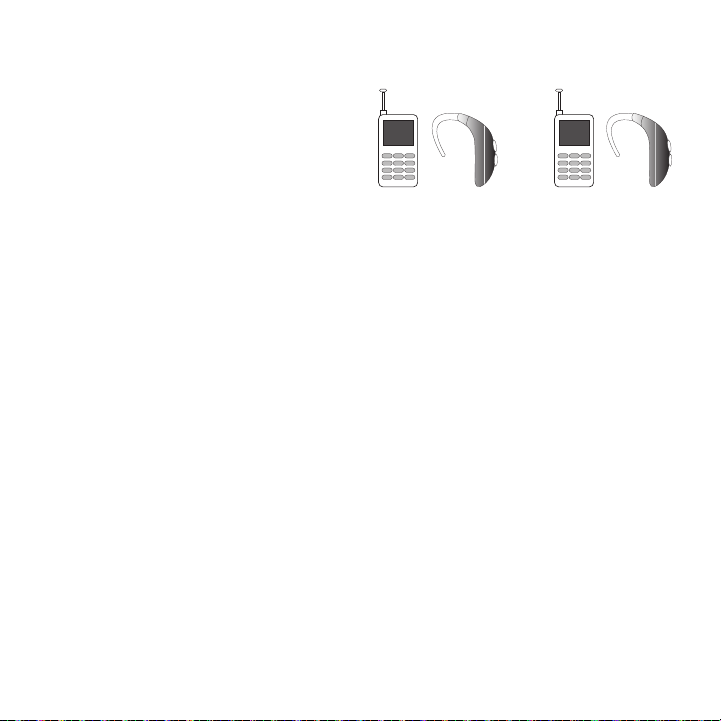
Health and Safety Information 97
The wireless telephone industry has developed a
rating system for wireless mobile devices to assist
hearing device users find mobile devices that may be
compatible with their hearing devices. Not all mobile
devices have been rated. Mobile devices that are
rated have the rating on their box or a label located
on the box.
The ratings are not guarantees. Results will vary
depending on the user's hearing device and hearing
loss. If your hearing device happens to be vulnerable
to interference, you may not be able to use a rated
mobile device successfully. Trying out the mobile
device with your hearing device is the best way to
evaluate it for your personal needs.
M-Ratings
: Mobile devices rated M3 or M4 meet FCC
requirements and are likely to generate less
interference to hearing devices than mobile devices
that are not labeled. M4 is the better/higher of the
two ratings.
T-Ratings
: Mobile devices rated T3 or T4 meet FCC
requirements and are likely to generate less
interference to hearing devices than mobile devices
that are not labeled. T4 is the better/higher of the two
ratings.
Hearing devices may also be rated. Your hearing
device manufacturer or hearing health professional
may help you find this rating. Higher ratings mean
that the hearing device is relatively immune to
interference noise. The hearing aid and wireless
mobile device rating values are then added together.
A sum of 5 is considered acceptable for normal use.
A sum of 6 is considered for best use.
In the above example, if a hearing aid meets the M2
level rating and the wireless mobile device meets the
M3 level rating, the sum of the two values equal M5.
This is synonymous for T ratings. This should provide
the hearing aid user with “normal usage” while using
their hearing aid with the particular wireless mobile
device.
“Normal usage” in this context is defined as a signal
quality that is acceptable for normal operation. The M
mark is intended to be synonymous with the U mark.
The T mark is intended to be synonymous with the
UT mark. The M and T marks are recommended by
the Alliance for Telecommunications Industries
Solutions (ATIS). The U and UT marks are referenced
in Section 20.19 of the FCC Rules.
The HAC rating and measurement procedure are
described in the American National Standards
Institute (ANSI) C63.19 standard.
M3 + M2 = 5
T3 + T2 =

98
Restricting Children's Access to Your
Mobile Device
Your mobile device is not a toy. Do not allow children
to play with it because they could hurt themselves
and others, damage the mobile device, or make calls
that increase your mobile device bill.
Keep the mobile device and all its parts and
accessories out of the reach of small children.
FCC Notice and Cautions
FCC Notice
The mobile device may cause TV or radio interference
if used in close proximity to receiving equipment. The
FCC can require you to stop using the mobile device if
such interference cannot be eliminated. Vehicles
using liquefied petroleum gas (such as propane or
butane) must comply with the National Fire Protection
Standard (NFPA-58). For a copy of this standard,
contact the National Fire Protection Association.
Cautions
Any changes or modifications to your mobile device
not expressly approved in this document could void
your warranty for this equipment and void your
authority to operate this equipment. Only use
approved batteries, antennas, and chargers. The use
of any unauthorized accessories may be dangerous
and void the mobile device warranty if said
accessories cause damage or a defect to the mobile
device. Although your mobile device is quite sturdy, it
is a complex piece of equipment and can be broken.
Avoid dropping, hitting, bending, or sitting on it.
Other Important Safety Information
•
Only qualified personnel should service the mobile device
or install the mobile device in a vehicle. Faulty installation
or service may be dangerous and may invalidate any
warranty applicable to the device.
•
Ensure that any mobile devices or related equipment
installed in your vehicle are securely mounted.
•
Check regularly that all wireless mobile device equipment
in your vehicle is mounted and operating properly.
•
Do not store or carry flammable liquids, gases, or
explosive materials in the same compartment as the
mobile device, its parts, or accessories.
•
For vehicles equipped with an air bag, remember that an
air bag inflates with great force. Do not place objects,
including installed or portable wireless equipment near or
in the area over the air bag or in the air bag deployment
area. If wireless equipment is improperly installed and the
air bag inflates, serious injury could result.
•
Switch your mobile device off before boarding an aircraft.
The use of wireless mobile devices in aircraft is illegal and
may be dangerous to the aircraft's operation. Check with
appropriate authorities before using any function of a
mobile device while on an aircraft.
•
Failure to observe these instructions may lead to the
suspension or denial of cell phone services to the
offender, or legal action, or both.

Warranty Information 99
Section 16: Warranty Information
Standard Limited Warranty
What is Covered and For How Long?
SAMSUNG TELECOMMUNICATIONS AMERICA, LLC
("SAMSUNG") warrants to the original purchaser
("Purchaser") that SAMSUNG's phones and
accessories ("Products") are free from defects in
material and workmanship under normal use and
service for the period commencing upon the date of
purchase and continuing for the following specified
period of time after that date:
What is Not Covered?
This Limited Warranty is
conditioned upon proper use of Product by Purchaser. This
Limited Warranty does not cover: (a) defects or damage
resulting from accident, misuse, abnormal use, abnormal
conditions, improper storage, exposure to moisture or
dampness, neglect, unusual physical, electrical or
electromechanical stress, or defects in appearance,
cosmetic, decorative or structural items, including framing,
and any non-operative parts unless caused by SAMSUNG;
(b) defects or damage resulting from excessive force when
pressing on a touch screen; (c) equipment that has the
serial number or the enhancement data code removed,
defaced, damaged, altered or made illegible; (d) any plastic
surfaces or other externally exposed parts that are
scratched or damaged due to normal use; (e) malfunctions
resulting from the use of Product in conjunction or
connection with accessories, products, or ancillary/
peripheral equipment not furnished or approved by
SAMSUNG; (f) defects or damage from improper testing,
operation, maintenance, installation, service, or adjustment
not furnished or approved by SAMSUNG; (g) defects or
damage from external causes such as collision with an
object, or from fire, flooding, sand, dirt, windstorm,
lightning, earthquake, or from exposure to weather
conditions, or battery leakage, theft, blown fuse, or
improper use of any electrical source; (h) defects or
damage caused by cellular signal reception or
transmission, or viruses or other software problems
introduced into the Product; (i) any other acts which are not
the fault of SAMSUNG; or (j) Product used or purchased
outside the United States. This Limited Warranty covers
batteries only if battery capacity falls below 80% of rated
capacity or the battery leaks, and this Limited Warranty
does not cover any battery if (i) the battery has been
charged by a battery charger not specified or approved by
SAMSUNG for charging the battery, (ii) any of the seals on
the battery are broken or show evidence of tampering, or
(iii) the battery has been used in equipment other than the
SAMSUNG phone for which it is specified.
Phone 1 Year
Batteries 1 Year
Leather Case 90 Days
Holster 90 Days
Other Phone Accessories 1 Year

100
What are SAMSUNG's Obligations?
During the
applicable warranty period, SAMSUNG will repair or
replace, at SAMSUNG's sole option, without charge to
Purchaser, any defective component part of Product.
To obtain service under this Limited Warranty,
Purchaser must return Product to an authorized
phone service facility in an adequate container for
shipping, accompanied by Purchaser's sales receipt
or comparable substitute proof of sale showing the
original date of purchase, the serial number of
Product and the sellers' name and address. To obtain
assistance on where to deliver the Product, call
Samsung Customer Care at 1-888-987-4357. Upon
receipt, SAMSUNG will promptly repair or replace the
defective Product. SAMSUNG may, at SAMSUNG's
sole option, use rebuilt, reconditioned, or new parts or
components when repairing any Product or replace
Product with a rebuilt, reconditioned or new Product.
Repaired/replaced cases, pouches and holsters will
be warranted for a period of ninety (90) days. All
other repaired/replaced Product will be warranted for
a period equal to the remainder of the original Limited
Warranty on the original Product or for 90 days,
whichever is longer. All replaced parts, components,
boards and equipment shall become the property of
SAMSUNG. If SAMSUNG determines that any Product
is not covered by this Limited Warranty, Purchaser
must pay all parts, shipping, and labor charges for the
repair or return of such Product.
What Are The Limits On Samsung's Warranty/liability?
EXCEPT AS SET FORTH IN THE EXPRESS WARRANTY
CONTAINED HEREIN, PURCHASER TAKES THE PRODUCT "AS
IS," AND SAMSUNG MAKES NO WARRANTY OR
REPRESENTATION AND THERE ARE NO CONDITIONS,
EXPRESS OR IMPLIED, STATUTORY OR OTHERWISE, OF ANY
KIND WHATSOEVER WITH RESPECT TO THE PRODUCT,
INCLUDING BUT NOT LIMITED TO:
•
THE MERCHANTABILITY OF THE PRODUCT OR ITS FITNESS
FOR ANY PARTICULAR PURPOSE OR USE;
•
WARRANTIES OF TITLE OR NON-INFRINGEMENT;
•
DESIGN, CONDITION, QUALITY, OR PERFORMANCE OF THE
PRODUCT;
•
THE WORKMANSHIP OF THE PRODUCT OR THE
COMPONENTS CONTAINED THEREIN; OR
•
COMPLIANCE OF THE PRODUCT WITH THE
REQUIREMENTS OF ANY LAW, RULE, SPECIFICATION OR
CONTRACT PERTAINING THERETO.
NOTHING CONTAINED IN THE INSTRUCTION MANUAL SHALL
BE CONSTRUED TO CREATE AN EXPRESS WARRANTY OF
ANY KIND WHATSOEVER WITH RESPECT TO THE PRODUCT.
ALL IMPLIED WARRANTIES AND CONDITIONS THAT MAY
ARISE BY OPERATION OF LAW, INCLUDING IF APPLICABLE
THE IMPLIED WARRANTIES OF MERCHANTABILITY AND
FITNESS FOR A PARTICULAR PURPOSE, ARE HEREBY
LIMITED TO THE SAME DURATION OF TIME AS THE
EXPRESS WRITTEN WARRANTY STATED HEREIN. SOME
STATES DO NOT ALLOW LIMITATIONS ON HOW LONG AN
IMPLIED WARRANTY LASTS, SO THE ABOVE LIMITATION
MAY NOT APPLY TO YOU. IN ADDITION, SAMSUNG SHALL
NOT BE LIABLE FOR ANY DAMAGES OF ANY KIND
RESULTING FROM THE PURCHASE, USE, OR MISUSE OF, OR

Warranty Information 101
INABILITY TO USE THE PRODUCT OR ARISING DIRECTLY OR
INDIRECTLY FROM THE USE OR LOSS OF USE OF THE
PRODUCT OR FROM THE BREACH OF THE EXPRESS
WARRANTY, INCLUDING INCIDENTAL, SPECIAL,
CONSEQUENTIAL OR SIMILAR DAMAGES, OR LOSS OF
ANTICIPATED PROFITS OR BENEFITS, OR FOR DAMAGES
ARISING FROM ANY TORT (INCLUDING NEGLIGENCE OR
GROSS NEGLIGENCE) OR FAULT COMMITTED BY SAMSUNG,
ITS AGENTS OR EMPLOYEES, OR FOR ANY BREACH OF
CONTRACT OR FOR ANY CLAIM BROUGHT AGAINST
PURCHASER BY ANY OTHER PARTY. SOME STATES DO NOT
ALLOW THE EXCLUSION OR LIMITATION OF INCIDENTAL OR
CONSEQUENTIAL DAMAGES, SO THE ABOVE LIMITATION OR
EXCLUSION MAY NOT APPLY TO YOU.
THIS WARRANTY GIVES YOU SPECIFIC LEGAL RIGHTS, AND
YOU MAY ALSO HAVE OTHER RIGHTS, WHICH VARY FROM
STATE TO STATE. THIS LIMITED WARRANTY SHALL NOT
EXTEND TO ANYONE OTHER THAN THE ORIGINAL
PURCHASER OF THIS PRODUCT AND STATES PURCHASER'S
EXCLUSIVE REMEDY. IF ANY PORTION OF THIS LIMITED
WARRANTY IS HELD ILLEGAL OR UNENFORCEABLE BY
REASON OF ANY LAW, SUCH PARTIAL ILLEGALITY OR
UNENFORCEABILITY SHALL NOT AFFECT THE
ENFORCEABILITY FOR THE REMAINDER OF THIS LIMITED
WARRANTY WHICH PURCHASER ACKNOWLEDGES IS AND
WILL ALWAYS BE CONSTRUED TO BE LIMITED BY ITS
TERMS OR AS LIMITED AS THE LAW PERMITS.
THE PARTIES UNDERSTAND THAT THE PURCHASER MAY
USE THIRD-PARTY SOFTWARE OR EQUIPMENT IN
CONJUNCTION WITH THE PRODUCT. SAMSUNG MAKES NO
WARRANTIES OR REPRESENTATIONS AND THERE ARE NO
CONDITIONS, EXPRESS OR IMPLIED, STATUTORY OR
OTHERWISE, AS TO THE QUALITY, CAPABILITIES,
OPERATIONS, PERFORMANCE OR SUITABILITY OF ANY
THIRD-PARTY SOFTWARE OR EQUIPMENT, WHETHER SUCH
THIRD-PARTY SOFTWARE OR EQUIPMENT IS INCLUDED
WITH THE PRODUCT DISTRIBUTED BY SAMSUNG OR
OTHERWISE, INCLUDING THE ABILITY TO INTEGRATE ANY
SUCH SOFTWARE OR EQUIPMENT WITH THE PRODUCT.
THE QUALITY, CAPABILITIES, OPERATIONS, PERFORMANCE
AND SUITABILITY OF ANY SUCH THIRD-PARTY SOFTWARE
OR EQUIPMENT LIE SOLELY WITH THE PURCHASER AND
THE DIRECT VENDOR, OWNER OR SUPPLIER OF SUCH
THIRD-PARTY SOFTWARE OR EQUIPMENT, AS THE CASE
MAY BE.
This Limited Warranty allocates risk of Product failure
between Purchaser and SAMSUNG, and SAMSUNG's
Product pricing reflects this allocation of risk and the
limitations of liability contained in this Limited Warranty.
The agents, employees, distributors, and dealers of
SAMSUNG are not authorized to make modifications to this
Limited Warranty, or make additional warranties binding on
SAMSUNG. Accordingly, additional statements such as
dealer advertising or presentation, whether oral or written,
do not constitute warranties by SAMSUNG and should not
be relied upon.
Samsung Telecommunications America, LLC
1301 E. Lookout Drive
Richardson, Texas 75082
Phone: 1-800-SAMSUNG
Phone: 1-888-987-HELP (4357)
©2011 Samsung Telecommunications America, LLC. All
rights reserved.

102
No reproduction in whole or in part allowed without prior
written approval. Specifications and availability subject to
change without notice. [021710]
End User License Agreement
for Software
IMPORTANT. READ CAREFULLY: This End User License
Agreement ("EULA") is a legal agreement between
you (either an individual or a single entity) and
Samsung Electronics Co., Ltd. for software owned by
Samsung Electronics Co., Ltd. and its affiliated
companies and its third party suppliers and licensors
that accompanies this EULA, which includes computer
software and may include associated media, printed
materials, "online" or electronic documentation
("Software"). BY CLICKING THE "I ACCEPT" BUTTON
(OR IF YOU BYPASS OR OTHERWISE DISABLE THE "I
ACCEPT", AND STILL INSTALL, COPY, DOWNLOAD,
ACCESS OR OTHERWISE USE THE SOFTWARE), YOU
AGREE TO BE BOUND BY THE TERMS OF THIS EULA.
IF YOU DO NOT ACCEPT THE TERMS IN THIS EULA,
YOU MUST CLICK THE "DECLINE" BUTTON,
DISCONTINUE USE OF THE SOFTWARE.
1. GRANT OF LICENSE. Samsung grants you the
following rights provided that you comply with all
terms and conditions of this EULA: You may install,
use, access, display and run one copy of the Software
on the local hard disk(s) or other permanent storage
media of one computer and use the Software on a
single computer or a mobile device at a time, and you
may not make the Software available over a network
where it could be used by multiple computers at the
same time. You may make one copy of the Software
in machine-readable form for backup purposes only;
provided that the backup copy must include all
copyright or other proprietary notices contained on
the original.
2. RESERVATION OF RIGHTS AND OWNERSHIP.
Samsung reserves all rights not expressly granted to
you in this EULA. The Software is protected by
copyright and other intellectual property laws and
treaties. Samsung or its suppliers own the title,
copyright and other intellectual property rights in the
Software. The Software is licensed, not sold.
3. LIMITATIONS ON END USER RIGHTS. You may not
reverse engineer, decompile, disassemble, or
otherwise attempt to discover the source code or
algorithms of, the Software (except and only to the
extent that such activity is expressly permitted by
applicable law notwithstanding this limitation), or
modify, or disable any features of, the Software, or
create derivative works based on the Software. You
may not rent, lease, lend, sublicense or provide
commercial hosting services with the Software.
4. CONSENT TO USE OF DATA. You agree that
Samsung and its affiliates may collect and use
technical information gathered as part of the product
support services related to the Software provided to
you, if any, related to the Software. Samsung may use
this information solely to improve its products or to
provide customized services or technologies to you
and will not disclose this information in a form that
personally identifies you.

Warranty Information 103
5. UPGRADES. This EULA applies to updates,
supplements and add-on components (if any) of the
Software that Samsung may provide to you or make
available to you after the date you obtain your initial
copy of the Software, unless we provide other terms
along with such upgrade. To use Software identified
as an upgrade, you must first be licensed for the
Software identified by Samsung as eligible for the
upgrade. After upgrading, you may no longer use the
Software that formed the basis for your upgrade
eligibility.
6. SOFTWARE TRANSFER. You may not transfer this
EULA or the rights to the Software granted herein to
any third party unless it is in connection with the sale
of the mobile device which the Software
accompanied. In such event, the transfer must
include all of the Software (including all component
parts, the media and printed materials, any
upgrades, this EULA) and you may not retain any
copies of the Software. The transfer may not be an
indirect transfer, such as a consignment. Prior to the
transfer, the end user receiving the Software must
agree to all the EULA terms.
7. EXPORT RESTRICTIONS. You acknowledge that the
Software is subject to export restrictions of various
countries. You agree to comply with all applicable
international and national laws that apply to the
Software, including the U.S. Export Administration
Regulations, as well as end user, end use, and
destination restrictions issued by U.S. and other
governments.
8. TERMINATION. This EULA is effective until
terminated. Your rights under this License will
terminate automatically without notice from
Samsung if you fail to comply with any of the terms
and conditions of this EULA. Upon termination of this
EULA, you shall cease all use of the Software and
destroy all copies, full or partial, of the Software.
9. DISCLAIMER OF WARRANTIES. You expressly
acknowledge and agree that use of the Software is at
your sole risk and that the entire risk as to
satisfactory quality, performance, accuracy and effort
is with you. TO THE MAXIMUM EXTENT PERMITTED
BY APPLICABLE LAW, THE SOFTWARE IS PROVIDED
"AS IS" AND WITH ALL FAULTS AND WITHOUT
WARRANTY OF ANY KIND, AND SAMSUNG AND ITS
LICENSORS (COLLECTIVELY REFERRED TO AS
"SAMSUNG" FOR THE PURPOSES OF SECTIONS 9, 10
and 11) HEREBY DISCLAIM ALL WARRANTIES AND
CONDITIONS WITH RESPECT TO THE SOFTWARE,
EITHER EXPRESS, IMPLIED OR STATUTORY,
INCLUDING, BUT NOT LIMITED TO, THE IMPLIED
WARRANTIES AND/OR CONDITIONS OF
MERCHANTABILITY, OF SATISFACTORY QUALITY OR
WORKMANLIKE EFFORT, OF FITNESS FOR A
PARTICULAR PURPOSE, OF RELIABILITY OR
AVAILABILITY, OF ACCURACY, OF LACK OF VIRUSES,
OF QUIET ENJOYMENT, AND NON-INFRINGEMENT OF
THIRD PARTY RIGHTS. SAMSUNG DOES NOT
WARRANT AGAINST INTERFERENCE WITH YOUR
ENJOYMENT OF THE SOFTWARE, THAT THE
FUNCTIONS CONTAINED IN THE SOFTWARE WILL
MEET YOUR REQUIREMENTS, THAT THE OPERATION
OF THE SOFTWARE WILL BE UNINTERRUPTED OR

104
ERROR-FREE, OR THAT DEFECTS IN THE SOFTWARE
WILL BE CORRECTED. NO ORAL OR WRITTEN
INFORMATION OR ADVICE GIVEN BY SAMSUNG OR A
SAMSUNG AUTHORIZED REPRESENTATIVE SHALL
CREATE A WARRANTY. SHOULD THE SOFTWARE
PROVE DEFECTIVE, YOU ASSUME THE ENTIRE COST
OF ALL NECESSARY SERVICING, REPAIR OR
CORRECTION. SOME JURISDICTIONS DO NOT ALLOW
THE EXCLUSION OF IMPLIED WARRANTIES OR
LIMITATIONS ON APPLICABLE STATUTORY RIGHTS OF
A CONSUMER, SO THESE EXCLUSIONS AND
LIMITATIONS MAY NOT APPLY TO YOU.
10. EXCLUSION OF INCIDENTAL, CONSEQUENTIAL
AND CERTAIN OTHER DAMAGES. TO THE EXTENT NOT
PROHIBITED BY LAW, IN NO EVENT SHALL SAMSUNG
BE LIABLE FOR PERSONAL INJURY, OR ANY
INCIDENTAL, SPECIAL, INDIRECT OR CONSEQUENTIAL
DAMAGES WHATSOEVER, OR FOR LOSS OF PROFITS,
LOSS OF DATA, BUSINESS INTERRUPTION, OR FOR
ANY PECUNIARY DAMAGES OR LOSSES, ARISING OUT
OF OR RELATED TO YOUR USE OR INABILITY TO USE
THE SOFTWARE, THE PROVISION OF OR FAILURE TO
PROVIDE SUPPORT OR OTHER SERVICES,
INFORMATION, SOFTWARE, AND RELATED CONTENT
THROUGH THE SOFTWARE OR OTHERWISE ARISING
OUT OF THE USE OF THE SOFTWARE, OR OTHERWISE
UNDER OR IN CONNECTION WITH ANY PROVISION OF
THIS EULA, HOWEVER CAUSED, REGARDLESS OF THE
THEORY OF LIABILITY (CONTRACT, TORT OR
OTHERWISE) AND EVEN IF SAMSUNG HAS BEEN
ADVISED OF THE POSSIBILITY OF SUCH DAMAGES.
SOME JURISDICTIONS DO NOT ALLOW THE
LIMITATION OF LIABILITY FOR PERSONAL INJURY, OR
OF INCIDENTAL OR CONSEQUENTIAL DAMAGES, SO
THIS LIMITATION MAY NOT APPLY TO YOU.
11. LIMITATION OF LIABILITY. Notwithstanding any
damages that you might incur for any reason
whatsoever (including, without limitation, all damages
referenced herein and all direct or general damages
in contract or anything else), the entire liability of
Samsung under any provision of this EULA and your
exclusive remedy hereunder shall be limited to the
greater of the actual damages you incur in reasonable
reliance on the Software up to the amount actually
paid by you for the Software or US$5.00. The
foregoing limitations, exclusions and disclaimers
(including Sections 9, 10 and 11) shall apply to the
maximum extent permitted by applicable law, even if
any remedy fails its essential purpose.
12. U.S. GOVERNMENT END USERS. The Software is
licensed only with "restricted rights" and as
"commercial items" consisting of "commercial
software" and "commercial software documentation"
with only those rights as are granted to all other end
users pursuant to the terms and conditions herein.

Warranty Information 105
13. APPLICABLE LAW. This EULA is governed by the
laws of TEXAS, without regard to conflicts of laws
principles. This EULA shall not be governed by the UN
Convention on Contracts for the International Sale of
Goods, the application of which is expressly
excluded. If a dispute, controversy or difference is not
amicably settled, it shall be finally resolved by
arbitration in Seoul, Korea in accordance with the
Arbitration Rules of the Korean Commercial
Arbitration Board. The award of arbitration shall be
final and binding upon the parties.
14. ENTIRE AGREEMENT; SEVERABILITY. This EULA is
the entire agreement between you and Samsung
relating to the Software and supersedes all prior or
contemporaneous oral or written communications,
proposals and representations with respect to the
Software or any other subject matter covered by this
EULA. If any provision of this EULA is held to be void,
invalid, unenforceable or illegal, the other provisions
shall continue in full force and effect.
Precautions for Transfer and Disposal
If data stored on this device is deleted or reformatted
using the standard methods, the data only appears to
be removed on a superficial level, and it may be
possible for someone to retrieve and reuse the data
by means of special software.
To avoid unintended information leaks and other
problems of this sort, it is recommended that the
device be returned to Samsung’s Customer Care
Center for an Extended File System (EFS) Clear which
will eliminate all user memory and return all settings
to default settings. Please contact the
Samsung
Customer Care Center
for details.
Important!:
Please provide warranty information (proof of
purchase) to Samsung’s Customer Care Center in
order to provide this service at no charge. If the
warranty has expired on the device, charges may
apply.
Customer Care Center:
1000 Klein Rd.
Plano, TX 75074
Toll Free Tel: 1.888.987.HELP (4357)
Samsung Telecommunications America, LLC:
1301 East Lookout Drive
Richardson, Texas 75082
Phone: 1-800-SAMSUNG (726-7864)
Important!:
If you are using a handset other than a standard
numeric keypad, dial the numbers listed in
brackets.
Phone: 1-888-987-HELP (4357)
©
2011 Samsung Telecommunications America. All
rights reserved.
No reproduction in whole or in part allowed without
prior written approval. Specifications and availability
subject to change without notice.

106
Index
A
Abbreviated Dialing
Contacts Match 28
Accessibility
settings 78
Activating the Phone
how to 16
Activating Voice Service 79
Arrow Keys
selecting menu items 17
Assisted Global Positioning System (AGPS)
information 91
Auto Keyguard
settings 75
B
Battery
capacity 6
charging 5
extending the battery life 6
installing 4
removing 5
Battery Use and Safety 88
C
Call Functions 24
Care and Maintenance 93
Cell Phone Health Hazard 82
Changing
parental control code 77
Charging
battery 5
Children and Cell Phones 85
Contacts Match
abbreviated dialing features 28
D
Data Services
diabling 77
Deleting
phone content 78
Disabling
data services 77
Display
warnings 91
Display Screen
viewing 12
Displaying
user ID 17
E
Emergency Calls 92
Exposure to Radio Frequency (RF) Signals 82
F
FCC Hearing Aid Compatibility (HAC)
regulations for wireless devices 96
FCC Notice and Cautions 98
G
Global Positioning System (GPS)
information 91

107
H
Health and Safety Information 82
I
Icon Glossary 12
Inserting
memory card 18
microSD card 18
the memory card 7
Installing
battery 4
L
Location
settings 76
Lock Code
changing 76
Locking the Phone
how to 75
M
Memory Card
adapter 18
how to insert 7, 18
microSD and adapter 6
removing 8, 18
settings 18
write protection 18
Menu Items
how to select using arrow keys 17
Menus
how to navigate 16
microSD
adapter 18
card settings 18
how to insert 7, 18
removing 18
write protection 18
N
Navigation
through menus 16
Navigation Key
selecting menu items 16
O
Operating Environment 95
Other Important Safety Information 98
P
Parental Control Code
changing 77
Parental Controls
using 76
Phone
activation 16
features 9
how to turn on 15
Phone Information
settings 75
Phone Number
locating your number 17
Phone Settings
resetting 77
Programming the Phone
how to 16

108
R
Recycling
Samsung mobile products 89
Reducing RF Exposure
using hands-free kits and other accessories
85
Removing
battery 5
memory card 8, 18
microSD card 18
Reset
phone settings 77
Responsible Listening 93
Restricting
children’s access to your mobile device 98
Ringtone Types 74
selecting a ringtone 74
Ringtones
downloading 74
selecting a type 74
S
Selecting
menu items 16
Setting up your device 4
Settings
accessibility settings 78
assigning pictures 73
auto keyguard settings 75
changing the lock code 76
configuring restrictions 77
deleting phone content 78
disable data services 77
getting more ringtones 74
location settings 76
locking the phone 75
memory card 18
microSD 18
parental controls 76
phone information 75
ringtone types 74
text entry 75
TTY settings 81
Smart Practices While Driving 87
Specific Absorption Rate (SAR) Certification Infor-
mation 86
Standard Limited Warranty 99
T
TTY
settings 81
U
UL Certified Travel Charger 90
Understanding your Phone 9
activating the phone 16
activating the phone account 16
displaying your phone number 17
key functions 9
locating the MSID 16
navigating through menus 16
phone camera view 11
phone features 9
phone front view 9
phone side views 11

109
programming the phone 16
selecting menu items with the
navigation key 16
selecting menus items using the
arrow keys 17
User ID
how to locate 17
V
Viewing
the display screen 12
Voice Command Tutorial 79
Voice Service
how to activate 79
Voice Service Settings 79
Adaptation settings 79
Audio Modes settings 80
Confirmation settings 79
Voice Service System Information
accessing information about 80
W
Warranty Information 99