
B
B
r
r
o
o
t
t
h
h
e
e
r
r
L
L
a
a
s
s
e
e
r
r
P
P
r
r
i
i
n
n
t
t
e
e
r
r
H
H
L
L
-
-
2
2
4
4
6
6
0
0
s
s
e
e
r
r
i
i
e
e
s
s
U
U
s
s
e
e
r
r
’
’
s
s
G
G
u
u
i
i
d
d
e
e
Before you can use the printer, you must set up the hardware and install the driver. Please set up the printer while referring to the
Quick Setup Guide. You can view it on both the printed poster and the CD-ROM.
Please read this manual thoroughly before using the printer and keep the CD-ROM in a convenient place for quick and easy reference
at all times.
Please visit our user support web site, Brother Solutions Center at http://solutions.brother.com. You can see latest drivers and
information.
Version F

i
Laser Printer
HL-2460 series
USER’S GUIDE
D
D
e
e
f
f
i
i
n
n
i
i
t
t
i
i
o
o
n
n
s
s
o
o
f
f
W
W
a
a
r
r
n
n
i
i
n
n
g
g
s
s
,
,
C
C
a
a
u
u
t
t
i
i
o
o
n
n
s
s
,
,
a
a
n
n
d
d
N
N
o
o
t
t
e
e
s
s
The following conventions are used in this User’s Guide:
Warning
Indicates warnings that must be observed to prevent possible personal
injury.
!
Caution
Indicates cautions that must be observed to use the printer properly or
prevent damage to the printer.
✒
Note
Indicates notes and useful tips to remember when using the printer.
ii
T
T
o
o
U
U
s
s
e
e
t
t
h
h
e
e
P
P
r
r
i
i
n
n
t
t
e
e
r
r
S
S
a
a
f
f
e
e
l
l
y
y
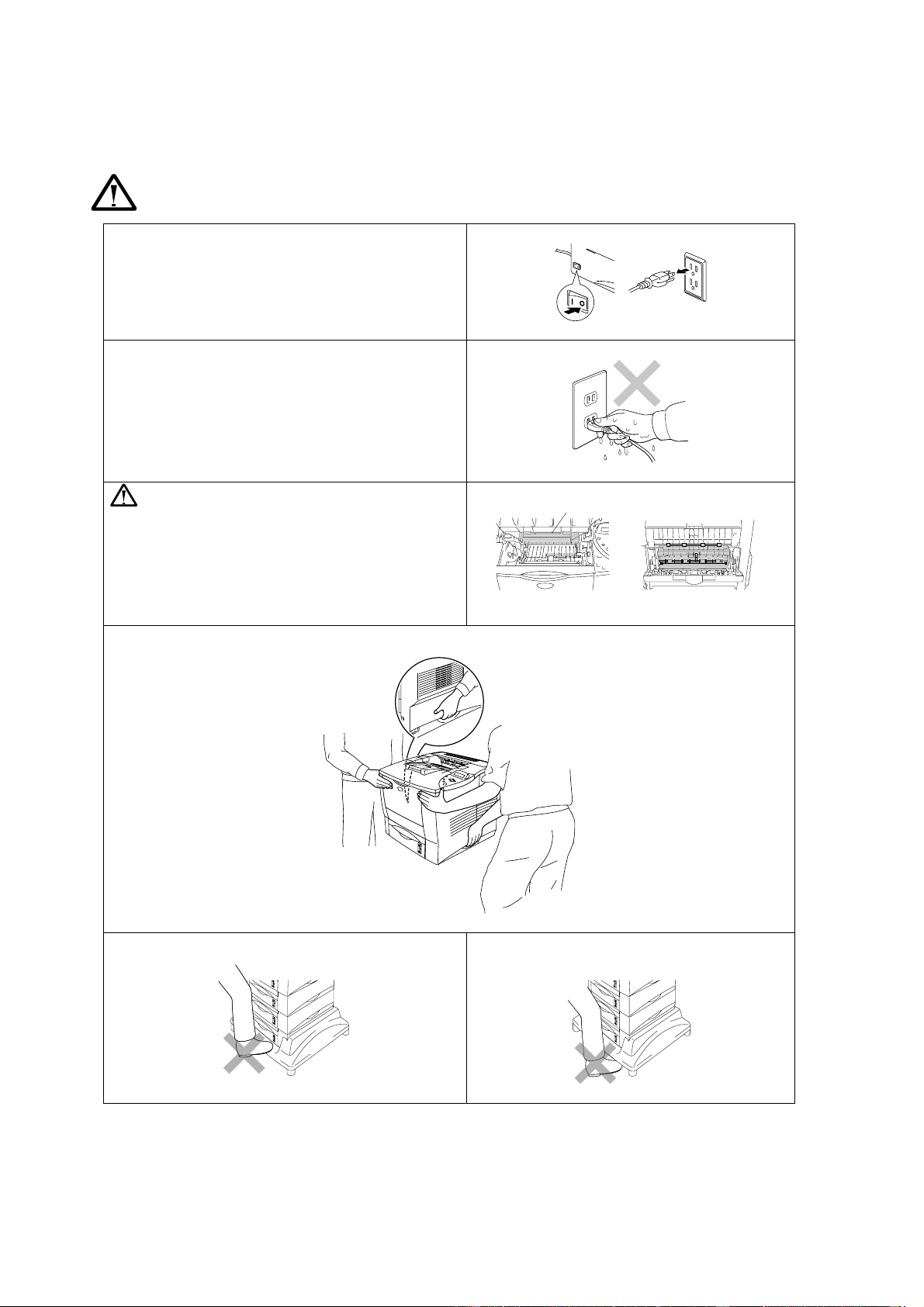
Warning
•
There are high voltage electrodes inside the printer. Before
replacing internal parts, cleaning the printer or clearing a
paper jam, make sure you have turned off the power
switch and unplugged the power cord from the power
outlet.
•
Do not handle the plug with wet hands. Doing this might
cause an electrical shock.
High Temperature
After you have just used the printer, some internal parts of
the printer are extremely hot. When you open the front
cover or rear cover of the printer, never touch the shaded
parts shown in the following illustration.
Inside the printer Open the face up output tray
•
To prevent injuries, at least two people should lift the printer – making sure they hold the printer as shown in the
illustration below.
•
Do not stand the printer and optional.
•
Be careful not to trip on the legs of the optional
Stabilizer unit.
F
user is HOT!

vii
C
C
C
H
H
H
A
A
A
P
P
P
T
T
T
E
E
E
R
R
R
4
4
4
O
O
O
P
P
P
T
T
T
I
I
I
O
O
O
N
N
N
S
S
S
O
O
O
p
p
p
t
t
t
i
i
i
o
o
o
n
n
n
a
a
a
l
l
l
A
A
A
c
c
c
c
c
c
e
e
e
s
s
s
s
s
s
o
o
o
r
r
r
i
i
i
e
e
e
s
s
s
a
a
a
n
n
n
d
d
d
S
S
S
u
u
u
p
p
p
p
p
p
l
l
l
i
i
i
e
e
e
s
s
s
4
4
4
-
-
-
1
1
1
S
S
S
m
m
m
a
a
a
l
l
l
l
l
l
p
p
p
a
a
a
d
d
d
f
f
f
o
o
o
r
r
r
L
L
L
o
o
o
w
w
w
e
e
e
r
r
r
t
t
t
r
r
r
a
a
a
y
y
y
u
u
u
n
n
n
i
i
i
t
t
t
a
a
a
n
n
n
d
d
d
S
S
S
t
t
t
a
a
a
b
b
b
i
i
i
l
l
l
i
i
i
z
z
z
e
e
e
r
r
r
(
(
(
S
S
S
B
B
B
-
-
-
4
4
4
0
0
0
0
0
0
0
0
0
)
)
)
4
4
4
-
-
-
2
2
2
L
L
L
o
o
o
w
w
w
e
e
e
r
r
r
T
T
T
r
r
r
a
a
a
y
y
y
U
U
U
n
n
n
i
i
i
t
t
t
(
(
(
L
L
L
T
T
T
-
-
-
4
4
4
0
0
0
0
0
0
0
0
0
)
)
)
4
4
4
-
-
-
3
3
3
D
D
D
u
u
u
p
p
p
l
l
l
e
e
e
x
x
x
U
U
U
n
n
n
i
i
i
t
t
t
(
(
(
D
D
D
X
X
X
-
-
-
4
4
4
0
0
0
0
0
0
0
0
0
)
)
)
4
4
4
-
-
-
4
4
4
M
M
M
a
a
a
i
i
i
l
l
l
b
b
b
o
o
o
x
x
x
U
U
U
n
n
n
i
i
i
t
t
t
4
4
4
-
-
-
5
5
5
N
N
N
e
e
e
t
t
t
w
w
w
o
o
o
r
r
r
k
k
k
O
O
O
p
p
p
t
t
t
i
i
i
o
o
o
n
n
n
(
(
(
N
N
N
C
C
C
-
-
-
4
4
4
1
1
1
0
0
0
0
0
0
h
h
h
)
)
)
4
4
4
-
-
-
7
7
7
I
I
I
n
n
n
s
s
s
t
t
t
a
a
a
l
l
l
l
l
l
i
i
i
n
n
n
g
g
g
t
t
t
h
h
h
e
e
e
N
N
N
e
e
e
t
t
t
w
w
w
o
o
o
r
r
r
k
k
k
B
B
B
o
o
o
a
a
a
r
r
r
d
d
d
4
4
4
-
-
-
7
7
7
C
C
C
o
o
o
m
m
m
p
p
p
a
a
a
c
c
c
t
t
t
F
F
F
l
l
l
a
a
a
s
s
s
h
h
h
C
C
C
a
a
a
r
r
r
d
d
d
4
4
4
-
-
-
1
1
1
0
0
0
I
I
I
n
n
n
s
s
s
t
t
t
a
a
a
l
l
l
l
l
l
i
i
i
n
n
n
g
g
g
t
t
t
h
h
h
e
e
e
C
C
C
o
o
o
m
m
m
p
p
p
a
a
a
c
c
c
t
t
t
F
F
F
l
l
l
a
a
a
s
s
s
h
h
h
C
C
C
a
a
a
r
r
r
d
d
d
4
4
4
-
-
-
1
1
1
1
1
1
R
R
R
A
A
A
M
M
M
E
E
E
x
x
x
p
p
p
a
a
a
n
n
n
s
s
s
i
i
i
o
o
o
n
n
n
4
4
4
-
-
-
1
1
1
2
2
2
I
I
I
n
n
n
s
s
s
t
t
t
a
a
a
l
l
l
l
l
l
i
i
i
n
n
n
g
g
g
a
a
a
d
d
d
d
d
d
i
i
i
t
t
t
i
i
i
o
o
o
n
n
n
a
a
a
l
l
l
D
D
D
I
I
I
M
M
M
M
M
M
m
m
m
e
e
e
m
m
m
o
o
o
r
r
r
y
y
y
4
4
4
-
-
-
1
1
1
3
3
3
H
H
H
a
a
a
r
r
r
d
d
d
D
D
D
i
i
i
s
s
s
k
k
k
D
D
D
r
r
r
i
i
i
v
v
v
e
e
e
(
(
(
H
H
H
D
D
D
-
-
-
6
6
6
G
G
G
/
/
/
H
H
H
D
D
D
-
-
-
E
E
E
X
X
X
)
)
)
4
4
4
-
-
-
1
1
1
6
6
6
I
I
I
r
r
r
-
-
-
D
D
D
A
A
A
i
i
i
n
n
n
t
t
t
e
e
e
r
r
r
f
f
f
a
a
a
c
c
c
e
e
e
(
(
(
I
I
I
R
R
R
-
-
-
1
1
1
0
0
0
0
0
0
0
0
0
)
)
)
4
4
4
-
-
-
2
2
2
0
0
0
O
O
O
p
p
p
t
t
t
i
i
i
o
o
o
n
n
n
a
a
a
l
l
l
f
f
f
o
o
o
n
n
n
t
t
t
p
p
p
a
a
a
c
c
c
k
k
k
a
a
a
g
g
g
e
e
e
(
(
(
B
B
B
S
S
S
-
-
-
3
3
3
0
0
0
0
0
0
0
0
0
)
)
)
4
4
4
-
-
-
2
2
2
1
1
1

viii
C
C
H
H
A
A
P
P
T
T
E
E
R
R
5
5
M
M
A
A
I
I
N
N
T
T
E
E
N
N
A
A
N
N
C
C
E
E
R
R
R
e
e
e
p
p
p
l
l
l
a
a
a
c
c
c
i
i
i
n
n
n
g
g
g
t
t
t
h
h
h
e
e
e
T
T
T
o
o
o
n
n
n
e
e
e
r
r
r
C
C
C
a
a
a
r
r
r
t
t
t
r
r
r
i
i
i
d
d
d
g
g
g
e
e
e
5
5
5
-
-
-
1
1
1
T
T
T
o
o
o
n
n
n
e
e
e
r
r
r
c
c
c
a
a
a
r
r
r
t
t
t
r
r
r
i
i
i
d
d
d
g
g
g
e
e
e
(
(
(
T
T
T
N
N
N
-
-
-
9
9
9
5
5
5
0
0
0
0
0
0
)
)
)
5
5
5
-
-
-
1
1
1
T
T
T
O
O
O
N
N
N
E
E
E
R
R
R
E
E
E
M
M
M
P
P
P
T
T
T
Y
Y
Y
m
m
m
e
e
e
s
s
s
s
s
s
a
a
a
g
g
g
e
e
e
5
5
5
-
-
-
3
3
3
C
C
C
l
l
l
e
e
e
a
a
a
n
n
n
i
i
i
n
n
n
g
g
g
5
5
5
-
-
-
6
6
6
C
C
C
l
l
l
e
e
e
a
a
a
n
n
n
i
i
i
n
n
n
g
g
g
t
t
t
h
h
h
e
e
e
p
p
p
r
r
r
i
i
i
n
n
n
t
t
t
e
e
e
r
r
r
e
e
e
x
x
x
t
t
t
e
e
e
r
r
r
i
i
i
o
o
o
r
r
r
5
5
5
-
-
-
6
6
6
C
C
C
l
l
l
e
e
e
a
a
a
n
n
n
i
i
i
n
n
n
g
g
g
t
t
t
h
h
h
e
e
e
p
p
p
r
r
r
i
i
i
n
n
n
t
t
t
e
e
e
r
r
r
i
i
i
n
n
n
t
t
t
e
e
e
r
r
r
i
i
i
o
o
o
r
r
r
5
5
5
-
-
-
8
8
8
C
C
H
H
A
A
P
P
T
T
E
E
R
R
6
6
T
T
R
R
O
O
U
U
B
B
L
L
E
E
S
S
H
H
O
O
O
O
T
T
I
I
N
N
G
G
L
L
L
C
C
C
D
D
D
m
m
m
e
e
e
s
s
s
s
s
s
a
a
a
g
g
g
e
e
e
s
s
s
6
6
6
-
-
-
1
1
1
E
E
E
r
r
r
r
r
r
o
o
o
r
r
r
m
m
m
e
e
e
s
s
s
s
s
s
a
a
a
g
g
g
e
e
e
s
s
s
6
6
6
-
-
-
1
1
1
M
M
M
a
a
a
i
i
i
n
n
n
t
t
t
e
e
e
n
n
n
a
a
a
n
n
n
c
c
c
e
e
e
m
m
m
e
e
e
s
s
s
s
s
s
a
a
a
g
g
g
e
e
e
s
s
s
6
6
6
-
-
-
4
4
4
S
S
S
e
e
e
r
r
r
v
v
v
i
i
i
c
c
c
e
e
e
c
c
c
a
a
a
l
l
l
l
l
l
m
m
m
e
e
e
s
s
s
s
s
s
a
a
a
g
g
g
e
e
e
s
s
s
6
6
6
-
-
-
5
5
5
T
T
T
r
r
r
o
o
o
u
u
u
b
b
b
l
l
l
e
e
e
s
s
s
h
h
h
o
o
o
o
o
o
t
t
t
i
i
i
n
n
n
g
g
g
P
P
P
a
a
a
p
p
p
e
e
e
r
r
r
H
H
H
a
a
a
n
n
n
d
d
d
l
l
l
i
i
i
n
n
n
g
g
g
6
6
6
-
-
-
6
6
6
P
P
P
a
a
a
p
p
p
e
e
e
r
r
r
J
J
J
a
a
a
m
m
m
s
s
s
a
a
a
n
n
n
d
d
d
H
H
H
o
o
o
w
w
w
t
t
t
o
o
o
C
C
C
l
l
l
e
e
e
a
a
a
r
r
r
t
t
t
h
h
h
e
e
e
m
m
m
6
6
6
-
-
-
7
7
7
J
J
J
A
A
A
M
M
M
T
T
T
R
R
R
A
A
A
Y
Y
Y
(
(
(
i
i
i
n
n
n
s
s
s
i
i
i
d
d
d
e
e
e
t
t
t
h
h
h
e
e
e
P
P
P
a
a
a
p
p
p
e
e
e
r
r
r
t
t
t
r
r
r
a
a
a
y
y
y
)
)
)
6
6
6
-
-
-
9
9
9
J
J
J
A
A
A
M
M
M
T
T
T
R
R
R
A
A
A
Y
Y
Y
(
(
(
i
i
i
n
n
n
t
t
t
h
h
h
e
e
e
M
M
M
u
u
u
l
l
l
t
t
t
i
i
i
-
-
-
p
p
p
u
u
u
r
r
r
p
p
p
o
o
o
s
s
s
e
e
e
t
t
t
r
r
r
a
a
a
y
y
y
)
)
)
6
6
6
-
-
-
1
1
1
2
2
2
J
J
J
A
A
A
M
M
M
I
I
I
N
N
N
S
S
S
I
I
I
D
D
D
E
E
E
(
(
(
i
i
i
n
n
n
s
s
s
i
i
i
d
d
d
e
e
e
t
t
t
h
h
h
e
e
e
p
p
p
r
r
r
i
i
i
n
n
n
t
t
t
e
e
e
r
r
r
)
)
)
6
6
6
-
-
-
1
1
1
3
3
3
J
J
J
A
A
A
M
M
M
R
R
R
E
E
E
A
A
A
R
R
R
(
(
(
a
a
a
t
t
t
p
p
p
a
a
a
p
p
p
e
e
e
r
r
r
e
e
e
x
x
x
i
i
i
t
t
t
)
)
)
6
6
6
-
-
-
1
1
1
6
6
6
J
J
J
A
A
A
M
M
M
R
R
R
E
E
E
A
A
A
R
R
R
(
(
(
a
a
a
t
t
t
F
F
F
a
a
a
c
c
c
e
e
e
u
u
u
p
p
p
o
o
o
u
u
u
t
t
t
p
p
p
u
u
u
t
t
t
t
t
t
r
r
r
a
a
a
y
y
y
)
)
)
6
6
6
-
-
-
1
1
1
8
8
8
J
J
J
A
A
A
M
M
M
D
D
D
U
U
U
P
P
P
L
L
L
E
E
E
X
X
X
(
(
(
i
i
i
n
n
n
t
t
t
h
h
h
e
e
e
D
D
D
u
u
u
p
p
p
l
l
l
e
e
e
x
x
x
u
u
u
n
n
n
i
i
i
t
t
t
)
)
)
6
6
6
-
-
-
2
2
2
0
0
0

xiii
Laser Notices
Laser Safety (110-120 V Model Only)
This printer is certified as a Class I laser product under the U.S. Department of Health and
Human Services (DHHS) Radiation Performance Standard according to the Radiation
Control for Health and Safety Act of 1968. This means that the printer does not produce
hazardous laser radiation.
Since radiation emitted inside the printer is completely confined within protective housings
and external covers, the laser beam cannot escape from the machine during any phase of
user operation.
FDA Regulations (110-120 V Model Only)
U.S. Food and Drug Administration (FDA) has implemented regulations for laser products
manufactured on and after August 2, 1976. Compliance is mandatory for products marketed
in the United States. One of the following labels on the back of the printer indicates
compliance with the FDA regulations and must be attached to laser products marketed in
the United States.
MANUFACTURED:
Brother Industries, Ltd.,
15-1 Naeshiro-cho Mizuho-ku Nagoya, 467-8561 Japan
This product complies with FDA radiation performance standards, 21 CFR subchapter J.
MANUFACTURED:
Brother Corporation (Asia) Ltd. Brother Buji Nan Ling Factory
Gold Garden Ind., Nan Ling Village, Buji, Rong Gang, Shenzhen, CHINA
This product complies with FDA radiation performance standards, 21 CFR Subchapter J
☛ Caution: Use of controls, adjustments or performance of procedures other than those
specified in this manual may result in hazardous radiation exposure.
IEC 60825 Specification (220-240 V Model Only)
This printer is a Class 1 laser product as defined in IEC 60825 specifications. The label
shown below is attached in countries where required.
CLASS 1LASER PRODUCT
APPAREIL Å LASER DE CLASSE 1
LASER KLASSE 1 PRODUKT
This printer has a Class 3B Laser Diode which emits invisible laser radiation in the Scanner
Unit. The Scanner Unit should not be opened under any circumstances.
☛ Caution: Use of controls, adjustments or performance of procedures other than
those specified in this manual may result in hazardous radiation exposure.

xiv
For Finland and Sweden
LUOKAN 1 LASERLAITE
KLASS 1 LASER APPARAT
☛ Varoitus! Laitteen käyttäminen muulla kuin tässä käyttöohjeessa mainitulla tavalla
saattaa altistaa käyttäjän turvallisuusluokan 1 ylittävälle näkymättömälle
lasersäteilylle.
☛
☛☛
☛ Varning – Om apparaten används på annat sätt än i denna Bruksanvisning specificerats,
kan användaren utsättas för osynlig laserstrålning, som överskrider gränsen
för laserklass 1.

xv
Safety Information
IMPORTANT - ForYour Safety
To ensure safe operation the three-pin plug supplied must be inserted only into a standard
three-pin power point which is properly grounded through the normal household wiring.
Extension cords used with this printer must be three-pin plug type and correctly wired to
provide proper grounding. Incorrectly wired extension cords may cause personal injury an
equipment damage.
The fact that the equipment operates satisfactorily does not imply that the power is
grounded and that the installation is completely safe. For your safety, if in any doubt about
the effective grounding of the power, consult a qualified electrician.
Disconnect device
This printer must be installed near a power outlet that is easily accessible. In case of
emergencies, you must disconnect the power cord from the power outlet to shut off the
power completely.
Geräuschemission / Acoustic Noise Emission (For Germany Only)
Lpa < 70 dB (A) DIN 45635-19-01-KL2
Wiring Information (For U.K. Only)
Important
If the mains plug supplied with this printer is not suitable for your socket outlet, remove the
plug from the mains cord and fit an appropriate three pin plug. If the replacement plug is
intended to take a fuse then fit the same rating fuse as the original.
If a moulded plug is severed from the mains cord then it should be destroyed because a
plug with cut wires is dangerous if engaged in a live socket outlet. Do not leave it where a
child might find it!
In the event of replacing the plug fuse, fit a fuse approved byASTA to BS1362 with the
same rating as the original fuse.
Always replace the fuse cover. Never use a plug with the cover omitted.
WARNING - THIS PRINTER MUST BE EARTHED
The wires in the mains cord are coloured in accordance with the following code :
GREEN AND YELLOW : EARTH
BLUE : NEUTRAL
BROWN : LIVE
The colours of the wires in the mains lead of this printer may not correspond with the
coloured markings identifying the terminals in your plug.
If you need to fit a different plug, proceed as follows.

xvii
T
T
r
r
a
a
d
d
e
e
m
m
a
a
r
r
k
k
s
s
The Brother logo is a registered trademark of Brother Industries, Ltd.
Apple, the Apple Logo, and Macintosh are registered trademarks in the United States and
other countries, and TrueType is a trademark of Apple Computer, Inc.
Epson is a registered trademark and FX-80 and FX-850 are trademarks of Seiko Epson
Corporation.
Hewlett Packard is a registered trademark and HP LaserJet 6P, 6L, 5P, 5L, 4, 4L 4P, III, IIIP,
II, and IIP are trademarks of Hewlett-Packard Company.
IBM, IBM PC, and Proprinter are registered trademarks of International Business Machines
Corporation.
Microsoft and MS-DOS are registered trademarks of Microsoft Corporation. Windows is a
registered trademark of Microsoft Corporation in the U.S. and other countries.
PostScript is a registered trademark of Adobe Systems Incorporated.
E
NERGY
S
TAR is a U.S. registered mark.
All other brand and product names mentioned in this User’s Guide are registered
Compilation and Publication Notice
Under the supervision of Brother Industries Ltd., this manual has been compiled and
published, covering the latest product’s descriptions and specifications.
The contents of this manual and the specifications of this product are subject to change
without notice.
Brother reserves the right to make changes without notice in the specifications and
materials contained herein and shall not be responsible for any damages (including
consequential) caused by reliance on the materials presented, including but not limited to
typographical and other errors relating to the publication.
©2001 Brother Industries Ltd.

xviii
(For USA & CANADA Only)
IMPORTANT NOTE: For technical and operational assistance, you must call.
Calls must be made
from within
that country.
In USA 1-800-276-7746
In CANADA 1-800-853-6660
1-514-685-6464 (within Montreal)
If you have comments or suggestions, please write us at:
In USA Printer Customer Support
Brother International Corporation
15 Musick
Irvine, CA 92618
In CANADA Brother International Corporation (Canada), Ltd.
- Marketing Dept.
1, rue Hôtel de Ville
Dollard-des-Ormeaux, PQ, Canada H9B 3H6
BROTHER FAX-BACK SYSTEM
Brother Customer Service has installed an easy to use fax-back system so you can get instant answers to common technical
questions and product information for all Brother products. This is available 24 hours a day, 7 days a week. You can use the
system to send the information to any fax machine, not just the one from which you are calling.
Call and follow the voice prompts to receive faxed instructions on how to use the system and your index of fax-back subjects.
In USA 1-800-521-2846
In Canada 1-800-685-5381
1-514-685-5381 (within Montreal)
DEALERS/SERVICE CENTERS (USA only)
For the name of a Brother authorized dealer or service center, call 1-800-284-4357.
SERVICE CENTERS (Canada only)
For service center addresses in Canada, call 1-800-853-6660.
INTERNET ADDRESS
For technical questions and downloading drivers: http://www.brother.com

CHAPTER 1 ABOUT THIS PRINTER
C
C
H
H
A
A
P
P
T
T
E
E
R
R
1
1
A
A
B
B
O
O
U
U
T
T
T
T
H
H
I
I
S
S
P
P
R
R
I
I
N
N
T
T
E
E
R
R

CHAPTER 1 ABOUT THIS PRINTER
1-3
c
What is included on the CD-ROM
(For Windows
®
users)
1 Initial setup
See the setup process from hardware setup to driver installation on a video.
2 Install software
You can install not only the printer driver but also the following utility items.
For all users
(For more information, see Chapter 2)
• Printer Driver
• Automatic E-mail Printing
For administrators
• BRAdmin Professional
• Network Printer Driver Wizard
• Network Print Software
• Storage Manager
• Analysis Tool
Fonts
1
2
3
CHAPTER 1 ABOUT THIS PRINTER
1-5
c
What is included on the CD-ROM
(For Macintosh
®
on a Network users only)
1 Initial setup
See the setup process from hardware setup to driver installation on a video.
2 BR-Script PPD Installer
Printer driver
(For more information, see Chapter 2)
This printer supports Mac OS versions 8.51, 8.6, 9.0 and 9.04.
3Manuals
View the printer User’s Guide, Network User’s Guide and other
documentation.
1
2
3
4
5

1-10
E
E
n
n
v
v
i
i
r
r
o
o
n
n
m
m
e
e
n
n
t
t
c
Optimum environmental conditions
Use the printer only within the following ranges of temperature and humidity.
Possible operation range
Ambient temperature: 10°C to 32.5°C (50°F to 90.5°F)
Ambient humidity: 20% to 80% (without condensation)
Recommended operation range
Ambient temperature: 17.5°C to 25°C (63.5°F to 77°F)
Ambient humidity: 30% to 70% (without condensation)
The machine must be level within 5mm (0.2”) both front to rear and left to
right.
To avoid possible build-up of ozone, locate this machine in a large well-
ventilated room that has an air turnover of more than 30m³/hour/person.

1-16
Media types in the driver settings
You can select the following media types in the driver settings. Please see,
“Features in the printer driver” in Chapter 2.
• Plain paper : 60 g/m
2
to 105 g/m
2
(16lb to 28lb)
• Thick paper : 105 g/m
2
to 150 g/m
2
(28lb to 40lb)
• Thicker paper : 150 g/m
2
to 200 g/m
2
(40lb to 53lb)
• Bond paper : Rough paper - 60 g/m
2
to 200 g/m
2
(16lb to 53lb)
• Transparency : OHP film
• Envelope
Recommended paper
Europe USA
Plain paper Xerox Premier 80 g/m
2
Xerox 4200DP 20 lb
Recycled paper Steinbis Recycling Copy 80 g/m
2
Transparency 3M CG3300 3M CG 3300
Label Avery laser label L7163 Avery laser label #5160
♦ Before you purchase large quantities of paper, please test print a
small quantity to ensure that the paper is suitable.
♦ Use paper designed for plain paper copying.
♦ Use paper that is 75 to 90 g/m
2
(20 to 24lb).
♦ Use neutral paper; avoid acidic or alkaline paper.
♦ Use Long grain paper.
♦ Use paper with a moisture content of approximately 5%.
♦ This printer can use recycled paper according to
DIN 19309.

CHAPTER 1 ABOUT THIS PRINTER
1-17
c
Printable area
The figure below shows the printable area when using the PCL emulation.
Portrait
USA/Canada Europe/other countries
1
4.2 mm
(0.17 inch)
4.2 mm
2
6.35 mm
(0.25 inch)
6.01 mm
3
4.2 mm
(0.17 inch)
4.2 mm
4
6.35 mm
(0.25 inch)
6.01 mm
1
3
4
2
Fig. 1-6
Landscape
USA/Canada Europe/other countries
1
4.2 mm
(0.17 inch)
4.2 mm
2
5.08 mm
(0.2 inch)
5 mm
3
4.2 mm
(0.17 inch)
4.2 mm
4
5.08 mm
(0.2 inch)
5 mm
3
4
1
2
Fig. 1-7
CHAPTER 1 ABOUT THIS PRINTER
1-19
✒
✒✒
✒
Note
For Legal size paper, press the universal guide release button and pull out
the rear of the paper cassette.
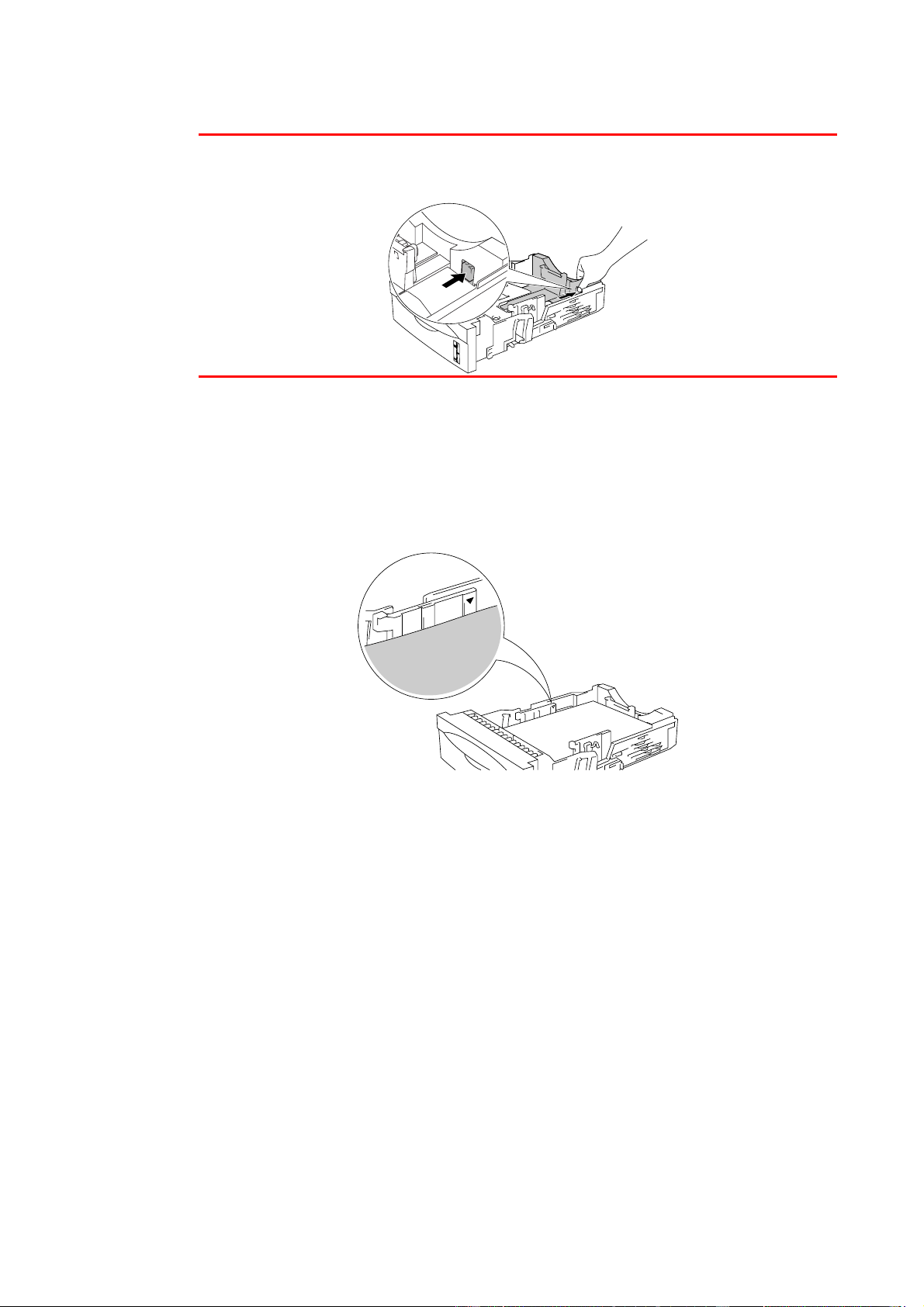
☛
☛☛
☛
3.
Load paper in the paper cassette. Check that the paper is flat and below the
limit
▼
mark.
Fig. 1-9
☛
☛☛
☛
4.
Install the paper cassette into the printer.
1-20
☛
☛☛
☛
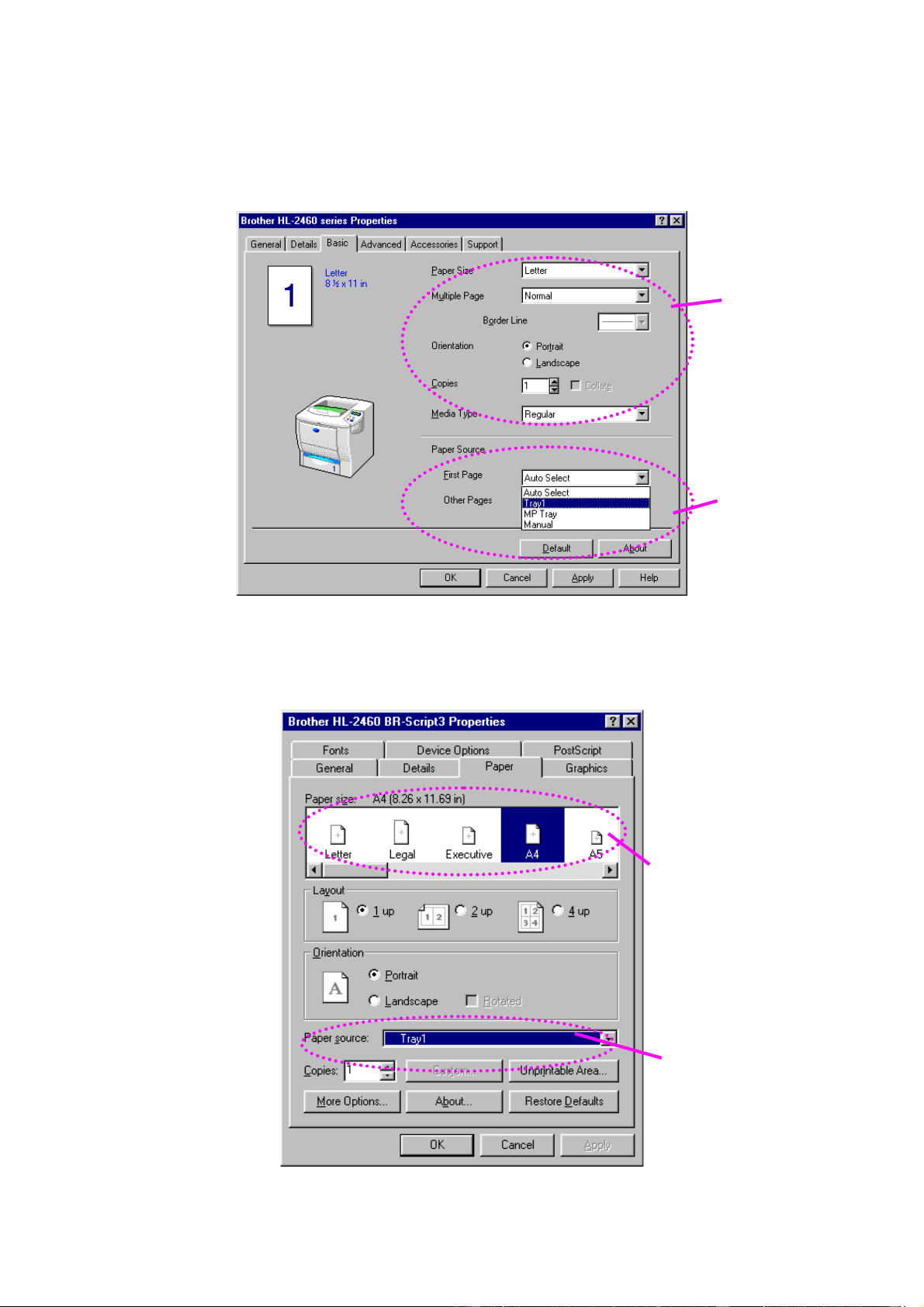
5.
Change the following settings in the printer driver.
<PCL driver>
<PS driver>
Select Tray 1.
Select the paper
size, media type
etc.
Select the Paper
size.
Select Tray 1.

1-22
c
Tray ID setting (Only if the lower tray unit is
installed)
If somebody moves the cassette into another tray position and even if you
print the data without knowing this has been done, the driver automatically
selects the correct tray and prints according to this setting.
Fig. 1-10
Blue tray ID

CHAPTER 1 ABOUT THIS PRINTER
1-23
P
P
r
r
i
i
n
n
t
t
i
i
n
n
g
g
p
p
a
a
p
p
e
e
r
r
f
f
r
r
o
o
m
m
t
t
h
h
e
e
m
m
u
u
l
l
t
t
i
i
-
-
p
p
u
u
r
r
p
p
o
o
s
s
e
e
t
t
r
r
a
a
y
y
✒
✒✒
✒
Note
• For correct printing, you must select the same paper size from within
your software application as the paper in the tray.
• If your application software does not support paper size selection in its
print menu, you can change the paper size on the printer’s control panel
under the PAPER menu. For more information, see Chapter 3.
☛
☛☛
☛
1.
Open the multi-purpose tray and lower it gently.
Fig. 1-11
☛
☛☛
☛
2.
Pull out the multi-purpose extension flap.
Fig. 1-12

1-26
<PS driver>
Select the paper
size.
Select MP tray.

CHAPTER 1 ABOUT THIS PRINTER
1-27
P
P
r
r
i
i
n
n
t
t
i
i
n
n
g
g
o
o
n
n
e
e
n
n
v
v
e
e
l
l
o
o
p
p
e
e
s
s
(
(
F
F
a
a
c
c
e
e
u
u
p
p
p
p
r
r
i
i
n
n
t
t
i
i
n
n
g
g
)
)
Envelope types to avoid
• Envelopes that are damaged, curled, wrinkled, or irregularly shaped
• Envelopes that are extremely shiny or highly textured
• Envelopes with clasps, snaps or tie strings.
• Envelopes with self-adhesive closures
• Envelopes of baggy construction
• Envelopes that are not sharply creased
• Embossed envelopes
• Envelopes that were previously printed by a laser printer
• Envelopes that are pre-printed on the inside
• Envelopes that cannot be arranged uniformly when placed in a pile
• Envelopes constructed with paper that exceeds the paper weight
specifications for the printer.
• Poorly manufactured envelopes with edges that are not straight or
consistently square.
• Envelopes with transparent windows, holes, cutouts or perforations.
Fig. 1-15
USE OF ANY OF THE ENVELOPES LISTED ABOVE MAY CAUSE
DAMAGE TO YOUR PRINTER. SUCH DAMAGE IS NOT COVERED
UNDER ANY WARRANTY OR SERVICE AGREEMENT.
1-30
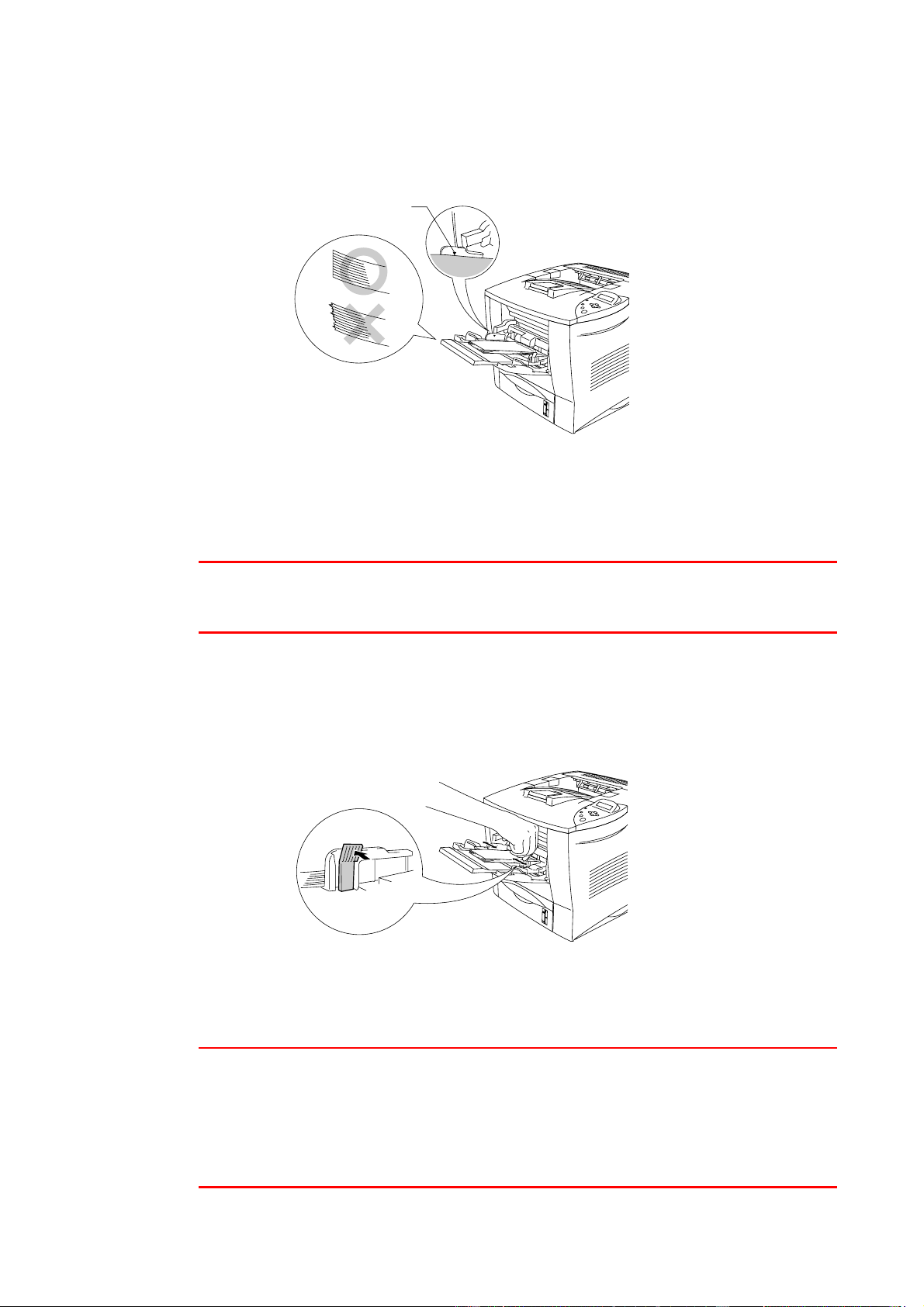
☛
4.
Place the envelopes in the multi-purpose tray so they touch the back of the
tray and remain below the limit
▼
mark.
Fig. 1-19
✒ Note
Make sure that the neatly stacked paper is correctly seated on the multi-
purpose tray, otherwise paper may not be fed correctly, resulting in a skewed
printout or a paper jam
☛
5.
Press and slide the paper width adjuster to fit the envelope size.
Fig. 1-20
✒ Note
When you place paper on the multi-purpose tray, note the following:
• The print surface must be face up.
• The leading edge must be placed inside first so it rests lightly against
the printer.
• The top of the paper stack must be under the guides that are on both
sides of the tray.
Up to
▼
mark.

1-34
☛
☛☛
☛
1.
Open the multi-purpose tray and lower it gently.
Fig. 1-22
☛
☛☛
☛
2.
Pull out the multi-purpose extension flap.
Fig. 1-23

CHAPTER 1 ABOUT THIS PRINTER
1-37
☛
☛☛
☛
6.
Select the following setting in the printer driver.
<PCL driver>
<PS driver>
Select MP tray.
Select the
paper size,
media type etc.
Select the paper
size.
MP tray

CHAPTER 1 ABOUT THIS PRINTER
1-39
M
M
a
a
n
n
u
u
a
a
l
l
F
F
e
e
e
e
d
d
If you place paper in the multi-purpose tray when the setting MANUAL FEED
= ON has been set in PAPER mode using the control panel, the printer will
load paper only from the multi-purpose tray.
✒
✒✒
✒
Note
When you feed paper manually, note the following:
• If your application software supports a manual feed selection in the print
menu, you can select it through the software. Since the software or
command setting overrides the switch setting, you do not need to set the
MANUAL FEED mode and the paper size in PAPER mode.
• If you use pre-printed paper in the multi-purpose tray, the paper should
be inserted top edge first with the pre-printed side face up.

CHAPTER 2 DRIVER AND SOFTWARE
2–3
c
Advanced tab
1 Change the tab settings by clicking these icons as follows:
Print Quality
Duplex
Watermark
Page Setting
Device Options
Destination
1


2–12
c
Device Options tab
1 You can change settings by clicking the setting and then selecting a
new value in the Change Settings box.
Toner Save Mode
Sleep Mode
Media Type
HRC setting
Collate (only when an HDD or CompactFlash card is installed)
Job spooling
2 Select the installed options from the list.
2
1

CHAPTER 2 DRIVER AND SOFTWARE
2–13
♦
Job Spooling
You can print a document without resending the data or sending the
password again (except Secure printing) from your PC because the printer
saves data that you specify for reprinting.
For more information, see Chapter 3.
•
Secure Print : Print the data with a password
•
Public : Save the data without a password
•
Proof : Save the data and print it

CHAPTER 2 DRIVER AND SOFTWARE
2–15
S
S
o
o
f
f
t
t
w
w
a
a
r
r
e
e
f
f
o
o
r
r
n
n
e
e
t
t
w
w
o
o
r
r
k
k
s
s
♦
BRAdmin professional
BRAdmin professional is a utility for managing your Brother network enabled
printers that are running under Windows 95/98/Me, Windows 2000 and
Windows NT 4.0. It allows you to easily configure and check the status of
your network-enabled printer.
♦
Storage Manager
Brother Storage Manager software can manipulate the printer forms that you
may have stored in a CompactFlash or 2.5” HDD.
You can print a fixed form document at any time by using the control panel.
To make a fixed document, you must write Fonts, Macros, or fixed forms to
the Storage Device of your printer.
♦
Analysis Tool Software
By adding a HDD or CompactFlash Card to the printer, you can gain cost
analysis capability.
Analysis Tool Software is a 32-bit Windows application designed to manage
important information about a print job such as the username, job name,
number of printed pages, etc. Using this software, you can easily associate
printing costs with users or groups of users.

CHAPTER 2 DRIVER AND SOFTWARE
2–19
c
Installing the printer driver for Macintosh
<For Network users>
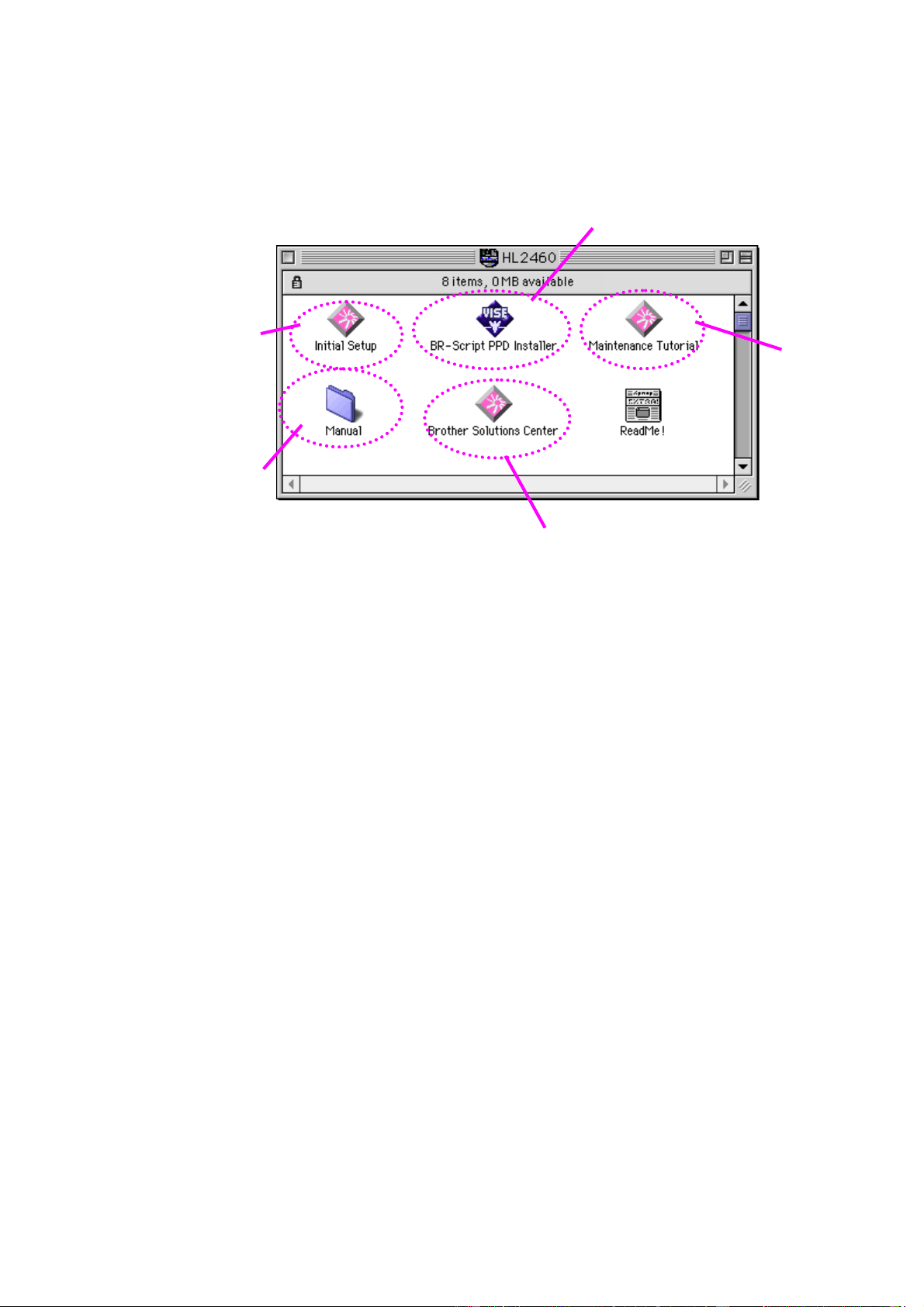
☛
1.
Turn on your Macintosh computer. Insert the CD-ROM into the CD-ROM
drive. The following window will appear automatically.
☛
2.
To install the BR-Script PPD file, click this icon.
☛
3.
To set up the LaserWriter driver, refer to the Network
User’s Guide.

2–20
A
A
u
u
t
t
o
o
m
m
a
a
t
t
i
i
c
c
E
E
m
m
u
u
l
l
a
a
t
t
i
i
o
o
n
n
S
S
e
e
l
l
e
e
c
c
t
t
i
i
o
o
n
n
This printer has an Automatic emulation selection function. When the printer
receives data from the computer, it automatically selects the emulation
mode. This function has been factory set to ON.
The printer can select the emulation among the following combinations:
EPSON (default) IBM
HP LaserJet HP LaserJet
BR-Script 3 BR-Script 3
HP-GL HP-GL
EPSON FX-850 IBM Proprinter XL
You can select the emulation mode manually in the EMULATION menu in
SETUP mode by using the control panel. For more information, see
Chapter 3.

CHAPTER 2 DRIVER AND SOFTWARE
2–21
✒ Note
When you use the Automatic emulation selection, note the following:
• The EPSON or IBM emulation mode priority must be selected, because
the printer cannot distinguish between them. Since the factory setting is
the EPSON emulation mode, you might need to select the IBM
emulation mode in the EMULATION menu in SETUP mode by using the
control panel.
• Try Automatic emulation selection with your application software or
network server. If it does not work properly, select the emulation mode
manually using either the printer control panel switches or the
emulation selection commands from your software.

2–22
A
A
u
u
t
t
o
o
m
m
a
a
t
t
i
i
c
c
I
I
n
n
t
t
e
e
r
r
f
f
a
a
c
c
e
e
S
S
e
e
l
l
e
e
c
c
t
t
i
i
o
o
n
n
This printer has an Automatic interface selection function. When the printer
receives data from the computer, it automatically selects the interface that is
appropriate.
When you use the parallel interface, you can turn the high-speed and bi-
directional parallel communications on or off in the parallel menu using the
control panel in INTERFACE mode. For more information, see Chapter 3.
Since the automatic interface selection mode has been factory set to ON,
simply connect the interface cable to the printer.
When you use the serial interface, you need to have the same
communications settings on both the printer and the computer. Since the
automatic interface selection mode has been factory set with certain
settings, you may be able to simply connect the interface cable to the printer
if your computer has the settings listed below.
Communications parameters Factory settings
Baud rate (data transfer speed) 9600
Code type (data length) 8 bits
Parity (data error check) None
Stop bit (data separator) 1 stop bit
Xon/Xoff (handshake protocol) ON
DTR (ER) ON
Robust Xon OFF
If a Network board (Brother NC-4100h) has been installed, use the control
panel to select NETWORK.
When necessary, use the control panel in the INTERFACE mode to select
the interface or the serial communications parameters manually. For more
information, see Chapter 3. For the computer settings, see the manual for
the computer or software you are using.

CHAPTER 2 DRIVER AND SOFTWARE
2–23
✒ Note
When you use the Automatic interface selection, note the following:
• This function takes a few seconds to work. If you want to speed up
printing, select the required interface manually in the SELECT menu by
using the control panel in the INTERFACE mode.
If you constantly use only one interface, we recommend that you select that
interface in the INTERFACE mode. The printer allocates the entire input
buffer to that interface when only one interface is selected.

CHAPTER 3 CONTROL PANEL
C
C
H
H
A
A
P
P
T
T
E
E
R
R
3
3
C
C
O
O
N
N
T
T
R
R
O
O
L
L
P
P
A
A
N
N
E
E
L
L

3–4
J
J
o
o
b
b
C
C
a
a
n
n
c
c
e
e
l
l
s
s
w
w
i
i
t
t
c
c
h
h
You can cancel the processing or printing of data with the Job Cancel
switch. The display shows JOB CANCELLING until cancelling is completed.
After cancelling the job, the printer returns to the READY state.
When the printer is in any state except receiving data or printing, the display
shows “NO DATA!!!” and you cannot cancel the job.

CHAPTER 3 CONTROL PANEL
3–5
R
R
e
e
p
p
r
r
i
i
n
n
t
t
s
s
w
w
i
i
t
t
c
c
h
h
If you want to reprint a document that has just been printed, you can reprint
it by pressing the Reprint switch. Also, if you have created a document that
you wish to share with colleagues, simply spool the document to a non-
secure area of the printer. This document can then be re-printed by anyone
who is on the network or at the printer control panel.
You can use the reprint function when the printer is READY or in the
settings menu.
When you want to print PROOF, PUBLIC or SECURE data, we recommend
installing the optional HDD or CompactFlash card.
If you do not install an HDD (See Hard Disk Drive (HD-6G/HD-EX) in
Chapter 4) or CompactFlash card (see “CompactFlash Card” in Chapter 4),
you can reprint from RAM.
The reprint data in RAM will be deleted when the printer is turned off.

3–6
When you use RAM to reprint:
☛
1.
Press the
Set
switch on the control panel to exit from the READY status and
select RAMDISK SIZE in the SETUP mode.
☛
2.
The default RAM is 0MB. Press the switch to increase the reprint RAM
size in increments of 1MB.
✒ Notes
When you increase the RAM size for secure printing, the work area of the
printer is decreased and the printer performance will be reduced. Ensure
that you reset the RAMSIZE to 0MB when you have finished using secure
printing.
When you store the data in RAM, the data will be deleted when the printer
power is turned off.
We also recommend adding additional RAM if you want to be able to print a
large amount of secure data. (See “RAM Expansion” in Chapter 4)

3–10
c
Printing PUBLIC data
You can use this function to reprint documents stored in a PUBLIC area of
the printer memory. Documents here will not be password protected and
anyone can access them using the front panel or a web browser. The printer
will not print a PUBLIC document when you send it to the printer. You must
use the control panel of the printer or connect to the printer through a web
browser.
Public data can be deleted using the control panel of the printer or from the
web-based management software.
When you reprint PUBLIC data, refer also to “Operations for printing
SECURE data” in this chapter.
✒ Notes
•
If there is data in the job information that cannot be displayed on the
LCD, the display shows “
?
”.
•
For more information about the settings in the printer driver, see “Job
Spooling” in Chapter 2.

CHAPTER 3 CONTROL PANEL
3–11
c
Printing SECURE data
Secure documents are password protected and only those people that know
the password will be able to print the document. The printer will not print the
document when you send it for printing; to print the document you must use
the control panel of the printer (with password) or connect to the printer
using a web browser.
If you want to delete the spooled data, you can carry out this operation using
the control panel or in the web-based management software.
✒ Notes
•
If there is data in the job information that cannot be displayed on the
LCD, the display shows “?”.
•
For more information about the settings in the printer driver, see “Job
Spooling” in Chapter 2.
3–12
♦
Operations for printing SECURE data
Press
the
Reprint
switch
If there is no data.
NO DATA STORED
↓
↓
--REPRINT--
LAST JOB
↓
Press
+
or
-
.
↓
--REPRINT--
SECURE FILE
↓
Press the
Set
switch.
↓
SECURE FILE
USER XXXXXX
↓
Press the
+
or
–
switch
to select the user name.
↓
Press the
Set
switch
to set the user name.
USER XXXXXX
JOB XXXXXX
↓
Press the
+
or
–
switch
to select the job.
↓
Press the
Set
switch
to set the job.
JOB XXXXXXX
PASS NO.=0000
↓
Input your password.
↓
Press the
Set
switch
to set the password
--REPRINT--
COPIES= 1
The printer will exit this menu
after a time out period.
↓
Press the
Set
switch
or the
Reprint
switch.
↓
If you press the
Go
switch, the display shows “
PRESS SET TO
PRINT
”.
PRINTING

3–16
B
B
a
a
c
c
k
k
s
s
w
w
i
i
t
t
c
c
h
h
If you press the Back switch when the printer is the on-line state, it goes off-
line and the LCD goes to the menu display.
Pressing the Back switch allows you to return to the previous level from the
current menu level.
The Back switch also allows you to select the previous digit while inputting
numbers.
When the leftmost digit is selected, the Back switch allows you to go up one
level in the menu.
When a menu or number without an asterisk (Set switch not pressed) is
selected, the Back switch allows you to return to the previous menu level
with the original setting unchanged.
✒
Note
When you press the Set switch to select a setting, an asterisk appears
briefly at the end of the display. Since the asterisk indicates the selection,
you can easily find the current settings as you scroll through the display.

CHAPTER 3 CONTROL PANEL
3–17
L
L
E
E
D
D
The lamp light or blink to indicate the current printer status.
c
DATA - Orange LED
L
L
L
E
E
E
D
D
D
i
i
i
n
n
n
d
d
d
i
i
i
c
c
c
a
a
a
t
t
t
i
i
i
o
o
o
n
n
n
M
M
M
e
e
e
a
a
a
n
n
n
i
i
i
n
n
n
g
g
g
On Data remains in the printer buffer.
Blinking Receiving or processing data
Off No remaining data

CHAPTER 3 CONTROL PANEL
3–19
B
B
a
a
c
c
k
k
l
l
i
i
g
g
h
h
t
t
L
L
L
i
i
i
g
g
g
h
h
h
t
t
t
i
i
i
n
n
n
d
d
d
i
i
i
c
c
c
a
a
a
t
t
t
i
i
i
o
o
o
n
n
n
M
M
M
e
e
e
a
a
a
n
n
n
i
i
i
n
n
n
g
g
g
Off The printer is off-line or in sleep status.
Green
(General)
Ready to print
Printing
Warming Up
Red
(Error)
Some problem has occurred at the
printer.
Orange
(Setting)
Selecting Menu
Setting reprint times
Pause
3–20
L
L
C
C
D
D
m
m
e
e
s
s
s
s
a
a
g
g
e
e
You can choose the messages that display on the second line of the LCD
message as shown below.
Choose NONE/PAGE/JOB in the LOWER LCD menu of the SETUP mode.
READY
READY
JOB NAME
READY
PAGE = XXXX

3–24
P
P
a
a
n
n
e
e
l
l
s
s
e
e
t
t
t
t
i
i
n
n
g
g
m
m
e
e
n
n
u
u
✒
Note
The LCD panel descriptions for the Paper trays are as follows.
Upper paper tray Tray 1
Multi-purpose tray MP tray
Optional Lower tray Tray 2/3/4
Optional Duplex unit for
Duplex printing
DX
Optional Mailbox unit MX
There are 8 modes. For more information about the selections available for
each mode, refer to the pages listed below.
♦
INFORMATION
For m
ore information, see 3-25
♦
PAPER
For m
ore information, see 3-26
♦
QUALITY
For m
ore information, see 3-26
♦
SETUP
For m
ore information, see 3-27
♦
PRINT MENU
For m
ore information, see 3-29
♦
NETWORK
For m
ore information, see 3-34
♦
INTERFACE
For m
ore information, see 3-35
♦
RESET MENU
For more information, see 3-37
CHAPTER 3 CONTROL PANEL
3–25
INFORMATION
D
D
D
i
i
i
s
s
s
p
p
p
l
l
l
a
a
a
y
y
y
S
S
S
h
h
h
o
o
o
w
w
w
s
s
s
D
D
D
e
e
e
s
s
s
c
c
c
r
r
r
i
i
i
p
p
p
t
t
t
i
i
i
o
o
o
n
n
n
PRINT SETTINGS
Print the Configuration page.
PRINT TEST
Print the test page.
PRINT DEMO
Print the demonstration.
PRINT FILE LIST
Print the card list.
PRINT FONTS
Print the font list and samples.
PRINT FAX LOG
Print the fax log file.
S
S
S
u
u
u
b
b
b
-
-
-
S
S
S
e
e
e
t
t
t
t
t
t
i
i
i
n
n
n
g
g
g
M
M
M
e
e
e
n
n
n
u
u
u
D
D
D
e
e
e
s
s
s
c
c
c
r
r
r
i
i
i
p
p
p
t
t
t
i
i
i
o
o
o
n
n
n
SER.NO=#########
Printer serial number.
ROM VER=####
ROM firmware version
ROM DATE##/##/##
ROM date
NET VER=####
Network firmware version (only Network users)
NET DATE##/##/##
Network Build date (only Network users)
VERSION
RAM SIZE=###MB
The size of memory in this printer.
PAGE COUNTER
=######
The current total
printed pages.
REMAIN PF KIT 1
=######
REMAIN PF KIT 2
=######
REMAIN PF KIT 3
=######
REMAIN PF KIT 4
=######
REMAIN FUSER
=######
REMAIN LASER
=######
REMAIN TRANSFER
=######
MAINTENANCE
CLEANING PAGE
Print the Cleaning page to clean the Thermistor.

3–26
c
PAPER
D
D
D
i
i
i
s
s
s
p
p
p
l
l
l
a
a
a
y
y
y
S
S
S
h
h
h
o
o
o
w
w
w
s
s
s
D
D
D
e
e
e
s
s
s
c
c
c
r
r
r
i
i
i
p
p
p
t
t
t
i
i
i
o
o
o
n
n
n
SOURCE
=AUTO/MP TRAY/TRAY 1/TRAY 2/TRAY 3/TRAY 4
MP FIRST
=OFF/ON
Feed paper from the MP tray as priority.
MP SIZE
=A4/LETTER/LEGAL/….
Select the size of paper you loaded in the MP tray. A4/Letter/ Legal/...
MANUAL FEED
=OFF/ON
DUPLEX
=OFF/ON(LONG BIND)/ON(SHORT BIND)
OUTPUT
=STANDARD/MAILBOX1-10/MX STACK/ MX SORT
c
c
c
QUALITY
D
D
D
i
i
i
s
s
s
p
p
p
l
l
l
a
a
a
y
y
y
S
S
S
h
h
h
o
o
o
w
w
w
s
s
s
D
D
D
e
e
e
s
s
s
c
c
c
r
r
r
i
i
i
p
p
p
t
t
t
i
i
i
o
o
o
n
n
n
RESOLUTION
=300/600/HQ1200
You can choose a print resolution of 300, 600 or HQ1200.
HRC
=OFF/LIGHT/MEDIUM/DARK
HRC: High Resolution Control offers improved print quality of characters and
graphics that conventional laser printers cannot attain with a resolution of 300
or 600 dpi.
TONER SAVE
=OFF/ON
DENSITY
=-2:0:2
Increase or decrease the print density.

3–30
c
c
c
PRINT MENU (continued)
D
D
D
i
i
i
s
s
s
p
p
p
l
l
l
a
a
a
y
y
y
S
S
S
h
h
h
o
o
o
w
w
w
s
s
s
D
D
D
e
e
e
s
s
s
c
c
c
r
r
r
i
i
i
p
p
p
t
t
t
i
i
i
o
o
o
n
n
n
FONT NO.
=I0000:#####
FONT PITCH/POINT
=###.##
SYMBOL SET
PC-8/…
Set the symbol set or the character set.
TABLE PRINT
Print code table.
AUTO LF
=OFF/ON
ON: CR
→
CR+LF,
OFF: CR
→
CR
AUTO CR
=OFF/ON
ON: LF
→
LF+CR, FF+CR, or VT
→
VT+CR
OFF: LF
→
LF, FF
→
FF, or VT
→
VT
AUTO WRAP
=OFF/ON
line feed and carriage return occur when the
printer reaches the right margin.
AUTO SKIP
=ON/OFF
line feed and carriage return occur when the
printer position reaches the bottom margin.
LEFT MARGIN
=####
Set the left margin at column 0 to 126 columns
at 10 cpi.
RIGHT MARGIN
=####
Set the right margin at column 10 to 136
columns at 10 cpi.
TOP MARGIN
=####
Set the top margin at a distance from the top
edge of the paper: 0, 0.33, 0.5, 1.0, 1.5 or 2.0”
Factory setting=0.5
BOTTOM MARGIN
=####
Set the bottom margin at a distance from the
bottom edge of the paper: 0, 0.33, 0.5, 1.0, 1.5
or 2.0”
Factory setting: 0.33(None-HP), 0.5(HP)
HP LASERJET
LINES
=####
Set the number of lines per page from 5 to 128
lines.
CHAPTER 3 CONTROL PANEL
3–31
c
c
c
PRINT MENU (continued)
D
D
D
i
i
i
s
s
s
p
p
p
l
l
l
a
a
a
y
y
y
S
S
S
h
h
h
o
o
o
w
w
w
s
s
s
D
D
D
e
e
e
s
s
s
c
c
c
r
r
r
i
i
i
p
p
p
t
t
t
i
i
i
o
o
o
n
n
n
FONT NO.
=I0000:#####
FONT PITCH/POINT
=###.##
CHARACTER SET
PC-8/…
Set the symbol set or the character set.
TABLE PRINT
Print code table.
AUTO LF
=OFF/ON
ON: CR
→
CR+LF
OFF: CR
→
CR
AUTO MASK
=OFF/ON
LEFT MARGIN
Set the left margin at column 0 to 126 columns
at 10 cpi.
RIGHT MARGIN
Set the right margin at column 10 to 136
columns at 10 cpi.
TOP MARGIN
Set the top margin at a distance from the top
edge of the paper: 0, 0.33, 0.5, 1.0, 1.5 or 2.0”
Factory setting=0.33
BOTTOM MARGIN
Set the bottom margin at a distance from the
bottom edge of the paper: 0, 0.33, 0.5, 1.0, 1.5
or 2.0” Factory setting=0.33
EPSON FX-850
LINES
Set the number of lines per page from 5 to 128
lines.
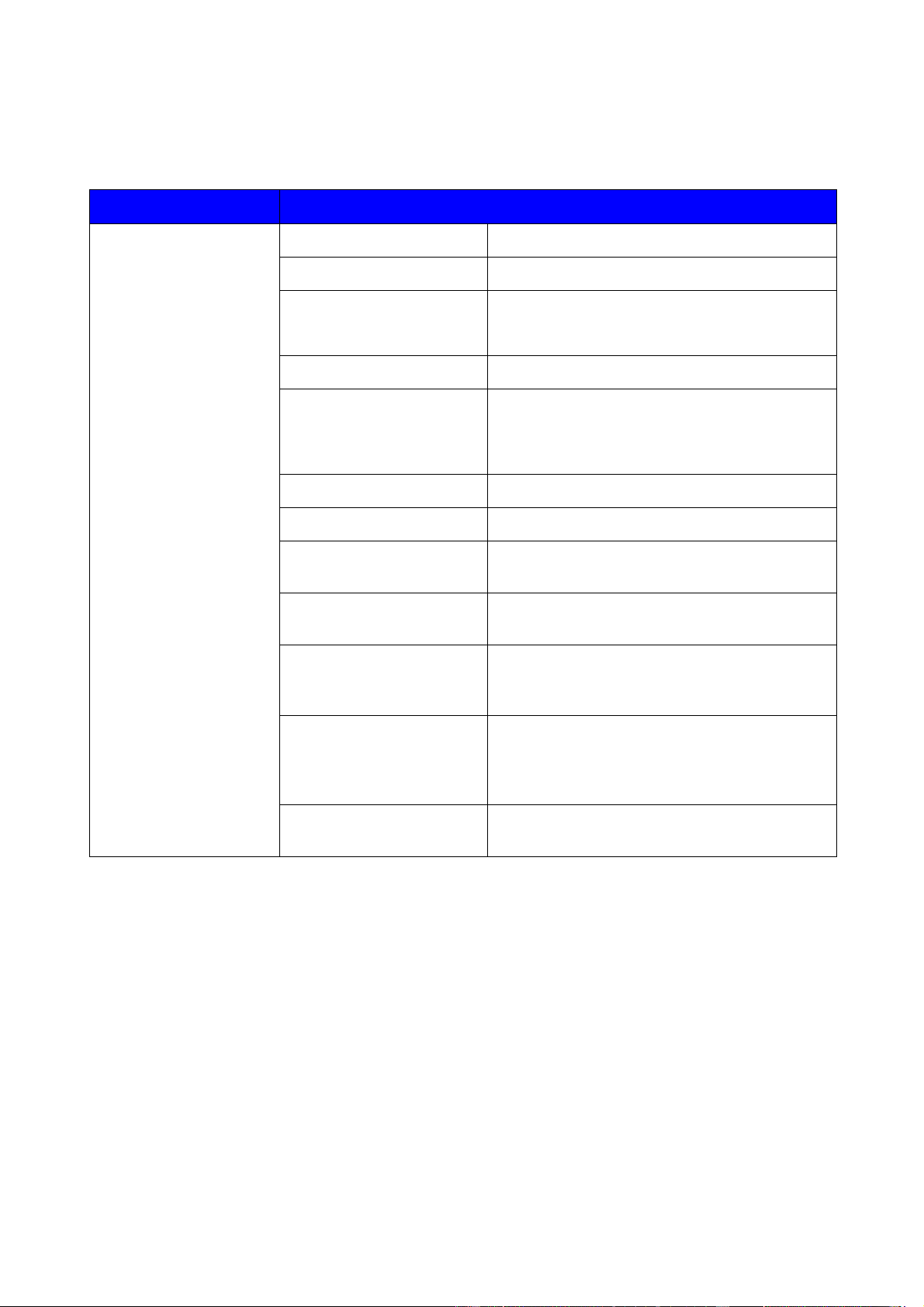
3–32
c
c
c
PRINT MENU (continued)
D
D
D
i
i
i
s
s
s
p
p
p
l
l
l
a
a
a
y
y
y
S
S
S
h
h
h
o
o
o
w
w
w
s
s
s
D
D
D
e
e
e
s
s
s
c
c
c
r
r
r
i
i
i
p
p
p
t
t
t
i
i
i
o
o
o
n
n
n
FONT NO.
=I0000:#####
FONT PITCH/POINT
=###.##
CHARACTER SET
PC-8/…
Set the symbol set and the character set.
TABLE PRINT
Print code table.
AUTO LF
=OFF/ON
ON: CR
→
CR+LF,
OFF: CR
→
CR
AUTO CR
=OFF/ON
AUTO MASK
=OFF/ON
LEFT MARGIN
Set the left margin at column 0 to 126 columns
at 10 cpi.
RIGHT MARGIN
Set the right margin at column 10 to 136
columns at 10 cpi.
TOP MARGIN
Set the top margin at a distance from the top
edge of the paper: 0, 0.33, 0.5, 1.0, 1.5 or 2.0”
Factory setting=0.33
BOTTOM MARGIN
Set the bottom margin at a distance from the
bottom edge of the paper: 0, 0.33, 0.5, 1.0, 1.5
or 2.0”
Factory setting: 0.33
IBM PROPRINTER
LINES
Set the number of lines per page from 5 to 128
lines.

3–34
c
c
c
NETWORK (only Network users)
D
D
D
i
i
i
s
s
s
p
p
p
l
l
l
a
a
a
y
y
y
S
S
S
h
h
h
o
o
o
w
w
w
s
s
s
D
D
D
e
e
e
s
s
s
c
c
c
r
r
r
i
i
i
p
p
p
t
t
t
i
i
i
o
o
o
n
n
n
S
S
S
u
u
u
b
b
b
-
-
-
S
S
S
e
e
e
t
t
t
t
t
t
i
i
i
n
n
n
g
g
g
M
M
M
e
e
e
n
n
n
u
u
u
D
D
D
e
e
e
s
s
s
c
c
c
r
r
r
i
i
i
p
p
p
t
t
t
i
i
i
o
o
o
n
n
n
TCP/IP ENABLE
=ON/OFF
IP ADDRESS=
###.###.###.###
SUBNET MASK=
###.###.###.###
GATEWAY=
###.###.###.###
IP BOOT TRIES
=#
TCP/IP
IP METHOD
=AUTO/STATIC/RARP/BOOTP/DHCP
NETWARE ENABLE
=ON/OFF
NETWARE
NET FRAME
=AUTO/8023/ENET/8022/SNAP
APPLETALK
=ON/OFF
NETBEUI
=ON/OFF
DLC/LLC
=ON/OFF
BANYAN
=ON/OFF
LAT
=ON/OFF
NETBIOS/IP
=ON/OFF
ENET
=AUTO/100B-FD/100B-HD/10B-FD/10B-HD

CHAPTER 3 CONTROL PANEL
3–35
c
c
c
INTERFACE
D
D
D
i
i
i
s
s
s
p
p
p
l
l
l
a
a
a
y
y
y
S
S
S
h
h
h
o
o
o
w
w
w
s
s
s
D
D
D
e
e
e
s
s
s
c
c
c
r
r
r
i
i
i
p
p
p
t
t
t
i
i
i
o
o
o
n
n
n
SELECT
=AUTO/PARALLEL/RS232C/USB/NETWORK
AUTO IF TIME
= 1:99 (sec)
You need to set the time out period for the auto interface selection.
INPUT BUFFER
= Level1:15
Increase or decrease the
input buffer capacity.
RESTART PRINTER?
When using the parallel interface
S
S
S
u
u
u
b
b
b
-
-
-
s
s
s
e
e
e
t
t
t
t
t
t
i
i
i
n
n
n
g
g
g
M
M
M
e
e
e
n
n
n
u
u
u
D
D
D
e
e
e
s
s
s
c
c
c
r
r
r
i
i
i
p
p
p
t
t
t
i
i
i
o
o
o
n
n
n
HIGH SPEED
=ON/OFF
Turns high-speed parallel communications
ON/OFF.
PARALLEL
BI-DIR
=ON/OFF
Turns bi-directional parallel communications
ON/OFF.

3–36
c
INTERFACE (continued)
D
D
D
i
i
i
s
s
s
p
p
p
l
l
l
a
a
a
y
y
y
S
S
S
h
h
h
o
o
o
w
w
w
s
s
s
D
D
D
e
e
e
s
s
s
c
c
c
r
r
r
i
i
i
p
p
p
t
t
t
i
i
i
o
o
o
n
n
n
When using the serial interface
S
S
S
u
u
u
b
b
b
-
-
-
s
s
s
e
e
e
t
t
t
t
t
t
i
i
i
n
n
n
g
g
g
M
M
M
e
e
e
n
n
n
u
u
u
D
D
D
e
e
e
s
s
s
c
c
c
r
r
r
i
i
i
p
p
p
t
t
t
i
i
i
o
o
o
n
n
n
FAX MODE
=OFF/ON RESTART PRINTER?
BAUDRATE
Data transfer speed can be set to
150/300/600/1200/2400/4800/9600/19200/3840
0/57600/15200 baud.
CODETYPE
=8 BITS/7 BITS
Data length can be set to 7 or 8 bits.
PARITY
=NONE/ODD/EVEN
Data error check can be set to NONE, ODD or
EVEN.
STOP BIT
=1 BITS/2 BITS
Data separator can be set to 1 or 2 stop bits.
XON/XOFF
=ON/OFF
Handshake protocol can be set to ON/OFF.
DTR(ER)
=ON/OFF
ROBUST XON
=OFF/ON
RING DELAY
=0/1/2/3/4
REDUCTION
=AUTO/OFF/90%
RAM SIZE
=1:##MBYTE
RECEIVE
=ON/OFF
RS-232C
INTERVAL
=OFF/1H/….7D

3–38
c
Set date and time
--MENU--
INFORMATION
↓
Press the
+
or
–
switch until “SETUP” mode appears.
--MENU--
SETUP
↓
Press the
Set
switch.
SETUP
DATE&TIME
↓
Press the
Set
switch.
DATE&TIME
YEAR
↓
Press the
Set
switch.
YEAR
=1999 ✲
↓
Press the
+
switch.
YEAR
=2000
↓
Press the
Set
switch.
YEAR
=2000 ✲
↓
After short time, the display changes.
DATE&TIME
YEAR
↓
Press the
Set
switch.
DATE&TIME
MONTH
↓
DATE&TIME
2000/04/25 10:22

CHAPTER 3 CONTROL PANEL
3–41
♦
HP-GL Mode
The HP-GL mode is the emulation mode in which this printer emulates the
Hewlett-Packard plotter model HP-7475A. Many graphics and CAD
applications support this type of plotter. Use this mode for optimum
performance when printing from those types of applications.
♦
EPSON FX-850 and IBM Proprinter XL Mode
The EPSON FX-850 and IBM Proprinter XL modes are the emulation modes
that this printer emulates to meet the industry-standard for dot matrix
printers of their respective manufacturers. Some applications support these
dot matrix printer emulations. Use these emulation modes for optimum
performance when printing from those types of applications.
.

3–42
c
List of Factory settings
The following table shows the initial factory default settings.
✒ Notes
•
The settings are subject to the emulation mode. Effective modes are
indicated in parentheses in the following table.
•
The following settings cannot be restored to the factory settings with the
RESET menu in the FACTORY SETTINGS mode: INTERFACE MODE,
HRC SETTING, PAGE PROTECTION, SCALABLE FONT, LOCK
PANEL, PAGE COUNTER and local language for display messages.
•
The COPY setting is always restored to the factory setting when the
printer is turned off and on again.
•
It is not possible to reset the NETWORK settings using the control
panel. If you want to reset the print server to its default factory settings
(resetting all information such as the password and IP address
information), hold down the Network Test button on the Network board
(NC-4100h) for more than 5 seconds.
M
M
M
O
O
O
D
D
D
E
E
E
M
M
M
E
E
E
N
N
N
U
U
U
F
F
F
a
a
a
c
c
c
t
t
t
o
o
o
r
r
r
y
y
y
S
S
S
e
e
e
t
t
t
t
t
t
i
i
i
n
n
n
g
g
g
SOURCE
=AUTO
MP FIRST
=OFF
MP SIZE
=A4/LETTER
MANUAL FEED
=OFF
DUPLEX
=OFF
PAPER
OUTPUT
=STANDARD
RESOLUTION
=600
HRC
=MEDIUM
TONER SAVE
=OFF
QUALITY
DENSITY
0

3–44
M
M
M
O
O
O
D
D
D
E
E
E
M
M
M
E
E
E
N
N
N
U
U
U
F
F
F
a
a
a
c
c
c
t
t
t
o
o
o
r
r
r
y
y
y
S
S
S
e
e
e
t
t
t
t
t
t
i
i
i
n
n
n
g
g
g
LEFT MARGIN=####
RIGHT MARGIN=####
TOP MARGIN=####
BOTTOM MARGIN=####
HP LASERJET
(continued)
LINES=####
FONT NO.=####
FONT PITCH/POINT=10.00/12.00
SYMBOL/CHARACTER SET=US ASCIF
AUTO LF=OFF
AUTO MASK=OFF
LEFT MARGIN=####
RIGHT MARGIN=####
TOP MARGIN=####
BOTTOM MARGIN=####
EPSON FX-850
LINES=####
FONT NO.=####
FONT PITCH/POINT=10.00/12.00
SYMBOL/CHARACTER SET=PC8
AUTO LF=OFF
AUTO CR=OFF
LEFT MARGIN=####
RIGHT MARGIN=####
TOP MARGIN=####
BOTTOM MARGIN=####
IBM PROPRINTER
LINES=####
CHAR SET(STD)=####
CHAR SET(ALT)=####
PEN # SIZE
HP-GL
PEN # GRAY
ERROR PRINT=OFF
PRINT MENU
(continued)
BR-SCRIPT
APT=OFF

3–46
M
M
M
O
O
O
D
D
D
E
E
E
M
M
M
E
E
E
N
N
N
U
U
U
F
F
F
a
a
a
c
c
c
t
t
t
o
o
o
r
r
r
y
y
y
S
S
S
e
e
e
t
t
t
t
t
t
i
i
i
n
n
n
g
g
g
RING DELAY=0
REDUCTION=AUTO
RAM SIZE=1MB
RECEIVE=ON
INTERFACE
(continued)
RS-232C
(continued)
INTERVAL=OFF
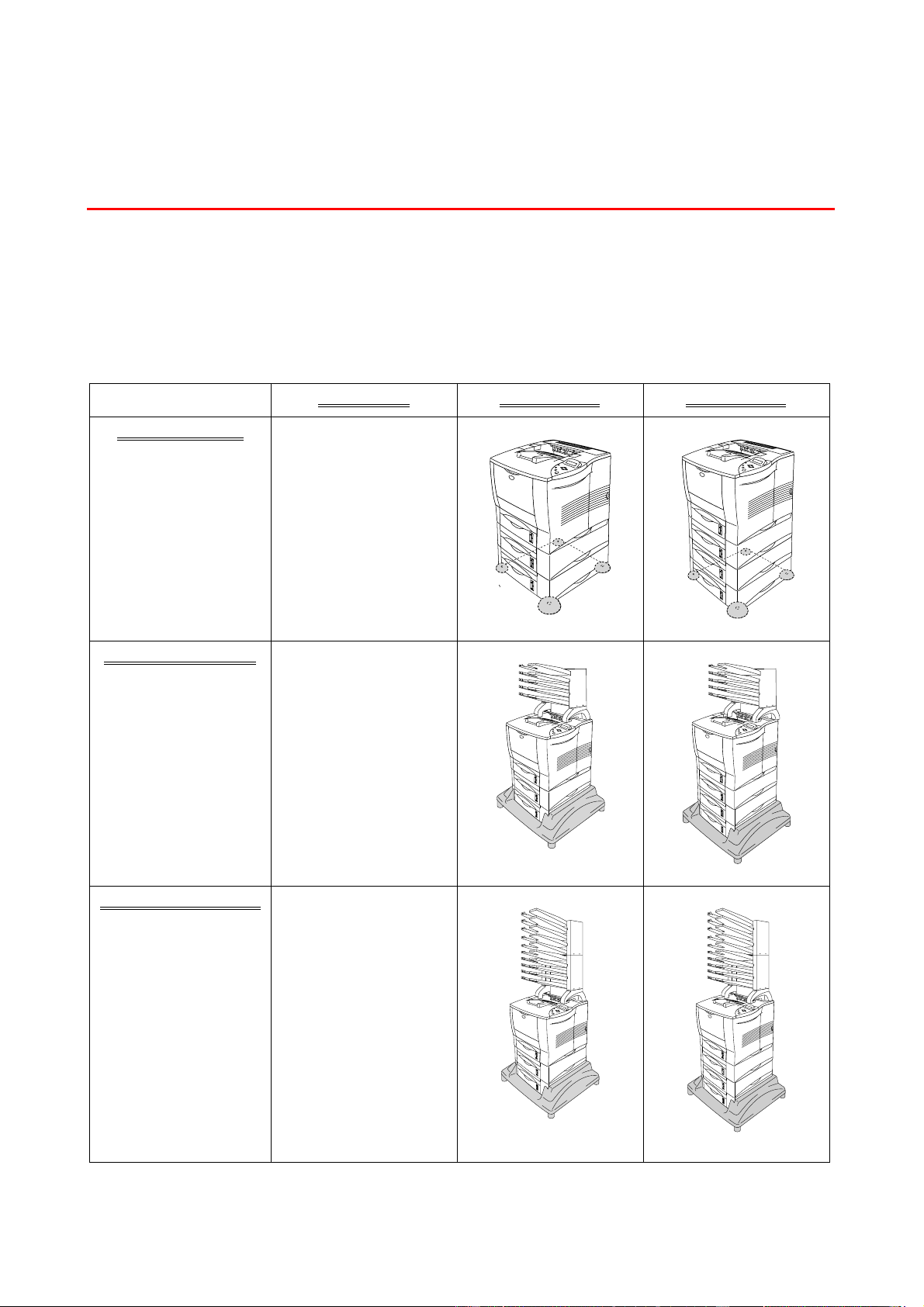
4–2
S
S
m
m
a
a
l
l
l
l
p
p
a
a
d
d
f
f
o
o
r
r
L
L
o
o
w
w
e
e
r
r
t
t
r
r
a
a
y
y
u
u
n
n
i
i
t
t
a
a
n
n
d
d
S
S
t
t
a
a
b
b
i
i
l
l
i
i
z
z
e
e
r
r
(
(
S
S
B
B
-
-
4
4
0
0
0
0
0
0
)
)
You must install the small pad or the optional stabilizer (SB-4000) when you
have the following printer configurations.
1 Lower tray 2 Lower trays 3 Lower trays
Non Mailbox unit
--------------------------
Mailbox unit (5 bins)
---------------------------
Mailbox unit (10 bins)
--------------------------
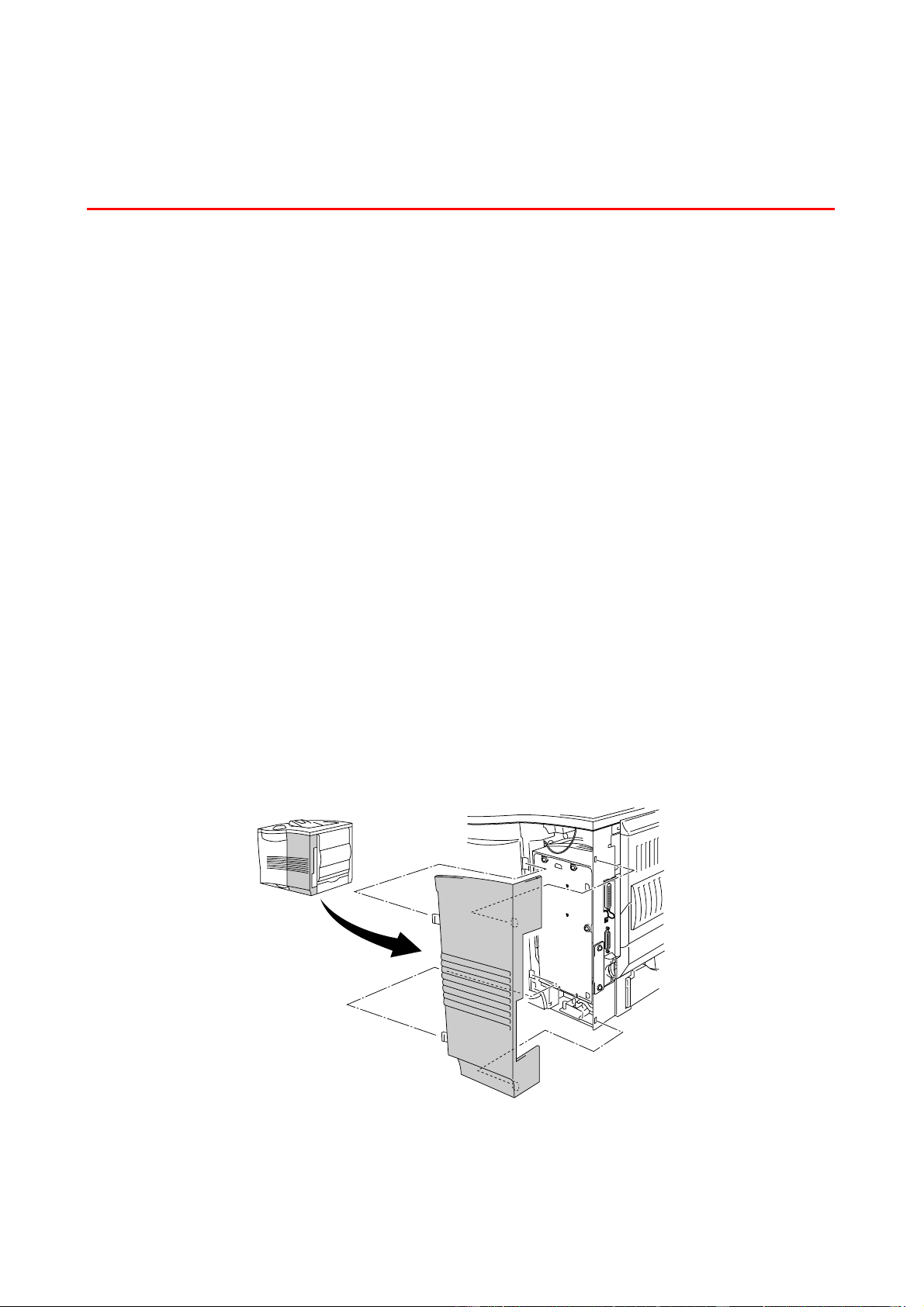
CHAPTER 4 OPTIONS
4–7
N
N
e
e
t
t
w
w
o
o
r
r
k
k
O
O
p
p
t
t
i
i
o
o
n
n
N
N
C
C
-
-
4
4
1
1
0
0
0
0
h
h
(
(
F
F
o
o
r
r
H
H
L
L
-
-
2
2
4
4
6
6
0
0
o
o
n
n
l
l
y
y
)
)
Installing the Brother network board (NC-4100h) enables you to use the
printer in the TCP/IP, IPX/SPX, AppleTalk, DLC/LLC, Vanyan VINES, DEC
LAT and NetBEUI environments. Also, many useful utilities such as
BRAdmin Professional for the administrator and Brother network printing
software are included in the CD-ROM supplied with the HL-2460 printer.
For setup, see the Network User’s Guide.
I
I
n
n
s
s
t
t
a
a
l
l
l
l
i
i
n
n
g
g
t
t
h
h
e
e
N
N
e
e
t
t
w
w
o
o
r
r
k
k
B
B
o
o
a
a
r
r
d
d
☛
1.
Turn off the printer power switch, and then unplug the power cord.
☛
2.
Open the side cover.
Fig. 4-4
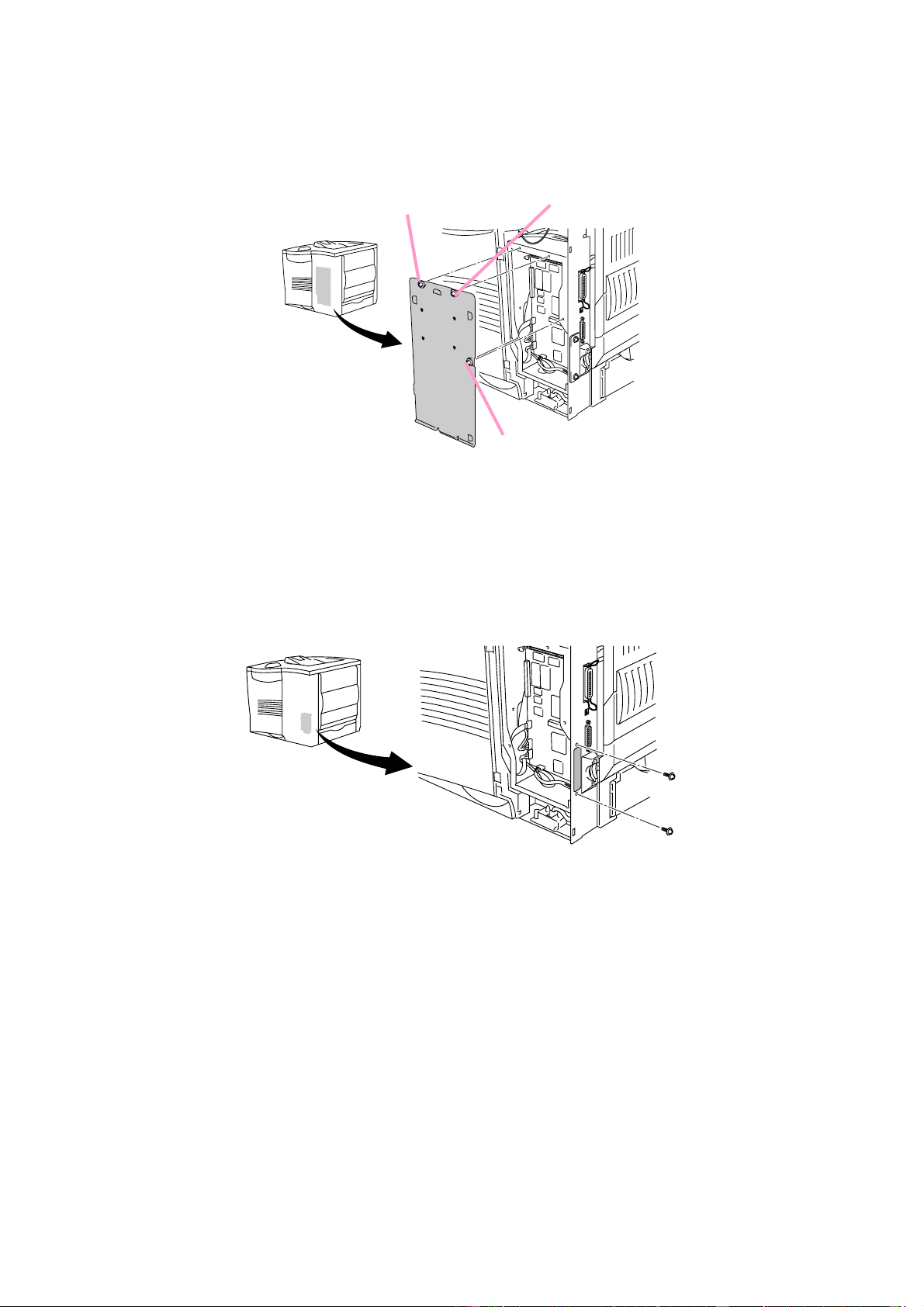
4–8
☛
☛☛
☛
3.
Unscrew the three screws in the order shown, and then remove the metal
plate.
Fig. 4-5
☛
☛☛
☛
4.
Unscrew the two screws, and then remove the Network cover plate.
Fig. 4-6
①
①①
①
②
②②
②
③
③③
③

CHAPTER 4 OPTIONS
4–9
☛
☛☛
☛ 5. Insert the network board connector firmly into the connector of the main
controller board, and then secure it with the two screws.
Fig. 4-7
☛
☛☛
☛ 6. Secure the metal plate with the three screws in the order shown.
Fig. 4-8
☛
☛☛
☛ 7. Close the side cover.
☛
☛☛
☛ 8. Connect one end of the Ethernet Cable to the Network port of the printer.
☛
☛☛
☛ 9. Plug the power cord into the AC outlet, and then turn on the power switch.
☛
☛☛
☛ 10. For more details about how to optimize the Network board, please refer to
the Network User’s Guide on the CD-ROM supplied with this printer.
①
①①
①
③
③③
③
②
②②
②

4–10
C
C
o
o
m
m
p
p
a
a
c
c
t
t
F
F
l
l
a
a
s
s
h
h
C
C
a
a
r
r
d
d
This printer has a slot for an optional CompactFlash card, which is a
memory card.
If you install an optional CompactFlash memory card, you can save macros,
print log and fonts on it, and also select the re-print functions via the
network.
The following type of Compact flash memory card can be installed:
<SanDisk (or SanDisk OEM Products)>
Type I
• 16MB SDCFB-16-505
• 32MB SDCFB-32-505
• 48MB SDCFB-48-505
• 64MB SDCFB-64-505
• 80MB SDCFB-80-505
• 96MB SDCFB-96-505
• 128MB SDCFB-128-505
• 160MB SDCFB-160-505
• 196MB SDCFB-196-505
Type II
• 256MB SDCFB-256-668
• 300MB SDCFB-300-668
✒
✒✒
✒ Note
• Do not install or remove cards with the printer power on because you
may lose all data from the card or seriously damage the card.
• For more information about the cards, consult the dealer where you
purchased the printer.

4–12
R
R
A
A
M
M
E
E
x
x
p
p
a
a
n
n
s
s
i
i
o
o
n
n
The HL-2460 printer has 16 Megabytes of standard memory and 2 slots for
optional expansion memory. The memory can be expanded up to 272
Megabytes by installing commercially available dual in-line memory modules
(DIMMs). (The standard memory fitted can vary depending on the printer
model and country.)
The HL-2460N printer has 32 Megabytes of standard memory. The memory
can be expanded up to 272 Megabytes. When you want to upgrade to more
than 160 Mbytes, you will need to remove the already installed 16 Mbytes
DIMM and replace it with a higher capacity DIMM. (The standard memory
fitted can vary depending on the printer model and country.)
The following capacity of DIMM can be installed:
<US>
• 16 Megabytes TECHWORKS 12456-0001
• 32 Megabytes TECHWORKS 12457-0001
• 64 Megabytes TECHWORKS 12458-0001
• 128 Megabytes TECHWORKS 12459-0001
<Europe>
• 16 Megabytes BUFFALO TECHNOLOGY 12323-0001
• 32 Megabytes BUFFALO TECHNOLOGY 12324-0001
• 64 Megabytes BUFFALO TECHNOLOGY 12325-0001
• 128 Megabytes BUFFALO TECHNOLOGY 12326-0001
In general, the DIMM must have the following specifications:
Type: 100 pin and 32 bit output
CAS Lantency: 2 or 3
Clock Frequency: 66MHz or more
Capacity: 16, 32, 64 Megabyte or 128 Megabyte
Height: 46mm (1.8 inches) or less
Parity: NONE
Dram Type: SDRAM 4 Bank
SDRAM can be used.
✒ Note
• For more information, consult the dealer where you purchased the
printer.
• For the latest information, visit the Brother Solutions Center at
http://solutions.brother.com
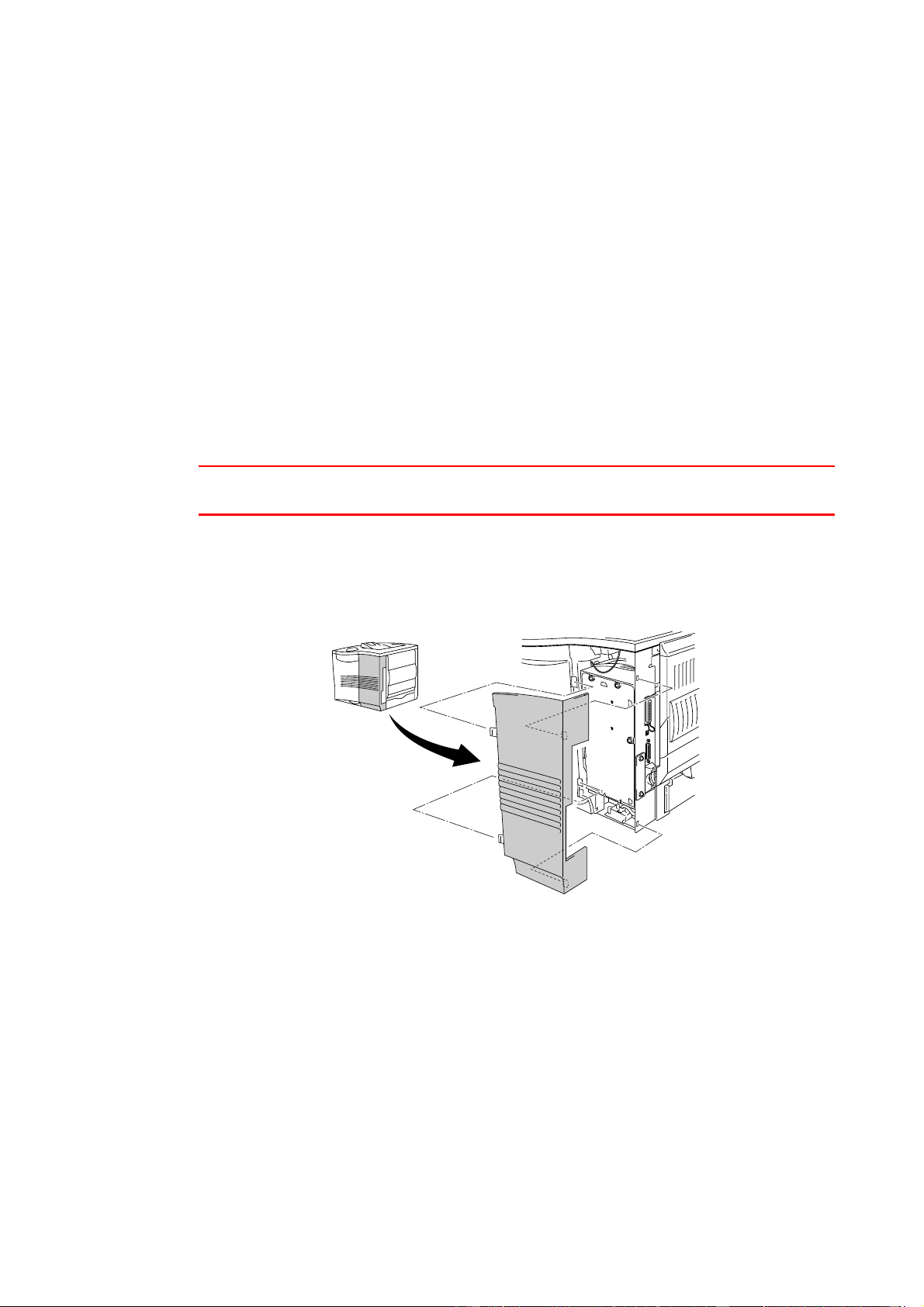
CHAPTER 4 OPTIONS
4–13
I
I
n
n
s
s
t
t
a
a
l
l
l
l
i
i
n
n
g
g
a
a
d
d
d
d
i
i
t
t
i
i
o
o
n
n
a
a
l
l
D
D
I
I
M
M
M
M
m
m
e
e
m
m
o
o
r
r
y
y
When you install additional memory (DIMM), follow these steps:
☛
☛☛
☛
1.
Turn off the printer power switch, and then unplug the power cord.
Disconnect the interface cable from the printer.
✒
✒✒
✒
Note
Be sure to turn off the power to the printer before you install or remove the
DIMM.
☛
☛☛
☛
2.
Remove the side cover.
Fig. 4-10

CHAPTER 4 OPTIONS
4–17
☛
☛☛
☛
3.
Unscrew the three screws in the order shown, and then remove the metal
plate.
Fig. 4-17
☛
☛☛
☛
4.
Insert the 4 shoulder screws, supplied with the HDD unit, into the bottom of
the HDD.
Fig. 4-18
①
①①
①
②
②②
②
③
③③
③

CHAPTER 4 OPTIONS
4–21
O
O
p
p
t
t
i
i
o
o
n
n
a
a
l
l
f
f
o
o
n
n
t
t
p
p
a
a
c
c
k
k
a
a
g
g
e
e
(
(
B
B
S
S
-
-
3
3
0
0
0
0
0
0
)
)
The optional font package (BS-3000) is the CD-ROM to install the 136 PS3
Agfa and TrueType Fonts.

CHAPTER 5 MAINTENANCE
C
C
H
H
A
A
P
P
T
T
E
E
R
R
5
5
M
M
A
A
I
I
N
N
T
T
E
E
N
N
A
A
N
N
C
C
E
E

CHAPTER 5 MAINTENANCE
5–1
R
R
e
e
p
p
l
l
a
a
c
c
i
i
n
n
g
g
t
t
h
h
e
e
T
T
o
o
n
n
e
e
r
r
C
C
a
a
r
r
t
t
r
r
i
i
d
d
g
g
e
e
T
T
o
o
n
n
e
e
r
r
c
c
a
a
r
r
t
t
r
r
i
i
d
d
g
g
e
e
(
(
T
T
N
N
-
-
9
9
5
5
0
0
0
0
)
)
The toner cartridge is in a bag inside the toner cartridge carton.
A new toner cartridge contains enough toner to print up to approximately
11,000 A4/Letter-size single-sided pages at about 5% coverage (if the print
density is set at level 0).
Fig. 5-1
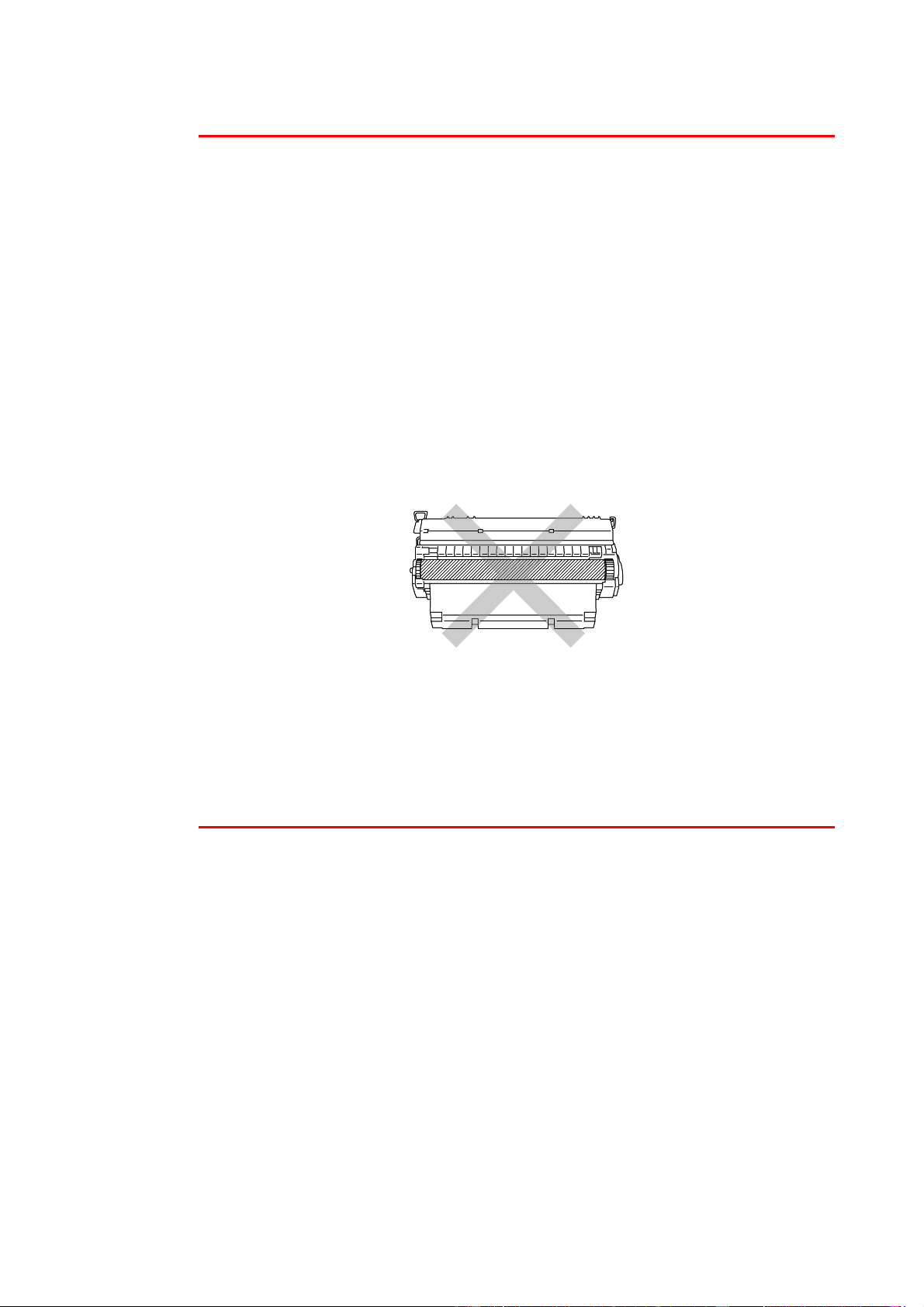
5–2
✒ Note
• This toner cartridge is a single-component cartridge. The microfine
toner does not become magnetized.
• The toner cartridge is packed inside a bag. Do not open it until
immediately before you install the toner cartridge. The toner cartridge
must not be exposed to light for a long time.
• Do not expose the toner cartridge to direct light.
• Do not stand the toner cartridge on its end or turn it upside down.
• Do not open the drum shutter because it might cause serious damage,
resulting in poor print quality.
• Do not touch the shaded parts shown below.
• Toner consumption varies according to the image coverage on the page
and the print density setting.
• The greater the image coverage, the greater the toner consumption.
• If you change the print density setting for lighter or darker printing, toner
consumption varies accordingly.
• Use a genuine Brother toner cartridge that is specially formulated to
ensure optimum print quality.
• Printing with a 3rd party toner or 3rd party toner cartridge may reduce
not only the print quality but also the quality and life of the printer itself.
It may also cause serious damage to the performance and life of a
drum unit. Warranty coverage does not apply to problems caused by
the use of 3rd party toner or 3rd party toner cartridges.

5–4
To replace the toner cartridge, follow these steps:
☛
☛☛
☛
1.
Open the top cover of the printer.
☛
☛☛
☛
2.
Remove the toner cartridge.
✒
✒✒
✒
Note
Never touch or clean the transfer roller, or print quality may deteriorate.
☛
☛☛
☛
3.
Unpack the new toner cartridge.
☛
☛☛
☛
4.
Hold the toner cartridge with both hands. Rock it gently several times at a
45° angle. This distributes the toner evenly inside the cartridge.
45¡
45¡
Fig. 5-2
Transfer roller

CHAPTER 5 MAINTENANCE
5–5
☛
☛☛
☛
5.
Bend the tab up and down several times until it is detached from the toner
cartridge.
Fig. 5-3
☛
☛☛
☛
6.
Hold the tab firmly and pull it until the sealing tape comes out all the way.
Fig. 5-4
☛
☛☛
☛
7.
Install the new toner cartridge firmly into the printer.
Fig. 5-5
☛
☛☛
☛
8.
Close the top cover of the printer.

5–8
C
C
l
l
e
e
a
a
n
n
i
i
n
n
g
g
t
t
h
h
e
e
p
p
r
r
i
i
n
n
t
t
e
e
r
r
i
i
n
n
t
t
e
e
r
r
i
i
o
o
r
r
✒
✒✒
✒
Notes
When you clean the printer interior, pay attention to the following:
• If your clothes are smeared with toner, wipe off the toner with a dry
cloth and immediately wash the clothes in cold water to avoid stains.
• Never touch the hot fuser.
• Never touch or clean the transfer roller, or print quality may be
adversely affected.
• Be careful not to inhale the toner.
Clean the printer interior as follows:
☛
☛☛
☛
1.
Turn off the printer power switch, and then unplug the power cord.
☛
☛☛
☛
2.
Open the top cover.
☛
☛☛
☛
3.
Remove the toner cartridge.
Transfer Roller
Fuser is HOT!

CHAPTER 5 MAINTENANCE
5–9
Warning
After you have just used the printer, some internal parts of the printer are
extremely hot.
When you open the top cover of the printer, never touch the fuser and fixing
roller.
Inside the printer Open the face up output tray
☛
☛☛
☛
4.
Wipe off toner and paper dust from the metal plate in the printer with a dry,
soft cloth.
Fig. 5-8
Fuser is HOT!
Metal plate

CHAPTER 6 TROUBLESHOOTING
C
C
H
H
A
A
P
P
T
T
E
E
R
R
6
6
T
T
R
R
O
O
U
U
B
B
L
L
E
E
S
S
H
H
O
O
O
O
T
T
I
I
N
N
G
G

CHAPTER 6 TROUBLESHOOTING
6–1
L
L
C
C
D
D
m
m
e
e
s
s
s
s
a
a
g
g
e
e
s
s
✒
✒✒
✒
Note
The paper trays and LCD panel descriptions in this manual are named as
shown below.
Upper paper tray Tray 1
Multi-purpose tray MP tray
Optional Lower tray Tray 2/3/4
Optional Duplex unit for
Duplex printing
DX
Optional Mailbox unit MX
E
E
r
r
r
r
o
o
r
r
m
m
e
e
s
s
s
s
a
a
g
g
e
e
s
s
E
E
E
r
r
r
r
r
r
o
o
o
r
r
r
M
M
M
e
e
e
s
s
s
s
s
s
a
a
a
g
g
g
e
e
e
A
A
A
c
c
c
t
t
t
i
i
i
o
o
o
n
n
n
TONER EMPTY
Replace the toner cartridge with a new one. See “Replacing the Toner
cartridge” in Chapter 5.
NO TONER
Install the toner cartridge.
NO PAPER XXX
Load paper into the indicated tray.
NO TRAY XXX
Install the paper cassette into the indicated tray.
COVER OPEN
Close the top cover of the printer.
Close the duplex cover.
Close the rear cover of the mailbox.
FACE UP OPEN
Close the face up output tray.
JAM XXX
Remove the jammed paper from the indicated area. See “Paper jams
and how to clear them.”
STACKER FULL
Remove the excess paper from the output tray.
SIZE MISMATCH
Load the paper that is specified in the printer driver in the paper tray or
multi-purpose tray, and then press the
Go
switch.
TOO MANY TRAYS
Maximum number of lower trays is three. Remove additional trays.

6–2
E
E
E
r
r
r
r
r
r
o
o
o
r
r
r
M
M
M
e
e
e
s
s
s
s
s
s
a
a
a
g
g
g
e
e
e
A
A
A
c
c
c
t
t
t
i
i
i
o
o
o
n
n
n
MEDIA TYPE ERROR
Specify the correct media type: XX.
MANUAL FEED
The size of paper in the multi-purpose tray is wrong. Load the correct
size of paper in the multi-purpose tray, or while the printer is in Stop
mode, and then press the
Go
switch.
SIZE ERROR XXX
Set the correct paper that you want to use into the indicated tray, or
load the same size paper that you selected in the current driver
setting. “What kind of paper can I use?” in Chapter 1.
NO TRAY ID XXX
Install the specified ID tray.
SIZE ERROR DX
Set the correct paper that you want to use, or load the same size
paper that you selected in the current driver setting. See “What kind of
paper can I use?” in Chapter 1.
SIZE ERROR MX
Set the correct paper that you want to use, or load the same size
paper that you selected in the current driver setting. See “What kind of
paper can I use?” in Chapter 1.
NO DX UNIT
Install the duplex unit correctly. See the duplex unit User’s Guide.
DX LEVER ERROR
Set the duplex lever to the correct position.
NO MX UNIT
Change the job properties or install the Mailbox unit correctly.
DIMM ERROR
Install the DIMM correctly.
Turn off the printer. Wait a few seconds, and then turn it on again. If
this error message appears again, replace it with a new card.
CARD ERROR
Make sure of the following points:
•
The cable is connected correctly.
•
The card is installed correctly.
•
The installed card is formatted correctly.
Turn off the printer. Wait a few seconds, and then turn it on again. If
this error message appears again, replace it with a new card.
HDD ERROR
Make sure of the following points:
•
The cable is connected correctly.
•
The HDD is installed correctly.
•
The installed HDD is formatted correctly.
Turn off the printer. Wait a few seconds, and then turn it on again. If
this error message appears again, replace it with a new HDD.
CARD REMOVAL
Turn off the printer. Wait a few seconds, and then turn it on again. If
this error message appears again, replace it with a new CompactFlash
card.
LINE ERROR
Check the Serial interface settings. (baud rate, code type, parity and
hand shake protocols).
BUFFER ERROR
Check the Interface settings.
STORAGE FULL
Delete unnecessary macros or fonts, or use a new card or HDD.

6–8
Paper may jam in the paper cassette, inside the printer, in the face up output
tray or at the paper exit. Check the jam location and follow the instructions
below to remove the jammed paper.
If the error message still appears on the LCD after you remove the jammed
paper, there may be an additional paper jammed in another position. Please
check all positions.
After all jammed paper has been removed, open the top cover, and then
close the top cover again to start printing.
✒
✒✒
✒ Note
If the paper is misfeeding or multiple pages frequently feed at once when
you print on small-sized or thick paper, we recommend that you change the
adjustment levers in the paper cassette as follows:
The switches in this illustration are shown in the default setting position.
A6
Switch 1: OFF
Switch 2: OFF
A4 100 g/m
2
(27 lbs)
Letter 105 g/m
2
(28 lbs)
Legal 105 g/m
2
(28 lbs)
Switch 1: ON
Switch 2: ON
Executive, A5, B6 Switch 1: OFF
Switch 2: ON
Do not use the following paper:
• Bent paper
• Moist paper
• Paper that does not meet specifications
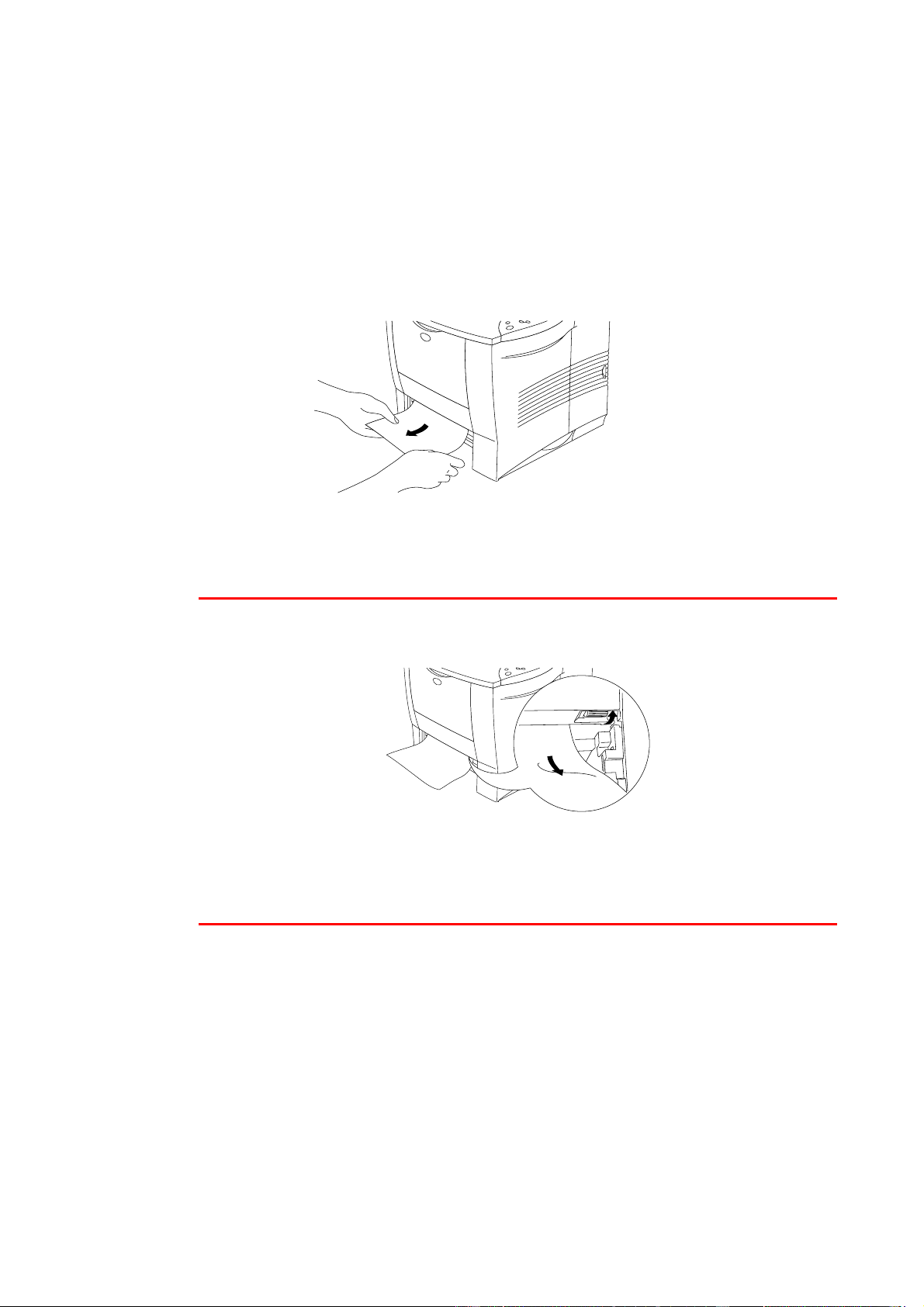
6–10
If a paper jam occurs inside the paper tray, follow these steps:
☛
☛☛
☛
1.
Pull the paper cassette out of the printer.
☛
☛☛
☛
2.
Remove the jammed paper.
Fig. 6-2
✒
✒✒
✒
Note
• When you cannot remove a small piece of jammed paper, it is easy to
remove it by turning the dial to the lower position, as shown below.
• If a paper jam occurs when using A6 size paper, remove the jammed
paper, turn over the stack of the paper in the paper cassette, and print it
again.
☛
☛☛
☛
3.
Make sure that the paper guide release lever is set to the paper size in the
paper cassette, and paper is loaded below the limit
▼
mark.

CHAPTER 6 TROUBLESHOOTING
6–11
☛
☛☛
☛
4.
Install the paper cassette into the printer.
!
Caution
Do not pull out the upper paper cassette while paper is being fed from the
lower paper cassette because it will cause a paper jam.
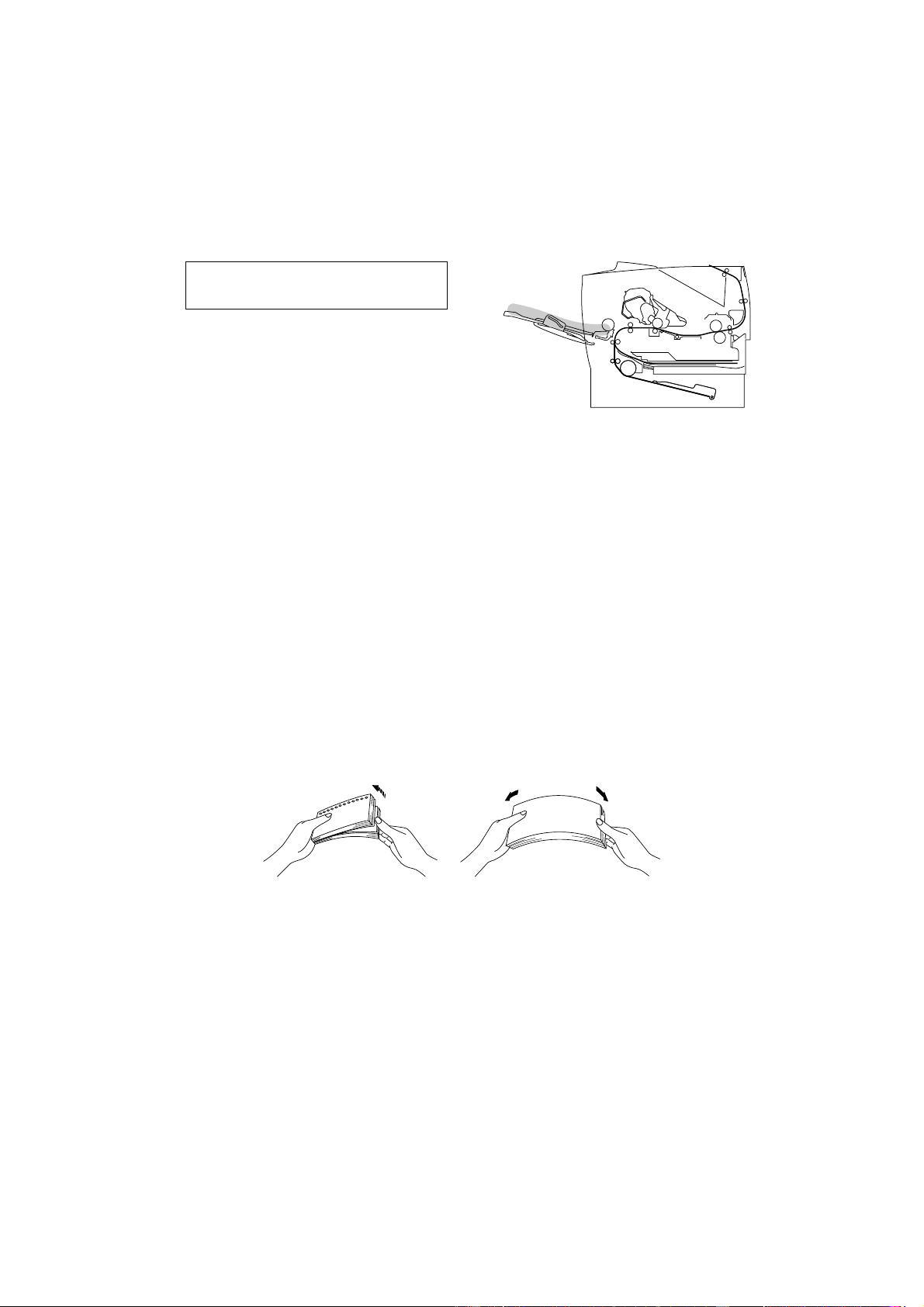
6–12
J
J
A
A
M
M
T
T
R
R
A
A
Y
Y
(
(
i
i
n
n
t
t
h
h
e
e
M
M
u
u
l
l
t
t
i
i
-
-
p
p
u
u
r
r
p
p
o
o
s
s
e
e
t
t
r
r
a
a
y
y
)
)
JAM MP TRAY
Fig. 6-3
If a paper jam occurs in the multi-purpose tray, follow these steps:
☛
☛☛
☛
1.
Remove the paper from the multi-purpose tray.
☛
☛☛
☛
2.
Fan the paper stack, and then reload it in the multi-purpose tray.
Fig. 6-4
☛
☛☛
☛
3.
Make sure that the paper is inserted fully into the multi-purpose tray and
touches the back of the tray and remains below the limit
▼
mark.
☛
☛☛
☛
4.
Open the top cover of the printer and close it, or press the Go switch to start
printing.
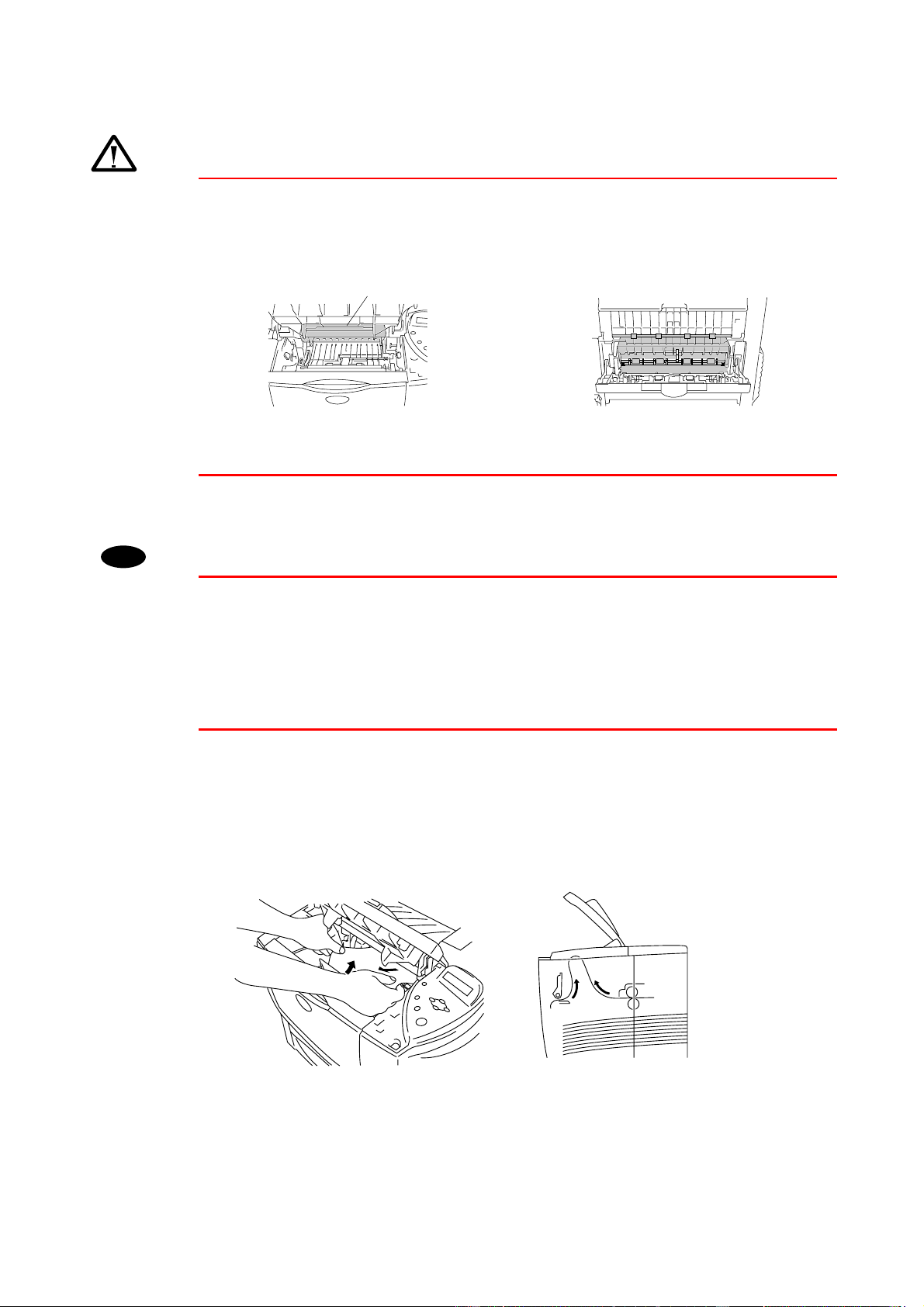
6–14
Warning
After you have just used the printer, some internal parts of the printer are
extremely hot.
When you open the top cover of the printer, never touch the fuser and fixing
roller.
Inside the printer Open the face up output tray
!
Caution
• After having removed the jammed paper, if the printed page has toner
stains, print several test pages before restarting your print job.
• Remove the jammed paper carefully so you do not spread toner.
• Take care not to stain your hands and clothes with toner. Wash toner
stains immediately with cold water.
• Never touch the transfer roller.
☛
☛☛
☛
4.
Slowly pull out the jammed paper from inside the printer with both hands.
Fig. 6-7
Fuser is HOT!

CHAPTER 6 TROUBLESHOOTING
6–15
☛
☛☛
☛
5.
Push the metal plate down.
☛
☛☛
☛
6.
Install the toner cartridge firmly into the printer.
☛
☛☛
☛
7.
Close the top cover of the printer.
✒
✒✒
✒
Note
If a paper jam occurs when using A6 size paper, remove the jammed paper,
turn over the stack of the paper in the paper cassette, and print it again.
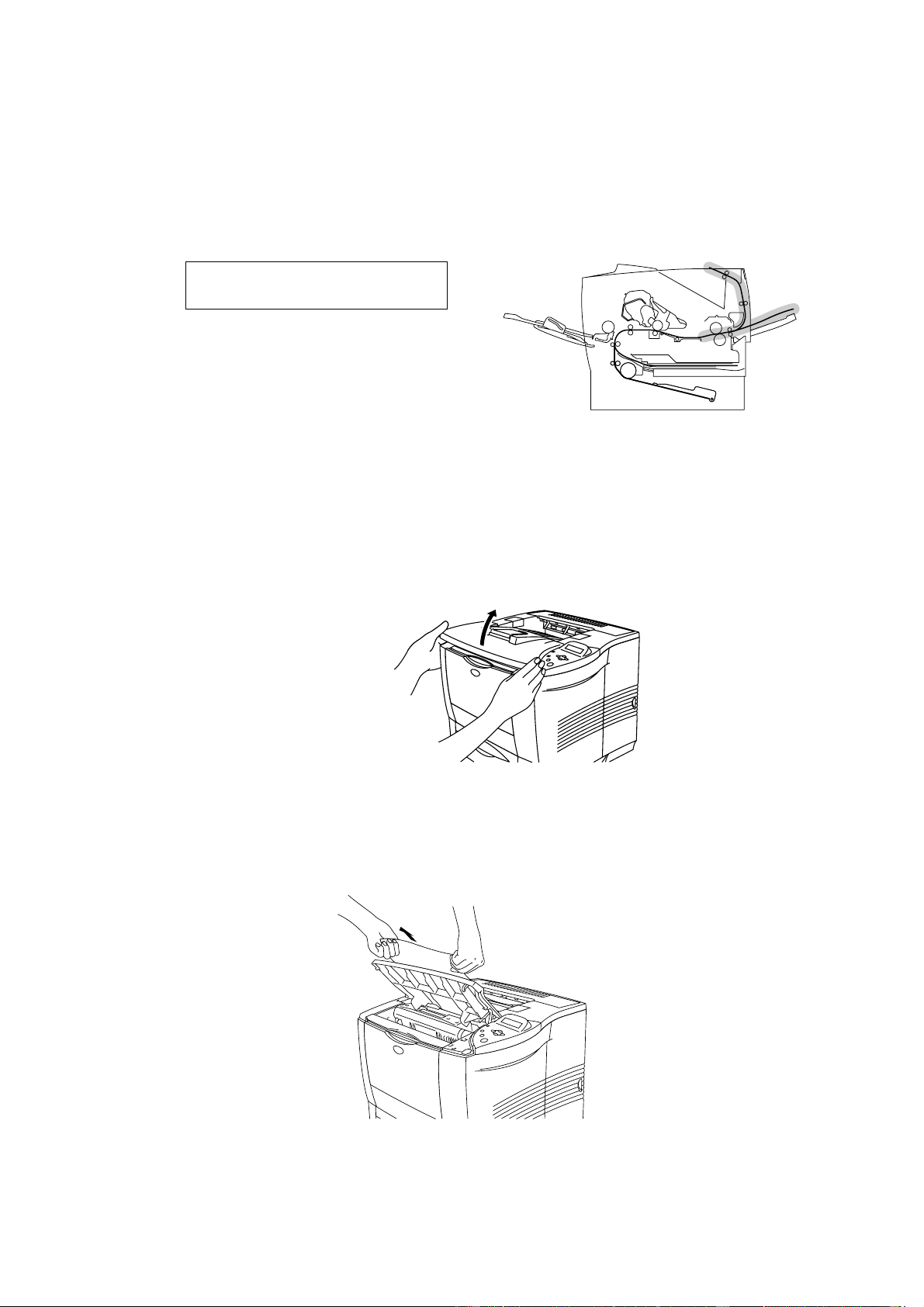
6–16
J
J
A
A
M
M
R
R
E
E
A
A
R
R
(
(
a
a
t
t
p
p
a
a
p
p
e
e
r
r
e
e
x
x
i
i
t
t
)
)
JAM REAR
Fig. 6-8
☛
☛☛
☛
1.
Open the top cover of the printer.
Fig. 6-9
☛
☛☛
☛
2.
Slowly pull the jammed paper from the paper exit with both hands.
Fig. 6-10

6–18
J
J
A
A
M
M
R
R
E
E
A
A
R
R
(
(
a
a
t
t
F
F
a
a
c
c
e
e
u
u
p
p
o
o
u
u
t
t
p
p
u
u
t
t
t
t
r
r
a
a
y
y
)
)
JAM REAR
Fig. 6-12
When a paper jam occurs behind the face up output tray before the paper
exits, remove the jammed paper as follows:
☛
☛☛
☛
1.
Open the top cover of the printer.
✒
✒✒
✒
Note
If a duplex unit is installed on the printer, remove it from the printer. After
removing the jammed paper, re-install the duplex unit onto the printer.
☛
☛☛
☛
2.
Open the face up output tray.
Fig. 6-13

CHAPTER 6 TROUBLESHOOTING
6–19
☛
☛☛
☛
3.
Slowly remove the jammed paper with both hands.
Fig. 6-14
☛
☛☛
☛
4.
Close the face up output tray.
☛
☛☛
☛
5.
Close the top cover of the printer.
Fig. 6-15

6–26
I
I
m
m
p
p
r
r
o
o
v
v
i
i
n
n
g
g
t
t
h
h
e
e
p
p
r
r
i
i
n
n
t
t
q
q
u
u
a
a
l
l
i
i
t
t
y
y
This section provides information on the following topics:
I
I
I
m
m
m
a
a
a
g
g
g
e
e
e
d
d
d
e
e
e
f
f
f
e
e
e
c
c
c
t
t
t
s
s
s
a
a
a
m
m
m
p
p
p
l
l
l
e
e
e
s
s
s
R
R
R
e
e
e
c
c
c
o
o
o
m
m
m
m
m
m
e
e
e
n
n
n
d
d
d
a
a
a
t
t
t
i
i
i
o
o
o
n
n
n
ABCDEFGH
abcdefghijk
ABCD
abcde
01234
C
DE
F
d
ef
g
BC
b
c
d
2
3
Faint
• Check the printer's environment. Conditions such as humidity,
high temperatures, etc., may cause this print defect to occur.
See “Positioning the printer” in Chapter 1.
• If the whole page is too light, the toner save mode may be on.
Disable the toner save mode in the printer Properties tab of the
Driver.
• Try installing a new toner cartridge. See “Replacing the Toner
cartridge” in Chapter 5.
•
You may clear the problem by wiping the scanner window with a
soft cloth. See "Cleaning the printer interior"orthe
"Maintenance Tutorial" movie on the supplied CD-ROM.
ABCDEFGH
abcdefghijk
ABCD
abcde
01234
Gray background
• Make sure that you use paper that meets the recommended
specifications. See “What kind of paper can I use” in Chapter 1.
• Check the printer's environment; high temperature and high
humidity conditions can increase the amount of background
shading. See “Positioning the printer” in Chapter 1.
• Install a new toner cartridge. See "Replacing the Toner
cartridge" in Chapter 5.
Ghost
• Make sure that you use paper that meets the specifications.
Rough surfaced paper, paper that has absorbed moisture or
thick print media can cause this problem. See “What kind of
paper can I use” in Chapter 1.
• Make sure that you select the appropriate media type in the
printer driver. See “What kind of paper can I use” in Chapter 1.
• Try installing a new toner cartridge.See“Replacing the Toner
cartridge” in Chapter 5.
ABCDEFGH
abcdefghijk
ABCD
abcde
01234
Toner specks
• Make sure that you use paper that meets the specifications.
Rough surfaced paper may cause the problem. See “What kind
of paper can I use” in Chapter 1.
• The toner cartridge may be damaged. Install a new toner
cartridge. See "Replacing the Toner cartridge" in Chapter 5.
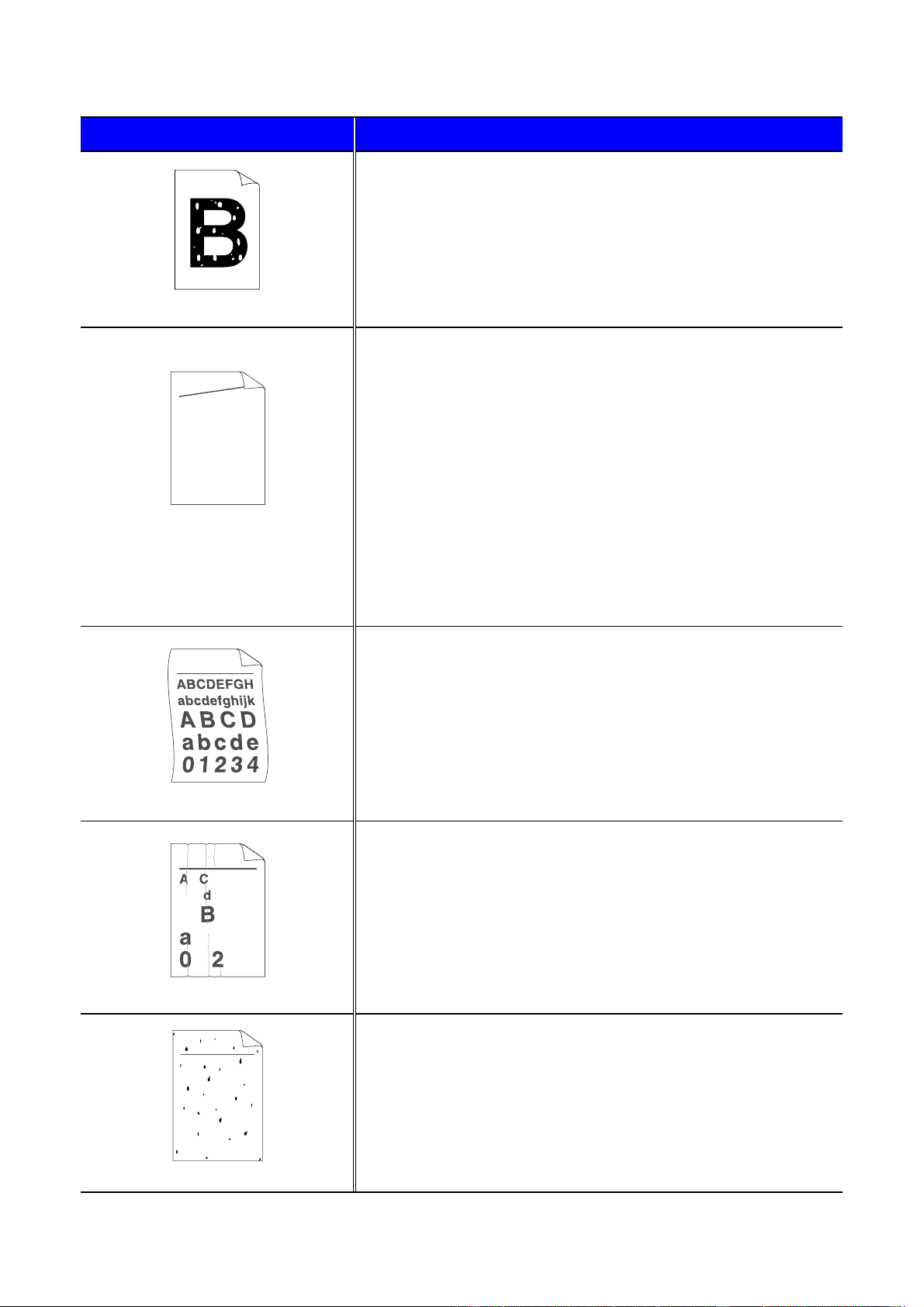
CHAPTER 6 TROUBLESHOOTING
6–27
I
I
I
m
m
m
a
a
a
g
g
g
e
e
e
d
d
d
e
e
e
f
f
f
e
e
e
c
c
c
t
t
t
s
s
s
a
a
a
m
m
m
p
p
p
l
l
l
e
e
e
s
s
s
R
R
R
e
e
e
c
c
c
o
o
o
m
m
m
m
m
m
e
e
e
n
n
n
d
d
d
a
a
a
t
t
t
i
i
i
o
o
o
n
n
n
Hollow print
• Make sure that you use paper that meets the specifications.
See “What kind of paper can I use” in Chapter 1.
• Select the ‘Thick paper mode’ in the printer driver, or use thinner
paper than you are currently using.
• Check the printer’s environment because conditions such as
high humidity may cause this situation to occur. See “Positioning
the printer” in Chapter 1.
ABCDEFGH
abcdefghijk
ABCD
abcde
01234
Page skew
• Make sure the paper or other print media is loaded properly in
the paper cassette and that the guides are neither too tight nor
too loose against the paper stack.
• Set the paper guides correctly. Make sure that the tips of the
paper guides fit into their slots correctly. See “Printing from the
Paper cassette” in Chapter 1.
• If you are using the Multi-purpose tray, see "Printing from the
Multi-purpose tray" in Chapter 1.
• The paper cassette may be too full. See “Printing from the Paper
cassette” in Chapter 1.
• Check the paper type and quality. See "What kind of paper can I
use" in Chapter 1.
Curl or wave
• Check the paper type and quality. Both high temperature and
high humidity will cause paper to curl. See “What kind of paper
can I use” in Chapter 1.
• If you use the printer infrequently, the paper may have been in
the paper cassette for too long. Turn over the stack of paper in
the paper cassette. Also, try fanning the paper stack, and then
rotating the paper 180° in the paper cassette.
B DEFGH
abc efghijk
ACD
bcde
134
Wrinkles or creases
• Make sure the paper is loaded properly. See “Printing from the
Paper cassette” in Chapter 1.
• Check the paper type and quality. See “What kind of paper can I
use” in Chapter 1.
• Turn over the stack of paper in the tray or try rotating the paper
180° in the input tray.
ABCDEFGH
abcdefghijk
ABCD
abcde
01234
Poor fixing
• Make sure that the blue tabs in the rear cover are re-set by
either closing the rear cover or pushing the blue tabs to their
original position. See “Printing on envelopes” in Chapter 1.

CHAPTER 6 TROUBLESHOOTING
6–29
H
H
o
o
w
w
t
t
o
o
p
p
r
r
i
i
n
n
t
t
c
c
o
o
r
r
r
r
e
e
c
c
t
t
l
l
y
y
P
P
P
r
r
r
o
o
o
b
b
b
l
l
l
e
e
e
m
m
m
R
R
R
e
e
e
c
c
c
o
o
o
m
m
m
m
m
m
e
e
e
n
n
n
d
d
d
a
a
a
t
t
t
i
i
i
o
o
o
n
n
n
The printer prints unexpectedly
or it prints garbage.
•
Make sure the printer cable is not too long. We recommend that
you use a parallel cable of less than 2 metres (6.6 feet) in length.
•
Check if the printer cable is damaged or broken.
•
If you are using an interface-switching device, remove it and then
connect your computer directly to your printer and try again.
•
Check that the appropriate printer driver is selected as ‘Set as
Default’.
•
Check that the printer is not connected to the same port that is
also connected to a mass storage device or scanner. Remove all
other devices and then connect the port only to the printer.
•
Turn off printer status reporting in the Device/Options tab in the
printer driver.
The printer cannot print full
pages of a document.
•
Press the
Go
switch to print the data remaining in the printer.
•
If this does not clear the error, reduce the complexity of your
document or reduce the print resolution.
•
Change the following settings in the supplied Windows
®
driver,
and then try again. The best combination of the settings below
will vary depending on your document.
•
Graphics Mode
•
TrueType
TM
mode
•
Use Printer TrueType
TM
Fonts
The printer cannot print full
pages of a document. A
"MEMORY FULL" error
message occurs.
•
Press the panel button to print the data remaining in the printer.
•
Reduce the print resolution or reduce the complexity of your
document.
•
Expand the printer memory by adding a commercially available
DIMM. See ‘RAM expansion’ in Chapter 4.

6–32
F
F
o
o
r
r
D
D
O
O
S
S
u
u
s
s
e
e
r
r
s
s
P
P
P
r
r
r
o
o
o
b
b
b
l
l
l
e
e
e
m
m
m
R
R
R
e
e
e
c
c
c
o
o
o
m
m
m
m
m
m
e
e
e
n
n
n
d
d
d
a
a
a
t
t
t
i
i
i
o
o
o
n
n
n
Unable to print from
application software.
•
Check that the DOS application software interface settings match
that of your printer: for example, if you are using a parallel printer
cable, you would most likely set your DOS software printer port
to LPT1.
•
Check if the printer has any printer alarms.
•
Check if the appropriate printer is selected in your application
software.
•
If the serial interface is used, make sure that the RS-232C serial
interface is selected with the slide switch. Make sure the
interface settings are correctly set up in INTERFACE mode using
the control panel. Make sure the serial parameters of baud rate,
parity and stop bits match between your application software and
the printer.

CHAPTER 6 TROUBLESHOOTING
6–33
P
P
r
r
i
i
n
n
t
t
e
e
r
r
H
H
D
D
D
D
(
(
H
H
a
a
r
r
d
d
D
D
i
i
s
s
k
k
D
D
r
r
i
i
v
v
e
e
)
)
P
P
P
r
r
r
o
o
o
b
b
b
l
l
l
e
e
e
m
m
m
R
R
R
e
e
e
c
c
c
o
o
o
m
m
m
m
m
m
e
e
e
n
n
n
d
d
d
a
a
a
t
t
t
i
i
i
o
o
o
n
n
n
Printer does not recognize the
HDD.
Make sure of the following points:
•
The cable is connected correctly.
•
The HDD is installed correctly.
•
The installed HDD is formatted correctly.
Turn off the printer. Wait a few seconds, and then turn it on again. If
this error message appears again, replace the HDD with a new one.
B
B
R
R
-
-
S
S
c
c
r
r
i
i
p
p
t
t
3
3
P
P
P
r
r
r
o
o
o
b
b
b
l
l
l
e
e
e
m
m
m
R
R
R
e
e
e
c
c
c
o
o
o
m
m
m
m
m
m
e
e
e
n
n
n
d
d
d
a
a
a
t
t
t
i
i
i
o
o
o
n
n
n
The printer cannot print.
If “IGNORE DATA” appears on the LCD message, please do the
following.
1. Reset the printer.
2. Turn “ERRORPRINT” ON, and then print again.
3. If the Error is “LIMITCHECK,” add optional memory. See
“Installing additional memory” in Chapter 4.
The print speed slows down.
•
Add optional memory. See “Installing additional memory” in
Chapter 4.
The printer cannot print EPS
data.
You need the following settings to print this data.
1. Select the printer you use in the Printer folder.
2. Press the “Advanced” button on the PostScript tab.
3. Select the “Tagged binary communication protocol” in Data
format.
!
Caution
Operation of the printer outside of the specifications shall be deemed abuse
and all repairs thereafter shall be the sole liability of the end user/purchaser.

APPENDIX
A
A
P
P
P
P
E
E
N
N
D
D
I
I
X
X

APPENDIX
Appendix–1
P
P
r
r
i
i
n
n
t
t
e
e
r
r
s
s
p
p
e
e
c
c
i
i
f
f
i
i
c
c
a
a
t
t
i
i
o
o
n
n
s
s
P
P
r
r
i
i
n
n
t
t
i
i
n
n
g
g
Print Method
Electrophotography by semiconductor laser beam scanning
Laser
Wave length: 780 nm
Pulse duration: 25 ns
Output: 5 mW max.
Windows 95/98/Me,
Windows NT and
Windows 2000
HQ1200
(Brother HQ1200 technology provides the best
print quality while printing at full engine speed.)
600 dpi
300 dpi
DOS 600 dpi
Resolution
Mac OS HQ1200
(Brother HQ1200 technology provides the best
print quality while printing at full engine speed.)
600 dpi
300 dpi
Print Speed
24 pages per minute (600 or 300 dpi / A4 size)
24 pages per minute (600 or 300 dpi / Letter size)
24 pages per minute (HQ1200 / A4 & Letter size)
Warm Up
Max. 20 seconds at 23°C(68°F)
First Print
12 seconds or less
(A4/letter size using face down print delivery from cassette
feeder)
Restart with software command for 10 second first print

APPENDIX
Appendix–3
F
F
u
u
n
n
c
c
t
t
i
i
o
o
n
n
s
s
CPU
Toshiba TMPR 4955 200 MHz
Emulation
Automatic emulation selection
• HP LaserJet 5 (PLC 6)
(Hewlett-Packard laser printer-LaserJet)
• BR-Script Level 3
(PostScript Level3 language emulation)
• HP-GL
• EPSON FX-850
• IBM Proprinter XL
Interface
Automatic interface selection among bi-directional parallel,
RS-232C serial and Universal Serial Bus.
RAM
HL-2460 : 16 Mbyte
(expandable to 272 Mbytes with DIMMs)
HL-2460N : <
USA/Canada
>
16 Mbyte
(expandable to 272 Mbytes with DIMMs)
<
Europe/other countries>
32 Mbyte
(expandable to 272 Mbytes with DIMMs. When you want
to upgrade to more than 160 Mbytes, you will need to
remove the already installed 16 Mbytes DIMM and
replace it with a higher capacity DIMM.)
The standard memory installed varies depending on the printer model
and country.
Control Panel
7 switches, 1 LED, and 2 lines by 16-column liquid crystal
display with back light
Diagnostics
Self-diagnostic program
O
O
p
p
t
t
i
i
o
o
n
n
s
s
Lower tray unit (LT-4000)
Maximum 500 sheets x 3 trays
Duplex unit for duplex printing (DX-4000)
Paper Handling
Mailbox unit for output source (MX-4000 series)
Stabilizer
Stabilizer for safe installation of the printer with options
fitted (SB-4000)
Network connectivity
Ethernet 10/100BaseTX Print server (NC-4100h)
(For HL-2460 only)
Hard Disk Drive
Storage Device
CompactFlash Card

Appendix–4
E
E
l
l
e
e
c
c
t
t
r
r
i
i
c
c
a
a
l
l
a
a
n
n
d
d
m
m
e
e
c
c
h
h
a
a
n
n
i
i
c
c
a
a
l
l
Power Source
U.S.A. and Canada: AC 110 to 120 V, 50/60 Hz
Europe and Australia: AC 220 to 240 V, 50/60 Hz
Power Consumption
Printing: 600 W or less
Stand-by: 80 W or less
Stand-by in sleep mode: 16 W or less
(default activation time : 30 minutes)
OFF :
2W
or less
*
*
The only way to achieve 0W power consumption is to unplug the
power cord from the AC outlet.
Noise
Printing: 55 dB A or less
Stand-by: 40 dB A or less
Noise per ISO 9296
Printing: Lwad = about 67dB (A) *
Stand-by: Lwad = about 48dB (A)
*
You might want to install printers with a sound power level of Lwad
63 dB (A) or more in a separate room or cubicle.
Temperature
Operating: 10 to 32.5°C(50°F to 90.5°F)
Storage: 0 to 35°C(38°Fto95°F).
Humidity
Operating: 20 to 80% (without condensation)
Storage: 10 to 80% (without condensation)
Dimensions
471 (W) x 480 (H) x 422 (D) mm
(18.5 x 18.9 x 16.6 inches)
Weight
Approx. 21 kg (46.3 lbs.)
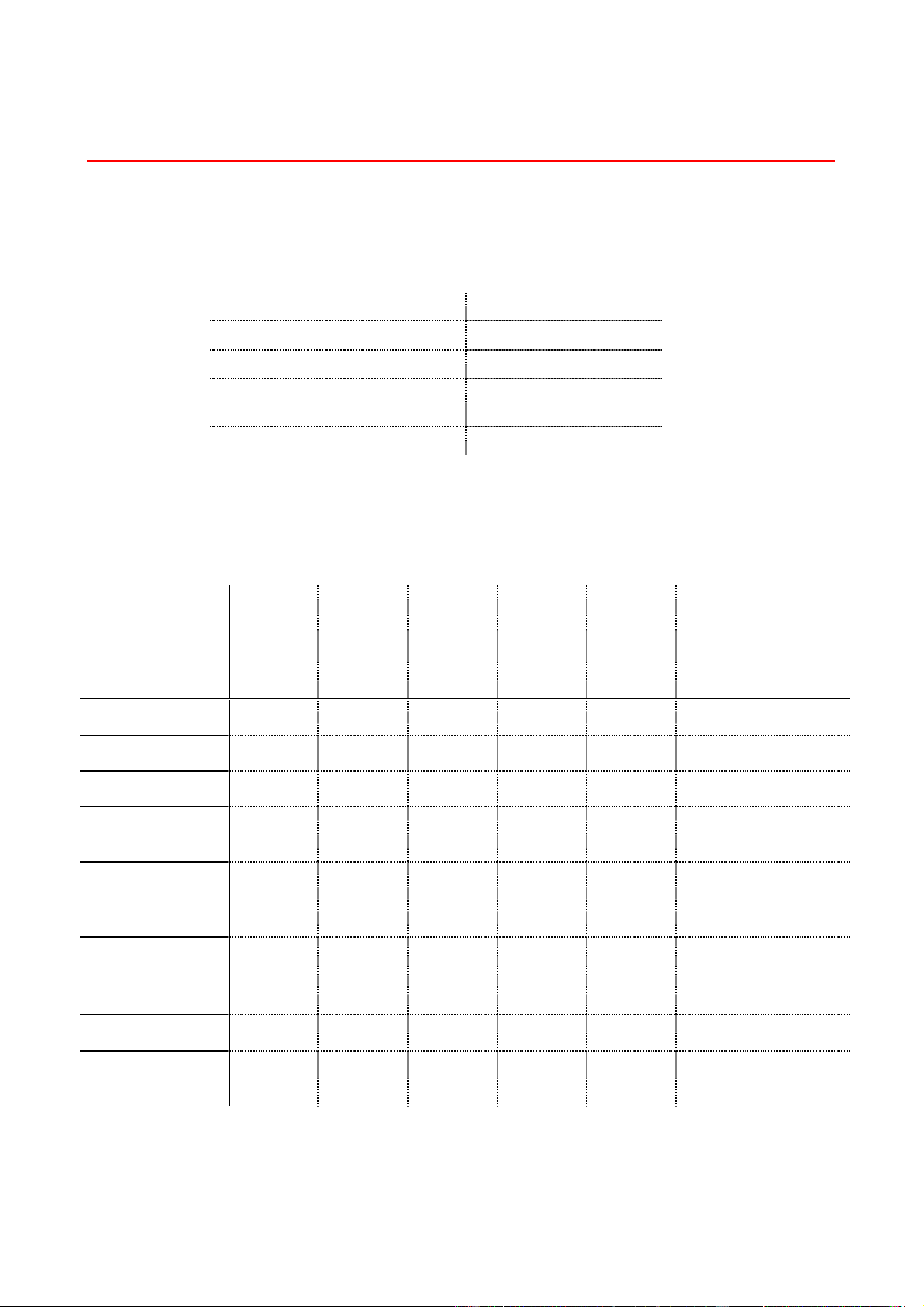
APPENDIX
Appendix–5
P
P
a
a
p
p
e
e
r
r
s
s
p
p
e
e
c
c
i
i
f
f
i
i
c
c
a
a
t
t
i
i
o
o
n
n
s
s
The Paper trays and LCD panel descriptions in this manual are named as
shown below.
Upper paper tray Tray 1
Multi-purpose tray MP tray
Optional Lower tray Tray 2/3/4
Optional Duplex unit for Duplex
printing
DX
Optional Mailbox unit MX
Jump to the page for each printing method by clicking the check mark in the
following table.
Tray 1 MP tray Tray
2/3/4
DX MX
Select the Media type
from the printer driver
60 – 105 g/m
2
(16 – 28 lbs.)
60 – 200 g/m
2
(16 – 53 lbs.)
60 – 105 g/m
2
(16 – 28 lbs.)
60 – 105 g/m
2
(16 – 28 lbs.)
60 – 105 g/m
2
(16 – 28 lbs.)
Media type
Plain paper
✔✔✔✔✔
Plain paper
Recycled paper
✔✔✔✔✔
Plain paper
Bond paper
✔
✔✔✔✔
Bond paper
Thick paper
✔
Thick paper or
Thicker paper
Transparency
✔
Only A4 or
Letter size
Transparency
Label
✔
Only A4 or
Letter size
Plain paper
Envelope
✔
Envelope
Card stock
✔
Thick paper or
Thicker paper

Appendix–8
Media types in the driver settings
You can select the following media types in the driver settings. Please see,
“Features in the printer driver” in Chapter 2.
• Plain paper : 60 g/m
2
to 105 g/m
2
(16lb to 28lb)
• Thick paper : 105 g/m
2
to 150 g/m
2
(28lb to 40lb)
• Thicker paper : 150 g/m
2
to 200 g/m
2
(40lb to 53lb)
• Bond paper : Rough paper - 60 g/m
2
to 200 g/m
2
(16lb to 53lb)
• Transparency : OHP film
• Envelope
Recommended paper
Europe USA
Plain paper Xerox Premier 80 g/m
2
Xerox 4200DP 20 lb
Recycled paper Steinbis Recycling Copy 80 g/m
2
Transparency 3M CG3300 3M CG 3300
Label Avery laser label L7163 Avery laser label #5160
♦ Before you purchase large quantities of paper, please test print a
small quantity to ensure that the paper is suitable.
♦ Use paper designed for plain paper copying.
♦ Use paper that is 75 to 90 g/m
2
(20 to 24 lb).
♦ Use neutral paper; avoid acidic or alkaline paper.
♦ Use Long grain paper.
♦ Use paper with a moisture content of approximately 5%.
♦ This printer can use recycled paper that meets the DIN 19309
specification.

Appendix–12
S
S
Y
Y
M
M
B
B
O
O
L
L
/
/
C
C
H
H
A
A
R
R
A
A
C
C
T
T
E
E
R
R
S
S
E
E
T
T
S
S
You can select the symbol and character sets in the PRINT MENU,
EMULATIONS Settings in the HP LaserJet, EPSON FX-850, and IBM
Proprinter XL emulation modes. See EMULATIONS in Chapter 4.
When you have selected the HP-GL emulation mode, you can select the
standard or alternate character set in the PRINT MENU, HP-GL Settings.
See PRINT MENU in Chapter 4.
O
O
C
C
R
R
S
S
y
y
m
m
b
b
o
o
l
l
S
S
e
e
t
t
s
s
When the OCR-A or OCR-B font is selected, the corresponding symbol set
is always used.

Appendix–14

APPENDIX
Appendix–15

Appendix–20
Symbol (19M)
Windings (579L)
The following table shows characters available only in the corresponding
character set. The numbers at the top of the table are hexadecimal code
values with which characters are to be replaced in the Roman 8 characters
set. For other characters, see the Roman 8 character set.
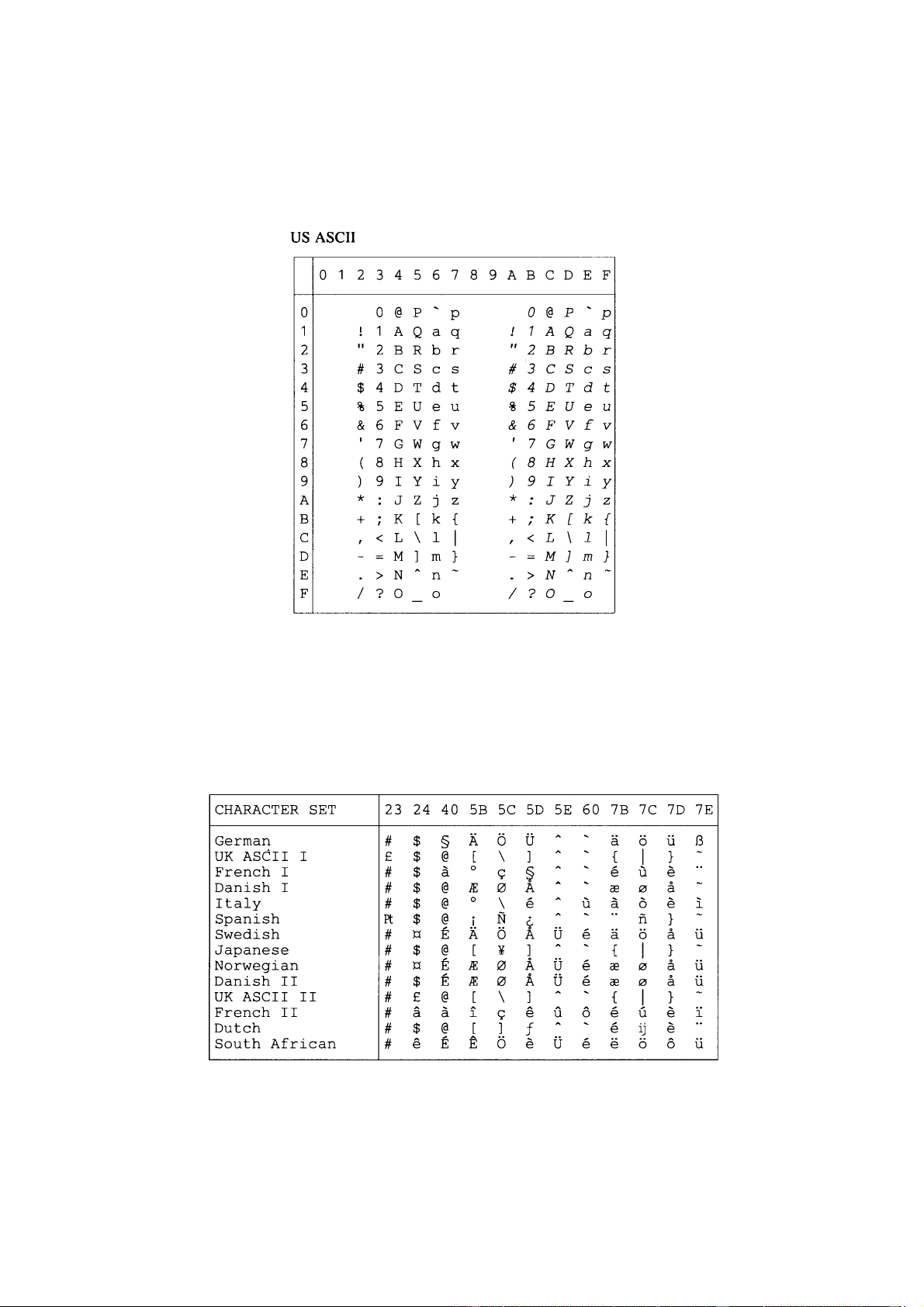
APPENDIX
Appendix–21
E
E
P
P
S
S
O
O
N
N
M
M
o
o
d
d
e
e
The following table shows characters available only in the corresponding character set.
The numbers at the top of the table are hexadecimal code values with which characters
are to be replaced in the US ASCII character set. For other characters, see the US
ASCII character set.

Appendix–22

APPENDIX
Appendix–27

Appendix–32
PCL Symbol Set Typeface(Continued)
LetterGothic Mary- Oklahoma PC PC Utah Utah
Set ID Symbol Set 16.66** land Brussels Tennessee Cond.
8U Roman-8 • • • • • • •
0N ISO 8859-1 Latin1 • • • • • • •
2N ISO 8859-2 Latin2 • • • • • • •
5N ISO 8859-9 Latin5 • • • • • • •
6N ISO 8859-10 Latin6 • • • • • •
10UPC-8 • • •• •••
11U PC-8 D/N • • • • • • •
12UPC-850 • • •• •••
17U PC-852 • • • • • •
26U PC-775 • • • • •
9TPC-Turk • •• •••
19 U Windows 3.1 Latin1 • • • • • •
9E Windows 3.1 Latin2 • • • • • •
5T Windows 3.1 Latin5 • • • • • •
7J DeskTop • • • • • •
9J PC-1004(OS/2) • • • • •
10J PS Text • • • • • •
13 J Ventura International • • • • • •
14 J Ventura US • • • • • •
6J Microsoft Publishing • • • • • •
8M Math-8 • •
5M PS Math • •
6M Ventura Math • •
15U PI Font • •
1U Legal • • • • • • •
1E ISO 4: United Kingdom* • • • • • • •
0U ISO 6: ASCII* • • • • • • •
2U ISO 2: IRV* • • • • • • •
0S ISO 11: Swedish: names* • • • • • • •
0I ISO 15: Italian* • • • • • • •
1S HP Spanish* • • • • • • •
2S ISO 17: Spanish* • • • • • • •
3S ISO 10: Swedish* • • • • • • •
4S ISO 16: Portuguese* • • • • • • •
5S ISO 84: Portuguese* • • • • • • •
6S ISO 85: Spanish* • • • • • • •
0GHP German* • • •• •••
1G ISO 21: German* • • • • • • •
0D ISO 60: Norwegian 1* • • • • • • •
1D ISO 61: Norwegian 2* • • • • • • •
0F ISO 25: French* • • • • • • •
1F ISO 69: French* • • • • • • •
0K ISO 14: JIS ASCII* • • • • • • •
2K ISO 57: Chinese* • • • • • • •
9U Windows 3.0 Latin1 • • • • • •
12J MC Text • • • • • •
19M Symbol
19L Windows Baltic • • • • •
579L Wingdings
*These symbol sets are variations of the Roman-8 symbol set.
**LetterGothic 16.66 is a bitmapped font.

APPENDIX
Appendix–33
♦ Symbol Sets Supported by the Printer’s TrueType™ and Type 1 Font
Compatible, and Original Typefaces
PCL Symbol Set Typeface
Atlanta BR Copen- Calgary Helsinki PortugalTennes- W
Set ID Symbol Set Symbol hagen see Dingbats
8U Roman-8 • • • • • •
0N ISO 8859-1 Latin1 • • • • • •
2N ISO 8859-2 Latin2 • •
5N ISO 8859-9 Latin5 • •
6N ISO 8859-10 Latin6 • •
10U PC-8 • • • • • •
11U PC-8 D/N • • • • • •
12U PC-850 • • • • • •
17U PC-852 • •
26U PC-775 • •
9T PC-Turk • •
19 U Windows 3.1 Latin1 • • • • • •
9E Windows 3.1 Latin2 • •
5T Windows 3.1 Latin5 • •
7J DeskTop • • • • • •
9J PC-1004 (OS/2) • •
10J PS Text • • • • • •
13 J Ventura International • • • • • •
14 J Ventura US • • • • • •
6J Microsoft Publishing • • • • • •
8M Math-8 • •
5M PS Math • •
6M Ventura Math • •
15U PI Font • •
1U Legal • • • • • •
1E ISO 4: United Kingdom* • • • • • •
0U ISO 6: ASCII* • • • • • •
2U ISO 2: IRV* • • • • • •
0S ISO 11: Swedish: names* • • • • • •
0I ISO 15: Italian* • • • • • •
1S HP Spanish* • • • • • •
2S ISO 17: Spanish* • • • • • •
3S ISO 10: Swedish* • • • • • •
4S ISO 16: Portuguese* • • • • • •
5S ISO 84: Portuguese* • • • • • •
6S ISO 85: Spanish* • • • • • •
0G HP German* • • • • • •
1G ISO 21: German* • • • • • •
0D ISO 60: Norwegian 1* • • • • • •
1D ISO 61: Norwegian 2* • • • • • •
0F ISO 25: French* • • • • • •
1F ISO 69: French* • • • • • •
0K ISO 14: JIS ASCII* • • • • • •
2K ISO 57: Chinese* • • • • • •
9U Windows 3.0 Latin1 • • • • • •
12J MC Text • • • • • •
19M Symbol •
19 L Windows Baltic • •
579L Wingdings •
*These symbol sets are variations of the Roman-8 symbol set.

Appendix–34
PCL Symbol Set Typeface
Bermuda Script Germany San Diego US Roman
Set ID Symbol Set
8U Roman-8 • • • •
0N ISO 8859-1 Latin1 • • • •
2N ISO 8859-2 Latin2
5N ISO 8859-9 Latin5
6N ISO 8859-10 Latin6
10U PC-8 • • • •
11U PC-8 D/N • • • •
12U PC-850 • • • •
17U PC-852
26U PC-775
9T PC-Turk
19 U Windows 3.1 Latin1 • • • •
9E Windows 3.1 Latin2
5T Windows 3.1 Latin5
7J DeskTop • • • •
9J PC-1004 (OS/2)
10J PS Text • • • •
13 J Ventura International • • • •
14 J Ventura US • • • •
6J Microsoft Publishing • • • •
8M Math-8
5M PS Math
6M Ventura Math
15U PI Font
1U Legal • • • •
1E ISO 4: United Kingdom* • • • •
0U ISO 6: ASCII* • • • •
2U ISO 2: IRV* • • • •
0S ISO 11: Swedish: names* • • • •
0I ISO 15: Italian* • • • •
1S HP Spanish* • • • •
2S ISO 17: Spanish* • • • •
3S ISO 10: Swedish* • • • •
4S ISO 16: Portuguese* • • • •
5S ISO 84: Portuguese* • • • •
6S ISO 85: Spanish* • • • •
0G HP German* • • • •
1G ISO 21: German* • • • •
0D ISO 60: Norwegian 1* • • • •
1D ISO 61: Norwegian 2* • • • •
0F ISO 25: French* • • • •
1F ISO 69: French* • • • •
0K ISO 14: JIS ASCII* • • • •
2K ISO 57: Chinese* • • • •
9U Windows 3.0 Latin1 • • • •
12J MC Text • • • •
19M Symbol
19 L Windows Baltic
579L Wingdings
*These symbol sets are variations of the Roman-8 symbol set.

APPENDIX
Appendix–37
♦ Bar Code, Expanded Character, Line Block Drawing & Box Drawing
n = “s0” or “S0” 3 : 1 (default)
n = “s1” or “S1” 2 : 1
n = “s3” or “S3” 2.5 : 1
This parameter selects the bar code style as above. When the EAN 8, EAN
13, UPC-A, Code 128 or EAN 128 bar code mode is selected, this bar code
style parameter is ignored.
Expanded Character
“S” 0 = White
1 = Black
2 = Vertical stripes
3 = Horizontal stripes
4 = Cross hatch
eg. “S” n1 n2
n1 = Background fill pattern
n2 = Foreground fill pattern
If “S” is followed by only one parameter, the parameter
is a foreground fill pattern.
Line Block Drawing & Box Drawing
“S” 1 = Black
2 = Vertical stripes
3 = Horizontal stripes
4 = Cross hatch
♦ Bar Code
n = “mnnn” or “Mnnn” (nnn = 0 ~ 32767)
This parameter specifies the bar code width. The unit of "nnn" is %.

APPENDIX
Appendix–41
• When EAN 8, EAN 13, or UPC A is selected with the parameter “t5” or
“T5”:
Ten numerical characters “0” to “9” can be accepted as bar code data. The
number of characters for bar codes is limited as follows.
EAN 8: Total 8 digits (7 digits + 1 check digit)
EAN 13: Total 13 digits (12 digits + 1 check digit)
UPC A: Total 12 digits (11 digits + 1 check digit)
A number of characters other than above causes data error and the bar
code data is printed as normal print data. If the check digit is incorrect, the
printer calculates the correct check digit automatically so that the correct bar
code data will be printed. When EAN13 is selected, adding “+” and a 2-or 5-
digit number after the data can create an add-on code.
• When UPC-E is selected with the parameter “t6” or “T6”:
The numerical characters “0” to “9” can be accepted as bar code data.
(1) 8 digits Standard format. The first character
must be “0” and the data must be terminated by
a check digit.
Total 8 digits = “0” + 6 digits + 1 check digit.
(2) 6 digits The first character and the last
check digit are removed from the 8 digit data.
*1: For 8 digits, “?” can be used in place of a check digit.
*2: Adding “+” and 2- or 5-digit number after the data creates
an add-on code for all 6 and 8 digit formats.
• When Codabar is selected with the parameter “t9” or “T9”:
Characters “0” to “9”, “-”, “ . ”, “$”, “/”, “+”, “ : ” can be printed. Characters “A”
to “D” can be printed as a start-stop code, which can be uppercase or
lowercase. If there is no start-stop code, errors occur. A check digit cannot
be added and using “?” causes errors.
• When Code 128 Set A, Set B, or Set C is selected with the parameter
“t12” or “T12,” “t13” or “T13,” or “t14” or “T14” respectively:
Code 128 sets A, B and C are individually selectable. Set A encodes
characters Hex 00 … 5F. Set B encodes characters Hex 20 … 7F. Set C
encodes numeric pairs 00 … 99. Switching is allowed between the code
sets by sending %A, %B, or %C. FNC 1, 2, 3, and 4 are produced with %1,
%2, %3, and %4. The SHIFT code, %S, allows temporary switching (for 1
character only) from set A to set B and vice versa. The “%” character can be
encoded by sending it twice.

Appendix–42
• When ISBN (EAN) is selected with the parameter “t130” or “T130”:
Same rules apply as for “t5” or “T5”
• When ISBN (UPC-E) is selected with the parameter “t131” or “T131”:
Same rules apply as for “t6” or “T6”
• When EAN 128 set A, set B or set C is selected with the parameter
“t132” or “T132”, “t133” or “T133” or “t134” or “T134” respectively:
Same rules apply as for “t12” or “T12”, “t13” or “T13”, or “t14” or “T14."
♦ Box Drawing
ESC i … E (or e)
“E” or “e” is a terminator.
♦ Line Block Drawing
ESC i … V (or v)
“V” or “v” is a terminator.
♦ Expanded Character Data Start
n = “l” or “L”
Data that follows “l” or “L” is read as expanded character data (or labeling
data). Expanded character data must end with the “ \ ” code (5CH), which
also terminates this command.
[Example Program Listings]
WIDTH "LPT1:",255
'CODE 39
LPRINT CHR$(27);"it0r1s0o0x00y00bCODE39?\";
'Interleaved 2 of 5
LPRINT CHR$(27);"it1r1s0o0x00y20b123456?\";
'FIM
LPRINT CHR$(27);"it3r1o0x00y40bA\";

INDEX
INDEX-1
I
I
N
N
D
D
E
E
X
X
-
– switch 3-14
+
+ & - switch 3-2
+ switch 3-14
A
accessory 2-7
AC power inlet 1-8
Advanced Photoscale Technology 3-33
Analysis Tool Software 2-15
Apple LaserWriter 2-18
automatic e-mail printing 2-14
automatic emulation selection 2-20
automatic interface selection 2-22
B
back light 3-19
Back switch 3-2, 3-16
bar code control A-35
bitmapped font A-9
bonus software 2-14
BRAdmin professional 2-15
BR-SCRIPT 3-33
BR-Script 3 2-1, 3-40, 6-33
BS-3000 4-21
C
call service message 6-5
card slot 1-8
CCITT G3/G4 A-35
CD-ROM for Macintosh users 1-5
CD-ROM for Windows users 1-3
compact flash memory card 4-10
control panel 1-7
D
data lamp 3-17
date and time setting 3-38
delete storage 3-28, 3-43
Device 2-5
DIMM 4-12
DOS 6-32
drum shutter 5-2
duplex 2-4
duplex unit 4-4
E
emulation mode 3-40
envelope 1-27
environment 1-10
EPSON FX-850 mode 3-41
error messages 6-1

INDEX
INDEX-3
P (continued)
PPD 2-18, 2-19
print menu 3-43, 3-44
print menu mode 3-29
print quality 2-4, 6-26
printable are 1-17
printer driver 2-1, 2-2, 2-9
printer status message 3-21
proof data 3-9
public data 3-10
Q
quality 3-42
quality mode 3-26
R
reprint 2-6, 2-13, 3-5, 3-7
reprint switch 3-2, 3-5
reset menu mode 3-37
S
SB-4000 4-2
scalable font A-9
secure data 3-11
serial interface connector 1-8
Set switch 3-2, 3-15
setup 3-43
setup mode 3-27
small pad 4-2, 4-3
Storage Manager 2-15
special paper 1-33
stabilizer 4-2
switch 3-2
T
TCP/IP 3-34
TIFF A-35
top cover 1-7
toner cartridge 5-1
Transparency 1-33
Tray 1 1-7
U
upper paper cassette 1-7, 1-18
USB connector 1-8
W
watermark 2-4