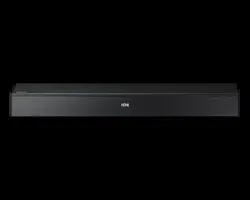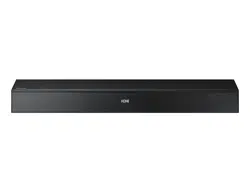

HW-Q70T
FULL MANUAL
Imagine the possibilities
Thank you for purchasing this Samsung product.
To receive more complete service, please register
your product at www.samsung.com/register
ENG - 2
SAFETY INFORMATION
SAFETY WARNINGS
TO REDUCE THE RISK OF ELECTRIC SHOCK, DO
NOT REMOVE THE COVER (OR BACK).
NO USER-SERVICEABLE PARTS ARE INSIDE.
REFER SERVICING TO QUALIFIED SERVICE
PERSONNEL.
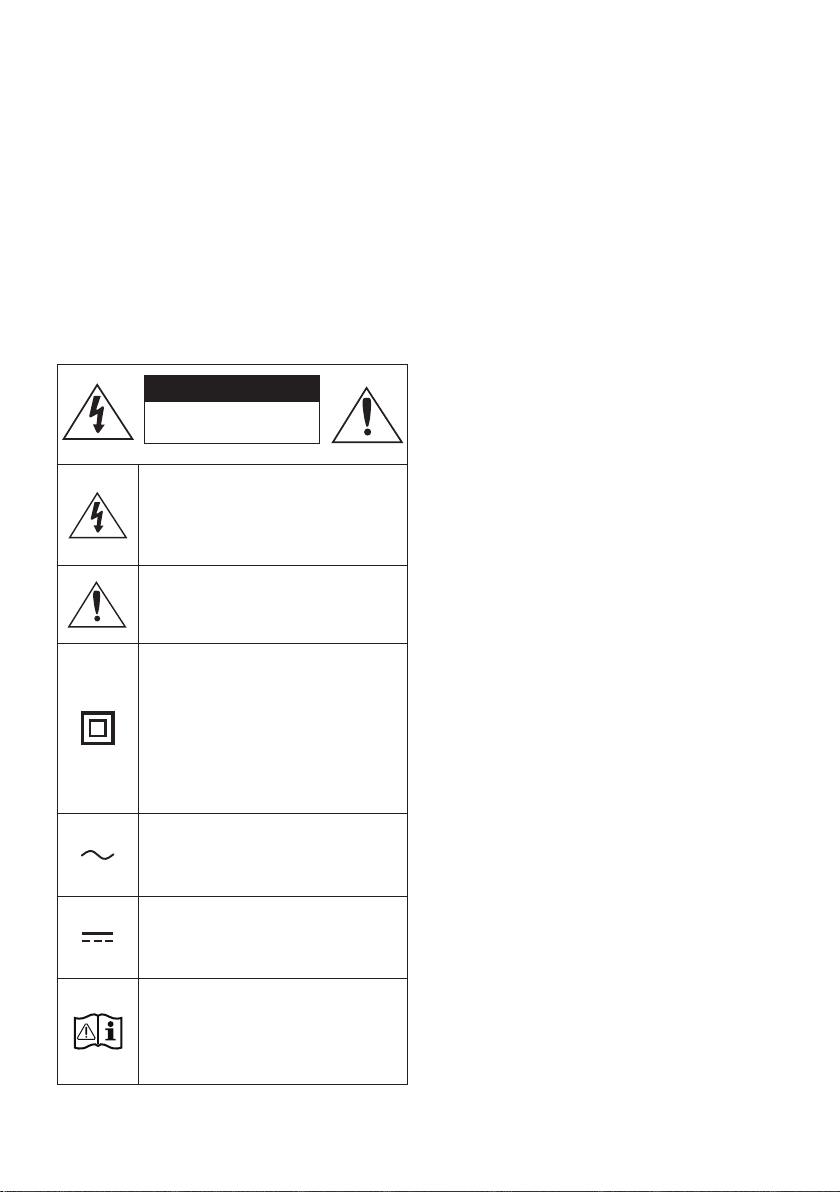
Refer to the table below for an explanation of
symbols which may be on your Samsung product.
CAUTION
RISK OF ELECTRIC SHOCK.
DO NOT OPEN.
This symbol indicates that high voltage
is present inside. It is dangerous to
make any kind of contact with any
internal part of this product.
This symbol indicates that this product
has included important literature
concerning operation and maintenance.
Class II product : This symbol indicates
that it does not require a safety
connection to electrical earth (ground).
If this symbol is not present on a
product with a power cord, the product
MUST have a reliable connection to
protective earth (ground).
AC voltage : This symbol indicates that
the rated voltage marked with the
symbol is AC voltage.
DC voltage : This symbol indicates that
the rated voltage marked with the
symbol is DC voltage.
Caution, Consult instructions for use :
This symbol instructs the user to
consult the user manual for further
safety related information.
WARNING
• To reduce the risk of re or electric shock, do
not expose this appliance to rain or moisture.
CAUTION
• TO PREVENT ELECTRIC SHOCK, MATCH WIDE
BLADE OF PLUG TO WIDE SLOT, FULLY INSERT.
• This apparatus shall always be connected to a
AC outlet with a protective grounding
connection.
• To disconnect the apparatus from the mains,
the plug must be pulled out from the mains
socket, therefore the mains plug shall be
readily operable.
• Do not expose this apparatus to dripping or
splashing. Do not put objects lled with
liquids, such as vases on the apparatus.
• To turn this apparatus off completely, you
must pull the power plug out of the wall
socket. Consequently, the power plug must
be easily and readily accessible at all times.

ENG - 3
PRECAUTIONS
1. Ensure that the AC power supply in your
house complies with the power
requirements listed on the identication
sticker located on the bottom of your
product. Install your product horizontally, on
a suitable base (furniture), with enough
space around it for ventilation (7~10 cm).
Make sure the ventilation slots are not
covered. Do not place the unit on ampliers
or other equipment which may become hot.
This unit is designed for continuous use. To
fully turn off the unit, disconnect the AC plug
from the wall outlet. Unplug the unit if you
intend to leave it unused for a long period of
time.
2. During thunderstorms, disconnect the AC
plug from the wall outlet. Voltage peaks due
to lightning could damage the unit.
3. Do not expose the unit to direct sunlight or
other heat sources. This could lead to
overheating and cause the unit to
malfunction.
4. Protect the product from moisture (i.e.
vases), and excess heat (e.g. a replace) or
equipment creating strong magnetic or
electric elds. Unplug the power cable from
the AC wall socket if the unit malfunctions.
Your product is not intended for industrial
use. It is for personal use only. Condensation
may occur if your product has been stored in
cold temperatures. If transporting the unit
during the winter, wait approximately
2 hours until the unit has reached room
temperature before using.
5. The battery used with this product contains
chemicals that are harmful to the
environment. Do not dispose of the battery
in the general household trash. Do not
expose the battery to excess heat, direct
sunlight, or re. Do not short circuit,
disassemble, or overheat the battery.
Danger of explosion if the battery is replaced
incorrectly. Replace only with the same or
equivalent type.

ENG - 4
CONTENTS
01 Checking the Components 6
02 Product Overview 7
Front Panel / Top Panel of the Soundbar ------------------------- 7
Bottom Panel of the Soundbar ------------------------- 8
03 Using the Soundbar Remote Control 9
Inserting Batteries before using the Remote Control (AA batteries X 2) ------------------------- 9
How to Use the Remote Control
-------------------------
9
Using the Hidden Buttons (Buttons with more than one function)
-------------------------
12
Output specications for the different sound effect modes
-------------------------
12
Adjusting the Soundbar volume with a TV remote control ------------------------- 13
04 Connecting the Soundbar 14
Connecting the power and units
-------------------------
14
– Manually connecting the Subwoofer
-------------------------
15
– LED Indicator Lights on the Rear of Subwoofer
-------------------------
17
Connecting an SWA-9000S (Sold Separately) to your Soundbar
-------------------------
18
05 Using a wired connection to the TV 20
Method 1. Connecting with HDMI
-------------------------
20
– Connecting the TV that supports HDMI ARC (Audio Return Channel)
-------------------------
20
Method 2. Connecting using an Optical Cable
-------------------------
21
06 Using a wireless connection to the TV 23
Connecting via Bluetooth
-------------------------
23
07 Connecting an External Device 25
Method 1. Connecting using an HDMI Cable
(Capable of Dolby Atmos decoding and playback)
-------------------------
25
Method 2. Connecting using an Optical Cable
-------------------------
26

ENG - 5
08 Connecting a Mobile Device 27
Method 1. Connecting via Bluetooth
-------------------------
27
Method 2. Connecting via Wi-Fi (Wireless Network)
-------------------------
30
09 Connecting an Amazon product 31
Connect and use with an Amazon product (Amazon Echo) ------------------------- 31
Use voice commands to control the Soundbar
-------------------------
31
Using the Tap Sound
-------------------------
32
10 Installing the Wall Mount 33
Installation Precautions
-------------------------
33
Wallmount Components
-------------------------
33
11 Installing the Soundbar above a TV Stand 35
Component
-------------------------
35
12 Software Update 36
Auto Update
-------------------------
36
USB Update
-------------------------
36
Initialization
-------------------------
37
13 Troubleshooting 38
14 License 40
15 Open Source License Notice 40
16 Important Notes About Service 40
17 SpecicationsandGuide 41
Specications
-------------------------
41
ENG - 6
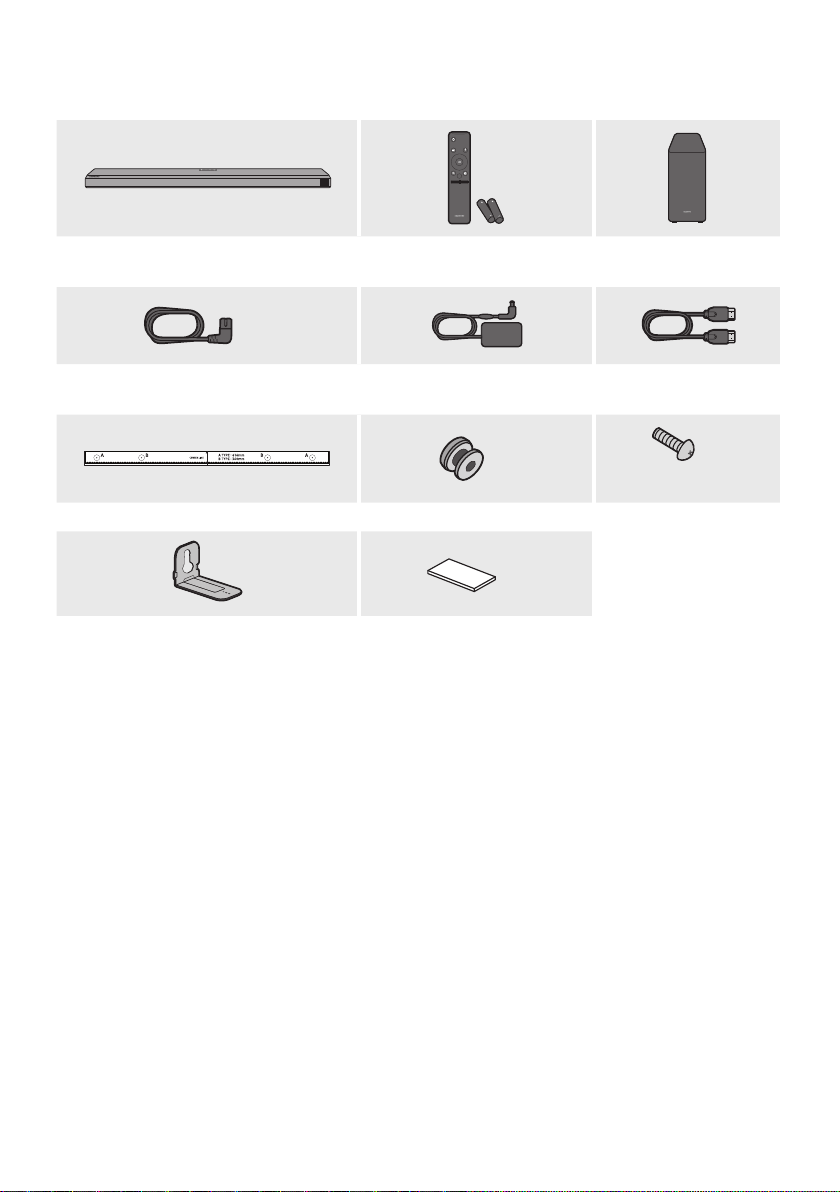
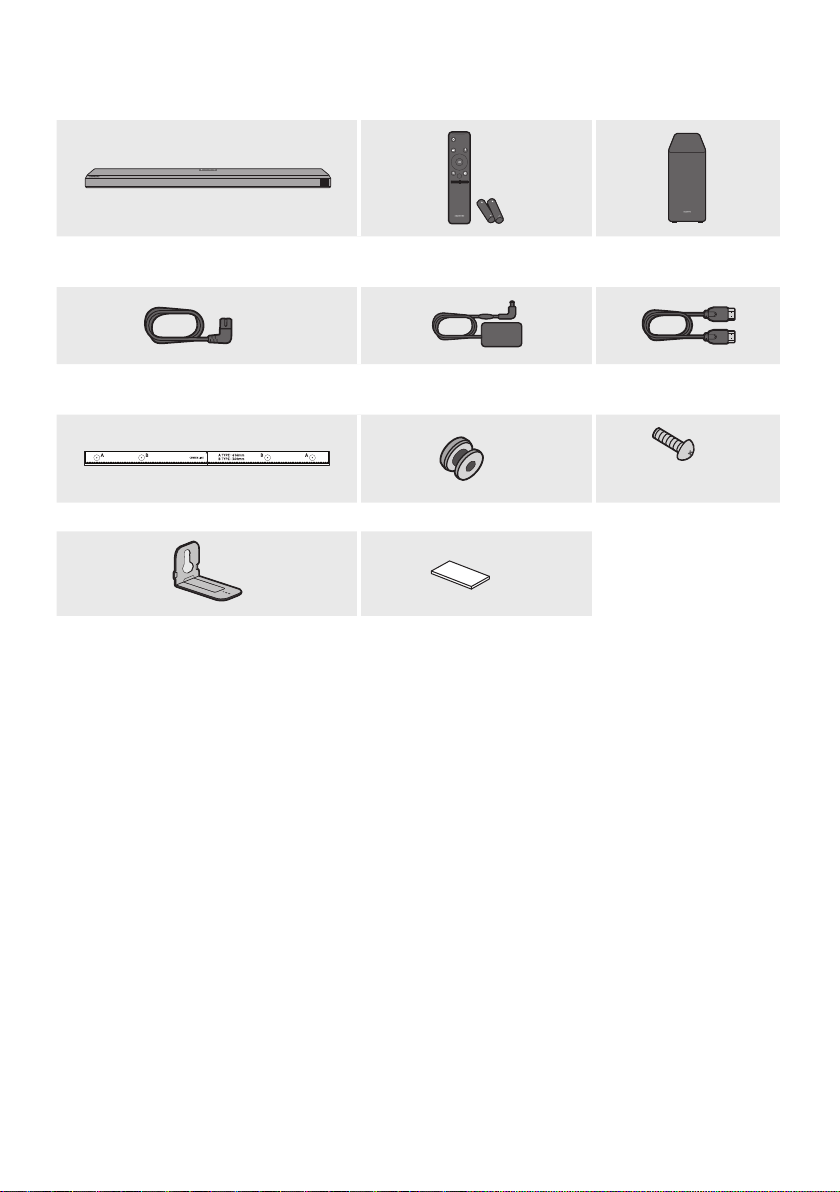
01 CHECKING THE COMPONENTS
VOL WOOFER
SOUNDBAR
SOUND
MODE
PAIR
Soundbar Main Unit Soundbar Remote Control
/
Batteries
Subwoofer
x 2
Power Cord
(Subwoofer, Soundbar)
AC/DC Adapter
(Main Unit)
HDMI Cable
x 2
(M4 x L10)
x 2
Wall Mount Guide Holder-Screw Screw
x 2
x 4
Bracket-Wall Mount Rubber-Foot
• For more information about the power supply and power consumption, refer to the label attached
to the product. (Label: Bottom of the Soundbar Main Unit)
• To purchase additional components or optional cables, contact a Samsung Service Center or
Samsung Customer Care.
• For more information about the wallmount or rubber-foot, see pages 33~35.
• Design, specications, and App screen are subject to change without prior notice.
• The appearance of the accessories may differ slightly from the illustrations above.
ENG - 7
02 PRODUCT OVERVIEW
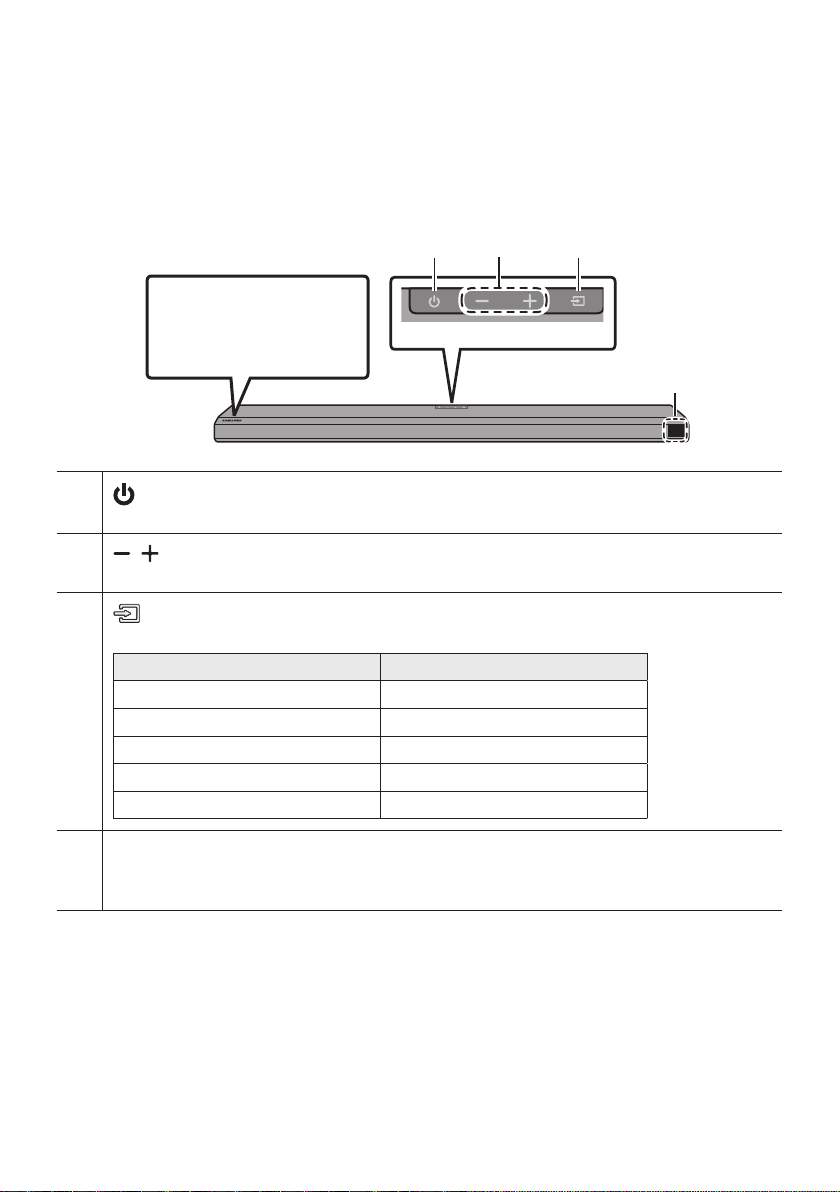
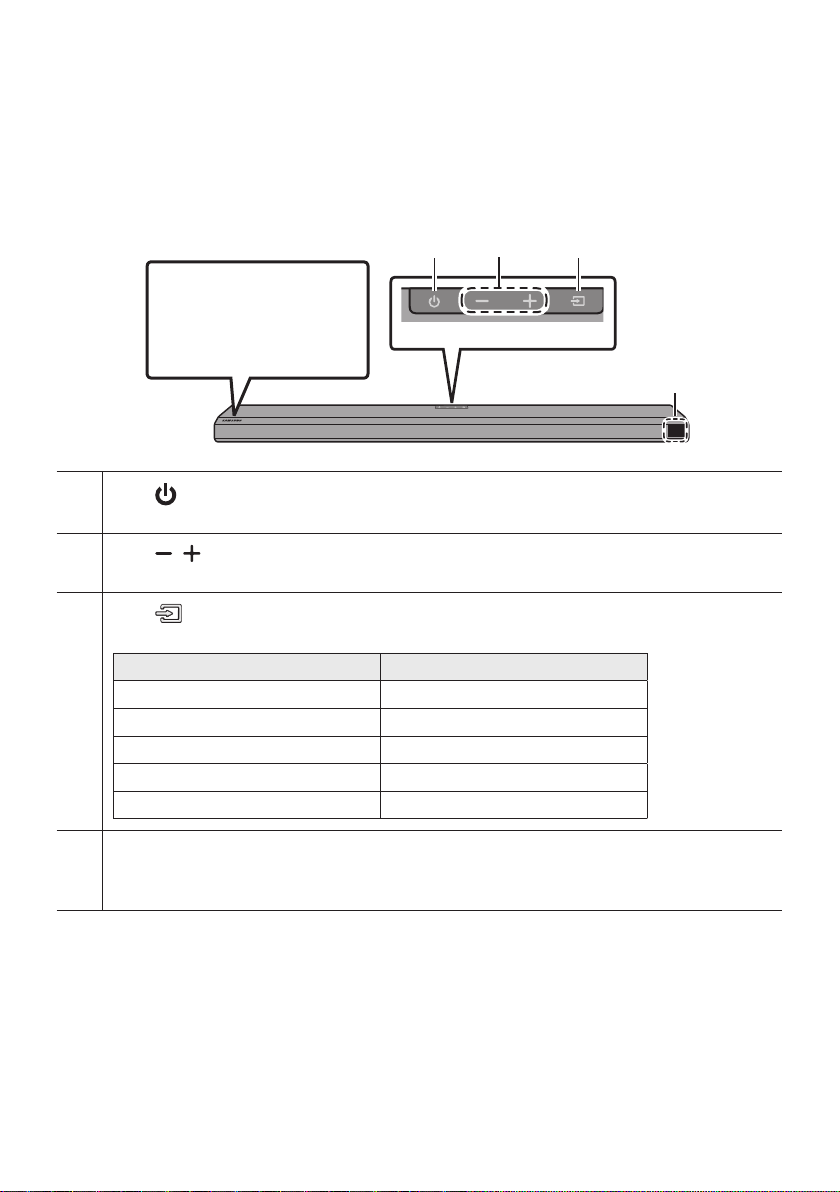
Front Panel / Top Panel of the Soundbar
Top Panel
Position the product so that
the SAMSUNG logo is
located on the top.
(Power) Button
Turns the power on and off.
(Volume) Button
Adjusts the volume.
(Source) Button
Selects the source input mode.
Input mode Display
Optical Digital input D.IN
ARC (HDMI OUT) input D.IN TV ARC (Auto conversion)
HDMI input HDMI
Wi-Fi mode WIFI
BLUETOOTH mode BT
Display
Displays the product’s status and current mode.
D.IN HDMI Wi-Fi BT
• When you plug in the AC cord, the power button will begin working in 4 to 6 seconds.
• When you turn on this unit, there will be a 4 to 5 second delay before it produces sound.
• If you hear sounds from both the TV and Soundbar, go to the Settings menu for the TV audio and
change the TV speaker to External Speaker.
ENG - 8
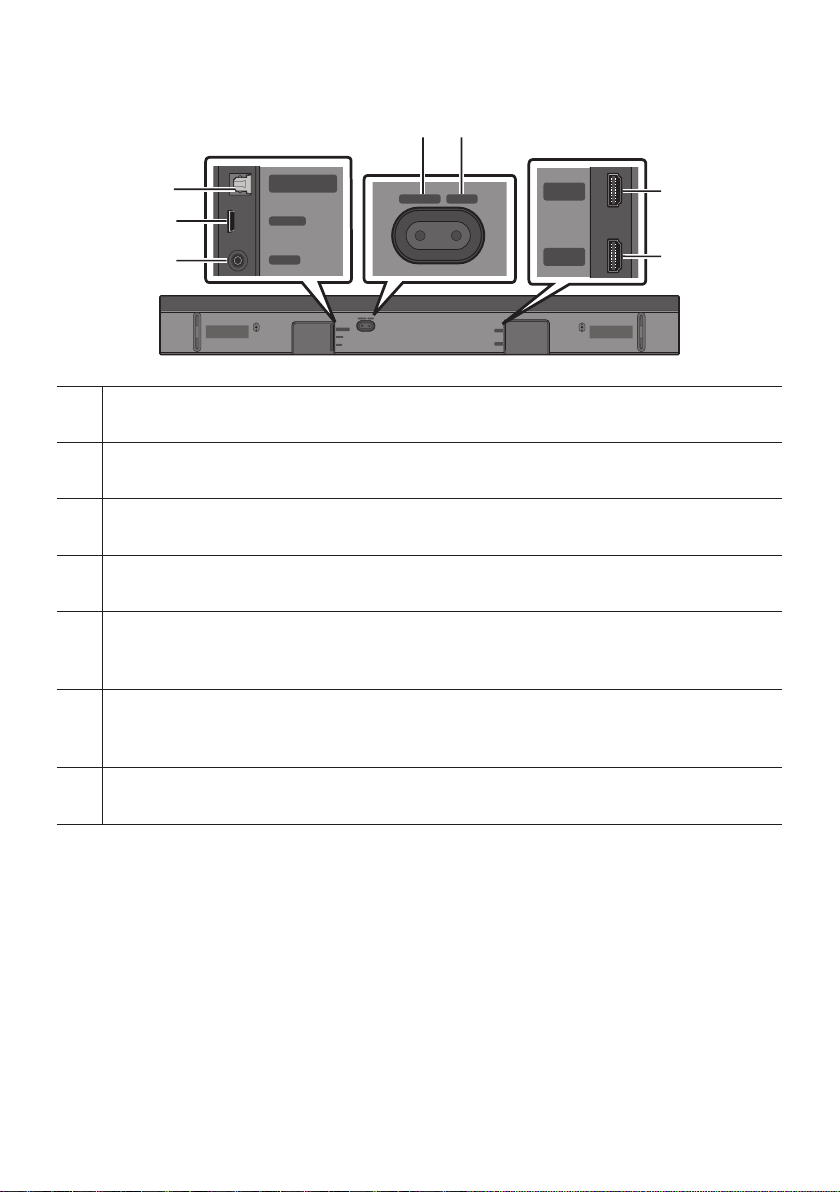
Bottom Panel of the Soundbar
DIGITAL AUDIO IN
(OPTICAL)
SERVICE
DC 19V
HDMI
NETWORK ID SET
DIGITAL AUDIO IN
(OPTICAL)
SERVICE
NETWORK ID SET
HDMI TO TV
(eARC/ARC)
HDMI IN
HDMI OUT
(TV-ARC)
DIGITAL AUDIO IN
(OPTICAL)
SERVICE
DC 19V
DIGITAL AUDIO IN
(OPTICAL)
SERVICE
DC 19V
HDMI
HDMI TO TV
(eARC/ARC)
DIGITAL AUDIO IN
(OPTICAL)
SERVICE
DC 19V
HDMI
NETWORK ID SET
DIGITAL AUDIO IN
(OPTICAL)
SERVICE
NETWORK ID SET
HDMI TO TV
(eARC/ARC)
HDMI IN
HDMI OUT
(TV-ARC)
DIGITAL AUDIO IN
(OPTICAL)
SERVICE
DC 19V
DIGITAL AUDIO IN
(OPTICAL)
SERVICE
DC 19V
HDMI
HDMI TO TV
(eARC/ARC)
DIGITAL AUDIO IN
(OPTICAL)
SERVICE
DC 19V
HDMI
NETWORK ID SET
DIGITAL AUDIO IN
(OPTICAL)
SERVICE
NETWORK ID SET
HDMI TO TV
(eARC/ARC)
HDMI IN
HDMI OUT
(TV-ARC)
DIGITAL AUDIO IN
(OPTICAL)
SERVICE
DC 19V
DIGITAL AUDIO IN
(OPTICAL)
SERVICE
DC 19V
HDMI
HDMI TO TV
(eARC/ARC)
DIGITAL AUDIO IN
(OPTICAL)
SERVICE
DC 19V
HDMI
NETWORK ID SET
DIGITAL AUDIO IN
(OPTICAL)
SERVICE
NETWORK ID SET
HDMI TO TV
(eARC/ARC)
HDMI IN
HDMI OUT
(TV-ARC)
DIGITAL AUDIO IN
(OPTICAL)
SERVICE
DC 19V
DIGITAL AUDIO IN
(OPTICAL)
SERVICE
DC 19V
HDMI
HDMI TO TV
(eARC/ARC)
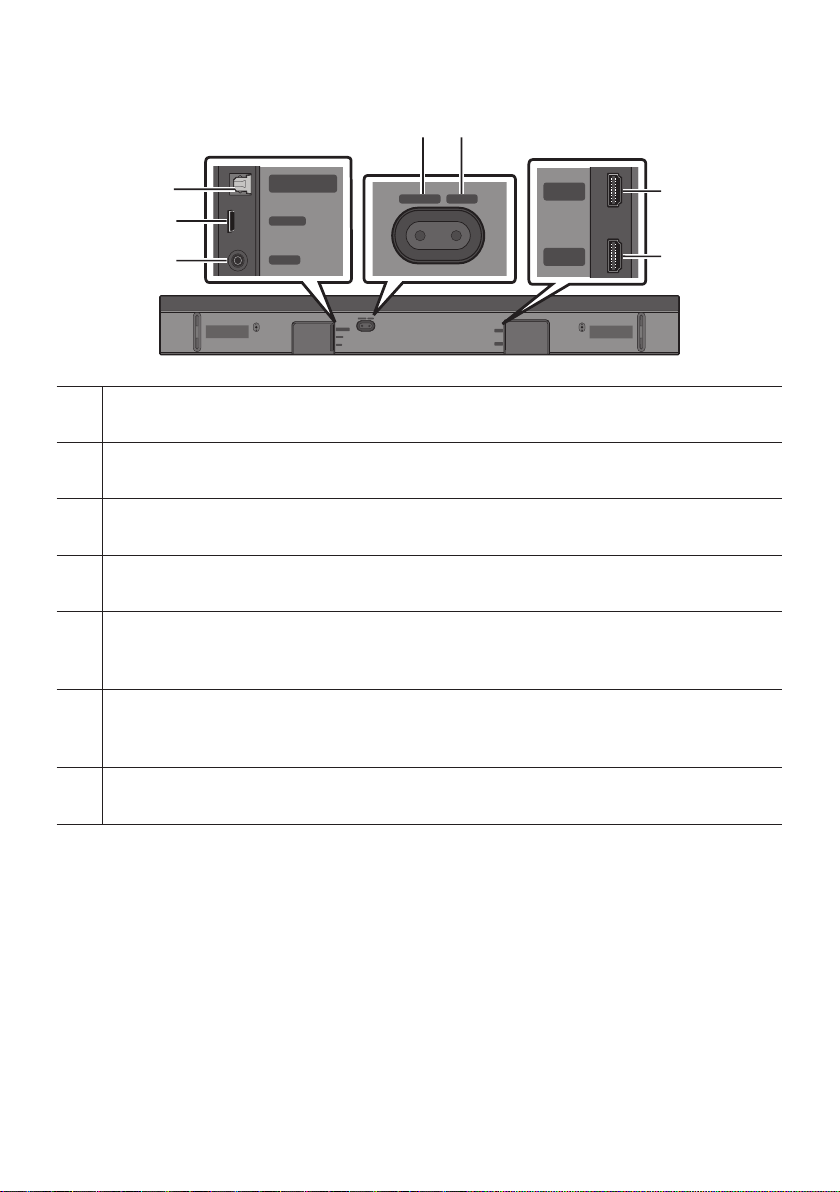
DIGITAL AUDIO IN (OPTICAL)
Connect to the digital (optical) output of an external device. (See page 26)
SERVICE
Connect a USB storage device to upgrade the product's software.
DC 19V (Power Supply In)
Connect the AC/DC power adapter. (See page 14)
NETWORK
Press to connect to a wireless network (Wi-Fi) via the SmartThings app.
ID SET
Press to connect the Soundbar to surround speakers and a subwoofer wirelessly. (The surround speaker is
sold separately.)
HDMI
Inputs digital video and audio signals simultaneously using an HDMI cable.
Connect to the HDMI output of an external device. (See page 25)
HDMI TO TV (eARC/ARC)
Connect to the HDMI jack on a TV. (See page 20)
• When disconnecting the power cable of the AC/DC power adaptor from a wall outlet, pull the plug.
Do not pull the cable.
• Do not connect this unit or other components to an AC outlet until all connections between
components are complete.
ENG - 9
03 USING THE SOUNDBAR REMOTE
CONTROL
Inserting Batteries before using the Remote Control (AA batteries X 2)
Slide the back cover in the direction of the arrow
until it is completely removed. Insert 2 AA batteries
(1.5V) oriented so that their polarity is correct. Slide
the back cover back into position.
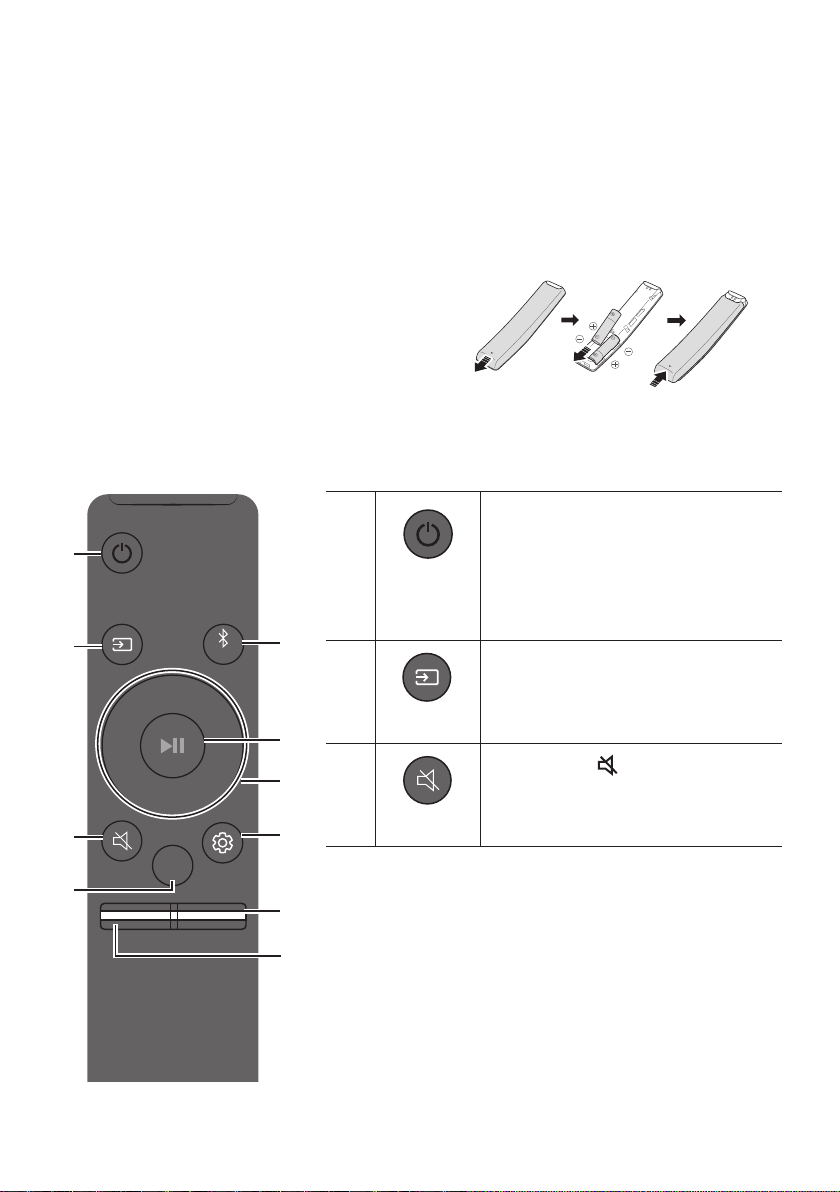
How to Use the Remote Control
VOL WOOFER
SOUNDBAR
SOUND
MODE
PAIR
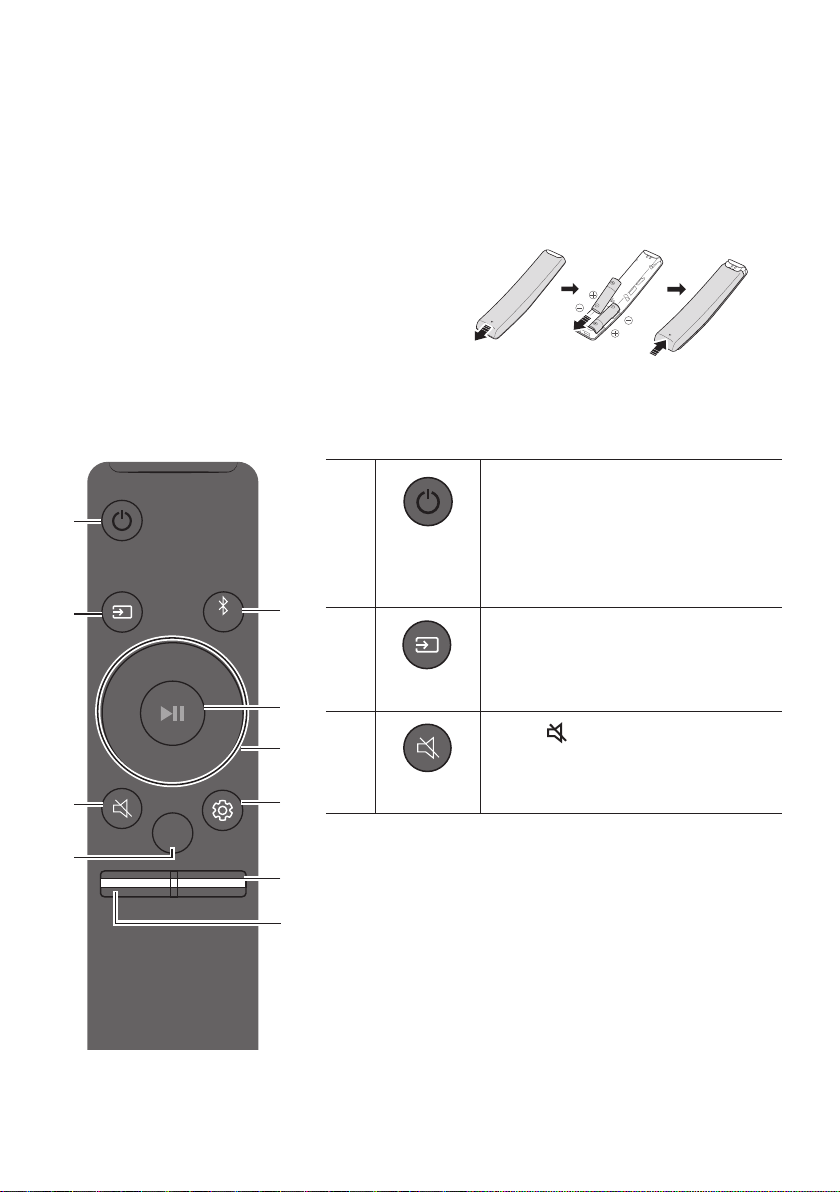
Power
VOL WOOFER
SOUND
MODE
PAIR
Turns the Soundbar on and off.
• Auto Power Down Function
The unit turns off automatically in the
following situations:
– In D.IN / HDMI / Wi-Fi / BT mode if
there is no audio signal for 18 minutes.
VOL WOOFER
SOUND
MODE
PAIR
Source
Press to select a source connected to the
Soundbar.
Mute
VOL WOOFER
SOUND
MODE
PAIR
Press the (Mute) button to mute the
sound.
Press it again to unmute the sound.
ENG - 10
SOUND MODE
VOL WOOFER
SOUND
MODE
PAIR
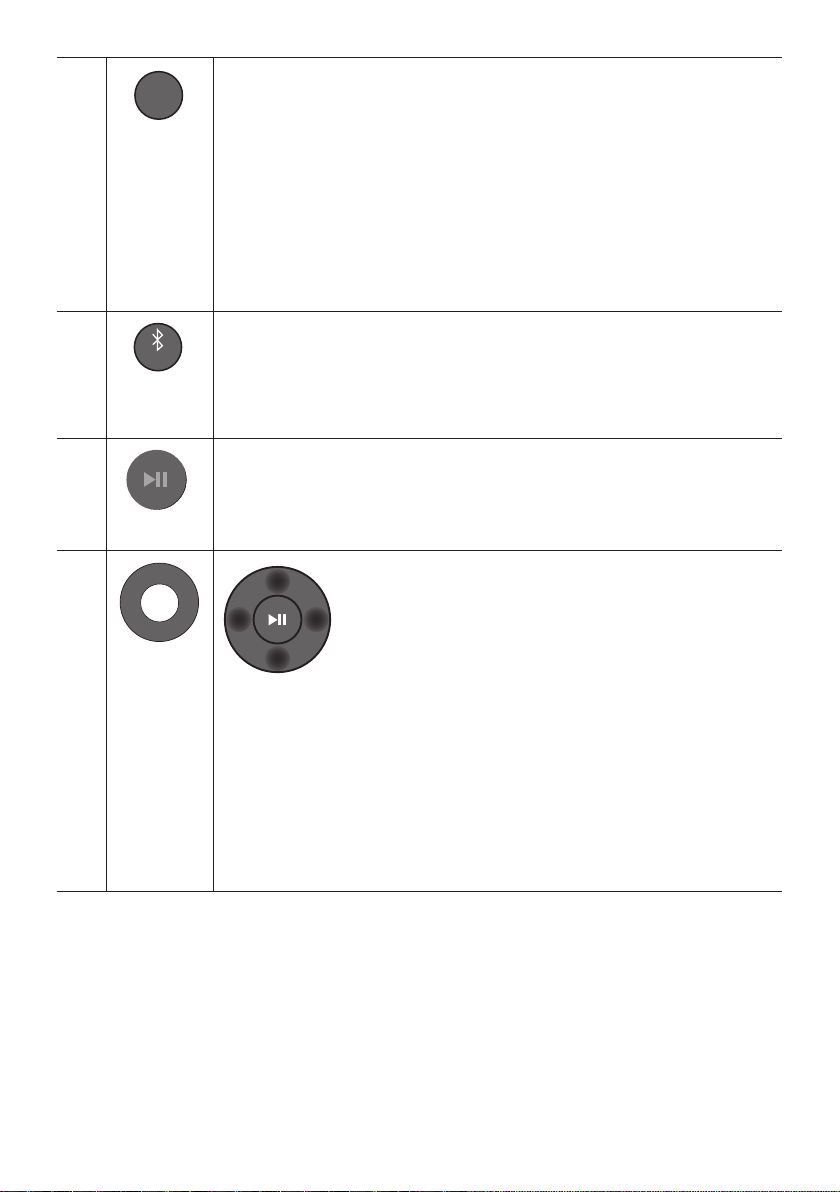
You can select the desired sound mode by choosing STANDARD, SURROUND, GAME
PRO, or ADAPTIVE SOUND.
• STANDARD
Outputs the original sound.
• SURROUND SOUND
Provides a wider sound eld than standard.
• GAME PRO
Provides stereoscopic sound to immerse you in the action while gaming.
• ADAPTIVE SOUND
Analyzes the content in real time and automatically provides the optimal sound eld
based on the characteristics of the content.
VOL WOOFER
SOUND
MODE
PAIR
Bluetooth
PAIR
Switch the Soundbar to Bluetooth pairing mode. Press the button and wait for the “BT
PAIRING” screen to connect to a new Bluetooth device.
Play / Pause
VOL WOOFER
SOUND
MODE
PAIR
You can also play or pause music by pressing the button.
VOL WOOFER
SOUND
MODE
PAIR
Up/Down/
Left/Right
Press the indicated areas to select Up/Down/Left/Right.
Press Up/Down/Left/Right on the button to select or set functions.
• Music Skip
Press the Right button to select the next music le. Press the Left button to select
the previous music le.
• ID SET
Use this option when the Subwoofer or Surround Speakers are not connected or need
reconnection.
While powered off, press and hold the Up button for 5 seconds to perform ID SET.
(See page 16.)
ENG - 11
Sound Control
VOL WOOFER
SOUND
MODE
PAIR
When pressed, the setting items such as TREBLE, BASS, SYNC, CENTER LEVEL, FRONT
TOP LEVEL, and VIRTUAL ON/OFF are displayed in sequence. The desired item can be
adjusted using the Up/Down buttons.
– To control the volume of the treble or bass sound, select TREBLE or BASS in Sound
Settings, and then adjust the volume between -6~+6 by using the Up/Down buttons.
– Press and hold the (Sound Control) button for about 5 seconds to adjust the
sound for each frequency band. 150Hz, 300Hz, 600Hz, 1.2kHz, 2.5kHz, 5kHz, and
10kHz are selectable using the Left/Right buttons and each can be adjusted to a
setting between -6 to +6 using the Up/Down buttons.
(Make sure the Sound mode is set to “STANDARD”.)
– To control the volume of the each speaker select CENTER LEVEL, or FRONT TOP
LEVEL in Sound Settings, and then adjust the volume between -6~+6 by using the
Up/Down buttons.
– If the video on the TV and audio from the Soundbar are not synchronized, select
SYNC in Sound Control, and then set the audio delay between 0~300 milliseconds by
using the Up/Down buttons.
– SYNC is only supported for some functions.
– If Surround Speakers are connected, select REAR LEVEL and then use the Up/Down
buttons to adjust the volume within a -6 to +6 range.
– The VIRTUAL Speaker function can be turned ON/OFF by using the Up/Down
buttons.
VOL WOOFER
SOUND
MODE
PAIR
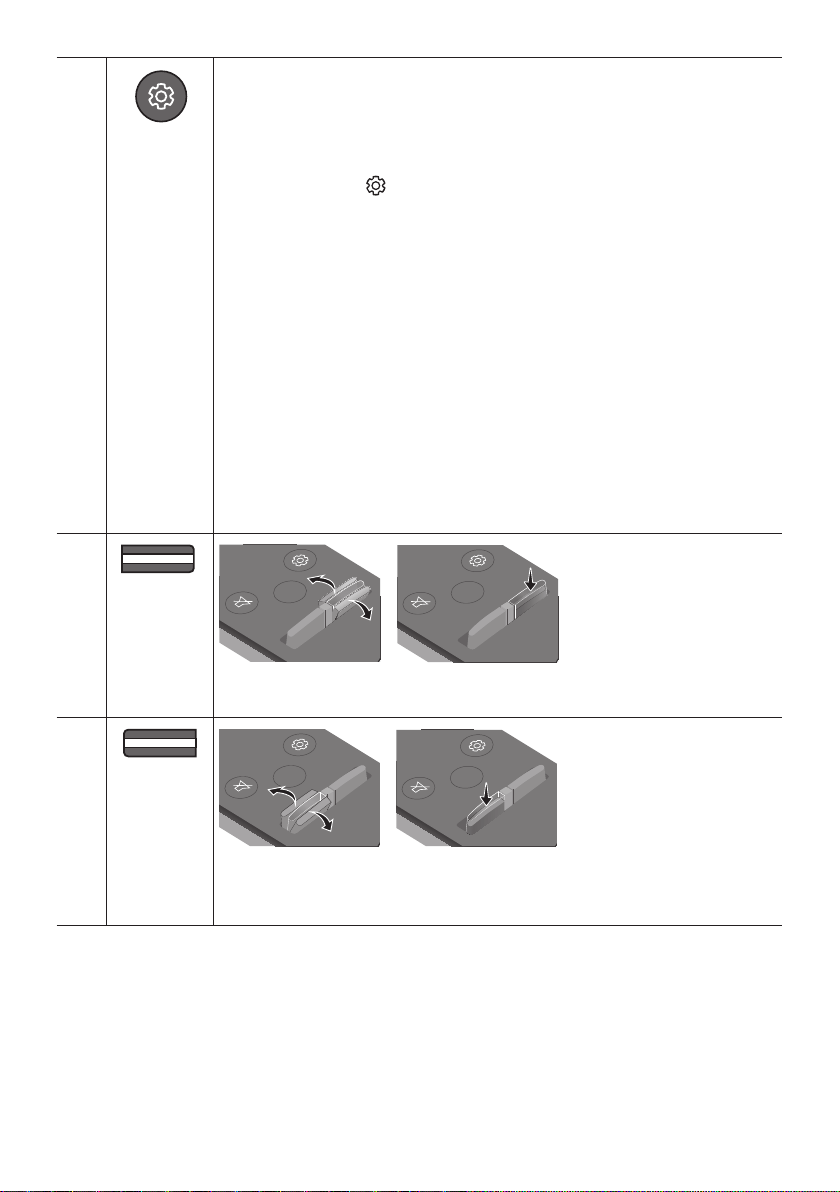
WOOFER
(BASS) LEVEL
SOUND
MODE
VOL
WOOFER
SOUNDBAR
SOUND
MODE
VOL
WOOFER
SOUNDBAR
SOUND
MODE
VOL
WOOFER
SOUNDBAR
SOUND
MODE
VOL
WOOFER
SOUNDBAR
Push the button up or down to adjust the level of the woofer (bass) to -12 or between -6
to +6. To set the woofer (bass) volume level to 0 (Default), press the button.
VOL WOOFER
SOUND
MODE
PAIR
VOLUME
SOUND
MODE
VOL
WOOFER
SOUNDBAR
SOUND
MODE
VOL
WOOFER
SOUNDBAR
SOUND
MODE
VOL
WOOFER
SOUNDBAR
SOUND
MODE
VOL
WOOFER
SOUNDBAR
Push the button up or down to adjust the volume.
• Mute
Press the VOL button to mute the sound. Press it again to unmute the sound.
ENG - 12
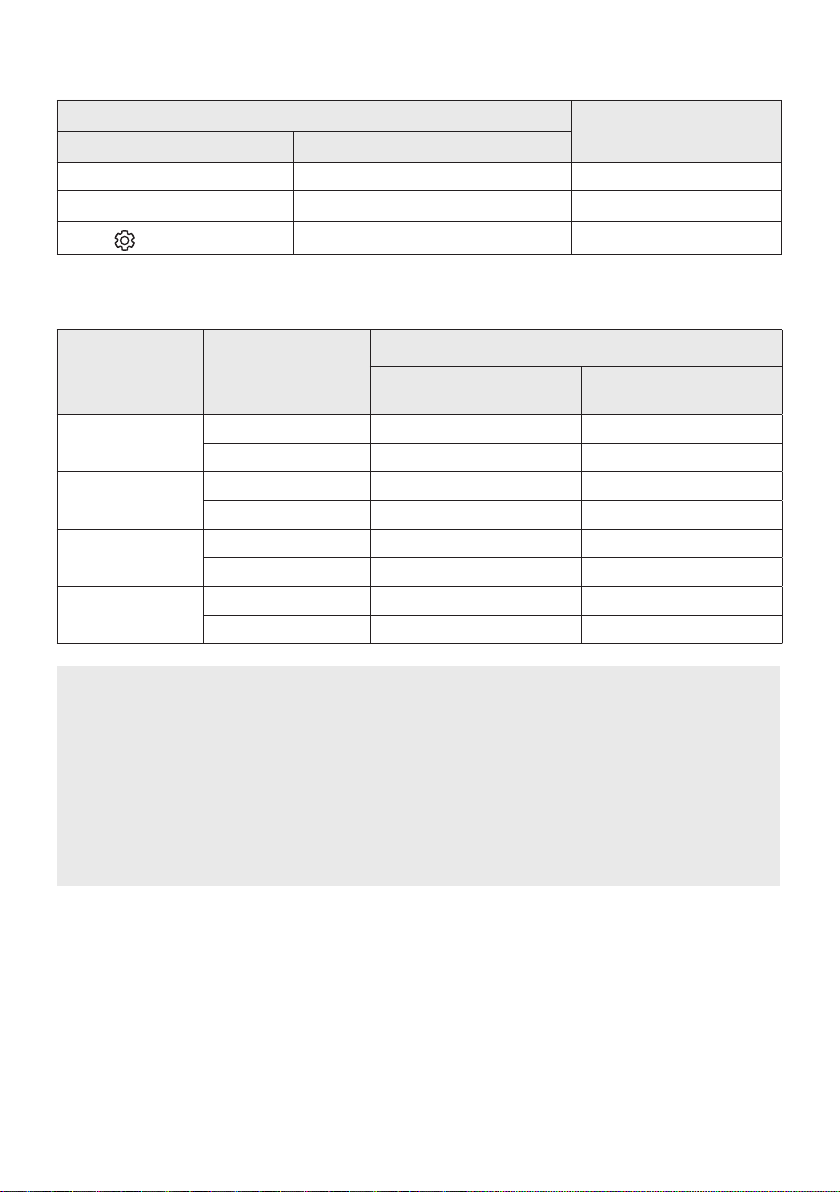
Using the Hidden Buttons (Buttons with more than one function)
Hidden Button
Reference page
Remote Control Button Function
WOOFER (Up) TV remote control On/Off (Standby) page 13
Up ID SET page 16
(Sound Control)
7 Band EQ page 11
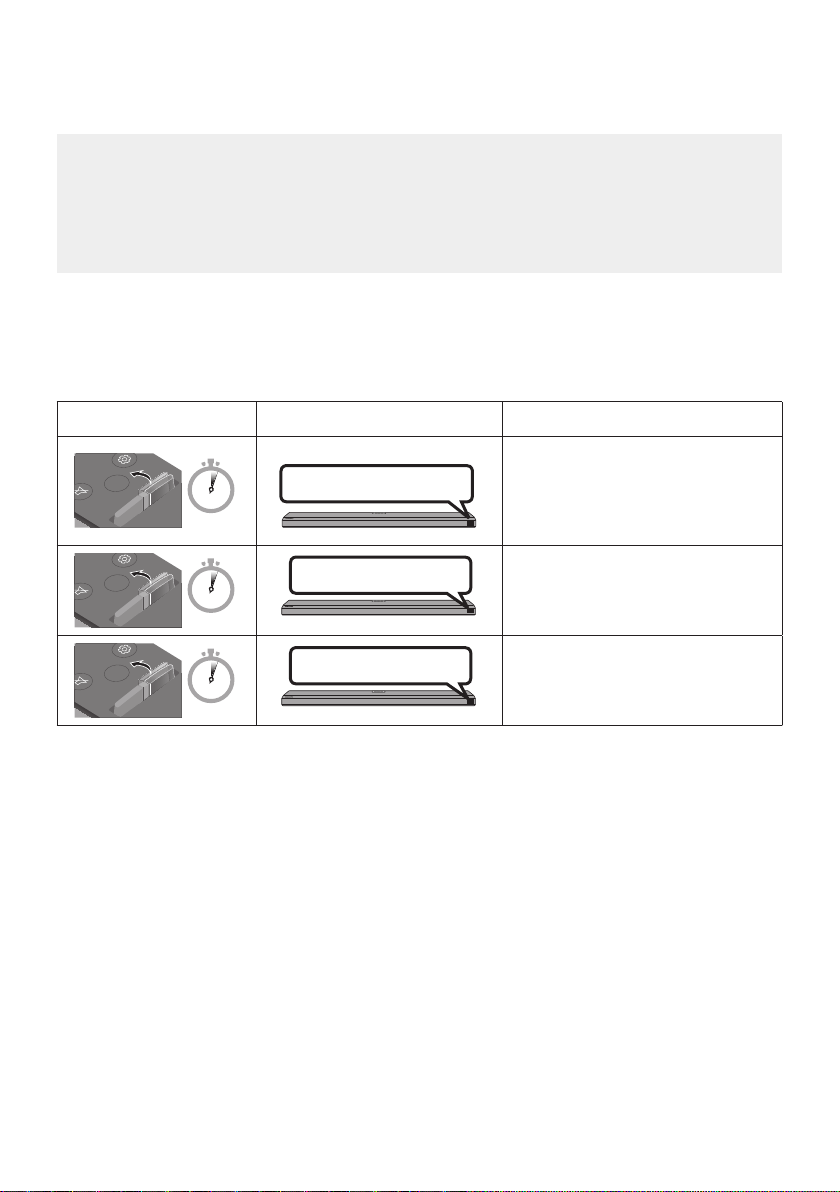
Outputspecicationsforthedifferentsoundeffectmodes
Effect Input
Output
With Subwoofer Only
With Subwoofer & Wireless
Rear Speaker Kit
STANDARD
2.0 ch 2.1 ch 2.1 ch
5.1 ch 3.1 ch 5.1 ch
SURROUND
2.0 ch 3.1.2 ch 5.1.2 ch
5.1 ch 3.1.2 ch 5.1.2 ch
GAME PRO
2.0 ch 3.1.2 ch 5.1.2 ch
5.1 ch 3.1.2 ch 5.1.2 ch
ADAPTIVE SOUND
2.0 ch 3.1.2 ch 5.1.2 ch
5.1 ch 3.1.2 ch 5.1.2 ch
• For input sources Dolby Atmos and DTS:X, the effect modes that can be selected using the
SOUND MODE button will not be available. (See above for the effect modes.)
• When the input source is Dolby Atmos®, the Subwoofer-only setup provides 3.1.2 channel audio,
while the Subwoofer & Wireless Rear Speaker Kit setup provides 5.1.2 channel audio.
• The Samsung Wireless Rear Speaker Kit can be purchased separately. To purchase a Kit or the
Subwoofer, contact the vendor you purchased the Soundbar from.
• The Surround Speakers will not produce sounds for 2 channel output while STANDARD mode is
in use. To enable sound for the Surround Speakers, change the effect mode to SURROUND.
ENG - 13
Adjusting the Soundbar volume with a TV remote control
Adjust the Soundbar volume using the TV’s remote control.
• This function can be used with IR remote controls only. Bluetooth remote controls (remote
controls that require pairing) are not supported.
• Set the TV speaker to External Speaker to use this function.
• Manufacturers supporting this function:
VIZIO, LG, Sony, Sharp, PHILIPS, PANASONIC, TOSHIBA, Hisense, RCA
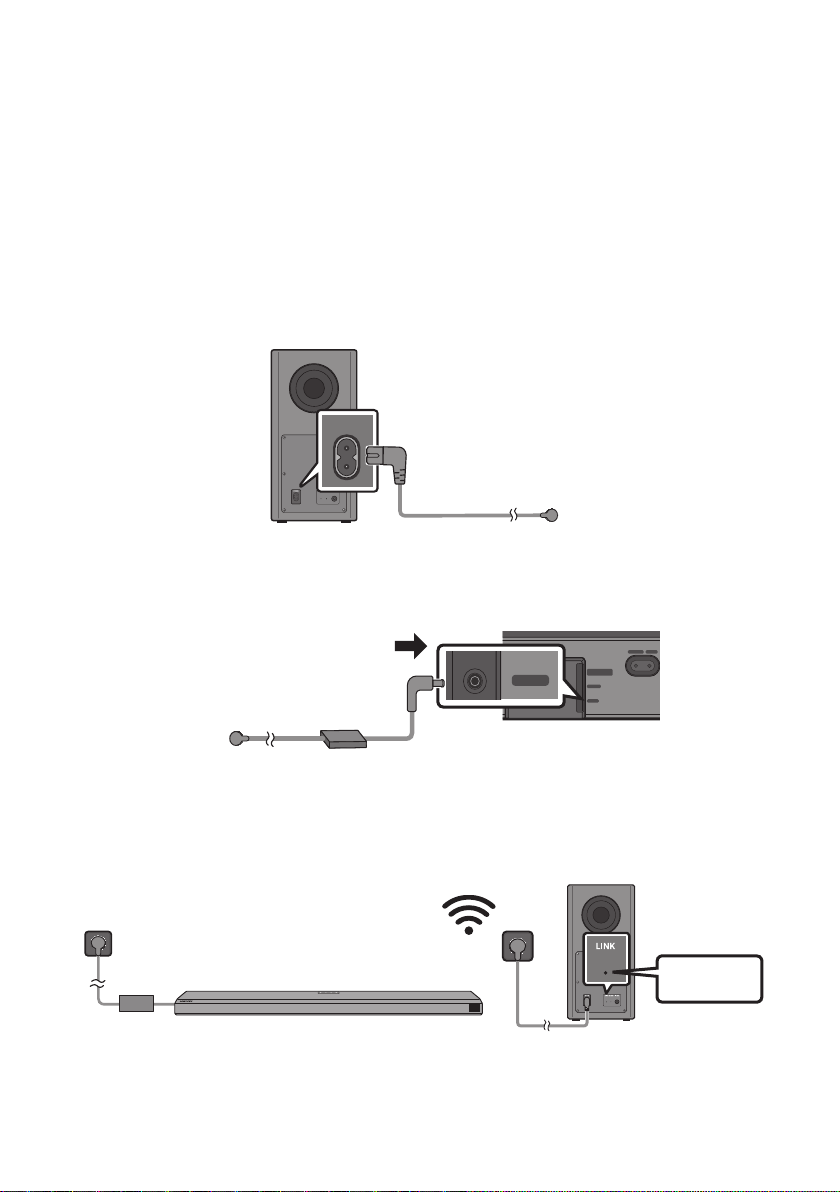
1. Turn Off the Soundbar.
2. Push up and hold the WOOFER button for 5 seconds.
Each time you push the WOOFER button up and hold it for 5 seconds, the mode switches in the
following order: “SAMSUNG-TV REMOTE” (Default mode), “OFF-TV REMOTE”, “ALL-TV REMOTE”.
Remote Control Button Display Status
SOUND
MODE
VOL
WOOFER
SOUNDBAR
5 Sec
(Default mode)
SAMSUNG-TV REMOTE
Enable a Samsung TV’s IR remote
control.
SOUND
MODE
VOL
WOOFER
SOUNDBAR
5 Sec
OFF-TV REMOTE
Disable the TV remote control.
SOUND
MODE
VOL
WOOFER
SOUNDBAR
5 Sec
ALL-TV REMOTE
Enable a third-party TV’s IR remote
control.
ENG - 14
04 CONNECTING THE SOUNDBAR
Connecting the power and units
Use the power components to connect the Subwoofer and Soundbar to an electrical outlet in the following
order:
• For more information about the required electrical power and power consumption, refer to the
label attached to the product. (Label: Bottom of the Soundbar Main Unit)
1. Connect the Power cord to the Subwoofer.
POWER
Rear of Subwoofer
Power Cord
2. First connect the power cable to the AC/DC adapter.
Connect the AC/DC adapter (with the power cable) to the Soundbar.
DIGITAL AUDIO IN
(OPTICAL)
SERVICE
DC 19V
HDMI
NETWORK ID SET
DIGITAL AUDIO IN
(OPTICAL)
SERVICE
NETWORK ID SET
HDMI TO TV
(eARC/ARC)
HDMI IN
HDMI OUT
(TV-ARC)
DIGITAL AUDIO IN
(OPTICAL)
SERVICE
DC 19V
DIGITAL AUDIO IN
(OPTICAL)
SERVICE
DC 19V
HDMI
HDMI TO TV
(eARC/ARC)
DIGITAL AUDIO IN
(OPTICAL)
SERVICE
DC 19V
HDMI
NETWORK ID SET
DIGITAL AUDIO IN
(OPTICAL)
SERVICE
NETWORK ID SET
HDMI TO TV
(eARC/ARC)
HDMI IN
HDMI OUT
(TV-ARC)
DIGITAL AUDIO IN
(OPTICAL)
SERVICE
DC 19V
DIGITAL AUDIO IN
(OPTICAL)
SERVICE
DC 19V
HDMI
HDMI TO TV
(eARC/ARC)
Bottom of the Soundbar
Main Unit
DC 19V
AC/DC Adapter
Power Cord
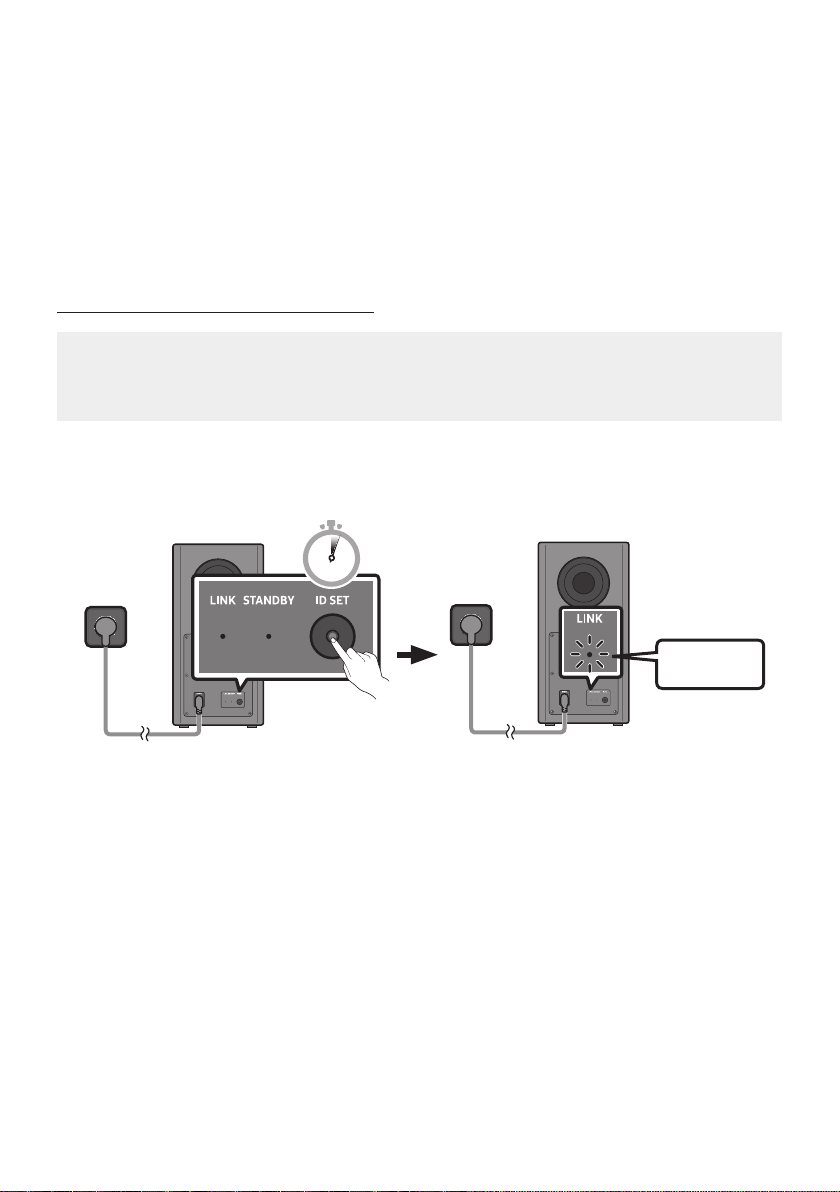
3. Connect power to the Soundbar and Subwoofer. The Subwoofer is automatically connected when
the Soundbar is turned on.
Blue is On
ENG - 15
NOTES
• Connect the Subwoofer power before connecting to the Soundbar.
The Subwoofer will be automatically connected when turning on the Soundbar.
• If you unplug and reconnect the power cord when the product is turned on, the Soundbar turns on
automatically.
• Make sure to rest the AC/DC Adapter at on a table or the oor. If you place the AC/DC Adapter so
that it is hanging with the AC cord input facing upwards, water or other foreign substances could
enter the Adapter and cause the Adapter to malfunction.
Manually connecting the Subwoofer
Before performing the manual connection procedure below:
• Check whether the power cables for the Soundbar and subwoofer are connected properly.
• Make sure that the Soundbar is turned off.
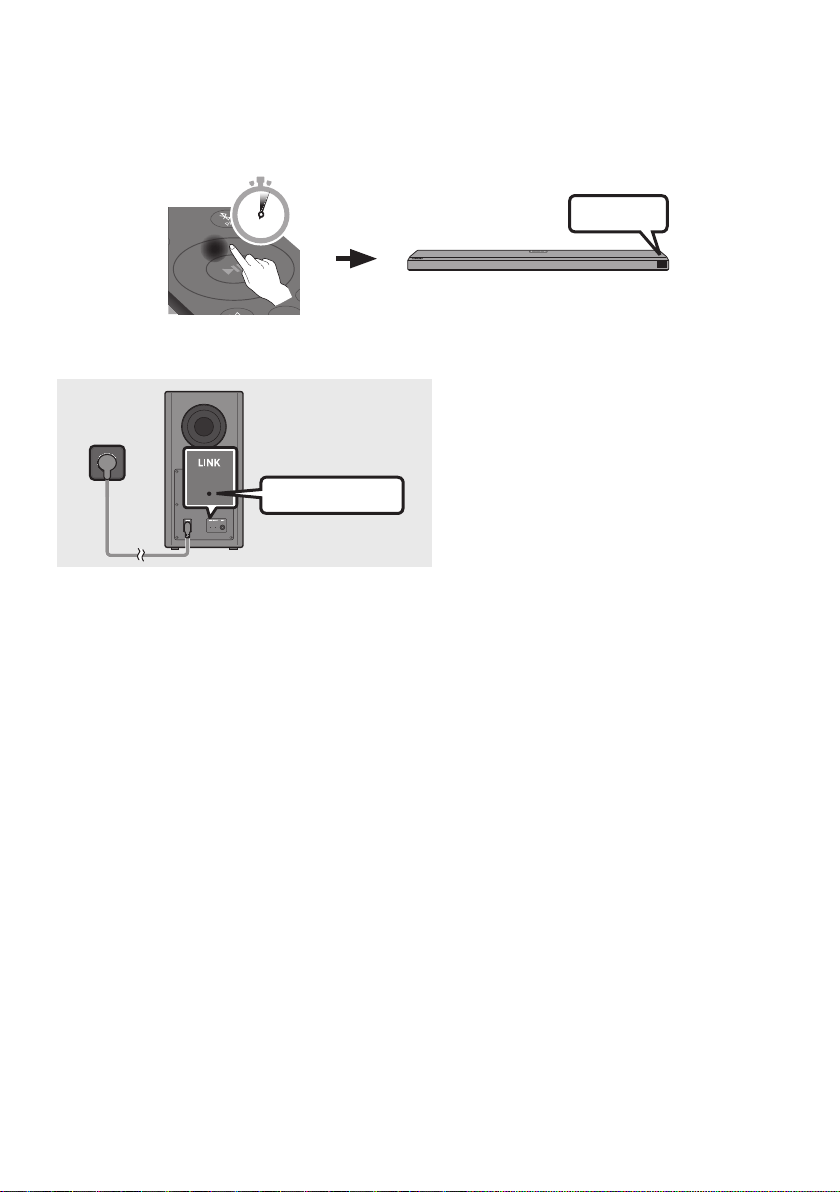
1. Turn off the Soundbar main.
2. Press and hold ID SET on the rear of the subwoofer for at least 5 seconds.
• The red indicator on the rear of the subwoofer turns off and the blue indicator blinks.
5 Sec
Rear of Subwoofer Rear of Subwoofer
Blinking blue
fast
ENG - 16
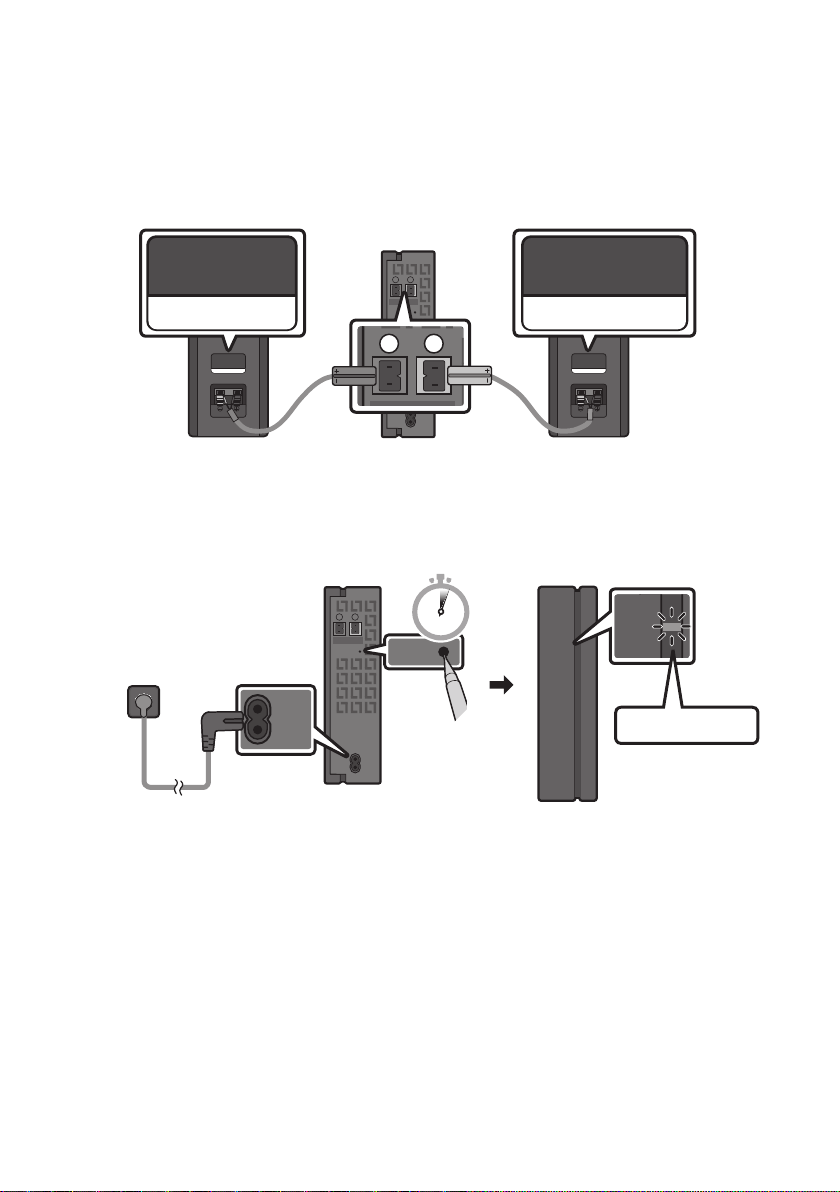
3. Press the Up button on the remote control for 5 seconds.
• The ID SET message appears on the display of the Soundbar for a moment, and then it
disappears.
• The Soundbar will automatically power on when ID SET is complete.
ID SET
SOUND
MODE
PAIR
5 Sec
4. Check if the LINK LED is solid blue (connection complete).
Blue is On
The LINK LED indicator stops blinking and
glows a solid blue when a connection is
established between the Soundbar and the
Wireless Subwoofer.

ENG - 17
LED Indicator Lights on the Rear of Subwoofer
LED Status Description Resolution
Blue
On
Successfully connected
(normal operation)
-
Blinking
Recovering the
connection
Check if the power cable attached
to the main Soundbar unit is
connected properly or wait about
5 minutes. If blinking persists, try
manually connecting the
subwoofer. See page 15.
Red
On
Standby (with the
Soundbar main unit
turned off)
Check if the power cable attached
to the main Soundbar unit is
connected properly.
Connection failed
Connect again. See the
instructions for manual
connection on page 15.
Red and blue
Blinking Malfunction
See the contact information for
the Samsung Service Center in
this manual.
NOTES
• If the main unit is powered off, the wireless subwoofer will go into stand-by mode and the
STANDBY LED on the rear of the sub-woofer will turn red after blinking in blue several times.
• If you use a device that uses the same frequency (5.8GHz) as the Soundbar near the Soundbar,
interference may cause some sound interruption.
• The maximum transmission distance of the main unit’s wireless signal is about 10 m, but may vary
depending on your operating environment. If a steel-concrete or metallic wall is between the main
unit and the wireless subwoofer, the system may not operate at all because the wireless signal
cannot penetrate metal.
CAUTION
• Wireless receiving antennas are built into the wireless subwoofer. Keep the unit away from water
and moisture.
• For optimal listening performance, make sure that the area around the wireless subwoofer and the
Wireless Receiver Module (sold separately) is clear of any obstructions.
ENG - 18
Connecting an SWA-9000S (Sold Separately) to your Soundbar
Expand to true wireless surround sound by connecting the Samsung Wireless Rear Speaker Kit
(SWA-9000S, sold separately) to your Soundbar.
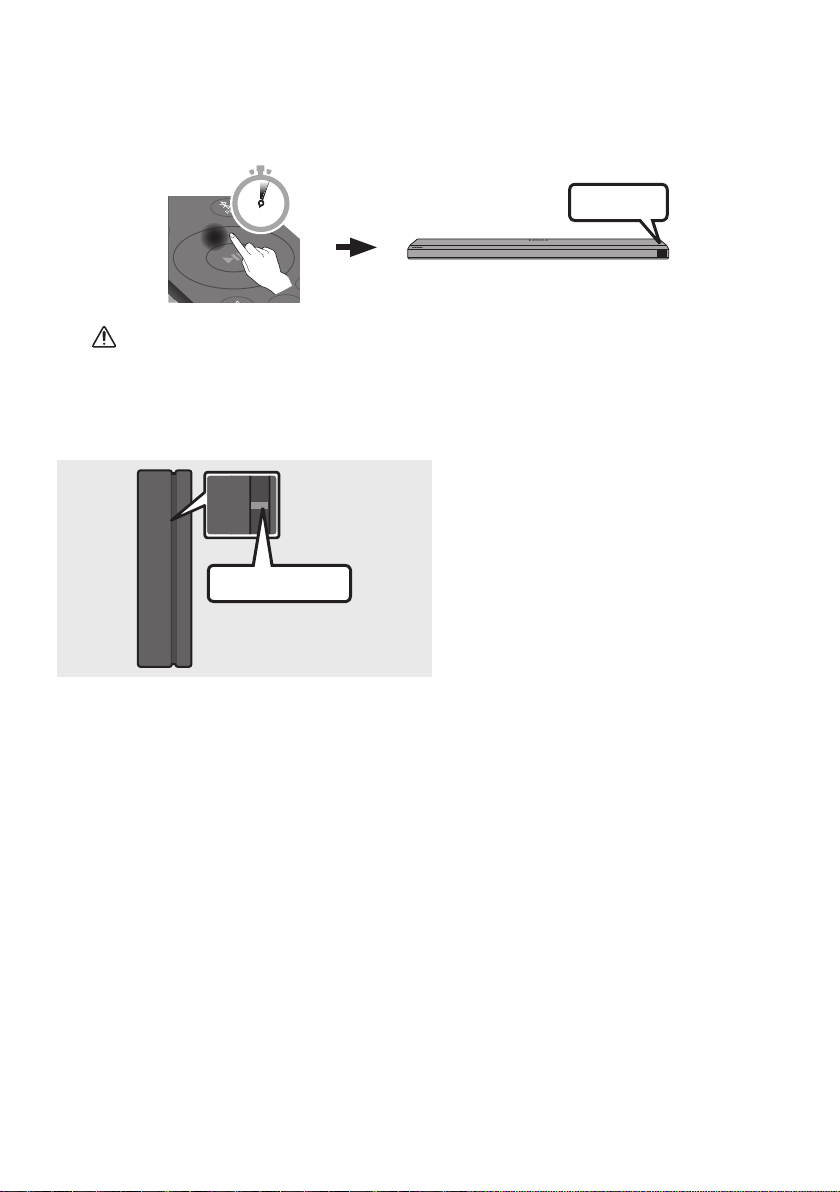
1. Connect the Wireless Receiver Module to 2 Surround Speakers.
– The speaker cables are color coded.
SURROUND-LEFT
ID SET
L
R
SURROUND SPEAKERS OUT
SPEAKER IMPEDANCE : 3Ω
POWER
ID SET
L
R
SURROUND SPEAKERS OUT
SPEAKER IMPEDANCE : 3Ω
SURROUND-RIGHT
SURROUND-LEFT SURROUND-RIGHT
2. Check the standby status of the Wireless Receiver Module after plugging it into an electrical outlet.
• The LINK LED indicator (blue) on the Wireless Receiver Module should be blinking. If the
indicator does not blink, use a narrow pin to press and hold the ID SET button for 5 seconds or
longer. See the SWA-9000S user guide for more details.
ID SET
L
R
SURROUND SPEAKERS OUT
SPEAKER IMPEDANCE : 3Ω
POWER
POWER
ID SET
SURROUND SPEAKERS OUT
SPEAKER IMPEDANCE : 3Ω
STANDBY
LINK
STANDBY
LINK
Blue blinking
5 Sec
ENG - 19
3. Press the Up button on the remote control for 5 seconds.
• The ID SET message appears on the display of the Soundbar for a moment, and then it
disappears.
• The Soundbar will automatically power on when ID SET is complete.
ID SET
SOUND
MODE
PAIR
5 Sec
CAUTION
• If your Soundbar was playing music when it connects to the SWA-9000S, you may hear some
stuttering from the woofer as the connection nalizes.
4. Check if the LINK LED is solid blue (connection complete).
STANDBY
LINK
STANDBY
LINK
Blue is On
The LINK LED indicator stops blinking and
glows a solid blue when a connection is
established between the Soundbar and the
Wireless Receiver Module.
5. If the SWA-9000S is not connected, repeat the procedure from Step 2.
ENG - 20
05 USING A WIRED CONNECTION TO THE TV
Method 1. Connecting with HDMI
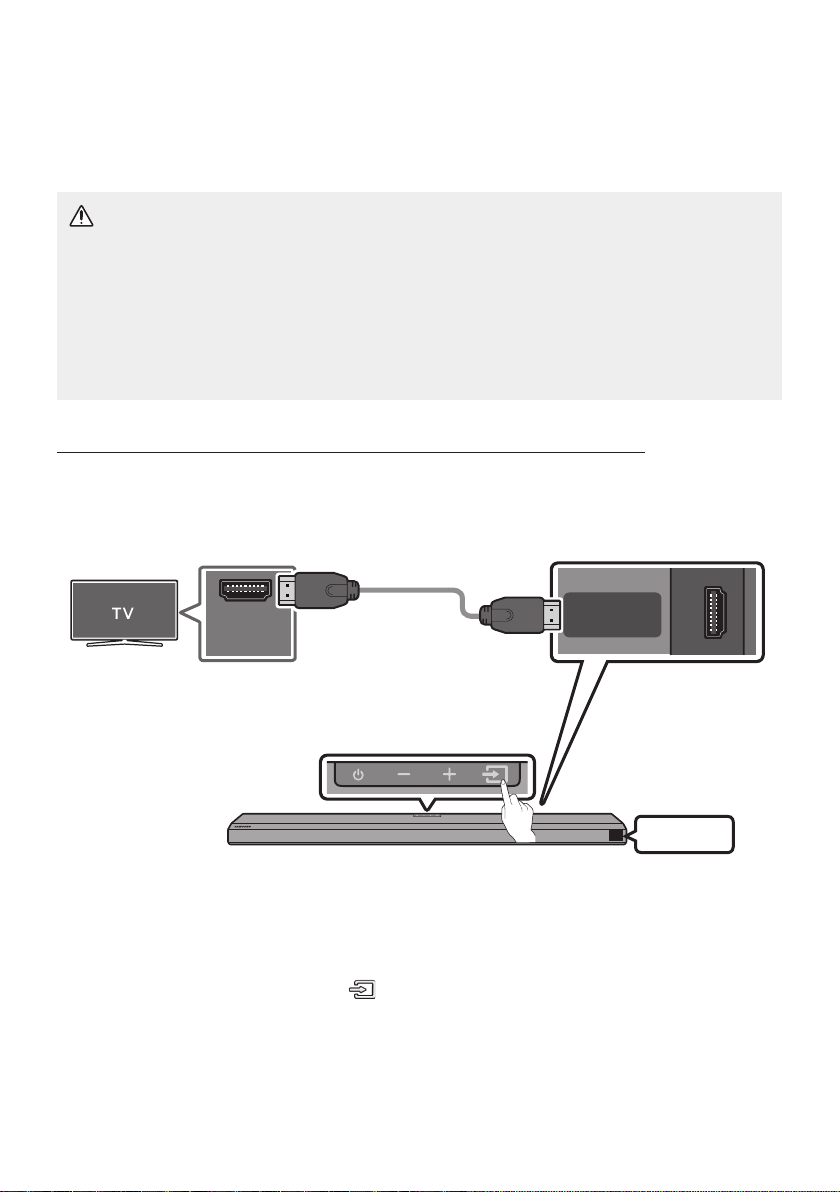
CAUTION
• When both the HDMI cable and optical cable are connected, the HDMI signal is received rst.
• To connect the HDMI cable between the TV and Soundbar, be sure to connect the terminals
marked ARC. Otherwise, the TV sound may not be output.
• Be sure to use the cable with the premium HDMI certication logo. In addition, make sure that
the cable is a certied Type A, high-speed HDMI Ethernet cable. (HIGH SPEED HDMI CABLE
WITH ETHERNET)
Connecting the TV that supports HDMI ARC (Audio Return Channel)
HDMI IN
(ARC)
HDMI TO TV
(eARC/ARC)
SERVICE
DC 19V
Connect to the HDMI IN
(ARC) port of your TV.
HDMI Cable
Bottom of the Soundbar
Connect to the HDMI TO TV
(eARC/ARC) port of the Soundbar
main unit.
Top of the Soundbar
TV ARC
1. With the Soundbar and TV turned off, connect the HDMI cable as shown in the gure.
2. Turn on the Soundbar and TV.
3. “TV ARC” appears in the display window of the Soundbar main unit and the Soundbar plays TV
sound.
• If TV sound is inaudible, press the (Source) button on the remote control or on the top of
the Soundbar to switch to “D.IN” mode. The screen displays “D.IN” and “TV ARC” in sequence,
and TV sound is played.
ENG - 21
• When connecting a Samsung TV that supports the eARC function, “eARC” appears on the
display and the sound is heard.
• If “TV ARC” does not appear in the display window of the Soundbar main unit, conrm that the
HDMI cable is connected to the correct port.
• Use the volume buttons on the TV’s remote control to change the volume on the Soundbar.
NOTES
• When you connect the TV that supports the HDMI ARC (Audio Return Channel) to the Soundbar
with an HDMI cable, you can transmit the digital video and audio data without connecting a
separate optical cable.
• We recommend you use a coreless HDMI cable if possible. If you use a cored HDMI cable, use one
whose diameter is less than 14 mm.
• This function is not available if the HDMI cable does not support ARC.
• When the audio in a broadcast is encoded in Dolby Digital and the “Digital Output Audio Format” on
your TV is set to PCM, we recommend that you change the setting to Dolby Digital. When the
setting on the TV is changed, you will experience better sound quality. (The TV menu may use
different words for Dolby Digital and PCM depending on the TV manufacturer.)
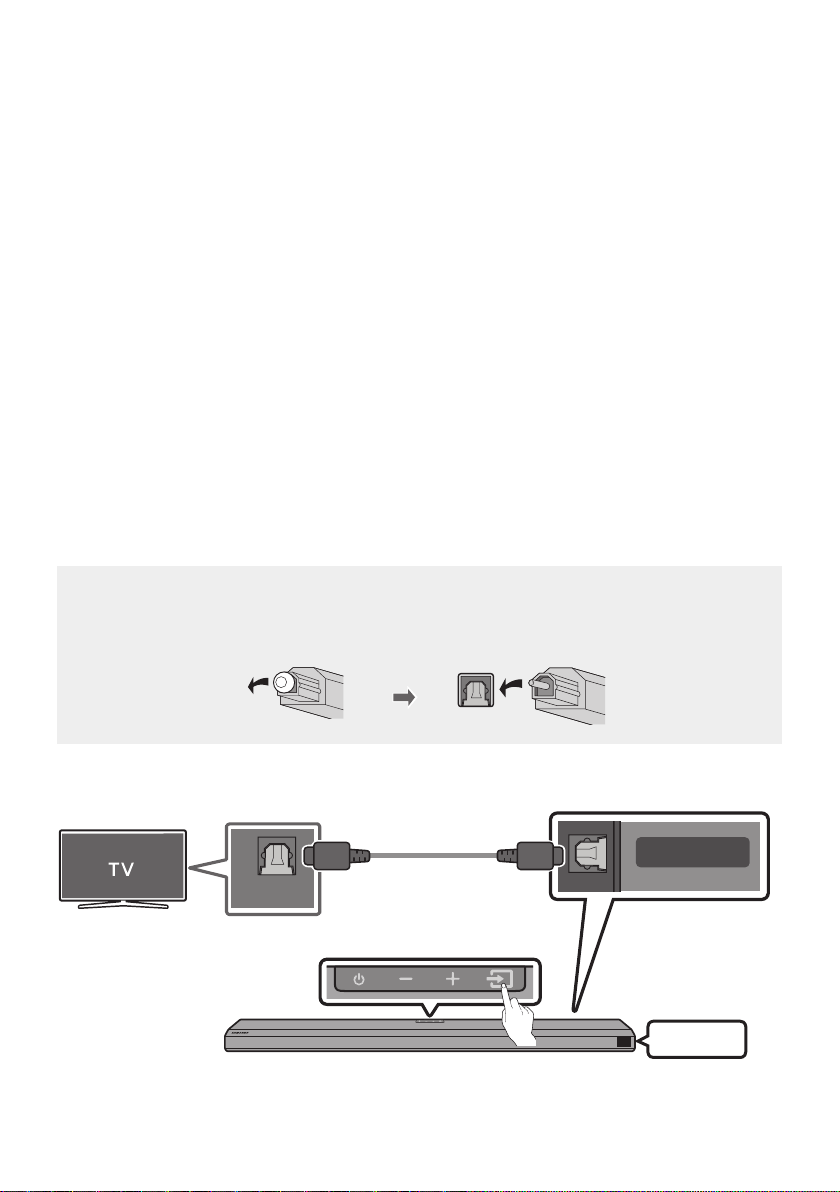
Method 2. Connecting using an Optical Cable
Pre-connection Checklist
• When both the HDMI cable and optical cable are connected, the HDMI signal is received rst.
• When you use an optical cable and the terminals have covers, be sure to remove the covers.
Bottom of the Soundbar
DIGITAL AUDIO IN
(OPTICAL)
SERVICE
DC 19V
OPTICAL OUT
D.IN
Optical Cable
(not supplied)
Top of the Soundbar
ENG - 22
1. With the TV and Soundbar turned off, connect the DIGITAL AUDIO IN (OPTICAL) port on the
Soundbar and the OPTICAL output port on the TV with the optical cable (not supplied), as shown in
the gure.
2. Turn on the Soundbar and TV.
3. Press the (Source) button on the top panel or remote control, and then select the “D.IN” mode.
4. The TV sound is output from the Soundbar.
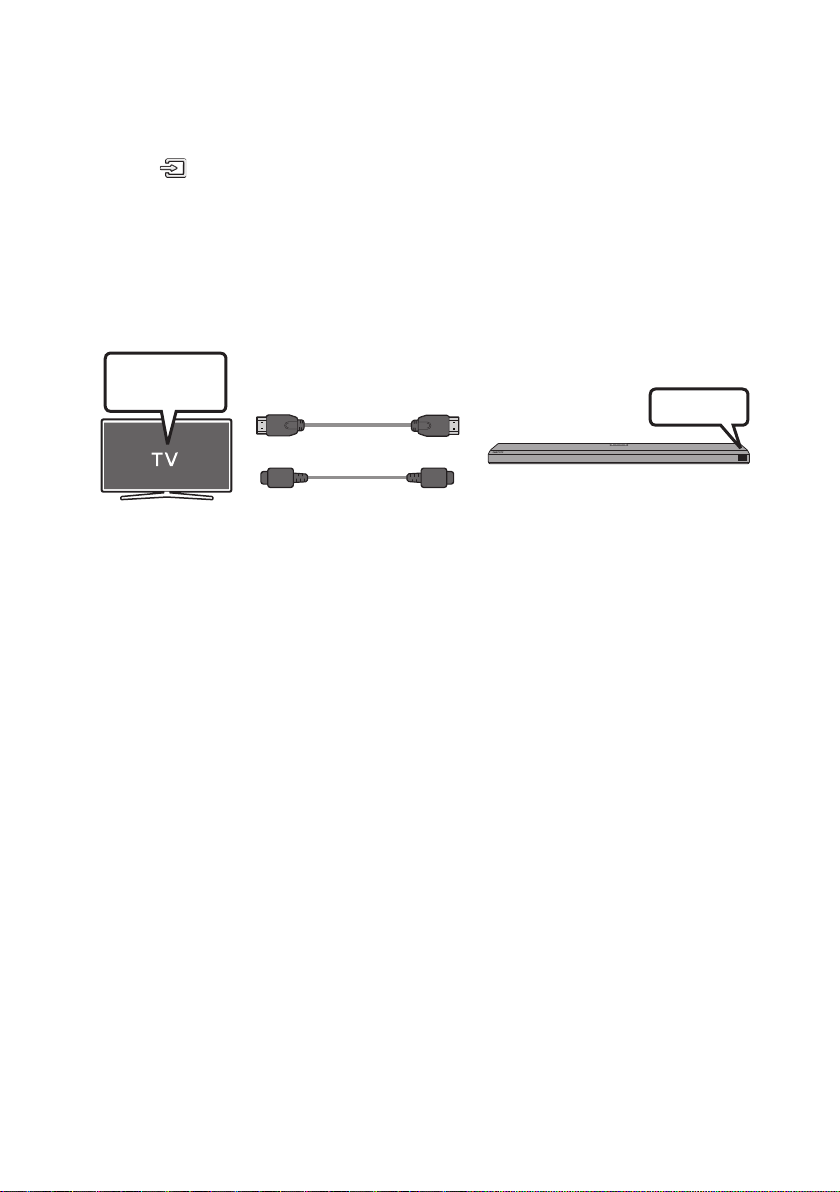
Using the Q-Symphony Function
For Q-Symphony, the Soundbar syncs with a Samsung TV to output sound through two devices for
optimum surround effect. When the Soundbar is connected, the menu, “TV+Soundbar” appears under
the Sound Output menu of the TV. Select the corresponding menu.
D.IN
TV menu
Or
Optical Cable (not supplied)
HDMI Cable
• TV menu example: TV series name + [AV] Soundbar series name (HDMI)
NOTES
• It can operate according to the Codec supported by TV.
• This function is supported only when the HDMI Cable or Optical Cable (not supplied) is connected.
• This function is available in Samsung TVs released in 2020 and some Soundbar models.
ENG - 23
06 USING A WIRELESS CONNECTION TO THE TV
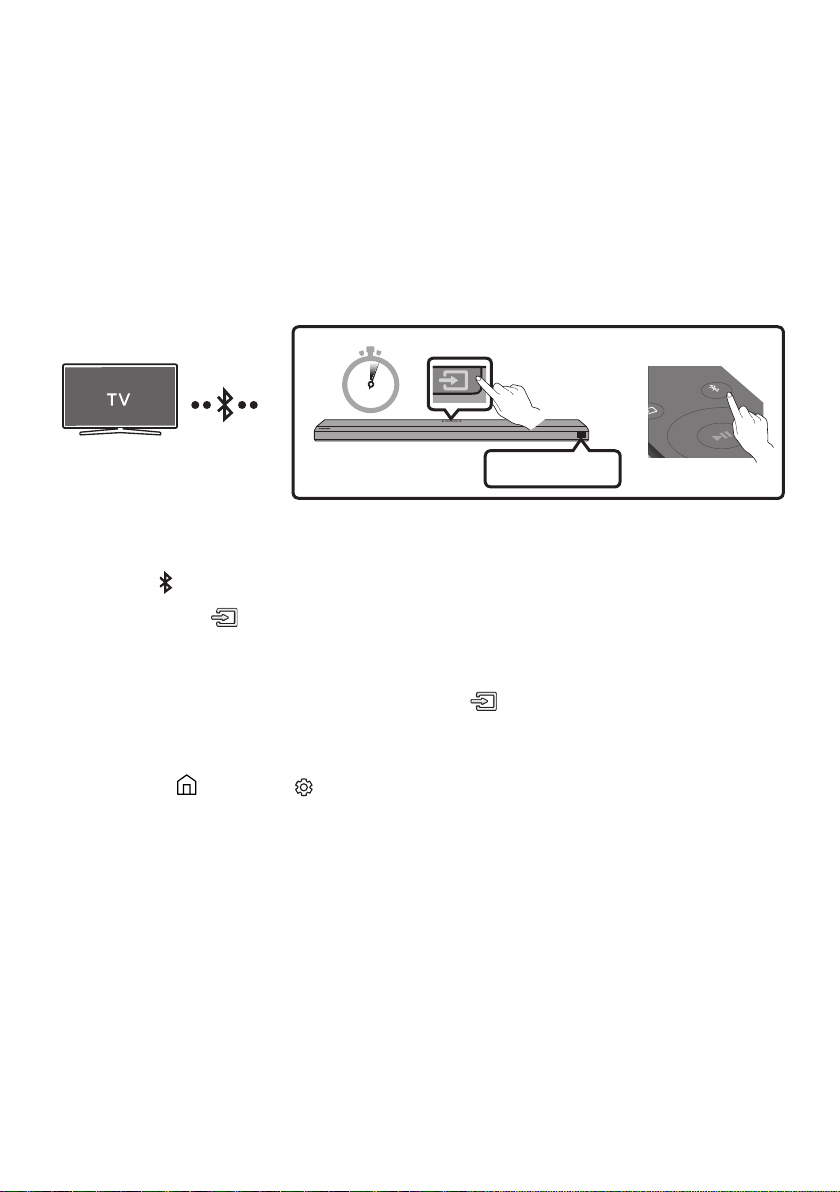
Connecting via Bluetooth
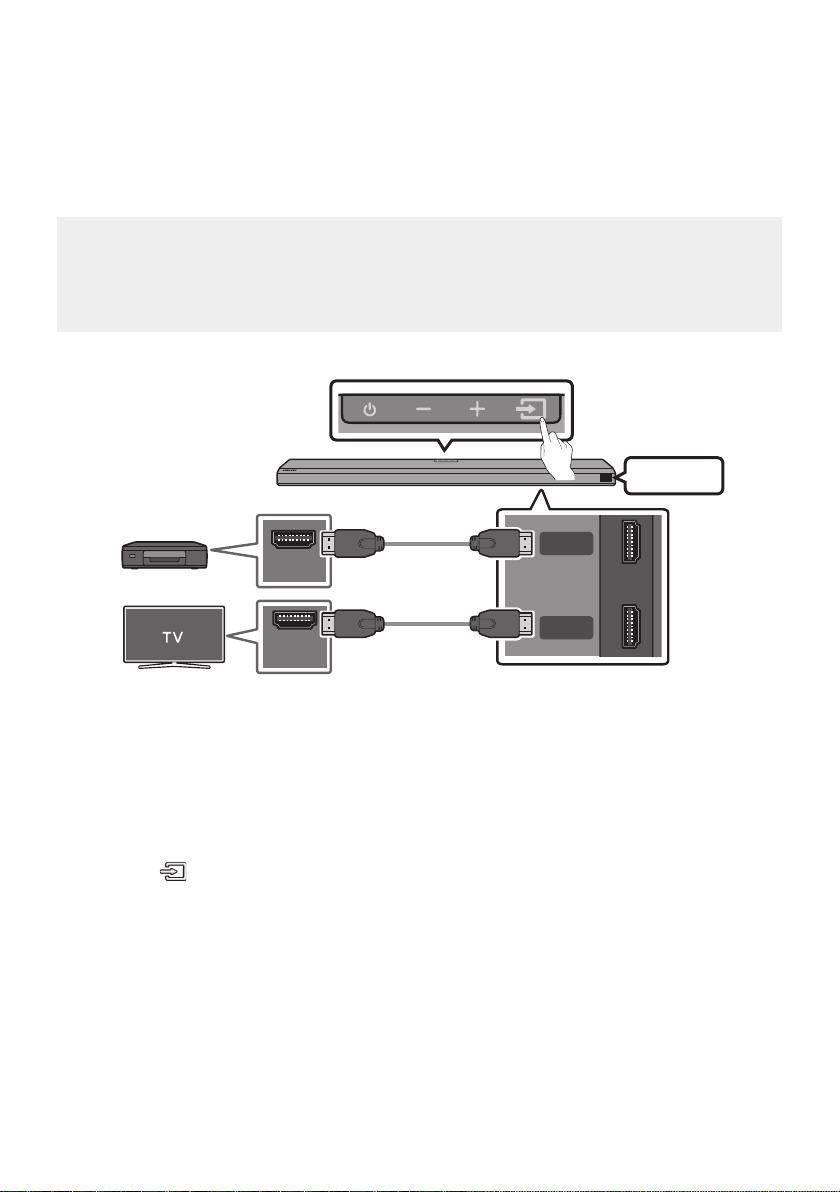
When a Samsung TV is connected using Bluetooth, you can hear stereo sound without the hassle of
cabling.
• Only one Samsung TV can be connected at a time.
• Samsung TV that supports Bluetooth can be connected. Check the specications of your TV.
OR
Top of the Soundbar
BT PAIRING
SOUND
MODE
PAIR
5 Sec
The initial connection
1. Press the PAIR button on the Soundbar remote control to enter the “BT PAIRING” mode.
(OR)
a. Press the (Source) button on the top panel and then select “BT”.
“BT” changes to “BT PAIRING” in a few seconds automatically or changes to “BT READY” if
there is a connect record.
b. When “BT READY” appears, press and hold the (Source) button on the top panel of the
Soundbar for more than 5 seconds to display “BT PAIRING”.
2. Select Bluetooth mode on the Samsung TV.
(e.g. Home ( ) Settings ( ) Sound Sound Output Bluetooth Speaker List
[AV] Samsung Soundbar Q70T (Bluetooth))
3. Select “[AV] Samsung Soundbar Q70T” from the list on TV’s screen.
An available Soundbar is indicated with “Need Pairing” or “Paired” on the TV’s Bluetooth device
list. To connect the Samsung TV to the Soundbar, select the message, and then establish a
connection.
• When the Samsung TV is connected, [TV Name] → “BT” appears on the Soundbar’s front display.
4. You can now hear Samsung TV sound from the Soundbar.
• After you have connected the Soundbar to your Samsung TV the rst time, use the “BT READY”
mode to reconnect.

ENG - 24
If the device fails to connect
• If you have an existing Soundbar (e.g., [AV] Samsung Soundbar Q70T) on the list of speakers on
the Samsung TV, delete it.
• Then repeat steps 1 through 3.
Disconnecting the Soundbar from the Samsung TV
Press the (Source)
button on the top panel or on the remote control and switch to any mode but “BT”.
• Disconnecting takes time because the Samsung TV must receive a response from the Soundbar.
(The time required may differ, depending on the Samsung TV model.)
What is the difference between BT READY and BT PAIRING?
• BT READY : In this mode, you can reconnect any Samsung TV or mobile device that was
connected before.
• BT PAIRING : In this mode, you can connect a new device to the Soundbar.
(Press the PAIR button on the Soundbar remote control or press and hold the (Source)
button on the top of the Soundbar for more than 5 seconds while the Soundbar is in “BT” mode.)
Notes on Bluetooth connection
• Locate a new device within 1 m to connect via Bluetooth communication.
• If asked for a PIN code when connecting a Bluetooth device, enter <0000>.
• The Soundbar automatically turns off after 18 minutes in the Ready state.
• The Soundbar may not perform Bluetooth search or connection correctly under the following
circumstances:
– If there is a strong electrical eld around the Soundbar.
– If several Bluetooth devices are simultaneously paired with the Soundbar.
– If the Bluetooth device is turned off, not in place, or malfunctions.
• Electronic devices may cause radio interference. Devices that generate electromagnetic waves
must be kept away from the Soundbar main unit - e.g., microwaves, wireless LAN devices, etc.
ENG - 25
07 CONNECTING AN EXTERNAL DEVICE
Method 1. Connecting using an HDMI Cable (Capable of Dolby
Atmos decoding and playback)
Pre-connection Checklist
• Dolby Atmos® and DTS:X are supported in HDMI mode only.
• If the Audio Output options include Secondary Audio, make sure Secondary Audio is set to Off.
• Make sure that the content supports Dolby Atmos®.
HDMI IN
(ARC)
HDMI
HDMI TO TV
(eARC/ARC)
DIGITAL AUDIO IN
(OPTICAL)
SERVICE
DC 19V
HDMI OUT
Top of the Soundbar
Bottom of the Soundbar
External Device
HDMI
HDMI Cable
HDMI Cable
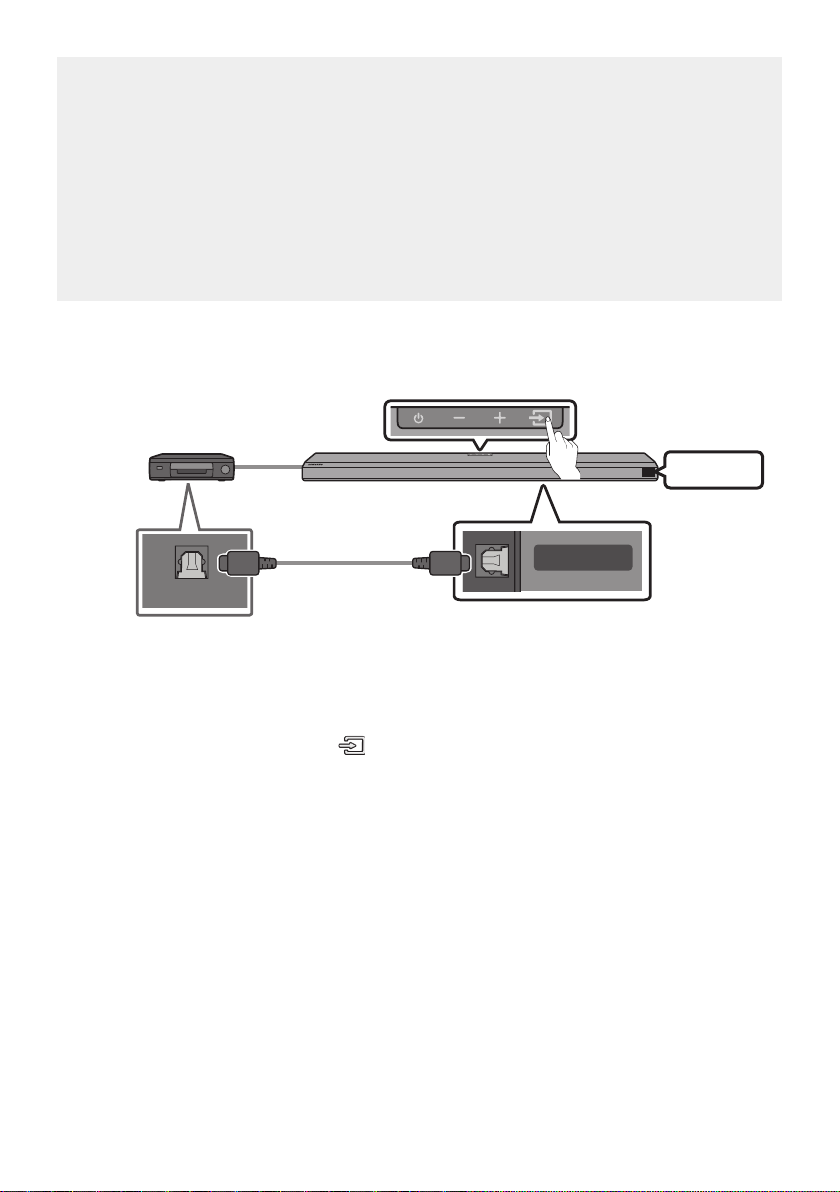
1. Use an HDMI cable to connect the HDMI OUT port on the external device and the HDMI port on the
bottom of the Soundbar.
2. Use an HDMI cable to connect the HDMI IN port of the TV and the HDMI TO TV (eARC/ARC) port on
the bottom of the Soundbar.
3. Turn on the Soundbar, TV, and the external device.
4. Press the (Source) button on the top panel or on the remote control, and then select “HDMI”.
5. The Soundbar display indicates that “HDMI” mode is currently selected and the Soundbar will start
playing sounds.
ENG - 26
NOTES
• When you use Dolby Atmos®: If the input source is Dolby Atmos®, 5.1.2 channels are outputted.
When Dolby Atmos® is active, the Soundbar’s sound effect modes controlled by the SOUND
MODE button are not available.
• When Dolby Atmos® is activated, “DOLBY ATMOS” appears in the front display.
• ConguringDolbyAtmos®onyourBDplayerorotherdevice.
Open the audio output options on the settings menu of your BD player or other device and make
sure that “No Encoding” is selected for Bitstream. For example, on a Samsung BD Player, go to
Home Menu → Sound → Digital Output and then select Bitstream (unprocessed).
Method 2. Connecting using an Optical Cable
OPTICAL OUT
DIGITAL AUDIO IN
(OPTICAL)
SERVICE
Bottom of the Soundbar
Optical Cable
(not supplied)
Top of the Soundbar
BD / DVD player / Set-top
box / Game console
D.IN
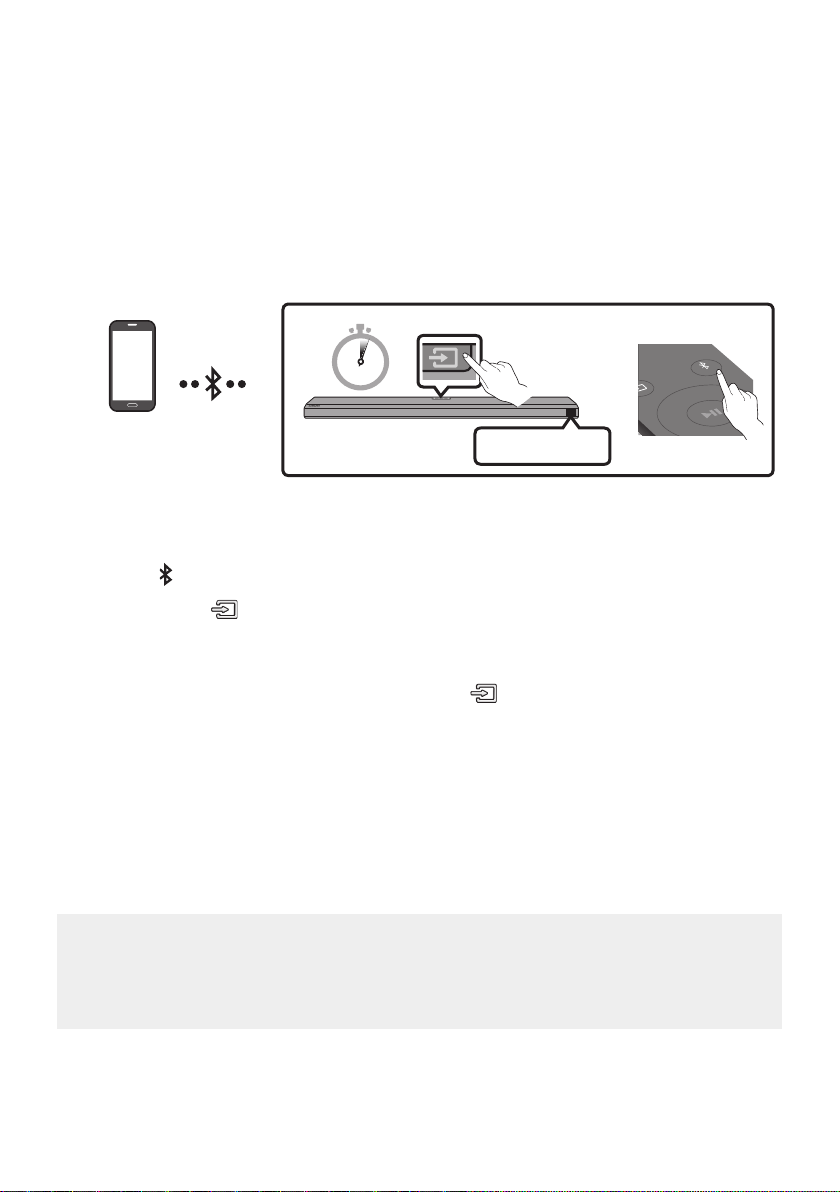
1. Use an optical cable (not supplied) to connect the DIGITAL AUDIO IN (OPTICAL) on the Soundbar
main and the OPTICAL OUT port on the external device.
2. Turn on the Soundbar and external device.
3. Select “D.IN” mode by pressing the (Source) button on the top panel or on the remote control.
4. Your Soundbar will play sounds from the external device.
ENG - 27
08 CONNECTING A MOBILE DEVICE
Method 1. Connecting via Bluetooth
When a mobile device is connected using Bluetooth, you can hear stereo sound without the hassle of
cabling.
• When you connect a paired Bluetooth device with the Soundbar off, the Soundbar automatically
turns on.
Mobile device
OR
Top of the Soundbar
BT PAIRING
SOUND
MODE
PAIR
5 Sec
The initial connection
• When connecting to a new Bluetooth device, make sure the device is within 1 m distance.
1. Press the PAIR button on the Soundbar remote control to enter the “BT PAIRING” mode.
(OR)
a. Press the (Source) button on the top panel and then select “BT”.
“BT” changes to “BT PAIRING” in a few seconds automatically or changes to “BT READY” if
there is a connect record.
b. When “BT READY” appears, press and hold the (Source) button on the top panel of the
Soundbar for more than 5 seconds to display “BT PAIRING”.
2. On your device, select “[AV] Samsung Soundbar Q70T” from the list that appears.
• When the Soundbar is connected to the Mobile device, [Mobile Device Name] → “BT” appears in
the front display.
3. Play music les from the device connected via Bluetooth through the Soundbar.
• After you have connected the Soundbar to your mobile device the rst time, use the “BT
READY” mode to reconnect.
If the device fails to connect
• If you have an existing Soundbar (e.g., “[AV] Samsung Soundbar Q70T”) in the list of speakers on
the Mobile device, delete it.
• Repeat steps 1 and 2.

ENG - 28
What is the difference between BT READY and BT PAIRING?
• BT READY : In this mode, you can reconnect any Samsung TV or mobile device that was
connected before.
• BT PAIRING : In this mode, you can connect a new device to the Soundbar.
(Press the PAIR button on the Soundbar remote control or press and hold the (Source)
button on the top of the Soundbar for more than 5 seconds while the Soundbar is in “BT” mode.)
Notes on Bluetooth connection
• Locate a new device within 1 m to connect via Bluetooth communication.
• If asked for a PIN code when connecting a Bluetooth device, enter <0000>.
• The Soundbar automatically turns off after 18 minutes in the Ready state.
• The Soundbar may not perform Bluetooth search or connection correctly under the following
circumstances:
– If there is a strong electrical eld around the Soundbar.
– If several Bluetooth devices are simultaneously paired with the Soundbar.
– If the Bluetooth device is turned off, not in place, or malfunctions.
• Electronic devices may cause radio interference. Devices that generate electromagnetic waves
must be kept away from the Soundbar main unit - e.g., microwaves, wireless LAN devices, etc.
• The Soundbar supports SBC data (44.1kHz, 48kHz).
• Connect only to a Bluetooth device that supports the A2DP (AV) function.
• You cannot connect the Soundbar to a Bluetooth device that supports only the HF (Hands Free)
function.
• When connecting the Soundbar to a Bluetooth device, place them as close to each other as possible.
• The farther the Soundbar and Bluetooth device are from each other, the lower the sound quality
will become.
The Bluetooth connection may break when the devices are out of the effective range.
• The Bluetooth connection may not function as intended in areas with poor reception.
• A Bluetooth device may experience noise or malfunction under in the following conditions:
– When the body is in contact with the signal transceiver on the Bluetooth device or Soundbar
– In corners or when there is an obstacle in proximity, such as a wall or partition, where electrical
changes may occur.
– When exposed to radio interferences by other products operating on the same frequency
ranges, such as medical equipment, microwave ovens, and wireless LAN devices.
– Obstacles such as doors and walls may still impact the sound quality even when the devices
are within the effective range.

ENG - 29
• If prompted for a PIN code while connecting to a Bluetooth device, enter <0000>.
• Note that your Soundbar cannot be paired with other Bluetooth devices while using the Bluetooth
option.
• This wireless device may cause electrical interference during operation.
Disconnecting the Bluetooth device from a Soundbar
You can disconnect a Bluetooth device from the Soundbar. For instructions, see the Bluetooth device’s
user manual.
• The Soundbar will be disconnected.
• When the Soundbar is disconnected from the Bluetooth device, the Soundbar will display
“BT DISCONNECTED” on the front display.
Disconnecting the Soundbar from the Bluetooth device
Press the (Source) button on the top panel or on the remote control, and then change to any mode
except “BT”.
• Disconnecting takes time because the Bluetooth device must receive a response from the
Soundbar. (Disconnection time may differ, depending on the Bluetooth device)
• When the Soundbar is disconnected from the Bluetooth device, the Soundbar will display
“BT DISCONNECTED” on the front display.
ENG - 30
Method 2. Connecting via Wi-Fi (Wireless Network)
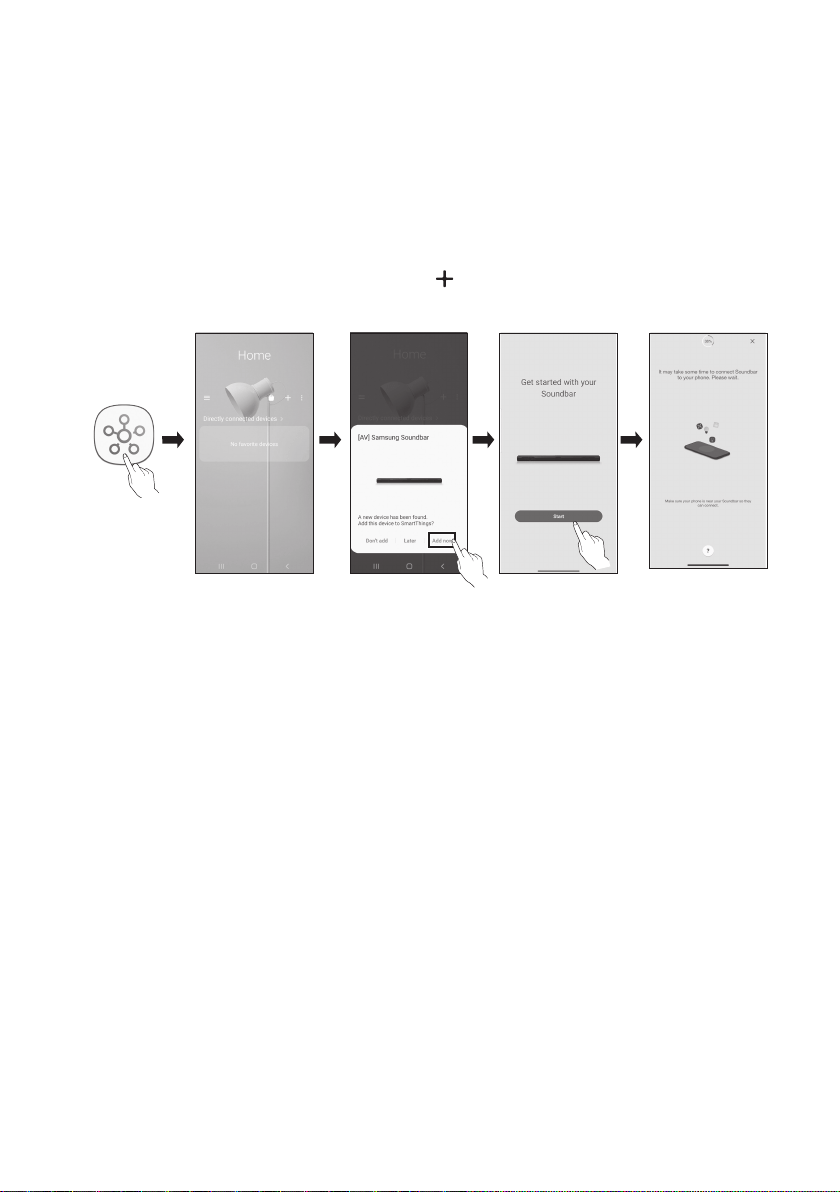
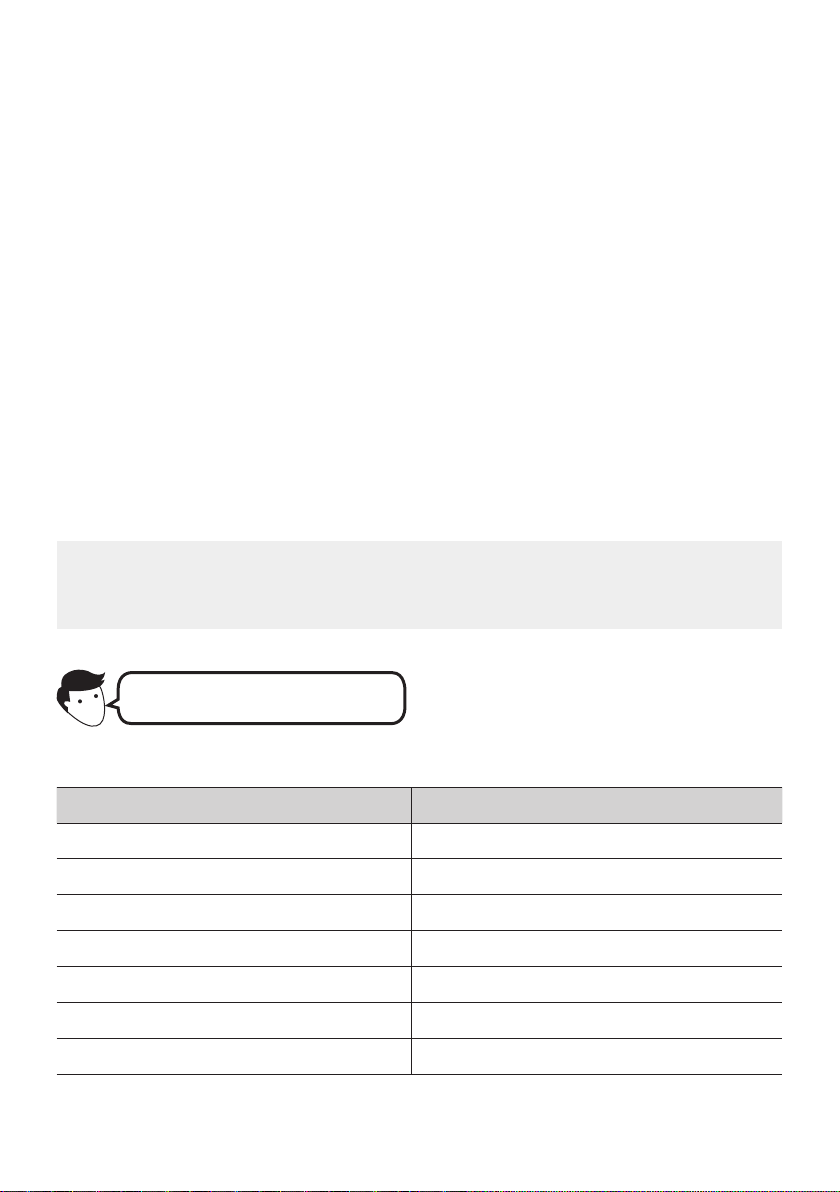
To connect a Soundbar to a mobile device via a wireless network (Wi-Fi), the SmartThings app is
required.
The initial connection
1. Install and launch the SmartThings app from your mobile device (smartphone or tablet).
2. On the app, follow the screen instructions to add the Soundbar.
• The automatic pop-up (the second screenshot below) may not show on some devices.
If the pop-up window does not appear, press “ ” on the Home screen. The Soundbar is added
to the app.
Launch App Add deviceAuto pop-up
SmartThings
App
ENG - 31
09 CONNECTING AN AMAZON PRODUCT
• This feature may not be available in some countries.
• This service is provided by Amazon and can be terminated at any time. Samsung does not assume
responsibility for service availability.
• Amazon Alexa
app screen is subject to change without prior notice.
Connect and use with an Amazon product (Amazon Echo)
Use an Amazon Echo product to control your Soundbar and enjoy music services provided by Amazon
Echo.
NOTE
• Conrm that the Soundbar is connected to Wi-Fi. (Refer to “Method 2. Connecting via Wi-Fi
(Wireless Network)”)
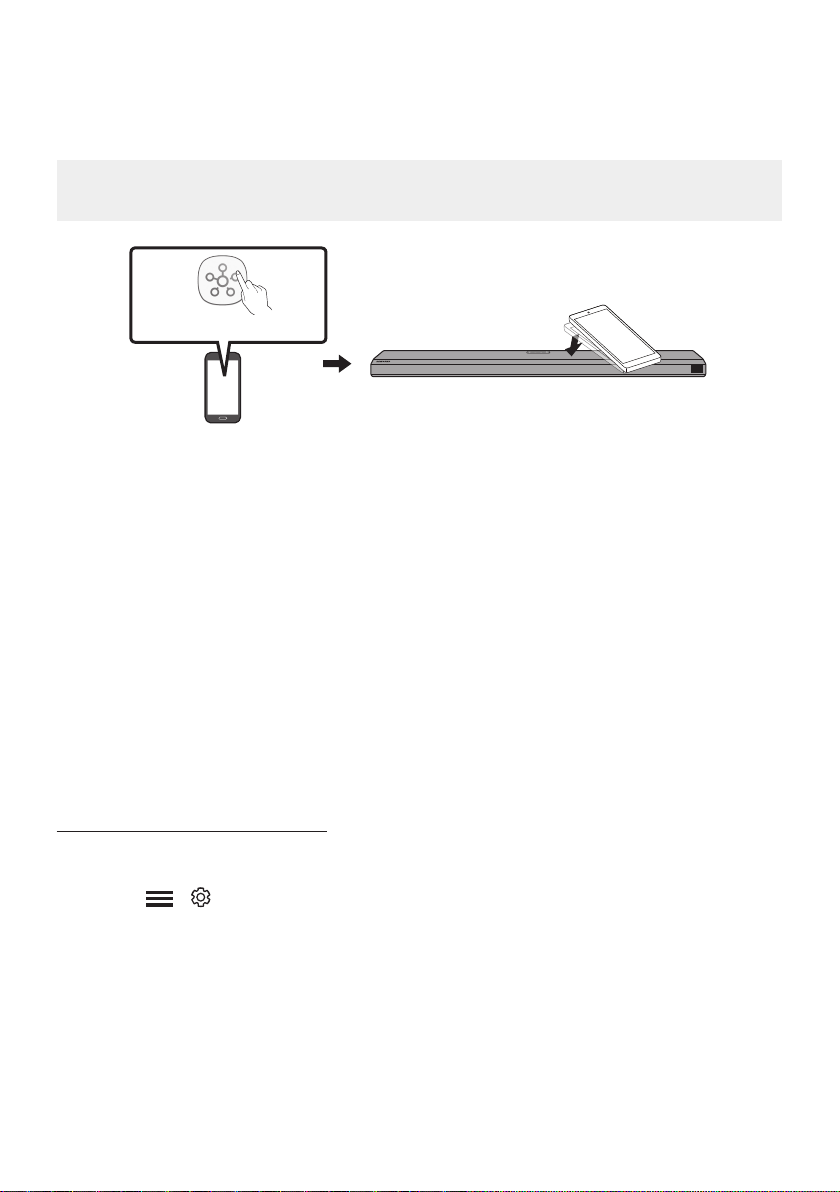
Use voice commands to control the Soundbar
• The Amazon Echo service you can use with your Soundbar is limited to music. Other services
provided by Amazon Echo, such as news and weather, can only be accessed through your
Amazon Echo product.
Trigger + Command + Speaker name
* To use voice commands for the Soundbar named “Living room”
Action Voice Command
To set the volume level to 5 "Alexa Set the volume to 5 on Living room"
To increase the volume level "Alexa Volume up on Living room"
To mute the sound "Alexa Mute on Living room"
To listen to a radio station named KISS FM "Alexa Play Kiss FM on Living room"
To play the next song "Alexa Next song on Living room"
To stop the audio "Alexa Stop on Living room"
To turn the audio off "Alexa Turn off on Living room"
ENG - 32
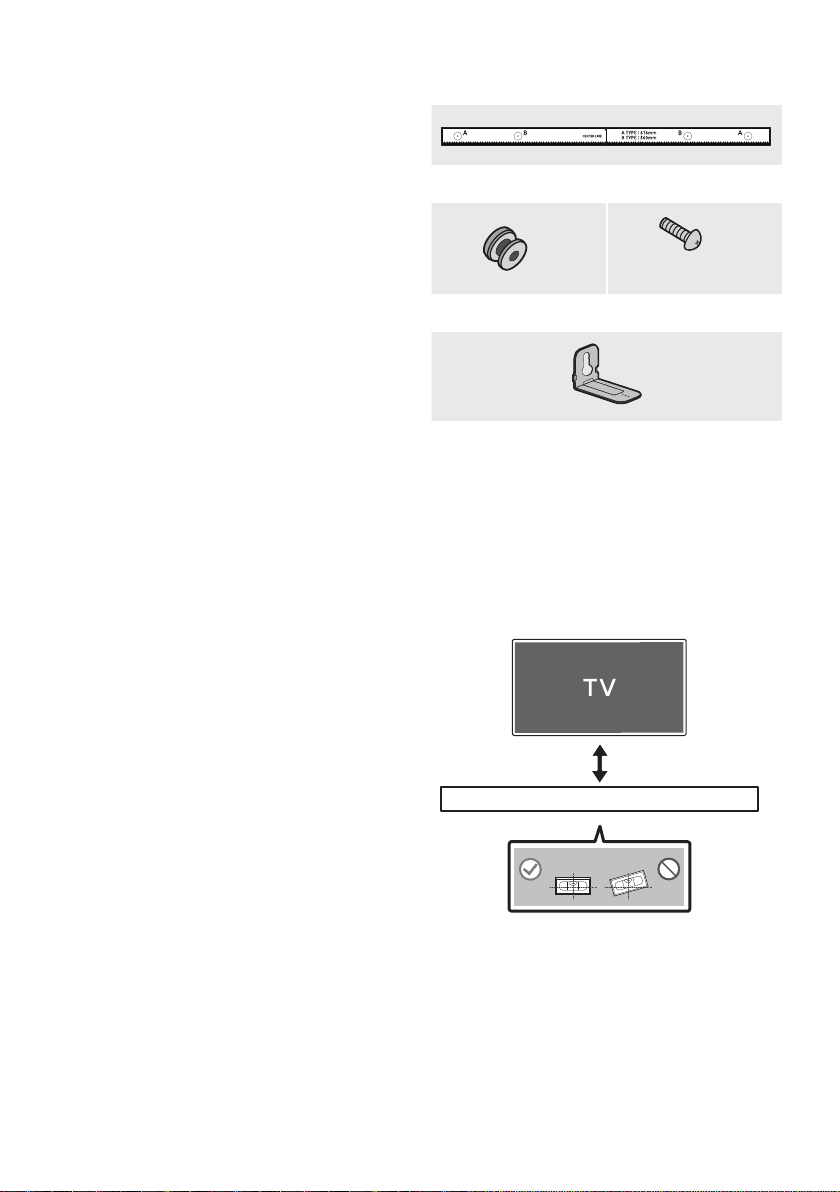
Using the Tap Sound
Tap the Soundbar with your mobile device to play the sound of content on the mobile device through
the Soundbar.
• This function may not be supported, depending on the mobile device.
• This function is only compatible with Samsung mobile devices with Android 8.1 or later.
Mobile device
SmartThings App
Top of the Soundbar
1. Turn on the Tap Sound function on your mobile device.
• For details on how to turn on the function, refer to “Setting the Tap Sound function” below.
2. Tap the Soundbar with the mobile device. Select “Start now” in the displayed message window.
A connection is established between the mobile device and Soundbar via Bluetooth.
3. Play the sound of content on the mobile device through the Soundbar.
• This function connects a mobile device to the Soundbar via Bluetooth by detecting vibration
that occurs when the device touches the Soundbar.
• Make sure the mobile device does not tap a sharp corner of the Soundbar. The Soundbar or
mobile device may become scratched or damaged.
• It is recommended that the mobile device be covered with a case. Lightly tap the wide area in
the upper portion of the Soundbar, without using excessive force.
• To use this function, update the SmartThings app to the latest version.
The function may not be supported, depending on the app version.
Setting the Tap Sound function
Use the SmartThings app to turn on the Tap View, Tap Sound function.
1. On the mobile device, run the SmartThings app.
2. Select ( → ) in the SmartThings app screen displayed on the mobile device.
3. Set “Tap View, Tap Sound” to On to allow the function to work when a mobile device moves close to
the Soundbar. The function is turned on.
NOTES
• When the mobile device is in power-saving mode, the Tap Sound function does not work.
• The Tap Sound function may not work if there are devices near the Soundbar that cause radio
interference such as electric devices. Make sure devices that may cause radio interference are
placed at a sufcient distance away from the Soundbar.
ENG - 33
10 INSTALLING THE
WALL MOUNT
Installation Precautions
• Install on a vertical wall only.
• Do not install in a place with high
temperature or humidity.
• Verify whether the wall is strong enough to
support the product’s weight. If not, reinforce
the wall or choose another installation point.
• Purchase and use the xing screws or
anchors appropriate for the kind of wall you
have (plaster board, iron board, wood, etc.). If
possible, x the support screws into wall
studs.
• Purchase wall mounting screws according to
the type and thickness of the wall you want to
mount the Soundbar on.
– Diameter: M5
– Length: 35 mm or longer recommended.
• Connect cables from the unit to external
devices before you install the Soundbar on
the wall.
• Make sure the unit is turned off and
unplugged before you install it. Otherwise, it
may cause an electric shock.
Wallmount Components
Wall Mount Guide
x 2
(M4 x L10)
x 2
Holder-Screw Screw
x 2
Bracket-Wall Mount
1. Place the Wall Mount Guide against the wall
surface.
• The Wall Mount Guide must be level.
• If your TV is mounted on the wall, install
the Soundbar at least 5 cm below the TV.
5 cm or more

ENG - 34
2. Align the Wall Mount Guide’s Center Line
with the center of your TV (if you are
mounting the Soundbar below your TV), and
then x the Wall Mount Guide to the wall
using tape.
• If you are not mounting below a TV, place
the Center Line in the center of the
installation area.
Center Line
3. Push a pen tip or sharpened pencil tip
through the center of the A-TYPE images on
each end of the Guide to mark the holes for
the supporting screws, and then remove the
Wall Mount Guide.
4. Using an appropriately sized drill bit, drill a
hole in the wall at each marking.
• If the markings do not correspond to the
positions of studs, make sure you insert
appropriate anchors or mollies into the
holes before you insert the support
screws. If you use anchors or mollies,
make sure the holes you drill are large
enough for the anchors or mollies you
use.
5. Push a screw (not supplied) through each
Holder-Screw, and then screw each screw
rmly into a support screw hole.
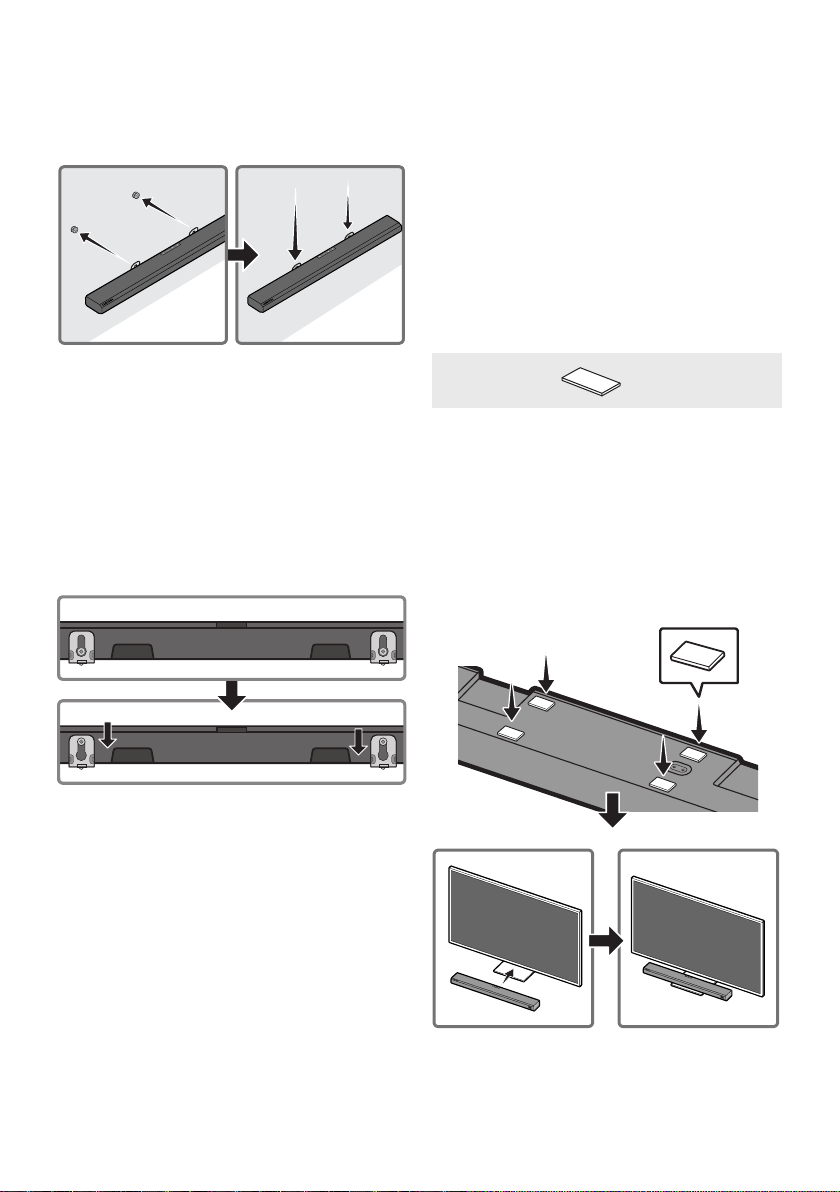
6. Install the 2 Bracket-Wall Mounts in the
correct orientation on the bottom of the
Soundbar using 2 Screws.
• When assembling, make sure the hanger
part of the Bracket-Wall Mounts are
located behind the rear of the Soundbar.
Rear of Soundbar
Right end of Soundbar
ENG - 35
7. Install the Soundbar with the attached
Bracket-Wall Mounts by hanging the
Bracket-Wall Mounts on the Holder-Screws
on the wall.
8. Slide the Soundbar down as shown below so
that the Bracket-Wall Mounts rest securely
on the Holder-Screws.
• Insert the Holder-Screws into the wide
(bottom) part of the Bracket-Wall
Mounts, and then slide the Bracket-Wall
Mounts down so that the Bracket-Wall
Mounts rest securely on the
Holder-Screws.
11 INSTALLING THE
SOUNDBAR
ABOVE A TV
STAND
Component
x 4
Rubber-Foot
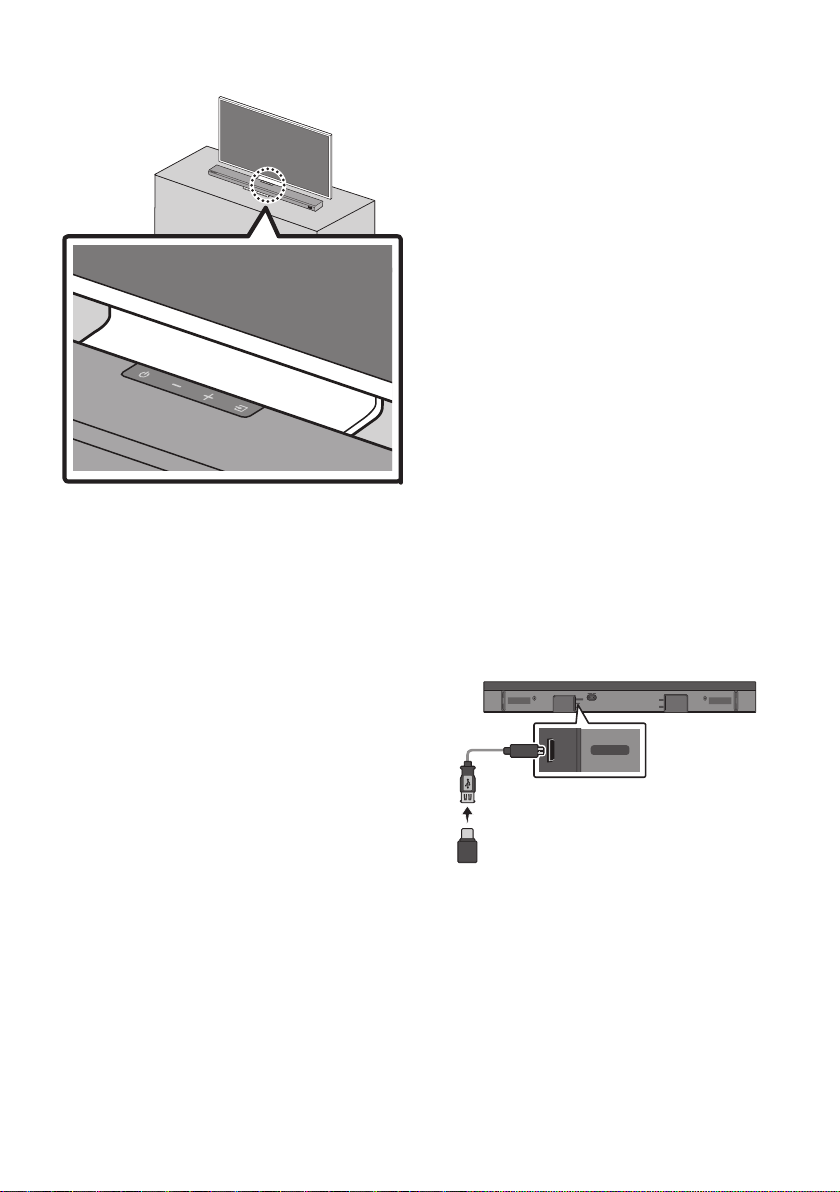
To install, attach the Rubber-Feet to the bottom
of the Soundbar before placing it in position
above the TV stand. Make sure you attach the
Rubber-Feet so that they are beyond the outside
edges of the TV stand. Refer to the gure below.
Rubber-Foot
ENG - 36
Place the Soundbar on a TV stand.
As illustrated in the image, align the center of the
Soundbar with the center of the TV, carefully
place the Soundbar onto the TV stand.
NOTES
• Make sure the Soundbar is placed on a at
and solid surface.
• Insufcient gap from the TV may cause
acoustic problem.
12 SOFTWARE
UPDATE
Auto Update
When the Soundbar is connected to the Internet,
software updates automatically occur even when
the Soundbar is turned off.
• To use the Auto Update function, the
Soundbar must be connected to the Internet.
The Wi-Fi connection to the Soundbar will be
terminated if the Soundbar’s power cord is
disconnected or the power is cut off. If the
power is cut off, when the power comes back
on or you reconnect the power cord, turn on
the Soundbar, and then reconnect it to the
Internet.
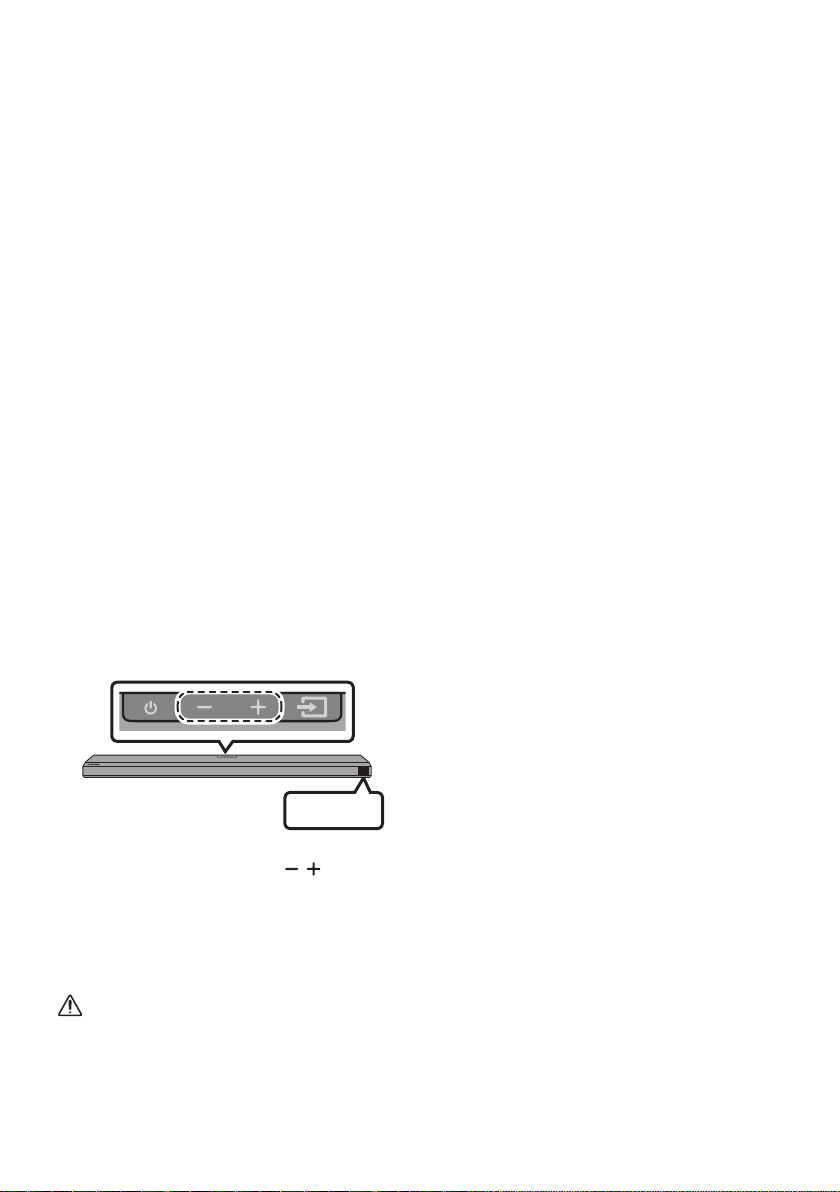
USB Update
DIGITAL AUDIO IN
(OPTICAL)
SERVICE
DC 19V
HDMI
NETWORK ID SET
HDMI TO TV
(eARC/ARC)
HDMI IN
HDMI OUT
(TV-ARC)
DIGITAL AUDIO IN
(OPTICAL)
SERVICE
DC 19V
Bottom of the Soundbar
Micro USB to
USB adapter Cable
(not supplied)
Samsung may offer updates for the Soundbar’s
systemrmwareinthefuture.
When an update is available, you can update the
Soundbar by connecting the USB drive that
contains the update rmware to the SERVICE
port of the Soundbar.
ENG - 37
1. Go to the Samsung Electronics website
(www.samsung.com) → search for the model
name from the customer support menu
option.
• For more information about update, refer
to Upgrade Guide.
2. Download the upgrade le (USB type).
3. Unzip the le to create a folder with the le
name.
4. Store the created folder in a USB and then
connect it to the Soundbar.
5. Turn on the Soundbar. Then the product is
updated within 3 minutes with displaying the
message, “UPDATE”.
• During update, do not turn it off or
remove the USB.
• If “UPDATE” does not appear on the
display window, remove the power cord
from the Soundbar and then reconnect it.
• When the latest version is installed, no
update is performed.
• Depending on the USB type, update may
not be supported.
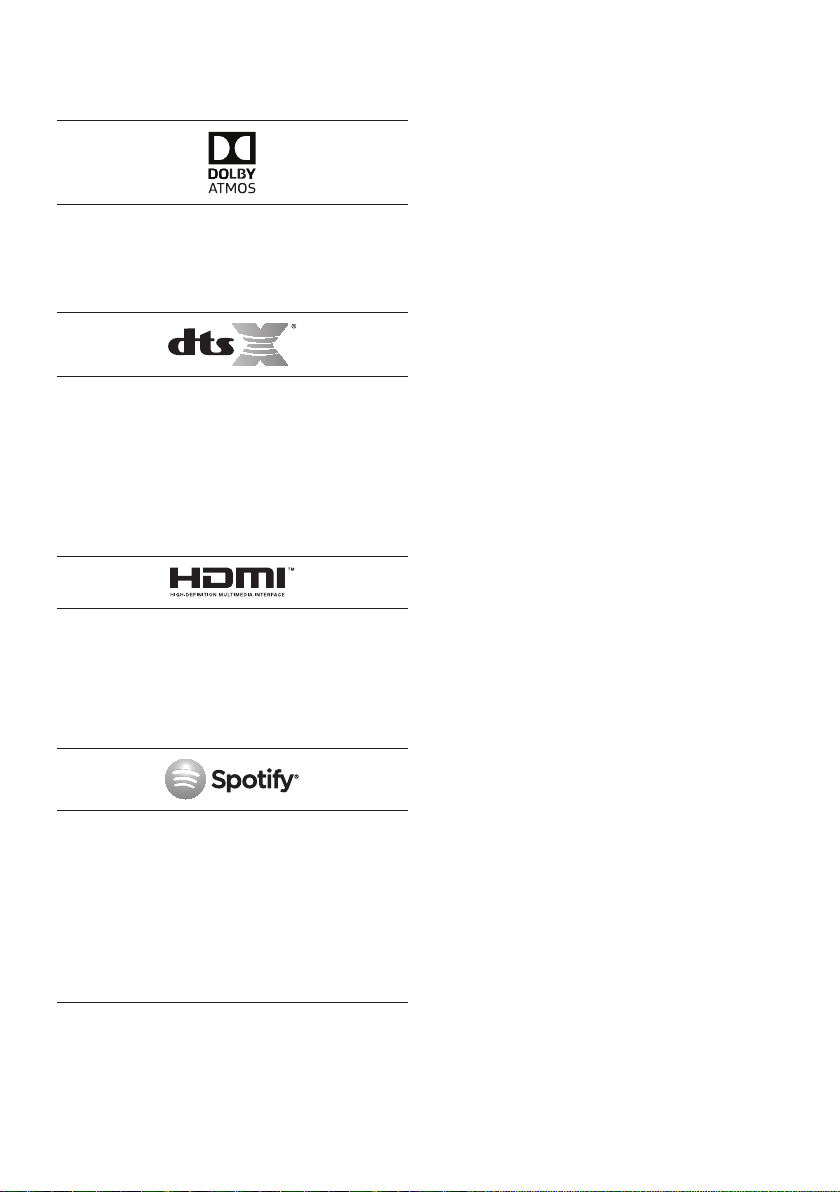
Initialization
INIT
Top of the Soundbar
With the Soundbar on, press the (Volume)
buttons on the body at the same time for at least
5 seconds. “INIT” appears on the display and then
the Soundbar is initialized.
CAUTION
• All the settings of the Soundbar are
initialized. Be sure to perform this only when
initialization is required.

ENG - 38
13 TROUBLESHOOTING
Before seeking assistance, check the following.
In case the power is not turned on
; Check whether the power cord of the
Soundbar is correctly inserted into the
outlet.
In case the functions do not work properly
; After removing the power cord, insert it
again.
; Remote the power cord from the external
device and try again.
; If there is no signal, the Soundbar
automatically turns off after a certain
period of time. Turn on the power. (See
page 9.)
In case the remote control does not work
; Operate the remote control noting the
Soundbar closely.
; Replace the batteries with new ones.
In case the Soundbar sound is not output
; The volume of the Soundbar is too low or
muted. Adjust the volume.
; When any external device (STB, Bluetooth
device, mobile device, etc.) is connected,
adjust the volume of the external device.
; For sound output of the TV, select
Soundbar. (Samsung TV: Home ( ) →
Settings ( ) → Sound → Sound Output →
Select Soundbar)
; The cable connection to the Soundbar may
not be loose. Remove the cable and
connect again.
; Remove the power cord completely,
reconnect, and turn the power on.
; Initialize the product and try again.
(See page 37.)
In case the sound of the Subwoofer speaker is
not output
; Check whether the LED indicator on the
rear of the Subwoofer is on in blue.
Reconnect the Soundbar and Subwoofer if
the indicator is blinking in blue or turned
red. (See page 15.)
; You may experience an issue if there is an
obstacle between the Soundbar and
Subwoofer. Move devices to an area away
from obstacles.
; Other devices sending radio frequency
signals in proximity may interrupt the
connection.
Keep your speaker away from such devices.
; Remove and reconnect the power plug.
The Subwoofer volume is too low
; The original volume of the content you are
playing may be low. Try adjusting the
Subwoofer level. (See page 11.)
; Bring the Subwoofer speaker closer to you.

ENG - 39
In case the TV is not connected via HDMI TO
TV (eARC/ARC)
; Check whether the HDMI cable is correctly
connected to the ARC terminal.
(See page20.)
; Connection may not be possible due to the
connected external device (set-top box,
game machine, etc.). Directly connect the
Soundbar.
; HDMI-CEC may not be activated on the TV.
Turn on the CEC on the TV menu. (Samsung
TV: Home ( ) → Settings ( ) → General
→ External Device Manager → Anynet+
(HDMI-CEC) ON)
There is no sound in when connecting to the
TV in HDMI TO TV (eARC/ARC) mode
; Your device is unable to play the input
signal. Change the TV’s audio output to
PCM or Dolby Digital.
(For a Samsung TV: Home ( ) → Settings
( ) → Sound → Expert Settings → Digital
Output Audio Format)
In case Bluetooth connection is not possible
; When connecting a new device, switch to
“BT PAIRING” for connection. (Press the
PAIR button on the remote control or
press the (Source) button on the body
for at least 5 seconds.)
; If the Soundbar is connected to another
device, disconnect that device rst to
switch the device.
; Reconnect it after removing the Bluetooth
speaker list on the device to connect.
(Samsung TV: Home ( ) → Settings ( )
→ Sound → Sound Output → Bluetooth
Speaker List)
; The automatic TV connection may be
disabled. While the Soundbar is in “BT
READY”, press and hold the p button on
the Soundbar remote control for 5 seconds
to select ON-TV CONNECT. If you see
OFF-TV CONNECT, press and hold p button
again for 5 seconds to switch the selection.
; Remove and reconnect the power plug,
then try again.
; Initialize the product and try again.
(See page 37.)
In case Bluetooth sound breaking occurs
; Sounds may be breaking due to
interference by radio frequency or
electronic devices nearby. Keep such
devices away from the Soundbar to avoid
radio interference. Example: microwave
ovens.
; Because the device to connect is far away
from the Soundbar, sound breaking may
occur. Move the device near the Soundbar.
; If a part of your body is in contact with the
Bluetooth transceiver or the product is
installed on metal furniture, sound
breaking may occur. Check the installation
environment and conditions for use.
In case Wi-Fi connection is not possible
; Check whether your wireless router is on.
; Turn off the router, turn it back on, and then
try again.
; When the signal of the wireless router is
too weak, connection may not be possible.
Move the router near the Soundbar or
adjust the installed position with no
obstacles.
; If your wireless router is new, you will need
to recongure the speaker’s network
settings.
In case the Soundbar is not turned on as soon
as the TV is turned on
; When you turn off the Soundbar while
watching TV, power synchronization with
the TV is disabled. First turn off the TV.
ENG - 40
14 LICENSE
Manufactured under license from Dolby
Laboratories. Dolby, Dolby Atmos, Dolby Audio,
Dolby Digital Plus, Pro Logic, and the double-D
symbol are trademarks of Dolby Laboratories.
For DTS patents, see http://patents.dts.com.
Manufactured under license from DTS Licensing
Limited. DTS, the Symbol, & DTS and the Symbol
together, DTS:X, and the DTS:X logo are
registered trademarks and/or trademarks of
DTS, Inc. in the United States and/or other
countries. © DTS, Inc. All Rights Reserved.
The terms HDMI and HDMI High-Denition
Multimedia Interface, and the HDMI Logo are
trademarks or registered trademarks of HDMI
Licensing LLC in the United States and other
countries.
• The Spotify Software is subject to third
party licenses found here :
www.spotify.com/connect/third-party-
licenses.
• For more information about Spotify
Connect, please visit www.spotify.com/
connect
15 OPEN SOURCE
LICENSE NOTICE
To send inquiries and requests for questions
regarding open sources, contact Samsung Open
Source (http://opensource.samsung.com)
16 IMPORTANT
NOTES ABOUT
SERVICE
Figures and illustrations in this User Manual are
provided for reference only and may differ from
actual product appearance.

ENG - 41
17 SPECIFICATIONS AND GUIDE
Specications
Model Name HW-Q70T
Weight 3.6 kg
Dimensions (W x H x D) 980.0 x 60.0 x 115.0 mm
Operating Temperature Range +5°C to +35°C
Operating Humidity Range 10 % ~ 75 %
AMPLIFIER
Rated Output power (30W x 4) + (20W x 2) + 10W + 160W
Supported play formats
Dolby Atmos (True HD / Digital Plus), Dolby
Digital, DTS Master Audio, DTS:X, DTS
Subwoofer Name PS-WR65BC
Weight 6.2 kg
Dimensions (W x H x D) 205.0 x 353.0 x 303.0 mm
AMPLIFIER
Rated Output power 160W
NOTES
• Samsung Electronics Co., Ltd reserves the right to change the specications without notice.
• Weight and dimensions are approximate.
Precaution : The Soundbar will restart automatically if you turn on/turn off Wi-Fi.
Wi-Fi
Port deactivation method
Press the ID SET button on the bottom panel of the Soundbar for
30 seconds to turn Wi-Fi On / Off.
Bluetooth
Port deactivation method
Press the NETWORK button on the bottom panel of the Soundbar
for 30 seconds to turn Bluetooth On / Off.
SPA - 2
INFORMACIÓN DE SEGURIDAD
ADVERTENCIAS DE SEGURIDAD
PARA REDUCIR EL PELIGRO DE DESCARGA
ELÉCTRICA, NO RETIRE LA TAPA (NI LA PARTE
TRASERA).
NO CONTIENE ELEMENTOS QUE DEBA
REEMPLAZAR EL USUARIO. EN CASO DE AVERÍA,
SOLICITE LA AYUDA DE PERSONAL
ESPECIALIZADO.
Consulte la tabla a continuación para obtener una
explicación de los símbolos que podrían aparecer
en su producto Samsung.
PRECAUCIÓN
RIESGO DE ELECTROCUCION.
NO ABRIR.
Este símbolo indica que el dispositivo
contiene alto voltaje. Es peligroso
establecer cualquier tipo de contacto
con cualquier parte interna del producto.
Este símbolo indica que con este
producto se incluye documentación
importante relativa a la operación y el
mantenimiento.
Producto de Clase II: Este símbolo indica
que no es necesaria una conexión
eléctrica de seguridad (toma de tierra).
Si un producto con un cable de
alimentación no tiene este símbolo, el
producto DEBE tener una conexión
segura a una puesta a tierra.
Voltaje CA: Este símbolo indica que la
tensión nominal marcada con el símbolo
es CA.
Voltaje CC: Este símbolo indica que la
tensión nominal marcada con el símbolo
es CC.
Precaución, consulte las instrucciones
antes de usar: Este símbolo indica que
se debe consultar el manual del usuario
para obtener información relacionada
con la seguridad.
ADVERTENCIA
• Para reducir el riesgo de incendio o de
descarga eléctrica, no exponga este aparato a
la lluvia ni a lahumedad.
PRECAUCIÓN
• PARA EVITAR DESCARGAS ELÉCTRICA S,
INTRODUZCA TOTALMENTE EL ENCHUFE.
• Este aparato deberá conectarse siempre a
una toma de alimentación principal con una
conexión a tierra de protección.
• Para desconectar el aparato de la fuente de
alimentación, el enchufe deberá ser
desconectado de la toma principal, lo que
signica que deberá disponer de fácil acceso
al enchufe principal.
• No debe exponer este aparato a gotas ni
salpicaduras de agua. No coloque en el
aparato objetos con líquido, como jarrones.
• Para apagar completamente este aparato,
debe desconectar su enchufe de la toma de
corriente. Por tanto, el enchufe debe estar
accesible en todo momento.

SPA - 3
PRECAUCIONES
1. Asegúrese de que la fuente de alimentación
de CA de su hogar cumpla con los requisitos
mencionados en la etiqueta de identicación
ubicada en la parte inferior del producto.
Instale el producto horizontalmente, sobre
una base adecuada (mueble), con espacio
suciente a su alrededor para ventilación
7~10 cm. Asegúrese de que los oricios de
ventilación no queden tapados. No coloque
la unidad sobre amplicadores o cualquier
otro equipo que pueda generar calor. Esta
unidad se ha diseñado para utilizarse de
forma continua. Para apagar completamente
la unidad, desconecte el enchufe de CA de la
toma de corriente. Desenchufe la unidad si
no va utilizarla durante un tiempo
prolongado.
2. Durante tormentas, desconecte el enchufe
principal de CA de la toma de corriente.
Los picos de tensión debidos a rayos podrían
dañar la unidad.
3. No exponga la unidad a la luz directa del sol ni a
otras fuentes de calor. Podrían sobrecalentarla
y provocar una avería en la unidad.
4. Proteja el reproductor contra la humedad por
ejemplo, jarrones) y calor excesivo (p. ej.:
chimeneas) o equipos que creen campos
magnéticos o eléctricos potentes.
Desconecte el cable de alimentación de la
fuente de CA si la unidad no funciona
correctamente. El producto no ha sido creado
para uso industrial. Este producto es sólo
para uso personal. Es posible que se
produzca condensación en el producto o en el
disco en situaciones de temperaturas bajas.
Si tiene que transportar el producto durante
el invierno, espere 2 horas aproximadamente
antes de usarlo hasta que la unidad haya
alcanzado la temperatura de la sala.
5. Las pilas utilizadas en este producto contienen
productos químicos que son peligrosos para el
medio ambiente. No tire las pilas con el resto
de la basura doméstica. No deseche las pilas en
el fuego. No cortocircuite, desmonte ni
sobrecaliente las baterías. Si las pilas se
reemplazan de manera incorrecta existe
peligro de explosión. Reemplácelas únicamente
por el mismo tipo o un tipo equivalente.

SPA - 4
ÍNDICE
01 Vericacióndeloscomponentes 6
02 Informacióngeneraldelproducto 7
Panel frontal/panel superior de la Soundbar ------------------------- 7
Panel inferior de la Soundbar ------------------------- 8
03 UsodelcontrolremotodelaSoundbar 9
Colocación de las baterías antes de utilizar el control remoto
(2bateríasAA) ------------------------- 9
How to Use the Remote Control
-------------------------
9
Uso de los botones ocultos (botones con más de una función)
-------------------------
12
Especicaciones de salida para los diferentes modos de efectos de sonido
-------------------------
12
Ajuste del volumen de la Soundbar con un control remoto de televisor ------------------------- 13
04 ConexióndelaSoundbar 14
Conexión de las unidades a la fuente de alimentación
-------------------------
14
– Conexión manual del Subwoofer
-------------------------
15
– Luces del indicador LED en la parte posterior del Subwoofer
-------------------------
17
Conexión del SWA-9000S (se vende por separado) a una Soundbar
-------------------------
18
05 UsodeunaconexiónconcablealTV 20
Método1. Conexión con HDMI
-------------------------
20
– Conexión al TV que es compatible con HDMI ARC (Retorno del canal
de audio)
-------------------------
20
Método2. Conexión con un cable óptico
-------------------------
21
06 UsodeunaconexióninalámbricaalTV 23
Conexión a través de Bluetooth
-------------------------
23
07 Conexiónaundispositivoexterno 25
Método1. Conexión con un cable HDMI (capaz de decodicar y
reproducir Dolby Atmos)
-------------------------
25
Método2. Conexión con un cable óptico
-------------------------
26

SPA - 5
08 Conexiónaundispositivomóvil 27
Método1. Conexión a través de Bluetooth
-------------------------
27
Método2. Conexión a través de Wi-Fi (Red inalámbrica)
-------------------------
30
09 CómoconectarunproductoAmazon 31
Conectar y usar con un producto Amazon (Amazon Echo) ------------------------- 31
Use comandos por voz para controlar la Soundbar
-------------------------
31
Uso de Tap Sound
-------------------------
32
10 Instalacióndelsoportedemontajeenlapared 33
Precauciones durante la instalación
-------------------------
33
Componentes para montaje en la pared
-------------------------
33
11 InstalacióndelaSoundbarsobreunsoporte
paraTV 35
Componente
-------------------------
35
12 Actualizacióndesoftware 36
Actualización automática
-------------------------
36
Actualización mediante USB
-------------------------
36
Inicialización
-------------------------
37
13 Resolucióndeproblemas 38
14 Licencia 40
15 AvisoSobreLicenciadecódigoabierto 40
16 NotaImportanteSobreelServicio 40
17 EspecicacionesyGuía 41
Especicaciones
-------------------------
41
SPA - 6
01 VERIFICACIÓN DE LOS COMPONENTES
VOL WOOFER
SOUNDBAR
SOUND
MODE
PAIR
UnidadprincipaldelaSoundbar ControlremotodelaSoundbar/
baterías
Subwoofer
x 2
Cabledealimentación
(Subwoofer,Soundbar)
AdaptadordeCA/CC
(Soundbar)
CableHDMI
x 2
(M4 x L10)
x 2
Guíademontajeenlapared Tornillodesujeción Tornillo
x 2
x 4
Soportedemontajeenlapared Piedegoma
• Para obtener más información acerca del suministro eléctrico y el consumo de energía, consulte la
etiqueta del producto. (Etiqueta: parte inferior de la unidad principal de la Soundbar)
• Para comprar componentes adicionales o cables opcionales, póngase en contacto con un Centro de
Servicios de Samsung o con el Centro de Atención al Cliente de Samsung.
• Para obtener más información sobre el montaje en la pared o el pie de goma, consulte las páginas
33~35.
• El diseño, las especicaciones y la pantalla de la aplicación están sujetos a cambios sin previo aviso.
• La apariencia de los accesorios puede diferir ligeramente de las ilustraciones de arriba.
SPA - 7
02 INFORMACIÓN GENERAL DEL PRODUCTO
Panelfrontal/panelsuperiordelaSoundbar
Panelsuperior
Coloque el producto de
manera que el logotipo de
SAMSUNG quede en la
parte superior.
Botón (Encendido)
Permite encender y apagar la Soundbar.
Botón (Volumen)
Ajusta el volumen.
Botón (Fuente)
Permite seleccionar el modo de entrada.
Mododeentrada Pantalla
Entrada digital óptica D.IN
Entrada ARC (HDMI OUT) D.IN TV ARC (Autoconversión)
Entrada HDMI HDMI
Modo Wi-Fi WIFI
Modo BLUETOOTH BT
Pantalla
Muestra el estado del producto y el modo actual.
D.IN HDMI Wi-Fi BT
• Cuando conecte el cable de CA, el botón de encendido comenzará a funcionar luego de 4 a 6
segundos.
• Cuando encienda esta unidad, habrá un retraso de 4 a 5 segundos antes de que emita sonido.
• Si escucha sonidos tanto del televisor como de la Soundbar, vaya al menú Ajustes, busque la opción
de audio del televisor y cambie el parlante del televisor a Altavozexterno.
SPA - 8
PanelinferiordelaSoundbar
DIGITAL AUDIO IN
(OPTICAL)
SERVICE
DC 19V
HDMI
NETWORK ID SET
DIGITAL AUDIO IN
(OPTICAL)
SERVICE
NETWORK ID SET
HDMI TO TV
(eARC/ARC)
HDMI IN
HDMI OUT
(TV-ARC)
DIGITAL AUDIO IN
(OPTICAL)
SERVICE
DC 19V
DIGITAL AUDIO IN
(OPTICAL)
SERVICE
DC 19V
HDMI
HDMI TO TV
(eARC/ARC)
DIGITAL AUDIO IN
(OPTICAL)
SERVICE
DC 19V
HDMI
NETWORK ID SET
DIGITAL AUDIO IN
(OPTICAL)
SERVICE
NETWORK ID SET
HDMI TO TV
(eARC/ARC)
HDMI IN
HDMI OUT
(TV-ARC)
DIGITAL AUDIO IN
(OPTICAL)
SERVICE
DC 19V
DIGITAL AUDIO IN
(OPTICAL)
SERVICE
DC 19V
HDMI
HDMI TO TV
(eARC/ARC)
DIGITAL AUDIO IN
(OPTICAL)
SERVICE
DC 19V
HDMI
NETWORK ID SET
DIGITAL AUDIO IN
(OPTICAL)
SERVICE
NETWORK ID SET
HDMI TO TV
(eARC/ARC)
HDMI IN
HDMI OUT
(TV-ARC)
DIGITAL AUDIO IN
(OPTICAL)
SERVICE
DC 19V
DIGITAL AUDIO IN
(OPTICAL)
SERVICE
DC 19V
HDMI
HDMI TO TV
(eARC/ARC)
DIGITAL AUDIO IN
(OPTICAL)
SERVICE
DC 19V
HDMI
NETWORK ID SET
DIGITAL AUDIO IN
(OPTICAL)
SERVICE
NETWORK ID SET
HDMI TO TV
(eARC/ARC)
HDMI IN
HDMI OUT
(TV-ARC)
DIGITAL AUDIO IN
(OPTICAL)
SERVICE
DC 19V
DIGITAL AUDIO IN
(OPTICAL)
SERVICE
DC 19V
HDMI
HDMI TO TV
(eARC/ARC)
DIGITALAUDIOIN(OPTICAL)
Conecte a la salida digital (óptica) de un dispositivo externo. (Consulte la página 26)
SERVICE
Conecte un dispositivo de almacenamiento USB para actualizar el software del producto.
DC19V(Suministro eléctrico de entrada)
Conecte el adaptador eléctrico de CA/CC. (Consulte la página 14)
NETWORK
Presione aquí para conectarse a una red inalámbrica (Wi-Fi) a través de la aplicación SmartThings.
ID SET
Presione aquí para conectar la Soundbar a parlantes cercanos y un subwoofer de forma inalámbrica.
(El parlante de sonido envolvente se vende por separado).
HDMI
Entrada simultánea de señales digitales de audio y video a través de un cable HDMI.
Conecte a la salida HDMI de un dispositivo externo. (Consulte la página 25)
HDMITOTV(eARC/ARC)
Conecte al conector HDMI de una TV. (Consulte la página 20)
• Cuando desconecte el cable de alimentación del adaptador CA/CC de una toma de pared, tire del
enchufe. No tire del cable.
• No conecte esta unidad ni otros componentes a un tomacorriente de CA antes de completar todas las
conexiones entre los componentes.
SPA - 9
03 USO DEL CONTROL REMOTO DE LA
SOUNDBAR
Colocacióndelasbateríasantesdeutilizarelcontrolremoto
(2bateríasAA)
Deslice la contratapa en dirección de la echa
hasta retirarla completamente. Coloque 2 pilas AA
(1.5V) tal como se indica para que la polaridad sea
correcta. Vuelva a deslizar la contratapa hasta su
posición.
HowtoUsetheRemoteControl
VOL WOOFER
SOUNDBAR
SOUND
MODE
PAIR
Encendido
VOL WOOFER
SOUND
MODE
PAIR
Enciende y apaga la Soundbar.
• FuncióndeAutoPowerDown
La unidad se apaga automáticamente en
las siguientes situaciones:
– En modo D.IN / HDMI/ Wi-Fi / BT si
no hay señal de audio por 18minutos.
VOL WOOFER
SOUND
MODE
PAIR
Fuente
Presione aquí para elegir una fuente
conectada a la Soundbar.
Silencio
VOL WOOFER
SOUND
MODE
PAIR
Presione el botón (Silencio) para silenciar
el sonido.
Vuelva a presionarlo para reanudar el sonido.
SPA - 10
SOUND MODE
VOL WOOFER
SOUND
MODE
PAIR
Puede seleccionar el modo de sonido deseado entre las siguientes opciones: STANDARD,
SURROUND, GAME PRO o ADAPTIVE SOUND.
• STANDARD
Emite el sonido original.
• SURROUND SOUND
Proporciona un campo sonoro más amplio que el estándar.
• GAME PRO
Proporciona sonido estereoscópico para sumergirlo en la acción mientras juega.
• ADAPTIVE SOUND
Analiza el contenido en tiempo real y automáticamente proporciona el campo sonoro
óptimo según las características del sonido.
VOL WOOFER
SOUND
MODE
PAIR
Bluetooth
PAIR
Cambie la Soundbar a modo de conexión Bluetooth. Presione el botón y espere a que
aparezca la pantalla “BT PAIRING” para conectarse a un dispositivo Bluetooth nuevo.
Reproducir/
Pausar
VOL WOOFER
SOUND
MODE
PAIR
También puede presionar este botón para reproducir o pausar música.
VOL WOOFER
SOUND
MODE
PAIR
Arriba/Abajo/
Izquierda/
Derecha
PresionelasáreasindicadasparaseleccionarArriba/Abajo/
Izquierda/Derecha.
Presione arriba/abajo/izquierda/derecha en el botón para seleccionar o congurar las
funciones.
• Saltearcanciones
Presione el botón Derecha para seleccionar el próximo archivo de música.
Presione el botón Izquierda para seleccionar el archivo de música anterior.
• ID SET
Use esta opción cuando los parlantes Subwoofer o de sonido envolvente no estén
conectados o necesiten reconexión.
Mientras está apagado, mantenga presionado el botón Arriba durante 5segundos
para realizar la ID SET. (Consulte la página 16.)
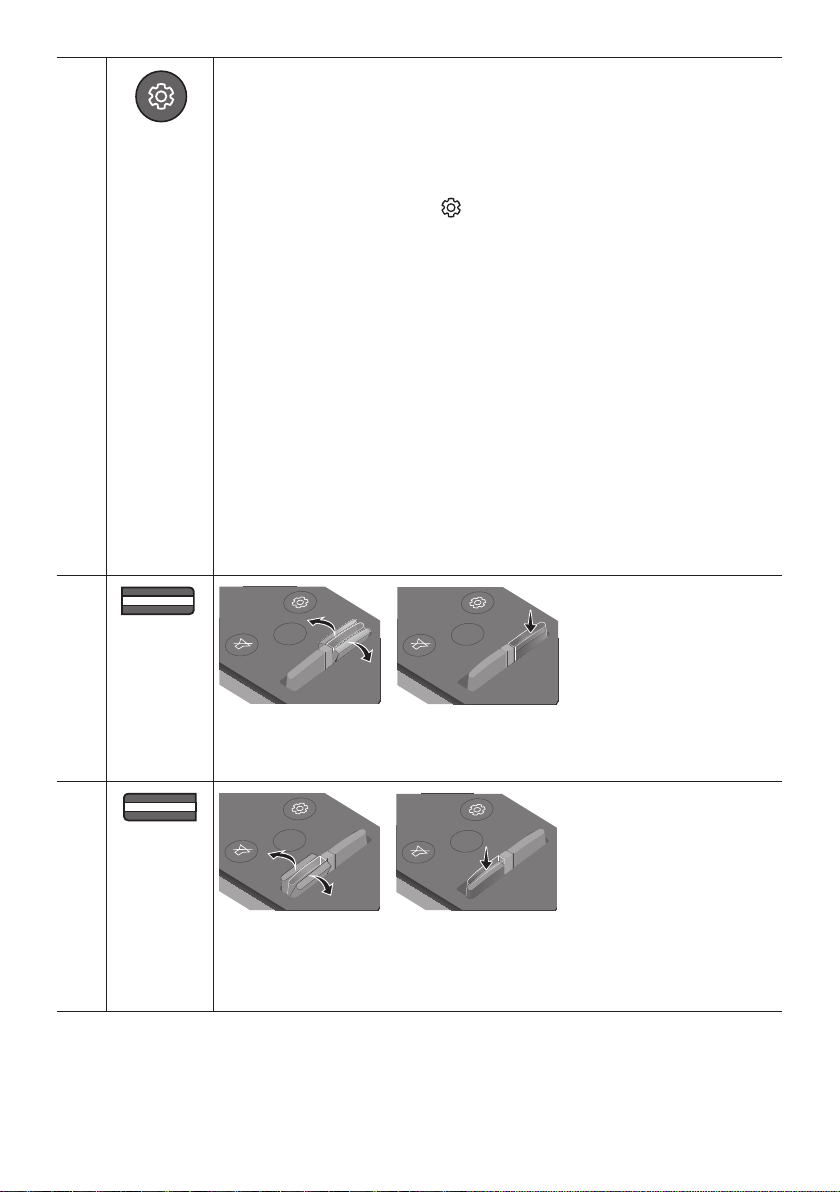
SPA - 11
Controlde
sonido
VOL WOOFER
SOUND
MODE
PAIR
Cuando presiona esta tecla, se muestran los elementos de conguración como TREBLE,
BASS, SYNC, CENTER LEVEL, FRONT TOP LEVEL y VIRTUALON/OFF en secuencia. Se
puede ajustar el elemento deseado con los botones Arriba/Abajo.
– Para controlar el volumen de los sonidos agudos o graves, seleccione TREBLE o
BASS en Conguración de sonido, y luego ajuste el volumen entre -6 y +6 al usar los
botones Arriba/Abajo.
– Mantenga presionado el botón (Controldesonido) durante aproximadamente
5segundos para ajustar el sonido de cada banda de frecuencia. Puede elegir 150 Hz,
300 Hz, 600 Hz, 1,2 kHz, 2,5 kHz, 5 kHz y 10 kHz usando los botones Izquierda/
Derecha y puede congurar cada uno entre -6 y +6 con los botones Arriba/Abajo.
(Asegúrese de que el modo de sonido se establezca como “STANDARD”.)
– Para controlar el volumen de cada parlante, seleccione CENTER LEVEL o FRONT TOP
LEVEL en Conguración de sonido, y luego ajuste el volumen entre -6 y +6 al usar los
botones Arriba/Abajo.
– Si el video en el televisor y el audio de la Soundbar no están sincronizados, seleccione
SYNC en Control de sonido y luego congure el retraso de audio entre 0 y
300milisegundos usando los botones Arriba/Abajo.
– La opción SYNC solo es compatible con algunas funciones.
– Si los parlantes de sonido envolvente están conectados, seleccione REAR LEVEL y
luego use los botones Arriba/Abajo para ajustar el volumen entre el rango de -6 a
+6.
– La función del parlante VIRTUAL se puede congurar en ON/OFF con los botones
Arriba/Abajo.
VOL WOOFER
SOUND
MODE
PAIR
NIVEL DE
WOOFER
(GRAVE)
SOUND
MODE
VOL
WOOFER
SOUNDBAR
SOUND
MODE
VOL
WOOFER
SOUNDBAR
SOUND
MODE
VOL
WOOFER
SOUNDBAR
SOUND
MODE
VOL
WOOFER
SOUNDBAR
Mueva el botón hacia arriba o hacia abajo para ajustar el nivel del woofer (grave) a -12 o
de -6 a +6. Para establecer el nivel de volumen del woofer (grave) en 0 (predeterminado),
presione el botón.
VOL WOOFER
SOUND
MODE
PAIR
VOLUMEN
SOUND
MODE
VOL
WOOFER
SOUNDBAR
SOUND
MODE
VOL
WOOFER
SOUNDBAR
SOUND
MODE
VOL
WOOFER
SOUNDBAR
SOUND
MODE
VOL
WOOFER
SOUNDBAR
Mueva el botón hacia arriba o hacia abajo para ajustar el volumen.
• Silencio
Presione el botón VOL para silenciar el sonido. Vuelva a presionarlo para reanudar el
sonido.
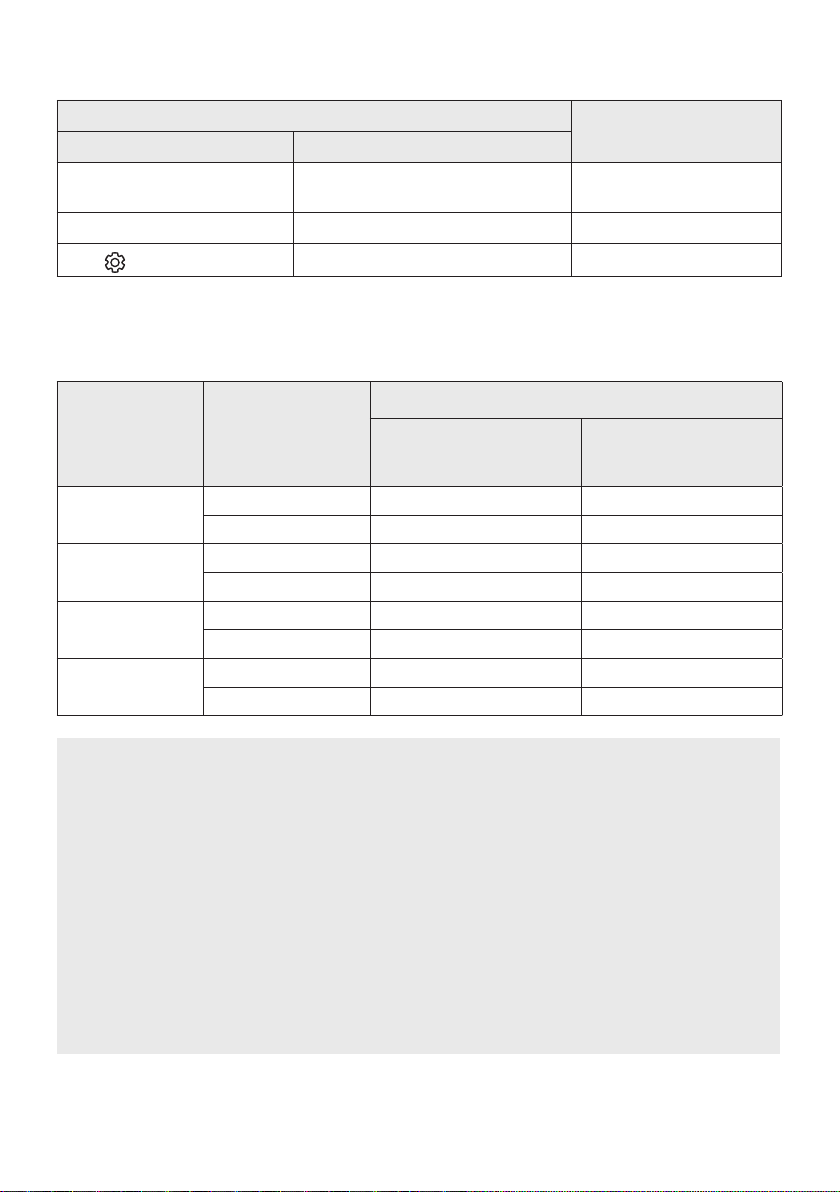
SPA - 12
Usodelosbotonesocultos(botonesconmásdeunafunción)
Botónoculto
Páginadereferencia
Botóndelmandoadistancia Función
WOOFER (Arriba)
Encendido/Apagado control remoto del TV
(espera)
Página 13
Arriba ID SET Página 16
(Control de sonido)
EQ 7 bandas Página 11
Especicacionesdesalidaparalosdiferentesmodosdeefectosde
sonido
Efecto Entrada
Salida
Consubwooferúnicamente
ConsubwooferyWireless
Kitdeparlanteposterior
inalámbrico
STANDARD
2.0 canales 2.1 canales 2.1 canales
5.1 canales 3.1 canales 5.1 canales
SURROUND
2.0 canales 3.1.2 canales 5.1.2 canales
5.1 canales 3.1.2 canales 5.1.2 canales
GAME PRO
2.0 canales 3.1.2 canales 5.1.2 canales
5.1 canales 3.1.2 canales 5.1.2 canales
ADAPTIVE SOUND
2.0 canales 3.1.2 canales 5.1.2 canales
5.1 canales 3.1.2 canales 5.1.2 canales
• Para las fuentes de entrada Dolby Atmos y DTS:X, los modos de efectos que se pueden
seleccionar con el botón SOUND MODE no estarán disponibles. (Consulte arriba los modos de
efectos.)
• Cuando la fuente de entrada es Dolby Atmos®, la conguración del Subwoofer solo proporciona
canal de audio de 3.1.2, mientras que la conguración del Subwoofer y el Wireless Kit de
parlante posterior inalámbrico proporciona audio de canales 5.1.2.
• El Wireless Kit de parlante posterior inalámbrico Samsung se puede comprar por separado.
Para comprar un kit o el subwoofer, comuníquese con el vendedor a quien le compró la
Soundbar.
• Los parlantes de sonido envolvente no emitirán sonido para la salida de 2 canales mientras el
modo STANDARD esté en uso. Para habilitar el sonido hacia los parlantes de sonido envolvente,
cambie el modo de efecto a SURROUND.
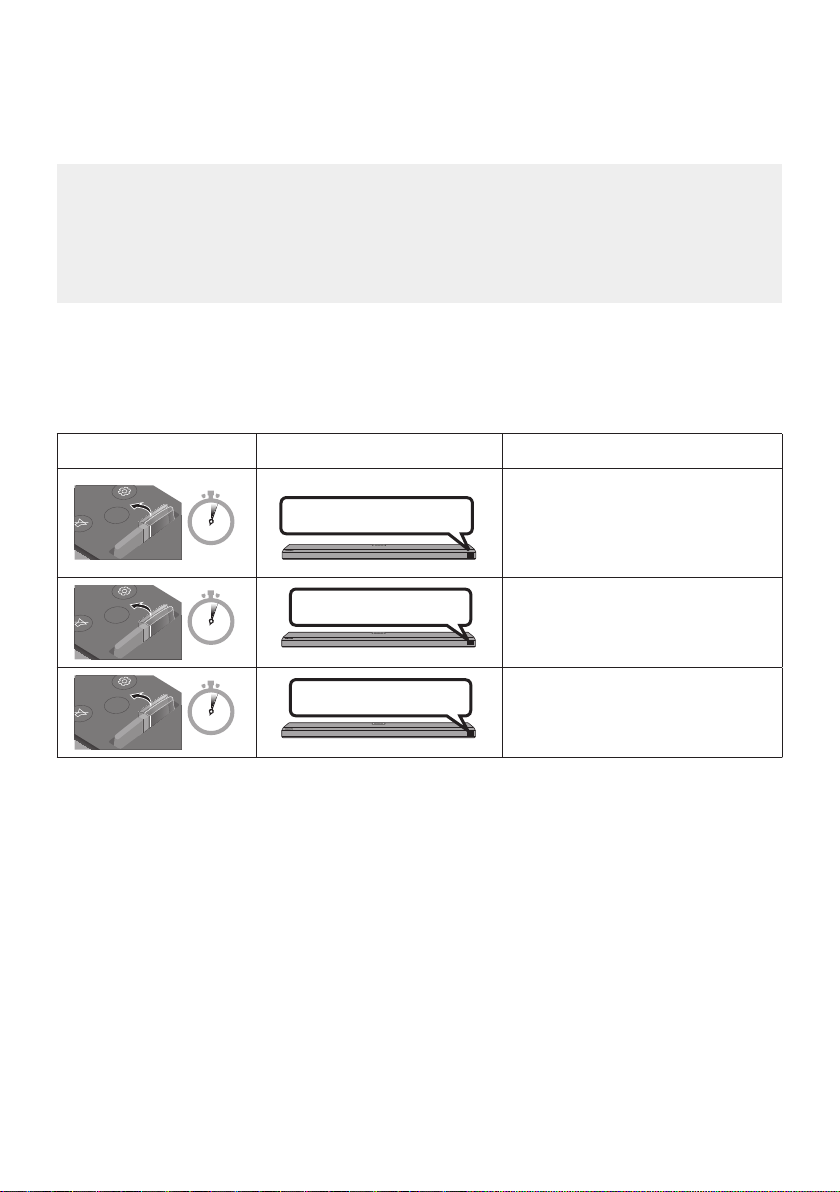
SPA - 13
AjustedelvolumendelaSoundbarconuncontrolremotode
televisor
Ajuste el volumen de la Soundbar con el control remoto del televisor.
• Esta función solo se puede usar con controles remotos IR. Los controles remotos Bluetooth
(controles remotos que requieren emparejamiento) no son compatibles.
• Congure el parlante del televisor en Altavozexterno para usar esta función.
• Fabricantes que admiten esta función:
VIZIO, LG, Sony, Sharp, PHILIPS, PANASONIC, TOSHIBA, Hisense, RCA
1. Apague la Soundbar.
2. Mantenga presionado el botón WOOFER durante 5 segundos. Cada vez que mantiene presionado
el botón WOOFER durante 5 segundos, el modo cambia en el siguiente orden: “SAMSUNG-TV
REMOTE” (Modo predeterminado), “OFF-TV REMOTE”, “ALL-TV REMOTE”.
Botonesdelcontrolremoto Pantalla Estado
SOUND
MODE
VOL
WOOFER
SOUNDBAR
5 Sec
(Modo predeterminado)
SAMSUNG-TV REMOTE
Habilita el control remoto IR de un
televisor Samsung.
SOUND
MODE
VOL
WOOFER
SOUNDBAR
5 Sec
OFF-TV REMOTE
Deshabilita el control remoto del
televisor.
SOUND
MODE
VOL
WOOFER
SOUNDBAR
5 Sec
ALL-TV REMOTE
Habilita el control remoto IR de un
televisor de terceros.
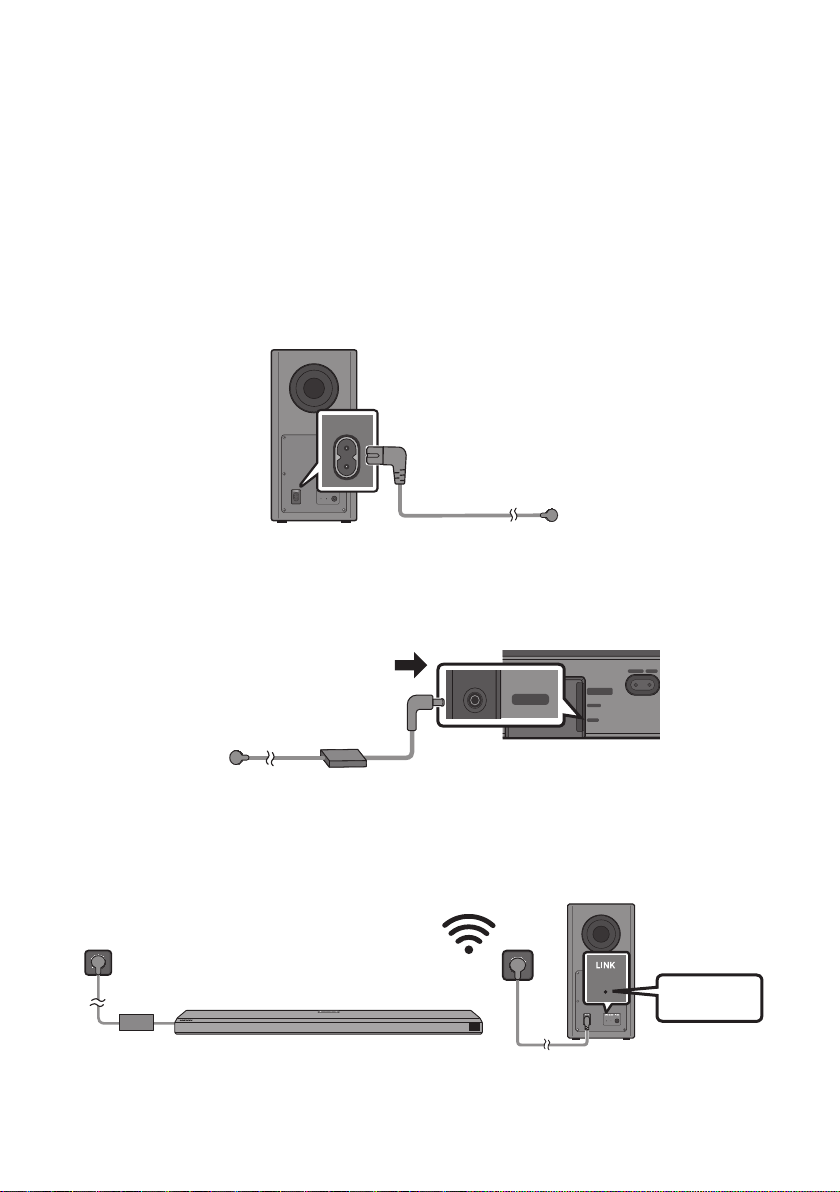
SPA - 14
04 CONEXIÓN DE LA SOUNDBAR
Conexióndelasunidadesalafuentedealimentación
Utilice los componentes de alimentación para conectar el Subwoofer y la Soundbar a un enchufe en el
siguiente orden:
• Para obtener más información acerca del suministro eléctrico necesario y el consumo de energía,
consulte la etiqueta del producto. (Etiqueta: parte inferior de la unidad principal de la Soundbar)
1. Conecte el cable de alimentación al Subwoofer.
POWER
Parteposteriordel
Subwoofer
Cabledealimentación
2. Primero conecte el cable de alimentación al adaptador de CA/CC.
Conecte el adaptador de CA/CC (con el cable de alimentación) a la Soundbar.
DIGITAL AUDIO IN
(OPTICAL)
SERVICE
DC 19V
HDMI
NETWORK ID SET
DIGITAL AUDIO IN
(OPTICAL)
SERVICE
NETWORK ID SET
HDMI TO TV
(eARC/ARC)
HDMI IN
HDMI OUT
(TV-ARC)
DIGITAL AUDIO IN
(OPTICAL)
SERVICE
DC 19V
DIGITAL AUDIO IN
(OPTICAL)
SERVICE
DC 19V
HDMI
HDMI TO TV
(eARC/ARC)
DIGITAL AUDIO IN
(OPTICAL)
SERVICE
DC 19V
HDMI
NETWORK ID SET
DIGITAL AUDIO IN
(OPTICAL)
SERVICE
NETWORK ID SET
HDMI TO TV
(eARC/ARC)
HDMI IN
HDMI OUT
(TV-ARC)
DIGITAL AUDIO IN
(OPTICAL)
SERVICE
DC 19V
DIGITAL AUDIO IN
(OPTICAL)
SERVICE
DC 19V
HDMI
HDMI TO TV
(eARC/ARC)
Parteinferiordela
unidadprincipaldela
Soundbar
DC 19V
AdaptadordeCA/CC
Cablede
alimentación
3. Conecte la corriente eléctrica a la Soundbar y al Subwoofer. El Subwoofer se conecta
automáticamente cuando se enciende la Soundbar.
Azulestá
encendido
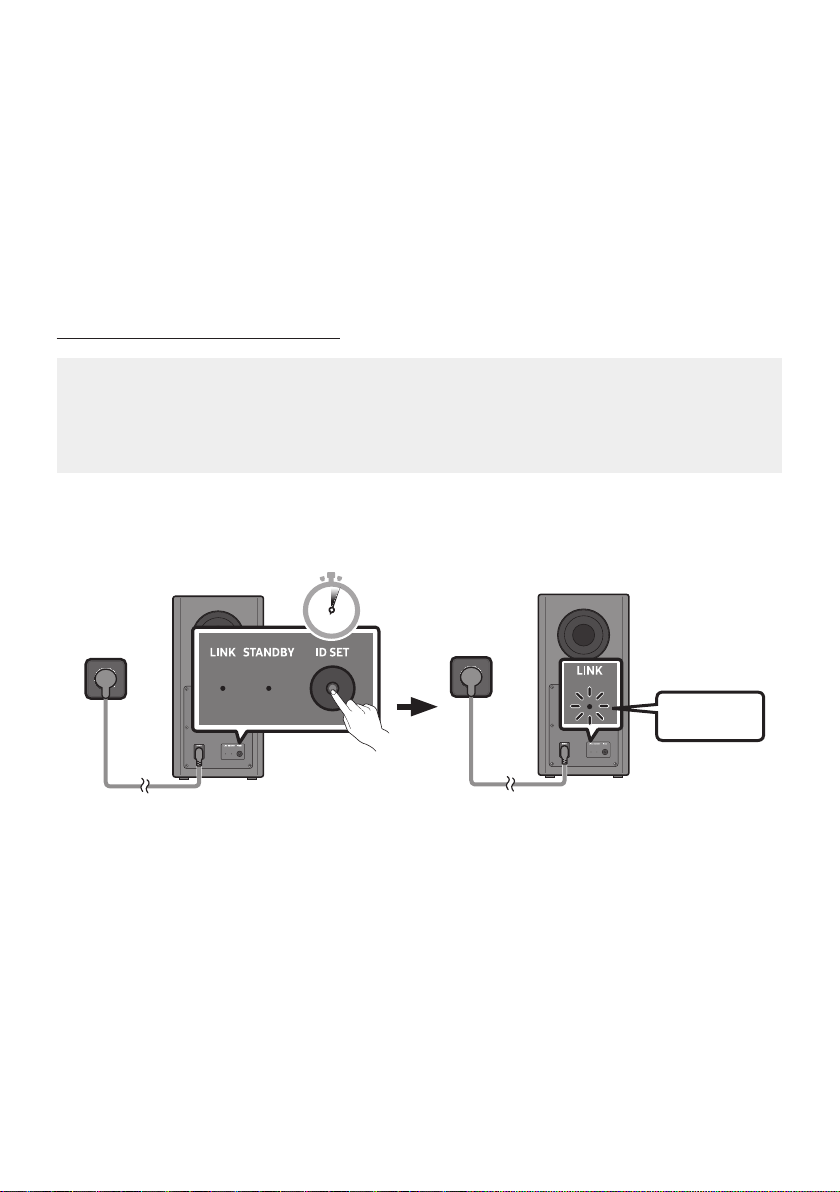
SPA - 15
NOTAS
• Conecte la alimentación del Subwoofer antes de conectarlo a la Soundbar.
El Subwoofer se conectará automáticamente cuando se encienda la Soundbar.
• Si desenchufa el cable de alimentación y vuelve a conectarlo cuando el producto está encendido, la
Soundbar se encenderá automáticamente.
• Asegúrese de colocar el adaptador de CA/CC en posición plana sobre una mesa o el piso. Si coloca
el adaptador de CA/CC de manera que quede colgando con la entrada del cable de CA apuntando
hacia arriba, puede ingresar agua u otras sustancias ajenas al adaptador y provocar fallas en el
funcionamiento.
ConexiónmanualdelSubwoofer
Antesderealizarlaconexiónmanualqueseindicaacontinuación,sigaestospasos:
• Compruebe si los cables de alimentación para la Soundbar y el subwoofer están conectados
correctamente.
• Asegúrese de que la Soundbar esté apagada.
1. Apague la unidad principal de la Soundbar.
2. Mantenga presionado el botón ID SET en la parte posterior del subwoofer, al menos, 5segundos.
• El indicador rojo de la parte posterior del subwoofer se apaga y el indicador azul parpadea.
5 Sec
Parteposteriordel
Subwoofer
Parteposteriordel
Subwoofer
Parpadeoazul
rápido
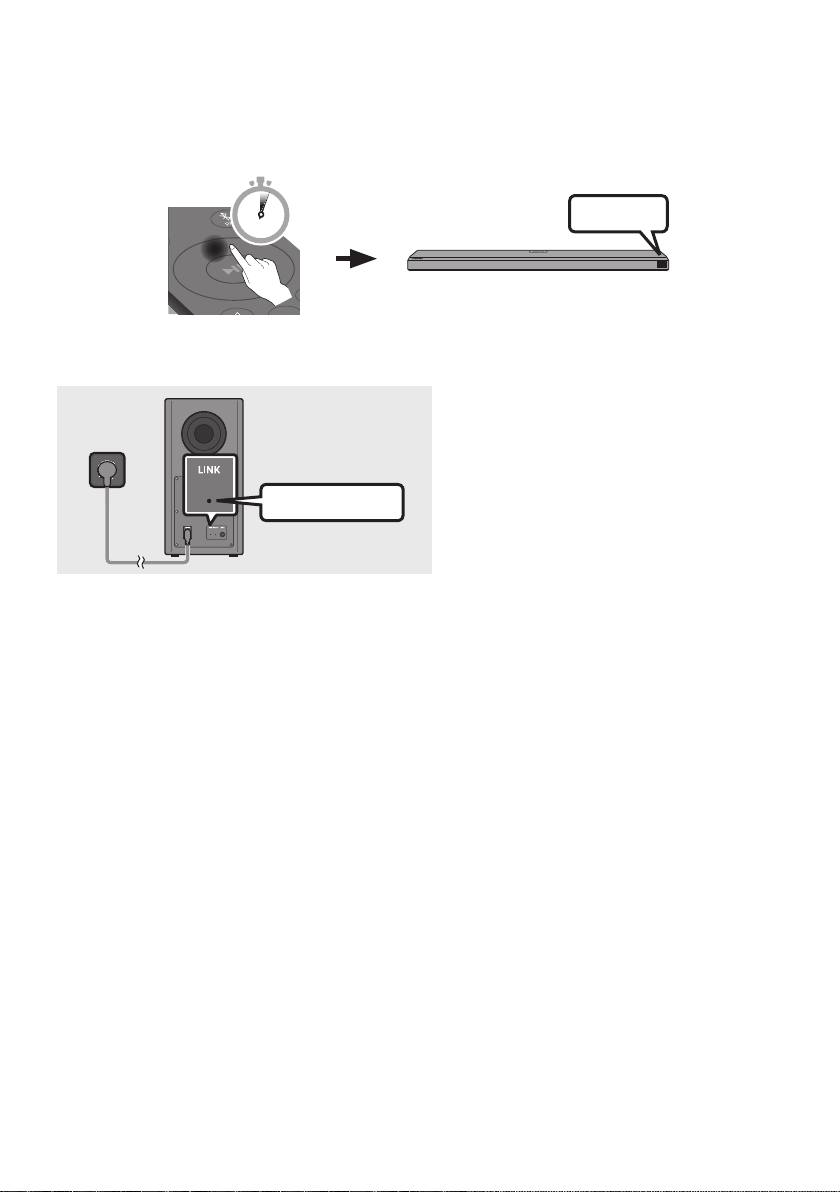
SPA - 16
3. Presione el botón Arriba en el control remoto durante 5 segundos.
• El mensaje ID SET aparece en la pantalla de la Soundbar durante un momento y luego
desaparece.
• La Soundbar se encenderá automáticamente cuando ID SET esté completo.
ID SET
SOUND
MODE
PAIR
5 Sec
4. Compruebe si el LINK LED es azul (conexión completa).
Azulestáencendido
El indicador LINK LED deja de parpadear y
queda encendido en azul cuando se
establece una conexión entre la Soundbar y
el Subwoofer inalámbrico.
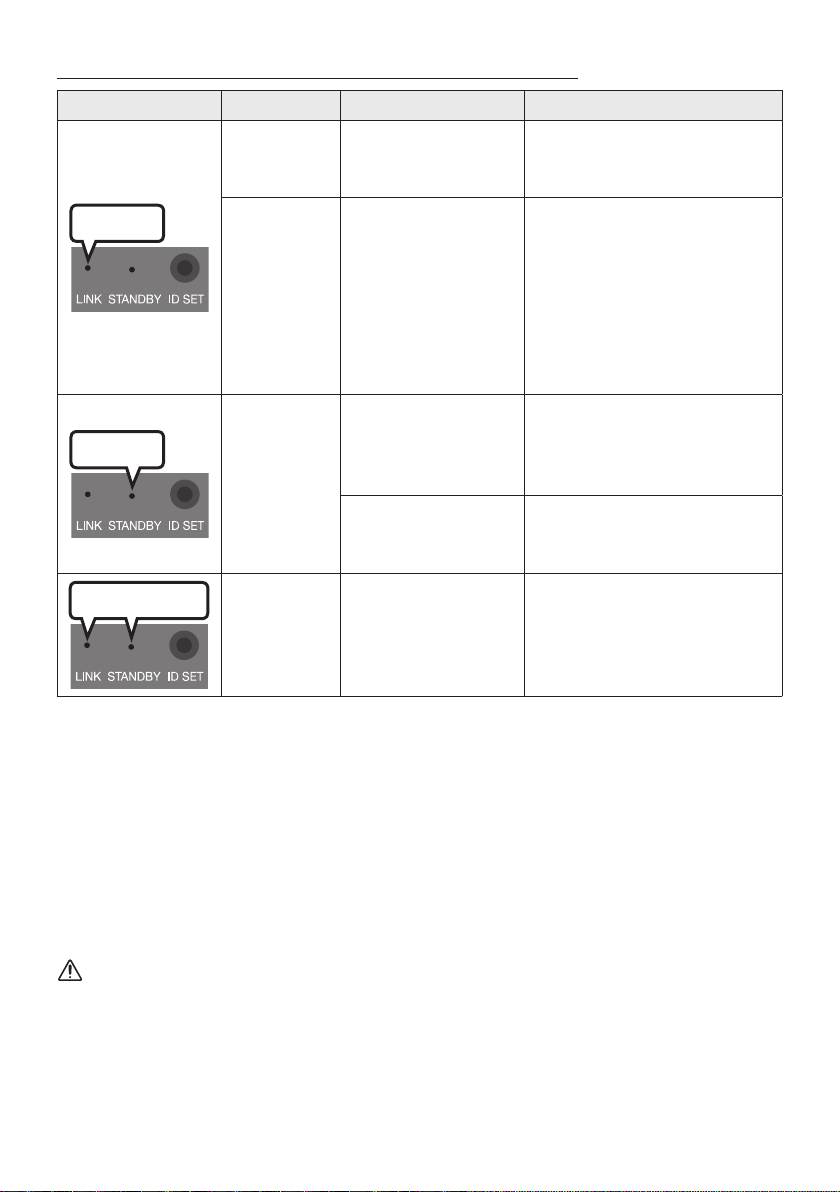
SPA - 17
LucesdelindicadorLEDenlaparteposteriordelSubwoofer
LED Estado Descripción Resolución
Azul
Encendido
Conectado
correctamente
(operación normal)
-
Parpadeante
Recuperando la
conexión
Compruebe si el cable de
alimentación conectado a la
unidad principal de la Soundbar
está conectado correctamente o
espere unos 5minutos. Si el
parpadeo continua, intente
conectar el subwoofer de forma
manual. Consulte la página 15.
Rojo
Encendido
Modo de espera (con la
unidad principal de la
Soundbar apagada)
Compruebe si el cable de
alimentación conectado a la
unidad principal de la Soundbar
está conectado correctamente.
Se produjo un error en
la conexión
Conecte de nuevo. Consulte las
instrucciones de conexión manual
en la página 15.
Rojo y azul
Parpadeante
Problema de
funcionamiento
Consulte la información de
contacto del Centro de Servicios
de Samsung en este manual.
NOTAS
• Si la unidad principal está apagada, el subwoofer inalámbrico pasará a modo de espera y el LED de
STANDBY de la parte posterior se verá rojo después de parpadear con una luz azul varias veces.
• Si utiliza cerca de la Soundbar un dispositivo que usa la misma frecuencia (5,8 GHz) que esta, la
interferencia puede hacer que se interrumpa el sonido.
• La distancia máxima de transmisión de la señal inalámbrica de la unidad principal es de
aproximadamente 10 metros, pero puede variar según su entorno operativo. Si hay una pared
metálica o de amalgama acero-concreto entre la unidad principal y el subwoofer inalámbrico, es
posible que el sistema no funcione porque la señal inalámbrica no puede penetrar el metal.
PRECAUCIÓN
• El subwoofer inalámbrico tiene incorporadas antenas receptoras inalámbricas. Mantenga las
unidades lejos de fuentes de agua y humedad.
• Para obtener un rendimiento óptimo de escucha, asegúrese de que no haya obstrucciones en el
área alrededor de la ubicación del subwoofer inalámbrico y del módulo receptor inalámbrico (se
vende por separado).
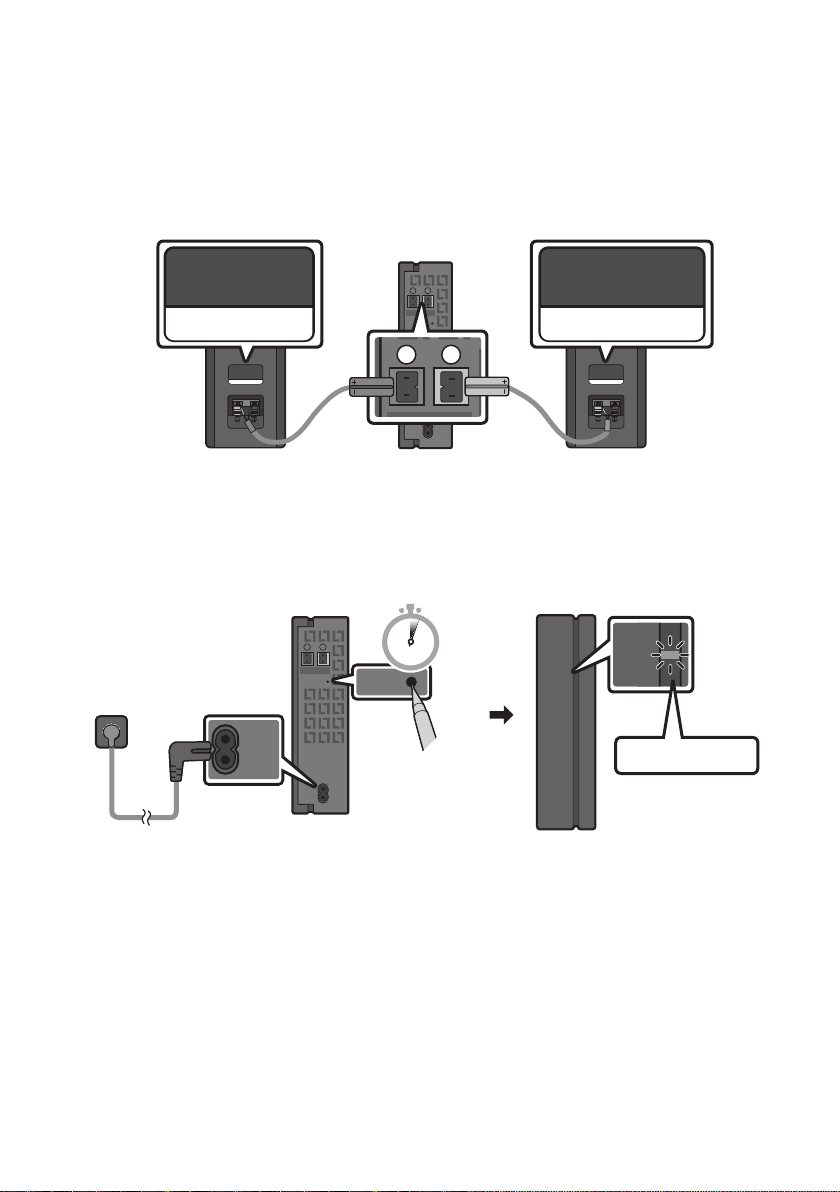
SPA - 18
ConexióndelSWA-9000S(sevendeporseparado)aunaSoundbar
Conecte el Kit de parlante trasero inalámbrico de Samsung (SWA-9000S: se vende por separado) a la
Soundbar para lograr un verdadero sonido envolvente inalámbrico.
1. Conecte el módulo receptor inalámbrico a 2 parlantes de sonido envolvente.
– Los cables del parlante están codicados con colores.
SURROUND-LEFT
ID SET
L
R
SURROUND SPEAKERS OUT
SPEAKER IMPEDANCE : 3Ω
POWER
ID SET
L
R
SURROUND SPEAKERS OUT
SPEAKER IMPEDANCE : 3Ω
SURROUND-RIGHT
SURROUND-LEFT SURROUND-RIGHT
2. Verique el estado de espera del módulo receptor inalámbrico luego de enchufarlo a un tomacorriente.
• El indicador LINK LED (azul) en el módulo receptor inalámbrico debe estar parpadeando. Si el
indicador no parpadea, use una punta na para mantener presionado el botón ID SET durante 5
segundos o más. Consulte la guía del usuario SWA-9000S para obtener más detalles.
ID SET
L
R
SURROUND SPEAKERS OUT
SPEAKER IMPEDANCE : 3Ω
POWER
POWER
ID SET
SURROUND SPEAKERS OUT
SPEAKER IMPEDANCE : 3Ω
STANDBY
LINK
STANDBY
LINK
Azulintermitente
5 Sec
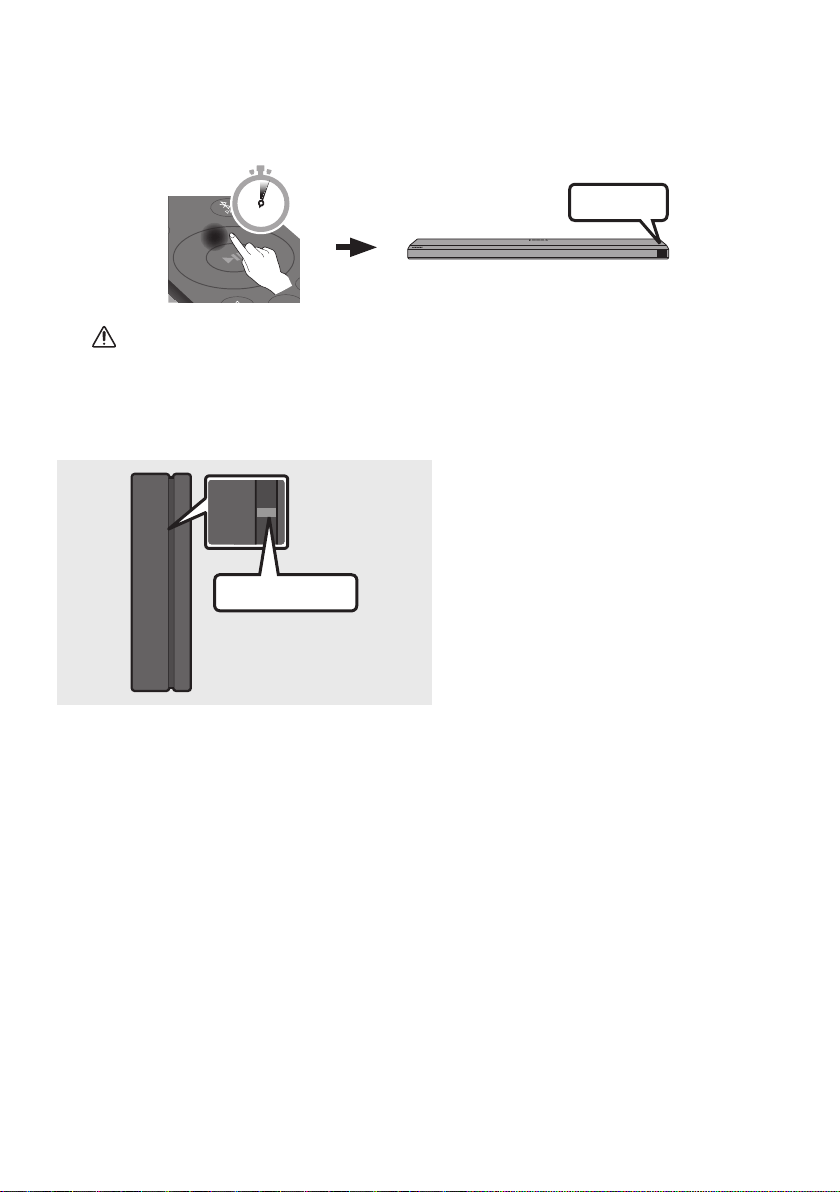
SPA - 19
3. Presione el botón Arriba en el control remoto durante 5 segundos.
• El mensaje ID SET aparece en la pantalla de la Soundbar durante un momento y luego
desaparece.
• La Soundbar se encenderá automáticamente cuando ID SET esté completo.
ID SET
SOUND
MODE
PAIR
5 Sec
PRECAUCIÓN
• Si su Soundbar estaba reproduciendo música al momento de conectarse al SWA-9000S, es
posible que escuche una reproducción defectuosa del woofer a medida que la conexión naliza.
4. Verique que el LINK LED no parpadeé (conexión completa).
STANDBY
LINK
STANDBY
LINK
Azulestáencendido
El indicador LINK LED deja de parpadear y
queda encendido en azul intenso cuando se
establece una conexión entre la Soundbar y
el módulo receptor inalámbrico.
5. Si el SWA-9000S no se conecta, repita el procedimiento desde el Paso 2.
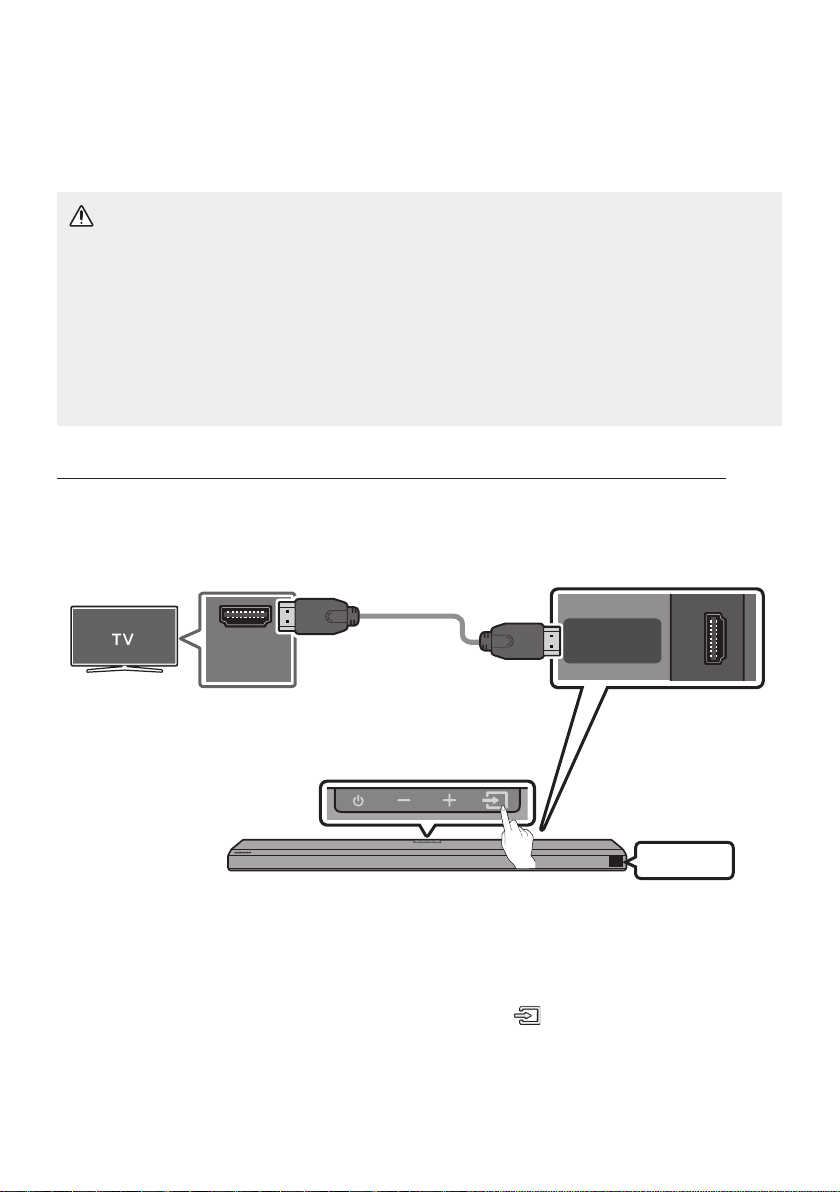
SPA - 20
05 USO DE UNA CONEXIÓN CON CABLE AL TV
Método1.ConexiónconHDMI
PRECAUCIÓN
• Cuando el cable HDMI y el cable óptico estén conectados al mismo tiempo, la señal HDMI se
recibe primero.
• Para conectar el cable HDMI entre el TV y la Soundbar, asegúrese de conectar las terminales
marcadas como ARC. De lo contrario, es posible que el sonido del TV no se escuche.
• Asegúrese de usar el cable con el logotipo de certicación HDMI premium. Además, asegúrese
de que el cable sea un cable de Ethernet HDMI de alta velocidad tipoA. (CABLE HDMI DE ALTA
VELOCIDAD CON ETHERNET)
ConexiónalTVqueescompatibleconHDMIARC(Retornodelcanaldeaudio)
HDMI IN
(ARC)
HDMI TO TV
(eARC/ARC)
SERVICE
DC 19V
ConécteloalpuertoHDMI
IN(ARC)ensuTV.
CableHDMI
Parteinferiordela
Soundbar
ConécteloalpuertoHDMITOTV
(eARC/ARC)delaunidad
principaldelaSoundbar.
PartesuperiordelaSoundbar
TV ARC
1. Con la Soundbar y el TV apagados, conecte el cable HDMI como se indica en la imagen.
2. Encienda la Soundbar y el TV.
3. En la ventana de visualización de la unidad principal de la Soundbar aparece “TVARC” y la
Soundbar reproducirá el sonido del TV.
• Si no se escucha el sonido del televisor, presione el botón (Fuente) en el control remoto o
en la parte superior de la Soundbar para cambiar al modo “D.IN”. En la pantalla aparece “D.IN” y
“TVARC” en secuencia, y se escucha el sonido del televisor.
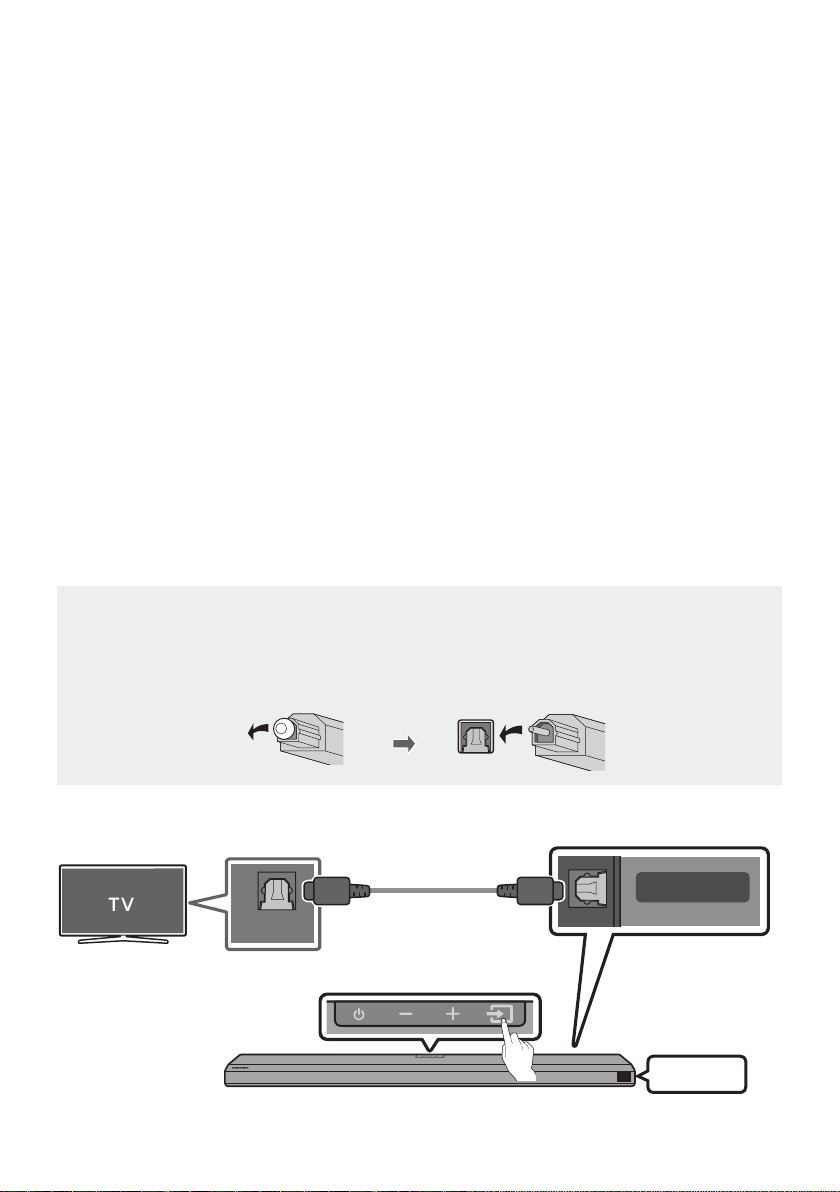
SPA - 21
• Al conectar un TV Samsung compatible con la función the eARC, aparece el texto “eARC” en la
pantalla y se escucha el sonido.
• Si no aparece “TVARC” en la ventana de visualización de la unidad principal de la Soundbar,
verique que el cable HDMI esté conectado en el puerto correcto.
• Use los botones de volumen en el control remoto del TV para cambiar el volumen de la
Soundbar.
NOTAS
• Cuando conecte el TV que es compatible con HDMIARC (Retorno del canal de audio) a la Soundbar
con un cable de HDMI, puede transmitir los datos de audio y video digitales sin conectar un cable
óptico aparte.
• Le recomendamos que use un cable HDMI sin núcleo, si es posible. Si usa un cable HDMI con núcleo,
use uno cuyo diámetro sea menor de 14mm.
• Esta función no está disponible si el cable HDMI no es compatible con ARC.
• Cuando el audio en una transmisión está codicado en Dolby Digital y el “Formato de salida de audio
digital” de su TV está congurado como PCM, le recomendamos que cambie la conguración a Dolby
Digital. Cuando cambie la conguración en el TV, la calidad del sonido será mejor. (Es posible que en
el menú del TV se usen palabras distintas para Dolby Digital y PCM según el fabricante del TV.)
Método2.Conexiónconuncableóptico
Listadevericaciónpreviaalaconexión
• Cuando el cable HDMI y el cable óptico estén conectados al mismo tiempo, la señal HDMI se
recibe primero.
• Cuando use un cable óptico y las terminales tengan cubiertas, asegúrese de quitarlas.
ParteinferiordelaSoundbar
DIGITAL AUDIO IN
(OPTICAL)
SERVICE
DC 19V
OPTICAL OUT
D.IN
Cableóptico
(nosuministrado)
PartesuperiordelaSoundbar
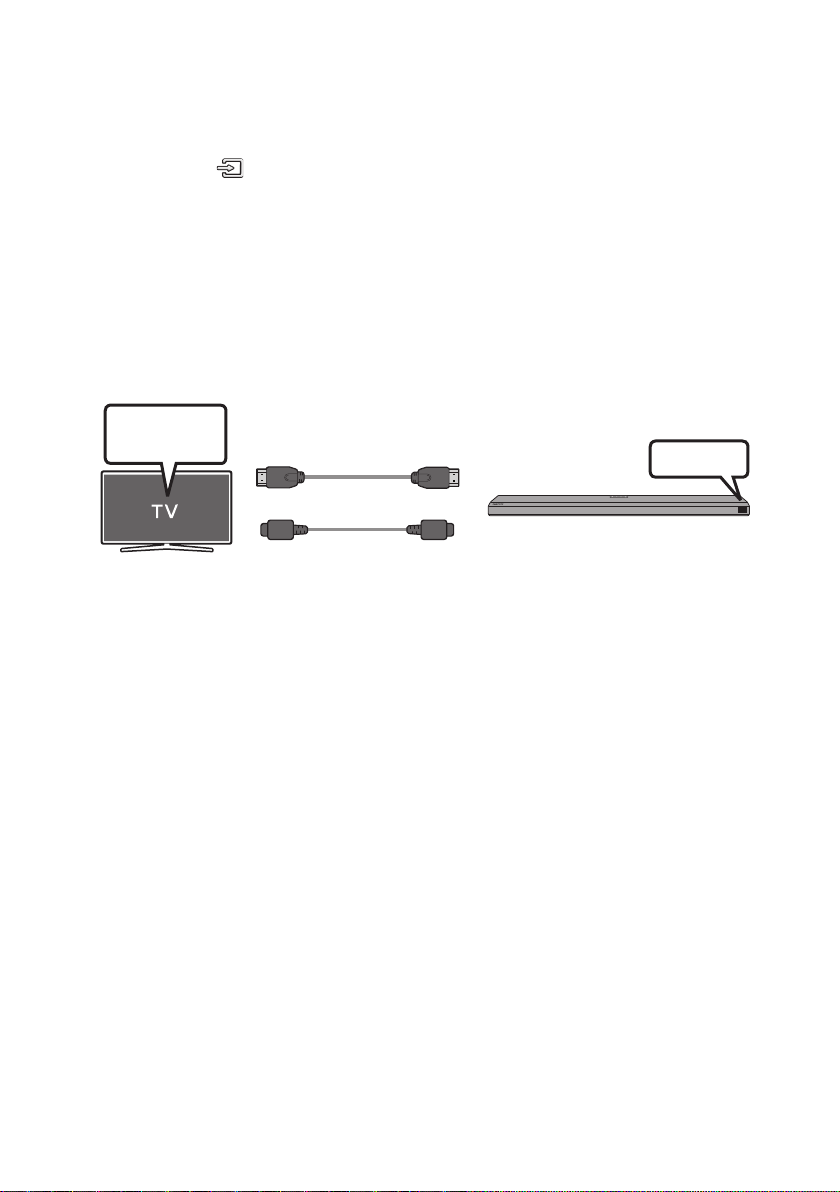
SPA - 22
1. Con la Soundbar y el TV apagados, conecte el puerto DIGITALAUDIOIN(OPTICAL) de la Soundbar
y el puerto de salida OPTICAL del TV con el cable óptico (no suministrado) como se muestra en la
imagen.
2. Encienda la Soundbar y el TV.
3. Presione el botón (Fuente) en el panel superior o en el control remoto y, luego, seleccione el
modo “D.IN”.
4. El sonido del TV saldrá de la Soundbar.
CómoutilizarlafunciónQ-Symphony
Para Q-Symphony, la Soundbar se sincroniza con un televisor Samsung para emitir el sonido a través de
dos dispositivos para brindar un efecto envolvente óptimo. Cuando la Soundbar está conectada,
aparece el menú “TV+Soundbar” debajo del menú Salidadelsonido del televisor. Seleccione el menú
correspondiente.
D.IN
Menúdel
televisor
O
Cableóptico(nosuministrado)
CableHDMI
• Ejemplo del menú del televisor: TVNombredelaserie+[AV]SoundbarNombredelaserie(HDMI)
NOTAS
• Puede funcionar según el códec que admita el televisor.
• Esta función solo se admite cuando se conecta el cable HDMI o el cable óptico (no suministrado).
• Esta función está disponible en los televisores Samsung que se lanzaron en 2020 y en algunos
modelos de Soundbar.
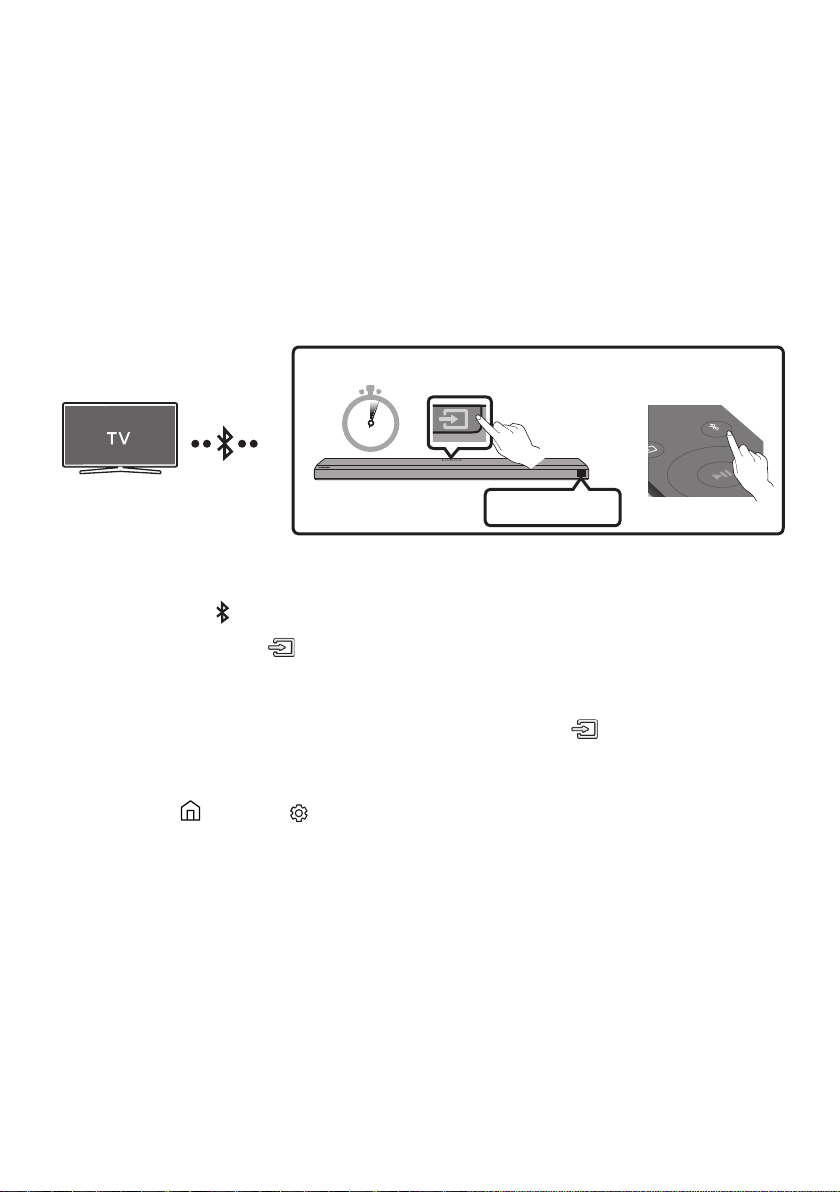
SPA - 23
06 USO DE UNA CONEXIÓN INALÁMBRICA AL TV
ConexiónatravésdeBluetooth
Cuando se conecta un TV Samsung a través de Bluetooth, puede escuchar sonido en estéreo sin cables
de por medio.
• Solo se puede conectar un TV Samsung por vez.
• Se puede conectar un TV Samsung que sea compatible con Bluetooth. Compruebe las
especicaciones de su TV.
O
Partesuperiordela
Soundbar
BT PAIRING
SOUND
MODE
PAIR
5 Sec
Laconexióninicial
1. Presione el botón PAIR del control remoto de la Soundbar para entrar al modo “BT PAIRING”.
(O)
a. Presione el botón (Fuente) en el panel superior y, luego, seleccione “BT”.
“BT” cambia automáticamente a “BT PAIRING” en pocos segundos o cambia a “BT READY”
si existe un registro de conexión.
b. Cuando aparezca “BT READY” mantenga presionado el botón (Fuente) en el panel
superior de la Soundbar durante más de 5 segundos hasta que aparezca “BT PAIRING”.
2. Seleccione el modo Bluetooth en el TV Samsung.
(P.ej., Inicio ( ) Cong. ( ) Sonido Salida del sonido Lista de altavoces Bluetooth
[AV] Samsung Soundbar Q70T (Bluetooth))
3. Seleccione “[AV]SamsungSoundbarQ70T” de la lista que aparece en la pantalla del TV.
Se indicará la Soundbar disponible con “Necesitaemparejamiento” o “Emparejado” en la lista de
dispositivos Bluetooth del TV. Para conectar el TV Samsung a la Soundbar, seleccione el mensaje y
establezca una conexión.
• Cuando el TV Samsung esté conectado, aparecerá [NombredelTV] → “BT” en la pantalla
frontal de la Soundbar.
4. Podrá escuchar el sonido del TV Samsung en la Soundbar.
• Luego de haber conectado por primera vez la Soundbar a su TV Samsung, use el modo “BT
READY” para volver a conectar.

SPA - 24
Sieldispositivonosepuedeconectar
• Si tiene una Soundbar existente (p.ej., [AV]SamsungSoundbarQ70T) en la lista de parlantes
del TV Samsung, elimínela.
• Luego, repita los pasos 1 a 3.
DesconexióndelaSoundbardelTVSamsung
Presione el botón (Fuente) en el panel superior o en el control remoto y cambie a cualquier modo
excepto “BT”.
• La desconexión toma tiempo porque el TV Samsung debe recibir la respuesta de la Soundbar.
(El tiempo requerido puede variar según el modelo del TV Samsung).
¿CuálesladiferenciaentreBTREADYyBTPAIRING?
• BT READY : en este modo, puede reconectar cualquier dispositivo móvil o TV Samsung que se
haya conectado antes.
• BT PAIRING : en este modo, puede conectar un dispositivo nuevo a la Soundbar. (Presione el
botón PAIR en el control remoto de la Soundbar o mantenga presionado el botón
(Fuente)
en la parte superior de la Soundbar durante más de 5segundos mientras la Soundbar está en
modo “BT”).
NotassobrelaconexiónatravésdeBluetooth
• Ubique un dispositivo nuevo en un radio de 1m para conectarlo a través de Bluetooth.
• Si le pide un código PIN cuando conecta un dispositivo Bluetooth, ingrese <0000>.
• La Soundbar se apaga automáticamente después de estar 18minutos en estado Listo.
• Es posible que la Soundbar no realice la conexión o la búsqueda de Bluetooth correctamente en los
siguientes casos:
– Si hay un campo eléctrico fuerte cerca de la Soundbar.
– Si varios dispositivos Bluetooth se emparejan en simultáneo con la Soundbar.
– Si el dispositivo Bluetooth se apaga, no está en el lugar o no funciona correctamente.
• Los dispositivos electrónicos pueden ocasionar interferencias de radio. Los dispositivos que
generan ondas electromagnéticas deberán mantenerse alejados de la unidad principal de la
Soundbar, p.ej., dispositivos con redes LAN inalámbricas, microondas, etc.
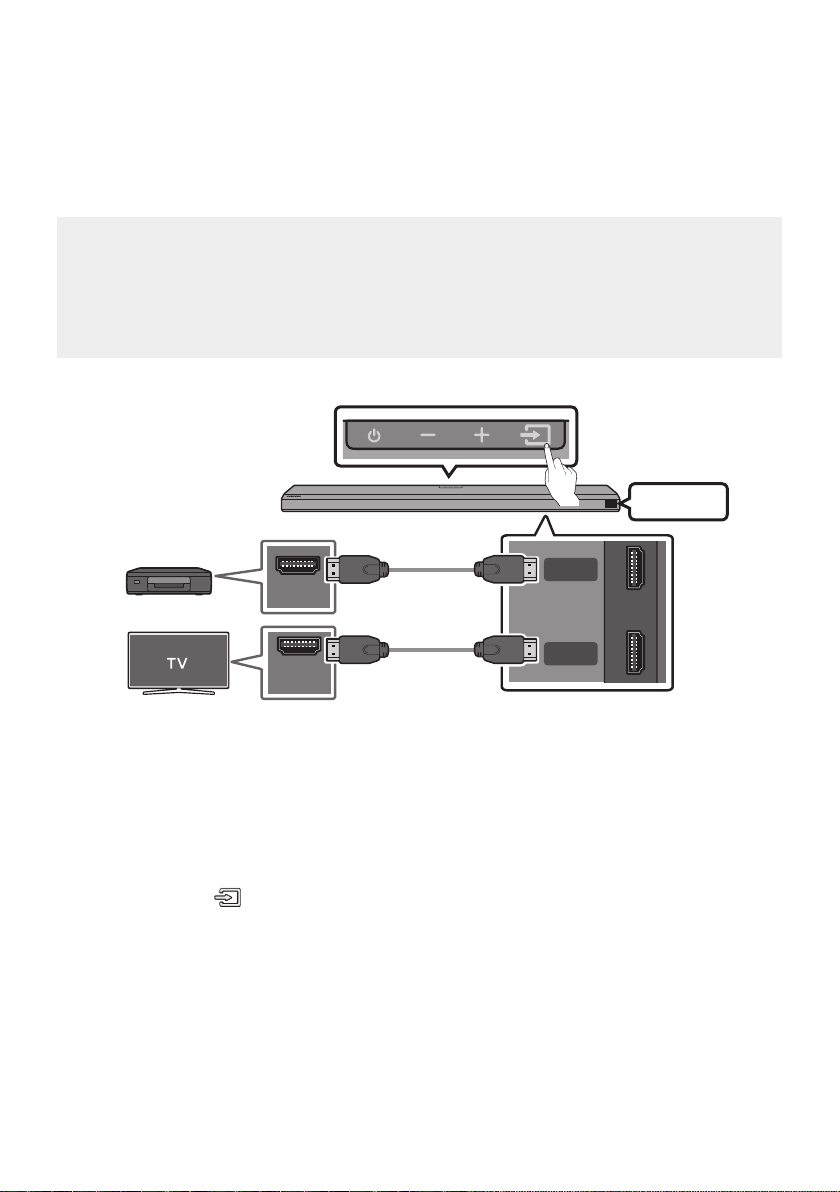
SPA - 25
07 CONEXIÓN A UN DISPOSITIVO EXTERNO
Método1.ConexiónconuncableHDMI(capazdedecodicary
reproducirDolbyAtmos)
Listadevericaciónpreviaalaconexión
• Dolby Atmos® y DTS:X solo son compatibles con el modo HDMI.
• Si las opciones de Salida de audio incluyen Secondary Audio (Audio secundario), asegúrese de
que esté en la posición Apagado.
• Asegúrese de que el contenido admita Dolby Atmos®.
HDMI IN
(ARC)
HDMI
HDMI TO TV
(eARC/ARC)
DIGITAL AUDIO IN
(OPTICAL)
SERVICE
DC 19V
HDMI OUT
PartesuperiordelaSoundbar
ParteinferiordelaSoundbar
Dispositivoexterno
HDMI
CableHDMI
CableHDMI
1. Use un cable HDMI para conectar el puerto HDMI OUT en el dispositivo externo y el puerto HDMI
en la parte inferior de la Soundbar.
2. Use un cable HDMI para conectar el puerto HDMI IN del televisor y el puerto HDMITOTV(eARC/
ARC) en la parte inferior de la Soundbar.
3. Encienda la Soundbar, el televisor y el dispositivo externo.
4. Presione el botón (Fuente) en el panel superior o en el control remoto y, luego, seleccione
“HDMI”.
5. La pantalla de la Soundbar indica que el modo “HDMI” está actualmente seleccionado y que la
Soundbar comenzará a reproducir sonidos.

SPA - 26
NOTAS
• CuandouseDolbyAtmos®: Si la fuente de entrada es Dolby Atmos®, se utilizan los canales
5.1.2 como salida. Cuando Dolby Atmos® está activo, los modos de efectos de sonido de la
Soundbar controlados por el botón SOUND MODE no están disponibles.
• Cuando se activa Dolby Atmos®, aparece la leyenda “DOLBY ATMOS” en la pantalla frontal.
• CómocongurarDolbyAtmos®ensureproductordeBlu-rayuotrodispositivo.
Abra las opciones de salida de audio en el menú de conguraciones de su reproductor de
Blu-ray u otro dispositivo, y asegúrese de que esté seleccionada la opción “Sin encriptar” para el
ujo de bit. Por ejemplo, en un reproductor de Blu-ray de Samsung, vaya a Menú de inicio →
Sonido → Salida digital y luego seleccione Secuencia de bits (sin procesar).
Método2.Conexiónconuncableóptico
OPTICAL OUT
DIGITAL AUDIO IN
(OPTICAL)
SERVICE
ParteinferiordelaSoundbar
Cableóptico
(nosuministrado)
PartesuperiordelaSoundbar
BD/ReproductordeDVD/
Decodicador/
Consoladejuegos
D.IN
1. Use un cable óptico (no suministrado) para conectar la DIGITALAUDIOIN(OPTICAL) en el puerto
principal de la Soundbar y la OPTICAL OUT en el dispositivo externo.
2. Encienda la Soundbar y el dispositivo externo.
3. Seleccione el modo “D.IN” presionando el botón (Fuente) en el panel superior o en el control
remoto.
4. La Soundbar reproducirá sonidos del dispositivo externo.
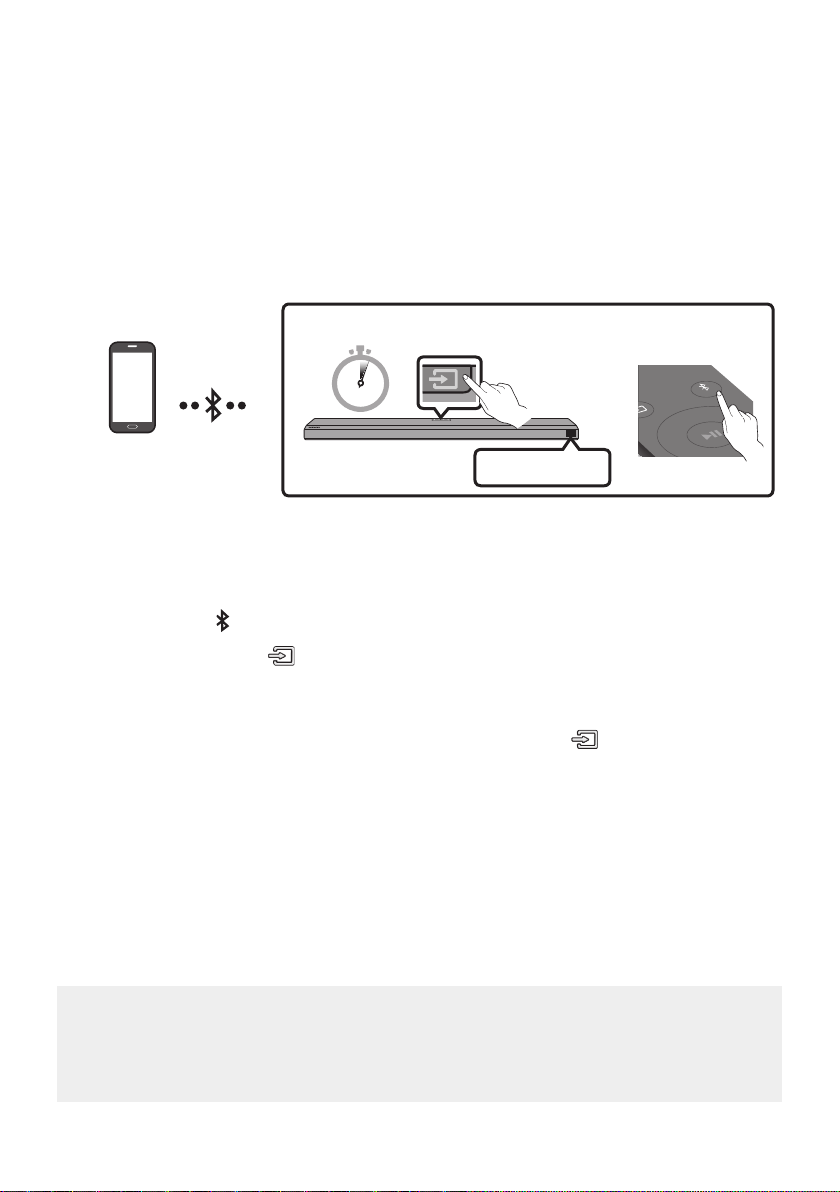
SPA - 27
08 CONEXIÓN A UN DISPOSITIVO MÓVIL
Método1.ConexiónatravésdeBluetooth
Cuando se conecta un dispositivo móvil a través de Bluetooth, puede escuchar sonido en estéreo sin
cables de por medio.
• Cuando conecta un dispositivo Bluetooth emparejado y la Soundbar está apagada, la Soundbar se
enciende automáticamente.
Dispositivomóvil
O
Partesuperiorde
laSoundbar
BT PAIRING
SOUND
MODE
PAIR
5 Sec
Laconexióninicial
• Cuando conecte un dispositivo Bluetooth nuevo, asegúrese de que el dispositivo esté en un radio de
1m de distancia.
1. Presione el botón PAIR del control remoto de la Soundbar para entrar al modo “BT PAIRING”.
(O)
a. Presione el botón (Fuente) en el panel superior y, luego, seleccione “BT”.
“BT” cambia automáticamente a “BT PAIRING” en pocos segundos o cambia a “BT READY”
si existe un registro de conexión.
b. Cuando aparezca “BT READY” mantenga presionado el botón (Fuente) en el panel
superior de la Soundbar durante más de 5 segundos hasta que aparezca “BT PAIRING”.
2. En su dispositivo, seleccione “[AV]SamsungSoundbarQ70T” de la lista que aparece.
• Cuando la Soundbar se conecta al dispositivo móvil, aparece [Nombredeldispositivomóvil] →
“BT” en la pantalla frontal.
3. Reproduzca archivos de música desde el dispositivo conectado por Bluetooth a través de la
Soundbar.
• Luego de haber conectado la Soundbar a su dispositivo móvil por primera vez, use el modo
“BTREADY” para volver a conectarla.
Sieldispositivonosepuedeconectar
• Si tiene una Soundbar existente (p. ej., “[AV]SamsungSoundbarQ70T”) en la lista de parlantes
en el dispositivo móvil, elimínela.
• Repita los pasos 1 y 2.

SPA - 28
¿CuálesladiferenciaentreBTREADYyBTPAIRING?
• BT READY : en este modo, puede reconectar cualquier dispositivo móvil o TV Samsung que se
haya conectado antes.
• BT PAIRING : en este modo, puede conectar un dispositivo nuevo a la Soundbar. (Presione el
botón PAIR en el control remoto de la Soundbar o mantenga presionado el botón
(Fuente)
en la parte superior de la Soundbar durante más de 5segundos mientras la Soundbar está en
modo “BT”).
NotassobrelaconexiónatravésdeBluetooth
• Ubique un dispositivo nuevo en un radio de 1m para conectarlo a través de Bluetooth.
• Si le pide un código PIN cuando conecta un dispositivo Bluetooth, ingrese <0000>.
• La Soundbar se apaga automáticamente después de estar 18minutos en estado Listo.
• Es posible que la Soundbar no realice la conexión o la búsqueda de Bluetooth correctamente en los
siguientes casos:
– Si hay un campo eléctrico fuerte cerca de la Soundbar.
– Si varios dispositivos Bluetooth se emparejan en simultáneo con la Soundbar.
– Si el dispositivo Bluetooth se apaga, no está en el lugar o no funciona correctamente.
• Los dispositivos electrónicos pueden ocasionar interferencias de radio. Los dispositivos que
generan ondas electromagnéticas deberán mantenerse alejados de la unidad principal de la
Soundbar, p.ej., dispositivos con redes LAN inalámbricas, microondas, etc.
• La Soundbar admite datos SBC (44,1 kHz, 48 kHz).
• Conéctese solo a un dispositivo Bluetooth que admita la función A2DP (AV).
• No puede conectar la Soundbar a un dispositivo Bluetooth que solo admita la función HF (Hands
Free).
• Cuando conecte la Soundbar a un dispositivo Bluetooth, colóquelos lo más cerca posible entre sí.
• Cuanto más lejos estén la Soundbar y el dispositivo Bluetooth, menor será la calidad del sonido. La
conexión Bluetooth se puede interrumpir cuando los dispositivos están fuera del alcance efectivo.
• La conexión Bluetooth puede no funcionar según lo previsto en zonas con poca señal.
• Un dispositivo Bluetooth puede presentar ruido o puede no funcionar correctamente en las
siguientes condiciones:
– Cuando el cuerpo está en contacto con el transceptor de señal en el dispositivo Bluetooth o la
Soundbar.
– En los rincones o cuando hay un obstáculo en las proximidades, como una pared o una
partición, donde pueden ocurrir cambios eléctricos.
– Cuando se expone a interferencias de radio de otros productos que operan en los mismos
rangos de frecuencia, como equipos médicos, hornos microondas y dispositivos de LAN
inalámbrica.
– Los obstáculos como puertas y paredes pueden afectar la calidad del sonido incluso cuando los
dispositivos están dentro del alcance efectivo.

SPA - 29
• Tenga en cuenta que la Soundbar no se puede emparejar con otros dispositivos Bluetooth mientras
usa la opción Bluetooth.
• Este dispositivo inalámbrico puede causar interferencia eléctrica durante el funcionamiento.
DesconexióndeldispositivoBluetoothdelaSoundbar
Puede desconectar el dispositivo Bluetooth de Soundbar. Para obtener instrucciones, consulte el
manual del usuario del dispositivo Bluetooth.
• Soundbar se desconectará.
• Cuando se desconecta la Soundbar del dispositivo Bluetooth, aparecerá “BT DISCONNECTED” en la
pantalla frontal de la Soundbar.
DesconexióndelaSoundbardeldispositivoBluetooth
Presione el botón (Fuente) en el panel superior o en el control remoto y, luego, cambie a cualquier
modo excepto “BT”.
• La desconexión lleva tiempo porque el dispositivo Bluetooth debe recibir una respuesta de la
Soundbar. (El tiempo de desconexión puede variar según el dispositivo Bluetooth).
• Cuando se desconecta la Soundbar del dispositivo Bluetooth, aparecerá “BT DISCONNECTED” en la
pantalla frontal de la Soundbar.
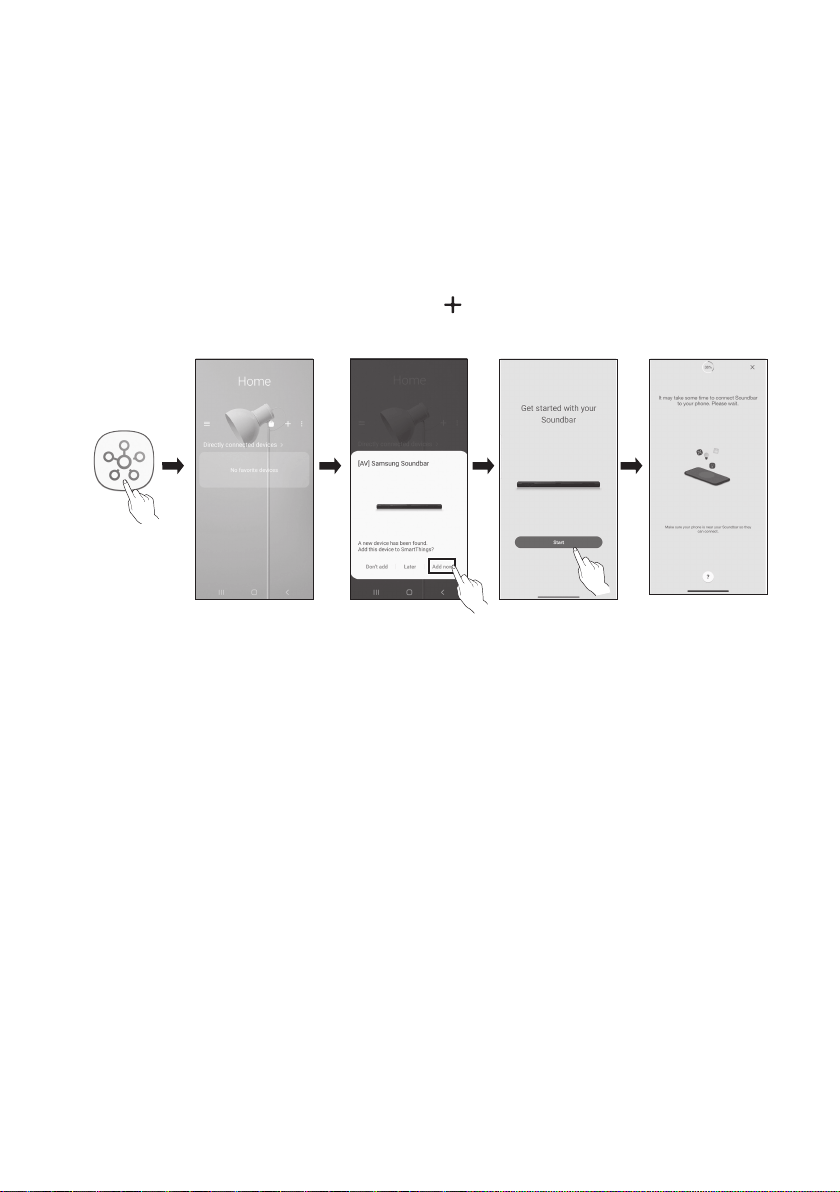
SPA - 30
Método2.ConexiónatravésdeWi-Fi(Redinalámbrica)
Para conectar la Soundbar a un dispositivo móvil a través de una red inalámbrica (Wi-Fi), se necesita la
aplicación SmartThings.
Laconexióninicial
1. Instale e inicie la aplicación SmartThings en su dispositivo móvil (teléfono inteligente o tableta).
2. En la aplicación, siga las instrucciones de la pantalla para agregar la Soundbar.
• Es posible que la ventana emergente automática (la segunda captura de pantalla a
continuación) no se muestre en algunos dispositivos.
Si no aparece la ventana emergente, presione “ ” en la pantalla Home. La Soundbar se agrega
a la aplicación.
Inicie la aplicación
Agregar
dispositivo
Ventana
emergente
automática
Aplicación
SmartThings
SPA - 31
09 CÓMO CONECTAR UN PRODUCTO AMAZON
• Es posible que esta función no esté disponible en algunos países.
• Este servicio es ofrecido por Amazon y se puede cancelar en cualquier momento. Samsung no
asume ninguna responsabilidad por la disponibilidad del servicio.
• La pantalla de la aplicación AmazonAlexaestá sujeta a cambios sin previo aviso.
ConectaryusarconunproductoAmazon(AmazonEcho)
Use un producto Amazon Echo para controlar su Soundbar y disfrute de los servicios de música de
Amazon Echo.
NOTA
• Verique que la Soundbar esté conectada a Wi-Fi. (Consulte “Método2. Conexión a través de Wi-Fi
(Red inalámbrica)”)
UsecomandosporvozparacontrolarlaSoundbar
• El servicio Amazon Echo que puede usar con su Soundbar se limita a la música. Otros servicios
brindados por Amazon Echo, como las noticias y el clima, solo se pueden utilizar mediante su
producto Amazon Echo.
Desencadenador+Comando+Nombredelaltavoz
*ParausarcomandosporvozparalaSoundbarllamada“Saladeestar”
Acción Comandoporvoz
Establecer el volumen en 5 “Alexa,ajustaelvolumena5paraSaladeestar”
Subir el volumen “Alexa,subeelvolumendeSaladeestar”
Silenciar el sonido “Alexa,silenciaSaladeestar”
Escuchar una estación de radio llamada KISS FM
“Alexa,reproduceKISSFMenSaladeestar”
Reproducir la siguiente canción “AlexaSiguientecanciónenSaladeestar”
Detener el audio “AlexaDetieneSaladeestar”
Desactivar el audio “AlexaDesactivaSaladeestar”
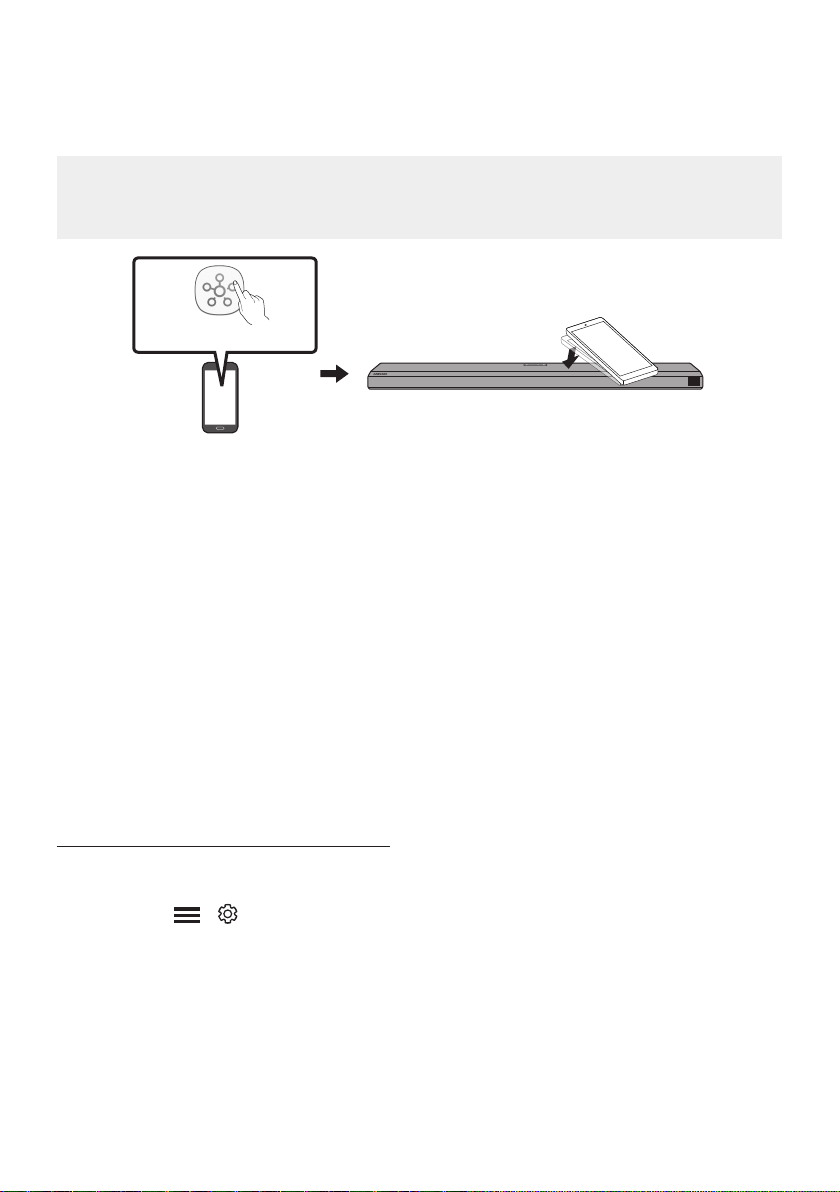
SPA - 32
UsodeTapSound
Toque la Soundbar con su dispositivo móvil para reproducir el sonido del contenido del dispositivo móvil
a través de la Soundbar.
• Es posible que esta función no sea compatible, según el dispositivo móvil.
• Esta función solo es compatible con dispositivos móviles Samsung con Android 8.1 o una versión
posterior.
Dispositivomóvil
AplicaciónSmartThings
Partesuperiordela
Soundbar
1. Active la función TapSound en su dispositivo móvil.
• Para obtener información detallada acerca de cómo activar la función, consulte “Conguración
delafunciónTapSound” a continuación.
2. Toque la Soundbar con el dispositivo móvil. Seleccione “Empezarahora” en la ventana de visualización.
Se establece una conexión entre el dispositivo móvil y la Soundbar a través de Bluetooth.
3. Reproduzca el sonido del contenido del dispositivo móvil a través de la Soundbar.
• Esta función conecta un dispositivo móvil a la Soundbar a través de Bluetooth detectando
vibraciones que se producen cuando el dispositivo toca la Soundbar.
• Asegúrese de que el dispositivo móvil no toque una esquina na de la Soundbar. La Soundbar o
el dispositivo móvil podrían rayarse o dañarse.
• Se recomienda cubrir el dispositivo móvil con una funda. Toque ligeramente el área ancha en la
parte superior de la Soundbar sin aplicar fuerza excesiva.
• Para utilizar esta función, actualice la aplicación SmartThings a la última versión.
Es posible que la función no sea compatible, según la versión de la aplicación.
ConguracióndelafunciónTapSound
Utilice la aplicación SmartThings para activar la función TapView, TapSound.
1. En el dispositivo móvil, ejecute la aplicación SmartThings.
2. Seleccione ( → ) en la pantalla de la aplicación SmartThings que aparece en el dispositivo móvil.
3. Congure “TapView,TapSound” a Activado para permitir que la función pueda usarse cuando
acerca un dispositivo móvil a la Soundbar. La función está activada.
NOTAS
• Cuando el dispositivo móvil está en modo ahorro de energía, la función TapSound no funciona.
• Es posible que la función TapSound no funcione si hay dispositivos cerca de la Soundbar que
generan interferencias de radio como dispositivos eléctricos. Asegúrese de que los dispositivos que
pueden generar interferencias de radio estén colocados a suciente distancia de la Soundbar.
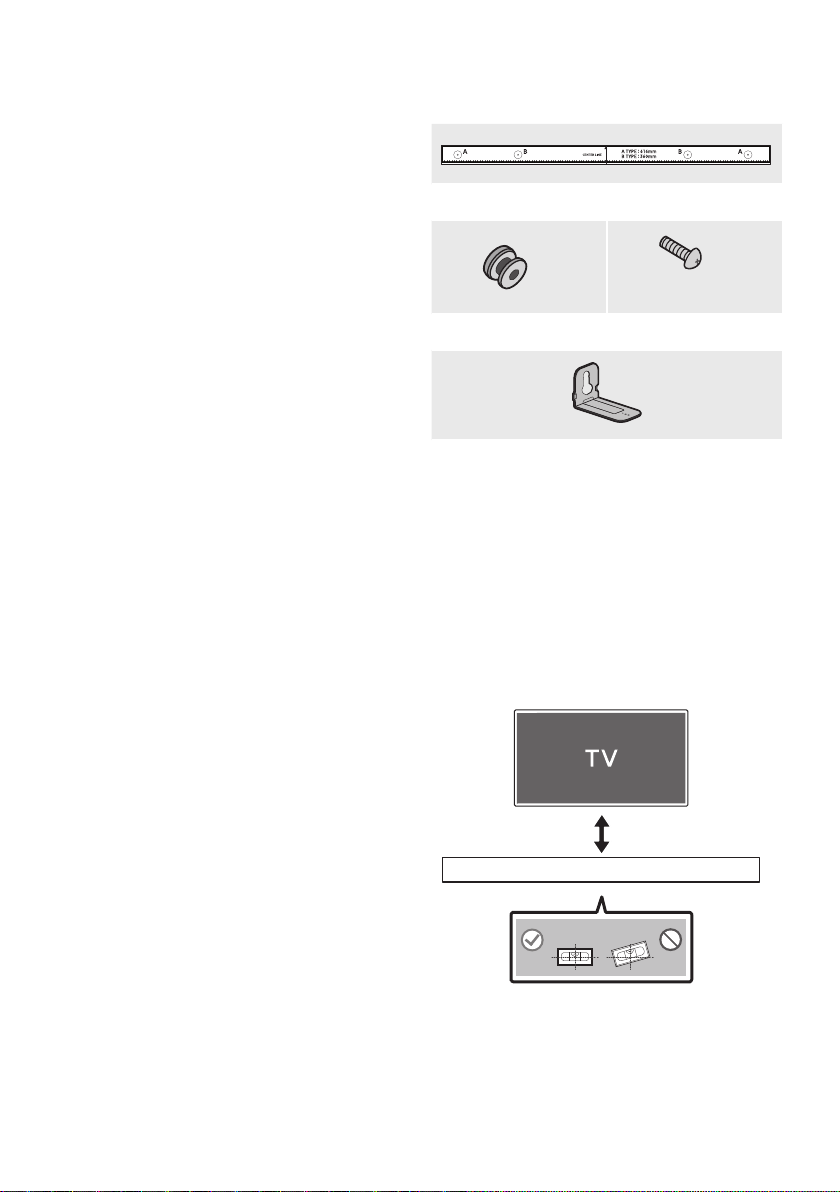
SPA - 33
10 INSTALACIÓN
DEL SOPORTE DE
MONTAJE EN LA
PARED
Precaucionesdurantela
instalación
• Instálelo en la pared solo de forma vertical.
• No lo instale en un lugar con altas
temperaturas o humedad.
• Verique si la pared es lo sucientemente
resistente como para soportar el peso del
producto. Si no lo es, refuerce la pared o elija
otro lugar para realizar la instalación.
• Compre y utilice tornillos de jación o pernos
adecuados para el tipo de pared que tiene
(placa de sello, placa de hierro, madera, etc.).
Si es posible, je los tornillos de sujeción en
los pernos de la pared.
• Compre tornillos para montaje en la pared
según el tipo y el grosor de la pared en la que
desea montar la Soundbar.
– Diámetro: M5
– Longitud: se recomienda 35mm o más.
• Conecte los cables de la unidad a los
dispositivos externos antes de instalar la
Soundbar en la pared.
• Asegúrese de que la unidad esté apagada y
desconéctela antes de instalarla. De lo
contrario, se puede producir una descarga
eléctrica.
Componentesparamontajeen
lapared
Guíademontajeenlapared
x 2
(M4 x L10)
x 2
Tornillodesujeción Tornillo
x 2
Soportedemontajeenlapared
1. Coloque la Guíademontajeenlapared
sobre la supercie de la pared.
• La Guíademontajeenlapared debe
estar nivelada.
• Si el televisor está colocado en la pared,
instale la Soundbar a al menos 5 cm
debajo del televisor.
5cmomás
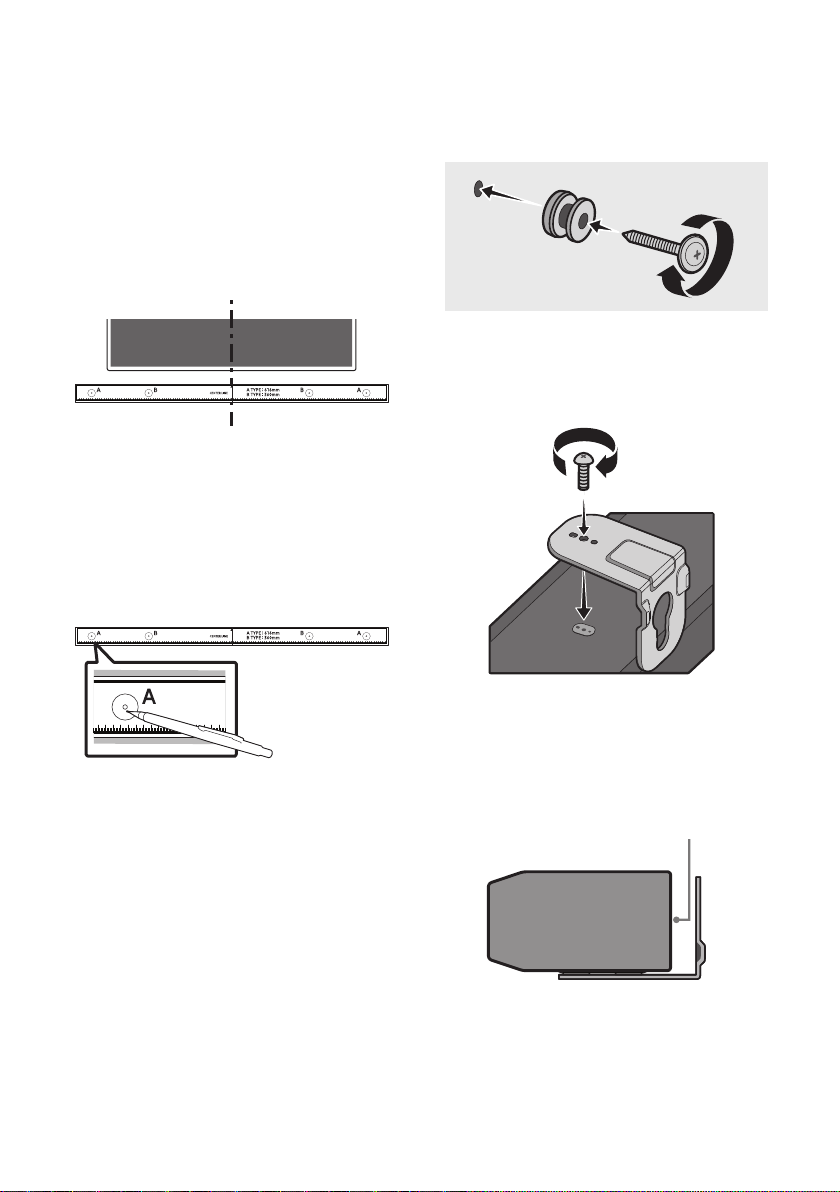
SPA - 34
2. Haga coincidir la Líneacentraldelaguía
paramontajeenlapared con el centro de su
televisor (si va a montar la Soundbar debajo
de su televisor) y luego je la Guíade
montajeenlapared a la pared con cinta
adhesiva.
• Si no la va a montar debajo del televisor,
coloque la Líneacentral en el centro del
área de instalación.
Líneacentral
3. Pase la punta de una lapicera o la punta de
un lápiz no por el centro de las imágenes
A-TYPE en cada extremo de la Guía para
marcar los oricios en donde irán los
tornillos de sujeción. Luego, quite la Guíade
montajeenlapared.
4. Utilizando una broca del tamaño adecuado,
taladre un oricio en la pared en cada una de
las marcas.
• Si las marcas no coinciden con la posición
de los pernos, asegúrese de colocar tacos
o pernos de expansión tipo Molly
adecuados dentro de los oricios antes de
colocar los tornillos de sujeción. Si utiliza
tacos o pernos de expansión tipo Molly,
asegúrese de que los oricios que taladre
sean lo sucientemente grandes para los
tacos o pernos que va a utilizar.
5. Pase un tornillo (no suministrado) por cada
Tornillodesujeción y luego ajuste cada
tornillo con rmeza en un oricio de soporte
del tornillo.
6. Instale los dos Soportedemontajepara
pared en la dirección correcta en la parte
inferior de la Soundbar utilizando 2 Tornillos.
• Al realizar el montaje, asegúrese de que
los ganchos para colgar de los Soportes
depared queden ubicados detrás de la
parte posterior de la Soundbar.
Parteposteriordela
Soundbar
ExtremoderechodelaSoundbar
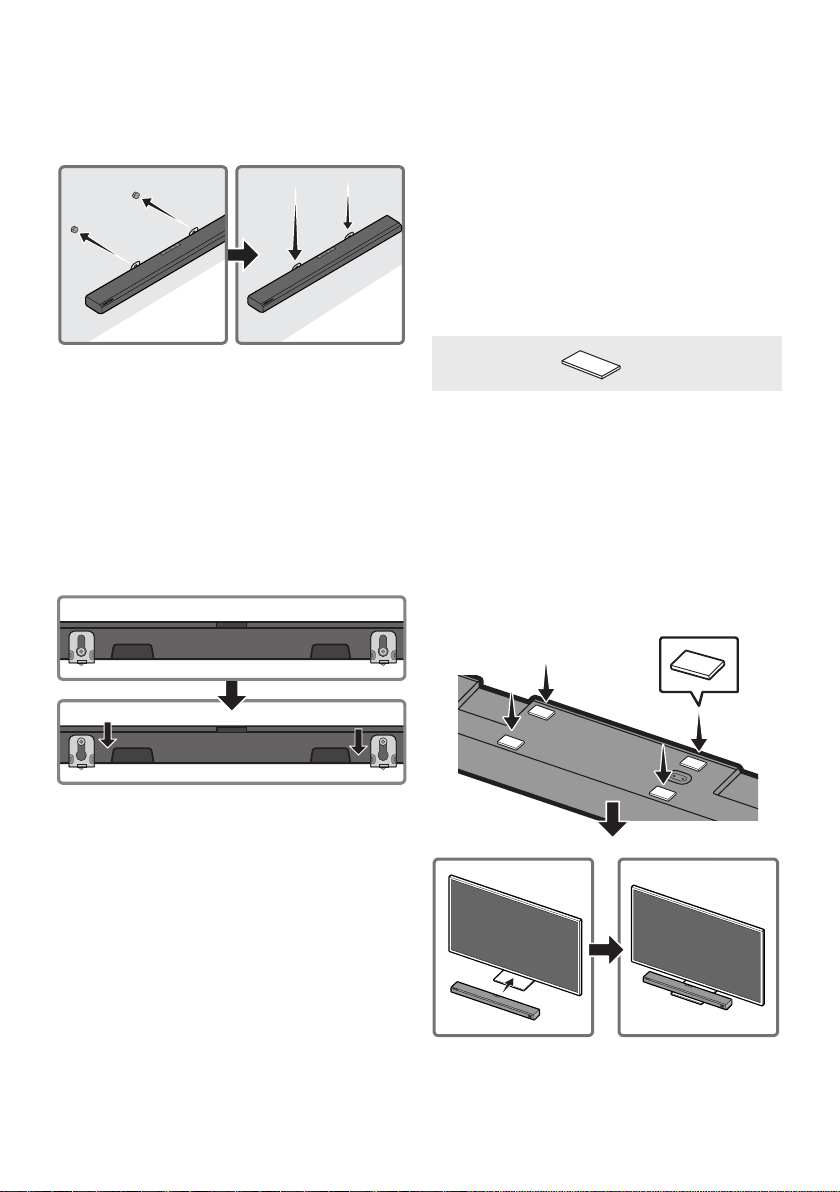
SPA - 35
7. Para instalar la Soundbar con el Soportede
montajeenlapared ya colocado, cuelgue el
soporte de montaje en la pared de los
Tornillosdesujeción que están en la pared.
8. Deslice la Soundbar hacia abajo, como se
muestra a continuación, de manera que los
Soportesdemontajeparapared se apoyen
rmemente en los Tornillosdesujeción.
• Inserte los Tornillosdesujeción en la
parte ancha (inferior) de los Soportesde
montajeparapared y, luego, deslícelos
hacia abajo de manera que se apoyen
rmemente en los Tornillosdesujeción.
11 INSTALACIÓN DE
LA SOUNDBAR
SOBRE UN
SOPORTE PARA TV
Componente
x 4
Piedegoma
Para instalarla, adhiera los Piesdegoma a la
parte inferior de la Soundbar antes de colocarla
sobre el soporte para TV. Asegúrese de adherir
los Piesdegoma y que estos excedan los bordes
exteriores del soporte de TV. Consulte la imagen a
continuación.
Piedegoma
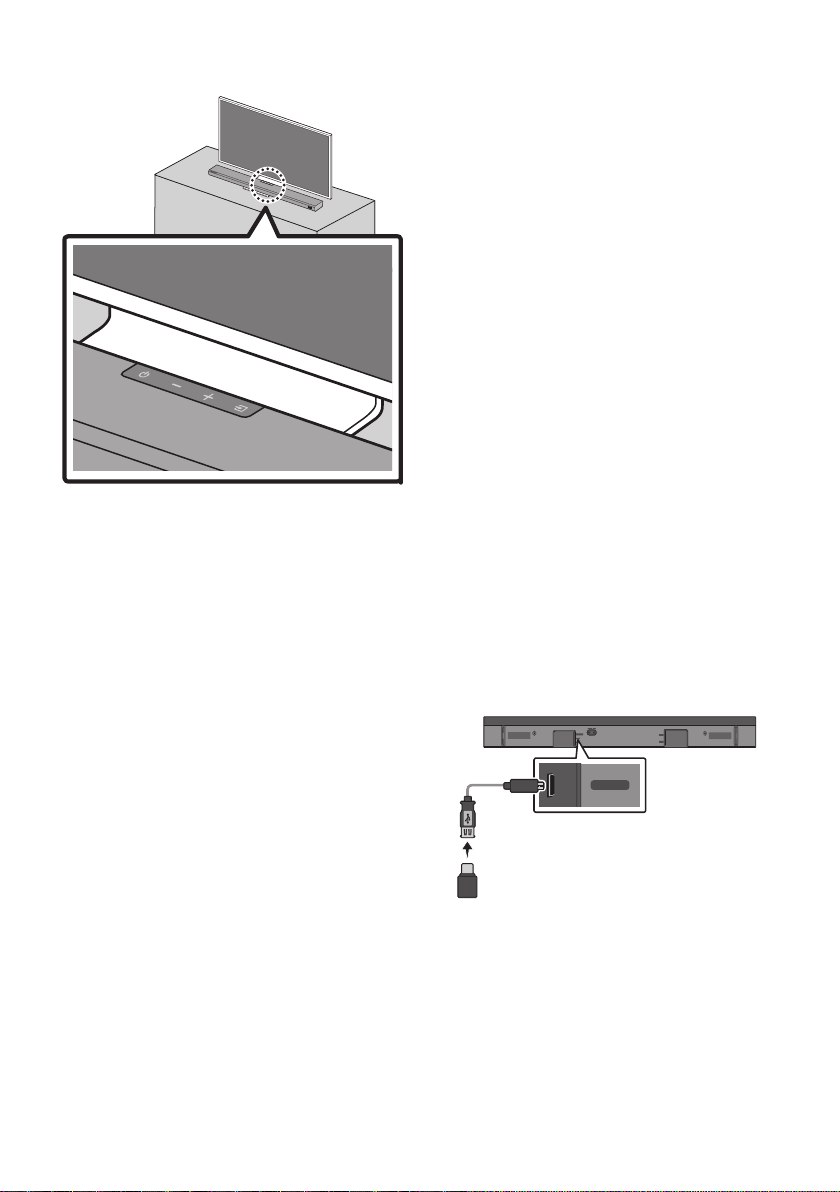
SPA - 36
Coloque la Soundbar en un soporte para TV.
Como se indica en la imagen, alinee el centro de la
Soundbar con el centro del TV y coloque con
cuidado la Soundbar en el soporte para TV.
NOTAS
• Asegúrese de que la Soundbar se coloque en
una supercie plana y sólida.
• Si no hay espacio suciente desde el TV,
puede haber problemas acústicos.
12 ACTUALIZACIÓN
DE SOFTWARE
Actualizaciónautomática
Cuando la Soundbar está conectada a Internet,
las actualizaciones de software se realizan de
forma automática, incluso cuando la Soundbar
está apagada.
• Para usar la función de actualización
automática, la Soundbar debe estar
conectada a Internet.
La conexión Wi-Fi de la Soundbar se anulará
si se desconecta el cable de alimentación o si
se corta la corriente eléctrica. Si se corta la
corriente eléctrica, cuando se restaure, o si
usted vuelve a conectar el cable de
alimentación, encienda la Soundbar y, luego,
vuelva a conectarla a Internet.
ActualizaciónmedianteUSB
DIGITAL AUDIO IN
(OPTICAL)
SERVICE
DC 19V
HDMI
NETWORK ID SET
HDMI TO TV
(eARC/ARC)
HDMI IN
HDMI OUT
(TV-ARC)
DIGITAL AUDIO IN
(OPTICAL)
SERVICE
DC 19V
ParteinferiordelaSoundbar
Cableadaptadorde
USB
amicroUSB
(nosuministrado)
EsposiblequeSamsungofrezcaactualizaciones
paraelrmwaredelsistemadelaSoundbaren
elfuturo.
Cuando haya una actualización disponible, puede
actualizar la Soundbar conectando la unidad USB
que contiene el rmware de actualización al
puerto SERVICE de la Soundbar.
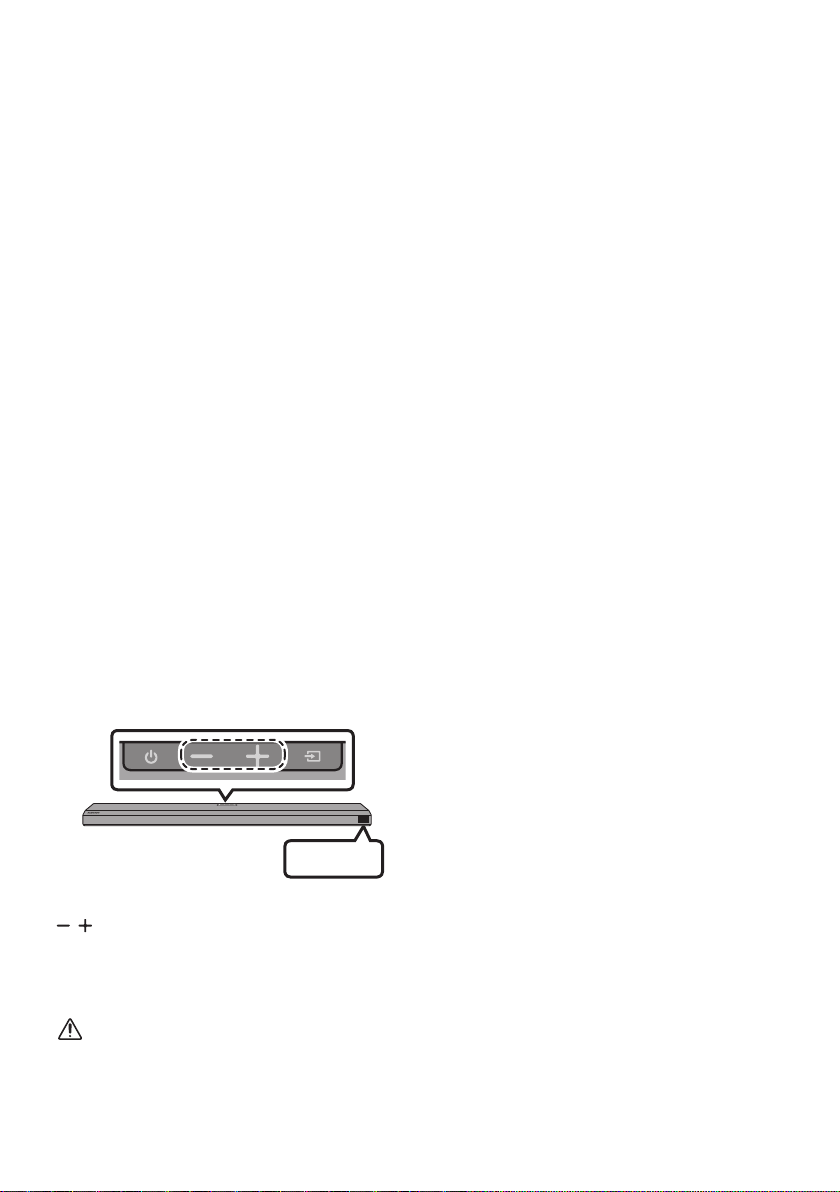
SPA - 37
1. Vaya al sitio web de Samsung Electronics
(www.samsung.com) → busque el nombre
del modelo en la opción del menú de
atención al cliente.
• Para obtener más información sobre la
actualización, consulte la Guía de
Actualización.
2. Descargue el archivo de actualización (tipo
USB).
3. Descomprima el archivo para crear una
carpeta con el nombre del archivo.
4. Guarde la carpeta creada en una memoria
USB y luego conéctela a la Soundbar.
5. Encienda la Soundbar. El producto se
actualiza en 3 minutos y se muestra el
mensaje “UPDATE”.
• Durante la actualización, no lo apague ni
retire la memoria USB.
• Si no aparece la leyenda “UPDATE” en la
ventana de visualización, retire el cable
de alimentación de la Soundbar y luego
vuelva a conectarla.
• Cuando está instalada la última versión,
no se realiza ninguna actualización.
• Según el tipo de memoria USB, es posible
que no se admita la actualización.
Inicialización
INIT
PartesuperiordelaSoundbar
Con la Soundbar encendida, presione los botones
(Volumen) al mismo tiempo durante un
mínimo de 5segundos. Aparece “INIT” en la
pantalla y se inicia la Soundbar.
PRECAUCIÓN
• Todas las conguraciones de la Soundbar
están inicializadas. Asegúrese de realizar esto
solo cuando sea necesario inicializar.

SPA - 38
13 RESOLUCIÓN DE PROBLEMAS
Antes de buscar ayuda, controle lo siguiente.
Sinoseenciende
; Compruebe si el cable de alimentación de
la Soundbar se insertó correctamente en el
enchufe.
Sihayfallasenlasfunciones
; Después de quitar el cable de alimentación,
vuelva a insertarlo.
; Retire el cable de alimentación del
dispositivo externo e intente nuevamente.
; Si no hay señal, la Soundbar se apaga
automáticamente después de un período
determinado. Encienda la Soundbar
(Consulte la página 9.)
Sielcontrolremotonofunciona
; Opere el control remoto cerca de la
Soundbar.
; Cambie las baterías por unas nuevas.
SinosalesonidodelaSoundbar
; El volumen de la Soundbar está muy bajo o
en silencio Ajuste el volumen.
; Cuando hay un dispositivo externo (STB,
dispositivo Bluetooth, dispositivo móvil,
etc.) conectado, ajuste el volumen del
dispositivo externo.
; Para la salida del sonido del TV, seleccione
Soundbar. (TV Samsung: Inicio ( ) →
Cong. ( ) → Sonido → Salida del sonido
→ Seleccione Soundbar)
; La conexión del cable a la Soundbar no
debe estar oja. Retire el cable y vuelva a
conectar.
; Retire el cable de alimentación por
completo, vuelva a conectarlo y enciéndalo.
; Inicie el producto e intente nuevamente.
(Consulte la página 37.)
SinosalesonidodelparlantedelSubwoofer
; Compruebe si el indicador LED en la parte
posterior del Subwoofer está encendido en
color azul. Vuelva a conectar la Soundbar y
el Subwoofer si el indicador parpadea en
azul o está en rojo. (Consulte la
página15.)
; Puede haber problemas de funcionamiento
si hay un obstáculo entre la Soundbar y el
Subwoofer. Mueva los dispositivos a un
área lejos de obstáculos.
; Otros dispositivos que envían señales de
radiofrecuencia en las proximidades
pueden interrumpir la conexión.
Mantenga su parlante alejado de tales
dispositivos.
; Retire y vuelva a conectar el enchufe de
alimentación.
ElvolumendelSubwooferesdemasiadobajo.
; El volumen original del contenido que está
reproduciendo puede ser bajo. Intente
ajustar el nivel del Subwoofer. (Consulte la
página 11.)
; Acerque el parlante Subwoofer hacia usted.

SPA - 39
SilaTVnoestáconectadaatravésdeHDMI
TOTV(eARC/ARC)
; Compruebe si el cable HDMI se conectó
correctamente a la terminal ARC
(Consulte la página20.)
; Si hay un dispositivo externo conectado
(decodicador, consola de juegos, etc.), es
posible que no se pueda realizar la conexión.
Conecte la Soundbar directamente.
; Es posible que HDMI-CEC no esté activado
en el TV. Encienda el CEC en el menú del TV.
(TV Samsung: Inicio ( ) → Cong. ( ) →
General → Administrador de dispositivo
externo → Anynet+ (HDMI-CEC) ENCENDER))
Nohaysonidocuandoseconectaaltelevisor
enmodoHDMITOTV(eARC/ARC).
; Es posible que su dispositivo no pueda
reproducir la señal de entrada. Cambie la
salida de audio del televisor a PCM o Dolby
Digital. (Con un televisor Samsung: Inicio ( )
→ Cong. ( ) → Sonido → Conguración
experta. → Formato de salida de audio digital)
Sinosepuedeestablecerunaconexióna
travésdeBluetooth
; Cuando conecte un dispositivo nuevo,
cambie a “BT PAIRING” para establecer la
conexión. (Presione el botón PAIR del
control remoto o presione el botón
(Fuente) en el cuerpo de la Soundbar
por al menos 5segundos).
; Si la Soundbar está conectada a otro
dispositivo, primero desconéctelo para
poder cambiarlo.
; Vuelva a conectarlo después de quitar la
lista de parlantes Bluetooth del dispositivo
al que se quiere conectar. (TV Samsung:
Inicio ( ) → Cong. ( ) → Sonido → Salida
del sonido → Lista de altavoces Bluetooth)
; La conexión de TV automática puede estar
deshabilitada. Mientras la Soundbar está en
modo “BT READY”, mantenga presionado el
botón p en el control remoto de la
Soundbar durante 5 segundos para
seleccionar ON-TV CONNECT. Si ve la
leyenda OFF-TV CONNECT, mantenga
presionado el botón p nuevamente durante
5 segundos para cambiar la selección.
; Retire y vuelva a conectar el enchufe de
alimentación; luego, intente nuevamente.
; Inicie el producto e intente nuevamente.
(Consulte la página 37.)
Sielsonidotieneinterferencia
; Es posible que se interrumpa la emisión de
los sonidos debido a interferencias por
radiofrecuencia o por dispositivos
electrónicos cercanos. Mantenga estos
dispositivos alejados de la Soundbar para
evitar las interferencias de radio. Ejemplo:
hornos microondas.
; Si el dispositivo que desea conectar está
muy lejos de la Soundbar, puede haber
interferencia. Acerque el dispositivo a la
Soundbar.
; Si parte de su cuerpo está en contacto con
el transceptor Bluetooth o si el producto
está sobre un mueble de metal, puede
haber interferencia. Compruebe el entorno
de instalación y las condiciones de uso.
Sinosepuedeestablecerunaconexióna
travésdeWi-Fi
; Compruebe si su enrutador inalámbrico
está encendido.
; Apague el enrutador, vuelva a encenderlo e
intente nuevamente.
; Si la señal del enrutador inalámbrico es muy
débil, es posible que no se pueda realizar la
conexión. Acerque el enrutador a la
Soundbar o ajuste la posición de instalación
de forma tal que no existan obstáculos.
; Si su enrutador inalámbrico es nuevo,
deberá volver a congurar la red del
parlante.
SilaSoundbarnoseenciendecuandose
enciendeelTV
; Cuando apaga la Soundbar mientras mira
TV, se desactiva la sincronización de
encendido con el TV. Primero, apague el TV.
SPA - 40
14 LICENCIA
Manufactured under license from Dolby
Laboratories. Dolby, Dolby Atmos, Dolby Audio,
Dolby Digital Plus, Pro Logic, and the double-D
symbol are trademarks of Dolby Laboratories.
For DTS patents, see http://patents.dts.com.
Manufactured under license from DTS Licensing
Limited. DTS, the Symbol, & DTS and the Symbol
together, DTS:X, and the DTS:X logo are
registered trademarks and/or trademarks of
DTS, Inc. in the United States and/or other
countries. © DTS, Inc. All Rights Reserved.
The terms HDMI and HDMI High-Denition
Multimedia Interface, and the HDMI Logo are
trademarks or registered trademarks of HDMI
Licensing LLC in the United States and other
countries.
• El software Spotify está sujeto a licencias
de terceros incluidas en el siguiente sitio:
www.spotify.com/connect/third-party-
licenses.
• Para obtener información adicional sobre
Spotify Connect, visite www.spotify.com/
connect
15 AVISO SOBRE
LICENCIA DE
CÓDIGO ABIERTO
Para enviar consultas y solicitudes o preguntas
sobre fuentes abiertas, comuníquese con
Samsung Open Source
(http://opensource.samsung.com)
16 NOTA
IMPORTANTE
SOBRE EL
SERVICIO
Las guras e ilustraciones de este Manual del
usuario se facilitan sólo como referencia y pueden
diferir del aspecto real del producto.

SPA - 41
17 ESPECIFICACIONES Y GUÍA
Especicaciones
Nombre del modelo HW-Q70T
Peso 3,6 kg
Dimensiones (An x Al x Pr) 980,0 x 60,0 x 115,0 mm
Rango de temperatura de servicio +5 °C a +35 °C
Rango de humedad de servicio 10 % a 75 %
AMPLIFICADOR
Potencia nominal de salida
(30W x 4) + (20W x 2) + 10W + 160W
Formatos de reproducción compatibles
Dolby Atmos (True HD / Digital Plus), Dolby
Digital, DTS Master Audio, DTS:X, DTS
Subwoofer Name PS-WR65BC
Weight 6,2 kg
Dimensions (W x H x D) 205,0 x 353,0 x 303,0 mm
AMPLIFIER
Rated Output power 160W
NOTAS
• Samsung Electronics Co., Ltd se reserva el derecho a cambiar las especicaciones sin previo aviso.
• Los pesos y dimensiones son aproximados.
Precaución:LaSoundbarsereiniciaráautomáticamentesiconecta/desconectaelservicioWi-Fi.
Wi-Fi
Método de desactivación del puerto
Presione el botón ID SET en el panel inferior de la Soundbar
durante 30 segundos para activar/desactivar el Wi-Fi.
Bluetooth
Método de desactivación del puerto
Presione el botón NETWORK en el panel inferior de la Soundbar
durante 30 segundos para activar/desactivar el Bluetooth.
© 2020 Samsung Electronics Co., Ltd. All rights reserved.
ContactSAMSUNGWORLDWIDE
If you have any questions or comments relating to Samsung products, please contact the SAMSUNG customer
care Center.
Area Contact Center
Web Site
`
Latin America
MEXICO 01-800-SAMSUNG (726-7864) www.samsung.com/mx/support
BRAZIL
0800-124-421 (Demais cidades e regiões)
4004-0000 (Capitais e grandes centros)
www.samsung.com/br/support
COSTA RICA 00-800-1-SAMSUNG (726-7864)
www.samsung.com/latin/support (Spanish)
www.samsung.com/latin_en/support (English)
DOMINICAN REPUBLIC 1-800-751-2676
ECUADOR 1-800-SAMSUN (72-6786)
EL SALVADOR 8000-SAMSUNG (726-7864)
GUATEMALA 1-800-299-0033
HONDURAS 800-2791-9111
JAMAICA 1-800-SAMSUNG (726-7864) www.samsung.com/latin_en/support (English)
NICARAGUA 001-800-5077267
www.samsung.com/latin/support (Spanish)
www.samsung.com/latin_en/support (English)
PANAMA 800-0101
PUERTO RICO 1-800-682-3180
TRINIDAD & TOBAGO 1-800-SAMSUNG (726-7864)
VENEZUELA 0-800-100-5303
COLOMBIA
Bogotá en el 600 12 72
Sin costo en todo el pais 01 8000 112 112
Y desde tu celular #726
www.samsung.com/co/support
CHILE 800-SAMSUNG (726-7864)
www.samsung.com/cl/support
BOLIVIA 800-10-7260
PERU 080077708 Desde teléfonos fi jos, públicos o celulares www.samsung.com/pe/support
ARGENTINA 0800-555-SAMS (7267) www.samsung.com/ar
URUGUAY 0800-SAMS (7267) www.samsung.com/uy
PARAGUAY 0800-11-SAMS (7267) www.samsung.com/py