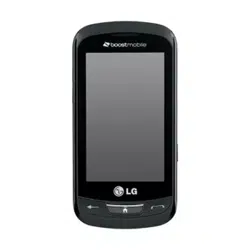
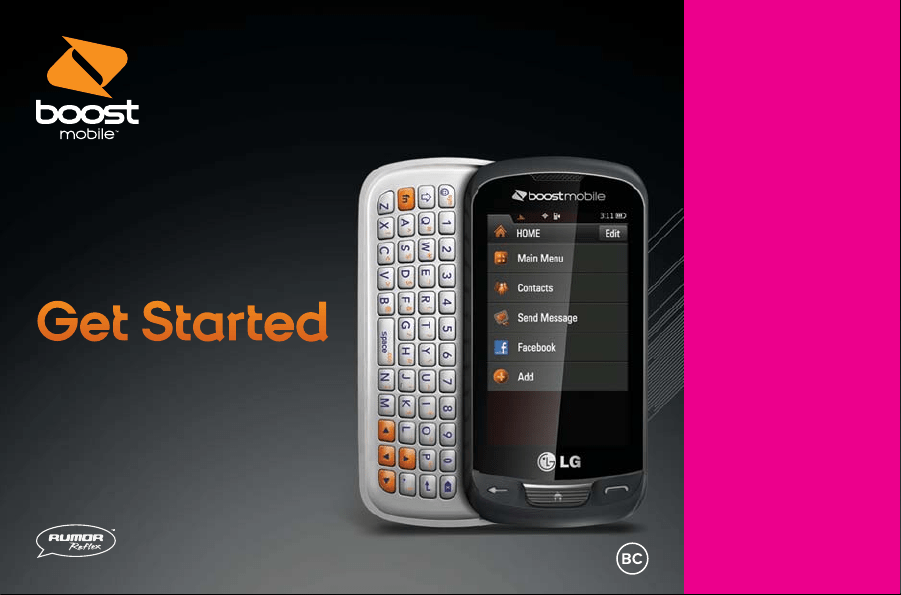
User Guide

Introduction . . . . . . . . . . . . . . . . . . . . . . . . . . . . .i
Your Phone’s Menu . . . . . . . . . . . . . . . . . . . . . .ii
Get Started . . . . . . . . . . . . . . . . . . . . . . . . . . . . .1
Set Up Service . . . . . . . . . . . . . . . . . . . . . . . . . . . .2
Get Started . . . . . . . . . . . . . . . . . . . . . . . . . . . . . . . . . .2
Set Up Your Voicemail . . . . . . . . . . . . . . . . . . . . . . . .3
Get Help . . . . . . . . . . . . . . . . . . . . . . . . . . . . . . . . . . . .4
Your Phone . . . . . . . . . . . . . . . . . . . . . . . . . . . . .5
Your Phone: The Basics . . . . . . . . . . . . . . . . . . . .6
Front View of Your Phone . . . . . . . . . . . . . . . . . . . . . .7
Viewing the Display Screen . . . . . . . . . . . . . . . . . .11
Features of Your Phone . . . . . . . . . . . . . . . . . . . . . .15
Turn Your Phone On and Off . . . . . . . . . . . . . . . . .16
Using Your Phone’s Battery and Charger . . . . . . .17
Navigating Through Phone Menus . . . . . . . . . . . .20
Display Your Phone Number . . . . . . . . . . . . . . . . . .21
Make and Answer Calls . . . . . . . . . . . . . . . . . . . . . .22
Entering Text . . . . . . . . . . . . . . . . . . . . . . . . . . . . . . . .30
Controlling Your Phone’s Settings . . . . . . . . . .34
Sound Settings . . . . . . . . . . . . . . . . . . . . . . . . . . . . .35
Display Settings . . . . . . . . . . . . . . . . . . . . . . . . . . . . .38
Location Settings . . . . . . . . . . . . . . . . . . . . . . . . . . . .40
Messaging Settings . . . . . . . . . . . . . . . . . . . . . . . . .40
CMAS Settings . . . . . . . . . . . . . . . . . . . . . . . . . . . . .42
Airplane Mode . . . . . . . . . . . . . . . . . . . . . . . . . . . . . .42
TTY Use . . . . . . . . . . . . . . . . . . . . . . . . . . . . . . . . . . .43
Phone Setup Options . . . . . . . . . . . . . . . . . . . . . . . .44
Setting Your Phone’s Security . . . . . . . . . . . . .46
Using Your Phone’s Lock Feature . . . . . . . . . . . . . .46
Reset/Delete . . . . . . . . . . . . . . . . . . . . . . . . . . . . . . . .47
Reset Default Settings . . . . . . . . . . . . . . . . . . . . . . .48
Managing History . . . . . . . . . . . . . . . . . . . . . . . .49
View Recent History . . . . . . . . . . . . . . . . . . . . . . . .49
Recent History Options . . . . . . . . . . . . . . . . . . . . . .49
Make a Call From Recent History . . . . . . . . . . . . .50
Viewing History Thread . . . . . . . . . . . . . . . . . . . . . .50
Table of Contents

Save a Number From Recent History . . . . . . . . . .51
Prepend a Number From Recent History . . . . . . .52
Erase Recent History . . . . . . . . . . . . . . . . . . . . . . . .52
Using Contacts . . . . . . . . . . . . . . . . . . . . . . . . . . .53
Add a Number to a Contacts Entry . . . . . . . . . . . .54
Find Contacts Entries . . . . . . . . . . . . . . . . . . . . . . . .54
Contacts Entry Options . . . . . . . . . . . . . . . . . . . . . .55
Add a Number to a Contacts Entry . . . . . . . . . . . .56
Edit a Contacts Entry’s Numbers . . . . . . . . . . . . . .57
Assign Speed Dial Numbers . . . . . . . . . . . . . . . . .57
Edit a Contacts Entry . . . . . . . . . . . . . . . . . . . . . . . .58
Select a Ringtone Type for an Entry . . . . . . . . . . .58
Dial Services . . . . . . . . . . . . . . . . . . . . . . . . . . . . . . .59
Using the Phone’s Tools . . . . . . . . . . . . . . . . . . .60
Calendar . . . . . . . . . . . . . . . . . . . . . . . . . . . . . . . . . . .60
Clock . . . . . . . . . . . . . . . . . . . . . . . . . . . . . . . . . . . . . .63
Notepad . . . . . . . . . . . . . . . . . . . . . . . . . . . . . . . . . . .64
EZ Tip Calculator . . . . . . . . . . . . . . . . . . . . . . . . . . .65
Calculator . . . . . . . . . . . . . . . . . . . . . . . . . . . . . . . . . .65
World Clock . . . . . . . . . . . . . . . . . . . . . . . . . . . . . . . .66
Using Your Phone’s Voice Services . . . . . . . .67
Voice Memos . . . . . . . . . . . . . . . . . . . . . . . . . . . . . . .67
Service Features . . . . . . . . . . . . . . . . . . . . . . .69
Service Features: The Basics . . . . . . . . . . . . . .70
Voicemail . . . . . . . . . . . . . . . . . . . . . . . . . . . . . . . . . .70
Text and Multimedia Messaging . . . . . . . . . . . . . .74
Using Caller ID . . . . . . . . . . . . . . . . . . . . . . . . . . . . . .76
Responding to Call Waiting . . . . . . . . . . . . . . . . . .77
Make a Three-Way Call . . . . . . . . . . . . . . . . . . . . . .77
Using Call Forwarding . . . . . . . . . . . . . . . . . . . . . . .78
Data Services . . . . . . . . . . . . . . . . . . . . . . . . . . . .79
Data Service Applications . . . . . . . . . . . . . . . . . . . .79
Getting Started With Data Services . . . . . . . . . . . .80
Games, Ringers, and More . . . . . . . . . . . . . . . . . . .82
Browsing the Web . . . . . . . . . . . . . . . . . . . . . . . . . . .84
Data Services FAQs . . . . . . . . . . . . . . . . . . . . . . . . .85

Safety and Warranty Information . . . . . . . .87
Important Safety Information . . . . . . . . . . . . . .88
General Precautions . . . . . . . . . . . . . . . . . . . . . . . . .88
Maintaining Safe Use of and
Access to Your Phone . . . . . . . . . . . . . . . . . . . . . . .90
Using Your Phone With a Hearing Aid Device . . .92
Caring for the Battery . . . . . . . . . . . . . . . . . . . . . . . .93
Radiofrequency (RF) Energy . . . . . . . . . . . . . . . . . .94
Owner’s Record . . . . . . . . . . . . . . . . . . . . . . . . . . . . .95
Manufacturer’s Warranty . . . . . . . . . . . . . . . . . .96
i
Introduction
This User Guide introduces you to your wireless
service and all the features of your new phone.
It’s divided into four sections:
� Section 1: Getting Started
� Section 2: Your Phone
� Section 3: Service Features
� Section 4: Safety and Warranty Information
Throughout this guide, you’ll find tips that
highlight special shortcuts and timely reminders
to help you make the most of your new phone
and service. The Table of Contents and Index
will also help you quickly locate specific
information.
You’ll get the most out of your phone if you read
each section. However, if you’d like to get right
to a specific feature, simply locate that section
in the Table of Contents and go directly to that
page. Follow the instructions in that section,
and you’ll be ready to use your phone in no
time.

ii
1. Web
2. Messaging
1. Voicemail
2 Send Message
3. Messages
4. Email
5. Settings
1. Callback Number
2. Preset Messages
3. Signature
4. SMS Re-Assembly
5. CMAS Settings
1. CMAS-Presidential Alert
2. CMAS-Extreme Alert
3. CMAS-Severe Alert
4. CMAS-Amber Alert
5. CMAS-Test Alert
3. My Stuff
1. Application Manager
2. Games
3. Ringtones
4. Applications
5. Wallpapers
6. Chat Flirt Fun
7. Options
1. Get New
2. My Stuff Manager
3. Memory Status
4. Get Stuff
5. Re-Boost
1. Re-Boost Locator
2. Call Balance
3. Call Re-Boost
4. My Account
6. Entertainment
1. Music
1. Playlist
2. Artists
3. All Songs
4. Albums
5. Genres
2. Games
Your Phone’s Menu
The following list outlines your phone’s menu structure.
iii
7. Photos & Videos
1. Camera
2. Camcorder
3. My Photos & Videos
1. In Phone
2. Memory Card
4. Other Settings
1. Auto-Save to
2. Status Bar
3. Location
4. Slideshow Interval
8. Social Networking
1. Facebook
2. Twitter
3. Hookt
9. Settings
1. Display
1. Screen Savers
1. Main Screen
2. Lock Screen
2. Banner
3. Lockscreen Clock
4. Brightness
5. Backlight
1. Backlight Dim
2. Backlight Off
6. Picture ID
1. Contacts
2. Unsaved Numbers
3. Private/Unknown
7. Font Size
1. Messages
2. Browser
3. Notepad
4. Applications
8. Power Save Mode
9. Whisper Notification
10. Quick Composer
2. Volume
1. Incoming Ringtone
2. Playback Volume
3. Power Up/Down
4. Key Beeps
1. Tone Length
2. Tone Volume
3. Tone Type

iv
3. Ringtones
1. Incoming Calls
1. Contacts
2. Unsaved Numbers
3. Private/Unknown
2. Call Alerts
1. Beep Each Minute
2. Out of Service
3. Connect
4. Signal Fade/Call Drop
3. Voicemail
4. Messages
5. Alarm/Calendar
6. Power Up/Down
4. Vibration
1. Incoming Calls
1. Contacts
2. Unsaved Numbers
3. Private/Unknown
2. Voicemail
3. Messages
4. Alarm/Calendar
5. Text Entry
1. Word Complete
2. Next Word Complete
3. Word Scan
6. Activate This Device
7. Phone Info
1. Phone#/User ID
2. Icon Glossary
3. Memory Info
4. Battery Status
5. Version
6. Advanced
7. My Account
1. Account Details
2. Hear Minutes
3. Hear Balance
8. Lock Phone
1. Lock Now
2. Change Lock Code
9. Parental Controls
1. On/Off
2. Change Parental Control
Code
3. Restriction
1. Voice Call
2. Messaging
3. Web
4. Camera / Camcorder
5. Force Location On
10. Call Setup
1. Auto-Answer
2. Abbreviated Dialing
3. Contacts Match
11. TTY
12. Airplane Mode

v
13. Data
1. On/Off
2. Update Profile
14. Headset Mode
15. Language (Idioma)
16. Location
17. Reset/Delete
1. Reset Settings
2. Reset Phone
3. Delete Stuff
1. Messages
2. Call Logs
3. Browser Cookies and
Cache
4. Downloaded Content
5. Contacts
6. My Photos & Videos
7. Voice Memo
8. Shortcuts
4. Change Lock Code
10. Tools
1. Clock
1. Alarm
2. World Clock
3. Stopwatch
2 Calendar
3. Bluetooth
1. Bluetooth
2. Visibility
3. Add New
4. Trusted Devices
5. My Bluetooth Info
6. Help
4. Update Phone
1. Update Firmware
2. Update PRL
5. Mass Storage
1. Connect to PC
2. File Manager
3. Format Memory Card
4. Memory Info
6. Voice Service
1. Voice Command
1. Call
[Name][Type]/[Number]
2. Send Msg to
[Name][Type]/[Number]
3. Find [Name][Type]
4. Go to [Menu]
5. Check [Item]
6. Voice Command
Training
7. Exit Voice Command
2. Voice Reader
1. Voice Guide
2. Phone Status

vi
3. Voice Memo
4. Settings & Info
1. Set Speaker
2. Help
7. Calculator
1. Calculator
2. Ez Tip Calculator
3. Unit Converter
8. Notepad
9. Document Viewer

Section 1
Get Started

2 Section 1A: Setting Up Service
Set Up Service
In This Section
� Get Started
� Setting Up Your Voicemail
� Get Help
Setting up service on your new phone is quick
and easy.
This section walks you through the necessary
steps to unlock your phone, set up your
voicemail, establish passwords, and contact
your service provider for assistance with your
wireless service.
Get Started
Unlocking Your Phone
If your phone is locked, the main display will say
“-Locked-” after it is powered on.
Follow these easy steps to unlock your phone:
1.
Press and hold to turn the phone on.
2. Drag to the left or right to unlock the
phone.
3. Touch Unlock and enter your four-digit lock
code (For security purposes, the code is not
visible as you type).
Tip: Current code is <Last 4 digits of your phone number>.
WARNING : If you change the code and forget it, phone must
be reset and you will lose all data.
Section 1A: Setting Up Service 3
Set Up Your Voicemail
All unanswered calls to your phone are
automatically transferred to your voicemail, even if
your phone is in use or turned off. Therefore, you
will want to set up your voicemail and personal
greeting as soon as your phone is activated.
To set up your voicemail:
1.
From standby mode, press and touch
and hold .
- or -
Slide open the QWERTY keyboard and press
the .
2. Follow the system prompts to:
�
Create your passcode.
�
Record your name announcement.
�
Record your greeting.
�
Choose whether or not to activate One-
Touch Message Access (a feature that lets
you access messages simply by pressing
and holding , bypassing the need for
you to enter your passcode).
Voicemail Passcode
You are required to create your voicemail password (or pass
code) when you set up your voicemail. For more information or
to change your voicemail password, please contact your service
provider.
Setting Up Service

4 Section 1A: Setting Up Service
Get Help
Directory Assistance
You have access to a variety of services and
information through Directory Assistance,
including residential, business, and government
listings, assistance with local or long-distance
calls, movie listings, and hotel, restaurant,
shopping, and major local event information. There
may be a per-call charge and you may be charged
for airtime.
To call your wireless Directory Assistance:
�
Press and touch
from the dial pad.

Section 2
Your Phone

6 Section 2A: Your Phone: The Basics
Your Phone: The Basics
In This Section
� Front View of Your Phone
� Viewing the Display Screen
� Features of Your Phone
� Turning Your Phone On and Off
� Using Your Phone’s Battery and Charger
� Navigating Through Phone Menus
� Displaying Your Phone Number
� Making and Answering Calls
� Entering Text
Your phone is packed with features that
simplify your life and expand your ability to
stay connected to the people and information
that are important to you. This section will
guide you through the basic functions and
calling features of your phone.

Section 2A: Your Phone: The Basics 7
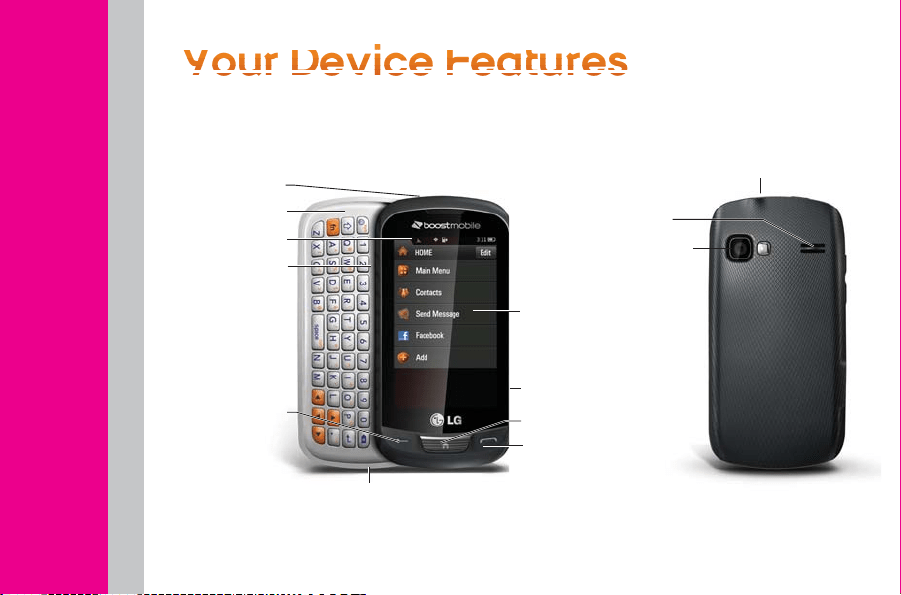
Front View of Your Phone
Phone Basics
4. Battery Strength
Indicator
7. Talk Key
8. Back Key
9. Microphone
2. Status Light
6. Home Key
10. QWERTY Keyboard
5. Touch Screen
3. Status Bar Icons
1. Earpiece
8 Section 2A: Your Phone: The Basics
13. Emoticon/
Symbols Key
11. Function Key
14. Space Key
16. Enter Key
17. Delete/Back Key
21. Camera Lens
23. Speaker
19. Charger/
Accessory Port
20. Camera
Button
18. Volume
Buttons
12. Shift Key 15. Navigation Keys
22. Camera
Self-portrait
Mirror

Section 2A: Your Phone: The Basics 9
Key Functions
1.
Earpiece
lets you hear the caller and
automated prompts.
2.
Status Light
indicates incoming calls, new
messages, or other events by blinking. It is red
while charging and turns green when charging
is completed.
3.
Status Bar Icons
provide information about
your phone’s status such as signal strength,
roaming, ringer setting, messaging, and
battery charge.
4.
Battery Strength Indicator
represents the
amount of remaining battery charge currently
available in your phone. When all bars are
displayed in the battery icon, the phone‘s
battery is fully charged. When no bars are
displayed, the phone‘s battery is nearly
completely discharged.
5.
Touch Screen
displays all the information
needed to operate your phone, such as the
call status, the Contacts list, the date and time,
and the signal and battery strength.
6.
Home Key
lets you go back to the Home menu
from any menu display. To go back to standby
mode, press this key again.
7.
Talk Key
brings the dial pad on the screen.
Hold down to activate Voice Command while in
standby mode.
8.
Back Key
returns you to the previous menu
when in a sub-menu. This key also allows you
to return to the previous screen when using
the Browser.
9.
Microphone
allows other callers to hear you
clearly when you are speaking to them.
Phone Basics
10 Section 2A: Your Phone: The Basics
10.
QWERTY Keyboard
lets you enter numbers,
letters, and characters. Press the number keys
for speed dialing.
11.
Function Key
allows you enter the alternate
character (such as @ for the B key) on the
QWERTY keyboard.
12.
Shift Key
lets you to capitalize letters.
13.
Emoticon/Symbols Key
lets you enter
emoticons and symbols when entering text.
14.
Space Key
lets you enter a space.
15.
Navigation Keys
let you move the cursor up,
down, right or left to navigate menus or when
using the Browser.
16.
Enter Key
lets you move the cursor to the
beginning of the next line.
17.
Delete/Back Key
deletes characters in text
entry mode. When in a menu, pressing this key
returns you to the previous menu. This key also
allows you to return to the previous screen
when using the Browser.
18.
Volume Buttons
allows you to adjust the ringer
volume or adjust the voice volume during a
call.
19.
Charger/Accessory Port
allows you to connect
the phone charger or an optional USB cable.
CAUTION!: Inserting an accessory into the incorrect port may
damage the phone.
20. Camera Button lets you activate the camera
and camcorder to take pictures and videos.
21.
Camera Lens
is used for picture taking and
video recording. Keep clean for optimal
performance.
Section 2A: Your Phone: The Basics 11
22.
Camera Self-portrait Mirror
helps you when you
take a self-portrait.
23.
Speaker
lets you hear the different ringers and
sounds. You can mute the ringer when
receiving incoming calls by touching Silence.
The speaker also lets you hear the caller’s
voice when in speakerphone mode.
Viewing the Display Screen
Your phone’s display screen provides a wealth of
information about your phone’s status and
options. This list identifies the symbols you’ll see
on your phone’s display screen:
Note: To view a list of your phone’s icons and descriptions,
press the Home Key > Main Menu > Settings > Phone
Info > Icon Glosssary.
1
x Signal Strength
– Shows your current
1xRTT signal strength (the more bars, the
stronger the signal; bars are orange).
EVDO Signal Strength
– Shows your current
EVDO signal strength (the more bars, the
stronger the signal; bars are white).
No Service
– Your phone cannot find a
usable signal.
Phone Basics
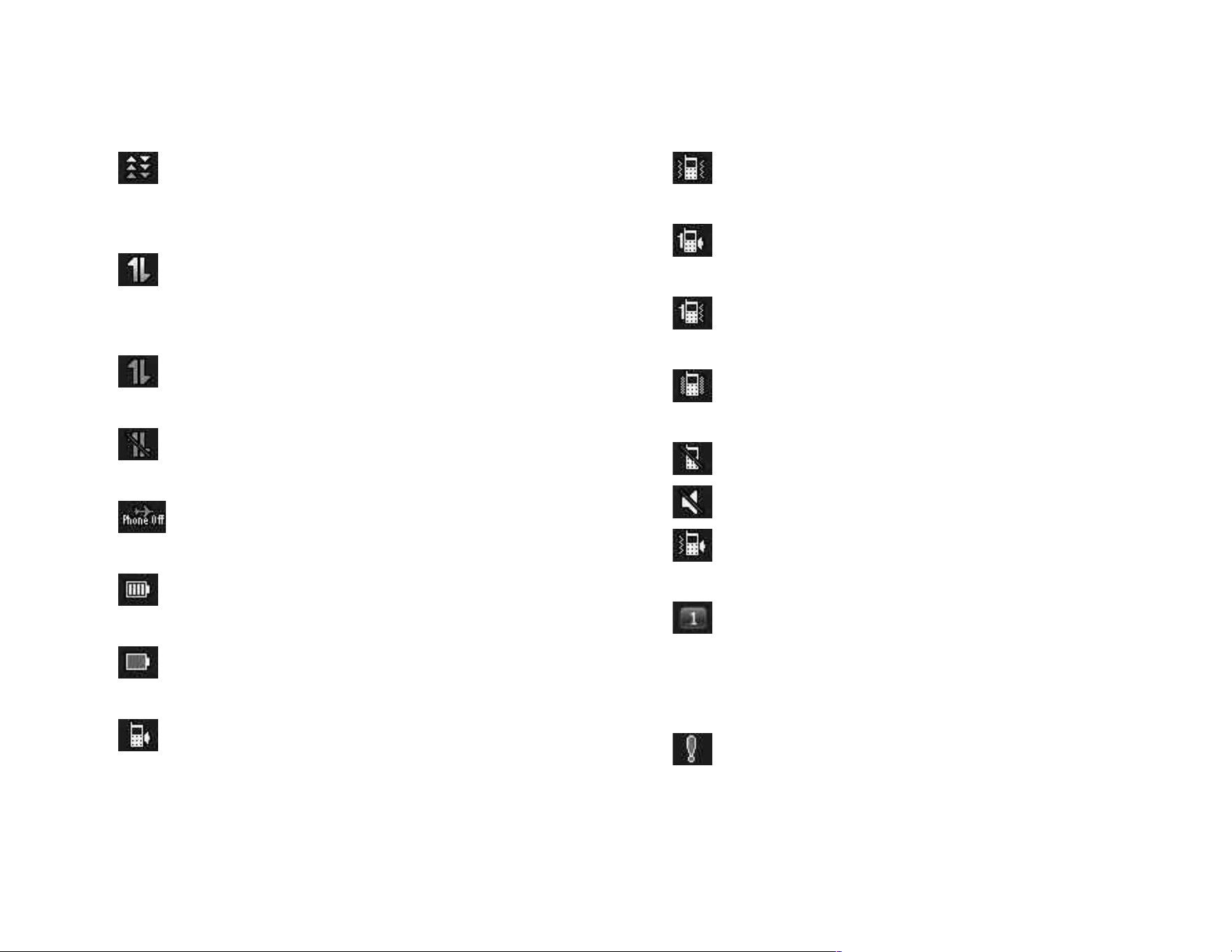
12 Section 2A: Your Phone: The Basics
EVDO Data Service
– Mobile broadband
data service (EVDO) is available. When
active, the icon is animated.
1x Service Activated
– Indicates that 1xRTT
data service is available. When active, the
icon is animated.
1x Service Deactivated
– Indicates that
1xRTT data service is deactivated.
1x Service Unavailable
– Data service is
currently unavailable.
Airplane
Mode – Indicates that the phone
is in Airplane Mode.
Full Battery
– Shows your current battery
charge level. (Icon shown is fully charged.)
Low Battery
– Shows that the battery
charge level is low.
Ringtone Only
– Indicates that the ringer
only is set for the call alert.
Vibrate Only
– Indicates that the ringer
volume is set to vibrate only.
1 Beep
– Indicates that one beep is set for
the call alert.
1 Beep & Vibrate
– Indicates that one beep
and vibration is set for the call alert.
Vibrate All
– Indicates that the ringer
volume is set to vibrate all.
Ringtone Off
– The ringer is set to off.
Silence All
– All sounds are turned off.
Ringtone & Vibrate
– Indicates that the
ringer and vibrate mode is set.
Bubble Icon
– Indicates you have missed
alerts such as voicemail, missed calls, new
messages, scheduled events, or a
completed wireless backup.
Urgent Message
– Indicates you have new
urgent messages.
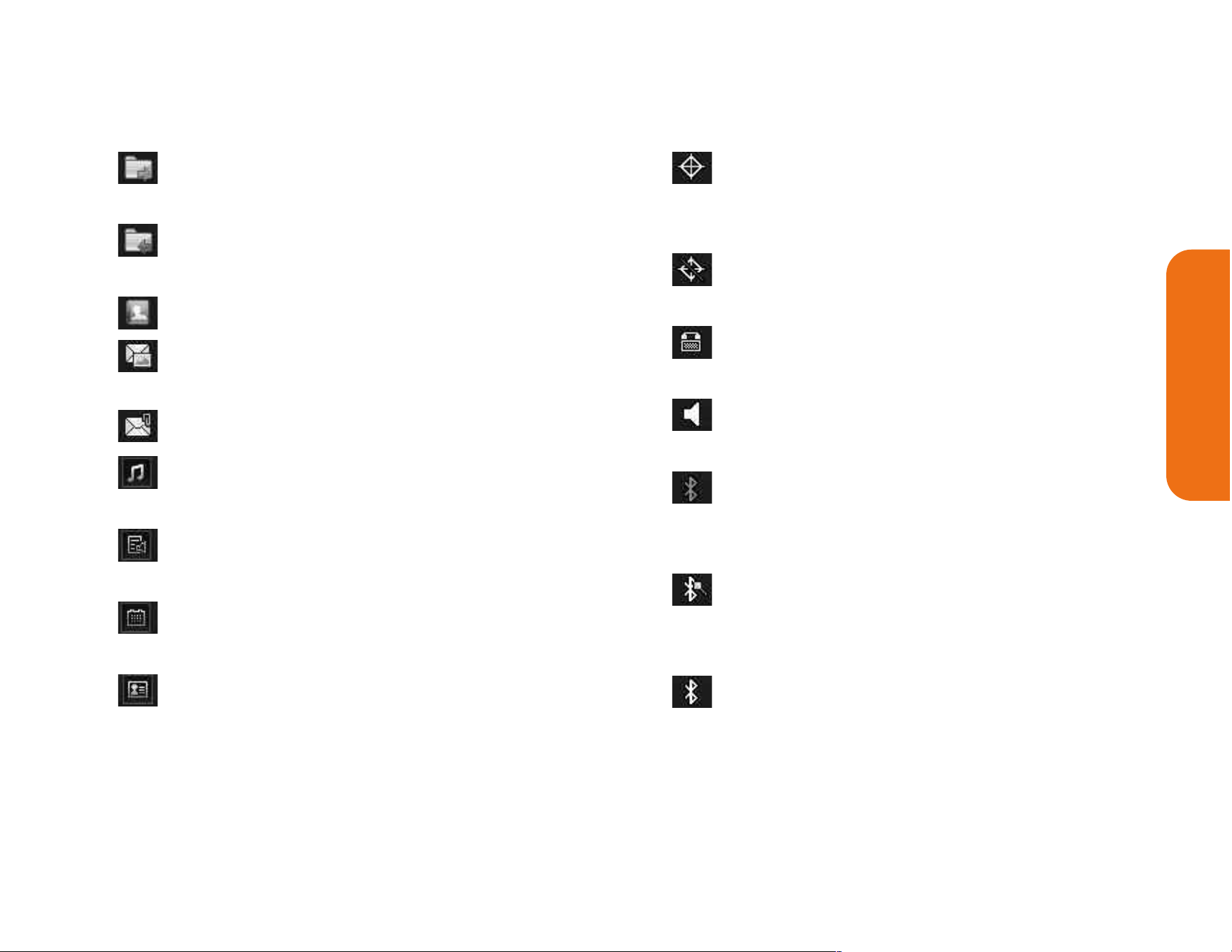
Section 2A: Your Phone: The Basics 13
Sent Message
– Indicates the message is
sent.
Received Message
– Indicates the message
is received.
Recipient
– Indicates the recipient field.
File Attachment
– Indicates the file
attachment field.
File Attached
– Indicates a file is attached.
Audio file attached
– Indicates an audio file is
attached.
Voice file attached
– Indicates a voice file is
attached.
Calendar file attached
– Indicates a
calendar file is attached.
Contact file attached
– Indicates a contact
file is attached.
Location On
– Your phone‘s location
feature is on and available for location-
based services such as GPS Navigation.
Location Off
– Yourphone‘s location feature is
off. Yourlocation is available only for 911.
TTY
– Indicates your phone is operating in
TTY mode.
Speaker
– Indicates that the speaker is
activated.
Bluetooth Enabled (Hidden)
– Indicates that
the Bluetooth function is enabled but
hidden from other devices.
Bluetooth Enabled (Visible)
– Indicates that
the Bluetooth function is enabled and is
visible to other devices.
Bluetooth Connected
– Indicates that the
Bluetooth function is connected.
Phone Basics
14 Section 2A: Your Phone: The Basics
Bluetooth Connected (Mono/Stereo Headset)
– Indicates that the Bluetooth function is
connected to a mono or stereo headset.
Bluetooth Connected (Stereo Speaker)
–
Indicates that the Bluetooth function is
connected to a stereo speaker.
Alarm Clock
– Indicates that an alarm is
activated.
Missed Calls
– Indicates missed calls.
Incoming Calls
– Indicates incoming calls.
Outgoing Calls
– Indicates outgoing calls.
Camera/Picture
– Indicates camera mode.
Camcorder/Video
– Indicates camcorder
mode.
1 Background Application
– Indicates that
one application is active.
2 Background Applications
– Indicates that
2 applications are active.
3 Background Applications
– Indicates that
3 applications are active.
4 Background Applications
– Indicates that
4 applications are active.
5 Background Applications
– Indicates that
5 applications are active.
Camera Resolution 2MP
– Indicates that the
camera resolution is set to 2MP.
Camcorder Resolution WQVGA
– Indicates
that the camcorder resolution is set to
WQVGA.
Camera Resolution High
– Indicates that the
camera resolution is set to High.
Camera/Camcorder Resolution Med
–
Indicates that the camera/camcorder
resolution is set to Medium.
Section 2A: Your Phone: The Basics 15
Camera/Camcorder Resolution Low
–
Indicates that the camera/camcorder
resolution is set to Low.
�
Camera/Camcorder Resolution Low
–
Indicates that the camera/camcorder
resolution is set to Low.
�
Zoom
– Allows you to zoom in and out
when taking pictures or recording video.
�
Self Timer
– Allows you to set a timer delay
for taking pictures or recording video. This
is ideal when you want to be a part of the
picture or recording.
�
Capture
– Allows you to take a picture.
�
Color Tone
– Allows you to change the
color tone for your pictures and videos.
�
Night Mode Setting
– The camera has been
set to Night Mode.
Features of Your Phone
Congratulations on the purchase of your phone.
The RUMOR Reflex by LG is an easy-to-use,
lightweight and reliable phone that offers many
significant features and service options. The
following list previews some of those features of
the phone:
� Data service provides access to the wireless
Internet in digital mode.
� Voicemail and Text Messaging provide quick
and convenient messaging capabilities.
� Games, ringtones, wallpapers, and other
applications can be downloaded to make your
phone as unique as you are. Additional
charges may apply.
Phone Basics
16 Section 2A: Your Phone: The Basics
� Your Contacts List allows you to store up to
600 entries, with up to seven phone numbers
per entry.
� The Calendar offers several personal
information management features to help you
manage your busy lifestyle.
� The Location feature works in connection with
available location-based services.
� Predictive Text Input lets you quickly type
messages with one keypress per letter.
� Speed Numbers let you dial phone numbers
with one or two key presses.
Turn Your Phone On and Off
Turning Your Phone On
To turn your phone on:
�
Press and hold .
Once your phone is on, it may display “Looking for
Service”, which indicates that your phone is
searching for a signal. When your phone finds a
signal, it automatically enters standby mode – the
phone’s idle state. At this point, you are ready to
begin making and receiving calls.
If your phone is unable to find a signal after 15
minutes of searching, a Power Save feature is
automatically activated. When a signal is found,
your phone automatically returns to standby mode.
In Power Save mode, your phone searches for a
signal periodically without your intervention. You
can also initiate a search for service by pressing
any key (when your phone is turned on).

Section 2A: Your Phone: The Basics 17
Turning Your Phone Off
To turn your phone off:
�
Press and hold for two seconds until
you see the powering-down animation on
the screen.
Your screen remains blank while your phone is off
(unless the battery is charging).
Using Your Phone’s Battery
and Charger
WARNING: Use only Boost-approved or LG-approved
batteries and chargers with your phone. The failure to use a
Boost-approved or LG-approved battery and charger may
increase the risk that your phone will overheat, catch fire, or
explode, resulting in serious bodily injury, death, or property
damage.
Battery Capacity
The battery provides up to 5.3 hours of continuous
digital talk time (per Sprint lab).
When the battery reaches 5% of its capacity, the
battery icon blinks. When there are approximately
two minutes of talk time left, the phone sounds an
audible alert and then turns off.
Note: Long backlight settings, searching for service, vibrate
mode, Browser use, and other variables may reduce the
battery’s talk and standby times.
Phone Basics
18 Section 2A: Your Phone: The Basics
Tip: Be sure to watch your phone’s battery level indicator and
charge the battery before it runs out of power.
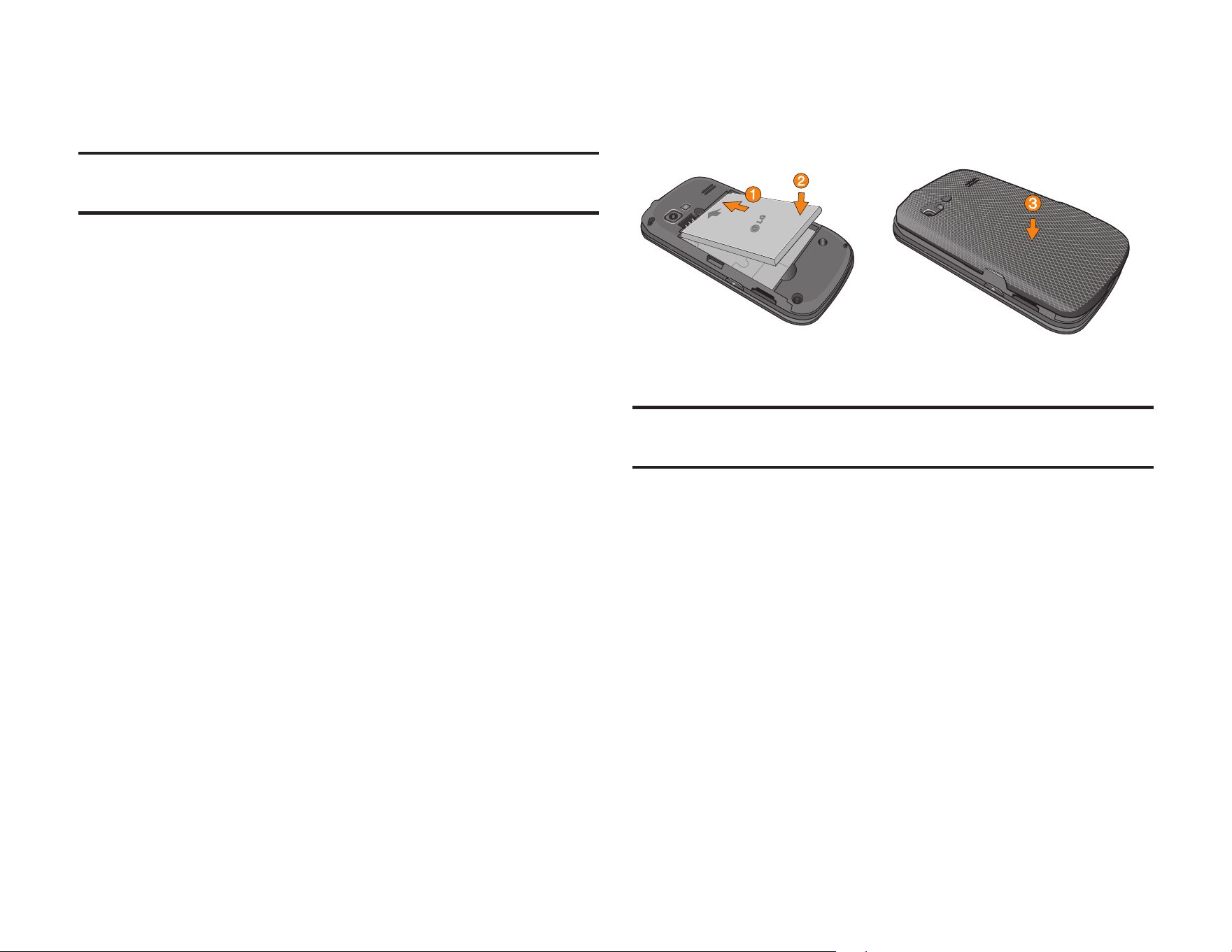
Installing the Battery
To install the battery:
�
Remove the battery from its packaging.
�
Use the fingertip cutout at the bottom of the
back cover to lift the back cover off.
�
Insert the battery into the opening in the
back of the phone. Make sure the
connectors align with the phone terminals.
�
Position the battery cover over the battery
compartment and press it downward until
you hear a click.
Removing the Battery
WARNING: Do not handle a damaged or leaking Li-Ion
battery as you can be burned.
To remove the battery:
�
Make sure the power is off so that you don‘t
lose any stored numbers or messages.
�
Use the fingertip cutout at the bottom of the
back cover to lift the back cover off.
�
Lift the battery using the fingertip cutout
located at the bottom of the battery
compartment and remove it from the phone.

Section 2A: Your Phone: The Basics 19
Charging the Battery
Keeping track of your battery‘s charge is
important. If your battery level becomes too low,
your phone automatically turns off, and you will
lose any information you were working on.
Always use an LG-approved desktop charger,
travel charger, or vehicle power adapter to charge
your battery.
�
Plug the small end of the charger into the
phone’s Charger/Accessory Port and the
other end into an electrical outlet.
� A red status light means the battery is
charging.
� A green status light means the battery is at
least 90 percent charged.
With the Boost-approved Li-Ion battery, you can
recharge the battery before it becomes completely
discharged.
Using the Charger
To use the charger provided with your phone:
�
Plug the smaller end of the AC adapter into
the phone’s Charger/Accessory Port and the
other end into an electrical outlet.
Phone Basics

20 Section 2A: Your Phone: The Basics
Navigating Through Phone
Menus
The Navigation Key on your phone allows you to
scroll through menus quickly and easily. The scroll
bar at the right of the screen keeps track of your
position in the menu at all times.
To navigate through a screen, simply press the
Navigation Key up or down.
For a summary of your phone’s menu, please see
“Your Phone’s Menu” on page ii.
Touch > Main Menu to access all
available menus.
On the Touch Screen
To scroll through lists, touch the screen and slide
your finger up the screen. The list will move up so
more items are visible. To display the top of the list
again, slide the screen down.
To select an item, touch it on the menu.
For example, to view your text messages:
1. Touch and then
Main Menu
to
access the main menu.
2. Touch Messaging.
3. Touch Messages. All of your messages (if
any) will be displayed.
Navigate through Menus Using the QWERTY
Keyboard
The Navigation Keys on the QWERTY keyboard let
you quickly scroll through on-screen items. To
navigate through a menu, press the up and down
Navigation Keys. As you navigate through the
menu, options are highlighted. Select any option
by highlighting it and pressing .
For example, to view your text messages:
1. Slide open the QWERTY keypad and press
the Home Key and then Main Menu .
Section 2A: Your Phone: The Basics 21
2. Select Messaging by pressing the down
arrow key until you see that menu option and
pressing .
3. Use the Navigation Keys to highlight
Messages and press .
Back Up Within a Menu
To go to the previous menu:
�
Press .
– or –
�
Press on the QWERTY Keyboard.
To return to the Home screen:
�
Press twice.
– or –
�
Touch the header icon at the top left corner
of the screen.
Display Your Phone Number
Just in case you forget your phone number, your
phone can remind you.
To display your phone number:
�
Touch >
Main Menu
>
Settings
>
Phone Info
>
Phone#/User ID
. Your phone
number and other information about your
phone and account will be displayed.
Phone Basics
22 Section 2A: Your Phone: The Basics
Make and Answer Calls
Make Phone Calls
Placing a call from your phone is as easy as
making a call from any landline phone. Just enter
the number and press .
To make a call using your keypad:
1.
Press and enter a phone number using
the dial pad or the QWERTY keyboard. If you
make a mistake while dialing, touch to
erase the numbers.
2. Touch or press .
3. To end the call, drag the toggle key to .
Tip: To redial other recent numbers, press , touch , touch
the desired number, and then Call. When making calls off the
Nationwide Network, always dial using 11 digits (1 + area code
+ phone number).
You can also place calls from your phone by
speed dialing numbers from your Contacts, using
your History listings, and ASR (Automatic Speech
Recognition).
Dialing Options
When you enter numbers you will see a variety of
dialing options displayed on the phone‘s screen.
The following options are available when dialing
a number:
�
Save: Saves the entered number to your
Contacts.
�
Contact Details: Displays Contacts details for
numbers that are already saved in the phone.
�
Send Msg: Allows you to quickly send a
message to the number.
�
Pause: Enter digits and touch this to enter a
pause within a number string.
Tip: To use speed dial to dial a phone number, touch and hold
the speed dial number. If the speed dial number is two digits,
enter the first digit, and then touch and hold the second digit.

Section 2A: Your Phone: The Basics 23
Answer an Incoming Call
To answer an incoming call:
1.
Make sure your phone is on. If your phone is
off, incoming calls go to voicemail.
2. Touch Answer.
- or -
Touch and drag the toggle key to Answer.
Your phone notifies you of incoming calls in the
following ways:
�
The phone rings or vibrates.
�
The indicator light flashes.
� The backlight illuminates.
� The screen displays an incoming call
message.
If the incoming call is from a number stored in your
Contacts, the entry‘s name is displayed. You may
also see the caller‘s phone number, if available.
Receive Call Options
You also see the following options if your phone is
on standby. To select an option, touch the
corresponding touch key.
�
Silence to mute the ringer.
�
Send to Voicemail to send the call to
voicemail.
�
Ignore with Text to send a text message. You
can send the preset message or write a new
one.
�
Answer to answer the call.
Note: When your phone is off, incoming calls go directly to
voicemail.
Ending a Call
To disconnect from a call when you are finished:
�
Touch .
Phone Basics

24 Section 2A: Your Phone: The Basics
Missed Call Notification
When you do not answer an incoming call, your
screen displays the Missed Call log in a bubble on
the standby screen.
To display a Missed Call entry from the
notification screen:
�
Touch the entry. To dial the phone number,
touch Call. To send a message, touch Send
Msg.
Call Emergency Numbers
You can place emergency calls to 911, even if
your account is restricted.
Note: When you place an emergency call, your phone
automatically enters Emergency mode.
Press and dial .
During an emergency call, you will see a variety of
options displayed on the screen.
To initiate an option, touch the following:
�
My Phone# to display your phone number
during an emergency call.
�
Speaker to activate speakerphone mode. If you
are in speakerphone mode, the option is
displayed as Speaker Off to deactivate.
�
Dial Pad to display the dial pad.
�
More to access the following options:

Section 2A: Your Phone: The Basics 25
�
Phone Info to check the phone number,
version, etc.
�
Cancel to close the pop-up menu.
To exit Emergency mode:
1.
Touch End Call to end a 911 call.
2. Touch Exit to exit from the Emergency mode.
Note: When you are in Emergency mode, you can exit only
from the options menu.
Enhanced 911 (E911) Information
This phone features an embedded Global
Positioning System (GPS) chip necessary for
utilizing E911 emergency location services where
available.
When you place an emergency 911 call, the GPS
feature of your phone seeks information to
calculate your approximate location. Depending
on several variables, including availability and
access to satellite signals, it may take up to 30
seconds or more to determine and report your
approximate location.
IMPORTANT: Always report your location to the 911
operator when placing an emergency call. Some designated
emergency call takers, known as Public Safety Answering Points
(PSAPs) may not be equipped to receive GPS location
information from your phone.
In-Call Options
Several in-call features are available as options
during a call. To select an option, touch the
corresponding touchkey. The following options
may be available:
�
Mute to mute the microphone. Touch Unmute
to unmute the microphone.
�
Speaker to activate speakerphone mode. If
you are in speakerphone mode, the option is
displayed as Speaker Off to deactivate.
�
Dial Pad to display the dial pad.
�
End Call to end the call.
Phone Basics
26 Section 2A: Your Phone: The Basics
�
More to access the following options:
�
Save to save a phone number in your
Contacts.
�
Contact Details to display the contact
details (if the contact is saved in the
Contacts).
�
Main Menu to display the phone‘s main
menu.
�
3-Way Call to initiate a 3-way call.
�
Contacts to display your Contacts list.
�
Voice Memo to record the current
conversation.
�
Phone Info to check the phone number,
version, etc.
�
Cancel to close the pop-up menu.
Warning! Because of higher volume levels, do not place the
phone near your ear during speakerphone use.
Save a Phone Number
You can store 600 Contacts entries with up to
seven phone numbers per Contact in your phone.
Each entry‘s name can contain 64 characters.
Your phone automatically sorts the Contacts
entries alphabetically.
To save a number from standby mode:
1.
Press to display the dial pad.
2. Enter a phone number.
3. Touch Save.
4. Touch New Entry for a new contact or
Existing Entry to add a number to an
existing contact.
5. Touch a label for the number (Mobile, Home,
Work, Pager, Fax, or Other).
6. Touch the Enter Name field and enter the
new contact name using the touch keypad
or QWERTY keyboard.
Section 2A: Your Phone: The Basics 27
– or –
Search an existing contact name and touch
it to save the new number.
7. Touch Done to save the new entry.
Find a Phone Number
You can find a phone number by searching
Contacts for entries by name.
1. Press and touch . The Contacts list
is displayed.
2. Touch and enter the first letter or letters
of an entry. (The more letters you enter, the
more specific the search.) To display an
entry, touch it.
3. To dial a number, touch Call or press .
Dial and Save Phone Numbers With
Pauses
You can dial or save phone numbers with pauses
for use with automated systems, such as voicemail
or credit card billing numbers.
Note: You can have multiple pauses in a phone number.
To dial or saved phone numbers with pauses:
1.
Press and enter the phone number.
2. Touch Pause.
3. Enter additional numbers.
4. Touch Talk to dial the number.
– or –
Touch Save to save the number in your
Contacts.
Note: When dialing a number with a pause, touch Send Tones.
Phone Basics
28 Section 2A: Your Phone: The Basics
Abbreviated Dialing
Abbreviated Dialing is similar to speed dialing. You
can use either of the following abbreviated dialing
features.
�
Contacts Match – Retrieve any number saved
in your Contacts by entering any consecutive
three digits of the number. Touch Talk to dial
the retrieved number.
�
Prepend – Prepend the first five or six digits
(for example, the area code and prefix) to any
four or five digits you enter. Touch Talk to dial
the resulting number.
To place a call using Contacts Match:
1.
Press and enter three to six digits of a
Contacts entry‘s phone number. The
numbers in your Contacts list that contain
matches will display.
2. Touch to display the details.
3. Touch the contact you want to call and then
touch Talk.
To place a call using Prepend Dialing:
1.
Press and enter the last four or five
digits of the phone number. The Abbreviated
Dialing number will display.
2. Touch to display the details.
3. Touch the number and touch Talk.
Dial From the Contacts List
You can dial a phone number directly from your
Contacts list.
1. Press and touch .
2. Touch the entry you want to call and touch
Call.
3. If multiple numbers are saved in the Contact
entry, touch the number you wish to
dial.

Section 2A: Your Phone: The Basics 29
Using Speed Dialing
You can store up to 98 numbers in your phone‘s
speed dial memory. Dial speed dial entries using
one key touch for locations 2–9 or two key touches
for locations 10–99.
To use One-Touch Dialing for speed dial
locations 2–9:
�
Touch and hold the appropriate key for
approximately two seconds. The display
confirms that you have dialed the number
when it shows “Connecting...”.
To use Two-Touch Dialing for speed dial
locations 10-99:
1.
Touch the first digit.
2. Touch and hold the second digit for
approximately two seconds. The display
confirms that you have dialed the number
when it shows “Connecting...”.
Plus (+) Code Dialing
When placing international calls, Plus Code
Dialing automatically enters the international
access code for your location (for example, 011
for international calls made from the U.S.).
1. Touch and hold until you see a “+” on
the display screen.
2. Dial the country code and phone number,
and then touch Talk. The phone
automatically prepends the access code for
international dialing, followed by the country
code and phone number.
Phone Basics

30 Section 2A: Your Phone: The Basics
Entering Text
Your phone provides convenient ways to enter
letters, numbers, and symbols whenever you are
prompted to enter text (for example, when adding
a Contacts entry or when using email and text
messaging).
Select a Text Input Mode
You can use the touch keypad or the QWERTY
keyboard. While you are using the touch keypad,
you can switch to and from the QWERTY
keyboard.
To change the character input mode:
1.
From a screen where you can enter text,
touch to change the text input mode.
2. Select one of the following options:
�
Predictive to enter text using a predictive
text entry system that reduces the number
of keystrokes required to enter a word.
�
Abc to use multi-touch entry – touch
once for “a,” twice for “b”, three times for
“c.”
�
123 to enter numbers by touching the
numbers on the keypad.
�
Symbols to enter symbols.
�
Emoticon to enter“emoticons.”
�
Smiley to enter smileys.
Tip: When entering text, touch or press to change
letter capitalization (Abc > ABC > abc).
Predictive Text Input
Predictive Text Input lets you enter text using a few
keystrokes per word.
Predictive Text Input uses an intuitive word
database to analyze the letters you enter and
create a suitable word. The word may change as
you type.

Section 2A: Your Phone: The Basics 31
To enter a word using T9 Text Input:
1.
Select the
Predictive
text input mode.
2. Enter a couple of letters of a word. When you
enter a letter of a word, a small window will
appear and shows the words starting with the
letters. If you make a mistake, touch or
press to erase a single character. Touch
and hold or press and hold to
erase an entire word.
3. Touch and scroll to the desired word.
Then touch the desired word.
4. If a word you want to enter is not displayed in
the list, select Add Word? to add a word to
the Predictive Text Input database.
5. Enter the word and touch Done. The word will
appear as an option the next time you scroll
through options during Predictive Text Input.
For more information about Predictive Text Input,
visit the T9 Web site at www.T9.com.
ABC Mode (Touch Keypad Only)
In Abc mode, also known as multi-touch entry, you
touch keys one, two, three, or four times to enter
the letters you see on the keypad. For example,
touch once for “a,” twice for “b”, or three
times for “c”; or touch once for “p,” twice for
“q,” three times for “r,” or four times for “s.”
1. Select the Abc mode.
2. Touch the corresponding keys repeatedly
until the correct letter appears. (For example,
to enter the word “Bill,” touch twice,
three times, three times, and
three times again.)
If you make a mistake, touch to erase a
single character. Touch and hold to
erase an entire word.
By default, the first letter of an entry is capitalized
and the following letters are lowercased. You can
change the letter case using .
Phone Basics

32 Section 2A: Your Phone: The Basics
Characters scroll in the following order:
Enter Numbers, Symbols, Emoticons,
Smileys and Preset Messages
Use your phone's keypad to enter numbers,
symbols, emoticons, smileys, or to choose from
preset messages.
To enter numbers:
�
Select 123 mode and touch the appropriate
key.
To enter symbols:
�
Select the
Symbols
mode. To enter a symbol,
touch the appropriate key indicated on the
display.
To enter Emoticons (graphics):
�
Select the Emoticon mode and touch the
appropriate key.
To enter preset messages:
1.
Touch Preset Msgs at the top right corner of
the screen.
2. Select the message you want by touching it.
Note: Preset messages make composing text messages easier
by allowing you to enter quick messages, such as “Meet me at,”
“Let‘s get lunch,” or a customized message of your own.
. @ ? 1, ! * # / P Q R S 7
A B C 2 T U V 8
D E F 3 W X YZ 9
G H I 4 Space 0
J K L 5 Shift
M N O 6 Enter

Section 2A: Your Phone: The Basics 33
Handwriting
When entering text, besides “typing” the text with
the touch keypad, you also have the option to
write with your fingertip. The touch screen
converts your movements into characters.
1. Touch on the keypad. The handwriting
entry screen appears.
2. Write within the handwriting entry screen. To
change letter case or shift between letters,
numbers, and symbols, touch the icons just
above the handwriting entry screen. When
you are finished, touch Done.
Enter Text With the QWERTY Keyboard
Your phone has a built-in QWERTY keyboard,
specifically designed for easy and comfortable
text entry. The QWERTY keyboard uses the same
layout and works just like the keyboard on your
computer. The easiest way to enter text is by using
your thumbs to type on the QWERTY keyboard.
1. From a screen where you can enter text,
touch and select whether to turn the
predictive text entry system on or off.
2. Use your thumbs to enter text.
� To change capitalization, press .
� To enter an alternate character on a key,
press the Function Key and then
press the alternate character‘s key. To lock
the Function Key, press twice.
� To enter “emoticons,” press and
touch a symbol or press the arrow keys to
highlight an emoticon and press .
� To enter symbols, press and press
and touch the desired one or press
the arrow keys to highlight a symbol and
press .
� To enter preset messages, touch Preset
Msgs at the top right corner of the screen.
Select the message you want by touching it.
Phone Basics
34 Section 2B: Controlling Your Phone’s Settings
Controlling Your Phone’s
Settings
In This Section
� Sound Settings
� Display Settings
� Text Entry Settings
� Location Settings
� Messaging Settings
� Airplane Mode
� TTY Use With Service
� Phone Setup Options
� Security Settings
Using the menu options available on your
phone, you can customize your phone to
sound, look, and operate just the way you
want it to. This section describes how you can
change your phone’s settings to best suit your
needs. Take a few moments to review these
options and to adjust or add settings that are
right for you.

Section 2B: Controlling Your Phone’s Settings 35
Sound Settings
Ringers
Ringer settings help you identify incoming calls
and messages. You can assign ringer types to
individual Contacts entries, types of calls, and
types of messages.
Incoming Calls
Your phone provides a variety of ringer options
that allow you to customize your ring and volume
settings. These options allow you to identify
incoming calls by the ring.
To select a ringtone for incoming calls:
1.
Touch > Main Menu > (slide the screen
up) > Settings > Ringtones > Incoming
Calls.
2. Touch Contacts, Unsaved Numbers, or
Private/ Unknown. For Contacts, touch the
following:
�
Contacts with Default Ringer: You can set
a ringer type for calls from contacts with
default ringer.
�
One Contact: You can set a specific ringer
type for calls from one specific contact.
3. Select a category and then scroll through
the available ringers. Touch to hear a
sample ringer.
4. Touch a ringer to assign it.
Get New Ringers
1. Touch > Main Menu > (slide the screen
up) > Settings > Ringtones > Incoming
Calls, Voicemail, Messages, or
Alarm/Calendar.
2. Select a call or message type to display a list
of ringer type categories.
3. Select Downloaded Ringers > Get New. The
Browser starts and displays the Ringers
menu.
Your Phone’s Settings

36 Section 2B: Controlling Your Phone’s Settings
4. Scroll through available ringers. When you
find one you want, touch it.
5. To make a purchase, touch Buy and then
Download.
6. When the download is finished, select an
option to continue:
� Listen to listen to the ringer.
� Set As to finish assigning the ringer.
� Shop to browse for other items to
download.
Messages
1. Touch > Main Menu > (slide the screen
up) > Settings > Ringtones > Messages.
2. Select a category and then scroll through
the available ringers. Touch to hear a
sample ringer.
3. Touch a ringer to assign it.
Assign Ringers to Contacts
1. Touch > Main Menu > (slide the screen
up) > Settings > Ringtones > Incoming
Calls > Contacts > One Contact.
2. Touch a contact entry.
3. Select a category and then scroll through
the available ringers. Touch to hear a
sample ringer.
4. Touch a ringer to assign it.
Voicemail
To select a ringtone for messaging:
1.
Touch > Main Menu > (slide the screen
up) > Settings > Ringtones > Voicemail.
2. Select a category and then scroll through
the available ringers. Touch to hear a
sample ringer.
3. Touch a ringer to assign it.
Section 2B: Controlling Your Phone’s Settings 37
Key Tone Settings
Your phone offers a number of options for selecting
the audible tones accompanying a keypress.
To select a tone volume:
1.
Touch > Main Menu > (slide the screen
up) > Settings > Volume > Key Beeps.
2. Select an option.
� Tone Length to select a key tone length.
(During a call, longer tone lengths may be
better for tone recognition when dialing
voicemail or other automated systems.)
� Tone Volume to select a keypress volume
level.
� Tone Type to select the sound of a
keypress.
Adjusting the Phone’s Volume Settings
Adjust your phone‘s volume settings to suit your
needs and your environment.
To adjust your phone’s volume settings:
1.
Touch > Main Menu > (slide the screen
up) > Settings > Volume.
2. Select Incoming Ringtone, Playback
Volume, or Key Beeps.
3. Touch a level bar to set the volume, or select
Silence All, Vibrate All, Ringer Off, or 1
Beep.
4. Toggle the VIBRATE setting. (Note: This
toggle key is not available when Silence All
or Vibrate All is selected.)
5. Touch Done.
Tip: You can adjust the ringer volume in any screen (or the
earpiece volume during a call) by using the Volume Buttons on
the left side of your phone.
Your Phone’s Settings
38 Section 2B: Controlling Your Phone’s Settings
Call Alerts
Set your phone to alert you with an audible tone
when you change service areas, once a minute
during a voice call, or when a call has been
connected or dropped.
To enable or disable alert sounds:
1.
Touch > Main Menu > (slide the screen
up) > Settings > Ringtones > Call Alerts.
2. Toggle the Beep Each Minute, Out of
Service, Connect, or Signal Fade/ Call Drop
buttons between ON and OFF.
Silence All
The Silence All option allows you to mute all
sounds without turning your phone off.
To activate Silence All:
�
Press the Volume Button down until you see
“Silence All” on the screen and touch Done.
To deactivate Silence All:
�
Press the Volume Button up repeatedly to
select a volume level and touch Done.
Display Settings
Backlight
Select how long the display screen and keypad
remain backlit after you press any key.
To change the display backlight setting:
1.
Touch > Main Menu > (slide the screen
up) > Settings > Display > Backlight.
2. Select Backlight Dim or Backlight Off.
3. Touch a time setting.
Note: Long backlight settings reduce the battery‘s talk and
standby times.

Section 2B: Controlling Your Phone’s Settings 39
Screen Savers
Choose what you see on the display screen when in
standby mode.
To change the display image :
1.
Touch > Main Menu > (slide the screen
up) > Settings > Display > Screen Savers >
Main Screen or Lock Screen.
2. Select No Image, Preloaded, My Photos,
Assigned Media, Downloaded Images, or
Take New Picture.
3. Touch an image to view it. While viewing an
image, you can flick the screen left or right to
scroll through and view other available
images.
4. Touch Assign to assign an image.
Changing the Phone’s Menu Style
Your phone allows you to choose how the menu
appears on your display screen.
To select the display’s menu style:
1.
Touch > Edit > Grid View or List View.
2. Touch Done to save the setting.
Language (Idioma)
You can choose to display your phone‘s on-
screen menus in English or in Spanish.
To assign a language for the phone’s display:
1.
Touch > Main Menu > Settings >
Language (Idioma).
2. Touch English or Español.
Your Phone’s Settings

40 Section 2B: Controlling Your Phone’s Settings
Location Settings
Your phone is equipped with a Location feature for
use in connection with location-based services.
The Location feature allows the network to detect
your position. Turning Location off will hide your
location from everyone except 911.
Note: Turning Location on will allow the network to detect your
position using GPS technology, making some applications and
services easier to use. Turning Location off will disable the GPS
location function for all purposes except 911, but will not hide
your general location based on the cell site serving your call. No
application or service may use your location without your request
or permission. GPS-enhanced 911 is not available in all areas.
To enable your phone’s Location feature:
1.
Touch > Main Menu > Settings >
Location. You will see the Location
disclaimer.
2. Read the disclaimer and touch Continue .
3. Touch On or Off to change the existing
Location setting.
When you turn the Location feature on, the phone
displays the icon. When you turn Location
off, the phone displays the icon.
Messaging Settings
Messaging Settings allow you to decide how you
would like to be notified of new messages, to
create a signature with each sent message, and to
create your own preset messages.
Setting Message Notification
When you receive a text message, your phone can
notify you by displaying an icon on your display
screen. You can also choose to be notified with a
whisper alert message on your display screen.
1. Touch > Main Menu > Settings >
Display.

Section 2B: Controlling Your Phone’s Settings 41
2. Touch the Whisper Notification button to
toggle the setting ON or OFF.
Callback Number
1. Touch > Main Menu > Messaging >
Settings > Callback Number.
2.
Select None, My Phone Number, or Other. If you
select Other, enter a number and touch Save.
Adding a Customized Signature
Add a customized signature to each message you
send.
To add a customized signature to each sent
message:
1.
Touch > Main Menu > Messaging >
Settings > Signature.
2.
Select Custom. If you do not wish to attach a
signature, select None.
3. Enter a signature and touch Save.
Manage Preset Messages
Your phone is loaded with 17 preset messages to
help make sending text messages easier. Customize
or delete these messages, such as “Where are
you”,? “I am on my way,” and “Meet me at” to suit
your needs, or add your own messages to the list.
To edit or delete a preset message:
1.
Touch > Main Menu > Messaging >
Settings > Preset Messages. You will see
the list of preset messages.
2. Touch a message you want to edit or delete.
3. Touch Edit, edit the message, and touch Save.
– or –
Touch Delete to delete the message. Touch
Cancel to cancel the deletion.
Note: To delete multiple messages, touch Delete at the top right
corner of the screen when the list of preset messages is
displayed. Then select Delete Multiple or Delete All.
Your Phone’s Settings

42 Section 2B: Controlling Your Phone’s Settings
To add a new preset message:
1.
Touch > Main Menu > Messaging >
Settings > Preset Messages. You will see
the list of preset messages.
2. To add a new message, touch Add New.
3. Enter your message and touch Save. Your
new message will be added to the beginning
of the list.
CMAS Settings
Wireless Emergency Alerts (WEA), also known as
CMAS, is a part of a national alerting system called
IPAWS (Integrated Public Alert and Warning
System) that enables emergency management
officials to rapidly disseminate the warnings and
safety information via text alerts to wireless
phones based on the phones’ geographic
location. The Federal Emergency Management
Agency, or FEMA, is responsible for receiving the
alerting information and forwarding the alerts to
participating wireless carriers such as Boost
Mobile. Such alerts may come from the President
of the United States; the National Weather Service,
and state or county public safety officials. This
system is integrated into the same national
alerting services that serve television and radio
today. For more information regarding WEA/CMAS
please visit the FEMA website at
“http://www.fema.gov/emergency/ipaws/projects.shtm”.
Airplane Mode
Airplane Mode allows you to use many of your
phone‘s features, such as Games, Notepad, and
Voice Memos, when you are in an airplane or in
any other area where making or receiving calls or
data is prohibited. When you set your phone to
Airplane Mode, it cannot send or receive any calls
or access online information.

Section 2B: Controlling Your Phone’s Settings 43
1. Touch > Main Menu > (slide the screen
up) > Settings > Airplane Mode.
2. Read the disclaimer and touch Continue.
2. Select On, Off, or On Power Up.
While in Airplane Mode, your phone’s standby
screen will display “Phone Off” in the Status Bar.
TTY Use
A TTY (also known as a TDD or Text Telephone) is a
telecommunications device that allows people
who are deaf, hard of hearing, or who have
speech or language disabilities, to communicate
by telephone.
Your phone is compatible with select TTY devices.
Please check with the manufacturer of your TTY
device to ensure that it is compatible with digital
cell phones. Your phone and TTY device will
connect via a special cable that plugs into your
phone‘s headset jack. If this cable was not
provided with your TTY device, contact your TTY
device manufacturer to purchase the connector
cable.
When establishing your service, please call
Customer Service via the state
Telecommunications Relay Service (TRS) by first
dialing 7-1-1 Talk. Then provide the state TRS with
this number: 866-727-4889.
To turn TTY Mode on or off:
1.
Touch > Main Menu > Settings > TTY.
You will see an informational message.
2. Touch Continue.
3. Touch On to turn TTY mode on.
– or –
Touch Cancel to leave TTY mode turned off.
Note: In TTY Mode, your phone will display the TTY access icon
when the TTY device is plugged into the phone.
When enabled, TTY mode may impair the audio quality of non-
TTY devices connected to the headset jack.
Your Phone’s Settings

WARNING!: It is recommended that TTY users make
emergency calls by other means, including Telecommunications
Relay Services (TRS), analog cellular, and landline
communications. Wireless TTY calls to 911 may be corrupted
when received by public safety answering points (PSAPs),
rendering some communications unintelligible. The problem
encountered appears related to software used by PSAPs. This
matter has been brought to the attention of the FCC, and the
wireless industry and the PSAP community are currently working
to resolve this.
Phone Setup Options
Your Home Menu
Your phone offers you the option of customizing
the home screen with the most frequently used
menus for direct access.
1. Touch to open the Home menu.
2. Touch Add. Various menu options will be
displayed.
3. Touch to the right of a menu option to
add that menu option to your Home menu. To
navigate to a specific submenu, touch a
menu option repeatedly until you see the
submenu you want and touch .
4. When you finish selecting menus to add,
touch Done.
Auto-Answer Mode
Set your phone to automatically pick up incoming
calls when connected to an optional hands-free
car kit.
To set Auto-Answer mode:
1.
Touch > Main Menu > (slide the screen
up) > Settings > Call Setup > Auto-Answer.
2. Touch an option.
�
Off to disable Auto-Answer.
�
Headset to answer calls automatically when
the phone is connected to an optional
44 Section 2B: Controlling Your Phone’s Settings
Section 2B: Controlling Your Phone’s Settings 45
headset. Remember, your phone will answer
calls in Auto-Answer mode even if you are not
present.
Setting Abbreviated Dialing
Abbreviated Dialing is similar to speed dialing
To set your abbreviated dialing options:
1.
Touch > Main Menu > (slide the screen
up) > Settings > Call Setup.
2. Touch the Abbreviated Dialing button to
toggle the setting to ON.
3. Enter the first five- or six-digit prefix in the
Prefix field and then touch OK.
�
To deactivate this feature, select OFF during
step 2 above.
Tip: To make an Abbreviated Dial call, see “Abbreviated
Dialing”on page 27.
Note: Abbreviated Dialing does not apply to 911 or 411.
Contacts Match
This allows you to turn the contacts matching
feature on or off.
To set your contacts match options:
1.
Press > Main Menu > (slide the screen
up) > Settings > Call Setup.
2. Touch the Contacts Match button to toggle
the setting ON or OFF.
Text Entry
This allows you to customize text entry.
1. Press > Main Menu > Settings > Text
Entry.
2. Touch the Word Complete, Next Word
Complete, and Word Scan buttons to toggle
the settings between ON and OFF.
Your Phone’s Settings

46 Section 2B: Controlling Your Phone’s Settings
Setting Your Phone’s
Security
In This Section
� Using Your Phone’s Lock Feature
� Erasing Phone Content
� Resetting Default Settings
By using the security settings on your phone,
you receive peace of mind without sacrificing
flexibility. This section will familiarize you with
your phone’s security settings. With several
options available, you can customize your
phone to meet your personal needs.
Using Your Phone’s Lock Feature
Lock Your Phone
When your phone is locked, you can only receive
incoming calls or make calls to 911, Customer
Service, or special numbers.
1. Touch > Main Menu > (slide the screen
up) > Settings > Lock Phone and enter your
lock code. Please note that you will be asked
if you want to change or keep the default
lock code the first time you access this
menu.
2. Touch Lock Now.
Unlock Your Phone
To unlock your phone:
1.
From standby mode, touch Unlock.
2. Enter your lock code.

Section 2B: Controlling Your Phone’s Settings 47
Current code is <Last 4 digits of MDN>.
WARNING: If you change the code and forget it, phone must
be replaced losing all data.
Change the Lock Code
To change your Lock Code:
1.
Touch > Main Menu > Settings > Lock
Phone and enter your lock code.
2. Touch Change Lock Code and then enter
and re-enter your new lock code.
Tip: To access the Change Lock Code menu, you can also
touch > Main Menu > (slide the screen up) > Settings >
Reset/Delete and enter your lock code. Then select Change
Lock Code.
Call in Lock Mode
You can place calls to 911 and to your special
numbers when in lock mode. (For information on
special numbers, see “Parental Controls”.)
To place an outgoing call in lock mode:
�
To call an emergency number, special
number, or Customer Service, touch Dialer,
enter the phone number, and touch Talk.
Reset/Delete
You can quickly erase all the content you have
created or stored in your phone.
1. Touch > Main Menu > (slide the screen
up) > Settings > Reset/Delete and enter
your lock code.
2. Select Delete Stuff.
3. Touch an option.
�
Messages to delete all messages.
�
Call Logs to delete all call logs.
�
Browser Cookies and Cache to delete the
Browser‘s cookies and cache.
�
Downloaded Content to delete all the
contents you have downloaded.
Your Phone’s Settings

48 Section 2C: Setting Your Phone’s Security
�
Contacts to delete all the contents of your
Contacts list.
�
My Photos & Videos to delete all pictures
and videos in My Photos & Videos.
�
Voice Memo to delete all voice memos.
�
Shortcuts to delete the menus you added
on the Home menu.
4. Touch Delete to confirm the deletion
Reset Default Settings
Resetting the phone to default settings restores all
the factory defaults, including the ringer types and
display settings. The Contacts, Call History,
Calendar, and Messaging are not affected.
To reset default settings:
1.
Touch > Main Menu > Settings >
Reset/ Delete and enter your lock code.
2. Select Reset Settings. You will see a
disclaimer.
3. Read the disclaimer and if you are certain
that you would like to restore all the factory
settings, touch Reset.

Section 2E: Managing Call History 49
Managing History
In This Section
� Viewing History
� History Options
� Making a Call From History
� Viewing History Thread
� Saving a Phone Number From History
� Prepend a Phone Number From History
� Erasing History
Call History keeps track of incoming calls,
calls made from your phone, and missed calls.
This section guides you through accessing and
making the most of your Call History.
View Recent History
To view a Call History entry:
1.
From standby mode, press and touch
.
2. Touch an entry.
Note: Call History only records calls that occur while the phone is
turned on. If a call is received while your phone is turned off, it
will not appear in the phone's Incoming or Missed call logs.
Recent History Options
Your Recent History menu options include calling,
sending a message, viewing the history of a caller,
saving a number to contacts, and viewing contact
details.
Touch a History entry to access the following
options:
�
Call to dial the entry.
Call History
50 Section 2E: Managing Call History
�
Send Msg to send a message.
�
History to view all the history of the caller or
receiver.
�
Save Contact to save the number if it is not
already in your Contacts.
�
Contact Details to view the contact information
(if the number has already been saved to
Contacts).
Touch Delete at the top right corner of the screen
to delete multiple or all History entries.
Make a Call From Recent
History
The Recent History list lets you quickly place calls
to recent incoming, outgoing, or missed numbers.
To place a call from Call History:
1.
From standby mode, press and touch
.
2. Scroll through the History entries and touch
to dial the entry.
Note: You cannot make calls from Call History to entries
identified as No ID or Restricted.
Viewing History Thread
History is a list of the last 60 phone numbers (or
Contacts entries) for calls you placed, accepted,
or missed. History makes redialing a number fast
and easy. It is continually updated as your phone
automatically adds new numbers to the beginning
of the list and removes the oldest entries from the
bottom of the list.
Each entry contains the phone number (if it is
available) and Contacts entry name (if the number
is in your Contacts). Duplicate calls (same number
and type of call) may only appear once on the list.

Section 2E: Managing Call History 51
1. From standby mode, press and touch
.
2. Touch an entry.
Note: History records only calls that occur while the phone is
turned on. If a call is received while your phone is turned off, it
will not be included in history. If you return a call from the
voicemail menu, it will not be included in your phone‘s history.
Save a Number From Recent
History
Your phone can store up to 600 Contacts entries.
Contacts entries can store up to a total of seven
phone numbers, and each entry‘s name can
contain 64 characters.
To save a phone number from History:
1. Touch a History entry and touch Save
Contact.
2. Select New Entry to create a new Contacts
entry for the number or Existing Entry to
save the number to an existing entry.
3. Touch the phone label to select it (Mobile,
Home, Work, Pager, Fax, or Other).
4. Touch the Enter Name field and enter the
new contact name using the touch keypad
or QWERTY keyboard, and then touch Done.
– or –
Search an existing contact name and touch
it to save the new number.
5. Touch Done to save the new entry.
Note: You cannot save phone numbers already in your
Contacts or from calls identified as No ID or Restricted.
Call History

52 Section 2E: Managing Call History
Prepend a Number From
Recent History
If you need to make a call from Recent History and
you are outside your local area code, you can add
the appropriate prefix by prepending the number.
To prepend a phone number from History:
1.
From standby mode, press and touch
.
2. Touch a History entry and then touch
History.
3. Touch an entry and touch Prepend.
4. Enter the prefix and press to call the
number.
Erase Recent History
To erase individual History entries, see “Recent
History Options”.
To erase History:
1.
From standby mode, press and touch
.
2. Touch Delete at the top right corner of the
screen and select Delete Multiple or Delete
All.
3. After selecting entries to erase, touch Delete.
– or –
If you are certain you want to erase all the
History entries, touch Delete.

Section 2F: Using Contacts 53
Using Contacts
In This Section
� Adding a New Contact Entry
� Saving a Phone Number
� Contacts Entry Options
� Editing a Contacts Entry
� Adding a Number to a Contacts Entry
� Editing a Contacts Entry‘s Numbers
� Assigning Speed Dial Numbers
� Selecting a Ringer Type for an Entry
� Assigning a Picture to an Entry
� Creating a Group
� Finding Contacts Entries
� Secret Contacts Entries
� Dialing Services
� Hello UI
Now that you know the basics that make it
easier to stay in touch with people and
information, you’re ready to explore your
phone’s more advanced features. This section
explains how to use your phone’s Contacts List,
and helps you make the most of your contacts
and time when you are trying to connect with the
important people in your life.
Contacts

54 Section 2F: Using Contacts
Add a Number to a Contacts
Entry
Your phone can store up to 600 Contacts entries.
Contacts entries can store up to a total of 7 phone
numbers, and each entry‘s name can contain 64
characters.
To add a new entry:
1.
From standby mode, touch > Contacts.
2. Touch Add New > New Contact.
3. Touch the Enter Name field and enter the
new contact name using the touch keypad
or QWERTY keyboard, and then touch Done.
4. Touch the Add Number field, enter a phone
number, and then touch Done.
5. Touch a phone label to select it (Mobile,
Home, Work, Pager, Fax, or Other).
6. Scroll down to additional fields and enter or
edit information as desired.
7. Touch Done.
After saving the number, your phone display the
Contacts list.
Find Contacts Entries
There are several ways to find your Contact
entries.
Follow the steps outlined in the sections below to
find entries from the Contacts menu.
Finding Entries
To find entries
1.
From standby mode, touch > Contacts.
2. Scroll through all the entries.
– or –

Section 2F: Using Contacts 55
To quickly move up or down in the list
alphabetically, touch and hold the thumb tab
on the right side and drag to an initial letter.
– or –
Touch and enter the first letter or letters
of aname (such as “dav” for “Dave”). The
more letters you enter, the more your search
narrows.
3. To display an entry, touch it.
4. To dial the entry‘s default phone number,
touch Call.
– or –
To close the entry display, touch the entry
again.
Contacts Entry Options
Once you've stored a Contact entry, you can add
details such as phone numbers, add email
addresses, URL, default ringers, postal address,
or even the contact's birthday.
To display a Contacts entry:
1.
From standby mode, touch > Contacts.
2. Touch an entry and then touch .
Contacts entry options:
�
Display an entry and touch Edit at the top
right corner of the screen.
�
Add Number to add a phone to the entry.
�
Add Email to add an email address to the
entry.
�
Add URL to add a website’s URL to the
entry.
Contacts

56 Section 2F: Using Contacts
�
Default Ringer to assign a
preprogrammed or downloaded ringer.
�
Default Vibrate Type to assign a vibration
type for incoming calls from the contact.
�
Enter Address to add an address.
�
Enter Birthday to add a birthday.
�
Enter Memo to add a note, or other
information.
�
Enter Job Title to add a job title.
�
Enter Company to add a company.
�
No Secret/Secret to change to Secret to
hide an entry‘s phone number(s).
Add a Number to a Contacts
Entry
You can add up to seven phone numbers to a
Contact entry.
To add a phone number to an entry:
1.
Display a Contacts entry.
2. Touch Edit at the top right corner of the
screen and then touch Add Number.
3. Enter the new phone number and touch
Done.
Note: To add a pause, touch Pause and enter additional
numbers.
4. Touch a label for the number.
5. Touch Done to save the new number.

Section 2F: Using Contacts 57
Edit a Contacts Entry’s
Numbers
Edit a contact entry’s phone numbers using the
edit option.
To edit an entry’s phone number:
1.
Display a Contacts entry and touch Edit at
the top right corner of the screen.
2. Touch a number.
3. Touch to clear one digit at a time or
touch and hold to erase the entire
number.
4. Re-enter or edit the number and touch Done.
5. Touch Done to save the number.
Assign Speed Dial Numbers
Your phone can store up to 98 phone numbers in
speed dial locations.
To assign a speed dial number to a new phone
number:
1. Add a phone number to a new or to an
existing Contacts entry.
2. On the Contacts list, touch More > Settings
> Speed Numbers.
3. Touch an available speed dial location.
Note: To move to far below quickly, touch the scroll thumb tab
and drag to the desired location.
4. Select a phone number in the Contacts. A
confirmation is displayed.
To assign a speed dial number to an existing
phone number:
1.
From standby mode, touch > Contacts.
Contacts
58 Section 2F: Using Contacts
2. Touch More > Settings > Speed Numbers.
3. Touch an available speed dial location.
4. Select a phone number in the Contacts. A
confirmation is displayed.
Note: To scroll down quickly, touch the scroll thumb tab and
drag to the desired location
Edit a Contacts Entry
Editing a Contact’s entry is quick and easy.
To make changes to an entry:
1.
Display a Contacts entry and touch Edit at
the top right corner of the screen.
2. Highlight the information you wish to edit
(Name, Ringer, etc.).
3. Add or edit the information and touch Done
(if applicable).
Select a Ringtone Type for an
Entry
Assign a ringtone type to a Contacts entry so you
can identify the caller by the ringtone type.
To select a ringtone type for an entry:
1.
Display a Contacts entry and touch Edit at
the top right corner of the screen.
2. Slide the screen up and touch the current
ring type to display the Ringtone Type menu.
3. Select a ringtone menu, such as Default
Ringtone, Downloaded Ringtones, Other
Ringtones, No Ringtone, My Videos, Voice
Memo, My Audio or Assigned Media.
4. Scroll through available ringtone. To hear a
sample ringtone, touch .
5. Touch a ringtone to select it.
6. Touch Done to save the new ringtone type.

Section 2F: Using Contacts 59
Dial Services
Your Contacts list is preprogrammed with contact
numbers for various services.
To dial a service from your Contacts:
1.
From standby mode, touch > Contacts.
2. Touch More > Settings > Services and
select from the following available services:
Call Balance, Call Care, Call Re-Boost,
Directory Assistance, Voicemail, Boost
Care, Directory Assistance, Community
Information, or Non-Emergency Svcs.
To dial a service from standby mode using your
dial pad:
1. Press to display the dial pad.
2. Dial the appropriate service number:
�
Call Balance –
�
Call Care –
�
Call Re-Boost –
�
Dir Assistance (411) –
,
, or
�
Voicemail –
�
Boost Care –
�
Community Information –
�
Non-Emergency Svcs –
3. Press to dial the number.
Contacts

60 Section 2G: Using the Phone’s Calendar and Tools
Using the Phone’s Tools
In This Section
� Using Your Phone’s Calendar
� Using Your Phone’s Alarm Clock
� Using Your Phone’s Notepad
� Using Your Phone’s Tools
Your phone is equipped with several personal
information management features that help you
manage your schedule. This section shows you
how to use these features to turn your phone into
a time management planner that helps you keep
up with your contacts, schedules, and
commitments.
Calendar
Add an event to the calendar
Your Calendar helps organize your time and
reminds you of important events.
To add an event:
1.
Touch > Main Menu > (slide the screen
up) > Tools > Calendar.
2. Touch the day to which you would like to add
an event and touch Add New. The current
day is the default.
3. Touch Time to select a time for the event.
Slide the hour, minute, and am/pm wheel up
or down. Touch End and then set the end
time and touch Done.
�
For an all-day event, touch All Day.
4. Touch Content to enter a notes about the event.
�
Enter a note or memo and touch Save.

Section 2G: Using the Phone’s Calendar and Tools 61
5. Touch Related person to select contacts
related to the event.
�
After selecting related persons in the
Contacts list touch Done.
6. Touch Alarm to set an alarm time.
�
Select None, On time, 5 minutes,
10 minutes, 1 hour, 1 day, or 2 days .
7. Touch Alarm Bell to select a ringer type.
�
Select a ringer menu and touch a ringer.
8. Touch Volume to select a ringer volume.
9. Touch Location to enter a location.
�
Enter the event location and touch Save.
10. Touch Set Repeat to select a repeating
status.
�
Select None, Daily, Mon - Fri, Select Days,
Weekly, Monthly, or Yearly.
11. Touch Save to save the event.
Event Alerts
When your phone is turned on and you have an
event alarm scheduled, your phone alerts you and
displays the event summary. There are several ways
your phone can alert you to scheduled events:
�
By playing the assigned ringer type.
�
By illuminating the backlight.
�
By flashing the LED.
Event Alert Menu
When your phone is turned on and you have an
event alarm scheduled, your phone can alert you
and display the event summary.
When the alert goes off, unlock the screen (if
necessary) and touch one of the following options:
�
Snooze to silence the alarm and schedules it
to replay again in 10 minutes.
�
View to display the event detail screen.
�
Dissmiss to dismiss the alarm.
Tools

62 Section 2G: Using the Phone’s Calendar and Tools
View Events
To view your scheduled events:
1.
Touch > Main Menu > (slide the screen
up) > Tools > Calendar.
2. Touch the day for which you would like to
view events.
Tip: In the calendar view, days with events scheduled are
underlined.
3. Touch List or # Events. Your phone lists
events in chronological order.
4. Touch an event to list its details.
Going to the Current Day’s Calendar
Menu
To go to the Calendar menu for today’s date:
�
On the Calendar, touch the Month/Year section
at the top and then touch Go to Today.
Erasing a day’s Events
To erase a day’s scheduled events:
1.
Touch > Main Menu > (slide the screen
up) > Tools > Calendar.
2. Touch the day for which you would like to
erase events and then touch List or #
Events.
Tip: In calendar view, days with events scheduled are underlined.
3. Touch Delete at the top right corner of the
screen and select Delete Today.
4. Select Delete or Cancel.
Note: If the day for which you are erasing events contains a
repeating event, you will receive the following prompt: “There are
some recurring events. Do you want to delete?” Select Yes to
erase a all occurrences or No to cancel the deletion of the
repeating event.

Section 2G: Using the Phone’s Calendar and Tools 63
Erase Past Events
To delete events scheduled before a specific
time and date:
1.
Touch > Main Menu > (slide the screen
up) > Tools > Calendar > Delete > Delete
Old.
2. Select the option to erase events older than
One day, One week, One month, or One
year. You will see a message informing you
how many events were erased.
Erase All Events
To delete all scheduled events:
1.
Touch > Main Menu > (slide the screen
up) > Tools > Calendar > Delete > Delete
All. You will see an alert notifying you that all
events will be erased.
2. Select Delete to erase all events or Cancel to
return to the calendar view.
Clock
Your phone comes with a built-in alarm clock that
has multiple alarm capabilities.
To use the alarm clock:
1.
Touch > Main Menu > (slide the screen
up) > Tools > Clock > Alarm.
2. Touch Add New.
3. Touch and slide the alarm switch to ON.
4. Touch the time to set a time for the alarm.
�
Tough the digital clock (above the dial) to
adjust the clock.
– or –
�
Touch and drag the hour and minute
hands and then touch am/pm to select a
time.
5. Touch Repeat to select a repetition type.
�
Touch Daily, Once, Weekly, Mon - Fri, or
Sat & Sun.
Tools

64 Section 2G: Using the Phone’s Calendar and Tools
6. Touch Sound/Vibration to select Always
Sound & Vibrate, Always Sound, or Always
Vibrate.
7. Touch Alarm Bell to select a ringer type.
�
Select a ringer menu and touch a ringer.
8. Touch Volume to select Volume levels.
�
Touch the bar at the volume level you
want.
9. Touch Vibration Type to select vibration
type.
�
Touch the desired vibration type.
10. Touch Snooze to select repetition type.
�
Select Snooze 5mins, Snooze 10mins,
Snooze 15mins, Snooze 20mins, or
Snooze Off.
11. Touch Save to set the alarm.
Notepad
Your phone comes with a notepad that you can
use to compose and store reminders and notes to
help keep you organized.
To compose a note:
1.
Touch > Main Menu > (slide the screen
up) > Tools > (slide the screen up) >
Notepad > Add New.
2. Enter your note using the touch keypad or
QWERTY keyboard and touch Save.
To read a saved note:
1.
Touch > Main Menu > (slide the screen
up) > Tools > (slide the screen up) >
Notepad.
2. Touch a note.

Section 2G: Using the Phone’s Calendar and Tools 65
To delete saved notes:
1.
Touch > Main Menu> (slide the screen
up) > Tools > (slide the screen up) >
Notepad.
2. Touch a note.
3. Touch Delete.
EZ Tip Calculator
The EZ Tip Calculator tool makes it easy to
calculate a tip based on the total bill.
To quickly and easily calculate tip amounts:
1.
Touch > Main Menu > (slide the screen
up) > Tools > (slide the screen up) >
Calculator > Ez Tip Calculator.
2. Touch the Total Bill field and enter the
amount of the total bill.
3. Touch the Tip (%) field and enter a tip
percentage. EZ Tip Calculator instantly
calculates the correct tip.
4. If you’re splitting the check, touch the Split
field, and enter the number of people in your
party. EZ Tip Calculator calculates and
displays the ‘per person’ amount.
Calculator
Your phone comes with a built-in calculator.
To use the calculator:
1.
Touch > Main Menu > (slide the screen
up) > Tools > (slide the screen up) >
Calculator > Calculator.
2. Enter numbers using your keypad.
�
Touch to enter decimal points.
�
Touch to change the value from
positive to negative .
�
Touch to clear all numbers.
3. Touch for the total.
Tools

66 Section 2G: Using the Phone’s Calendar and Tools
World Clock
You can view the time in over 50 different
locations.
To view the time in over 50 different locations:
1.
Touch > Main Menu > (slide the screen
up) > Tools > Clock > World Clock.
2. Touch New City to display the map.
Tip: You can search a city from the cities list. Touch , touch
the search field and enter the city name.
3. Touch or to scroll through continents
and touch to select the continent. Cities
in the continent will be displayed.
4. Touch or to scroll through cities and
touch .
– or –
Touch and drag the map to find a city and
touch .

Section 2H: Using Your Phone’s Voice Services 67
Using Your Phone’s Voice
Services
In This Section
�
Managing Voice Memos
This section includes easy-to-follow
instructions on using managing voice memos.
Voice Memos
Use your phone‘s Voice Memo feature to record
brief memos to remind you of important events,
phone numbers, or grocery list items, or to record
a conversation during a phone call.
Record Voice Memos
To record a voice memo:
1.
Touch > Main Menu > (slide the screen
up) > Tools > Voice Service > Voice Memo
> Record.
2. Begin recording after the prompt.
To end the recording of your memo:
�
Touch Stop.
To record a conversation during a phone call:
�
During a call, touch More > Voice Memo. A
minute counter is displayed on the left top of
the screen to indicate the amount of time
recorded.
To end the recording of your conversation:
�
Touch the counter and the recording will stop.
Note: Your phone can store 30 voice memos with up to a total
of 10 minutes for all memos.
Voice Services

68 Section 2H: Using Your Phone’s Voice Services
Voice Memo Options
To play the voice memos you have recorded:
1.
Touch > Main Menu > (slide the screen
up) > Tools > Voice Service > Voice Memo.
2. Touch the voice memo you wish to hear.
To choose voice memo options:
1.
Touch > Main Menu > (slide the screen
up) > Tools > Voice Service > Voice Memo.
2. Find a voice memo and touch to choose
from the voice memo options:
�
Send Message to send a message with
the voice memo attached.
�
Set As to assign as a ringer to Contacts
with Default Ringer, One Contact,
Unsaved Numbers, Private/Unknown,
Voicemail, Messages, or Alarm/Calendar.
�
View Details to view the selected voice
memo information.
�
Edit Title to edit the selected voice memo
title.
�
Memory Info to view the memory status
for voice memo. The total memory for voice
memo is 10 minutes.
�
Cancel to close the options menu.
Erase Voice Memos
To delete voice memos:
1.
Touch > Main Menu > (slide the screen
up) > Tools > Voice Service > Voice Memo.
2.
Touch Delete at the top right corner of the
screen and select Delete Multiple or Delete
All.
�
Delete Multiple to delete more than one
selected memo at a time.
�
Delete All to delete all voice memos.

Section 3
Service Features

70 Section 3A: Service Features: The Basics
Service Features: The
Basics
In This Section
� Using Voicemail
� Using Text Messaging
� Using Caller ID
� Responding to Call Waiting
� Making a Three-Way Call
� Using Call Forwarding
This section outlines basic calling features
available.
Voicemail
Setting Up Your Voicemail
Your phone automatically transfers all unanswered
calls to your voicemail, even if your phone is in use
or turned off. You should set up your Voicemail and
personal greeting as soon as your phone is
activated. Always use a password to protect
against unauthorized access.
To set up your voicemail:
1.
Press to open the dial pad.
2. Touch and hold to dial your voicemail.
3. Follow the system prompts to:
�
Create your passcode.
�
Record your name announcement.
�
Record your greeting.

Section 3A: Service Features: The Basics 71
Note: It is recommended that you create a passcode when
setting up your voicemail to protect against unauthorized access.
Without a passcode, anyone who has access to your phone is
able to access your voicemail messages.
Voicemail Notification
There are several ways your phone alerts you to a
new voicemail message:
�
By displaying a message on the screen.
�
By sounding the assigned ringer type.
�
By the LED blinking red.
�
By displaying a Voicemail bubble on the
screen.
New Voicemail Message Alerts
When you receive a new voice message, your
phone alerts you and prompts you to call your
voicemail.
To call your voicemail:
�
Press , then touch and hold .
To display your Missed Log:
�
Touch the bubble icon (such as ) on the
Status Bar and then the notification.
Retrieve Your Voicemail Messages
You can retrieve and review your messages
directly from your wireless phone or from any other
touch-tone phone. To dial from your wireless
phone, either speed dial your voicemail or use the
menu keys.
Service Features
72 Section 3A: Service Features: The Basics
Using One-Touch Message Access
�
Press , then touch and hold . Your
phone will dial your voicemail box.
Using the Menu Keys on Your Phone to
Access Your Messages
1. Touch > Main Menu > Messaging.
2. Touch on Voicemail to listen to your
messages.
Note: You are charged for airtime minutes when you are
accessing your voicemail from your wireless phone.
Using Another Touch-Tone Phone to Access
Messages
1. Dial your wireless phone number.
2. When your voicemail answers, the
Star/Asterisk Key.
3. Enter your passcode.
Tip: When you call into voicemail, you first hear the header
information (date, time, and sender information) for the message.
To skip directly to the message, press 4 during the header.
Voicemail Button Guide
Here‘s a quick guide to your keypad functions
while listening to voicemail messages.
Date/Time Send Reply Advance
Replay Rewind Forward
Erase Save
Cancel Help Skip

Section 3A: Service Features: The Basics 73
Voicemail Options
Your phone offers several options for organizing
and accessing your voicemail.
Using Expert Mode
Using the Expert Mode setting for your personal
voicemail box helps you navigate through the
voicemail system more quickly by shortening the
voice prompts you hear at each level.
To turn Expert Mode on or off:
1.
Press and hold to access your
voicemail. If your voicemail box contains any
new or saved messages, press to
access the main voicemail menu.
2. Enter your passcode.
3. Press to change your Personal Options.
4. Press for Expert Mode.
5. Press to turn Expert Mode on or off.
Voicemail Menu Key
Following the prompts on the voicemail system, you
can use your keypad to navigate through the
voicemail menu. The following list outlines your
phone’s voicemail menu structure.
Listen
Date & Time Information
Reply
Replay
Rewind
Erase
Save
Options
Service Features
74 Section 3A: Service Features: The Basics
Personal Options
Settings
Skip Passcode
Auto-Play
Message Date & Time Playback
Change Passcode
Numeric Pages
Return to Personal Options Menu
Greetings
Change Main Greeting
Change Recorded Name
Return to Personal Options Menu
Expert Mode On/Off
Disconnect
Text and Multimedia Messaging
With your phone’s messaging features, you can
send and receive instant text messages (SMS), or
multimedia messages (MMS) that can include
video and audio, between your wireless phone
and another messaging-ready phone. When you
receive a new message, it will automatically
display a notification on your phone‘s screen.
In addition, text messaging includes a variety of
preset messages, such as “Call me” and “I have to
work late” that make composing messages fast
and easy. Use your phone to customize your own
preset messages (up to 100 characters).
Compose Text/Picture Messages
1. Slide the keyboard out and touch Message.
– or –
Touch > Send Message.
2.
Select an entry method:

Section 3A: Service Features: The Basics 75
�
New Addr to use the keypad to enter a
wireless phone number or email address
of the recipient directly.
�
Go to Contacts to select a recipient from
your Contacts. Qualifying Contacts entries
must contain a wireless phone number or
an email address.
3. Touch Done when you have finished
entering recipients. You may include up to
40 recipients per message.
4. Enter a message or use the preset
messages, symbols, smileys, or emoticons
�
To type a message, use your keyboard or
touch keypad to enter your message.
�
To use a preset message, touch Preset
Msgs in the upper right corner and then
touch a message to enter.
�
To enter a symbol, an emoticon, or a
smiley:
• On the touch keypad: Touch Abc and
select Symbols, Emoticons, or Smileys.
Touch a desired symbol, emoticon, or
smiley and Done.
– or –
• On the QWERTY keyboard: Press ,
and touch a desired symbol or emoticon.
5. To attach attachments, touch Add
Attachment.
6. Review your message and touch Send. You
may select additional messaging options by
touching More to add a subject, set the
message priority urgent, set the callback
number, or save it as draft.
Note: If an attachment is added to a text message, it will be
automatically convert to a Picture Message and you will be
charged accordingly.
Service Features

76 Section 3A: Service Features: The Basics
Access Text/Picture Messages
Accessing text or picture messages on your phone
is as simple as touching the notification bubble on
your screen.
To read an SMS/MMS message:
�
When you receive a text/picture message,
you will see a notification bubble on your
phone’s screen. Touch the bubble to see the
entire message.
To reply to a text/picture message:
1.
While the message is open, touch Reply.
2. Follow steps 4-6 under “Compose
Text/Picture Messages” to complete and
send your reply.
Manage Preset Messages
To add or edit preset messages:
1.
Touch > Main Menu > Messaging >
Settings > Preset Messages.
2. Touch Add New to add a new preset message.
– or –
Touch a preset message and then Edit.
3. Enter your new message or changes and
touch Save.
Using Caller ID
Caller ID allows people to identify a caller before
answering the phone by displaying the number of
the incoming call. If you do not want your number
displayed when you make a call, follow these steps.
To block your phone number from being
displayed for a specific outgoing call:
1.
Press and then touch
.
2. Enter a phone number.
3. Touch Talk.
To permanently block your number, call your
service provider.

Section 3A: Service Features: The Basics 77
Responding to Call Waiting
When you’re on a call, Call Waiting alerts you to
incoming calls by sounding two beeps. Your
phone’s screen informs you that another call is
coming in and displays the caller’s phone number
(if it is available and you are in digital mode).
To respond to an incoming call while you’re on a
call:
�
Touch Answer. This puts the first caller on
hold and answers the second call.
To switch back to the first caller:
�
Touch the call entry on the screen or press
.
Tip: For those calls where you don‘t want to be interrupted, you
can temporarily disable Call Waiting by entering before placing
your call. Call Waiting is automatically reactivated once you end
the call.
Make a Three-Way Call
With 3-Way Calling, you can talk to two people at
the same time. When using this feature, the normal
airtime rates will be charged for each of the two
calls.
To make a Three-Way Call:
1.
Enter a number and press .
2. Once you have established the connection,
touch More > 3-Way Call.
3. From the options that appear at the top of
your screen select a contact from Contacts,
Recent History, or Enter Phone Number and
touch Talk.
4. When you’re connected to the second party,
touch Join to begin your 3-way call.
Service Features

78 Section 3A: Service Features: The Basics
If one of the people you called hangs up during
your call, you and the remaining caller stay
connected. If you initiated the call and are the first
to hang up, all callers are disconnected.
Using Call Forwarding
Call Forwarding lets you forward all your incoming
calls to another phone number – even when your
phone is turned off. You can continue to make calls
from your phone when you have activated Call
Forwarding.
To activate Call Forwarding:
1.
Press
and touch
.
2. Enter the area code and phone number to
which you want your calls forwarded.
3. Touch Talk. You will see a message and hear
a tone to confirm the activation of Call
Forwarding.
To deactivate Call Forwarding:
1.
Press
and touch
.
2. Touch Talk. You will see a message and hear
a tone to confirm the deactivation.

Data Services
Data Services
In This Section
� Data Service Applications
� Getting Started With Data Services
� Downloading Content
� Exploring the Web
� Data Services FAQs
Data service offers easy and amazing features
you will really use. These services – including
messaging, games, downloadable ringtones
and wallpapers, and portable Web access – let
you have fun, stay in touch, and stay informed
no matter where you go on the available
network.
This section introduces these advanced services
and walks you through the necessary steps to
start taking advantage of data service.
Data Service Applications
Here is a brief list of the application types
available through your phone. For more
information, please contact your service provider.
Games – Download exciting games with full-color
graphics and sound.
Ringtones – Personalize your phone by
downloading and assigning different ringtones to
numbers in your Contacts.
Wallpapers –
Download unique images to use as
wallpapers – or make it easy to tell who’s calling by
assigning specific images to numbers in your
Contacts.
Web – Access the Internet and up-to-date news
and information from your phone.
Section 3B: Data Services 79

80 Section 3B: Data Services
Getting Started With Data
Services
This section will help you learn the basics of using
your data service, including managing your user
name, launching a data connection, and
navigating the Web with your phone.
Your User Name
When you buy a phone and sign up for service,
you’re automatically assigned a user name, which
is typically based on your wireless phone number.
When you use data services, your user name is
submitted to identify you to the available network.
The user name is also useful as a way to
personalize services and as an online virtual
identity.
Your user name will be automatically programmed
into your phone. You don’t have to enter it.
Finding Your User Name
If you aren’t sure what your user name is, you can
easily find it on your phone.
find your user name:
�
Touch > Main Menu > (slide the screen
up) > Settings > Phone Info > Phone#/User
ID.
Launch a Web Browser
To launch the Web Browser:
�
Touch > Main Menu > Web. Your data
connection starts and you see the Web home
page.
While connecting, you may see an animation and
a “Connecting” message.

Section 3B: Data Services 81
Connection Status and Indicators
Your phone displays the current status of your
data connection through indicators at the top of
the screen. The following symbols are used:
Your phone is connected to the high-speed
Mobile Broadband Network (EVDO). When
the triangles are animated, data is being
transferred (for example, when you are
opening a Web page). When the triangles
are white, you are connected to the network
but data is not currently being transferred
(for example, when you are viewing a Web
page that is completely open). In either state,
you can receive incoming calls.
Your phone is on and is connected to the
1xRTT data network. When the arrows are
animated, data is being transferred (for
example, when you are opening a Web
page) and you cannot receive calls. When
the arrows are white, you are connected to
the network but data is not currently being
transferred (for example, when you are
viewing a Web page that is completely open)
and you can receive calls.
If you do not see an indicator, your phone does not
have a current data connection. To launch a
connection, see “Launching a Web Connection”.
Browsing the Web
Browsing through menus and websites during a
data session is easy once you’ve learned a few
basics. Here are some tips for getting around:
Scrolling
As with other parts of your phone‘s menu, you‘ll
have to scroll up and down to see everything on
some websites.
To scroll line by line through websites:
�
Touch and slide the screen up or down.
– or –
Data Services
82 Section 3B: Data Services
Touch and drag the scroll bar on the right of
the screen.
Selecting
To select onscreen items:
�
Touch a link and it will take you to that web
page. If you are using the QWERTY keyboard,
use the Navigation Keys to highlight a link and
press .
Links, which are displayed as underlined text,
allow you to jump to Web pages, select special
functions, or even place phone calls.
To select links:
�
Touch the linked text on your phone.
Going Back
To go back one page:
�
Press on your phone.
Note: You can also use for deleting text (like a
Backspace Key) when you are entering text.
Going Home
To return to the home page:
�
Press and hold .
Games, Ringers, and More
You have access to a dynamic variety of
downloadable content, such as games, ringers,
screen savers, and other applications. (Additional
charges may apply.) Follow the basic steps below
to access and download these items.
Access the Download Menus
To access the download menus:
1.
Touch > Main Menu > My Stuff.

Section 3B: Data Services 83
2. Select a download category (Games,
Ringtones, Applications, Wallpapers or
Chat Flirt Fun), and then select Get New.
The Browser will start and take you to the
corresponding download menu.
Select an Item to Download
You can search for available items to download in
a number of ways
�
Featured displays a selection of featured
items.
�
Categories allows you to narrow your search
to a general category. (There may be several
pages of available content in a list. Select
Next 9 to view additional items.)
�
Search allows you to use your keypad to
enter search criteria to locate an item. You
may enter an entire word or title or perform a
partial-word search.
Download an Item
Once you’ve chosen and highlighted an item,
touch it to select it. You will see a summary page
for the item including its title, cost, and expiration
date.
To download a selected item:
1.
From the information page, select Buy. The
item will download automatically. When you
see the New Download screen, you have
successfully downloaded the item to your
phone.
2. Select an option to continue:
�
Select Listen/Use/Run/View to listen to a
ringer, start a game or application, or view
a screen saver. Your data session will end,
and you will be redirected to the
appropriate phone menu screen.
�
Select Set As to assign a ringer or screen
saver to a phone function.
�
Select Settings to configure downloaded
games or applications.
Data Services
84 Section 3B: Data Services
�
Select Shop to browse for other items to
download.
�
Press to quit the Browser and return
to standby mode.
Browsing the Web
With Web access on your phone, you can browse
full-color graphic versions of your favorite Web
sites, making it easier than ever to stay informed
while on the go. Follow sports scores, breaking
news and weather, and shop on your phone
anywhere on the available network.
In addition to the features already covered in this
section, the home page offers access to these
colorful, graphically rich Web categories, which
may include News, Weather, Entertainment,
Sports, Money, Travel, Shopping, and Tools, as
well as other useful options such as Search. Many
sites are available under more than one menu –
choose the one that’s most convenient for you.
Browser Menu
Although the home page offers a broad and
convenient array of sites and services for you to
browse, not all sites are supported, and certain
functions, are not available. While navigating, the
Browser menu offers additional options to expand
your use of the Web on your phone.
Open the Browser Menu
You may open the Browser menu anytime you're
using the Browser, from any page you are viewing.
To open the Browser menu:
Options available under the Browser menu
include:
�
Back to go back to the most recent Web
page.
�
Forward to move to a previously viewed
page (after having used Back option).
�
Pages to open a new page or view other
opened pages.
�
Zoom to zoom in and zoom out.
Section 3B: Data Services 85
�
Options to choose font size, privacy
settings, etc.
Go to a Specific Website
To go to a particular Web site by entering a URL
(Web site address):
1.
Touch the URL field.
2. Use your keyboard to enter a website
address and press or touch Done.
Note: Not all Web sites are viewable on your phone.
Restart the Web Browser
If the Web Browser seems to be malfunctioning or stops
responding, you can usually fix the problem by simply
restarting the Browser.
To reset the Browser:
1.
Touch the Browser menu.
2. Select Options > Browser settings >
Advanced > Reset browser.
3. Touch the items you want to reset, then
touch Reset selected items if you still wish
to continue.
Data Services FAQs
How will I know when my phone is ready for data
service?
Your user name will be displayed when you access
> Main Menu > Settings > Phone info >
Phone#/ User ID.
How do I sign in for the first time?
You are automatically signed in to access data
services when you use the Browser.
Data Services

86 Section 3B: Data Services
How do I know when my phone is connected to
data services?
Your phone automatically connects when you use
data service or an incoming message arrives. You
will also see the or indicator icon.
Can I make calls and use data services at the
same time?
You cannot use voice and data services
simultaneously. If you receive a call while data
service is active, your phone forwards the call to
voicemail. You can place an outgoing call anytime,
but it will interrupt any in-progress data session.
When is my data connection active?
Your connection is active when data is being
transferred. Outgoing calls are allowed; incoming
calls go directly to voicemail. When active, the
or indicator icon is animated on the
display screen.
When is my data connection dormant?
If your phone receives no data for 10 seconds, the
connection goes dormant. When the connection is
dormant, you can make and receive voice calls. If
your phone receives no data for an extended
period, the connection will terminate.
Can I sign out of data services?
You can sign out without turning off your phone;
however, you will not be able to browse the Web or
use other data services. While signed out, you can
still place or receive phone calls, check voicemail,
and use other voice services. You may sign in
again at any time. To sign out, touch > Main
Menu > (slide the screen up) > Settings > Data >
On/Off in your phone’s menu. Read the disclaimer
and touch Disable.

Section 4
Safety and Warranty
Information

88 Section 4A: Important Safety Information
Important Safety
Information
In This Section
� General Precautions
� Maintaining Safe Use of and Access to Your Phone
� Using Your Phone With a Hearing Aid Device
� Caring for the Battery
� Radiofrequency (RF) Energy
� Owner’s Record
� Phone Guide Proprietary Notice
This phone guide contains important
operational and safety information that will
help you safely use your phone. Failure to read
and follow the information provided in this
phone guide may result in serious bodily injury,
death, or property damage.
General Precautions
There are several simple guidelines to operating your
phone properly and maintaining safe, satisfactory service.
�
Hold the phone with the antenna raised, fully extended,
and over your shoulder.
�
Try not to hold, bend, or twist the phone’s antenna.
�
Don’t use the phone if the antenna is damaged.
�
Speak directly into the mouthpiece.
�
Avoid exposing your phone and accessories to rain or
liquid spills. If your phone does get wet, immediately
turn the power off and remove the battery.
�
Although your phone is quite sturdy, it is a complex
piece of equipment and can be broken. Avoid
dropping, hitting, bending, or sitting on it.
�
Any changes or modifications to your phone not
expressly approved in this document could void your
warranty for this equipment and void your authority to
operate this equipment.
�
Do not disassemble or open crush, bend or deform,
puncture or shred.
�
Do not modify or remanufacture, attempt to insert

Section 4A: Important Safety Information 89
foreign objects into the battery, immerse or expose to
water or other liquids, expose to fire, explosion or other
hazard.
�
Only use the battery for the system for which it is
specified.
�
Only use the battery with a charging system that has
been qualified with the system per this standard. Use
of an unqualified battery or charger may present a risk
of fire, explosion, leakage, or other hazard.
�
Do not short circuit a battery or allow metallic
conductive objects to contact battery terminals.
�
Replace the battery only with another battery that has
been qualified with the system per this standard, IEEE-
Std-1725-200x. Use of an unqualified battery may
present a risk of fire, explosion, leakage or other
hazard.
�
Promptly dispose of used batteries in accordance with
local regulations.
�
Battery usage by children should be supervised.
�
Avoid dropping the phone or battery. If the phone or
battery is dropped, especially on a hard surface, and
the user suspects damage, take it to a service center
for inspection.
�
Improper battery use may result in a fire, explosion or
other hazard.
�
For those host devices that utilize a USB port as a
charging source, the host device's user manual shall
include a statement that the phone shall only be
connected to products that bear the USB-IF logo or
have completed the USB-IF compliance program.
Note: For the best care of your phone, only authorized personnel
should service your phone and accessories. Failure to do so may be
dangerous and void your warranty.
HAC statement
This phone has been tested and rated for use with hearing
aids for some of the wireless technologies that it uses.
However, there may be some newer wireless technologies
used in this phone that have not been tested yet for use
with hearing aids.
It is important to try the different features of this phone
thoroughly and in different locations, using your hearing aid
or cochlear implant, to determine if you hear any interfering
noise.
Consult your service provider or the manufacturer of this
phone for information on hearing aid compatibility. If you
Important Safety Information

90 Section 4A: Important Safety Information
have questions about return or exchange policies, consult
your service provider or phone retailer.
Part 15.19 statement
This device and its accessories comply with part15 of FCC
rules. Operation is subject to the following two conditions:
(1) This device & its accessories may not cause harmful
interference.
(2) This device & its accessories must accept any
interference received, including interference that may
cause undesired operation.
Part 15.21 statement
Change or Modifications that are not expressly approved by
the manufacturer could void the user's authority to operate
the equipment.
Part 15.105 statement
This equipment has been tested and found to comply with
the limits for a class B digital device, pursuant to Part 15 of
the FCC Rules. These limits are designed to provide
reasonable protection against harmful interference in a
residential installation. This equipment generates uses and
can radiate radio frequency energy and, if not installed and
used in accordance with the instructions, may cause
harmful interference to radio communications. However,
there is no guarantee that interference will not occur in a
particular installation. if this equipment does cause harmful
interference or television reception, which can be
determined by turning the equipment off and on, the user
is encouraged to try to correct the interference by one or
more of the following measures:
�
Reorient or relocate the receiving antenna.
�
Increase the separation between the equipment and
receiver.
�
Connect the equipment into an outlet on a circuit
different from that to which the receiver is connected.
�
Consult the dealer or an experienced radio/TV
technician for help.
Maintaining Safe Use of and
Access to Your Phone
Do Not Rely on Your Phone for Emergency Calls
Mobile phones operate using radio signals, which cannot
guarantee connection in all conditions. Therefore, you
should never rely solely upon any mobile phone for
essential communication (e.g., medical emergencies).
Emergency calls may not be possible on all cellular
networks or when certain network services and/or mobile
Section 4A: Important Safety Information 91
phone features are in use. Check with your local service
provider for details.
Using Your Phone While Driving
Talking on your phone while driving (or operating the
phone without a hands-free device) is prohibited in some
jurisdictions. Laws vary as to specific restrictions.
Remember that safety always comes first.
Following Safety Guidelines
To operate your phone safely and efficiently, always follow
any special regulations in a given area. Turn your phone off
in areas where use is forbidden or when it may cause
interference or danger.
Using Your Phone Near Other Electronic Devices
Most modern electronic equipment is shielded from
radiofrequency (RF) signals. However, RF signals from
wireless phones may affect inadequately shielded
electronic equipment.
RF signals may affect improperly installed or inadequately
shielded electronic operating systems and/or entertainment
systems in motor vehicles. Check with the manufacturer or
their representative to determine if these systems are
adequately shielded from external RF signals. Also check
with the manufacturer regarding any equipment that has
been added to your vehicle.
Consult the manufacturer about any personal medical
devices, such as pacemakers and hearing aids, to
determine if they are adequately shielded from external RF
signals.
Note: Always turn off the phone in health-care facilities and request
permission before using the phone near medical equipment.
Turning Off Your Phone Before Flying
Turn off your phone before boarding any aircraft. To prevent
possible interference with aircraft systems, the U.S. Federal
Aviation Administration (FAA) regulations require you to
have permission from a crew member to use your phone
while the plane is on the ground. To prevent any risk of
interference, FCC regulations prohibit using your phone
while the plane is in the air.
Turning Off Your Phone in Dangerous Areas
To avoid interfering with blasting operations, turn your
phone off when in a blasting area or in other areas with
signs indicating two-way radios should be turned off.
Construction crews often use remote-control RF devices to
set off explosives.
Turn your phone off when you’re in any area that has a
potentially explosive atmosphere. Although it’s rare, your
phone and accessories could generate sparks. Sparks can
Important Safety Information

92 Section 4A: Important Safety Information
cause an explosion or fire, resulting in bodily injury or even
death. These areas are often, but not always, clearly
marked. They include:
�
Fueling areas such as gas stations.
�
Below deck on boats.
�
Fuel or chemical transfer or storage facilities.
�
Areas where the air contains chemicals or particles such
as grain, dust, or metal powders.
�
Any other area where you would normally be advised to
turn off your vehicle’s engine.
Note: Never transport or store flammable gas, flammable liquid, or
explosives in the compartment of your vehicle that contains your
phone or accessories.
Restricting Children’s Access to Your Phone
Your phone is not a toy. Do not allow children to play with it
as they could hurt themselves and others, damage the
phone or make calls that use your airtime balance.
Using Your Phone With a
Hearing Aid Device
A number of phones offered by your service provider have
been tested for hearing aid device compatibility. When
some wireless phones are used with certain hearing
devices (including hearing aids and cochlear implants),
users may detect a noise which can interfere with the
effectiveness of the hearing device.
Some hearing devices are more immune than others to
this interference noise, and phones also vary in the amount
of interference noise they may generate. ANSI standard
C63.19 was developed to provide a standardized means of
measuring both wireless phone and hearing devices to
determine usability rating categories for both.
Ratings have been developed for mobile phones to assist
hearing device users find phones thatmay be compatible
with their hearing device. Not all phones have been rated
for compatibility with hearing devices. Phones that have
been rated have a label located on the box.
Your
RUMOR Reflex has an M4 and a T4 rating.
These ratings are not guarantees. Results will vary
depending on the user’s hearing device and individual type
and degree of hearing loss. If a hearing device is

Section 4A: Important Safety Information 93
particularly vulnerable to interference noise; even a phone
with a higher rating may still cause unacceptable noise
levels in the hearing device. Trying out the phone with your
hearing device is the best way to evaluate it for your
personal needs.
M-Ratings: Phones rated M3 or M4 meet FCC requirements
for hearing aid compatibility and are likely to generate less
interference to hearing devices than unrated phones. (M4
is the better/higher of the two ratings.) T-Ratings: Phones
rated T3 or T4 meet FCC requirements and are likely to be
more usable with a hearing device’s telecoil (“T Switch”or
“Telephone Switch”) than unrated phones. (T4 is the
better/higher of the two ratings. Note that not all hearing
devices have telecoils in them.)
Caring for the Battery
Protecting Your Battery
The guidelines listed below help you get the most out of
your battery’s performance.
�
Recently there have been some public reports of
wireless phone batteries overheating, catching fire or
exploding. It appears that many, if not all, of these
reports involve counterfeit or inexpensive, aftermarket-
brand batteries with unknown or questionable
manufacturing standards. LG is not aware of similar
problems with LG phones resulting from the proper use
of batteries and accessories approved by LG. Use only
approved batteries and accessories found through LG.
Buying the right batteries and accessories is the best
way to ensure they’re genuine and safe.
�
In order to avoid damage, charge the battery only in
temperatures that range from 32° F to 113° F (0° C to
45° C).
�
Don’t use the battery charger in direct sunlight or in high
humidity areas, such as the bathroom.
�
Never dispose of the battery by incineration.
�
Keep the metal contacts on top of the battery clean.
�
Don’t attempt to disassemble or short-circuit the battery.
�
The battery may need recharging if it has not been
used for a long period of time.
�
It’s best to replace the battery when it no longer
provides acceptable performance. It can be recharged
hundreds of times before it needs replacing.
�
Don’t store the battery in high temperature areas for
long periods of time. It’s best to follow these storage
rules:
Important Safety Information

94 Section 4A: Important Safety Information
Less than one month:
-4° F to 140° F (-20° C to 60° C)
More than one month:
-4° F to 113° F (-20° C to 45° C)
Disposal of Lithium Ion (Li-Ion) Batteries
Do not handle a damaged or leaking Li-Ion battery as you
can be burned.
For safe disposal options of your Li-Ion batteries, contact
your nearest authorized service center.
Special Note: Be sure to dispose of your battery
properly. In some areas, the disposal of batteries in
household or business trash may be prohibited.
Radiofrequency (RF) Energy
Understanding How Your Phone Operates
Your phone is basically a radio transmitter and receiver.
When it’s turned on, it receives and transmits
radiofrequency (RF) signals. When you use your phone, the
system handling your call controls the power level. This
power can range from 0.006 watts to 0.2 watts in digital
mode.
Knowing Radiofrequency Safety
The design of your phone complies with updated NCRP
standards described below.
In 1991-92, the Institute of Electrical and Electronics
Engineers (IEEE) and the American National Standards
Institute (ANSI) joined in updating ANSI’s 1982 standard for
safety levels with respect to human exposure to RF signals.
More than 120 scientists, engineers and physicians from
universities, government health agencies and industries
developed this updated standard after reviewing the
available body of research. In 1993, the Federal
Communications Commission (FCC) adopted this updated
standard in a regulation. In August 1996, the FCC adopted
hybrid standard consisting of the existing ANSI/IEEE
standard and the guidelines published by the National
Council of Radiation Protection and Measurements (NCRP).
Body-Worn Operation
To maintain compliance with FCC RF exposure guidelines,
if you wear a handset on your body, use the supplied or
approved carrying case, holster or other body-worn
accessory. If you do not use a body-worn accessory,
ensure the antenna is at least 7/16 inch (2.0 centimeters)
from your body when transmitting. Use of non- approved
accessories may violate FCC RF exposure guidelines.
For more information about RF exposure, visit the FCC Web
site at
www.fcc.gov
.

Section 4A: Important Safety Information 95
Specific Absorption Rate (SAR) for Wireless
Phones
The SAR is a value that corresponds to the relative amount
of RF energy absorbed in the head of a user of a wireless
handset.
The SAR value of a phone is the result of an extensive
testing, measuring and calculation process. It does not
represent how much RF the phone emits. All phone
models are tested at their highest value in strict laboratory
settings. But when in operation, the SAR of a phone can be
substantially less than the level reported to the FCC. This is
because of a variety of factors including its proximity to a
base station antenna, phone design and other factors. What
is important to remember is that each phone meets strict
federal guidelines. Variations in SARs do not represent a
variation in safety.
All phones must meet the federal standard, which
incorporates a substantial margin of safety. As stated
above, variations in SAR values between different model
phones do not mean variations in safety. SAR values at or
below the federal standard of 0.0 W/kg are considered safe
for use by the public.
The highest reported SAR values of the
RUMOR Reflex
are:
Cellular CDMA mode:
Part22 Head: 0.54 W/kg; Body: 0.85 W/kg
Part24 Head: 1.15W/kg; Body: 0.66W/kg
Part90 Head: 0.50W/kg; Body: 0.79W/kg
FCC Radiofrequency Emission
This phone meets the FCC Radiofrequency Emission
Guidelines.
FCC ID number: ZNFLN272.
More information on the phone’s SAR can be found from
the following FCC Web site:
http://www.fcc.gov/oet/fccid
.
Owner’s Record
The model number, regulatory number and serial number
are located on a nameplate inside the battery
compartment. Record the serial number in the space
provided below. This will be helpful if you need to contact
us about your phone in the future.
Model:
RUMOR Reflex by LG
®
Serial No.:
Important Safety Information

96 Section 4B: Manufacturer’s Warranty
Manufacturer’s Warranty
In This Section
� Manufacturer’s Warranty
Your phone has been designed to provide you
with reliable, worry-free service. If for any
reason you have a problem with your
equipment, please refer to the manufacturer’s
warranty in this section.
Manufacturer’s Warranty
1. WHAT THIS WARRANTY COVERS:
LG offers you a limited warranty that the enclosed
subscriber unit, and its enclosed accessories, will be free
from defects in material and workmanship, according to the
following terms and conditions:
(1) The limited warranty for the unit and enclosed
accessories shall be a period of one (1) year from the
date of original purchase. The remaining warranty period
for the unit being repaired or replaced shall be
determined by presentation of the original sales receipt
for the purchase of the unit.
(2) The limited warranty extends only to the original
purchaser of the product and is not assignable or
transferable to any subsequent purchaser / end user.
(3) The limited warranty is good only to the original
purchaser of the product during the warranty period as
long as it is in the U.S., including Alaska, Hawaii, U.S.
Territories, and all Canadian Provinces.
(4) The external housing and cosmetic parts shall be free of
major defects at the time of shipment and, therefore,
shall not be covered under these limited warranty terms.

Section 4B: Manufacturer’s Warranty 97
(5) Upon request from LG, the consumer must provide
information satisfactory to LG to prove the date of
purchase or exchange.
(6) The customer shall bear the cost of shipping the
product to the Customer Service Department of LG. LG
shall bear the cost of shipping the product back to the
consumer after the completion of service under this
limited warranty.
2. WHAT THIS WARRANTY DOES NOT
COVER:
(1) Defects or damage resulting from use of the product in
ways other than its intended manner.
(2) Defect or damage from abnormal use, abnormal
conditions, improper storage, exposure to moisture or
dampness, unauthorized modifications, unauthorized
connections, unauthorized repair, misuse, neglect,
abuse, accident, alteration, improper installation, or other
acts which are not the fault of LG, including damage
caused by shipping, blown fuses, or spills of food or
liquid.
(3) Breakage or damage to antennas unless caused directly
by defects in material or workmanship.
(4) Alleged defects or malfunctions of the product if the
Customer Service Department at LG was not notified by
the consumer during the applicable limited warranty
period.
(5) Products which have had the serial number removed or
made illegible.
(6) This limited warranty is in lieu of all other warranties,
expressed or implied, either in fact or by operations of
law, statutory or otherwise, including, but not limited to,
any implied warranty of marketability, merchantability, or
fitness for a particular use.
(7) Damage resulting from use of non-LG approved
accessories.
(8) All plastic surfaces and all other externally exposed
parts that are scratched or damaged due to normal
customer use.
(9) Products operated outside published maximum ratings.
(10) Products used or obtained in a rental program.
(11) Consumables (such as fuses).
3. WHAT LG WILL DO:
LG will, at its sole option, either repair, replace or refund the
purchase price of any unit that does not conform to this
Warranty

98 Section 4B: Manufacturer’s Warranty
limited warranty. LG may choose at its option to use
functionally equivalent re-conditioned, refurbished or new
units or parts or any units. In addition, LG will not re-install
or back-up any data, applications or software that you have
added to your phone. It is therefore recommended that you
back-up any such data or information prior to sending the
unit to LG to avoid the permanent loss of such information.
4. STATE LAW RIGHTS:
No other express warranty is applicable to this product. THE
DURATION OF ANY IMPLIED WARRANTIES, INCLUDING
THE IMPLIED WARRANTY OF MARKETABILITY OR
MERCHANTABILITY, IS LIMITED TO THE DURATION OF THE
EXPRESS WARRANTY HEREIN. LG SHALL NOT BE LIABLE
FOR THE LOSS OF THE USE OF THE PRODUCT,
INCONVENIENCE, LOSS OR ANY OTHER DAMAGES,
DIRECT OR CONSEQUENTIAL, ARISING OUT OF THE USE
OF, OR INABILITY TO USE, THIS PRODUCT OR FOR ANY
BREACH OF ANY EXPRESS OR IMPLIED WARRANTY,
INCLUDING THE IMPLIED WARRANTY OF MARKETABILITY
OR MERCHANTABILITY APPLICABLE TO THIS PRODUCT.
Some states do not allow the exclusion of limitation of
incidental or consequential damages or limitations on how
long an implied warranty lasts; so these limitations or
exclusions may not apply to you. This warranty gives you
specific legal rights and you may also have other rights,
which vary from state to state.
5. HOW TO GET WARRANTY SERVICE:
To obtain warranty service, please call the following
telephone number from anywhere in the continental United
States:
LG Electronics Service
201 James Record Road
Huntsville, AL 35824
Tel. 1-800-793-8896 Email:
http://us.lgservice.com
Please call or write for the location of the LGE authorized
service center nearest you and the procedures for obtaining
warranty claims.

Index 99
A
ABC Mode 31
Access Text/Picture Messages
76
Add a Number to a Contacts
Entry 54, 56
Add an event to the calendar
60
Adjusting the Phone’s Volume
Settings 37
Airplane/Music Mode 42
Alarm Clock 63-64
Answer an Incoming Call 23
Assign Speed Dial Numbers 57
Auto-Answer Mode 44
B
Backlight 38
Battery Capacity 17
Browser Menu 84
Browsing the Web 81, 84
C
Calculator 65
Call Alerts 38
Call in Lock Mode 47
Caller ID 76
Calling Emergency Numbers 24
Caring for the Battery 93
Change the Lock Code 47
Changing the Phone’s Menu
Style 39
Charging the Battery 19
CMAS Settings 42
Compose Text/Picture Messages
74
Connection Status and
Indicators 81
Contacts Entry Options 55
Contacts Match 45
Controlling Your Phone’s Settings
34
D
Data Service Applications 79
Data Services FAQs 85
Dial From the Contacts List 28
Dial Services 59
Dialing and Saving Phone
Numbers With Pauses 27
Dialing Options 22
Display Settings 38
Displaying Your Phone Number
21
E
Edit a Contacts Entry 58
Edit a Contacts Entry’s Numbers
57
Emoticons 32
Enter Numbers, Symbols,
Emoticons, Smileys and Preset
Messages 32
Enter Text With the QWERTY
Keyboard 33
Index

100 Index
Entering Text 30-33
Preset Messages 32
Symbols 32
Erase Recent History 52
Erase Voice Memos 68
Erasing a Day’s Events 62
Erasing All Events 63
Erasing Past Events 63
Event Alert Menu 61
Event Alerts 61
EZ Tip Calculator 65
F
Features of Your Phone 15
Find Contacts Entries 54
Finding a Phone Number 27
Front View of Your Phone 7
G
Games, Ringers, and More 82
General Precautions 88
Getting Help 4
Getting Started 2
Getting Started With Data
Services 80
Going to the Current Day’s
Calendar Menu 62
H
Handwriting 33
I
Important Safety Information 88
In-Call Options 25
Installing the Battery 18
K
Key Functions 9
Key Tone Settings 37
L
Language 39
Launch a Web Browser 80
Location Settings 40
Lock Your Phone 46
M
Maintaining Safe Use of and
Access to Your Phone 90
Make a Call From Recent History
50
Make a Three-Way Call 77
Making and Answering Calls 22
Making Calls 22
Manufacturer’s Warranty 96
Messaging Settings 40
Missed Call Notification 24
N
Navigating Through Phone
Menus 20
New Voicemail Message Alerts
71
Notepad 64
O
Owner’s Record 95

Index 101
P
Phone Setup Options 44
Phone’s Lock Feature 46
Phone’s Security 46
Plus (+) Code Dialing 29
Predictive Text Input 30
Prepend a Number From Recent
History 52
Preset Messages 76
R
Radiofrequency (RF) Energy 94
Recent History 49
Recent History Options 49
Record Voice Memos 67
Removing the Battery 18
Reset Default Settings 48
Reset/Delete 47
Responding to Call Waiting 77
Retrieving Your Voicemail
Messages 71
Ringers 35
S
Save a Number From Recent
History 51
Saving a Phone Number 26
Screen Savers 39
Select a Ringtone Type for an
Entry 58
Selecting a Text Input Mode 30
Service Features: The Basics 70
Setting Abbreviated Dialing 45
Setting Up Service 2
Setting Up Your Voicemail 3
Setting UpYour Voicemail 70
Silence All 38
Sound Settings 35
T
Table of Contents b
Text and Multimedia Messaging
74
Text Entry 45
The Basics 6
Tools 60
TTY 43
Turning Your Phone Off 17
Turning Your Phone On 16
Turning Your Phone On and Off
16
U
Unlock Your Phone 46
Using Abbreviated Dialing 28
Using Call Forwarding 78
Using Speed Dialing 29
Using the Charger 19
Using Voicemail 70
Using Your Phone With a
Hearing Aid Device 92
Using Your Phone’s Battery and
Charger 17
Using Your Phone’s Calendar 60
V
Viewing Events 62
Viewing History Thread 50
Index

102 Index
Viewing the Display Screen 11
Voice Memo Options 68
Voice Memos 67
Voicemail Menu Key 73
Voicemail Notification 71
Voicemail Options 73
W
World Clock 66
Y
Your Home Screen 44
Your Phone’s Menu ii
Your User Name 80

MEMO

MEMO

Guía del usuario

Introducción . . . . . . . . . . . . . . . . . . . . . . . . . . . . .i
El menú de su teléfono . . . . . . . . . . . . . . . . . .ii
Para empezar . . . . . . . . . . . . . . . . . . . . . . . . . . .1
Configuración del servicio . . . . . . . . . . . . . . . . .2
Cómo empezar . . . . . . . . . . . . . . . . . . . . . . . . . . . . . .2
Configuración de su correo de voz . . . . . . . . . . . . .3
Para obtener ayuda . . . . . . . . . . . . . . . . . . . . . . . . . . .4
Su teléfono . . . . . . . . . . . . . . . . . . . . . . . . . . . . .5
Su teléfono: Aspectos básicos . . . . . . . . . . . . .6
Vista frontal de su teléfono . . . . . . . . . . . . . . . . . . . .7
Ver la pantalla de visualización . . . . . . . . . . . . . . .11
Características de su teléfono . . . . . . . . . . . . . . . .16
Apagar y encender el teléfono . . . . . . . . . . . . . . . .17
Uso de la batería y cargador de su teléfono . . . .18
Navegación por los menús del teléfono . . . . . . . .20
Para mostrar su número de teléfono . . . . . . . . . . .22
Hacer y recibir llamadas . . . . . . . . . . . . . . . . . . . . .22
Introducción de texto . . . . . . . . . . . . . . . . . . . . . . . .31
Controlar la configuración del teléfono . . . . .36
Configuración de sonido . . . . . . . . . . . . . . . . . . . . .36
Configuración de pantalla . . . . . . . . . . . . . . . . . . . .41
Configuración de la ubicación . . . . . . . . . . . . . . . .42
Configuración de mensajes . . . . . . . . . . . . . . . . . .43
Configuración de CMAS . . . . . . . . . . . . . . . . . . . . .45
Modo de Avión . . . . . . . . . . . . . . . . . . . . . . . . . . . . .46
Uso de TTY con el servicio . . . . . . . . . . . . . . . . . . .46
Opciones de configuración del teléfono . . . . . . .47
Configuración de la seguridad
de su teléfono . . . . . . . . . . . . . . . . . . . . . . . . . . .50
Uso de la función de bloqueo del teléfono . . . . .50
Borrar el contenido del teléfono . . . . . . . . . . . . . . .52
Restablecer a la configuración predeterminada .52
Administración del Historial . . . . . . . . . . . . . . .54
Ver el Historial . . . . . . . . . . . . . . . . . . . . . . . . . . . . . .54
Opciones del Historial . . . . . . . . . . . . . . . . . . . . . . .55
Hacer una llamada desde el Historial . . . . . . . . .55
Tabla de contenidos

Ver la secuencia del Historial . . . . . . . . . . . . . . . . .56
Guardar un número de teléfono del Historial . . .56
Agregar el prefijo a un número de
teléfono del Historial . . . . . . . . . . . . . . . . . . . . . . . . .57
Borrar el Historial . . . . . . . . . . . . . . . . . . . . . . . . . . . .58
Uso de los contactos . . . . . . . . . . . . . . . . . . . . .59
Agregar una nueva entrada de contactos . . . . . .60
Búsqueda de contactos . . . . . . . . . . . . . . . . . . . . .60
Opciones de entradas de contactos . . . . . . . . . . .61
Agregar un número a una
entrada de contactos . . . . . . . . . . . . . . . . . . . . . . . .62
Editar los números de una
entrada de contactos . . . . . . . . . . . . . . . . . . . . . . . .63
Asignación de números de marcado rápido . . . .63
Edición de una entrada de contacto . . . . . . . . . . .64
Selección de un timbre para una entrada . . . . . .65
Servicios de Marcación . . . . . . . . . . . . . . . . . . . . . .65
Uso de las herramientas del teléfono . . . . . .67
Calendario . . . . . . . . . . . . . . . . . . . . . . . . . . . . . . . . .67
Despertador . . . . . . . . . . . . . . . . . . . . . . . . . . . . . . . .70
Bloc de Notas . . . . . . . . . . . . . . . . . . . . . . . . . . . . . .71
Calculadora de Propina . . . . . . . . . . . . . . . . . . . . . .72
Calculadora . . . . . . . . . . . . . . . . . . . . . . . . . . . . . . . .73
Reloj Mundial . . . . . . . . . . . . . . . . . . . . . . . . . . . . . . .73
Uso de los servicios de voz de su teléfono .74
Administración de los memo de voz . . . . . . . . . .74
Características del servicio . . . . . . . . . . . . .77
Características del servicio:
Aspectos básicos . . . . . . . . . . . . . . . . . . . . . . . .78
Uso del correo de voz . . . . . . . . . . . . . . . . . . . . . . .78
Uso de la mensajería de texto y multimedia . . . .82
Uso de ID de Llamador . . . . . . . . . . . . . . . . . . . . . .85
Responder a una llamada en espera . . . . . . . . . .85
Hacer una llamada tripartita . . . . . . . . . . . . . . . . . .86
Uso de desvío de llamadas . . . . . . . . . . . . . . . . . .86
Servicio de datos . . . . . . . . . . . . . . . . . . . . . . . . .88
Aplicaciones de servicios de datos . . . . . . . . . . . .89
Para empezar con los servicios de datos . . . . . .89
Descargar juegos, timbres y más . . . . . . . . . . . . .92

Navegar la Web . . . . . . . . . . . . . . . . . . . . . . . . . . . . .94
Preguntas frecuentes acerca
el servicio de datos . . . . . . . . . . . . . . . . . . . . . . . . .96
Información de seguridad y garantía . . . .99
Información de seguridad . . . . . . . . . . . . . . .100
Precauciones generales . . . . . . . . . . . . . . . . . . . .100
Mantener el uso seguro y
el acceso a su teléfono . . . . . . . . . . . . . . . . . . . . .103
Uso del teléfono con un audífono . . . . . . . . . . . .105
Cuidado de la batería . . . . . . . . . . . . . . . . . . . . . .106
Energía de Radiofrequencia (RF) . . . . . . . . . . . .107
Registro del propietario . . . . . . . . . . . . . . . . . . . . .108
Garantía del fabricante . . . . . . . . . . . . . . . . . .109

i
Introducción
Esta
Guía del usuario
lo introduce al servicio y
todas las funciones de su nuevo teléfono. Está
dividida en cuatro secciones:
� Sección 1:
Para empezar
� Sección 2:
Su teléfono
� Sección 3:
Características del servicio
� Sección 4:
Información de seguridad y garantía
A lo largo de esta guía encontrará sugerencias
que incluyen atajos especiales y recordatorios
para ayudarle a obtener el mejor resultado de su
nuevo teléfono y su nuevo servicio. Los
Contenidos y el Índice también le ayudarán a
ubicar rápidamente información concreta.
Sacará el máximo provecho de su teléfono si
lee cada sección. Sin embargo, si quiere ir
directamente a una función concreta, sólo tiene
que encontrar esa sección en la Tabla de
Contenidos e ir directamente a esa página. Siga
las instrucciones de esa sección y estará listo
para usar su teléfono de inmediato.

ii
1. Web
2. Mensajería
1. Correo de Voz
2 Enviar Mensaje
3. Mensajes
4. Email
5. Configuración
1. Número de Devolución
2. Mensajes Preestablecidos
3. Firma
4. Mensaje Reensamblaje
5. Configuració de CMAS
1. CMAS-Presidential Alert
2. CMAS-Extreme Alert
3. CMAS-Severe Alert
4. CMAS-Amber Alert
5. CMAS-Test Alert
3. Mis Cosas
1. Administrador de Aplicación
2. Juegos
3. Tonos de llamada
4. Aplicaciones
5. Fondos de pantalla
6. Chat Flirt Fun
7. Opciones
1. Obtener Nuevo
2. Mi Admin. de Cosas
3. Estado de la Memoria
4. Compras
5. Re-Boost
1. Localizador Re-Boost
2. Balance de Llamadas
3. Re-Boost de Llamadas
4. Mi Cuenta
6. Entretenimiento
1. Música
1. Lista de Reproducción
2. Artistas
3. Reproducir Todas
4. Álbums
5. Géneros
2. Juegos
El menú de su teléfono
La siguiente lista resume la estructura del menú del teléfono.

iii
7. Fotos & Vídeos
1. Cámera
2. Videocámara
3. Mis Fotos & Vídeos
1. En Télefono
2. Tarjeta de Memoria
4. Configuración
1. Auto-Guardar
2. Barra de Estado
3. Ubicación
4. Intervalo de pres. de diap.
8. Red Social
1. Facebook
2. Twitter
3. Hookt
9. Configuración
1. Pantalla
1. Salvapantallas
1. Pantalla Principal
2. Bloquear Pantalla
2. Aviso
3. Reloj del Lockscreen
4. Brillo
5. Luz de Fondo
1. Retroiluminación oscura
2. Retroiluminación
desactivada
6. ID de Foto
1. Contactos
2. Número no guardados
3. Privados/Desconocidos
7. Tamano de Fuente
1. Mensajes
2. Navegador
3. Bloc de Notas
4. Aplicaciónes
8. Economizador de Energía
9. Notificación de Susurro
10. Quick Composer
2. Volumen
1. Timbre entrante
2. Volumen reproducción
3. Potencia Encender/ Apagar
4. Bips de tecla
1. Longitud de Tono
2. Volumen de Tono
3. Tipo de Tono

iv
3. Timbres
1. Llamadas Entrantes
1. Contactos
2. Números no guardados
3. Privados/Desconocidos
2. Alertas de llamadas
1. Bip de Minuto
2. Sin Servicio
3. Conectar
4. Desconetar Señal/
Llamada
3. Correo de Voz
4. Mensajería
5. Alarma/Calendario
6. Potencia Encendar/Apagar
4. Vibración
1. Llamadas Entrantes
1. Contactos
2. Números no guardados
3. Privados/Desconocidos
2. Correo de Voz
3. Mensajería
4. Alarma/Calendario
5. Entrada de Texto
1. Finaliz. de Palabras
2. Predic. de Palabras
3. Examinación de Palabras
6. Activar este dispositvo
7. Info de Teléfono
1. # de teléfono/ID de usuario
2. Glosario de Iconos
3. Info de Memoria
4. Estado de batería
5. Versión
6. Avanzado
7. Mi Cuenta
1. Detalles de Cuenta
2. Oír Minutos
3. Oír Balance
8. BloquearTeléfono
1. Bloquear Ahora
2. Cambiar Código de
Bloqueo
9. Controles Parentales
1. Encender/Apagar
2. Cambiar Código de Control
Parental
3. Restricción
1. Llamada de Voz
2. Mensajería
3. Web
4. Cámara/Videocámara
5. Forzar ubicación activada
10. Config. de Llamada
1. Auto-Contestación
2. Marcación Abreviada
3. Encontrar Contactos
11. TTY
12. Modo de Avión

v
13. Datos
1. Encender/Apagar
2. Actualizar Perfil
14. Modo de Auricular
15. Idioma (Language)
16. Ubicación
17. Restablecer/Borrar
1. Restablecer Configuracións
2. RestablecerTeléfono
3. Borrar Cosas
1. Mensajes
2. Registros de llamadas
3. Cookies y cache del
explorador
4. Contenido Descargado
5. Contactos
6. Mis Fotos & Vídeos
7. Memo de Voz
8. Accesos Directos
4. Cambiar Código de Bloqueo
10. Herramientas
1. Reloj
1. Alarma
2. Reloj Mundial
3. Cronómetro
2 Calendario
3. Bluetooth
1. Bluetooth
2. Visibilidad
3. Agregar nuevo
4. Aparatos de Confianza
5. Mi Información de Bluetooth
6. Ayuda
4. Actualizar teléfono
1. Actualizar firmware
2. Actualizar PRL
5. Almacenanmiento Masivo
1. Conecta al PC
2. Archivo Administrador
3. Formatear Tarjeta Memoria
4. Info De Memoria
6. Servicio de Voz
1. Comando de voz
1. Llamar [Nombre][Tipo]/
[Número]
2. Enviar mensaje para
[Nombre][Tipo]/ [Número]
3. Buscar [Nombre][Tipo]
4. Ir a [Menú]
5. Verificar [Elemento]
6. Entrenamiento
Commando de Voz
7. Salir Commando de Voz
2. Lector de Voz
1. Guía de Voz
2. Estado de Teléfono

vi
3. Memo de Voz
4. Configuración & Info
1. Establecer altavoz
2. Ayuda
7. Calcuadora
1. Calcuadora
2. Calcuadora de Propina
3. Conversor de Unidad
8. Bloc de Notas
9. Visor de documentos

Sección 1
Para empezar
2 Sección 1A: Configuración del servicio
Configuración del servicio
En esta sección
� Cómo empezar
� Configuración de su correo de voz
� Para obtener ayuda
Configurar el servicio en su nuevo teléfono es
rápido y fácil.
Esta sección lo lleva por los pasos necesarios
para desbloquear el teléfono, configurar su
correo de voz, establecer contraseñas y
comunicarse con su proveedor de servicio para
obtener asistencia para su servicio.
Cómo empezar
Desbloqueo del teléfono
Si enciende su teléfono y su teléfono esta
bloqueado, la pantalla principal mostrará
“-Bloqueado-”.
Siga estos pasos sencillos para desbloquear su
teléfono
1. Mantenga presionada para encender el
teléfono.
2. Arrastre hacia la derecha para
desbloquear el teléfono.
3. Toque
Desbloquear
e introduzca su Código de
Bloqueo de cuatro dígitos (Para seguridad, el
código no se muestra al introducirlo).
Sugerencia: El código actual es <los últimos 4 dígitos de su
número de teléfono>.
Aviso: Si cambia el código y lo olvida, el teléfono debe
restablecerse a los datos de fábrica y se borrarán todos sus datos.
Sección 1A: Configuración del servicio 3
Configuración de su correo de
voz
Todas las llamadas a su teléfono no respondidas
se transfieren automáticamente a su correo de voz,
incluso si está usando el teléfono o lo tiene
apagado. Por tanto, le recomendamos configurar su
correo de voz y su saludo personal tan pronto
como se active su teléfono.
Para configurar su correo de voz:
1. Desde el modo de espera, presione y
toque ymantenga presionado .
- o -
Deslice para abrir el teclado QWERTY y
presione el .
2. Siga las indicaciones del sistema para:
�
Crear su código de pase
�
Grabar su saludo
�
Grabe su anuncio de nombre
�
Elija si desea o no activar el Acceso a
mensajes con una tecla (una función
que le permite acceder a los mensajes
simplemente manteniendo presionada
y omitiendo la necesidad de que
introduzca su código de pase).
Código de paso del correo de voz
Creará la contraseña (o código de paso) de su correo de
voz cuando configure su correo de voz. Para obtener más
información o para cambiar su contraseña del correo de voz,
comuníquese con su proveedor de servicio.
Configuración del servicio

4 Sección 1A: Configuración del servicio
Para obtener ayuda
Asistencia de Directorio
Tiene acceso a una variedad de servicios e
información mediante Asistencia de Directorio,
incluidas listas residenciales, de negocios y
gubernamentales; asistencia con llamadas
locales o de larga distancia; e información sobre
hoteles, restaurantes, compras y los principales
eventos locales. Hay un cargo por llamada, y se le
facturará el tiempo de aire.
Para llamar a la Asistencia de Directorio:
�
Presione y toque
en el teclado de marcación.

Sección 2
Su teléfono

6 Sección 2A: Su teléfono: Aspectos básicos
Su teléfono: Aspectos
básicos
En esta sección
� Vista frontal de su teléfono
� Ver la pantalla de visualización
� Características de su teléfono
� Apagar y encender el teléfono
� Uso de la batería y cargador de su teléfono
� Navegación por los menús del teléfono
� Para mostrar su número de teléfono
� Hacer y recibir llamadas
� Introducción de texto
Su teléfono contiene multitud de funciones que
simplifican su vida y amplían su capacidad de
mantenerse conectado con la gente e
información que le resultan importantes.
Esta
sección lo guiará por las funciones básicas y
las funciones de llamada de su teléfono.
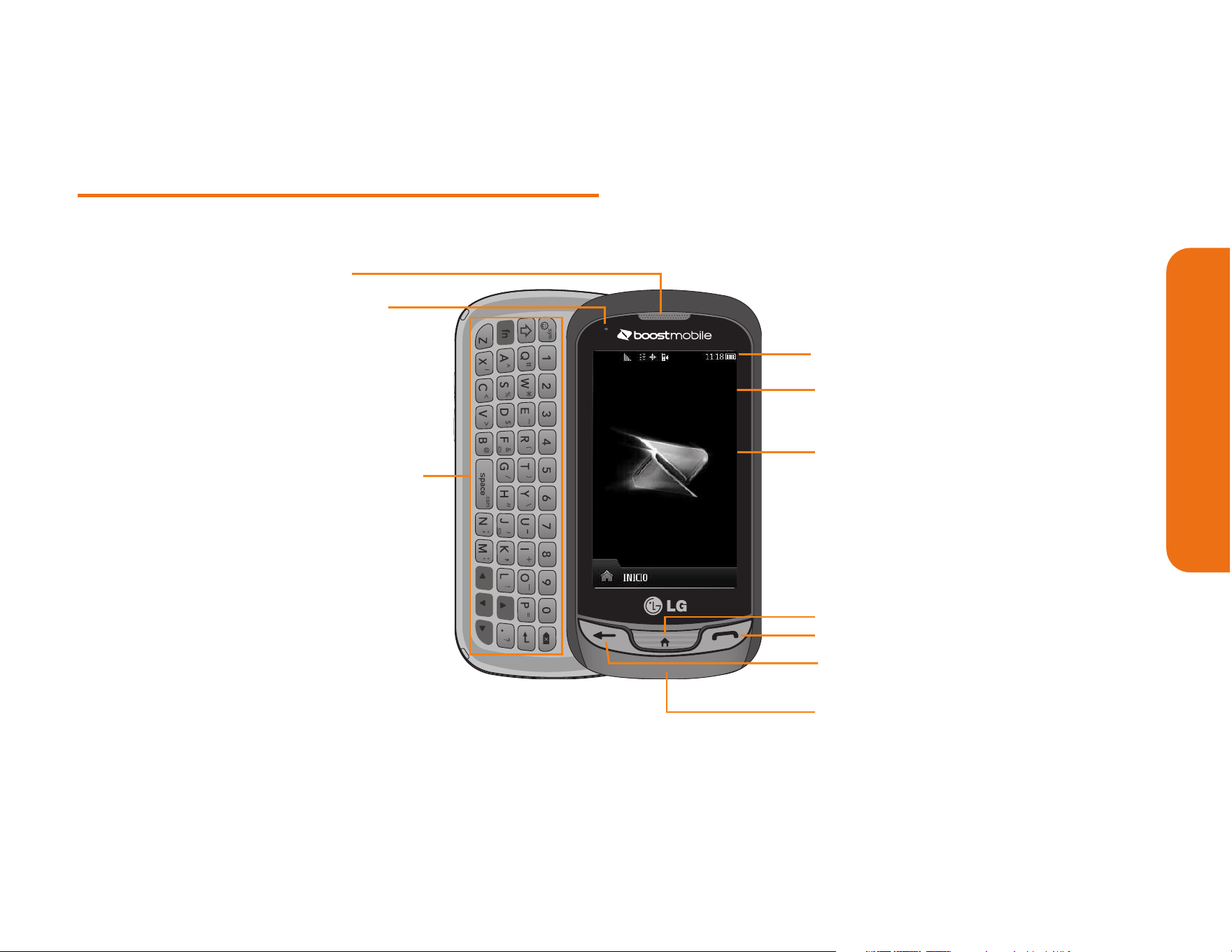
Sección 2A: Su teléfono: Aspectos básicos 7
Vista frontal de su teléfono
Aspectos básicos del teléfono
4. Indicador de potencia de
la batería
7. Tecla Llamar
8. Tecla Atrás
9. Micrófono
2. Luz de estado
6. Tecla Inicio
10.Teclado QWERTY
5. Pantalla táctil
3. Iconos de la Barra de estado
1. Auricular
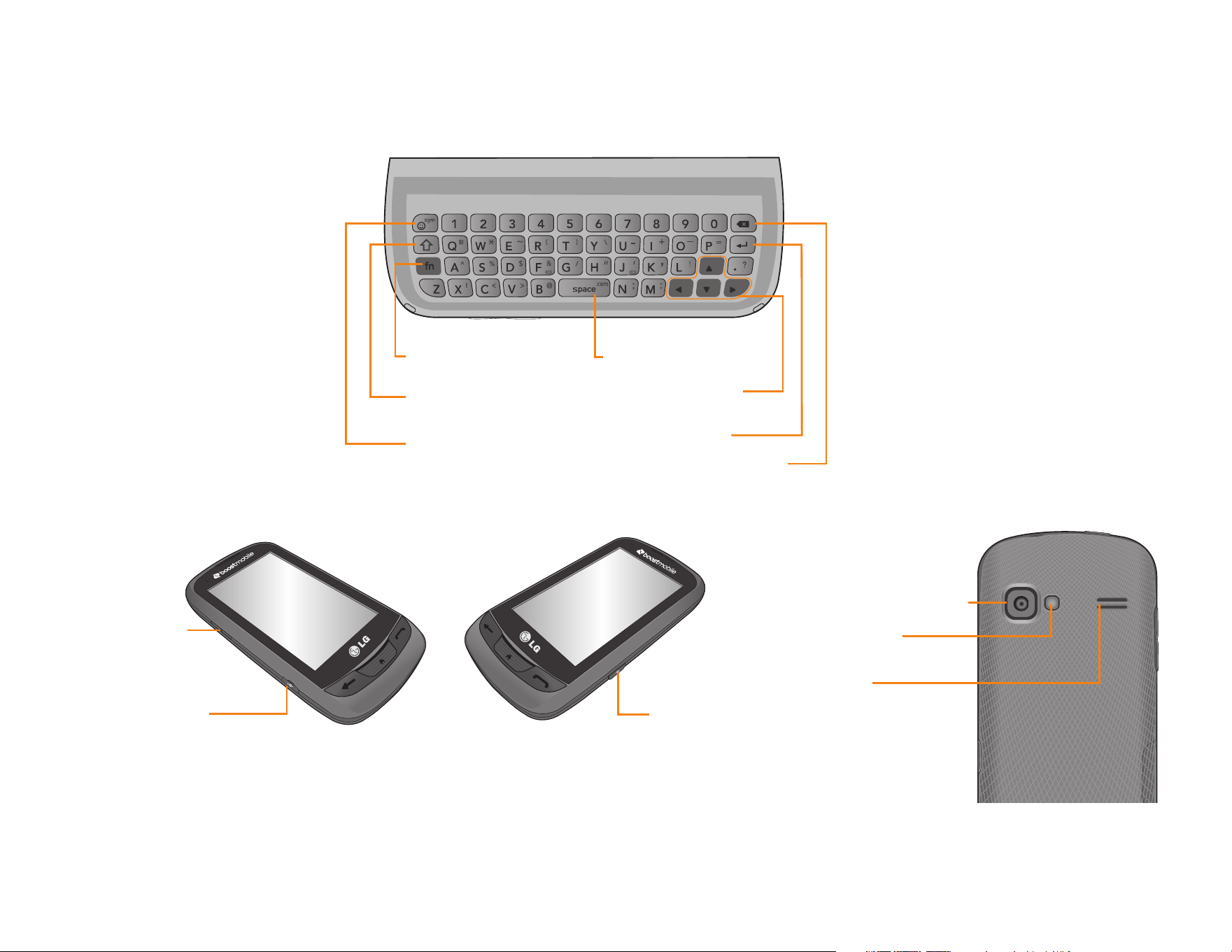
8 Sección 2A: Su teléfono: Aspectos básicos
21. Lente de la cámara
22. Espejo de
cámara
23. Altavoz
19. Puerto para
Cargador/Accesorios
20. Botón de
Cámara
18. Botones
de Volumen
13. Tecla de
Emoticonos/
Símbolos
11. Tecla Función
14. Tecla de Espacio
16. Tecla Intro
17. Tecla Borrar/Atrás
12. Tecla Mayúsculas/
Minúsculas
15.
Teclas de
Navegación

Sección 2A: Su teléfono: Aspectos básicos 9
Key Functions
1.
Auricular
le permite escuchar a quien le llama
e indicaciones automatizadas.
2.
Luz de estado
destella para indicar llamadas
entrantes,mensajes nuevos u otros eventos.
La luz se vuelve roja cuando se carga el
teléfono y verde cuando la carga está
completa.
3.
Iconos de la Barra de estado
proporcionan
información acerca del estado del teléfono y
las opciones, tales como intensidad de la
señal, roaming, configuración del timbre,
mensajes y carga de la batería.
4.
Indicador de potencia de la batería
representa
la cantidad de carga de la batería que queda
disponible en el teléfono. Cuando se muestran
todas las barras en el icono de la batería,
significa que está totalmente cargada. Cuando
no se muestran barras, la batería del teléfono
está casi completamente descargada.
5.
Pantalla táctil
muestra toda la información
necesaria para hacer funcionar el teléfono
como el estado de la llamada, la lista de
contactos, la fecha y la hora, la potencia de la
señal y de la batería.
6.
Tecla Inicio
permite volver a la pantalla
principal en cualquier visualización de menú.
Para volver al modo de espera, presione esta
tecla de nuevo.
7.
Tecla Llamar
trae el teclado de marcación a la
pantalla. Manténgala presionada para activar
el comando de voz mientras esté en modo de
espera.
8.
Tecla Atrás
regresa al menú anterior cuando
está en un submenú. Esta tecla también
permite volver a la pantalla anterior durante
una sesión de datos.
9.
Micrófono
Permite que lo escuchen quienes
lo llaman.
Aspectos básicos del teléfono

10 Sección 2A: Su teléfono: Aspectos básicos
10.
Teclado QWERTY
Úselo para introducir
números y caracteres y para seleccionar
elementos del menú.
11.
Tecla Función
permite introducir el carácter
alternativo (como @ en la tecla B) en el
Teclado QWERTY.
12.
Tecla Mayúsculas/Minúsculas
permite
establecer las letras en mayúsculas y
minúsculas.
13.
Tecla de Emoticonos/Símbolos
permite
introducir emoticonos y símbolos al introducir
texto.
14.
Tecla de Espacio
permite introducir un
espacio.
15.
Teclas de Navegación
permiten mover el
cursor hacia arriba, abajo, derecha o
izquierda para navegar menús o al utilizar en
navegador.
16.
Tecla Intro
permite mover el cursor al principio
de la siguiente línea.
17.
Tecla Borrar/Atrás
borra caracteres en el
modo de introducción de texto. Cuando está
en un menú, presionando esta tecla lo regresa
al menú anterior. Esta tecla también le permite
regresar a la pantalla anterior al utilizar el
navegador.
18.
Botones de Volumen
le permiten ajustar el
volumen del tono de timbre o el volumen de la
voz durante una llamada.
19.
Puerto para Cargador/Accesorios
permite
conectar el cargador del teléfono o un cable
USB opcional.
¡PRECAUCIÓN!: Si introduce un accesorio en la toma
incorrecta, puede dañar el teléfono.
20.
Botón de Cámara
permite activar la cámara y
el grabador de videos y tomar fotografías y
videos.
21.
Lente de la cámara
se usa para tomar
fotografías y grabar videos. Manténgala limpia
para obtener un rendimiento óptimo.
Sección 2A: Su teléfono: Aspectos básicos 11
22.
Espejo de cámara
le ayuda cuando toma fotos
de si mismo.
23.
Altavoz
permite escuchar los distintos timbres
y sonidos. Al tocar Silencio puede silenciar el
timbre cuando recibe llamadas entrantes. El
parlante también permite escuchar la voz de
quien llama cuando está en modo de altavoz.
Ver la pantalla de visualización
La pantalla del teléfono proporciona gran cantidad
de información acerca del estado de su teléfono y
sus opciones. Esta lista identifica los símbolos que
verá en la pantalla de visualización de su teléfono:
Nota: Para ver una lista de los iconos y descripciones de su
teléfono, toque la
Tecla Inicio
>
Menú Principal
>
Configuración > Info de Teléfono > Glosario de Iconos.
1x Fuerza de Señal
: Muestra la intensidad
actualde la señal 1xRTT. (Cuantas más
barras, más potente la señal; las barras
son amarillas.)
EVDO Fuerza de Señal
: Muestra la
intensidad actual de la señal EVDO.
(Cuantas más barras, más potente es la
señal; las barras son blancas.)
Sin servicio
: El teléfono no puede
encontrar una señal disponible.
Aspectos básicos del teléfono
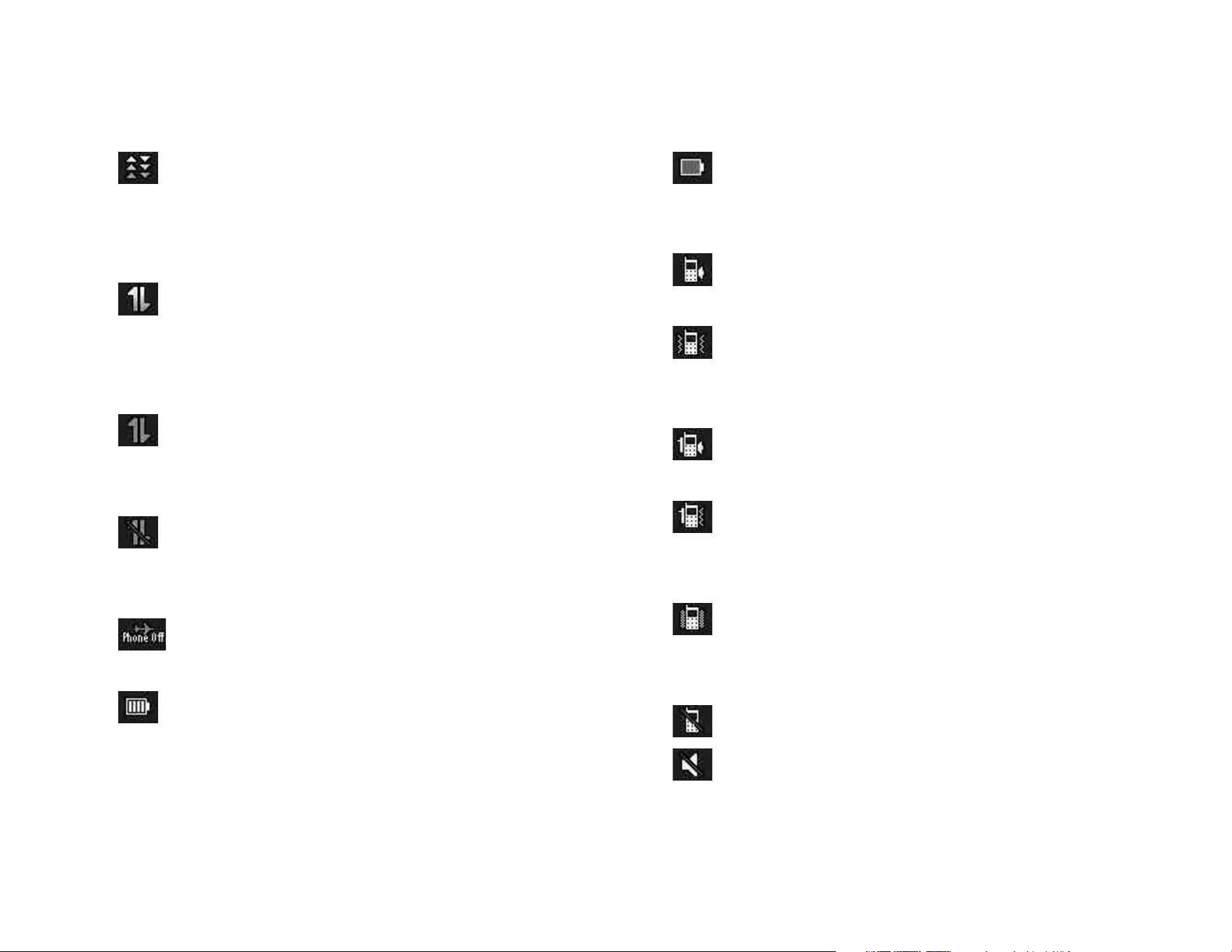
12 Sección 2A: Su teléfono: Aspectos básicos
Servicio de EVDO Datos
: Está disponible el
servicio de datos con banda ancha móvil
(EVDO). Si la opción está activa, el icono
está animado.
Servicio de 1x Activado
: Significa que el
servicio de datos 1xRTT está disponible.
Si la opción está activa, el icono está
animado.
Servicio de 1x Desactivado
: Significa que
el servicio de datos 1xRTT está
desactivado.
Servicio de 1x Indisponible
: Significa que
el servicio de datos 1xRTT no está
disponible en este momento.
Modo de Avión
:Significa que el teléfono
está en Modo de Avión.
Batería Llena
: Muestra el nivel de carga
actual de labatería. (El ícono que se
muestra corresponde a cargacompleta).
Batería Baja
: Muestra el nivel de carga
actual de la batería. (El ícono que se
muestra corresponde a carga completa.)
Timbre Sólo
: Significa que solo el timbre
está establecido para alerta de llamadas.
Sólo Vibración
: Significa que el volumen
del timbre está establecido sólo para que
vibre.
1 Bip
: Significa que está establecido sólo
un pitido para alerta de llamadas.
1 Bip & Vibración
: Significa que está
establecido un pitido y vibración para
alerta de llamadas.
Vibrar todo
: Significa que el volumen del
timbre está establecido para que vibre en
todos los casos.
Timbre Apagado
: El timbre está apagado.
Silencio
: Todos los sonidos están apagados.
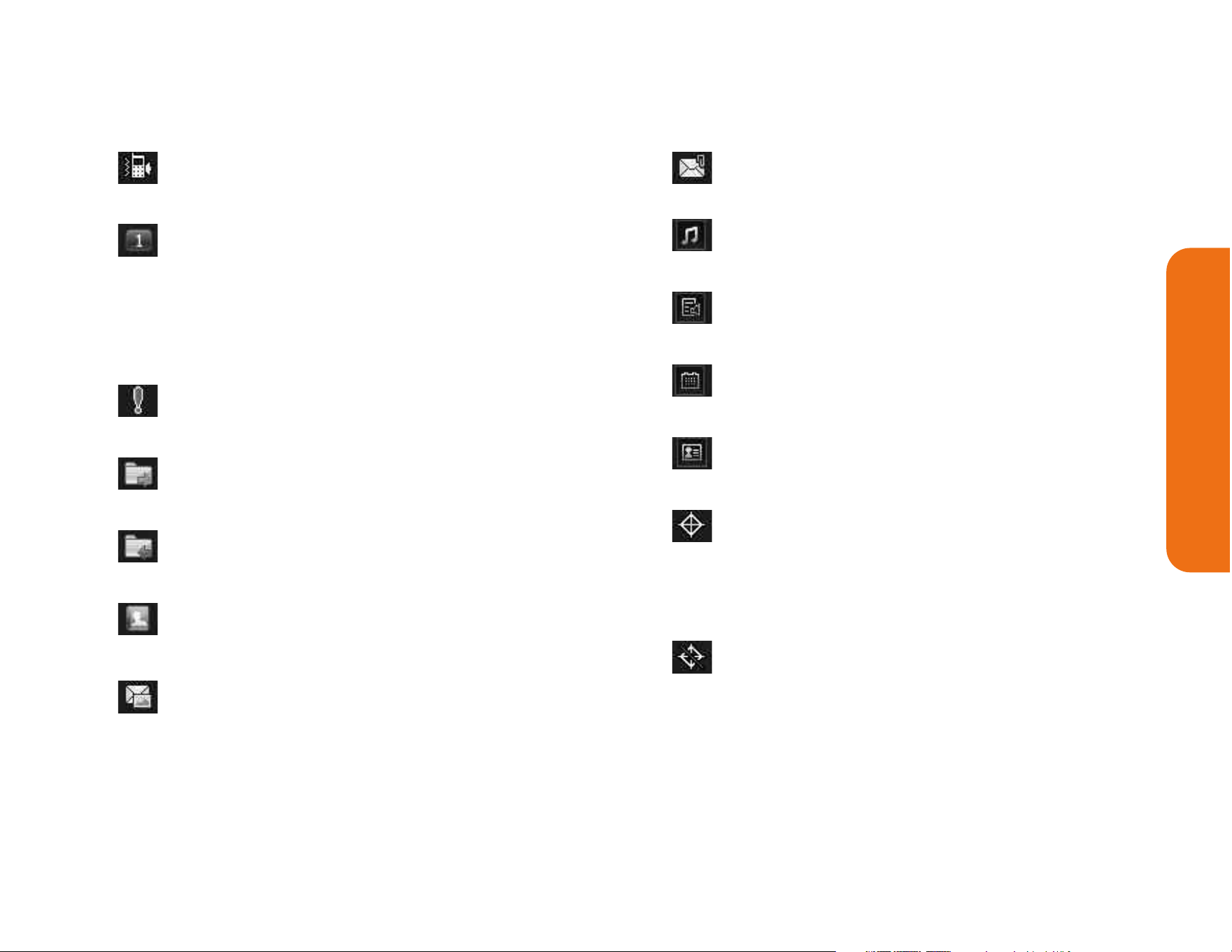
Sección 2A: Su teléfono: Aspectos básicos 13
Timbre y Vibrar
: Significa que está
establecido el modo de timbre y vibrar.
Icono burbuja
: Significa que ha perdido
alertas, tales como buzón de voz, llamadas
perdidas, mensajes nuevos, eventos
programados o una copia de seguridad
completa.
Mensaje Urgente
: Significa que tiene
nuevos mensajes urgentes.
Mensaje Enviado
: Significa que se envió el
mensaje.
Mensaje Recibido
: Significa que se recibió
el mensaje.
Recipiente
: Indica el campo del
destinatario.
Accesorio del archivo
: Indica el campo
para adjuntar archivos.
Archivo adjunto
: Indica que se adjunta un
archivo.
Archivo de audio adjunto
: Indica que se
adjunta un archivo de audio.
Archivo de voz adjunto
: Indica que se
adjunta un archivo de voz.
Archivo de calendario adjunto
: Indica que
se adjunta un archivo de calendario.
Archivo de contacto adjunto
: Indica que se
adjunta un archivo de contactos.
Ubicación Encendido
: La función de
ubicación del teléfono está activada y
disponible para los servicios basados en
la ubicación como la navegación por GPS.
Ubicación Apagado
: La función de
ubicación del teléfono está desactivada.
La ubicación está disponible únicamente
para el 911.
Aspectos básicos del teléfono
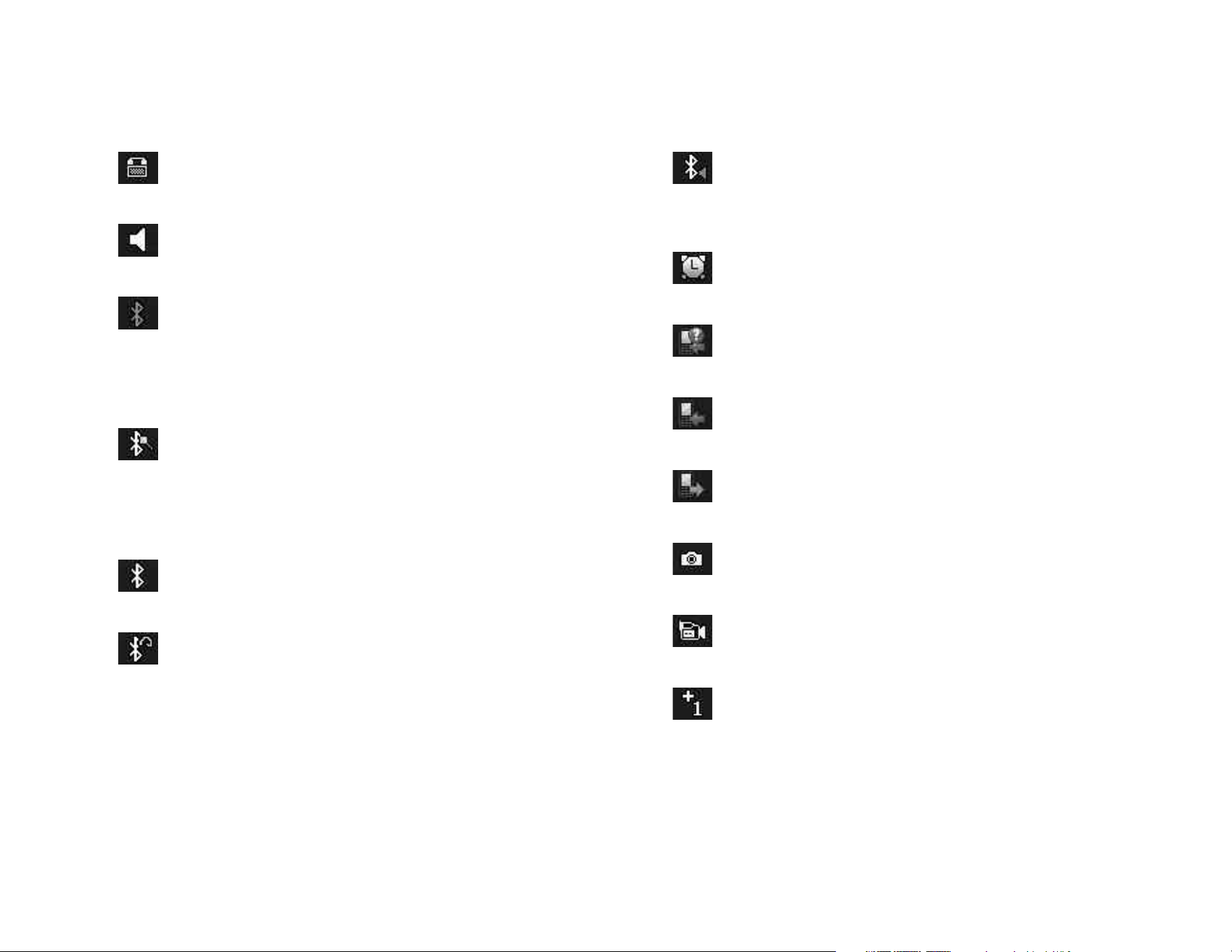
14 Sección 2A: Su teléfono: Aspectos básicos
TTY
: Indica que el teléfono está
funcionando en modoTTY.
Altavoz
: Indica que el altavoz está
activado.
Bluetooth Activado (Escondido)
: Indica que
la función Bluetooth está activada pero su
teléfono está escondido de otros
dispositivos.
Bluetooth Activado (Visible)
: Indica que la
función Bluetooth está activada y su
teléfono está visible para otros
dispositivos.
Bluetooth Conectado
: Indica que la función
Bluetooth está conectada.
Bluetooth Conectado (Auricular mono/
estéreo)
: Indica que la función Bluetooth
está conectada a un auricular mono o
estéreo.
Bluetooth Conectado (Altavoz estéreo)
:
Indica que la función Bluetooth está
conectada a un auricular estéreo.
Despertador
: Indica que la alarma está
activada.
Llamadas Perdidas
: Indica llamadas
perdidas.
Llamadas Entrantes
: Indica llamadas
entrantes.
Llamadas Salientes
: Indica llamadas
salientes.
Cámara/Imagen
: Indica el modo de
cámara.
Videocámara/Vídeo
: Indica el modo de
videocámara.
1 Aplicación en segundo plano
: Indica que
hay una aplicación activa.
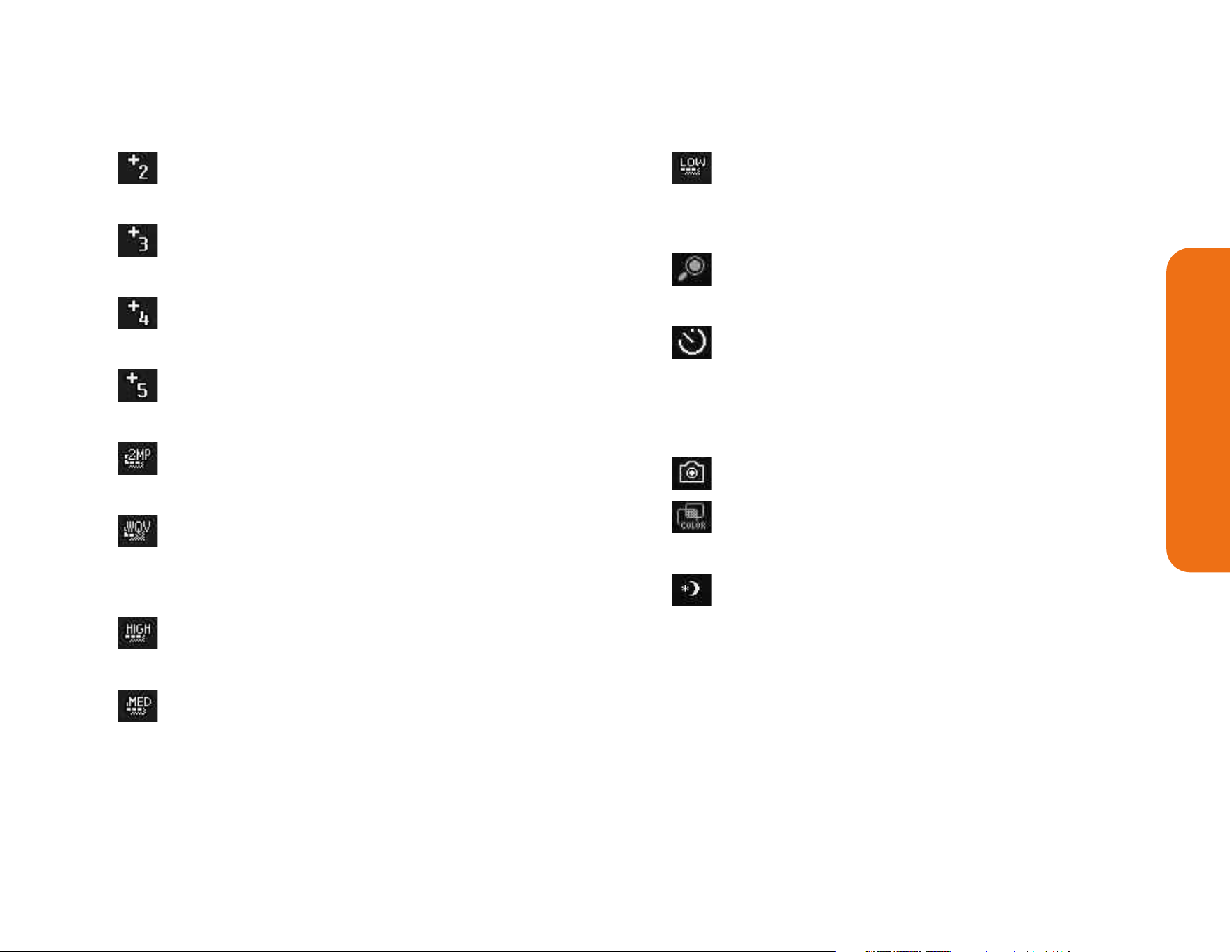
Sección 2A: Su teléfono: Aspectos básicos 15
2 Aplicación en segundo plano
: Indica que
hay 2 aplicaciones activas.
3 Aplicación en segundo plano
: Indica que
hay 3 aplicaciones activas.
4 Aplicación en segundo plano
: Indica que
hay 4 aplicaciones activas.
5 Aplicación en segundo plano
: Indica que
hay 5 aplicaciones activas.
Cámara resolución 2MP
: Indica que la
resolución de la cámara se fijó en 2MP.
Cámara de vídeo resolución WQVGA
:
Indica que la resolución de la
videocámara se fijó en WQVGA.
Cámara Resolución Alto
: Indica que se fijó
una resolución alta de la cámara.
Cámara/Cámara de vídeo resolución baja
:
Indica que se fijó una resolución mediana
de la cámara.
Cámara/cámara de vídeo resolución alta:
Indica quese fijó una resolución baja de la
cámara.
Zoom
: Permite alejar y acercar al tomar
fotos o grabar videos.
Temporizador
: Permite establecer un
temporizador para tomar fotos o grabar
videos. Es útil cuando desea ser parte de
la foto o grabación.
Capturar
: Permite tomar una foto.
Tono de Color
: Permite cambiar el tono de
sus fotos y videos.
Configuración de Modo de la Noche
: Indica
que se estableció el modo nocturno.
Aspectos básicos del teléfono

16 Sección 2A: Su teléfono: Aspectos básicos
Características de su teléfono
Felicidades por la compra de su teléfono. El
RUMOR Reflex de LG es fácil de usar, confiable y
también ofrece muchas funciones y opciones de
servicio muy importantes. La lista siguiente hace
un resumen de algunas de las funciones
disponibles:
� Servicio de datos proporciona acceso a
Internet en modo digital.
� Correo de Voz y mensajería de texto ofrecen
rápidas y convenientes capacidades de
mensajería.
� Se pueden descargar juegos, timbres, fondos
de pantalla y otras aplicaciones para hacer a
su teléfono tan único como usted. Pueden
aplicarse cargos adicionales.
� Su lista de contactos le permite almacenar
hasta 600 entradas, con hasta siete números
de teléfono por cada entrada.
� El Calendario integrado ofrece varias
funciones de administración de información
personal para ayudarle a administrar su activo
estilo de vida.
� La función de ubicación trabaja con la
conexión disponible con servicios basados en
ubicación.
� La entrada de texto T9 le permite escribir
rápidamente mensajes con una presión de
tecla por letra.
� Números Rápidos le permite marcar números
de teléfono con una o dos presiones de tecla.

Sección 2A: Su teléfono: Aspectos básicos 17
Apagar y encender el teléfono
Encender el teléfono
Para encender el teléfono:
�
Mantenga presionada por
aproximadamente dos segundos.
Una vez que su teléfono esté encendido, puede
mostrar “Buscando el Servicio”, lo que indica que
su teléfono está buscando una señal. Cuando la
encuentra, entra automáticamente en modo de
espera – el estado de inactividad del teléfono. En
este punto, está listo para empezar a hacer y
recibir llamadas.
Si su teléfono no puede encontrar una señal
después de 15 minutos de búsqueda, se activa
automáticamente una función de ahorro de
energía. Cuando se encuentra una señal, su
teléfono vuelve automáticamente al modo de
espera.
En modo de Ahorro de energía, su teléfono busca
periódicamente una señal sin necesidad de
intervención de usted. También puede iniciar una
búsqueda del servicio presionando cualquier
tecla (con el teléfono encendido).
Apagar el teléfono
Para apagar el teléfono:
�
Mantenga presionada por dos
segundos hasta que vea la animación de
apagado en la pantalla.
La pantalla permanecerá en negro mientras esté
apagado el teléfono (a menos que se esté
cargando la batería).
Aspectos básicos del teléfono

18 Sección 2A: Su teléfono: Aspectos básicos
Uso de la batería y cargador
de su teléfono
¡ADVERTENCIA!: Use únicamente baterías y cargadores
aprobados por el fabricante. El no usar una batería y cargador
aprobados por el fabricante aumenta el riesgo de que su
teléfono se sobrecaliente, se incendie o estalle, dando como
resultado graves lesiones físicas, la muerte o daños materiales.
Capacidad de la batería
La batería proporciona hasta 5.3 horas de
conversación digital continua, de acuerdo con el
laboratorio de Sprint.
Cuando la batería alcanza 5% de su capacidad, el
icono de batería parpadea. Cuando quedan
aproximadamente dos minutos de tiempo de
conversación restantes, el teléfono hace sonaruna
alerta sonora y se apaga.
Nota: Las configuraciones de luz de fondo prolongadas, la
búsqueda de servicio, el modo de vibración y el uso del navegador
afectarán los tiempos de conversación y espera de la batería.
Sugerencia: Cuide de revisar el indicador de nivel de batería
de su teléfono o cargue la batería antes de que se agote.
Instalación de la batería
Para instalar la batería:
�
Retire la batería del paquete.
�
Use la abertura de dedos en la parte inferior
de la tapa posterior para levantar la tapa y
retirarla.
�
Inserte la batería en la abertura en la parte
posterior del teléfono y asegúrese de que
los conectores estén alineados con los del
teléfono.
�
Coloque la tapa sobre el compartimiento de
la batería y deslícela hacia abajo hasta
escuchar un clic.
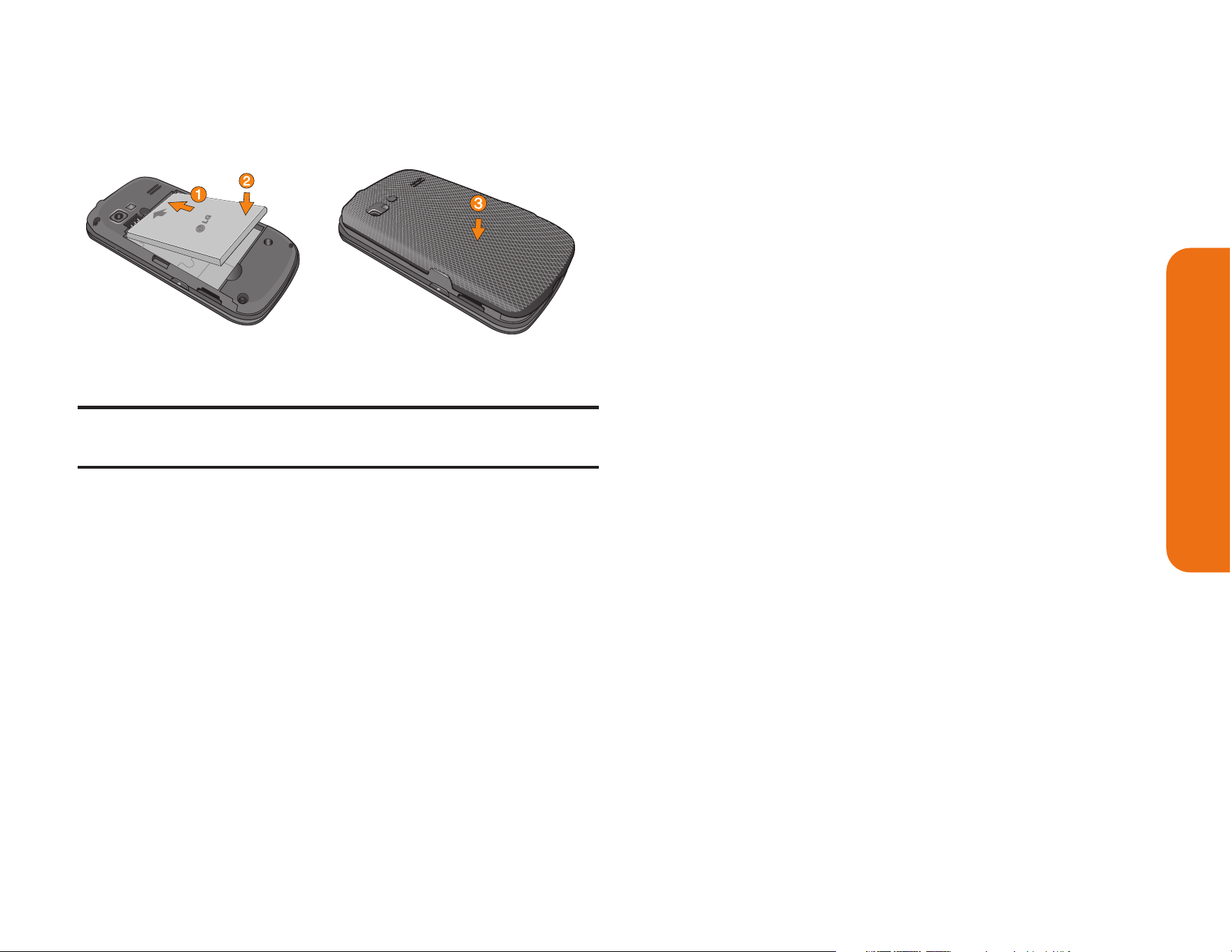
Sección 2A: Su teléfono: Aspectos básicos 19
Extracción de la batería
¡ADVERTENCIA!: No manipule las baterías de Li-Ion que
estén dañadas o que tengan fugas, ya que puede quemarse.
Para extraer la batería:
�
Asegúrese de que el teléfono esté apagado
para no perder ningún número o mensaje
almacenado.
�
Use la abertura de dedos en la parte inferior
de la tapa posterior para levantar la tapa y
retirarla.
�
Levante la batería usando la abertura de
dedo en la parte inferior del compartimiento
de batería y retírela del teléfono
Carga de la batería
Es importante estar al tanto de la carga de la
batería. Si el nivel de la batería baja demasiado, el
teléfono se apagará automáticamente y perderá
toda la información en la que estaba trabajando.
Utilice siempre un cargador de baterías de
escritorio o de viaje o un adaptador para
vehículos aprobado por LG para cargar la batería.
�
Enchufe el extremo pequeño del cargador
en el Puerto para Cargador/Accesorios del
teléfono y el otro extremo en un
tomacorriente.
� La luz roja del indicador significa que la
batería se está cargando.
� La luz verde del indicador significa que la
batería está cargada al menos en un 90%.
Aspectos básicos del teléfono

20 Sección 2A: Su teléfono: Aspectos básicos
Con las baterías de iones de litio aprobadas por
Boost, se puede recargar la batería antes de que
se agote porcompleto.
Uso del cargador
Para usar el cargador incluido con su teléfono:
�
Enchufe el extremo chico del adaptador en
el Puerto para Cargador/Accesorios del
teléfono y el otro extremo en una toma de
corriente.
Navegación por los menús del
teléfono
La Tecla de Navegación de su teléfono le permite
desplazarse por los menús de manera rápida y
sencilla. La barra de desplazamiento en el lado
derecho de la pantalla muestra su posición en los
menús que este navegando.
Para navegar por un menú, sólo tiene que
presionar la Tecla de Navegación hacia arriba o
hacia abajo.
Para ver un resumen del menú de su teléfono,
consulte “El menú de su teléfono” en la página ii.
Toque >
Menú Principal
para acceder a
todos los menús disponibles.
En la pantalla táctil
Para desplazarse por las listas, toque la pantalla y
deslice el dedo hacia arriba por la pantalla.

Sección 2A: Su teléfono: Aspectos básicos 21
La lista se mueve hacia arriba para mostrar otros
elementos. Para volver a mostrar la parte superior
de la lista, deslice la pantalla hacia abajo. Para
seleccionar un elemento, tóquelo en el menú.
Por ejemplo, para ver los mensajes de texto:
1. Toque y luego
Menú Principa
l para
acceder al menú principal.
2. Toque
Mensajería
.
3. Toque
Mensajes
. Todos sus mensajes (si
existen) se mostrarán.
Navegar por menús con el teclado QWERTY
Las Teclas de Navegación le permiten
desplazarse por los elementos en la pantalla. Para
navegar por un menú, presione las Teclas de
Navegación hacia arriba o hacia abajo. Al navegar
por el menú, se resaltan las opciones del menú.
Para seleccionar una opción, resáltela y presione
.
Por ejemplo, para ver los mensajes de texto:
1. Abra el teclado QWERTY, presione la
Tecla
Inicio
y luego
Menú Principal
.
2. Use las Teclas de Navegación para resaltar
Mensajería
y presione .
3. Use las Teclas de Navegación para resaltar
Mensajería
y presione .
Regresar dentro de un menú
Para ir al menú anterior:
�
Presione .
– o –
�
Presione en el teclado QWERTY.
Para volver a la pantalla principal:
�
Presione dos veces.
– o –
�
Toque el icono del encabezado en la
esquina superior izquierda de la pantalla.
Aspectos básicos del teléfono
22 Sección 2A: Su teléfono: Aspectos básicos
Para mostrar su número de
teléfono
Sólo en caso de que olvide su número de
teléfono, su teléfono se lo puede recordar.
Para mostrar su número de teléfono:
�
Toque
>
Menú Principal
>
Configuración
>
Info de Teléfono
>
# de
teléfono
/
ID de usuario
. Se mostrarán su
número de teléfono y otros datos sobre su
teléfono y su cuenta.
Hacer y recibir llamadas
Hacer y llamadas
Hacer una llamada desde su teléfono es tan fácil
como desde cualquier teléfono de línea fija. Sólo
tiene que introducir el número y presionar .
Para hacer una llamada con el teclado:
1. Presione e introduzca un número de
teléfono con el teclado de marcación o con
el teclado QWERTY. Si se equivoca al
marcar, toque para borrar los número.
2. Toque o presione .
3. Para finalizar la llamada, arrastre la tecla de
conmutación hasta .
Sección 2A: Su teléfono: Aspectos básicos 23
Sugerencia: Para volver a marcar otros números recientes,
presione , toque , toque el número deseado y
Llamar
.
Si realiza llamadas fuera de la red nacional, siempre marque 11
dígitos (1 + código de área + número de teléfono).
También puede hacer llamadas desde su teléfono
por medio de Contactos, de su Historial de
llamadas y por medio de ASR(Automatic Speech
Recognition, reconocimiento automático de voz).
Opciones de Marcación
Cuando ingrese números, verá una variedad de
opciones de marcación en la pantalla del teléfono.
Las siguientes opciones están disponibles
cuando marca a un número:
�
Guardar
: Guarda el número introducido a sus
Contactos.
�
Detalles Contacto
: Muestra los detalles del
contacto de los números que están
guardados en el teléfono.
�
Enviar Msj
: Permite enviar un mensaje
rápidamente al número.
�
Pausa
: Ingrese dígitos y toque esta opción
para introducir una pausa dentro de la cadena
de números.
Sugerencia: Para usar el marcado rápido para marcar un
número de teléfono, mantenga presionado el número de
marcado rápido. Si el número de marcado rápido tiene dos
dígitos, introduzca el primero y luego mantenga presionado el
segundo.
Contestar llamadas
Para contestar a una llamada entrante:
1. Asegúrese de que el teléfono esté
encendido. Si el teléfono está apagado, las
llamadas entrantes van al correo de voz.
2. Toque
Respuesta
.
- o -
Aspectos básicos del teléfono

24 Sección 2A: Su teléfono: Aspectos básicos
Toque la tecla de conmutación y arrástrela a
Respuesta
.
Su teléfono le puede avisar de las llamadas
entrantes de las siguientes maneras:
� El teléfono suena o vibra.
� La luz del indicador destella.
� Se ilumina la luz de fondo.
� La pantalla muestra un mensaje de llamada
entrante.
Si la llamada entrante es de un número
almacenado en sus contactos, se muestra el
nombre del contacto. También puede mostrarse el
número de teléfono de quien llama, si está
disponible.
Si el teléfono está en espera, también puede ver
las siguientes opciones. Para seleccionar una
opción, presione la tecla correspondiente.
�
Silencio
para silenciar el timbre.
�
Enviar a correo de voz
para enviar la llamada al
correo de voz.
�
Ignorar con texto
para enviar un mensaje de
texto. Puede enviar un mensaje preestablecido
o escribir uno nuevo.
�
Respuesta
para responder a la llamada.
Nota: Si el teléfono está apagado, las llamadas entrantes van
directamente al correo de voz.
Finalizar una llamada
Para desconectar una llamada cuando haya
terminado:
�
Toque .
Sección 2A: Su teléfono: Aspectos básicos 25
Notificación de llamada perdida
Cuando no responde a una llamada entrante, la
pantalla mostrará el registro de llamadas perdidas
en una burbuja en la pantalla de espera.
Para mostrar la llamada perdida desde la
pantalla de notificación:
�
Toque la entrada. Para marcar el número de
teléfono, toque
Llamar
. Para enviar un
mensaje, toque
Enviar Msj
.
Llamar a números de emergencia
Puede hacer llamadas al 911 (marque
), incluso si su teléfono está
bloqueado o la cuenta está restringida.
Nota: Al hacer una llamada de emergencia, su teléfono entra
automáticamente en modo de Emergencia
Durante una llamada de emergencia, verá una
variedad de opciones en la pantalla.
Para iniciar una opción, toque lo siguiente:
�
Mi número de teléfono
para mostrar su número
de teléfono durante una llamada de
emergencia.
�
Altavoz
para activar el modo de altavoz.
�
Tec marc
para mostrar el teclado de marcación.
�
Más
para acceder a las siguientes opciones:
�
Info de tel
para verificar el número de teléfono,
versión, etc.
�
Cancelar
para cerrar el menú emergente.
Para salir del modo de Emergencia:
1. Presione
Finalizar Llmd
para finalizar una
llamada al 911.
2. Toque
Salir
para salir del modo de
emergencia.
Nota: Cuando esté en modo de Emergencia, sólo puede salir
desde el menú de opciones.
Aspectos básicos del teléfono

26 Sección 2A: Su teléfono: Aspectos básicos
Información de Enhanced 911 (E911)
Este teléfono incluye un chip de Sistema de
Posicionamiento Global (GPS) integrado para
utilizar los servicios de ubicación de emergencia
de E911 donde estén disponibles.
Al hacer una llamada de emergencia al 911, la
función GPS de su teléfono empieza a buscar
información para calcular su ubicación
aproximada. Dependiendo en muchos variables,
incluida la disponibilidad y el acceso a las señales
de satélite, puede tomar 30 segundos o más para
determinar su ubicación aproximada y reportarla.
IMPORTANTE: Siempre informe de su ubicación al operador
de 911 al hacer una llamada de emergencia. Algunos
contestadores de llamadas de emergencia designados, que se
llaman Puntos de Contestación de Seguridad Pública (PSAP)
pueden no estar equipados para recibir información de
ubicación por GPS desde su teléfono.
Opciones durante la llamada
Para seleccionar una opción, presione la tecla
correspondiente. Las siguientes opciones pueden
estar disponibles mediante el menú de opciones:
�
Mudo
para silenciar el micrófono. Toque
Qu.mudo
para anular el silencio del micrófono.
�
Altavoz
para mostrar el teclado de marcación.
�
Tec marc
para mostrar el teclado de
marcación.
�
Finalizar Llmd
para finalizar la llamada.
�
Más
para acceder a las siguientes opciones:
�
Guardar
para guardar un número teléfono
en los Contactos.
�
Detalles de Contacto
para mostrar los
detalles del contacto si el contacto está
guardado.
�
Menú Principal
para mostrar el menú
principal del teléfono.
�
Llamada Tripartita
para iniciar una llamada
enconferencia.

Sección 2A: Su teléfono: Aspectos básicos 27
�
Contactos
para mostrar la lista de
contactos.
�
Memo de Voz
para grabar la conversación
actual.
�
Info de tel
para comprobar el número de
teléfono, la versión, etc.
�
Cancelar
para cerrar el menú emergente.
¡Advertencia! Debido a los elevados niveles de volumen, no
coloque el teléfono cerca de su oído al utilizar el altavoz.
Guardar un número de teléfono
Puede guardar hasta siete entradas de números
de teléfono por contacto y hasta 600 contactos en
el teléfono. El nombre de cada entrada puede
contener 64 caracteres. El teléfono organiza
automáticamente los contactos en orden
alfabético.
Para guardar un número desde la pantalla
principal:
1. Presione para mostrar el teclado de
marcación.
2. Introduzca un número de teléfono.
3. Toque
Guardar
.
4. Toque
Nueva Entrada
para un nuevo
contacto o
Entrada Existente
para agregarle
un número a un contacto existente.
5. Toque una etiqueta de teléfono (
Móvil
,
Casa
,
Trabajo
,
Biper
,
Fax
u
Otro
).
6. Toque el campo
Introducir nombre
e
introduzca el nombre del nuevo contacto
con el teclado táctil o el teclado QWERTY.
– o –
Busque un nombre de contacto existente y
tóquelo para guardar el nuevo número.
7. Toque
Hecho
para guardar la nueva entrada.
Aspectos básicos del teléfono

28 Sección 2A: Su teléfono: Aspectos básicos
Encontrar un número de teléfono
Puede buscar entradas entre los contactos por
nombre.
1. Presione y toque . Aparecerá la
lista de contactos.
2. Toque e ingrese la(s) primera(s) letra(s)
de una entrada. (Cuantas más letras
introduzca, más concreta será la búsqueda).
Para mostrar una entrada, tóquela.
3. Para marcar un número, toque
Hablar
o
presione .
Marcación de números de teléfono
con pausas
Puede marcar o guardar números de teléfono con
pausas para usarlos con sistemas automatizados,
como el correo de voz o los números de
facturación de tarjeta de crédito.
Nota: Puede tener múltiples pausas en un número de teléfono.
Para marcar o guardar números de teléfono con
pausas:
1. Presione e ingrese el número de
teléfono.
2. Toque
Pausa
.
3. Introduzca los números adicionales.
4. Toque
Hablar
para marcar el número.
– o –
Toque
Guardar
para guardar el número en
sus contactos.
Nota: Al marcar un número con una pausa fija, toque
Enviar
Tonos
.
Uso de Marcación abreviada
Marcación abreviada es similar a la función de
marcación rápida. Puede utilizar cualquiera de las
siguientes características de marcación abreviada.

Sección 2A: Su teléfono: Aspectos básicos 29
�
Encontrar Contactos
: Permite ver un número
guardado en los contactos al introducir sólo
tres dígitos consecutivos del número. Toque
Hablar
para marcar el número encontrado.
�
Agregar prefijo
: Agrega los primeros cinco o
seis dígitos(por ejemplo, el código de área y el
prefijo) a cualquier combinación de cuatro o
cinco dígitos que ingrese. Toque
Hablar
para
marcar el número resultante.
Para realizar una llamada utilizando Encontrar
Contactos:
1. Presione e introduzca entre tres y seis
dígitos del número de teléfono de la entrada
de contacto. Aparecerán los números de la
lista de contactos que coincidan.
2. Toque para mostrar los detalles.
3. Toque el contacto que quiere llamar y luego
toque
Hablar
.
Para hacer una llamada usando la función
Agregar prefijo:
1. Presione e introduzca los últimos
cuatro o cinco dígitos de un número de
teléfono. Se mostrará el número de
Marcación abreviado.
2. Toque para mostrar los detalles.
3. Toque el número y toque
Hablar
.
Marcar desde los contactos
1. Presione y toque .
2. Toque la entrada que quiere llamar y toque
Hablar
.
3. Si hay varios números guardados en la
entrada del contacto, toque el número
que desea marcar.
Uso del marcado rápido
Puede almacenar hasta 98 números en la
memoria de marcado rápido del teléfono. Puede
Aspectos básicos del teléfono

30 Sección 2A: Su teléfono: Aspectos básicos
marcar las entradas de marcado rápido con sólo
tocar una tecla para las ubicaciones 2 a 9 o al
tocar dos teclas para las ubicaciones 10 a 99.
Para usar el marcado de una tecla para las
ubicaciones de Marcado rápido 2 a 9:
�
Toque y mantenga presionada la tecla
correspondiente durante aproximadamente
dos segundos. La pantalla confirma que ha
marcado el número cuando muestra
“Conectando...”.
Para usar el marcado de dos teclas para las
ubicaciones de Marcado rápido 10 a 99:
1. Presione o toque el primer dígito.
2. Toque o toque y mantenga presionada la
tecla del segundo dígito durante
aproximadamente dos segundos. La
pantalla confirma que ha marcado el
número cuando muestra “Conectando...”.
Marcado de código plus
Cuando realice llamadas internacionales, el
marcado de código plus ingresa automáticamente
el código de acceso internacional de su
ubicación (por ejemplo, 011 para llamadas
internacionales realizadas desde los EE.UU.).
1. Presione y mantenga presionado
hasta que vea un “+” en la pantalla.
2. Marque el código de país y el número de
teléfono, y luego toque
Hablar
. El teléfono
automáticamente añade el código de
acceso para llamadas internacionales,
seguido del código de país y del número de
teléfono.
Sección 2A: Su teléfono: Aspectos básicos 31
Introducción de texto
Seleccionar un modo de introducción
de texto
El teléfono proporciona maneras convenientes de
introducir letras, números y símbolos siempre que
se le pida que introduzca texto (por ejemplo, al
agregar una entrada a Contactos o al usar el
correo electrónico y los mensajes de texto). Puede
utilizar el teclado táctil o el teclado QWERTY.
Mientras está utilizando el teclado táctil puede
cambiar al teclado QWERTY y viceversa.
Para cambiar el modo de introducción de
caracteres:
1. Desde una pantalla en la que pueda
introducir texto, toque para cambiar el
modo de entrada de texto.
2. Seleccione una de las opciones siguientes:
�
Predictivo
para introducir un texto
usando un sistema predictivo de
entrada de texto que reduce la cantidad
de toques de teclas necesarias para
introducir una palabra.
�
Abc
para usar entradas con múltiples
toques - toque una vez para la “a”,
dos veces para la “b”, tres veces para la
“c”.
�
123
para introducir números al tocar los
números del teclado.
�
Símbolos
para introducir símbolos.
�
Emoticon
para introducir emoticonos.
�
Smileys
para introducir íconos gestuales .
Sugerencia: Al introducir texto, toque la tecla o presione
para cambiar de mayúscula/ minúscula
y viceversa de las letras (Abc > ABC > abc).
Aspectos básicos del teléfono

32 Sección 2A: Su teléfono: Aspectos básicos
Entrada de texto predictivo
La entrada de texto predictivo permite introducir
texto utilizando unos pocos toques de teclas por
palabra.
La entrada de texto predictivo utiliza una base
intuitiva de palabras que analiza las letras que
introduce para crear una palabra adecuada. La
palabra puede cambiar a medida que escribe.
Para introducir una palabra con entrada de texto T9:
1. Seleccione el modo de entrada de texto
Predictivo
.
2. Introduzca algunas letras de una palabra. Al
introducir una letra de una palabra, se abrirá
una pequeña ventana que mostrará las
palabras que comienzan con esa letra. Si
comete un error, toque o presione
para borrar un solo carácter. Toque y
mantenga presionada o mantenga
presionada para borrar una palabra
completa.
3. Toque y desplácese a la palabra
deseada. Luego toque la palabra deseada.
4. Si la palabra que desea introducir no se
muestra en la lista, toque
Agreg Palabra
?
para agregar la palabra a la base de datos
de la introducción de texto predictivo.
5. Introduzca la palabra y toque
Hecho
. La
próxima vez que se desplace entre las
opciones, la palabra aparecerá como una de
las opciones en la entrada de texto predictivo.
Para obtener más información acerca de la
entrada de texto predictivo, visite el sitio Web de
T9 en www.T9.com.
Modo ABC (solo en el teclado táctil)
En el modo ABC, también conocido como entrada
con múltiples toques, se debe tocar las teclas una,
dos o tres veces para introducir las letras que ve
en el teclado. Por ejemplo, toque una vez
para la “a”, dos veces para la “b”, tres veces para
Sección 2A: Su teléfono: Aspectos básicos 33
la “c” o toque una vez para la “p”, dos veces
para la “q”, tres veces para la”r” o cuatro veces
para la “s”.
1. Seleccione el modo.
2. Toque la tecla correspondiente varias veces
hasta que aparezca la letra correcta. (Por
ejemplo, para introducir la palabra “Bill”, toque
dos veces, tres veces, tres
veces y tres veces nuevamente). Si
comete un error, toque para borrar un
solo carácter. Toque y mantenga presionada
para borrar la palabra entera.
De manera predeterminada, la primera letra de
una entrada queda en mayúscula y las siguientes
quedan en minúscula. Puede cambiar de
minúscula a mayúscula tocando .
Los caracteres conmutan en el siguiente orden:
Aspectos básicos del teléfono
. @ ? 1, ! * # / P Q R S 7
A B C 2 T U V 8
D E F 3 W X Y Z 9
G H I 4 Espacio 0
J K L 5 Mayúscula
M N O 6 Introducir

34 Sección 2A: Su teléfono: Aspectos básicos
Introducción de números, símbolos,
emoticonos y mensajes pregrabados
Para introducir números:
�
Seleccione el modo
123
y toque la tecla
correspondiente.
Para introducir símbolos:
�
Seleccione el modo
Símbolos
. Para
introducir un símbolo, toque la tecla
correspondiente indicada en la pantalla.
Para introducir emoticonos (gráficos):
�
Seleccione el modo Emoticon y toque la
tecla correspondiente.
Para introducir mensajes preestablecidos:
1. Toque
Msj Prees
en la parte superior
derecha de la pantalla.
2. Toque el mensaje que desee para
seleccionarlo.
Nota: Los mensajes preestablecidos facilitan la redacción de
mensajes de texto porque permiten introducir mensajes rápidos,
tales como “Nos encontramos?”, “Voy en camino” o un mensaje
suyo personalizado.
Escritura a mano
Cuando se introduce texto, además de “escribir”
el texto con el teclado táctil, también tiene la
opción de escribir con la punta del dedo. La
pantalla táctil convierte sus movimientos en
caracteres.
1. En la pantalla de introducción de texto,
toque . Aparecerá la pantalla de
introducción de texto a mano.
2. Escriba dentro de la pantalla de
introducción de texto a mano. Para cambiar
de minúscula a mayúscula o cambiar de
letras a números o símbolos, toque los
iconos justo encima de la pantalla de
introducción de texto a mano. Al finalizar,
toque
Hecho
.
Sección 2A: Su teléfono: Aspectos básicos 35
Introducir texto con el teclado
QWERTY
El teléfono cuenta con un teclado QWERTY
integrado, diseñado específicamente para
introducir texto de manera fácil y cómoda. El
teclado QWERTY tiene la misma disposición y
funciona de la misma manera que el teclado de
una computadora. La manera más sencilla de
introducir texto es usar los pulgares para escribir
con el teclado QWERTY.
1. Desde una pantalla en la que se pueda
introducir texto, toque y seleccione si
quiere activar el sistema predictivo para
introducir texto.
2. Use los pulgares para introducir texto.
� Para cambiar el uso de mayúsculas,
presione .
� Para introducir un carácter alternativo de
una tecla, presione la
Tecla Función
y luego la tecla del carácter alternativo.
Para bloquear la Tecla Función, presione
dos veces.
� Para introducir emoticonos, presione
y toque el símbolo o presione las
teclas de flechas para resaltar un
emoticono y presione .
� Para introducir símbolos, presione y
presione , toque el símbolo deseado
que desee o presione las Teclas de
Navegación para resaltar un símbolo y
presione .
� Para introducir mensajes preestablecidos,
toque
Msj Prees.
en la esquina superior
derecha de la pantalla. Toque el mensaje
que desee para seleccionarlo.
Aspectos básicos del teléfono

36 Sección 2B: Controlar la configuración del teléfono
Controlar la configuración
del teléfono
En esta sección
� Configuración de sonido
� Configuración de pantalla
� Configuración de introducción de texto
� Configuración de la ubicación
� Configuración de mensajes
� Modo de Avión
� Uso de TTY con el servicio
� Opciones de configuración del teléfono
� Configuración de seguridad de su teléfono
Usando las opciones de menú disponibles en su
teléfono, puede personalizar el teléfono para que
suene, se vea y funcione exactamente de la
forma en que usted lo desea.
Esta sección
describe cómo puede cambiar la configuración
de su teléfono para ajustarse mejor a sus
necesidades. Tómese unos momentos para
revisar esas opciones y para ajustar o agregar
las configuraciones adecuadas para usted.
Configuración de sonido
Timbres
Los timbres le ayudan a identificar las llamadas
entrantes y los mensajes. Puede asignarle timbres
a entradas individuales de contactos, tipos de
llamadas y tipos de mensajes.
Llamadas entrantes
Su teléfono le proporciona varias opciones de
timbre que le permiten personalizar sus ajustes de

Sección 2B: Controlar la configuración del teléfono 37
timbre y volumen. Estas opciones le permiten
identificar las llamadas entrantes por su timbre.
Para seleccionar un timbre para llamadas
entrantes:
1. Toque >
Menù Principal
>
Configuración
>
Timbres
>
Llmadas Entrantes
.
2. Toque
Contactos
,
Números no guardados
o
Privado
/
Desconocidos
. Para Contactos,
toque lo siguiente:
�
Contactos con timbre predet.
: Permite
establecer un tipo de timbre para las
llamadas provenientes de contactos con
un timbre predeterminado.
�
Un Contacto
: Permite establecer un timbre
específico para las llamadas de un
contacto en particular.
3. Seleccione una categoría y luego,
desplácese por los timbres disponibles.
Toque para escuchar un timbre de
muestra.
4. Toque un timbre para asignarlo.
Obtener timbres nuevos
1. Toque >
Menú Principal
> (deslice la
pantalla hacia arriba) >
Configuración
>
Timbres
>
Llamadas Entrantes
,
Correo de
Voz
,
Mensajería
o
Alarma
/
Calendario
.
2. Seleccione un tipo de llamada o de mensaje
para ver una lista de categorías para tipos
de timbre.
3. Seleccione
Timbre Descargado
>
Obtener
Nuevo
. El navegador se ejecuta y muestra el
menú de timbres.
4. Desplácese por los timbres disponibles.
Cuando encuentre uno que desee usar,
tóquelo.
5. Para realizar una compra, toque
Purchase
(Comprar) y luego
Download
(Descargar).
6. Cuando la descarga termine, seleccione
una de las opciones para continuar:
Configuración del teléfono

38 Sección 2B: Controlar la configuración del teléfono
�
Escuchar
para escuchar el timbre.
�
Asignar como
para terminar de asignar el
timbre.
�
Get New
(Comprar Nuevo) para explorar
otros elementos que se pueden
descargar.
Seleccionar tipos de timbre para mensajes
1. Toque >
Menú Principal
> (deslice la
pantalla hacia arriba) >
Configuración
>
Timbres
>
Mensajes
.
2. Seleccione una categoría y luego
desplácese por los timbres disponibles.
Toque para escuchar un timbre de
muestra.
3. Toque un timbre para asignarlo.
Asignar timbres a contactos
1. Toque >
Menú Principal
> (deslice la
pantalla hacia arriba) >
Configuración
>
Timbres
>
Llamadas Entrantes
>
Contactos
>
Un Contacto
.
2. Toque una entrada de contacto.
3. Seleccione una categoría y luego
desplácese por los timbres disponibles.
Toque para escuchar un timbre de muestra.
4. Toque un timbre para asignarlo.
Seleccionar tipos de timbre para correo de
voz
Para seleccionar tono de tono de timbre para
losmensajes:
1. Toque >
Menú Principal
> (deslice la
pantalla hacia arriba) >
Configuración
>
Timbres
>
Correo de Voz
.
2. Seleccione una categoría y luego
desplácese por los timbres disponibles.

Sección 2B: Controlar la configuración del teléfono 39
Toque para escuchar un timbre de
muestra.
3. Toque un timbre para asignarlo.
Configuración de tonos de tecla
El teléfono ofrece una serie de opciones para
seleccionar los tonos audibles que se escuchan al
presionar cada tecla.
Para seleccionar un volumen de tono:
1. Toque >
Menú Principal
> (deslice la
pantalla hacia arriba) >
Configuración
>
Volumen
>
Bips de tecla
.
2. Seleccione una opción.
�
Longitud de Tono
para seleccionar una
longitud de tono. (Durante una llamada,
los tonos más largos pueden ser mejores
para el reconocimiento de tonos al marcar
el correo de voz u otros sistemas
automatizados).
�
Volumen de Tono
para seleccionar un nivel
de volumen cuando presiona la tecla.
�
Tipo de Tono
para seleccionar el sonido
de una toque de tecla.
Ajuste de la configuración de
volumen del teléfono
Puede ajustar la configuración de volumen de su
teléfono para adecuarse a sus necesidades y a su
entorno.
Para ajustar la configuración de volumen de su
teléfono:
1. Toque >
Menú Principal
>
Configuración
>
Volumen
.
2. Seleccione
Timbre entrante
,
Volumen
reproducción o Bips de teclas
.
3. Toque una barra de nivel para establecer el
volumen o seleccione
Silenciar Todos
,
Vibrar
todo
,
Timb Apagado
o
1 Bip
.
Configuración del teléfono

40 Sección 2B: Controlar la configuración del teléfono
4. Alterne la configuración de
VIBRE
. (Nota:
Esta tecla de conmutación no está
disponible cuando está seleccionado
Silenciar Todos o Vibrar todo).
5. Toque
Hecho
.
Sugerencia: Puede ajustar el volumen del timbre en modo
de espera (o el volumen del audífono durante una llamada)
con los Botones de Volumen que está del lado izquierdo de su
teléfono.
Notificación de alertas
Su teléfono puede alertarle con un tono audible
cuando cambie de área de servicio, una vez cada
minuto durante una llamada de voz, cuando se ha
conectado una llamada o cuando se esté
desvaneciendo la señal de su teléfono.
Para habilitar o deshabilitar los sonidos de
alerta:
1. Toque >
Menú Principal
>
Configuración
>
Timbres
>
Alertas de llamada
.
2. Toque los botones
Bip de Minuto
,
Sin
Servicio
,
Conectar
o
Desconectar
Señal/Llamada
para alternar entre
ON
(Encendido) y
OFF
(Apagado).
Silenciar Todos
La opción Silenciar Todos del teléfono le permite
eliminar todos los sonidos sin apagar el teléfono.
Para activar Silenciar Todos:
�
Presione el Botón de Volumen hacia abajo
repetidamente hasta que mire “Silenciar
Todos” en la pantalla y toque
Hecho
.
Para desactivar Silenciar Todos:
�
Presione el Botón de Volumen hacia arriba
varias veces y seleccione el nivel de
volumen que desea y toque
Hecho
.
Sección 2B: Controlar la configuración del teléfono 41
Configuración de pantalla
Cambio del tiempo de luz de fondo
Seleccione la duración en la que la pantalla de
visualización y el teclado permanecen escondidos
después de presionar cualquier tecla.
Para cambiar la configuración de luz de fondo:
1. Toque >
Menú Principal
>
Configuración
>
Pantalla
>
Luz de Fondo
.
2. Seleccione
Retroiluminación oscura
o
Retroiluminación desactivada
.
3. Toque una configuración de hora.
Nota: Los valores de luz de fondo prolongados afectan los
tiempos de conversación y de espera de la batería.
Cambiar el fondo de la pantalla
Choose what you see on the display screen when in
standby mode.
Para cambiar las imágenes de la pantalla:
1. Toque >
Menú Principal
>
Configuración
>
Pantalla
>
Salvapantallas
>
Pantalla
Principal
o
Bloquear pantalla
.
2. Seleccione entre
No hay imagen
,
Precargados
,
Mis Fotos
,
Medios Asignados
,
Imagen Descargado
o
Capturar Imagen
Nueva
.
3. Toque una imagen para verla. Mientras ve la
imagen, puede dar un toquecito en la
pantalla hacia la izquierda o la derecha para
desplazarse y ver otras imágenes.
4. Toque
Asignar
para asignar una imagen.
Configuración del teléfono

42 Sección 2B: Controlar la configuración del teléfono
Cambiar el estilo de menús del
teléfono
Su teléfono le permite elegir cómo aparece el
menú en su pantalla
Para seleccionar el estilo de menú de la pantalla:
1. Toque >
Editar
>
Ver en miniatura
o
Ver
en lista
.
2. Toque
Hecho
para guardar la configuración.
Idioma de pantalla
Puede seleccionar que los menús de pantalla de
su teléfono se muestren en inglés o español.
Para cambiar el idioma de la pantalla:
1. Toque >
Menú Principal
>
Configuración
>
Idioma(Language)
.
2. Toque
English
o
Español
.
Configuración de la ubicación
Su teléfono está equipado con una función de
Ubicación para usarse con servicios basados en
la ubicación.
La función Ubicación le permite a la red detectar
su posición. Desactivando Ubicación ocultará su
ubicación de todos menos del 911.
Nota: Encendiendo la Ubicación permitirá que la red detecte
su posición usando tecnología del GPS, haciendo algunos usos
y servicios más fáciles de utilizar. Apagando la Ubicación
inhabilitará la función de la ubicación del GPS para todos los
propósitos excepto 911, pero no ocultará su ubicación general
basada en el sitio de la célula que sirve su llamada. Ningún uso
o servicio puede utilizar su ubicación sin su petición o permiso.
Servicios 911 realzados por GPS no son disponibles en todas
las áreas.
Sección 2B: Controlar la configuración del teléfono 43
Para habilitar la función Ubicación de su
teléfono:
1. Toque >
Menú Principal
>
Configuración
>
Ubicación
. Aparecerá la exención de
responsabilidad de localización.
2. Lea el descargo de responsabilidad y toque
Continuar
.
3. Toque
Encender
o
Apagar
para cambiar la
configuración de ubicación existente.
Cuando está activada la función Ubicación, la
pantalla de espera de su teléfono mostrará el
icono Cuando se desactiva Ubicación,
aparecerá el icono .
Configuración de mensajes
La configuración de mensajería le permite decidir
de qué manera desea ser notificado cuando reciba
nuevos mensajes, crear una firma en cada
mensaje enviado y crear sus propios mensajes
preestablecidos.
Establecer la notificación de mensajes
Cuando recibe un mensaje, el teléfono se lo notifica
al mostrar un icono en la pantalla de visualización.
También puede elegir que le notifiquen mediante un
mensaje de notificación en la pantalla de
visualización.
1. Toque >
Menú Principal
>
Configuración
>
Pantalla
.
2. Toque el botón
Notificación de Susurro
para
alternar entre
ON
(Encendido) y
OFF
(Apagado).
Configuración del teléfono

44 Sección 2B: Controlar la configuración del teléfono
Número de devolución de llamada
1. Toque >
Menú Principal
>
Mensajería
>
Configuración
>
Número de Devolución
.
2. Seleccione
Ningún
,
Mi núm teléfono u Otro
.
Si selecciona
Otro
, introduzca un número y
toque
Guardar
.
Agregar una firma personalizada
Agregue una firma personalizada a cada mensaje
enviado.
Agregue una firma personalizada a cada mensaje
enviado:
1. Toque >
Menú Principal
>
Mensajería
>
Configuración
>
Firma
.
2. Seleccione
Personalizado
. Si no desea
adjuntar una firma, seleccione
Ninguna
.
3. Introduzca una firma y toque
Guardar
.
Administrar los mensajes preestablecidos
El teléfono viene con 17 mensajes preestablecidos
para ayudarlo a enviar mensajes de texto más
fácilmente. Personalice o borre este tipo de
mensajes, por ejemplo, “Donde estas?,””Voy en
camino” y “Veamonos” para adaptarlos a sus
necesidades, o agregue sus propios mensajes a la
lista.
Para editar o borrar un mensaje preestablecido:
1. Toque >
Menú Principal
>
Mensajería
>
Configuración
>
Mensajes Preestablecidos
.
Verá la lista de mensajes preestablecidos.
2. Toque un mensaje que desee editar o borrar.
3. Toque
Editar
, edite el mensaje y toque
Guardar
.
– o –
Toque
Borrar
para borrar el mensaje. Toque
Cancelar
para cancelar la eliminación.
Sección 2B: Controlar la configuración del teléfono 45
Nota: Para borrar varios mensajes, toque Borrar en la parte
superior derecha de la pantalla cuando aparezca la lista de
mensajes preestablecidos. A continuación, seleccione Borrar
Múltiple o BorrarTodos.
Para agregar un nuevo mensaje preestablecido::
1. Toque >
Menú Principal
>
Mensajería
>
Configuración
>
Mensajes Preestablecidos
.
Verá la lista de mensajes preestablecidos.
2. Para agregar un nuevo mensaje, toque
Agregar Nuevo
.
3. Introduzca el mensaje y toque
Guardar
. El
nuevo mensaje se agregará al comienzo de
la lista.
Configuración de CMAS
Alertas Inalámbricas de Emergencia (Wireless
Emergency Alerts, WEA), también conocidas
como CMAS, es una parte de un sistema nacional
de alertas llamado IPAWS (Integrated Public Alert
and Warning System; Sistema integrado de
alertas y avisos públicos) que permite a oficiales
de administración de emergencia difundir las
advertencias e información de seguridad
rápidamente a través de alertas de texto a
teléfonos inalámbricos basados en su ubicación
geográfica. La Agencia Federal para el Manejo de
Emergencias (Federal Emergency Management
Agency) o FEMA, se encarga de recibir la
información de alerta y de la transmisión de las
alertas a los proveedores de servicios
inalámbricos participantes, como Boost Mobile.
Estas alertas pueden proceder del Presidente de
EE.UU., Servicio Meteorológico Nacional y los
funcionarios estatales o del condado de
seguridad pública. Este sistema se integra en los
mismos servicios de alertas nacionales que
atienden a la televisión y la radio de hoy. Para más
información sobre WEA/CMAS, por favor visite el
sitio web de FEMA en
“http://www.fema.gov/emergency/
ipaws/projects.shtm”.
Configuración del teléfono
46 Sección 2B: Controlar la configuración del teléfono
Modo de Avión
El Modo de Avión le permite usar muchas de las
funciones de su teléfono, como Juegos, Bloc de
Notas, Memo de Voz, etc., cuando esté en un
avión o en cualquier otra zona donde esté
prohibido enviar o recibir llamadas o datos.
Cuando el teléfono está en Modo de Avión, no
puede enviar ni recibir llamadas, ni acceder a
información en línea.
1. Toque >
Menú Principal
> (deslice la
pantalla hacia arriba) >
Configuración
>
Modo de Avión
.
2. Lea la exención de responsabilidad y toque
Continuar
.
2. Seleccione
Encender
,
Apagar
o
Al
encenderse
.
Al estar en Modo de Avión, la pantalla de espera
de su teléfono mostrará “Phone Off” (Teléfono
apagado)en la Barra de estado.
Uso de TTY con el servicio
Un TTY (también conocido como TDD o Teléfono
de texto) es un dispositivo de telecomunicaciones
que permite comunicarse por teléfono a personas
sordas o con problemas de audición, del habla o
del lenguaje.
Su teléfono es compatible con dispositivos
selectos de TTY. Compruebe con el fabricante de
su dispositivo TTY para asegurarse de que admite
la transmisión inalámbrica digital. Su teléfono y su
dispositivo TTY se conectarán mediante un cable
especial que se conecta a la toma para auricular
del teléfono. Si este cable no venía incluido con
su dispositivo TTY, comuníquese con el fabricante
de su dispositivo TTY para comprar el cable
conector.
Al establecer el servicio, llame al servicio al
clientemediante el servicio de revelo de
telecomunicaciones(TRS, Telecommunications
Relay Service) del estado marcando primero 7-1-1
Sección 2B: Controlar la configuración del teléfono 47
Hablar
. A continuación, proporcione el TRS de
estado con este número: 866-727-4889.
Para activar o desactivar el modo TTY:
1. Toque >
Menú Principal
>
Configuración
>
TTY
. Verá un mensaje informativo.
2. Toque
Continuar
.
3. Toque
Encender
para activar el modo TTY.
– o –
Toque
Apagar
para apagar el modo TTY.
Nota: En el modo TTY, el teléfono mostrará el icono de acceso
a TTY cuando se enchufe el dispositivo TTY al teléfono. Si el
modo TTY está habilitado, es posible que disminuya la calidad
de audio de los demás dispositivos conectados a la toma del
auricular.
¡ADVERTENCIA!: El departamento de llamadas de
emergencia 911 recomienda que los usuarios de TTY hagan las
llamadas de emergencia por otro medio, incluidos los servicios
de relevo de telecomunicaciones, los celulares analógicos y las
comunicaciones por líneas fijas. Las llamadas inalámbricas de
TTY al 911 pueden verse alteradas si las reciben los puntos de
respuesta de seguridad pública (PSAP, Public Safety Answering
Points). Eso haría que algunas comunicaciones sean
ininteligibles. El problema parece relacionarse con el software
que usan los PSAP. Este asunto se presentó ante la FCC y la
industria de las comunicaciones inalámbricas y la comunidad
de los PSAP están trabajando actualmente para resolver esta
inconveniencia.
Opciones de configuración
del teléfono
Pantalla Principal
El teléfono ofrece la opción de personalizar la
pantalla principal con los menús utilizados con
mayor frecuencia como accesos directos.
1. Toque para abrir la el menú Inicio.
2. Toque
Agregar
. Se muestran varios menús
principales.
Configuración del teléfono

48 Sección 2B: Controlar la configuración del teléfono
3. Toque a la derecha del una opción de
menú para agregar esa opción de menú al
menú Inicio. Para desplazarse a un
submenú específico, toque la opción de
menú repetidamente hasta que vea el
submenú que desea y toque .
4. Cuando termine de seleccionar los menús a
agregar, toque
Hecho
.
Modo Auto-Contestación
Puede configurar su teléfono para que conteste
automáticamente a las llamadas entrantes al estar
conectado a un auricular opcional de manos libres.
Para configurar el modo de Auto-Contestación:
1. Toque >
Menú Principal
>
Configuración
>
Config. de Llamada
>
Auto-Contestación
.
2. Toque una opción.
�
Apagar
para deshabilitar Auto-
Contestación.
�
Auriculares
para contestar llamadas
automáticamente cuando el teléfono
está conectado a un aparato manos
libres. Recuerde, su teléfono contestará
llamadas al estar en modo Auto-
Contestación incluso si usted no está
presente.
Marcación Abreviada
Para configurar sus opciones de marcación
abreviada:
1. Toque >
Menú Principal
> (deslice la
pantalla hacia arriba) >
Configuración
>
(deslice la pantalla hacia arriba) >
Config. de
Llamada
.
2. Deslice el botón
Marcación Abreviada
a la
posición
ON
(Encendido).
3. Introduzca el primer prefijo de cinco o seis
dígitos en el campo Prefijo y luego toque
OK
.
Sección 2B: Controlar la configuración del teléfono 49
�
Para desactivar esta función, seleccione
OFF
(Apagado) en el paso 2 mencionado
anteriormente.
Sugerencia: Para hacer una llamada con marcación
abreviada, consulte la sección “Uso de Marcación abreviada” en
la página 28.
Nota: No se aplica marcación abreviada a los servicios 911
o 411.
Encontrar Contactos
Esto le permite activar o desactivar la función de
coincidencia de contactos.
Para configurar sus opciones de coincidencia de
contactos:
1. Toque >
Menú Principal
>
Configuración
>
Más
>
Config. de Llamada.
2. Toque el botón
Encontrar Contactos
para
alternar entre
ON
(Encendido) y
OFF
(Apagado).
Entrada de Texto
Esto le permite personalizar la entrada de texto.
1. Toque >
Menú Principal
>
Configuración
>
Entrada de Texto.
2. Toque el botón
Finaliz. de Palabras
,
Predic.
de Palabras
o
Examinación de Palabras
para
alternar entre
ON
(Encendido) y
OFF
(Apagado).
Configuración del teléfono
50 Sección 2C: Configuración de la seguridad de su teléfono
Configuración de la
seguridad de su teléfono
En esta sección
� Uso de la función de bloqueo del teléfono
� Borrar el contenido del teléfono
� Restablecer a la configuración predeterminada
Al usar la configuración de seguridad de su
teléfono, obtiene tranquilidad mental sin
sacrificar la flexibilidad.
Esta sección lo
familiarizará con los ajustes de seguridad de su
teléfono. Con varias opciones a su alcance,
puede personalizar su teléfono para cubrir sus
necesidades personales.
Uso de la función de bloqueo
del teléfono
Bloqueo del teléfono
Cuando el teléfono está bloqueado, sólo puede
recibir llamadas entrantes o hacer llamadas al 911
o a números especiales.
1. Toque >
Menú Principal
>
Configuración
>
Bloquear Teléfono
e introduzca el código
de bloqueo. Por favor, tenga en cuenta que
la primera vez que acceda a este menú le
preguntarán si desea cambiar o mantener el
código de bloqueo predeterminado.
2. Toque
Bloquear Ahora
.
Sección 2C: Configuración de la seguridad de su teléfono 51
Desbloqueo del teléfono
Para desbloquear el teléfono:
1. Desde la pantalla principal, toque
Desbloquear
.
2. Introduzca su código de bloqueo.
El código actual es
<
los últimos 4 dígitos de
su número de teléfono
>
.
Aviso: Si cambia el código y lo olvida, el teléfono debe
restablecerse a los datos de fábrica y se borrarán todos sus
datos.
Cambiar el código de bloqueo
Para cambiar su código de bloqueo:
1. Toque >
Menú Principal
>
Configuración
>
Bloquear Teléfono
e ingrese su código de
bloqueo.
2. Toque
Cambiar Código de Bloqueo
e
introduzca y vuelva a introducir su nuevo
código de bloqueo.
Sugerencia: Para acceder al menú Cambiar Código de
Bloqueo, también puede tocar >
Menú Principal
> (deslice
la pantalla hacia arriba) >
Configuración
>
Restablecer/Borrar
y luego introducir el código de bloqueo. A continuación,
seleccione Cambiar Código de Bloqueo.
Llamadas en modo de bloqueo
En modo de bloqueo, puede hacer llamadas al
911 y a sus números especiales (Para obtener
información sobre los números especiales,
consulte “Controles Parentales”).
Para hacer una llamada saliente en modo de
bloqueo:
�
Para llamar a un número de emergencia, a
un número especial o al servicio al cliente,
toque
Marcador
, introduzca el número de
teléfono y toque
Hablar
.
Seguridad del teléfono

52 Sección 2C: Configuración de la seguridad de su teléfono
Borrar el contenido del
teléfono
Utilice el menú Seguridad para borrar
rápidamente todo el contenido creado o
almacenado en el teléfono.
1. Toque >
Menú Principal
> (deslice la
pantalla hacia arriba) >
Configuración
>
Restablecer/Borrar
e introduzca el código de
bloqueo.
2. Seleccione
Borrar Cosas
.
3. Toque una opción.
�
Mensajes
para borrar todos los mensajes.
�
Registros de llamadas
para borrar todos
los registros de llamadas.
�
Cookies y caché del explorador
para
borrar las cookies y la memoria caché del
navegador.
�
Contenido Descargado
para borrar todo el
contenido descargado.
�
Contactos
para borrar todo el contenido
de la lista de contactos.
�
Mis Fotos y Vídeos
para borrar todas las
fotos y los videos en Mis Fotos y Videos.
�
Memo de Voz
para borrar todos los
memorándums de voz.
�
Accesos Directos
para borrar los menús
que agregó a la pantalla principal.
4. Toque
Borrar
para confirmar.
Restablecer a la configuración
predeterminada
El restablecimiento a la configuración
predeterminada restaura todos los valores
predeterminados de fábrica, incluidos los timbres
y la configuración de la pantalla. No afecta a los
contactos, el historial de llamadas, el calendario y
los mensajes.

Para restablecer la configuración
predeterminada:
1. Toque >
Menú Principal
>
Configuración
>
Restablecer/Borrar
e introduzca el código
de bloqueo.
2. Seleccione
Restablecer Configuracións
. Verá
la exención de responsabilidad.
3. Lea la exención de responsabilidad y si está
seguro de que desea restaurar todos los
valores de fábrica, toque
Restablecer
.
Seguridad del teléfono
Sección 2C: Configuración de la seguridad de su teléfono 53
54 Sección 2E: Administración del Historial
Administración del Historial
En esta sección
� Ver el Historial
� Opciones del Historial
� Hacer una llamada desde el Historial
� Ver la secuencia del Historial
� Guardar un número de teléfono del Historial
� Agregar el prefijo a un número de teléfono del
Historial
� Borrar el Historial
El Historial de llamadas mantiene un registro de
las llamadas entrantes, las llamadas realizadas
desde su teléfono y las llamadas perdidas.
Esta
sección lo lleva por los pasos necesarios para
acceder a su Historial de llamadas y sacarle el
mayor provecho posible.
Ver el Historial
Para ver una entrada del Historial de llamadas:
1. Desde el modo de espera, presione y
toque .
2. Toque una entrada.
Nota: El Historial de llamadas sólo registra llamadas que
ocurran mientras el teléfono está encendido. Si se recibe una
llamada mientras el teléfono está apagado, no aparecerá en
los registros de llamadas entrantes o perdidas.
Sección 2E: Administración del Historial 55
Opciones del Historial
Toque una entrada del historial para acceder a las
siguientes opciones:
�
Llamada
para marcar la entrada.
�
Enviar Msj
para enviar un mensaje.
�
Historial
para ver el historial del emisor o del
receptor.
�
Guardar contacto
para guardar el número si
todavía no está en sus contactos.
�
Detalles Contacto
para ver la información del
contacto (si el número ya fue guardado en los
contactos).
Toque
Borrar
en la parte superior derecha de la
pantalla para eliminar varias o todas las entradas.
Hacer una llamada desde el
Historial
La lista de Historial de llamdas le permite marcar
llamadas rápidamente a números entrantes,
salientes o perdidos recientes.
Para hacer una llamada desde el Historial de
llamadas:
1. Desde el modo de espera presione y
toque .
2. Desplácese a través de las entradas del
historial y toque para marcar la entrada.
No puede hacer llamadas desde el Historial de llamadas a
entradas identificadas como Sin ID o Restringido.
Historial de llamadas

56 Sección 2E: Administración del Historial
Ver la secuencia del Historial
El historial es una lista de los últimos 60 números
de teléfono (o entradas de contactos) de las
llamadas realizadas, recibidas o perdidas. El
historial hace que volver a marcar un número sea
rápido y fácil. Se actualiza continuamente a
medida que se agregan de manera automática
nuevos números al principio de la lista y se
eliminan las entradas más antiguas desde la parte
inferior de la lista
Cada entrada contiene el número de teléfono (si
está disponible) y el nombre de la entrada de
contactos (si el número está en los contactos). Es
probable que las llamadas duplicadas (mismo
número y tipo de llamada) aparezcan sólo una vez
en la lista.
1. Desde el modo de espera, presione y
toque .
2. Toque una entrada.
Nota: El historial sólo registra las llamadas que ocurren
mientras el teléfono está encendido. Si se recibe una llamada
mientras el teléfono está apagado, no se incluirá en el historial.
Si devuelve una llamada desde el menú de correo de voz, no
se incluirá en el historial del teléfono.
Guardar un número de
teléfono del Historial
Su teléfono puede almacenar hasta 600 entradas
de Contactos. Las entradas de contactos pueden
almacenar un total de 7 números de teléfono y el
nombre de cada entrada puede contener 64
caracteres.
Para guardar un número de teléfono del Historial
de llamadas:
1. Toque una entrada del historial y toque
Guardar Contacto
.

Sección 2E: Administración del Historial 57
2. Seleccione
Nueva Entrada
para crear una
nueva entrada en Contactos para el número
o
Entrada Existente
para guardar el número
en una entrada existente.
3. Toque la etiqueta de teléfono para
seleccionarla (
Móvil
,
Casa
,
Trabajo
,
Biper
,
Fax
u
Otro
).
4. Toque el campo
Introducir nombre
e
introduzca el nombre del nuevo contacto
con el teclado táctil o el teclado QWERTY;
luego, toque
Hecho
.
– o –
Busque un nombre de contacto existente y
tóquelo para guardar el nuevo número.
5. Toque
Hecho
para guardar la entrada.
Nota: No puede guardar números de teléfono que ya estén en
sus contactos o de llamadas identificadas como Sin ID o
Restringido.
Agregar el prefijo a un número
de teléfono del Historial
Si tiene que hacer una llamada desde el Historial
de llamadas y está fuera de su código de área
local, puede agregar el prefijo adecuado al
número.
Para agregar el prefijo a un número de teléfono
del Historial de llamadas:
1. Desde el modo de espera, presione y
toque .
2. Toque una entrada del historial y luego
toque
Historial
.
3. Toque una entrada y toque
Prepend
.
4. Introduzca el número de prefijo y presione
para marcar el número.
Historial de llamadas

58 Sección 2E: Administración del Historial
Borrar el Historial
Para borrar entradas individuales del Historial de
llamadas, consulte “Opciones del Historial”.
Para borrar todo el Historial de llamadas:
1. Desde el modo de espera, presione y
toque .
2. Toque
Borrar
en la esquina superior derecha
de la pantalla y seleccione
Borrar Múltiple
o
Borrar Todos
.
3. Después de seleccionar las entradas que
desea borrar, toque
Borrar
.
– o –
Si está seguro de que quiere borrar todas
las entradas del historial, toque
Borrar
.

Sección 2F: Usar contactos 59
Uso de los contactos
En esta sección
� Agregar una nueva entrada de contacto
� Guardar un número de teléfono
� Opciones de entradas de contactos
� Editar una entrada de contactos
� Agregar un número a una entrada de contactos
� Editar los números de una entrada de contactos
� Asignar números de marcado rápido
� Seleccionar un tipo de timbre para una entrada
� Asignar una imagen a una entrada
� Crear un grupo
� Encontrar entradas de contactos
� Entradas de contactos secretos
� Servicios de marcado
� Hello UI
Ahora que conoce los aspectos básicos que le
facilitan el mantenerse en contacto con
personas e información, está listo para explorar
las funciones mucho más avanzadas de su
teléfono.
Esta sección le explica cómo usar los
contactos en su teléfono y le ayuda a
aprovechar al máximo sus contactos y su
tiempo cuando intenta conectarse con las
personas que son importantes en su vida.
Contactos

60 Sección 2F: Usar contactos
Agregar una nueva entrada de
contactos
El teléfono puede almacenar hasta 600 entradas
de contactos. Las entradas de contactos pueden
almacenar un total de siete números de teléfono y
el nombre de cada entrada puede contener 64
caracteres.
Para agregar una nueva entrada:
1. Desde el modo de espera, toque >
Contactos
.
2. Toque
Agregar Nuevo
>
Nuevo Contacto
.
3. Toque
Introducir nombre
e introduzca el
nombre del nuevo contacto con el teclado
táctil o el teclado QWERTY; luego, toque
Hecho
.
4. Toque
Agregar Número
, introduzca un
número de teléfono y luego toque
Hecho
.
5. Toque una etiqueta de teléfono para
seleccionarla (
Móvil
,
Casa
,
Trabajo
,
Biper
,
Fax
u
Otro
).
6. Desplácese hacia abajo hasta los campos
adicionales e introduzca o edite información
según sus preferencias.
8. Toque
Hecho
.
Después de guardar el número, el teléfono
mostrará la Lista de contactos.
Búsqueda de contactos
Hay varias maneras de encontrar las entradas de
contacto. Siga los pasos descritos en las
siguientes secciones para encontrar entradas en
el menú Contactos.
Encontrar Entradas
Para encontrar entradas:
1. Desde el modo de espera, toque >
Contactos
.
Sección 2F: Usar contactos 61
2. Desplácese por todas las entradas.
– o –
Para desplazarse rápidamente hacia arriba
o hacia abajo en la lista en orden alfabético,
toque y mantenga presionada la miniatura
de la ficha del lado derecho y arrástrela
hasta la letra inicial.
– o –
Toque e introduzca la primera o
primeras letras de un nombre (como por
ejemplo “dav” por “David”). Cuantas más
letras introduzca, más concreta será la
búsqueda.
3. Para mostrar una entrada, tóquela.
4. Toque
Llamada
para marcar el número de
teléfono predeterminado de la entrada.
– o –
Toque nuevamente la entrada para cerrarla.
Opciones de entradas de
contactos
Para mostrar una entrada de Contactos:
1. Desde el modo de espera, toque >
Contactos
.
2. Toque una entrada y luego toque .
Opciones de entradas de contactos:
�
Muestre una entrada y toque
Editar
en la
parte superior derecha de la pantalla.
�
Agregar Número
para agregar un teléfono
a la entrada.
�
Agregar Email
para agregar una dirección
de correo electrónico a la entrada.
�
Agregar URL
para agregar la dirección
URL de un sitio Web a la entrada.
�
Timbre Predeterminado
para asignar un
timbre predeterminado o descargado.
Contactos

62 Sección 2F: Usar contactos
�
Predeterminado Tipo de Vibre
para asignar
un tipo de vibración para las llamadas
entrantes del contacto.
�
Introducir Dirección
para agregar una
dirección.
�
Introducir Cumpleaños
para agregar un
cumpleaños.
�
Introducir nota
para agregar una nota, un
domicilio u otra información.
�
Introducir Título de empleo
para agregar
un cargo.
�
Introducir Compañía
para agregar una
empresa.
�
No Secreto/Secreto
para cambiar a
Secreto y ocultar uno o más números de
teléfono de una entrada.
Agregar un número a una
entrada de contactos
Puede agregar hasta siete números de teléfono a
una entrada de Contacto.
Para agregar un número de teléfono a una
entrada:
1. Muestre una entrada de contacto.
2. Toque
Editar
en la parte superior derecha de
la pantalla y luego toque
Añadir Número
.
3. Introduzca el nuevo número de teléfono y
toque
Hecho
.
Nota: Para agregar una pausa, toque Pausa e introduzca los
números adicionales.
4. Toque una etiqueta para el número.
5. Toque
Hecho
para guardar el nuevo número.
Sección 2F: Usar contactos 63
Editar los números de una
entrada de contactos
Para editar el número de teléfono de una
entrada.
1. Muestre una entrada de contacto y toque
Editar
en la parte superior de la pantalla.
2. Toque un número.
3. Toque para eliminar los dígitos de a
uno o mantenga presionada para
borrar el número completo.
4. Vuelva a introducir el número o edítelo y
toque
Hecho
.
5. Toque
Hecho
para guardar el número.
Asignación de números de
marcado rápido
El teléfono puede almacenar hasta 98 números de
teléfono en ubicaciones de marcado rápido.
Para asignarle un número de marcado rápido a
un nuevo número de teléfono:
1. Agregue un número de teléfono a una
entrada de contacto nueva o existente.
2. En la lista de contactos, toque
Más
>
Configuración
>
Números Rápidos
.
3. Toque una posición disponible para
marcación rápida.
Nota: Para moverse con rapidez hacia abajo, toque la ficha de
desplazamiento en miniatura y arrástrela a la ubicación que
prefiera.
4. Seleccionar un número de teléfono en
Contactos
. Aparece una confirmación.
Contactos
64 Sección 2F: Usar contactos
Para asignarle un número de marcado rápido a
un número de teléfono ya existente:
1. Desde el modo de espera, toque >
Contactos
.
2. Toque
Más
>
Configuración
>
Números
Rápidos
.
3. Toque una posición disponible para
marcación rápida.
4. Seleccionar un número de teléfono en
Contactos. Aparece una confirmación.
Nota: Para moverse hacia muy abajo, toque la ficha de
desplazamiento en miniatura y arrástrela a la ubicación que
prefiera.
Edición de una entrada de
contacto
Para realizar cambios en una entrada:
1. Muestre una entrada de contacto y toque
Editar
en la parte superior derecha de la
pantalla.
2. Resalte la información que desea editar
(Nombre, Timbre, etc.).
3. Agregue o edite la información y toque
Hecho
(si corresponde).
Sección 2F: Usar contactos 65
Selección de un timbre para
una entrada
Asigne un tipo de timbre a una entrada de contacto
para poder identificar la persona que llama porel tipo
de timbre.
Para seleccionar un tipo de timbre para una
entrada:
1. Muestre una entrada de contacto y toque
Editar
en la parte superior derecha de la
pantalla.
2. Deslice la pantalla hacia arriba y toque el
tipo de timbre actual para mostrar el menú
Tipo de timbre.
3. Seleccione un menú de timbre, como por
ejemplo
Timbre Predeterminado
,
Timbre
Descargado
,
Timbres Otro
,
Sin Timbre
,
Mis
vídeos
,
Memo de Voz
,
Mi Audio
o
Medios
Asignados
.
4. Desplácese por los timbres disponibles.
Toque para escuchar un timbre de
muestra.
5. Toque un timbre para seleccionarlo.
6. Toque
Hecho
para guardar el nuevo tipo de
timbre.
Servicios de Marcación
Su lista de contactos está preprogramada con
números de contacto para varios servicios.
Para marcar a un servicio desde sus contactos.
1. Desde el modo de espera, toque >
Contactos
.
2. Toque
Más
>
Configuración
>
Servicios
y
seleccione un servicio disponible, como
Asistencia de Directorio
,
Correo de Voz
,
Refuerzo de Atención
,
Información de
comunidad
o
Servicios de no-emergencia
.
Contactos
66 Sección 2F: Usar contactos
Para marcar un servicio desde el modo de
espera con el teclado de marcación:
1. Presione para mostrar el teclado de
marcación.
2. Marque el número del servicio
correspondiente:
�
Escuchar Saldo –
�
Atención al Cliente –
�
Recargar tu Cuenta –
�
Asistencia de Directorio
–
,
, or
�
Correo de Voz
–
�
Refuerzo de Atención
–
�
Información de comunidad
–
�
Servicios de no-emergencia
–
3. Presione para marcar el número.
Uso de las herramientas del
teléfono
En esta sección
� Uso del Calendario del teléfono
� Despertador
� Bloc de Notas
� Uso de las Herramientas del teléfono
Su teléfono está equipado con varias
funciones de administración de la información
personal que le ayudan a administrar su estilo
de vida ocupada. Esta sección le muestra cómo
usar estas funciones para convertir su teléfono
en un planificador de administración del tiempo
para ayudarle a mantenerse al día en sus
contactos, agenda y compromisos. Lleva la
productividad a un nivel completamente nuevo.
Calendario
Agregar un evento al Calendario
Agregar un evento al calendario ayuda a organizar
el tiempo y le recuerda eventos importantes.
Para agregar un evento:
1. Toque >
Menú Principal
> (deslice la
pantalla hacia arriba) >
Herramientas
>
Calendario
.
2. Toque al día en el cual le gustaría agregar
un evento y toque
Agregar nuevo
. El día
actual es el predeterminado.
3. Toque
Tiempo
para seleccionar una hora
para el evento. Deslice la rueda de horas,
minutos y am/pm hacia arriba o hacia abajo.
Toque
Fin.
y después configure la hora de
finalización y toque
Hecho
.
�
Para un evento de todo el día, toque
Día
Entero
.
Herramientas
Sección 2F: Uso de las herramientas del teléfono 67

68 Sección 2G: Uso de las herramientas del teléfono
4. Toque
Contenido
para introducir una nota
acerca del evento.
�
Escriba una nota o memorándum y toque
Guardar
.
5. Toque
Persona relacionada
para seleccionar
contactos relacionados con el evento.
�
Después de seleccionar personas
relacionadas en la lista de contactos,
toque
Hecho
.
6. Toque
Alarma
para configurar la hora de una
alarma.
�
Seleccione
Ningún
,
A la hora
,
5 minutos
,
10 minutos
,
1 hora
,
1 día
o
2 días
.
7. Toque
Alarma
para seleccionar un tipo de
timbre.
�
Seleccione un menú de timbre y toque un
timbre.
8. Toque
Volumen
para seleccionar un volumen
de timbre.
9. Toque
Localización
para introducir una
ubicación.
�
Introduzca la ubicación del evento y toque
Guardar
.
10. Toque
Fije Repetir
para seleccionar un
estado repetitivo.
�
Seleccione
Ningún
,
Diario
,
Lun - Vie
,
Seleccione días
,
Semanalmente
,
Mensualmente
o
Anualmente
.
11. Toque
Guardar
para guardar el evento.
Alertas de eventos
Cuando el teléfono está encendido y tiene
programada la alarma para un evento, le alertará y
mostrará un resumen del evento. El teléfono puede
alertarlo sobre eventos programados de diferentes
maneras:
�
Al sonar el tipo de timbre asignado.
�
Al encender la luz de fondo.
�
Al destellar el LED.
Menú de alertas de eventos
Cuando el teléfono está encendido y tiene
programada la alarma para un evento, puede
alertarle y mostrar un resumen del evento.
Cuando la alerta se apaga, desbloquee la pantalla (si
necesario) y toque una de las siguientes opciones:
�
Dormi
para silenciar la alarma y programarla
para que vuelva a sonar en 10 minutos.
�
Ver
para mostrar la pantalla de detalles del evento.
�
Ignorar
para ignorar la alarma.
Ver los eventos
Para ver los eventos programados:
1. Toque >
Menú Principal
> (deslice la
pantalla hacia arriba) >
Herramientas
>
Calendario
.
2. Toque el día con los eventos que desea ver.
Sugerencia:
En la vista de calendario, los días que tienen eventos
programados aparecen con una línea subrayando la fecha.
3. Toque
Lista o # de eventos
. El teléfono lista
los eventos en orden cronológico.
4. Toque un evento para listar sus detalles.
Ir al menú de Calendario de hoy
Para ir al menú de Calendario de la fecha de hoy:
�
En el calendario, toque el campo “mes, año”y
luego toque
Ir a la fecha
.
Borrar los eventos de un día
Para borrar los eventos programados para un
día
1. Toque >
Menú Principal
>
Herramientas
>
Calendario
.
2. Toque el día con los eventos que desea borrar
y luego toque
Lista
o
# de eventos
.
Sugerencia:
En la vista de calendario, los días que tienen eventos
programados aparecen con una línea subrayando la fecha.
Herramientas
Sección 2G: Uso de las herramientas del teléfono 69
70 Sección 2G: Uso de las herramientas del teléfono
3. Toque
Borrar
en la parte superior derecha de
la pantalla y seleccione
Borrar hoy
.
4. Seleccione
Borrar
o
Cancelar
.
Nota:
Si el día al que le está borrando eventos contiene un evento
repetitivo, recibirá la siguiente indicación: “Este es un evento
recurrente. ¿Desea borrarlo?” Seleccione Sí para borrar todos los
casos o No para cancelar el borrado del evento repetitivo.
Borrar eventos pasados
Para borrar los eventos programados antes de
una hora y fecha determinados:
1. Toque >
Menú Principal
> (deslice la
pantalla hacia arriba) >
Herramientas
>
Calendario
>
Borrar
>
Borrar antiguos
.
2. Seleccione la opción para borrar los
eventos que tienen más de
Un día
,
Una
semana
,
Un mes
o
Un año
. Verá un mensaje
que le informará cuántos eventos se
borraron.
Borrar todos los eventos
Para borrar todos los eventos programados
1. Toque >
Menú Principal
> (deslice la
pantalla hacia arriba) >
Herramientas
>
Calendario
>
Borrar
>
Borrar todo
. Verá una
alerta que le informará que todos los
eventos se borrarán.
2. Seleccione
Borrar
para borrar todos los
eventos o
Cancelar
para volver a la vista de
calendario.
Despertador
Su teléfono viene con un despertador que tiene
múltiples capacidades de alarma.
Para usar el despertador:
1. Toque >
Menú Principal
> (deslice la
pantalla hacia arriba) >
Herramientas
>
Reloj
>
Alarma
.
2. Toque
Agregar nuevo
.

Sección 2G: Uso de las herramientas del teléfono 71
3. Toque y arrastre el botón de tiempo a
ON
(Encendido).
4. Toque la hora para establecer la hora de la
alarma.
�
Toque el reloj digital (arriba de la
marcación) para ajustar el reloj.
- o -
�
Toque y arrastre las agujas de la hora y
los minutos; después toque am/pm para
seleccionar una hora.
5. Toque
Repetir
para seleccionar un tipo de
repetición.
�
Toque
Diario
,
Una vez
,
Semanalmente
,
Lun-Vie
o
Sáb & Dom
.
6. Toque
Sonidos/Vibración
para seleccionar
Sonidos
y
Vibrar
,
Siempre Sonidos
o
Siempre
Vibrar
.
7. Toque
Bell de Alarma
para seleccionar un
tipo de timbre.
�
Seleccione un menú de timbre y toque un
timbre.
8. Toque
Volumen
para seleccionar un nivel de
volumen.
�
Toque la barra al nivel de volumen que
desea y después toque
Hecho
.
9. Toque
Tipo de Vibración
para seleccionar el
tipo de vibración.
�
Toque el tipo de vibración deseado.
10. Toque
Dormi
para seleccionar el tipo de
repetición.
�
Seleccione
Posponer 5 minutos
,
Posponer
10 minutos
,
Posponer 15 minutos
,
Posponer 20 minutos
o
Posponer
desactivado
.
11. Toque
Guardar
para establecer la alarma.
Bloc de Notas
El teléfono viene con un Bloc de Notas que
puede usar para redactar y almacenar
recordatorios y notas para ayudarlo a
mantenerse organizado.
Herramientas

72 Sección 2G: Uso de las herramientas del teléfono
Para redactar una nota:
1. Toque >
Menú Principal
> (deslice la
pantalla hacia arriba) >
Herramientas
>
(deslice la pantalla hacia arriba) >
Bloc de
Notas
>
Agregar nuevo
.
2. Introduzca la nota con el teclado táctil o el
teclado QWERTY y toque
Guardar
.
Para leer una nota guardada:
1. Toque >
Menú Principal
> (deslice la
pantalla hacia arriba) >
Herramientas
>
(deslice la pantalla hacia arriba) >
Bloc de
Notas
.
2. Toque una nota.
Para borrar notas guardadas:
1. Toque >
Menú Principal
> (deslice la
Pantalla hacia arriba) >
Herramientas
>
(deslice la pantalla hacia arriba) >
Bloc de
Notas
.
2. Toque una nota.
3. Toque
Guardar
(aparecerá una confirmación).
4. Toque
Borrar
.
Calculadora de Propina
Para calcular las cantidades de propinas rápido
y fácilmente:
1. Toque >
Menú Principal
> (deslice la
pantalla hacia arriba) >
Herramientas
>
(deslice la pantalla hacia arriba) >
Calculadora
>
Calculadora de Propina
.
2. Toque el campo
Cuenta Total
e introduzca el
monto total de la cuenta.
3. Toque el campo
Propina
(%) e introduzca el
porcentaje de propina. La Calculadora de
Propina calcula la propina correcta
instantáneamente.
4. Si está dividiendo la cuenta, toque el campo
Dividir
e introduzca la cantidad de personas
que hay en el grupo. La Calculadora de
Propina calcula y muestra el monto “por
persona”.
Sección 2G: Uso de las herramientas del teléfono 73
Calculadora
Su teléfono viene con una calculadora.
Para usar la calculadora:
1. Toque >
Menú Principal
> (deslice la
pantalla hacia arriba) >
Herramientas
>
(deslice la pantalla hacia arriba) >
Calculadora
>
Calculadora
.
2. Introduzca números con el teclado
�
Toque para introducir puntos decimales.
�
Toque para cambiar el valor de
positivo a negativo.
�
Toque para borrar todos los números.
3. Toque para obtener el total.
Reloj Mundial
Permite ver la hora en más de 50 ubicaciones.
Para ver la hora en más de 50 lugares distintos:
1. Toque >
Menú Principal
> (deslice la
pantalla hacia arriba) >
Herramientas
>
Reloj
>
Reloj Mundial
.
2. Toque
Ciudad Nueva
para mostrar el mapa.
Sugerencia: Puede buscar una ciudad desde la lista de
ciudades. Toque , toque el campo de búsqueda e
introduzca el nombre de la ciudad.
3. Toque o para desplazarse a través de
los continentes, y toque para
seleccionar el continente. Aparecerán
ciudades en el continente.
4. Toque o para desplazarse a través de
las ciudades, y toque .
– o –
Toque y arrastre el mapa para encontrar una
ciudad y toque .
Herramientas
74 Sección 2H: Uso de los servicios de voz de su teléfono
Uso de los servicios de voz de
su teléfono
En esta sección
� Administración de los memos de voz
Esta sección incluye instrucciones fáciles de
seguir para usar el marcado activado por voz y
para administrar los memos de voz.
Administración de los memo de
voz
Puede usar los servicios de voz del teléfono para
grabar breves memorándums con el objeto de
recordarle eventos importantes, números de
teléfono o artículos de la lista de compras.
Grabación de memos de voz
Para grabar un memo de voz:
1. Toque >
Menú Principal
> (deslice la
pantalla hacia arriba) >
Herramientas
>
Servicio de Voz
>
Memo de Voz
>
Grabar
.
2. Comience la grabación después del aviso.
Para terminar la grabación del memo:
�
Toque
Detener
.
Para grabar una conversación durante una
llamada de teléfono:
�
Durante una llamada, toque
Más
>
Memo de
Voz
. Aparecerá un contador de minutos en la
parte superior izquierda de la pantalla para
indicar el tiempo de grabación.
Para terminar la grabación de su conversación:
�
Toque el contador para finalizar la grabación.
Nota: El teléfono puede almacenar 30 memorándums de voz
con un total de hasta 10 minutos para todos los
memorándums.
Opciones de memo de voz
Para reproducir los memos de voz que ha
grabado:
1. Toque >
Menú Principal
> (deslice la
pantalla hacia arriba) >
Herramientas
>
Servicio de Voz
>
Memo de Voz
.
2. Toque el memorándum de voz que desea
escuchar.
Para elegir las opciones de memorándum de voz.
1. Toque >
Menú Principal
> (deslice la
pantalla hacia arriba) >
Herramientas
>
Servicio de Voz
>
Memo de Voz
.
2. Encuentre un memorándum de voz y toque
para elegir entre las opciones de memo
de voz:
�
Enviar Mensaje
para enviar un mensaje
con un memorándum de voz adjunto.
Servicios de voz
Sección 2H: Uso de los servicios de voz de su teléfono 75

76 Sección 2H: Uso de los servicios de voz de su teléfono
�
Asignar Como
para asignarlo como un
timbre para
Contactos sin Timbre
Predeterminado
,
Un Contacto
,
Números No
Guardados
,
Privados/Desconocidos
,
Correo de Voz
,
Mensajes
o
Alarma/Calendario
.
�
Ver Detalles
para ver la información del
memorándum de voz seleccionado.
�
Editar Títulos
para editar el título del
memorándum de voz seleccionado.
�
Info. de Memoria
para ver el estado de la
memoria para los memorándums de voz.
La memoria total para los memorándums
de voz es de 10 minutos.
�
Cancelar
para cerrar el menú de opciones.
Borrar memos de voz
Para borrar todos los memos de voz:
1. Toque >
Menú Principal
> (deslice la
pantalla hacia arriba) >
Herramientas
>
Servicio de Voz
>
Memo de Voz
.
2. Toque
Borrar
en la parte superior derecha
de la pantalla y seleccione
Borrar Multiple
o
Borrar todos
.
�
Borrar Multiple
para borrar más de un
memorándum seleccionado por vez.
�
Borrar todos
para borrar todos los
memorándums de voz.

Sección 3
Características del servicio

78 Sección 3A: Características del servicio: Aspectos básicos
Características del servicio:
Aspectos básicos
En esta sección
� Uso del correo de voz
� Uso de la mensajería de texto
� Uso de ID de Llamador
� Responder a una llamada en espera
� Hacer una llamada tripartita
� Uso de desvío de llamadas
Ahora que ha dominado los aspectos
fundamentales de su teléfono, es hora de
explorar las funciones de llamada que optimizan
su servicio.
Esta sección delinea las funciones
básicas del servicio.
Uso del correo de voz
Configuración de su correo de voz
Todas las llamadas no contestadas en su teléfono
se transfieren automáticamente a su correo de voz,
incluso si está usando el teléfono o lo tiene
apagado. Por lo tanto, le recomendamos configurar
su Correo de voz y su saludo personal tan pronto
como se active su teléfono.
Para configurar su correo de voz:
1. Presione para abrir el teclado de
marcación.
2. Toque y mantenga presionado .
3. Siga las indicaciones del sistema para:
�
Crear un código de paso.
�
Grabar un anuncio de nombre.
�
Grabar un saludo.
Sección 3A: Características del servicio: Aspectos básicos 79
Nota: Se le recomienda que cree un código de paso cuando
configure su correo de voz para protegerlo contra accesos no
autorizados. Sin un código de paso, cualquiera que tenga
acceso a su teléfono podrá acceder a sus mensajes de correo
de voz.
Notificación de correo de voz
Hay varias formas en que su teléfono le alerta de
un nuevo mensaje:
�
Mostrando un mensaje en la pantalla.
�
Haciendo sonar el timbre asignado.
�
Haciendo destellar el LED en rojo.
�
Mostrando un globo de correo de voz en la
pantalla.
Alertas de mensajes nuevos de
correo de voz
Al recibir un nuevo mensaje de voz, su teléfono le
avisa y le indica que llame a su correo de voz.
Para llamar a su correo de voz:
�
Presione y luego toque y mantenga
presionado .
Para mostrar el registro de llamadas perdidas:
�
Toque el ícono del globo (como este ) en
la Barra de estado.
Recuperación de sus mensajes de
correo de voz
Puede revisar sus mensajes directamente desde
su teléfono o desde cualquier otro teléfono de
tonos. Para marcar desde su teléfono, puede
marcar su correo de voz con marcado rápido o
usar las teclas de menú.
Uso del acceso a mensajes de una tecla
�
Presione
y
luego toque y mantenga
presionado . El teléfono marcará su
correo de correo de voz.
Características del servicio
80 Sección 3A: Características del servicio: Aspectos básicos
Usar las teclas de menú del teléfono para
acceder a los mensajes
1. Toque >
Menú Principal
>
Mensajería
>
Correo de Voz
.
2. Toque en el Correo de Voz para
escuchar los mensajes.
Nota: Se le cobrarán minutos de tiempo de aire cuando
acceda al correo de voz desde su teléfono inalámbrico.
Uso de un teléfono distinto de su teléfono para
acceder a los mensajes
1. Marque su número de teléfono.
2. Cuando responda su correo de voz,
presione la
Tecla Estrella/Asterisco
.
3. Introduzca su código de paso.
Sugerencia: Al llamar a correo de voz, escuchará primero la
información de encabezado (fecha, hora e información del
remitente) del mensaje. Para pasar directamente al mensaje,
presione 4 durante el encabezado.
Guía de los botones del correo de voz
Esta es una guía rápida para las funciones del
teclado mientras escucha los mensajes de correo
de voz.
Fecha y hora Enviar respuesta Avance
Reproducir Rebobinar Adelante
de nuevo
Borrar Guardar
Cancelar Ayuda Omitir
Sección 3A: Características del servicio: Aspectos básicos 81
Opciones de correo de voz
Su teléfono ofrece varias opciones para organizar
su correo de voz y accederlo.
Uso del modo Experto
El uso de la configuración de modo Experto para
su buzón de correo de voz personal le ayuda a
navegar más rápidamente por el sistema de
correo de voz, reduciendo el número de
indicaciones de voz que escucha en cada nivel.
Para activar o desactivar el modo Experto:
1. Mantenga presionada para acceder a
su correo de voz. Si su buzón de correo de
voz contiene cualquier mensaje nuevo o
guardado, presione para acceder a su
menú principal de correo de voz.
2. Ingrese su contraseña.
3. Presione para cambiar las opciones
personales siguiendo las indicaciones del
sistema.
4. Presione de nuevo para ir al modo
Experto.
5. Presione para activar o desactivar el
modo Experto.
Teclas del menú de correo de voz
Siguiendo las indicaciones del sistema de correo
de voz, puede usar el teclado para navegar por el
menú de correo de voz. La lista siguiente delinea
la estructura de menús de correo de voz de su
teléfono.
Escuchar
Información de fecha y hora
Responder
Reproducir de nuevo
Rebobinar
Borrar
Guardar
Opciones
Características del servicio

82 Sección 3A: Características del servicio: Aspectos básicos
Opciones personales
Ajustes
Omitir código de paso
Reproducción automática
Encendido/apagado de la fecha
y hora del mensajes
Cambiar código de paso
Páginas numéricas.
Regresar al menú de Opciones
personales
Saludos
Cambiar saludo principal
Cambiar el nombre grabado
Regresar al menú de Opciones
personales
Encendido/apagado del modo experto
Desconectar
Uso de la mensajería de texto
y multimedia
Con las funciones de mensajería del teléfono,
puede enviar y recibir mensajes de texto
instantáneos (SMS) o mensajes multimedia (MMS)
que pueden incluir video y audio, entre el teléfono
inalámbrico y otro teléfono habilitado para
mensajería. Al recibir un nuevo mensaje,
aparecerá automáticamente una notificación en la
pantalla del teléfono. Además, la mensajería de
texto incluye una variedad de mensajes
preestablecidos, como “Llámame” y “Llego tarde”
que agilizan y facilitan la redacción de mensajes.
Use el teléfono para personalizar sus propios
mensajes preestablecidos (hasta 100 caracteres).
Composición de mensajes de
texto/multimedia
1. Deslice el teclado hacia afuera y toque
Mensaje
.

Sección 3A: Características del servicio: Aspectos básicos 83
– o –
Toque >
Enviar Mensaje
.
2. Seleccione un método de entrada:
�
Nuev dirc
para usar el teclado e introducir
un número de teléfono inalámbrico o una
dirección de correo electrónico del
destinatario directamente.
�
Ir a contactos
para seleccionar un
destinatario de sus contactos. Las
entradas de contactos válidas deben
contener un número de teléfono
inalámbrico o una dirección de correo
electrónico.
3. Toque
Hecho
cuando finalice de introducir
los destinatarios. Puede incluir hasta 40
destinatarios por mensaje.
4. Escriba un mensaje o use los mensajes,
símbolos o emoticonos preestablecidos.
�
Para escribir un mensaje, use o toque el
teclado para introducirlo.
�
Para usar un mensaje preestablecido,
toque
Msj Prees.
en la esquina superior
derecha y luego toque un mensaje para
introducirlo.
�
Para introducir un símbolo o un
emoticono:
• En el teclado táctil: Toque ABC y
seleccione Símbolos, Emoticon o
Smileys. Toque el símbolo o emoticono
que desee y luego
Hecho
.
– o –
• En el teclado QWERTY: Presione y
toque el símbolo o emoticono que desee.
5. Para agregar un archivo adjunto, toque
Agregar Adjunto
.
6. Revise el mensaje y toque
Enviar
. Puede
seleccionar más opciones de mensajes al
Características del servicio
84 Sección 3A: Características del servicio: Aspectos básicos
tocar
Más
para agregar un asunto,
establecer mensajes con prioridad urgente,
establecer números de devolución de
llamada o guardar el mensaje como
borrador.
Nota: Si agrega un archivo adjunto o un asunto al mensaje de
texto, se convertirá automáticamente en Mensaje de fotos y se le
cobrarán los cargos correspondientes.
Acceder a mensajes de
texto/multimedia
Para leer un mensaje SMS/MMS:
�
Cuando recibe un mensaje de texto/fotos,
verá un globo de notificación en la pantalla
del teléfono. Toque el globo para ver todo el
mensaje.
Para responder un mensaje de texto/fotos:
1. Mientras el mensaje está abierto, toque
Responder
.
2. Siga los paso 4 a 6 que se describen en
“Composición de mensajes de texto/
multimedia” para completar y enviar su
respuesta.
Uso de Mensajes Preestablecidos
Los mensajes preestablecidos facilitan la
redacción de los mensajes de texto/multimedia.
Para agregar o editar mensajes preestablecidos:
1. Toque >
Menú Principal
>
Mensajería
>
Configuración
>
Mensajes Preestablecidos
.
2. Toque
Agregar Nuevo
para agregar un nuevo
mensaje preestablecido.
– o –
Toque un mensaje preestablecido y luego
Editar
.
3. Introduzca el mensaje o los cambios y toque
Guardar
.
Sección 3A: Características del servicio: Aspectos básicos 85
Uso de ID de Llamador
ID de llamadorle permite a la gente identificarquién
llama antes de contestar el teléfono mostrando el
número de la llamada entrante. Si no desea que se
muestre su número cuando hace una llamada, sólo
tiene que seguir estos pasos sencillos.
Para bloquear la presentación de su número de
teléfono en una llamada saliente específica:
1. Presione y toque
.
2. Introduzca un número de teléfono.
3. Toque
Hablar
Para bloquear permanentemente su número,
llame a su proveedor de servicio.
Responder a una llamada en
espera
En el transcurso de una llamada, Llamada en
espera le avisa de llamadas entrantes haciendo
sonar dos pitidos. La pantalla de su teléfono le
informa de que está entrando otra llamada y
muestra el número de teléfono de quien llama (si
está disponible y usted está en modo digital).
Para responder a una llamada entrante cuando
esté en una llamada:
�
Toque
Respuesta
. Esto pone en espera a la
primera persona y responde la segunda
llamada.
Características del servicio

86 Sección 3A: Características del servicio: Aspectos básicos
Para volver a la primera llamada:
�
Toque la entrada de llamada en la pantalla o
presione .
Sugerencia: Para las llamadas en las que no desea ser
interrumpido, puede inhabilitar temporalmente la función
Llamada en espera al introducir antes de hacer la llamada. La
llamada en espera se reactiva automáticamente una vez que
termine la llamada.
Hacer una llamada tripartita
Con las llamadas tripartitas, puede hablar con dos
personas al mismo tiempo. Al usar esta función,
se cargará la tarifa de tiempo de aire normal por
cada una de las dos llamadas.
Para hacer una llamada tripartita:
1. Introduzca el número y presione .
2. Una vez establecida la conexión, toque
Más
>
Llamada Tripartita
.
3. De las opciones que aparecen en la parte
superior de la pantalla, seleccione un
contacto de
Contactos
,
Historial reciente
o
Introducir número de teléfono
y toque
Hablar
.
4. Cuando esté conectado con la segunda
persona, toque
Juntar
para iniciar la llamada
en conferencia. Si una de las personas a las
que llamó termina la comunicación durante
la llamada, usted y la persona que quedó
siguen conectados. Si usted inició la
llamada y es el primero en terminar la
comunicación, las otras dos personas se
desconectarán.
Uso de desvío de llamadas
El desvío de llamadas le permite desviar todas las
llamadas entrantes a otro número de teléfono,
incluso cuando su teléfono esté apagado. Puede
seguir haciendo llamadas desde su teléfono
cuando se activa el desvío de llamadas.
Características del servicio
Para activar el desvío de llamadas:
1. Presione y toque
.
2. Introduzca el código de área y el número de
teléfono al cual deben desviarse las
llamadas.
3. Toque
Hablar
. Verá un mensaje y escuchará
un tono para confirmar la activación del
desvío de llamadas.
Para desactivar el desvío de llamadas:
1. Oprima
y toque
.
2. Toque
Hablar
. Verá un mensaje y escuchará
un tono para confirmar la desactivación.
Sección 3A: Características del servicio: Aspectos básicos 87

88 Sección 3B: Servicio de datos
Servicio de datos
En esta sección
� Aplicaciones de servicios de datos
� Para empezar con los servicios de datos
� Descargar contenido
� Exploración de la Internet
� Preguntas frecuentes acerca el servicio de datos
El servicio de datos le trae claridad que puede
ver y escuchar con avanzados servicios de
multimedia.
Estas funciones, incluida la
mensajería, los juegos, los timbres
descargables y los protectores de pantalla, así
como el acceso portátil a la Internet, son fáciles
de aprender y de usar. Claramente, es una
forma totalmente nueva de ver lo inalámbrico.
Esta sección presenta estos servicios
avanzados y lo lleva por los pasos necesarios
para empezar a aprovechar los servicios. Para
obtener detalles e instrucciones completos,
póngase en contacto con su proveedor de
servicio.

Sección 3B: Servicio de datos 89
Aplicaciones de servicios de
datos
Ésta es una breve lista de las aplicaciones
disponibles mediante su teléfono. Para más
información, por favor llame a su proveedor de
servicio.
Juegos
– Descargue emocionantes juegos
con gráficos a todo color y sonido.
Timbres
– Personalice su teléfono
descargando distintos timbres y
asignándoselos a sus Contactos.
Fondos de pantalla
–
Descargue imágenes
únicas para usarlas como protectores de
pantalla o haga más sencillo saber quién llama
asignando imágenes específicas a los números
de sus Contactos.
Internet
– Acceso a sitios Internet populares,
con gráficos y todo, desde su teléfono.
Para empezar con los
servicios de datos
Esta sección le ayudará a conocer los aspectos
básicos del uso de sus servicios, entre ellos la
administración de su nombre de usuario, el inicio
de una conexión de datos y navegar la Internet
con su teléfono.
Su nombre de usuario
Al comprar un teléfono e inscribirse en el servicio,
automáticamente se le asigna un nombre de
usuario, que habitualmente se basa en su nombre
y un número.
Al usar los servicios, su nombre de usuario se envía
para identificarlo en la Red. El nombre de usuario
también es útil como forma de personalizar los
servicios Internet y como identidad virtual en línea.
Su nombre de usuario se programará
automáticamente en su teléfono. No necesita
introducirlo.
Servicio de datos

90 Sección 3B: Servicio de datos
Para encontrar su nombre de usuario
Si no está seguro de cuál es su nombre de
usuario, puede encontrarlo fácilmente en línea o
en su teléfono.
Para encontrar su nombre de usuario:
�
Toque >
Menú Principal
> (deslice la
pantalla hacia arriba) >
Configuración
>
Info
de. Teléfono
> #
de teléfono/ID de usuario
.
Inicio del navegador
Para iniciar el navegador:
�
Toque >
Menú Principal
>
Web
. La
conexión de datos comienza y verá la página
principal de Web.
Mientras se realiza la conexión, es posible que
vea una animación y el mensaje “Conectando”.
Estado de conexión e indicadores
La pantalla de su teléfono le permite conocer el
estado actual de su conexión de datos mediante
indicadores que aparecen en la parte superior de
la pantalla. Se usan los símbolos siguientes:
Su teléfono está conectado a una red de
banda ancha móvil de alta velocidad
(EVDO). Cuando los triángulos están
animados, los datos se están transfiriendo
(por ejemplo, cuando abre una página Web).
Cuando los triángulos son blancos, está
conectado a la red, pero no se están
transfiriendo datos actualmente (por
ejemplo, al ver una página Web que está
completamente abierta). En cualquier
estado puede recibir llamadas entrantes.

El teléfono está encendido y conectado a la
red de datos 1xRTT. Cuando las flechas
están animadas, se están transfiriendo
datos (por ejemplo, al abrir una página Web)
y no puede recibir llamadas. Cuando las
flechas son blancas, está conectado a la
red, pero no se están transfiriendo datos
actualmente (por ejemplo, al ver una página
Web que está completamente abierta) y
puede recibir llamadas.
Si no ve un indicador, el teléfono no tiene una
conexión de datos actual. Para iniciar una
conexión, consulte “Iniciar una conexión Web”.
Navegación de la Web
Navegar por los menús y sitios Web durante una
sesión de datos es sencillo una vez que haya
aprendido algunos aspectos básicos. Éstas son
algunas sugerencias para desplazarse con
facilidad:
Desplazamiento
Como ocurre con otras partes del menú del
teléfono, tendrá que desplazarse hacia arriba y
hacia abajo para ver todo el contenido en algunos
sitios Web.
Para desplazarse línea por línea por los sitios
Web:
�
Toque la pantalla y deslícela hacia arriba o
hacia abajo.
– o –
Toque la barra de desplazamiento y
arrástrela a la derecha de la pantalla.
Servicio de datos
Sección 3B: Servicio de datos 91
92 Sección 3B: Servicio de datos
Selección
Para seleccionar elementos en pantalla:
�
Toque un enlace y lo llevará a esa página
Web. Si está usando el teclado QWERTY, use
las teclas de flechas para resaltar un enlace y
presione .
Los enlaces, que se muestran como texto
subrayado, le permiten saltar a páginas Web
distintas, seleccionar funciones especiales o
incluso hacer llamadas de teléfono.
Para seleccionar enlaces:
�
Toque el enlace.
Regresar
Para regresar una página:
�
Presione de su teléfono.
Nota: También puede usar la tecla para eliminar texto
(como una tecla de retroceso) al introducir texto.
Ir al inicio
Para volver a la página de inicio:
�
Mantenga presionada .
Descargar juegos, timbres y
más
Tiene acceso a una variedad dinámica de
contenido para descargar, como juegos, timbres,
salvapantallas y otras aplicaciones. Es posible
que se apliquen cargos adicionales. Siga los
pasos básicos que se describen a continuación
para acceder y descargar estos elementos.
Acceso a los menús de descarga
Para acceder a los menús de descarga:
1. Toque >
Menú Principal
>
Mis Cosas
.
2. Seleccione una categoría de descarga
(
Juegos
,
Tonos de llamada
,
Aplicaciones
,
Fondos de pantalla
o
Chat Flirt Fun
) y luego

Sección 3B: Servicio de datos 93
Servicio de datos
seleccione
Obtener Nuevo
. Se iniciará el
navegador y lo dirigirá al menú de descarga
correspondiente.
Seleccionar un elemento para descargar
Puede buscar elementos disponibles para
descargar de varias maneras
�
Features (Destacados)
muestra una
selección de elementos destacados.
�
Categories (Categorías)
permite restringir la
búsqueda a un categoría general. (Es
posible que existan varias páginas de
contenidos disponibles en una lista.
Seleccione
Next 9
(Siguiente 9) para ver los
elementos adicionales).
�
Search (Buscar)
permite usar el teclado e
introducir criterios de búsqueda para
encontrar un elemento. Puede introducir una
palabra entera o un título entero o realizar
una búsqueda parcial de la palabra.
Descarga de un elemento
Una vez que haya elegido y resaltado un
elemento, tóquelo para seleccionarlo. Verá una
página de resumen del elemento que incluye el
título, costo y fecha de validez.
Para descargar un artículo seleccionado:
1. Desde la página de información, seleccione
Purchase
(Comprar). El elemento se
descargará automáticamente. Cuando vea
la pantalla
Nueva descarga
, habrá
descargado correctamente el elemento en
el teléfono.
2. Seleccione una opción para continuar:

94 Sección 3B: Servicio de datos
�
Seleccione
Escuchar/Usar/Ver
para
escuchar un timbre, iniciar un juego o
aplicación o ver un salvapantalla. La
sesión de datos finalizará y será redirigido
a la pantalla de menú apropiada del
teléfono.
�
Seleccione
Asignar Como
para asignarle
un timbre o un salvapantalla a una función
del teléfono.
�
Seleccione
Configuración
para configurar
las aplicaciones o los juegos
descargados.
�
Seleccione
Comprar
para explorar otros
elementos que puede descargar.
�
Presione para cerrar el navegador y
volver al modo de espera.
Navegar la Web
Con acceso a la Internet en su teléfono puede ver
versiones gráficas a todo color de sus sitios
Internet favoritos, haciendo más sencillo que
nunca mantenerse informado cuando está en
movimiento. Siga los marcadores deportivos, las
últimas noticias y el clima, u haga compras en su
teléfono cualquier lugar de la red suya.
Además de las funciones ya cubiertas en esta
sección, la página de inicio ofrece acceso a estas
coloridas categorías Internet ricas en gráficos,
como
Noticias
,
Clima
,
Entretenimiento
,
Deportes
,
Finanzas
,
Viajes
,
Compras
y
Herramientas
de
negocios, así como útiles opciones de
administración como
Búsqueda
. Muchos sitios
están disponibles bajo más de un menú, elija el
que le resulte más conveniente.
Sección 3B: Servicio de datos 95
Uso del menú del navegador
Aunque la página de inicio ofrece una amplio y
conveniente rango de sitios y servicios para que
navegue por ellos, no están representados todos
los sitios, y algunas funciones, como ir
directamente a sitios Internet específicos no están
disponibles. Para éstas y otras funciones, tendrá
que usar el menú del navegador. El menú del
navegador ofrece funcionalidad adicional para
ampliar su uso de la Internet en su teléfono.
Abrir el menú del navegador
El menú del navegador puede abrirse en
cualquier momento en que tenga una sesión
activa, desde cualquier página que esté viendo.
Para abrir menú del navegador:
Las opciones disponibles bajo el menú del
navegador incluyen:
�
Atrás
para retroceder a la página Web
más reciente.
�
Adelante
para ir a una página visitada
con anterioridad (después de haber
usado la opción atrás).
�
Páginas
abre una nueva página y permite
ver las páginas abiertas.
�
Zoom
permite acercar y alejar.
�
Opciones
para elegir el tamaño de fuente,
la configuración de privacidad, etc.
Ir a un sitio Web determinado
Para ir directamente a un sitio Web introduciendo
su URL (dirección de sitio Web):
1. Toque el campo URL.
2. Use el teclado para introducir la dirección
del sitio Web y presione o toque
Hecho
.
Nota: No será posible ver todos los sitios Web en su teléfono.
Servicio de datos
96 Sección 3B: Servicio de datos
Reinicio del Navegador
Si el navegador parece estar funcionando mal o
deja de responder, generalmente se puede
resolver el problema sencillamente reiniciando el
navegador.
Para reiniciar el Navegador:
1. Toque el menú del navegador.
2. Seleccione
Opciones
>
Configuración del
navegador
>
Avanzados
>
Reinicializar
navegador
.
3. Toque los elementos que desea reinicializar
y luego toque
Borra los elementos
si todavía
desea continuar.
Preguntas frecuentes acerca
el servicio de datos
¿Cómo sé cuando mi teléfono está listo para los
servicios ?
Su nombre de usuario se mostrará cuando acceda
a >
Menú Principal
>
Configuración
>
Info de
Teléfono >
#
de teléfono/ID de usuario.
¿Cómo inicio sesión la primera vez?
Se hace inicio de sesión automáticamente para
acceder a los servicios cuando enciende el
teléfono.
¿Cómo sé cuando mi teléfono está conectado a
los servicios de datos?
El teléfono se conecta automáticamente cuando
usa los servicios de datos o cuando recibe un
mensaje entrante. También verá o el icono
indicador .

Sección 3B: Servicio de datos 97
¿Puedo hacer llamadas y usar los servicios de
datos al mismo tiempo?
No se pueden usar simultáneamente la voz y los
servicios de datos. Si recibe una llamada cuando
esté activo el servicio de datos, la llamada se
desviará a correo de voz. Puede hacer una
llamada saliente en cualquier momento, pero
interrumpirá cualquier sesión de que tenga en
curso.
¿Cuándo está activa mi conexión de datos?
Su conexión está activa cuando se están
transfiriendo datos. Se permiten las llamadas
salientes, las llamadas entrantes van directamente
al correo de voz. Cuando está activo, el indicador
or destella en la pantalla del teléfono.
¿Cuándo está latente mi conexión de datos?
Si no se reciben datos durante 10 segundos, la
conexión pasa a latente. Cuando la conexión está
latente, se permiten las llamadas de voz (La
conexión puede activarse nuevamente con
rapidez). Si no se reciben datos durante un
período de tiempo prolongado, la conexión se
dará por terminada.
Servicio de datos

98 Sección 3B: Servicio de datos
¿Puedo apagar servicios de los datos?
Puede cerrar sesión sin apagar el teléfono; sin
embargo, no podrá navegar por la Web ni usar
otros servicios de datos. Aún sin haber iniciado
sesión, podrá seguir haciendo y recibiendo
llamadas, comprobar el correo de voz y usar otros
servicios de voz. Puede iniciar sesión nuevamente
en cualquier momento. Para cerrar la sesión, toque
>
Menú Principal
> (deslice la pantalla hacia
arriba) >
Configuración
>
Datos
>
Encender/Apagar
en el menú del teléfono. Lea la
exención de responsabilidad y toque
Desactivar
.

Sección 4
Información de
seguridad y garantía

100 Sección 4A: Información de seguridad
Información de seguridad
En esta sección
� Precauciones generales
� Mantener el uso seguro y el acceso a su teléfono
� Uso del teléfono con un audífono
� Cuidado de la batería
� Energía de Radiofrequencia (RF)
� Registro del propietario
� Aviso exclusivo de la guía del teléfono
Parte de aprovechar al máximo su teléfono es
aprender cómo funciona y cómo cuidarlo.
Esta
sección delinea las directrices de desempeño y
seguridad que le ayudan a entender las
características básicas del funcionamiento de
su teléfono.
Precauciones generales
Hay varios lineamientos sencillos para operar
correctamente su teléfono y mantener un servicio seguro y
satisfactorio.
�
Sostenga el teléfono con la antena levantada,
totalmente extendida y por encima de su hombro.
�
Intente no tocar, doblar o retorcer la antena del
teléfono.
�
No use el teléfono si la antena está dañada.
�
Hable directamente al micrófono.
�
Evite exponer su teléfono y accesorios a la lluvia o a
derrames líquidos. Si su teléfono se moja de todas
formas, apáguelo de inmediato y quite la batería.
�
Aunque su teléfono es bastante resistente, es una
pieza compleja de equipo y puede romperse. Evite
dejarlo caer, golpearlo, doblarlo o sentarse sobre él.
�
Cualquier cambio o modificación a su teléfono que no
haya sido aprobado explícitamente en este documento
podría anular su garantía de este equipo y su
autorización para operarlo.

Sección 4A: Información de seguridad 101
�
No desarme ni abra, aplaste, doble, deforme, perfore
ni haga tiras.
�
No modifique ni remanufacture, ni intente introducir
objetos extraños en el interior de la batería, ni la
sumerja ni exponga a agua u otros líquidos, ni la
exponga al fuego, explosiones u otros riesgos.
�
Sólo use la batería para el sistema para el cual está
indicada.
�
Sólo use la batería con un sistema de carga que haya
sido certificado con IEEE-Std-1725-200x según este
estándar. El uso de una batería o cargador no
certificados puede presentar riesgo de incendo,
explosión, derrames o de otro tipo.
�
No cortocircuite las baterías ni permita que objetos
conductorse metálicos opriman los terminales de las
baterías.
�
Sólo reemplace la batería con otra que haya sido
certificada con el sistema según este estándar, IEEE-
Std-1725-200x. El uso de una batería no certificada
puede presentar riesgo de incendo, explosión,
derrames o de otro tipo.
�
Deshágase rápidamente de las baterías usadas de
acuerdo con las regulaciones locales.
�
El uso de las baterías por parte de niños debe
hacerse bajo supervisión.
�
Evite dejar caer el teléfono o la batería. Si el teléfono o
la batería caen, especialmente en una superficie dura,
y el usuario sospecha que hay daños, llévela a un
centro de servicio para que la inspeccionen.
�
Debe implementarse, al meno, uno de los métodos de
autenticación. (por ej. H/W, S/W, Mecánico, Holograma,
etc.)
�
El uso incorrecto de las baterías puede dar como
resultado un incendio, explosión u otros riesgos.
Nota: Para el mejor cuidado de su teléfono, sólo el personal
autorizado debe darle servicio al teléfono y a sus accesorios. El no
hacer esto puede ser peligroso y anular su garantía.
HAC
Este teléfono ha sido probado y clasificado para su uso
con audífonos para algunas de las tecnologías
inalámbricas que utiliza. Sin embargo, puede haber
algunas tecnologías inalámbricas nuevas utilizadas en este
teléfono que no se han probado aún para su uso con
audífonos. Es importante tratar las diferentes características
de este teléfono a fondo y en diferentes lugares, utilizando
Información de seguridad importante

102 Sección 4A: Información de seguridad
el audífono o implante coclear, para determiner si escucha
cualquier ruido de interferencia. Consulte con su proveedor
de servicios o fabricante de este teléfono para obtener
información sobre la compatibilidad de audífonos. Si tiene
preguntas sobre las políticas de devolución o cambio,
consulte a su proveedor de servicios o distribuidor de
teléfonos.
Declaración del articulo 15.19
Este dispositivo y sus accesorios cumplen con las normas
de la FCC de part15. El funcionamiento esta sujeto a las
dos condiciones siguientes:
(1) Este dispositivo y sus accesorios no puede causar
interferencias perjudiciales.
(2) Este dispositivo y sus accesorios deben aceptar
cualquier interferencia recibida, incluyendo interferencias
que puedan causar un funcionamiento no deseado.
Declaración del articulo 15.21
Cambio o modificaciones que no esten expresamente
aprobados por la fabricante pueden anular la autorizacion del
usuario para operar el equipo.
Declaracion del articulo 15.105
Este equipo ha sido evaluado y se ha comprobado que
cumple con los limites para un dispositivo digital clase B,
conforme el Articulo 15 de las reglas de la FCC. Estos
limites han sido disenados para brindar una proteccion
razonable contra la interferencia danina en una instalacion
residencial. Este equipo genera, utiliza y puede irradiar
energia de radiofrecuencia y, si no se instalay utiliza de
acuerdo con las instrucciones, podria causar interferencia
danina para las comunicaciones radiales. Sin embargo, no
existe garantia de que la interferencia no se produzca en
una instalacion en particular. Si este equipo ocasiona
interferencias daninas en la recepcion de television (lo cual
puede determinarse encendiendo y apagando el equipo)
se recomienda al usuario que intente corregir la
interferencia tomando una o mas de las siguientes
medidas:
�
Aumentar la distancia entre el equipo y el receptor.
�
Conectar el equipo en una toma de un circuito diferente
de aquel al que esta conectado el receptor.
�
Consultar con el distribuidor o un técnico de radio/TV
experimentado para obtener ayuda.

Sección 4A: Información de seguridad 103
Información de seguridad importante
Mantener el uso seguro y el
acceso a su teléfono
No dependa de su teléfono para las llamadas de
emergencia
Los celulares funcionan utilizando señales de radio. Ello no
puede garantizar la conexión en todas las circunstancias.
Por lo tanto, nunca dependa exclusivamente de un celular
para su comunicación esencial (por ej. emergencias
médicas). Puede que no sea posible realizar llamadas de
emergencia en todas las redes de celulares o cuando
determinados servicios de red y/o funciones de celular
estén en uso. Comuníquese con su proveedor local para
obtener información detallada.
Uso de su teléfono mientras maneja
Hablar por el teléfono mientras maneja (u operar el teléfono
sin un dispositivo de manos libres) está prohibido en
algunas jurisdicciones. Las restricciones específicas de las
leyes varían. Recuerde que la seguridad siempre va en
primer lugar.
Seguimiento de los lineamientos de seguridad
Para operar su teléfono con seguridad y eficiencia, siga
siempre las disposiciones especiales de un área determinada.
Apague el teléfono en áreas donde esté prohibido su uso o
cuando pueda ocasionar interferencias o peligro.
Uso del teléfono cerca de otros dispositivos
electrónicos
La mayoría del equipo electrónico moderno está blindada
contra las señales de radiofrecuencia (RF). No obstante,
las señales de RF de los teléfonos inalámbricos puede
afectar a equipo electrónico que tenga un blindaje
inadecuado.
En los vehículos automotores, las señales de RF pueden
afectar a los sistemas operativos o sistemas de
entretenimiento mal instalados o mal blindados. Consulte
al fabricante o a uno de sus representantes para
determinar si estos sistemas están adecuadamente
blindados contra señales de RF externas. Igualmente,
compruebe con el fabricante lo referente a cualquier
equipo que se haya agregado para su vehículo.
Consulte al fabricante de cualquier dispositivo médico
personal, como son los marcapasos y audífonos, para
determinar si están adecuadamente blindados de señales
de RF externas.
Nota: Apague siempre el teléfono cuando esté en instalaciones de
atención a la salud y solicite permiso antes de usar el teléfono cerca
de equipos médicos.

104 Sección 4A: Información de seguridad
Apagar su teléfono antes de volar
Apague el teléfono antes de abordar cualquier aeronave.
Para evitar una posible interferencia con los sistemas de
las aeronaves, las regulaciones de la Administración
federal de aviación de los EE.UU. (FAA) le exigen que
tenga permiso de un miembro de la tripulación para usar
su teléfono cuando la aeronave está en tierra. Para evitar
cualquier riesgo de interferencia, las regulaciones de la
FCC prohíben el uso del teléfono cuando la aeronave está
en el aire.
Apagar su teléfono en zonas peligrosas
Para evitar interferir con operaciones de cargas explosivas,
apague el teléfono cuando esté en una zona de
explosiones o en cualquier otra área con letreros que
indiquen que los radios de dos vías deben apagarse. Las
cuadrillas de construcción usan con frecuencia dispositivos
de RF de control remoto para hacer estallar explosivos.
Apague el teléfono siempre que está en una zona que
tenga una atmósfera potencialmente explosiva. Aunque es
poco frecuente, el teléfono y los accesorios podrían
generar chispas. Las chispas pueden ocasionar una
explosión o un incendio, causando lesiones corporales o
incluso la muerte. Estas áreas están marcadas con
frecuencia, pero no siempre. Incluyen:
�
Las áreas de abastecimiento de combustible, tales
como las gasolineras.
�
Bajo cubierta en embarcaciones.
�
Instalaciones de transferencia o almacenamiento de
combustibles o sustancias químicas.
�
Áreas en las que el aire contenga sustancias químicas
o partículas tales como granos, polvo o polvos
metálicos.
�
Cualquier otra zona en la normalmente se le indicaría
que apagara el motor de su vehículo.
Nota: Nunca transporte o almacene gases o líquidos inflamables ni
explosivos en el compartimiento de su vehículo que contenga su
teléfono o sus accesorios.
Restricción del acceso de los niños a su teléfono
Su teléfono no es un juguete. No permita que los niños
jueguen con él, ya que podrían lesionarse a sí mismos y a
otros, dañar el teléfono o hacer llamadas que incrementen
su recibo.

Sección 4A: Información de seguridad 105
Uso del teléfono con un
audífono
Varios de los teléfonos de han sido probados para
audífono Compatibilidad. Cuando algunos teléfonos
inalámbricos son utilizados con ciertos dispositivos de
audición (incluyendo audifonos y los implantes cocleares),
los usuarios pueden detectar un ruido que puede interferir
con la eficacia de la audiencia dispositivo.
Algunos audifonos son más inmunes que otras a esta
injerencia ruido, y los teléfonos también varían en la
cantidad de ruido de interferencia que pueden generar.
ANSI C63.19 estándar fue desarrollado para proporcionar
una medida normalizada tanto de teléfonos móviles y
dispositivos de audición para determinar la utilidad de
clasificación para ambas categorías.
Se han desarrollado para teléfonos móviles para ayudar a
audiencia dispositivo Los usuarios a encontrar teléfonos
thatmay ser compatible con su dispositivo. No Todos los
teléfonos se han clasificado para la compatibilidad con
dispositivos de audicion. Teléfonos que se han evaluado
con una etiqueta en la caja.
Su Rumor Reflex de LG
tiene un M4 y un T4 de estrellas.
Estas puntuaciones no son garantías. Los resultados varían
dependiendo del dispositivo del usuario y el tipo de
persona y el grado de pérdida auditiva. Si un dispositivo
de audición es particularmente vulnerable a la interferencia
de ruido, incluso un teléfono con una calificación mayor
todavía puede causar niveles de ruido inaceptables en el
dispositivo de audición. Probar el teléfono con su
dispositivo es la mejor manera para evaluar la misma para
sus necesidades personales.
Valoración-M: Teléfonos valorados M3 o M4 cumplen con
los requisitos de la FCC para Compatibilidad de audífono y
es probable que genere interferencia menos que de los
dispositivos móviles sin valoración (M4 es la mejor / mayor
de las dos puntuaciones.). Valoración-T: Teléfonos
valorados T3 o T4 cumplen con los requisitos de la FCC y
es probable que sean más fácil de usar, con un audífono
del dispositivo telefónica ( “T Switch” o “Teléfono Switch”)
de los teléfonos sin calificación. (T4 es la mejor / mayor de
las dos puntuaciones. Tenga en cuenta que no todos los
dispositivos de audiencia han telecoils en ellos.)
Información de seguridad importante

106 Sección 4A: Información de seguridad
Cuidado de la batería
Protección de su batería
Los lineamientos abajo indicados le ayudan a obtener el
máximo provecho del rendimiento de su batería.
�
Use únicamente baterías y cargadores de escritorio
aprobados. Estos cargadores están diseñados para
elevar al máximo la vida de la batería. El uso de otras
baterías o cargadores anula la garantía y puede causar
daños.
Comprar las baterías y los accesorios adecuados es la
mejor manera de garantizar que sean genuinos y
seguros.
�
Para evitar los daños, cambie la batería sólo en
temperaturas que estén entre 0º C y 45º C (32º F a
113º F).
�
No use el cargador de batería bajo la luz directa del sol
o en áreas de elevada humedad, como sería el baño.
�
Nunca se deshaga de la batería mediante incineración.
�
Mantenga limpios los contactos metálicos de la parte
superior de la batería.
�
No intente desarmar la batería ni provocarle un corto
circuito.
�
La batería puede tener que cargarse si no se le ha
usado durante un período de tiempo prolongado.
�
Es mejor reemplazar la batería cuando ya no tenga un
desempeño aceptable. Puede recargarse cientos de
veces antes de que sea necesario reemplazarla.
�
No almacene la batería en áreas de alta temperatura
durante períodos prolongados de tiempo. Es mejor
seguir estas reglas de almacenamiento:
Menos de un mes:
-4 F a 140º F (-20º C a 60º C)
Más de un mes:
-4 F a 113º F (-20º C a 45º C)
Para desechar sus baterías de iones de litio (Li-Ion)
Para desechar sus baterías de LiIon, comuníquese con su
abastecedor de servicio.
Para desechar con seguridad sus baterías de Li-Ion,
comuníquese con su centro de servicios autorizado más
cercano.
Nota especial:
Asegúrese de deshacerse correctamente
de la batería. En algunos lugares puede estar prohibido
deshacerse de baterías en la basura de las casas o
negocios.

Sección 4A: Información de seguridad 107
Energía de Radiofrequencia (RF)
Entender cómo funciona su teléfono
Su teléfono es esencialmente un transmisor y receptor de
radio. Cuando se enciende, recibe y transmite señales de
radiofrecuencia (RF). Al usar el teléfono, el sistema que
maneja su llamada controla el nivel de potencia. Esta
energía puede ir de 0.006 watts a 0.2 watts en modo digital.
Conocer la seguridad de las frecuencias de radio
El diseño de su teléfono cumple con los estándares
actualizados de la NCRP que se describen a continuación.
En 1991-92, el Instituto de Ingenieros Eléctricos y
Electrónicos (IEEE) y el Instituto Nacional Americano de
Estándares (ANSI) se unieron para actualizar el estándar
ANSI de 1982 para los niveles de seguridad respecto de la
exposición humana a las señales de RF. Más de 120
científicos, ingenieros y físicos de universidades,
dependencias de gobierno ocupadas de la salud e
industrias, desarrollaron este estándar actualizado después
de revisar el cuerpo de investigaciones disponibles. En
1993, la La Comisión Federal de Comunicaciones (FCC)
adoptó este estándar en una regulación. En agosto de 1996,
la FCC adoptó un estándar híbrido que consta del estándar
ANSI/IEEE existente y las directrices publicadas por el
Consejo Nacional de Protección Radiológica y Metrología
(NCRP).
Operación llevándolo en el cuerpo
Para mantener el cumplimiento con los lineamientos de
exposición a las RF de la FCC, si usa un teléfono en el
cuerpo, utilice el estuche de transporte, la funda u otro
accesorio de uso en el cuerpo proporcionados o
aprobados. Si no emplea un accesorio en el cuerpo,
asegúrese de que la antena esté al menos a 2.0
centímetros (7/16 de pulgada) de su cuerpo cuando esté
transmitiendo. El uso de accesorios no aprobados puede
violar las directrices de exposición a la RF de la FCC.
Para obtener más información sobre la exposición a la RF,
visite el sitio Web de la FCC en
www.fcc.gov.
Tasas de absorción específicas (Specific
Absorption Rates, SAR) de los teléfonos
inalámbricos
SAR es un valor que corresponde a la cantidad relativa de
energía de RF absorbida en la cabeza del usuario de un
terminal inalámbrico.
El valor SAR de un teléfono es resultado de un amplio
proceso de pruebas, mediciones y cálculos. No representa
cuánta RF emite el teléfono. Todos los modelos de
Información de seguridad importante

108 Sección 4A: Información de seguridad
teléfonos se prueban a su valor más alto en condiciones
estrictas de laboratorio. Pero al estar en funcionamiento, el
SAR de un teléfono puede ser sustancialmente menor al
nivel del que se informó a la FCC. Esto se debe a varios
factores, que incluyen su proximidad a una antena de
estación de base, el diseño del teléfono y otros factores. Lo
importante es recordar que cada teléfono cumple con
estrictas directrices federales. Las variaciones en los SAR
no representan una variación en la seguridad.
Todos los teléfonos deben cumplir el estándar federal, que
incorpora un margen de seguridad sustancial. Como se
indicó arriba, las variaciones en los valores SAR de
distintos modelos de teléfono no representan variaciones
en la seguridad. Los valores SAR que estén en el estándar
federal de 1.6 W/Kg. o por debajo, se consideran seguros
para ser usados por el público.
Los valores SAR más elevados de los que informa para el
RUMOR Reflex
son:
Modo Celular CDMA:
Part22 Cabeza: 0.54 W/kg; Cuerpo: 0.85 W/kg
Part24 Cabeza: 1.15W/kg; Cuerpo: 0.66W/kg
Part90 Cabeza: 0.50W/kg; Cuerpo: 0.79W/kg
Emisión de radiofrecuencias de la FCC
Este teléfono cumple con los lineamientos de Emisión de
radiofrecuencias de la FCC.
Número de Id. de la FCC:
ZNFLN272.
Se puede encontrar más información sobre el SAR del
teléfono en el siguiente sitio Web de la FCC:
http://www.fcc.gov/oet/fccid
.
Registro del propietario
El número de modelo, el número regulatorio y el número
de serie se ubican en una placa dentro del
compartimiento de la batería. Anote el número de serie en
el espacio que tiene abajo. Esto será útil si tiene que
comunicarse con nosotros más adelante para hablar de su
teléfono.
Modelo:
RUMOR Reflex por LG
Núm. de serie.:
Sección 4B: Garantía 109
Garantía del fabricante
En esta sección
� Garantía del fabricante
Su teléfono se ha diseñado para proporcionarle
un servicio confiable y libre de preocupaciones.
Si por cualquier motivo tiene un problema con
su equipo, consulte la garantía del fabricante
en esta sección.
Garantía del fabricante
1. LO QUE CUBRE ESTA GARANTÍA:
LG le ofrece una garantía limitada de que la unidad de
suscriptor adjunta y sus accesorios incluidos estarán libres
de defectos de materiales y mano de obra según los
términos y condiciones siguientes:
(1) La garantía limitada del producto se prolonga durante
DOCE (12) MESES contado a partir de la fecha de
adquisición del producto. El periodo de garantía
restante QUINCE (15) MESES de la unidad que se esta
reparando o sustituyendo se determinará mediante la
presentación del recibo de ventas original por la
compra de la unidad.
(2) La garantía limitada se extiende sólo al comprador
original del producto y no es asignable ni transferible a
ningún otro comprador o usuario final subsecuentes.
(3) Esta garantía sólo es buena para el comprador original
del producto durante el periodo de garantía siempre
que sea en los EE.UU., incluidos Alaska, Hawaii, los
territorios de los EE.UU. y todas las provincias
canadienses.
Garantía

110 Sección 4B: Garantía
(4) La carcasa externa y las partes cosmética estarán libres
de defectos al momento de la distribución, y por tanto
no estarán cubiertas por los términos de esta garantía
limitada.
(5) A solicitud de LG, el consumidor deberá aportar
información aceptable para probar la fecha de compra.
(6) El cliente se hara cargo del costo de envío del producto
al Departamento de servicio al cliente de LG. LG se
hará cargo del costo de envío del producto de vuelta al
consumidor después de realizar el servicio según esta
garantía limitada.
2. LO QUE NO CUBRE ESTA GARANTÍA:
(1) Defectos o daños al producto por el uso de una forma
distinta a la normal acostumbrada.
(2) Defectos o daños al producto por un uso anormal,
condiciones anormales, almacenamiento inadecuado,
exposición a la humedad o agua, modificaciones no
autorizadas, conexiones no autorizadas, reparación no
autorizada, mal uso, negligencia, abuso, accidentes,
alteraciones, instalación incorrecta o cualquier otro acto
que no sea responsabilidad de LG, incluido el daño
causado por la transportación, fusibles fundidos y
derrames de alimentos o líquidos.
(3) Rotura o daños a las antenas a menos que hayan sido
ocasionadas directamente por defectos en los
materiales o mano de obra.
(4) El consumidor debe notificar al Departamento de
servicio al cliente de LG el supuesto defecto o
desperfecto del producto durante el periodo de garantía
limitada aplicable para hacer efectiva la garantía.
(5) Productos a los que se haya eliminado el numero de
serie, o en los que este sea ilegible.
(6) Esta garantía limitada se otorga en lugar de cualquier
otra garantía, explícita o implícita, de hecho o por lo
dispuesto en las leyes, establecido por ellas o
implicado, incluso, aunque de manera enunciativa y no
limitativa, cualquier garantía implícita de comerciabilidad
o adecuación para un uso en particular.
(7) Daños resultantes del uso de accesorios no aprobados
por LG.
(8) Todas las superficies de plástico y todas las demas
piezas externas expuestas que se rayen o danen
debido al uso normal por parte del cliente.
(9) Productos que hayan sido puestos en funcionamiento
por encima de las limitaciones máximas indicadas.

Sección 4B: Garantía 111
(10) Productos utilizados u obtenidos en un programa de
arrendamiento.
(11) Consumibles (como seria el caso de los fusibles).
Garantía

112
Índice
A
Acceder a mensajes de
texto/multimedia 84
Ajuste de la configuración de
volumen del teléfono 39
Alertas de mensajes nuevos de
correo de voz 79
Apagar el teléfono 17
Apagar y encender el teléfono
17
Aplicaciones de servicios de
datos 89
Aspectos básicos 6
B
Bloqueo del teléfono 50
Borrar el contenido del teléfono
52
C
Calculadora 73
Calendario 67
Cambiar el código de bloqueo
51
Cambiar el estilo de menús del
teléfono 42
Cambiar el fondo de la pantalla
41
Cambio del tiempo de luz de
fondo 41
Capacidad de la batería 18
Características de su teléfono
16
Características del servicio 78
Carga de la batería 19
Cómo empezar 2
Composición de mensajes de
texto/multimedia 82
Configuración de CMAS 45
Configuración de la seguridad
de su teléfono 50
Configuración de la ubicación
42
Configuración de mensajes 43
Configuración de pantalla 41
Configuración de sonido 36
Configuración de su correo de
voz 3, 78
Configuración de tonos de tecla
39
Configuración del servicio 2
contactos 59
Contestar llamadas 23
Controlar la configuración del
teléfono 36
Cuidado de la batería 106
D
Desbloqueo del teléfono 51
Descargar juegos, timbres y más
92
E
emoticonos 34
Encender el teléfono 17
Encontrar Contactos 49

Índice 113
Índice
Encontrar un número de
teléfono 28
Energía de Radiofrequencia (RF)
107
Entrada de Texto 49
Entrada de texto predictivo 32
Escritura a mano 34
Estado de conexión e
indicadores 90
Extracción de la batería 19
G
Garantía del fabricante 109
Guardar un número de teléfono
27
H
Hacer una llamada tripartita 86
Hacer y llamadas 22
Hacer y recibir llamadas 22
I
Idioma de pantalla 42
Inicio del navegador 90
Instalación de la batería 18
Introducción i
Introducción de números,
símbolos, emoticonos y
mensajes pregrabados 34
Introducción de texto 31
Introducir texto con el teclado
QWERTY 35
K
Key Functions 9
L
Llamadas en modo de bloqueo
51
Llamar a números de
emergencia 25
M
Mantener el uso seguro y el
acceso a su teléfono 103
Marcación Abreviada 48
Marcado de código plus 30
Marcado de números de
teléfono con pausas 28
Marcar desde los contactos 29
mensajes 34
Modo ABC 32
Modo Auto-Contestación 48
Modo de Avión 46
N
Navegación de la Web 91
Navegación por los menús del
teléfono 20
Navegar la Web 94
Notificación de alertas 40
Notificación de correo de voz
79
Notificación de llamada perdida
25
O
Opciones de configuración del
teléfono 47

114
Índice
Opciones de correo de voz 81
Opciones de Marcación 23
Opciones durante la llamada
26
P
Pantalla Principal 47
Para empezar con los servicios
de datos 89
Para mostrar su número de
teléfono 22
Para obtener ayuda 4
Precauciones generales 100
Preguntas frecuentes acerca el
servicio de datos 96
R
Recuperación de sus mensajes
de correo de voz 79
Registro del propietario 108
Reloj Mundial 73
Responder a una llamada en
espera 85
Restablecer a la configuración
predeterminada 52
S
Seleccionar un modo de
introducción de texto 31
Servicio de datos 88
Silenciar todos 40
símbolos 34
Su nombre de usuario 89
T
Tabla de contenidos b
Teclas del menú de correo de
voz 81
Timbres 36
TTY 46
U
Uso de desvío de llamadas 86
Uso de ID de Llamador 85
Uso de la batería y cargador de
su teléfono 18
Uso de la función de bloqueo
del teléfono 50
Uso de la mensajería de texto y
multimedia 82
Uso de marcación abreviada
28
Uso de Mensajes
Preestablecidos 84
Uso del cargador 20
Uso del correo de voz 78
Uso del marcado rápido 29
Uso del menú del navegador
95
Uso del teléfono con un
audífono 105
V
Ver la pantalla de visualización
11
Vista frontal de su teléfono 7

