410
Title Page
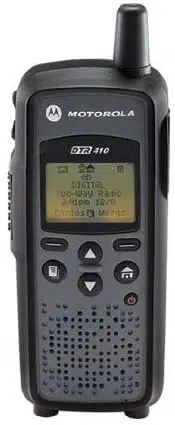
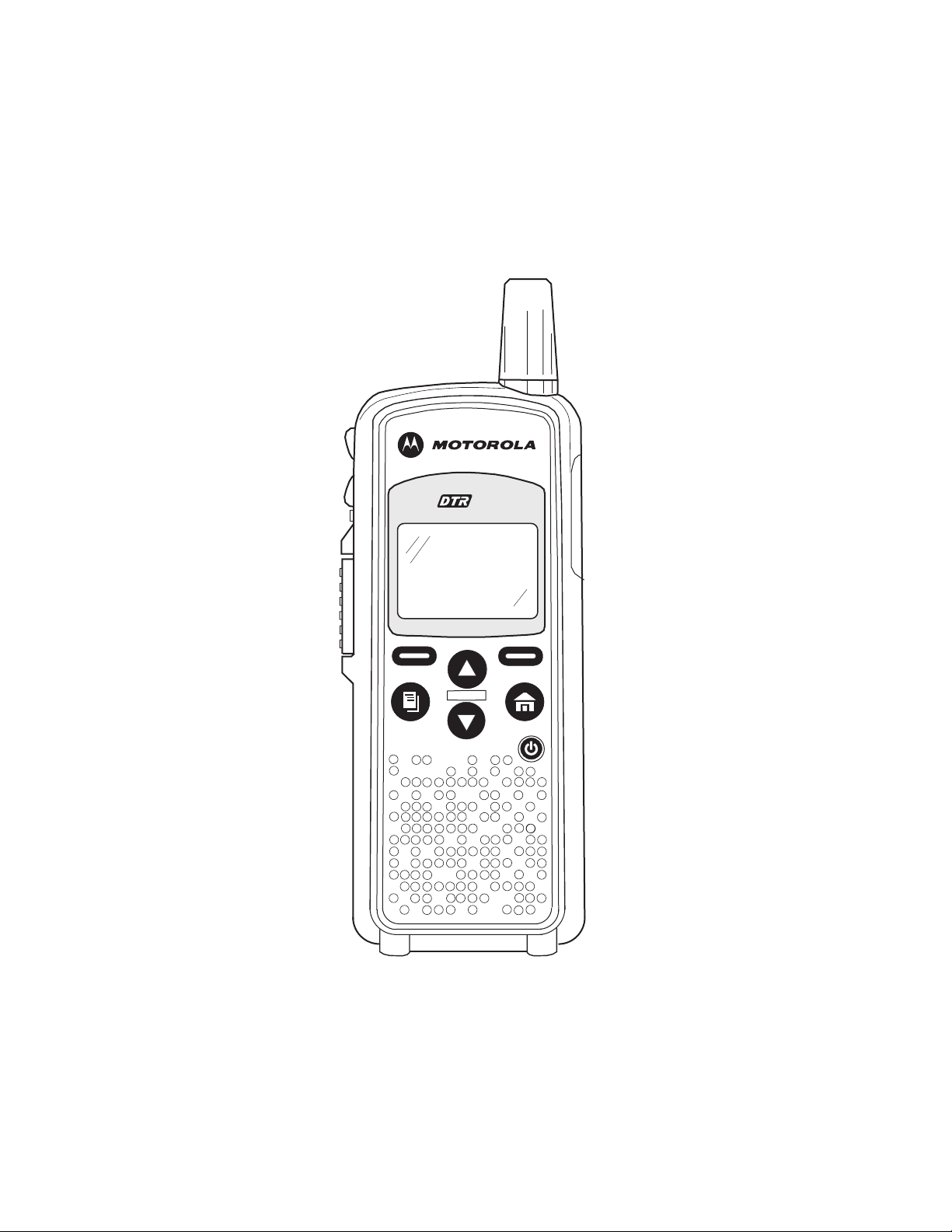
DTR Series
®
DTR410
User Guide
Motorola, Inc.
1301 E. Algonquin Rd, Schaumburg, IL
60196-1078 USA
6875840M01-A
M

Foreword
The information contained in this manual relates to all DTR Series portable radios, unless otherwise specified.
Product Safety and RF Exposure Compliance
ATTENTION!
This radio is restricted to occupational use only to satisfy FCC RF energy exposure requirements.
Before using this product, read the RF energy awareness information and operating instructions in the
Product Safety and RF Exposure booklet enclosed with your radio (Motorola Publication part number
6881095C98) to ensure compliance with RF energy exposure limits.
For a list of Motorola-approved antennas, batteries, and other accessories, visit the following web site which
lists approved accessories: <http://www.motorola.com/cgiss/index.shtml>
.
For more information on DTR products, visit the following website at: <http://www.motorola.com/DTR/>.
Computer Software Copyrights
The Motorola products described in this manual may include copyrighted Motorola computer programs stored in
semiconductor memories or other media. Laws in the United States and other countries preserve for Motorola certain
exclusive rights for copyrighted computer programs, including, but not limited to, the exclusive right to copy or reproduce in
any form the copyrighted computer program. Accordingly, any copyrighted Motorola computer programs contained in the
Motorola products described in this manual may not be copied, reproduced, modified, reverse-engineered, or distributed in
any manner without the express written permission of Motorola. Furthermore, the purchase of Motorola products shall not
be deemed to grant either directly or by implication, estoppel, or otherwise, any license under the copyrights, patents or
patent applications of Motorola, except for the normal non-exclusive license to use that arises by operation of law in the
sale of a product.
Document Copyrights
No duplication or distribution of this document or any portion thereof shall take place without the express written permission
of Motorola. No part of this manual may be reproduced, distributed, or transmitted in any form or by any means, electronic
or mechanical, for any purpose without the express written permission of Motorola.
Disclaimer
The information in this document is carefully examined, and is believed to be entirely reliable. However, no responsibility is
assumed for inaccuracies. Furthermore, Motorola reserves the right to make changes to any products herein to improve
readability, function, or design. Motorola does not assume any liability arising out of the applications or use of any product
or circuit described herein; nor does it cover any license under its patent rights nor the rights of others.
Trademarks
MOTOROLA and The Stylized M Logo are registered in the US Patent & Trademark Office. All other product or service
names are the property of their respective owners.
© Motorola, Inc. 2008.
Before using this product, read the operating instructions
for safe usage contained in the Product Safety and RF
Exposure booklet enclosed with your radio.
!
C
a u t i o
n

6875840M01-A February 2008
Table of Contents
Foreword.........................................................................................................ii
FCC Licensing Information ...........................................................................v
Chapter 1 Introduction ......................................................................... 1-1
Notations Used in This Manual................................................................................................................ 1-1
Your DTR Series Radio........................................................................................................................... 1-3
Getting Started ........................................................................................................................................ 1-4
Menu Icons .................................................................................................................................... 1-4
Status Icons ................................................................................................................................... 1-4
Text Area ....................................................................................................................................... 1-5
Display Options.............................................................................................................................. 1-5
Menu Key....................................................................................................................................... 1-5
Menus and Lists............................................................................................................................. 1-5
Battery ..................................................................................................................................................... 1-5
Battery Life..................................................................................................................................... 1-5
Charging the Radio.................................................................................................................................. 1-7
Charging using the Drop-in Charging Tray .................................................................................... 1-7
Charging using the Plug-in Charger ..............................................................................................1-7
Charging a Radio and Battery using a Multi-Unit Charger............................................................. 1-8
Battery Meter ................................................................................................................................. 1-8
Attaching the Battery ............................................................................................................................... 1-8
Swivel Belt Holster................................................................................................................................... 1-9
Mini Keyboard.......................................................................................................................................... 1-9
Attaching the Mini Keyboard to the Radio ..................................................................................... 1-9
Disconnecting the Mini Keyboard from Your Radio ....................................................................... 1-9
Entering Text with the Mini Keyboard .......................................................................................... 1-10
Yellow/Lock Key Functionality ..................................................................................................... 1-10
Green/Lock Key Functionality...................................................................................................... 1-10
CAPS Key Functionality............................................................................................................... 1-10
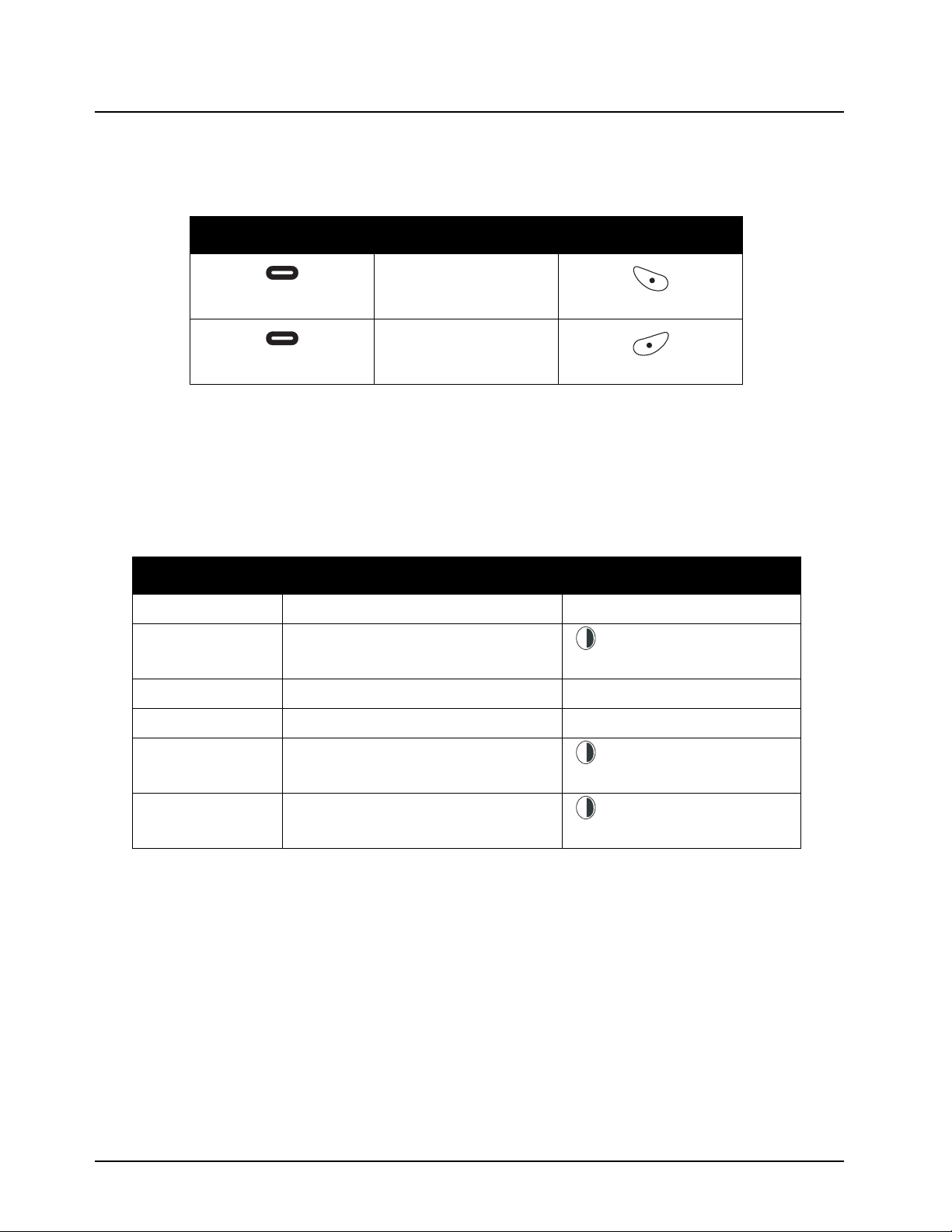
Standard Yellow Function Green Function .................................................................................. 1-11
Using Mini Keyboard Key Shortcuts ............................................................................................ 1-12
Extended Character Set .............................................................................................................. 1-12
Accent Marks ............................................................................................................................... 1-12
Other Special Characters ............................................................................................................ 1-13
Accessories ........................................................................................................................................... 1-13
Chapter 2 General Radio Operations.................................................. 2-1
Turning Your Radio On or Off.................................................................................................................. 2-1
Adjusting the Speaker Volume ................................................................................................................ 2-1
Selecting a Scroll List Contact................................................................................................................. 2-2
Viewing a Contact.......................................................................................................................... 2-2
Receiving and Making Calls .................................................................................................................... 2-3
Types of Calls ................................................................................................................................ 2-3
Receiving a Call............................................................................................................................. 2-3
Making a Call ................................................................................................................................. 2-3

ii Table of Contents
February 2008 6875840M01-A
Call Alerts ................................................................................................................................................ 2-4
Sending Call Alerts ........................................................................................................................ 2-4
Receiving a Call Alert..................................................................................................................... 2-4
Text Messaging ....................................................................................................................................... 2-5
Receiving a Message..................................................................................................................... 2-5
Reading from the Inbox.................................................................................................................. 2-5
Replying to a Received Message ..................................................................................................2-6
Sending a Text Message ...............................................................................................................2-7
Composing a Message Using the Mini Keyboard .......................................................................... 2-8
Deleting a Message ....................................................................................................................... 2-9
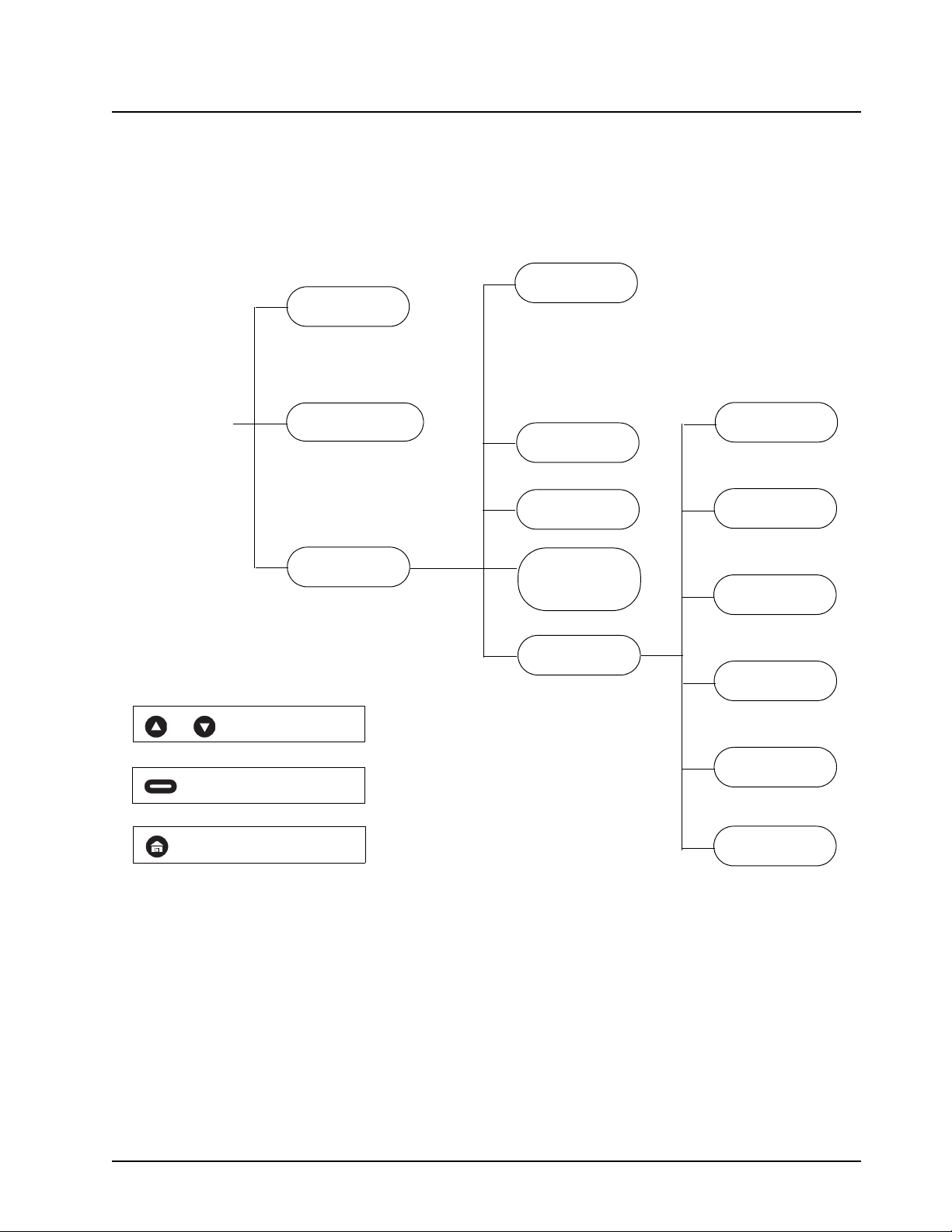
Accessing The Main Menu .................................................................................................................... 2-10
Main Menu Navigation Chart ................................................................................................................. 2-10
Recent Calls .......................................................................................................................................... 2-11
Viewing a Recent Call.................................................................................................................. 2-11
Alerting a Recent Caller ............................................................................................................... 2-11
Deleting Recent Calls .................................................................................................................. 2-12
Settings.................................................................................................................................................. 2-12
Setting the Display ....................................................................................................................... 2-13
Ambient Noise.............................................................................................................................. 2-14
Clock and Alarm...........................................................................................................................2-14
Setting the Volume.......................................................................................................................2-17
My Info................................................................................................................................................... 2-18
Chapter 3 Advanced Radio Operations .............................................. 3-1
Accessing the Advanced Menu ............................................................................................................... 3-1
Managing Your Scroll List .............................................................................................................. 3-1
Scan............................................................................................................................................... 3-2
Enabling Call Forwarding............................................................................................................... 3-2
Remote Disabling........................................................................................................................... 3-3
Remote Monitoring......................................................................................................................... 3-4
Remote Time ................................................................................................................................. 3-4
Chapter 4 Programming the Radio ..................................................... 4-1
Program Menu Navigation Chart ............................................................................................................. 4-1
Entering Programming Mode................................................................................................................... 4-2
My Info..................................................................................................................................................... 4-2
Adding Contacts ...................................................................................................................................... 4-3
Call Type........................................................................................................................................ 4-3
Channel.......................................................................................................................................... 4-4
Unit Name ...................................................................................................................................... 4-4
Programming a Unit ID (Private Calls Only) .................................................................................. 4-5
Selecting a Group ID...................................................................................................................... 4-5
Entering a Home Group Number (Contacts Only) ......................................................................... 4-5
Selecting Group Only..................................................................................................................... 4-6
Entering a Ringer Type .................................................................................................................. 4-6
Text Messaging ....................................................................................................................................... 4-7
Settings.................................................................................................................................................... 4-8
Radio History ................................................................................................................................. 4-8
Scan Lists ...................................................................................................................................... 4-8
Manager Mode............................................................................................................................... 4-8
Language ....................................................................................................................................... 4-9

Table of Contents iii
6875840M01-A February 2008
Chapter 5 Programming the Radio with Customer Programming
Software (CPS).................................................................... 5-1
CPS Set-up.............................................................................................................................................. 5-1
Entering a Name on the Radio ................................................................................................................ 5-1
Creating the Private Contacts.................................................................................................................. 5-2
Creating the PublicGroup Contacts......................................................................................................... 5-3
Setting up Scan ....................................................................................................................................... 5-4
Personalizing your Radio......................................................................................................................... 5-5
Setting the Scroll List............................................................................................................................... 5-6
Programming your Radio......................................................................................................................... 5-6
Scenario On How To Program A Radio................................................................................................... 5-7
Chapter 6 Cloning Mode ...................................................................... 6-1
Entering Cloning Mode............................................................................................................................ 6-1
Cloning Using the Cloning Cable............................................................................................................. 6-1
Cloning by Sending a Contact ................................................................................................................. 6-3
Chapter 7 Troubleshooting.................................................................. 7-1
Chapter 8 Motorola Limited Warranty for the United States and
Canada ................................................................................. 8-1
What Does this Warranty Cover?......................................................................................................... 8-1
Products and Accessories ............................................................................................................. 8-1
Exclusions...................................................................................................................................... 8-1
Software......................................................................................................................................... 8-2
Who is Covered?..................................................................................................................................... 8-2
How to Obtain Warranty Service or Other Information?.......................................................................... 8-2
Software Copyright Notice....................................................................................................................... 8-2
Patent Notice........................................................................................................................................... 8-3
Export Law Assurances........................................................................................................................... 8-3

iv
February 2008 6875840M01-A

6875840M01-A February 2008
FCC Licensing Information
DTR Series
®
business two-way radios operate in the license-free 900 MHz ISM band and are
subject to the Rules and Regulations of the Federal Communications Commission (FCC)
This device complies with part 15 of the FCC rules. Operation is subject to the following two
conditions: (1) This device may not cause harmful interference, and (2) this device must accept any
interference received, including interference that may cause undesired operation.
Read this manual carefully and make sure you know how to properly operate radio before use.
Changes or modifications not expressly approved by Motorola may void the user’s authority granted
by the FCC to operate this radio and should not be made. To comply with FCC requirements,
transmitter adjustments should be made only by or under the supervision of a person certified as
technically qualified to perform transmitter maintenance and repairs. Replacement of any transmitter
component (crystal, semiconductor, etc.) not authorized by the FCC equipment authorization for this
radio could violate FCC rules.
NOTE: Use of this radio outside the country where it was intended to be distributed is subject to
government regulations and may be prohibited.

February 2008 6875840M01-A
vi :
Notes
6875840M01-A February 2008
Chapter 1 Introduction
Thank you for purchasing a Motorola‚ DTR Series
®
radio. Your radio is a product of Motorola’s 75
plus years of experience as a world leader in the designing and manufacturing of communications
equipment. The DTR Series radios provide cost-effective communications for businesses such as
retail stores, restaurants, schools, construction sites, manufacturing, property and hotel
management, and more. Motorola business two-way radios are the perfect communications solution
for all of today’s fast-paced industries.
Please read this manual carefully to ensure you know how to properly operate the radio before use.
This User’s Guide covers operation and maintenance of your radio.
Notations Used in This Manual
Throughout the text in this publication, you will notice the use of WARNINGS, Cautions, and Notes.
These notations are used to emphasize that safety hazards exist, and the care that must be taken or
observed.
WARNING: An operational procedure, practice, or condition, etc., which may result in
injury or death if not carefully observed.
CAUTION: An operational procedure, practice, or condition, etc., which may result in damage to
the equipment if not carefully observed.
NOTE: An operational procedure, practice, or condition, etc., which is essential to emphasize.
The following special notations identify certain items:
Example
Description
Volume Control Button names are shown in bold print.
Radio keys and buttons are shown as they appear on
the radio.
Contcs
Text appearing on the display is shown in bold print.
!
W A R N I N G
!
!
C
a u t i o
n
February 2008 6875840M01-A
1-2 Introduction: Notations Used in This Manual
Your model number is shown on the radio lens above the display, and tells you the following
information:
DTR Features
DTR 410
PublicGroups
Available
Up to 25 (20 default)
PublicGroup Scan Up to 5/Channel
PrivateCall Yes
SMS Messaging 10 Quick Notes (20 available)
Clock/Alarm Yes
Scroll List Yes
Call Forwarding Yes
Remote Disable (OTAD) Yes
Remote Monitor (OTAM) Yes
Remote Time Yes
Battery Life 14.5 Hours (5/5/90)
Charging Time Up to 3 Hours
Drop in Charging Tray Yes
Customer Programming Software
(CPS) Compatible
Yes
6875840M01-A February 2008
Introduction: Your DTR Series Radio 1-3
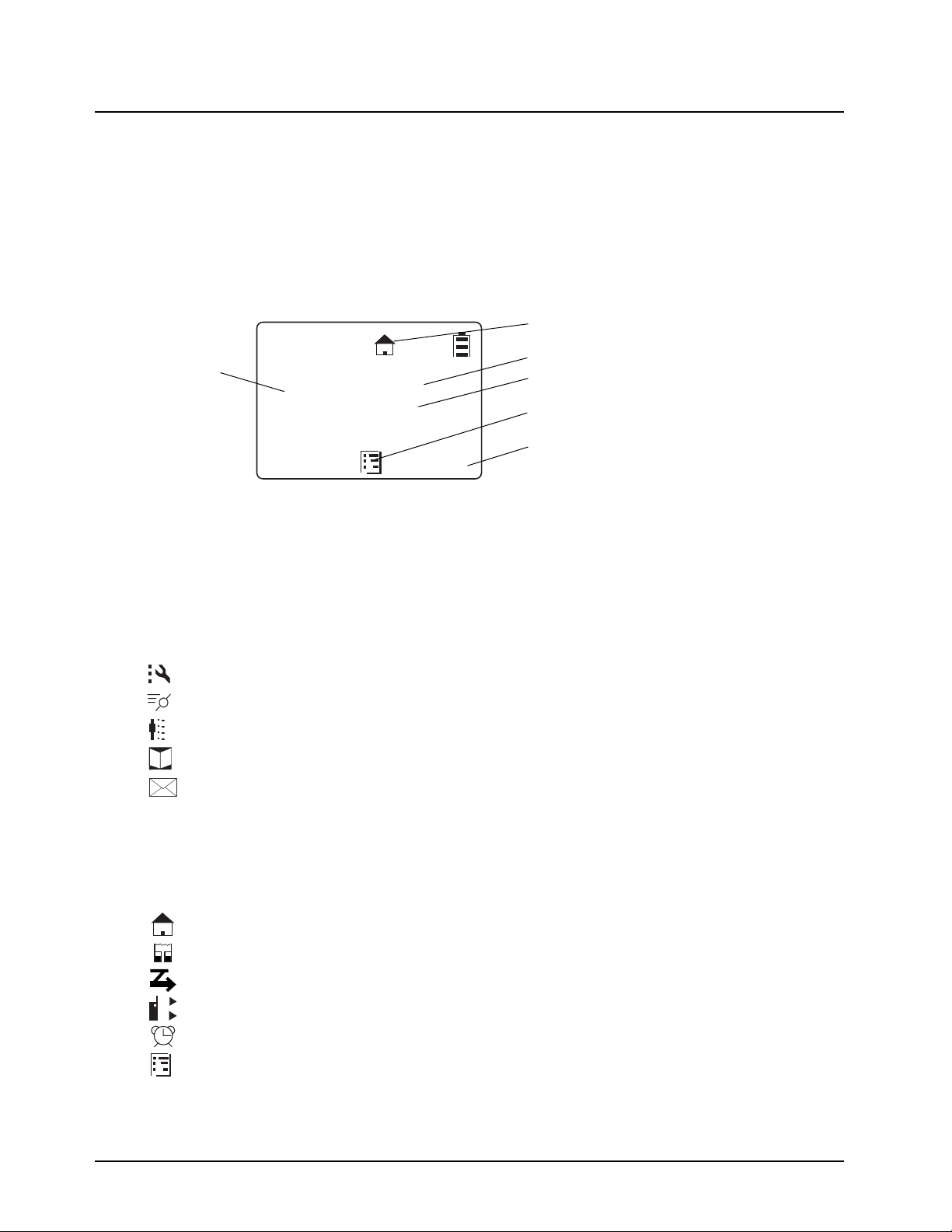
Your DTR Series Radio
410
Antenna
Audio Jack
Connect audio accessories
Volume Controls
Push-to-Talk (PTT)
Option Keys
Home Key
Power Button
Menu Key
Navigation Keys
Use to scroll menu settings
Plug-in Charging
Use to select display options
Use to exit the current menu
and return to the idle screen
Button
Speaker
Microphone
and Connectivity
Accessories
February 2008 6875840M01-A
1-4 Introduction: Getting Started
Getting Started
NOTE: Your radio is now Customer Programming Software (CPS) compatible. Please refer to“Chapter
5 Programming the Radio with Customer Programming Software (CPS)” on page 5-1
for more
details.
The CPS is a licensed Motorola software used to program two-way radios with a unique set of
features. In order to use the CPS, you will need the programming cable P/N 0105950U15.
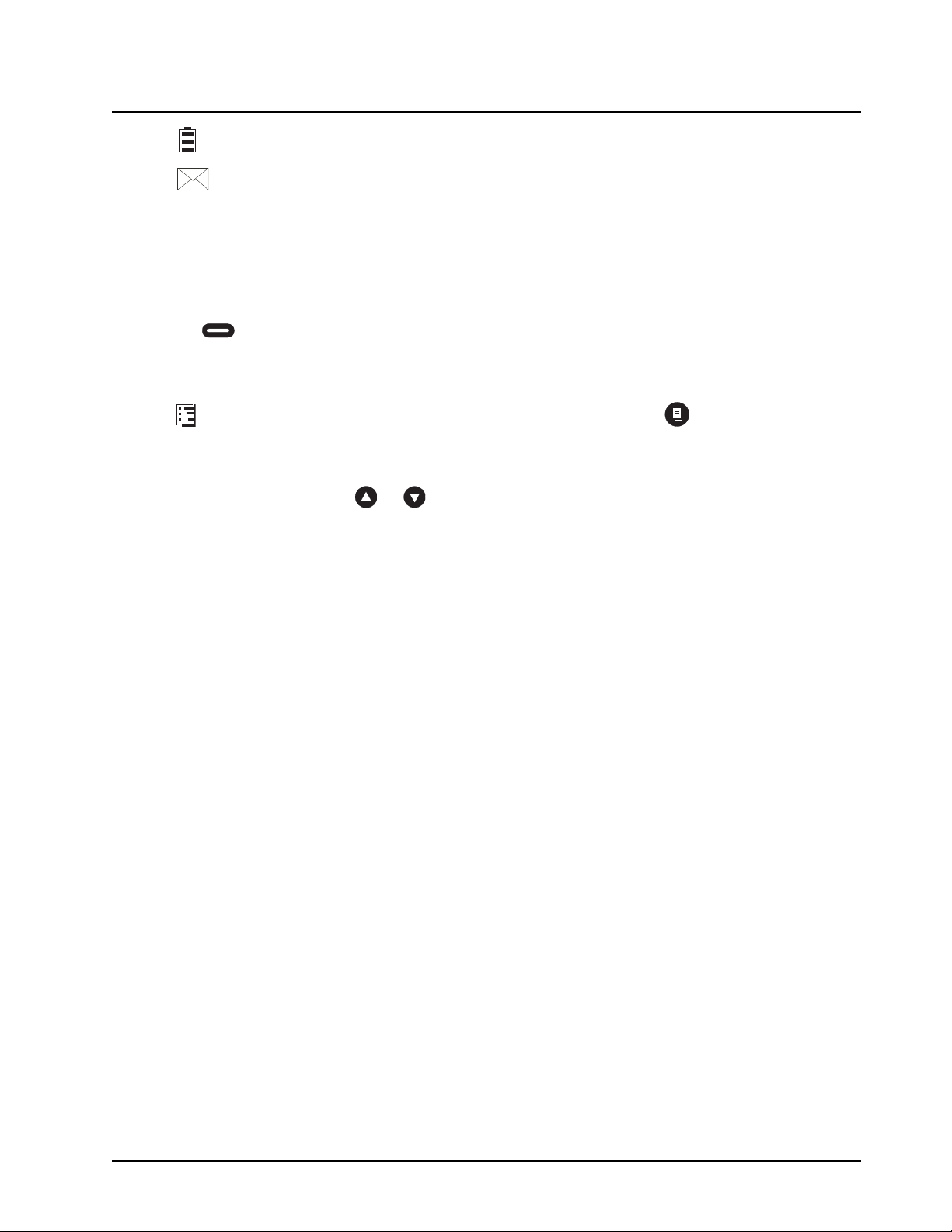
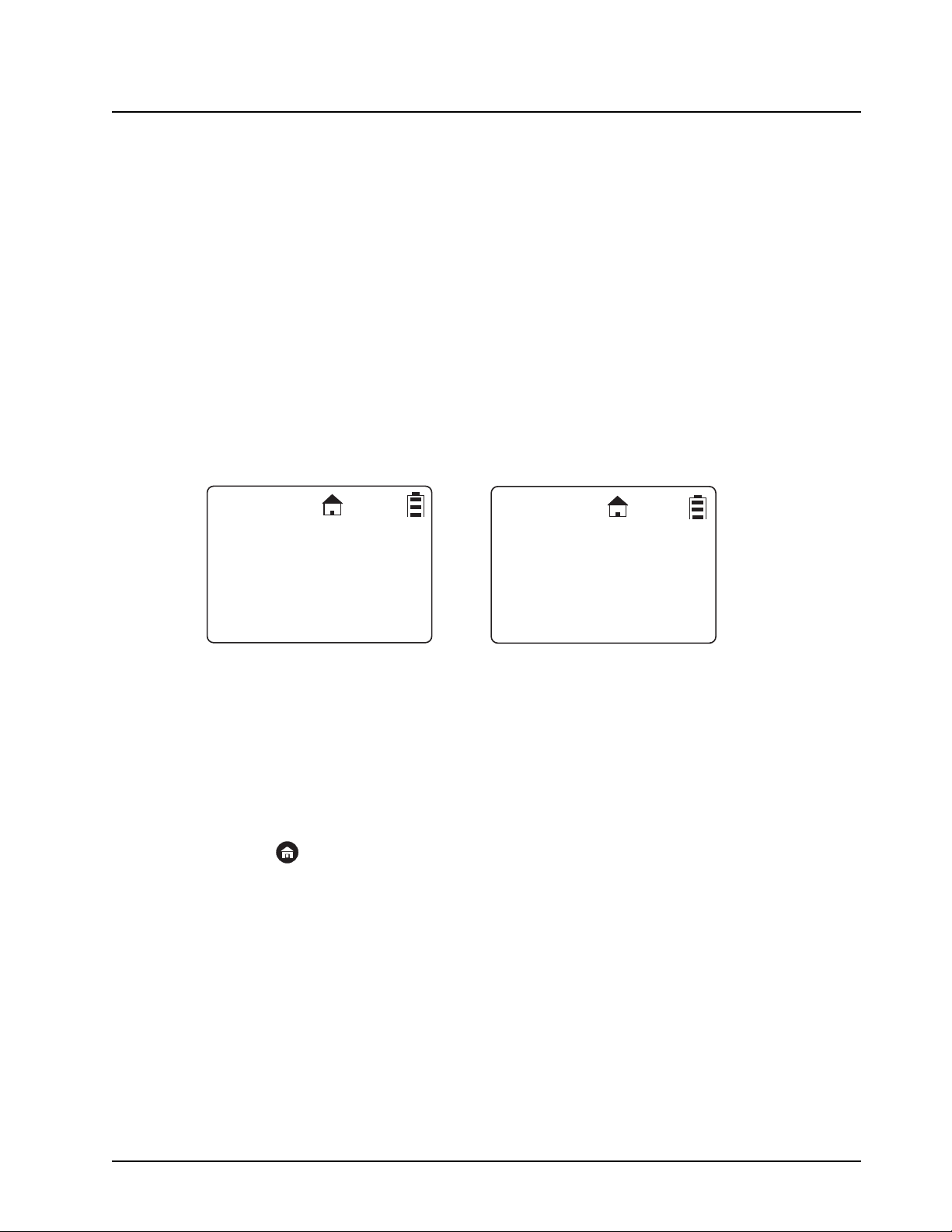
Any time your radio is powered on, the display provides you with information and options.
The display shown is in idle. The idle screen appears when your radio is on, but not engaged in any
activity.
Menu Icons
Menu icons appear when you are accessing a particular menu. The icon for that menu appears in
the upper left corner of the display.
Settings Customize your radio.
Recent Calls Lists recent calls.
My Info View personal radio information.
Contacts Create, view, store, edit contacts.
Messages View, reply, create, send messages.
Status Icons
Status icons usually appear in first row at the top of the display. Some appear at all times. Others
appear only when your radio is engaged in certain activities or when you have activated certain
features.
Home The private or group contact shown is on your home channel.
PublicGroup The contact selected is a PublicGroup.
Scan The radio is scanning PublicGroups on your current channel.
Call Forward Your radio is set to forward calls.
Alarm The alarm has been set.
Menu Main Menu.
Text Input Indicates you are entering text. The mini keyboard must be attached
to the radio
JOE SMITH
Security
5:49pm 11/14
Contcs
Mesgs
Menu/Status Icons
Text Area
Menu Icon
Display Options
User Name
Scroll Setting
1
2
A
B
C
6875840M01-A February 2008
Introduction: Battery 1-5
Battery Status More bars on the battery indicate a greater charge. When the
battery is flashing, it is time to charge the radio.
New Message You have a new unopened text message.
Text Area
This area displays menus, messages, unit names or IDs, and other information.
Display Options
Two display options appear at the bottom of most screens. You select a display option by pressing
the below it.
Menu Key
Many features provide context-sensitive menus that let you access related features and actions. the
icon appears any time a context-sensitive menu is available. Press to access the menu.
Menus and Lists
Your radio’s features are arranged in menus, submenus, and lists. To access the items in a menu or
list, scroll using either the or keys.
Battery
WARNING: To avoid a possible explosion: DO NOT replace the battery in any area labeled
“hazardous atmosphere.” DO NOT discard batteries in a fire.
Battery Life
Your radio uses a rechargeable Lithium Ion (Li-Ion) battery.
Based on 5% transmit, 5% receive, 90% standby (standard duty cycle):
• NNTN4655 Li-Ion; Up to 19 Hours
• SNN5706 Li-Ion; Up to 14.5 Hours
Battery life is determined by several factors. Among the more critical are the regular overcharge of
batteries and the average depth of discharge with each cycle. Typically, the greater the overcharge
and the deeper the average discharge, the fewer cycles a battery will last.
For example, a battery which is overcharged and discharged 100% several times a day, lasts fewer
cycles than a battery that receives less of an overcharge and is discharged to 50% per day. Further,
a battery which receives minimal overcharging and averages only 25% discharge, lasts even longer.
WARNING: Care should be taken to avoid external short circuiting of the battery. A
sustained high-rate discharge (for example, a paper clip placed accidentally
across the battery contacts) may permanently damage the battery, void the
battery warranty, and create a burn or fire hazard.
Motorola batteries are designed specifically to be used with a Motorola charger and vice versa.
Charging in non-Motorola equipment may lead to battery damage and void the battery warranty. The
battery should be at about 77°F (25°C) (room temperature), whenever possible. Charging a cold
battery (below 50° F [10°C]) may result in leakage of electrolyte and ultimately in failure of the
battery.

February 2008 6875840M01-A
1-6 Introduction: Battery
Charging a hot battery (above 95°F [35°C]) results in reduced discharge capacity, affecting the
performance of the radio. Motorola rapid-rate battery chargers contain a temperature-sensing circuit
to ensure that batteries are charged within the temperature limits stated above.
WARNING: Do not attempt to change or charge the battery in a hazardous atmosphere.
To charge the battery, place the battery (with or without the radio) in a Motorola-approved charger.
6875840M01-A February 2008
Introduction: Charging the Radio 1-7
Charging the Radio
While the radio is charging, the display lights and the battery status icon flashes to show the status.
The battery will charge in approximately 1-3 hours, and battery gauge will show all segments and
stop flashing when fully charged.
Charging using the Drop-in Charging Tray
NOTE: Use of the Drop-in Charging Tray is recommended for daily use.
1. Place the charging tray on a flat surface.
2. Connect the plug-in charger and drop-in charging tray by inserting the plug into the rear of the
drop-in charging tray.
3. Plug the charger into an AC outlet.
4. Insert the radio (with battery installed) into the charging tray.
NOTE: The charging tray has been designed to charge the radio with or without the holster.
Charging using the Plug-in Charger
1. Plug the charger into an AC outlet.
2. Open the accessory connector cover.
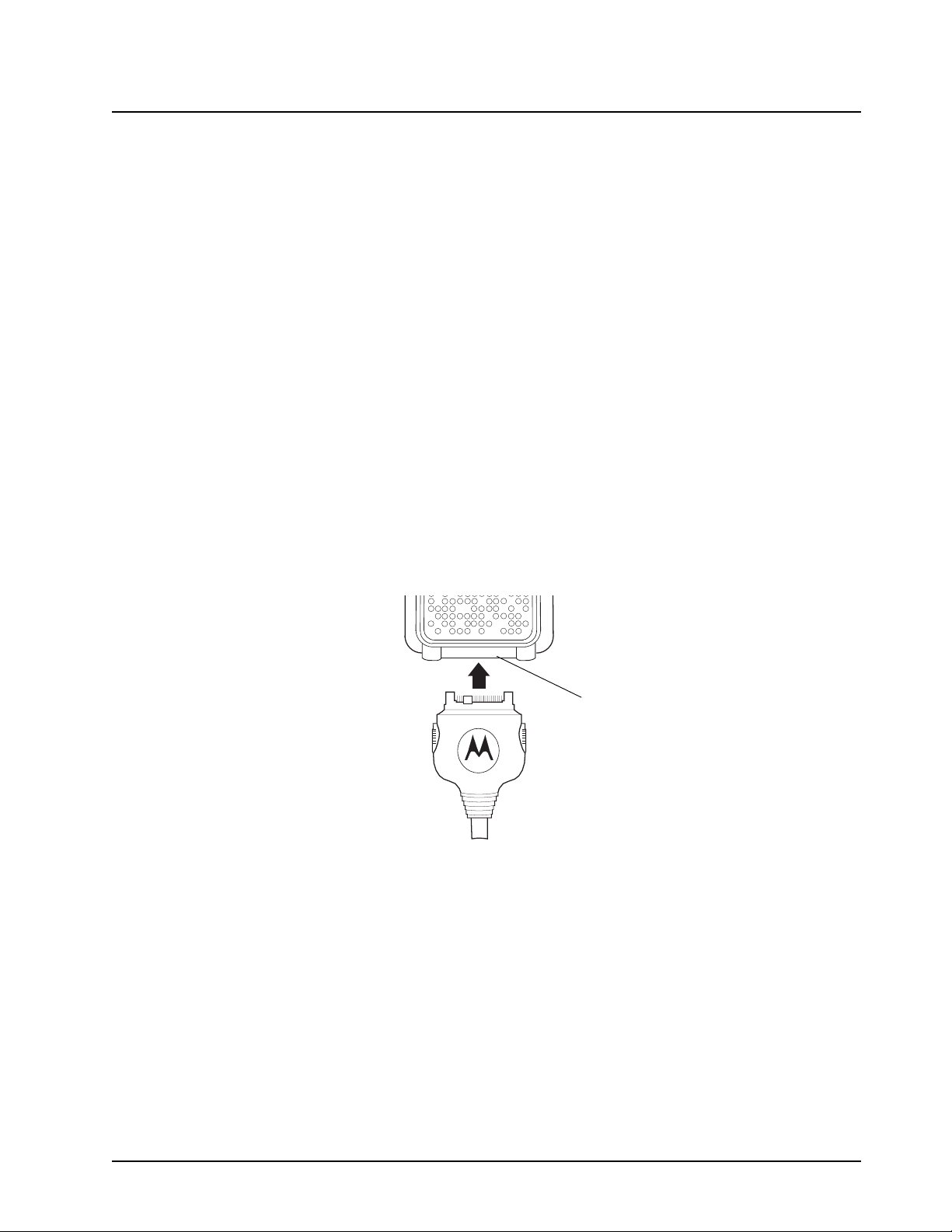
3. Plug the other end of the charger into the accessory connector.
4. Disconnect the charger from the radio by pressing the two side buttons on the charger and
remove from the radio.
Accessory Connector
February 2008 6875840M01-A
1-8 Introduction: Attaching the Battery
Charging a Radio and Battery using a Multi-Unit Charger
A Multi-Unit Charger (MUC) is available separately (53960) which will charge up to 6 radios,
batteries, or a combination of the two at the same time.
When charging a radio in the MUC, the battery icon on the radio display shows the charging status.
When charging a battery, the LED in front of the pocket indicates charging status. The LED is solid
red when the battery is charging, and solid green when charging is complete.
Battery Meter
The battery meter in the upper right corner of the radio display shows how much battery power is remaining:
Attaching the Battery
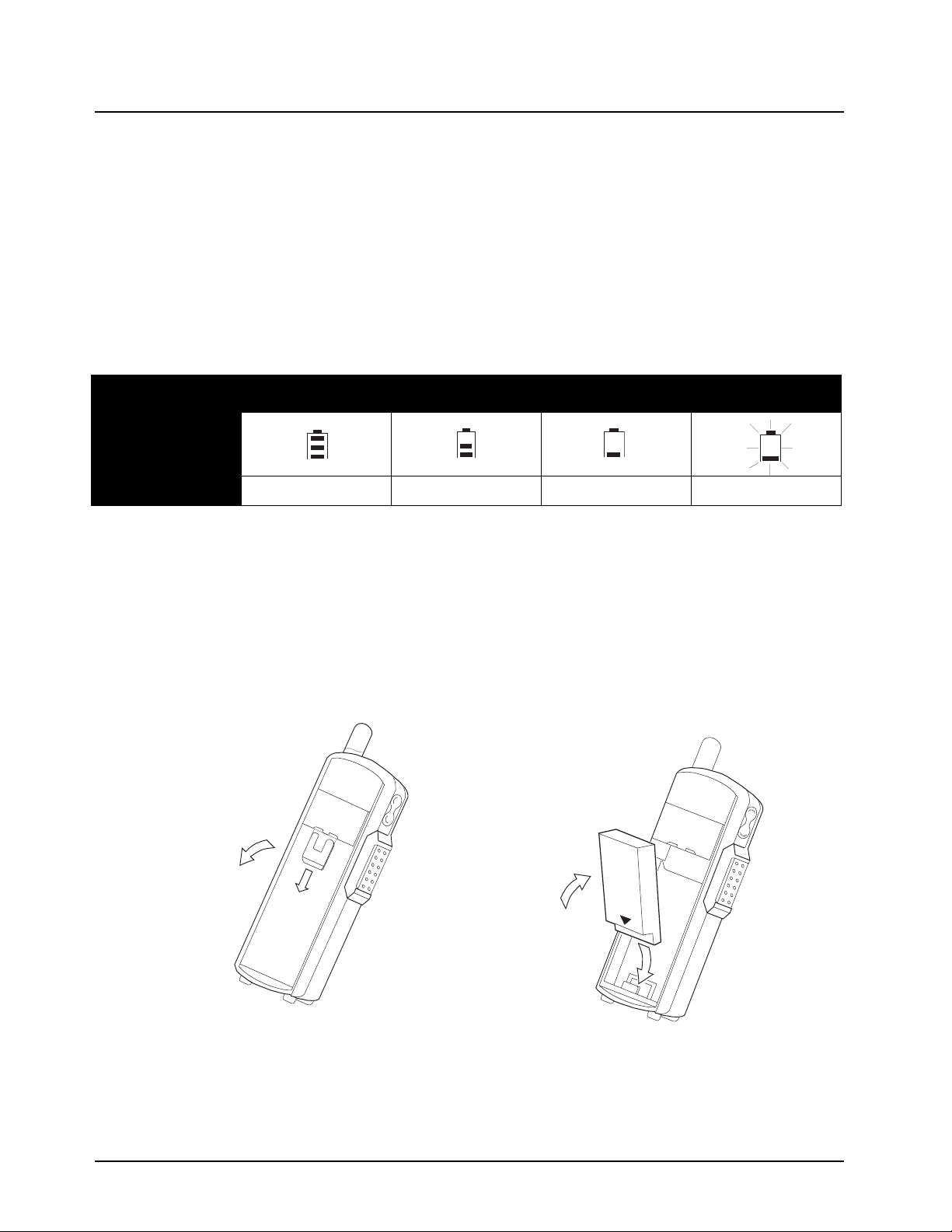
1. If the battery door is already in place, push down on the latch at the top and lift the door off
the radio.
2. Insert the battery, printed arrows first, into the battery compartment and press down to secure
firmly in place.
3. Replace the battery door onto the radio and slide the latch into place.
Battery Type 3 Bars 2 Bars 1 Bar Flashing
Li-Ion
100%–85% 85%–25% 25%–10% Final 10%
6875840M01-A February 2008
Introduction: Swivel Belt Holster 1-9
Swivel Belt Holster
1. Slide the bottom of radio into the holster and push the top of the radio against it until it snaps
into place.
2. To remove, push the tab located on top of the holster and pull the radio from it.
NOTE: In case of loss, please contact your point-of-sale to request replacement part number 53961.
Mini Keyboard
A mini keyboard accessory (53967) is available separately that can be attached to your radio. The
mini keyboard allows you to customize Private and Group names, write text messages, and create/
modify stored text messages.
Attaching the Mini Keyboard to the Radio
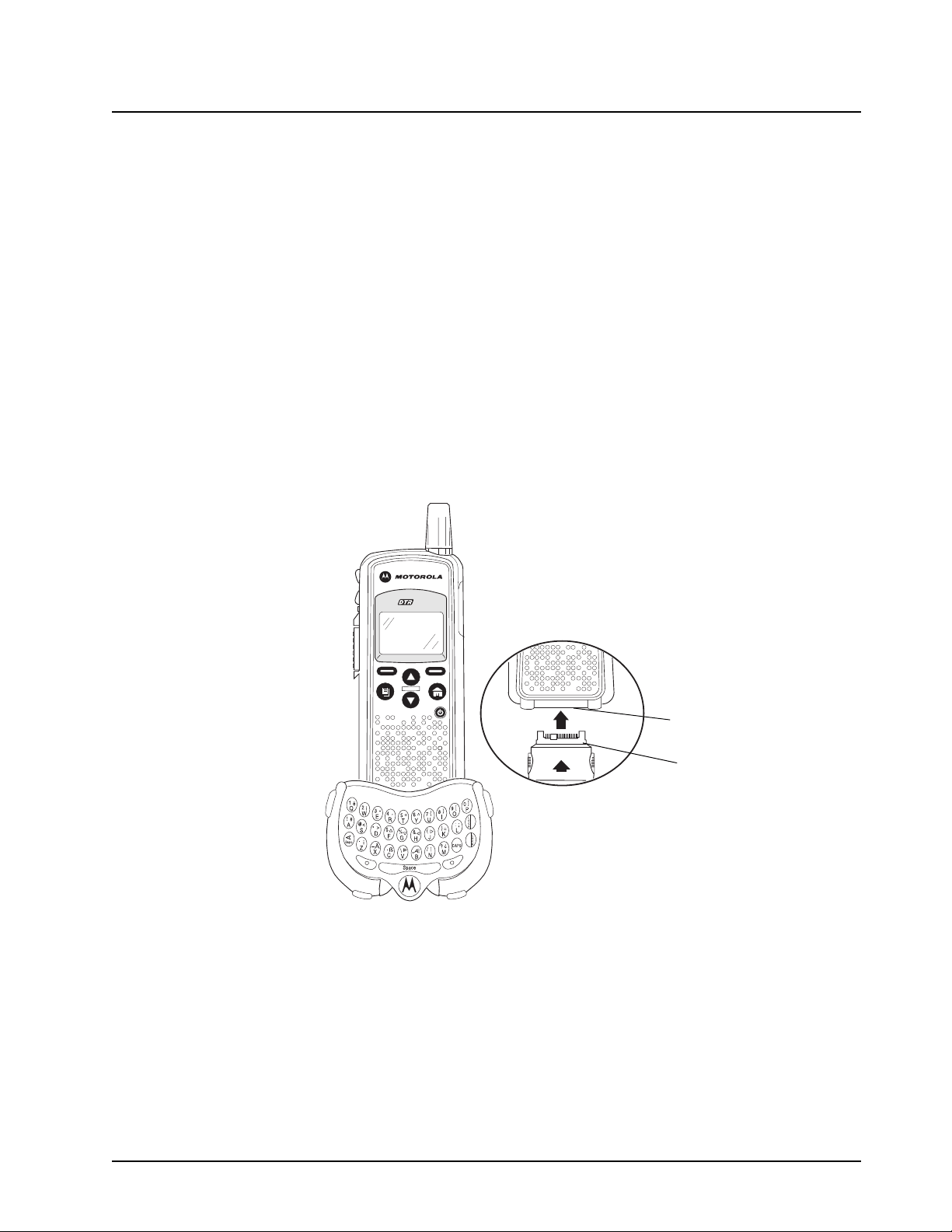
When the mini keyboard is attached to your radio, the “Device Attached” message is displayed.
1. Insert the mini keyboard's connector, with the arrow facing up, into your radio’s accessory
connector.
2. Fold the mini keyboard over the front of your radio.
Disconnecting the Mini Keyboard from Your Radio
1. Press and hold the buttons on the side of the mini keyboard connector.
2. Pull the mini keyboard connector straight out from your radio’s accessory connector. Do not
twist the connector.
550
Accessory Connector
Keyboard Connector

February 2008 6875840M01-A
1-10 Introduction: Mini Keyboard
Entering Text with the Mini Keyboard
If you have attached the mini keyboard correctly and the keyboard bezel is installed on the keyboard
base you can begin.
Here are some important points to remember when using the mini keyboard.
• Your radio accepts a maximum of 80 characters in its largest input fields.
• Some of your radio's functions cannot be used simultaneously, just as when you are using your
radios without the mini keyboard.
• Letters and functions shown in white are the default keys.
• All letters are lower case by default. For example, pressing the "Q" key displays "q."
• The Bspc key works as a Back Space key when entering a message.
• The Space key works as a Space Bar.
Yellow/Lock Key Functionality
1. Press the Yellow key once. The next key pressed displays the yellow character on that key.
The keyboard will then return to the default keys (as if the yellow key had not been pressed).
• For example, press the Yellow key followed by the "Q" key, and a "1" displays. If "Q" is pressed
again, a "q" displays.
2. Press the Yellow key twice to lock the keyboard in the yellow mode. All subsequent key
presses display the yellow character associated with the key pressed. The keys that do not
have yellow functions (Left Option, Right Option, Bspc, Space) will still operate in the default
(white) mode.
3. Press the Yellow key again to unlock the yellow mode and revert back to the default (white)
mode.
4. Press the Green key to cancel the yellow mode and enter the green mode.
5. Press the CAPS key to cancel the yellow mode and enter the CAPS mode.
Green/Lock Key Functionality
1. Press the Green key once. The next key pressed displays the Green character on that key.
The keyboard will then return to the default keys (as if the green key had not been pressed).
• For example, press the Green key followed by the "U" key, and a "{" displays. If "U" is pressed
again, a "u" displays.
2. Press the Green key twice to lock the keyboard in the green mode. All subsequent key
presses display the Green character or function associated with the key pressed. The keys
that do not have green functions still operate in the default (white) mode.
3. Press the Green key again to unlock the green mode and revert back to the default (white) mode.
4. Press the Yellow key to cancel the green mode and enter the yellow mode.
5. Press the CAPS key to cancel the green mode and enter the CAPS mode.
CAPS Key Functionality
1. Press the CAPS key once. The next key pressed displays the capitalized character on that
key. Subsequent keys pressed will be displayed lower case.
2. Press the CAPS key twice to lock the keyboard in the caps mode. All subsequent key
presses display the capitalized character associated with the key pressed.
3. Press the CAPS key again to unlock the caps mode and revert back to the lower case mode.
4. Press the Yellow or Green key to unlock the caps mode and enter the yellow or green mode,
respectively.
6875840M01-A February 2008
Introduction: Mini Keyboard 1-11
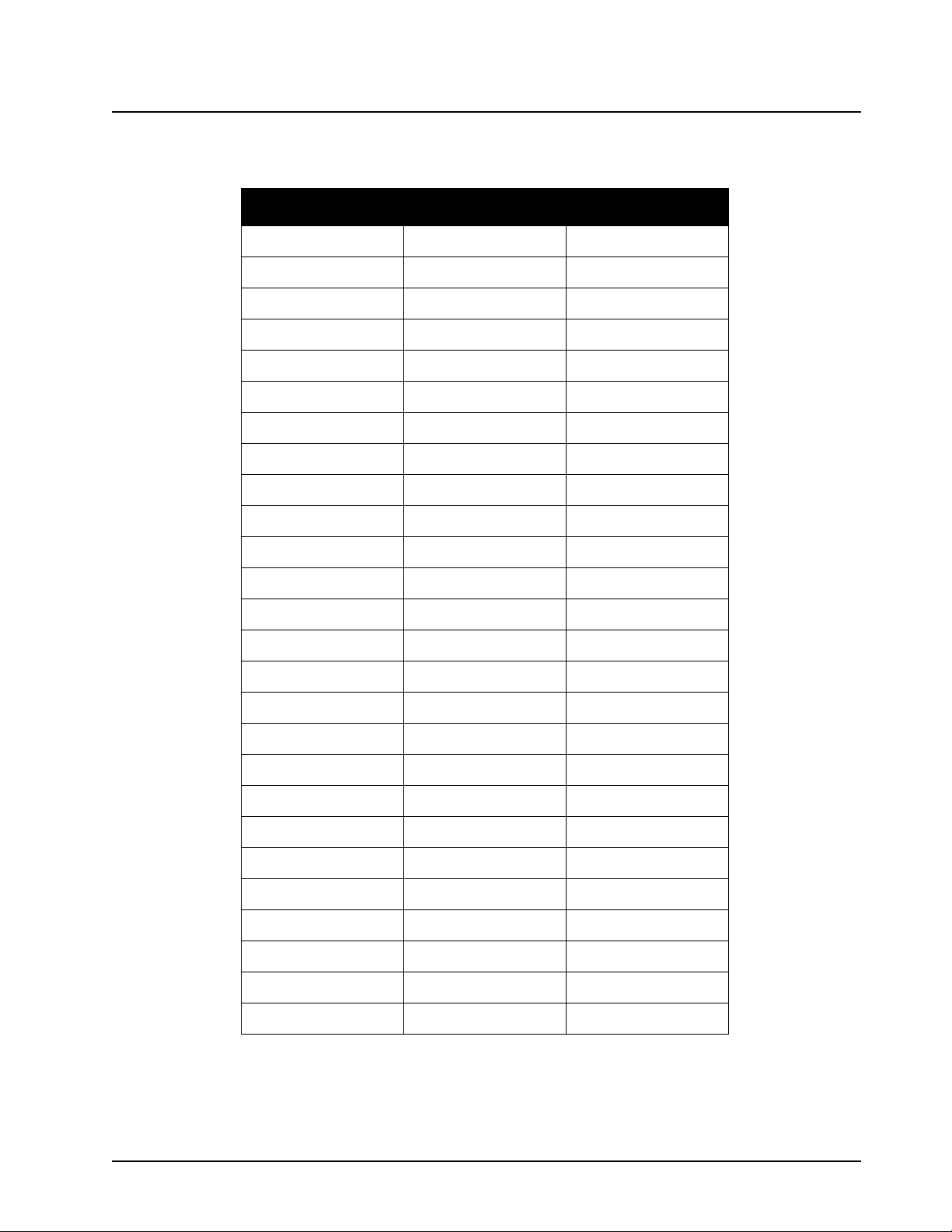
Standard Yellow Function Green Function
Standard Yellow Function Green Function
Q 1 APOSTROPHE
W2 "
E3~
R 4 ACCENT
T5+
Y6^
U7 {
I8}
O9 [
P0 ]
A!#
S@<
D*>
F$UP ARROW
G%DOWN ARROW
H & LEFT ARROW
J ( RIGHT ARROW
K)=
L:;
Z- ¡
X_Å
C.ß
V\Þ
B,Æ
N/ I
M?¿
February 2008 6875840M01-A
1-12 Introduction: Mini Keyboard
Using Mini Keyboard Key Shortcuts
You can perform most of your radio’s functions using the keys on the Motorola mini keyboard.
Extended Character Set
The mini keyboard lets you enter special characters using a combination of keystrokes.
NOTE: The extended character set is only available if your radio is configured for a language other
than English.
Accent Marks
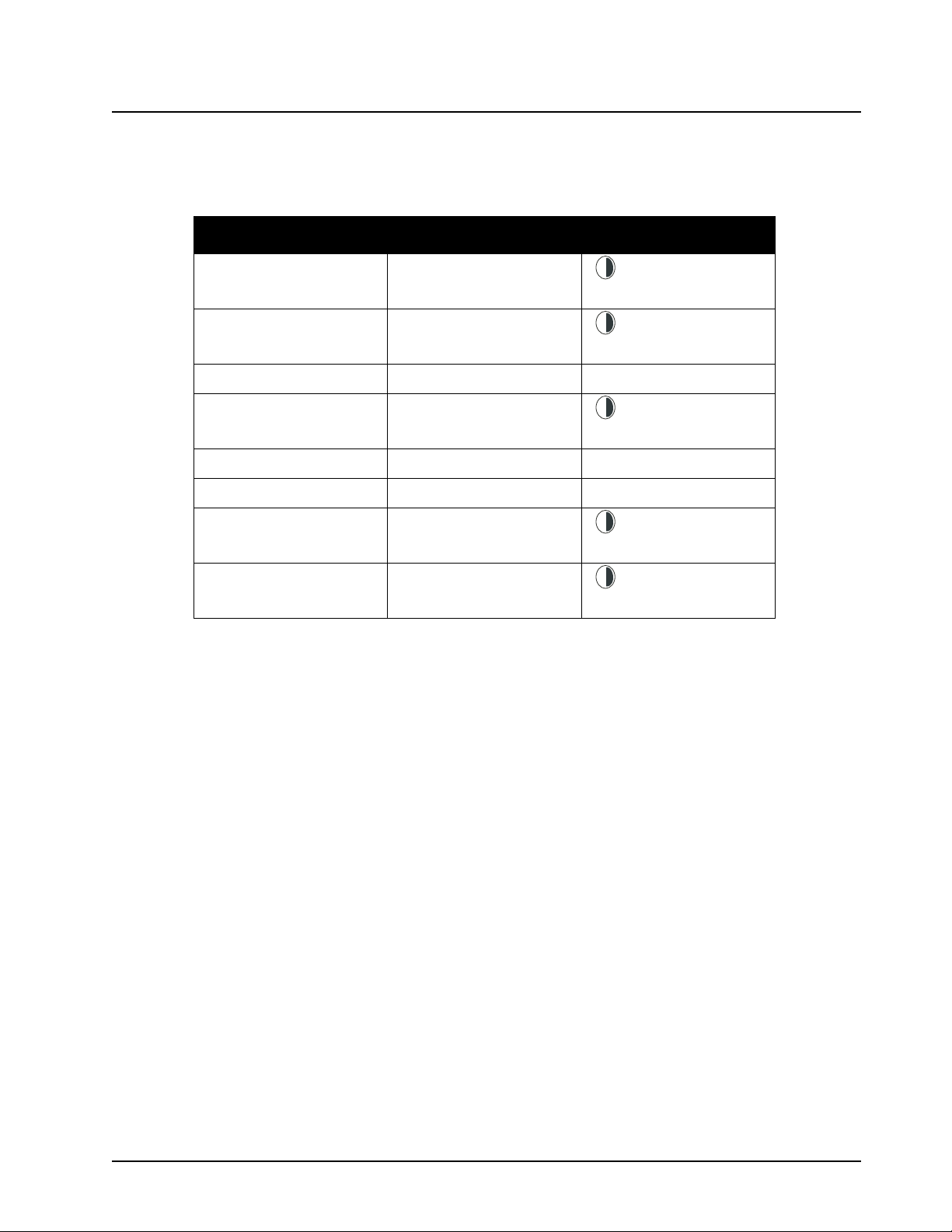
To create a letter with an accent mark over it, enter the keystrokes listed in the table above.
If your radio displays a language other than English, you must press the right arrow after a single
quote, ~, ', /, -, or ^ for the character to appear.
Radio Key Action Keyboard Equivalent
Left Option
Chooses current left
display option
Left Option Key
Right Option
Chooses current right
display option
Right Option Key
Accent Example Description Keystrokes
å accute accent(for letters a, e, i, o, u, y) single quote, then letter
â circumflex (for a, e, i, o, u + Y+ letter
Green
ä umlaut(for letters a, e, i, o, u) shift and quote, then letter
à grave accent (for letters a, e, i, o, u) grave accent, then letter
ã tilde(for letters a, n, o) + ~ + letter
Green
Å nordic A-ring (for letter a only) + X
Green
L
o
c
k
L
o
c
k
L
o
c
k
6875840M01-A February 2008
Introduction: Accessories 1-13
Other Special Characters
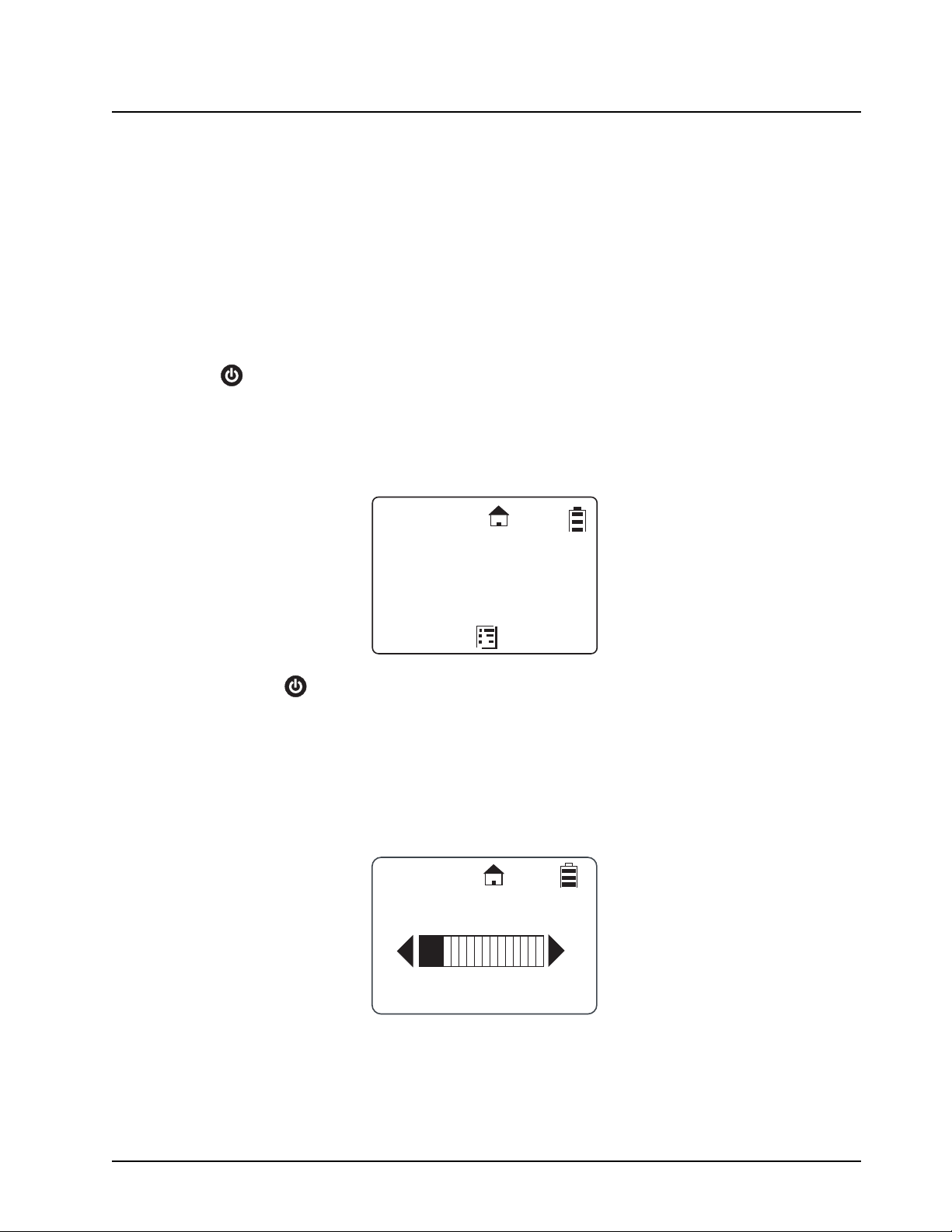
To create other special characters, enter the keystrokes listed in the table below.
Accessories
The radio comes with a Lithium-Ion battery, Charger, and a Drop-in Charging Tray.
Various accessories are available for use with your radio, including holsters, hands-free accessories,
headset accessories, a mini keyboard, and more.
To order additional accessories, contact your dealer or call (800) 448-6686.
For more information on DTR products, visit the following website at:
<http://www.motorola.com/DTR/>.
Accent Example Description Keystrokes
ß sharp s, German sz ligature + C
Green
Æ diphthong AE ligature + B
Green
ç or Ç cedilla single quote, then c or C
Þ icelandic thom + V
Green
ðor Ð icelandic eth dash and d or D
ø or Ø nordic O-Slash /, then o or O
¿ upside down? + M
Green
¡ upside down! + Z
Green
L
o
c
k
L
o
c
k
L
o
c
k
L
o
c
k
L
o
c
k

February 2008 6875840M01-A
1-14 Introduction: Accessories
6875840M01-A February 2008
Chapter 2 General Radio Operations
Your radio is ready for use after a fully-charged battery has been installed. However, your radio
should be programmed in order to be fully compatible with any existing radios and to fully utilize all
radio features.
Refer to Chapter 3 - Advanced Radio Operations.
Turning Your Radio On or Off
Press to turn your radio on.
The radio chirps and the display briefly shows Motorola.
The display shows the radio Unit ID or Name, current Scroll list setting, time, date, and the available
Option key selections. If the radio has been assigned a unique Unit Name, the name will display
rather than the Unit ID for both the radio and any Contacts.
Press and hold to turn the radio off.
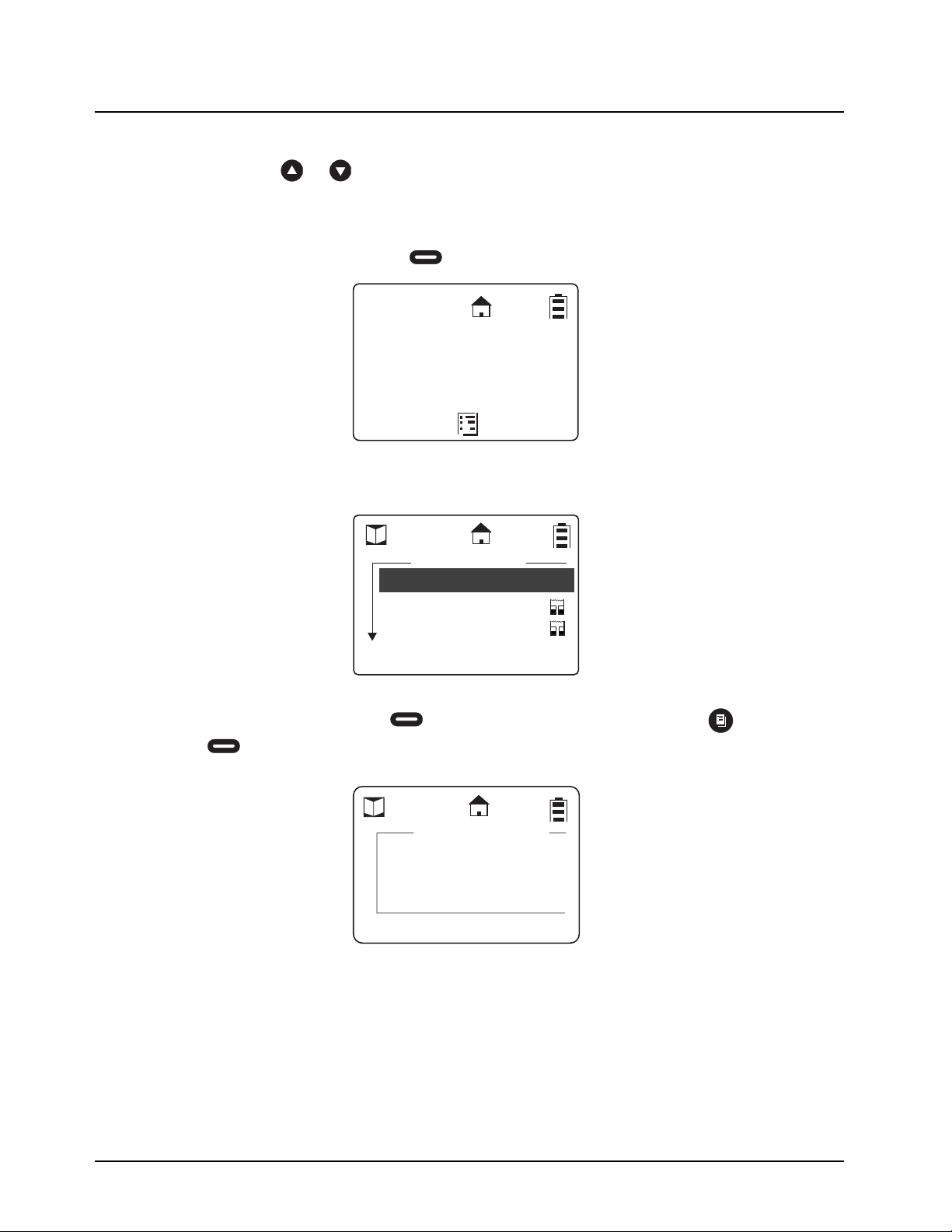
Adjusting the Speaker Volume
The Volume Control buttons are located on the upper left side of the radio. To adjust the speaker
volume, press the upper button to increase the volume level and press the lower button to decrease
the volume level. When either button is pressed, the display shows a bar chart indicating the present
level for the volume.
17179860200
Public1
5:49pm 11/14
Contcs
Mesgs
Volume
3
February 20087 6875840M01-A
2-2 General Radio Operations: Selecting a Scroll List Contact
Selecting a Scroll List Contact
In idle mode, use or to select the desired TalkGroup/Private contact. Press the PTT button
for one-touch communication.
Viewing a Contact
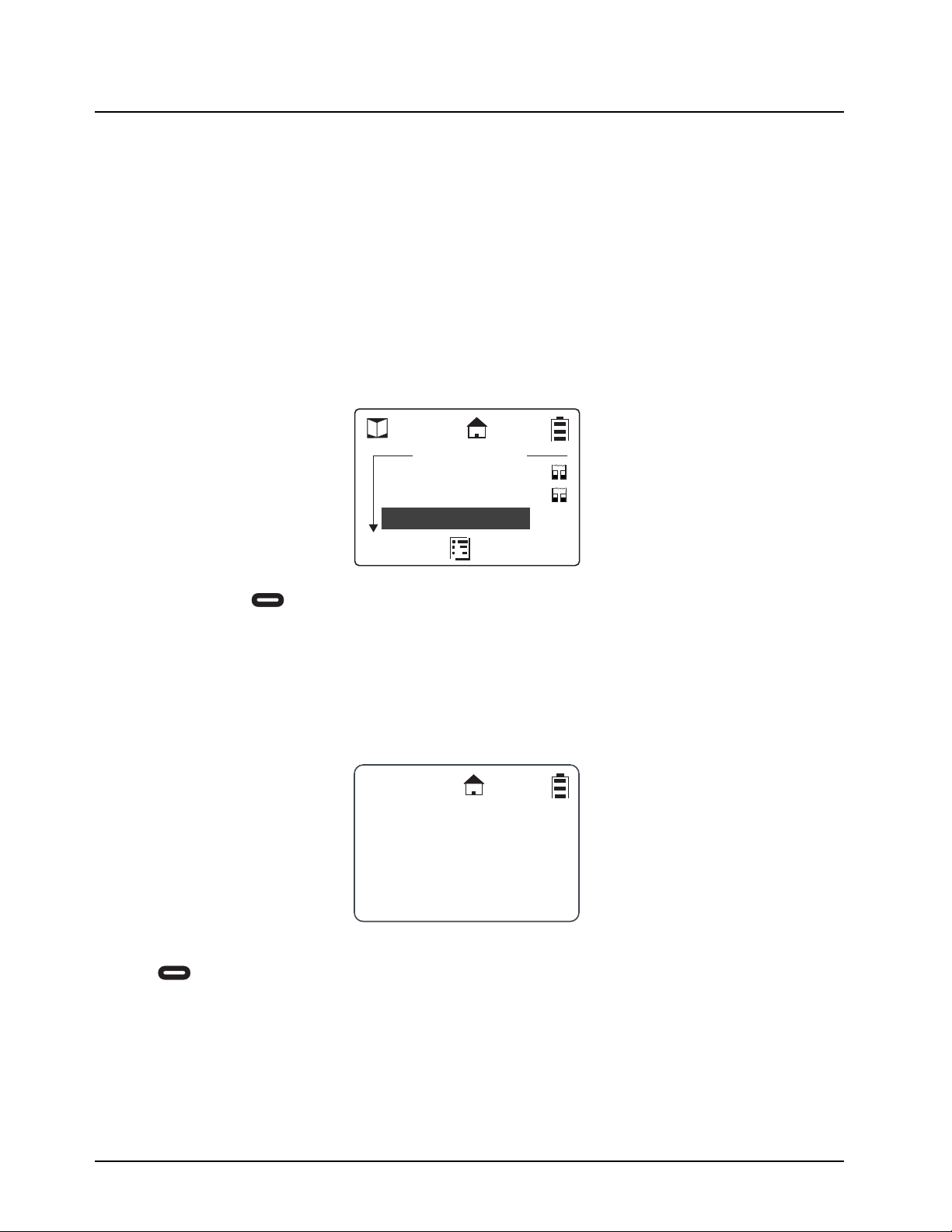
1. From the main screen, press under Contcs to enter the Contact List.
The Contact List screen appears with the first contact highlighted in the list.
2. Scroll to highlight the desired contact.
3. To view the contact, press under View for Group contacts or press and press
under View for Private contacts. The display changes and shows the contact (group
number or name), the ID number, and the channel number.
JOE SMITH
Security
5:49pm 11/14
Contcs
Mesgs
Mike Jones
Receiving
Security
Alert
Back
Contacts
Mike Jones
17178565789
Channel 1
Back
Mike Jones
6875840M01-A February 2008
General Radio Operations: Receiving and Making Calls 2-3
Receiving and Making Calls
NOTE: Your radio must be programmed to be fully compatible with other similar radios in order to
fully utilize all radio features. Refer to Chapter 3 - Advanced Radio Operations.
Types of Calls
Your radio can make and receive different types of voice calls.
• PublicGroup – One-to-many communication to all radios set to your channel and PublicGroup
number.
• Private – One-to-one communication with another radio, requires adding a user to the Contacts
List.
Receiving a Call
When a call is received, the radio chirps and the display shows the call type and transmitting caller’s
user ID or name.
Making a Call
1. Choose a contact from your Scroll List, Contacts, or Recent Call List.
2. Press and hold the PTT button. Begin speaking after the radio emits the talk permit tone. To
maximize clarity, hold the radio two-to-three inches away from your mouth.
3. Release the PTT button to listen.
NOTE: If “User Not Available” displays, the recipient is either: In a Call, Out of Range, or Turned Off.
Press to cancel and then try the call again. When contacting a group, at least one
member must be available for the call to be successful.
Talkgrp in Use
Security
(Joe Smith)
Private in use
Mike Jones
February 20087 6875840M01-A
2-4 General Radio Operations: Call Alerts
Call Alerts
Sending a call alert lets the recipient know you want to talk to him or her. When you send a call alert,
the recipient's radio emits a series of beeps, or vibrates, and displays your Unit Name or ID along
with the time and date.
The recipient can:
• Answer – begin a call by pressing the PTT button.
• Clear – delete the call alert.
Sending Call Alerts
NOTE: Only Private Contacts can be alerted.
1. Highlight the Private Name/ID in Contacts or Recent Calls..
2. Press under Alert. “Ready to Alert” appears on the display.
3. Press the PTT button until “Alert Successful” appears on the display.
NOTE: If the alert is not successful, the radio you are trying to reach is either in a call, on another
channel, has the radio turned off, or is out of range.
Receiving a Call Alert
When you receive a call alert, you must answer or clear it. You cannot make new calls until you do.
To answer a call alert, press the PTT button to respond to the sender. To clear a call alert, press
under Clear.
Shipping
Maintenance
Alert
Back
Contacts
Smith
Alert
Clear
9:46pm 11/18
Smith
6875840M01-A February 2008
General Radio Operations: Text Messaging 2-5
Text Messaging
Your radio can send and receive short text messages to Private or Group contacts. Your radio must
be on and within range to receive text messages.
Receiving a Message
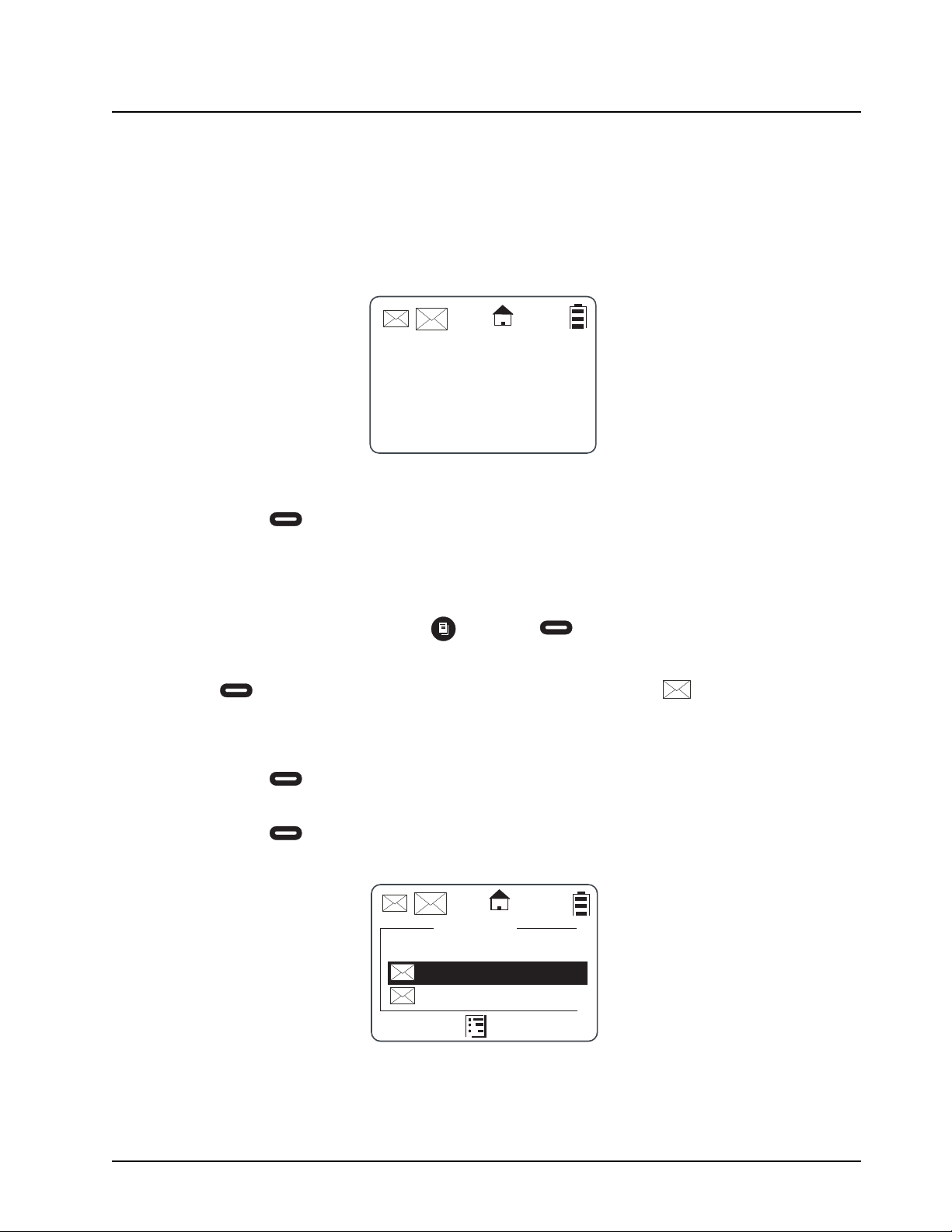
When you receive a text message, “New Message Received” appears on the display. The sender
and group (if applicable) are also indicated.
To View the Message
1. Press under Read to read the message.
NOTE: If you are in a menu when the message is received, you will need to exit and read it from the
Inbox.
2. If the message fills more than one screen, scroll to read the entire message.
3. To delete the message, press and press under Delete.
To Dismiss the Message Notification
Press under Back to read the message at a later time. This icon appears on the display,
reminding you that you have an unread message.
Reading from the Inbox
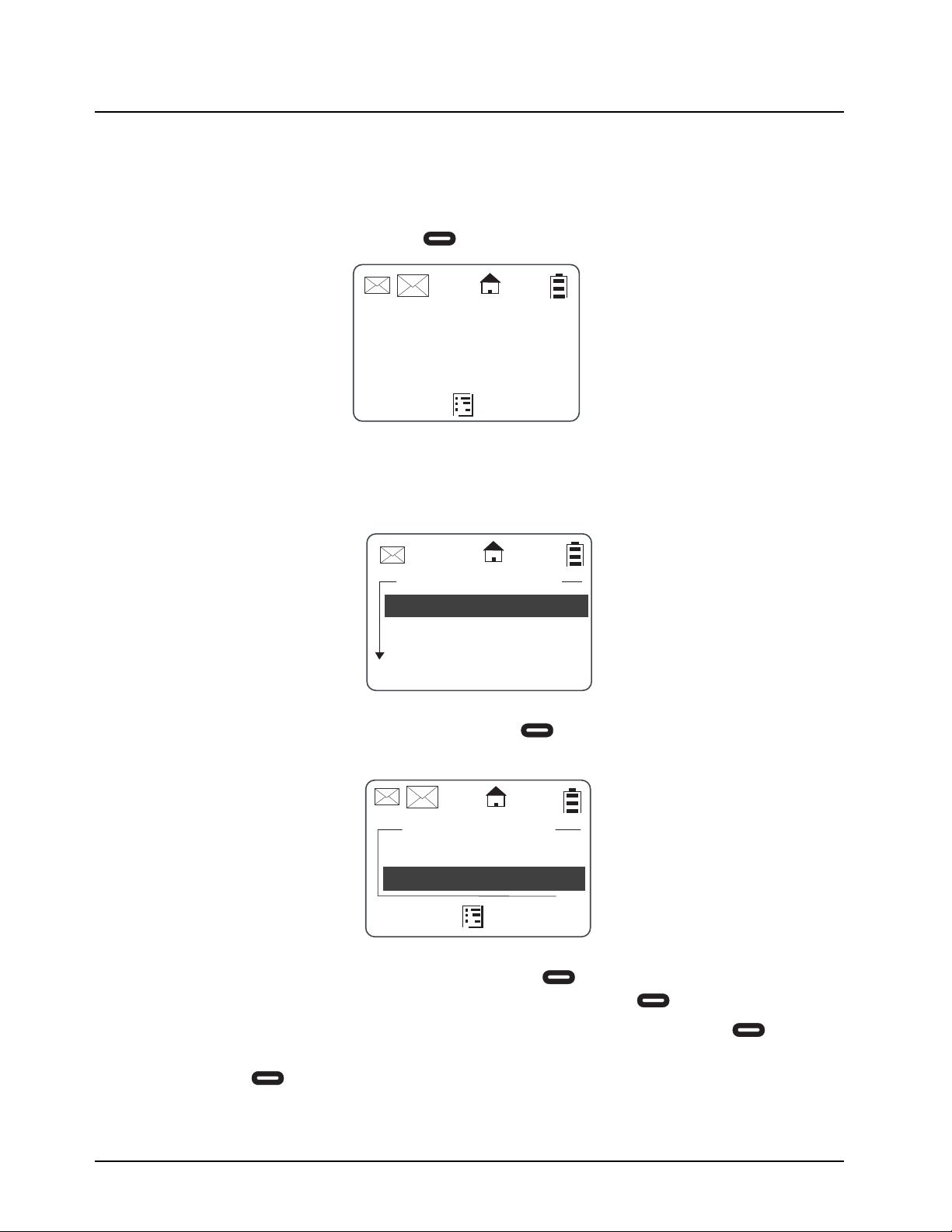
1. Press under Mesgs.
2. Scroll to the message you want to read.
3. Press under Read.
4. If the message fills more than one screen, scroll to read it.
New Message
Received
From Jones
Read
Back
Inbox
[Send Mesg]
Read Back
Are you at
No
February 20087 6875840M01-A
2-6 General Radio Operations: Text Messaging
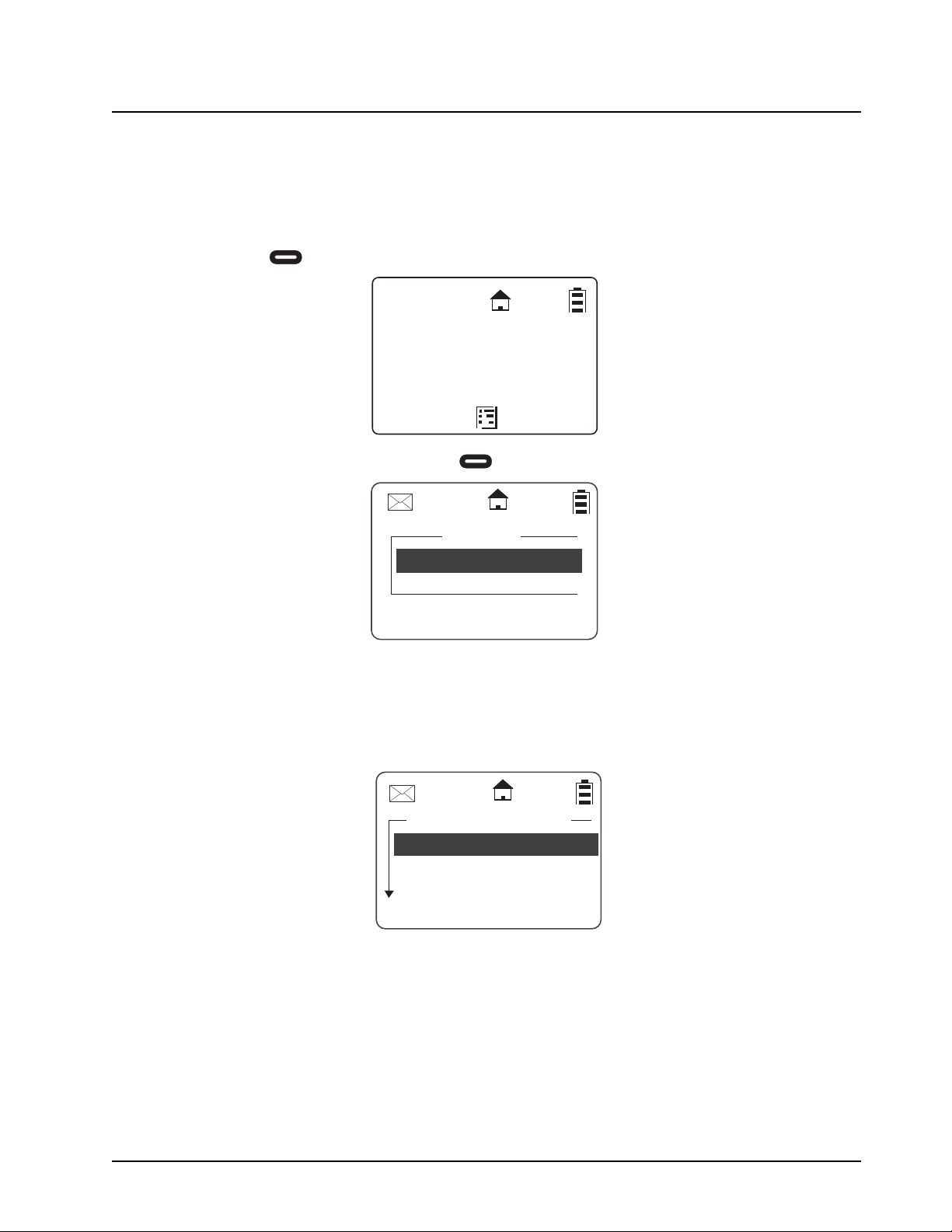
Replying to a Received Message
Your radio has a number of pre-programmed Quick Notes available, or the mini keyboard can be
used to create a response. Additional Quick Notes can be created and the existing ones modified/
deleted with the mini keyboard by selecting Text Messaging while in Programming Mode.
1. To reply to the message, press under Reply.
2. The Send Message screen appears.
NOTE: If the mini keyboard is connected to the radio, the [Write Mesg] option appears on the display.
Refer to Composing a Message Using the mini keyboard.
3. Scroll to highlight a reply message and press under Select to select the reply mes-
sage. The Compose Msg. screen appears.
4. To change the Contact you are sending to, press under Change. This will return you to
the Contact List. Scroll to select the correct Contact and press under Select.
5. To view the text messages in the list, scroll to select the message and press under
View.
6. Press under Send to send the reply.
Detailed View
From:Jones
Are you at wo..
Reply
Back
Send Message
Are you at wor..
Can you meet...
I can’t take y..
Select
Back
Compose Msg
To:Jones
View
Send
Mesg:Can you mee
6875840M01-A February 2008
General Radio Operations: Text Messaging 2-7
Sending a Text Message
Your radio can send and receive short text messages to Private or Group contacts, and has several
pre-programmed Quick Notes available. The mini keyboard can be used to change, add additional,
or delete these messages while in Programming Mode. This accessory can also be used to write
new messages from User Mode.
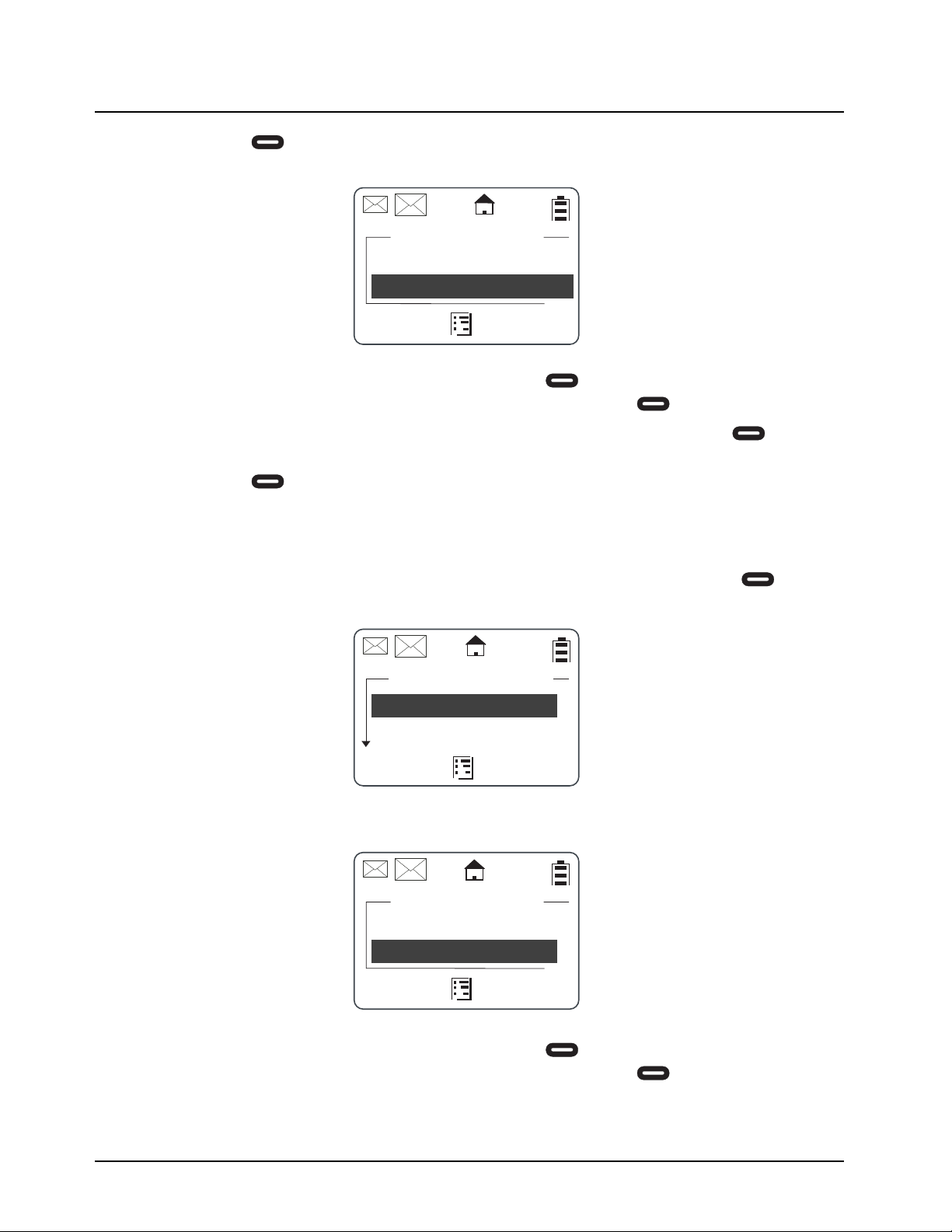
1. Press under Mesgs. The message inbox is displayed.
2. Highlight [Send Mesg] and press under Select.
3. The Send Message screen appears.
NOTE: If the mini keyboard is connected to the radio, the [Write Mesg] option appears on the display.
Refer to Composing a Message Using the mini keyboard.
4. Scroll to select the message you want to send.
JOE SMITH
Security
5:49pm 11/14
Contcs
Mesgs
Inbox
[Send Mesg]
Select Back
Send Message
Are you at wor..
Can you meet...
I can’t take y..
Select
Back
February 20087 6875840M01-A
2-8 General Radio Operations: Text Messaging
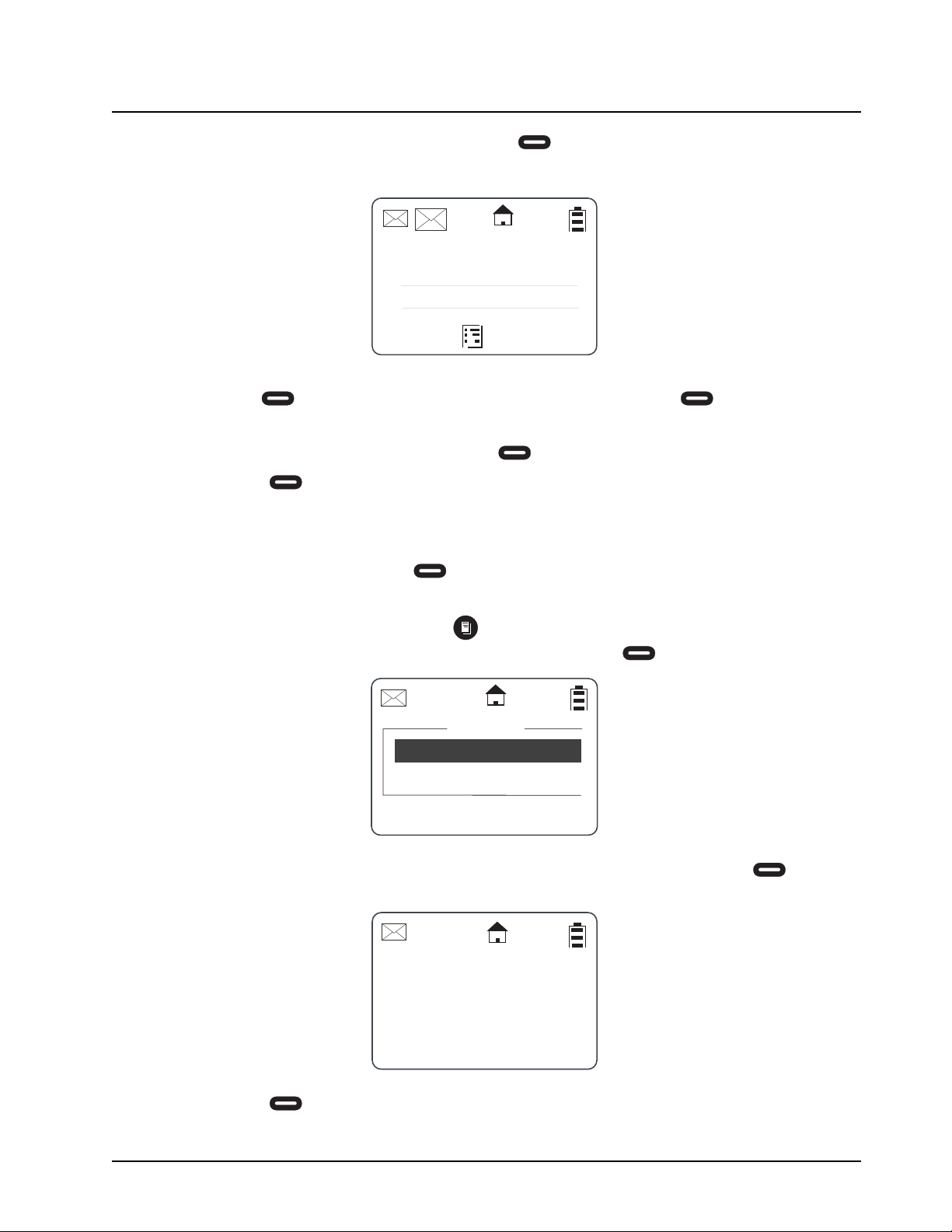
5. Press under Select to choose the message. The display shows the Contact and the
message you want to send
6. To change the Contact you are sending to, press under Change. This returns you to
the Contact List. Scroll to select the correct Contact and press under Select.
7. To view the text messages in the list, scroll to select the message and press under
View. If the message fills more than one screen, scroll to read it.
8. Press under Send to send the message.
Composing a Message Using the Mini Keyboard
The mini keyboard can be used to type either new messages or replies.
1. From the Send Message screen, highlight the [Write Mesg] option and press under
Select .
2. The Compose Msg screen appears.
3. To change the Contact you are sending to, press under Change. This returns you to
the Contact List. Scroll to select the correct Contact and press under Select.
Compose Msg
To:Jones
View
Send
Mesg:Can you mee
Send Message
Select
Back
[Write Mesg]
Compose Msg
To:Jones
Change
Send
Mesg:(Empty)
6875840M01-A February 2008
General Radio Operations: Text Messaging 2-9
4. Scroll to highlight the Mesg: option. Press under Change.
5. The Mesg: screen appears. Use the mini keyboard to enter your message.
NOTE: The under Delete can be used to erase characters. Holding will delete the entire
message.
6. Once the message is completed, press under Done.
7. Press under Send to send the message. The display shows a confirmation that the
message was sent.
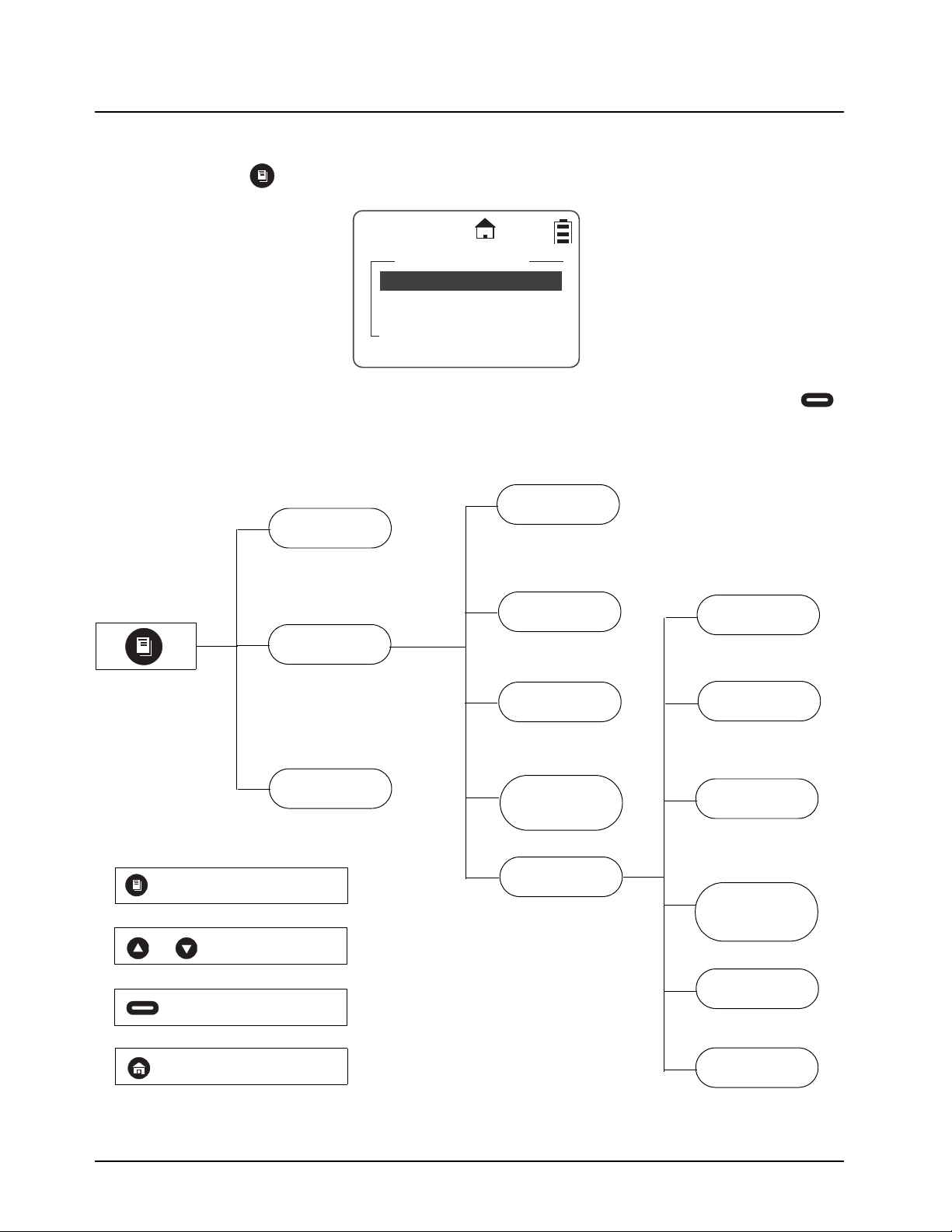
Deleting a Message
1. From the idle screen press under Mesgs to enter the Message Inbox.
2. Scroll to select a message for deletion.
3. After selecting a message, press . The Inbox displays the delete selections. If only the
one message is to be deleted, highlight Delete and press under Select.
4. If all messages in the Inbox are to be deleted, highlight Delete All and press under
Select. A confirmation screen appears.
5. Press under Yes to delete all messages.
Mesg:
Done
Delete
A
B
C
Inbox
Delete All
Select
Back
Delete
Delete All
Yes
No
Messages?
February 20087 6875840M01-A
2-10 General Radio Operations: Accessing The Main Menu
Accessing The Main Menu
1. Press to access the Main Menu. The Main Menu appears.
2. Scroll through the available menu options. Highlight the desired menu option and press
under Select.
Main Menu Navigation Chart
Main Menu
Recent Calls
Settings
My Info
Select
Back
Recent Calls
Main Menu
Settings
My Info
Display
Ambient
Noise
Clock/Alarm
Volume
Advanced
Scroll List
Call Forward
Remote Disable*
(See Note Below)
Remote Monitor*
Remote Time*
to enter main menu
or to scroll through list
to select display option
to exit main menu
Scan
NOTE: Manager Mode must be turned on in order to use remote disable, remote monitor and
remote time.
6875840M01-A February 2008
General Radio Operations: Recent Calls 2-11
Recent Calls
This menu lists recent calls received and allows the user to view, alert or delete recent calls on the
list. From the Main Menu, scroll to highlight Recent Calls and press under Select.
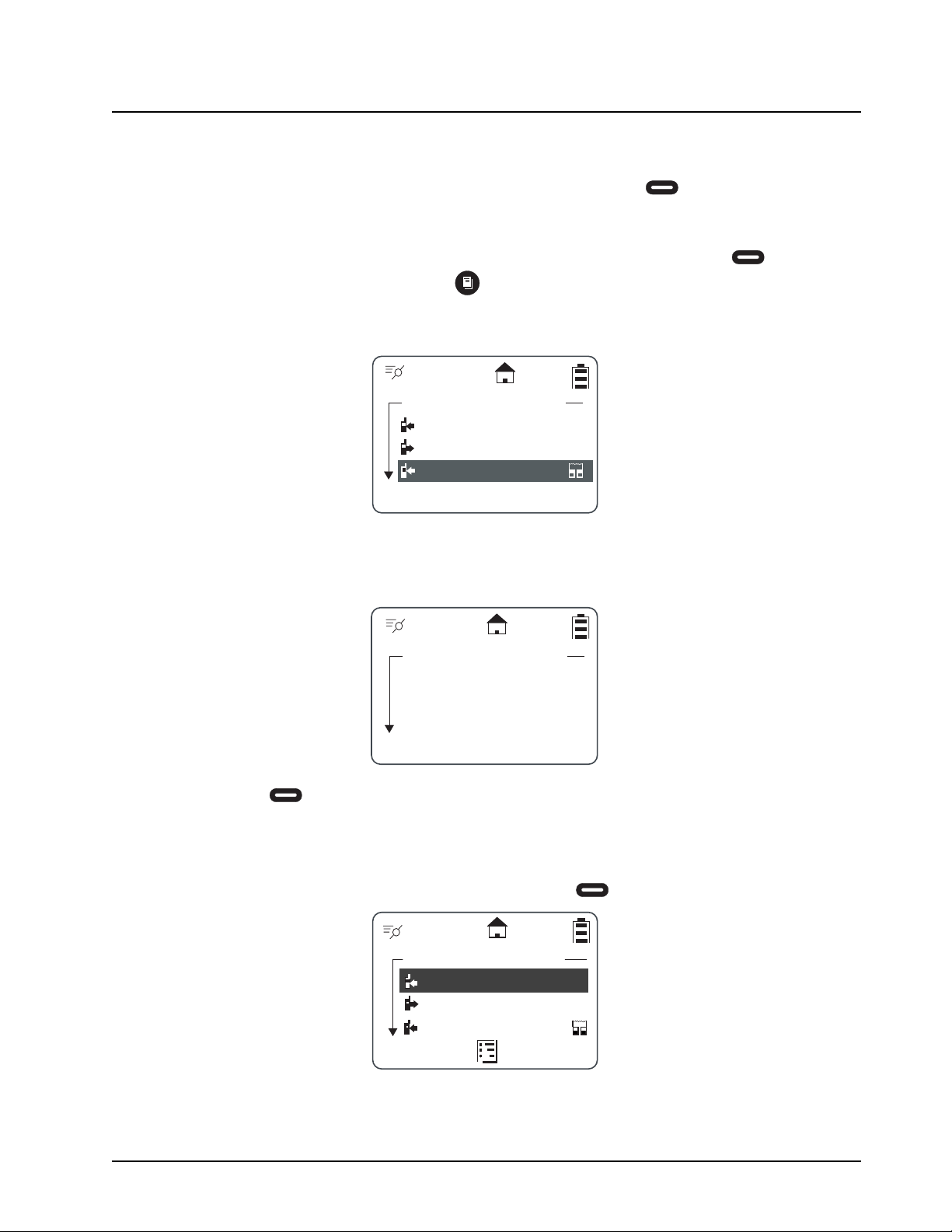
Viewing a Recent Call
1. Scroll to select a recent call from the list. To view GroupCall details, press under View.
To view PrivateCall details, press . The Rec. Call Menu appears.
NOTE: The graphic to the left of the user/group name or ID indicates whether the call was received
(pointing left) or initiated (pointing right)..
2. Scroll to show call details for the selected call. These include Group Name (if applicable),
User Name and ID, time, date, and length of call. Continuing scroll moves you to the next
recent call
3. Press under Back to access the previous screen.
Alerting a Recent Caller
NOTE: Only Private contacts can be alerted.
1. Scroll to select a recent call from the list and press under Alert.
2. Press the PTT button to send the alert.
NOTE: If the alert was successful, a confirmation screen appears. If the alert was not successful, an
unsuccessful screen appears.
Recent Calls
Smith
Jones
Security
View
Back
Call Details
Office
Smith
9:03am 11/22
Back
Recent Calls
Smith
Jones
Security
Alert
Back
February 20087 6875840M01-A
2-12 General Radio Operations: Settings
Deleting Recent Calls
1. Scroll to highlight a recent call from the list.
2. Press . The Rec. Call Menu appears.
NOTE: View only appears as a menu option for Private calls.
3. Scroll to highlight Delete to remove only the one call or Delete All to delete all recent calls
and press under Select.
4. Select under Yes or No. The display confirms that the call or calls have been deleted
and then returns to the Recent Calls list.
Settings
The Settings menu allows you to adjust personal settings that include Display, Ambient Noise, Clock/
Alarm, Volume, and Advanced. The Advance features are for managing your Scroll List, Call
Forwarding, Remote Disable, Remote Monitor, and Remote Time. Refer to Chapter 3 – Advanced
Radio Operations to operate the Advance features.
From the Main Menu, scroll to highlight Settings and press under Select. The Settings menu
appears.
Delete All
Delete
Rec.CallMenu
Select
Back
View
Yes No
Smith?
Delete:
Settings
Ambient Noise:On
Clock/Alarm
Select
Back
Display
6875840M01-A February 2008
General Radio Operations: Settings 2-13
Setting the Display
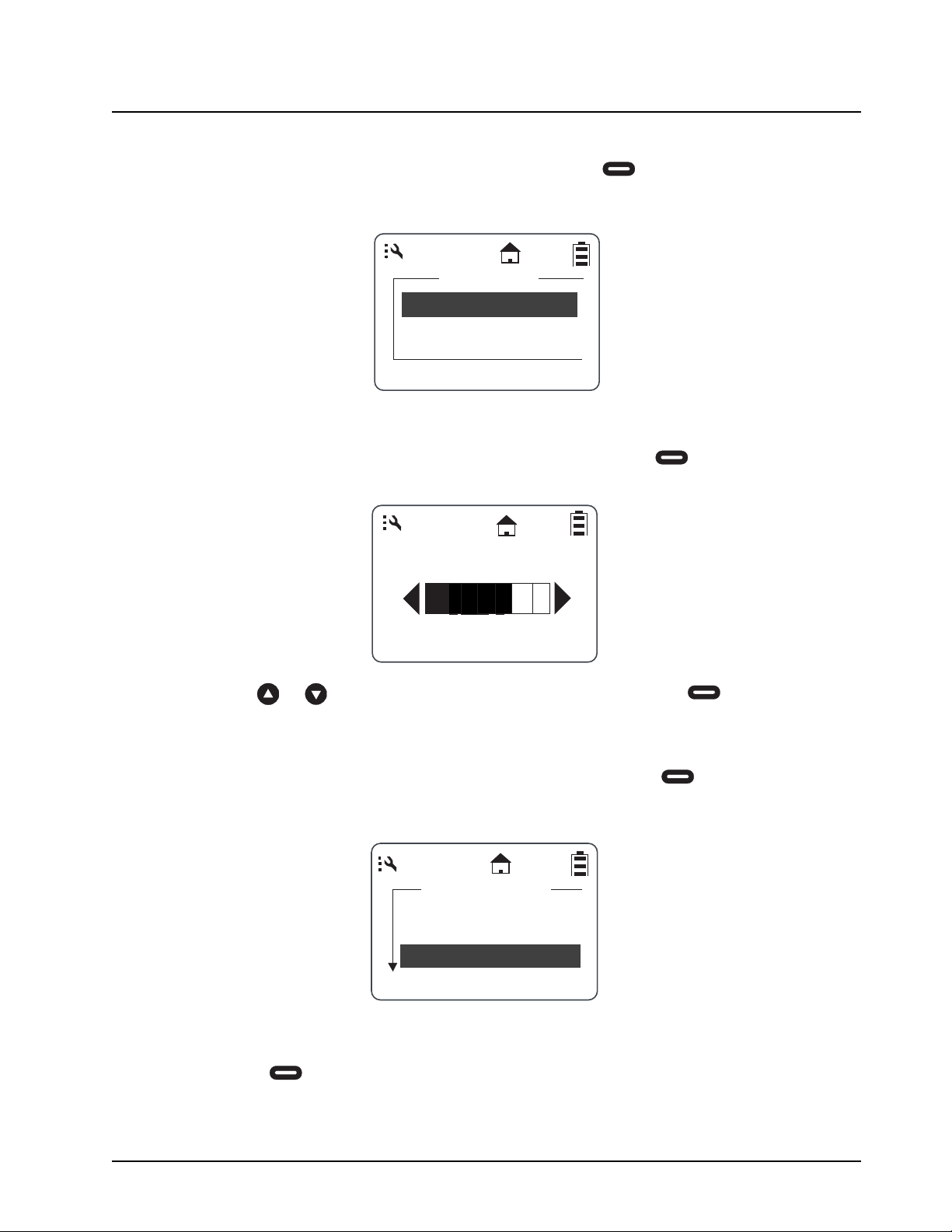
From the Settings menu, scroll to highlight Display and press under Select. The Display
menu appears. From the Display menu, you can adjust the contrast and backlight time.
Adjusting the Contrast
1. From the Display menu, scroll to highlight Contrast and press under Change. The
Contrast screen appears.
2. Use or to adjust the Contrast as necessary and then press under OK to return
to the previous menu.
Setting the Backlight
1. From the Display menu, scroll to highlight Backlight and press under Change. The
Backlight screen appears. The presently selected value will have a check mark on the left
side.
2. Scroll to highlight the desired value. You can set the backlight time to Off, 5, 10, 20, 30, or 90
seconds.
3. Press under Select to save the setting and return to the previous screen.
Display
Contrast:2
Backlight:10
Change
Back
OK
Cancel
Contrast
4
Off
5 Seconds
10 Seconds
Select
Back
Backlight
February 20087 6875840M01-A
2-14 General Radio Operations: Settings
Ambient Noise
Ambient noise is the ambient noise of the environment the radio is being used in. Therefore, if the radio is
being used in a very noisy environment, then the ambient noise level should be set to High.
This will lower the mic gain on the radio and thus, reduce the noise from the surrounding environment.
A low ambient noise level will increase the mic gain, and allow the receiver to hear clearer audio.
Clock and Alarm
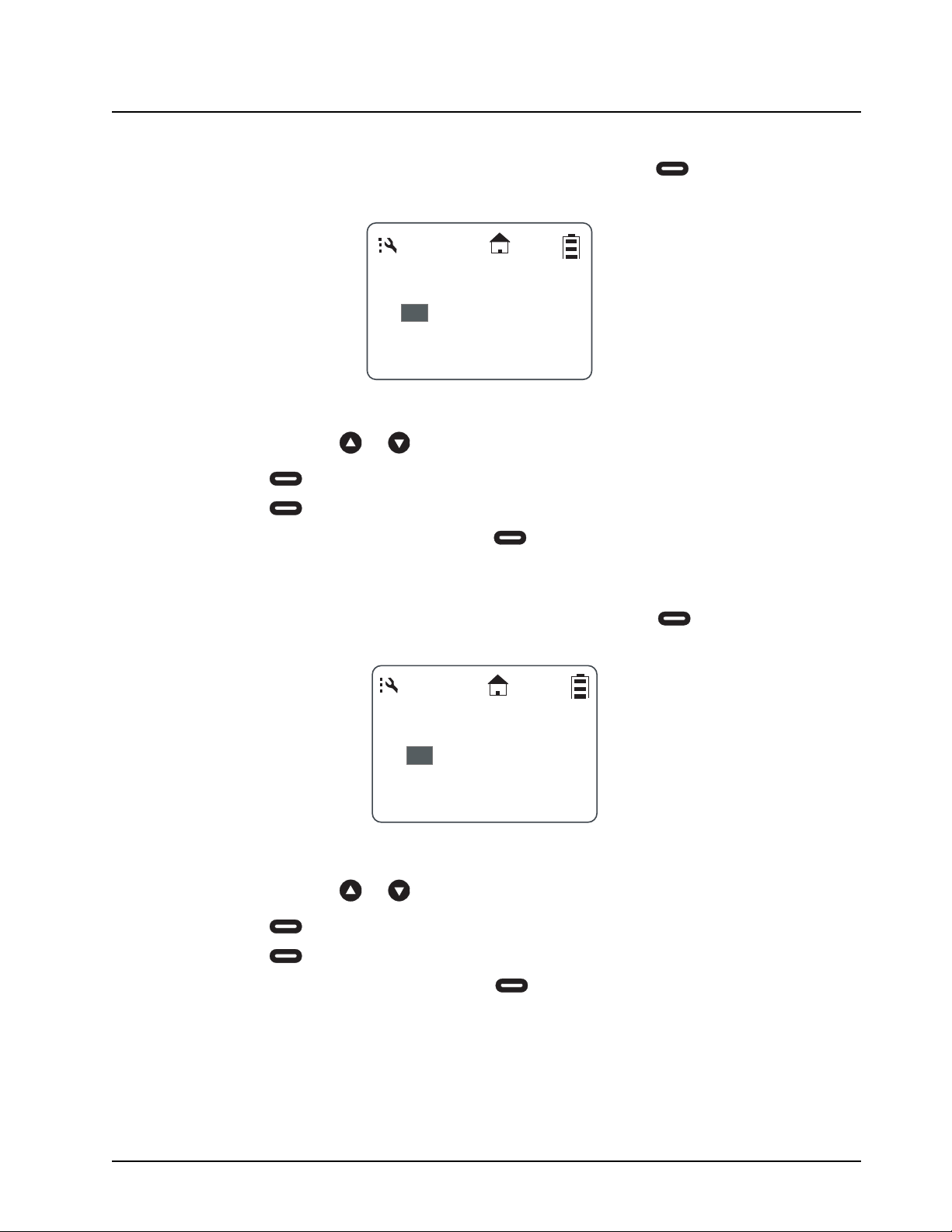
Your radio requires that the current time and date be set in order to fully utilize the digital features.
This can be set manually or by using the Remote Time feature (see page 3-5)
From the Settings menu, scroll to highlight Clock/Alarm and press under Select. The Clock/
Alarm menu appears.
Clock/Alarm
Date:11/22
Set Alarm
Change
Back
Time:10:20am
6875840M01-A February 2008
General Radio Operations: Settings 2-15
Setting the Time
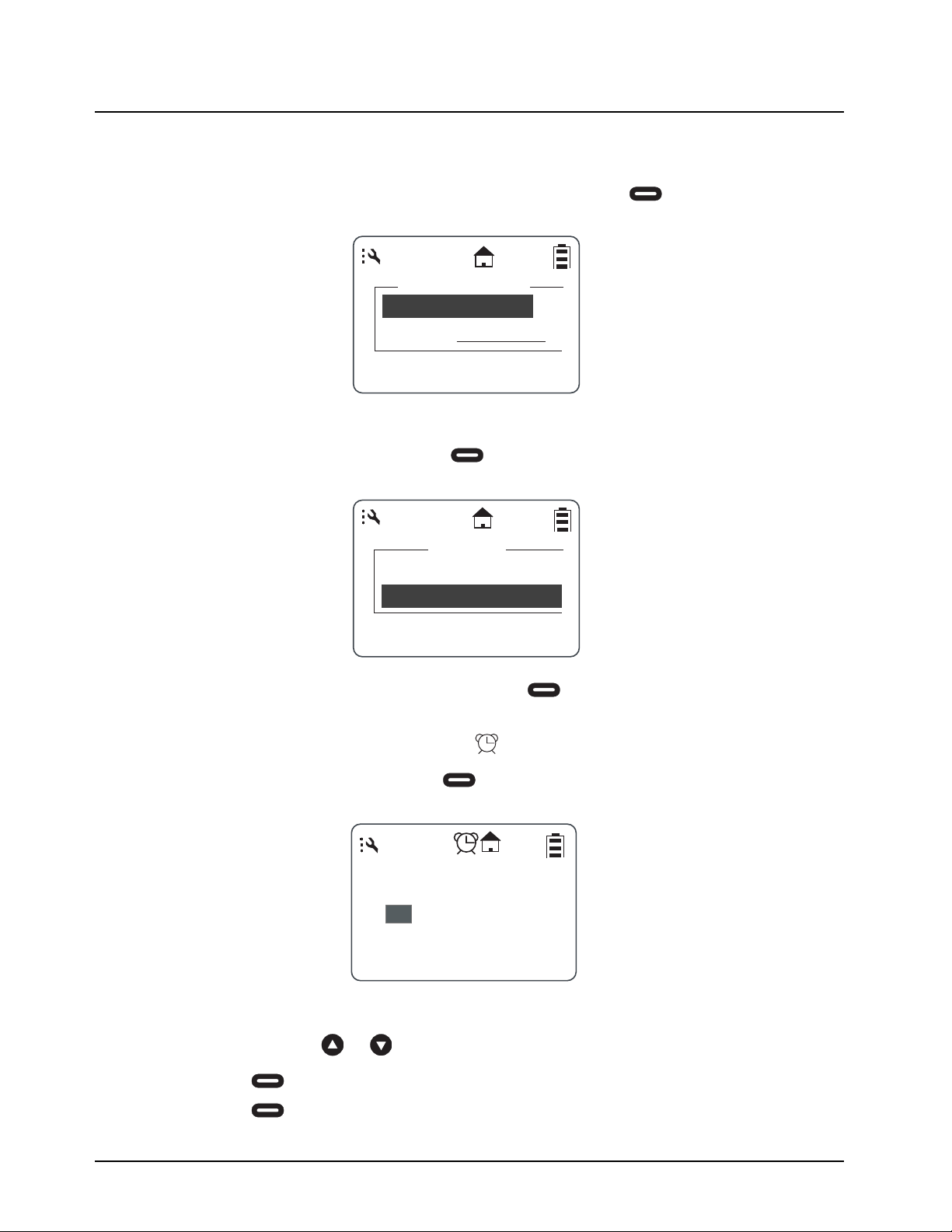
1. From the Clock/Alarm Menu scroll to highlight Time and press under Change. The
Time screen is displayed.
2. Scroll to select the desired hour.
NOTE: Press and hold or to fast scroll.
3. Press under --> to move to the minutes and scroll to select the desired minutes.
4. Press under --> to move to am/pm and scroll to select the desired setting.
5. After completing the time setting press under Done to complete the setting and to
return to the previous menu.
Setting the Date
1. From the Clock/Alarm menu, scroll to highlight Date and press under Change. The
Date screen is displayed.
2. Scroll to select the desired Month.
NOTE: Press and hold or to fast scroll.
3. Press under --> to move to the day and scroll to select the day.
4. Press under --> to move to the Year and scroll to select the Year.
5. After completing the date setting, press under Done to complete the entry and return to
the previous menu.
Time:
: 20am
__
>
Done
10
< >
< >
/ 31 / 05
Date:
__
>
Done
03
THU
February 20087 6875840M01-A
2-16 General Radio Operations: Settings
Setting the Alarm
Your radio has an alarm feature that can be set to remind you of a recurring daily event.
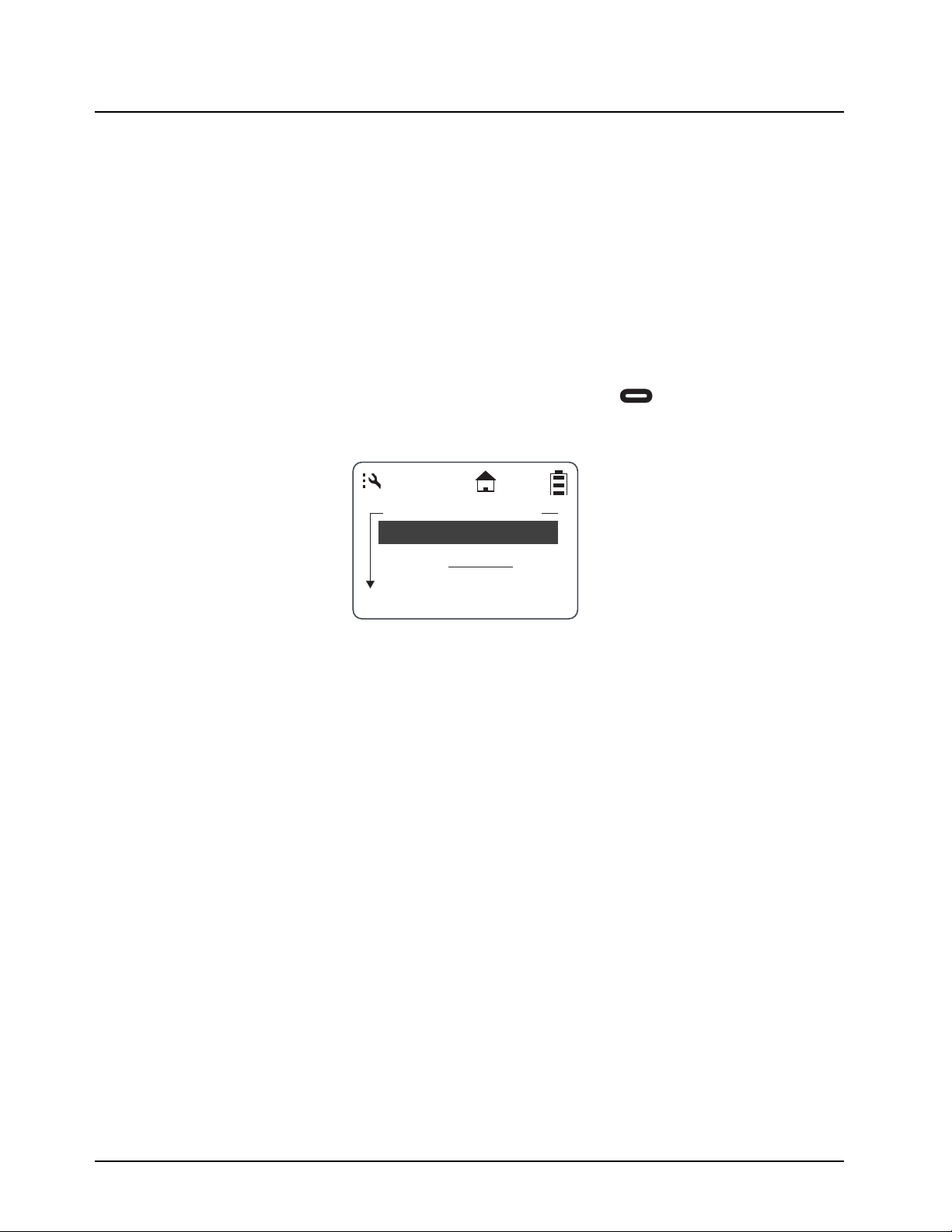
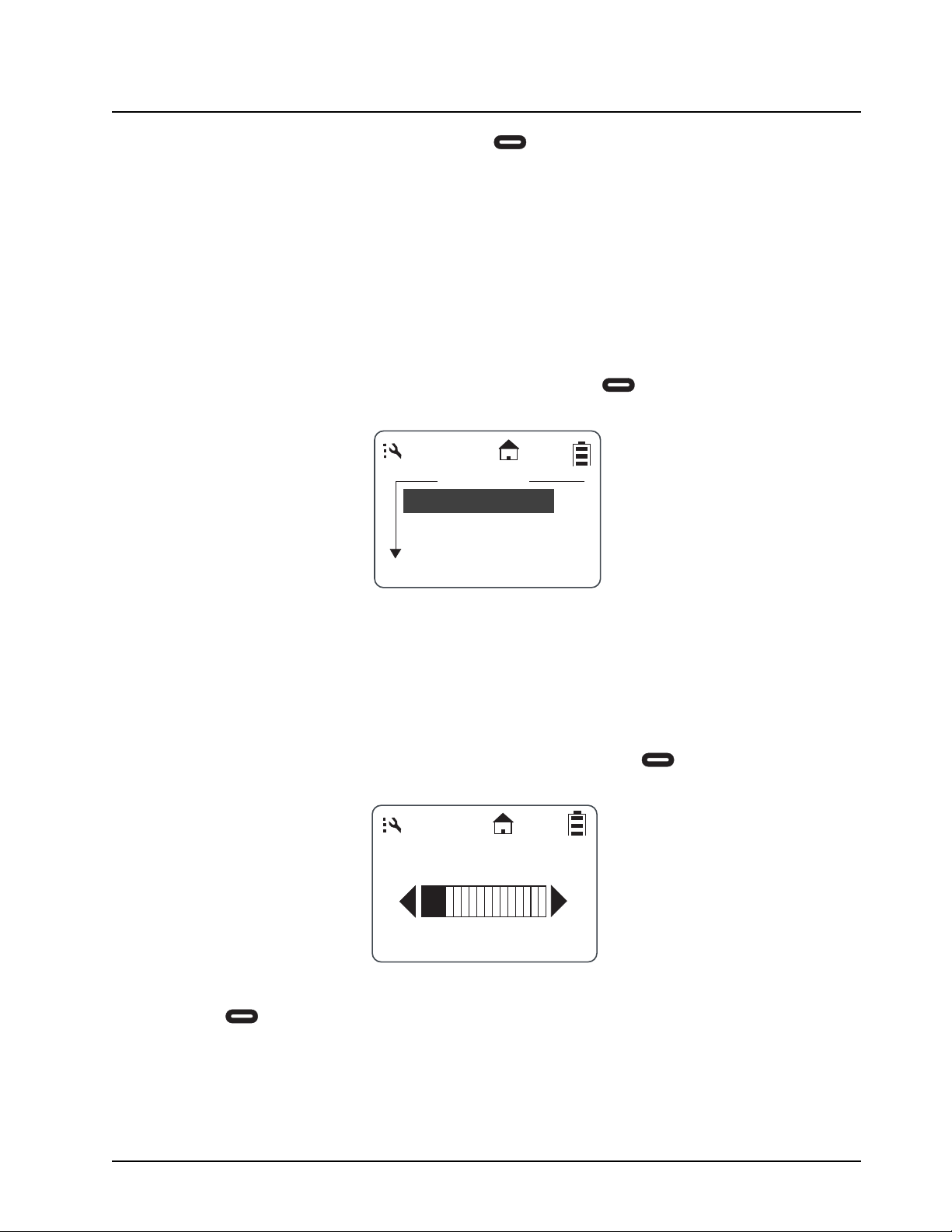
From the Clock/Alarm menu, scroll to highlight Set Alarm and press under Select. The Set
Alarm menu appears.
The Set Alarm menu allows the Alarm to be turned Off or On and to set the Alarm Time.
1. Scroll to highlight Alarm and press under Change. The alarm menu is displayed with
On and Off listed. A check mark to the left of On or Off indicates the present selection.
2. Scroll to select the desired condition and press under Select. The display returns to the
Set Alarm menu with the new selection indicated.
NOTE: When the Alarm is set to On, the icon appears on the display.
3. Scroll to highlight Time and press under Done. The alarm time is set using the same
procedure as for setting the Time.
4. Scroll to select the desired hour.
NOTE: Press and hold or to fast scroll.
5. Press under --> to move to the minutes and scroll to select the desired minutes.
6. Press under --> to move to am/pm and scroll to select the desired setting.
Set Alarm
Alarm:Off
Time:12:00am
Change
Back
9
Alarm
Off
On
Select
Back
Time:
: 20am
__
>
Done
10
< >
6875840M01-A February 2008
General Radio Operations: Settings 2-17
7. After completing the time setting press under Done to complete the setting and to
return to the previous menu.
Setting the Volume
The functions of the various selections are as follows:
Ringer: volume level for all data status alerts such as Alert Tones and incoming SMS Messages.
Turning Ambient Noise on changes this level to 0.
Speaker: volume level for voice messages.
Keypad: volume level for keypad presses.
Alarm: volume level for the Alarm feature, which is overridden by Ambient Noise.
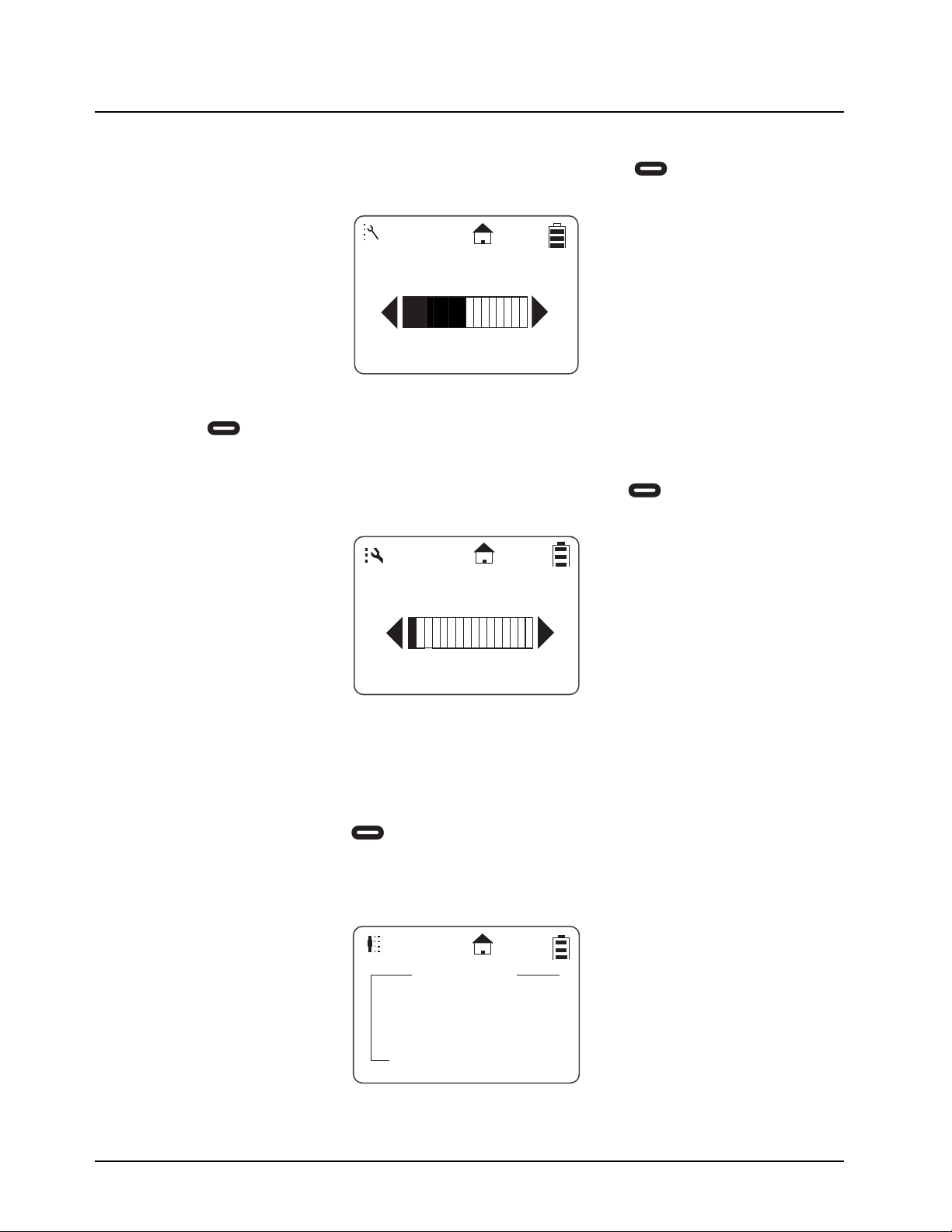
From the Settings menu, scroll to highlight Volume and press under Select. The Volume
menu appears.
NOTE: Highlighting any of the volume choices and pressing the Volume Control keys automatically
adjusts the volume levels.
NOTE: Pressing the Volume Control keys while not in the Volume menu only sets the Speaker
Volume.
Setting the Ringer Volume
1. From the Volume menu, scroll to highlight Ringer and press under Change. The
Ringer screen appears.
2. Use the Volume Control keys to adjust the Ringer volume as necessary and then press
under OK to save the selection and return to the previous menu.
Ringer:6
Volume
Speaker:7
Keypad:1
Change
Back
OK
Cancel
Ringer
3
February 20087 6875840M01-A
2-18 General Radio Operations: My Info
Setting the Speaker Volume
1. From the Volume menu, scroll to highlight Speaker and press under Change. The
Speaker screen appears.
2. Use the Volume Control keys to adjust the Speaker Volume as necessary and then press
under OK to save the selection and return to the previous menu.
Setting the Keypad Volume
1. From the Volume menu, scroll to highlight Keypad and press under Change. The Key-
pad screen appears.
2. Use the Volume Control keys to adjust the Keypad Volume as necessary and then press the
Ok Option key to save the selection and return to the previous menu.
My Info
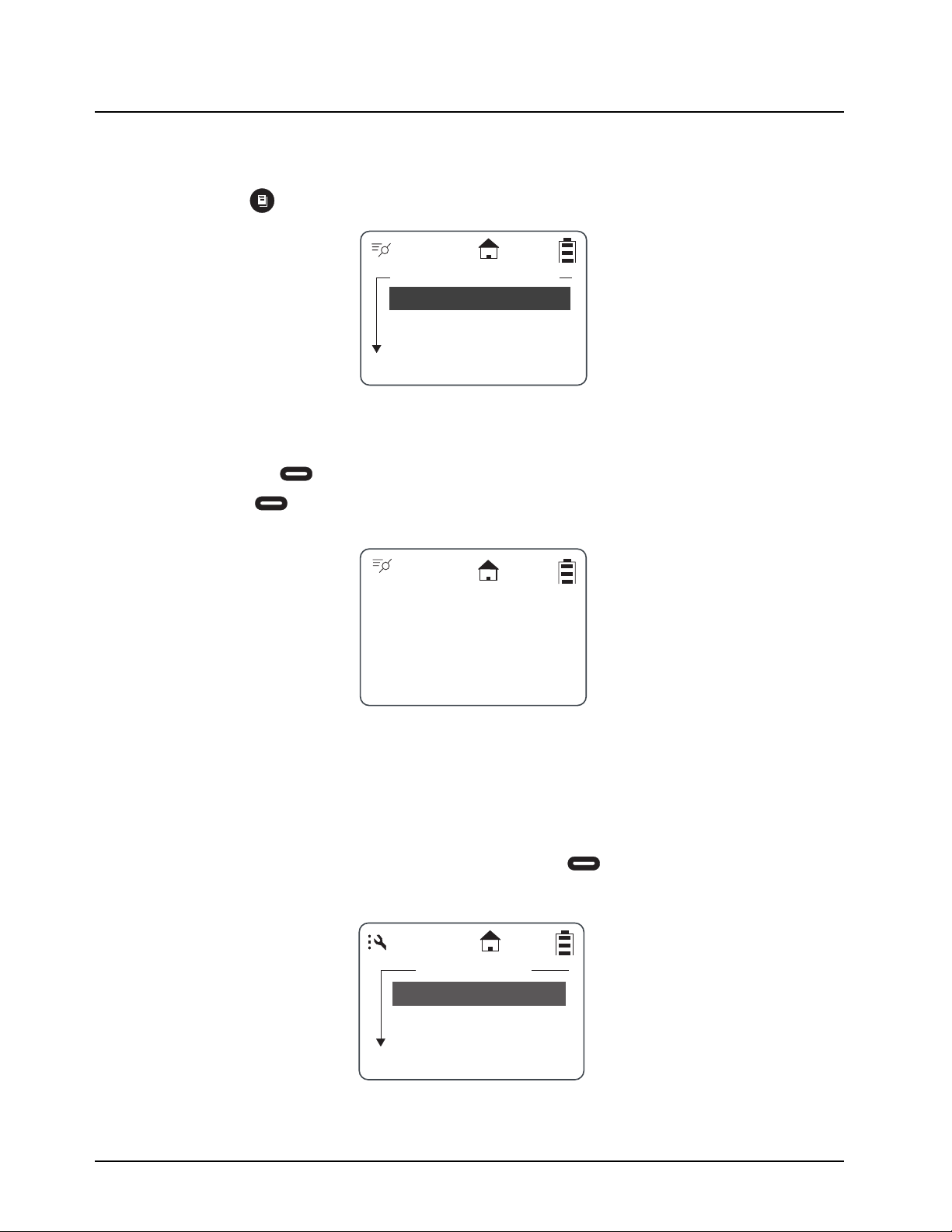
The My Info screen displays your Unit Name, ID and Channel. From the Main Menu, scroll to
highlight My Info and press under Select.
NOTE: The Unit Name defaults to Unit ID unless it is customized in programming mode using the mini
keyboard.
OK
Cancel
Speaker
6
Ok
Cancel
Keypad
1
My Info
Joe Smith
17179869143
Channel 1
Back
For more information on DTR products, visit the following website at: <http://www.motorola.com/DTR/>.
6875840M01-A February 2008
Chapter 3 Advanced Radio Operations
Accessing the Advanced Menu
The Advanced features are for managing your Scroll List, Call Forwarding, Remote Disable, Remote
Monitor, and Remote Time.
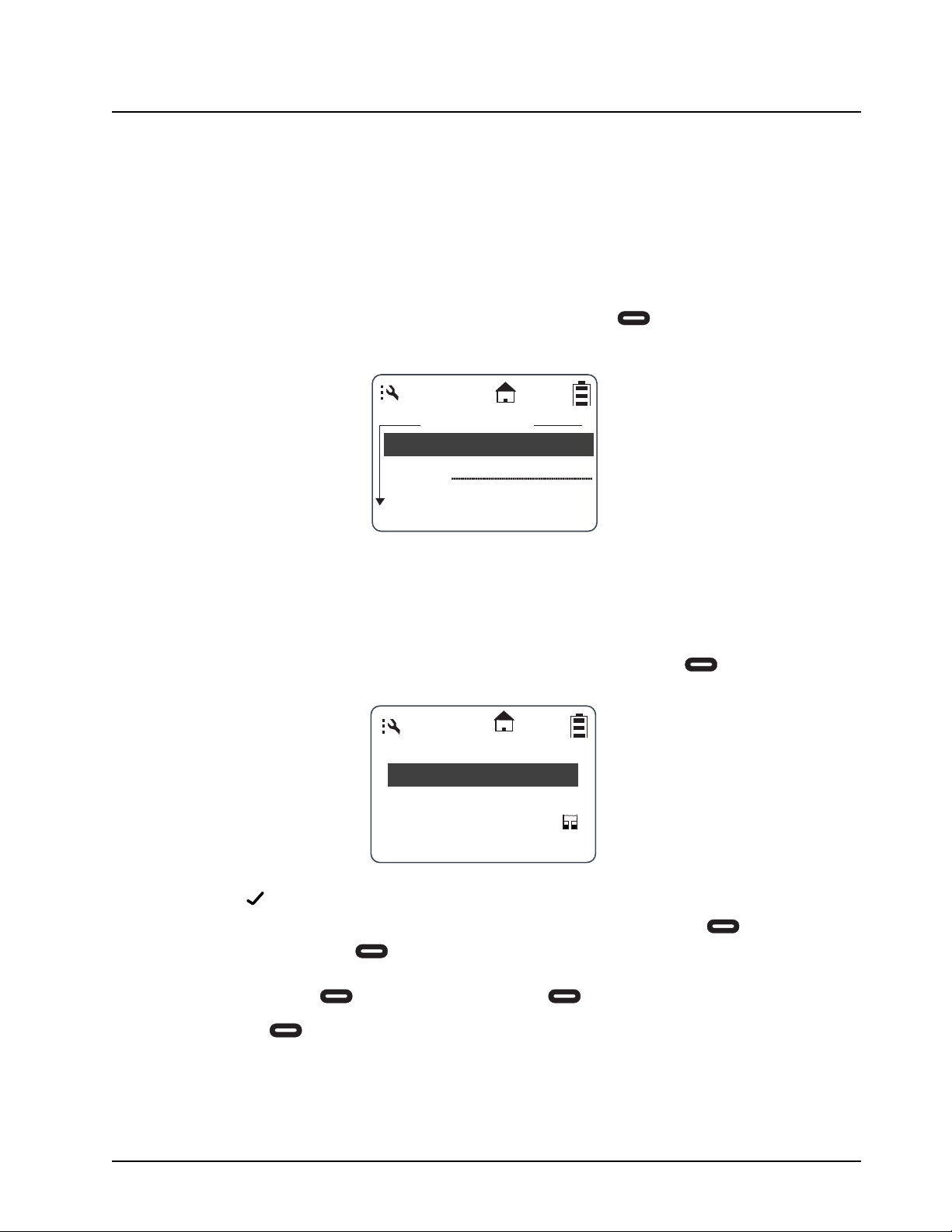
From the Settings menu, scroll to highlight Advanced and press under Select. The Advanced
screen appears.
Managing Your Scroll List
The Scroll List is designed to give one-touch communication to frequently used contacts. Any private
or PrivateGroup contact on your channel, or any PublicGroup can be added to the Scroll List.
Removing them does not remove them from contacts.
1. From the Advanced menu, scroll to highlight Scroll List and press under Select. The
Scroll List screen appears.
NOTE: A next to the left of the Group/Private contact indicates that the Group/Private contact is
already in the Scroll List. If the highlight is on a selected item, the left changes to
Remov. Pressing under Remov removes the check mark.
If no check mark is present, the entry has not been selected and will not appear in the Scroll
List. The left changes to Add. Pressing under Add inserts a check mark.
2. Press under Add or Remov.
Scroll List
Select
Advanced
Call Forward
Back
Scan:On
9
9
Scroll List
Joe Smith
Jones
Office
Back
Remov
February 2008 6875840M01-A
3-2 Advanced Radio Operations: Accessing the Advanced Menu
Scan
The Scan feature allows your radio to monitor up to 5 PublicGroups per channel and switch to them
when there is activity. Scan is turned On at the factory, but can be disabled by pressing CHANGE
and selecting OFF. When Scan is OFF, you must select a PublicGroup in the Scroll List to hear any
activity on it.
Enabling Call Forwarding
Call Forwarding allows a user to notify anyone contacting them that they are not available and
suggest a manager or third party to be contacted in their absence. The user contacting them can
then choose to transmit to the third party by simply pressing the PTT button.
NOTE: Your radio must be on and within range to use this feature while you are away.
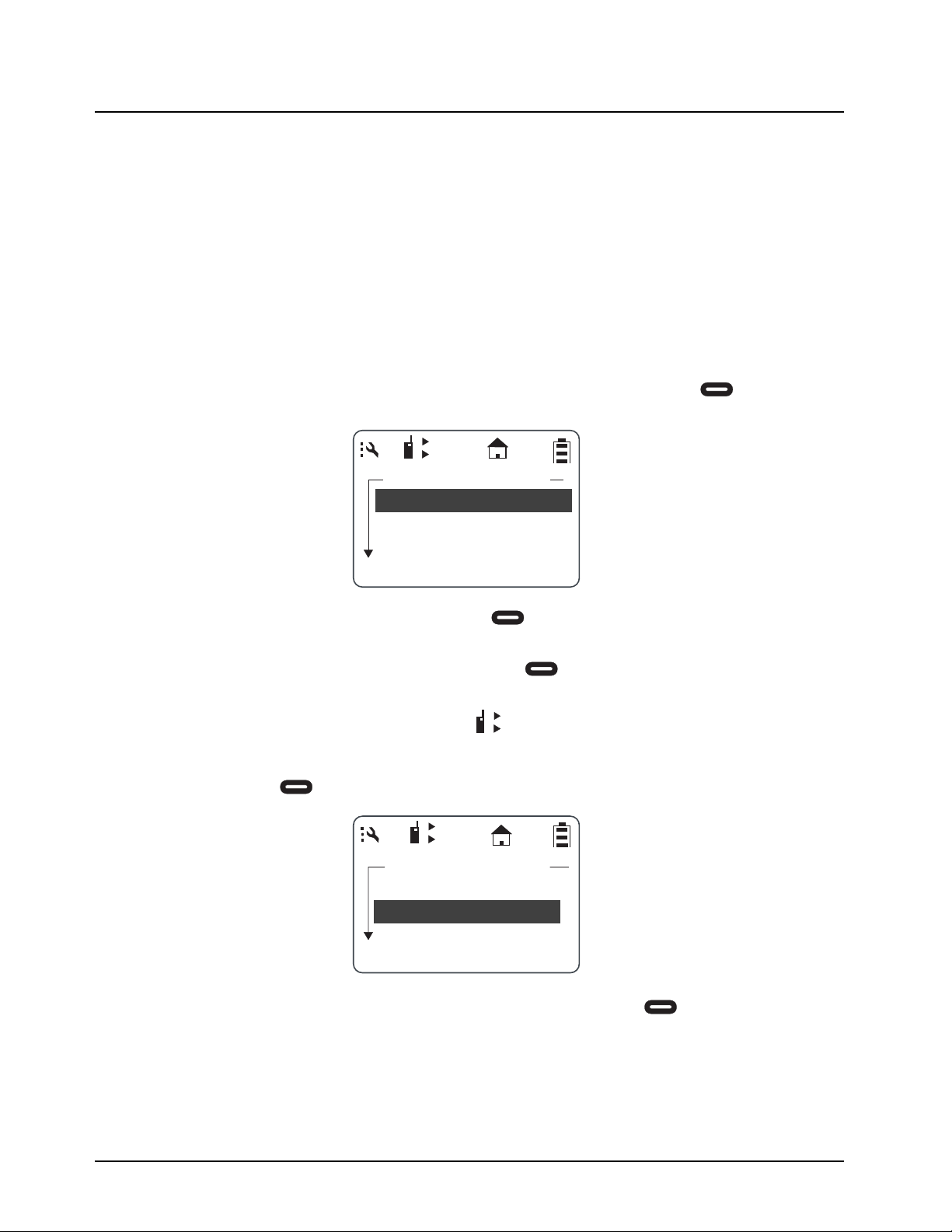
1. From the Advance menu, scroll to highlight Call Forwarding and press under Select.
The Call Forwarding screen appears.
2. Scroll to highlight Forwarding and press under Change. The Forwarding screen
appears.
3. Scroll to select the desired function and press under Select to return to the previous
screen.
NOTE: When Call Forwarding is enabled, the icon appears on the display
4. To change or select the radio to receive the forwarded calls, scroll to highlight the To: function
and press under Change.
5. Scroll to select the radio name from the list to forward to. Press under Select.
Call Forward
Forwarding:On
To:Joe Smith
Charge
Back
1
2
1
2
Call Forward
Forwarding:On
To:Joe Smith
Change
Back
1
2
6875840M01-A February 2008
Advanced Radio Operations: Accessing the Advanced Menu 3-3
Remote Disabling
NOTE: Manager Mode must be enabled in order for a user to use this feature. Refer to “ Manager
Mode” on page 4-8.
Remote Disabling allows a user to remotely enable or disable another DTR Series radio on their
channel. The selected radio must be turned on and within range in order to be enabled or disabled.
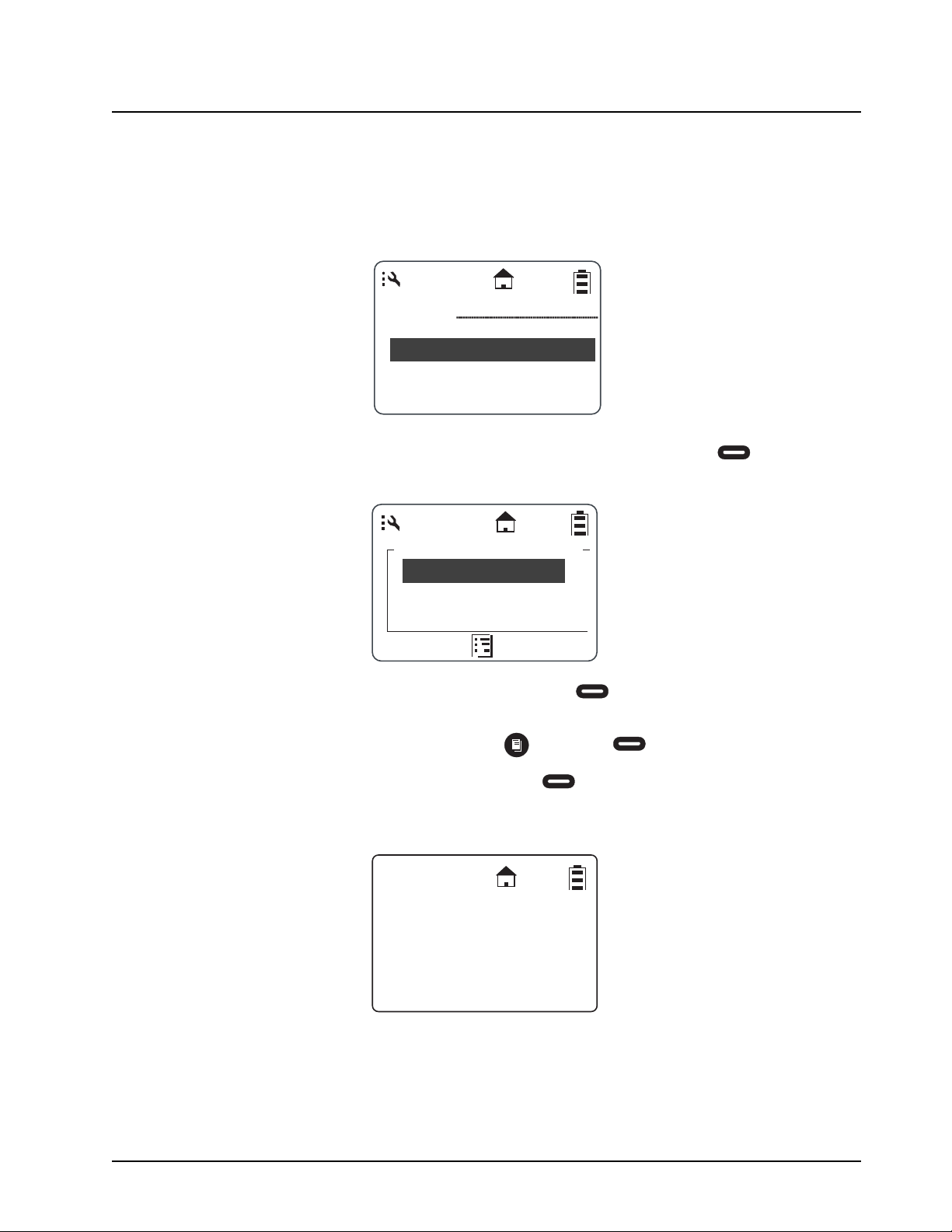
1. From the Advance menu, scroll to highlight Remote Disable and press under Select.
The Remote Disable screen appears.
2. Scroll to highlight a radio name from the list. Press under either Enable or Disable.
The screen changes to confirm the selection.
NOTE: To cancel out of Remote Disable, press and press under Select.
3. To enable or disable the selected radio, press under either Yes or No.
Once the radio is disabled, the display shows “Radio Disabled” and the radio cannot transmit,
receive, or access it’s contacts.
Call Forward
Remote Disable
Remote Monitor
Select
Back
Scan:On
Joe Smith
Jones
Kevin
Disable
Remote Disable
Enable
Joe Smith
Radio Disabled
February 2008 6875840M01-A
3-4 Advanced Radio Operations: Accessing the Advanced Menu
Remote Monitoring
NOTE: Manager Mode must be enabled in order to use this feature. Refer to “ Manager Mode” on
page 4-8.
Remote Monitoring allows you to monitor a selected radio either for training purposes or if the target
radio user is unable to press the PTT button.
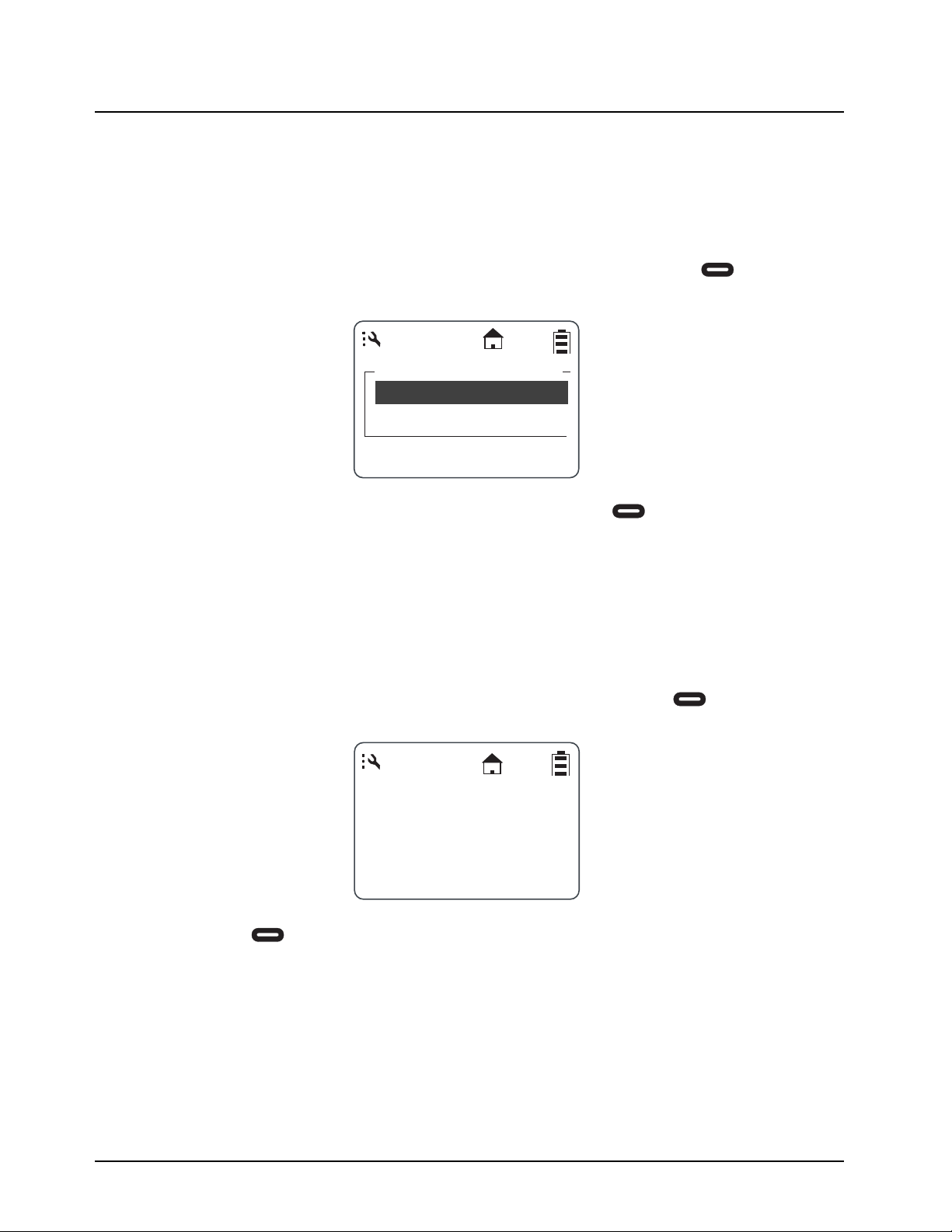
1. From the Advance menu, scroll to highlight Remote Monitor and press under Select.
The Remote Monitor screen appears.
2. Scroll to highlight a radio from the list to monitor and press under Select. The screen
changes to show the radio’s status.
Remote Time
Remote Time synchronizes the date and time to all other radios on your channel. Any receiving radio
must have the transmitting radio User ID in their contact list to accept the time/date update.
NOTE: Radios must be turned on and within range to receive this broadcast message. The
transmitting radio does not receive a confirmation for any failures.
1. From the Advance menu, scroll to highlight Remote Time and press under Select. The
screen displays a confirmation to start remote time.
2. Press under Yes.
For more information on DTR products, visit the following website at: <http://www.motorola.com/DTR/>.
Select
Joe Smith
Jones
Back
Remote Monitor
Yes
Start Remote
Time?
No
6875840M01-A February 2008
Chapter 4 Programming the Radio
Program Menu Navigation Chart
Contacts
Program Menu
Text Messaging**
Settings
Display
Ambient
Noise
Clock/Alarm
Volume
Advanced
Scroll List
Call Forward**
Radio History
Manager Mode*
Language
or to scroll through list
to select display option
to exit Program menu
Scan Lists
February 2008 6875840M01-A
4-2 Programming the Radio: Entering Programming Mode
Although factory programmed with default PublicGroups, your radio require user-specific
programming in order to fully benefit from its digital features.
This occurs in a separate programming mode which allows access to modify and add contacts,
update existing and add new quick notes, and access manager features such as Remote Disable
and Remote Monitoring. A mini keyboard (53967) is used to enter text into contacts and to modify
saved text messages.
The 53968 Cloning Cable allows easier programming as one radio can be programmed with all
contact information then duplicated in other radios. The radio also have an over-the-air cloning
feature to send a contact to another radio.
New radios should be cloned using serial cloning. After this occurs, the unit ID can be sent to the
other radios via over-the-air or serial cloning.
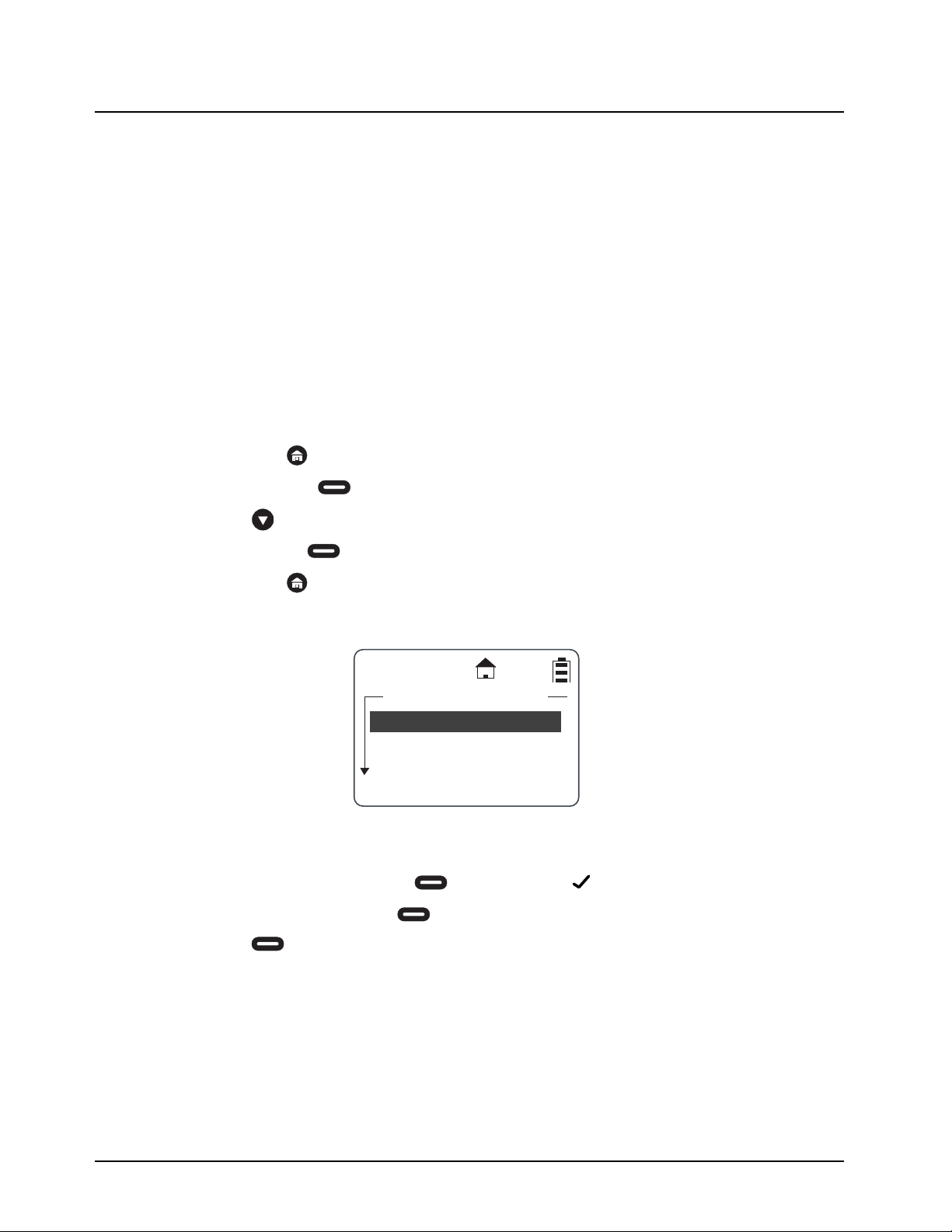
Entering Programming Mode
The following key sequence must be performed to enter the programming mode.
1. Hold down and press the PTT button three times.
2. Press the Right .
3. Press .
4. Press the Left .
5. Hold down and press the PTT button three times.
The Program Menu screen appears.
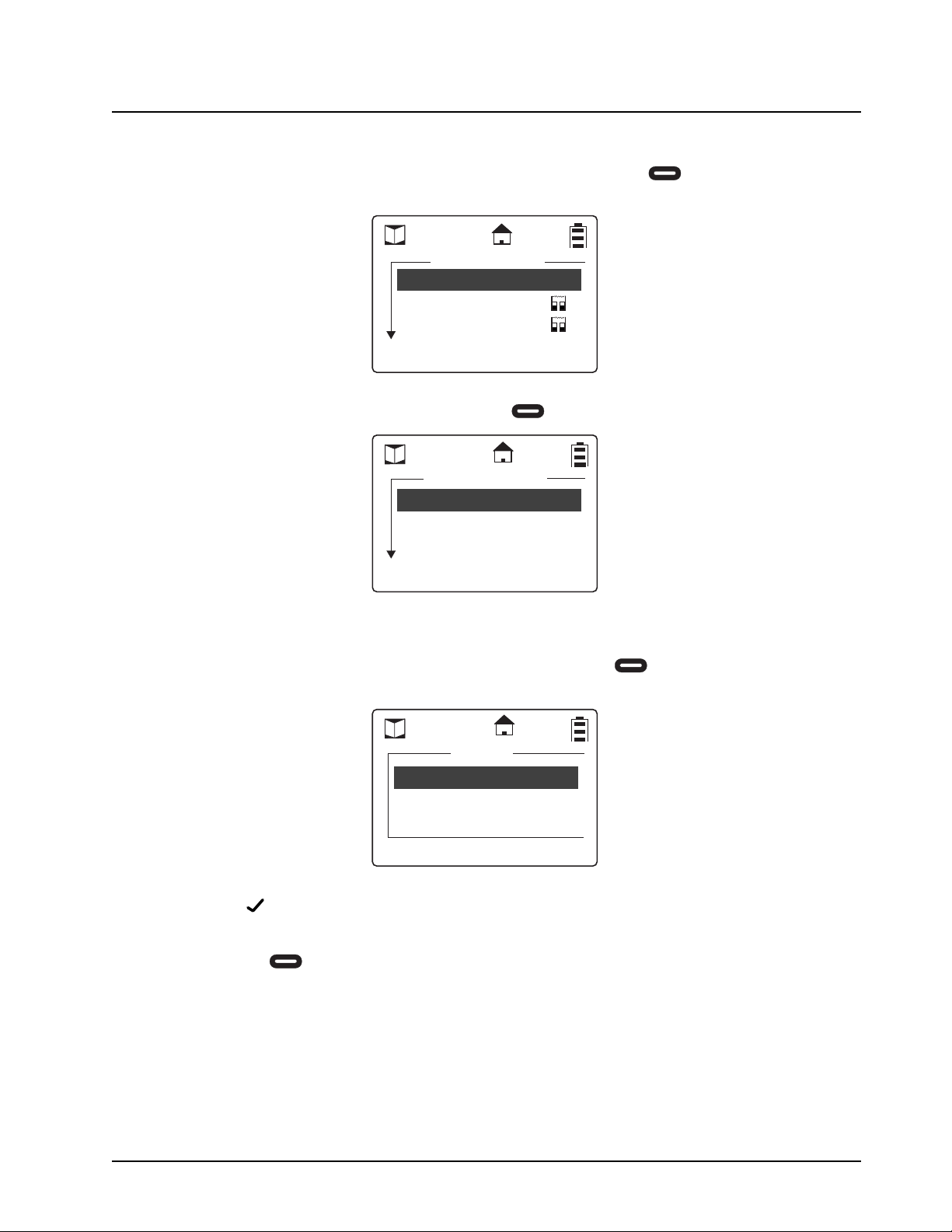
My Info
1. Highlight Contacts and press under Select. A appears to the right of the display.
2. Scroll to select it and press under View. Your unit name, ID, and channel are shown.
3. Press under Edit to change the unit name or channel.
Changing your unit name will change how it appears on your idle display, but Unit ID instead of Unit
Name is transmitted to other radios. A receiving radio will show your unit name if your unit ID is in it's
contact list.
Select
Program Menu
Contacts
Text Messages
Settings
Reset
6875840M01-A February 2008
Programming the Radio: Adding Contacts 4-3
Adding Contacts
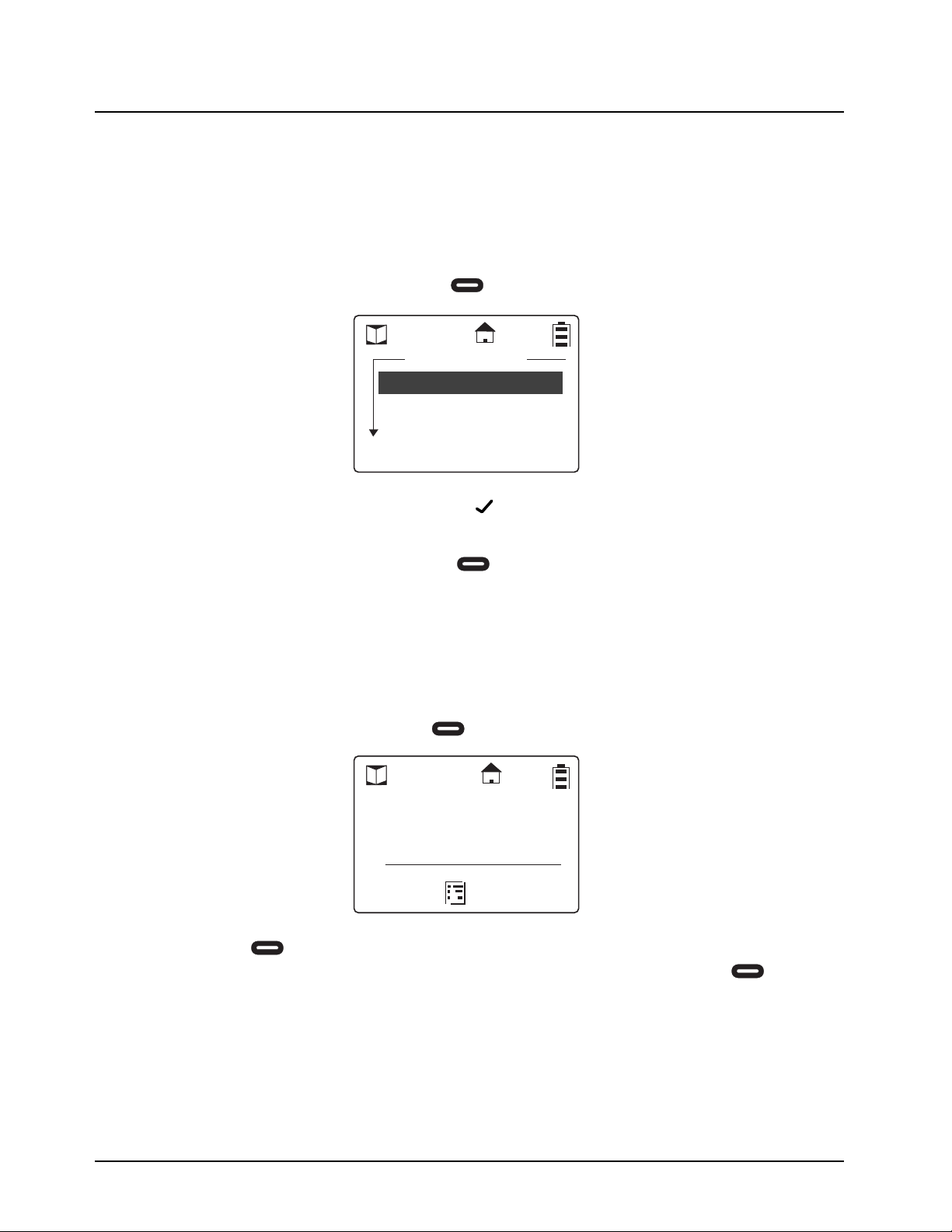
1. From the Program Menu, scroll to select Contacts and press under Select. The
Contacts screen appears.
2. Scroll to select [New Contact] and press under Select. The Private screen appears.
Call Type
1. From the Private screen, scroll to select Type and press under Change. The Type
screen appears.
NOTE: A next to an selection indicates the present selection.
2. Scroll to select either a Private call type or PublicGroup call type to add to the Contact List.
Press under Select.
3. The display returns to the previous screen with the new call Type entered.
Office
Security
Select
Back
Contacts
[New Contact]
Channel:1
Name:Private1
Change
Cancel
Private 1
Type:Private
Private
Public Grp
Select
Back
Type
9
February 2008 6875840M01-A
4-4 Programming the Radio: Adding Contacts
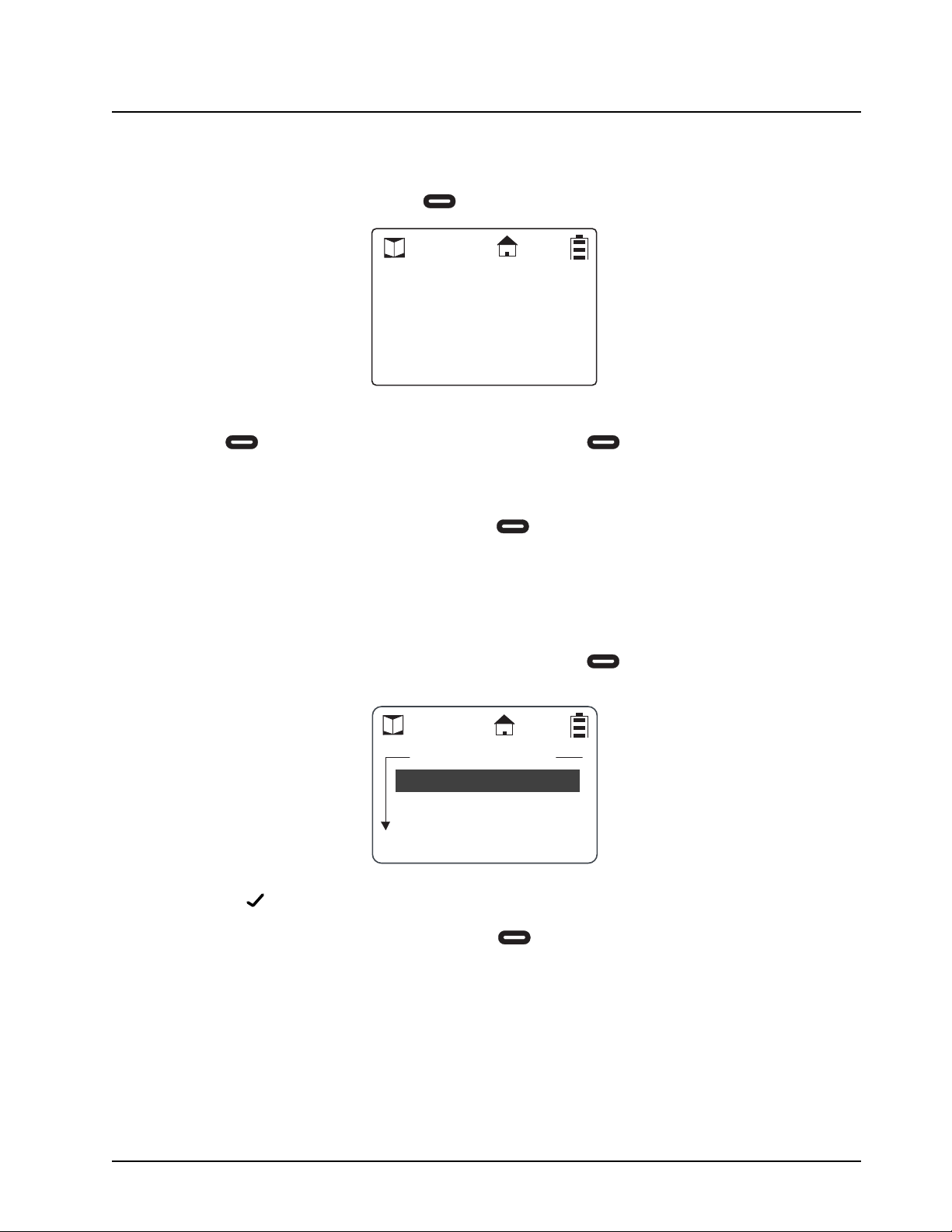
Channel
Your radio operates using frequency-hopping technology. Each "Channel" is a group of 50
frequencies. Your radio can transmit and receive on up to 10 channels, but Group messages will not
be heard unless you are on the same channel.
The home icon on the display indicates that your current scroll list setting is on your channel. Your
radio will scan up to 5 groups per channel, and Private Calls are received regardless of channel.
1. Scroll to select Channel and press under Change. The Channel screen appears.
NOTE: The presently selected channel has a to the left of the channel number. Radios on the
same TalkGroup should be set-up on the same channel.
2. Scroll to select a channel and press under Select. The display returns to the previous
screen with the new Channel entered.
Unit Name
Unit ID is transmitted with all voice and text messages. Programming a unique unit name to an ID will
cause the radio to recognize any incoming calls from that user or group and display their unit name.
NOTE: A mini keyboard (53967) must be connected to the radio to enter alphanumeric characters.
1. Scroll to select Name and press under Change. The Name screen appears.
2. Press under Delete to remove characters one at a time or hold to delete all characters.
Use the mini keyboard to enter a new name. After entering the Name, press under Ok
to confirm the entry and to return to the previous screen with the new Name entered.
1
2
Select
Back
Channel 1
9
3
Ok
Delete
Name:
Private 3
6875840M01-A February 2008
Programming the Radio: Adding Contacts 4-5
Programming a Unit ID (Private Calls Only)
The unit ID of a private contact can be read over the air or entered using the mini keyboard.
1. Scroll to select ID and press under Read. The ID screen appears.
2. Use the mini keyboard to enter an 11 digit ID. When the mini keyboard is connected, the left
becomes Change. After entering the ID, press under Ok to confirm the entry and
to return to the previous screen with the ID entered.
Selecting a Group ID
When programming a new PublicGroup, press under Change to select a PublicGroup ID from
1-50. IDs already in use on your radio will be preceded by an “x”.
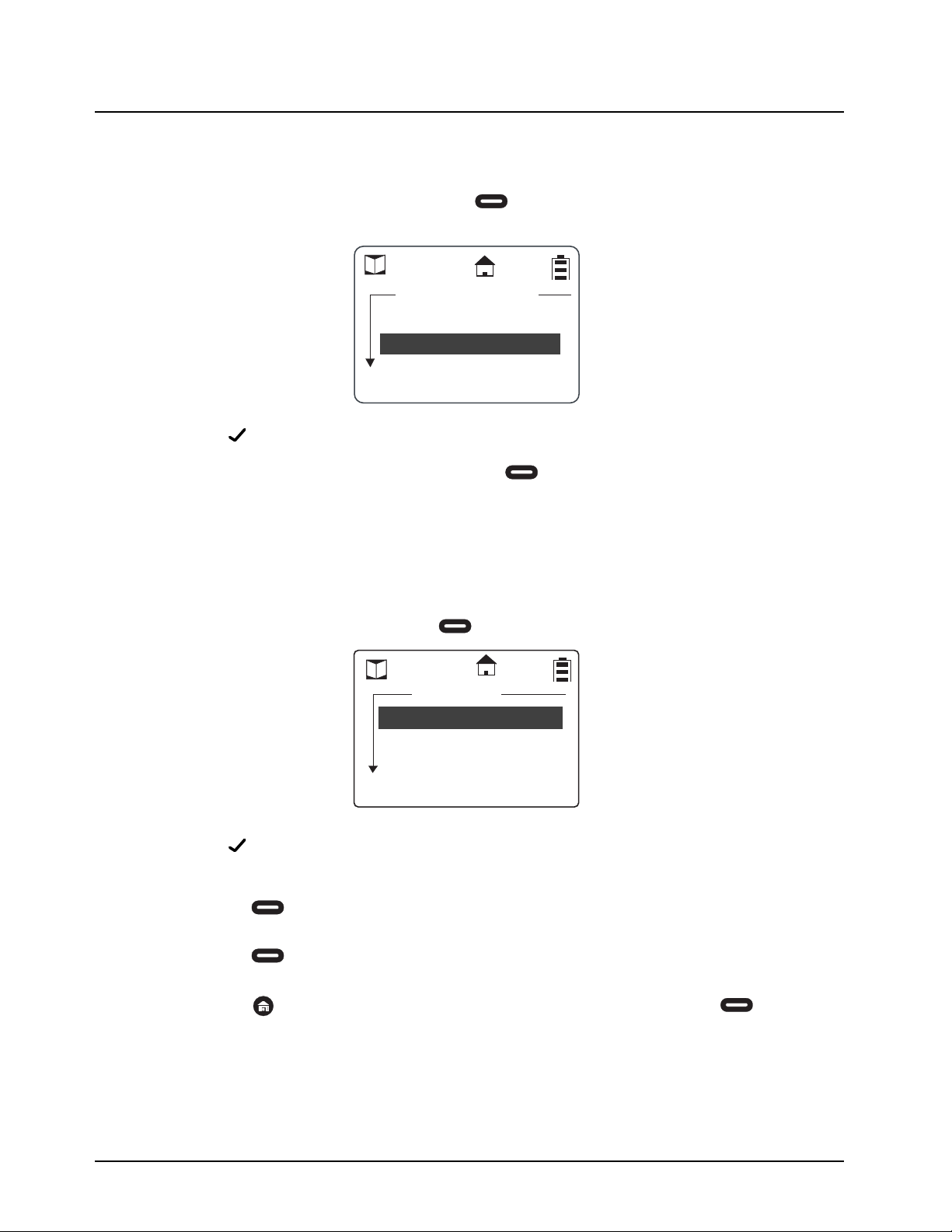
Entering a Home Group Number (Contacts Only)
If a Home Group is selected for your radio, then it will return to that Group after 30 seconds of
inactivity. This ensures that any transmissions on this channel are not missed.
1. Scroll to select the Home Group Number and press under Change. The Home Group
screen appears.
NOTE: A next to a selection indicates the present selection.
2. Scroll to select the desired entry. Press under Select to select the new item. The dis-
play returns to the previous screen with the new Home Group Number entered.
Cancel
On other radio
press Home 3
times then PTT
Home Group
Office
Select
Back
Security
None
9
February 2008 6875840M01-A
4-6 Programming the Radio: Adding Contacts
Selecting Group Only
Selecting Group Only on a radio prohibits the user from initiating PrivateCalls.
1. Scroll to select Group Only and press under Change. The Group Only screen
appears.
NOTE: A next to an selection indicates the present selection.
2. Scroll to select the desired entry and press under Select. The display returns to the
previous screen with the new Group Only entered.
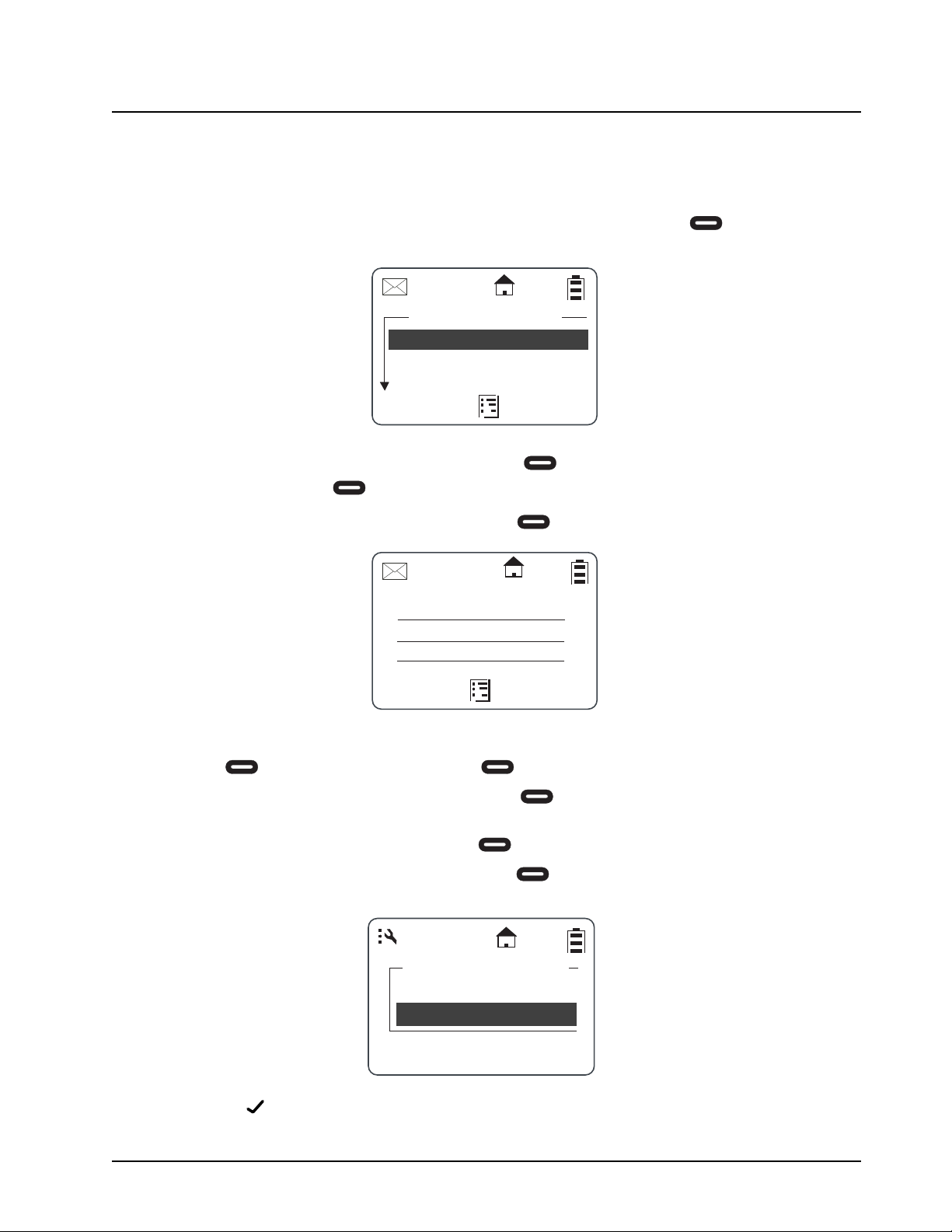
Entering a Ringer Type
A unique alert tone can be identified for each radio in your contact list. There are 12 ringer tones that
can be selected. When a ringer tone is highlighted, the audio ringer tone sounds to help in making a
selection.
1. Scroll to select Ringer and press under Change. The Ringer screen appears.
NOTE: A next to a selection indicates the present selection.
2. Scroll to select the desired ring. Highlighting a tone lets you hear it.
3. Press under Select to select the new ring. The display returns to the previous screen
with the new Ringer entered.
4. Press under Save to store the new contact after all entries for the new contact have
been completed. A confirmation screen appears confirming the saved contact.
5. Press to exit Programming mode and return to the Main Menu. Press under
Reset.
Group Only
Select
Back
No
None
Yes
9
1
2
Select
Back
Ringer
9
3
6875840M01-A February 2008
Programming the Radio: Text Messaging 4-7
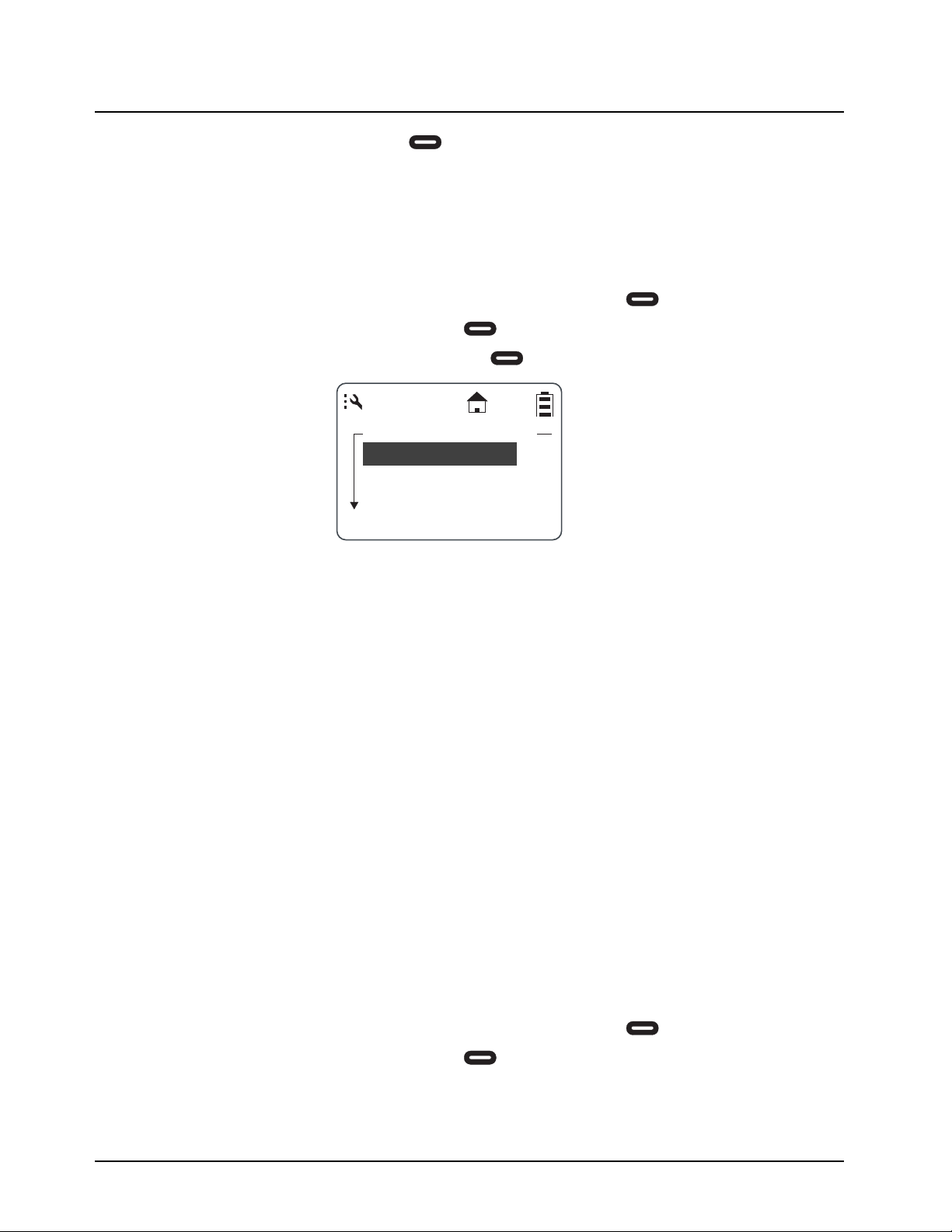
Text Messaging
NOTE: Entering or changing the Quick Notes requires the use of the mini keyboard (53967) which
must be attached to the connector on the bottom of the radio.
1. From the Program Menu, scroll to select Text Messages and press under Select. The
Quick Notes screen appears.
NOTE: If a new message is to be entered, the left is Select. If a message is selected to be
edited, the left changes to Edit.
2. Scroll to select [Create Quick.. and press Select. The Quick Note screen appears.
3. Use the mini keyboard to enter the new message. When the first letter is entered, the left
changes to Save and the right changes to Delete.
4. If an error is made while entering the data, under Delete can be used to delete
characters one at a time.
5. If the new message is correct, press under Save to store the new message.
6. Scroll to select Manager Mode and press under Change. The Manager Mode screen
appears.
NOTE: A next to a selection indicates the present selection.
Quick Notes
Are you at wor..
Select
Back
[Create Quick..
Can you meet....
Quick Note:
Cancel
A
B
C
9
Manager Mode
Off
On
Select
Back
February 2008 6875840M01-A
4-8 Programming the Radio: Settings
7. Scroll to select On and press under Select. The display returns to the Advanced menu.
Settings
The settings for Display, Ambient Noise, Clock/Alarm, Volume, Scroll List, and Call Forward can also
be utilized through Programming Mode. Refer to Chapters 2 and 3.
Radio History
1. From the Program Menu, scroll to select Settings and press under Select.
2. Scroll to select Advanced and press under Select.
3. Scroll to select Radio History and press under Select.
TX is the total amount of transmit time. RX is the total amount of receive time. IDL is the total time the
radio has been turned on but not receiving or transmitting.
Scan Lists
Your radio can scan up to 5 PublicGroups per channel. Scan can be turned on and off from the
advanced settings menu of User Mode, but what groups are scanned can only be changed in
Programming Mode.
To access Scan Lists:
(inset 1 & 2 from Radio History)
3. Scroll to Scan Lists and press (option key) under Select.
4. Select the channel you wish to change the Scan List on.
5. A "check mark" indicates which PublicGroups are scanned on that channel. Use the left
option key to remove or add groups to your scan list.
Manager Mode
Manager Mode provides access to Remote Disable, Remote Monitor, and Remote Time functions in
the User Menu. Enabling Manager Mode also allows the user to view and communicate with
PrivateGroups not on their home channel.
The Manager Mode can only be accessed through the Programming Mode. After entering
Programming Mode, proceed as follows to access the Manager Mode.
1. From the Program Menu, scroll to select Settings and press under Select.
2. Scroll to select Advanced and press under Select.
Radio History
Rx:
IDL:
Select
Back
Tx:

6875840M01-A February 2008
Programming the Radio: Settings 4-9
Language
Your radio allows English, French-Canadian, or Spanish language prompts.
NOTE: Quick Notes are in English only.
After entering Programming Mode, proceed as follows to change the language.
1. From the Program Menu, scroll to select Settings and press under Select.
2. Scroll to select Advanced and press under Select.
For more information on DTR products, visit the following website at: <http://www.motorola.com/DTR/>.

February 2008 6875840M01-A
4-10
Notes
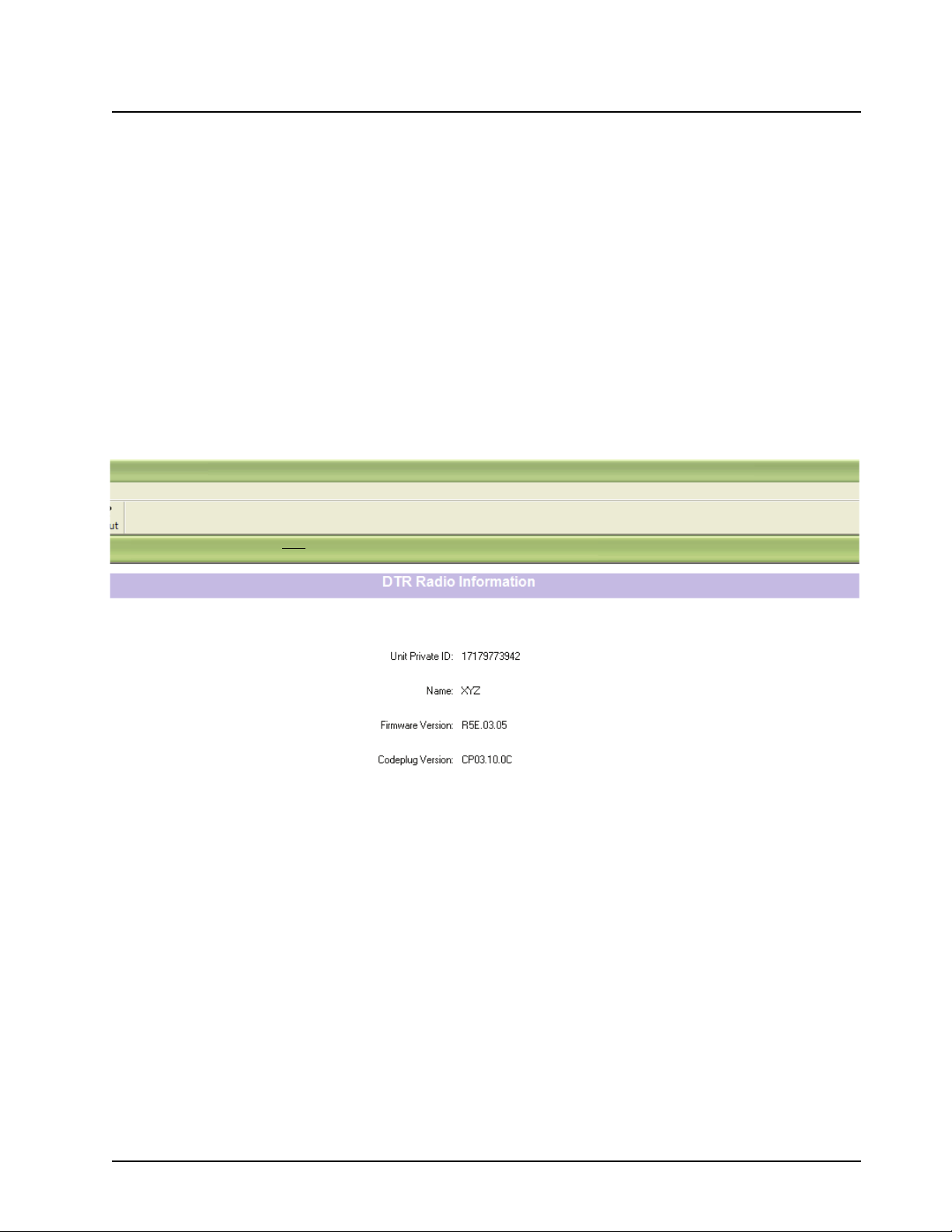
6875840M01-A February 2008
Chapter 5 Programming the Radio with Customer
Programming Software (CPS)
The CPS is used to program features and various parameters into your radio. For example, you can program
all your contacts in a contact list for Private and PublicGroup calls.
CPS Set-up
1. Install the CPS, if required.
2. Connect the radio to a computer with the CPS cable (part number: 0105950U15).
3. Start the CPS.
4. Press the “Read” button.
5. The following information is displayed on your screen.
• the radio ID
• the firmware version, and
• the codeplug version.
Entering a Name on the Radio
The field “Name” represents the radio ID. This name allows you to associate an easy-to-remember name to
your radio, and it is associated with the unique Unit Private ID. You can enter familiar names like "Bill" and
"Bob", or names that represent a certain function like "Operations" and "Warehouse".
1. Click on the field “Name”.
2. Type in your desired name.
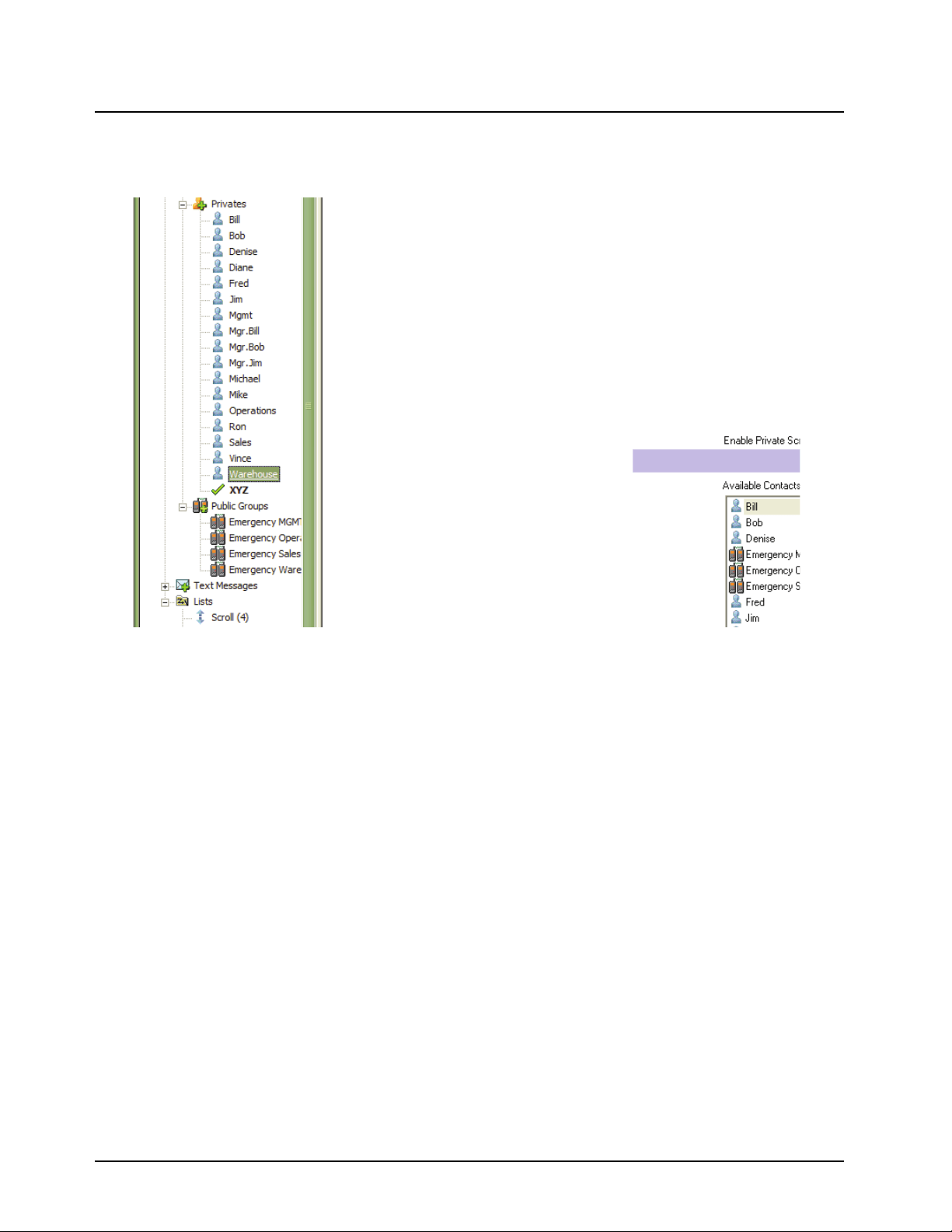
February 2008 6875840M01-A
5-2 Programming the Radio with Customer Programming Software (CPS): Creating the Private Contacts
Creating the Private Contacts
You need to enter the contact information for a radio before you can make a Private Call to it. For more details
on Private Call, see “
“ Types of Calls” on page 2-3..
1. Right-click Privates, on the left of the CPS screen, and choose “Add”.
2. Enter the Unit ID of the radio you are calling. This is the only field that is required. All other fields below
are optional.
3. Enter the Name of the radio you are calling. This gives an easier way of remembering the contact, rather
than just relying on the numeric Unit ID.
4. Enter the Channel where the call takes place.
5. Enter the desired contact (the Homegroup) that you want to change to when the call ends, or when the
radio is idle for over 30 seconds.
6. Enter the desired Ringer tone you want to hear, when receiving a call from this contact.
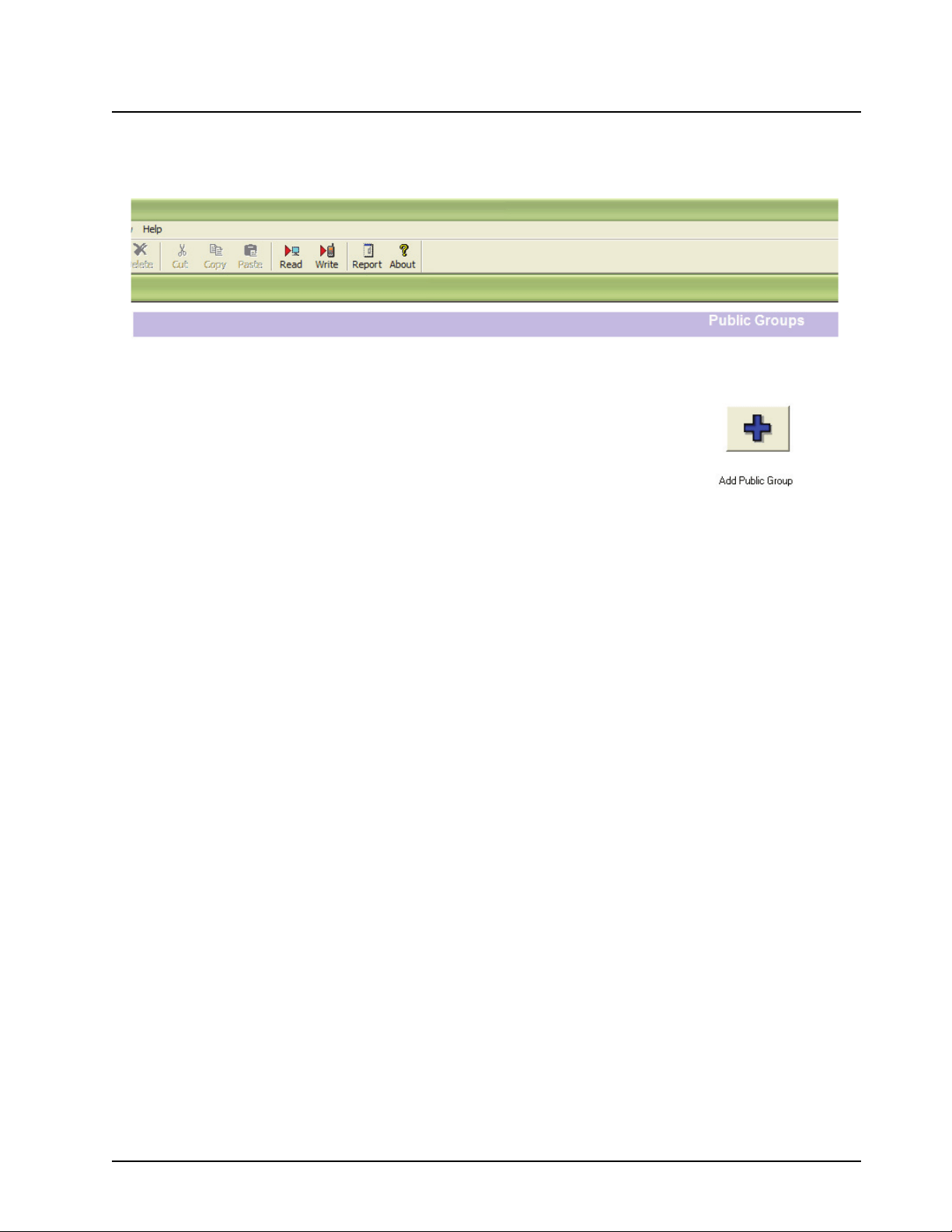
6875840M01-A February 2008
Programming the Radio with Customer Programming Software (CPS): Creating the PublicGroup Contacts 5-3
Creating the PublicGroup Contacts
You need to enter a group’s information to make a PublicGroup call to it. For more details on PublicGroup
Calls, see
“ Selecting a Group ID” on page 4-5.
1. Right-click Public Group, on the left of the CPS screen, and choose “Add”.
2. Enter the Group ID of the group you are calling.
3. Enter the Name of the group you are calling. This gives an easier way of remembering the contact, rather
than just relying on the numeric Group ID.
4. Enter the Channel where the call takes place.
5. Choose the radios that belong to this group.
6. Enter the desired contact (the Homegroup) that you want to change to when the call ends, or when the
radio is idle for over 30 seconds.
7. Enter the desired Ringer tone you want to hear, when receiving a call from this contact.
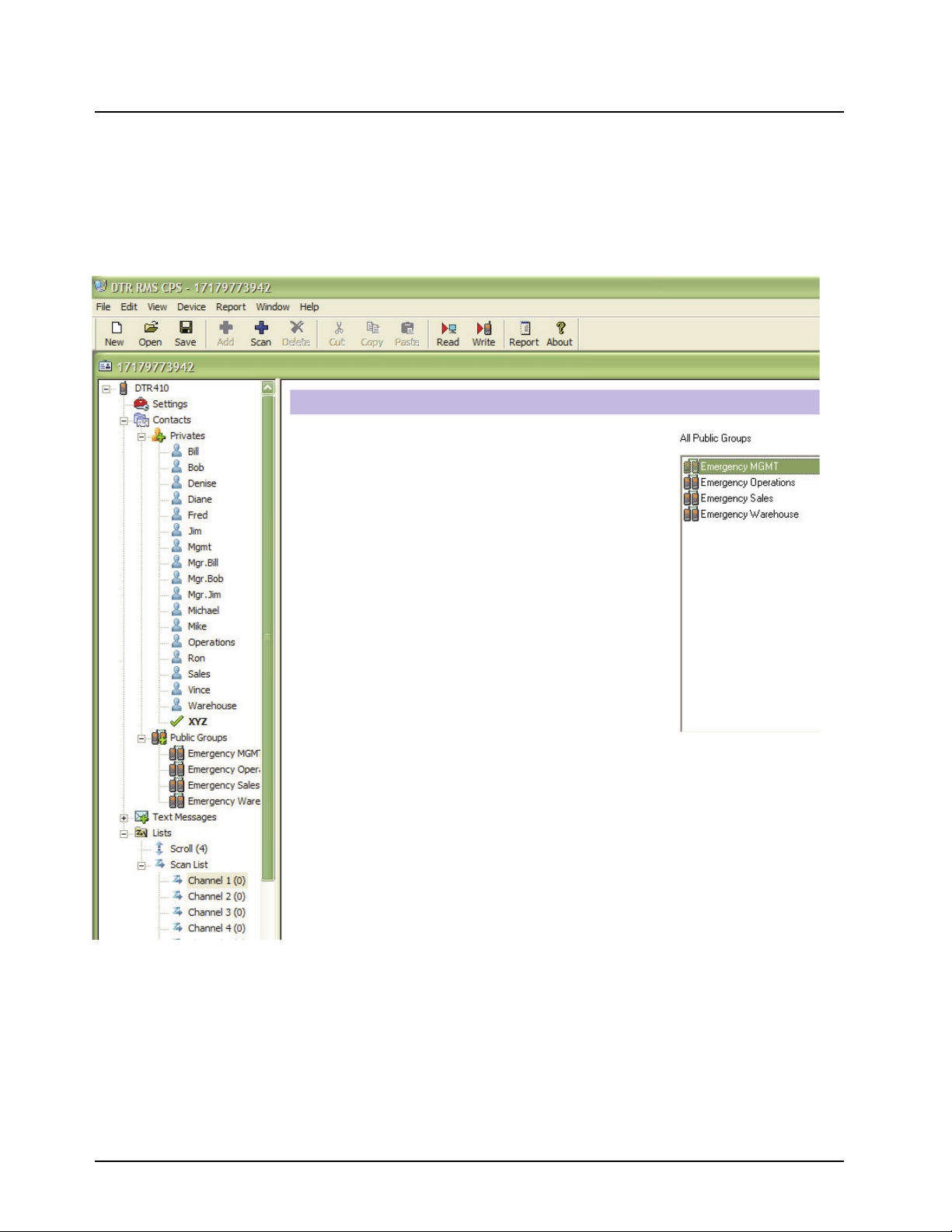
February 2008 6875840M01-A
5-4 Programming the Radio with Customer Programming Software (CPS): Setting up Scan
Setting up Scan
To use the Scan feature, you need set up a scan list for each of the radio’s channels.
1. Select “Lists->Scan List->Channel x” from the left of the CPS screen.
2. All the PublicGroups on that channel is displayed. Choose the relevant PublicGroup that you want to be
included in the channel scan list.
3. Continue the above for all the related channels.
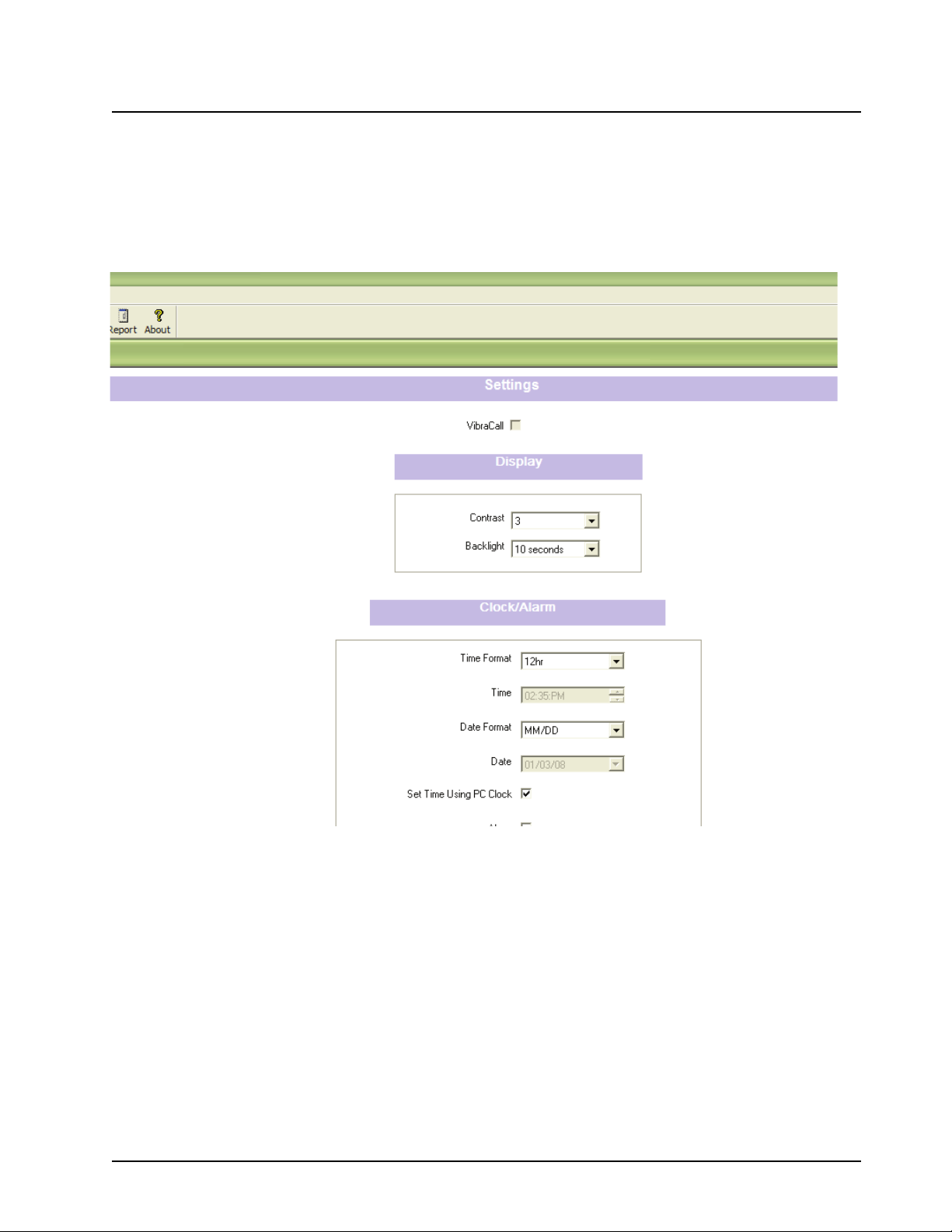
6875840M01-A February 2008
Programming the Radio with Customer Programming Software (CPS): Personalizing your Radio 5-5
Personalizing your Radio
There are several settings that you can choose at your preferance.
1. Check Vibra Call, if you do want your radio to vibrate, instead of ringing, when receiving a call.
2. Under Display, set your preferred display contrast and backlight duration.
3. Under Clock/Alarm, set your preferred time/date format, the displayed time and date, and your alarms.
4. Under Volume, set your preferred volume settings for the keypad, alarm and earpiece.
5. Under Advanced, choose which radio should have manager’s privileges.
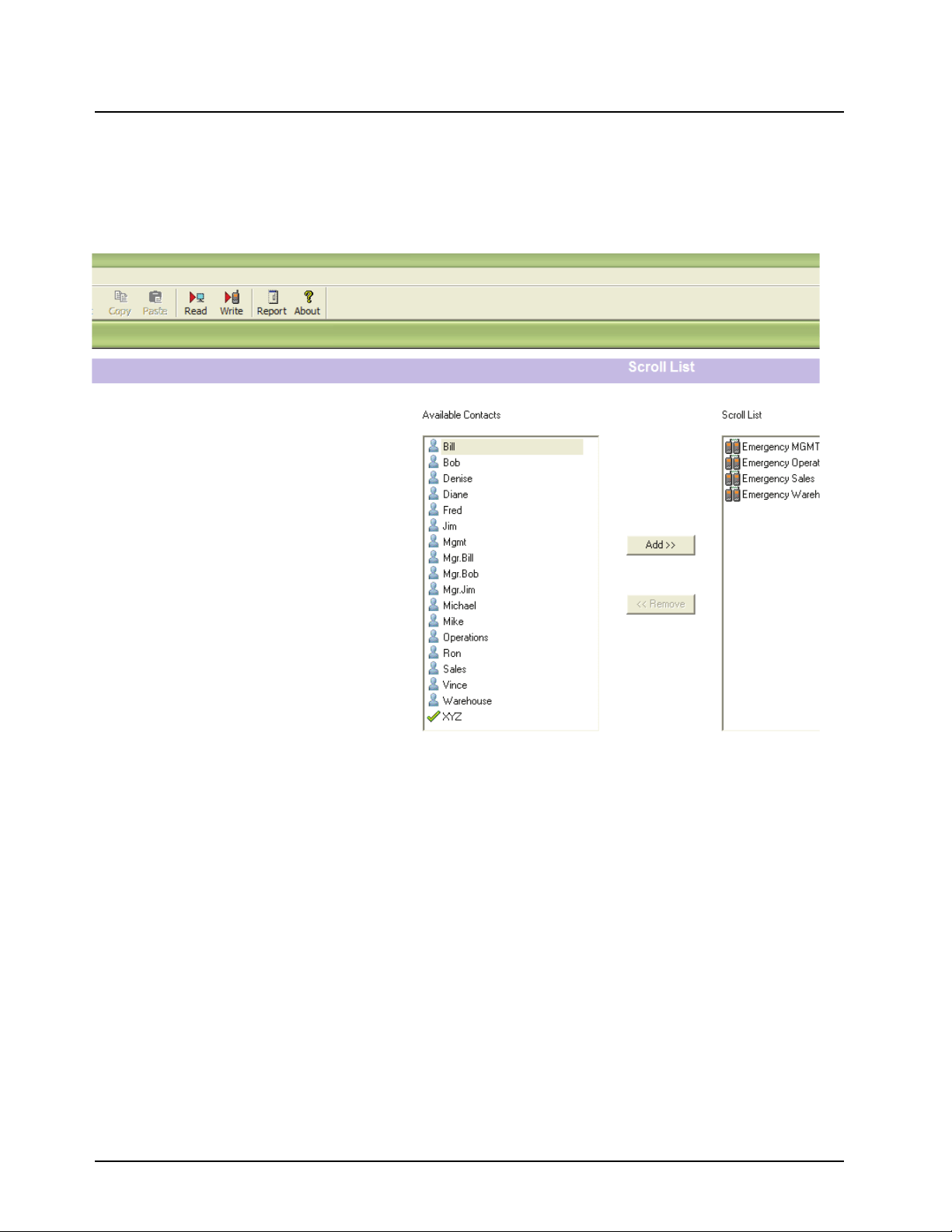
February 2008 6875840M01-A
5-6 Programming the Radio with Customer Programming Software (CPS): Setting the Scroll List
Setting the Scroll List
You can keep in touch with everyone through Private or PublicGroup options by setting the Scroll List:
1. Select “List->Scroll” on the left of your CPS screen.
2. Select the desired Private contacts and add them to the scroll list. All defined PublicGroups are added
automatically into the Scroll list.
Programming your Radio
For more information on how to program your radio, refer to “ Entering Programming Mode” on page 4-2.
1. Press the right button to program the information that has been entered in the CPS to the radio.
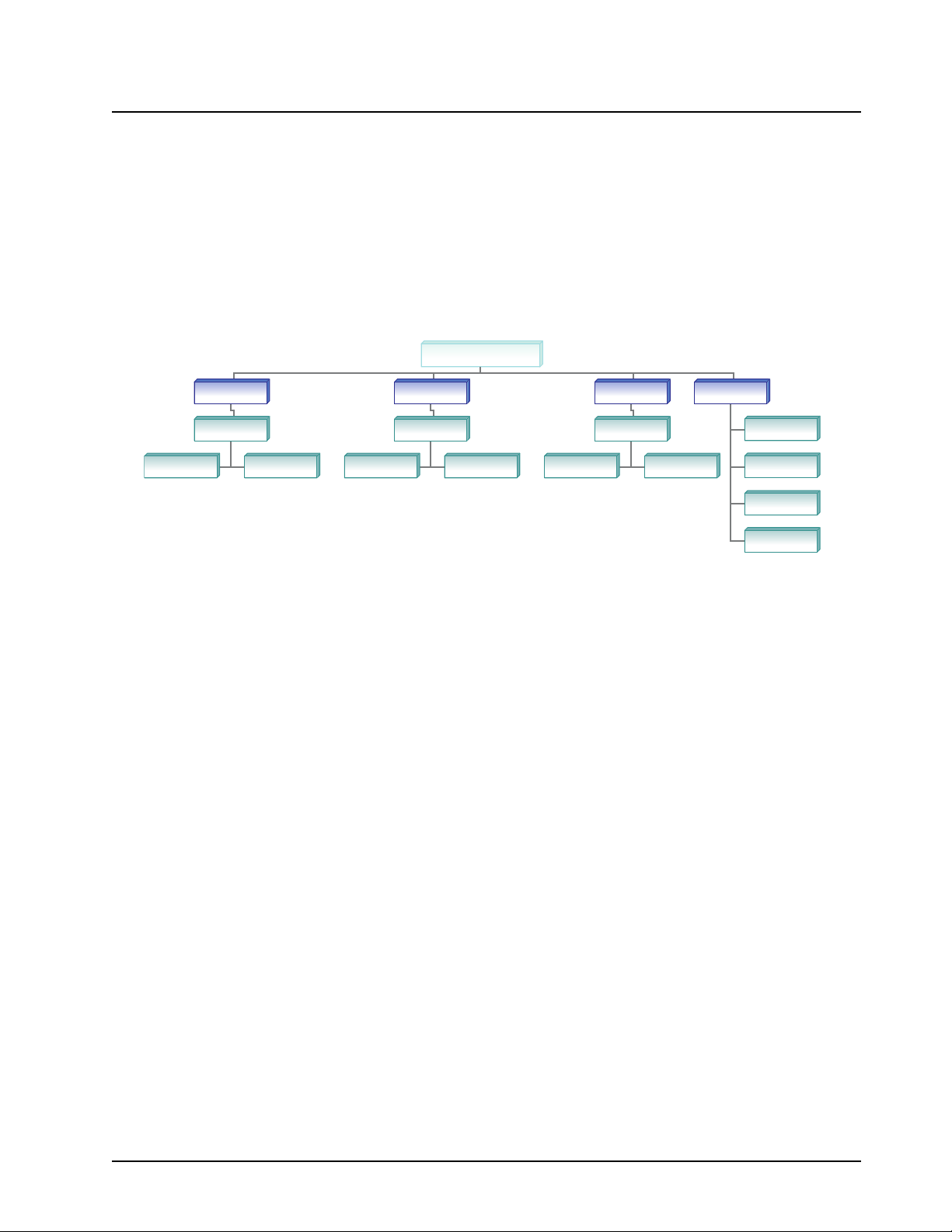
6875840M01-A February 2008
Programming the Radio with Customer Programming Software (CPS): Scenario On How To Program A Radio 5-7
Scenario On How To Program A Radio
The following is an example of a scenario on how to set up an organization.
You can program the radio according to the following order:
1. Place all Homegroups under Company name (All Talk) for emergencies and for public announcements.
2. Place All Departments under HomeGroups so that everyone can be contacted. Put diifferent departments
in separate categories. For example, “sales”, “warehouse”, “operations” and “management”.
3. Place each manager under a department. Under the department, place the department manager.
4. Place all employees (staff list) under managers.
5. For more information, please see “ Entering a Home Group Number (Contacts Only)” on page 4-5.
For more information on DTR products, visit the following website at: <http://www.motorola.com/DTR/>.
XYZ Company
Sales Warehouse Operations
Mgmt
Fred Michael Ron Diane Denise
XYZ Company
DianeRonMichaelFred Denise VinceVince
Mike
Jim
Bill
Bob
Mike
Jim
Bill
Bob
Mgr - JimMgr - JimMgr - BillMgr - BillMgr - BobMgr - Bob
Sales Warehouse Operations
Mgmt

February 2008 6875840M01-A
5-8 Programming the Radio with Customer Programming Software (CPS): Scenario On How To Program A Radio
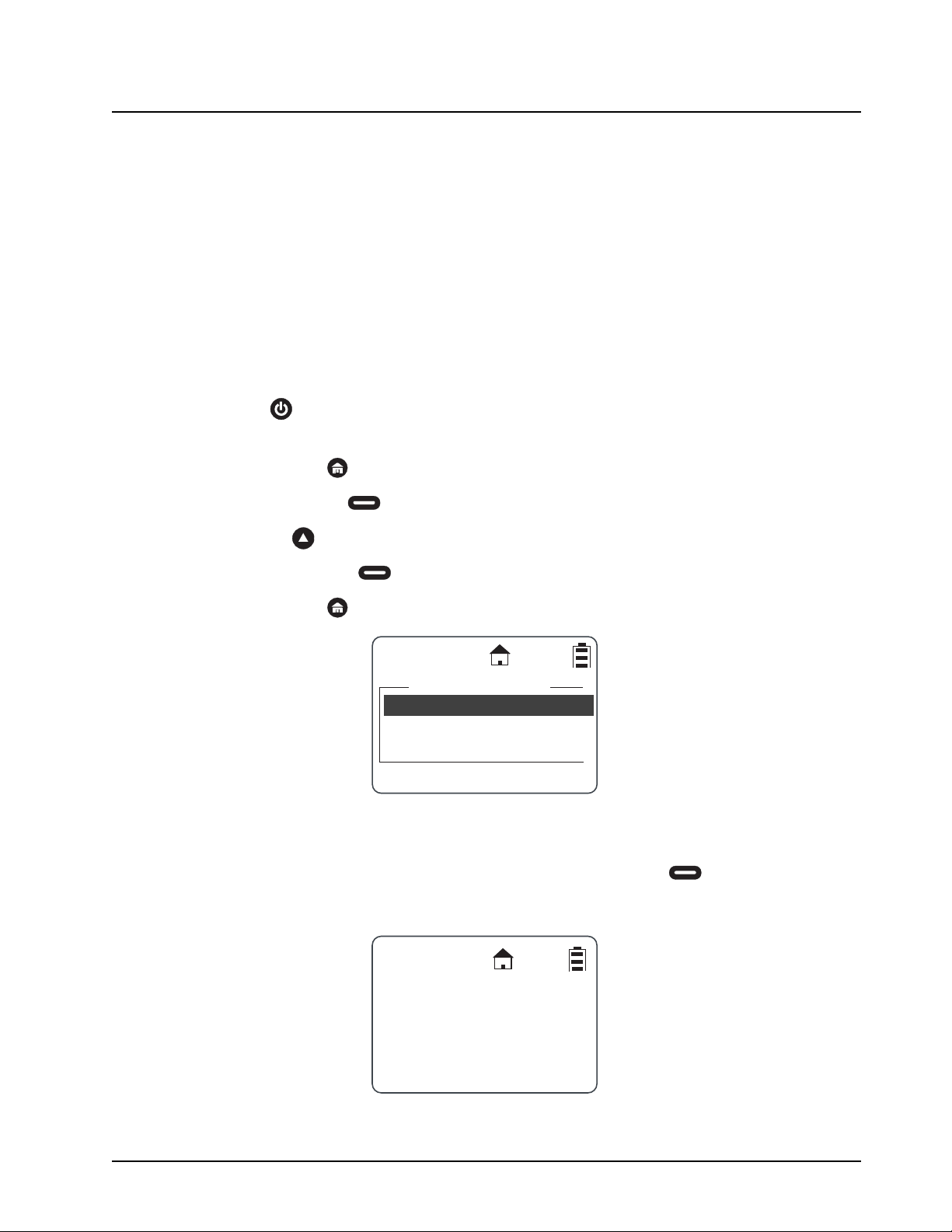
6875840M01-A February 2008
Chapter 6 Cloning Mode
Cloning mode is used to either add contacts wirelessly to other radios or duplicate all radio settings
to new radios (using the optional cloning cable).
Cloning also allows all radios to maintain a contact list so that User Name is shown rather than User
ID when receiving voice and data calls.
Entering Cloning Mode
1. Press to turn the source radio on.
2. Enter the cloning mode by performing the following steps in sequence:
a. Hold down and press the PTT button three times.
b. Press the Left .
c. Press .
d. Press the Right
e. Hold down and press the PTT button three times. The Clone Menu appears.
Cloning Using the Cloning Cable
1. From the Clone menu, scroll to select Duplicate Radio and press under Select. The fol-
lowing screen is displayed indicating the target radio must now be connected to the source
radio to be cloned using the cloning cable.
Duplicate Rad...
Select
Clone Menu
Send Contact
Reset
Connect Clone
Clone
Back
Cable and
Press Clone
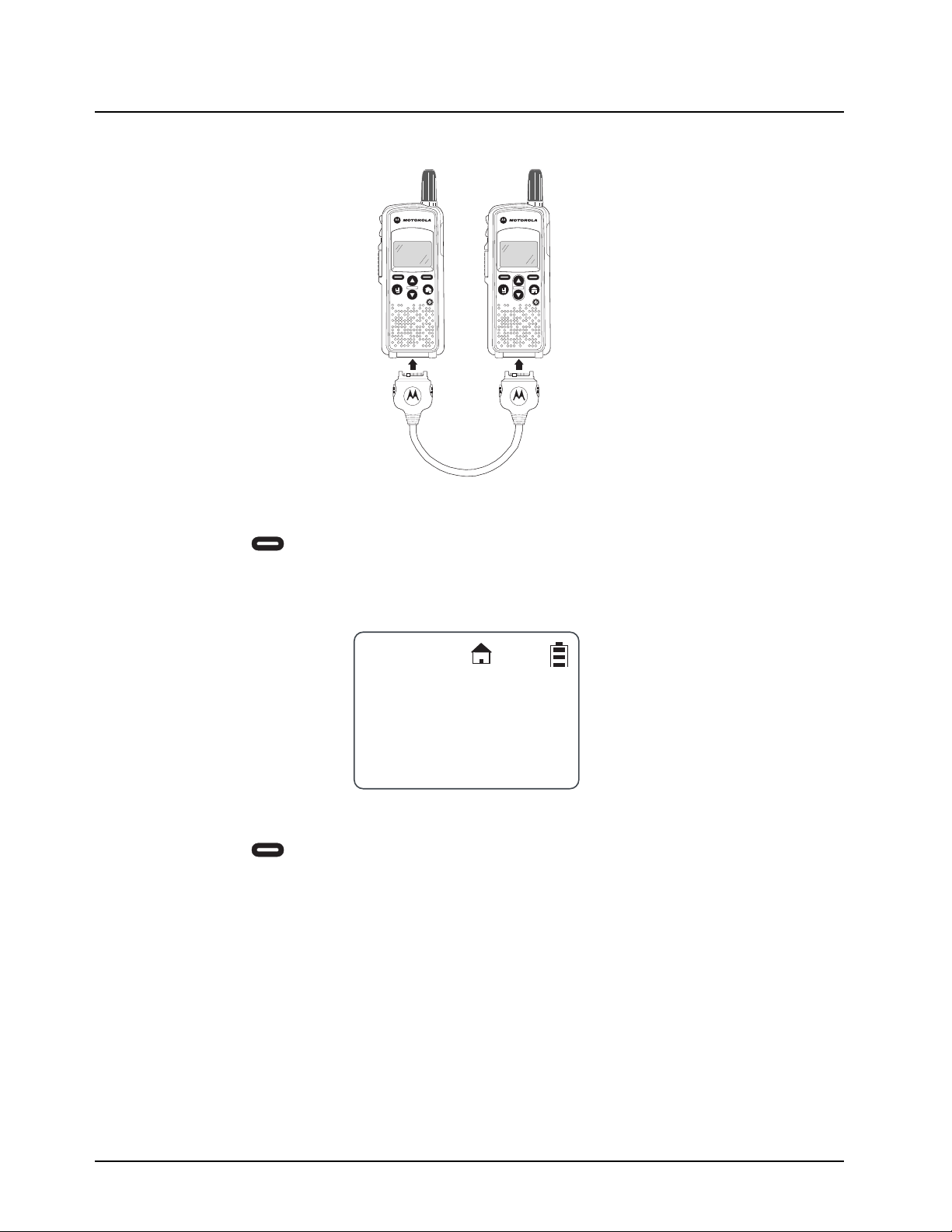
February 2008 6875840M01-A
6-2 Cloning Mode: Cloning Using the Cloning Cable
2. Connect the cloning cable to both radios.
NOTE: The target radio must be turned on, but does not need to be in cloning mode.
3. Press under Clone to start the cloning. The “Cloning in Progress” screen is displayed
followed by the “Cloning Successful” screen. If a problem occurs the “Cloning Failed” screen
appears.
4. After cloning is completed, the target radio displays the following screen.
5. Turn target radio off then back on again to use.
6. Press under Reset to exit the Clone menu.
Radio Cloning
Completed
Please Turn Off.
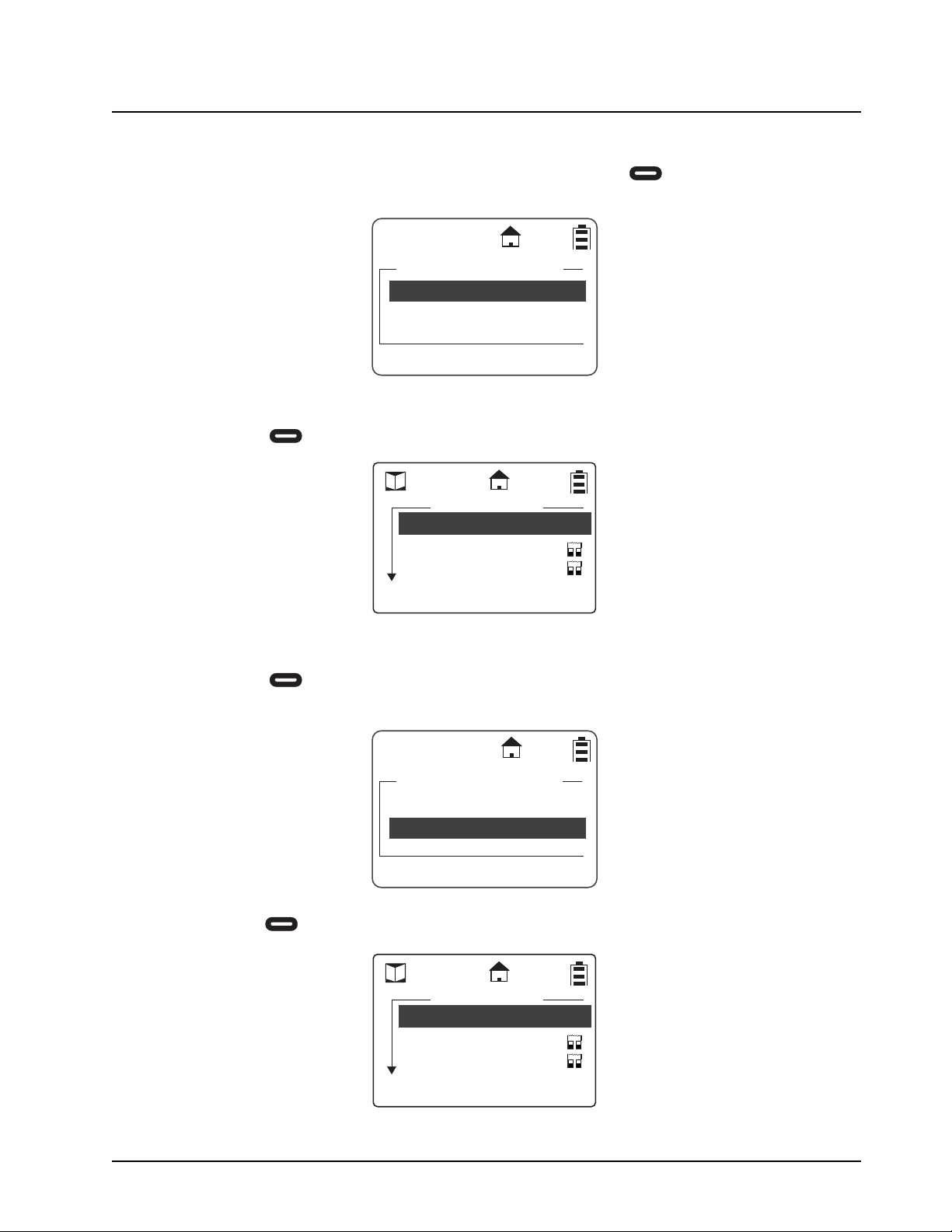
6875840M01-A February 2008
Cloning Mode: Cloning by Sending a Contact 6-3
Cloning by Sending a Contact
1. From the Clone menu scroll to select Send Contact. Press under Select. The Send
Contact screen is displayed.
2. Scroll to select ADD:.
3. Press under Change to display the list of contacts.
4. Scroll to the contact to be added.
5. Press under Select to select the contact to be added.
6. Scroll to select To:.
7. Press under Change.
Add:Invalid
Change
Send Contact
To:Invalid
Prgm
Joe Smith
Receiving
Security
Select
Back
Contacts
Add:Security
Change
Send Contact
To:Invalid
Prgm
Joe Smith
Receiving
Security
Select
Back
Contacts
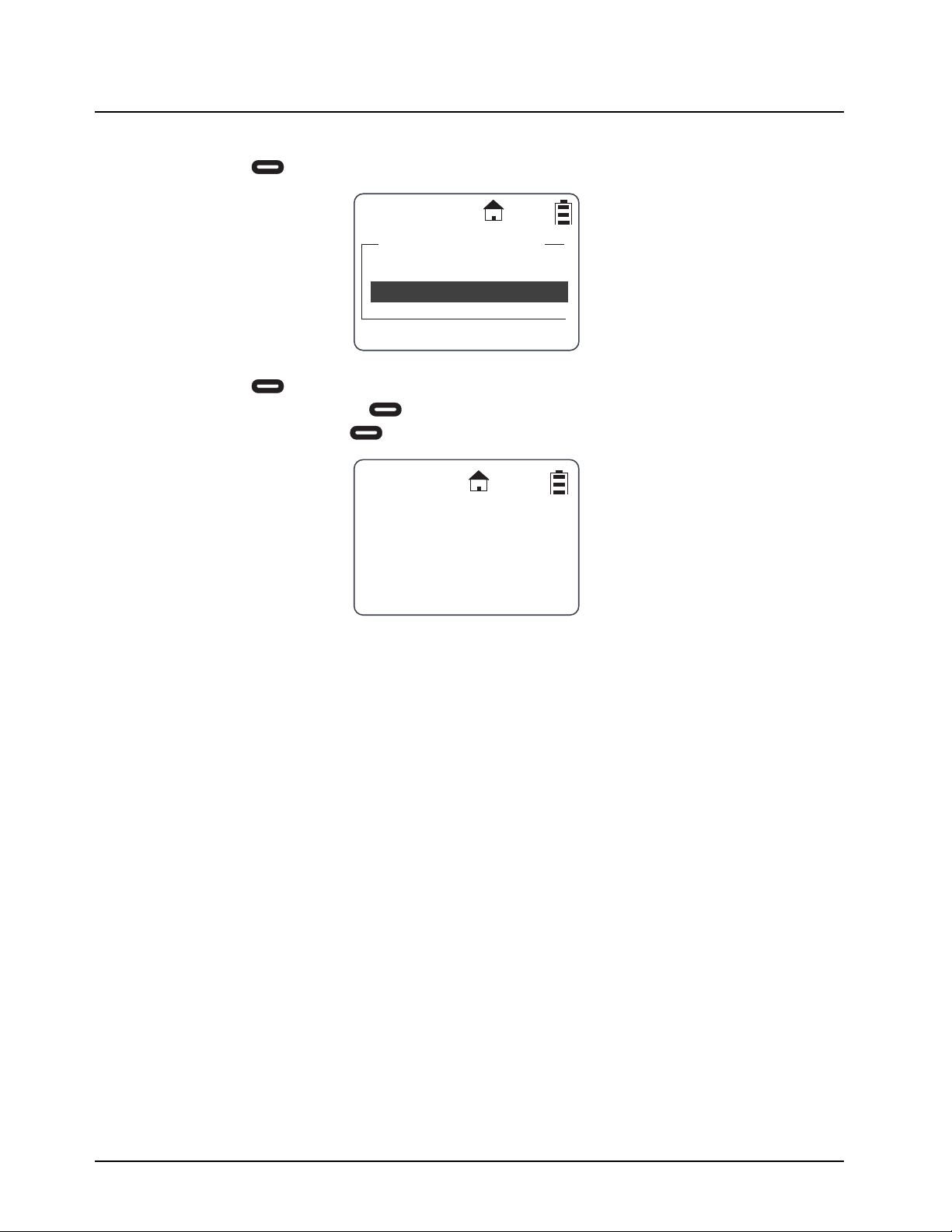
February 2008 6875840M01-A
6-4 Cloning Mode: Cloning by Sending a Contact
8. Scroll to the contact to receive the new contact.
9. Press under Select to select the contact.
10. Press under Prgm. The screen is displayed showing the Add: and To: selections. If
these are correct press under Go to transmit the selection over the air. If the selections
are not correct press under Back to return to the selection menu.
If cloning was successful, both the source and targets radios indicated “Programming Successful”. If
over-the-cloning fails, the radio displays the failed member so the user can attempt cloning again.
For more information on DTR products, visit the following website at: <http://www.motorola.com/DTR/>.
Add:Security
Change
Send Contact
To:Joe Smith
Prgm
Press Go To
Go
Back
Add:Security
To:Joe Smith
Over The Air
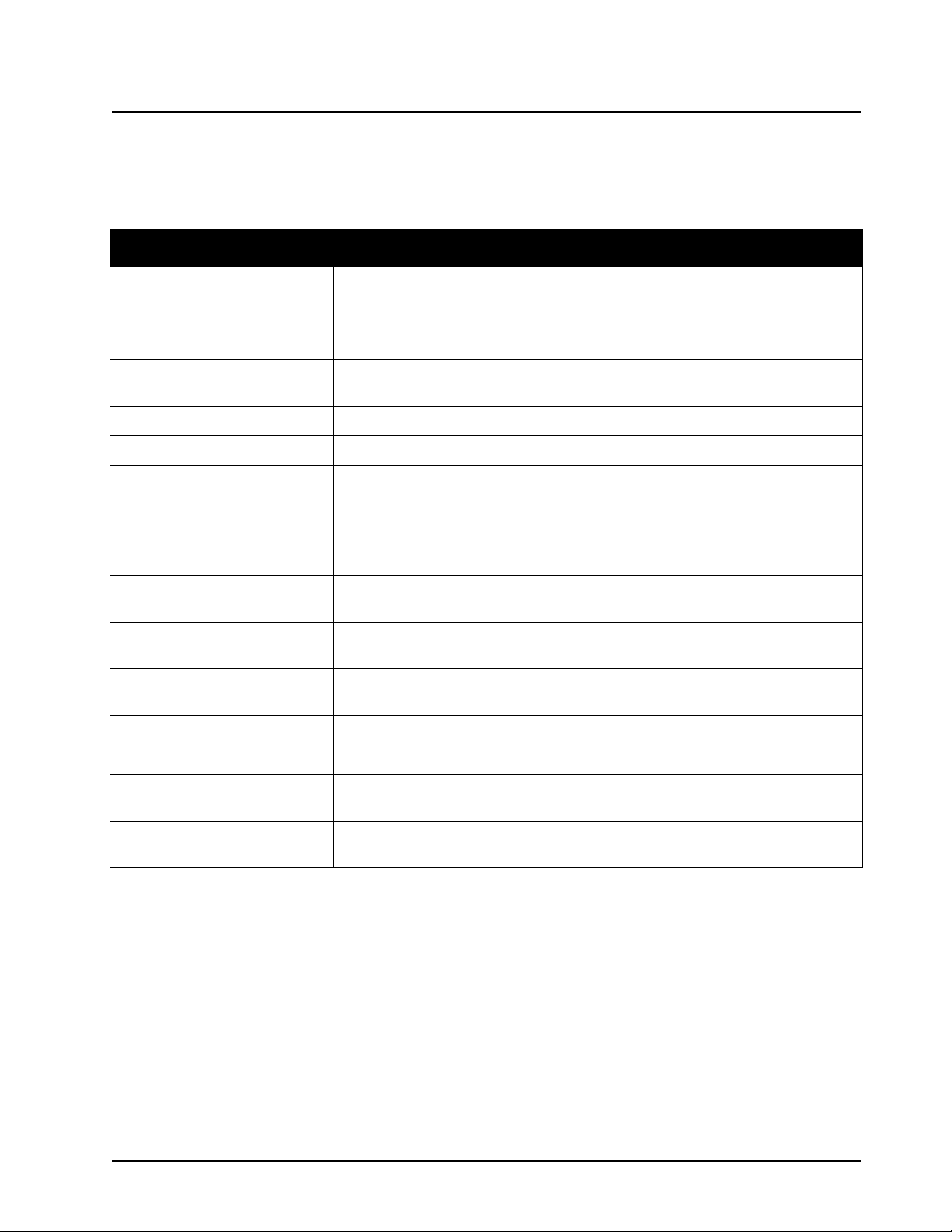
6875840M01-A February 2008
Chapter 7 Troubleshooting
Symptom Try This:
Display shows "User Not
Available" when PTT pressed
Target radio is in a call, try again after 30 seconds to determine if call has been
completed. Target radio is out of range. At least one radio (Private or Group call)
must be turned on and within range to transmit.
No Power Recharge or replace Li-Ion battery.
Message not transmitted Make sure Push to Talk is completely pressed while transmitting.
Recharge or replace battery. Verify that radio is programmed correctly.
Cannot receive Private calls Verify that the radio is on your home channel.
Cannot receive Public Group Make sure that the PublicGroup has the same Channel and PublicGroup ID.
Cannot access Remote Monitor,
Time or Remote Disable
(DTR610 only)
Make sure that Manager Mode has been enabled in Programming.
Time Update not received Private ID of the transmitting radio must be in the Contact List of a receiving radio
to accept a Time / Date update.
Limited talk range Steel and/or concrete structures, heavy foliage, buildings, or vehicles decrease
range. Check for clear line of sight to improve range.
Message not received Confirm radios have been properly programmed.
Recharge or replace battery.
Poor audio quality Radios are too close together. They must be at least 5 feet apart.
Radios are too far apart or obstacles are interfering with transmission.
Low batteries Recharge or replace batteries. Extreme operating temperatures affect battery life.
Serial Clone failed Make sure clone cable is properly connected.
Display shows "Please Try
Again" when PTT pressed
The radio is busy. Try calling again.
Cannot see any Private contacts
in the Contact List
Check to see if the Private contact is set to Group Only. A Private contact that is set
to Group Only will not see Private contacts in the Contact List.
For more information on DTR products, visit the following website at: <http://www.motorola.com/DTR/>.

February 2008 6875840M01-A
7-2
Notes
6875840M01-A February 2008
Chapter 8 Motorola Limited Warranty for the United
States and Canada
What Does this Warranty Cover?
Subject to the exclusions contained below, Motorola, Inc. warrants its telephones, pagers, and
consumer and business two-way radios (excluding commercial, government or industrial radios) that
operate via Family Radio Service or General Mobile Radio Service, Motorola-branded or certified
accessories sold for use with these Products (“Accessories”) and Motorola software contained on
CD-ROMs or other tangible media and sold for use with these Products (“Software”) to be free from
defects in materials and workmanship under normal consumer usage for the period(s) outlined
below. This limited warranty is a consumer's exclusive remedy, and applies as follows to new
Motorola Products, Accessories and Software purchased by consumers in the United States, which
are accompanied by this written warranty:
Products and Accessories
Exclusions
Normal Wear and Tear. Periodic maintenance, repair and replacement of parts due to normal wear
and tear are excluded from coverage.
Batteries. Only batteries whose fully charged capacity falls below 80% of their rated capacity and
batteries that leak are covered by this limited warranty.
Abuse & Misuse. Defects or damage that result from: (a) improper operation, storage, misuse or
abuse, accident or neglect, such as physical damage (cracks, scratches, etc.) to the surface of the
product resulting from misuse; (b) contact with liquid, water, rain, extreme humidity or heavy
perspiration, sand, dirt or the like, extreme heat, or food; (c) use of the Products or Accessories for
commercial purposes or subjecting the Product or Accessory to abnormal usage or conditions; or
(d) other acts which are not the fault of Motorola, are excluded from coverage.
Use of Non-Motorola Products and Accessories. Defects or damage that result from the use of
Non-Motorola branded or certified Products, Accessories, Software or other peripheral equipment
are excluded from coverage.
Products Covered Length of Coverage
Products and Accessories as defined
above, unless otherwise provided for
below.
One (1) year from the date of purchase
by the first consumer purchaser of the
product unless otherwise provided for
below.
Decorative Accessories and Cases.
Decorative covers, bezels,
PhoneWrap™ covers and cases.
Limited lifetime warranty for the
lifetime of ownership by the first
consumer purchaser of the product.
Business Two-way Radio
Accessories.
One (1) year from the date of purchase
by the first consumer purchaser of the
product.
Products and Accessories that are
Repaired or Replaced.
The balance of the original warranty
or for ninety (90) days from the date
returned to the consumer, whichever is
longer.

February 2008 6875840M01-A
8-2 Motorola Limited Warranty for the United States and Canada: Who is Covered?
Unauthorized Service or Modification. Defects or damages resulting from service, testing,
adjustment, installation, maintenance, alteration, or modification in any way by someone other than
Motorola, or its authorized service centers, are excluded from coverage.
Altered Products. Products or Accessories with (a) serial numbers or date tags that have been
removed, altered or obliterated; (b) broken seals or that show evidence of tampering; (c)
mismatched board serial numbers; or (d) nonconforming or non-Motorola housings, or parts, are
excluded form coverage.
Communication Services. Defects, damages, or the failure of Products, Accessories or Software
due to any communication service or signal you may subscribe to or use with the Products
Accessories or Software is excluded from coverage.
Software
Exclusions
Software Embodied in Physical Media. No warranty is made that the software will meet your
requirements or will work in combination with any hardware or software applications provided by
third parties, that the operation of the software products will be uninterrupted or error free, or that all
defects in the software products will be corrected.
Software NOT Embodied in Physical Media. Software that is not embodied in physical media (e.g.
software that is downloaded from the internet), is provided “as is” and without warranty.
Who is Covered?
This warranty extends only to the first consumer purchaser, and is not transferable.
How to Obtain Warranty Service or Other Information?
Contact your point of purchase.
Software Copyright Notice
The Motorola products described in this manual may include copyrighted Motorola and third party
software stored in semiconductor memories or other media. Laws in the United States and other
countries preserve for Motorola and third party software providers certain exclusive rights for
copyrighted software, such as the exclusive rights to distribute or reproduce the copyrighted
software. Accordingly, any copyrighted software contained in the Motorola products may not be
modified, reverse-engineered, distributed, or reproduced in any manner to the extent allowed by law.
Furthermore, the purchase of the Motorola products shall not be deemed to grant either directly or by
implication, estoppel, or otherwise, any license under the copyrights, patents, or patent applications
of Motorola or any third party software provider, except for the normal, non-exclusive, royalty-free
license to use that arises by operation of law in the sale of a product.
Products Covered Length of Coverage
Software. Applies only to physical defects in
the media that embodies the copy of the
software (e.g. CD-ROM, or floppy disk).
Ninety (90) days from the date of
purchase.

6875840M01-A February 2008
Motorola Limited Warranty for the United States and Canada: Patent Notice 8-3
Patent Notice
This product is covered by one or more of the following United States patents.
Export Law Assurances
This product is controlled under the export regulations of the United States of America. The
Governments of the United States of America may restrict the exportation or re-exportation of this
product to certain destinations. For further information contact the U.S. Department of Commerce.
For more information on DTR products, visit the following website at: <http://www.motorola.com/DTR/>.
5896277 5894292 5864752 5699006 5742484 D408396 D399821 D387758
D389158 5894592 5893027 5789098 5734975 5861850 D395882 D383745
D389827 D389139 5929825 5926514 5953640 6071640 D413022 D416252
D416893 D433001

February 2008 6875840M01-A
8-4
Notes

6875840M01-A February 2008
Index
A
A Scenario. . . . . . . . . . . . . . . . . . . . . . . . . . . . . . . . . . . . . . . . . . . . . . . . . . . . . . . . . . . . . 5-6
Accent Marks . . . . . . . . . . . . . . . . . . . . . . . . . . . . . . . . . . . . . . . . . . . . . . . . . . . . . . . . . .1-12
Accessing Advanced Menu . . . . . . . . . . . . . . . . . . . . . . . . . . . . . . . . . . . . . . . . . . . . . . . . .3-1
Accessing the Main Menu . . . . . . . . . . . . . . . . . . . . . . . . . . . . . . . . . . . . . . . . . . . . . . . . . .2-10
Accessories . . . . . . . . . . . . . . . . . . . . . . . . . . . . . . . . . . . . . . . . . . . . . . . . . . . . . . . . . . . . 1-13
Adding Contacts . . . . . . . . . . . . . . . . . . . . . . . . . . . . . . . . . . . . . . . . . . . . . . . . . . . . . . . .4-3
Adjusting the Speaker Volume . . . . . . . . . . . . . . . . . . . . . . . . . . . . . . . . . . . . . . . . . . . . . . .2-1
Advanced Menu Accessing . . . . . . . . . . . . . . . . . . . . . . . . . . . . . . . . . . . . . . . . . . . . . . . . . . . . . . . . . . . 3-1
Alerting a Recent Caller
. . . . . . . . . . . . . . . . . . . . . . . . . . . . . . . . . . . . . . . . . . . . . . . . . . . .2-11
Ambient Noise . . . . . . . . . . . . . . . . . . . . . . . . . . . . . . . . . . . . . . . . . . . . . . . . . . . . . . . . . .2-14
Attaching the Battery . . . . . . . . . . . . . . . . . . . . . . . . . . . . . . . . . . . . . . . . . . . . . . . . . . . . .1-8
Attaching the Mini Keyboard to the Radio . . . . . . . . . . . . . . . . . . . . . . . . . . . . . . . . . . . . . . . .1-9
B
Backlight . . . . . . . . . . . . . . . . . . . . . . . . . . . . . . . . . . . . . . . . . . . . . . . . . . . . . . . . . . . . .2-13
Battery . . . . . . . . . . . . . . . . . . . . . . . . . . . . . . . . . . . . . . . . . . . . . . . . . . . . . . . . . . . 1-2, 1-5
Battery Life . . . . . . . . . . . . . . . . . . . . . . . . . . . . . . . . . . . . . . . . . . . . . . . . . . . . . . . . . . . .1-5
Battery Meter . . . . . . . . . . . . . . . . . . . . . . . . . . . . . . . . . . . . . . . . . . . . . . . . . . . . . . . . . .1-8
C
Call . . . . . . . . . . . . . . . . . . . . . . . . . . . . . . . . . . . . . . . . . . . . . . . . . . . . . . . . . . . . . . . . .1-2
Call Alerts . . . . . . . . . . . . . . . . . . . . . . . . . . . . . . . . . . . . . . . . . . . . . . . . . . . . . . . . . . . . .2-4
Call Forwarding . . . . . . . . . . . . . . . . . . . . . . . . . . . . . . . . . . . . . . . . . . . . . . . . . . . . . . . . .3-2
Call Type . . . . . . . . . . . . . . . . . . . . . . . . . . . . . . . . . . . . . . . . . . . . . . . . . . . . . . . . . . . . .4-3
CAPS Key Functionality . . . . . . . . . . . . . . . . . . . . . . . . . . . . . . . . . . . . . . . . . . . . . . . . . . .1-10
Channel . . . . . . . . . . . . . . . . . . . . . . . . . . . . . . . . . . . . . . . . . . . . . . . . . . . . . . . . . . . . . .4-4
Charging a Radio and Battery using a Multi-Unit Charger . . . . . . . . . . . . . . . . . . . . . . . . . . . . . .1-8
Charging The Radio . . . . . . . . . . . . . . . . . . . . . . . . . . . . . . . . . . . . . . . . . . . . . . . . . . . . . .1-7
Charging Time . . . . . . . . . . . . . . . . . . . . . . . . . . . . . . . . . . . . . . . . . . . . . . . . . . . . . . . . . .1-2
Charging using the Drop-in Charging Tray . . . . . . . . . . . . . . . . . . . . . . . . . . . . . . . . . . . . . . . .1-7
Charging using the Plug-in Charger . . . . . . . . . . . . . . . . . . . . . . . . . . . . . . . . . . . . . . . . . . . .1-7
Clock and Alarm . . . . . . . . . . . . . . . . . . . . . . . . . . . . . . . . . . . . . . . . . . . . . . . . . . . . . . . .2-14
Clock/Alarm . . . . . . . . . . . . . . . . . . . . . . . . . . . . . . . . . . . . . . . . . . . . . . . . . . . . . . . . . . .1-2
Cloning . . . . . . . . . . . . . . . . . . . . . . . . . . . . . . . . . . . . . . . . . . . . . . . . . . . . . . . . . . . . . .6-1
Cloning by Sending a Contact . . . . . . . . . . . . . . . . . . . . . . . . . . . . . . . . . . . . . . . . . . . . . . . .6-3
Cloning Mode . . . . . . . . . . . . . . . . . . . . . . . . . . . . . . . . . . . . . . . . . . . . . . . . . . . . . . . . . .6-1
Cloning Using the Cloning Cable . . . . . . . . . . . . . . . . . . . . . . . . . . . . . . . . . . . . . . . . . . . . . .6-1
Composing a Message Using the Mini Keyboard . . . . . . . . . . . . . . . . . . . . . . . . . . . . . . . . . . .2-8
Contact List . . . . . . . . . . . . . . . . . . . . . . . . . . . . . . . . . . . . . . . . . . . . . . . . . . . . . . . . . . .2-2
Contrast . . . . . . . . . . . . . . . . . . . . . . . . . . . . . . . . . . . . . . . . . . . . . . . . . . . . . . . . . . . . . .2-13
Customer Programming Software (CPS) Compatible . . . . . . . . . . . . . . . . . . . . . . . . . . . . . . . . .1-2
D
Deleting a Message . . . . . . . . . . . . . . . . . . . . . . . . . . . . . . . . . . . . . . . . . . . . . . . . . . . . . .2-9
Deleting Recent Calls . . . . . . . . . . . . . . . . . . . . . . . . . . . . . . . . . . . . . . . . . . . . . . . . . . . . .2-12
Disconnecting the Mini Keyboard from Your Radio . . . . . . . . . . . . . . . . . . . . . . . . . . . . . . . . . .1-9
Dismiss the Message Notification . . . . . . . . . . . . . . . . . . . . . . . . . . . . . . . . . . . . . . . . . . . . .2-5
Display . . . . . . . . . . . . . . . . . . . . . . . . . . . . . . . . . . . . . . . . . . . . . . . . . . . . . . . . . . . . . .1-4
Display Menu . . . . . . . . . . . . . . . . . . . . . . . . . . . . . . . . . . . . . . . . . . . . . . . . . . . . . . . . . . . 2-13
Display Options . . . . . . . . . . . . . . . . . . . . . . . . . . . . . . . . . . . . . . . . . . . . . . . . . . . . . . . . .1-5

February 2008 6875840M01-A
2
Drop in Charging Tray . . . . . . . . . . . . . . . . . . . . . . . . . . . . . . . . . . . . . . . . . . . . . . . . . . . . 1-2
E
Enabling Call Forwarding . . . . . . . . . . . . . . . . . . . . . . . . . . . . . . . . . . . . . . . . . . . . . . . . . . . 3-2
Entering a Home Group Number (Contacts Only) . . . . . . . . . . . . . . . . . . . . . . . . . . . . . . . . . . . 4-5
Entering a Ringer Type . . . . . . . . . . . . . . . . . . . . . . . . . . . . . . . . . . . . . . . . . . . . . . . . . . . . 4-6
Entering Cloning Mode . . . . . . . . . . . . . . . . . . . . . . . . . . . . . . . . . . . . . . . . . . . . . . . . . . . . 6-1
Entering Programming Mode . . . . . . . . . . . . . . . . . . . . . . . . . . . . . . . . . . . . . . . . . . . . . . . . 4-2
Entering Text with the Mini Keyboard . . . . . . . . . . . . . . . . . . . . . . . . . . . . . . . . . . . . . . . . . . . 1-10
Exclusions . . . . . . . . . . . . . . . . . . . . . . . . . . . . . . . . . . . . . . . . . . . . . . . . . . . . . . . . . . . . 8-1
Export Law Assurances . . . . . . . . . . . . . . . . . . . . . . . . . . . . . . . . . . . . . . . . . . . . . . . . . . . 8-3
Extended Character Set . . . . . . . . . . . . . . . . . . . . . . . . . . . . . . . . . . . . . . . . . . . . . . . . . . . 1-12
G
General Radio Operations . . . . . . . . . . . . . . . . . . . . . . . . . . . . . . . . . . . . . . . . . . . . . . . . . . 2-1
Getting Started . . . . . . . . . . . . . . . . . . . . . . . . . . . . . . . . . . . . . . . . . . . . . . . . . . . . . . . . . 1-4
Green/Lock Key Functionality . . . . . . . . . . . . . . . . . . . . . . . . . . . . . . . . . . . . . . . . . . . . . . . . 1-10
H
How to Obtain Warranty Service or Other Information . . . . . . . . . . . . . . . . . . . . . . . . . . . . . . . . 8-2
I
Icons . . . . . . . . . . . . . . . . . . . . . . . . . . . . . . . . . . . . . . . . . . . . . . . . . . . . . . . . . . . . . . . . 1-4
Introduction . . . . . . . . . . . . . . . . . . . . . . . . . . . . . . . . . . . . . . . . . . . . . . . . . . . . . . . . . . . 1-1
L
Language . . . . . . . . . . . . . . . . . . . . . . . . . . . . . . . . . . . . . . . . . . . . . . . . . . . . . . . . . . . . . 4-9
M
Main Menu . . . . . . . . . . . . . . . . . . . . . . . . . . . . . . . . . . . . . . . . . . . . . . . . . . . . . . . . . . . . 2-10
Main Menu Navigation Chart . . . . . . . . . . . . . . . . . . . . . . . . . . . . . . . . . . . . . . . . . . . . . . . . 2-10
Making a Call . . . . . . . . . . . . . . . . . . . . . . . . . . . . . . . . . . . . . . . . . . . . . . . . . . . . . . . . . . 2-3
Manager 3-3, 3-4
Managing Your Scroll List. . . . . . . . . . . . . . . . . . . . . . . . . . . . . . . . . . . . . . . . . . . . . . . . . . . 3-1
Menu . . . . . . . . . . . . . . . . . . . . . . . . . . . . . . . . . . . . . . . . . . . . . . . . . . . . . . . . . . . . . . . 2-10
Menu Icons . . . . . . . . . . . . . . . . . . . . . . . . . . . . . . . . . . . . . . . . . . . . . . . . . . . . . . . . . . . 1-4
Menu Key . . . . . . . . . . . . . . . . . . . . . . . . . . . . . . . . . . . . . . . . . . . . . . . . . . . . . . . . . . . . 1-5
Menus and Lists . . . . . . . . . . . . . . . . . . . . . . . . . . . . . . . . . . . . . . . . . . . . . . . . . . . . . . . . 1-5
Mini Keyboard . . . . . . . . . . . . . . . . . . . . . . . . . . . . . . . . . . . . . . . . . . . . . . . . . . . . . . . . . . 1-9
My Info . . . . . . . . . . . . . . . . . . . . . . . . . . . . . . . . . . . . . . . . . . . . . . . . . . . . . . . . . . .2-18, 4-2
N
Name for you Radio . . . . . . . . . . . . . . . . . . . . . . . . . . . . . . . . . . . . . . . . . . . . . . . . . . . . . . 5-1
New Message Received . . . . . . . . . . . . . . . . . . . . . . . . . . . . . . . . . . . . . . . . . . . . . . . . . . . 2-5
Notations Used in This Manual . . . . . . . . . . . . . . . . . . . . . . . . . . . . . . . . . . . . . . . . . . . . . . . 1-1
O
Other Special Characters . . . . . . . . . . . . . . . . . . . . . . . . . . . . . . . . . . . . . . . . . . . . . . . . . . 1-13
P
Patent Notice. . . . . . . . . . . . . . . . . . . . . . . . . . . . . . . . . . . . . . . . . . . . . . . . . . . . . . . . . . . 8-3

6875840M01-A February 2008
3
Personalising your Radio . . . . . . . . . . . . . . . . . . . . . . . . . . . . . . . . . . . . . . . . . . . . . . . . . . .5-4
Power button . . . . . . . . . . . . . . . . . . . . . . . . . . . . . . . . . . . . . . . . . . . . . . . . . . . . . . . 2-1, 6-1
Private Contacts . . . . . . . . . . . . . . . . . . . . . . . . . . . . . . . . . . . . . . . . . . . . . . . . . . . . . . . .5-2
PrivateCall . . . . . . . . . . . . . . . . . . . . . . . . . . . . . . . . . . . . . . . . . . . . . . . . . . . . . . . . . . . .1-2
Products and Accessories . . . . . . . . . . . . . . . . . . . . . . . . . . . . . . . . . . . . . . . . . . . . . . . . . .8-1
Program Menu Navigation Chart . . . . . . . . . . . . . . . . . . . . . . . . . . . . . . . . . . . . . . . . . . . . . .4-1
Programming a Unit ID (Private Calls Only) . . . . . . . . . . . . . . . . . . . . . . . . . . . . . . . . . . . . . . .4-5
Programming your Radio . . . . . . . . . . . . . . . . . . . . . . . . . . . . . . . . . . . . . . . . . . . . . . . . . . .5-6
PTT Button . . . . . . . . . . . . . . . . . . . . . . . . . . . . . . . . . . . . . . . . . . . . . . . . . . . . . . . . . . . .2-3
PublicGroup Contacts . . . . . . . . . . . . . . . . . . . . . . . . . . . . . . . . . . . . . . . . . . . . . . . . . . . . . 5-3
PublicGroup Scan . . . . . . . . . . . . . . . . . . . . . . . . . . . . . . . . . . . . . . . . . . . . . . . . . . . . . . .1-2
PublicGroups Available . . . . . . . . . . . . . . . . . . . . . . . . . . . . . . . . . . . . . . . . . . . . . . . . . . . .1-2
R
Radio Off. . . . . . . . . . . . . . . . . . . . . . . . . . . . . . . . . . . . . . . . . . . . . . . . . . . . . . . . . . . . . . 2-1
Radio History . . . . . . . . . . . . . . . . . . . . . . . . . . . . . . . . . . . . . . . . . . . . . . . . . . . . . . . . . .4-8
Reading from the Inbox . . . . . . . . . . . . . . . . . . . . . . . . . . . . . . . . . . . . . . . . . . . . . . . . . . . .2-5
Receiving a Call . . . . . . . . . . . . . . . . . . . . . . . . . . . . . . . . . . . . . . . . . . . . . . . . . . . . . . . . .2-3
Receiving a Call Alert . . . . . . . . . . . . . . . . . . . . . . . . . . . . . . . . . . . . . . . . . . . . . . . . . . . . .2-4
Receiving a Message . . . . . . . . . . . . . . . . . . . . . . . . . . . . . . . . . . . . . . . . . . . . . . . . . . . . .2-5
Receiving and Making Calls . . . . . . . . . . . . . . . . . . . . . . . . . . . . . . . . . . . . . . . . . . . . . . . . .2-3
Recent Calls . . . . . . . . . . . . . . . . . . . . . . . . . . . . . . . . . . . . . . . . . . . . . . . . . . . . . . . . . . .2-11
Remote Disable (OTAD) . . . . . . . . . . . . . . . . . . . . . . . . . . . . . . . . . . . . . . . . . . . . . . . . . . .1-2
Remote Disabling . . . . . . . . . . . . . . . . . . . . . . . . . . . . . . . . . . . . . . . . . . . . . . . . . . . . . . . .3-3
Remote Monitor (OTAM) . . . . . . . . . . . . . . . . . . . . . . . . . . . . . . . . . . . . . . . . . . . . . . . . . . .1-2
Remote Monitoring . . . . . . . . . . . . . . . . . . . . . . . . . . . . . . . . . . . . . . . . . . . . . . . . . . . . . . .3-4
Remote Time . . . . . . . . . . . . . . . . . . . . . . . . . . . . . . . . . . . . . . . . . . . . . . . . . . . . . . 1-2, 3-4
Replying to a Received Message . . . . . . . . . . . . . . . . . . . . . . . . . . . . . . . . . . . . . . . . . . . . .2-6
S
Scan Lists . . . . . . . . . . . . . . . . . . . . . . . . . . . . . . . . . . . . . . . . . . . . . . . . . . . . . . . . . . . . . 4-8
Scroll List . . . . . . . . . . . . . . . . . . . . . . . . . . . . . . . . . . . . . . . . . . . . . . . . . . . . . . . . . 1-2, 3-1
Selecting a Group ID . . . . . . . . . . . . . . . . . . . . . . . . . . . . . . . . . . . . . . . . . . . . . . . . . . . . . . 4-5
Selecting a Scroll List Contact . . . . . . . . . . . . . . . . . . . . . . . . . . . . . . . . . . . . . . . . . . . . . . .2-2
Selecting Group Only . . . . . . . . . . . . . . . . . . . . . . . . . . . . . . . . . . . . . . . . . . . . . . . . . . . . .4-6
Sending . . . . . . . . . . . . . . . . . . . . . . . . . . . . . . . . . . . . . . . . . . . . . . . . . . . . . . . . . . . . . .2-7
Sending a Text Message . . . . . . . . . . . . . . . . . . . . . . . . . . . . . . . . . . . . . . . . . . . . . . . . . . .2-7
Sending Call Alerts . . . . . . . . . . . . . . . . . . . . . . . . . . . . . . . . . . . . . . . . . . . . . . . . . . . . . . .2-4
Setting the Scroll List . . . . . . . . . . . . . . . . . . . . . . . . . . . . . . . . . . . . . . . . . . . . . . . . . . . . .5-5
Setting the Volume . . . . . . . . . . . . . . . . . . . . . . . . . . . . . . . . . . . . . . . . . . . . . . . . . . . . . . .2-17
Setting up Scan . . . . . . . . . . . . . . . . . . . . . . . . . . . . . . . . . . . . . . . . . . . . . . . . . . . . . . . . .5-3
Settings . . . . . . . . . . . . . . . . . . . . . . . . . . . . . . . . . . . . . . . . . . . . . . . . . . . . . . . . 2-12, 4-8
SMS Messaging . . . . . . . . . . . . . . . . . . . . . . . . . . . . . . . . . . . . . . . . . . . . . . . . . . . . . . . .1-2
Software . . . . . . . . . . . . . . . . . . . . . . . . . . . . . . . . . . . . . . . . . . . . . . . . . . . . . . . . . . . . .8-2
Software Copyright Notice . . . . . . . . . . . . . . . . . . . . . . . . . . . . . . . . . . . . . . . . . . . . . . . . . .8-2
Standard Yellow Function Green Function . . . . . . . . . . . . . . . . . . . . . . . . . . . . . . . . . . . . . . . .1-11
Status Icons . . . . . . . . . . . . . . . . . . . . . . . . . . . . . . . . . . . . . . . . . . . . . . . . . . . . . . . . . . .1-4
Swivel Belt Holster . . . . . . . . . . . . . . . . . . . . . . . . . . . . . . . . . . . . . . . . . . . . . . . . . . . . . . .1-9
T
Text Area . . . . . . . . . . . . . . . . . . . . . . . . . . . . . . . . . . . . . . . . . . . . . . . . . . . . . . . . . . . . .1-5
Text Messaging . . . . . . . . . . . . . . . . . . . . . . . . . . . . . . . . . . . . . . . . . . . . . . . . . . . . 2-5, 4-7
the codeplug version . . . . . . . . . . . . . . . . . . . . . . . . . . . . . . . . . . . . . . . . . . . . . . . . . . . . . .5-1

February 2008 6875840M01-A
4
The Firmware Version . . . . . . . . . . . . . . . . . . . . . . . . . . . . . . . . . . . . . . . . . . . . . . . . . . . . 5-1
The Radio ID . . . . . . . . . . . . . . . . . . . . . . . . . . . . . . . . . . . . . . . . . . . . . . . . . . . . . . . . . . 5-1
Troubleshooting . . . . . . . . . . . . . . . . . . . . . . . . . . . . . . . . . . . . . . . . . . . . . . . . . . . . . . . . 7-1
Turning Your Radio On or Off . . . . . . . . . . . . . . . . . . . . . . . . . . . . . . . . . . . . . . . . . . . . . . . . 2-1
Types of Calls . . . . . . . . . . . . . . . . . . . . . . . . . . . . . . . . . . . . . . . . . . . . . . . . . . . . . . . . . . 2-3
U
Unit Name . . . . . . . . . . . . . . . . . . . . . . . . . . . . . . . . . . . . . . . . . . . . . . . . . . . . . . . . . . . . 4-4
Using Mini Keyboard Key Shortcuts . . . . . . . . . . . . . . . . . . . . . . . . . . . . . . . . . . . . . . . . . . . . 1-12
V
View the Message . . . . . . . . . . . . . . . . . . . . . . . . . . . . . . . . . . . . . . . . . . . . . . . . . . . . . . . 2-5
Viewing a Contact . . . . . . . . . . . . . . . . . . . . . . . . . . . . . . . . . . . . . . . . . . . . . . . . . . . . . . . 2-2
Viewing a Recent Call . . . . . . . . . . . . . . . . . . . . . . . . . . . . . . . . . . . . . . . . . . . . . . . . . . . . 2-11
W
What Does this Warranty Cover? . . . . . . . . . . . . . . . . . . . . . . . . . . . . . . . . . . . . . . . . . . . . . . 8-1
Who is Covered? . . . . . . . . . . . . . . . . . . . . . . . . . . . . . . . . . . . . . . . . . . . . . . . . . . . . . . . . 8-2
Y
Yellow/Lock Key Functionality . . . . . . . . . . . . . . . . . . . . . . . . . . . . . . . . . . . . . . . . . . . . . . . 1-10
Your DTR Series Radio . . . . . . . . . . . . . . . . . . . . . . . . . . . . . . . . . . . . . . . . . . . . . . . . . . . 1-3


M
Motorola, Inc.
1301 E. Algonquin Rd,
Schaumburg, IL 60196-1078 USA
MOTOROLA and the Stylized M Logo are registered in the
U.S. Patent and Trademark Office. All other product or
service names are the property of their respective owners.
(c) 2008 by Motorola, Inc.
All rights reserved.
*6875840M01*
6875840M01-A