RINO
®
700
Owner’s Manual

© 2017 Garmin Ltd. or its subsidiaries
All rights reserved. Under the copyright laws, this manual may not be copied, in whole or in part, without the written consent of Garmin. Garmin reserves the right to change
or improve its products and to make changes in the content of this manual without obligation to notify any person or organization of such changes or improvements. Go to
www.garmin.com for current updates and supplemental information concerning the use of this product.
Garmin
®
, the Garmin logo, and Rino
®
are trademarks of Garmin Ltd. or its subsidiaries, registered in the USA and other countries. Garmin Express
™
is a trademark of Garmin Ltd. or its
subsidiaries. These trademarks may not be used without the express permission of Garmin. Mac
®
is a trademark of Apple Inc., registered in the U.S. and other countries. Windows
®
is
a registered trademark of Microsoft Corporation in the United States and other countries. Other trademarks and trade names are those of their respective owners.

Table of Contents
Introduction......................................1
Device Overview...................................... 1
Charging the Battery............................2
Turning On the Device............................. 2
Device Operation..................................... 3
Acquiring Satellite Signals...................... 4
Radio................................................4
Transmitting............................................ 4
The Radio App......................................... 4
Opening the Radio App....................... 4
Adjusting the Radio Volume............... 4
Adjusting the Squelch Level............... 5
Channels and Codes............................... 5
Selecting a Channel.............................5
Selecting a Squelch Code................... 6
Monitoring a Channel for Activity....... 6
Scanning Channels..............................6
Repeater Channels.............................. 6
Peer-to-Peer Positioning......................... 6
Polling Other Rino Users..................... 7
Editing Your Contact Info.................... 7
Contacts...................................................7
Saving a New Contact......................... 7
Viewing Contacts on the Map............ 7
Navigating to a Contact...................... 7
Notes........................................................ 7
Creating, Saving, and Sending
Notes.................................................... 8
Emergency Alerts.................................... 8
Sending an Emergency Alert...............8
Responding to an Emergency Alert.... 8
Radio App Settings..................................8
Radio Setup..........................................8
Navigation........................................ 9
Navigating to a Destination.................... 9
Finding a Location Near Another
Location............................................... 9
Stopping Navigation............................ 9
Navigating with the Map......................... 9
Navigating with the Compass................ 9
Course Pointer................................... 10
Navigating Using TracBack®............... 10
Waypoints...................................... 10
Marking Your Current Location as a
Waypoint................................................ 10
Finding a Waypoint............................... 11
Editing a Waypoint................................ 11
Deleting a Waypoint.............................. 11
Sending a Waypoint.............................. 11
Increasing the Accuracy of a Waypoint
Location................................................. 11
Projecting a Waypoint........................... 12
Routes............................................12
Creating a Route Using Route
Planner................................................... 12
Creating a Route Using the Map.......... 12
Editing the Name of a Route................ 12
Editing a Route...................................... 13
Viewing a Route on the Map.................13
Deleting a Route.................................... 13
Viewing the Active Route...................... 13
Reversing a Route................................. 13
Tracks............................................ 13
Opening Track Manager....................... 13
Viewing Track Information................... 14
Saving the Current Track...................... 14
Clearing the Current Track....................14
Deleting a Track.................................... 14
Applications................................... 14
Geocaches............................................. 14
Downloading Geocaches Using a
Computer........................................... 14
Navigating to a Geocache................ 14
Logging the Attempt......................... 15
Filtering the Geocache List............... 15
Setting a Proximity Alarm..................... 16
Calculating the Size of an Area............ 16
Viewing the Calendar and Almanacs... 16
Opening the Stopwatch........................ 16
Satellite Page........................................ 16
Changing the Satellite View.............. 16
Simulating a Location....................... 17
Customizing the Device.................. 17
Adding an Application to the Home
Screen.................................................... 17
Table of Contents i

Pages..................................................... 17
Adding a Page................................... 17
Removing a Page.............................. 17
Changing the Page Sequence.......... 17
Profiles...................................................18
Adding a Profile................................. 18
Selecting a Profile............................. 18
Editing a Profile................................. 18
Custom Data Fields and Dashboards.. 18
Enabling the Map Data Fields or
Dashboards....................................... 18
Customizing the Data Fields.............18
Adjusting the Backlight Brightness...... 19
Display Settings.....................................19
Map Settings......................................... 19
Advanced Map Settings.................... 19
System Settings.................................... 19
About GPS and GLONASS................ 19
Setting the Device Tones...................... 19
Routing Settings.................................... 20
Heading Settings................................... 20
Position Format Settings...................... 20
Changing the Units of Measure............20
Time Settings........................................ 20
Geocaching Settings............................. 20
Resetting Data and Settings................. 21
Restoring Default Values for Specific
Settings.............................................. 21
Restoring Default Values for Specific
Page Settings.................................... 21
Restoring All Default Settings...........21
Device Information......................... 21
Attaching the Carabiner Clip................ 21
Headsets and Microphones................. 22
Product Updates................................... 22
Device Care............................................22
Cleaning the Device...........................22
Water Immersion............................... 22
Data Management................................ 22
File Types........................................... 22
Connecting the Device to Your
Computer........................................... 23
Transferring Files to Your Device..... 23
Deleting Files..................................... 23
Disconnecting the USB Cable........... 23
Specifications........................................24
Radio Frequency Charts....................24
FCC Licensing Information................... 34
Viewing Device Information................. 34
Troubleshooting............................. 34
The battery gauge does not seem
accurate................................................. 34
My device is not acquiring satellite
signals....................................................34
My device does not go into mass
storage mode automatically................ 34
I need to reset all settings back to
factory default values........................... 34
Appendix........................................ 35
Data Fields............................................. 35
ii Table of Contents
Introduction
WARNING
See the Important Safety and Product Information guide in the product box for product warnings and other
important information.
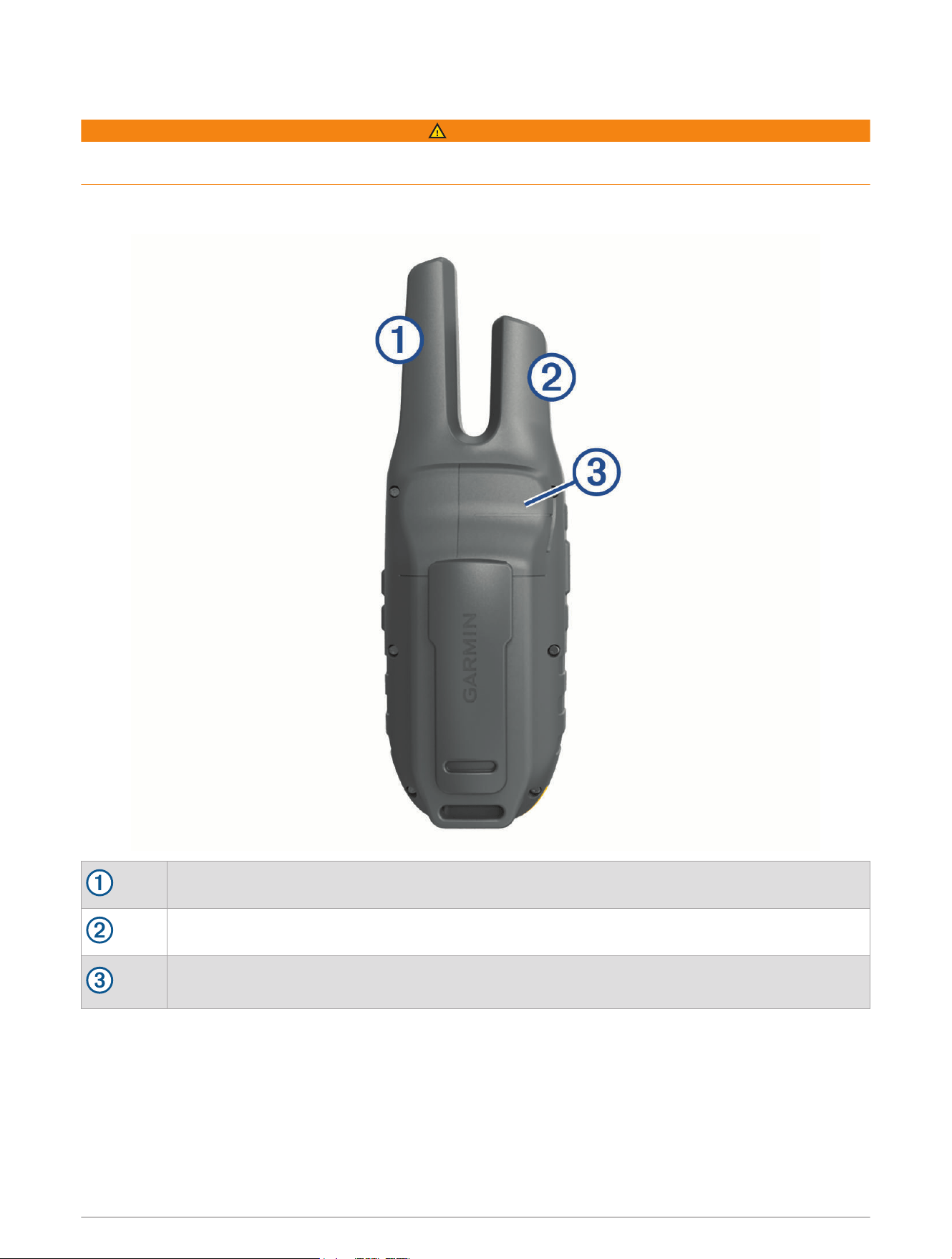
Device Overview
GMRS antenna
GPS antenna
Mini-USB port (under weather cap)
2.5mm headset jack (under weather cap)
Introduction 1
Charging the Battery
NOTICE
To prevent corrosion, thoroughly dry the USB port, the weather cap, and the surrounding area before charging or
connecting to a computer.
You must charge the device fully before using it for the first time.
Before you can connect the straight connector of the USB cable to your device, you may need to remove
optional mount accessories.
NOTE: The device does not charge when outside the approved temperature range (Specifications, page24).
You can charge the battery using a USB port on your computer if necessary, but using the included AC adapter
is the fastest way to charge the device.
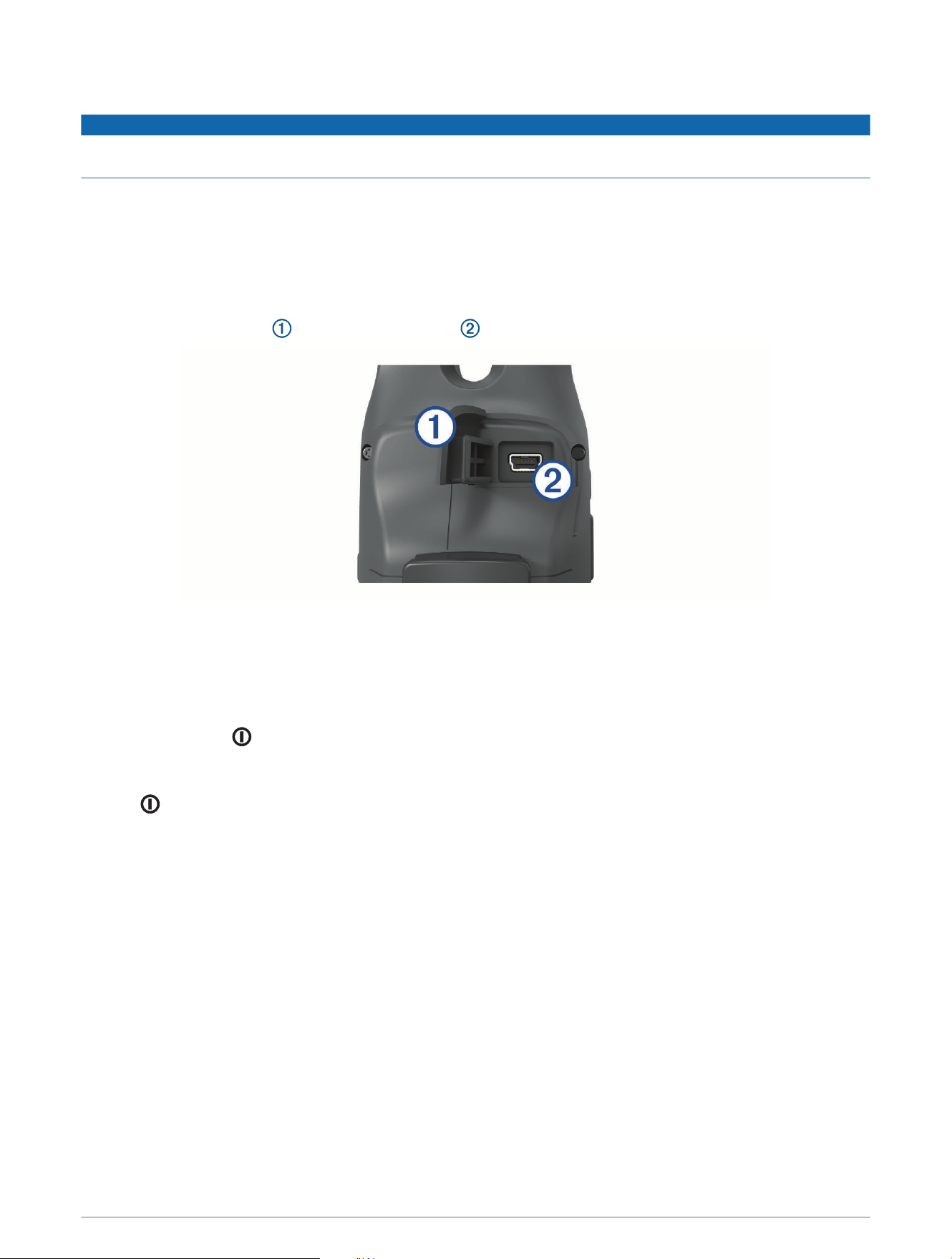
1 Pull up the weather cap from the mini-USB port .
2 Plug the small end of the USB cable into the mini-USB port.
3 Plug the large end of the USBcable into an AC adapter or a computer USB port.
4 If necessary, plug the AC adapter into a standard wall outlet.
When you connect the device to a power source, the device turns on.
5 Charge the battery completely.
TIP: You can hold for two seconds to view the charge level and place the device into power saving mode.
Turning On the Device
Hold .
2 Introduction
Device Operation
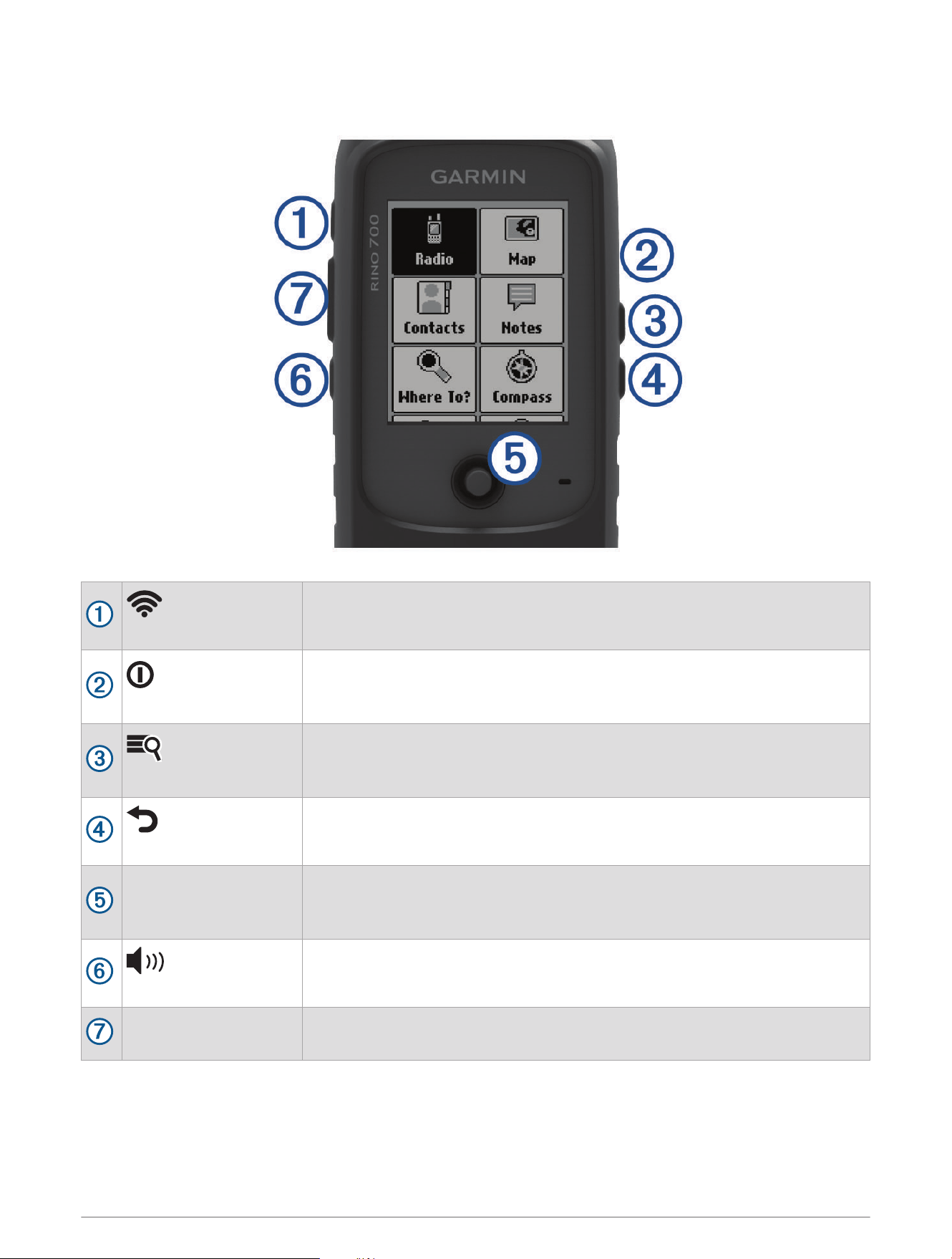
(Call key)
Press to transmit an attention tone on the current channel.
Hold to send an emergency alert (Emergency Alerts, page8).
(Power key)
Press to adjust the backlight and check battery level.
Hold to turn the device on or off.
While charging, hold to put the device in power saving mode.
(Menu/zoom key)
Press to open the menu for a page or item.
Press twice to return to the main menu.
Hold to adjust the zoom level of the map.
(Back key)
Press to return to the previous item or menu.
Thumb Stick
Use to highlight a menu item, adjust a slider, and control the map cursor.
Press to select an item.
Hold to mark a waypoint (Waypoints, page10).
(Volume/squelch key)
Press to adjust the volume and squelch levels.
PTT
(Push-to-talk key)
Hold to transmit on the current radio channel (Transmitting, page4).
Introduction 3
Acquiring Satellite Signals
It may take 30 to 60 seconds to acquire satellite signals.
1 Go outdoors to an open area.
2 If necessary, turn on the device.
3 Wait while the device searches for satellites.
A question mark flashes while the device determines your location.
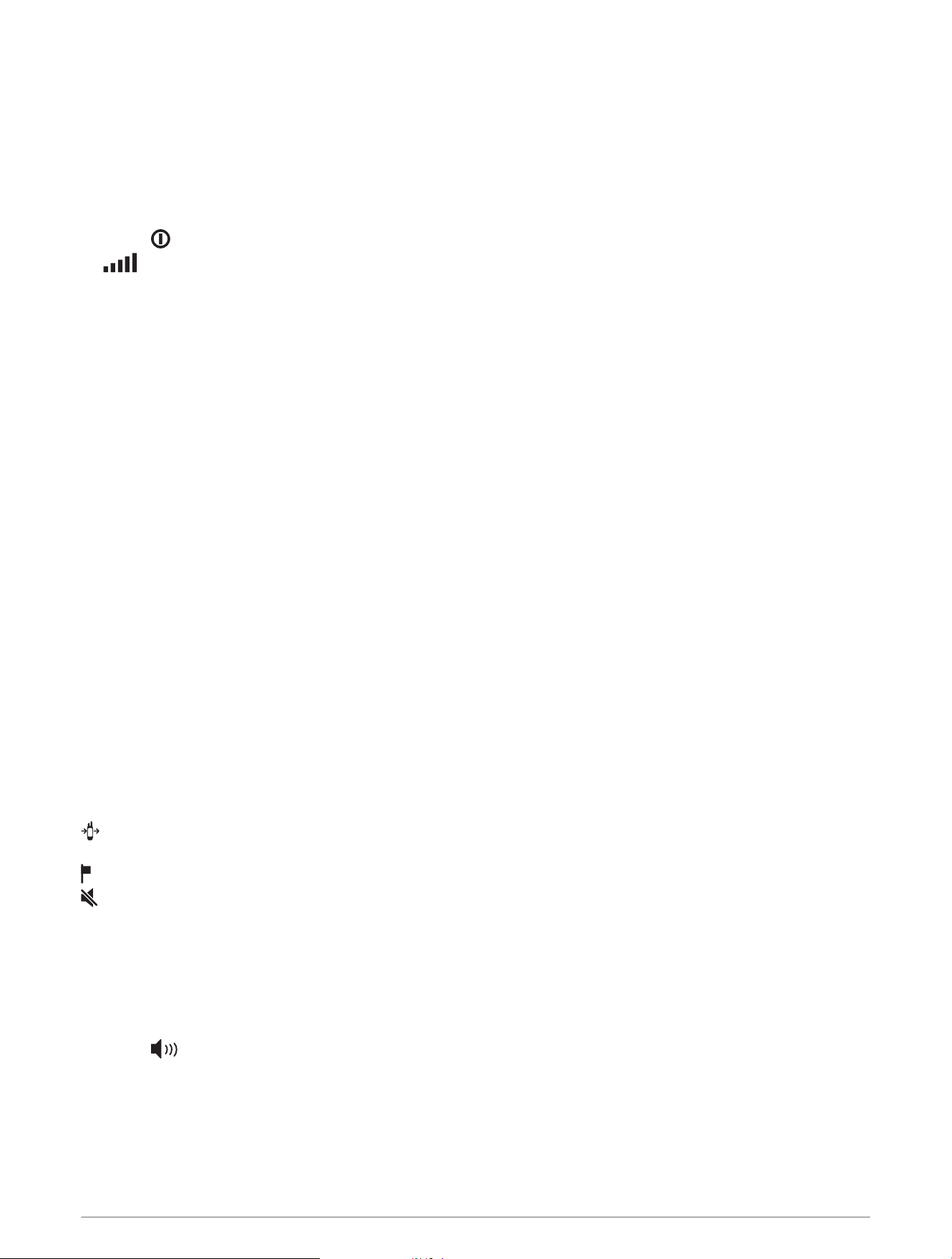
4 Select to open the status page.
shows the GPS/GLONASS signal strength.
When the bars are full, the device has acquired satellite signals.
Radio
In the United States and Canada, this device uses General Mobile Radio Service (GMRS) for two-way
communication with other compatible radio devices.
In Australia, this device uses UHF Citizen Band Radio Service (UHF CBRS), and in New Zealand, this device uses
UHF Personal Radio Service (PRS) for two-way communication with other compatible radio devices.
When communicating with other Garmin
®
Rino devices, additional features are available.
Transmitting
To communicate with other Rino and GMRS or UHF CBRS/PRS radio users, you must be on the same channel
and code (Channels and Codes, page5).
1 Hold PTT.
2 Speak into the front of the device.
3 After you are finished speaking, release PTT.
After you release PTT, the radio transmits your position information, and you cannot hear incoming
transmissions until your transmission is complete . A roger tone sounds on your radio and on the radios
receiving your transmission to confirm that the transmission is complete.
NOTE: You can change or disable the roger tone (Setting the Device Tones, page19).
The Radio App
Using the radio app, you can view information about the radio, control the radio channel and squelch codes, and
customize the radio features.
Icons along the top of the radio page provide useful information about the radio.
: Indicates the activity status of the radio. When an arrow is pointing at the radio, the radio is receiving a
transmission. When an arrow is pointing away from the radio, the radio is transmitting.
: The radio is ready to transmit position information (Peer-to-Peer Positioning, page6).
: The radio is muted (Adjusting the Radio Volume, page4).
Opening the Radio App
You can manage your channel, code, and other radio settings in the radio app.
From the home screen, select Radio.
Adjusting the Radio Volume
1 Select .
The volume screen appears.
2 Use the Thumb Stick controller to select and adjust the Volume.
4 Radio
Adjusting the Squelch Level
You can adjust the sensitivity level of the squelch to filter out background noise. When you adjust the squelch
level higher, fewer weak background signals are heard.
1 When you hear unwanted background noise, select .
The volume screen appears.
2 Use the Thumb Stick controller to select and adjust the slider bar.
You should increase the squelch level until you no longer hear the unwanted background noise.
Channels and Codes
To communicate with other Rino and GMRS or UHF CBRS/PRS radio users, you must be on the same channel.
Rino devices are compatible with third-party GMRS or UHF CBRS/PRS radios as long as the radios use standard
GMRS or CBRS/PRS frequencies. A list of all frequencies used by this device is available in the product
specifications (Radio Frequency Charts, page24).
NOTE: GMRS frequencies are regulated by the FCC in the United States. To transmit on GMRS frequencies, you
must obtain a license from the FCC (FCC Licensing Information, page34).
US and Canada Channel Number Channel Type
1 through 7 and 15 through 22 GMRS channels
15R through 22R Repeater channels
Australia and New Zealand Channel Number Channel Type
9 through 30, 39, 40, 49 through 60, 64 through 70, 79, 80 UHF CBRS/PRS channels
1R through 8R (31 through 38), 41R through 48R (71 through 78) CBRS/PRS repeater channels
1
5 and 35 Reserved channels (emergency)
22 and 23 Reserved channels (data only)
61 through 63 Reserved channels (for future use)
Squelch codes allow you to filter calls from other users on the same channel, so you hear only the radios
you want to hear. The device has two different squelch modes, Continuous Tone Controlled Squelch System
(CTCSS) and Digital-Coded Squelch (DCS). Calls on the channel that are not using the same squelch code in the
same squelch mode are ignored.
NOTE: Squelch codes do not make your conversation private. Anyone on the same channel can hear your
conversation.
Squelch Tone Mode Squelch Codes
CTCSS 1 through 38
DCS Listed in the product specifications (Radio Frequency Charts, page24)
Selecting a Channel
1 From the radio app, select Channel.
2 Select a channel from the list.
1
Communication with another CB station is not authorized within operational range of a CB repeater.
Radio 5

Selecting a Squelch Code
1 From the radio app, select Code.
2 Select a code from the list.
NOTE: Selecting Off allows you to hear everything on the channel.
NOTE: If you cannot hear calls on the same channel with the same code, verify all the radios are using the same
squelch tone mode (Changing the Squelch Tone Mode, page6).
Changing the Squelch Tone Mode
This device can use two types of squelch tone modes, CTCSS and DCS. If you cannot hear calls on the same
channel with the same code, make sure all the radios are using the same squelch tone mode.
1 From the radio app, select > Setup Radio > Squelch Tone Mode.
2 Select a squelch tone mode.
Monitoring a Channel for Activity
You can monitor a single channel for any activity, including static and weak voice signals. This is helpful if a
signal is going out of range.
1 From the radio app, select the channel you want to monitor.
2 Select Monitor.
Scanning Channels
You can scan the channels for voice activity. This can help you find a channel with light activity for your group to
use, or to find other radio users in the area.
From the radio app, select Scan.
Configuring the Scan List
By default, all available channels are included when scanning. You can configure the scan list to include
only specific channels. Selecting specific channels reduces the scan time and may help prevent a missed
transmission.
1 From the radio app, select > Setup Scanlist.
2 Select one or more channels to remove from the list.
3 Select .
Repeater Channels
This device can use GMRS repeater channels in the US, and CBRS/PRS repeater channels in Australia and New
Zealand. GMRS repeater channels are not available in Canada.
Repeater channels use repeaters, when available, to enable communication around obstacles or increase
transmission distance. Position reporting is not allowed by the FCC on GMRS repeater channels.
Peer-to-Peer Positioning
You can send your location information to other Rino users using peer-to-peer positioning. Through peer-to-peer
positioning, you can also track the movement of other Rino users on the same channel and code, and navigate
to their locations.
Peer-to-peer positioning is enabled by default, and your position information is sent to other Rino users on the
same channel and code when you press the PTT key (push-to-talk) or the key (call).
NOTE: You can send location information only once every 30 seconds, due to FCC restrictions.
After you send location information, the icon changes to a countdown timer so you know when location
information can be sent again.
6 Radio

Polling Other Rino Users
You can request position updates for other Rino users who are in your saved contacts (Saving a New Contact,
page7).
1 From the contacts app, select a saved contact.
2 Select Poll Location.
The location of the contact is updated on the map.
Editing Your Contact Info
From the radio app, you can change the symbol and name transmitted to other Rino users through peer-to-peer
positioning.
• To change your name, select the name field.
• To change your symbol, select the symbol.
Contacts
You can save information about another Rino user as a contact. You can view location information and navigate
to the location of users in your contacts list.
Saving a New Contact
The first time the device receives a peer-to-peer positioning signal from another Rino user, the new contact page
appears. To save the contact details or navigate to the contact in the future, you must save the new contact in
your contacts list.
From the new contact page, select Save.
The new contact is saved in your contacts list.
Viewing Contacts on the Map
1 From the main menu, select Contacts.
2 Select a contact.
3 Select View Map.
Navigating to a Contact
1 From the home screen, select Contacts.
2 Select a contact.
3 Select View Map > Go.
4 Follow to the contact's location.
Notes
You can send short notes to other Rino users on your current channel and code. You can review previously
received notes from your contacts. You can edit and save favorite notes to quickly send them later.
NOTE: Notes transmit to all users on your current channel and code, not just to your saved contacts.
Radio 7

Creating, Saving, and Sending Notes
1 From the home screen, select Notes.
2 Select Send Note > New Note.
3 Enter the note text.
Due to FCC regulations, you can enter a maximum of 13 characters in a note.
4 Select Done.
5 Select an option:
• To send the note without saving it, select Send Note.
• To save the note without sending it, select Save.
• To save the note and send it, select Send and Save.
Emergency Alerts
You can send an emergency alert to all Rino users on the current channel and code. Users can respond to an
emergency alert to immediately begin navigating to your position.
Sending an Emergency Alert
To send emergency alerts to other Rino and GMRS or UHF CBRS/PRS radio users, you must be on the same
channel.
1 Hold .
2 Select Yes.
The device sends an emergency alert every 60 seconds until another Rino user responds to the alert or you
cancel the alert.
Responding to an Emergency Alert
To receive emergency alerts from other Rino and GMRS or UHF CBRS/PRS radio users, you must be on the
same channel.
1 When you receive an emergency alert, select Help.
The device sends a response to the alert sender, and begins navigation to the sender's location
automatically.
2 Follow to the sender's location.
Radio App Settings
From the radio app, select .
Turn Radio Off: Turns off the radio functionality. You cannot make or receive transmissions when the radio
functionality is turned off.
Radio Setup
From the radio app, select > Setup Radio.
Send Location: Enables sending position information when you transmit to other Rino users.
Allow Polling: Allows polling requests from other Rino users.
Power Level: Sets the power level used to transmit using GMRS channels in the U.S. and Canada, and UHF
CBRS/PRS channels in Australia and New Zealand. If the battery level is too low to support transmissions
using higher power levels, the value of this setting decreases automatically.
Squelch Tone Mode: Sets the squelch mode (Changing the Squelch Tone Mode, page6).
8 Radio

Advanced Radio Setup
From the radio app, select > Setup Radio > Advanced Setup.
Headset Type: Sets the type of accessory headset or microphone you are using with the device (Headsets and
Microphones, page22).
VOX Level: Sets the sensitivity of a connected Voice Operated Transmission (VOX) accessory. A lower VOX
setting is recommended for quiet environments, and a higher VOX setting is recommended for noisy
environments.
Repeater Channel: Enables the GMRS repeater channels in the US, and the CBRS/PRS repeater channels
in Australia and New Zealand. GMRS repeater channels are not available in Canada (Repeater Channels,
page6).
Navigation
You can navigate routes and tracks to a waypoint, geocache, or any saved location in the device. You can use
the map or the compass to navigate to your destination.
Navigating to a Destination
1 From the home screen, select .
2 Select a category.
3 Select a destination.
4 Select Go.
The map opens, and your route is marked with a dashed line.
5 Navigate using the map (Navigating with the Map, page9) or compass (Navigating with the Compass,
page9).
Finding a Location Near Another Location
1 From the home screen, select Where To?.
2 Select > Search Near.
3 Select a criteria to center your search, such as A Waypoint.
4 Select a location.
Stopping Navigation
From the map or compass, select > Stop Navigation.
Navigating with the Map
1 Begin navigating to a destination (Navigating to a Destination, page9).
2 From the home screen, select Map.
A triangle represents your location on the map. As you travel, the triangle moves and leaves a track log (trail).
3 Complete one or more actions:
• Use the Thumb Stick controller to move the cursor on the map to view different areas.
• Hold , and use the Thumb Stick controller to zoom in and out of the map.
• Select a location on the map (represented by a pin) with the cursor, and press the Thumb Stick controller
to view information about the selected location.
Navigating with the Compass
When navigating to a destination, points to your destination, regardless of the direction you are moving.
1 Begin navigating to a destination (Navigating to a Destination, page9).
2 From the home screen, select Compass.
3 Turn until points toward the top of the compass, and continue moving in that direction to the destination.
Navigation 9
Course Pointer
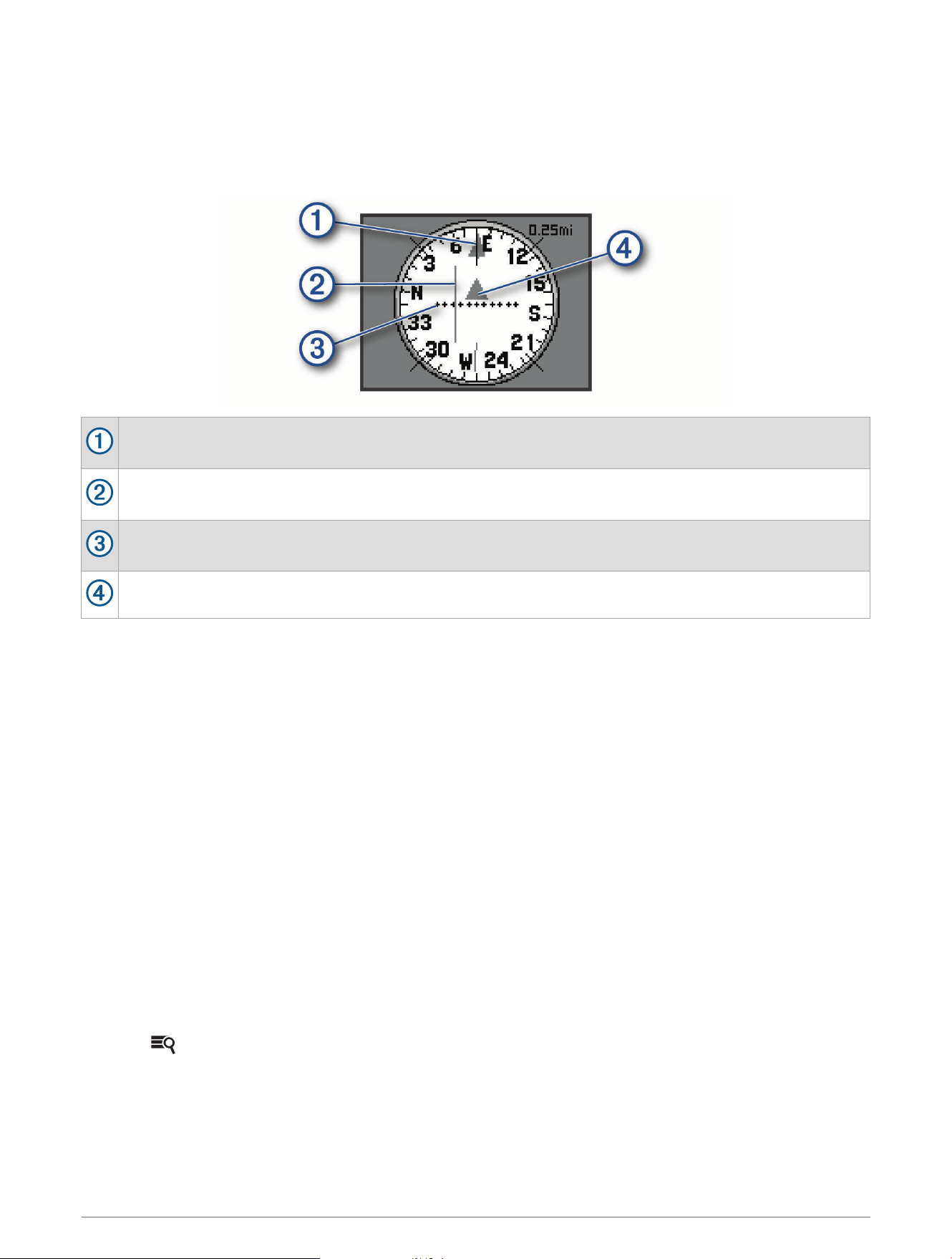
The course pointer is most useful when you are navigating to your destination in a straight line, such as when
you are navigating on water. It can help you navigate back to the course line when you go off-course to avoid
obstacles or hazards.
To enable the course pointer, from the home screen, select Setup > Heading > Go To Line (Pointer) > Course.
Course line pointer. Indicates the direction of the desired course line from your starting point to your next
waypoint.
Course deviation indicator (CDI). Indicates the location of the desired course line in relation to your
location. If the CDI is aligned with the course line pointer, you are on course.
Course deviation distance. The dots indicate your distance off course. The distance represented by each
dot is indicated by the scale in the upper-right corner.
To-and-from indicator. Indicates whether you are headed to or from the next waypoint.
Navigating Using TracBack
®
While navigating, you can navigate back to the beginning of your current track. This can be helpful when finding
your way back to camp or the trail head.
1 From the home screen, select Where To? > Tracks > Current Track > Tracback.
The map displays your route with a dashed line, start point, and end point.
2 Navigate using the map or the compass.
Waypoints
Waypoints are locations you record and store in the device. Waypoints can mark where you are, where you are
going, or where you have been. You can add details about the location, such as name, elevation, and depth.
You can add a .gpx file that contains waypoints by transferring the file to the GPX folder (Transferring Files to
Your Device, page23).
Marking Your Current Location as a Waypoint
You can mark your current location as a waypoint.
1 From the home screen, select Mark Waypoint.
2 Select the symbol, the name, or the notes field to add details about the waypoint (optional).
3 Select for more waypoint options (optional).
4 Select Done.
10 Waypoints
Finding a Waypoint
1 From the home screen, select Waypoint Manager.
2 If necessary, select to narrow the search.
3 If necessary, select an option:
• Select Spell Search to search using the name of the waypoint.
• Select Search Near to search near a recently found location, another waypoint, your current location, or a
point on the map.
• Select Sort to view the list of waypoints based on nearest distance or alphabetical order.
4 Select a waypoint from the list.
Editing a Waypoint
1 From the home screen, select Waypoint Manager.
2 Select a saved waypoint.
3 Select an item to edit, such as the name.
4 Enter the new information, and select Done.
Deleting a Waypoint
1 From the home screen, select Waypoint Manager.
2 Select a waypoint.
3 Select > Delete.
Sending a Waypoint
You can send a saved waypoint to other Rino users.
1 From the home screen, select Waypoint Manager.
2 Select a waypoint.
3 Select > Send Location.
Increasing the Accuracy of a Waypoint Location
You can refine the accuracy of a waypoint location by averaging the location data. When averaging, the device
takes several GPS readings at the same location and uses the average value to provide more accuracy.
1 Select Waypoint Manager.
2 Select a waypoint.
3 Select > Average Location.
4 Move to the waypoint location.
5 Select Start.
6 Follow the on-screen instructions.
7 When the confidence status bar reaches 100%, select Save.
For best results, collect four to eight samples for the waypoint, waiting at least 90 minutes between samples.
Waypoints 11
Projecting a Waypoint
You can save a new waypoint by projecting the distance and bearing from a saved waypoint to a new location.
For example, if you would like to navigate to a location you observe on the other side of a river or stream, you
can project a waypoint from your current location to the observed location, then navigate to the new location
after crossing the river or stream at a more suitable location.
1 From the home screen, select Waypoint Manager.
2 Select a waypoint.
3 Select > Project Waypoint.
4 Enter the bearing, and select Done.
5 Select a unit of measure.
6 Enter the distance, and select Done.
7 Select Save.
Routes
A route is a sequence of waypoints or locations that leads you to your final destination.
Creating a Route Using Route Planner
A route can include many waypoints, and it should include at least a starting point and one destination.
1 From the home screen, select Route Planner > Create Route > Select First Point.
2 Select a category.
3 Select the first point in the route.
4 Select Use.
5 Select Select Next Point to add additional points to the route.
6 Select to save the route.
Creating a Route Using the Map
1 From the home screen, select Route Planner > Create Route > Select First Point > Use Map.
2 Use the Thumb Stick controller to select a point on the map.
3 Press the Thumb Stick controller to select Use.
4 Move the map, and select additional points on the map to add to the route (optional).
5 Select .
Editing the Name of a Route
You can customize the name of a route to make it distinct.
1 From the home screen, select Route Planner.
2 Select a route.
3 Select Change Name.
4 Enter the new name.
12 Routes

Editing a Route
You can add, remove, or rearrange points on a route.
1 From the home screen, select Route Planner.
2 Select a route.
3 Select Edit Route.
4 Select a point.
5 Select an option:
• To view the point on the map, select Review.
• To change the order of the points on the route, select Move Up or Move Down.
• To insert an additional point on the route, select Insert.
The additional point is inserted before the point you are editing.
• To remove the point from the route, select Remove.
6 Select to save the route.
Viewing a Route on the Map
1 From the home screen, select Route Planner.
2 Select a route.
3 Select View Map.
Deleting a Route
1 From the home screen, select Route Planner.
2 Select a route.
3 Select Delete Route.
Viewing the Active Route
1 While navigating a route, from the home screen, select Active Route.
You may need to add this application to the home screen before you can select it (Adding an Application to
the Home Screen, page17).
2 Select a point in the route to view additional details.
Reversing a Route
You can switch the start and end points of your route to navigate the route in reverse.
1 From the home screen, select Route Planner.
2 Select a route.
3 Select Reverse Route.
Tracks
A track is a recording of your path. The track log contains information about points along the recorded path,
including time, location, and elevation for each point.
Opening Track Manager
You can customize, use, and archive tracks using the track manager.
From the home screen, select Track Manager.
Tracks 13

Viewing Track Information
1 From the home screen, select Track Manager.
2 Select a track.
3 Select View Map.
The beginning and the end of the track are marked by flags.
4 Select > Review Track.
Information about the track appears.
Saving the Current Track
1 Select Track Manager > Current Track.
2 Select an option:
• Select Save Track to save the entire track.
• Select Save Portion, and select a portion.
Clearing the Current Track
Select Track Manager > Current Track > Clear Current Track.
Deleting a Track
1 Select Track Manager.
2 Select a track.
3 Select Delete.
Applications
Geocaches
Geocaching is a treasure hunting activity in which players hide or search for hidden caches using clues and GPS
coordinates.
Downloading Geocaches Using a Computer
You can load geocaches manually onto your device using a computer (Transferring Files to Your Device,
page23). You can place the geocache files into a GPX file and import them into the GPX folder on the device.
With a premium membership to geocaching.com, you can use the "pocket query" feature to load a large group
of geocaches onto your device as a single GPX file.
1 Connect the device to your computer using a USB cable.
2 Go to www.geocaching.com.
3 If necessary, create an account.
4 Sign in.
5 Follow the instructions at geocaching.com to find and download geocaches to your device.
Navigating to a Geocache
1 From the home screen, select Geocaches.
You may need to add this application to the home screen before you can select it (Adding an Application to
the Home Screen, page17).
2 From the geocache details, select Go.
3 Navigate using the map (Navigating with the Map, page9) or compass (Navigating with the Compass,
page9).
4 As you approach the location of the geocache, use the hints and clues to help you find the hidden cache
(Using Hints and Clues to Find a Geocache, page15).
14 Applications

Using Hints and Clues to Find a Geocache
You can use hints or clues to help you find a geocache.
1 While navigating to a geocache, from the map, select > View Geocache.
2 Select an option:
• To view details about the geocache, including the coordinates, select Show Description.
• To view a hint about a geocache location, select Show Hint.
• To view feedback about the geocache from previous searchers, select Show Logs.
Logging the Attempt
After you attempt to find a geocache, you can log your results.
1 While navigating to a geocache, from the home screen, select Geocaches > Log Attempt.
2 Select Found, Did Not Find, Needs Repair, or Unattempted.
3 Select an option:
• To begin navigation to the next geocache nearest you, select Find Next Closest.
• To stop logging, select Done.
• To enter a comment about looking for the cache or about the cache itself, select Edit Comment, enter a
comment, and select Done.
Filtering the Geocache List
You can filter your geocache list based on certain factors, such as the level of difficulty.
1 From the home screen, select Geocaches > .
You may need to add this application to the home screen before you can select it (Adding an Application to
the Home Screen, page17).
2 Select one or more options to filter:
• To filter by a geocache category, such as puzzle or event, select Type.
• To filter by the physical size of the geocache container, select Size.
• To filter by the difficulty level of finding the geocache, or the difficulty of the terrain, select a level from 1
to 5.
• To filter by Unattempted, Did Not Find, or Found geocaches, select Status.
3 Select Search to view the filtered geocache list.
Saving a Custom Geocache Filter
You can create and save custom filters for geocaches based on specific factors.
1 From the home screen, select Setup > Geocaches > Filter Setup > Create Filter.
2 Select items to filter.
3 Select .
By default, the new filter is saved automatically as Filter followed by a number. For example, Filter 2. You can
edit the geocache filter to change the name (Editing a Custom Geocache Filter, page15).
Editing a Custom Geocache Filter
1 From the home screen, select Setup > Geocaches > Filter Setup.
2 Select a filter.
3 Select an item to edit.
Applying a Custom Filter to a Geocache List
After you create a filter, you can apply it to the geocache list.
1 From the geocache list, select > Apply Filter.
2 Select a filter.
Applications 15

Setting a Proximity Alarm
Proximity alarms alert you when you are within a specified range of a particular location.
1 From the home screen, select Proximity Alarms > Create Alarm.
You may need to add this application to the home screen before you can select it (Adding an Application to
the Home Screen, page17).
2 Select a category.
3 Select a location.
4 Select Use.
5 Enter a radius, and select Done.
When you enter an area with a proximity alarm, the device sounds a tone.
TIP: You can configure separate alarm tones for when you enter and leave an area.
Calculating the Size of an Area
1 From the home screen, select Area Calculation > Start.
You may need to add this application to the home screen before you can select it (Adding an Application to
the Home Screen, page17).
2 Walk around the perimeter of the area you want to calculate.
3 Select Calculate when finished.
Viewing the Calendar and Almanacs
You can view device activity, such as when a waypoint was saved. You can also view daily almanac information
for the sun and moon, and hunting and fishing.
1 From the home screen, select an option:
• To view device activity for specific days, select Calendar.
• To view the sunrise, sunset, moonrise, and moonset information, select Sun and Moon.
• To view the predicted best times for hunting and fishing, select Hunt and Fish.
You may need to add these applications to the home screen before you can select them (Adding an
Application to the Home Screen, page17).
2 Select a day.
Opening the Stopwatch
From the home screen, select Stopwatch.
You may need to add this application to the home screen before you can select it (Adding an Application to
the Home Screen, page17).
Satellite Page
The satellite page shows your current location, GPS accuracy, satellite locations, and signal strength.
Changing the Satellite View
1 From the home screen, select Satellite.
2 Select > Track Up to orient the satellite view with your current track toward the top of the screen.
16 Applications
Simulating a Location
You can use the device with GPS off to perform maintenance on waypoints and routes, or to conserve battery
life. You can set the location manually to view your current location on the map.
1 From the home screen, select Satellite > > Use Demo Mode.
You may need to add this application to the home screen before you can select it (Adding an Application to
the Home Screen, page17).
2 Select > Set Location On Map.
3 Select a location.
4 Select Use.
Customizing the Device
Adding an Application to the Home Screen
You can add or remove applications from the home screen.
1 From the home screen, select > Add Page.
2 Select an application.
The application is added after the last application on the home screen.
Pages
By default, the home screen is the only page shown on the device, and you can open all available applications
from the home screen. If you often use specific applications, you can add them as pages parallel to the home
screen and move through the pages and the home screen by pressing .
Applications added as pages do not appear on the home screen.
Adding a Page
1 Select Setup > Page Sequence.
2 Select Add Page.
3 Select a page to add.
Removing a Page
1 Select Setup > Page Sequence.
2 Select a page.
3 Select Remove.
4 Press the Thumb Stick controller.
Changing the Page Sequence
Before you can change the order of the page sequence, you must add pages to the sequence.
1 Select Setup > Page Sequence.
2 Select a page.
3 Select Move.
4 Move the page up or down in the list.
5 Press the Thumb Stick controller.
Customizing the Device 17

Profiles
A profile is a collection of settings that optimize your device based on how you are using it. For example, you
can customize different settings and views for when you are using the device for geocaching than when hiking
or fishing. The default data fields and default pages change with each profile.
When you are using a profile and you change settings such as data fields or units of measurement, the changes
are saved automatically as part of the profile.
Adding a Profile
The device uses a recreational profile by default.
From the home screen, select Setup > Profiles > Create Profile.
Selecting a Profile
You must add profiles before you can select them (Adding a Profile, page18).
When you change activities, you can change the setup of the device by changing the profile.
1 Select Profile Change.
You may need to add this application to the home screen before you can select it (Adding an Application to
the Home Screen, page17).
2 Select a profile.
Editing a Profile
1 From the home screen, select Setup > Profiles.
2 Select a profile.
3 Select an option:
• To change the name of the profile, select Edit Name.
• To change the order of the profile in the list, select Move Up or Move Down.
• To delete the profile, select Delete.
Custom Data Fields and Dashboards
Data fields display information about your location or other specified data. Dashboards are a custom grouping
of data that can be helpful to a specific or general task, such as geocaching.
Enabling the Map Data Fields or Dashboards
You can show a number of data fields or a type of dashboard on the map.
1 From the home screen, select Setup > Map > Data Fields.
2 Select Large Data Field or Small Data Fields.
3 Select an option:
• Select the number of data fields to show on the map.
• Select Custom, and select the number of data fields to show when navigating and when not navigating.
• Select Dashboard, and select the dashboard type.
Customizing the Data Fields
Before you can change the map data fields, you must enable them (Enabling the Map Data Fields or Dashboards,
page18).
You can customize the data fields and dashboards of the map and compass pages.
1 From the map or compass page, select > Change Data Fields.
2 Select a data field.
3 Select a data field category and a data field.
18 Customizing the Device

Adjusting the Backlight Brightness
You can adjust the backlight brightness to maximize the battery life. For a longer battery life, you should turn off
the backlight when using the device in daylight.
1 Select .
2 Use the Thumb Stick to adjust the backlight brightness.
Display Settings
From the home screen, select Setup > Display.
Backlight Timeout: Sets the length of time before the backlight turns off.
Adjust Contrast: Sets the contrast level of the display.
Map Settings
From the home screen, select Setup > Map.
Orientation: Adjusts how the map is shown on the page. The North Up option shows north at the top of the
page. The Track Up option shows your current direction of travel toward the top of the page.
Data Fields: Sets the dashboard or the number and type of data fields to display on the map. Each data field or
dashboard shows different information about your route or your location.
Marine Colors: Shades land and bodies of water for marine use.
Advanced Map Settings
From the home screen, select Setup > Map > Advanced Setup.
Auto Zoom: Enables the auto zoom when navigating.
User Waypoint Zoom Level: Adjusts the zoom level at which waypoints appear. Waypoints do not appear when
the map zoom level is higher than the selected level.
User Waypoint Text Size: Sets the text size for waypoints.
System Settings
From the main menu, select Setup > System.
Satellite System: Allows you to set the satellite system to GPS, GPS + GLONASS (About GPS and GLONASS,
page19), or Demo Mode (GPS off).
WAAS/EGNOS: Sets the satellite system to Wide Area Augmentation System/European Geostationary
Navigation Overlay Service (WAAS/EGNOS). For more information about WAAS, go to www.garmin.com
/aboutGPS/waas.html.
Language: Sets the text language on the device.
NOTE: Additional language files are removed from the device when you select the language during the initial
setup. You can download additional language files from www.garmin.com.
Changing the text language does not change the language of user-entered data or map data.
USB Mode: Sets the USB communication interface mode to Mass Storage or Garmin. You should use the
Garmin USB mode only when communicating with specific Garmin applications.
About GPS and GLONASS
The default satellite system setting is GPS. You can use GPS + GLONASS for increased performance in
challenging environments and faster position acquisition. Using GPS and GLONASS can reduce battery life more
than GPS only.
Setting the Device Tones
You can customize tones for messages, keys, turn warnings, and alarms.
1 From the home screen, select Setup > Tones > Tones > On.
2 Select a tone for each audible type.
Customizing the Device 19

Routing Settings
From the home screen, select Setup > Routing.
Off Road Transitions: Sets how the device routes you from one point on the route to the next. The Auto option
automatically routes you to the next point on the route, the Manual option allows you to select the next point
on the route, and the Distance option routes you to the next point on the route when you are within a specified
distance of your current point.
Heading Settings
You can customize the compass settings.
From the home screen, select Setup > Heading.
Display: Sets the type of directional heading shown on the compass.
North Reference: Sets the north reference used on the compass.
Go To Line (Pointer): Allows you to use the bearing pointer that points in the direction of your destination, or use
the course pointer that shows your relationship to the course line leading to the destination.
Position Format Settings
NOTE: You should not change the position format or the map datum coordinate system unless you are using a
map or chart that specifies a different position format.
From the home screen, select Setup > Position Format.
Position Format: Sets the position format in which a location reading appears.
Map Datum: Sets the coordinate system on which the map is structured.
Map Spheroid: Shows the coordinate system the device is using. The default coordinate system is WGS 84.
Changing the Units of Measure
You can customize units of measure for distance and speed, elevation, depth, temperature, pressure, and
vertical speed.
1 From the home screen, select Setup > Units.
2 Select a measurement type.
3 Select a unit of measure.
Time Settings
From the home screen, select Setup > Time.
Time Format: Sets the device to show time in a 12-hour or 24-hour format.
Time Zone: Sets the time zone for the device. Automatic sets the time zone automatically based on your GPS
position.
Geocaching Settings
From the home screen, select Setup > Geocaches.
Geocache List: Allows the device to display the geocache list using names or codes.
Filter Setup: Allows you to create and save custom filters for geocaches (Saving a Custom Geocache Filter,
page15).
Found Geocaches: Allows you to edit the number of geocaches found. This number automatically increases
when you log a find (Logging the Attempt, page15).
20 Customizing the Device
Resetting Data and Settings
You can reset trip data, delete all waypoints, clear the current track, or restore default values.
1 From the home screen, select Setup > Reset.
2 Select an option:
• To reset data specific to a trip, such as distance and averages, select Reset Trip Data.
• To delete all saved waypoints, select Delete All Waypoints.
• To clear the data recorded since you started your current activity, select Clear Current Track.
NOTE: The device continues to record new data for the current activity.
• To reset the settings for your current activity type to the factory default values, select Reset Activity
Settings.
• To restore all device settings to the factory default values, select Reset All Settings.
NOTE: Resetting all settings clears all geocaching activity from your device.
Restoring Default Values for Specific Settings
You can restore the default values for specific settings categories.
1 From the home screen, select Setup.
2 Select a category to restore.
3 Select > Restore Defaults.
Restoring Default Values for Specific Page Settings
You can restore the default values for settings for the map, compass, trip computer, and elevation plot.
1 Open the page for which you will restore the settings.
2 Select > Restore Defaults.
Restoring All Default Settings
You can reset all settings back to the factory default settings.
From the home screen, select Setup > Reset > Reset All Settings > Reset.
NOTE: Restoring all default settings on your device clears your geocaching data.
Device Information
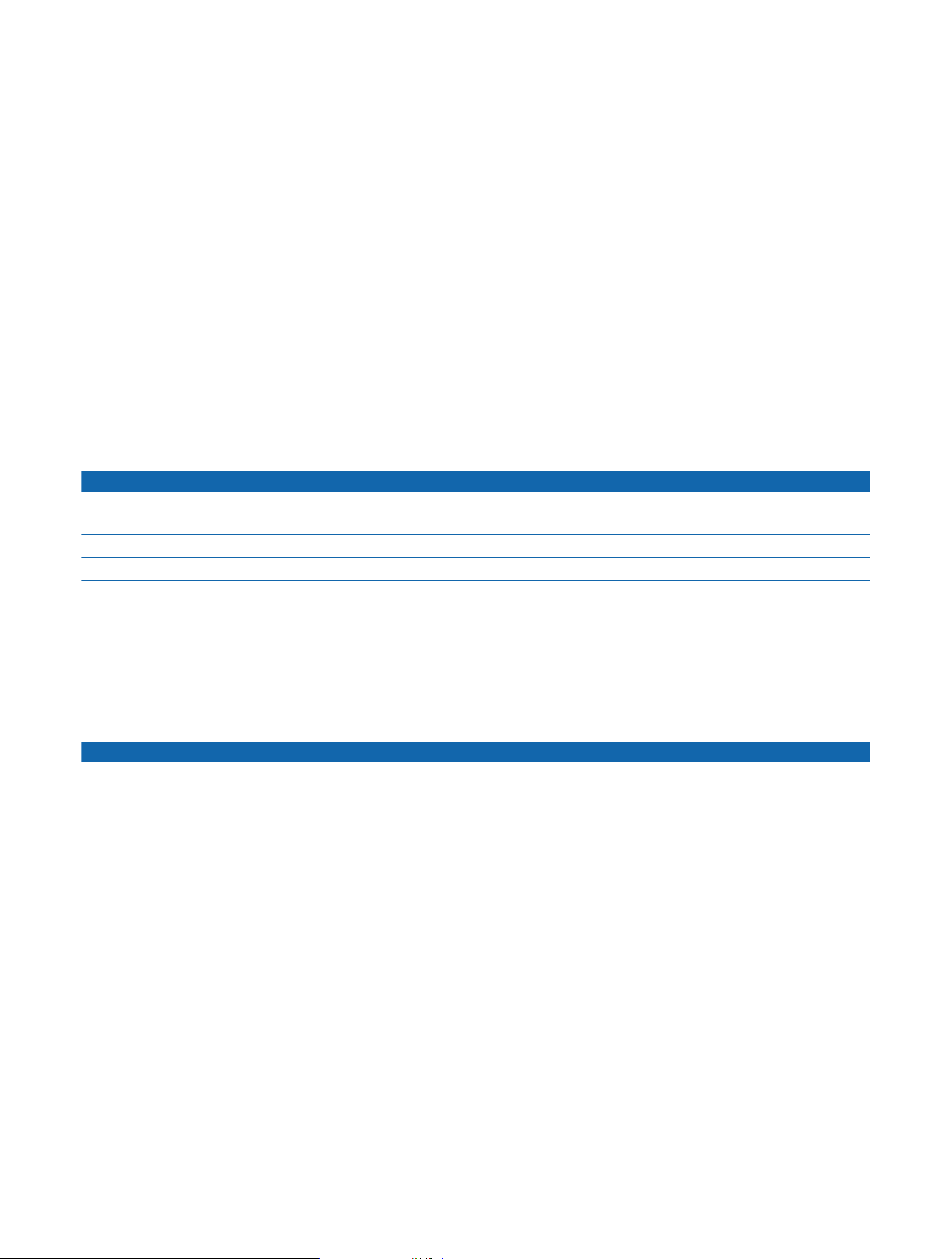
Attaching the Carabiner Clip
1 Position the carabiner clip in the slots on the mounting spine of the device.
2 Slide the carabiner clip up until it locks in place.
Device Information 21
Headsets and Microphones
This device is compatible with many headset and microphone accessories that connect using a 2.5mm jack
(Device Overview, page1).
By default, the device is set to detect automatically when a new headset or microphone is connected.
NOTE: When connecting a headset with a push to talk (PTT) button, you must press the PTT button after
connecting the headset for the device to detect the headset.
This device is compatible with Voice Operated Transmission (VOX) devices. These accessories allow you to use
the device hands-free by transmitting automatically when a voice is detected. You can adjust the sensitivity level
of connected VOX devices (Advanced Radio Setup, page9).
Product Updates
On your computer, install Garmin Express
™
(www.garmin.com/express).
This provides easy access to these services for Garmin devices:
• Software updates
• Product registration
Device Care
NOTICE
Do not store the device where prolonged exposure to extreme temperatures can occur, because it can cause
permanent damage.
Avoid chemical cleaners, solvents, and insect repellents that can damage plastic components and finishes.
Secure the weather cap tightly to prevent damage to the USB port.
Cleaning the Device
1 Wipe the device using a cloth dampened with a mild detergent solution.
2 Wipe it dry.
After cleaning, allow the device to dry completely.
Water Immersion
NOTICE
The device is water resistant to IEC Standard 60529 IPX7. It can withstand immersion in 1 meter of water for 30
minutes. Prolonged submersion can cause damage to the device. After submersion, be certain to wipe dry and
air dry the device before using or charging.
Data Management
NOTE: The device is not compatible with Windows
®
95, 98, Me, Windows NT
®
, and Mac
®
OS 10.3 and earlier.
File Types
The handheld device supports these file types:
• Files from BaseCamp
™
or HomePort
™
. Go to www.garmin.com/trip_planning.
• GPX route, track, and waypoint files.
• GPX geocache files (Downloading Geocaches Using a Computer, page14).
• JPEG photo files.
• GPI custom POI files from the Garmin POI Loader. Go to www.garmin.com/products/poiloader.
22 Device Information
Connecting the Device to Your Computer
NOTICE
To prevent corrosion, thoroughly dry the USB port, the weather cap, and the surrounding area before charging or
connecting to a computer.
Before you can connect the straight connector of the USB cable to your device, you may need to remove
optional mount accessories.
1 Pull up the weather cap from the USB port.
2 Plug the small end of the USB cable into the USB port on the device.
3 Plug the large end of the USB cable into a computer USB port.
Your device and memory card (optional) appear as removable drives in My Computer on Windows
computers and as mounted volumes on Mac computers.
Transferring Files to Your Device
1 Connect the device to your computer.
On Windows computers, the device appears as a removable drive or a portable device, and the memory
card may appear as a second removable drive. On Mac computers, the device and memory card appear as
mounted volumes.
NOTE: Some computers with multiple network drives may not display device drives properly. See your
operating system documentation to learn how to map the drive.
2 On your computer, open the file browser.
3 Select a file.
4 Select Edit > Copy.
5 Open the portable device, drive, or volume for the device or memory card.
6 Browse to a folder.
7 Select Edit > Paste.
The file appears in the list of files in the device memory or on the memory card.
Deleting Files
NOTICE
If you do not know the purpose of a file, do not delete it. Your device memory contains important system files
that should not be deleted.
1 Open the Garmin drive or volume.
2 If necessary, open a folder or volume.
3 Select a file.
4 Press the Delete key on your keyboard.
Disconnecting the USB Cable
If your device is connected to your computer as a removable drive or volume, you must safely disconnect your
device from your computer to avoid data loss. If your device is connected to your Windows computer as a
portable device, it is not necessary to safely disconnect the device.
1 Complete an action:
• For Windows computers, select the Safely Remove Hardware icon in the system tray, and select your
device.
• For Apple
®
computers, select the device, and select File > Eject.
2 Disconnect the cable from your computer.
Device Information 23
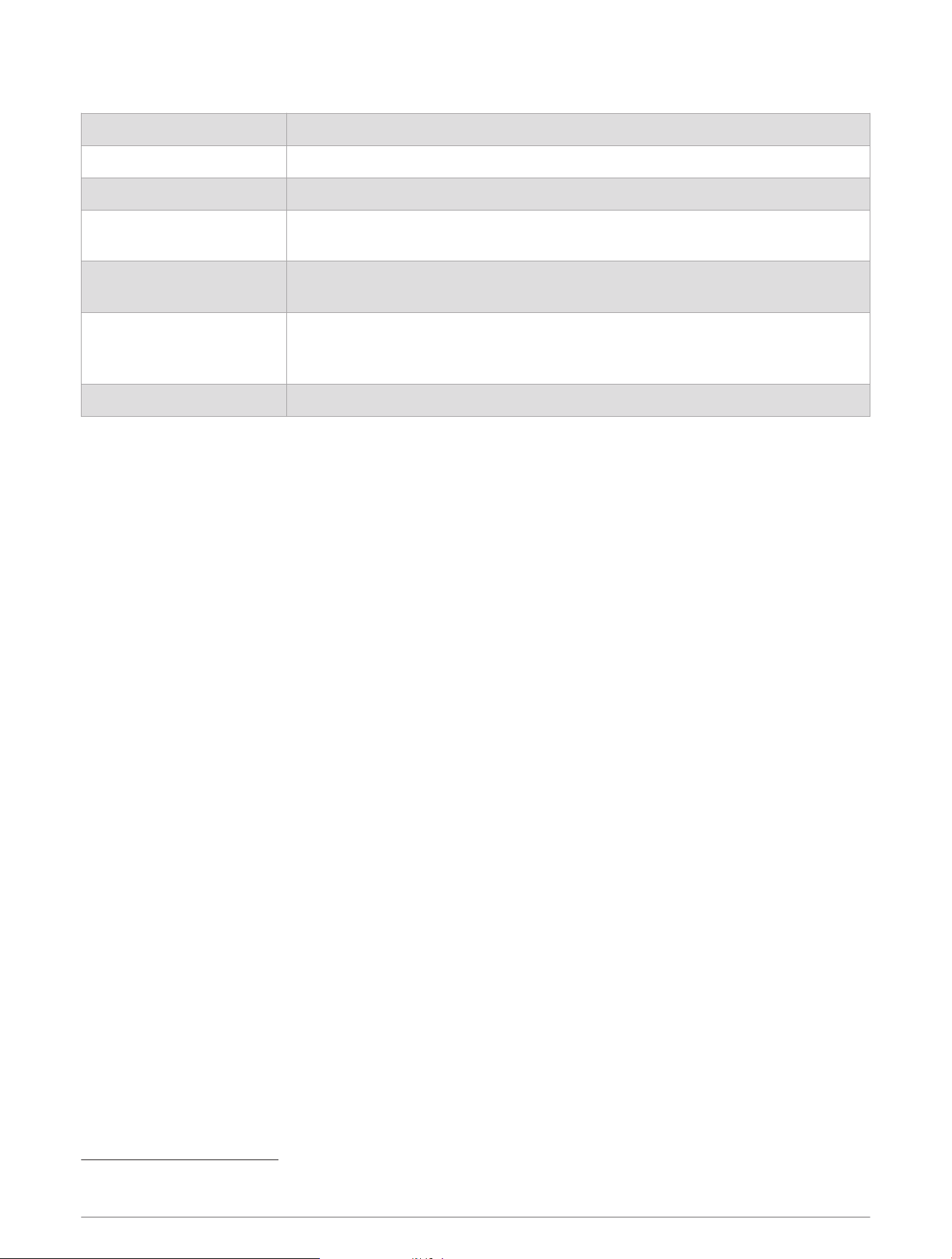
Specifications
Battery type Non-removable Lithium-ion battery
Battery life Up to 13 hours of typical usage.
Water rating IEC 60529 IPX7
2
Operating temperature
range
From -20º to 55ºC (from -4º to 131ºF)
Charging temperature
range
From 0º to 40°C (from 32º to 104°F)
Radio channels
1 through 22: GMRS channels (requires FCC license in the United States)
15R through 22R: GMRS repeater channels (requires FCC license in the United
States) (position reporting is not allowed by the FCC on repeater channels)
Radio output power 0.5, 2.0, or 5.0W (5.0 W is available only in the US.)
Radio Frequency Charts
GMRS Radio Frequencies
Rino models sold in the United States and Canada use these frequencies.
NOTE: If you plan to use this device in countries outside of the United States or Canada, you should check with
the government of that country for any restrictions on GMRS use.
2
*The device withstands incidental exposure to water of up to 1m for up to 30min. For more information, go to www.garmin.com/waterrating.
24 Device Information
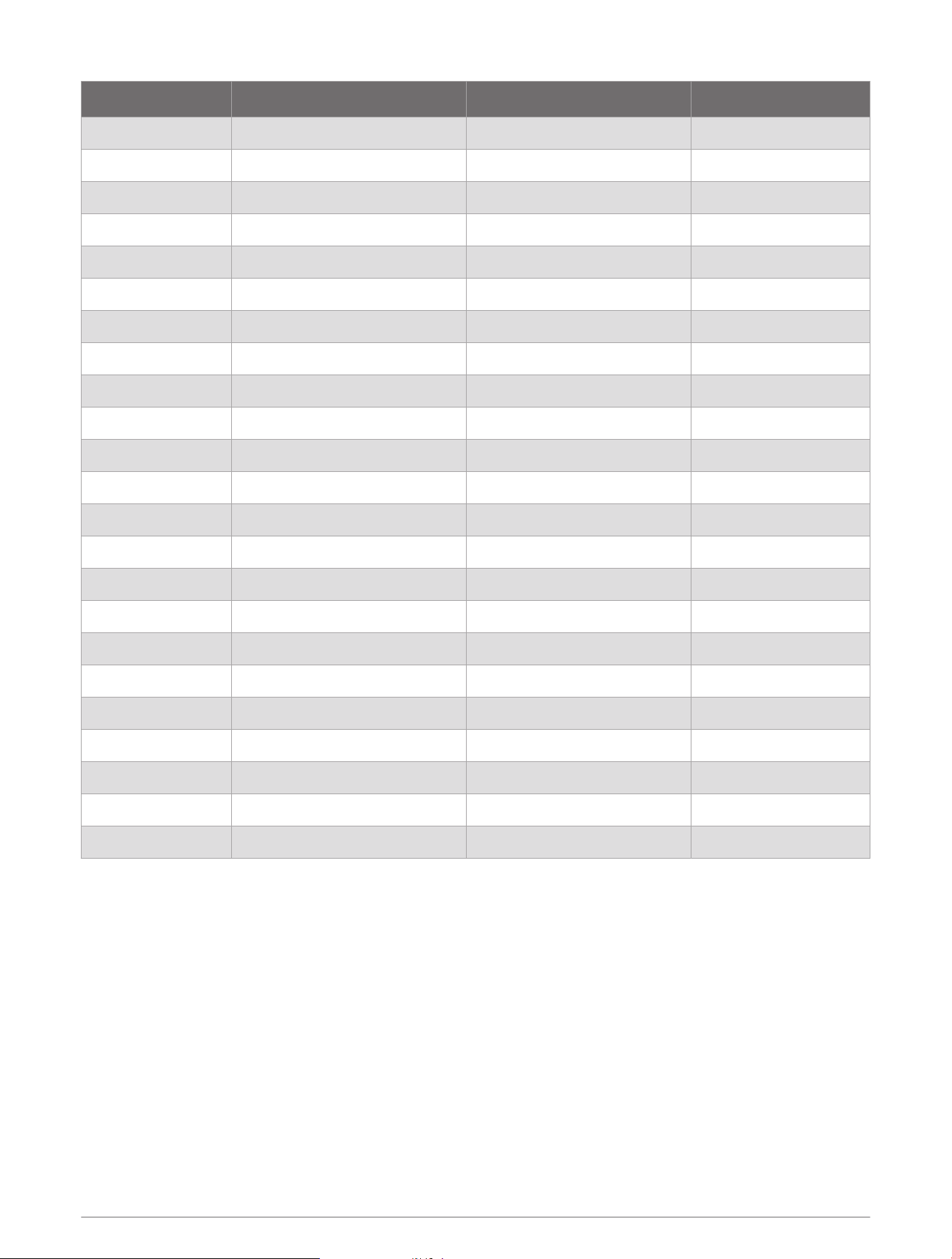
Channel Number Transmit Frequency (MHz) Receive Frequency (MHz) Channel Description
1 462.5625 462.5625 GMRS Interstitial 1
2 462.5875 462.5875 GMRS Interstitial 2
3 462.6125 462.6125 GMRS Interstitial 3
4 462.6375 462.6375 GMRS Interstitial 4
5 462.6625 462.6625 GMRS Interstitial 5
6 462.6875 462.6875 GMRS Interstitial 6
7 462.7125 462.7125 GMRS Interstitial 7
15 462.5500 462.5500 GMRS Primary 8
16 462.5750 462.5750 GMRS Primary 9
17 462.6000 462.6000 GMRS Primary 10
18 462.6250 462.6250 GMRS Primary 11
19 462.6500 462.6500 GMRS Primary 12
20 462.6750 462.6750 GMRS Primary 13
21 462.7000 462.7000 GMRS Primary 14
22 462.7250 462.7250 GMRS Primary 15
15R 467.5500 462.5500 GMRS Repeater 1
16R 467.5750 462.5750 GMRS Repeater 2
17R 467.6000 462.6000 GMRS Repeater 3
18R 467.6250 462.6250 GMRS Repeater 4
19R 467.6500 462.6500 GMRS Repeater 5
20R 467.6750 462.6750 GMRS Repeater 6
21R 467.7000 462.7000 GMRS Repeater 7
22R 467.7250 462.7250 GMRS Repeater 8
Device Information 25

CBRS/PRS Radio Frequencies
Rino models sold in Australia and New Zealand use these frequencies.
NOTE: If you plan to use this device in countries outside of Australia or New Zealand, you should check with the
government of that country for any restrictions on CBRS or PRS use.
26 Device Information
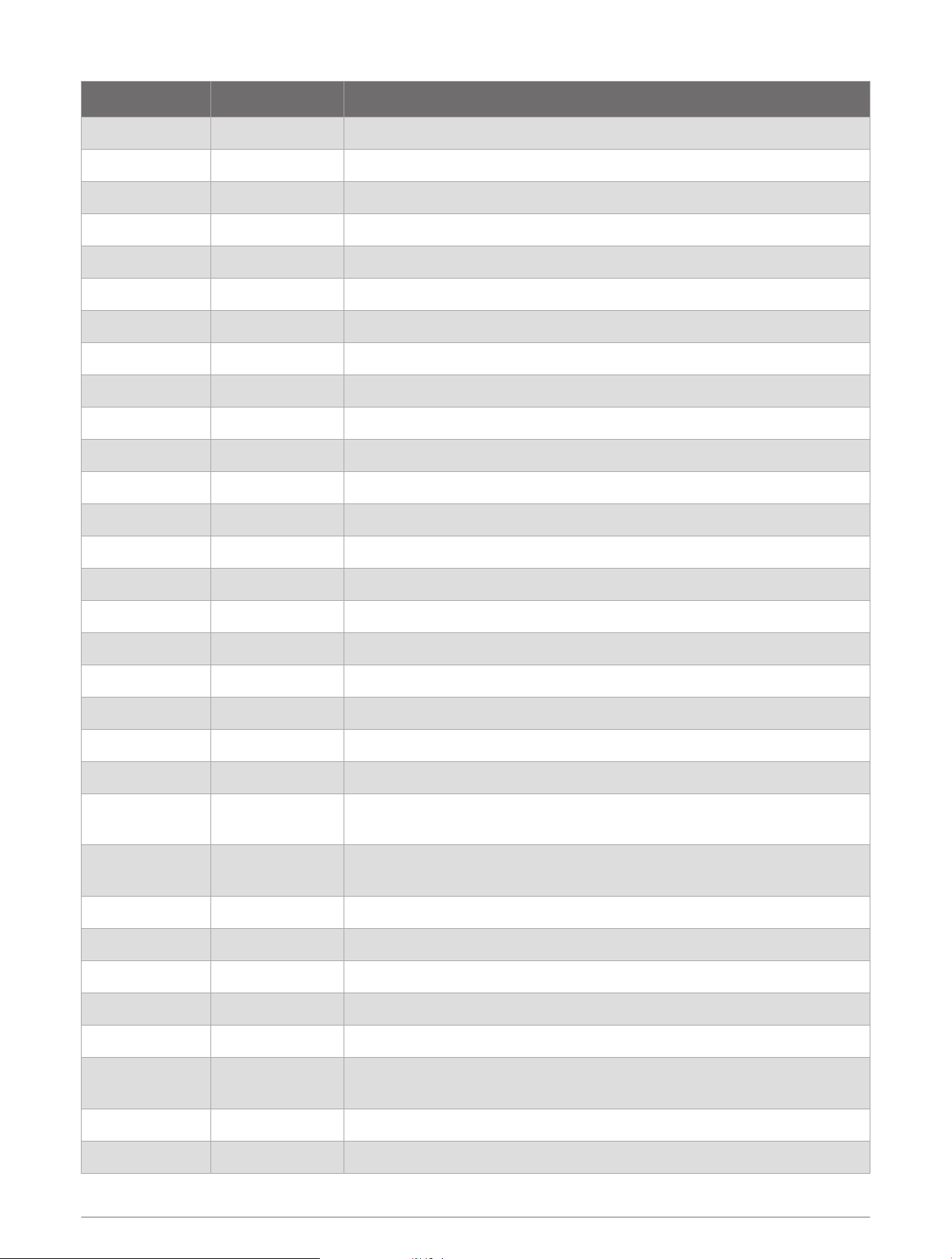
Channel Number Frequency (MHz) Channel Description
1 476.4250 Repeater channel
2 476.4500 Repeater channel
3 476.4750 Repeater channel
4 476.5000 Repeater channel
5 476.5250 Emergency repeater channel: reserved
6 476.5500 Repeater channel
7 476.5750 Repeater channel
8 476.6000 Repeater channel
9 476.6250 General chat channel
10 476.6500 4WD clubs or convoys and national parks
11 476.6750 Call channel
12 476.7000 General chat channel
13 476.7250 General chat channel
14 476.7500 General chat channel
15 476.7750 General chat channel
16 476.8000 General chat channel
17 476.8250 General chat channel
18 476.8500 Caravanners and campers convoy channel
19 476.8750 General chat channel
20 476.9000 General chat channel
21 476.9250 General chat channel
22 476.9500
Telemetry and telecommand channel. GPS position data is transmitted
on this channel, and audio transmissions are not possible.
23 476.9750
Telemetry and telecommand channel. GPS position data is transmitted
on this channel, and audio transmissions are not possible.
24 477.0000 General chat channel
25 477.0250 General chat channel
26 477.0500 General chat channel
27 477.0750 General chat channel
28 477.1000 General chat channel
29 477.1250
Road safety channel: Pacify Hwy/Mwy between Brisbane (QLD) and
Sydney (NSW)
30 477.1500 General chat channel
31 477.1750 Repeater input
Device Information 27
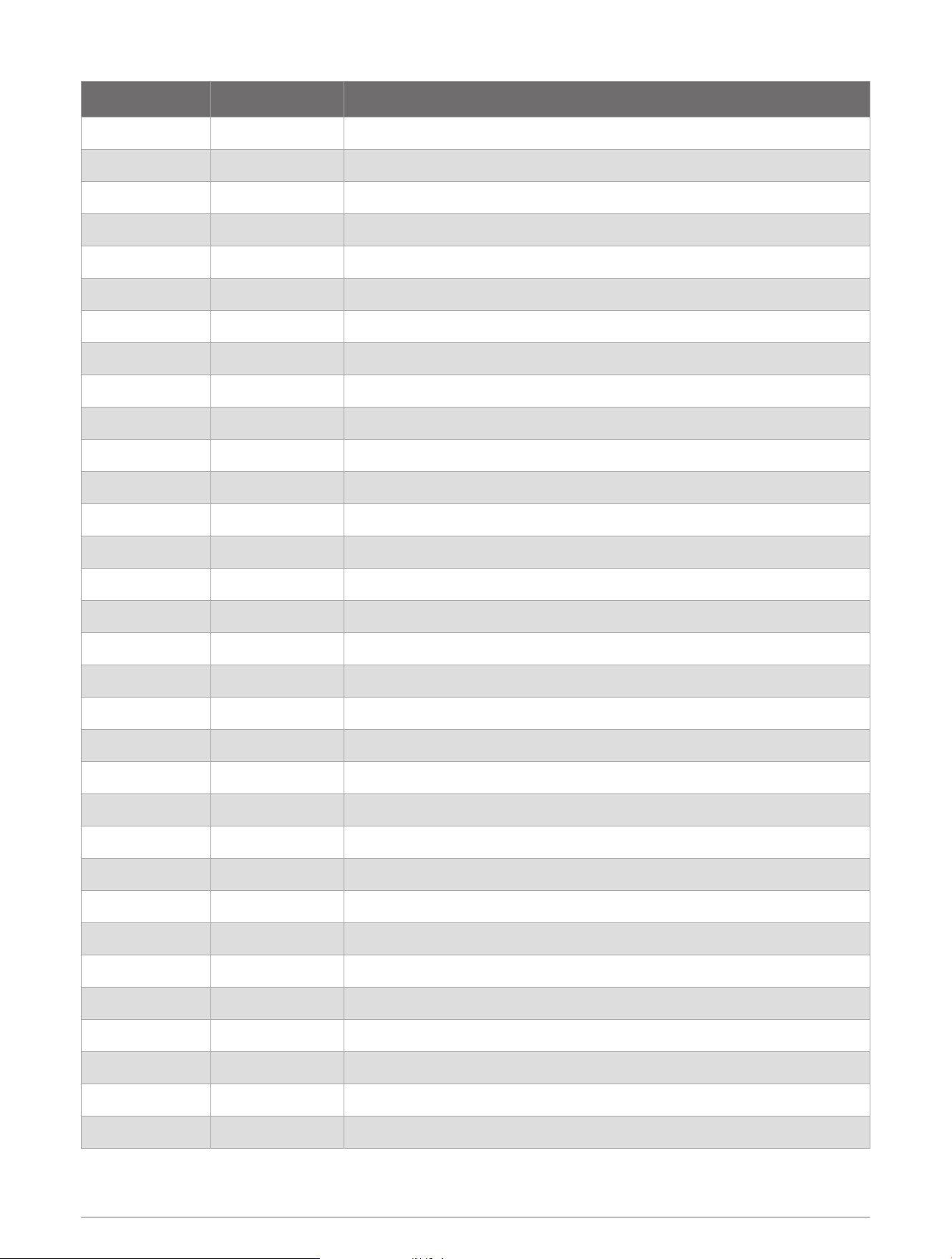
Channel Number Frequency (MHz) Channel Description
32 477.2000 Repeater input
33 477.2250 Repeater input
34 477.2500 Repeater input
35 477.2750 Emergency repeater input: reserved
36 477.3000 Repeater input
37 477.3250 Repeater input
38 477.3500 Repeater input
39 477.3750 General chat channel
40 477.4000 Road safety channel Australia wide
41 476.4375 Repeater channel
42 476.4625 Repeater channel
43 476.4875 Repeater channel
44 476.5125 Repeater channel
45 476.5375 Repeater channel
46 476.5625 Repeater channel
47 476.5875 Repeater channel
48 476.6125 Repeater channel
49 476.6375 General chat channel
50 476.6625 General chat channel
51 476.6875 General chat channel
52 476.7125 General chat channel
53 476.7375 General chat channel
54 476.7625 General chat channel
55 476.7875 General chat channel
56 476.8125 General chat channel
57 476.8375 General chat channel
58 476.8625 General chat channel
59 476.8875 General chat channel
60 476.9125 General chat channel
61 N/A Reserved for future expansion
62 N/A Reserved for future expansion
63 N/A Reserved for future expansion
28 Device Information
Channel Number Frequency (MHz) Channel Description
64 477.0125 General chat channel
65 477.0375 General chat channel
66 477.0625 General chat channel
67 477.0875 General chat channel
68 477.1125 General chat channel
69 477.1375 General chat channel
70 477.1625 General chat channel
71 477.1875 Repeater input
72 477.2125 Repeater input
73 477.2375 Repeater input
74 477.2625 Repeater input
75 477.2875 Repeater input
76 477.3125 Repeater input
77 477.3375 Repeater input
78 477.3625 Repeater input
79 477.3875 General chat channel
80 477.4125 General chat channel
Device Information 29

CTCSS Frequencies
CTCSSfrequencies and squelch codes may differ in some radios from third-party manufacturers. For the best
results, you should compare CTCSS frequency information from your third-party radio with the information in
this table..
30 Device Information
Channel Number Frequency (MHz)
0 199.5
1 67.0
2 71.9
3 74.4
4 77.0
5 79.7
6 82.5
7 85.4
8 88.5
9 91.5
10 94.8
11 97.4
12 100.0
13 103.5
14 107.2
15 110.9
16 114.8
17 118.8
18 123.0
19 127.3
20 131.8
21 136.5
22 141.3
23 146.2
24 151.4
25 156.7
26 162.2
27 167.9
28 173.8
29 179.9
30 186.2
31 192.8
Device Information 31
Channel Number Frequency (MHz)
32 203.5
33 210.7
34 218.1
35 225.7
36 233.6
37 241.8
38 250.3
DCS Frequency Chart
DCS uses a digital signature and is not frequency-based. DCS squelch codes may differ in some radios from
third-party manufacturers. For the best results, you should compare the DCS-code information for your third-
party radio with the information in this table..
32 Device Information
DCS Code DCS Code DCS Code
23 162 466
25 165 503
26 172 506
31 174 516
32 205 532
43 271 546
47 306 565
51 311 606
54 315 612
65 331 624
71 343 627
72 346 631
73 351 632
74 364 654
114 365 662
115 371 664
116 411 703
125 412 712
131 413 723
132 423 731
134 431 732
143 432 734
152 445 743
155 464 754
156 465
Device Information 33
FCC Licensing Information
The Rino two-way radio operates on General Mobile Radio Service (GMRS) frequencies regulated by the Federal
Communications Commission (FCC) in the United States. Operation on the GMRS frequencies is subject to rules
as specified in 47 CFR Part 95.
In order to transmit on GMRS frequencies, you are required to obtain a license from the FCC. An individual
18 years of age or older, who is not a representative of a foreign government, is eligible to apply for a GMRS
license. To apply for a GMRS license, you need FCC Form 605 (605 Main Form and Schedule F) and FCC Form
159. Download the application forms from the FCC web site at www.fcc .gov/Forms/. You can also request
them through the FCC forms hotline at 1-800-418-FORM (1-800-418-3676).
File Form 605 online at http://wireless.fcc.gov/uls/. A filing fee is associated with this application.
For information on fees, go to the FCC fee information web page at http://wireless.fcc.gov/feesforms/index
.html or at http://wireless.fcc.gov /services/personal/generalmobile/.
For questions concerning the license application, contact the FCC at 1-888-Call-FCC (1-888-225-5322).
No license is required to operate on GMRS channels in Canada. However, GMRS repeater channels are not
approved for use by the Canadian government.
For use in countries outside of the U.S. and Canada, please check with that government for any restrictions of
FRS or GMRS use.
Viewing Device Information
You can view the unit ID, software version, regulatory information, and license agreement.
From the home screen, select Setup > About.
Troubleshooting
The battery gauge does not seem accurate
1 Allow the device to fully discharge.
2 Fully charge the device without interrupting the charge cycle.
My device is not acquiring satellite signals
• Verify the GPS simulator is turned off (Simulating a Location, page17).
• Take your device out of parking garages and away from tall buildings and trees.
• Remain stationary for several minutes.
My device does not go into mass storage mode automatically
If your device is connected to the computer but does not go into mass storage mode automatically, you might
have loaded a corrupt file.
1 Disconnect the device from your computer.
2 Turn off the device.
3 Hold while you connect the device to your computer.
4 Continue holding for 30 seconds or until the device goes into mass storage mode.
I need to reset all settings back to factory default values
Select Setup > Reset > Reset All Settings.
34 Troubleshooting

Appendix
Data Fields
Some data fields require you to be navigating or require ANT+
®
accessories to display data.
Accuracy of GPS: The margin of error for your exact location. For example, your GPS location is accurate to
within +/- 12ft. (3.65m).
Battery Level: The remaining battery power.
Bearing: The direction from your current location to a destination. You must be navigating for this data to
appear.
Course: The direction from your starting location to a destination. Course can be viewed as a planned or set
route. You must be navigating for this data to appear.
Distance To Dest.: The remaining distance to the final destination. You must be navigating for this data to
appear.
Distance To Next: The remaining distance to the next waypoint on the route. You must be navigating for this
data to appear.
Elevation: The altitude of your current location above or below sea level.
ETA at Destination: The estimated time of day when you will reach the final destination (adjusted to the local
time of the destination). You must be navigating for this data to appear.
ETA at Next: The estimated time of day when you will reach the next waypoint on the route (adjusted to the local
time of the waypoint). You must be navigating for this data to appear.
Glide Ratio: The ratio of horizontal distance traveled to the change in vertical distance.
Glide Ratio to Dest.: The glide ratio required to descend from your current position to the destination elevation.
You must be navigating for this data to appear.
GPS Signal Strength: The strength of the GPS satellite signal.
Heading: The direction you are moving.
Location (lat/lon): The current position in latitude and longitude regardless of the selected position format
setting.
Location (selected): The current position using the selected position format setting.
Odometer: A running tally of distance traveled for all trips. This total does not clear when resetting the trip data.
Off Course: The distance to the left or right by which you have strayed from the original path of travel. You must
be navigating for this data to appear.
Pointer: An arrow points in the direction of the next waypoint or turn. You must be navigating for this data to
appear.
Speed: The current rate of travel.
Speed - Maximum: The highest speed reached since the last reset.
Speed - Moving Avg.: The average speed while moving since the last reset.
Speed - Overall Avg.: The average speed while moving and stopped since the last reset.
Sunrise: The time of sunrise based on your GPS position.
Sunset: The time of sunset based on your GPS position.
Time of Day: The current time of day based on your current location and time settings (format, time zone,
daylight saving time).
Time to Destination: The estimated time remaining before you reach the destination. You must be navigating
for this data to appear.
Time to Next: The estimated time remaining before you reach the next waypoint in the route. You must be
navigating for this data to appear.
To Course: The direction in which you must move to get back on the route. You must be navigating for this data
to appear.
Trip Odometer: A running tally of the distance traveled since the last reset.
Appendix 35

Trip Time - Moving: A running tally of the time spent moving since the last reset.
Trip Time - Stopped: A running tally of the time spent not moving since the last reset.
Trip Time - Total: A running tally of the total time spent moving and not moving since the last reset.
Turn: The angle of difference (in degrees) between the bearing to your destination and your current course. L
means turn left. R means turn right. You must be navigating for this data to appear.
Velocity Made Good: The speed at which you are closing on a destination along a route. You must be navigating
for this data to appear.
Vertical Speed: The rate of ascent or descent over time.
Vertical Speed to Dest.: The rate of ascent or descent to a predetermined altitude. You must be navigating for
this data to appear.
Waypoint at Dest.: The last point on the route to the destination. You must be navigating for this data to appear.
Waypoint at Next: The next point on the route. You must be navigating for this data to appear.


support.garmin.com
GUID-5AE51F96-B4E7-4A5A-9C9D-3149DF79FE80 v4February 2025