1 3
5
4
6 7 8 9
2
10
11
Important Safety Instrucons
Addional Warnings and Precauons
1. Do not look directly into the projector light.
2. Don’t touch the projector lens.
3. Mains adapter is used as disconnect device and it should remain readily operable
during intended use. In order to disconnect the apparatus from the mains
completely, the mains plug should be disc onnected from the mains socket outlet
completely.
4. CAUTION: Use of controls or adjustments or performance of procedures other than
those specified may result in hazardous radiation exposure.
5. WARNING: Changes or modified to this unit not expressly approved by the party
responsible for compliance could void the user’s authority to operate the equipment.
6. WARNING: Use of this unit near fluorescent lighting may cause interference
regarding use of the remote. If the unit is displaying erratic behavior move away
from any fluorescent lighting, as it may be the cause.
7. WARNING: Shock hazard - Do Not Open.
8. Caution and marking information is located at the rear or bottom of the apparatus.
9. WARNING: To reduce the risk of fire or electric shock, do not expose this apparatus
to rain, moisture, dripping, or splashing.
10. Objects filled with liquids, such as vases, shall not be placed on the apparatus.
FCC Warning
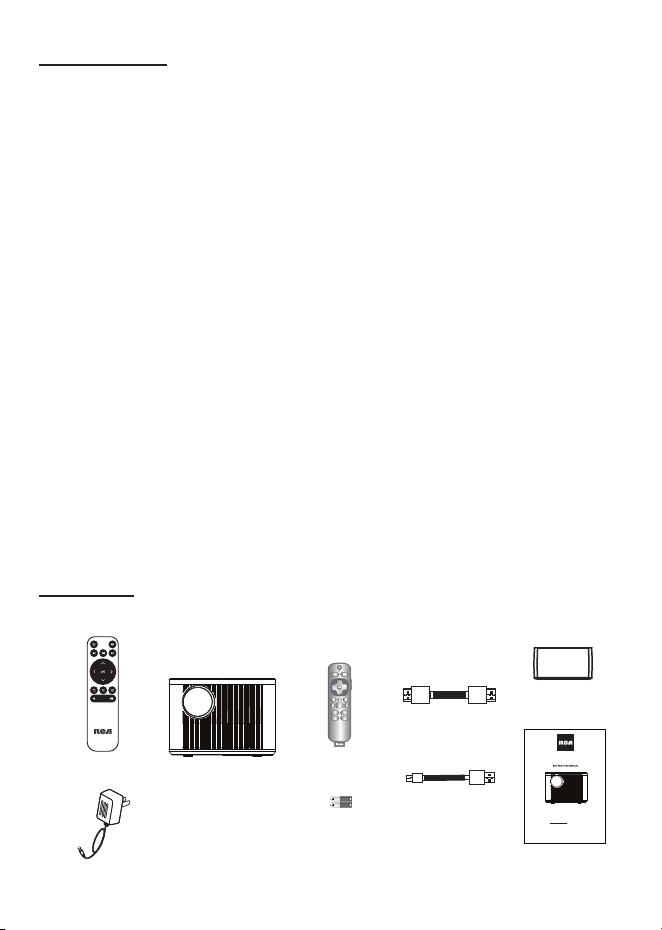
In The Box
R
OKU
Main unit
Remote
User Manual
AC Power Adapter
Two AAA
Batteries
Roku Express+
USB Power Cable
Roku Remote
HDMI Cable
Table of Contents
Placing of Your Projector
Your projector can be installed in four different configurations (see picture below):
Front Table:
Select this location with the projector placed near the floor in front
of the screen. This is the most common way to position the
projector for quick setup and portability.
Rear Table:
Select this location with the projector placed near the floor behind
the screen.
NOTE: That a special rear projection screen is required.
Front Ceiling:
Select this location with the projector suspended upside-down
from the ceiling in front of the screen.
NOTE: A projector mount is required to install the projector in a
ceiling.
Rear Ceiling:
Select this location with the projector suspended upside-down
from the ceiling behind the screen.
NOTE:
A projector mount is required to install the projector in a ceiling.
A special rear projection screen is required.
Front Ceiling
Rear Ceiling
Rear Table
Front Table
To Reduce Image Distoron
Distance Between The Projector And Screen
Measure the distance between the projector and where you want to position the
screen. This is the projection distance for reference.
Installing your Projector in the Ceiling
Distance
1.13m
1.39m
1.79m
2.20m
3.00m
3.55m
4.70m
5.87m
Screen Size
36 inch
45 inch
60 inch
72 inch
100 inch
120 inch
150 inch
200 inch
• Move the projector as close to the center of the
screen as possible.
• The light beam from the projector should be
perpendicular to the screen for a rectangular or
square image.
Adjust The Vercal Locaon Clean the air filter screen
Follow below picture to adjust the vertical location.
Adjust The
Focus And Keystone
Follow below picture to adjust the focus and trapezoidal screen.
Adjust the focus by turning the knob while observing the image pixels near the center of
the screen. Optimal focus is obtained when the pixels are clearly visible. Depending on
the projected screen size, the focus near the screen edges may be less sharp than the
screen center.
Keystone image is created when the projector lens is projected from above or below the
center of the screen. Keystone correction restores the distorted image to a rectangular or
square shape.
The air filter screen should be cleaned every 1500 hours.
Please use a vacuum cleaner to remove dust from the outside of the vent hole
When the accumulated dust on the filter screen
becomes difficult to remove with a vacuum cleaner,
please remove the air filter screen and clean it.
1. Turn off the power and unplug the power cord
2. Remove the air filter compartment cover on the
back of your unit by carefully sliding to open.
The air filter cover can then be lifted away as
shown in the figure.
3. Remove the air filter screen
4. Clean the air net with a neutral detergent
solution and dry it outside in a cool place.
5. The ventilation openings around the projector should also be cleaned with a
vacuum cleaner
6. Put the air filter screen back into the slot of the air filter compartment, and then
cover back the air filter compartment cover.
Note:
If you neglect to clean the air filter screen, it may lead to dust accumulation, resulting
in poor internal heat dissipation (heat accumulation), leading to unit failure
Remove the battery compartment cover on the back of your remote by carefully sliding to
open. The battery cover can then be lifted away. Fit the correct batteries (not included),
referring to the polarity markings. Finally, replace the cover.
NOTES:
● Batteries shall not be exposed to excessive heat such as
placing under the sunlight or near a fire.
● Please make sure the batteries are installed with their
correct polarities.
● Do not mix old and new batteries.
● Use only the same type of batteries.
● Do not dispose of the batteries in fire, battery may
explode or leak.
● Do not recharge a non-rechargeable battery.
Controls of Remote
Install / Remove Baeries of Remote
ROODYRE
TTAB
Controls of Projector
1 LENS
2 ANGEL ADJ. knob
3 IR Sensor
4 Audio Out Jack
5 AV IN Jack
6 HDMI 1 Port
7 HDMI 2 Port
8 USB 1 Port
9 DC IN Jack
10 Air Filter Door
11 Speaker
12 HDMI 3 Port (for Ruku Streaming Stick input)
13 USB 2 Port (for Ruku supply)
14 FOCUS ADJ. Knob
15 KEYSTONE ADJ. Knob
16 SOURCE Button
17 MENU Button
18 Buttons
19 Buttons
20 Button
21 RETURN Button
22 POWER Button
23 Power Indicator
Install Power Adapter
Main Buon Operaon
- Press the button to switch on unit, press twice to turn off this unit.
- Press the button to Home menu to select input source.
- Press the button to enter projector menu.
- Press the buttons to navigate and select screen item of menu.
- Press the button to return to previous status or exit the menu.
- Press the buttons to fast search forward and rewind on USB.
- Press the buttons to select the sound level on the remote.
- Press the button to play/pause the playback of file on USB.
- Press to mute the audio. Press again to resume.
Follow below picture to connect power adapter
Connect small end of adapter FIRST. Plug the adapter body to power outlet.
WARNING:
Before connecting to the power supply, ensure that the supply corresponds to the
information on the rating label at the back of the apparatus.
/
OK
MODEL NO.
RPJ185
SMART HD HOME THEATER PROJECTOR
PLEASE READ BEFORE OPERATING THIS EQUIPMENT
This product has been manufactured and sold under the responsibility of CURTIS
INTERNATIONAL LTD.
RCA, the RCA logo and the two dogs (Nipper and Chipper) logo are trademarks
used under license by CURTIS INTERNATIONAL LTD.
– further information at www.rca-brand.com.
All other products, services, companies, trademarks, trade or product names and
logos referenced herein are the property of their respective owners.
Ideal for dark viewing environments for optimal performance.
Please note:Projector brightness is measured in ANSI lumens.
Your viewing environment is the deciding factor on how many lumens your
projector needs.
1. Read these Instrucons.
2. Keep these Instrucons.
3. Heed all Warnings.
4. Follow all instrucons.
5. Do not use this apparatus near water.
6. Clean only with a dry cloth.
7. Do not block any venlaon openings. Install in accordance with the manufacturer’s
instrucons.
8. Do not install near any heat sources such as radiators, heat registers, stoves, or other
apparatus (including amplifier) that product heat.
9. Protect the power cord from being walked on or pinched parcularly at plugs,
convenience receptacles, and the point where they exit from the apparatus.
10. Only use aachments/accessories specified by the manufacturer.
11. Unplug this apparatus during lightning storms or when unused for long periods of me.
12. Refer all servicing to qualified service personnel. Servicing is required when the
apparatus has been damaged in any way, such as power-supply cord or plug is damaged,
liquid has been spilled or objects have fallen into the apparatus, the apparatus has been
exposed to rain or moisture, does not operate normally, or has been dropped.
13. Use only with a cart, stand, tripod, bracket, or table specified by
the manufacturer or sold with the apparatus. When a cart is used,
use cauon when moving the cart/ apparatus combinaon to
avoid injury from p-over.
Any Changes or modifications not expressly approved by the party responsible for compliance could
void the user's authority to operate the equipment.
This device complies with Part 15 of the FCC rules. Operation is subject to the following two
conditions: (1) this device may not cause harmful interference, and (2) this device must accept any
interference received, including interference that may cause undesired operation.
NOTE: This equipment has been tested and found to comply with the limits for a Class B digital
device, pursuant to Part 15 of the FCC Rules. These limits are designed to provide reasonable
protection against harmful interference in a residential installation. This equipment generates, uses,
and can radiate radio frequency energy and, if not installed and used in accordance with the
instructions, may cause harmful interference to radio communications. However, there is no guarantee
that interference will not occur in a particular installation. If this equipment does cause harmful
interference to radio or television reception, which can be determined by turning the equipment off and
on, the user is encouraged to try to correct the interference by one or more of the following measures:
• Reorient or relocate the receiving antenna.
• Increase the separation between the equipment and receiver.
• Connect the equipment into an outlet on a circuit different from that to which the receiver is
connected.
• Consult the dealer or an experienced radio/TV technician for help.
• This equipment complies with FCC radiation exposure limits set forth for an uncontrolled
environment. This equipment should be installed and operated with minimum distance 20cm
between the radiator& your body.
• This transmitter must not be co-located or operating in conjunction with any other antenna or
transmitter.
Important Safety Instructions - - - - - - - - - - - - - - - - - - - - - - - - - - - -P1
Additional Warnings and Precautions - - - - - - - - - - - - - - - - - - - - - -P2
FCC Warning - - - - - - - - - - - - - - - - - - - - - - - - - - - - - - - - - - - - - - - - -P3
In The Box - - - - - - - - - - - - - - - - - - - - - - - - - - - - - - - - - - - - - - - - - - -P3
Table of Contents - - - - - - - - - - - - - - - - - - - - - - - - - - - - - - - - - - - - - -P4
Placing of Your Projector - - - - - - - - - - - - - - - - - - - - - - - - - - - - - - -P5
To Reduce Image Distortion - - - - - - - - - - - - - - - - - - - - - - - - - - - - - - P6
Distance Between The Projector And Screen - - - - - - - - - - - - - - - - -P6
Installing your Projector in the Ceiling - - - - - - - - - - - - - - - - - - - - - -P6
Adjust the Vertical Location - - - - - - - - - - - - - - - - - - - - - - - - - - - - - - P7
Adjust the Focus And Keystone - - - - - - - - - - - - - - - - - - - - - - - - - -P7
Clean the air filter screen - - - - - - - - - - - - - - - - - - - - - - - - - - - - - - - - P8
Controls of Remote - - - - - - - - - - - - - - - - - - - - - - - - - - - - - - - - - - - -P9
Install / Remove Batteries of Remote - - - - - - - - - - - - - - - - - - - - - - -P9
Controls of Projector - - - - - - - - - - - - - - - - - - - - - - - - - - - - - - - - - - P10
Install Power Adapter - - - - - - - - - - - - - - - - - - - - - - - - - - - - - - - - - - P11
Main Button Operation - - - - - - - - - - - - - - - - - - - - - - - - - - - - - - - - P11
Setup / Install the Roku
®
Streaming Stick - - - - - - - - - - - - - - - - - - P12
Connect HDMI Show The Image On Projector Screen - - - - - - - - - P13
Connect AV Show The Image On Projector Screen - - - - - - - - - - - P13
Connect Audio Output (Aux Out / Line Out / Earphones) - - - - - - - P14
Install USB Device - - - - - - - - - - - - - - - - - - - - - - - - - - - - - - - - - - - - P14
Using USB Playback (Media Player) - - - - - - - - - - - - - - - - - - - - - - - P15
Using Bluetooth Playback - - - - - - - - - - - - - - - - - - - - - - - - - - - - - - P16
Using Projector Menu 1 - - - - - - - - - - - - - - - - - - - - - - - - - - - - - - - - P17
Using Projector Menu 2 - - - - - - - - - - - - - - - - - - - - - - - - - - - - - - - - P17
Using Projector Menu 3 - - - - - - - - - - - - - - - - - - - - - - - - - - - - - - - - P18
Specifications - - - - - - - - - - - - - - - - - - - - - - - - - - - - - - - - - - - - - - - P19
Warrenty Card - - - - - - - - - - - - - - - - - - - - - - - - - - - - - - - - - - - - - - - P20
When installing the projector in the ceiling, please purchase a projector mount
recommended by an installation professional and follow the instructions that come with
the mount.
Before installing the projector in the ceiling, please check to make sure the ceiling
structure can support the weight of the projector and the mount. If in doubt, please ask
the advice from an installation professorial.
NOTE: Projector mount and screw(s) not included
Power ON/OFF
Mute Audio Sound
Navigator
Increase Volume Sound
Decrease Volume Sound
Enter to Menu
Play / Pause
Source Selector
Exit the Menu or return to previous status
Fast rewind / Fast forward File
/
MODEL NO.
RPJ185
SMART HD HOME THEATER PROJECTOR
PLEASE READ BEFORE OPERATING THIS EQUIPMENT
This product has been manufactured and sold under the responsibility of CURTIS
INTERNATIONAL LTD.
RCA, the RCA logo and the two dogs (Nipper and Chipper) logo are trademarks
used under license by CURTIS INTERNATIONAL LTD.
– further information at www.rca-brand.com.
All other products, services, companies, trademarks, trade or product names and
logos referenced herein are the property of their respective owners.
Ideal for dark viewing environments for optimal performance.
Please note:Projector brightness is measured in ANSI lumens.
Your viewing environment is the deciding factor on how many lumens your
projector needs.
FIXED HANGER HOLE
(6mm diameter)
Adjust this knob (ANGLE ADJ. knob)
to fine tune the display angle to higher.
Image Adjustment
Focus justmentAd
Increase or reduce to image size to sharpen image.
Keystone Adjustment
Adjust image corners to reduce image distortion.
Keystone ADJ. KNOB
FOCUS ADJ. KNOB
Then sharpen the image
by rotating focus knob.
1
2
3
4
5
6
7
8
9
10
11
12
13
14
15
16
17
18
19
20
21
22
23
Front View
Top View
Rear View
150
200
1 3
5
4
6 7 8 9
2
10
11
Important Safety Instrucons
Addional Warnings and Precauons
1. Do not look directly into the projector light.
2. Don’t touch the projector lens.
3. Mains adapter is used as disconnect device and it should remain readily operable
during intended use. In order to disconnect the apparatus from the mains
completely, the mains plug should be disc onnected from the mains socket outlet
completely.
4. CAUTION: Use of controls or adjustments or performance of procedures other than
those specified may result in hazardous radiation exposure.
5. WARNING: Changes or modified to this unit not expressly approved by the party
responsible for compliance could void the user’s authority to operate the equipment.
6. WARNING: Use of this unit near fluorescent lighting may cause interference
regarding use of the remote. If the unit is displaying erratic behavior move away
from any fluorescent lighting, as it may be the cause.
7. WARNING: Shock hazard - Do Not Open.
8. Caution and marking information is located at the rear or bottom of the apparatus.
9. WARNING: To reduce the risk of fire or electric shock, do not expose this apparatus
to rain, moisture, dripping, or splashing.
10. Objects filled with liquids, such as vases, shall not be placed on the apparatus.
FCC Warning
In The Box
R
OKU
Main unit
Remote
User Manual
AC Power Adapter
Two AAA
Batteries
Roku Express+
USB Power Cable
Roku Remote
HDMI Cable
Table of Contents
Placing of Your Projector
Your projector can be installed in four different configurations (see picture below):
Front Table:
Select this location with the projector placed near the floor in front
of the screen. This is the most common way to position the
projector for quick setup and portability.
Rear Table:
Select this location with the projector placed near the floor behind
the screen.
NOTE: That a special rear projection screen is required.
Front Ceiling:
Select this location with the projector suspended upside-down
from the ceiling in front of the screen.
NOTE: A projector mount is required to install the projector in a
ceiling.
Rear Ceiling:
Select this location with the projector suspended upside-down
from the ceiling behind the screen.
NOTE:
A projector mount is required to install the projector in a ceiling.
A special rear projection screen is required.
Front Ceiling
Rear Ceiling
Rear Table
Front Table
To Reduce Image Distoron
Distance Between The Projector And Screen
Measure the distance between the projector and where you want to position the
screen. This is the projection distance for reference.
Installing your Projector in the Ceiling
Distance
1.13m
1.39m
1.79m
2.20m
3.00m
3.55m
4.70m
5.87m
Screen Size
36 inch
45 inch
60 inch
72 inch
100 inch
120 inch
150 inch
200 inch
• Move the projector as close to the center of the
screen as possible.
• The light beam from the projector should be
perpendicular to the screen for a rectangular or
square image.
Adjust The Vercal Locaon Clean the air filter screen
Follow below picture to adjust the vertical location.
Adjust The
Focus And Keystone
Follow below picture to adjust the focus and trapezoidal screen.
Adjust the focus by turning the knob while observing the image pixels near the center of
the screen. Optimal focus is obtained when the pixels are clearly visible. Depending on
the projected screen size, the focus near the screen edges may be less sharp than the
screen center.
Keystone image is created when the projector lens is projected from above or below the
center of the screen. Keystone correction restores the distorted image to a rectangular or
square shape.
The air filter screen should be cleaned every 1500 hours.
Please use a vacuum cleaner to remove dust from the outside of the vent hole
When the accumulated dust on the filter screen
becomes difficult to remove with a vacuum cleaner,
please remove the air filter screen and clean it.
1. Turn off the power and unplug the power cord
2. Remove the air filter compartment cover on the
back of your unit by carefully sliding to open.
The air filter cover can then be lifted away as
shown in the figure.
3. Remove the air filter screen
4. Clean the air net with a neutral detergent
solution and dry it outside in a cool place.
5. The ventilation openings around the projector should also be cleaned with a
vacuum cleaner
6. Put the air filter screen back into the slot of the air filter compartment, and then
cover back the air filter compartment cover.
Note:
If you neglect to clean the air filter screen, it may lead to dust accumulation, resulting
in poor internal heat dissipation (heat accumulation), leading to unit failure
Remove the battery compartment cover on the back of your remote by carefully sliding to
open. The battery cover can then be lifted away. Fit the correct batteries (not included),
referring to the polarity markings. Finally, replace the cover.
NOTES:
● Batteries shall not be exposed to excessive heat such as
placing under the sunlight or near a fire.
● Please make sure the batteries are installed with their
correct polarities.
● Do not mix old and new batteries.
● Use only the same type of batteries.
● Do not dispose of the batteries in fire, battery may
explode or leak.
● Do not recharge a non-rechargeable battery.
Controls of Remote
Install / Remove Baeries of Remote
ROODYRE
TTAB
Controls of Projector
1 LENS
2 ANGEL ADJ. knob
3 IR Sensor
4 Audio Out Jack
5 AV IN Jack
6 HDMI 1 Port
7 HDMI 2 Port
8 USB 1 Port
9 DC IN Jack
10 Air Filter Door
11 Speaker
12 HDMI 3 Port (for Ruku Streaming Stick input)
13 USB 2 Port (for Ruku supply)
14 FOCUS ADJ. Knob
15 KEYSTONE ADJ. Knob
16 SOURCE Button
17 MENU Button
18 Buttons
19 Buttons
20 Button
21 RETURN Button
22 POWER Button
23 Power Indicator
Install Power Adapter
Main Buon Operaon
- Press the button to switch on unit, press twice to turn off this unit.
- Press the button to Home menu to select input source.
- Press the button to enter projector menu.
- Press the buttons to navigate and select screen item of menu.
- Press the button to return to previous status or exit the menu.
- Press the buttons to fast search forward and rewind on USB.
- Press the buttons to select the sound level on the remote.
- Press the button to play/pause the playback of file on USB.
- Press to mute the audio. Press again to resume.
Follow below picture to connect power adapter
Connect small end of adapter FIRST. Plug the adapter body to power outlet.
WARNING:
Before connecting to the power supply, ensure that the supply corresponds to the
information on the rating label at the back of the apparatus.
/
OK
MODEL NO.
RPJ185
SMART HD HOME THEATER PROJECTOR
PLEASE READ BEFORE OPERATING THIS EQUIPMENT
This product has been manufactured and sold under the responsibility of CURTIS
INTERNATIONAL LTD.
RCA, the RCA logo and the two dogs (Nipper and Chipper) logo are trademarks
used under license by CURTIS INTERNATIONAL LTD.
– further information at www.rca-brand.com.
All other products, services, companies, trademarks, trade or product names and
logos referenced herein are the property of their respective owners.
Ideal for dark viewing environments for optimal performance.
Please note:Projector brightness is measured in ANSI lumens.
Your viewing environment is the deciding factor on how many lumens your
projector needs.
1. Read these Instrucons.
2. Keep these Instrucons.
3. Heed all Warnings.
4. Follow all instrucons.
5. Do not use this apparatus near water.
6. Clean only with a dry cloth.
7. Do not block any venlaon openings. Install in accordance with the manufacturer’s
instrucons.
8. Do not install near any heat sources such as radiators, heat registers, stoves, or other
apparatus (including amplifier) that product heat.
9. Protect the power cord from being walked on or pinched parcularly at plugs,
convenience receptacles, and the point where they exit from the apparatus.
10. Only use aachments/accessories specified by the manufacturer.
11. Unplug this apparatus during lightning storms or when unused for long periods of me.
12. Refer all servicing to qualified service personnel. Servicing is required when the
apparatus has been damaged in any way, such as power-supply cord or plug is damaged,
liquid has been spilled or objects have fallen into the apparatus, the apparatus has been
exposed to rain or moisture, does not operate normally, or has been dropped.
13. Use only with a cart, stand, tripod, bracket, or table specified by
the manufacturer or sold with the apparatus. When a cart is used,
use cauon when moving the cart/ apparatus combinaon to
avoid injury from p-over.
Any Changes or modifications not expressly approved by the party responsible for compliance could
void the user's authority to operate the equipment.
This device complies with Part 15 of the FCC rules. Operation is subject to the following two
conditions: (1) this device may not cause harmful interference, and (2) this device must accept any
interference received, including interference that may cause undesired operation.
NOTE: This equipment has been tested and found to comply with the limits for a Class B digital
device, pursuant to Part 15 of the FCC Rules. These limits are designed to provide reasonable
protection against harmful interference in a residential installation. This equipment generates, uses,
and can radiate radio frequency energy and, if not installed and used in accordance with the
instructions, may cause harmful interference to radio communications. However, there is no guarantee
that interference will not occur in a particular installation. If this equipment does cause harmful
interference to radio or television reception, which can be determined by turning the equipment off and
on, the user is encouraged to try to correct the interference by one or more of the following measures:
• Reorient or relocate the receiving antenna.
• Increase the separation between the equipment and receiver.
• Connect the equipment into an outlet on a circuit different from that to which the receiver is
connected.
• Consult the dealer or an experienced radio/TV technician for help.
• This equipment complies with FCC radiation exposure limits set forth for an uncontrolled
environment. This equipment should be installed and operated with minimum distance 20cm
between the radiator& your body.
• This transmitter must not be co-located or operating in conjunction with any other antenna or
transmitter.
Important Safety Instructions - - - - - - - - - - - - - - - - - - - - - - - - - - - -P1
Additional Warnings and Precautions - - - - - - - - - - - - - - - - - - - - - -P2
FCC Warning - - - - - - - - - - - - - - - - - - - - - - - - - - - - - - - - - - - - - - - - -P3
In The Box - - - - - - - - - - - - - - - - - - - - - - - - - - - - - - - - - - - - - - - - - - -P3
Table of Contents - - - - - - - - - - - - - - - - - - - - - - - - - - - - - - - - - - - - - -P4
Placing of Your Projector - - - - - - - - - - - - - - - - - - - - - - - - - - - - - - -P5
To Reduce Image Distortion - - - - - - - - - - - - - - - - - - - - - - - - - - - - - - P6
Distance Between The Projector And Screen - - - - - - - - - - - - - - - - -P6
Installing your Projector in the Ceiling - - - - - - - - - - - - - - - - - - - - - -P6
Adjust the Vertical Location - - - - - - - - - - - - - - - - - - - - - - - - - - - - - - P7
Adjust the Focus And Keystone - - - - - - - - - - - - - - - - - - - - - - - - - -P7
Clean the air filter screen - - - - - - - - - - - - - - - - - - - - - - - - - - - - - - - - P8
Controls of Remote - - - - - - - - - - - - - - - - - - - - - - - - - - - - - - - - - - - -P9
Install / Remove Batteries of Remote - - - - - - - - - - - - - - - - - - - - - - -P9
Controls of Projector - - - - - - - - - - - - - - - - - - - - - - - - - - - - - - - - - - P10
Install Power Adapter - - - - - - - - - - - - - - - - - - - - - - - - - - - - - - - - - - P11
Main Button Operation - - - - - - - - - - - - - - - - - - - - - - - - - - - - - - - - P11
Setup / Install the Roku
®
Streaming Stick - - - - - - - - - - - - - - - - - - P12
Connect HDMI Show The Image On Projector Screen - - - - - - - - - P13
Connect AV Show The Image On Projector Screen - - - - - - - - - - - P13
Connect Audio Output (Aux Out / Line Out / Earphones) - - - - - - - P14
Install USB Device - - - - - - - - - - - - - - - - - - - - - - - - - - - - - - - - - - - - P14
Using USB Playback (Media Player) - - - - - - - - - - - - - - - - - - - - - - - P15
Using Bluetooth Playback - - - - - - - - - - - - - - - - - - - - - - - - - - - - - - P16
Using Projector Menu 1 - - - - - - - - - - - - - - - - - - - - - - - - - - - - - - - - P17
Using Projector Menu 2 - - - - - - - - - - - - - - - - - - - - - - - - - - - - - - - - P17
Using Projector Menu 3 - - - - - - - - - - - - - - - - - - - - - - - - - - - - - - - - P18
Specifications - - - - - - - - - - - - - - - - - - - - - - - - - - - - - - - - - - - - - - - P19
Warrenty Card - - - - - - - - - - - - - - - - - - - - - - - - - - - - - - - - - - - - - - - P20
When installing the projector in the ceiling, please purchase a projector mount
recommended by an installation professional and follow the instructions that come with
the mount.
Before installing the projector in the ceiling, please check to make sure the ceiling
structure can support the weight of the projector and the mount. If in doubt, please ask
the advice from an installation professorial.
NOTE: Projector mount and screw(s) not included
Power ON/OFF
Mute Audio Sound
Navigator
Increase Volume Sound
Decrease Volume Sound
Enter to Menu
Play / Pause
Source Selector
Exit the Menu or return to previous status
Fast rewind / Fast forward File
/
MODEL NO.
RPJ185
SMART HD HOME THEATER PROJECTOR
PLEASE READ BEFORE OPERATING THIS EQUIPMENT
This product has been manufactured and sold under the responsibility of CURTIS
INTERNATIONAL LTD.
RCA, the RCA logo and the two dogs (Nipper and Chipper) logo are trademarks
used under license by CURTIS INTERNATIONAL LTD.
– further information at www.rca-brand.com.
All other products, services, companies, trademarks, trade or product names and
logos referenced herein are the property of their respective owners.
Ideal for dark viewing environments for optimal performance.
Please note:Projector brightness is measured in ANSI lumens.
Your viewing environment is the deciding factor on how many lumens your
projector needs.
FIXED HANGER HOLE
(6mm diameter)
Adjust this knob (ANGLE ADJ. knob)
to fine tune the display angle to higher.
Image Adjustment
Focus justmentAd
Increase or reduce to image size to sharpen image.
Keystone Adjustment
Adjust image corners to reduce image distortion.
Keystone ADJ. KNOB
FOCUS ADJ. KNOB
Then sharpen the image
by rotating focus knob.
1
2
3
4
5
6
7
8
9
10
11
12
13
14
15
16
17
18
19
20
21
22
23
Front View
Top View
Rear View
150
200

1 3
5
4
6 7 8 9
2
10
11
Important Safety Instrucons
Addional Warnings and Precauons
1. Do not look directly into the projector light.
2. Don’t touch the projector lens.
3. Mains adapter is used as disconnect device and it should remain readily operable
during intended use. In order to disconnect the apparatus from the mains
completely, the mains plug should be disc onnected from the mains socket outlet
completely.
4. CAUTION: Use of controls or adjustments or performance of procedures other than
those specified may result in hazardous radiation exposure.
5. WARNING: Changes or modified to this unit not expressly approved by the party
responsible for compliance could void the user’s authority to operate the equipment.
6. WARNING: Use of this unit near fluorescent lighting may cause interference
regarding use of the remote. If the unit is displaying erratic behavior move away
from any fluorescent lighting, as it may be the cause.
7. WARNING: Shock hazard - Do Not Open.
8. Caution and marking information is located at the rear or bottom of the apparatus.
9. WARNING: To reduce the risk of fire or electric shock, do not expose this apparatus
to rain, moisture, dripping, or splashing.
10. Objects filled with liquids, such as vases, shall not be placed on the apparatus.
FCC Warning
In The Box
R
OKU
Main unit
Remote
User Manual
AC Power Adapter
Two AAA
Batteries
Roku Express+
USB Power Cable
Roku Remote
HDMI Cable
Table of Contents
Placing of Your Projector
Your projector can be installed in four different configurations (see picture below):
Front Table:
Select this location with the projector placed near the floor in front
of the screen. This is the most common way to position the
projector for quick setup and portability.
Rear Table:
Select this location with the projector placed near the floor behind
the screen.
NOTE: That a special rear projection screen is required.
Front Ceiling:
Select this location with the projector suspended upside-down
from the ceiling in front of the screen.
NOTE: A projector mount is required to install the projector in a
ceiling.
Rear Ceiling:
Select this location with the projector suspended upside-down
from the ceiling behind the screen.
NOTE:
A projector mount is required to install the projector in a ceiling.
A special rear projection screen is required.
Front Ceiling
Rear Ceiling
Rear Table
Front Table
To Reduce Image Distoron
Distance Between The Projector And Screen
Measure the distance between the projector and where you want to position the
screen. This is the projection distance for reference.
Installing your Projector in the Ceiling
Distance
1.13m
1.39m
1.79m
2.20m
3.00m
3.55m
4.70m
5.87m
Screen Size
36 inch
45 inch
60 inch
72 inch
100 inch
120 inch
150 inch
200 inch
• Move the projector as close to the center of the
screen as possible.
• The light beam from the projector should be
perpendicular to the screen for a rectangular or
square image.
Adjust The Vercal Locaon Clean the air filter screen
Follow below picture to adjust the vertical location.
Adjust The
Focus And Keystone
Follow below picture to adjust the focus and trapezoidal screen.
Adjust the focus by turning the knob while observing the image pixels near the center of
the screen. Optimal focus is obtained when the pixels are clearly visible. Depending on
the projected screen size, the focus near the screen edges may be less sharp than the
screen center.
Keystone image is created when the projector lens is projected from above or below the
center of the screen. Keystone correction restores the distorted image to a rectangular or
square shape.
The air filter screen should be cleaned every 1500 hours.
Please use a vacuum cleaner to remove dust from the outside of the vent hole
When the accumulated dust on the filter screen
becomes difficult to remove with a vacuum cleaner,
please remove the air filter screen and clean it.
1. Turn off the power and unplug the power cord
2. Remove the air filter compartment cover on the
back of your unit by carefully sliding to open.
The air filter cover can then be lifted away as
shown in the figure.
3. Remove the air filter screen
4. Clean the air net with a neutral detergent
solution and dry it outside in a cool place.
5. The ventilation openings around the projector should also be cleaned with a
vacuum cleaner
6. Put the air filter screen back into the slot of the air filter compartment, and then
cover back the air filter compartment cover.
Note:
If you neglect to clean the air filter screen, it may lead to dust accumulation, resulting
in poor internal heat dissipation (heat accumulation), leading to unit failure
Remove the battery compartment cover on the back of your remote by carefully sliding to
open. The battery cover can then be lifted away. Fit the correct batteries (not included),
referring to the polarity markings. Finally, replace the cover.
NOTES:
● Batteries shall not be exposed to excessive heat such as
placing under the sunlight or near a fire.
● Please make sure the batteries are installed with their
correct polarities.
● Do not mix old and new batteries.
● Use only the same type of batteries.
● Do not dispose of the batteries in fire, battery may
explode or leak.
● Do not recharge a non-rechargeable battery.
Controls of Remote
Install / Remove Baeries of Remote
ROODYRE
TTAB
Controls of Projector
1 LENS
2 ANGEL ADJ. knob
3 IR Sensor
4 Audio Out Jack
5 AV IN Jack
6 HDMI 1 Port
7 HDMI 2 Port
8 USB 1 Port
9 DC IN Jack
10 Air Filter Door
11 Speaker
12 HDMI 3 Port (for Ruku Streaming Stick input)
13 USB 2 Port (for Ruku supply)
14 FOCUS ADJ. Knob
15 KEYSTONE ADJ. Knob
16 SOURCE Button
17 MENU Button
18 Buttons
19 Buttons
20 Button
21 RETURN Button
22 POWER Button
23 Power Indicator
Install Power Adapter
Main Buon Operaon
- Press the button to switch on unit, press twice to turn off this unit.
- Press the button to Home menu to select input source.
- Press the button to enter projector menu.
- Press the buttons to navigate and select screen item of menu.
- Press the button to return to previous status or exit the menu.
- Press the buttons to fast search forward and rewind on USB.
- Press the buttons to select the sound level on the remote.
- Press the button to play/pause the playback of file on USB.
- Press to mute the audio. Press again to resume.
Follow below picture to connect power adapter
Connect small end of adapter FIRST. Plug the adapter body to power outlet.
WARNING:
Before connecting to the power supply, ensure that the supply corresponds to the
information on the rating label at the back of the apparatus.
/
OK
MODEL NO.
RPJ185
SMART HD HOME THEATER PROJECTOR
PLEASE READ BEFORE OPERATING THIS EQUIPMENT
This product has been manufactured and sold under the responsibility of CURTIS
INTERNATIONAL LTD.
RCA, the RCA logo and the two dogs (Nipper and Chipper) logo are trademarks
used under license by CURTIS INTERNATIONAL LTD.
– further information at www.rca-brand.com.
All other products, services, companies, trademarks, trade or product names and
logos referenced herein are the property of their respective owners.
Ideal for dark viewing environments for optimal performance.
Please note:Projector brightness is measured in ANSI lumens.
Your viewing environment is the deciding factor on how many lumens your
projector needs.
1. Read these Instrucons.
2. Keep these Instrucons.
3. Heed all Warnings.
4. Follow all instrucons.
5. Do not use this apparatus near water.
6. Clean only with a dry cloth.
7. Do not block any venlaon openings. Install in accordance with the manufacturer’s
instrucons.
8. Do not install near any heat sources such as radiators, heat registers, stoves, or other
apparatus (including amplifier) that product heat.
9. Protect the power cord from being walked on or pinched parcularly at plugs,
convenience receptacles, and the point where they exit from the apparatus.
10. Only use aachments/accessories specified by the manufacturer.
11. Unplug this apparatus during lightning storms or when unused for long periods of me.
12. Refer all servicing to qualified service personnel. Servicing is required when the
apparatus has been damaged in any way, such as power-supply cord or plug is damaged,
liquid has been spilled or objects have fallen into the apparatus, the apparatus has been
exposed to rain or moisture, does not operate normally, or has been dropped.
13. Use only with a cart, stand, tripod, bracket, or table specified by
the manufacturer or sold with the apparatus. When a cart is used,
use cauon when moving the cart/ apparatus combinaon to
avoid injury from p-over.
Any Changes or modifications not expressly approved by the party responsible for compliance could
void the user's authority to operate the equipment.
This device complies with Part 15 of the FCC rules. Operation is subject to the following two
conditions: (1) this device may not cause harmful interference, and (2) this device must accept any
interference received, including interference that may cause undesired operation.
NOTE: This equipment has been tested and found to comply with the limits for a Class B digital
device, pursuant to Part 15 of the FCC Rules. These limits are designed to provide reasonable
protection against harmful interference in a residential installation. This equipment generates, uses,
and can radiate radio frequency energy and, if not installed and used in accordance with the
instructions, may cause harmful interference to radio communications. However, there is no guarantee
that interference will not occur in a particular installation. If this equipment does cause harmful
interference to radio or television reception, which can be determined by turning the equipment off and
on, the user is encouraged to try to correct the interference by one or more of the following measures:
• Reorient or relocate the receiving antenna.
• Increase the separation between the equipment and receiver.
• Connect the equipment into an outlet on a circuit different from that to which the receiver is
connected.
• Consult the dealer or an experienced radio/TV technician for help.
• This equipment complies with FCC radiation exposure limits set forth for an uncontrolled
environment. This equipment should be installed and operated with minimum distance 20cm
between the radiator& your body.
• This transmitter must not be co-located or operating in conjunction with any other antenna or
transmitter.
Important Safety Instructions - - - - - - - - - - - - - - - - - - - - - - - - - - - -P1
Additional Warnings and Precautions - - - - - - - - - - - - - - - - - - - - - -P2
FCC Warning - - - - - - - - - - - - - - - - - - - - - - - - - - - - - - - - - - - - - - - - -P3
In The Box - - - - - - - - - - - - - - - - - - - - - - - - - - - - - - - - - - - - - - - - - - -P3
Table of Contents - - - - - - - - - - - - - - - - - - - - - - - - - - - - - - - - - - - - - -P4
Placing of Your Projector - - - - - - - - - - - - - - - - - - - - - - - - - - - - - - -P5
To Reduce Image Distortion - - - - - - - - - - - - - - - - - - - - - - - - - - - - - - P6
Distance Between The Projector And Screen - - - - - - - - - - - - - - - - -P6
Installing your Projector in the Ceiling - - - - - - - - - - - - - - - - - - - - - -P6
Adjust the Vertical Location - - - - - - - - - - - - - - - - - - - - - - - - - - - - - - P7
Adjust the Focus And Keystone - - - - - - - - - - - - - - - - - - - - - - - - - -P7
Clean the air filter screen - - - - - - - - - - - - - - - - - - - - - - - - - - - - - - - - P8
Controls of Remote - - - - - - - - - - - - - - - - - - - - - - - - - - - - - - - - - - - -P9
Install / Remove Batteries of Remote - - - - - - - - - - - - - - - - - - - - - - -P9
Controls of Projector - - - - - - - - - - - - - - - - - - - - - - - - - - - - - - - - - - P10
Install Power Adapter - - - - - - - - - - - - - - - - - - - - - - - - - - - - - - - - - - P11
Main Button Operation - - - - - - - - - - - - - - - - - - - - - - - - - - - - - - - - P11
Setup / Install the Roku
®
Streaming Stick - - - - - - - - - - - - - - - - - - P12
Connect HDMI Show The Image On Projector Screen - - - - - - - - - P13
Connect AV Show The Image On Projector Screen - - - - - - - - - - - P13
Connect Audio Output (Aux Out / Line Out / Earphones) - - - - - - - P14
Install USB Device - - - - - - - - - - - - - - - - - - - - - - - - - - - - - - - - - - - - P14
Using USB Playback (Media Player) - - - - - - - - - - - - - - - - - - - - - - - P15
Using Bluetooth Playback - - - - - - - - - - - - - - - - - - - - - - - - - - - - - - P16
Using Projector Menu 1 - - - - - - - - - - - - - - - - - - - - - - - - - - - - - - - - P17
Using Projector Menu 2 - - - - - - - - - - - - - - - - - - - - - - - - - - - - - - - - P17
Using Projector Menu 3 - - - - - - - - - - - - - - - - - - - - - - - - - - - - - - - - P18
Specifications - - - - - - - - - - - - - - - - - - - - - - - - - - - - - - - - - - - - - - - P19
Warrenty Card - - - - - - - - - - - - - - - - - - - - - - - - - - - - - - - - - - - - - - - P20
When installing the projector in the ceiling, please purchase a projector mount
recommended by an installation professional and follow the instructions that come with
the mount.
Before installing the projector in the ceiling, please check to make sure the ceiling
structure can support the weight of the projector and the mount. If in doubt, please ask
the advice from an installation professorial.
NOTE: Projector mount and screw(s) not included
Power ON/OFF
Mute Audio Sound
Navigator
Increase Volume Sound
Decrease Volume Sound
Enter to Menu
Play / Pause
Source Selector
Exit the Menu or return to previous status
Fast rewind / Fast forward File
/
MODEL NO.
RPJ185
SMART HD HOME THEATER PROJECTOR
PLEASE READ BEFORE OPERATING THIS EQUIPMENT
This product has been manufactured and sold under the responsibility of CURTIS
INTERNATIONAL LTD.
RCA, the RCA logo and the two dogs (Nipper and Chipper) logo are trademarks
used under license by CURTIS INTERNATIONAL LTD.
– further information at www.rca-brand.com.
All other products, services, companies, trademarks, trade or product names and
logos referenced herein are the property of their respective owners.
Ideal for dark viewing environments for optimal performance.
Please note:Projector brightness is measured in ANSI lumens.
Your viewing environment is the deciding factor on how many lumens your
projector needs.
FIXED HANGER HOLE
(6mm diameter)
Adjust this knob (ANGLE ADJ. knob)
to fine tune the display angle to higher.
Image Adjustment
Focus justmentAd
Increase or reduce to image size to sharpen image.
Keystone Adjustment
Adjust image corners to reduce image distortion.
Keystone ADJ. KNOB
FOCUS ADJ. KNOB
Then sharpen the image
by rotating focus knob.
1
2
3
4
5
6
7
8
9
10
11
12
13
14
15
16
17
18
19
20
21
22
23
Front View
Top View
Rear View
150
200
1 3
5
4
6 7 8 9
2
10
11
Important Safety Instrucons
Addional Warnings and Precauons
1. Do not look directly into the projector light.
2. Don’t touch the projector lens.
3. Mains adapter is used as disconnect device and it should remain readily operable
during intended use. In order to disconnect the apparatus from the mains
completely, the mains plug should be disc onnected from the mains socket outlet
completely.
4. CAUTION: Use of controls or adjustments or performance of procedures other than
those specified may result in hazardous radiation exposure.
5. WARNING: Changes or modified to this unit not expressly approved by the party
responsible for compliance could void the user’s authority to operate the equipment.
6. WARNING: Use of this unit near fluorescent lighting may cause interference
regarding use of the remote. If the unit is displaying erratic behavior move away
from any fluorescent lighting, as it may be the cause.
7. WARNING: Shock hazard - Do Not Open.
8. Caution and marking information is located at the rear or bottom of the apparatus.
9. WARNING: To reduce the risk of fire or electric shock, do not expose this apparatus
to rain, moisture, dripping, or splashing.
10. Objects filled with liquids, such as vases, shall not be placed on the apparatus.
FCC Warning
In The Box
R
OKU
Main unit
Remote
User Manual
AC Power Adapter
Two AAA
Batteries
Roku Express+
USB Power Cable
Roku Remote
HDMI Cable
Table of Contents
Placing of Your Projector
Your projector can be installed in four different configurations (see picture below):
Front Table:
Select this location with the projector placed near the floor in front
of the screen. This is the most common way to position the
projector for quick setup and portability.
Rear Table:
Select this location with the projector placed near the floor behind
the screen.
NOTE: That a special rear projection screen is required.
Front Ceiling:
Select this location with the projector suspended upside-down
from the ceiling in front of the screen.
NOTE: A projector mount is required to install the projector in a
ceiling.
Rear Ceiling:
Select this location with the projector suspended upside-down
from the ceiling behind the screen.
NOTE:
A projector mount is required to install the projector in a ceiling.
A special rear projection screen is required.
Front Ceiling
Rear Ceiling
Rear Table
Front Table
To Reduce Image Distoron
Distance Between The Projector And Screen
Measure the distance between the projector and where you want to position the
screen. This is the projection distance for reference.
Installing your Projector in the Ceiling
Distance
1.13m
1.39m
1.79m
2.20m
3.00m
3.55m
4.70m
5.87m
Screen Size
36 inch
45 inch
60 inch
72 inch
100 inch
120 inch
150 inch
200 inch
• Move the projector as close to the center of the
screen as possible.
• The light beam from the projector should be
perpendicular to the screen for a rectangular or
square image.
Adjust The Vercal Locaon Clean the air filter screen
Follow below picture to adjust the vertical location.
Adjust The
Focus And Keystone
Follow below picture to adjust the focus and trapezoidal screen.
Adjust the focus by turning the knob while observing the image pixels near the center of
the screen. Optimal focus is obtained when the pixels are clearly visible. Depending on
the projected screen size, the focus near the screen edges may be less sharp than the
screen center.
Keystone image is created when the projector lens is projected from above or below the
center of the screen. Keystone correction restores the distorted image to a rectangular or
square shape.
The air filter screen should be cleaned every 1500 hours.
Please use a vacuum cleaner to remove dust from the outside of the vent hole
When the accumulated dust on the filter screen
becomes difficult to remove with a vacuum cleaner,
please remove the air filter screen and clean it.
1. Turn off the power and unplug the power cord
2. Remove the air filter compartment cover on the
back of your unit by carefully sliding to open.
The air filter cover can then be lifted away as
shown in the figure.
3. Remove the air filter screen
4. Clean the air net with a neutral detergent
solution and dry it outside in a cool place.
5. The ventilation openings around the projector should also be cleaned with a
vacuum cleaner
6. Put the air filter screen back into the slot of the air filter compartment, and then
cover back the air filter compartment cover.
Note:
If you neglect to clean the air filter screen, it may lead to dust accumulation, resulting
in poor internal heat dissipation (heat accumulation), leading to unit failure
Remove the battery compartment cover on the back of your remote by carefully sliding to
open. The battery cover can then be lifted away. Fit the correct batteries (not included),
referring to the polarity markings. Finally, replace the cover.
NOTES:
● Batteries shall not be exposed to excessive heat such as
placing under the sunlight or near a fire.
● Please make sure the batteries are installed with their
correct polarities.
● Do not mix old and new batteries.
● Use only the same type of batteries.
● Do not dispose of the batteries in fire, battery may
explode or leak.
● Do not recharge a non-rechargeable battery.
Controls of Remote
Install / Remove Baeries of Remote
ROODYRE
TTAB
Controls of Projector
1 LENS
2 ANGEL ADJ. knob
3 IR Sensor
4 Audio Out Jack
5 AV IN Jack
6 HDMI 1 Port
7 HDMI 2 Port
8 USB 1 Port
9 DC IN Jack
10 Air Filter Door
11 Speaker
12 HDMI 3 Port (for Ruku Streaming Stick input)
13 USB 2 Port (for Ruku supply)
14 FOCUS ADJ. Knob
15 KEYSTONE ADJ. Knob
16 SOURCE Button
17 MENU Button
18 Buttons
19 Buttons
20 Button
21 RETURN Button
22 POWER Button
23 Power Indicator
Install Power Adapter
Main Buon Operaon
- Press the button to switch on unit, press twice to turn off this unit.
- Press the button to Home menu to select input source.
- Press the button to enter projector menu.
- Press the buttons to navigate and select screen item of menu.
- Press the button to return to previous status or exit the menu.
- Press the buttons to fast search forward and rewind on USB.
- Press the buttons to select the sound level on the remote.
- Press the button to play/pause the playback of file on USB.
- Press to mute the audio. Press again to resume.
Follow below picture to connect power adapter
Connect small end of adapter FIRST. Plug the adapter body to power outlet.
WARNING:
Before connecting to the power supply, ensure that the supply corresponds to the
information on the rating label at the back of the apparatus.
/
OK
MODEL NO.
RPJ185
SMART HD HOME THEATER PROJECTOR
PLEASE READ BEFORE OPERATING THIS EQUIPMENT
This product has been manufactured and sold under the responsibility of CURTIS
INTERNATIONAL LTD.
RCA, the RCA logo and the two dogs (Nipper and Chipper) logo are trademarks
used under license by CURTIS INTERNATIONAL LTD.
– further information at www.rca-brand.com.
All other products, services, companies, trademarks, trade or product names and
logos referenced herein are the property of their respective owners.
Ideal for dark viewing environments for optimal performance.
Please note:Projector brightness is measured in ANSI lumens.
Your viewing environment is the deciding factor on how many lumens your
projector needs.
1. Read these Instrucons.
2. Keep these Instrucons.
3. Heed all Warnings.
4. Follow all instrucons.
5. Do not use this apparatus near water.
6. Clean only with a dry cloth.
7. Do not block any venlaon openings. Install in accordance with the manufacturer’s
instrucons.
8. Do not install near any heat sources such as radiators, heat registers, stoves, or other
apparatus (including amplifier) that product heat.
9. Protect the power cord from being walked on or pinched parcularly at plugs,
convenience receptacles, and the point where they exit from the apparatus.
10. Only use aachments/accessories specified by the manufacturer.
11. Unplug this apparatus during lightning storms or when unused for long periods of me.
12. Refer all servicing to qualified service personnel. Servicing is required when the
apparatus has been damaged in any way, such as power-supply cord or plug is damaged,
liquid has been spilled or objects have fallen into the apparatus, the apparatus has been
exposed to rain or moisture, does not operate normally, or has been dropped.
13. Use only with a cart, stand, tripod, bracket, or table specified by
the manufacturer or sold with the apparatus. When a cart is used,
use cauon when moving the cart/ apparatus combinaon to
avoid injury from p-over.
Any Changes or modifications not expressly approved by the party responsible for compliance could
void the user's authority to operate the equipment.
This device complies with Part 15 of the FCC rules. Operation is subject to the following two
conditions: (1) this device may not cause harmful interference, and (2) this device must accept any
interference received, including interference that may cause undesired operation.
NOTE: This equipment has been tested and found to comply with the limits for a Class B digital
device, pursuant to Part 15 of the FCC Rules. These limits are designed to provide reasonable
protection against harmful interference in a residential installation. This equipment generates, uses,
and can radiate radio frequency energy and, if not installed and used in accordance with the
instructions, may cause harmful interference to radio communications. However, there is no guarantee
that interference will not occur in a particular installation. If this equipment does cause harmful
interference to radio or television reception, which can be determined by turning the equipment off and
on, the user is encouraged to try to correct the interference by one or more of the following measures:
• Reorient or relocate the receiving antenna.
• Increase the separation between the equipment and receiver.
• Connect the equipment into an outlet on a circuit different from that to which the receiver is
connected.
• Consult the dealer or an experienced radio/TV technician for help.
• This equipment complies with FCC radiation exposure limits set forth for an uncontrolled
environment. This equipment should be installed and operated with minimum distance 20cm
between the radiator& your body.
• This transmitter must not be co-located or operating in conjunction with any other antenna or
transmitter.
Important Safety Instructions - - - - - - - - - - - - - - - - - - - - - - - - - - - -P1
Additional Warnings and Precautions - - - - - - - - - - - - - - - - - - - - - -P2
FCC Warning - - - - - - - - - - - - - - - - - - - - - - - - - - - - - - - - - - - - - - - - -P3
In The Box - - - - - - - - - - - - - - - - - - - - - - - - - - - - - - - - - - - - - - - - - - -P3
Table of Contents - - - - - - - - - - - - - - - - - - - - - - - - - - - - - - - - - - - - - -P4
Placing of Your Projector - - - - - - - - - - - - - - - - - - - - - - - - - - - - - - -P5
To Reduce Image Distortion - - - - - - - - - - - - - - - - - - - - - - - - - - - - - - P6
Distance Between The Projector And Screen - - - - - - - - - - - - - - - - -P6
Installing your Projector in the Ceiling - - - - - - - - - - - - - - - - - - - - - -P6
Adjust the Vertical Location - - - - - - - - - - - - - - - - - - - - - - - - - - - - - - P7
Adjust the Focus And Keystone - - - - - - - - - - - - - - - - - - - - - - - - - -P7
Clean the air filter screen - - - - - - - - - - - - - - - - - - - - - - - - - - - - - - - - P8
Controls of Remote - - - - - - - - - - - - - - - - - - - - - - - - - - - - - - - - - - - -P9
Install / Remove Batteries of Remote - - - - - - - - - - - - - - - - - - - - - - -P9
Controls of Projector - - - - - - - - - - - - - - - - - - - - - - - - - - - - - - - - - - P10
Install Power Adapter - - - - - - - - - - - - - - - - - - - - - - - - - - - - - - - - - - P11
Main Button Operation - - - - - - - - - - - - - - - - - - - - - - - - - - - - - - - - P11
Setup / Install the Roku
®
Streaming Stick - - - - - - - - - - - - - - - - - - P12
Connect HDMI Show The Image On Projector Screen - - - - - - - - - P13
Connect AV Show The Image On Projector Screen - - - - - - - - - - - P13
Connect Audio Output (Aux Out / Line Out / Earphones) - - - - - - - P14
Install USB Device - - - - - - - - - - - - - - - - - - - - - - - - - - - - - - - - - - - - P14
Using USB Playback (Media Player) - - - - - - - - - - - - - - - - - - - - - - - P15
Using Bluetooth Playback - - - - - - - - - - - - - - - - - - - - - - - - - - - - - - P16
Using Projector Menu 1 - - - - - - - - - - - - - - - - - - - - - - - - - - - - - - - - P17
Using Projector Menu 2 - - - - - - - - - - - - - - - - - - - - - - - - - - - - - - - - P17
Using Projector Menu 3 - - - - - - - - - - - - - - - - - - - - - - - - - - - - - - - - P18
Specifications - - - - - - - - - - - - - - - - - - - - - - - - - - - - - - - - - - - - - - - P19
Warrenty Card - - - - - - - - - - - - - - - - - - - - - - - - - - - - - - - - - - - - - - - P20
When installing the projector in the ceiling, please purchase a projector mount
recommended by an installation professional and follow the instructions that come with
the mount.
Before installing the projector in the ceiling, please check to make sure the ceiling
structure can support the weight of the projector and the mount. If in doubt, please ask
the advice from an installation professorial.
NOTE: Projector mount and screw(s) not included
Power ON/OFF
Mute Audio Sound
Navigator
Increase Volume Sound
Decrease Volume Sound
Enter to Menu
Play / Pause
Source Selector
Exit the Menu or return to previous status
Fast rewind / Fast forward File
/
MODEL NO.
RPJ185
SMART HD HOME THEATER PROJECTOR
PLEASE READ BEFORE OPERATING THIS EQUIPMENT
This product has been manufactured and sold under the responsibility of CURTIS
INTERNATIONAL LTD.
RCA, the RCA logo and the two dogs (Nipper and Chipper) logo are trademarks
used under license by CURTIS INTERNATIONAL LTD.
– further information at www.rca-brand.com.
All other products, services, companies, trademarks, trade or product names and
logos referenced herein are the property of their respective owners.
Ideal for dark viewing environments for optimal performance.
Please note:Projector brightness is measured in ANSI lumens.
Your viewing environment is the deciding factor on how many lumens your
projector needs.
FIXED HANGER HOLE
(6mm diameter)
Adjust this knob (ANGLE ADJ. knob)
to fine tune the display angle to higher.
Image Adjustment
Focus justmentAd
Increase or reduce to image size to sharpen image.
Keystone Adjustment
Adjust image corners to reduce image distortion.
Keystone ADJ. KNOB
FOCUS ADJ. KNOB
Then sharpen the image
by rotating focus knob.
1
2
3
4
5
6
7
8
9
10
11
12
13
14
15
16
17
18
19
20
21
22
23
Front View
Top View
Rear View
150
200

1 3
5
4
6 7 8 9
2
10
11
Important Safety Instrucons
Addional Warnings and Precauons
1. Do not look directly into the projector light.
2. Don’t touch the projector lens.
3. Mains adapter is used as disconnect device and it should remain readily operable
during intended use. In order to disconnect the apparatus from the mains
completely, the mains plug should be disc onnected from the mains socket outlet
completely.
4. CAUTION: Use of controls or adjustments or performance of procedures other than
those specified may result in hazardous radiation exposure.
5. WARNING: Changes or modified to this unit not expressly approved by the party
responsible for compliance could void the user’s authority to operate the equipment.
6. WARNING: Use of this unit near fluorescent lighting may cause interference
regarding use of the remote. If the unit is displaying erratic behavior move away
from any fluorescent lighting, as it may be the cause.
7. WARNING: Shock hazard - Do Not Open.
8. Caution and marking information is located at the rear or bottom of the apparatus.
9. WARNING: To reduce the risk of fire or electric shock, do not expose this apparatus
to rain, moisture, dripping, or splashing.
10. Objects filled with liquids, such as vases, shall not be placed on the apparatus.
FCC Warning
In The Box
R
OKU
Main unit
Remote
User Manual
AC Power Adapter
Two AAA
Batteries
Roku Express+
USB Power Cable
Roku Remote
HDMI Cable
Table of Contents
Placing of Your Projector
Your projector can be installed in four different configurations (see picture below):
Front Table:
Select this location with the projector placed near the floor in front
of the screen. This is the most common way to position the
projector for quick setup and portability.
Rear Table:
Select this location with the projector placed near the floor behind
the screen.
NOTE: That a special rear projection screen is required.
Front Ceiling:
Select this location with the projector suspended upside-down
from the ceiling in front of the screen.
NOTE: A projector mount is required to install the projector in a
ceiling.
Rear Ceiling:
Select this location with the projector suspended upside-down
from the ceiling behind the screen.
NOTE:
A projector mount is required to install the projector in a ceiling.
A special rear projection screen is required.
Front Ceiling
Rear Ceiling
Rear Table
Front Table
To Reduce Image Distoron
Distance Between The Projector And Screen
Measure the distance between the projector and where you want to position the
screen. This is the projection distance for reference.
Installing your Projector in the Ceiling
Distance
1.13m
1.39m
1.79m
2.20m
3.00m
3.55m
4.70m
5.87m
Screen Size
36 inch
45 inch
60 inch
72 inch
100 inch
120 inch
150 inch
200 inch
• Move the projector as close to the center of the
screen as possible.
• The light beam from the projector should be
perpendicular to the screen for a rectangular or
square image.
Adjust The Vercal Locaon Clean the air filter screen
Follow below picture to adjust the vertical location.
Adjust The
Focus And Keystone
Follow below picture to adjust the focus and trapezoidal screen.
Adjust the focus by turning the knob while observing the image pixels near the center of
the screen. Optimal focus is obtained when the pixels are clearly visible. Depending on
the projected screen size, the focus near the screen edges may be less sharp than the
screen center.
Keystone image is created when the projector lens is projected from above or below the
center of the screen. Keystone correction restores the distorted image to a rectangular or
square shape.
The air filter screen should be cleaned every 1500 hours.
Please use a vacuum cleaner to remove dust from the outside of the vent hole
When the accumulated dust on the filter screen
becomes difficult to remove with a vacuum cleaner,
please remove the air filter screen and clean it.
1. Turn off the power and unplug the power cord
2. Remove the air filter compartment cover on the
back of your unit by carefully sliding to open.
The air filter cover can then be lifted away as
shown in the figure.
3. Remove the air filter screen
4. Clean the air net with a neutral detergent
solution and dry it outside in a cool place.
5. The ventilation openings around the projector should also be cleaned with a
vacuum cleaner
6. Put the air filter screen back into the slot of the air filter compartment, and then
cover back the air filter compartment cover.
Note:
If you neglect to clean the air filter screen, it may lead to dust accumulation, resulting
in poor internal heat dissipation (heat accumulation), leading to unit failure
Remove the battery compartment cover on the back of your remote by carefully sliding to
open. The battery cover can then be lifted away. Fit the correct batteries (not included),
referring to the polarity markings. Finally, replace the cover.
NOTES:
● Batteries shall not be exposed to excessive heat such as
placing under the sunlight or near a fire.
● Please make sure the batteries are installed with their
correct polarities.
● Do not mix old and new batteries.
● Use only the same type of batteries.
● Do not dispose of the batteries in fire, battery may
explode or leak.
● Do not recharge a non-rechargeable battery.
Controls of Remote
Install / Remove Baeries of Remote
ROODYRE
TTAB
Controls of Projector
1 LENS
2 ANGEL ADJ. knob
3 IR Sensor
4 Audio Out Jack
5 AV IN Jack
6 HDMI 1 Port
7 HDMI 2 Port
8 USB 1 Port
9 DC IN Jack
10 Air Filter Door
11 Speaker
12 HDMI 3 Port (for Ruku Streaming Stick input)
13 USB 2 Port (for Ruku supply)
14 FOCUS ADJ. Knob
15 KEYSTONE ADJ. Knob
16 SOURCE Button
17 MENU Button
18 Buttons
19 Buttons
20 Button
21 RETURN Button
22 POWER Button
23 Power Indicator
Install Power Adapter
Main Buon Operaon
- Press the button to switch on unit, press twice to turn off this unit.
- Press the button to Home menu to select input source.
- Press the button to enter projector menu.
- Press the buttons to navigate and select screen item of menu.
- Press the button to return to previous status or exit the menu.
- Press the buttons to fast search forward and rewind on USB.
- Press the buttons to select the sound level on the remote.
- Press the button to play/pause the playback of file on USB.
- Press to mute the audio. Press again to resume.
Follow below picture to connect power adapter
Connect small end of adapter FIRST. Plug the adapter body to power outlet.
WARNING:
Before connecting to the power supply, ensure that the supply corresponds to the
information on the rating label at the back of the apparatus.
/
OK
MODEL NO.
RPJ185
SMART HD HOME THEATER PROJECTOR
PLEASE READ BEFORE OPERATING THIS EQUIPMENT
This product has been manufactured and sold under the responsibility of CURTIS
INTERNATIONAL LTD.
RCA, the RCA logo and the two dogs (Nipper and Chipper) logo are trademarks
used under license by CURTIS INTERNATIONAL LTD.
– further information at www.rca-brand.com.
All other products, services, companies, trademarks, trade or product names and
logos referenced herein are the property of their respective owners.
Ideal for dark viewing environments for optimal performance.
Please note:Projector brightness is measured in ANSI lumens.
Your viewing environment is the deciding factor on how many lumens your
projector needs.
1. Read these Instrucons.
2. Keep these Instrucons.
3. Heed all Warnings.
4. Follow all instrucons.
5. Do not use this apparatus near water.
6. Clean only with a dry cloth.
7. Do not block any venlaon openings. Install in accordance with the manufacturer’s
instrucons.
8. Do not install near any heat sources such as radiators, heat registers, stoves, or other
apparatus (including amplifier) that product heat.
9. Protect the power cord from being walked on or pinched parcularly at plugs,
convenience receptacles, and the point where they exit from the apparatus.
10. Only use aachments/accessories specified by the manufacturer.
11. Unplug this apparatus during lightning storms or when unused for long periods of me.
12. Refer all servicing to qualified service personnel. Servicing is required when the
apparatus has been damaged in any way, such as power-supply cord or plug is damaged,
liquid has been spilled or objects have fallen into the apparatus, the apparatus has been
exposed to rain or moisture, does not operate normally, or has been dropped.
13. Use only with a cart, stand, tripod, bracket, or table specified by
the manufacturer or sold with the apparatus. When a cart is used,
use cauon when moving the cart/ apparatus combinaon to
avoid injury from p-over.
Any Changes or modifications not expressly approved by the party responsible for compliance could
void the user's authority to operate the equipment.
This device complies with Part 15 of the FCC rules. Operation is subject to the following two
conditions: (1) this device may not cause harmful interference, and (2) this device must accept any
interference received, including interference that may cause undesired operation.
NOTE: This equipment has been tested and found to comply with the limits for a Class B digital
device, pursuant to Part 15 of the FCC Rules. These limits are designed to provide reasonable
protection against harmful interference in a residential installation. This equipment generates, uses,
and can radiate radio frequency energy and, if not installed and used in accordance with the
instructions, may cause harmful interference to radio communications. However, there is no guarantee
that interference will not occur in a particular installation. If this equipment does cause harmful
interference to radio or television reception, which can be determined by turning the equipment off and
on, the user is encouraged to try to correct the interference by one or more of the following measures:
• Reorient or relocate the receiving antenna.
• Increase the separation between the equipment and receiver.
• Connect the equipment into an outlet on a circuit different from that to which the receiver is
connected.
• Consult the dealer or an experienced radio/TV technician for help.
• This equipment complies with FCC radiation exposure limits set forth for an uncontrolled
environment. This equipment should be installed and operated with minimum distance 20cm
between the radiator& your body.
• This transmitter must not be co-located or operating in conjunction with any other antenna or
transmitter.
Important Safety Instructions - - - - - - - - - - - - - - - - - - - - - - - - - - - -P1
Additional Warnings and Precautions - - - - - - - - - - - - - - - - - - - - - -P2
FCC Warning - - - - - - - - - - - - - - - - - - - - - - - - - - - - - - - - - - - - - - - - -P3
In The Box - - - - - - - - - - - - - - - - - - - - - - - - - - - - - - - - - - - - - - - - - - -P3
Table of Contents - - - - - - - - - - - - - - - - - - - - - - - - - - - - - - - - - - - - - -P4
Placing of Your Projector - - - - - - - - - - - - - - - - - - - - - - - - - - - - - - -P5
To Reduce Image Distortion - - - - - - - - - - - - - - - - - - - - - - - - - - - - - - P6
Distance Between The Projector And Screen - - - - - - - - - - - - - - - - -P6
Installing your Projector in the Ceiling - - - - - - - - - - - - - - - - - - - - - -P6
Adjust the Vertical Location - - - - - - - - - - - - - - - - - - - - - - - - - - - - - - P7
Adjust the Focus And Keystone - - - - - - - - - - - - - - - - - - - - - - - - - -P7
Clean the air filter screen - - - - - - - - - - - - - - - - - - - - - - - - - - - - - - - - P8
Controls of Remote - - - - - - - - - - - - - - - - - - - - - - - - - - - - - - - - - - - -P9
Install / Remove Batteries of Remote - - - - - - - - - - - - - - - - - - - - - - -P9
Controls of Projector - - - - - - - - - - - - - - - - - - - - - - - - - - - - - - - - - - P10
Install Power Adapter - - - - - - - - - - - - - - - - - - - - - - - - - - - - - - - - - - P11
Main Button Operation - - - - - - - - - - - - - - - - - - - - - - - - - - - - - - - - P11
Setup / Install the Roku
®
Streaming Stick - - - - - - - - - - - - - - - - - - P12
Connect HDMI Show The Image On Projector Screen - - - - - - - - - P13
Connect AV Show The Image On Projector Screen - - - - - - - - - - - P13
Connect Audio Output (Aux Out / Line Out / Earphones) - - - - - - - P14
Install USB Device - - - - - - - - - - - - - - - - - - - - - - - - - - - - - - - - - - - - P14
Using USB Playback (Media Player) - - - - - - - - - - - - - - - - - - - - - - - P15
Using Bluetooth Playback - - - - - - - - - - - - - - - - - - - - - - - - - - - - - - P16
Using Projector Menu 1 - - - - - - - - - - - - - - - - - - - - - - - - - - - - - - - - P17
Using Projector Menu 2 - - - - - - - - - - - - - - - - - - - - - - - - - - - - - - - - P17
Using Projector Menu 3 - - - - - - - - - - - - - - - - - - - - - - - - - - - - - - - - P18
Specifications - - - - - - - - - - - - - - - - - - - - - - - - - - - - - - - - - - - - - - - P19
Warrenty Card - - - - - - - - - - - - - - - - - - - - - - - - - - - - - - - - - - - - - - - P20
When installing the projector in the ceiling, please purchase a projector mount
recommended by an installation professional and follow the instructions that come with
the mount.
Before installing the projector in the ceiling, please check to make sure the ceiling
structure can support the weight of the projector and the mount. If in doubt, please ask
the advice from an installation professorial.
NOTE: Projector mount and screw(s) not included
Power ON/OFF
Mute Audio Sound
Navigator
Increase Volume Sound
Decrease Volume Sound
Enter to Menu
Play / Pause
Source Selector
Exit the Menu or return to previous status
Fast rewind / Fast forward File
/
MODEL NO.
RPJ185
SMART HD HOME THEATER PROJECTOR
PLEASE READ BEFORE OPERATING THIS EQUIPMENT
This product has been manufactured and sold under the responsibility of CURTIS
INTERNATIONAL LTD.
RCA, the RCA logo and the two dogs (Nipper and Chipper) logo are trademarks
used under license by CURTIS INTERNATIONAL LTD.
– further information at www.rca-brand.com.
All other products, services, companies, trademarks, trade or product names and
logos referenced herein are the property of their respective owners.
Ideal for dark viewing environments for optimal performance.
Please note:Projector brightness is measured in ANSI lumens.
Your viewing environment is the deciding factor on how many lumens your
projector needs.
FIXED HANGER HOLE
(6mm diameter)
Adjust this knob (ANGLE ADJ. knob)
to fine tune the display angle to higher.
Image Adjustment
Focus justmentAd
Increase or reduce to image size to sharpen image.
Keystone Adjustment
Adjust image corners to reduce image distortion.
Keystone ADJ. KNOB
FOCUS ADJ. KNOB
Then sharpen the image
by rotating focus knob.
1
2
3
4
5
6
7
8
9
10
11
12
13
14
15
16
17
18
19
20
21
22
23
Front View
Top View
Rear View
150
200
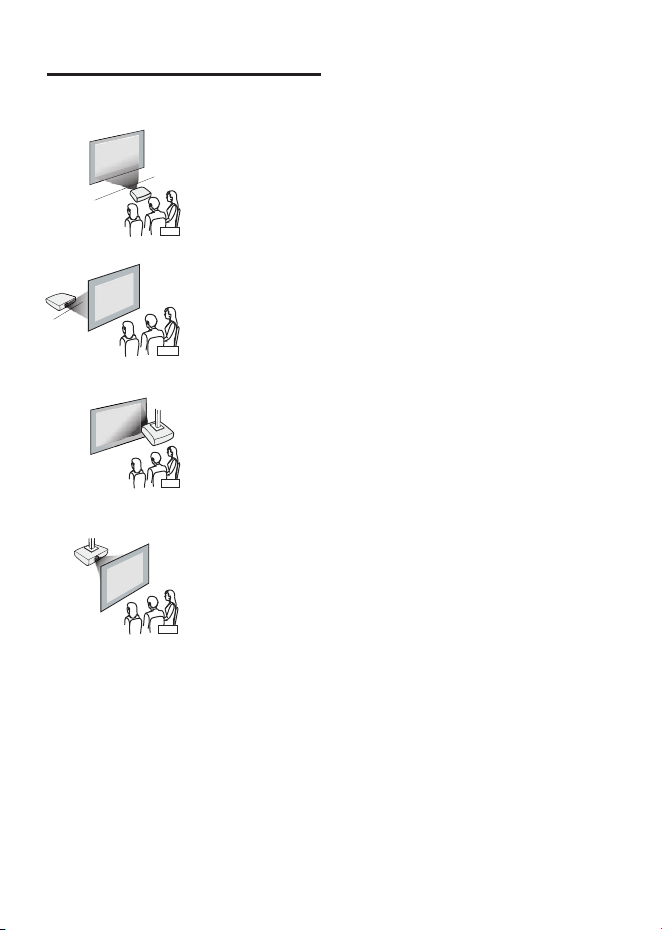
1 3
5
4
6 7 8 9
2
10
11
Important Safety Instrucons
Addional Warnings and Precauons
1. Do not look directly into the projector light.
2. Don’t touch the projector lens.
3. Mains adapter is used as disconnect device and it should remain readily operable
during intended use. In order to disconnect the apparatus from the mains
completely, the mains plug should be disc onnected from the mains socket outlet
completely.
4. CAUTION: Use of controls or adjustments or performance of procedures other than
those specified may result in hazardous radiation exposure.
5. WARNING: Changes or modified to this unit not expressly approved by the party
responsible for compliance could void the user’s authority to operate the equipment.
6. WARNING: Use of this unit near fluorescent lighting may cause interference
regarding use of the remote. If the unit is displaying erratic behavior move away
from any fluorescent lighting, as it may be the cause.
7. WARNING: Shock hazard - Do Not Open.
8. Caution and marking information is located at the rear or bottom of the apparatus.
9. WARNING: To reduce the risk of fire or electric shock, do not expose this apparatus
to rain, moisture, dripping, or splashing.
10. Objects filled with liquids, such as vases, shall not be placed on the apparatus.
FCC Warning
In The Box
R
OKU
Main unit
Remote
User Manual
AC Power Adapter
Two AAA
Batteries
Roku Express+
USB Power Cable
Roku Remote
HDMI Cable
Table of Contents
Placing of Your Projector
Your projector can be installed in four different configurations (see picture below):
Front Table:
Select this location with the projector placed near the floor in front
of the screen. This is the most common way to position the
projector for quick setup and portability.
Rear Table:
Select this location with the projector placed near the floor behind
the screen.
NOTE: That a special rear projection screen is required.
Front Ceiling:
Select this location with the projector suspended upside-down
from the ceiling in front of the screen.
NOTE: A projector mount is required to install the projector in a
ceiling.
Rear Ceiling:
Select this location with the projector suspended upside-down
from the ceiling behind the screen.
NOTE:
A projector mount is required to install the projector in a ceiling.
A special rear projection screen is required.
Front Ceiling
Rear Ceiling
Rear Table
Front Table
To Reduce Image Distoron
Distance Between The Projector And Screen
Measure the distance between the projector and where you want to position the
screen. This is the projection distance for reference.
Installing your Projector in the Ceiling
Distance
1.13m
1.39m
1.79m
2.20m
3.00m
3.55m
4.70m
5.87m
Screen Size
36 inch
45 inch
60 inch
72 inch
100 inch
120 inch
150 inch
200 inch
• Move the projector as close to the center of the
screen as possible.
• The light beam from the projector should be
perpendicular to the screen for a rectangular or
square image.
Adjust The Vercal Locaon Clean the air filter screen
Follow below picture to adjust the vertical location.
Adjust The
Focus And Keystone
Follow below picture to adjust the focus and trapezoidal screen.
Adjust the focus by turning the knob while observing the image pixels near the center of
the screen. Optimal focus is obtained when the pixels are clearly visible. Depending on
the projected screen size, the focus near the screen edges may be less sharp than the
screen center.
Keystone image is created when the projector lens is projected from above or below the
center of the screen. Keystone correction restores the distorted image to a rectangular or
square shape.
The air filter screen should be cleaned every 1500 hours.
Please use a vacuum cleaner to remove dust from the outside of the vent hole
When the accumulated dust on the filter screen
becomes difficult to remove with a vacuum cleaner,
please remove the air filter screen and clean it.
1. Turn off the power and unplug the power cord
2. Remove the air filter compartment cover on the
back of your unit by carefully sliding to open.
The air filter cover can then be lifted away as
shown in the figure.
3. Remove the air filter screen
4. Clean the air net with a neutral detergent
solution and dry it outside in a cool place.
5. The ventilation openings around the projector should also be cleaned with a
vacuum cleaner
6. Put the air filter screen back into the slot of the air filter compartment, and then
cover back the air filter compartment cover.
Note:
If you neglect to clean the air filter screen, it may lead to dust accumulation, resulting
in poor internal heat dissipation (heat accumulation), leading to unit failure
Remove the battery compartment cover on the back of your remote by carefully sliding to
open. The battery cover can then be lifted away. Fit the correct batteries (not included),
referring to the polarity markings. Finally, replace the cover.
NOTES:
● Batteries shall not be exposed to excessive heat such as
placing under the sunlight or near a fire.
● Please make sure the batteries are installed with their
correct polarities.
● Do not mix old and new batteries.
● Use only the same type of batteries.
● Do not dispose of the batteries in fire, battery may
explode or leak.
● Do not recharge a non-rechargeable battery.
Controls of Remote
Install / Remove Baeries of Remote
ROODYRE
TTAB
Controls of Projector
1 LENS
2 ANGEL ADJ. knob
3 IR Sensor
4 Audio Out Jack
5 AV IN Jack
6 HDMI 1 Port
7 HDMI 2 Port
8 USB 1 Port
9 DC IN Jack
10 Air Filter Door
11 Speaker
12 HDMI 3 Port (for Ruku Streaming Stick input)
13 USB 2 Port (for Ruku supply)
14 FOCUS ADJ. Knob
15 KEYSTONE ADJ. Knob
16 SOURCE Button
17 MENU Button
18 Buttons
19 Buttons
20 Button
21 RETURN Button
22 POWER Button
23 Power Indicator
Install Power Adapter
Main Buon Operaon
- Press the button to switch on unit, press twice to turn off this unit.
- Press the button to Home menu to select input source.
- Press the button to enter projector menu.
- Press the buttons to navigate and select screen item of menu.
- Press the button to return to previous status or exit the menu.
- Press the buttons to fast search forward and rewind on USB.
- Press the buttons to select the sound level on the remote.
- Press the button to play/pause the playback of file on USB.
- Press to mute the audio. Press again to resume.
Follow below picture to connect power adapter
Connect small end of adapter FIRST. Plug the adapter body to power outlet.
WARNING:
Before connecting to the power supply, ensure that the supply corresponds to the
information on the rating label at the back of the apparatus.
/
OK
MODEL NO.
RPJ185
SMART HD HOME THEATER PROJECTOR
PLEASE READ BEFORE OPERATING THIS EQUIPMENT
This product has been manufactured and sold under the responsibility of CURTIS
INTERNATIONAL LTD.
RCA, the RCA logo and the two dogs (Nipper and Chipper) logo are trademarks
used under license by CURTIS INTERNATIONAL LTD.
– further information at www.rca-brand.com.
All other products, services, companies, trademarks, trade or product names and
logos referenced herein are the property of their respective owners.
Ideal for dark viewing environments for optimal performance.
Please note:Projector brightness is measured in ANSI lumens.
Your viewing environment is the deciding factor on how many lumens your
projector needs.
1. Read these Instrucons.
2. Keep these Instrucons.
3. Heed all Warnings.
4. Follow all instrucons.
5. Do not use this apparatus near water.
6. Clean only with a dry cloth.
7. Do not block any venlaon openings. Install in accordance with the manufacturer’s
instrucons.
8. Do not install near any heat sources such as radiators, heat registers, stoves, or other
apparatus (including amplifier) that product heat.
9. Protect the power cord from being walked on or pinched parcularly at plugs,
convenience receptacles, and the point where they exit from the apparatus.
10. Only use aachments/accessories specified by the manufacturer.
11. Unplug this apparatus during lightning storms or when unused for long periods of me.
12. Refer all servicing to qualified service personnel. Servicing is required when the
apparatus has been damaged in any way, such as power-supply cord or plug is damaged,
liquid has been spilled or objects have fallen into the apparatus, the apparatus has been
exposed to rain or moisture, does not operate normally, or has been dropped.
13. Use only with a cart, stand, tripod, bracket, or table specified by
the manufacturer or sold with the apparatus. When a cart is used,
use cauon when moving the cart/ apparatus combinaon to
avoid injury from p-over.
Any Changes or modifications not expressly approved by the party responsible for compliance could
void the user's authority to operate the equipment.
This device complies with Part 15 of the FCC rules. Operation is subject to the following two
conditions: (1) this device may not cause harmful interference, and (2) this device must accept any
interference received, including interference that may cause undesired operation.
NOTE: This equipment has been tested and found to comply with the limits for a Class B digital
device, pursuant to Part 15 of the FCC Rules. These limits are designed to provide reasonable
protection against harmful interference in a residential installation. This equipment generates, uses,
and can radiate radio frequency energy and, if not installed and used in accordance with the
instructions, may cause harmful interference to radio communications. However, there is no guarantee
that interference will not occur in a particular installation. If this equipment does cause harmful
interference to radio or television reception, which can be determined by turning the equipment off and
on, the user is encouraged to try to correct the interference by one or more of the following measures:
• Reorient or relocate the receiving antenna.
• Increase the separation between the equipment and receiver.
• Connect the equipment into an outlet on a circuit different from that to which the receiver is
connected.
• Consult the dealer or an experienced radio/TV technician for help.
• This equipment complies with FCC radiation exposure limits set forth for an uncontrolled
environment. This equipment should be installed and operated with minimum distance 20cm
between the radiator& your body.
• This transmitter must not be co-located or operating in conjunction with any other antenna or
transmitter.
Important Safety Instructions - - - - - - - - - - - - - - - - - - - - - - - - - - - -P1
Additional Warnings and Precautions - - - - - - - - - - - - - - - - - - - - - -P2
FCC Warning - - - - - - - - - - - - - - - - - - - - - - - - - - - - - - - - - - - - - - - - -P3
In The Box - - - - - - - - - - - - - - - - - - - - - - - - - - - - - - - - - - - - - - - - - - -P3
Table of Contents - - - - - - - - - - - - - - - - - - - - - - - - - - - - - - - - - - - - - -P4
Placing of Your Projector - - - - - - - - - - - - - - - - - - - - - - - - - - - - - - -P5
To Reduce Image Distortion - - - - - - - - - - - - - - - - - - - - - - - - - - - - - - P6
Distance Between The Projector And Screen - - - - - - - - - - - - - - - - -P6
Installing your Projector in the Ceiling - - - - - - - - - - - - - - - - - - - - - -P6
Adjust the Vertical Location - - - - - - - - - - - - - - - - - - - - - - - - - - - - - - P7
Adjust the Focus And Keystone - - - - - - - - - - - - - - - - - - - - - - - - - -P7
Clean the air filter screen - - - - - - - - - - - - - - - - - - - - - - - - - - - - - - - - P8
Controls of Remote - - - - - - - - - - - - - - - - - - - - - - - - - - - - - - - - - - - -P9
Install / Remove Batteries of Remote - - - - - - - - - - - - - - - - - - - - - - -P9
Controls of Projector - - - - - - - - - - - - - - - - - - - - - - - - - - - - - - - - - - P10
Install Power Adapter - - - - - - - - - - - - - - - - - - - - - - - - - - - - - - - - - - P11
Main Button Operation - - - - - - - - - - - - - - - - - - - - - - - - - - - - - - - - P11
Setup / Install the Roku
®
Streaming Stick - - - - - - - - - - - - - - - - - - P12
Connect HDMI Show The Image On Projector Screen - - - - - - - - - P13
Connect AV Show The Image On Projector Screen - - - - - - - - - - - P13
Connect Audio Output (Aux Out / Line Out / Earphones) - - - - - - - P14
Install USB Device - - - - - - - - - - - - - - - - - - - - - - - - - - - - - - - - - - - - P14
Using USB Playback (Media Player) - - - - - - - - - - - - - - - - - - - - - - - P15
Using Bluetooth Playback - - - - - - - - - - - - - - - - - - - - - - - - - - - - - - P16
Using Projector Menu 1 - - - - - - - - - - - - - - - - - - - - - - - - - - - - - - - - P17
Using Projector Menu 2 - - - - - - - - - - - - - - - - - - - - - - - - - - - - - - - - P17
Using Projector Menu 3 - - - - - - - - - - - - - - - - - - - - - - - - - - - - - - - - P18
Specifications - - - - - - - - - - - - - - - - - - - - - - - - - - - - - - - - - - - - - - - P19
Warrenty Card - - - - - - - - - - - - - - - - - - - - - - - - - - - - - - - - - - - - - - - P20
When installing the projector in the ceiling, please purchase a projector mount
recommended by an installation professional and follow the instructions that come with
the mount.
Before installing the projector in the ceiling, please check to make sure the ceiling
structure can support the weight of the projector and the mount. If in doubt, please ask
the advice from an installation professorial.
NOTE: Projector mount and screw(s) not included
Power ON/OFF
Mute Audio Sound
Navigator
Increase Volume Sound
Decrease Volume Sound
Enter to Menu
Play / Pause
Source Selector
Exit the Menu or return to previous status
Fast rewind / Fast forward File
/
MODEL NO.
RPJ185
SMART HD HOME THEATER PROJECTOR
PLEASE READ BEFORE OPERATING THIS EQUIPMENT
This product has been manufactured and sold under the responsibility of CURTIS
INTERNATIONAL LTD.
RCA, the RCA logo and the two dogs (Nipper and Chipper) logo are trademarks
used under license by CURTIS INTERNATIONAL LTD.
– further information at www.rca-brand.com.
All other products, services, companies, trademarks, trade or product names and
logos referenced herein are the property of their respective owners.
Ideal for dark viewing environments for optimal performance.
Please note:Projector brightness is measured in ANSI lumens.
Your viewing environment is the deciding factor on how many lumens your
projector needs.
FIXED HANGER HOLE
(6mm diameter)
Adjust this knob (ANGLE ADJ. knob)
to fine tune the display angle to higher.
Image Adjustment
Focus justmentAd
Increase or reduce to image size to sharpen image.
Keystone Adjustment
Adjust image corners to reduce image distortion.
Keystone ADJ. KNOB
FOCUS ADJ. KNOB
Then sharpen the image
by rotating focus knob.
1
2
3
4
5
6
7
8
9
10
11
12
13
14
15
16
17
18
19
20
21
22
23
Front View
Top View
Rear View
150
200
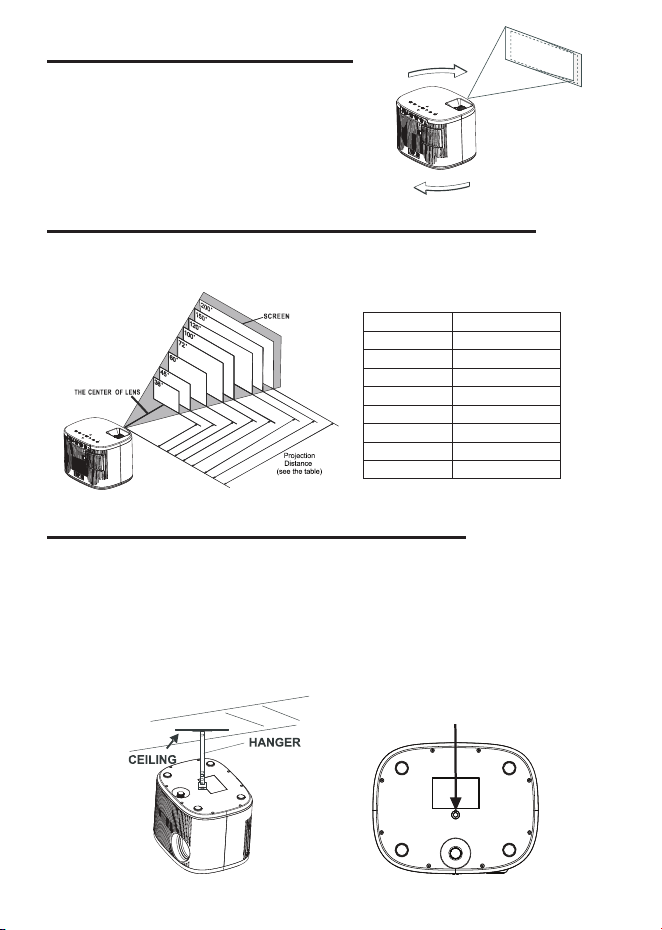
1 3
5
4
6 7 8 9
2
10
11
Important Safety Instrucons
Addional Warnings and Precauons
1. Do not look directly into the projector light.
2. Don’t touch the projector lens.
3. Mains adapter is used as disconnect device and it should remain readily operable
during intended use. In order to disconnect the apparatus from the mains
completely, the mains plug should be disc onnected from the mains socket outlet
completely.
4. CAUTION: Use of controls or adjustments or performance of procedures other than
those specified may result in hazardous radiation exposure.
5. WARNING: Changes or modified to this unit not expressly approved by the party
responsible for compliance could void the user’s authority to operate the equipment.
6. WARNING: Use of this unit near fluorescent lighting may cause interference
regarding use of the remote. If the unit is displaying erratic behavior move away
from any fluorescent lighting, as it may be the cause.
7. WARNING: Shock hazard - Do Not Open.
8. Caution and marking information is located at the rear or bottom of the apparatus.
9. WARNING: To reduce the risk of fire or electric shock, do not expose this apparatus
to rain, moisture, dripping, or splashing.
10. Objects filled with liquids, such as vases, shall not be placed on the apparatus.
FCC Warning
In The Box
R
OKU
Main unit
Remote
User Manual
AC Power Adapter
Two AAA
Batteries
Roku Express+
USB Power Cable
Roku Remote
HDMI Cable
Table of Contents
Placing of Your Projector
Your projector can be installed in four different configurations (see picture below):
Front Table:
Select this location with the projector placed near the floor in front
of the screen. This is the most common way to position the
projector for quick setup and portability.
Rear Table:
Select this location with the projector placed near the floor behind
the screen.
NOTE: That a special rear projection screen is required.
Front Ceiling:
Select this location with the projector suspended upside-down
from the ceiling in front of the screen.
NOTE: A projector mount is required to install the projector in a
ceiling.
Rear Ceiling:
Select this location with the projector suspended upside-down
from the ceiling behind the screen.
NOTE:
A projector mount is required to install the projector in a ceiling.
A special rear projection screen is required.
Front Ceiling
Rear Ceiling
Rear Table
Front Table
To Reduce Image Distoron
Distance Between The Projector And Screen
Measure the distance between the projector and where you want to position the
screen. This is the projection distance for reference.
Installing your Projector in the Ceiling
Distance
1.13m
1.39m
1.79m
2.20m
3.00m
3.55m
4.70m
5.87m
Screen Size
36 inch
45 inch
60 inch
72 inch
100 inch
120 inch
150 inch
200 inch
• Move the projector as close to the center of the
screen as possible.
• The light beam from the projector should be
perpendicular to the screen for a rectangular or
square image.
Adjust The Vercal Locaon Clean the air filter screen
Follow below picture to adjust the vertical location.
Adjust The
Focus And Keystone
Follow below picture to adjust the focus and trapezoidal screen.
Adjust the focus by turning the knob while observing the image pixels near the center of
the screen. Optimal focus is obtained when the pixels are clearly visible. Depending on
the projected screen size, the focus near the screen edges may be less sharp than the
screen center.
Keystone image is created when the projector lens is projected from above or below the
center of the screen. Keystone correction restores the distorted image to a rectangular or
square shape.
The air filter screen should be cleaned every 1500 hours.
Please use a vacuum cleaner to remove dust from the outside of the vent hole
When the accumulated dust on the filter screen
becomes difficult to remove with a vacuum cleaner,
please remove the air filter screen and clean it.
1. Turn off the power and unplug the power cord
2. Remove the air filter compartment cover on the
back of your unit by carefully sliding to open.
The air filter cover can then be lifted away as
shown in the figure.
3. Remove the air filter screen
4. Clean the air net with a neutral detergent
solution and dry it outside in a cool place.
5. The ventilation openings around the projector should also be cleaned with a
vacuum cleaner
6. Put the air filter screen back into the slot of the air filter compartment, and then
cover back the air filter compartment cover.
Note:
If you neglect to clean the air filter screen, it may lead to dust accumulation, resulting
in poor internal heat dissipation (heat accumulation), leading to unit failure
Remove the battery compartment cover on the back of your remote by carefully sliding to
open. The battery cover can then be lifted away. Fit the correct batteries (not included),
referring to the polarity markings. Finally, replace the cover.
NOTES:
● Batteries shall not be exposed to excessive heat such as
placing under the sunlight or near a fire.
● Please make sure the batteries are installed with their
correct polarities.
● Do not mix old and new batteries.
● Use only the same type of batteries.
● Do not dispose of the batteries in fire, battery may
explode or leak.
● Do not recharge a non-rechargeable battery.
Controls of Remote
Install / Remove Baeries of Remote
ROODYRE
TTAB
Controls of Projector
1 LENS
2 ANGEL ADJ. knob
3 IR Sensor
4 Audio Out Jack
5 AV IN Jack
6 HDMI 1 Port
7 HDMI 2 Port
8 USB 1 Port
9 DC IN Jack
10 Air Filter Door
11 Speaker
12 HDMI 3 Port (for Ruku Streaming Stick input)
13 USB 2 Port (for Ruku supply)
14 FOCUS ADJ. Knob
15 KEYSTONE ADJ. Knob
16 SOURCE Button
17 MENU Button
18 Buttons
19 Buttons
20 Button
21 RETURN Button
22 POWER Button
23 Power Indicator
Install Power Adapter
Main Buon Operaon
- Press the button to switch on unit, press twice to turn off this unit.
- Press the button to Home menu to select input source.
- Press the button to enter projector menu.
- Press the buttons to navigate and select screen item of menu.
- Press the button to return to previous status or exit the menu.
- Press the buttons to fast search forward and rewind on USB.
- Press the buttons to select the sound level on the remote.
- Press the button to play/pause the playback of file on USB.
- Press to mute the audio. Press again to resume.
Follow below picture to connect power adapter
Connect small end of adapter FIRST. Plug the adapter body to power outlet.
WARNING:
Before connecting to the power supply, ensure that the supply corresponds to the
information on the rating label at the back of the apparatus.
/
OK
MODEL NO.
RPJ185
SMART HD HOME THEATER PROJECTOR
PLEASE READ BEFORE OPERATING THIS EQUIPMENT
This product has been manufactured and sold under the responsibility of CURTIS
INTERNATIONAL LTD.
RCA, the RCA logo and the two dogs (Nipper and Chipper) logo are trademarks
used under license by CURTIS INTERNATIONAL LTD.
– further information at www.rca-brand.com.
All other products, services, companies, trademarks, trade or product names and
logos referenced herein are the property of their respective owners.
Ideal for dark viewing environments for optimal performance.
Please note:Projector brightness is measured in ANSI lumens.
Your viewing environment is the deciding factor on how many lumens your
projector needs.
1. Read these Instrucons.
2. Keep these Instrucons.
3. Heed all Warnings.
4. Follow all instrucons.
5. Do not use this apparatus near water.
6. Clean only with a dry cloth.
7. Do not block any venlaon openings. Install in accordance with the manufacturer’s
instrucons.
8. Do not install near any heat sources such as radiators, heat registers, stoves, or other
apparatus (including amplifier) that product heat.
9. Protect the power cord from being walked on or pinched parcularly at plugs,
convenience receptacles, and the point where they exit from the apparatus.
10. Only use aachments/accessories specified by the manufacturer.
11. Unplug this apparatus during lightning storms or when unused for long periods of me.
12. Refer all servicing to qualified service personnel. Servicing is required when the
apparatus has been damaged in any way, such as power-supply cord or plug is damaged,
liquid has been spilled or objects have fallen into the apparatus, the apparatus has been
exposed to rain or moisture, does not operate normally, or has been dropped.
13. Use only with a cart, stand, tripod, bracket, or table specified by
the manufacturer or sold with the apparatus. When a cart is used,
use cauon when moving the cart/ apparatus combinaon to
avoid injury from p-over.
Any Changes or modifications not expressly approved by the party responsible for compliance could
void the user's authority to operate the equipment.
This device complies with Part 15 of the FCC rules. Operation is subject to the following two
conditions: (1) this device may not cause harmful interference, and (2) this device must accept any
interference received, including interference that may cause undesired operation.
NOTE: This equipment has been tested and found to comply with the limits for a Class B digital
device, pursuant to Part 15 of the FCC Rules. These limits are designed to provide reasonable
protection against harmful interference in a residential installation. This equipment generates, uses,
and can radiate radio frequency energy and, if not installed and used in accordance with the
instructions, may cause harmful interference to radio communications. However, there is no guarantee
that interference will not occur in a particular installation. If this equipment does cause harmful
interference to radio or television reception, which can be determined by turning the equipment off and
on, the user is encouraged to try to correct the interference by one or more of the following measures:
• Reorient or relocate the receiving antenna.
• Increase the separation between the equipment and receiver.
• Connect the equipment into an outlet on a circuit different from that to which the receiver is
connected.
• Consult the dealer or an experienced radio/TV technician for help.
• This equipment complies with FCC radiation exposure limits set forth for an uncontrolled
environment. This equipment should be installed and operated with minimum distance 20cm
between the radiator& your body.
• This transmitter must not be co-located or operating in conjunction with any other antenna or
transmitter.
Important Safety Instructions - - - - - - - - - - - - - - - - - - - - - - - - - - - -P1
Additional Warnings and Precautions - - - - - - - - - - - - - - - - - - - - - -P2
FCC Warning - - - - - - - - - - - - - - - - - - - - - - - - - - - - - - - - - - - - - - - - -P3
In The Box - - - - - - - - - - - - - - - - - - - - - - - - - - - - - - - - - - - - - - - - - - -P3
Table of Contents - - - - - - - - - - - - - - - - - - - - - - - - - - - - - - - - - - - - - -P4
Placing of Your Projector - - - - - - - - - - - - - - - - - - - - - - - - - - - - - - -P5
To Reduce Image Distortion - - - - - - - - - - - - - - - - - - - - - - - - - - - - - - P6
Distance Between The Projector And Screen - - - - - - - - - - - - - - - - -P6
Installing your Projector in the Ceiling - - - - - - - - - - - - - - - - - - - - - -P6
Adjust the Vertical Location - - - - - - - - - - - - - - - - - - - - - - - - - - - - - - P7
Adjust the Focus And Keystone - - - - - - - - - - - - - - - - - - - - - - - - - -P7
Clean the air filter screen - - - - - - - - - - - - - - - - - - - - - - - - - - - - - - - - P8
Controls of Remote - - - - - - - - - - - - - - - - - - - - - - - - - - - - - - - - - - - -P9
Install / Remove Batteries of Remote - - - - - - - - - - - - - - - - - - - - - - -P9
Controls of Projector - - - - - - - - - - - - - - - - - - - - - - - - - - - - - - - - - - P10
Install Power Adapter - - - - - - - - - - - - - - - - - - - - - - - - - - - - - - - - - - P11
Main Button Operation - - - - - - - - - - - - - - - - - - - - - - - - - - - - - - - - P11
Setup / Install the Roku
®
Streaming Stick - - - - - - - - - - - - - - - - - - P12
Connect HDMI Show The Image On Projector Screen - - - - - - - - - P13
Connect AV Show The Image On Projector Screen - - - - - - - - - - - P13
Connect Audio Output (Aux Out / Line Out / Earphones) - - - - - - - P14
Install USB Device - - - - - - - - - - - - - - - - - - - - - - - - - - - - - - - - - - - - P14
Using USB Playback (Media Player) - - - - - - - - - - - - - - - - - - - - - - - P15
Using Bluetooth Playback - - - - - - - - - - - - - - - - - - - - - - - - - - - - - - P16
Using Projector Menu 1 - - - - - - - - - - - - - - - - - - - - - - - - - - - - - - - - P17
Using Projector Menu 2 - - - - - - - - - - - - - - - - - - - - - - - - - - - - - - - - P17
Using Projector Menu 3 - - - - - - - - - - - - - - - - - - - - - - - - - - - - - - - - P18
Specifications - - - - - - - - - - - - - - - - - - - - - - - - - - - - - - - - - - - - - - - P19
Warrenty Card - - - - - - - - - - - - - - - - - - - - - - - - - - - - - - - - - - - - - - - P20
When installing the projector in the ceiling, please purchase a projector mount
recommended by an installation professional and follow the instructions that come with
the mount.
Before installing the projector in the ceiling, please check to make sure the ceiling
structure can support the weight of the projector and the mount. If in doubt, please ask
the advice from an installation professorial.
NOTE: Projector mount and screw(s) not included
Power ON/OFF
Mute Audio Sound
Navigator
Increase Volume Sound
Decrease Volume Sound
Enter to Menu
Play / Pause
Source Selector
Exit the Menu or return to previous status
Fast rewind / Fast forward File
/
MODEL NO.
RPJ185
SMART HD HOME THEATER PROJECTOR
PLEASE READ BEFORE OPERATING THIS EQUIPMENT
This product has been manufactured and sold under the responsibility of CURTIS
INTERNATIONAL LTD.
RCA, the RCA logo and the two dogs (Nipper and Chipper) logo are trademarks
used under license by CURTIS INTERNATIONAL LTD.
– further information at www.rca-brand.com.
All other products, services, companies, trademarks, trade or product names and
logos referenced herein are the property of their respective owners.
Ideal for dark viewing environments for optimal performance.
Please note:Projector brightness is measured in ANSI lumens.
Your viewing environment is the deciding factor on how many lumens your
projector needs.
FIXED HANGER HOLE
(6mm diameter)
Adjust this knob (ANGLE ADJ. knob)
to fine tune the display angle to higher.
Image Adjustment
Focus justmentAd
Increase or reduce to image size to sharpen image.
Keystone Adjustment
Adjust image corners to reduce image distortion.
Keystone ADJ. KNOB
FOCUS ADJ. KNOB
Then sharpen the image
by rotating focus knob.
1
2
3
4
5
6
7
8
9
10
11
12
13
14
15
16
17
18
19
20
21
22
23
Front View
Top View
Rear View
150
200
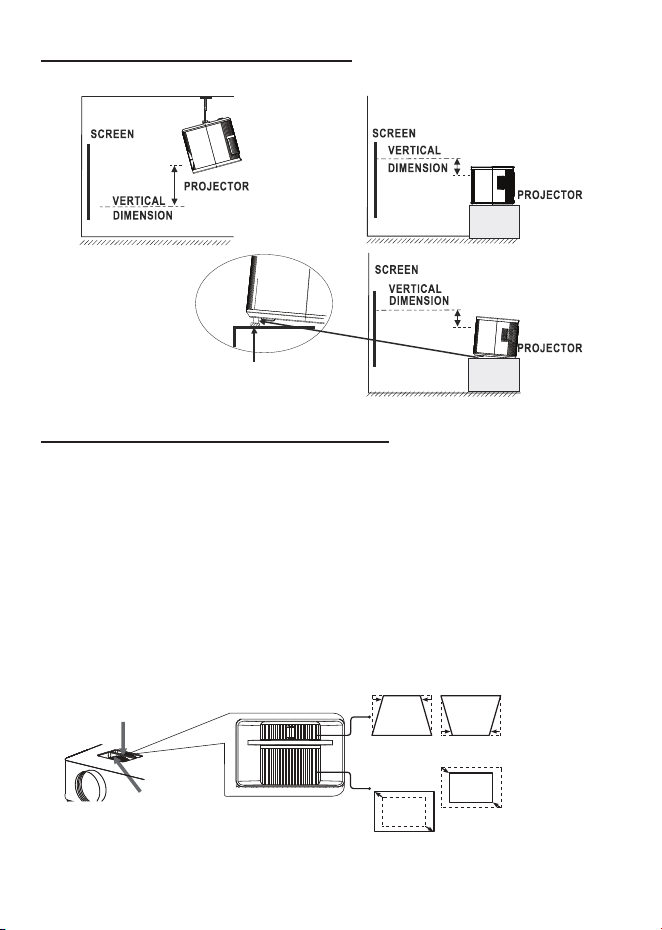
1 3
5
4
6 7 8 9
2
10
11
Important Safety Instrucons
Addional Warnings and Precauons
1. Do not look directly into the projector light.
2. Don’t touch the projector lens.
3. Mains adapter is used as disconnect device and it should remain readily operable
during intended use. In order to disconnect the apparatus from the mains
completely, the mains plug should be disc onnected from the mains socket outlet
completely.
4. CAUTION: Use of controls or adjustments or performance of procedures other than
those specified may result in hazardous radiation exposure.
5. WARNING: Changes or modified to this unit not expressly approved by the party
responsible for compliance could void the user’s authority to operate the equipment.
6. WARNING: Use of this unit near fluorescent lighting may cause interference
regarding use of the remote. If the unit is displaying erratic behavior move away
from any fluorescent lighting, as it may be the cause.
7. WARNING: Shock hazard - Do Not Open.
8. Caution and marking information is located at the rear or bottom of the apparatus.
9. WARNING: To reduce the risk of fire or electric shock, do not expose this apparatus
to rain, moisture, dripping, or splashing.
10. Objects filled with liquids, such as vases, shall not be placed on the apparatus.
FCC Warning
In The Box
R
OKU
Main unit
Remote
User Manual
AC Power Adapter
Two AAA
Batteries
Roku Express+
USB Power Cable
Roku Remote
HDMI Cable
Table of Contents
Placing of Your Projector
Your projector can be installed in four different configurations (see picture below):
Front Table:
Select this location with the projector placed near the floor in front
of the screen. This is the most common way to position the
projector for quick setup and portability.
Rear Table:
Select this location with the projector placed near the floor behind
the screen.
NOTE: That a special rear projection screen is required.
Front Ceiling:
Select this location with the projector suspended upside-down
from the ceiling in front of the screen.
NOTE: A projector mount is required to install the projector in a
ceiling.
Rear Ceiling:
Select this location with the projector suspended upside-down
from the ceiling behind the screen.
NOTE:
A projector mount is required to install the projector in a ceiling.
A special rear projection screen is required.
Front Ceiling
Rear Ceiling
Rear Table
Front Table
To Reduce Image Distoron
Distance Between The Projector And Screen
Measure the distance between the projector and where you want to position the
screen. This is the projection distance for reference.
Installing your Projector in the Ceiling
Distance
1.13m
1.39m
1.79m
2.20m
3.00m
3.55m
4.70m
5.87m
Screen Size
36 inch
45 inch
60 inch
72 inch
100 inch
120 inch
150 inch
200 inch
• Move the projector as close to the center of the
screen as possible.
• The light beam from the projector should be
perpendicular to the screen for a rectangular or
square image.
Adjust The Vercal Locaon Clean the air filter screen
Follow below picture to adjust the vertical location.
Adjust The
Focus And Keystone
Follow below picture to adjust the focus and trapezoidal screen.
Adjust the focus by turning the knob while observing the image pixels near the center of
the screen. Optimal focus is obtained when the pixels are clearly visible. Depending on
the projected screen size, the focus near the screen edges may be less sharp than the
screen center.
Keystone image is created when the projector lens is projected from above or below the
center of the screen. Keystone correction restores the distorted image to a rectangular or
square shape.
The air filter screen should be cleaned every 1500 hours.
Please use a vacuum cleaner to remove dust from the outside of the vent hole
When the accumulated dust on the filter screen
becomes difficult to remove with a vacuum cleaner,
please remove the air filter screen and clean it.
1. Turn off the power and unplug the power cord
2. Remove the air filter compartment cover on the
back of your unit by carefully sliding to open.
The air filter cover can then be lifted away as
shown in the figure.
3. Remove the air filter screen
4. Clean the air net with a neutral detergent
solution and dry it outside in a cool place.
5. The ventilation openings around the projector should also be cleaned with a
vacuum cleaner
6. Put the air filter screen back into the slot of the air filter compartment, and then
cover back the air filter compartment cover.
Note:
If you neglect to clean the air filter screen, it may lead to dust accumulation, resulting
in poor internal heat dissipation (heat accumulation), leading to unit failure
Remove the battery compartment cover on the back of your remote by carefully sliding to
open. The battery cover can then be lifted away. Fit the correct batteries (not included),
referring to the polarity markings. Finally, replace the cover.
NOTES:
● Batteries shall not be exposed to excessive heat such as
placing under the sunlight or near a fire.
● Please make sure the batteries are installed with their
correct polarities.
● Do not mix old and new batteries.
● Use only the same type of batteries.
● Do not dispose of the batteries in fire, battery may
explode or leak.
● Do not recharge a non-rechargeable battery.
Controls of Remote
Install / Remove Baeries of Remote
ROODYRE
TTAB
Controls of Projector
1 LENS
2 ANGEL ADJ. knob
3 IR Sensor
4 Audio Out Jack
5 AV IN Jack
6 HDMI 1 Port
7 HDMI 2 Port
8 USB 1 Port
9 DC IN Jack
10 Air Filter Door
11 Speaker
12 HDMI 3 Port (for Ruku Streaming Stick input)
13 USB 2 Port (for Ruku supply)
14 FOCUS ADJ. Knob
15 KEYSTONE ADJ. Knob
16 SOURCE Button
17 MENU Button
18 Buttons
19 Buttons
20 Button
21 RETURN Button
22 POWER Button
23 Power Indicator
Install Power Adapter
Main Buon Operaon
- Press the button to switch on unit, press twice to turn off this unit.
- Press the button to Home menu to select input source.
- Press the button to enter projector menu.
- Press the buttons to navigate and select screen item of menu.
- Press the button to return to previous status or exit the menu.
- Press the buttons to fast search forward and rewind on USB.
- Press the buttons to select the sound level on the remote.
- Press the button to play/pause the playback of file on USB.
- Press to mute the audio. Press again to resume.
Follow below picture to connect power adapter
Connect small end of adapter FIRST. Plug the adapter body to power outlet.
WARNING:
Before connecting to the power supply, ensure that the supply corresponds to the
information on the rating label at the back of the apparatus.
/
OK
MODEL NO.
RPJ185
SMART HD HOME THEATER PROJECTOR
PLEASE READ BEFORE OPERATING THIS EQUIPMENT
This product has been manufactured and sold under the responsibility of CURTIS
INTERNATIONAL LTD.
RCA, the RCA logo and the two dogs (Nipper and Chipper) logo are trademarks
used under license by CURTIS INTERNATIONAL LTD.
– further information at www.rca-brand.com.
All other products, services, companies, trademarks, trade or product names and
logos referenced herein are the property of their respective owners.
Ideal for dark viewing environments for optimal performance.
Please note:Projector brightness is measured in ANSI lumens.
Your viewing environment is the deciding factor on how many lumens your
projector needs.
1. Read these Instrucons.
2. Keep these Instrucons.
3. Heed all Warnings.
4. Follow all instrucons.
5. Do not use this apparatus near water.
6. Clean only with a dry cloth.
7. Do not block any venlaon openings. Install in accordance with the manufacturer’s
instrucons.
8. Do not install near any heat sources such as radiators, heat registers, stoves, or other
apparatus (including amplifier) that product heat.
9. Protect the power cord from being walked on or pinched parcularly at plugs,
convenience receptacles, and the point where they exit from the apparatus.
10. Only use aachments/accessories specified by the manufacturer.
11. Unplug this apparatus during lightning storms or when unused for long periods of me.
12. Refer all servicing to qualified service personnel. Servicing is required when the
apparatus has been damaged in any way, such as power-supply cord or plug is damaged,
liquid has been spilled or objects have fallen into the apparatus, the apparatus has been
exposed to rain or moisture, does not operate normally, or has been dropped.
13. Use only with a cart, stand, tripod, bracket, or table specified by
the manufacturer or sold with the apparatus. When a cart is used,
use cauon when moving the cart/ apparatus combinaon to
avoid injury from p-over.
Any Changes or modifications not expressly approved by the party responsible for compliance could
void the user's authority to operate the equipment.
This device complies with Part 15 of the FCC rules. Operation is subject to the following two
conditions: (1) this device may not cause harmful interference, and (2) this device must accept any
interference received, including interference that may cause undesired operation.
NOTE: This equipment has been tested and found to comply with the limits for a Class B digital
device, pursuant to Part 15 of the FCC Rules. These limits are designed to provide reasonable
protection against harmful interference in a residential installation. This equipment generates, uses,
and can radiate radio frequency energy and, if not installed and used in accordance with the
instructions, may cause harmful interference to radio communications. However, there is no guarantee
that interference will not occur in a particular installation. If this equipment does cause harmful
interference to radio or television reception, which can be determined by turning the equipment off and
on, the user is encouraged to try to correct the interference by one or more of the following measures:
• Reorient or relocate the receiving antenna.
• Increase the separation between the equipment and receiver.
• Connect the equipment into an outlet on a circuit different from that to which the receiver is
connected.
• Consult the dealer or an experienced radio/TV technician for help.
• This equipment complies with FCC radiation exposure limits set forth for an uncontrolled
environment. This equipment should be installed and operated with minimum distance 20cm
between the radiator& your body.
• This transmitter must not be co-located or operating in conjunction with any other antenna or
transmitter.
Important Safety Instructions - - - - - - - - - - - - - - - - - - - - - - - - - - - -P1
Additional Warnings and Precautions - - - - - - - - - - - - - - - - - - - - - -P2
FCC Warning - - - - - - - - - - - - - - - - - - - - - - - - - - - - - - - - - - - - - - - - -P3
In The Box - - - - - - - - - - - - - - - - - - - - - - - - - - - - - - - - - - - - - - - - - - -P3
Table of Contents - - - - - - - - - - - - - - - - - - - - - - - - - - - - - - - - - - - - - -P4
Placing of Your Projector - - - - - - - - - - - - - - - - - - - - - - - - - - - - - - -P5
To Reduce Image Distortion - - - - - - - - - - - - - - - - - - - - - - - - - - - - - - P6
Distance Between The Projector And Screen - - - - - - - - - - - - - - - - -P6
Installing your Projector in the Ceiling - - - - - - - - - - - - - - - - - - - - - -P6
Adjust the Vertical Location - - - - - - - - - - - - - - - - - - - - - - - - - - - - - - P7
Adjust the Focus And Keystone - - - - - - - - - - - - - - - - - - - - - - - - - -P7
Clean the air filter screen - - - - - - - - - - - - - - - - - - - - - - - - - - - - - - - - P8
Controls of Remote - - - - - - - - - - - - - - - - - - - - - - - - - - - - - - - - - - - -P9
Install / Remove Batteries of Remote - - - - - - - - - - - - - - - - - - - - - - -P9
Controls of Projector - - - - - - - - - - - - - - - - - - - - - - - - - - - - - - - - - - P10
Install Power Adapter - - - - - - - - - - - - - - - - - - - - - - - - - - - - - - - - - - P11
Main Button Operation - - - - - - - - - - - - - - - - - - - - - - - - - - - - - - - - P11
Setup / Install the Roku
®
Streaming Stick - - - - - - - - - - - - - - - - - - P12
Connect HDMI Show The Image On Projector Screen - - - - - - - - - P13
Connect AV Show The Image On Projector Screen - - - - - - - - - - - P13
Connect Audio Output (Aux Out / Line Out / Earphones) - - - - - - - P14
Install USB Device - - - - - - - - - - - - - - - - - - - - - - - - - - - - - - - - - - - - P14
Using USB Playback (Media Player) - - - - - - - - - - - - - - - - - - - - - - - P15
Using Bluetooth Playback - - - - - - - - - - - - - - - - - - - - - - - - - - - - - - P16
Using Projector Menu 1 - - - - - - - - - - - - - - - - - - - - - - - - - - - - - - - - P17
Using Projector Menu 2 - - - - - - - - - - - - - - - - - - - - - - - - - - - - - - - - P17
Using Projector Menu 3 - - - - - - - - - - - - - - - - - - - - - - - - - - - - - - - - P18
Specifications - - - - - - - - - - - - - - - - - - - - - - - - - - - - - - - - - - - - - - - P19
Warrenty Card - - - - - - - - - - - - - - - - - - - - - - - - - - - - - - - - - - - - - - - P20
When installing the projector in the ceiling, please purchase a projector mount
recommended by an installation professional and follow the instructions that come with
the mount.
Before installing the projector in the ceiling, please check to make sure the ceiling
structure can support the weight of the projector and the mount. If in doubt, please ask
the advice from an installation professorial.
NOTE: Projector mount and screw(s) not included
Power ON/OFF
Mute Audio Sound
Navigator
Increase Volume Sound
Decrease Volume Sound
Enter to Menu
Play / Pause
Source Selector
Exit the Menu or return to previous status
Fast rewind / Fast forward File
/
MODEL NO.
RPJ185
SMART HD HOME THEATER PROJECTOR
PLEASE READ BEFORE OPERATING THIS EQUIPMENT
This product has been manufactured and sold under the responsibility of CURTIS
INTERNATIONAL LTD.
RCA, the RCA logo and the two dogs (Nipper and Chipper) logo are trademarks
used under license by CURTIS INTERNATIONAL LTD.
– further information at www.rca-brand.com.
All other products, services, companies, trademarks, trade or product names and
logos referenced herein are the property of their respective owners.
Ideal for dark viewing environments for optimal performance.
Please note:Projector brightness is measured in ANSI lumens.
Your viewing environment is the deciding factor on how many lumens your
projector needs.
FIXED HANGER HOLE
(6mm diameter)
Adjust this knob (ANGLE ADJ. knob)
to fine tune the display angle to higher.
Image Adjustment
Focus justmentAd
Increase or reduce to image size to sharpen image.
Keystone Adjustment
Adjust image corners to reduce image distortion.
Keystone ADJ. KNOB
FOCUS ADJ. KNOB
Then sharpen the image
by rotating focus knob.
1
2
3
4
5
6
7
8
9
10
11
12
13
14
15
16
17
18
19
20
21
22
23
Front View
Top View
Rear View
150
200
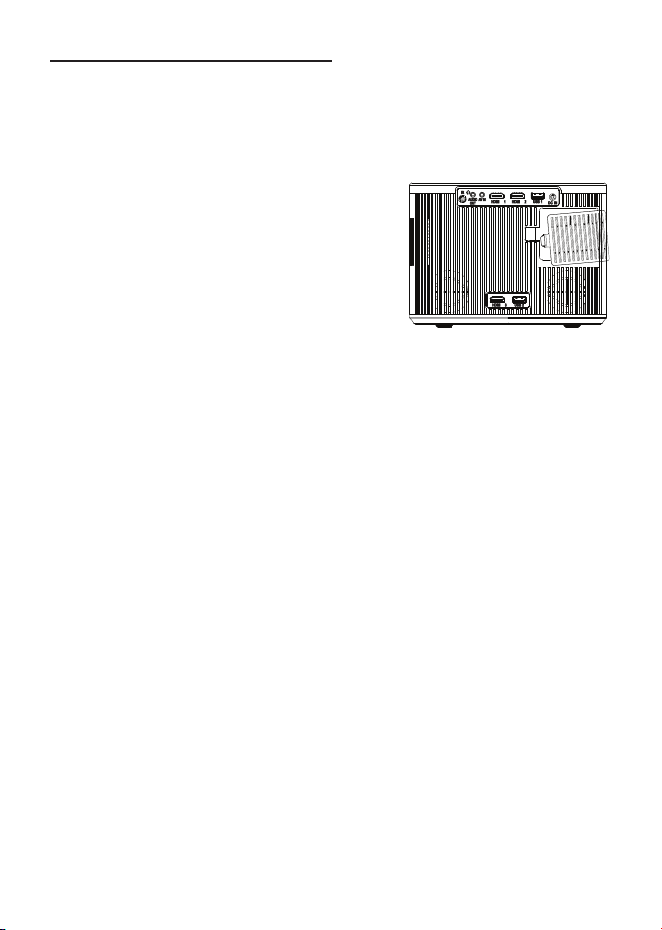
1 3
5
4
6 7 8 9
2
10
11
Important Safety Instrucons
Addional Warnings and Precauons
1. Do not look directly into the projector light.
2. Don’t touch the projector lens.
3. Mains adapter is used as disconnect device and it should remain readily operable
during intended use. In order to disconnect the apparatus from the mains
completely, the mains plug should be disc onnected from the mains socket outlet
completely.
4. CAUTION: Use of controls or adjustments or performance of procedures other than
those specified may result in hazardous radiation exposure.
5. WARNING: Changes or modified to this unit not expressly approved by the party
responsible for compliance could void the user’s authority to operate the equipment.
6. WARNING: Use of this unit near fluorescent lighting may cause interference
regarding use of the remote. If the unit is displaying erratic behavior move away
from any fluorescent lighting, as it may be the cause.
7. WARNING: Shock hazard - Do Not Open.
8. Caution and marking information is located at the rear or bottom of the apparatus.
9. WARNING: To reduce the risk of fire or electric shock, do not expose this apparatus
to rain, moisture, dripping, or splashing.
10. Objects filled with liquids, such as vases, shall not be placed on the apparatus.
FCC Warning
In The Box
R
OKU
Main unit
Remote
User Manual
AC Power Adapter
Two AAA
Batteries
Roku Express+
USB Power Cable
Roku Remote
HDMI Cable
Table of Contents
Placing of Your Projector
Your projector can be installed in four different configurations (see picture below):
Front Table:
Select this location with the projector placed near the floor in front
of the screen. This is the most common way to position the
projector for quick setup and portability.
Rear Table:
Select this location with the projector placed near the floor behind
the screen.
NOTE: That a special rear projection screen is required.
Front Ceiling:
Select this location with the projector suspended upside-down
from the ceiling in front of the screen.
NOTE: A projector mount is required to install the projector in a
ceiling.
Rear Ceiling:
Select this location with the projector suspended upside-down
from the ceiling behind the screen.
NOTE:
A projector mount is required to install the projector in a ceiling.
A special rear projection screen is required.
Front Ceiling
Rear Ceiling
Rear Table
Front Table
To Reduce Image Distoron
Distance Between The Projector And Screen
Measure the distance between the projector and where you want to position the
screen. This is the projection distance for reference.
Installing your Projector in the Ceiling
Distance
1.13m
1.39m
1.79m
2.20m
3.00m
3.55m
4.70m
5.87m
Screen Size
36 inch
45 inch
60 inch
72 inch
100 inch
120 inch
150 inch
200 inch
• Move the projector as close to the center of the
screen as possible.
• The light beam from the projector should be
perpendicular to the screen for a rectangular or
square image.
Adjust The Vercal Locaon Clean the air filter screen
Follow below picture to adjust the vertical location.
Adjust The
Focus And Keystone
Follow below picture to adjust the focus and trapezoidal screen.
Adjust the focus by turning the knob while observing the image pixels near the center of
the screen. Optimal focus is obtained when the pixels are clearly visible. Depending on
the projected screen size, the focus near the screen edges may be less sharp than the
screen center.
Keystone image is created when the projector lens is projected from above or below the
center of the screen. Keystone correction restores the distorted image to a rectangular or
square shape.
The air filter screen should be cleaned every 1500 hours.
Please use a vacuum cleaner to remove dust from the outside of the vent hole
When the accumulated dust on the filter screen
becomes difficult to remove with a vacuum cleaner,
please remove the air filter screen and clean it.
1. Turn off the power and unplug the power cord
2. Remove the air filter compartment cover on the
back of your unit by carefully sliding to open.
The air filter cover can then be lifted away as
shown in the figure.
3. Remove the air filter screen
4. Clean the air net with a neutral detergent
solution and dry it outside in a cool place.
5. The ventilation openings around the projector should also be cleaned with a
vacuum cleaner
6. Put the air filter screen back into the slot of the air filter compartment, and then
cover back the air filter compartment cover.
Note:
If you neglect to clean the air filter screen, it may lead to dust accumulation, resulting
in poor internal heat dissipation (heat accumulation), leading to unit failure
Remove the battery compartment cover on the back of your remote by carefully sliding to
open. The battery cover can then be lifted away. Fit the correct batteries (not included),
referring to the polarity markings. Finally, replace the cover.
NOTES:
● Batteries shall not be exposed to excessive heat such as
placing under the sunlight or near a fire.
● Please make sure the batteries are installed with their
correct polarities.
● Do not mix old and new batteries.
● Use only the same type of batteries.
● Do not dispose of the batteries in fire, battery may
explode or leak.
● Do not recharge a non-rechargeable battery.
Controls of Remote
Install / Remove Baeries of Remote
ROODYRE
TTAB
Controls of Projector
1 LENS
2 ANGEL ADJ. knob
3 IR Sensor
4 Audio Out Jack
5 AV IN Jack
6 HDMI 1 Port
7 HDMI 2 Port
8 USB 1 Port
9 DC IN Jack
10 Air Filter Door
11 Speaker
12 HDMI 3 Port (for Ruku Streaming Stick input)
13 USB 2 Port (for Ruku supply)
14 FOCUS ADJ. Knob
15 KEYSTONE ADJ. Knob
16 SOURCE Button
17 MENU Button
18 Buttons
19 Buttons
20 Button
21 RETURN Button
22 POWER Button
23 Power Indicator
Install Power Adapter
Main Buon Operaon
- Press the button to switch on unit, press twice to turn off this unit.
- Press the button to Home menu to select input source.
- Press the button to enter projector menu.
- Press the buttons to navigate and select screen item of menu.
- Press the button to return to previous status or exit the menu.
- Press the buttons to fast search forward and rewind on USB.
- Press the buttons to select the sound level on the remote.
- Press the button to play/pause the playback of file on USB.
- Press to mute the audio. Press again to resume.
Follow below picture to connect power adapter
Connect small end of adapter FIRST. Plug the adapter body to power outlet.
WARNING:
Before connecting to the power supply, ensure that the supply corresponds to the
information on the rating label at the back of the apparatus.
/
OK
MODEL NO.
RPJ185
SMART HD HOME THEATER PROJECTOR
PLEASE READ BEFORE OPERATING THIS EQUIPMENT
This product has been manufactured and sold under the responsibility of CURTIS
INTERNATIONAL LTD.
RCA, the RCA logo and the two dogs (Nipper and Chipper) logo are trademarks
used under license by CURTIS INTERNATIONAL LTD.
– further information at www.rca-brand.com.
All other products, services, companies, trademarks, trade or product names and
logos referenced herein are the property of their respective owners.
Ideal for dark viewing environments for optimal performance.
Please note:Projector brightness is measured in ANSI lumens.
Your viewing environment is the deciding factor on how many lumens your
projector needs.
1. Read these Instrucons.
2. Keep these Instrucons.
3. Heed all Warnings.
4. Follow all instrucons.
5. Do not use this apparatus near water.
6. Clean only with a dry cloth.
7. Do not block any venlaon openings. Install in accordance with the manufacturer’s
instrucons.
8. Do not install near any heat sources such as radiators, heat registers, stoves, or other
apparatus (including amplifier) that product heat.
9. Protect the power cord from being walked on or pinched parcularly at plugs,
convenience receptacles, and the point where they exit from the apparatus.
10. Only use aachments/accessories specified by the manufacturer.
11. Unplug this apparatus during lightning storms or when unused for long periods of me.
12. Refer all servicing to qualified service personnel. Servicing is required when the
apparatus has been damaged in any way, such as power-supply cord or plug is damaged,
liquid has been spilled or objects have fallen into the apparatus, the apparatus has been
exposed to rain or moisture, does not operate normally, or has been dropped.
13. Use only with a cart, stand, tripod, bracket, or table specified by
the manufacturer or sold with the apparatus. When a cart is used,
use cauon when moving the cart/ apparatus combinaon to
avoid injury from p-over.
Any Changes or modifications not expressly approved by the party responsible for compliance could
void the user's authority to operate the equipment.
This device complies with Part 15 of the FCC rules. Operation is subject to the following two
conditions: (1) this device may not cause harmful interference, and (2) this device must accept any
interference received, including interference that may cause undesired operation.
NOTE: This equipment has been tested and found to comply with the limits for a Class B digital
device, pursuant to Part 15 of the FCC Rules. These limits are designed to provide reasonable
protection against harmful interference in a residential installation. This equipment generates, uses,
and can radiate radio frequency energy and, if not installed and used in accordance with the
instructions, may cause harmful interference to radio communications. However, there is no guarantee
that interference will not occur in a particular installation. If this equipment does cause harmful
interference to radio or television reception, which can be determined by turning the equipment off and
on, the user is encouraged to try to correct the interference by one or more of the following measures:
• Reorient or relocate the receiving antenna.
• Increase the separation between the equipment and receiver.
• Connect the equipment into an outlet on a circuit different from that to which the receiver is
connected.
• Consult the dealer or an experienced radio/TV technician for help.
• This equipment complies with FCC radiation exposure limits set forth for an uncontrolled
environment. This equipment should be installed and operated with minimum distance 20cm
between the radiator& your body.
• This transmitter must not be co-located or operating in conjunction with any other antenna or
transmitter.
Important Safety Instructions - - - - - - - - - - - - - - - - - - - - - - - - - - - -P1
Additional Warnings and Precautions - - - - - - - - - - - - - - - - - - - - - -P2
FCC Warning - - - - - - - - - - - - - - - - - - - - - - - - - - - - - - - - - - - - - - - - -P3
In The Box - - - - - - - - - - - - - - - - - - - - - - - - - - - - - - - - - - - - - - - - - - -P3
Table of Contents - - - - - - - - - - - - - - - - - - - - - - - - - - - - - - - - - - - - - -P4
Placing of Your Projector - - - - - - - - - - - - - - - - - - - - - - - - - - - - - - -P5
To Reduce Image Distortion - - - - - - - - - - - - - - - - - - - - - - - - - - - - - - P6
Distance Between The Projector And Screen - - - - - - - - - - - - - - - - -P6
Installing your Projector in the Ceiling - - - - - - - - - - - - - - - - - - - - - -P6
Adjust the Vertical Location - - - - - - - - - - - - - - - - - - - - - - - - - - - - - - P7
Adjust the Focus And Keystone - - - - - - - - - - - - - - - - - - - - - - - - - -P7
Clean the air filter screen - - - - - - - - - - - - - - - - - - - - - - - - - - - - - - - - P8
Controls of Remote - - - - - - - - - - - - - - - - - - - - - - - - - - - - - - - - - - - -P9
Install / Remove Batteries of Remote - - - - - - - - - - - - - - - - - - - - - - -P9
Controls of Projector - - - - - - - - - - - - - - - - - - - - - - - - - - - - - - - - - - P10
Install Power Adapter - - - - - - - - - - - - - - - - - - - - - - - - - - - - - - - - - - P11
Main Button Operation - - - - - - - - - - - - - - - - - - - - - - - - - - - - - - - - P11
Setup / Install the Roku
®
Streaming Stick - - - - - - - - - - - - - - - - - - P12
Connect HDMI Show The Image On Projector Screen - - - - - - - - - P13
Connect AV Show The Image On Projector Screen - - - - - - - - - - - P13
Connect Audio Output (Aux Out / Line Out / Earphones) - - - - - - - P14
Install USB Device - - - - - - - - - - - - - - - - - - - - - - - - - - - - - - - - - - - - P14
Using USB Playback (Media Player) - - - - - - - - - - - - - - - - - - - - - - - P15
Using Bluetooth Playback - - - - - - - - - - - - - - - - - - - - - - - - - - - - - - P16
Using Projector Menu 1 - - - - - - - - - - - - - - - - - - - - - - - - - - - - - - - - P17
Using Projector Menu 2 - - - - - - - - - - - - - - - - - - - - - - - - - - - - - - - - P17
Using Projector Menu 3 - - - - - - - - - - - - - - - - - - - - - - - - - - - - - - - - P18
Specifications - - - - - - - - - - - - - - - - - - - - - - - - - - - - - - - - - - - - - - - P19
Warrenty Card - - - - - - - - - - - - - - - - - - - - - - - - - - - - - - - - - - - - - - - P20
When installing the projector in the ceiling, please purchase a projector mount
recommended by an installation professional and follow the instructions that come with
the mount.
Before installing the projector in the ceiling, please check to make sure the ceiling
structure can support the weight of the projector and the mount. If in doubt, please ask
the advice from an installation professorial.
NOTE: Projector mount and screw(s) not included
Power ON/OFF
Mute Audio Sound
Navigator
Increase Volume Sound
Decrease Volume Sound
Enter to Menu
Play / Pause
Source Selector
Exit the Menu or return to previous status
Fast rewind / Fast forward File
/
MODEL NO.
RPJ185
SMART HD HOME THEATER PROJECTOR
PLEASE READ BEFORE OPERATING THIS EQUIPMENT
This product has been manufactured and sold under the responsibility of CURTIS
INTERNATIONAL LTD.
RCA, the RCA logo and the two dogs (Nipper and Chipper) logo are trademarks
used under license by CURTIS INTERNATIONAL LTD.
– further information at www.rca-brand.com.
All other products, services, companies, trademarks, trade or product names and
logos referenced herein are the property of their respective owners.
Ideal for dark viewing environments for optimal performance.
Please note:Projector brightness is measured in ANSI lumens.
Your viewing environment is the deciding factor on how many lumens your
projector needs.
FIXED HANGER HOLE
(6mm diameter)
Adjust this knob (ANGLE ADJ. knob)
to fine tune the display angle to higher.
Image Adjustment
Focus justmentAd
Increase or reduce to image size to sharpen image.
Keystone Adjustment
Adjust image corners to reduce image distortion.
Keystone ADJ. KNOB
FOCUS ADJ. KNOB
Then sharpen the image
by rotating focus knob.
1
2
3
4
5
6
7
8
9
10
11
12
13
14
15
16
17
18
19
20
21
22
23
Front View
Top View
Rear View
150
200
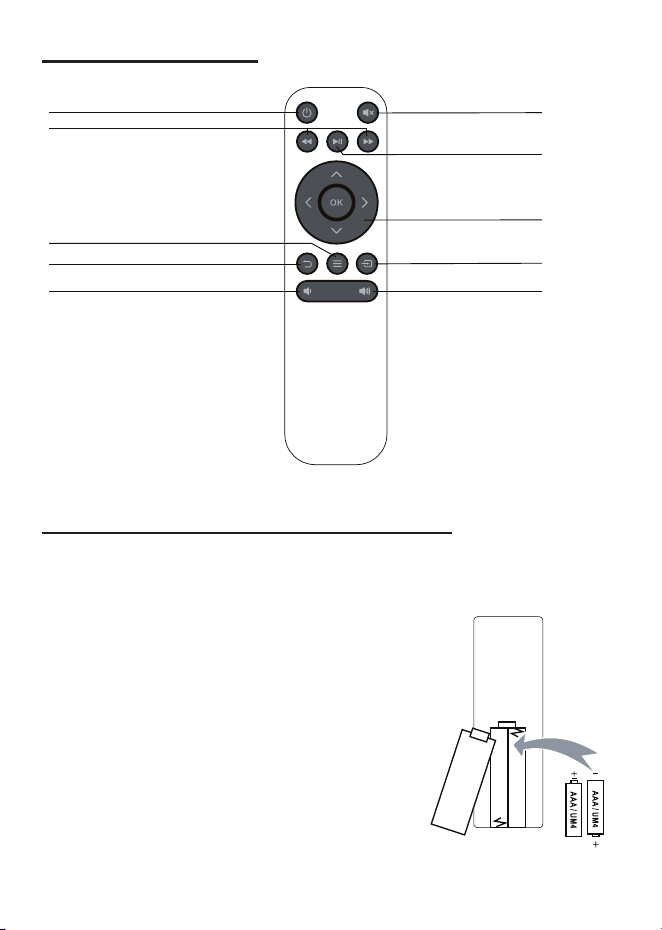
1 3
5
4
6 7 8 9
2
10
11
Important Safety Instrucons
Addional Warnings and Precauons
1. Do not look directly into the projector light.
2. Don’t touch the projector lens.
3. Mains adapter is used as disconnect device and it should remain readily operable
during intended use. In order to disconnect the apparatus from the mains
completely, the mains plug should be disc onnected from the mains socket outlet
completely.
4. CAUTION: Use of controls or adjustments or performance of procedures other than
those specified may result in hazardous radiation exposure.
5. WARNING: Changes or modified to this unit not expressly approved by the party
responsible for compliance could void the user’s authority to operate the equipment.
6. WARNING: Use of this unit near fluorescent lighting may cause interference
regarding use of the remote. If the unit is displaying erratic behavior move away
from any fluorescent lighting, as it may be the cause.
7. WARNING: Shock hazard - Do Not Open.
8. Caution and marking information is located at the rear or bottom of the apparatus.
9. WARNING: To reduce the risk of fire or electric shock, do not expose this apparatus
to rain, moisture, dripping, or splashing.
10. Objects filled with liquids, such as vases, shall not be placed on the apparatus.
FCC Warning
In The Box
R
OKU
Main unit
Remote
User Manual
AC Power Adapter
Two AAA
Batteries
Roku Express+
USB Power Cable
Roku Remote
HDMI Cable
Table of Contents
Placing of Your Projector
Your projector can be installed in four different configurations (see picture below):
Front Table:
Select this location with the projector placed near the floor in front
of the screen. This is the most common way to position the
projector for quick setup and portability.
Rear Table:
Select this location with the projector placed near the floor behind
the screen.
NOTE: That a special rear projection screen is required.
Front Ceiling:
Select this location with the projector suspended upside-down
from the ceiling in front of the screen.
NOTE: A projector mount is required to install the projector in a
ceiling.
Rear Ceiling:
Select this location with the projector suspended upside-down
from the ceiling behind the screen.
NOTE:
A projector mount is required to install the projector in a ceiling.
A special rear projection screen is required.
Front Ceiling
Rear Ceiling
Rear Table
Front Table
To Reduce Image Distoron
Distance Between The Projector And Screen
Measure the distance between the projector and where you want to position the
screen. This is the projection distance for reference.
Installing your Projector in the Ceiling
Distance
1.13m
1.39m
1.79m
2.20m
3.00m
3.55m
4.70m
5.87m
Screen Size
36 inch
45 inch
60 inch
72 inch
100 inch
120 inch
150 inch
200 inch
• Move the projector as close to the center of the
screen as possible.
• The light beam from the projector should be
perpendicular to the screen for a rectangular or
square image.
Adjust The Vercal Locaon Clean the air filter screen
Follow below picture to adjust the vertical location.
Adjust The
Focus And Keystone
Follow below picture to adjust the focus and trapezoidal screen.
Adjust the focus by turning the knob while observing the image pixels near the center of
the screen. Optimal focus is obtained when the pixels are clearly visible. Depending on
the projected screen size, the focus near the screen edges may be less sharp than the
screen center.
Keystone image is created when the projector lens is projected from above or below the
center of the screen. Keystone correction restores the distorted image to a rectangular or
square shape.
The air filter screen should be cleaned every 1500 hours.
Please use a vacuum cleaner to remove dust from the outside of the vent hole
When the accumulated dust on the filter screen
becomes difficult to remove with a vacuum cleaner,
please remove the air filter screen and clean it.
1. Turn off the power and unplug the power cord
2. Remove the air filter compartment cover on the
back of your unit by carefully sliding to open.
The air filter cover can then be lifted away as
shown in the figure.
3. Remove the air filter screen
4. Clean the air net with a neutral detergent
solution and dry it outside in a cool place.
5. The ventilation openings around the projector should also be cleaned with a
vacuum cleaner
6. Put the air filter screen back into the slot of the air filter compartment, and then
cover back the air filter compartment cover.
Note:
If you neglect to clean the air filter screen, it may lead to dust accumulation, resulting
in poor internal heat dissipation (heat accumulation), leading to unit failure
Remove the battery compartment cover on the back of your remote by carefully sliding to
open. The battery cover can then be lifted away. Fit the correct batteries (not included),
referring to the polarity markings. Finally, replace the cover.
NOTES:
● Batteries shall not be exposed to excessive heat such as
placing under the sunlight or near a fire.
● Please make sure the batteries are installed with their
correct polarities.
● Do not mix old and new batteries.
● Use only the same type of batteries.
● Do not dispose of the batteries in fire, battery may
explode or leak.
● Do not recharge a non-rechargeable battery.
Controls of Remote
Install / Remove Baeries of Remote
ROODYRE
TTAB
Controls of Projector
1 LENS
2 ANGEL ADJ. knob
3 IR Sensor
4 Audio Out Jack
5 AV IN Jack
6 HDMI 1 Port
7 HDMI 2 Port
8 USB 1 Port
9 DC IN Jack
10 Air Filter Door
11 Speaker
12 HDMI 3 Port (for Ruku Streaming Stick input)
13 USB 2 Port (for Ruku supply)
14 FOCUS ADJ. Knob
15 KEYSTONE ADJ. Knob
16 SOURCE Button
17 MENU Button
18 Buttons
19 Buttons
20 Button
21 RETURN Button
22 POWER Button
23 Power Indicator
Install Power Adapter
Main Buon Operaon
- Press the button to switch on unit, press twice to turn off this unit.
- Press the button to Home menu to select input source.
- Press the button to enter projector menu.
- Press the buttons to navigate and select screen item of menu.
- Press the button to return to previous status or exit the menu.
- Press the buttons to fast search forward and rewind on USB.
- Press the buttons to select the sound level on the remote.
- Press the button to play/pause the playback of file on USB.
- Press to mute the audio. Press again to resume.
Follow below picture to connect power adapter
Connect small end of adapter FIRST. Plug the adapter body to power outlet.
WARNING:
Before connecting to the power supply, ensure that the supply corresponds to the
information on the rating label at the back of the apparatus.
/
OK
MODEL NO.
RPJ185
SMART HD HOME THEATER PROJECTOR
PLEASE READ BEFORE OPERATING THIS EQUIPMENT
This product has been manufactured and sold under the responsibility of CURTIS
INTERNATIONAL LTD.
RCA, the RCA logo and the two dogs (Nipper and Chipper) logo are trademarks
used under license by CURTIS INTERNATIONAL LTD.
– further information at www.rca-brand.com.
All other products, services, companies, trademarks, trade or product names and
logos referenced herein are the property of their respective owners.
Ideal for dark viewing environments for optimal performance.
Please note:Projector brightness is measured in ANSI lumens.
Your viewing environment is the deciding factor on how many lumens your
projector needs.
1. Read these Instrucons.
2. Keep these Instrucons.
3. Heed all Warnings.
4. Follow all instrucons.
5. Do not use this apparatus near water.
6. Clean only with a dry cloth.
7. Do not block any venlaon openings. Install in accordance with the manufacturer’s
instrucons.
8. Do not install near any heat sources such as radiators, heat registers, stoves, or other
apparatus (including amplifier) that product heat.
9. Protect the power cord from being walked on or pinched parcularly at plugs,
convenience receptacles, and the point where they exit from the apparatus.
10. Only use aachments/accessories specified by the manufacturer.
11. Unplug this apparatus during lightning storms or when unused for long periods of me.
12. Refer all servicing to qualified service personnel. Servicing is required when the
apparatus has been damaged in any way, such as power-supply cord or plug is damaged,
liquid has been spilled or objects have fallen into the apparatus, the apparatus has been
exposed to rain or moisture, does not operate normally, or has been dropped.
13. Use only with a cart, stand, tripod, bracket, or table specified by
the manufacturer or sold with the apparatus. When a cart is used,
use cauon when moving the cart/ apparatus combinaon to
avoid injury from p-over.
Any Changes or modifications not expressly approved by the party responsible for compliance could
void the user's authority to operate the equipment.
This device complies with Part 15 of the FCC rules. Operation is subject to the following two
conditions: (1) this device may not cause harmful interference, and (2) this device must accept any
interference received, including interference that may cause undesired operation.
NOTE: This equipment has been tested and found to comply with the limits for a Class B digital
device, pursuant to Part 15 of the FCC Rules. These limits are designed to provide reasonable
protection against harmful interference in a residential installation. This equipment generates, uses,
and can radiate radio frequency energy and, if not installed and used in accordance with the
instructions, may cause harmful interference to radio communications. However, there is no guarantee
that interference will not occur in a particular installation. If this equipment does cause harmful
interference to radio or television reception, which can be determined by turning the equipment off and
on, the user is encouraged to try to correct the interference by one or more of the following measures:
• Reorient or relocate the receiving antenna.
• Increase the separation between the equipment and receiver.
• Connect the equipment into an outlet on a circuit different from that to which the receiver is
connected.
• Consult the dealer or an experienced radio/TV technician for help.
• This equipment complies with FCC radiation exposure limits set forth for an uncontrolled
environment. This equipment should be installed and operated with minimum distance 20cm
between the radiator& your body.
• This transmitter must not be co-located or operating in conjunction with any other antenna or
transmitter.
Important Safety Instructions - - - - - - - - - - - - - - - - - - - - - - - - - - - -P1
Additional Warnings and Precautions - - - - - - - - - - - - - - - - - - - - - -P2
FCC Warning - - - - - - - - - - - - - - - - - - - - - - - - - - - - - - - - - - - - - - - - -P3
In The Box - - - - - - - - - - - - - - - - - - - - - - - - - - - - - - - - - - - - - - - - - - -P3
Table of Contents - - - - - - - - - - - - - - - - - - - - - - - - - - - - - - - - - - - - - -P4
Placing of Your Projector - - - - - - - - - - - - - - - - - - - - - - - - - - - - - - -P5
To Reduce Image Distortion - - - - - - - - - - - - - - - - - - - - - - - - - - - - - - P6
Distance Between The Projector And Screen - - - - - - - - - - - - - - - - -P6
Installing your Projector in the Ceiling - - - - - - - - - - - - - - - - - - - - - -P6
Adjust the Vertical Location - - - - - - - - - - - - - - - - - - - - - - - - - - - - - - P7
Adjust the Focus And Keystone - - - - - - - - - - - - - - - - - - - - - - - - - -P7
Clean the air filter screen - - - - - - - - - - - - - - - - - - - - - - - - - - - - - - - - P8
Controls of Remote - - - - - - - - - - - - - - - - - - - - - - - - - - - - - - - - - - - -P9
Install / Remove Batteries of Remote - - - - - - - - - - - - - - - - - - - - - - -P9
Controls of Projector - - - - - - - - - - - - - - - - - - - - - - - - - - - - - - - - - - P10
Install Power Adapter - - - - - - - - - - - - - - - - - - - - - - - - - - - - - - - - - - P11
Main Button Operation - - - - - - - - - - - - - - - - - - - - - - - - - - - - - - - - P11
Setup / Install the Roku
®
Streaming Stick - - - - - - - - - - - - - - - - - - P12
Connect HDMI Show The Image On Projector Screen - - - - - - - - - P13
Connect AV Show The Image On Projector Screen - - - - - - - - - - - P13
Connect Audio Output (Aux Out / Line Out / Earphones) - - - - - - - P14
Install USB Device - - - - - - - - - - - - - - - - - - - - - - - - - - - - - - - - - - - - P14
Using USB Playback (Media Player) - - - - - - - - - - - - - - - - - - - - - - - P15
Using Bluetooth Playback - - - - - - - - - - - - - - - - - - - - - - - - - - - - - - P16
Using Projector Menu 1 - - - - - - - - - - - - - - - - - - - - - - - - - - - - - - - - P17
Using Projector Menu 2 - - - - - - - - - - - - - - - - - - - - - - - - - - - - - - - - P17
Using Projector Menu 3 - - - - - - - - - - - - - - - - - - - - - - - - - - - - - - - - P18
Specifications - - - - - - - - - - - - - - - - - - - - - - - - - - - - - - - - - - - - - - - P19
Warrenty Card - - - - - - - - - - - - - - - - - - - - - - - - - - - - - - - - - - - - - - - P20
When installing the projector in the ceiling, please purchase a projector mount
recommended by an installation professional and follow the instructions that come with
the mount.
Before installing the projector in the ceiling, please check to make sure the ceiling
structure can support the weight of the projector and the mount. If in doubt, please ask
the advice from an installation professorial.
NOTE: Projector mount and screw(s) not included
Power ON/OFF
Mute Audio Sound
Navigator
Increase Volume Sound
Decrease Volume Sound
Enter to Menu
Play / Pause
Source Selector
Exit the Menu or return to previous status
Fast rewind / Fast forward File
/
MODEL NO.
RPJ185
SMART HD HOME THEATER PROJECTOR
PLEASE READ BEFORE OPERATING THIS EQUIPMENT
This product has been manufactured and sold under the responsibility of CURTIS
INTERNATIONAL LTD.
RCA, the RCA logo and the two dogs (Nipper and Chipper) logo are trademarks
used under license by CURTIS INTERNATIONAL LTD.
– further information at www.rca-brand.com.
All other products, services, companies, trademarks, trade or product names and
logos referenced herein are the property of their respective owners.
Ideal for dark viewing environments for optimal performance.
Please note:Projector brightness is measured in ANSI lumens.
Your viewing environment is the deciding factor on how many lumens your
projector needs.
FIXED HANGER HOLE
(6mm diameter)
Adjust this knob (ANGLE ADJ. knob)
to fine tune the display angle to higher.
Image Adjustment
Focus justmentAd
Increase or reduce to image size to sharpen image.
Keystone Adjustment
Adjust image corners to reduce image distortion.
Keystone ADJ. KNOB
FOCUS ADJ. KNOB
Then sharpen the image
by rotating focus knob.
1
2
3
4
5
6
7
8
9
10
11
12
13
14
15
16
17
18
19
20
21
22
23
Front View
Top View
Rear View
150
200
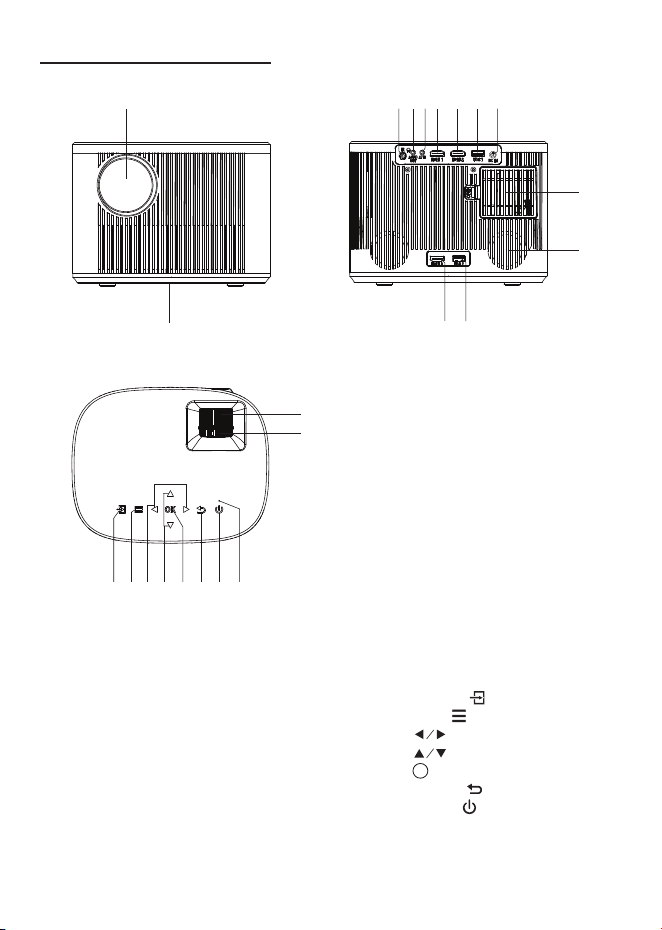
1 3
5
4
6 7 8 9
2
10
11
Important Safety Instrucons
Addional Warnings and Precauons
1. Do not look directly into the projector light.
2. Don’t touch the projector lens.
3. Mains adapter is used as disconnect device and it should remain readily operable
during intended use. In order to disconnect the apparatus from the mains
completely, the mains plug should be disc onnected from the mains socket outlet
completely.
4. CAUTION: Use of controls or adjustments or performance of procedures other than
those specified may result in hazardous radiation exposure.
5. WARNING: Changes or modified to this unit not expressly approved by the party
responsible for compliance could void the user’s authority to operate the equipment.
6. WARNING: Use of this unit near fluorescent lighting may cause interference
regarding use of the remote. If the unit is displaying erratic behavior move away
from any fluorescent lighting, as it may be the cause.
7. WARNING: Shock hazard - Do Not Open.
8. Caution and marking information is located at the rear or bottom of the apparatus.
9. WARNING: To reduce the risk of fire or electric shock, do not expose this apparatus
to rain, moisture, dripping, or splashing.
10. Objects filled with liquids, such as vases, shall not be placed on the apparatus.
FCC Warning
In The Box
R
OKU
Main unit
Remote
User Manual
AC Power Adapter
Two AAA
Batteries
Roku Express+
USB Power Cable
Roku Remote
HDMI Cable
Table of Contents
Placing of Your Projector
Your projector can be installed in four different configurations (see picture below):
Front Table:
Select this location with the projector placed near the floor in front
of the screen. This is the most common way to position the
projector for quick setup and portability.
Rear Table:
Select this location with the projector placed near the floor behind
the screen.
NOTE: That a special rear projection screen is required.
Front Ceiling:
Select this location with the projector suspended upside-down
from the ceiling in front of the screen.
NOTE: A projector mount is required to install the projector in a
ceiling.
Rear Ceiling:
Select this location with the projector suspended upside-down
from the ceiling behind the screen.
NOTE:
A projector mount is required to install the projector in a ceiling.
A special rear projection screen is required.
Front Ceiling
Rear Ceiling
Rear Table
Front Table
To Reduce Image Distoron
Distance Between The Projector And Screen
Measure the distance between the projector and where you want to position the
screen. This is the projection distance for reference.
Installing your Projector in the Ceiling
Distance
1.13m
1.39m
1.79m
2.20m
3.00m
3.55m
4.70m
5.87m
Screen Size
36 inch
45 inch
60 inch
72 inch
100 inch
120 inch
150 inch
200 inch
• Move the projector as close to the center of the
screen as possible.
• The light beam from the projector should be
perpendicular to the screen for a rectangular or
square image.
Adjust The Vercal Locaon Clean the air filter screen
Follow below picture to adjust the vertical location.
Adjust The
Focus And Keystone
Follow below picture to adjust the focus and trapezoidal screen.
Adjust the focus by turning the knob while observing the image pixels near the center of
the screen. Optimal focus is obtained when the pixels are clearly visible. Depending on
the projected screen size, the focus near the screen edges may be less sharp than the
screen center.
Keystone image is created when the projector lens is projected from above or below the
center of the screen. Keystone correction restores the distorted image to a rectangular or
square shape.
The air filter screen should be cleaned every 1500 hours.
Please use a vacuum cleaner to remove dust from the outside of the vent hole
When the accumulated dust on the filter screen
becomes difficult to remove with a vacuum cleaner,
please remove the air filter screen and clean it.
1. Turn off the power and unplug the power cord
2. Remove the air filter compartment cover on the
back of your unit by carefully sliding to open.
The air filter cover can then be lifted away as
shown in the figure.
3. Remove the air filter screen
4. Clean the air net with a neutral detergent
solution and dry it outside in a cool place.
5. The ventilation openings around the projector should also be cleaned with a
vacuum cleaner
6. Put the air filter screen back into the slot of the air filter compartment, and then
cover back the air filter compartment cover.
Note:
If you neglect to clean the air filter screen, it may lead to dust accumulation, resulting
in poor internal heat dissipation (heat accumulation), leading to unit failure
Remove the battery compartment cover on the back of your remote by carefully sliding to
open. The battery cover can then be lifted away. Fit the correct batteries (not included),
referring to the polarity markings. Finally, replace the cover.
NOTES:
● Batteries shall not be exposed to excessive heat such as
placing under the sunlight or near a fire.
● Please make sure the batteries are installed with their
correct polarities.
● Do not mix old and new batteries.
● Use only the same type of batteries.
● Do not dispose of the batteries in fire, battery may
explode or leak.
● Do not recharge a non-rechargeable battery.
Controls of Remote
Install / Remove Baeries of Remote
ROODYRE
TTAB
Controls of Projector
1 LENS
2 ANGEL ADJ. knob
3 IR Sensor
4 Audio Out Jack
5 AV IN Jack
6 HDMI 1 Port
7 HDMI 2 Port
8 USB 1 Port
9 DC IN Jack
10 Air Filter Door
11 Speaker
12 HDMI 3 Port (for Ruku Streaming Stick input)
13 USB 2 Port (for Ruku supply)
14 FOCUS ADJ. Knob
15 KEYSTONE ADJ. Knob
16 SOURCE Button
17 MENU Button
18 Buttons
19 Buttons
20 Button
21 RETURN Button
22 POWER Button
23 Power Indicator
Install Power Adapter
Main Buon Operaon
- Press the button to switch on unit, press twice to turn off this unit.
- Press the button to Home menu to select input source.
- Press the button to enter projector menu.
- Press the buttons to navigate and select screen item of menu.
- Press the button to return to previous status or exit the menu.
- Press the buttons to fast search forward and rewind on USB.
- Press the buttons to select the sound level on the remote.
- Press the button to play/pause the playback of file on USB.
- Press to mute the audio. Press again to resume.
Follow below picture to connect power adapter
Connect small end of adapter FIRST. Plug the adapter body to power outlet.
WARNING:
Before connecting to the power supply, ensure that the supply corresponds to the
information on the rating label at the back of the apparatus.
/
OK
MODEL NO.
RPJ185
SMART HD HOME THEATER PROJECTOR
PLEASE READ BEFORE OPERATING THIS EQUIPMENT
This product has been manufactured and sold under the responsibility of CURTIS
INTERNATIONAL LTD.
RCA, the RCA logo and the two dogs (Nipper and Chipper) logo are trademarks
used under license by CURTIS INTERNATIONAL LTD.
– further information at www.rca-brand.com.
All other products, services, companies, trademarks, trade or product names and
logos referenced herein are the property of their respective owners.
Ideal for dark viewing environments for optimal performance.
Please note:Projector brightness is measured in ANSI lumens.
Your viewing environment is the deciding factor on how many lumens your
projector needs.
1. Read these Instrucons.
2. Keep these Instrucons.
3. Heed all Warnings.
4. Follow all instrucons.
5. Do not use this apparatus near water.
6. Clean only with a dry cloth.
7. Do not block any venlaon openings. Install in accordance with the manufacturer’s
instrucons.
8. Do not install near any heat sources such as radiators, heat registers, stoves, or other
apparatus (including amplifier) that product heat.
9. Protect the power cord from being walked on or pinched parcularly at plugs,
convenience receptacles, and the point where they exit from the apparatus.
10. Only use aachments/accessories specified by the manufacturer.
11. Unplug this apparatus during lightning storms or when unused for long periods of me.
12. Refer all servicing to qualified service personnel. Servicing is required when the
apparatus has been damaged in any way, such as power-supply cord or plug is damaged,
liquid has been spilled or objects have fallen into the apparatus, the apparatus has been
exposed to rain or moisture, does not operate normally, or has been dropped.
13. Use only with a cart, stand, tripod, bracket, or table specified by
the manufacturer or sold with the apparatus. When a cart is used,
use cauon when moving the cart/ apparatus combinaon to
avoid injury from p-over.
Any Changes or modifications not expressly approved by the party responsible for compliance could
void the user's authority to operate the equipment.
This device complies with Part 15 of the FCC rules. Operation is subject to the following two
conditions: (1) this device may not cause harmful interference, and (2) this device must accept any
interference received, including interference that may cause undesired operation.
NOTE: This equipment has been tested and found to comply with the limits for a Class B digital
device, pursuant to Part 15 of the FCC Rules. These limits are designed to provide reasonable
protection against harmful interference in a residential installation. This equipment generates, uses,
and can radiate radio frequency energy and, if not installed and used in accordance with the
instructions, may cause harmful interference to radio communications. However, there is no guarantee
that interference will not occur in a particular installation. If this equipment does cause harmful
interference to radio or television reception, which can be determined by turning the equipment off and
on, the user is encouraged to try to correct the interference by one or more of the following measures:
• Reorient or relocate the receiving antenna.
• Increase the separation between the equipment and receiver.
• Connect the equipment into an outlet on a circuit different from that to which the receiver is
connected.
• Consult the dealer or an experienced radio/TV technician for help.
• This equipment complies with FCC radiation exposure limits set forth for an uncontrolled
environment. This equipment should be installed and operated with minimum distance 20cm
between the radiator& your body.
• This transmitter must not be co-located or operating in conjunction with any other antenna or
transmitter.
Important Safety Instructions - - - - - - - - - - - - - - - - - - - - - - - - - - - -P1
Additional Warnings and Precautions - - - - - - - - - - - - - - - - - - - - - -P2
FCC Warning - - - - - - - - - - - - - - - - - - - - - - - - - - - - - - - - - - - - - - - - -P3
In The Box - - - - - - - - - - - - - - - - - - - - - - - - - - - - - - - - - - - - - - - - - - -P3
Table of Contents - - - - - - - - - - - - - - - - - - - - - - - - - - - - - - - - - - - - - -P4
Placing of Your Projector - - - - - - - - - - - - - - - - - - - - - - - - - - - - - - -P5
To Reduce Image Distortion - - - - - - - - - - - - - - - - - - - - - - - - - - - - - - P6
Distance Between The Projector And Screen - - - - - - - - - - - - - - - - -P6
Installing your Projector in the Ceiling - - - - - - - - - - - - - - - - - - - - - -P6
Adjust the Vertical Location - - - - - - - - - - - - - - - - - - - - - - - - - - - - - - P7
Adjust the Focus And Keystone - - - - - - - - - - - - - - - - - - - - - - - - - -P7
Clean the air filter screen - - - - - - - - - - - - - - - - - - - - - - - - - - - - - - - - P8
Controls of Remote - - - - - - - - - - - - - - - - - - - - - - - - - - - - - - - - - - - -P9
Install / Remove Batteries of Remote - - - - - - - - - - - - - - - - - - - - - - -P9
Controls of Projector - - - - - - - - - - - - - - - - - - - - - - - - - - - - - - - - - - P10
Install Power Adapter - - - - - - - - - - - - - - - - - - - - - - - - - - - - - - - - - - P11
Main Button Operation - - - - - - - - - - - - - - - - - - - - - - - - - - - - - - - - P11
Setup / Install the Roku
®
Streaming Stick - - - - - - - - - - - - - - - - - - P12
Connect HDMI Show The Image On Projector Screen - - - - - - - - - P13
Connect AV Show The Image On Projector Screen - - - - - - - - - - - P13
Connect Audio Output (Aux Out / Line Out / Earphones) - - - - - - - P14
Install USB Device - - - - - - - - - - - - - - - - - - - - - - - - - - - - - - - - - - - - P14
Using USB Playback (Media Player) - - - - - - - - - - - - - - - - - - - - - - - P15
Using Bluetooth Playback - - - - - - - - - - - - - - - - - - - - - - - - - - - - - - P16
Using Projector Menu 1 - - - - - - - - - - - - - - - - - - - - - - - - - - - - - - - - P17
Using Projector Menu 2 - - - - - - - - - - - - - - - - - - - - - - - - - - - - - - - - P17
Using Projector Menu 3 - - - - - - - - - - - - - - - - - - - - - - - - - - - - - - - - P18
Specifications - - - - - - - - - - - - - - - - - - - - - - - - - - - - - - - - - - - - - - - P19
Warrenty Card - - - - - - - - - - - - - - - - - - - - - - - - - - - - - - - - - - - - - - - P20
When installing the projector in the ceiling, please purchase a projector mount
recommended by an installation professional and follow the instructions that come with
the mount.
Before installing the projector in the ceiling, please check to make sure the ceiling
structure can support the weight of the projector and the mount. If in doubt, please ask
the advice from an installation professorial.
NOTE: Projector mount and screw(s) not included
Power ON/OFF
Mute Audio Sound
Navigator
Increase Volume Sound
Decrease Volume Sound
Enter to Menu
Play / Pause
Source Selector
Exit the Menu or return to previous status
Fast rewind / Fast forward File
/
MODEL NO.
RPJ185
SMART HD HOME THEATER PROJECTOR
PLEASE READ BEFORE OPERATING THIS EQUIPMENT
This product has been manufactured and sold under the responsibility of CURTIS
INTERNATIONAL LTD.
RCA, the RCA logo and the two dogs (Nipper and Chipper) logo are trademarks
used under license by CURTIS INTERNATIONAL LTD.
– further information at www.rca-brand.com.
All other products, services, companies, trademarks, trade or product names and
logos referenced herein are the property of their respective owners.
Ideal for dark viewing environments for optimal performance.
Please note:Projector brightness is measured in ANSI lumens.
Your viewing environment is the deciding factor on how many lumens your
projector needs.
FIXED HANGER HOLE
(6mm diameter)
Adjust this knob (ANGLE ADJ. knob)
to fine tune the display angle to higher.
Image Adjustment
Focus justmentAd
Increase or reduce to image size to sharpen image.
Keystone Adjustment
Adjust image corners to reduce image distortion.
Keystone ADJ. KNOB
FOCUS ADJ. KNOB
Then sharpen the image
by rotating focus knob.
1
2
3
4
5
6
7
8
9
10
11
12
13
14
15
16
17
18
19
20
21
22
23
Front View
Top View
Rear View
150
200
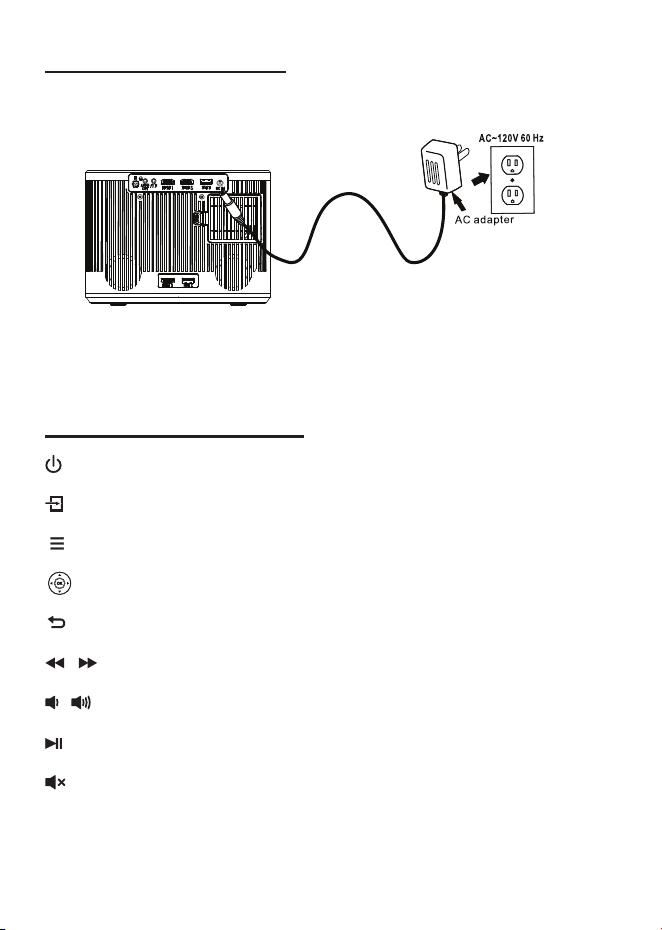
1 3
5
4
6 7 8 9
2
10
11
Important Safety Instrucons
Addional Warnings and Precauons
1. Do not look directly into the projector light.
2. Don’t touch the projector lens.
3. Mains adapter is used as disconnect device and it should remain readily operable
during intended use. In order to disconnect the apparatus from the mains
completely, the mains plug should be disc onnected from the mains socket outlet
completely.
4. CAUTION: Use of controls or adjustments or performance of procedures other than
those specified may result in hazardous radiation exposure.
5. WARNING: Changes or modified to this unit not expressly approved by the party
responsible for compliance could void the user’s authority to operate the equipment.
6. WARNING: Use of this unit near fluorescent lighting may cause interference
regarding use of the remote. If the unit is displaying erratic behavior move away
from any fluorescent lighting, as it may be the cause.
7. WARNING: Shock hazard - Do Not Open.
8. Caution and marking information is located at the rear or bottom of the apparatus.
9. WARNING: To reduce the risk of fire or electric shock, do not expose this apparatus
to rain, moisture, dripping, or splashing.
10. Objects filled with liquids, such as vases, shall not be placed on the apparatus.
FCC Warning
In The Box
R
OKU
Main unit
Remote
User Manual
AC Power Adapter
Two AAA
Batteries
Roku Express+
USB Power Cable
Roku Remote
HDMI Cable
Table of Contents
Placing of Your Projector
Your projector can be installed in four different configurations (see picture below):
Front Table:
Select this location with the projector placed near the floor in front
of the screen. This is the most common way to position the
projector for quick setup and portability.
Rear Table:
Select this location with the projector placed near the floor behind
the screen.
NOTE: That a special rear projection screen is required.
Front Ceiling:
Select this location with the projector suspended upside-down
from the ceiling in front of the screen.
NOTE: A projector mount is required to install the projector in a
ceiling.
Rear Ceiling:
Select this location with the projector suspended upside-down
from the ceiling behind the screen.
NOTE:
A projector mount is required to install the projector in a ceiling.
A special rear projection screen is required.
Front Ceiling
Rear Ceiling
Rear Table
Front Table
To Reduce Image Distoron
Distance Between The Projector And Screen
Measure the distance between the projector and where you want to position the
screen. This is the projection distance for reference.
Installing your Projector in the Ceiling
Distance
1.13m
1.39m
1.79m
2.20m
3.00m
3.55m
4.70m
5.87m
Screen Size
36 inch
45 inch
60 inch
72 inch
100 inch
120 inch
150 inch
200 inch
• Move the projector as close to the center of the
screen as possible.
• The light beam from the projector should be
perpendicular to the screen for a rectangular or
square image.
Adjust The Vercal Locaon Clean the air filter screen
Follow below picture to adjust the vertical location.
Adjust The
Focus And Keystone
Follow below picture to adjust the focus and trapezoidal screen.
Adjust the focus by turning the knob while observing the image pixels near the center of
the screen. Optimal focus is obtained when the pixels are clearly visible. Depending on
the projected screen size, the focus near the screen edges may be less sharp than the
screen center.
Keystone image is created when the projector lens is projected from above or below the
center of the screen. Keystone correction restores the distorted image to a rectangular or
square shape.
The air filter screen should be cleaned every 1500 hours.
Please use a vacuum cleaner to remove dust from the outside of the vent hole
When the accumulated dust on the filter screen
becomes difficult to remove with a vacuum cleaner,
please remove the air filter screen and clean it.
1. Turn off the power and unplug the power cord
2. Remove the air filter compartment cover on the
back of your unit by carefully sliding to open.
The air filter cover can then be lifted away as
shown in the figure.
3. Remove the air filter screen
4. Clean the air net with a neutral detergent
solution and dry it outside in a cool place.
5. The ventilation openings around the projector should also be cleaned with a
vacuum cleaner
6. Put the air filter screen back into the slot of the air filter compartment, and then
cover back the air filter compartment cover.
Note:
If you neglect to clean the air filter screen, it may lead to dust accumulation, resulting
in poor internal heat dissipation (heat accumulation), leading to unit failure
Remove the battery compartment cover on the back of your remote by carefully sliding to
open. The battery cover can then be lifted away. Fit the correct batteries (not included),
referring to the polarity markings. Finally, replace the cover.
NOTES:
● Batteries shall not be exposed to excessive heat such as
placing under the sunlight or near a fire.
● Please make sure the batteries are installed with their
correct polarities.
● Do not mix old and new batteries.
● Use only the same type of batteries.
● Do not dispose of the batteries in fire, battery may
explode or leak.
● Do not recharge a non-rechargeable battery.
Controls of Remote
Install / Remove Baeries of Remote
ROODYRE
TTAB
Controls of Projector
1 LENS
2 ANGEL ADJ. knob
3 IR Sensor
4 Audio Out Jack
5 AV IN Jack
6 HDMI 1 Port
7 HDMI 2 Port
8 USB 1 Port
9 DC IN Jack
10 Air Filter Door
11 Speaker
12 HDMI 3 Port (for Ruku Streaming Stick input)
13 USB 2 Port (for Ruku supply)
14 FOCUS ADJ. Knob
15 KEYSTONE ADJ. Knob
16 SOURCE Button
17 MENU Button
18 Buttons
19 Buttons
20 Button
21 RETURN Button
22 POWER Button
23 Power Indicator
Install Power Adapter
Main Buon Operaon
- Press the button to switch on unit, press twice to turn off this unit.
- Press the button to Home menu to select input source.
- Press the button to enter projector menu.
- Press the buttons to navigate and select screen item of menu.
- Press the button to return to previous status or exit the menu.
- Press the buttons to fast search forward and rewind on USB.
- Press the buttons to select the sound level on the remote.
- Press the button to play/pause the playback of file on USB.
- Press to mute the audio. Press again to resume.
Follow below picture to connect power adapter
Connect small end of adapter FIRST. Plug the adapter body to power outlet.
WARNING:
Before connecting to the power supply, ensure that the supply corresponds to the
information on the rating label at the back of the apparatus.
/
OK
MODEL NO.
RPJ185
SMART HD HOME THEATER PROJECTOR
PLEASE READ BEFORE OPERATING THIS EQUIPMENT
This product has been manufactured and sold under the responsibility of CURTIS
INTERNATIONAL LTD.
RCA, the RCA logo and the two dogs (Nipper and Chipper) logo are trademarks
used under license by CURTIS INTERNATIONAL LTD.
– further information at www.rca-brand.com.
All other products, services, companies, trademarks, trade or product names and
logos referenced herein are the property of their respective owners.
Ideal for dark viewing environments for optimal performance.
Please note:Projector brightness is measured in ANSI lumens.
Your viewing environment is the deciding factor on how many lumens your
projector needs.
1. Read these Instrucons.
2. Keep these Instrucons.
3. Heed all Warnings.
4. Follow all instrucons.
5. Do not use this apparatus near water.
6. Clean only with a dry cloth.
7. Do not block any venlaon openings. Install in accordance with the manufacturer’s
instrucons.
8. Do not install near any heat sources such as radiators, heat registers, stoves, or other
apparatus (including amplifier) that product heat.
9. Protect the power cord from being walked on or pinched parcularly at plugs,
convenience receptacles, and the point where they exit from the apparatus.
10. Only use aachments/accessories specified by the manufacturer.
11. Unplug this apparatus during lightning storms or when unused for long periods of me.
12. Refer all servicing to qualified service personnel. Servicing is required when the
apparatus has been damaged in any way, such as power-supply cord or plug is damaged,
liquid has been spilled or objects have fallen into the apparatus, the apparatus has been
exposed to rain or moisture, does not operate normally, or has been dropped.
13. Use only with a cart, stand, tripod, bracket, or table specified by
the manufacturer or sold with the apparatus. When a cart is used,
use cauon when moving the cart/ apparatus combinaon to
avoid injury from p-over.
Any Changes or modifications not expressly approved by the party responsible for compliance could
void the user's authority to operate the equipment.
This device complies with Part 15 of the FCC rules. Operation is subject to the following two
conditions: (1) this device may not cause harmful interference, and (2) this device must accept any
interference received, including interference that may cause undesired operation.
NOTE: This equipment has been tested and found to comply with the limits for a Class B digital
device, pursuant to Part 15 of the FCC Rules. These limits are designed to provide reasonable
protection against harmful interference in a residential installation. This equipment generates, uses,
and can radiate radio frequency energy and, if not installed and used in accordance with the
instructions, may cause harmful interference to radio communications. However, there is no guarantee
that interference will not occur in a particular installation. If this equipment does cause harmful
interference to radio or television reception, which can be determined by turning the equipment off and
on, the user is encouraged to try to correct the interference by one or more of the following measures:
• Reorient or relocate the receiving antenna.
• Increase the separation between the equipment and receiver.
• Connect the equipment into an outlet on a circuit different from that to which the receiver is
connected.
• Consult the dealer or an experienced radio/TV technician for help.
• This equipment complies with FCC radiation exposure limits set forth for an uncontrolled
environment. This equipment should be installed and operated with minimum distance 20cm
between the radiator& your body.
• This transmitter must not be co-located or operating in conjunction with any other antenna or
transmitter.
Important Safety Instructions - - - - - - - - - - - - - - - - - - - - - - - - - - - -P1
Additional Warnings and Precautions - - - - - - - - - - - - - - - - - - - - - -P2
FCC Warning - - - - - - - - - - - - - - - - - - - - - - - - - - - - - - - - - - - - - - - - -P3
In The Box - - - - - - - - - - - - - - - - - - - - - - - - - - - - - - - - - - - - - - - - - - -P3
Table of Contents - - - - - - - - - - - - - - - - - - - - - - - - - - - - - - - - - - - - - -P4
Placing of Your Projector - - - - - - - - - - - - - - - - - - - - - - - - - - - - - - -P5
To Reduce Image Distortion - - - - - - - - - - - - - - - - - - - - - - - - - - - - - - P6
Distance Between The Projector And Screen - - - - - - - - - - - - - - - - -P6
Installing your Projector in the Ceiling - - - - - - - - - - - - - - - - - - - - - -P6
Adjust the Vertical Location - - - - - - - - - - - - - - - - - - - - - - - - - - - - - - P7
Adjust the Focus And Keystone - - - - - - - - - - - - - - - - - - - - - - - - - -P7
Clean the air filter screen - - - - - - - - - - - - - - - - - - - - - - - - - - - - - - - - P8
Controls of Remote - - - - - - - - - - - - - - - - - - - - - - - - - - - - - - - - - - - -P9
Install / Remove Batteries of Remote - - - - - - - - - - - - - - - - - - - - - - -P9
Controls of Projector - - - - - - - - - - - - - - - - - - - - - - - - - - - - - - - - - - P10
Install Power Adapter - - - - - - - - - - - - - - - - - - - - - - - - - - - - - - - - - - P11
Main Button Operation - - - - - - - - - - - - - - - - - - - - - - - - - - - - - - - - P11
Setup / Install the Roku
®
Streaming Stick - - - - - - - - - - - - - - - - - - P12
Connect HDMI Show The Image On Projector Screen - - - - - - - - - P13
Connect AV Show The Image On Projector Screen - - - - - - - - - - - P13
Connect Audio Output (Aux Out / Line Out / Earphones) - - - - - - - P14
Install USB Device - - - - - - - - - - - - - - - - - - - - - - - - - - - - - - - - - - - - P14
Using USB Playback (Media Player) - - - - - - - - - - - - - - - - - - - - - - - P15
Using Bluetooth Playback - - - - - - - - - - - - - - - - - - - - - - - - - - - - - - P16
Using Projector Menu 1 - - - - - - - - - - - - - - - - - - - - - - - - - - - - - - - - P17
Using Projector Menu 2 - - - - - - - - - - - - - - - - - - - - - - - - - - - - - - - - P17
Using Projector Menu 3 - - - - - - - - - - - - - - - - - - - - - - - - - - - - - - - - P18
Specifications - - - - - - - - - - - - - - - - - - - - - - - - - - - - - - - - - - - - - - - P19
Warrenty Card - - - - - - - - - - - - - - - - - - - - - - - - - - - - - - - - - - - - - - - P20
When installing the projector in the ceiling, please purchase a projector mount
recommended by an installation professional and follow the instructions that come with
the mount.
Before installing the projector in the ceiling, please check to make sure the ceiling
structure can support the weight of the projector and the mount. If in doubt, please ask
the advice from an installation professorial.
NOTE: Projector mount and screw(s) not included
Power ON/OFF
Mute Audio Sound
Navigator
Increase Volume Sound
Decrease Volume Sound
Enter to Menu
Play / Pause
Source Selector
Exit the Menu or return to previous status
Fast rewind / Fast forward File
/
MODEL NO.
RPJ185
SMART HD HOME THEATER PROJECTOR
PLEASE READ BEFORE OPERATING THIS EQUIPMENT
This product has been manufactured and sold under the responsibility of CURTIS
INTERNATIONAL LTD.
RCA, the RCA logo and the two dogs (Nipper and Chipper) logo are trademarks
used under license by CURTIS INTERNATIONAL LTD.
– further information at www.rca-brand.com.
All other products, services, companies, trademarks, trade or product names and
logos referenced herein are the property of their respective owners.
Ideal for dark viewing environments for optimal performance.
Please note:Projector brightness is measured in ANSI lumens.
Your viewing environment is the deciding factor on how many lumens your
projector needs.
FIXED HANGER HOLE
(6mm diameter)
Adjust this knob (ANGLE ADJ. knob)
to fine tune the display angle to higher.
Image Adjustment
Focus justmentAd
Increase or reduce to image size to sharpen image.
Keystone Adjustment
Adjust image corners to reduce image distortion.
Keystone ADJ. KNOB
FOCUS ADJ. KNOB
Then sharpen the image
by rotating focus knob.
1
2
3
4
5
6
7
8
9
10
11
12
13
14
15
16
17
18
19
20
21
22
23
Front View
Top View
Rear View
150
200
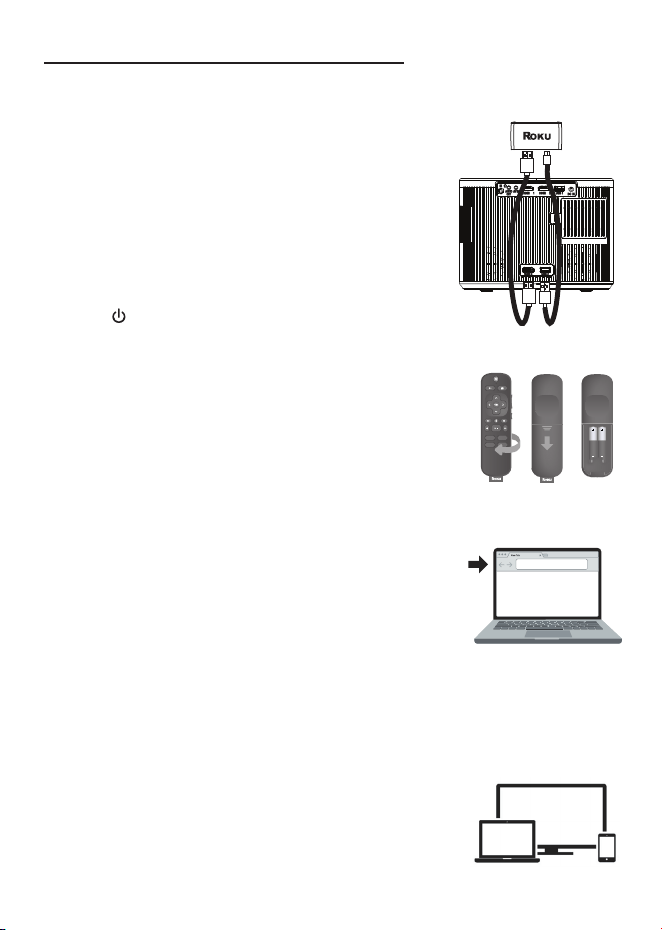
Use buttons to select Enable HDMI Link On/Off
Use buttons to select and buttons to turn TV Auto
PowerOn and Device Auto Standby items to On/Off if chose
Enable HDMI Link On. (See the note)
Use buttons to select different Aspect Ratio 4:3 / 16:9 /
Full / Auto / Just Scan. Follow below figure
Pairing is the term used when two Bluetooth devices are connected wirelessly for the first
time. This allows the devices to see each other and sets up a one to one communication
channel between both devices.
Bluetooth Connection
1. Turn on your External Bluetooth Speaker and select to Bluetooth pairing mode.
Note: The effective distance between your external device and projector is within 10
meters (30 feet).
2. Press the button to turn on unit.
3. Press the button to enter the projector menu screen.
4. Use the button to select Sound menu.
5. Use the button to select BT Setting column as figure 1.
6. Press the button to enter BT Setting menu and use button to select On.
(If BT Setting is On, press the button to enter BT Setting menu.)
7. Unit will try to reconnect the previous Bluetooth device, if it is connected before. If not,
select Search BT and press button to search device.
8. Wait a while, the available Bluetooth speaker device name
will show in a list as figure 2.
(For example: XXXXXX, YYYYYY, ZZZZZZ and etc.)
9. Use the button to select your desired Bluetooth
speaker device and press button to connect.
10. A few seconds, an indicator sound will be heard that your projector and external.
Bluetooth speaker connected. At the same time, there is “C:XXXXXX” to indicate the
connected device on the BT Setting menu. Then press button to exit.
11. After connection completed, you can listen to music by your Bluetooth receiver device
such as a headphone or speaker wirelessly.
12. If you want to change to pair with another Bluetooth Enabled Device, please repeat
above step 3 to step 10.
Notes:
1) After connecting, Bluetooth device’s name will be stored and will automatically
connect for next time.
2) Projector Bluetooth (Transmitter) function can only pair with Bluetooth receiver such
as headphone or speaker for music streaming wirelessly. Use your Bluetooth device
volume control if necessary.
Disconnect the Bluetooth
1. Press the button to enter the menu screen.
2. Use the button to select Sound menu.
3. Use the button to select BT Setting and press button to enter BT Setting
menu.
4. Use the button to select Off and press the button to disconnect the Bluetooth
function. Then press button to exit.
To select On/Off.
Press button or select SETTING icon on the home menu to enter projector menu.
(Unit default in Picture menu.)
Follow the below picture to connect audio cable and device.
1. Press the button to standby of your projector before connection.
2. Use audio cable to connect follow the below figure.
3. After connect and turn on both units. Your projector sound from external device now.
4. After using, turn off both unit.
12 13 14
15
16
17
18 19 20
Setup /Install the Roku® Streaming Sck
Make your Projector smart! Stream almost anything across thousands of
free or paid streaming channels including hit movies, popular shows, live TV, news,
sports and more.
Step 1: Install the Roku
®
Streaming Stick.
Turn off the unit, use the included HDMI cable to plug into
Roku HDMI port and the other end plug into the HDMI3
port on your projector.
Step 2: Connect to power
For the best streaming experience, use the included USB
power cable to connect Roku USB port and the other end
to connect to the USB2 port on your projector.
Press the button to turn on the unit. The projector home screen
will appear. Use the arrow buttons to select the HDMI3 input.
Step 3: Pair your Roku
®
remote
On the back side of the remote, slide open the battery cover.
Insert included batteries placing the negative(-) ends in first.
Follow the on-screen instruction, your remote should pair your
Roku® Steaming Stick automatically. For help pairing your
remote, visit go.roku.com/remote help
Note: To operate your Roku
®
Streaming Stick, you must use the
included Roku remote.
Step 4: Complete on-screen setup and start streaming
Tip: Have your wireless network name and password handy.
Follow the on-screen instructions on your Projector.
Activate your Projector using your computer, smartphone, or
tablet to link to a Roku account.
You need a Roku account to activate your Roku TV and access
entertainment across thousands of streaming channels.
Note: Roku doesn’t charge for activation support – beware of scams
Roku accounts are free and while a valid credit card number is not required to create a
Roku account, saving your credit card information makes renting, purchasing, and
subscribing to entertainment from the Roku Channel Store fast and convenient.
Once connected to your account, your TV will automatically
update with the latest software, and you can start streaming
immediately.
If you aren’t ready to connect your TV to a wireless network,
you can still use it as a regular TV.
Connect HDMI Show The Image On Projector Screen
Connect AV Show The Image On Projector Screen
Refer to the following picture to connect a set top box, a BD/DVD player or a streaming
player to the HDMI input.
1. Press the button to standby mode before connect HDMI cable.
2. After connection, press the button to turn on unit and power button will light GREEN
3. Press the button to home screen, use buttons to select HDMI 1 or HDMI 2 icon
and press the button to enter HDMI mode. The video from the connected device
will be shown on projector screen.
4. Press the button to turn unit to standby.
Follow the below picture to connect AV cable and device.
1. Press the button to standby mode before connect AV cable.
2. After connect, press the button to turn on unit and power button will light GREEN
3. Press the button to home screen, use buttons to select AV icon and press the
button to enter AV mode. The video of AV device will show on projector screen.
4. Press the button to turn the unit to standby.
Important Note:
If there is no sound from the internal speakers when playing media contents from a
set top box, BD/DVD or streaming players connecting to the HDMI input, please
check the set top box or the player's digital audio settings and make sure it is set to
"PCM Stereo" mode.
OK
OK
Connect Audio Output
( Aux Out / Line Out / Earphones)
Install USB Device
Follow the below picture to install USB
Turn off the unit before install USB
Note: This USB port is only used to read USB flash disk. DO NOT use it to charge any
external equipment.
Important Note:
If there is no sound from the stereo audio output when playing media contents from a
set top box, BD/DVD or streaming players connecting to the HDMI input, please check
the set top box or the player's digital audio settings and make sure it is set to "PCM
Stereo" mode.
Using USB Playback (Media Player)
Sub-Menu on Movie screen
1. When movie playback, press
the button and more function
screen show on lower (figure 1).
2. Use the button to select
icon and press the button to
play special function.
Figure 1.
Sub-Menu on Photo screen
1. When photo playback, press
the button and more
function screen show on lower
(figure 2).
2. Use the button to select
icon and press the button to
play special function.
Figure 2.
Sub-Menu on Music screen
1. When music playback, press
the button and more
function screen show on lower
(figure 3).
2. Use the button to select
icon and press the button to
play special function.
Figure 3.
Install USB device:
1. Press the button to standby before install USB.
2. Install the USB device into USB port.
3. After install, press the button to turn on unit and the power button light GREEN.
4. In home screen, use buttons to select MOVIE / MUSIC / PHOTO icon and press
the button to enter.
5. Use the button to select C or device name as the source and press button
to enter.
Note: if two USB device install, unit will assign the first installed device as C or device
name and the second installed device as D or device name.
6. Use buttons to search the correct file to preview and press the button to
playback file.
NOTE: Remove USB device, press the button to standby mode FIRST.
OK
OK
OK
OK
OK
OK
OK
OK
OK
Using Projector Menu 1
This Picture menu showed on right upper of view screen.
Using Projector Menu 2
Press button or select SETTING icon on the home menu to enter projector menu,
press buttons to select SOUND menu.
Press button or select SETTING icon on the home menu to enter projector menu,
press buttons to select OPTION menu.
This Sound menu showed on right upper of view screen.
Using Projector Menu 3
This OPTION menu showed on right upper of viewing screen.
Specifications
Pause
FB
FF
Prev
Next Stop
Repeat All
Info
Slow
Step
GotoTime
Set A
Aspect
Zoom In
Zoom Out
Playlist
Pause
Prev
Next
Stop
Repeat All
Rotate
Zoom In
Move
Zoom Out
Info
Rotate
laylist
P
90
90
Music S...
Music Off
Pause
FB
FF
Prev
Next
Stop
Info
GotoTime
Mute
laylist
P
Repeat All
Using Bluetooth Playback
OK
OK
OK
OK
OK
OK
Use button to select different picture effect to
Standard / Dynamic / Mild / User. Use button to
adjust Contrast / Brightness / Color / Sharpness digit if
chose User item.
Use button to adjust Contrast level 0 to 100.
(Active in User item of Picture Mode)
Use button to adjust Brightness level 0 to 100.
(Active in User item of Picture Mode)
Use button to adjust Color level 0 to 100.
(Active in User item of Picture Mode)
Use button to adjust Sharpness level 0 to 100.
(Active in User item of Picture Mode)
Use button to select different color temperature to
Cool / Medium / Warm.
Picture Mode Standard
Color Temperature Medium
Color 50
Brightness 50
Contrast 50
Sharpness 50
USE
TO SELECT
USE
TO SELECT
USE
TO SELECT
USE
TO SELECT
PRESS OK
PRESS OK
PRESS OK
PRESS OK
Picture Mode Standard
Color Temperature Medium
Brightness 50
USE
USE
TO SELECT
PRESS OK
USE
USE
TO SELECT
PRESS OK
Contrast 50
Color 50
Sharpness 50
Use button to select different sound effect Standard /
Movie / Music / Sports / User. Use button to select
and button to adjust Treble and Bass digit if chose User
item.
Use button to select Treble level 0 to 100. (Active in
User item of Sound Mode)
Use button to select Bass level 0 to 100. (Active in User
item of Sound Mode)
Use button to select Balance level to -50 to +50.
BT Setting Off
Bass 50
Treble 50
Sound Mode Standard
Balance 0
USE
TO SELECT
PRESS OK
PRESS OK
USE
TO SELECT
Sound Mode Standard
USE
TO SELECT
PRESS OK
PRESS OK
Bass 50
USE
TO SELECT
PRESS OK
PRESS OK
Balance 0
USE
TO SELECT
PRESS OK
PRESS OK
BT Setting
Treble 50
Use button to select different language
Use button to select Front Table / Front Ceiling / Rear
Table / Rear Ceiling
Use button to select Y or N. If choose “Y” that your unit
will go to factory default setting
For service
Note for HDMI CEC:
The connected device with CEC function.
center use only
Restore Factory Default
Software Update (USB)
OSD Language English
Aspect
HDMI CEC
Ratio 16:9
Flip Front Table
Aspect Ratio
AV mode 4:3, 16:9, Full, Auto
HDMI mode 4:3, 16:9, Full, Auto, Just Scan
USB (movie mode) 4:3, 16:9, Full, Auto, Just Scan
Specifications are typical, individual units might vary. They are subject to continuous
improvement without notice and without incurring any obligation.
Bass 50
Treble 50
Sound Mode Standard
Balance 0
B OffT Setting
Figure 1.
C:XXXXXX
BT Setting
Connected / Search BT
YYYYYY
ZZZZZZ
Figure 2.
Off
roku.com/link
Video signal cable : Yellow
The left channel signal lines: White
The right channel signal lines: Red
OK
OSD Language English
USE
TO SELECT
PRESS OK
t
PRESS OK
USE
TO SELECT
USE
TO SELECT
PRESS OK
t
PRESS OK
USE
TO SELECT
OK
USE
TO SELECT
PRESS OK
USE
TO SELECT
OK
Flip Front Table
USE
TO SELECT
PRESS OK
USE
TO SELECT
t
PRESS OK
USE
TO SELECT
Restore Factory Default
Software Update USB( )
Aspect Ratio 16:9
USE
TO SELECT
USE
TO SELECT
USE
TO SELECT
PRESS OK
HDMI CEC
Light Source Type LED
Brightness Output White light output ANSI ISO/IEC 21118 150LMS
Bluetooth (Transmitter) V5.3
Display Native Resolution 1280 x 720 RGB
HDMI Input Supported 1080p , 1080i , 720p, 576i , 480p, and 480i
Video Resolution.
Power Consumption 53W
Included Adapter Input AC100-240V, 50/60Hz
Output DC21V, 2.5A
Projection Size 36-200 inch
Input Port AV IN x1 / HDMI x3 / USB x2
USB Port Support USB device up to 32GB
Support format Mpeg1, Mpeg2, Mpeg4, mp3, Jpeg
Net Weight 1.3 KG
Product Dimensions 216mm L x 171mm W x 158 mm H
To make a warranty claim, please email [email protected] or call 1-800-968-9853.
90 day Warranty
This product is warranted to be free from defects in material and workmanship for a
period of ninety (90) days from the date of original delivery to the consumer. During this
period, your exclusive remedy is repair or replacement of this product or component
found to be defective, at our option; however, you are responsible for all costs associated
with returning the product to us. If the product or component is no longer available, we will
replace with a similar one of equal or greater value. Prior to a replacement being sent, the
product must be rendered inoperable or returned to us.
This warranty does not cover glass, filters, wear from normal use, use not in conformity
with the printed directions., or damage to the product resulting from accident, alteration,
abuse, or misuse. This warranty extends only to the original consumer purchaser or gift
recipient. Keep the original sales receipt, as proof of purchase is required to make a
warranty claim. This warranty is void if the product is used for other than single-family
household use or subjected to any voltage and waveform other than as on the specified
rating on the label (e.g., 120V~60Hz).
We exclude all claims for special, incidental, and consequential damages caused by
breach of express or implied warranty. All liability is limited to the amount of the purchase
price. Every implied warranty, including any statutory warranty or condition of
merchantability or fitness for a particular purpose, is disclaimed except to the
extent prohibited by law, in which case such warranty or condition is limited to the
duration of this written warranty. This warranty gives you specific legal rights. You may
have other legal rights that vary depending on where you live. Some states or provinces
do not allow limitations on implied warranties or special, incidental, or consequential
damages, so the foregoing limitations may not apply to you.
For faster service, locate the model, type, and serial numbers on your appliance.
ATTACH YOUR PROOF OF PURCHASE HERE, PROOF OF PURCHASE IS
REQUIRED TO OBTAIN WARRANTY SERVICE.
Please have the following information available when you contact the Support Team:
• Name, address and telephone number.
• Model number and serial number.
• A clear, detailed description of the problem.
• Proof of purchase including dealer or retailer name, address and date of purchase.
HDMI CABLE
Video Player
CABLE NOT INCLUDED
VIDEO CABLE
LEFT CHANNEL
RIGHT CHANNEL
VIDEO OUT
AUDIO OUT
USB
AUDIO CABLE
For service assistance and product information, please call: 1-800-968-9853.
Pour obtenir assistance et information appelez: 1-800-968-9853.
Curtis International Ltd.
7045 BECKETT DRIVE, UNIT 15,
MISSISSAUGA, ON, L5S 2A3
www.curtisint.com
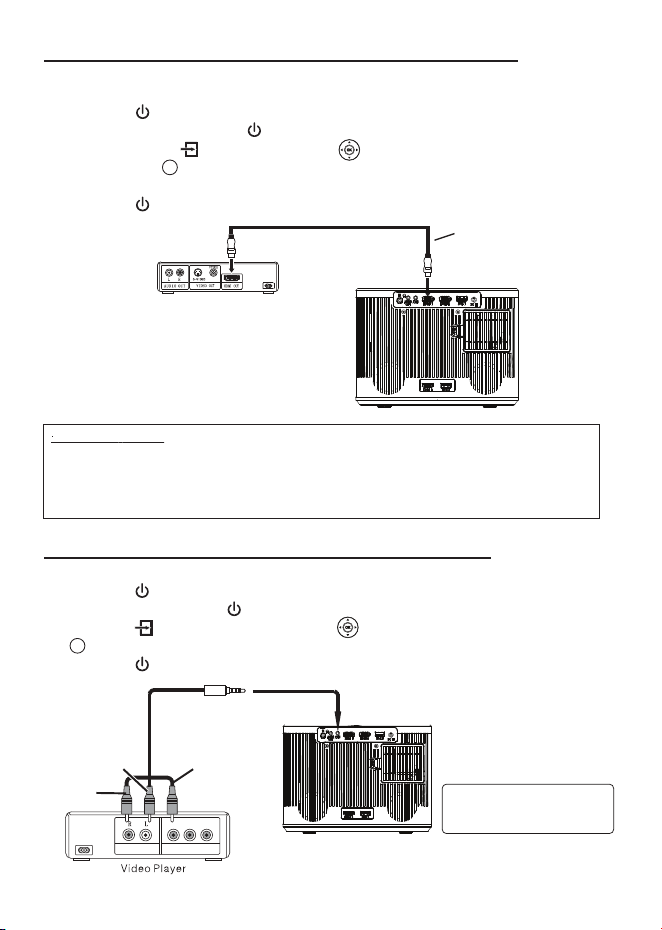
Use buttons to select Enable HDMI Link On/Off
Use buttons to select and buttons to turn TV Auto
PowerOn and Device Auto Standby items to On/Off if chose
Enable HDMI Link On. (See the note)
Use buttons to select different Aspect Ratio 4:3 / 16:9 /
Full / Auto / Just Scan. Follow below figure
Pairing is the term used when two Bluetooth devices are connected wirelessly for the first
time. This allows the devices to see each other and sets up a one to one communication
channel between both devices.
Bluetooth Connection
1. Turn on your External Bluetooth Speaker and select to Bluetooth pairing mode.
Note: The effective distance between your external device and projector is within 10
meters (30 feet).
2. Press the button to turn on unit.
3. Press the button to enter the projector menu screen.
4. Use the button to select Sound menu.
5. Use the button to select BT Setting column as figure 1.
6. Press the button to enter BT Setting menu and use button to select On.
(If BT Setting is On, press the button to enter BT Setting menu.)
7. Unit will try to reconnect the previous Bluetooth device, if it is connected before. If not,
select Search BT and press button to search device.
8. Wait a while, the available Bluetooth speaker device name
will show in a list as figure 2.
(For example: XXXXXX, YYYYYY, ZZZZZZ and etc.)
9. Use the button to select your desired Bluetooth
speaker device and press button to connect.
10. A few seconds, an indicator sound will be heard that your projector and external.
Bluetooth speaker connected. At the same time, there is “C:XXXXXX” to indicate the
connected device on the BT Setting menu. Then press button to exit.
11. After connection completed, you can listen to music by your Bluetooth receiver device
such as a headphone or speaker wirelessly.
12. If you want to change to pair with another Bluetooth Enabled Device, please repeat
above step 3 to step 10.
Notes:
1) After connecting, Bluetooth device’s name will be stored and will automatically
connect for next time.
2) Projector Bluetooth (Transmitter) function can only pair with Bluetooth receiver such
as headphone or speaker for music streaming wirelessly. Use your Bluetooth device
volume control if necessary.
Disconnect the Bluetooth
1. Press the button to enter the menu screen.
2. Use the button to select Sound menu.
3. Use the button to select BT Setting and press button to enter BT Setting
menu.
4. Use the button to select Off and press the button to disconnect the Bluetooth
function. Then press button to exit.
To select On/Off.
Press button or select SETTING icon on the home menu to enter projector menu.
(Unit default in Picture menu.)
Follow the below picture to connect audio cable and device.
1. Press the button to standby of your projector before connection.
2. Use audio cable to connect follow the below figure.
3. After connect and turn on both units. Your projector sound from external device now.
4. After using, turn off both unit.
12 13 14
15
16
17
18 19 20
Setup /Install the Roku® Streaming Sck
Make your Projector smart! Stream almost anything across thousands of
free or paid streaming channels including hit movies, popular shows, live TV, news,
sports and more.
Step 1: Install the Roku
®
Streaming Stick.
Turn off the unit, use the included HDMI cable to plug into
Roku HDMI port and the other end plug into the HDMI3
port on your projector.
Step 2: Connect to power
For the best streaming experience, use the included USB
power cable to connect Roku USB port and the other end
to connect to the USB2 port on your projector.
Press the button to turn on the unit. The projector home screen
will appear. Use the arrow buttons to select the HDMI3 input.
Step 3: Pair your Roku
®
remote
On the back side of the remote, slide open the battery cover.
Insert included batteries placing the negative(-) ends in first.
Follow the on-screen instruction, your remote should pair your
Roku® Steaming Stick automatically. For help pairing your
remote, visit go.roku.com/remote help
Note: To operate your Roku
®
Streaming Stick, you must use the
included Roku remote.
Step 4: Complete on-screen setup and start streaming
Tip: Have your wireless network name and password handy.
Follow the on-screen instructions on your Projector.
Activate your Projector using your computer, smartphone, or
tablet to link to a Roku account.
You need a Roku account to activate your Roku TV and access
entertainment across thousands of streaming channels.
Note: Roku doesn’t charge for activation support – beware of scams
Roku accounts are free and while a valid credit card number is not required to create a
Roku account, saving your credit card information makes renting, purchasing, and
subscribing to entertainment from the Roku Channel Store fast and convenient.
Once connected to your account, your TV will automatically
update with the latest software, and you can start streaming
immediately.
If you aren’t ready to connect your TV to a wireless network,
you can still use it as a regular TV.
Connect HDMI Show The Image On Projector Screen
Connect AV Show The Image On Projector Screen
Refer to the following picture to connect a set top box, a BD/DVD player or a streaming
player to the HDMI input.
1. Press the button to standby mode before connect HDMI cable.
2. After connection, press the button to turn on unit and power button will light GREEN
3. Press the button to home screen, use buttons to select HDMI 1 or HDMI 2 icon
and press the button to enter HDMI mode. The video from the connected device
will be shown on projector screen.
4. Press the button to turn unit to standby.
Follow the below picture to connect AV cable and device.
1. Press the button to standby mode before connect AV cable.
2. After connect, press the button to turn on unit and power button will light GREEN
3. Press the button to home screen, use buttons to select AV icon and press the
button to enter AV mode. The video of AV device will show on projector screen.
4. Press the button to turn the unit to standby.
Important Note:
If there is no sound from the internal speakers when playing media contents from a
set top box, BD/DVD or streaming players connecting to the HDMI input, please
check the set top box or the player's digital audio settings and make sure it is set to
"PCM Stereo" mode.
OK
OK
Connect Audio Output
( Aux Out / Line Out / Earphones)
Install USB Device
Follow the below picture to install USB
Turn off the unit before install USB
Note: This USB port is only used to read USB flash disk. DO NOT use it to charge any
external equipment.
Important Note:
If there is no sound from the stereo audio output when playing media contents from a
set top box, BD/DVD or streaming players connecting to the HDMI input, please check
the set top box or the player's digital audio settings and make sure it is set to "PCM
Stereo" mode.
Using USB Playback (Media Player)
Sub-Menu on Movie screen
1. When movie playback, press
the button and more function
screen show on lower (figure 1).
2. Use the button to select
icon and press the button to
play special function.
Figure 1.
Sub-Menu on Photo screen
1. When photo playback, press
the button and more
function screen show on lower
(figure 2).
2. Use the button to select
icon and press the button to
play special function.
Figure 2.
Sub-Menu on Music screen
1. When music playback, press
the button and more
function screen show on lower
(figure 3).
2. Use the button to select
icon and press the button to
play special function.
Figure 3.
Install USB device:
1. Press the button to standby before install USB.
2. Install the USB device into USB port.
3. After install, press the button to turn on unit and the power button light GREEN.
4. In home screen, use buttons to select MOVIE / MUSIC / PHOTO icon and press
the button to enter.
5. Use the button to select C or device name as the source and press button
to enter.
Note: if two USB device install, unit will assign the first installed device as C or device
name and the second installed device as D or device name.
6. Use buttons to search the correct file to preview and press the button to
playback file.
NOTE: Remove USB device, press the button to standby mode FIRST.
OK
OK
OK
OK
OK
OK
OK
OK
OK
Using Projector Menu 1
This Picture menu showed on right upper of view screen.
Using Projector Menu 2
Press button or select SETTING icon on the home menu to enter projector menu,
press buttons to select SOUND menu.
Press button or select SETTING icon on the home menu to enter projector menu,
press buttons to select OPTION menu.
This Sound menu showed on right upper of view screen.
Using Projector Menu 3
This OPTION menu showed on right upper of viewing screen.
Specifications
Pause
FB
FF
Prev
Next Stop
Repeat All
Info
Slow
Step
GotoTime
Set A
Aspect
Zoom In
Zoom Out
Playlist
Pause
Prev
Next
Stop
Repeat All
Rotate
Zoom In
Move
Zoom Out
Info
Rotate
laylist
P
90
90
Music S...
Music Off
Pause
FB
FF
Prev
Next
Stop
Info
GotoTime
Mute
laylist
P
Repeat All
Using Bluetooth Playback
OK
OK
OK
OK
OK
OK
Use button to select different picture effect to
Standard / Dynamic / Mild / User. Use button to
adjust Contrast / Brightness / Color / Sharpness digit if
chose User item.
Use button to adjust Contrast level 0 to 100.
(Active in User item of Picture Mode)
Use button to adjust Brightness level 0 to 100.
(Active in User item of Picture Mode)
Use button to adjust Color level 0 to 100.
(Active in User item of Picture Mode)
Use button to adjust Sharpness level 0 to 100.
(Active in User item of Picture Mode)
Use button to select different color temperature to
Cool / Medium / Warm.
Picture Mode Standard
Color Temperature Medium
Color 50
Brightness 50
Contrast 50
Sharpness 50
USE
TO SELECT
USE
TO SELECT
USE
TO SELECT
USE
TO SELECT
PRESS OK
PRESS OK
PRESS OK
PRESS OK
Picture Mode Standard
Color Temperature Medium
Brightness 50
USE
USE
TO SELECT
PRESS OK
USE
USE
TO SELECT
PRESS OK
Contrast 50
Color 50
Sharpness 50
Use button to select different sound effect Standard /
Movie / Music / Sports / User. Use button to select
and button to adjust Treble and Bass digit if chose User
item.
Use button to select Treble level 0 to 100. (Active in
User item of Sound Mode)
Use button to select Bass level 0 to 100. (Active in User
item of Sound Mode)
Use button to select Balance level to -50 to +50.
BT Setting Off
Bass 50
Treble 50
Sound Mode Standard
Balance 0
USE
TO SELECT
PRESS OK
PRESS OK
USE
TO SELECT
Sound Mode Standard
USE
TO SELECT
PRESS OK
PRESS OK
Bass 50
USE
TO SELECT
PRESS OK
PRESS OK
Balance 0
USE
TO SELECT
PRESS OK
PRESS OK
BT Setting
Treble 50
Use button to select different language
Use button to select Front Table / Front Ceiling / Rear
Table / Rear Ceiling
Use button to select Y or N. If choose “Y” that your unit
will go to factory default setting
For service
Note for HDMI CEC:
The connected device with CEC function.
center use only
Restore Factory Default
Software Update (USB)
OSD Language English
Aspect
HDMI CEC
Ratio 16:9
Flip Front Table
Aspect Ratio
AV mode 4:3, 16:9, Full, Auto
HDMI mode 4:3, 16:9, Full, Auto, Just Scan
USB (movie mode) 4:3, 16:9, Full, Auto, Just Scan
Specifications are typical, individual units might vary. They are subject to continuous
improvement without notice and without incurring any obligation.
Bass 50
Treble 50
Sound Mode Standard
Balance 0
B OffT Setting
Figure 1.
C:XXXXXX
BT Setting
Connected / Search BT
YYYYYY
ZZZZZZ
Figure 2.
Off
roku.com/link
Video signal cable : Yellow
The left channel signal lines: White
The right channel signal lines: Red
OK
OSD Language English
USE
TO SELECT
PRESS OK
t
PRESS OK
USE
TO SELECT
USE
TO SELECT
PRESS OK
t
PRESS OK
USE
TO SELECT
OK
USE
TO SELECT
PRESS OK
USE
TO SELECT
OK
Flip Front Table
USE
TO SELECT
PRESS OK
USE
TO SELECT
t
PRESS OK
USE
TO SELECT
Restore Factory Default
Software Update USB( )
Aspect Ratio 16:9
USE
TO SELECT
USE
TO SELECT
USE
TO SELECT
PRESS OK
HDMI CEC
Light Source Type LED
Brightness Output White light output ANSI ISO/IEC 21118 150LMS
Bluetooth (Transmitter) V5.3
Display Native Resolution 1280 x 720 RGB
HDMI Input Supported 1080p , 1080i , 720p, 576i , 480p, and 480i
Video Resolution.
Power Consumption 53W
Included Adapter Input AC100-240V, 50/60Hz
Output DC21V, 2.5A
Projection Size 36-200 inch
Input Port AV IN x1 / HDMI x3 / USB x2
USB Port Support USB device up to 32GB
Support format Mpeg1, Mpeg2, Mpeg4, mp3, Jpeg
Net Weight 1.3 KG
Product Dimensions 216mm L x 171mm W x 158 mm H
To make a warranty claim, please email [email protected] or call 1-800-968-9853.
90 day Warranty
This product is warranted to be free from defects in material and workmanship for a
period of ninety (90) days from the date of original delivery to the consumer. During this
period, your exclusive remedy is repair or replacement of this product or component
found to be defective, at our option; however, you are responsible for all costs associated
with returning the product to us. If the product or component is no longer available, we will
replace with a similar one of equal or greater value. Prior to a replacement being sent, the
product must be rendered inoperable or returned to us.
This warranty does not cover glass, filters, wear from normal use, use not in conformity
with the printed directions., or damage to the product resulting from accident, alteration,
abuse, or misuse. This warranty extends only to the original consumer purchaser or gift
recipient. Keep the original sales receipt, as proof of purchase is required to make a
warranty claim. This warranty is void if the product is used for other than single-family
household use or subjected to any voltage and waveform other than as on the specified
rating on the label (e.g., 120V~60Hz).
We exclude all claims for special, incidental, and consequential damages caused by
breach of express or implied warranty. All liability is limited to the amount of the purchase
price. Every implied warranty, including any statutory warranty or condition of
merchantability or fitness for a particular purpose, is disclaimed except to the
extent prohibited by law, in which case such warranty or condition is limited to the
duration of this written warranty. This warranty gives you specific legal rights. You may
have other legal rights that vary depending on where you live. Some states or provinces
do not allow limitations on implied warranties or special, incidental, or consequential
damages, so the foregoing limitations may not apply to you.
For faster service, locate the model, type, and serial numbers on your appliance.
ATTACH YOUR PROOF OF PURCHASE HERE, PROOF OF PURCHASE IS
REQUIRED TO OBTAIN WARRANTY SERVICE.
Please have the following information available when you contact the Support Team:
• Name, address and telephone number.
• Model number and serial number.
• A clear, detailed description of the problem.
• Proof of purchase including dealer or retailer name, address and date of purchase.
HDMI CABLE
Video Player
CABLE NOT INCLUDED
VIDEO CABLE
LEFT CHANNEL
RIGHT CHANNEL
VIDEO OUT
AUDIO OUT
USB
AUDIO CABLE
For service assistance and product information, please call: 1-800-968-9853.
Pour obtenir assistance et information appelez: 1-800-968-9853.
Curtis International Ltd.
7045 BECKETT DRIVE, UNIT 15,
MISSISSAUGA, ON, L5S 2A3
www.curtisint.com

Use buttons to select Enable HDMI Link On/Off
Use buttons to select and buttons to turn TV Auto
PowerOn and Device Auto Standby items to On/Off if chose
Enable HDMI Link On. (See the note)
Use buttons to select different Aspect Ratio 4:3 / 16:9 /
Full / Auto / Just Scan. Follow below figure
Pairing is the term used when two Bluetooth devices are connected wirelessly for the first
time. This allows the devices to see each other and sets up a one to one communication
channel between both devices.
Bluetooth Connection
1. Turn on your External Bluetooth Speaker and select to Bluetooth pairing mode.
Note: The effective distance between your external device and projector is within 10
meters (30 feet).
2. Press the button to turn on unit.
3. Press the button to enter the projector menu screen.
4. Use the button to select Sound menu.
5. Use the button to select BT Setting column as figure 1.
6. Press the button to enter BT Setting menu and use button to select On.
(If BT Setting is On, press the button to enter BT Setting menu.)
7. Unit will try to reconnect the previous Bluetooth device, if it is connected before. If not,
select Search BT and press button to search device.
8. Wait a while, the available Bluetooth speaker device name
will show in a list as figure 2.
(For example: XXXXXX, YYYYYY, ZZZZZZ and etc.)
9. Use the button to select your desired Bluetooth
speaker device and press button to connect.
10. A few seconds, an indicator sound will be heard that your projector and external.
Bluetooth speaker connected. At the same time, there is “C:XXXXXX” to indicate the
connected device on the BT Setting menu. Then press button to exit.
11. After connection completed, you can listen to music by your Bluetooth receiver device
such as a headphone or speaker wirelessly.
12. If you want to change to pair with another Bluetooth Enabled Device, please repeat
above step 3 to step 10.
Notes:
1) After connecting, Bluetooth device’s name will be stored and will automatically
connect for next time.
2) Projector Bluetooth (Transmitter) function can only pair with Bluetooth receiver such
as headphone or speaker for music streaming wirelessly. Use your Bluetooth device
volume control if necessary.
Disconnect the Bluetooth
1. Press the button to enter the menu screen.
2. Use the button to select Sound menu.
3. Use the button to select BT Setting and press button to enter BT Setting
menu.
4. Use the button to select Off and press the button to disconnect the Bluetooth
function. Then press button to exit.
To select On/Off.
Press button or select SETTING icon on the home menu to enter projector menu.
(Unit default in Picture menu.)
Follow the below picture to connect audio cable and device.
1. Press the button to standby of your projector before connection.
2. Use audio cable to connect follow the below figure.
3. After connect and turn on both units. Your projector sound from external device now.
4. After using, turn off both unit.
12 13 14
15
16
17
18 19 20
Setup /Install the Roku® Streaming Sck
Make your Projector smart! Stream almost anything across thousands of
free or paid streaming channels including hit movies, popular shows, live TV, news,
sports and more.
Step 1: Install the Roku
®
Streaming Stick.
Turn off the unit, use the included HDMI cable to plug into
Roku HDMI port and the other end plug into the HDMI3
port on your projector.
Step 2: Connect to power
For the best streaming experience, use the included USB
power cable to connect Roku USB port and the other end
to connect to the USB2 port on your projector.
Press the button to turn on the unit. The projector home screen
will appear. Use the arrow buttons to select the HDMI3 input.
Step 3: Pair your Roku
®
remote
On the back side of the remote, slide open the battery cover.
Insert included batteries placing the negative(-) ends in first.
Follow the on-screen instruction, your remote should pair your
Roku® Steaming Stick automatically. For help pairing your
remote, visit go.roku.com/remote help
Note: To operate your Roku
®
Streaming Stick, you must use the
included Roku remote.
Step 4: Complete on-screen setup and start streaming
Tip: Have your wireless network name and password handy.
Follow the on-screen instructions on your Projector.
Activate your Projector using your computer, smartphone, or
tablet to link to a Roku account.
You need a Roku account to activate your Roku TV and access
entertainment across thousands of streaming channels.
Note: Roku doesn’t charge for activation support – beware of scams
Roku accounts are free and while a valid credit card number is not required to create a
Roku account, saving your credit card information makes renting, purchasing, and
subscribing to entertainment from the Roku Channel Store fast and convenient.
Once connected to your account, your TV will automatically
update with the latest software, and you can start streaming
immediately.
If you aren’t ready to connect your TV to a wireless network,
you can still use it as a regular TV.
Connect HDMI Show The Image On Projector Screen
Connect AV Show The Image On Projector Screen
Refer to the following picture to connect a set top box, a BD/DVD player or a streaming
player to the HDMI input.
1. Press the button to standby mode before connect HDMI cable.
2. After connection, press the button to turn on unit and power button will light GREEN
3. Press the button to home screen, use buttons to select HDMI 1 or HDMI 2 icon
and press the button to enter HDMI mode. The video from the connected device
will be shown on projector screen.
4. Press the button to turn unit to standby.
Follow the below picture to connect AV cable and device.
1. Press the button to standby mode before connect AV cable.
2. After connect, press the button to turn on unit and power button will light GREEN
3. Press the button to home screen, use buttons to select AV icon and press the
button to enter AV mode. The video of AV device will show on projector screen.
4. Press the button to turn the unit to standby.
Important Note:
If there is no sound from the internal speakers when playing media contents from a
set top box, BD/DVD or streaming players connecting to the HDMI input, please
check the set top box or the player's digital audio settings and make sure it is set to
"PCM Stereo" mode.
OK
OK
Connect Audio Output
( Aux Out / Line Out / Earphones)
Install USB Device
Follow the below picture to install USB
Turn off the unit before install USB
Note: This USB port is only used to read USB flash disk. DO NOT use it to charge any
external equipment.
Important Note:
If there is no sound from the stereo audio output when playing media contents from a
set top box, BD/DVD or streaming players connecting to the HDMI input, please check
the set top box or the player's digital audio settings and make sure it is set to "PCM
Stereo" mode.
Using USB Playback (Media Player)
Sub-Menu on Movie screen
1. When movie playback, press
the button and more function
screen show on lower (figure 1).
2. Use the button to select
icon and press the button to
play special function.
Figure 1.
Sub-Menu on Photo screen
1. When photo playback, press
the button and more
function screen show on lower
(figure 2).
2. Use the button to select
icon and press the button to
play special function.
Figure 2.
Sub-Menu on Music screen
1. When music playback, press
the button and more
function screen show on lower
(figure 3).
2. Use the button to select
icon and press the button to
play special function.
Figure 3.
Install USB device:
1. Press the button to standby before install USB.
2. Install the USB device into USB port.
3. After install, press the button to turn on unit and the power button light GREEN.
4. In home screen, use buttons to select MOVIE / MUSIC / PHOTO icon and press
the button to enter.
5. Use the button to select C or device name as the source and press button
to enter.
Note: if two USB device install, unit will assign the first installed device as C or device
name and the second installed device as D or device name.
6. Use buttons to search the correct file to preview and press the button to
playback file.
NOTE: Remove USB device, press the button to standby mode FIRST.
OK
OK
OK
OK
OK
OK
OK
OK
OK
Using Projector Menu 1
This Picture menu showed on right upper of view screen.
Using Projector Menu 2
Press button or select SETTING icon on the home menu to enter projector menu,
press buttons to select SOUND menu.
Press button or select SETTING icon on the home menu to enter projector menu,
press buttons to select OPTION menu.
This Sound menu showed on right upper of view screen.
Using Projector Menu 3
This OPTION menu showed on right upper of viewing screen.
Specifications
Pause
FB
FF
Prev
Next Stop
Repeat All
Info
Slow
Step
GotoTime
Set A
Aspect
Zoom In
Zoom Out
Playlist
Pause
Prev
Next
Stop
Repeat All
Rotate
Zoom In
Move
Zoom Out
Info
Rotate
laylist
P
90
90
Music S...
Music Off
Pause
FB
FF
Prev
Next
Stop
Info
GotoTime
Mute
laylist
P
Repeat All
Using Bluetooth Playback
OK
OK
OK
OK
OK
OK
Use button to select different picture effect to
Standard / Dynamic / Mild / User. Use button to
adjust Contrast / Brightness / Color / Sharpness digit if
chose User item.
Use button to adjust Contrast level 0 to 100.
(Active in User item of Picture Mode)
Use button to adjust Brightness level 0 to 100.
(Active in User item of Picture Mode)
Use button to adjust Color level 0 to 100.
(Active in User item of Picture Mode)
Use button to adjust Sharpness level 0 to 100.
(Active in User item of Picture Mode)
Use button to select different color temperature to
Cool / Medium / Warm.
Picture Mode Standard
Color Temperature Medium
Color 50
Brightness 50
Contrast 50
Sharpness 50
USE
TO SELECT
USE
TO SELECT
USE
TO SELECT
USE
TO SELECT
PRESS OK
PRESS OK
PRESS OK
PRESS OK
Picture Mode Standard
Color Temperature Medium
Brightness 50
USE
USE
TO SELECT
PRESS OK
USE
USE
TO SELECT
PRESS OK
Contrast 50
Color 50
Sharpness 50
Use button to select different sound effect Standard /
Movie / Music / Sports / User. Use button to select
and button to adjust Treble and Bass digit if chose User
item.
Use button to select Treble level 0 to 100. (Active in
User item of Sound Mode)
Use button to select Bass level 0 to 100. (Active in User
item of Sound Mode)
Use button to select Balance level to -50 to +50.
BT Setting Off
Bass 50
Treble 50
Sound Mode Standard
Balance 0
USE
TO SELECT
PRESS OK
PRESS OK
USE
TO SELECT
Sound Mode Standard
USE
TO SELECT
PRESS OK
PRESS OK
Bass 50
USE
TO SELECT
PRESS OK
PRESS OK
Balance 0
USE
TO SELECT
PRESS OK
PRESS OK
BT Setting
Treble 50
Use button to select different language
Use button to select Front Table / Front Ceiling / Rear
Table / Rear Ceiling
Use button to select Y or N. If choose “Y” that your unit
will go to factory default setting
For service
Note for HDMI CEC:
The connected device with CEC function.
center use only
Restore Factory Default
Software Update (USB)
OSD Language English
Aspect
HDMI CEC
Ratio 16:9
Flip Front Table
Aspect Ratio
AV mode 4:3, 16:9, Full, Auto
HDMI mode 4:3, 16:9, Full, Auto, Just Scan
USB (movie mode) 4:3, 16:9, Full, Auto, Just Scan
Specifications are typical, individual units might vary. They are subject to continuous
improvement without notice and without incurring any obligation.
Bass 50
Treble 50
Sound Mode Standard
Balance 0
B OffT Setting
Figure 1.
C:XXXXXX
BT Setting
Connected / Search BT
YYYYYY
ZZZZZZ
Figure 2.
Off
roku.com/link
Video signal cable : Yellow
The left channel signal lines: White
The right channel signal lines: Red
OK
OSD Language English
USE
TO SELECT
PRESS OK
t
PRESS OK
USE
TO SELECT
USE
TO SELECT
PRESS OK
t
PRESS OK
USE
TO SELECT
OK
USE
TO SELECT
PRESS OK
USE
TO SELECT
OK
Flip Front Table
USE
TO SELECT
PRESS OK
USE
TO SELECT
t
PRESS OK
USE
TO SELECT
Restore Factory Default
Software Update USB( )
Aspect Ratio 16:9
USE
TO SELECT
USE
TO SELECT
USE
TO SELECT
PRESS OK
HDMI CEC
Light Source Type LED
Brightness Output White light output ANSI ISO/IEC 21118 150LMS
Bluetooth (Transmitter) V5.3
Display Native Resolution 1280 x 720 RGB
HDMI Input Supported 1080p , 1080i , 720p, 576i , 480p, and 480i
Video Resolution.
Power Consumption 53W
Included Adapter Input AC100-240V, 50/60Hz
Output DC21V, 2.5A
Projection Size 36-200 inch
Input Port AV IN x1 / HDMI x3 / USB x2
USB Port Support USB device up to 32GB
Support format Mpeg1, Mpeg2, Mpeg4, mp3, Jpeg
Net Weight 1.3 KG
Product Dimensions 216mm L x 171mm W x 158 mm H
To make a warranty claim, please email [email protected] or call 1-800-968-9853.
90 day Warranty
This product is warranted to be free from defects in material and workmanship for a
period of ninety (90) days from the date of original delivery to the consumer. During this
period, your exclusive remedy is repair or replacement of this product or component
found to be defective, at our option; however, you are responsible for all costs associated
with returning the product to us. If the product or component is no longer available, we will
replace with a similar one of equal or greater value. Prior to a replacement being sent, the
product must be rendered inoperable or returned to us.
This warranty does not cover glass, filters, wear from normal use, use not in conformity
with the printed directions., or damage to the product resulting from accident, alteration,
abuse, or misuse. This warranty extends only to the original consumer purchaser or gift
recipient. Keep the original sales receipt, as proof of purchase is required to make a
warranty claim. This warranty is void if the product is used for other than single-family
household use or subjected to any voltage and waveform other than as on the specified
rating on the label (e.g., 120V~60Hz).
We exclude all claims for special, incidental, and consequential damages caused by
breach of express or implied warranty. All liability is limited to the amount of the purchase
price. Every implied warranty, including any statutory warranty or condition of
merchantability or fitness for a particular purpose, is disclaimed except to the
extent prohibited by law, in which case such warranty or condition is limited to the
duration of this written warranty. This warranty gives you specific legal rights. You may
have other legal rights that vary depending on where you live. Some states or provinces
do not allow limitations on implied warranties or special, incidental, or consequential
damages, so the foregoing limitations may not apply to you.
For faster service, locate the model, type, and serial numbers on your appliance.
ATTACH YOUR PROOF OF PURCHASE HERE, PROOF OF PURCHASE IS
REQUIRED TO OBTAIN WARRANTY SERVICE.
Please have the following information available when you contact the Support Team:
• Name, address and telephone number.
• Model number and serial number.
• A clear, detailed description of the problem.
• Proof of purchase including dealer or retailer name, address and date of purchase.
HDMI CABLE
Video Player
CABLE NOT INCLUDED
VIDEO CABLE
LEFT CHANNEL
RIGHT CHANNEL
VIDEO OUT
AUDIO OUT
USB
AUDIO CABLE
For service assistance and product information, please call: 1-800-968-9853.
Pour obtenir assistance et information appelez: 1-800-968-9853.
Curtis International Ltd.
7045 BECKETT DRIVE, UNIT 15,
MISSISSAUGA, ON, L5S 2A3
www.curtisint.com
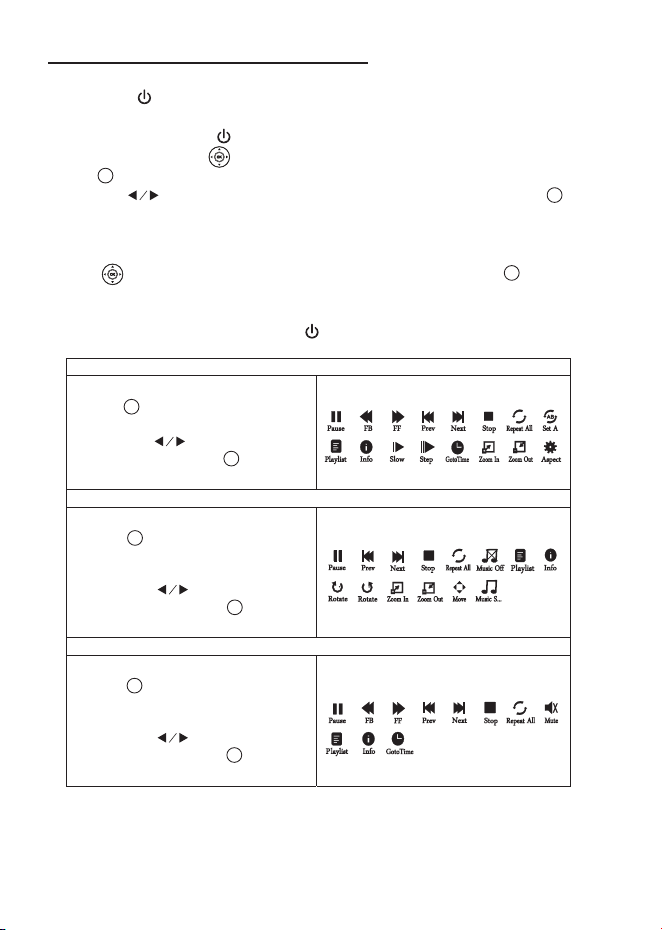
Use buttons to select Enable HDMI Link On/Off
Use buttons to select and buttons to turn TV Auto
PowerOn and Device Auto Standby items to On/Off if chose
Enable HDMI Link On. (See the note)
Use buttons to select different Aspect Ratio 4:3 / 16:9 /
Full / Auto / Just Scan. Follow below figure
Pairing is the term used when two Bluetooth devices are connected wirelessly for the first
time. This allows the devices to see each other and sets up a one to one communication
channel between both devices.
Bluetooth Connection
1. Turn on your External Bluetooth Speaker and select to Bluetooth pairing mode.
Note: The effective distance between your external device and projector is within 10
meters (30 feet).
2. Press the button to turn on unit.
3. Press the button to enter the projector menu screen.
4. Use the button to select Sound menu.
5. Use the button to select BT Setting column as figure 1.
6. Press the button to enter BT Setting menu and use button to select On.
(If BT Setting is On, press the button to enter BT Setting menu.)
7. Unit will try to reconnect the previous Bluetooth device, if it is connected before. If not,
select Search BT and press button to search device.
8. Wait a while, the available Bluetooth speaker device name
will show in a list as figure 2.
(For example: XXXXXX, YYYYYY, ZZZZZZ and etc.)
9. Use the button to select your desired Bluetooth
speaker device and press button to connect.
10. A few seconds, an indicator sound will be heard that your projector and external.
Bluetooth speaker connected. At the same time, there is “C:XXXXXX” to indicate the
connected device on the BT Setting menu. Then press button to exit.
11. After connection completed, you can listen to music by your Bluetooth receiver device
such as a headphone or speaker wirelessly.
12. If you want to change to pair with another Bluetooth Enabled Device, please repeat
above step 3 to step 10.
Notes:
1) After connecting, Bluetooth device’s name will be stored and will automatically
connect for next time.
2) Projector Bluetooth (Transmitter) function can only pair with Bluetooth receiver such
as headphone or speaker for music streaming wirelessly. Use your Bluetooth device
volume control if necessary.
Disconnect the Bluetooth
1. Press the button to enter the menu screen.
2. Use the button to select Sound menu.
3. Use the button to select BT Setting and press button to enter BT Setting
menu.
4. Use the button to select Off and press the button to disconnect the Bluetooth
function. Then press button to exit.
To select On/Off.
Press button or select SETTING icon on the home menu to enter projector menu.
(Unit default in Picture menu.)
Follow the below picture to connect audio cable and device.
1. Press the button to standby of your projector before connection.
2. Use audio cable to connect follow the below figure.
3. After connect and turn on both units. Your projector sound from external device now.
4. After using, turn off both unit.
12 13 14
15
16
17
18 19 20
Setup /Install the Roku® Streaming Sck
Make your Projector smart! Stream almost anything across thousands of
free or paid streaming channels including hit movies, popular shows, live TV, news,
sports and more.
Step 1: Install the Roku
®
Streaming Stick.
Turn off the unit, use the included HDMI cable to plug into
Roku HDMI port and the other end plug into the HDMI3
port on your projector.
Step 2: Connect to power
For the best streaming experience, use the included USB
power cable to connect Roku USB port and the other end
to connect to the USB2 port on your projector.
Press the button to turn on the unit. The projector home screen
will appear. Use the arrow buttons to select the HDMI3 input.
Step 3: Pair your Roku
®
remote
On the back side of the remote, slide open the battery cover.
Insert included batteries placing the negative(-) ends in first.
Follow the on-screen instruction, your remote should pair your
Roku® Steaming Stick automatically. For help pairing your
remote, visit go.roku.com/remote help
Note: To operate your Roku
®
Streaming Stick, you must use the
included Roku remote.
Step 4: Complete on-screen setup and start streaming
Tip: Have your wireless network name and password handy.
Follow the on-screen instructions on your Projector.
Activate your Projector using your computer, smartphone, or
tablet to link to a Roku account.
You need a Roku account to activate your Roku TV and access
entertainment across thousands of streaming channels.
Note: Roku doesn’t charge for activation support – beware of scams
Roku accounts are free and while a valid credit card number is not required to create a
Roku account, saving your credit card information makes renting, purchasing, and
subscribing to entertainment from the Roku Channel Store fast and convenient.
Once connected to your account, your TV will automatically
update with the latest software, and you can start streaming
immediately.
If you aren’t ready to connect your TV to a wireless network,
you can still use it as a regular TV.
Connect HDMI Show The Image On Projector Screen
Connect AV Show The Image On Projector Screen
Refer to the following picture to connect a set top box, a BD/DVD player or a streaming
player to the HDMI input.
1. Press the button to standby mode before connect HDMI cable.
2. After connection, press the button to turn on unit and power button will light GREEN
3. Press the button to home screen, use buttons to select HDMI 1 or HDMI 2 icon
and press the button to enter HDMI mode. The video from the connected device
will be shown on projector screen.
4. Press the button to turn unit to standby.
Follow the below picture to connect AV cable and device.
1. Press the button to standby mode before connect AV cable.
2. After connect, press the button to turn on unit and power button will light GREEN
3. Press the button to home screen, use buttons to select AV icon and press the
button to enter AV mode. The video of AV device will show on projector screen.
4. Press the button to turn the unit to standby.
Important Note:
If there is no sound from the internal speakers when playing media contents from a
set top box, BD/DVD or streaming players connecting to the HDMI input, please
check the set top box or the player's digital audio settings and make sure it is set to
"PCM Stereo" mode.
OK
OK
Connect Audio Output
( Aux Out / Line Out / Earphones)
Install USB Device
Follow the below picture to install USB
Turn off the unit before install USB
Note: This USB port is only used to read USB flash disk. DO NOT use it to charge any
external equipment.
Important Note:
If there is no sound from the stereo audio output when playing media contents from a
set top box, BD/DVD or streaming players connecting to the HDMI input, please check
the set top box or the player's digital audio settings and make sure it is set to "PCM
Stereo" mode.
Using USB Playback (Media Player)
Sub-Menu on Movie screen
1. When movie playback, press
the button and more function
screen show on lower (figure 1).
2. Use the button to select
icon and press the button to
play special function.
Figure 1.
Sub-Menu on Photo screen
1. When photo playback, press
the button and more
function screen show on lower
(figure 2).
2. Use the button to select
icon and press the button to
play special function.
Figure 2.
Sub-Menu on Music screen
1. When music playback, press
the button and more
function screen show on lower
(figure 3).
2. Use the button to select
icon and press the button to
play special function.
Figure 3.
Install USB device:
1. Press the button to standby before install USB.
2. Install the USB device into USB port.
3. After install, press the button to turn on unit and the power button light GREEN.
4. In home screen, use buttons to select MOVIE / MUSIC / PHOTO icon and press
the button to enter.
5. Use the button to select C or device name as the source and press button
to enter.
Note: if two USB device install, unit will assign the first installed device as C or device
name and the second installed device as D or device name.
6. Use buttons to search the correct file to preview and press the button to
playback file.
NOTE: Remove USB device, press the button to standby mode FIRST.
OK
OK
OK
OK
OK
OK
OK
OK
OK
Using Projector Menu 1
This Picture menu showed on right upper of view screen.
Using Projector Menu 2
Press button or select SETTING icon on the home menu to enter projector menu,
press buttons to select SOUND menu.
Press button or select SETTING icon on the home menu to enter projector menu,
press buttons to select OPTION menu.
This Sound menu showed on right upper of view screen.
Using Projector Menu 3
This OPTION menu showed on right upper of viewing screen.
Specifications
Pause
FB
FF
Prev
Next Stop
Repeat All
Info
Slow
Step
GotoTime
Set A
Aspect
Zoom In
Zoom Out
Playlist
Pause
Prev
Next
Stop
Repeat All
Rotate
Zoom In
Move
Zoom Out
Info
Rotate
laylist
P
90
90
Music S...
Music Off
Pause
FB
FF
Prev
Next
Stop
Info
GotoTime
Mute
laylist
P
Repeat All
Using Bluetooth Playback
OK
OK
OK
OK
OK
OK
Use button to select different picture effect to
Standard / Dynamic / Mild / User. Use button to
adjust Contrast / Brightness / Color / Sharpness digit if
chose User item.
Use button to adjust Contrast level 0 to 100.
(Active in User item of Picture Mode)
Use button to adjust Brightness level 0 to 100.
(Active in User item of Picture Mode)
Use button to adjust Color level 0 to 100.
(Active in User item of Picture Mode)
Use button to adjust Sharpness level 0 to 100.
(Active in User item of Picture Mode)
Use button to select different color temperature to
Cool / Medium / Warm.
Picture Mode Standard
Color Temperature Medium
Color 50
Brightness 50
Contrast 50
Sharpness 50
USE
TO SELECT
USE
TO SELECT
USE
TO SELECT
USE
TO SELECT
PRESS OK
PRESS OK
PRESS OK
PRESS OK
Picture Mode Standard
Color Temperature Medium
Brightness 50
USE
USE
TO SELECT
PRESS OK
USE
USE
TO SELECT
PRESS OK
Contrast 50
Color 50
Sharpness 50
Use button to select different sound effect Standard /
Movie / Music / Sports / User. Use button to select
and button to adjust Treble and Bass digit if chose User
item.
Use button to select Treble level 0 to 100. (Active in
User item of Sound Mode)
Use button to select Bass level 0 to 100. (Active in User
item of Sound Mode)
Use button to select Balance level to -50 to +50.
BT Setting Off
Bass 50
Treble 50
Sound Mode Standard
Balance 0
USE
TO SELECT
PRESS OK
PRESS OK
USE
TO SELECT
Sound Mode Standard
USE
TO SELECT
PRESS OK
PRESS OK
Bass 50
USE
TO SELECT
PRESS OK
PRESS OK
Balance 0
USE
TO SELECT
PRESS OK
PRESS OK
BT Setting
Treble 50
Use button to select different language
Use button to select Front Table / Front Ceiling / Rear
Table / Rear Ceiling
Use button to select Y or N. If choose “Y” that your unit
will go to factory default setting
For service
Note for HDMI CEC:
The connected device with CEC function.
center use only
Restore Factory Default
Software Update (USB)
OSD Language English
Aspect
HDMI CEC
Ratio 16:9
Flip Front Table
Aspect Ratio
AV mode 4:3, 16:9, Full, Auto
HDMI mode 4:3, 16:9, Full, Auto, Just Scan
USB (movie mode) 4:3, 16:9, Full, Auto, Just Scan
Specifications are typical, individual units might vary. They are subject to continuous
improvement without notice and without incurring any obligation.
Bass 50
Treble 50
Sound Mode Standard
Balance 0
B OffT Setting
Figure 1.
C:XXXXXX
BT Setting
Connected / Search BT
YYYYYY
ZZZZZZ
Figure 2.
Off
roku.com/link
Video signal cable : Yellow
The left channel signal lines: White
The right channel signal lines: Red
OK
OSD Language English
USE
TO SELECT
PRESS OK
t
PRESS OK
USE
TO SELECT
USE
TO SELECT
PRESS OK
t
PRESS OK
USE
TO SELECT
OK
USE
TO SELECT
PRESS OK
USE
TO SELECT
OK
Flip Front Table
USE
TO SELECT
PRESS OK
USE
TO SELECT
t
PRESS OK
USE
TO SELECT
Restore Factory Default
Software Update USB( )
Aspect Ratio 16:9
USE
TO SELECT
USE
TO SELECT
USE
TO SELECT
PRESS OK
HDMI CEC
Light Source Type LED
Brightness Output White light output ANSI ISO/IEC 21118 150LMS
Bluetooth (Transmitter) V5.3
Display Native Resolution 1280 x 720 RGB
HDMI Input Supported 1080p , 1080i , 720p, 576i , 480p, and 480i
Video Resolution.
Power Consumption 53W
Included Adapter Input AC100-240V, 50/60Hz
Output DC21V, 2.5A
Projection Size 36-200 inch
Input Port AV IN x1 / HDMI x3 / USB x2
USB Port Support USB device up to 32GB
Support format Mpeg1, Mpeg2, Mpeg4, mp3, Jpeg
Net Weight 1.3 KG
Product Dimensions 216mm L x 171mm W x 158 mm H
To make a warranty claim, please email [email protected] or call 1-800-968-9853.
90 day Warranty
This product is warranted to be free from defects in material and workmanship for a
period of ninety (90) days from the date of original delivery to the consumer. During this
period, your exclusive remedy is repair or replacement of this product or component
found to be defective, at our option; however, you are responsible for all costs associated
with returning the product to us. If the product or component is no longer available, we will
replace with a similar one of equal or greater value. Prior to a replacement being sent, the
product must be rendered inoperable or returned to us.
This warranty does not cover glass, filters, wear from normal use, use not in conformity
with the printed directions., or damage to the product resulting from accident, alteration,
abuse, or misuse. This warranty extends only to the original consumer purchaser or gift
recipient. Keep the original sales receipt, as proof of purchase is required to make a
warranty claim. This warranty is void if the product is used for other than single-family
household use or subjected to any voltage and waveform other than as on the specified
rating on the label (e.g., 120V~60Hz).
We exclude all claims for special, incidental, and consequential damages caused by
breach of express or implied warranty. All liability is limited to the amount of the purchase
price. Every implied warranty, including any statutory warranty or condition of
merchantability or fitness for a particular purpose, is disclaimed except to the
extent prohibited by law, in which case such warranty or condition is limited to the
duration of this written warranty. This warranty gives you specific legal rights. You may
have other legal rights that vary depending on where you live. Some states or provinces
do not allow limitations on implied warranties or special, incidental, or consequential
damages, so the foregoing limitations may not apply to you.
For faster service, locate the model, type, and serial numbers on your appliance.
ATTACH YOUR PROOF OF PURCHASE HERE, PROOF OF PURCHASE IS
REQUIRED TO OBTAIN WARRANTY SERVICE.
Please have the following information available when you contact the Support Team:
• Name, address and telephone number.
• Model number and serial number.
• A clear, detailed description of the problem.
• Proof of purchase including dealer or retailer name, address and date of purchase.
HDMI CABLE
Video Player
CABLE NOT INCLUDED
VIDEO CABLE
LEFT CHANNEL
RIGHT CHANNEL
VIDEO OUT
AUDIO OUT
USB
AUDIO CABLE
For service assistance and product information, please call: 1-800-968-9853.
Pour obtenir assistance et information appelez: 1-800-968-9853.
Curtis International Ltd.
7045 BECKETT DRIVE, UNIT 15,
MISSISSAUGA, ON, L5S 2A3
www.curtisint.com
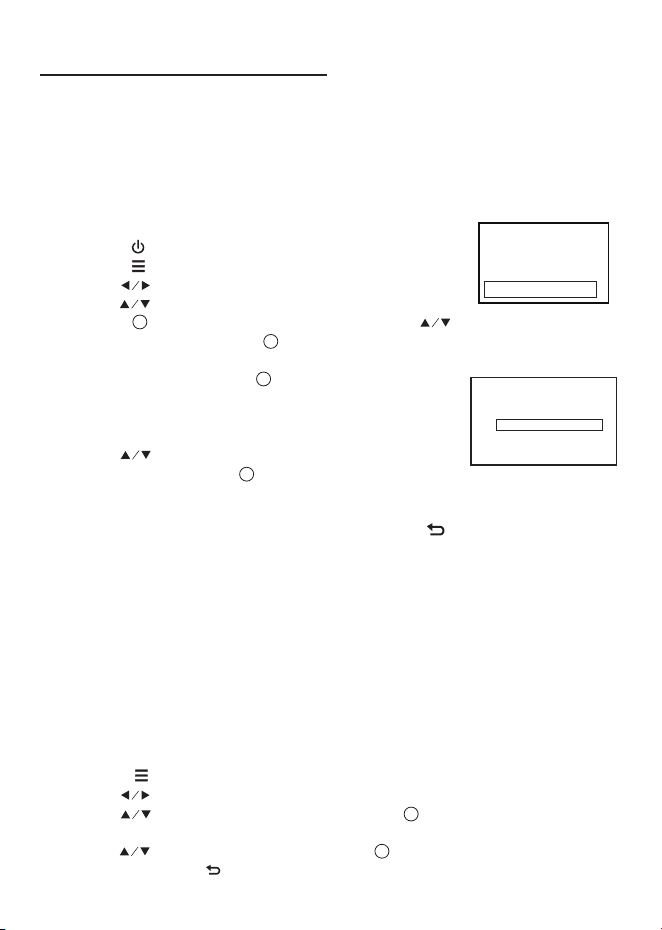
Use buttons to select Enable HDMI Link On/Off
Use buttons to select and buttons to turn TV Auto
PowerOn and Device Auto Standby items to On/Off if chose
Enable HDMI Link On. (See the note)
Use buttons to select different Aspect Ratio 4:3 / 16:9 /
Full / Auto / Just Scan. Follow below figure
Pairing is the term used when two Bluetooth devices are connected wirelessly for the first
time. This allows the devices to see each other and sets up a one to one communication
channel between both devices.
Bluetooth Connection
1. Turn on your External Bluetooth Speaker and select to Bluetooth pairing mode.
Note: The effective distance between your external device and projector is within 10
meters (30 feet).
2. Press the button to turn on unit.
3. Press the button to enter the projector menu screen.
4. Use the button to select Sound menu.
5. Use the button to select BT Setting column as figure 1.
6. Press the button to enter BT Setting menu and use button to select On.
(If BT Setting is On, press the button to enter BT Setting menu.)
7. Unit will try to reconnect the previous Bluetooth device, if it is connected before. If not,
select Search BT and press button to search device.
8. Wait a while, the available Bluetooth speaker device name
will show in a list as figure 2.
(For example: XXXXXX, YYYYYY, ZZZZZZ and etc.)
9. Use the button to select your desired Bluetooth
speaker device and press button to connect.
10. A few seconds, an indicator sound will be heard that your projector and external.
Bluetooth speaker connected. At the same time, there is “C:XXXXXX” to indicate the
connected device on the BT Setting menu. Then press button to exit.
11. After connection completed, you can listen to music by your Bluetooth receiver device
such as a headphone or speaker wirelessly.
12. If you want to change to pair with another Bluetooth Enabled Device, please repeat
above step 3 to step 10.
Notes:
1) After connecting, Bluetooth device’s name will be stored and will automatically
connect for next time.
2) Projector Bluetooth (Transmitter) function can only pair with Bluetooth receiver such
as headphone or speaker for music streaming wirelessly. Use your Bluetooth device
volume control if necessary.
Disconnect the Bluetooth
1. Press the button to enter the menu screen.
2. Use the button to select Sound menu.
3. Use the button to select BT Setting and press button to enter BT Setting
menu.
4. Use the button to select Off and press the button to disconnect the Bluetooth
function. Then press button to exit.
To select On/Off.
Press button or select SETTING icon on the home menu to enter projector menu.
(Unit default in Picture menu.)
Follow the below picture to connect audio cable and device.
1. Press the button to standby of your projector before connection.
2. Use audio cable to connect follow the below figure.
3. After connect and turn on both units. Your projector sound from external device now.
4. After using, turn off both unit.
12 13 14
15
16
17
18 19 20
Setup /Install the Roku® Streaming Sck
Make your Projector smart! Stream almost anything across thousands of
free or paid streaming channels including hit movies, popular shows, live TV, news,
sports and more.
Step 1: Install the Roku
®
Streaming Stick.
Turn off the unit, use the included HDMI cable to plug into
Roku HDMI port and the other end plug into the HDMI3
port on your projector.
Step 2: Connect to power
For the best streaming experience, use the included USB
power cable to connect Roku USB port and the other end
to connect to the USB2 port on your projector.
Press the button to turn on the unit. The projector home screen
will appear. Use the arrow buttons to select the HDMI3 input.
Step 3: Pair your Roku
®
remote
On the back side of the remote, slide open the battery cover.
Insert included batteries placing the negative(-) ends in first.
Follow the on-screen instruction, your remote should pair your
Roku® Steaming Stick automatically. For help pairing your
remote, visit go.roku.com/remote help
Note: To operate your Roku
®
Streaming Stick, you must use the
included Roku remote.
Step 4: Complete on-screen setup and start streaming
Tip: Have your wireless network name and password handy.
Follow the on-screen instructions on your Projector.
Activate your Projector using your computer, smartphone, or
tablet to link to a Roku account.
You need a Roku account to activate your Roku TV and access
entertainment across thousands of streaming channels.
Note: Roku doesn’t charge for activation support – beware of scams
Roku accounts are free and while a valid credit card number is not required to create a
Roku account, saving your credit card information makes renting, purchasing, and
subscribing to entertainment from the Roku Channel Store fast and convenient.
Once connected to your account, your TV will automatically
update with the latest software, and you can start streaming
immediately.
If you aren’t ready to connect your TV to a wireless network,
you can still use it as a regular TV.
Connect HDMI Show The Image On Projector Screen
Connect AV Show The Image On Projector Screen
Refer to the following picture to connect a set top box, a BD/DVD player or a streaming
player to the HDMI input.
1. Press the button to standby mode before connect HDMI cable.
2. After connection, press the button to turn on unit and power button will light GREEN
3. Press the button to home screen, use buttons to select HDMI 1 or HDMI 2 icon
and press the button to enter HDMI mode. The video from the connected device
will be shown on projector screen.
4. Press the button to turn unit to standby.
Follow the below picture to connect AV cable and device.
1. Press the button to standby mode before connect AV cable.
2. After connect, press the button to turn on unit and power button will light GREEN
3. Press the button to home screen, use buttons to select AV icon and press the
button to enter AV mode. The video of AV device will show on projector screen.
4. Press the button to turn the unit to standby.
Important Note:
If there is no sound from the internal speakers when playing media contents from a
set top box, BD/DVD or streaming players connecting to the HDMI input, please
check the set top box or the player's digital audio settings and make sure it is set to
"PCM Stereo" mode.
OK
OK
Connect Audio Output
( Aux Out / Line Out / Earphones)
Install USB Device
Follow the below picture to install USB
Turn off the unit before install USB
Note: This USB port is only used to read USB flash disk. DO NOT use it to charge any
external equipment.
Important Note:
If there is no sound from the stereo audio output when playing media contents from a
set top box, BD/DVD or streaming players connecting to the HDMI input, please check
the set top box or the player's digital audio settings and make sure it is set to "PCM
Stereo" mode.
Using USB Playback (Media Player)
Sub-Menu on Movie screen
1. When movie playback, press
the button and more function
screen show on lower (figure 1).
2. Use the button to select
icon and press the button to
play special function.
Figure 1.
Sub-Menu on Photo screen
1. When photo playback, press
the button and more
function screen show on lower
(figure 2).
2. Use the button to select
icon and press the button to
play special function.
Figure 2.
Sub-Menu on Music screen
1. When music playback, press
the button and more
function screen show on lower
(figure 3).
2. Use the button to select
icon and press the button to
play special function.
Figure 3.
Install USB device:
1. Press the button to standby before install USB.
2. Install the USB device into USB port.
3. After install, press the button to turn on unit and the power button light GREEN.
4. In home screen, use buttons to select MOVIE / MUSIC / PHOTO icon and press
the button to enter.
5. Use the button to select C or device name as the source and press button
to enter.
Note: if two USB device install, unit will assign the first installed device as C or device
name and the second installed device as D or device name.
6. Use buttons to search the correct file to preview and press the button to
playback file.
NOTE: Remove USB device, press the button to standby mode FIRST.
OK
OK
OK
OK
OK
OK
OK
OK
OK
Using Projector Menu 1
This Picture menu showed on right upper of view screen.
Using Projector Menu 2
Press button or select SETTING icon on the home menu to enter projector menu,
press buttons to select SOUND menu.
Press button or select SETTING icon on the home menu to enter projector menu,
press buttons to select OPTION menu.
This Sound menu showed on right upper of view screen.
Using Projector Menu 3
This OPTION menu showed on right upper of viewing screen.
Specifications
Pause
FB
FF
Prev
Next Stop
Repeat All
Info
Slow
Step
GotoTime
Set A
Aspect
Zoom In
Zoom Out
Playlist
Pause
Prev
Next
Stop
Repeat All
Rotate
Zoom In
Move
Zoom Out
Info
Rotate
laylist
P
90
90
Music S...
Music Off
Pause
FB
FF
Prev
Next
Stop
Info
GotoTime
Mute
laylist
P
Repeat All
Using Bluetooth Playback
OK
OK
OK
OK
OK
OK
Use button to select different picture effect to
Standard / Dynamic / Mild / User. Use button to
adjust Contrast / Brightness / Color / Sharpness digit if
chose User item.
Use button to adjust Contrast level 0 to 100.
(Active in User item of Picture Mode)
Use button to adjust Brightness level 0 to 100.
(Active in User item of Picture Mode)
Use button to adjust Color level 0 to 100.
(Active in User item of Picture Mode)
Use button to adjust Sharpness level 0 to 100.
(Active in User item of Picture Mode)
Use button to select different color temperature to
Cool / Medium / Warm.
Picture Mode Standard
Color Temperature Medium
Color 50
Brightness 50
Contrast 50
Sharpness 50
USE
TO SELECT
USE
TO SELECT
USE
TO SELECT
USE
TO SELECT
PRESS OK
PRESS OK
PRESS OK
PRESS OK
Picture Mode Standard
Color Temperature Medium
Brightness 50
USE
USE
TO SELECT
PRESS OK
USE
USE
TO SELECT
PRESS OK
Contrast 50
Color 50
Sharpness 50
Use button to select different sound effect Standard /
Movie / Music / Sports / User. Use button to select
and button to adjust Treble and Bass digit if chose User
item.
Use button to select Treble level 0 to 100. (Active in
User item of Sound Mode)
Use button to select Bass level 0 to 100. (Active in User
item of Sound Mode)
Use button to select Balance level to -50 to +50.
BT Setting Off
Bass 50
Treble 50
Sound Mode Standard
Balance 0
USE
TO SELECT
PRESS OK
PRESS OK
USE
TO SELECT
Sound Mode Standard
USE
TO SELECT
PRESS OK
PRESS OK
Bass 50
USE
TO SELECT
PRESS OK
PRESS OK
Balance 0
USE
TO SELECT
PRESS OK
PRESS OK
BT Setting
Treble 50
Use button to select different language
Use button to select Front Table / Front Ceiling / Rear
Table / Rear Ceiling
Use button to select Y or N. If choose “Y” that your unit
will go to factory default setting
For service
Note for HDMI CEC:
The connected device with CEC function.
center use only
Restore Factory Default
Software Update (USB)
OSD Language English
Aspect
HDMI CEC
Ratio 16:9
Flip Front Table
Aspect Ratio
AV mode 4:3, 16:9, Full, Auto
HDMI mode 4:3, 16:9, Full, Auto, Just Scan
USB (movie mode) 4:3, 16:9, Full, Auto, Just Scan
Specifications are typical, individual units might vary. They are subject to continuous
improvement without notice and without incurring any obligation.
Bass 50
Treble 50
Sound Mode Standard
Balance 0
B OffT Setting
Figure 1.
C:XXXXXX
BT Setting
Connected / Search BT
YYYYYY
ZZZZZZ
Figure 2.
Off
roku.com/link
Video signal cable : Yellow
The left channel signal lines: White
The right channel signal lines: Red
OK
OSD Language English
USE
TO SELECT
PRESS OK
t
PRESS OK
USE
TO SELECT
USE
TO SELECT
PRESS OK
t
PRESS OK
USE
TO SELECT
OK
USE
TO SELECT
PRESS OK
USE
TO SELECT
OK
Flip Front Table
USE
TO SELECT
PRESS OK
USE
TO SELECT
t
PRESS OK
USE
TO SELECT
Restore Factory Default
Software Update USB( )
Aspect Ratio 16:9
USE
TO SELECT
USE
TO SELECT
USE
TO SELECT
PRESS OK
HDMI CEC
Light Source Type LED
Brightness Output White light output ANSI ISO/IEC 21118 150LMS
Bluetooth (Transmitter) V5.3
Display Native Resolution 1280 x 720 RGB
HDMI Input Supported 1080p , 1080i , 720p, 576i , 480p, and 480i
Video Resolution.
Power Consumption 53W
Included Adapter Input AC100-240V, 50/60Hz
Output DC21V, 2.5A
Projection Size 36-200 inch
Input Port AV IN x1 / HDMI x3 / USB x2
USB Port Support USB device up to 32GB
Support format Mpeg1, Mpeg2, Mpeg4, mp3, Jpeg
Net Weight 1.3 KG
Product Dimensions 216mm L x 171mm W x 158 mm H
To make a warranty claim, please email [email protected] or call 1-800-968-9853.
90 day Warranty
This product is warranted to be free from defects in material and workmanship for a
period of ninety (90) days from the date of original delivery to the consumer. During this
period, your exclusive remedy is repair or replacement of this product or component
found to be defective, at our option; however, you are responsible for all costs associated
with returning the product to us. If the product or component is no longer available, we will
replace with a similar one of equal or greater value. Prior to a replacement being sent, the
product must be rendered inoperable or returned to us.
This warranty does not cover glass, filters, wear from normal use, use not in conformity
with the printed directions., or damage to the product resulting from accident, alteration,
abuse, or misuse. This warranty extends only to the original consumer purchaser or gift
recipient. Keep the original sales receipt, as proof of purchase is required to make a
warranty claim. This warranty is void if the product is used for other than single-family
household use or subjected to any voltage and waveform other than as on the specified
rating on the label (e.g., 120V~60Hz).
We exclude all claims for special, incidental, and consequential damages caused by
breach of express or implied warranty. All liability is limited to the amount of the purchase
price. Every implied warranty, including any statutory warranty or condition of
merchantability or fitness for a particular purpose, is disclaimed except to the
extent prohibited by law, in which case such warranty or condition is limited to the
duration of this written warranty. This warranty gives you specific legal rights. You may
have other legal rights that vary depending on where you live. Some states or provinces
do not allow limitations on implied warranties or special, incidental, or consequential
damages, so the foregoing limitations may not apply to you.
For faster service, locate the model, type, and serial numbers on your appliance.
ATTACH YOUR PROOF OF PURCHASE HERE, PROOF OF PURCHASE IS
REQUIRED TO OBTAIN WARRANTY SERVICE.
Please have the following information available when you contact the Support Team:
• Name, address and telephone number.
• Model number and serial number.
• A clear, detailed description of the problem.
• Proof of purchase including dealer or retailer name, address and date of purchase.
HDMI CABLE
Video Player
CABLE NOT INCLUDED
VIDEO CABLE
LEFT CHANNEL
RIGHT CHANNEL
VIDEO OUT
AUDIO OUT
USB
AUDIO CABLE
For service assistance and product information, please call: 1-800-968-9853.
Pour obtenir assistance et information appelez: 1-800-968-9853.
Curtis International Ltd.
7045 BECKETT DRIVE, UNIT 15,
MISSISSAUGA, ON, L5S 2A3
www.curtisint.com
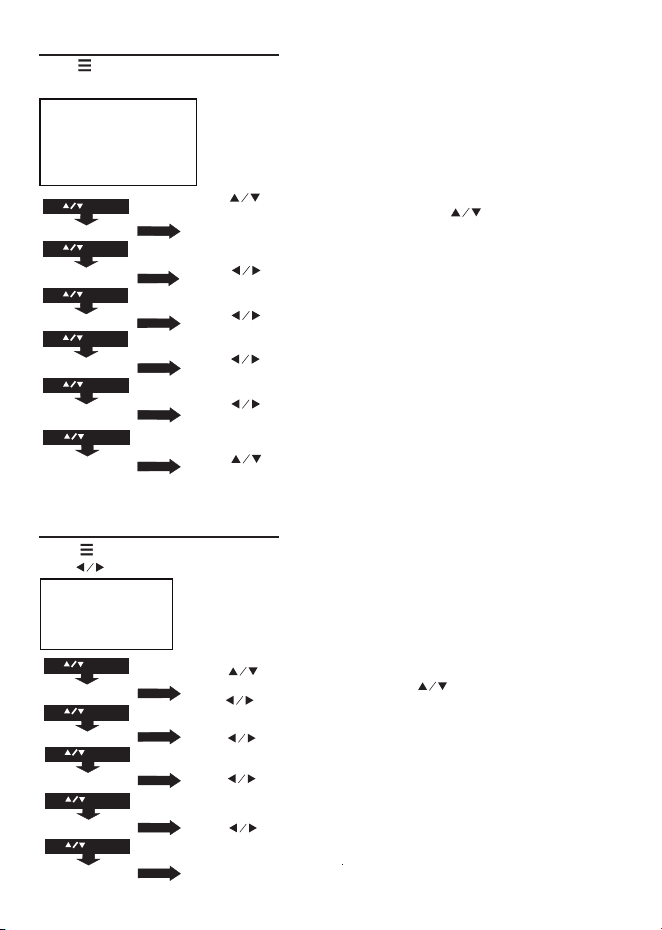
Use buttons to select Enable HDMI Link On/Off
Use buttons to select and buttons to turn TV Auto
PowerOn and Device Auto Standby items to On/Off if chose
Enable HDMI Link On. (See the note)
Use buttons to select different Aspect Ratio 4:3 / 16:9 /
Full / Auto / Just Scan. Follow below figure
Pairing is the term used when two Bluetooth devices are connected wirelessly for the first
time. This allows the devices to see each other and sets up a one to one communication
channel between both devices.
Bluetooth Connection
1. Turn on your External Bluetooth Speaker and select to Bluetooth pairing mode.
Note: The effective distance between your external device and projector is within 10
meters (30 feet).
2. Press the button to turn on unit.
3. Press the button to enter the projector menu screen.
4. Use the button to select Sound menu.
5. Use the button to select BT Setting column as figure 1.
6. Press the button to enter BT Setting menu and use button to select On.
(If BT Setting is On, press the button to enter BT Setting menu.)
7. Unit will try to reconnect the previous Bluetooth device, if it is connected before. If not,
select Search BT and press button to search device.
8. Wait a while, the available Bluetooth speaker device name
will show in a list as figure 2.
(For example: XXXXXX, YYYYYY, ZZZZZZ and etc.)
9. Use the button to select your desired Bluetooth
speaker device and press button to connect.
10. A few seconds, an indicator sound will be heard that your projector and external.
Bluetooth speaker connected. At the same time, there is “C:XXXXXX” to indicate the
connected device on the BT Setting menu. Then press button to exit.
11. After connection completed, you can listen to music by your Bluetooth receiver device
such as a headphone or speaker wirelessly.
12. If you want to change to pair with another Bluetooth Enabled Device, please repeat
above step 3 to step 10.
Notes:
1) After connecting, Bluetooth device’s name will be stored and will automatically
connect for next time.
2) Projector Bluetooth (Transmitter) function can only pair with Bluetooth receiver such
as headphone or speaker for music streaming wirelessly. Use your Bluetooth device
volume control if necessary.
Disconnect the Bluetooth
1. Press the button to enter the menu screen.
2. Use the button to select Sound menu.
3. Use the button to select BT Setting and press button to enter BT Setting
menu.
4. Use the button to select Off and press the button to disconnect the Bluetooth
function. Then press button to exit.
To select On/Off.
Press button or select SETTING icon on the home menu to enter projector menu.
(Unit default in Picture menu.)
Follow the below picture to connect audio cable and device.
1. Press the button to standby of your projector before connection.
2. Use audio cable to connect follow the below figure.
3. After connect and turn on both units. Your projector sound from external device now.
4. After using, turn off both unit.
12 13 14
15
16
17
18 19 20
Setup /Install the Roku® Streaming Sck
Make your Projector smart! Stream almost anything across thousands of
free or paid streaming channels including hit movies, popular shows, live TV, news,
sports and more.
Step 1: Install the Roku
®
Streaming Stick.
Turn off the unit, use the included HDMI cable to plug into
Roku HDMI port and the other end plug into the HDMI3
port on your projector.
Step 2: Connect to power
For the best streaming experience, use the included USB
power cable to connect Roku USB port and the other end
to connect to the USB2 port on your projector.
Press the button to turn on the unit. The projector home screen
will appear. Use the arrow buttons to select the HDMI3 input.
Step 3: Pair your Roku
®
remote
On the back side of the remote, slide open the battery cover.
Insert included batteries placing the negative(-) ends in first.
Follow the on-screen instruction, your remote should pair your
Roku® Steaming Stick automatically. For help pairing your
remote, visit go.roku.com/remote help
Note: To operate your Roku
®
Streaming Stick, you must use the
included Roku remote.
Step 4: Complete on-screen setup and start streaming
Tip: Have your wireless network name and password handy.
Follow the on-screen instructions on your Projector.
Activate your Projector using your computer, smartphone, or
tablet to link to a Roku account.
You need a Roku account to activate your Roku TV and access
entertainment across thousands of streaming channels.
Note: Roku doesn’t charge for activation support – beware of scams
Roku accounts are free and while a valid credit card number is not required to create a
Roku account, saving your credit card information makes renting, purchasing, and
subscribing to entertainment from the Roku Channel Store fast and convenient.
Once connected to your account, your TV will automatically
update with the latest software, and you can start streaming
immediately.
If you aren’t ready to connect your TV to a wireless network,
you can still use it as a regular TV.
Connect HDMI Show The Image On Projector Screen
Connect AV Show The Image On Projector Screen
Refer to the following picture to connect a set top box, a BD/DVD player or a streaming
player to the HDMI input.
1. Press the button to standby mode before connect HDMI cable.
2. After connection, press the button to turn on unit and power button will light GREEN
3. Press the button to home screen, use buttons to select HDMI 1 or HDMI 2 icon
and press the button to enter HDMI mode. The video from the connected device
will be shown on projector screen.
4. Press the button to turn unit to standby.
Follow the below picture to connect AV cable and device.
1. Press the button to standby mode before connect AV cable.
2. After connect, press the button to turn on unit and power button will light GREEN
3. Press the button to home screen, use buttons to select AV icon and press the
button to enter AV mode. The video of AV device will show on projector screen.
4. Press the button to turn the unit to standby.
Important Note:
If there is no sound from the internal speakers when playing media contents from a
set top box, BD/DVD or streaming players connecting to the HDMI input, please
check the set top box or the player's digital audio settings and make sure it is set to
"PCM Stereo" mode.
OK
OK
Connect Audio Output
( Aux Out / Line Out / Earphones)
Install USB Device
Follow the below picture to install USB
Turn off the unit before install USB
Note: This USB port is only used to read USB flash disk. DO NOT use it to charge any
external equipment.
Important Note:
If there is no sound from the stereo audio output when playing media contents from a
set top box, BD/DVD or streaming players connecting to the HDMI input, please check
the set top box or the player's digital audio settings and make sure it is set to "PCM
Stereo" mode.
Using USB Playback (Media Player)
Sub-Menu on Movie screen
1. When movie playback, press
the button and more function
screen show on lower (figure 1).
2. Use the button to select
icon and press the button to
play special function.
Figure 1.
Sub-Menu on Photo screen
1. When photo playback, press
the button and more
function screen show on lower
(figure 2).
2. Use the button to select
icon and press the button to
play special function.
Figure 2.
Sub-Menu on Music screen
1. When music playback, press
the button and more
function screen show on lower
(figure 3).
2. Use the button to select
icon and press the button to
play special function.
Figure 3.
Install USB device:
1. Press the button to standby before install USB.
2. Install the USB device into USB port.
3. After install, press the button to turn on unit and the power button light GREEN.
4. In home screen, use buttons to select MOVIE / MUSIC / PHOTO icon and press
the button to enter.
5. Use the button to select C or device name as the source and press button
to enter.
Note: if two USB device install, unit will assign the first installed device as C or device
name and the second installed device as D or device name.
6. Use buttons to search the correct file to preview and press the button to
playback file.
NOTE: Remove USB device, press the button to standby mode FIRST.
OK
OK
OK
OK
OK
OK
OK
OK
OK
Using Projector Menu 1
This Picture menu showed on right upper of view screen.
Using Projector Menu 2
Press button or select SETTING icon on the home menu to enter projector menu,
press buttons to select SOUND menu.
Press button or select SETTING icon on the home menu to enter projector menu,
press buttons to select OPTION menu.
This Sound menu showed on right upper of view screen.
Using Projector Menu 3
This OPTION menu showed on right upper of viewing screen.
Specifications
Pause
FB
FF
Prev
Next Stop
Repeat All
Info
Slow
Step
GotoTime
Set A
Aspect
Zoom In
Zoom Out
Playlist
Pause
Prev
Next
Stop
Repeat All
Rotate
Zoom In
Move
Zoom Out
Info
Rotate
laylist
P
90
90
Music S...
Music Off
Pause
FB
FF
Prev
Next
Stop
Info
GotoTime
Mute
laylist
P
Repeat All
Using Bluetooth Playback
OK
OK
OK
OK
OK
OK
Use button to select different picture effect to
Standard / Dynamic / Mild / User. Use button to
adjust Contrast / Brightness / Color / Sharpness digit if
chose User item.
Use button to adjust Contrast level 0 to 100.
(Active in User item of Picture Mode)
Use button to adjust Brightness level 0 to 100.
(Active in User item of Picture Mode)
Use button to adjust Color level 0 to 100.
(Active in User item of Picture Mode)
Use button to adjust Sharpness level 0 to 100.
(Active in User item of Picture Mode)
Use button to select different color temperature to
Cool / Medium / Warm.
Picture Mode Standard
Color Temperature Medium
Color 50
Brightness 50
Contrast 50
Sharpness 50
USE
TO SELECT
USE
TO SELECT
USE
TO SELECT
USE
TO SELECT
PRESS OK
PRESS OK
PRESS OK
PRESS OK
Picture Mode Standard
Color Temperature Medium
Brightness 50
USE
USE
TO SELECT
PRESS OK
USE
USE
TO SELECT
PRESS OK
Contrast 50
Color 50
Sharpness 50
Use button to select different sound effect Standard /
Movie / Music / Sports / User. Use button to select
and button to adjust Treble and Bass digit if chose User
item.
Use button to select Treble level 0 to 100. (Active in
User item of Sound Mode)
Use button to select Bass level 0 to 100. (Active in User
item of Sound Mode)
Use button to select Balance level to -50 to +50.
BT Setting Off
Bass 50
Treble 50
Sound Mode Standard
Balance 0
USE
TO SELECT
PRESS OK
PRESS OK
USE
TO SELECT
Sound Mode Standard
USE
TO SELECT
PRESS OK
PRESS OK
Bass 50
USE
TO SELECT
PRESS OK
PRESS OK
Balance 0
USE
TO SELECT
PRESS OK
PRESS OK
BT Setting
Treble 50
Use button to select different language
Use button to select Front Table / Front Ceiling / Rear
Table / Rear Ceiling
Use button to select Y or N. If choose “Y” that your unit
will go to factory default setting
For service
Note for HDMI CEC:
The connected device with CEC function.
center use only
Restore Factory Default
Software Update (USB)
OSD Language English
Aspect
HDMI CEC
Ratio 16:9
Flip Front Table
Aspect Ratio
AV mode 4:3, 16:9, Full, Auto
HDMI mode 4:3, 16:9, Full, Auto, Just Scan
USB (movie mode) 4:3, 16:9, Full, Auto, Just Scan
Specifications are typical, individual units might vary. They are subject to continuous
improvement without notice and without incurring any obligation.
Bass 50
Treble 50
Sound Mode Standard
Balance 0
B OffT Setting
Figure 1.
C:XXXXXX
BT Setting
Connected / Search BT
YYYYYY
ZZZZZZ
Figure 2.
Off
roku.com/link
Video signal cable : Yellow
The left channel signal lines: White
The right channel signal lines: Red
OK
OSD Language English
USE
TO SELECT
PRESS OK
t
PRESS OK
USE
TO SELECT
USE
TO SELECT
PRESS OK
t
PRESS OK
USE
TO SELECT
OK
USE
TO SELECT
PRESS OK
USE
TO SELECT
OK
Flip Front Table
USE
TO SELECT
PRESS OK
USE
TO SELECT
t
PRESS OK
USE
TO SELECT
Restore Factory Default
Software Update USB( )
Aspect Ratio 16:9
USE
TO SELECT
USE
TO SELECT
USE
TO SELECT
PRESS OK
HDMI CEC
Light Source Type LED
Brightness Output White light output ANSI ISO/IEC 21118 150LMS
Bluetooth (Transmitter) V5.3
Display Native Resolution 1280 x 720 RGB
HDMI Input Supported 1080p , 1080i , 720p, 576i , 480p, and 480i
Video Resolution.
Power Consumption 53W
Included Adapter Input AC100-240V, 50/60Hz
Output DC21V, 2.5A
Projection Size 36-200 inch
Input Port AV IN x1 / HDMI x3 / USB x2
USB Port Support USB device up to 32GB
Support format Mpeg1, Mpeg2, Mpeg4, mp3, Jpeg
Net Weight 1.3 KG
Product Dimensions 216mm L x 171mm W x 158 mm H
To make a warranty claim, please email [email protected] or call 1-800-968-9853.
90 day Warranty
This product is warranted to be free from defects in material and workmanship for a
period of ninety (90) days from the date of original delivery to the consumer. During this
period, your exclusive remedy is repair or replacement of this product or component
found to be defective, at our option; however, you are responsible for all costs associated
with returning the product to us. If the product or component is no longer available, we will
replace with a similar one of equal or greater value. Prior to a replacement being sent, the
product must be rendered inoperable or returned to us.
This warranty does not cover glass, filters, wear from normal use, use not in conformity
with the printed directions., or damage to the product resulting from accident, alteration,
abuse, or misuse. This warranty extends only to the original consumer purchaser or gift
recipient. Keep the original sales receipt, as proof of purchase is required to make a
warranty claim. This warranty is void if the product is used for other than single-family
household use or subjected to any voltage and waveform other than as on the specified
rating on the label (e.g., 120V~60Hz).
We exclude all claims for special, incidental, and consequential damages caused by
breach of express or implied warranty. All liability is limited to the amount of the purchase
price. Every implied warranty, including any statutory warranty or condition of
merchantability or fitness for a particular purpose, is disclaimed except to the
extent prohibited by law, in which case such warranty or condition is limited to the
duration of this written warranty. This warranty gives you specific legal rights. You may
have other legal rights that vary depending on where you live. Some states or provinces
do not allow limitations on implied warranties or special, incidental, or consequential
damages, so the foregoing limitations may not apply to you.
For faster service, locate the model, type, and serial numbers on your appliance.
ATTACH YOUR PROOF OF PURCHASE HERE, PROOF OF PURCHASE IS
REQUIRED TO OBTAIN WARRANTY SERVICE.
Please have the following information available when you contact the Support Team:
• Name, address and telephone number.
• Model number and serial number.
• A clear, detailed description of the problem.
• Proof of purchase including dealer or retailer name, address and date of purchase.
HDMI CABLE
Video Player
CABLE NOT INCLUDED
VIDEO CABLE
LEFT CHANNEL
RIGHT CHANNEL
VIDEO OUT
AUDIO OUT
USB
AUDIO CABLE
For service assistance and product information, please call: 1-800-968-9853.
Pour obtenir assistance et information appelez: 1-800-968-9853.
Curtis International Ltd.
7045 BECKETT DRIVE, UNIT 15,
MISSISSAUGA, ON, L5S 2A3
www.curtisint.com
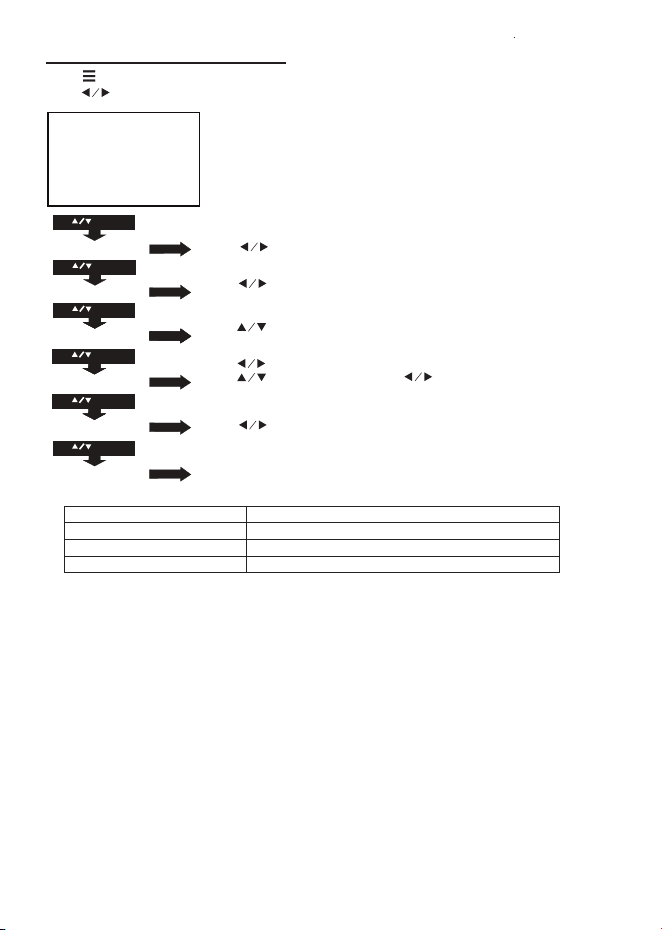
Use buttons to select Enable HDMI Link On/Off
Use buttons to select and buttons to turn TV Auto
PowerOn and Device Auto Standby items to On/Off if chose
Enable HDMI Link On. (See the note)
Use buttons to select different Aspect Ratio 4:3 / 16:9 /
Full / Auto / Just Scan. Follow below figure
Pairing is the term used when two Bluetooth devices are connected wirelessly for the first
time. This allows the devices to see each other and sets up a one to one communication
channel between both devices.
Bluetooth Connection
1. Turn on your External Bluetooth Speaker and select to Bluetooth pairing mode.
Note: The effective distance between your external device and projector is within 10
meters (30 feet).
2. Press the button to turn on unit.
3. Press the button to enter the projector menu screen.
4. Use the button to select Sound menu.
5. Use the button to select BT Setting column as figure 1.
6. Press the button to enter BT Setting menu and use button to select On.
(If BT Setting is On, press the button to enter BT Setting menu.)
7. Unit will try to reconnect the previous Bluetooth device, if it is connected before. If not,
select Search BT and press button to search device.
8. Wait a while, the available Bluetooth speaker device name
will show in a list as figure 2.
(For example: XXXXXX, YYYYYY, ZZZZZZ and etc.)
9. Use the button to select your desired Bluetooth
speaker device and press button to connect.
10. A few seconds, an indicator sound will be heard that your projector and external.
Bluetooth speaker connected. At the same time, there is “C:XXXXXX” to indicate the
connected device on the BT Setting menu. Then press button to exit.
11. After connection completed, you can listen to music by your Bluetooth receiver device
such as a headphone or speaker wirelessly.
12. If you want to change to pair with another Bluetooth Enabled Device, please repeat
above step 3 to step 10.
Notes:
1) After connecting, Bluetooth device’s name will be stored and will automatically
connect for next time.
2) Projector Bluetooth (Transmitter) function can only pair with Bluetooth receiver such
as headphone or speaker for music streaming wirelessly. Use your Bluetooth device
volume control if necessary.
Disconnect the Bluetooth
1. Press the button to enter the menu screen.
2. Use the button to select Sound menu.
3. Use the button to select BT Setting and press button to enter BT Setting
menu.
4. Use the button to select Off and press the button to disconnect the Bluetooth
function. Then press button to exit.
To select On/Off.
Press button or select SETTING icon on the home menu to enter projector menu.
(Unit default in Picture menu.)
Follow the below picture to connect audio cable and device.
1. Press the button to standby of your projector before connection.
2. Use audio cable to connect follow the below figure.
3. After connect and turn on both units. Your projector sound from external device now.
4. After using, turn off both unit.
12 13 14
15
16
17
18 19 20
Setup /Install the Roku® Streaming Sck
Make your Projector smart! Stream almost anything across thousands of
free or paid streaming channels including hit movies, popular shows, live TV, news,
sports and more.
Step 1: Install the Roku
®
Streaming Stick.
Turn off the unit, use the included HDMI cable to plug into
Roku HDMI port and the other end plug into the HDMI3
port on your projector.
Step 2: Connect to power
For the best streaming experience, use the included USB
power cable to connect Roku USB port and the other end
to connect to the USB2 port on your projector.
Press the button to turn on the unit. The projector home screen
will appear. Use the arrow buttons to select the HDMI3 input.
Step 3: Pair your Roku
®
remote
On the back side of the remote, slide open the battery cover.
Insert included batteries placing the negative(-) ends in first.
Follow the on-screen instruction, your remote should pair your
Roku® Steaming Stick automatically. For help pairing your
remote, visit go.roku.com/remote help
Note: To operate your Roku
®
Streaming Stick, you must use the
included Roku remote.
Step 4: Complete on-screen setup and start streaming
Tip: Have your wireless network name and password handy.
Follow the on-screen instructions on your Projector.
Activate your Projector using your computer, smartphone, or
tablet to link to a Roku account.
You need a Roku account to activate your Roku TV and access
entertainment across thousands of streaming channels.
Note: Roku doesn’t charge for activation support – beware of scams
Roku accounts are free and while a valid credit card number is not required to create a
Roku account, saving your credit card information makes renting, purchasing, and
subscribing to entertainment from the Roku Channel Store fast and convenient.
Once connected to your account, your TV will automatically
update with the latest software, and you can start streaming
immediately.
If you aren’t ready to connect your TV to a wireless network,
you can still use it as a regular TV.
Connect HDMI Show The Image On Projector Screen
Connect AV Show The Image On Projector Screen
Refer to the following picture to connect a set top box, a BD/DVD player or a streaming
player to the HDMI input.
1. Press the button to standby mode before connect HDMI cable.
2. After connection, press the button to turn on unit and power button will light GREEN
3. Press the button to home screen, use buttons to select HDMI 1 or HDMI 2 icon
and press the button to enter HDMI mode. The video from the connected device
will be shown on projector screen.
4. Press the button to turn unit to standby.
Follow the below picture to connect AV cable and device.
1. Press the button to standby mode before connect AV cable.
2. After connect, press the button to turn on unit and power button will light GREEN
3. Press the button to home screen, use buttons to select AV icon and press the
button to enter AV mode. The video of AV device will show on projector screen.
4. Press the button to turn the unit to standby.
Important Note:
If there is no sound from the internal speakers when playing media contents from a
set top box, BD/DVD or streaming players connecting to the HDMI input, please
check the set top box or the player's digital audio settings and make sure it is set to
"PCM Stereo" mode.
OK
OK
Connect Audio Output
( Aux Out / Line Out / Earphones)
Install USB Device
Follow the below picture to install USB
Turn off the unit before install USB
Note: This USB port is only used to read USB flash disk. DO NOT use it to charge any
external equipment.
Important Note:
If there is no sound from the stereo audio output when playing media contents from a
set top box, BD/DVD or streaming players connecting to the HDMI input, please check
the set top box or the player's digital audio settings and make sure it is set to "PCM
Stereo" mode.
Using USB Playback (Media Player)
Sub-Menu on Movie screen
1. When movie playback, press
the button and more function
screen show on lower (figure 1).
2. Use the button to select
icon and press the button to
play special function.
Figure 1.
Sub-Menu on Photo screen
1. When photo playback, press
the button and more
function screen show on lower
(figure 2).
2. Use the button to select
icon and press the button to
play special function.
Figure 2.
Sub-Menu on Music screen
1. When music playback, press
the button and more
function screen show on lower
(figure 3).
2. Use the button to select
icon and press the button to
play special function.
Figure 3.
Install USB device:
1. Press the button to standby before install USB.
2. Install the USB device into USB port.
3. After install, press the button to turn on unit and the power button light GREEN.
4. In home screen, use buttons to select MOVIE / MUSIC / PHOTO icon and press
the button to enter.
5. Use the button to select C or device name as the source and press button
to enter.
Note: if two USB device install, unit will assign the first installed device as C or device
name and the second installed device as D or device name.
6. Use buttons to search the correct file to preview and press the button to
playback file.
NOTE: Remove USB device, press the button to standby mode FIRST.
OK
OK
OK
OK
OK
OK
OK
OK
OK
Using Projector Menu 1
This Picture menu showed on right upper of view screen.
Using Projector Menu 2
Press button or select SETTING icon on the home menu to enter projector menu,
press buttons to select SOUND menu.
Press button or select SETTING icon on the home menu to enter projector menu,
press buttons to select OPTION menu.
This Sound menu showed on right upper of view screen.
Using Projector Menu 3
This OPTION menu showed on right upper of viewing screen.
Specifications
Pause
FB
FF
Prev
Next Stop
Repeat All
Info
Slow
Step
GotoTime
Set A
Aspect
Zoom In
Zoom Out
Playlist
Pause
Prev
Next
Stop
Repeat All
Rotate
Zoom In
Move
Zoom Out
Info
Rotate
laylist
P
90
90
Music S...
Music Off
Pause
FB
FF
Prev
Next
Stop
Info
GotoTime
Mute
laylist
P
Repeat All
Using Bluetooth Playback
OK
OK
OK
OK
OK
OK
Use button to select different picture effect to
Standard / Dynamic / Mild / User. Use button to
adjust Contrast / Brightness / Color / Sharpness digit if
chose User item.
Use button to adjust Contrast level 0 to 100.
(Active in User item of Picture Mode)
Use button to adjust Brightness level 0 to 100.
(Active in User item of Picture Mode)
Use button to adjust Color level 0 to 100.
(Active in User item of Picture Mode)
Use button to adjust Sharpness level 0 to 100.
(Active in User item of Picture Mode)
Use button to select different color temperature to
Cool / Medium / Warm.
Picture Mode Standard
Color Temperature Medium
Color 50
Brightness 50
Contrast 50
Sharpness 50
USE
TO SELECT
USE
TO SELECT
USE
TO SELECT
USE
TO SELECT
PRESS OK
PRESS OK
PRESS OK
PRESS OK
Picture Mode Standard
Color Temperature Medium
Brightness 50
USE
USE
TO SELECT
PRESS OK
USE
USE
TO SELECT
PRESS OK
Contrast 50
Color 50
Sharpness 50
Use button to select different sound effect Standard /
Movie / Music / Sports / User. Use button to select
and button to adjust Treble and Bass digit if chose User
item.
Use button to select Treble level 0 to 100. (Active in
User item of Sound Mode)
Use button to select Bass level 0 to 100. (Active in User
item of Sound Mode)
Use button to select Balance level to -50 to +50.
BT Setting Off
Bass 50
Treble 50
Sound Mode Standard
Balance 0
USE
TO SELECT
PRESS OK
PRESS OK
USE
TO SELECT
Sound Mode Standard
USE
TO SELECT
PRESS OK
PRESS OK
Bass 50
USE
TO SELECT
PRESS OK
PRESS OK
Balance 0
USE
TO SELECT
PRESS OK
PRESS OK
BT Setting
Treble 50
Use button to select different language
Use button to select Front Table / Front Ceiling / Rear
Table / Rear Ceiling
Use button to select Y or N. If choose “Y” that your unit
will go to factory default setting
For service
Note for HDMI CEC:
The connected device with CEC function.
center use only
Restore Factory Default
Software Update (USB)
OSD Language English
Aspect
HDMI CEC
Ratio 16:9
Flip Front Table
Aspect Ratio
AV mode 4:3, 16:9, Full, Auto
HDMI mode 4:3, 16:9, Full, Auto, Just Scan
USB (movie mode) 4:3, 16:9, Full, Auto, Just Scan
Specifications are typical, individual units might vary. They are subject to continuous
improvement without notice and without incurring any obligation.
Bass 50
Treble 50
Sound Mode Standard
Balance 0
B OffT Setting
Figure 1.
C:XXXXXX
BT Setting
Connected / Search BT
YYYYYY
ZZZZZZ
Figure 2.
Off
roku.com/link
Video signal cable : Yellow
The left channel signal lines: White
The right channel signal lines: Red
OK
OSD Language English
USE
TO SELECT
PRESS OK
t
PRESS OK
USE
TO SELECT
USE
TO SELECT
PRESS OK
t
PRESS OK
USE
TO SELECT
OK
USE
TO SELECT
PRESS OK
USE
TO SELECT
OK
Flip Front Table
USE
TO SELECT
PRESS OK
USE
TO SELECT
t
PRESS OK
USE
TO SELECT
Restore Factory Default
Software Update USB( )
Aspect Ratio 16:9
USE
TO SELECT
USE
TO SELECT
USE
TO SELECT
PRESS OK
HDMI CEC
Light Source Type LED
Brightness Output White light output ANSI ISO/IEC 21118 150LMS
Bluetooth (Transmitter) V5.3
Display Native Resolution 1280 x 720 RGB
HDMI Input Supported 1080p , 1080i , 720p, 576i , 480p, and 480i
Video Resolution.
Power Consumption 53W
Included Adapter Input AC100-240V, 50/60Hz
Output DC21V, 2.5A
Projection Size 36-200 inch
Input Port AV IN x1 / HDMI x3 / USB x2
USB Port Support USB device up to 32GB
Support format Mpeg1, Mpeg2, Mpeg4, mp3, Jpeg
Net Weight 1.3 KG
Product Dimensions 216mm L x 171mm W x 158 mm H
To make a warranty claim, please email [email protected] or call 1-800-968-9853.
90 day Warranty
This product is warranted to be free from defects in material and workmanship for a
period of ninety (90) days from the date of original delivery to the consumer. During this
period, your exclusive remedy is repair or replacement of this product or component
found to be defective, at our option; however, you are responsible for all costs associated
with returning the product to us. If the product or component is no longer available, we will
replace with a similar one of equal or greater value. Prior to a replacement being sent, the
product must be rendered inoperable or returned to us.
This warranty does not cover glass, filters, wear from normal use, use not in conformity
with the printed directions., or damage to the product resulting from accident, alteration,
abuse, or misuse. This warranty extends only to the original consumer purchaser or gift
recipient. Keep the original sales receipt, as proof of purchase is required to make a
warranty claim. This warranty is void if the product is used for other than single-family
household use or subjected to any voltage and waveform other than as on the specified
rating on the label (e.g., 120V~60Hz).
We exclude all claims for special, incidental, and consequential damages caused by
breach of express or implied warranty. All liability is limited to the amount of the purchase
price. Every implied warranty, including any statutory warranty or condition of
merchantability or fitness for a particular purpose, is disclaimed except to the
extent prohibited by law, in which case such warranty or condition is limited to the
duration of this written warranty. This warranty gives you specific legal rights. You may
have other legal rights that vary depending on where you live. Some states or provinces
do not allow limitations on implied warranties or special, incidental, or consequential
damages, so the foregoing limitations may not apply to you.
For faster service, locate the model, type, and serial numbers on your appliance.
ATTACH YOUR PROOF OF PURCHASE HERE, PROOF OF PURCHASE IS
REQUIRED TO OBTAIN WARRANTY SERVICE.
Please have the following information available when you contact the Support Team:
• Name, address and telephone number.
• Model number and serial number.
• A clear, detailed description of the problem.
• Proof of purchase including dealer or retailer name, address and date of purchase.
HDMI CABLE
Video Player
CABLE NOT INCLUDED
VIDEO CABLE
LEFT CHANNEL
RIGHT CHANNEL
VIDEO OUT
AUDIO OUT
USB
AUDIO CABLE
For service assistance and product information, please call: 1-800-968-9853.
Pour obtenir assistance et information appelez: 1-800-968-9853.
Curtis International Ltd.
7045 BECKETT DRIVE, UNIT 15,
MISSISSAUGA, ON, L5S 2A3
www.curtisint.com
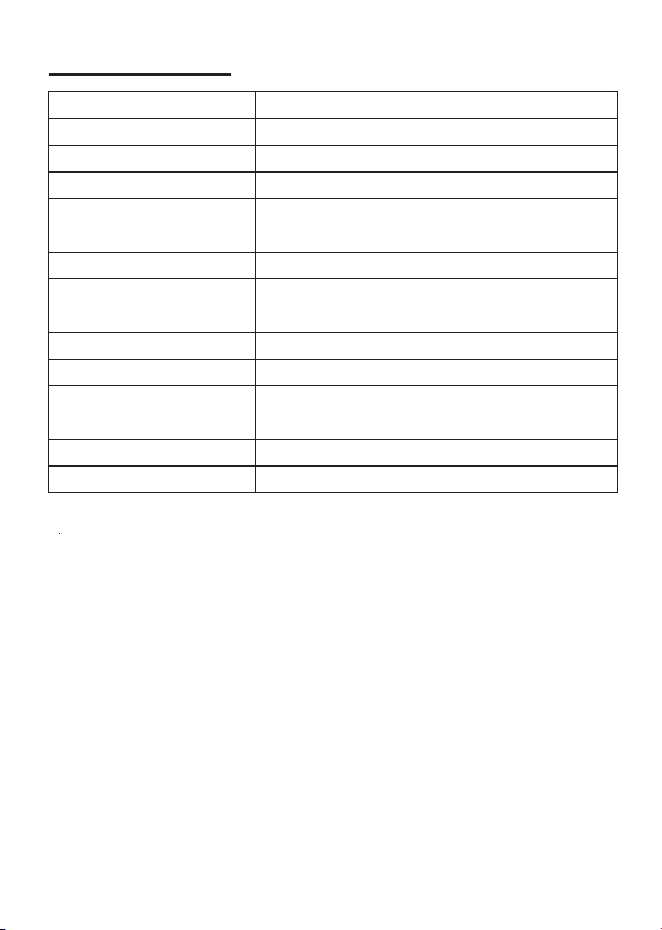
Use buttons to select Enable HDMI Link On/Off
Use buttons to select and buttons to turn TV Auto
PowerOn and Device Auto Standby items to On/Off if chose
Enable HDMI Link On. (See the note)
Use buttons to select different Aspect Ratio 4:3 / 16:9 /
Full / Auto / Just Scan. Follow below figure
Pairing is the term used when two Bluetooth devices are connected wirelessly for the first
time. This allows the devices to see each other and sets up a one to one communication
channel between both devices.
Bluetooth Connection
1. Turn on your External Bluetooth Speaker and select to Bluetooth pairing mode.
Note: The effective distance between your external device and projector is within 10
meters (30 feet).
2. Press the button to turn on unit.
3. Press the button to enter the projector menu screen.
4. Use the button to select Sound menu.
5. Use the button to select BT Setting column as figure 1.
6. Press the button to enter BT Setting menu and use button to select On.
(If BT Setting is On, press the button to enter BT Setting menu.)
7. Unit will try to reconnect the previous Bluetooth device, if it is connected before. If not,
select Search BT and press button to search device.
8. Wait a while, the available Bluetooth speaker device name
will show in a list as figure 2.
(For example: XXXXXX, YYYYYY, ZZZZZZ and etc.)
9. Use the button to select your desired Bluetooth
speaker device and press button to connect.
10. A few seconds, an indicator sound will be heard that your projector and external.
Bluetooth speaker connected. At the same time, there is “C:XXXXXX” to indicate the
connected device on the BT Setting menu. Then press button to exit.
11. After connection completed, you can listen to music by your Bluetooth receiver device
such as a headphone or speaker wirelessly.
12. If you want to change to pair with another Bluetooth Enabled Device, please repeat
above step 3 to step 10.
Notes:
1) After connecting, Bluetooth device’s name will be stored and will automatically
connect for next time.
2) Projector Bluetooth (Transmitter) function can only pair with Bluetooth receiver such
as headphone or speaker for music streaming wirelessly. Use your Bluetooth device
volume control if necessary.
Disconnect the Bluetooth
1. Press the button to enter the menu screen.
2. Use the button to select Sound menu.
3. Use the button to select BT Setting and press button to enter BT Setting
menu.
4. Use the button to select Off and press the button to disconnect the Bluetooth
function. Then press button to exit.
To select On/Off.
Press button or select SETTING icon on the home menu to enter projector menu.
(Unit default in Picture menu.)
Follow the below picture to connect audio cable and device.
1. Press the button to standby of your projector before connection.
2. Use audio cable to connect follow the below figure.
3. After connect and turn on both units. Your projector sound from external device now.
4. After using, turn off both unit.
12 13 14
15
16
17
18 19 20
Setup /Install the Roku® Streaming Sck
Make your Projector smart! Stream almost anything across thousands of
free or paid streaming channels including hit movies, popular shows, live TV, news,
sports and more.
Step 1: Install the Roku
®
Streaming Stick.
Turn off the unit, use the included HDMI cable to plug into
Roku HDMI port and the other end plug into the HDMI3
port on your projector.
Step 2: Connect to power
For the best streaming experience, use the included USB
power cable to connect Roku USB port and the other end
to connect to the USB2 port on your projector.
Press the button to turn on the unit. The projector home screen
will appear. Use the arrow buttons to select the HDMI3 input.
Step 3: Pair your Roku
®
remote
On the back side of the remote, slide open the battery cover.
Insert included batteries placing the negative(-) ends in first.
Follow the on-screen instruction, your remote should pair your
Roku® Steaming Stick automatically. For help pairing your
remote, visit go.roku.com/remote help
Note: To operate your Roku
®
Streaming Stick, you must use the
included Roku remote.
Step 4: Complete on-screen setup and start streaming
Tip: Have your wireless network name and password handy.
Follow the on-screen instructions on your Projector.
Activate your Projector using your computer, smartphone, or
tablet to link to a Roku account.
You need a Roku account to activate your Roku TV and access
entertainment across thousands of streaming channels.
Note: Roku doesn’t charge for activation support – beware of scams
Roku accounts are free and while a valid credit card number is not required to create a
Roku account, saving your credit card information makes renting, purchasing, and
subscribing to entertainment from the Roku Channel Store fast and convenient.
Once connected to your account, your TV will automatically
update with the latest software, and you can start streaming
immediately.
If you aren’t ready to connect your TV to a wireless network,
you can still use it as a regular TV.
Connect HDMI Show The Image On Projector Screen
Connect AV Show The Image On Projector Screen
Refer to the following picture to connect a set top box, a BD/DVD player or a streaming
player to the HDMI input.
1. Press the button to standby mode before connect HDMI cable.
2. After connection, press the button to turn on unit and power button will light GREEN
3. Press the button to home screen, use buttons to select HDMI 1 or HDMI 2 icon
and press the button to enter HDMI mode. The video from the connected device
will be shown on projector screen.
4. Press the button to turn unit to standby.
Follow the below picture to connect AV cable and device.
1. Press the button to standby mode before connect AV cable.
2. After connect, press the button to turn on unit and power button will light GREEN
3. Press the button to home screen, use buttons to select AV icon and press the
button to enter AV mode. The video of AV device will show on projector screen.
4. Press the button to turn the unit to standby.
Important Note:
If there is no sound from the internal speakers when playing media contents from a
set top box, BD/DVD or streaming players connecting to the HDMI input, please
check the set top box or the player's digital audio settings and make sure it is set to
"PCM Stereo" mode.
OK
OK
Connect Audio Output
( Aux Out / Line Out / Earphones)
Install USB Device
Follow the below picture to install USB
Turn off the unit before install USB
Note: This USB port is only used to read USB flash disk. DO NOT use it to charge any
external equipment.
Important Note:
If there is no sound from the stereo audio output when playing media contents from a
set top box, BD/DVD or streaming players connecting to the HDMI input, please check
the set top box or the player's digital audio settings and make sure it is set to "PCM
Stereo" mode.
Using USB Playback (Media Player)
Sub-Menu on Movie screen
1. When movie playback, press
the button and more function
screen show on lower (figure 1).
2. Use the button to select
icon and press the button to
play special function.
Figure 1.
Sub-Menu on Photo screen
1. When photo playback, press
the button and more
function screen show on lower
(figure 2).
2. Use the button to select
icon and press the button to
play special function.
Figure 2.
Sub-Menu on Music screen
1. When music playback, press
the button and more
function screen show on lower
(figure 3).
2. Use the button to select
icon and press the button to
play special function.
Figure 3.
Install USB device:
1. Press the button to standby before install USB.
2. Install the USB device into USB port.
3. After install, press the button to turn on unit and the power button light GREEN.
4. In home screen, use buttons to select MOVIE / MUSIC / PHOTO icon and press
the button to enter.
5. Use the button to select C or device name as the source and press button
to enter.
Note: if two USB device install, unit will assign the first installed device as C or device
name and the second installed device as D or device name.
6. Use buttons to search the correct file to preview and press the button to
playback file.
NOTE: Remove USB device, press the button to standby mode FIRST.
OK
OK
OK
OK
OK
OK
OK
OK
OK
Using Projector Menu 1
This Picture menu showed on right upper of view screen.
Using Projector Menu 2
Press button or select SETTING icon on the home menu to enter projector menu,
press buttons to select SOUND menu.
Press button or select SETTING icon on the home menu to enter projector menu,
press buttons to select OPTION menu.
This Sound menu showed on right upper of view screen.
Using Projector Menu 3
This OPTION menu showed on right upper of viewing screen.
Specifications
Pause
FB
FF
Prev
Next Stop
Repeat All
Info
Slow
Step
GotoTime
Set A
Aspect
Zoom In
Zoom Out
Playlist
Pause
Prev
Next
Stop
Repeat All
Rotate
Zoom In
Move
Zoom Out
Info
Rotate
laylist
P
90
90
Music S...
Music Off
Pause
FB
FF
Prev
Next
Stop
Info
GotoTime
Mute
laylist
P
Repeat All
Using Bluetooth Playback
OK
OK
OK
OK
OK
OK
Use button to select different picture effect to
Standard / Dynamic / Mild / User. Use button to
adjust Contrast / Brightness / Color / Sharpness digit if
chose User item.
Use button to adjust Contrast level 0 to 100.
(Active in User item of Picture Mode)
Use button to adjust Brightness level 0 to 100.
(Active in User item of Picture Mode)
Use button to adjust Color level 0 to 100.
(Active in User item of Picture Mode)
Use button to adjust Sharpness level 0 to 100.
(Active in User item of Picture Mode)
Use button to select different color temperature to
Cool / Medium / Warm.
Picture Mode Standard
Color Temperature Medium
Color 50
Brightness 50
Contrast 50
Sharpness 50
USE
TO SELECT
USE
TO SELECT
USE
TO SELECT
USE
TO SELECT
PRESS OK
PRESS OK
PRESS OK
PRESS OK
Picture Mode Standard
Color Temperature Medium
Brightness 50
USE
USE
TO SELECT
PRESS OK
USE
USE
TO SELECT
PRESS OK
Contrast 50
Color 50
Sharpness 50
Use button to select different sound effect Standard /
Movie / Music / Sports / User. Use button to select
and button to adjust Treble and Bass digit if chose User
item.
Use button to select Treble level 0 to 100. (Active in
User item of Sound Mode)
Use button to select Bass level 0 to 100. (Active in User
item of Sound Mode)
Use button to select Balance level to -50 to +50.
BT Setting Off
Bass 50
Treble 50
Sound Mode Standard
Balance 0
USE
TO SELECT
PRESS OK
PRESS OK
USE
TO SELECT
Sound Mode Standard
USE
TO SELECT
PRESS OK
PRESS OK
Bass 50
USE
TO SELECT
PRESS OK
PRESS OK
Balance 0
USE
TO SELECT
PRESS OK
PRESS OK
BT Setting
Treble 50
Use button to select different language
Use button to select Front Table / Front Ceiling / Rear
Table / Rear Ceiling
Use button to select Y or N. If choose “Y” that your unit
will go to factory default setting
For service
Note for HDMI CEC:
The connected device with CEC function.
center use only
Restore Factory Default
Software Update (USB)
OSD Language English
Aspect
HDMI CEC
Ratio 16:9
Flip Front Table
Aspect Ratio
AV mode 4:3, 16:9, Full, Auto
HDMI mode 4:3, 16:9, Full, Auto, Just Scan
USB (movie mode) 4:3, 16:9, Full, Auto, Just Scan
Specifications are typical, individual units might vary. They are subject to continuous
improvement without notice and without incurring any obligation.
Bass 50
Treble 50
Sound Mode Standard
Balance 0
B OffT Setting
Figure 1.
C:XXXXXX
BT Setting
Connected / Search BT
YYYYYY
ZZZZZZ
Figure 2.
Off
roku.com/link
Video signal cable : Yellow
The left channel signal lines: White
The right channel signal lines: Red
OK
OSD Language English
USE
TO SELECT
PRESS OK
t
PRESS OK
USE
TO SELECT
USE
TO SELECT
PRESS OK
t
PRESS OK
USE
TO SELECT
OK
USE
TO SELECT
PRESS OK
USE
TO SELECT
OK
Flip Front Table
USE
TO SELECT
PRESS OK
USE
TO SELECT
t
PRESS OK
USE
TO SELECT
Restore Factory Default
Software Update USB( )
Aspect Ratio 16:9
USE
TO SELECT
USE
TO SELECT
USE
TO SELECT
PRESS OK
HDMI CEC
Light Source Type LED
Brightness Output White light output ANSI ISO/IEC 21118 150LMS
Bluetooth (Transmitter) V5.3
Display Native Resolution 1280 x 720 RGB
HDMI Input Supported 1080p , 1080i , 720p, 576i , 480p, and 480i
Video Resolution.
Power Consumption 53W
Included Adapter Input AC100-240V, 50/60Hz
Output DC21V, 2.5A
Projection Size 36-200 inch
Input Port AV IN x1 / HDMI x3 / USB x2
USB Port Support USB device up to 32GB
Support format Mpeg1, Mpeg2, Mpeg4, mp3, Jpeg
Net Weight 1.3 KG
Product Dimensions 216mm L x 171mm W x 158 mm H
To make a warranty claim, please email [email protected] or call 1-800-968-9853.
90 day Warranty
This product is warranted to be free from defects in material and workmanship for a
period of ninety (90) days from the date of original delivery to the consumer. During this
period, your exclusive remedy is repair or replacement of this product or component
found to be defective, at our option; however, you are responsible for all costs associated
with returning the product to us. If the product or component is no longer available, we will
replace with a similar one of equal or greater value. Prior to a replacement being sent, the
product must be rendered inoperable or returned to us.
This warranty does not cover glass, filters, wear from normal use, use not in conformity
with the printed directions., or damage to the product resulting from accident, alteration,
abuse, or misuse. This warranty extends only to the original consumer purchaser or gift
recipient. Keep the original sales receipt, as proof of purchase is required to make a
warranty claim. This warranty is void if the product is used for other than single-family
household use or subjected to any voltage and waveform other than as on the specified
rating on the label (e.g., 120V~60Hz).
We exclude all claims for special, incidental, and consequential damages caused by
breach of express or implied warranty. All liability is limited to the amount of the purchase
price. Every implied warranty, including any statutory warranty or condition of
merchantability or fitness for a particular purpose, is disclaimed except to the
extent prohibited by law, in which case such warranty or condition is limited to the
duration of this written warranty. This warranty gives you specific legal rights. You may
have other legal rights that vary depending on where you live. Some states or provinces
do not allow limitations on implied warranties or special, incidental, or consequential
damages, so the foregoing limitations may not apply to you.
For faster service, locate the model, type, and serial numbers on your appliance.
ATTACH YOUR PROOF OF PURCHASE HERE, PROOF OF PURCHASE IS
REQUIRED TO OBTAIN WARRANTY SERVICE.
Please have the following information available when you contact the Support Team:
• Name, address and telephone number.
• Model number and serial number.
• A clear, detailed description of the problem.
• Proof of purchase including dealer or retailer name, address and date of purchase.
HDMI CABLE
Video Player
CABLE NOT INCLUDED
VIDEO CABLE
LEFT CHANNEL
RIGHT CHANNEL
VIDEO OUT
AUDIO OUT
USB
AUDIO CABLE
For service assistance and product information, please call: 1-800-968-9853.
Pour obtenir assistance et information appelez: 1-800-968-9853.
Curtis International Ltd.
7045 BECKETT DRIVE, UNIT 15,
MISSISSAUGA, ON, L5S 2A3
www.curtisint.com

Use buttons to select Enable HDMI Link On/Off
Use buttons to select and buttons to turn TV Auto
PowerOn and Device Auto Standby items to On/Off if chose
Enable HDMI Link On. (See the note)
Use buttons to select different Aspect Ratio 4:3 / 16:9 /
Full / Auto / Just Scan. Follow below figure
Pairing is the term used when two Bluetooth devices are connected wirelessly for the first
time. This allows the devices to see each other and sets up a one to one communication
channel between both devices.
Bluetooth Connection
1. Turn on your External Bluetooth Speaker and select to Bluetooth pairing mode.
Note: The effective distance between your external device and projector is within 10
meters (30 feet).
2. Press the button to turn on unit.
3. Press the button to enter the projector menu screen.
4. Use the button to select Sound menu.
5. Use the button to select BT Setting column as figure 1.
6. Press the button to enter BT Setting menu and use button to select On.
(If BT Setting is On, press the button to enter BT Setting menu.)
7. Unit will try to reconnect the previous Bluetooth device, if it is connected before. If not,
select Search BT and press button to search device.
8. Wait a while, the available Bluetooth speaker device name
will show in a list as figure 2.
(For example: XXXXXX, YYYYYY, ZZZZZZ and etc.)
9. Use the button to select your desired Bluetooth
speaker device and press button to connect.
10. A few seconds, an indicator sound will be heard that your projector and external.
Bluetooth speaker connected. At the same time, there is “C:XXXXXX” to indicate the
connected device on the BT Setting menu. Then press button to exit.
11. After connection completed, you can listen to music by your Bluetooth receiver device
such as a headphone or speaker wirelessly.
12. If you want to change to pair with another Bluetooth Enabled Device, please repeat
above step 3 to step 10.
Notes:
1) After connecting, Bluetooth device’s name will be stored and will automatically
connect for next time.
2) Projector Bluetooth (Transmitter) function can only pair with Bluetooth receiver such
as headphone or speaker for music streaming wirelessly. Use your Bluetooth device
volume control if necessary.
Disconnect the Bluetooth
1. Press the button to enter the menu screen.
2. Use the button to select Sound menu.
3. Use the button to select BT Setting and press button to enter BT Setting
menu.
4. Use the button to select Off and press the button to disconnect the Bluetooth
function. Then press button to exit.
To select On/Off.
Press button or select SETTING icon on the home menu to enter projector menu.
(Unit default in Picture menu.)
Follow the below picture to connect audio cable and device.
1. Press the button to standby of your projector before connection.
2. Use audio cable to connect follow the below figure.
3. After connect and turn on both units. Your projector sound from external device now.
4. After using, turn off both unit.
12 13 14
15
16
17
18 19 20
Setup /Install the Roku® Streaming Sck
Make your Projector smart! Stream almost anything across thousands of
free or paid streaming channels including hit movies, popular shows, live TV, news,
sports and more.
Step 1: Install the Roku
®
Streaming Stick.
Turn off the unit, use the included HDMI cable to plug into
Roku HDMI port and the other end plug into the HDMI3
port on your projector.
Step 2: Connect to power
For the best streaming experience, use the included USB
power cable to connect Roku USB port and the other end
to connect to the USB2 port on your projector.
Press the button to turn on the unit. The projector home screen
will appear. Use the arrow buttons to select the HDMI3 input.
Step 3: Pair your Roku
®
remote
On the back side of the remote, slide open the battery cover.
Insert included batteries placing the negative(-) ends in first.
Follow the on-screen instruction, your remote should pair your
Roku® Steaming Stick automatically. For help pairing your
remote, visit go.roku.com/remote help
Note: To operate your Roku
®
Streaming Stick, you must use the
included Roku remote.
Step 4: Complete on-screen setup and start streaming
Tip: Have your wireless network name and password handy.
Follow the on-screen instructions on your Projector.
Activate your Projector using your computer, smartphone, or
tablet to link to a Roku account.
You need a Roku account to activate your Roku TV and access
entertainment across thousands of streaming channels.
Note: Roku doesn’t charge for activation support – beware of scams
Roku accounts are free and while a valid credit card number is not required to create a
Roku account, saving your credit card information makes renting, purchasing, and
subscribing to entertainment from the Roku Channel Store fast and convenient.
Once connected to your account, your TV will automatically
update with the latest software, and you can start streaming
immediately.
If you aren’t ready to connect your TV to a wireless network,
you can still use it as a regular TV.
Connect HDMI Show The Image On Projector Screen
Connect AV Show The Image On Projector Screen
Refer to the following picture to connect a set top box, a BD/DVD player or a streaming
player to the HDMI input.
1. Press the button to standby mode before connect HDMI cable.
2. After connection, press the button to turn on unit and power button will light GREEN
3. Press the button to home screen, use buttons to select HDMI 1 or HDMI 2 icon
and press the button to enter HDMI mode. The video from the connected device
will be shown on projector screen.
4. Press the button to turn unit to standby.
Follow the below picture to connect AV cable and device.
1. Press the button to standby mode before connect AV cable.
2. After connect, press the button to turn on unit and power button will light GREEN
3. Press the button to home screen, use buttons to select AV icon and press the
button to enter AV mode. The video of AV device will show on projector screen.
4. Press the button to turn the unit to standby.
Important Note:
If there is no sound from the internal speakers when playing media contents from a
set top box, BD/DVD or streaming players connecting to the HDMI input, please
check the set top box or the player's digital audio settings and make sure it is set to
"PCM Stereo" mode.
OK
OK
Connect Audio Output
( Aux Out / Line Out / Earphones)
Install USB Device
Follow the below picture to install USB
Turn off the unit before install USB
Note: This USB port is only used to read USB flash disk. DO NOT use it to charge any
external equipment.
Important Note:
If there is no sound from the stereo audio output when playing media contents from a
set top box, BD/DVD or streaming players connecting to the HDMI input, please check
the set top box or the player's digital audio settings and make sure it is set to "PCM
Stereo" mode.
Using USB Playback (Media Player)
Sub-Menu on Movie screen
1. When movie playback, press
the button and more function
screen show on lower (figure 1).
2. Use the button to select
icon and press the button to
play special function.
Figure 1.
Sub-Menu on Photo screen
1. When photo playback, press
the button and more
function screen show on lower
(figure 2).
2. Use the button to select
icon and press the button to
play special function.
Figure 2.
Sub-Menu on Music screen
1. When music playback, press
the button and more
function screen show on lower
(figure 3).
2. Use the button to select
icon and press the button to
play special function.
Figure 3.
Install USB device:
1. Press the button to standby before install USB.
2. Install the USB device into USB port.
3. After install, press the button to turn on unit and the power button light GREEN.
4. In home screen, use buttons to select MOVIE / MUSIC / PHOTO icon and press
the button to enter.
5. Use the button to select C or device name as the source and press button
to enter.
Note: if two USB device install, unit will assign the first installed device as C or device
name and the second installed device as D or device name.
6. Use buttons to search the correct file to preview and press the button to
playback file.
NOTE: Remove USB device, press the button to standby mode FIRST.
OK
OK
OK
OK
OK
OK
OK
OK
OK
Using Projector Menu 1
This Picture menu showed on right upper of view screen.
Using Projector Menu 2
Press button or select SETTING icon on the home menu to enter projector menu,
press buttons to select SOUND menu.
Press button or select SETTING icon on the home menu to enter projector menu,
press buttons to select OPTION menu.
This Sound menu showed on right upper of view screen.
Using Projector Menu 3
This OPTION menu showed on right upper of viewing screen.
Specifications
Pause
FB
FF
Prev
Next Stop
Repeat All
Info
Slow
Step
GotoTime
Set A
Aspect
Zoom In
Zoom Out
Playlist
Pause
Prev
Next
Stop
Repeat All
Rotate
Zoom In
Move
Zoom Out
Info
Rotate
laylist
P
90
90
Music S...
Music Off
Pause
FB
FF
Prev
Next
Stop
Info
GotoTime
Mute
laylist
P
Repeat All
Using Bluetooth Playback
OK
OK
OK
OK
OK
OK
Use button to select different picture effect to
Standard / Dynamic / Mild / User. Use button to
adjust Contrast / Brightness / Color / Sharpness digit if
chose User item.
Use button to adjust Contrast level 0 to 100.
(Active in User item of Picture Mode)
Use button to adjust Brightness level 0 to 100.
(Active in User item of Picture Mode)
Use button to adjust Color level 0 to 100.
(Active in User item of Picture Mode)
Use button to adjust Sharpness level 0 to 100.
(Active in User item of Picture Mode)
Use button to select different color temperature to
Cool / Medium / Warm.
Picture Mode Standard
Color Temperature Medium
Color 50
Brightness 50
Contrast 50
Sharpness 50
USE
TO SELECT
USE
TO SELECT
USE
TO SELECT
USE
TO SELECT
PRESS OK
PRESS OK
PRESS OK
PRESS OK
Picture Mode Standard
Color Temperature Medium
Brightness 50
USE
USE
TO SELECT
PRESS OK
USE
USE
TO SELECT
PRESS OK
Contrast 50
Color 50
Sharpness 50
Use button to select different sound effect Standard /
Movie / Music / Sports / User. Use button to select
and button to adjust Treble and Bass digit if chose User
item.
Use button to select Treble level 0 to 100. (Active in
User item of Sound Mode)
Use button to select Bass level 0 to 100. (Active in User
item of Sound Mode)
Use button to select Balance level to -50 to +50.
BT Setting Off
Bass 50
Treble 50
Sound Mode Standard
Balance 0
USE
TO SELECT
PRESS OK
PRESS OK
USE
TO SELECT
Sound Mode Standard
USE
TO SELECT
PRESS OK
PRESS OK
Bass 50
USE
TO SELECT
PRESS OK
PRESS OK
Balance 0
USE
TO SELECT
PRESS OK
PRESS OK
BT Setting
Treble 50
Use button to select different language
Use button to select Front Table / Front Ceiling / Rear
Table / Rear Ceiling
Use button to select Y or N. If choose “Y” that your unit
will go to factory default setting
For service
Note for HDMI CEC:
The connected device with CEC function.
center use only
Restore Factory Default
Software Update (USB)
OSD Language English
Aspect
HDMI CEC
Ratio 16:9
Flip Front Table
Aspect Ratio
AV mode 4:3, 16:9, Full, Auto
HDMI mode 4:3, 16:9, Full, Auto, Just Scan
USB (movie mode) 4:3, 16:9, Full, Auto, Just Scan
Specifications are typical, individual units might vary. They are subject to continuous
improvement without notice and without incurring any obligation.
Bass 50
Treble 50
Sound Mode Standard
Balance 0
B OffT Setting
Figure 1.
C:XXXXXX
BT Setting
Connected / Search BT
YYYYYY
ZZZZZZ
Figure 2.
Off
roku.com/link
Video signal cable : Yellow
The left channel signal lines: White
The right channel signal lines: Red
OK
OSD Language English
USE
TO SELECT
PRESS OK
t
PRESS OK
USE
TO SELECT
USE
TO SELECT
PRESS OK
t
PRESS OK
USE
TO SELECT
OK
USE
TO SELECT
PRESS OK
USE
TO SELECT
OK
Flip Front Table
USE
TO SELECT
PRESS OK
USE
TO SELECT
t
PRESS OK
USE
TO SELECT
Restore Factory Default
Software Update USB( )
Aspect Ratio 16:9
USE
TO SELECT
USE
TO SELECT
USE
TO SELECT
PRESS OK
HDMI CEC
Light Source Type LED
Brightness Output White light output ANSI ISO/IEC 21118 150LMS
Bluetooth (Transmitter) V5.3
Display Native Resolution 1280 x 720 RGB
HDMI Input Supported 1080p , 1080i , 720p, 576i , 480p, and 480i
Video Resolution.
Power Consumption 53W
Included Adapter Input AC100-240V, 50/60Hz
Output DC21V, 2.5A
Projection Size 36-200 inch
Input Port AV IN x1 / HDMI x3 / USB x2
USB Port Support USB device up to 32GB
Support format Mpeg1, Mpeg2, Mpeg4, mp3, Jpeg
Net Weight 1.3 KG
Product Dimensions 216mm L x 171mm W x 158 mm H
To make a warranty claim, please email [email protected] or call 1-800-968-9853.
90 day Warranty
This product is warranted to be free from defects in material and workmanship for a
period of ninety (90) days from the date of original delivery to the consumer. During this
period, your exclusive remedy is repair or replacement of this product or component
found to be defective, at our option; however, you are responsible for all costs associated
with returning the product to us. If the product or component is no longer available, we will
replace with a similar one of equal or greater value. Prior to a replacement being sent, the
product must be rendered inoperable or returned to us.
This warranty does not cover glass, filters, wear from normal use, use not in conformity
with the printed directions., or damage to the product resulting from accident, alteration,
abuse, or misuse. This warranty extends only to the original consumer purchaser or gift
recipient. Keep the original sales receipt, as proof of purchase is required to make a
warranty claim. This warranty is void if the product is used for other than single-family
household use or subjected to any voltage and waveform other than as on the specified
rating on the label (e.g., 120V~60Hz).
We exclude all claims for special, incidental, and consequential damages caused by
breach of express or implied warranty. All liability is limited to the amount of the purchase
price. Every implied warranty, including any statutory warranty or condition of
merchantability or fitness for a particular purpose, is disclaimed except to the
extent prohibited by law, in which case such warranty or condition is limited to the
duration of this written warranty. This warranty gives you specific legal rights. You may
have other legal rights that vary depending on where you live. Some states or provinces
do not allow limitations on implied warranties or special, incidental, or consequential
damages, so the foregoing limitations may not apply to you.
For faster service, locate the model, type, and serial numbers on your appliance.
ATTACH YOUR PROOF OF PURCHASE HERE, PROOF OF PURCHASE IS
REQUIRED TO OBTAIN WARRANTY SERVICE.
Please have the following information available when you contact the Support Team:
• Name, address and telephone number.
• Model number and serial number.
• A clear, detailed description of the problem.
• Proof of purchase including dealer or retailer name, address and date of purchase.
HDMI CABLE
Video Player
CABLE NOT INCLUDED
VIDEO CABLE
LEFT CHANNEL
RIGHT CHANNEL
VIDEO OUT
AUDIO OUT
USB
AUDIO CABLE
For service assistance and product information, please call: 1-800-968-9853.
Pour obtenir assistance et information appelez: 1-800-968-9853.
Curtis International Ltd.
7045 BECKETT DRIVE, UNIT 15,
MISSISSAUGA, ON, L5S 2A3
www.curtisint.com