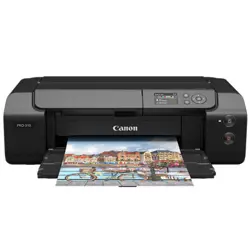

PRO-310 series
Online Manual
English

Contents
Symbols Used in This Document. . . . . . . . . . . . . . . . . . . . . . . . . . . . . . . . . . . . . . . . . . . . 14
Trademarks. . . . . . . . . . . . . . . . . . . . . . . . . . . . . . . . . . . . . . . . . . . . . . . . . . . . . . . . . . . . . 15
Licenses. . . . . . . . . . . . . . . . . . . . . . . . . . . . . . . . . . . . . . . . . . . . . . . . . . . . . . . . . . . . . . . 16
Basic Operations. . . . . . . . . . . . . . . . . . . . . . . . . . . . . . . . . . . . . . . . . . . . . . . . . 42
Printer Parts. . . . . . . . . . . . . . . . . . . . . . . . . . . . . . . . . . . . . . . . . . . . . . . . . . . . . . . . . . . . 43
Front. . . . . . . . . . . . . . . . . . . . . . . . . . . . . . . . . . . . . . . . . . . . . . . . . . . . . . . . . . . . . . . . . . . . . . . . . . . . . 44
Back / Side. . . . . . . . . . . . . . . . . . . . . . . . . . . . . . . . . . . . . . . . . . . . . . . . . . . . . . . . . . . . . . . . . . . . . . . . 46
Inside. . . . . . . . . . . . . . . . . . . . . . . . . . . . . . . . . . . . . . . . . . . . . . . . . . . . . . . . . . . . . . . . . . . . . . . . . . . . 48
Operation Panel. . . . . . . . . . . . . . . . . . . . . . . . . . . . . . . . . . . . . . . . . . . . . . . . . . . . . . . . . . . . . . . . . . . . 49
Using the Printer. . . . . . . . . . . . . . . . . . . . . . . . . . . . . . . . . . . . . . . . . . . . . . . . . . . . . . . . . 50
Turning the Printer On and Off. . . . . . . . . . . . . . . . . . . . . . . . . . . . . . . . . . . . . . . . . . . . . . . . . . . . . . . . . 51
Placing Multi-purpose Tray. . . . . . . . . . . . . . . . . . . . . . . . . . . . . . . . . . . . . . . . . . . . . . . . . . . . . . . . . . . 53
Cautions When Printing with Multi-purpose Tray. . . . . . . . . . . . . . . . . . . . . . . . . . . . . . . . . . . . . . . 54
Placing/Removing a Printable Disc. . . . . . . . . . . . . . . . . . . . . . . . . . . . . . . . . . . . . . . . . . . . . . . . . 55
Printing. . . . . . . . . . . . . . . . . . . . . . . . . . . . . . . . . . . . . . . . . . . . . . . . . . . . . . . . 62
Printing from Your Computer (Windows). . . . . . . . . . . . . . . . . . . . . . . . . . . . . . . . . . . . . . 63
Basic Printing Setup. . . . . . . . . . . . . . . . . . . . . . . . . . . . . . . . . . . . . . . . . . . . . . . . . . . . . . . . . . . . . . . . . 64
Main Controls (Basic Settings Tab). . . . . . . . . . . . . . . . . . . . . . . . . . . . . . . . . . . . . . . . . . . . . . . . . . . . . 66
Basic Settings Tab Description. . . . . . . . . . . . . . . . . . . . . . . . . . . . . . . . . . . . . . . . . . . . . . . . . . . . 67
Paper Settings on the Printer Driver and the Printer (Media Type). . . . . . . . . . . . . . . . . . . . . . . . . 75
Paper Settings on the Printer Driver and the Printer (Paper Size). . . . . . . . . . . . . . . . . . . . . . . . . 77
Registering a Frequently Used Printing Profile. . . . . . . . . . . . . . . . . . . . . . . . . . . . . . . . . . . . . . . . 79
Preventing Printing Errors. . . . . . . . . . . . . . . . . . . . . . . . . . . . . . . . . . . . . . . . . . . . . . . . . . . . . . . . 81
Set Media Type, Quality, etc. (Media/Quality Tab). . . . . . . . . . . . . . . . . . . . . . . . . . . . . . . . . . . . . . . . . 82
Media/Quality Tab Description. . . . . . . . . . . . . . . . . . . . . . . . . . . . . . . . . . . . . . . . . . . . . . . . . . . . . 83
Switching the Paper Source to Match the Purpose. . . . . . . . . . . . . . . . . . . . . . . . . . . . . . . . . . . . . 90
Grayscale Printing. . . . . . . . . . . . . . . . . . . . . . . . . . . . . . . . . . . . . . . . . . . . . . . . . . . . . . . . . . . . . . 92
Adjusting Tone. . . . . . . . . . . . . . . . . . . . . . . . . . . . . . . . . . . . . . . . . . . . . . . . . . . . . . . . . . . . . . . . . 94
Specifying Color Correction. . . . . . . . . . . . . . . . . . . . . . . . . . . . . . . . . . . . . . . . . . . . . . . . . . . . . . . 97
Optimal Photo Printing of Image Data. . . . . . . . . . . . . . . . . . . . . . . . . . . . . . . . . . . . . . . . . . . 98
Adjusting Colors with the Printer Driver. . . . . . . . . . . . . . . . . . . . . . . . . . . . . . . . . . . . . . . . . 100
Printing with ICC Profiles. . . . . . . . . . . . . . . . . . . . . . . . . . . . . . . . . . . . . . . . . . . . . . . . . . . . 102

Interpreting the ICC Profile. . . . . . . . . . . . . . . . . . . . . . . . . . . . . . . . . . . . . . . . . . . . . . . . . . 105
Adjust Colors. . . . . . . . . . . . . . . . . . . . . . . . . . . . . . . . . . . . . . . . . . . . . . . . . . . . . . . . . . . . . . . . . 106
Adjusting Brightness. . . . . . . . . . . . . . . . . . . . . . . . . . . . . . . . . . . . . . . . . . . . . . . . . . . . . . . . . . . 108
Adjusting Contrast. . . . . . . . . . . . . . . . . . . . . . . . . . . . . . . . . . . . . . . . . . . . . . . . . . . . . . . . . . . . . 110
Changing the Clear Coating Settings. . . . . . . . . . . . . . . . . . . . . . . . . . . . . . . . . . . . . . . . . . . . . . 112
Set the Layout of Printed Documents (Page Setup Tab). . . . . . . . . . . . . . . . . . . . . . . . . . . . . . . . . . . . 115
Page Setup Tab Description. . . . . . . . . . . . . . . . . . . . . . . . . . . . . . . . . . . . . . . . . . . . . . . . . . . . . 116
Setting the Number of Copies and Printing Order. . . . . . . . . . . . . . . . . . . . . . . . . . . . . . . . . . . . . 127
Perform Borderless Printing. . . . . . . . . . . . . . . . . . . . . . . . . . . . . . . . . . . . . . . . . . . . . . . . . . . . . . 129
Page Layout Printing. . . . . . . . . . . . . . . . . . . . . . . . . . . . . . . . . . . . . . . . . . . . . . . . . . . . . . . . . . . 131
Tiling/Poster Printing. . . . . . . . . . . . . . . . . . . . . . . . . . . . . . . . . . . . . . . . . . . . . . . . . . . . . . . . . . . 132
Booklet Printing. . . . . . . . . . . . . . . . . . . . . . . . . . . . . . . . . . . . . . . . . . . . . . . . . . . . . . . . . . . . . . . 134
Duplex Printing. . . . . . . . . . . . . . . . . . . . . . . . . . . . . . . . . . . . . . . . . . . . . . . . . . . . . . . . . . . . . . . 135
Perform Long-form Printing. . . . . . . . . . . . . . . . . . . . . . . . . . . . . . . . . . . . . . . . . . . . . . . . . . . . . . 136
Printing on Postcards. . . . . . . . . . . . . . . . . . . . . . . . . . . . . . . . . . . . . . . . . . . . . . . . . . . . . . . . . . . 138
Print Using Washi. . . . . . . . . . . . . . . . . . . . . . . . . . . . . . . . . . . . . . . . . . . . . . . . . . . . . . . . . . . . . 139
Setting Paper Dimensions (Custom Size). . . . . . . . . . . . . . . . . . . . . . . . . . . . . . . . . . . . . . . . . . . 140
Perform maintenance or settings (Maintenance tab). . . . . . . . . . . . . . . . . . . . . . . . . . . . . . . . . . . . . . . 142
Maintenance Tab Description. . . . . . . . . . . . . . . . . . . . . . . . . . . . . . . . . . . . . . . . . . . . . . . . . . . . 143
Cleaning the Print Heads. . . . . . . . . . . . . . . . . . . . . . . . . . . . . . . . . . . . . . . . . . . . . . . . . . . . . . . . 148
Printing a Nozzle Check Pattern. . . . . . . . . . . . . . . . . . . . . . . . . . . . . . . . . . . . . . . . . . . . . . . . . . 150
Overview of the Printer Driver. . . . . . . . . . . . . . . . . . . . . . . . . . . . . . . . . . . . . . . . . . . . . . . . . . . . . . . . 151
Canon IJ Printer Driver. . . . . . . . . . . . . . . . . . . . . . . . . . . . . . . . . . . . . . . . . . . . . . . . . . . . . . . . . 152
Opening Printer Driver's Setup Screen. . . . . . . . . . . . . . . . . . . . . . . . . . . . . . . . . . . . . . . . . 153
Canon IJ Status Monitor. . . . . . . . . . . . . . . . . . . . . . . . . . . . . . . . . . . . . . . . . . . . . . . . . . . . . . . . 154
Checking Ink Status from Your Computer. . . . . . . . . . . . . . . . . . . . . . . . . . . . . . . . . . . . . . . 155
Instructions for Use (Printer Driver). . . . . . . . . . . . . . . . . . . . . . . . . . . . . . . . . . . . . . . . . . . . . . . . 156
Canon IJ Preview. . . . . . . . . . . . . . . . . . . . . . . . . . . . . . . . . . . . . . . . . . . . . . . . . . . . . . . . . . . . . . 158
Updating Media Information in Printer Driver. . . . . . . . . . . . . . . . . . . . . . . . . . . . . . . . . . . . . . . . . 159
Deleting the Undesired Print Job. . . . . . . . . . . . . . . . . . . . . . . . . . . . . . . . . . . . . . . . . . . . . . . . . . 161
Canon IJ Status Monitor Description. . . . . . . . . . . . . . . . . . . . . . . . . . . . . . . . . . . . . . . . . . . . . . . 162
Canon IJ Preview Description. . . . . . . . . . . . . . . . . . . . . . . . . . . . . . . . . . . . . . . . . . . . . . . . . . . . 165
Updating the Driver. . . . . . . . . . . . . . . . . . . . . . . . . . . . . . . . . . . . . . . . . . . . . . . . . . . . . . . . . . . . . . . . 168
Printing from Printer. . . . . . . . . . . . . . . . . . . . . . . . . . . . . . . . . . . . . . . . . . . . . . . . . . . . . 170
Printing Templates Such as Lined or Graph Paper. . . . . . . . . . . . . . . . . . . . . . . . . . . . . . . . . . . . . . . . 171

Printing from Smartphone/Tablet. . . . . . . . . . . . . . . . . . . . . . . . . . . . . . . . . . . . . . . . . . . 173
Handling Paper. . . . . . . . . . . . . . . . . . . . . . . . . . . . . . . . . . . . . . . . . . . . . . . . . 174
Loading Paper. . . . . . . . . . . . . . . . . . . . . . . . . . . . . . . . . . . . . . . . . . . . . . . . . . . . . . . . . 175
Paper Sources to Load Paper. . . . . . . . . . . . . . . . . . . . . . . . . . . . . . . . . . . . . . . . . . . . . . . . . . . . . . . . 176
Loading Paper in the Top Feed. . . . . . . . . . . . . . . . . . . . . . . . . . . . . . . . . . . . . . . . . . . . . . . . . . . . . . . 178
Loading Paper in the Manual Feed Tray. . . . . . . . . . . . . . . . . . . . . . . . . . . . . . . . . . . . . . . . . . . . . . . . 184
Register Paper Information. . . . . . . . . . . . . . . . . . . . . . . . . . . . . . . . . . . . . . . . . . . . . . . . . . . . . . . . . . 188
Information about Paper. . . . . . . . . . . . . . . . . . . . . . . . . . . . . . . . . . . . . . . . . . . . . . . . . . 191
Media Types You Can Use. . . . . . . . . . . . . . . . . . . . . . . . . . . . . . . . . . . . . . . . . . . . . . . . . . . . . . . . . . 192
Paper Load Limit. . . . . . . . . . . . . . . . . . . . . . . . . . . . . . . . . . . . . . . . . . . . . . . . . . . . . . . . . . . . . . . . . . 196
Handling Paper. . . . . . . . . . . . . . . . . . . . . . . . . . . . . . . . . . . . . . . . . . . . . . . . . . . . . . . . . . . . . . . . . . . 198
Before Printing on Art Paper. . . . . . . . . . . . . . . . . . . . . . . . . . . . . . . . . . . . . . . . . . . . . . . . . . . . . . . . . 199
Settings. . . . . . . . . . . . . . . . . . . . . . . . . . . . . . . . . . . . . . . . . . . . . . . . . . . . . . . 201
Changing Settings from Operation Panel. . . . . . . . . . . . . . . . . . . . . . . . . . . . . . . . . . . . . 202
LCD and Operation Panel. . . . . . . . . . . . . . . . . . . . . . . . . . . . . . . . . . . . . . . . . . . . . . . . . . . . . . . . . . . 203
Setting Items on Operation Panel. . . . . . . . . . . . . . . . . . . . . . . . . . . . . . . . . . . . . . . . . . . . . . . . . . . . . 206
Maintenance. . . . . . . . . . . . . . . . . . . . . . . . . . . . . . . . . . . . . . . . . . . . . . . . . . . . . . . . . . . . . . . . . 208
LAN settings. . . . . . . . . . . . . . . . . . . . . . . . . . . . . . . . . . . . . . . . . . . . . . . . . . . . . . . . . . . . . . . . . 209
Security settings. . . . . . . . . . . . . . . . . . . . . . . . . . . . . . . . . . . . . . . . . . . . . . . . . . . . . . . . . . . . . . 215
Print settings. . . . . . . . . . . . . . . . . . . . . . . . . . . . . . . . . . . . . . . . . . . . . . . . . . . . . . . . . . . . . . . . . 216
Other printer settings. . . . . . . . . . . . . . . . . . . . . . . . . . . . . . . . . . . . . . . . . . . . . . . . . . . . . . . . . . . 218
Language selection. . . . . . . . . . . . . . . . . . . . . . . . . . . . . . . . . . . . . . . . . . . . . . . . . . . . . . . . . . . . 220
Firmware update. . . . . . . . . . . . . . . . . . . . . . . . . . . . . . . . . . . . . . . . . . . . . . . . . . . . . . . . . . . . . . 221
Paper-related settings. . . . . . . . . . . . . . . . . . . . . . . . . . . . . . . . . . . . . . . . . . . . . . . . . . . . . . . . . . 222
Power control. . . . . . . . . . . . . . . . . . . . . . . . . . . . . . . . . . . . . . . . . . . . . . . . . . . . . . . . . . . . . . . . . 223
Quiet setting. . . . . . . . . . . . . . . . . . . . . . . . . . . . . . . . . . . . . . . . . . . . . . . . . . . . . . . . . . . . . . . . . . 224
Auto maintenance settings. . . . . . . . . . . . . . . . . . . . . . . . . . . . . . . . . . . . . . . . . . . . . . . . . . . . . . 225
Reset settings. . . . . . . . . . . . . . . . . . . . . . . . . . . . . . . . . . . . . . . . . . . . . . . . . . . . . . . . . . . . . . . . 226
Web service setup. . . . . . . . . . . . . . . . . . . . . . . . . . . . . . . . . . . . . . . . . . . . . . . . . . . . . . . . . . . . . 228
Printer information. . . . . . . . . . . . . . . . . . . . . . . . . . . . . . . . . . . . . . . . . . . . . . . . . . . . . . . . . . . . . 229
Setting Administrator Password on Operation Panel. . . . . . . . . . . . . . . . . . . . . . . . . . . . . . . . . . . . . . . 230
Changing Printer Settings from Your Computer (Windows). . . . . . . . . . . . . . . . . . . . . . . 232
Changing the Print Options. . . . . . . . . . . . . . . . . . . . . . . . . . . . . . . . . . . . . . . . . . . . . . . . . . . . . . . . . . 233
Reducing the Printer Noise. . . . . . . . . . . . . . . . . . . . . . . . . . . . . . . . . . . . . . . . . . . . . . . . . . . . . . . . . . 234

Changing the Printer Operation Mode. . . . . . . . . . . . . . . . . . . . . . . . . . . . . . . . . . . . . . . . . . . . . . . . . . 235
Changing Printer's Setting Using Web Browser. . . . . . . . . . . . . . . . . . . . . . . . . . . . . . . . 236
Start up Remote UI. . . . . . . . . . . . . . . . . . . . . . . . . . . . . . . . . . . . . . . . . . . . . . . . . . . . . . . . . . . . . . . . 237
Changeable Setting Items Using Remote UI. . . . . . . . . . . . . . . . . . . . . . . . . . . . . . . . . . . . . . . . . . . . . 240
Security. . . . . . . . . . . . . . . . . . . . . . . . . . . . . . . . . . . . . . . . . . . . . . . . . . . . . . . . . . . . . . . . . . . . . 242
LAN settings. . . . . . . . . . . . . . . . . . . . . . . . . . . . . . . . . . . . . . . . . . . . . . . . . . . . . . . . . . . . . . . . . 244
Setting Passwords Using Remote UI. . . . . . . . . . . . . . . . . . . . . . . . . . . . . . . . . . . . . . . . . . . . . . . . . . . 246
Registering Printer's Root Certificate to Web Browser for SSL Communication. . . . . . . . . . . . . . . . . . 248
Registering Printer's Root Certificate to Local Computer for SSL Communication. . . . . . . . . . . . . . . . 252
Generating Server Certificate. . . . . . . . . . . . . . . . . . . . . . . . . . . . . . . . . . . . . . . . . . . . . . . . . . . . . . . . 258
Network Setting. . . . . . . . . . . . . . . . . . . . . . . . . . . . . . . . . . . . . . . . . . . . . . . . . . . . . . . . 260
Printer Connection Methods. . . . . . . . . . . . . . . . . . . . . . . . . . . . . . . . . . . . . . . . . . . . . . . . . . . . . . . . . 261
Wi-Fi Connection. . . . . . . . . . . . . . . . . . . . . . . . . . . . . . . . . . . . . . . . . . . . . . . . . . . . . . . . . . . . . . 263
WPS Connection. . . . . . . . . . . . . . . . . . . . . . . . . . . . . . . . . . . . . . . . . . . . . . . . . . . . . . . . . . 266
WPS (PIN Code) Connection. . . . . . . . . . . . . . . . . . . . . . . . . . . . . . . . . . . . . . . . . . . . . . . . 269
Manual connect. . . . . . . . . . . . . . . . . . . . . . . . . . . . . . . . . . . . . . . . . . . . . . . . . . . . . . . . . . . 271
Easy wireless connect. . . . . . . . . . . . . . . . . . . . . . . . . . . . . . . . . . . . . . . . . . . . . . . . . . . . . . 276
Wireless Direct Connection. . . . . . . . . . . . . . . . . . . . . . . . . . . . . . . . . . . . . . . . . . . . . . . . . . . . . . 278
Wired Connection. . . . . . . . . . . . . . . . . . . . . . . . . . . . . . . . . . . . . . . . . . . . . . . . . . . . . . . . . . . . . 283
USB Connection. . . . . . . . . . . . . . . . . . . . . . . . . . . . . . . . . . . . . . . . . . . . . . . . . . . . . . . . . . . . . . 287
Default Network Settings. . . . . . . . . . . . . . . . . . . . . . . . . . . . . . . . . . . . . . . . . . . . . . . . . . . . . . . . . . . . 288
Another Printer Found with Same Name. . . . . . . . . . . . . . . . . . . . . . . . . . . . . . . . . . . . . . . . . . . . . . . . 290
Printing Network Settings. . . . . . . . . . . . . . . . . . . . . . . . . . . . . . . . . . . . . . . . . . . . . . . . . . . . . . . . . . . . 291
Countermeasures against Unauthorized Access. . . . . . . . . . . . . . . . . . . . . . . . . . . . . . . . . . . . . . . . . . 292
Network Status and Troubleshooting. . . . . . . . . . . . . . . . . . . . . . . . . . . . . . . . . . . . . . . . . . . . . . . . . . . 294
Sharing the Printer on a Network (Windows). . . . . . . . . . . . . . . . . . . . . . . . . . . . . . . . . . . . . . . . . . . . . 296
Setting Up a Shared Printer. . . . . . . . . . . . . . . . . . . . . . . . . . . . . . . . . . . . . . . . . . . . . . . . . . . . . . 297
Restrictions on Printer Sharing. . . . . . . . . . . . . . . . . . . . . . . . . . . . . . . . . . . . . . . . . . . . . . . . . . . 299
Maintenance. . . . . . . . . . . . . . . . . . . . . . . . . . . . . . . . . . . . . . . . . . . . . . . . . . . 300
Adjustments for Better Print Quality. . . . . . . . . . . . . . . . . . . . . . . . . . . . . . . . . . . . . . . . . 301
Maintenance Procedure. . . . . . . . . . . . . . . . . . . . . . . . . . . . . . . . . . . . . . . . . . . . . . . . . . . . . . . . . . . . . 302
Checking for Nozzle Clogging. . . . . . . . . . . . . . . . . . . . . . . . . . . . . . . . . . . . . . . . . . . . . . . . . . . . . . . . 304
Cleaning the Print Head. . . . . . . . . . . . . . . . . . . . . . . . . . . . . . . . . . . . . . . . . . . . . . . . . . . . . . . . . . . . . 308
Deep Print Head Cleaning. . . . . . . . . . . . . . . . . . . . . . . . . . . . . . . . . . . . . . . . . . . . . . . . . . . . . . . . . . . 312

Adjustment to Straighten Lines and Align Colors. . . . . . . . . . . . . . . . . . . . . . . . . . . . . . . . . . . . . . . . . . 315
Automatic Adjustment to Straighten Lines and Align Colors. . . . . . . . . . . . . . . . . . . . . . . . . . . . . 316
Manual Adjustment to Straighten Lines and Align Colors. . . . . . . . . . . . . . . . . . . . . . . . . . . . . . . 318
Replacing Consumables. . . . . . . . . . . . . . . . . . . . . . . . . . . . . . . . . . . . . . . . . . . . . . . . . . 321
Replacing Ink Tanks. . . . . . . . . . . . . . . . . . . . . . . . . . . . . . . . . . . . . . . . . . . . . . . . . . . . . . . . . . . . . . . 322
Checking Ink Level. . . . . . . . . . . . . . . . . . . . . . . . . . . . . . . . . . . . . . . . . . . . . . . . . . . . . . . . . . . . . . . . . 327
Cleaning the Printer. . . . . . . . . . . . . . . . . . . . . . . . . . . . . . . . . . . . . . . . . . . . . . . . . . . . . 329
Cleaning the Printer Exterior. . . . . . . . . . . . . . . . . . . . . . . . . . . . . . . . . . . . . . . . . . . . . . . . . . . . . . . . . 330
Cleaning Paper Feed Rollers. . . . . . . . . . . . . . . . . . . . . . . . . . . . . . . . . . . . . . . . . . . . . . . . . . . . . . . . . 331
Performing Bottom Plate Cleaning. . . . . . . . . . . . . . . . . . . . . . . . . . . . . . . . . . . . . . . . . . . . . . . . . . . . . 334
Performing Maintenance Functions from Your Computer (Windows). . . . . . . . . . . . . . . 336
Other Maintenance. . . . . . . . . . . . . . . . . . . . . . . . . . . . . . . . . . . . . . . . . . . . . . . . . . . . . . 337
Transporting Your Printer. . . . . . . . . . . . . . . . . . . . . . . . . . . . . . . . . . . . . . . . . . . . . . . . . . . . . . . . . . . . 338
Firmware update. . . . . . . . . . . . . . . . . . . . . . . . . . . . . . . . . . . . . . . . . . . . . . . . . . . . . . . . . . . . . . . . . . 339
Frequently Asked Questions. . . . . . . . . . . . . . . . . . . . . . . . . . . . . . . . . . . . . . . 340
Problems with the Printing Quality. . . . . . . . . . . . . . . . . . . . . . . . . . . . . . . . . . . . . . . . . . 343
Printing is faint/Streaks. . . . . . . . . . . . . . . . . . . . . . . . . . . . . . . . . . . . . . . . . . . . . . . . . . . . . . . . . . . . . 344
Banding in different colors occurs/Colors in printed images are uneven. . . . . . . . . . . . . . . . . . . . . . . . 346
Paper Is Smudged/Printed Surface Is Scratched/Ink Blots/Paper Curl. . . . . . . . . . . . . . . . . . . . . . . . . 349
Back of Paper Is Smudged. . . . . . . . . . . . . . . . . . . . . . . . . . . . . . . . . . . . . . . . . . . . . . . . . . . . . . . . . . 353
Printed colors are inaccurate. . . . . . . . . . . . . . . . . . . . . . . . . . . . . . . . . . . . . . . . . . . . . . . . . . . . . . . . . 355
Documents are printed in monochrome. . . . . . . . . . . . . . . . . . . . . . . . . . . . . . . . . . . . . . . . . . . . . . . . . 357
Lines Are Misaligned/Distorted. . . . . . . . . . . . . . . . . . . . . . . . . . . . . . . . . . . . . . . . . . . . . . . . . . . . . . . 358
Lines Incomplete or Missing (Windows). . . . . . . . . . . . . . . . . . . . . . . . . . . . . . . . . . . . . . . . . . . . . . . . 360
Images Incomplete/Cannot Complete Printing. . . . . . . . . . . . . . . . . . . . . . . . . . . . . . . . . . . . . . . . . . . 361
Vertical Line Next to Image. . . . . . . . . . . . . . . . . . . . . . . . . . . . . . . . . . . . . . . . . . . . . . . . . . . . . . . . . . 362
Cannot Configure Network Settings. . . . . . . . . . . . . . . . . . . . . . . . . . . . . . . . . . . . . . . . . 363
Message Appears on Computer During Setup. . . . . . . . . . . . . . . . . . . . . . . . . . . . . . . . . . . . . . . . . . . 364
Cannot Proceed Beyond Printer Connection Screen (Cannot Find Printer Connected via USB). . . . . 366
"Failed to connect to the wireless router." Appears. . . . . . . . . . . . . . . . . . . . . . . . . . . . . . . . . . . . . . . . 368
Printer Cannot Be Used After Replacing Wireless Router or Changed Router Settings. . . . . . . . . . . . 370
Privacy Separator/SSID Separator/Network Separation Function. . . . . . . . . . . . . . . . . . . . . . . . . . . . . 372
Setting Up Using Smartphone/Tablet. . . . . . . . . . . . . . . . . . . . . . . . . . . . . . . . . . . . . . . . . . . . . . . . . . 373
Cannot Find Printer on Network. . . . . . . . . . . . . . . . . . . . . . . . . . . . . . . . . . . . . . . . . . . . 374

Cannot Find Printer on Network. . . . . . . . . . . . . . . . . . . . . . . . . . . . . . . . . . . . . . . . . . . . . . . . . . . . . . . 375
Searching Printer by IP Address or Host Name During Setup. . . . . . . . . . . . . . . . . . . . . . . . . . . . . . . . 380
Cannot Print over Network. . . . . . . . . . . . . . . . . . . . . . . . . . . . . . . . . . . . . . . . . . . . . . . . 384
Cannot Print Using AirPrint. . . . . . . . . . . . . . . . . . . . . . . . . . . . . . . . . . . . . . . . . . . . . . . . . . . . . . . . . . 385
Cannot Print from Smartphone/Tablet. . . . . . . . . . . . . . . . . . . . . . . . . . . . . . . . . . . . . . . . . . . . . . . . . . 386
Network Connection Problems. . . . . . . . . . . . . . . . . . . . . . . . . . . . . . . . . . . . . . . . . . . . . 390
Network Settings and Common Problems. . . . . . . . . . . . . . . . . . . . . . . . . . . . . . . . . . . . . . . . . . . . . . . 391
Solve Network Troubles with The Printer's Diagnostic Functions. . . . . . . . . . . . . . . . . . . . . . . . . . . . . 392
Switching Printer's Connection to Network or Devices. . . . . . . . . . . . . . . . . . . . . . . . . . . . . . . . . . . . . 399
Network Key (Password) Unknown. . . . . . . . . . . . . . . . . . . . . . . . . . . . . . . . . . . . . . . . . . . . . . . . . . . . 401
Checking Wireless Router SSID/Key. . . . . . . . . . . . . . . . . . . . . . . . . . . . . . . . . . . . . . . . . . . . . . . . . . . 403
Cannot Remember Printer's Password. . . . . . . . . . . . . . . . . . . . . . . . . . . . . . . . . . . . . . . . . . . . . . . . . 404
Checking Network Information. . . . . . . . . . . . . . . . . . . . . . . . . . . . . . . . . . . . . . . . . . . . . . . . . . . . . . . . 405
Restoring Printer's LAN Settings to Defaults. . . . . . . . . . . . . . . . . . . . . . . . . . . . . . . . . . . . . . . . . . . . . 408
Cannot Connect Smartphone/Tablet to Wireless Router. . . . . . . . . . . . . . . . . . . . . . . . . . . . . . . . . . . . 409
Checking Wireless Router Network Name (SSID) for Smartphone/Tablet. . . . . . . . . . . . . . . . . . . . . . 410
Printer Problems. . . . . . . . . . . . . . . . . . . . . . . . . . . . . . . . . . . . . . . . . . . . . . . . . . . . . . . . 411
Printer Does Not Turn On. . . . . . . . . . . . . . . . . . . . . . . . . . . . . . . . . . . . . . . . . . . . . . . . . . . . . . . . . . . 412
Printer Turns Off Unexpectedly or Repeatedly. . . . . . . . . . . . . . . . . . . . . . . . . . . . . . . . . . . . . . . . . . . 413
USB Connection Problems. . . . . . . . . . . . . . . . . . . . . . . . . . . . . . . . . . . . . . . . . . . . . . . . . . . . . . . . . . 414
LCD Is Off. . . . . . . . . . . . . . . . . . . . . . . . . . . . . . . . . . . . . . . . . . . . . . . . . . . . . . . . . . . . . . . . . . . . . . . 416
Print Head Holder Does Not Move to Replacement Position. . . . . . . . . . . . . . . . . . . . . . . . . . . . . . . . . 417
Printer Status Monitor Not Displayed (Windows). . . . . . . . . . . . . . . . . . . . . . . . . . . . . . . . . . . . . . . . . . 418
Updating Printer Firmware. . . . . . . . . . . . . . . . . . . . . . . . . . . . . . . . . . . . . . . . . . . . . . . . . . . . . . . . . . . 419
Installation and Download Problems. . . . . . . . . . . . . . . . . . . . . . . . . . . . . . . . . . . . . . . . 420
Failed to Printer Driver Installation (Windows). . . . . . . . . . . . . . . . . . . . . . . . . . . . . . . . . . . . . . . . . . . . 421
Updating Printer Drivers in Network Environment (Windows). . . . . . . . . . . . . . . . . . . . . . . . . . . . . . . . 422
Disable Function to Send Usage Information of Printer. . . . . . . . . . . . . . . . . . . . . . . . . . . . . . . . . . . . . 423
Setup Application Asks for the Administrator's Username and Password (Windows). . . . . . . . . . . . . . 426
Enable Printing from PC/Smartphone/Tablet. . . . . . . . . . . . . . . . . . . . . . . . . . . . . . . . . . . . . . . . . . . . . 427
Installing Printer Drivers on PC without Network Connection (Windows). . . . . . . . . . . . . . . . . . . . . . . 428
Printing Problems. . . . . . . . . . . . . . . . . . . . . . . . . . . . . . . . . . . . . . . . . . . . . . . . . . . . . . . 429
Printer Does Not Print. . . . . . . . . . . . . . . . . . . . . . . . . . . . . . . . . . . . . . . . . . . . . . . . . . . . . . . . . . . . . . 430
Printing Stops. . . . . . . . . . . . . . . . . . . . . . . . . . . . . . . . . . . . . . . . . . . . . . . . . . . . . . . . . . . . . . . . . . . . . 433
Cannot Print on the Disc Label. . . . . . . . . . . . . . . . . . . . . . . . . . . . . . . . . . . . . . . . . . . . . . . . . . . . . . . 434

Default Printer Keeps Changing (Windows). . . . . . . . . . . . . . . . . . . . . . . . . . . . . . . . . . . . . . . . . . . . . 436
Change to Offline (Windows)/Cannot Communicate (Windows). . . . . . . . . . . . . . . . . . . . . . . . . . . . . . 437
No Ink Level Appears in Canon IJ Status Monitor (Windows). . . . . . . . . . . . . . . . . . . . . . . . . . . . . . . . 439
Paper is not Fed or Ejected Properly. . . . . . . . . . . . . . . . . . . . . . . . . . . . . . . . . . . . . . . . 440
What to Do When Paper Is Jammed. . . . . . . . . . . . . . . . . . . . . . . . . . . . . . . . . . . . . . . . . . . . . . . . . . . 441
Printer Does Not Pick up or Feed the Paper/"No Paper" Error. . . . . . . . . . . . . . . . . . . . . . . . . . . . . . . 449
Paper Does Not Feed from Paper Source Specified in Printer Driver (Windows). . . . . . . . . . . . . . . . . 452
What to Do If Paper Is Not Fed/Output Normally. . . . . . . . . . . . . . . . . . . . . . . . . . . . . . . . . . . . . . . . . . 453
Paper Setting Problems. . . . . . . . . . . . . . . . . . . . . . . . . . . . . . . . . . . . . . . . . . . . . . . . . . 455
I want to know the paper types that can be used in this printer. . . . . . . . . . . . . . . . . . . . . . . . . . . . . . . 456
Ink-related Problems. . . . . . . . . . . . . . . . . . . . . . . . . . . . . . . . . . . . . . . . . . . . . . . . . . . . . 457
Ink Does Not Come Out. . . . . . . . . . . . . . . . . . . . . . . . . . . . . . . . . . . . . . . . . . . . . . . . . . . . . . . . . . . . . 458
Printer consumes a lot of ink. . . . . . . . . . . . . . . . . . . . . . . . . . . . . . . . . . . . . . . . . . . . . . . . . . . . . . . . . 459
List of Support Code for Error. . . . . . . . . . . . . . . . . . . . . . . . . . . . . . . . . . . . . . 460
When Error Occurred. . . . . . . . . . . . . . . . . . . . . . . . . . . . . . . . . . . . . . . . . . . . . . . . . . . . 462
1000. . . . . . . . . . . . . . . . . . . . . . . . . . . . . . . . . . . . . . . . . . . . . . . . . . . . . . . . . . . . . . . . . 464
1001. . . . . . . . . . . . . . . . . . . . . . . . . . . . . . . . . . . . . . . . . . . . . . . . . . . . . . . . . . . . . . . . . 466
1002. . . . . . . . . . . . . . . . . . . . . . . . . . . . . . . . . . . . . . . . . . . . . . . . . . . . . . . . . . . . . . . . . 467
1006. . . . . . . . . . . . . . . . . . . . . . . . . . . . . . . . . . . . . . . . . . . . . . . . . . . . . . . . . . . . . . . . . 468
1013. . . . . . . . . . . . . . . . . . . . . . . . . . . . . . . . . . . . . . . . . . . . . . . . . . . . . . . . . . . . . . . . . 469
1062. . . . . . . . . . . . . . . . . . . . . . . . . . . . . . . . . . . . . . . . . . . . . . . . . . . . . . . . . . . . . . . . . 470
1200. . . . . . . . . . . . . . . . . . . . . . . . . . . . . . . . . . . . . . . . . . . . . . . . . . . . . . . . . . . . . . . . . 472
1250. . . . . . . . . . . . . . . . . . . . . . . . . . . . . . . . . . . . . . . . . . . . . . . . . . . . . . . . . . . . . . . . . 473
1261. . . . . . . . . . . . . . . . . . . . . . . . . . . . . . . . . . . . . . . . . . . . . . . . . . . . . . . . . . . . . . . . . 474
1300. . . . . . . . . . . . . . . . . . . . . . . . . . . . . . . . . . . . . . . . . . . . . . . . . . . . . . . . . . . . . . . . . 475
1308. . . . . . . . . . . . . . . . . . . . . . . . . . . . . . . . . . . . . . . . . . . . . . . . . . . . . . . . . . . . . . . . . 476
1351. . . . . . . . . . . . . . . . . . . . . . . . . . . . . . . . . . . . . . . . . . . . . . . . . . . . . . . . . . . . . . . . . 477
1401. . . . . . . . . . . . . . . . . . . . . . . . . . . . . . . . . . . . . . . . . . . . . . . . . . . . . . . . . . . . . . . . . 478
1403. . . . . . . . . . . . . . . . . . . . . . . . . . . . . . . . . . . . . . . . . . . . . . . . . . . . . . . . . . . . . . . . . 479
1405. . . . . . . . . . . . . . . . . . . . . . . . . . . . . . . . . . . . . . . . . . . . . . . . . . . . . . . . . . . . . . . . . 480
1408. . . . . . . . . . . . . . . . . . . . . . . . . . . . . . . . . . . . . . . . . . . . . . . . . . . . . . . . . . . . . . . . . 481
1409. . . . . . . . . . . . . . . . . . . . . . . . . . . . . . . . . . . . . . . . . . . . . . . . . . . . . . . . . . . . . . . . . 482

140A. . . . . . . . . . . . . . . . . . . . . . . . . . . . . . . . . . . . . . . . . . . . . . . . . . . . . . . . . . . . . . . . . 483
140C. . . . . . . . . . . . . . . . . . . . . . . . . . . . . . . . . . . . . . . . . . . . . . . . . . . . . . . . . . . . . . . . . 484
1410. . . . . . . . . . . . . . . . . . . . . . . . . . . . . . . . . . . . . . . . . . . . . . . . . . . . . . . . . . . . . . . . . 485
1411. . . . . . . . . . . . . . . . . . . . . . . . . . . . . . . . . . . . . . . . . . . . . . . . . . . . . . . . . . . . . . . . . 486
1412. . . . . . . . . . . . . . . . . . . . . . . . . . . . . . . . . . . . . . . . . . . . . . . . . . . . . . . . . . . . . . . . . 487
1413. . . . . . . . . . . . . . . . . . . . . . . . . . . . . . . . . . . . . . . . . . . . . . . . . . . . . . . . . . . . . . . . . 488
1414. . . . . . . . . . . . . . . . . . . . . . . . . . . . . . . . . . . . . . . . . . . . . . . . . . . . . . . . . . . . . . . . . 489
1415. . . . . . . . . . . . . . . . . . . . . . . . . . . . . . . . . . . . . . . . . . . . . . . . . . . . . . . . . . . . . . . . . 490
1416. . . . . . . . . . . . . . . . . . . . . . . . . . . . . . . . . . . . . . . . . . . . . . . . . . . . . . . . . . . . . . . . . 491
1417. . . . . . . . . . . . . . . . . . . . . . . . . . . . . . . . . . . . . . . . . . . . . . . . . . . . . . . . . . . . . . . . . 492
1418. . . . . . . . . . . . . . . . . . . . . . . . . . . . . . . . . . . . . . . . . . . . . . . . . . . . . . . . . . . . . . . . . 493
1419. . . . . . . . . . . . . . . . . . . . . . . . . . . . . . . . . . . . . . . . . . . . . . . . . . . . . . . . . . . . . . . . . 494
1500. . . . . . . . . . . . . . . . . . . . . . . . . . . . . . . . . . . . . . . . . . . . . . . . . . . . . . . . . . . . . . . . . 495
1551. . . . . . . . . . . . . . . . . . . . . . . . . . . . . . . . . . . . . . . . . . . . . . . . . . . . . . . . . . . . . . . . . 496
1552. . . . . . . . . . . . . . . . . . . . . . . . . . . . . . . . . . . . . . . . . . . . . . . . . . . . . . . . . . . . . . . . . 497
1570. . . . . . . . . . . . . . . . . . . . . . . . . . . . . . . . . . . . . . . . . . . . . . . . . . . . . . . . . . . . . . . . . 498
15A1. . . . . . . . . . . . . . . . . . . . . . . . . . . . . . . . . . . . . . . . . . . . . . . . . . . . . . . . . . . . . . . . . 499
15A2. . . . . . . . . . . . . . . . . . . . . . . . . . . . . . . . . . . . . . . . . . . . . . . . . . . . . . . . . . . . . . . . . 500
15A3. . . . . . . . . . . . . . . . . . . . . . . . . . . . . . . . . . . . . . . . . . . . . . . . . . . . . . . . . . . . . . . . . 501
1600. . . . . . . . . . . . . . . . . . . . . . . . . . . . . . . . . . . . . . . . . . . . . . . . . . . . . . . . . . . . . . . . . 502
1660. . . . . . . . . . . . . . . . . . . . . . . . . . . . . . . . . . . . . . . . . . . . . . . . . . . . . . . . . . . . . . . . . 503
1684. . . . . . . . . . . . . . . . . . . . . . . . . . . . . . . . . . . . . . . . . . . . . . . . . . . . . . . . . . . . . . . . . 504
168C. . . . . . . . . . . . . . . . . . . . . . . . . . . . . . . . . . . . . . . . . . . . . . . . . . . . . . . . . . . . . . . . . 505
1698. . . . . . . . . . . . . . . . . . . . . . . . . . . . . . . . . . . . . . . . . . . . . . . . . . . . . . . . . . . . . . . . . 506
1699. . . . . . . . . . . . . . . . . . . . . . . . . . . . . . . . . . . . . . . . . . . . . . . . . . . . . . . . . . . . . . . . . 507
1700. . . . . . . . . . . . . . . . . . . . . . . . . . . . . . . . . . . . . . . . . . . . . . . . . . . . . . . . . . . . . . . . . 508
1701. . . . . . . . . . . . . . . . . . . . . . . . . . . . . . . . . . . . . . . . . . . . . . . . . . . . . . . . . . . . . . . . . 509
1716. . . . . . . . . . . . . . . . . . . . . . . . . . . . . . . . . . . . . . . . . . . . . . . . . . . . . . . . . . . . . . . . . 510
1730. . . . . . . . . . . . . . . . . . . . . . . . . . . . . . . . . . . . . . . . . . . . . . . . . . . . . . . . . . . . . . . . . 511
1750. . . . . . . . . . . . . . . . . . . . . . . . . . . . . . . . . . . . . . . . . . . . . . . . . . . . . . . . . . . . . . . . . 512
1830. . . . . . . . . . . . . . . . . . . . . . . . . . . . . . . . . . . . . . . . . . . . . . . . . . . . . . . . . . . . . . . . . 513
1850. . . . . . . . . . . . . . . . . . . . . . . . . . . . . . . . . . . . . . . . . . . . . . . . . . . . . . . . . . . . . . . . . 514
1851. . . . . . . . . . . . . . . . . . . . . . . . . . . . . . . . . . . . . . . . . . . . . . . . . . . . . . . . . . . . . . . . . 515

1855. . . . . . . . . . . . . . . . . . . . . . . . . . . . . . . . . . . . . . . . . . . . . . . . . . . . . . . . . . . . . . . . . 516
1856. . . . . . . . . . . . . . . . . . . . . . . . . . . . . . . . . . . . . . . . . . . . . . . . . . . . . . . . . . . . . . . . . 517
1857. . . . . . . . . . . . . . . . . . . . . . . . . . . . . . . . . . . . . . . . . . . . . . . . . . . . . . . . . . . . . . . . . 518
2103. . . . . . . . . . . . . . . . . . . . . . . . . . . . . . . . . . . . . . . . . . . . . . . . . . . . . . . . . . . . . . . . . 519
2114. . . . . . . . . . . . . . . . . . . . . . . . . . . . . . . . . . . . . . . . . . . . . . . . . . . . . . . . . . . . . . . . . 520
2115. . . . . . . . . . . . . . . . . . . . . . . . . . . . . . . . . . . . . . . . . . . . . . . . . . . . . . . . . . . . . . . . . 522
2500. . . . . . . . . . . . . . . . . . . . . . . . . . . . . . . . . . . . . . . . . . . . . . . . . . . . . . . . . . . . . . . . . 524
2503. . . . . . . . . . . . . . . . . . . . . . . . . . . . . . . . . . . . . . . . . . . . . . . . . . . . . . . . . . . . . . . . . 525
3000. . . . . . . . . . . . . . . . . . . . . . . . . . . . . . . . . . . . . . . . . . . . . . . . . . . . . . . . . . . . . . . . . 526
3306. . . . . . . . . . . . . . . . . . . . . . . . . . . . . . . . . . . . . . . . . . . . . . . . . . . . . . . . . . . . . . . . . 527
3310. . . . . . . . . . . . . . . . . . . . . . . . . . . . . . . . . . . . . . . . . . . . . . . . . . . . . . . . . . . . . . . . . 528
3311. . . . . . . . . . . . . . . . . . . . . . . . . . . . . . . . . . . . . . . . . . . . . . . . . . . . . . . . . . . . . . . . . 529
3312. . . . . . . . . . . . . . . . . . . . . . . . . . . . . . . . . . . . . . . . . . . . . . . . . . . . . . . . . . . . . . . . . 530
3313. . . . . . . . . . . . . . . . . . . . . . . . . . . . . . . . . . . . . . . . . . . . . . . . . . . . . . . . . . . . . . . . . 531
3314. . . . . . . . . . . . . . . . . . . . . . . . . . . . . . . . . . . . . . . . . . . . . . . . . . . . . . . . . . . . . . . . . 532
3315. . . . . . . . . . . . . . . . . . . . . . . . . . . . . . . . . . . . . . . . . . . . . . . . . . . . . . . . . . . . . . . . . 533
3316. . . . . . . . . . . . . . . . . . . . . . . . . . . . . . . . . . . . . . . . . . . . . . . . . . . . . . . . . . . . . . . . . 534
3317. . . . . . . . . . . . . . . . . . . . . . . . . . . . . . . . . . . . . . . . . . . . . . . . . . . . . . . . . . . . . . . . . 535
3318. . . . . . . . . . . . . . . . . . . . . . . . . . . . . . . . . . . . . . . . . . . . . . . . . . . . . . . . . . . . . . . . . 536
3319. . . . . . . . . . . . . . . . . . . . . . . . . . . . . . . . . . . . . . . . . . . . . . . . . . . . . . . . . . . . . . . . . 537
3413. . . . . . . . . . . . . . . . . . . . . . . . . . . . . . . . . . . . . . . . . . . . . . . . . . . . . . . . . . . . . . . . . 538
3440. . . . . . . . . . . . . . . . . . . . . . . . . . . . . . . . . . . . . . . . . . . . . . . . . . . . . . . . . . . . . . . . . 539
3441. . . . . . . . . . . . . . . . . . . . . . . . . . . . . . . . . . . . . . . . . . . . . . . . . . . . . . . . . . . . . . . . . 540
3442. . . . . . . . . . . . . . . . . . . . . . . . . . . . . . . . . . . . . . . . . . . . . . . . . . . . . . . . . . . . . . . . . 541
3443. . . . . . . . . . . . . . . . . . . . . . . . . . . . . . . . . . . . . . . . . . . . . . . . . . . . . . . . . . . . . . . . . 542
3444. . . . . . . . . . . . . . . . . . . . . . . . . . . . . . . . . . . . . . . . . . . . . . . . . . . . . . . . . . . . . . . . . 543
3445. . . . . . . . . . . . . . . . . . . . . . . . . . . . . . . . . . . . . . . . . . . . . . . . . . . . . . . . . . . . . . . . . 544
3446. . . . . . . . . . . . . . . . . . . . . . . . . . . . . . . . . . . . . . . . . . . . . . . . . . . . . . . . . . . . . . . . . 545
3447. . . . . . . . . . . . . . . . . . . . . . . . . . . . . . . . . . . . . . . . . . . . . . . . . . . . . . . . . . . . . . . . . 546
3454. . . . . . . . . . . . . . . . . . . . . . . . . . . . . . . . . . . . . . . . . . . . . . . . . . . . . . . . . . . . . . . . . 547
3455. . . . . . . . . . . . . . . . . . . . . . . . . . . . . . . . . . . . . . . . . . . . . . . . . . . . . . . . . . . . . . . . . 548
4103. . . . . . . . . . . . . . . . . . . . . . . . . . . . . . . . . . . . . . . . . . . . . . . . . . . . . . . . . . . . . . . . . 549
4104. . . . . . . . . . . . . . . . . . . . . . . . . . . . . . . . . . . . . . . . . . . . . . . . . . . . . . . . . . . . . . . . . 550

4109. . . . . . . . . . . . . . . . . . . . . . . . . . . . . . . . . . . . . . . . . . . . . . . . . . . . . . . . . . . . . . . . . 551
410E. . . . . . . . . . . . . . . . . . . . . . . . . . . . . . . . . . . . . . . . . . . . . . . . . . . . . . . . . . . . . . . . . 552
4111. . . . . . . . . . . . . . . . . . . . . . . . . . . . . . . . . . . . . . . . . . . . . . . . . . . . . . . . . . . . . . . . . 553
495A. . . . . . . . . . . . . . . . . . . . . . . . . . . . . . . . . . . . . . . . . . . . . . . . . . . . . . . . . . . . . . . . . 554
5100. . . . . . . . . . . . . . . . . . . . . . . . . . . . . . . . . . . . . . . . . . . . . . . . . . . . . . . . . . . . . . . . . 555
5200. . . . . . . . . . . . . . . . . . . . . . . . . . . . . . . . . . . . . . . . . . . . . . . . . . . . . . . . . . . . . . . . . 556
520C. . . . . . . . . . . . . . . . . . . . . . . . . . . . . . . . . . . . . . . . . . . . . . . . . . . . . . . . . . . . . . . . . 557
520E. . . . . . . . . . . . . . . . . . . . . . . . . . . . . . . . . . . . . . . . . . . . . . . . . . . . . . . . . . . . . . . . . 558
5250. . . . . . . . . . . . . . . . . . . . . . . . . . . . . . . . . . . . . . . . . . . . . . . . . . . . . . . . . . . . . . . . . 559
5400. . . . . . . . . . . . . . . . . . . . . . . . . . . . . . . . . . . . . . . . . . . . . . . . . . . . . . . . . . . . . . . . . 560
5700. . . . . . . . . . . . . . . . . . . . . . . . . . . . . . . . . . . . . . . . . . . . . . . . . . . . . . . . . . . . . . . . . 561
5B00. . . . . . . . . . . . . . . . . . . . . . . . . . . . . . . . . . . . . . . . . . . . . . . . . . . . . . . . . . . . . . . . . 562
5B01. . . . . . . . . . . . . . . . . . . . . . . . . . . . . . . . . . . . . . . . . . . . . . . . . . . . . . . . . . . . . . . . . 563
5B16. . . . . . . . . . . . . . . . . . . . . . . . . . . . . . . . . . . . . . . . . . . . . . . . . . . . . . . . . . . . . . . . . 564
5B22. . . . . . . . . . . . . . . . . . . . . . . . . . . . . . . . . . . . . . . . . . . . . . . . . . . . . . . . . . . . . . . . . 565
5C02. . . . . . . . . . . . . . . . . . . . . . . . . . . . . . . . . . . . . . . . . . . . . . . . . . . . . . . . . . . . . . . . . 566
5C13. . . . . . . . . . . . . . . . . . . . . . . . . . . . . . . . . . . . . . . . . . . . . . . . . . . . . . . . . . . . . . . . . 567
5C14. . . . . . . . . . . . . . . . . . . . . . . . . . . . . . . . . . . . . . . . . . . . . . . . . . . . . . . . . . . . . . . . . 568
6000. . . . . . . . . . . . . . . . . . . . . . . . . . . . . . . . . . . . . . . . . . . . . . . . . . . . . . . . . . . . . . . . . 569
6001. . . . . . . . . . . . . . . . . . . . . . . . . . . . . . . . . . . . . . . . . . . . . . . . . . . . . . . . . . . . . . . . . 570
6004. . . . . . . . . . . . . . . . . . . . . . . . . . . . . . . . . . . . . . . . . . . . . . . . . . . . . . . . . . . . . . . . . 571
6500. . . . . . . . . . . . . . . . . . . . . . . . . . . . . . . . . . . . . . . . . . . . . . . . . . . . . . . . . . . . . . . . . 572
6502. . . . . . . . . . . . . . . . . . . . . . . . . . . . . . . . . . . . . . . . . . . . . . . . . . . . . . . . . . . . . . . . . 573
6503. . . . . . . . . . . . . . . . . . . . . . . . . . . . . . . . . . . . . . . . . . . . . . . . . . . . . . . . . . . . . . . . . 574
6700. . . . . . . . . . . . . . . . . . . . . . . . . . . . . . . . . . . . . . . . . . . . . . . . . . . . . . . . . . . . . . . . . 575
6701. . . . . . . . . . . . . . . . . . . . . . . . . . . . . . . . . . . . . . . . . . . . . . . . . . . . . . . . . . . . . . . . . 576
6800. . . . . . . . . . . . . . . . . . . . . . . . . . . . . . . . . . . . . . . . . . . . . . . . . . . . . . . . . . . . . . . . . 577
6801. . . . . . . . . . . . . . . . . . . . . . . . . . . . . . . . . . . . . . . . . . . . . . . . . . . . . . . . . . . . . . . . . 578
6830. . . . . . . . . . . . . . . . . . . . . . . . . . . . . . . . . . . . . . . . . . . . . . . . . . . . . . . . . . . . . . . . . 579
6831. . . . . . . . . . . . . . . . . . . . . . . . . . . . . . . . . . . . . . . . . . . . . . . . . . . . . . . . . . . . . . . . . 580
6832. . . . . . . . . . . . . . . . . . . . . . . . . . . . . . . . . . . . . . . . . . . . . . . . . . . . . . . . . . . . . . . . . 581
6833. . . . . . . . . . . . . . . . . . . . . . . . . . . . . . . . . . . . . . . . . . . . . . . . . . . . . . . . . . . . . . . . . 582
6900. . . . . . . . . . . . . . . . . . . . . . . . . . . . . . . . . . . . . . . . . . . . . . . . . . . . . . . . . . . . . . . . . 583

6901. . . . . . . . . . . . . . . . . . . . . . . . . . . . . . . . . . . . . . . . . . . . . . . . . . . . . . . . . . . . . . . . . 584
6902. . . . . . . . . . . . . . . . . . . . . . . . . . . . . . . . . . . . . . . . . . . . . . . . . . . . . . . . . . . . . . . . . 585
6910. . . . . . . . . . . . . . . . . . . . . . . . . . . . . . . . . . . . . . . . . . . . . . . . . . . . . . . . . . . . . . . . . 586
6920. . . . . . . . . . . . . . . . . . . . . . . . . . . . . . . . . . . . . . . . . . . . . . . . . . . . . . . . . . . . . . . . . 587
6921. . . . . . . . . . . . . . . . . . . . . . . . . . . . . . . . . . . . . . . . . . . . . . . . . . . . . . . . . . . . . . . . . 588
6930. . . . . . . . . . . . . . . . . . . . . . . . . . . . . . . . . . . . . . . . . . . . . . . . . . . . . . . . . . . . . . . . . 589
6931. . . . . . . . . . . . . . . . . . . . . . . . . . . . . . . . . . . . . . . . . . . . . . . . . . . . . . . . . . . . . . . . . 590
6932. . . . . . . . . . . . . . . . . . . . . . . . . . . . . . . . . . . . . . . . . . . . . . . . . . . . . . . . . . . . . . . . . 591
6933. . . . . . . . . . . . . . . . . . . . . . . . . . . . . . . . . . . . . . . . . . . . . . . . . . . . . . . . . . . . . . . . . 592
6940. . . . . . . . . . . . . . . . . . . . . . . . . . . . . . . . . . . . . . . . . . . . . . . . . . . . . . . . . . . . . . . . . 593
6941. . . . . . . . . . . . . . . . . . . . . . . . . . . . . . . . . . . . . . . . . . . . . . . . . . . . . . . . . . . . . . . . . 594
6942. . . . . . . . . . . . . . . . . . . . . . . . . . . . . . . . . . . . . . . . . . . . . . . . . . . . . . . . . . . . . . . . . 595
6943. . . . . . . . . . . . . . . . . . . . . . . . . . . . . . . . . . . . . . . . . . . . . . . . . . . . . . . . . . . . . . . . . 596
6944. . . . . . . . . . . . . . . . . . . . . . . . . . . . . . . . . . . . . . . . . . . . . . . . . . . . . . . . . . . . . . . . . 597
6945. . . . . . . . . . . . . . . . . . . . . . . . . . . . . . . . . . . . . . . . . . . . . . . . . . . . . . . . . . . . . . . . . 598
6946. . . . . . . . . . . . . . . . . . . . . . . . . . . . . . . . . . . . . . . . . . . . . . . . . . . . . . . . . . . . . . . . . 599
6A80. . . . . . . . . . . . . . . . . . . . . . . . . . . . . . . . . . . . . . . . . . . . . . . . . . . . . . . . . . . . . . . . . 600
6A81. . . . . . . . . . . . . . . . . . . . . . . . . . . . . . . . . . . . . . . . . . . . . . . . . . . . . . . . . . . . . . . . . 601
6D01. . . . . . . . . . . . . . . . . . . . . . . . . . . . . . . . . . . . . . . . . . . . . . . . . . . . . . . . . . . . . . . . . 602
7600. . . . . . . . . . . . . . . . . . . . . . . . . . . . . . . . . . . . . . . . . . . . . . . . . . . . . . . . . . . . . . . . . 603
7700. . . . . . . . . . . . . . . . . . . . . . . . . . . . . . . . . . . . . . . . . . . . . . . . . . . . . . . . . . . . . . . . . 604
7800. . . . . . . . . . . . . . . . . . . . . . . . . . . . . . . . . . . . . . . . . . . . . . . . . . . . . . . . . . . . . . . . . 605
7802. . . . . . . . . . . . . . . . . . . . . . . . . . . . . . . . . . . . . . . . . . . . . . . . . . . . . . . . . . . . . . . . . 606
8200. . . . . . . . . . . . . . . . . . . . . . . . . . . . . . . . . . . . . . . . . . . . . . . . . . . . . . . . . . . . . . . . . 607
8300. . . . . . . . . . . . . . . . . . . . . . . . . . . . . . . . . . . . . . . . . . . . . . . . . . . . . . . . . . . . . . . . . 608
B400. . . . . . . . . . . . . . . . . . . . . . . . . . . . . . . . . . . . . . . . . . . . . . . . . . . . . . . . . . . . . . . . . 609
C000. . . . . . . . . . . . . . . . . . . . . . . . . . . . . . . . . . . . . . . . . . . . . . . . . . . . . . . . . . . . . . . . . 610
C100. . . . . . . . . . . . . . . . . . . . . . . . . . . . . . . . . . . . . . . . . . . . . . . . . . . . . . . . . . . . . . . . . 611
C101. . . . . . . . . . . . . . . . . . . . . . . . . . . . . . . . . . . . . . . . . . . . . . . . . . . . . . . . . . . . . . . . . 612
Printer Information. . . . . . . . . . . . . . . . . . . . . . . . . . . . . . . . . . . . . . . . . . . . . . . 613
Safety. . . . . . . . . . . . . . . . . . . . . . . . . . . . . . . . . . . . . . . . . . . . . . . . . . . . . . . . . . . . . . . . 614
Safety Precautions. . . . . . . . . . . . . . . . . . . . . . . . . . . . . . . . . . . . . . . . . . . . . . . . . . . . . . . . . . . . . . . . . 615

Regulatory Information. . . . . . . . . . . . . . . . . . . . . . . . . . . . . . . . . . . . . . . . . . . . . . . . . . . . . . . . . . . . . . 617
WEEE. . . . . . . . . . . . . . . . . . . . . . . . . . . . . . . . . . . . . . . . . . . . . . . . . . . . . . . . . . . . . . . . . . . . . . . . . . 619
Handling Precautions. . . . . . . . . . . . . . . . . . . . . . . . . . . . . . . . . . . . . . . . . . . . . . . . . . . . 632
When Repairing, Lending, or Disposing of the Printer. . . . . . . . . . . . . . . . . . . . . . . . . . . . . . . . . . . . . . 633
Legal Restrictions on Printing. . . . . . . . . . . . . . . . . . . . . . . . . . . . . . . . . . . . . . . . . . . . . . . . . . . . . . . . 634
Ink Tips. . . . . . . . . . . . . . . . . . . . . . . . . . . . . . . . . . . . . . . . . . . . . . . . . . . . . . . . . . . . . . . . . . . . . . . . . 635
Specifications. . . . . . . . . . . . . . . . . . . . . . . . . . . . . . . . . . . . . . . . . . . . . . . . . . . . . . . . . . 636
Specifications. . . . . . . . . . . . . . . . . . . . . . . . . . . . . . . . . . . . . . . . . . . . . . . . . . . . . . . . . . . . . . . . . . . . . 637
Print Area. . . . . . . . . . . . . . . . . . . . . . . . . . . . . . . . . . . . . . . . . . . . . . . . . . . . . . . . . . . . . . . . . . . . . . . . 640
Printing Area. . . . . . . . . . . . . . . . . . . . . . . . . . . . . . . . . . . . . . . . . . . . . . . . . . . . . . . . . . . . . . . . . 641
Standard Sizes. . . . . . . . . . . . . . . . . . . . . . . . . . . . . . . . . . . . . . . . . . . . . . . . . . . . . . . . . . . . . . . 643
Sizes for 0.98 inch (25 mm) Margin Paper. . . . . . . . . . . . . . . . . . . . . . . . . . . . . . . . . . . . . . . . . . 645
Printable Discs. . . . . . . . . . . . . . . . . . . . . . . . . . . . . . . . . . . . . . . . . . . . . . . . . . . . . . . . . . . . . . . . 647
Appendix. . . . . . . . . . . . . . . . . . . . . . . . . . . . . . . . . . . . . . . . . . . . . . . . . . . . . . 648
Online Manual. . . . . . . . . . . . . . . . . . . . . . . . . . . . . . . . . . . . . . . . . . . . . . . . . . . . . . . . . . 649

Symbols Used in This Document
Warning
Instructions that, if ignored, could result in death, serious personal injury, or property damage caused by
incorrect operation of the equipment. These must be observed for safe operation.
Caution
Instructions that, if ignored, could result in personal injury or property damage caused by incorrect
operation of the equipment. These must be observed for safe operation.
Important
Instructions including important information that must be observed to avoid damage and injury or
improper use of the product. Be sure to read these instructions.
Note
Instructions including notes for operation and additional explanations.
Basics
Instructions explaining basic operations of your product.
Note
• Icons may vary depending on your product.
14

Trademarks
• Microsoft, Excel, Internet Explorer, Microsoft Edge, Microsoft Store, OneDrive, PowerPoint, Windows
and Windows Vista are trademarks of the Microsoft group of companies.
• Mac, Mac OS, macOS, OS X, AirPort, App Store, AirPrint, the AirPrint logo, Safari, Bonjour, iPad, iPad
Air, iPad mini, iPadOS, iPhone and iPod touch are trademarks of Apple Inc., registered in the U.S. and
other countries.
• The Mopria® word mark and the Mopria® Logo are registered and/or unregistered trademarks of Mopria
Alliance, Inc. in the United States and other countries. Unauthorized use is strictly prohibited.
• IOS is a trademark or registered trademark of Cisco in the U.S. and other countries and is used under
license.
• Google Cloud Print, Google Chrome, Chrome OS, Chromebook, Android, Google Drive, Google Apps
and Google Analytics are either registered trademarks or trademarks of Google LLC.
Google Play and Google Play Logo are trademarks of Google LLC.
• Adobe, Acrobat, Flash, Photoshop, Illustrator, Adobe RGB and Adobe RGB (1998) are either registered
trademarks or trademarks of Adobe Systems Incorporated in the United States and/or other countries.
• Adobe, Acrobat, Flash, Photoshop, Photoshop Elements, Lightroom, Adobe RGB and Adobe RGB
(1998) are either registered trademarks or trademarks of Adobe Systems Incorporated in the United
States and/or other countries.
• USB Type-C™ is a trademark of USB Implementers Forum.
• Amazon, Echo and Alexa are trademarks of Amazon.com, Inc. or its affiliates.
• Google, Google Home, and YouTube are trademarks of Google LLC.
• LINE is a registered trademark or trademark of LY Corporation.
• LINE Clova is a registered trademark of LY Corporation.
• Google Docs, and Google Drive are trademarks of Google LLC.
• App Store is a trademark of Apple Inc., registered in the U.S. and other countries.
• AOSS™ is a trademark of BUFFALO INC.
• Autodesk and AutoCAD are registered trademarks or trademarks of Autodesk, Inc., and/or its
subsidiaries and/or affiliates in the USA and/or other countries.
• QR Code is a registered trademark of DENSO WAVE INCORPORATED in Japan and in other
countries.
• HP-GL and HP-GL/2 are either registered trademarks or trademarks of HP Inc. in the United States
and/or other countries.
• Mozilla Firefox is a trademark or registered trademark of Mozilla Foundation in the U.S. and/or other
countries.
• Wi-Fi, WPA, WPA2 and WPA3 are either registered trademarks or trademarks of Wi-Fi Alliance.
• All other company names and products mentioned in this guide may be registered trademarks or
trademarks of their respective companies.
15

Licenses
Copyright (c) 2003-2015 Apple Inc. All rights reserved.
Redistribution and use in source and binary forms, with or without modification, are permitted provided
that the following conditions are met:
1. Redistributions of source code must retain the above copyright notice, this list of conditions and the
following disclaimer.
2. Redistributions in binary form must reproduce the above copyright notice, this list of conditions and
the following disclaimer in the documentation and/or other materials provided with the distribution.
3. Neither the name of Apple Inc. ("Apple") nor the names of its contributors may be used to endorse or
promote products derived from this software without specific prior written permission.
THIS SOFTWARE IS PROVIDED BY APPLE AND ITS CONTRIBUTORS "AS IS" AND ANY EXPRESS
OR IMPLIED WARRANTIES, INCLUDING, BUT NOT LIMITED TO, THE IMPLIED WARRANTIES
OF MERCHANTABILITY AND FITNESS FOR A PARTICULAR PURPOSE ARE DISCLAIMED. IN
NO EVENT SHALL APPLE OR ITS CONTRIBUTORS BE LIABLE FOR ANY DIRECT, INDIRECT,
INCIDENTAL, SPECIAL, EXEMPLARY, OR CONSEQUENTIAL DAMAGES (INCLUDING, BUT NOT
LIMITED TO, PROCUREMENT OF SUBSTITUTE GOODS OR SERVICES; LOSS OF USE, DATA,
OR PROFITS; OR BUSINESS INTERRUPTION) HOWEVER CAUSED AND ON ANY THEORY OF
LIABILITY, WHETHER IN CONTRACT, STRICT LIABILITY, OR TORT (INCLUDING NEGLIGENCE OR
OTHERWISE) ARISING IN ANY WAY OUT OF THE USE OF THIS SOFTWARE, EVEN IF ADVISED OF
THE POSSIBILITY OF SUCH DAMAGE.
Apache License
Version 2.0, January 2004
http://www.apache.org/licenses/
TERMS AND CONDITIONS FOR USE, REPRODUCTION, AND DISTRIBUTION
1. Definitions.1.
"License" shall mean the terms and conditions for use, reproduction, and distribution as defined by
Sections 1 through 9 of this document.
"Licensor" shall mean the copyright owner or entity authorized by the copyright owner that is granting
the License.
"Legal Entity" shall mean the union of the acting entity and all other entities that control, are controlled
by, or are under common control with that entity. For the purposes of this definition, "control" means
(i) the power, direct or indirect, to cause the direction or management of such entity, whether by
contract or otherwise, or (ii) ownership of fifty percent (50%) or more of the outstanding shares, or (iii)
beneficial ownership of such entity.
"You" (or "Your") shall mean an individual or Legal Entity exercising permissions granted by this
License.
"Source" form shall mean the preferred form for making modifications, including but not limited to
software source code, documentation source, and configuration files.
16

"Object" form shall mean any form resulting from mechanical transformation or translation of a Source
form, including but not limited to compiled object code, generated documentation, and conversions to
other media types.
"Work" shall mean the work of authorship, whether in Source or Object form, made available under
the License, as indicated by a copyright notice that is included in or attached to the work (an example
is provided in the Appendix below).
"Derivative Works" shall mean any work, whether in Source or Object form, that is based on (or
derived from) the Work and for which the editorial revisions, annotations, elaborations, or other
modifications represent, as a whole, an original work of authorship. For the purposes of this License,
Derivative Works shall not include works that remain separable from, or merely link (or bind by name)
to the interfaces of, the Work and Derivative Works thereof.
"Contribution" shall mean any work of authorship, including the original version of the Work
and any modifications or additions to that Work or Derivative Works thereof, that is intentionally
submitted to Licensor for inclusion in the Work by the copyright owner or by an individual or
Legal Entity authorized to submit on behalf of the copyright owner. For the purposes of this
definition, "submitted" means any form of electronic, verbal, or written communication sent to the
Licensor or its representatives, including but not limited to communication on electronic mailing lists,
source code control systems, and issue tracking systems that are managed by, or on behalf of,
the Licensor for the purpose of discussing and improving the Work, but excluding communication
that is conspicuously marked or otherwise designated in writing by the copyright owner as "Not a
Contribution."
"Contributor" shall mean Licensor and any individual or Legal Entity on behalf of whom a Contribution
has been received by Licensor and subsequently incorporated within the Work.
2. Grant of Copyright License. Subject to the terms and conditions of this License, each Contributor
hereby grants to You a perpetual, worldwide, non-exclusive, no-charge, royalty-free, irrevocable
copyright license to reproduce, prepare Derivative Works of, publicly display, publicly perform,
sublicense, and distribute the Work and such Derivative Works in Source or Object form.
3. Grant of Patent License. Subject to the terms and conditions of this License, each Contributor hereby
grants to You a perpetual, worldwide, non-exclusive, no-charge, royalty-free, irrevocable (except
as stated in this section) patent license to make, have made, use, offer to sell, sell, import, and
otherwise transfer the Work, where such license applies only to those patent claims licensable by
such Contributor that are necessarily infringed by their Contribution(s) alone or by combination of
their Contribution(s) with the Work to which such Contribution(s) was submitted. If You institute
patent litigation against any entity (including a cross-claim or counterclaim in a lawsuit) alleging that
the Work or a Contribution incorporated within the Work constitutes direct or contributory patent
infringement, then any patent licenses granted to You under this License for that Work shall terminate
as of the date such litigation is filed.
4. Redistribution. You may reproduce and distribute copies of the Work or Derivative Works thereof in4.
any medium, with or without modifications, and in Source or Object form, provided that You meet the
following conditions:
1. You must give any other recipients of the Work or Derivative Works a copy of this License; and
2. You must cause any modified files to carry prominent notices stating that You changed the files;
and
17

3. You must retain, in the Source form of any Derivative Works that You distribute, all copyright,
patent, trademark, and attribution notices from the Source form of the Work, excluding those
notices that do not pertain to any part of the Derivative Works; and
4. If the Work includes a "NOTICE" text file as part of its distribution, then any Derivative Works4.
that You distribute must include a readable copy of the attribution notices contained within such
NOTICE file, excluding those notices that do not pertain to any part of the Derivative Works, in
at least one of the following places: within a NOTICE text file distributed as part of the Derivative
Works; within the Source form or documentation, if provided along with the Derivative Works;
or, within a display generated by the Derivative Works, if and wherever such third-party notices
normally appear. The contents of the NOTICE file are for informational purposes only and do not
modify the License. You may add Your own attribution notices within Derivative Works that You
distribute, alongside or as an addendum to the NOTICE text from the Work, provided that such
additional attribution notices cannot be construed as modifying the License.
You may add Your own copyright statement to Your modifications and may provide additional or
different license terms and conditions for use, reproduction, or distribution of Your modifications,
or for any such Derivative Works as a whole, provided Your use, reproduction, and distribution of
the Work otherwise complies with the conditions stated in this License.
5. Submission of Contributions. Unless You explicitly state otherwise, any Contribution intentionally
submitted for inclusion in the Work by You to the Licensor shall be under the terms and conditions
of this License, without any additional terms or conditions. Notwithstanding the above, nothing herein
shall supersede or modify the terms of any separate license agreement you may have executed with
Licensor regarding such Contributions.
6. Trademarks. This License does not grant permission to use the trade names, trademarks, service
marks, or product names of the Licensor, except as required for reasonable and customary use in
describing the origin of the Work and reproducing the content of the NOTICE file.
7. Disclaimer of Warranty. Unless required by applicable law or agreed to in writing, Licensor provides
the Work (and each Contributor provides its Contributions) on an "AS IS" BASIS, WITHOUT
WARRANTIES OR CONDITIONS OF ANY KIND, either express or implied, including, without
limitation, any warranties or conditions of TITLE, NON-INFRINGEMENT, MERCHANTABILITY,
or FITNESS FOR A PARTICULAR PURPOSE. You are solely responsible for determining the
appropriateness of using or redistributing the Work and assume any risks associated with Your
exercise of permissions under this License.
8. Limitation of Liability. In no event and under no legal theory, whether in tort (including negligence),
contract, or otherwise, unless required by applicable law (such as deliberate and grossly negligent
acts) or agreed to in writing, shall any Contributor be liable to You for damages, including any direct,
indirect, special, incidental, or consequential damages of any character arising as a result of this
License or out of the use or inability to use the Work (including but not limited to damages for loss of
goodwill, work stoppage, computer failure or malfunction, or any and all other commercial damages
or losses), even if such Contributor has been advised of the possibility of such damages.
9. Accepting Warranty or Additional Liability. While redistributing the Work or Derivative Works thereof,
You may choose to offer, and charge a fee for, acceptance of support, warranty, indemnity, or other
liability obligations and/or rights consistent with this License. However, in accepting such obligations,
You may act only on Your own behalf and on Your sole responsibility, not on behalf of any other
Contributor, and only if You agree to indemnify, defend, and hold each Contributor harmless for any
liability incurred by, or claims asserted against, such Contributor by reason of your accepting any
18

such warranty or additional liability.
END OF TERMS AND CONDITIONS
---- Part 1: CMU/UCD copyright notice: (BSD like) -----
Copyright 1989, 1991, 1992 by Carnegie Mellon University
Derivative Work - 1996, 1998-2000
Copyright 1996, 1998-2000 The Regents of the University of California
All Rights Reserved
Permission to use, copy, modify and distribute this software and its documentation for any purpose and
without fee is hereby granted, provided that the above copyright notice appears in all copies and that both
that copyright notice and this permission notice appear in supporting documentation, and that the name of
CMU and The Regents of the University of California not be used in advertising or publicity pertaining to
distribution of the software without specific written permission.
CMU AND THE REGENTS OF THE UNIVERSITY OF CALIFORNIA DISCLAIM ALL WARRANTIES
WITH REGARD TO THIS SOFTWARE, INCLUDING ALL IMPLIED WARRANTIES OF
MERCHANTABILITY AND FITNESS. IN NO EVENT SHALL CMU OR THE REGENTS OF THE
UNIVERSITY OF CALIFORNIA BE LIABLE FOR ANY SPECIAL, INDIRECT OR CONSEQUENTIAL
DAMAGES OR ANY DAMAGES WHATSOEVER RESULTING FROM THE LOSS OF USE, DATA OR
PROFITS, WHETHER IN AN ACTION OF CONTRACT, NEGLIGENCE OR OTHER TORTIOUS ACTION,
ARISING OUT OF OR IN CONNECTION WITH THE USE OR PERFORMANCE OF THIS SOFTWARE.
---- Part 2: Networks Associates Technology, Inc copyright notice (BSD) -----
Copyright (c) 2001-2003, Networks Associates Technology, Inc
All rights reserved.
Redistribution and use in source and binary forms, with or without modification, are permitted provided
that the following conditions are met:
* Redistributions of source code must retain the above copyright notice, this list of conditions and the
following disclaimer.
* Redistributions in binary form must reproduce the above copyright notice, this list of conditions and the
following disclaimer in the documentation and/or other materials provided with the distribution.
* Neither the name of the Networks Associates Technology, Inc nor the names of its contributors may be
used to endorse or promote products derived from this software without specific prior written permission.
THIS SOFTWARE IS PROVIDED BY THE COPYRIGHT HOLDERS AND CONTRIBUTORS ``AS
IS'' AND ANY EXPRESS OR IMPLIED WARRANTIES, INCLUDING, BUT NOT LIMITED TO, THE
IMPLIED WARRANTIES OF MERCHANTABILITY AND FITNESS FOR A PARTICULAR PURPOSE
ARE DISCLAIMED. IN NO EVENT SHALL THE COPYRIGHT HOLDERS OR CONTRIBUTORS BE
LIABLE FOR ANY DIRECT, INDIRECT, INCIDENTAL, SPECIAL, EXEMPLARY, OR CONSEQUENTIAL
DAMAGES (INCLUDING, BUT NOT LIMITED TO, PROCUREMENT OF SUBSTITUTE GOODS OR
SERVICES; LOSS OF USE, DATA, OR PROFITS; OR BUSINESS INTERRUPTION) HOWEVER
CAUSED AND ON ANY THEORY OF LIABILITY, WHETHER IN CONTRACT, STRICT LIABILITY, OR
TORT (INCLUDING NEGLIGENCE OR OTHERWISE) ARISING IN ANY WAY OUT OF THE USE OF
THIS SOFTWARE, EVEN IF ADVISED OF THE POSSIBILITY OF SUCH DAMAGE.
19

---- Part 3: Cambridge Broadband Ltd. copyright notice (BSD) -----
Portions of this code are copyright (c) 2001-2003, Cambridge Broadband Ltd.
All rights reserved.
Redistribution and use in source and binary forms, with or without modification, are permitted provided
that the following conditions are met:
* Redistributions of source code must retain the above copyright notice, this list of conditions and the
following disclaimer.
* Redistributions in binary form must reproduce the above copyright notice, this list of conditions and the
following disclaimer in the documentation and/or other materials provided with the distribution.
* The name of Cambridge Broadband Ltd. may not be used to endorse or promote products derived from
this software without specific prior written permission.
THIS SOFTWARE IS PROVIDED BY THE COPYRIGHT HOLDER ``AS IS'' AND ANY EXPRESS
OR IMPLIED WARRANTIES, INCLUDING, BUT NOT LIMITED TO, THE IMPLIED WARRANTIES OF
MERCHANTABILITY AND FITNESS FOR A PARTICULAR PURPOSE ARE DISCLAIMED. IN NO
EVENT SHALL THE COPYRIGHT HOLDER BE LIABLE FOR ANY DIRECT, INDIRECT, INCIDENTAL,
SPECIAL, EXEMPLARY, OR CONSEQUENTIAL DAMAGES (INCLUDING, BUT NOT LIMITED TO,
PROCUREMENT OF SUBSTITUTE GOODS OR SERVICES; LOSS OF USE, DATA, OR PROFITS; OR
BUSINESS INTERRUPTION) HOWEVER CAUSED AND ON ANY THEORY OF LIABILITY, WHETHER
IN CONTRACT, STRICT LIABILITY, OR TORT (INCLUDING NEGLIGENCE OR OTHERWISE) ARISING
IN ANY WAY OUT OF THE USE OF THIS SOFTWARE, EVEN IF ADVISED OF THE POSSIBILITY OF
SUCH DAMAGE.
---- Part 4: Sun Microsystems, Inc. copyright notice (BSD) -----
Copyright c 2003 Sun Microsystems, Inc., 4150 Network Circle, Santa Clara, California 95054, U.S.A. All
rights reserved.
Use is subject to license terms below.
This distribution may include materials developed by third parties.
Sun, Sun Microsystems, the Sun logo and Solaris are trademarks or registered trademarks of Sun
Microsystems, Inc. in the U.S. and other countries.
Redistribution and use in source and binary forms, with or without modification, are permitted provided
that the following conditions are met:
* Redistributions of source code must retain the above copyright notice, this list of conditions and the
following disclaimer.
* Redistributions in binary form must reproduce the above copyright notice, this list of conditions and the
following disclaimer in the documentation and/or other materials provided with the distribution.
* Neither the name of the Sun Microsystems, Inc. nor the names of its contributors may be used to
endorse or promote products derived from this software without specific prior written permission.
THIS SOFTWARE IS PROVIDED BY THE COPYRIGHT HOLDERS AND CONTRIBUTORS ``AS
IS'' AND ANY EXPRESS OR IMPLIED WARRANTIES, INCLUDING, BUT NOT LIMITED TO, THE
IMPLIED WARRANTIES OF MERCHANTABILITY AND FITNESS FOR A PARTICULAR PURPOSE
ARE DISCLAIMED. IN NO EVENT SHALL THE COPYRIGHT HOLDERS OR CONTRIBUTORS BE
LIABLE FOR ANY DIRECT, INDIRECT, INCIDENTAL, SPECIAL, EXEMPLARY, OR CONSEQUENTIAL
DAMAGES (INCLUDING, BUT NOT LIMITED TO, PROCUREMENT OF SUBSTITUTE GOODS OR
20

SERVICES; LOSS OF USE, DATA, OR PROFITS; OR BUSINESS INTERRUPTION) HOWEVER
CAUSED AND ON ANY THEORY OF LIABILITY, WHETHER IN CONTRACT, STRICT LIABILITY, OR
TORT (INCLUDING NEGLIGENCE OR OTHERWISE) ARISING IN ANY WAY OUT OF THE USE OF
THIS SOFTWARE, EVEN IF ADVISED OF THE POSSIBILITY OF SUCH DAMAGE.
---- Part 5: Sparta, Inc copyright notice (BSD) -----
Copyright (c) 2003-2012, Sparta, Inc
All rights reserved.
Redistribution and use in source and binary forms, with or without modification, are permitted provided
that the following conditions are met:
* Redistributions of source code must retain the above copyright notice, this list of conditions and the
following disclaimer.
* Redistributions in binary form must reproduce the above copyright notice, this list of conditions and the
following disclaimer in the documentation and/or other materials provided with the distribution.
* Neither the name of Sparta, Inc nor the names of its contributors may be used to endorse or promote
products derived from this software without specific prior written permission.
THIS SOFTWARE IS PROVIDED BY THE COPYRIGHT HOLDERS AND CONTRIBUTORS ``AS
IS'' AND ANY EXPRESS OR IMPLIED WARRANTIES, INCLUDING, BUT NOT LIMITED TO, THE
IMPLIED WARRANTIES OF MERCHANTABILITY AND FITNESS FOR A PARTICULAR PURPOSE
ARE DISCLAIMED. IN NO EVENT SHALL THE COPYRIGHT HOLDERS OR CONTRIBUTORS BE
LIABLE FOR ANY DIRECT, INDIRECT, INCIDENTAL, SPECIAL, EXEMPLARY, OR CONSEQUENTIAL
DAMAGES (INCLUDING, BUT NOT LIMITED TO, PROCUREMENT OF SUBSTITUTE GOODS OR
SERVICES; LOSS OF USE, DATA, OR PROFITS; OR BUSINESS INTERRUPTION) HOWEVER
CAUSED AND ON ANY THEORY OF LIABILITY, WHETHER IN CONTRACT, STRICT LIABILITY, OR
TORT (INCLUDING NEGLIGENCE OR OTHERWISE) ARISING IN ANY WAY OUT OF THE USE OF
THIS SOFTWARE, EVEN IF ADVISED OF THE POSSIBILITY OF SUCH DAMAGE.
---- Part 6: Cisco/BUPTNIC copyright notice (BSD) -----
Copyright (c) 2004, Cisco, Inc and Information Network Center of Beijing University of Posts and
Telecommunications.
All rights reserved.
Redistribution and use in source and binary forms, with or without modification, are permitted provided
that the following conditions are met:
* Redistributions of source code must retain the above copyright notice, this list of conditions and the
following disclaimer.
* Redistributions in binary form must reproduce the above copyright notice, this list of conditions and the
following disclaimer in the documentation and/or other materials provided with the distribution.
* Neither the name of Cisco, Inc, Beijing University of Posts and Telecommunications, nor the names of
their contributors may be used to endorse or promote products derived from this software without specific
prior written permission.
THIS SOFTWARE IS PROVIDED BY THE COPYRIGHT HOLDERS AND CONTRIBUTORS ``AS
IS'' AND ANY EXPRESS OR IMPLIED WARRANTIES, INCLUDING, BUT NOT LIMITED TO, THE
IMPLIED WARRANTIES OF MERCHANTABILITY AND FITNESS FOR A PARTICULAR PURPOSE
21

ARE DISCLAIMED. IN NO EVENT SHALL THE COPYRIGHT HOLDERS OR CONTRIBUTORS BE
LIABLE FOR ANY DIRECT, INDIRECT, INCIDENTAL, SPECIAL, EXEMPLARY, OR CONSEQUENTIAL
DAMAGES (INCLUDING, BUT NOT LIMITED TO, PROCUREMENT OF SUBSTITUTE GOODS OR
SERVICES; LOSS OF USE, DATA, OR PROFITS; OR BUSINESS INTERRUPTION) HOWEVER
CAUSED AND ON ANY THEORY OF LIABILITY, WHETHER IN CONTRACT, STRICT LIABILITY, OR
TORT (INCLUDING NEGLIGENCE OR OTHERWISE) ARISING IN ANY WAY OUT OF THE USE OF
THIS SOFTWARE, EVEN IF ADVISED OF THE POSSIBILITY OF SUCH DAMAGE.
---- Part 7: Fabasoft R&D Software GmbH & Co KG copyright notice (BSD) -----
Copyright (c) Fabasoft R&D Software GmbH & Co KG, 2003 [email protected]
Author: Bernhard Penz <[email protected]>
Redistribution and use in source and binary forms, with or without modification, are permitted provided
that the following conditions are met:
* Redistributions of source code must retain the above copyright notice, this list of conditions and the
following disclaimer.
* Redistributions in binary form must reproduce the above copyright notice, this list of conditions and the
following disclaimer in the documentation and/or other materials provided with the distribution.
* The name of Fabasoft R&D Software GmbH & Co KG or any of its subsidiaries, brand or product names
may not be used to endorse or promote products derived from this software without specific prior written
permission.
THIS SOFTWARE IS PROVIDED BY THE COPYRIGHT HOLDER ``AS IS'' AND ANY EXPRESS
OR IMPLIED WARRANTIES, INCLUDING, BUT NOT LIMITED TO, THE IMPLIED WARRANTIES OF
MERCHANTABILITY AND FITNESS FOR A PARTICULAR PURPOSE ARE DISCLAIMED. IN NO
EVENT SHALL THE COPYRIGHT HOLDER BE LIABLE FOR ANY DIRECT, INDIRECT, INCIDENTAL,
SPECIAL, EXEMPLARY, OR CONSEQUENTIAL DAMAGES (INCLUDING, BUT NOT LIMITED TO,
PROCUREMENT OF SUBSTITUTE GOODS OR SERVICES; LOSS OF USE, DATA, OR PROFITS; OR
BUSINESS INTERRUPTION) HOWEVER CAUSED AND ON ANY THEORY OF LIABILITY, WHETHER
IN CONTRACT, STRICT LIABILITY, OR TORT (INCLUDING NEGLIGENCE OR OTHERWISE) ARISING
IN ANY WAY OUT OF THE USE OF THIS SOFTWARE, EVEN IF ADVISED OF THE POSSIBILITY OF
SUCH DAMAGE.
---- Part 8: Apple Inc. copyright notice (BSD) -----
Copyright (c) 2007 Apple Inc. All rights reserved.
Redistribution and use in source and binary forms, with or without modification, are permitted provided
that the following conditions are met:
1. Redistributions of source code must retain the above copyright notice, this list of conditions and the
following disclaimer.
2. Redistributions in binary form must reproduce the above copyright notice, this list of conditions and
the following disclaimer in the documentation and/or other materials provided with the distribution.
3. Neither the name of Apple Inc. ("Apple") nor the names of its contributors may be used to endorse or
promote products derived from this software without specific prior written permission.
THIS SOFTWARE IS PROVIDED BY APPLE AND ITS CONTRIBUTORS "AS IS" AND ANY EXPRESS
OR IMPLIED WARRANTIES, INCLUDING, BUT NOT LIMITED TO, THE IMPLIED WARRANTIES
22

OF MERCHANTABILITY AND FITNESS FOR A PARTICULAR PURPOSE ARE DISCLAIMED. IN
NO EVENT SHALL APPLE OR ITS CONTRIBUTORS BE LIABLE FOR ANY DIRECT, INDIRECT,
INCIDENTAL, SPECIAL, EXEMPLARY, OR CONSEQUENTIAL DAMAGES (INCLUDING, BUT NOT
LIMITED TO, PROCUREMENT OF SUBSTITUTE GOODS OR SERVICES; LOSS OF USE, DATA,
OR PROFITS; OR BUSINESS INTERRUPTION) HOWEVER CAUSED AND ON ANY THEORY OF
LIABILITY, WHETHER IN CONTRACT, STRICT LIABILITY, OR TORT (INCLUDING NEGLIGENCE OR
OTHERWISE) ARISING IN ANY WAY OUT OF THE USE OF THIS SOFTWARE, EVEN IF ADVISED OF
THE POSSIBILITY OF SUCH DAMAGE.
---- Part 9: ScienceLogic, LLC copyright notice (BSD) -----
Copyright (c) 2009, ScienceLogic, LLC
All rights reserved.
Redistribution and use in source and binary forms, with or without modification, are permitted provided
that the following conditions are met:
* Redistributions of source code must retain the above copyright notice, this list of conditions and the
following disclaimer.
* Redistributions in binary form must reproduce the above copyright notice, this list of conditions and the
following disclaimer in the documentation and/or other materials provided with the distribution.
* Neither the name of ScienceLogic, LLC nor the names of its contributors may be used to endorse or
promote products derived from this software without specific prior written permission.
THIS SOFTWARE IS PROVIDED BY THE COPYRIGHT HOLDERS AND CONTRIBUTORS "AS
IS" AND ANY EXPRESS OR IMPLIED WARRANTIES, INCLUDING, BUT NOT LIMITED TO, THE
IMPLIED WARRANTIES OF MERCHANTABILITY AND FITNESS FOR A PARTICULAR PURPOSE
ARE DISCLAIMED. IN NO EVENT SHALL THE COPYRIGHT HOLDERS OR CONTRIBUTORS BE
LIABLE FOR ANY DIRECT, INDIRECT, INCIDENTAL, SPECIAL, EXEMPLARY, OR CONSEQUENTIAL
DAMAGES (INCLUDING, BUT NOT LIMITED TO, PROCUREMENT OF SUBSTITUTE GOODS OR
SERVICES; LOSS OF USE, DATA, OR PROFITS; OR BUSINESS INTERRUPTION) HOWEVER
CAUSED AND ON ANY THEORY OF LIABILITY, WHETHER IN CONTRACT, STRICT LIABILITY, OR
TORT (INCLUDING NEGLIGENCE OR OTHERWISE) ARISING IN ANY WAY OUT OF THE USE OF
THIS SOFTWARE, EVEN IF ADVISED OF THE POSSIBILITY OF SUCH DAMAGE.
---- Part 10: Lennart Poettering copyright notice (BSD-like) -----
Copyright 2010 Lennart Poettering
Permission is hereby granted, free of charge, to any person
obtaining a copy of this software and associated documentation files
(the "Software"), to deal in the Software without restriction,
including without limitation the rights to use, copy, modify, merge,
publish, distribute, sublicense, and/or sell copies of the Software,
and to permit persons to whom the Software is furnished to do so,
subject to the following conditions:
23

The above copyright notice and this permission notice shall be
included in all copies or substantial portions of the Software.
THE SOFTWARE IS PROVIDED "AS IS", WITHOUT WARRANTY OF ANY KIND,
EXPRESS OR IMPLIED, INCLUDING BUT NOT LIMITED TO THE WARRANTIES OF
MERCHANTABILITY, FITNESS FOR A PARTICULAR PURPOSE AND
NONINFRINGEMENT. IN NO EVENT SHALL THE AUTHORS OR COPYRIGHT HOLDERS
BE LIABLE FOR ANY CLAIM, DAMAGES OR OTHER LIABILITY, WHETHER IN AN
ACTION OF CONTRACT, TORT OR OTHERWISE, ARISING FROM, OUT OF OR IN
CONNECTION WITH THE SOFTWARE OR THE USE OR OTHER DEALINGS IN THE
SOFTWARE.
---- Part 11: IETF copyright notice (BSD) -----
Copyright (c) 2013 IETF Trust and the persons identified as authors of
the code. All rights reserved.
Redistribution and use in source and binary forms, with or without
modification, are permitted provided that the following conditions are
met:
* Redistributions of source code must retain the above copyright notice,
this list of conditions and the following disclaimer.
* Redistributions in binary form must reproduce the above copyright
notice, this list of conditions and the following disclaimer in the
documentation and/or other materials provided with the distribution.
* Neither the name of Internet Society, IETF or IETF Trust, nor the
names of specific contributors, may be used to endorse or promote
products derived from this software without specific prior written
permission.
THIS SOFTWARE IS PROVIDED BY THE COPYRIGHT HOLDERS AND CONTRIBUTORS "AS
IS" AND ANY EXPRESS OR IMPLIED WARRANTIES, INCLUDING, BUT NOT LIMITED
TO, THE IMPLIED WARRANTIES OF MERCHANTABILITY AND FITNESS FOR A
PARTICULAR PURPOSE ARE DISCLAIMED. IN NO EVENT SHALL THE COPYRIGHT OWNER
OR CONTRIBUTORS BE LIABLE FOR ANY DIRECT, INDIRECT, INCIDENTAL, SPECIAL,
EXEMPLARY, OR CONSEQUENTIAL DAMAGES (INCLUDING, BUT NOT LIMITED TO,
PROCUREMENT OF SUBSTITUTE GOODS OR SERVICES; LOSS OF USE, DATA, OR
PROFITS; OR BUSINESS INTERRUPTION) HOWEVER CAUSED AND ON ANY THEORY OF
LIABILITY, WHETHER IN CONTRACT, STRICT LIABILITY, OR TORT (INCLUDING
NEGLIGENCE OR OTHERWISE) ARISING IN ANY WAY OUT OF THE USE OF THIS
SOFTWARE, EVEN IF ADVISED OF THE POSSIBILITY OF SUCH DAMAGE.
24

---- Part 12: Arista Networks copyright notice (BSD) ----
Copyright (c) 2013, Arista Networks, Inc.
All rights reserved.
Redistribution and use in source and binary forms, with or without
modification, are permitted provided that the following conditions are
met:
* Redistributions of source code must retain the above copyright notice,
this list of conditions and the following disclaimer.
* Redistributions in binary form must reproduce the above copyright
notice, this list of conditions and the following disclaimer in the
documentation and/or other materials provided with the distribution.
* Neither the name of Arista Networks, Inc. nor the names of its
contributors may be used to endorse or promote products derived
from this software without specific prior written permission.
THIS SOFTWARE IS PROVIDED BY THE COPYRIGHT HOLDERS AND CONTRIBUTORS
"AS IS" AND ANY EXPRESS OR IMPLIED WARRANTIES, INCLUDING, BUT NOT
LIMITED TO, THE IMPLIED WARRANTIES OF MERCHANTABILITY AND FITNESS FOR
A PARTICULAR PURPOSE ARE DISCLAIMED. IN NO EVENT SHALL THE COPYRIGHT
HOLDERS OR CONTRIBUTORS BE LIABLE FOR ANY DIRECT, INDIRECT,
INCIDENTAL, SPECIAL, EXEMPLARY, OR CONSEQUENTIAL DAMAGES (INCLUDING,
BUT NOT LIMITED TO, PROCUREMENT OF SUBSTITUTE GOODS OR SERVICES; LOSS
OF USE, DATA, OR PROFITS; OR BUSINESS INTERRUPTION) HOWEVER CAUSED AND
ON ANY THEORY OF LIABILITY, WHETHER IN CONTRACT, STRICT LIABILITY, OR
TORT (INCLUDING NEGLIGENCE OR OTHERWISE) ARISING IN ANY WAY OUT OF THE
USE OF THIS SOFTWARE, EVEN IF ADVISED OF THE POSSIBILITY OF SUCH
DAMAGE.
---- Part 13: VMware, Inc. copyright notice (BSD) -----
Copyright (c) 2016, VMware, Inc.
All rights reserved.
Redistribution and use in source and binary forms, with or without
modification, are permitted provided that the following conditions are met:
* Redistributions of source code must retain the above copyright notice,
this list of conditions and the following disclaimer.
25

* Redistributions in binary form must reproduce the above copyright
notice, this list of conditions and the following disclaimer in the
documentation and/or other materials provided with the distribution.
* Neither the name of VMware, Inc. nor the names of its contributors
may be used to endorse or promote products derived from this software
without specific prior written permission.
THIS SOFTWARE IS PROVIDED BY THE COPYRIGHT HOLDERS AND CONTRIBUTORS "AS
IS" AND ANY EXPRESS OR IMPLIED WARRANTIES, INCLUDING, BUT NOT LIMITED TO,
THE IMPLIED WARRANTIES OF MERCHANTABILITY AND FITNESS FOR A PARTICULAR
PURPOSE ARE DISCLAIMED. IN NO EVENT SHALL THE COPYRIGHT HOLDERS OR
CONTRIBUTORS BE LIABLE FOR ANY DIRECT, INDIRECT, INCIDENTAL, SPECIAL,
EXEMPLARY, OR CONSEQUENTIAL DAMAGES (INCLUDING, BUT NOT LIMITED TO,
PROCUREMENT OF SUBSTITUTE GOODS OR SERVICES; LOSS OF USE, DATA, OR PROFITS;
OR BUSINESS INTERRUPTION) HOWEVER CAUSED AND ON ANY THEORY OF LIABILITY,
WHETHER IN CONTRACT, STRICT LIABILITY, OR TORT (INCLUDING NEGLIGENCE OR
OTHERWISE) ARISING IN ANY WAY OUT OF THE USE OF THIS SOFTWARE, EVEN IF
ADVISED OF THE POSSIBILITY OF SUCH DAMAGE.
---- Part 14: USC/Information Sciences Institute copyright notice (BSD) -----
Copyright (c) 2017-2018, Information Sciences Institute
All rights reserved.
Redistribution and use in source and binary forms, with or without
modification, are permitted provided that the following conditions are met:
* Redistributions of source code must retain the above copyright notice,
this list of conditions and the following disclaimer.
* Redistributions in binary form must reproduce the above copyright
notice, this list of conditions and the following disclaimer in the
documentation and/or other materials provided with the distribution.
* Neither the name of Information Sciences Institue nor the names of its
contributors may be used to endorse or promote products derived from
this software without specific prior written permission.
THIS SOFTWARE IS PROVIDED BY THE COPYRIGHT HOLDERS AND CONTRIBUTORS "AS
IS" AND ANY EXPRESS OR IMPLIED WARRANTIES, INCLUDING, BUT NOT LIMITED TO,
THE IMPLIED WARRANTIES OF MERCHANTABILITY AND FITNESS FOR A PARTICULAR
PURPOSE ARE DISCLAIMED. IN NO EVENT SHALL THE COPYRIGHT HOLDERS OR
CONTRIBUTORS BE LIABLE FOR ANY DIRECT, INDIRECT, INCIDENTAL, SPECIAL,
EXEMPLARY, OR CONSEQUENTIAL DAMAGES (INCLUDING, BUT NOT LIMITED TO,
26

PROCUREMENT OF SUBSTITUTE GOODS OR SERVICES; LOSS OF USE, DATA, OR PROFITS;
OR BUSINESS INTERRUPTION) HOWEVER CAUSED AND ON ANY THEORY OF LIABILITY,
WHETHER IN CONTRACT, STRICT LIABILITY, OR TORT (INCLUDING NEGLIGENCE OR
OTHERWISE) ARISING IN ANY WAY OUT OF THE USE OF THIS SOFTWARE, EVEN IF
ADVISED OF THE POSSIBILITY OF SUCH DAMAGE.
MIT License
Copyright (c) 1998, 1999, 2000 Thai Open Source Software Center Ltd
Permission is hereby granted, free of charge, to any person obtaining a copy of this software and
associated documentation files (the "Software"), to deal in the Software without restriction, including
without limitation the rights to use, copy, modify, merge, publish, distribute, sublicense, and/or sell copies
of the Software, and to permit persons to whom the Software is furnished to do so, subject to the following
conditions:
The above copyright notice and this permission notice shall be included in all copies or substantial
portions of the Software.
THE SOFTWARE IS PROVIDED "AS IS", WITHOUT WARRANTY OF ANY KIND, EXPRESS OR
IMPLIED, INCLUDING BUT NOT LIMITED TO THE WARRANTIES OF MERCHANTABILITY, FITNESS
FOR A PARTICULAR PURPOSE AND NONINFRINGEMENT. IN NO EVENT SHALL THE AUTHORS
OR COPYRIGHT HOLDERS BE LIABLE FOR ANY CLAIM, DAMAGES OR OTHER LIABILITY,
WHETHER IN AN ACTION OF CONTRACT, TORT OR OTHERWISE, ARISING FROM, OUT OF OR
IN CONNECTION WITH THE SOFTWARE OR THE USE OR OTHER DEALINGS IN THE SOFTWARE.
Copyright 2000 Computing Research Labs, New Mexico State University
Copyright 2001-2015 Francesco Zappa Nardelli
Permission is hereby granted, free of charge, to any person obtaining a copy of this software and
associated documentation files (the "Software"), to deal in the Software without restriction, including
without limitation the rights to use, copy, modify, merge, publish, distribute, sublicense, and/or sell copies
of the Software, and to permit persons to whom the Software is furnished to do so, subject to the following
conditions:
The above copyright notice and this permission notice shall be included in all copies or substantial
portions of the Software.
THE SOFTWARE IS PROVIDED "AS IS", WITHOUT WARRANTY OF ANY KIND, EXPRESS OR
IMPLIED, INCLUDING BUT NOT LIMITED TO THE WARRANTIES OF MERCHANTABILITY, FITNESS
FOR A PARTICULAR PURPOSE AND NONINFRINGEMENT. IN NO EVENT SHALL THE COMPUTING
RESEARCH LAB OR NEW MEXICO STATE UNIVERSITY BE LIABLE FOR ANY CLAIM, DAMAGES
OR OTHER LIABILITY, WHETHER IN AN ACTION OF CONTRACT, TORT OR OTHERWISE, ARISING
FROM, OUT OF OR IN CONNECTION WITH THE SOFTWARE OR THE USE OR OTHER DEALINGS IN
THE SOFTWARE.
Written by Joel Sherrill <[email protected]>.
COPYRIGHT (c) 1989-2000.
On-Line Applications Research Corporation (OAR).
27

Permission to use, copy, modify, and distribute this software for any purpose without fee is hereby
granted, provided that this entire notice is included in all copies of any software which is or includes a
copy or modification of this software.
THIS SOFTWARE IS BEING PROVIDED "AS IS", WITHOUT ANY EXPRESS OR IMPLIED WARRANTY.
IN PARTICULAR, THE AUTHOR MAKES NO REPRESENTATION OR WARRANTY OF ANY KIND
CONCERNING THE MERCHANTABILITY OF THIS SOFTWARE OR ITS FITNESS FOR ANY
PARTICULAR PURPOSE.
(1) Red Hat Incorporated
Copyright (c) 1994-2009 Red Hat, Inc. All rights reserved.
This copyrighted material is made available to anyone wishing to use, modify, copy, or redistribute it
subject to the terms and conditions of the BSD License. This program is distributed in the hope that it
will be useful, but WITHOUT ANY WARRANTY expressed or implied, including the implied warranties of
MERCHANTABILITY or FITNESS FOR A PARTICULAR PURPOSE. A copy of this license is available at
http://www.opensource.org/licenses. Any Red Hat trademarks that are incorporated in the source code or
documentation are not subject to the BSD License and may only be used or replicated with the express
permission of Red Hat, Inc.
(2) University of California, Berkeley
Copyright (c) 1981-2000 The Regents of the University of California.
All rights reserved.
Redistribution and use in source and binary forms, with or without modification, are permitted provided
that the following conditions are met:
* Redistributions of source code must retain the above copyright notice, this list of conditions and the
following disclaimer.
* Redistributions in binary form must reproduce the above copyright notice, this list of conditions and the
following disclaimer in the documentation and/or other materials provided with the distribution.
* Neither the name of the University nor the names of its contributors may be used to endorse or promote
products derived from this software without specific prior written permission.
THIS SOFTWARE IS PROVIDED BY THE COPYRIGHT HOLDERS AND CONTRIBUTORS "AS
IS" AND ANY EXPRESS OR IMPLIED WARRANTIES, INCLUDING, BUT NOT LIMITED TO, THE
IMPLIED WARRANTIES OF MERCHANTABILITY AND FITNESS FOR A PARTICULAR PURPOSE ARE
DISCLAIMED. IN NO EVENT SHALL THE COPYRIGHT OWNER OR CONTRIBUTORS BE LIABLE FOR
ANY DIRECT, INDIRECT, INCIDENTAL, SPECIAL, EXEMPLARY, OR CONSEQUENTIAL DAMAGES
(INCLUDING, BUT NOT LIMITED TO, PROCUREMENT OF SUBSTITUTE GOODS OR SERVICES;
LOSS OF USE, DATA, OR PROFITS; OR BUSINESS INTERRUPTION) HOWEVER CAUSED AND ON
ANY THEORY OF LIABILITY, WHETHER IN CONTRACT, STRICT LIABILITY, OR TORT (INCLUDING
NEGLIGENCE OR OTHERWISE) ARISING IN ANY WAY OUT OF THE USE OF THIS SOFTWARE,
EVEN IF ADVISED OF THE POSSIBILITY OF SUCH DAMAGE.
The FreeType Project LICENSE
----------------------------
2006-Jan-27
Copyright 1996-2002, 2006 by
28

David Turner, Robert Wilhelm, and Werner Lemberg
Introduction
============
The FreeType Project is distributed in several archive packages; some of them may contain, in addition to
the FreeType font engine, various tools and contributions which rely on, or relate to, the FreeType Project.
This license applies to all files found in such packages, and which do not fall under their own explicit
license. The license affects thus the FreeType font engine, the test programs, documentation and
makefiles, at the very least.
This license was inspired by the BSD, Artistic, and IJG (Independent JPEG Group) licenses, which
all encourage inclusion and use of free software in commercial and freeware products alike. As a
consequence, its main points are that:
o We don't promise that this software works. However, we will be interested in any kind of bug reports.
(`as is' distribution)
o You can use this software for whatever you want, in parts or full form, without having to pay us.
(`royalty-free' usage)
o You may not pretend that you wrote this software. If you use it, or only parts of it, in a program, you
must acknowledge somewhere in your documentation that you have used the FreeType code. (`credits')
We specifically permit and encourage the inclusion of this software, with or without modifications, in
commercial products.
We disclaim all warranties covering The FreeType Project and assume no liability related to The FreeType
Project.
Finally, many people asked us for a preferred form for a credit/disclaimer to use in compliance with this
license. We thus encourage you to use the following text:
"""
Portions of this software are copyright © <year> The FreeType
Project (www.freetype.org). All rights reserved.
"""
Please replace <year> with the value from the FreeType version you actually use.
Legal Terms
===========
0. Definitions
--------------
Throughout this license, the terms `package', `FreeType Project', and `FreeType archive' refer to the set
of files originally distributed by the authors (David Turner, Robert Wilhelm, and Werner Lemberg) as the
`FreeType Project', be they named as alpha, beta or final release.
`You' refers to the licensee, or person using the project, where `using' is a generic term including
compiling the project's source code as well as linking it to form a `program' or `executable'.
This program is referred to as `a program using the FreeType engine'.
29

This license applies to all files distributed in the original FreeType Project, including all source code,
binaries and documentation, unless otherwise stated in the file in its original, unmodified form as
distributed in the original archive.
If you are unsure whether or not a particular file is covered by this license, you must contact us to verify
this.
The FreeType Project is copyright (C) 1996-2000 by David Turner, Robert Wilhelm, and Werner Lemberg.
All rights reserved except as specified below.
1. No Warranty
--------------
THE FREETYPE PROJECT IS PROVIDED `AS IS' WITHOUT WARRANTY OF ANY KIND, EITHER
EXPRESS OR IMPLIED, INCLUDING, BUT NOT LIMITED TO, WARRANTIES OF MERCHANTABILITY
AND FITNESS FOR A PARTICULAR PURPOSE. IN NO EVENT WILL ANY OF THE AUTHORS OR
COPYRIGHT HOLDERS BE LIABLE FOR ANY DAMAGES CAUSED BY THE USE OR THE INABILITY
TO USE, OF THE FREETYPE PROJECT.
2. Redistribution
-----------------
This license grants a worldwide, royalty-free, perpetual and irrevocable right and license to use, execute,
perform, compile, display, copy, create derivative works of, distribute and sublicense the FreeType Project
(in both source and object code forms) and derivative works thereof for any purpose; and to authorize
others to exercise some or all of the rights granted herein, subject to the following conditions:
o Redistribution of source code must retain this license file (`FTL.TXT') unaltered; any additions, deletions
or changes to the original files must be clearly indicated in accompanying documentation. The copyright
notices of the unaltered, original files must be preserved in all copies of source files.
o Redistribution in binary form must provide a disclaimer that states that the software is based in part of
the work of the FreeType Team, in the distribution documentation. We also encourage you to put an URL
to the FreeType web page in your documentation, though this isn't mandatory.
These conditions apply to any software derived from or based on the FreeType Project, not just the
unmodified files. If you use our work, you must acknowledge us. However, no fee need be paid to us.
3. Advertising
--------------
Neither the FreeType authors and contributors nor you shall use the name of the other for commercial,
advertising, or promotional purposes without specific prior written permission.
We suggest, but do not require, that you use one or more of the following phrases to refer to this software
in your documentation or advertising materials: `FreeType Project', `FreeType Engine', `FreeType library',
or `FreeType Distribution'.
As you have not signed this license, you are not required to accept it. However, as the FreeType Project
is copyrighted material, only this license, or another one contracted with the authors, grants you the right
to use, distribute, and modify it.
Therefore, by using, distributing, or modifying the FreeType Project, you indicate that you understand and
accept all the terms of this license.
4. Contacts
30

-----------
There are two mailing lists related to FreeType:
Discusses general use and applications of FreeType, as well as future and wanted additions to the library
and distribution.
If you are looking for support, start in this list if you haven't found anything to help you in the
documentation.
Discusses bugs, as well as engine internals, design issues, specific licenses, porting, etc.
Our home page can be found at
http://www.freetype.org
--- end of FTL.TXT ---
The TWAIN Toolkit is distributed as is. The developer and distributors of the TWAIN Toolkit expressly
disclaim all implied, express or statutory warranties including, without limitation, the implied warranties
of merchantability, noninfringement of third party rights and fitness for a particular purpose. Neither the
developers nor the distributors will be liable for damages, whether direct, indirect, special, incidental, or
consequential, as a result of the reproduction, modification, distribution or other use of the TWAIN Toolkit.
JSON for Modern C++
Copyright (c) 2013-2017 Niels Lohmann
Permission is hereby granted, free of charge, to any person obtaining a copy of this software and
associated documentation files (the "Software"), to deal in the Software without restriction, including
without limitation the rights to use, copy, modify, merge, publish, distribute, sublicense, and/or sell copies
of the Software, and to permit persons to whom the Software is furnished to do so, subject to the following
conditions:
The above copyright notice and this permission notice shall be included in all copies or substantial
portions of the Software.
THE SOFTWARE IS PROVIDED "AS IS", WITHOUT WARRANTY OF ANY KIND, EXPRESS OR
IMPLIED, INCLUDING BUT NOT LIMITED TO THE WARRANTIES OF MERCHANTABILITY, FITNESS
FOR A PARTICULAR PURPOSE AND NONINFRINGEMENT. IN NO EVENT SHALL THE AUTHORS
OR COPYRIGHT HOLDERS BE LIABLE FOR ANY CLAIM, DAMAGES OR OTHER LIABILITY,
WHETHER IN AN ACTION OF CONTRACT, TORT OR OTHERWISE, ARISING FROM, OUT OF OR
IN CONNECTION WITH THE SOFTWARE OR THE USE OR OTHER DEALINGS IN THE SOFTWARE.
Copyright (c) 2011 - 2015 ARM LIMITED
All rights reserved.
Redistribution and use in source and binary forms, with or without modification, are permitted provided
that the following conditions are met:
- Redistributions of source code must retain the above copyright notice, this list of conditions and the
following disclaimer.
31

- Redistributions in binary form must reproduce the above copyright notice, this list of conditions and the
following disclaimer in the documentation and/or other materials provided with the distribution.
- Neither the name of ARM nor the names of its contributors may be used to endorse or promote products
derived from this software without specific prior written permission.
THIS SOFTWARE IS PROVIDED BY THE COPYRIGHT HOLDERS AND CONTRIBUTORS "AS
IS" AND ANY EXPRESS OR IMPLIED WARRANTIES, INCLUDING, BUT NOT LIMITED TO, THE
IMPLIED WARRANTIES OF MERCHANTABILITY AND FITNESS FOR A PARTICULAR PURPOSE ARE
DISCLAIMED. IN NO EVENT SHALL COPYRIGHT HOLDERS AND CONTRIBUTORS BE LIABLE FOR
ANY DIRECT, INDIRECT, INCIDENTAL, SPECIAL, EXEMPLARY, OR CONSEQUENTIAL DAMAGES
(INCLUDING, BUT NOT LIMITED TO, PROCUREMENT OF SUBSTITUTE GOODS OR SERVICES;
LOSS OF USE, DATA, OR PROFITS; OR BUSINESS INTERRUPTION) HOWEVER CAUSED AND ON
ANY THEORY OF LIABILITY, WHETHER IN CONTRACT, STRICT LIABILITY, OR TORT (INCLUDING
NEGLIGENCE OR OTHERWISE) ARISING IN ANY WAY OUT OF THE USE OF THIS SOFTWARE,
EVEN IF ADVISED OF THE POSSIBILITY OF SUCH DAMAGE.
Copyright (c) 2014, Kenneth MacKay
All rights reserved.
Redistribution and use in source and binary forms, with or without modification, are permitted provided
that the following conditions are met:
* Redistributions of source code must retain the above copyright notice, this list of conditions and the
following disclaimer.
* Redistributions in binary form must reproduce the above copyright notice, this list of conditions and the
following disclaimer in the documentation and/or other materials provided with the distribution.
THIS SOFTWARE IS PROVIDED BY THE COPYRIGHT HOLDERS AND CONTRIBUTORS "AS
IS" AND ANY EXPRESS OR IMPLIED WARRANTIES, INCLUDING, BUT NOT LIMITED TO, THE
IMPLIED WARRANTIES OF MERCHANTABILITY AND FITNESS FOR A PARTICULAR PURPOSE
ARE DISCLAIMED. IN NO EVENT SHALL THE COPYRIGHT HOLDER OR CONTRIBUTORS BE
LIABLE FOR ANY DIRECT, INDIRECT, INCIDENTAL, SPECIAL, EXEMPLARY, OR CONSEQUENTIAL
DAMAGES (INCLUDING, BUT NOT LIMITED TO, PROCUREMENT OF SUBSTITUTE GOODS OR
SERVICES; LOSS OF USE, DATA, OR PROFITS; OR BUSINESS INTERRUPTION) HOWEVER
CAUSED AND ON ANY THEORY OF LIABILITY, WHETHER IN CONTRACT, STRICT LIABILITY, OR
TORT (INCLUDING NEGLIGENCE OR OTHERWISE) ARISING IN ANY WAY OUT OF THE USE OF
THIS SOFTWARE, EVEN IF ADVISED OF THE POSSIBILITY OF SUCH DAMAGE.
Copyright (c) 2006, CRYPTOGAMS by <[email protected]> All rights reserved.
Redistribution and use in source and binary forms, with or without modification, are permitted provided
that the following conditions are met:
* Redistributions of source code must retain copyright notices, this list of conditions and the following
disclaimer.
* Redistributions in binary form must reproduce the above copyright notice, this list of conditions and the
following disclaimer in the documentation and/or other materials provided with the distribution.
* Neither the name of the CRYPTOGAMS nor the names of its copyright holder and contributors may be
used to endorse or promote products derived from this software without specific prior written permission.
32

ALTERNATIVELY, provided that this notice is retained in full, this product may be distributed under the
terms of the GNU General Public License (GPL), in which case the provisions of the GPL apply INSTEAD
OF those given above.
THIS SOFTWARE IS PROVIDED BY THE COPYRIGHT HOLDER AND CONTRIBUTORS "AS IS"
AND ANY EXPRESS OR IMPLIED WARRANTIES, INCLUDING, BUT NOT LIMITED TO, THE
IMPLIED WARRANTIES OF MERCHANTABILITY AND FITNESS FOR A PARTICULAR PURPOSE ARE
DISCLAIMED. IN NO EVENT SHALL THE COPYRIGHT OWNER OR CONTRIBUTORS BE LIABLE FOR
ANY DIRECT, INDIRECT, INCIDENTAL, SPECIAL, EXEMPLARY, OR CONSEQUENTIAL DAMAGES
(INCLUDING, BUT NOT LIMITED TO, PROCUREMENT OF SUBSTITUTE GOODS OR SERVICES;
LOSS OF USE, DATA, OR PROFITS; OR BUSINESS INTERRUPTION) HOWEVER CAUSED AND ON
ANY THEORY OF LIABILITY, WHETHER IN CONTRACT, STRICT LIABILITY, OR TORT (INCLUDING
NEGLIGENCE OR OTHERWISE) ARISING IN ANY WAY OUT OF THE USE OF THIS SOFTWARE,
EVEN IF ADVISED OF THE POSSIBILITY OF SUCH DAMAGE.
ISC License
Copyright (c) 2013-2017
Frank Denis <j at pureftpd dot org>
Permission to use, copy, modify, and/or distribute this software for any purpose with or without fee is
hereby granted, provided that the above copyright notice and this permission notice appear in all copies.
THE SOFTWARE IS PROVIDED "AS IS" AND THE AUTHOR DISCLAIMS ALL WARRANTIES WITH
REGARD TO THIS SOFTWARE INCLUDING ALL IMPLIED WARRANTIES OF MERCHANTABILITY
AND FITNESS. IN NO EVENT SHALL THE AUTHOR BE LIABLE FOR ANY SPECIAL, DIRECT,
INDIRECT, OR CONSEQUENTIAL DAMAGES OR ANY DAMAGES WHATSOEVER RESULTING FROM
LOSS OF USE, DATA OR PROFITS, WHETHER IN AN ACTION OF CONTRACT, NEGLIGENCE
OR OTHER TORTIOUS ACTION, ARISING OUT OF OR IN CONNECTION WITH THE USE OR
PERFORMANCE OF THIS SOFTWARE.
Copyright (c) 2008 The NetBSD Foundation, Inc.
All rights reserved.
This code is derived from software contributed to The NetBSD Foundation
by Lennart Augustsson ([email protected]) at
Carlstedt Research & Technology.
Redistribution and use in source and binary forms, with or without
modification, are permitted provided that the following conditions
are met:
1. Redistributions of source code must retain the above copyright
notice, this list of conditions and the following disclaimer.
2. Redistributions in binary form must reproduce the above copyright
notice, this list of conditions and the following disclaimer in the
documentation and/or other materials provided with the distribution.
THIS SOFTWARE IS PROVIDED BY THE NETBSD FOUNDATION, INC. AND CONTRIBUTORS
"AS IS" AND ANY EXPRESS OR IMPLIED WARRANTIES, INCLUDING, BUT NOT LIMITED
TO, THE IMPLIED WARRANTIES OF MERCHANTABILITY AND FITNESS FOR A PARTICULAR
33

PURPOSE ARE DISCLAIMED. IN NO EVENT SHALL THE FOUNDATION OR CONTRIBUTORS
BE LIABLE FOR ANY DIRECT, INDIRECT, INCIDENTAL, SPECIAL, EXEMPLARY, OR
CONSEQUENTIAL DAMAGES (INCLUDING, BUT NOT LIMITED TO, PROCUREMENT OF
SUBSTITUTE GOODS OR SERVICES; LOSS OF USE, DATA, OR PROFITS; OR BUSINESS
INTERRUPTION) HOWEVER CAUSED AND ON ANY THEORY OF LIABILITY, WHETHER IN
CONTRACT, STRICT LIABILITY, OR TORT (INCLUDING NEGLIGENCE OR OTHERWISE)
ARISING IN ANY WAY OUT OF THE USE OF THIS SOFTWARE, EVEN IF ADVISED OF THE
POSSIBILITY OF SUCH DAMAGE.
Copyright (c) 2000 Intel Corporation
All rights reserved.
Redistribution and use in source and binary forms, with or without
modification, are permitted provided that the following conditions are met:
* Redistributions of source code must retain the above copyright notice,
this list of conditions and the following disclaimer.
* Redistributions in binary form must reproduce the above copyright notice,
this list of conditions and the following disclaimer in the documentation
and/or other materials provided with the distribution.
* Neither name of Intel Corporation nor the names of its contributors
may be used to endorse or promote products derived from this software
without specific prior written permission.
THIS SOFTWARE IS PROVIDED BY THE COPYRIGHT HOLDERS AND CONTRIBUTORS
"AS IS" AND ANY EXPRESS OR IMPLIED WARRANTIES, INCLUDING, BUT NOT
LIMITED TO, THE IMPLIED WARRANTIES OF MERCHANTABILITY AND FITNESS FOR
A PARTICULAR PURPOSE ARE DISCLAIMED. IN NO EVENT SHALL INTEL OR
CONTRIBUTORS BE LIABLE FOR ANY DIRECT, INDIRECT, INCIDENTAL, SPECIAL,
EXEMPLARY, OR CONSEQUENTIAL DAMAGES (INCLUDING, BUT NOT LIMITED TO,
PROCUREMENT OF SUBSTITUTE GOODS OR SERVICES; LOSS OF USE, DATA, OR
PROFITS; OR BUSINESS INTERRUPTION) HOWEVER CAUSED AND ON ANY THEORY
OF LIABILITY, WHETHER IN CONTRACT, STRICT LIABILITY, OR TORT (INCLUDING
NEGLIGENCE OR OTHERWISE) ARISING IN ANY WAY OUT OF THE USE OF THIS
SOFTWARE, EVEN IF ADVISED OF THE POSSIBILITY OF SUCH DAMAGE.
Lua
Copyright © 1994–2014 Lua.org, PUC-Rio.
Permission is hereby granted, free of charge, to any person obtaining a copy of this software and
associated
documentation files (the "Software"), to deal in the Software without restriction, including without limitation
the
rights to use, copy, modify, merge, publish, distribute, sublicense, and/or sell copies of the Software, and
to
permit persons to whom the Software is furnished to do so, subject to the following conditions:
34

The above copyright notice and this permission notice shall be included in all copies or substantial
portions of
the Software.
THE SOFTWARE IS PROVIDED "AS IS", WITHOUT WARRANTY OF ANY KIND, EXPRESS OR
IMPLIED,
INCLUDING BUT NOT LIMITED TO THE WARRANTIES OF MERCHANTABILITY, FITNESS FOR A
PARTICULAR PURPOSE AND NONINFRINGEMENT. IN NO EVENT SHALL THE AUTHORS OR
COPYRIGHT HOLDERS BE LIABLE FOR ANY CLAIM, DAMAGES OR OTHER LIABILITY, WHETHER
IN AN
ACTION OF CONTRACT, TORT OR OTHERWISE, ARISING FROM, OUT OF OR IN CONNECTION
WITH
THE SOFTWARE OR THE USE OR OTHER DEALINGS IN THE SOFTWARE.
LuaSocket
LuaSocket 2.0.2 license
Copyright © 2004-2007 Diego Nehab
Permission is hereby granted, free of charge, to any person obtaining a
copy of this software and associated documentation files (the "Software"),
to deal in the Software without restriction, including without limitation
the rights to use, copy, modify, merge, publish, distribute, sublicense,
and/or sell copies of the Software, and to permit persons to whom the
Software is furnished to do so, subject to the following conditions:
The above copyright notice and this permission notice shall be included in
all copies or substantial portions of the Software.
THE SOFTWARE IS PROVIDED "AS IS", WITHOUT WARRANTY OF ANY KIND, EXPRESS OR
IMPLIED, INCLUDING BUT NOT LIMITED TO THE WARRANTIES OF MERCHANTABILITY,
FITNESS FOR A PARTICULAR PURPOSE AND NONINFRINGEMENT. IN NO EVENT SHALL THE
AUTHORS OR COPYRIGHT HOLDERS BE LIABLE FOR ANY CLAIM, DAMAGES OR OTHER
LIABILITY, WHETHER IN AN ACTION OF CONTRACT, TORT OR OTHERWISE, ARISING
FROM, OUT OF OR IN CONNECTION WITH THE SOFTWARE OR THE USE OR OTHER
DEALINGS IN THE SOFTWARE.
LuneScript
Copyright (c) 2018 ifritJP
Permission is hereby granted, free of charge, to any person obtaining a copy
of this software and associated documentation files (the "Software"), to deal
in the Software without restriction, including without limitation the rights
to use, copy, modify, merge, publish, distribute, sublicense, and/or sell
copies of the Software, and to permit persons to whom the Software is
furnished to do so, subject to the following conditions:
The above copyright notice and this permission notice shall be included in all
copies or substantial portions of the Software.
35

THE SOFTWARE IS PROVIDED "AS IS", WITHOUT WARRANTY OF ANY KIND, EXPRESS OR
IMPLIED, INCLUDING BUT NOT LIMITED TO THE WARRANTIES OF MERCHANTABILITY,
FITNESS FOR A PARTICULAR PURPOSE AND NONINFRINGEMENT. IN NO EVENT SHALL THE
AUTHORS OR COPYRIGHT HOLDERS BE LIABLE FOR ANY CLAIM, DAMAGES OR OTHER
LIABILITY, WHETHER IN AN ACTION OF CONTRACT, TORT OR OTHERWISE, ARISING FROM,
OUT OF OR IN CONNECTION WITH THE SOFTWARE OR THE USE OR OTHER DEALINGS IN THE
SOFTWARE.
Copyright (c) 2002-2019, Jouni Malinen <[email protected]> and contributors
All Rights Reserved.
This software may be distributed, used, and modified under the terms of
BSD license:
Redistribution and use in source and binary forms, with or without
modification, are permitted provided that the following conditions are
met:
1. Redistributions of source code must retain the above copyright
notice, this list of conditions and the following disclaimer.
2. Redistributions in binary form must reproduce the above copyright
notice, this list of conditions and the following disclaimer in the
documentation and/or other materials provided with the distribution.
3. Neither the name(s) of the above-listed copyright holder(s) nor the
names of its contributors may be used to endorse or promote products
derived from this software without specific prior written permission.
THIS SOFTWARE IS PROVIDED BY THE COPYRIGHT HOLDERS AND CONTRIBUTORS
"AS IS" AND ANY EXPRESS OR IMPLIED WARRANTIES, INCLUDING, BUT NOT
LIMITED TO, THE IMPLIED WARRANTIES OF MERCHANTABILITY AND FITNESS FOR
A PARTICULAR PURPOSE ARE DISCLAIMED. IN NO EVENT SHALL THE COPYRIGHT
OWNER OR CONTRIBUTORS BE LIABLE FOR ANY DIRECT, INDIRECT, INCIDENTAL,
SPECIAL, EXEMPLARY, OR CONSEQUENTIAL DAMAGES (INCLUDING, BUT NOT
LIMITED TO, PROCUREMENT OF SUBSTITUTE GOODS OR SERVICES; LOSS OF USE,
DATA, OR PROFITS; OR BUSINESS INTERRUPTION) HOWEVER CAUSED AND ON ANY
THEORY OF LIABILITY, WHETHER IN CONTRACT, STRICT LIABILITY, OR TORT
(INCLUDING NEGLIGENCE OR OTHERWISE) ARISING IN ANY WAY OUT OF THE USE
OF THIS SOFTWARE, EVEN IF ADVISED OF THE POSSIBILITY OF SUCH DAMAGE.
Copyright (C) 2019, Broadcom Corporation. All Rights Reserved.
Permission to use, copy, modify, and/or distribute this software for any
purpose with or without fee is hereby granted, provided that the above
copyright notice and this permission notice appear in all copies.
36

THE SOFTWARE IS PROVIDED "AS IS" AND THE AUTHOR DISCLAIMS ALL WARRANTIES
WITH REGARD TO THIS SOFTWARE INCLUDING ALL IMPLIED WARRANTIES OF
MERCHANTABILITY AND FITNESS. IN NO EVENT SHALL THE AUTHOR BE LIABLE FOR ANY
SPECIAL, DIRECT, INDIRECT, OR CONSEQUENTIAL DAMAGES OR ANY DAMAGES
WHATSOEVER RESULTING FROM LOSS OF USE, DATA OR PROFITS, WHETHER IN AN ACTION
OF CONTRACT, NEGLIGENCE OR OTHER TORTIOUS ACTION, ARISING OUT OF OR IN
CONNECTION WITH THE USE OR PERFORMANCE OF THIS SOFTWARE.
The certificate files "Amazon Root CA 1", "Amazon Root CA 2", "Amazon Root CA 4" are licensed under a
Creative Commons Attribution-NoDerivatives 4.0 International License.
This software is licensed under the MIT License.
Copyright Fedor Indutny, 2018.
Permission is hereby granted, free of charge, to any person obtaining a
copy of this software and associated documentation files (the
"Software"), to deal in the Software without restriction, including
without limitation the rights to use, copy, modify, merge, publish,
distribute, sublicense, and/or sell copies of the Software, and to permit
persons to whom the Software is furnished to do so, subject to the
following conditions:
The above copyright notice and this permission notice shall be included
in all copies or substantial portions of the Software.
THE SOFTWARE IS PROVIDED "AS IS", WITHOUT WARRANTY OF ANY KIND, EXPRESS
OR IMPLIED, INCLUDING BUT NOT LIMITED TO THE WARRANTIES OF
MERCHANTABILITY, FITNESS FOR A PARTICULAR PURPOSE AND NONINFRINGEMENT. IN
NO EVENT SHALL THE AUTHORS OR COPYRIGHT HOLDERS BE LIABLE FOR ANY CLAIM,
DAMAGES OR OTHER LIABILITY, WHETHER IN AN ACTION OF CONTRACT, TORT OR
OTHERWISE, ARISING FROM, OUT OF OR IN CONNECTION WITH THE SOFTWARE OR THE
USE OR OTHER DEALINGS IN THE SOFTWARE.
The following applies only to products supporting Wi-Fi.
(c) 2009-2013 by Jeff Mott. All rights reserved.
Redistribution and use in source and binary forms, with or without modification, are permitted provided
that the following conditions are met:
* Redistributions of source code must retain the above copyright notice, this list of conditions, and the
following disclaimer.
* Redistributions in binary form must reproduce the above copyright notice, this list of conditions, and the
following disclaimer in the documentation or other materials provided with the distribution.
* Neither the name CryptoJS nor the names of its contributors may be used to endorse or promote
products derived from this software without specific prior written permission.
THIS SOFTWARE IS PROVIDED BY THE COPYRIGHT HOLDERS AND CONTRIBUTORS "AS
IS," AND ANY EXPRESS OR IMPLIED WARRANTIES, INCLUDING, BUT NOT LIMITED TO, THE
IMPLIED WARRANTIES OF MERCHANTABILITY AND FITNESS FOR A PARTICULAR PURPOSE,
37

ARE DISCLAIMED. IN NO EVENT SHALL THE COPYRIGHT HOLDER OR CONTRIBUTORS BE
LIABLE FOR ANY DIRECT, INDIRECT, INCIDENTAL, SPECIAL, EXEMPLARY, OR CONSEQUENTIAL
DAMAGES (INCLUDING, BUT NOT LIMITED TO, PROCUREMENT OF SUBSTITUTE GOODS OR
SERVICES; LOSS OF USE, DATA, OR PROFITS; OR BUSINESS INTERRUPTION) HOWEVER
CAUSED AND ON ANY THEORY OF LIABILITY, WHETHER IN CONTRACT, STRICT LIABILITY, OR
TORT (INCLUDING NEGLIGENCE OR OTHERWISE) ARISING IN ANY WAY OUT OF THE USE OF
THIS SOFTWARE, EVEN IF ADVISED OF THE POSSIBILITY OF SUCH DAMAGE.
Copyright 2008, Google Inc.
All rights reserved.
Redistribution and use in source and binary forms, with or without
modification, are permitted provided that the following conditions are
met:
* Redistributions of source code must retain the above copyright
notice, this list of conditions and the following disclaimer.
* Redistributions in binary form must reproduce the above
copyright notice, this list of conditions and the following disclaimer
in the documentation and/or other materials provided with the
distribution.
* Neither the name of Google Inc. nor the names of its
contributors may be used to endorse or promote products derived from
this software without specific prior written permission.
THIS SOFTWARE IS PROVIDED BY THE COPYRIGHT HOLDERS AND CONTRIBUTORS
AS IS AND ANY EXPRESS OR IMPLIED WARRANTIES, INCLUDING, BUT NOT
LIMITED TO, THE IMPLIED WARRANTIES OF MERCHANTABILITY AND FITNESS FOR
A PARTICULAR PURPOSE ARE DISCLAIMED. IN NO EVENT SHALL THE COPYRIGHT
OWNER OR CONTRIBUTORS BE LIABLE FOR ANY DIRECT, INDIRECT, INCIDENTAL,
SPECIAL, EXEMPLARY, OR CONSEQUENTIAL DAMAGES (INCLUDING, BUT NOT
LIMITED TO, PROCUREMENT OF SUBSTITUTE GOODS OR SERVICES; LOSS OF USE,
DATA, OR PROFITS; OR BUSINESS INTERRUPTION) HOWEVER CAUSED AND ON ANY
THEORY OF LIABILITY, WHETHER IN CONTRACT, STRICT LIABILITY, OR TORT
(INCLUDING NEGLIGENCE OR OTHERWISE) ARISING IN ANY WAY OUT OF THE USE
OF THIS SOFTWARE, EVEN IF ADVISED OF THE POSSIBILITY OF SUCH DAMAGE.
Copyright (c) 1998-2010, Brian Gladman, Worcester, UK. All rights reserved.
The redistribution and use of this software (with or without changes)
is allowed without the payment of fees or royalties provided that:
source code distributions include the above copyright notice, this
list of conditions and the following disclaimer;
binary distributions include the above copyright notice, this list
of conditions and the following disclaimer in their documentation.
This software is provided 'as is' with no explicit or implied warranties
in respect of its operation, including, but not limited to, correctness
and fitness for purpose.
38

Disclaimer: IMPORTANT: This Apple software is supplied to you, by Apple Inc. ("Apple"), in your
capacity as a current, and in good standing, Licensee in the MFi Licensing Program. Use of this
Apple software is governed by and subject to the terms and conditions of your MFi License,
including, but not limited to, the restrictions specified in the provision entitled "Public
Software", and is further subject to your agreement to the following additional terms, and your
agreement that the use, installation, modification or redistribution of this Apple software
constitutes acceptance of these additional terms. If you do not agree with these additional terms,
please do not use, install, modify or redistribute this Apple software.
Subject to all of these terms and in consideration of your agreement to abide by them, Apple grants
you, for as long as you are a current and in good-standing MFi Licensee, a personal, non-exclusive
license, under Apple's copyrights in this original Apple software (the "Apple Software"), to use,
reproduce, and modify the Apple Software in source form, and to use, reproduce, modify, and
redistribute the Apple Software, with or without modifications, in binary form. While you may not
redistribute the Apple Software in source form, should you redistribute the Apple Software in binary
form, you must retain this notice and the following text and disclaimers in all such redistributions
of the Apple Software. Neither the name, trademarks, service marks, or logos of Apple Inc. may be
used to endorse or promote products derived from the Apple Software without specific prior written
permission from Apple. Except as expressly stated in this notice, no other rights or licenses,
express or implied, are granted by Apple herein, including but not limited to any patent rights that
may be infringed by your derivative works or by other works in which the Apple Software may be
incorporated.
Unless you explicitly state otherwise, if you provide any ideas, suggestions, recommendations, bug
fixes or enhancements to Apple in connection with this software ("Feedback"), you hereby grant to
Apple a non-exclusive, fully paid-up, perpetual, irrevocable, worldwide license to make, use,
reproduce, incorporate, modify, display, perform, sell, make or have made derivative works of,
distribute (directly or indirectly) and sublicense, such Feedback in connection with Apple products
and services. Providing this Feedback is voluntary, but if you do provide Feedback to Apple, you
acknowledge and agree that Apple may exercise the license granted above without the payment of
royalties or further consideration to Participant.
The Apple Software is provided by Apple on an "AS IS" basis. APPLE MAKES NO WARRANTIES,
EXPRESS OR
IMPLIED, INCLUDING WITHOUT LIMITATION THE IMPLIED WARRANTIES OF NON-INFRINGEMENT,
MERCHANTABILITY
AND FITNESS FOR A PARTICULAR PURPOSE, REGARDING THE APPLE SOFTWARE OR ITS USE
AND OPERATION ALONE OR
IN COMBINATION WITH YOUR PRODUCTS.
IN NO EVENT SHALL APPLE BE LIABLE FOR ANY SPECIAL, INDIRECT, INCIDENTAL OR
CONSEQUENTIAL DAMAGES
(INCLUDING, BUT NOT LIMITED TO, PROCUREMENT OF SUBSTITUTE GOODS OR SERVICES;
LOSS OF USE, DATA, OR
PROFITS; OR BUSINESS INTERRUPTION) ARISING IN ANY WAY OUT OF THE USE,
REPRODUCTION, MODIFICATION
AND/OR DISTRIBUTION OF THE APPLE SOFTWARE, HOWEVER CAUSED AND WHETHER UNDER
THEORY OF CONTRACT, TORT
(INCLUDING NEGLIGENCE), STRICT LIABILITY OR OTHERWISE, EVEN IF APPLE HAS BEEN
39

ADVISED OF THE
POSSIBILITY OF SUCH DAMAGE.
Copyright (C) 2009 Apple Inc. All Rights Reserved.
Copyright (c) 2012-2013 Apple Inc. All rights reserved.
Copyright (C) 2013 Apple Inc. All Rights Reserved.
The following applies only to products supporting the cloud service (formerly known as PIXUS Cloud Link,
PIXMA Cloud Link, or MAXIFY Cloud Link).
THE BASIC LIBRARY FUNCTIONS
---------------------------
Written by: Philip Hazel
Email local part: ph10
Email domain: cam.ac.uk
University of Cambridge Computing Service, Cambridge, England.
Copyright (c) 1997-2012 University of Cambridge
All rights reserved.
PCRE JUST-IN-TIME COMPILATION SUPPORT
-------------------------------------
Written by: Zoltan Herczeg
Email local part: hzmester
Emain domain: freemail.hu
Copyright(c) 2010-2012 Zoltan Herczeg
All rights reserved.
STACK-LESS JUST-IN-TIME COMPILER
--------------------------------
Written by: Zoltan Herczeg
Email local part: hzmester
Emain domain: freemail.hu
Copyright(c) 2009-2012 Zoltan Herczeg
All rights reserved.
THE C++ WRAPPER FUNCTIONS
-------------------------
Contributed by: Google Inc.
Copyright (c) 2007-2012, Google Inc.
All rights reserved.
THE "BSD" LICENCE
40

-----------------Redistribution and use in source and binary forms, with or without modification, are permitted
provided that the following conditions are met:
* Redistributions of source code must retain the above copyright notice,
this list of conditions and the following disclaimer.
* Redistributions in binary form must reproduce the above copyright
notice, this list of conditions and the following disclaimer in the
documentation and/or other materials provided with the distribution.
* Neither the name of the University of Cambridge nor the name of Google
Inc. nor the names of their contributors may be used to endorse or
promote products derived from this software without specific prior
written permission.
THIS SOFTWARE IS PROVIDED BY THE COPYRIGHT HOLDERS AND CONTRIBUTORS "AS IS"
AND ANY EXPRESS OR IMPLIED WARRANTIES, INCLUDING, BUT NOT LIMITED TO, THE
IMPLIED WARRANTIES OF MERCHANTABILITY AND FITNESS FOR A PARTICULAR PURPOSE
ARE DISCLAIMED. IN NO EVENT SHALL THE COPYRIGHT OWNER OR CONTRIBUTORS BE
LIABLE FOR ANY DIRECT, INDIRECT, INCIDENTAL, SPECIAL, EXEMPLARY, OR
CONSEQUENTIAL DAMAGES (INCLUDING, BUT NOT LIMITED TO, PROCUREMENT OF
SUBSTITUTE GOODS OR SERVICES; LOSS OF USE, DATA, OR PROFITS; OR BUSINESS
INTERRUPTION) HOWEVER CAUSED AND ON ANY THEORY OF LIABILITY, WHETHER IN
CONTRACT, STRICT LIABILITY, OR TORT (INCLUDING NEGLIGENCE OR OTHERWISE)
ARISING IN ANY WAY OUT OF THE USE OF THIS SOFTWARE, EVEN IF ADVISED OF THE
POSSIBILITY OF SUCH DAMAGE.
This software is based in part on the work of the Independent JPEG Group.
41

Basic Operations
Printer Parts
Front
Back / Side
Inside
Operation Panel
Using the Printer
Turning the Printer On and Off
LCD and Operation Panel
Loading Paper in the Top Feed
Loading Paper in the Manual Feed Tray
Placing Multi-purpose Tray
Cautions When Printing with Multi-purpose Tray
Placing/Removing a Printable Disc
42

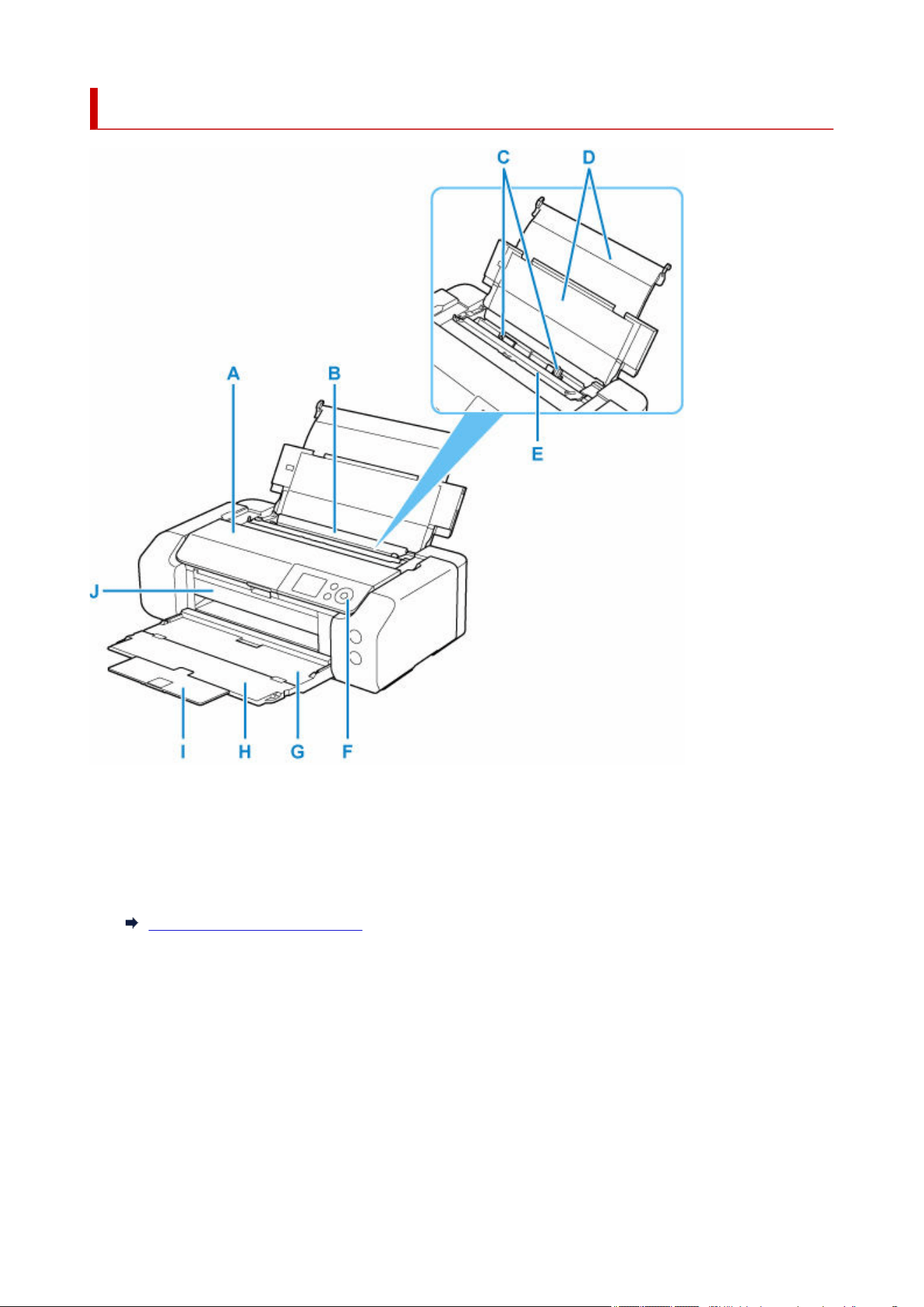
Front
A: Top Cover
Open to replace an ink tank or to remove jammed paper inside the printer.
B: Top Feed
Two or more sheets of the same size and type of paper can be loaded at the same time, and fed
automatically one sheet at a time.
Loading Paper in the Top Feed
C: Paper Guides
Align with both sides of the paper stack.
D: Paper Support
Open to load paper in the top feed.
E: Feed Slot Cover
Prevents anything from falling into the feed slot.
Open it to slide the paper guides, and close it before printing.
F: Operation Panel
Use to change the settings of the printer or to operate it.
44
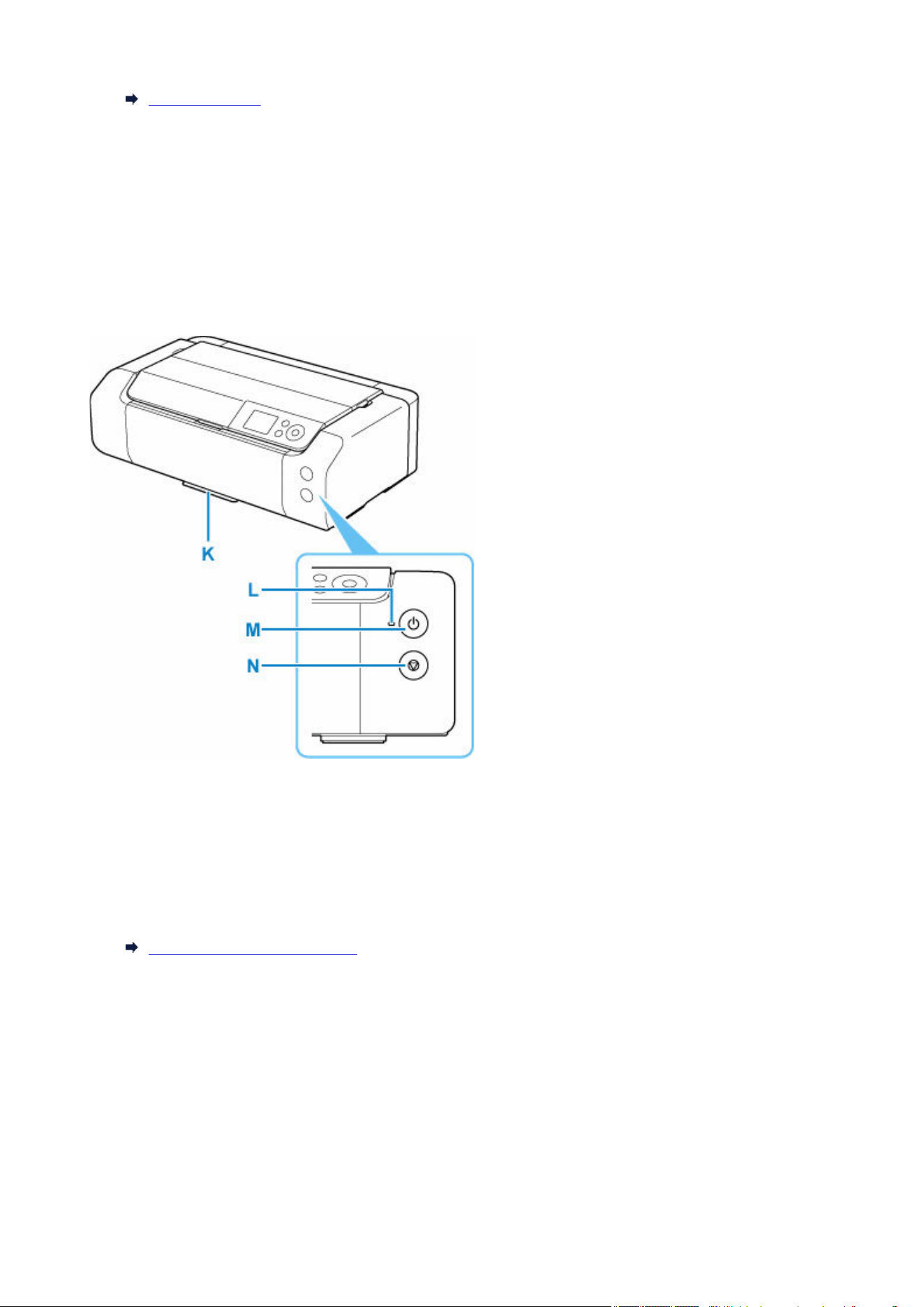
Operation Panel
G: Paper Output Tray
Printed paper is ejected. Open it before printing.
H: Output Tray Extension
Open to support ejected paper.
I: Paper Output Support
Pull out to support ejected paper.
J: Multi-purpose Tray Guide
Place the multi-purpose tray here.
K: Multi-purpose Tray Storage Compartment
The multi-purpose tray supplied with the printer can be stored here.
L: ON lamp
Lights after flashing when the power is turned on.
M: ON button
Turns the power on or off.
Turning the Printer On and Off
N: Stop button
Cancels a print job in progress.
45
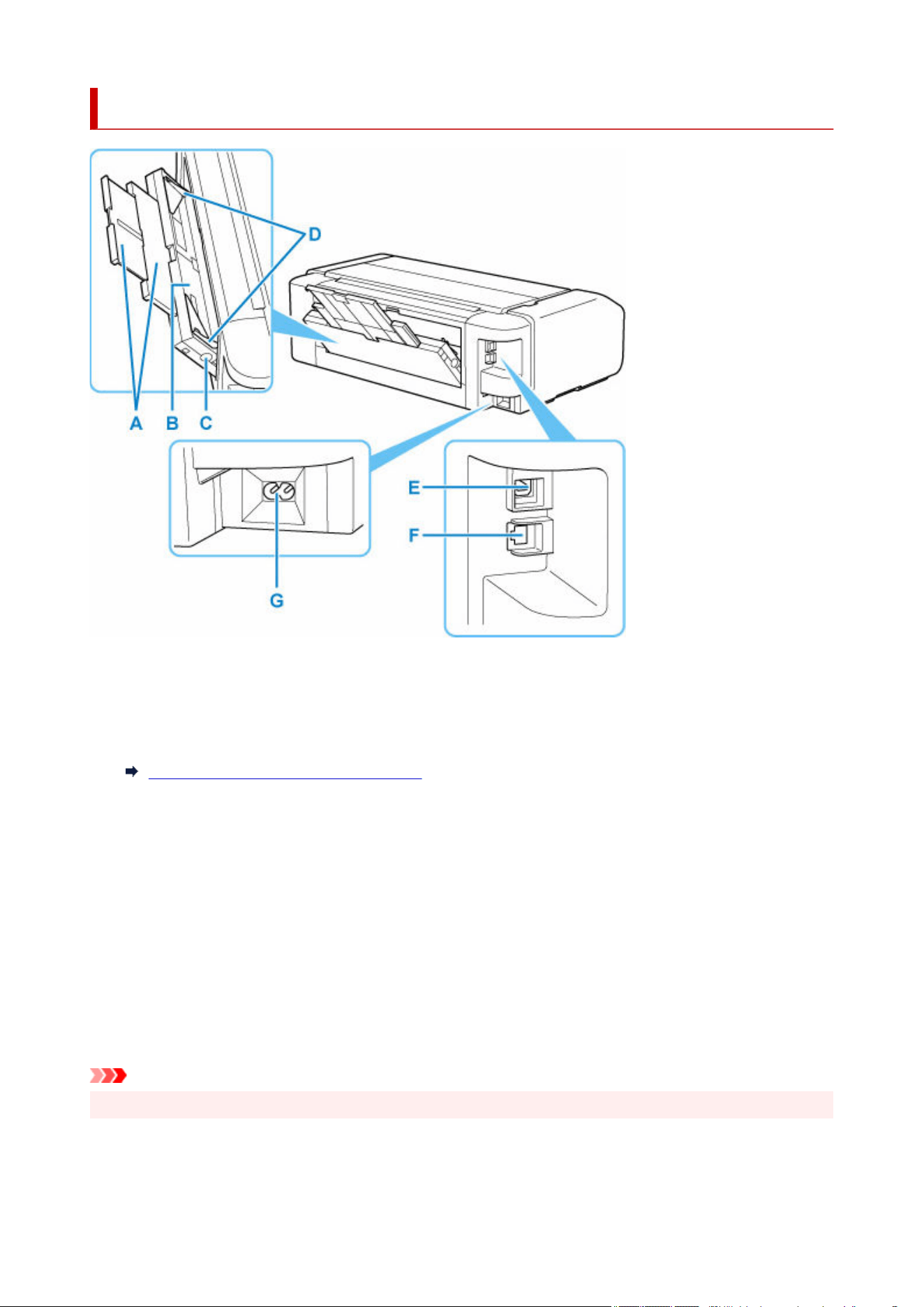
Back / Side
A: Paper Support
Pull out to load paper in the manual feed tray.
B: Manual Feed Tray
Load one sheet of 8" x 10" (20 x 25 cm) size paper or larger, or thick paper at a time.
Loading Paper in the Manual Feed Tray
C: Paper Jam Clearing button
Press this button when removing paper jammed in the manual feed tray.
D: Paper Guides
Align with both sides of the paper stack.
E: USB Port
Plug in the USB cable to connect the printer with a computer.
F: Wired LAN Connector
Plug in the LAN cable to connect the printer to a LAN.
G: Power Cord Connector
Plug in the supplied power cord.
Important
• Do not touch the metal casing.•
46

• Do not plug in or unplug the USB cable or LAN cable while the printer is printing with the computer. This•
can cause trouble.
47
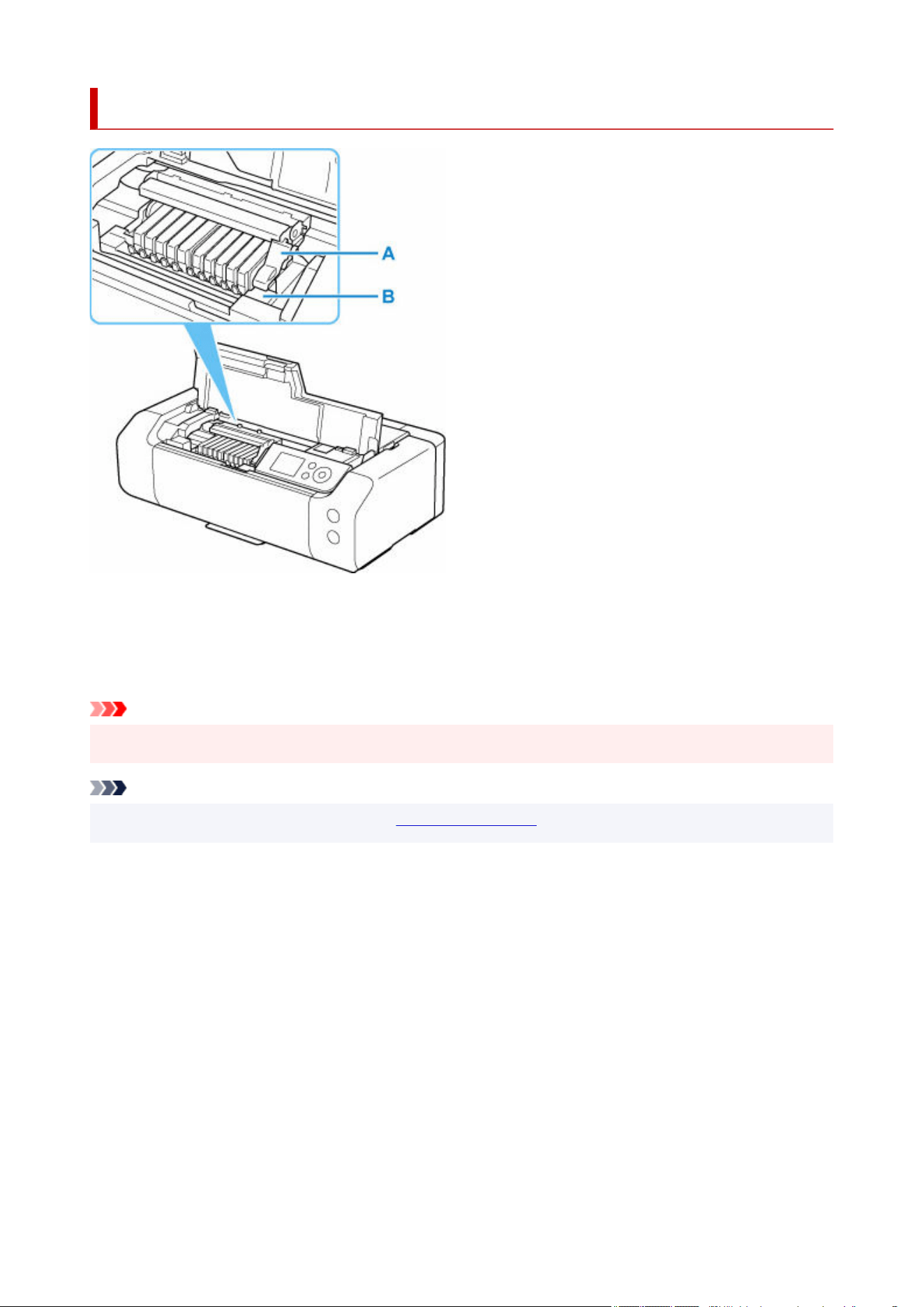
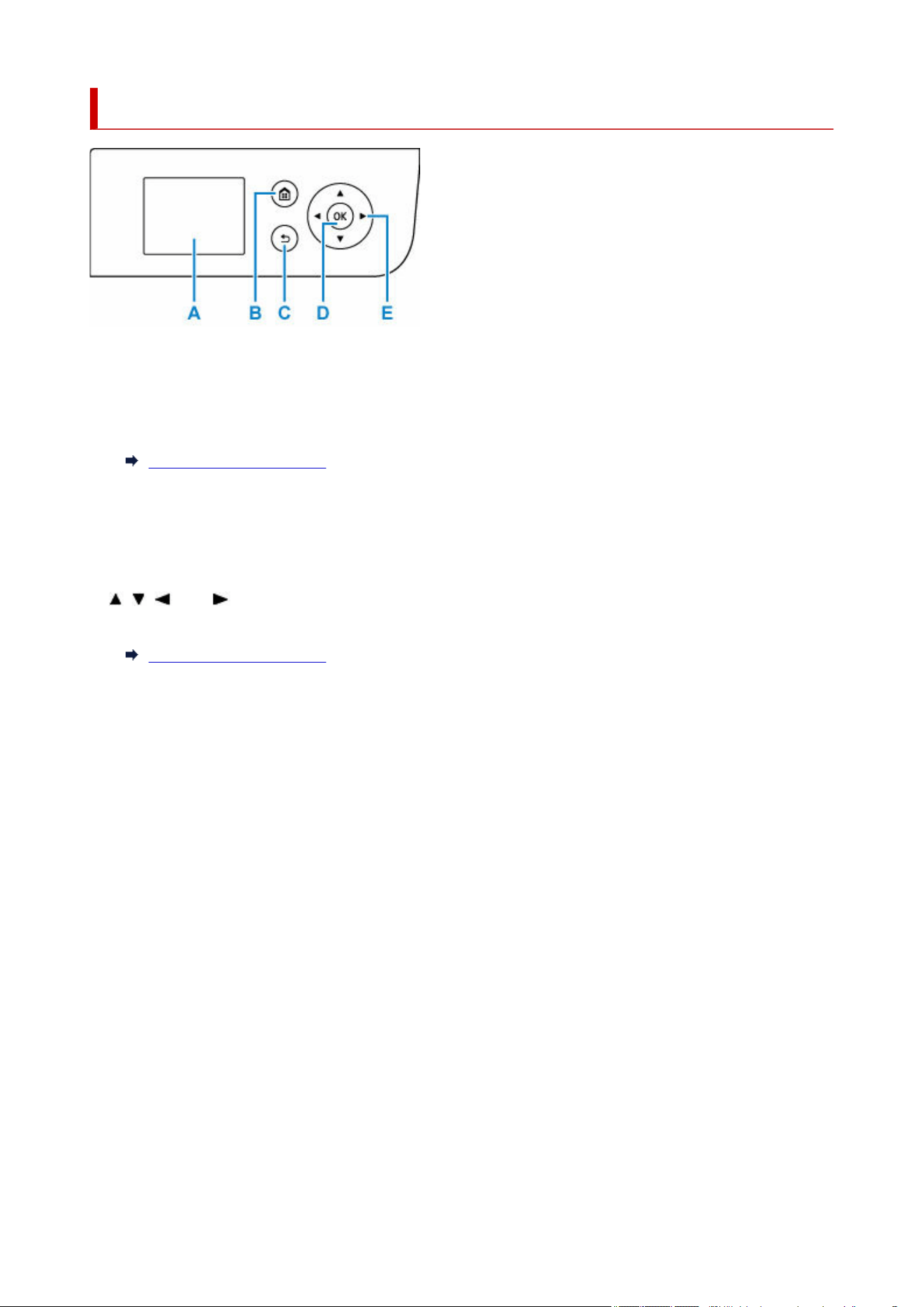
Operation Panel
A: LCD (Liquid Crystal Display)
Displays messages, menu items, and the operational status.
B: HOME button
Used to display the HOME screen.
LCD and Operation Panel
C: Back button
Returns the LCD to the previous screen.
D: OK button
Finalizes the selection of a menu or setting item. This button is also used to resolve an error.
E: , , , and buttons
Used to select a menu or setting item.
LCD and Operation Panel
49

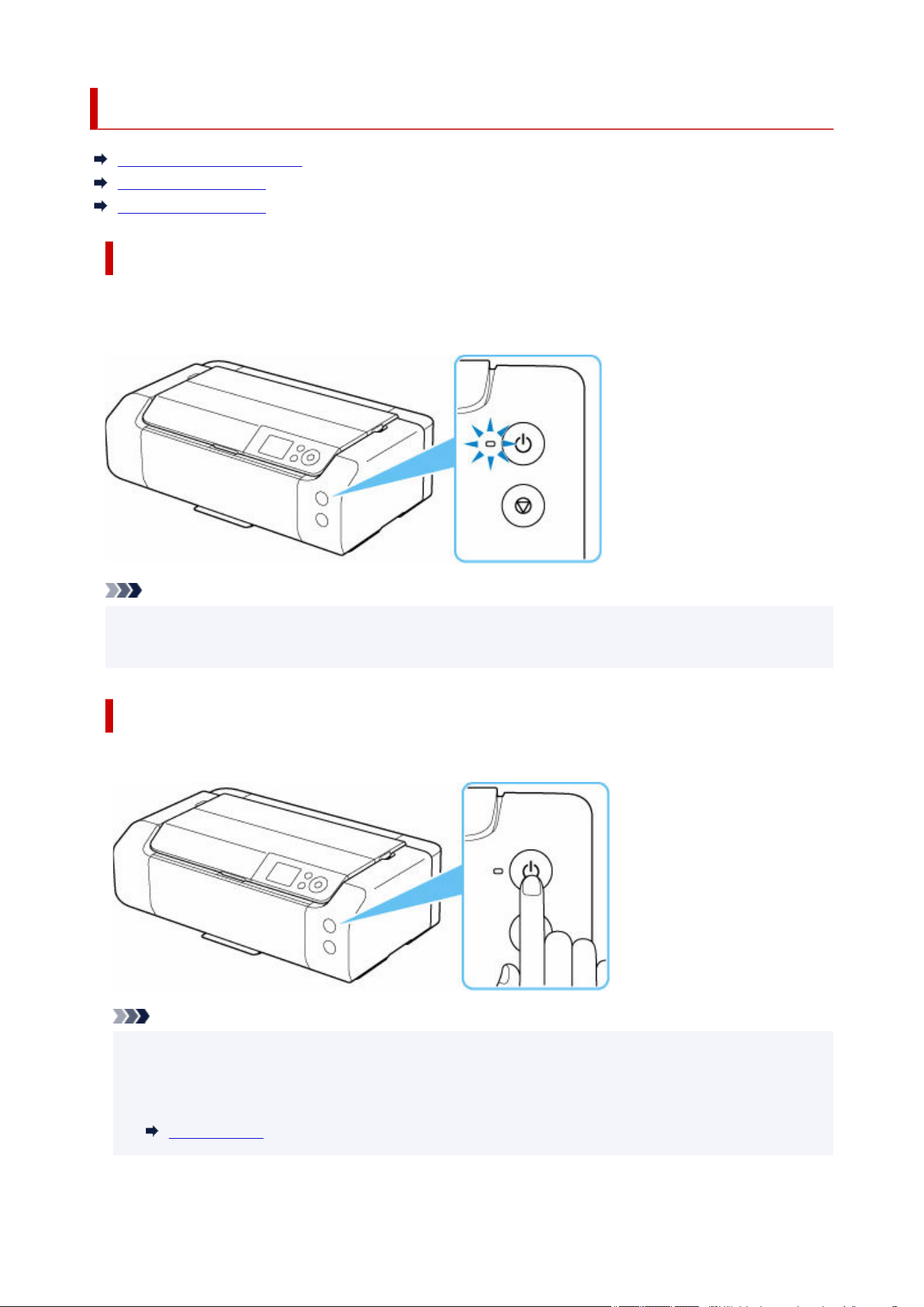
Turning the Printer On and Off
Checking that Power Is On
Turning on the printer
Turning off the printer
Checking that Power Is On
The ON lamp is lit when the printer is turned on.
Even if the LCD is off, if the ON lamp is lit, the printer is on.
Note
• The LCD will turn off if the printer is not operated for about 3 minutes. To restore the display, press•
any button or perform the print operation.
Turning on the printer
Press the ON button to turn on the printer.
Note
• It may take a while for the printer to start printing immediately after you turn on the printer.•
• You can set the printer to automatically turn on when a print operation is performed from a computer•
connected by USB cable or via network. This feature is set to off by default.
Power control
51
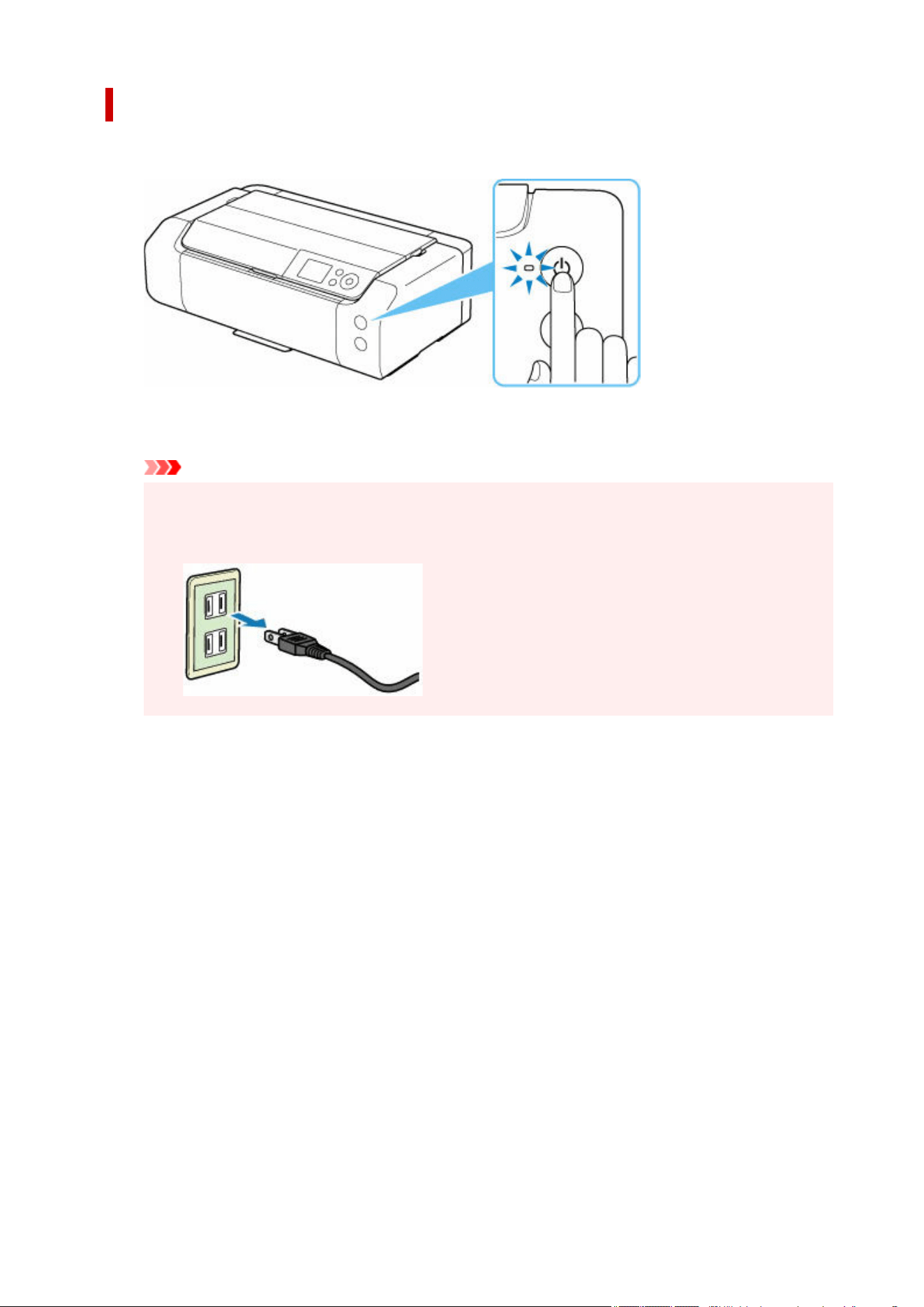
Turning off the printer
1. Press the ON button to turn the printer off.1.
2.
Check that both the ON lamp and LCD display are off.
2.
Important
•
When you unplug the power cord, press the ON button, then confirm that the ON lamp is off.
•
Unplugging the power cord while the ON lamp is lit or flashing may cause drying or clogging of
the print head and print quality may be reduced.
52


Cautions When Printing with Multi-purpose Tray
Cautions Common to using Multi-purpose Tray
• Be sure to use the multi-purpose tray supplied with this printer.•
• Do not mount the multi-purpose tray while the printer is in operation.•
• Do not remove the multi-purpose tray while the printer is in operation. Doing so may damage the•
printer, the multi-purpose tray, or the media.
• Do not get dirt on the multi-purpose tray or scratches on the reflectors. The printer may not be able•
to recognize that a media is loaded, or printing may become misaligned. If the multi-purpose tray
becomes dirty, wipe the reflector clean with a soft and dry cloth, taking care not to scratch it.
• After printing, allow the printing surface of the media to dry naturally. Do not use hairdryers or expose•
the media to direct sunlight to dry the ink. Do not touch the printing surface until the ink has dried.
Cautions When Printing onto Printable Disc
• Remove any dirt from the multi-purpose tray before placing printable discs on it. Loading discs on a•
dirty multi-purpose tray may scratch the recording surface of the discs.
• Do not print onto printable discs that are not compatible with inkjet printing. The ink will not dry and•
may cause problems with the disc itself or DVD players or other devices it is loaded into.
• Do not print onto a printable disc's recording surface. Doing so will make data recorded onto discs•
unreadable.
• Hold printable discs by their edges. Do not touch either the label surface (printing surface) or•
recording surface.
• The multi-purpose tray may become dirty if software other than Easy-PhotoPrint Editor is used.•
54
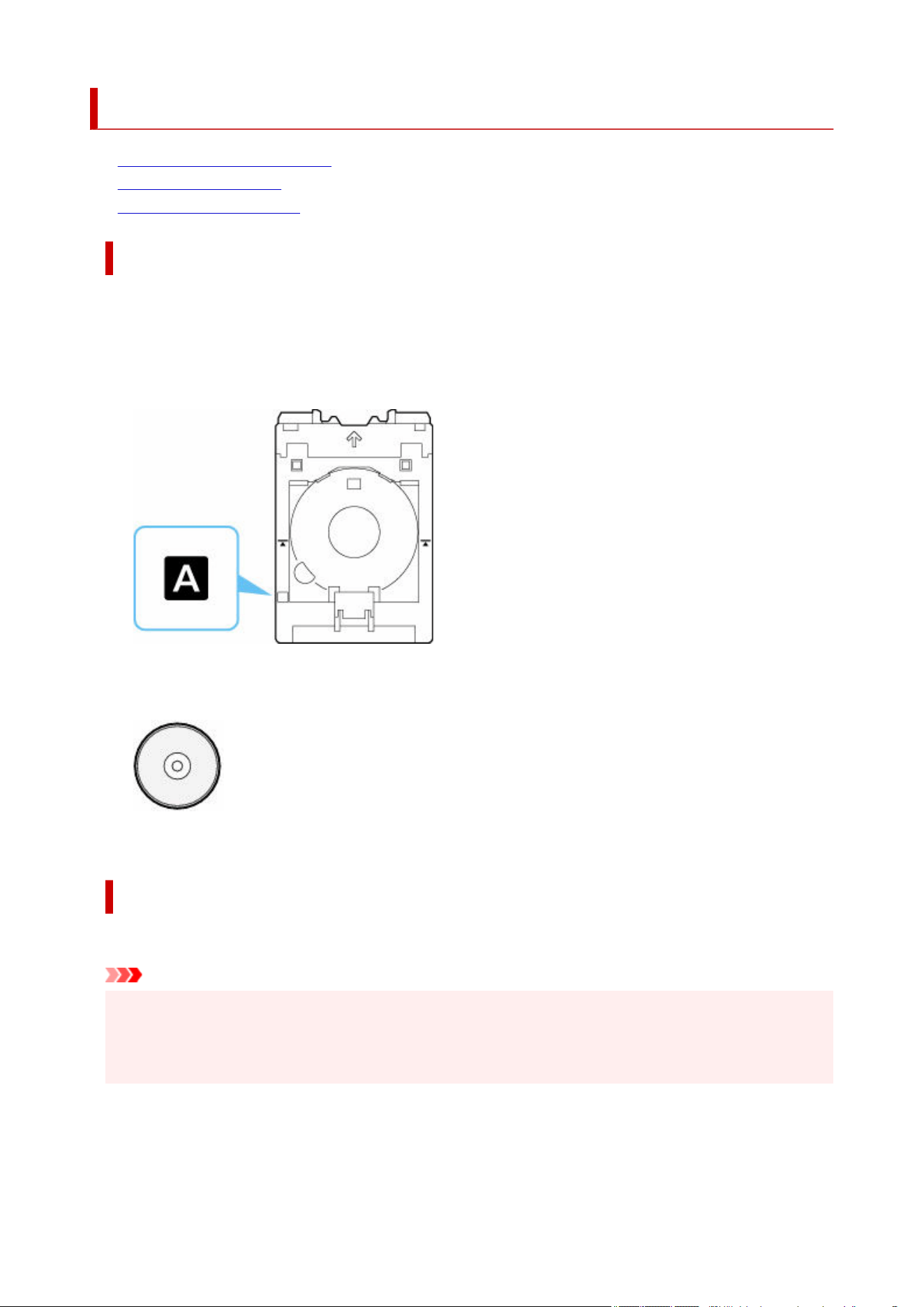
Placing/Removing a Printable Disc
• Before Placing a Printable Disc
• Placing a Printable Disc
• Removing a Printable Disc
Before Placing a Printable Disc
A printable disc differs from regular disc (BD/DVD/CD, etc.) in that its label surface has been specially
processed or printing by an inkjet printer.
The following items are needed to print onto the printable disc.
• Multi-purpose tray (supplied with the printer)•
* Use the multi-purpose tray with "A" on the surface.
• 4.72 in. (12 cm) printable disc•
Obtain a printable disc with a label surface compatible with inkjet printing.
Placing a Printable Disc
To print onto a printable disc, place it on the supplied multi-purpose tray, and then insert it into the printer.
Important
• Do not mount the multi-purpose tray until the message prompting you to load the printable disc•
appears. Doing so can damage the printer.
• Remove any paper in the manual feed tray.•
55
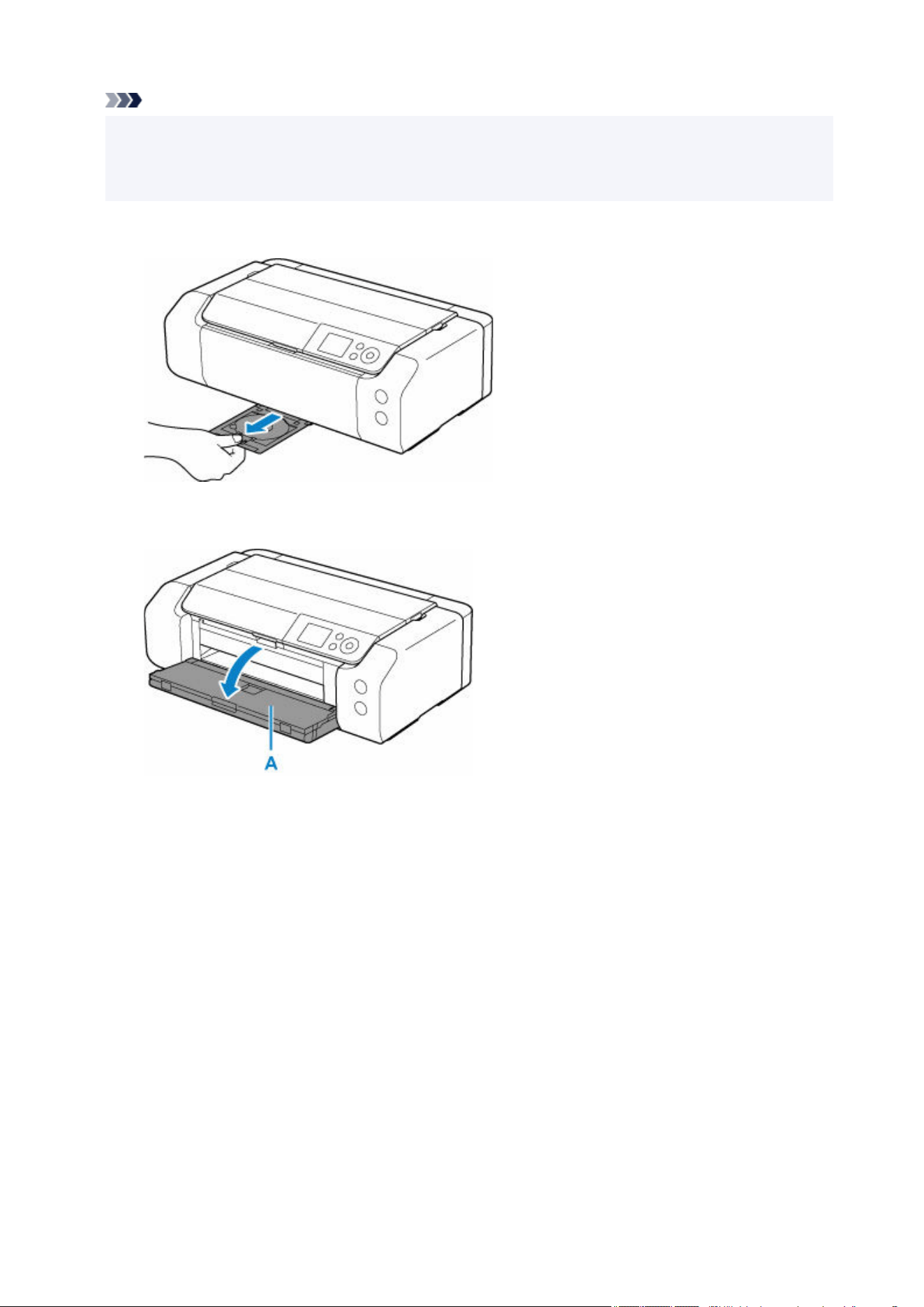
Note
• If test printing is executed onto test printing paper, depending on the paper type, the printer may not•
be able to read its size correctly, preventing the border areas from being printed. Test printing paper
should be used for purposes of checking the envisioned layout.
1. Take out multi-purpose tray from multi-purpose tray storage compartment.1.
2. Open the paper output tray (A) gently.2.
3. When message prompting you to load printable disc appears, open the multi-purpose tray3.
guide (B).
56
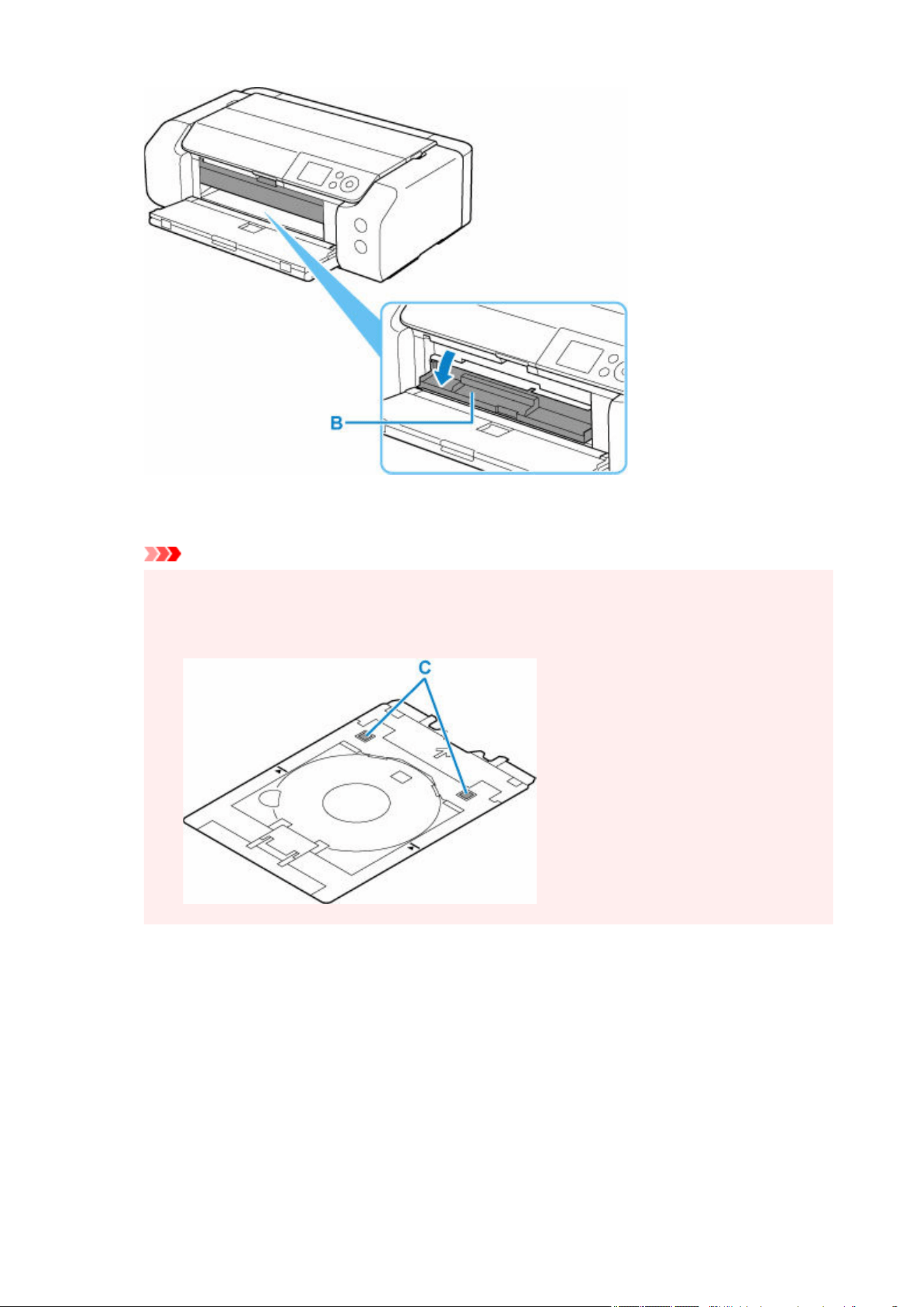
4.
Place printable disc on multi-purpose tray.
4.
Important
•
Check that there is no dirt on the multi-purpose tray before placing a printable disc on it.
•
• When placing a printable disc on the multi-purpose tray, do not touch the printing surface of the•
disc or the reflectors (C) on the multi-purpose tray.
1. WITH PRINT SIDE FACING UP, place printable disc, and press it against lock (D) at1.
bottom.
57
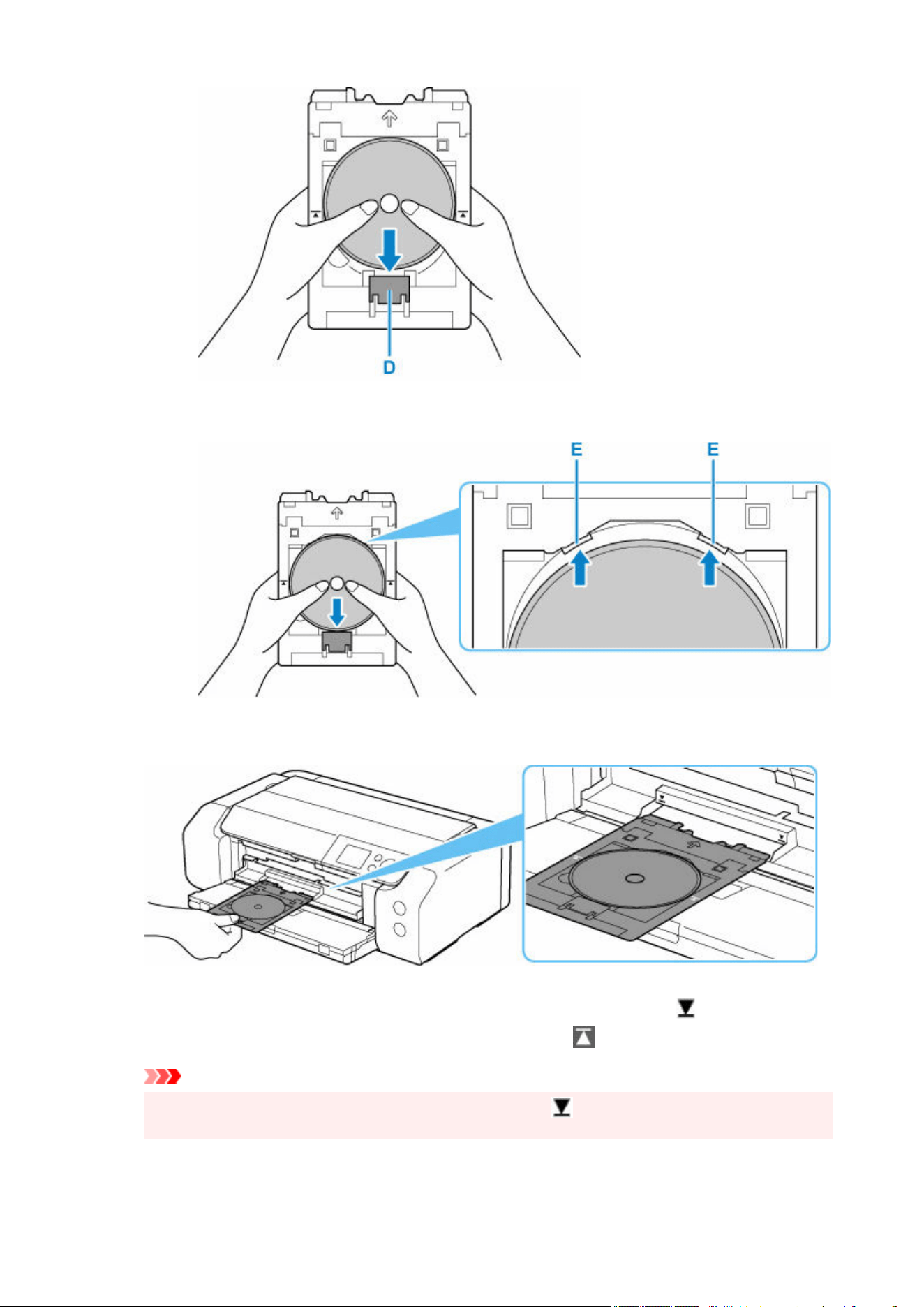
2. While pressing down lock with printable disc, insert top of printable disc into slits (E).2.
5. Place multi-purpose tray on multi-purpose tray guide.5.
6.
Insert multi-purpose tray straight in in horizontal direction until arrow ( ) on multi-
6.
purpose tray guide is approximately aligned with arrow ( ) on multi-purpose tray.
Important
•
Do not insert the multi-purpose tray beyond the arrow ( ) on the multi-purpose tray guide.
•
58
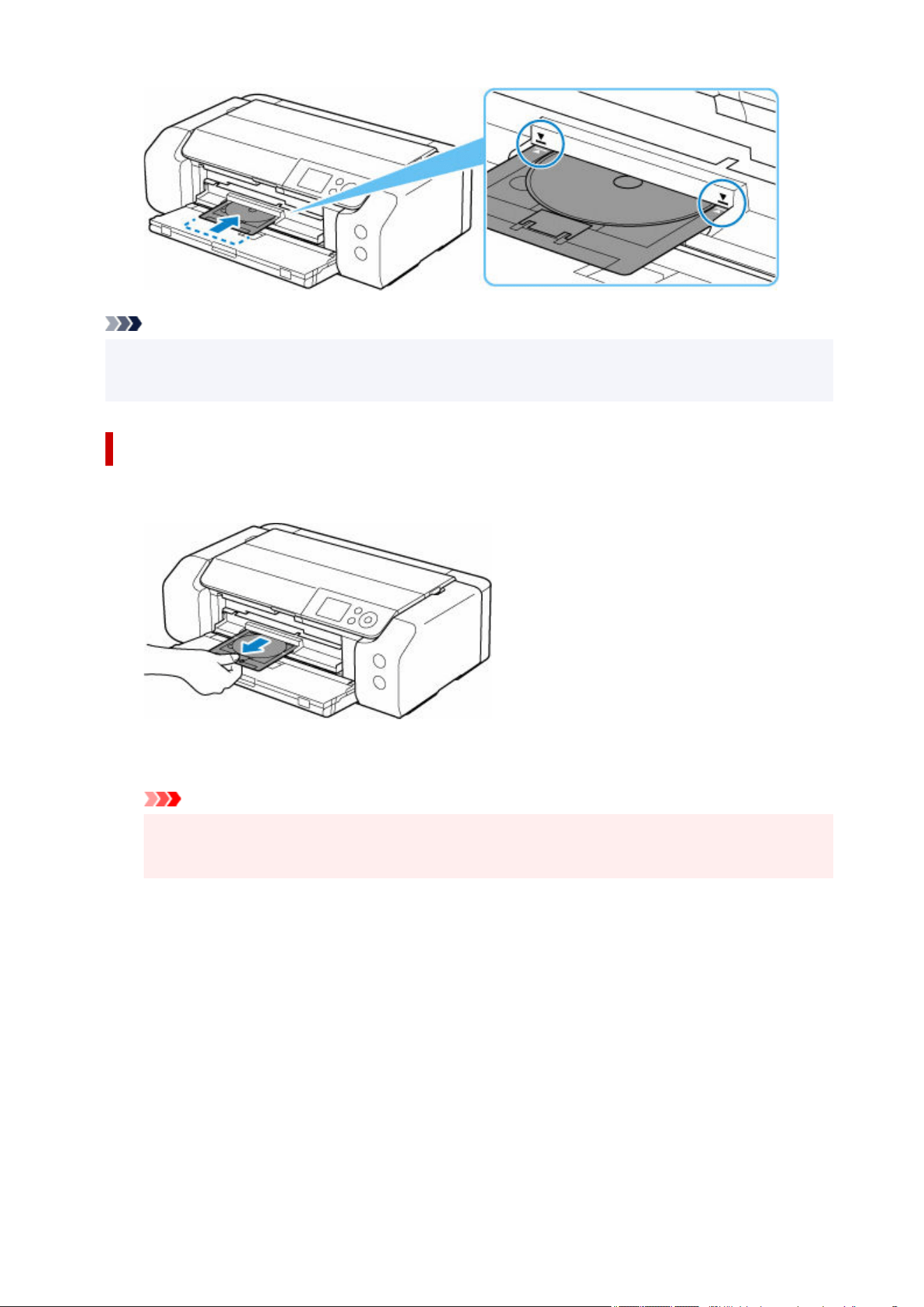
Note
• The multi-purpose tray may be ejected after a certain amount of time passes. In such a case, follow•
the on-screen instructions to place the multi-purpose tray again.
Removing a Printable Disc
1. Pull out multi-purpose tray.1.
2. Close the multi-purpose tray guide.2.
Important
• If the multi-purpose tray guide is opened, you cannot print on paper as it will not feed properly.•
Make sure that the multi-purpose tray guide is closed.
59
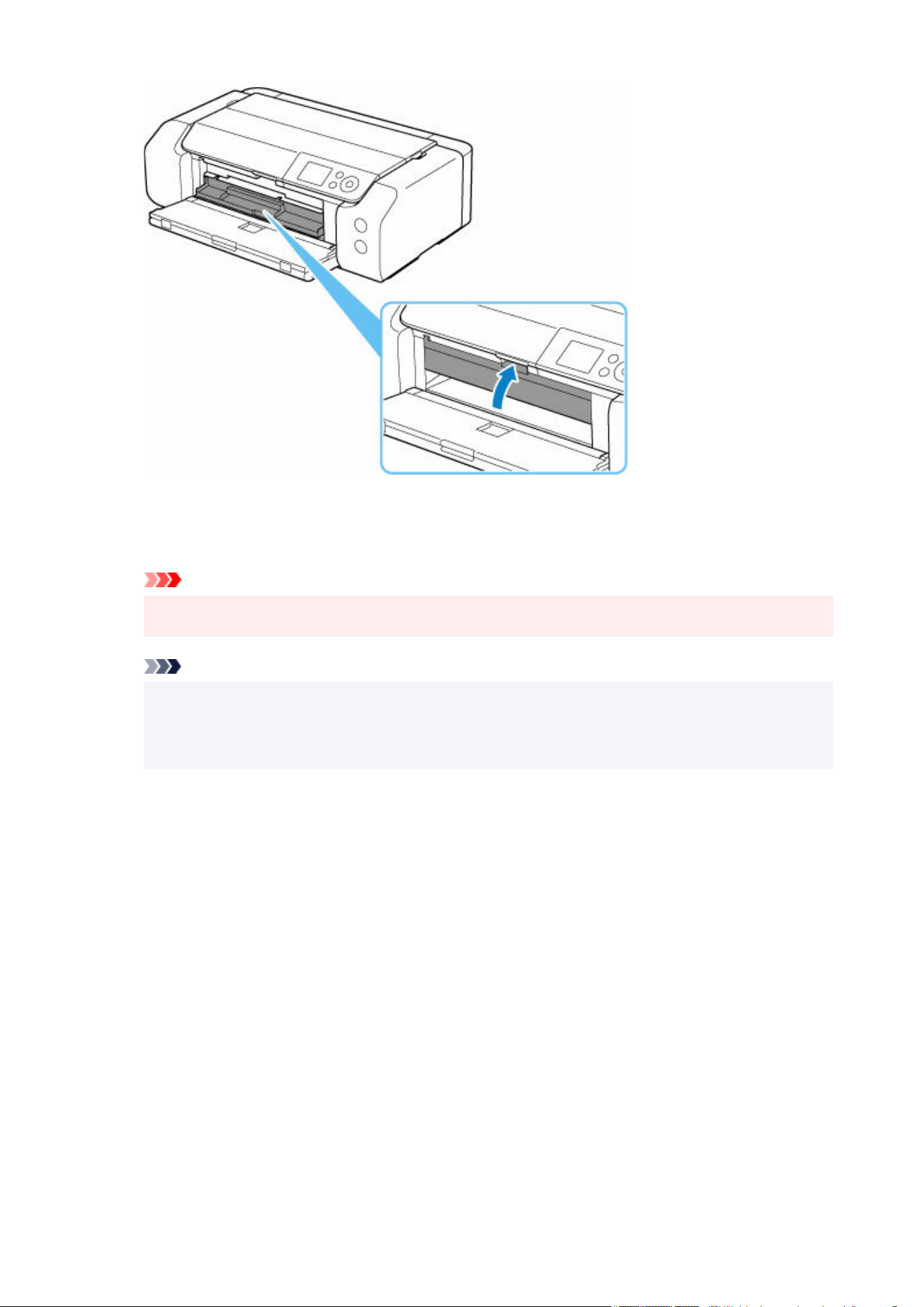
3.
While pressing down lock (A), take out printable disc from slits (B) on multi-purpose tray,
3.
and remove it.
Important
• Do not touch the printing surface when removing the disc from the multi-purpose tray.•
Note
•
Allow the printing surface to dry before removing the disc. If you see printing on the multi-
•
purpose tray or on the transparent parts of the inner or outer diameters of the printable disc,
wipe them clean after the printing surface has dried.
60
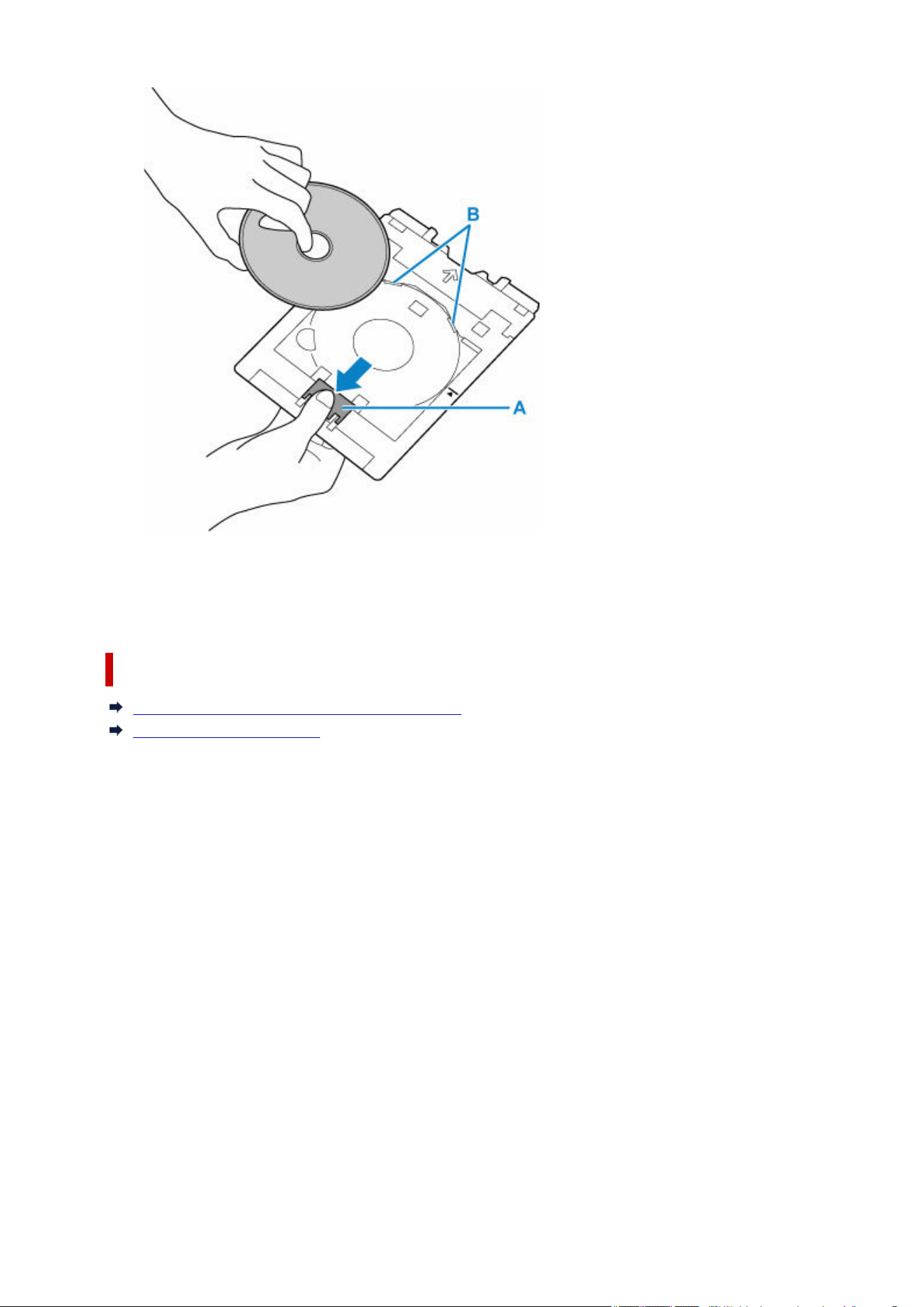

Printing
Printing from Your Computer (Windows)
Basic Printing Setup Basics
Main Controls (Basic Settings Tab)
Set Media Type, Quality, etc. (Media/Quality Tab)
Set the Layout of Printed Documents (Page Setup Tab)
See more...
Printing from Your Computer (macOS)
Basic Printing Setup Basics
Various Printing Methods
Changing the Print Quality and Correcting Image Data
See more...
Printing from Chromebook
Printing from Printer
Printing Templates Such as Lined or Graph Paper
Printing from Smartphone/Tablet
Print Easily from a Smartphone or Tablet with Canon PRINT
Printing from iOS Device (AirPrint)
About Mopria®
Printing with Canon Print Service
Using Cloud Service
Printing with a Specified ICC Profile
62

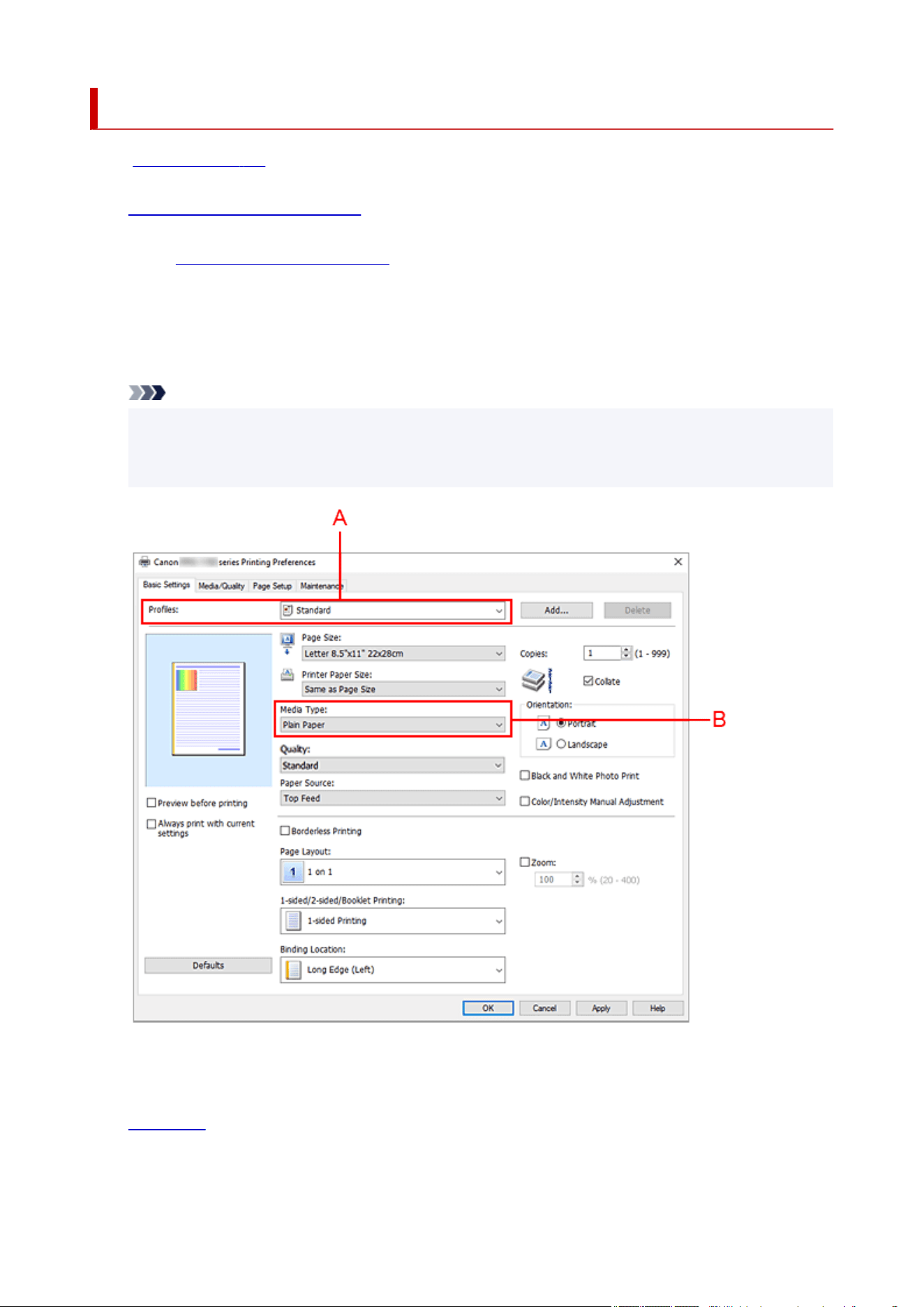
Basic Printing Setup
In the Basic Settings tab, you can print in various ways according to your purpose.
1. Check that printer is turned on1.
2.
Open printer driver's setup screen
2.
3.
Select Profile (A)
3.
Select the print settings according to your purpose in Profiles on the Basic Settings tab.
If you select a print setting, Paper Size and Media Type will change automatically.
Note
•
When the paper size to be printed is selected from Printer Paper Size, the zoom level is
automatically set according to the selected paper size.
To select a zoom level of your choice, add a checkmark to Zoom and enter a number.
4.
Select Media Type (B) According to Requirements
4.
5.
Set Paper
5.
6.
Click OK
6.
64


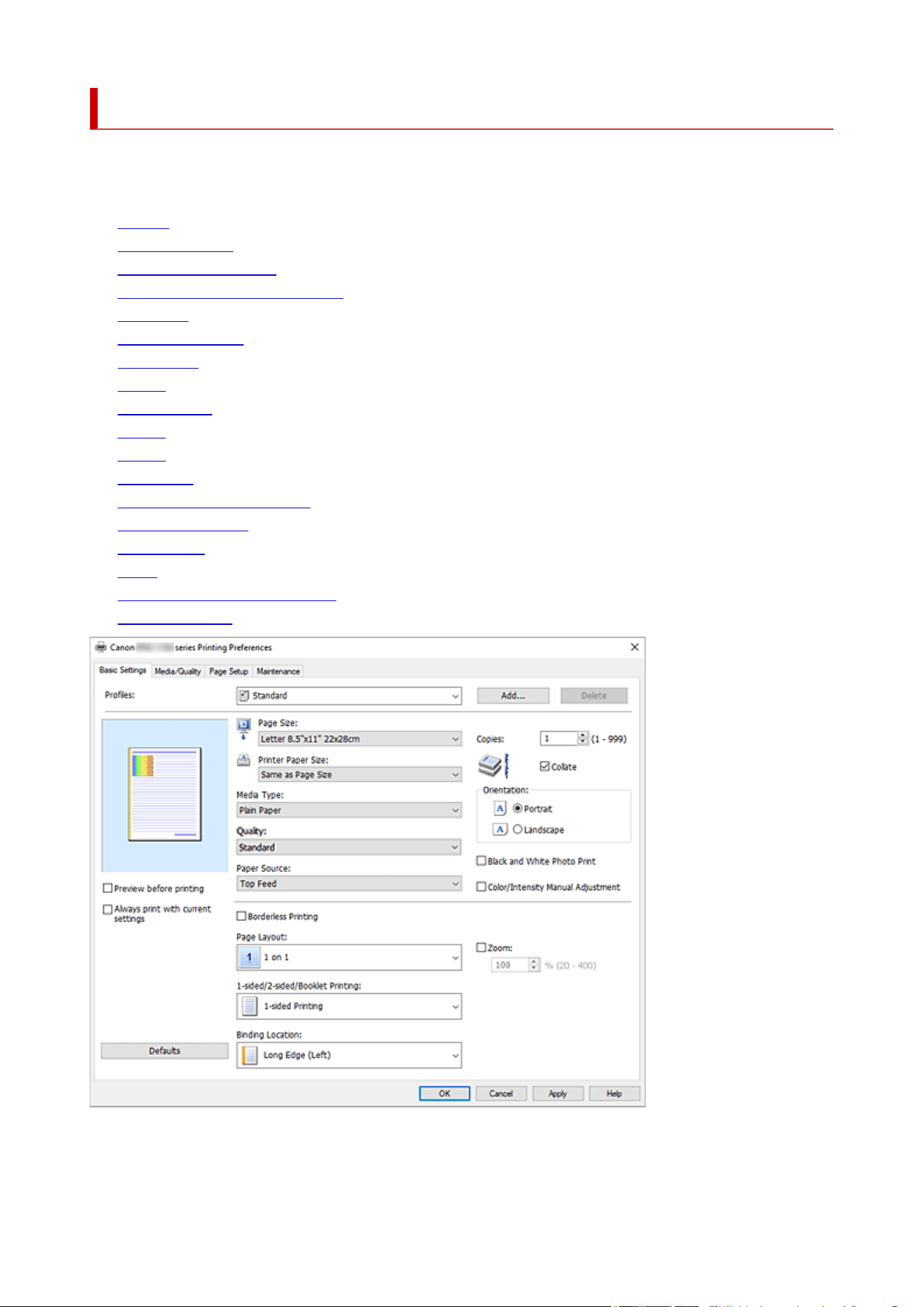
Basic Settings Tab Description
The Basic Settings tab is for registering commonly used print settings. When you select a registered
setting, the printer automatically switches to the preset items.
• Profiles
• Settings Preview
• Preview before printing
• Always print with current settings
• Page Size
• Printer Paper Size
• Media Type
• Quality
• Paper Source
• Copies
• Collate
• Orientation
• Black and White Photo Print
• Borderless Printing
• Page Layout
• Zoom
• 1-sided/2-sided/Booklet Printing
• Binding Location
Profiles
The names and icons of frequently used printing profiles are registered. When you select a printing
profile according to the purpose of the document, settings that match the purpose are applied.
67

You can also change a printing profile and register it under a new name. You can delete the registered
printing profile.
Standard
These are the factory settings.
If Page Size, Orientation, and Copies were set from the application software, those settings have
priority.
Photo Printing
If you select this setting when printing a photo, the photo paper and photo size generally used are
set. The Borderless Printing check box is checked automatically.
If Orientation and Copies were set from the application software, those settings have priority.
Paper Saving
Select this setting to save paper when printing a general document. Page Layout is set to 2 on 1,
and 1-sided/2-sided/Booklet Printing is set to 2-sided Printing (Manual).
If Page Size, Orientation, and Copies were set from the application software, those settings have
priority.
Greeting Card
When selected for printing a greeting card, the Media Type is automatically set to Inkjet Greeting
Card. The Quality is also set to Highest, and a check-mark is added to Borderless Printing.
Note
• You cannot change the order of print settings.
Add...
Displays the Add to Profiles dialog box.
Click this button when you want to save the information that you set on the Basic Settings, Media/
Quality, and Page Setup tabs to Profiles.
Delete
Deletes a registered printing profile.
Select the name of the setting to be deleted from Profiles, and click Delete. When a confirmation
message is displayed, click OK to delete the specified printing profile.
Note
• Printing profiles that are registered in the initial settings cannot be deleted.
Settings Preview
The paper illustration shows how the original will be laid out on a sheet of paper.
You can check an overall image of the layout.
Preview before printing
Shows what the print result will look like before you actually print the data.
Check this check box to display a preview before printing.
Uncheck this check box if you do not want to display a preview.
Always print with current settings
Prints documents with the current settings starting from the next print execution.
When you select this function and then close the printer driver setup window, the information that you
set on the Basic Settings, Media/Quality, and Page Setup tabs are saved and printing with the same
settings is possible starting from the next print execution.
68

Important
• If you log on with a different user name, the settings that were set when this function was enabled
are not reflected in the print settings.
• If a setting was specified on the application software, it has priority.
Page Size
Selects a page size.
Ensure that you select the same page size as you selected within the application.
If you select Custom..., the Custom Paper Size dialog box opens and allows you to specify any
vertical and horizontal dimensions for the paper size.
Printer Paper Size
Selects the size of paper actually loaded into the printer.
Normally, it will appear as Same as Page Size, and the document is printed with no scaling.
If you select a paper size that is smaller than the Page Size, the document size will be reduced. If you
select a paper size that is larger, the document size will be enlarged.
Also if you select Custom..., the Custom Paper Size dialog box opens and allows you to specify any
vertical and horizontal dimensions for the paper size.
Media Type
Selects a type of printing paper.
Select a media type that matches the paper that is loaded in the printer. This ensures that printing is
carried out properly for the specified paper.
Quality
Selects your desired printing quality.
Select one of the following to set the print quality level that is appropriate for the purpose.
To set the print quality level individually, click the Media/Quality tab, and for Quality, select Custom.
The Set... becomes enabled. Click Set... to open the Custom dialog box, and then specify the desired
settings.
Highest
Gives the highest priority to print quality.
Standard
Prints with average speed and quality.
Fast
Gives priority to printing speed over print quality.
Paper Source
Shows the source from which paper is supplied.
You may be able to switch the paper source with the printer driver.
Manual Feed
Paper is supplied from the manual feed tray in the back.
Top Feed
Paper is always supplied from the top feed.
Important
• Depending on the media type and size, the Paper Source settings that can be selected may differ.
69

Copies
Specifies the number of copies you want to print. You can specify a value from 1 to 999.
Important
• When the application software that you used to create the document has the same function, specify
the settings on the printer driver. However, if the print results are not acceptable, specify the
function settings on the application software.
Collate
Check this check box to group together the pages of each copy when you want to print multiple copies.
Uncheck this check box when you want to print with all pages of the same page number grouped
together.
Important
• When the application software that you used to create the document has the same function,
give priority to the printer driver settings. However, if the print results are not acceptable, specify
the function settings on the application software. When you specify the number of copies and
the printing order with both the application and this printer driver, the number of copies may be
multiplied numbers of the two settings or the specified printing order may not be enabled.
Orientation
Selects the printing orientation.
If the application used to create your document has a similar function, select the same orientation that
you selected in that application.
Portrait
Prints the document so that its top and bottom positions are unchanged relative to the paper feed
direction. This is the default setting.
Landscape
Prints the document by rotating it 90 degrees relative to the paper feed direction.
You can change the rotation direction by going to the Maintenance tab, opening the Custom
Settings dialog box, and then using Rotate 90 degrees left when orientation is [Landscape]
check box.
To rotate the document 90 degrees to the left when printing, select the Rotate 90 degrees left
when orientation is [Landscape] check box.
Black and White Photo Print
This function converts the data to monochrome data when printing your document.
Color/Intensity Manual Adjustment
Select this setting if you want to select the Color Correction method, or if you want to individually set
Cyan, Magenta, Yellow, Tone, Brightness, or Contrast.
You can also configure clear-coating.
Borderless Printing
Performs borderless printing without any margins on the paper.
With the borderless printing function, the document to be printed is enlarged, so that it extends slightly
off the paper. In other words, the document is printed without any margin.
To adjust the amount that the document extends beyond the paper, click the Page Setup tab, add a
checkmark to Borderless Printing, and enter the value in Amount of Extension.
70

Page Layout
Selects the size of the document you want to print and the type of printing.
1 on 1 to 16 on 1
Multiple pages of document can be printed on one sheet of paper.
To change the page order, click Preferences.... In the Page Layout Printing dialog box that
appears, specify Page Order.
Poster (1 x 2) to Poster (4 x 4)
This function enables you to enlarge the image data and divide the enlarged data into several
pages to be printed. You can also glue together these sheets of paper to create large printed
matter, such as a poster.
Preferences...
Opens the Poster Printing dialog box.
Click this button to set details on poster printing.
Zoom
Specifies an enlargement or reduction ratio for the document you want to print.
1-sided/2-sided/Booklet Printing
1-sided Printing
Select when performing single-sided printing.
2-sided Printing (Manual)
Select when performing duplex printing.
Booklet Printing (Manual)
The booklet printing function allows you to print data for a booklet. Data is printed on both sides of
the paper. This type of printing ensures that pages can be collated properly, in page number order,
when the printed sheets are folded and stapled at the center.
Preferences...
Opens the Booklet Printing dialog box.
Click this button to set details on booklet printing.
Binding Location
Selects the stapling margin position. The printer analyzes the Orientation and Page Layout settings,
and automatically selects the best stapling margin position. Check Binding Location, and select from
the list to change it.
To specify the width of the binding margin, set it from the Page Setup tab.
Defaults
Restores all the settings you have changed to their default values.
Click this button to return all settings on the Basic Settings, Media/Quality, and Page Setup tabs to
their default values (factory settings).
Add to Profiles dialog box
This dialog box allows you to save the information that you set on the Basic Settings, Media/Quality,
and Page Setup tabs and add the information to the Profiles list on the Basic Settings tab.
71

Name
Enter the name for the printing profile you wish to save.
Up to 255 characters can be entered.
The name appears, with its associated icon, in the Profiles list on the Basic Settings tab.
Options...
Opens the Add to Profiles dialog box.
Changes the details of printing profile to be saved.
Add to Profiles dialog box
Select the icons of the printing profiles to be registered to Profiles, and change the items to be saved in
the printing profiles.
Icon
Select the icon for the printing profile you wish to save.
The selected icon appears, with its name, in the Profiles list on the Basic Settings tab.
Save the paper size setting
Saves the paper size to the printing profile in Profiles.
To apply the saved paper size when the printing profile is selected, check this check box.
If this check box is unchecked, the paper size is not saved, and consequently the paper size setting
is not applied when the printing profile is selected. Instead the printer prints with the paper size
specified with the application software.
Save the orientation setting
Saves the Orientation to the printing profile in Profiles.
To apply the saved print orientation when the printing profile is selected, check this check box.
If this check box is unchecked, the print orientation is not saved, and consequently the Orientation
setting is not applied when the printing profile is selected. Instead the printer prints with the print
orientation specified with the application software.
Save the copies setting
Saves the Copies setting to the printing profile in Profiles.
To apply the saved copies setting when the printing profile is selected, check this check box.
If this check box is unchecked, the copies setting is not saved, and consequently the Copies
setting is not applied when the printing profile is selected. Instead the printer prints with the copies
setting specified with the application software.
Custom Paper Size dialog box
This dialog box allows you to specify the size (width and height) of the custom paper.
Units
Select the unit for entering a user-defined paper size.
Paper Size
Specifies the Width and the Height of the custom paper. Measurement is shown according to the
units specified in Units.
72

Page Layout Printing dialog box
This dialog box allows you to select the number of document pages to be placed on one sheet of paper,
the page order, and whether a page border line is to be printed around each document page. The settings
specified in this dialog box can be confirmed in the settings preview on the printer driver.
Page Order
Specifies the document orientation to be printed on a sheet of paper.
Page Border
Prints a page border line around each document page. Check this check box to print the page border
line.
Exclude single page documents from Page Layout Printing
If you add a checkmark, single-page documents are printed on a single sheet without performing
Page Layout Printing.
Poster Printing dialog box
This dialog box allows you to select the size of the image to be printed. You can also make settings for cut
lines and paste markers which are convenient for pasting together the pages into a poster.
The settings specified in this dialog box can be confirmed in the settings preview on the printer driver.
Print "Cut/Paste" in margins
Specifies whether to print the words "Cut" and "Paste" in the margins. These words serve as
guidelines for pasting together the pages into a poster. Check this check box to print the words.
Note
• Depending on the environment of the printer driver you are using, this function may not be
available.
Print "Cut/Paste" lines in margins
Specifies whether to print cut lines that serve as guidelines for pasting together the pages into a
poster. Check this check box to print the cut lines.
Print page range
Specifies the printing range. Select All under normal circumstances.
Select Pages to specify a specific page or range.
Note
• If some of the pages have not been printed well, specify the pages that do not need to be printed
by clicking them in the settings preview of the Page Setup tab. Only the pages shown on the
screen will be printed this time.
Booklet Printing dialog box
This dialog box allows you to set how to bind the document as a booklet. Printing only on one side and
printing a page border, can also be set in this dialog box.
The settings specified in this dialog box can be confirmed in the settings preview on the printer driver.
73

Preview Icon
Shows the settings made on the Booklet Printing dialog box.
You can check what the document will look like when printed as a booklet.
Margin for stapling
Specifies which side of the booklet is to be stapled.
Insert blank page
Selects whether to print the document on one side or both sides of the booklet.
Check this check box to print the document on one side of the booklet and select the side to be left
blank from the list.
Margin
Specifies the width of the stapling margin.
The specified width becomes the stapling margin from the center of the sheet.
Page Border
Prints a page border line around each document page.
Check this check box to print the page border line.
74
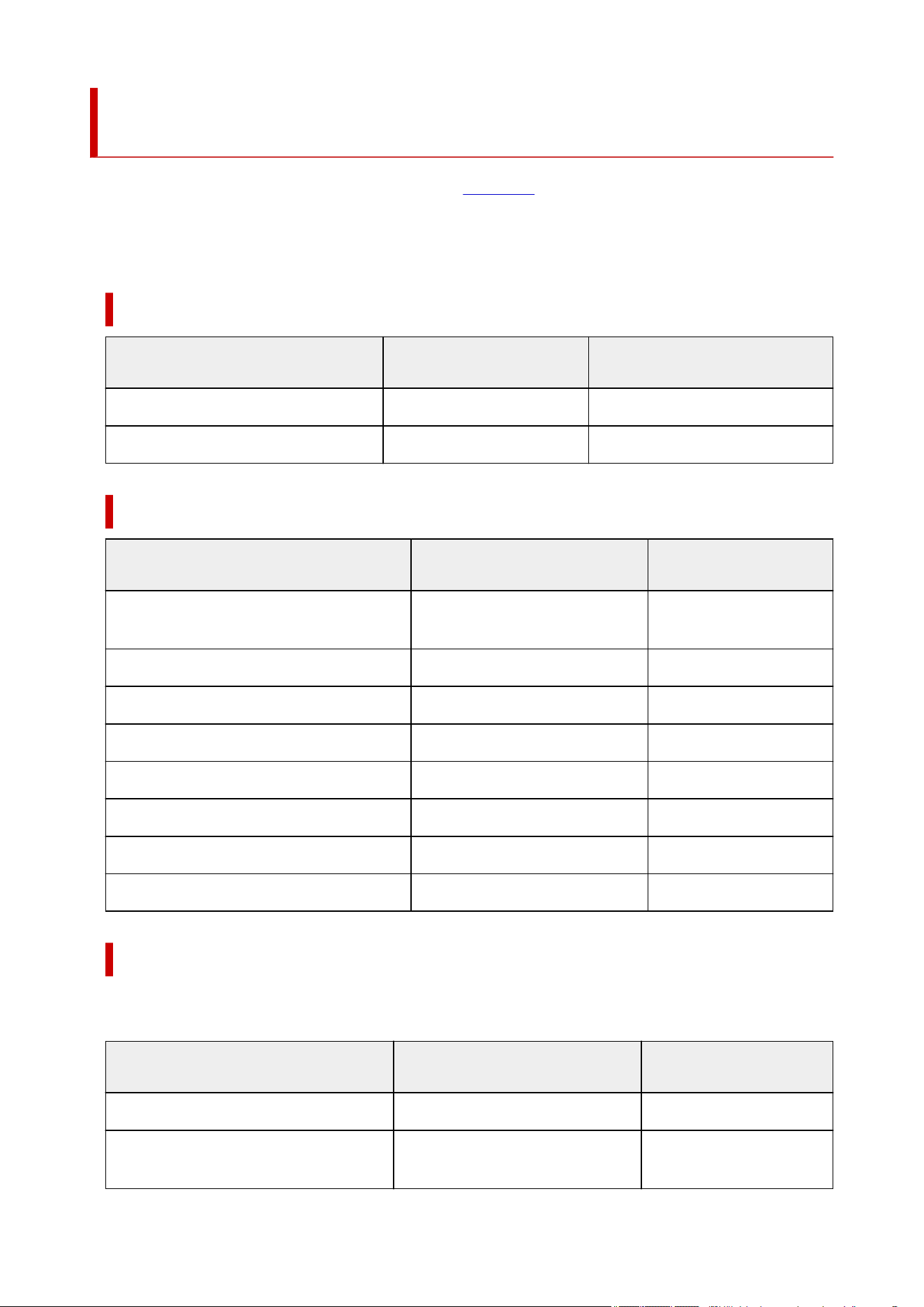
Paper Settings on the Printer Driver and the Printer (Media
Type)
When you use this printer, selecting a media type and paper size that matches the print purpose will help
you achieve the best print results.
Depending on the media type you are using, specify the media type settings on the printer driver or the
printer's operation panel as described below.
Canon genuine papers (Document Printing)
Media name <Model No.>
Media Type in the printer
driver
Paper information registered on
the printer
Canon Red Label Superior <WOP111> Plain Paper Plain paper
Canon Océ Office Colour Paper <SAT213> Plain Paper Plain paper
Canon genuine papers (Photo Printing)
Media name <Model No.> Media Type in the printer driver
Paper information regis-
tered on the printer
Photo Paper Plus Glossy II <PP-201/PP-208/
PP-301>
Photo Paper Plus Glossy II A Plus Glossy II A
Photo Paper Pro Platinum <PT-101> Photo Paper Pro Platinum Pro Platinum
Photo Paper Pro Luster <LU-101> Photo Paper Pro Luster Pro Luster
Photo Paper Plus Semi-gloss <SG-201> Photo Paper Plus Semi-gloss Plus Semi-gloss
Matte Photo Paper <MP-101> Matte Photo Paper Matte
Premium Fine Art Smooth <FA-SM1> Premium Fine Art Smooth Fine Art Smooth
Premium Fine Art Rough <FA-RG1> Premium Fine Art Rough Fine Art Rough
Photo Paper Pro Premium Matte <PM-101> Photo Paper Pro Premium Matte A ProPremiumMatteA
Commercially available papers
When you use non-genuine Canon paper, you can print easily by using the existing settings that have
been prepared on the printer's operation panel and in the printer driver.
Media name Media Type in the printer driver
Paper information regis-
tered on the printer
Plain Paper (including recycled paper) Plain Paper Plain paper
Lightweight Photo Paper (Approximately
0.1mm to less than 0.3mm)
Lightweight Photo Paper *2 Light Photo Paper
75
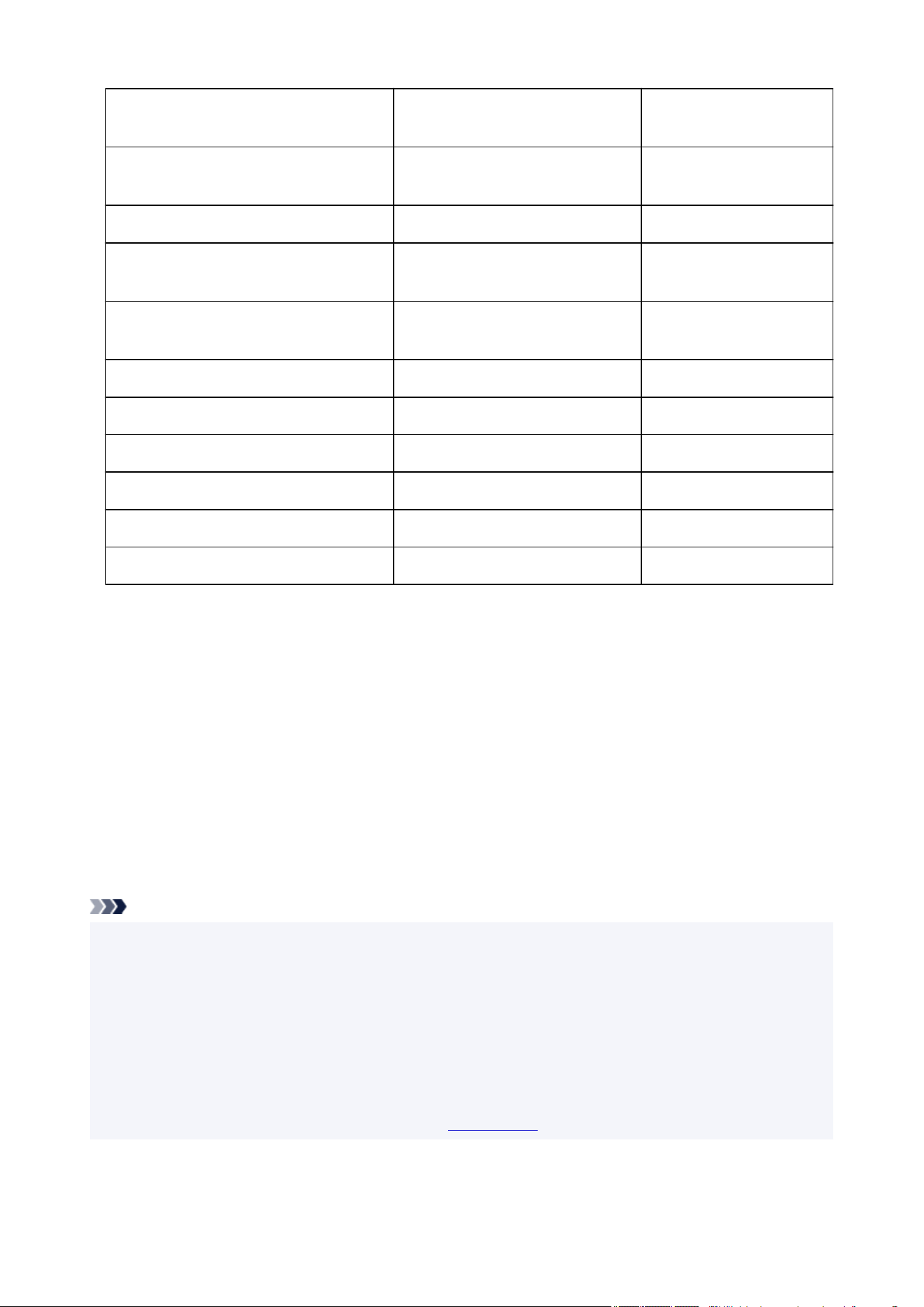
Heavyweight Photo Paper (Approximately
0.3mm to less than 0.6mm)
Heavyweight Photo Paper *2 Heavy Photo Paper
Photo Paper (Long-form)
Photo Paper (Long-form Printing)
*2
Photo Paper (Long-form)
Baryta Photo Paper *3 Baryta Photo Paper Baryta PhotoPaper
Heavyweight Fine Art Paper (Approximately
0.1mm to less than 0.3mm)
Heavyweight Fine Art Paper *2 Heavy Art Paper
Extra Heavyweight Fine Art Paper (Approxi-
mately 0.3mm to less than 0.6mm)
Extra Heavyweight Fine Art Paper
*2
EX Hvy Art Paper
Highest Density Fine Art Paper *1 Highest Density Fine Art Paper *2 High Density Art
Fine Art Paper (Long-form) Fine Art Paper (Long-form Print) *2 FineArtPaper (Long-form)
Canvas Canvas *2 Canvas
Japanese Paper Washi Japanese Paper Washi *2 Japanese Paper
Greeting Cards Inkjet Greeting Card IJ Greeting Card
Card Stock Card Stock Card stock
*1 Use the Highest Density Fine Art Paper setting when using a type of Fine Art Paper that is
particularly thick and will absorb more ink than others. More ink is used than in regular printing and
therefore depending on the type of paper, it can increase the depth of color.
However, depending on the type of paper used, the ink can bleed into the paper, causing the paper to rub
and get dirty, or damage the print heads.
*2 To improve the print quality and paper feeding when using paper other than Canon genuine paper,
create a custom paper by using Media Configuration Tool and add it to the printer.
These media types can be used as custom paper standards.
*3 If you are using baryta photo paper for inkjet printers, configure settings for Baryta Photo Paper.
It improves the consistency of the coloring and gloss, achieving high-quality print results with a sense of
depth.
Note
• If you have added a new media type using the Media Configuration Tool, open the printer driver settings
screen and from the Maintenance tab, select Update Media Information and carry out a driver media
information update.
When printing on a newly added media type, change both the media settings on the printer driver and
the registered media information on the printer to those of the new media.
• When you set Media Type to Matte Photo Paper, Premium Fine Art Smooth, Premium Fine Art
Rough, or Photo Paper Pro Premium Matte A in the printer driver,, we recommend that you set Page
Size to 4"x6" 10x15cm, L 89x127mm, or "XXX (Margin 25)" in the printer driver.
For information about printable ranges, refer to "Printing Area."
76
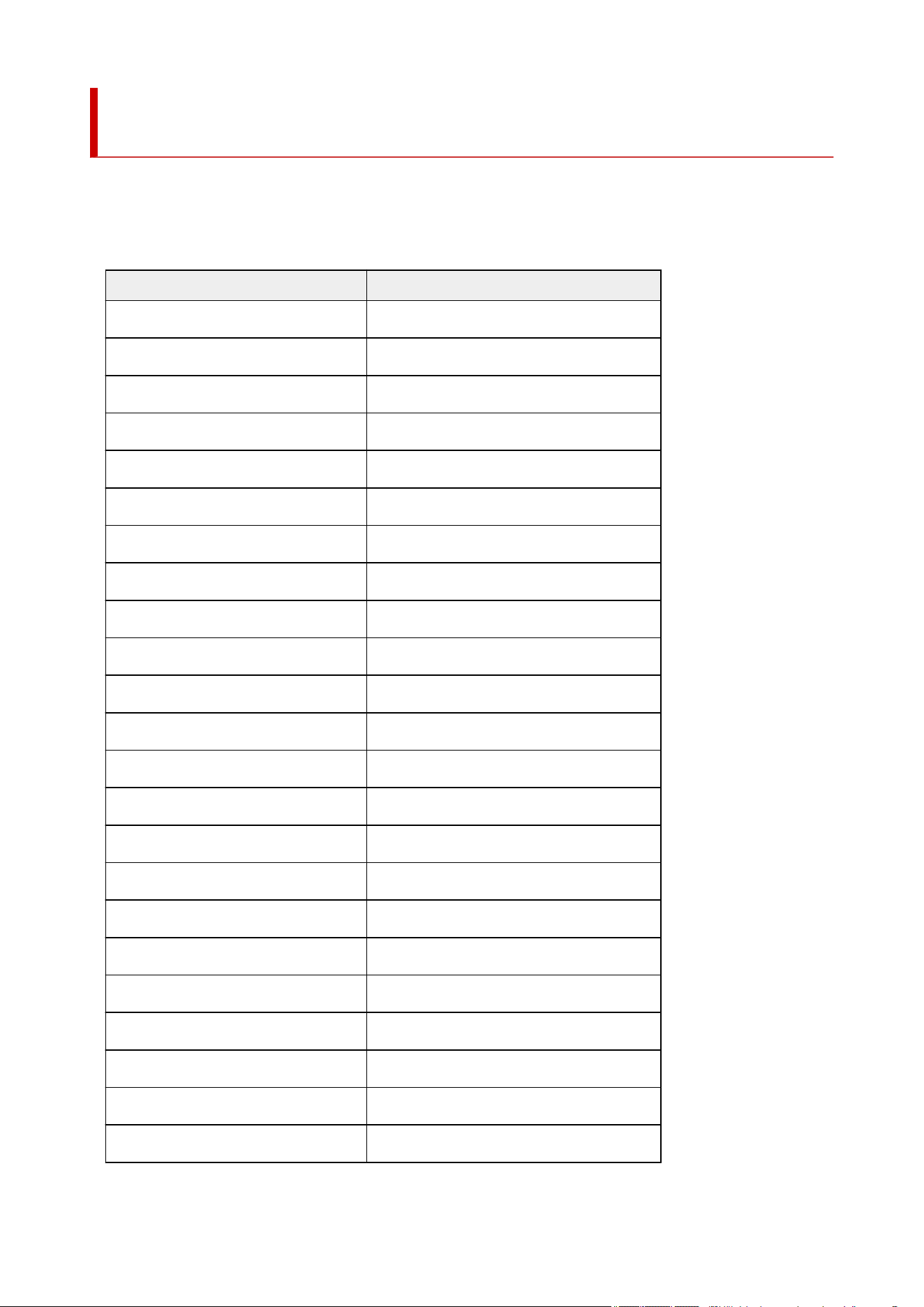
Paper Settings on the Printer Driver and the Printer (Paper
Size)
When you use this printer, selecting a paper size that matches the print purpose will help you achieve the
best print results.
You can use the following paper sizes on this printer.
Printer Paper Size in the printer driver Paper information registered on the printer
Letter 8.5"x11" 22x28cm Letter
Legal 8.5"x14" 22x36cm Legal
11"x17" 279.4x431.8mm 11"x17"(28x43cm)
A5 A5
A4 A4
A3 A3
A3+ 13"x19" 33x48cm A3+
B5 B5
B4 B4
4"x6" 10x15cm KG/4"x6"(10x15)
5"x7" 13x18cm 2L/5"x7"(13x18)
7"x10" 18x25cm 7"x10"(18x25cm)
8"x10" 20x25cm 8"x10"(20x25cm)
9"x13" 23x33cm 9"x13"(23x33cm)
10"x12" 25x30cm 10"x12"(25x30cm)
11"x14" 28x36cm 11"x14"
13"x19" (Super B) 13"x19" (Super B)
210x594mm 210x594mm
L 89x127mm L(89x127mm)
2L 127x178mm 2L/5"x7"(13x18)
Square 5"x5" 13x13cm Square 5"
Square 12"x12" 30x30cm 12"x12"(30x30cm)
Letter (Margin 25) Letter
77

210x594mm (Margin 25) 210x594mm
11"x17" (Margin 25) 11"x17"(28x43cm)
A4 (Margin 25) A4
A3 (Margin 25) A3
A3+ (Margin 25) A3+
Hagaki 100x148mm Hagaki
Hagaki 2 200x148mm Hagaki 2
Custom Size Any size
78
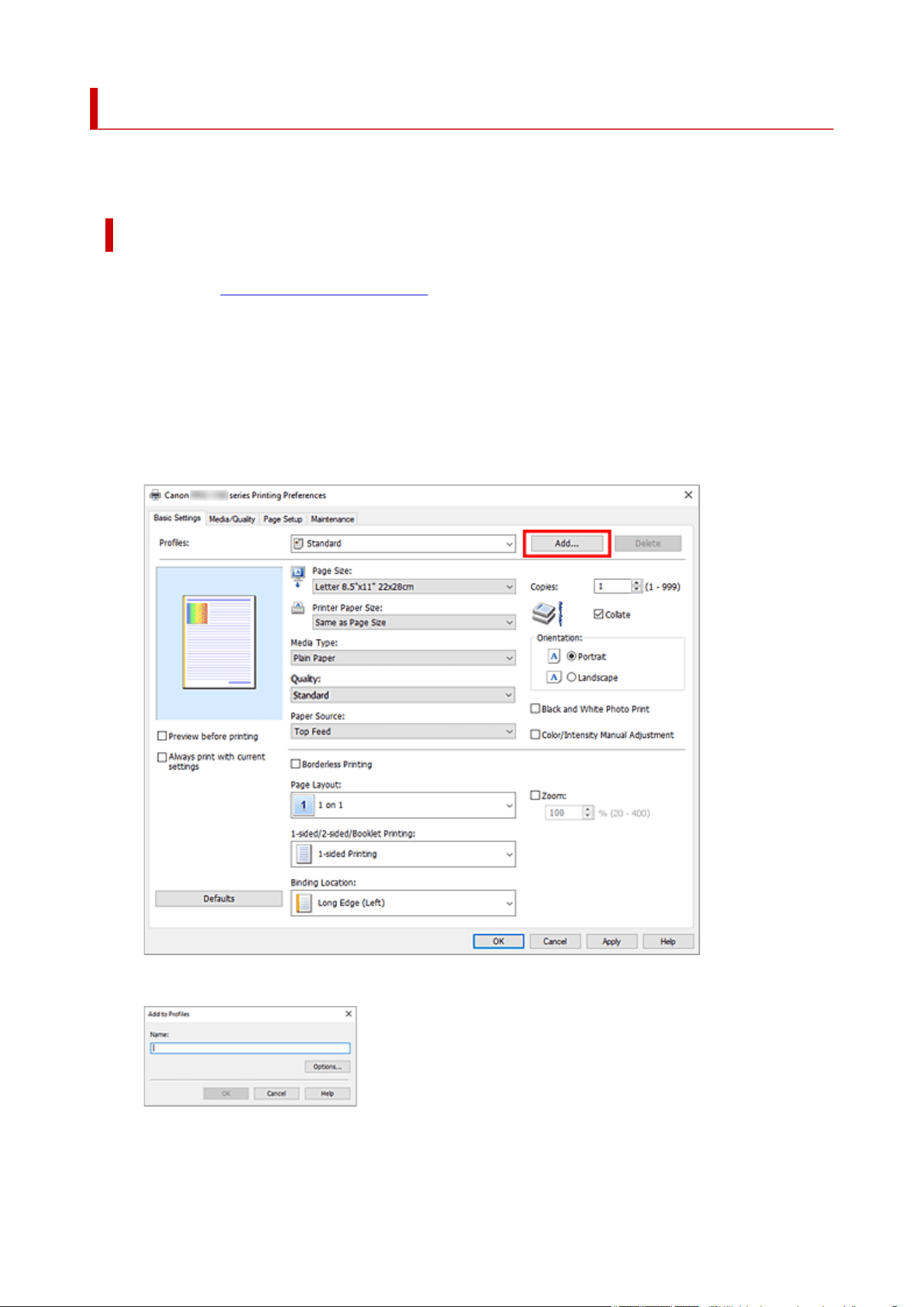
Registering a Frequently Used Printing Profile
You can register the frequently used printing profile to Profiles on the Basic Settings tab. Unnecessary
printing profiles can be deleted at any time.
Registering a Printing Profile
1.
Open the printer driver setup window
1.
2.
Set the necessary items
2.
From Profiles on the Basic Settings tab, select the printing profile to be used and if necessary,
change each of the settings.
You can also register necessary items on the Media/Quality and Page Setup tabs.
3.
Click Add...
3.
The Add to Profiles dialog box opens.
4.
Save the settings
4.
79

Enter a name for the print settings to register in the Name field. If necessary, click Options..., set the
items, and then click OK.
In the Add to Profiles dialog box, click OK to save the print settings and return to the Basic Settings
tab.
The name and icon are displayed in Profiles.
Important
• To save the page size, orientation, and number of copies that was set in each sheet, click Options...,
and check each item.
Note
• When you re-install the printer driver or upgrade the printer driver version, the print settings that are
already registered will be deleted from Profiles.
Registered print settings cannot be saved and preserved. If a profile is deleted, register the print
settings again.
Deleting Unnecessary Printing Profile
1.
Select the printing profile to be deleted
1.
Select the printing profile you want to delete from the Profiles list on the Basic Settings tab.
2. Delete the printing profile2.
Click Delete. When the confirmation message appears, click OK.
The selected printing profile is deleted from the Profiles list.
Note
• Printing profiles that are registered in the initial settings cannot be deleted.
80

Preventing Printing Errors
You can display and check the print result before printing.
You can also set the print results display on the Basic Settings tab.
1. Open the printer driver setup window1.
2.
Set the preview
2.
Check the Preview before printing check box on the Media/Quality tab.
3.
Click OK
3.
When you perform print, the Canon IJ Preview opens and displays the print results.
Related Topic
Canon IJ Preview
81

Set Media Type, Quality, etc. (Media/Quality Tab)
Media/Quality Tab Description
Switching the Paper Source to Match the Purpose
Grayscale Printing
Adjusting Tone
Specifying Color Correction
Optimal Photo Printing of Image Data
Adjusting Colors with the Printer Driver
Printing with ICC Profiles
Interpreting the ICC Profile
Adjust Colors
Adjusting Brightness
Adjusting Contrast
Changing the Clear Coating Settings
82
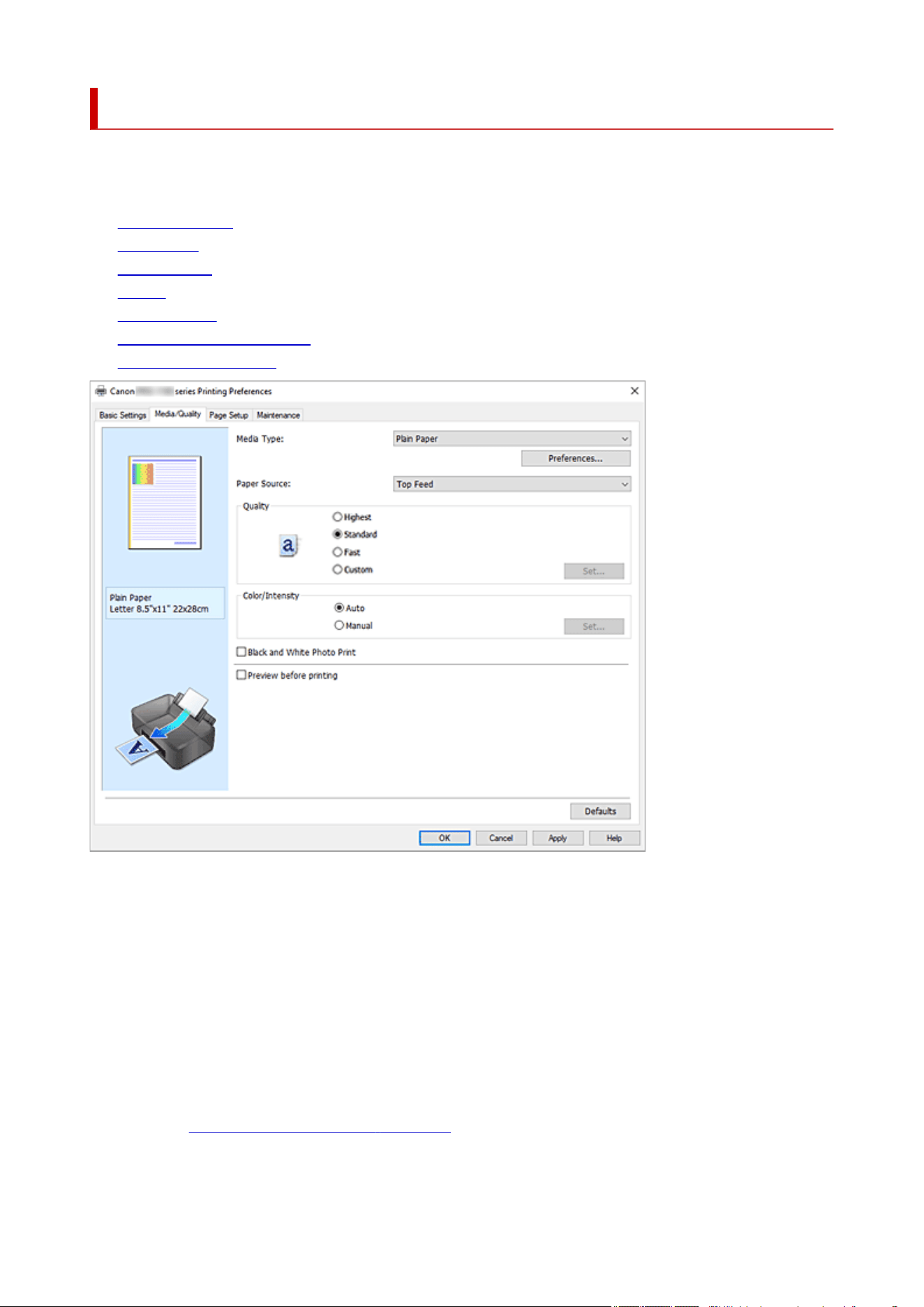
Media/Quality Tab Description
The Media/Quality tab allows you to create a basic print setup in accordance with the media type. You can
also adjust the print quality and color tones.
• Settings Preview
• Media Type
• Paper Source
• Quality
• Color/Intensity
• Black and White Photo Print
• Preview before printing
Settings Preview
The paper illustration shows how the original will be laid out on a sheet of paper.
You can check an overall image of the layout.
The printer illustration shows how to load paper to match the printer driver settings.
Check whether the printer is set up correctly by looking at the illustration before you start printing.
Media Type
Selects a type of printing paper.
Select a media type that matches the paper that is loaded in the printer. This ensures that printing is
carried out properly for the specified paper.
Preferences...
Open the Advanced Paper Settings dialog box, and specify detailed print settings that match the
media type loaded in the printer.
83

Paper Source
Shows the source from which paper is supplied.
You may be able to switch the paper source with the printer driver.
Manual Feed
Paper is supplied from the manual feed tray in the back.
Top Feed
Paper is always supplied from the top feed.
Important
• Depending on the media type and size, the Paper Source settings that can be selected may differ.
Quality
Selects your desired printing quality.
Select one of the following to set the print quality level that is appropriate for the purpose.
Important
• Depending on the Media Type settings, the same print results may be produced even if the
Quality is changed.
Highest
Gives the highest priority to print quality.
Standard
Prints with average speed and quality.
Fast
Gives priority to printing speed over print quality.
Custom
Select this to set the print quality level individually.
Set...
Select Custom in Quality to make it clickable.
Open the Custom dialog box to set individual print quality levels.
Color/Intensity
Selects color adjustment method.
Auto
Cyan, Magenta, Yellow, Brightness, Contrast, and so on are adjusted automatically.
Manual
Select when you set the individual settings such as Cyan, Magenta, Yellow, Tone, Brightness,
Contrast, etc. and Color Correction method.
You can also specify Clear Coating settings.
Set...
Select Manual for Color/Intensity to enable this button.
In the Manual Color Adjustment dialog box, you can adjust individual color settings such as
Cyan, Magenta, Yellow, Tone, Brightness, and Contrast on the Color Adjustment tab, and
select the Color Correction method on the Matching tab.
You can also set clear coat settings on the Clear Coating tab.
84

Note
• If you want to use an ICC profile to adjust colors, use the Manual Color Adjustment dialog
box to set the profile.
Black and White Photo Print
Black and white photo print refers to a function that converts data to monochrome data when printing
your document.
Check this check box to print a color document in monochrome.
Preview before printing
Shows what the print result will look like before you actually print the data.
Check this check box to display a preview before printing.
Defaults
Restores all the settings you have changed to their default values.
Clicking this button restores all the settings on the current screen to their default values (factory
settings).
Advanced Paper Settings dialog box
Drying Time
Allows you to set how long the printer rests before printing of the next page starts.
If the next page is ejected before the print surface dries completely and the paper becomes stained,
set a longer ink drying time.
Print Head Height
Allows you to widen the gap between the print head and the paper to reduce paper abrasion when
printing high density pages. To reduce paper abrasion, select Avoid Paper Abrasion.
Custom dialog box
Set the quality level, and select the desired print quality.
Quality
You can use the slider bar to adjust the print quality level.
Important
• Certain print quality levels cannot be selected depending on the settings of Media Type.
Note
• The Highest, Standard, or Fast print quality modes are linked with the slider bar. Therefore
when the slider bar is moved, the corresponding quality and value are displayed on the left. This
is the same as when the corresponding radio button is selected for Quality on the Media/Quality
tab.
Color Adjustment Tab
This tab allows you to adjust the color balance by changing the settings of the Cyan, Magenta, Yellow,
Tone, Brightness, and Contrast options.
85

Preview
Shows the effect of color adjustment.
The color and brightness change when each item is adjusted.
Note
• The graphic is in monochrome when the Black and White Photo Print check box is checked.
View Color Pattern
Displays a pattern for checking color changes produced by color adjustment.
If you want to display the preview image with a color pattern, check this check box.
Cyan / Magenta / Yellow
Adjusts the strengths of Cyan, Magenta, and Yellow.
Moving the slider to the right makes a color stronger, and moving the slider to the left makes a color
weaker.
You can also directly enter a value linked to the slider. Enter a value in the range from -50 to 50.
This adjustment changes the relative amount of ink of each color used, which alters the total
color balance of the document. Use your application if you want to change the total color balance
significantly. Use the printer driver only if you want to adjust the color balance slightly.
Tone
Set the color tones for monochrome printing.
You can also select colors for monochrome color tones from the pull-down menu.
Cool Tone
This item adjusts color tones to cool shades of gray (cool black). When you select this item, a
value of -30 is entered for X, and a value of 0 for Y.
Black and White
This item adjusts color tones to neutral shades of gray. When you select this item, a value of 0 is
entered for X, and a value of 0 for Y.
Warm Tone
This item adjusts color tones to warm shades of gray (warm black). When you select this item, a
value of 30 is entered for X, and a value of 0 for Y.
Custom
You can adjust the color tones by using the horizontal and vertical sliders while checking the
colors in the center adjustment area.
Adjust the horizontal and vertical sliders by dragging them to the left/right or up/down,
respectively.
You can also adjust color tones by clicking or dragging the center adjustment area with the
mouse.
You can also directly enter values that are linked to the sliders. When you enter values, set
values in the range of -100 to 100 for X, and -50 to 50 for Y.
Note
• Custom cannot be selected since it is displayed automatically when the adjustment value is
directly entered.
X, Y (Monochromatic adjustment value)
If necessary, you can adjust monochromatic colors manually.
To adjust the color tones, either enter values directly or click the up/down arrows.
86

You can also adjust the color tones by clicking or dragging the adjustment area with the mouse.
The value is also linked to the horizontal and vertical sliders.
When you enter values, set values in the range of -100 to 100 for X, and -50 to 50 for Y.
The selected value will be shown in the preview on the left side.
Important
• This function is not available for certain Media Type settings.
Brightness
Adjusts the brightness of your print. You cannot change the levels of pure white and black. However,
the brightness of the colors between white and black can be changed. Moving the slider to the right
brightens (dilutes) the colors, and moving the slider to the left darkens (intensifies) the colors. You
can also directly enter brightness values that are linked to the slider bar. Enter a value in the range
from -50 to 50.
Contrast
Adjusts the contrast between light and dark in the image to be printed.
Moving the slider to the right increases the contrast, moving the slider to the left decreases the
contrast.
You can also directly enter a value linked to the slider. Enter a value in the range from -50 to 50.
Matching Tab
Allows you to select the method for adjusting colors to match the type of document to be printed.
Color Correction
Allows you to select Driver Matching, ICM, or None to match the purpose of the print operation.
Driver Matching
With Canon Digital Photo Color, you can print sRGB data with color tints that most people prefer.
ICM
Adjusts the colors by using an ICC profile when printing.
Specify the input profile, printer profile, and rendering intent to be used.
Important
• If the application software is set so that ICM is disabled, ICM is unavailable for Color
Correction and the printer may not be able to print the image data properly.
None
Disables color adjustment with the printer driver. Select this value when you are specifying an
individually created printing ICC profile in an application software to print data.
Input Profile
Specifies the input profile to be used when you select ICM for Color Correction.
Standard
The standard printer profile (sRGB), which supports the color space of ICM, is used. This is the
default setting.
Printer Profile
Specifies the printer profile to be used when ICM is selected for Color Correction.
Normally Auto is selected but you can also select a printer profile manually.
87

Rendering Intent
Specifies the matching method to be used when you select ICM for Color Correction.
Saturation
This method reproduces images even more vividly than the Perceptual method.
Perceptual
This method reproduces images by focusing on colors that most people find desirable. Select
this method to print photos.
Relative Colorimetric
When image data is converted to the color space of the printer, this method converts the image
data so the color reproduction approximates the shared color regions. Select this method to print
image data with colors that are close to the original colors.
The white spots are reproduced as white spots (background color) on the paper.
Absolute Colorimetric
This method uses the white spot definitions in the input and output ICC profiles to convert the
image data.
Although the color and color balance of the white spots change, you may not be able to get the
desired output results because of the profile combination.
Important
• Depending on the media type, you may obtain the same print results even when you change the
Rendering Intent setting.
Clear Coating Tab
Specify Clear Coating settings.
When you perform clear coating, the printer applies chroma optimizer (CO) ink onto the printing surface
and allows you to adjust the glossiness.
Clear Coating
Set the clear coating area.
Note
• The available menu items differ depending on the paper type and print quality.
Auto
The printer automatically sets the areas to be clear-coated and whether clear coating is to be
performed.
Overall
The printer clear-coats the entire area, including the margins outside the image area.
Clear-coating the entire area improves the overall glossiness, including the margins.
This option uses the most Chroma Optimizer (CO) ink.
Printed Areas
Use this option when you want to improve the glossiness only in the image area.
White areas (including margins) are not clear-coated.
88

None
Printing will proceed without clear coating.
Compared to if clear coating is applied, the image quality may deteriorate, or the printed surface
may be damaged.
Note
• Chroma Optimizer (CO) ink is used during automatic maintenance to maintain printer
performance.
89
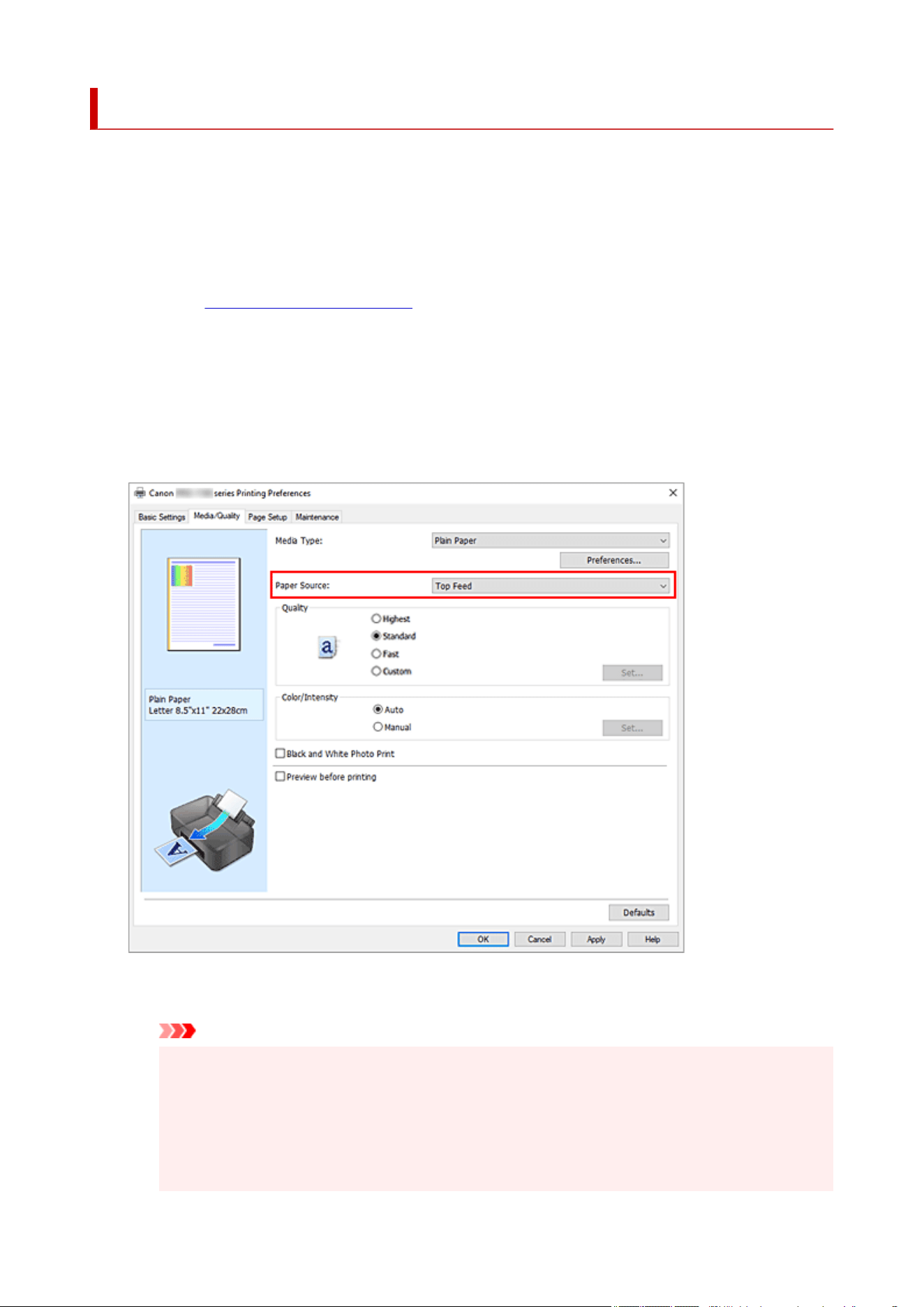
Switching the Paper Source to Match the Purpose
In this printer, there are two paper sources, a manual feed tray and a top feed.
You can facilitate printing by selecting a paper source setting that matches your media type or purpose.
The procedure for setting paper source is as follows:
You can also set the paper source on the Basic Settings tab.
1.
Open the printer driver setup window
1.
2.
Select the media type
2.
Select the type of paper loaded in the printer from the Media Type list on the Media/Quality tab.
3.
Select the paper source
3.
From the Paper Source list, select the paper source that matches your purpose.
Manual Feed
Paper is supplied from the manual feed tray in the back.
Important
•
When 2L 127x178mm, 4"x6" 10x15cm, 7"x10" 18x25cm, A5, B5, L 89x127mm, Hagaki
100x148mm, Hagaki 2 200x148mm, 5"x7" 13x18cm, or Square 5"x5" 13x13cm is selected
for Page Size on the Page Setup tab, paper cannot be supplied from the manual feed tray in
the back.
•
When Plain Paper, Hagaki A, Ink Jet Hagaki, or Hagaki is selected for Media Type on the
Media/Quality tab, paper cannot be supplied from the manual feed tray in the back.
90

Top Feed
Paper is fed from the top feed.
Important
•
When Heavyweight Photo Paper, Baryta Photo Paper, Premium Fine Art Smooth,
Premium Fine Art Rough, Photo Paper Pro Premium Matte A, Extra Heavyweight Fine Art
Paper, or Highest Density Fine Art Paper is selected for Media Type on the Media/Quality
tab, paper cannot be supplied from the top feed.
4.
Click OK
4.
When you perform print, the printer uses the specified paper source to print the data.
Note
•
If the paper settings in the printer driver differ from the paper information registered on the
printer, an error may occur. For instructions on what to do if an error occurs, see "Register Paper
Information."
For details about the paper information to be registered on the printer, see the following:
Paper Settings on the Printer Driver and the Printer (Media Type)
Paper Settings on the Printer Driver and the Printer (Paper Size)
91
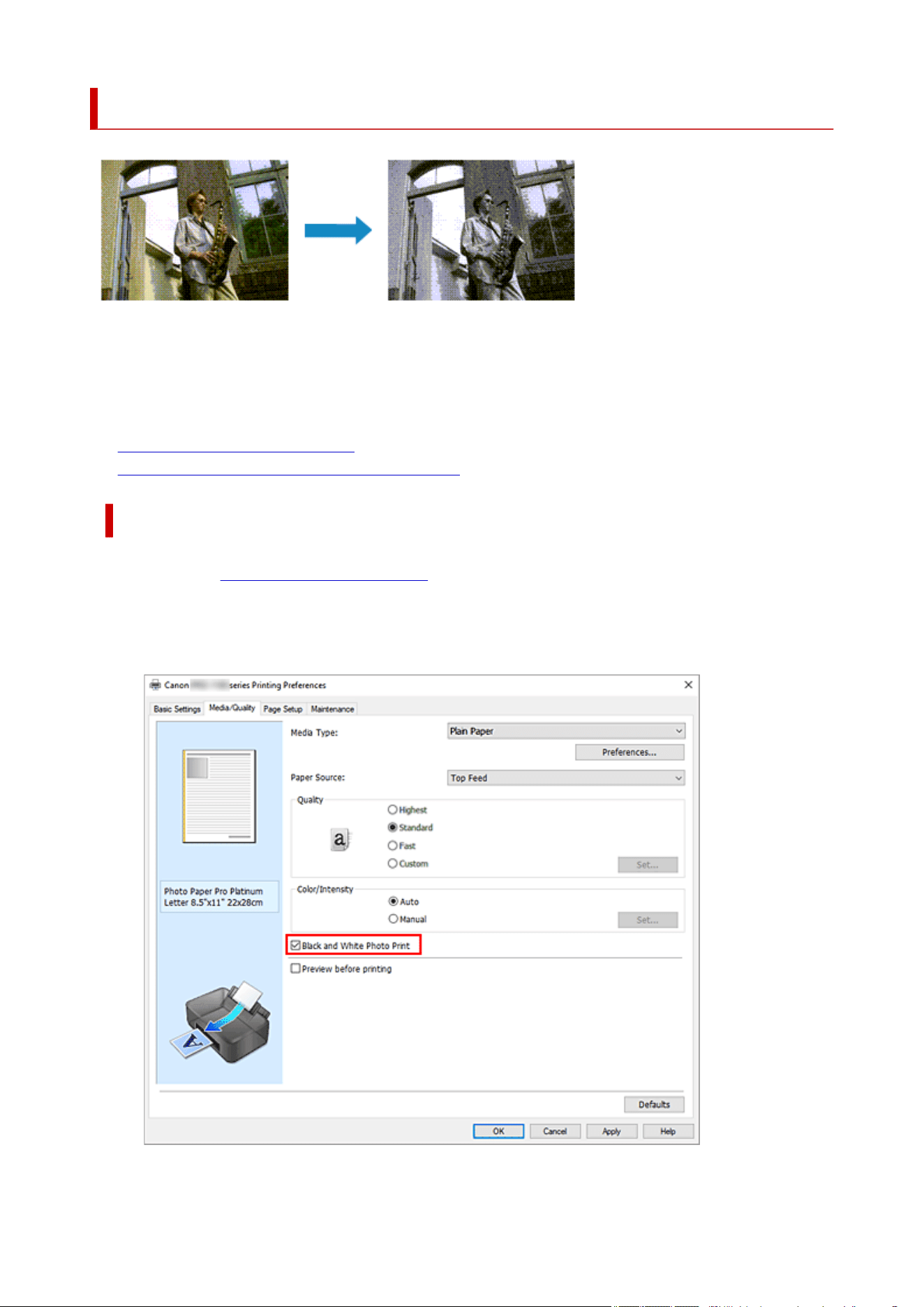
Grayscale Printing
This section describes the procedure for printing a color document or monochrome photo in grayscale.
To print in grayscale, you can either use color ink for subtle color adjustments, or use only black or gray ink
to print monochrome photos the way you want them.
When printing in grayscale using only black or gray ink, you cannot adjust grayscale color tones.
• Grayscale Printing Using Color Ink
• Grayscale Printing Using Only Black and Gray Ink
Grayscale Printing Using Color Ink
1.
Open the printer driver setup window
1.
2.
Set black and white photo printing
2.
Check the Black and White Photo Print check box on the Media/Quality tab.
92

3. Complete the setup3.
Click OK.
When you perform print, the document is converted to grayscale data. It allows you to print the color
document in monochrome.
Important
• When the Black and White Photo Print check box is checked, the printer driver processes image
data as sRGB data. In this case, actual colors printed may differ from those in the original image
data.
When using the grayscale printing function to print Adobe RGB data, convert the data to sRGB data
using an application software.
Grayscale Printing Using Only Black and Gray Ink
To print in grayscale using only black and gray ink, you need to add Photo Paper (Grayscale Printing)
or Fine Art Paper (Grayscale Print) as a new paper typeusing the Media Configuration Tool in advance,
and update the printer driver's media information by selecting Update Media Information from the
Maintenance tab.
1. Open the printer driver setup window1.
2. Select the media type2.
Select Photo Paper (Grayscale Printing) or Fine Art Paper (Grayscale Print) in Media Type in the
Basic Settings tab.
3. Complete the setup3.
Click OK.
When you perform print, the document is converted to grayscale data. It allows you to print the color
document in monochrome.
Related Topic
Adjusting Tone
93

Adjusting Tone
When printing black and white photos, you can produce the cooling effects of cool colors and the warming
effects of warm colors.
Cool Tone is selected Black and White is selected Warm Tone is selected
Note
• If you select Photo Paper (Grayscale Printing) or Fine Art Paper (Grayscale Print) in Media Type in
the Basic Settings tab, you cannot adjust grayscale color tones.
1. Open the printer driver setup window1.
2. Select the media type2.
For Media Type on the Media/Quality tab, select Photo Paper Plus Glossy II A, Photo Paper Pro
Platinum, Photo Paper Pro Luster, Photo Paper Plus Semi-gloss, Photo Paper Pro Crystal Grade,
Lightweight Photo Paper, Heavyweight Photo Paper, Photo Paper (Long-form Printing), Baryta
Photo Paper, Premium Fine Art Smooth, Premium Fine Art Rough, Photo Paper Pro Premium
Matte A, Heavyweight Fine Art Paper, Extra Heavyweight Fine Art Paper, Highest Density Fine Art
Paper, Fine Art Paper (Long-form Print), Canvas, or Japanese Paper Washi.
3. Set black and white photo printing3.
Check the Black and White Photo Print check box.
94
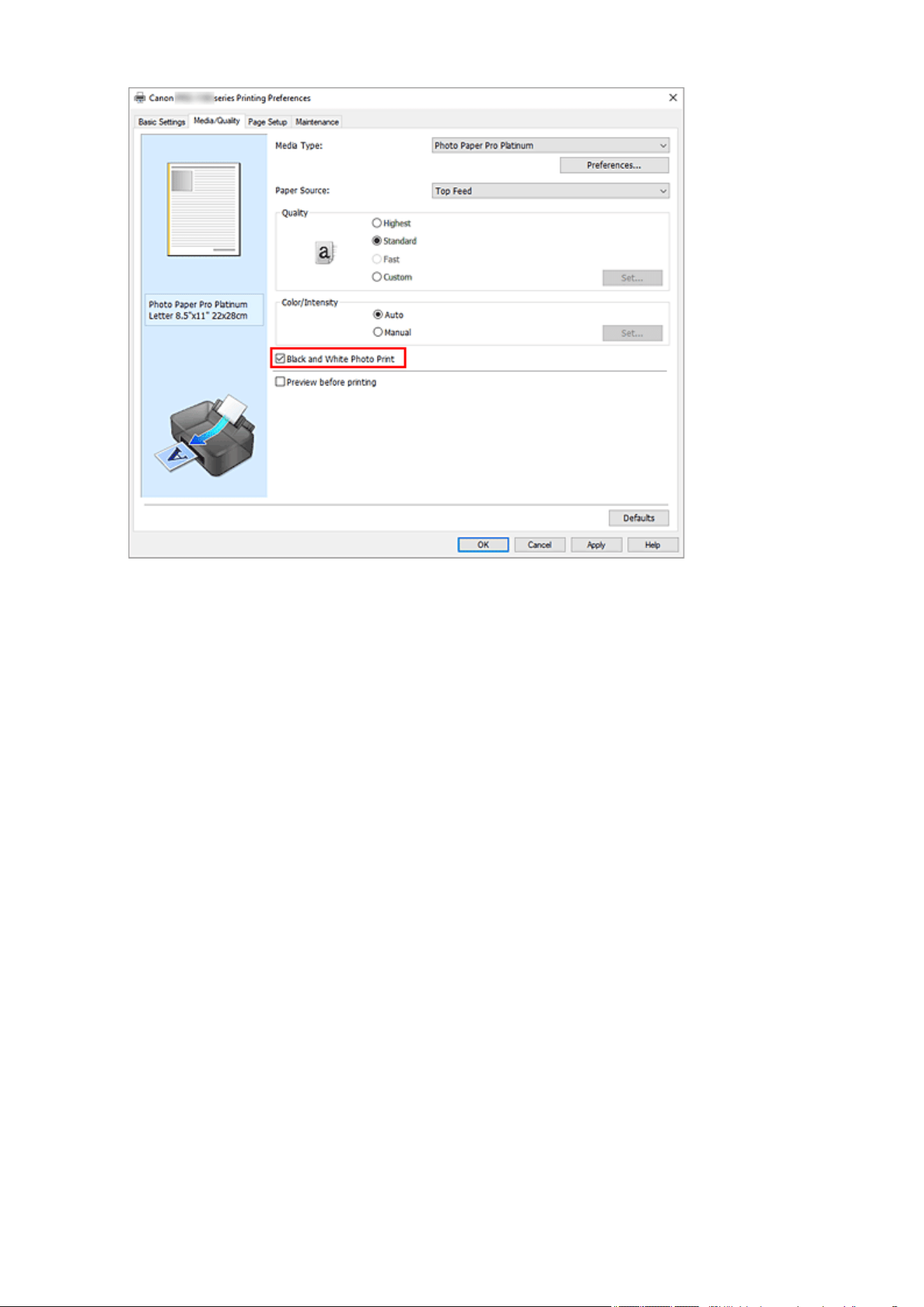
4.
Select the manual color adjustment
4.
Select Manual for Color/Intensity, and click Set....
The Manual Color Adjustment dialog box opens.
5. Adjusting monochrome tones5.
From the Tone pull-down menu, specify any of the following items.
Cool Tone
This item adjusts color tones to cool shades of gray (cool black). When you select this item, a value
of -30 is entered for X, and a value of 0 for Y.
Black and White
This item adjusts color tones to neutral shades of gray. When you select this item, a value of 0 is
entered for X, and a value of 0 for Y.
Warm Tone
This item adjusts color tones to warm shades of gray (warm black). When you select this item, a
value of 30 is entered for X, and a value of 0 for Y.
Custom
You can adjust the color tones by using the horizontal and vertical sliders while checking the colors
in the center adjustment area.
Adjust the horizontal and vertical sliders by dragging them to the left/right or up/down, respectively.
You can also adjust color tones by clicking or dragging the center adjustment area with the mouse.
You can also directly enter values that are linked to the sliders. When you enter values, set values in
the range of -100 to 100 for X, and -50 to 50 for Y.
95

Note
• Custom cannot be selected since it is displayed automatically when the adjustment value is
directly entered.
X, Y (Monochromatic adjustment value)
If necessary, you can adjust monochromatic colors manually.
To adjust the color tones, either enter values directly or click the up/down arrows.
You can also adjust the color tones by clicking or dragging the adjustment area with the mouse.
The value is also linked to the horizontal and vertical sliders.
When you enter values, set values in the range of -100 to 100 for X, and -50 to 50 for Y.
The selected value will be shown in the preview on the left side.
After adjusting the tones, click OK.
6.
Complete the setup
6.
Click OK on the Media/Quality tab.
When you perform print, the color document is converted to grayscale data with adjusted tones. It allows
you to print the color document in monochrome.
Related Topics
Grayscale Printing
Adjusting Brightness
Adjusting Contrast
96

Specifying Color Correction
You can specify the color correction method suited to the type of document to be printed.
Normally, when data is printed, the printer driver automatically adjusts the colors.
When you want to print by using the color space of the image data effectively, select ICM. When you want to
use an application software to specify a printing ICC profile, select None.
You can also set the color correction in Color/Intensity Manual Adjustment in the Basic Settings tab.
1.
Open the printer driver setup window
1.
2.
Select the manual color adjustment
2.
On the Media/Quality tab, select Manual for Color/Intensity, and click Set....
The Manual Color Adjustment dialog box opens.
3.
Select color correction
3.
Click the Matching tab. Select the Color Correction method for the color that matches the document
type that you are printing, and then click OK.
4. Complete the setup4.
Click OK on the Media/Quality tab.
When you perform print, the document data is printed with the specified color correction.
Important
• When ICM is disabled in the application software, ICM is unavailable for Color Correction and the
printer may not be able to print the image data properly.
Related Topics
Optimal Photo Printing of Image Data
Adjusting Colors with the Printer Driver
Printing with ICC Profiles
Interpreting the ICC Profile
97

Optimal Photo Printing of Image Data
When people print images taken with digital cameras, they sometimes feel that the printed color tones differ
from those of actual image or those displayed on the monitor.
To get the print results as close as possible to the desired color tones, you must select a printing method
that is best suited to the application software used or to your purpose.
Color Management
Devices such as digital cameras, scanners, monitors, and printers handle color differently. Color
management (color matching) is a method that manages device-dependent "colors" as a common color
space.
For Windows, a color management system called "ICM" is built into the operating system.
sRGB is one of the common color spaces that is frequently used.
ICC profiles convert device-dependent "colors" into a common color space. By using an ICC profile and
carrying out color management, you can draw out the color space of the image data within the color
reproduction area that the printer can express.
Note
• Normally, image files are saved in JPEG format. Some digital cameras allow you to save images in a
format called RAW. RAW data refers to an image saving format that requires a computer to develop
the image. You can embed an input ICC profile tag into a RAW file by using special application
software.
Selecting a Printing Method Suited to the Image Data
The recommended printing method depends on the color space of the image data or the application
software to be used.
There are two typical printing methods.
Check the color space of the image data and the application software to be used, and then select the
printing method suited to your purpose.
Adjusting Colors with the Printer Driver
This section describes the procedure for printing data by using the color correction function of the
printer driver.
Select this function when you want to print impressions that are close to those displayed on the
monitor, for example, if you corrected the colors while checking the print image on the monitor.
Printing with ICC Profiles
Describes the procedure for printing by using the color space of the image data effectively.
You can print with a common color space by setting up the application software and the printer driver
so that the color management matches the input ICC profile of the image data.
The method for setting up the printer driver differs depending on the application software to be used.
98


Adjusting Colors with the Printer Driver
To use driver matching when printing, turn on the printer driver's color correction function.
Driver matching accurately applies the characteristics of data displayed on the monitor and allows you to
obtain print results of impressions that are close to those displayed on the monitor.
Important
• When printing using driver matching, Canon recommends that you set the monitor and the environment
light as follows:
Monitor
Color temperature: D50 (5000K)
Brightness: 100 to 120cd/m2
Gamma: 2.2
Environment light
Fluorescent light for D50 color evaluation (color temperature 5000K, high color rendering
properties)
Brightness when looking at printed materials: 500 lx ± 125 lx
Note
• When printing from an application software that can identify ICC profiles and allows you to specify them,
use a printing ICC profile in the application software, and select settings for color management.
1. Open the printer driver setup window1.
2. Select the manual color adjustment2.
On the Media/Quality tab, select Manual for Color/Intensity, and click Set....
The Manual Color Adjustment dialog box opens.
3.
Select color correction
3.
Click Matching tab, and select Driver Matching for Color Correction.
4. Set the other items4.
If necessary, click Color Adjustment tab, and adjust the color balance (Cyan, Magenta, Yellow) and
adjust Brightness and Contrast settings, and then click OK.
5.
Complete the setup
5.
Click OK on the Media/Quality tab.
When you print, the colors get adjusted by the printer driver when printing the data.
Related Topics
Adjust Colors
Specifying Color Correction
Adjusting Brightness
100


Printing with ICC Profiles
When the image data has a specified input ICC profile, you can print by using the color space of the data
effectively.
The printer driver setting procedure varies depending on the application software used to print.
Specify an ICC Profile from the Application Software and Print the Data
When you print the editing and touch-up results of Adobe Photoshop, Canon Digital Photo Professional,
or any application software that allows you to specify input and printing ICC profiles, you print by
effectively using the color space of the input ICC profile specified in the image data.
To use this printing method, use your application software to select color management items and specify
an input ICC profile and a printing ICC profile in the image data.
Even if you print using a printing ICC profile that you created yourself or one for special Canon paper, be
sure to select color management items from your application software.
For instructions, refer to the manual of the application software you are using.
1.
Open the printer driver setup window
1.
2. Select the manual color adjustment2.
On the Media/Quality tab, select Manual for Color/Intensity, and click Set....
The Manual Color Adjustment dialog box opens.
3. Select color correction3.
Click Matching tab, and select None for Color Correction.
4. Set the other items4.
If necessary, click Color Adjustment tab, and adjust the color balance (Cyan, Magenta, Yellow) and
adjust Brightness and Contrast settings, and then click OK.
5. Complete the setup5.
Click OK on the Media/Quality tab.
When you perform print, the printer uses the color space of the image data.
Specify an ICC Profile with the Printer Driver, and then Print
Print from an application software that cannot identify input ICC profiles or does not allow you to specify
one by using sRGB as the color space of the data.
1.
Open the printer driver setup window
1.
2.
Select the manual color adjustment
2.
102

On the Media/Quality tab, select Manual for Color/Intensity, and click Set....
The Manual Color Adjustment dialog box opens.
3. Select color correction3.
Click Matching tab, and select ICM for Color Correction.
4.
For Input Profile, select Standard
4.
Important
•
When the application software specifies an input profile, the input profile setting of the printer
driver becomes invalid
5.
Select the printer profile
5.
Select Printer Profile.
•
To set the printer profile automatically:
•
Select Auto.
• To set the printer profile manually:•
Select a printer profile that matches the media type to be used.
6. Select the rendering intent6.
Select the coloring adjustment method in Rendering Intent.
• Saturation•
This method reproduces images even more vividly than the Perceptual method.
• Perceptual•
This function effectively prints the color space that the printer can reproduce. Because this
function accurately renders the attributes of the data displayed on the monitor, select this
function when you want to print with impressions that are close to those displayed on the
monitor.
Important
• When you select Perceptual to print images, Canon recommends that you set the monitor
and the environment light as follows:
Monitor
Color temperature: D50 (5000K)
Brightness: 100 to 120cd/m2
Gamma: 2.2
Environment light
Fluorescent light for D50 color evaluation (color temperature 5000K, high color
rendering properties)
Brightness when looking at printed materials: 500 lx ± 125 lx
•
Relative Colorimetric
•
When image data is converted to the color space of the printer, this method converts the image
data so the color reproduction approximates the shared color regions. Select this method to print
image data with colors that are close to the original colors.
103

• Absolute Colorimetric•
When Relative Colorimetric is selected, white spots are reproduced as white spots of the paper
(background color). However, when Absolute Colorimetric is selected, how the white spots are
reproduced depends on the image data.
Important
• Depending on the media type, you may obtain the same print results even when you change
the Rendering Intent setting.
7.
Set the other items
7.
If necessary, click Color Adjustment tab, and adjust the color balance (Cyan, Magenta, Yellow) and
adjust Brightness and Contrast settings, and then click OK.
8.
Complete the setup
8.
Click OK on the Media/Quality tab.
When you perform print, the printer uses the color space of the image data.
Related Topics
Adjust Colors
Specifying Color Correction
Adjusting Brightness
Adjusting Contrast
104

Interpreting the ICC Profile
When you need to specify an ICC profile for this printer, specify the ICC profile of the print output media.
The ICC profiles installed for this printer appear as follows.
• (1) : Printer model
• (2) : Media type
This media name corresponds to the following media type:
Baryta Photo Paper: Baryta Photo Paper
Canvas -P: Canvas
Extra Heavyweight Fine Art Paper: Extra Heavyweight Fine Art Paper
Heavyweight Fine Art Paper: Heavyweight Fine Art Paper
Heavyweight Photo Paper: Heavyweight Photo Paper
Highest Density Fine Art Paper: Highest Density Fine Art Paper
Japanese Paper Washi -P: Japanese Paper Washi
Lightweight Photo Paper: Lightweight Photo Paper
Matte Photo Paper -P: Matte Photo Paper
Photo Paper Pro Luster: Photo Paper Pro Luster
Photo Paper Pro Platinum: Photo Paper Pro Platinum
PhotoPaper Plus Semi-gloss: Photo Paper Plus Semi-gloss
PhotoPaperPro CrystalGrade: Photo Paper Pro Crystal Grade
Photo Paper Pro Premium Matte A: Photo Paper Pro Premium Matte
Photo Paper Plus Glossy II A: Photo Paper Plus Glossy II
Premium Fine Art Rough: Premium Fine Art Rough
Premium Fine Art Smooth: Premium Fine Art Smooth
Note
• For ICC profiles that display "-P" at the end of the media type, the print results are the same when you
set Rendering Intent to Perceptual or Relative Colorimetric.
105

Adjust Colors
You can adjust the color tints when printing.
Since this function adjusts color balance of the output by changing the ink ratios of each color, it changes
the total color balance of the document. Use the application software when you want to change the color
balance significantly. Use the printer driver only when you want to adjust the color balance slightly.
The following sample shows the case when color balance is used to intensify cyan and to diminish yellow so
that the overall colors are more uniform.
No adjustment Adjust color balance
You can also set the color balance in Color/Intensity Manual Adjustment in the Basic Settings tab.
1. Open the printer driver setup window1.
2. Select the manual color adjustment2.
On the Media/Quality tab, select Manual for Color/Intensity, and click Set....
The Manual Color Adjustment dialog box opens.
3.
Adjust color balance
3.
There are individual sliders for Cyan, Magenta, and Yellow. Each color becomes stronger when the
corresponding slider is moved to the right, and becomes weaker when the corresponding slider is moved
to the left. For example, when cyan becomes weaker, the color red becomes stronger.
You can also directly enter a value linked to the slider. Enter a value in the range from -50 to 50. The
current settings are displayed in the settings preview on the left side of the printer driver.
After adjusting each color, click OK.
4.
Complete the setup
4.
Click OK on the Media/Quality tab.
When you perform print, the document is printed with the adjusted color balance.
Important
• When the Black and White Photo Print check box on the Media/Quality tab is checked, the color
balance (Cyan, Magenta, Yellow) cannot be set.
106

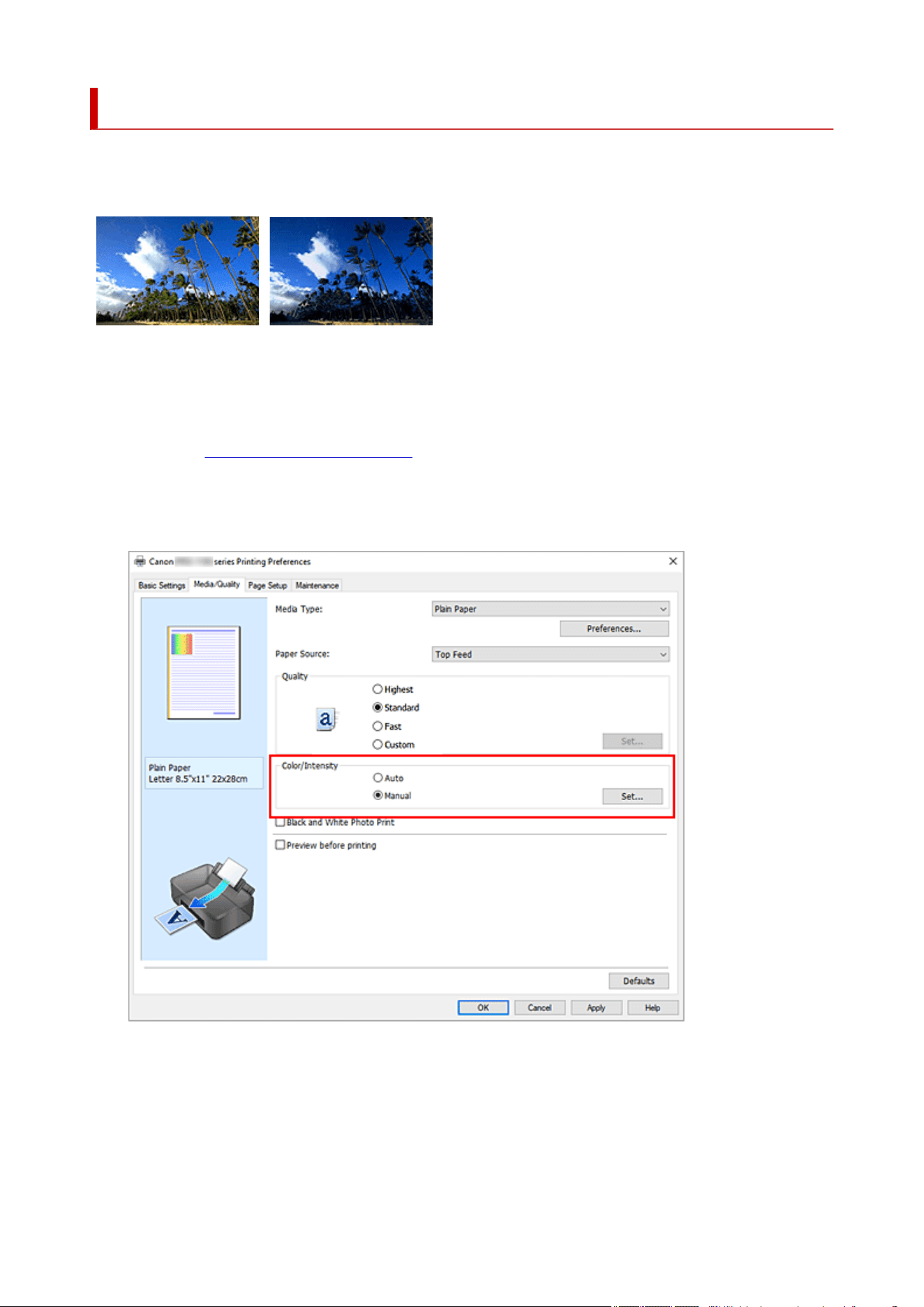
Adjusting Brightness
You can brighten or darken the colors of the overall image data during printing.
The following sample shows the case when light colors are darkened when the image data is printed.
No adjustment Darken light colors
You can also set brightness on the Basic Settings tab by choosing Color/Intensity Manual Adjustment.
1.
Open the printer driver setup window
1.
2.
Select the manual color adjustment
2.
On the Media/Quality tab, select Manual for Color/Intensity, and click Set....
The Manual Color Adjustment dialog box opens.
3.
Adjust brightness
3.
Moving the Brightness slider to the right brightens (dilutes) the colors, and moving the slider to the left
darkens (intensifies) the colors.
108

You can also directly enter a value linked to the slider. Enter a value in the range from -50 to 50. The
current settings are displayed in the settings preview on the left side of the printer driver.
After adjusting the brightness, click OK.
4. Complete the setup4.
Click OK on the Media/Quality tab.
When you perform print, the data is printed at the adjusted brightness.
Related Topics
Specifying Color Correction
Adjust Colors
Adjusting Contrast
109
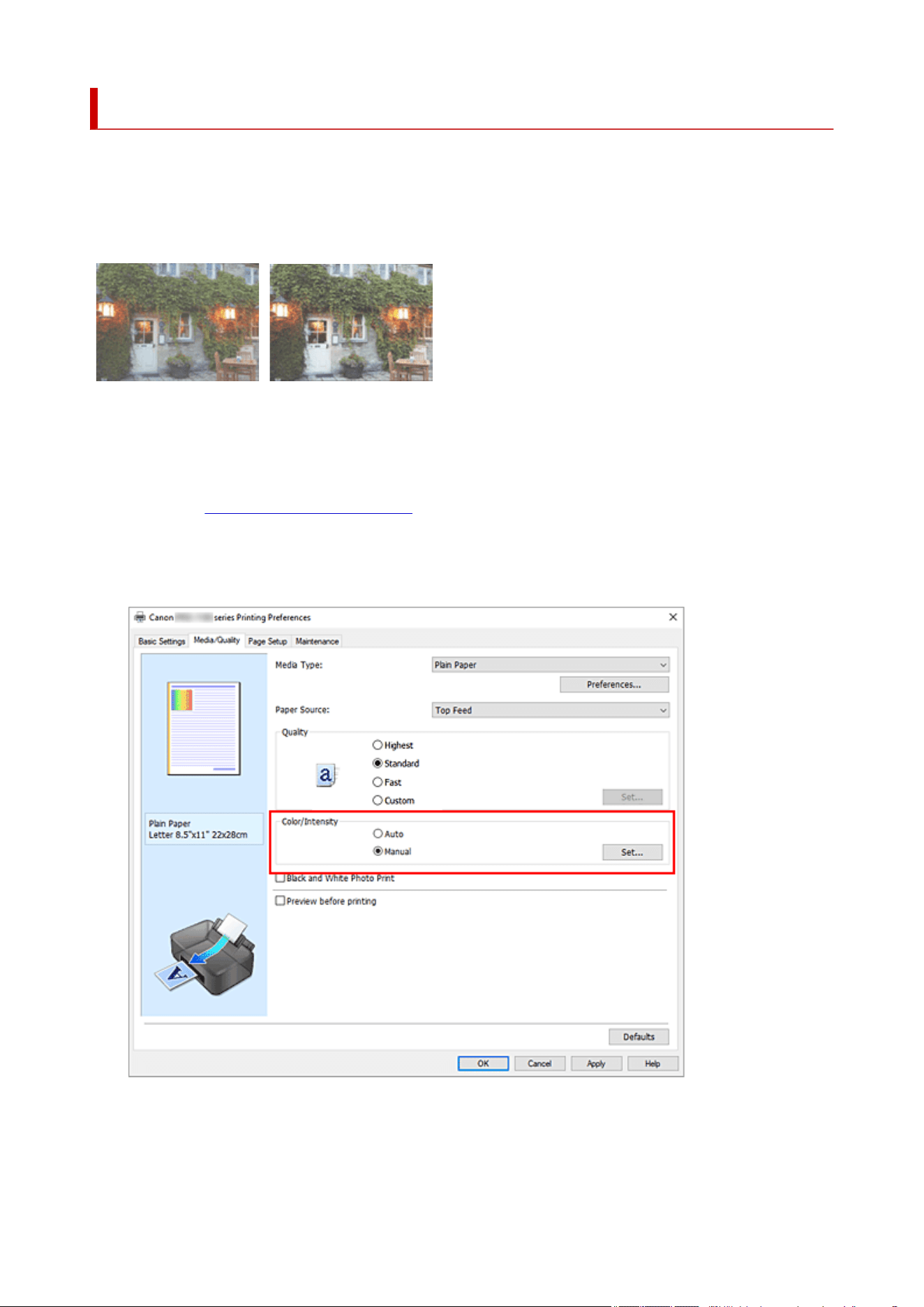
Adjusting Contrast
You can adjust the image contrast during printing.
To make the differences between the light and dark portions of images greater and more distinct, increase
the contrast. On the other hand, to make the differences between the light and dark portions of images
smaller and less distinct, reduce the contrast.
No adjustment Adjust the contrast
You can also set the contrast in Color/Intensity Manual Adjustment in the Basic Settings tab.
1. Open the printer driver setup window1.
2. Select the manual color adjustment2.
On the Media/Quality tab, select Manual for Color/Intensity, and click Set....
The Manual Color Adjustment dialog box opens.
3.
Adjust the contrast
3.
110

Moving the Contrast slider to the right increases the contrast, and moving the slider to the left decreases
the contrast.
You can also directly enter a value linked to the slider. Enter a value in the range from -50 to 50. The
current settings are displayed in the settings preview on the left side of the printer driver.
After adjusting the contrast, click OK.
4. Complete the setup4.
Click OK on the Media/Quality tab.
When you perform print, the image is printed with the adjusted contrast.
Related Topics
Specifying Color Correction
Adjust Colors
Adjusting Brightness
111
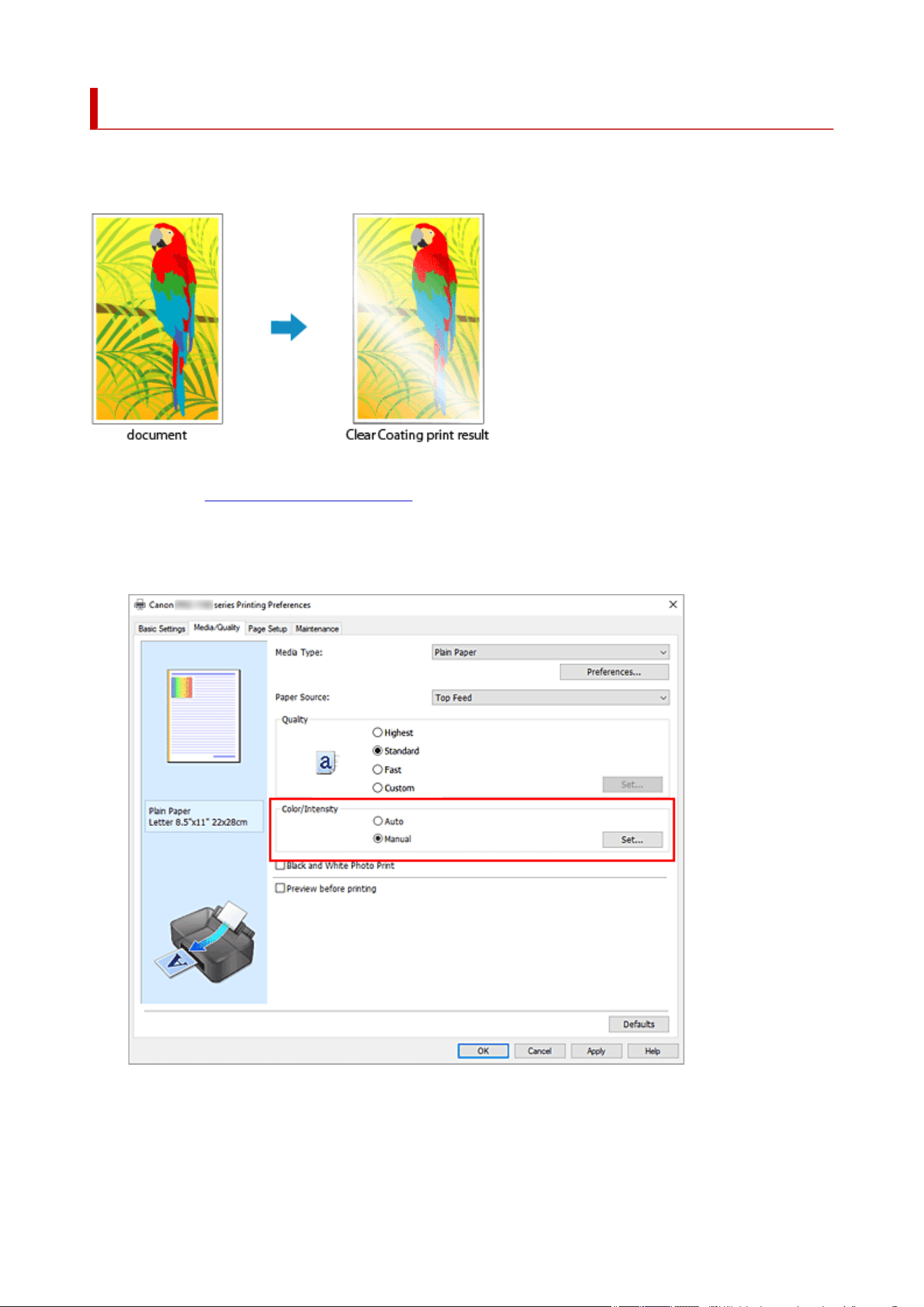
Changing the Clear Coating Settings
When you perform clear coating, the printer applies chroma optimizer (CO) ink onto the printing surface and
allows you to adjust the glossiness.
1.
Open the printer driver setup window
1.
2. Select the manual color adjustment2.
On the Media/Quality tab, select Manual for Color/Intensity, and click Set....
The Manual Color Adjustment dialog box opens.
3.
Configure clear-coating
3.
112
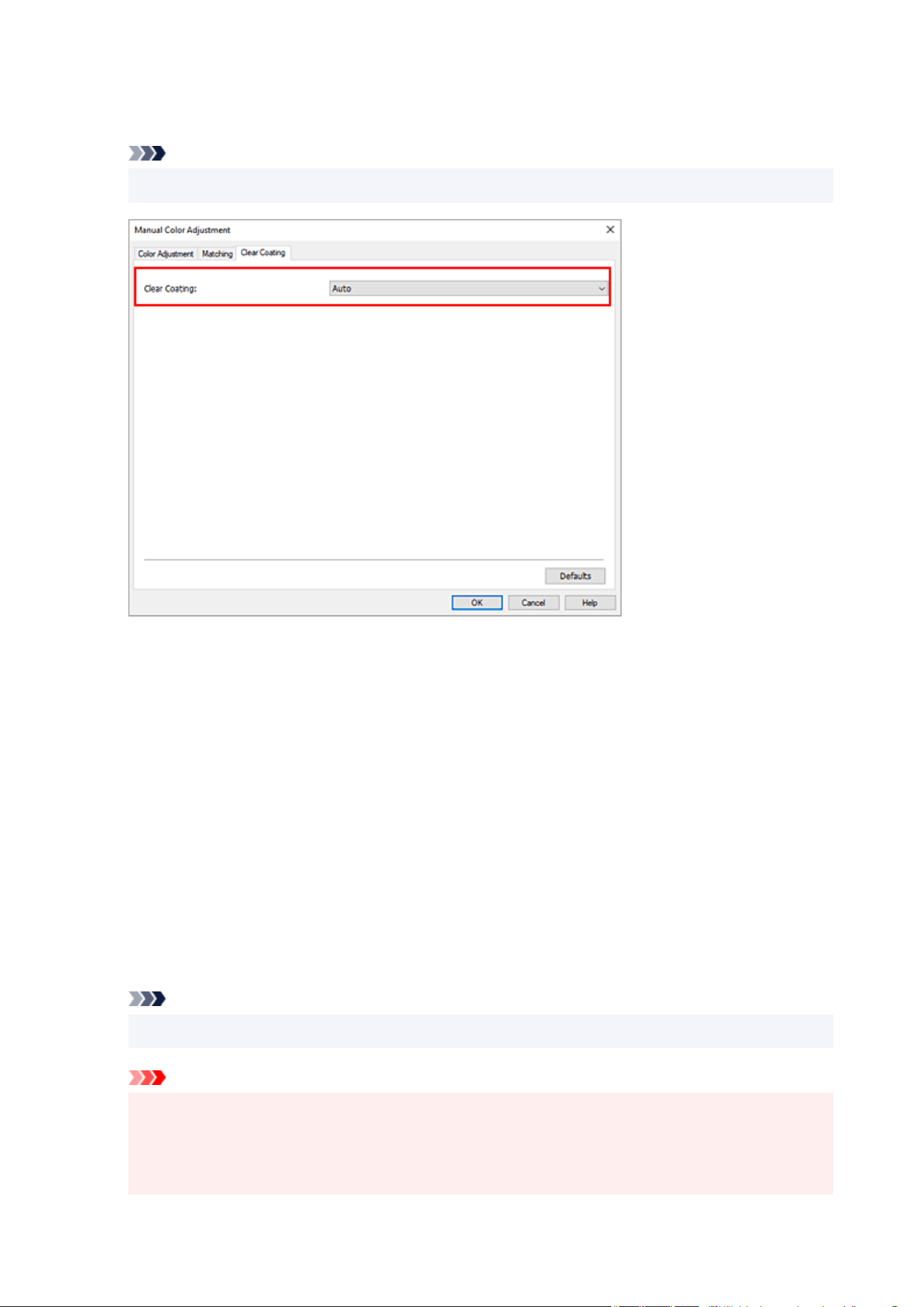
Click the Clear Coating tab, select the Clear Coating item that matches your purpose (see below for
the selections), and then click OK.
Note
• The available menu items differ depending on the paper type and print quality.
Auto
The printer automatically sets the areas to be clear-coated and whether clear coating is to be
executed.
Overall
The printer clear-coats the entire area, including the margins outside the image area.
Clear-coating the entire area improves the overall glossiness, including the margins.
This option uses the most Chroma Optimizer (CO) ink.
Printed Areas
Use this option when you want to improve the glossiness only in the image area.
White areas (including margins) are not clear-coated.
None
Printing will proceed without clear coating.
Compared to if clear coating is applied, the image quality may deteriorate, or the printed surface
may be damaged.
Note
•
Select None if clear-coating is not required, such as when laminating after printing.
Important
•
On the Basic Settings or Media/Quality tab, look at Media Type. If a media type other than Photo
Paper Pro Premium Matte A, Photo Paper Pro Platinum, Photo Paper Pro Luster, Photo
Paper Plus Semi-gloss, Lightweight Photo Paper, Heavyweight Photo Paper, Photo Paper
(Long-form Printing), or Baryta Photo Paper is selected, you can select Auto only.
113

4. Click OK4.
When printing is executed, the clear coating effect that was set is added when the document is printed.
Important
• The decorative effects of clear coating may diminish depending on the document to be clear coated.
• Selecting Black and White Photo Print on the Basic Settings or Media/Quality tab may diminish the
decorative effects of clear coating.
114

Set the Layout of Printed Documents (Page Setup Tab)
Page Setup Tab Description
Setting the Number of Copies and Printing Order
Perform Borderless Printing
Page Layout Printing
Tiling/Poster Printing
Booklet Printing
Duplex Printing
Perform Long-form Printing
Printing on Postcards
Print Using Washi
Setting Paper Dimensions (Custom Size)
115
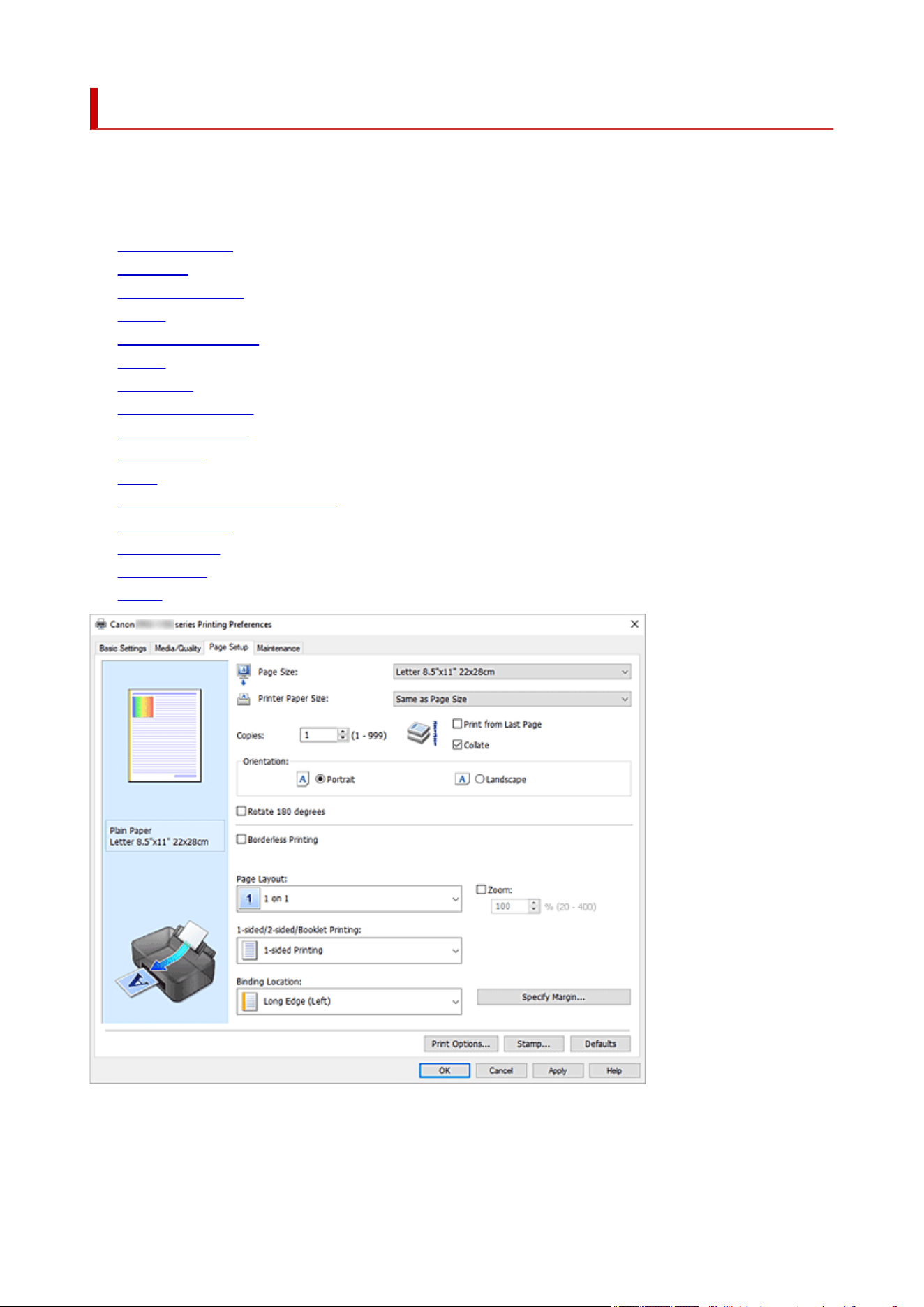
Page Setup Tab Description
The Page Setup tab allows you to determine how a document is to be arranged on the paper. Also, this
tab allows you to set the number of copies and the order of printing. If the application which created the
document has a similar function, set them with the application.
• Settings Preview
• Page Size
• Printer Paper Size
• Copies
• Print from Last Page
• Collate
• Orientation
• Rotate 180 degrees
• Borderless Printing
• Page Layout
• Zoom
• 1-sided/2-sided/Booklet Printing
• Binding Location
• Specify Margin
• Print Options
• Stamp
Settings Preview
The paper illustration shows how the original will be laid out on a sheet of paper.
You can check an overall image of the layout.
116

The printer illustration shows how to load paper to match the printer driver settings.
Check whether the printer is set up correctly by looking at the illustration before you start printing.
Page Size
Selects a page size.
Ensure that you select the same page size as you selected within the application.
If you select Custom..., the Custom Paper Size dialog box opens and allows you to specify any
vertical and horizontal dimensions for the paper size.
Printer Paper Size
Selects the size of paper actually loaded into the printer.
The default setting is Same as Page Size to perform normal-sized printing.
If you select a paper size that is smaller than the Page Size, the document size will be reduced. If you
select a paper size that is larger, the document size will be enlarged.
Also if you select Custom..., the Custom Paper Size dialog box opens and allows you to specify any
vertical and horizontal dimensions for the paper size.
Copies
Specifies the number of copies you want to print. You can specify a value from 1 to 999.
Important
• If the application used to create your document has a similar function, specify the number of copies
with the application without specifying it here.
Print from Last Page
Check this check box when you want to print from the last page in order. If you do this, you do not need
to sort the pages into their correct order after printing.
Uncheck this check box to print your document in normal order, starting from the first page.
Collate
Check this check box to group together the pages of each copy when you want to print multiple copies.
Uncheck this check box when you want to print with all pages of the same page number grouped
together.
Important
• When the application software that you used to create the document has the same function,
give priority to the printer driver settings. However, if the print results are not acceptable, specify
the function settings on the application software. When you specify the number of copies and
the printing order with both the application and this printer driver, the number of copies may be
multiplied numbers of the two settings or the specified printing order may not be enabled.
Orientation
Selects the printing orientation.
If the application used to create your document has a similar function, select the same orientation that
you selected in that application.
Portrait
Prints the document so that its top and bottom positions are unchanged relative to the paper feed
direction. This is the default setting.
Landscape
Prints the document by rotating it 90 degrees relative to the paper feed direction.
You can change the rotation direction by going to the Maintenance tab, opening the Custom
117

Settings dialog box, and then using Rotate 90 degrees left when orientation is [Landscape]
check box.
To rotate the document 90 degrees to the left when printing, select the Rotate 90 degrees left
when orientation is [Landscape] check box.
Rotate 180 degrees
Prints the document by rotating it 180 degrees against the paper feed direction.
The width of print area and the amount of extension that are configured in other application software will
be reversed vertically and horizontally.
Borderless Printing
Chooses whether you are printing on a full page without any page margins or printing with page
margins.
In borderless printing, originals are enlarged to extend slightly off the paper. Thus, printing can be
performed without any margins (border).
Use Amount of Extension to adjust how much of the document extends off the paper during
borderless printing.
Amount of Extension
Adjusts how much of the document extends off the paper during borderless printing.
Moving the slider to the right increases the amount of extension and allows you to perform
borderless printing with no problems.
Moving the slider to the left reduces the amount of extension and expands the range of the
document to print.
Page Layout
Selects the size of the document you want to print and the type of printing.
1 on 1 to 16 on 1
Multiple pages of document can be printed on one sheet of paper. To change the page order, click
Preferences.... In the Page Layout Printing dialog box that appears, specify Page Order.
Poster (1 x 2) to Poster (4 x 4)
This function enables you to enlarge the image data and divide the enlarged data into several
pages to be printed.
You can also glue together these sheets of paper to create large printed matter, such as a poster.
Preferences...
Opens the Poster Printing dialog box.
Click this button to set details on poster printing.
Zoom
Specifies an enlargement or reduction ratio for the document you want to print.
1-sided/2-sided/Booklet Printing
1-sided Printing
Select when performing single-sided printing.
2-sided Printing (Manual)
Select when performing duplex printing.
Booklet Printing (Manual)
The booklet printing function allows you to print data for a booklet. Data is printed on both sides of
the paper. This type of printing ensures that pages can be collated properly, in page number order,
when the printed sheets are folded and stapled at the center.
118

Preferences...
Opens the Booklet Printing dialog box. Click this button to set details on booklet printing.
Binding Location
Selects the stapling margin position.
The printer analyzes the Orientation and Page Layout settings, and automatically selects the best
stapling margin position. Check Binding Location, and select from the list to change it.
Specify Margin...
Opens the Specify Margin dialog box. You can specify the width of the margin.
Print Options...
Opens the Print Options dialog box.
Changes detailed printer driver settings for print data that is sent from applications.
Stamp...
Opens the Stamp dialog box.
The Stamp function allows you to print a stamp text or a bitmap over or behind document data. It also
allows you to print date, time and user name.
Depending on the environment, Stamp may not be available.
Defaults
Restores all the settings you have changed to their default values.
Clicking this button restores all the settings on the current screen to their default values (factory
settings).
Custom Paper Size dialog box
This dialog box allows you to specify the size (width and height) of the custom paper.
Units
Select the unit for entering a user-defined paper size.
Paper Size
Specifies the Width and the Height of the custom paper. Measurement is shown according to the
units specified in Units.
Page Layout Printing dialog box
This dialog box allows you to select the number of document pages to be placed on one sheet of paper,
the page order, and whether a page border line is to be printed around each document page.
The settings specified in this dialog box can be confirmed in the settings preview on the printer driver.
Page Order
Specifies the document orientation to be printed on a sheet of paper.
Page Border
Prints a page border line around each document page.
Check this check box to print the page border line.
Exclude single page documents from Page Layout Printing
If you add a checkmark, single-page documents are printed on a single sheet without performing
Page Layout Printing.
119

Poster Printing dialog box
This dialog box allows you to select the size of the image to be printed. You can also make settings for cut
lines and paste markers which are convenient for pasting together the pages into a poster.
The settings specified in this dialog box can be confirmed in the settings preview on the printer driver.
Print "Cut/Paste" in margins
Specifies whether to print the words "Cut" and "Paste" in the margins. These words serve as
guidelines for pasting together the pages into a poster.
Check this check box to print the words.
Note
• Depending on the environment of the printer driver you are using, this function may not be
available.
Print "Cut/Paste" lines in margins
Specifies whether to print cut lines that serve as guidelines for pasting together the pages into a
poster.
Check this check box to print the cut lines.
Print page range
Specifies the printing range. Select All under normal circumstances.
Select Pages to specify a specific page or range.
Note
• If some of the pages have not been printed well, specify the pages that do not need to be printed
by clicking them in the settings preview of the Page Setup tab. Only the pages shown on the
screen will be printed this time.
Booklet Printing dialog box
This dialog box allows you to set how to bind the document as a booklet. Printing only on one side and
printing a page border, can also be set in this dialog box.
The settings specified in this dialog box can be confirmed in the settings preview on the printer driver.
Preview Icon
Shows the settings made on the Booklet Printing dialog box.
You can check what the document will look like when printed as a booklet.
Margin for stapling
Specifies which side of the booklet is to be stapled.
Insert blank page
Selects whether to print the document on one side or both sides of the booklet.
Check this check box to print the document on one side of the booklet and select the side to be left
blank from the list.
Margin
Specifies the width of the stapling margin.
The specified width becomes the stapling margin from the center of the sheet.
120

Page Border
Prints a page border line around each document page.
Check this check box to print the page border line.
Specify Margin dialog box
This dialog box allows you to specify the margin width for the side to be stapled. If a document does not fit
on one page, the document is reduced when printed.
Margin
Specifies the width of the stapling margin.
The width of the side specified by Binding Location becomes the stapling margin.
Print Options dialog box
Makes changes to print data that is sent to the printer.
Depending on the environment, this function may not be available.
Disable ICM required from the application software
Disables the ICM function required from the application software.
When an application software uses Windows ICM to print data, unexpected colors may be produced
or the printing speed may decrease. If these problems occur, checking this check box may resolve
the problems.
Important
• Uncheck this check box under normal circumstances.
• This function does not work when ICM is selected for Color Correction on the Matching tab of
the Manual Color Adjustment dialog box.
Disable the color profile setting of the application software
Checking this check box disables information in the color profile that was set on the application
software.
When the information in the color profile set on the application software is output to the printer driver,
the print result may contain unexpected colors. If this happens, checking this check box may resolve
the problem.
Important
• Uncheck this check box under normal circumstances.
• Even when this check box is checked, only some of the information in the color profile is
disabled, and the color profile can still be used for printing.
Disable the paper source setting of the application software
Disables the paper feed method that is set by the application.
With some applications such as Microsoft Word, the data may be printed with a feed method that
differs from the printer driver setting. In this case, check this function.
Important
• When this function is enabled, normally the paper feeding method cannot be changed from the
Canon IJ Preview.
121

Ungroup Papers
Sets the display method of Media Type, Page Size, and Printer Paper Size.
To display the items separately, select the check box.
To display the items as a group, clear the check box.
Do not allow application software to compress print data
Compression of the application software print data is prohibited.
If the print result has missing image data or unintended colors, selecting this check box may improve
the condition.
Important
• Uncheck this check box under normal circumstances.
Print after creating print data by page
The print data is created in page units, and printing starts after the processing of one page of print
data is complete.
If a printed document contains unintended results such as streaks, selecting this check box may
improve the results.
Important
• Uncheck this check box under normal circumstances.
Cancel the safety margin regulation for paper size
Cancels the safety margin regulation when you set Media Type to Matte Photo Paper, Premium
Fine Art Smooth, Premium Fine Art Rough, or Photo Paper Pro Premium Matte A on the Media/
Quality tab.
When you check this item, the safety margin regulation is canceled, printing in a wider print area and
borderless full-page printing become possible, and printing can be performed for all paper sizes.
Important
• When the safety margin regulation is canceled, the paper may become smudged or the print
quality may drop depending on the paper size used and the environment.
If that happens, we recommend that you print on a paper size that has large margins.
Prevention of Print Data Loss
You can reduce the size of the print data that was created with the application software and then print
the data.
Depending on the application software being used, the image data may be cut off or may not be
printed properly. In such cases, select On (Weak) or On (Strong).
Off
The printer prints data without using this function.
On (Weak)
The printer uses this function to print data only when the data quality is acceptable.
On (Strong)
The printer always uses this function to print data.
Important
• When using this function, the print quality may drop depending on the print data.
122

Unit of Print Data Processing
Selects the processing unit of the print data to be sent to the printer.
Select Recommended under normal circumstances.
Important
• A large amount of memory may be used for certain settings.
Do not change the setting if your computer has a small amount of memory.
Stamp dialog box
Depending on the environment, Stamp may not be available.
The Stamp dialog box allows you to print a stamp over or behind the document pages. In addition to the
pre-registered ones, you can register and use your original stamp.
Stamp
Stamp printing is a function that prints a stamp over a document.
Check this check box and select a title from the list to print a stamp.
Define Stamp...
Opens the Stamp Settings dialog box.
You can check the details of a selected stamp or save a new stamp.
Place stamp over text
Sets how the stamp is to be printed over the document.
Check the Stamp check box to enable this.
Check this check box to print a stamp over the printed document page. The printed data may be
hidden behind the stamp.
Uncheck this check box to print the document data over the stamp. The printed data will not be
hidden behind the stamp. However, the sections of the stamp that are overlapped by the document
may be hidden.
Stamp first page only
Selects whether the stamp is to be printed on the first page only or on all pages when the document
has two or more pages.
Check the Stamp check box to enable this.
Check this check box to print a stamp on the first page only.
Stamp Tab
The Stamp tab allows you to set the text and bitmap file (.bmp) to be used for a stamp.
Preview Window
Shows the status of the stamp configured in each tab.
Stamp Type
Specifies the stamp type.
Select Text to create a stamp with characters. Select Bitmap to create with a bitmap file. Select
Date/Time/User Name to display the creation date/time and user name of the printed document.
The setting items in the Stamp tab change depending on the selected type.
123

• For Text registration, the characters must already be entered in Stamp Text. If necessary,
change the TrueType Font, Style, Size, and Outline settings. You can select the color of the
stamp by clicking Select Color....
• For Bitmap, click Select File... and select the bitmap file (.bmp) to be used. If necessary,
change the settings of the Size and Transparent white area.
• For Date/Time/User Name, the creation date/time and user name of the printed object are
displayed in Stamp Text. If necessary, change the settings of TrueType Font, Style, Size,
and Outline. You can select the color of the stamp by clicking Select Color....
When Stamp Type is Text or Date/Time/User Name
Stamp Text
Specifies the stamp text string.
Up to 64 characters can be entered.
For Date/Time/User Name, the creation date/time and user name of the printed object are
displayed in Stamp Text.
TrueType Font
Selects the font for the stamp text string.
Style
Selects the font style for the stamp text string.
Size
Selects the font size for the stamp text string.
Outline
Selects a frame that encloses the stamp text string.
If a large font size is selected for Size, characters may extend outside of the stamp border.
Color/Select Color...
Shows the current color for the stamp.
To select a different color, click Select Color... to open the Color dialog box, and select or create a
color you wish to use as a stamp.
When Stamp Type is Bitmap
File
Specifies the name of the bitmap file to be used as the stamp.
Select File...
Opens the dialog box to open a file.
Click this button to select a bitmap file to be used as a stamp.
Size
Adjusts the size of the bitmap file to be used as a stamp.
Moving the slider to the right increases the size, moving the slider to the left decreases the size.
Transparent white area
Specifies whether to make white-filled areas of the bitmap transparent.
Check this check box to make white-filled areas of the bitmap transparent.
124

Note
• Click Defaults to set Stamp Type to text, Stamp Text to blank, TrueType Font to Arial, Style to
Regular, Size to 36 points, Outline unchecked, and Color to gray with the RGB values (192, 192,
192).
Placement Tab
The Placement tab allows you to set the position where the stamp is to be printed.
Preview Window
Shows the status of the stamp configured in each tab.
Position
Specifies the stamp position on the page.
Selecting Custom from the list allows you to enter values for the X-Position and Y-Position
coordinates directly.
You can also change the stamp position by dragging the stamp in the preview window.
Rotation
Specifies the angle of rotation for the stamp. The angle can be set by entering the number of
degrees.
Negative values rotate the stamp clockwise.
Note
• Rotation is enabled only when Text or Date/Time/User Name is selected for Stamp Type on
the Stamp tab.
Note
• Click Defaults to set the stamp position to Center and the rotation to "0."
Save settings Tab
The Save settings tab allows you to register a new stamp or delete an unnecessary stamp.
Title
Enter the title to save the stamp you created.
Up to 64 characters can be entered.
Note
• Spaces, tabs, and returns cannot be entered at the beginning or end of a title.
Stamps
Shows a list of saved stamp titles.
Specify a title to display the corresponding stamp in Title.
Save/Save overwrite
Saves the stamp.
Enter a title in Title, and then click this button.
125

Delete
Deletes an unnecessary stamp.
Specify the title of an unnecessary stamp from the Stamps list, and click this button.
126
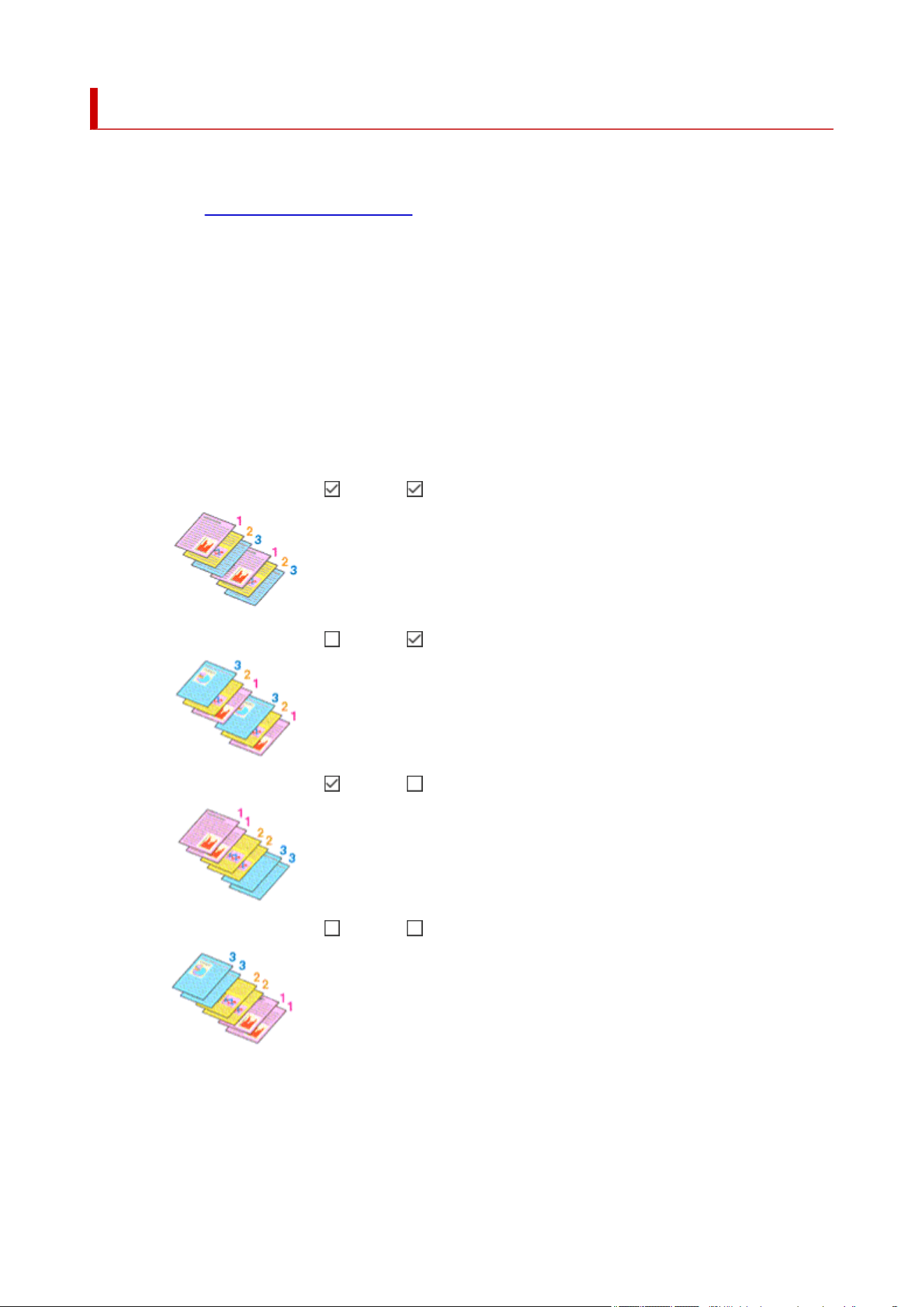
Setting the Number of Copies and Printing Order
You can also set the number of copies on the Basic Settings tab.
1. Open the printer driver setup window1.
2.
Specify the number of copies to be printed
2.
For Copies on the Page Setup tab, specify the number of copies to be printed.
3.
Specify the print order
3.
Check the Print from Last Page check box when you want to print from the last page in order, and
uncheck the check box when you want to print from the first page.
Check the Collate check box when you are printing multiple copies of a document and want to print out
all pages in each copy together. Uncheck this check box when you want to print all pages with the same
page number together.
•
Print from Last Page: /Collate:
• Print from Last Page: /Collate:
• Print from Last Page: /Collate:
•
Print from Last Page: /Collate:
4.
Click OK
4.
When you perform print, the specified number of copies will be printed with the specified printing order.
127

Important
• When the application software that you used to create the document has the same function, specify
the settings on the printer driver. However, if the print results are not acceptable, specify the function
settings on the application software. When you specify the number of copies and the printing order with
both the application software and this printer driver, the number of copies may be multiplied numbers of
the two settings or the specified printing order may not be enabled.
Note
• By setting both Print from Last Page and Collate, you can perform printing so that papers are collated
one by one starting from the last page.
128
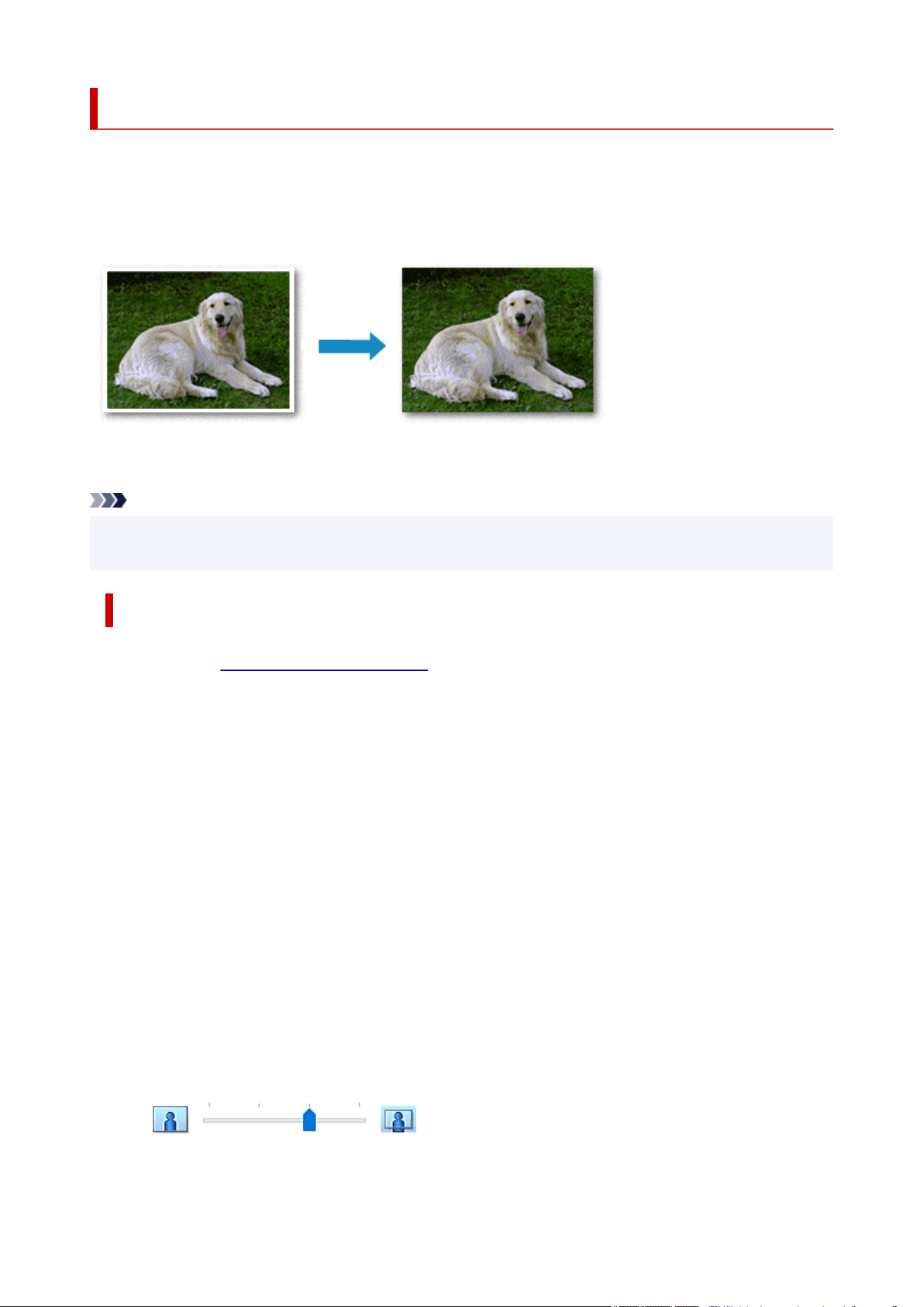
Perform Borderless Printing
The borderless printing function allows you to print data without any margin by enlarging the data so
that it extends slightly off the paper. In standard printing, margins are created around the document area.
However, in borderless printing function, these margins are not created. When you want to print data such
as a photo without providing any margin around it, set borderless printing.
You can also set borderless printing on the Basic Settings Tab.
Note
• You can also set Magnification level for borderless on the operation panel of the printer, but the
settings on the printer driver will be prioritized.
Setting Borderless Printing
1.
Open the printer driver setup window
1.
2. Set borderless printing2.
Add a checkmark to Borderless Printing on the Page Setup tab.
Click OK when the confirmation message appears.
When a message prompting you to change the media type appears, select a media type from the list
and click OK.
3. Check the paper size3.
Check the Page Size list. When you want to change it, select another page size from the list. The list
displays only sizes that can be used for borderless printing.
4.
Adjust the amount of extension from the paper
4.
If necessary, adjust the amount of extension using the Amount of Extension slider.
Moving the slider to the right increases the amount extending off the paper, and moving the slider to
the left decreases the amount.
It is recommended to set the slider at the second position from the right for most cases.
129

Important
• When the Amount of Extension slider is set to the rightmost position, the back side of the
paper may become smudged.
5. Click OK5.
When you perform print, the data is printed without any margins on the paper.
Important
• When a page size that cannot be used for borderless printing is selected, the size is automatically
changed to the valid page sizes for borderless printing.
• Depending on the type of the media used during borderless printing, the print quality may deteriorate
at the top and bottom of the sheet or stains may form.
• When the ratio of the height to the width differs from the image data, a portion of the image may not
be printed depending on the size of the media used.
In this case, crop the image data with an application software according to the paper size.
Expanding the Range of the Document to Print
Setting a large amount of extension allows you to perform borderless printing with no problems. However,
the portion of the document extending off the paper range will not be printed and for this reason, the
subjects around the perimeter of a photo may not be printed.
When you are not satisfied with the result of borderless printing, reduce the amount of extension. The
extension amount decreases as the Amount of Extension slider is moved to the left.
Important
• When the amount of extension is decreased, an unexpected margin may be produced on the print,
depending on the size of the paper.
Note
• When the Amount of Extension slider is set to the leftmost position, image data will be printed in the
full size. If you set this when printing the address side of a postcard, the postal code of the sender is
printed in the correct position.
•
When Preview before printing is checked on the Media/Quality tab, you can confirm whether there
will be no margin before printing.
• To perform borderless full-page printing on Matte Photo Paper, Premium Fine Art Smooth,
Premium Fine Art Rough, or Photo Paper Pro Premium Matte A go to the Page Setup tab,
display the Print Options dialog box, and change the Cancel the safety margin regulation for
paper size setting.
130
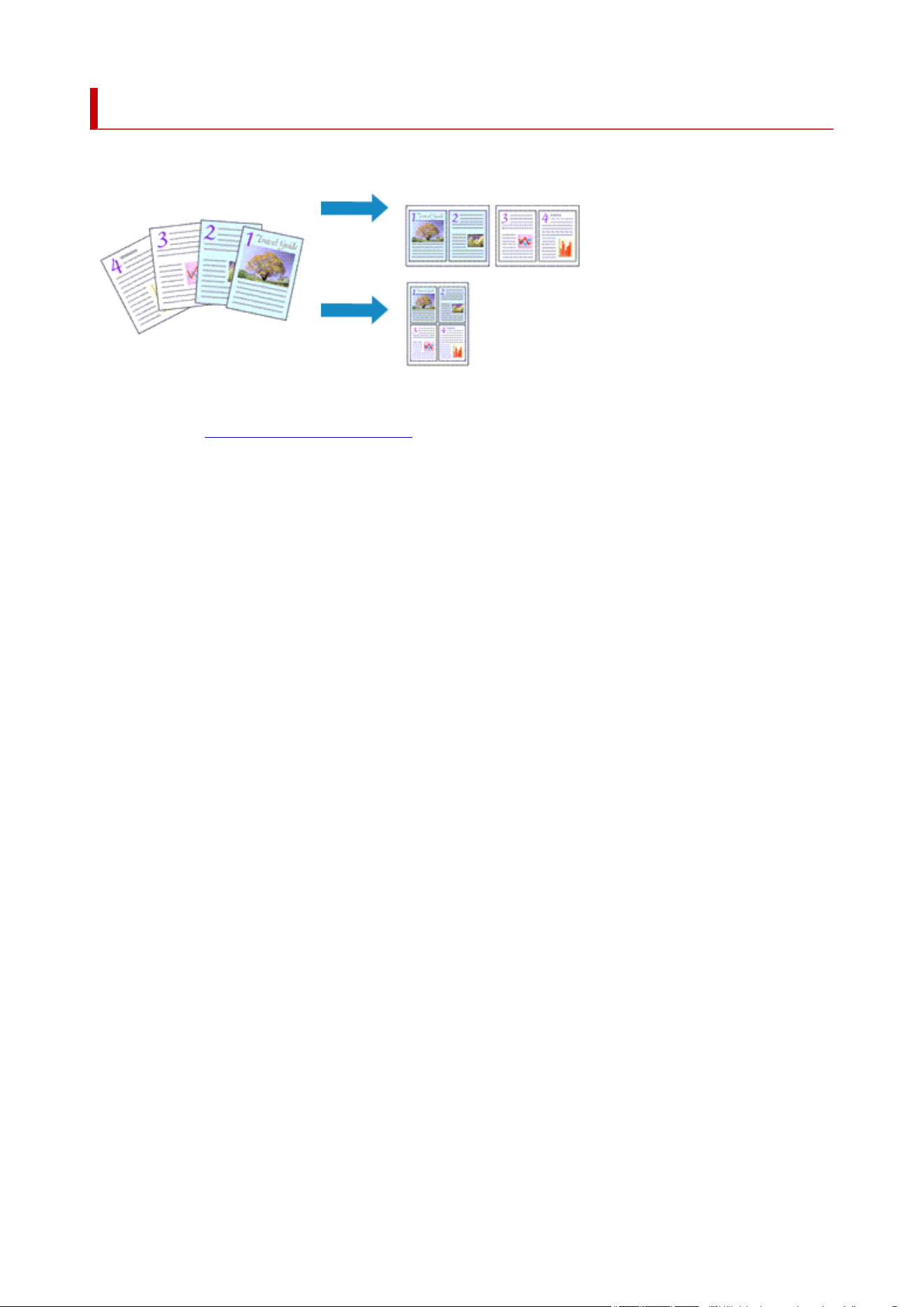
Page Layout Printing
The page layout printing function allows you to print more than one page image on a single sheet of paper.
1.
Open the printer driver setup window
1.
2.
Set page layout printing
2.
Select a page layout number from 1 on 1 to 16 on 1 from the Page Layout list on the Page Setup tab.
The current settings are displayed in the settings preview on the left side of the printer driver.
3. Select the print paper size3.
Select the size of the paper loaded in the printer from the Printer Paper Size list.
4.
Set the number of pages to be printed on one sheet and the page order
4.
If necessary, click Preferences..., specify the following settings in the Page Layout Printing dialog box,
and click OK.
Page Order
To change the page arrangement order, select a placement method from the list.
Page Border
To print a page border around each document page, check this check box.
Exclude single page documents from Page Layout Printing
If you add a checkmark, single-page documents are printed on a single sheet without performing
Page Layout Printing.
5.
Complete the setup
5.
Click OK on the Page Setup tab.
When you perform print, the specified number of pages will be arranged on each sheet of paper in the
specified order.
131
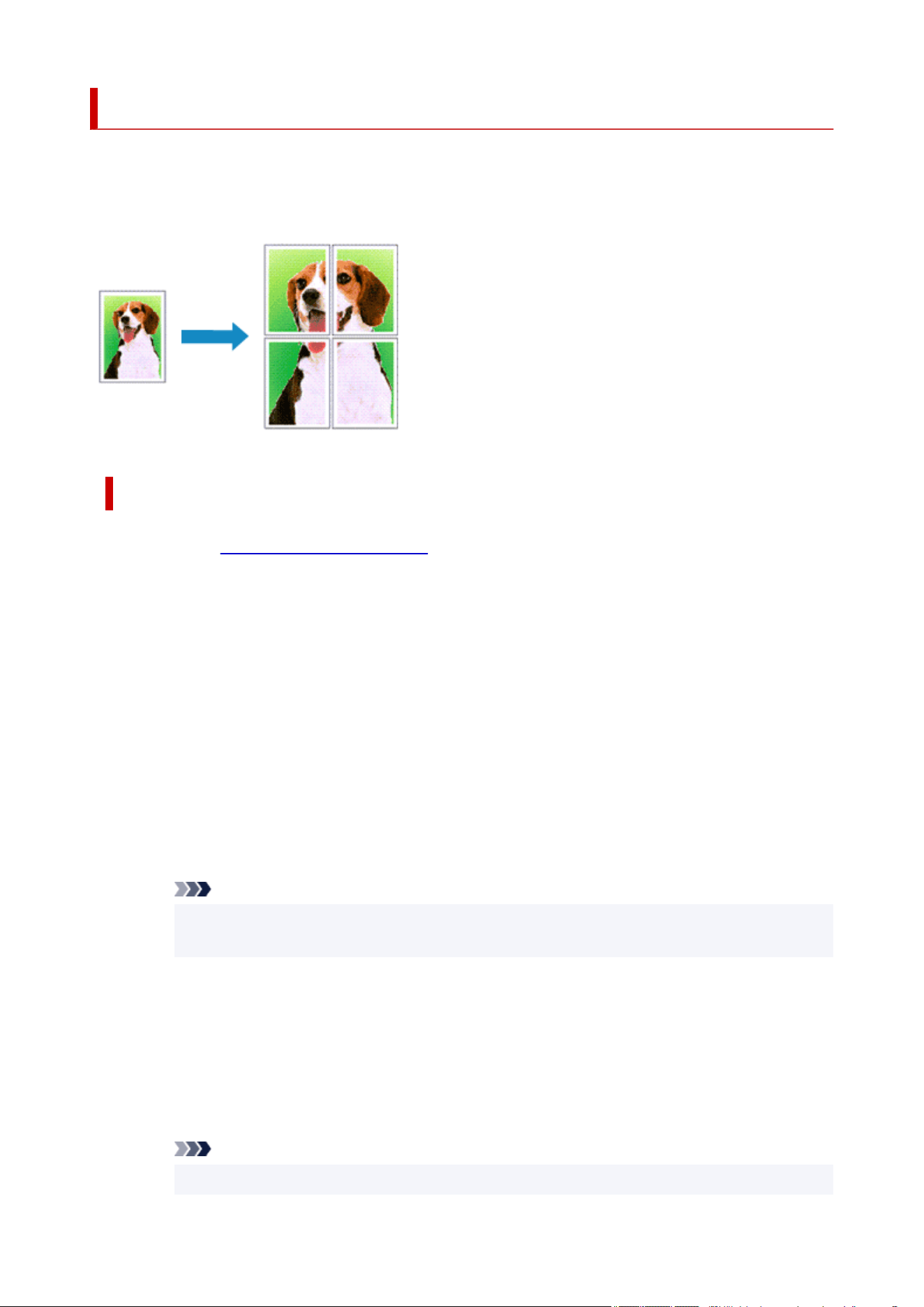
Tiling/Poster Printing
The tiling/poster printing function allows you to enlarge image data, divide it into several pages, and print
these pages on separate sheets of paper. You can also paste the pages together to create a large print like
a poster.
Setting Tiling/Poster Printing
1.
Open the printer driver setup window
1.
2. Set tiling/poster printing2.
Select from Poster (1 x 2) to Poster (4 x 4) from the Page Layout list on the Page Setup tab.
The current settings are displayed in the settings preview on the left side of the printer driver.
3. Select the print paper size3.
Select the size of the paper loaded in the printer from the Printer Paper Size list.
4. Set the number of image divisions and the pages to be printed4.
If necessary, click Preferences..., configure the required settings, and then click OK.
Print "Cut/Paste" in margins
To leave out words "Cut" and "Paste," uncheck this check box.
Note
•
Depending on the environment of the printer driver you are using, this function may not be
available.
Print "Cut/Paste" lines in margins
To leave out cut lines, uncheck this check box.
Print page range
Specifies the printing range. Select All under normal circumstances.
To reprint only a specific page, select Pages and enter the page number you want to print. To
specify multiple pages, enter the page numbers by separating them with commas or by entering a
hyphen between the page numbers.
Note
•
You can also specify the print range by clicking the pages in the settings preview.
132

5. Complete the setup5.
Click OK on the Page Setup tab.
When you perform print, the document will be divided into several pages during printing.
Printing Only Specific Pages
If ink becomes faint or runs out during printing, you can reprint only the specific pages by following the
procedure below:
1.
Set the print range
1.
In the settings preview on the left of the Page Setup tab, click the pages that do not need to be
printed.
The pages that were clicked are deleted, and only the pages to be printed are displayed.
Note
•
Click the deleted pages to display them again.
•
Right-click the settings preview to select Print all pages or Delete all pages.
2.
Complete the setup
2.
After completing the page selection, click OK.
When you perform print, only specified pages will be printed.
Important
• Since tiling/poster printing enlarges the document when printing it, the print results may become coarse.
133

Booklet Printing
The booklet printing function allows you to print data for a booklet. Data is printed on both sides of the
paper. This type of printing ensures that pages can be collated properly, in page number order, when the
printed sheets are folded and stapled at the center.
1.
Open the printer driver setup window
1.
2.
Set booklet printing
2.
Select Booklet Printing (Manual) from 1-sided/2-sided/Booklet Printing on the Page Setup tab.
The current settings are displayed in the settings preview on the left side of the window.
3. Select the print paper size3.
Select the size of the paper loaded in the printer from the Printer Paper Size list.
4.
Set the margin for stapling and the margin width
4.
Click Preferences... and specify the binding method and margin for the finished booklet in the Booklet
Printing dialog box, and then click OK.
5. Complete the setup5.
Click OK on the Page Setup tab.
When you print, the document will be printed on one side of a sheet of paper. When the printing of one
side is complete, set the paper correctly by following the message, and then press OK button on the
printer.
When the printing of the other side is complete, fold the paper at the center of the margin and make a
booklet.
Important
• If you want to select Booklet Printing (Manual), select Plain Paper for Media Type on the Media/
Quality tab.
Note
• The stamp is not printed on the inserted blank sheets with the Insert blank page function of booklet
printing.
134
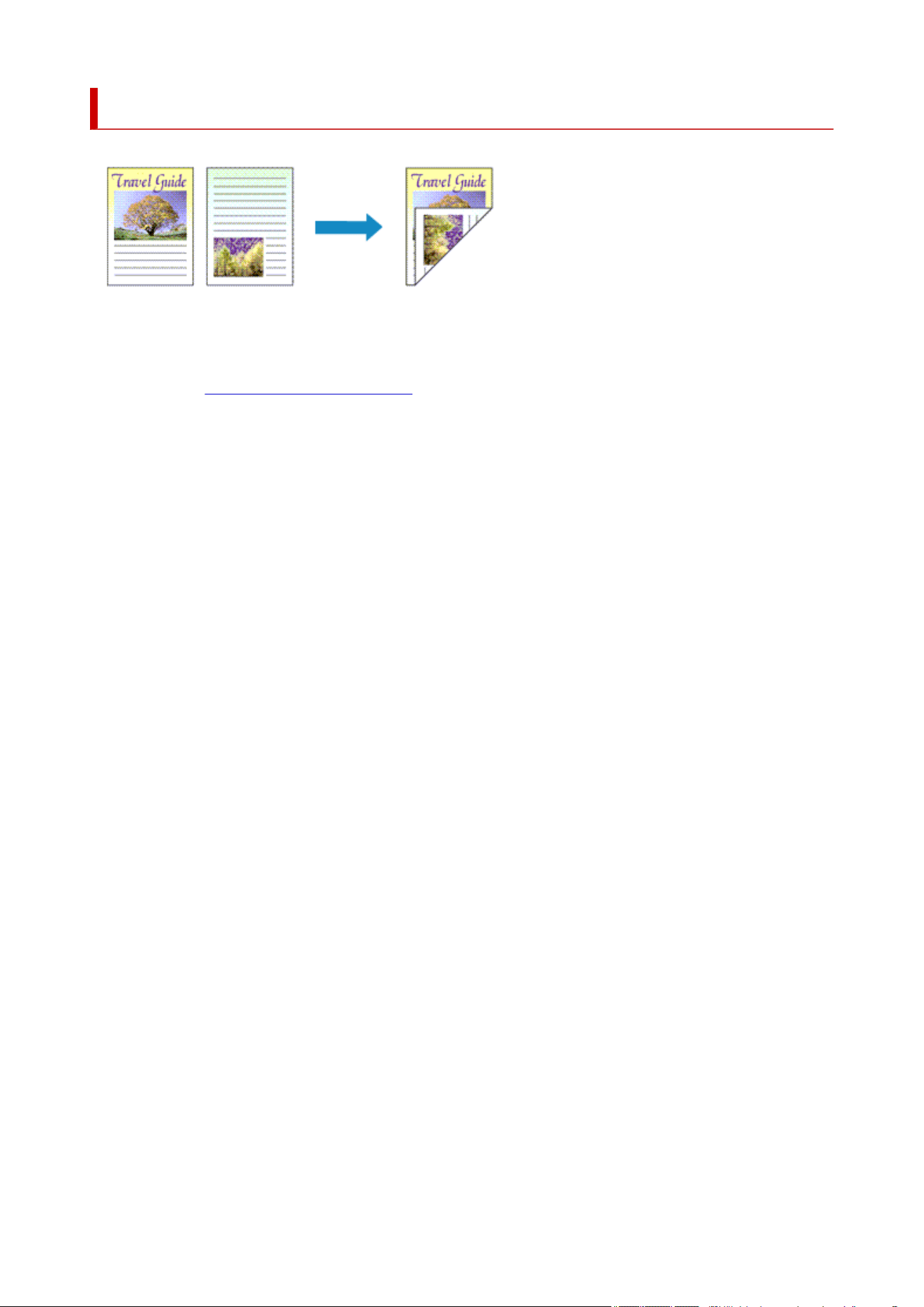
Duplex Printing
You can also set duplex printing in the Basic Settings tab.
1.
Open the printer driver setup window
1.
2.
Set duplex printing
2.
Select 2-sided Printing (Manual) from 1-sided/2-sided/Booklet Printing on the Page Setup tab.
3.
Select the layout
3.
Select the layout you want to use from the Page Layout list.
4. Specify the side to be stapled4.
The best Binding Location is selected automatically from the Orientation and Page Layout settings.
To change the setting, select another stapling side from the Binding Location list.
5. Set the margin width5.
If necessary, click Specify Margin... and set the margin width, and then click OK.
6. Complete the setup6.
Click OK on the Page Setup tab.
When you perform print, the document is first printed on one side of a sheet of paper. After one side is
printed, reload the paper correctly according to the message.
Then tap Start print on the printer operation panel to print the opposite side.
135
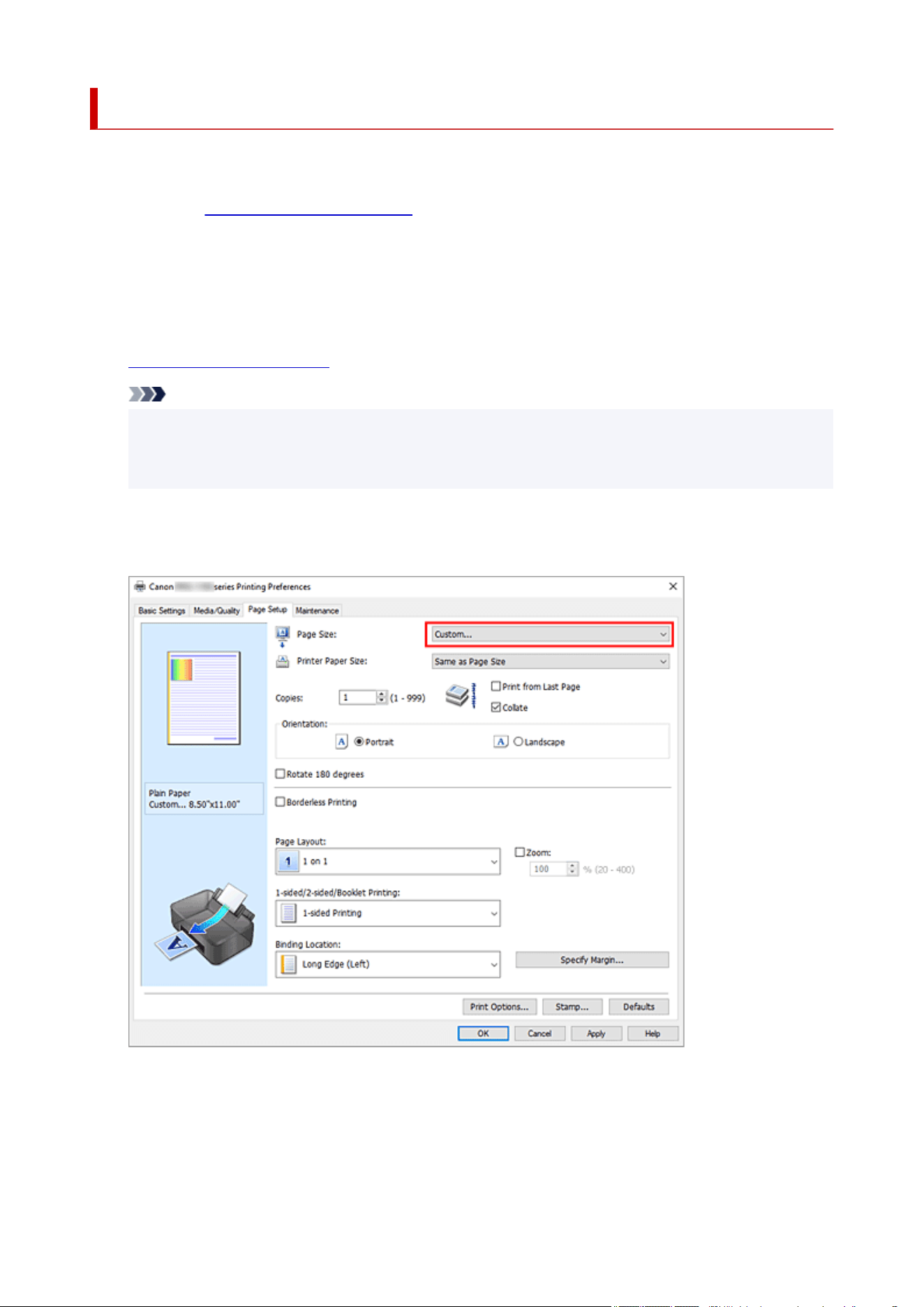
Perform Long-form Printing
This section describes the procedure for printing on long sheets of paper that exceed 990.6 mm.
1. Open the printer driver setup window1.
2.
Select the media type
2.
Select Photo Paper (Long-form Printing) or Fine Art Paper (Long-form Print) in Media Type in the
Basic Settings tab.
3.
Load long sheets of paper into the printer
3.
Note
•
When loading long sheets of paper, depending on the weight of the paper, the leading edge may
lift up, causing printing to be misaligned. Hold the paper by hand by the part protruding from the
tray to prevent the leading edge of the paper from lifting up.
4. Select the paper size4.
Select Custom... for Page Size on the Page Setup tab.
The Custom Paper Size dialog box opens.
136
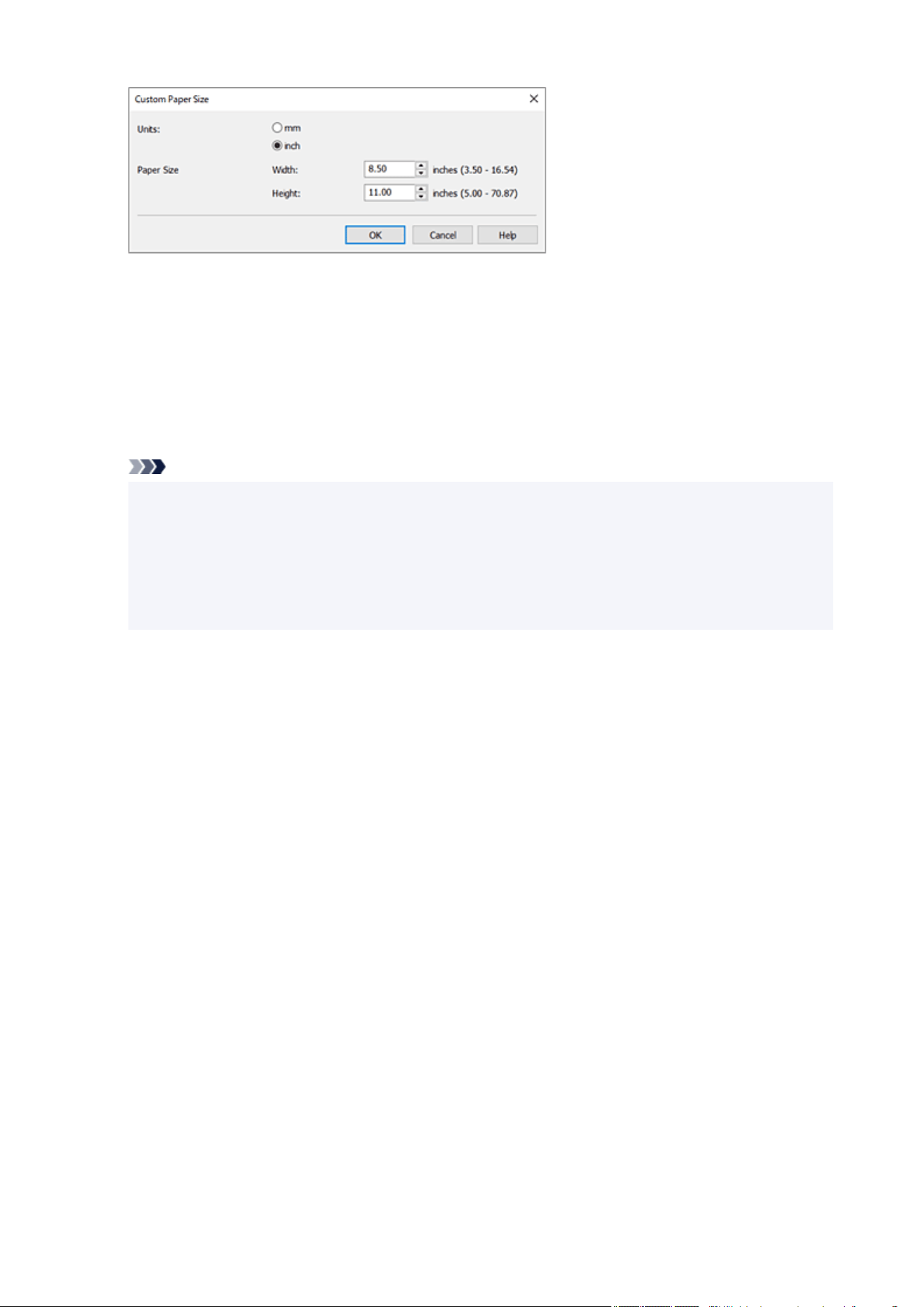
5.
Set the custom paper size
5.
Specify Units, and enter the Width and Height of the paper to be used. Then click OK.
6.
Complete the setup
6.
Click OK.
When you perform print, the data is printed with the specified paper size.
Note
• When printing on long sheets of paper, hold the ejected paper by hand or use it in a place where
the paper will not fall. If the paper falls, it may cause the print surface to get dirty or damaged.
When holding the paper by hand, do not pull the paper forcefully during printing.
• When printing on long sheets of paper, if ink runs out during printing, printing will be interrupted,
and the paper will be ejected. Before starting printing, make sure that there is enough ink
remaining.
137

Printing on Postcards
1. Load postcard on the printer1.
2.
Open the printer driver setup window
2.
3. Select commonly used settings3.
Display the Basic Settings tab, and for Profiles, select Standard.
4.
Select the paper size
4.
For Printer Paper Size, select Hagaki 100x148mm or Hagaki 2 200x148mm.
Important
•
Return postcards can be used only when you print them from the computer.
•
When printing a return postcard, always set the paper size to Hagaki 2 200x148mm from your
application software or the printer driver.
• Do not fold the return postcard. If a crease is formed, the printer will not be able to feed the
postcard properly, and this condition will cause line shifts or a paper jam.
• With return postcards, borderless printing cannot be used.
5. Select the media type5.
For Media Type, select Hagaki A, Ink Jet Hagaki, or Hagaki.
Important
• This printer cannot print on postcards that have photos or stickers attached.
• You will get cleaner printing if you print the message side first and then print the address side.
• The paper settings on the printer driver are different, depending on whether you are printing on
the address side or the message side.
For details about the paper information to be registered to the printer driver and on the printer, see
the following:
Paper Settings on the Printer Driver and the Printer (Media Type)
Paper Settings on the Printer Driver and the Printer (Paper Size)
6.
Set the print orientation
6.
To print the address horizontally, set Orientation to Landscape.
7.
Select the print quality
7.
For Quality, select the quality according to your purpose.
8.
Click OK
8.
When you perform printing, the data will be printed onto the postcard.
138
Print Using Washi
The soft and supple texture of Washi sets it apart from glossy paper and art paper.
If using the Washi of other brands listed below, set Media Type of the printer driver and the feed position as
listed.
Category Product Name
Media Type in the printer
driver
Paper Source
Washi
Awagami Kozo Thin Natural Japanese Paper Washi
Manual Feed (Feed one sheet at a time)
Top Feed (Feed one sheet at a time)
Awagami Kozo Thin White Japanese Paper Washi
Manual Feed (Feed one sheet at a time)
Top Feed (Feed one sheet at a time)
Awagami Kozo Thick Natural Japanese Paper Washi
Manual Feed (Feed one sheet at a time)
Top Feed (Feed one sheet at a time)
Awagami Kozo Thick White Japanese Paper Washi
Manual Feed (Feed one sheet at a time)
Top Feed (Feed one sheet at a time)
Awagami Unryu Thin (Swirling
Fibers)
Japanese Paper Washi
Manual Feed (Feed one sheet at a time)
Top Feed (Feed one sheet at a time)
139
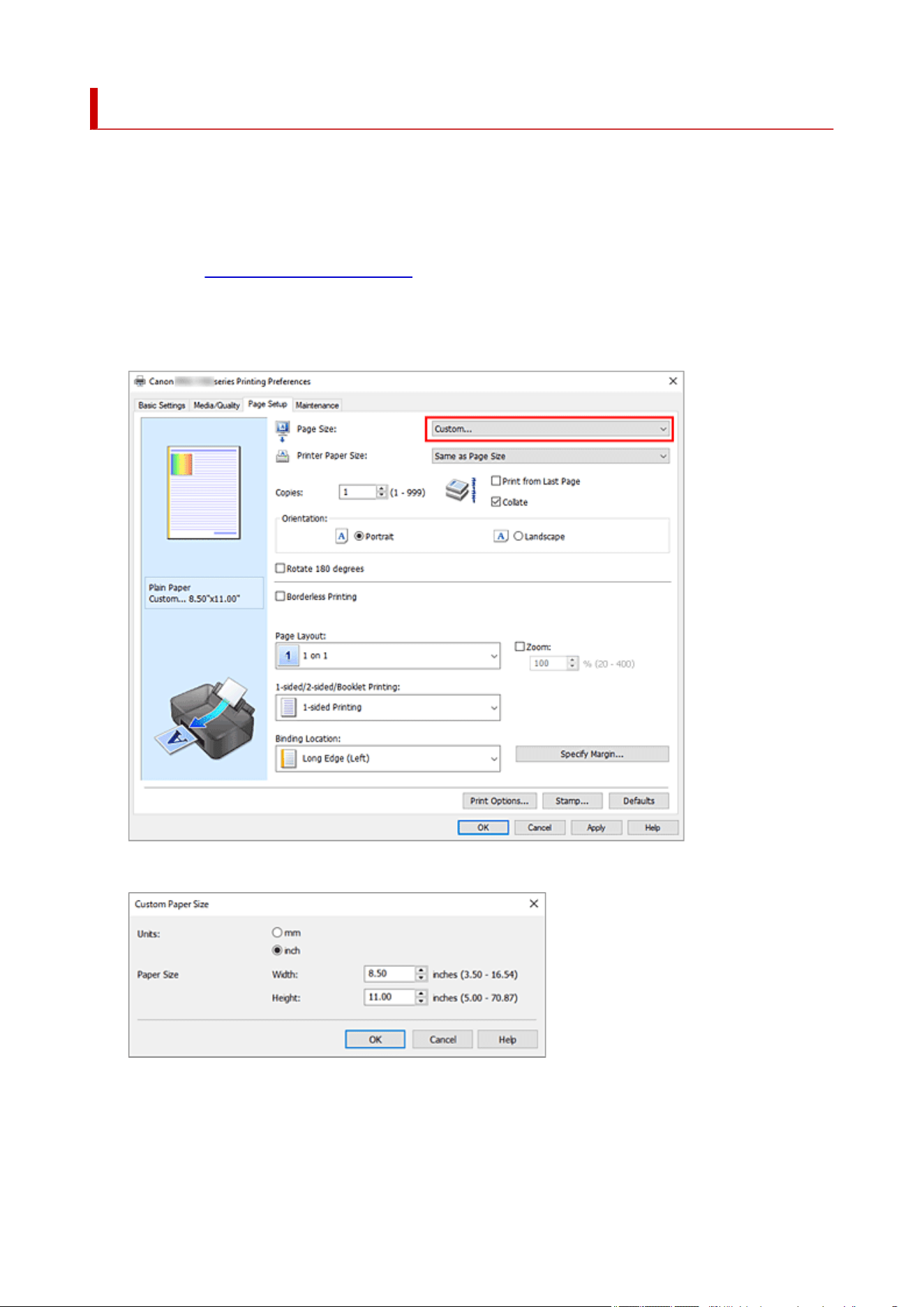
Setting Paper Dimensions (Custom Size)
You can specify the height and width of paper when its size cannot be selected from the Page Size. Such a
paper size is called "custom size."
You can also set a custom size in Printer Paper Size on the Basic Settings tab.
1. Open the printer driver setup window1.
2.
Select the paper size
2.
Select Custom... for Page Size on the Page Setup tab.
The Custom Paper Size dialog box opens.
3.
Set the custom paper size
3.
Specify Units, and enter the Width and Height of the paper to be used. Then click OK.
140

4. Complete the setup4.
Click OK on the Page Setup tab.
When you perform print, the data is printed with the specified paper size.
Note
• If the application software that created the document has a function for specifying height and width
values, use the application software to set the values. If the application software does not have such a
function or if the document does not print correctly, perform the above procedure from the printer driver
to set the values.
• Printing may be disabled depending on the size of the specified user-defined media.
For information about printable sizes for user-defined media, see "Media Types You Can Use."
• If the paper settings in the printer driver differ from the paper information registered on the printer, an
error may occur. For instructions on what to do if an error occurs, see "Register Paper Information."
For details about the paper information to be registered on the printer, see the following:
Paper Settings on the Printer Driver and the Printer (Media Type)
Paper Settings on the Printer Driver and the Printer (Paper Size)
141

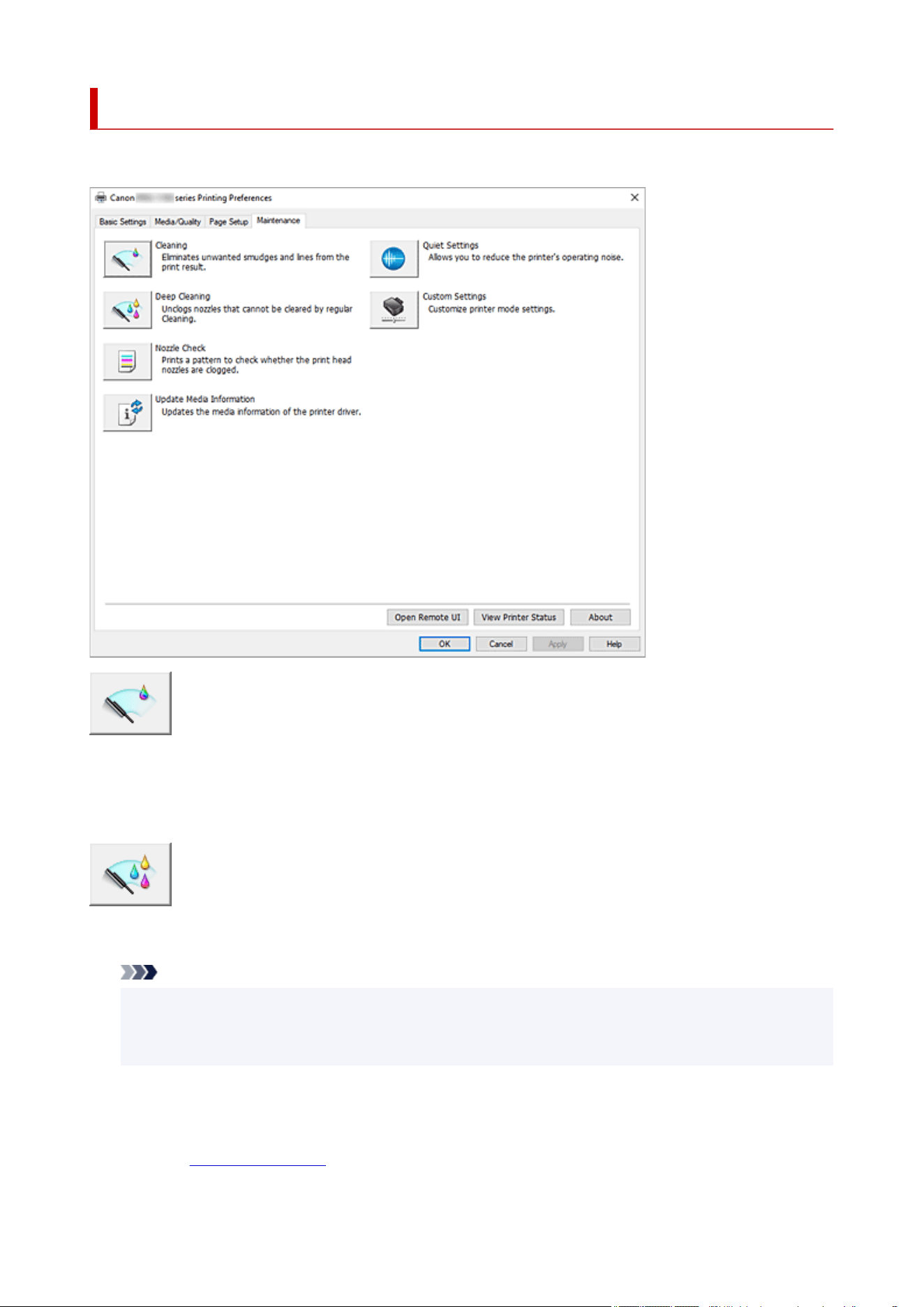
Maintenance Tab Description
The Maintenance tab allows you to change the printer settings or check its status.
Cleaning
Performs print head Cleaning.
The print head Cleaning function allows you to clear up clogged print head nozzles.
Perform print head Cleaning if printing results are not satisfactory or if a specific color fails to print, even
though there is enough ink.
Deep Cleaning
Performs Deep Cleaning.
Perform Deep Cleaning when two Cleaning attempts do not resolve the print head problem.
Note
• Deep Cleaning consumes a larger amount of ink than Cleaning.
Cleaning the print heads frequently will rapidly deplete your printer's ink supply. Perform Cleaning
only when necessary.
Ink Group
When you click Cleaning or Deep Cleaning, the Ink Group window is displayed.
Selects the ink group that you want to clean the print head for.
Click Initial Check Items to display the items that you need to check before you perform Cleaning
or Deep Cleaning.
143
Nozzle Check
Prints a Nozzle Check pattern.
Perform this function if printing becomes faint or a specific color fails to print. Print a Nozzle Check
pattern, and check whether the print head is working properly.
If the print result for a specific color is faint, or if there are any unprinted sections, click Cleaning to
clean the print head.
To display a list of items that you should check before printing the Nozzle Check pattern, click Initial
Check Items.
Update Media Information
Gets the latest media information from the printer and updates the media information in the printer
driver.
When the media information is updated, the media displayed for Media Type on the Media/Quality tab
is updated to the latest information.
When media information on the driver cannot be successfully updated, click Initial Check Items and
check the content that is displayed.
Quiet Settings
Opens the Quiet Settings dialog box.
Quiet Settings dialog box allows you to specify a setting that reduces the operating noise of the printer.
This mode comes in handy when the operating noise of the printer becomes a concern, such when
printing at night. Perform this operation when you want to change the quiet mode setting.
Note
• If the printer is off or if communication between the printer and the computer is disabled, an error
message may appear because the computer cannot collect the printer status.
If this happens, click OK to display the most recent settings specified on your computer.
Custom Settings
Opens the Custom Settings dialog box.
Perform this function to change the settings of this printer.
Note
• If the printer is off or if communication between the printer and the computer is disabled, an error
message may appear because the computer cannot collect the printer status.
If this happens, click OK to display the most recent settings specified on your computer.
Open Remote UI
Menu for performing printer maintenance and changing settings.
View Printer Status
Starts the Canon IJ Status Monitor.
Perform this function when you want to check the printer status and how a print job is proceeding.
144

About
Opens the About dialog box.
The version of the printer driver, plus a copyright notice, can be checked.
In addition, the language to be used can be switched.
Initial Check Items (Cleaning / Deep Cleaning)
Before running Cleaning or Deep Cleaning, check that the printer power is on, and open the cover of the
printer.
Check the following items for each ink.
• Check the amount of ink remaining in the tank.
• Check that you push in the ink tank completely until you hear a clicking sound.
• If an orange tape is adhered to the ink tank, peel it off completely.
Any remaining tape will hinder ink output.
• Check that the ink tanks are installed in their correct positions.
Initial Check Items (Nozzle Check)
Before running Nozzle Check, check that the printer power is on, and open the cover of the printer.
Check the following items for each ink.
• Check the amount of ink remaining in the tank.
• Check that you push in the ink tank completely until you hear a clicking sound.
• If an orange tape is adhered to the ink tank, peel it off completely.
Any remaining tape will hinder ink output.
• Check that the ink tanks are installed in their correct positions.
Initial Check Items (Update Media Information)
Check that the printer is connected to the computer and that printer is turned on.
If you are unable to update media information, check the following points.
• Ensure that a user set with administrator privileges carries out the media information update.
Users other than administrators can check if a media information update is required, but cannot carry
out the update itself.
• Before updating media information, ensure you have added, edited, or deleted media information on
the printer using the Media Configuration Tool.
Important
• It may take some time to update media information.
• Do not change media information on the printer while you are updating media information on the
printer driver.
Quiet Settings dialog box
When you click Quiet Settings, the Quiet Settings dialog box is displayed.
Quiet Settings dialog box allows you to specify a setting that reduces the operating noise of the printer.
145

Select when you wish to reduce the operating noise of the printer at night, etc.
Using this function may lower the print speed.
Do not use quiet mode
Select this option when you wish to use the printer with volume of normal operating noise.
Always use quiet mode
Select this option when you wish to reduce the operating noise of the printer.
Use quiet mode during specified hours
Select this option when you wish to reduce the operating noise of the printer during a specified period
of time.
Set the Start time and the End time of the quiet mode you wish to be activated. If both are set to the
same time, the quiet mode will not function.
Important
• You can set the quiet mode from the operation panel of the printer, or the Maintenance tab.
No matter how you use to set the quiet mode, the mode is applied when you perform operations from
the operation panel of the printer or printing from the computer.
Custom Settings dialog box
When you click Custom Settings, the Custom Settings dialog box is displayed.
If necessary, switch between various modes of printer operation.
Detects compatible media in the multi-purpose tray
Detects whether compatible media is loaded on the multi-purpose tray during printing using the
multi-purpose tray, and displays a message if compatible media is not loaded.
Check this check box to detect whether compatible media is loaded when printing.
Uncheck this check box to print without detecting whether compatible media is loaded.
Important
• If you leave this check box unchecked, the printer may print to the multi-purpose tray even
if compatible media is not loaded on the multi-purpose tray. Therefore, you should check this
check box under normal circumstances.
• If you load compatible media that has already been printed onto the multi-purpose tray, the
printer may detect that no compatible media is loaded on the multi-purpose tray. In this case,
uncheck this check box.
Rotate 90 degrees left when orientation is [Landscape]
On the Page Setup tab, you can change the rotation direction of the Landscape in the Orientation.
To rotate the print data 90 degrees to the left during printing, check this check box.
Important
•
Do not change this setting while the print job is displayed in the print wait list. Otherwise,
characters may be omitted or the layout may become corrupt.
Do not detect mismatched paper settings when printing from a computer
When you print documents from your computer, the paper settings in the printer driver and the paper
information registered on the printer do not match, this setting disables the message display and
146

allows you to continue printing.
To enable detection of paper setting mismatches, uncheck this check box.
Disables paper width detection when printing from computer
Even if the paper width identified by the printer during printing from the computer differs from the
paper width that was set in Paper Size on the Page Setup tab, this function disables the message
display and allows you to continue printing.
To disable detection of the paper width during printing, check this check box.
About dialog box
When you click About, the About dialog box is displayed.
This dialog box displays the version, copyright, and module list of the printer driver. You can select the
language to be used and switch the language displayed in the setup window.
Modules
Lists the printer driver modules.
Language
Specifies the language you wish to use in the printer driver setup window.
Important
• If the font for displaying the language of your choice is not installed in your system, the
characters will be garbled.
Settings for Data Sending
If you click Settings for Data Sending, the Settings for Data Sending dialog box will be displayed.
If it includes data you do not agree to sending, uncheck this check box.
Note
• Some printer functions can be set only from the Maintenance tab of Printer properties.
Related Topics
Cleaning the Print Heads
Printing a Nozzle Check Pattern
Reducing the Printer Noise
Changing the Printer Operation Mode
147

Cleaning the Print Heads
The print head Cleaning and Deep Cleaning functions allow you to clear up clogged print head nozzles.
Perform print head Cleaning if printing results are not satisfactory or if a specific color fails to print, even
though there is enough ink.
Cleaning
1.
Open the Maintenance Tab
1.
2.
Click Cleaning
2.
When the Print Head Cleaning dialog box opens, select the ink group for which Cleaning is to be
performed.
Click Initial Check Items to display the items you need to check before performing Cleaning.
3. Perform Cleaning3.
Check that the printer is on and then click Start.
Print Head Cleaning starts.
4.
Complete Cleaning
4.
Click OK when the confirmation message is displayed.
The Nozzle Check dialog box will open.
5.
Check the results
5.
To check whether the print quality has improved, click Print Check Pattern. To cancel the check
process, click Cancel.
If cleaning the head once does not resolve the print head problem, clean it once more.
Important
• Cleaning consumes a small amount of ink.
Cleaning the print head frequently will rapidly deplete your printer's ink supply. Perform Cleaning only
when necessary.
Deep Cleaning
Deep Cleaning is more thorough than Cleaning. Perform Deep Cleaning when two Cleaning attempts do
not resolve the print head problem.
1.
Open the Maintenance Tab
1.
148

2. Click Deep Cleaning2.
When the Deep Cleaning dialog box opens, select the ink group for which Deep Cleaning is to be
performed.
Click Initial Check Items to display the items you need to check before performing Deep Cleaning.
3. Perform Deep Cleaning3.
Check that the printer is on and then click Start.
Click OK when the confirmation message appears.
Print head Deep Cleaning starts.
4.
Complete Deep Cleaning
4.
Click OK when the confirmation message is displayed.
The Nozzle Check dialog box will open.
5.
Check the results
5.
To check whether the print quality has improved, click Print Check Pattern. To cancel the check
process, click Cancel.
Important
• Deep Cleaning consumes a larger amount of ink than Cleaning.
Cleaning the print head frequently will rapidly deplete your printer's ink supply. Perform Deep
Cleaning only when necessary.
Related Topic
Printing a Nozzle Check Pattern
149

Printing a Nozzle Check Pattern
The Nozzle Check function allows you to check whether the print head is working properly by printing a
Nozzle Check pattern. Print the pattern if printing results are not satisfactory, or if a specific color fails to
print.
Nozzle Check
1.
Open the Maintenance Tab
1.
2.
Click Nozzle Check
2.
The Nozzle Check dialog box opens.
Click Initial Check Items to display the items that you need to check before printing the Nozzle Check
pattern.
3. Load paper in the printer3.
Load one sheet of A4 size or Letter size plain paper into the top feed.
4.
Print a Nozzle Check pattern
4.
Check that the printer is on and then click Print Check Pattern.
The Nozzle Check pattern will be printed.
Click OK when the confirmation message appears.
The Pattern Check dialog box opens.
5. Check the print result5.
Check the print result. If the print result is normal, click Exit.
If the print result is smudged or if there are any unprinted sections, click Cleaning to clean the print
head.
Related Topic
Cleaning the Print Heads
150

Overview of the Printer Driver
Canon IJ Printer Driver
Opening Printer Driver's Setup Screen
Canon IJ Status Monitor
Checking Ink Status from Your Computer
Instructions for Use (Printer Driver)
Canon IJ Preview
Updating Media Information in Printer Driver
Deleting the Undesired Print Job
Canon IJ Status Monitor Description
Canon IJ Preview Description
151

Canon IJ Printer Driver
The Canon IJ printer driver (simply called printer driver below) is software that you install onto your computer
so that it can communicate with the printer.
The printer driver converts the print data created by your application software into data that your printer can
understand, and sends the converted data to the printer.
Because different models support different print data formats, you need a printer driver for the specific
model you are using.
Installing the Printer Driver
To install the printer driver, install the driver from the Setup CD-ROM or our website.
Specifying the Printer Driver
To specify the printer driver, open the Print dialog box of the application software you are using, and
select "Canon XXX" (where "XXX" is your model name).
Displaying the Manual from the Printer Driver
To display the description of a setup tab from the printer driver's setup screen, click Help on that tab.
Related Topic
Opening Printer Driver's Setup Screen
152

Opening Printer Driver's Setup Screen
You can display the printer driver's setup screen from your application software or by clicking the printer
icon.
Displaying the Printer Driver's Setup Screen from Your Application
Software
Perform this procedure to set up the print settings during printing.
1.
Select print command from application software
1.
In general, select Print on the File menu to open the Print dialog box.
2.
Select your printer model, and click Preferences (or Properties)
2.
The printer driver's setup screen appears.
Note
• Depending on the application software you are using, the command and menu names, and the
number of steps may vary. For details, refer to the operating instructions of your application software.
Displaying the Printer Driver's Setup Screen by Clicking the Printer Icon
From the setup screen you can perform printer maintenance operations such as print head cleaning, or
set print settings to be shared by all application software.
The following instructions are shown using screens displayed in Windows 11 as an example.
1. Select the Settings -> Bluetooth & devices -> Printers & scanners1.
2. Click your model name icon, and then select Printing preferences from the displayed2.
menu
The printer driver setup window appears.
Note
•
If you're using Windows 10 or earlier, follow the steps below to display the printer driver settings
screen.
1.
Select the Control Panel -> Hardware and Sound -> Devices and Printers
1.
2.
Right-click your model name icon, and then select Printing preferences from the
2.
displayed menu
Opening the printer driver setup window through Printer properties displays such tabs
regarding the Windows functions as the Ports (or Advanced) tab. Those tabs do not appear
when opening through Printing preferences or application software. For tabs regarding
Windows functions, refer to the user's manual for the Windows.
153
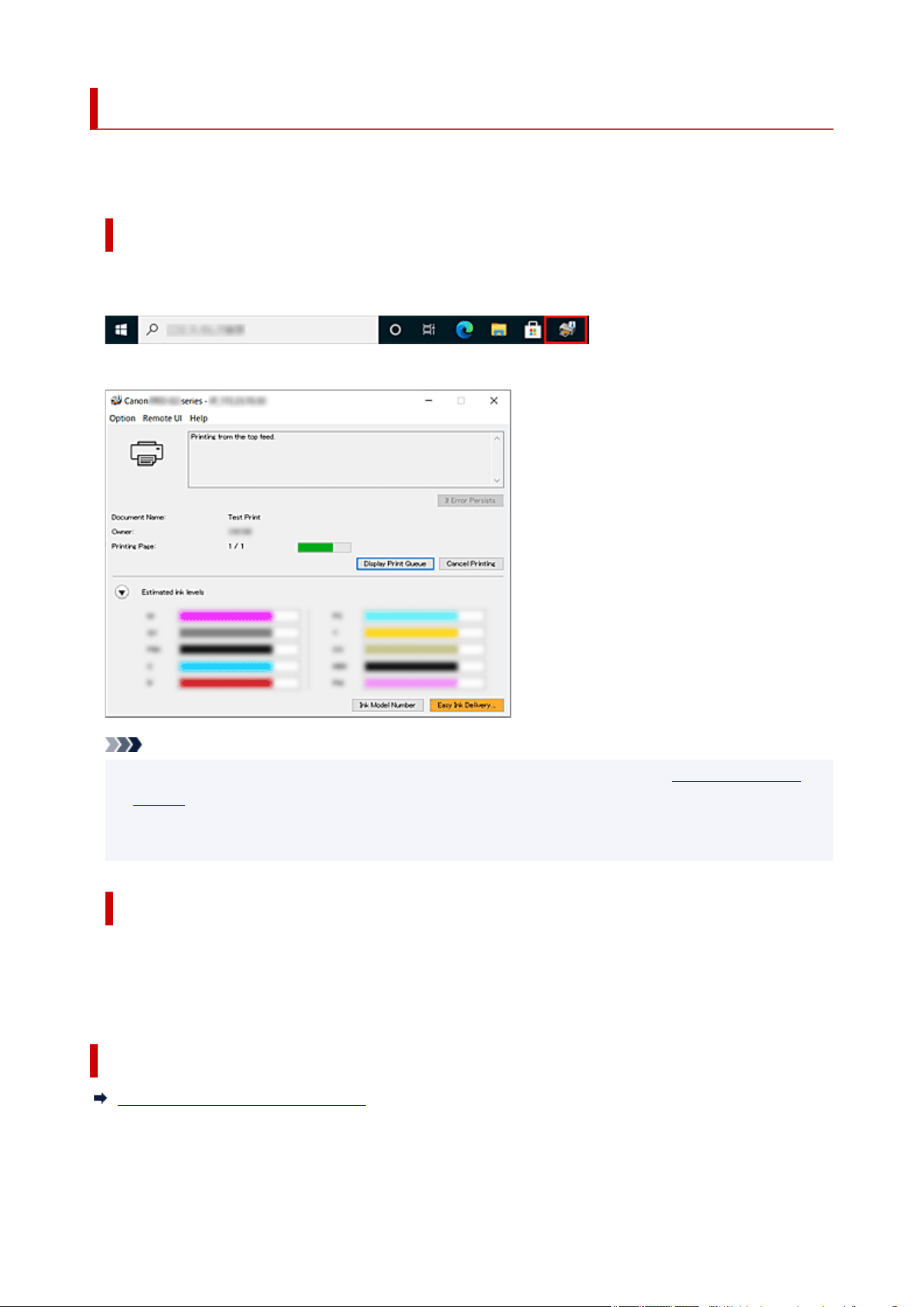
Canon IJ Status Monitor
The Canon IJ Status Monitor displays the printer status and the printing progress. The printer status is
shown by the images, icons, and messages in the status monitor.
Launching the Canon IJ Status Monitor
The Canon IJ Status Monitor launches automatically when print data is sent to the printer. When
launched, the Canon IJ Status Monitor appears as a button on the task bar.
Click the button of the status monitor displayed on the task bar. The Canon IJ Status Monitor appears.
Note
• To open the Canon IJ Status Monitor when the printer is not printing, open the printer driver setup
window and click View Printer Status on the Maintenance tab.
• The information displayed on the Canon IJ Status Monitor may differ depending on the country or
region where you are using your printer.
When Errors Occur
The Canon IJ Status Monitor is automatically displayed if an error occurs (e.g., if the printer runs out of
paper or if the ink is low).
In such cases, take the appropriate action as described.
Related Topic
Canon IJ Status Monitor Description
154
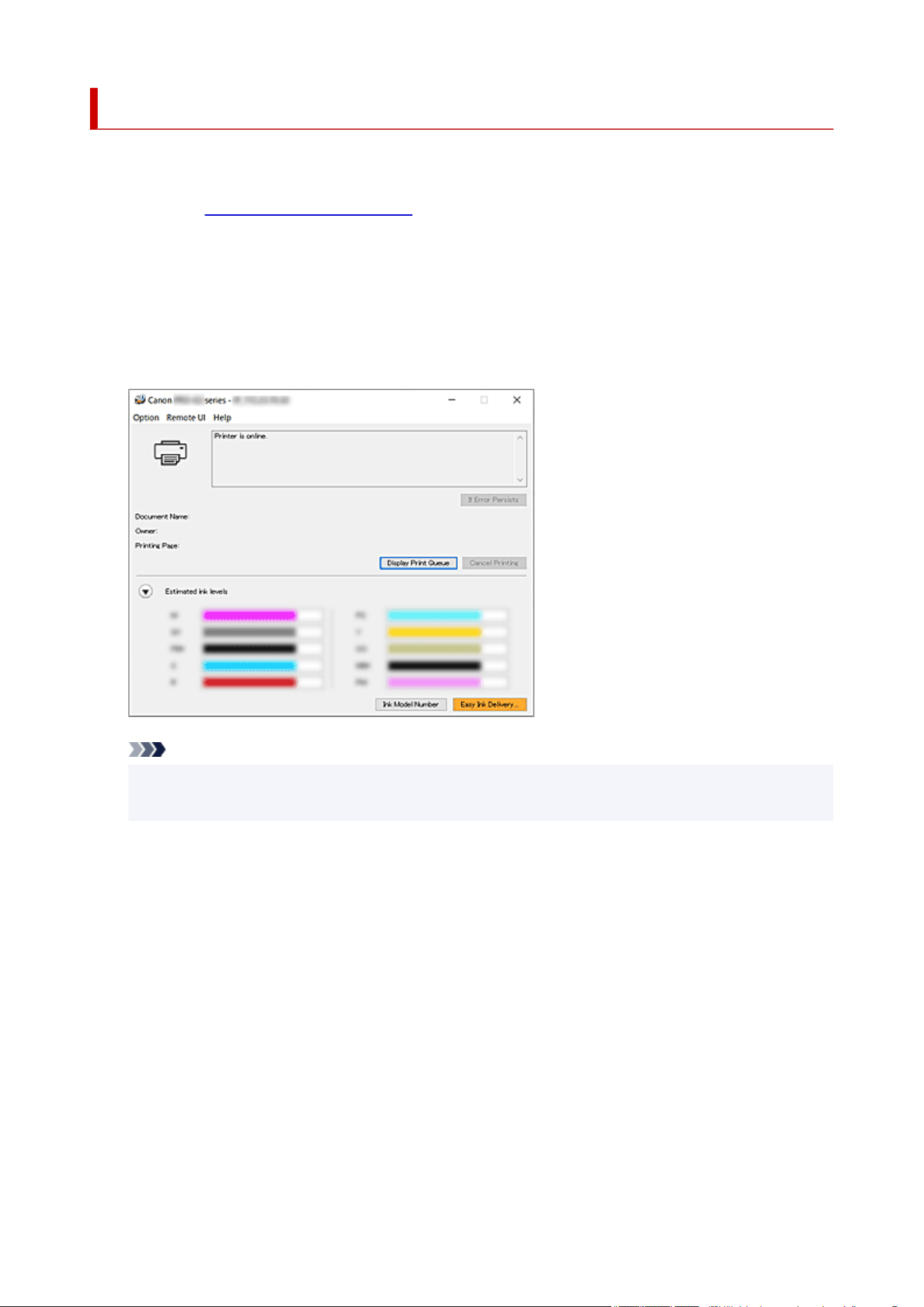
Checking Ink Status from Your Computer
You can check the remaining ink level and the ink tank types for your model.
1. Open the printer driver setup window1.
2.
Launching the Canon IJ Status Monitor
2.
On the Maintenance tab, click View Printer Status.
3.
Display Estimated ink levels
3.
Ink status is displayed as an illustration.
Note
• When you print on A3 paper or larger paper sizes, the ink may run out before printing is finished
or the printing may become faint or streaky (with white lines).
155

Instructions for Use (Printer Driver)
This printer driver is subject to the following restrictions. Keep the following points in mind when using the
printer driver.
Restrictions on the Printer Driver
• Depending on the document type to be printed, the paper feed method specified in the printer driver
may not operate correctly.
If this happens, open the printer driver setup window from the Print dialog box of the application
software, and check the setting in the Paper Source field on the Media/Quality tab.
• With some applications, the Copies setting in the Page Setup tab of the printer driver may not be
enabled.
In this case, use the copies setting in the Print dialog box of the application software.
• If the selected Language in the About dialog box of the Maintenance tab does not match the
operating system interface language, the printer driver setup window may not be displayed properly.
• Do not change the Advanced tab items of the printer properties. If you change any of the items, you
will not be able to use the following functions correctly.
Also, if Print to file is selected in the Print dialog box of the application software and with applications
that prohibit EMF spooling, the following functions will not operate.
◦ Preview before printing on the Media/Quality tab
◦ Prevention of Print Data Loss in the Print Options dialog box on the Page Setup tab
◦ Booklet Printing (Manual) in 1-sided/2-sided/Booklet Printing on the Page Setup tab
◦ Print from Last Page, Collate, Specify Margin..., and Stamp... on the Page Setup tab
• Since the resolution in the preview display differs from the printing resolution, text and lines in the
preview display may appear different from the actual print result.
• With some applications, the printing is divided into multiple print jobs.
To cancel printing, delete all divided print jobs.
• If image data is not printed correctly, display the Print Options dialog box from the Page Setup tab
and change the setting of Disable ICM required from the application software. This may solve the
problem.
• If you are using a model that has a card slot, the card slot of the printer may become inaccessible. In
such cases, restart the printer or turn it off and reconnect the USB cable.
Points to Note About Applications with Restrictions
• There are following restrictions in Microsoft Word (Microsoft Corporation).
◦ When Microsoft Word has the same printing functions as the printer driver, use Word to specify
them.
◦ When a setting from 2 on 1 to 16 on 1 or Zoom is used for Page Layout on the Page Setup tab
of the printer driver, the document may not print normally in certain versions of Word.
◦ When Page Size in Word is set to "XXX Enlarge/Reduce," the document may not print normally in
certain versions of Word.
If this happens, follow the procedure below.
1. Open Word's Print dialog box.
156

2. Open the printer driver setup window, and on the Page Setup tab, set Page Size to the same
paper size that you specified in Word.
3. Set Booklet Printing (Manual) in Page Layout or 1-sided/2-sided/Booklet Printing
according to your requirements.
4. Click OK to close the window.
5. Without starting printing, close the Print dialog box.
6. Open Word's Print dialog box again.
7. Open the printer driver setup window and click OK.
8. Start printing.
• If bitmap printing is enabled in Adobe Illustrator (Adobe Incorporated), printing may take time or some
data may not be printed. Print after unchecking the Bitmap Printing check box in the Print dialog
box.
157

Canon IJ Preview
The Canon IJ Preview is an application software that displays what the print result will look like before a
document is actually printed.
The preview reflects the information that is set within the printer driver and allows you to check the
document layout, print order, and number of pages. You can also change the media type and paper source
settings.
When you want to display a preview before printing, open the printer driver setup window, click the Media/
Quality tab, and check the Preview before printing check box.
When you do not want to display a preview before printing, uncheck the check box.
Related Topic
Preventing Printing Errors
158

Updating Media Information in Printer Driver
This function gets the latest media information from the printer and updates the media information in the
printer driver.
When the media information is updated, the media displayed for Media Type on the Media/Quality tab is
updated to the latest information.
The procedure for updating media information is described below.
Update Media Information
1.
Open printer driver setup screen
1.
2.
On Maintenance tab, click Update Media Information
2.
The Update Media Information dialog box appears.
When media information on the driver cannot be successfully updated, click Initial Check Items and
check the content that is displayed.
3. Update media information3.
By following the dialog instructions, check that the printer is on, and then click Start.
After checking whether or not the printer media information needs to be updated, a message will be
displayed.
If the printer media information is up to date, click OK and finish updating media information.
If the information needs to be updated, follow the below steps to do so:
4.
Update media information
4.
When a confirmation message appears, click OK.
The printer driver media information will update.
Important
•
It may take some time to update the media information.
5.
Finish updating media information
5.
When a confirmation message appears, click OK.
The media information will be updated.
Important
•
Restart the printer driver after updating media information.
Important
• Ensure that a user with administrative privileges carries out the media information update.
Users other than administrators can check if a media information update is required, but cannot carry
out the update itself.
159

• Do not change media information on the printer while you are updating media information on the
driver.
• When you have added, deleted, or edited media using administrative tools (the Media Configuration
Tool) but have not updated the media information, issues may arise such as the inability to print.
160

Deleting the Undesired Print Job
If the printer does not start printing, canceled or failed print job data may be remaining.
Delete the undesired print job by using the Canon IJ Status Monitor.
1. Display the Canon IJ Status Monitor1.
Click the icon of the Canon IJ Status Monitor displayed on the task bar.
The Canon IJ Status Monitor appears.
2.
Display the print jobs
2.
Click Display Print Queue.
The print queue window opens.
3.
Delete the print jobs
3.
Select the print jobs you want to delete, and select Cancel from the Document menu.
When the confirmation message appears, click Yes.
The deletion of the print job is complete.
Important
• Users who have not been granted access permission for printer management cannot delete the print
job of another user.
161
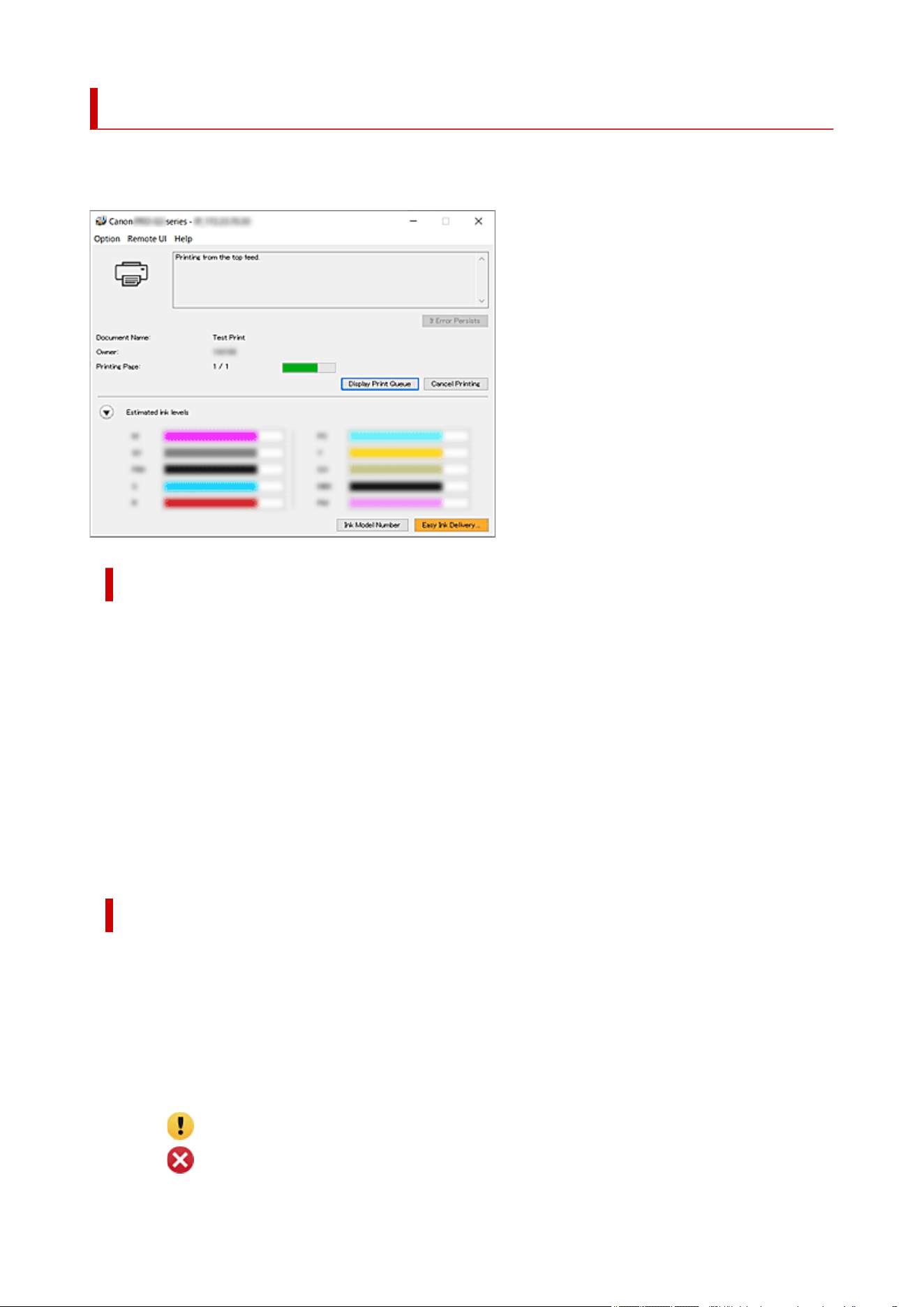
Canon IJ Status Monitor Description
The Canon IJ Status Monitor displays the printer status and the printing progress. The printer status is
shown by the images, icons, and messages in the status monitor.
Features of the Canon IJ Status Monitor
The Canon IJ Status Monitor has the following functions:
Onscreen display of printer status
The status monitor displays the printer status in real-time.
You can check the progress of each document to be printed (print job).
Display of error content and correction procedure
The status monitor displays information on any errors that occur on the printer.
You can then immediately check what sort of action to perform.
Ink status display
Displays the ink status.
Ink tank types and ink levels can be confirmed.
Overview of the Canon IJ Status Monitor
The Canon IJ Status Monitor uses images, icons, and messages to display the printer status and the ink
status.
During printing, you can check information about the document being printed and the print progress.
If an error occurs, the status monitor displays the error content and instructions on how to correct the
error. Follow the message instructions.
Printer
Canon IJ Status Monitor shows an icon when a warning or error occurs to the printer.
: There is a warning.
: There has been an operator error.
162
: There is a notice about something other than a warning or an error.
: There has been an error which requires a service.
If Error Persists
If a warning or an error occurs, you can click the button.
A description of the warning or error will be displayed.
Document Name
Name of the document being printed.
Owner
Owner's name of the document being printed.
Printing Page
Page number of current page and the total page count.
Display Print Queue
The print queue, which controls the current document and documents waiting to be printed.
Cancel Printing
Cancels printing.
Estimated ink levels
Click (the disclosure triangle) to display a pictorial representation of the estimated ink level in
the ink tank.
Also, if the remaining ink is low or empty, an icon or a message will appear (Ink level warning /
Ink empty error).
Move the cursor onto the image to check detailed information such as the remaining ink levels
and the names of ink tanks that the printer can use.
Ink Model Number
You can look up the correct ink tank for your printer.
Estimated Maintenance Cartridge Usage
Displays icons to report that the available space in the maintenance cartridge is low or the
cartridge is full.
Click (the disclosure triangle) to display a pictorial representation of the estimated usage
amount in the maintenance cartridge.
Option Menu
If a printer message appears, select Enable Status Monitor to start the Canon IJ Status
Monitor.
Select Enable Status Monitor to use the following commands:
Always Display Current Job
Displays the Canon IJ Status Monitor whenever a document is being printed.
Always Display on Top
Displays the Canon IJ Status Monitor in front of other windows.
Display Firmware Update Notifications
Displays firmware update notifications.
If there's a firmware update available, a dialog box is displayed when you start printing.
If you add a check mark to Do not show this message again in this dialog box, you can
prevent it from displaying again.
163

Start when Windows is Started
Automatically starts the Canon IJ Status Monitor when Windows is started.
Remote UI menu
You are able to open the printer's Remote User Interface.
You are able to check the printer status and run maintenance functions on the printer when
connected to and using it through a network.
Note
• When the printer is being used via USB connection Remote UI will not display.
Printer Information
Allows you to check detailed information, such as the printer status, the print progress, and
remaining ink levels.
Maintenance
Allows you to run printer maintenance and change printer settings.
Download Security Certificate
Displays the For secure communication window.
This window allows you to download the route certificate, register it to the browser, and
disable warning displays.
Help Menu
Select this menu to display Help information for the Canon IJ Status Monitor including version
and copyright information.
Related Topic
Canon IJ Status Monitor
164
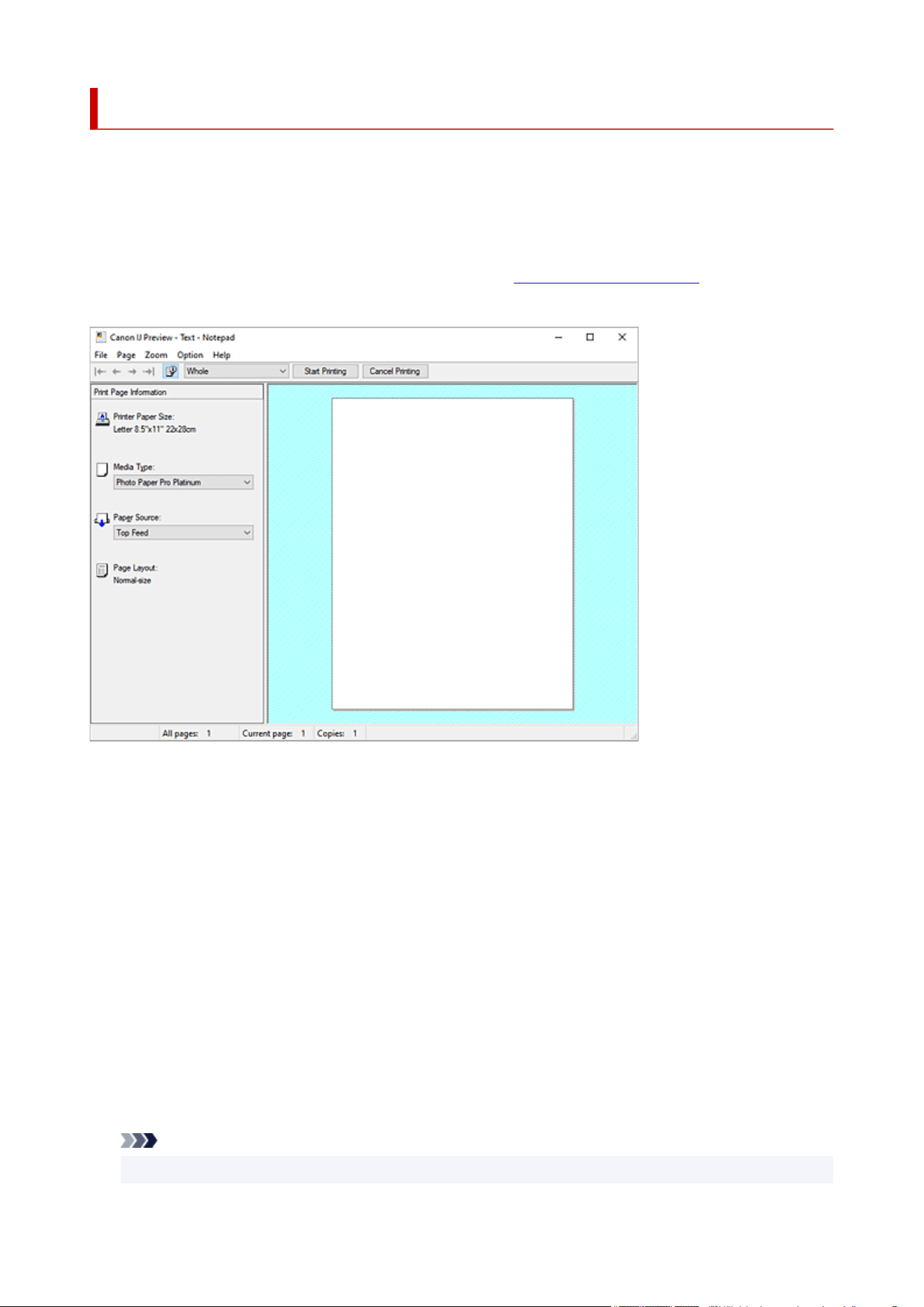
Canon IJ Preview Description
Canon IJ Preview is an application software that displays what the print result will look like before a
document is actually printed.
The preview reflects the information that is set within the printer driver and allows you to check the
document layout, print order, and number of pages. You can also change the media type and paper source
settings.
When you want to display a preview before printing, open the printer driver setup window, and check the
Preview before printing check box on the Media/Quality tab.
File Menu
Selects the print operation.
Start Printing
Ends the Canon IJ Preview and then starts printing the document that is displayed on the preview
screen.
This command has the same function as the Start Printing on the toolbar.
Cancel Printing
Ends the Canon IJ Preview and cancels the printing of the document that is displayed on the
preview screen.
This command has the same function as the Cancel Printing on the toolbar.
Exit
Ends the Canon IJ Preview.
Page Menu
This menu includes the following commands to select page to be displayed.
All of these commands except Page Selection... can also be selected from the toolbar.
Note
• If the pages are being spooled, the last spooled page becomes the last page.
165

• When the following functions are selected, the number of pages is the number of sheets to be
used for printing, and not the number of pages in the original document created with the application
software.
2 on 1 to Poster (4 x 4) in Page Layout on the Page Setup tab
2-sided Printing (Manual) and Booklet Printing (Manual) in 1-sided/2-sided/Booklet
Printing on the Page Setup tab
• If duplex printing manually has been set, the front pages which will be printed first are all displayed
together, and then the back pages are displayed.
First Page
Displays the first page of the document.
Previous Page
Displays the page located before the currently displayed page.
Next Page
Displays the page located after the currently displayed page.
Last Page
Displays the last page of the document.
Page Selection...
Displays the Page Selection dialog box.
This command allows you to specify the page number of the page to be displayed.
Zoom Menu
Selects the ratio of the actual size printed on the paper to the preview display size.
You can also select the ratio from the drop-down list box located on the toolbar.
Whole
Displays the entire page of data as one page.
50%
Reduces the displayed data to 50% of the actual size to be printed.
100%
Displays the data at the actual size to be printed.
200%
Enlarges the displayed data to 200% of the actual size to be printed.
400%
Enlarges the displayed data to 400% of the actual size to be printed.
Option Menu
This menu includes the following command:
Displays Print Page Information
Displays print setup information (including printer paper size, media type, and page layout) for each
page at the left side of the preview screen.
This screen also allows you to change the media type and paper source settings.
Help Menu
When you select this menu item, the Help window for Canon IJ Preview is displayed, and you can
check the version and copyright information.
166

Start Printing button
Prints the documents selected in the document list.
The printed documents are deleted from the list, and when all documents are printed, the Canon IJ
Preview closes.
Cancel Printing button
Ends the Canon IJ Preview, and cancels the printing of the document that is displayed on the preview
screen.
You can click this button while spooling.
Print Page Information Screen
Displays print setup information for each page at the left side of the preview screen.
This screen also allows you to change the media type and paper source settings.
Important
• If the media type and paper source are set from the application software, those settings have
priority and the changed settings may become ineffective.
Printer Paper Size
Displays the paper size of the document to be printed.
Media Type
You can select the media type of the document to be printed.
Paper Source
You can select the paper source of the document to be printed.
Page Layout
Displays the page layout of the document to be printed.
167

Updating the Driver
Drivers include a printer driver and MP Drivers. The MP Drivers include a printer driver, ScanGear (scanner
driver), and fax driver.
By updating the Driver to the latest version of the Driver, unresolved problems may be solved.
Important
• Check the following if you want to install or delete drivers.
Log on as a user who has the administrator account.
Terminate all running applications.
• Installing the Driver
• Deleting the Unnecessary Driver
Installing the Driver
1.
Turn on the printer
1.
2. Start the installer2.
Double-click the icon of the downloaded file.
The installation program starts.
3. Install the driver3.
Take the appropriate action as described on the screen.
4. Complete the installation4.
Click Exit.
Depending on the environment you are using, a message prompting you to restart the computer may
be displayed. To complete the installation properly, restart the computer.
Important
• You can download the driver for free, but any Internet access charges incurred are your
responsibility.
Deleting the Unnecessary Driver
The printer driver which you no longer use can be deleted.
1.
Start the uninstaller
1.
Select Control Panel -> Programs -> Programs and Features.
From the program list, select "Canon XXX Printer Driver/MP Drivers" (where "XXX" is your model
name) and then click Uninstall.
The confirmation window for uninstalling the model appears.
168

2. Perform the uninstaller2.
Click Start. When the confirmation message appears, click Yes.
When all the files have been deleted, click Complete.
The deletion of the Driver is complete.
169

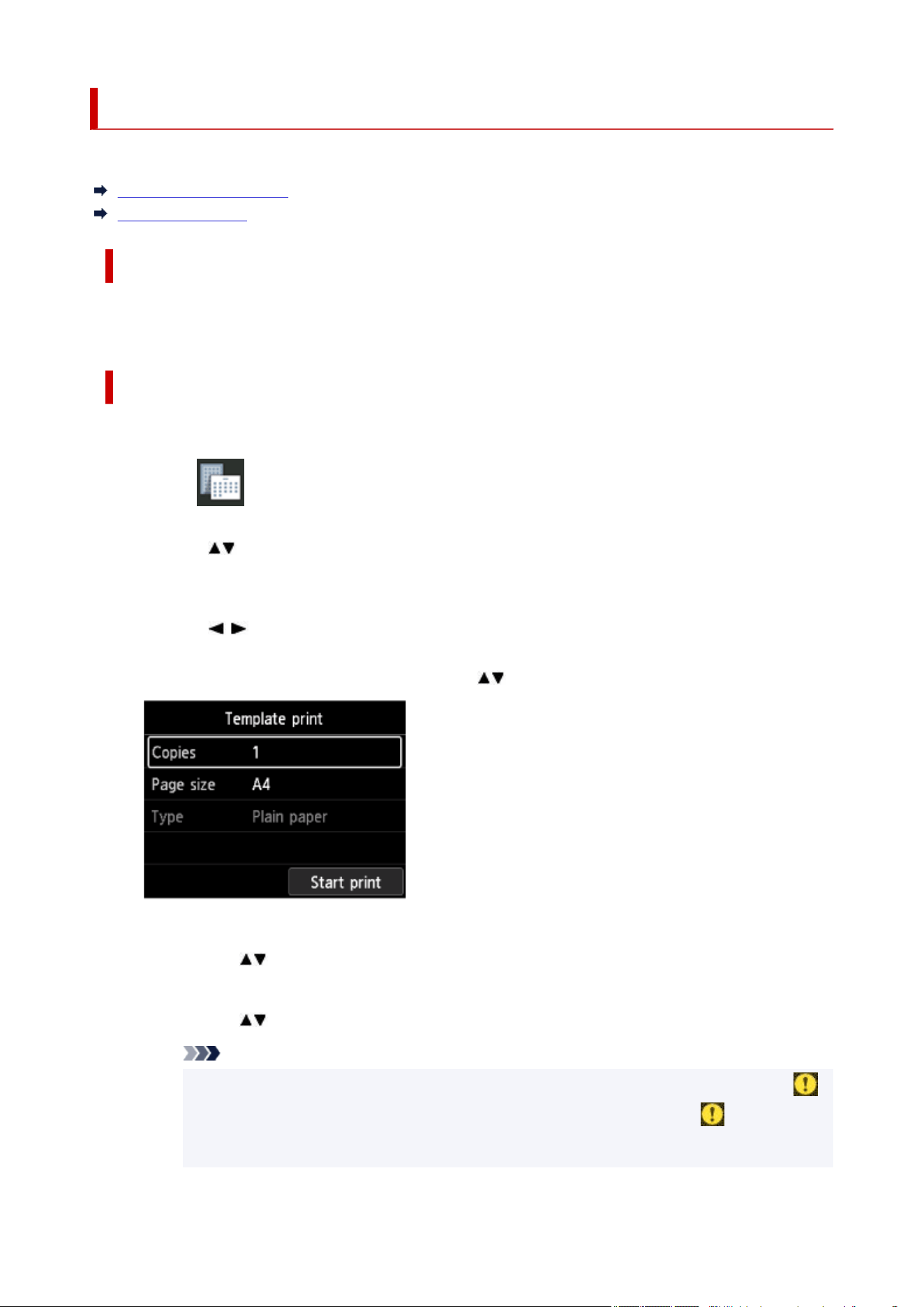
Printing Templates Such as Lined or Graph Paper
This section describes how to print a standard form.
Printable Template Form
Printing Templates
Printable Template Form
You can print a standard form such as pattern paper that can be used for an album mount or place mat,
graph paper, staff paper, a checklist, or a schedule form.
Printing Templates
Print template form following the procedure below.
1.
Select Template print on the HOME screen, then press the OK button.
1.
2. Use the buttons to select template you want to print and press the OK button.2.
When a message appears, check it and press the OK.
3. Use the buttons to select the form you want to print and press the OK button.3.
4. If necessary, change the settings using the buttons and press the OK button.4.
•
Copies
•
Use the buttons to specify the number of copies and press the OK button.
•
Page size
•
Use the buttons to select the page size and press the OK button.
Note
•
Depending on the form, some setting of page size cannot be specified. If it is selected,
•
and Error details are displayed on the printer's LCD. In this case, select on the upper
left on the printer's LCD to check the message and change the setting.
171


Printing from Smartphone/Tablet
For more on printing from a device, refer to the device's or application's instruction manual.
Print Easily from a Smartphone or Tablet with Canon PRINT
Printing from iOS Device (AirPrint)
About Mopria®
Printing with Canon Print Service
173

Handling Paper
Loading Paper
Paper Sources to Load Paper
Loading Paper in the Top Feed
Loading Paper in the Manual Feed Tray
Register Paper Information
Information about Paper
Media Types You Can Use
Paper Load Limit
Handling Paper
Before Printing on Art Paper
Managing Paper Information on Printer Using Media Configuration Tool
174

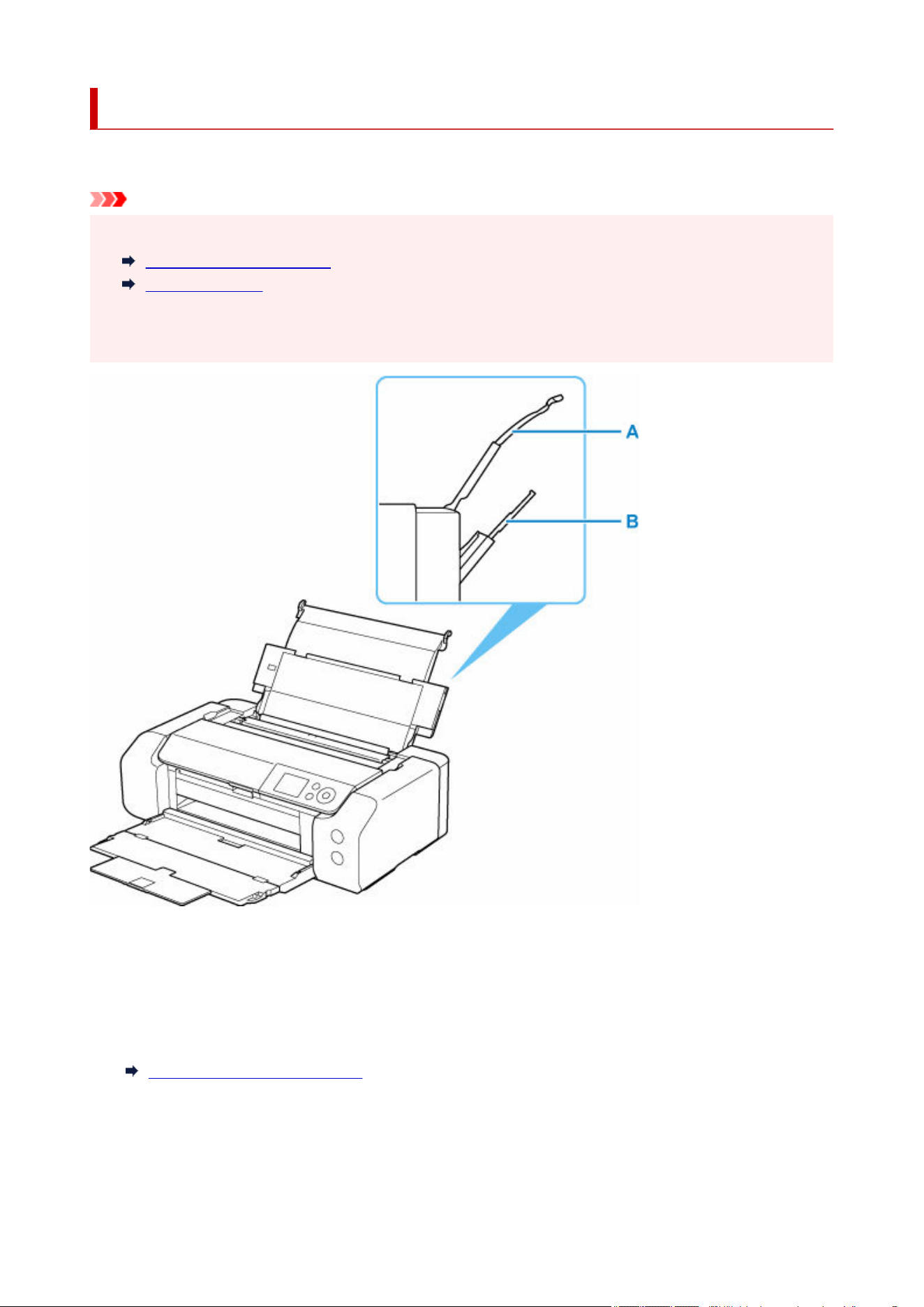
Paper Sources to Load Paper
The printer has two paper sources for feeding paper, the top feed (A) and manual feed tray (B).
Important
• The paper source used depends on the page size and media type.•
Media Types You Can Use
Paper Load Limit
• When printing, select the correct page size, media type, and paper source. If you select the wrong page•
size or media type, the printer may not print with the proper print quality.
Top Feed
Load paper from 4" x 6" (10 x 15 cm) size to A3+ size.
Two or more sheets of the same size and type of paper can be loaded at the same time, and fed
automatically one sheet at a time.
Load plain paper or postcard in the top feed.
Loading Paper in the Top Feed
Manual Feed Tray
Load paper from 8" x 10" (20 x 25 cm) size to A3+ size.
Load a sheet of paper at a time.
176

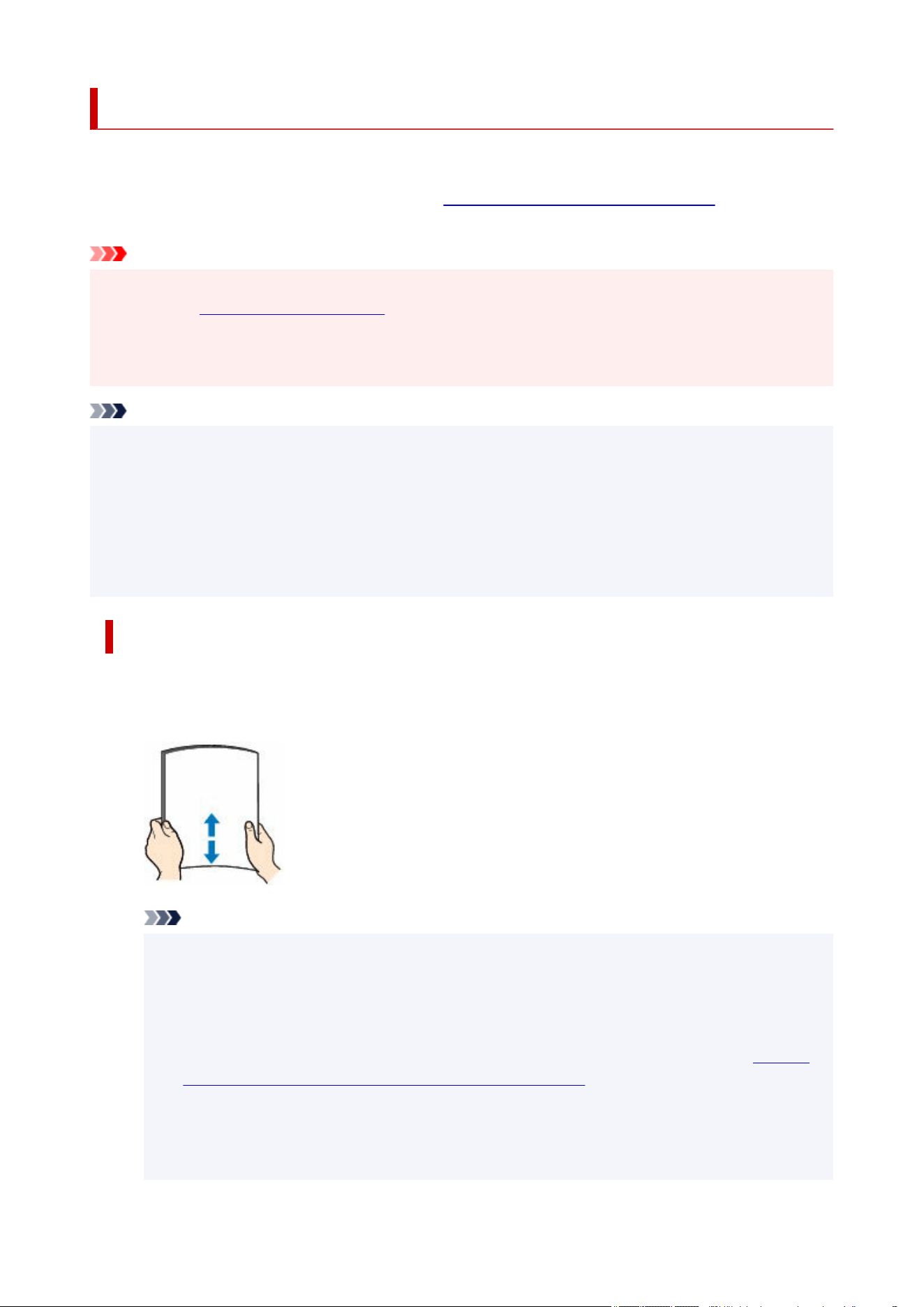
Loading Paper in the Top Feed
You can load multiple sheets of paper of the same type and size in the top feed.
When printing on postcards, check the contents of "Precautions when printing on postcards" before loading
postcards.
Important
• For the paper types (Canon genuine paper), size, and weight/thickness that can be used with the•
printer, see Media Types You Can Use.
• If you cut plain paper to a size of 5" x 7" (13 x 18 cm) or smaller to perform trial print, it can cause paper•
jams.
Note
• We recommend Canon genuine photo paper for printing photos.•
• You can use general copy paper or Canon Red Label Superior WOP111 / Canon Océ Office Colour•
Paper SAT213.
• Print in an environment (temperature and humidity) suitable to the paper in use. For the temperature•
and humidity conditions of Canon genuine papers, refer to the paper's packaging or the supplied
instructions.
How to Load Paper
1.
Prepare paper.
1.
Align the edges of paper. If paper is curled, flatten it.
Note
•
Align the edges of paper neatly before loading. Loading paper without aligning the edges may
•
cause paper jams.
•
If paper is curled, hold the curled corners and gently bend them in the opposite direction until
•
the paper becomes completely flat.
For details on how to flatten curled paper, see "Correct curl before loading paper." in
Paper Is
Smudged/Printed Surface Is Scratched/Ink Blots/Paper Curl.
•
When using Photo Paper Plus Semi-gloss SG-201, even if the sheet is curled, load one sheet
•
at a time as it is. If you roll up this paper to flatten, this may cause cracks on the surface of the
paper and reduce the print quality.
178
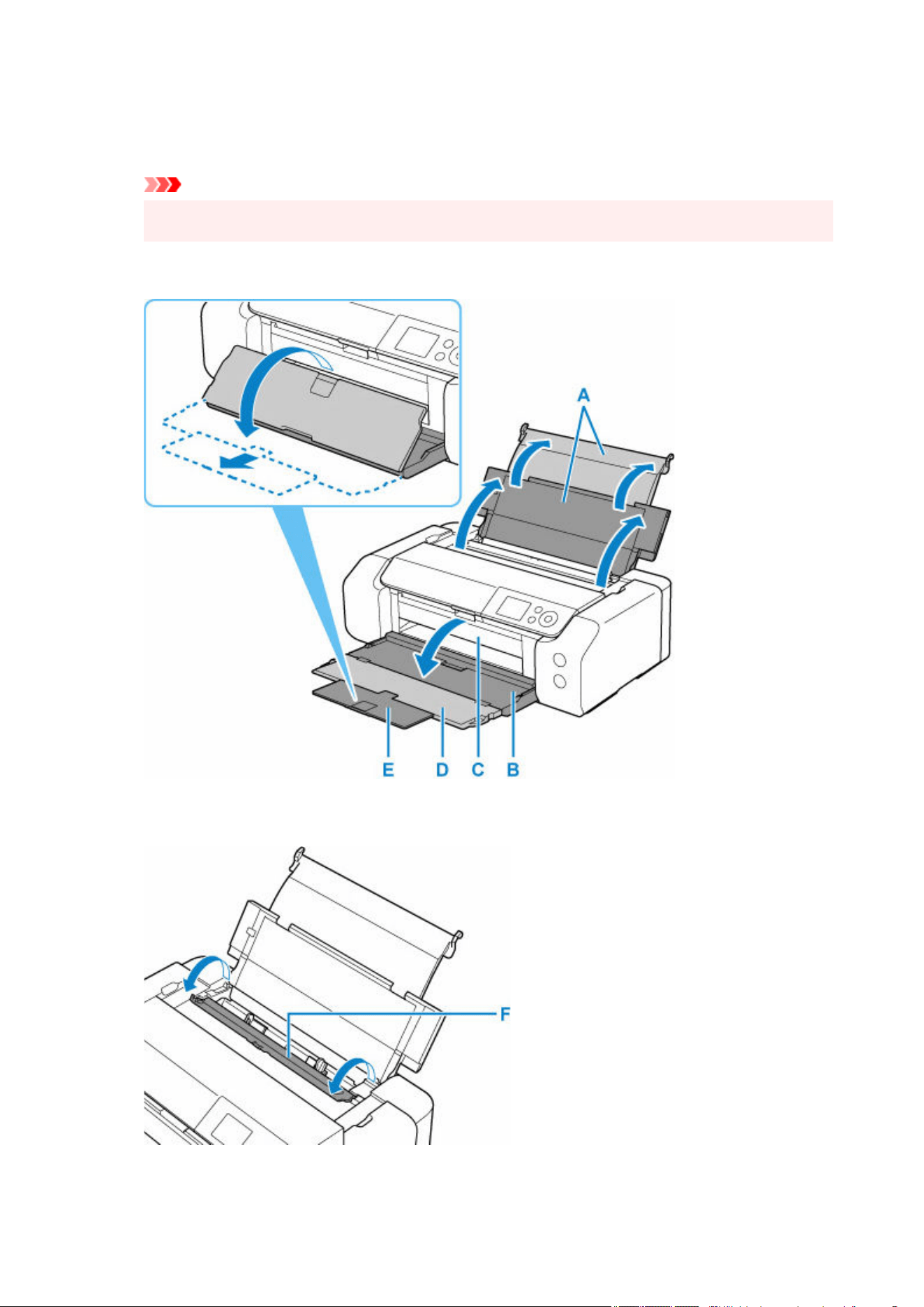
2. Open the paper support (A) of the top feed.2.
3. Open the paper output tray (B) gently.3.
Important
• If the multi-purpose tray guide (C) is open, be sure to close it.•
4.
Open the output tray extension (D), then pull out the paper output support (E).
4.
5.
Open the feed slot cover (F).
5.
179
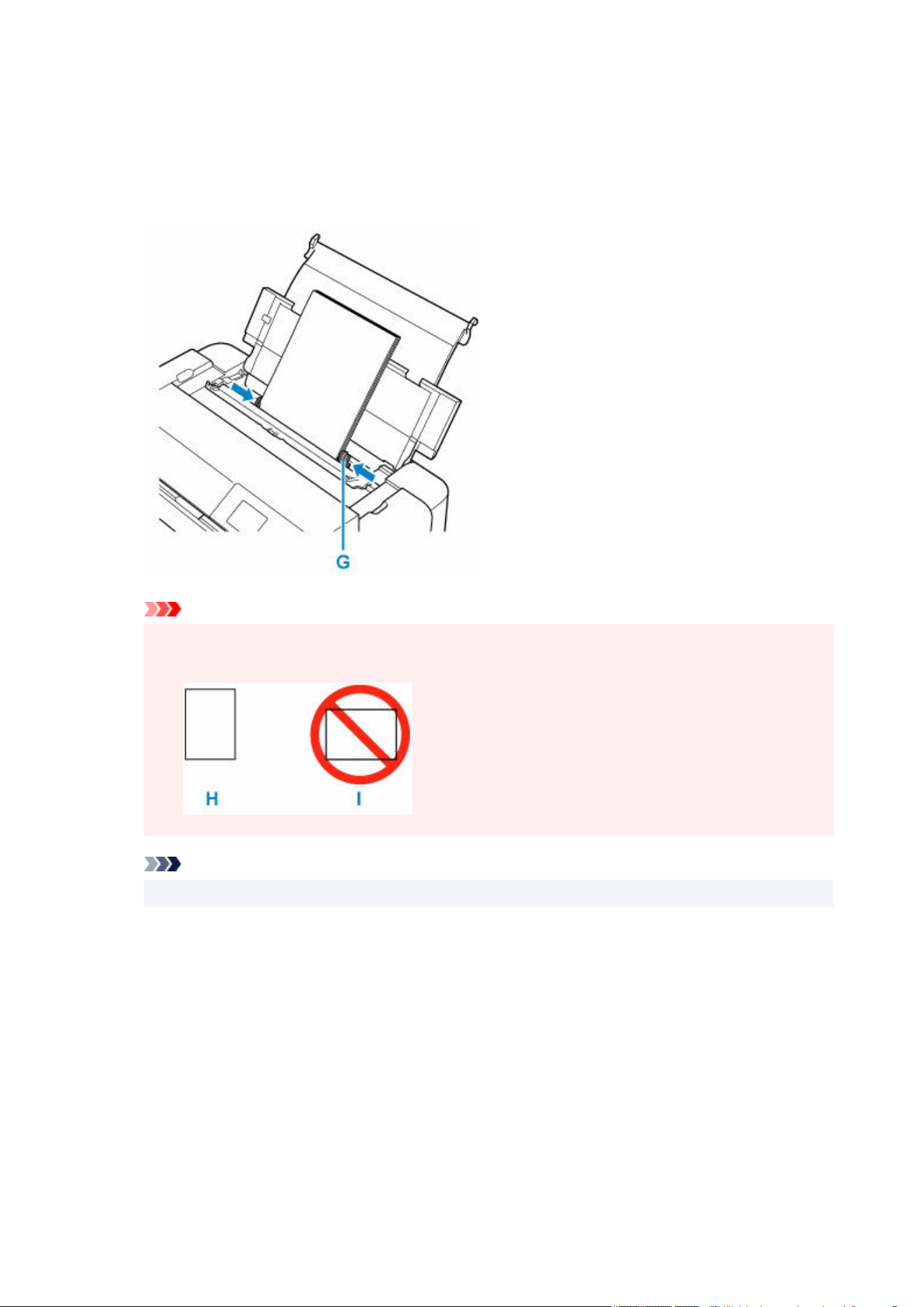
6. Slide the paper guides (G) to open them, and load the paper in the center of the top feed6.
WITH THE PRINT SIDE FACING YOU.
7. Slide the paper guides (G) to align them with both sides of the paper stack.7.
Do not slide the paper guides too hard against the paper. The paper may not be fed properly.
Important
• Always load paper (except return postcard) in the portrait orientation (H). Loading paper in the•
landscape orientation (I) can cause paper jams.
Note
•
Do not load sheets of paper higher than the load limit mark (J).
•
180
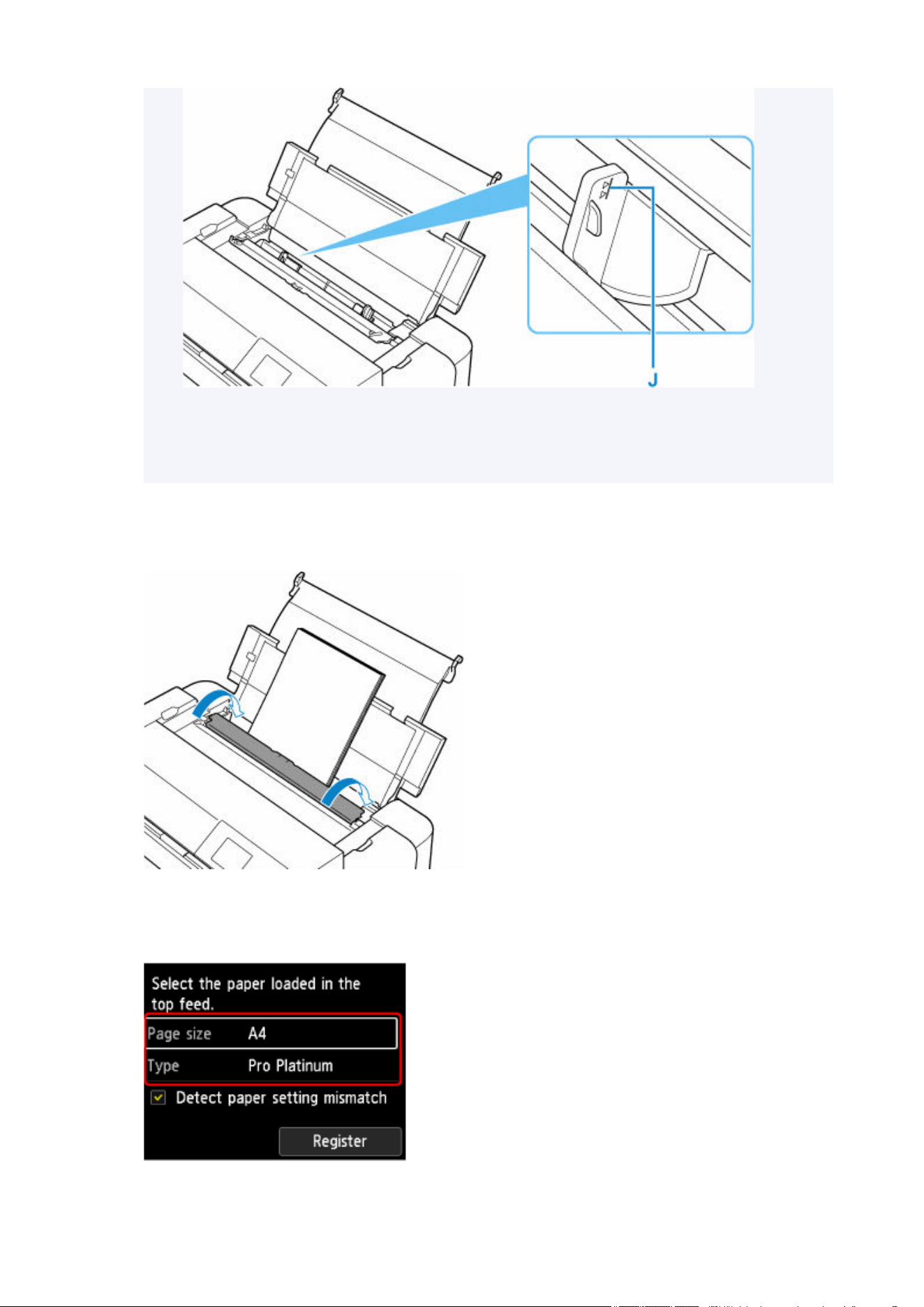
•
For loading long-length paper, the leading edges of paper are lifted depending on the paper
•
weight and printouts may be misaligned. Prevent the leading edges of paper from lifting by
holding the parts protruding from the tray with your hand or other ways.
8.
Close the feed slot cover gently.
8.
The paper information registration screen for the top feed is displayed on the LCD.
9.
Select the size and type of paper loaded in the top feed at Page size and Type, select
9.
Register.
181
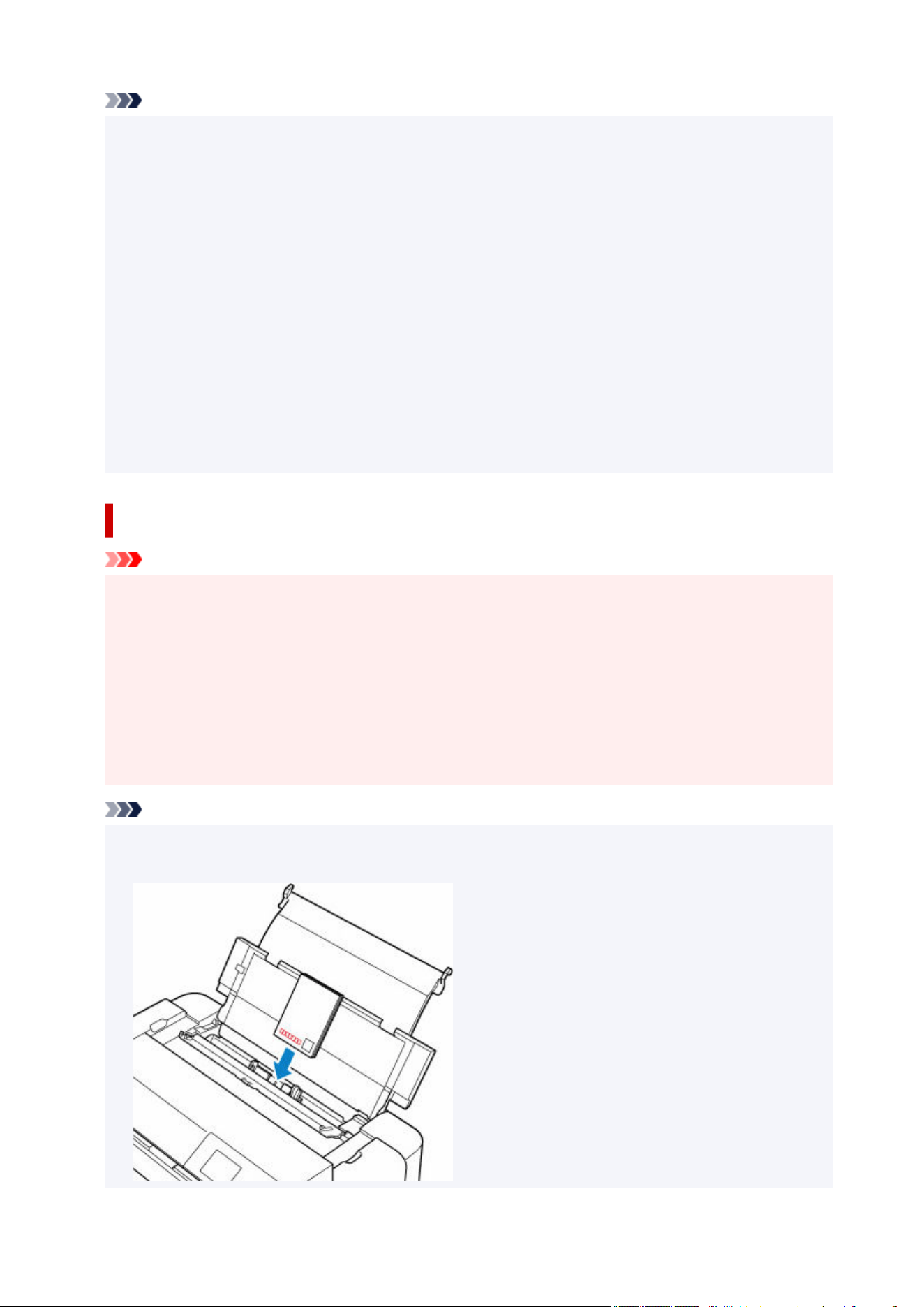
Note
• There are various types of paper, such as paper with a special surface coating for printing photos•
at optimal quality and paper suitable for documents. Each media type has specific preset settings
(how ink is used and sprayed, distance from nozzles, etc.), that allow you to print to that type with
optimal image quality. The wrong paper settings may cause poor printout color quality or scratches
on the printed surface. If you notice blurring or uneven colors, increase the print quality setting and try
printing again.
• To prevent incorrect printing, this printer has a function that detects whether the settings for the paper•
loaded on the top feed matches the paper settings. Before printing, make print settings in accordance
with the paper settings. When this function is enabled, an error message is displayed if these settings
do not match to prevent incorrect printing. When this error message is displayed, check and correct
the paper settings.
• For printing on long-length paper, hold ejected paper with your hand or use the printer at the location•
that paper does not fall. If paper falls, the printed surface may get dirty or be damaged. If you hold
paper with your hand, do not pull it forcibly while printing.
Precautions when printing on postcards
Important
• The address side cannot be printed from the operation panel.•
• This printer cannot print on postcards affixed with photos or stickers.•
• Return postcards cannot be printed from the operation panel and do not support borderless printing.•
• Do not fold the return postcard. If a crease is formed, the printer will not be able to feed the postcard•
properly, and this condition will cause line shifts or a paper jam.
• Depending on the type of postcard, the paper size may not be detected. In that case, set the printer•
not to detect the paper width.
Note
• When printing on postcards or return postcards, load them with the side you want to print facing up•
and the post code facing down.
182

Printing on Postcards (Windows)
Printing on Postcards (macOS)
• When printing on each side of a postcard separately, you will get cleaner printing if you print the•
message side first and then print the address side.
• When holding the postcard, hold it by the edges as much as possible, and avoid touching the printed•
surface until the ink dries.
• We recommend Canon genuine photo paper for printing photos.•
183

Loading Paper in the Manual Feed Tray
You can load one sheet of 8" x 10" (20 x 25 cm) size paper or larger in the manual feed tray at a time.
Important
• For the paper types (Canon genuine paper), size, and weight/thickness that can be used with the•
printer, see Media Types You Can Use.
Note
• We recommend Canon genuine photo paper for printing photos.•
• Print in an environment (temperature and humidity) suitable to the paper in use. For the temperature•
and humidity conditions of Canon genuine papers, refer to the paper's packaging or the supplied
instructions.
• Plain paper and postcard cannot be fed from the manual feed tray. When printing on plain paper or•
postcard, load it in the top feed.
1. Prepare paper.1.
If paper is curled, flatten it.
Note
•
If paper is curled, hold the curled corners and gently bend them in the opposite direction until the
•
paper becomes completely flat.
For details on how to flatten curled paper, see "Correct curl before loading paper." in
Paper Is
Smudged/Printed Surface Is Scratched/Ink Blots/Paper Curl.
• When using Photo Paper Plus Semi-gloss SG-201, even if the sheet is curled, load one sheet at•
a time as it is. If you roll up this paper to flatten, this may cause cracks on the surface of the paper
and reduce the print quality.
2. Open the manual feed tray (A), then extend the paper support (B).2.
3.
Open the paper output tray (C) gently.
3.
Important
•
If the multi-purpose tray guide (D) is open, be sure to close it.
•
4.
Open the output tray extension (E), then pull out the paper output support (F).
4.
184
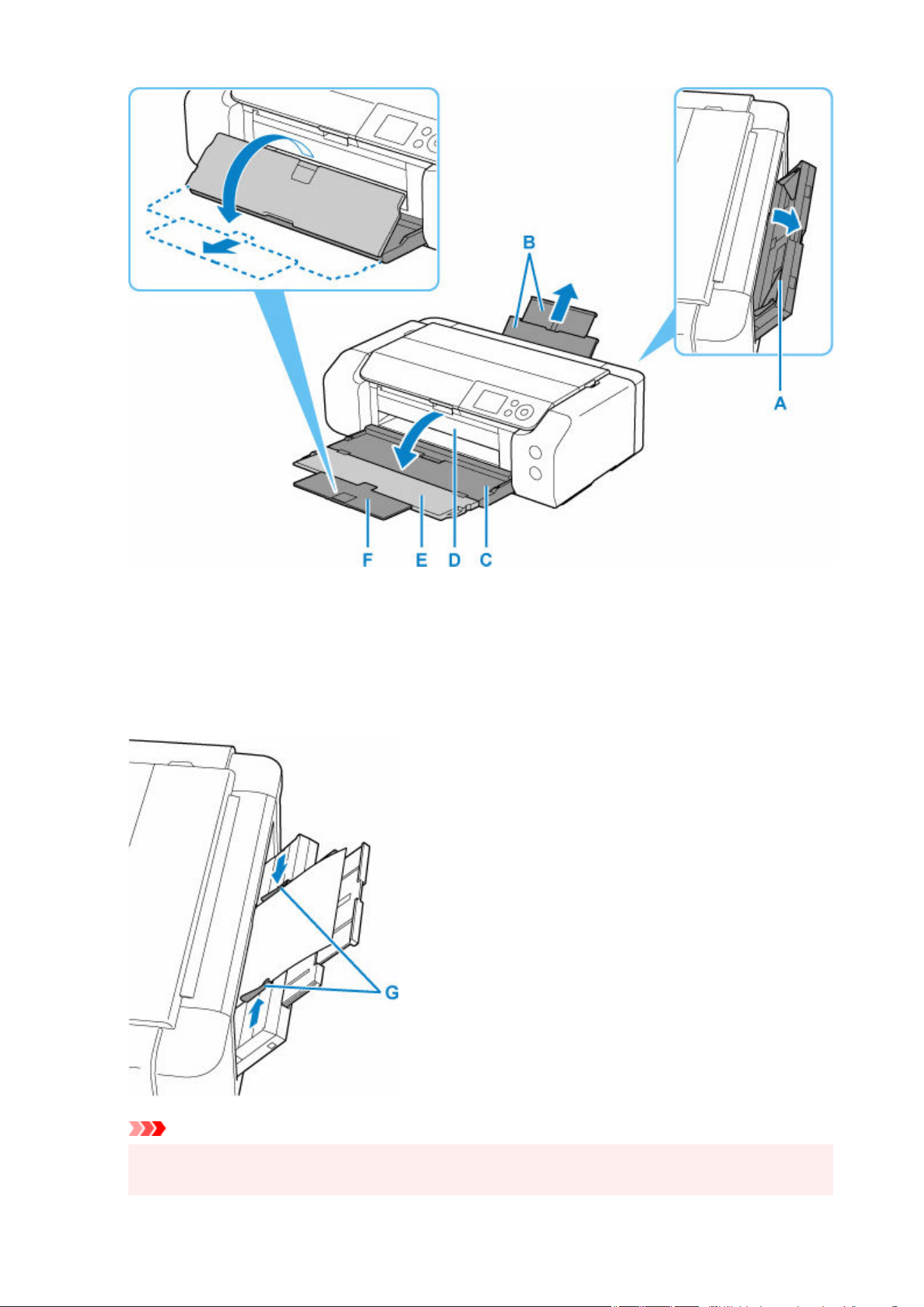
5. Slide the paper guides (G) to open them, and load ONLY ONE SHEET OF PAPER in the5.
center of the manual feed tray WITH THE PRINT SIDE FACING YOU.
6. Slide the paper guides (G) to align them with both sides of the paper stack.6.
Do not slide the paper guides too hard against the paper. The paper may not be fed properly.
Important
•
Always load paper in the portrait orientation (H). Loading paper in the landscape orientation (I)
•
can cause paper jams.
185
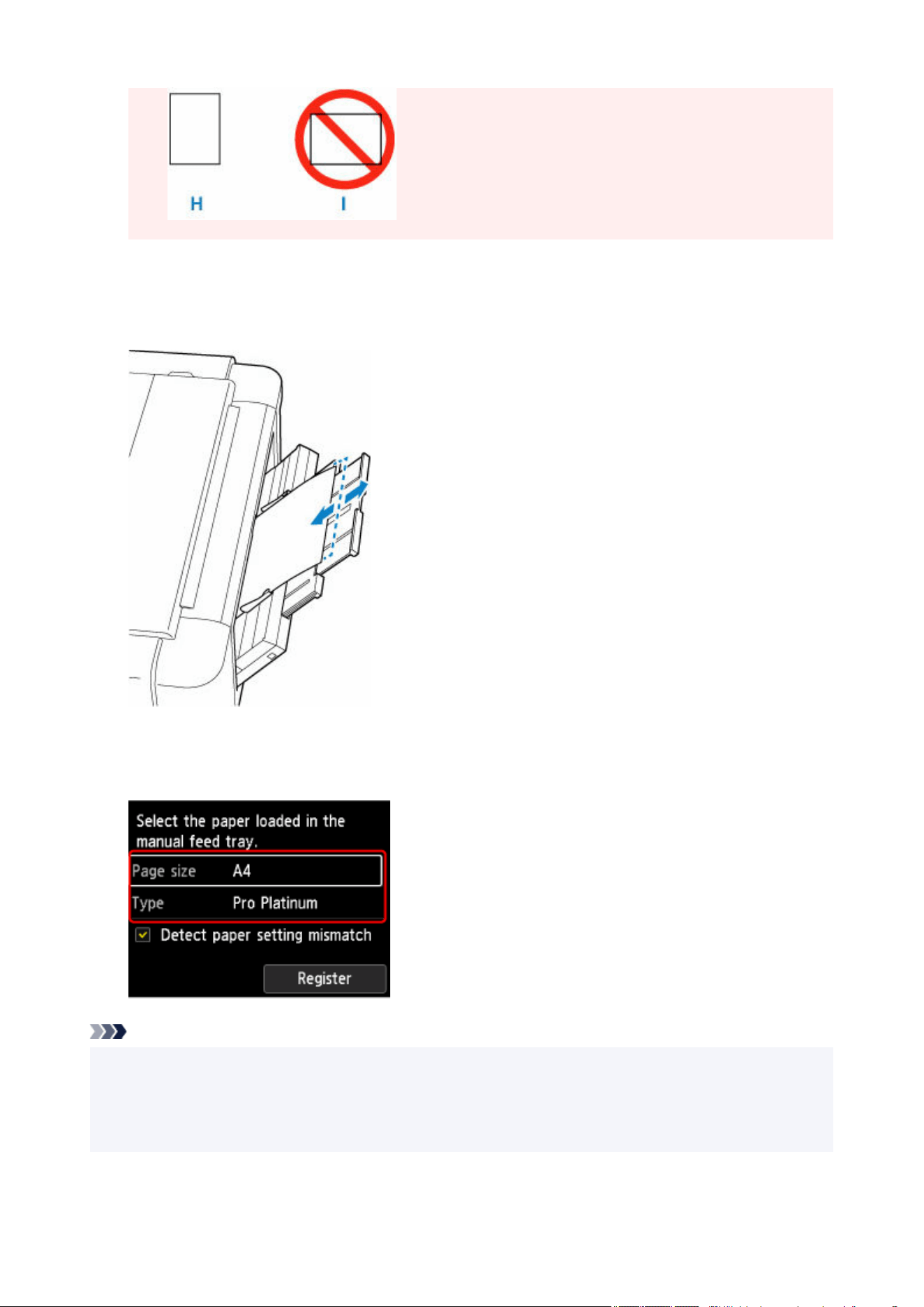
7. Check if the paper is set properly in the manual feed tray.7.
Make sure that the paper is set firmly against the bottom of the manual feed tray and against the paper
guides by slightly jiggling the paper up and down.
8.
Select the size and type of paper loaded in the manual feed tray at Page size and Type,
8.
select Register.
Note
• To continue printing from the manual feed tray, wait until printing is complete, then load the next sheet.•
• There are various types of paper, such as paper with a special surface coating for printing photos at•
optimal quality and paper suitable for documents. Each media type has specific preset settings (how ink
is used and sprayed, distance from nozzles, etc.), that allow you to print to that type with optimal image
186

quality. The wrong paper settings may cause poor printout color quality or scratches on the printed
surface. If you notice blurring or uneven colors, increase the print quality setting and try printing again.
• To prevent incorrect printing, this printer has a function that detects whether the settings for the paper•
loaded on the manual feed tray matches the paper settings. Before printing, make print settings in
accordance with the paper settings. When this function is enabled, an error message is displayed if
these settings do not match to prevent incorrect printing. When this error message is displayed, check
and correct the paper settings.
• For loading long-length paper, the leading edges of paper are lifted depending on the paper weight•
and printouts may be misaligned. Prevent the leading edges of paper from lifting by holding the parts
protruding from the tray with your hand or other ways.
When printing on long-length paper, hold ejected paper with your hand or use the printer at the location
that paper does not fall. If paper falls, the printed surface may get dirty or be damaged. If you hold
paper with your hand, do not pull it forcibly while printing.
187
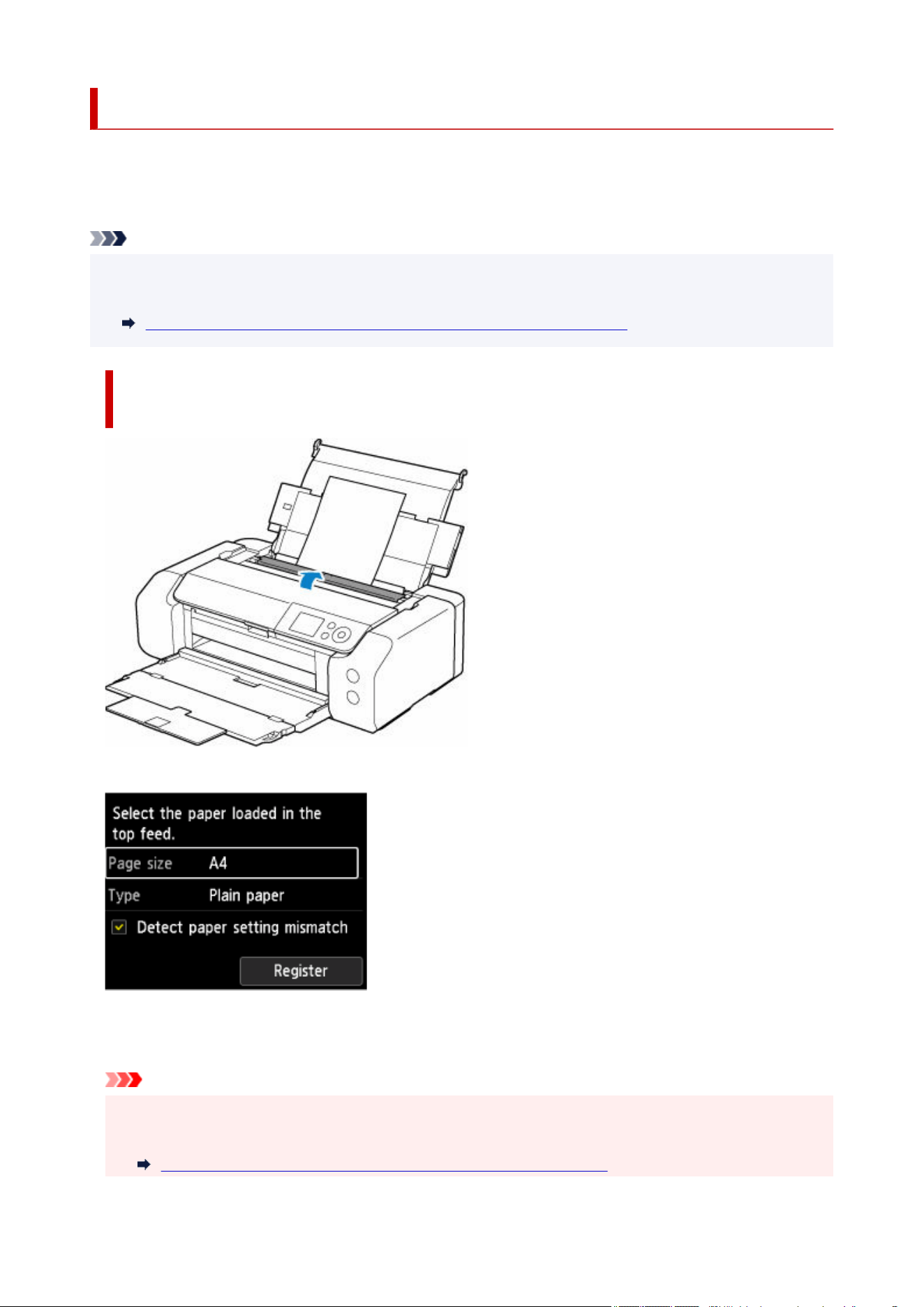
Register Paper Information
By registering the paper size and the media type loaded in the top feed or the manual feed tray, you can
prevent the printer from misprinting by displaying the message before printing starts when the paper size or
the media type of the loaded paper differs from the paper settings.
Note
• The default setting for displaying the message which prevents misprinting varies depending on the•
printing method.
Default Setting for Displaying the Message which Prevents Misprinting
When you load paper in the top feed and close the feed slot cover, or
load paper in the manual feed tray:
The screen to register the paper information is displayed.
If the loaded paper matches the paper information displayed on the printer's LCD, select Register.
If it is different, select Page size or Type. Then register the correct paper information.
Important
• For the appropriate combination of the paper settings specified in the printer driver and the paper•
information registered in the printer, refer to the following.
Paper Settings on the Printer Driver and the Printer (Media Type) (Windows)
188
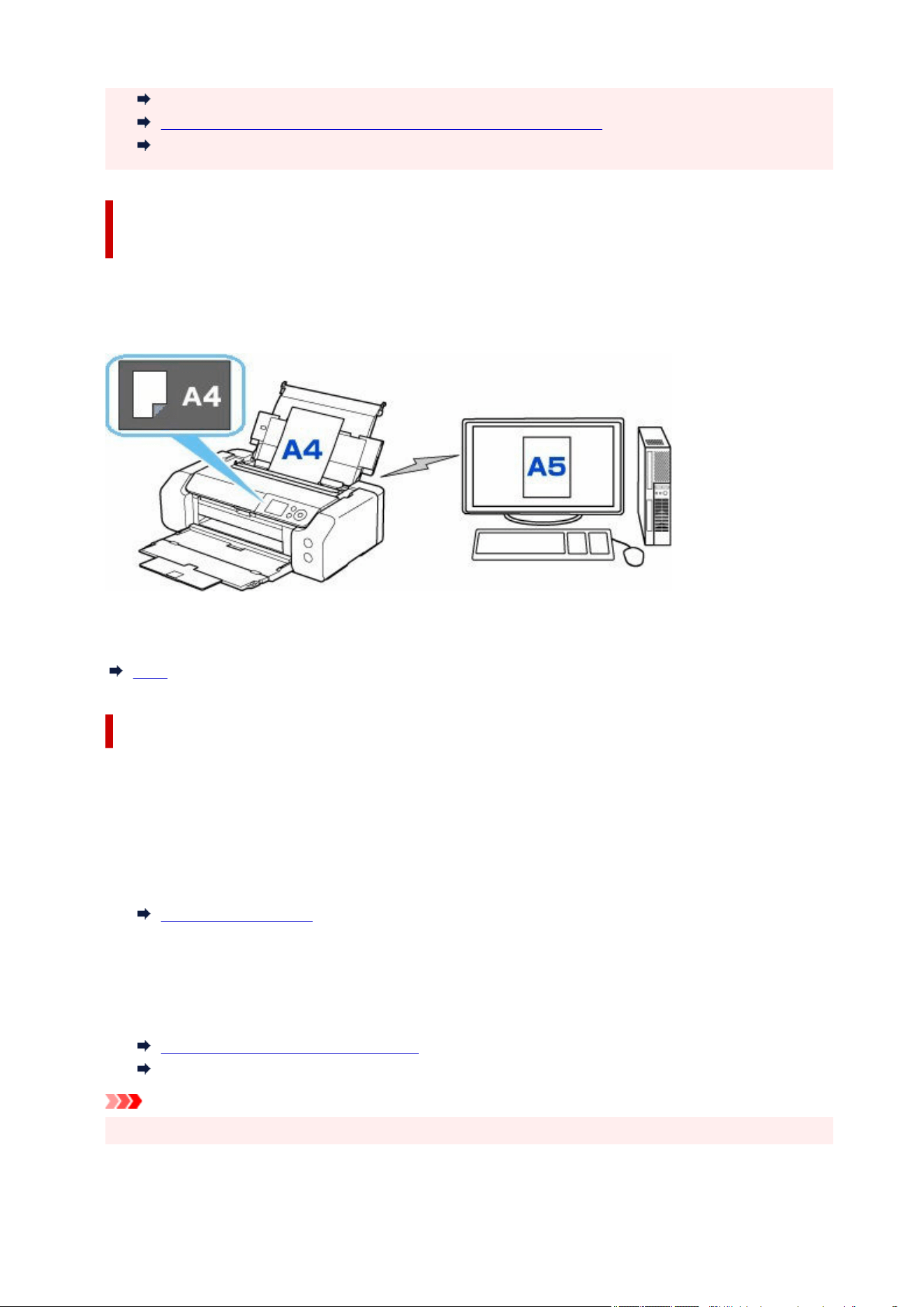
Paper Settings on the Printer Driver and the Printer (Media Type) (macOS)
Paper Settings on the Printer Driver and the Printer (Paper Size) (Windows)
Paper Settings on the Printer Driver and the Printer (Paper Size) (macOS)
When the paper settings specified when printing differ from the paper
information registered in the printer:
Ex:
• Paper settings specified on the printer driver when printing: A5
• Paper information for the top feed registered in the printer: A4
When you start printing, a message is displayed.Resolve the error according to the instruction on the
screen.
2114
Default Setting for Displaying the Message which Prevents Misprinting
• When you print without using the printer driver (when printing from the printer's operation•
panel or smartphone/tablet):
The message which prevents misprinting is enabled by default.
To change whether to display a misprint prevention message when printing without using the printer
driver:
Paper-related settings
• When you print using the printer driver:•
The message which prevents misprinting is disabled by default.
To change whether to display a misprint prevention message when printing using the printer driver:
Changing the Printer Operation Mode (Windows)
Changing the Printer Operation Mode (macOS)
Important
• When the message which prevents misprinting is disabled:•
189

The printer starts printing even though the paper settings for printing and the paper information
registered to the printer are different.
190


Media Types You Can Use
For best results, choose paper designed for how you are printing. A variety of paper for documents as well
as photos or illustrations is available from Canon. Use genuine Canon paper to print important photos, when
possible.
Media Types
Page Sizes
Paper Weight / Thickness
Media Types You Cannot Use
Media Types
Genuine Canon paper
Note
• For warnings on use of the non-printable side, see each product's usage information.•
• Page sizes and media types differ depending on the country or region where the paper is sold. For•
details on page sizes and media types, access the Canon website.
• Genuine Canon paper is not available in some countries or regions. Note that in the United States,•
Canon paper is not sold by model number. Instead, purchase paper by name.
Paper for printing documents:
• Canon Red Label Superior <WOP111>•
• Canon Océ Office Colour Paper <SAT213>•
Paper for printing photos:
• Photo Paper Pro Platinum <PT-101>•
• Photo Paper Plus Glossy II <PP-201/PP-208/PP-301>•
• Photo Paper Pro Luster <LU-101>•
• Photo Paper Plus Semi-gloss <SG-201>•
• Matte Photo Paper <MP-101>•
• Photo Paper Pro Premium Matte <PM-101>•
• Premium Fine Art Smooth <FA-SM1>•
• Premium Fine Art Rough <FA-RG1>•
Paper other than genuine Canon paper
• Plain Paper (including recycled paper)•
• Greeting Card•
• Card Stock•
Paper Load Limit
192

Paper Settings on the Printer Driver and the Printer (Media Type) (Windows)
Paper Settings on the Printer Driver and the Printer (Media Type) (macOS)
Note
• When using art paper, see Before Printing on Art Paper.•
Page Sizes
You can use the following page sizes.
Note
• Page sizes and media types the printer supports differ depending on the OS you are using.•
Standard sizes:
• top feed•
◦ Letter◦
◦ Legal◦
◦ 11"x17"(28x43cm)◦
◦ A5◦
◦ A4◦
◦ A3◦
◦ A3+◦
◦ B5◦
◦ B4◦
◦ KG/4"x6"(10x15)◦
◦ 5"x7"(13x18cm)◦
◦ 7"x10"(18x25cm)◦
◦ 9"x13"(23x33cm)◦
◦
11"x14"
◦
◦
8"x10"(20x25cm)
◦
◦
10"x12"(25x30cm)
◦
◦
210x594mm
◦
◦
L(89x127mm)
◦
◦
2L(127x178mm)
◦
◦
Square 5"
◦
◦
12"x12"(30x30cm)
◦
◦
Hagaki
◦
◦
Hagaki 2
◦
•
manual feed tray
•
193

◦ Letter◦
◦ Legal◦
◦ 11"x17"(28x43cm)◦
◦ A4◦
◦ A3◦
◦ A3+◦
◦ B4◦
◦ 9"x13"(23x33cm)◦
◦ 11"x14"◦
◦ 13"x19" (Super B)◦
◦ 8"x10"(20x25cm)◦
◦ 10"x12"(25x30cm)◦
◦ 210x594mm◦
◦ 12"x12"(30x30cm)◦
Special sizes
Special page sizes must be within the following limits:
• top feed•
◦ Minimum size: 3.50 x 5.00 in. (89.0 x 127.0 mm)◦
◦ Maximum size: 12.95 x 70.87 in. (329.0 x 1800.0 mm) *1◦
• manual feed tray•
◦ Minimum size: 8.00 x 10.00 in. (203.2 x 254.0 mm)◦
◦ Maximum size: 13.00 x 70.87 in. (330.2 x 1800.0 mm) *1◦
*1 When printing on paper longer than 39.00 in. (990.6 mm), select Photo Paper (Long-form Printing) or
Fine Art Paper (Long-form Print) in the paper type.
Perform Long-form Printing (Windows)
Perform Long-form Printing (macOS)
Paper Weight / Thickness
You can use paper in the following weight/thickness ranges.
* Do not use paper heavier or thicker than this, as it could jam in the printer.
•
top feed
•
Plain paper: From 17 to 28 lb (64 to 105 g /m
2
)
Specialty paper: Up to 101 lb (380 g /m
2
)
• manual feed tray•
Specialty paper: Up to 101 lb (380 g /m
2
) / from 4 to 23.6 mil (0.1 to 0.6 mm)
194

Media Types You Cannot Use
Do not use the following types of paper. Using such paper will cause not only unsatisfactory results, but
also the printer to jam or malfunction.
• Folded, curled, or wrinkled paper•
• Damp paper•
• Paper that is too thin•
• Paper that is too thick•
• Paper with unstraightened edges like manualy cut paper.•
• Picture postcards•
• Return postcard that has been folded once•
• Postcards affixed with photos or stickers•
• Envelopes•
• Any type of paper with holes•
• Paper that is not rectangular•
• Paper bound with staples or glue•
• Paper with an adhesive surface on the back such as label seal•
• Paper decorated with glitter, etc.•
195
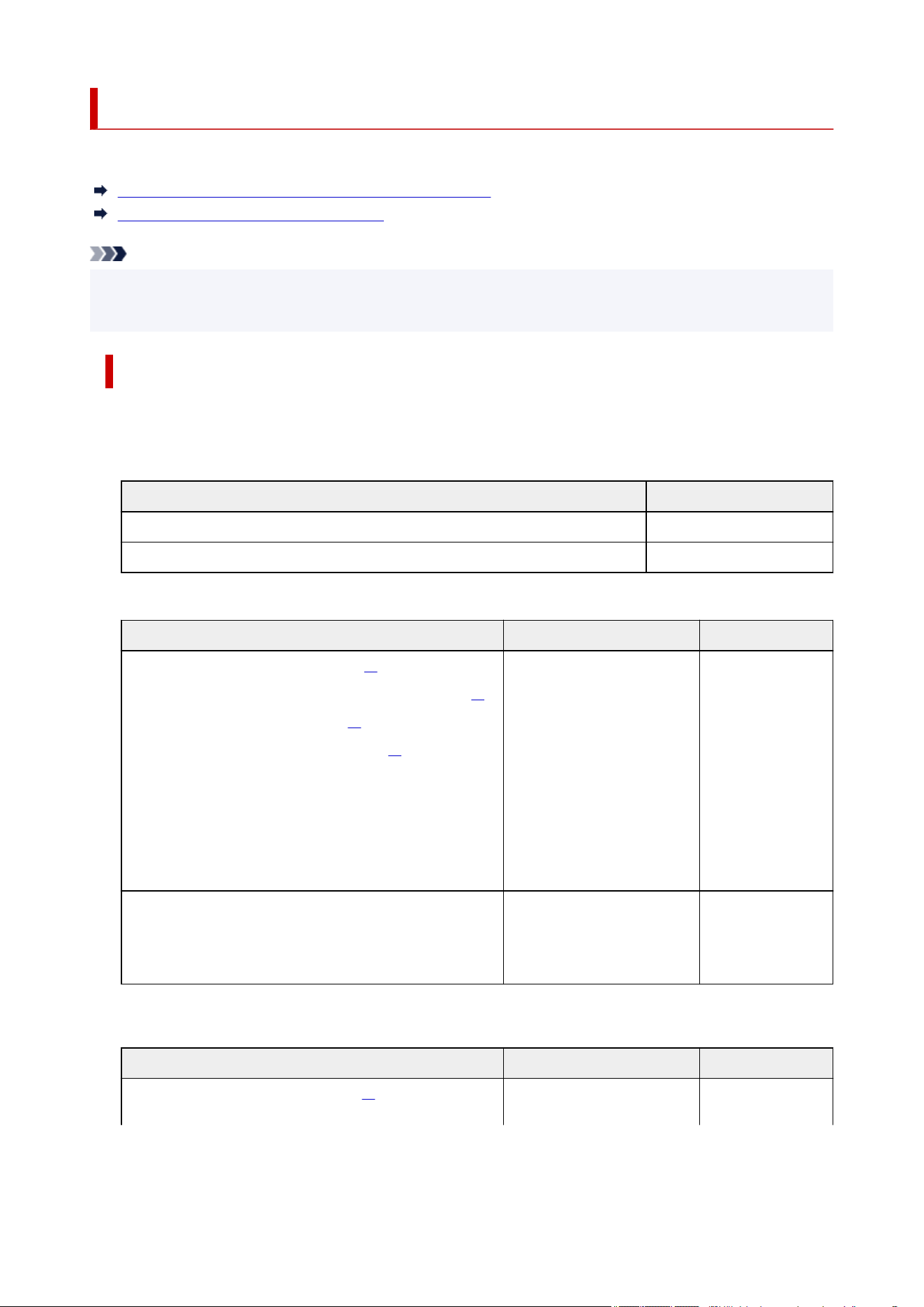
Paper Load Limit
This section shows the paper load limits of the top feed, the manual feed tray, and the paper output tray.
Paper Load Limits of Top Feed and Manual Feed Tray
Paper Load Limit of Paper Output Tray
Note
• Page sizes and media types differ depending on the country or region where the paper is sold. For•
details on page sizes and media types, access the Canon website.
Paper Load Limits of Top Feed and Manual Feed Tray
Genuine Canon Paper
Paper for printing documents:
Media Name <Model No.> Top Feed
Canon Red Label Superior <WOP111> Approx. 100 sheets
Canon Océ Office Colour Paper <SAT213> Approx. 100 sheets
Paper for printing photos:
Media Name <Model No.> Top Feed Manual Feed Tray
Photo Paper Pro Platinum <PT-101>*1
Photo Paper Plus Glossy II <PP-201/PP-208/PP-301>*1
Photo Paper Pro Luster <LU-101>*1
Photo Paper Plus Semi-gloss <SG-201>*1
Matte Photo Paper <MP-101>
KG/4"x6"(10x15),
L(89x127mm), Square 5", Ha-
gaki: 20 sheets
A4, A3, Let-
ter, 5"x7"(13x18cm),
8"x10"(20x25cm),
2L(127x178mm): 10 sheets
A3+, 10"x12"(25x30cm),
9"x13"(23x33cm), 11"x14": 1
sheet
1 sheet
Photo Paper Pro Premium Matte <PM-101>
Premium Fine Art Smooth <FA-SM1>
Premium Fine Art Rough <FA-RG1>
N/A 1 sheet
Paper other than Genuine Canon Paper
Common Name Top Feed Manual Feed Tray
Plain Paper (including recycled paper)*2 A5, A4, B5, Letter: Approx.
100 sheets
N/A
196
A3, B4, Legal,
11"x17"(28x43cm): Approx.
50 sheets
Greeting Card 1 sheet 1 sheet
Card Stock 1 sheet 1 sheet
*1 Feeding from a loaded stack of paper may leave marks on the printed side or prevent efficient feeding.
In this case, load one sheet at a time.
*2 Normal feeding at maximum capacity may not be possible with some types of paper, or under very high
or low temperature or humidity. In this case, load half the amount of paper or less.
Note
• When using non-Canon genuine specialty paper, load one sheet at a time in the top feed or manual
feed tray.
Paper Load Limit of Paper Output Tray
Genuine Canon Paper
Paper for printing documents:
Media Name <Model No.> Paper Output Tray
Canon Red Label Superior <WOP111>
Canon Océ Office Colour Paper <SAT213>
Approx. 50 sheets
Paper other than Genuine Canon Paper
Common Name Paper Output Tray
Plain Paper (including recycled paper) Approx. 50 sheets
When continuing printing with paper other than the above, we recommend removing already printed paper
from the paper output tray to avoid smearing or discoloration.
197

Handling Paper
• Be careful not to rub or scratch the surfaces of any types of paper when handling.•
• Hold the paper as closely as possible to its edges and try not to touch the printing surface. The print•
quality may be degraded if the printing surface is smudged with sweat or oil that comes from your
hands.
• Do not touch the printed surface until the ink is dried. Even when the ink is dried, be careful not to touch•
the printed surface as much as possible when handling. Due to the nature of the pigment ink, the ink on
the printed surface may be removed when being rubbed or scratched.
• Take out only the necessary number of paper from the package, just before printing.•
• To avoid curling, when you do not print, put unused paper back into the package and keep it on a level•
surface. And also, store it avoiding heat, humidity, and direct sunlight.
198
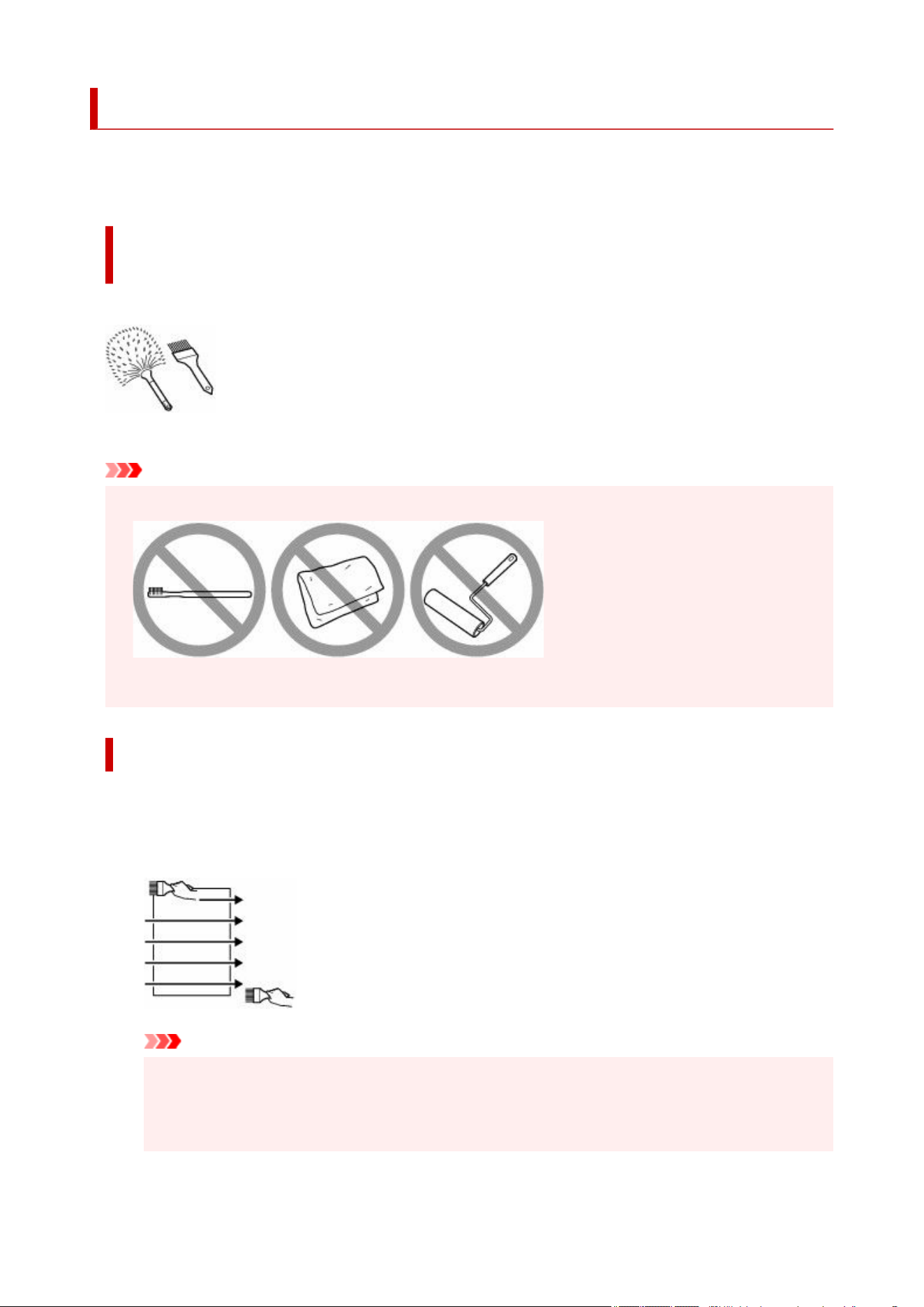
Before Printing on Art Paper
When using art paper, dust is liable to be generated.
It is therefore recommended that paper dust be removed on art paper just before printing.
You will need a soft hair brush (or similar brush used to clean office
automation equipment).
The wider the brush, the more effective it will be.
OK - soft brush made from material such as polypropylene, polyethylene, horse hair or goat hair.
Important
• Be sure not to use brushes as shown below. The printing surface may be damaged.•
Not OK - brush made from hard material, cloth or washcloth, sticky and abrasive materials.
Paper dust removal procedure:
1. Check that the brush is not wet and free from dust or dirt.1.
2. Brush the overall printing surface carefully in one direction.2.
Important
•
Be sure to brush all the way across the paper; do not start brushing at the middle or stop
•
halfway.
•
Be careful not to touch the printing surface as much as possible.
•
199

3. To complete the removal of paper dust, brush the paper in the other direction from top to3.
bottom.
200

Settings
Changing Settings from Operation Panel
LCD and Operation Panel
Setting Items on Operation Panel
Setting Administrator Password on Operation Panel
Changing Printer's Setting Using Web Browser
Start up Remote UI
Changeable Setting Items Using Remote UI
Setting Passwords Using Remote UI
Registering Printer's Root Certificate to Web Browser for SSL Communication
Registering Printer's Root Certificate to Local Computer for SSL Communication
Generating Server Certificate
Network Setting
Printer Connection Methods
Another Printer Found with Same Name
Printing Network Settings
Network Status and Troubleshooting
Checking Printer Connection Status Using Wi-Fi Connection Assistant
Sharing the Printer on a Network (Windows)
Sharing the Printer on a Network (macOS)
Set Up/Manage Security
201

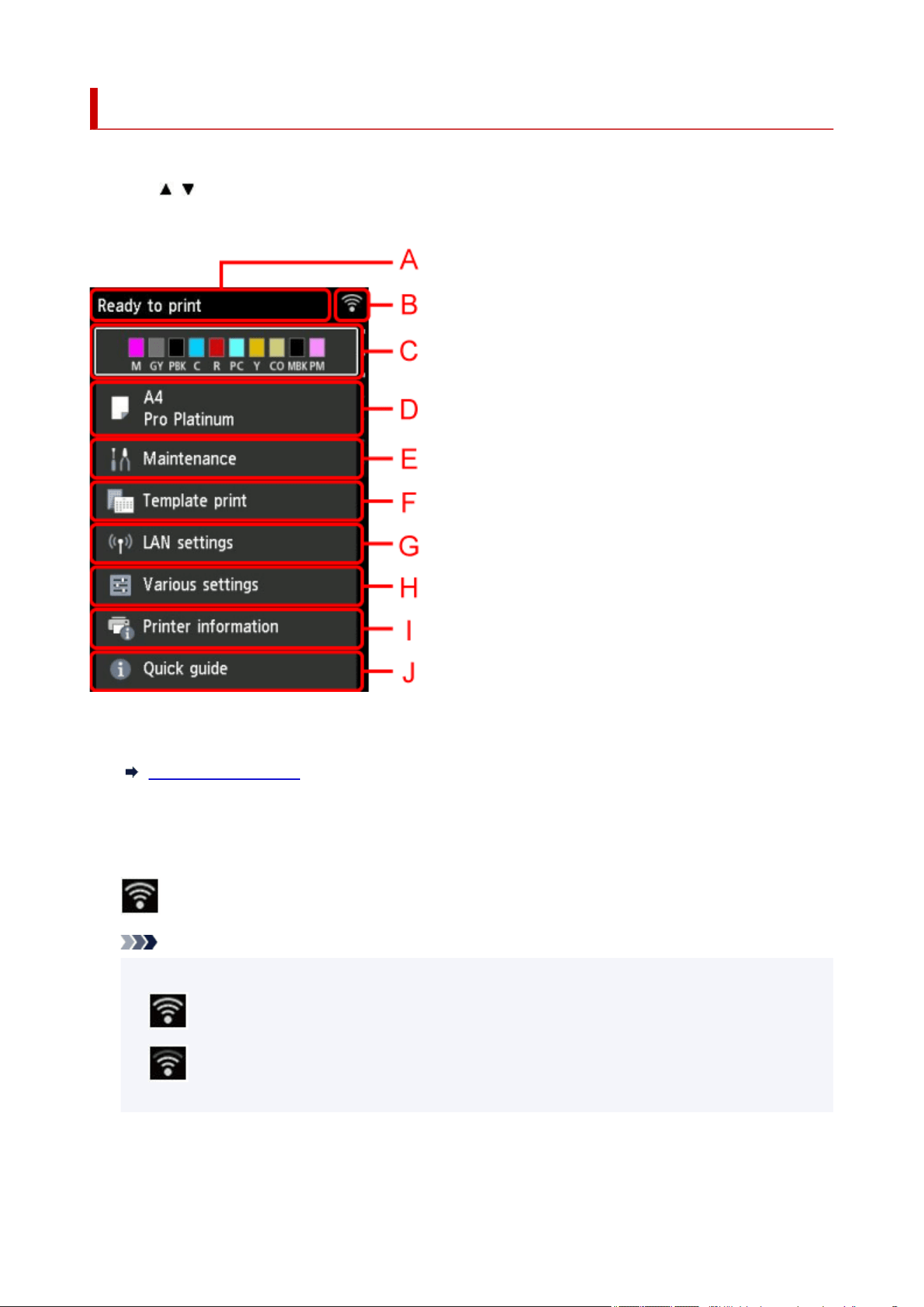
LCD and Operation Panel
Turning on the printer displays the HOME screen.
Using the , button to select an item from the menu and pressing the OK button enable you to perform
each setting.
A: Printer status display area
Displays printer status, messages, and other information.
Notification Messages
B: Network
Displays network status by the icon.
The icon differs depending on the network of use or the network status.
Wi-Fi is enabled and the printer is connected to the wireless router.
Note
• Depending on the signal state, the icon will change.•
(Signal strength: 81 % or more): You can use the printer over Wi-Fi without any problems.
(Signal strength: 51 % or more): The problem such as the printer cannot print may occur
according to the network status. We recommend placing the printer near the wireless router.
203

(Signal strength: 50 % or less): The problem such as the printer cannot print may occur.
Place the printer near the wireless router.
Wi-Fi is enabled but the printer is not connected to the wireless router.
Wired LAN is enabled.
Wireless Direct is enabled.
Network is disabled.
C: Ink status display area
Displays the ink status. Selecting this item enables you to check the remaining amount of ink and model
number of ink tank.
Checking Ink Level
D: Paper settings display area
Displays information about the paper in the top feed. Selecting this item enables you to specify the size
and type of paper loaded in the top feed.
E: Maintenance
Select this item to perform maintenance of the printer.
F: Template print
You can print and make as lined or graph paper.
G: LAN settings
You can perform settings relating to network.
H: Various settings
You can change printer settings such as settings when printing.
I: Printer information
Displays printer information and error histories.
J: Quick guide
Displays how to operate the printer and QR code accessing to the Online Manual.
Note
• When printing is in progress, you cannot select grayed out items.•
Notification Messages
When the ink is low or there is another notification, New notice appears in the printer status display area.
204
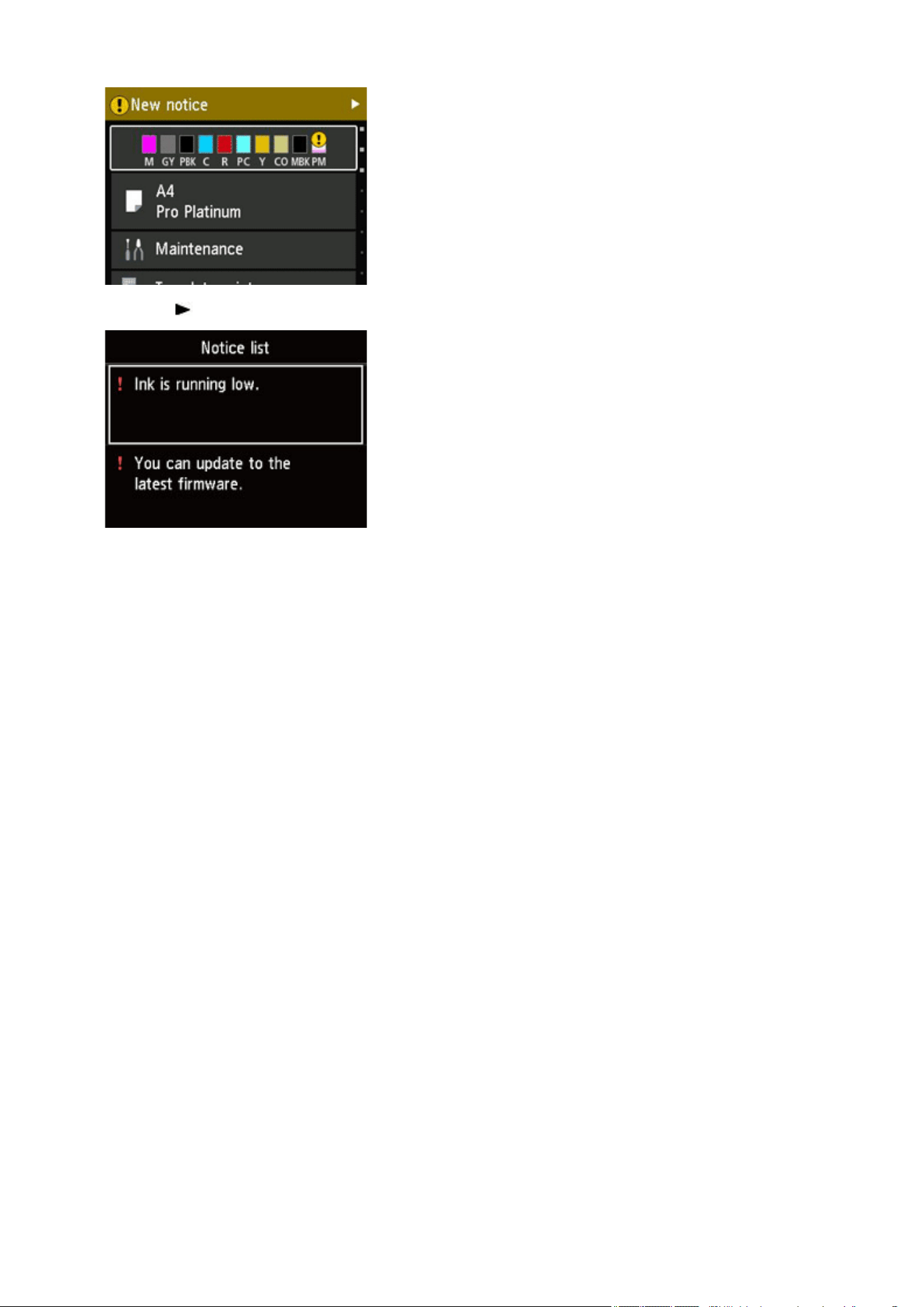
Press the button to display the Notice list screen to check messages.
205
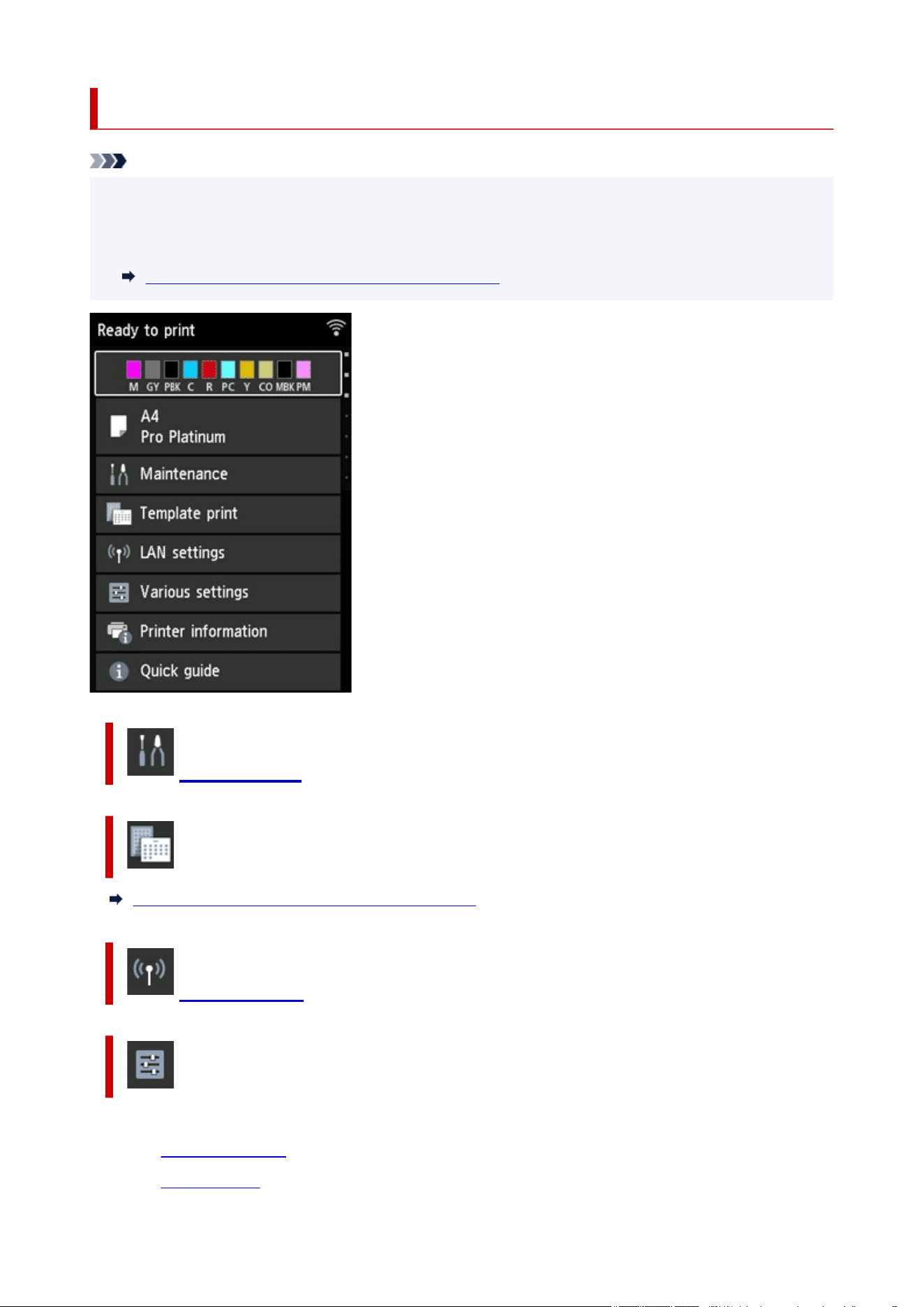
Setting Items on Operation Panel
Note
• The administrator password is required to change some setting items if it is enabled for changing•
settings using the operation panel.
For more on setting items which the administrator password is required:
Setting Administrator Password on Operation Panel
Maintenance
Template print
Printing Templates Such as Lined or Graph Paper
LAN settings
Various settings
• Printer settings•
◦ Security settings◦
◦ Print settings◦
206
◦ LAN settings◦
◦ Other printer settings◦
◦ Language selection◦
◦ Firmware update◦
◦ Paper-related settings◦
◦ Power control◦
◦ Quiet setting◦
◦ Auto maintenance settings◦
◦ Administrator password settings◦
Setting Administrator Password on Operation Panel
◦ Reset settings◦
• Web service setup•
Printer information
207

Maintenance
This item is displayed on the HOME screen.
• Nozzle Check•
Prints out the nozzle check pattern.
Checking for Nozzle Clogging
• Cleaning•
Select this to clean the print head.
Cleaning the Print Head
• Deep Cleaning•
Use this mode if no ink is ejected at all or if Cleaning does not solve the problem.
Deep Print Head Cleaning
• Print Head Alignment•
Adjusts the alignment of print head.
Automatic Adjustment to Straighten Lines and Align Colors
Manual Adjustment to Straighten Lines and Align Colors
• Roller Cleaning•
Select this mode when cleaning the paper feed rollers.
Cleaning Paper Feed Rollers
• Bottom Plate Cleaning•
Select this mode when cleaning the inside of the printer.
Performing Bottom Plate Cleaning
208
LAN settings
This item is displayed on the HOME screen.
Important
• The administrator password is required to change the settings if it is enabled to change the settings on•
the operation panel using the administrator password.
Wi-Fi
Wireless Direct
Wired LAN
Advanced
Wi-Fi
• See settings•
The network settings information of the printer appears when it is connected by Wi-Fi. (Some setting
items are not displayed depending on the printer settings.)
Items Setting
Connection Enabled (connected)/Enabled (disconnected)/Disable
Network name (SSID) XXXXXXXXXXXXXXXX
XXXXXXXXXXXXXXXX
Frequency 2.4 GHz/5 GHz
Wi-Fi security Disable / WPA-PSK (AES) / WPA2-PSK (AES) / WPA/WPA2-PSK /
WPA3-SAE (AES) / WPA2/WPA3-PSK / WPA-EAP (AES) / WPA2-
EAP (AES) / WPA3-EAP (AES) / WPA/WPA2-EAP (AES) / WPA2/
WPA3-EAP (AES)
Signal strength (%) XXX
IPv4 address XXX. XXX. XXX. XXX
IPv4 subnet mask XXX. XXX. XXX. XXX
IPv4 default gateway XXX. XXX. XXX. XXX
IPv6 link-local address XXXX: XXXX: XXXX: XXXX:
XXXX: XXXX: XXXX: XXXX
IPv6 manual address XXXX: XXXX: XXXX: XXXX:
XXXX: XXXX: XXXX: XXXX
IPv6 manual prefix length XXX
IPv6 stateless address 1 XXXX: XXXX: XXXX: XXXX:
XXXX: XXXX: XXXX: XXXX
IPv6 stateless prefix length 1 XXX
IPv6 stateless address 2 XXXX: XXXX: XXXX: XXXX:
XXXX: XXXX: XXXX: XXXX
IPv6 stateless prefix length 2 XXX
209
IPv6 stateless address 3 XXXX: XXXX: XXXX: XXXX:
XXXX: XXXX: XXXX: XXXX
IPv6 stateless prefix length 3 XXX
IPv6 stateless address 4 XXXX: XXXX: XXXX: XXXX:
XXXX: XXXX: XXXX: XXXX
IPv6 stateless prefix length 4 XXX
IPv6 default gateway 1 XXXX: XXXX: XXXX: XXXX:
XXXX: XXXX: XXXX: XXXX
IPv6 default gateway 2 XXXX: XXXX: XXXX: XXXX:
XXXX: XXXX: XXXX: XXXX
IPv6 default gateway 3 XXXX: XXXX: XXXX: XXXX:
XXXX: XXXX: XXXX: XXXX
IPv6 default gateway 4 XXXX: XXXX: XXXX: XXXX:
XXXX: XXXX: XXXX: XXXX
MAC address (Wi-Fi) XX: XX: XX: XX: XX: XX
Printer name XXXXXXXXXXXXXXX
Bonjour service name XXXXXXXXXXXX
XXXXXXXXXXXX
XXXXXXXXXXXX
XXXXXXXXXXXX
("XX" represents alphanumeric characters.)
• Enable/disable Wi-Fi•
Enables/disables Wi-Fi.
• Wi-Fi setup•
Selects the setup method for Wi-Fi connection.
◦ Easy wireless connect◦
Select if you specify the settings of the access point information to the printer directly from a
device (e.g. smartphone, or tablet) without operating the wireless router. Follow the on-screen
instructions of the connecting device for the setup procedure.
◦ Manual connect◦
Select when you perform settings for Wi-Fi manually using the operation panel of the printer.
◦ WPS (Push button method)◦
Select when you perform settings for Wi-Fi using a wireless router supporting a Wi-Fi Protected
Setup (WPS) push button method. Follow the on-screen instructions during setup.
◦ Other connection types◦
▪ WPS (PIN code method)▪
Select when you perform settings for Wi-Fi using a wireless router supporting a Wi-Fi
Protected Setup (WPS) PIN code method. Follow the on-screen instructions during setup.
210
Wireless Direct
• See settings•
The network settings information of the printer appears when it is connected by the wireless direct.
(Some setting items are not displayed depending on the printer settings.)
Note
• To show or hide the password, select Show password/Hide password in the Wireless Direct•
setting list screen.
Items Setting
Connection Enable/Disable
Network name (SSID) DIRECT-XXXXXXXXX
XXXXXXXXXXXXXXXX
Password XXXXXXXXXX
Frequency 2.4 GHz/5 GHz
Wi-Fi security WPA2-PSK(AES)
No. of printers connected now XX/XX
IPv4 address XXX. XXX. XXX. XXX
IPv4 subnet mask XXX. XXX. XXX. XXX
IPv4 default gateway XXX. XXX. XXX. XXX
IPv6 link-local address XXXX: XXXX: XXXX: XXXX:
XXXX: XXXX: XXXX: XXXX
MAC address (Wi-Fi) XX: XX: XX: XX: XX: XX
Printer name XXXXXXXXXXXXXXX
Bonjour service name XXXXXXXXXXXX
XXXXXXXXXXXX
XXXXXXXXXXXX
XXXXXXXXXXXX
("XX" represents alphanumeric characters.)
• Connect to smartphone•
Enables to connect the smartphone to the printer by reading the QR code displayed on the LCD with
the smartphone, or also by manually obtaining the network name and password.
• Enable/disable Wireless Direct•
Enables/disables Wireless Direct.
• Change network name (SSID)•
Changes the identifier (SSID/the printer's name displayed on a Wi-Fi Direct compatible device) for
Wireless Direct.
211
• Change password•
Changes the password for Wireless Direct.
• Connection request confirmation•
Selecting ON displays the confirmation screen when a Wi-Fi Direct compatible device is connecting
the printer.
• 2.4GHz/5GHz Switch•
Sets the frequency to use.
Wired LAN
• See settings•
The network settings information of the printer appears when it is connected by wired LAN. (Some
setting items are not displayed depending on the printer settings.)
Items Setting
Connection Enabled (connected)/Enabled (disconnected)/Disable
IPv4 address XXX. XXX. XXX. XXX
IPv4 subnet mask XXX. XXX. XXX. XXX
IPv4 default gateway XXX. XXX. XXX. XXX
IPv6 link-local address XXXX: XXXX: XXXX: XXXX:
XXXX: XXXX: XXXX: XXXX
IPv6 manual address XXXX: XXXX: XXXX: XXXX:
XXXX: XXXX: XXXX: XXXX
IPv6 manual prefix length XXX
IPv6 stateless address 1 XXXX: XXXX: XXXX: XXXX:
XXXX: XXXX: XXXX: XXXX
IPv6 stateless prefix length 1 XXX
IPv6 stateless address 2 XXXX: XXXX: XXXX: XXXX:
XXXX: XXXX: XXXX: XXXX
IPv6 stateless prefix length 2 XXX
IPv6 stateless address 3 XXXX: XXXX: XXXX: XXXX:
XXXX: XXXX: XXXX: XXXX
IPv6 stateless prefix length 3 XXX
IPv6 stateless address 4 XXXX: XXXX: XXXX: XXXX:
XXXX: XXXX: XXXX: XXXX
IPv6 stateless prefix length 4 XXX
IPv6 default gateway 1 XXXX: XXXX: XXXX: XXXX:
XXXX: XXXX: XXXX: XXXX
IPv6 default gateway 2 XXXX: XXXX: XXXX: XXXX:
XXXX: XXXX: XXXX: XXXX
212

IPv6 default gateway 3 XXXX: XXXX: XXXX: XXXX:
XXXX: XXXX: XXXX: XXXX
IPv6 default gateway 4 XXXX: XXXX: XXXX: XXXX:
XXXX: XXXX: XXXX: XXXX
MAC address (Wired LAN) XX:XX:XX:XX:XX:XX
Printer name XXXXXXXXXXXXXXX
Bonjour service name XXXXXXXXXXXX
XXXXXXXXXXXX
XXXXXXXXXXXX
XXXXXXXXXXXX
("XX" represents alphanumeric characters.)
• Enable/disable Wired LAN•
Enables/disables wired LAN.
Advanced
• Set printer name•
Specifies the printer name.
Note
• You cannot use the same printer name as that already used for other LAN connected devices.•
• You cannot use a hyphen for the initial or last character of the printer name.•
• TCP/IP settings•
Performs IPv4 or IPv6 setting.
• WSD settings•
Setting items when you use WSD (one of the network protocols supported in Windows).
◦ Enable/disable WSD◦
Selects whether WSD is enabled or disabled.
Note
•
When this setting is enabled, the printer icon is displayed on the Network Explorer in
•
Windows.
◦
Optimize inbound WSD
◦
Selecting Enable allows you to receive the WSD printing data faster.
◦
Timeout settings
◦
Specifies the timeout length.
•
Bonjour settings
•
Setting items when you use Bonjour.
213

◦ Enable/disable Bonjour◦
Selecting Enable allows you to use Bonjour to perform the network settings.
◦ Service name◦
Specifies the Bonjour service name.
Note
• You cannot use the same service name as that already used for other LAN connected•
devices.
• LPD settings•
Enables/disables the LPD setting.
• RAW settings•
Enables/disables RAW printing.
• LLMNR settings•
Enables/disables LLMNR (Link-Local Multicast Name Resolution). Selecting Enable allows the printer
to detect printer's IP address from the printer name without a DNS server.
• IPP settings•
Selecting Enable allows you to print via the network with the IPP protocol.
• Wi-Fi DRX settings•
Selecting Enable allows you to activate discontinuous reception when using Wi-Fi (discontinuous
reception).
Note
• Depending on the Wi-Fi router used, discontinuous reception may not be activated even though•
Enable is selected.
• Discontinuous reception is enabled only while the printer is on standby. (The LCD is in the screen•
saver mode.)
• Wired LAN DRX settings•
Selecting Enable allows you to activate discontinuous reception when the printer is connected to a
device compatible with wired LAN.
• Easy wireless connect•
When set to Auto start: ON, the device will automatically put into the standby mode for easy wireless
connect.
To prevent the device from putting into the standby mode for easy wireless connect at unintended
times, set to Auto start: OFF.
214

Security settings
This item is displayed when you select Printer settings from Various settings on the HOME
screen.
Important
• The administrator password is required to change the settings if it is enabled to change the settings on•
the operation panel using the administrator password.
• Recommended security settings•
Enables to set the security appropriate for your environment. Check the Security Settings Navigator for
details on each setting.
Set Up/Manage Security
• Lockout settings•
Set whether to lock password input for a period of time after multiple incorrect attempts.
◦ Enable/disable lockout◦
Enable or disable the lockout setting.
◦ Lockout threshold (times)◦
Set the number of attempts before input is locked.
◦ Lockout period◦
Set the length of time to lock input for.
• Use of Remote UI•
Set whether to lock use of the Remote UI.
• Password policy settings•
Set whether to limit the characters that can be used when setting or inputting passwords.
• IPsec settings•
Selecting Enable allows you to specify the IPsec security.
• IEEE802.1X/EAP settings•
Setting item when you use IEEE802.1X/EAP (WPA/WPA2/WPA3 Enterprise).
Note
• Refer to the Security Guide for details on Security settings.•
Set Up/Manage Security
215

Print settings
This item is displayed when you select Printer settings from Various settings on the HOME
screen.
• Prevent paper abrasion•
Use this setting only if the print surface becomes smudged.
Important
• Be sure to set this back to OFF after printing since it may result in lower print quality.•
• Adjust horizontal print position•
Adjusts the print position when the left/right margins are not aligned.
You can adjust the left/right margins in increments of 0.01 inch/0.1 mm between -0.12 inch/-3 mm and
+0.12 inch/+3 mm centered on the horizontal center of the paper.
Important
• For A3, A3+ and 12" x 12" (30 x 30 cm), you can adjust the left/right margins between -0.06 in. (-1.5•
mm) and +0.06 in. (+1.5 mm) even if you specify the value over 0.06 in. (1.5 mm).
• Magnification level for borderless•
Sets magnification level when performing borderless printing in the following print method.
Normally, the image is enlarged slightly and printed so that there is no border. If the border remains,
change this setting.
◦ IPP printing such as AirPrint◦
• IPP print settings•
Sets the image quality and paper settings for IPP printing.
For example, when printing using AirPrint or Mopria Print Service, this setting value is applied.
◦ Print quality settings◦
▪ Color mode▪
Select the color correction method suited to the type of document to be printed.
Important
• Even if you select ICC profile, printing is performed without ICC profile if ICC profile is not•
included in the paper information added with Media Configuration Tool. Even if ICC profile
is included in the paper information, printing will fail and the paper will be ejected as the
blank paper if the Profile is not supported with the printer.
▪ Clear coating▪
Set Clear Coating. Perform Clear Coating to adjust glossiness by applying the Chroma
Optimizer (CO) ink to the printed surface.
216

▪ Auto▪
Automatically sets the Clear Coating area and whether to perform Clear Coating.
▪ Overall▪
Applies Clear Coating to the entire print area including the margins outside the image area
(print area).
Improves the glossiness of the entire print area including the margins by applying Clear
Coating to the entire surface.
This setting consumes the most Chroma Optimizer (CO) ink.
▪ Printed areas▪
Applies Clear Coating to the margins and the non-white areas in the image.
Set this when you want to improve the glossiness of only the image area.
▪ OFF▪
Prints without performing Clear Coating.
Compared to when Clear Coating is performed, the image quality may seem lower or the
print surface may be more susceptible to scratches.
Note
• If Clear Coating is unnecessary (for example, when laminating the printed image),•
select OFF.
Important
• Depending on the paper type and print quality, it may not work even if you select Overall/•
Printed areas/OFF.
• If you select OFF for Clear coating, the Chroma Optimizer (CO) ink will not be used•
during printing, but it will be used during automatic maintenance to maintain the printer
performance.
217

Other printer settings
This item is displayed when you select Printer settings from Various settings on the HOME
screen.
Important
• The administrator password is required to change the settings if it is enabled to change the settings on•
the operation panel using the administrator password.
• Date/time settings•
Sets the current date and time.
• Date display format•
Selects the display format of the date displayed on the LCD.
• Daylight saving time setting•
Enables/disables the summer time setting. If you select ON, you can select additional sub-settings. This
setting may not be available depending on the country or region of purchase.
◦ Start date/time◦
Sets the date and time that summer time starts.
Month: Specify the month.
Week: Specify the week.
DOW: Specify the day of the week.
The screen to set the shift time to start summer time will be displayed after specifying the items
above and selecting OK.
After specifying the shift time and selecting OK, you can specify the end date/time.
◦ End date/time◦
Sets the date and time that summer time ends.
Month: Specify the month.
Week: Specify the week.
DOW: Specify the day of the week.
The screen to set the shift time to end summer time will be displayed after specifying the items
above and selecting OK.
Specify the shift time and select OK.
• Key repeat•
Enables/Disables continuous input by pressing and holding down the button when selecting
a menu or setting item.
218

• Keyboard layout•
Enables to change the keyboard layout.
• Ink level monitor•
◦ Timing for ink level notification◦
Sets the timing of the remaining ink level notification.
Selecting Check settings allows you to check the notification timing set for each color.
219

Language selection
This item is displayed when you select Printer settings from Various settings on the HOME
screen.
Changes the language for the messages and menus on the LCD.
Important
• The administrator password is required to change the settings if it is enabled to change the settings on•
the operation panel using the administrator password.
220

Firmware update
This item is displayed when you select Printer settings from Various settings on the HOME
screen.
You can update the firmware of the printer, check the firmware version, or perform settings of a notification
screen, a DNS server and a proxy server.
Important
• The administrator password is required to change settings if it is enabled for changing settings using the•
operation panel.
Note
• If LAN is disabled, you cannot use Install update, DNS server setup, Proxy server setup.•
• Install update•
Updates the printer's firmware.
Firmware update
• Check current version•
You can check the current firmware version.
• Update notification settings•
You can set the printer to display the firmware update information on the LCD when the firmware update
is available.
When Idle/Power off is selected, the printer informs you of the update during idle and the update
information also appears when you press the ON button.
• Auto update settings•
Select ON to keep the firmware updated to the latest version.
• DNS server setup•
Performs settings for a DNS server. Select Auto setup or Manual setup. If you select Manual setup,
follow the display on the LCD to perform settings.
• Proxy server setup•
Performs settings for a proxy server. Follow the display on the LCD to perform settings.
221

Paper-related settings
This item is displayed when you select Printer settings from Various settings on the HOME
screen.
• Top feed paper settings•
Set the paper size and the media type of paper loaded in the top feed.
• Manual feed tray paper settings•
Set the paper size and the media type of paper loaded in the manual feed tray.
• Check paper replacement•
If you select ON, the printer detects that the paper is loaded or removed.
When the paper registration screen is displayed after loading paper, register the paper size and the
media type.
• Detect paper setting mismatch•
If you select Enable, the printer detects whether the paper size and the media type are the same as
those registered. If printing starts with the settings that do not match, an error message appears on the
LCD.
Register Paper Information
• Advanced paper settings•
Perform the following settings for each media type.
◦ Paper thickness (head height)◦
◦ Extension for borderless printing◦
◦ Unidirectional printing◦
◦ Pause between scans◦
◦ Pause between pages◦
◦ Detect paper width◦
◦ Reset paper settings by paper◦
Selecting Reset paper settings for all paper, Yes and pressing the OK button initializes the settings.
Entering the administrator password is required if it is enabled.
• Print advanced paper settings•
Prints out each setting specified in Advanced paper settings.
• Reset paper settings for all paper•
Initializes each setting specified in Advanced paper settings.
Entering the administrator password is required if it is enabled.
222

Power control
This item is displayed when you select Printer settings from Various settings on the HOME
screen.
Allows you to turn on/off the printer automatically to save electricity. In addition, you can specify the time and
day to turn it on/off.
Important
• The administrator password is required to change settings if it is enabled for changing settings using the•
operation panel.
Note
• If this setting is changed, power consumption may increase.•
• Use auto power control•
◦ Auto power off◦
Specifies the length of time to turn off the printer automatically when no operation is made or no
printing data is sent to the printer.
◦ Auto power on◦
Selecting ON enables the printer to turn on automatically when printing data is sent to the printer.
• Use scheduling•
Specifies the time to turn on/off the printer automatically for each day of the week.
• Do not use power control•
Disables the function to turn on/off the printer automatically.
223

Quiet setting
This item is displayed when you select Printer settings from Various settings on the HOME
screen.
Enable this function on the printer if you want to reduce the operating noise, such as when printing at night.
Important
• The administrator password is required to change the settings if it is enabled to change the settings on•
the operation panel using the administrator password.
• ON•
Select to reduce the operating noise when printing.
Important
• Operating speed is reduced compared to when OFF is selected.•
• This function may not be so effective depending on the printer's setting. Furthermore, certain noise,•
such as when the printer is preparing for printing, is not reduced.
• OFF•
Select when you do not use the quiet mode.
Note
• You can set Quiet setting from the operation panel of the printer or the printer driver. No matter how•
you set the quiet mode, the mode is applied when you perform operations from the operation panel of
the printer or printing from the computer.
224

Auto maintenance settings
This item is displayed when you select Printer settings from Various settings on the HOME
screen.
Important
• The administrator password is required to change settings if it is enabled for changing settings using the•
operation panel.
• Auto nozzle check•
Enables/Disables automatic nozzle checking.
225

Reset settings
This item is displayed when you select Printer settings from Various settings on the HOME
screen.
You can set the settings back to the default.
Important
• The administrator password is required to change the settings if it is enabled to change the settings on•
the operation panel using the administrator password.
• Web service setup only•
Sets the Web service settings back to the default.
• LAN settings only•
Sets the LAN settings back to the default.
• Settings only•
Returns the settings such as the paper size, media type, or other setting items back to the default. The
LAN settings is not returned back to the default.
• Reset all•
Sets all settings you made to the printer back to the default. The administrator password specified for
the printer is initialized.
Default Administrator Password
After resetting, perform setup again as necessary.
Note
• You cannot set the following setting items back to the default:•
Security policy
The language displayed on the LCD
The current position of the print head
CSR (Certificate Signing Request) for encryption method (SSL/TLS) setting
Media information registered to the printer by using Media Configuration Tool
• Security policy only•
The Security administrator password and all Security policies will be reset. If a security administrator
password has been set, the security administrator password is required to perform the reset.
Set Up/Manage Security
226

Note
• User mode settings restricted by the security policy will not be changed. (Feature settings will not•
be returned to the settings prior to security restrictions under the security policy.)
227

Web service setup
This item is displayed when you select Various settings on the Home screen.
Important
• The administrator password is required to change settings if it is enabled for changing settings using the•
operation panel.
• Settings for Data Sending•
Performs settings for the following data sending.
◦ Data necessary for services◦
◦ Data about your activities◦
• Web service connection setup•
The following setting items are available.
◦ Cloud Printing Center setup◦
Registers/Deletes the printer to/from Canon Cloud Printing Center.
◦ Check Web service setup◦
Make sure whether the printer is registered to Canon Cloud Printing Center.
• Issue registration code•
In order to link the web service and printer, obtain the registration code from the service origin.
• DNS server setup•
Performs settings for a DNS server. Select Auto setup or Manual setup. If you select Manual setup,
follow the display on the LCD to perform settings.
• Proxy server setup•
Performs settings for a proxy server. Follow the display on the LCD to perform settings.
228

Setting Administrator Password on Operation Panel
The administrator password can be set or canceled.
Specifying the administrator password requires you to enter the password to use the items or change the
settings below.
• Web service setup
• Security settings
• LAN settings
• Other printer settings
• Language selection
• Firmware update
• Power control
• Quiet setting
• Auto maintenance settings
• Administrator password settings
• Reset settings (excluding Reset all)
Follow the procedure below to specify the administrator password.
Important
• The administrator password of the printer is set from the time of purchase.•
To check the initial password, select Printer information > System information on the printer's
operation panel, and select Show password on the displayed screen. The Default password value is
displayed on the System information screen.
If the administrator password has been changed, the Default password value is not displayed.
Default Administrator Password
1. Select Various settings on the HOME screen.1.
2.
Select Printer settings.
2.
3.
Select Administrator password settings.
3.
If you have set an administrator password, enter the password.
4.
Select Change administrator password.
4.
5.
Select the effective range of the administrator password.
5.
Remote UI and other tools
To change the setting using the remote UI or a certain software, the administrator password needs
to be entered.
230

LCD, Remote UI, and other tools
To change the setting using the operation panel of this printer, remote UI or a certain software, the
administrator password needs to be entered.
6. Enter new administrator password.6.
Important
• When changing the password, the character is limited as follows.•
Single-byte alphanumeric characters, spaces, and the following symbols are available.
- ! @ # $ % ^ & * _ ; : , . / ` = + ' " ( ) { } [ ] < > |
Set the password according to the password policy.
Security settings
7.
Select Apply.
7.
8.
Enter the administrator password again.
8.
9. Select Apply.9.
The administrator password is available.
231


Changing the Print Options
You can change the detailed printer driver settings for print data that is sent from an application software.
Check this check box if part of the image data is cut off, the paper source during printing differs from the
driver settings, or printing fails.
1. Open the printer driver setup window1.
2.
Click Print Options... on the Page Setup tab
2.
The Print Options dialog box opens.
3.
Change the individual settings
3.
If necessary, change the setting of each item, and then click OK.
The Page Setup tab is displayed again.
233

Reducing the Printer Noise
The quiet mode allows you to reduce the operating noise of this printer. Select when you wish to reduce the
operating noise of the printer at night, etc.
Using this function may lower the print speed.
Quiet Settings
1.
Open the Maintenance Tab
1.
2.
Click Quiet Settings
2.
The Quiet Settings dialog box opens.
Note
• If the printer is off or if communication between the printer and the computer is disabled, an
error message may appear because the computer cannot collect the printer status.
If this happens, click OK to display the most recent settings specified on your computer.
3. Set the quiet mode3.
Enable quiet mode and configure quiet mode settings.
4.
Apply the settings
4.
Check that the printer is on and then click OK.
Click OK when the confirmation message appears.
The settings are enabled hereafter.
Note
• The effects of the quiet mode may be less depending on the paper source and the print quality settings.
234

Changing the Printer Operation Mode
If necessary, switch between various modes of printer operation.
1. Open the Maintenance Tab1.
2.
Check that the printer power is on, and click Custom Settings
2.
The Custom Settings dialog box opens.
Note
•
If the printer is off or if communication between the printer and the computer is disabled, an error
message may appear because the computer cannot collect the printer status.
If this happens, click OK to display the most recent settings specified on your computer.
3.
Configure settings
3.
If necessary, switch between various modes of printer operation.
4.
Apply the settings
4.
Click OK and when the confirmation message appears, click OK.
The printer operates with the modified settings hereafter.
235

Changing Printer's Setting Using Web Browser
Start up Remote UI
Changeable Setting Items Using Remote UI
Setting Passwords Using Remote UI
Registering Printer's Root Certificate to Web Browser for SSL Communication
Registering Printer's Root Certificate to Local Computer for SSL Communication
Generating Server Certificate
236

Start up Remote UI
You can check the printer status and change the printer settings using the web browser on your
smartphone, tablet, or computer.
To check the printer status and to change the printer settings, display "Remote UI" on the web browser.
Note
• Remote UI is a software that enables you to perform operations, which are usually performed on the•
printer's operation panel, using a Web browser over a network.
LAN connection with the printer is required to use Remote UI.
• You can use Remote UI on the following OS and the web browser.•
iOS device
Web browser: iOS standard Web browser (Mobile Safari)
iPadOS device
Web browser: iPadOS standard Web browser (Mobile Safari)
Android device
Web browser: Android standard Web browser (Browser or Chrome)
macOS device
Web browser: macOS standard Web browser (Safari)
Windows device
Web browser: Microsoft Edge, Mozilla Firefox, Google Chrome
• Enable JavaScript and cookies in the web browser.•
1. Check printer's IP address.1.
1. Select LAN settings on the HOME screen.1.
2. Select the enabled LAN.2.
Diagonal lines are displayed for disabled LAN icons.
3. Check IPv4 address.3.
2.
Open web browser on your smartphone, tablet, or computer and enter IP address.
2.
Enter as following in the URL field of the web browser.
http://XXX.XX.X.XXX
Enter the IP address of the printer in "XXX.XX.X.XXX".
Note
•
If you have set a DNS host name, you can also enter this.
•
237
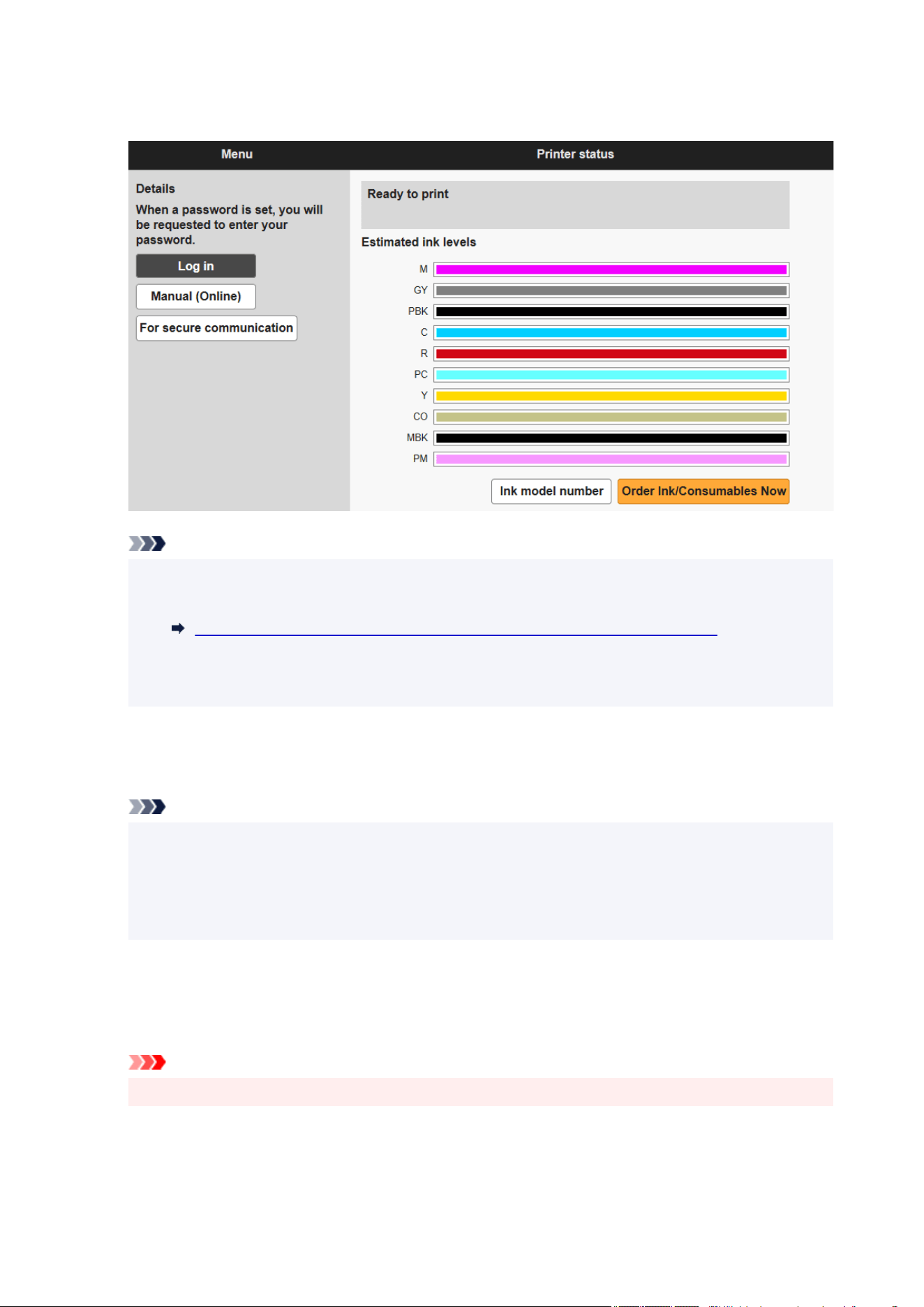
When you access, "Remote UI" will be displayed on the web browser on your smartphone, tablet, or
computer.
Note
• If you display Remote UI for the first time on your smartphone, tablet, or computer, download the•
root certificate, and then register it.
Registering Printer's Root Certificate to Web Browser for SSL Communication
• If the root certificate is not registered, a message to warn you that the secure connection is not•
guaranteed may appear.
3. Select Log in.3.
The password authentication screen appears.
Note
•
When the standard user mode is enabled, choose either administrator mode or standard user
•
mode to log on.
After choosing a mode and selecting Log in, the password authentication screen of each mode
appears.
4.
Enter password.
4.
When the password authentication is complete, the menus that can be utilized are displayed on the web
browser.
Important
•
The administrator password of the printer is set from the time of purchase.
•
238

To check the initial password, select Printer information > System information on
the printer's operation panel, and select Show password on the displayed screen. The Default
password value is displayed on the System information screen.
If the administrator password has been changed, the Default password value is not displayed.
Default Administrator Password
For details on setting password, see
Setting Passwords Using Remote UI.
5.
Confirm that the main screen of Remote UI is displayed.
5.
For changeable setting items, see below.
Changeable Setting Items Using Remote UI
When you finish checking printer status and changing printer settings, select Log out.
239
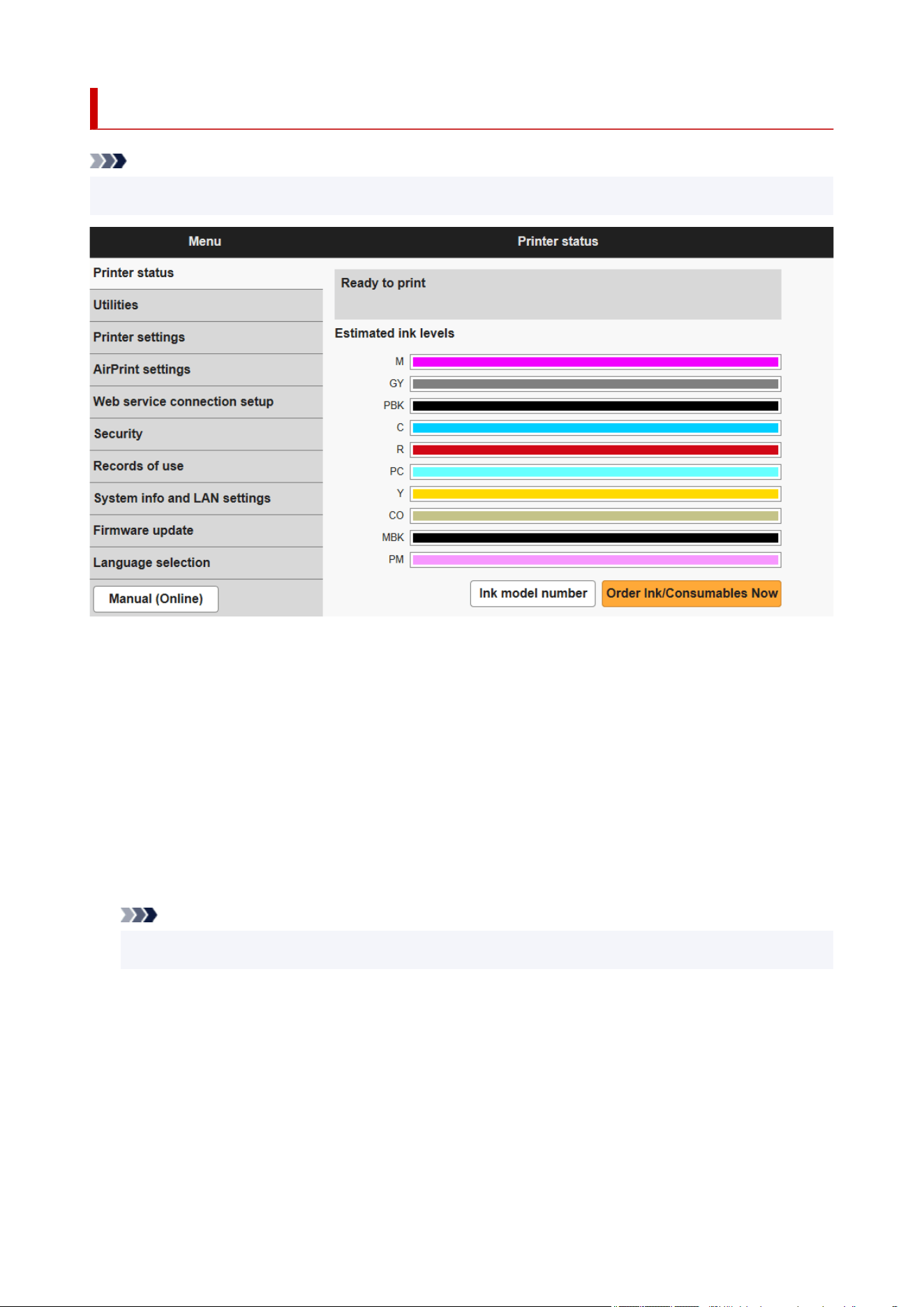
Changeable Setting Items Using Remote UI
Note
• The item which can be used is different in administrator mode or in standard user mode.•
Printer status
This function displays printer information such as the remaining ink amount, the status, and detailed
error information.
You can also connect to the ink purchase site or support page, and use Web Services.
Utilities
This function allows you to set and perform maintenance such as cleaning.
Printer settings
You can change various settings, such as print settings.
You can disable any operations using the operation panel from Operation panel lock on Custom
settings.
Note
• Some of the menu is available only when you logged on in administrator mode.•
AirPrint settings
This function allows you to specify the AirPrint settings when printing with AirPrint.
Web service connection setup
This function configures web services that use printer device information.
Job history
This function allows you to display the job history and print it.
240

Note
• When you are logging on in administrator mode, you can restrict this function in standard user•
mode.
Security
Set passwords, make settings related to certificates for encrypted communication, and other security
settings.
Records of use
You can check the number of sheets printed on the device.
System info and LAN settings
• Confirm system information
• LAN settings
• Error history
Firmware update
You can update the firmware of the printer, check the firmware version, or perform settings of a DNS
server and a proxy server.
Firmware update
Language selection
This function allows you to change the language on the display.
Manual (Online)
This function displays the Online Manual.
241

Security
• Recommended security settings•
Enables to set the recommended security appropriate for your environment. Check the Security Settings
Navigator for details on each setting.
Set Up/Manage Security
• Administrator password setting•
Setting Passwords Using Remote UI
• Standard user mode settings•
Select Enable/Disable for the standard user mode.
• TLS server settings•
Make settings related to certificates for encrypted communication.
Advanced TLS settings enables you to specify the range of TLS versions to be used, the algorithm to
be used, and so on.
• IEEE802.1X/EAP settings•
◦ Authentication◦
Select an authentication method for IEEE802.1X/EAP authentication.
Note
• In the case of using IEEE802.1X certificate, Security > IEEE802.1X/EAP settings > CA•
certificate, and register the CA certificate.
• Supported authentication method•
EAP-TLS(Extensible Authentication Protocol-Transport Level Security)
EAP-TTLS(EAP-Tunneled TLS)
PEAP(Protected EAP)
◦ Key and certificate settings◦
Perform settings for key and client certificate.
◦ CA certificate◦
Perform settings for the CA certificate that verifies a server certificate.
◦ Enable/disable IEEE802.1X/EAP◦
Enable or disable IEEE802.1X/EAP authentication.
• IPsec settings•
If enabled, you can set the IPsec security.
• Import printer settings•
Imports the printer security settings.
242

• Export printer settings•
Exports the printer security settings.
• Security policy•
Allows you to set the security policy and check the setting values.
Set Up/Manage Security
• Encryption settings•
Performs settings related to encryption.
• Password policy settings•
Sets the minimum number of characters and combinations of characters that can be set for the printer
passwords such as the administrator password.
• Lockout settings•
Performs settings for the function that locks operations that require entering the password if the incorrect
password is entered a specified number of times on the password entry screen.
• USB settings•
Performs settings related to USB connection.
Note
• Refer to the Security Guide for details on Security settings.•
Set Up/Manage Security
243

LAN settings
• Wi-Fi•
Enables/Disables Wi-Fi.
• Wireless Direct•
Enables/Disables Wireless Direct.
• Wired LAN•
Enables/Disables Wired LAN.
• Confirm LAN settings•
The LAN setting information is displayed.
• Advanced setup•
◦ Set printer name◦
Specifies the printer name.
Note
• You cannot use the same printer name as that already used for other LAN connected devices.•
• You cannot use a hyphen for the initial or last character of the printer name.•
◦ TCP/IP settings◦
Performs IPv4 or IPv6 setting.
◦ WSD settings◦
Perform settings to use WSD.
◦ Bonjour settings◦
Perform settings to use Bonjour.
◦ LPD settings◦
Perform settings for printing with LPD.
◦ RAW settings◦
Enables/Disables the RAW printing.
◦ LLMNR settings◦
Enables/disables LLMNR (Link-Local Multicast Name Resolution). If you select Enable, you can
determine the printer's IP address from the printer name even in an environment without the DNS
server.
◦ SNMP settings◦
Perform settings for using SNMP to manage and control the printer.
◦ IPP Settings◦
Perform settings for printing with IPP.
244
◦ CHMP settings◦
Perform settings for communication at the time when printer drivers or applications acquire the
information on status, paper, and job log, from the printer.
Selecting Enable HTTPS redirection redirects the communication using CHMP to encrypted
communication.
Note
• To use CHMP for encrypted communication, you need to register the printer's root certificate to•
your computer.
Registering Printer's Root Certificate to Local Computer for SSL Communication
• CHMP is a Canon proprietary protocol.•
◦ DRX settings◦
When enabled, data is received intermittently during network connection.
◦ IP filtering◦
Allows or denies access for specific IP addresses.
Settings for both IPv4 and IPv6 addresses can be specified.
Important
• If the device address for the administrator has been set to rejection by mistake, select •
Various settings on the HOME screen of the operation panel, and then select Printer settings
> Reset settings > LAN settings only in this order, and initialize network information of the
printer.
After resetting, perform setup again as necessary.
◦ MTU◦
Performs the MTU settings.
◦ Easy wireless connect settings◦
When set to Auto start: ON, the device will automatically put into the standby mode for easy
wireless connect.
To prevent the device from putting into the standby mode for easy wireless connect at unintended
times, set to Auto start: OFF.
245

Setting Passwords Using Remote UI
Each of passwords for administrator and standard user can be set.
When logging on with password for administrator, all settings can be changed.
When logging on with password for standard user, some of the settings can be changed.
Setting Administrator Password
Setting Standard User Password
Note
• Password can be set only when you are logged in administrator mode.•
• The standard user password is disabled by default.•
Setting Administrator Password
Change the administrator password by following the steps below.
Important
• The administrator password of the printer is set from the time of purchase.•
To check the initial password, select Printer information > System information on the
printer's operation panel, and select Show password on the displayed screen. The Default
password value is displayed on the System information screen.
If the administrator password has been changed, the Default password value is not displayed.
Default Administrator Password
1.
Start up Remote UI.
1.
Start up Remote UI
2. Select Security.2.
3.
Select Administrator password setting.
3.
4.
Select Change administrator password.
4.
If an administrator password is not specified, the confirmation message appears. Confirm the
message and select Yes. When message appears again, confirm it and select OK.
5.
Select range where administrator password is valid and select OK.
5.
Remote UI and other tools
Entering the administrator password is required to change the setting items using the Remote UI
or some software.
246

Operation panel/Remote UI/other tools
Entering the administrator password is required to change the setting items using the operation
panel of the printer, the Remote UI, or some software.
6. Enter password and select OK.6.
Important
• The following character restrictions apply to the password:•
The allowed characters are single-byte alphanumeric characters, blank space, umlaut
characters, and the below characters.
- ! @ # $ % ^ & * _ ; : , . / ` = + ' " ( ) { } [ ] < > |
Set the password according to the password policy.
Security
7.
When completion message appears, select OK.
7.
Setting Standard User Password
For restricting the function for standard user, enable the standard user mode and set a standard user
password by following the steps below.
1. Start up Remote UI.1.
Start up Remote UI
2.
Select Security.
2.
3.
Select Standard user mode settings.
3.
4. Confirm the message and select Yes.4.
5. Enter password and select OK.5.
Important
•
The following character restrictions apply to the password:
•
The allowed characters are single-byte alphanumeric characters, blank space, umlaut
characters, and the below characters.
- ! @ # $ % ^ & * _ ; : , . / ` = + ' " ( ) { } [ ] < > |
Set the password according to the password policy.
Security
6.
When completion message appears, select OK.
6.
247

Registering Printer's Root Certificate to Web Browser for SSL
Communication
If the printer's root certificate has not been registered to the web browser, a message to warn you that the
secure connection is not guaranteed may appear.
When you display Remote UI for the first time on your smartphone, tablet, or computer, download the root
certificate, and then register it to the web browser. The secure connection will be confirmed and a message
will not appear. However, the message may appear depending on a web browser even after you have
registered the root certificate.
How to register the root certificate varies depending on the web browser.
Operating procedure may differ depending on the version of your web browser. For other web browser, refer
to each help.
Important
• Make sure that you have accessed to the printer IP address correctly by checking the URL field of the•
web browser before registering the root certificate.
• If the printer is connected via IPv6 using Windows, you need to generate a server certificate using•
Remote UI.
For details, see Generating Server Certificate.
For Microsoft Edge
1. Select For secure communication on Remote UI.1.
2. Select Download.2.
Downloading the root certificate is started.
3.
If confirmation screen appears, select Open.
3.
Certificate screen is displayed.
Note
•
To save the certificate file and register it, select Save. To register, select Control Panel >
•
Network and Internet > Internet Options, and register the root certificate from Certificates on
Content sheet.
4.
Select Install Certificate.
4.
Certificate Import Wizard screen is displayed.
5.
Select Next.
5.
6.
Select Place all certificates in the following store.
6.
7.
Select Browse.
7.
248

Select Certificate Store screen is displayed.
8. Select Trusted Root Certification Authorities and OK.8.
9.
Select Next on Certificate Import Wizard screen.
9.
10.
If Completing the Certificate Import Wizard appears, select Finish.
10.
Security Warning screen is displayed.
11.
Make sure that thumbprint on Security Warning screen matches printer's thumbprint.
11.
To display the printer's root certificate thumbprint in Root cert. thumbprint (SHA-1) or Root cert.
thumbprint (SHA-256), select Printer information on the HOME screen of the operation panel,
and then select System information.
12.
If thumbprint on Security Warning screen matches printer's thumbprint, select Yes.
12.
13.
Select OK on Certificate Import Wizard screen.
13.
The root certificate registration is completed.
For Safari
1. Select For secure communication on Remote UI.1.
2. Select Download.2.
Downloading the root certificate is started.
3. Open the downloaded file.3.
Keychain access starts up and Add Certificates screen is displayed.
4.
Select Add.
4.
Information on the certificate is displayed.
Note
•
You can also add the certificate by selecting Show Certificate, checking certificate name to add,
•
and then selecting the same certificate on Keychain access.
5.
Make sure that fingerprint of certificate detail information matches printer's thumbprint.
5.
To display the printer's root certificate thumbprint in Root cert. thumbprint (SHA-1) or Root cert.
thumbprint (SHA-256), select
Printer information on the HOME screen of the operation panel,
and then select System information.
249

6. If fingerprint of certificate detail information matches printer's thumbprint, display information6.
on certificate from the menu or by double-clicking the certificate, and select Always Trust
on Trust.
The root certificate registration is completed.
Note
•
If a password is set on your device, entering a password may be required.
•
For Chrome on Android
1.
Select For secure communication on Remote UI.
1.
2.
Select Download.
2.
Downloading the root certificate is started and then Name the certificate screen is displayed.
3.
As entering the root certificate name is required, enter an arbitrary certificate name and
3.
select OK.
The root certificate registration is completed.
Note
• If PIN or password is not set as security type, the attention screen may appear. Select OK, and•
then set the security type to PIN or password.
After Root Certificate Registration
We recommend that you make sure that the correct root certificate has been registered.
To make sure that the correct root certificate has been registered, make sure that thumbprint of certificate
information matches printer's thumbprint. Follow the steps below.
Note
• Some Android devices cannot be checked the thumbprint of a registered route certificate.•
1.
From Settings menu on your device, select Security, Trust credentials, and USER.
1.
The list of downloaded certificates appears.
2.
Select downloaded certificate.
2.
The certificate information appears.
3.
Make sure that thumbprint of certificate information matches printer's thumbprint.
3.
To display the printer's root certificate thumbprint in Root cert. thumbprint (SHA-1) or Root cert.
thumbprint (SHA-256), select
Printer information on the HOME screen of the operation
panel, and then select System information.
250

4. If thumbprint of certificate information screen matches printer's thumbprint, select OK.4.
The root certificate registration is completed.
If the message to warn you that the secure connection is not guaranteed appears when you select Log
in on Remote UI after registering the root certificate, restart the web browser. The message will not
appear on the web browser.
Note
• Depending on the Android device, a warning may appear even after registering the proper root•
certificate.
For Mobile Safari on iOS
1.
Select For secure communication on Remote UI.
1.
2.
Select Download.
2.
Downloading the root certificate is started and then Install Profile screen is displayed.
3. Select Install.3.
Warning screen is displayed.
Note
• If a password is set on your device, entering a password may be required.•
4. Select Install.4.
5. Select Install on displayed dialog.5.
The root certificate registration is completed.
251

Registering Printer's Root Certificate to Local Computer for
SSL Communication
To use Device Management Console or Accounting Manager, etc. when you connect the printer to a
computer using SSL encrypted communication, you need to register (import) the printer's root certificate to
your computer.
Procedure to register the certificate varies depending on your operation environment.
Important
• If the printer is connected via IPv6 using Windows, you need to generate a server certificate using•
Remote UI.
For details, see Generating Server Certificate.
Operation procedure may differ depending on your OS version.
For Windows 11/Windows 10/Windows 8.1
The procedure below describes how to import a root certificate in Windows 11/Windows 10/Windows 8.1.
1. Start up Remote UI.1.
Start up Remote UI
2.
Select For secure communication.
2.
Note
•
You can download a certificate from Status Monitor.
•
1. Open status monitor.1.
Open the Printing preferences, and select Status Monitor... on Main.
2. Download a certificate.2.
Select Download Security Certificate from the Remote UI menu.
3.
Select Download.
3.
The root certificate will be downloaded.
4.
When download confirmation screen is displayed, select Open.
4.
The Certificate screen appears.
5.
Select Install Certificate.
5.
The Certificate Import Wizard screen appears.
6.
Select Local Machine.
6.
252
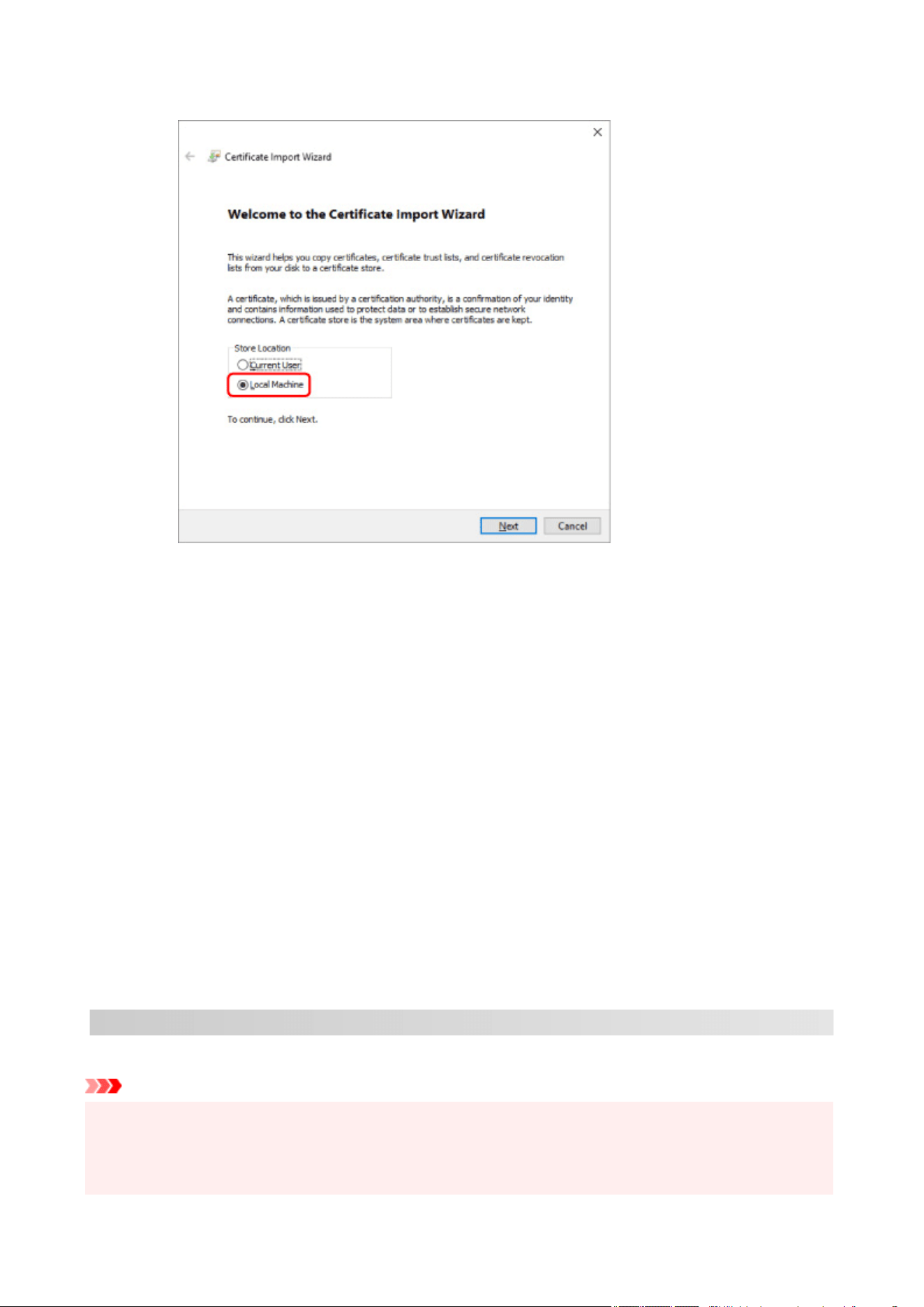
1. Select Local Machine on the startup screen of Certificate Import Wizard.1.
2. Select Next.2.
3. Select Yes on the displayed screen.3.
The Certificate Store screen appears.
7. Select Place all certificates in the following store.7.
8. Select Trusted Root Certificate Authorities.8.
1. Select Browse to open the Select Certificate Store screen.1.
2. Select Trusted Root Certificate Authorities from the list and select OK.2.
3. Select Next on the Certificate Store screen.3.
9.
Select Finish.
9.
When the Completing the Certificate Import Wizard screen appears, check the settings and select
Finish.
For Windows 7
The procedure below describes how to import a root certificate in Windows 7.
Important
• Be sure to create a certificate snap-in before importing a root certificate.•
The root certificate will be registered to the local user if you import it without creating a certificate
snap-in.
253
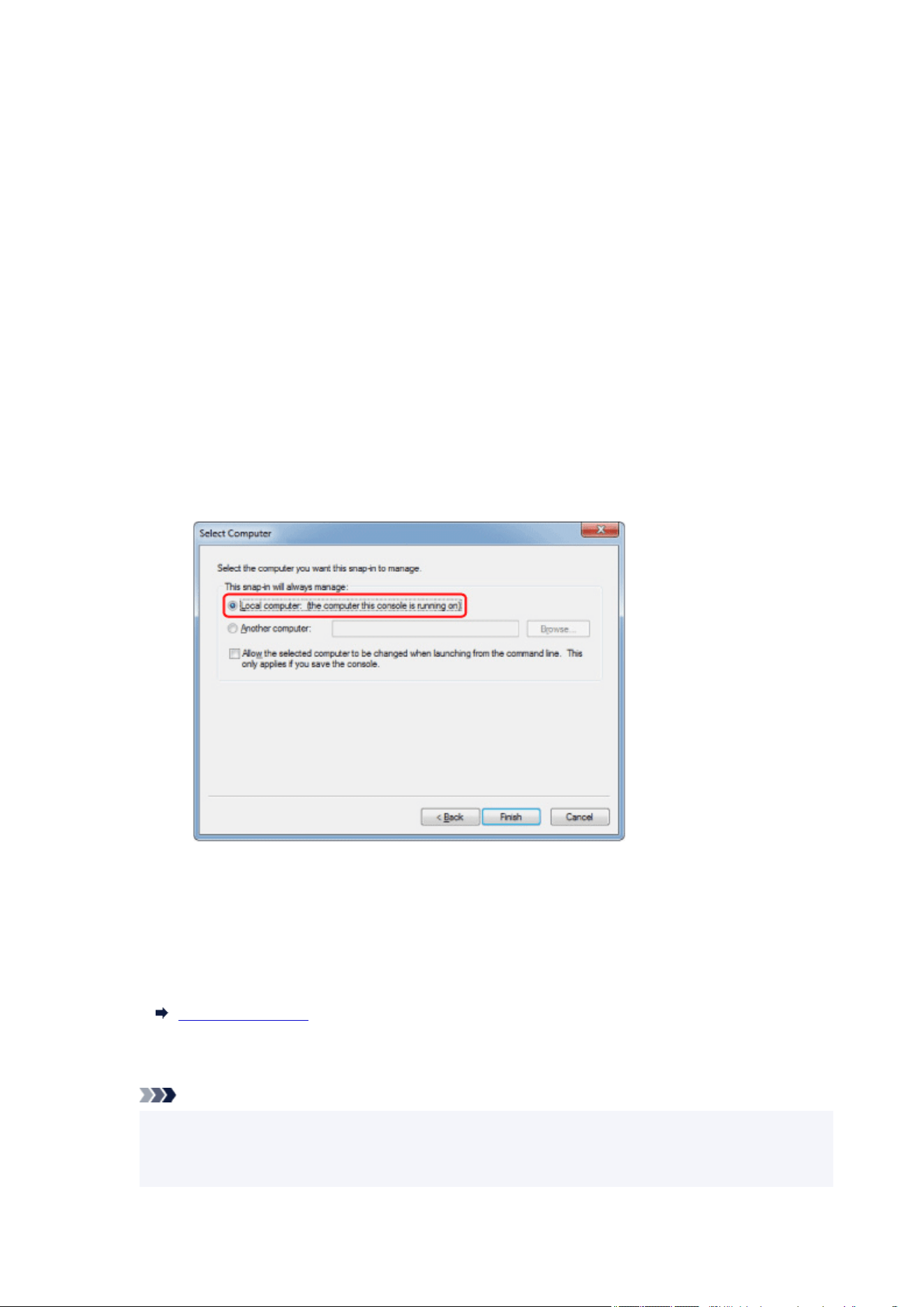
Creating Certificate Snap-in
1. Start up Microsoft Management Console.1.
Enter MMC on Search programs and files in the Start menu and press the Enter key.
2.
Select Yes on displayed screen.
2.
3.
Select Add/Remove Snap-in from File menu.
3.
The Add or Remove Snap-ins screen appears.
4.
Add Certificate snap-in.
4.
1.
Select Certificates from Available snap-ins list and select Add.
1.
2.
Select Computer account for This snap-in will always manage certificates for on the Certificates
2.
snap-in screen and select Next.
3.
Select Local computer on the Select computer screen and select Finish.
3.
4.
Select OK on the Add or Remove Snap-ins screen.
4.
Downloading Certificate
1.
Start up Remote UI.
1.
Start up Remote UI
2.
Select For secure communication.
2.
Note
•
You can download a certificate from Status Monitor.
•
1.
Open status monitor.
1.
254

Open the Printing preferences, and select Status Monitor... on Main.
2. Download a certificate.2.
Select Download Security Certificate from the Remote UI menu.
3. Select Download.3.
4.
Select Save.
4.
Importing Certificate
1.
Open Certificate Import Wizard.
1.
1. On the left window, open Trusted Root Certificate from Certificate on Console Root.1.
2.
Right-click Certificates and select Import from All tasks.
2.
2.
Specify certificate file to import.
2.
1. Select Next.1.
2. Specify the certificate file to import on File name and select Next.2.
3. Specify certificate store.3.
1. Select Place all certificates in the following store.1.
2. Select Trusted Root Certificate Authorities for Certificates Store.2.
4. Finish certificate import wizard.4.
1.
Select Next and check the specified settings.
1.
2.
Select Finish to finish the wizard.
2.
3. Select OK on the displayed screen.3.
Checking Imported Certificate
Make sure the imported certificate has been registered to your computer.
1.
Display certificate list.
1.
On the left window of Microsoft Management Console, select Console Root > Certificates (Local
Computer) > Trusted Root Certificate Authorities in this order, and Select Certificates to display
the certificate list.
255
2. Check registered certificate.2.
Make sure the imported certificate name is displayed on the list.
Note
• Make sure you can see the registered certificate from Current user by creating the Current•
user snap-in.
Note
• When you finish Microsoft Management Console, a message asking you whether to save the console•
setting. If you continue to apply the same settings next, select Yes to save.
For macOS
The procedure below describes how to import a root certificate in macOS.
1.
Start up Remote UI.
1.
Start up Remote UI
2. Select For secure communication.2.
3. Select Download.3.
The root certificate will be downloaded.
4. Open downloaded certificate file.4.
When the download procedure is completed, a downloaded item pops up on the right of the screen.
Double-click the downloaded certificate on the list starts up Keychain Access and the Add Certificates
screen appears.
Note
• If the downloaded item does not pop up, select the Show Downloads button on the right.•
•
Selecting the magnifying glass icon on the right of download list displays the folder containing the
•
certificate.
5.
Select Add.
5.
Select the destination for the certificate on Keychain.
Selecting Add displays information on the certificate.
Note
•
You can add the certificate by selecting the same certificate on Keychain Access. Check the
•
name of certification to add after selecting View Certificates.
6.
Check certificate.
6.
256

Make sure the fingerprint of certificate shown on Details corresponds with the root certificate thumbprint
of the printer.
To display the printer's root certificate thumbprint in Root cert. thumbprint (SHA-1) or Root cert.
thumbprint (SHA-256), select
Printer information on the HOME screen of the operation panel,
and then select System information.
7.
Select Always Trust.
7.
If the fingerprint of certificate detail information matches printer's thumbprint, display information on
certificate from the menu or by double-clicking the certificate, and select Always Trust on Trust.
The root certificate has been registered.
Note
•
Entering the password may be required if you specify it for your printer.
•
257

Generating Server Certificate
When you use SSL connection via IPv6 network, you need to generate an IPv6 server certificate using the
printer.
Generate the server certificate from Remote UI.
Follow the procedure below.
1. Checking Printer's IP Address1.
2. Generating Server Certificate2.
3. Checking Generated Server Certificate3.
Important
• If you generate an IPv6 server certificate, a warning message may appear if you are using Remote UI.•
To reset the IPv6 server certificate, select Security > TLS server settings > Delete key and
certificate in this order, and select OK on the displayed screen.
Checking Printer's IP Address
1. Select LAN settings on the HOME screen.1.
2.
Select the enabled LAN.
2.
Diagonal lines are displayed for disabled LAN icons.
3. Check the value on IPv6 link-local address.3.
Write down the value on IPv6 link-local address for your reference when you generate a server
certificate.
Generating Server Certificate
1.
Start up Remote UI.
1.
Start up Remote UI
2.
Select Security.
2.
3.
Select TLS server settings.
3.
4.
Select Generate key and certificate.
4.
5.
Select Generate self-signed cert.
5.
6.
Specify each setting item.
6.
258

• Key algorithm•
Specify the signature algorithm and key information.
•
Specify the expiration date.
•
Enter the date you generated the server certificate on Valid from.
Enter the date the server certificate expires on Valid to.
•
Enter the common name.
•
On Common name, enter the IPv6 link-local address you checked in abbreviated form.
Note
•
When you enter the common name, add [ ] to each end of the abbreviation value of the
•
printer's IPv6 address.
•
Do not use a comma or make a space for the common name.
•
7.
Select Next.
7.
Enter Country, State or province, Locality, Organization and Organizational unit as required.
Enter the same information in Subject Alternative Names as in Common name.
8.
Select Generate.
8.
The server certificate starts to be generated.
When the server certificate has been generated, Generated a self-signed certificate. appears.
9. Select Restart LAN.9.
LAN will be restarted.
When LAN has been restarted, Printer status on Remote UI appears.
Note
• If you cannot access to Remote UI after you restart LAN, reload your web browser.•
Checking Generated Server Certificate
1.
Select Security on Remote UI.
1.
2.
Select TLS server settings.
2.
3.
Select Check key and certificate.
3.
Make sure the issuer of the root certificate is displayed on Issued by, and the value you entered is
displayed on Common name on Subject.
259

Network Setting
Printer Connection Methods
Wi-Fi Connection
Wireless Direct Connection
Wired Connection
USB Connection
Default Network Settings
Another Printer Found with Same Name
Printing Network Settings
Countermeasures against Unauthorized Access
Network Status and Troubleshooting
Checking Printer Connection Status Using Wi-Fi Connection Assistant
Sharing the Printer on a Network (Windows)
Setting Up a Shared Printer
Restrictions on Printer Sharing
Sharing the Printer on a Network (macOS)
Settings on Print Server
Settings on Client PC
Restrictions on Printer Sharing
260
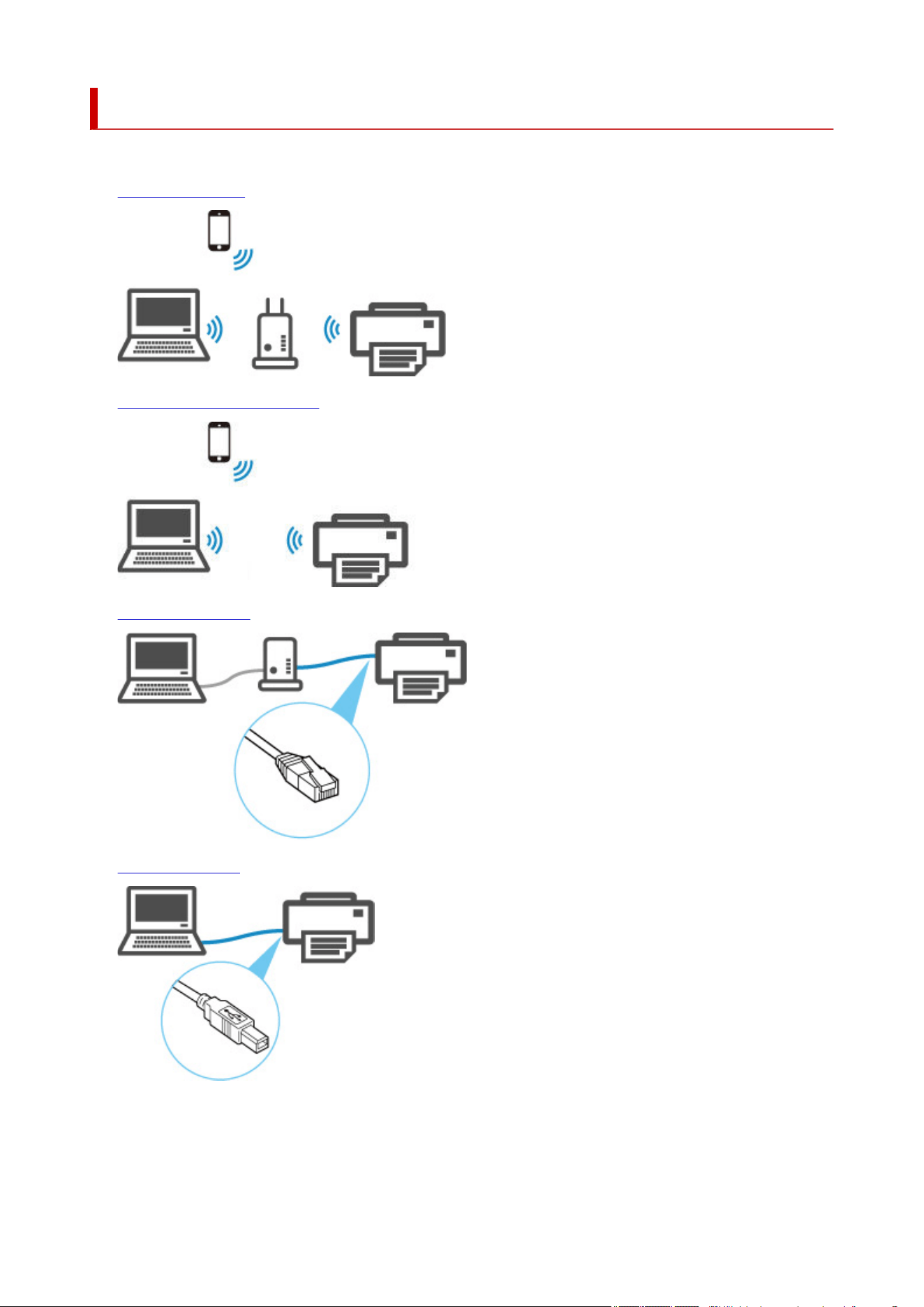
Printer Connection Methods
4 connection methods are available on the printer.
• Wi-Fi Connection•
• Wireless Direct Connection•
• Wired Connection•
• USB Connection•
The printer cannot use a wired LAN connection simultaneously with a Wi-Fi or wireless direct connection.
When connecting another device while the devices are already connected to the printer, connect using a
method other than the above.
261

Restrictions
Important
• If you connect a device connected to the Internet via a wireless router to the printer that is in the
wireless direct, the connection between the device and wireless router will be disabled. In that case,
the connection of the device may switch to a mobile data connection automatically depending on your
device. Transmission fees for connecting to the Internet using a mobile data connection apply.
262
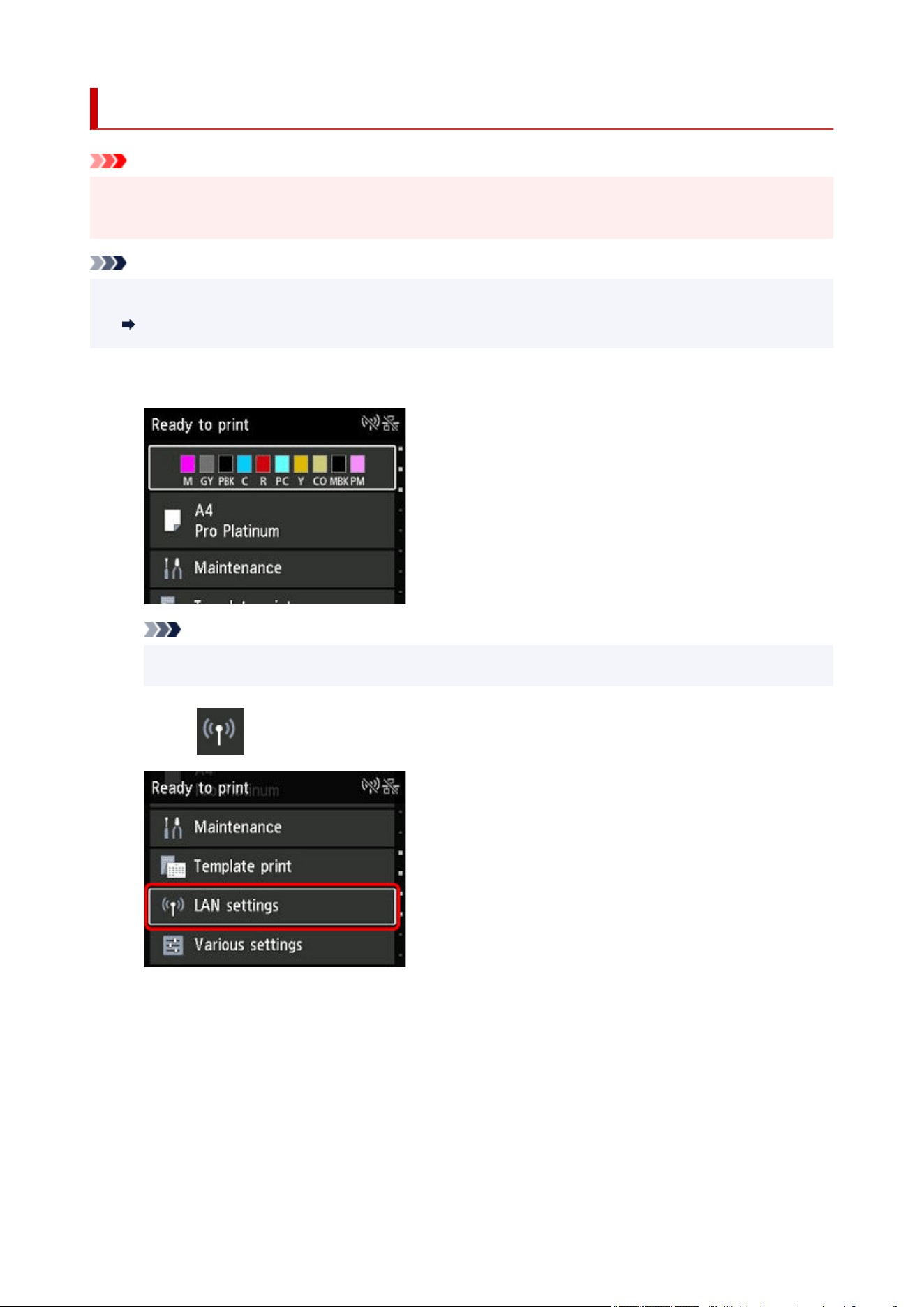
Wi-Fi Connection
Important
• If printer is performing cleaning, print head alignment, or other processes, wait for the process to finish,•
before starting setup.
Note
• Refer to the following notes when connecting to Wi-Fi.•
Notes on Wi-Fi Connection
1.
Press the HOME button to display the HOME screen.
1.
Note
• If an error screen is displayed, press the OK button, and then press the HOME button.•
2. Select LAN settings on the HOME screen.2.
3.
Select Wi-Fi.
3.
263
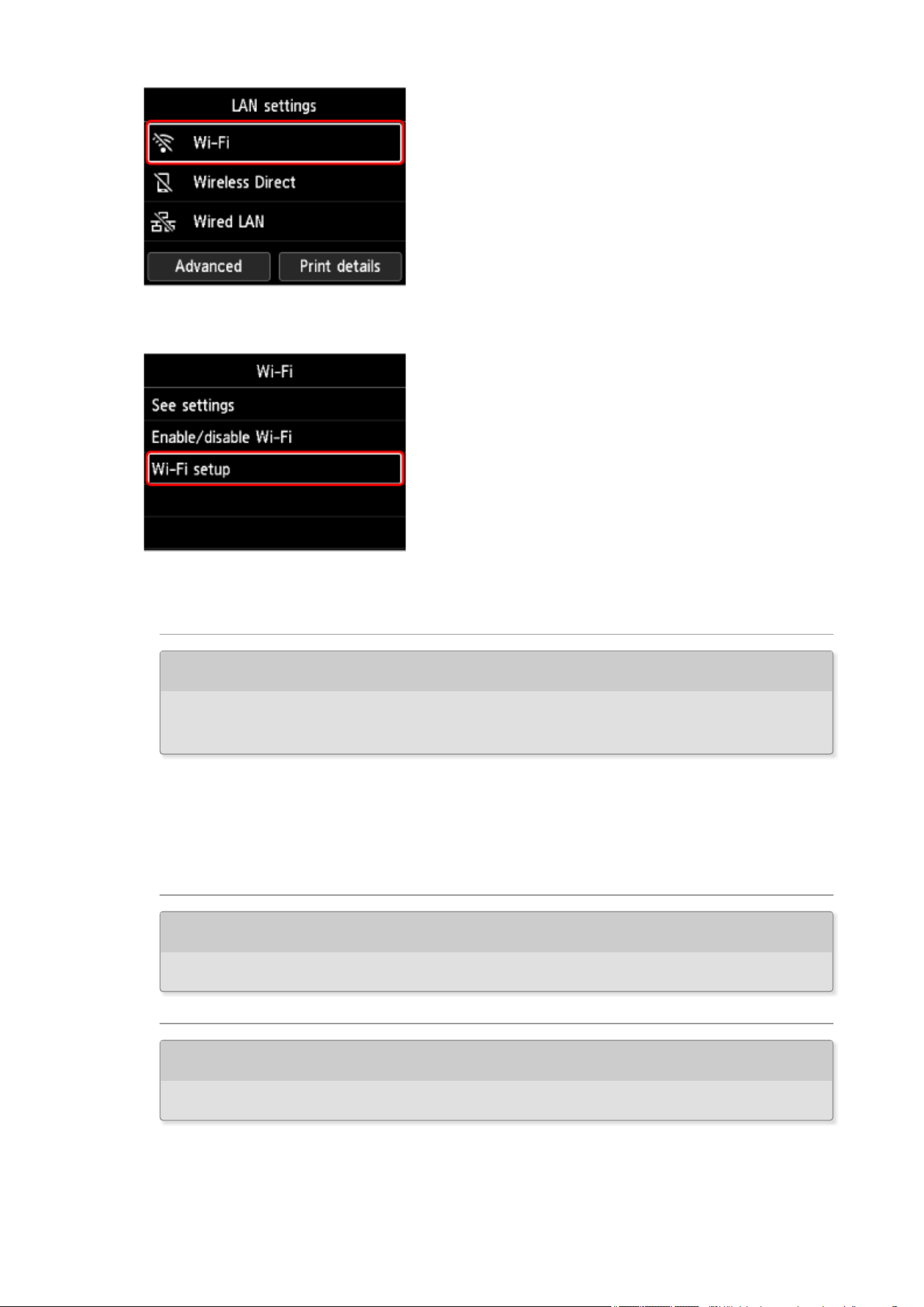
4.
Select Wi-Fi setup.
4.
5. Select a connection method below.5.
Easy wireless connect
Set wireless router information to the printer directly from a device (such as a computer),
without operating the wireless router
Easy wireless connect may take some time. Internet connection may become temporarily
unavailable during setup.
Easy wireless connect is not available on Windows 10 in S mode or Windows 11 in S mode.
Select other connection type.
Manual connect
Connect to wireless router using a password
WPS
Connect to a WPS-compatible wireless router
264

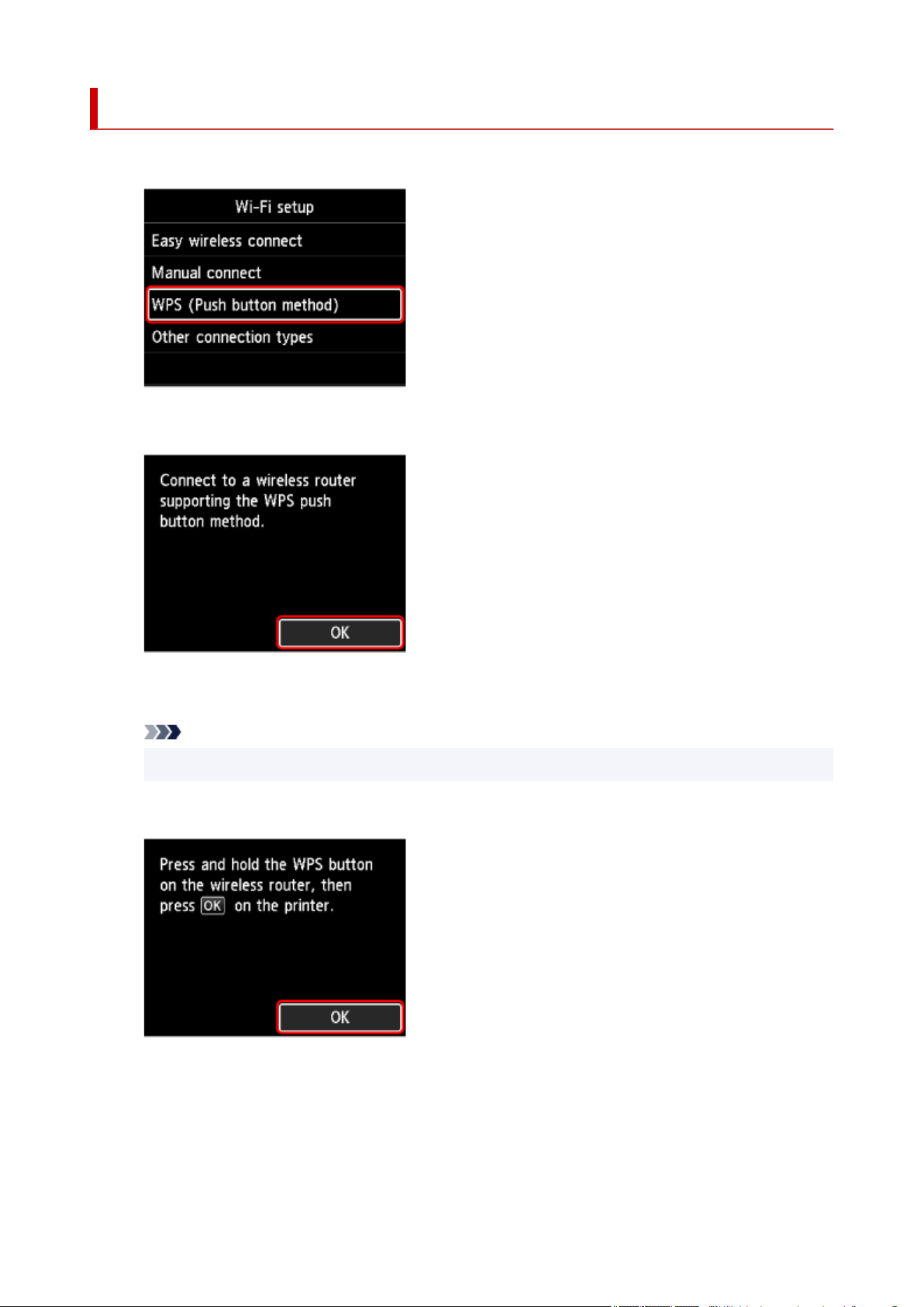
WPS Connection
1. Select WPS (Push button method).1.
2.
Press the OK button.
2.
3. Press and hold the WPS button on the wireless router.3.
Note
• For more on pressing the WPS button, see the wireless router manual.
4. Press the OK button on the printer within 2 minutes.4.
5.
When the screen on the below appears, press the OK button.
5.
266
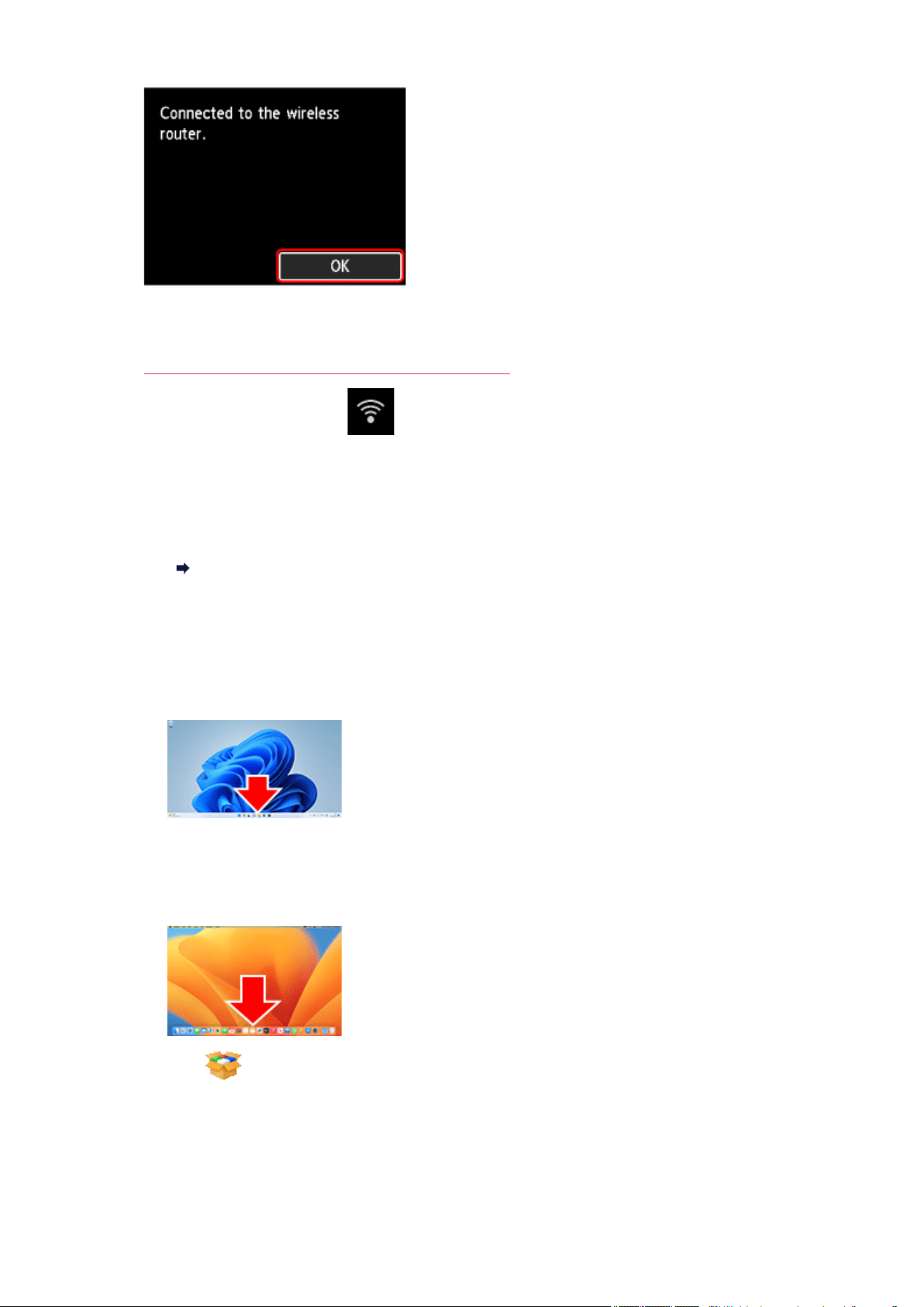
6.
Press the HOME button.
6.
The network connection setup is now complete.
Once connection is complete, appears on the screen.
If performing setup with software, return to the software and proceed with the installation.
If performing setup without using computer, smartphone, etc.
Download and install software.
Go to the download site
After installing the software, start the software, and then follow the on-screen instructions to
proceed with setup.
If performing setup using computer, smartphone, etc.
Windows
In the taskbar, click the application software you have been using for setup, and then follow the
on-screen instructions to proceed with setup.
macOS
Click in the Dock, and then follow the on-screen instructions to proceed with setup.
Smartphone/tablet/Chromebook
267

Return to the app you have been using for setup on the smartphone, and then follow the
on-screen instructions to proceed with setup.
268
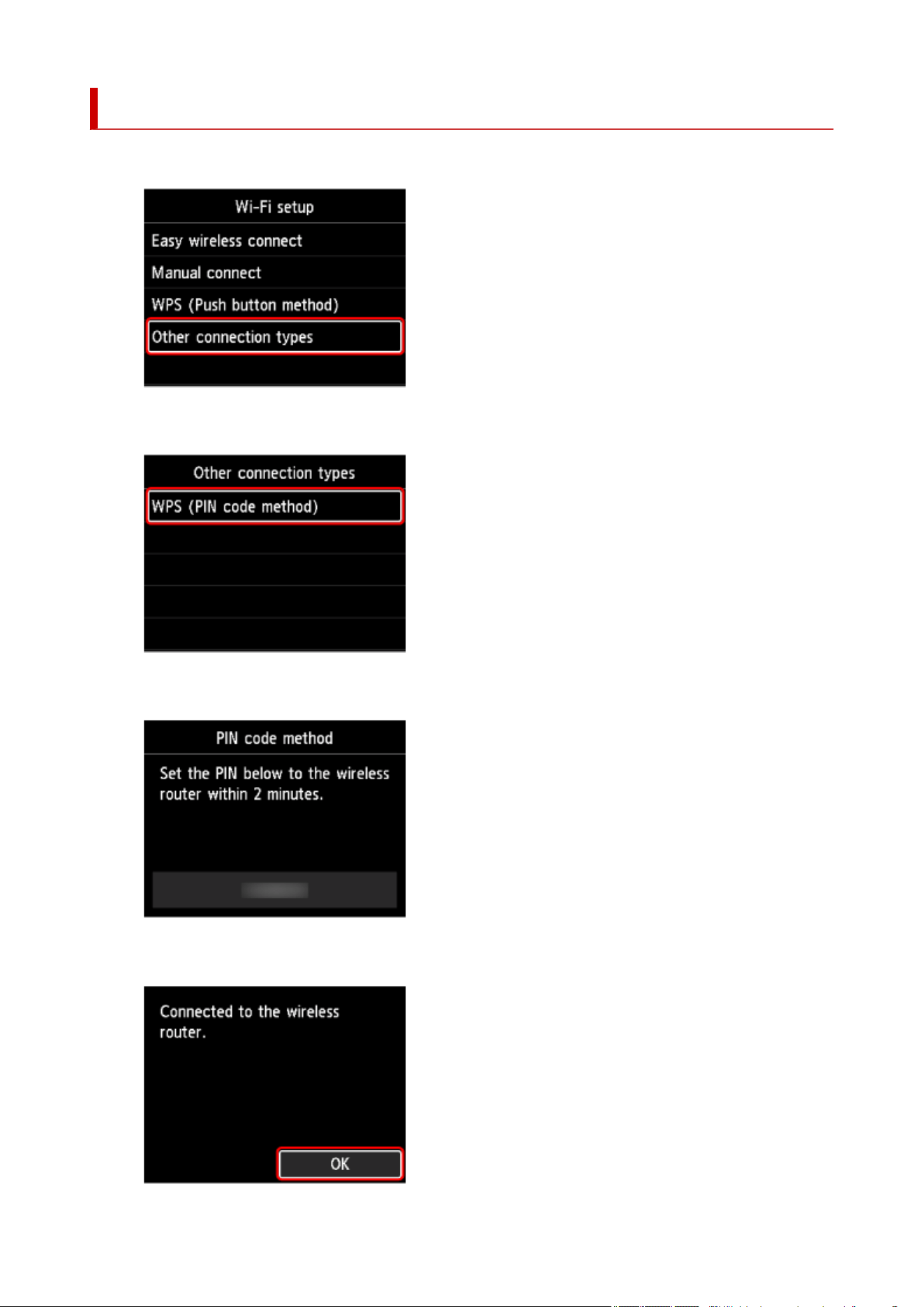
WPS (PIN Code) Connection
1. Select Other connection types.1.
2.
Select WPS (PIN code method).
2.
3. Follow the on-screen instructions on a computer to set a PIN code on the wireless router.3.
4.
When the screen on the below appears, press the OK button.
4.
269
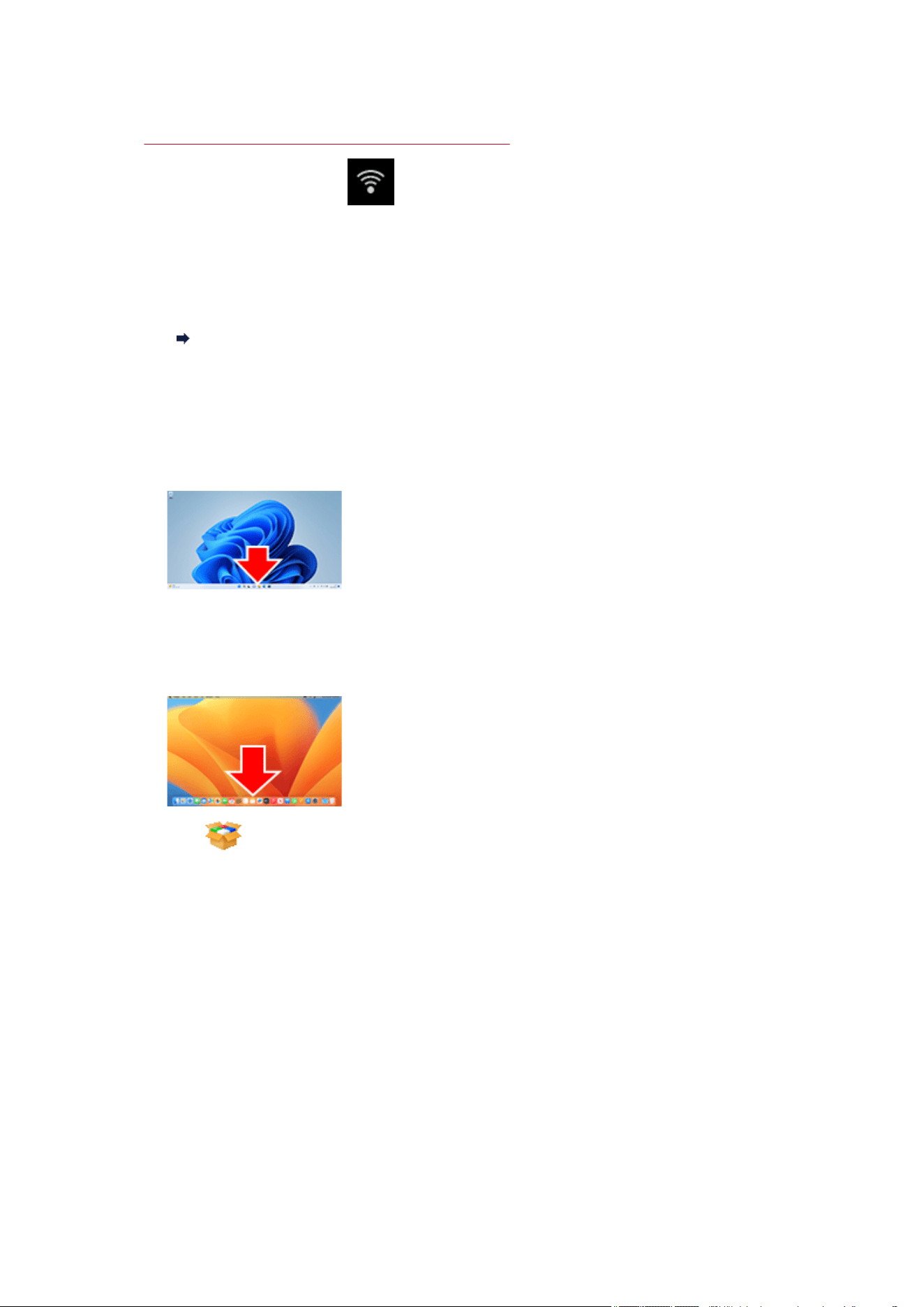
5. Press the HOME button.5.
The network connection setup is now complete.
Once connection is complete, appears on the screen.
If performing setup with software, return to the software and proceed with the installation.
If performing setup without using computer, smartphone, etc.
Download and install software.
Go to the download site
After installing the software, start the software, and then follow the on-screen instructions to
proceed with setup.
If performing setup using computer, smartphone, etc.
Windows
In the taskbar, click the application software you have been using for setup, and then follow the
on-screen instructions to proceed with setup.
macOS
Click in the Dock, and then follow the on-screen instructions to proceed with setup.
Smartphone/tablet/Chromebook
Return to the app you have been using for setup on the smartphone, and then follow the
on-screen instructions to proceed with setup.
270
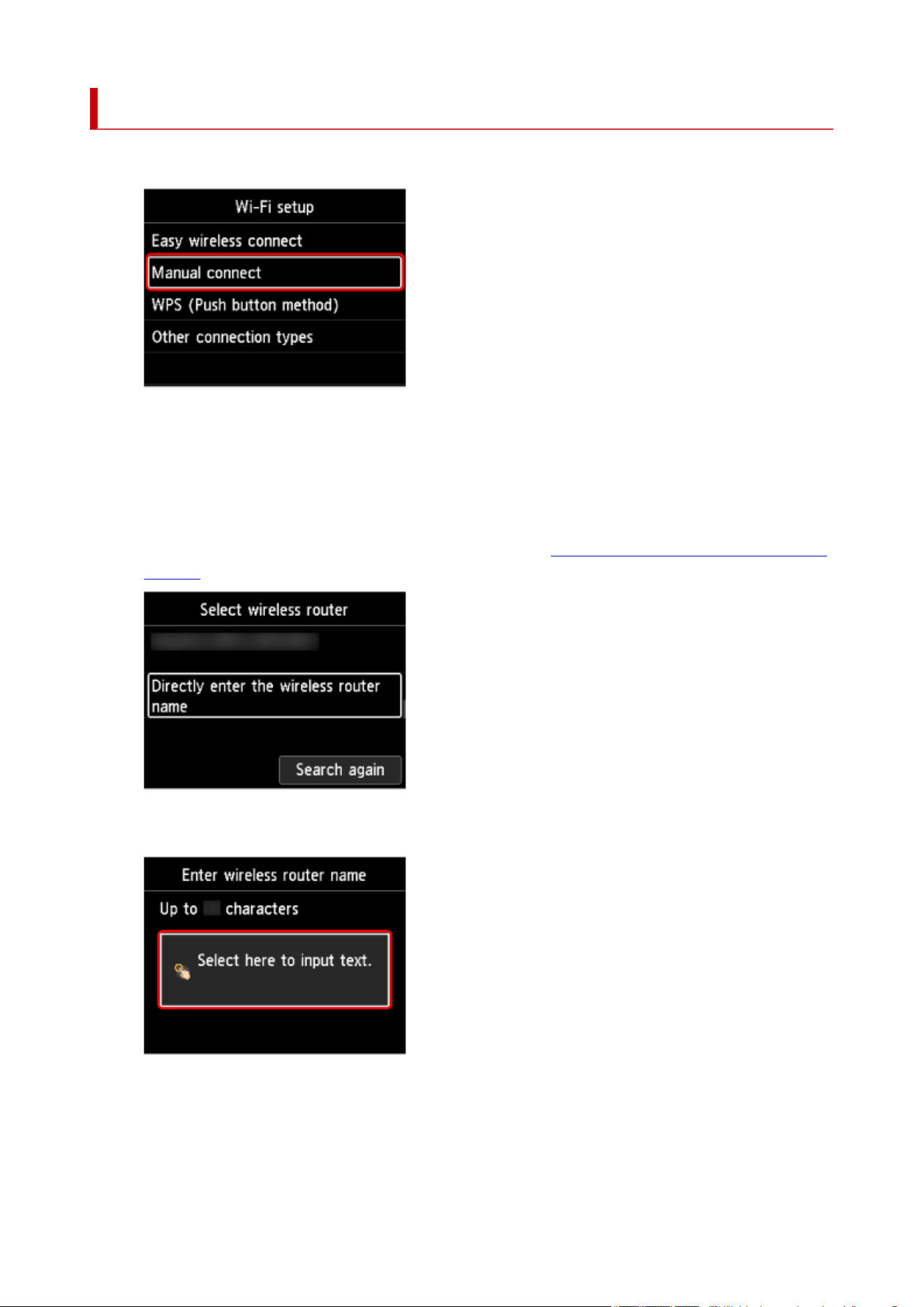
Manual connect
1. Select Manual connect.1.
2.
Select your wireless router.
2.
If you select a Wi-Fi router name, proceed to step 8 and continue with the settings.
If you select "Directly enter the wireless router name", proceed to step 3 and continue with the
settings.
If "Failed to connect to the wireless router." appears, see "Failed to connect to the wireless router."
Appears.
3.
Press the OK button.
3.
4.
Enter the wireless router name (SSID). Text entry is case-sensitive.
4.
271
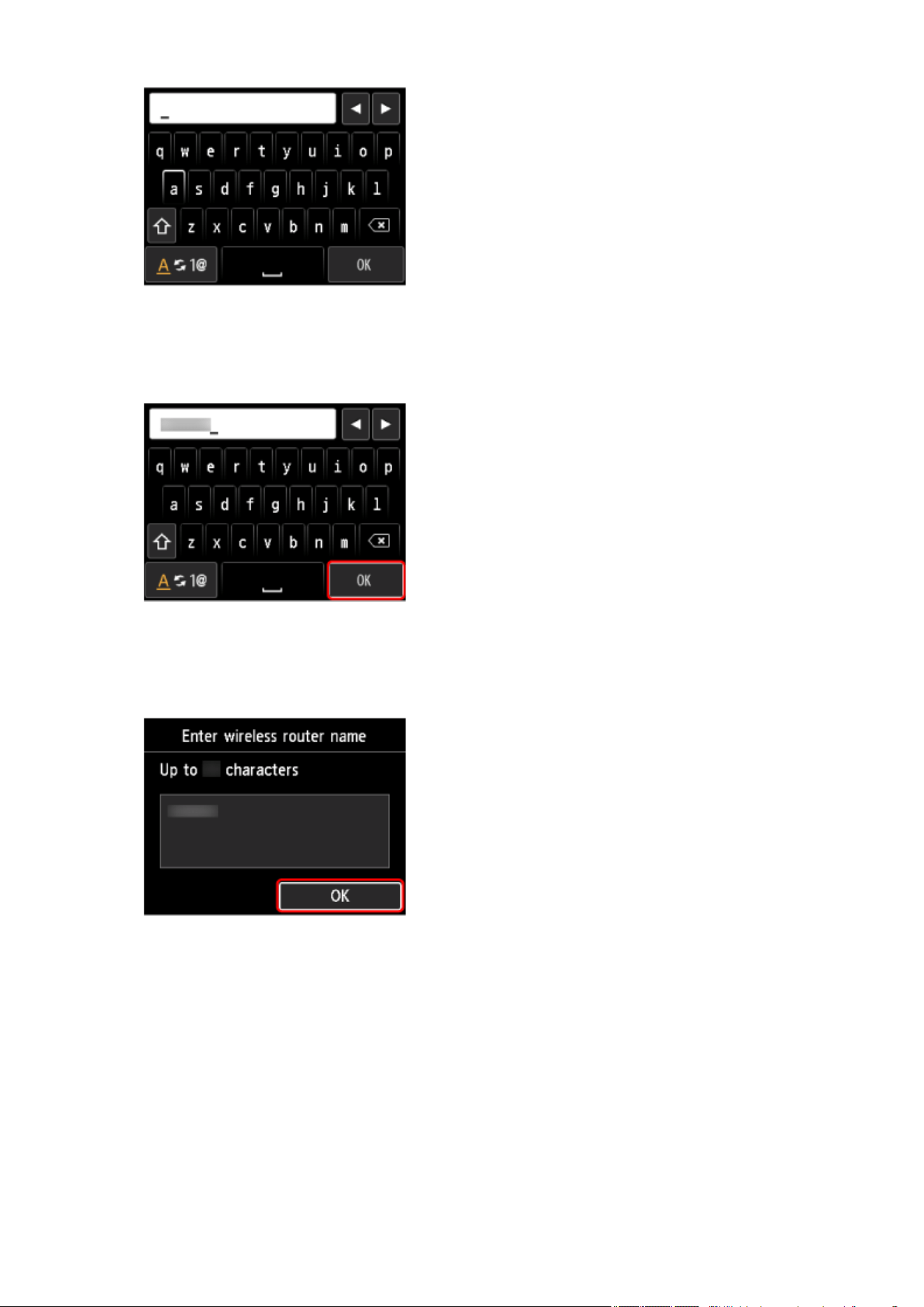
If you don't know your wireless router name, see the wireless router manual or contact its
manufacturer.
5.
After entry, select OK on the keyboard.
5.
6. Make sure the wireless router name (SSID) is correct.6.
7. Press the OK button.7.
8.
The screen below will appear.
8.
If "Connected to the wireless router." appears, the network does not require a password. Continue
from step 13.
272
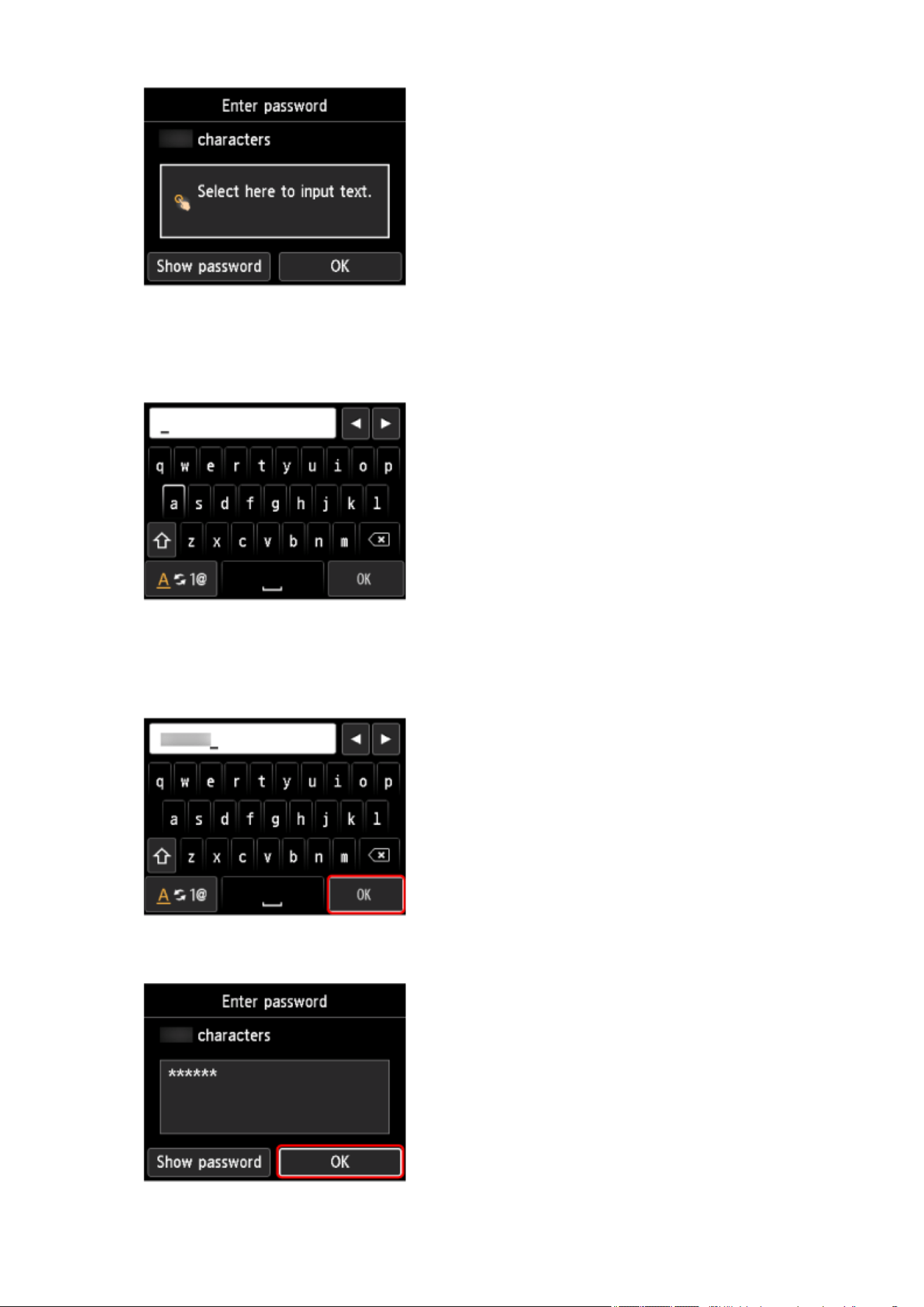
9.
Press the OK button.
9.
10.
Enter the password. Text entry is case-sensitive.
10.
If you don't know the password for your wireless router, see the wireless router manual or contact its
manufacturer.
11. After entry, select OK on the keyboard.11.
12.
Press the OK button.
12.
273
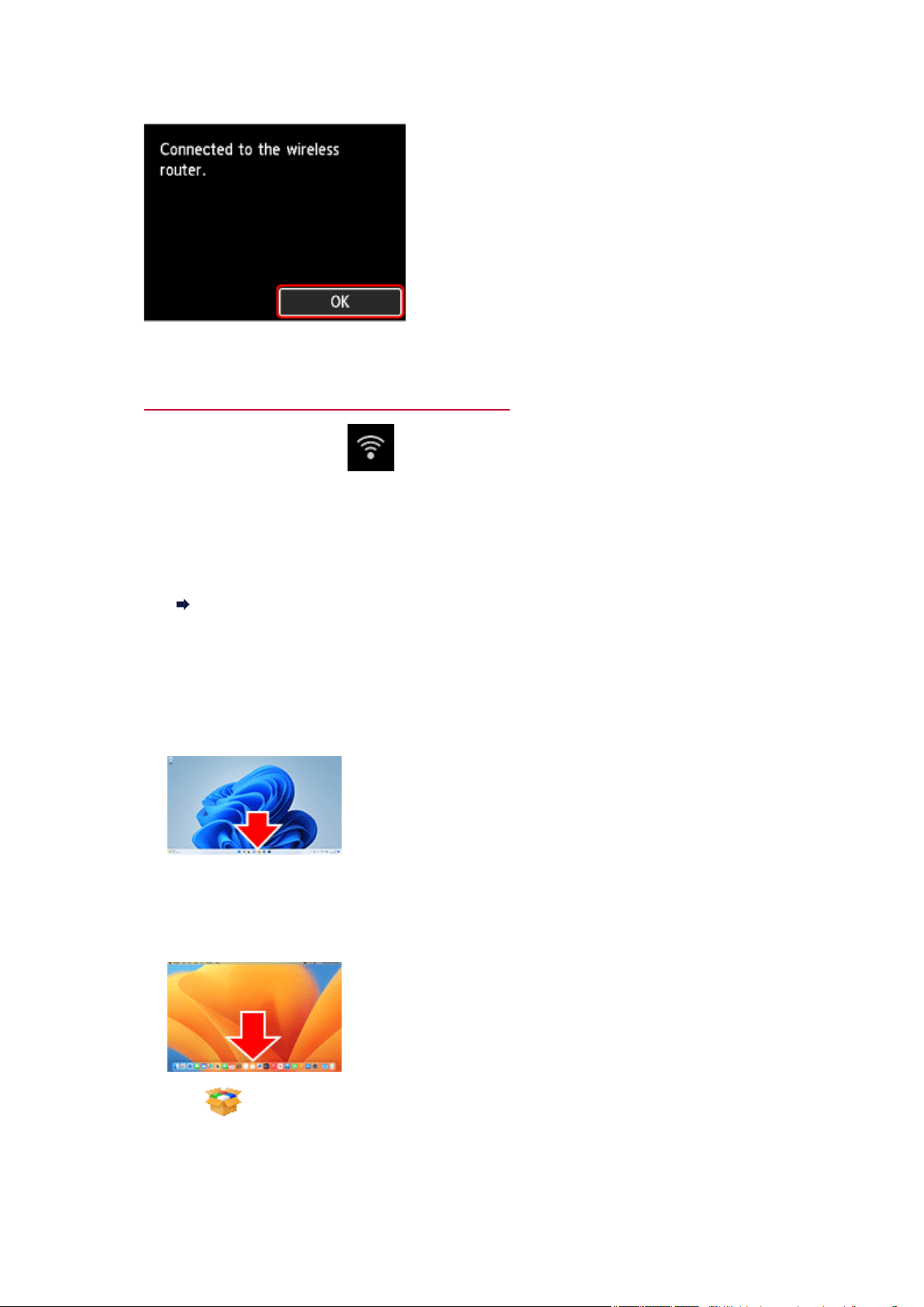
13. When the screen on the below appears, press the OK button.13.
14.
Press the HOME button.
14.
The network connection setup is now complete.
Once connection is complete, appears on the screen.
If performing setup with software, return to the software and proceed with the installation.
If performing setup without using computer, smartphone, etc.
Download and install software.
Go to the download site
After installing the software, start the software, and then follow the on-screen instructions to
proceed with setup.
If performing setup using computer, smartphone, etc.
Windows
In the taskbar, click the application software you have been using for setup, and then follow the
on-screen instructions to proceed with setup.
macOS
Click in the Dock, and then follow the on-screen instructions to proceed with setup.
Smartphone/tablet/Chromebook
274

Return to the app you have been using for setup on the smartphone, and then follow the
on-screen instructions to proceed with setup.
275
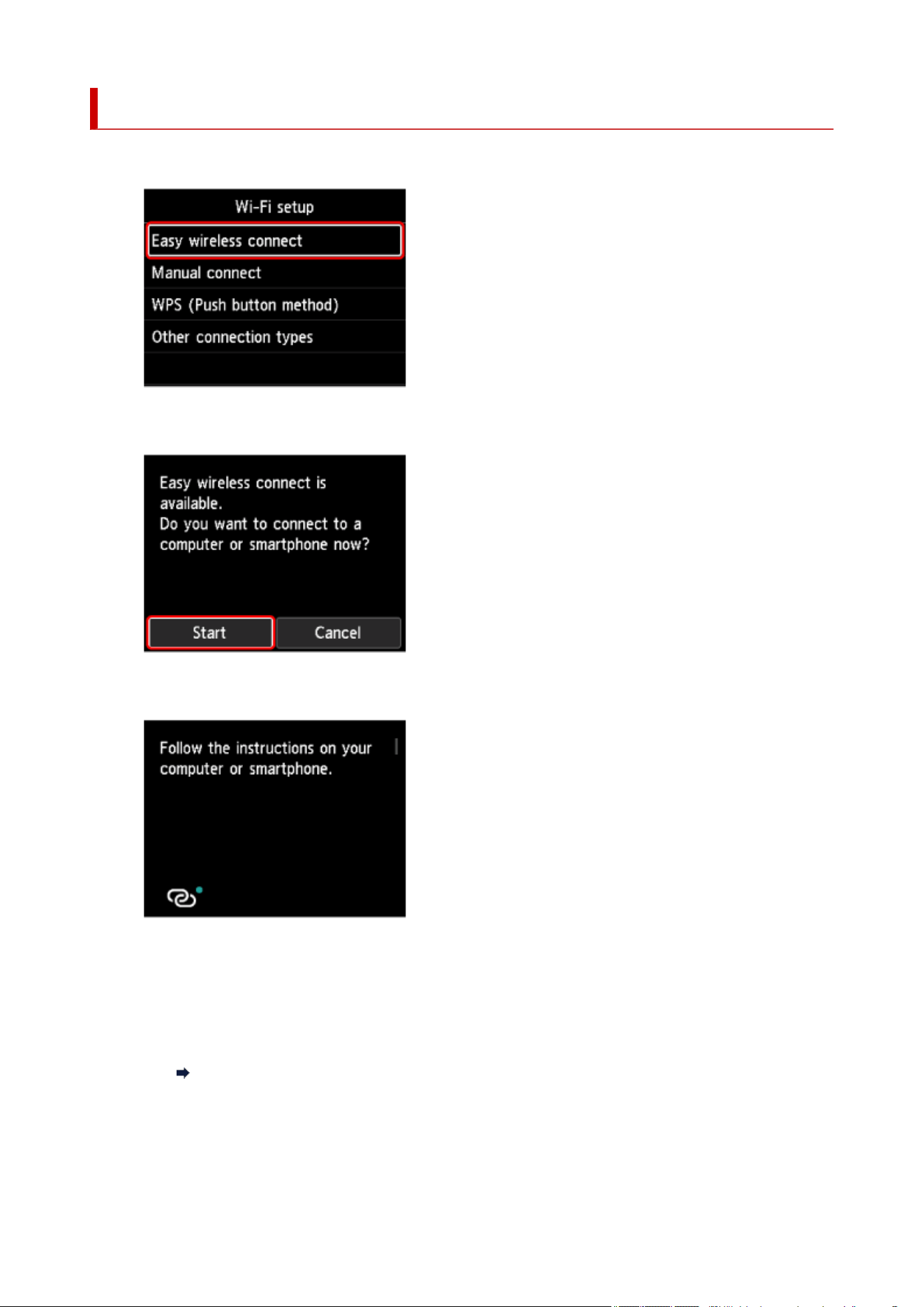
Easy wireless connect
1. Select Easy wireless connect.1.
2.
Select Start.
2.
3. When the printer preparation is complete, the screen below appears.3.
4.
Return to the application software and proceed with the setup.
4.
If performing setup without using computer, smartphone, etc.
Download and install software.
Go to the download site
After installing the software, start the software, and then follow the on-screen instructions to
proceed with setup.
If performing setup using computer, smartphone, etc.
276

Windows
In the taskbar, click the application software you have been using for setup, and then follow the
on-screen instructions to proceed with setup.
macOS
Click in the Dock, and then follow the on-screen instructions to proceed with setup.
Smartphone/tablet/Chromebook
Return to the app you have been using for setup on the smartphone, and then follow the
on-screen instructions to proceed with setup.
277
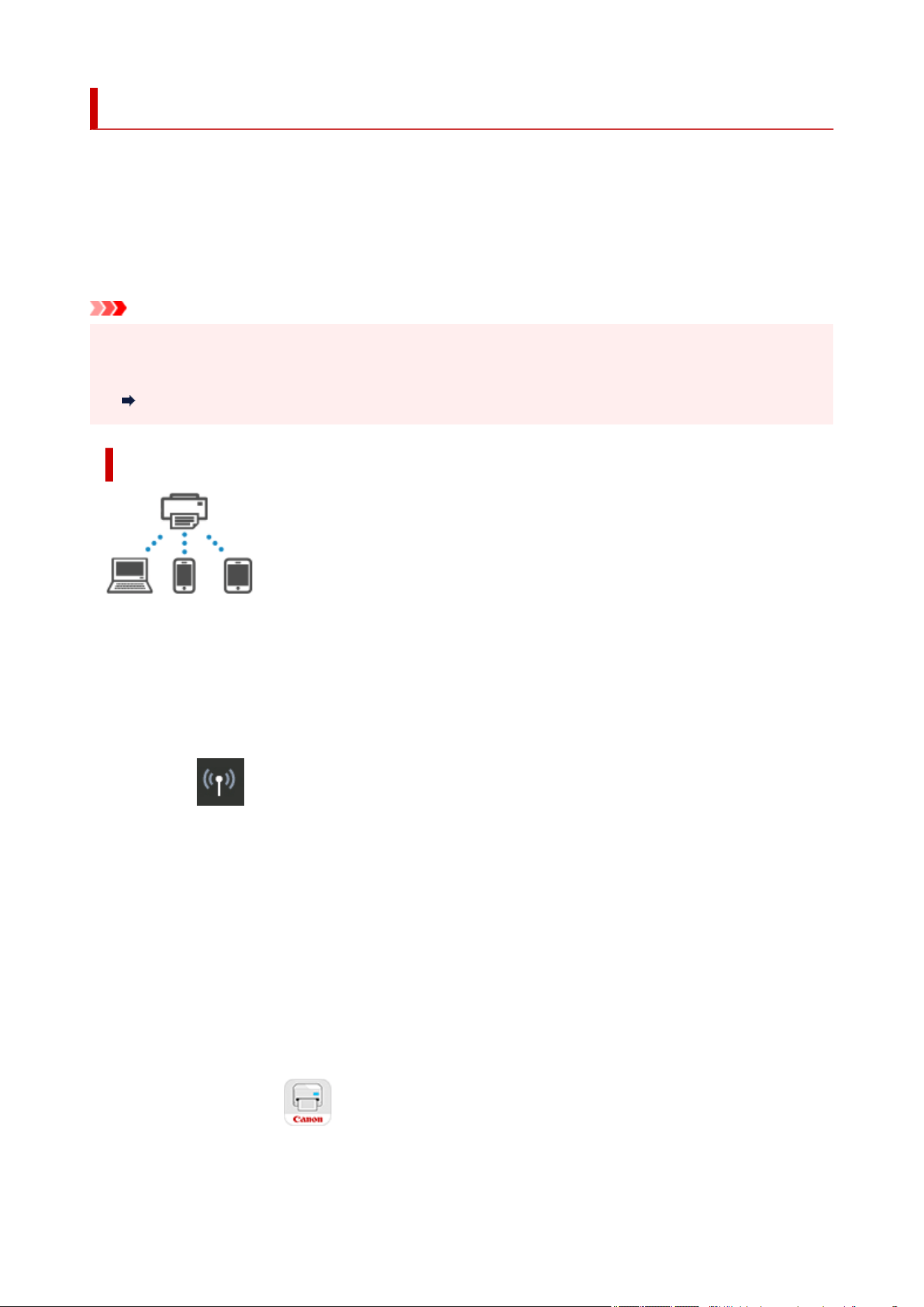
Wireless Direct Connection
You can connect devices (e.g. computer, smartphone, or tablet) to the printer by two methods below.
• Wireless connection (connecting devices via a wireless router)•
• Direct wireless connection (connecting devices directly without a wireless router)•
This section describes Wireless Direct, which allows you to print by connecting the devices to the printer
directly.
Important
• You can connect up to 5 devices to the printer at the same time with Wireless Direct.•
• Check the usage restrictions and connect the printer to the Wireless Direct.•
Restrictions
Connecting a smartphone/tablet/computer to the printer
1.
Enable Wi-Fi function on smartphone/tablet/computer.
1.
Enable Wi-Fi in the Settings menu on your smartphone/tablet/computer.
For instructions on enabling the Wi-Fi function, refer to the instruction manual for your smartphone/
tablet/computer.
2. Select LAN settings on the HOME screen.2.
3. Select Wireless Direct.3.
4.
Select Connect to smartphone.
4.
5.
Select iPhone/iPad to connect with an iPhone/iPad, Android device to connect with an
5.
Android device, and Others to connect with other device.
•
iPhone/iPad
•
1.
Select QR Code.
1.
2.
Scan the displayed QR code with the iPhone/iPad standard camera app or smartphone/
2.
tablet app .
The iPhone/iPad is connected to the printer.
278

Note
• If the QR code cannot be read, press the Back button in the screen displayed QR code and•
connect the printer from Connect to smartphone > Others.
• Android device•
1.
Select QR Code.
1.
2.
Scan the displayed QR code with the Android device in one of the following ways.
2.
◦
Select network and Wi-Fi on the setting of Android device. Select QR code icon to the
◦
right of the Add network at the bottom of the list of Wi-Fi connections and scan the QR
code.
◦
Scan the displayed QR code with the Android standard camera app or smartphone/
◦
tablet app .
◦
Scan the displayed QR code with a QR code reading app.
◦
The Android device is connected to the printer.
Note
• Wireless Direct using QR code can be used with Android 5.0 or later.
• It is available in Android 10 or later to scan QR code from setting and read QR code
with the Android standard camera.
•
Depending on the smartphone/tablet, QR code may not be readable.
• If the QR code cannot be read, press the Back button in the screen displayed QR code
and connect the printer from Connect to smartphone > Others.
• Others•
1. Select Next.1.
Network name (SSID) and Password are displayed.
Note
•
To show the password, select Show password. To hide the password, select Hide
•
password.
•
The password is required when connecting smartphone/tablet/computer to the printer.
•
2.
Select "DIRECT-XXXX- ModelName" ("X" represents alphanumeric characters) on your
2.
smartphone/tablet/computer.
3.
Enter Password on smartphone/tablet/computer.
3.
The smartphone/tablet/computer is connected to the printer.
Note
•
If the printer is set to display a confirmation screen in Connection request
•
confirmation of Changing Wireless Direct Setting, when the wireless direct compatible
device connects to the printer, a confirmation screen asking for permission to connect
is displayed on the printer operation panel.
279
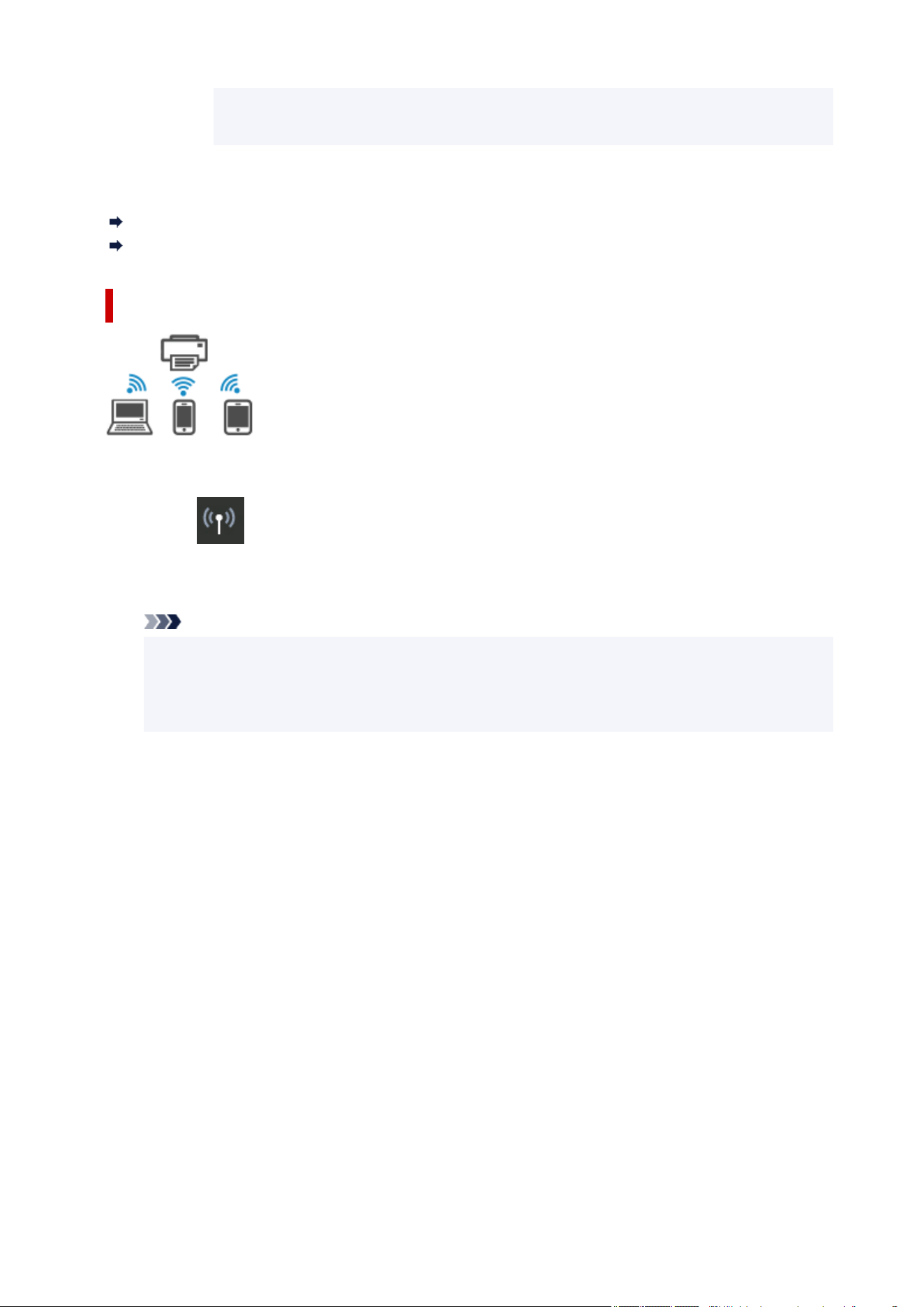
Make sure the name on the operation panel is the same as that of your wireless
communication device and select Yes.
You can print from your smartphone or tablet by installing the App. Download it from App Store and
Google Play.
For iOS device
For Android device
Changing Wireless Direct Setting
Change the settings for the Wireless Direct following the procedure below.
1.
Select LAN settings on the HOME screen.
1.
2. Select Wireless Direct.2.
Note
• To change the Wireless Direct settings, you need to enable Wireless Direct in advance.•
Select Enable/disable Wireless Direct on the menu screen displayed when selecting
Wireless Direct and enable Wireless Direct.
3. Select a setting item.3.
Scroll down if necessary.
• See settings•
The setting values for using the printer with Wireless Direct are displayed.
•
Change network name (SSID)
•
Change the identifier (SSID) for Wireless Direct.
The identifier (SSID) is the printer's name (device name) displayed on a Wi-Fi Direct compatible
device.
Follow the procedure below to change the identifier (SSID).
◦
To set manually
◦
1.
Select the displayed identifier (SSID).
1.
2.
Change using the keyboard that appears.
2.
3.
When you have finished making changes, select OK.
3.
◦
To set automatically
◦
280

1. Select Auto update.1.
2. Select Yes.2.
You can check the updated setting.
Note
• To show the password, select Show password. To hide the password, select Hide•
password.
•
Change password
•
Change the password for Wireless Direct.
◦
To set manually
◦
1.
Select Change manually.
1.
2.
Select the displayed password.
2.
3.
Enter the new password.
3.
Change using the keyboard that appears.
4. When you have finished making changes, select OK.4.
◦ To set automatically◦
1. Select Auto update.1.
2. Select Yes.2.
You can check the updated setting.
Note
• To show the password, select Show password. To hide the password, select Hide•
password.
•
Connection request confirmation
•
Change the confirmation screen setting when a Wi-Fi Direct compatible device is connecting to
the printer.
If you want the printer to display the screen to inform you a Wi-Fi Direct compatible device is
connecting to the printer, select ON.
Important
•
To prevent an unauthorized access, we recommend you should select the setting to display
•
the confirmation screen.
•
2.4GHz/5GHz Switch
•
Change the frequency used for Wireless Direct.
While using Wireless Direct (2.4 GHz), the connection of nearby Bluetooth speakers may be
interrupted from time to time. In such a case, switching to 5 GHz will reduce the trouble.
281

Note
• If you change the Wireless Direct setting of the printer, also change the wireless router setting of the•
device.
282
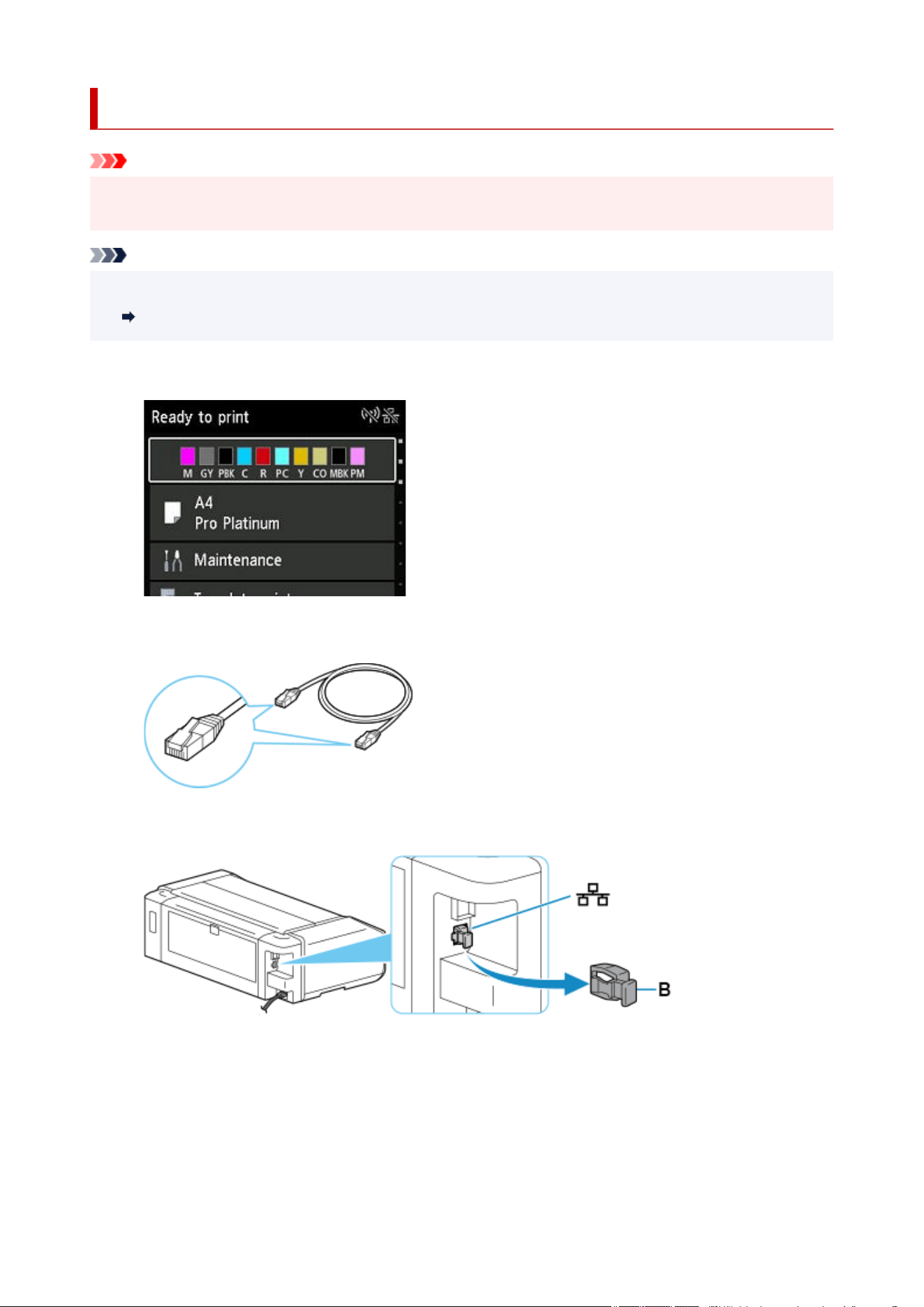
Wired Connection
Important
• If printer is performing cleaning, print head alignment, or other processes, wait for the process to finish,
before starting setup.
Note
• Refer to the following for notes when connecting to a wired LAN.•
Notes on Wired Connection
1.
Press the HOME button to display the HOME screen.
1.
2. You will need an Ethernet cable (sold separately).2.
3. Remove the Cap (B) from the port located on the left side at the back of the printer.3.
4.
Connect the printer and a network device (router, etc.) with an Ethernet cable (C).
4.
Do not connect to any other port.
283
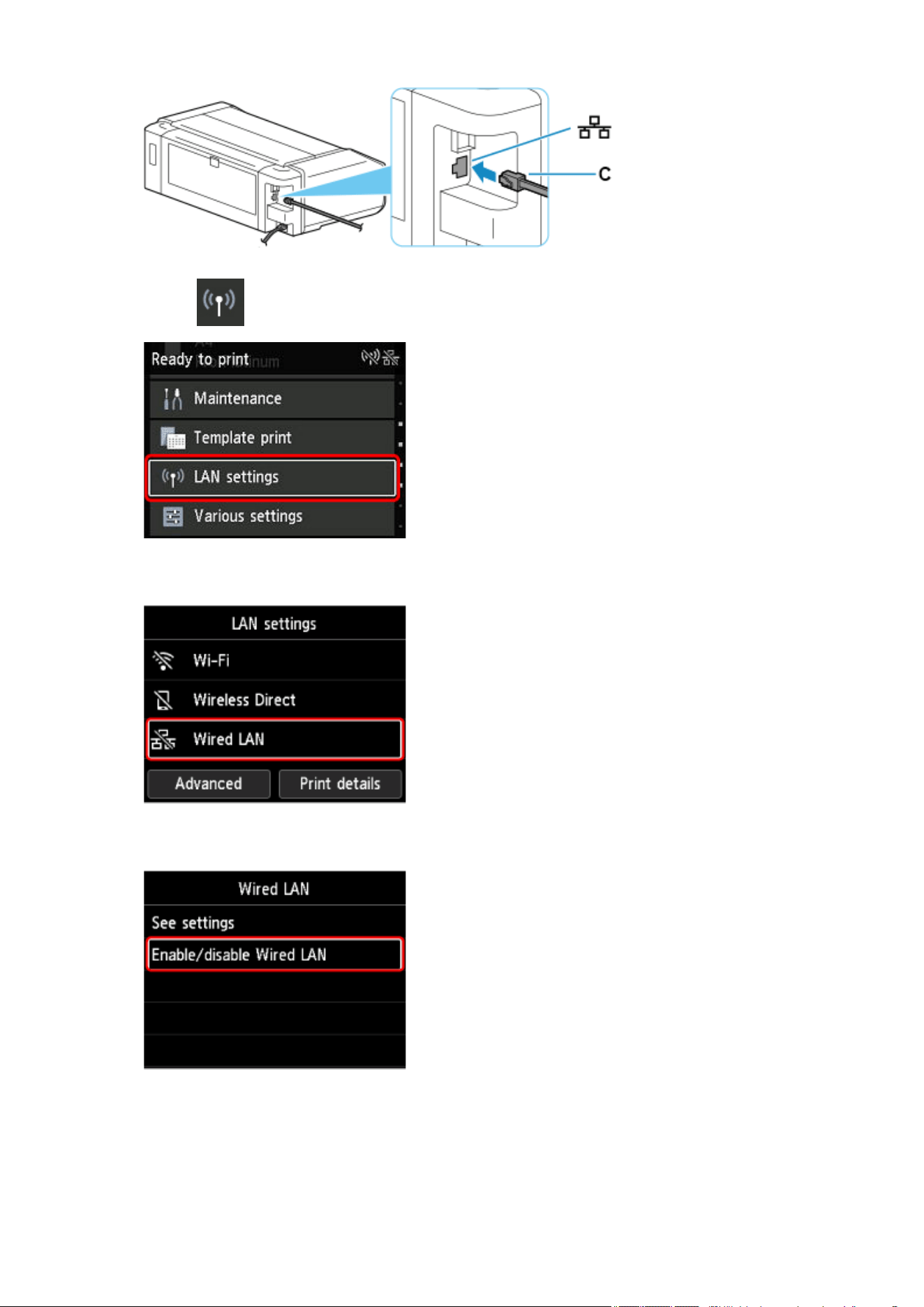
5.
Select LAN settings on the HOME screen.
5.
6. Select Wired LAN.6.
7. Select Enable/disable Wired LAN.7.
8.
Select Enable.
8.
284
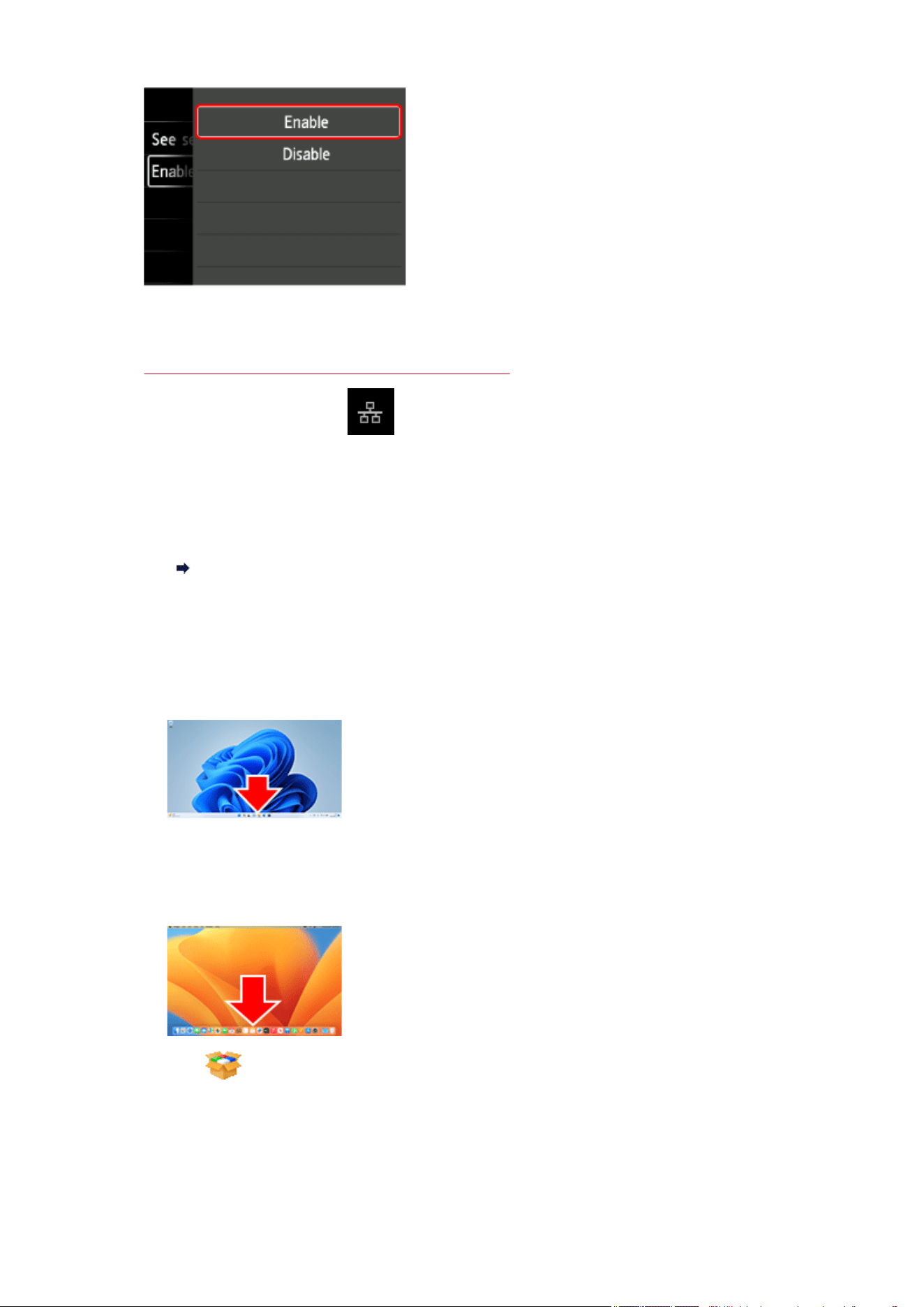
9.
Press the HOME button.
9.
The network connection setup is now complete.
Once connection is complete, appears on the screen.
If performing setup with software, return to the software and proceed with the installation.
If performing setup without using computer, smartphone, etc.
Download and install software.
Go to the download site
After installing the software, start the software, and then follow the on-screen instructions to
proceed with setup.
If performing setup using computer, smartphone, etc.
Windows
In the taskbar, click the application software you have been using for setup, and then follow the
on-screen instructions to proceed with setup.
macOS
Click in the Dock, and then follow the on-screen instructions to proceed with setup.
Smartphone/tablet/Chromebook
285

Return to the app you have been using for setup on the smartphone, and then follow the
on-screen instructions to proceed with setup.
286
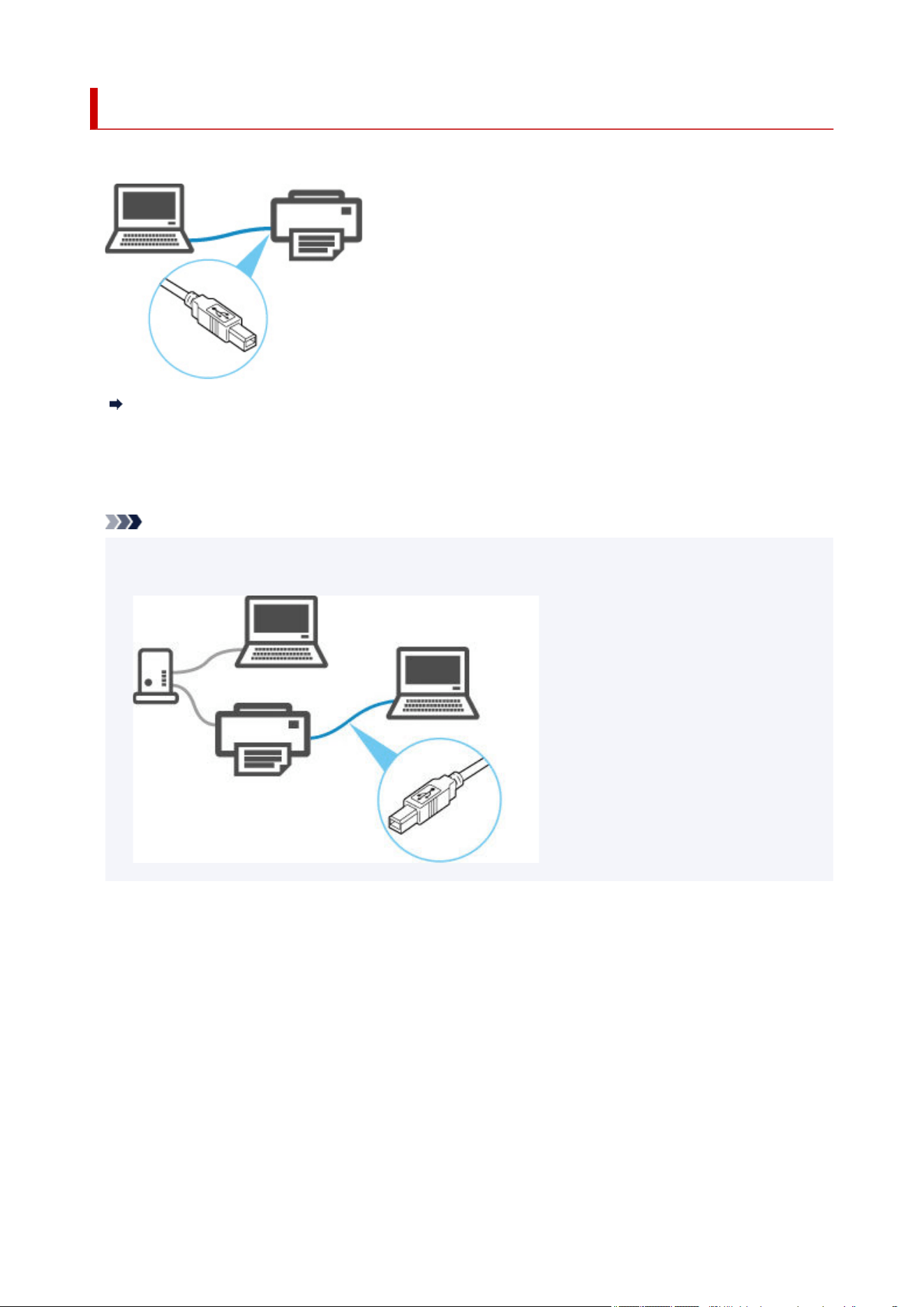
USB Connection
Connect the printer to a computer using a USB cable.
What Is USB Cable?
In USB connection, the printer is connected one-on-one to the computer.
If your computer is connected to LAN, you can use the printer with other devices by enabling the sharing
setting on your computer.
Note
• You can connect the printer to a computer via USB even when the printer is already connected to•
another one via wired LAN.
287
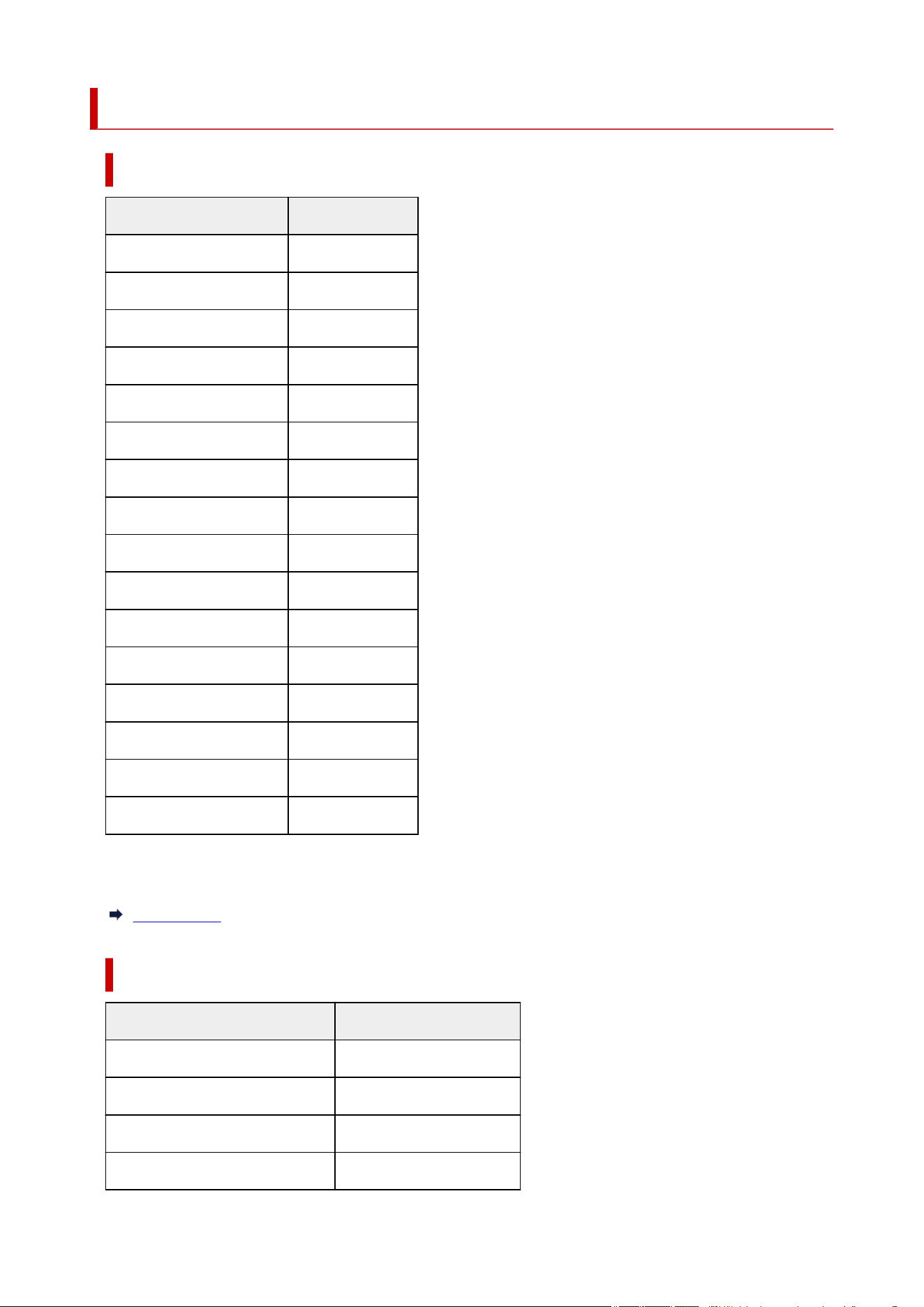
Default Network Settings
LAN Connection Defaults
Item Default
Enable/disable Wired LAN Disable
Network name (SSID) BJNPSETUP
Wi-Fi security Disable
IP address (IPv4) Auto setup
IP address (IPv6) Auto setup
Set printer name * XXXXXXXXXXXX
Enable/disable IPv6 Enable
Enable/disable WSD Enable
Timeout settings 15 minutes
Enable/disable Bonjour Enable
Service name Canon ModelName
LPD settings Enable
RAW settings Enable
LLMNR settings Enable
Wi-Fi DRX settings Enable
Wired LAN DRX settings Enable
("XX" represents alphanumeric characters.)
* Default value depends on printer. To check value, use operation panel.
LAN settings
Wireless Direct Defaults
Item Default
Network name (SSID) DIRECT-abXX-YY-NNNN *1
Password ZZZZZZZZZZ *2
Wi-Fi security WPA2-PSK (AES)
Connection request confirmation Displayed
288

2.4GHz/5GHz Switch 2.4GHz
*1 "ab" is specified at random and "XX" represents last two digits of printer's wireless MAC address. "YY"
is alphanumeric, and "NNNN" means your printer model.
*2 The password is specified automatically when the printer is turned on for the first time.
289

Another Printer Found with Same Name
When the printer is found during setup, other printers with the same name may appear on the results
screen.
Select a printer with checking the printer settings against those on detection result screen.
Check the printer's MAC address or serial to select the correct printer from the results.
Note
• Serial number may not appear on result screen.
Check the printer's MAC address and serial number by selecting Printer information > System
information.
Printer information
290

Printing Network Settings
Use the operation panel to print the printer's current network settings.
Important
• The network settings printout contains important information about your network. Handle it with care.
Items to Prepare
5 sheets of A4 or Letter-sized plain paper
1.
Load paper.
1.
Loading Paper in the Top Feed
2.
Select LAN settings on the HOME screen.
2.
3.
Select Print details.
3.
4.
Select Yes on displayed screen.
4.
5. Select ON or OFF on displayed screen.5.
The printer starts printing network settings information.
291

Countermeasures against Unauthorized Access
This section describes countermeasures against an unauthorized access to the printer from outside. When
you use the printer via a network or you are an administrator, we recommend you read this section before
using the printer.
Four countermeasures below can be helpful against an unauthorized access.
Specify a Private IP Address
Restrict Communication Using Firewall or Wi-Fi Router
Specify a Password for the Printer
Apply higher security level for Wi-Fi connection
Note
• As the setting procedure described below is an example, it may be different from that of your printer.
For details, refer to your printer's manual.
Specify a Private IP Address
An IP address is a numeric label assigned to each device on the network. There are two types of IP
address. One is used for internet connection ("global IP address"), and the other is used for a local area
network such as an inhouse LAN ("private IP address").
If a global IP address is specified for the printer, many and unspecified users on internet can access to
the printer. As a result, you will face an increased risk of information leakage caused by an unauthorized
access from outside. On the other hand, if a private IP address is specified for the printer, users who can
access to the printer are confined to those on a local area network such as an inhouse LAN. Therefore,
we recommend you specify a private IP address for the printer.
The range of addresses used as a private IP address is shown below. Make sure whether a private IP
address is specified for your printer.
Range of private IP address
• 10.0.0.0 to 10.255.255.255
• 172.16.0.0 to 172.31.255.255
• 192.168.0.0 to 192.168.255.255
Procedure to check the IP address
Select Setup > Device settings > LAN settings on your printer to select a network connection method
and check the IP address. For the procedure to check and specify the IP address, refer to your printer's
manual.
Note
•
Establishing an environment to protect an access from outside using a firewall can reduce a risk of an
unauthorized access even though a global IP address is specified for your printer.
292

Restrict Communication Using Firewall or Wi-Fi Router
Firewall is a system which prevents an unauthorized access from an external network user to protect an
inhouse network against attack or intrusion.
Firewall enables your network to be protected against an unauthorized access by restricting a
communication from the specific external IP address which seems to have a risk.
A home use Wi-Fi router has a similar function. Be careful when you change the settings.
Specify a Password for the Printer
Even if a malicious third party accesses to your printer by any chance, you can reduce a risk of
information leakage drastically by specifying a password to protect various information on your printer.
In addition, though the printer can be protected by specifying a password, it is important to manage the
specified password for security. Manage your password referring to the four points below. For details,
refer to your printer's manual.
• Be sure to change the default password.
• Change the password periodically.
• Do not use a password easy to guess for a third party.
• Do not tell a third party about the specified password casually.
Note
• A password is not specified for some printers at the time of purchase. In this case, specify the
password for the printer.
• A password cannot be specified for some printers.
Password management using Remote UI (User Interface)
Remote UI is a software to access to the printer via a network by using a web browser. You can check the
printer status or settings on Remote UI, which allows you to perform operations almost the same as those
you can on the operation panel of the printer.
Entering the printer's IP address or host name on the web browser displays the portal page of Remote UI.
For the procedure to start up or operations of Remote UI, refer to your printer's manual.
Important
• Do not access to a website while you are using Remote UI on the web browser.•
In addition, be sure to close the web browser when you leave your seat before you finish performing
settings, or when you have finished performing settings.
Apply higher security level for Wi-Fi connection
When you use the printer via Wi-Fi, we recommend you apply a security method with higher security level
(e.g. WPA/WPA2).
For more on operations, refer to your printer's manual.
293
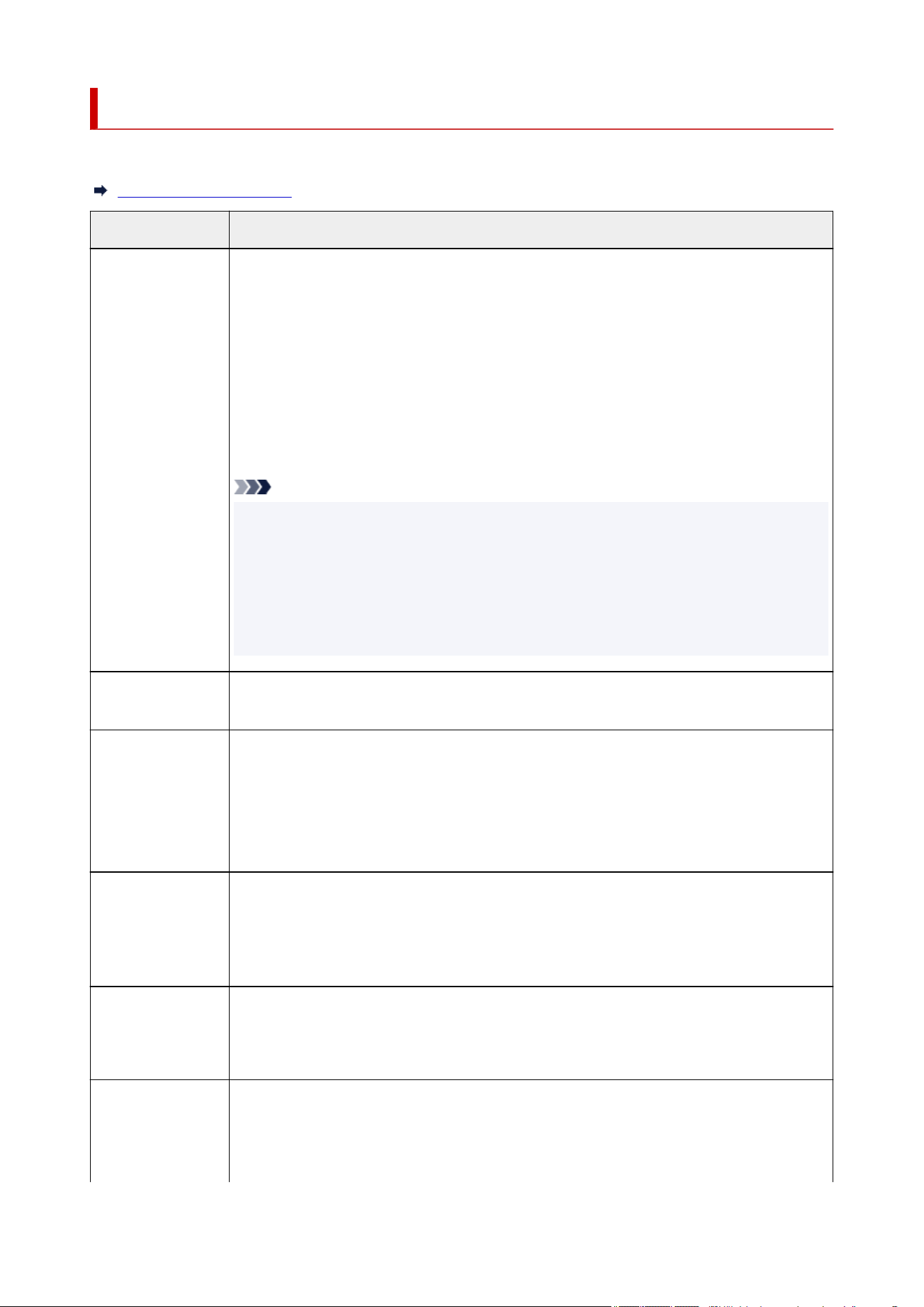
Network Status and Troubleshooting
Check the network status referring to LAN setting information on the LCD.
Printing Network Settings
Network Status What to Do
Connected normally.
If you are unable to
print, see 1 on What
to Do.
1. If you are unable to print, check the items below:1.
• whether the computer is connected to Wi-Fi
• whether the firewall of your security software is enabled
• whether a privacy separator, SSID separator, or Network separation function is enabled•
on your wireless router
If one of the above is enabled, disable it before setup.
• whether the network name (SSID) of the printer matches that of the router to connect
2. To change the network connection method (wired/wireless), change it on the printer's
network setting screen.
Note
• Turning off the band steering feature (determines the appropriate frequency band to con-•
nect to when the number of devices connected increases and the 2.4 GHz and 5 GHz
frequency bands are congested) in your wireless router's settings may help.
• If the same SSID is set for both 2.4 GHz and 5 GHz, changing them to different SSIDs may•
enable you to connect.
• If you can't connect to the network, use a USB connection.•
Wi-Fi is disabled on
the printer.
Perform printer setup following the instructions of the manual.
Wired LAN connec-
tion is disabled.
• Make sure the printer is connected to the router with the LAN cable.•
If the LAN cable is loose, connect the cable properly.
If the LAN cable is connected to the WAN side of the router, connect the cable to the LAN
side of the router.
• Make sure the network devices (e.g. hub or router) are turned on.•
IP address is not as-
signed.
• If you specify the printer's IP address automatically, enable DHCP on the router.•
• If you specify the printer's IP address manually, the address is disabled because it is out of•
the valid range. You specified (0.0.0.0) as the IP address, for example.
Specify the valid IP address.
The default gateway
is not specified.
Check the items below to communicate by hopping routers (e.g. using a cloud application).
• Make sure the device specified as the default gateway is turned on.•
• Specify the default gateway address correctly.•
Cannot connect to
the specified net-
work.
Check the status of the printer, network devices (e.g. wireless router), or smartphone/tablet.
• If they are turned off, turn them on.
• Make sure wireless signal is strong.•
Monitor signal status and move the printer and wireless router as necessary.
294

• The security key specified for the wireless router may not match that you entered.•
The security key is case-sensitive.
Enter the correct security key.
Make sure wireless
signal is strong.
• Make sure the printer is not placed too far away from the wireless router.•
• Monitor signal status and move the printer and wireless router as necessary.•
The number of con-
nected clients rea-
ches the upper limit.
• Wireless Direct does not allow more than 5 devices to be connected.•
If you add a device to connect, disconnect a device you do not use before adding the
device.
The signal to noise
ratio (S/N ratio) is
low.
• There is a lot of noise from other devices.•
Move the printer apart from other devices.
A link local address
is assigned.
• Perform printer setup again.
• The security key specified for the wireless router may not match that you entered.•
The security key is case-sensitive.
Enter the correct security key.
The specified net-
work name (SSID) is
left default value.
The network name (SSID) is not specified.
Enter the network name (SSID) specified for the destination.
295
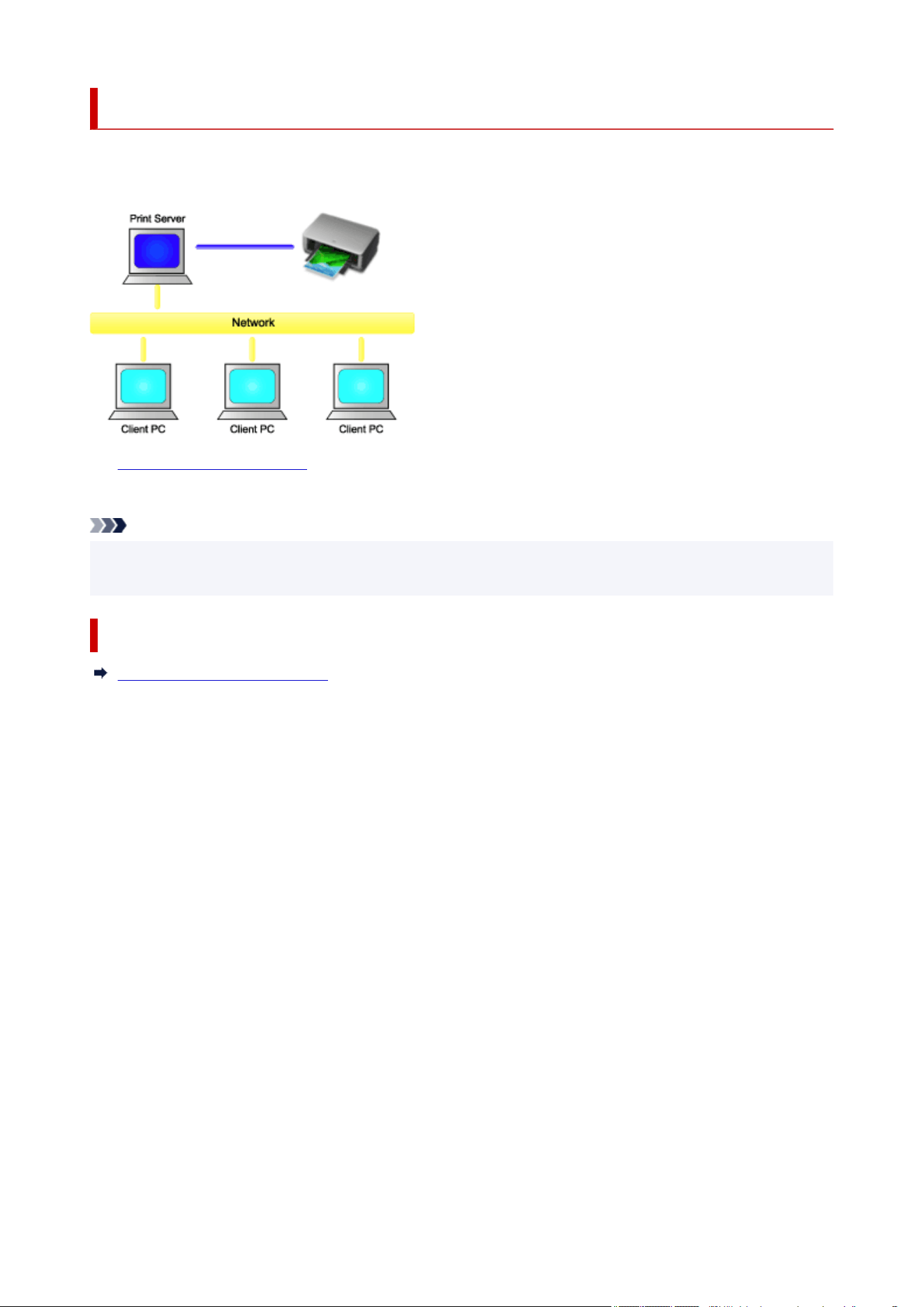
Sharing the Printer on a Network (Windows)
When computers are used in a network environment, documents can be printed from multiple computers
that share a single printer.
• Setting Up a Shared Printer•
This section describes how to set up the print server and the client.
Note
• The Windows versions of the computers connected to the network do not necessarily have to be the
same.
Related Topic
Restrictions on Printer Sharing
296

Setting Up a Shared Printer
On the print server, set up sharing of the printer driver. Then from the client, set up the connection to the
print server.
1. Install the printer driver on the print server system1.
2.
Display the Devices and Printers window
2.
Select the Control Panel -> Hardware and Sound (Hardware) -> Devices and Printers.
The Devices and Printers window is displayed.
3.
Click the icon for the model name of printer to be shared
3.
Press the Alt key, and from the displayed File menu, select Printer properties -> Sharing tab.
Important
• When starting up the software and performing install or uninstall, a confirmation or warning dialog
box may appear.
This dialog box appears when administrative rights are required to perform a task.
When you are logged on to an administrator account, click Yes (or Continue, Allow) to continue.
Some applications require an administrator account to continue. In such cases, switch to an
administrator account, and restart the operation from the beginning.
4.
Set sharing
4.
On the Sharing tab, check (or select) Share this printer, set the shared name as necessary, and then
click OK.
5. If the print server and the client have different architectures (32 bit or 64 bit), install an5.
additional driver
1. Display the Devices and Printers, Printers, or Printers and Faxes window.1.
2. Select the printer icon, click Print server properties, and select the Drivers tab.2.
3. Click Add....3.
4. When the Add Printer Driver Wizard window is displayed, click Next.4.
5. If the print server has a 32-bit architecture, select x64. If the print server has a 64-bit5.
architecture, select x86. Then click Next.
6. Click Have Disk....6.
7. In the Install From Disk window, open the "Driver" folder of the downloaded printer driver,7.
specify the "inf" file, and click OK.
297

Note
• If the printer server is 32-bit, specify it as "xxxxxxx3.INF". If it is 64-bit, specify it as "xxxxxxx6.INF".
8. Select the printer to be used, and click Next.8.
Note
•
If an error message is displayed, select the other printer.
9.
Click Finish
9.
The setup on the print server system is complete. Next, set up the client systems.
6.
On the client, open Explorer, and double-click the icon of the printer to be shared
6.
7.
Follow the window instructions, and install the printer driver
7.
The setup on the client system is complete.
Even when you perform the setup on a different client, follow the same steps 6 and 7.
298

Restrictions on Printer Sharing
These are restrictions that apply when you are using a printer in a network environment. Check the
restrictions for the environment you are using.
Restriction on setting up printer sharing
• If "ntprint.inf" is requested when you install the driver from Add Printer, specify the file as follows:
1. Start Explorer on the print server and on the client with the different architecture, paste the
following path in the address bar, and press Enter on the keyboard:
%windir%\system32\driverstore\
2. Right-click the FileRepository folder, and click Properties.
3. On the Sharing tab, click Share.
4. In the message window displayed on the print server, specify "ntprint.inf_xxxxxxxx" in the folder
that was shared in step 3, and click OK.
If there are multiples copies, select the file with the latest update date and time.
Restrictions on sharing and using a printer
• A print completion message may be displayed. To disable the message display, follow the procedure
below.
1. In the Control Panel -> Hardware and Sound (Hardware) -> Devices and Printers window of1.
the client system, select the printer, and click Print server properties on the command bar.
2. Uncheck Show informational notifications for network printers on the Advanced tab, and
then restart the computer.
• The bi-directional communication function is disabled and the correct printer status may not be
recognized.
If a client user opens the printer driver properties and then clicks OK with the Enable bidirectional
support check box cleared on the Ports tab, the bidirectional communication function of the print
server may also be disabled.
In this case, check Enable bidirectional support check box on both the print server system and the
client system.
• When you print from a client system, you cannot use Canon IJ Preview.
• When the functions on the Maintenance tab cannot be set properly from a client system, they may be
grayed out. In this case, change the settings from the print server.
When you change the settings of the print server, you should delete the icon of the shared printer
from the client system, and then specify the shared settings again in the client system.
• If the same driver installed on the print server is also installed on the client, the network printer icon
may be created automatically.
• If an error occurs when you print a document on a shared printer from a client, the error message
of the Canon IJ status monitor is displayed on both the client and the print server. If a document is
printed out normally, the Canon IJ status monitor is displayed only on the client.
299

Maintenance
Adjustments for Better Print Quality
Maintenance Procedure
Checking for Nozzle Clogging
Cleaning the Print Head
Deep Print Head Cleaning
Adjustment to Straighten Lines and Align Colors
Replacing Consumables
Replacing Ink Tanks
Checking Ink Level
Cleaning the Printer
Cleaning the Printer Exterior
Cleaning Paper Feed Rollers
Performing Bottom Plate Cleaning
Performing Maintenance Functions from Your Computer (Windows)
Maintenance Tab Description
Cleaning the Print Heads
Printing a Nozzle Check Pattern
Performing Maintenance Functions from Your Computer (macOS)
Opening Remote UI for Maintenance
Cleaning the Print Heads
Checking Ink Status from Your Computer
Printing a Nozzle Check Pattern
Other Maintenance
Transporting Your Printer
Firmware update
300

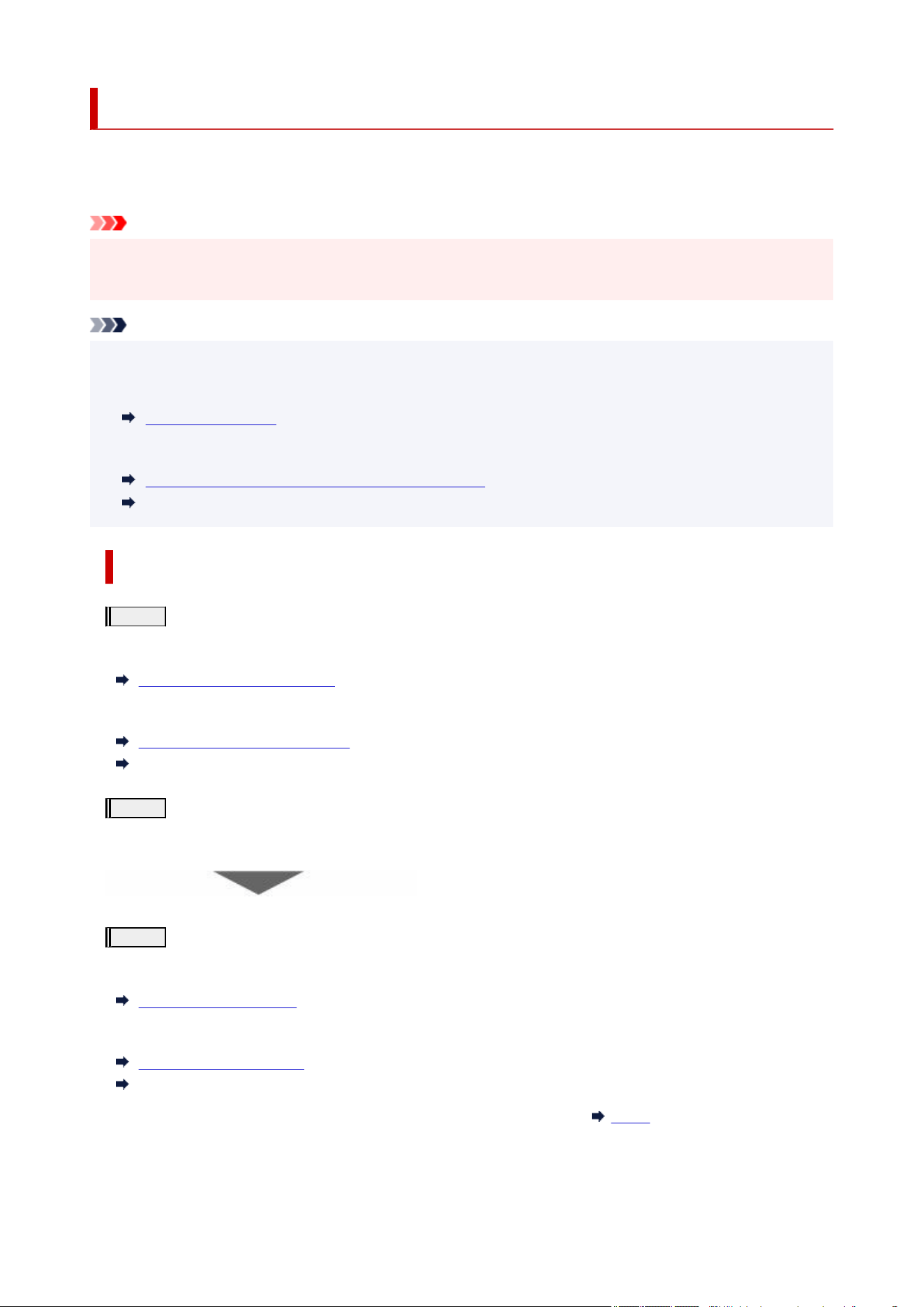
Maintenance Procedure
If print results are blurred, colors are not printed correctly, or print results are unsatisfactory (e.g. misaligned
printed ruled lines), perform the maintenance procedure below.
Important
• Do not rinse or wipe the print head and ink tank. This can cause trouble with the print head and ink•
tank.
Note
• Check the ink status on the HOME screen or other screens.•
If the ink is running low, take appropriate action.
Checking Ink Level
• Increasing the print quality in the printer driver settings may improve the print result.•
Set Media Type, Quality, etc. (Media/Quality Tab) (Windows)
Changing the Print Quality and Correcting Image Data (macOS)
When the Print Results Are Blurred or Uneven:
Step1
Print the nozzle check pattern.
From the printer
Checking for Nozzle Clogging
From the computer
Printing a Nozzle Check Pattern (Windows)
Printing a Nozzle Check Pattern (macOS)
Step2
Examine the nozzle check pattern.
If there are missing lines or horizontal white streaks in the pattern:
Step3
Clean the print head.
From the printer
Cleaning the Print Head
From the computer
Cleaning the Print Heads (Windows)
Cleaning the Print Heads (macOS)
After cleaning the print head, print and examine the nozzle check pattern:
Step1
302

If the problem is not resolved after performing from step 1 to step 3 twice:
Step4
Clean the print head deeply.
From the printer
Deep Print Head Cleaning
From the computer
Cleaning the Print Heads (Windows)
Cleaning the Print Heads (macOS)
Note
• When you have performed the procedure until step 4 and the problem has not been resolved, turn off•
the power and clean the print head deeply again after 24 hours.
If the problem is still not resolved, the print head may be damaged. Contact your nearest Canon
service center to request a repair.
When the Print Results Are Not Even such as the Ruled Lines Are
Misaligned:
Step
Align the print head.
Automatic Adjustment to Straighten Lines and Align Colors
303
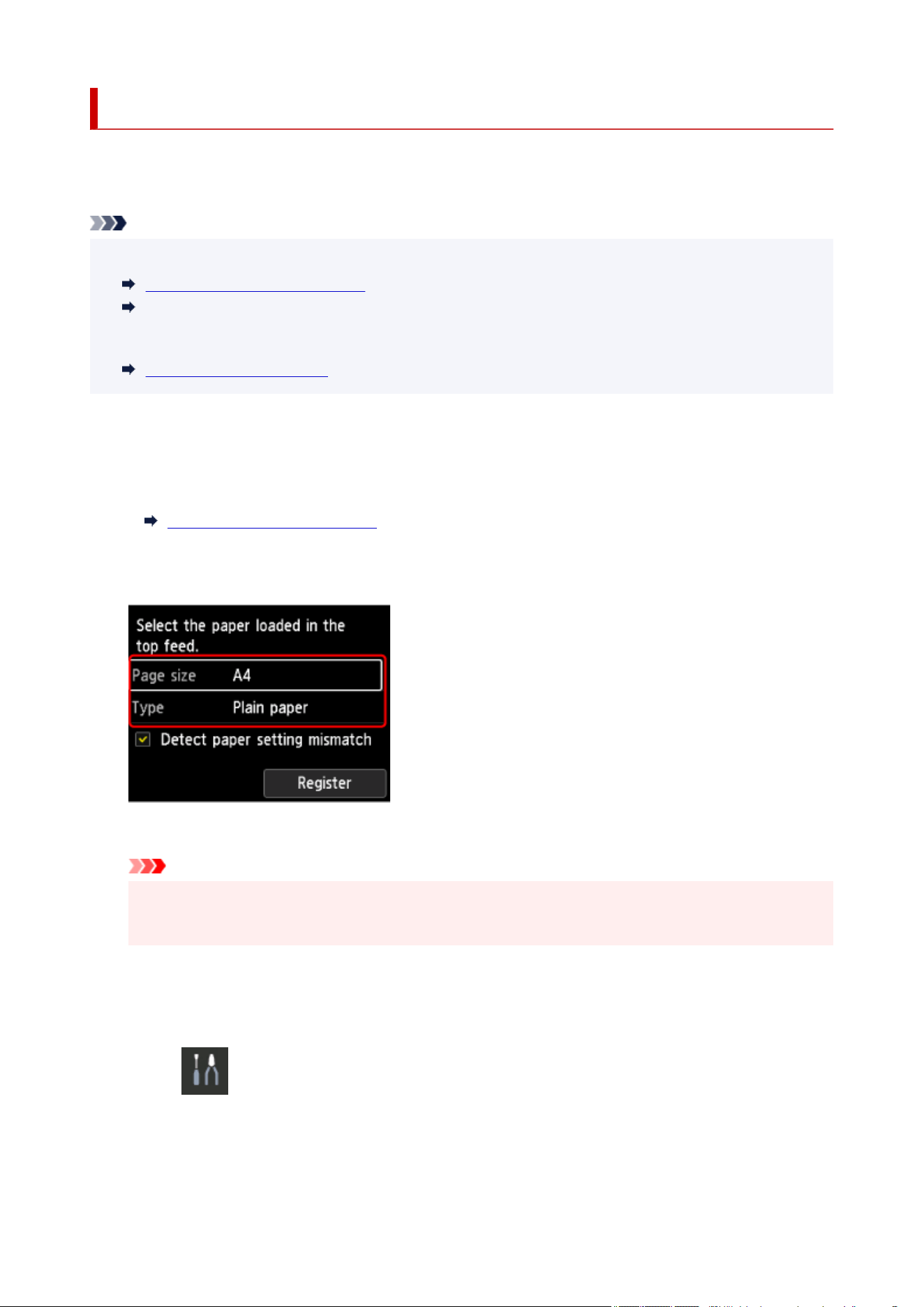
Checking for Nozzle Clogging
If the print is blurred or has different color threading, print a nozzle check pattern to see if each nozzle of the
print head is not clogged.
Note
• You can also check for nozzle clogging from your computer.•
Printing a Nozzle Check Pattern (Windows)
Printing a Nozzle Check Pattern (macOS)
• By default, nozzles are checked at fixed intervals.•
Auto maintenance settings
Items to Prepare
A sheet of A4 or Letter-sized plain paper
1.
Load a single sheet of A4 or Letter size plain paper in the top feed.
1.
Loading Paper in the Top Feed
After loading paper, the paper information registration screen for the top feed is displayed.
Select A4 or Letter for Page size and Plain paper for Type, select Register.
If a message is displayed on the screen, follow the directions in the message to complete registration.
Important
•
The manual feed tray is not available for the nozzle check pattern print procedure. Be sure to load
•
paper in the top feed.
2.
Open the paper output tray gently.
2.
Open the output tray extension gently, then pull out the paper output support.
3.
Select Maintenance on the HOME screen.
3.
4.
Select Nozzle Check.
4.
The confirmation screen will appear.
304
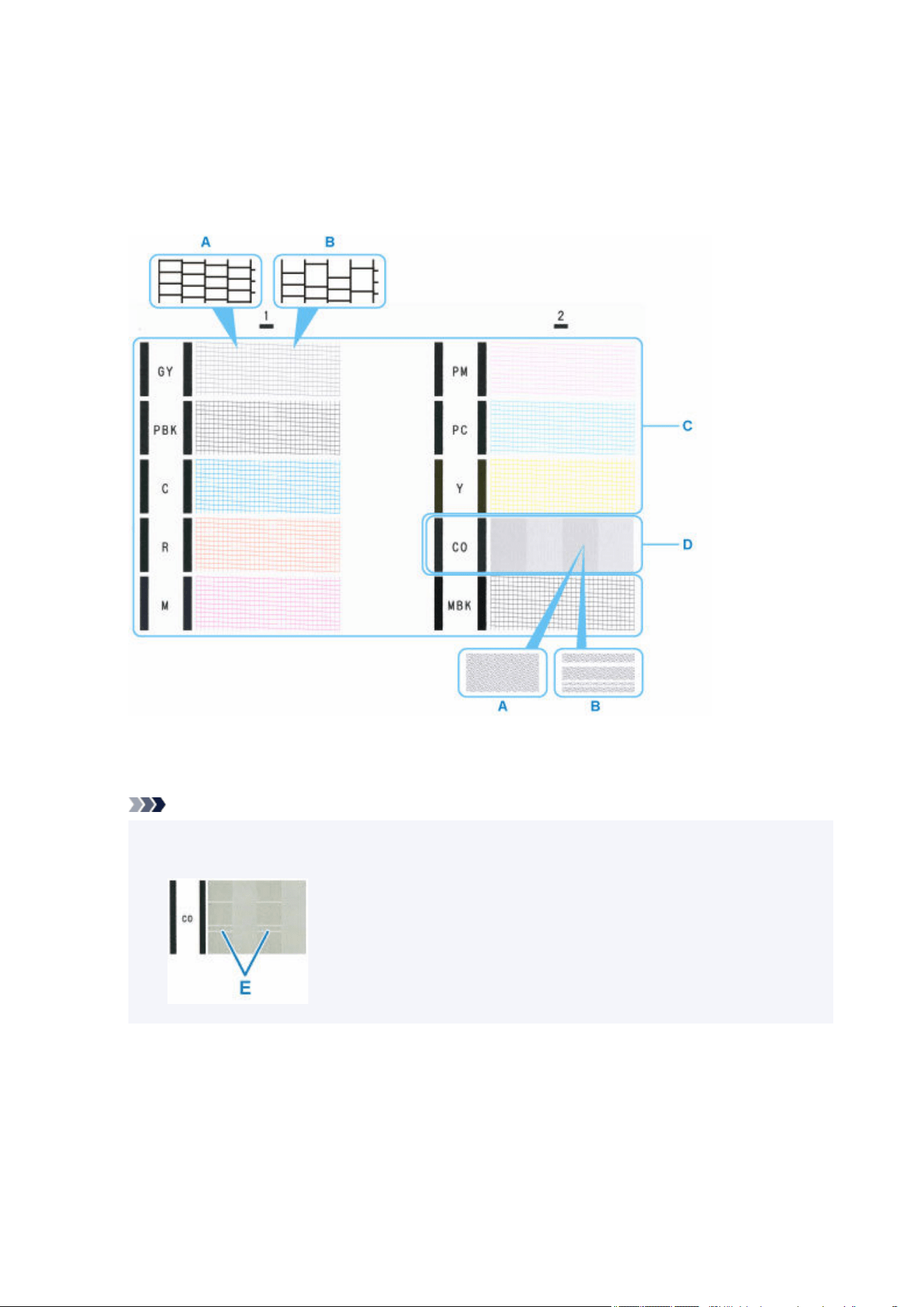
5. Select Yes.5.
The nozzle check pattern will be printed and two pattern confirmation screens will appear on the LCD.
6. Check the print result.6.
Check if there are missing lines in the pattern C or horizontal streaks in the pattern D.
A: No missing lines/No horizontal streaks
B: Lines are missing/Horizontal streaks are present
Note
• Because CO ink is colorless, its pattern is printed over the black pattern. Check for horizontal•
streaks (E) in the dark gray bands of the pattern.
7.
Select the pattern that is closer to the printed nozzle check pattern on the confirmation
7.
screen.
305
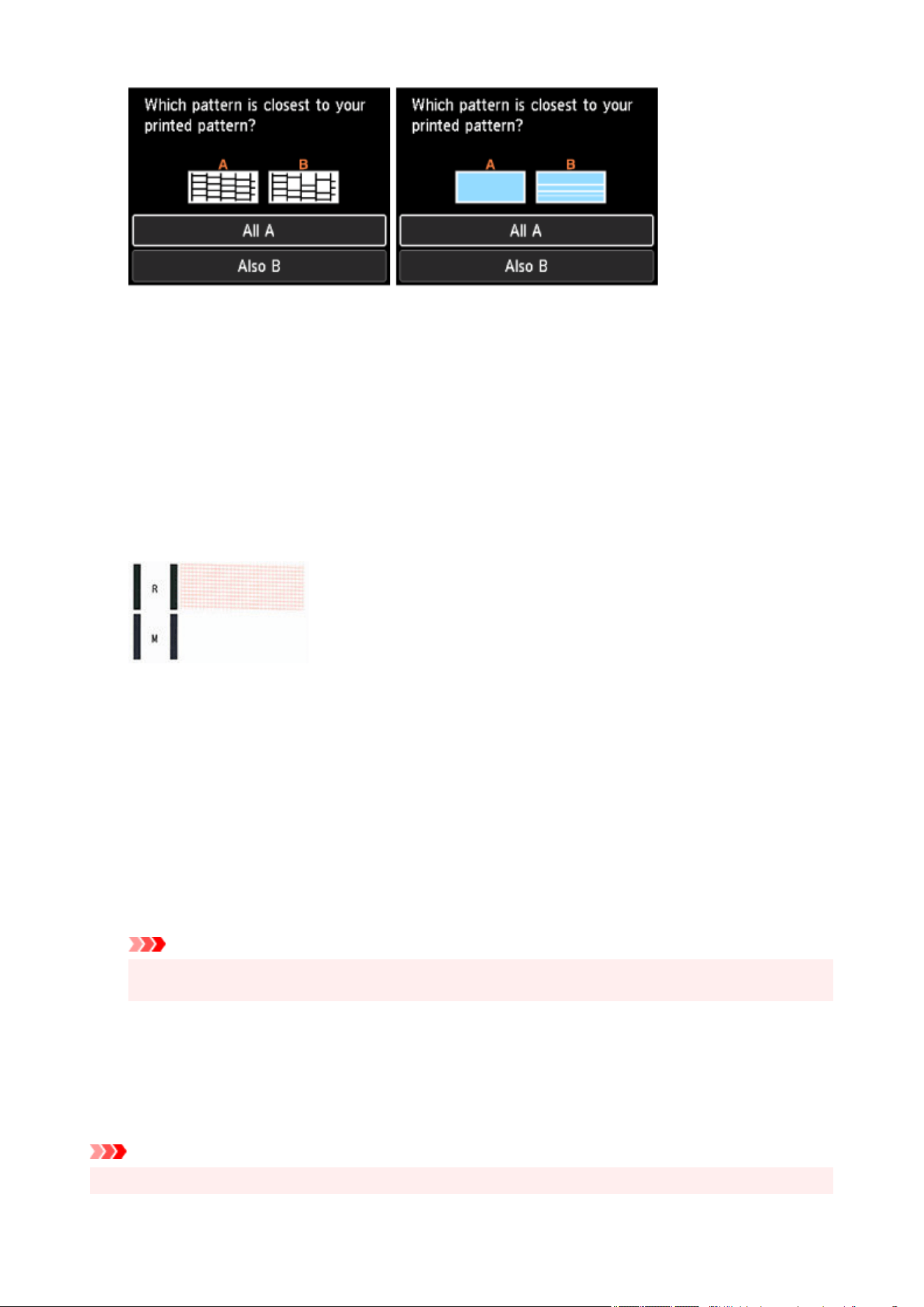
For A (no missing lines or no horizontal streaks) in both the pattern C and pattern D:
Cleaning is not required. Select All A, then press the OK button.
Confirm the message, then press the OK button.
The screen will return to the Maintenance screen.
For B (lines are missing or horizontal streaks are present) in the pattern C or pattern D, or in both
patterns:
The cleaning is required. Select Also B, then go to next step.
If the pattern D or any color in the pattern C is not printed:
(Example: Magenta pattern is not printed)
The cleaning is required. Select Also B, then go to next step.
8.
Select Yes on the cleaning confirmation screen.
8.
9. Select ink group to be cleaned.9.
• All colors•
•
Pattern 1: GY / PBK / C / R / M
•
•
Pattern 2: PM / PC / Y / CO / MBK
•
The printer starts cleaning the print head.
Important
•
Do not perform any other operations until the printer completes the cleaning of the print head.
•
10.
Check message and select Yes.
10.
A nozzle check pattern is printed and two pattern confirmation screens appear on the LCD.
11.
Repeat steps 6 through 10.
11.
Important
• If there is no improvement after repeating the cleaning process twice, perform Deep Cleaning.•
306

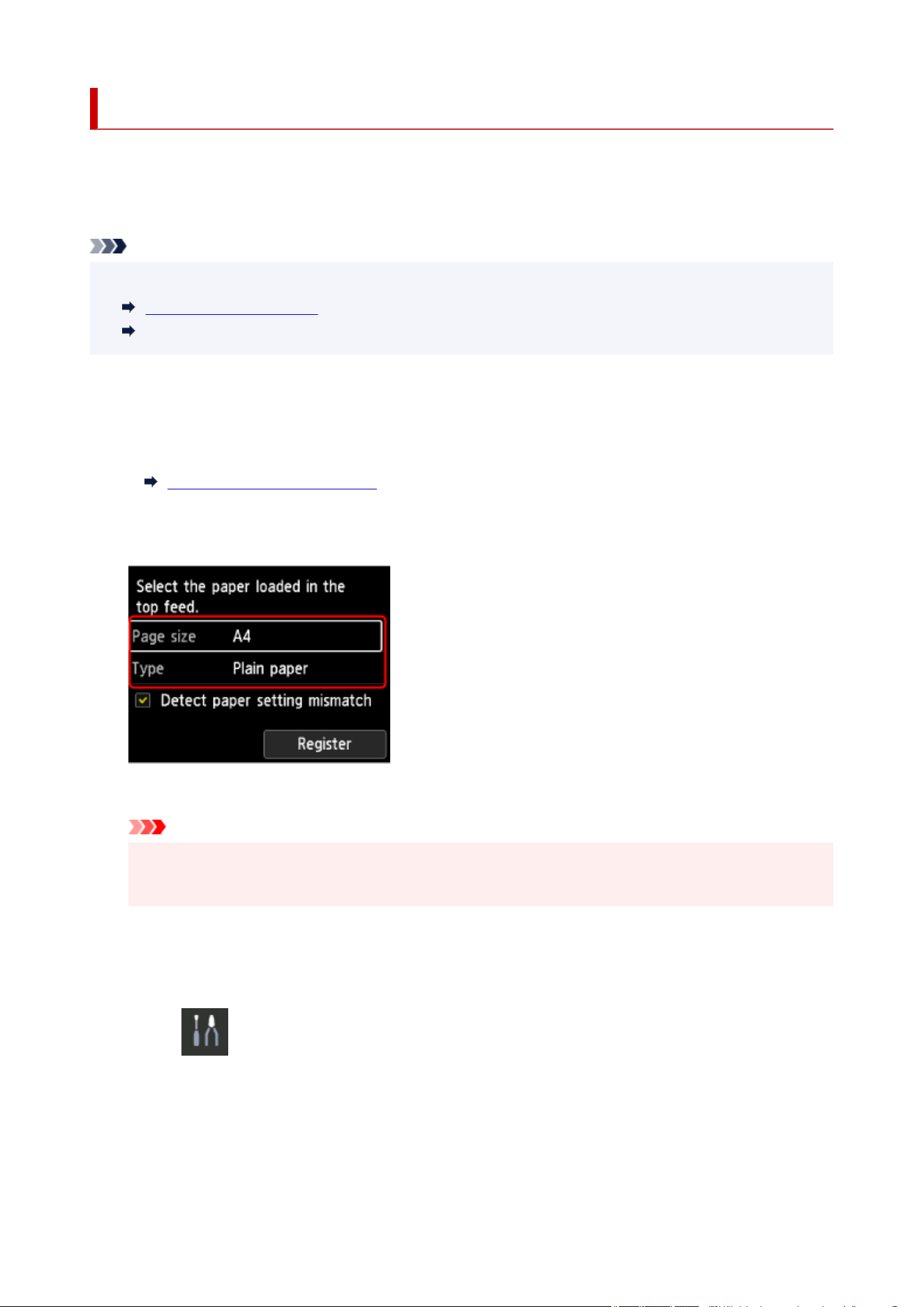
Cleaning the Print Head
Clean the print head if lines are missing or if horizontal streaks are present in the printed nozzle check
pattern. Cleaning unclogs the nozzles and restores the print head condition. Cleaning the print head
consumes ink, so clean the print head only when necessary.
Note
• You can also clean the print head using the computer.•
Cleaning the Print Heads (Windows)
Cleaning the Print Heads (macOS)
Items to Prepare
A sheet of A4 or Letter-sized plain paper
1.
Load a single sheet of A4 or Letter size plain paper in the top feed.
1.
Loading Paper in the Top Feed
After loading the paper, the paper information registration screen for the top feed is displayed.
Select A4 or Letter for Page size and Plain paper for Type, select Register, then press the OK button.
If a message is displayed on the screen, follow the directions in the message to complete registration.
Important
•
The manual feed tray is not available for the nozzle check pattern print procedure. Be sure to load
•
paper in the top feed.
2.
Open the paper output tray gently.
2.
Open the output tray extension gently, then pull out the paper output support.
3.
Select Maintenance on the HOME screen.
3.
4.
Select Cleaning.
4.
The confirmation screen will appear.
5.
Select Yes on the cleaning confirmation screen.
5.
308
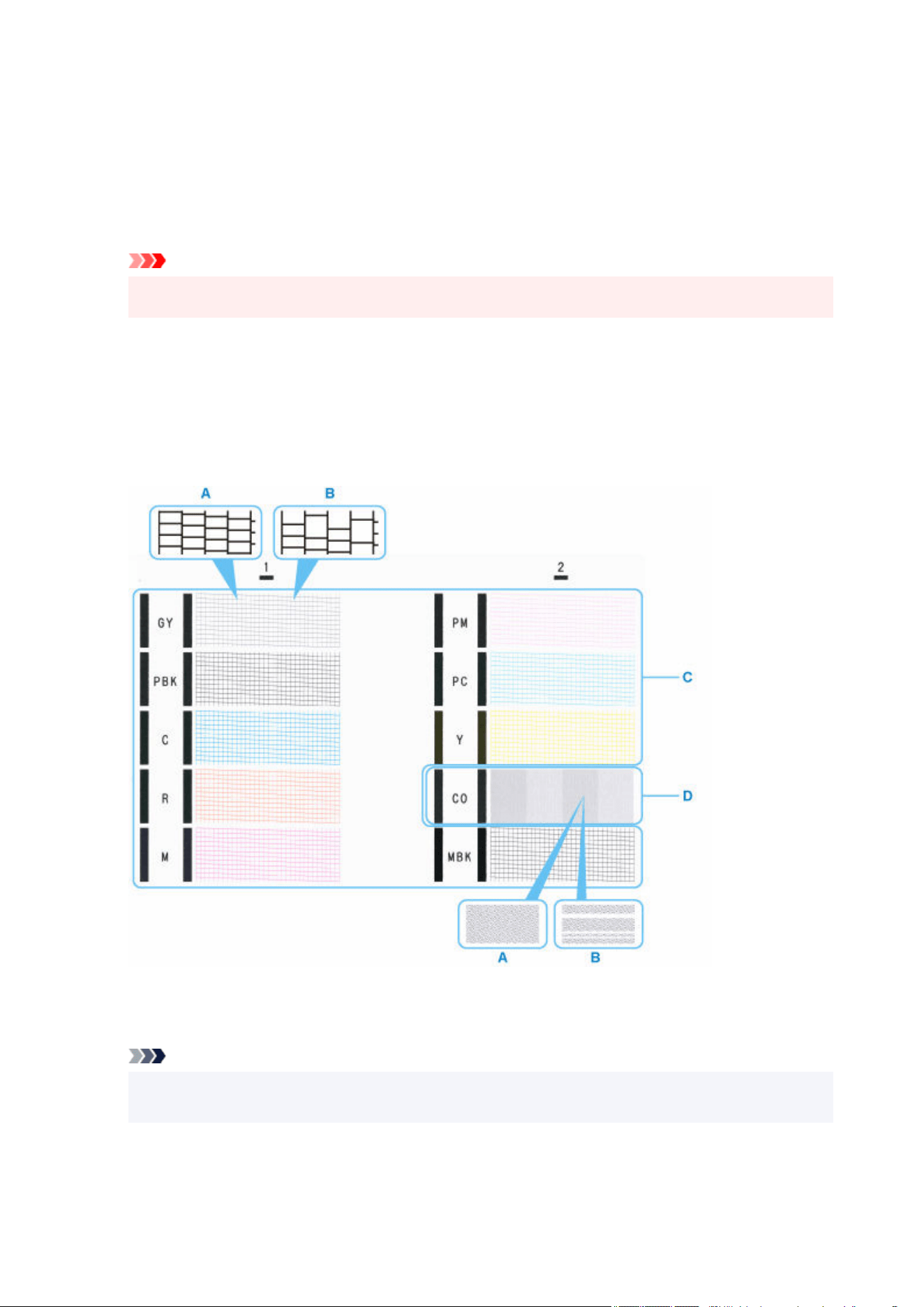
6. Select ink group to be cleaned.6.
• All colors•
• Pattern 1: GY / PBK / C / R / M•
•
Pattern 2: PM / PC / Y / CO / MBK
•
The printer starts cleaning the print head.
Important
•
Do not perform any other operations until the printer completes the cleaning of the print head.
•
7.
Check message and select Yes.
7.
The nozzle check pattern will be printed.
8.
Check the print result.
8.
Check if there are missing lines in the pattern C or horizontal streaks in the pattern D.
A: No missing lines/No horizontal streaks
B: Lines are missing/Horizontal streaks are present
Note
•
Because CO ink is colorless, its pattern is printed over the black pattern. Check for horizontal
•
streaks (E) in the dark gray bands of the pattern.
309
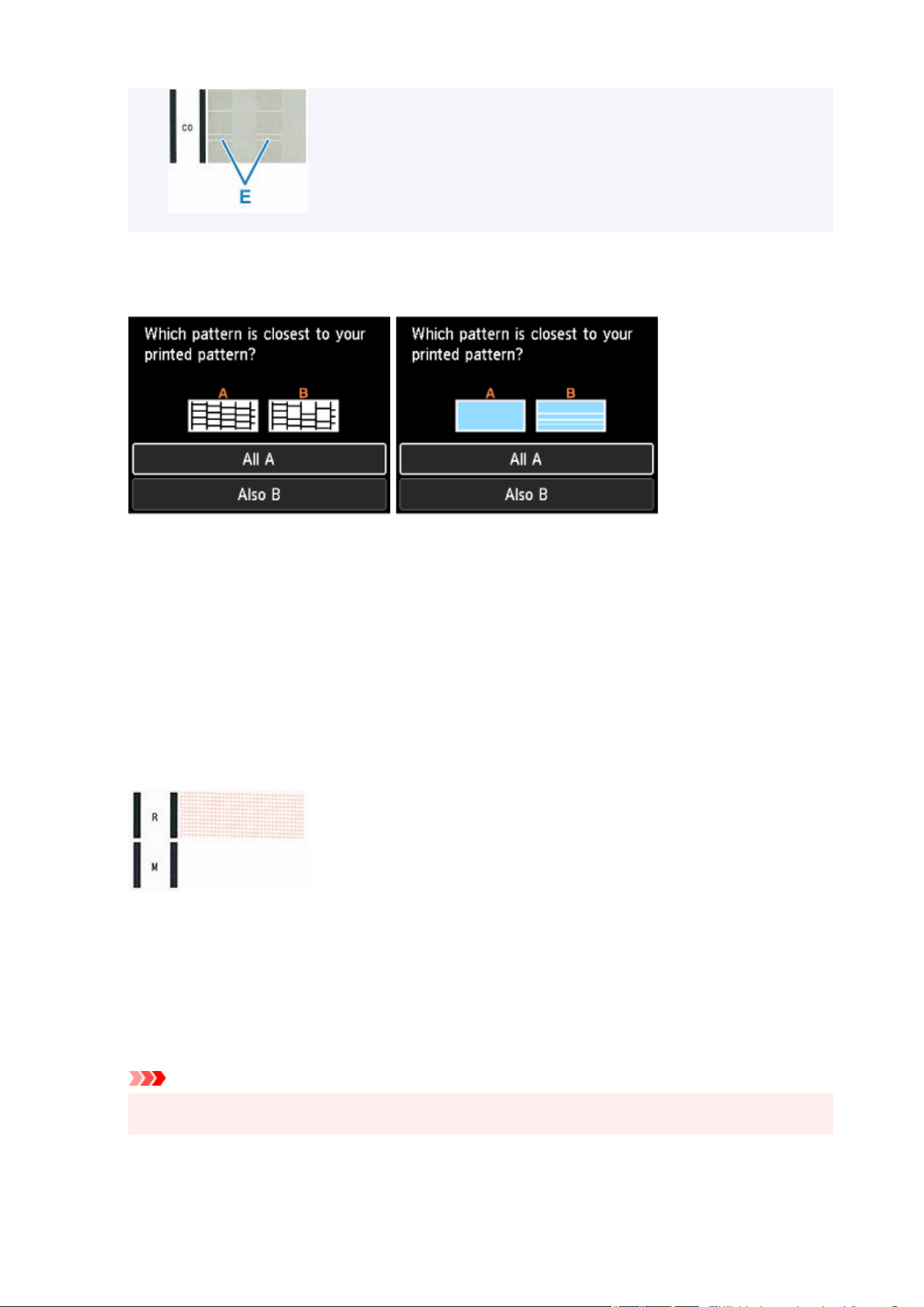
9. Select the pattern that is closer to the printed nozzle check pattern on the confirmation9.
screen.
For A (no missing lines or no horizontal streaks) in both the pattern C and pattern D:
Cleaning is not required. Select All A, then press the OK button.
Confirm the message, then press the OK button.
The screen will return to the Maintenance screen.
For B (lines are missing or horizontal streaks are present) in the pattern C or pattern D, or in both
patterns:
The cleaning is required. Select Also B, then go to next step.
If the pattern D or any color in the pattern C is not printed:
(Example: Magenta pattern is not printed)
The cleaning is required. Select Also B, then go to next step.
10.
Select Yes on the cleaning confirmation screen.
10.
11.
Select ink group to be cleaned.
11.
The printer starts cleaning the print head.
Important
•
Do not perform any other operations until the printer completes the cleaning of the print head.
•
12.
Check message and select Yes.
12.
310

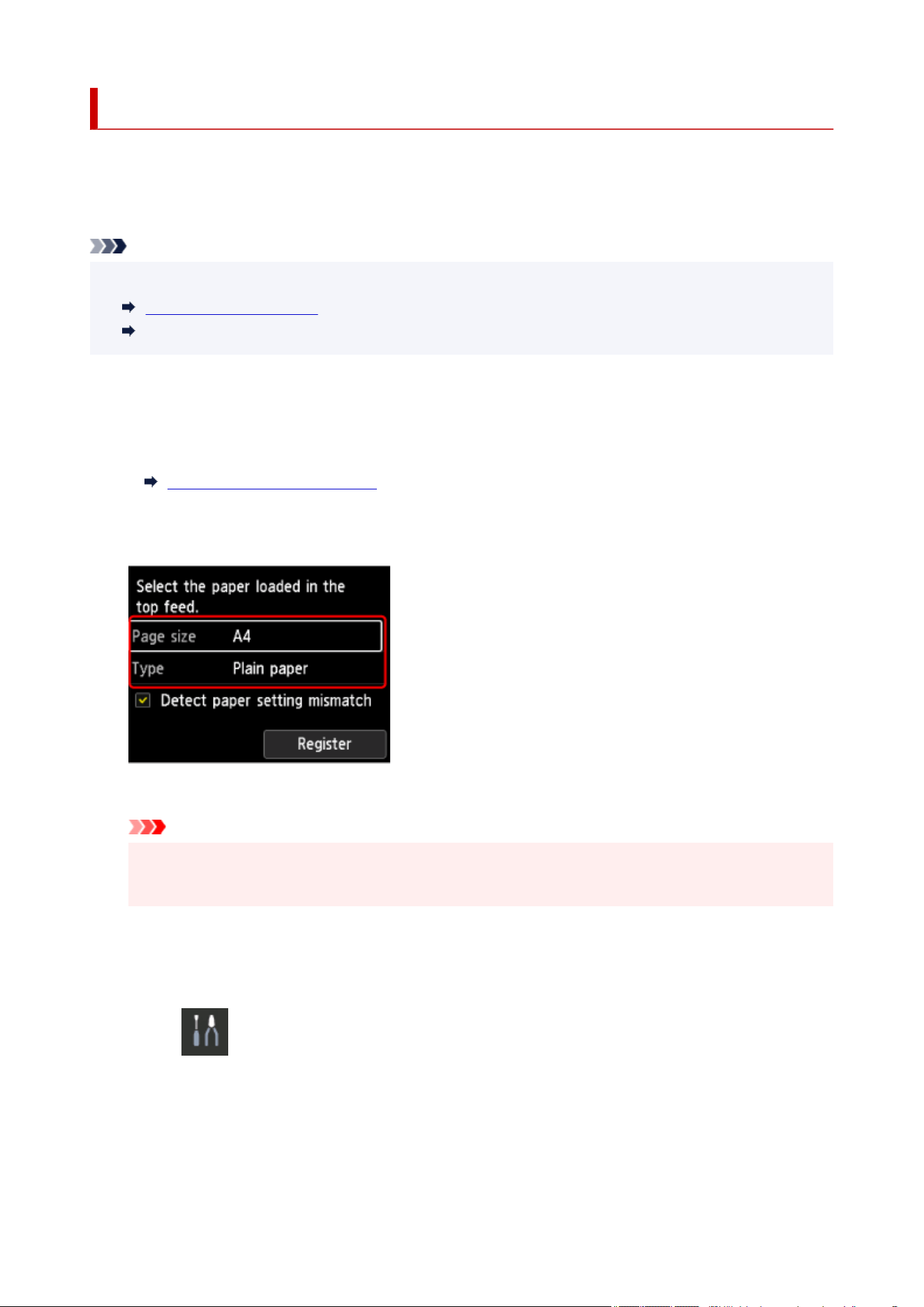
Deep Print Head Cleaning
If print quality does not improve by the standard cleaning of the print head, clean the print head deeply.
Cleaning the print head deeply consumes more ink than the standard cleaning of the print head, so clean
the print head deeply only when necessary.
Note
• You can also clean the print head deeply using the computer.•
Cleaning the Print Heads (Windows)
Cleaning the Print Heads (macOS)
Items to Prepare
A sheet of A4 or Letter-sized plain paper
1.
Load a single sheet of A4 or Letter size plain paper in the top feed.
1.
Loading Paper in the Top Feed
After loading the paper, the paper information registration screen for the top feed is displayed.
Select A4 or Letter for Page size and Plain paper for Type, select Register, then press the OK button.
If a message is displayed on the screen, follow the directions in the message to complete registration.
Important
•
The manual feed tray is not available for the nozzle check pattern print procedure. Be sure to load
•
paper in the top feed.
2.
Open the paper output tray gently.
2.
Open the output tray extension gently, then pull out the paper output support.
3.
Select Maintenance on the HOME screen.
3.
4.
Select Deep Cleaning.
4.
The confirmation screen will appear.
5.
Select Yes on the cleaning confirmation screen.
5.
312
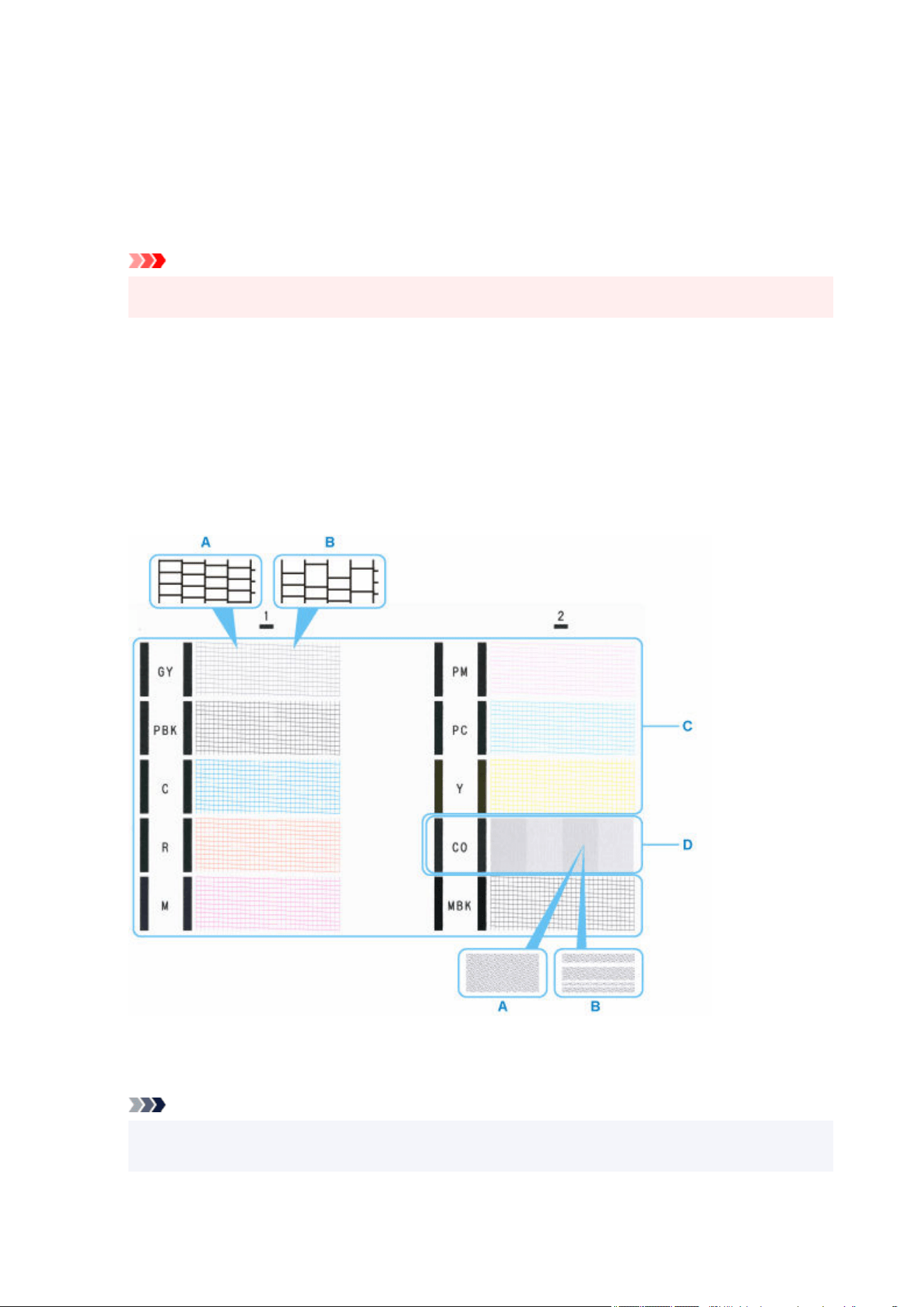
6. Select ink group to be cleaned.6.
• All colors•
• Pattern 1: GY / PBK / C / R / M•
•
Pattern 2: PM / PC / Y / CO / MBK
•
The printer starts cleaning the print head.
Important
•
Do not perform any other operations until the printer completes the cleaning of the print head.
•
7.
Check message and select Yes.
7.
The nozzle check pattern will be printed.
8.
When the completion message appears, select OK.
8.
9.
Check the print result.
9.
Check if there are missing lines in the pattern C or horizontal streaks in the pattern D.
A: No missing lines/No horizontal streaks
B: Lines are missing/Horizontal streaks are present
Note
•
Because CO ink is colorless, its pattern is printed over the black pattern. Check for horizontal
•
streaks (E) in the dark gray bands of the pattern.
313

Important
• If a particular color is not printed properly, replace the ink tank of that color.•
Replacing Ink Tanks
• If the problem is not resolved, turn off the power and clean the print head deeply again after 24 hours.•
Do not unplug the power cord when turning off the power.
• If the problem is still not resolved, the print head may be damaged. Contact your nearest Canon service•
center to request a repair.
314

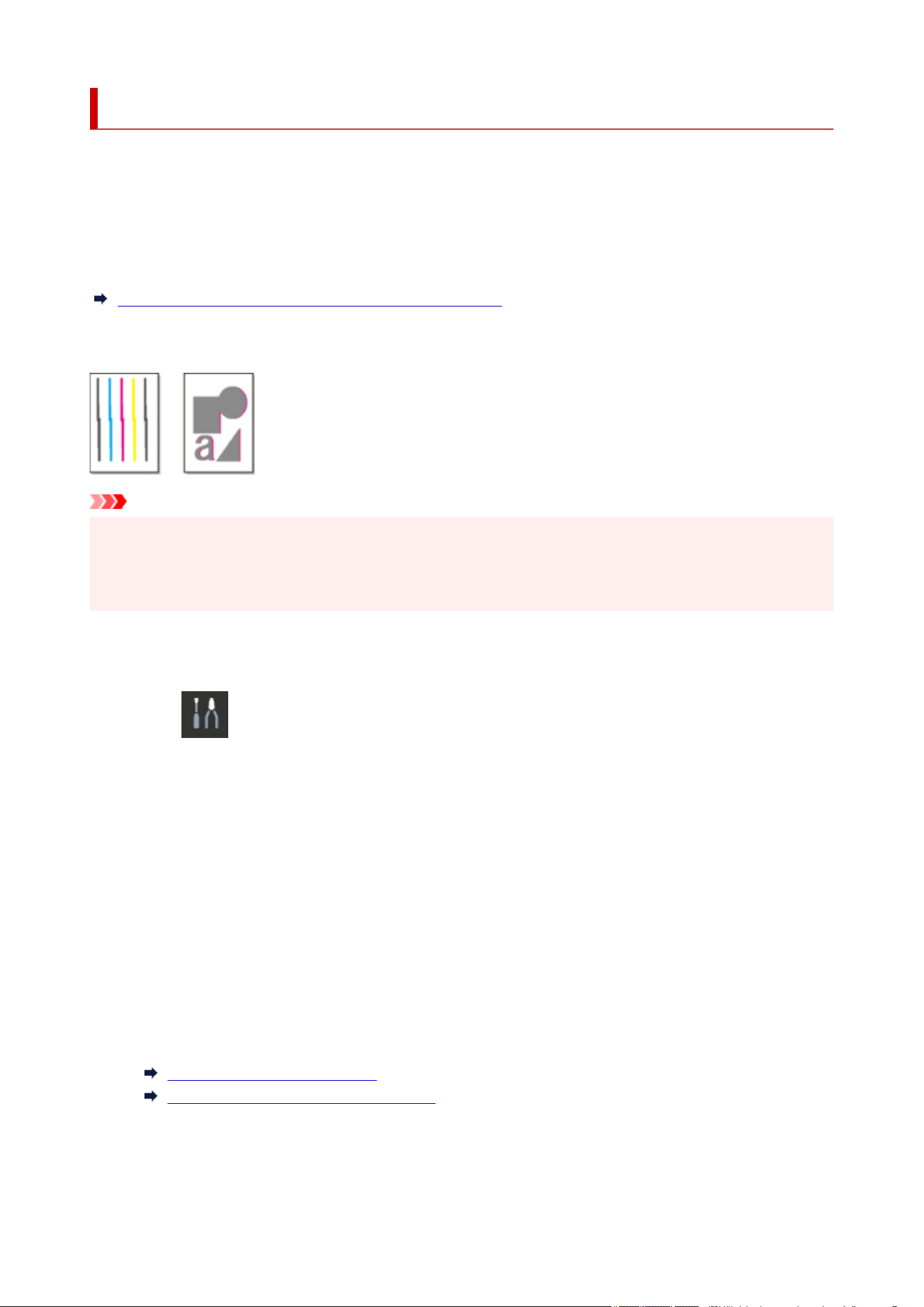
Automatic Adjustment to Straighten Lines and Align Colors
If printed vertical lines are warped or colors are out of alignment, execute Print Head Alignment and adjust
the print head position.
Choose from Auto or Manual for adjusting the print head.
Minor warping and misaligned colors can usually be improved by executing Auto. If there is no
improvement, perform Manual.
Manual Adjustment to Straighten Lines and Align Colors
When you execute Auto, the adjustment pattern is printed, and the print head position is adjusted based on
the printing result automatically.
Important
• Because the results of adjustment vary depending on the type of paper used for adjustment, use the•
same type of paper as you will use for printing.
• This function is not available for paper with high transparency.•
Items to Prepare
For A4 or Letter size paper: 2 sheets
1. Select Maintenance on the HOME screen.1.
2. Select Print Head Alignment.2.
3. Select Auto.3.
The confirmation screen will appear.
4.
Select Yes.
4.
The paper settings screen will appear.
5.
Sets the paper to use.
5.
6.
Load the prepared paper in the paper source specified in the message.
6.
Loading Paper in the Top Feed
Loading Paper in the Manual Feed Tray
If the paper source is the manual feed tray, load one sheet of paper at a time.
7.
Open the paper output tray gently.
7.
316

Open the output tray extension, then pull out the paper output support.
8. Press the OK button.8.
The print head alignment sheet will be printed and the print head position will be adjusted automatically.
9.
When the completion message appears, press the OK button.
9.
Note
• If the print results are still not satisfactory after adjusting the print head position as described above,•
align the print head manually.
Manual Adjustment to Straighten Lines and Align Colors
317
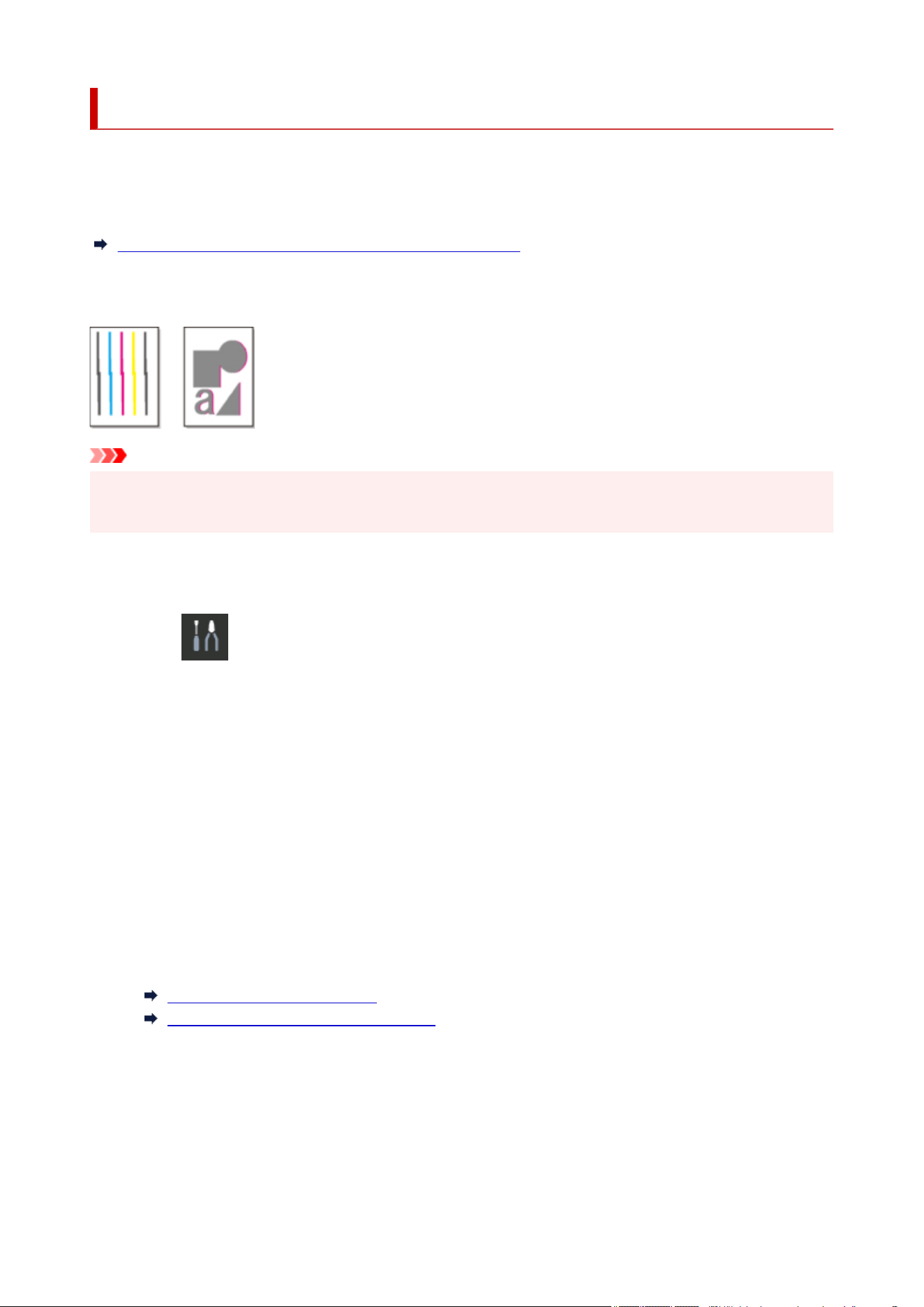
Manual Adjustment to Straighten Lines and Align Colors
If printed vertical lines are warped or colors are out of alignment, execute Print Head Alignment and adjust
the print head position.
Normally, execute Auto.
Automatic Adjustment to Straighten Lines and Align Colors
However, when printing on special paper or if printing is not improved after Auto, try Manual.
Manual adjustment requires you to examine the printed test pattern and enter an adjustment value.
Important
• Because the results of adjustment vary depending on the type of paper used for adjustment, use the•
same type of paper as you will use for printing.
Items to Prepare
For A4 or Letter size paper: 1 sheet
1. Select Maintenance on the HOME screen.1.
2. Select Print Head Alignment.2.
3. Select Manual.3.
The confirmation screen will appear.
4.
Select Yes.
4.
The paper settings screen will appear.
5.
Sets the paper to use.
5.
6.
Load the prepared paper in the paper source specified in the message.
6.
Loading Paper in the Top Feed
Loading Paper in the Manual Feed Tray
If the paper source is the manual feed tray, load one sheet of paper at a time.
7.
Open the paper output tray gently.
7.
Open the output tray extension, then pull out the paper output support.
8.
Press the OK button.
8.
318
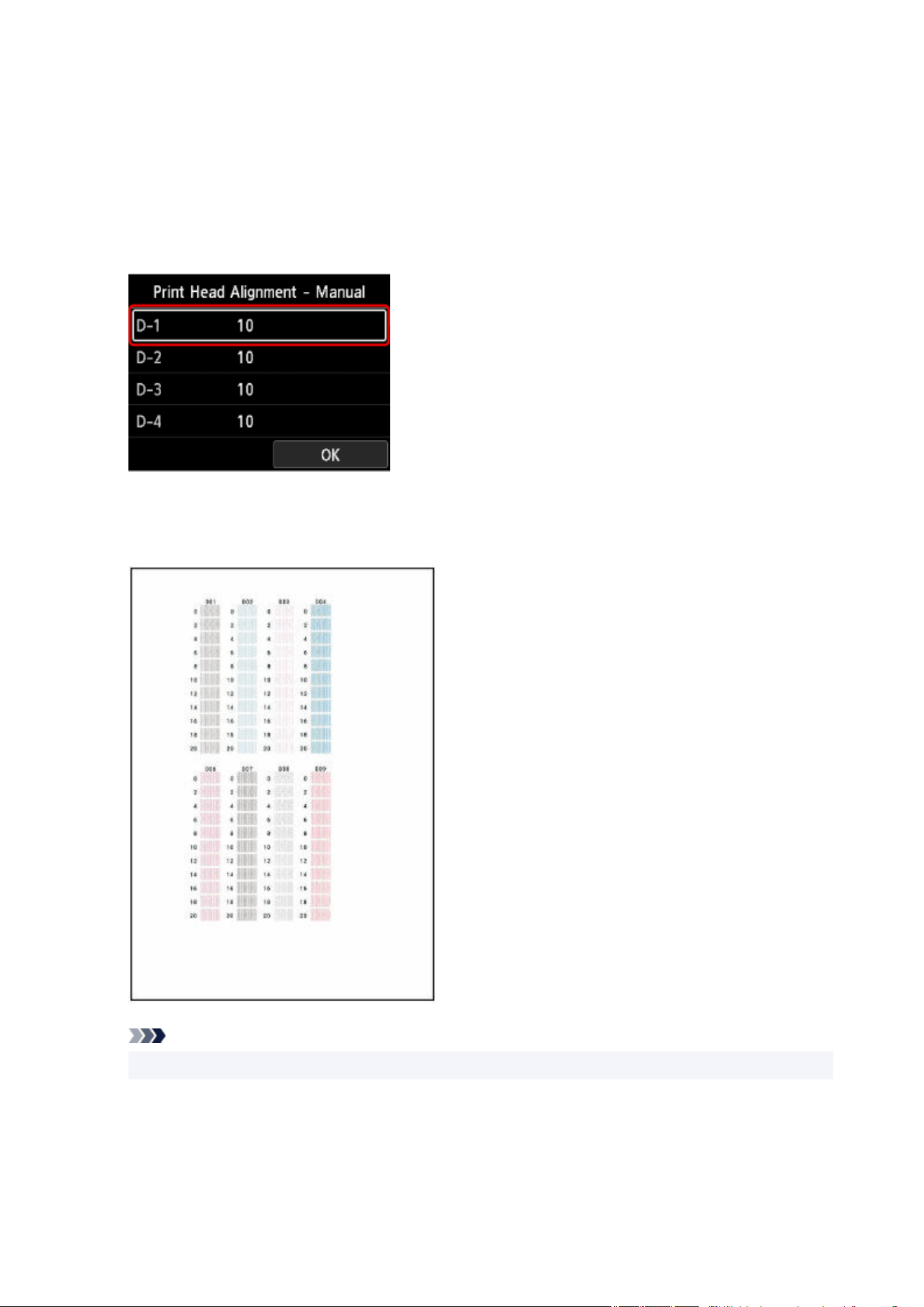
The print head alignment pattern is printed.
9. When the message "Did the patterns print correctly?" appears, confirm that the pattern is9.
printed correctly, select Yes.
10. Confirm the message, then press the OK button.10.
The input screen for the head position adjustment values will appear.
11.
Look at the pattern and select the number of the pattern in each column that has straight
11.
lines.
Note
•
Look at the pattern and pick the setting that produces the least warped vertical straight lines.
•
319

A: Vertical straight lines
B: Warped vertical straight lines
12.
Repeat this procedure until you finish inputting a pattern number in all columns, select OK.
12.
If a message is displayed on the screen, follow the directions in the message.
13.
When the completion message appears, press the OK button.
13.
320

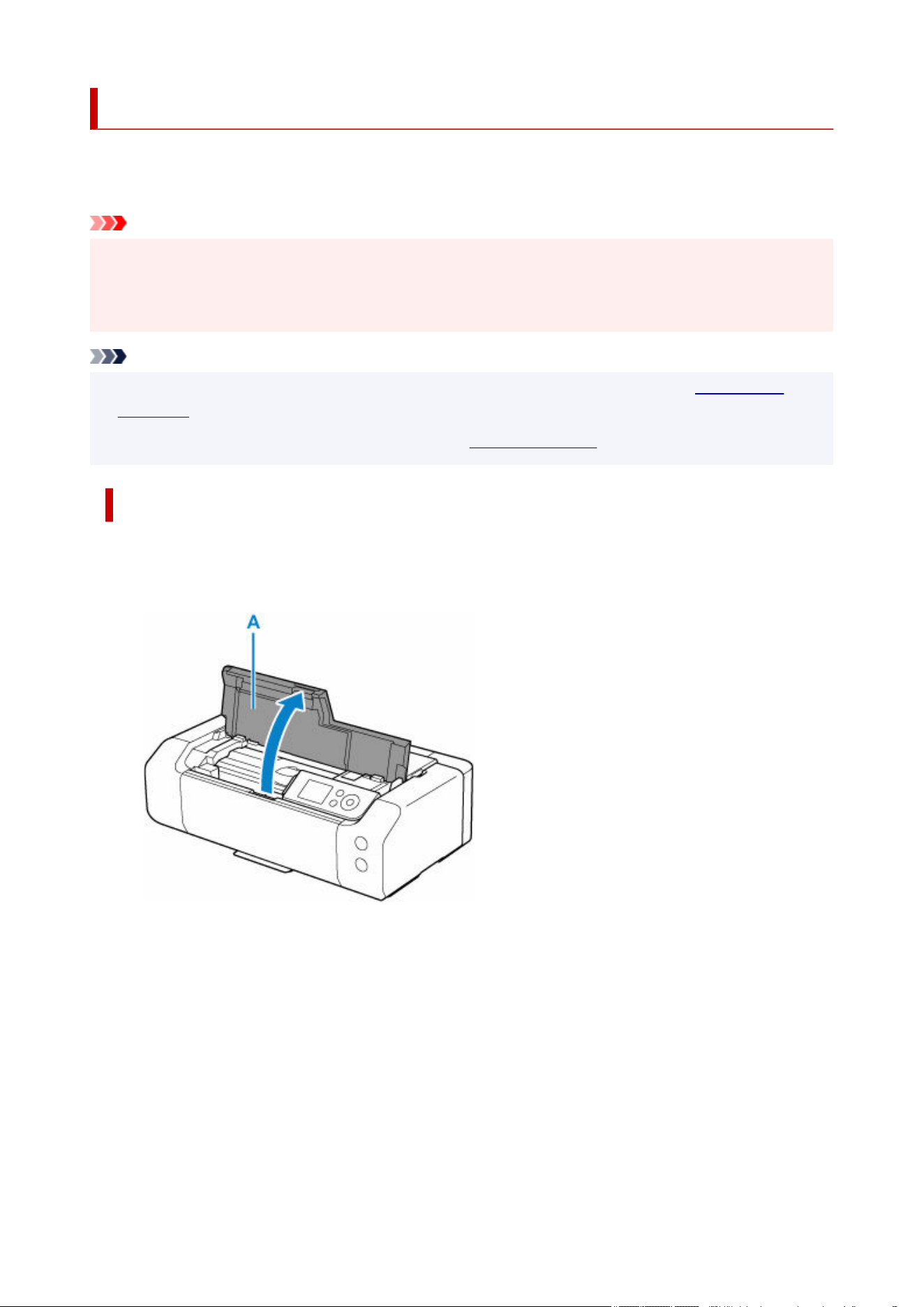
Replacing Ink Tanks
When remaining ink cautions or errors occur, the message will appear on the LCD to inform you of the error.
In this state, the printer cannot print. Take appropriate action according to the message.
Important
• Prepare a new ink tank before you start replacing one.•
• Replace the ink tank quickly so as not to leave the printer without an ink tank. The printer may be•
damaged if it is left without an ink tank, causing a problem such as clogging due to dried ink.
Note
• If print results become faint or white streaks appear despite sufficient ink levels, see Maintenance•
Procedure.
• For precautionary notes on handling ink tanks, see Notes on ink tanks.•
Replacing Procedure
When you need to replace an ink tank, follow the procedure below.
1.
Open the top cover (A).
1.
2.
When message appears on LCD, press Stop button.
2.
3.
Select OK.
3.
The print head holder moves to the replacement position.
322
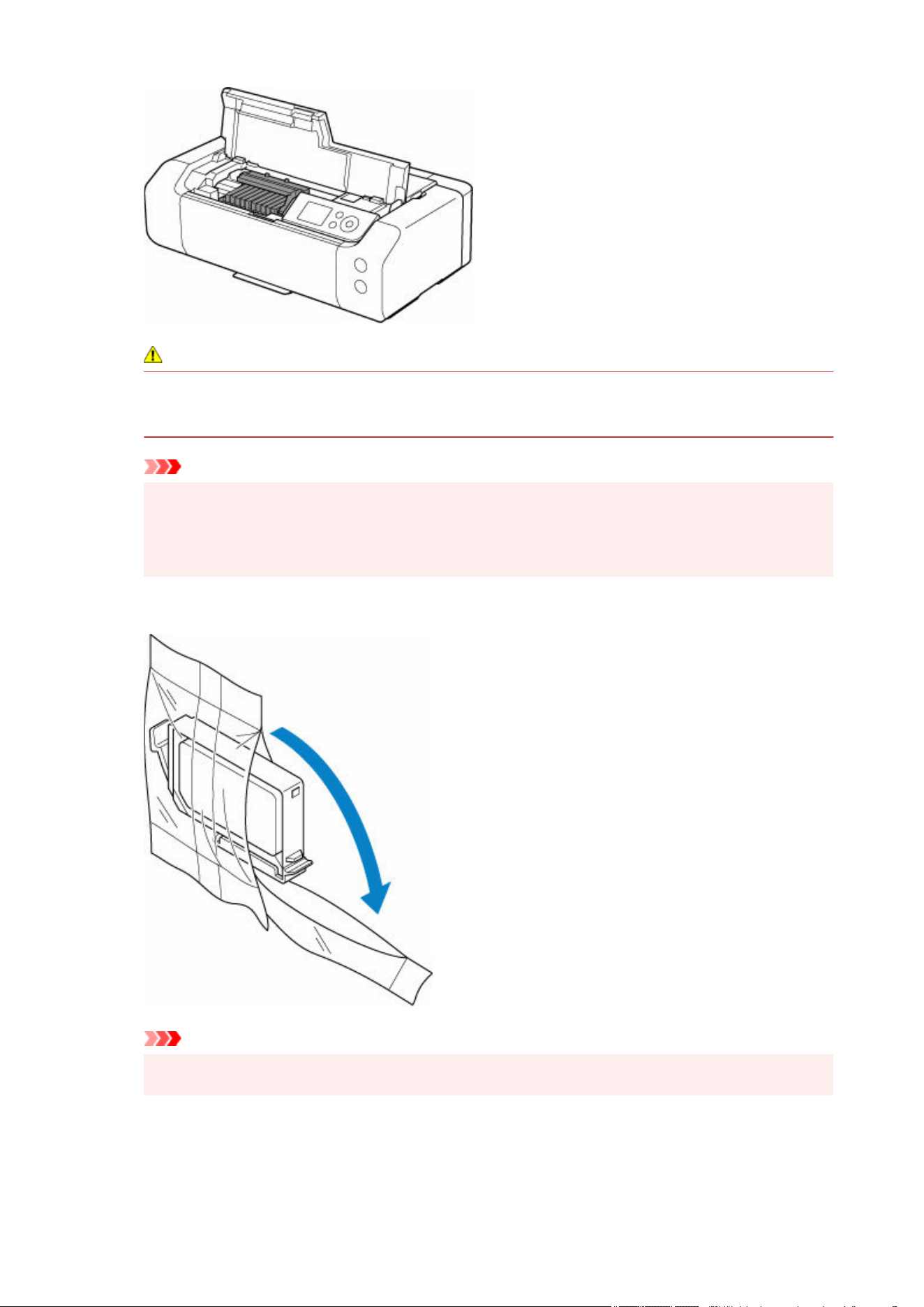
Caution
•
Do not hold the print head holder to stop or move it forcibly. Do not touch the print head holder
•
until it stops completely.
Important
•
Do not touch the metallic parts or other parts inside the printer.
•
• If the top cover is left open for more than 10 minutes, the print head holder moves to the right.•
In this case, close and reopen the top cover.
4. Take a new ink tank out of its package.4.
Important
•
Handle an ink tank carefully. Do not drop or apply excessive pressure to it.
•
5.
Remove the orange protective cap (B) from the bottom of the ink tank.
5.
323
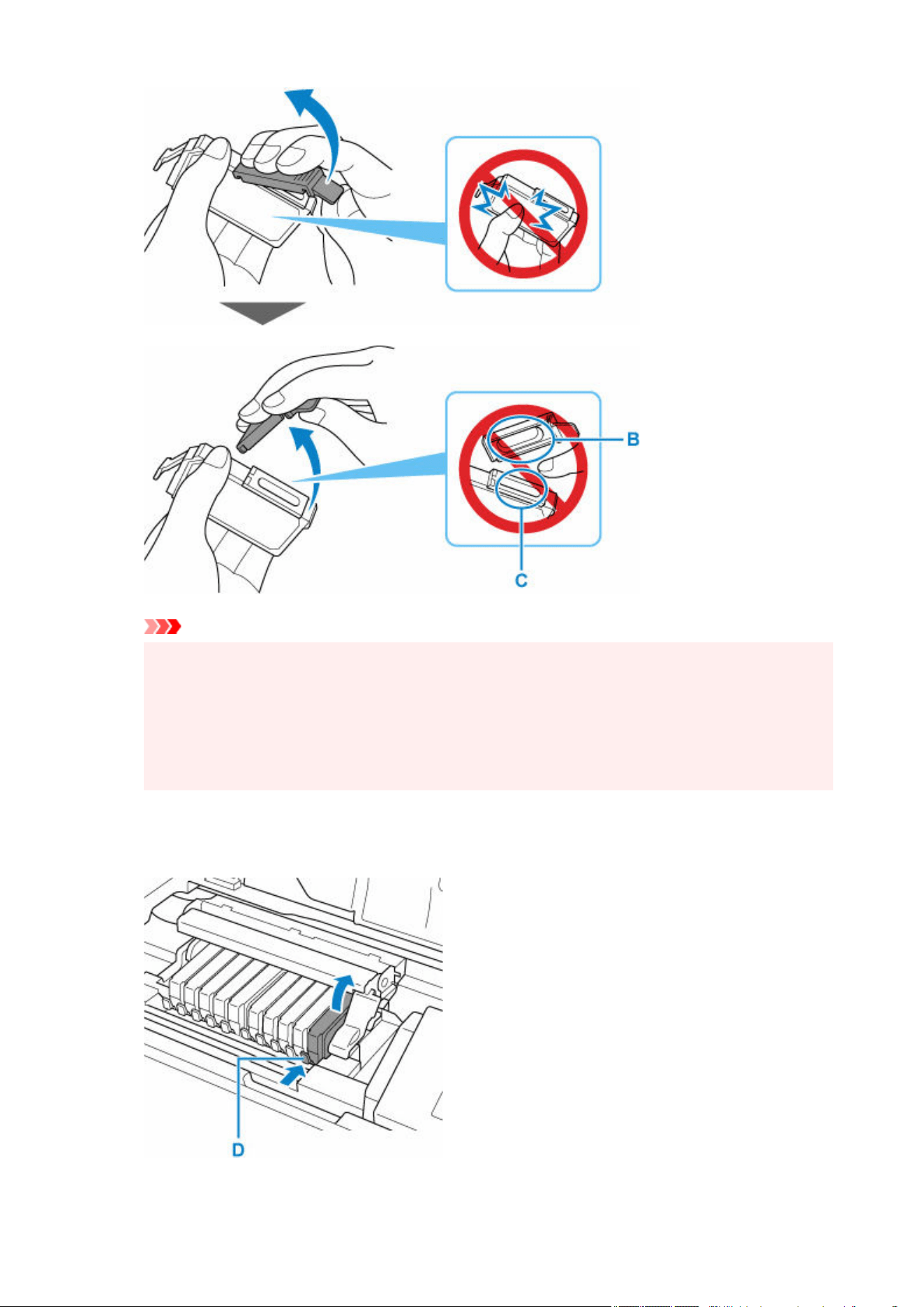
Important
• Do not push the sides of the ink tank. If you push the sides of the ink tank, ink may splash.•
• Do not touch the inside of the protective cap (B) or the open ink port (C). The ink may stain your•
hands if you touch them.
• Do not reattach the protective cap (B) once you have removed it. Discard it according to the•
local laws and regulations regarding disposal of consumables.
6. Remove the ink tank where the ink runs out.6.
Push the tab (D) and lift the ink tank to remove.
324
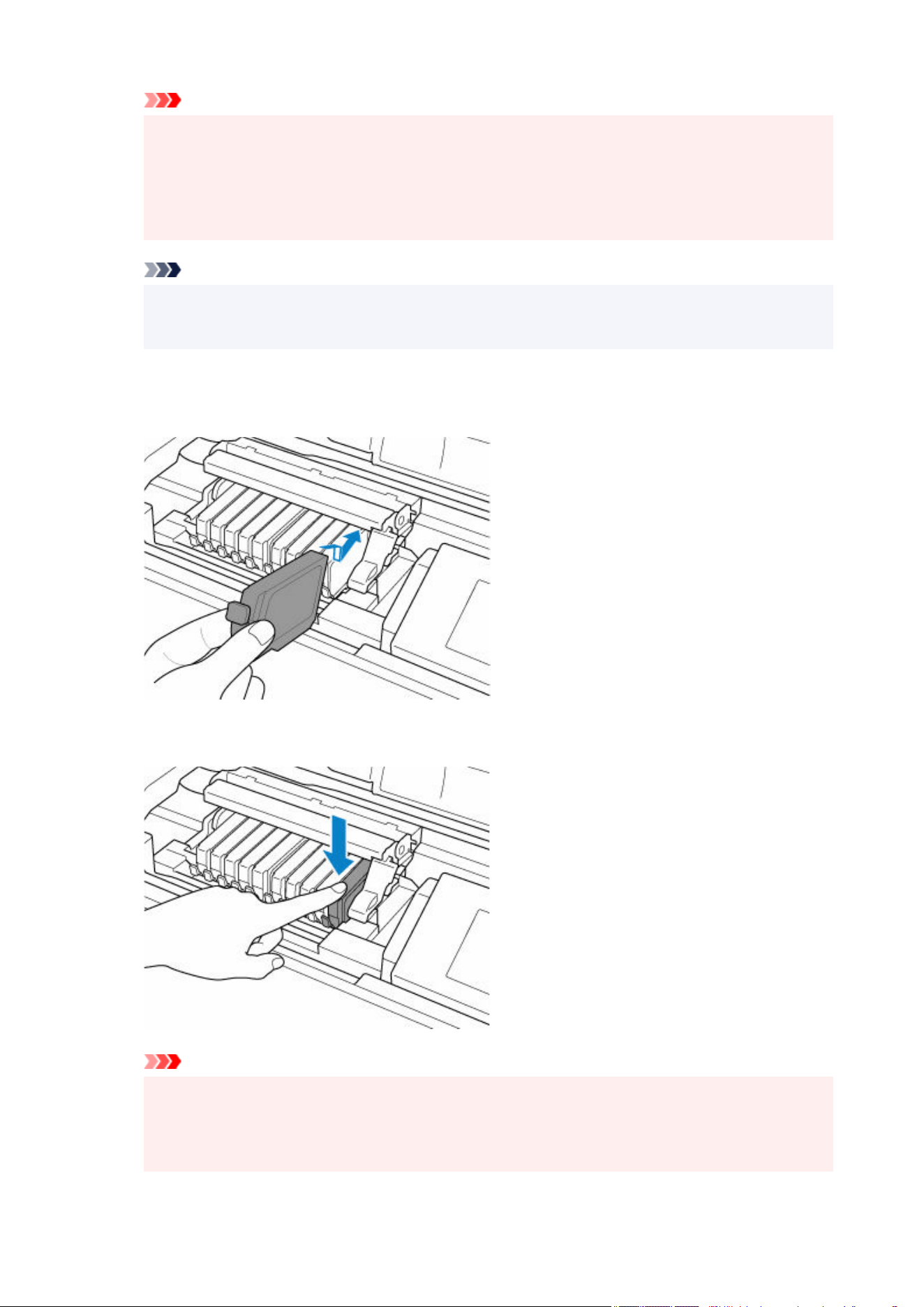
Important
• Do not touch other parts besides the ink tanks.•
•
Handle the ink tank carefully to avoid staining of clothing or the surrounding area.
•
• Discard the empty ink tank according to the local laws and regulations regarding disposal of•
consumables.
Note
•
Do not remove two or more ink tanks at the same time. Be sure to replace ink tanks one by one
•
when replacing two or more ink tanks.
7.
Insert the front end of the ink tank into the print head at a slant.
7.
Make sure that the position of the ink tank matches the label.
8.
Press on the top of the ink tank until the ink tank snaps firmly into place.
8.
Important
•
You cannot print if the ink tank is installed in the wrong position. Be sure to install the ink tank in
•
the correct position according to the label on the print head holder.
•
You cannot print unless all the ink tanks are installed. Be sure to install all the ink tanks.
•
325

9. Close the top cover.9.
The printer will automatically start mixing the ink. Wait until the printer stops making operating noise (it
takes up to about 2 minutes or less).
Note
• If the error message appears on the LCD after the top cover is closed, take appropriate action.•
•
When you start printing after replacing the ink tank, the printer starts cleaning the print head
•
automatically. Do not perform any other operations until the printer completes the cleaning of
the print head.
• If the print head is out of alignment, as indicated by misaligned printed ruled lines or similar
•
symptoms, align the print head.
Automatic Adjustment to Straighten Lines and Align Colors
Notes on ink tanks
Important
• There may be ink around the ink holes of an ink tank you removed. Handle the ink tanks carefully•
during replacement. The ink may stain clothing.
• If you remove an ink tank, replace it immediately. Do not leave the printer with the ink tank removed.•
• Use a new ink tank for replacement. Installing a used ink tank may cause the nozzles to clog.•
Furthermore, with such an ink tank, the printer will not be able to inform you when to replace the ink
tank properly.
• Once an ink tank has been installed, do not remove it from the printer and leave it out in the open.•
This will cause the ink tank to dry out, and the printer may not operate properly when it is reinstalled.
To maintain optimal printing quality, use an ink tank within six months of first use.
Note
• Color ink may be consumed even when printing a black-and-white document or when black-and-•
white printing is specified. Every ink is also consumed in the standard cleaning and deep cleaning of
the print head, which may be necessary to maintain the performance of the printer.
When an ink tank is out of ink, replace it immediately with a new one.
Ink Tips
326
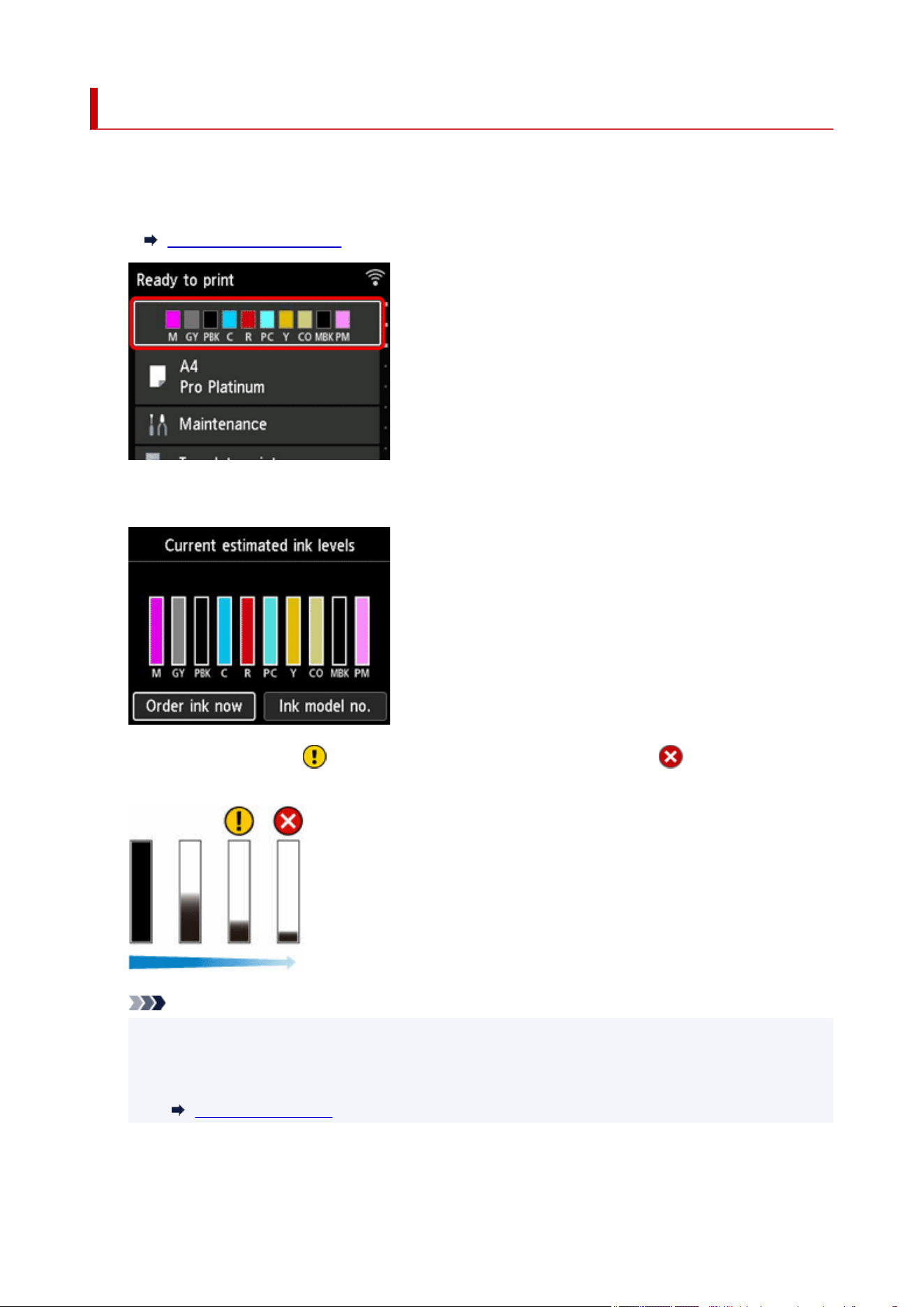
Checking Ink Level
You can check the remaining amount of ink on the LCD.
1. Select the ink status display area on the HOME screen.1.
LCD and Operation Panel
2. Check the ink status.2.
When the ink level is low, is displayed above the ink level on the LCD, and is displayed when ink
runs out.
Note
•
If a message is displayed indicating to check the remaining ink levels, or after tasks that consume
•
a lot of ink such as large-format printing or head cleaning, check the remaining levels and replace
ink tank as needed.
Replacing Ink Tanks
327

• Select Ink model no. > Order ink now for information on where to purchase ink.•
328


Cleaning the Printer Exterior
Be sure to use a soft and dry cloth such as eyeglasses cleaning cloth and wipe off dirt on the surface gently.
Smooth out wrinkles on the cloth if necessary before cleaning.
Important
• Be sure to turn off the power and unplug the power cord before cleaning the printer.•
Turning the Printer On and Off
• Do not use tissue paper, paper towels, rough-textured cloth, or similar materials for cleaning so as not•
to scratch the surface. Paper tissue powder or fine threads may remain inside the printer and cause
problems such as print head blockage and poor printing results.
• Never use volatile liquids such as thinners, benzine, acetone, or any other chemical cleaner to clean the•
printer, as this may cause a malfunction or damage the surface of the printer.
330
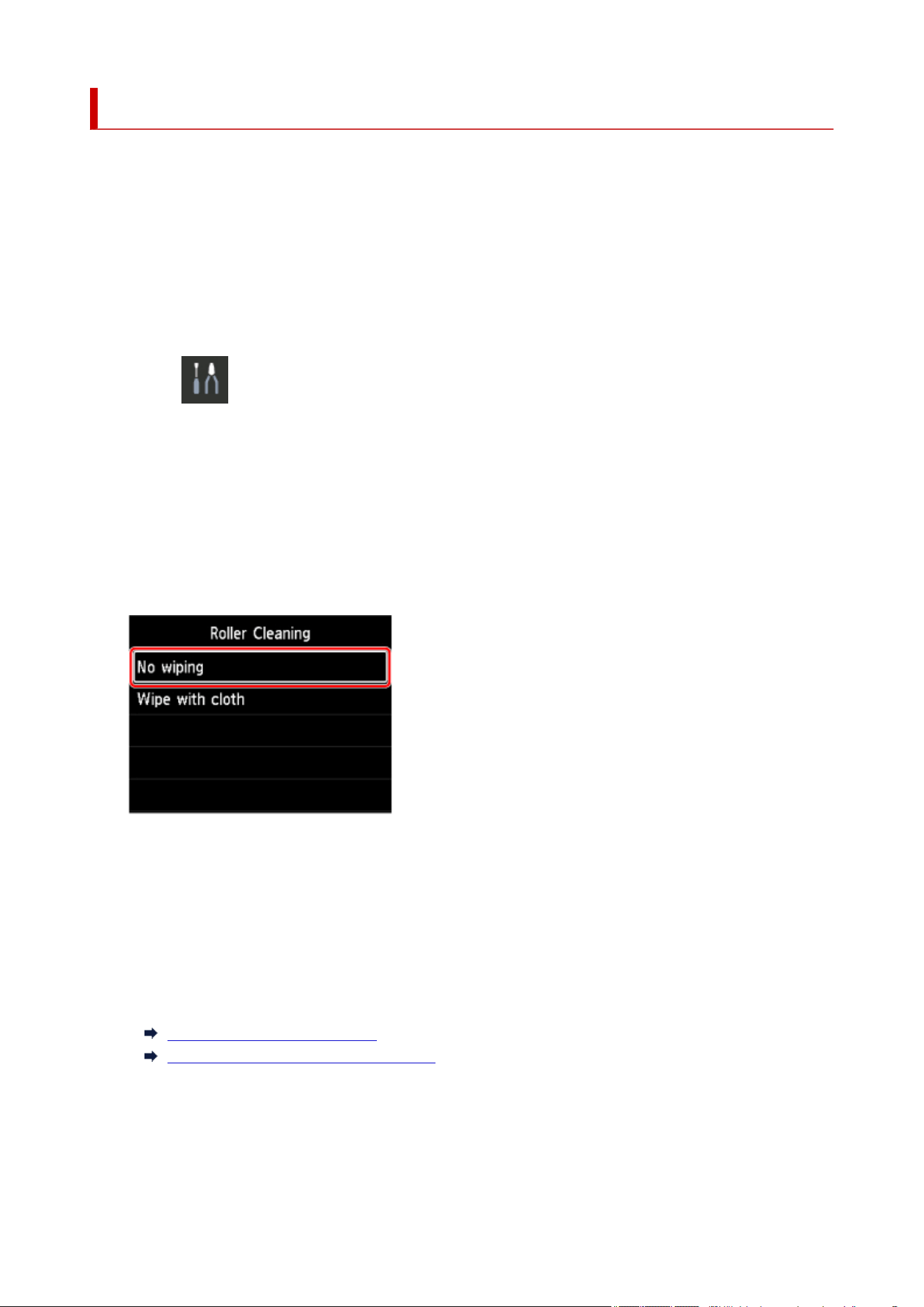
Cleaning Paper Feed Rollers
If the paper feed roller is dirty or paper powder is attached to it, paper may not be fed properly. In this
case, clean the paper feed roller. Cleaning will wear out the paper feed roller, so perform this only when
necessary.
You need to prepare:
For the top feed: three sheets of A4 or Letter size plain paper
For the manual feed tray: a single sheet of A4 or Letter size plain paper
1.
Select Maintenance on the HOME screen.
1.
2.
Select Roller Cleaning.
2.
3.
Select Yes.
3.
4. Select paper source (Top feed or Manual tray) for paper feed roller cleaning.4.
5.
If Top feed is selected, select No wiping.
5.
6. If Top feed is selected, remove any paper in top feed and press OK button.6.
The paper feed roller will rotate as it is cleaned without paper.
When the paper feed roller stops rotating, the cleaning is complete.
7.
Follow the message to load A4 or Letter size plain paper in the paper source you selected.
7.
Load three sheets of paper in the top feed or a single sheet of paper in the manual feed tray.
Loading Paper in the Top Feed
Loading Paper in the Manual Feed Tray
8.
Select OK.
8.
The printer starts cleaning. The cleaning will be complete when the paper is ejected.
331
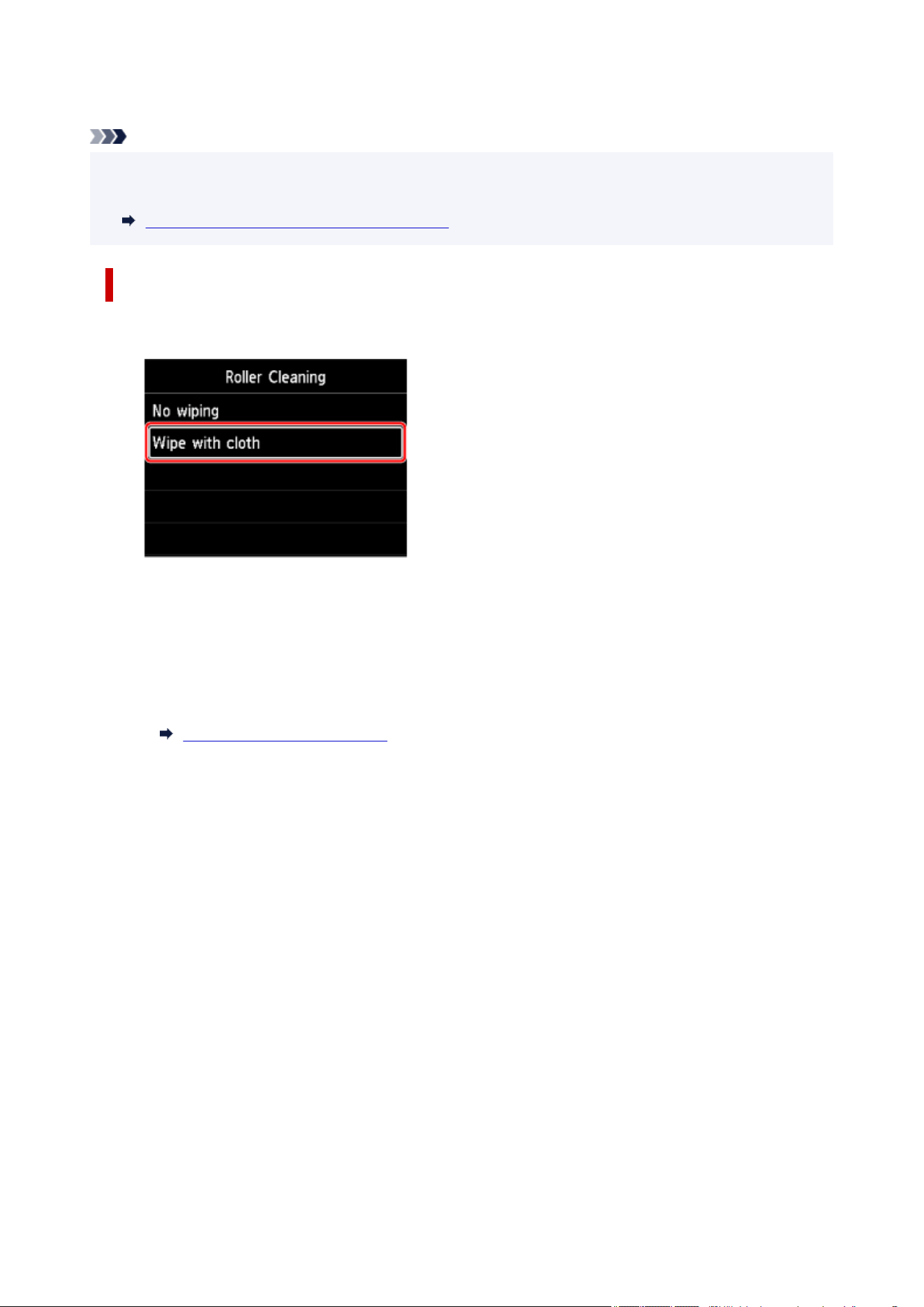
9. When the completion message appears, select OK.9.
Note
• If the problem is not resolved after performing the paper feed roller cleaning with No wiping, wipe the•
paper feed roller with a damp cloth.
Wiping Paper Feed Rollers with Damp Cloth
Wiping Paper Feed Rollers with Damp Cloth
1.
Select Wipe with cloth on Roller Cleaning screen.
1.
2. Check message and select OK.2.
3. Remove any paper in top feed and press OK button.3.
4. Turn the printer off.4.
Turning the Printer On and Off
5.
Make sure ON lamp is turned off and wipe paper feed roller with damp cloth.
5.
Wipe the paper feed roller (A) in the top feed with a moistened cloth or other materials. Do not touch
the paper feed roller with your fingers, wipe it as rotating the shaft (B) with your fingers.
332
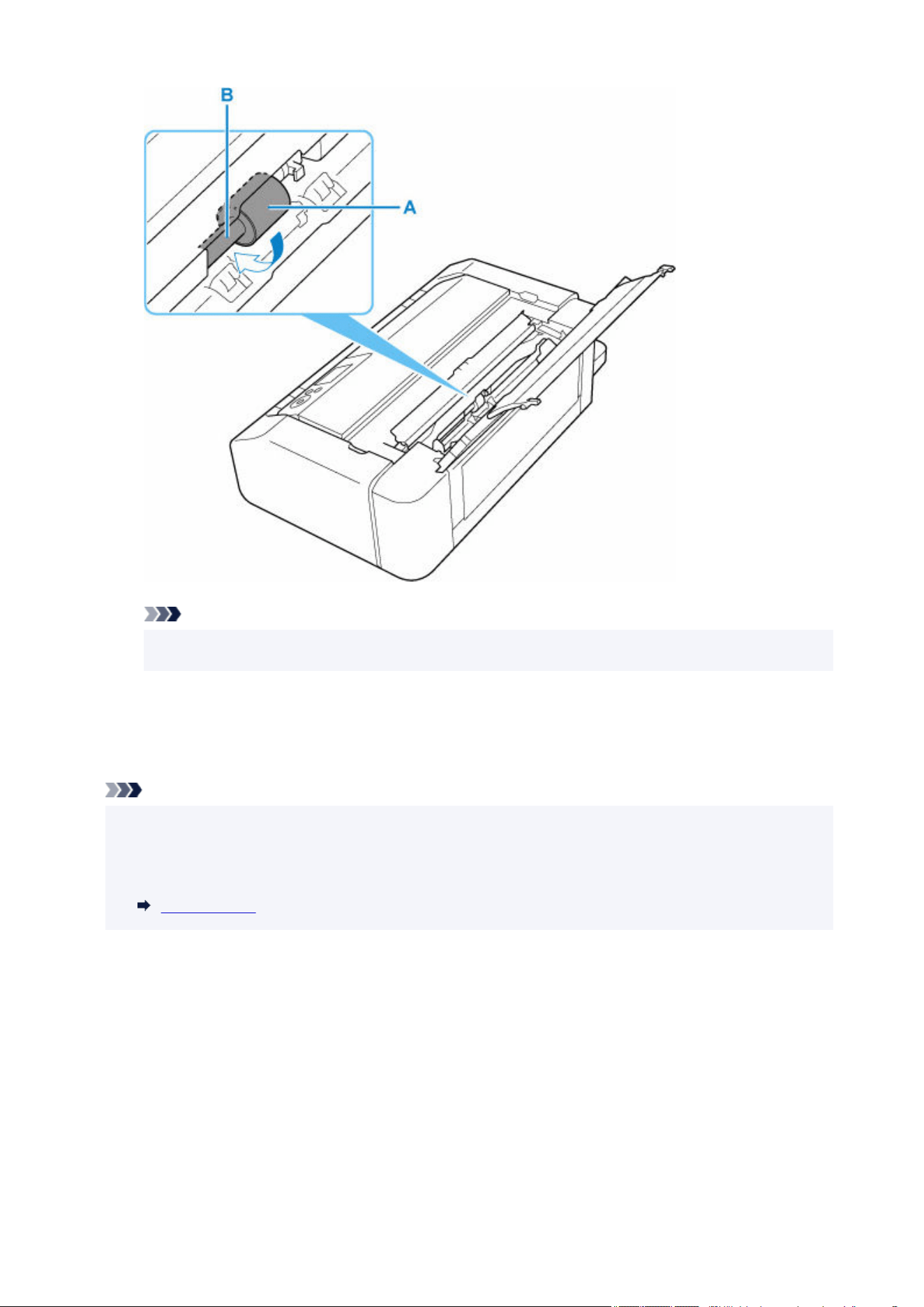
Note
• If the shaft is not rotated, turn off the printer and turn it on again.•
6.
After wiping with damp cloth, turn the printer on.
6.
7.
Perform paper feed roller cleaning (No wiping) again.
7.
Note
• If printing data is sent to the printer when performing the paper feed roller cleaning with Wipe with•
cloth, the auto power on setting is disabled even if it is set to be automatically turned on.
In this case, set the printer to be automatically turned on again.
Power control
If the problem is not resolved after cleaning the paper feed roller, contact your nearest Canon service center
to request a repair.
333
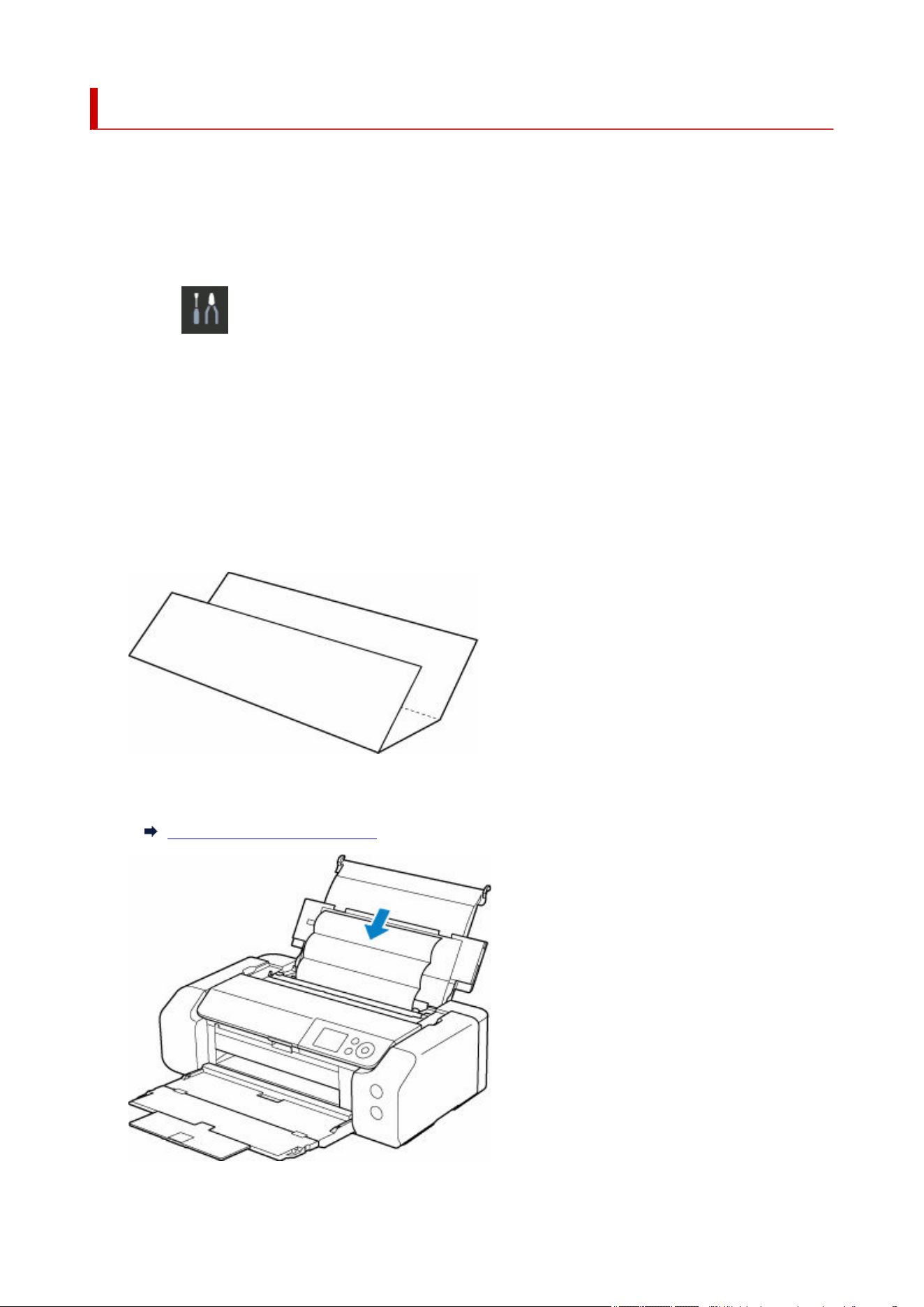
Performing Bottom Plate Cleaning
Remove stains from the inside of the printer. If the inside of the printer becomes dirty, printed paper may get
dirty, so we recommend performing cleaning regularly.
You need to prepare: a sheet of A4 or Letter-sized plain paper*
* Be sure to use a new piece of paper.
1.
Select Maintenance on the HOME screen.
1.
2.
Select Bottom Plate Cleaning.
2.
3.
Select Yes.
3.
4.
Follow the message to remove any paper from the top feed, then press the OK button.
4.
5.
Fold A4 or Letter-sized plain paper so that short side is in thirds, unfold paper, then press
5.
the OK button.
6.
Load this sheet of paper sideways in the top feed with the open side facing you.
6.
Loading Paper in the Top Feed
334
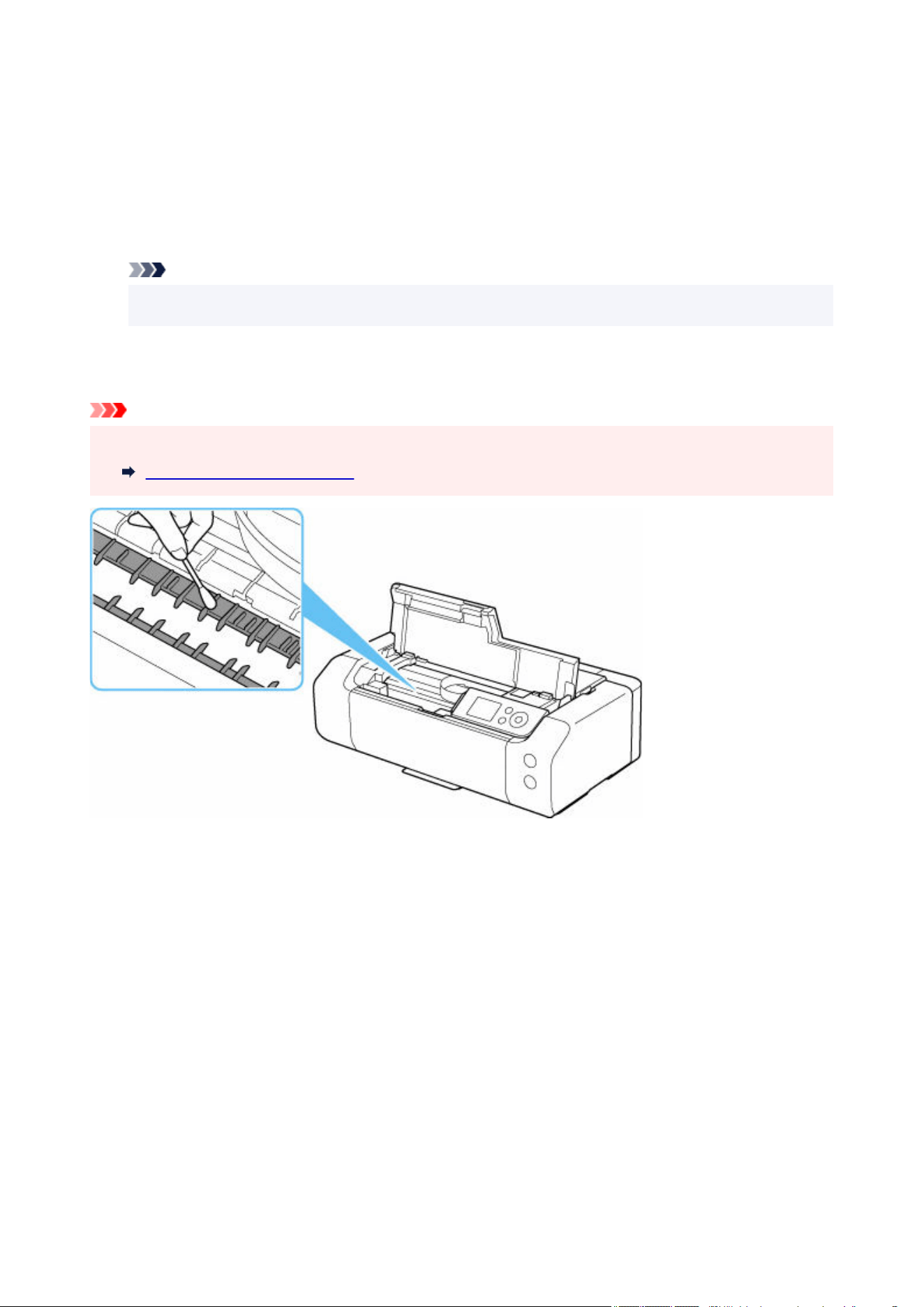
7. Press the OK button.7.
The paper cleans the inside of the printer as it feeds through the printer.
Check the folded parts of the ejected paper. If they are smudged with ink, perform Bottom Plate Cleaning
again.
8. When the completion message appears, press the OK button.8.
Note
•
When performing Bottom Plate Cleaning again, be sure to use a new piece of paper.
•
If the problem is not resolved after performing cleaning again, the protrusions inside the printer may be
stained. Wipe off any ink from the protrusions using a cotton swab or the like.
Important
• Be sure to turn off the power and unplug the power cord before cleaning the printer.•
Turning the Printer On and Off
335


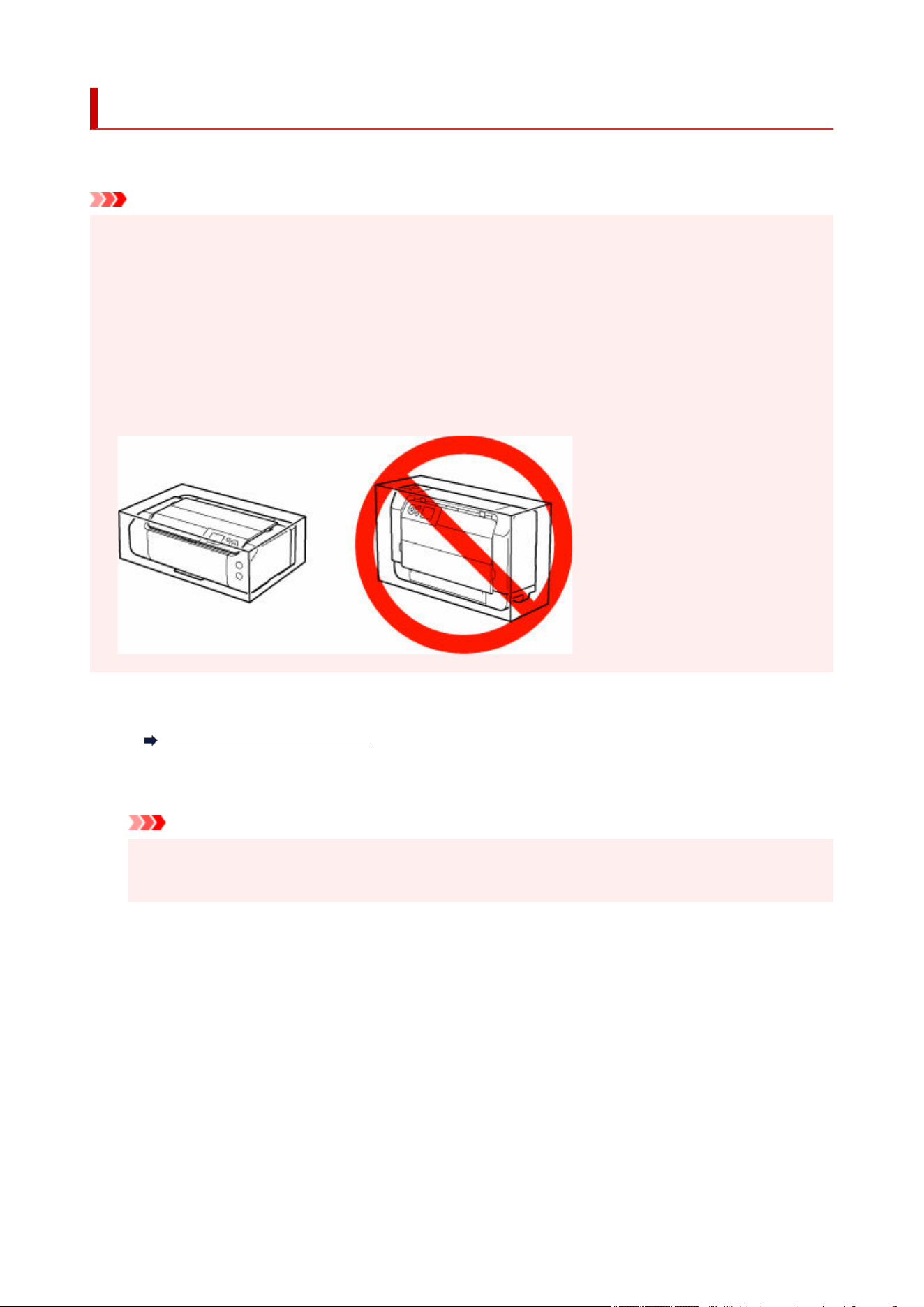
Transporting Your Printer
When relocating the printer for changing your living place or repairing it, make sure of the following.
Important
• Pack the printer in a sturdy box so that it is placed with its bottom facing down, using sufficient•
protective material to ensure safe transport.
• With the print head and ink tank left installed in the printer, press the ON button to turn off the power.•
This allows the printer to automatically cap the print head, thus preventing it from drying.
• After packing, do not tilt the box containing the printer or turn it on its side or upside down. Doing so•
may cause the ink to leak during transport and cause damage to the printer.
• When a shipping agent is handling transport of the printer, have its box marked "THIS SIDE UP" to•
keep the printer with its bottom facing down. Mark also with "FRAGILE" or "HANDLE WITH CARE".
1. Turn the printer off.1.
Turning the Printer On and Off
2.
Check that ON lamp is off and unplug power cord.
2.
Important
•
Do not unplug the printer while the ON lamp is lit or flashing, as it may cause malfunction or
•
damage to the printer, making the printer unable to print.
3.
Retract trays.
3.
4.
Unplug the printer cable from the computer and from the printer, then unplug the power
4.
cord from the printer.
5.
Use adhesive tape to secure all the covers on the printer to keep them from opening during
5.
transportation. Then pack the printer in the plastic bag.
6.
Attach the protective material to the printer when packing the printer in the box.
6.
338

Firmware update
Important
• When you use this function, make sure the printer is connected to the Internet.•
• The administrator password is required to change settings if it is enabled for changing settings using the•
operation panel.
Using Operation Panel
1.
Select Various settings on the HOME screen.
1.
2.
Select Printer settings.
2.
3.
Select Firmware update.
3.
If an administrator password is set, enter the password.
4. Select Install update.4.
5.
Select Yes.
5.
6.
Check message and select Start update.
6.
Using Remote UI
1. Start up Remote UI.1.
Start up Remote UI
2.
Select Firmware update.
2.
3.
Select Install update.
3.
4.
Check message and select Update.
4.
Note
• If the firmware update is not complete, check the following and take an appropriate action.•
Check the network settings such as a wireless router.
If Cannot connect to the server. is displayed on the LCD, select OK and try again after a while.
339
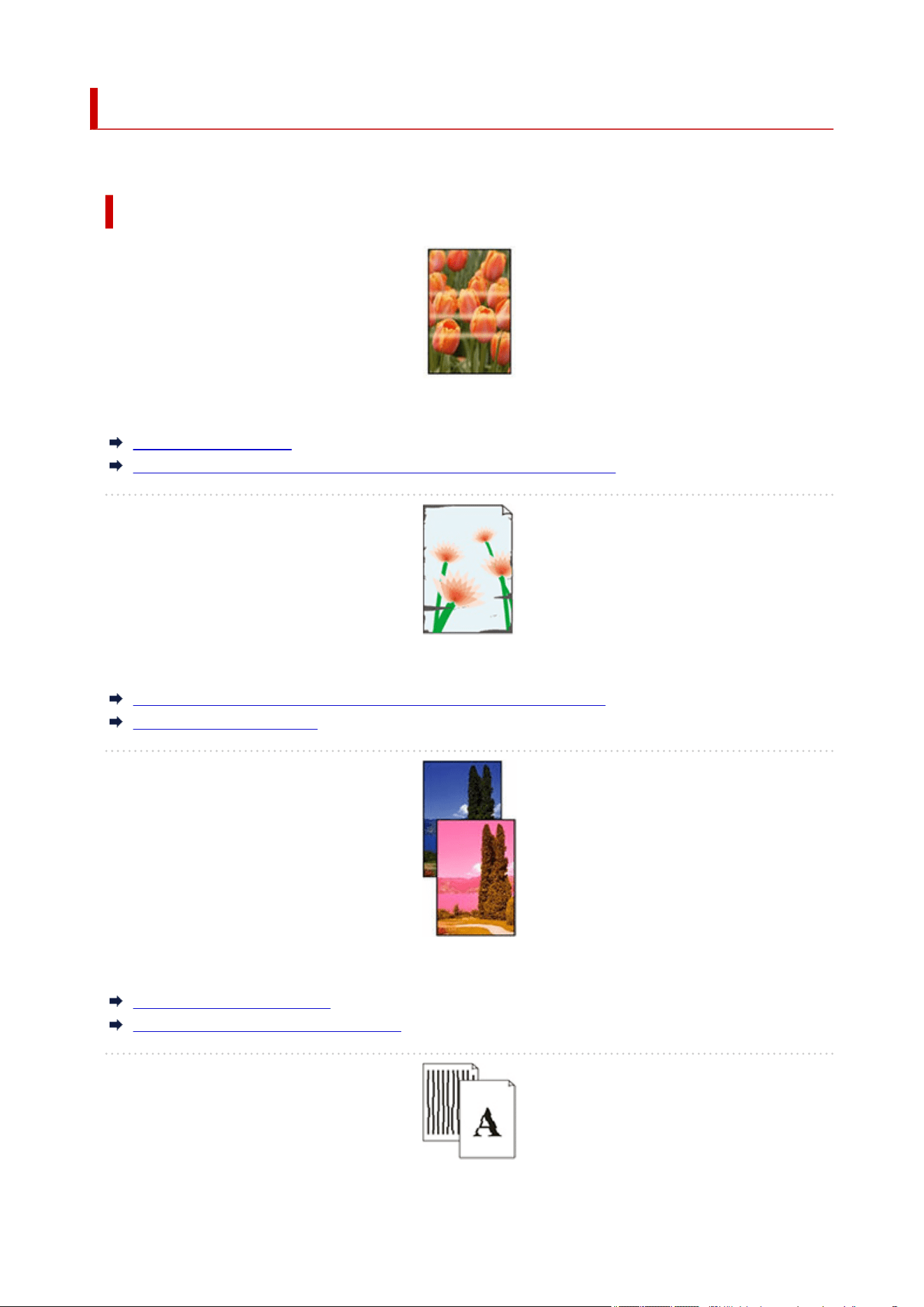
Printing is faint/Streaks
Banding in different colors occurs/Colors in printed images are uneven
Paper Is Smudged/Printed Surface Is Scratched/Ink Blots/Paper Curl
Back of Paper Is Smudged
Printed colors are inaccurate
Documents are printed in monochrome
Frequently Asked Questions
Problems with the Printing Quality
Unevenness, Banding, Faint
dirt
colors are inaccurate
340

Lines Are Misaligned/Distorted
Lines Incomplete or Missing (Windows)
Images Incomplete/Cannot Complete Printing
Vertical Line Next to Image
Line
Others
General FAQ
When Error Occurred
Printer Connection Methods
Solve Network Troubles with The Printer's Diagnostic Functions
Cannot Proceed Beyond Printer Connection Screen (Cannot Find Printer Connected via USB)
Printer Does Not Print
Failed to Printer Driver Installation (Windows)
Search by Category
Cannot Configure Network Settings
Message Appears on Computer During Setup
Cannot Proceed Beyond Printer Connection Screen (Cannot Find Printer Connected via USB)
"Failed to connect to the wireless router." Appears
Printer Cannot Be Used After Replacing Wireless Router or Changed Router Settings
Privacy Separator/SSID Separator/Network Separation Function
Setting Up Using Smartphone/Tablet
Cannot Find Printer on Network
Cannot Find Printer on Network
Searching Printer by IP Address or Host Name During Setup
Cannot Print over Network
Cannot Print from Smartphone/Tablet
Cannot Print Using AirPrint
Network Connection Problems
Network Settings and Common Problems
Solve Network Troubles with The Printer's Diagnostic Functions
Network Key (Password) Unknown
Checking Wireless Router SSID/Key
Cannot Remember Printer's Password
Checking Network Information
Restoring Printer's LAN Settings to Defaults
341

Cannot Connect Smartphone/Tablet to Wireless Router
Checking Wireless Router Network Name (SSID) for Smartphone/Tablet
Printer Problems
When Error Occurred
Printer Does Not Turn On
Printer Turns Off Unexpectedly or Repeatedly
USB Connection Problems
Switching Printer's Connection to Network or Devices
LCD Is Off
Print Head Holder Does Not Move to Replacement Position
Printer Status Monitor Not Displayed (Windows)
Updating Printer Firmware
Installation and Download Problems
Failed to Printer Driver Installation (Windows)
Updating Printer Drivers in Network Environment (Windows)
Disable Function to Send Usage Information of Printer
Setup Application Asks for the Administrator's Username and Password (Windows)
Enable Printing from PC/Smartphone/Tablet
Installing Printer Drivers on PC without Network Connection (Windows)
Printing Problems
Printer Does Not Print
Printing Stops
Cannot Print on the Disc Label
Default Printer Keeps Changing (Windows)
Change to Offline (Windows)/Cannot Communicate (Windows)
No Ink Level Appears in Canon IJ Status Monitor (Windows)
Paper is not Fed or Ejected Properly
What to Do When Paper Is Jammed
Printer Does Not Pick up or Feed the Paper/"No Paper" Error
Paper Does Not Feed from Paper Source Specified in Printer Driver (Windows)
What to Do If Paper Is Not Fed/Output Normally
Paper Setting Problems
I want to know the paper types that can be used in this printer
Ink-related Problems
Ink Does Not Come Out
Printer consumes a lot of ink
342

Problems with the Printing Quality
Printing is faint/Streaks
Banding in different colors occurs/Colors in printed images are uneven
Paper Is Smudged/Printed Surface Is Scratched/Ink Blots/Paper Curl
Back of Paper Is Smudged
Printed colors are inaccurate
Documents are printed in monochrome
Lines Are Misaligned/Distorted
Lines Incomplete or Missing (Windows)
Images Incomplete/Cannot Complete Printing
Vertical Line Next to Image
343
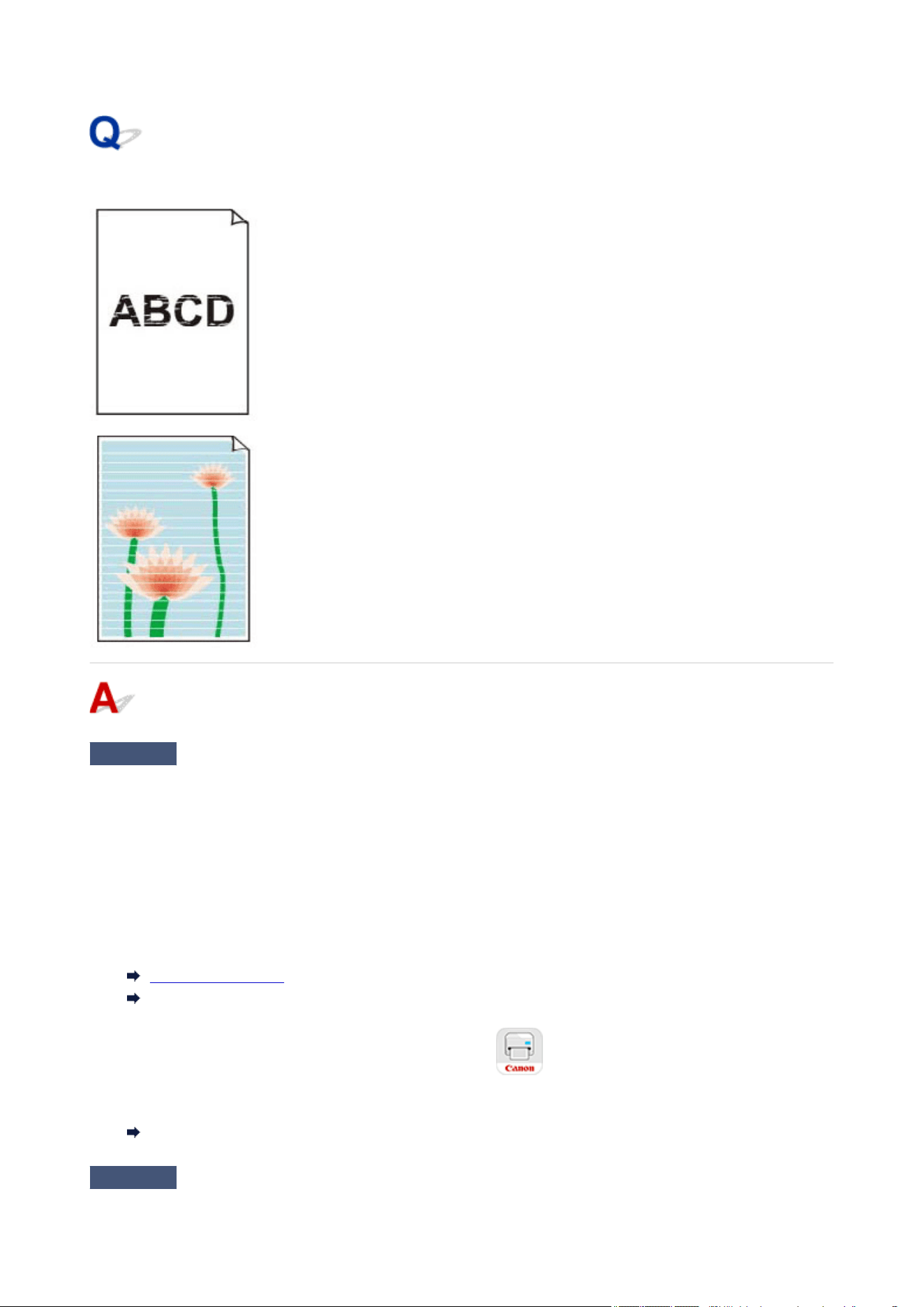
Printing is faint/Streaks
Check 1
Do page size and media type settings match size and type of loaded paper?
If these settings do not match, it is not possible to obtain the proper result.
If you are printing a photograph or an illustration, an incorrect paper type setting may reduce the quality of the
printout color.
Also, if you print with an incorrect paper type setting, the printed surface may be scratched.
• Printing from your computer•
Check the settings using the Printer Driver.
Basic Printing Setup (Windows)
Basic Printing Setup (macOS)
• Printing from your smartphone/tablet using •
Check the settings on the App.
Print Photos from Your Smartphone
Check 2
Make sure appropriate print quality is selected (see list above).
344

Select a print quality suited to the paper and to what you are printing. If you notice blurs or uneven colors,
increase the print quality setting and retry the printing.
Check 3
Is the reverse side of the paper being used for printing?
Print on the printing surface.
Check 4
Is the Print head nozzle blocked?
Print a test pattern to check the nozzles and see if they are clogged.
Checking for Nozzle Clogging
Maintenance Procedure
Note
• To automatically check for nozzle blockages after printing, set Auto nozzle check in the LCD menu to a•
setting other than Disable.
Auto maintenance settings
Check 5
Are paper scraps stuck in the printer?
Remove paper scraps left inside the printer.
If the paper is jammed inside the printer
345
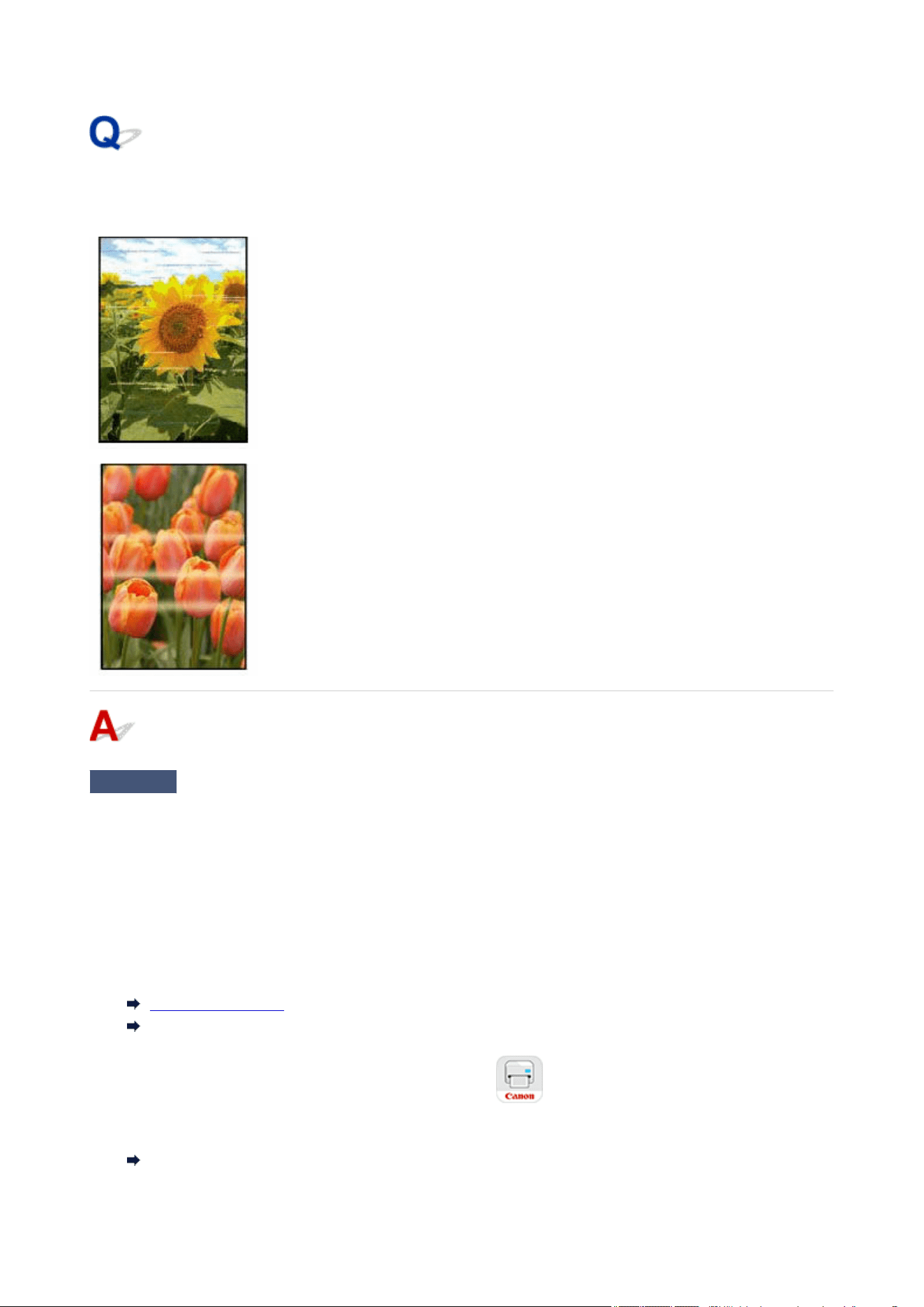
Banding in different colors occurs/Colors in printed images are
uneven
Check 1
Do page size and media type settings match size and type of loaded paper?
If these settings do not match, it is not possible to obtain the proper result.
If you are printing a photograph or an illustration, an incorrect paper type setting may reduce the quality of the
printout color.
Also, if you print with an incorrect paper type setting, the printed surface may be scratched.
• Printing from your computer•
Check the settings using the Printer Driver.
Basic Printing Setup (Windows)
Basic Printing Setup (macOS)
• Printing from your smartphone/tablet using •
Check the settings on the App.
Print Photos from Your Smartphone
346

Check 2
Make sure appropriate print quality is selected (see list above).
Select a print quality suited to the paper and to what you are printing. If you notice blurs or uneven colors,
increase the print quality setting and retry the printing.
Check 3
Is the Print head nozzle blocked?
Print a test pattern to check the nozzles and see if they are clogged.
Checking for Nozzle Clogging
Note
•
To automatically check for nozzle blockages after printing, set Auto nozzle check in the LCD menu to a
•
setting other than Disable.
Auto maintenance settings
Maintenance Procedure
Check 4
Perform print head alignment.
Automatic Adjustment to Straighten Lines and Align Colors
Note
•
If the problem is not resolved after performing the print head alignment, perform print head alignment
•
manually.
Manual Adjustment to Straighten Lines and Align Colors
Check 5
Make sure clear coating area setting.
•
For Windows:
•
On Media/Quality sheet, select Manual for Color/Intensity, and then click Set....
If Clear Coating Area in Clear Coating sheet of the printer driver is set to Auto, Clear Coating may have
an unexpected effect on the printing result depending on the image.
In this case, set Clear Coating Area to Overall.
Changing the Clear Coating Settings
•
For macOS:
•
If Clear Coating Area in Advanced Paper Settings in the Print dialog is set to Auto, Clear Coating may
have an unexpected effect on the printing result depending on the image.
In this case, set Clear Coating Area to Overall.
Changing the Clear Coating Settings
Check 6
Enable unidirectional printing function.
On the paper selection screen, select Advanced, and set Unidirectional printing to ON.
Note that the printing speed will be slower when the unidirectional printing function is enabled.
Check 7
Color may be uneven if printing materials were stacked while drying.
347

To avoid uneven colors, we recommend drying each sheet separately.
348
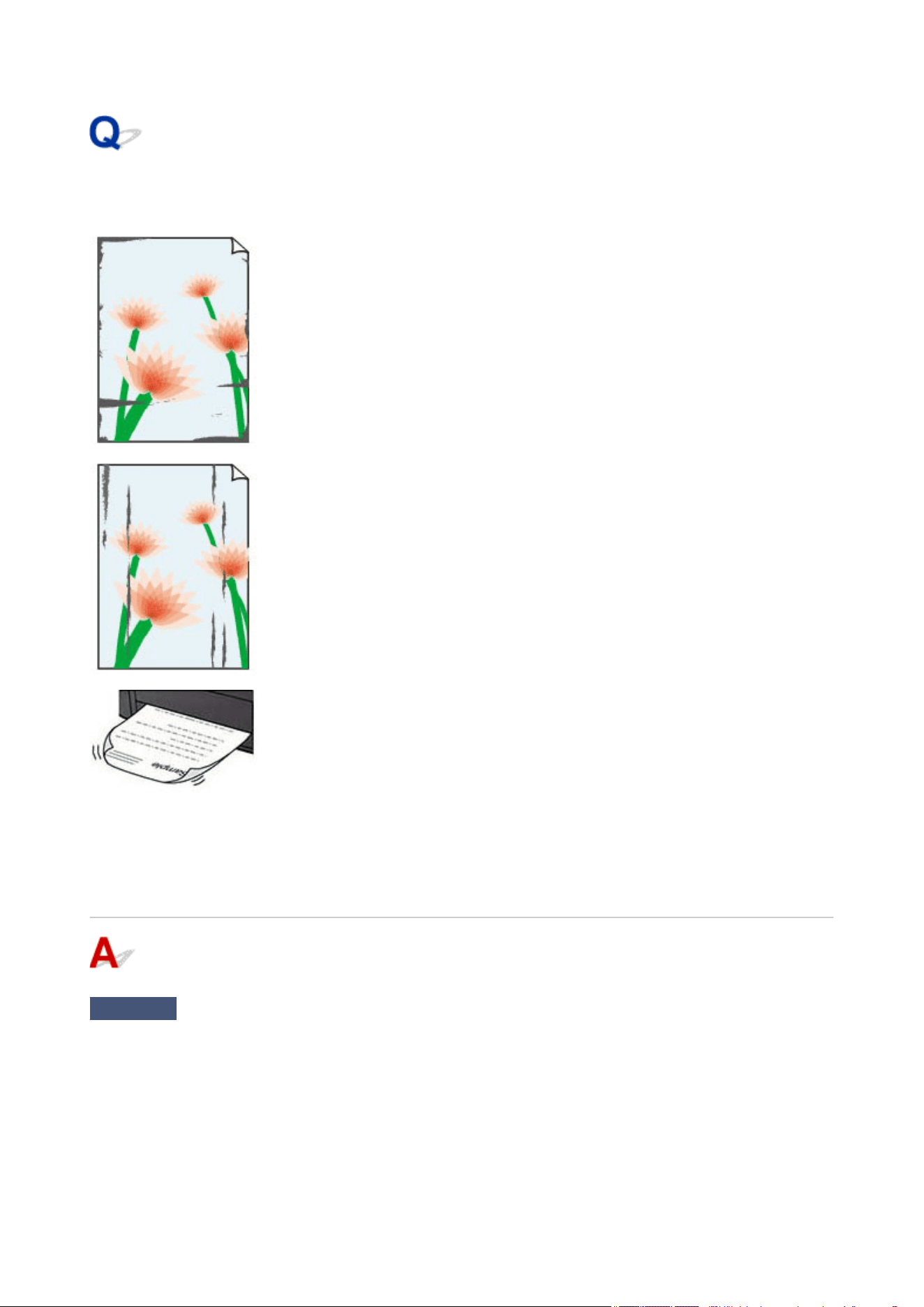
Paper Is Smudged/Printed Surface Is Scratched/Ink Blots/Paper
Curl
Check 1
Do page size and media type settings match size and type of loaded paper?
If these settings do not match, it is not possible to obtain the proper result.
If you are printing a photograph or an illustration, an incorrect paper type setting may reduce the quality of the
printout color.
Also, if you print with an incorrect paper type setting, the printed surface may be scratched.
349
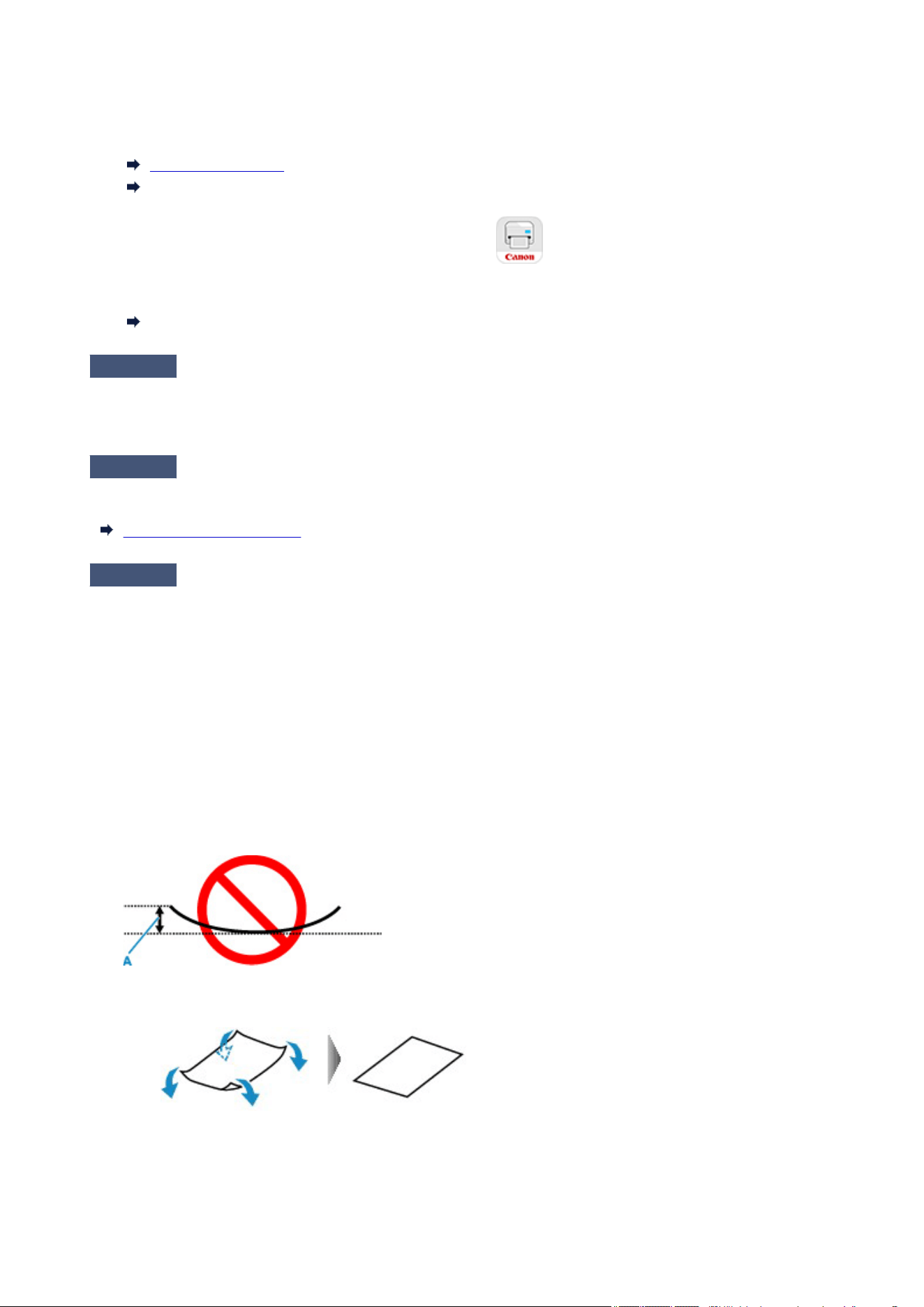
•
Printing from your computer
•
Check the settings using the Printer Driver.
Basic Printing Setup (Windows)
Basic Printing Setup (macOS)
•
Printing from your smartphone/tablet using
•
Check the settings on the App.
Print Photos from Your Smartphone
Check 2
Make sure appropriate print quality is selected (see list above).
Select a print quality suited to the paper and to what you are printing. If you notice blurs or uneven colors,
increase the print quality setting and retry the printing.
Check 3
Check paper type.
Make sure you are using the right paper for what you are printing.
Media Types You Can Use
Check 4
Correct curl before loading paper.
When using Photo Paper Plus Semi-gloss, even if the sheet is curled, load one sheet at a time as it is. Rolling
this paper in the opposite direction to flatten it may crack the paper surface and reduce the print quality.
We recommend putting unused paper back into the package and storing it flat.
•
Plain Paper:
•
Turn the paper over and reload it to print on the other side.
•
Other Paper such as postcards:
•
If the paper corners curl more than 0.1 in. / 3 mm (A) in height, the paper may smudge or may not feed
properly. Follow the instructions below to correct the paper curl.
1.
Roll up paper in opposite direction to paper curl as shown below.1.
2. Check that paper is now flat.2.
350
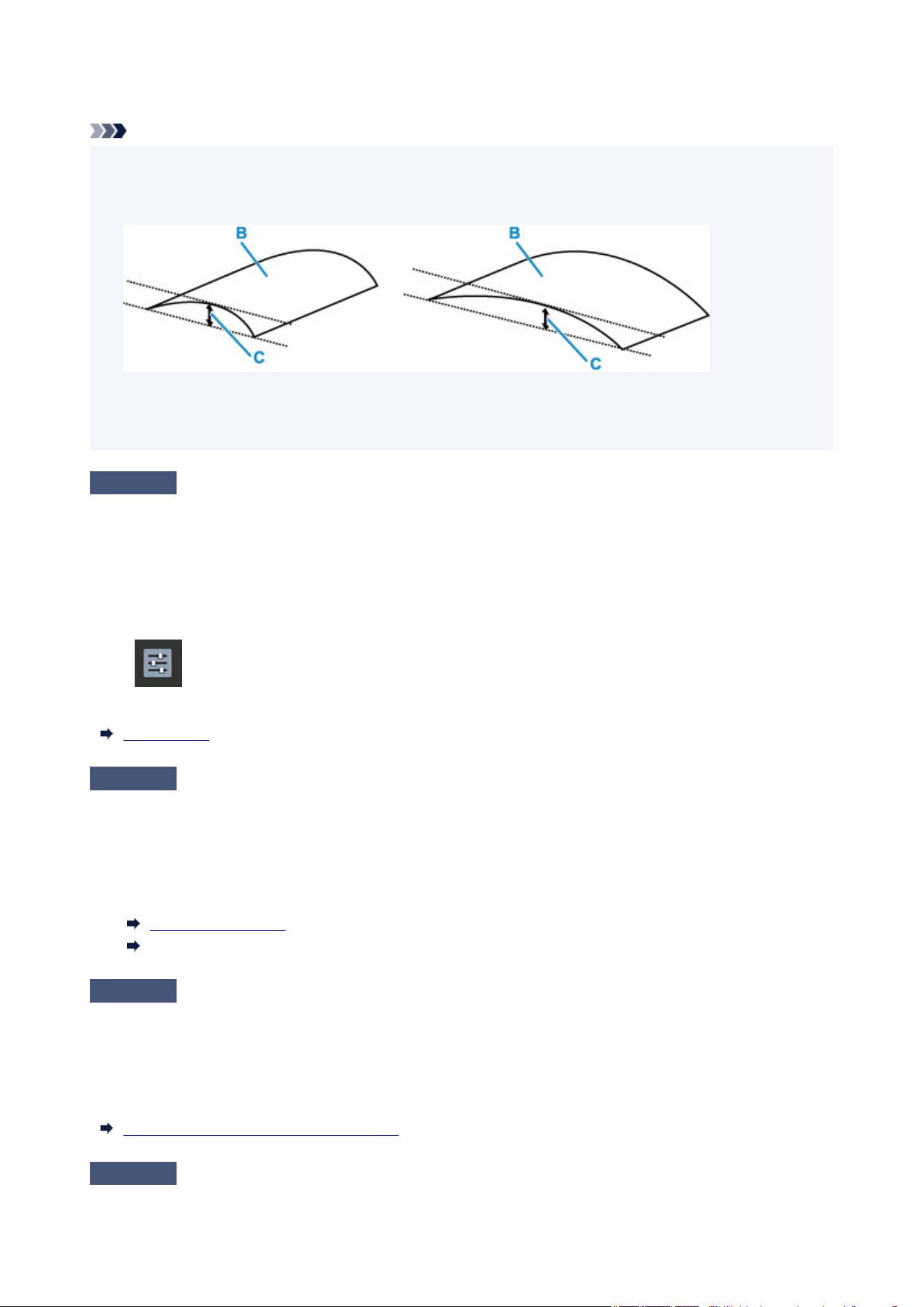
We recommend printing curl-corrected paper one sheet at a time.
Note
•
Depending on paper type, the paper may smudge or may not feed properly even if it is not curled inward.
•
Follow the instructions below to curl the paper outward up to 0.1 in. / 3 mm (C) in height before printing.
This may improve the print result.
(B) Print side
We recommend feeding paper that has been curled outward one sheet at a time.
Check 5
Set printer to prevent paper abrasion.
Adjusting the setting to prevent paper abrasion will widen the clearance between the print head and the paper.
If you notice abrasion even with the media type set correctly to match the paper, set the printer to prevent paper
abrasion using the operation panel or the computer.
This may reduce the print speed.
* Once you have finished printing, undo this setting. Otherwise, it will apply to subsequent print jobs.
Select
on HOME screen, select Various settings > Printer settings > Print settings in this order, and
then set Prevent paper abrasion to ON.
Print settings
Check 6
If brightness is set low, increase brightness setting and try printing again.
If you are printing with a low brightness setting on plain paper, the paper may absorb too much ink and become
wavy, causing paper abrasion.
•
Printing from your computer
•
Check the brightness setting in the Printer Driver.
Adjusting Brightness (Windows)
Adjusting Brightness (macOS)
Check 7
Specify a paper size that has 25 mm margins.
If the top or bottom edge of the printing surface has been scratched or smudged, print with a paper size that has
wide margins (25 mm margins).
When you print on Photo Paper Pro Premium Matte or Matte Photo Paper, we recommend that you print with
a 25 mm margins paper size or 4" x 6" (10 x 15 cm) size.
Sizes for 0.98 inch (25 mm) Margin Paper
Check 8
Do not print outside recommended printing area.
351

If you print outside the recommended printing area of your paper, ink may stain the lower edge of the paper.
Resize the document using application software.
Print Area
Check 9
Is paper feed roller dirty?
Clean paper feed roller.
Cleaning Paper Feed Rollers
Note
•
Cleaning the paper feed roller abrades it, so do this only when necessary.
•
Check 10
Is inside of printer dirty?
During 2-sided printing, ink may stain the inside of the printer, smudging the printout.
Perform bottom plate cleaning to clean inside of printer.
Performing Bottom Plate Cleaning
Note
•
To prevent staining inside the printer, be sure to set the correct paper size.
Check 11
Increase the print interval.
Increasing the print interval allows the printed surface to dry, preventing smudges and scratches.
Press the HOME button, select Various settings > Printer settings > Paper-related settings > Advanced
paper settings. Select a media type, select Pause between pages, and then select a interval setting.
Note
•
Alternatively, press the HOME button, select (Paper settings display area), and select Advanced on
•
Top feed paper information screen to display Pause between pages screen.
Check 12
Use Photo Paper to print photos.
To print data with high color saturation such as photographs or images with dark colors, we recommend that you
use Photo Paper Plus Glossy II or other Canon specialty paper.
Media Types You Can Use
352
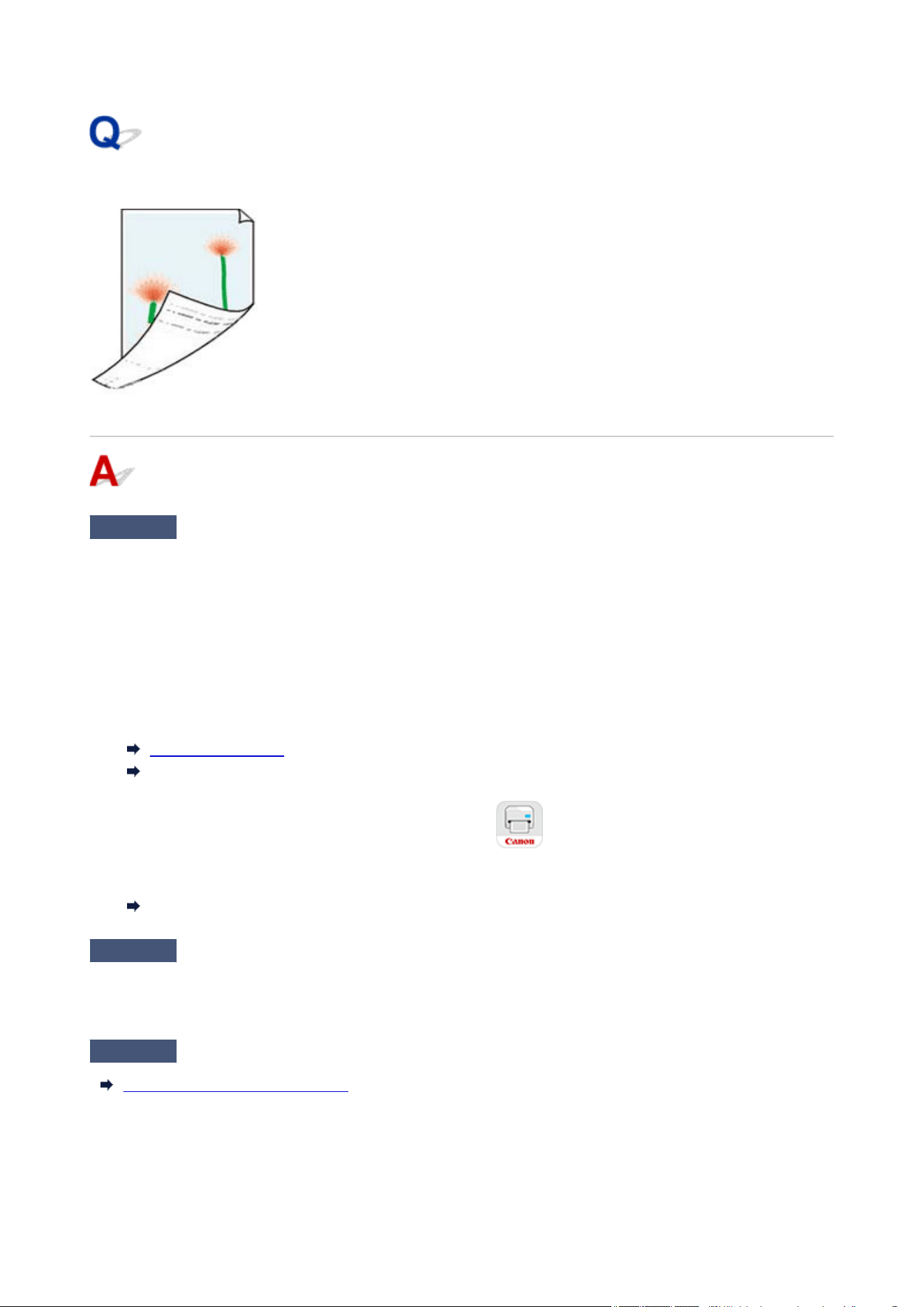
Back of Paper Is Smudged
Check 1
Do page size and media type settings match size and type of loaded paper?
If these settings do not match, it is not possible to obtain the proper result.
If you are printing a photograph or an illustration, an incorrect paper type setting may reduce the quality of the
printout color.
Also, if you print with an incorrect paper type setting, the printed surface may be scratched.
•
Printing from your computer
•
Check the settings using the Printer Driver.
Basic Printing Setup (Windows)
Basic Printing Setup (macOS)
•
Printing from your smartphone/tablet using
•
Check the settings on the App.
Print Photos from Your Smartphone
Check 2
Make sure appropriate print quality is selected (see list above).
Select a print quality suited to the paper and to what you are printing. If you notice blurs or uneven colors,
increase the print quality setting and retry the printing.
Check 3
Perform bottom plate cleaning to clean inside of printer.
Performing Bottom Plate Cleaning
353

Note
•
During too much printing, ink may stain the inside of the printer.
•
354
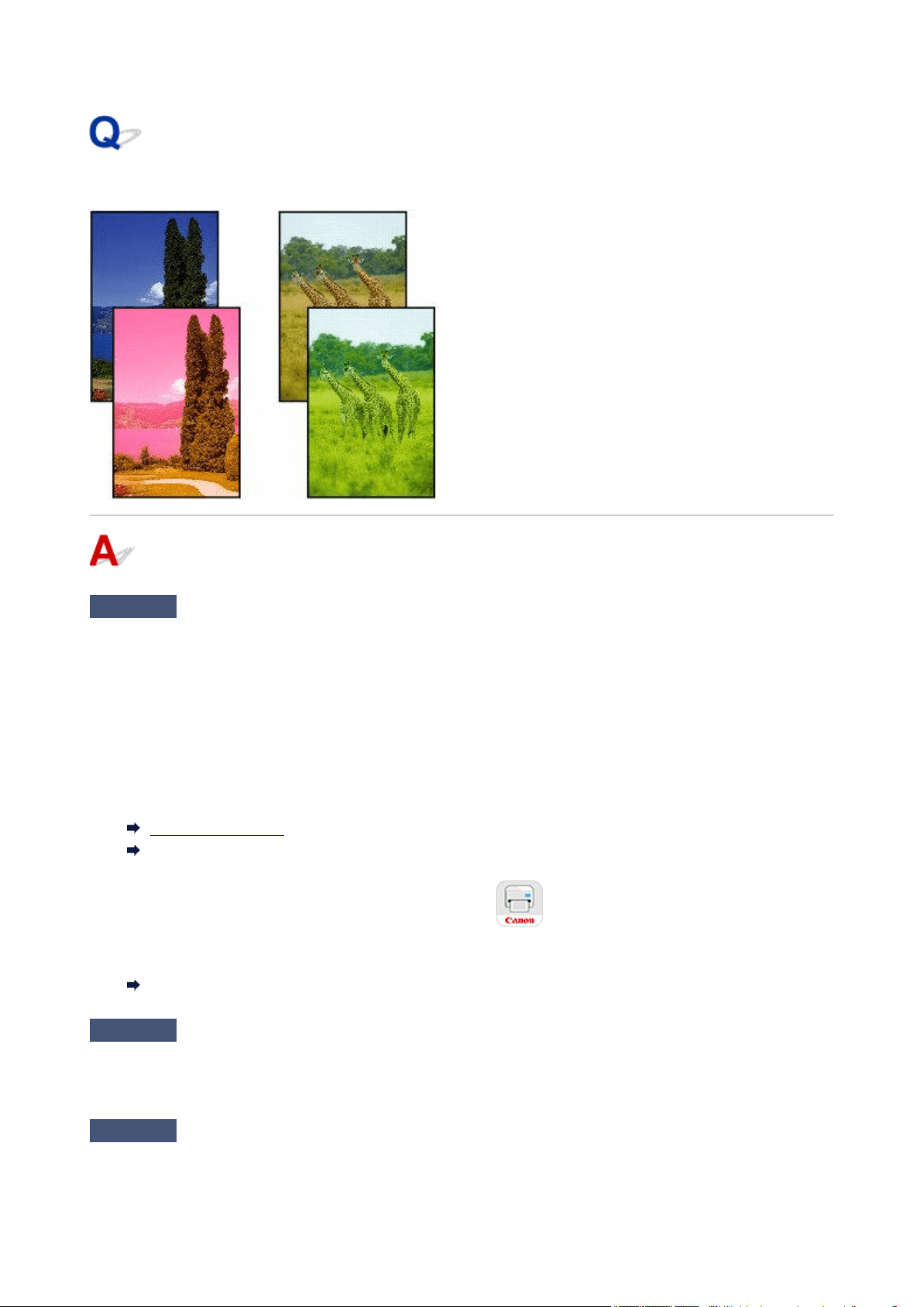
Printed colors are inaccurate
Check 1
Do page size and media type settings match size and type of loaded paper?
If these settings do not match, it is not possible to obtain the proper result.
If you are printing a photograph or an illustration, an incorrect paper type setting may reduce the quality of the
printout color.
Also, if you print with an incorrect paper type setting, the printed surface may be scratched.
•
Printing from your computer
•
Check the settings using the Printer Driver.
Basic Printing Setup (Windows)
Basic Printing Setup (macOS)
• Printing from your smartphone/tablet using •
Check the settings on the App.
Print Photos from Your Smartphone
Check 2
Make sure appropriate print quality is selected (see list above).
Select a print quality suited to the paper and to what you are printing. If you notice blurs or uneven colors,
increase the print quality setting and retry the printing.
Check 3
Is the Print head nozzle blocked?
Print a test pattern to check the nozzles and see if they are clogged.
355

Checking for Nozzle Clogging
Maintenance Procedure
Note
• To automatically check for nozzle blockages after printing, set Auto nozzle check in the LCD menu to a•
setting other than Disable.
Auto maintenance settings
Check 4
Has color been adjusted in the printer driver?
Follow the steps below to adjust color settings.
•
Windows
•
On Media/Quality sheet of the printer driver, select Manual for Color/Intensity and click Set.... On Color
Adjustment sheet, adjust the color.
Media/Quality Tab Description (Windows)
•
macOS
•
Adjust the color settings in the printer driver Color Options.
Color Options (macOS)
Check 5
Has the computer or monitor color been adjusted?
Take the actions below.
•
Refer to the computer and monitor documentation to adjust the colors.
•
•
Adjust the settings of the color management software, referring to the software documentation as needed.
•
356
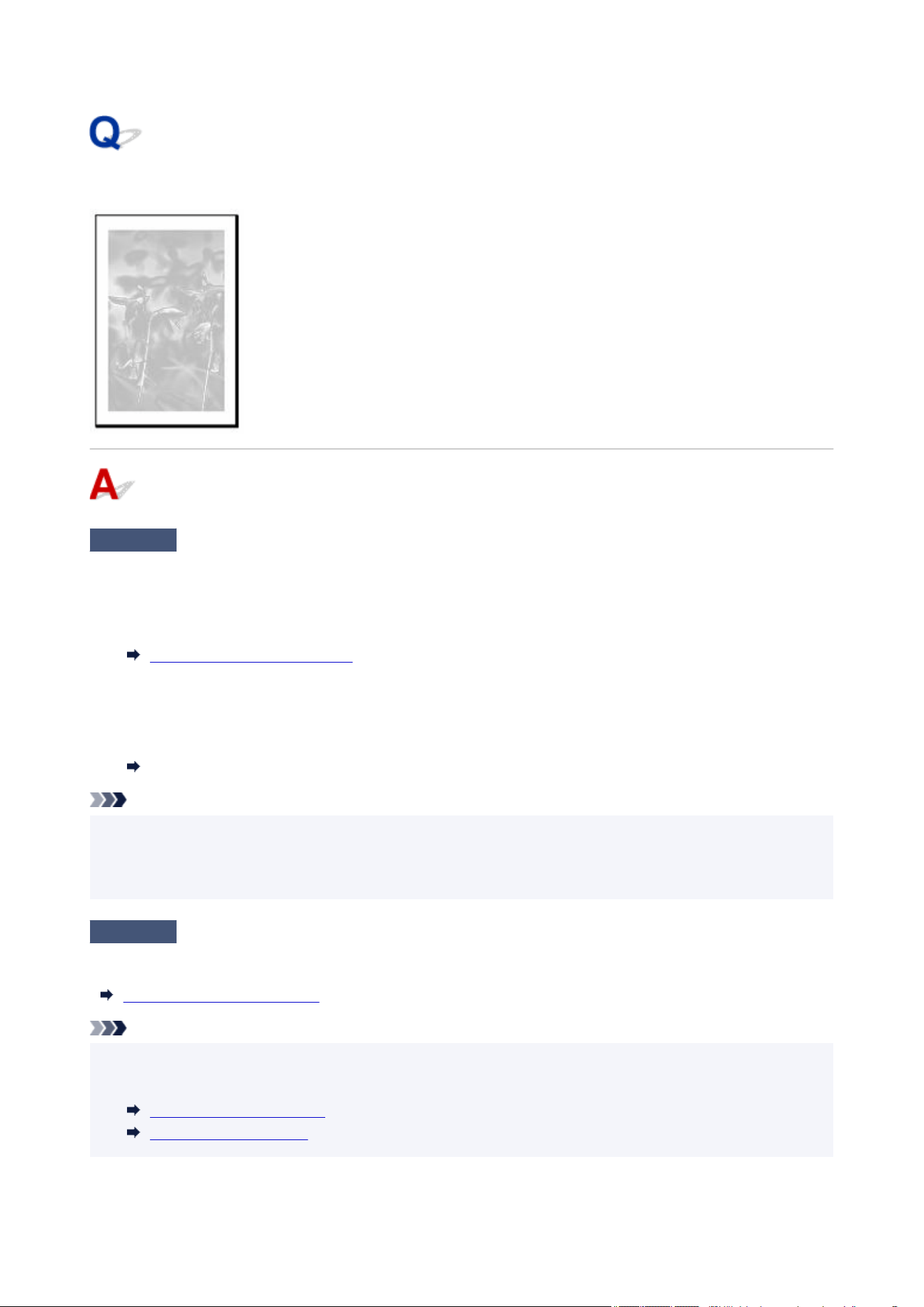
Documents are printed in monochrome
Check 1
Is the Black and White Photo Print check box set on in the printer driver?
•
Windows
•
Clear the Black and White Photo Print check box in the Basic Settings sheet of the printer driver, and
then redo the printing.
Basic Settings Tab Description (Windows)
•
macOS
•
Clear the Black and White Photo Print check box in Quality & Media of the printer driver, and then redo
the printing.
Quality & Media (macOS)
Note
•
If the paper for the monochrome print is selected in Media Type of the printer driver, the Black and
•
White Photo Print check box cannot be cleared. In that case, select the paper other than that for the
monochrome print in Media Type.
Check 2
The print head nozzle may be blocked
Print a test pattern to check the color ink nozzles and see if they are clogged.
Checking for Nozzle Clogging
Note
• To automatically check for nozzle blockages after printing, set Auto nozzle check in the LCD menu to a•
setting other than Disable.
Auto maintenance settings
Maintenance Procedure
357
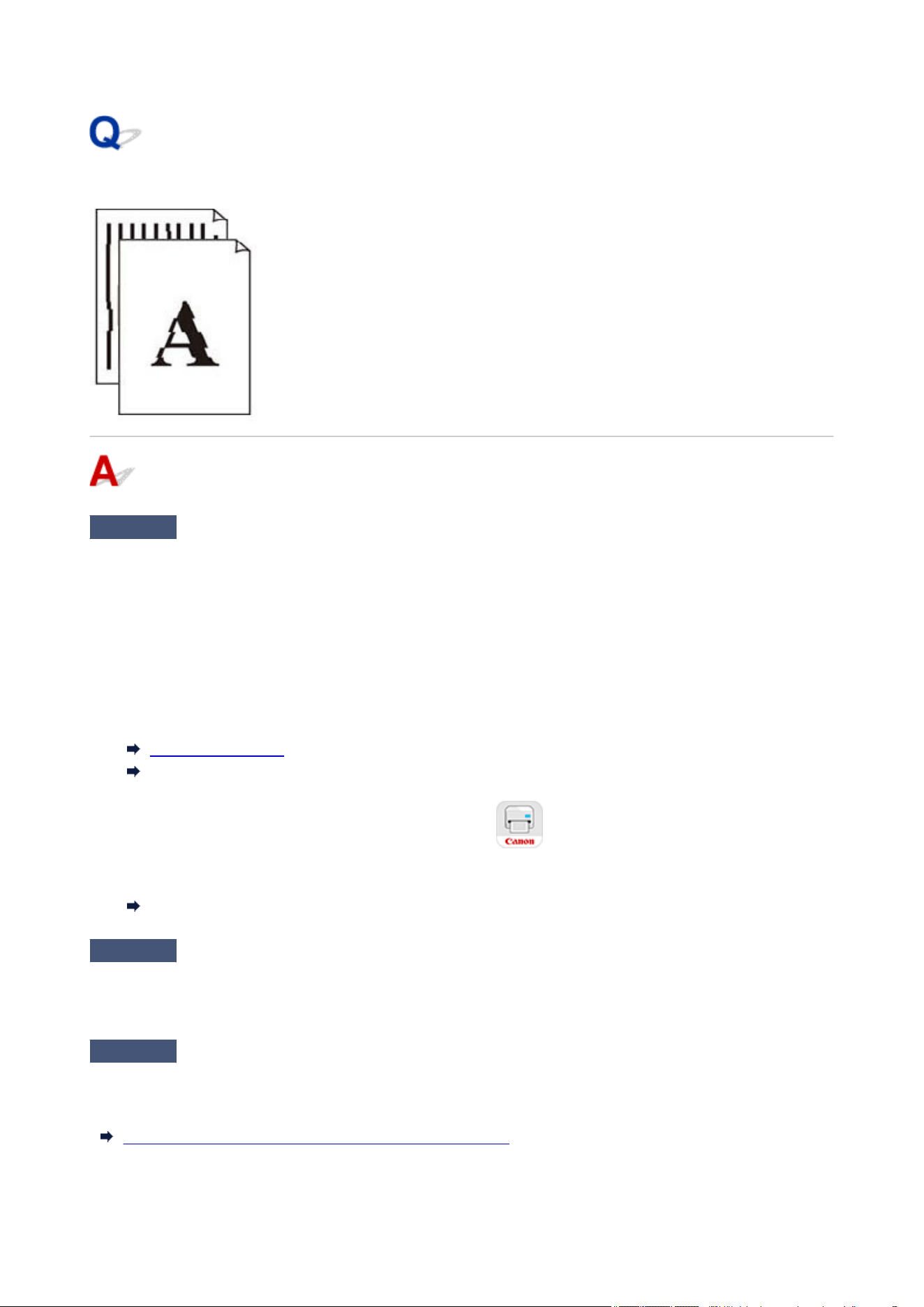
Lines Are Misaligned/Distorted
Check 1
Do page size and media type settings match size and type of loaded paper?
If these settings do not match, it is not possible to obtain the proper result.
If you are printing a photograph or an illustration, an incorrect paper type setting may reduce the quality of the
printout color.
Also, if you print with an incorrect paper type setting, the printed surface may be scratched.
•
Printing from your computer
•
Check the settings using the Printer Driver.
Basic Printing Setup (Windows)
Basic Printing Setup (macOS)
•
Printing from your smartphone/tablet using
•
Check the settings on the App.
Print Photos from Your Smartphone
Check 2
Make sure appropriate print quality is selected (see list above).
Select a print quality suited to the paper and to what you are printing. If you notice blurs or uneven colors,
increase the print quality setting and retry the printing.
Check 3
Perform print head alignment.
If printed lines are misaligned/distorted or print results are otherwise unsatisfactory, adjust the print head
position.
Automatic Adjustment to Straighten Lines and Align Colors
358

Note
•
If the problem is not resolved after performing the print head alignment, perform print head alignment
•
manually.
Manual Adjustment to Straighten Lines and Align Colors
Check 4
Increase print quality and try printing again.
Increasing the print quality using the printer driver may improve the print result.
359
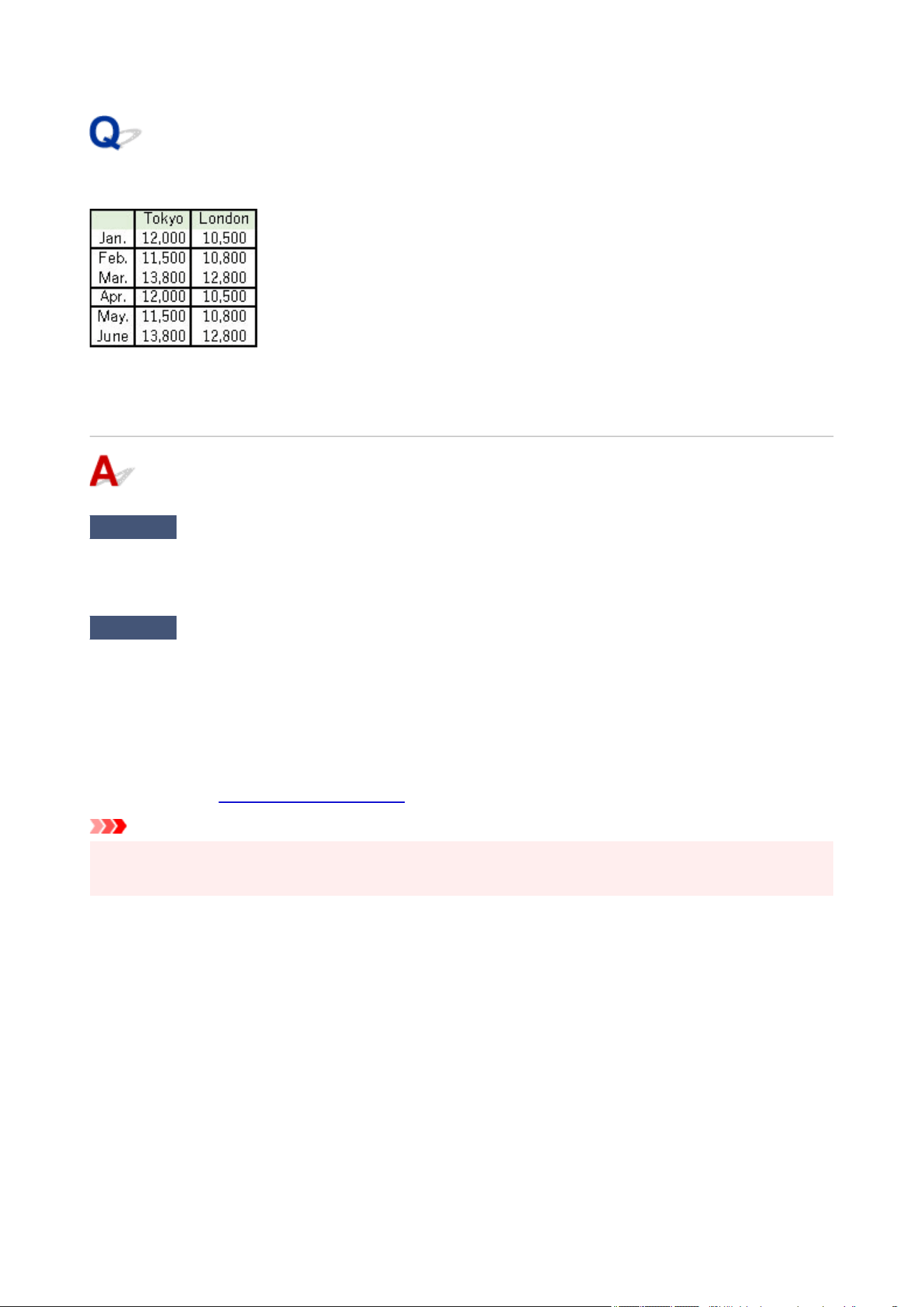
Lines Incomplete or Missing (Windows)
Check 1
Are you using Page Layout Printing or Binding Margin function?
When the Page Layout Printing or Binding margin function is in use, thin lines may not be printed. Try thickening
the lines in the document.
Check 2
Are you trying to print a large data file? (Windows)
If you are trying to print a large data file, printing may not be performed properly due to missing print data.
Click Print Options on Page Setup sheet of the printer driver. Then make sure Prevention of Print Data Loss
is set to On (Weak) in the dialog that appears.
If printing does not start even though Prevention of Print Data Loss is set to On (Weak), set it to On (Strong)
and start printing again.
For details, refer to
Page Setup Tab Description.
Important
•
Selecting On (Strong) for Prevention of Print Data Loss may reduce print quality.
•
After printing is completed, select Off for Prevention of Print Data Loss.
360
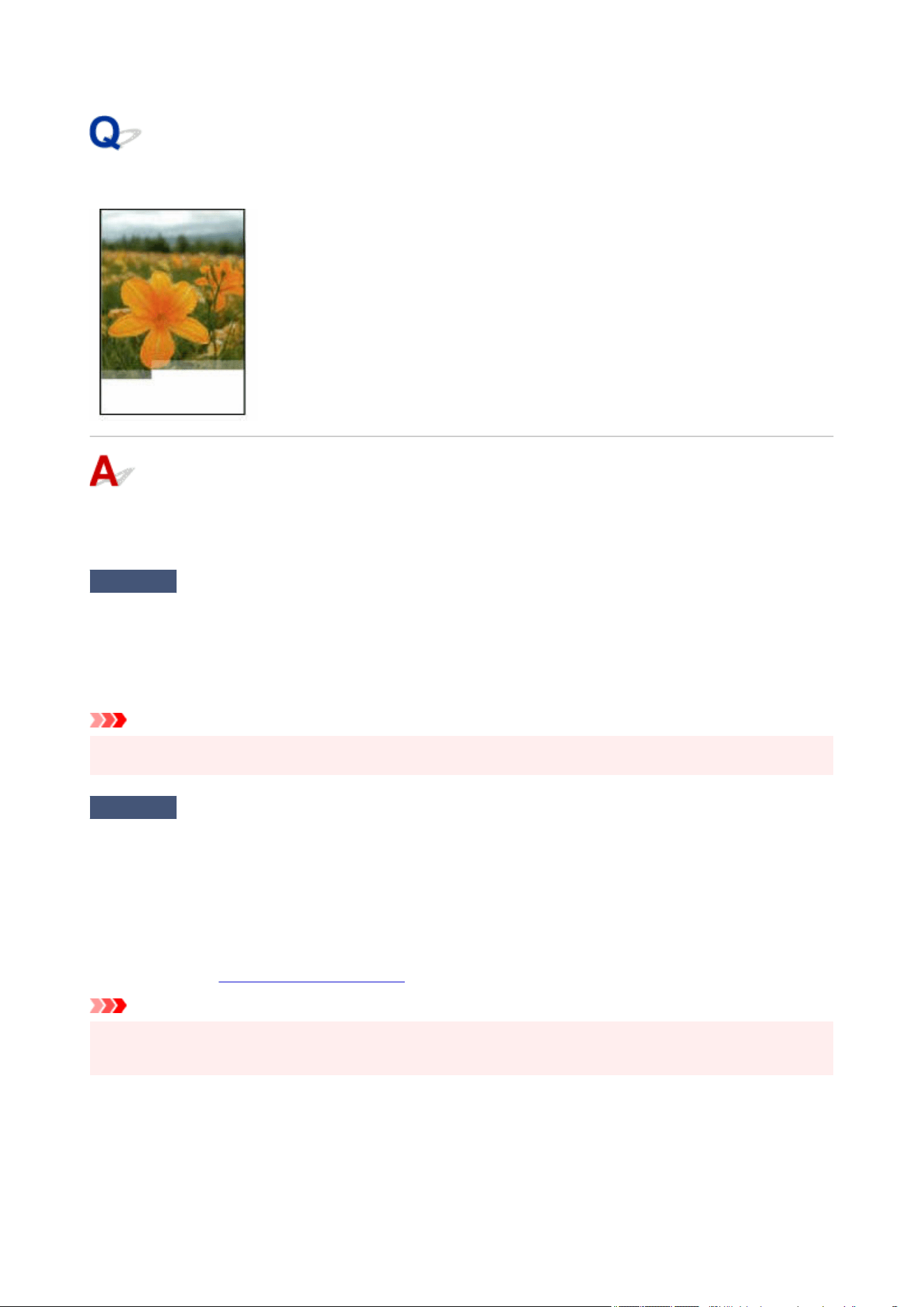
Images Incomplete/Cannot Complete Printing
If the printing of photos, images, stops in the middle of printing and cannot be printed to the end, check the
following items.
Check 1
Select setting not to compress printing data (Windows).
If you select the setting not to compress the printing data with an application software you are using, the printing
result may be improved.
Click Print Options on Page Setup sheet of the Printer Driver. Select the Do not allow application software to
compress print data check box and click OK.
Important
•
Clear the check box once printing is complete.
•
Check 2
Are you trying to print a large data file? (Windows)
If you are trying to print a large data file, printing may not be performed properly due to missing print data.
Click Print Options on Page Setup sheet of the printer driver. Then make sure Prevention of Print Data Loss
is set to On (Weak) in the dialog that appears.
If printing does not start even though Prevention of Print Data Loss is set to On (Weak), set it to On (Strong)
and start printing again.
For details, refer to
Page Setup Tab Description.
Important
•
Selecting On (Strong) for Prevention of Print Data Loss may reduce print quality.
• After printing is completed, select Off for Prevention of Print Data Loss.
361
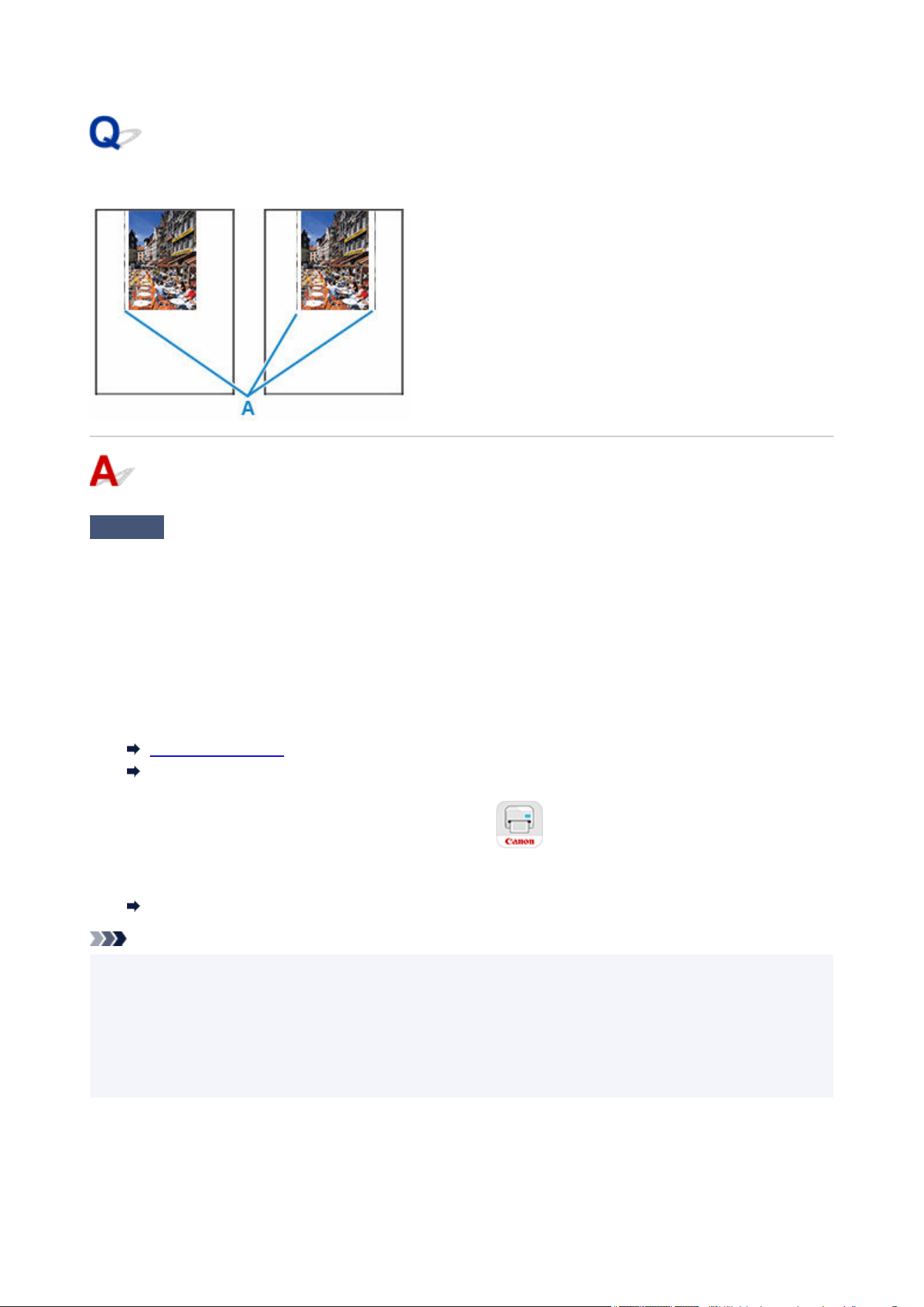
Vertical Line Next to Image
Check
Do page size and media type settings match size and type of loaded paper?
If these settings do not match, it is not possible to obtain the proper result.
If you are printing a photograph or an illustration, an incorrect paper type setting may reduce the quality of the
printout color.
Also, if you print with an incorrect paper type setting, the printed surface may be scratched.
•
Printing from your computer
•
Check the settings using the Printer Driver.
Basic Printing Setup (Windows)
Basic Printing Setup (macOS)
•
Printing from your smartphone/tablet using
•
Check the settings on the App.
Print Photos from Your Smartphone
Note
• The direction or pattern of the vertical lines (A) may vary depending on the image data or the print setting.•
•
This printer performs automatic cleaning when necessary to keep printouts clean. A small amount of ink is
•
ejected for cleaning.
Although the ink is normally ejected onto the ink absorber at the outer edge of the paper, it may get onto
the paper if the loaded paper is larger than the set size.
362

Cannot Configure Network Settings
Message Appears on Computer During Setup
Cannot Proceed Beyond Printer Connection Screen (Cannot Find Printer
Connected via USB)
"Failed to connect to the wireless router." Appears
Printer Cannot Be Used After Replacing Wireless Router or Changed Router
Settings
Privacy Separator/SSID Separator/Network Separation Function
Setting Up Using Smartphone/Tablet
363
Message Appears on Computer During Setup
Screen to Enter Password Appears During Setup (Windows)
Encryption Settings Screen Appears When Wireless Router Selected (Windows)
"You have connected the printer to the non encrypted wireless network" Appears
Screen to Enter Password Appears During Setup (Windows)
If the printer is set up for use with a network and an administrator password has been set, a screen asking
you to enter the password appears.
Enter the same password as that specified for the printer.
Note
• An administrator password is already set for the printer at the start of use.•
For details:
Default Administrator Password
For improved security, we recommend that you change the administrator password.
Setting Administrator Password on Operation Panel
Encryption Settings Screen Appears When Wireless Router Selected
(Windows)
This screen appears automatically if the selected wireless router is encrypted. Set the same encryption
settings as those set for the wireless router.
For more on encryption settings, see Performing/Changing Wi-Fi Settings.
"You have connected the printer to the non encrypted wireless
network" Appears
Security is not configured on the wireless router. The printer can still be used, so continue the setup
procedure and complete it.
364

Important
• If you connect to a network that is not protected with security measures, there is a risk of disclosing
data such as your personal information to a third party.
365
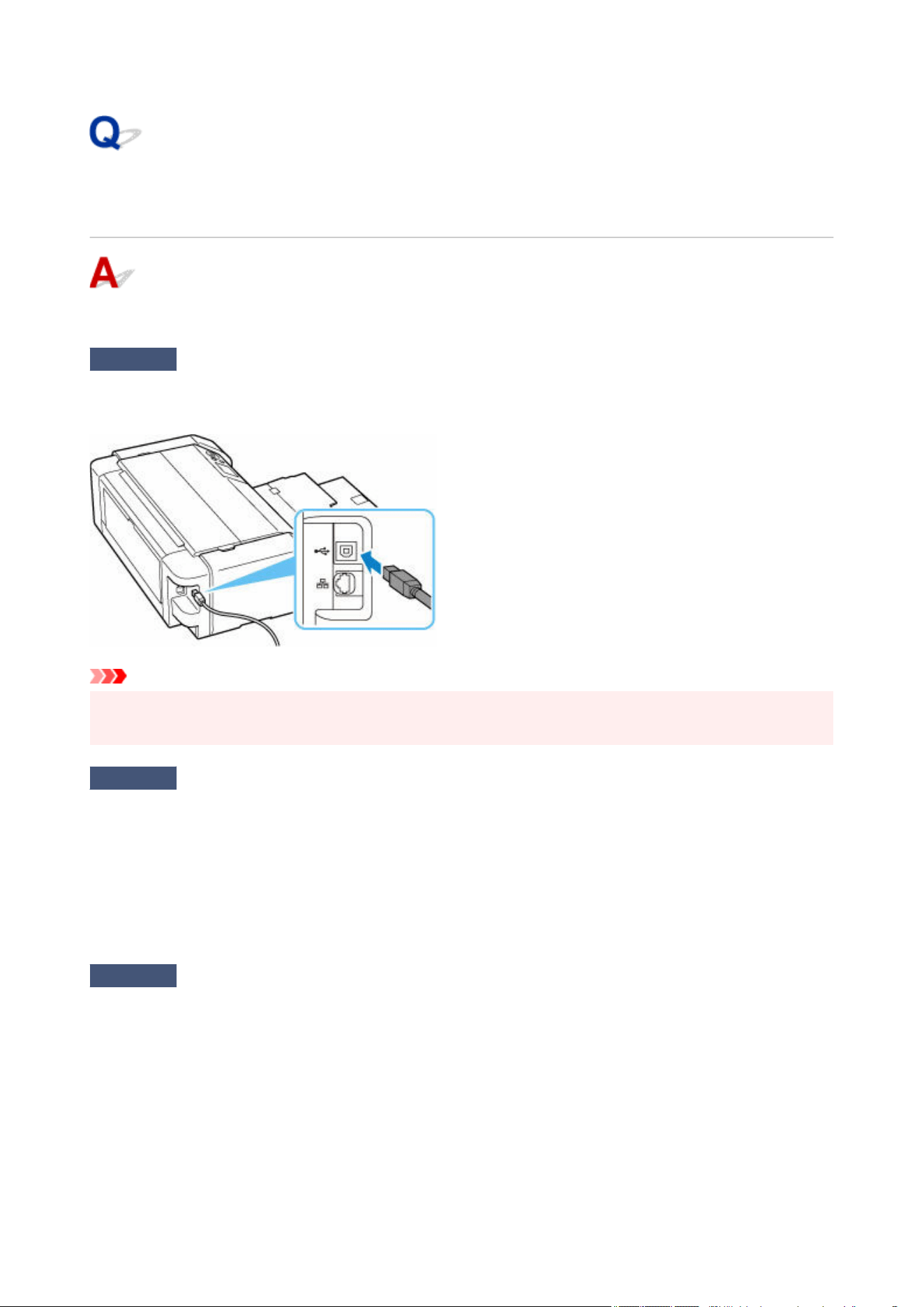
Cannot Proceed Beyond Printer Connection Screen (Cannot Find
Printer Connected via USB)
If you cannot proceed beyond the Printer Connection screen, check the following.
Check 1
Make sure USB cable is securely plugged in to printer and computer.
Connect the printer and the computer using a USB cable as the illustration below. The USB port is located at the
back of the printer.
Important
•
Check the orientation of the "Type-B" connector and connect to the printer. For details, refer to the
instruction manual supplied with the USB cable.
Check 2
Follow procedure below to connect printer and computer again.
1.
Unplug USB cable from printer and computer and connect it again.
1.
2.
Make sure no printer operation is in progress and turn off.
2.
3.
Turn on printer.
3.
Check 3
Follow the steps below to install printer driver again.
1. Download the latest printer driver.1.
2.
Turn off printer.
2.
3. Restart computer.3.
After restarting, install the latest printer driver downloaded in step 1.
366

Important
•
When installing the printer driver, make sure you select the correct printer name.
•
• For Windows:•
To restart your computer, choose Restart instead of Shut down.
367
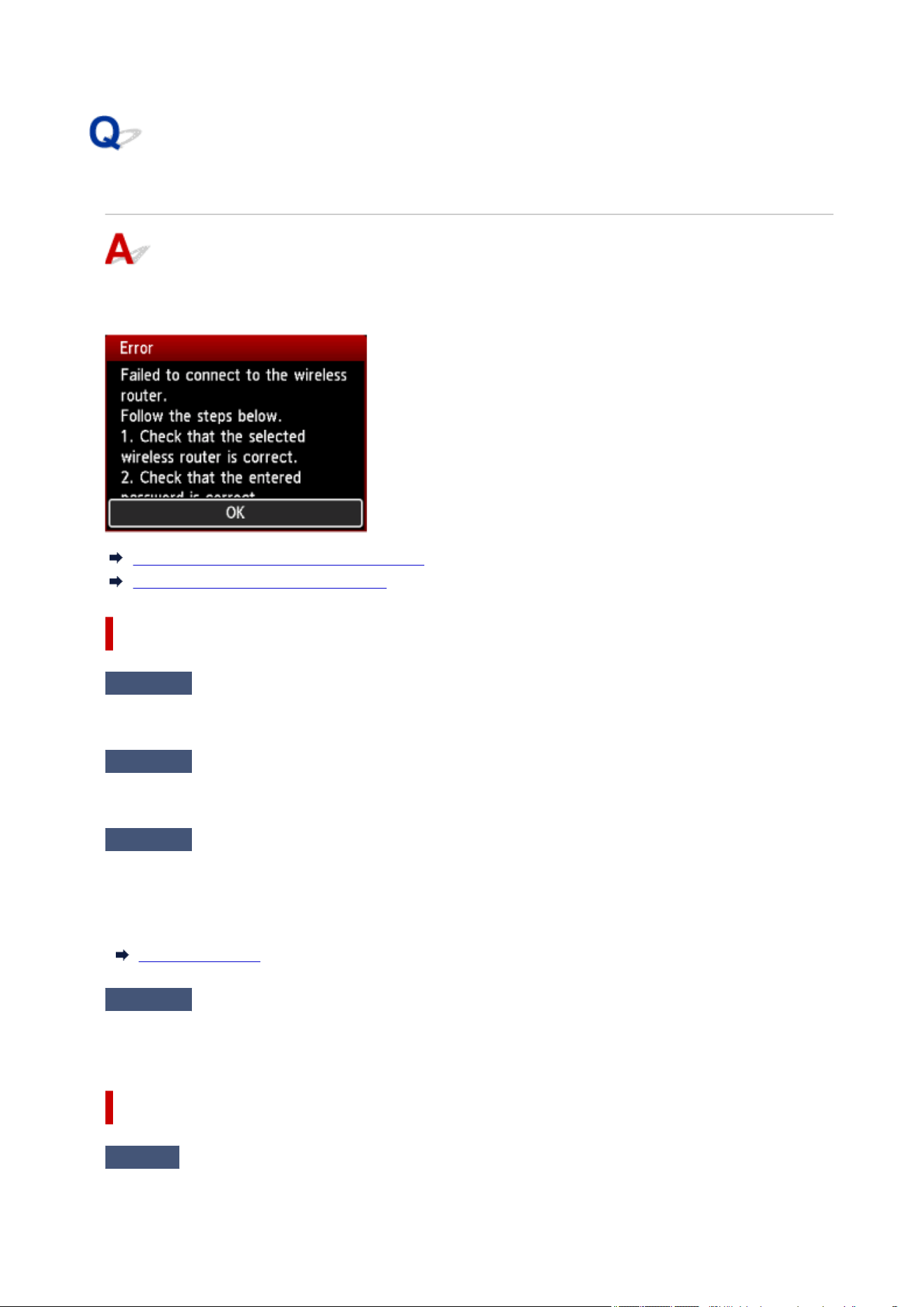
"Failed to connect to the wireless router." Appears
Each time you perform each check, select OK on the error screen to clear the error and set up the printer
again.
When Security Type is WPA/WPA2/WPA3
When Security Type is set to Disable
When Security Type is WPA/WPA2/WPA3
Check 1
Check the password entered for the wireless router is correct.
If the password you entered is incorrect, enter the correct password.
Check 2
Check the wireless router's settings.
If the wireless router's DHCP function is off, turn it on and redo the wireless connection settings.
Check 3
Check the MAC address filtering's settings.
If MAC address filtering is enabled on the wireless router, change the settings to accept the printer's MAC
address.
The MAC address of the printer can be viewed from Printer information > System information.
Printer information
Check 4
Check the wireless router's security protocol (encryption method) settings.
For details on changing the wireless router settings, see the wireless router manual or contact its
manufacturer.
When Security Type is set to Disable
Check
Is the wireless router turned on?
368

If it is already turned on, turn it off, and then turn it back on.
Do not proceed to the next screen of this guide until the power is turned on. The connection to the wireless
router will be temporarily disabled.
369
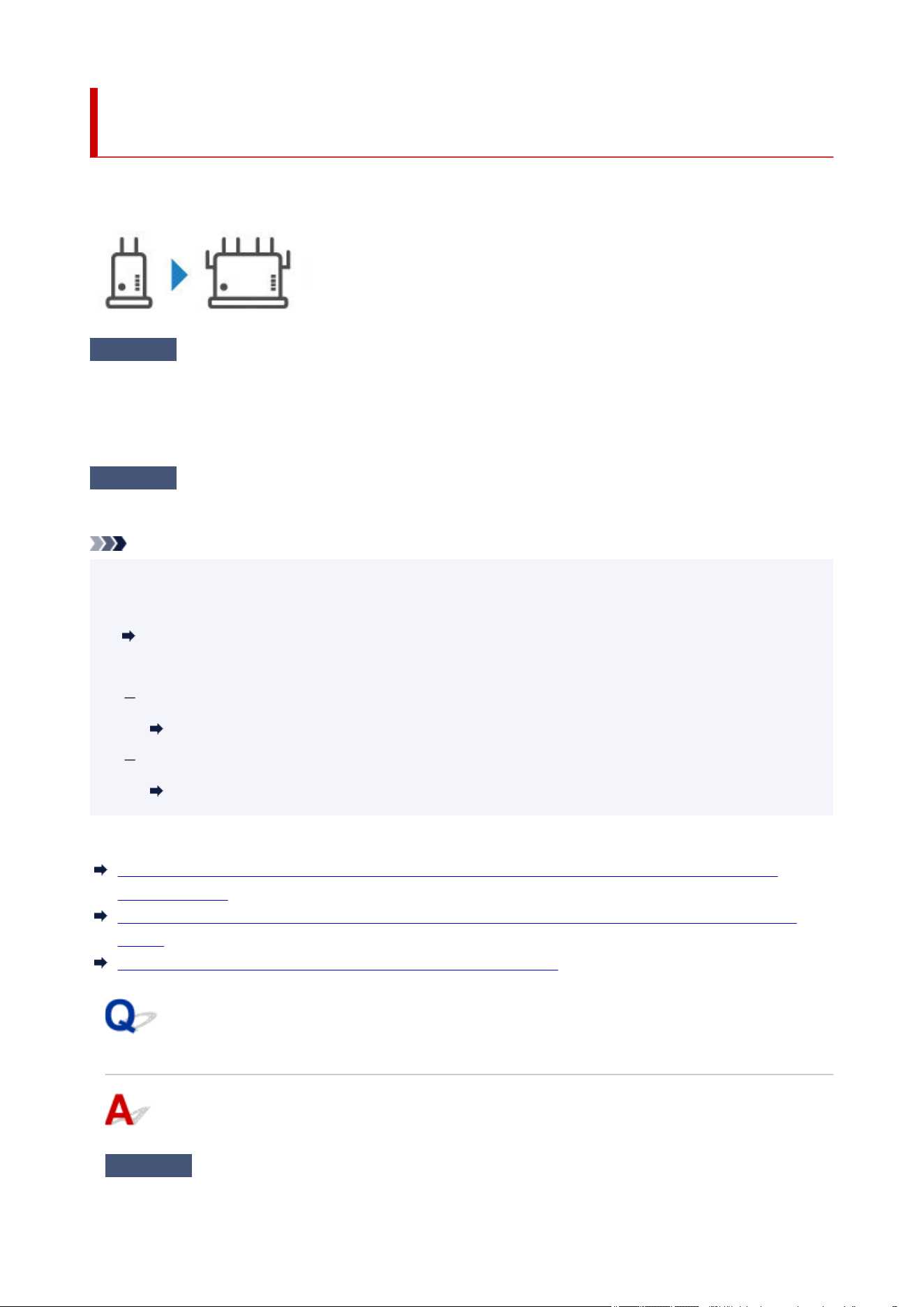
Printer Cannot Be Used After Replacing Wireless Router or
Changed Router Settings
When wireless router is replaced or router settings are changed, the network settings of your computer,
smartphone/tablet or printer must be reconfigured according to the new wireless router.
Check 1
Check if your computer or smartphone/tablet can be connected to Internet
through the new wireless router.
If your computer or smartphone/tablet cannot be connected to Internet, check if the wireless router setup is
completed and configure the settings on the computer or smartphone/tablet to connect to the wireless router.
Check 2
Resetup printer network.
Refer to Setup Guide to setup.
Note
• Wi-Fi Connection Assistant allows you to diagnose and repair the network status.•
Select the link below to download Wi-Fi Connection Assistant and install it.
Checking Printer Connection Status Using Wi-Fi Connection Assistant
Refer to below in regard to starting up Wi-Fi Connection Assistant.
For Windows:
Starting Up Wi-Fi Connection Assistant
For macOS:
Starting Up Wi-Fi Connection Assistant
If this does not solve the problem, see below.
Cannot Communicate with Printer After Enabling MAC/IP Address Filtering or Encryption Key on
Wireless Router
With Encryption On, Cannot Communicate with Printer After Changing Encryption Type at Wireless
Router
Privacy Separator/SSID Separator/Network Separation Function
Cannot Communicate with Printer After Enabling MAC/IP Address
Filtering or Encryption Key on Wireless Router
Check 1
Check wireless router setting.
370
For more on setting up a wireless router, see the instruction manual provided with the wireless router or
contact its manufacturer. Make sure the computer and the wireless router can communicate with each other
under this setting.
Check 2
If filtering MAC addresses or IP addresses at wireless router, check
that MAC addresses or IP addresses for computer, network device, and printer are
registered.
Check 3
If using WPA/WPA2/WPA3 key or a password, make sure encryption key for
computer, network device, and printer matches key set for wireless router.
The length or format of the Wi-Fi password and authentication method must be identical among the wireless
router, the printer, and your computer.
For details, see
Setting an Encryption Key.
Note
• To configure IEEE802.1X/EAP (WPA/WPA2/WPA3 Enterprise), you also need to configure the•
authentication (Radius) server.
Contact the network administrator for more information.
With Encryption On, Cannot Communicate with Printer After
Changing Encryption Type at Wireless Router
If the printer cannot communicate with the computer after you change the encryption type for the wireless
router, make sure the encryption type and passkey or password for the computer matches that of the
wireless router.
Cannot Communicate with Printer After Enabling MAC/IP Address Filtering or Encryption Key on
Wireless Router
371

Privacy Separator/SSID Separator/Network Separation Function
If a privacy separator, SSID separator, or Network separation function is enabled on the wireless (mobile)
router, you cannot perform setup. Before performing setup, disable these functions. For the procedure, refer
to your wireless (mobile) router's instruction manual or visit the manufacturer's website.
372

Setting Up Using Smartphone/Tablet
Refer to Set Up and set up.
Set Up
Note
• If you have a computer, you can set up the printer on the computer more easily.
373

Cannot Find Printer on Network
In the following cases, set up the printer again.
• When you buy a new computer or wireless router•
• When you change the settings on your wireless router•
• When the connection method (Wi-Fi / USB) of the printer is changed•
For more on the setup procedure:
Set Up
In Other Cases Than Above:
If the printer suddenly stops working, even though you have not changed the settings of the device or
network to which it is connected, or if you cannot find the printer during the setup process, check and
solve the problem, using Wi-Fi Connection Assistant. After the condition improves, redo the setup of the
printer.
Wi-Fi Connection Assistant is a powerful solution tool for network problems.
Step 1
Check Basic Items for Network.
Step 2
Solve Problems, Using Wi-Fi Connection Assistant.
Step 3
If the Solution Tool Does Not Solve the Problem.
Step 1 : Check Basic Items for Network.
Check 1
Check power status.
Check your printer and the network device (wireless router, etc.) are turned on.
If you are in the process of setting up, interrupt it and check if the wireless router (modem) is turned on and then
check if the printer is turned on.
1. Check if network device such as router is turned on.1.
If network devices are not turned on, turn on the power. If the network devices are on, turn them off
and on again.
It may take a while for the network device to become ready for use once they are turned on.
Proceed once the network device such as router is ready for use.
2. Check if printer is turned on.2.
375

If printer is not turned on, turn on the power. If the printer is on, turn it off and on again.
Proceed once you complete checking the power status above.
Check 2
Check PC network connection.
If your computer and network devices (wireless router, etc.) are fully configured, your computer is ready to
connect to the network.
1.
Check the settings of the network device (wireless router, etc.).
1.
Connect to the Internet and see if you can browse any web page. If you cannot view web pages on
your computer, check wireless router network connection settings, such as IP address filtering, MAC
address filtering, and DHCP function.
To check the network name (SSID) of the wireless router the printer is connected to, print the network
settings.
Printing Network Settings
Note
•
Depending on the wireless router, note that different network name (SSID) is assigned for a•
bandwidth (2.4 GHz or 5 GHz) or its usage (for PC or game machine), using alphanumeric
characters at the end of network name (SSID).
• For more on checking the settings of the wireless router, refer to the instruction manual•
supplied with the wireless router or contact the manufacturer.
If you use an encryption key, specify it for the network name (SSID) you are using. For details, see
Setting an Encryption Key.
2.
Check PC network connection.
2.
For the procedures, refer to the instruction manual supplied with the computer, or contact the
manufacturer.
Once you complete setting up the wireless router and your computer, configure the settings on your computer in
order to view web pages, using the information of the wireless router.
Proceed once you complete checking the network connection above.
Check 3
Check printer's network settings.
For Wi-Fi
For Wired LAN
For Wi-Fi
Make sure the is displayed on the LCD.
376

If or is displayed.
or indicates that the wireless router and the printer are not connected. Check the setting of printer.
Reconsider the location of the wireless router and the printer in the next check.
If , or only is displayed
The printer is not set to use Wi-Fi.
Select
on HOME screen > LAN settings > Wi-Fi in this order, and select Enable for Enable/disable
Wi-Fi.
For Wired LAN
1.
Check the power and LAN cable.
1.
When the printer cannot be found on the setup screen, using LAN connection setup, make sure that
all the network devices are connected to the router and the hub via LAN cables and that all the
devices are turned on.
•
If LAN cable is not connected:
•
Connect the router, hub, computer and printer via LAN cables.
Make sure the printer is turned on.
Turning the Printer On and Off
Make sure the printer, the router and the hub are turned on.
• If LAN cable is connected, and printer and network device are off:•
Turn on printer and network device.
• If LAN cable is connected, and printer and network device are on:•
Turn them off and on again.
Note
•
Some devices require a couple of minutes after being turned on to become ready for use.
•
Wait until all devices are ready before proceeding.
2. Check printer's Wired LAN settings.2.
Make sure that the is displayed on the printer's LCD.
• If icon is not displayed:•
The printer is not set to use wired communication. Enable Wired LAN from the printer settings.
377

Select LAN settings > Wired LAN on HOME screen, and sets Enable/disable Wired
LAN to Enable.
Check 4
Check location of wireless router.
Make sure the printer is not placed too far away from the wireless router.
The printer can be up 50 m (164 ft.) from the wireless router indoors if unobstructed. Make sure the printer is
close enough to the wireless router to be used.
Place the printer and wireless router where there are no obstacles between them. Wireless communication
between different rooms or floors is generally poor. Wireless communication can be impeded by building
materials containing metal or concrete. If the printer cannot communicate with the computer over a Wi-Fi due
to a wall, place the printer and the computer in the same room.
In addition, if a device like a microwave oven that emits radio waves of the same frequency bandwidth as a
wireless router is nearby, it may cause interference. Place the wireless router as far away from interference
sources as possible.
Step 2 : Solve Problems, Using Wi-Fi Connection Assistant.
Diagnose and repair the network connections using Wi-Fi Connection Assistant.
Download Wi-Fi Connection Assistant from the below page, and install it on your computer.
Checking Printer Connection Status Using Wi-Fi Connection Assistant
Refer to below in regard to starting up Wi-Fi Connection Assistant.
• For Windows:•
Starting Up Wi-Fi Connection Assistant
• For macOS:•
Starting Up Wi-Fi Connection Assistant
Step 3 : If the Solution Tool Does Not Solve the Problem.
Check 1
Make sure security software's firewall is off.
If your security software's firewall is on, a message may appear warning you that Canon software is attempting to
access the network. If this warning message appears, set security software to always allow access.
If you are using any programs that switch between network environments, check their settings.
Check 2
If printer is connected to AirPort Base Station via Wi-Fi, make sure you use
alphanumeric characters for network name (SSID). (macOS)
If your network name (SSID) contains characters other than single-byte alphanumeric characters, the connection
is not established properly. Change the network (SSID) to use only single-byte alphanumeric characters.
Check 3
Solve network troubles with the printer's diagnostic functions.
See below.
378

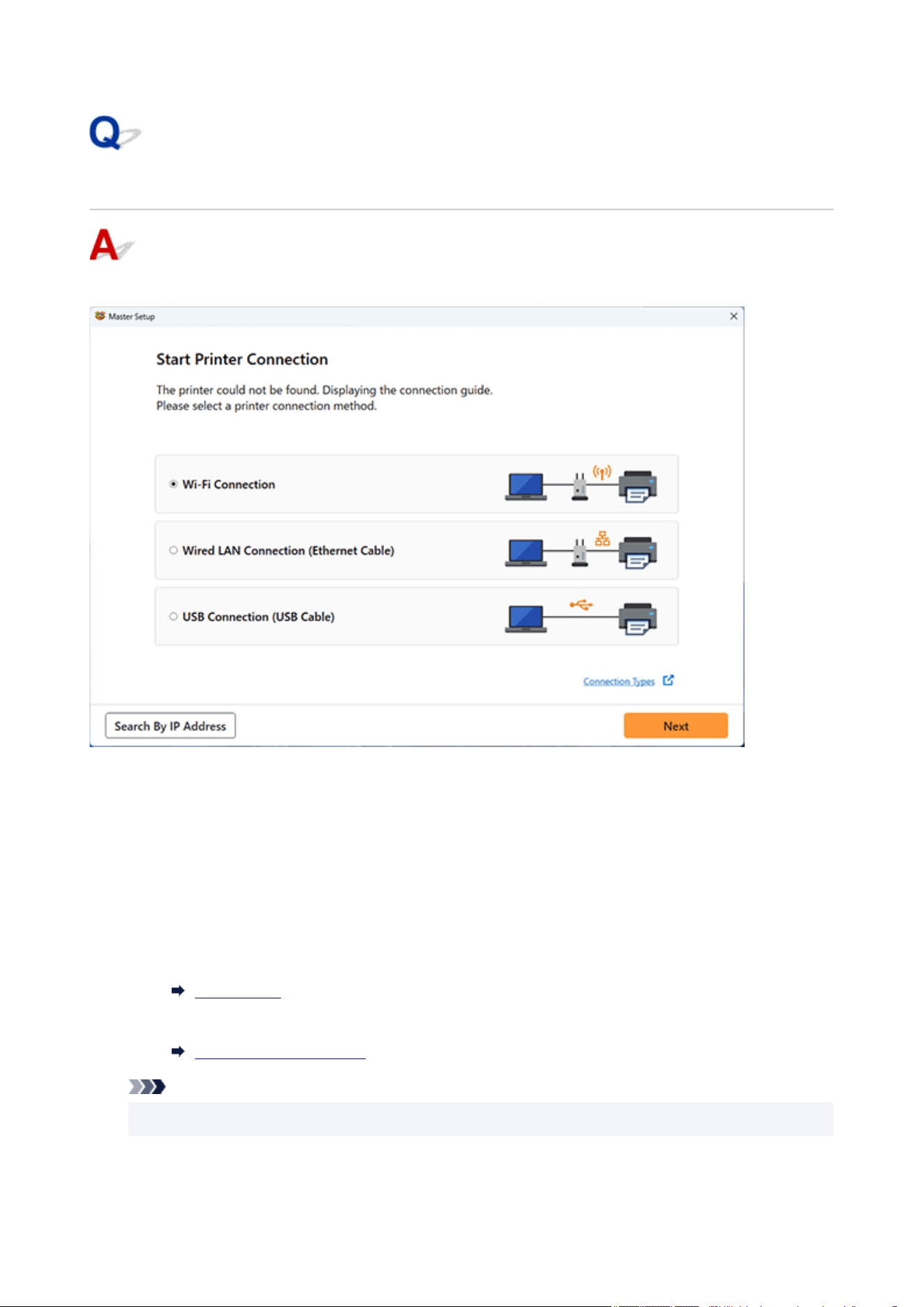
Searching Printer by IP Address or Host Name During Setup
If the printer cannot be found on the Detect Printer screen, the Start Printer Connection screen appears.
The Windows screen is used as an example above.
Clicking Search By IP Address allows you to search for a printer by specifying the IP address or host name
of the printer.
1. Check printer's IP address or host name.1.
To check the printer's IP Address or host name, print out the network settings information or use the
operation panel to display it.
•
Display on the operation panel.
•
LAN settings
•
Print the network settings.
•
Printing Network Settings
Note
•
If you use the printer in an office, ask the network administrator.
2.
Specify searching method.
2.
380
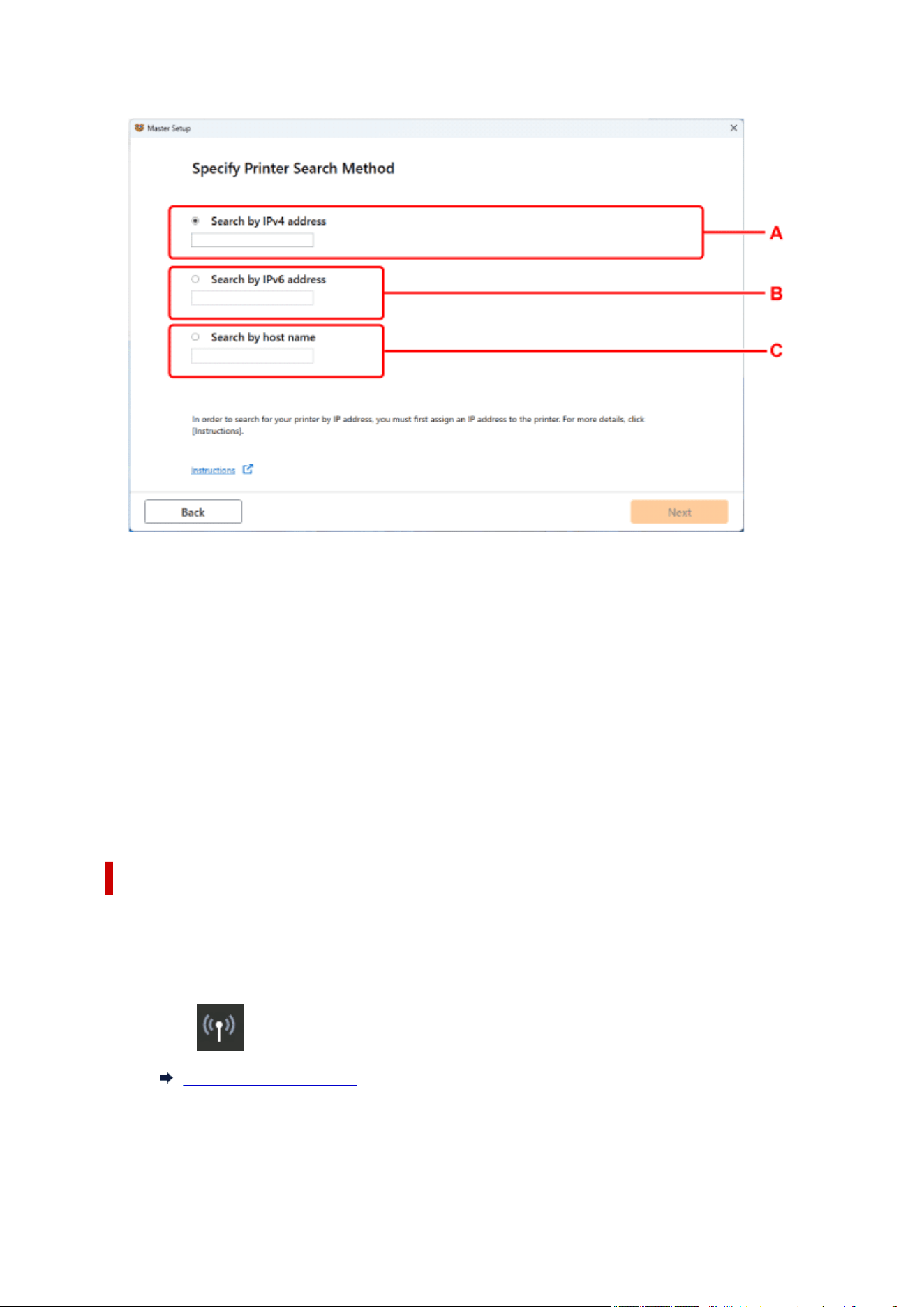
Select one of the methods below.
The Windows screen is used as an example above.
A: Search by IPv4 address
Select to search for printers by IPv4 address.
B: Search by IPv6 address
Select to search for printers by IPv6 address.
C: Search by host name
Select to search for printers by host name. A host name is referred to as LLMNR host name or
Bonjour service name.
3. Enter IP address or host name and click Next.3.
Printer search starts.
If an error screen appears:
Resolve the error according to the instruction on the screen.
If the IP address you entered is already used for another device, follow the procedure below to specify
printer's IP address.
1.
Select LAN settings on the HOME screen.
1.
LCD and Operation Panel
2.
Select Advanced.
2.
3.
Select Yes.
3.
381

4. Select TCP/IP settings.4.
• If you specify IPv4 address:•
1.
Select IPv4.
1.
2. Select IP address.2.
3. Select Manual setup.3.
Selecting Auto setup specifies the IP address automatically.
4.
Select Yes on the displayed screen.
4.
5. Enter IP address.5.
6. Select OK.6.
7. Enter subnet mask.7.
8. Select OK.8.
9. Enter default gateway.9.
10. Select OK.10.
The IPv4 address has been specified.
• If you specify IPv6 address:•
1. Select IPv6.1.
2. Select Enable/disable IPv6.2.
3. Select Enable.3.
The IPv6 address has been specified.
Important
•
If firewall is enabled on the computer, printers on a different subnet may not be detected.
•
Disable firewall.
If firewall interferes with printer search:
The operating system installed on your computer and the firewall function of the security software may
unintentionally prevent communication for setup. Check if a firewall message appears.
382

• If a firewall message appears:•
If a firewall message appears warning that Canon software is attempting to access the network, set
the security software to allow access.
After allowing the software to access, return to setup and follow the instructions on the screen.
• If no firewall message appears:•
Temporarily disable the firewall and return to setup and follow the instructions on the screen.
After the setup is complete, re-enable the firewall.
Note
• For more on firewall settings of your operating system or security software, see instruction manual or
contact its manufacturer.
383


Cannot Print Using AirPrint
Check 1
Make sure printer is turned on.
Turning the Printer On and Off
If the printer is turned on, cycle the power switch, and then check whether the issue is resolved.
Check 2
Make sure printer is registered to your computer.
Check 3
Make sure printer is connected by LAN to same group of networks (same
subnet) as AirPrint compliant device when printing over LAN.
Check 4
Make sure printer has enough paper and ink.
Check 5
Make sure no error message is displayed on printer's LCD.
385

Cannot Print from Smartphone/Tablet
If you cannot Print from your smartphone/tablet, it is possible that your smartphone/tablet cannot
communicate with the printer.
Check the cause of your problem according to the connection method.
Cannot Communicate with Printer via Wi-Fi
Cannot Connect to Printer through Wireless Direct
Note
• For problems on printing with other connection methods or more on performing settings of each•
connection method:
Using Cloud Service
Printing from iOS Device (AirPrint)
Cannot Communicate with Printer via Wi-Fi
If your smartphone/tablet cannot communicate with the printer, check the following.
Check 1
Check power status of printer, network devices (e.g. wireless router), and
your smartphone/tablet.
•
Turn on the printer or devices.
•
If the power is already turned on, cycle the power switch.
•
It may be necessary to resolve wireless router problems (e.g. update interval of a key, problems of DHCP
update interval, energy saving mode) or to update the wireless router firmware.
For details, contact the manufacturer of your wireless router.
Check 2
Check settings of your smartphone/tablet.
Make sure Wi-Fi is enabled on your device.
For details, refer to your device's instruction manual.
Check 3
Is printer connected to wireless router?
•
Use the icon on the LCD to check the connection status between the printer and wireless router.
•
If the is not displayed, Wi-Fi is disabled. Turn on wireless communication on the printer.
• Make sure the network settings of the printer (e.g. network name (SSID) or network key (password), etc.)•
are identical with those of the wireless router.
To check the settings of the wireless router, refer to the instruction manual provided with it or contact its
manufacturer.
386

To check the current network settings of the printer, print out the network settings information or use the
operation panel to display it.
◦ Display on the operation panel of the printer.◦
LAN settings
◦ Print the network settings.
◦
Printing Network Settings
Note
•
If you have a computer, Wi-Fi Connection Assistant allows you to diagnose and repair the network
•
status.
Select the link below to download Wi-Fi Connection Assistant and install it.
Checking Printer Connection Status Using Wi-Fi Connection Assistant
Refer to below in regard to starting up Wi-Fi Connection Assistant.
For Windows:
Starting Up Wi-Fi Connection Assistant
For macOS:
Starting Up Wi-Fi Connection Assistant
Check 4
Are network settings of your smartphone/tablet identical with those of
wireless router?
Make sure the network settings of the printer (e.g. network name (SSID) or network key (password), etc.) are
identical with those of the wireless router.
To check the settings of your smartphone/tablet, refer to the instruction manual provided with it.
If the network settings of your smartphone/tablet are not identical with those of the wireless router, change the
network settings of it to match with those of the wireless router.
Check 5
Make sure the printer is not placed too far away from the wireless router.
If the distance between the printer and wireless router is too far, wireless communication becomes poor. Place
the printer and wireless router close to each other.
Check 6
There may be a problem with the signal. Monitor signal status and move
printer and wireless router as necessary.
Place the printer and wireless router where there are no obstacles between them. Wireless communication
between different rooms or floors is generally poor. Wireless communication can be impeded by building
materials containing metal or concrete. If the printer cannot communicate with the computer over a Wi-Fi due
to a wall, place the printer and the computer in the same room.
In addition, if a device like a microwave oven that emits radio waves of the same frequency bandwidth as a
wireless router is nearby, it may cause interference. Place the wireless router as far away from interference
sources as possible.
Check the signal strength on the LCD.
LCD and Operation Panel
387
Note
• If the web page cannot be printed using an Android device, it may be possible to print it by changing•
Wireless Direct connection.
Wireless Direct Connection
Cannot Connect to Printer through Wireless Direct
If your smartphone/tablet cannot communicate with the printer in the Wireless Direct, check the following.
Check 1
Check power status of printer and device (e.g. smartphone/tablet).
Turn on the printer or devices.
If the power is already turned on, cycle the power switch.
Check 2
Check if the
is displayed on the LCD of the printer.
If it is not displayed, Wireless Direct is disabled. Please turn on the Wireless Direct.
Check 3
Check settings of your smartphone/tablet.
Make sure Wi-Fi is enabled on your device.
For details, refer to your device's instruction manual.
Check 4
Check that printer is selected as connection for devices (e.g. smartphone/
tablet).
Select the network name (SSID) for Wireless Direct specified for the printer as the connection destination for
devices.
Check the destination on your device.
For details, refer to your device's instruction manual or visit the manufacturer's website.
To check the network name (SSID) for Wireless Direct specified for the printer, print out the network settings
information or use the operation panel to display it.
• Display on the operation panel of the printer.•
LAN settings
•
Print the network settings.
•
Printing Network Settings
Check 5
Check that Wireless Direct password set for printer is entered correctly.
To check the password specified for the printer, print out the network settings information or use the operation
panel to display it.
• Display on the operation panel of the printer.•
388

LAN settings
• Print the network settings.•
Printing Network Settings
Check 6
Check that printer is not placed too far away from device.
If the distance between the printer and the device is too far, wireless communication becomes poor. Place the
printer and the device close to each other.
Check 7
Check that 5 devices are already connected.
Wireless Direct does not allow more than 5 devices to be connected.
389

Network Connection Problems
Network Settings and Common Problems
Solve Network Troubles with The Printer's Diagnostic Functions
Switching Printer's Connection to Network or Devices
Network Key (Password) Unknown
Checking Wireless Router SSID/Key
Cannot Remember Printer's Password
Checking Network Information
Restoring Printer's LAN Settings to Defaults
Cannot Connect Smartphone/Tablet to Wireless Router
Checking Wireless Router Network Name (SSID) for Smartphone/Tablet
390

Network Settings and Common Problems
Here are frequently asked questions on network.
Cannot Find Printer
Cannot Find Printer on Network
Cannot Proceed Beyond Printer Connection Screen (Cannot Find Printer Connected via USB)
Searching Printer by IP Address or Host Name During Setup
Cannot Print or Connect
Cannot Print from Smartphone/Tablet
Cannot Print Using AirPrint
Solve Network Troubles with The Printer's Diagnostic Functions
LAN Setting Tips/Changing LAN Settings
Printer Connection Methods
LAN settings
Another Printer Found with Same Name
Printing Network Settings
Network Status and Troubleshooting
391
Solve Network Troubles with The Printer's Diagnostic
Functions
• If the printer and wireless router are connected or the printer and computer are connected by USB cable•
but you cannot print:
Change to Offline (Windows)/Cannot Communicate (Windows)
• In other cases than above:•
Cannot Find Printer on Network/Cannot Print
Cannot Connect to Printer through Wireless Direct
Cannot Find Printer on Network/Cannot Print
Printing Out Network Settings Information:
Follow the procedure below to print out the network settings information.
Step 1
Check that printer and wireless router are turned on.
Turn the wireless router back on.
Wait about five minutes and then turn the printer back on.
Step 2
Check your devices (e.g. computer/smartphone/tablet) are connected to
Internet.
Make sure that devices and the wireless router are connected to via Wi-Fi, and that the Internet can be used
without problems.
Step 3
Make sure the printer's Wi-Fi setting is enabled and the is displayed.
Step 4
Move the printer and device (computer/smartphone/tablet) closer to the wireless
router.
Wireless communication quality deteriorates if the printer or devices are too far from the wireless router. Move
the printer and device closer to the wireless router.
Step 5
Print the network settings
Print out the network settings information on your printer.
Printing Network Settings
Checking Printed Network Settings Information:
From the printed network settings information, check the entries in item "2-2"
392

C-0
It is connected correctly. If, nevertheless, the printer is not found on the network or printing is not possible,
check the following items.
Note
• If codes other than "C-0" are displayed at the same time in the item "2-2" see also the•
correspondence of the other codes.
Check 1
Check that security software's firewall is off.
A message may appear warning you that Canon software is attempting to access the network. If this warning
message appears, set the security software to always allow access.
Quit the security software and make sure that the printer is recognized and ready to use. If so, the cause is
the firewall setting. Change the firewall settings so that the printer is recognized and ready to use. For details,
contact the manufacturer of the security software.
If you are using any programs that switch between network environments, check their settings.
Check 2
Does network name (SSID) of printer match network name (SSID) setting of
wireless router that communicates?
Check the "3-2-6" item in the printed network settings information and the network name (SSID) of the wireless
router you want to connect to. If they are not matched, check the SSID and password of the wireless router you
want to connect to, and then setup manually.
Check 3
Is privacy separator, SSID separator, or Network separation function enabled
on wireless router?
If it is enabled, disable these functions before performing the setup. To check the settings of the wireless
router, refer to the instruction manual provided with it or contact its manufacturer.
Check 4
Are printer driver installed? (Windows)
If you are using Windows and printer driver are not installed, install it.
Set Up
C-1
The printer's Wi-Fi setting is disabled. (You can also check if the Wi-Fi does not appear on the
printer's screen.)
Enable the Wi-Fi setting in the printer's settings screen.
C-3
No IP address is assigned. (You can also check that the item "3-2-12" in the printed network settings
information is blank.)
Check the following items.
393

Check 1
Is printer set to obtain an IP address automatically, or is wireless router
requesting manual addressing?
Refer to the wireless router's manual to enable DHCP (auto-acquisition) settings on the wireless router or to set
a valid IP address on the printer.
Check 2
When you set printer's IP address manually, correct IP address may not be
set.
Check the network name (SSID) and the password of the wireless router you want to connect to, the IP
address applicable range, and then enter the appropriate IP address on the printer side. If you are unsure, set
the printer's IP address to automatic (DHCP).
C-5
Unable to connect to the specified network. Check the following items.
Check 1
Check status of printer and network device (e.g. wireless router), and your
computer/smartphone/tablet.
Communication with a wireless router must be tuned to either the 2.4 GHz or 5 GHz frequency band. The
network name (SSID) of the 2.4 GHz frequency band and the network name (SSID) of the 5 GHz frequency
band cannot be used in combination. Depending on the wireless router, note that different network name
(SSID) is assigned for a bandwidth (2.4 GHz or 5 GHz) or its usage (for PC or game machine), using
alphanumeric characters at the end of network name (SSID).
Check the network name (SSID) set for the printer, and match it with the network name (SSID) of the correct
frequency band of the wireless router.
Check 2
Password on your wireless router may not match password you entered.
Passwords are case sensitive.
Enter the password correctly.
Check 3
Monitor signal status and move printer and wireless router as necessary.
•
Place the printer and wireless router where there are no obstacles between them. Wireless
communication between different rooms or floors is generally poor.
• Wireless communication can be impeded by building materials containing metal or concrete. If the printer
cannot communicate with the computer over a Wi-Fi due to a wall, place the printer and the computer in
the same room.
• After changing the installation location, print out the network settings information again and check the
status of the signal. Compare with the value in section "3-2-1" in the printed network settings information
to determine the installation location.
Check 4
Check wireless channel number of Wi-Fi you are using on computer.
Make sure that the wireless channel number on the wireless router is included in the wireless channel number
you checked. If the wireless channel number set for the wireless router is not included, change the wireless
channel number of the wireless router.
394

Check 5
In case of Wi-Fi connection, check if computer that can be accessed by
wireless router is restricted.
The wireless router settings may be limiting the number of devices that can be connected at the same time.
Remove or relax the restrictions.
To check the settings of the wireless router, refer to the instruction manual provided with it or contact its
manufacturer.
Note
•
To check the MAC address or IP address of your computer, see Checking Computer IP Address or MAC
Address.
Check 6
If problem occurs only when wireless router is in energy-saving mode, turn off
energy-saving mode of wireless router.
If the problem seems to occur suddenly, it may be resolved by updating the wireless router firmware (e.g.
update interval of a key, problems of DHCP update interval, etc.). For details, refer to the wireless router's
instruction manual.
Check 7
If printer is connected to AirPort Base Station via LAN, make sure you use
alphanumeric characters for network name (SSID). (macOS)
If your network name (SSID) contains characters other than single-byte alphanumeric characters, the
connection is not established properly. Change the network (SSID) of the printer to use only single-byte
alphanumeric characters.
C-4
No default gateway is set.
When you set the IP address of the printer manually, enter a valid default gateway IP address. If you don't
know the default gateway, set the IP address to automatic.
C-7
There may be a problem with the signal.
Check the following items.
Check
Monitor signal status and move printer and wireless router as necessary.
• Place the printer and wireless router where there are no obstacles between them. Wireless
communication between different rooms or floors is generally poor.
• Wireless communication can be impeded by building materials containing metal or concrete. If the printer
cannot communicate with the computer over a Wi-Fi due to a wall, place the printer and the computer in
the same room.
• After changing the installation location, print out the network settings information again and check the
status of the signal. Compare with the value in section "3-2-1" in the printed network settings information
and place the printer in the location with a higher value.
395

Note
• In some cases, "C-7" and "C-9" are displayed at the same time. In that case, refer to both items.
C-8
Too many clients are connected.
Wireless Direct does not allow more than 5 devices to be connected.
If you want to connect additional devices to the printer, unplug any devices that are not in use before
adding them.
C-9
The noise level is high and does not differ from the signal level due to various devices other than the
printer.
• If devices (microwave oven, external hard disk drive, and other USB 3.0 devices) that emit radio waves
of the same frequency bandwidth as a wireless router is nearby, it may cause interference. Place the
printer and the wireless router as far away from interference sources as possible.
• After you change the location of the printer, check the signal quality. Compare the value of "3-2-2" in
the network settings information and place the printer in the location with a higher value.
Note
• In some cases, "C-7" and "C-9" are displayed at the same time. In that case, refer to both items.
C-10
No IP address is assigned by the wireless router.
Check the following items.
Check 1
Password on your wireless router may not match password you entered.
Passwords are case sensitive.
Enter the password correctly.
Check 2
Set up printer again and reconnect to Wi-Fi.
Check 3
Check DHCP on wireless router. If DHCP is off, set it on.
For details, refer to the wireless router's instruction manual.
C-11
The network name (SSID) remains the default value (The network name (SSID) has not been set). Check
the network name (SSID) of the wireless router.
Verify the network name (SSID) and password of the wireless router you want to connect to, and then set it
up manually.
Note
• Wi-Fi Connection Assistant allows you to diagnose and repair the network status.•
Select the link below to download Wi-Fi Connection Assistant and install it.
396

Checking Printer Connection Status Using Wi-Fi Connection Assistant
Refer to below in regard to starting up Wi-Fi Connection Assistant.
For Windows:
Starting Up Wi-Fi Connection Assistant
For macOS:
Starting Up Wi-Fi Connection Assistant
Cannot Connect to Printer through Wireless Direct
Check the following items
Check 1
Check power status of printer and other devices (e.g. computer/smartphone/
tablet).
Turn on the printer or devices.
If the power is already turned on, cycle the power switch.
Check 2
Check settings of your device (e.g. computer/smartphone/tablet).
Make sure Wi-Fi is enabled on your device.
For details, refer to the device's instruction manual.
Check 3
Print out network settings information.
See "Step 1" to "Step 5" in Cannot Find Printer on Network/Cannot Print.
In the printed network settings information, check if the item "2-2" is not "C-8". If this is the case, the number of
connected printers is too many.
Wireless Direct does not allow more than 5 devices to be connected.
When you want to connect additional devices, disconnect any devices that are not in use before adding them.
Check 4
Check that printer is selected as connection for various devices (e.g.
computer/smartphone/tablet).
Select the network name (SSID) for Wireless Direct specified for the printer as the connection destination for
devices.
Check the destination on your device.
For details, refer to your device's instruction manual or visit the manufacturer's website.
To check the network name (SSID) for Wireless Direct specified for the printer, display it using the operation
panel of the printer or print out the network settings information of the printer.
• Display on the operation panel of the printer.•
397

LAN settings
• Print the network settings.•
Printing Network Settings
Check 5
Check that Wireless Direct password set for printer is entered correctly.
To check the password specified for the printer, display it using the operation panel of the printer or print out
the network settings information of the printer.
•
Display on the operation panel of the printer.
•
LAN settings
•
Print the network settings.
•
Printing Network Settings
Check 6
Check that printer is not placed too far away from device.
If the distance between the printer and the device is too far, wireless communication becomes poor. Place the
printer and the device close to each other.
398
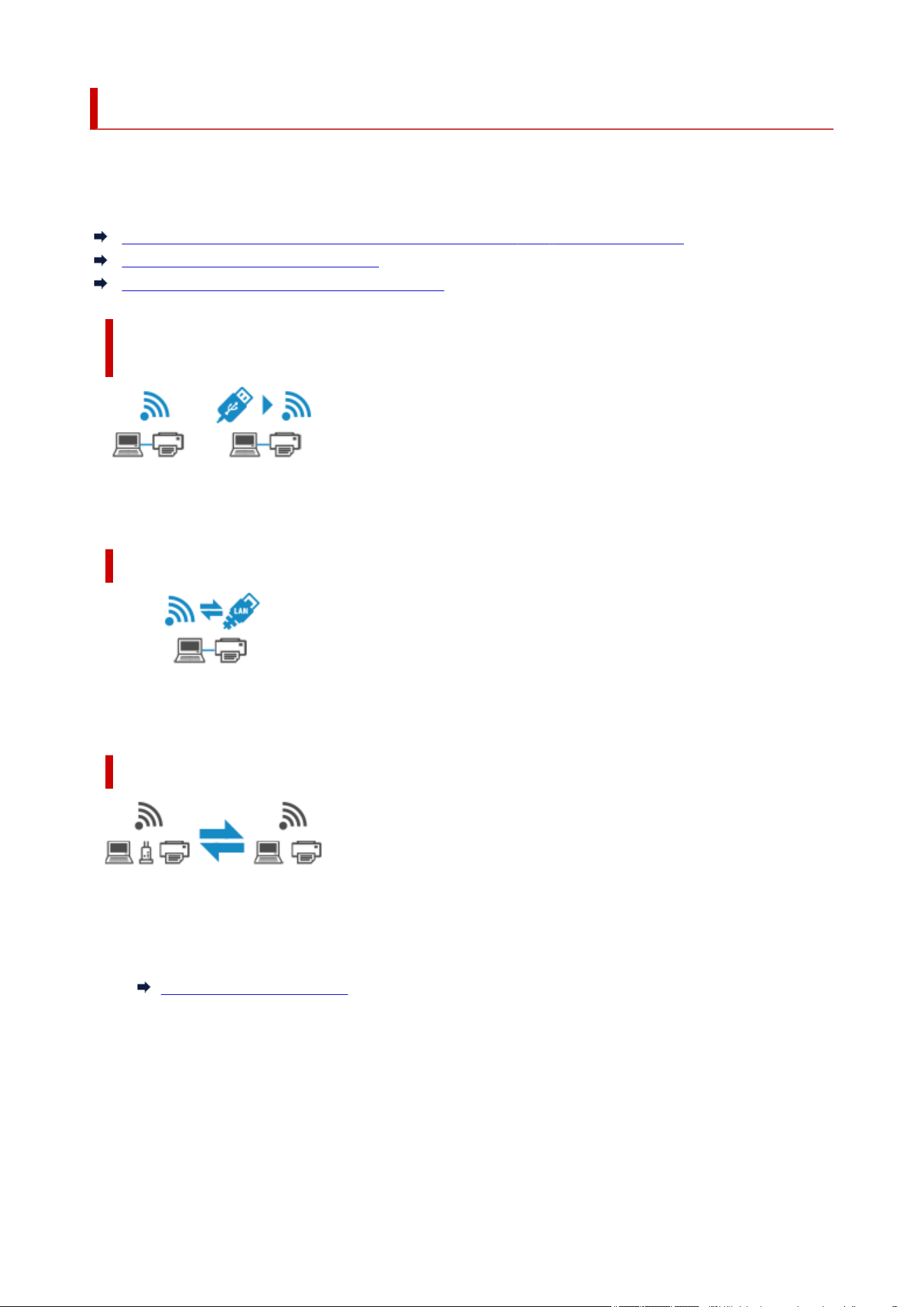
Switching Printer's Connection to Network or Devices
Check the following items when connecting a newly added computer to the LAN environment to the printer,
changing the connection method from USB to LAN, or changing the wireless LAN (Wi-Fi) connection
method.
1. Connects to Another Computer via LAN/Changes from USB to LAN Connection
2. Switching LAN Connection Method
3. Reconfiguration Method of Wi-Fi Connection
1. Connects to Another Computer via LAN/Changes from USB to LAN
Connection
To connect an additional computer to the printer via LAN, or to change from USB to LAN connection, refer
to Setup Guide to setup.
2. Switching LAN Connection Method
If you want to switch to USB connection when the printer is used with a LAN connection, refer to Setup
Guide to setup.
3. Reconfiguration Method of Wi-Fi Connection
• If you want to switch to Wireless Direct when using the printer with Wi-Fi connection:•
Wireless Direct connection is available. Wireless Direct and Wi-Fi connection can be used together.
But if you use IEEE802.1X/EAP (WPA/WPA2/WPA3 Enterprise), they can be not used together.
Wireless Direct Connection
• Switching to a Wi-Fi connection when using the printer Wireless Direct:•
If you connect the printer to your computer or smartphone via a wireless router for the first time to
print, or if you want to change the connection frequency between the printer and the wireless router,
perform the setup.
◦ For Windows:◦
Refer to Changing the Connection Mode.
399

◦ For macOS:◦
Refer to Setup Guide and redo setup.
400
Network Key (Password) Unknown
Diagnose and repair the network connections using Wi-Fi Connection Assistant.
Download Wi-Fi Connection Assistant from the below page, and install it on your computer.
Checking Printer Connection Status Using Wi-Fi Connection Assistant
Refer to below in regard to starting up Wi-Fi Connection Assistant.
• For Windows:•
Starting Up Wi-Fi Connection Assistant
• For macOS:•
Starting Up Wi-Fi Connection Assistant
If the problem persists after diagnosis and repair with Wi-Fi Connection Assistant, check the following items.
WPA/WPA2/WPA3 Key Set for Wireless Router Unknown, Cannot Connect
Setting an Encryption Key
WPA/WPA2/WPA3 Key Set for wireless router Unknown, Cannot
Connect
Check the wireless router settings. For more on setting up a wireless router, see the instruction manual
provided with the wireless router or contact its manufacturer. Make sure your computer can communicate
with the wireless router.
Setting an Encryption Key
Select the encryption containing WPA2.
Note
• The factory default of wireless router supporting WPA3 may be set to WPA3.•
Make sure your computer can communicate with the wireless router using the settings you have selected.
For more on setting up a wireless router, see the instruction manual provided with the wireless router or
contact its manufacturer.
• Using WPA2/WPA3 (Windows)•
The authentication method, Wi-Fi password, and dynamic encryption type must be identical among
the wireless router, the printer, and your computer.
401

Enter the Wi-Fi password configured on the wireless router.
AES (secure encryption) is selected automatically as the dynamic encryption method.
For details, see If WPA/WPA2/WPA3 Details Screen Appears.
Note
• For the secure encryption supported by this printer, see "Network Specifications".•
Network Specifications
• To configure IEEE802.1X/EAP (WPA/WPA2/WPA3 Enterprise), you also need to configure the•
authentication (Radius) server.
Contact the network administrator for more information.
402

Checking Wireless Router SSID/Key
The position where the SSID/Key of a wireless router is written differs depending on the manufacturer. For
details, refer to your wireless router's instruction manual or visit the manufacturer's website.
Note
• Some wireless routers distinguish network names (SSIDs) by the last alphanumeric character according•
to their bandwidth (2.4 GHz or 5 GHz), purpose (for computer or game machine) or encryption type.
• To configure IEEE802.1X/EAP (WPA/WPA2/WPA3 Enterprise), you also need to configure the•
authentication (Radius) server.
Contact the network administrator for more information.
403

Cannot Remember Printer's Password
• If you forgot the administrator password:•
Select Various settings > Printer settings > Reset settings > Reset all, in order to restore
administrator password to default.
Reset settings
After initializing the printer settings, redo setup.
Refer to Setup Guide and redo setup.
• If you forgot the security administrator password:•
It is not possible to change or unset the security policy settings/the security administrator password.
Contact your nearest Canon service center.
404
Checking Network Information
Checking Printer IP Address or MAC Address
Checking Computer IP Address or MAC Address
Checking Communication Between the Computer, the Printer, and the Wireless Router
Checking Network Setting Information
Checking Printer IP Address or MAC Address
To check the printer's IP Address or MAC Address, print out the network settings information or use the
operation panel to display it.
• Display on the operation panel.•
LAN settings
• Print the network settings.•
Printing Network Settings
For Windows, you can check the network setting information on the computer screen.
Canon Wi-Fi Connection Assistant Screen
Checking Computer IP Address or MAC Address
To check the IP Address or MAC Address of your computer, follow the instructions below.
• For Windows:•
1. Select Command Prompt from Start.1.
2.
Enter "ipconfig/all" and press Enter.
2.
The IP Address and MAC Address of your computer appear. If your computer is not connected to
a network, the IP Address does not appear.
• For macOS:•
1.
Select System Settings from Apple menu, and then click Network.
1.
2.
Make sure network interface used by computer is selected.
2.
Make sure Wi-Fi is Connected when connecting via Wi-Fi or Ethernet is Connected for Wired
LAN connection and click.
405

3. Click Details to check the IP Address.3.
The IP Address of your computer appears. To check the MAC Address, click Hardware.
Checking Communication Between the Computer, the Printer, and the
Wireless Router
Perform a ping test to check if communication is taking place.
• For Windows:•
1.
Select Command Prompt from Start.
1.
2.
Type "ping XXX.XXX.XXX.XXX" and press Enter.
2.
"XXX.XXX.XXX.XXX" is the IP Address of the target device.
If communication is taking place, a message like the one shown below appears.
Reply from XXX.XXX.XXX.XXX: bytes=32 time=10ms TTL=255
If Request timed out appears, communication is not taking place.
• For macOS:•
1. Start Terminal as shown below.1.
Select Computer from Go menu of Finder, double-click Macintosh HD > Applications > Utilities
> Terminal.
2.
Type "ping -c3 XXX.XXX.XXX.XXX" and press Enter.
2.
"XXX.XXX.XXX.XXX" is the IP Address of the target device.
If communication is taking place, a message like the one shown below appears.
64 bytes from XXX.XXX.XXX.XXX: icmp_seq=0 ttl=64 time=3.394 ms
64 bytes from XXX.XXX.XXX.XXX: icmp_seq=1 ttl=64 time=1.786 ms
64 bytes from XXX.XXX.XXX.XXX: icmp_seq=2 ttl=64 time=1.739 ms
--- XXX.XXX.XXX.XXX ping statistics ---
3 packets transmitted, 3 packets received, 0% packet loss
If the following message is displayed, communication is not working properly.
PING XXX.XXX.XXX.XXX (XXX.XXX.XXX.XXX) : 56 data bytes
---XXX.XXX.XXX.XXX ping statistics ---
3 packets transmitted, 0 packets received, 100% packet loss
406


Restoring Printer's LAN Settings to Defaults
Important
• Initialization erases all network settings on the printer, making printing/scanning operation from a•
computer over a network impossible. To use the printer over a network again after restoring it to the
factory defaults, refer to "Setup Guide" and redo setup.
Initialize the network setting using the printer's operation panel.
Reset settings
408
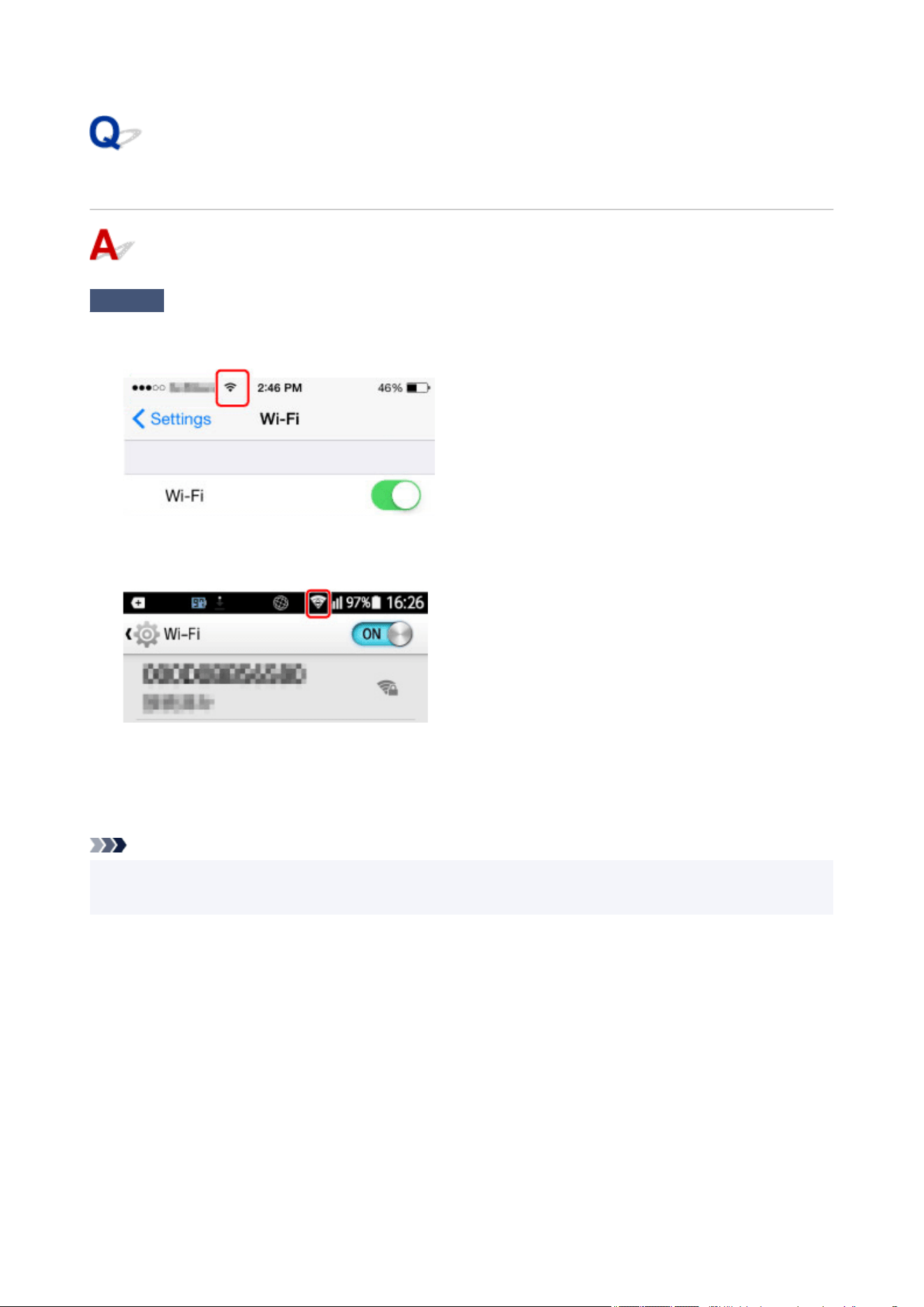
Cannot Connect Smartphone/Tablet to Wireless Router
Check
Is the Wi-Fi antenna displayed on your smartphone/tablet?
• Example (iOS device):•
•
Example (Android device):
•
If the antenna is not displayed, your device's wireless function is disabled. Enable Wi-Fi on your device and
connect it to a wireless router. For more on the procedure, refer to your device's instruction manual or visit the
manufacturer's website.
Note
•
The setup on your smartphone/tablet will be easier when you complete setting up a wireless printer
connection on your computer in advance.
409
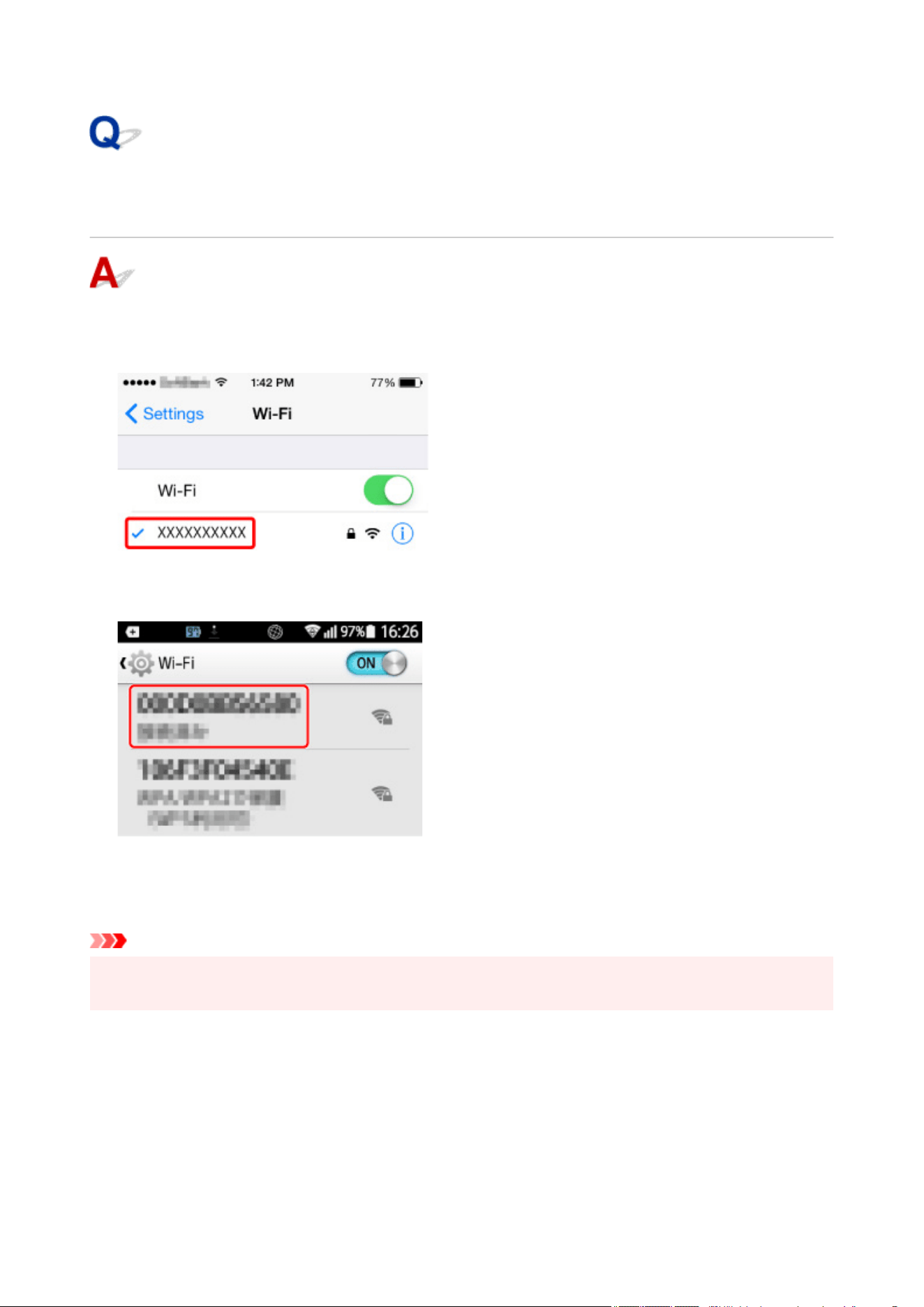
Checking Wireless Router Network Name (SSID) for Smartphone/
Tablet
Check it from the setting screen of your smartphone/tablet.
• Example (iOS device):•
• Example (Android device):•
For details on how to display the setting screen, refer to your device's instruction manual or visit the
manufacturer's website.
Important
• Perform setup for your printer and smartphone/tablet so that they can connect to the same wireless
router.
410


Printer Does Not Turn On
Check 1
Press ON button.
Turning the Printer On and Off
Check 2
Make sure power cord is securely connected to printer, and then turn on again.
Check 3
Unplug printer, leave it for at least 5 minutes, and then plug it back in and turn
on again.
If this does not solve the problem, contact your nearest Canon service center to request a repair.
412
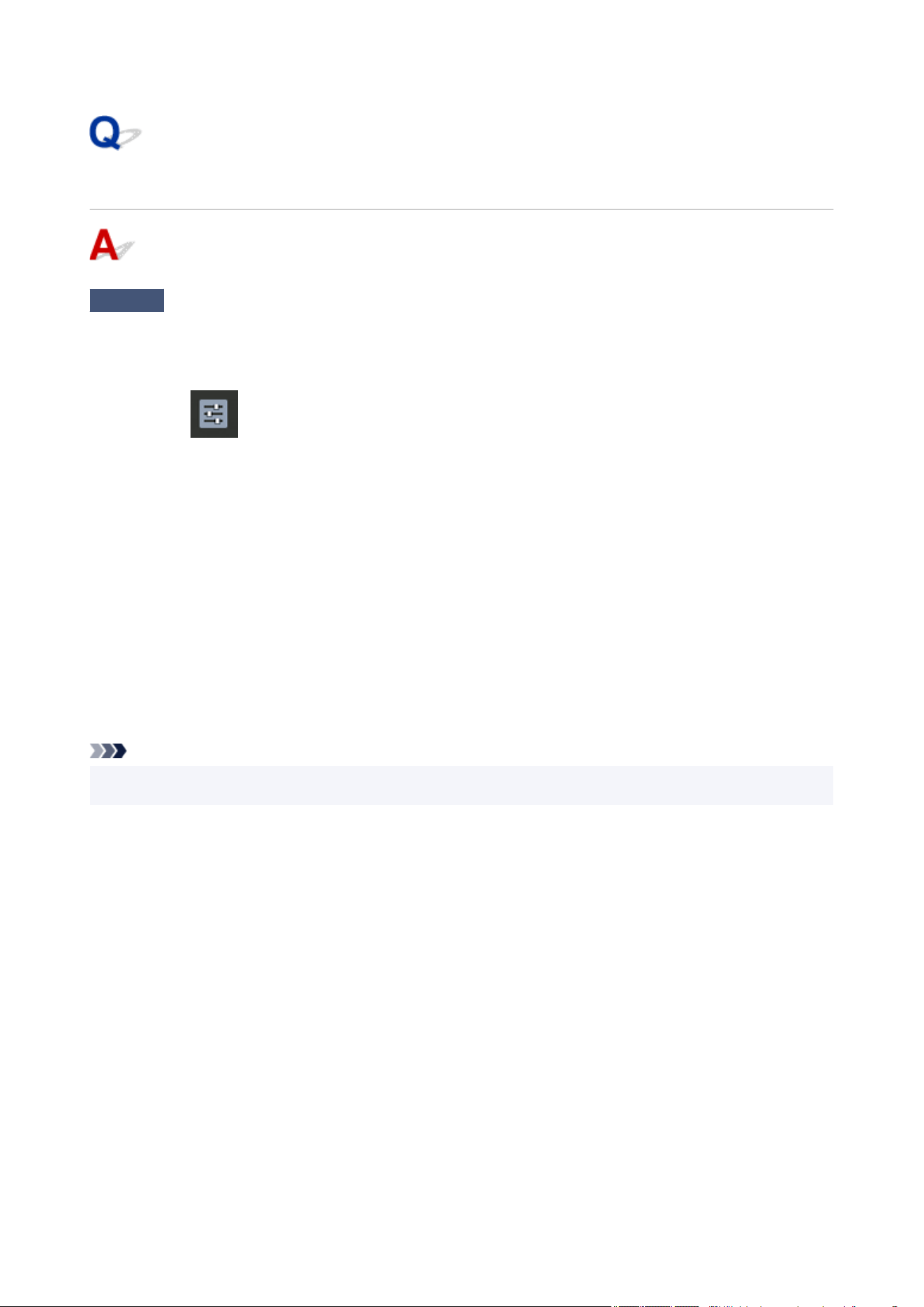
Printer Turns Off Unexpectedly or Repeatedly
Check
If printer is set to turn off automatically after a certain time, disable this setting.
If you have set the printer to turn off automatically after a specified time, the power will shut off by itself once that
time has elapsed.
1.
Select Various settings on the HOME screen.
1.
2.
Select Printer settings.
2.
3.
Select Power control.
3.
4.
Select Use auto power control.
4.
5.
Select Auto power off.
5.
6.
Select Never
6.
The setting to shut off the power automatically is disabled.
Note
•
If this setting is changed, power consumption may increase.
•
413
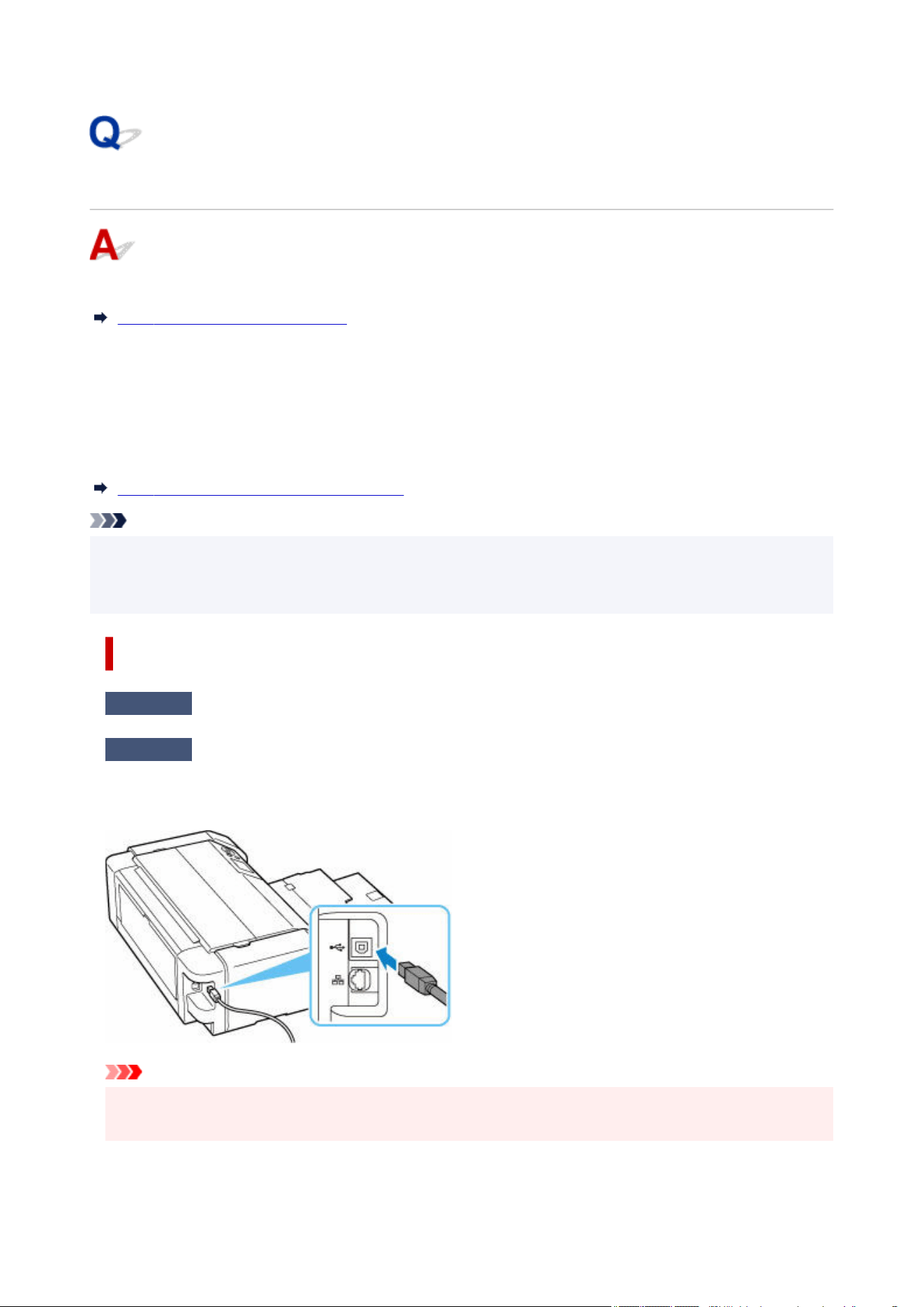
USB Connection Problems
If the printer connected to the computer via USB is not recognized, check the following items.
USB Connection Not Recognized
The following problems may occur even though the USB connection is recognized.
• Printing is slow.
• Hi-Speed USB connection does not work.
• A message such as "This device can perform faster" appears (Windows).
If the above is the case, check the following.
USB Connection Does Not Work Properly
Note
• If your system environment does not support Hi-Speed USB, the printer operates at the slower speed
of Full-Speed or Low-Speed. In this case, the printer works properly but printing speed may slow down
due to the communication speed.
USB Connection Not Recognized
Check 1
Make sure printer is turned on.
Check 2
Unplug the USB cable from the printer and the computer, and then connect it
again.
As the illustration below, the USB port is at the left side of the printer.
Important
•
Check the orientation of the "Type-B" connector and connect to the printer. For details, refer to the
instruction manual supplied with the USB cable.
414

Check 3
Check that Enable bidirectional support is selected in Ports sheet of
Printer properties dialog box (Windows).
If not, select it to enable bidirectional support.
Opening Printer Driver's Setup Screen
Check 4
Initialize the printer settings.
Select on HOME screen > Various settings > Printer settings > Reset settings > Reset all.
Reset settings
After initializing the printer settings, redo setup.
Refer to Setup Guide and redo setup.
USB Connection Does Not Work Properly
Check
Check following to make sure your system environment supports Hi-Speed
USB connection.
•
The types of USB cables that can be used differ depending on your printer. Check the shape of the USB
•
cable connection of the printer.
What Is USB cable?
•
Does the USB port on your computer support Hi-Speed USB connection?
•
•
Does the USB cable or the USB hub support Hi-Speed USB connection?
•
Be sure to use a certified Hi-Speed USB cable. We recommend that the USB cable be no longer than 10
feet / 3 meters or so.
•
Is the Hi-Speed USB driver working properly on your computer?
•
Make sure the latest Hi-Speed USB driver is working properly and install the latest version of the
Hi-Speed USB driver for your computer, if necessary.
Important
• For more information, contact the manufacturer of your computer, USB cable, or USB hub.
415


Print Head Holder Does Not Move to Replacement Position
Check1
Is ON lamp off?
Check if the ON lamp is lit.
The print head holder will not move unless the power is on. If the ON lamp is off, close the top cover and turn the
printer on.
The ON lamp flashes while the printer is initializing. Wait until the ON lamp stops flashing and remains lit, open
the top cover again, then press the Stop button.
Check2
Is an error message displayed on LCD?
Close the top cover, follow the support code (error number) displayed in the error message to resolve the error,
and then reopen it. For details on resolving the error, see
List of Support Code for Error.
Check3
Has top cover been left open for 10 minutes or longer?
If the top cover is left open for more than 10 minutes, the print head holder moves to the position to protect it to
prevent the print head from drying out. Close and reopen the top cover, then press the Stop button to return the
print head holder to the position for replacing.
Check4
Has printer been printing continuously for a long period?
Close the top cover, reopen it after a while, then press the Stop button.
If the printer has been printing continuously for a long time, the print head holder may not move to the position
for replacing since the print head may overheat.
417

Printer Status Monitor Not Displayed (Windows)
Check 1
Is printer status monitor enabled?
Make sure that Enable Status Monitor is selected on the Option menu of the printer status monitor.
1. Open the Printer Driver Printing Preferences window.1.
Opening Printer Driver's Setup Screen
2.
On Maintenance sheet, click View Printer Status.
2.
3.
Select Enable Status Monitor on Option menu if it is not selected.
3.
Check 2
Make sure that all Windows Updates have been applied.
If all Windows Update have not been applied, the printer status monitor screen will not be displayed. Apply all
Windows Update.
418


Installation and Download Problems
Failed to Printer Driver Installation (Windows)
Updating Printer Drivers in Network Environment (Windows)
Disable Function to Send Usage Information of Printer
Setup Application Asks for the Administrator's Username and Password
(Windows)
Enable Printing from PC/Smartphone/Tablet
Installing Printer Drivers on PC without Network Connection (Windows)
420

Failed to Printer Driver Installation (Windows)
If the printer driver were not installed correctly, make sure that all Windows Update have been applied. If
all Windows Update have not been applied, apply all Windows Update.
After confirming Windows Update, perform the following operations to install the printer driver.
1.
Open screen to uninstall printer Driver.
1.
For Windows 11:
Select Settings > Apps.
Select Apps & features.
For Windows 10:
Select Settings > Apps.
2.
Check if there is "Canon XXX series Driver" or "Canon XXX series Printer Driver" you
2.
want to install in list.
"XXX" is the model name.
3. If you find printer driver for printer you want to install, uninstall it.3.
If not found, proceed to the next step.
4. Restart computer.4.
After restarting, install the latest printer driver.
Important
•
For Windows:
•
To restart your computer, choose Restart instead of Shut down.
421

Updating Printer Drivers in Network Environment (Windows)
Download the latest printer driver in advance.
Download the latest printer driver for your model on the download page of the Canon website.
After the download is completed, overwrite and install the new version of the printer driver according to the
specified installation procedure.
Note
• The network settings on the printer are not affected, so the printer can be used on the network without
redoing settings.
422
Disable Function to Send Usage Information of Printer
The function to send usage information of the printer is configured or controlled by the printer, computer,
and smartphone/tablet separately. Disable the function from each device as well as the printer.
Important
• Make sure each device is connected to Internet before disabling the function to send usage information.
• In some case, it may take time for your choice to be reflected in your printer.
For Windows:
For macOS:
For Smartphone/Tablet App :
For Windows:
Perform setup procedure to change the setting for sending information of the printer.
1.
Make sure computer to change setting is connected to Internet.
1.
2.
Start setup procedure.
2.
Set Up
3. Click Setting Up Your New Printer on Start Setup screen.3.
Proceed the setup procedure according to the instructions on the screen until the For using services
related to Canon product license agreement screen appears.
4.
Click Do not agree on For using services related to Canon product license agreement
4.
screen.
The warning screen appears.
5.
Click OK on displayed screen.
5.
6.
Proceed setup procedure to the end according to instructions on screen.
6.
7.
If For using services related to Canon product license agreement screen appears
7.
again after a certain period of time, click Do not agree.
423

Note
• Depending on your operating environment, it may take time for the license agreement screen to
appear.
• Do not turn off the printer until the license agreement screen appears again.
For macOS:
Perform setup procedure to change the setting for sending information of the printer and macOS.
1.
Start setup procedure.
1.
Set Up
2.
Click Setting Up Your New Printer on Start Setup screen.
2.
Proceed the setup procedure according to the instructions on the screen until the For using services
related to Canon product license agreement screen appears.
3. Click Do not agree on For using services related to Canon product license agreement3.
screen.
The warning screen appears.
4.
Click OK on displayed screen.
4.
5. Proceed setup procedure to the end according to instructions on screen.5.
6. If For using services related to Canon product license agreement screen appears6.
again after a certain period of time, click Do not agree.
Note
• Depending on your operating environment, it may take time for the license agreement screen to
appear.
• Do not turn off the printer until the license agreement screen appears again.
For Smartphone/Tablet App :
Use the App to change the setting for sending information of the printer and smartphone/tablet.
1.
Check that printer is turned on.
1.
2.
Start up the App.
2.
3.
Tap Menu on lower right.
3.
4.
Tap About.
4.
424

5. Tap Settings for Data Sending.5.
The Settings for Data Sending screen appears.
6. Check displayed message, unselect Agree of the items you want to stop sending and tap6.
OK.
If you have not selected the first item from the top, warning screen appears and tap OK.
The function to send usage information from the App is disabled.
Select Agree to enable the function to send usage information of each item and tap OK.
Next, disable the function to send usage information from the printer.
7.
Tap Home on lower left.
7.
Make sure the printer to change the setting is selected.
8.
Tap printer icon.
8.
9. Tap Settings for Data Sending.9.
The Settings for Data Sending screen appears.
10. Check displayed message, unselect Agree of the items you want to stop sending and tap10.
OK.
If you have not selected the first item from the top, warning screen appears and tap OK.
The function to send usage information from the printer is disabled
Select Agree to enable the function to send usage information of each item and tap OK.
Note
• Do not turn off the printer until you finish changing the setting on your smartphone/tablet.•
• If multiple devices are connected to the printer, you need to disable the function to send usage•
information on all devices. If the function is enabled on one of the devices, sending usage information
will continue.
425
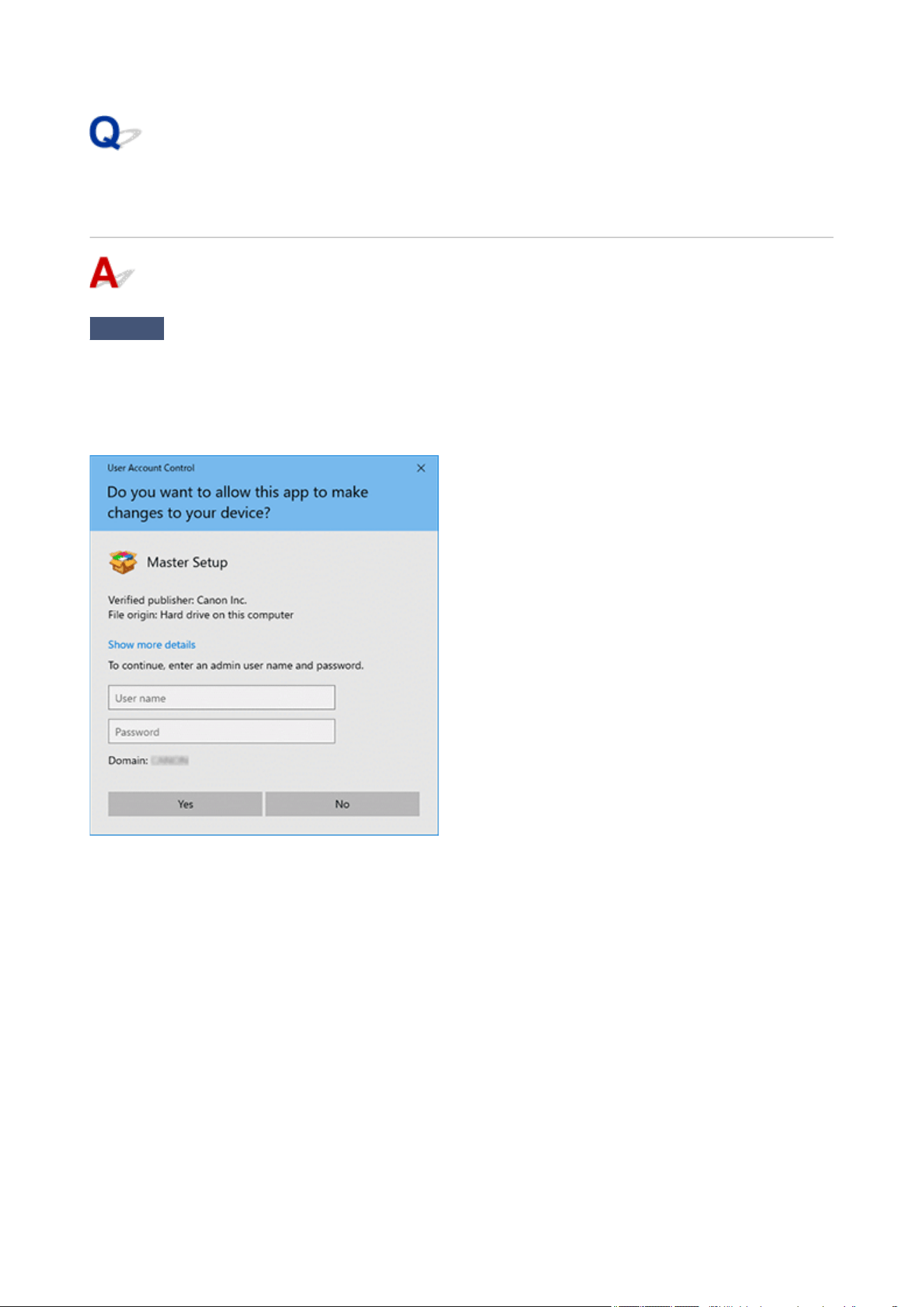
Setup Application Asks for the Administrator's Username and
Password (Windows)
Check
Enter the username and password of the local administrator account.
When you install or launch the printer setup application on your PC, you may be asked to enter the
administrator's username and password. In such cases, enter the username and password of the local
administrator account, and not your current username and password.
If you do not have this information, contact the administrator of your PC.
426
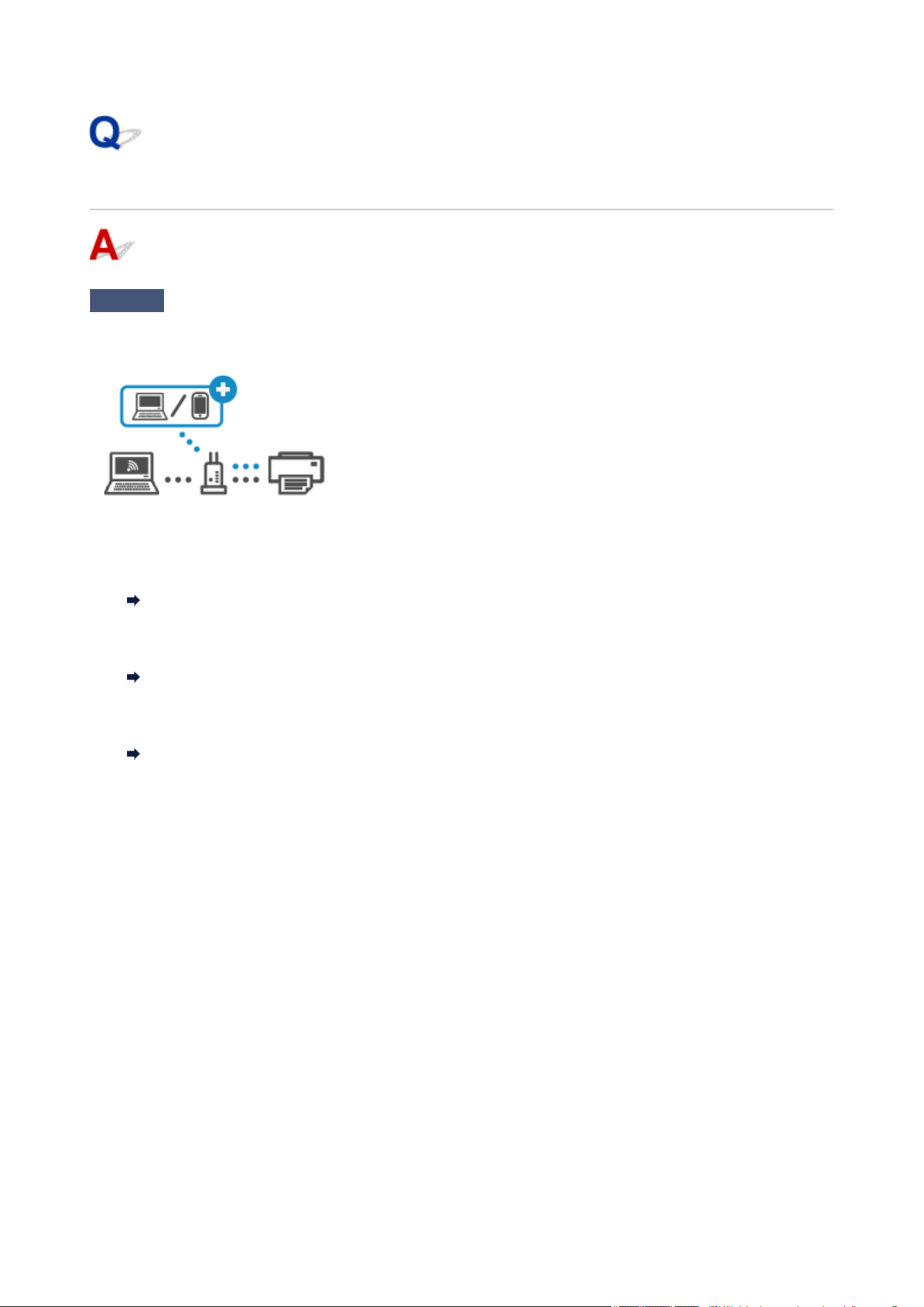
Enable Printing from PC/Smartphone/Tablet
Check
Run the setup software on the device on which you want to enable printing.
If the printer and the router are already connected and you need to connect new PC/smartphone/tablet to the
printer, run the setup software on the device on which you want to enable printing.
Access the following link on the device on which you want to enable printing.
•
For Windows:
•
Connecting to a Computer
•
For macOS:
•
Connecting to a Computer
•
For smartphone/tablet:
•
Connecting to a Smartphone
427

Installing Printer Drivers on PC without Network Connection
(Windows)
Check
Install printer driver with a USB flash drive or SD card (removable media).
Using another PC with a network connection, download printer driver for your model to a USB flash drive, SD
card, or other removable media.
After downloading it, move the data to the PC without a network connection and install it following the
instructions.
428


Printer Does Not Print
Check 1
Make sure printer is turned on.
If not, make sure the printer is securely plugged in and press ON button to turn on.
Check 2
Make sure printer is properly connected to computer.
If you are using a USB cable, make sure it is securely connected to both the printer and the computer. When the
USB cable is securely plugged in, check the following:
•
If you are using a relay device such as a USB hub, disconnect it, connect the printer directly to the
•
computer, and retry the printing. If printing starts normally, there is a problem with the relay device. Contact
the vendor of the relay device.
•
There could also be a problem with the USB cable. Replace the USB cable and retry the printing.
•
If you use the printer with a network connection, make sure the printer is correctly set up for network use.
Cannot Find Printer on Network (Windows/macOS)
Note
•
Wi-Fi Connection Assistant allows you to diagnose and repair the network status.
•
Select the link below to download Wi-Fi Connection Assistant and install it.
Checking Printer Connection Status Using Wi-Fi Connection Assistant
Refer to below in regard to starting up Wi-Fi Connection Assistant.
For Windows:
Starting Up Wi-Fi Connection Assistant
For macOS:
Starting Up Wi-Fi Connection Assistant
Check 3
Make sure paper settings match information set for top feed or manual feed
tray.
If the paper settings do not match the information set for the top feed or manual feed tray, an error message
appears on the operation panel. Follow the instructions on the operation panel to solve the problem.
Note
• You can select whether the message which prevents misprinting is displayed.•
To change the message view setting when printing using the printer's operation panel:
Paper-related settings
To change the message view setting when printing using the Printer Driver:
430

Changing the Printer Operation Mode (Windows)
Changing the Printer Operation Mode (macOS)
Check 4
If printing from a computer, delete unnecessary print jobs.
•
For Windows:
•
Deleting the Undesired Print Job
• For macOS:•
Deleting the Undesired Print Job
Check 5
Make sure that the multi-purpose tray guide is closed.
If the multi-purpose tray guide is opened, close it.
Check 6
Is manual feed tray in paper feed position?
If the manual feed tray is in the paper jam clearing position, return the tray to the paper feed position and press
the OK button on the printer.
Check 7
Are media type and paper size specified properly in the printer driver?
When the media type is specified to Photo Paper Pro Premium Matte, Premium Fine Art Smooth, Premium
Fine Art Rough, or Matte Photo Paper in the printer driver, specify a paper size from the following size that has
wide margins.
•
A4 (Margin 25)
•
•
Letter (Margin 25)/US Letter (Margin 25)
•
•
A3 (Margin 25)
•
•
A3+ (Margin 25)
•
•
210x594mm (Margin 25)
•
•
11"x17" (Margin 25)/Tabloid Margin 25
•
Important
• By canceling the safety margin regulation with the following method, you can print with normal paper size.•
For Windows:
Click Print Options on Page Setup sheet of the printer driver. Then select Cancel the safety margin
regulation for paper size check box in the dialog that appears.
For macOS:
Select Cancel Margin Regulation check box in Advanced Paper Settings in the Print dialog.
If you print with normal paper size, conditions such as paper abrasion may cause paper stains or
deterioration of print quality depending on the environment. We recommend that you print with a paper
size that has wide margins.
Check 8
Are your printer's Printer Driver selected when printing?
The printer will not print properly if you are using a printer driver for a different printer.
431

•
For Windows:
•
Make sure "Canon XXX series" (where "XXX" is your printer's name) is selected in the Print dialog box.
Note
• If multiple printers are registered to your computer, set your printer as Let Windows manage my•
default printer so that it is selected by default.
Default Printer Keeps Changing (Windows)
• For macOS:•
Make sure your printer's name is selected in Printer in the Print dialog.
Note
•
If multiple printers are registered to your computer, select Set as Default Printer from System
•
Settings > Printers & Scanners for a printer to make the one selected by default.
Check 9
Are you trying to print a large data file? (Windows)
If you are trying to print a large data file, it takes a long time to start printing.
If the printer does not start printing after a certain period of time, select On for Prevention of Print Data Loss on
the Print Options dialog box.
For details, refer to Page Setup Tab Description.
Important
•
Selecting On for Prevention of Print Data Loss may reduce print quality.
•
After printing is completed, select Off for Prevention of Print Data Loss.
Check 10
If printing from your computer, restart the computer.
Restart the computer and try printing again.
Important
•
For Windows:
•
To restart your computer, choose Restart instead of Shut down.
432
Printing Stops
Check 1
Is paper loaded?
Make sure paper is loaded.
If necessary, load paper.
Check 2
Do documents to be printed have many photographs or illustrations?
It takes time for the printer and the computer to process large data such as photos or other graphics, so it may
seem that the printer is not working.
Also, if you are printing data that requires a lot of ink on successive sheets of plain paper, the printer may pause
temporarily. In either case, wait until the process is complete.
Note
•
If you are printing a document with a large printing area or printing several copies, printing may pause to
allow the ink to dry.
Check 3
Has printer been printing continuously for a long period?
If the printer has been printing continuously for a long time, the print head or other parts around it may overheat.
The printer may stop printing at a line break for a period of time and then resume printing.
In this case, wait a while without doing anything. If the printing does not resume, turn the printer off. After waiting
for a while, turn on the printer, and check whether printing is possible.
Caution
•
Print head and surrounding area in the printer can become extremely hot. Never touch print head or nearby
components.
433
Cannot Print on the Disc Label
Disc Label Printing Does Not Start
Multi-Purpose Tray Does Not Feed Properly
Multi-Purpose Tray Jammed
Disc Label Printing Does Not Start
Check1
Is multi-purpose tray placed properly?
Place the multi-purpose tray properly again and select OK on the LCD.
Use the multi-purpose tray (marked A) supplied with this printer.
For more on placing the multi-purpose tray, see Placing/Removing a Printable Disc.
Check2
Is printable disc placed on multi-purpose tray?
Place the printable disc on the multi-purpose tray properly and select OK on the LCD.
Use the multi-purpose tray (marked A) supplied with this printer.
For more on placing the multi-purpose tray, see Placing/Removing a Printable Disc.
Check3
Has time elapsed since you placed the multi-purpose tray?
If a certain period of time has elapsed since you placed the multi-purpose tray, it may be ejected.
Follow the instructions on the LCD and try the operation again.
Multi-Purpose Tray Does Not Feed Properly
Check1
Is multi-purpose tray placed properly?
Place the multi-purpose tray properly again and select OK on the LCD.
Use the multi-purpose tray (marked A) supplied with this printer.
For more on placing the multi-purpose tray, see
Placing/Removing a Printable Disc.
Check2
Unrecognizable printable disc may be placed.
Canon recommends that you use printable discs specially processed to be printed on by an inkjet printer.
434

Multi-Purpose Tray Jammed
Pull out the multi-purpose tray gently.
If the multi-purpose tray cannot be pulled out, cycle the power switch. The multi-purpose tray will
automatically be ejected.
When the multi-purpose tray is pulled out, place the multi-purpose tray (marked A) again and retry
printing. For more on placing the multi-purpose tray, see Placing/Removing a Printable Disc.
If the multi-purpose tray is still jammed, check if there is a problem with the printable disc.
Multi-Purpose Tray Does Not Feed Properly
435

Default Printer Keeps Changing (Windows)
From Windows 10, the management method of the printer that is normally used has changed. Check the
following items for your Windows.
For Windows 11:
For Windows 10:
For Windows 11:
From Settings in the Start menu, change the setting of the printer you normally use.
1.
Open Set Printers & scanners.
1.
2.
Turn off Let Windows manage my default printer.
2.
3. Click the name of printer you normally want to use.3.
4. Click Set as default displayed at top of window.4.
When the printer is set as default, the Default is appeared.
For Windows 10:
From Settings in the Start menu, change the setting of the printer you normally use.
1. Open Set Printers & scanners.1.
2.
Remove the check mark from Let Windows manage my default printer.
2.
3.
Click the name of printer you normally want to use.
3.
4.
Click Manage.
4.
5.
Select Set as default.
5.
When the printer is set as default, the Default is appeared.
436

Change to Offline (Windows)/Cannot Communicate (Windows)
If the printer cannot communicate with the computer, an error message "Offline" may be displayed when
printing. To bring the printer back online, try the following.
1.
Check the connection (USB/Wi-Fi).
1.
For USB connection:
Make sure that the USB-connected printer is recognized by the computer.
For Wi-Fi connections:
Make sure that appears on the printer's LCD.
2. Turn off printer and then turn it on again.2.
Confirm that the offline mode has been disabled. If the printer is still offline, proceed to the next step.
3. Check the name of the printer driver.3.
Check the names of the printer and printer driver match. Set the using printer as default.
Default Printer Keeps Changing (Windows)
Confirm that the offline mode has been disabled. If the printer is still offline, proceed to the next step.
4. Make sure that printer is not set to Use Printer Offline mode.4.
For Windows 11:
1. Open Set Printers & scanners.1.
2. Click the name of printer you want to configure.2.
3. Click Printing preferences.3.
Printing preferences window opens.
4. Click Maintenance sheet.4.
5. Click View Printer Status.5.
The Canon IJ Status Monitor window is displayed.
6. Click Display Print Queue of the Canon IJ Status Monitor window.6.
437

The Print Queue window is displayed.
7. Click Printer menu in the window displayed.7.
Make sure Use Printer Offline is not selected.
If it is selected, click Use Printer Offline to deselect it.
Confirm that the offline mode has been disabled. If the printer is still offline, proceed to the next step.
For Windows 10:
1. Open Set Printers & scanners.1.
2.
Click the name of printer you want to configure, and select Open queue.
2.
The Print Queue window is displayed.
3. Click Printer menu in the window displayed.3.
Make sure Use Printer Offline is not selected.
If it is selected, click Use Printer Offline to deselect it.
Confirm that the offline mode has been disabled. If the printer is still offline, proceed to the next step.
5.
For Wi-Fi connections, use Wi-Fi Connection Assistant to change settings.
5.
Diagnose and repair the network connections using Wi-Fi Connection Assistant.
Download Wi-Fi Connection Assistant from the below page, and install it on your computer.
Checking Printer Connection Status Using Wi-Fi Connection Assistant
Refer to below in regard to starting up Wi-Fi Connection Assistant.
Starting Up Wi-Fi Connection Assistant
Confirm that the offline mode has been disabled. If the printer is still offline, proceed to the next step.
6.
Uninstall printer driver and reinstall printer driver.
6.
If your printer driver version is old or not installed correctly, you may not be able to print.
Confirm that the offline mode has been disabled. If the printer is still offline, proceed to the next step.
7.
Restart computer.
7.
The computer may be unstable for some reason. Restart the computer and try to print.
Important
•
To restart your computer, choose Restart instead of Shut down.
438


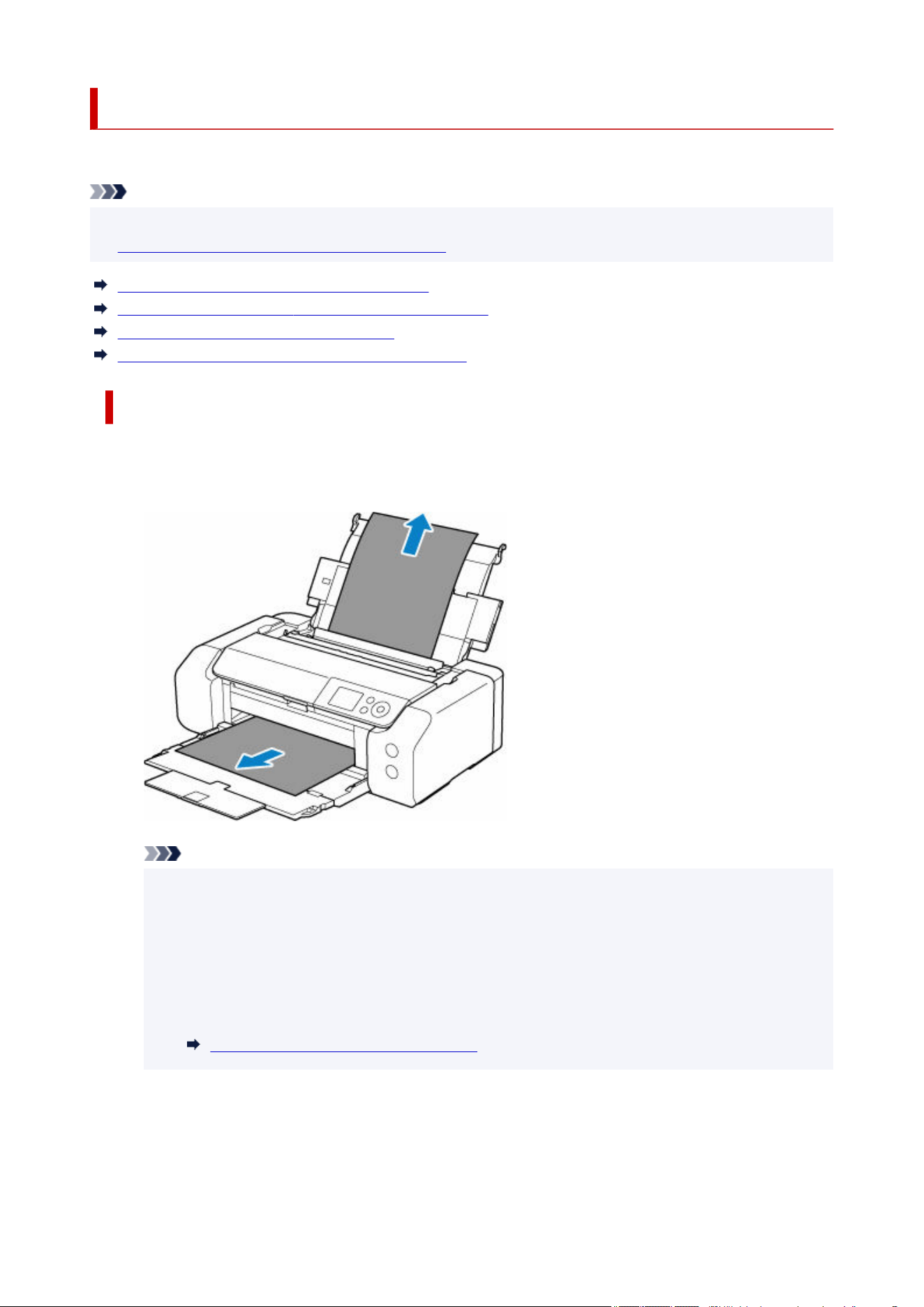
What to Do When Paper Is Jammed
If paper jams, remove it following the appropriate procedure as shown below.
Note
• If the paper is not jammed (no support code displayed) but the paper is not fed or output normally, see
What to Do If Paper Is Not Fed/Output Normally.
If the paper loaded in the top feed is jammed:
If the paper loaded in the manual feed tray is jammed:
If the paper is jammed inside the printer:
If the small size paper is jammed inside the printer:
If the paper loaded in the top feed is jammed:
1.
Slowly pull out paper, either from paper output slot or from top feed, whichever is easier.
1.
Hold the paper with your hands and pull the paper out slowly not to tear it.
Note
•
If you cannot pull out the paper, turn the printer back on. The paper may be ejected
•
automatically.
•
If paper becomes jammed during printing and you need to turn off the printer to remove it, press
•
the Stop button to stop the printing before you turn off the printer.
•
If the paper tears and you cannot remove the jammed paper from the paper output slot or the
•
top feed, remove the paper from inside the printer.
If the paper is jammed inside the printer
2.
Reload paper and press printer's OK button.
2.
The printer resumes printing. Reprint the page you were printing if it was not printed properly due to
the paper jam.
441
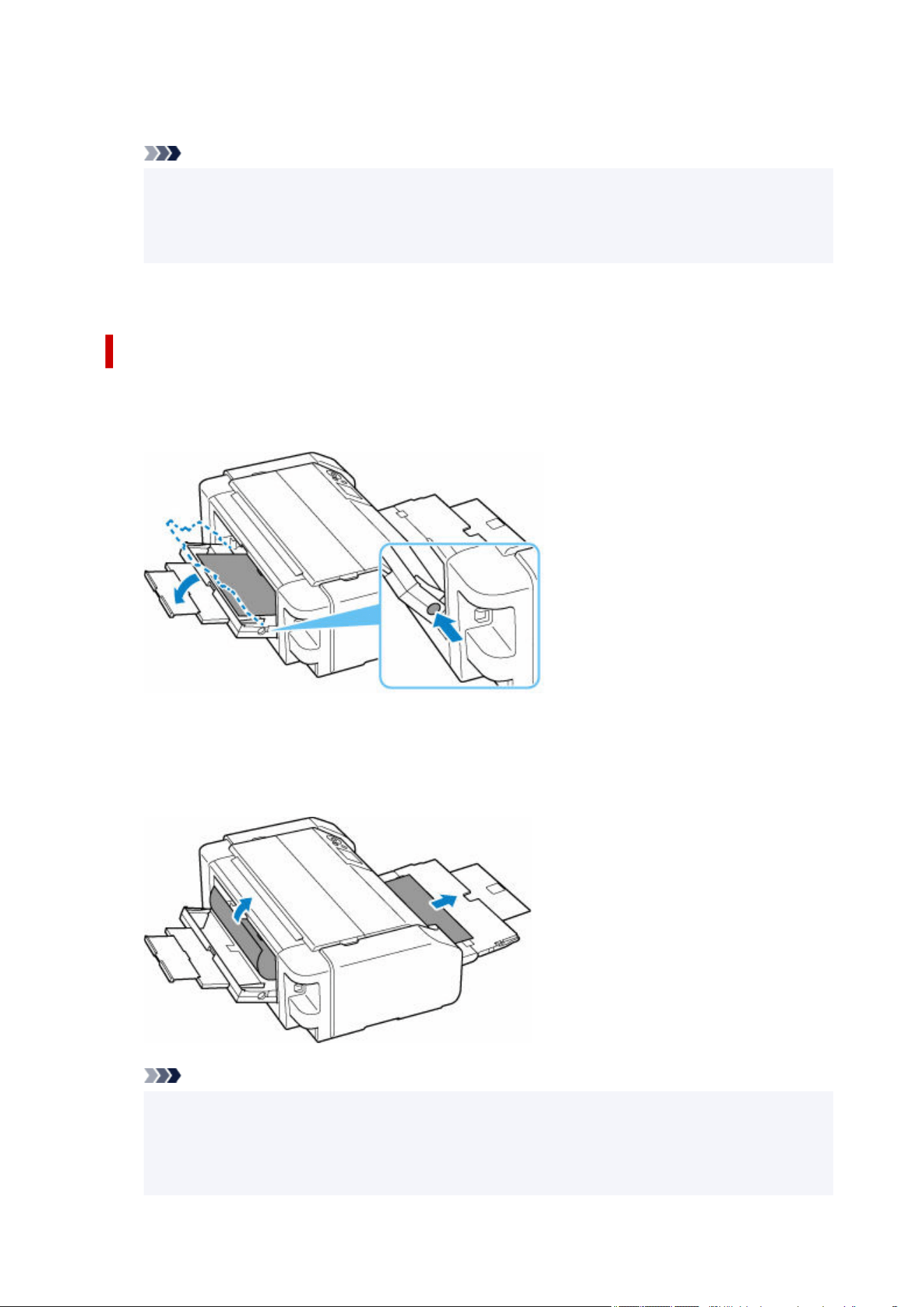
If you turned off the printer in step 1, the print data that was sent to the printer is erased. Redo the
printing.
Note
• When reloading the paper, make sure you are using suitable paper and loading it correctly.•
•
We recommend using paper sizes other than A5 to print documents with photos or graphics. A5
•
paper may curl and jam as it leaves the printer.
If the measures above do not solve the problem, contact your Canon dealer for assistance.
If the paper loaded in the manual feed tray is jammed:
1.
Press Paper Jam Clearing button and set manual feed tray to paper jam clearing
1.
position.
2. Slowly pull out paper, either from paper output slot or from manual feed tray, whichever is2.
easier.
Hold the paper with your hands and pull the paper out slowly not to tear it.
Note
•
If you cannot pull out the paper, turn the printer back on. The paper may be ejected
•
automatically.
•
If paper becomes jammed during printing and you need to turn off the printer to remove it, press
•
the Stop button to stop the printing before you turn off the printer.
442
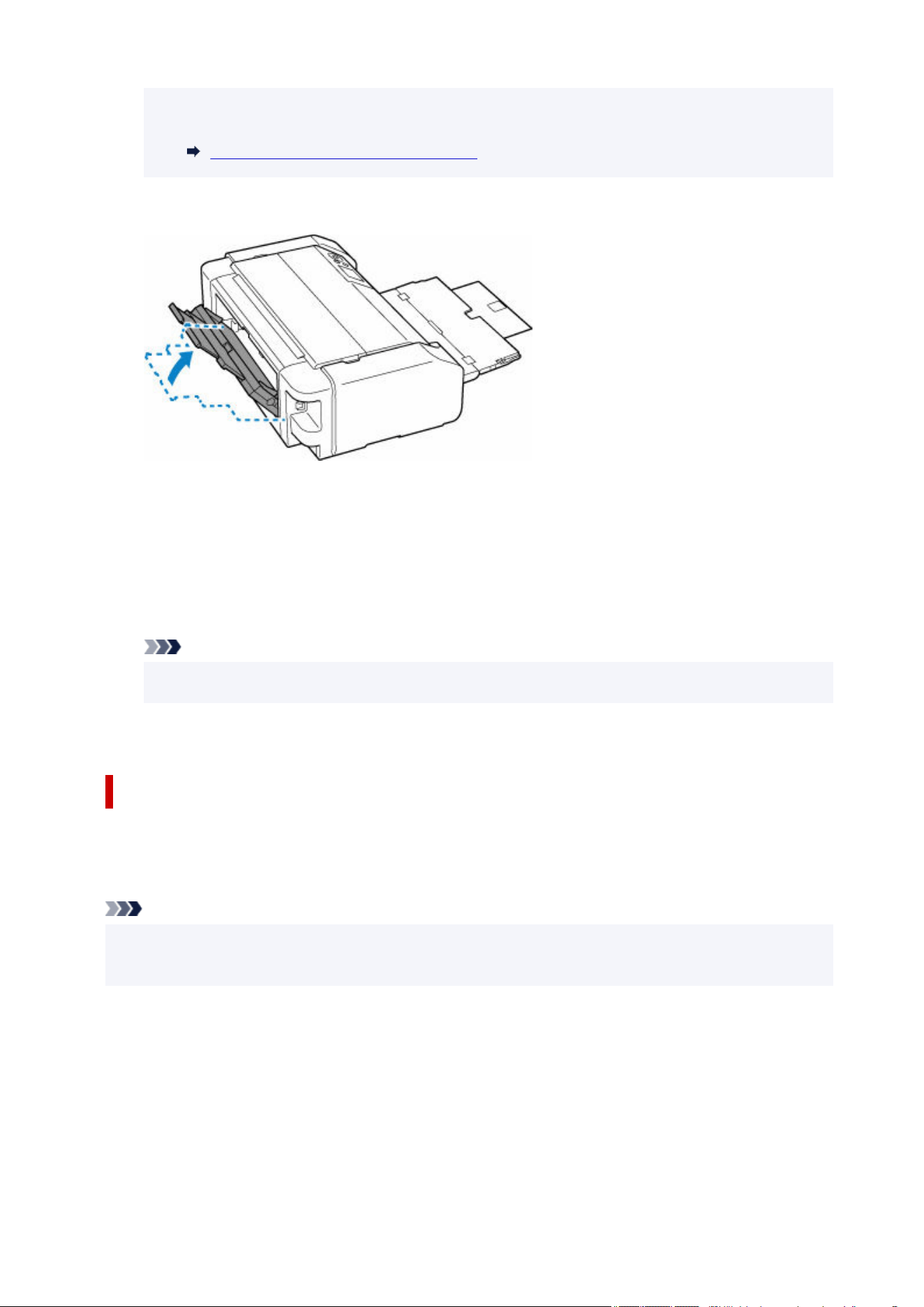
• If the paper tears and you cannot remove the jammed paper from the paper output slot or the•
manual feed tray, remove the paper from inside the printer.
If the paper is jammed inside the printer
3. Return manual feed tray to original position.3.
4.
Reload paper and press printer's OK button.
4.
The printer resumes printing. Reprint the page you were printing if it was not printed properly due to
the paper jam.
If you turned off the printer in step 2, the print data that was sent to the printer is erased. Redo the
printing.
Note
• When reloading the paper, make sure you are using suitable paper and loading it correctly.•
If the measures above do not solve the problem, contact your Canon dealer for assistance.
If the paper is jammed inside the printer:
If the jammed paper tears and you cannot remove the paper either from the paper output slot, from the
top feed, or from the manual feed tray, or if the jammed paper remains inside the printer, remove the
paper following the instructions below.
Note
• If paper becomes jammed during printing and you need to turn off the printer to remove it, press the•
Stop button to stop the printing before you turn off the printer.
1.
Turn off printer and unplug it.
1.
2.
Open top cover and multi-purpose tray guide.
2.
443
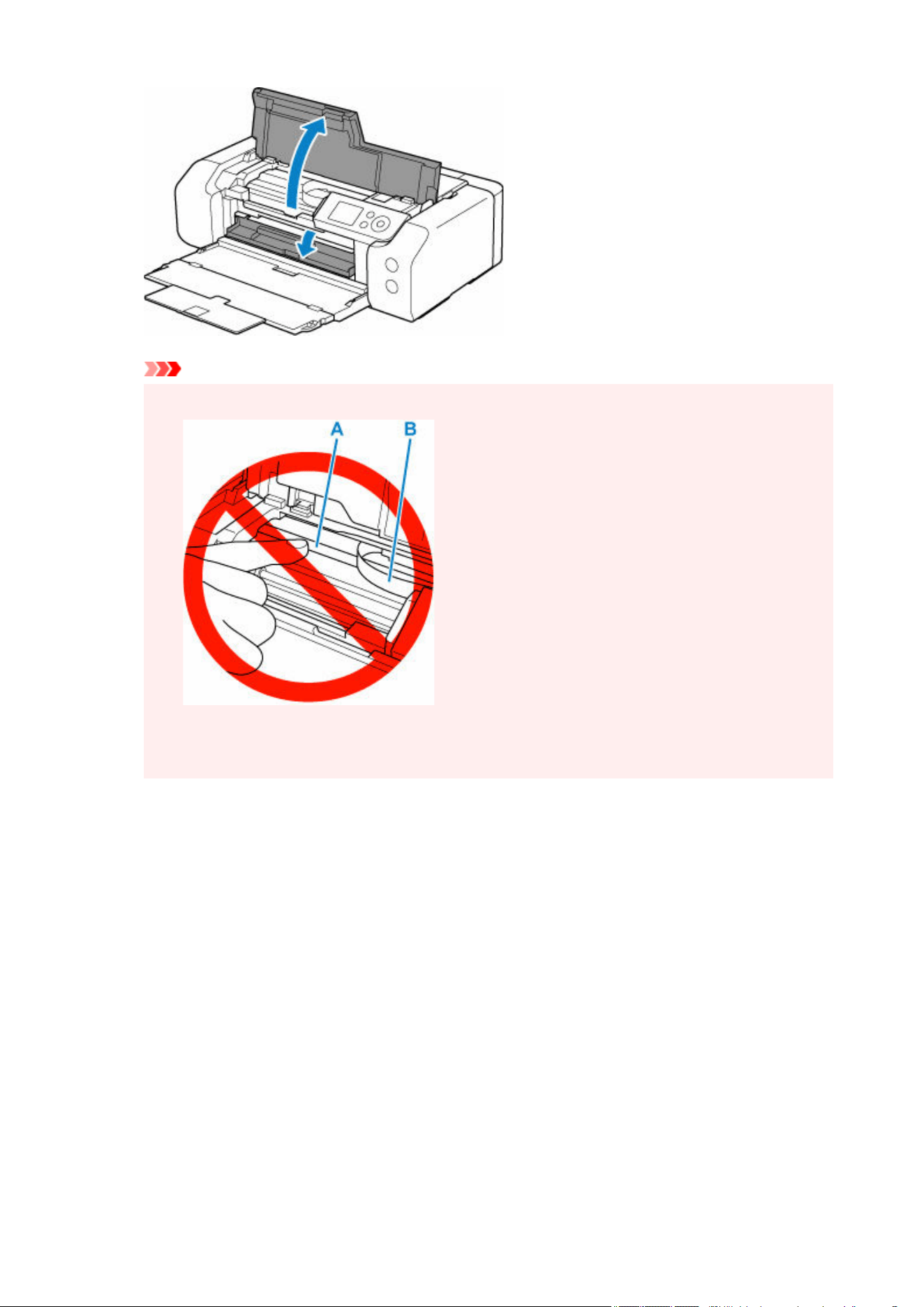
Important
•
Do not touch clear film (A) or white belt (B).
•
If you soil or scratch these parts by touching them with paper or your hand, it could damage the
printer.
3. Check if jammed paper is under print head holder.3.
If the jammed paper is under the print head holder, move the print head holder to the far right or left,
whichever makes it easier to remove the paper.
When moving the print head holder, hold the top of the print head holder and slide it slowly to the far
right or left.
444
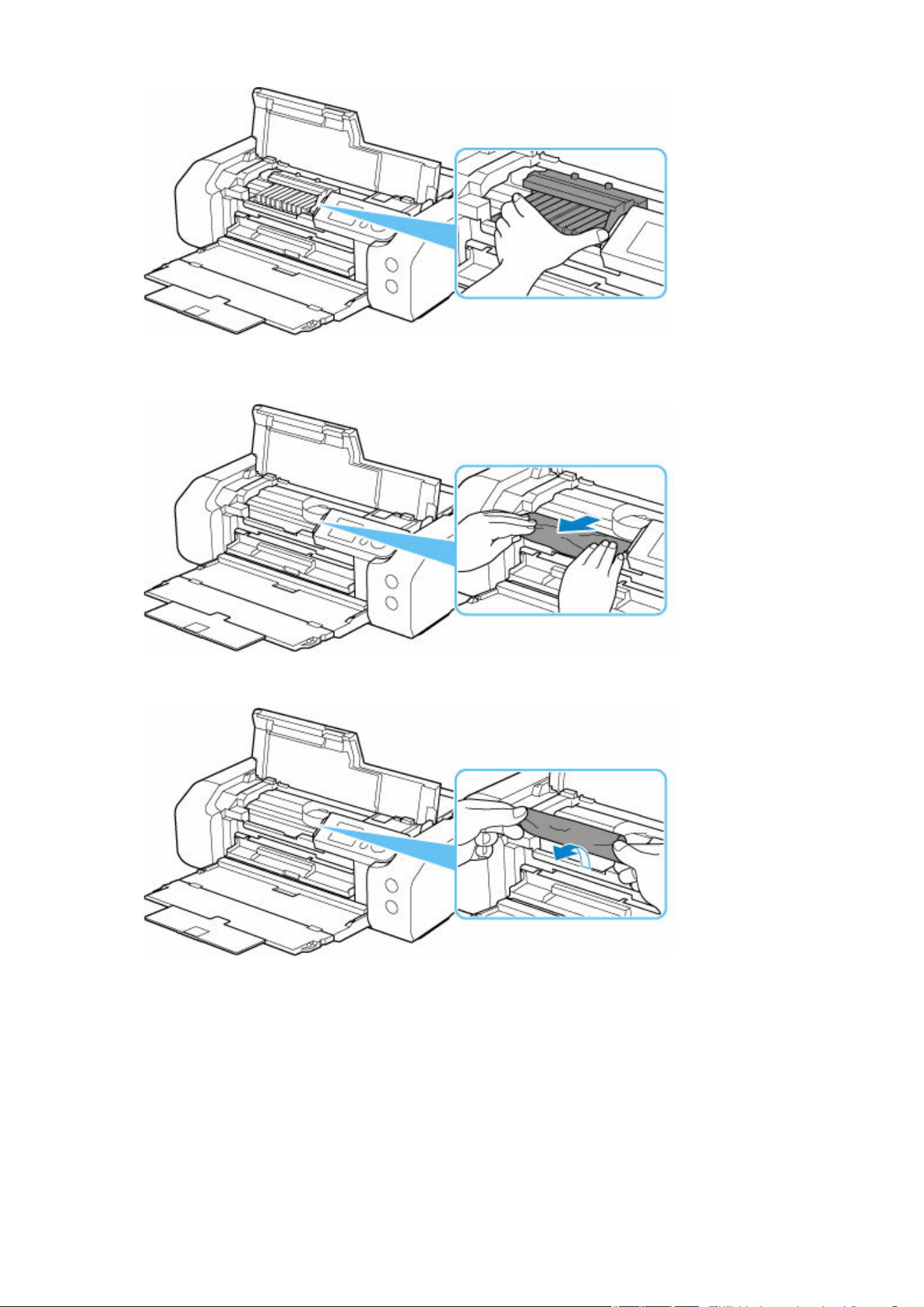
4.
Hold jammed paper firmly in both hands.
4.
If the paper is rolled up, pull out it.
5.
Slowly pull out paper, so as not to tear it.
5.
Pull out the paper at an angle of about 45 degrees.
445
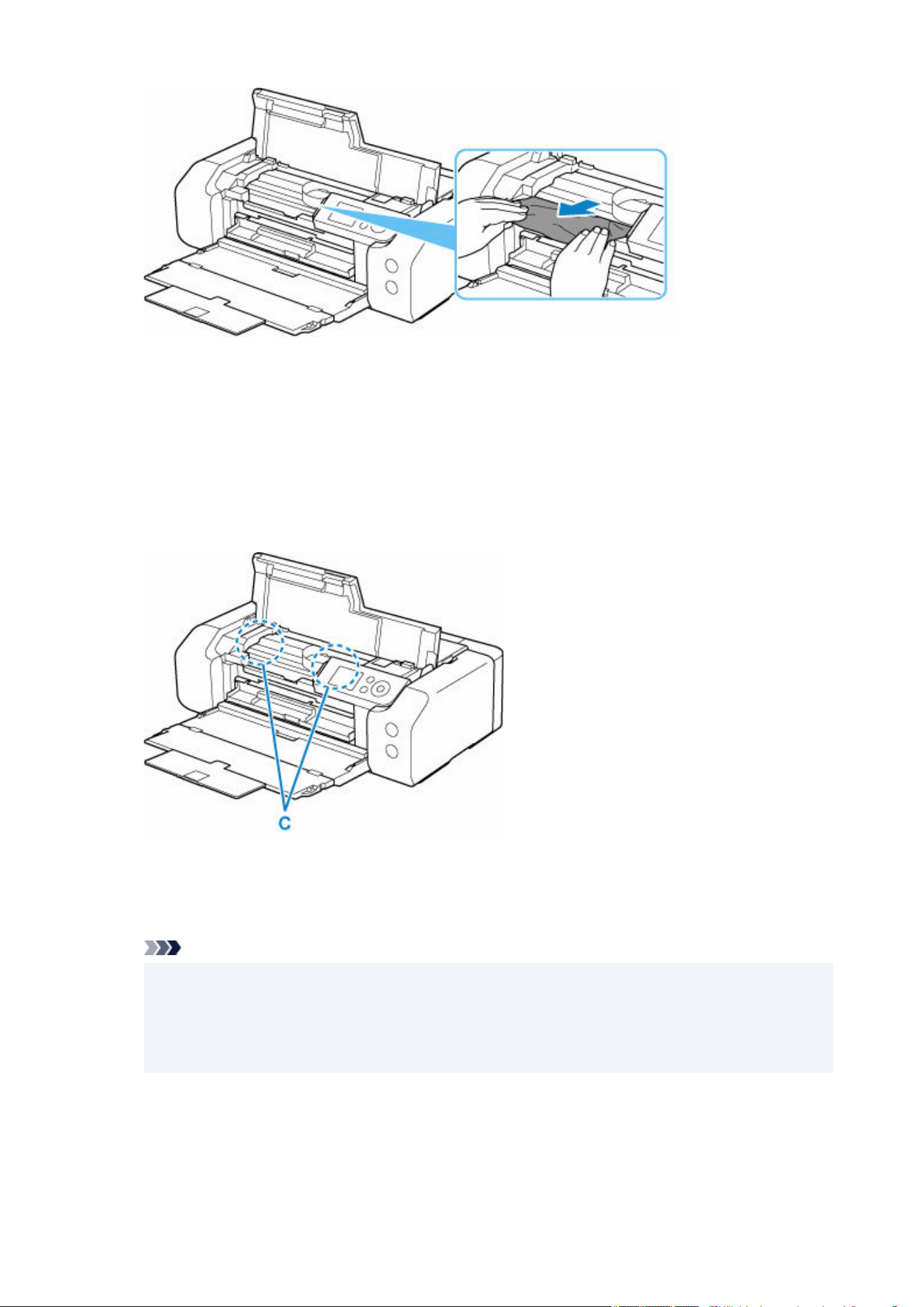
6.
Make sure all jammed paper is removed.
6.
If the paper tears when you pull out it, a bit of paper may remain in the printer. Check the following and
remove any remaining paper.
•
Any paper left under the print head holder?
•
•
Any small bits of paper left in the printer?
•
• Any paper left in the left and right empty spaces (C) in the printer?•
7.
Close top cover and multi-purpose tray guide.
7.
All jobs in the print queue are canceled. Redo the printing.
Note
•
When reloading the paper, make sure you are using suitable paper and loading it correctly. If a
•
paper jam message appears on the LCD or on your computer screen when you resume printing
after removing all the jammed paper, there may be some paper still inside the printer. Check the
printer again for any remaining bits of paper.
If the measures above do not solve the problem, contact your Canon dealer for assistance.
446
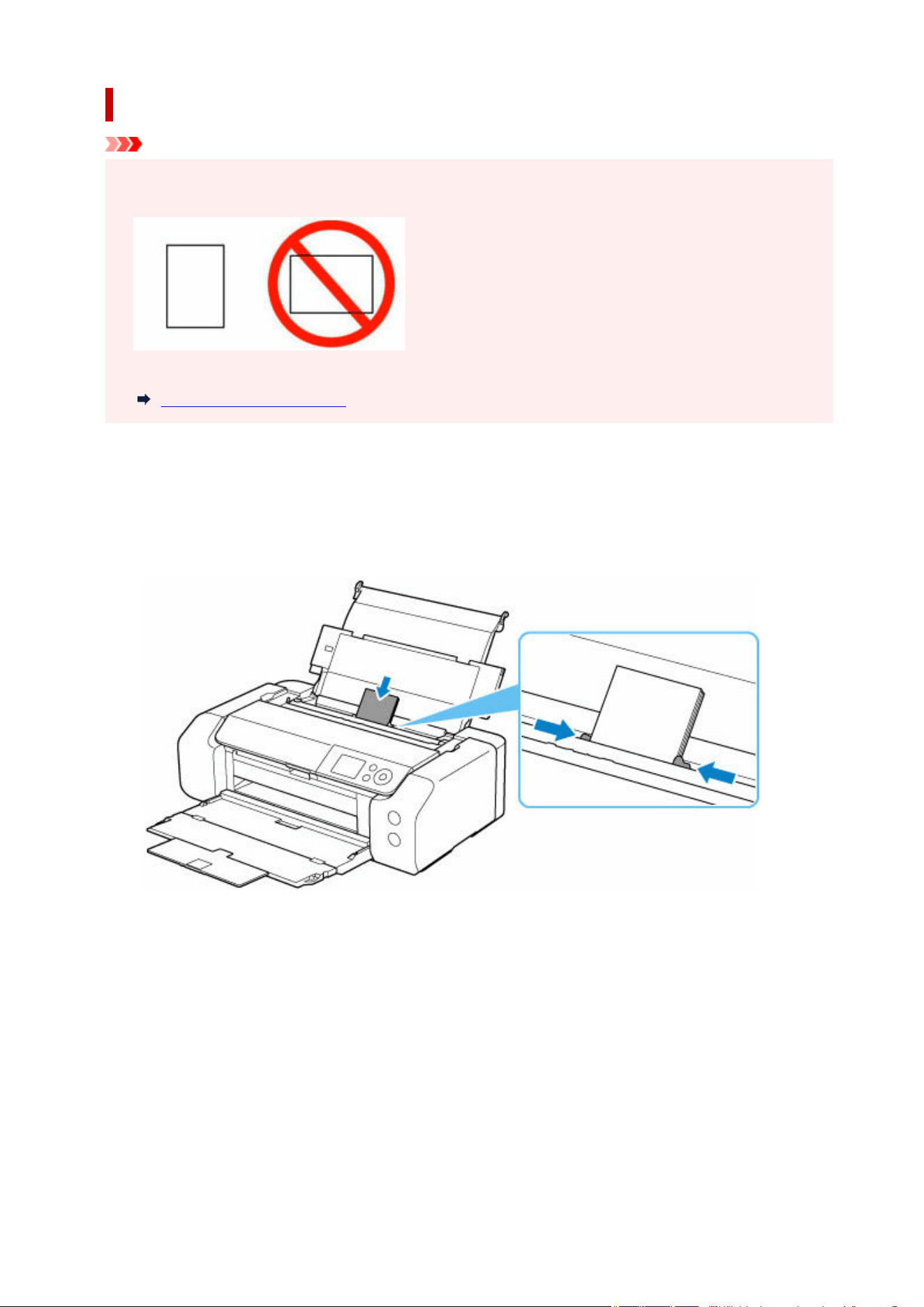
If the small size paper is jammed inside the printer:
Important
• Do not load the small size paper such as 4"x6" 10x15cm size paper in the landscape orientation. It•
may cause a paper jam.
• You cannot print on paper smaller than the minimum size.
Media Types You Can Use
If the small size paper is jammed inside the printer, remove the paper following the instructions below.
1.
Load one sheet of paper larger than 4"x6" 10x15cm in top feed in portrait orientation.
1.
Align the paper guides of the top feed with both edges of the paper.
Do not load the small size paper in the landscape orientation.
Close the feed slot cover.
447
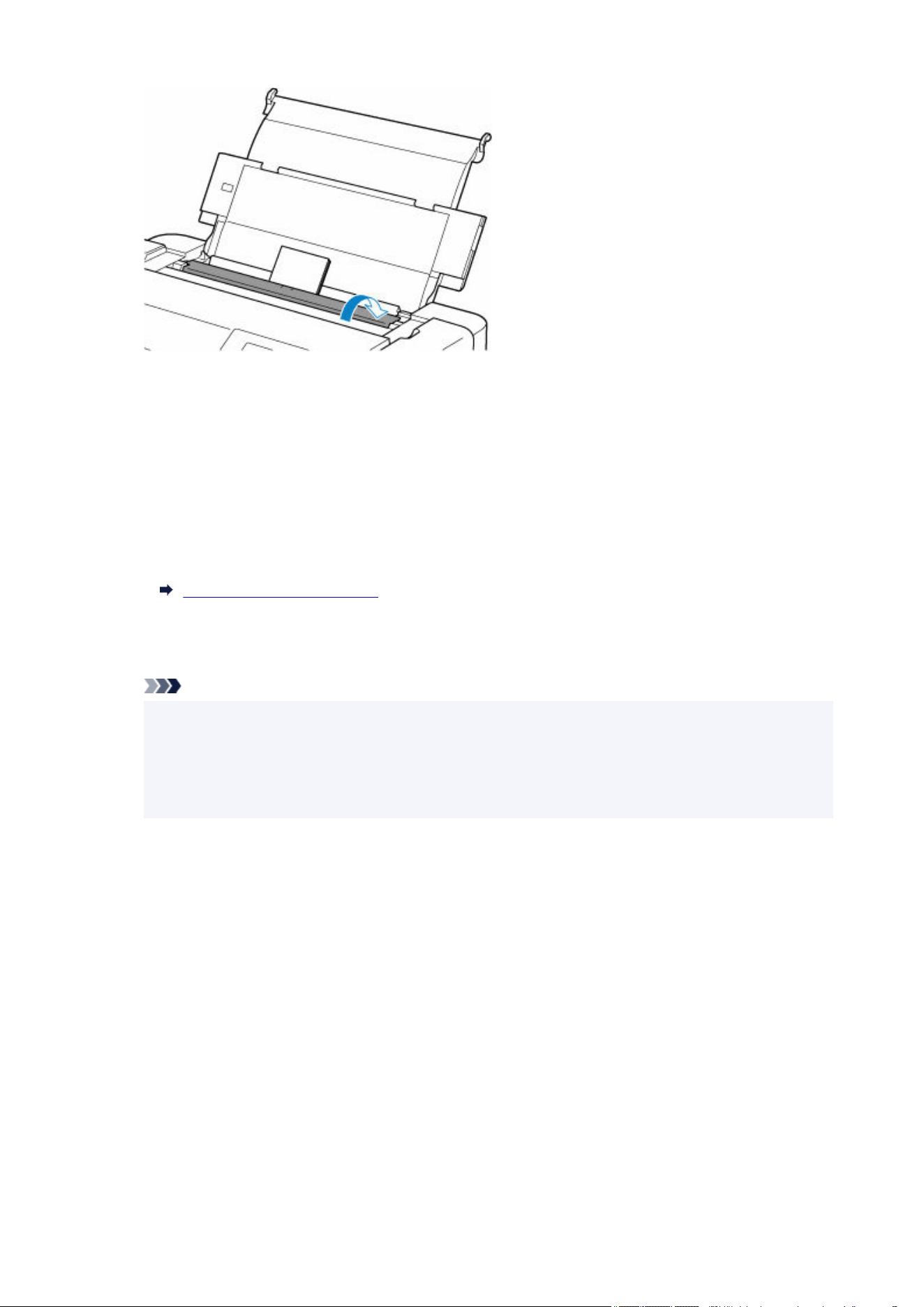
2.
Turn off the printer.
2.
3.
Turn on the printer.
3.
The loaded paper is fed and ejected while pushing out the jammed paper.
If the jammed paper is not ejected even after taking the above measures, try the following procedure.
4. Perform paper feed roller cleaning of the manual feed tray.4.
Cleaning Paper Feed Rollers
The jammed paper is ejected together with the paper used for paper feed roller cleaning.
All jobs in the print queue are canceled. Redo the printing.
Note
•
When reloading the paper, make sure you are using suitable paper and loading it correctly.
•
If a paper jam message appears on the printer's LCD or on your computer screen when you
resume printing after removing all the jammed paper, there may be some paper still inside the
printer. Check the printer again for any remaining bits of paper.
If the problem persists even after repeating the above measures, contact your Canon dealer for
assistance.
448

Printer Does Not Pick up or Feed the Paper/"No Paper" Error
Check 1
Make sure paper is loaded.
Loading Paper in the Top Feed
Loading Paper in the Manual Feed Tray
Check 2
When loading paper, consider the following.
• When loading two or more sheets of paper, flip through the paper before loading.•
•
When loading two or more sheets of paper, align the edges of the sheets before loading the paper.
•
•
When loading two or more sheets of paper, make sure the paper stack does not exceed the paper load
•
limit.
However, paper may not feed correctly at the maximum capacity, depending on the type of paper or
environmental conditions (very high or low temperature and humidity). In such cases, reduce the amount of
paper you load at a time to less than half of the paper load limit.
•
Always load the paper in portrait orientation, regardless of the printing orientation.
•
In the manual feed tray:
When you load the paper, load one sheet at a time. When you print continuously, set the next paper after the last
one is finished printing.
Check 3
Is paper too thick or curled?
Media Types You Can Use
Check 4
When loading postcards, consider the following:
• If a postcard is curled, it may not feed properly even though the paper stack does not exceed the paper load•
limit.
Load Japanese postcards with their postcode column downward.
Check 5
Check paper source setting.
Switching the Paper Source to Match the Purpose (Windows)
Switching the Paper Source to Match the Purpose (macOS)
449
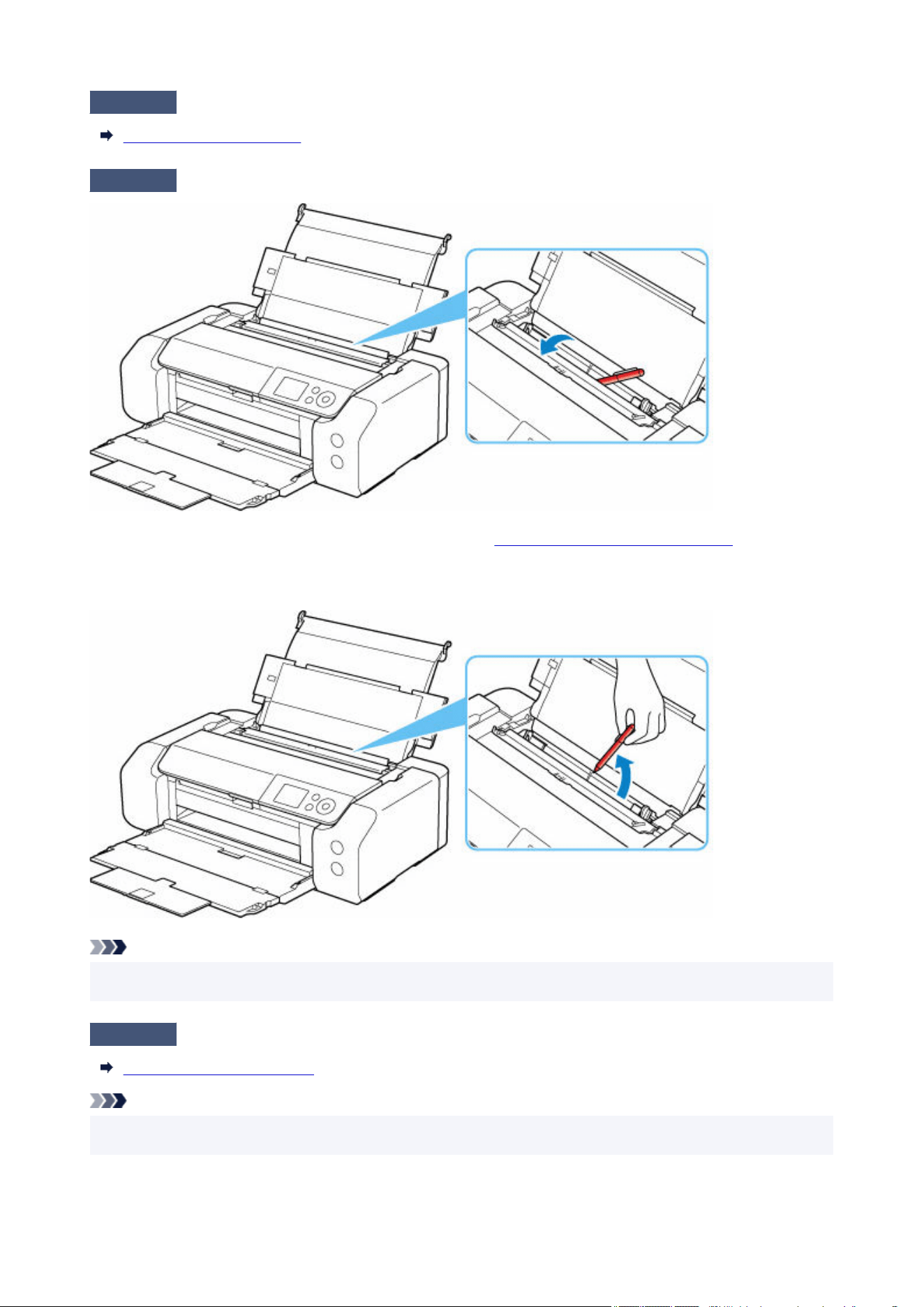
Check 6
Make sure paper weight is suitable for use with printer.
Media Types You Can Use
Check 7
Make sure there are not any foreign objects in top feed or manual feed tray.
If the paper tears in the top feed or the manual feed tray, see What to Do When Paper Is Jammed to remove it.
If there are any foreign objects in the top feed or manual feed tray, be sure to turn off the printer, unplug it and
remove the foreign object.
Note
• If the feed slot cover is opened, close it slowly.•
Check 8
Clean paper feed roller.
Cleaning Paper Feed Rollers
Note
• Cleaning the paper feed roller abrades it, so do this only when necessary.•
450

If the measures above do not solve the problem, contact your Canon dealer for assistance.
451

Paper Does Not Feed from Paper Source Specified in Printer Driver
(Windows)
Check
Is paper source setting inconsistent between application program and Printer
Driver?
Change the application software setting corresponding to the Printer Driver setting, or click Print Options on
Page Setup sheet of the Printer Driver and select Disable the paper source setting of the application
software on Print Options screen.
When the paper source setting is inconsistent between an application program and the Printer Driver, the
application software setting takes precedence.
For details, refer to
Page Setup Tab Description.
452
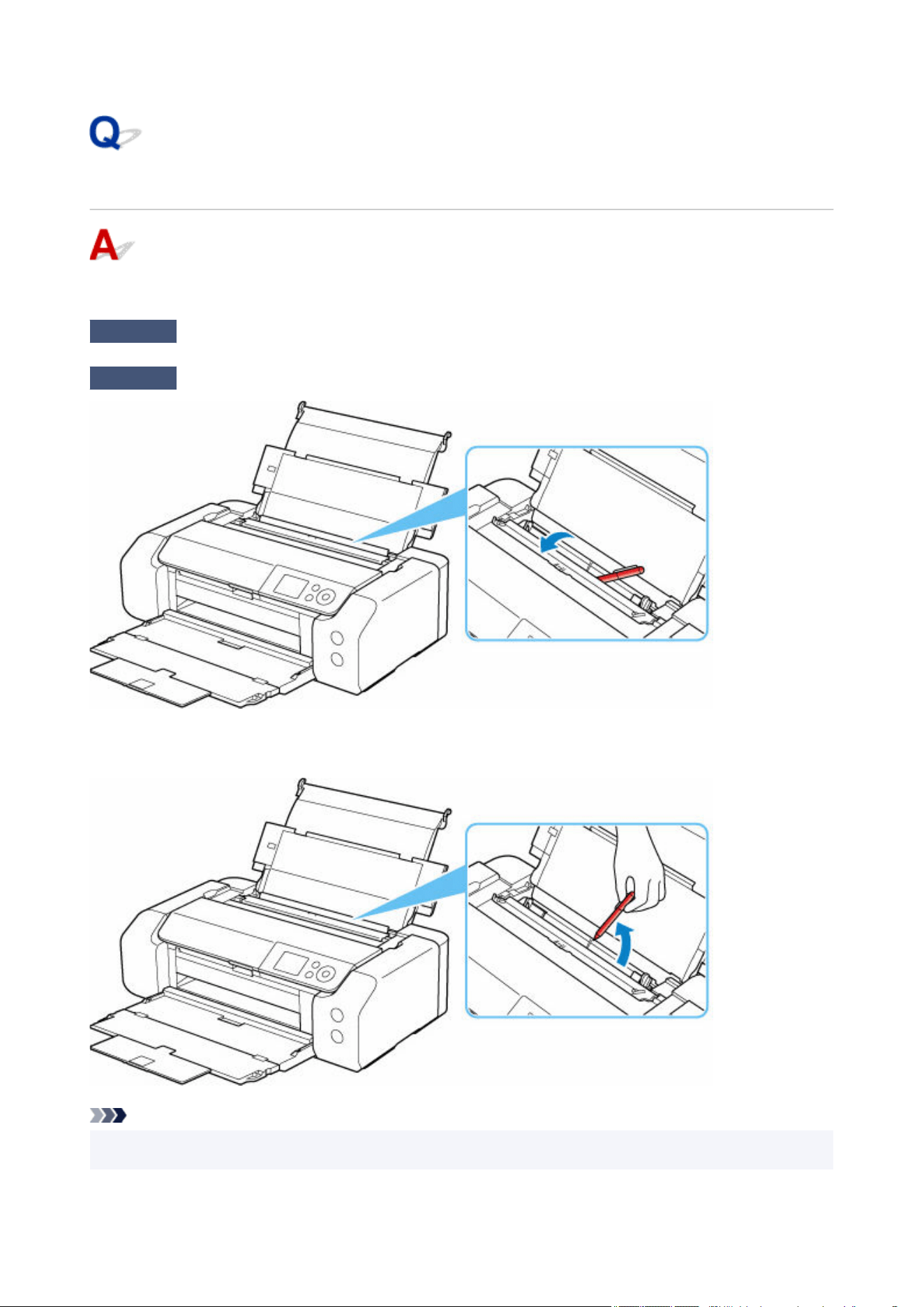
What to Do If Paper Is Not Fed/Output Normally
If the paper is not jammed and the paper is not fed normally, follow the procedure below.
Check 1
Is anything blocking paper output slot?
Check 2
Are there any foreign objects in top feed or manual feed tray?
If there are any foreign objects in the top feed or the manual feed tray, be sure to turn off the printer, unplug it,
and then remove the foreign object.
Note
• If the feed slot cover is opened, close it slowly.•
453

Check 3
Is paper curled?
Correct curl before loading paper.
Check 4
Is paper loaded properly?
Always load paper in portrait orientation (A). If you load paper in landscape orientation (B), paper may not be fed
or a paper jam may occur.
Loading Paper in the Top Feed
Loading Paper in the Manual Feed Tray
454




Ink Does Not Come Out
Check 1
Check the remaining ink level.
Checking Ink Level
Check 2
Are the print head nozzles clogged?
Print the nozzle check pattern and make sure that the ink is coming out normally.
Checking for Nozzle Clogging
Maintenance Procedure
Check 3
Is the correct printer driver selected?
Print again using the correct printer driver for your printer.
If none of the above apply, there may be a printer malfunction.
Contact your Canon dealer for assistance.
458

Printer consumes a lot of ink
Check 1
Are lots of full-color materials being printed?
In print jobs such as photos, images are filled with color. This consumes a lot of ink. This does not indicate a
problem with the printer.
Check 2
You have just finished initial installation, when more ink is consumed to fill the
system.
If using the printer for the first time, or using it after transport, the ink tank will supply an initial fill of ink to the
Print head.
Although the amount of remaining ink may drop as a result, it does not indicate a problem.
Check 3
Is the Print head nozzle blocked?
Check for nozzle clogging.
Checking for Nozzle Clogging
Maintenance Procedure
459

List of Support Code for Error
Support code appears on the printer's LCD and your computer screen when errors occur.
A "support code" is an error number, and appears along with an error message.
When an error occurs, check the support code and take the appropriate action in response.
Support Code Appears on Printer's LCD and Computer Screen
• 1000 to 1ZZZ•
1000 1001 1002 1006 1013 1062 1200 1250 1261 1300 1308 1351
1401 1403 1405 1408 1409 140A 140C 1410 1411 1412 1413 1414
1415 1416 1417 1418 1419 1500 1551 1552 1570 15A1 15A2 15A3
1600 1660 1684 168C 1698 1699 1700 1701 1716 1730 1750 1830
1850 1851 1855 1856 1857
• 2000 to 2ZZZ•
2103 2114 2115 2500 2503
• 3000 to 3ZZZ•
3000 3306 3310 3311 3312 3313 3314 3315 3316 3317 3318 3319
3413 3440 3441 3442 3443 3444 3445 3446 3447 3454 3455
• 4000 to 4ZZZ•
4103 4104 4109 410E 4111 495A
•
5000 to 5ZZZ
•
5100
5200
520C
520E
5250
5400
5700
5B00
5B01
5B16
5B22
5C02
5C13
5C14
460

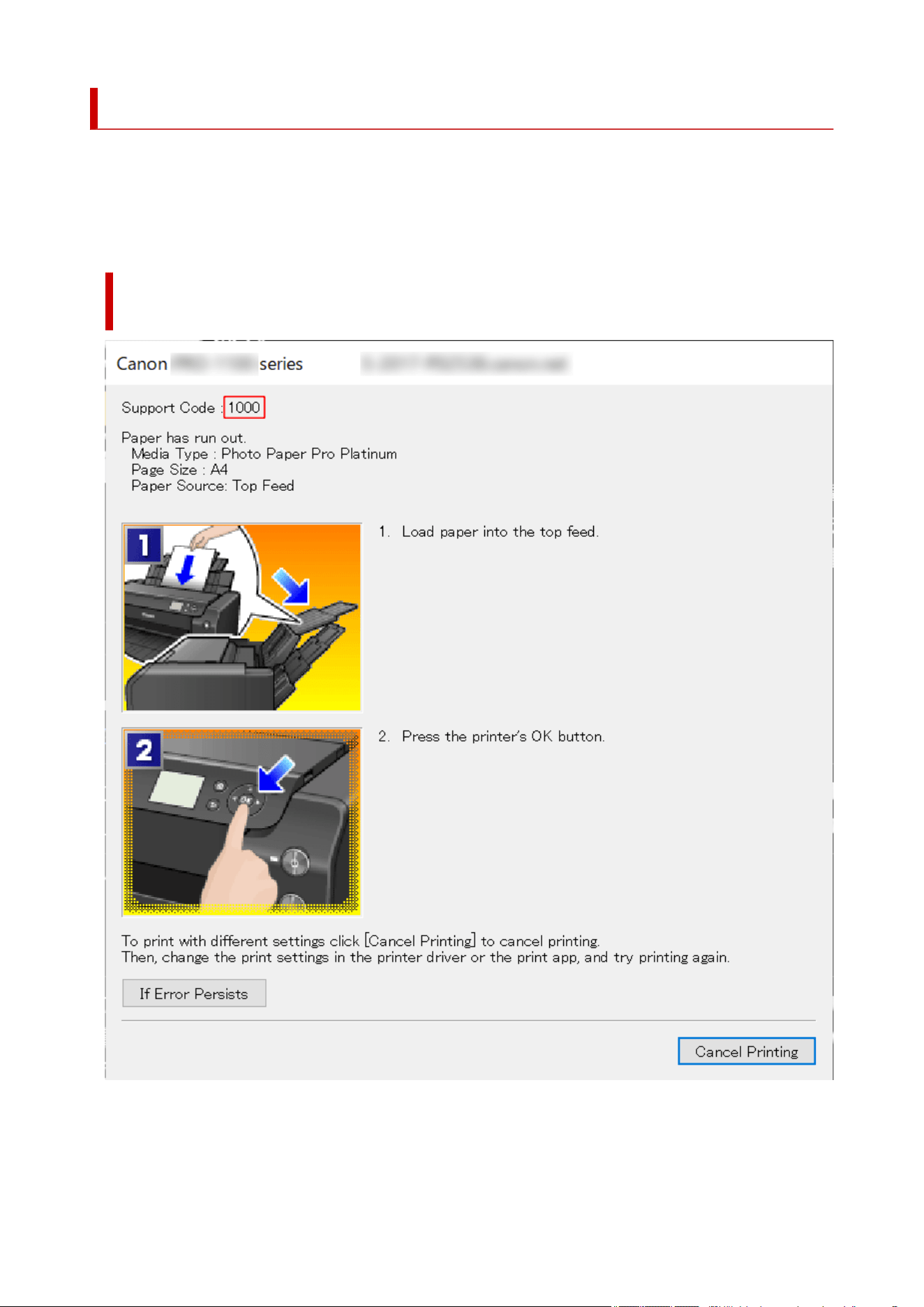
When Error Occurred
If an error occurs in printing, for example, if the paper runs out or jams, a troubleshooting message appears
automatically. Take the appropriate action described in the message.
When an error occurs, a message is displayed on the computer or on the printer. For some errors, a support
code (error number) is also displayed.
When a Support Code and a Message are displayed on the Computer
Screen (Windows):
462
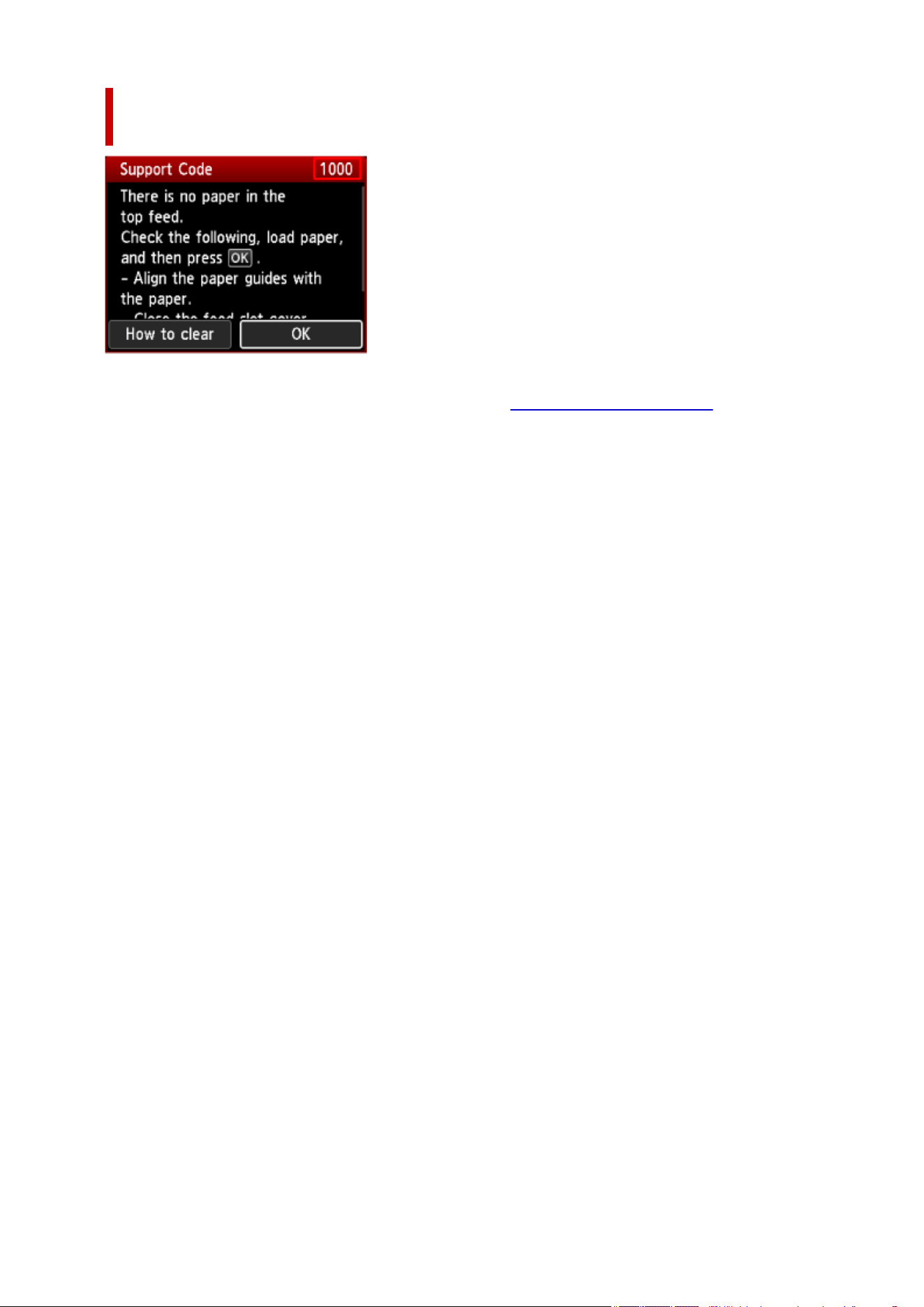
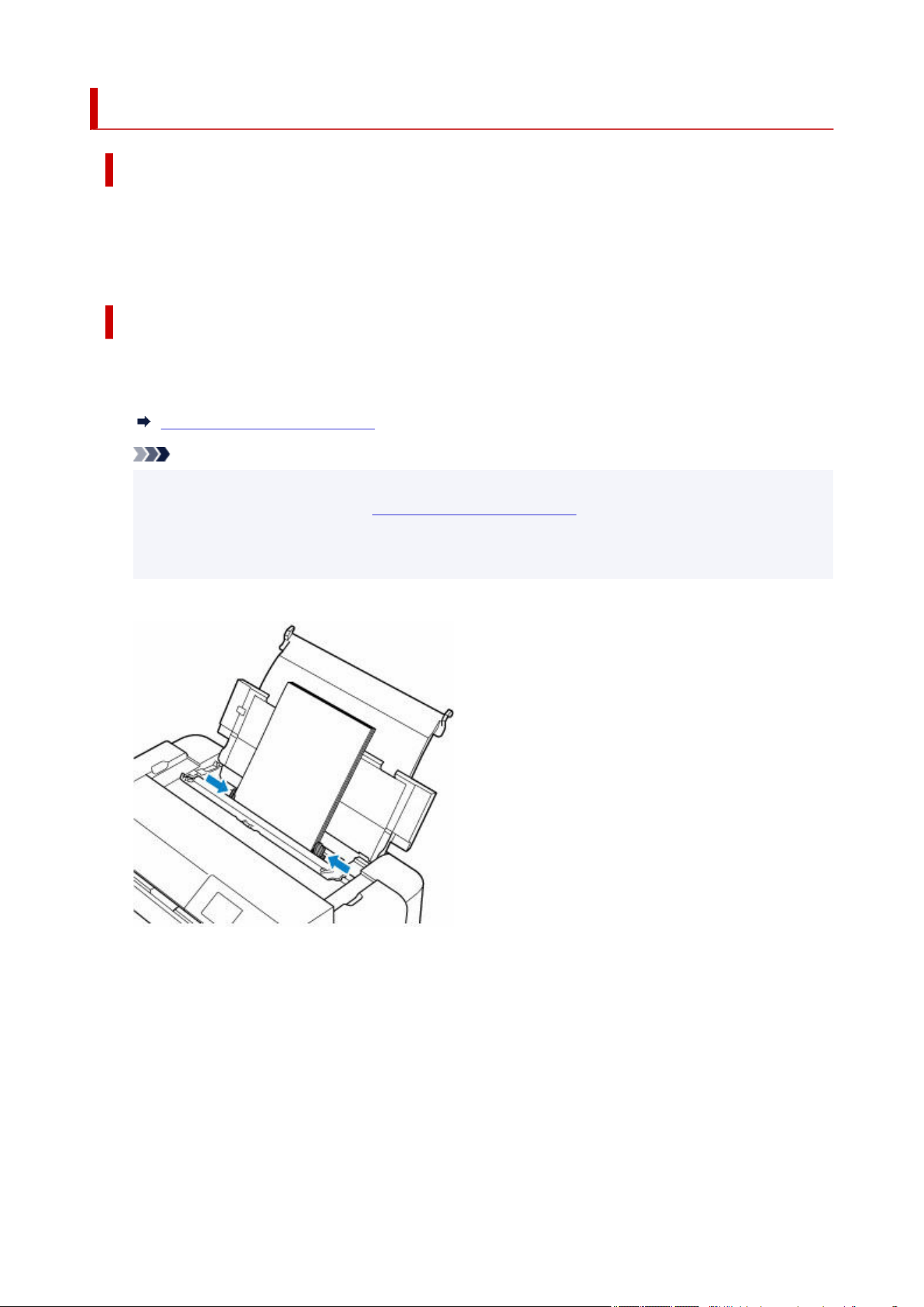
1000
Cause
Possible causes include the following.
• There is no paper in the top feed.
• Paper is not loaded in the top feed properly.
What to Do
Take the corresponding actions below.
• Load paper in the top feed.•
Loading Paper in the Top Feed
Note
• The loadable paper differs depending on the paper source. For details on the paper that can be
loaded in the top feed, refer to Paper Sources to Load Paper.
• Load one sheet of A4 / Letter size plain paper in the top feed before aligning the print head during•
the first printer setup.
• Align the paper guides of the top feed with both edges of the paper.•
• Close the feed slot cover.•
464
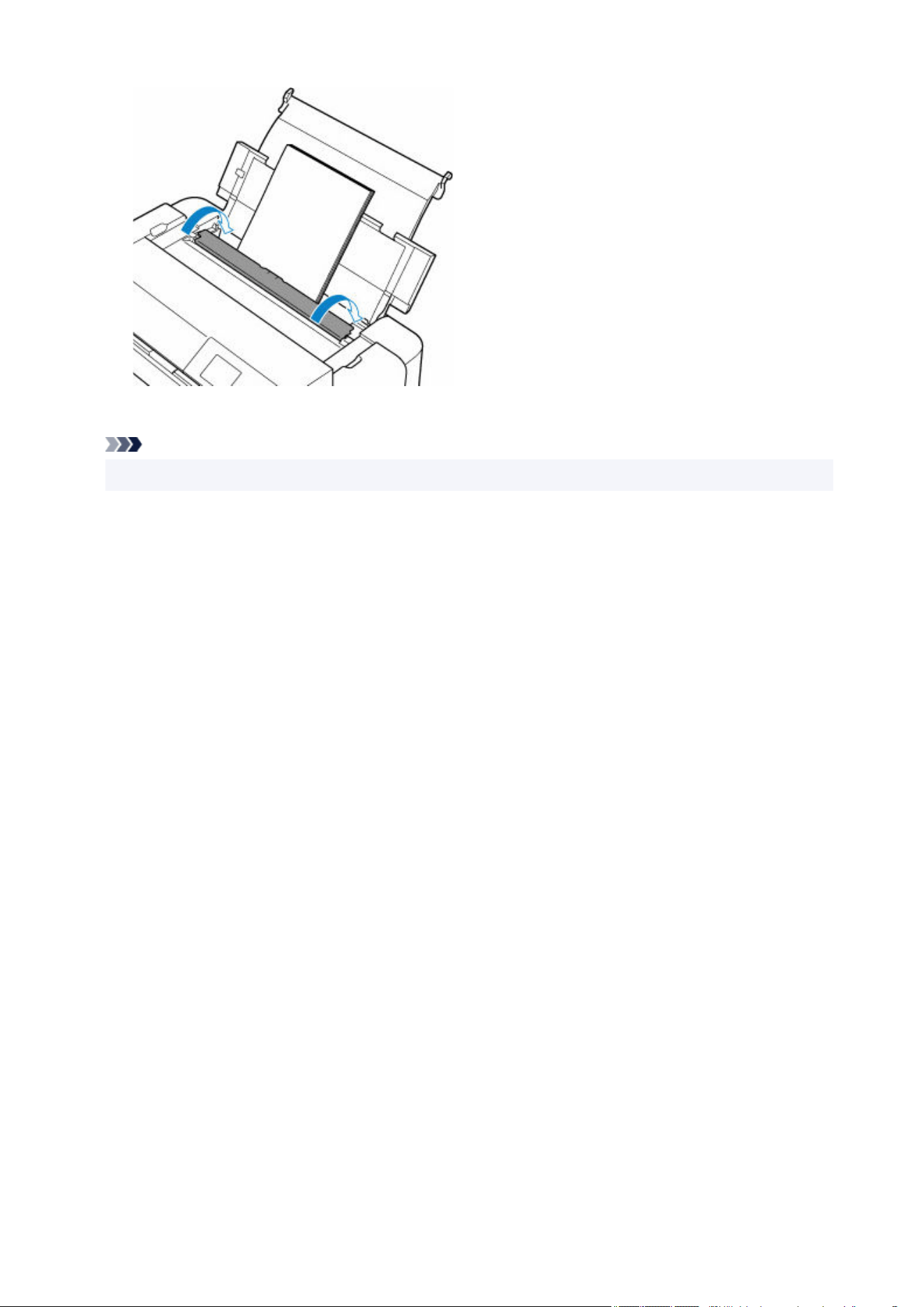
After carrying out the above measures, press the printer's OK button.
Note
• To cancel printing, press the printer's Stop button.
465
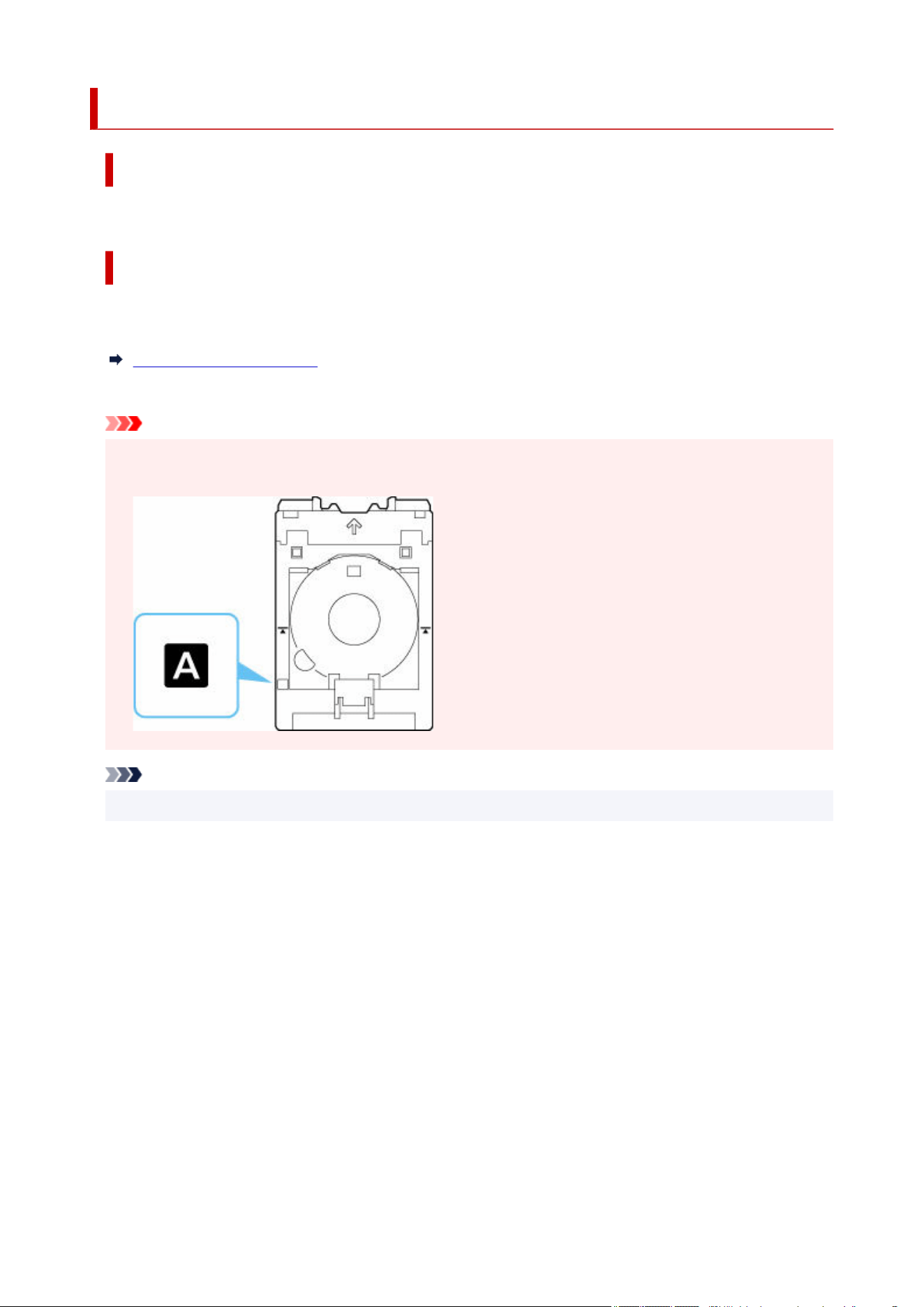
1001
Cause
There is no multi-purpose tray.
What to Do
Place a multi-purpose tray compatible media on the multi-purpose tray, and then attach the multi-purpose
tray to the printer.
Placing Multi-purpose Tray
Then press the printer's OK button to cancel the error.
Important
• When you print on multi-purpose tray compatible media, use the supplied multi-purpose tray (the one•
with the "A" mark).
Note
• To cancel printing, press the printer's Stop button.
466
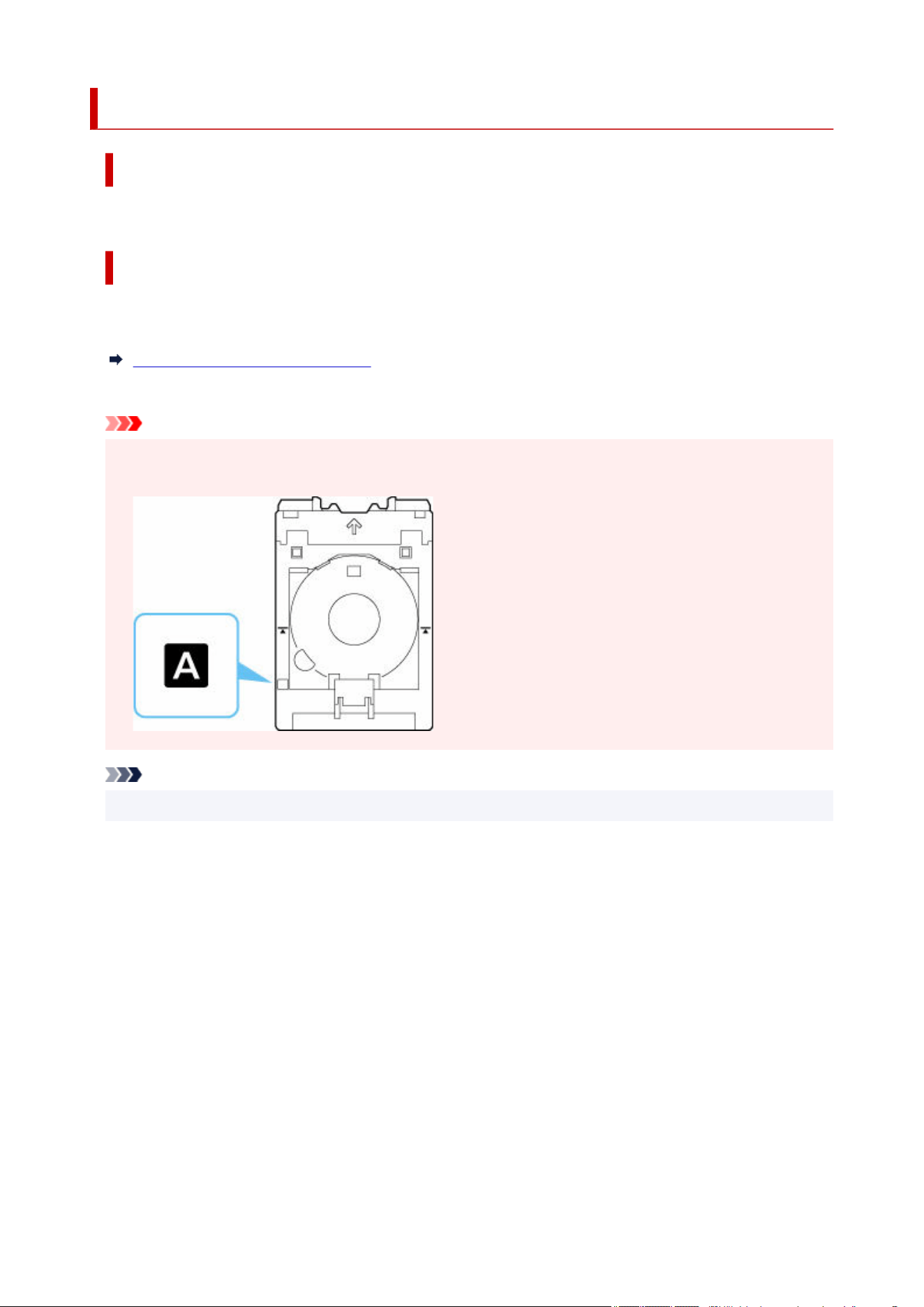
1002
Cause
Printable disc (CD/DVD/BD, etc.) is not set, or the disc position is misaligned.
What to Do
Remove the multi-purpose tray, place the printable disc properly, and then attach the multi-purpose tray to
the printer.
Placing/Removing a Printable Disc
Then press the printer's OK button to cancel the error.
Important
• When you print on multi-purpose tray compatible media, use the supplied multi-purpose tray (the one•
with the "A" mark).
Note
• To cancel printing, press the printer's Stop button.
467

1006
Cause
Possible causes include the following.
• There is no paper in the manual feed tray.
• Paper is not loaded in the manual feed tray properly.
What to Do
Take the corresponding actions below.
• Load one sheet of paper in the manual feed tray.•
Loading Paper in the Manual Feed Tray
Note
• The loadable paper differs depending on the paper source. For details on the paper that can be
loaded in the manual feed tray, refer to Paper Sources to Load Paper.
• Align the paper guides of the manual feed tray with the edges of the paper.
After carrying out the above measures, press the printer's OK button.
Note
• To cancel printing, press the printer's Stop button.
• To continue printing from the manual feed tray, wait until printing is completed, and then load the next
sheet.
468
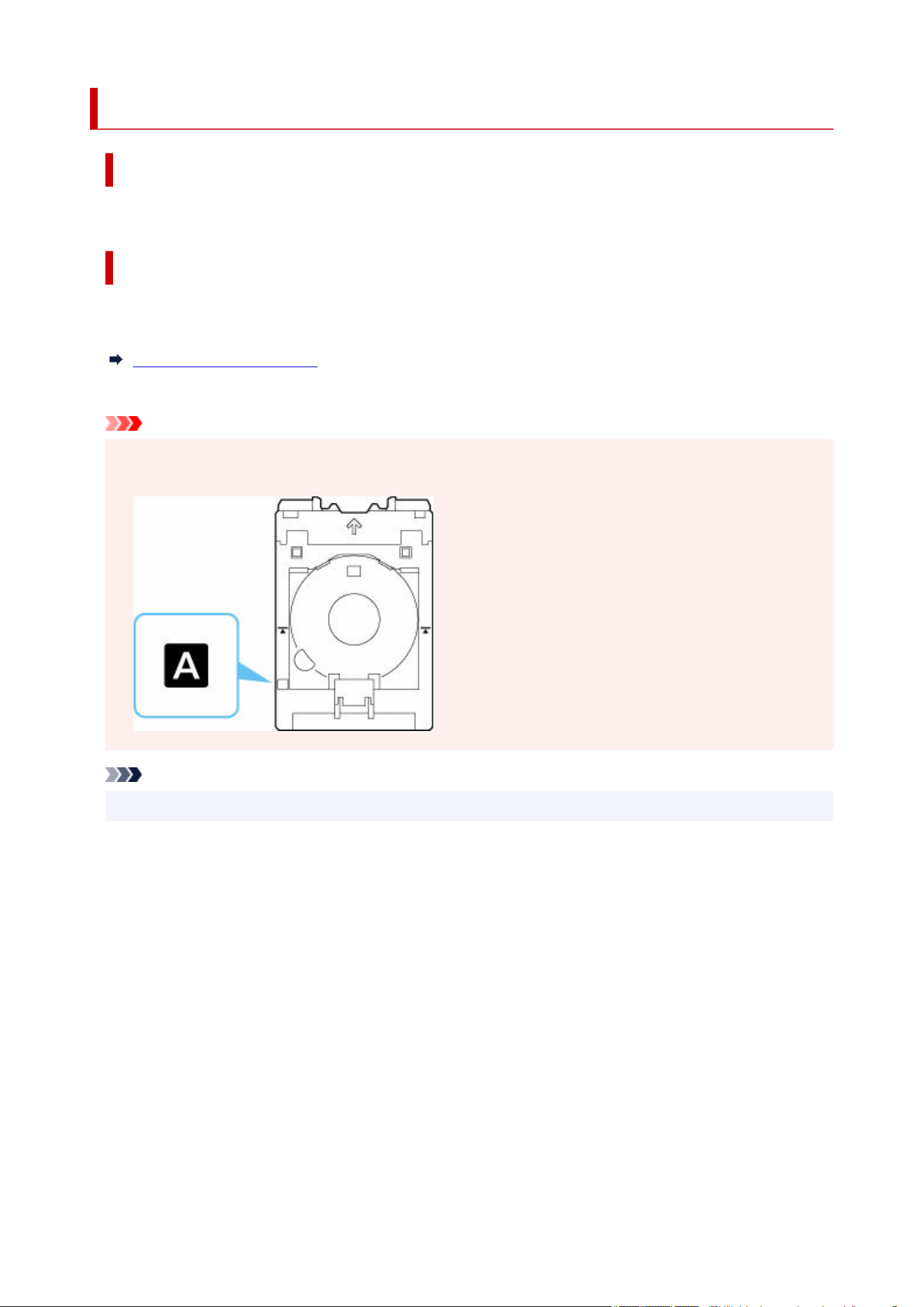
1013
Cause
Multi-purpose tray compatible media is not set on multi-purpose tray, or the media position is misaligned.
What to Do
Remove the multi-purpose tray, place the multi-purpose tray compatible media properly, and then attach
the multi-purpose tray to the printer.
Placing Multi-purpose Tray
Then press the printer's OK button to cancel the error.
Important
• When you print on multi-purpose tray compatible media, use the supplied multi-purpose tray (the one•
with the "A" mark).
Note
• To cancel printing, press the printer's Stop button.
469

1062
Cause
Paper size setting does not match size of loaded paper.
What to Do
Press the printer's Stop button to cancel the error and take the corresponding actions below.
When printing from Windows using a printer driver:
Load paper of the size specified in Paper Size on the Page Setup sheet of the printer driver, and retry
printing.
If this error occurs even you load paper of the size specified in the printer driver, set the printer not to
detect the paper width.
To set the printer not to detect the width of the paper, open Custom Settings on the Maintenance
sheet of the printer driver, and set Disables paper width detection when printing from computer to
ON.
Changing the Printer Operation Mode
Note
• Set Disables paper width detection when printing from computer to OFF once printing is
complete.
When printing from macOS using a printer driver:
Load paper of the size specified in Paper Size on the Page Setup dialog, and retry printing.
If this error occurs even you load paper of the size specified in the Page Setup dialog, set the printer not
to detect the paper width.
To set the printer not to detect the width of the paper, open Canon IJ Printer Utility2, select Custom
Settings in the pop-up menu, select the Disable paper width detection when printing from
computer check box.
Opening the Canon IJ Printer Utility2
Note
• Clear the Disable paper width detection when printing from computer check box again once
printing is complete.
When printing by other methods:
Register the paper size and paper type of the paper loaded in the printer correctly in the printer, and
retry printing.
Register Paper Information
470

If this error occurs even after registering the paper information correctly, set the printer not to detect the
paper width.
To set the printer not to detect the width of the paper, select Various settings on the printer's HOME
screen, select Printer settings, Paper-related settings, Advanced paper settings in this order, select
the paper type, and then set Detect paper width to OFF.
Note
• If you change the setting so that the paper width is not detected, return the setting after printing.
471

1200
Cause
Top cover is open.
What to Do
Close the top cover and wait for a while.
Do not forget to close it, such as after replacing ink tanks.
472

1250
Cause
Paper output tray is closed.
What to Do
Open the paper output tray.
473

1261
Cause
Manual feed tray is in the paper jam clearing position.
What to Do
Return the manual feed tray to the paper feed position and press the printer's OK button to cancel the
error.
474

1300
Cause
Paper jammed inside the printer while printing.
What to Do
Follow these steps below to remove jammed paper.
1. Remove the jammed paper depending on the paper source.1.
What to Do When Paper Is Jammed
2. Reload paper and press printer's OK button.2.
The printer resumes printing. Reprint the page you were printing if it was not printed properly due to
the paper jam.
If you turned off the printer in step 1, all jobs in the print queue are canceled. Redo the printing.
If the error appears again, the printer may be damaged. Contact a Canon customer service center.
475

1308
Cause
Paper is loaded in the manual feed tray when you start printing on a multi-purpose tray compatible media.
What to Do
Remove the paper from the manual feed tray, then press the printer's OK button to cancel the error.
476

1351
Cause
Top cover is open.
What to Do
When replacing the ink tank, follow the instructions on the printer's LCD.
Replacing Ink Tanks
When not replacing the ink tank, close the top cover.
Important
• Prepare a new ink tank before you start replacing one.
• Replace the ink tank quickly so as not to leave the printer without an ink tank.•
The printer may be damaged if it is left without an ink tank, causing a problem such as clogging due
to dried ink.
477

1401
Cause
Print head may not be installed properly or may be damaged.
What to Do
Take the corresponding actions below.
• Install the print head.•
If the print head is already installed, remove and reinstall it.Then close the top cover.
Turn off the printer and turn it back on.
• Turn off the printer and turn it back on.
If this does not solve the problem, contact your nearest Canon service center to request a repair.
478

1403
Cause
Print head may be damaged.
What to Do
Turn off the printer and turn it back on.
If this does not solve the problem, contact your nearest Canon service center to request a repair.
479

1405
Cause
Print head may be damaged.
What to Do
Turn off the printer and turn it back on.
If this does not solve the problem, contact your nearest Canon service center to request a repair.
480

1408
Cause
Print head may be damaged.
What to Do
Remove the print head and reinstall it.
If this does not solve the problem, contact your nearest Canon service center to request a repair.
481

1409
Cause
Print head may be damaged.
What to Do
Remove the print head and reinstall it.
If this does not solve the problem, contact your nearest Canon service center to request a repair.
482

140A
Cause
There is a problem with the print head.
What to Do
Open the top cover and reinstall the print head.
If this does not solve the problem, contact your nearest Canon service center to request a repair.
483

140C
Cause
There is a problem with the print head.
What to Do
Turn off the power, wait a moment, and then turn it back on.
If this does not solve the problem, contact your nearest Canon service center to request a repair.
484

1410
Cause
Ink tank may not be installed properly.
What to Do
Remove the ink tank whose color is shown on the printer's LCD and reinstall it.
Press the ink tank until it clicks into place.
If this does not solve the problem, replace the ink tank.
485

1411
Cause
Ink tank may not be installed properly.
What to Do
Remove the ink tank whose color is shown on the printer's LCD and reinstall it.
Press the ink tank until it clicks into place.
If this does not solve the problem, replace the ink tank.
486

1412
Cause
Ink tank may not be installed properly.
What to Do
Remove the ink tank whose color is shown on the printer's LCD and reinstall it.
Press the ink tank until it clicks into place.
If this does not solve the problem, replace the ink tank.
487

1413
Cause
Ink tank may not be installed properly.
What to Do
Remove the ink tank whose color is shown on the printer's LCD and reinstall it.
Press the ink tank until it clicks into place.
If this does not solve the problem, replace the ink tank.
488

1414
Cause
Ink tank may not be installed properly.
What to Do
Remove the ink tank whose color is shown on the printer's LCD and reinstall it.
Press the ink tank until it clicks into place.
If this does not solve the problem, replace the ink tank.
489

1415
Cause
Ink tank may not be installed properly.
What to Do
Remove the ink tank whose color is shown on the printer's LCD and reinstall it.
Press the ink tank until it clicks into place.
If this does not solve the problem, replace the ink tank.
490

1416
Cause
Ink tank may not be installed properly.
What to Do
Remove the ink tank whose color is shown on the printer's LCD and reinstall it.
Press the ink tank until it clicks into place.
If this does not solve the problem, replace the ink tank.
491

1417
Cause
Ink tank may not be installed properly.
What to Do
Remove the ink tank whose color is shown on the printer's LCD and reinstall it.
Press the ink tank until it clicks into place.
If this does not solve the problem, replace the ink tank.
492

1418
Cause
Ink tank may not be installed properly.
What to Do
Remove the ink tank whose color is shown on the printer's LCD and reinstall it.
Press the ink tank until it clicks into place.
If this does not solve the problem, replace the ink tank.
493

1419
Cause
Ink tank may not be installed properly.
What to Do
Remove the ink tank whose color is shown on the printer's LCD and reinstall it.
Press the ink tank until it clicks into place.
If this does not solve the problem, replace the ink tank.
494

1500
Cause
The ink is running low.
What to Do
Prepare a new ink tank.
The resulting print quality may not be satisfactory, if printing is continued under this condition.
495

1551
Cause
A genuine Canon ink tank with a history of past use has been detected.
What to Do
To dismiss the message, press the printer's OK button.
496

1552
Cause
A genuine Canon ink tank has been inserted.
What to Do
To dismiss the message, press the printer's OK button.
497

1570
Cause
The ink in the ink tank has run out.
What to Do
Replace the ink tank.
Replacing Ink Tanks
Important
• Prepare a new ink tank before you start replacing one.
• Replace the ink tank quickly so as not to leave the printer without an ink tank.•
The printer may be damaged if it is left without an ink tank, causing a problem such as clogging due
to dried ink.
498

15A1
Cause
Printer setup is not completed.
What to Do
Proceed with printer setup according to the message displayed on the printer's LCD.
If this error occurs while operating the printer from a smartphone / tablet, complete the printer setup and
then operate again.
499

15A2
Cause
Ink tank not inserted.
What to Do
Insert the ink tank correctly, and proceed with printer setup.
500
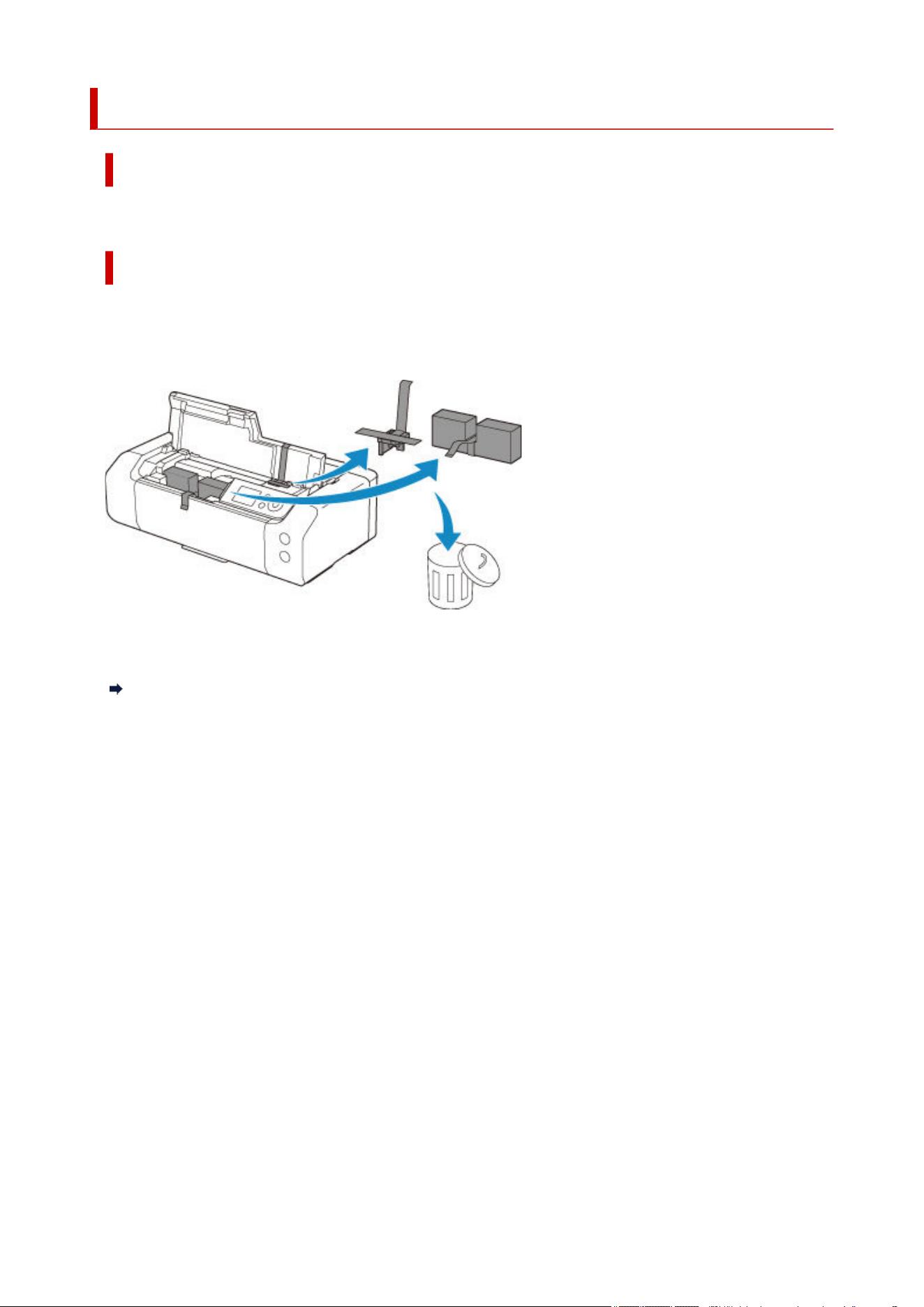
15A3
Cause
Protective material or tape may still be attached to print head holder.
What to Do
Open the top cover and make sure the protective material and tape have been removed from the print
head holder.
If the protective material or tape is still there, remove it and close the top cover.
In the case of the first printer setup, select your printer name on the below page, and follow the
instructions.
Set Up
501

1600
Cause
Ink may have run out
What to Do
If printing is in progress, you are recommended to stop printing, replace the ink tank, and then print again.
If printing is in progress and you want to continue printing, press the printer's OK button with the ink tank
installed. Then printing can continue under the ink out condition. Replace the empty ink tank immediately
after the printing. The printer may be damaged if printing is continued under the ink out condition.
502

1660
Cause
The ink tank cannot be recognized.
What to Do
Printing cannot be performed because the ink tank is not installed or is not compatible with this printer.
Check the ink tank.
If you want to cancel printing, press the printer's Stop button.
503

1684
Cause
The ink tank cannot be recognized.
What to Do
Printing cannot be executed because the ink tank may not be installed properly or may not be compatible
with this printer.
Install the appropriate ink tank.
If you want to cancel printing, press the printer's Stop button.
504

168C
Cause
Ink tank is not installed in proper position.
What to Do
Check the ink tank displayed on the printer's LCD and install the ink tank in proper position.
505

1698
Cause
Printer detected ink out condition.
What to Do
If printing is in progress, stop printing, replace the ink tank, and then print again.
To avoid printing troubles such as the mixing of inks, this printer is designed to stop printing when the
remaining ink level in an ink tank goes under the amount of ink required to maintain both printer and print
quality.
506

1699
Cause
Printer detected ink out condition.
What to Do
Stop printing, replace the ink tank, and then print again. Be sure to replace the empty ink tank before
resuming printing.
An ink tank that was once empty is installed.
Printing under the ink out condition may cause the printing trouble such as the mixing of inks, or a printer
malfunction.
If you want to continue printing, you need to disable the function for detecting the remaining ink level. To
disable this function, press and hold the printer's Stop button for at least 5 seconds, and then release it.
With this operation, disabling the function for detecting the remaining ink level is memorized. Please be
advised that Canon shall not be liable for any malfunction or trouble which may be caused by continuation
of printing or refilling of ink.
507

1700
Cause
Ink absorber is almost full.
What to Do
Press the printer's OK button to continue printing. Contact your nearest Canon service center to request a
repair.
Note
• In the case of warnings or errors caused by remaining ink levels, the printer cannot print.
508

1701
Cause
Ink absorber is almost full.
What to Do
Press the printer's OK button to continue printing. Contact your nearest Canon service center to request a
repair.
Note
• In the case of warnings or errors caused by remaining ink levels, the printer cannot print.
509

1716
Cause
Ink absorber is almost full.
What to Do
Press the printer's OK button to continue printing. Contact your nearest Canon service center to request a
repair.
Note
• In the case of warnings or errors caused by remaining ink levels, the printer cannot print.
510

1730
Cause
The ink tank may be an ink tank that ran out of genuine Canon ink or a counterfeit Canon ink tank.
What to Do
To print, you must replace the ink tank or disable the function for detecting the remaining ink level.
Replacing Ink Tanks
To disable the function for detecting the remaining ink level, press and hold the printer's Stop button for at
least 5 seconds, and then release it.
By this operation, the fact that you have disabled the function for detecting the remaining ink level will be
memorized. Please be advised that Canon shall not be liable for any malfunction or trouble caused by
using a non-genuine Canon ink tank or by using non-genuine Canon ink.
Note
• If the function for detecting the remaining ink level is disabled, the ink tank is displayed in white on the
Estimated ink levels screen on the LCD.
To report the counterfeit ink tank, access Canon website from the following link.
Report Counterfeit
511

1750
Cause
The ink tank cannot be recognized.
What to Do
The ink tank cannot be recognized.
Printing cannot be performed because the ink tank is not compatible with this printer.
Check the ink tank.
If you want to cancel printing, press the printer's Stop button.
512

1830
Cause
A certain period of time has elapsed while multi-purpose tray compatible media printing is in progress.
What to Do
If a certain period of time has elapsed while multi-purpose tray compatible media printing is in progress,
the printer stops initializing.
To resume initializing, press the printer's OK button.
Try the operation again following the instructions on the printer's LCD.
Note
• To cancel printing, press the printer's Stop button.
513

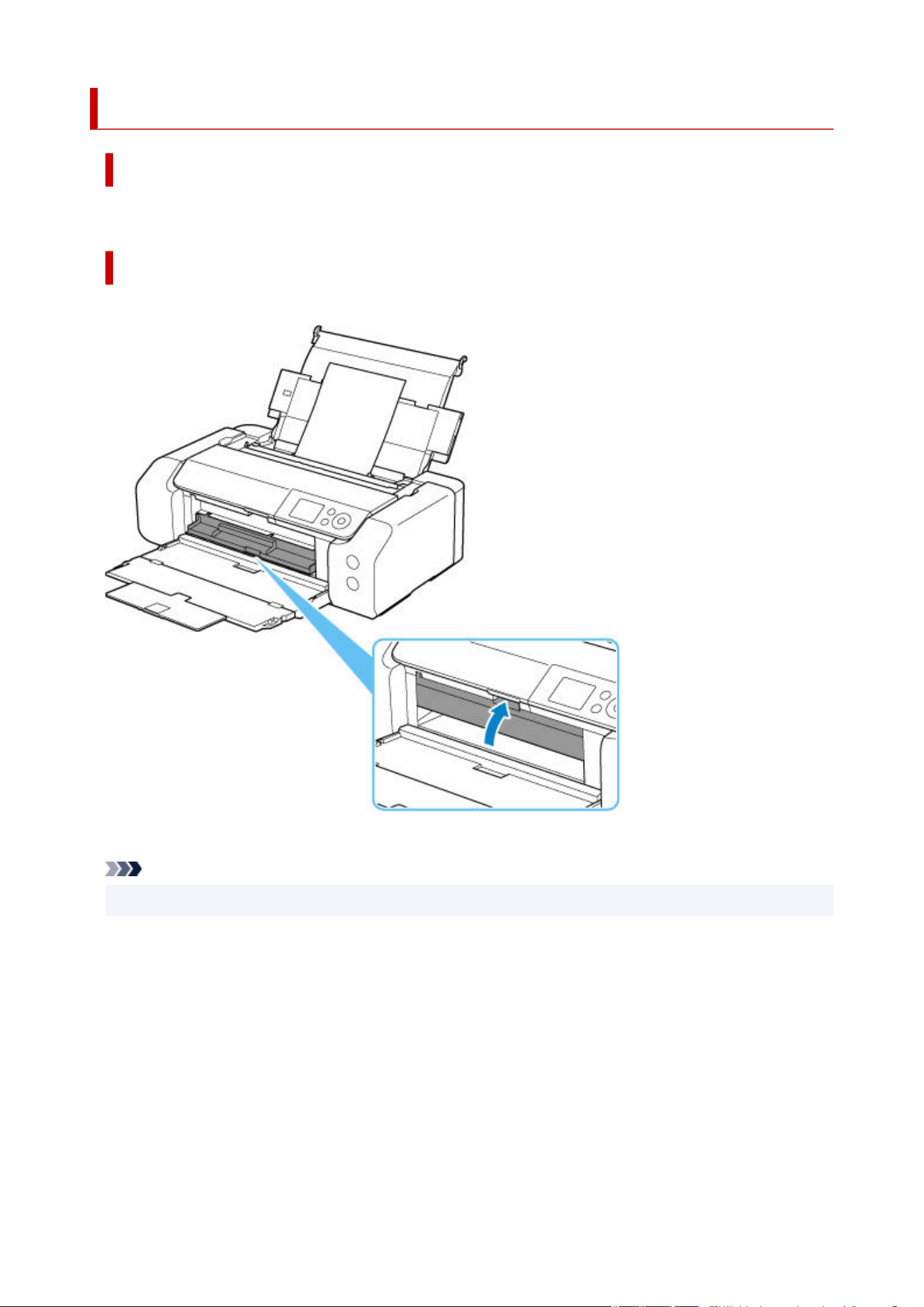
1851
Cause
Multi-purpose tray guide is open.
What to Do
Close the multi-purpose tray guide except when printing on multi-purpose tray compatible media.
Then press the printer's OK button to cancel the error.
Note
• To cancel printing, press the printer's Stop button.
515

1855
Cause
Multi-purpose tray guide has been closed.
What to Do
Open the multi-purpose tray guide and set the multi-purpose tray in proper position.
Then press the printer's OK button to cancel the error.
Important
• Do not open or close the multi-purpose tray guide while printing is in progress. Doing so may damage
the printer.
Note
• To cancel printing, press the printer's Stop button.
516

1856
Cause
Multi-purpose tray guide has been opened.
What to Do
Close the multi-purpose tray guide and press the printer's OK button to cancel the error.
Important
• Do not open or close the multi-purpose tray guide while printing is in progress. Doing so may damage
the printer.
Note
• To cancel printing, press the printer's Stop button.
517

1857
Cause
Multi-purpose tray guide is open, so the printer is not ready to print on multi-purpose tray compatible
media.
What to Do
Close the multi-purpose tray guide and press the printer's OK button to cancel the error.
Note
• Close the multi-purpose tray guide once before starting to print on multi-purpose tray compatible
media.
• To cancel printing, press the printer's Stop button.
518

2103
Cause
Printer cannot detect paper size.
What to Do
Press the printer's Stop button and retry printing.
If this error still occurs even after printing again, set the printer not to detect the paper width using the
operation panel, the printer driver, or Remote UI.
Note
• For more on setting printer not to detect the paper width using the operation panel, see below.•
Paper-related settings
• Depending on the type of paper, the printer may not detect the paper width.•
If the top cover is opened while printing is in progress, the printer may not detect the paper width.
519
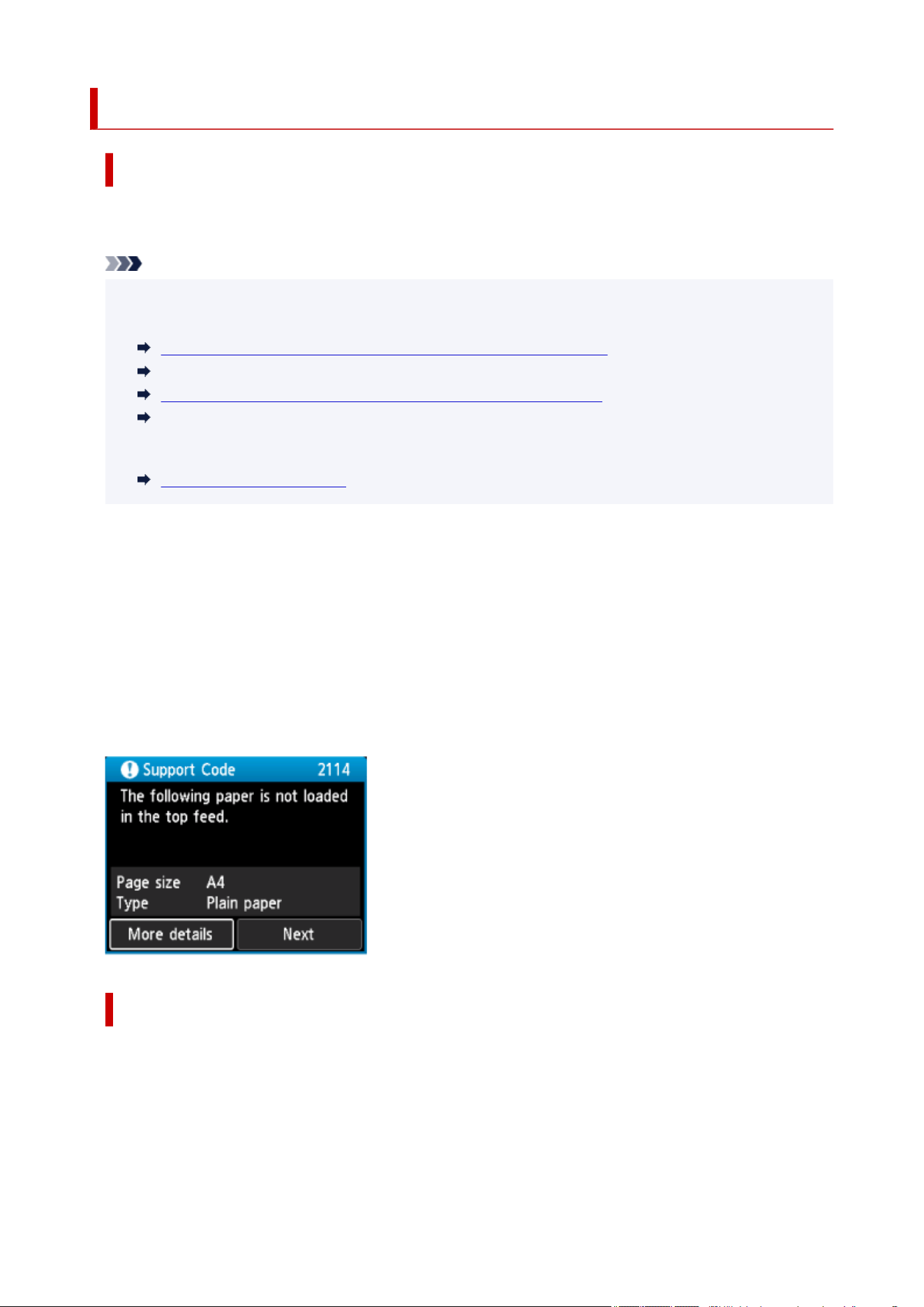
2114
Cause
Paper settings specified when printing do not match the paper information for the top feed registered on
the printer.
Note
• For the appropriate combination of the paper settings specified on the printer driver and the paper•
information registered on the printer, refer to the following.
Paper Settings on the Printer Driver and the Printer (Media Type)(Windows)
Paper Settings on the Printer Driver and the Printer (Media Type)(macOS)
Paper Settings on the Printer Driver and the Printer (Paper Size)(Windows)
Paper Settings on the Printer Driver and the Printer (Paper Size)(macOS)
• For how to register paper information on the printer, refer to the following.•
Register Paper Information
If the paper settings specified when printing differ from the paper information for the top feed registered on
the printer, the following message appears on the printer's LCD.
• Paper settings specified on the printer driver when printing:•
Paper size: A4
Media type: Plain paper
• Paper information for the top feed registered on the printer:•
Paper size: A3
Media type: Plain paper
What to Do
Select Next on the printer's LCD to display the screen below.
520
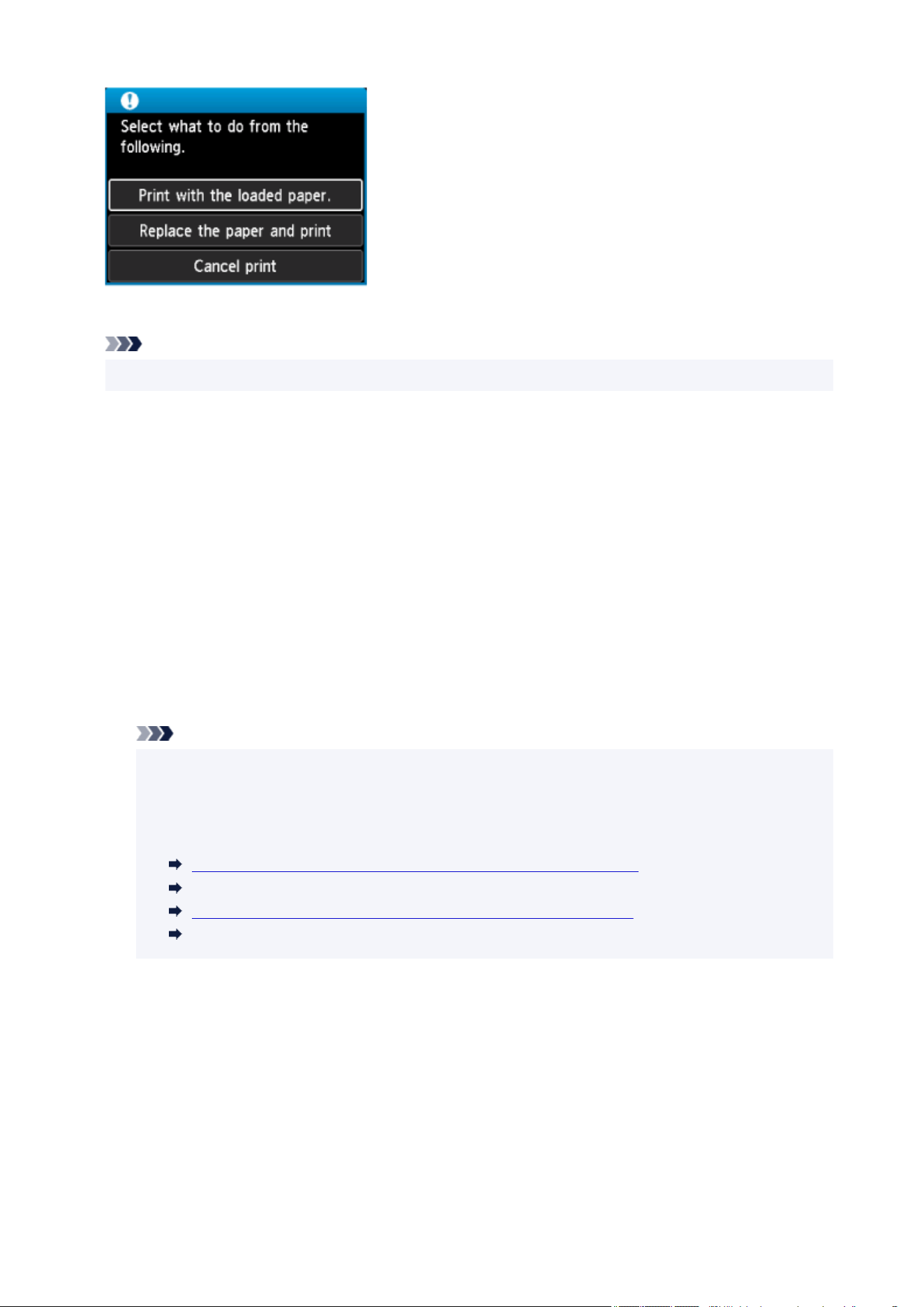
Select the appropriate action.
Note
• Depending on the settings, some of the options below may not be displayed.
Print with the loaded paper.
Select this option to print on the loaded paper with the paper settings specified when printing.
For example, when the paper size specified when printing is A4 and the paper information for the top
feed is registered as A3, select this option to print on an A3 paper loaded in the top feed with the A4
setting.
Replace the paper and print
Select this option to print after changing the paper in the top feed.
For example, when the paper size specified when printing is A4 and the paper information for the top
feed is registered as A3, select this option to print after changing the paper in the top feed with an A4
paper.
After changing the paper, the paper information registration screen for the top feed appears. Register
the paper information on the printer according to the loaded paper.
Note
• If you do not know the paper size and media type to be loaded in the top feed, press the printer's
Back button. The paper size and media type are displayed.
• For the appropriate combination of the paper settings specified on the printer driver and the•
paper information registered on the printer, refer to the following.
Paper Settings on the Printer Driver and the Printer (Media Type)(Windows)
Paper Settings on the Printer Driver and the Printer (Media Type)(macOS)
Paper Settings on the Printer Driver and the Printer (Paper Size)(Windows)
Paper Settings on the Printer Driver and the Printer (Paper Size)(macOS)
Cancel print
Cancels printing.
Select this option when you want to change the paper settings specified when printing. Change the
paper settings and try printing again.
521
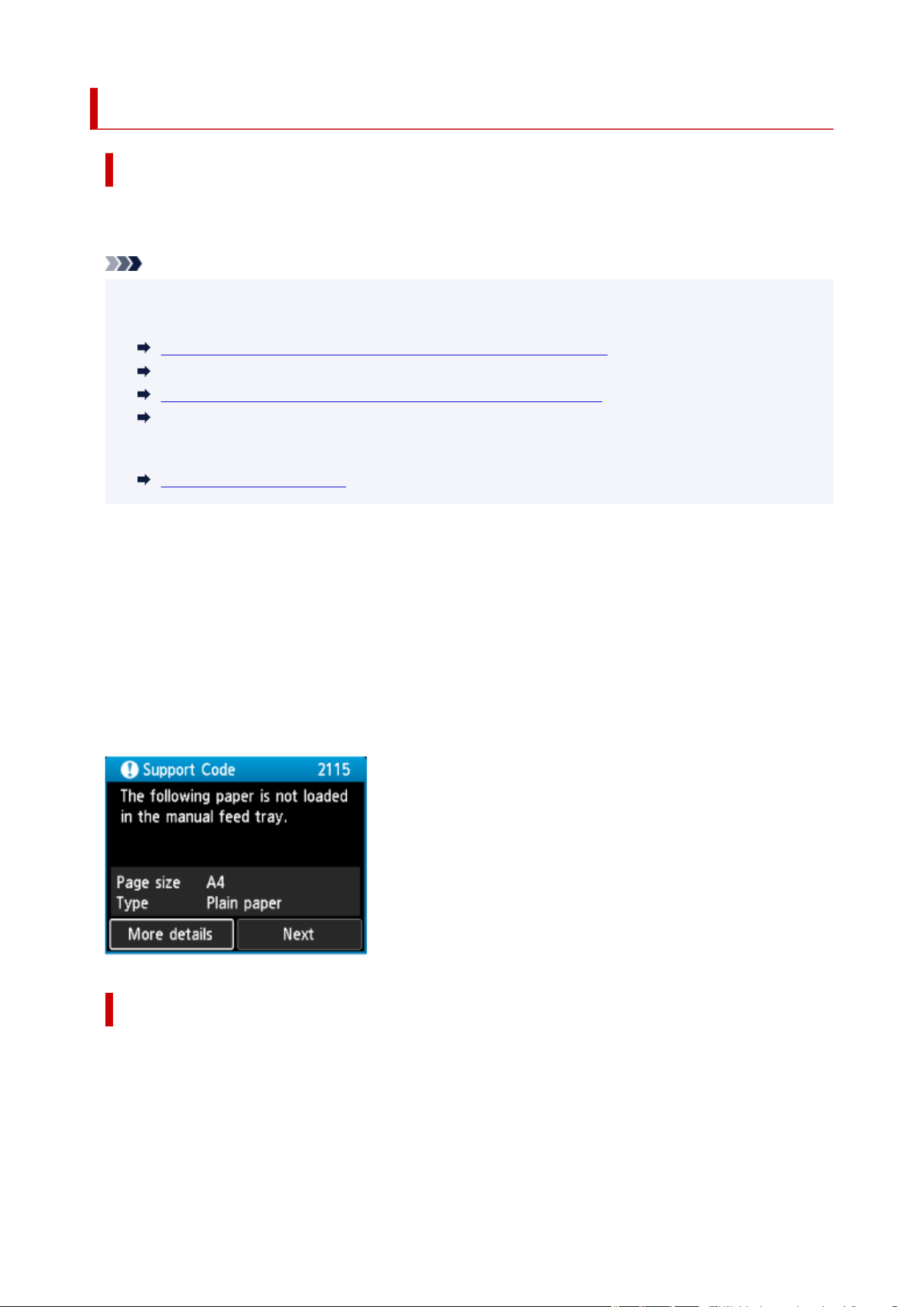
2115
Cause
Paper settings specified when printing do not match the paper information for the manual feed tray
registered on the printer.
Note
• For the appropriate combination of the paper settings specified on the printer driver and the paper•
information registered on the printer, refer to the following.
Paper Settings on the Printer Driver and the Printer (Media Type)(Windows)
Paper Settings on the Printer Driver and the Printer (Media Type)(macOS)
Paper Settings on the Printer Driver and the Printer (Paper Size)(Windows)
Paper Settings on the Printer Driver and the Printer (Paper Size)(macOS)
• For how to register paper information on the printer, refer to the following.•
Register Paper Information
If the paper settings specified when printing differ from the paper information for the manual feed tray
registered on the printer, the following message appears on the printer's LCD.
• Paper settings specified on the printer driver when printing:•
Paper size: A4
Media type: Plain paper
• Paper information for the manual feed tray registered on the printer:•
Paper size: A3
Media type: Plain paper
What to Do
Select Next on the printer's LCD to display the screen below.
522
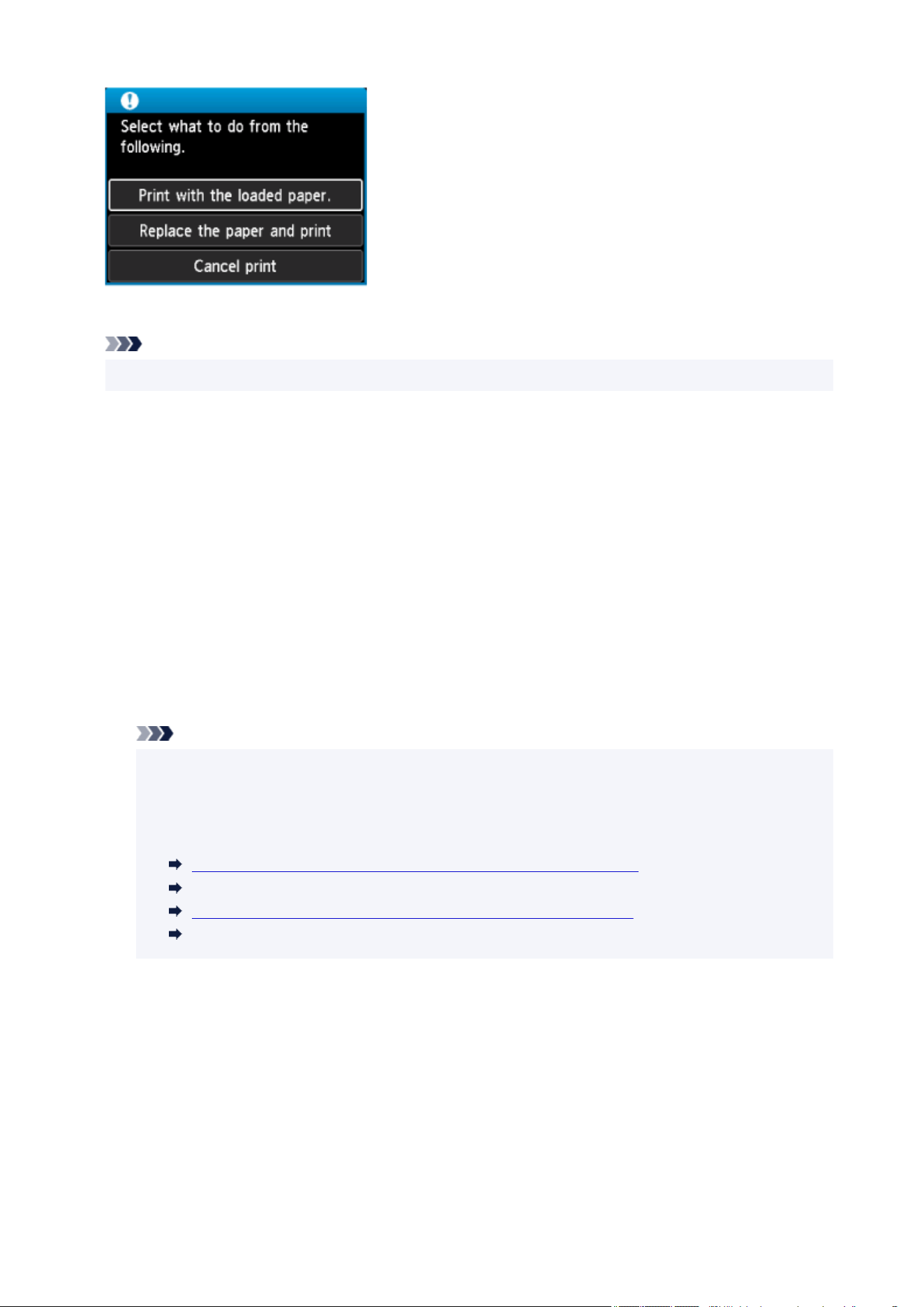
Select the appropriate action.
Note
• Depending on the settings, some of the options below may not be displayed.
Print with the loaded paper.
Select this option to print on the loaded paper with the paper settings specified when printing.
For example, when the paper size specified when printing is A4 and the paper information for the
manual feed tray is registered as A3, select this option to print on an A3 paper loaded in the manual
feed tray with the A4 setting.
Replace the paper and print
Select this option to print after changing the paper in the manual feed tray.
For example, when the paper size specified when printing is A4 and the paper information for the
manual feed tray is registered as A3, select this option to print after changing the paper in the manual
feed tray with an A4 paper.
After changing the paper, the paper information registration screen for the manual feed tray appears.
Register the paper information on the printer according to the loaded paper.
Note
• If you do not know the paper size and media type to be loaded in the manual feed tray, press the
printer's Back button. The paper size and media type are displayed.
• For the appropriate combination of the paper settings specified on the printer driver and the•
paper information registered on the printer, refer to the following.
Paper Settings on the Printer Driver and the Printer (Media Type)(Windows)
Paper Settings on the Printer Driver and the Printer (Media Type)(macOS)
Paper Settings on the Printer Driver and the Printer (Paper Size)(Windows)
Paper Settings on the Printer Driver and the Printer (Paper Size)(macOS)
Cancel print
Cancels printing.
Select this option when you want to change the paper settings specified when printing. Change the
paper settings and try printing again.
523

2500
Cause
Cause of following may have occurred failure of automatic adjustment to straighten lines and colors.
• Print head nozzles are clogged.
• Size of paper loaded is incorrect.
• Paper output slot is exposed to strong light.
What to Do
Press the printer's OK button to cancel the error and take the corresponding actions below.
• Check the print head condition by printing the nozzle check pattern.
• Load the correct size paper and perform automatic print head alignment again.
• Adjust your operating environment and/or the position of the printer so that the paper output slot is not
exposed directly to strong light.
After carrying out the above actions, perform automatic adjustment to straighten lines and colors again.
If the error is still not resolved, press the printer's OK button to cancel the error and perform manual
adjustment to straighten lines and colors.
Manual Adjustment to Straighten Lines and Align Colors
524

2503
Cause
Printing does not start correctly.
What to Do
Press the printer's OK button, and then restart printing.
525


3306
Cause
Media information cannot be recognized because the printer media information is corrupt.
What to Do
Start the Media Configuration Tool, and then recover the media information.
Media Configuration Tool Guide
To set the Media Configuration Tool to recovery mode, open the Media Configuration Tool, select this
device and then click OK.
Select and load the media information backup file.
If you do not have a media information backup file, contact your nearest Canon service center to request
a repair.
527

3310
Cause
Incorrect print data.
Illegal number of parameters.
What to Do
Defective print data, please check the print results.
If using printing software such as RIP (Raster Image Processor), contact the software manufacturer.
528

3311
Cause
Incorrect print data.
Illegal number of parameters.
What to Do
Defective print data, please check the print results.
If using printing software such as RIP (Raster Image Processor), contact the software manufacturer.
529

3312
Cause
Incorrect print data.
Required items have been omitted.
What to Do
Defective print data, please check the print results.
If using printing software such as RIP (Raster Image Processor), contact the software manufacturer.
530

3313
Cause
Incorrect print data.
Data out of range.
What to Do
Defective print data, please check the print results.
If using printing software such as RIP (Raster Image Processor), contact the software manufacturer.
531

3314
Cause
Incorrect print data.
Resolution value out of range.
What to Do
Defective print data, please check the print results.
If using printing software such as RIP (Raster Image Processor), contact the software manufacturer.
532

3315
Cause
Incorrect print data.
Compression method value out of range.
What to Do
Defective print data, please check the print results.
If using printing software such as RIP (Raster Image Processor), contact the software manufacturer.
533

3316
Cause
Incorrect print data.
Incorrect data formatting (color sequence, bit count).
What to Do
Defective print data, please check the print results.
If using printing software such as RIP (Raster Image Processor), contact the software manufacturer.
534

3317
Cause
Incorrect print data.
Illegal combination of resolution and image data format.
What to Do
Defective print data, please check the print results.
If using printing software such as RIP (Raster Image Processor), contact the software manufacturer.
535

3318
Cause
Incorrect print data.
Illegal number of parameters.
What to Do
Defective print data, please check the print results.
If using printing software such as RIP (Raster Image Processor), contact the software manufacturer.
536

3319
Cause
Incorrect print data.
Illegal number of parameters.
What to Do
Defective print data, please check the print results.
If using printing software such as RIP (Raster Image Processor), contact the software manufacturer.
537

3413
Cause
Prevent paper abrasion has been set.
What to Do
Prevent paper abrasion may reduce print speed.
If you continue printing in the current setting, select Yes using the buttons and press the printer's
OK button.
If you disable this setting, select No and press the printer's OK button. Select Various settings on the
HOME screen, select Printer settings, Print settings, and then set Prevent paper abrasion to OFF.
538

3440
Cause
Easy wireless connect has failed.
What to Do
Press the printer's OK button to cancel the error and retry Easy wireless connect.
If the error is not resolved, use another method to set up Wi-Fi.
539

3441
Cause
Easy wireless connect has failed.
What to Do
Press the printer's OK button to cancel the error and retry Easy wireless connect.
If the error is not resolved, use another method to set up Wi-Fi.
540

3442
Cause
Printing of the first side is complete when doing manual duplex printing.
What to Do
Prepare to print the other side.
Load the paper with the printed side facing down in the top feed without changing its orientation.
To check how to load paper on the printer's LCD, select How to set using the buttons and press the
printer's OK button.
When you are ready to print the other side, select Start print and press the printer's OK button.
Note
• To cancel printing, press the printer's Stop button.
541

3443
Cause
Printing of the first side is complete when doing manual duplex printing.
What to Do
Prepare to print the other side.
Rotate the printed paper 180 degrees and load it with the printed side facing down in the top feed.
To check how to load paper on the printer's LCD, select How to set using the buttons and press the
printer's OK button.
When you are ready to print the other side, select Start print and press the printer's OK button.
Note
• To cancel printing, press the printer's Stop button.
542

3444
Cause
Printing of the first side is complete when doing manual duplex printing.
What to Do
Prepare to print the other side.
Rotate the printed paper 180 degrees and load it with the printed side facing down in the top feed.
To check how to load paper on the printer's LCD, select How to set using the buttons and press the
printer's OK button.
When you are ready to print the other side, select Start print and press the printer's OK button.
Note
• To cancel printing, press the printer's Stop button.
543

3445
Cause
Printing of the first side is complete when doing manual duplex printing.
What to Do
Prepare to print the other side.
Load the paper with the printed side facing down in the top feed without changing its orientation.
To check how to load paper on the printer's LCD, select How to set using the buttons and press the
printer's OK button.
When you are ready to print the other side, select Start print and press the printer's OK button.
Note
• To cancel printing, press the printer's Stop button.
544

3446
Cause
IP address and subnet mask are conflicting.
What to Do
Press the printer's OK button to cancel the error.
Disable the wireless direct or change the Wi-Fi network configuration. When changing the network
configuration, specify a unique subnet range for each of the wireless direct and the Wi-Fi to prevent a
conflict.
For details on changing the network configuration, refer to the documentation for your wireless router.
545

3447
Cause
An error occurred while communicating via wireless direct or while in standby.
What to Do
Press the printer's OK button to cancel the error.
Turn off the printer and turn it back on.
546

3454
Cause
Printer error has occurred.
What to Do
Printer needs repair. Please contact customer support.
547

3455
Cause
Printer error has occurred.
What to Do
A matter has been identified that requires immediate attention. Please contact customer support.
548

4103
Cause
Cannot perform printing with current print settings.
What to Do
Press the printer's Stop button to cancel printing.
Change the print settings specified when printing and retry printing.
549

4104
Cause
The paper settings (paper size / paper type) specified when printing are incorrect, or paper source
specified when printing is incorrect.
What to Do
Press the printer's Stop button to cancel printing. Check the paper that can be loaded in the top feed /
manual feed tray.
Loading Paper in the Top Feed
Loading Paper in the Manual Feed Tray
Take one of the actions below and retry printing.
• Change the paper settings (paper size / paper type) specified when printing.
• Change the paper source setting.
550

4109
Cause
Paper size that cannot be printed from the manual feed tray is specified.
What to Do
Press the printer's Stop button to cancel printing. Check the paper that can be loaded in the manual feed
tray.
Loading Paper in the Manual Feed Tray
Change the paper size specified when printing and retry printing.
Note
• To print on paper that can be printed only from the top feed, reload the paper in the top feed, and
then register the paper information in the printer.
551


4111
Cause
The media type specified is incompatible with this device.
What to Do
Press the printer's Stop button to stop printing.
Check the media type settings, and then try again.
553

495A
Cause
An error occurred while communicating via Wi-Fi or while in standby.
What to Do
Turn off the printer and turn it back on.
554
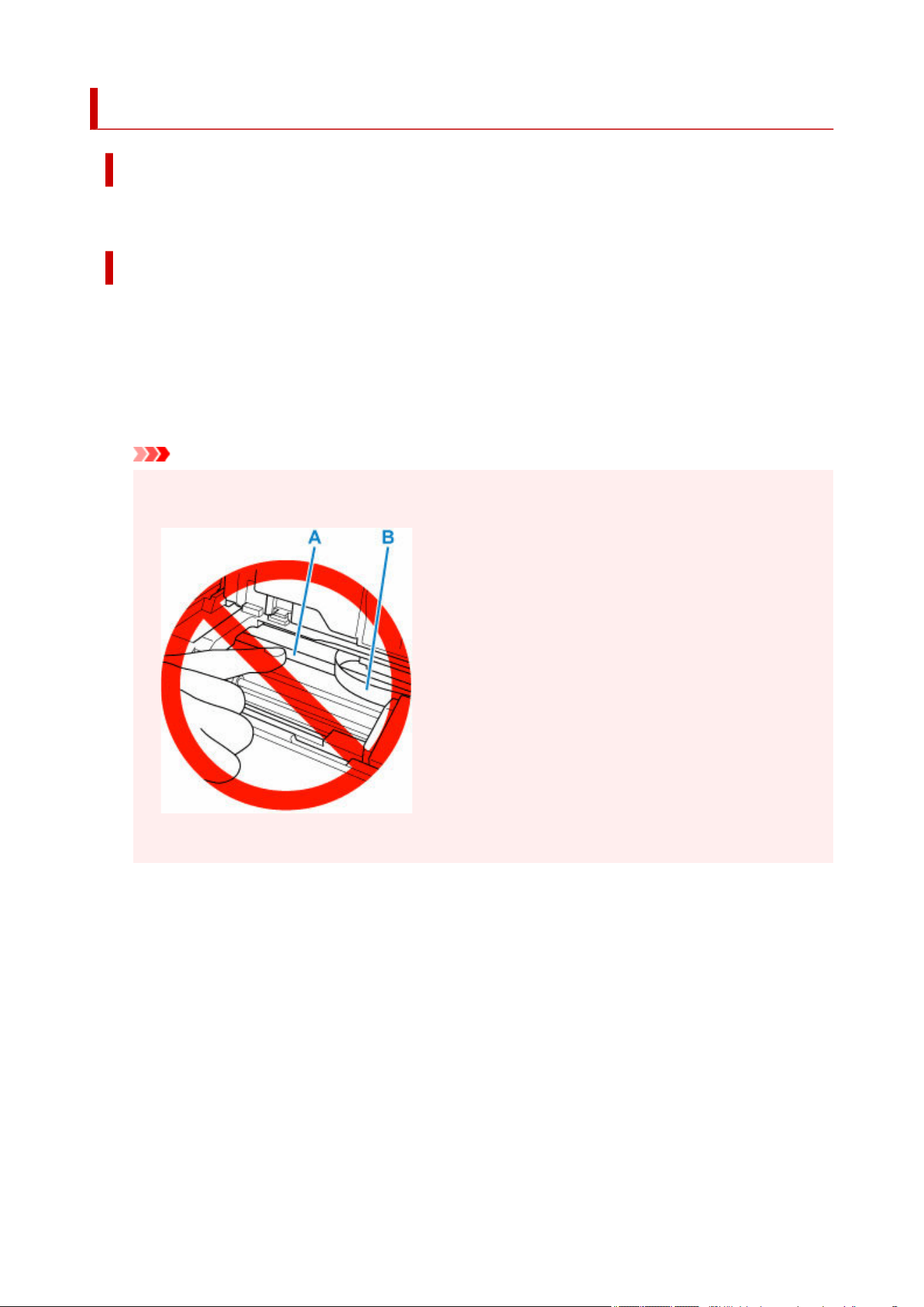
5100
Cause
Printer error has occurred.
What to Do
If you are printing, press the printer's Stop button to cancel printing, then turn off the printer.
Check the following:
• Make sure print head holder motion is not impeded by protective materials for securing the print head•
holder, jammed paper, etc.
Remove any impediment.
Important
• When clearing an impediment to print head holder motion, be careful not to touch clear film (A) or•
white belt (B).
If you soil or scratch this part by touching it with paper or your hand, it could damage the printer.
• Make sure the ink tanks are properly installed.•
Press ink tanks until they click into place.
Turn the printer back on.
If the error appears again, the printer may be damaged. Contact a Canon customer service center.
555

5200
Cause
Printer error has occurred.
What to Do
Turn off the printer and unplug it.
Plug in the printer again and turn it back on.
If this does not solve the problem, contact your nearest Canon service center to request a repair.
556

520C
Cause
Printer error has occurred.
What to Do
Turn off the printer and unplug it.
Plug in the printer again and turn it back on.
If this does not solve the problem, contact your nearest Canon service center to request a repair.
557

520E
Cause
Printer error has occurred.
What to Do
Turn off the printer and unplug it.
Plug in the printer again and turn it back on.
If this does not solve the problem, contact your nearest Canon service center to request a repair.
558

5250
Cause
Printer error has occurred.
What to Do
Turn off the printer and unplug it.
Plug in the printer again and turn it back on.
If this does not solve the problem, contact your nearest Canon service center to request a repair.
559

5400
Cause
Printer error has occurred.
What to Do
Turn off the printer and unplug it.
Plug in the printer again and turn it back on.
If this does not solve the problem, contact your nearest Canon service center to request a repair.
560

5700
Cause
Printer error has occurred.
What to Do
Turn off the printer and unplug it.
Plug in the printer again and turn it back on.
If this does not solve the problem, contact your nearest Canon service center to request a repair.
561

5B00
Cause
Printer error has occurred.
What to Do
Contact your nearest Canon service center to request a repair.
Note
• In the case of warnings or errors caused by remaining ink levels, the printer cannot print.
562

5B01
Cause
Printer error has occurred.
What to Do
Contact your nearest Canon service center to request a repair.
Note
• In the case of warnings or errors caused by remaining ink levels, the printer cannot print.
563

5B16
Cause
Printer error has occurred.
What to Do
Turn off the printer and unplug it.
Plug in the printer again and turn it back on.
If this does not solve the problem, contact your nearest Canon service center to request a repair.
564

5B22
Cause
Printer error has occurred.
What to Do
Turn off the printer and unplug it.
Plug in the printer again and turn it back on.
If this does not solve the problem, contact your nearest Canon service center to request a repair.
565

5C02
Cause
Printer error has occurred.
What to Do
Turn off the printer and unplug it.
Plug in the printer again and turn it back on.
If this does not solve the problem, contact your nearest Canon service center to request a repair.
566

5C13
Cause
Printer error has occurred.
What to Do
Turn off the printer and unplug it.
Plug in the printer again and turn it back on.
If this does not solve the problem, contact your nearest Canon service center to request a repair.
567

5C14
Cause
Printer error has occurred.
What to Do
Turn off the printer and unplug it.
Plug in the printer again and turn it back on.
If this does not solve the problem, contact your nearest Canon service center to request a repair.
568

6000
Cause
Printer error has occurred.
What to Do
Turn off the printer and unplug it.
Plug in the printer again and turn it back on.
If this does not solve the problem, contact your nearest Canon service center to request a repair.
569

6001
Cause
Printer error has occurred.
What to Do
Turn off the printer and unplug it.
Plug in the printer again and turn it back on.
If this does not solve the problem, contact your nearest Canon service center to request a repair.
570

6004
Cause
Printer error has occurred.
What to Do
Turn off the printer and unplug it.
Plug in the printer again and turn it back on.
If this does not solve the problem, contact your nearest Canon service center to request a repair.
571

6500
Cause
Printer error has occurred.
What to Do
Turn off the printer and unplug it.
Plug in the printer again and turn it back on.
If this does not solve the problem, contact your nearest Canon service center to request a repair.
572

6502
Cause
Printer error has occurred.
What to Do
Turn off the printer and unplug it.
Plug in the printer again and turn it back on.
If this does not solve the problem, contact your nearest Canon service center to request a repair.
573

6503
Cause
Printer error has occurred.
What to Do
Turn off the printer and unplug it.
Plug in the printer again and turn it back on.
If this does not solve the problem, contact your nearest Canon service center to request a repair.
574

6700
Cause
Printer error has occurred.
What to Do
Turn off the printer and unplug it.
Plug in the printer again and turn it back on.
If this does not solve the problem, contact your nearest Canon service center to request a repair.
575

6701
Cause
Printer error has occurred.
What to Do
Turn off the printer and unplug it.
Plug in the printer again and turn it back on.
If this does not solve the problem, contact your nearest Canon service center to request a repair.
576

6800
Cause
Printer error has occurred.
What to Do
Turn off the printer and unplug it.
Plug in the printer again and turn it back on.
If this does not solve the problem, contact your nearest Canon service center to request a repair.
577

6801
Cause
Printer error has occurred.
What to Do
Turn off the printer and unplug it.
Plug in the printer again and turn it back on.
If this does not solve the problem, contact your nearest Canon service center to request a repair.
578

6830
Cause
Printer error has occurred.
What to Do
Turn off the printer and unplug it.
Plug in the printer again and turn it back on.
If this does not solve the problem, contact your nearest Canon service center to request a repair.
579

6831
Cause
Printer error has occurred.
What to Do
Turn off the printer and unplug it.
Plug in the printer again and turn it back on.
If this does not solve the problem, contact your nearest Canon service center to request a repair.
580

6832
Cause
Printer error has occurred.
What to Do
Turn off the printer and unplug it.
Plug in the printer again and turn it back on.
If this does not solve the problem, contact your nearest Canon service center to request a repair.
581

6833
Cause
Printer error has occurred.
What to Do
Turn off the printer and unplug it.
Plug in the printer again and turn it back on.
If this does not solve the problem, contact your nearest Canon service center to request a repair.
582

6900
Cause
Printer error has occurred.
What to Do
Turn off the printer and unplug it.
Plug in the printer again and turn it back on.
If this does not solve the problem, contact your nearest Canon service center to request a repair.
583

6901
Cause
Printer error has occurred.
What to Do
Turn off the printer and unplug it.
Plug in the printer again and turn it back on.
If this does not solve the problem, contact your nearest Canon service center to request a repair.
584

6902
Cause
Printer error has occurred.
What to Do
Turn off the printer and unplug it.
Plug in the printer again and turn it back on.
If this does not solve the problem, contact your nearest Canon service center to request a repair.
585

6910
Cause
Printer error has occurred.
What to Do
Turn off the printer and unplug it.
Plug in the printer again and turn it back on.
If this does not solve the problem, contact your nearest Canon service center to request a repair.
586

6920
Cause
Printer error has occurred.
What to Do
Turn off the printer and unplug it.
Plug in the printer again and turn it back on.
If this does not solve the problem, contact your nearest Canon service center to request a repair.
587

6921
Cause
Printer error has occurred.
What to Do
Turn off the printer and unplug it.
Plug in the printer again and turn it back on.
If this does not solve the problem, contact your nearest Canon service center to request a repair.
588

6930
Cause
Printer error has occurred.
What to Do
Turn off the printer and unplug it.
Plug in the printer again and turn it back on.
If this does not solve the problem, contact your nearest Canon service center to request a repair.
589

6931
Cause
Printer error has occurred.
What to Do
Turn off the printer and unplug it.
Plug in the printer again and turn it back on.
If this does not solve the problem, contact your nearest Canon service center to request a repair.
590

6932
Cause
Printer error has occurred.
What to Do
Turn off the printer and unplug it.
Plug in the printer again and turn it back on.
If this does not solve the problem, contact your nearest Canon service center to request a repair.
591

6933
Cause
Printer error has occurred.
What to Do
Turn off the printer and unplug it.
Plug in the printer again and turn it back on.
If this does not solve the problem, contact your nearest Canon service center to request a repair.
592

6940
Cause
Printer error has occurred.
What to Do
Turn off the printer and unplug it.
Plug in the printer again and turn it back on.
If this does not solve the problem, contact your nearest Canon service center to request a repair.
593

6941
Cause
Printer error has occurred.
What to Do
Turn off the printer and unplug it.
Plug in the printer again and turn it back on.
If this does not solve the problem, contact your nearest Canon service center to request a repair.
594

6942
Cause
Printer error has occurred.
What to Do
Turn off the printer and unplug it.
Plug in the printer again and turn it back on.
If this does not solve the problem, contact your nearest Canon service center to request a repair.
595

6943
Cause
Printer error has occurred.
What to Do
Turn off the printer and unplug it.
Plug in the printer again and turn it back on.
If this does not solve the problem, contact your nearest Canon service center to request a repair.
596

6944
Cause
Printer error has occurred.
What to Do
Turn off the printer and unplug it.
Plug in the printer again and turn it back on.
If this does not solve the problem, contact your nearest Canon service center to request a repair.
597

6945
Cause
Printer error has occurred.
What to Do
Turn off the printer and unplug it.
Plug in the printer again and turn it back on.
If this does not solve the problem, contact your nearest Canon service center to request a repair.
598

6946
Cause
Printer error has occurred.
What to Do
Turn off the printer and unplug it.
Plug in the printer again and turn it back on.
If this does not solve the problem, contact your nearest Canon service center to request a repair.
599

6A80
Cause
Printer error has occurred.
What to Do
Turn off the printer and unplug it.
Plug in the printer again and turn it back on.
If this does not solve the problem, contact your nearest Canon service center to request a repair.
600

6A81
Cause
Printer error has occurred.
What to Do
Turn off the printer and unplug it.
Plug in the printer again and turn it back on.
If this does not solve the problem, contact your nearest Canon service center to request a repair.
601

6D01
Cause
Printer error has occurred.
What to Do
Turn off the printer and unplug it.
Plug in the printer again and turn it back on.
If this does not solve the problem, contact your nearest Canon service center to request a repair.
602

7600
Cause
An error requiring a repair has occurred.
What to Do
Turn off the printer and unplug it.
Plug in the printer again and turn it back on.
If this does not solve the problem, contact your nearest Canon service center to request a repair.
603

7700
Cause
An error requiring a repair has occurred.
What to Do
Turn off the printer and unplug it.
Plug in the printer again and turn it back on.
If this does not solve the problem, contact your nearest Canon service center to request a repair.
604

7800
Cause
An error requiring a repair has occurred.
What to Do
Turn off the printer and unplug it.
Plug in the printer again and turn it back on.
If this does not solve the problem, contact your nearest Canon service center to request a repair.
605

7802
Cause
Printer error has occurred.
What to Do
Turn off the printer and unplug it.
Plug in the printer again and turn it back on.
If this does not solve the problem, contact your nearest Canon service center to request a repair.
606

8200
Cause
Printer error has occurred.
What to Do
Turn off the printer and unplug it.
Plug in the printer again and turn it back on.
If this does not solve the problem, contact your nearest Canon service center to request a repair.
607

8300
Cause
Printer error has occurred.
What to Do
Turn off the printer and unplug it.
Plug in the printer again and turn it back on.
If this does not solve the problem, contact your nearest Canon service center to request a repair.
608

B400
Cause
Printer error has occurred.
What to Do
Turn off the printer and unplug it.
Plug in the printer again and turn it back on.
If this does not solve the problem, contact your nearest Canon service center to request a repair.
609

C000
Cause
Printer error has occurred.
What to Do
Turn off the printer and unplug it.
Plug in the printer again and turn it back on.
If this does not solve the problem, contact your nearest Canon service center to request a repair.
610

C100
Cause
Printer error has occurred.
What to Do
Please stop using this printer immediately, then contact customer support.
611

C101
Cause
Printer error has occurred.
What to Do
Please stop using this printer and unplug power cord immediately, then contact customer support.
612



Safety Precautions
Follow the items below to use the printer safely. Furthermore, do not perform any actions that are not
described in the instruction manual of the product. This may cause unexpected accidents such as fire or
electrical shock. Safety standard marks and declarations are only valid for the supported voltages and
frequencies in the applicable countries or regions.
Warning
• For people who are using a cardiac pacemaker•
This product generates a low-level magnetic field. If you experience discomfort while working around
this product, leave the area and consult a doctor.
• Turn off the power immediately in the following circumstances.•
If you continue to use the printer in the following cases, it may cause fires or electrical shock.
Immediately press the power button to turn off the printer, disconnect the power plug from the outlet,
and make a request for repairs.
If any foreign matter (metal fragments, liquids, etc.) gets inside the printer
If the printer emits smoke, abnormal odors, or abnormal noises
If the power plug or power cord becomes hot, corroded, bent, frayed, or damaged
• Follow the items below (risk of fire, electrical shock, or injury).•
Do not set up the product in any location exposed to alcohol, thinner, or other flammable liquids.
Do not disassemble or modify the product.
Use the cables that are included with the printer. Do not use the cables included with the printer
with other devices.
Do not use outside of the designated power supply voltage and frequency.
Insert the power plug securely and completely into the power outlet.
Never handle the power plug with wet hands.
Do not damage the power cord or other cables by twisting, bundling, tying, pulling or excessively
bending them.
Never place a heavy object on the power cord.
Do not insert multiple power plugs into the same outlet. Do not connect multiple extension cords.
If there is lightning nearby, disconnect the power plug from the outlet and do not use the product.
When cleaning, always disconnect the cables and power plug, and do not use highly flammable
sprays or liquids such as alcohol or thinner.
Once per month, disconnect the power plug and power cord from the outlet, and check that dust
has not accumulated, and that there are no abnormalities such as heat generation, rust, bending,
chafing, or cracking.
Caution
• Be careful not to let anything get inside the printer. This would cause malfunction.
• Do not put your hands inside the printer while printing.
• Do not touch the print head or other metal parts immediately after printing.
615

• About the ink•
Always store ink tanks out of the reach of infants and toddlers.
In case ink is accidentally licked or swallowed, rinse out mouth or give one or two glasses of
water to drink. If irritation or discomfort occurs, obtain medical advice immediately.
In case ink gets in contact with eyes, rinse with water immediately. In case ink gets in contact
with skin, wash with soap and water immediately. If irritation to eyes or skin persists, obtain
medical advice immediately.
Choosing a location
• Never install the printer on an unstable or vibrating surface.
• Do not install the printer in locations that are very humid or dusty, in direct sunlight, outdoors, or close
to a heating source.
To avoid the risk of fire or electric shocks, use the printer under the operating environment specified in
the Specifications.
• Do not place the printer on a thick rug or carpet.
Foreign objects such as hair and dust may get inside the product.
• Do not place the printer with its back attached to the wall.
Power Supply
• Ensure that the area around the power outlet is kept clear at all times so you can easily unplug the
power cord if necessary.
• Never remove the plug by pulling on the cord.
Pulling the cord may damage the power cord, leading to possible fire or electrical shock.
Working Around the Printer
• Never put your hands or fingers in the printer while it is printing.
• When using and transferring the printer, do not tilt it, stand it on its side, or turn it upside down. There
is a risk of the ink spilling.
• Do not place anything on top of the printer. Be especially careful to avoid metal objects such as paper
clips and staples, and containers holding flammable liquids such as alcohol or thinner.
• Do not attempt to open, disassemble or modify the ink tanks. Ink may leak and damage your printer.
• Do not throw print heads or ink tanks in the fire.
616

Regulatory Information
Users in the U.S.A.
FCC Notice (U.S.A. Only)
For 120V, 60Hz model
Model Number: K10624 (Contains FCC Approved WLAN Module K30387)
This device complies with Part 15 of the FCC Rules. Operation is subject to the following two conditions:
(1) This device may not cause harmful interference, and (2) this device must accept any interference
received, including interference that may cause undesired operation.
Note: This equipment has been tested and found to comply with the limits for a Class B digital device,
pursuant to Part 15 of the FCC Rules. These limits are designed to provide reasonable protection against
harmful interference in a residential installation. This equipment generates, uses and can radiate radio
frequency energy and, if not installed and used in accordance with the instructions, may cause harmful
interference to radio communications.
However, there is no guarantee that interference will not occur in a particular installation. If this equipment
does cause harmful interference to radio or television reception, which can be determined by turning the
equipment off and on, the user is encouraged to try to correct the interference by one or more of the
following measures:
• Reorient or relocate the receiving antenna.
• Increase the separation between the equipment and receiver.
• Connect the equipment into an outlet on a circuit different from that to which the receiver is
connected.
• Consult the dealer or an experienced radio/TV technician for help.
Use of a shielded cable is required to comply with Class B limits in Subpart B of Part 15 of the FCC Rules.
Do not make any changes or modifications to the equipment unless otherwise specified in the manual. If
such changes or modifications should be made, you could be required to stop operation of the equipment.
Changes or modifications not expressly approved by the party responsible for compliance could void the
user's authority to operate equipment.
This transmitter must not be co-located or operating in conjunction with any other antenna or transmitter.
This equipment complies with FCC radiation exposure limits set forth for an uncontrolled environment and
meets the FCC radio frequency (RF) Exposure Guidelines as this equipment has very low levels of RF
energy.
But it is desirable that it should be installed and operated keeping the radiator at least 20cm or more away
from person's body.
Canon U.S.A., Inc.
One Canon Park
Melville, New York 11747
1-800-652-2666
617

Users in Europe
Product Information for the requirement of COMMISSION REGULATION (EU)
The power consumption in Off Mode or network standby and the transition time to Off or network
standby are as follows:
https://www.canon-europe.com/consumer/lot26/
Interference
Do not use the printer around medical equipment or other electronic devices. Signals from the printer may
interfere with the correct operation of these devices.
618
WEEE
Only for the United Kingdom
These symbols indicate that this product is not to be disposed of with your household waste, according
to the UK Waste Electrical and Electronic Equipment Regulations and the UK Batteries and Accumulators
Regulations. If a chemical symbol is printed beneath the symbol shown above, in accordance with the
UK Batteries and Accumulators Regulations, this indicates that a heavy metal (Hg = Mercury, Cd =
Cadmium, Pb = Lead) is present in this battery or accumulator at a concentration above an applicable
threshold specified in the UK Batteries and Accumulators Regulations. This product should be handed
over to a designated collection point, e.g., on an authorized one-for-one basis when you buy a new similar
product or to an authorized collection site for recycling waste electrical and electronic equipment (EEE)
and batteries and accumulators. Improper handling of this type of waste could have a possible impact on
the environment and human health due to potentially hazardous substances that are generally associated
with EEE. Your cooperation in the correct disposal of this product will contribute to the effective usage of
natural resources. For more information about the recycling of this product, please contact your local city
office, waste authority, approved scheme or your household waste disposal service or visit www.canon-
europe.com/sustainability/approach/.
Only for European Union and EEA (Norway, Iceland and Liechtenstein)
These symbols indicate that this product is not to be disposed of with your household waste, according
to the WEEE Directive (2012/19/EU), the Battery Regulation ((EU) 2023/1542) and/or national legislations
implementing those Directive and Regulation.
If a chemical symbol is printed beneath the symbol shown above, in accordance with the Battery
Regulation, this indicates that a heavy metal (Pb = Lead) is present in this battery at a concentration
above an applicable threshold specified in the Battery Regulation.
This product should be handed over to a designated collection point, e.g., on an authorized one-for-one
basis when you buy a new similar product or to an authorized collection site for recycling waste electrical
and electronic equipment (EEE) and batteries. Improper handling of this type of waste could have a
possible impact on the environment and human health due to potentially hazardous substances that are
generally associated with EEE. Your cooperation in the correct disposal of this product will contribute to
the effective usage of natural resources.
For more information about the recycling of this product, please contact your local city office, waste
authority, approved scheme or your household waste disposal service or visit www.canon-europe.com/
sustainability/approach/.
619

Nur für die Europäische Union und EWR (Norwegen, Island und
Liechtenstein)
Diese Symbole weisen darauf hin, dass dieses Produkt gemäß WEEE-Richtlinie (2012/19/EU) (Richtlinie
über Elektro- und Elektronik-Altgeräte), Batterienverordnung (EU) 2023/1542 und nationalen Gesetzen
zur Umsetzung dieser Richtlinie und Verordnung nicht über den Hausmüll entsorgt werden darf.
Falls sich unter dem oben abgebildeten Symbol ein chemisches Symbol befindet, bedeutet dies gemäß
der Batterieverordnung, dass in dieser Batterie ein Schwermetall (Pb = Blei) in einer Konzentration
vorhanden ist, die über einem in der Verordnung angegebenen Grenzwert liegt.
Dieses Produkt muss bei einer dafür vorgesehenen Sammelstelle abgegeben werden. Dies kann
z. B. durch Rückgabe beim Kauf eines neuen ähnlichen Produkts oder durch Abgabe bei einer
autorisierten Sammelstelle für die Wiederaufbereitung von Elektro- und Elektronik-Altgeräten sowie
Batterien geschehen. Der unsachgemäße Umgang mit Altgeräten kann aufgrund potenziell gefährlicher
Stoffe, die generell mit Elektro- und Elektronik-Altgeräten in Verbindung stehen, negative Auswirkungen
auf die Umwelt und die menschliche Gesundheit haben.
Durch Ihre Mitarbeit bei der umweltgerechten Entsorgung dieses Produkts tragen Sie zu einer effektiven
Nutzung natürlicher Ressourcen bei.
Um weitere Informationen über die Wiederverwertung dieses Produkts zu erhalten, wenden Sie sich
an Ihre Stadtverwaltung, den öffentlich-rechtlichen Entsorgungsträger, eine autorisierte Stelle für die
Entsorgung von Elektro- und Elektronik-Altgeräten oder Ihr örtliches Entsorgungsunternehmen oder
besuchen Sie
www.canon-europe.com/sustainability/approach/.
Zusatzinformationen für Deutschland:
Dieses Produkt kann durch Rückgabe an den Händler, unter den in der Verordnung des Elektro- und
Elektronikgerätegesetzes beschriebenen Bedingungen abgegeben werden.
Als Endbenutzer und Besitzer von Elektro- oder Elektronikgeräten sind Sie verpflichtet:
• diese einer vom unsortierten Siedlungsabfall getrennten Erfassung zuzuführen,
• Altbatterien und Altakkumulatoren, die nicht von Altgerät umschlossen sind, sowie Lampen,
die zerstörungsfrei aus dem Altgerät entnommen werden können, vor der Abgabe an einer
Erfassungsstelle vom Altgerät zerstörungsfrei zu trennen,
• personenbezogene Daten auf den Altgeräten vor der Entsorgung zu löschen.
Die Bedeutung des Symbols der durchgestrichenen Abfalltonne auf Rädern finden Sie oben in dieser
Beschreibung.
Die Vertreiber von Elektro- oder Elektronikgeräten haben die Pflicht zur unentgeltlichen Rücknahme
von Altgeräten. Die Vertreiber haben die Endnutzer über die von ihnen geschaffenen Möglichkeiten der
Rückgabe von Altgeräten zu informieren.
620

Union Européenne, Norvège, Islande et Liechtenstein uniquement.
Ces symboles indiquent que ce produit ne doit pas être mis au rebut avec les ordures ménagères, comme
le spécifient la Directive européenne DEEE (2012/19/UE), la législation européenne relative à l'élimination
des piles usagés ((EU) 2023/1542) et les lois en vigueur dans votre pays appliquant ces directives et
législations.
Si un symbole de toxicité chimique est imprimé sous le symbole illustré ci-dessus conformément à la
législation relative aux piles, il indique la présence d'un métal lourd (Pb = plomb) dans la pile à une
concentration supérieure au seuil applicable spécifié par la législation.
Ce produit doit être confié au distributeur à chaque fois que vous achetez un produit neuf similaire,
ou à un point de collecte mis en place par les collectivités locales pour le recyclage des Déchets des
Équipements Électriques et Électroniques (DEEE) et piles. Le traitement inapproprié de ce type de
déchet risque d'avoir des répercussions sur l'environnement et la santé humaine, du fait de la présence
de substances potentiellement dangereuses généralement associées aux équipements électriques et
électroniques.
Votre entière coopération dans le cadre de la mise au rebut correcte de ce produit favorisera une
meilleure utilisation des ressources naturelles.
Pour plus d'informations sur le recyclage de ce produit, contactez vos services municipaux, votre éco-
organisme ou les autorités locales compétentes, ou consultez le site
www.canon-europe.com/sustainability/approach/.
Uitsluitend bestemd voor de Europese Unie en EER (Noorwegen,
IJsland en Liechtenstein)
Met deze symbolen wordt aangegeven dat dit product in overeenstemming met de AEEA-richtlijn
(2012/19/EU), de wetgeving ((EU) 2023/1542) betreffende batterijen en/of de plaatselijk geldende
wetgevingen waarin deze richtlijnen en wetgevingen zijn geïmplementeerd, niet bij het normale huisvuil
mag worden weggegooid.
Indien onder het hierboven getoonde symbool een chemisch symbool gedrukt staat, geeft dit in
overeenstemming met de wetgeving betreffende batterijen aan dat deze batterij een zwaar metaal
bevat (Pb = lood) waarvan de concentratie de toepasselijke drempelwaarde in overeenstemming met
de genoemde richtlijn overschrijdt.
Dit product dient te worden ingeleverd bij een hiervoor aangewezen inzamelpunt, bijv. door dit in te
leveren bij een hiertoe erkend verkooppunt bij aankoop van een gelijksoortig product, of bij een officiële
inzameldienst voor de recycling van elektrische en elektronische apparatuur (EEA) en batterijen. Door
de potentieel gevaarlijke stoffen die gewoonlijk gepaard gaan met EEA, kan onjuiste verwerking van
dit type afval mogelijk nadelige gevolgen hebben voor het milieu en de menselijke gezondheid. Uw
medewerking bij het op juiste wijze weggooien van dit product draagt bij tot effectief gebruik van
natuurlijke hulpbronnen.
Voor verdere informatie over recycling van dit product kunt u contact opnemen met uw plaatselijke
621
gemeente, afvaldienst, officiële dienst voor klein chemisch afval of afvalstortplaats, of kunt u terecht op
www.canon-europe.com/sustainability/approach/
Sólo para la Unión Europea y el Área Económica Europea (Noruega,
Islandia y Liechtenstein)
Estos iconos indican que este producto no debe desecharse con los residuos domésticos de acuerdo con
la Directiva sobre RAEE (2012/19/UE) y el Reglamento (UE) 2023/1542 relativo a las pilas y baterías y
sus residuos y/o la legislación nacional que transponen e implementan dicha.
Si aparece un símbolo químico bajo este icono, de acuerdo con el Reglamento sobre Pilas y baterías,
significa que la pila contiene metales pesados (Pb = Plomo) en una concentración superior al límite
especificado en dicho Reglamento.
Este producto deberá entregarse en un punto de recogida designado, por ejemplo, entregándolo en
el lugar de venta al adquirir un producto nuevo similar o en un centro autorizado para la recogida de
residuos de aparatos eléctricos y electrónicos (RAEE) y baterías. La gestión incorrecta de este tipo de
residuos puede afectar al medio ambiente y a la salud humana debido a las sustancias potencialmente
nocivas que suelen contener estos aparatos.
Su cooperación en la correcta eliminación de este producto contribuirá al correcto aprovechamiento de
los recursos naturales.
Los usuarios tienen derecho a devolver pilas o baterías usadas sin coste alguno. El precio de venta de
pilas y baterías incluye el coste de la gestión medioambiental de su desecho, no reflejándose la cuantía
de dicho coste en la factura suministradas a los usuarios finales.
Si desea más información sobre el reciclado de este producto, póngase en contacto con su municipio, el
servicio o el organismo encargado de la gestión de residuos domésticos o visite
www.canon-europe.com/sustainability/approach/.
Solo per Unione Europea e SEE (Norvegia, Islanda e Liechtenstein)
Questi simboli indicano che il prodotto non può essere smaltito con i rifiuti domestici, ai sensi della
Direttiva RAEE (2012/19/UE), del Regolamentola sulle Batterie ((UE) 2023/1542) e/o delle leggi nazionali
che attuano tale Direttiva e Regolamento.
Se sotto il simbolo indicato sopra è riportato un simbolo chimico, in osservanza del Regolamento sulle
Batterie, tale simbolo indica la presenza di un metallo pesante (Pb = Piombo) nella batteria con un livello
di concentrazione superiore a una soglia applicabile specificata nel Regolamento sulle Batterie.
Il prodotto deve essere conferito a un punto di raccolta designato, ad esempio il rivenditore in caso di
acquisto di un nuovo prodotto simile oppure un centro di raccolta autorizzato per il riciclaggio di rifiuti di
apparecchiature elettriche ed elettroniche (RAEE) nonché di batterie. Un trattamento improprio di questo
tipo di rifiuti può avere conseguenze negative sull'ambiente e sulla salute umana a causa delle sostanze
potenzialmente nocive solitamente contenute in tali rifiuti.
La collaborazione dell'utente per il corretto smaltimento di questo prodotto contribuirà a un utilizzo efficace
622
delle risorse naturali.
Per ulteriori informazioni sul riciclaggio di questo prodotto, vogliate contattare il vostro ufficio comunale,
le autorità competenti, un sistema di raccolta rifiuti autorizzato, o il vostro servizio di raccolta dei rifiuti
domestici, oppure visitare il sito
www.canon-europe.com/sustainability/approach/.
Apenas para a União Europeia e Espaço Económico Europeu (Noruega,
Islândia e Liechtenstein)
Estes símbolos indicam que este produto não deve ser descartado juntamente com os resíduos urbanos,
segundo a Diretiva REEE - Diretiva 2012/19/UE, segundo o Regulamento Baterias - Regulamento (UE)
2023/1542 e/ou a legislação nacional que transpõe esta Diretiva e Regulamento.
Caso esteja marcado um símbolo químico abaixo do símbolo mostrado acima, de acordo com o
Regulamento Baterias, isso significa que está presente nesta bateria um metal pesado (Pb = Chumbo)
numa concentração acima do respetivo limite especificado no Regulamento.
Este produto deve ser entregue num ponto de recolha designado, por exemplo num local de receção
autorizado quando compra um equipamento novo idêntico, ou num local de recolha autorizado para
reciclar residuos de equipamento elétrico e eletrónico (EEE) e de baterias. O tratamento inadequado
deste tipo de resíduos pode ter um impacto negativo no ambiente e na saúde humana, devido a
substâncias potencialmente perigosas que estão geralmente associadas aos EEE.
A sua cooperação no descarte adequado deste produto irá contribuir para a utilização mais eficaz dos
recursos naturais.
Para saber mais sobre como reciclar este produto, por favor contacte a divisão de resíduos dos
serviços municipais ou entidades gestoras autorizadas para a gestão destes fluxos de resíduos ou visite
www.canon-europe.com/sustainability/approach/.
Gælder kun i Europæiske Union og EØS (Norge, Island og
Liechtenstein)
Disse symboler betyder, at produktet ikke må bortskaffes sammen med dagrenovation i henhold til
WEEE-direktivet (2012/19/EU), batteriforordningen ((EU) 2023/1542) og/eller de lokale lovgivninger, som
disse direktiver og forordninger er gennemført i.
Hvis der i overensstemmelse med batteriforordningen er trykt et kemisk symbol under det symbol, der er
vist ovenfor, betyder det, at batteriet indeholder tungmetal (Pb = bly) i en koncentration, som ligger over
de grænseværdier, der er beskrevet i batteriforordningen.
Produktet skal afleveres på et godkendt indsamlingssted, f.eks. i overensstemmelse med en godkendt
én-til-én-procedure, når du indkøber et nyt tilsvarende produkt, eller på et godkendt indsamlingssted for
elektronikaffald og batterier. Forkert håndtering af denne type affald kan medføre negative konsekvenser
for miljøet og menneskers helbred på grund af de potentielt sundhedsskadelige stoffer, der generelt kan
forefindes i elektrisk og elektronisk udstyr.
623
Når du foretager korrekt bortskaffelse af produktet, bidrager du til effektiv brug af naturressourcerne.
Kontakt din kommune, den lokale affaldsmyndighed, det lokale affaldsanlæg, eller besøg
www.canon-europe.com/sustainability/approach/ for at få flere oplysninger om genbrug af dette produkt.
Μόνο για την Ευρωπαϊκή Ένωση και τον ΕΟΧ (Νορβηγία, Ισλανδία και
Λιχτενστάιν)
Αυτά τα σύμβολα υποδεικνύουν ότι αυτό το προϊόν δεν πρέπει να απορρίπτεται μαζί με τα οικιακά
απορρίμματα, σύμφωνα με την Οδηγία για τα Απόβλητα Ηλεκτρικού και Ηλεκτρονικού Εξοπλισμού
(ΑΗΗΕ) (2012/19/ΕΕ), την τον Κανονισμό για τις Μπαταρίες ((ΕΕ) 2023/1542) ή/και τις εθνικές νομοθεσίες
που εφαρμόζει τις εν λόγω Οδηγίες και Κανονισμούς.
Εάν κάποιο χημικό σύμβολο είναι τυπωμένο κάτω από το σύμβολο που φαίνεται παραπάνω, σύμφωνα με
τον Κανονισμό για τις Μπαταρίες, υποδηλώνει ότι κάποιο βαρύ μέταλλο (Pb = Μόλυβδος) υπάρχει στην
μπαταρία σε συγκέντρωση μεγαλύτερη από το ισχύον επίπεδο που καθορίζεται στον Κανονισμό για τις
Μπαταρίες.
Αυτό το προϊόν πρέπει να παραδίδεται σε καθορισμένο σημείο συλλογής, π.χ. σε μια εξουσιοδοτημένη
βάση ανταλλαγής όταν αγοράζετε ένα νέο παρόμοιο προϊόν ή σε μια εξουσιοδοτημένη θέση συλλογής για
την ανακύκλωση των αποβλήτων ηλεκτρικού και ηλεκτρονικού εξοπλισμού (ΗΗE) και των μπαταριών. Ο
ακατάλληλος χειρισμός αυτού του τύπου αποβλήτων μπορεί να έχει αρνητικό αντίκτυπο στο περιβάλλον
και την υγεία του ανθρώπου, λόγω δυνητικά επικίνδυνων ουσιών που γενικά συνδέονται με τον ΗΗΕ.
Η συνεργασία σας για τη σωστή απόρριψη αυτού του προϊόντος θα συμβάλει στην αποτελεσματική χρήση
των φυσικών πόρων. Για περισσότερες πληροφορίες σχετικά με ανακύκλωση αυτού του προϊόντος,
επικοινωνήστε με το τοπικό γραφείο της πόλης σας, την υπηρεσία απορριμμάτων, το εγκεκριμένο σχήμα
ή την υπηρεσία απόρριψης οικιακών αποβλήτων ή επισκεφθείτε τη διεύθυνση
https://www.canon-europe.com/sustainability/approach/ .
Gjelder kun den europeiske union og EØS (Norge, Island og
Liechtenstein)
Disse symbolene indikerer at dette produktet ikke skal kastes sammen med husholdningsavfall, i
henhold til WEEE-direktivet (2012/19/EU), batteri-forordning EU 2023/1542 og/eller nasjonal lov som har
implementert disse direktivene og forordninger.
Hvis et kjemisk symbol vises under symbolet vist ovenfor, i samsvar med batteri-forordning EU
2023/1542, indikerer dette at et tungmetall (Pb = bly) finnes i batteriet i en konsentrasjon over en
gjeldende øvre grense som er spesifisert i batteri-forordning EU 2023/1542.
Produktet må leveres til et dertil egnet innsamlingspunkt, det vil si på en autorisert en-til-en-basis når en
kjøper et nytt lignende produkt, eller til et autorisert innsamlingssted for resirkulering av avfall fra elektrisk
og elektronisk utstyr (EE‑utstyr) og batterier. Feil håndtering av denne typen avfall kan være miljø- og
helseskadelig på grunn av potensielt skadelige stoffer som ofte brukes i EE‑utstyr.
Din innsats for korrekt avhending av produktet vil bidra til effektiv bruk av naturressurser.
624

Du kan få mer informasjon om resirkulering av dette produktet ved å kontakte lokale myndigheter,
avfallsadministrasjonen, et godkjent program eller husholdningens renovasjonsselskap, eller gå til
www.canon-europe.com/sustainability/approach/ .
Vain Euroopan unionin sekä ETA:n (Norja, Islanti ja Liechtenstein)
alueelle.
Nämä tunnukset osoittavat, että sähkö- ja elektroniikkalaiteromua koskeva direktiivi (SER-direktiivi,
2012/19/EU), paristoasetus ((EU) 2023/1542) sekä kansallinen lainsäädäntö kieltävät tuotteen
hävittämisen talousjätteen mukana. Jos yllä olevan symbolin alapuolelle on paristoasetuksen mukaisesti
painettu kemiallisen aineen tunnus, kyseinen paristo sisältää raskasmetalleja (Pb = lyijy) enemmän kuin
paristoasetuksen salliman määrän.
Tuote on vietävä asianmukaiseen keräyspisteeseen, esimerkiksi kodinkoneliikkeeseen uutta vastaavaa
tuotetta ostettaessa tai viralliseen sähkö- ja elektroniikkalaiteromun tai paristojen keräyspisteeseen.
Sähkö- ja elektroniikkalaiteromun virheellinen käsittely voi vahingoittaa ympäristöä ja ihmisten terveyttä,
koska laitteet saattavat sisältää ympäristölle ja terveydelle haitallisia aineita. Tuotteen asianmukainen
hävittäminen säästää myös luonnonvaroja.
Jos haluat lisätietoja tämän tuotteen kierrätyksestä, ota yhteys kunnan jätehuoltoviranomaisiin tai
käyttämääsi jätehuoltoyhtiöön tai käy osoitteessa
www.canon-europe.com/sustainability/approach/.
Endast för Europeiska unionen och EES (Norge, Island och
Liechtenstein)
De här symbolerna visar att produkten inte får sorteras och slängas som hushållsavfall enligt
WEEE-direktivet (2012/19/EU), batteriförordningen ((EU) 2023/1542) och/eller nationell lagstiftning som
implementerar dessa direktiv och förordningar.
Om en kemisk symbol förekommer under ovanstående symbol innebär detta enligt batteriförordningen att
en tungmetall (Pb = Bly) förekommer i batteriet med en koncentration som överstiger tillämplig gräns som
anges i batteriförordningen.
Produkten ska lämnas in på en avsedd insamlingsplats, t.ex. på en återvinningsstation auktoriserad
att hantera elektrisk och elektronisk utrustning (EE-utrustning) samt batterier eller hos handlare som är
auktoriserade att byta in varor då nya, motsvarande köps (en mot en). Olämplig hantering av avfall av
den här typen kan ha negativ inverkan på miljön och människors hälsa på grund av de potentiellt farliga
ämnen som kan återfinnas i elektrisk och elektronisk utrustning.
Din medverkan till en korrekt avfallshantering av produkten bidrar till effektiv användning av
naturresurserna.
Om du vill ha mer information om var du kan lämna in den här produkten, kontakta ditt lokala
kommunkontor, berörd myndighet eller företag för avfallshantering eller se
www.canon-europe.com/sustainability/approach/.
625
Pouze Evropská unie a EHP (Norsko, Island a Lichtenštejnsko)
Tento symbol znamená, že podle směrnice OEEZ (2012/19/EU), nařízení o bateriích (2023/1542) a/nebo
podle vnitrostátních právních prováděcích předpisů k této směrnici a nařízení nemá být tento výrobek
likvidován s odpadem z domácností.
Je li v souladu s požadavky nařízení o bateriích vytištěna pod výše uvedeným symbolem chemická
značka, udává, že tato baterie obsahuje těžké kovy (Pb = olovo) v koncentraci vyšší, než je příslušná
hodnota předepsaná nařízením.
Tento výrobek má být vrácen do určeného sběrného místa, např. v rámci autorizovaného systému odběru
jednoho výrobku za jeden nově prodaný podobný výrobek, nebo do autorizovaného sběrného místa pro
recyklaci odpadních elektrických a elektronických zařízení (OEEZ), baterií. Nevhodné nakládání s tímto
druhem odpadu by mohlo mít negativní dopad na životní prostředí a lidské zdraví, protože elektrická
a elektronická zařízení zpravidla obsahují potenciálně nebezpečné látky. Vaše spolupráce na správné
likvidaci tohoto výrobku napomůže efektivnímu využívání přírodních zdrojů.
Chcete li získat podrobné informace týkající se recyklace tohoto výrobku, obraťte se prosím na místní
úřad, orgán pro nakládání s odpady, schválený systém nakládání s odpady či společnost zajišťující
likvidaci domovního odpadu, nebo navštivte webové stránky
www.canon-europe.com/sustainability/approach/
Csak az Európai Unió és az EGT (Norvégia, Izland és Liechtenstein)
országaiban
Ezek a szimbólumok azt jelzik, hogy a termék hulladékkezelése a háztartási hulladéktól különválasztva,
az elektromos és elektronikus berendezések hulladékairól (WEEE) szóló (2012/19/EU) irányelvnek és az
elemekről,valamint a hulladék elemekről szóló ((EU) 2023/1542) rendeletnek megfelelően és/vagy ezen
irányelveknek megfelelő helyi előírások szerint történik.
Amennyiben a fent feltüntetett szimbólum alatt egy vegyjel is szerepel, az elemekről szóló rendeletben
foglaltak értelmében ez azt jelzi, hogy az elem a rendeletben meghatározott határértéknél nagyobb
mennyiségben tartalmaz nehézfémet (Pb = ólom).
E terméket az arra kijelölt gyűjtőhelyre kell juttatni – pl. hasonló termék vásárlásakor a régi becserélésére
vonatkozó hivatalos program keretében, vagy az elektromos és elektronikus berendezések (EEE)
hulladékainak gyűjtésére, valamint a hulladék elemek gyűjtésére kijelölt hivatalos gyűjtőhelyre. Az ilyen
jellegű hulladékok nem előírásszerű kezelése az elektromos és elektronikus berendezésekhez (EEE)
általánosan kapcsolható potenciálisan veszélyes anyagok révén hatással lehet a környezetre és az
egészségre.
E termék megfelelő leselejtezésével Ön is hozzájárul a természeti források hatékony használatához.
A termék újrahasznosítását illetően informálódjon a helyi polgármesteri hivatalnál, a helyi közterület-
fenntartó vállalatnál, a hivatalos hulladéklerakó telephelyen vagy a háztartási hulladék begyűjtését végző
szolgáltatónál, illetve látogasson el a
www.canon-europe.com/sustainability/approach/ internetes oldalra.
626

Tylko dla krajów Unii Europejskiej oraz EOG (Norwegia, Islandia i
Liechtenstein)
Te symbole oznaczają, że produktu nie należy wyrzucać razem z odpadami gospodarstwa domowego,
zgodnie z Dyrektywą WEEE w sprawie zużytego sprzętu elektrycznego i elektronicznego (2012/19/
UE), Rozporządzeniem Parlamentu Europejskiego i Rady 2023/1542 w sprawie baterii i/lub przepisami
krajowymi wdrażającymi tę dyrektywę i rozporządzenie.
Jeśli pod powyższym symbolem znajduje się symbol chemiczny, zgodnie z Rozporzadzeniem w sprawie
baterii oznacza to, że bateria zawiera metal ciężki (Pb = ołów) w stężeniu przekraczającym odpowiedni
poziom określony w Rozporzadzeniu.
Użytkownicy baterii mają obowiązek korzystać z dostępnego programu zwrotu, recyklingu, odzysku i
bezpiecznego unieszkodliwienia baterii, np. na zasadzie oddania „jeden za jeden” przy zakupie nowego,
podobnego produktu.
Niewłaściwe postępowanie z tego typu odpadami może mieć wpływ na środowisko i zdrowie ludzi ze
względu na substancje potencjalnie niebezpieczne, które są zazwyczaj związane ze zużytym sprzętem
elektrycznym i elektronicznym.
Państwa współpraca w zakresie właściwego zagospodarowania tego produktu przyczyni się do
efektywnego wykorzystania zasobów naturalnych.
W celu uzyskania informacji o sposobie recyklingu tego produktu prosimy o kontakt z właściwym urzędem
miejskim lub zakładem gospodarki komunalnej bądź zapraszamy na stronę
www.canon-europe.com/sustainability/approach/ .
Platí len pre štáty Európskej únie a EHP (Nórsko, Island a
Lichtenštajnsko)
Tieto symboly označujú, že podľa Smernice o odpade z elektrických a elektronických zariadení (OEEZ)
2012/19/EÚ, Nariadenia Európskeho parlamentu a Rady (EU) 2023/1542 o batériách a odpadových
batériách, a podľa platnej legislatívy Slovenskej republiky implementujúcej túto smernicu a nariadenie sa
tento výrobok nesmie likvidovať spolu s komunálnym odpadom.
Ak je v súlade s požiadavkami nariadenia chemická značka vytlačená pod vyššie uvedeným symbolom,
znamená to, že táto batéria obsahuje ťažké kovy (Pb = olovo) v koncentrácii vyššej, ako je príslušná
povolená hodnota stanovená v nariadení.
Výrobok je potrebné odovzdať do určeného zberného miesta, napr. prostredníctvom výmeny za kúpu
nového podobného výrobku, alebo na autorizované zberné miesto, ktoré recykluje odpad z elektrických
a elektronických zariadení (EEZ) a batérií. Nesprávna manipulácia s takýmto typom odpadu môže mať
negatívny vplyv na životné prostredie a ľudské zdravie, pretože elektrické a elektronické zariadenia
obsahujú potenciálne nebezpečné látky.
Spoluprácou na správnej likvidácii tohto výrobku prispejete k účinnému využívaniu prírodných zdrojov.
Ďalšie informácie o recyklácii tohto výrobku získate od miestneho/obecného úradu, okresného úradu
odboru životného prostredia, zo schváleného systému nakladania s odpadmi alebo od spoločnosti, ktorá
627

zabezpečuje zber a likvidáciu komunálneho odpadu. Viac informácií nájdete aj na webovej stránke:
www.canon-europe.com/sustainability/approach/ .
Ainult Euroopa Liidu ja EMP (Norra, Island ja Liechtenstein) puhul.
Need sümbolid näitavad, et vastavalt elektroonikaromude direktiivile (2012/19/EL), patareide määrusele
((EL) 2023/1542) ja/või siseriiklikele õigusaktidele, millega neid direktiive ja määrusi rakendatakse, ei tohi
seda toodet kõrvaldada koos olmejäätmetega.
Kui ülaltoodud sümboli alla on trükitud see keemiline sümbol, tähendab see vastavalt patareieeskirjale,
et selles patareis ületab raskemetalli (Pb = plii) kontsentratsioon patareieeskirjas sätestatud kohaldatavat
piirmäära.
See toode tuleb anda selleks ettenähtud kogumispunkti, nt üks ühele põhimõttel uue sarnase toote
ostmisel või elektri- ja elektroonikaseadmete ning patareide ringlussevõtuks volitatud kogumispunkti.
Seda tüüpi jäätmete ebaõige käitlemine võib potentsiaalselt ohtlike ainete tõttu, mis on üldiselt seotud
elektri- ja elektroonikaseadmetega,mõjutada keskkonda ja inimeste tervist . Teie koostöö selle toote õigel
kõrvaldamisel aitab kaasa loodusvarade tõhusale kasutamisele.
Lisateavet selle toote ringlussevõtu kohta saate oma kohalikult omavalitsuselt, jäätmekäitlusasutuselt,
heakskiidetud süsteemilt või oma kodumajapidamisele jäätmekäitlusteenuse osutajalt või külastades
veebilehte
www.canon-europe.com/sustainability/approach/.
Attiecas tikai uz Eiropas Savienību un EEZ (Norvēģija, Islande un
Lihtenšteina)
Šie simboli norāda, ka saskaņā ar EEIA direktīvu (2012/19/ES), Bateriju regulu ((ES) 2023/1542) un/vai
valsts tiesību aktiem, ar kuriem īsteno šo direktīvu un regulu, šo izstrādājumu nedrīkst izmest kopā ar
sadzīves atkritumiem.
Ja zem iepriekš norādītā simbola ir uzdrukāts ķīmiskais simbols saskaņā ar Bateriju regulu, tas norāda,
ka šajā baterijā ir smags metāls (Pb = svins), kura koncentrācija pārsniedz piemērojamo robežvērtību, kas
noteikta Bateriju regulā.
Šis izstrādājums ir jānodod noteiktā savākšanas vietā, piemēram, saskaņā ar apstiprinātu principu "viens
par vienu", kad iegādājaties jaunu līdzīgu izstrādājumu, vai autorizētā elektrisko un elektronisko iekārtu
(EEI) un bateriju atkritumu savākšanas vietā. Nepareiza rīcība ar šāda veida atkritumiem var ietekmēt
vidi un cilvēku veselību, jo EEI parasti ir saistītas ar potenciāli bīstamām vielām. Jūsu sadarbība, pareizi
utilizējot šo produktu, veicinās efektīvu dabas resursu izmantošanu.
Lai iegūtu vairāk informācijas par šī izstrādājuma pārstrādi, sazinieties ar vietējo pilsētas pārvaldi,
atkritumu apsaimniekošanas iestādi, apstiprinātu shēmu vai sadzīves atkritumu apglabāšanas dienestu,
vai apmeklējiet tīmekļa vietni:
www.canon-europe.com/sustainability/approach/.
628
Tik Europos Sąjungoje ir EEE (Norvegijoje, Islandijoje ir Lichtenšteine)
Šie simboliai rodo, kad šio gaminio negalima išmesti kartu su buitinėmis atliekomis pagal EEĮ atliekų
direktyvą (2012/19/ES), baterijų reglamentą ((ES) 2023/1542) ir (arba) nacionalinius teisės aktus, kuriais
įgyvendinama ši direktyva ir reglamentas.
Jei po pirmiau nurodytu simboliu išspausdintas cheminis simbolis pagal baterijų reglamentą, tai reiškia,
kad šioje baterijoje yra sunkiųjų metalų (Pb = švino), kurių koncentracija viršija taikomą ribinę vertę,
nurodytą baterijų reglamente.
Šį gaminį reikia atiduoti į paskirtą surinkimo punktą, pvz., vadovaujantis principu „vienas už vieną“, kai
perkate naują panašų gaminį, arba į įgaliotą elektros ir elektroninės įrangos (EEĮ) ir baterijų atliekų
surinkimo vietą. Netinkamas šios rūšies atliekų tvarkymas gali turėti įtakos aplinkai ir žmonių sveikatai dėl
potencialiai pavojingų medžiagų, kurios paprastai būna susijusios su EEĮ. Bendradarbiaudami ir teisingai
utilizuodami šį gaminį prisidėsite prie efektyvaus gamtos išteklių naudojimo.
Norėdami gauti daugiau informacijos apie šio gaminio perdirbimą, kreipkitės į vietinę miesto įstaigą,
atliekų tvarkymo instituciją, patvirtintą programą ar buitinių atliekų šalinimo tarnybą arba apsilankykite
adresu
www.canon-europe.com/sustainability/approach/.
Samo za Evropsko unijo in EGP (Norveška, Islandija in Lihtenštajn)
Ti simboli pomenijo, da tega izdelka skladno z Direktivo OEEO (2012/19/EU), uredbo (EU) 2023/1542
in/ali nacionalno zakonodajo, ki uvaja Direktivo in Uredbo, ne smete odlagati z nesortiranimi
gospodinjskimi odpadki.
Če je pod zgoraj prikazanim simbolom natisnjen kemijski simbol, to v skladu z Uredbo pomeni, da je v tej
bateriji prisotna težka kovina (Pb = svinec), in sicer v koncentraciji, ki je nad relevantno mejno vrednostjo,
določeno v Uredbi.
Ta izdelek je potrebno odnesti na izbrano zbirno mesto, t. j. pooblaščeno trgovino, kjer ob nakupu novega
(podobnega) izdelka vrnete starega, ali na pooblaščeno zbirno mesto za ponovno uporabo odpadne
električne in elektronske opreme (EEO) ter baterij. Neustrezno ravnanje s to vrsto odpadkov lahko
negativno vpliva na okolje in človeško zdravje zaradi potencialno nevarnih snovi, ki so pogosto povezane
z EEO.
Vaše sodelovanje pri pravilnem odlaganju tega izdelka predstavlja pomemben prispevek k smotrni izrabi
naravnih virov.
Za več informacij o ponovni uporabi tega izdelka se obrnite na lokalen mestni urad, pristojno službo za
odpadke, predstavnika pooblaščenega programa za obdelavo odpadkov ali na lokalno komunalo. Lahko
pa tudi obiščete našo spletno stran
www.canon-europe.com/sustainability/approach/ .
629

Само за Европейския съюз и ЕИП (Норвегия, Исландия и
Лихтенщайн)
Тези символи показват, че този продукт не трябва да се изхвърля заедно с битовите отпадъци
съгласно Директивата за ИУЕЕО (2012/19/ЕC), Регламент за батериите ((ЕС) 2023/1542) и/или
Вашето национално законодателство, прилагащо тези Директиви.
Ако под показания горе символ е отпечатан символ за химически елемент, съгласно разпоредбите
на Регламент за батерии, този втори символ означава наличието на тежък метал (Pb = олово) в
батерията в концентрация над указаната граница за съответния елемент в Регламент.
Този продукт трябва да бъде предаден в предназначен за целта пункт за събиране, например
на база размяна, когато купувате нов подобен продукт, или в одобрен събирателен пункт за
рециклиране на излязло от употреба електрическо и електронно оборудване (ИУЕЕО), батерии.
Неправилното третиране на този тип отпадъци може да доведе до евентуални отрицателни
последствия за околната среда и човешкото здраве поради потенциално опасните вещества, които
обикновено са свързани с ЕЕО.
В същото време Вашето съдействие за правилното изхвърляне на този продукт ще допринесе за
ефективното използване на природните ресурси.
За повече информация относно това къде можете да предадете за рециклиране този продукт,
моля свържете се с местните власти, с органа, отговорен за отпадъците, с одобрената система за
ИУЕЕО, с Вашата местна служба за битови отпадъци или посетете.
www.canon-europe.com/sustainability/approach/
Doar pentru Uniunea Europeană şi EEA (Norvegia, Islanda şi
Liechtenstein)
Aceste simboluri indică faptul că acest produs nu trebuie aruncat împreună cu deşeurile menajere, în
conformitate cu Directiva DEEE (2012/19/UE), Regulamentul ((UE) 2023/1542) şi/sau legile dvs. naţionale
ce implementează această Directivă şi Regulament.
Dacă un simbol chimic este imprimat sub simbolul de mai sus, în conformitate cu Regulamentul referitor
la baterii, acest simbol indică prezenţa în baterie a unui metal greu (Pb = Plumb) într-o concentraţie mai
mare decât pragul admis specificat în Regulamentul referitor la baterii.
Acest produs trebuie înmânat punctului de colectare adecvat, ex: printr-un schimb autorizat unu la unu
atunci când cumpăraţi un produs nou similar sau la un loc de colectare autorizat pentru reciclarea
reziduurilor de echipament electric şi electronic (EEE) şi baterii. Administrarea neadecvată a acestui tip
de deşeuri, ar putea avea un impact asupra mediului şi asupra sănătăţii umane datorită substanţelor cu
potenţial de risc care sunt în general asociate cu EEE.
Cooperarea dvs. în direcţia reciclării corecte a acestui produs va contribui la o utilizare eficientă a
resurselor naturale.
Pentru mai multe informaţii despre reciclarea acestui produs, vă rugăm să contactaţi biroul dvs. local,
autorităţile responsabile cu deşeurile, schema aprobată sau serviciul dvs. responsabil cu deşeurile
630

menajere sau vizitaţi-ne la.
www.canon-europe.com/sustainability/approach/.
Samo za Europsku uniju i EEA (Norveška, Island i Lihtenštajn)
Oznaka pokazuje da se ovaj proizvod ne smije odlagati s komunalnim i ostalim vrstama otpada, u
skladu s direktivom WEEE (2012/19/EC), Uredbom o baterijama ((EU) 2023/1542) i/ili nacionalnim
zakonodavstvom koje provodi te Direktive i Uredbe.
Ako je ispod prethodno prikazane oznake otisnut kemijski simbol, u skladu s Uredbom o baterijama, to
znači da se u ovoj bateriji nalazi teški metal (Pb = olovo) i da je njegova koncentracija iznad razine
propisane u Uredbi o baterijama.
Ovaj bi proizvod trebalo predati ovlaštenom skupljaču EE otpada ili prodavatelju koji je dužan preuzeti
otpadni proizvod po sistemu jedan za jedan, ako isti odgovara vrsti te je obavljao primarne funkcije
kao i isporučena EE oprema. Otpadne baterije predaju se ovlaštenom skupljaču otpadnih baterija ili
prodavatelju bez naknade i obveze kupnje za krajnjeg korisnika. Neodgovarajuće rukovanje ovom vrstom
otpada može utjecati na okoliš i ljudsko zdravlje zbog potencijalno opasnih supstanci koje se najčešće
nalaze na takvim mjestima.
Vaša suradnja u pravilnom zbrinjavanju ovog proizvoda pridonijet će djelotvornom iskorištavanju prirodnih
resursa. Dodatne informacije o recikliranju ovog proizvoda zatražite od svog lokalnog gradskog ureda,
službe za zbrinjavanje otpada, odobrenog programa ili komunalne službe za uklanjanje otpada ili pak na
stranicama
www.canon-europe.com/sustainability/approach/
631


When Repairing, Lending, or Disposing of the Printer
If you have entered personal data, passwords and/or other security settings on the printer, such information
may be stored in the printer.
To keep your personal information safe, please be sure to reset all printer settings when sending the printer
for repair, lending or transferring the printer to another person, or disposing of the printer.
Reset settings
633

Legal Restrictions on Printing
Printing or modifying printed copies of the following may be punishable under law.
This list is non-exhaustive. When in doubt, check with a local legal representative.
• Paper money•
• Money orders•
• Certificates of deposit•
• Postage stamps (canceled or uncanceled)•
• Identification badges or insignia•
• Selective service or draft papers•
• Checks or drafts issued by governmental agencies•
• Motor vehicle licenses and certificates of title•
• Traveler's checks•
• Food stamps•
• Passports•
• Immigration papers•
• Internal revenue stamps (canceled or uncanceled)•
• Bonds or other certificates of indebtedness•
• Stock certificates•
• Copyrighted works or works of art, without the owner's consent•
634

Ink Tips
Ink is used for various purposes other than printing.
Ink may be used for purposes other than printing.
When you use the Canon printer for the first time after you install the bundled ink tanks, the printer
consumes a small amount of ink in the amount to enable printing by filling the nozzles of the Print Head
with ink. For this reason, the number of sheets that can be printed with the first ink tanks is fewer than the
succeeding ink tanks.
The printing costs described in the brochures or websites are based on the consumption data from not the
first ink tank /ink cartridge but the succeeding ink tank /ink cartridge.
Ink is sometimes used to maintain the optimal printing quality.
To keep printer's performance, Canon printer performs cleaning automatically according to its condition.
When the printer performs cleaning, a small amount of ink is consumed. In this case, all colors of ink may
be consumed.
[Cleaning function]
The cleaning function helps the printer to suck air bubbles or ink itself from the nozzle and thus prevents
print quality degradation or nozzle clogging.
Note
• Ink is consumed for print preparation operation that is periodically and automatically performed to•
keep printer's performance and for print head cleaning. Therefore, unused ink for printing may also
be consumed.
Black-and-white printing uses color ink.
Black-and-white printing may use ink other than black ink depending on the type of printing paper or the
settings of the printer driver. So, color ink is consumed even when printing in black-and-white.
Note
• The printer uses pigment ink. Due to the nature of the pigment ink, the ink on the printed surface may•
be removed when being rubbed or scratched.
635


Specifications
Important
• The following values may vary depending on the operating environment.•
General Specifications
Power supply 100-240 V AC (50/60 Hz)
(The supplied power cord is only for the country or region you purchased.)
Power consumption When printing (USB connection): Approx. 16 W
Standby (USB connection): Approx. 1.0 W *1
Standby (all ports connected): Approx. 2.3 W *1
When power is off: Approx. 0.05 W *2
*1 The wait time for standby cannot be changed.
*2 The printer uses a trace amount of power even when turned off. To stop all
power consumption, turn off the printer and unplug the power cord.
Operating environment Temperature: 41 to 95 °F (5 to 35 °C)
Humidity: 10 to 90 % RH (no condensation)
* The performance of the printer may be reduced under certain temperature
and humidity conditions.
Recommended conditions:
Temperature: 59 to 86 °F (15 to 30 °C)
Humidity: 10 to 80 % RH (no condensation)
* For the temperature and humidity conditions of papers such as photo paper,
refer to the paper's packaging or the supplied instructions.
Storage environment Temperature: 32 to 104 °F (0 to 40 °C)
Humidity: 5 to 95 % RH (no condensation)
Dimensions (W x D x H) Approx. 25.2 x 15 x 7.9 in. (Approx. 639 x 379 x 200 mm)
* With the trays retracted.
Weight Approx. 31.7 lb (Approx. 14.4 kg)
* With the Print Head and ink tanks installed.
Interface
USB and the network can be used at the same time.
You cannot use Wi-Fi and wired LAN at the same time.
USB Hi-Speed USB *
637

* To use Hi-Speed USB, your computer must support Hi-Speed USB. Addition-
ally, the Hi-Speed USB interface is completely backward compatible with USB
1.1, so the printer can be connected even if the computer interface is USB 1.1.
LAN Wired LAN: IEEE802.3u (100BASE-TX) / IEEE802.3 (10BASE-T)
Wi-Fi: IEEE802.11n / IEEE802.11g / IEEE802.11b / IEEE802.11a /
IEEE802.11ac
Network Specifications
Communication protocol SNMP, HTTP, TCP/IP (IPv4/IPv6)
Wired LAN specifications Supported Standards: IEEE802.3u (100BASE-TX) / IEEE802.3 (10BASE-T)
Transmission speed: 10 Mbps / 100 Mbps (automatically selected)
Security: IEEE802.1X (EAP-TLS/EAP-TTLS/PEAP)
Wi-Fi specifications Supported Standards: IEEE802.11n / IEEE802.11g / IEEE802.11b /
IEEE802.11a / IEEE802.11ac
Frequency bandwidth: 2.4 GHz / 5 GHz *1
Channels:
2.4 GHz: 1-11 or 1-13 *1
5 GHz: W52, W53, W56, W58 *1
*1 Frequency bandwidth and available channels differ depending on country or
region.
Effective range: Indoors 164 feet/50 m *2
*2 Varies according to environmental conditions.
Security:
WPA-PSK (AES)
WPA2-PSK (AES)
WPA3-SAE (AES)
WPA-EAP (AES) *3
WPA2-EAP (AES) *3
WPA3-EAP (AES) *3
*3 Supports IEEE802.1X (EAP-TLS / EAP-TTLS / PEAP)
Setup:
WPS (push button method/PIN code method)
Easy wireless connect
Paper
For the paper types, size, and weight/thickness that are supported by the printer, see Media Types You
Can Use.
For the area that can be printed, see Print Area.
638
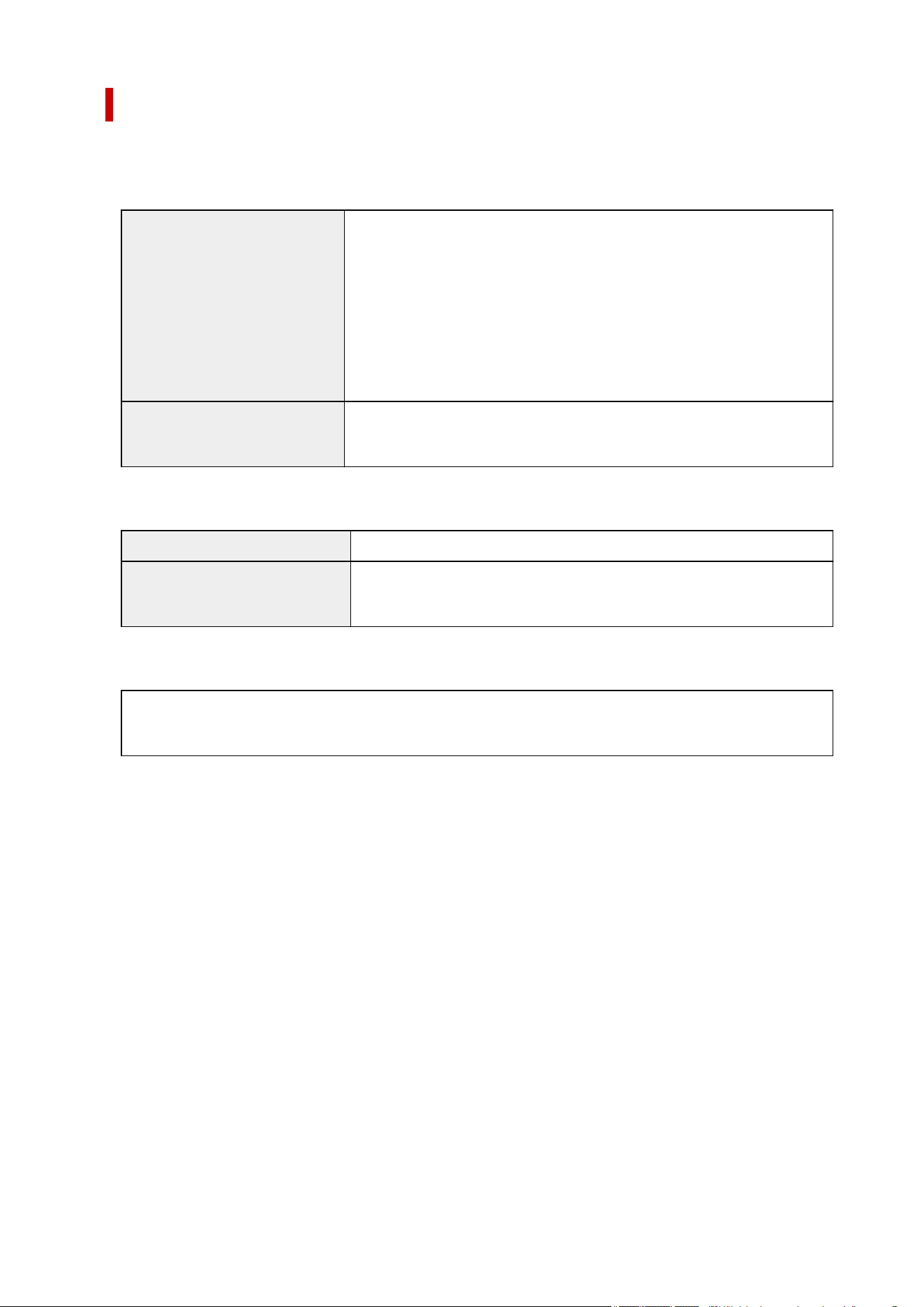
Operating Conditions
If operating conditions of the operating system are high, follow those.
Windows
Compatible Operating System Windows 11, Windows 10, Windows 8.1, Windows 7 SP1
Note: Operation can only be guaranteed on a PC with pre-installed operating
system.
.NET Framework is required.
Printer driver and IJ Printer Assistant Tool support the following OS:
Windows Server 2008 R2 SP1, Windows Server 2012 R2, Windows Server
2016, Windows Server 2019 and Windows Server 2022
Amount of hard disk space re-
quired for installing the driver
1.5 GB or more
The necessary amount of hard disk space may be changed without notice.
macOS
Compatible Operating System macOS Big Sur 11.7.10 - macOS Sonoma 14
Amount of hard disk space re-
quired for installing the driver
1.5 GB or more
The necessary amount of hard disk space may be changed without notice.
Other Supported OS
iOS, iPadOS, Android, Chrome OS
Some functions may not be available with the supported OS.
• An Internet connection is required to use the Online Manual.•
• To install the software while using Windows, you must have a CD-ROM drive or a network•
connection.
• To install the software while using macOS, you must have a network connection.•
639


Printing Area
To maintain print quality, the printer leaves a margin around the edges of paper. The printable area is inside
this margin.
Recommended printing area : Canon recommends that you print within this area.
Printable area : The area where it is possible to print.
Note
• By selecting Borderless Printing option, you can make prints with no margins.•
• When performing Borderless Printing, slight cropping may occur at the edges since the printed image is•
enlarged to fill the whole page.
• To specify the amount of image that extends off the paper, select Extension for borderless printing in•
Advanced paper settings.
Paper-related settings
• For Borderless Printing, use the following paper:•
Photo Paper Pro Platinum <PT-101>
Photo Paper Plus Glossy II <PP-201/PP-208/PP-301>
Photo Paper Pro Luster <LU-101>
Photo Paper Plus Semi-gloss <SG-201>
Matte Photo Paper <MP-101>*1
Photo Paper Pro Premium Matte <PM-101>*1
Premium Fine Art Smooth <FA-SM1>*1
Premium Fine Art Rough <FA-RG1>*1
Greeting Card
Card Stock
*1 Borderless Printing is disabled depending on print settings. To enable Borderless Printing, remove
margin restrictions.
Print Options dialog box (Windows)
Advanced Paper Settings (macOS)
Performing Borderless Printing on any other type of paper may substantially reduce printing quality
and/or result in printouts with altered color hues.
641

• Borderless Printing is not available for 9"x13"(23x33cm) size paper or plain paper.•
• Depending on the type of paper, Borderless Printing may reduce the print quality at the top and bottom•
edges of the paper or cause these parts to become smudged.
642
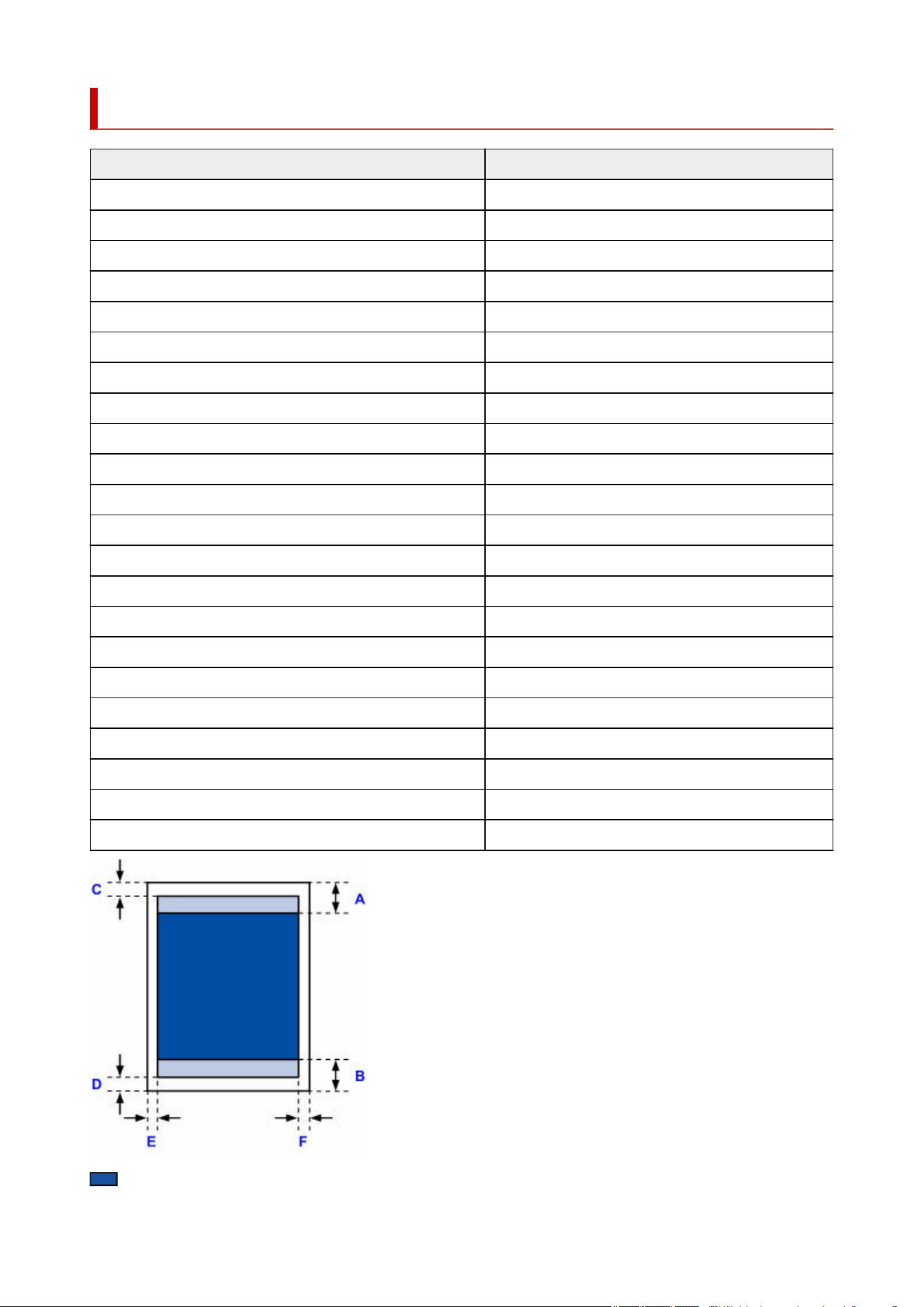
Standard Sizes
Size Printable Area (width x height)
Letter 8.00 x 10.69 in. (203.2 x 271.4 mm)
Legal 8.00 x 13.69 in. (203.2 x 347.6 mm)
11" x 17" (28 x 43 cm) 10.73 x 16.69 in. (272.6 x 423.8 mm)
A5 5.56 x 7.95 in. (141.2 x 202.0 mm)
A4 8.00 x 11.38 in. (203.2 x 289.0 mm)
A3 11.43 x 16.22 in. (290.2 x 412.0 mm)
A3+ 12.69 x 18.70 in. (322.2 x 475.0 mm)
B5 6.90 x 9.80 in. (175.2 x 249.0 mm)
B4 9.85 x 14.02 in. (250.2 x 356.0 mm)
KG/4"x6"(10x15) 3.73 x 5.69 in. (94.8 x 144.4 mm)
5" x 7" (13 x 18 cm) 4.73 x 6.69 in. (120.2 x 169.8 mm)
7" x 10" (18 x 25 cm) 6.73 x 9.69 in. (171.0 x 246.0 mm)
9"x13"(23x33cm) 8.73 x 12.69 in. (221.8 x 322.2 mm)
11"x14" 10.73 x 13.69 in. (272.6 x 347.6 mm)
13"x19" (Super B) 12.73 x 18.69 in. (323.4 x 474.6 mm)
8" x 10" (20 x 25 cm) 7.73 x 9.69 in. (196.4 x 246.0 mm)
10" x 12" (25 x 30 cm) 9.73 x 11.69 in. (247.2 x 296.8 mm)
8.27 x 23.39 in. (210 x 594 mm) 8.00 x 23.07 in. (203.2 x 586.0 mm)
Square 5" x 5" 13 x 13 cm 4.53 x 4.53 in. (115.0 x 115.0 mm)
12" x 12" (30 x 30 cm) 11.73 x 11.68 in. (298.0 x 296.8 mm)
Hagaki 3.67 x 5.51 in. (93.2 x 140.0 mm)
Hagaki 2 7.61 x 5.51 in. (193.2 x 140.0 mm)
Recommended printing area
643

A: 1.34 in. (34.0 mm)
B: 1.46 in. (37.0 mm)
Printable area
Letter, Legal
C: 0.12 in. (3.0 mm)
D: 0.20 in. (5.0 mm)
E: 0.25 in. (6.4 mm)
F: 0.25 in. (6.3 mm)
Square 5" x 5" 13 x 13 cm
C: 0.24 in. (6.0 mm)
D: 0.24 in. (6.0 mm)
E: 0.24 in. (6.0 mm)
F: 0.24 in. (6.0 mm)
Other than Letter, Legal or Square 5" x 5" 13 x 13 cm
C: 0.12 in. (3.0 mm)
D: 0.20 in. (5.0 mm)
E: 0.13 in. (3.4 mm)
F: 0.13 in. (3.4 mm)
644
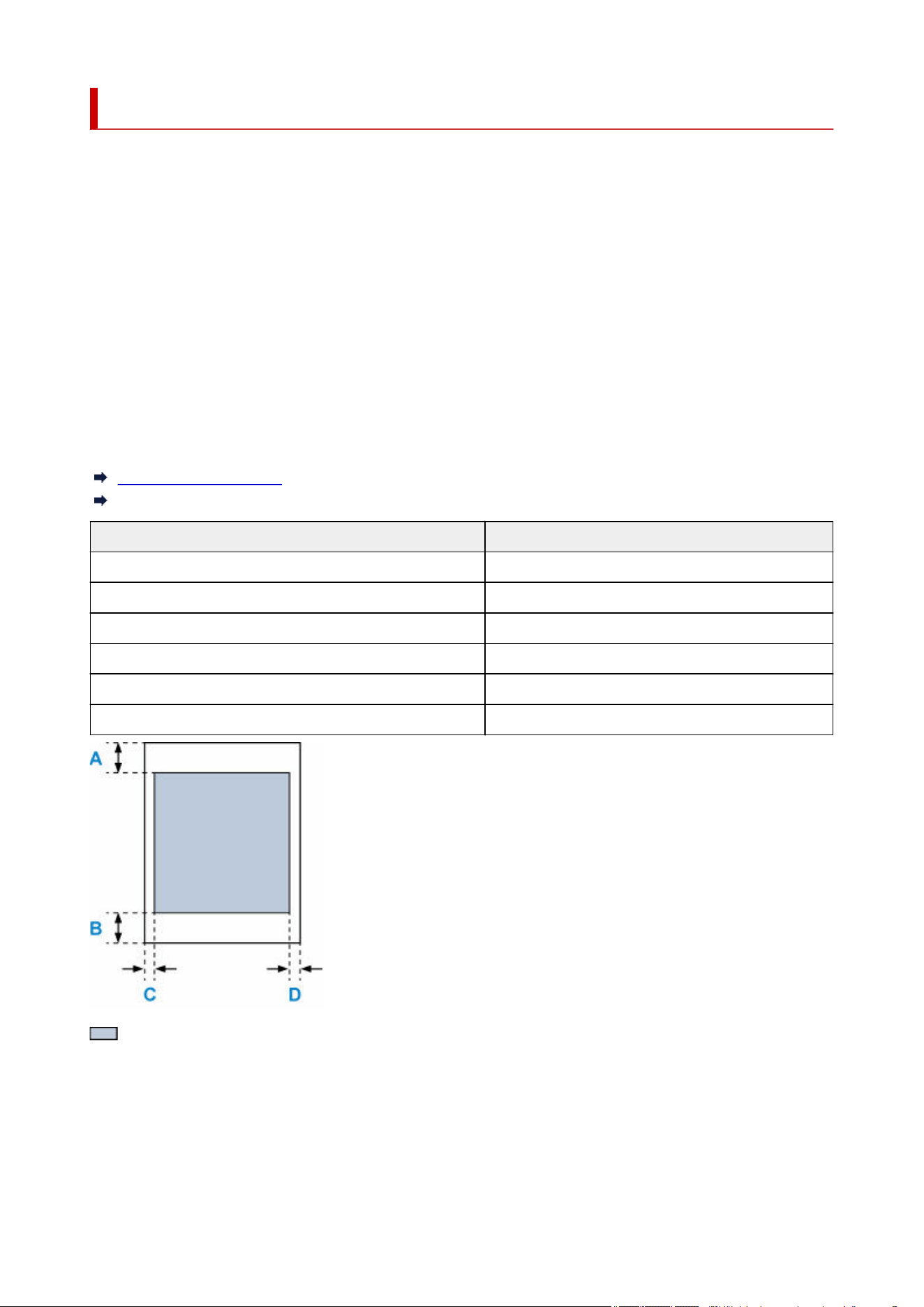
Sizes for 0.98 inch (25 mm) Margin Paper
When art paper with 0.98 in. (25 mm) margins is selected, the printer is restricted from printing in the top and
bottom 0.98 in. (25 mm) of the paper. We therefore recommend checking the printing area in the preview
screen before printing.
If the print head is rubbing against the top and bottom edges of the paper, causing smudging, you can avoid
this by using 0.98 in. (25 mm) margin paper.
When you are using the following paper, the printer prints to paper sizes with 0.98 in. (25 mm) margins
depending on print settings. To print to other page sizes, remove restrictions on margins.
• Matte Photo Paper <MP-101>•
• Photo Paper Pro Premium Matte <PM-101>•
• Premium Fine Art Smooth <FA-SM1>•
• Premium Fine Art Rough <FA-RG1>•
Print Options dialog box (Windows)
Advanced Paper Settings (macOS)
Size Printable Area (width x height)
Letter (0.98 in. (25 mm) margin) 8.00 x 9.03 in. (203.2 x 229.4 mm)
11" x 17" (28 x 43 cm) (0.98 in. (25 mm) margin) 10.73 x 15.03 in. (272.6 x 381.8 mm)
A4 (0.98 in. (25 mm) margin) 8.00 x 9.72 in. (203.2 x 247.0 mm)
A3 (0.98 in. (25 mm) margin) 11.43 x 14.57 in. (290.2 x 370.0 mm)
A3+ (0.98 in. (25 mm) margin) 12.69 x 17.05 in. (322.2 x 433.0 mm)
8.27 x 23.39 in. (210 x 594 mm) (0.98 in. (25 mm) margin) 8.00 x 21.42 in. (203.2 x 544.0 mm)
Printable area
Letter
A: 0.98 in. (25.0 mm)
B: 0.98 in. (25.0 mm)
C: 0.25 in. (6.4 mm)
D: 0.25 in. (6.3 mm)
645

Other than Letter
A: 0.98 in. (25.0 mm)
B: 0.98 in. (25.0 mm)
C: 0.13 in. (3.4 mm)
D: 0.13 in. (3.4 mm)
646
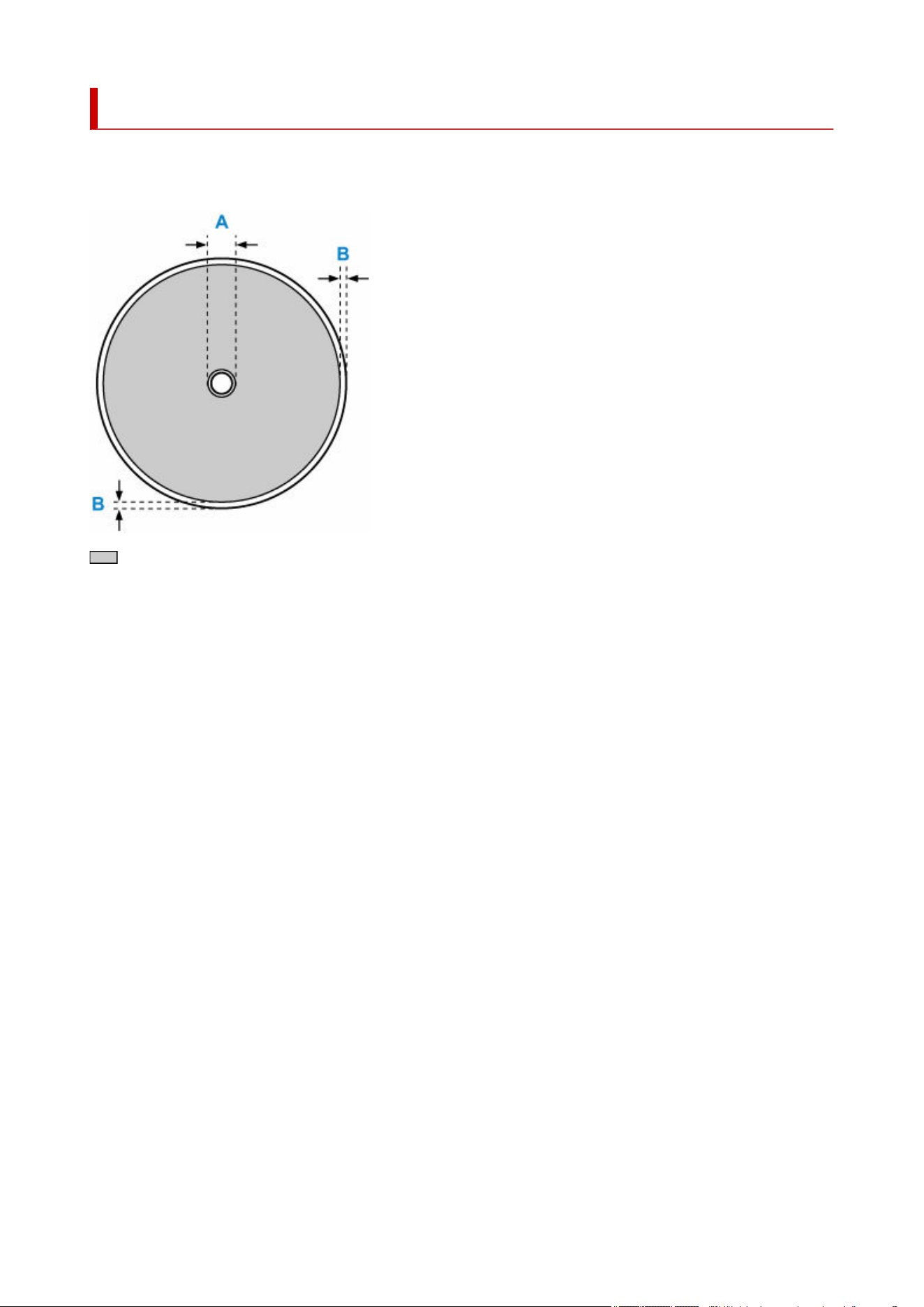
Printable Discs
The printing area of the printable disc is from 0.67 in. (17 mm) of the internal diameter to 0.04 in. (1 mm)
from the external diameter of the printing surface.
Printable area
A: 0.67 in. (17.0 mm)
B: 0.04 in. (1.0 mm)
647


Online Manual
Models used in illustrations and videos in this manual, may differ from your model.
Screenshots in This Manual
For Windows:
The screenshots used in this manual are taken with Windows 10.
For macOS:
The screenshots used in this manual are taken with macOS Ventura 13.
649


