Application for iPhone/iPod touch/iPad
E3 Controller
User’s Guide
Disklavier E3
Disklavier Control Unit DKC-850
English
Introduction
Thank you for downloading!
This application is designed to enable remote control of a
Disklavier E3 or DKC-850.
Compatible devices
iPad 2 / iPad / iPhone 4S / iPhone 4 / iPhone 3GS
iPhone 3G / iPod touch (4th generation, 3rd generation, 2nd
generation)
* iOS 4.2 or later is required.
Requirements
•DisklavierE3Version3.20orlater,orDKC-850Version3.20
or later
•Wirelessrouter
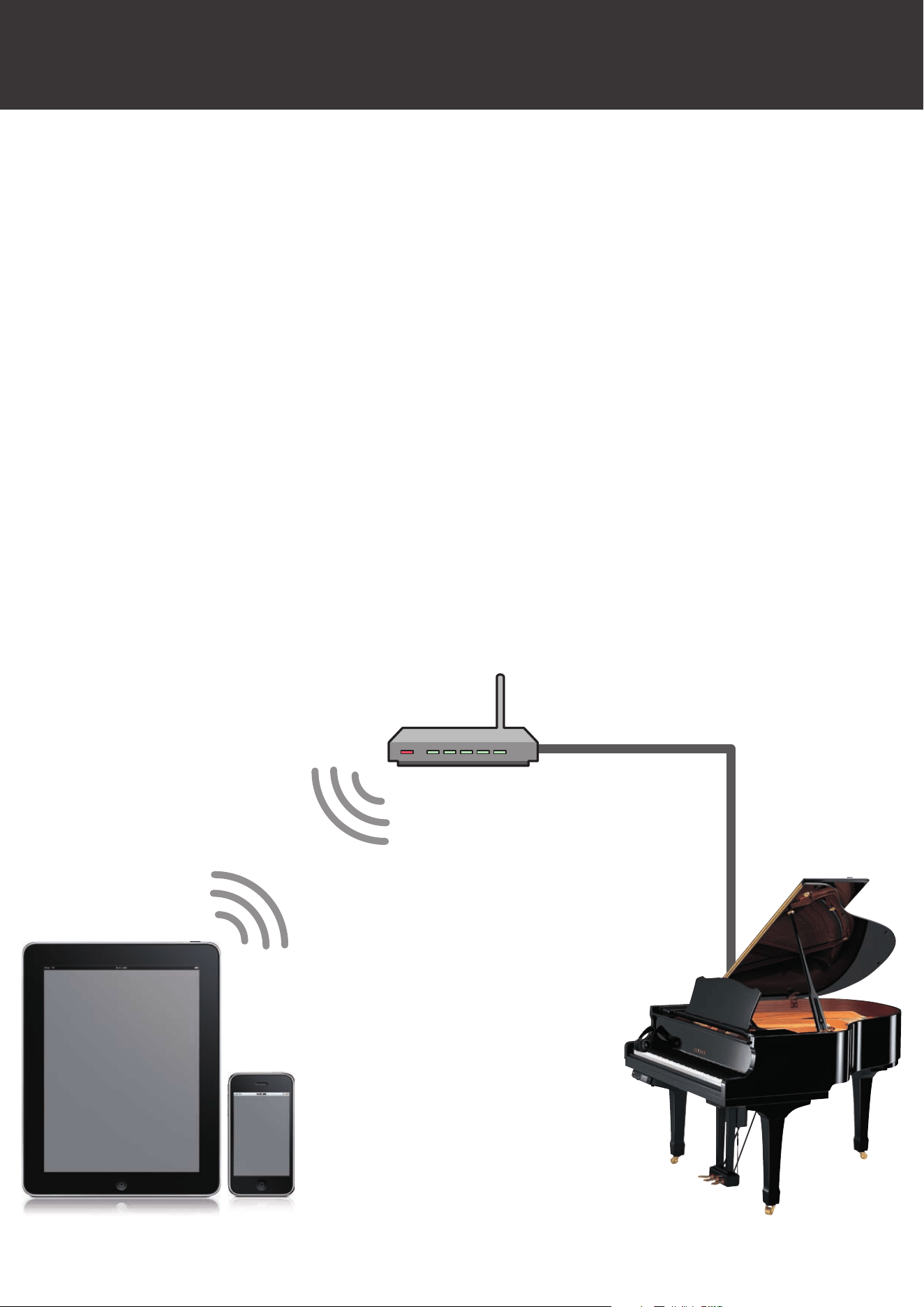
iPhone/iPod touch/iPad
Wireless LAN
Wireless router
LAN cable
Disklavier

Button Contrast
BasicView
..............................................................................
3
Scroll Area
.............................................................................
6
Pop-UpView
........................................................................
10
Other Features
LandscapeView
..................................................................
13
OptionView
..........................................................................
14
Piano Search
.......................................................................
15
PasscodeView
....................................................................
17
HelpView
.............................................................................
18
Troubleshooting
..............................................................
20
Usage note
•ConnectDisklaviertothewirelessrouterbyLANcableand
choosethatsame networkintheWi-Fisetting ofiPhone/
iPod touch/iPad.
•Ifthewireless routerhasseverallocal networks,conrm
that the Disklavier and the iOS device are connected to the
sameLAN.
For more detail, refer to the manual that came with your
wireless router.
Introduction
Table of Contents
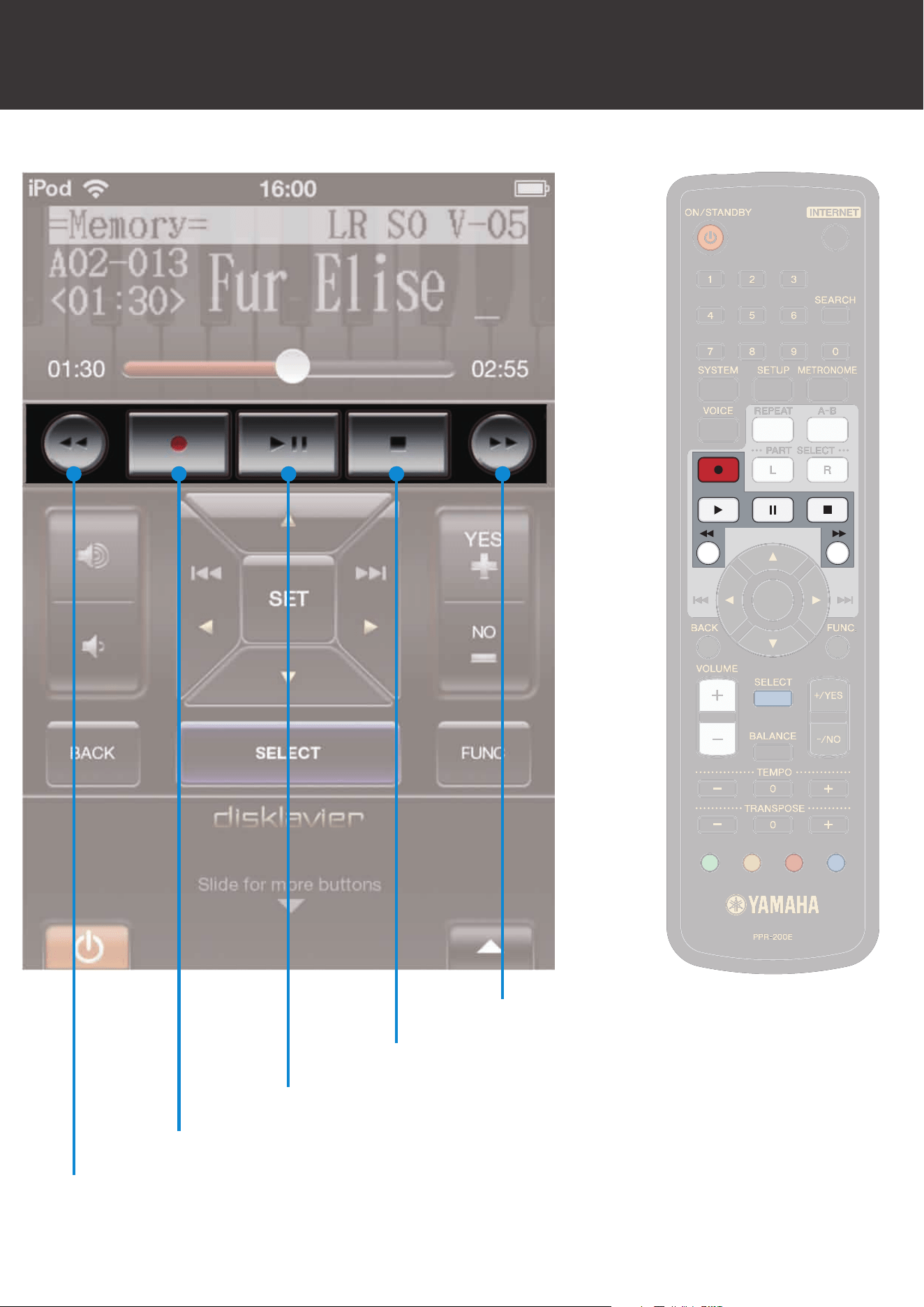
[REVERSE]button
[RECORD]button
[PLAY/PAUSE]button
[STOP]button
[FORWARD]button
BasicView
Button Contrast
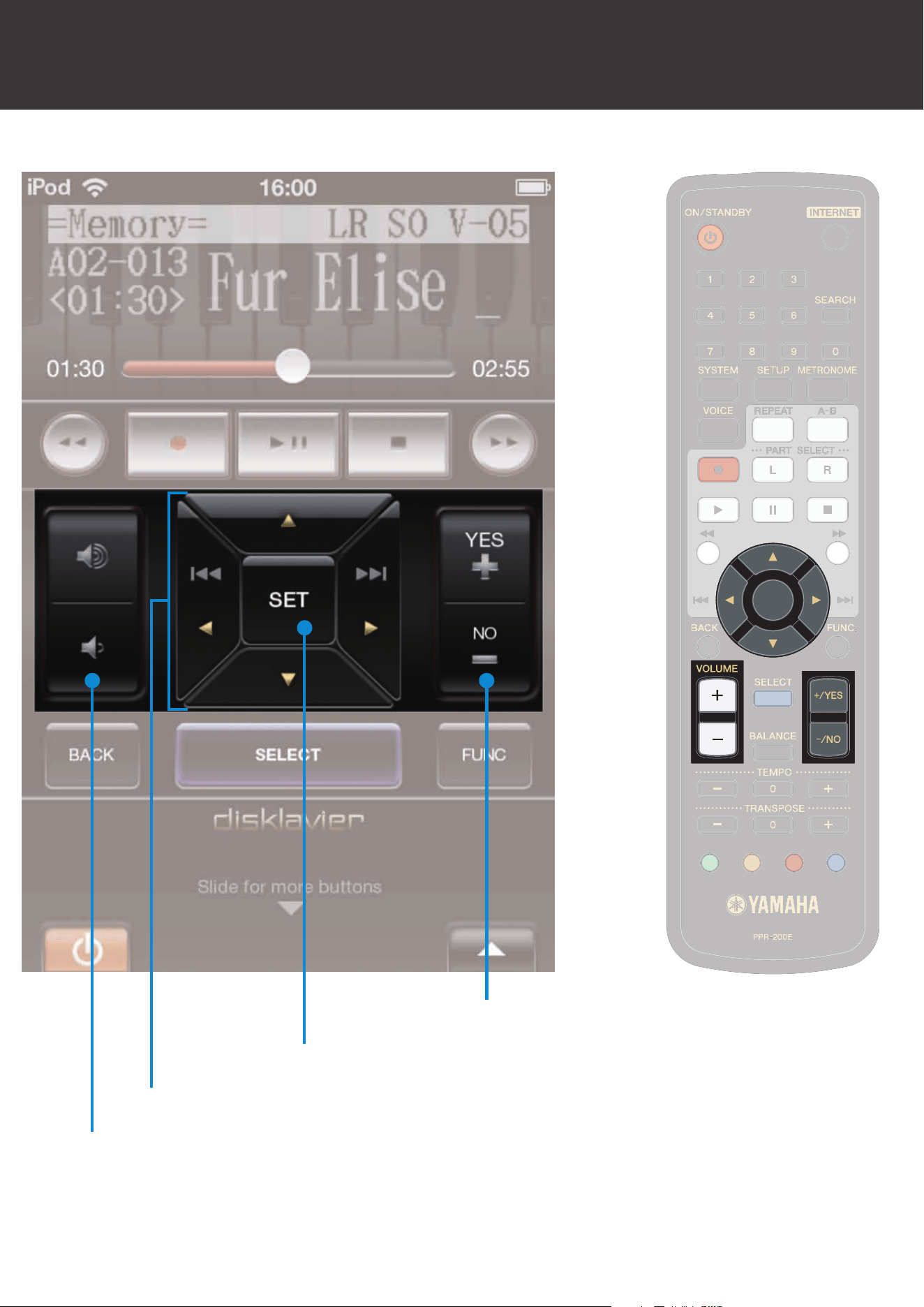
[VOLUME]buttons
Cursor buttons
[SET]button
[+/YES]/[-/NO]buttons
BasicView
Button Contrast
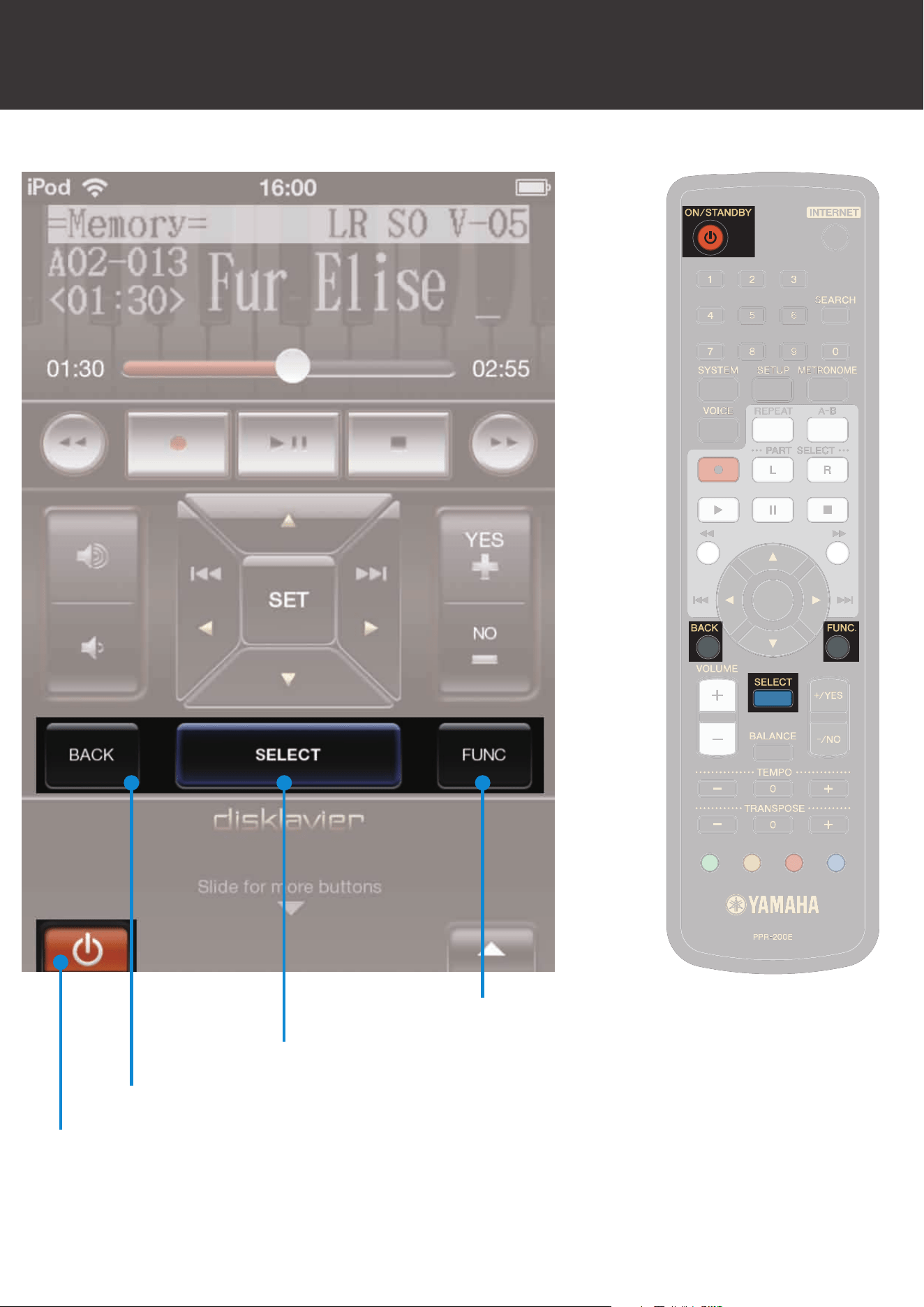
[BACK]button
[SELECT]button
[FUNC]button
[ON/STANDBY]button
BasicView
Button Contrast
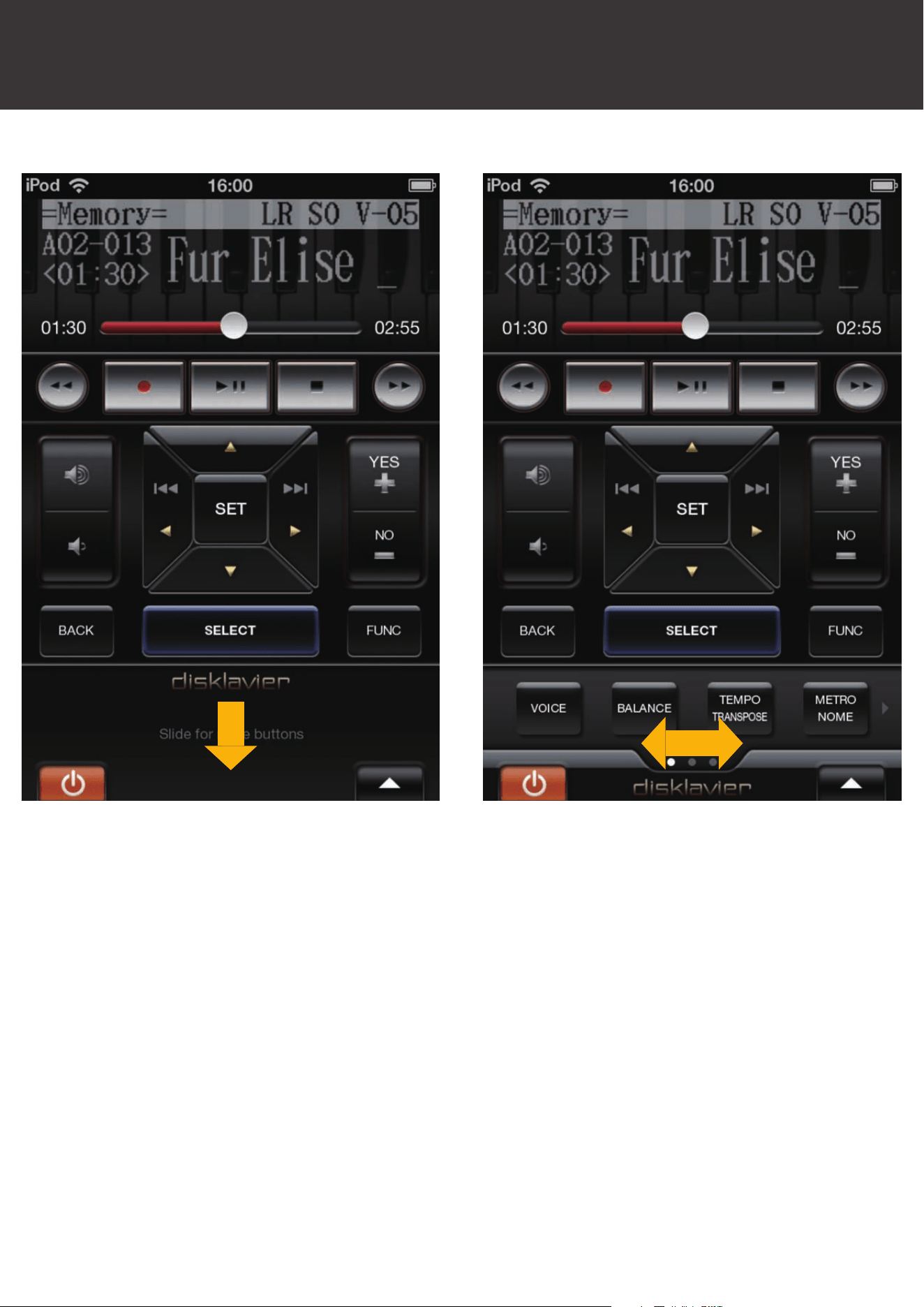
There is a pull-down area in the basic view which reveals
additional buttons as described next.
Scroll Area
Button Contrast
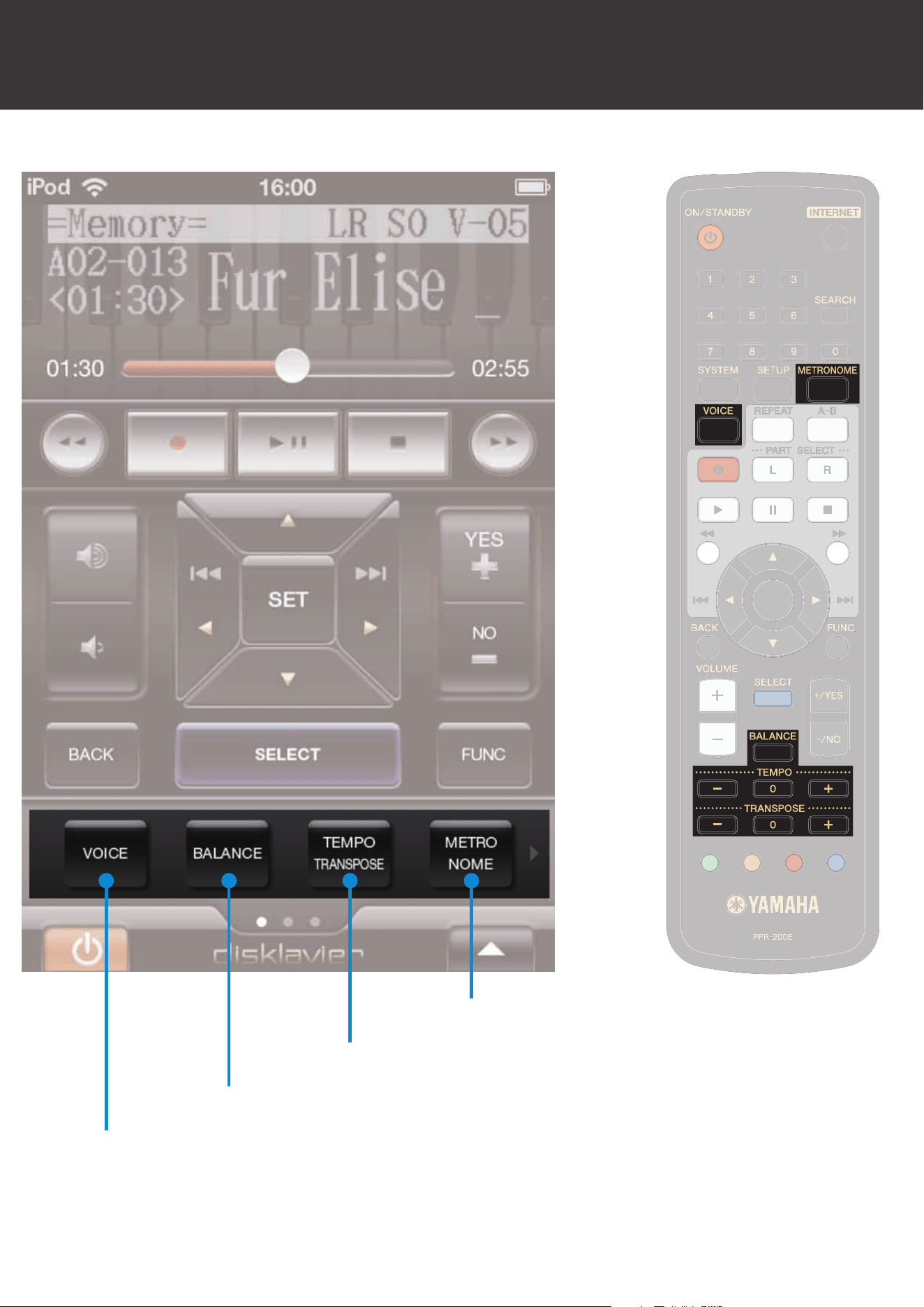
Scroll Area
[VOICE]button
The [BALANCE] and [TEMPO TRANSPOSE] buttons are
described in the next section.
[BALANCE]button
[TEMPOTRANSPOSE]button
[METRONOME]button
Button Contrast
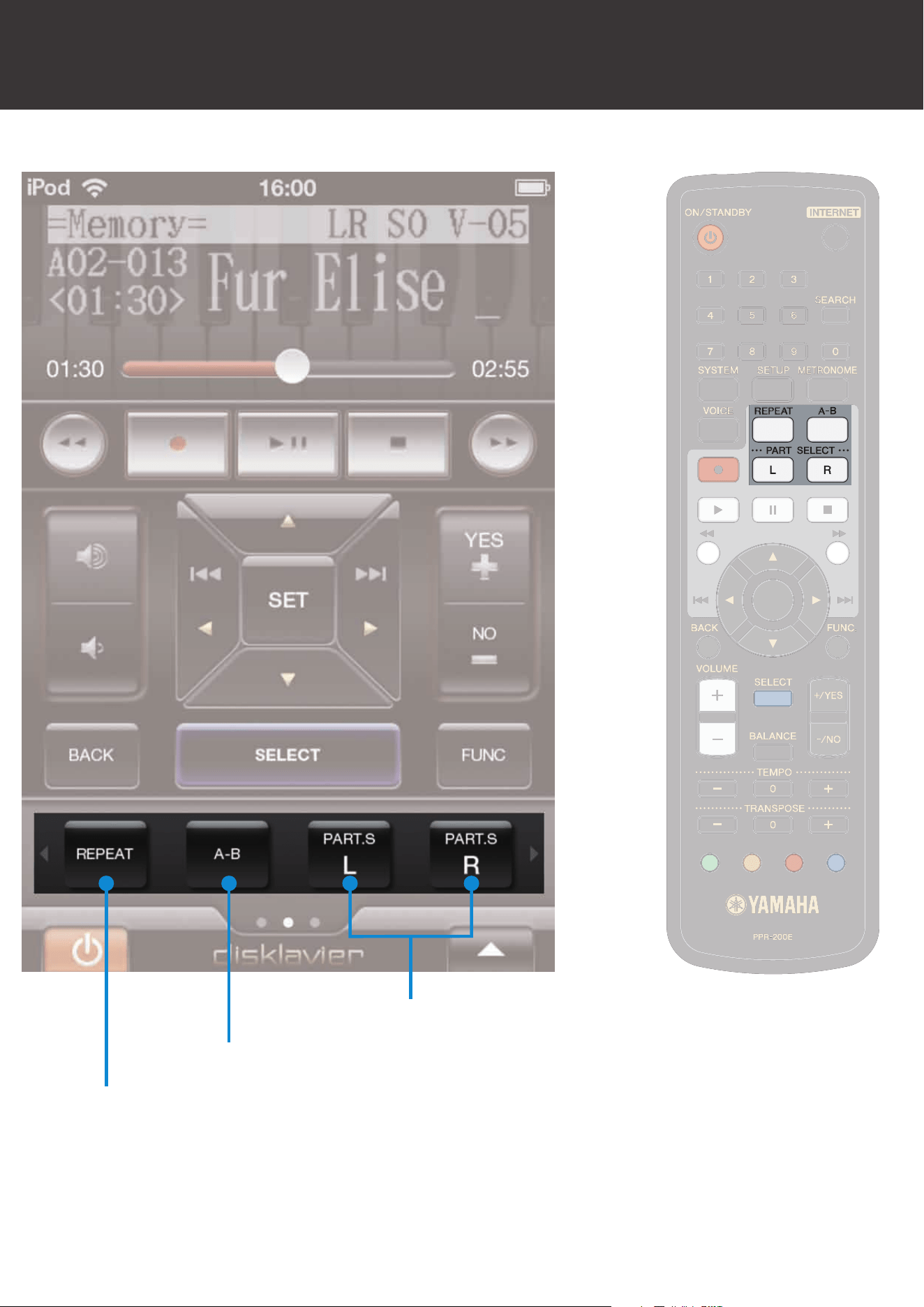
Scroll Area
[REPEAT]button
[A-B]button
[PARTSELECT]buttons
Button Contrast
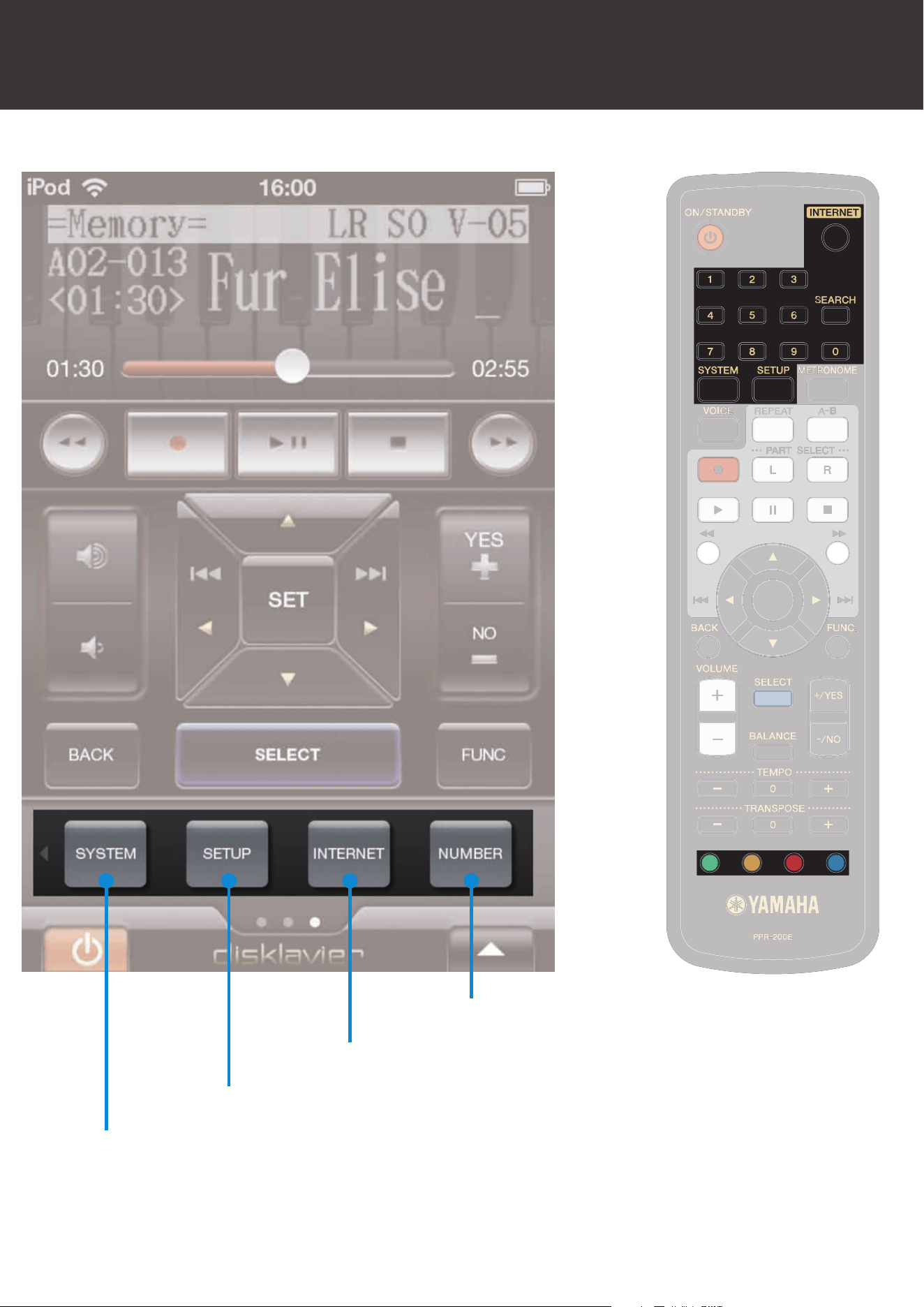
Scroll Area
[SYSTEM]button
The[NUMBER]buttonisdescribedinthenextsection.
[SETUP]button
[INTERNET]button
[NUMBER]button
Button Contrast

Pop-UpView
[CLOSE]
button
Ifyoutouchthe[BALANCE]button,thisviewwillpopup.
[VOICE]slider
[AUDIO]slider
[TG]slider
[-]button [+]button
[RESET]
button
Button Contrast
Pop-UpView
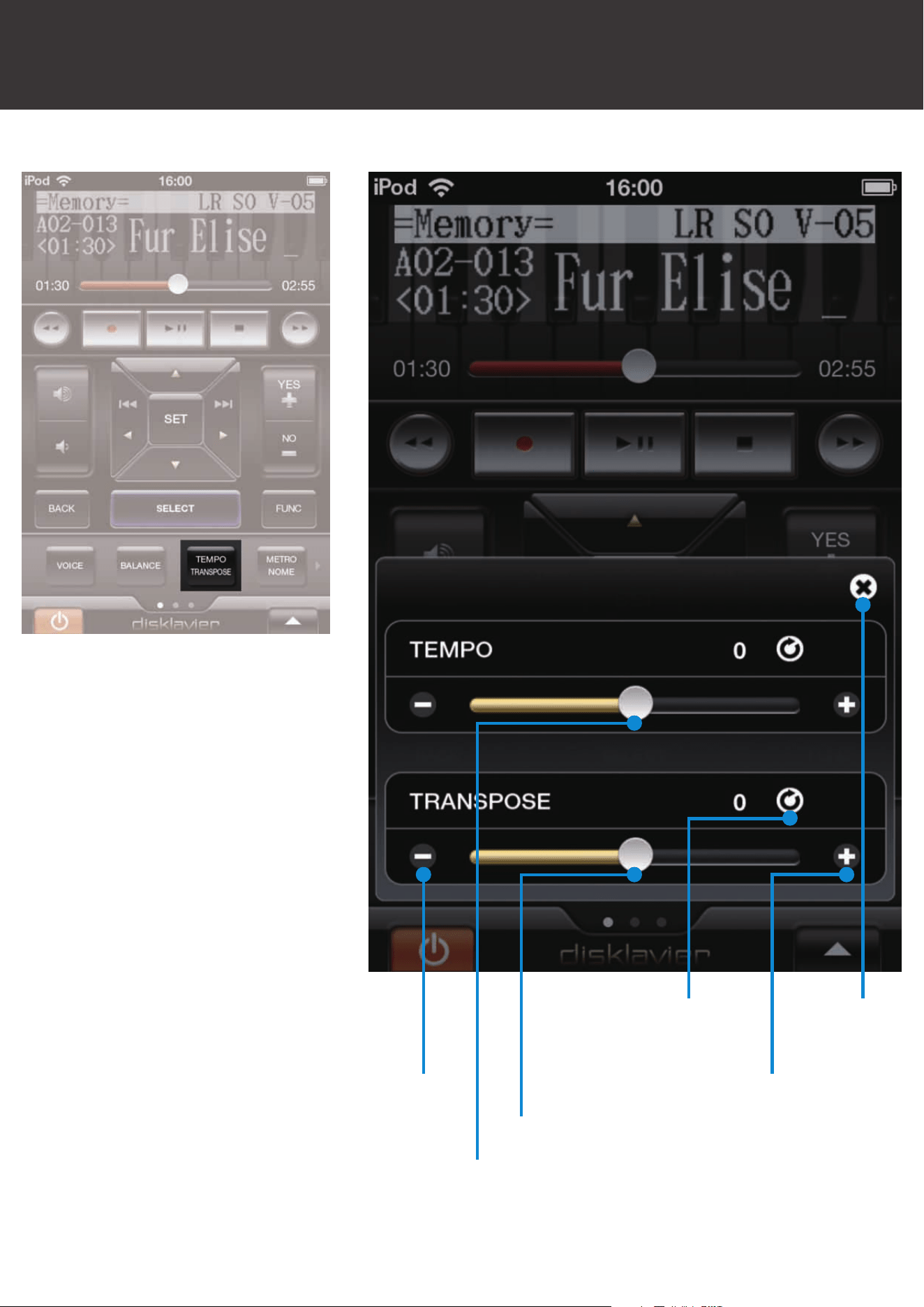
Ifyoutouchthe[TEMPOTRANSPOSE]button,thisviewwill
pop up.
Button Contrast
[TRANSPOSE]slider
[TEMPO]slider
[RESET]
button
[CLOSE]
button
[-]button [+]button
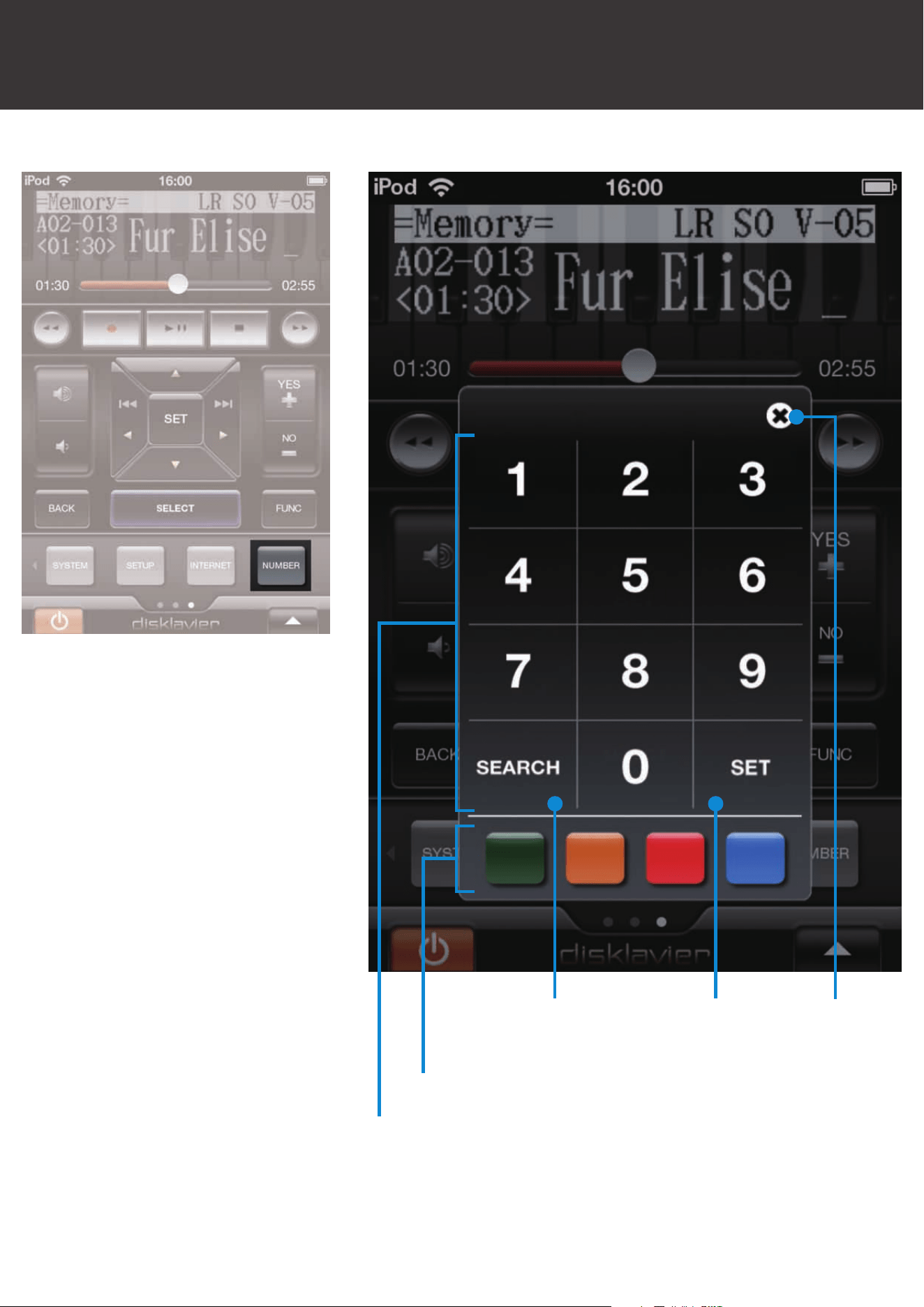
Pop-UpView
Ifyoutouchthe[NUMBER]button,thisviewwillpopup.
[SEARCH]
button
[SET]
button
Colored buttons
Numerickeypad
Button Contrast
[CLOSE]
button
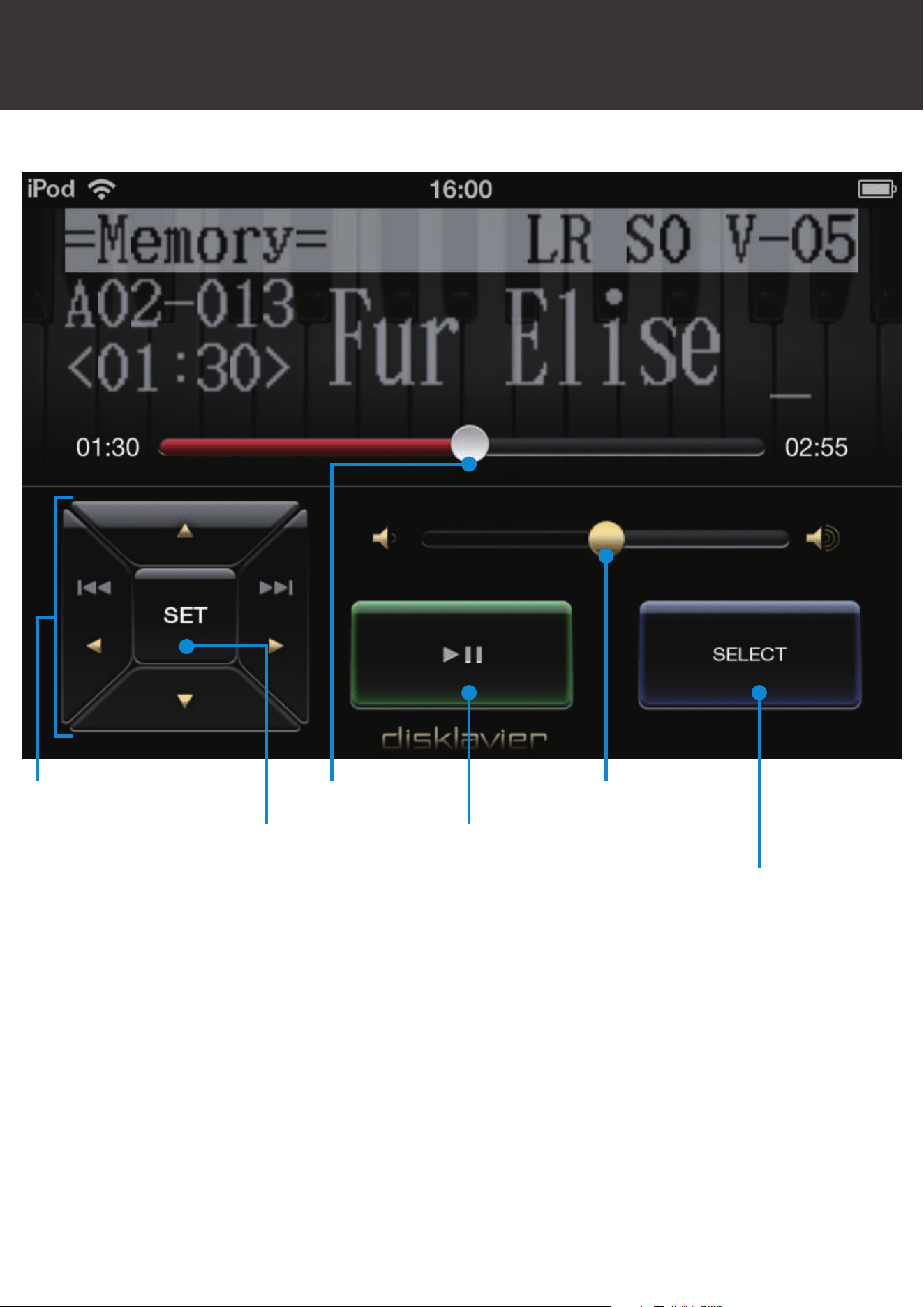
LandscapeView
Seek slider
Ifyourotatethedevicesideways,thisviewwillappear.
[SET]button [PLAY/PAUSE]button
[SELECT]button
Cursor buttons Volumeslider
Other Features
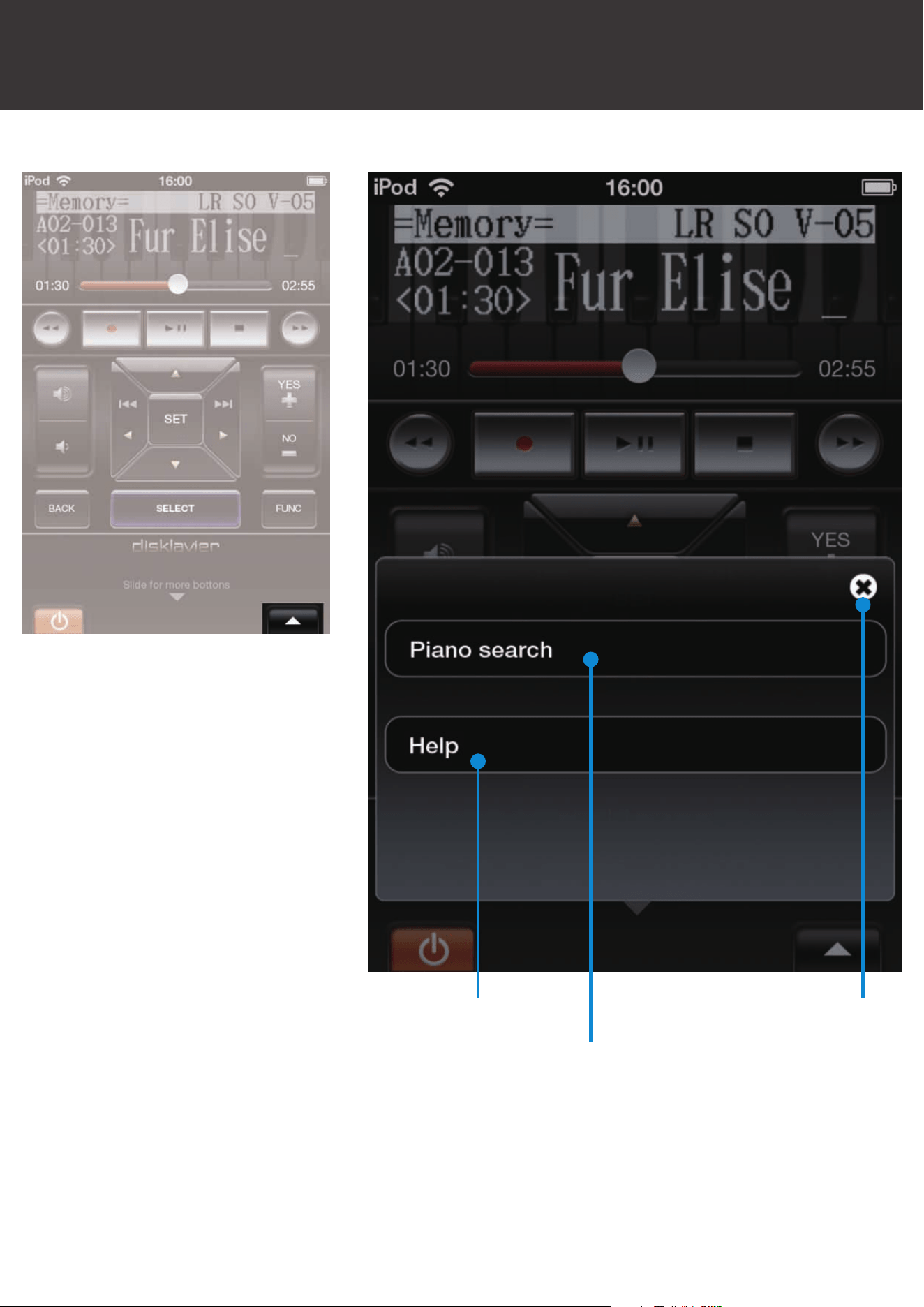
Ifyoutouchthe[OPTION]button(atthelower-rightcornerof
the basic view), this view will pop up.
See the following sections for information on these buttons.
[HELP]button
[PIANOSEARCH]button
OptionView
Other Features
[CLOSE]button
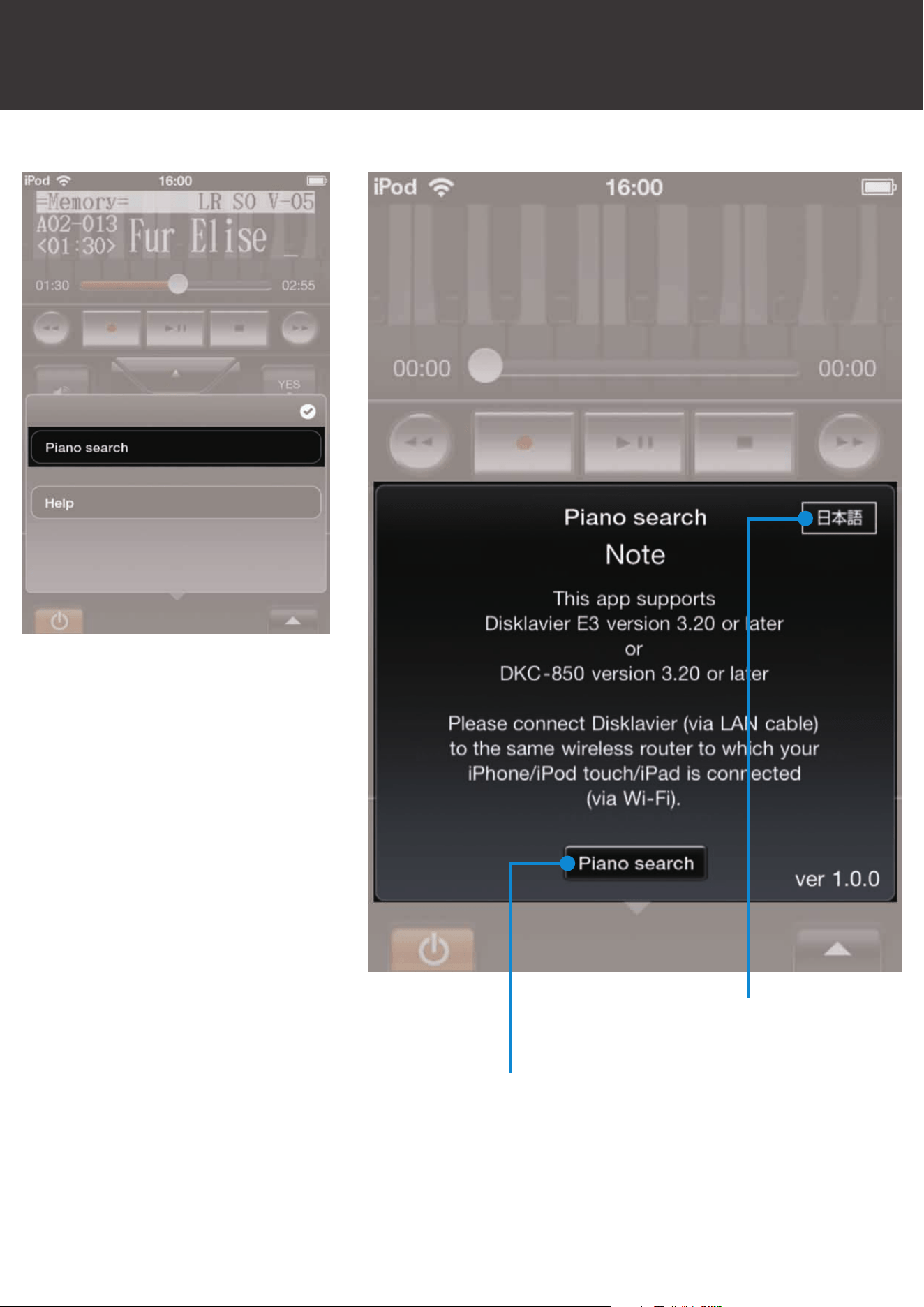
Ifyoutouchthe[PIANOSEARCH]buttoninoptionview,or
when it is not connected to a piano, this view will pop up.
When the language select button is touched, the display
alternates between English and Japanese.
[PIANOSEARCH]button
Language select button
(English, Japanese)
Piano Search
Other Features
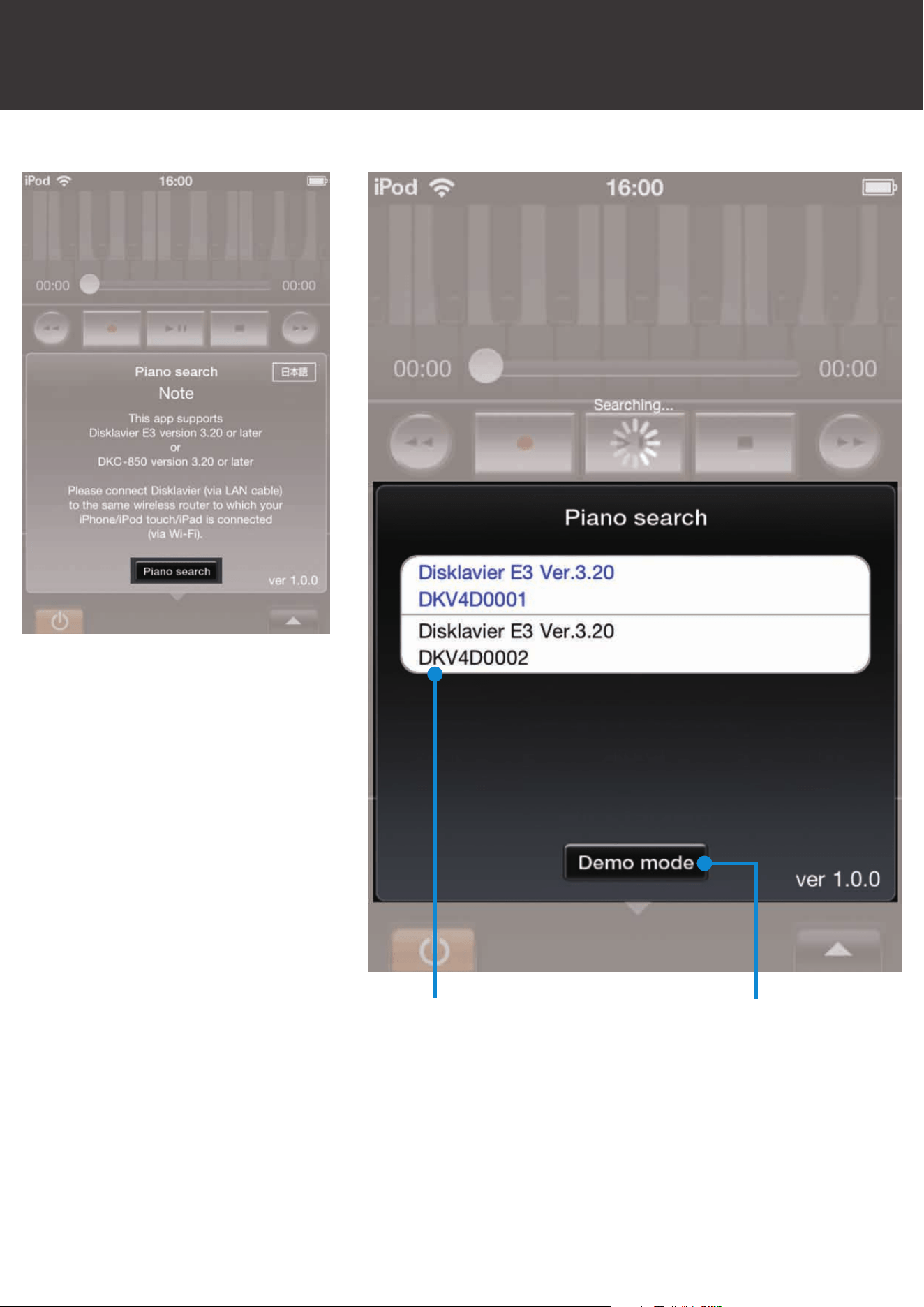
Ifyoutouchthe[PIANOSEARCH]button,thepianosearch
function will start and all found pianos will be listed.
Tap on the piano to which you would like to connect.
Ifyoutouchthe[DEMOMODE]button,itwillswitchtothedemo
mode.Whileindemomode,youcanchecktheoperations
without being connected to a piano.
Piano Search
Other Features
[DEMOMODE]buttonPiano list
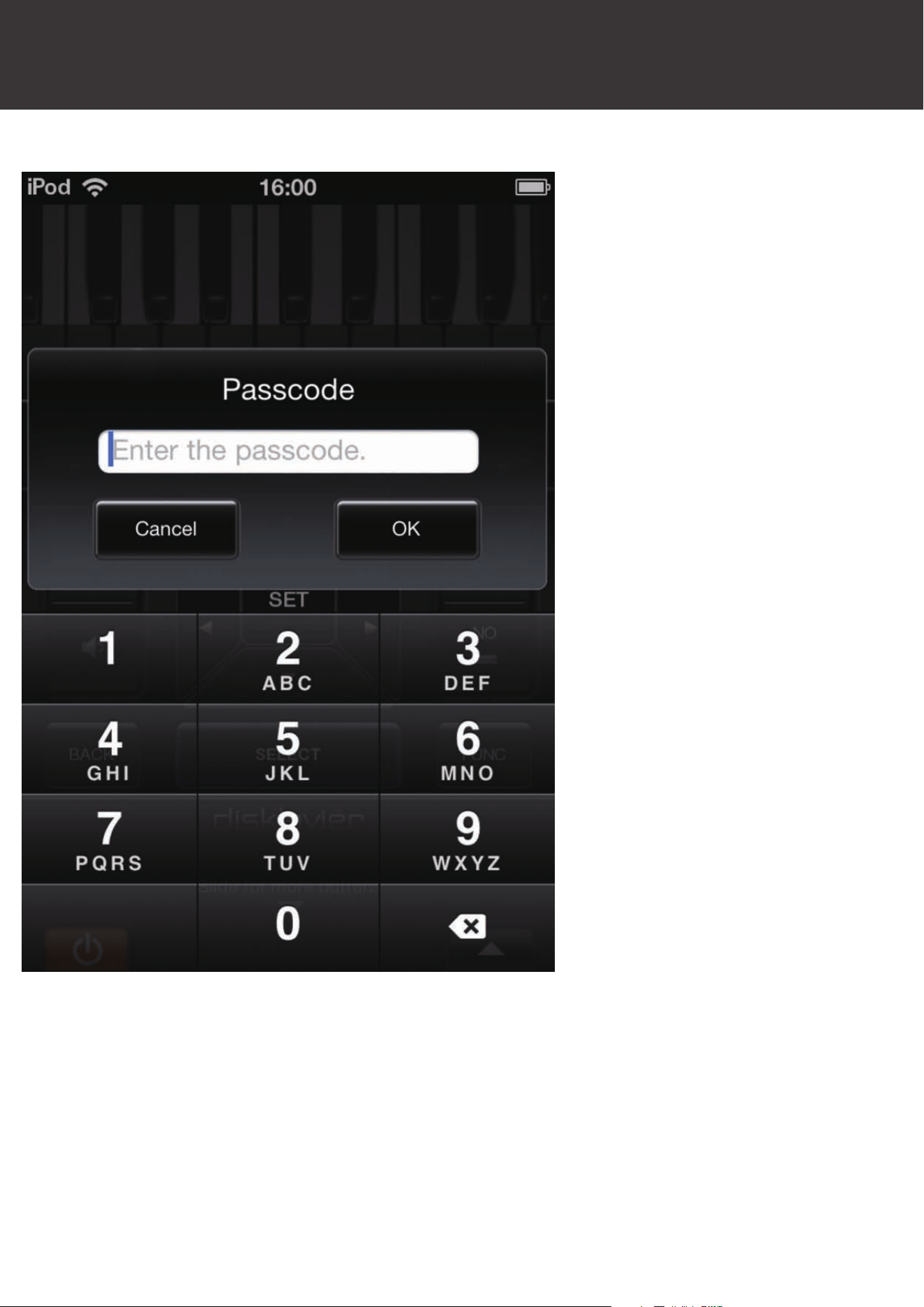
Whenauthenticationisneeded,thisviewwillpopup.
Enter the passcode you set on the Disklavier.
PasscodeView
Other Features
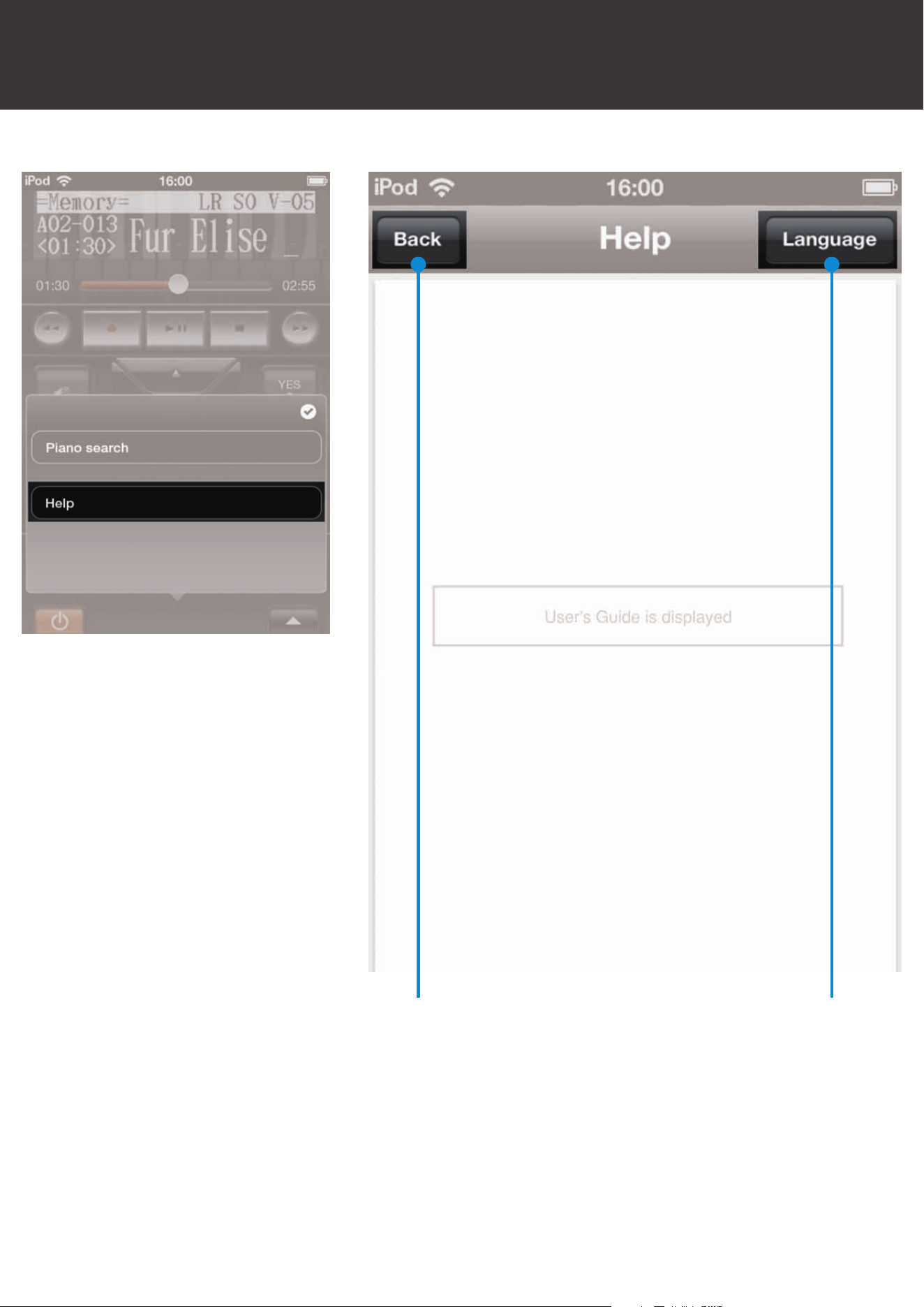
Ifyoutouchthe[HELP]buttoninoptionview,thisviewwill
pop up.
[LANGUAGE]
button
[BACK]
button
HelpView
Other Features
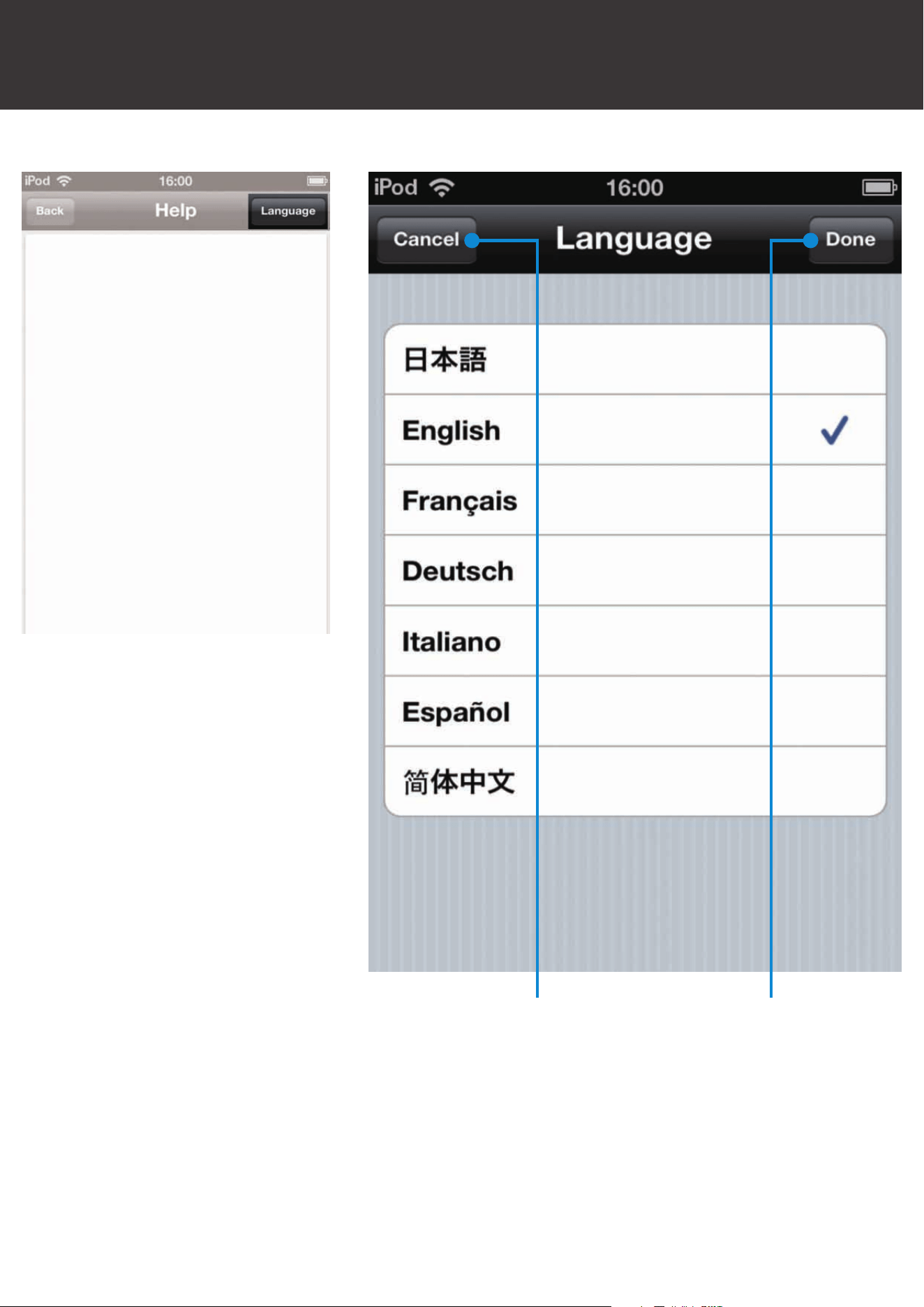
Ifyoutouchthe[LANGUAGE]button,thisviewwillpopup.
IfyouwouldliketochangethelanguageoftheUser’sGuide,
choosethelanguage,thentouchthe[DONE]button.
HelpView
Other Features
[DONE]button[CANCEL]button

Applicationcannotndthepiano.
•MakesureyouriPhone/iPodtouch/iPadisconnectedtothe
samenetworktowhichyourDisklavierisconnectedbyLAN
cable.
•Restartthisapplication.
•Ifyouhaveneverfoundthepiano,conrmtheversionof
rmwareofyourDisklavier.
Version3.20orlaterisrequired.
•Ifthewireless routerhasseverallocal networks, conrm
that the Disklavier and the iOS device are connected to the
sameLAN.
For more detail, refer to the manual that came with your
wireless router.
You forgot the passcode.
•Refer to the manual of your Disklavier and check the
passcode.
Troubleshooting
Trademarks and Copyrights
• Yamaha and Disklavier are trademarks of Yamaha Corporation.
• Apple, iPhone and iPod touch are trademarks of Apple Inc., registered in the
U.S. and other countries. iPad is a trademark of Apple Inc.

Copyright © 2012 by Yamaha Corporation
P.O.Box 1, Hamamatsu, 430-8650 Japan
Mar-12