User’s Guide
BUBBLE JET PRINTER
V1

2
Table of Contents
Introduction .....................................................................................................5
How to Use This Manual .................................................................................6
Safety Precautions .........................................................................................8
Printer Parts and Their Functions .................................................................14
Front View ................................................................................................... 15
Rear View ....................................................................................................16
Inside the Printer .........................................................................................17
Operation Panel ..........................................................................................18
Printer Driver Functions (Windows) ..............................................................19
Opening the Printer Properties Dialog Box .................................................20
Printer Properties Dialog Box Description ................................................... 22
BJ Status Monitor Functions .......................................................................36
Cancelling a Print Job .................................................................................39
Uninstalling Printer Drivers .......................................................................... 40
Printer Driver Functions (Macintosh) ............................................................41
Description of Print Settings ........................................................................ 42
BJ Print Monitor ........................................................................................... 59
Cancelling a Print Job .................................................................................61
Table of Contents

3
Table of Contents
Using the Printer with a Network ................................................................. 62
Uninstalling Printer Drivers .......................................................................... 66
Routine Maintenance ....................................................................................67
When to Replace Ink Tank and Maintain Print Head ..................................68
Replacing an Ink Tank ................................................................................. 69
Printing the Nozzle Check Pattern ..............................................................74
Print Head Cleaning ....................................................................................78
Print Head Deep Cleaning ........................................................................... 81
Cleaning the Printer ..................................................................................... 83
Transporting the Printer ............................................................................... 85
Printing Media ...............................................................................................89
Compatible Media Types ............................................................................. 90
Envelopes .................................................................................................... 92
High Resolution Paper HR-101N ................................................................96
Glossy Photo Paper GP-301/GP-301N ....................................................... 98
High Gloss Photo Film HG-201 ................................................................. 100
Glossy Photo Cards FM-101 ..................................................................... 102
Photo Paper Pro PR-101 ........................................................................... 104
Photo Paper Pro PC-101S ........................................................................107
Transparencies CF-102 ............................................................................. 109
T-Shirt Transfers TR-201 ........................................................................... 111
Banner Paper ............................................................................................113
Troubleshooting ..........................................................................................116
Cannot Install the Printer Driver ................................................................ 117
Print Quality is Poor or Contains Errors ..................................................... 119

4
Table of Contents
Printer Does Not Start or Stops During Print Jobs .................................... 136
Paper Does Not Feed Properly or Paper Jams ......................................... 142
The POWER Lamp Flashes Orange ......................................................... 145
An Error Message is Displayed on the Screen .......................................... 148
Problems Unique to Windows ................................................................... 157
Problems Unique to the Macintosh ...........................................................160
Specifications .............................................................................................163
Index ...........................................................................................................175

5
Introduction
Introduction
Thank you for purchasing the Canon S9000 Bubble Jet Printer. This User’s Guide provides
complete explanations of the features and functions of the printer.
This guide uses the following symbols to indicate important information. Always observe
these instructions.
Warning
➤
Instructions that, if ignored, could result in death or serious personal injury
caused by incorrect operation of the equipment.
Must be observed for safe operation.
Caution
➤
Instructions that, if ignored, could result in personal injury or material
damage caused by incorrect operation of the equipment.
Must be observed for safe operation.
Important
➤ Prohibited actions that, inadvertently performed, could result in equipment
damage, faults or impaired product quality.
Must be avoided for correct operation.
Information for Windows users only.
Information for Macintosh users only.
Windows
Macintosh
6
How to Use This Manual
How to Use This Manual
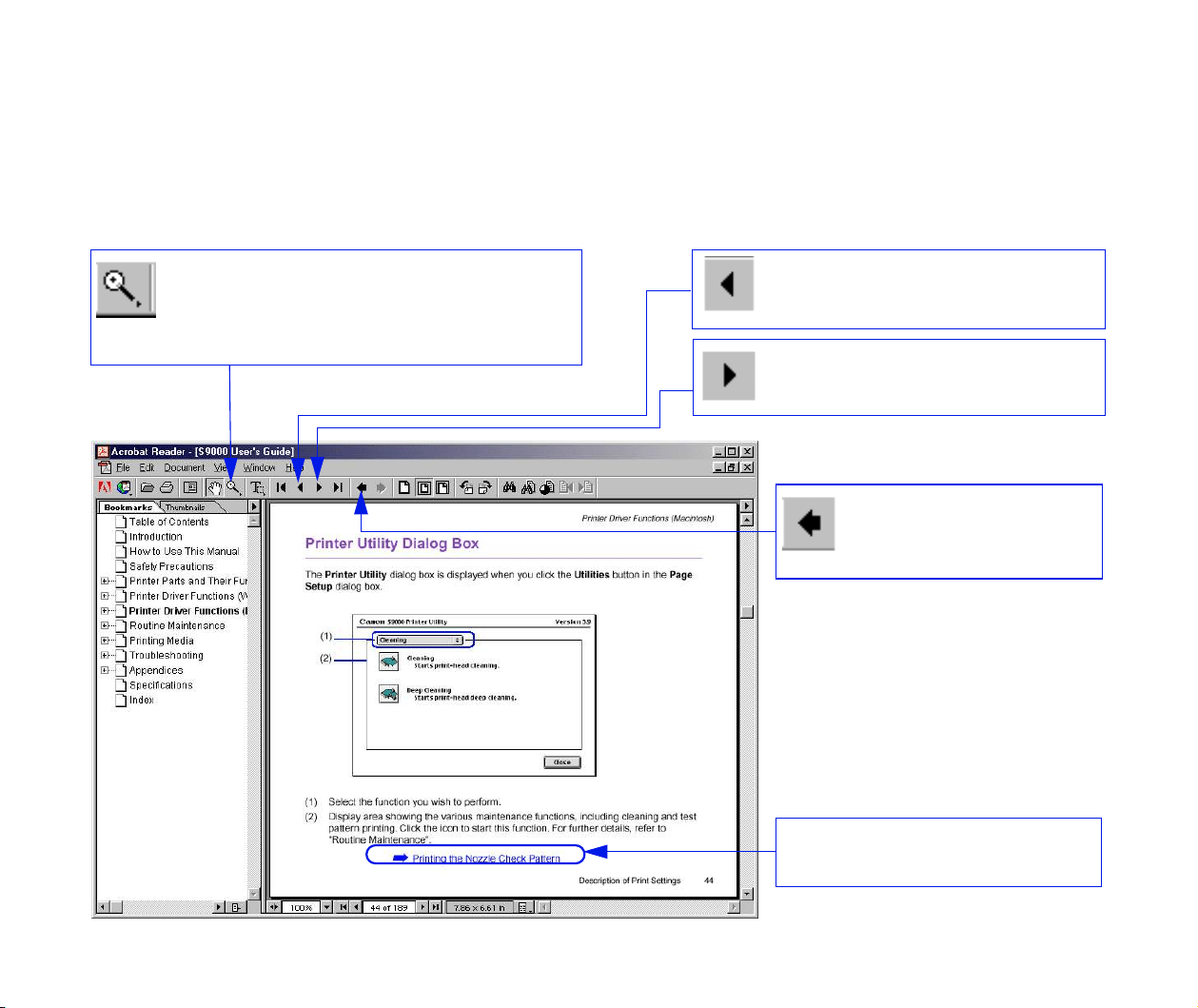
To view this User’s Guide, we recommend that you use Acrobat Reader 3.0 or later. The
screens shown below are for Acrobat Reader 4.0. Please note that screens displayed by
Acrobat Reader 3.0 or 5.0 are slightly different.
Use this button to enlarge the
viewing screen. Select this button in
the tool bar and click within the
screen.
Displays the next page.
Returns to the page
you were previously
viewing.
Click to jump straight to this
page.
Displays the previous page.
7
How to Use This Manual
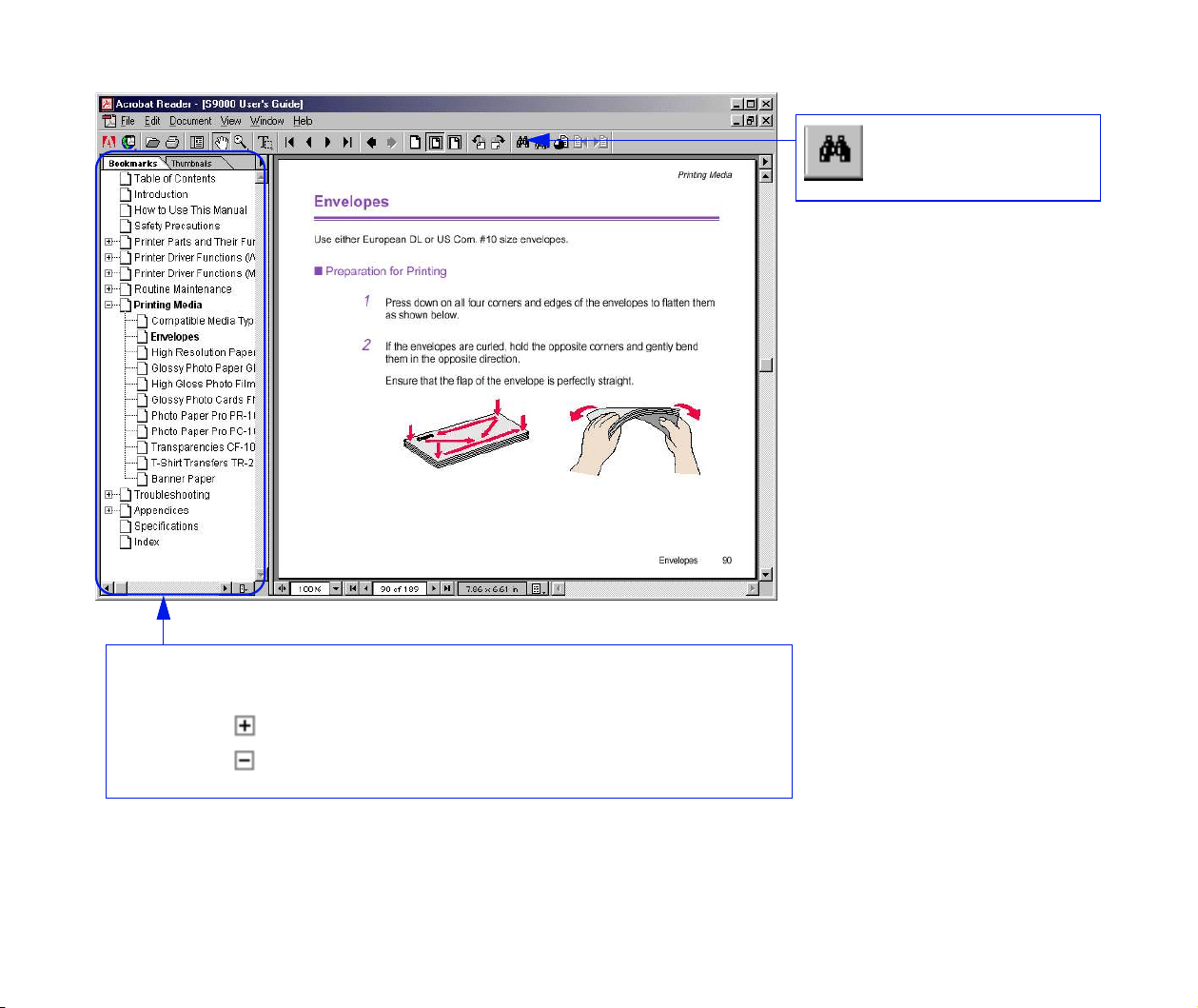
Displays the table of contents.
Click the heading to jump to the topic.
Click the " " symbol to see the headings for each chapter.
Click the " " symbol to close the headings.
Use this button to
search for a word.

8
Safety Precautions
Safety Precautions
Please read the safety warnings and cautions provided in this manual to ensure that you
use the printer safely. Do not attempt to use the printer in any way not described in this
manual.
Warning
➤
You may cause an electric shock/fire or damage the printer if you ignore
any of these safety precautions.
■ Choosing a location
Do not place the printer close to flammable solvents such as alcohol or thinners.
■ Power supply
Never attempt to plug in or unplug the printer from the power supply when your hands
are wet.
Always push the plug all the way into the power outlet.
Never damage, modify, stretch or excessively bend or twist the
power cord. Do not place heavy objects on the power cord.
9
Safety Precautions
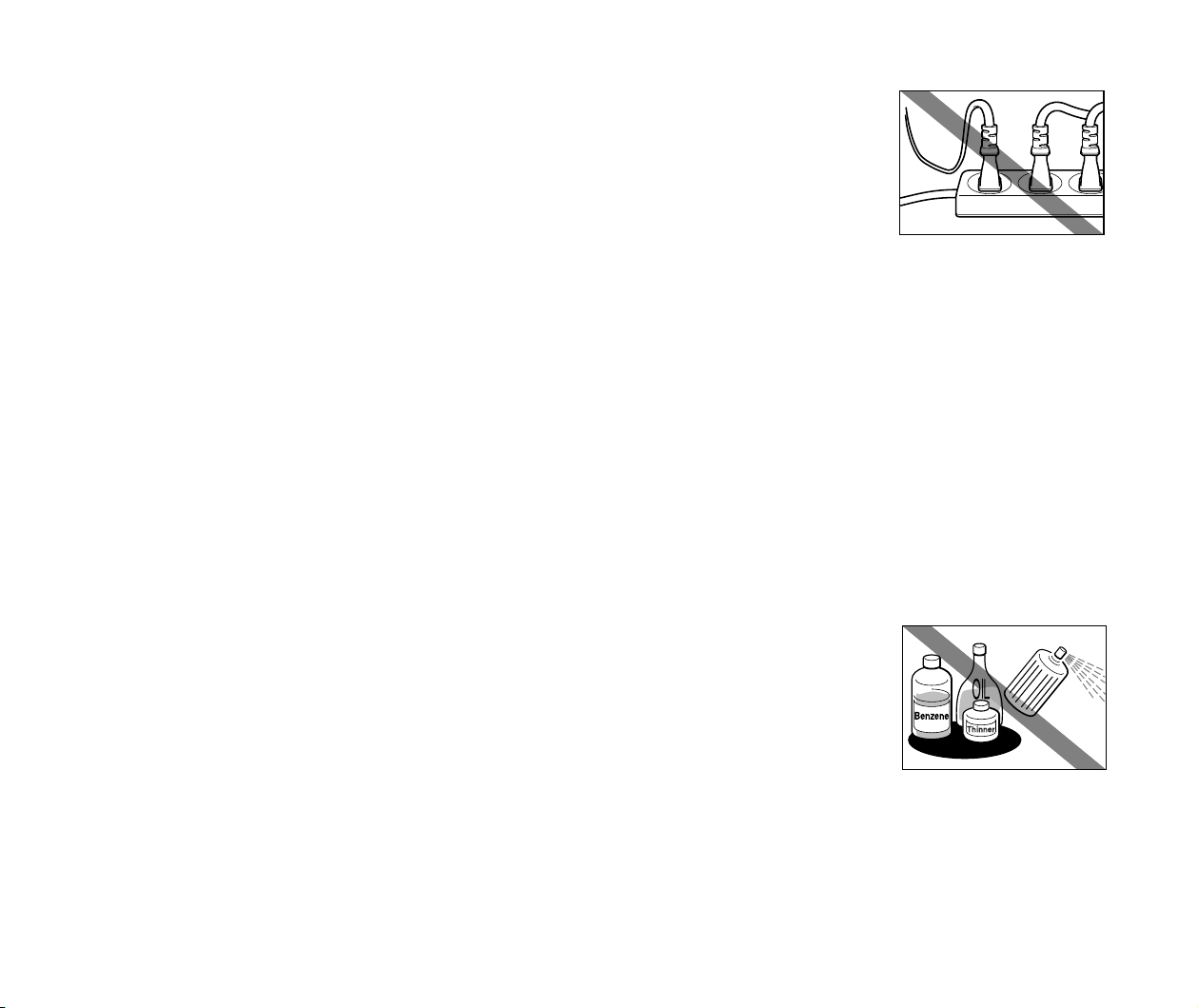
Never plug the printer into a power socket that is shared with other
equipment (extension lead, double adapter, etc.).
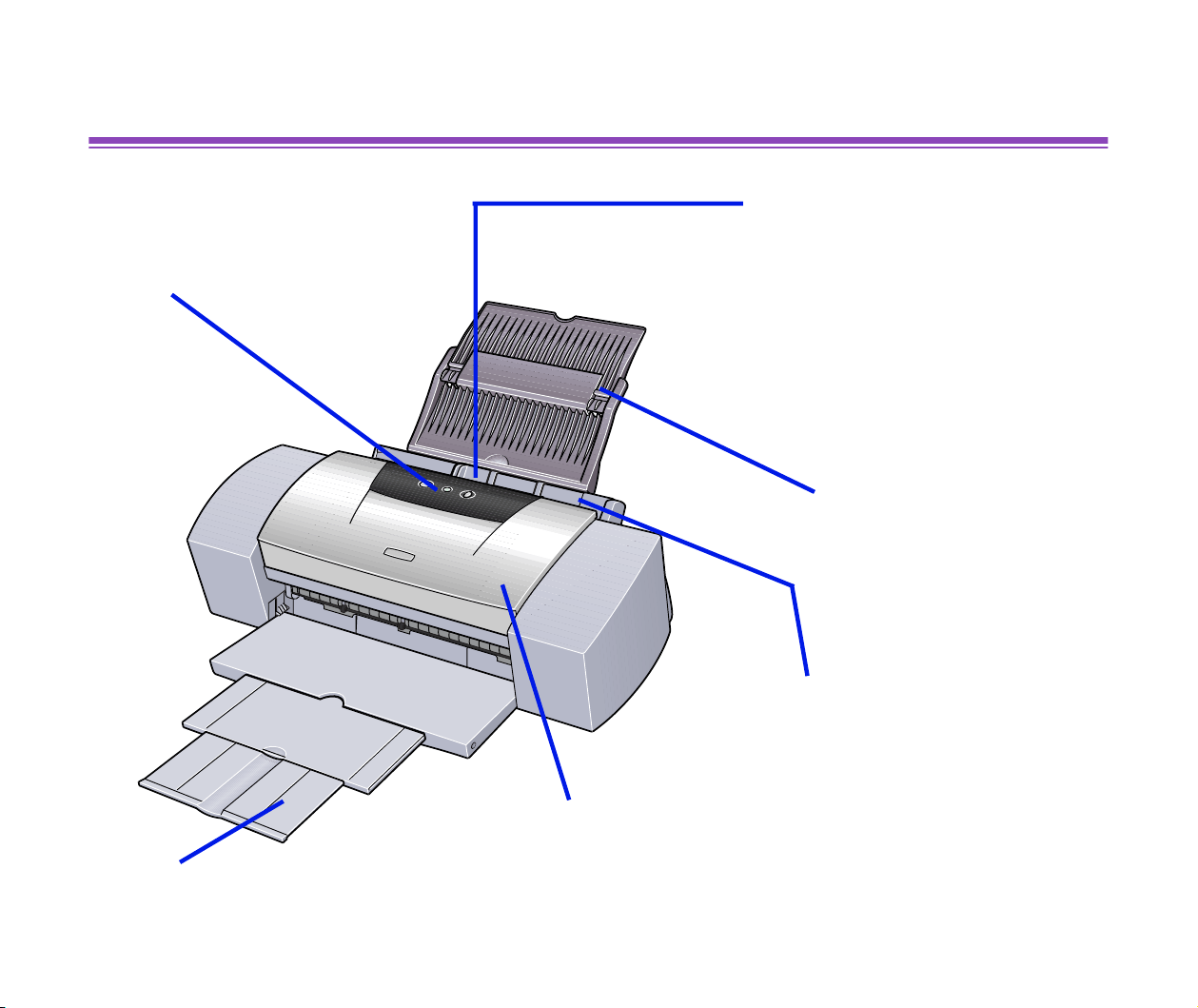
Never use the printer if the power cord is bundled or knotted.
If you detect smoke, unusual smells or strange noises around the printer, immediately
unplug the printer at the power supply and call for service.
Periodically, unplug the printer and use a dry cloth to wipe off any dust or dirt collects on
the plug and the power outlet. If the printer is placed at a location exposed to a lot of
dust, smoke, or high humidity, the dust that collects on the plug absorbs moisture and
may cause insulation failure and fire.
■ Cleaning the printer
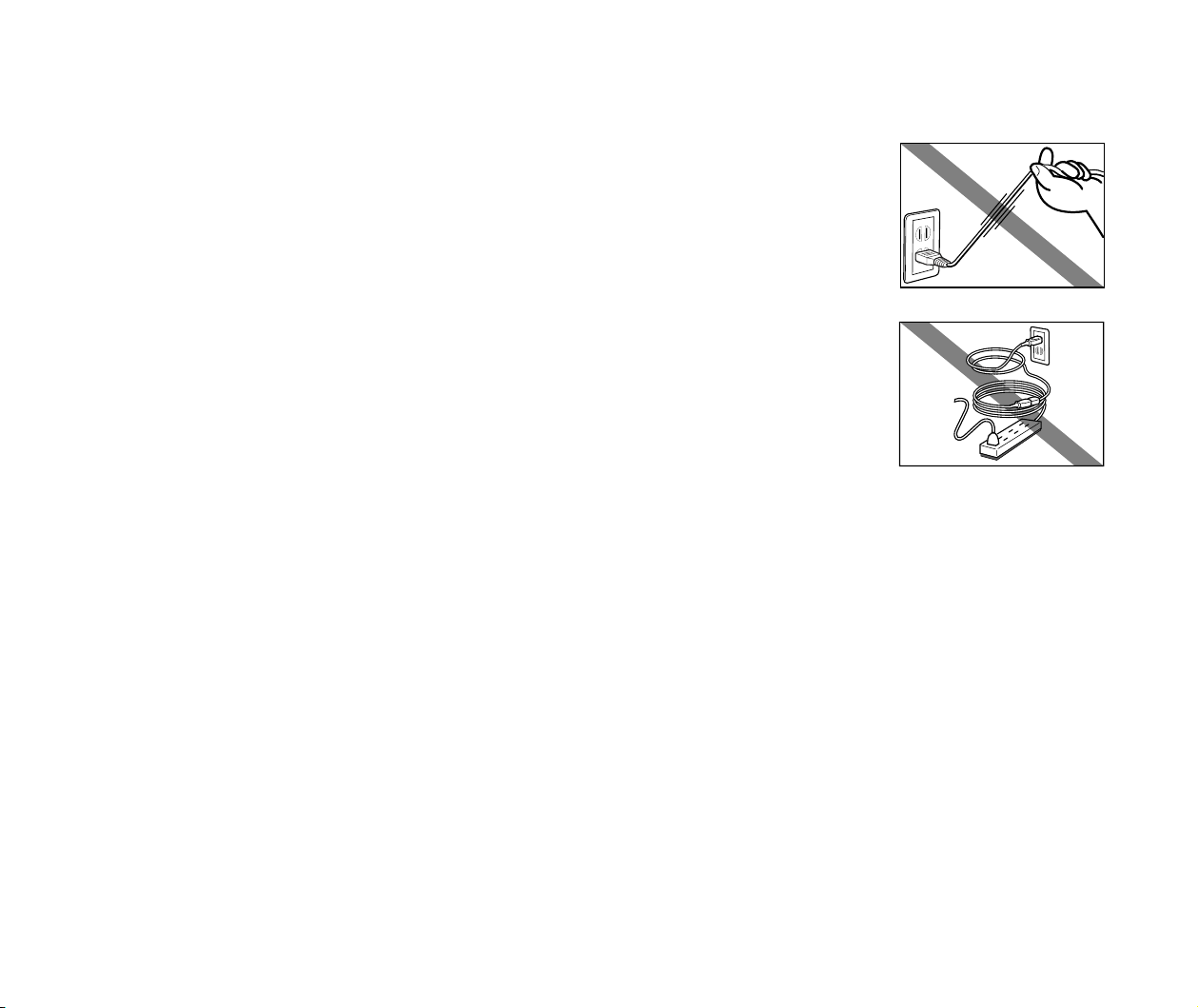
Use a damp cloth to clean the printer. Never use flammable solvents
such as alcohol, benzene or thinners.
If flammable solvents come in contact with electrical components inside the printer,
it could cause a fire or electric shock.
Always unplug the printer from the power outlet before cleaning the printer.
If you accidentally switch the printer on while cleaning it, you could injure yourself or damage the printer.

10
Safety Precautions
■ Maintaining the printer
Do not attempt to disassemble or modify the printer. There are no user serviceable parts
inside the printer.
The printer contains high-voltage components. Never attempt any maintenance procedure not described in
this guide.
■ Working around the printer
Do not use inflammable sprays near the printer.
This could cause a fire or electric shock if the spray comes into contact with electrical components inside
the printer.

11
Safety Precautions
Caution
➤
You may cause injury or damage the printer if you ignore any of these
safety precautions.
■ Choosing a location
Do not install the printer in a location that is unstable or subject to excessive vibration.
Do not install the printer in locations that are very humid or dusty, in direct sunlight,
outdoors, or close to a heating source.
To avoid the risk of fire or electric shocks, install the printer in a location with an ambient temperature range
of 5°C to 35°C (41°F to 95°F) and humidity of 10% to 90% (condensation free).
Do not place the printer on a thick rug or carpet.
Ensure that the area around the power outlet is kept clear at all times
so you can easily unplug the power cord if necessary.
When moving the printer, carry the printer at both ends.
12
Safety Precautions
■ Power supply
Never remove the plug by pulling on the cord.
Do not use an extension lead.
Never use a power supply voltage other than that supplied in the country of purchase.
The correct power supply voltages and frequencies are as follows:
Europe: AC 230V ± 10%, 50Hz
USA/Canada: AC 120V, 60Hz
Australia: AC 240V, 50Hz

13
Safety Precautions
■ Working around the printer
Never put your hands or fingers in the printer while it is printing.
Do not place metal objects (paper clips, staples, etc.) or containers of flammable
solvents (alcohol, thinners. etc.) on top of the printer.
If any foreign object (metal or liquid) falls into the printer, unplug the power cord and call
for service.
■ Print heads and ink tanks
For safety reasons store print heads and ink tanks out of the reach of small children.
If a child ingests any ink, consult a doctor immediately.
Do not shake print heads or ink tanks.
Ink may leak out and stain clothing or the surrounding area.
Never touch the electrical contacts on a print head after printing.
The metal parts may be very hot and could cause burns.

Front View
15
Printer Parts and Their Functions
Front View
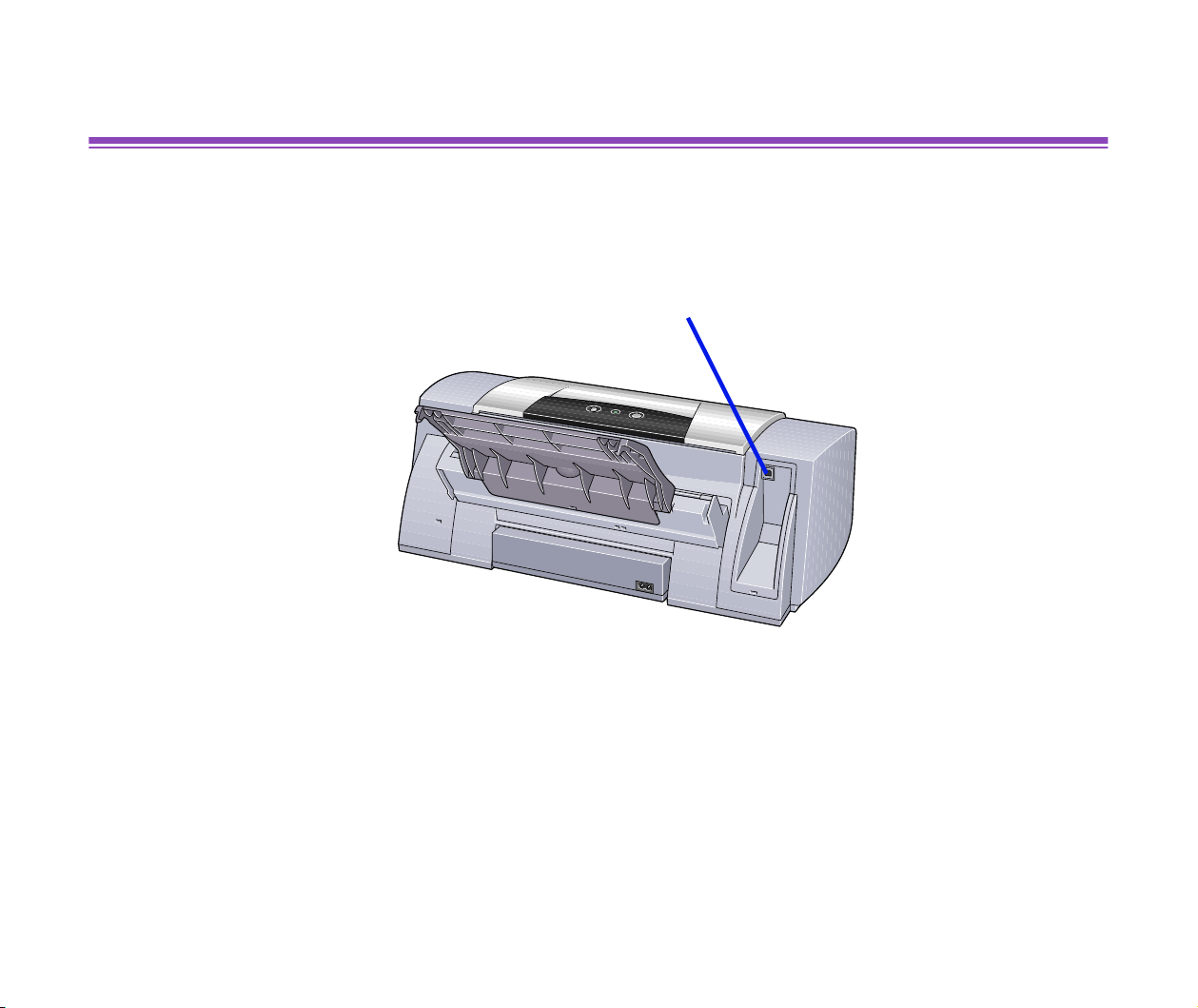
Paper Guide
When loading paper, ensure
the left edge just touches
this guide.
To move the paper guide,
pinch the knob and slide in
the appropriate direction.
Paper Rest
Sheet Feeder
Load paper here.
Paper feeds
automatically, one sheet
at a time.
Front Cover
Open to replace the
ink tanks or remove
jammed paper.
Paper Output Tray
Operation Panel
For details, refer to
"
Operation Panel."
Rear View
16
Printer Parts and Their Functions
Rear View
USB Port
Used to connect the printer to a
computer through a USB
interface.
Inside the Printer
17
Printer Parts and Their Functions
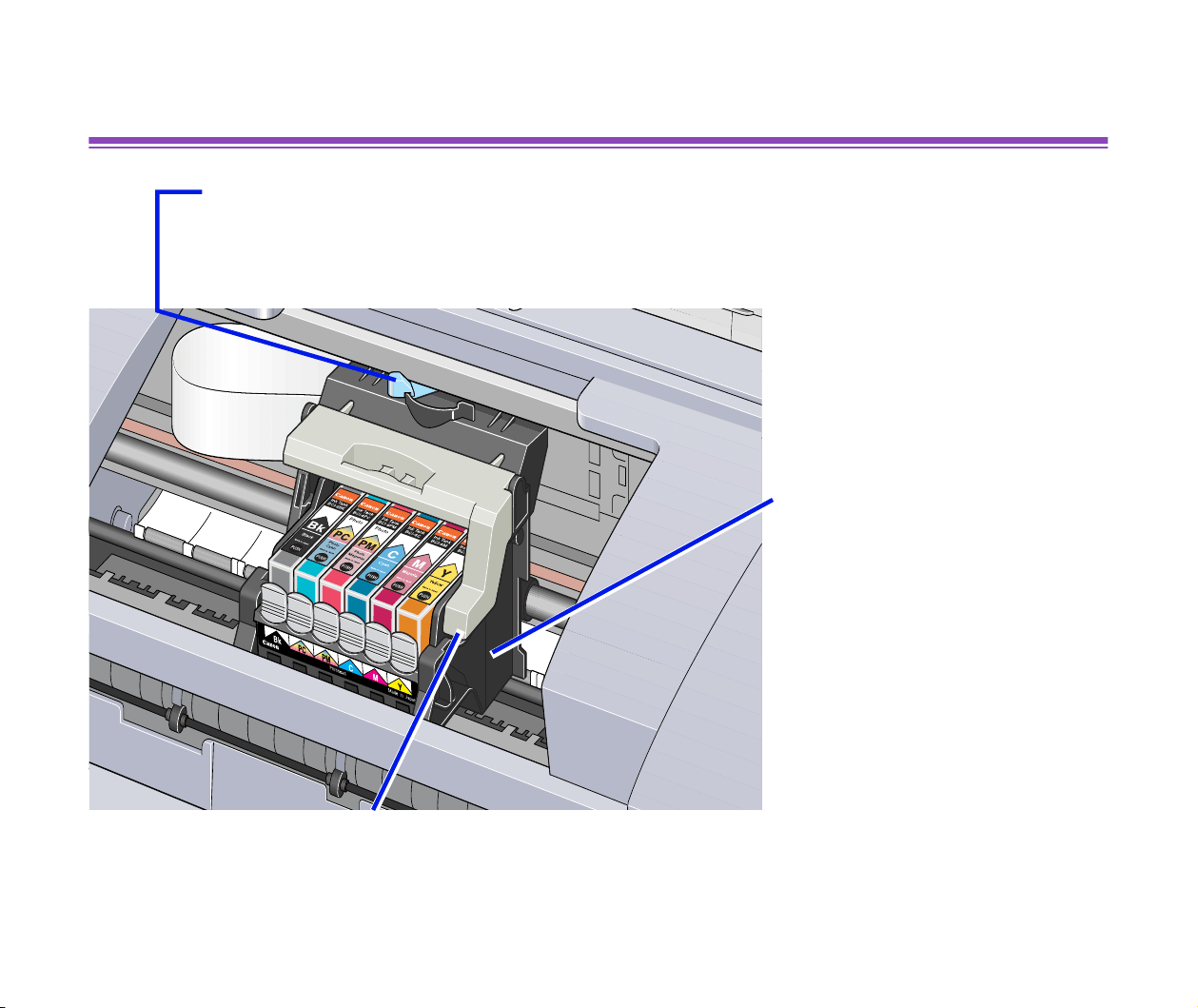
Inside the Printer
Print Head Holder
Install the print head here.
Print Head Lock Lever
Locks the print head into the holder.
Once the print head is installed, do not touch this lever.
P
aper
Thi
c
k
ness
L
ever
Adjusts the gap between the print head and the surface of the printing paper.
Operation Panel
18
Printer Parts and Their Functions
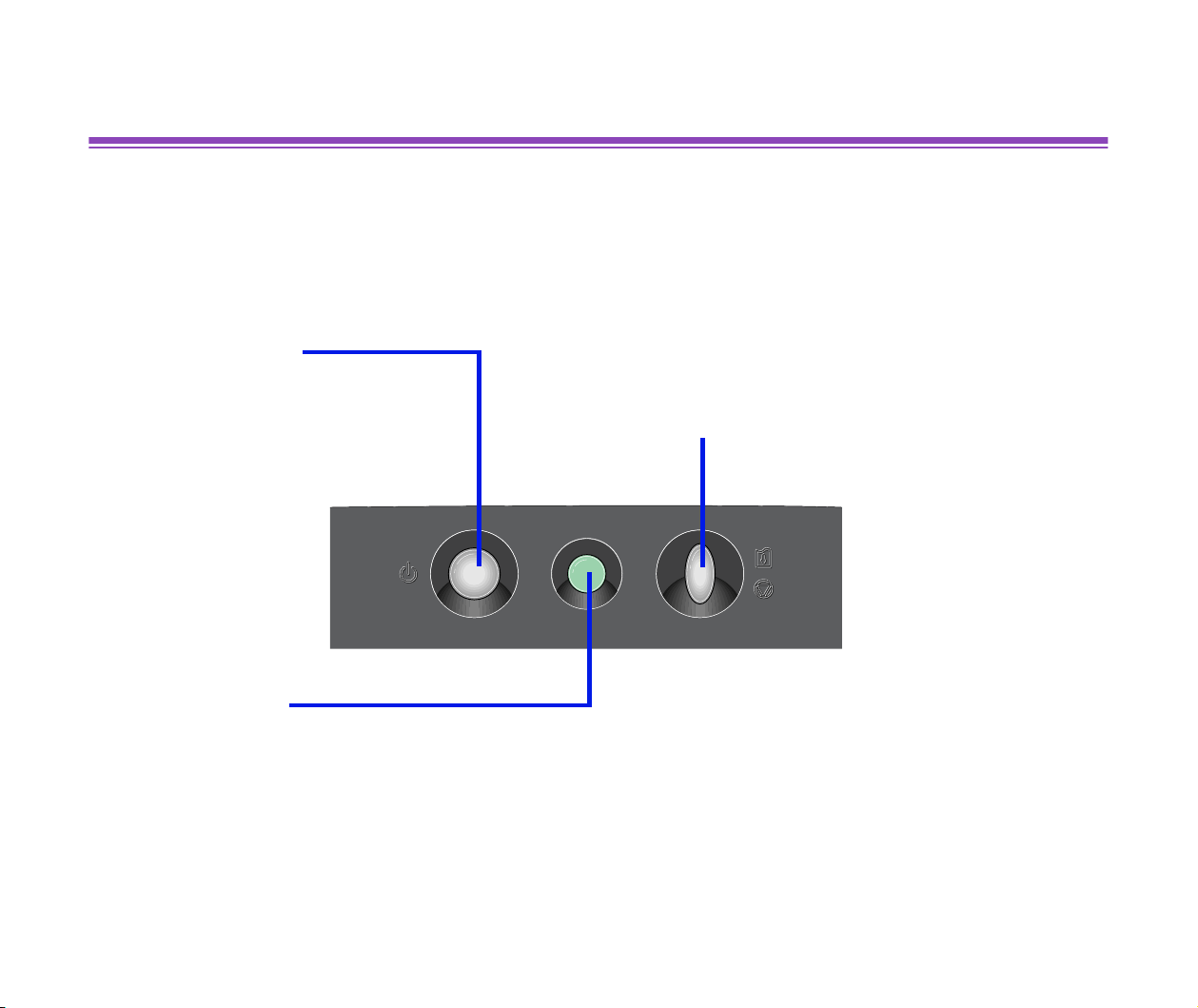
Operation Panel
POWER Button
Press to turn the printer
on or off.
RESUME/CANCEL Button
Press to resume printing once an error has
been cleared. The printer will then initialise
ready for printing.
Also, to cancel printing in progress, press
this button.
POWER Lamp
Off: the printer is turned off.
Green: the printer is ready to print.
Flashing green: the printer is preparing to print, or is currently printing.
Flashing orange: an error has occurred and the printer is not ready to print.
Flashing orange and green alternately: an error has occurred that may require a service
call.


Opening the Printer Properties Dialog Box
20
Printer Driver Functions (Windows)
Opening the Printer Properties Dialog Box
The Printer Properties dialog box can be opened from either within an application, or
directly from the Windows Start menu.
■ Opening the Printer Properties dialog box from your application program
This method is generally used to specify printer settings just before printing.
The operations may vary slightly depending on your application program. This section
describes only the general procedure for opening the Printer Properties dialog box.
1
In your application, select the command to print a document.
The
Print dialog box can usually be opened by selecting Print from the File
menu.
2
Ensure that Canon S9000 is selected in the Name field. Then click the
Properties button.
The Printer Properties dialog box opens.
Note
➤
Depending on your application program, the command and menu names
may differ, and there may be more steps involved in opening the Printer
Properties dialog box. For further details, see the user's manual for your
application.

Opening the Printer Properties Dialog Box
21
Printer Driver Functions (Windows)
■ Opening the Printer Properties dialog box directly from the Start menu
This method is used for maintenance operations such as print head cleaning, or to
specify printer settings common to all application programs.
When the Printer Properties dialog box is opened from the
Start menu, the Windows
operating system adds several tabs, including the Details tab. These do not appear
when the Printer Properties dialog box is opened from within an application.
For further information about these additional tabs, refer to your Windows
documentation.
1
Click the Start button, then select Settings, Printers.
For Windows XP, click
Start and select Control Panel - Printers and
Other Hardware
- Printers and Faxes.
2
Select the Canon S9000 icon.
3
Open the File menu and select:
• Windows Me/Windows 98 ➔ Properties
• Windows XP/Windows 2000 ➔ Printing Preferences...
The Printer Properties dialog box opens.
Printer Properties Dialog Box Description
22
Printer Driver Functions (Windows)
Printer Properties Dialog Box Description
Note
➤
The screens in this section refer to Windows Me/Windows 98 operation.
The equivalent screens for Windows XP and Windows 2000 may look
slightly different.
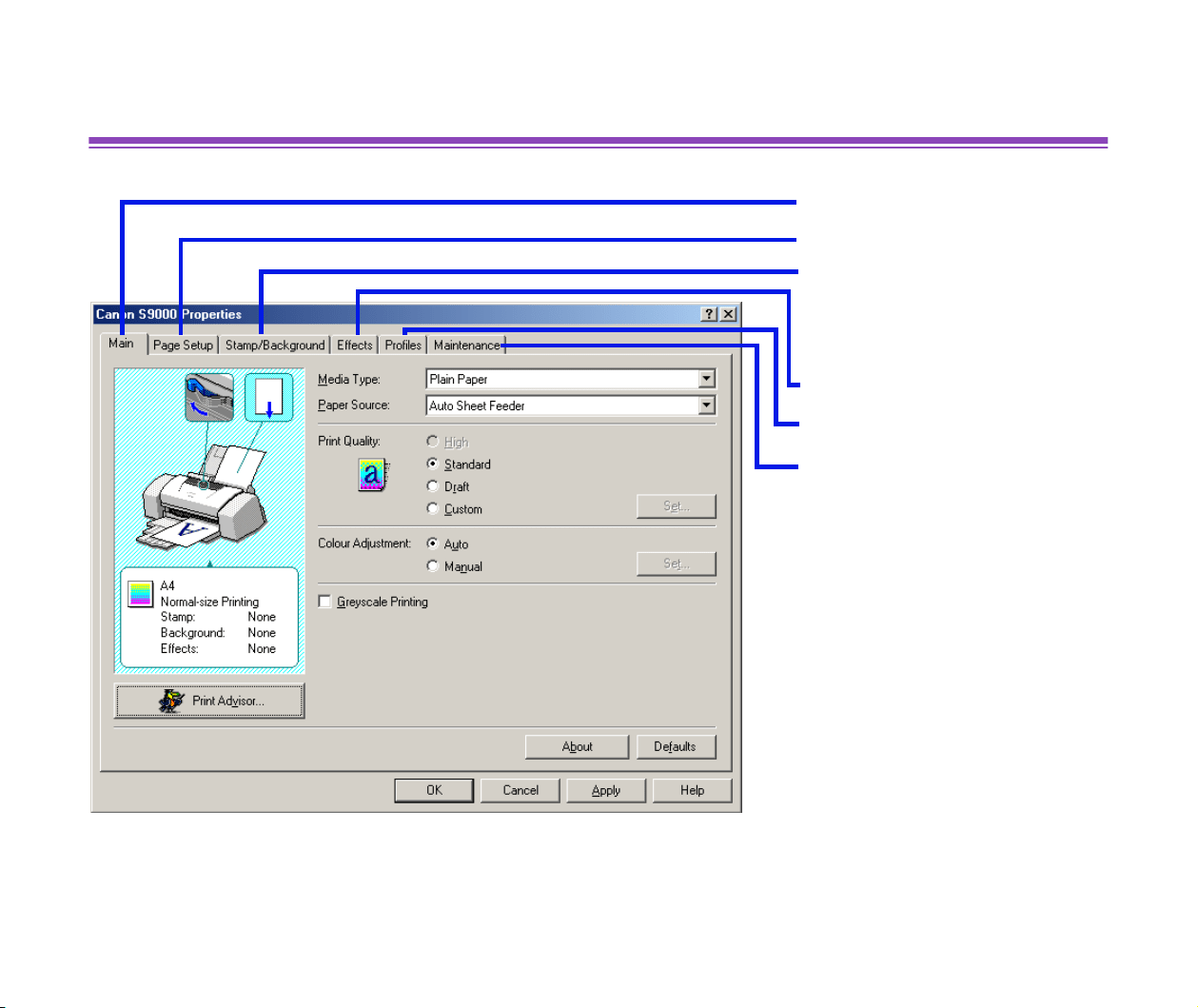
• Main Tab
• Page Setup Tab
• Stamp/Background
Tab
• Effects Tab
• Profiles Tab
• Maintenance Tab
Printer Properties Dialog Box Description
23
Printer Driver Functions (Windows)
Main Tab
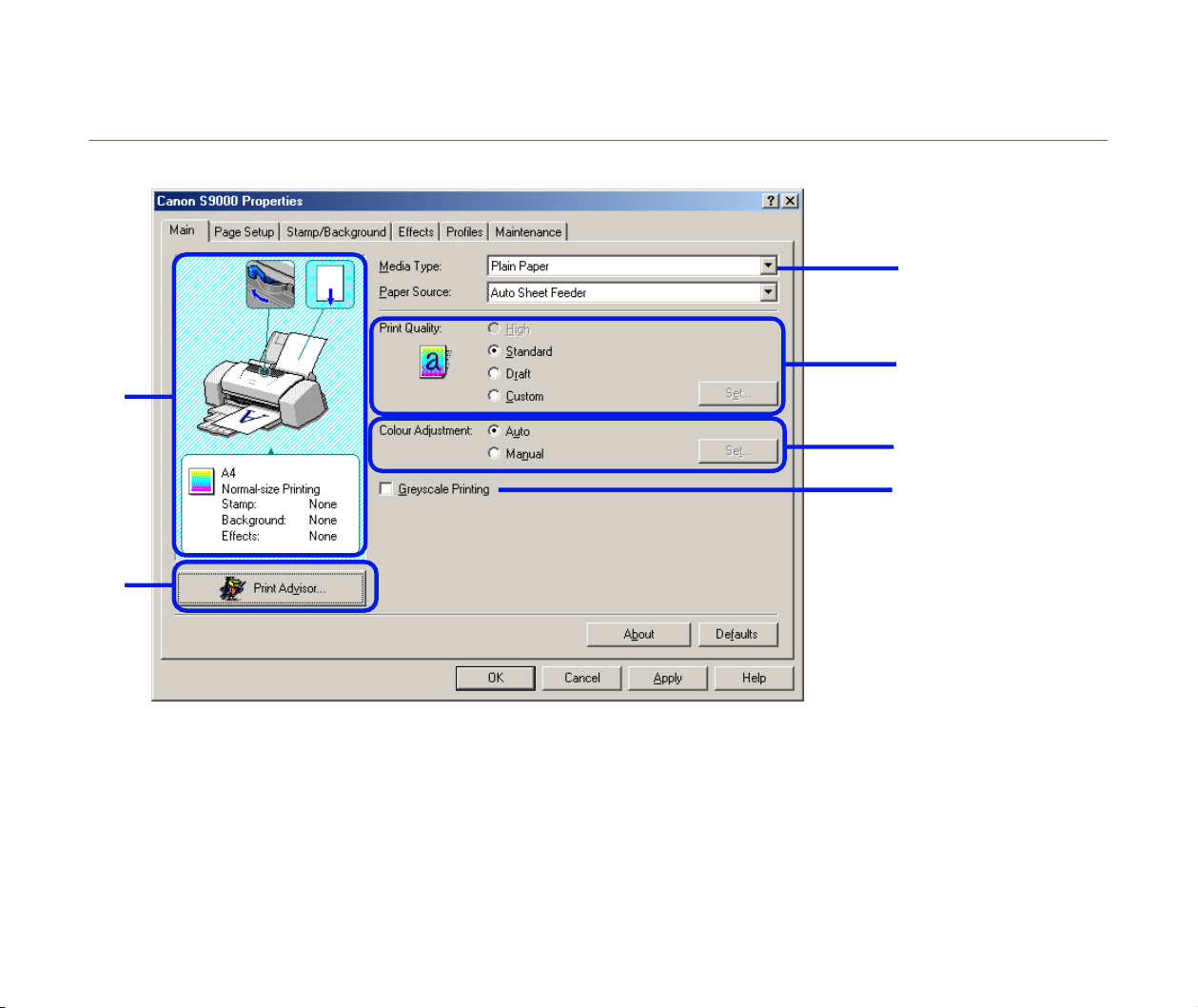
(1) Media Type
Ensure this setting matches the type of media loaded in the printer.
(2) Print Quality
Select the print quality you require from among the different options. To select custom
Print quality, select Custom and click the Set... button.
(6)
(5)
(4)
(1)
(2)
(3)

Printer Properties Dialog Box Description
24
Printer Driver Functions (Windows)
(3) Colour Adjustment
Select the method of colour adjustment. To make detailed colour adjustments, select
Manual, then click the Set... button.
(4) Greyscale Printing
Select to print a greyscale version of a colour document.
(5) Print Advisor...
Click to start the Print Advisor.
The Print Advisor simplifies configuration of the printer driver. By having the user
answer a series of questions, the Printer Advisor automatically configures the printer
driver settings.
(6) Preview Area
Before starting printing, verify that settings such as the lever position are correct.
Note
➤
To see a description of any item in the Printer Properties dialog box, click
the ? mark then click the desired item. To see a description of operating
procedures, click the Help button. If the button does not appear when using
Windows XP or Windows 2000, click the Start button then select
Programs - Canon S9000 - Guide.
Printer Properties Dialog Box Description
25
Printer Driver Functions (Windows)
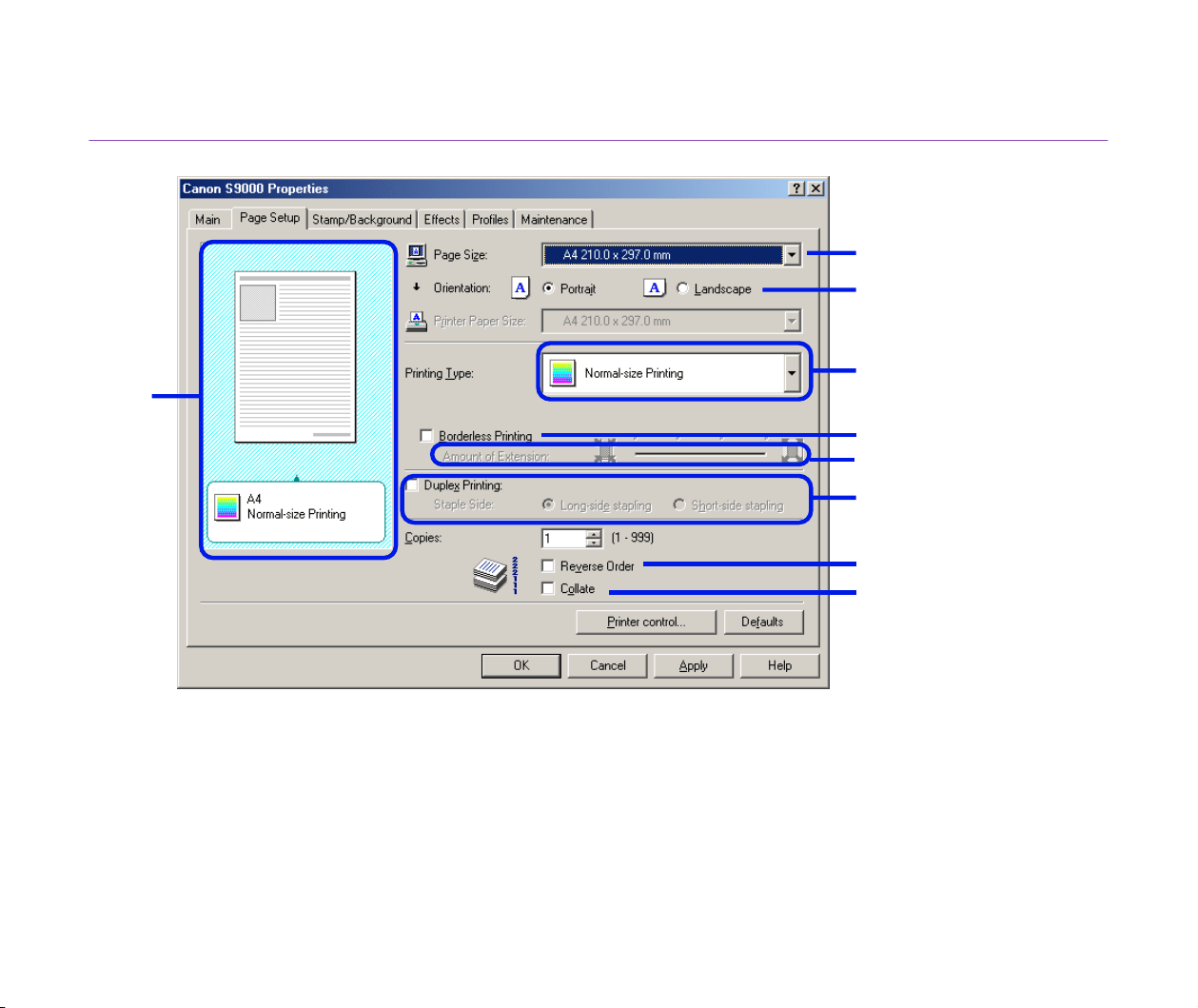
Page Setup Tab
(1) Page Size
Ensure the correct paper size is selected.
(2) Orientation
Select landscape or portrait printing and ensure it is the same orientation used in the
application.
(9)
(2)
(1)
(3)
(7)
(8)
(4)
(5)
(6)

Printer Properties Dialog Box Description
26
Printer Driver Functions (Windows)
(3) Printing Type
Select the printing method from among the following.
Normal-size Printing The document is printed according to the original
dimensions. This setting is usually selected by default.
Fit-to-Page Printing The document is automatically resized to fit the paper size.
When using this function, ensure you correctly specify the
Page Size and the Printer Paper Size.
Scaled Printing The document is resized when printed. When this is
selected, you can specify the Printer Paper Size and
Scaling.
Page Layout Printing Pages are reduced and printed so that 2 to 16 document
pages fit on each printed page.
Booklet Printing The multiple-page document is printed so that two pages of
the document fit on each printed page. The print order is set
automatically. After the document is printed, you can create
a booklet by folding and saddle-stitching the document.
Poster Printing This enlarges and splits the print image across several
sheets of paper. The printed sheets can then be assembled
to make a large poster.
Banner Printing Select this when printing on banner paper.
(4) Borderless Printing
The image is printed on the entire paper surface, so that no margins are left on the four
sides of the paper.
The media types available for Borderless Printing are PR-101 and GP-301/GP-301N.
For all other media types, the print quality may decrease.

Printer Properties Dialog Box Description
27
Printer Driver Functions (Windows)
(5) Amount of Extension
When you select Borderless Printing, the sections that extend beyond the paper are
not printed because the image is enlarged to a size slightly larger than the paper size.
You can use the Amount of Extension slide bar to adjust how much the image
extends beyond the paper.
It is recommended that you normally set the slide bar to the right end.
If you move the slide bar to the left to reduce the extension amount, a border may
appear.
(6) Duplex Printing
The document is printed on both sides of the paper. After printing one side, turn the
ejected page over, and print on the other side.
(7) Reverse Order
When selected, the document starts printing with the last page.
(8) Collate
Select to print multiple copies of the document one copy at a time.
(9) Preview Area
Verify the overall layout, stamps, background, etc., to be applied to the print job.
Printer Properties Dialog Box Description
28
Printer Driver Functions (Windows)
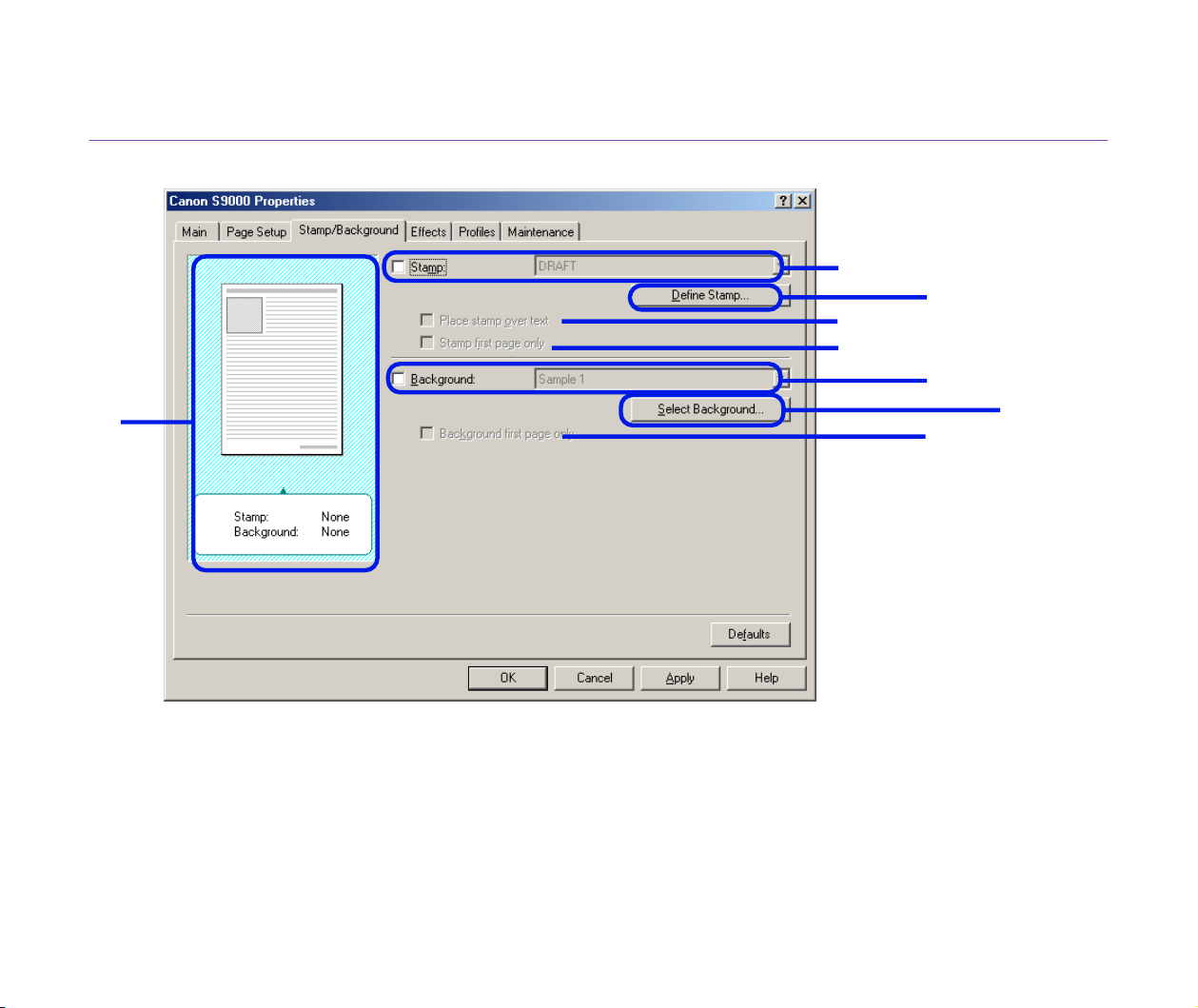
Stamp/Background Tab
(1) Stamp
Select the check box and choose the stamp.
(2) Place stamp over text
When selected, the stamp is printed over the print data.
(3) Stamp first page only
Prints the stamp only on the first page.
(1)
(2)
(3)
(4)
(5)
(6)
(7)
(8)

Printer Properties Dialog Box Description
29
Printer Driver Functions (Windows)
(4) Define Stamp...
This allows you to create new stamps, or modify details of a selected stamp.
(5) Background
Select the check box and choose the background image you wish to use.
(6) Background first page only
Prints the background image only on the first page.
(7) Select Background...
This allows you to register a new background, or to display details of the background
you have selected.
(8) Preview Area
Printer Properties Dialog Box Description
30
Printer Driver Functions (Windows)
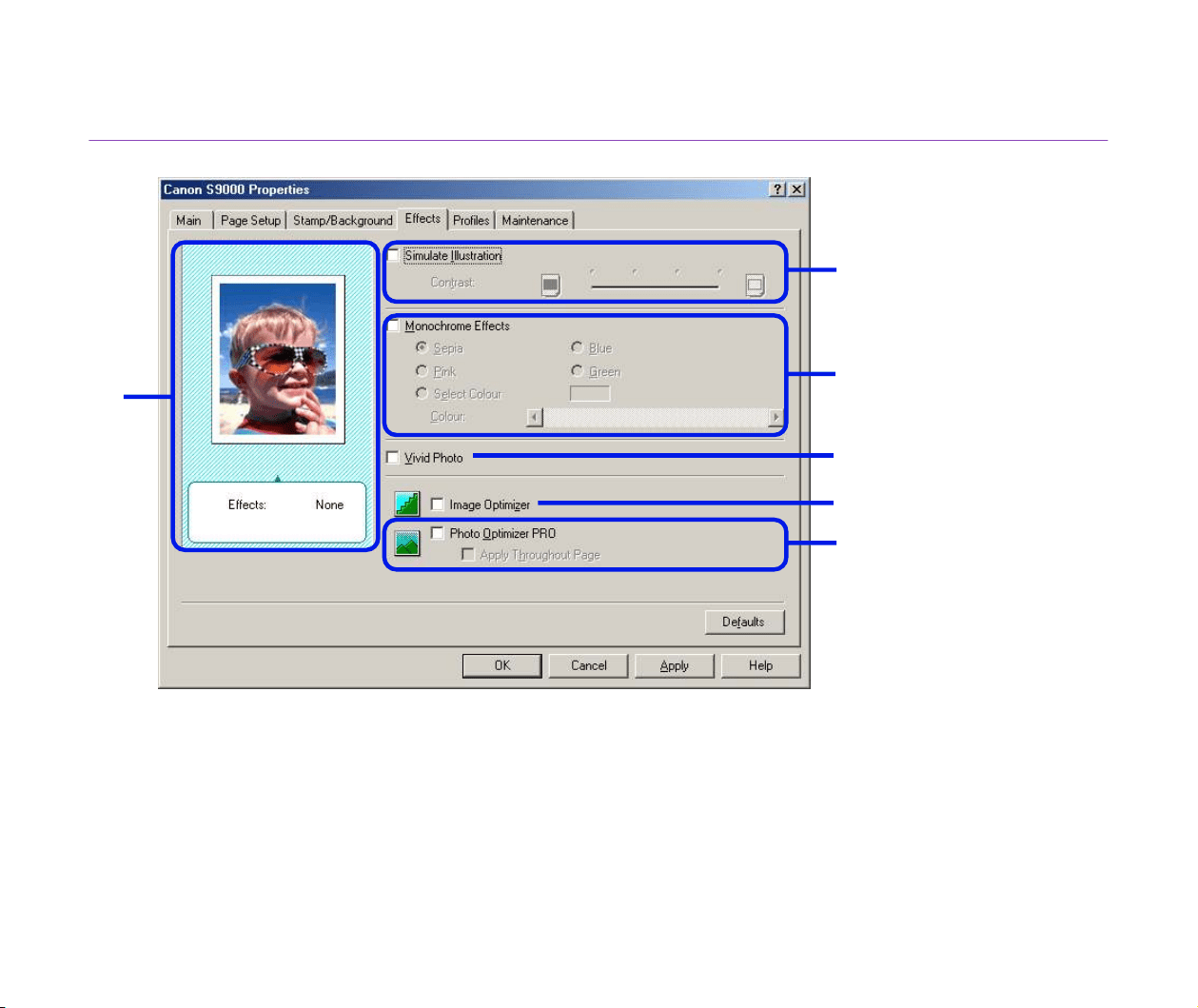
Effects Tab
(1) Simulate Illustration
Select the check box to manipulate colour image data to produce illustration effects.
Adjust the brightness of the image with the Contrast slide bar.
(6)
(1)
(2)
(5)
(4)
(3)

Printer Properties Dialog Box Description
31
Printer Driver Functions (Windows)
(2) Monochrome Effects
Prints a colour image in a single colour. Select the check box and choose a colour or
use a custom colour using Select Colour.
(3) Vivid Photo
By using this function, you can reproduce breathtaking sceneries in which colours,
especially blues and greens, appear even more vibrant. A major feature of this
function is its ability to create vivid backgrounds of fields, trees, oceans, and sky, while
maintaining the natural skin tones of people that appear in the images.
(4) Image Optimizer
Improves the contours and jaggedness that occur when photographic or graphic
image data is enlarged within an application.
(5) Photo Optimizer PRO
Optimises the colour of images taken from a digital camera or scanner. It is especially
effective for images affected by colour imbalance and over- or under exposure.
When printing several images on one page, optimisation is usually applied to each
image according to its requirements. However, if the image data has been
manipulated using cut and paste, rotation or other such operations, group optimisation
of all images on the one page is recommended. In such cases, select the Apply
Throughout Page check box.
(6) Preview Area
Printer Properties Dialog Box Description
32
Printer Driver Functions (Windows)
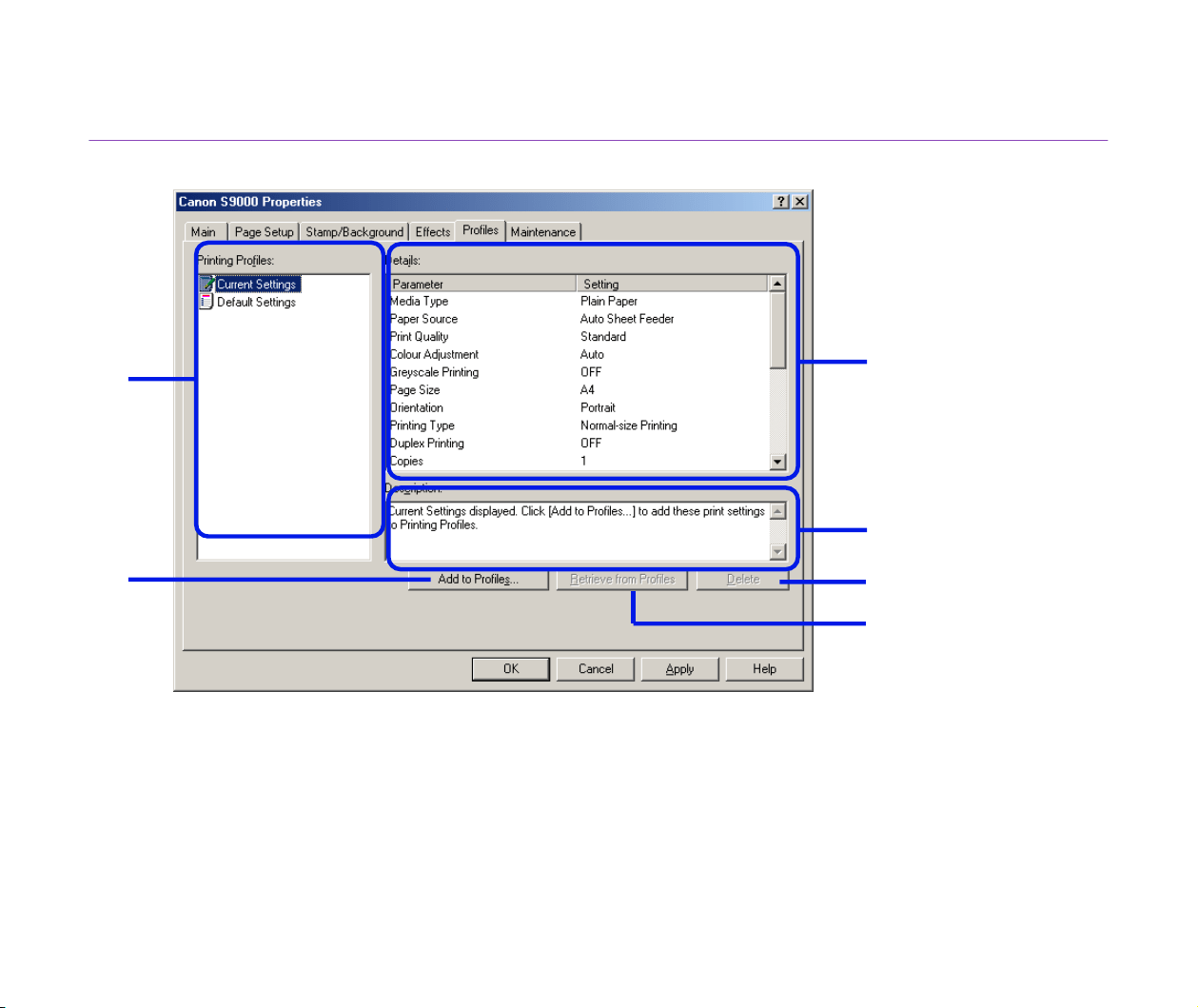
Profiles Tab
(1) Printing Profiles
This list displays the printing settings currently registered in the Profiles tab.
The Current Settings profile contains the settings currently specified in the Main,
Page Setup and Effects tabs. The Default Settings profile contains the factory
default settings.
(1)
(4)
(2)
(3)
(6)
(5)

Printer Properties Dialog Box Description
33
Printer Driver Functions (Windows)
(2) Details
Displays all the printer settings selected in Printing Profiles.
(3) Description
Displays a description of the printer settings selected in Printing Profiles. You can
enter the description when saving the printer settings.
(4) Add to Profiles...
Click to save the settings currently specified in the Main, Page Setup and Effects
tabs. Select Current Settings in the Printing Profiles list then click this button. The
Add to Profiles dialog box appears.
(5) Retrieve from Profiles
Click to activate registered printer settings. The contents of the Main, Page Setup and
Effects tabs are changed by selecting the printer settings in Printing Profiles and
then clicking this button.
This button is disabled when Current Settings is selected.
(6) Delete
Click to delete unwanted printer settings. Select the unwanted item in the Printing
Profiles list and click the Delete button.
Current Settings and Default Settings cannot be deleted.
Printer Properties Dialog Box Description
34
Printer Driver Functions (Windows)
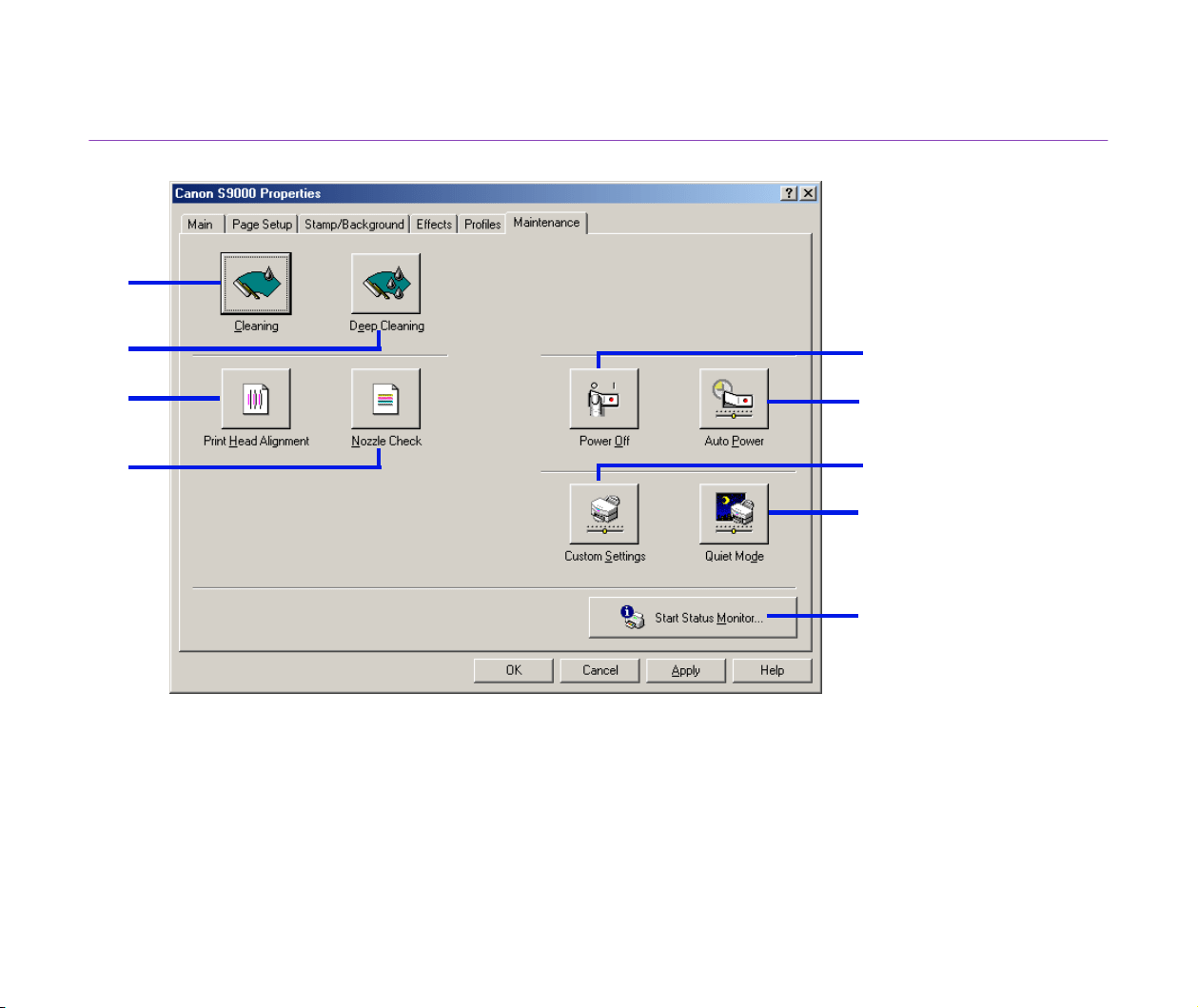
Maintenance Tab
(1) Cleaning
Click to start print head cleaning.
(2) Deep Cleaning
Click to start print head deep cleaning.
Use this function only if Cleaning has not improved the print quality.
(1)
(2)
(3)
(5)
(8)
(9)
(6)
(4)
(7)

Printer Properties Dialog Box Description
35
Printer Driver Functions (Windows)
(3) Print Head Alignment
Aligns the print head. For details on print head alignment, refer to
Quick Start Guide
.
(4) Nozzle Check
Prints the nozzle check pattern to ensure the print head nozzles are ejecting ink
normally. For details, refer to “
Examining the Nozzle Check Pattern”.
(5) Power Off
Click to turn the printer off.
(6) Auto Power
Set to automatically turn the printer off when it remains idle for a period of time, or to
turn back on again when data is sent to the printer.
(7) Custom Settings
Click to modify the printer mode. Change the settings in the Custom Setting dialog
box and click Send to change printer mode.
(8) Quiet Mode
Reduces the printing noise. However, the effect may be small, depending on the print
quality setting.
If you use Quiet Mode, the print speed may become slower than normal.
(9) Start Status Monitor...
Click to start the BJ Status Monitor, to check the printer status and the progress of
printing jobs.
BJ Status Monitor Functions
36
Printer Driver Functions (Windows)
BJ Status Monitor Functions
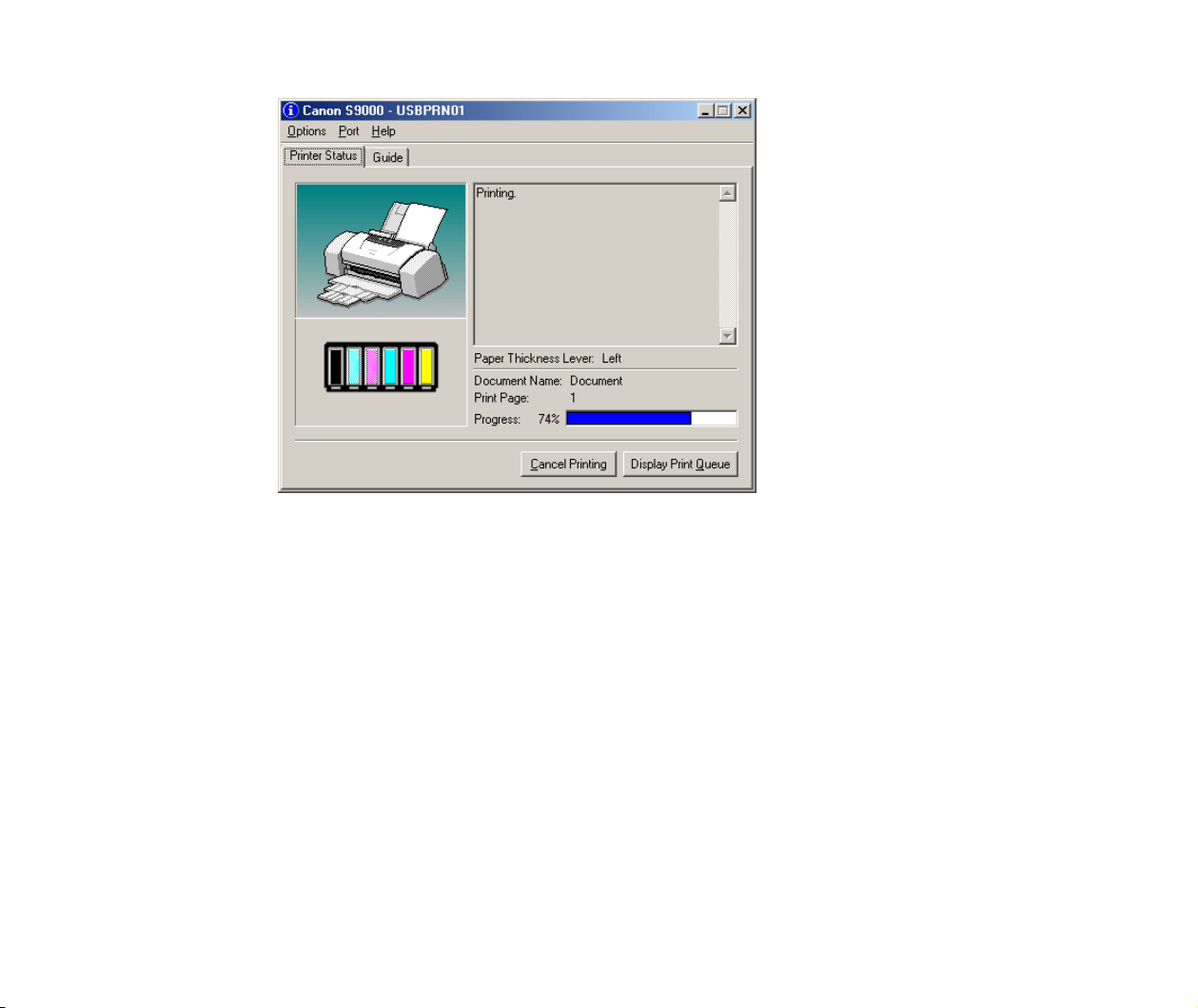
The BJ Status Monitor allows you to check the status of the printer.
If an error occurs, the status monitor indicates the nature of the error and suggests an
appropriate solution. The status monitor also checks the ink tanks and displays a warning
message when the ink is low.
■ Launching the BJ Status Monitor
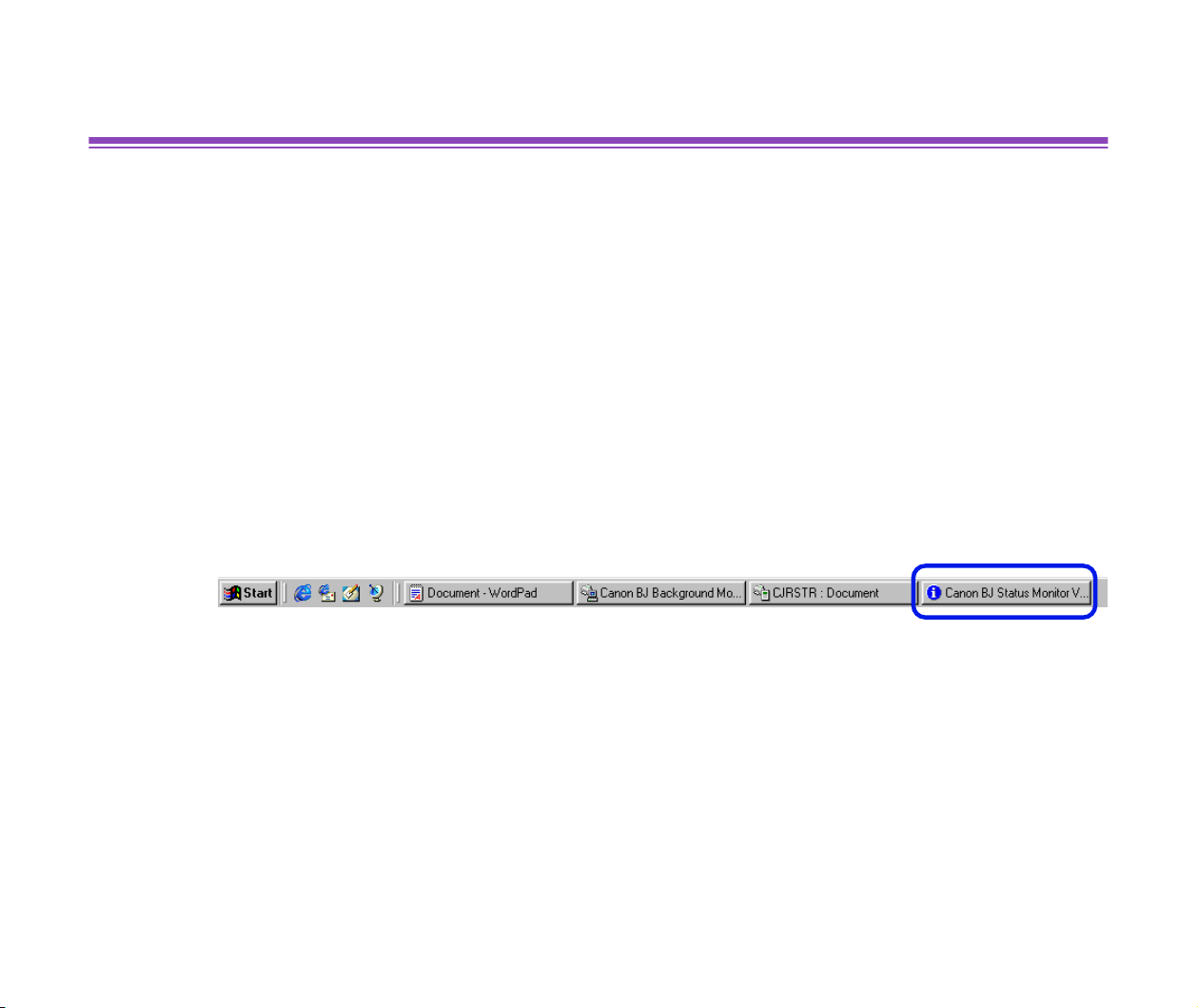
The BJ Status Monitor launches automatically when data is sent to the printer. When
launched, the BJ Status Monitor appears as an icon on the Task Bar.
1
Click the Canon BJ Status Monitor icon on the Task Bar.
The BJ Status Monitor appears.
BJ Status Monitor Functions
37
Printer Driver Functions (Windows)
Note
➤
To open the BJ Status Monitor when the printer is not printing, click the
Maintenance tab in the Printer Properties dialog box and click the Start
Status Monitor button.
BJ Status Monitor Functions
38
Printer Driver Functions (Windows)
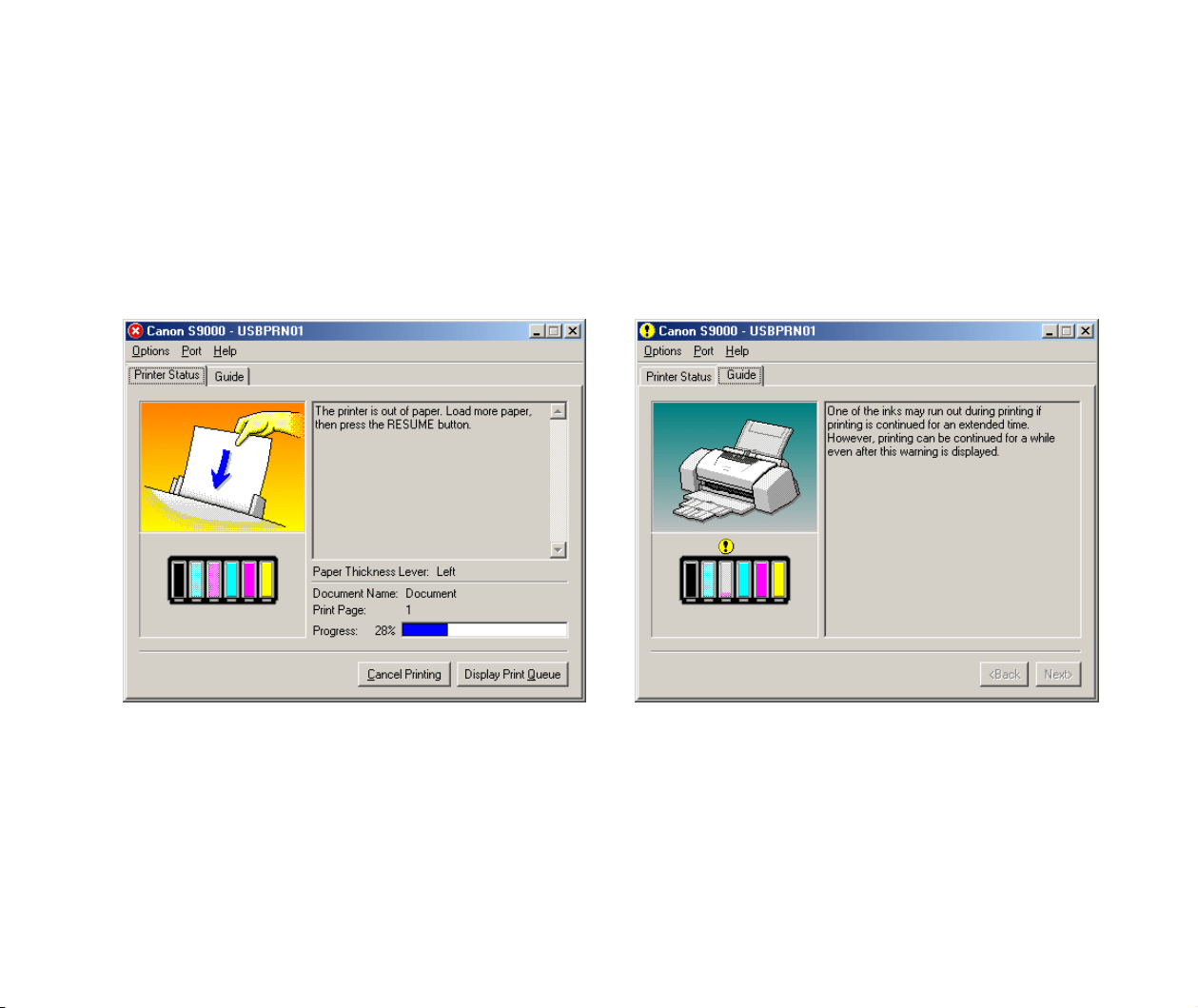
■ When errors occur or ink runs low
The BJ Status Monitor is automatically displayed when an error occurs, e.g. if the printer
runs out of paper or ink is low.
In such cases, take the appropriate action as described in the Printer Status tab.
In Windows Me or Windows 98, click the Guide tab and follow the instructions on screen.
Note
➤
For details on the BJ Status Monitor, select the Help menu and click on the
topic of interest.
When paper has run out: When the ink level is low:
Cancelling a Print Job
39
Printer Driver Functions (Windows)
Cancelling a Print Job
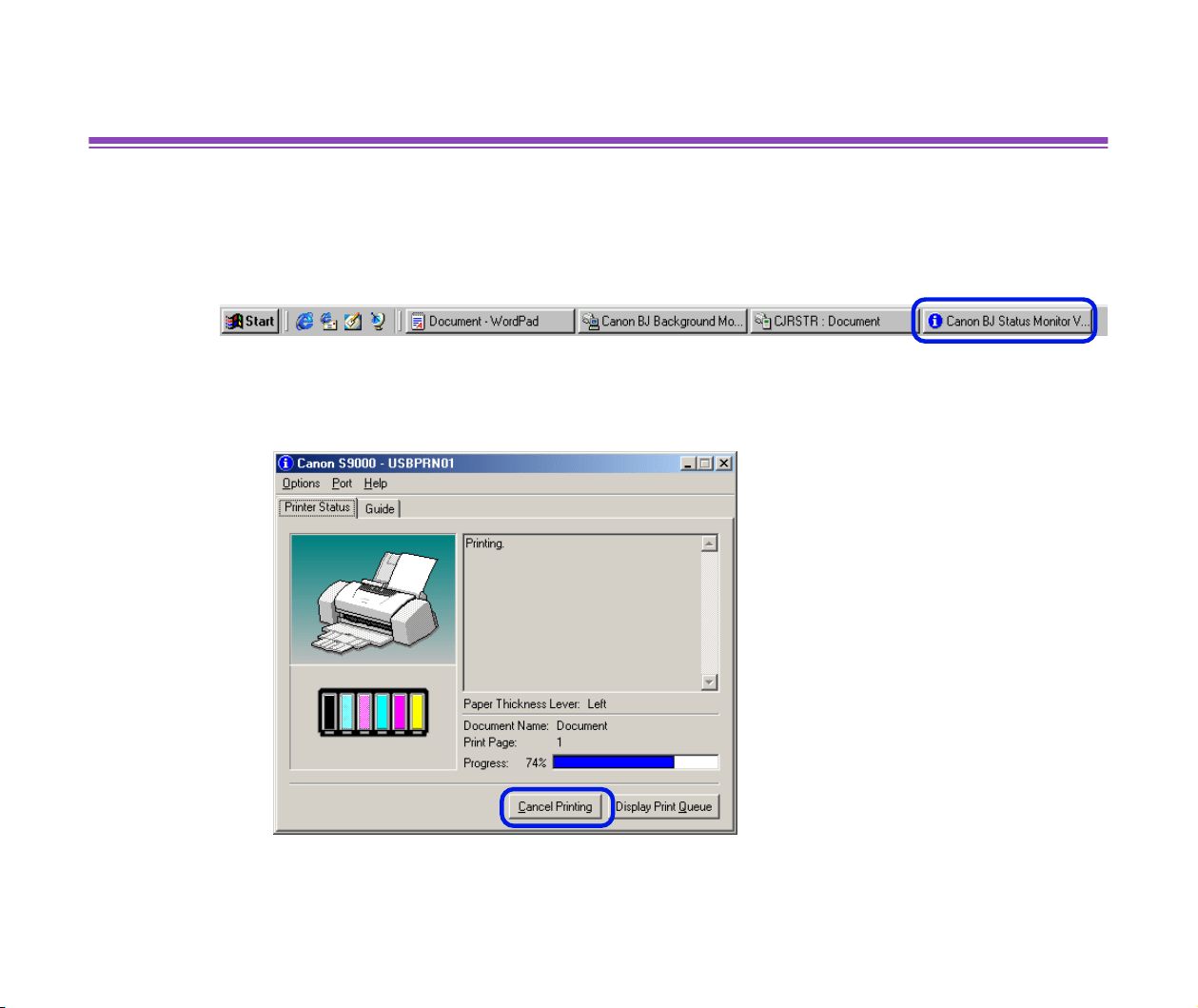
To cancel the current print job, first open the BJ Status Monitor.
1
Click the Canon BJ Status Monitor icon on the Task Bar.
2
Click Cancel Printing.
Note
➤
If Cancel Printing is greyed out, press the printer's RESUME/CANCEL
button to terminate the print job.

Uninstalling Printer Drivers
40
Printer Driver Functions (Windows)
Uninstalling Printer Drivers
Use the Uninstaller to delete any unwanted printer drivers. This allows you to delete all the
files associated with the printer driver at the same time.
1
Click the Start button and select Programs, Canon S9000, Uninstall.
Note
➤
For Windows XP, click the Start button and select All Programs, Canon
S9000, Uninstall.
2
Click Yes when the confirmation message appears.
3
When all the files have been deleted, click OK.
The deletion of the printer driver is complete.
If a message prompts you to restart your computer, click OK to restart your computer.
Note
➤
In Windows Me or Windows 98, you can also start the Uninstaller by
double-clicking on Uninstall in the Canon S9000 folder on the desktop.

Description of Print Settings
43
Printer Driver Functions (Macintosh)
Page Setup Dialog Box
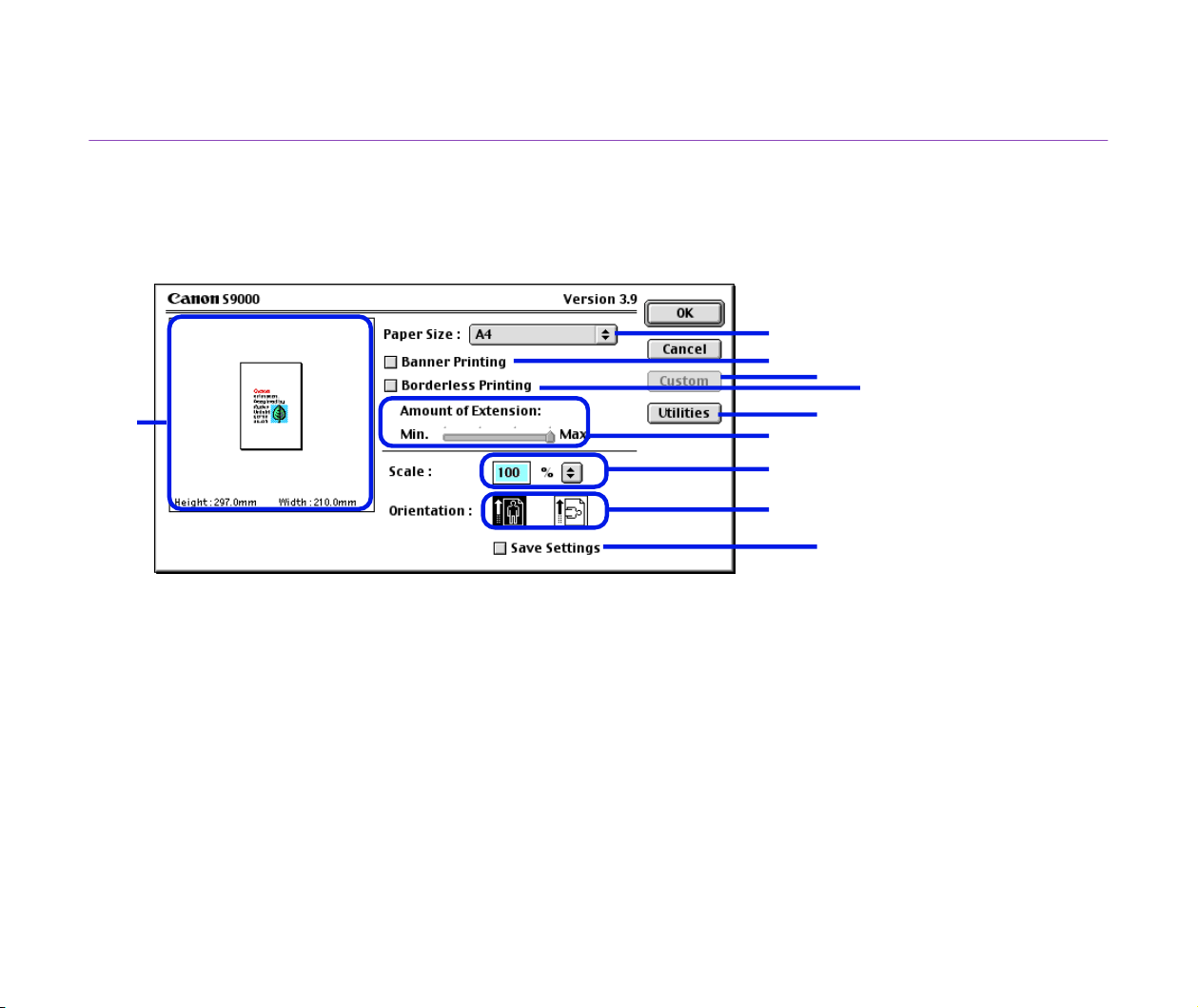
The Page Setup dialog box contains settings for the printed page, such as the size of the
print media, and resizing the printed image. To open the Page Setup dialog box, select
Page Setup from the File menu in your application program.
(1) Paper Size
Select the size of the paper for the print job. To enter the size manually, select Custom
1 - Custom 3 and click Custom.
(2) Banner Printing
Select this check box when printing on banner paper.
(10)
(1)
(2)
(7)
(5)
(8)
(6)
(9)
(4)
(3)

Description of Print Settings
44
Printer Driver Functions (Macintosh)
(3) Borderless Printing
The image is printed on the entire paper surface, so that no margins are left on the four
sides of the paper.
The media types available for Borderless Printing are PR-101 and GP-301/GP-301N.
For all other media types, the print quality may decrease.
(4) Amount of Extension
When you select Borderless Printing, the sections that extend beyond the paper are
not printed because the image is enlarged to a size slightly larger than the paper size.
You can use the Amount of Extension slide bar to adjust how much the image
extends beyond the paper.
It is recommended that you normally set the slide bar to the right end.
If you move the slide bar to the left to reduce the extension amount, a border may
appear.
(5) Scale
Specify the scaling percentage to resize the document for printing.
(6) Orientation
Select landscape or portrait printing.
(7) Custom
To specify a custom paper size, click this button to open the Custom dialog box after
selecting Custom 1 to Custom 3 in the Paper Size popup menu. The Custom Dialog
Box allows you to specify the length and width of the paper.
(8) Utilities
Click to open the Printer Utility dialog box for maintenance operations such as print
head cleaning and nozzle check pattern printing, as well as for changing the print
mode.

Description of Print Settings
45
Printer Driver Functions (Macintosh)
(9) Save Settings
Saves the settings specified in the Page Setup dialog box.
(10) Preview Area
This image allows you to confirm how the document will print with the selected paper
settings.
Description of Print Settings
46
Printer Driver Functions (Macintosh)
Printer Utility Dialog Box
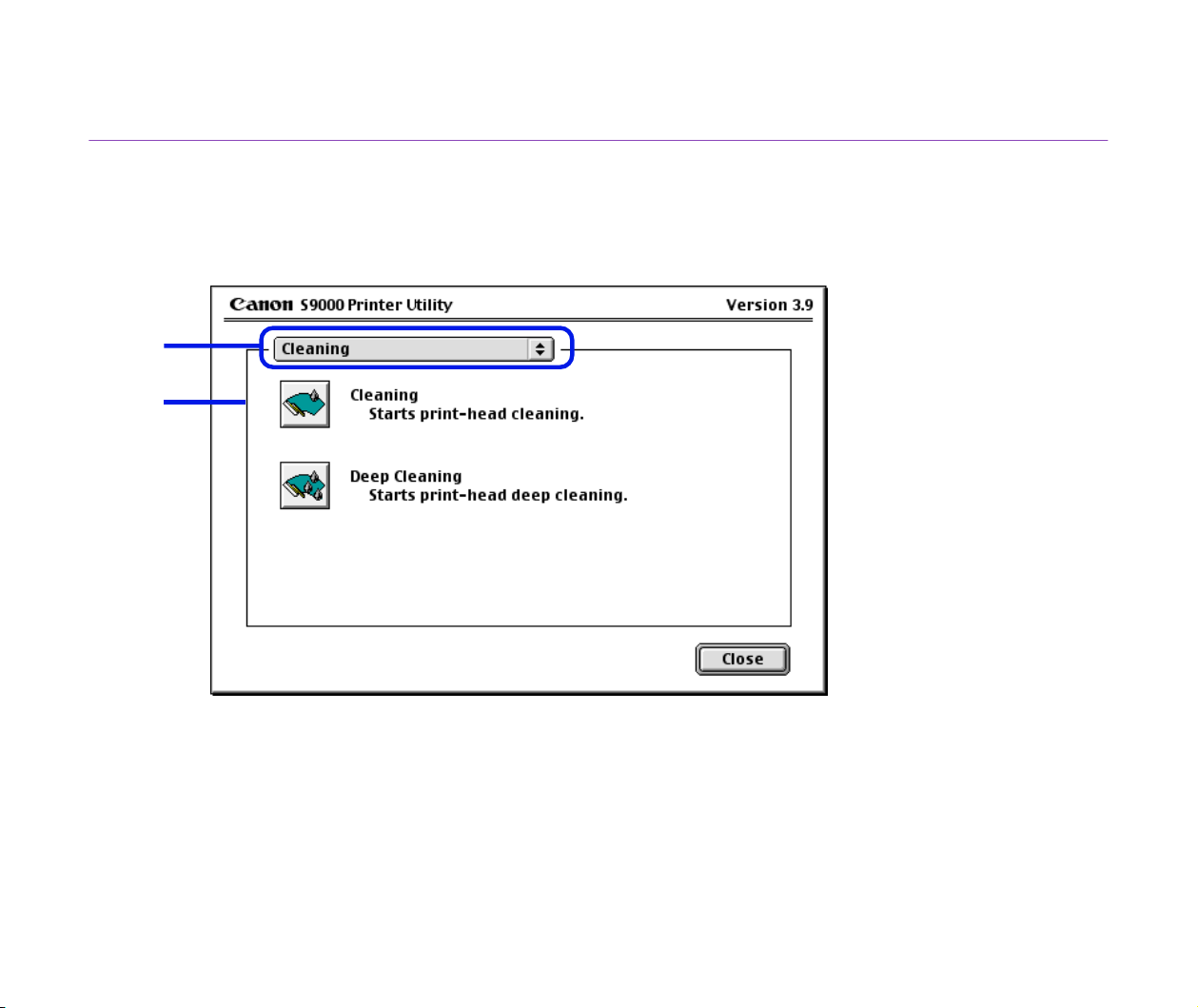
The Printer Utility dialog box is displayed when you click the Utilities button in the Page
Setup dialog box.
(1) Select the function you wish to perform.
(2) Display area showing the various maintenance functions, including cleaning and test
pattern printing. Click the icon to start this function. For further details, refer to
"Routine Maintenance".
➡
Printing the Nozzle Check Pattern
(1)
(2)

Description of Print Settings
48
Printer Driver Functions (Macintosh)
Print Dialog Box
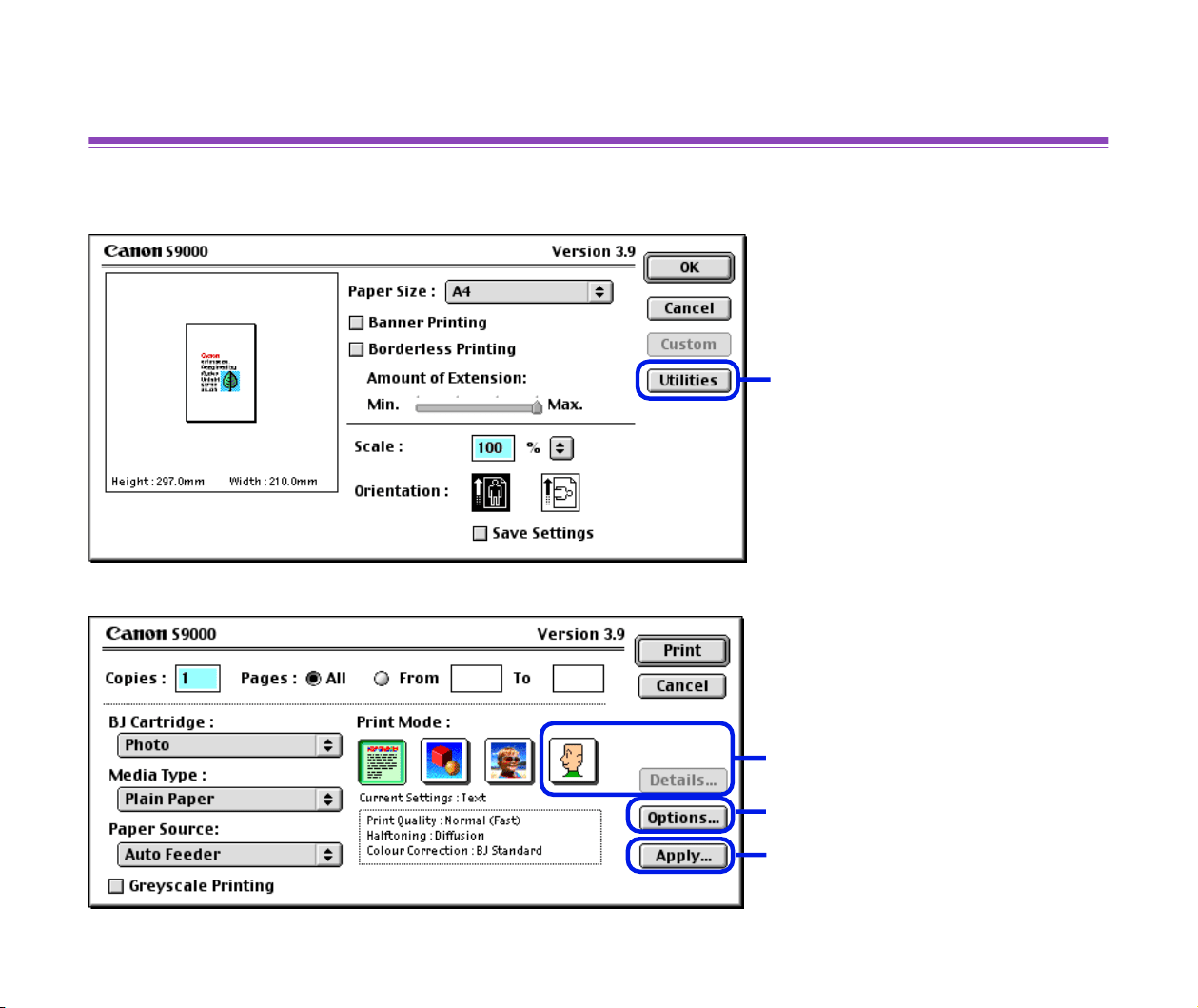
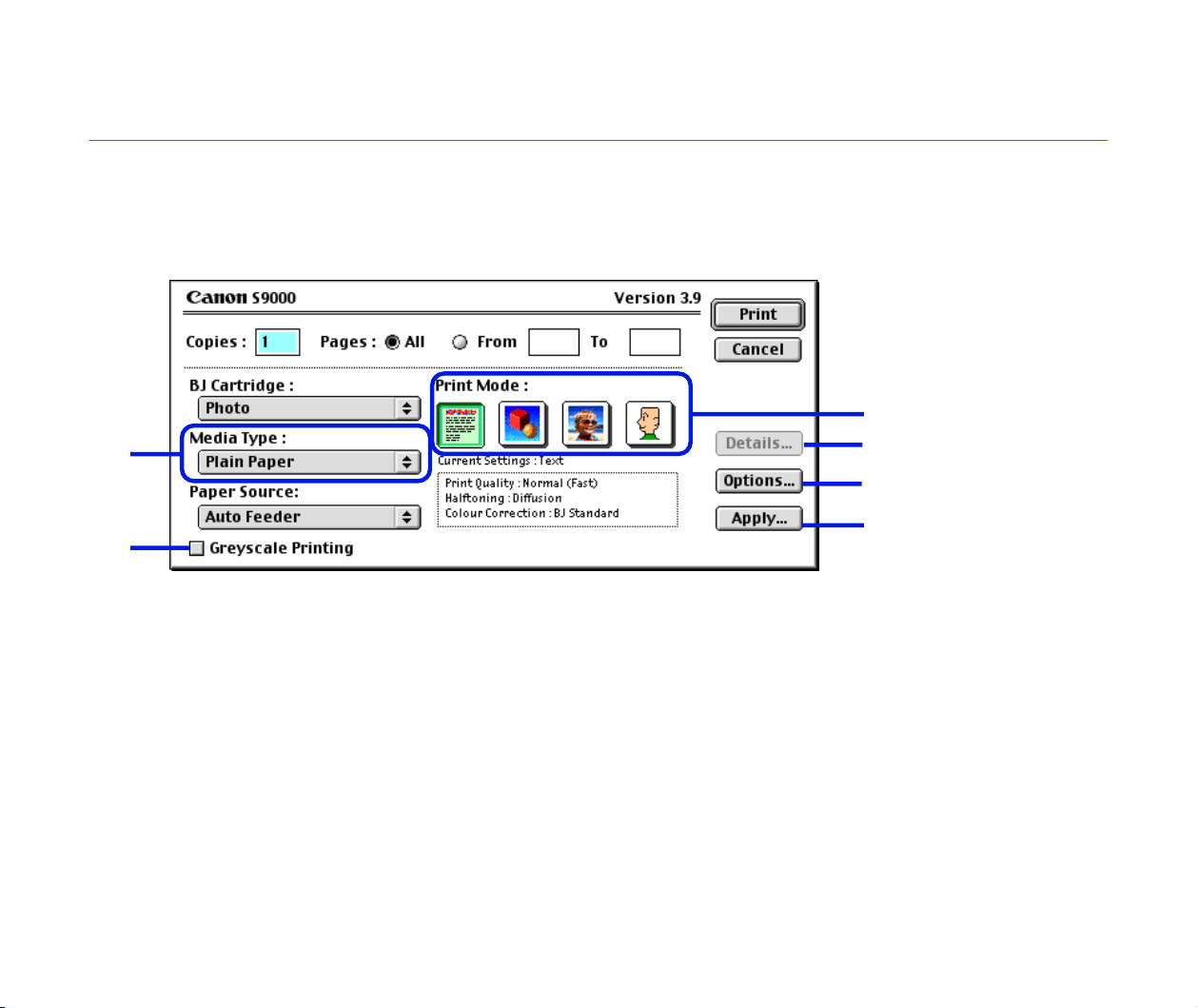
The Print dialog box specifies the media type and print settings to be used for your print
job. To open the Print dialog box, select Print from the File menu in your application
program.
(1) Media Type
Ensure this setting matches the type of paper media loaded in the printer.
(2) Greyscale Printing
Select to print a greyscale version of a colour document.
(3) Print Mode
Select the icon that most closely resembles your document and required print results.
(1)
(2)
(3)
(4)
(5)
(6)

Description of Print Settings
49
Printer Driver Functions (Macintosh)
(4) Details...
Allows you to manually set the print quality and colour settings in the
Detailed Setting
Dialog Box.
(5) Options...
Specify the output destination, print order and page layout for the document you are
printing.
(6) Apply...
Allows you to register print settings or to implement a previously registered print
setting.
Description of Print Settings
50
Printer Driver Functions (Macintosh)
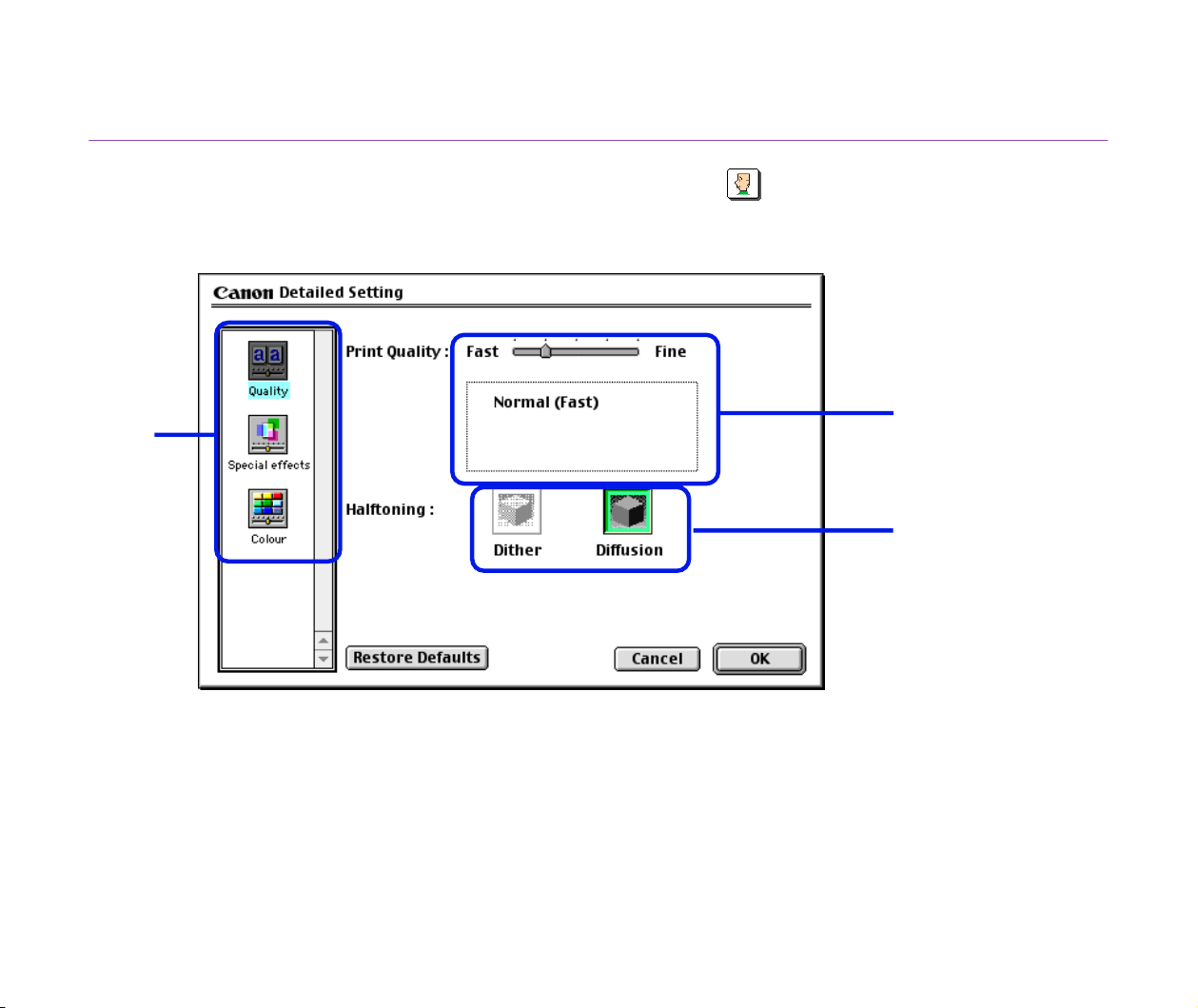
Detailed Setting Dialog Box
To open the Detailed Setting dialog box, select Manual in the Print dialog box and
then click Details....
(1) Panel display icons
Click these icons to switch between panels in the Detailed Setting dialog box.
(1)
(2)
(3)

Description of Print Settings
51
Printer Driver Functions (Macintosh)
(2) Print Quality
Move the slide bar to adjust the balance between print quality and speed. Moving the
bar to the right enhances print quality, and moving it to the left increases printing
speed.
(3) Halftoning
Select either Dither or Diffusion ink dot configurations.
Description of Print Settings
52
Printer Driver Functions (Macintosh)
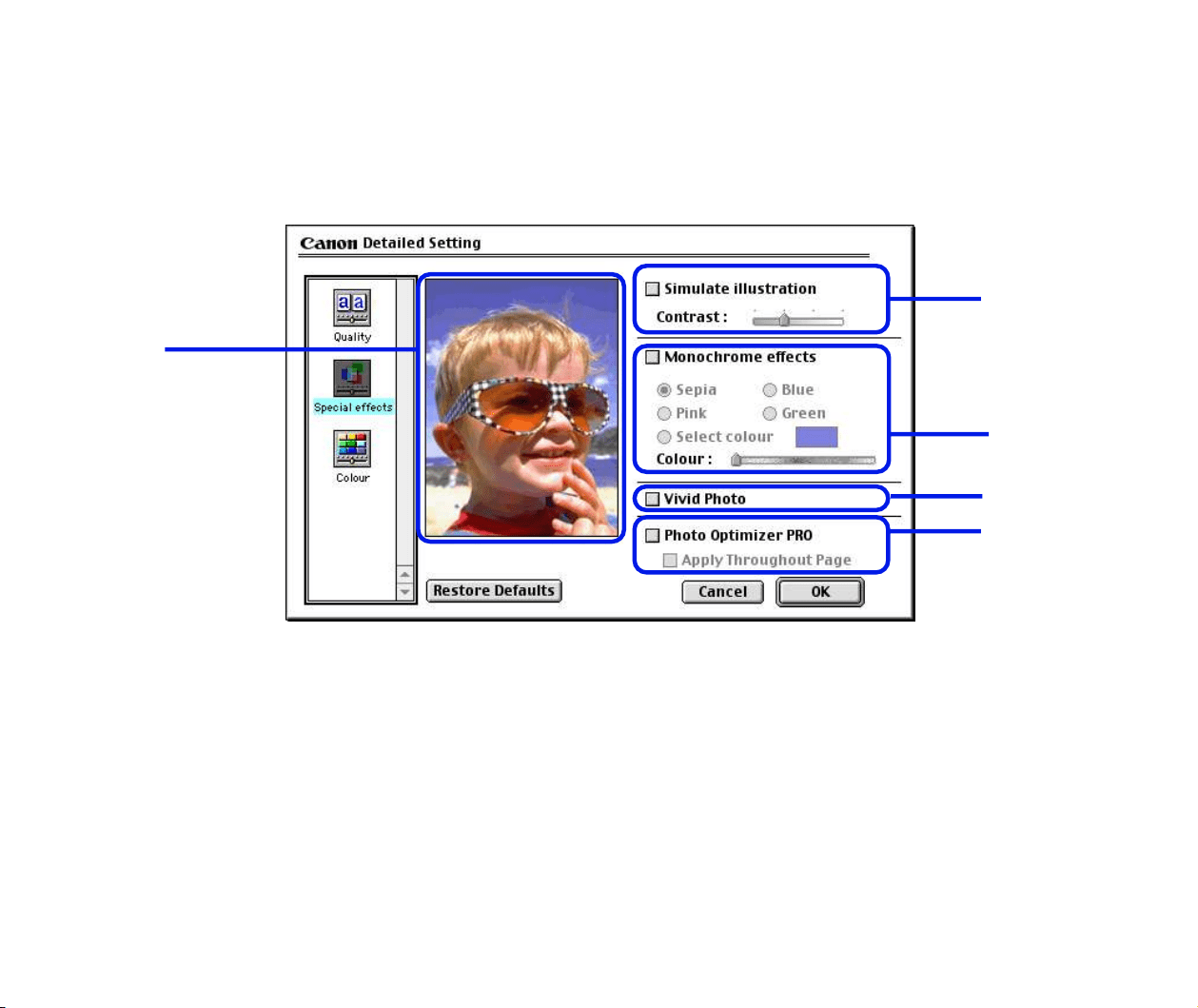
■ Special Effects Panel
To display the Special Effects panel, click the Special effects display icon.
(1) Simulate illustration
Select the check box to manipulate colour image data to produce illustration effects.
Adjust the brightness of the image with the Contrast slide bar.
(5)
(1)
(2)
(3)
(4)

Description of Print Settings
53
Printer Driver Functions (Macintosh)
(2) Monochrome effects
Prints a colour image in a single colour. Select the check box and choose the colour
you wish to use.
(3) Vivid Photo
By using this function, you can reproduce breathtaking sceneries in which colours,
especially blues and greens, appear even more vibrant. A major feature of this
function is its ability to create vivid backgrounds of fields, trees, oceans, and sky, while
maintaining the natural skin tones of people that appear in the images.
(4) Photo Optimizer PRO
Optimises the colour of images taken from a digital camera or scanner. It is especially
effective for images affected by colour imbalance and over- or under exposure.
When printing several images on one printing page, optimisation is usually applied to
each image according to its requirements. However, if the image data has been
manipulated using cut and paste, rotation or other such operations, group optimisation
of all images on the page is recommended. In such cases, select the Apply
Throughout Page check box.
(5) Preview Area
Description of Print Settings
54
Printer Driver Functions (Macintosh)
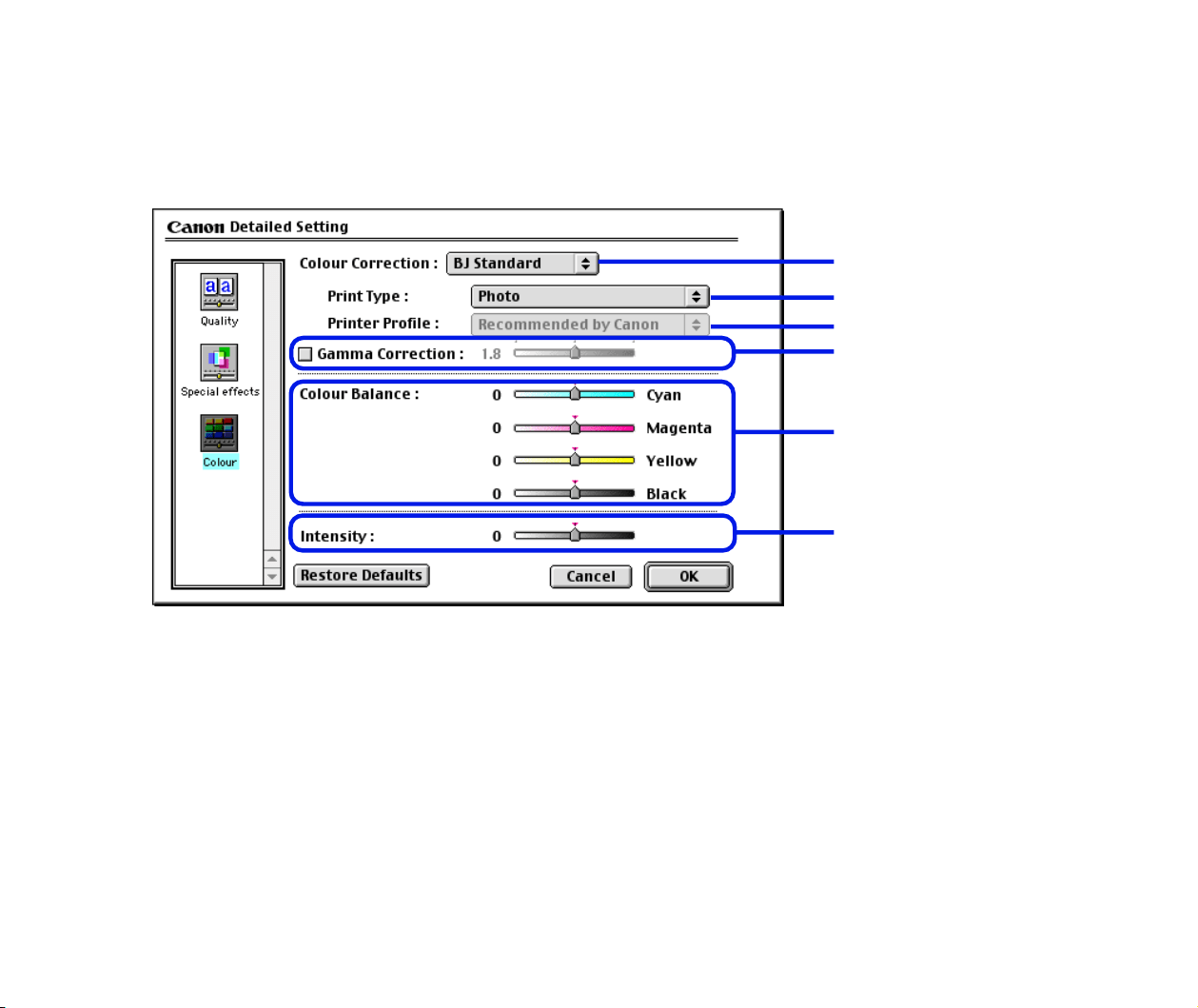
■ Colour Panel
To display the Colour panel, click the Colour display icon.
(1) Colour Correction
Select a colour correction method: BJ Standard, ColorSync or None. BJ Standard
is usually the optimum colour correction method for printing with a BJ printer. When
ColorSync is selected, you should also specify the Print Type and Printer Profile
settings.
(1)
(2)
(3)
(4)
(5)
(6)

Description of Print Settings
55
Printer Driver Functions (Macintosh)
(2) Print Type
For printing that emphasises intermediate colours, select Photo. For printing that
emphasises the brightness of primary colours, select Graphics. For documents that
contain large amounts of a basic colour, select Spot Colour.
(3) Printer Profile
Select optimised colour characteristics (a profile) for the media type and other factors.
(4) Gamma Correction
This function adjusts the colour contrast (not including pure black and white). To adjust
the contrast, select the check box and move the slide bar. Moving the bar to the right
darkens the entire image while increasing contrast in the lighter areas and decreasing
contrast in the darker areas.
(5) Colour Balance
Move the bar for each colour to adjust the balance of colour intensity. Moving the bar
to the right intensifies the colour.
(6) Intensity
Move the slide bar to adjust the print density. Moving the bar to the right increases the
density.
Description of Print Settings
56
Printer Driver Functions (Macintosh)
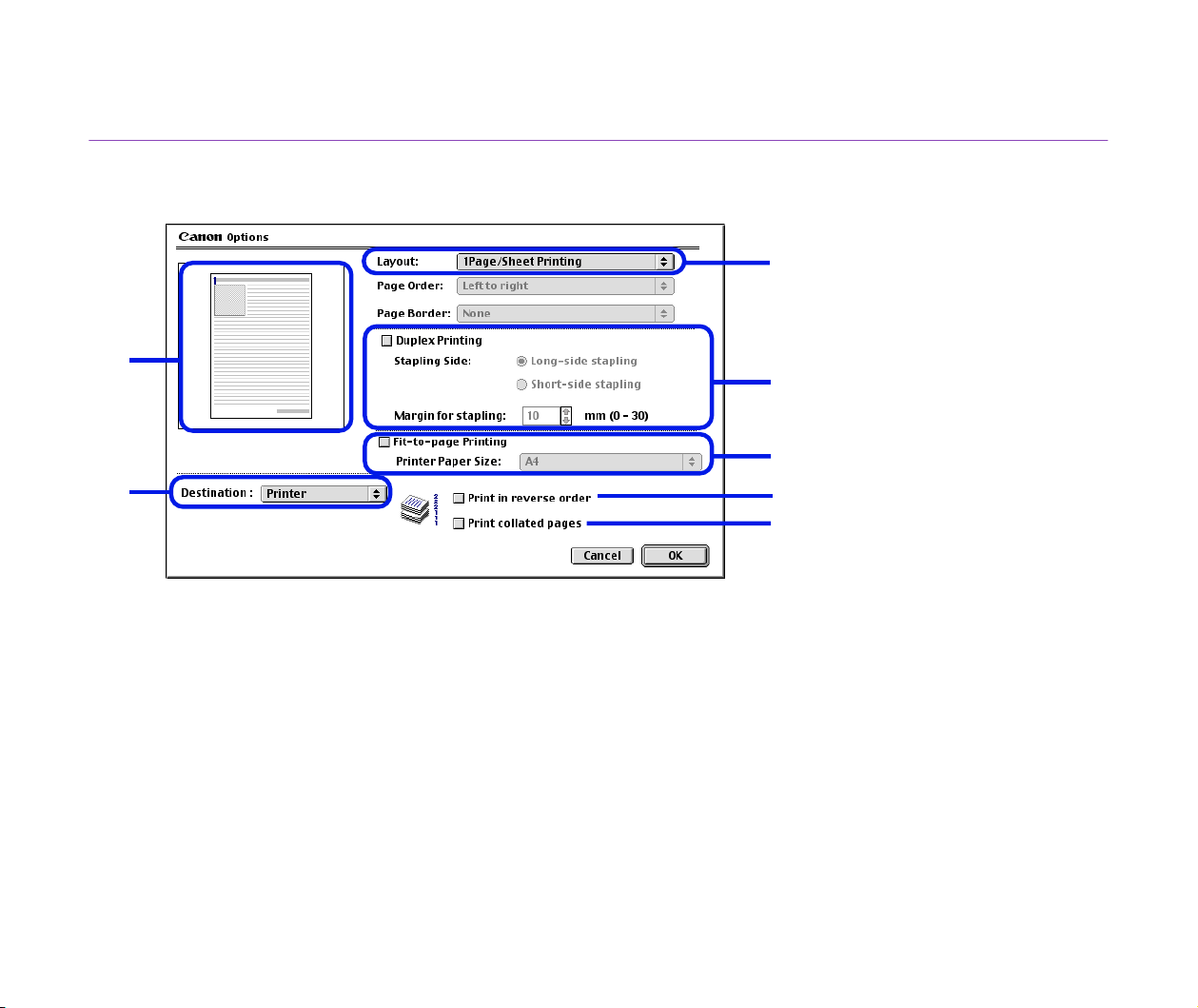
Options Dialog Box
To open the Options dialog box, click the Options... button in the Print dialog box.
(1) Layout
Allows you to print two or four pages of a document on a single page, or to enlarge
printing so that a single page spans multiple sheets of paper (Poster Printing). If you
select 2Page/Sheet Printing or 4Page/Sheet Printing, you should also set the Page
Order to specify the document page order for printing. The Border option allows you
to select whether to print a border around the individual document pages.
(1)
(2)
(7)
(4)
(5)
(6)
(3)

Description of Print Settings
57
Printer Driver Functions (Macintosh)
(2) Duplex Printing
The document is printed on both sides of the paper. After printing one side, turn the
ejected page over, and print on the other side.
(3) Fit-to-page Printing
The document is automatically resized to fit the paper size. When using this function,
ensure you correctly specify the Printer Paper Size.
(4) Destination
Select the print output destination. Printer is the usual selection.
To check the layout or other image elements before printing, select Preview. To save
the document as a PICT file, select PICT File.
(5) Print in reverse order
Prints the document starting with the last page.
(6) Print collated pages
Prints multiple copies of the document one copy at a time.
(7) Preview Area
Description of Print Settings
58
Printer Driver Functions (Macintosh)
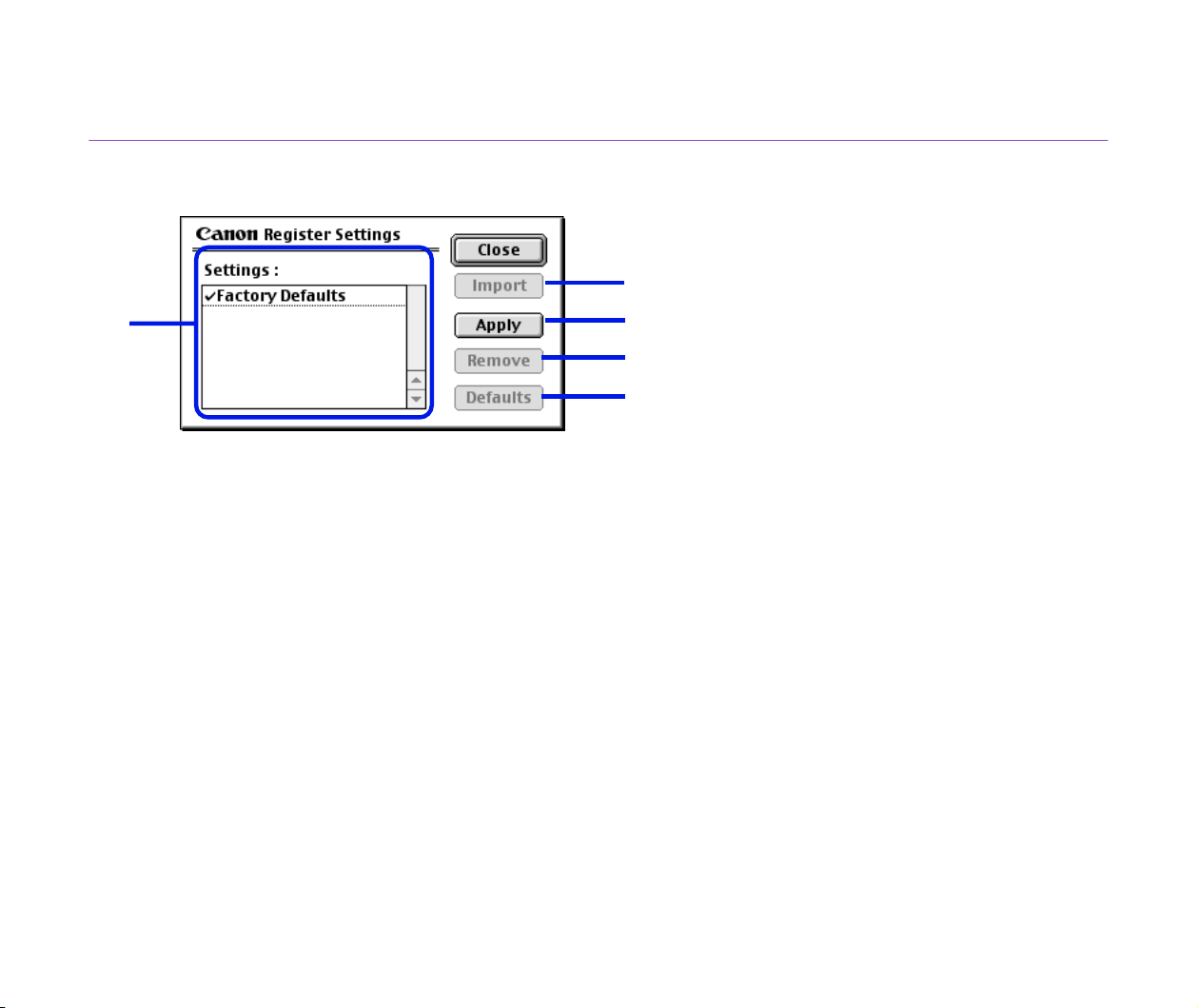
Register Settings Dialog Box
To open the Register Settings dialog box, click the Apply... button in the Print dialog box.
(1) Settings
Displays a list of the registered print settings.
(2) Import
Imports a set of print settings. To use the settings, select the desired settings in the
Settings list and click the Import button.
(3) Apply
Saves the settings currently specified in the Print dialog box. After clicking the button,
enter the name under which the settings are to be saved.
(4) Remove
Deletes unwanted print settings. To delete unwanted settings, select the settings in
Settings and click the Remove button.
(5) Defaults
Restores the print settings selected in Settings to defaults. A check mark appears
next to the selected print settings.
(1)
(2)
(3)
(4)
(5)
BJ Print Monitor
59
Printer Driver Functions (Macintosh)
BJ Print Monitor
The BJ Print Monitor allows you to check the progress of print jobs.
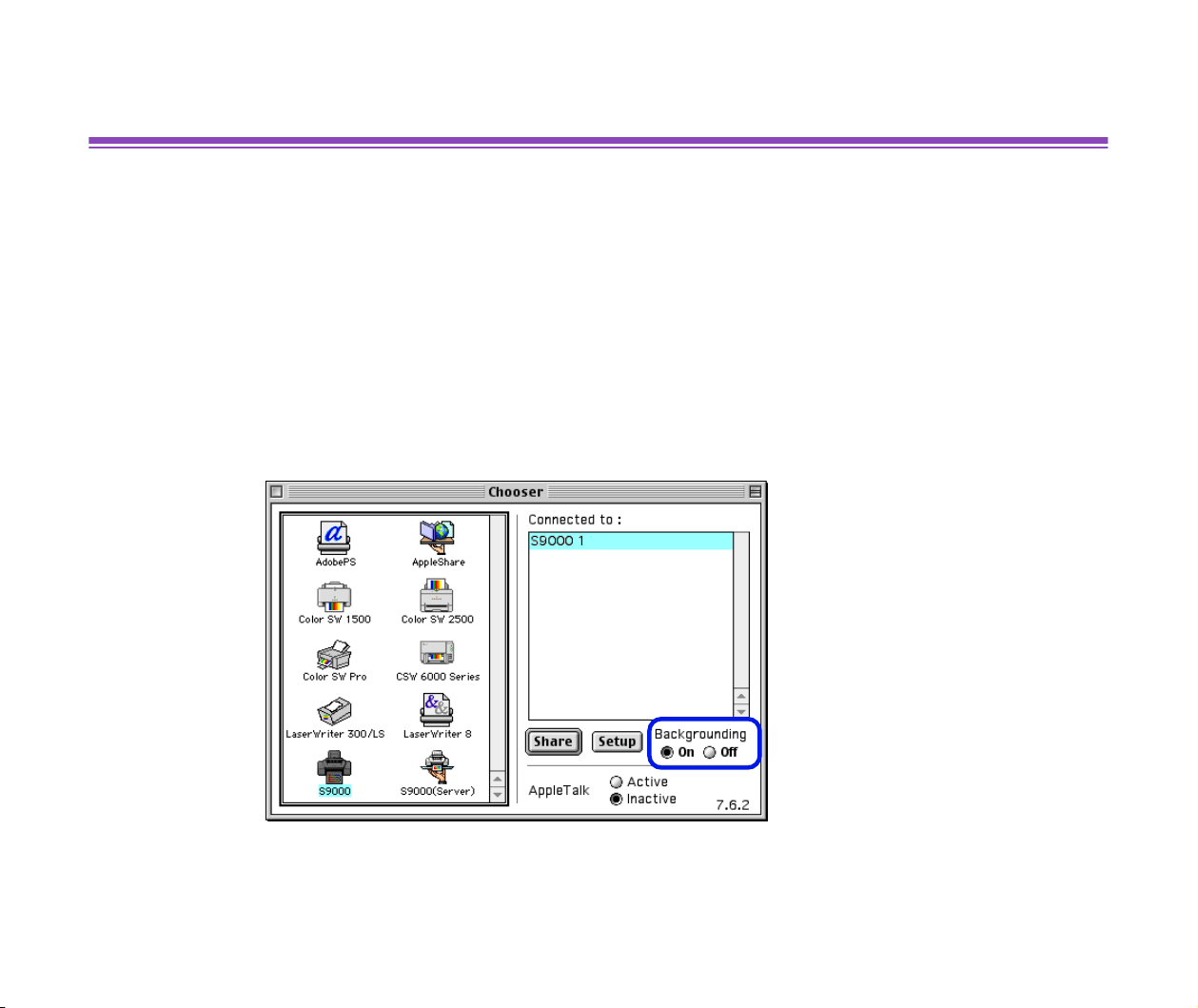
You can launch the BJ Print Monitor if background printing is enabled in the Chooser utility.
■ Opening the BJ Print Monitor
1
Select Chooser from the Apple Menu.
2
Set Backgrounding to On.
3
After starting a print job, select BJ Print Monitor in the Application Menu.
The BJ Print Monitor launches.
BJ Print Monitor
60
Printer Driver Functions (Macintosh)
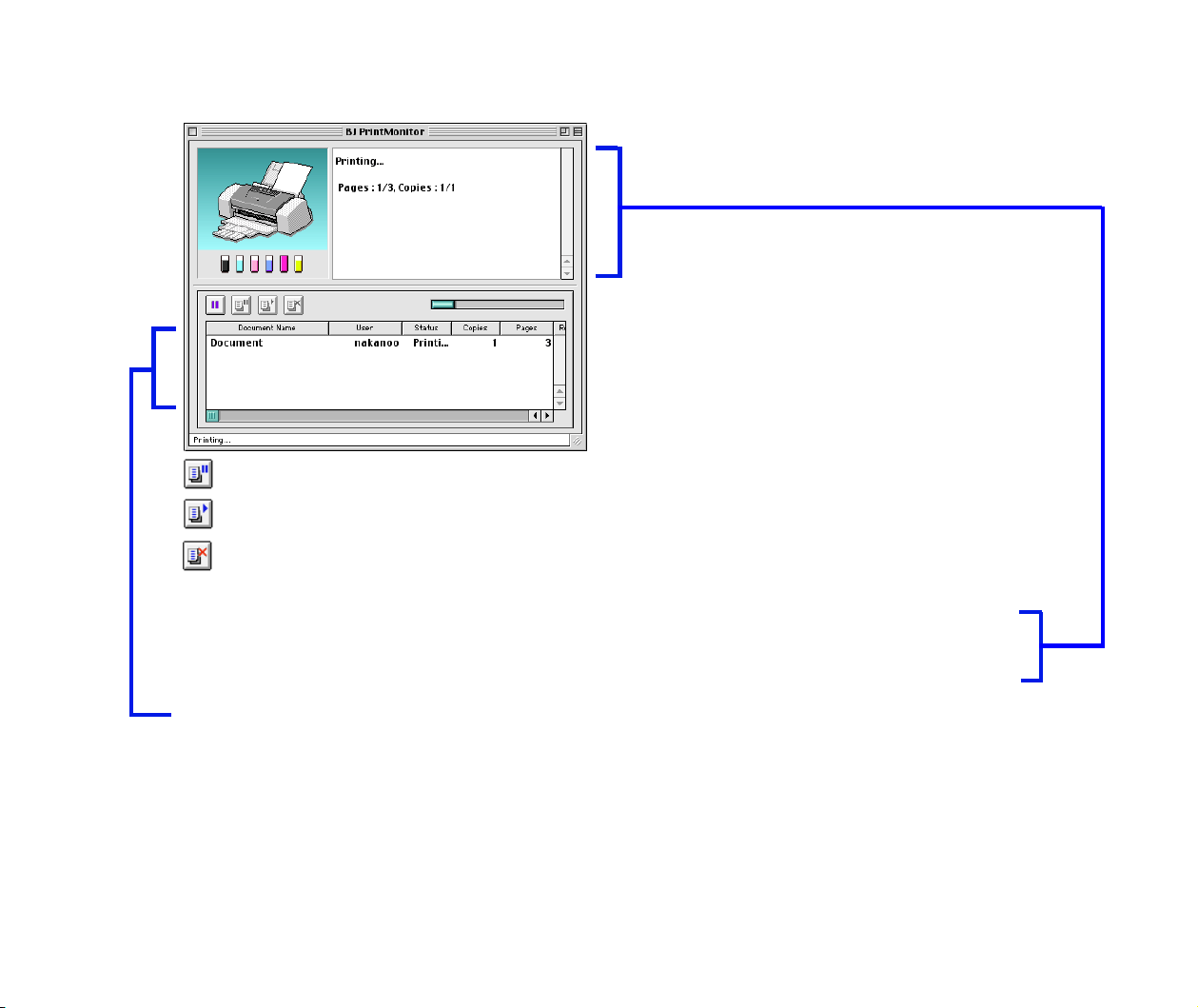
■ BJ Print Monitor Functions
The BJ Print Monitor allows you to change the print order of documents queued for printing.
To change the print order, place the mouse pointer over the name of the document, hold the
mouse button down while dragging the document name to the new position, then release.
Note, however, that you cannot change the print order of a document already printing.
Note
➤
If you select Print from the File menu, you can print the PICT file saved in
Destination of the Option dialog box.
... Click to pause printing of the specified document.
... Click to resume printing.
... Click to cancel printing of the specified document.
Displays the printer status. If an error occurs, instructions on what to do are
displayed.
Displays the printer status and ink status with images.
Displays information about the documents queued for printing.

Cancelling a Print Job
61
Printer Driver Functions (Macintosh)
Cancelling a Print Job
When the BJ Print Monitor is running, you can use it to cancel or suspend the currently
printing job.
1
Select BJ Print Monitor in the Application Menu.
2
Click the name of the print job you wish to cancel, then click .
The document selected in the Print Monitor is deleted from the print list and
the print job is cancelled.
Note
➤
To suspend printing, click the name of the document being printed then
click . To resume printing, click .

Using the Printer with a Network
62
Printer Driver Functions (Macintosh)
Using the Printer with a Network
The printer can be used with an Ethernet network environment.
Follow the steps described below to connect the printer to the network.
■ Before Setting up the Printer
• Install the printer driver on each network computer that will use the printer.
For information on installation, refer to the
Quick Start Guide
.
• Use a USB cable to connect the printer to the computer that will function as the print
server.
■ Printer Setup
To use the printer on a network, first set up the print server, then set up each client
machine.
• Print server setup procedure
1
Select Chooser in the Apple Menu.
2
Select Active in AppleTalk.
3
Select the S9000 icon, then select the printer name in Connected to:.

Using the Printer with a Network
63
Printer Driver Functions (Macintosh)
4
Click Share.
5
Confirm that S9000 server is selected in Enter new print server name:
then click Send.
6
Confirm that the new print server name has been added to Current print
servers then click Close.
7
Click the close box to close the Chooser.
• Client setup procedure
1
Select Chooser in the Apple Menu.
2
Select Active in AppleTalk.
3
Select the S9000 (Server) icon, then select the printer server in
Connected to:.
4
Click the close box to close the Chooser.

Using the Printer with a Network
64
Printer Driver Functions (Macintosh)
■ Checking Print Status
• Checking print status from the print server
To check the status of a print job from the print server, start the BJ Print Monitor.
Select BJ Print Monitor in the Application Menu.
To close the BJ Print Monitor, select Close Status Window in the File menu.
• Checking print status from a client
To check the status of a print job from a client, start the BJ Status Monitor. Click the BJ
Status Monitor icon in the BJ Extras folder.
To close the BJ Status Monitor, select Quit in the File menu.
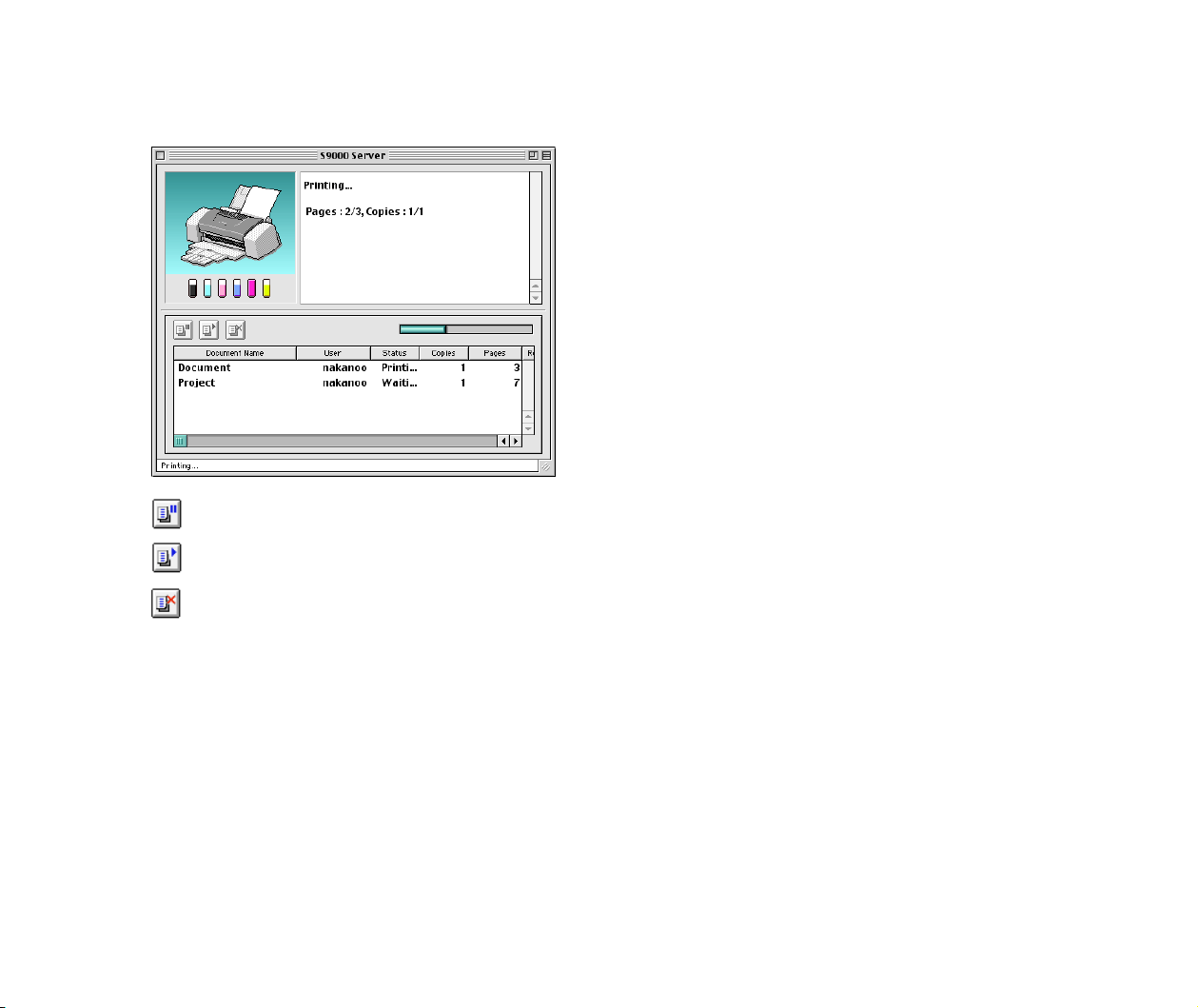
• The BJ Print Monitor and BJ Status Monitor
The BJ Print Monitor and the BJ Status Monitor both display a list of information
concerning documents queued for printing. This information includes the document
name, number of pages, number of copies and the time when the print job was
accepted. The total number of queued documents is also displayed.
The BJ Print Monitor allows you to change the print order of the queued documents.
➡
BJ Print Monitor Functions
➡
BJ Status Monitor Functions
Using the Printer with a Network
65
Printer Driver Functions (Macintosh)
■ BJ Status Monitor Functions
.... Click to pause printing of the specified document.
.... Click to resume printing.
.... Click to cancel printing of the specified document.
Note
➤
• You can determine the owner of a computer by selecting the File Sharing
control panel and checking the Owner Name item.
• If you are using two or more printer servers, you can switch between the
BJ Status Monitor displays. Select Print Server in the File menu, then
select the desired print server and click OK.

Uninstalling Printer Drivers
66
Printer Driver Functions (Macintosh)
Uninstalling Printer Drivers
When a printer driver is no longer needed, use the Installer to delete, all the program files
associated with it at the same time.
Before proceeding, ensure you save any unsaved files in any currently running applications.
1
Load the
Setup Software & User's Guide CD-ROM
.
2
Double-click the Printer Driver folder.
3
Double-click the Installer icon.
4
When the Software License Agreement is displayed, click Accept.
5
Select Uninstall from the popup menu and then click Uninstall.
Note
➤
If a warning message appears indicating that other applications are
running:
• Click Cancel and save the document(s) if there are any unsaved
documents open in the other applications.
• Click Continue to continue the uninstall operation.
6
After the uninstall is complete, a message appears prompting you to restart
your computer. Click Restart.


When to Replace Ink Tank and Maintain Print Head
68
Routine Maintenance
When to Replace Ink Tank and Maintain Print Head
When an ink tank is empty, it must be replaced.
The BJ Status Monitor (Windows) or the BJ Print Monitor (Macintosh) will initially advise
you of a low ink level. At this stage, you can still continue to print.
Once an ink tank is empty, the BJ Status Monitor (Windows) or the BJ Print Monitor
(Macintosh) will tell you to replace the ink tank. Attempting to print causes the POWER
lamp to flash four times.
➡
Replacing an Ink Tank
If printing becomes faint or a specific colour is no longer printing, even though there is still
enough ink, the print head nozzles are probably clogged. Follow the procedures below to
clean the nozzles.
➡
Printing the Nozzle Check Pattern
If the print quality is poor
➡
Print Head Cleaning
If the problem remains
➡
Print Head Deep Cleaning
If print head deep cleaning does not resolve the problem, the print head may be worn out.
Contact a Canon service representative.

Replacing an Ink Tank
69
Routine Maintenance
Replacing an Ink Tank
When replacing an ink tank, check the model number very carefully. The printer will not print
properly if the wrong ink tank is used, or installed in the incorrect position.
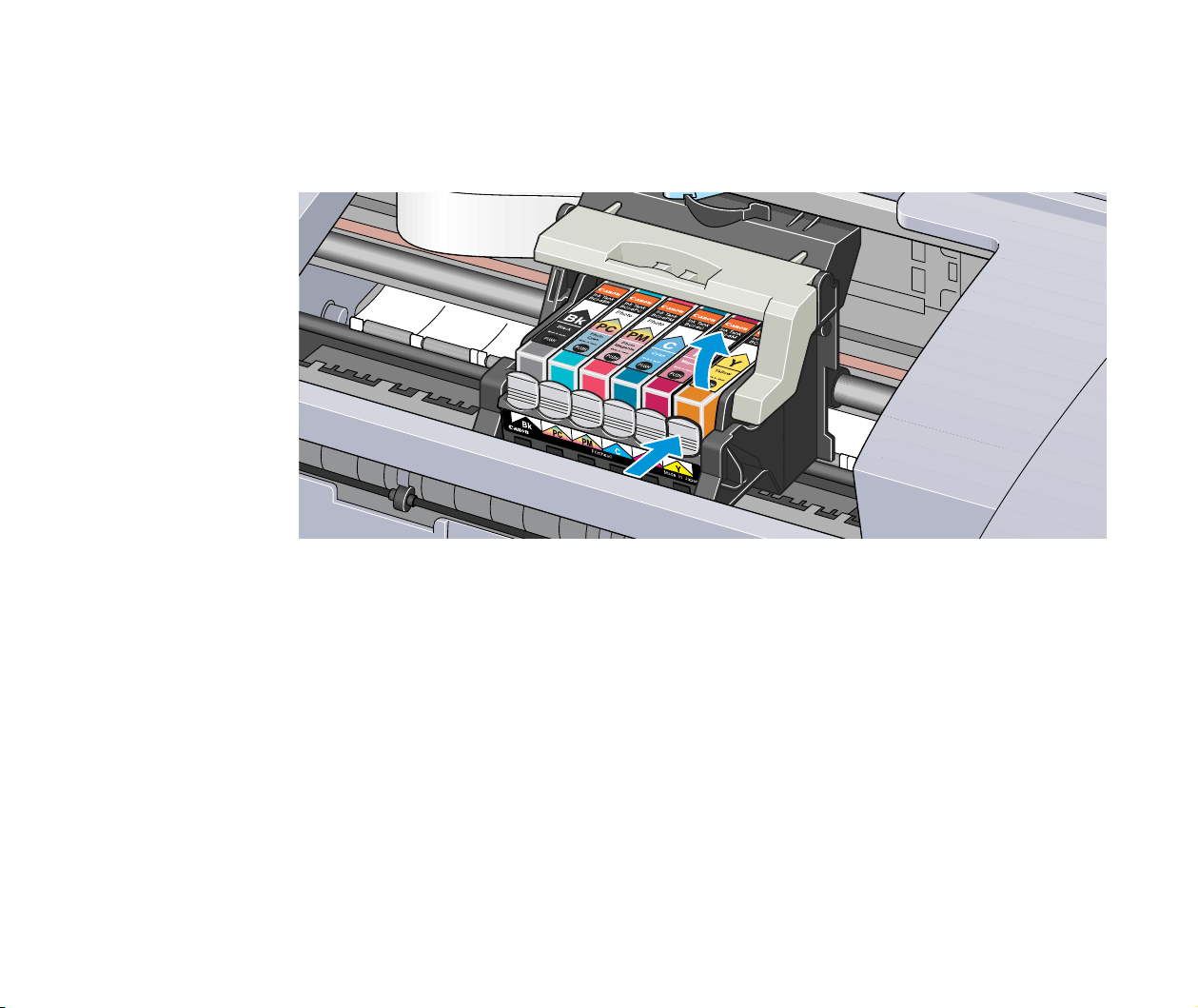
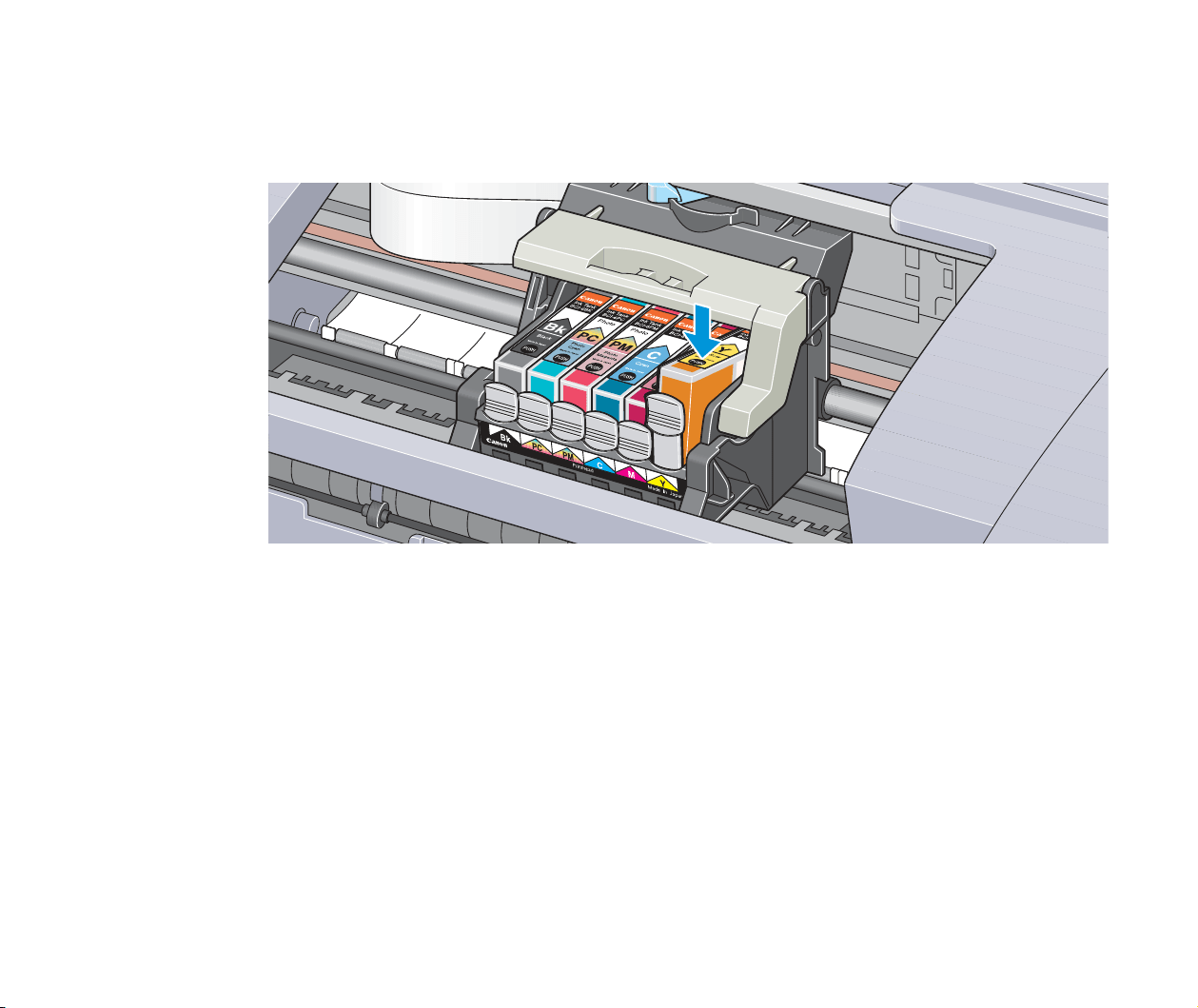
With this printer, ink tanks must be installed from the right in the order indicated below.
• Yellow: BCI-6Y
• Magenta: BCI-6M
• Cyan: BCI-6C
• Photo Magenta: BCI-6PM Photo
• Photo Cyan: BCI-6PC Photo
• Black: BCI-6BK
Note
➤
Damage caused by using a refilled cartridge is not covered by the Canon
warranty. Canon recommends using only original Canon ink tanks to
ensure the best quality.
1
Ensure that the printer is on, and then open the front cover.
The print head holder moves to the centre.
Replacing an Ink Tank
70
Routine Maintenance
2
Remove the empty ink tank.
Push the tab and remove the ink tank.
Do not touch the lock lever; remove only the ink tank.
Important
➤ • Handle ink tanks carefully to avoid staining clothing or the surrounding
area.
• Discard empty ink tanks according to the local laws and regulations
regarding disposal of consumables.
Replacing an Ink Tank
71
Routine Maintenance
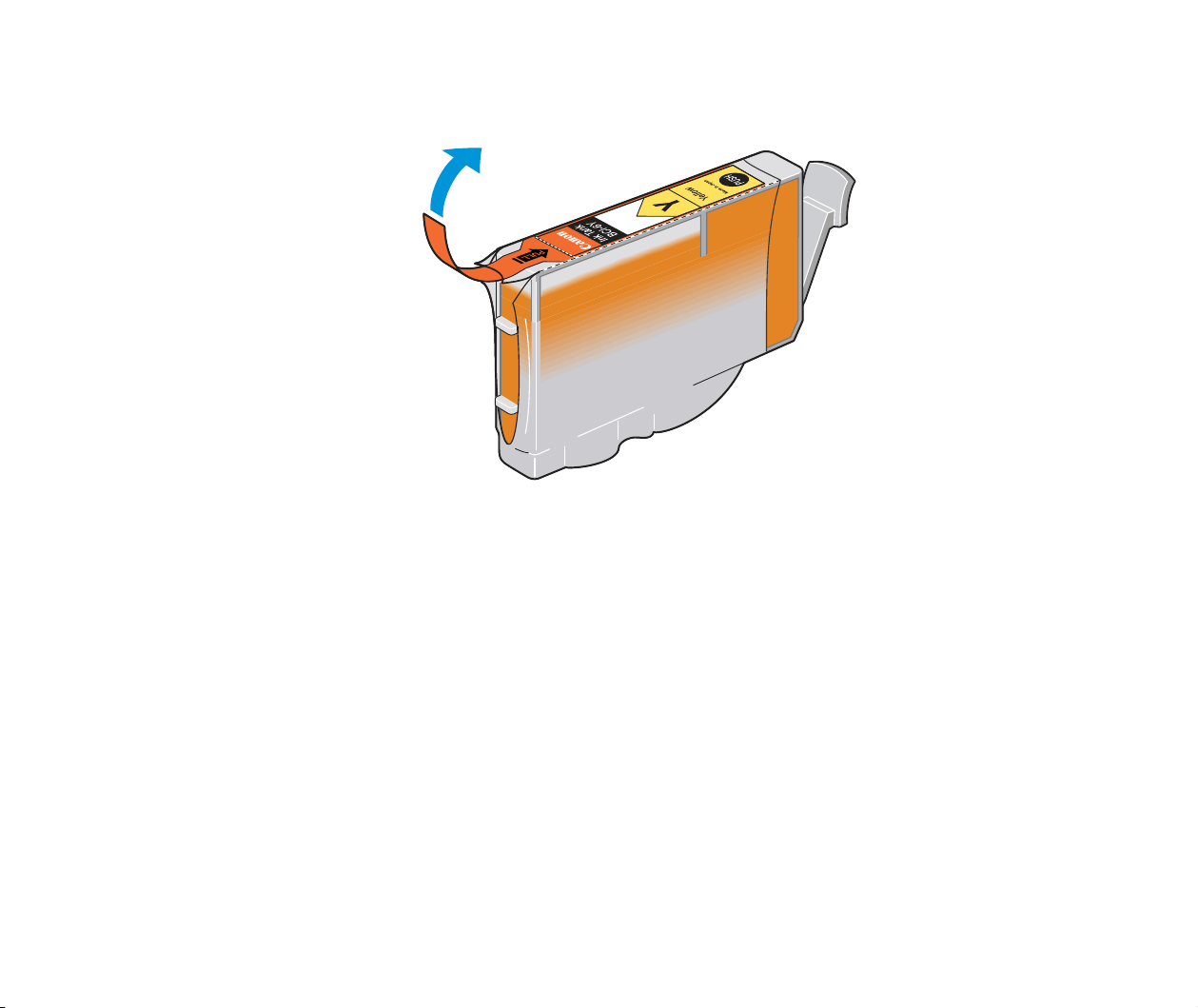
3
Unpack the new ink tank and pull off the orange tape.
Replacing an Ink Tank
72
Routine Maintenance
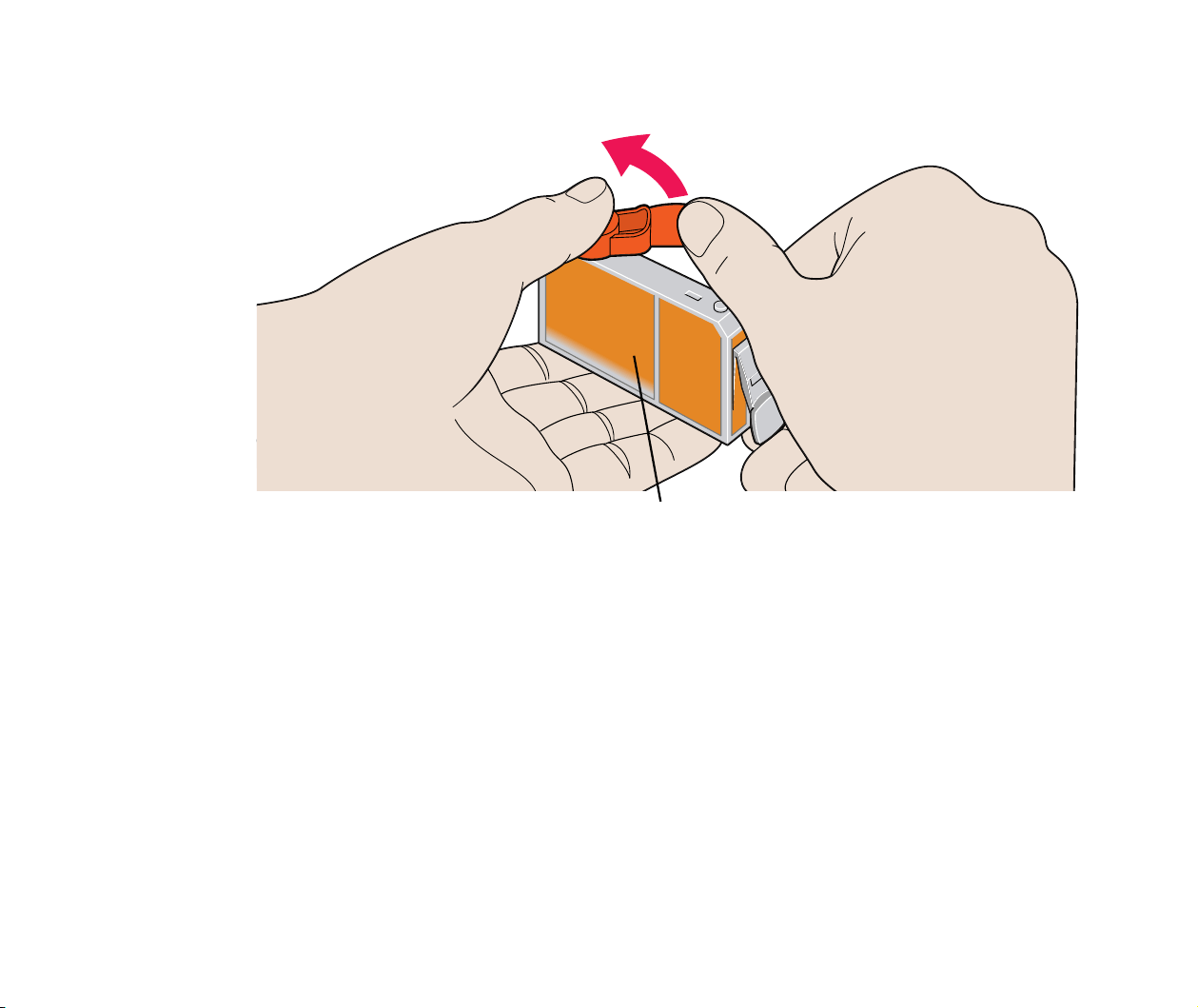
4
Remove the orange protective cap from the bottom of the ink tank.
Important
➤ • Do not re-attach the protective cap once you have removed it.
• Once you have removed the protective cap, do not touch the open ink
port.
Never press here!
Ink may squirt out of the tank.
Replacing an Ink Tank
73
Routine Maintenance
5
Insert the ink tank in the print head holder.
Press on the "PUSH" mark until the ink tank snaps firmly into place.
6
Close the front cover.
The print head holder moves to the right. The ink tank installation process
is now complete.
Note
➤
• To maintain optimal print quality, use an ink tank within six months of first
use.
• Once an ink tank has been used, do not remove it from the printer and
leave it out in the open. An ink tank left out in the open and then
reinstalled in the printer may not function.

Printing the Nozzle Check Pattern
74
Routine Maintenance
Printing the Nozzle Check Pattern
Print the nozzle check pattern to determine whether the ink sprays normally from the print
head nozzles, and to verify print head alignment. Use this function when printed results are
blurred or the colour is incorrect.
Nozzle check pattern printing can be executed from the Windows and Macintosh printer
drivers, or from the printer itself.
■ Printing the Nozzle Check Pattern from the Printer Drivers
Windows
1
With the printer on, load a sheet of A4 or Letter paper in the printer.
2
Open the Printer Properties dialog box.
➡
Opening the Printer Properties Dialog Box
3
Click the Maintenance tab and then click the Nozzle Check icon.
4
When the confirmation message is displayed, click OK.
➡
Examining the Nozzle Check Pattern

Printing the Nozzle Check Pattern
75
Routine Maintenance
Macintosh
1
With the printer on, load a sheet of A4 or Letter paper in the printer.
2
Open the Page Setup dialog box.
The Page Setup dialog box can normally be opened by selecting Page
Setup... in the File menu.
3
Click the Utilities button to open the Printer Utilities dialog box.
4
Select Test Print from the pull-down menu, and then click the Nozzle
Check icon.
5
When the confirmation message is displayed, click OK.
➡
Examining the Nozzle Check Pattern

Printing the Nozzle Check Pattern
77
Routine Maintenance
■ Examining the Nozzle Check Pattern
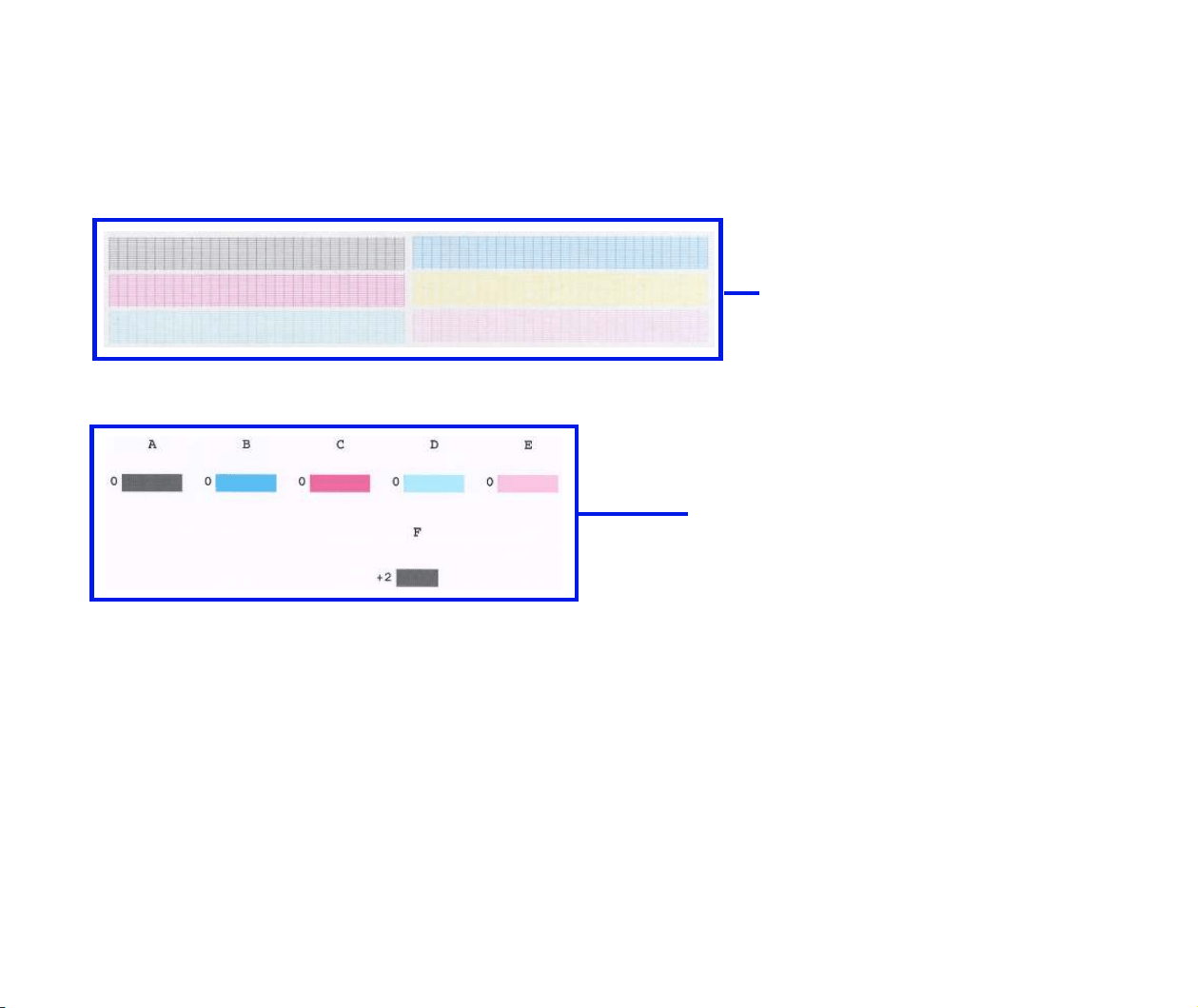
The nozzle check pattern should appear as follows when ink is discharged properly.
Examine the nozzle check pattern output by the printer.
Lines missing here
indicate the print head
requires cleaning.
Unevenness in these patterns
indicates the print head requires
alignment.

Print Head Cleaning
78
Routine Maintenance
Print Head Cleaning
Clean the print head if you suspect that the nozzles might be clogged.
Head cleaning can be performed either from the printer drivers or from the printer itself.
Note
➤
Cleaning the head consumes ink, so perform head cleaning only when
necessary.
■ Cleaning the Print Head from the Printer Drivers
Windows
1
Ensure that the printer is on.
2
Open the Printer Properties Dialog Box.
➡
Opening the Printer Properties Dialog Box
3
Click the Maintenance tab and then click the Cleaning icon.
4
When the confirmation message is displayed, click OK.

Print Head Cleaning
79
Routine Maintenance
Macintosh
1
Ensure the printer is on.
2
Open the Page Setup dialog box.
The Page Setup dialog box can normally be opened by selecting Page
Setup... in the File menu.
3
Click the Utilities button to open the Printer Utility dialog box.
4
Select Cleaning from the pull-down menu, and then click the Cleaning
icon.
5
When the confirmation message appears, click OK.
Note
➤
If the problem remains even after you repeat print head cleaning three
times, perform print head deep cleaning.

Print Head Cleaning
80
Routine Maintenance
■ Cleaning the Print Head from the Printer
1
Ensure the printer is on.
2
Hold down the RESUME/CANCEL button until the POWER lamp flashes
once.
Now the POWER lamp starts flashing and print head cleaning begins. Do not perform any
other operations until the head cleaning finishes.
After print head cleaning finishes, print the nozzle check pattern to verify that the print head
is clean. If not, repeat print head cleaning. If the head is still not clean after the third
cleaning, perform print head deep cleaning.
➡
Printing the Nozzle Check Pattern
➡
Print Head Deep Cleaning

Print Head Deep Cleaning
81
Routine Maintenance
Print Head Deep Cleaning
If print quality does not improve by standard print head cleaning, try deep cleaning, which is
a more powerful process. Perform print head deep cleaning from the printer driver.
Note
➤
Print head deep cleaning consumes more ink than standard print head
cleaning, so perform this procedure only when necessary.
Windows
1
Ensure the printer is on.
2
Open the Printer Properties dialog box.
➡
Opening the Printer Properties Dialog Box
3
Click the Maintenance tab and then click the Deep Cleaning icon.
4
When the confirmation message is displayed, click OK.

Print Head Deep Cleaning
82
Routine Maintenance
Macintosh
1
Ensure the printer is on.
2
Open the Page Setup dialog box.
The Page Setup dialog box can normally be opened by selecting Page
Setup... in the File menu.
3
Click the Utilities button to open the Printer Utility dialog box.
4
Select Cleaning from the pull-down menu, and then click the Deep
Cleaning icon.
5
Click OK.
Now the POWER lamp starts flashing and print head deep cleaning begins. The process
takes one or two minutes to complete, so simply wait until the POWER lamp stops flashing.
After print head deep cleaning finishes, print the nozzle check pattern to verify that the head
is clean. If the print head is still not clean, repeat print head deep cleaning and the nozzle
check pattern printing up to three times. If the problem persists, the print head may be worn
out. Contact a Canon service representative.
➡
Printing the Nozzle Check Pattern

Cleaning the Printer
83
Routine Maintenance
Cleaning the Printer
During normal printing, ink and small scraps of paper accumulate in the printer. When the
accumulated debris becomes clearly visible, clean the printer by the following procedure.
1
Turn the printer off.
2
Ensure that the POWER lamp is off and unplug the printer.
Caution
➤ Always ensure you unplug the printer before cleaning the printer to avoid
an electric shock.
Cleaning the Printer
84
Routine Maintenance
3
Open the front cover, and wipe the interior of the printer with a dry cloth.
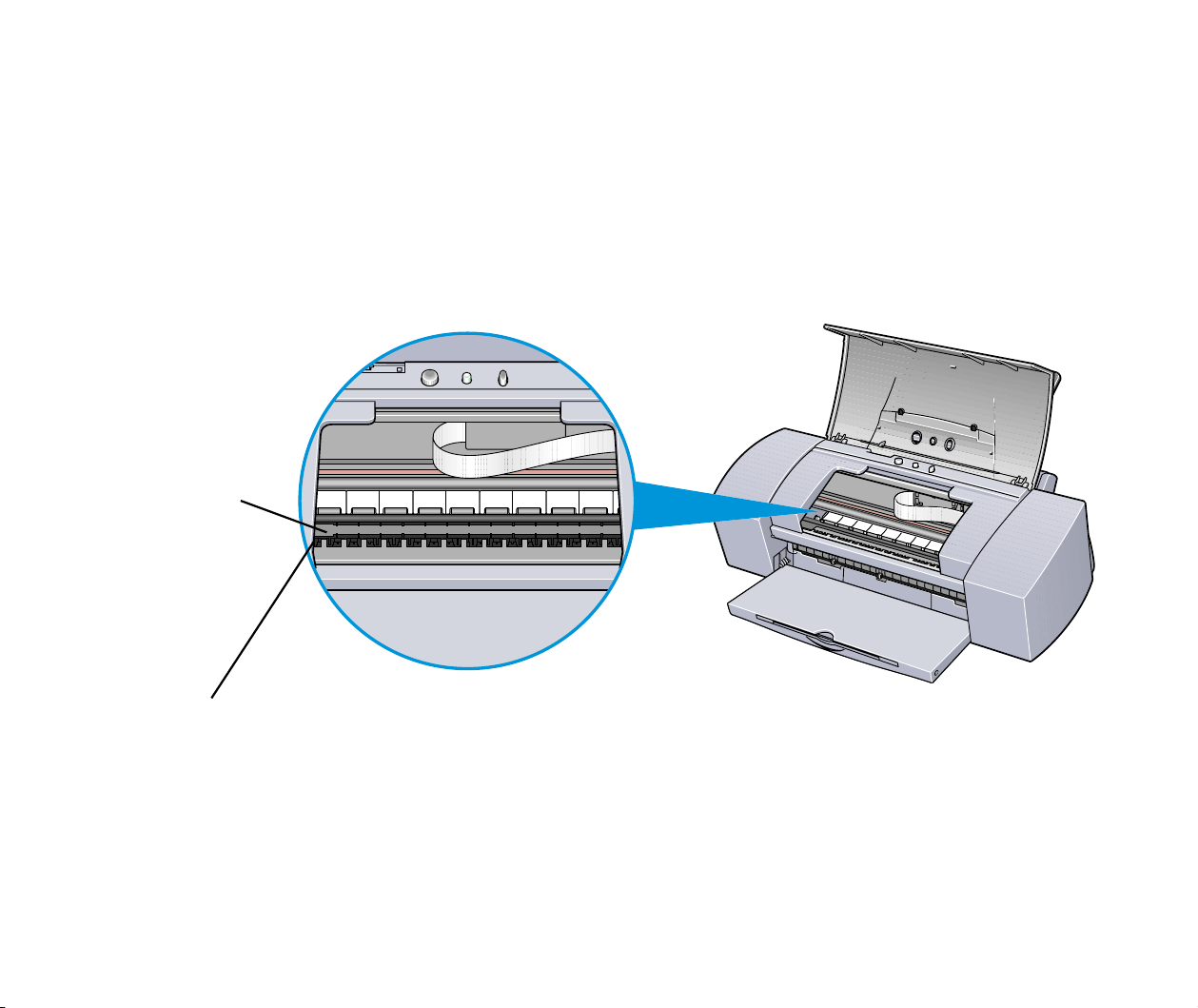
Wipe away any stray drops of ink, scraps of paper, and dust. Pay special
attention to cleaning the black panel that can easily become dirty. Do not
touch any of the printer's internal components, such as the Ink Absorber.
Warning
➤ Do not use any flammable solvents such as paint thinner, benzene or
alcohol.
Black panel
Ink Absorber

Transporting the Printer
85
Routine Maintenance
Transporting the Printer
Pack the printer carefully in its original packing materials.
If you do not have the original packing materials, pack the printer carefully and thoroughly in
protective material and place inside a sturdy box.
1
Turn the printer off.
2
After making sure that the POWER lamp is off, unplug the printer.
Important
➤ Do not unplug the printer while the POWER lamp is lit or flashing to protect
the printer from damage.
Transporting the Printer
86
Routine Maintenance
3
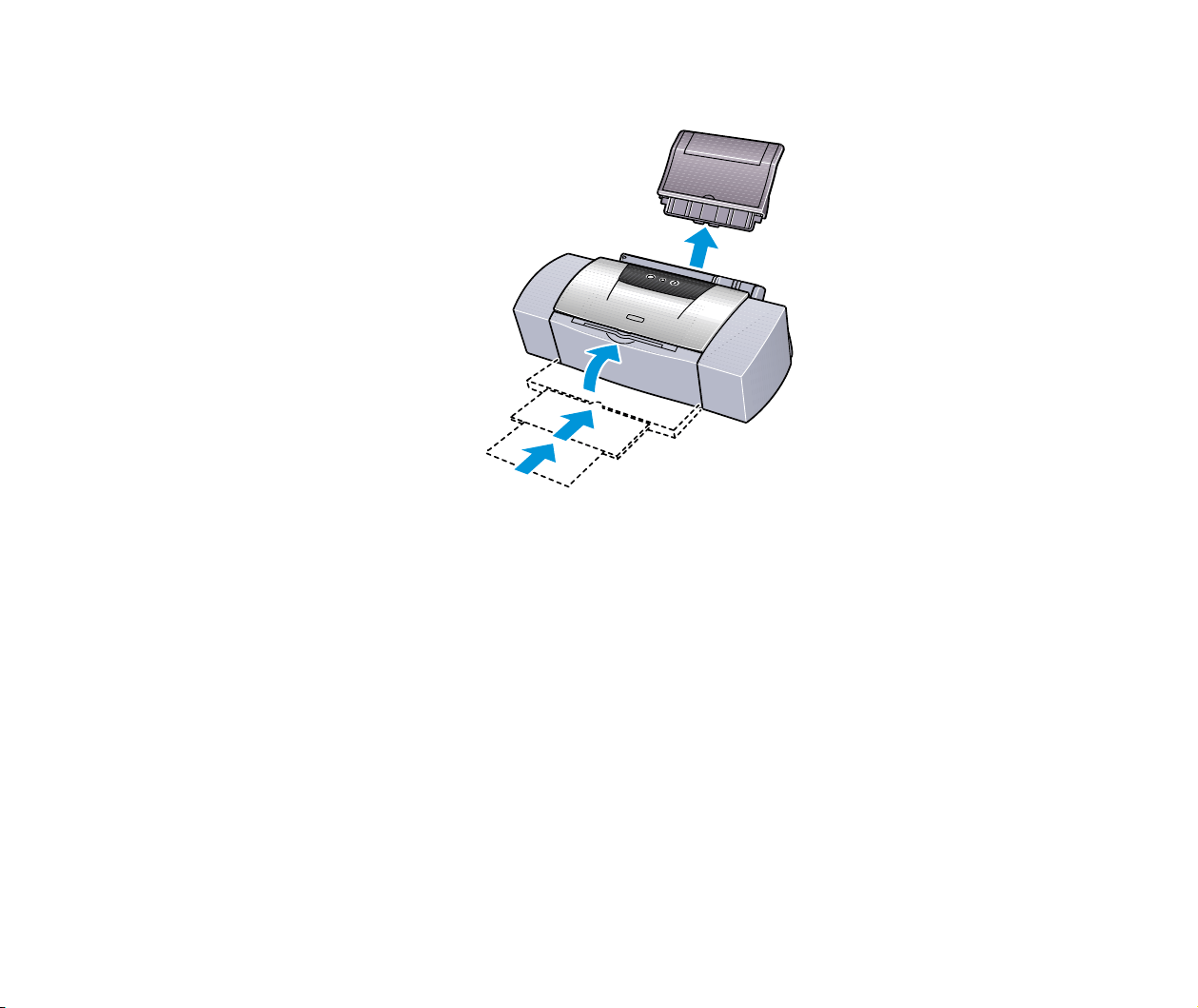
Remove the paper rest and push in the paper output tray.
4
Disconnect the printer cable from the computer, and then disconnect the
power cord from the printer.
Transporting the Printer
87
Routine Maintenance
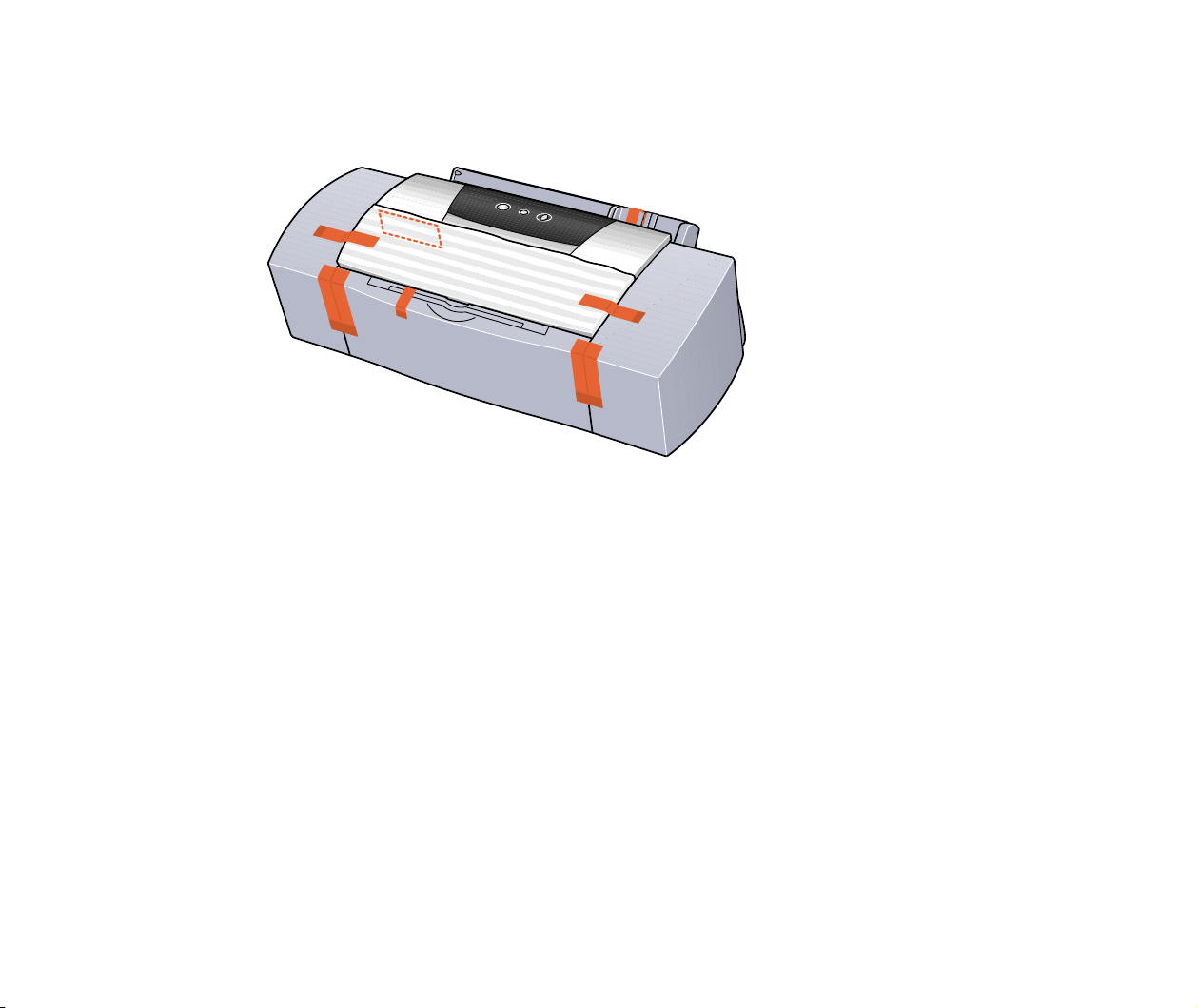
5
Secure the printer with adhesive tape as shown, and then pack it in a
plastic bag.
Transporting the Printer
88
Routine Maintenance
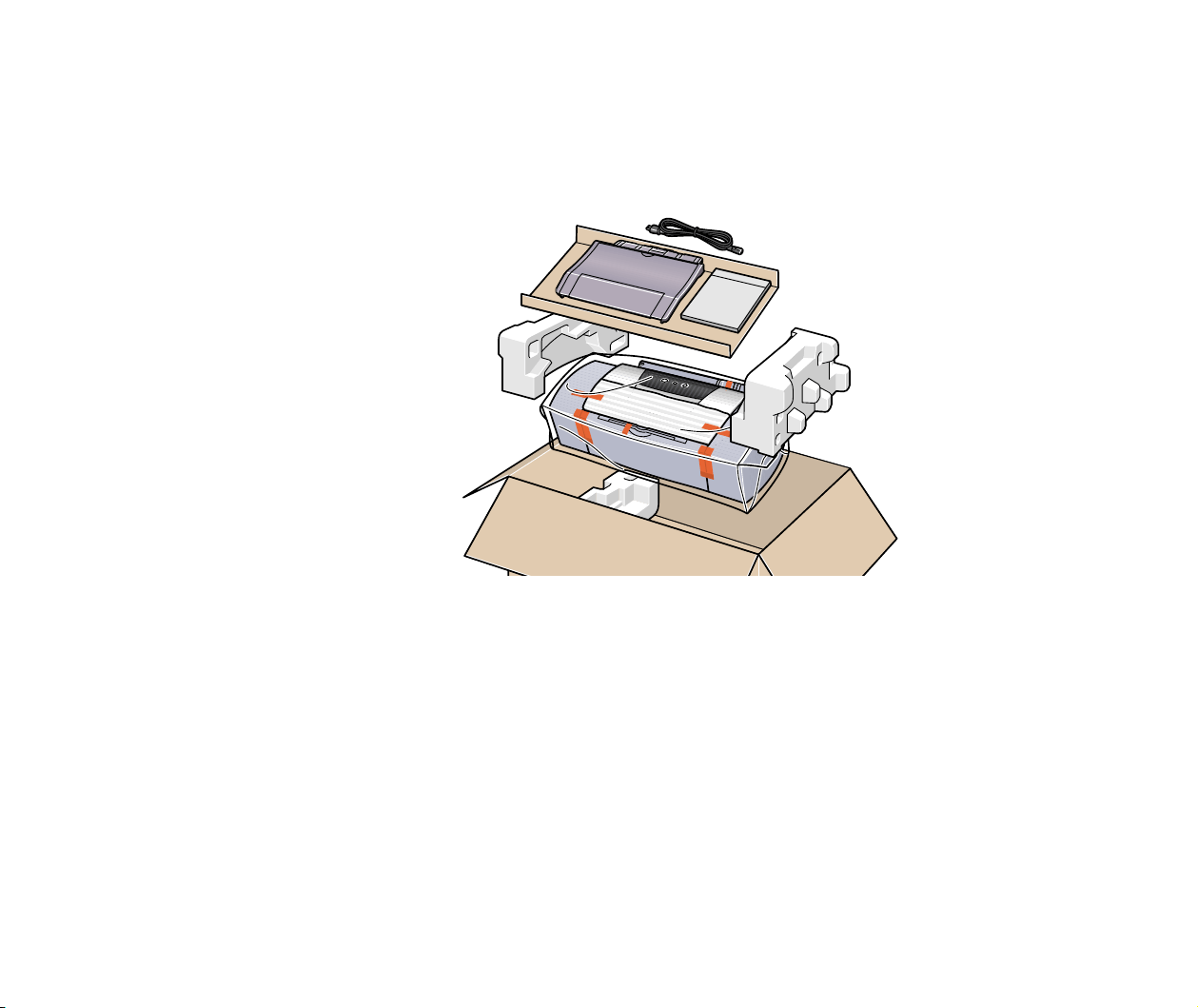
6
Attach protective material to both sides of the printer when packing the
printer.
Clearly label the box as "Fragile", if using a transport company.

89
Printing Media
Printing Media
• Compatible Media Types
• Envelopes
• High Resolution Paper HR-101N
• Glossy Photo Paper GP-301/GP-301N
• High Gloss Photo Film HG-201
• Glossy Photo Cards FM-101
• Photo Paper Pro PR-101
• Photo Paper Pro PC-101S
• Transparencies CF-102
• T-Shirt Transfers TR-201
• Banner Paper

Compatible Media Types
90
Printing Media
Compatible Media Types
You can use the following types of paper and other media.
■ Size
• Standard paper: From A5 size (148.0 x 210.0 mm / 5.83 x 8.27 in) to legal size (215.9 x
355.6 mm / 8.5 x 14.0 in)
• Non-standard paper: From 90.0 x 120.0 mm to 215.9 x 584.2 mm
(From 3.54 x 4.72 in to 8.5 x 23.0 in)
• Others: Envelopes (European DL and US Com. #10)
Important
➤ Do not use the following types of paper. Using such paper will not only
produce unsatisfactory results, but can also cause the printer to jam or
malfunction.
• Folded, curled or wrinkled paper
• Wet paper
• Paper that is too thin (less than 64 g/m
2
/ 17 lb)
• Paper that is too thick* (more than 105 g/m
2
/ 28 lb)
• Picture postcards
• Postcards with an adhered photo or sticker
• Envelopes with a double flap
• Sealed envelopes
• Envelopes with an embossed or treated surface
• Paper with holes (such as loose-leaf paper)
* non-Canon branded paper

Compatible Media Types
91
Printing Media
■ Weight
64 to 105 g/m
2
(17 to 28 lb)
Do not use paper heavier than this (except for supported Canon-brand media), as it
could jam in the printer.
■ Types
The following types of media can be used.
For more information about the media and the printing methods, refer to the specific
sections.
Plain paper: Refer to the
Quick Start Guide
.
➡
Envelopes
➡
High Resolution Paper HR-101N
➡
Glossy Photo Paper GP-301/GP-301N
➡
High Gloss Photo Film HG-201
➡
Glossy Photo Cards FM-101
➡
Photo Paper Pro PR-101
➡
Photo Paper Pro PC-101S
➡
Transparencies CF-102
➡
T-Shirt Transfers TR-201
➡
Banner Paper
Envelopes
92
Printing Media
Envelopes
Use either European DL or US Com. #10 size envelopes.
■ Preparation for Printing
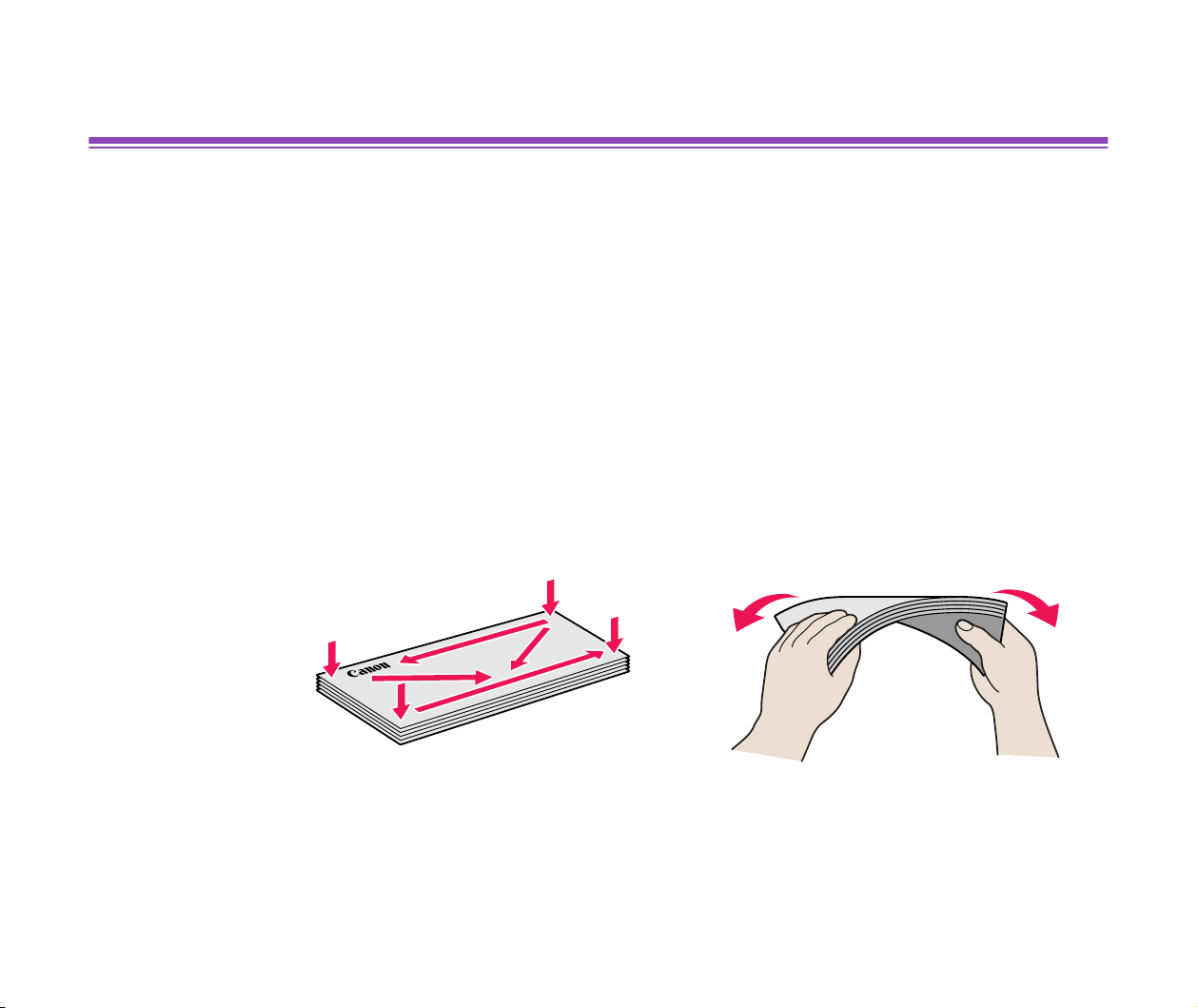
1
Press down on all four corners and edges of the envelopes to flatten them
as shown below.
2
If the envelopes are curled, hold the opposite corners and gently bend
them in the opposite direction.
Ensure that the flap of the envelope is perfectly straight.
Envelopes
93
Printing Media
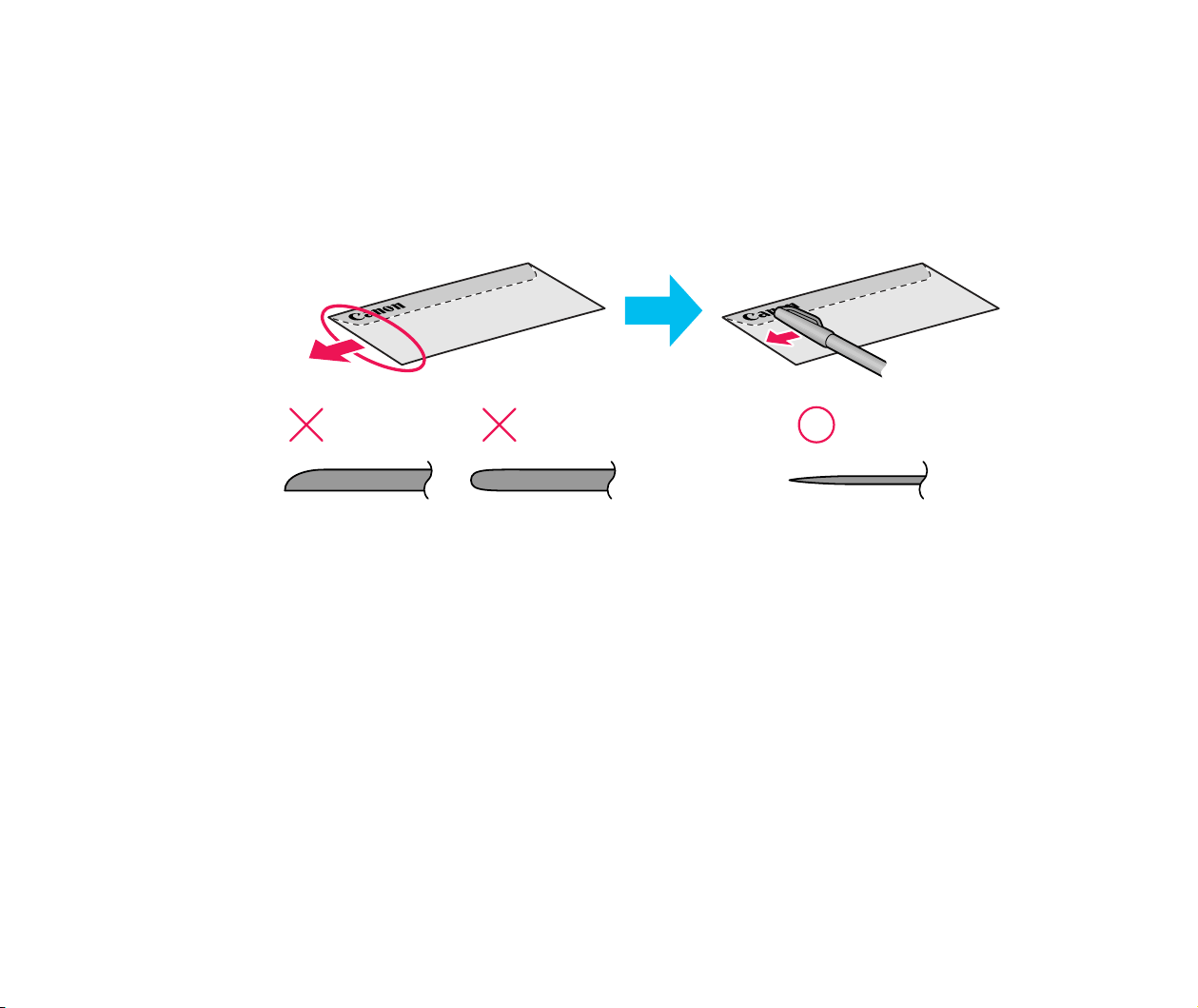
3
If the leading edge of an envelope is puffed up or curled, use a pen to press
the envelope flat and sharpen the crease.
The envelopes may jam in the printer if they are not completely flat and the
edges are not aligned.
Ensure that no curl or puff exceeds 5 mm (0.2 in).
■ Unsuitable Envelopes
• Envelopes with an embossed or treated surface
• Envelopes with a double flap or pressure seals
Press the envelope completely flat,
working from the middle to the edge.
* The above illustrations show a side view of the leading edge of the
envelope.
Envelopes
94
Printing Media
■ Loading
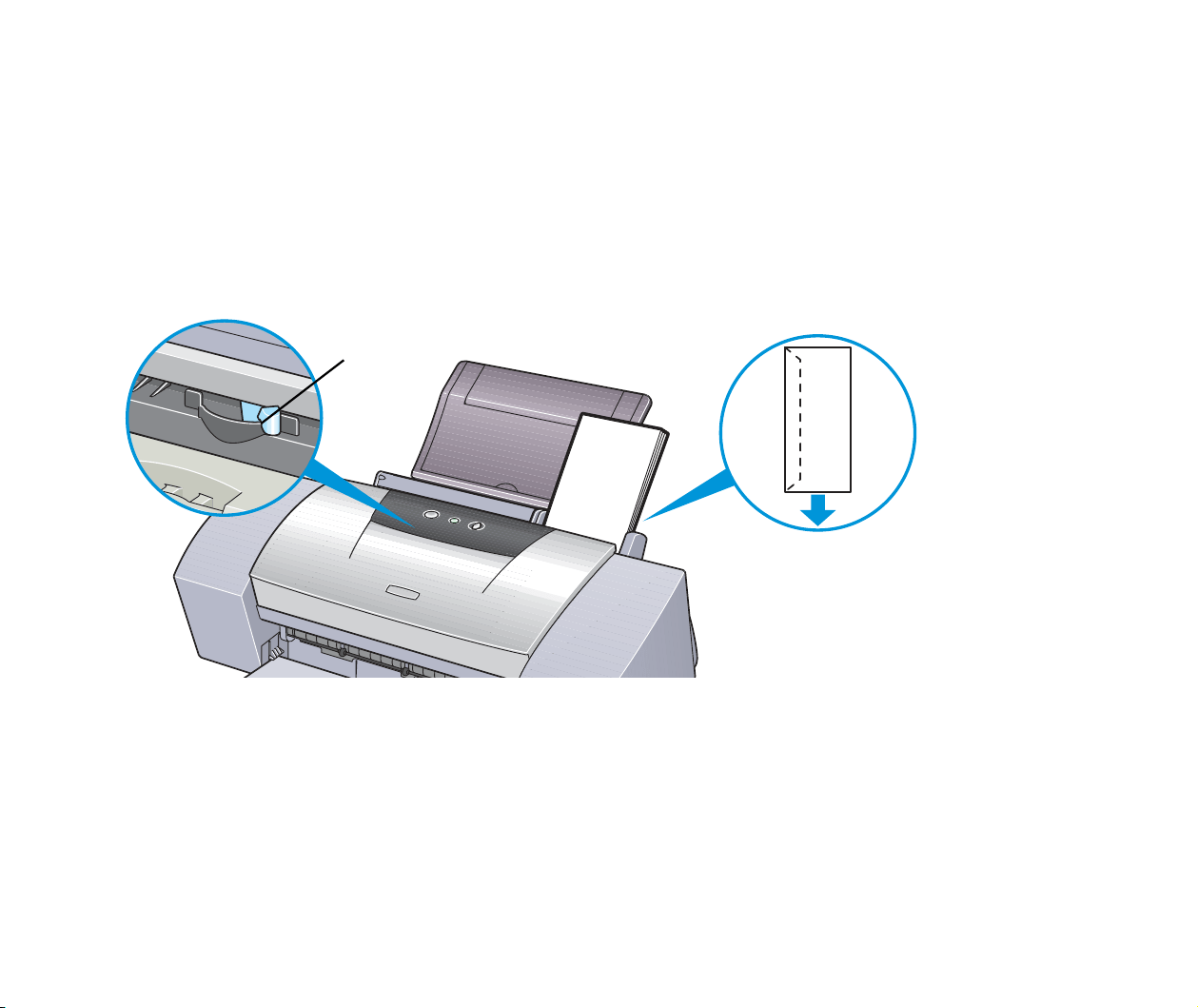
• Place envelopes lengthwise with the flap to the left and the address side facing
upwards.
• Set the Paper Thickness Lever to the right.
• A maximum of 10 envelopes (only one envelope for more than B4 envelopes) can be
loaded at once.
Note
➤
If even after removing any curl in the envelopes they still will not feed
properly, clean the paper feed roller.
1
Ensure the printer is turned on. If any paper is loaded in the printer,
remove the paper.
2
Hold down the RESUME/CANCEL button; when the POWER lamp
flashes three times, release the RESUME/CANCEL button.
Paper
Thickness
Lever

Envelopes
95
Printing Media
The paper roller will rotate ten times as it cleans.
Repeat this operation three times.
3
Load a sheet of A4 or Letter plain paper in the printer.
4
Hold down the RESUME/CANCEL button; when the POWER lamp
flashes three times, release the RESUME/CANCEL button.
The paper that is loaded in the printer will feed through the printer and
be ejected.
Repeat this operation three times.
If the printer still will not feed envelopes through even after cleaning the
paper feed roller, perform the procedure described in step 4 again.
■ Printer Driver Settings
• Media Type: Envelope
• Page Size: Select either DL Env. or #10 Env. according to the envelope size you
are using.
• Orientation: Landscape
■ Handling of Printed Output
Remove each envelope as it is printed.
■ Printable Area
➡
Printing Area
High Resolution Paper HR-101N
96
Printing Media
High Resolution Paper HR-101N
This type of paper provides better colour reproduction than plain paper. It is suitable for
printing business documents that feature graphics, and for photographs.
■ Loading
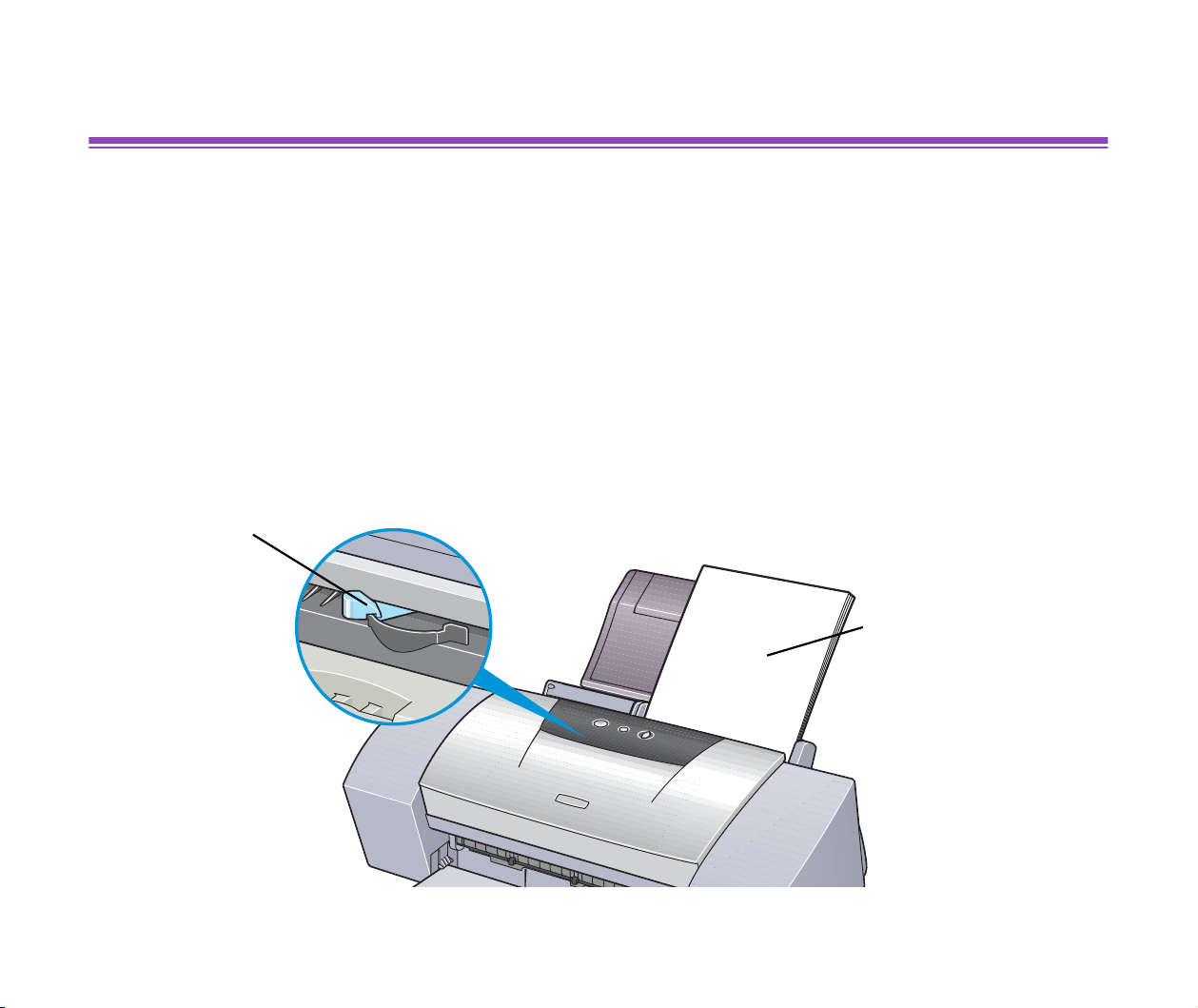
• Load the paper with the whiter side facing up.
• Set the Paper Thickness Lever to the left.
• Do not load paper higher than the limit mark. A maximum of 80 sheets (a maximum of
20 sheets for more than A3+ sheets) can be loaded.
Paper Thickness Lever
Print Side
(Whiter Side)

High Resolution Paper HR-101N
97
Printing Media
■ Printer Driver Settings
• Media Type: High Resolution Paper
• Page Size: Ensure the setting matches the size set in the application.
■ Handling of Printed Output
Do not stack more than 50 sheets in the paper output tray. If the output paper is curled, it
may prevent the next sheet being ejected. In this case, or if the ink takes a long time to
dry, remove each sheet as soon as it is printed.
■ Printable Area
With some images the trailing edge of the image may be blurred if printing extends into
the printable area. Canon recommends that you print within the printing area.
➡
Printing Area
Glossy Photo Paper GP-301/GP-301N
98
Printing Media
Glossy Photo Paper GP-301/GP-301N
This media is still thicker than High Resolution Paper with a glossy printing surface to
produce printouts close to photograph quality.
■ Loading
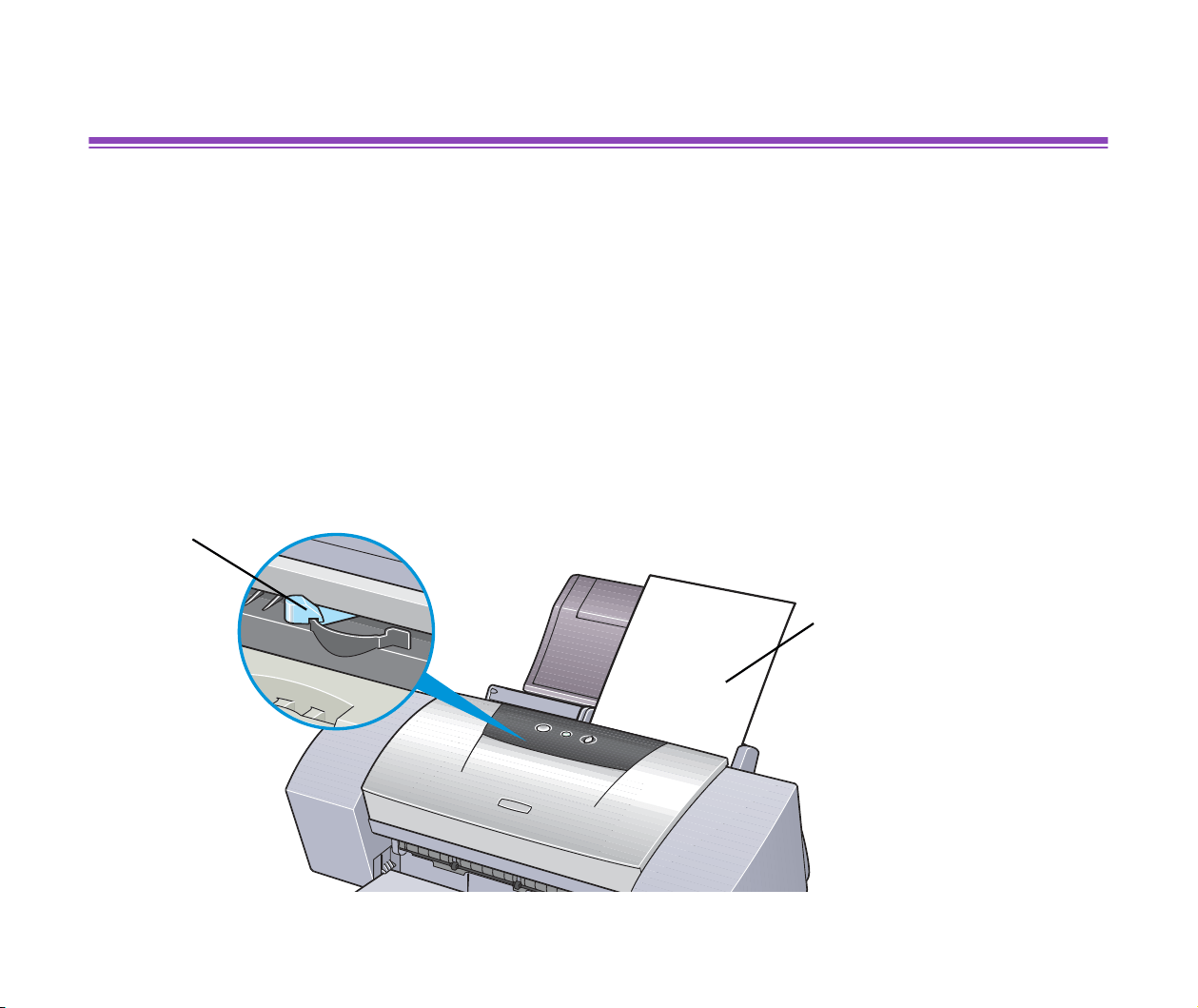
• Load only one sheet at a time.
• Load the paper with the whiter side facing up.
• Set the Paper Thickness Lever to the left.
• Do not use the loading support sheet provided with the package.
Paper Thickness Lever
Print Side
(Whiter Side)

Glossy Photo Paper GP-301/GP-301N
99
Printing Media
■ Printer Driver Settings
• Media Type: Glossy Photo Paper
• Page Size: Ensure the setting matches the size set in the application.
■ Handling of Printed Output
• Remove each sheet as soon as it is printed.
• Do not touch the printed surface until the ink is fixed (approx. two minutes).
■ Printable Area
With some images the trailing edge of the image may be blurred if printing extends into
the printable area. Canon recommends that you print within the printing area.
➡
Printing Area
Note
➤
For photograph and illustration data that you want to print with Borderless
Printing, create the data by using the same size as the paper size, and
paste the data so that it fills the editing screen without leaving any margins.
If you are using an application that allows you to set margins, set the left,
right, top, and bottom margins to 0 mm. For instructions on setting margins,
refer to the user's manual for your application.
High Gloss Photo Film HG-201
100
Printing Media
High Gloss Photo Film HG-201
This film has an extremely glossy surface, ideal for printing photographs with outstanding
results.
■ Loading
• Load only one sheet at a time.
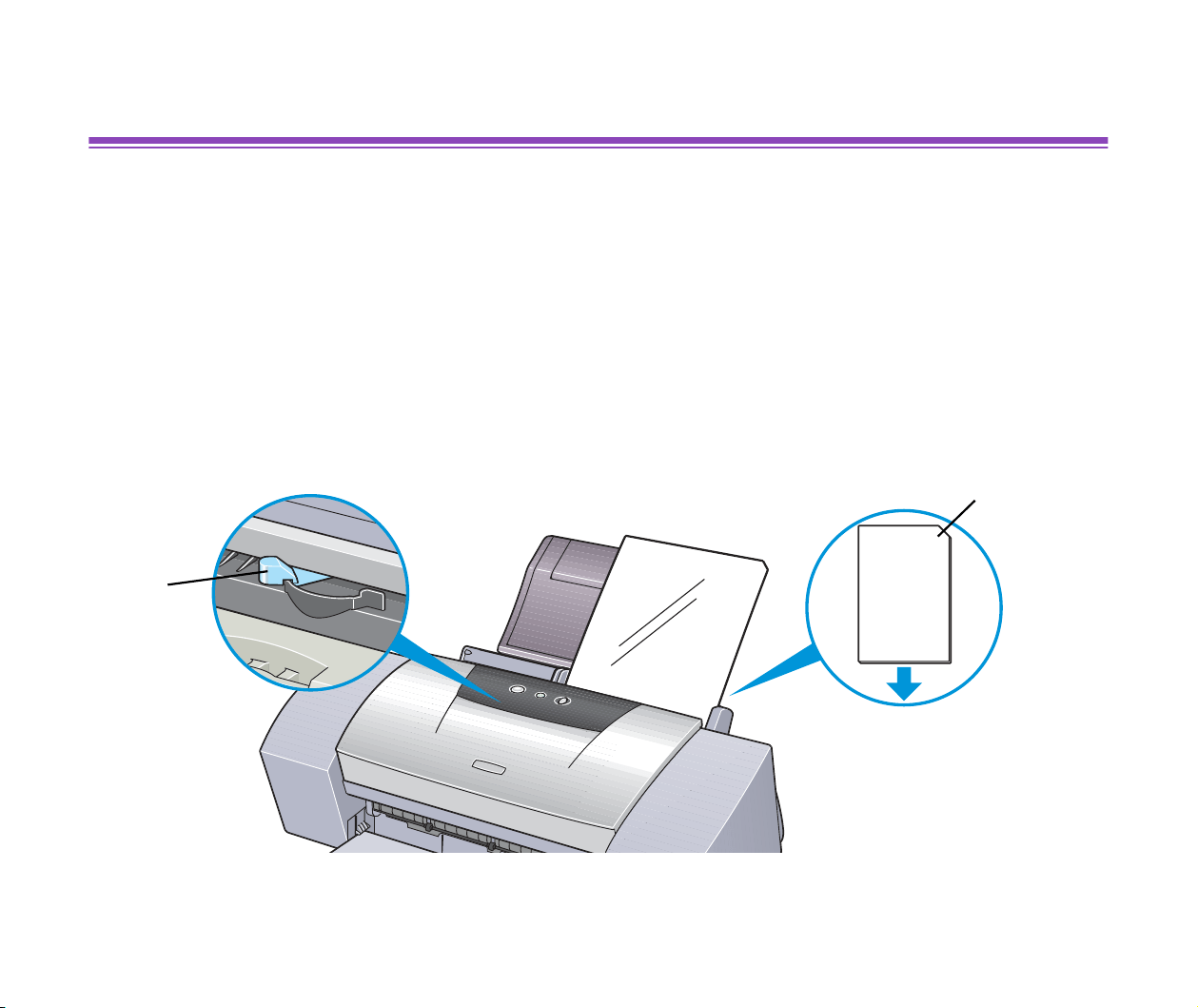
• Load the film with the cut corner at the upper right.
• If the film is curled, flatten it by curling in the opposite direction.
• Set the Paper Thickness Lever to the left.
Paper
Thickness
Lever
Cut Corner

High Gloss Photo Film HG-201
101
Printing Media
■ Printer Driver Settings
• Media Type: High Gloss Photo Film
• Page Size: Ensure the setting matches the size set in the application.
■ Handling of Printed Output
• Remove each sheet as soon as it is printed.
• Do not touch the printed surface until the ink dries.
■ Printable Area
With some images the trailing edge of the image may be blurred if printing extends into
the printable area. Canon recommends that you print within the printing area.
➡
Printing Area
Glossy Photo Cards FM-101
102
Printing Media
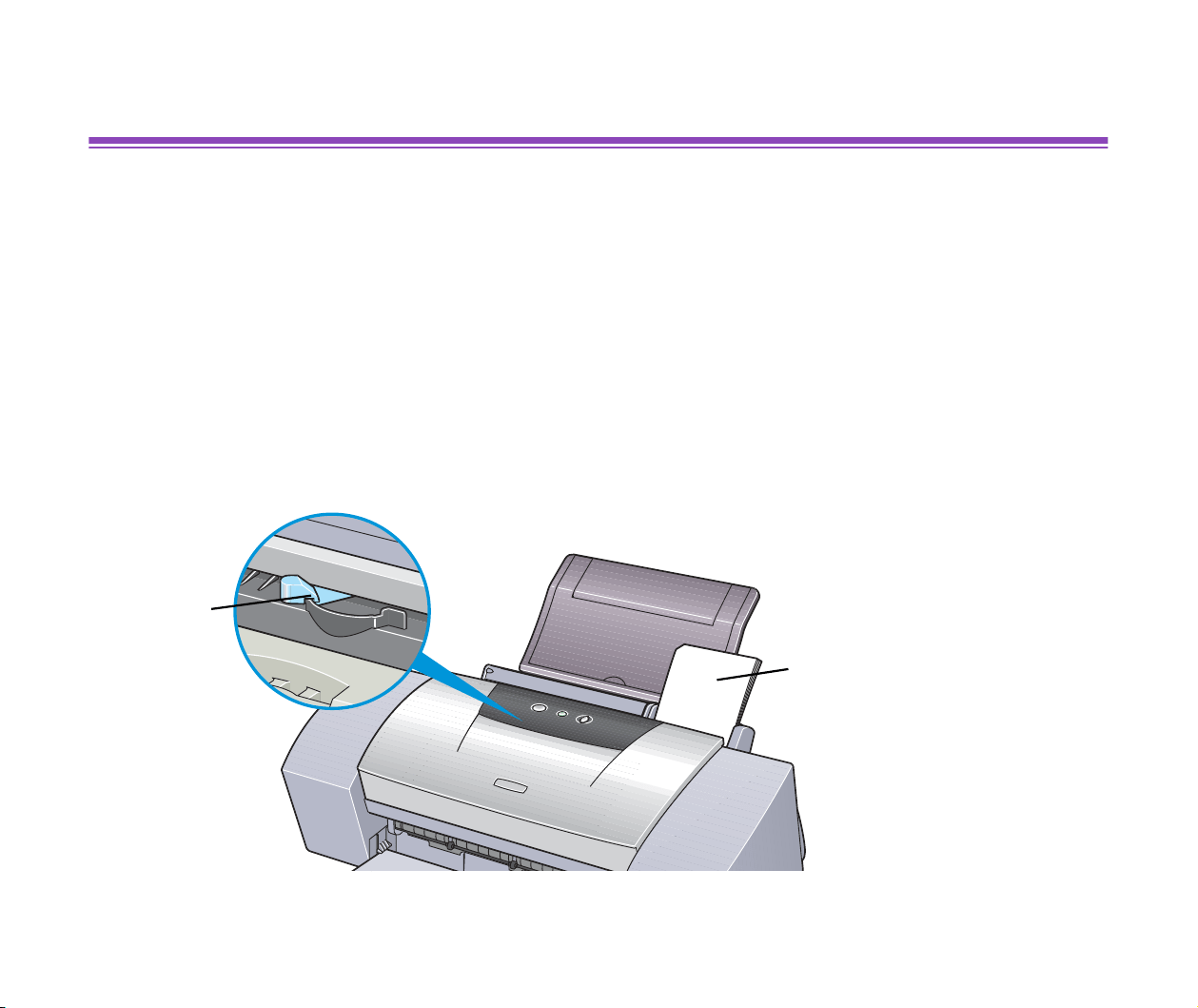
Glossy Photo Cards FM-101
This photo-size paper is intended for printing images that cover the entire surface of the
card, without a white border. When printing, use the original application software,
ZoomBrowser EX/PhotoRecord (for Windows) or ImageBrowser (for Macintosh).
■ Loading
• Load the paper with the glossy side facing up.
• Set the Paper Thickness Lever to the left.
• A maximum of 20 sheets can be loaded at once.
• Do not use the loading support sheet provided with the package.
Paper
Thickness
Lever
Print Side
(Glossy Side)

Glossy Photo Cards FM-101
103
Printing Media
■ Handling of Printed Output
• Do not stack more than 20 sheets in the paper output tray.
• Do not touch the printed surface until the ink dries (approx. two minutes).
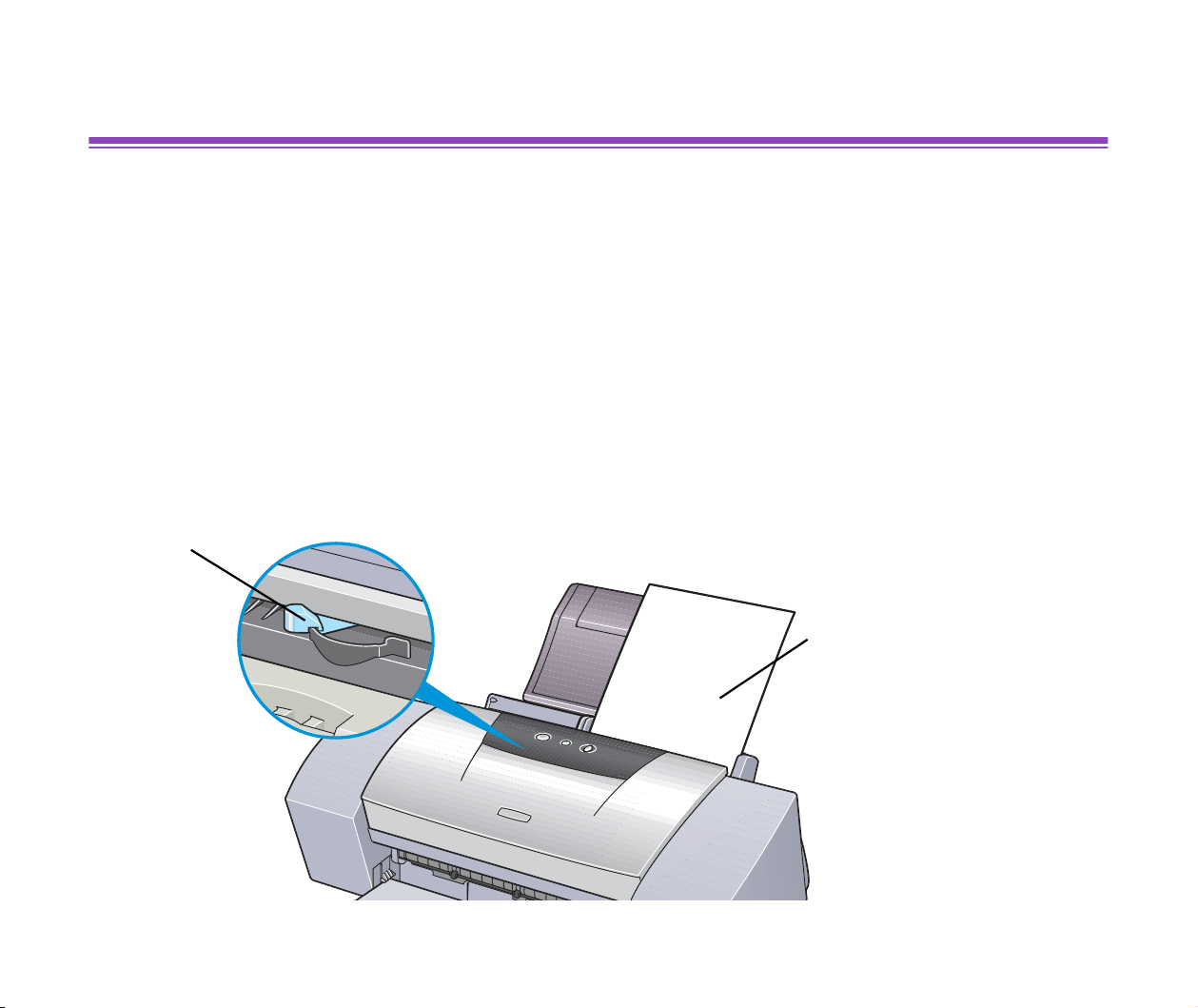
Photo Paper Pro PR-101
104
Printing Media
Photo Paper Pro PR-101
This is thick paper with a treated surface that enhances gloss and provides superior colour
reproduction. It is ideal for printing high quality photographs. This media is available in A4/
Letter and 4 × 6 sizes.
■ Loading
• Load only one sheet of A4/Letter at a time.
• A maximum of 20 sheets of 4 × 6 size paper can be loaded at once.
• Load the paper with the glossier side facing up.
• Set the Paper Thickness Lever to the left.
Paper Thickness Lever
Print Side
(Glossier Side)

Photo Paper Pro PR-101
105
Printing Media
■ Printer Driver Settings
• Media Type: Photo Paper Pro
• Page Size: Ensure the setting matches the size set in the application.
■ Handling of Printed Output
• Remove each sheet as soon as it is printed.
• Do not stack more than 20 sheets of 4 × 6 size paper in the output tray.
• Do not touch the printed surface until the ink is fixed (approx. 30 minutes).
Colours in dark images may appear indistinct at first, but become clearer after about 30
minutes.
• Images may smudge if you place them in an album before the ink is completely dry. It is
recommended that you allow the ink to dry for 24 hours.
• Do not attempt to dry the ink with a hairdryer or by exposing printed sheets to direct
sunlight.
■ Storing Printed Output
• Do not store or display printouts in hot, damp or humid conditions.
Never expose them to heat or direct sunlight.
• Store printouts in photo albums, photo frames or presentation binders to protect them
from direct exposure to air or sunlight.
• Do not mount printouts in an adhesive-type album, as you may not be able to remove
them.

Photo Paper Pro PR-101
106
Printing Media
• Be aware that some types of clear plastic folders and albums may cause the edges of
the paper to turn yellow.
■ Printable Area
With some images the trailing edge of the image may be blurred if printing extends into
the printable area. Canon recommends that you print within the printing area.
➡
Printing Area
Note
➤
For photograph and illustration data that you want to print with Borderless
Printing, create the data by using the same size as the paper size, and
paste the data so that it fills the editing screen without leaving any margins.
If you are using an application that allows you to set margins, set the left,
right, top, and bottom margins to 0 mm. For instructions on setting margins,
refer to the user's manual for your application.
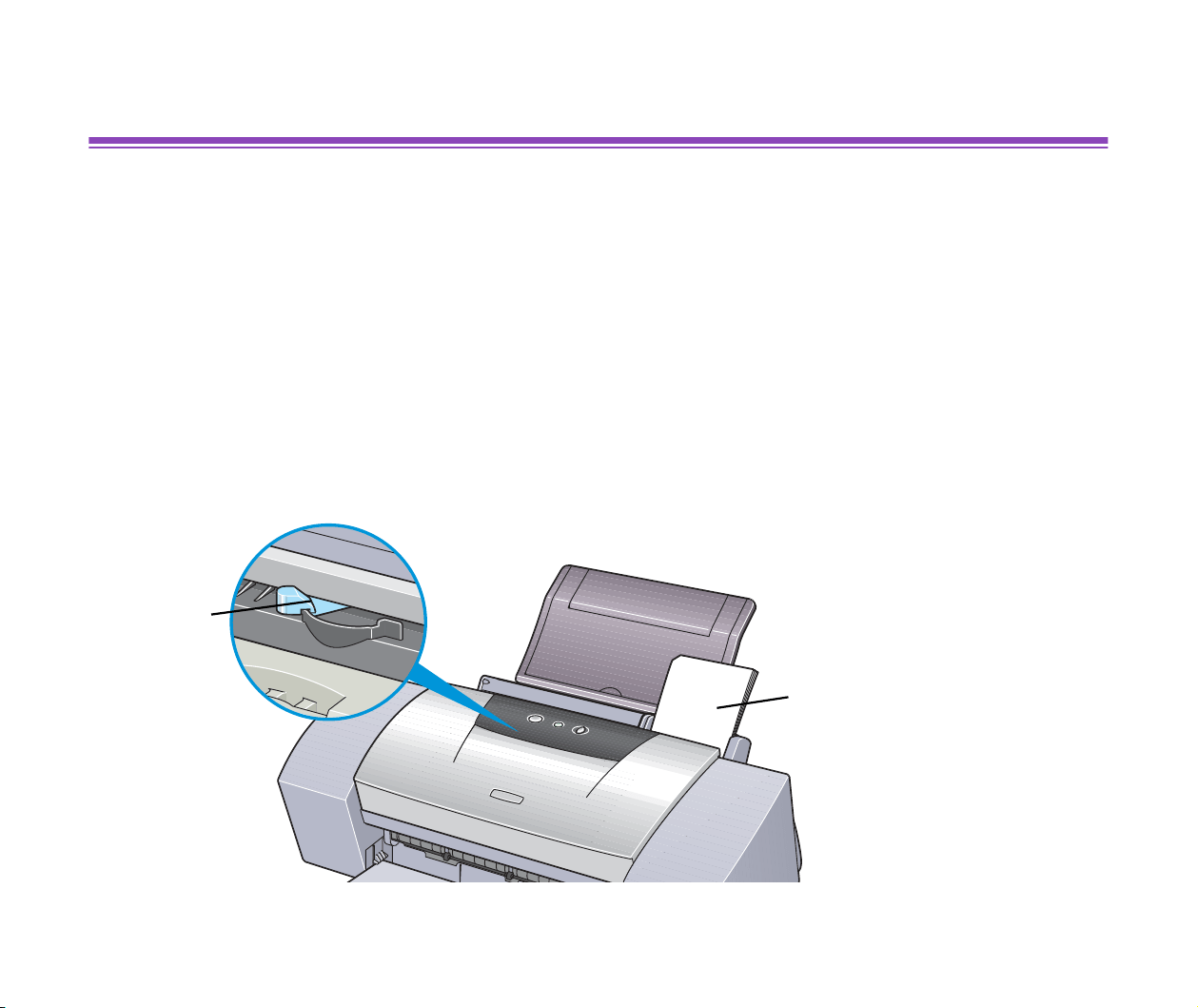
Photo Paper Pro PC-101S
107
Printing Media
Photo Paper Pro PC-101S
Made of the same material as Photo Paper Pro PR-101, this photo-size paper is intended
for printing images that cover the entire surface of the card, without a white border. When
printing, use the original application software, ZoomBrowser EX/PhotoRecord (for
Windows) or ImageBrowser (for Macintosh).
■ Loading
• Load the paper with the glossy side facing up.
• Set the Paper Thickness Lever to the left.
• A maximum of 20 sheets can be loaded at once.
Paper
Thickness
Lever
Glossy Side

Photo Paper Pro PC-101S
108
Printing Media
■ Handling of Printed Output
• Do not stack more than 20 sheets in the paper output tray.
• Do not touch the printed surface until the ink is fixed (approx. 30 minutes).
Colours in dark images may appear indistinct at first, but become clearer after about 30
minutes.
• Images may smudge if you place them in an album before the ink is completely dry. It is
recommended that you allow the ink to dry for 24 hours.
• Do not attempt to dry the ink with a hairdryer or by exposing printed sheets to direct
sunlight.
■ Storing Printed Output
Follow the instructions described in "
Photo Paper Pro PR-101".
Transparencies CF-102
109
Printing Media
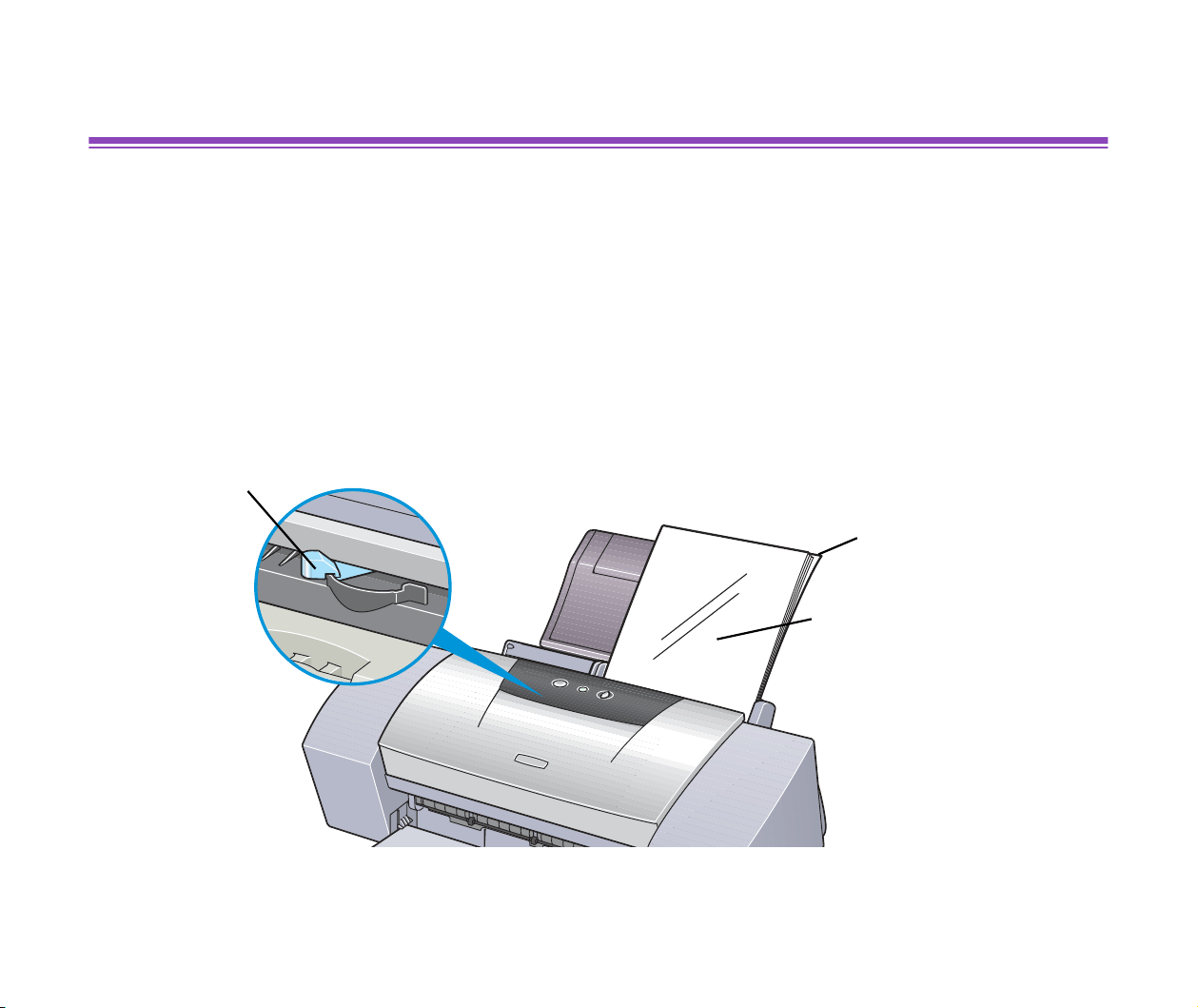
Transparencies CF-102
This film is ideal for printing presentation material for use with overhead projectors.
■ Loading
• Place one sheet of plain A4 or Letter paper under the transparencies in the sheet
feeder.
• Set the Paper Thickness Lever to the left.
• A maximum of 30 sheets can be loaded at once.
Paper Thickness Lever
Plain Paper
Transparencies

Transparencies CF-102
110
Printing Media
• Although you can print on either side of CF-102, best results can be obtained by
printing on the side toward which it curls when held by the edge.
■ Printer Driver Settings
• Media Type: Transparency
• Page Size: Ensure the setting matches the size set in the application.
■ Handling of Printed Output
• Remove each transparency as soon as it is printed.
• Do not touch the printed surface until the ink is fixed (approx. 15 minutes).
■ Printable Area
➡
Printing Area
Print Side
T-Shirt Transfers TR-201
111
Printing Media
T-Shirt Transfers TR-201
This paper is used to produce iron-on transfers. The image is printed backwards when
Media Type is set to T-Shirt Transfer in the printer driver.
Note
➤
For the customers in the United States, refer to the
Quick Start Guide
for
instructions on using TR-101 T-shirt transfers.
■ Loading
• Load only one sheet at a time.
• If the T-shirt transfer is curled, flatten it by curling it in the opposite direction.
• Load the paper with the side that does not have green lines facing up.
• Set the Paper Thickness Lever to the right.
Paper Thickness Lever

T-Shirt Transfers TR-201
112
Printing Media
■ Printer Driver Settings
• Media Type: T-Shirt Transfer
• Page Size: Ensure the setting matches the size set in the application.
■ Handling of Printed Output
• Remove each T-shirt transfer as soon as it is printed.
• The T-shirt transfer should be used as soon as it is printed. Refer to the supplied
instructions for details on how to use this media.
■ Printable Area
➡
Printing Area

Banner Paper
113
Printing Media
Banner Paper
This is long paper that consists of consecutive sheets of A4 or Letter size paper, ideal for
printing long posters or banners (up to six sheets long).
■ Preparation for Printing
• When tearing the banner paper, tear off one more sheet than you actually need to print.
• The maximum length for one print job is six sheets, so if you will be printing on six
sheets, tear off a seven-sheet length.
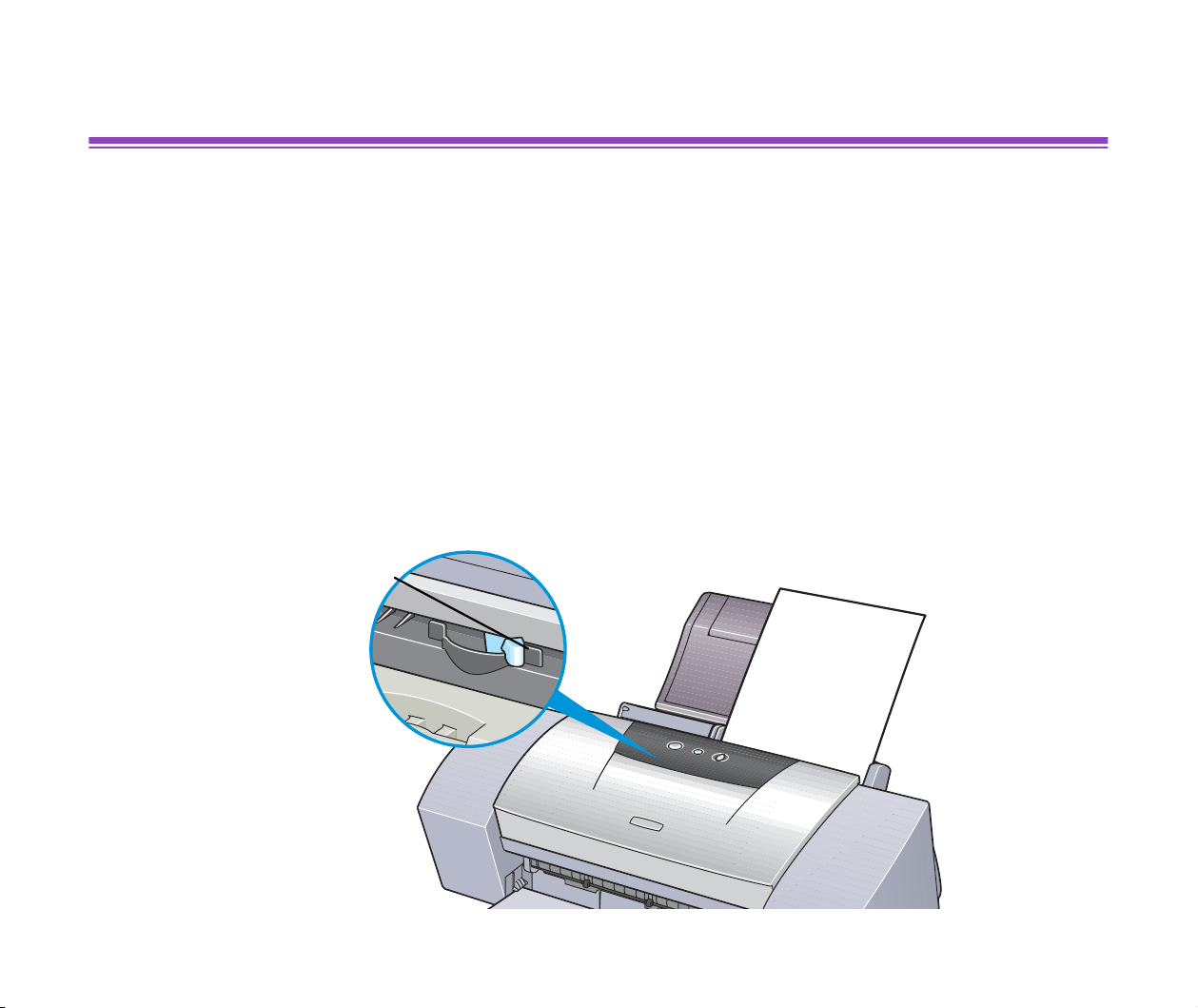
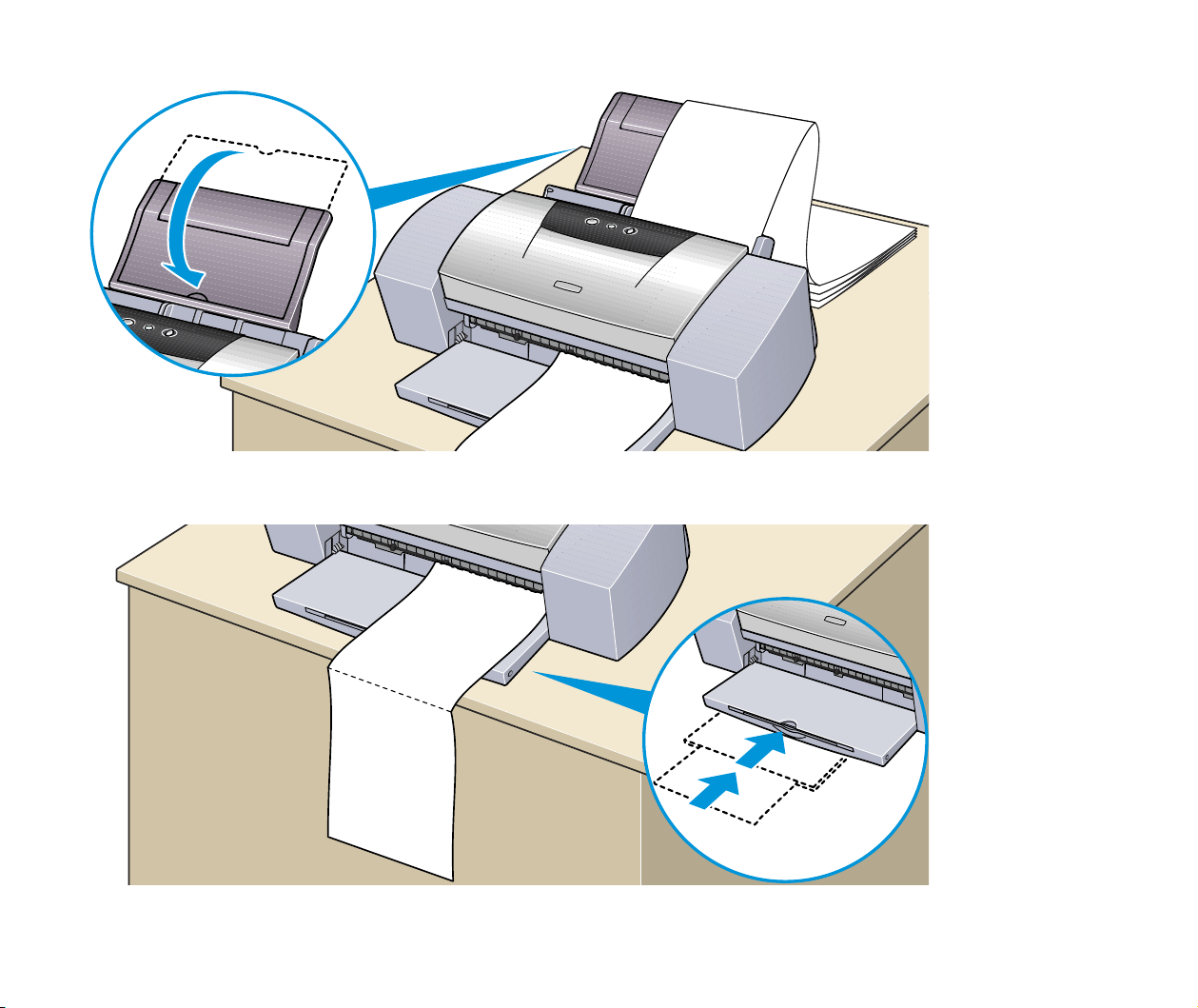
■ Loading
1
Set the Paper Thickness Lever to the right.
2
Load the banner paper with the printing side facing up. Gently fold the
perforation between the first and second sheets.
Leave the rest of the paper folded up.
Banner Paper
114
Printing Media
3
Place the printer where the printed banner output can hang over the edge
of the table.
Ensure the ink does not stain the table or floor.

Banner Paper
115
Printing Media
■ Printer Driver Settings
• Media Type: Plain Paper
• Page Size: When using A4 banner paper: A4
When using letter size banner paper: Letter
• Copies: Must be set to "1" to print correctly.
• In Windows, select Banner Printing for Printing Type on the Page Setup tab.
• On a Macintosh, before creating the document, select Banner Printing in the Page
Setup dialog box.
■ Printable Area
➡
Printing Area

116
Troubleshooting
Troubleshooting
• Cannot Install the Printer Driver
• Print Quality is Poor or Contains Errors
• Printer Does Not Start or Stops During Print Jobs
• Paper Does Not Feed Properly or Paper Jams
• The POWER Lamp Flashes Orange
• An Error Message is Displayed on the Screen
• Problems Unique to Windows
•
Problems Unique to the Macintosh
Windows
Macintosh

Cannot Install the Printer Driver
117
Troubleshooting
Cannot Install the Printer Driver
■ Follow the installation procedure correctly.
Install the printer driver carefully following the procedures described in the
Quick Start
Guide
.
If the printer driver was not installed correctly, reinstall it. If you are using Windows,
delete the printer driver before reinstalling it.
➡
Uninstalling Printer Drivers
Note
➤
If the Installer was forcibly terminated due to an error in Windows, Windows
may be unstable and this will prevent the printer driver from being installed.
Restart the computer before reinstalling the printer driver.
■ Close any other applications before installation.
Sometimes the printer driver cannot be installed because another application is running.

Cannot Install the Printer Driver
118
Troubleshooting
■ If the Installer for the printer driver does not start up automatically when you insert
the
Setup Software & User’s Guide CD-ROM
, open the My Computer window, and
then double-click the CD-ROM icon.
Note
➤
If you are typing in the file name, you must specify the CD-ROM drive letter
and the installation program ("MSetup.exe"). The CD-ROM drive letter is
computer dependent.
■ Confirm that there are no problems with the
Setup Software & User’s Guide
CD-ROM
.
In Windows, use Windows Explorer to ensure that the CD-ROM can be read. In a
Macintosh, check that the CD-ROM icon is visible. If there is a problem with the
CD-ROM, contact a Canon service representative.
Windows

Print Quality is Poor or Contains Errors
119
Troubleshooting
Print Quality is Poor or Contains Errors
• Cannot Print to End of Job
• Colours are Unclear
• Meaningless Characters or Symbols are Printed
• Printing is Blurred/Colours are Wrong
• Straight Lines are Misaligned
• Printed Paper Curls or Ink Blots
• Back of Paper is Smudged
• Printed Surface is Scratched
• White Streaks
• Colours are Uneven or Streaked

Print Quality is Poor or Contains Errors
120
Troubleshooting
Cannot Print to End of Job
■ Confirm the Page Size setting matches the size of the paper loaded in the printer.
First, check the Page Size setting in the application.
Then check the Page Size setting in the Printer Properties dialog box for Windows or the
Page Setup dialog box for Macintosh.
■ Check the amount of the space on the hard disk.
You may need to increase the amount of free space by deleting any unnecessary files.

Print Quality is Poor or Contains Errors
121
Troubleshooting
Colours are Unclear
■ Confirm the Media Type setting in the printer driver matches the type of paper
loaded in the printer.
If you are printing a photograph or an illustration from a Windows environment, also
increase Print Quality on the Main tab.
If you are working in a Macintosh environment, select the Photo or Graphic icon for
the Print Mode in the Print dialog box.
■ Confirm the specified ink tank is installed.
When an ink tank runs out of ink, replace it with a new one.
Note
➤
Printed colours may not match screen colours perfectly due to basic
differences in the methods used to produce colours. Colour control settings
and environmental differences can also affect how colours appear on the
screen.

Print Quality is Poor or Contains Errors
122
Troubleshooting
Meaningless Characters or Symbols are Printed
■ If the problem only occurs when printing a specific document, try editing the
document and then printing it.
If this does not resolve the problem, there may be a problem with your application
program.

Print Quality is Poor or Contains Errors
123
Troubleshooting
Printing is Blurred/Colours are Wrong
■ If a specific colour does not print, check whether the corresponding ink tank is
empty. Replace if necessary.
■ Print the nozzle check pattern to ensure that ink is output correctly.
If the nozzle check pattern does not print correctly, clean the print head.
➡
Printing the Nozzle Check Pattern
➡
Print Head Cleaning
If the problem is not resolved after cleaning the print head several times, the print head
may be worn out. Contact a Canon service representative.
Note
➤
Always ensure you dispose of the protective cap and protective tape from a
print head.
■ Ensure you are printing on the correct side of the media.
You can only print on one side of certain media.

Print Quality is Poor or Contains Errors
124
Troubleshooting
Straight Lines are Misaligned
■ Align the print head.
Ensure you align the print head every time you install a new print head.
Windows
1
Open the Printer Properties dialog box.
2
Click the Maintenance tab.
3
Click Print Head Alignment.
Follow the instructions on the screen.

Print Quality is Poor or Contains Errors
125
Troubleshooting
Macintosh
1
Open the Page Setup dialog box.
2
Click Utilities.
3
Select Test Print from the pull-down menu, and then click Print Head
Alignment.
Follow the instructions on the screen.

Print Quality is Poor or Contains Errors
126
Troubleshooting
■ In the printer driver settings, select a higher print quality setting.
Windows
1
Open the Printer Properties dialog box.
2
On the Main tab, click High for the Print Quality setting.
Macintosh
1
Open the Print dialog box.
2
For Print Mode, select Manual and then click Details.
3
Click the Quality icon and then drag the Print Quality slide bar to the Fine
end.

Print Quality is Poor or Contains Errors
127
Troubleshooting
Printed Paper Curls or Ink Blots
■ Use high resolution paper or photo paper to print images that require a lot of ink
(i.e. pictures with intense colours or photographs).
■ Reduce the Intensity setting in the printer driver and try printing again.
Windows
1
Open the Printer Properties dialog box.
2
On the Main tab, select Manual for Colour Adjustment, and then click
Set.
3
Drag the Intensity slide bar to adjust the intensity.

Print Quality is Poor or Contains Errors
128
Troubleshooting
Macintosh
1
Open the Print dialog box.
2
For Print Mode, select Manual and then click Details.
3
Click the Colour icon and then drag the Intensity slide bar to set the
intensity.

Print Quality is Poor or Contains Errors
129
Troubleshooting
Back of Paper is Smudged
■ If the next page prints before the ink is dry, enable the Pause Page printer driver
setting.
You can either remove each printed sheet from the output tray as soon as it is printed,
or adjust the Ink Drying Wait Time to pause after each sheet has printed.
Windows
1
Open the Printer Properties dialog box.
2
Click the Maintenance tab.
3
Click Custom Settings to open the Custom Settings dialog box.
4
Drag the Ink Drying Wait Time slide bar, and then click Send.

Print Quality is Poor or Contains Errors
130
Troubleshooting
Macintosh
1
Open the Page Setup dialog box.
2
Click the Utilities button.
3
Select Custom Settings from the pull-down menu.
4
Drag the Ink Drying Wait Time slide bar, and then click Send.
■ You may need to clean some internal parts of the printer. Follow the procedure
below.
1
Load sheets of A4 or Letter plain paper in the printer.
2
Hold down the RESUME/CANCEL button until the POWER lamp flashes
three times, and release the button.
3
Repeat this operation until there are no more smudges on the test page.

Print Quality is Poor or Contains Errors
131
Troubleshooting
Printed Surface is Scratched
■ Ensure you are using suitable paper.
• The paper weight must be less than 105 g/m
2
(28 lb).
If you use non-Canon brand paper heavier than 105 g/m
2
(28 lb), the print head may
scratch the printed surface.
Clean the print head first and print with the correct paper.
• The paper must not be curled.
This problem can be resolved by simply turning the paper over.
■ Before starting Borderless Printing, check the paper that you are using.
With Borderless Printing, the print quality may decrease or smudging may occur at the
top and bottom edges of the paper.
Use Photo Paper Pro or Glossy Photo Paper. If smudging still occurs, set the Paper
Thickness Lever to the right and try printing again.
■ When printing on thick paper, set the paper thickness lever to the " " mark.
This widens a gap between the print head and the paper. If the paper is scratched even
when printing on plain paper, also try this.

Print Quality is Poor or Contains Errors
132
Troubleshooting
■ Reduce the Intensity setting in the printer driver and try printing again.
When printing an image with high intensity, the paper may absorb too much ink and
become wavy. This may cause the printed surface to become scratched.
Windows
1
Open the Printer Properties dialog box.
2
On the Main tab, select Manual for Colour Adjustment, and then click
Set.
3
Drag the Intensity slide bar to adjust the intensity.
Macintosh
1
Open the Print dialog box.
2
For Print Mode, select Manual and then click Details.
3
Click the Colour icon and drag the Intensity slide bar to set the intensity.
■ Ensure you are printing within the recommended printing area.
➡
Printing Area

Print Quality is Poor or Contains Errors
133
Troubleshooting
White Streaks
■ Print the nozzle check pattern to check the ink output.
If a specific colour does not print in the nozzle check pattern, clean the print head.
➡
Printing the Nozzle Check Pattern
➡
Print Head Cleaning
The problem can also be resolved by aligning the print head. For details on print head
alignment, refer to "
Straight Lines are Misaligned".

Print Quality is Poor or Contains Errors
134
Troubleshooting
Colours are Uneven or Streaked
■ Increase the print quality setting in the printer driver settings.
Windows
1
Open the Printer Properties dialog box.
2
On the Main tab, click High for the Print Quality setting.
Macintosh
1
Open the Print dialog box.
2
For Print Mode, select Manual and then click Details.
3
Click the Quality icon and then drag the Print Quality slide bar to the Fine
end.

Print Quality is Poor or Contains Errors
135
Troubleshooting
■ Set the halftoning method to Diffusion in the printer driver settings.
Windows
1
Open the Printer Properties dialog box.
2
On the Main tab, select Custom for the Print Quality setting, and click Set.
3
Click Diffusion for the Halftoning setting.
Macintosh
1
Open the Print dialog box.
2
For Print Mode, select Manual and then click Details.
3
Click the Quality icon and then click Diffusion for the Halftoning setting.


Printer Does Not Start or Stops During Print Jobs
137
Troubleshooting
Printing Does Not Start
■ Ensure the printer is turned on.
If the POWER lamp is off, press the POWER button.
If the POWER lamp is flashing green, the printer is initialising. Wait until the POWER
lamp stops flashing.
Note
➤
When printing a large amount of data such as a photo or graphics, it takes
longer than usual to begin printing. While the POWER lamp is flashing, the
computer processes the data and sends it to the printer. Simply wait until
the processing is completed.
■ Ensure the printer is securely connected to the computer.
Note
➤
If you are using a switch box or other device, remove and reconnect the
printer directly to the computer. Try printing again.
If printing is now successful, there may be a problem with the device.
Also there could be a problem with the cable(s). Replace the cable(s) and
try printing again.

Printer Does Not Start or Stops During Print Jobs
138
Troubleshooting
■ Ensure the correct printer driver is selected.
In Windows, ensure that Canon S9000 is selected in the Print dialog box.
In Macintosh, ensure that S9000 is selected in the Chooser.
Note
➤
In Windows, you can set the Canon S9000 as the default printer.
■ Ensure the printer port is set correctly.
Set "USBPRNnn" or "USBnnn" ("n" represents a number) as the printer port.
1
Open the Printer Properties dialog box from the Start menu.
➡
Opening the Printer Properties dialog box directly from the Start
menu
2
Click the Details tab (or Ports tab) and set the printer port.
Windows

Printer Does Not Start or Stops During Print Jobs
139
Troubleshooting
Printing Stops Before It is Completed
■ Check the status of the POWER lamp.
When the POWER lamp is flashing green, the printer is processing data. Printing a large
amount of data such as a photo or graphics takes time for the computer to process the
data, during which the printer may appear to not be functioning.
In addition, when continuously printing material that uses a large amount of black ink on
plain paper, the printer will sometimes pause. In either case, simply wait until the
processing is completed.
■ Halt the print job and turn the printer off for at least 15 minutes to cool the print
head down.
The print head can overheat when continuously printing for long time. To protect the print
head, the printer will sometimes pause automatically at a line break before resuming.
In this event, interrupt the print job at a convenient time and turn the printer off for at least
15 minutes.
Furthermore, when continuously printing graphics or photos with intense colours,
printing may stop to protect the print head. In this case, printing will not resume. Turn the
printer off and wait for at least 15 minutes.
Caution
➤ Inside the printer, the area around the print head can become extremely
hot. Do not touch the print head or nearby components.

Printer Does Not Start or Stops During Print Jobs
140
Troubleshooting
Printer Moves But Does Not Print
■ Check the ink tanks. If empty, replace them.
■ Ensure that the ink tanks snap into place when you install them.
■ If there is plenty of ink but the printer does not print, clean the print head.
After cleaning the print head, print the nozzle check pattern to check that ink is being
output normally.
➡
Print Head Cleaning
➡
Printing the Nozzle Check Pattern
If the problem is not resolved by cleaning the print head several times, the print head may
be worn out. Contact a Canon service facility.
■ Check the protective tape has been removed from the print head.
Ensure that you align the print head after removing the tape and reinstalling the print
head.
For details on print head alignment, refer to "
Straight Lines are Misaligned".

Printer Does Not Start or Stops During Print Jobs
141
Troubleshooting
Print Head Holder Does Not Move to the Centre
■ Ensure the printer is turned on.
The print head holder will not move unless the power is on. If the POWER lamp is off,
close the front cover and turn the power on.
If the POWER lamp is flashing green, the printer is initialising.
When the POWER lamp stops flashing, open the front cover again.
■ If the front cover has been left open for a while, close and reopen it.
If the front cover is left open for more than 10 minutes, the print head holder moves to the
right to prevent the print head from drying out. Close and reopen the front cover to return
the holder to the centre.


Paper Does Not Feed Properly or Paper Jams
143
Troubleshooting
Paper Does Not Feed Properly
■ Confirm the paper conditions.
• If non-Canon brand media, the paper is not too thick (less than 105g/m
2
/ 28 lb).
• The number of sheets loaded does not exceed the recommended level.
• The paper is not creased, curled or wrinkled.
➡
Compatible Media Types
■ Ensure that the left edge of the paper just touches the paper guide.
■ When printing envelopes, refer to "Envelopes" in "Printing Media," and prepare
the envelopes before printing.
Once you have prepared the envelopes, load them in the printer in portrait orientation. If
the envelopes are placed in landscape orientation, they may not feed properly.
■ When using transparencies, load one sheet of plain paper in the printer first, and
then place the transparencies on top of it.
The last transparency may not feed properly unless there is a sheet of plain paper
beneath it.

Paper Does Not Feed Properly or Paper Jams
144
Troubleshooting
Paper Jams
Remove the paper according to the following procedure.
1
Slowly pull the paper out, either from the sheet feeder or from the paper
output slot, whichever is easier.
If the paper tears and a piece remains inside the printer, open the front
cover and remove it.
If you cannot pull the paper out, press the POWER button twice to eject the
paper automatically.
2
After removing all paper, close the front cover.
3
Reload the paper into the printer and press the RESUME/CANCEL button.
Note
➤
When reloading the paper into the printer, refer to "Paper Does Not Feed
Properly
" to confirm that you are using the correct paper and are loading it
into the printer correctly.

The POWER Lamp Flashes Orange
145
Troubleshooting
The POWER Lamp Flashes Orange
An error has occurred in the printer. The number of flashes indicates the type of error, as
outlined below. Check the cause and take the appropriate action.
■ Two flashes: Out of paper, paper jam or paper feed error
Replace the paper correctly and press the RESUME/CANCEL button.
If paper has jammed in the printer, clear the jam and press the RESUME/CANCEL
button.
■ Three flashes: Paper jam
If paper has jammed in the printer, clear the jam, replace the paper in the printer
correctly and press the RESUME/CANCEL button.
➡
Paper Jams
■ Four flashes: Empty ink tank
One of the ink tanks is empty. Replace it.
➡
Replacing an Ink Tank

The POWER Lamp Flashes Orange
146
Troubleshooting
■ Six flashes: No print head installed
Install a print head.
■ Seven flashes: Defective print head
Remove and reinstall the print head.
Also, ensure that the protective tape has been removed. If reinstalling the print head
does not resolve the problem, replace it with a new one.
■ Eight flashes: Waste ink tank almost full
The printer has a built-in waste ink tank for the ink used during print head cleaning. Eight
flashes indicates that the waste ink tank is nearly full. Press the RESUME/CANCEL
button to cancel the error so you can continue printing. Before the waste ink tank
becomes completely full, contact a Canon service representative to have the waste ink
tank replaced.
Note
➤
Canon recommends to call for service as soon as this error occurs. Once
the waste ink tank becomes completely full, printing will be no longer
possible.

The POWER Lamp Flashes Orange
147
Troubleshooting
■ POWER lamp flashes alternate green and orange:
An error that requires contacting a Canon service representative may have
occurred.
Turn the printer off and unplug the printer from the power supply. Plug the printer back in
and turn the printer back on.
If the problem remains, contact a Canon service representative.


An Error Message is Displayed on the Screen
149
Troubleshooting
Error Writing to USBxxx
■ Ensure the printer is turned on.
If the POWER lamp is off, turn the printer on.
If the POWER lamp is flashing green, the printer is initialising. Wait until the POWER
lamp stops flashing.
■ Ensure the printer is securely connected to the computer.
Note
➤
If you are using a switch box or other devices, remove and reconnect the
printer directly to the computer and try printing again.
If printing is now successful, there may be a problem with the device.
Also there could be a problem with the cable(s). Replace the cable(s) and
try printing again.
■ If spooling is enabled, disable it to send the print data directly to the printer and try
printing again.
1
Open the Printer Properties dialog box from the Start menu.
➡
Opening the Printer Properties dialog box directly from the Start
menu
Windows

An Error Message is Displayed on the Screen
150
Troubleshooting
2
On the Details tab, click Spool Settings and then select Print directly to
printer.
■ Verify the printer port status.
Note
➤
Verify your printer port status on the Device Manager.
For information on the verification operation or correcting errors, refer to the
Windows manual.
■ Ensure that the printer port setting corresponds to the printer interface
connection.
Open the Printer Properties dialog box from the Start menu, and click the Details tab (or
Ports tab). If USBPRNnn (Canon S9000) or USBnnn (Canon S9000) ("n" represents a
number) is displayed, the USB port is selected.
➡
Opening the Printer Properties dialog box directly from the Start
menu
If the setting is incorrect, shut down Windows, turn off the printer and either connect the
printer to the interface selected in the printer driver, or install the correct printer driver
corresponding to the interface.


An Error Message is Displayed on the Screen
152
Troubleshooting
Application Error or General Protection Fault
■ Ensure the application program you are using is intended for your operating
system.
For example, if you attempt to print with a Windows 3.1 application under Windows 98,
the application may not function correctly and an error may occur.
Use an application program intended for your operating system.
■ If other applications are running, close them to increase available memory and try
printing again.
■ Ensure that enough memory is allocated to the application.
Refer to the memory requirements of your application.
Windows

An Error Message is Displayed on the Screen
153
Troubleshooting
■ Check the amount of free space on the hard disk.
You may need to increase the amount of free space by deleting any unnecessary files.
■ If the problem only occurs when printing a specific document, try editing the
document and then printing it.
If this resolves the problem, there may have been a problem in the original document. If
the same problem occurs with the edited document, contact the manufacturer of your
application.
■ There may be a problem in the printer driver. Uninstall the printer driver and
reinstall it.
Also refer to the procedure “Notes on Handling the USB Interface (for Windows Users)”
in the
Quick Start Guide
.
➡
Uninstalling Printer Drivers

An Error Message is Displayed on the Screen
154
Troubleshooting
Other Error Messages
■ If the BJ Status Monitor is displayed, follow the instructions on screen.
If an error occurs during printing, the BJ Status Monitor displays the error on the Printer
Status tab. Follow the instructions on screen.
Windows Me or Windows 98, click the Guide tab for action to be taken in response to the
error.
Windows

An Error Message is Displayed on the Screen
155
Troubleshooting
■ If one of the following messages is displayed outside of the BJ Status Monitor:
Could not spool successfully due to insufficient disk space
Increase the amount of free space on the disk by deleting any unnecessary files.
Could not spool successfully due to insufficient memory
Increase available memory by closing any other applications currently running.
Printer driver could not be found
Uninstall the printer driver and reinstall it.
➡
Uninstalling Printer Drivers
Background printing failed (Windows Me/Windows 98 only)
Restart Windows and try printing again.
Could not print [application name] – [file name]
Try printing again once the current job is finished.

An Error Message is Displayed on the Screen
156
Troubleshooting
Other Error Messages
■ If a message with the format "Error No.: Xn" (where "X" represents a letter and "n"
represents a number) is displayed:
Error No.: X202
Not enough memory for printing. Increase available memory by closing any other
applications currently running.
Error No.: X203
There is a problem with the printer driver. Uninstall the printer driver and reinstall it.
➡
Uninstalling Printer Drivers
Error No.: X300
Ensure the power is on, and that the printer and the computer are securely connected. If
the problem remains, verify the Chooser setting.
1
In the Apple menu, select Chooser.
2
Click the S9000 icon and ensure S9000 is selected as the connected
destination.
If it is not selected, select it.
If the problem remains, delete all unnecessary documents from the Extensions and
Control Panels folder.
Macintosh


Problems Unique to Windows
158
Troubleshooting
The BJ Status Monitor is Not Displayed
■ Ensure "Enable bi-directional support for this printer" is selected.
1
Open the Printer Properties dialog box from the Start menu.
➡
Opening the Printer Properties dialog box directly from the Start
menu
2
On the Details tab (or Ports tab), click Spool Settings and select "Enable
bi-directional support for this printer" (or "Enable bi-directional support").

Problems Unique to Windows
159
Troubleshooting
Cannot Print in Background (Windows Me/Windows 98 only)
■ Check the amount of free space on the hard disk.
Background printing requires a certain amount of disk space. You may need to delete
unnecessary files, or disable background printing.
■ Ensure that background printing is enabled.
1
Open the Printer Properties dialog box.
➡
Opening the Printer Properties Dialog Box
2
On the Page Setup tab, click Printer control... and select Background
Printing.


Problems Unique to the Macintosh
161
Troubleshooting
Jagged Text or Graphics, or Banded Gradations
■ Ensure your application supports Quick Draw.
If you are using a PostScript-compatible application, printed text and lines may appear
jagged and gradations may appear banded. As S9000 is not a PostScript printer but a
Quick Draw printer, use an application compatible with Quick Draw for printing.

Problems Unique to the Macintosh
162
Troubleshooting
Cannot Print in Background
■ Ensure background printing is enabled.
1
In the Apple menu, select Chooser.
2
Click Backgrounding on.
■ Check the amount of free space on the hard disk.
Background printing requires a certain amount of disk space.
You may need to remove unnecessary files, or disable background printing.

163
Specifications
Specifications
Printing method:
Bubble Jet on-demand
Printing resolution:
2400 (horizontal) × 1200 (vertical) dpi. max.
Print speed (printing with Canon standard pattern):
Black printing Fast (Draft): 6 ppm
Standard: 5.7 ppm
Colour printing Fast (Draft): 6 ppm
Standard: 4.2 ppm
Photo printing (PR-101 A4) High (Fine): 0.98 ppm
Photo printing (PR-101 A3) High (Fine): 0.54 ppm
Print direction:
Bi-directional
Print width:
322.2 mm/12.7 in max.
(for borderless printing: 297 mm/11.7 in.)
Resident print control mode:
Canon extended mode

164
Specifications
Receive buffer:
80 KB
Interface:
USB 1.1-compatible
Interface connector:
USB standard Series B receptacle (USB interface)
Recommended printer cable:
Material: AWG28 (data wiring pair) or AWG20 to 28 (distribution pair)
Type: Twisted-pair shielded cable
Length: Up to 2.0 m (6.5 ft)
Connectors: USB standard Series B pluggable
Acoustic noise level:
Approx. 37 dB (A) (in the best quality mode)
Operating environment:
Temperature: 5 to 35˚C (41 to 95˚F)
Humidity: 10 to 90%RH (no condensation)
Storage environment:
Temperature: 0 to 35˚C (32 to 95˚F)
Humidity: 5 to 90% RH (no condensation)

165
Specifications
Power supply:
Europe AC 230 V±10%, 50 Hz
USA/Canada AC 120 V, 60 Hz
Australia AC 240 V, 50 Hz
Power consumption:
Standby: 3 W
Printing: 24 W
Dimensions (without a paper rest and paper output tray):
563 (W) × 340 (D) × 200 (H) mm
22.1 (W) × 13.4 (D) × 7.9 (H) in
Weight:
Approx. 8.0 kg (18 lb.)

166
Specifications
■ Feed method:
Continuous feed through auto sheet feeder
For Plain Paper, Envelopes, High Resolution Paper,
Glossy Photo Paper, High Gloss Photo Film,
Glossy Photo Cards, Photo Paper Pro,
Transparencies, T-shirt Transfers, Banner Paper
■ Sheet feeder capacity:
Plain Paper (75 gsm) 100 sheets max.
High Resolution Paper 80 sheets max.
(20 sheets max. for more than A3+ sheets)
Envelopes 10 pieces max.
(one sheet max. for more than B4 sheets)
Glossy Photo Paper 1 sheet
(one sheet max. for more than B4 sheets)
High Gloss Photo Film 1 sheet
Glossy Photo Cards 20 sheets max.
Photo Paper Pro PR-101 1 sheet
Photo Paper Pro PR-101 (4
× 6 size) 20 sheets max.
Photo Paper Pro PC-101S 20 sheets max.
Transparencies 30 sheets max.
T-Shirt Transfers 1 sheet
Banner Paper 1 sheet

167
Specifications
■ Ordinary print media:
Regular size: A3+, A3, A4, A5, B4, B5, 4" × 6", Ledger, Letter, Legal, European
DL, US Com.#10
Custom size: width: 90.0 to 329.0 mm (3.54 to 13.0 in)
height: 120.0 to 584.2mm (4.72 to 23.0 in)
Weight: 64 to 105 g/m
2
(17 to 28 lb) for non-Canon brand media
Canon Special media:
High Resolution Paper HR-101N
Glossy Photo Paper GP-301/GP-301N
High Gloss Photo Film HG-201
Glossy Photo Cards FM-101
Photo Paper Pro PR-101
Photo Paper Pro PC-101S
Transparencies CF-102
T-Shirt Transfers TR-201
Banner Paper

168
Specifications
■ Graphic image printing:
Data format: Canon extended mode: Raster image format
Resolution: Canon extended mode: 600, 1200, 2400 dpi
■ Print Head:
512 nozzles of each color (1200 dpi)
■ Ink Tanks:
Capacity (page):
Black (BCI-6BK) approx. 590
*1
, approx. 990
*2
Cyan (BCI-6C) approx. 860
*2
Magenta (BCI-6M) approx. 790
*2
Yellow (BCI-6Y) approx. 470
*2
Photo Cyan (BCI-6PC Photo) approx. 410
*2
Photo Magenta (BCI-6PM Photo) approx. 270
*2
*1 1500 characters per page, normal text, at standard and plain paper mode with
Windows Me/Windows 98
*2 Based on printing the ISO JIS-SCID No.5 pattern selecting Print a top-quality
photo and plain paper in the Print Advisor dialog box with Windows Me/
Windows 98

169
Specifications
■ Printer driver operating environment:
Windows
IBM PC/AT-compatible computer running on Windows XP, Windows Me,
Windows 2000 or Windows 98.
Macintosh
Macintosh computer equipped with a USB interface and Mac OS.8.6 or 9.x.
■ Hard disk space:
Approx. 15 MB to install on Windows Me and Windows 98, 30 MB on Mac OS, or
approx. 25 MB on Windows XP and Windows 2000 (including temporary files)
■ Operation environment
Windows
Computer in which Windows XP, Windows Me, Windows 2000 or Windows
98 was preinstalled by the computer manufacturer on purchase (including
models with preinstalled Windows 98 or later that was upgraded to
Windows XP, Windows Me or Windows 2000).
Macintosh
Macintosh computer that is equipped with a USB interface and Mac OS 8.6
or 9.x, which was preinstalled by the computer manufacturer on purchase.
Specifications subject to change without prior notice.
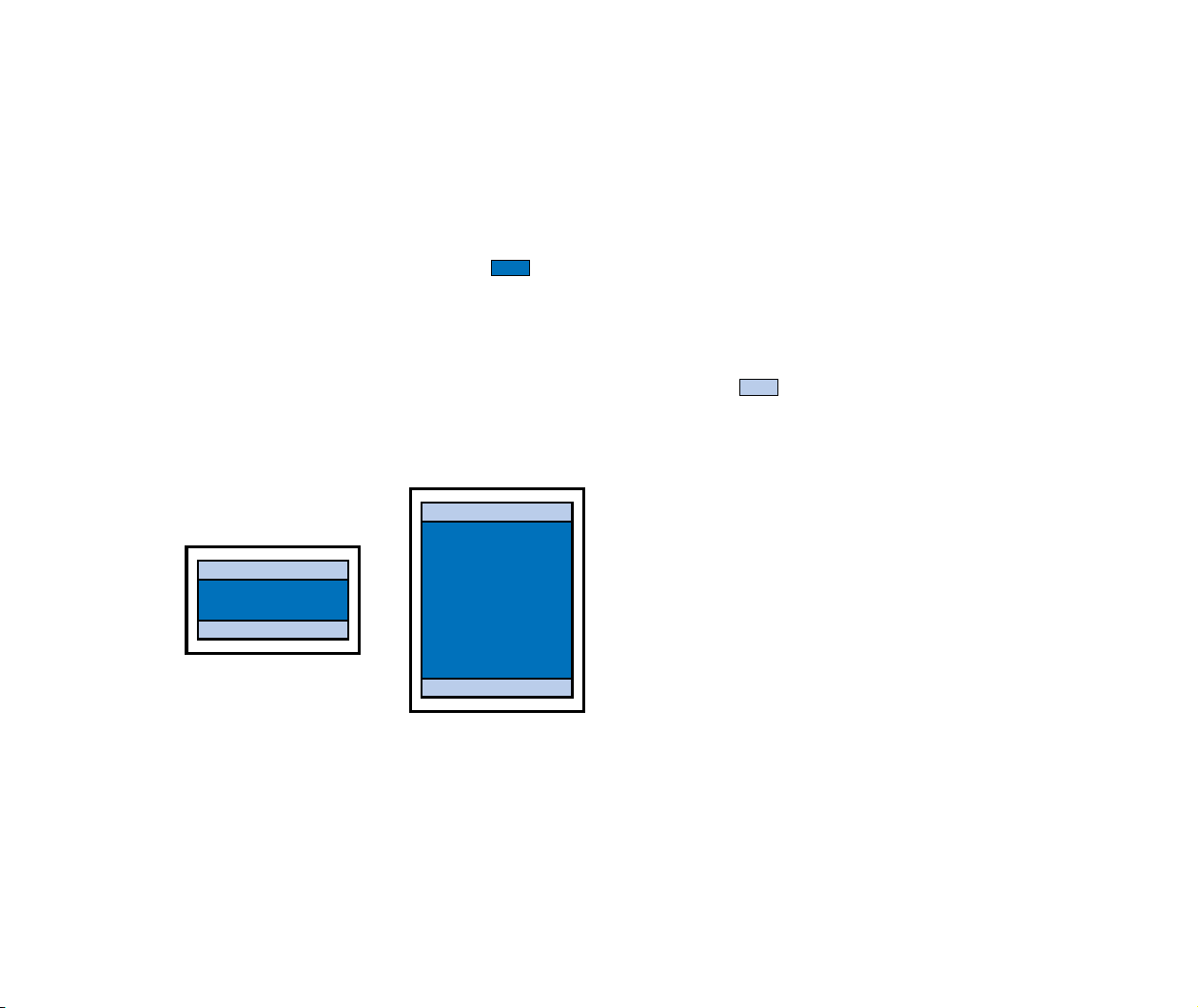
170
Specifications
■ Printing Area
To ensure the best print quality, the printer allows a margin along each edge of
media.
Printing area (dark blue): Canon recommends that you print within this area.
()
Printable area (light blue): The area where it is possible to print. However, printing
in this area can adversely affect the print quality or the
paper feed precision.
()
➡
A3+, A3, Ledger, B4, A4, B5, A5, 4" x 6"
➡
Letter, Legal
➡
Envelopes
➡
Banner Paper
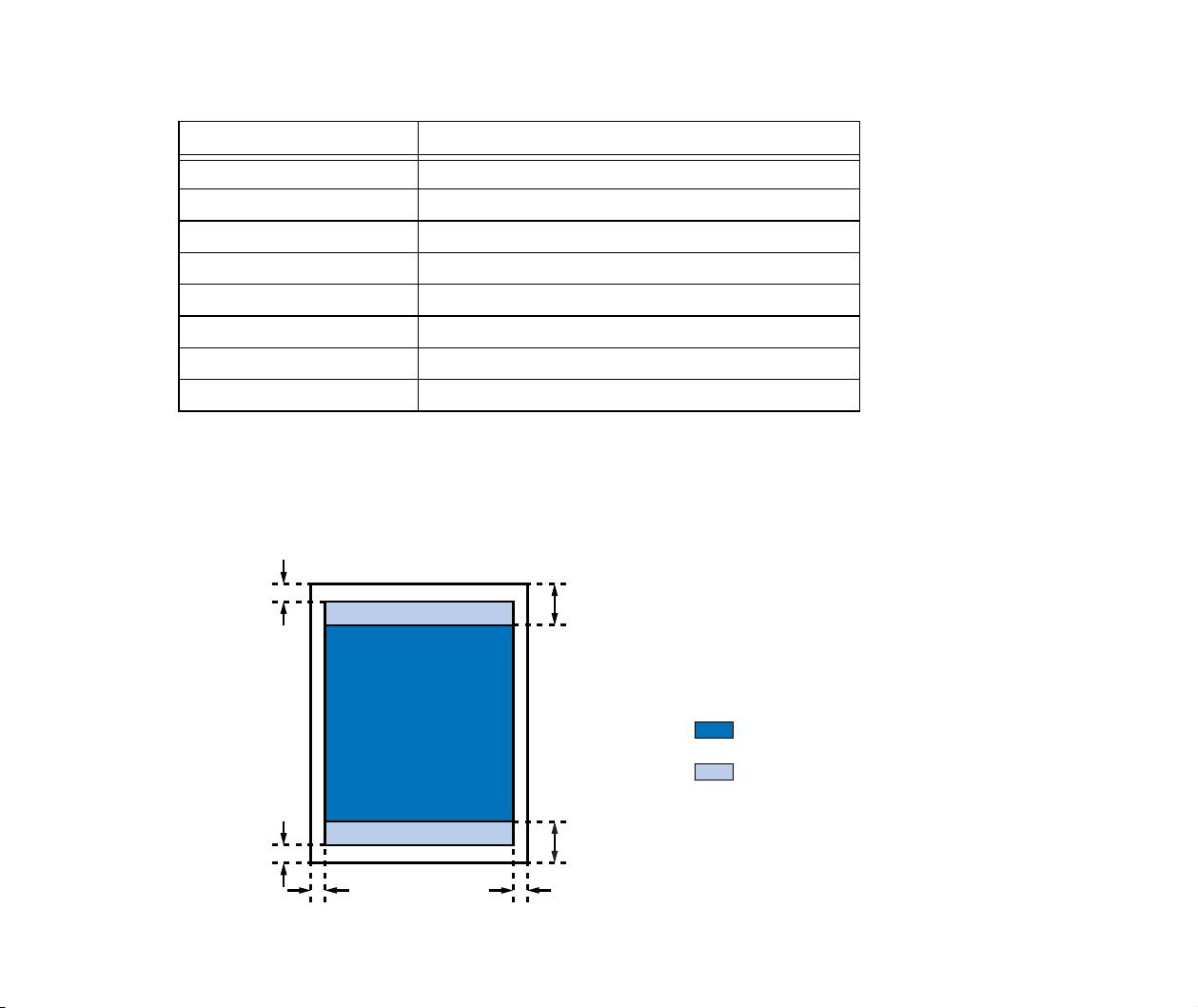
171
Specifications
A3+, A3, Ledger, B4, A4, B5, A5, 4" x 6"
Note
➤
When printing on PR-101 and GP-301/GP-301N, selection of "Borderless
Printing" enables you to make prints with no margins. However, borderless
printing may cause the top and bottom edges of paper to decrease in print
quality or become soiled.
Size Printable Area (width x height)
A3+ (13×19) 322.2 × 475.0 mm / 12.7 × 18.7 in
A3 290.2 × 412.0 mm / 11.4 × 16.2 in
Ledger (11×17) 272.6 × 423.8 mm / 10.7 × 16.7 in
B4 250.2 × 356.0 mm / 9.9 × 14.0 in
A4 203.2 × 289.0 mm / 8.0 × 11.4 in
B5 175.2 × 249.0 mm / 6.9 × 9.8 in
A5 141.2 × 202.0 mm / 5.6 × 7.9 in
4" × 6" 94.8 × 144.4 mm / 3.7 × 5.7 in
33.0 mm / 1.3 in
24.0 mm / 0.94 in
3.4 mm / 0.13 in
3.4 mm / 0.13 in
5.0 mm / 0.2 in
3.0 mm / 0.12 in
Recommended printing area
Printable area
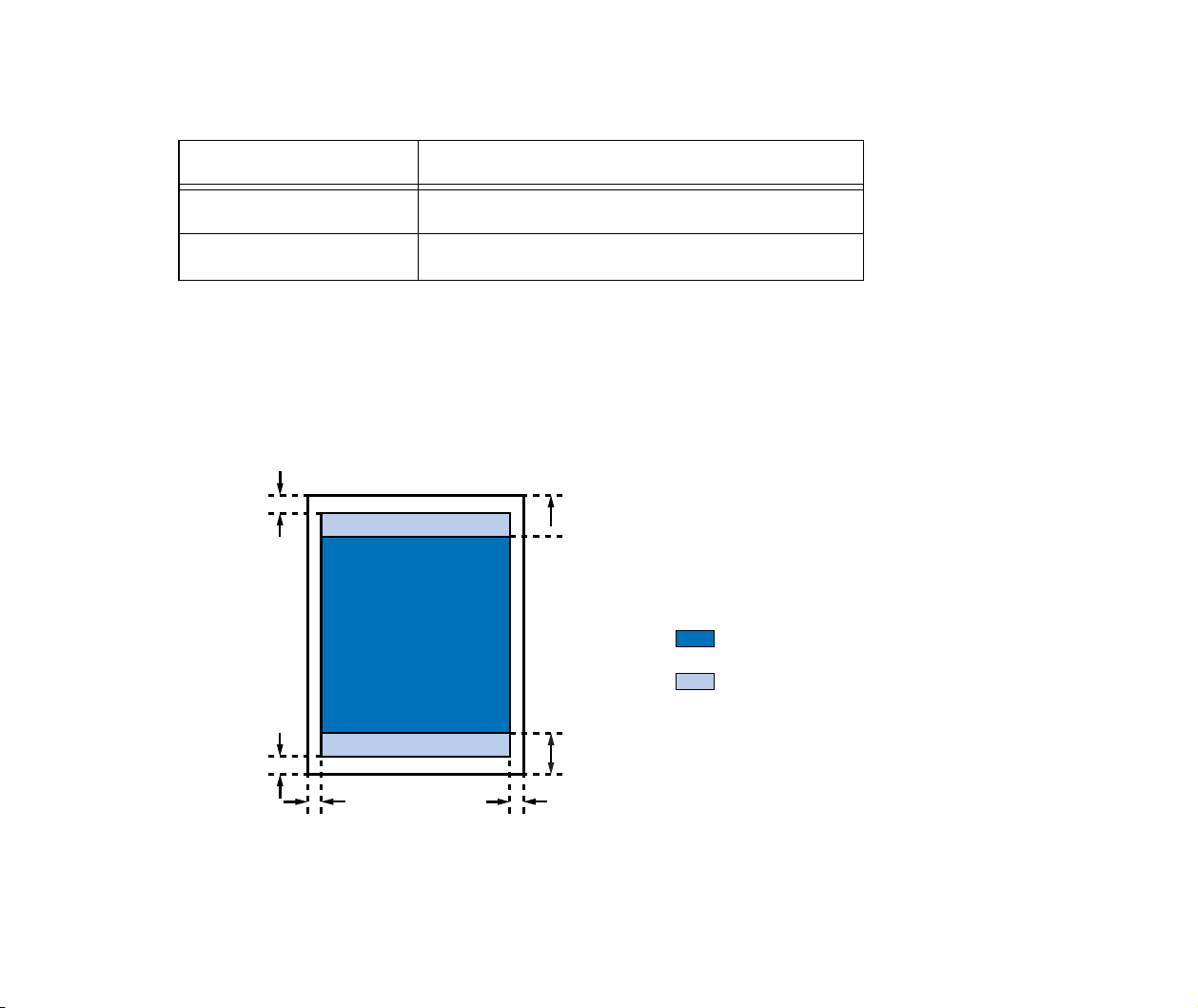
172
Specifications
Letter, Legal
Note
➤
When printing on PR-101 and GP-301/GP-301N, selection of "Borderless
Printing" enables you to make prints with no margins. However, borderless
printing may cause the top and bottom edges of paper to decrease in print
quality or become soiled.
Size Printable Area (width
x height)
Letter 203.2 × 271.4 mm / 8.0 × 10.7 in
Legal 203.2
× 347.6 mm / 8.0 × 13.7 in
33.0 mm / 1.3 in
24.0 mm / 0.94 in
6.4 mm / 0.25 in 6.3 mm / 0.25 in
5.0 mm / 0.2 in
3.0 mm / 0.12 in
Recommended printing area
Printable area
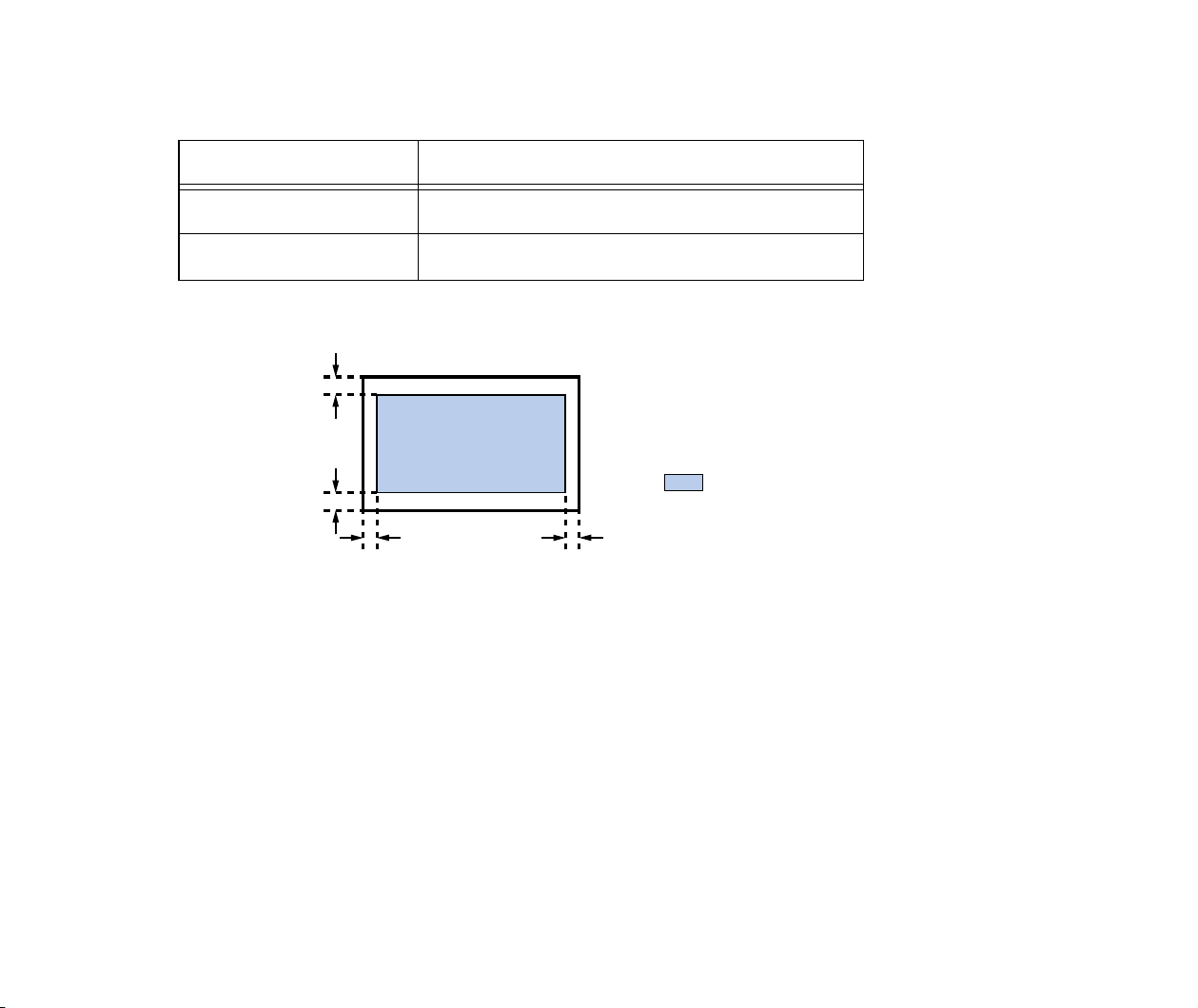
173
Specifications
Envelopes
Size Printable Area (width x height)
European DL 190.5 × 103.2 mm / 7.5 × 4.1 in
US Com. #10 211.8
× 98.0 mm / 8.3 × 3.9 in
3.0 mm / 0.12 in 26.5 mm / 1.04 in
3.4 mm / 0.13 in
3.4 mm / 0.13 in
Printable area
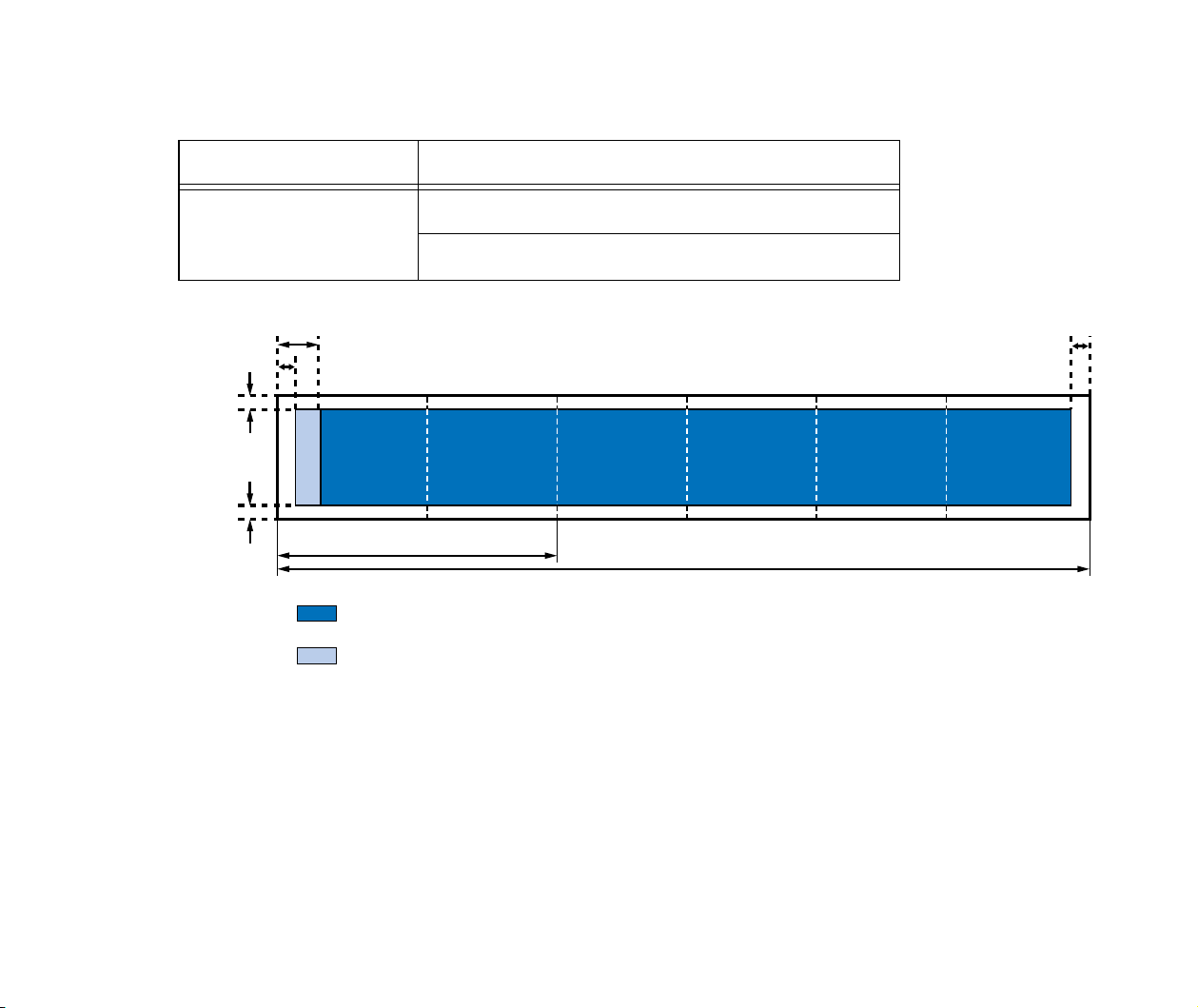
174
Specifications
Banner Paper
Size Printable Area (width x height)
Banner Paper A4: 203.2 × 1774.0 mm / 8.0 × 69.8 in
Letter: 203.2
× 1668.4 mm / 8.0 × 65.7 in
3.4 mm / 0.13 in
3.4 mm / 0.13 in
3.0 mm / 0.12 in
33.0 mm / 1.3 in
5.0 mm / 0.2 in
Max. 6 sheets
Min. 2 sheets
Recommended printing area
Printable area

175
Index
A
Application Error 152
B
Background printing (Macintosh) 59
Background printing (Windows) 159
Banner Paper 113
BCI-6BK 69
BCI-6C 69
BCI-6M 69
BCI-6PC Photo 69
BCI-6PM Photo 69
BCI-6Y 69
BJ Print Monitor (Macintosh) 59
BJ Status Monitor (Macintosh) 65
BJ Status Monitor (Windows) 36, 154, 158
Booklet Printing 26
Borderless Printing 26, 44
C
Cancelling a Print Job (Macintosh) 61
Index

176
Index
Cancelling a Print Job (Windows) 39
Chooser (Macintosh) 59
Cleaning 34, 46, 78
Cleaning the Printer 83
Client (Macintosh) 63
Compatible Media Types 90
D
Deep Cleaning 34, 81
Duplex Printing 27, 57
E
Envelopes 92
Error Message 148, 154, 156
F
Fit-to-page Printing 26, 57
Front cover 15, 141
G
Gamma Correction (Macintosh) 55
General Protection Fault 152
Glossy Photo Cards FM-101 102
Glossy Photo Paper GP-301/GP-301N 98
H
High Gloss Photo Film HG-201 100
High Resolution Paper HR-101N 96

177
Index
I
Ink Tank 68, 69
M
Media Type (Macintosh) 48
Media Type (Windows) 23
N
Network (Macintosh) 62
Nozzle Check Pattern 77
O
Opening the Printer Properties Dialog Box (Windows) 20
P
Page Setup Dialog Box (Macintosh) 43
Page Size (Windows) 25
Paper feed roller 94
Paper Guide 15
Paper Jams 144
Paper Output Tray 15
Paper Rest 15
Paper Size (Macintosh) 43
Paper Thickness Lever 17
Photo Optimizer PRO (Macintosh) 53
Photo Optimizer PRO (Windows) 31
Photo Paper Pro PC-101S 107
Photo Paper Pro PR-101 104

178
Index
PICT File (Macintosh) 57
Poster Printing 26, 56
POWER Button 18
POWER Lamp 18, 145
Print Advisor (Windows) 24
Print Dialog Box (Macintosh) 48
Print Head Holder 17
Print Head Lock Lever 17
Print Mode (Macintosh) 48
Print server (Macintosh) 62
Printable area 170
Printer Driver (Macintosh) 41
Printer Driver (Windows) 19
Printer port 150
Printer Properties Dialog Box (Windows) 20, 22
Printing Area 170
Printing the Nozzle Check Pattern 74
Q
Quiet Mode 35
R
Replacing an Ink Tank 69
RESUME/CANCEL Button 18
S
Sheet Feeder 15
Simulate illustration (Macintosh) 52

179
Index
Simulate Illustration (Windows) 30
Specifications 163
T
Transparencies CF-102 109
Transporting the Printer 85
T-Shirt Transfers TR-201 111
U
Uninstalling Printer Drivers (Macintosh) 66
Uninstalling Printer Drivers (Windows) 40
USB Port 16
V
Vivid Photo 31, 53
W
When to Replace Ink Tank and Maintain Print Head 68


