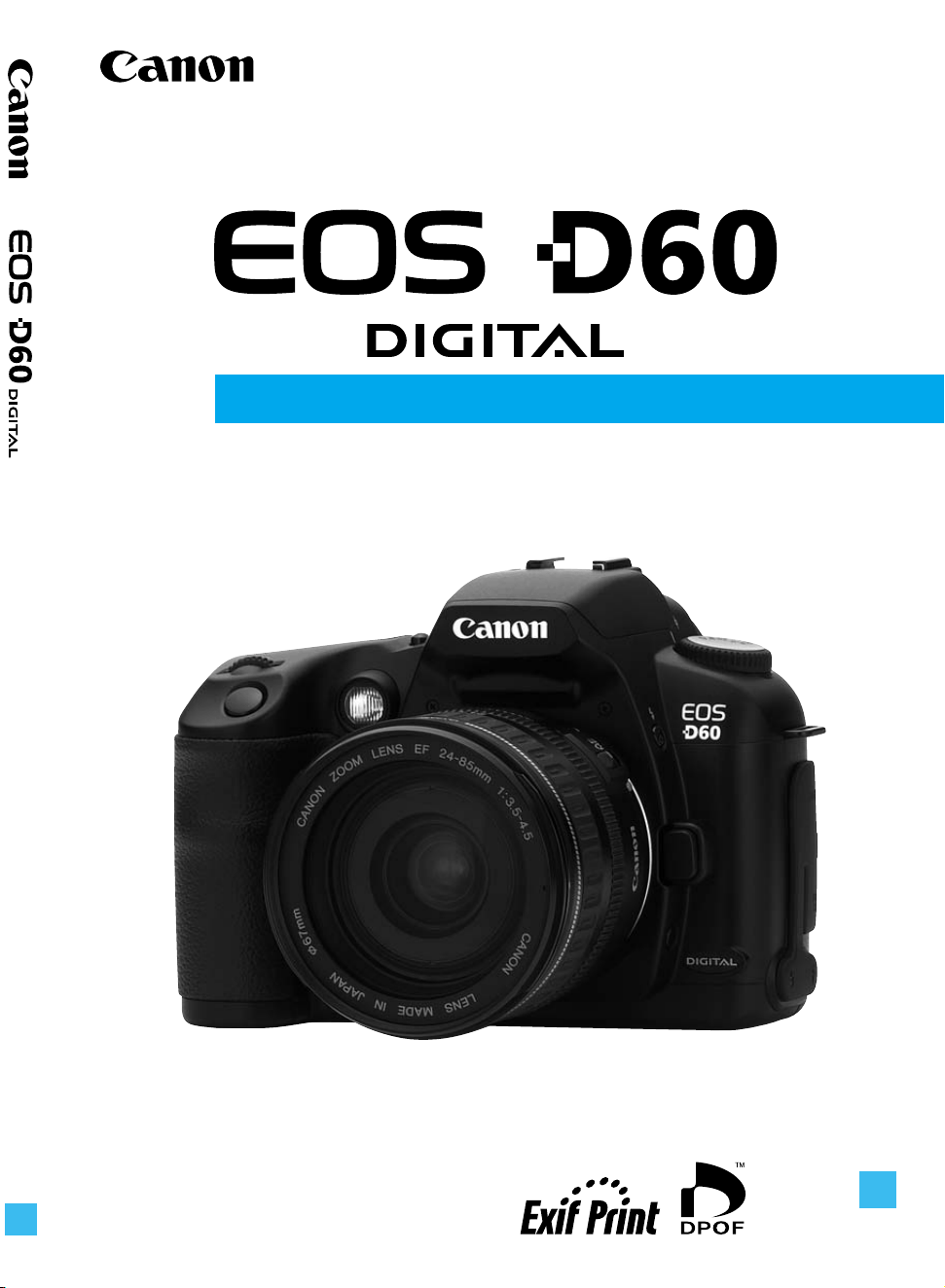
Be sure to read these Instructions before using
your camera for the first time. Keep this booklet
handy for easy reference.
English Edition
INSTRUCTIONS
E
E
CT1-1232-001
©
CANON INC. 2002 PRINTED IN JAPAN
This Instructions booklet is current as of January 2002. For information on using the
camera with system accessories introduced after this date, contact your nearest Canon
Service Center.
CANON INC. 30-2, Shimomaruko 3-chome, Ohta-ku, Tokyo 146-8501, Japan
U.S.A. CANON U.S.A. INC.
For all inquiries concerning this camera, call toll free in the U.S.
1-800-OK-CANON or write to: Customer Relations, Canon U.S.A., Inc.
One Canon Plaza, Lake Success, N.Y. 11042-1198
CANADA CANON CANADA INC. HEADQUARTERS
6390 Dixie Road, Mississauga, Ontario L5T 1P7, Canada
CANON CANADA INC. MONTREAL BRANCH
5990, Côte-de-Liesse, Montréal Québec H4T 1V7, Canada
CANON CANADA INC. CALGARY OFFICE
2828, 16th Street, N.E. Calgary, Alberta T2E 7K7, Canada
For all inquiries concerning this camera, call toll free in Canada
1-800-OK-CANON
EUROPE, CANON EUROPA N.V.
AFRICA &
Bovenkerkerweg 59-61, P.O. Box 2262, 1180 EG Amstelveen, The Netherlands
MIDDLE EAST CANON COMMUNICATION & IMAGE FRANCE S.A.
102, Avenue du Général de Gaulle 92257 La Garenne-Colombes Cedex, France
CANON UK LTD.
Woodhatch Reigate Surrey RH2 8BF, United Kingdom
CANON DEUTSCHLAND GmbH
Europark Fichtenhain A10, 47807 Krefeld, Germany
CANON ITALIA S.p.A.
Palazzo L, Strada 6, 20089 Rozzano, Milanofiori, Milano, Italy
CANON Benelux N.V./S.A.
Bessenveldstraat 7, 1831 Diegem (Machelen), Belgium
CANON Schweiz AG
Geschäftsbereich Wiederverkauf, Industriestrasse 12, CH-8305 Dietlikon, Switzerland
CANON G. m. b. H.
Oberlaaerstrasse 233, 4th floor, 1100 Wien, Austria
CANON España, S. A.
C/Joaquín Costa, 41, 28002 Madrid, Spain
SEQUE Soc. Nac. de Equip., Lda.,
Praça da Alegria, 58, 2°, 1269-149 Lisboa, Portugal
CENTRAL & CANON LATIN AMERICA, INC. DEPTO DE VENTAS
SOUTH AMERICA 703 Waterford Way Suite 400 Miami, FL 33126 U.S.A.
CANON LATIN AMERICA, INC. CENTRO DE SERVICIO Y REPARACION
Apartado 2019, Zona Libre de Colón, República de Panamá
ASIA CANON HONGKONG CO., LTD.
9/F, The Hong Kong Club Building, 3A Chater Road, Central, Hong Kong
CANON SINGAPORE PTE. LTD.
79 Anson Road #09-01/06 Singapore 079906
OCEANIA CANON AUSTRALIA PTY. LTD.
1 Thomas Holt Drive, North Ryde, N.S.W. 2113, Australia
CANON NEW ZEALAND LTD.
Fred Thomas Drive, P.O. Box 33-336, Takapuna, Auckland, New Zealand
JAPAN CANON SALES CO., INC.
12-15 Mita, 3-Chome, Minato-ku, Tokyo 108-8011, Japan
INSTRUCTIONS

Reference
7
1472
Thank you for purchasing this Canon product
The EOS D60 digital camera is a high-performance, single-lens reflex AF camera with an ultra-
fine CMOS sensor having approx. 6.3 million effective pixels. The camera is compatible with all
Canon EF lenses and designed for quick and easy shooting. It is full-featured for all types of
photography, from fully automatic snapshooting to professional-level, creative work.
CompactFlash cards (CF Type I and II) serve as the recording medium.
Before using the camera, be sure to read these Instructions to familiarize yourself with the
camera’s features and proper operation.
∗ Using CF cards made by Canon is recommended.
Radio and Television Interference (VCCI Statement)
This camera is an information technology device that does not exceed Class B limits for
electromagnetic interference (EMI) in compliance with standards set by Japan’s Voluntary
Control Council for Interference by Information Technology Equipment (VCCI). This device may
still cause interference with radio or television reception when placed near such an appliance.
Read these Instructions to learn how to avoid reception interference of other appliances.
Test the Camera Before Shooting
Before using the camera, be sure to test it first. Check that the images are properly recorded
on the CF card. If the camera or CF card is faulty and the images cannot be recorded or read
by a personal computer, Canon cannot be held liable for any loss or inconvenience caused.
About Copyrights
Copyright laws in your country may prohibit the use of images of people and certain subjects
for anything but private enjoyment. Photographing public performances or exhibitions may
also be prohibited.
● Canon and EOS are trademarks of Canon Inc.
● Adobe and Photoshop are trademarks of Adobe Systems Incorporated.
● CompactFlash is a trademark of SanDisk Corporation.
● IBM PC/AT and Microdrive are trademarks or registered trademarks of International
Business Machines.
● Macintosh is a registered trademark of Apple Corporation in the United States and other
countries.
● All other trademarks are the property of their respective owners.
This digital camera supports Exif 2.2 (also called “Exif Print”). Exif Print is a standard for
enhancing the communication between digital cameras and printers. By connecting to an Exif
Print-compliant printer, the camera’s image data at the time of shooting is used and optimized,
yielding extremely high quality prints.
Index
L
Landscape Mode .................................... 45
Language .............................................. 121
LCD brightness ..................................... 120
LCD panel ......................................... 10, 16
LCD panel Illumination ............................ 67
Lens ........................................................ 27
M
Macro Flash .......................................... 138
Main Dial ........................................... 20, 30
Manual .................................................... 74
Manual focus ........................................... 59
Main switch ....................................... 20, 29
Message List ......................................... 135
Menu functions ................................ 32, 118
Metering Modes ...................................... 61
MF (Manual Focus) ........................... 27, 59
Mirror lockup ................................... 84, 122
Mode dial ................................................ 18
Modeling flash ......................................... 95
N
Night Portrait Mode ................................. 48
Non-Canon flash unit .............................. 96
NTSC ............................................ 112, 121
O
One-shot AF ............................................ 55
P
PAL ................................................ 112, 121
Parameter selection ................................ 52
Partial metering ....................................... 62
PC Card Adapter ................................... 139
PC terminal ............................................. 96
Portrait Mode ........................................... 44
Print order selection .............................. 106
Date printing ...................................... 110
File number printing .......................... 111
Print type ........................................... 109
All images .......................................... 108
Single image ..................................... 107
Program AE............................................. 68
Program line .......................................... 133
Program shifting ...................................... 69
Protection .............................................. 103
Q
Quick Control Dial ............................. 20, 31
R
Recording capacity ................................. 50
Recording size ........................................ 50
Red-eye phenomenon ........................... 130
Red-eye reduction ................................... 89
Remote Switch ...................................... 139
S
Self-timer ................................................. 81
Settings checking .................................... 60
Shooting modes ...................................... 18
Shutter button.......................................... 29
Shutter speed ........................................ 130
Single-frame shooting ............................. 63
Specifications ........................................ 142
Sports Mode ............................................ 47
Strap ....................................................... 21
Sync shutter speed ........................... 87, 96
System Map .......................................... 140
T
Timer operation ....................................... 20
Timer Remote Controller ....................... 139
Tv ............................................................ 70
V
Video system ........................................ 121
Viewfinder ............................................... 17
Viewing the image ............................. 40, 98
Auto playback .................................... 101
Enlarged image viewing ...................... 99
Erasing images
Single .............................................. 43
All .................................................. 104
Jumping between images .................... 99
Protecting images ............................. 103
Rotating images ................................ 102
Viewing a single image ....................... 98
Viewing the index ................................ 98
W
White balance ................................... 64, 66
Wireless multi-flash shooting .................. 95

3
Introduction
Equipment Check List
Be sure all the following equipment and accessories have been included with your camera. If
anything is missing, contact your dealer.
¢ EOS D60 camera body (with body cap and lithium backup battery for the date and time)
¢ Eyecup Eb
¢ Battery Pack BP-511
¢ Compact Power Adapter CA-PS400
¢ DC Coupler DR-400
¢ Interface Cable IFC-200PCU
¢ Video Cable VC-100
¢ Neck Strap EW-100DB (with eyepiece cover)
¢ EOS Digital Solution Disk
¢ Adobe Photoshop LE Disk
¢ EOS D60 Instructions (which you are reading now)
¢ EOS D60 Software Instructions
Explains how to install the software for transferring images from the camera to a personal
computer, editing RAW images, and setting processing parameters.
¢ Battery Pack BP-511 Instructions
¢ Warranty card
¢ Quick Operation Guide
¢ EOS D60 Accessories
Introduces major accessories for the EOS D60.
∗ No CF card is included. Please purchase it separately. CF cards made by Canon are
recommended.
∗ A microdrive is a recording medium using a hard disk. It has a large capacity and the price
per megabyte is low. However, compared to a CF card equipped with a flash memory, it is
vulnerable to vibration and physical shock. If you use a microdrive, be careful not to subject
the camera to vibration, shake, or physical shock while it is recording or displaying images.
4
Equipment Check List .......................... 3
Handling Precautions ......................... 10
Quick Guide ....................................... 12
Nomenclature ..................................... 14
Conventions Used in This Manual ...... 20
Charging the Battery Pack ................. 22
Inserting and Removing the Battery Pack
... 24
Inserting the Battery Pack ............... 24
Battery Level Icons ......................... 24
Removing the Battery Pack ............ 25
Using a Household Power Supply .... 26
Mounting and Detaching a Lens ........ 27
Mounting a Lens ............................. 27
Detaching a Lens ............................ 27
Installing a CF Card ........................... 28
Removing a CF Card ...................... 28
Basic Operation ................................. 29
Main Switch .................................... 29
Shutter Button ................................. 29
Using the Electronic Dials ............... 30
LCD Monitor .................................... 31
Menu Functions and Settings ......... 32
Setting the Date and Time .......... 34
Dioptric Adjustment in the Viewfinder .. 36
Holding the Camera ........................... 36
Fully Automatic Picture Taking ...... 38
Automatic Built-in Flash .................. 39
AF-Assist Beam .............................. 39
Check the Image Immediately............ 40
Check the Image in PLAY Mode .. 40
Checking the Image
After it is Taken .............................. 41
Time for Image Review ............ 42
Erasing a Recorded Image
(Single Image Erase) ...................... 43
Portrait Mode .................................. 44
Landscape Mode ........................... 45
Contents
1
Before You Start
..........................
21
Introduction
2
Simple Picture Taking
.................
37
Close-Up Mode ............................... 46
Sports Mode .................................. 47
Night Portrait Mode ........................ 48
Quality Selection ......................... 50
ISO Speed .................................. 51
Setting Processing Parameters ... 52
AF Mode Selection ....................... 54
One-Shot AF for Still Subjects ........ 55
AI Servo AF for Moving Subjects .... 56
AI Focus AF .................................... 56
AF Point Selection ......................... 57
Focusing On an Off-Center Subject ... 58
Problem Subjects for Autofocusing .... 59
Manual Focus ............................ 59
INFO.
Checking Camera Settings ........ 60
Selecting a Metering Mode ............ 61
Metering Modes ................................. 62
Selecting a Drive Mode ...................... 63
Setting the White Balance ............ 64
White Balance Settings ...................... 65
Custom White Balance Setting ... 66
LCD Panel Illumination ....................... 67
Program AE .................................... 68
Shutter-Priority AE ......................... 70
Aperture-Priority AE ...................... 72
Checking the Depth of Field ............... 73
Manual Exposure ............................ 74
Automatic Depth-of-Field AE ....... 76
Setting Exposure Compensation ....... 77
Autoexposure Bracketing ............ 78
AE Lock .......................................... 80
Self-timer Operation ....................... 81
Using the Eyepiece Cover .............. 82
Bulb Exposures .................................. 83
Mirror Lockup ..................................... 84
Using the Built-in Flash ...................... 86
in the Basic Zone .......................... 86
in the Creative Zone...................... 86
Built-in Flash Range ....................... 87
3
Advanced Operations
.................
49
4
Flash Photography
......................
85
5
Introduction
Contents
Flash Sync Shutter Speed and
Aperture Settings .......................... 87
Red-eye Reduction .................. 89
FE Lock ....................................... 90
Flash Exposure Compensation .. 91
Flash Photography with the
EOS-Dedicated 550EX Speedlite ... 92
Full Auto Flash ................................ 93
Taking Flash Pictures in Each
Shooting Mode ................................ 93
High-Speed Sync (FP Flash) ...... 94
FEB (Flash Exposure Bracketing) ... 94
FE Lock ....................................... 95
Flash Exposure Compensation .. 95
Modeling Flash ............................... 95
Wireless Multi-Flash/E-TTL
Autoflash Shooting .......................... 95
Using Non-Canon Flash Units ........... 96
TTL and A-TTL Speedlites ................. 96
Viewing Recorded Images ................. 98
Viewing a Single Image .............. 98
Viewing the Index ..................... 98
Viewing Enlarged Images ......... 99
JUMP
Jumping to Another Image ..... 99
INFO.
Turning the Information Display
On and Off .................................. 100
Automated Playback of Recorded
Images (Auto playback) .............. 101
Rotating an Image ................. 102
Protecting an Image .................. 103
Erasing Images (All Image Erase) ..
104
Formatting the CF Card ............ 105
Print Order ................................ 106
Selecting Images for Printing ........ 107
Print Type ...................................... 109
Specifying Date Printing ............... 110
Specifying File Number Printing ... 111
Connecting to a TV .......................... 112
Replacing the Date/Time Battery ..... 113
File Numbering System ............. 114
Cleaning the CMOS Imaging
Element ......................................... 115
List of Menu Functions .............. 118
Custom Function Settings ............. 122
Basic Terminology ............................ 128
Function Availability Table ................ 131
AF Modes and Drive Modes ............ 131
Exposure Warnings .......................... 132
AE Lock Effects for Combinations of
AF Point Selection and
Metering Method ........................... 133
Program Line.................................... 133
Shutter Speed and
Aperture Value Readouts .............. 134
Message List .................................... 135
Error Code ....................................... 135
Troubleshooting ................................ 136
Major Accessories (Optional) .............. 138
System Map ..................................... 140
Major Specifications ......................... 142
Index ................................................ 146
5
Playing and Erasing Recorded Images
...
97
6
Menu Function Settings
...........
117
7
Reference
...................................
128
1
2
3
4
5
6
7
6
EOS D60
This device complies with Part 15 of the FCC Rules. Operation is subject to the following
two conditions: (1) This device may not cause harmful interference, and (2) this device
must accept any interference received, including interference that may cause undesired
operation.
Note:This equipment has been tested and found to comply with the limits for class B
digital devices, pursuant to Part 15 of the FCC Rules. These limits are designed to
provide reasonable protection against harmful interference in a residential installa-
tion. This equipment generates, uses and can radiate radio frequency energy and, if
not installed and used in accordance with the instructions, may cause harmful
interference to radio communications. However, there is no guarantee that interfer-
ence will not occur in a particular installation. If this equipment does cause harmful
interference to radio or television reception, which can be determined by turning the
equipment off and on, the user is encouraged to try to correct the interference by
one or more of the following measures:
— Reorient or relocate the receiving antenna.
— Increase the separation between the equipment and receiver.
— Connect the equipment into an outlet on a circuit different from that to which the
receiver is connected.
— Consult the dealer or an experienced radio/TV technician for help.
The cable with the ferrite core provided with the digital camera must be used with this
equipment in order to comply with Class B limits in Subject B of Part 15 on the FCC rules.
Do not make any changes or modifications to the equipment unless otherwise specified in
the manual. If such changes or modifications should be made, you could be required to
stop operation of the equipment.
Canon U.S.A. Inc.
One Canon Plaza, Lake Success, NY 11042, U.S.A.
Tel No. (516)328-5600
The Mark is a directive conformity mark of the European Community (EC).
This mark indicates that the product complies with Australia’s EMC regulations.
7
Introduction
SAFETY PRECAUTIONS
• Before using the camera, please ensure that you have read and understood the safety
precautions described below. Always ensure that the camera is operated correctly.
• The safety precautions noted as follows are intended to instruct you in the safe and
correct operation of the camera and its accessories to prevent injuries or damage to
yourself, other persons and equipment.
• The term “equipment” refers primarily to the camera and its power supply accessories.
WARNINGS
• Do not aim the camera or detached lens only directly into the sun or at other intense light
sources that could injure your eyesight.
• Store this equipment out of the reach of children and infants. Accidental damage to the
camera or batteries by a child could result in serious injury. In addition, placement of the
neck strap around a child’s neck could result in asphyxiation.
• Be particularly careful to keep the lithium battery CR2025 used in the camera out of the
reach of children. Seek medical assistance immediately if a child swallows the battery.
• Do not attempt to disassemble or alter any part of the equipment. Disassembly or
alteration may result in high-voltage electrical shock. Internal inspections, alterations and
repairs should be conducted by qualified service personnel authorized by your camera
distributor or Canon Customer Support.
• To avoid the risk of high-voltage electrical shock, do not touch internal portions of the
equipment that become exposed as a result of damage. Please take the first opportunity
to consult your camera distributor or Canon Customer Support immediately.
• Stop operating the equipment immediately if it should emit smoke or noxious fumes.
Failure to do so may result in fire or electrical shock. Set the camera’s main switch to the
OFF position and remove the camera battery or unplug the power cord from the electrical
outlet immediately. Please consult your camera distributor or the closest Canon Customer
Support.
• Stop operating the equipment if it is dropped or the casing is damaged. Failure to do so
may result in fire or electrical shock. Set the camera’s main switch to the OFF position
and remove the camera battery or unplug the power cord immediately. Please consult
your camera distributor or the closest Canon Customer Support.
• Prevent the equipment from immersion in, water or other liquids. Do not allow liquids to
enter the interior. The camera is not waterproof. If the exterior contacts with liquids or salt
air, wipe it dry with a soft, absorbent cloth. If water or other foreign substances enter the
interior, immediately set the camera’s main switch to the OFF position and remove the
camera battery or unplug the power cord immediately. Continued use of the equipment
may result in fire or electrical shock. Please consult your camera distributor or the closest
Canon Customer Support.
• Do not use substances containing alcohol, benzene, thinners or other organic solvent
substances to clean or maintain the equipment.
• Do not cut, damage, alter or place heavy items on the power cord. Any of these actions
may cause an electrical short circuit, which may lead to fire or electrical shock. Replace a
broken or damaged power cord.
8
• Do not use substances containing alcohol, benzene, thinners or other flammable
substances to clean or maintain the equipment. The use of these substances may lead to
fire.
• Do not cut, damage, alter or place heavy items on the power adapter cord. Any of these
actions may cause an electrical short circuit, which may lead to fire or electrical shock.
Replace a broken or damaged power adapter cord.
• Do not handle the power cord if your hands are wet. Handling it with wet hands may lead
to electrical shock. When unplugging the cord, ensure that you hold the rigid portion of
the plug. Pulling the flexible portion of the cord may damage or expose the wire and
insulation, creating the potential for fires or electrical shocks.
• Use of power sources not expressly recommended for this equipment may lead to
overheating, distortion of the equipment, fire, electrical shock or other hazards. Use only
the recommended power accessories.
• Power down the computer and unplug the power cord before attempting to connect the
interface cable, to avoid the risk of electrical shock.
• Do not place the batteries near a heat source or expose them to direct flame or heat.
Neither should you immerse them in water. Such exposure may damage the batteries and
lead to the leakage of corrosive liquids, fire, electrical shock, explosion or serious injury.
• Do not attempt to disassemble, alter, or apply heat to the batteries. There is serious risk
of injury due to an explosion. Immediately flush with water any area of the body, including
the eyes and mouth, or clothing, that comes into contact with the inner contents of a
battery. If the eyes or mouth contact these substances, immediately flush with water and
seek medical assistance.
• Avoid dropping or subjecting the batteries to severe impacts that could damage the
casings. This could lead to leakage and injury.
• Do not short-circuit the battery terminals with metallic objects, such as key holders. This
could lead to overheating, burns and other injuries. Use the supplied battery case to
transport or store the battery pack.
• Before you discard a battery, cover the terminals with tape or other insulators to prevent
direct contact with other objects. Contact with the metallic components of other materials
in waste containers may lead to fire or explosions. Discard batteries in specialized waste
facilities if available in your area.
• Use of batteries not expressly recommended for this equipment may cause explosions or
leaks, resulting in fire, injury and damage to the surroundings. Use only recommended
batteries and accessories.
• Use only the recommended compact power adapter to charge the Battery Pack BP-511
rechargeable batteries. Use of chargers not expressly recommended may result in
overheating, distortion, fire or electrical shock.
• Disconnect the compact power adapter from both the camera and electrical outlet after
recharging and when the camera is not in use to avoid fires and other hazards.
• The camera terminal of the compact power cord is designed for exclusive use with the
EOS D60. Do not use it with other products or batteries. There is a risk of fire and other
hazards.
9
Introduction
CAUTIONS
• Avoid using, placing or storing the equipment in places subject to strong sunlight or high
temperatures, such as the dashboard or trunk (boot) of a car. Exposure to intense
sunlight and heat may cause the batteries to leak, overheat or explode, resulting in fire,
burns or other injuries. High temperatures may also cause deformation of the casing.
Ensure that there is good ventilation when using the compact power adapter to charge
the battery pack or power the camera.
• Do not store the equipment in humid or dusty areas. Storage in these areas could lead to
fire, electrical shock or other damage.
• Be careful not to bang the camera or subject it to strong impacts or shocks that could lead
to injury or damage the equipment when wearing or holding it by the wrist strap.
• Be careful not to cover the flash with your fingers when shooting. In addition, do not touch
the surface of the flash after taking several pictures in rapid succession. Either action
could result in burns.
Preventing Malfunctions
Avoid Strong Magnetic Fields
Never place the camera in close proximity to electric motors or other equipment generating
strong electromagnetic fields. Exposure to strong magnetic fields may cause malfunctions
or corrupt image data.
Avoid Condensation Related Problems
Moving the equipment rapidly between hot and cold temperatures may cause condensation
(water droplets) to form on its external and internal surfaces. You can avoid this by placing
the equipment in an airtight, resealable plastic bag and letting it adjust to temperature
changes slowly before removing it from the bag.
If Condensation Forms Inside the Camera
Stop using the camera immediately if you detect condensation. Continued use may damage
the equipment. Remove the CF card and battery or power cord (if connected) from the
camera and wait until the moisture evaporates completely before resuming use.
Extended Storage
When not using the camera for extended periods of time, remove the battery (except the
CR2025 lithium button battery) and store the equipment in a safe place. Storing the camera
for extended periods with a battery installed will run down the battery and may damage the
camera.
Important Safety Functions and Preventive Measures
• When the CF Card Access Lamp is blinking, do not remove the CF card from the camera.
Since the card is reading and writing data when the lamp is blinking, removal of the CF
card at this time will damage the card.
• Do not use any cable other than that supplied with the camera. Use the supplied interface
cable to connect the camera to a computer. Use of any other cable may lead to a
malfunction.

10
Handling Precautions
The Camera
(1) This camera is a precision instrument. Do not drop it or expose it to physical shock.
(2) The camera is not waterproof and should not be used in wet conditions or underwater. If
the camera gets wet, take it to your nearest Canon dealer as soon as possible. If small
amounts of water splash onto the camera, wipe it with a clean dry cloth. If the camera is
exposed to salty air, wipe it thoroughly with a slightly damp cloth.
(3) Never leave the camera close to devices that generate strong magnetic fields, such as
magnets or electric motors. Do not operate or leave the camera in areas where strong
electromagnetic signals are generated, such as near electronic transmission towers.
Exposing the camera to strong electromagnetic signals can cause it to malfunction and
destroy recorded image data.
(4) Do not leave the camera in hot locations, such as in a car sitting in direct sunlight. High
temperatures can damage the camera.
(5) The camera contains precision circuits. Never attempt to disassemble the camera or
service it yourself.
(6) Use a commercially available blower brush to remove any dust that accumulates on the
camera lens, viewfinder, mirror, or focusing screen. Do not use cleaners that contain
organic solvents to wipe off the camera body or lens. If the camera is very soiled, consult
your nearest Canon dealer.
(7) Do not touch the camera’s electrical contacts with your hands. Doing so could corrode the
contacts and interfere with the camera’s normal operation.
(8) If you take the camera quickly from a cold location into a warm one, condensation can
form on the outside and inside of the camera. To prevent this, place the camera in an
airtight, resealable plastic bag until it warms up to the ambient temperature.
(9) Do not use the camera if condensation forms on it, or you could damage it. If this occurs,
remove the CF card and battery from the camera, and wait until the condensation has
evaporated before using the camera.
(10) If the camera will not be used for an extended period, remove its battery and store the
camera in a cool, dry, well-ventilated location. While the camera is in storage, operate its
shutter periodically to make sure that it is working.
(11) Avoid storing the camera in locations where potentially corrosive chemicals are used,
such as in a laboratory.
(12) If the camera has been in storage for an extended period, check its components before
using it. If you have not used the camera for some time or are planning to take shots you
will not want to lose (overseas vacation, etc.), have the camera checked by your Canon
dealer beforehand, or check for yourself that the camera components are working
properly.
LCD Panel and LCD Monitor
(1) LCD displays are manufactured using high-precision technology. Even so, very small
black, red, or green dots can occasionally appear on a display. This is within the normal
99.98% range for valid picture elements (pixels), and does not indicate a fault. Such
aberrations on the display also do not affect recorded images.
(2) Do not press hard on an LCD display or subject it to impacts, as this can cause display
flaws and damage.
11
Introduction
(3) If an LCD display becomes soiled, clean it with a commercially available blower brush, or
wipe it with a soft cloth, taking care not to scratch the screen. If an LCD display becomes
extremely soiled, consult your nearest Canon dealer.
(4) By their nature, LCD displays react more slowly at low temperatures, and may appear
dark at high temperatures. The display will return to normal at room temperature.
Lithium Battery for the Date and Time
(1) Store lithium batteries out of reach of small children. The chemicals in these batteries are
very dangerous if the battery is accidentally swallowed. If this happens, seek medical
attention at once.
(2) Do not use metal instruments such as pliers to hold the battery, or you could cause a short
circuit.
(3) Do not disassemble or heat the battery, or you could rupture it.
CF Card
(1) The CF card is a precision device. Do not drop CF cards or expose them to vibrations.
Doing so could lose the images recorded on them.
(2) Do not store or use CF cards near objects that generate magnetic fields, such as TVs,
speakers, or magnets, or in locations affected by static electricity. Doing so could lose the
images recorded on the CF card.
(3) Do not place CF cards in direct sunlight or close to heating appliances. Doing so can
distort the cards and make them unusable.
(4) Do not spill liquids onto CF cards.
(5) Always store your CF cards in a case or cabinet to protect the data stored on them.
(6) Use only CF cards specified by Canon. Otherwise, you may be unable to record or play
back images.
(7) Do not bend CF cards, or subject them to strong impacts.
(8) Do not store CF cards in hot, dusty, or humid locations, or in locations exposed to static
electricity or magnetic fields.
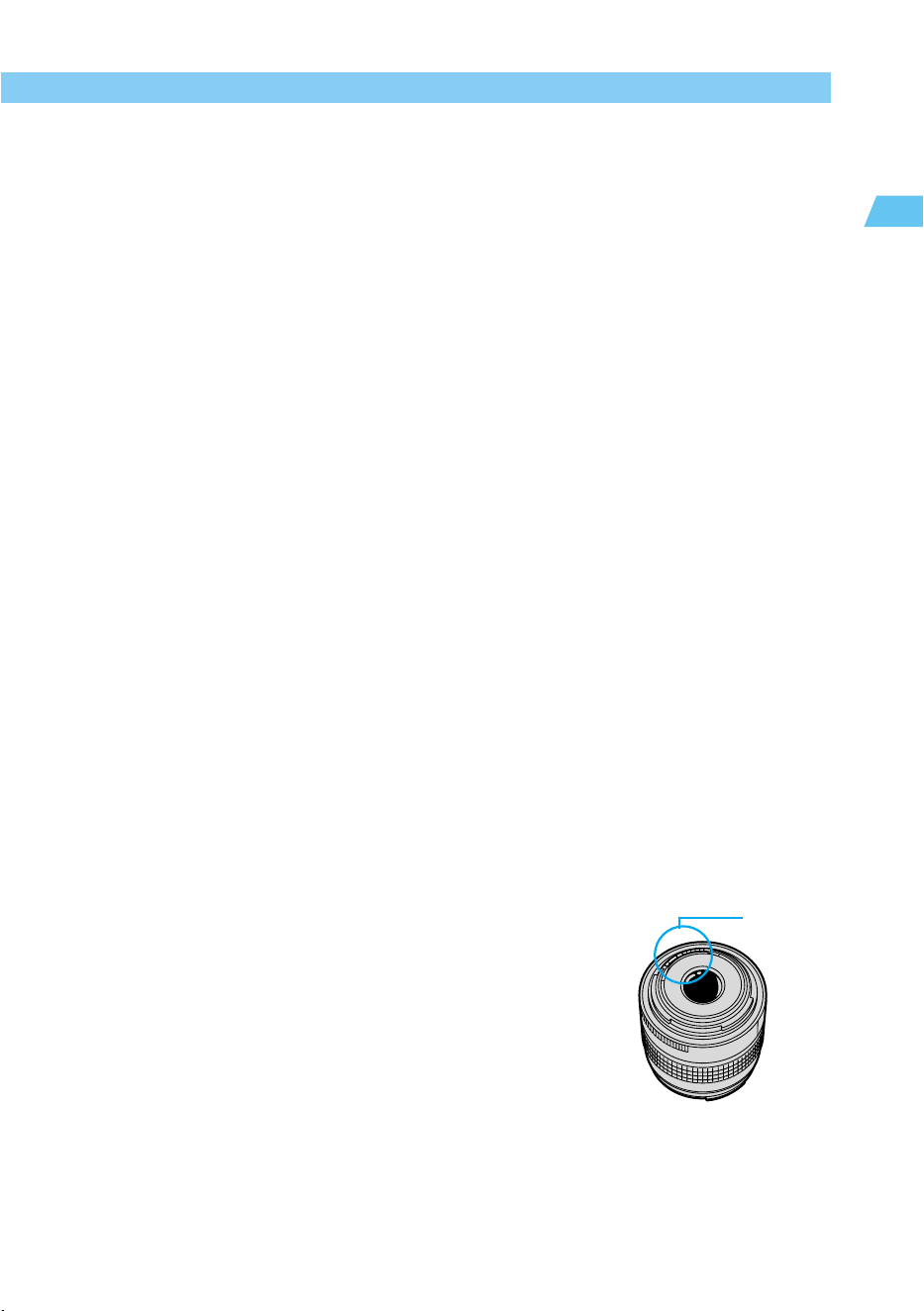
Lens Electrical Contacts
After detaching the lens from the camera, attach the lens caps or put
down the lens with the rear end up to avoid scratching the lens
surface and electrical contacts.
Handling Precautions
Contacts
12
Quick Guide
Reference page numbers are indicated by (→✽✽) .
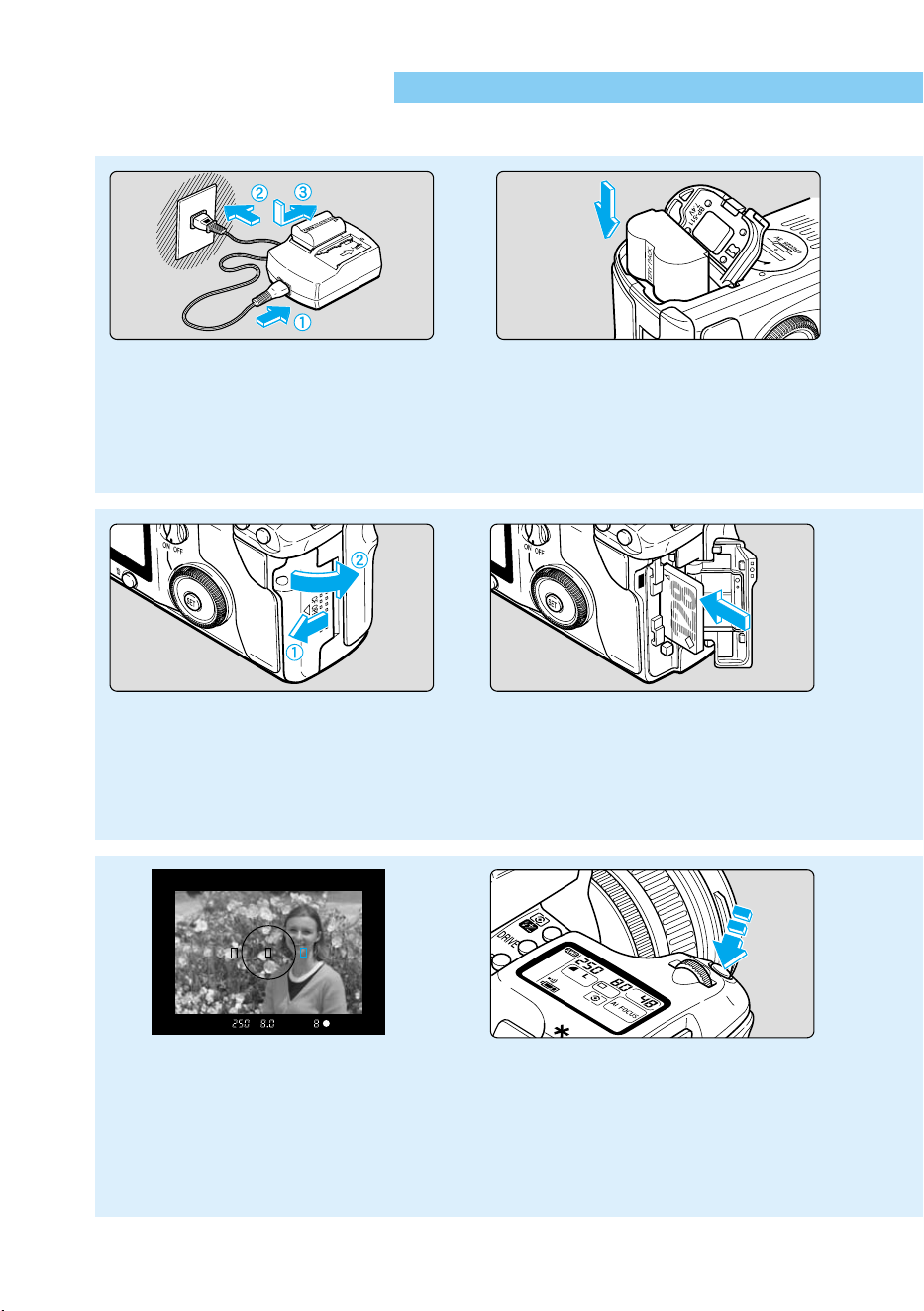
Charge the battery pack.
Connect the power cord to the adapter,
then attach the battery. When the charge
lamp stops blinking and stays lit, the battery
is completely charged. A full battery charge
takes approximately 90 minutes. (→22)
1
Insert the battery pack.
Open the battery chamber cover
and slide the battery pack into
position until it locks into place.
Press the cover closed until it
clicks shut. (→24)
2
Focus on the subject.
Look through the viewfinder and place the
AF point over the subject. Then press the
shutter button down halfway to focus. (→29)
●
The AF point which achieves focus will flash in red.
●
In low-light conditions or backlit daylight
conditions, the built-in flash fires
automatically. (→86)
9
Take the shot.
Press the shutter button down
fully. (→29)
10
Open the CF card slot
cover.
Slide the cover in the direction
shown by the arrow, then open it.
(→28)
5
Insert a CF card
(optional).
After inserting the CF card, close
the cover. (→28)
● Using CF cards made by Canon
is recommended.
6
13
Introduction
Quick Guide
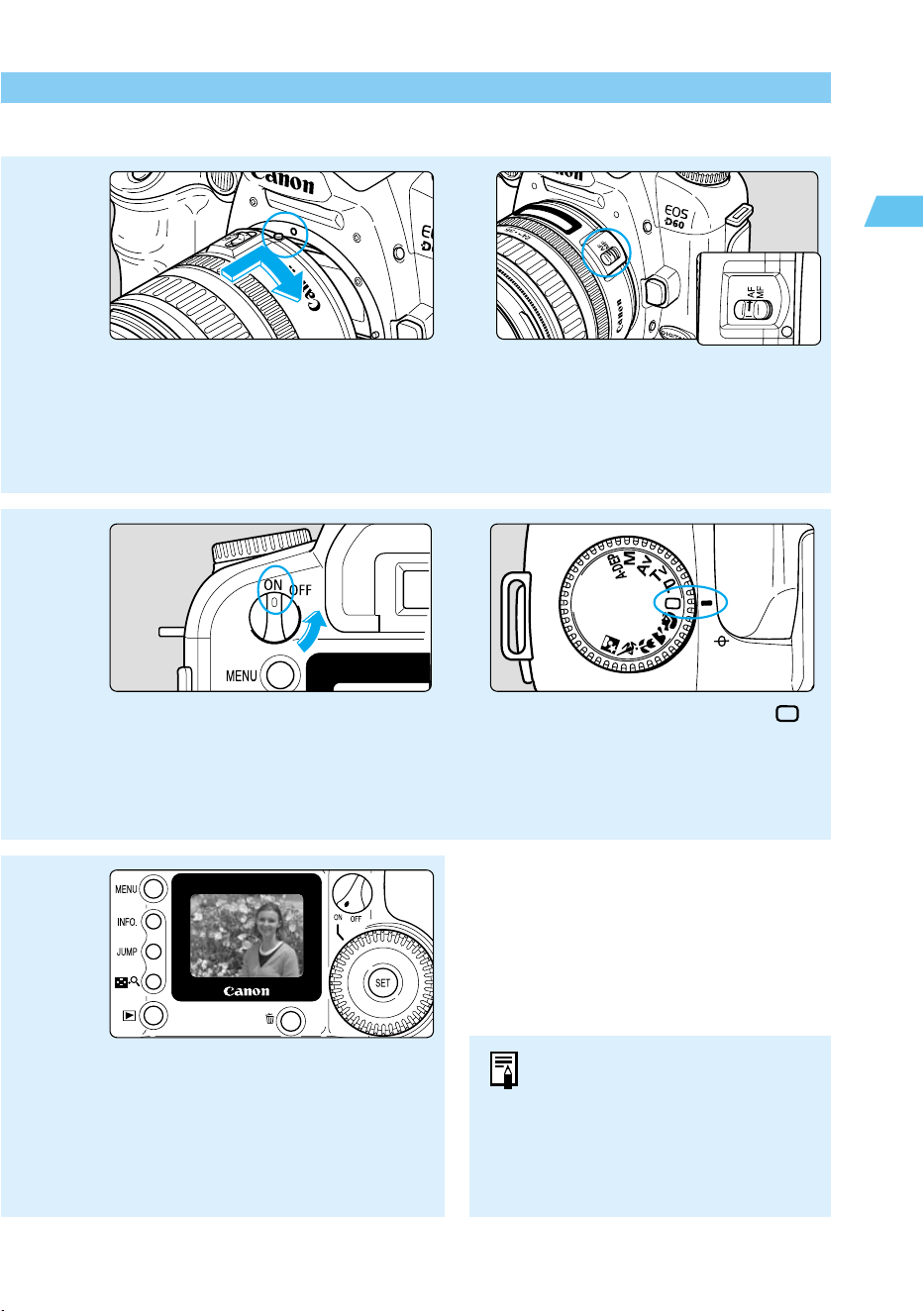
Turn on the camera.
Turn the main switch to <ON>.
(→29)
7
Set the Mode Dial to < >
(Full Auto).
(→38)
8
Check the image.
The image is displayed for
approximately 2 seconds after
the shot. (→40)
11
● To check other images you have
taken, see “Check the Image
Immediately” (→40) and “Viewing
Recorded Images” (→98).
● To erase images you have taken,
see “Erasing a Recorded Image
(Single Image Erase)” (→43).
Mount the lens.
Align the red dots on the lens and
camera and turn the lens in the
direction shown by the arrow in the
diagram until it clicks into place. (→27)
3
Set the focus mode
switch on the lens to AF.
(→27)
4
14
Nomenclature
Reference page numbers are indicated by (→✽✽) .
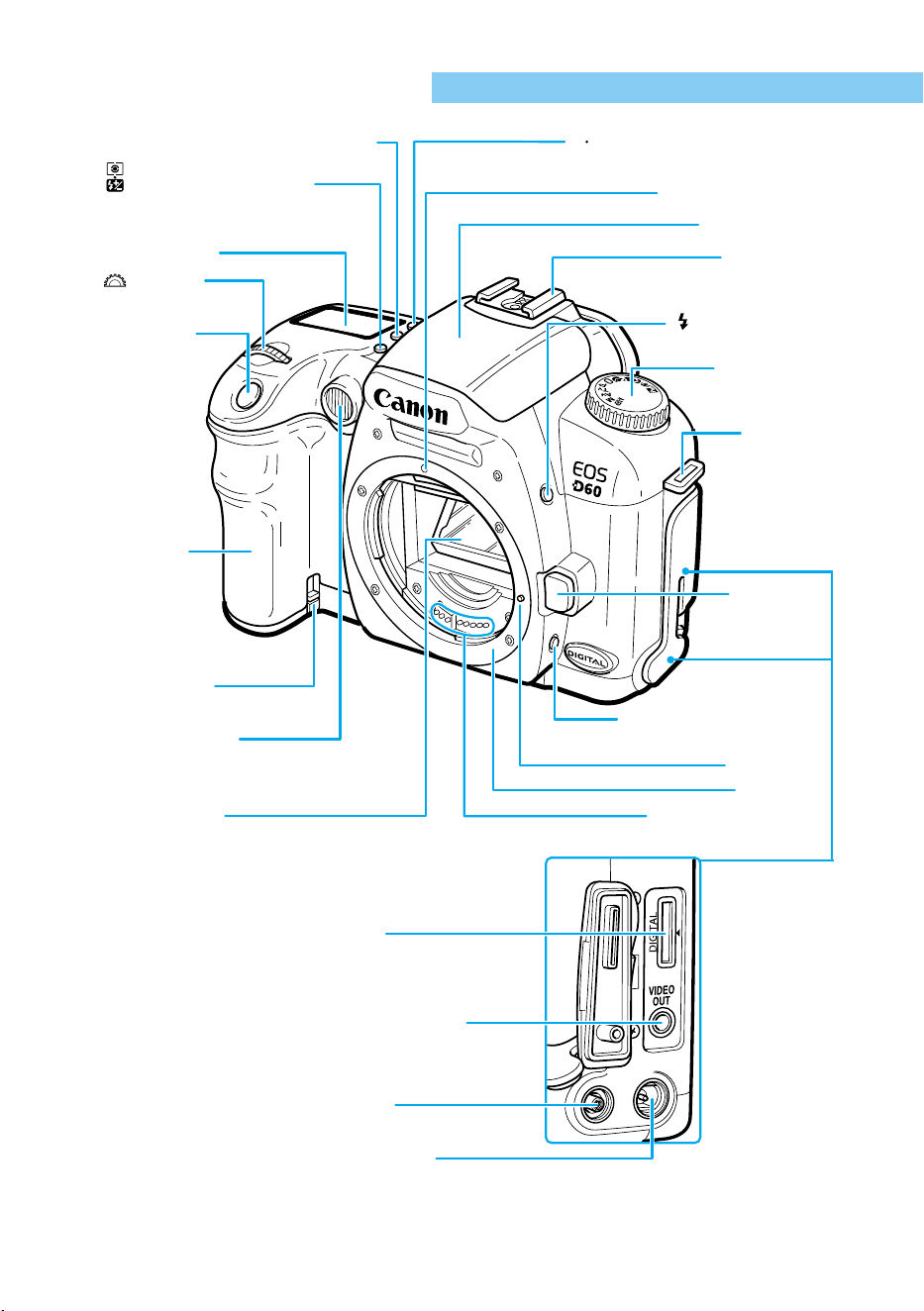
〈DRIVE〉
Drive mode selection button
(→63)
〈 〉 Metering mode selection/
Flash exposure compensation
button (→61, 91)
LCD panel (→16)
Shutter button
(→29)
Grip (Battery
chamber)
DC coupler cord
hole (→26)
Red-eye reduction/
Self-timer lamp (→89, 81)
AF-assist lamp (→39)
Mirror (→84, 115)
Electrical contacts (→11)
Lens mount
Depth-of-field preview button
(→73, 95)
Lens release
button (→27)
Strap mount
(→21)
Mode dial (→18)
〈〉 Flash button (→86)
〈〉
AF mode selection/White balance
selection button
(→54, 66)
AF
WB
Lens mount index (→27)
Built-in flash (→86)
Hot shoe (→92)
〈 〉 Main dial
(→30)
Lens lock pin
Cover
VIDEO OUT terminal (→112)
DIGITAL terminal
(See software instructions.)
PC terminal (→96)
Remote control terminal
15
Introduction
Nomenclature
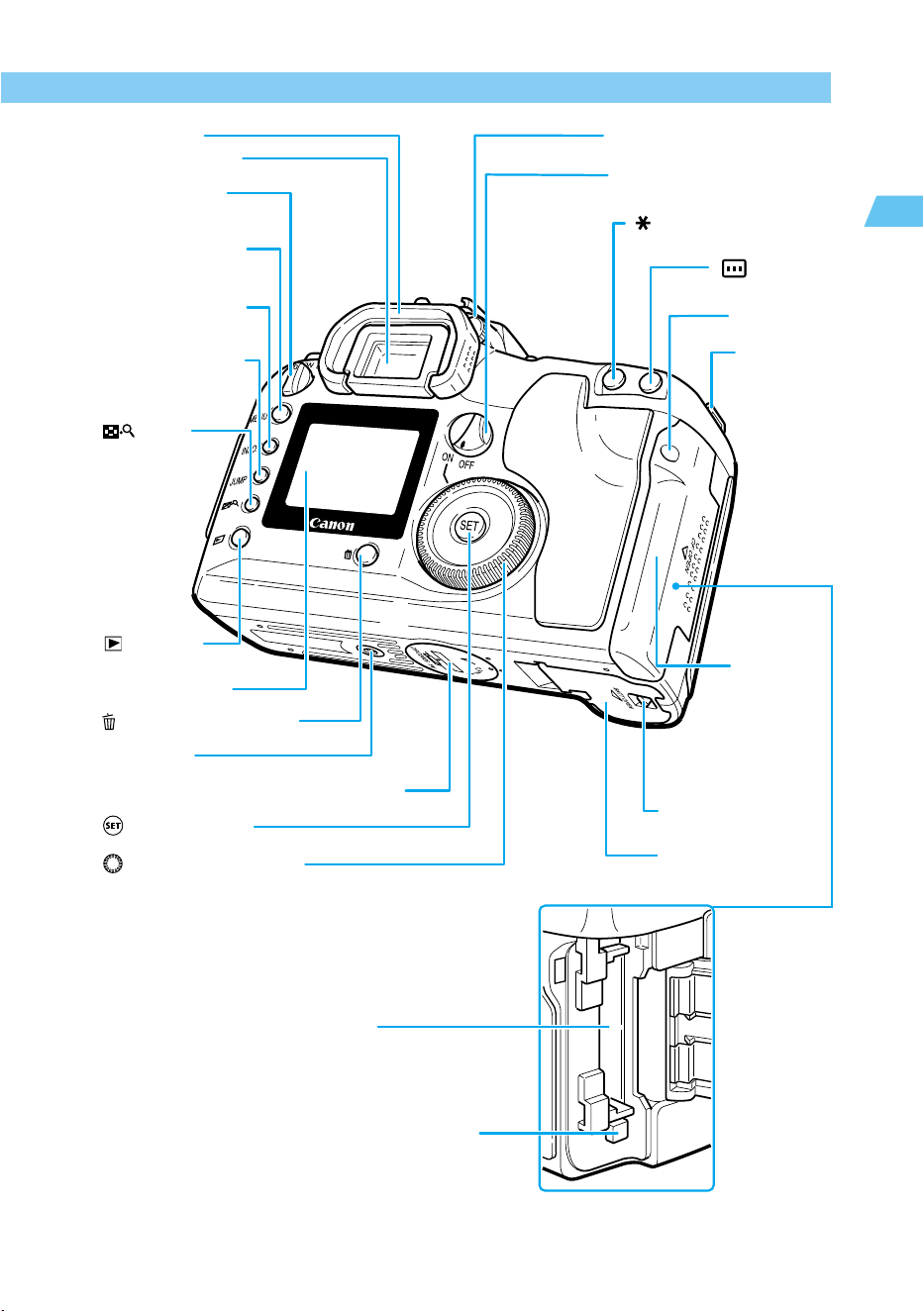
Eyecup (→82)
Viewfinder eyepiece
Main switch (→29)
〈MENU〉 Menu button
(→32)
〈INFO.〉 Info button
(→60, 100)
〈JUMP〉 Jump button
(→99)
〈 〉 Index/
Enlarge button
(→98, 99)
〈 〉 Playback
button (→40, 98)
LCD monitor (→32)
〈 〉 Erase button (→43, 104)
Tripod socket
Date/time battery compartment cover (→113)
〈 〉 Set button (→32)
〈 〉 Quick control dial (→31)
Battery chamber cover
(→24)
Battery chamber cover
release lever (→24)
CF card slot
cover (→28)
Strap mount
(→21)
Access lamp
(→28)
〈 〉 AF point
selection button (→57)
〈 〉 AE lock /FE lock button
(→80, 90)
Quick control dial switch (→31)
Dioptric adjustment knob (→36)
CF Card Slot Cover
CF card slot
(accepts card type1and 2)
(→28)
CF card eject button (→28)
16
Nomenclature
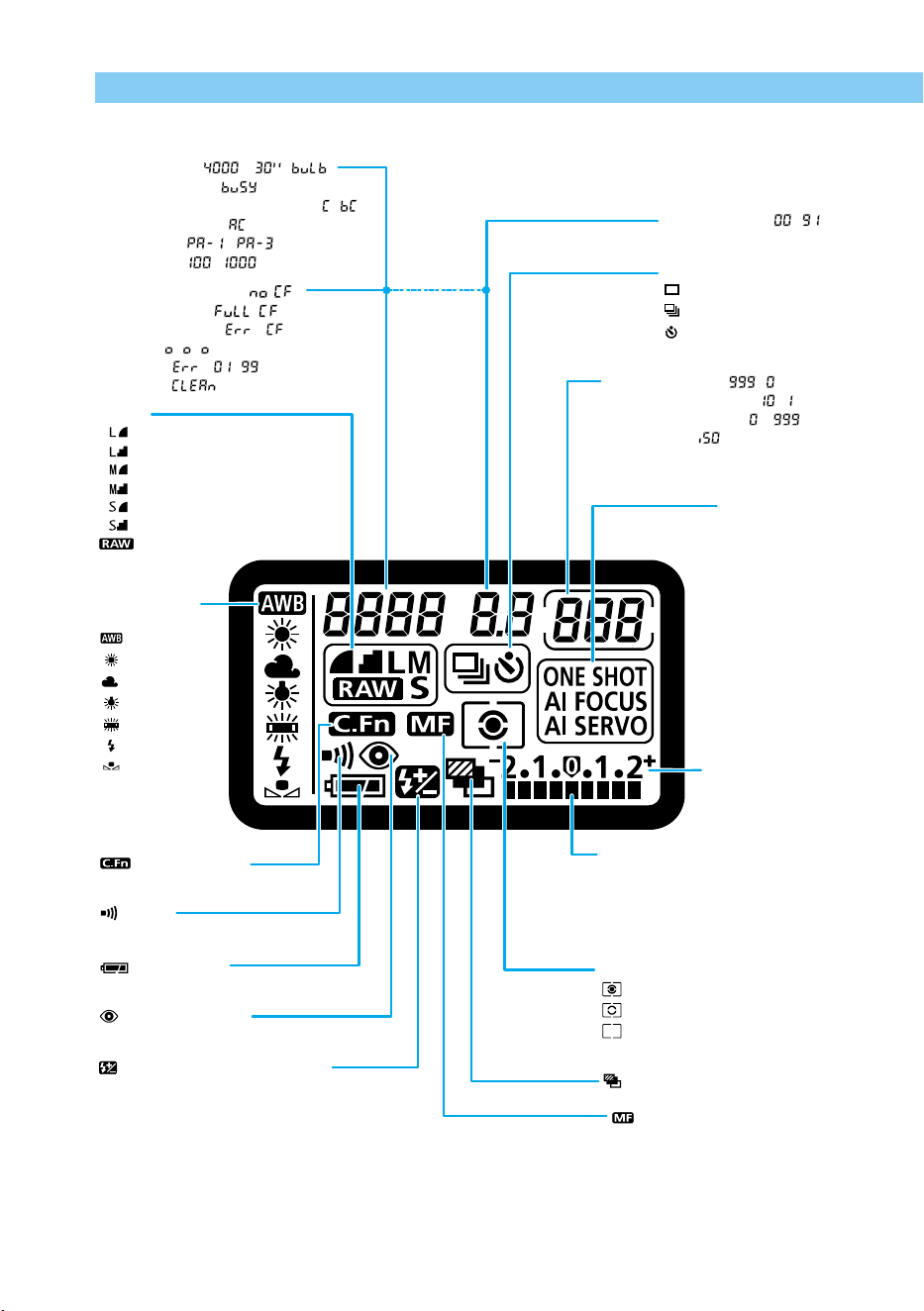
LCD Panel
The above diagram shows the LCD panel with all icons and indicators displayed. In actual
use, the items displayed differ according to the camera settings.
Quality
Large/Fine
Large/Normal
Medium/Fine
Medium/Normal
Small/Fine
Small/Normal
RAW
White balance
mode
Auto
Daylight
Cloudy
Tungsten
Fluorescent
Flash
Custom
Custom function
Beeper
Battery check
Red-eye reduction
Flash exposure compensation
Manual focus
AEB
Metering mode
Evaluative metering
Partial metering
Center-weighted average
metering
Exposure level
Exposure compensation amount
AEB level
Flash exposure compensation amount
CF card writing status
Exposure level scale
AF mode
ONE SHOT AF
AI FOCUS AF
AI SERVO AF
Shots remaining ( - )
Self-timer countdown ( - )
Bulb exposure time ( - )
ISO speed ( )
Drive mode
Single-frame
Continuous
Self-timer
Aperture value ( - )
Shutter speed ( - , )
Data processing ( )
Date/time battery level warning ( )
Cleaning warning ( )
Parameters ( - )
ISO Speed ( - )
No CF card warning ( )
CF full warning ( )
CF error warning ( )
AF point ( )
Error cod ( - )
Cleaning ( )
17
Introduction
Nomenclature
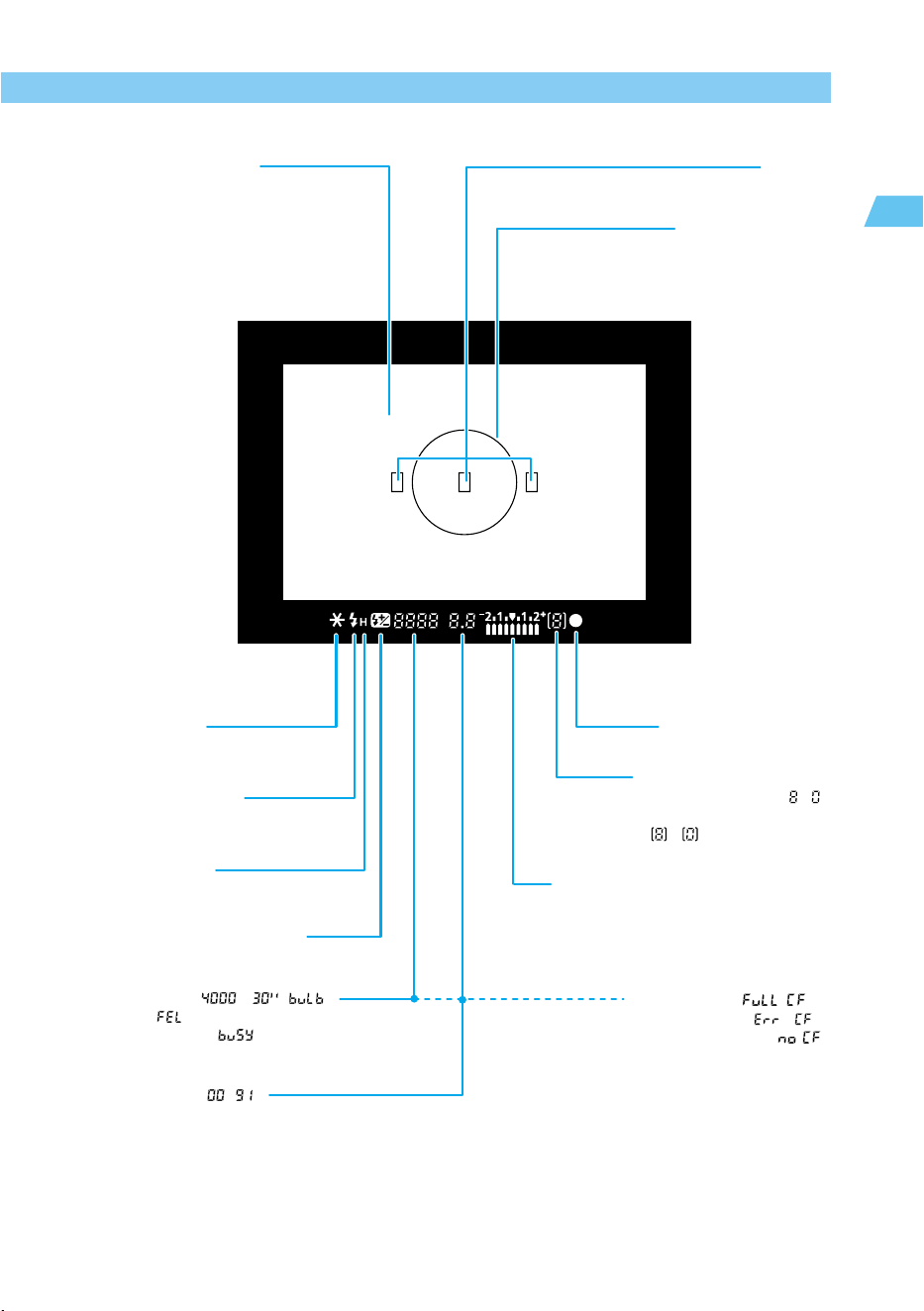
Viewfinder Information
The above diagram shows the LCD panel with all icons and indicators displayed. In actual
use, the items displayed differ according to the camera settings.
New laser matte screen
AE lock/FE lock
AEB in progress
Flash-ready indicator
FE lock underexposure warning
High-speed sync
(FP flash)
Exposure level
Exposure compensation amount
AEB level
Flash exposure compensation amount
Red-eye reduction lamp-on indicator
Focus confirmation light
Partial metering circle
AF points
(Superimposed display)
Aperture value ( - )
CF full warning ( )
CF error warning ( )
No CF card warning ( )
Flash exposure compensation
Maximum burst count during
continuous
shooting ( - )
Shots remaining in CF card
( - )
Shutter speed ( - , )
FE lock ( )
Data processing ( )
18
Nomenclature
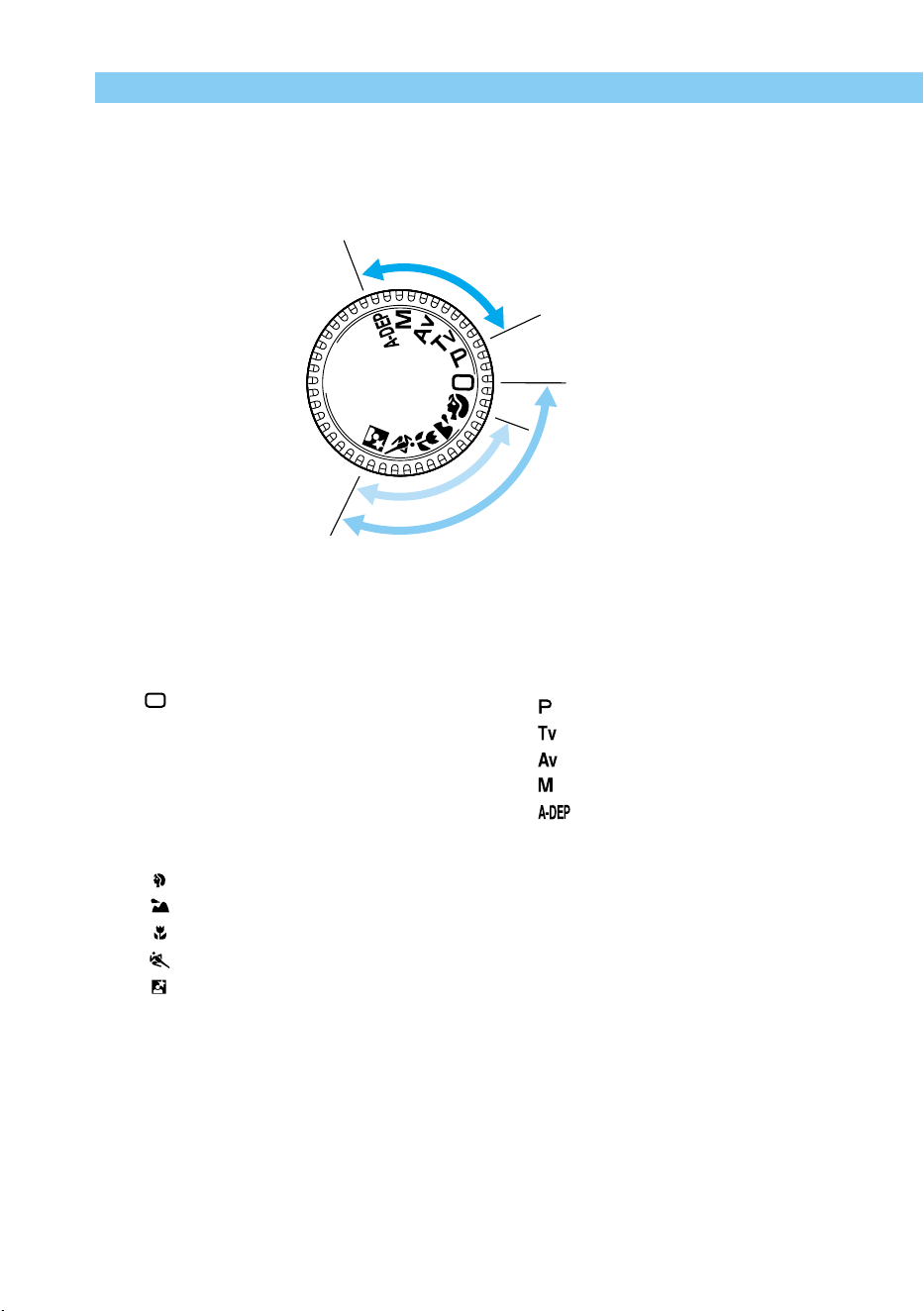
11
11
1 Basic zone
● All you do is press the shutter button.
: Full Auto (→38)
Lets you take fully automatic
pictures—the camera makes all the
settings.
Image zone
Lets you take fully automatic pictures
in specific situations.
: Portrait (→44)
: Landscape (→45)
: Close-up (→46)
: Sports (→47)
: Night Portrait (→48)
Reference page numbers are indicated by (→✽✽) .
Mode Dial
The Mode Dial is divided into two functional zones.
22
22
2 Creative zone
Lets you make a variety of settings.
: Program AE (→68)
: Shutter-priority AE
(→70)
: Aperture-priority AE (→72)
: Manual exposure (→74)
: Automatic Depth-of-field AE
(→76)
I
m
a
g
e
z
o
n
e
B
a
s
i
c
z
o
n
e
C
r
e
a
t
i
v
e
z
o
n
e
Full Auto
19
Introduction
Nomenclature
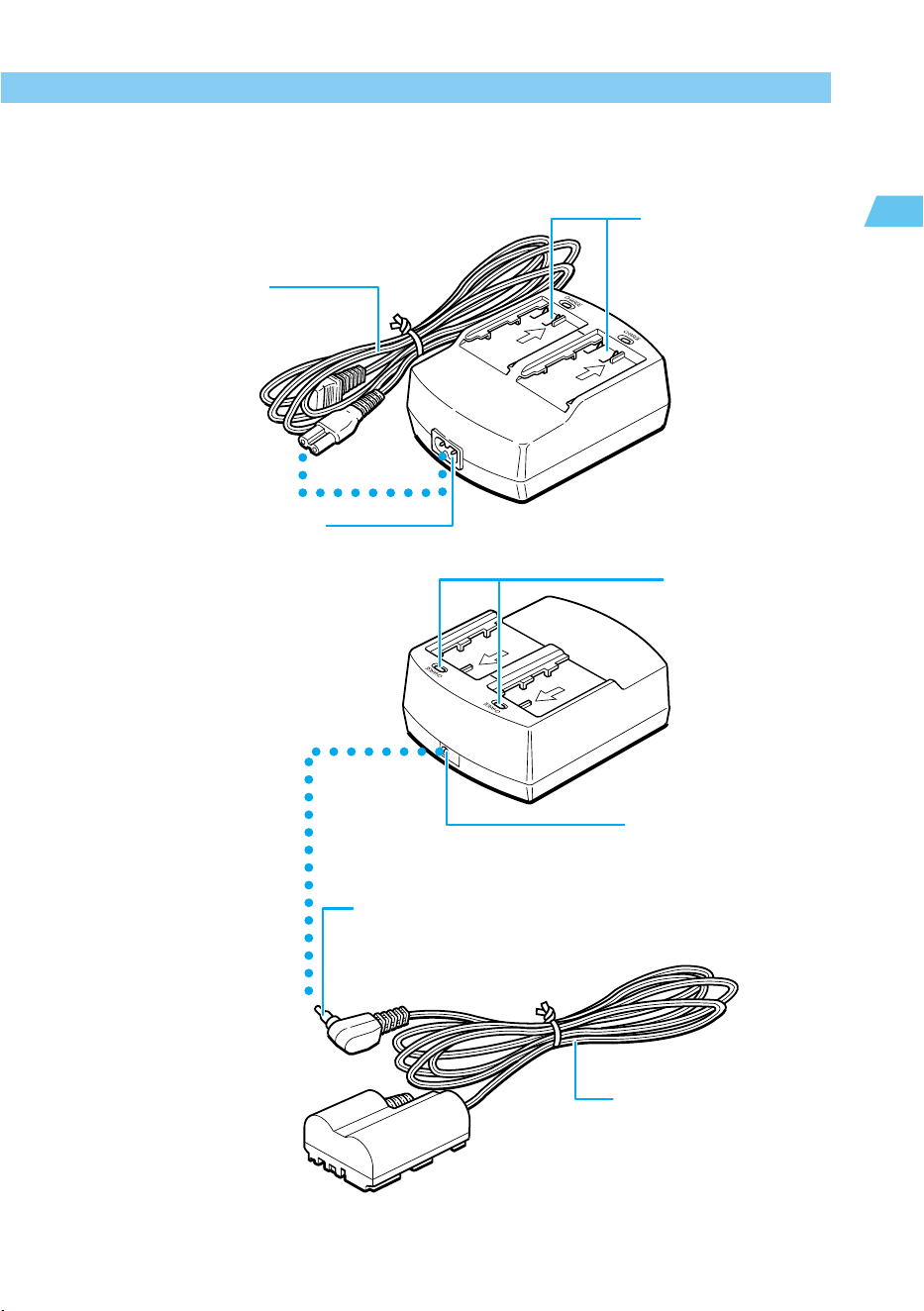
Compact Power Adapter
CA-PS400
DC coupler plug (→26)
Plug into DC coupler socket of compact power adapter.
DC Coupler
DR-400
Back
Charge lamp (→22)
Power cord (→22, 26)
Battery pack
connectors (→22)
Attach battery packs
for charging.
DC coupler socket (→26)
Plug in cord for DC
coupler here.
DC coupler cord (→26)
Power cord socket (→22, 26)
Plug in power cord here.
20
Conventions Used in This Manual
● The procedures in this booklet assume that the camera has been turned on. Before
proceeding, be sure that the main switch is set to <ON > .
● In this manual, the < > icon indicates the Main Dial.
● In this manual the < > icon indicates the Quick Control Dial.
● In this manual the < > icon indicates the SET button, used
to set menu functions and custom functions.
● The camera control icons and markings in this booklet correspond to the icons and
markings on the camera. See “Nomenclature” on page 14.
● Reference page numbers are indicated by (→✽✽) .
● The procedures in this instraction use a Canon EF 24-85mm f/3.5-4.5 USM lens for
reference.
● The descriptions also assume that the menu functions and custom functions are set to the
default settings.
● The icons (
4
), (
6
), and (
16
) indicate that the function operates on a timer, and remains
in effect after the button is released. The icons represent 4, 6, or 16 seconds respectively.
● In general, the pictures used for explaining procedures are taken with a single-lens reflex
camera using 35 mm film.
■ These Instructions use the following alert symbols:
: The Caution symbol indicates a warning to prevent shooting problems.
: The Note symbol gives supplemental information.
: The Light bulb symbol gives a helpful tip for operating your camera or taking
pictures.
: The Custom Function symbol indicates that there is a relevant Custom Function.
For details, see “Custom Functions” on page 122.
21
Before You Start
1
1
This chapter describes preparations and settings you need to make
before you start shooting, as well as how the shutter button
operates.
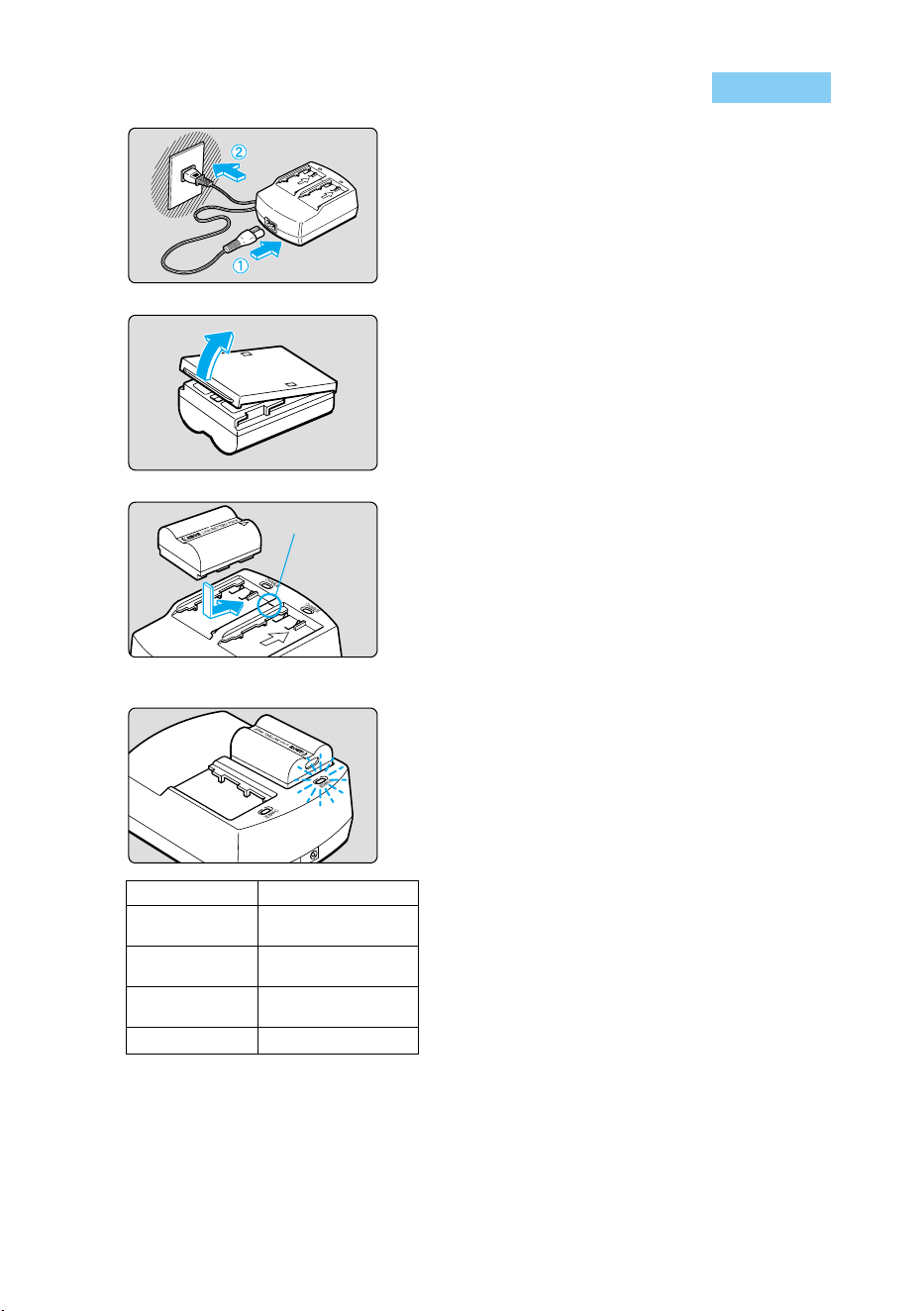
Attaching the Strap
Pass the end of the strap through the
strap mount from beneath, then back in
and out of the strap clasp as shown. Pull
the strap to make sure it does not slip out
of the clasp.
● The eyepiece cover is attached to the
strap. (→82)
Before You Start
Eyepiece cover
22
1
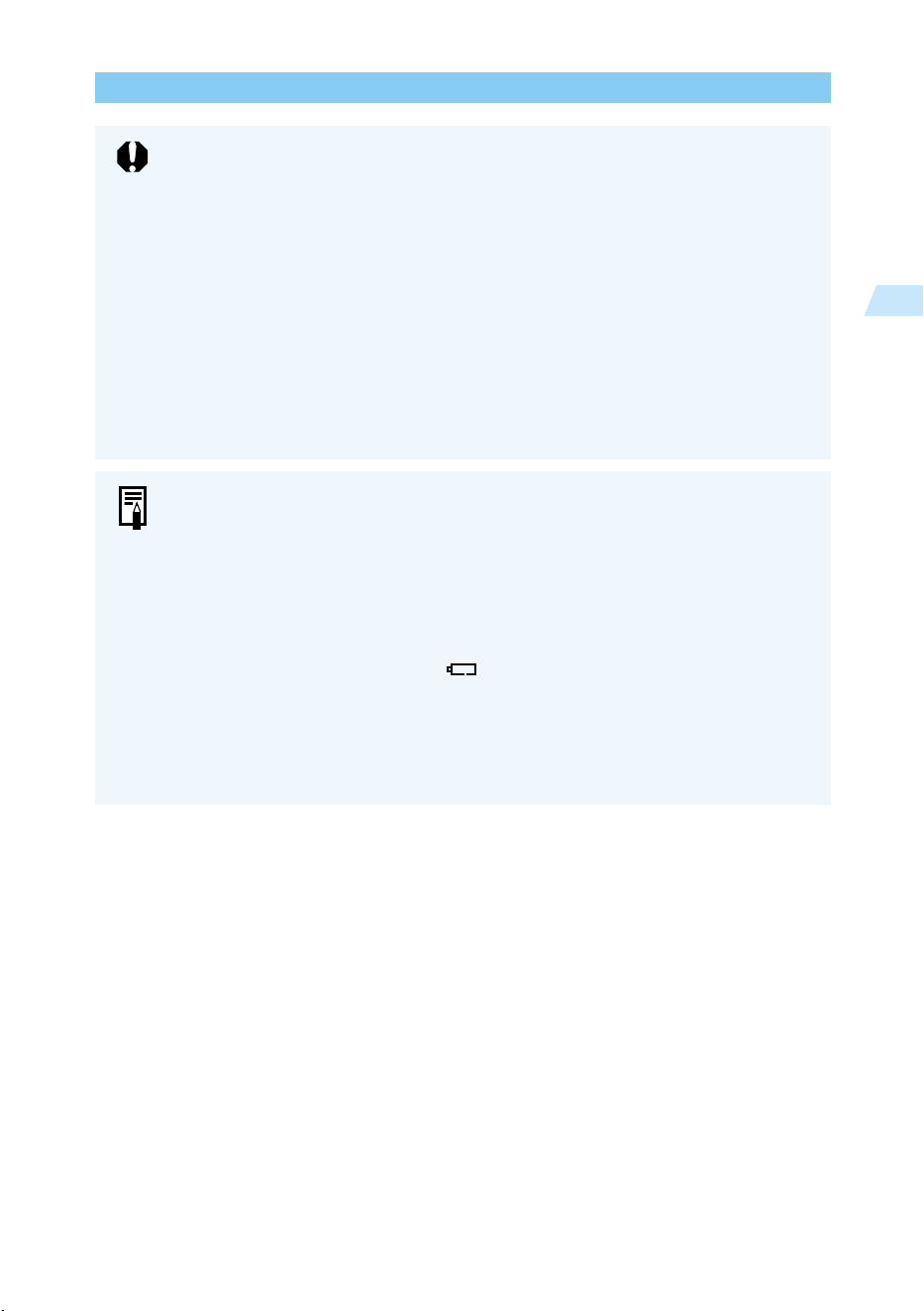
Connect the power cord.
● Connect the power cord to the compact
power adapter.
● Insert the plug into a power outlet.
2
Remove the cover.
● Store the cover in a place where it will not
be lost.
● If you remove the battery from the camera,
be sure to reattach the cover to protect
against short circuit.
3
Place the battery in the adapter.
● Align the end of the battery with the <–>
mark on the adapter, press down on the
battery, and slide it into place.
● To remove the battery, use the reverse of
the above.
● Batteries can be charged in either the left or
right side of the adapter.
4
Charge the battery pack.
➡ As soon as you place the battery pack in
the compact power adapter, the charge
lamp starts blinking and charging begins.
➡ When charging is complete, the lamp stops
blinking and stays on.
➡ It can take up to 90 minutes to fully
charge a battery pack.
● You can check whether a battery is charged
by seeing whether the charge lamp blinks
or stays on.
➡ When charging is complete, the charge
lamp stops blinking and stays on. You can
continue charging the battery for approxi-
mately an hour to reach full charge
capacity.
● When charging is complete, remove the
battery and unplug the power cord from the
outlet.
Charging the Battery Pack
Battery charge
0–50%
50–75%
Over 75%
Almost full
Charge lamp
Blinks once per
second
Blinks twice per
second
Blinks three times
per second
Stays on
<– > mark
23
Before You Start
1
Charging the Battery Pack
● When the DC coupler is connected to the compact power adapter, the
adapter cannot be used to charge battery packs.
● Do not charge any battery packs other than model BP-511.
● When the battery pack is in the camera, it discharges slightly all the time even
when the camera is not used. This reduces the battery pack’s life due to over
discharge. When not using the camera, remove the battery pack and store it
with its protective cover attached. Always be sure to charge the battery pack
before using it again.
● If the battery is completely exhausted, it may take 20 or 30 minutes for the
CHARGE lamp to blink when you recharge the battery.
● To protect battery packs and prevent loss of capacity, do not charge them
continuously for more than 24 hours.
● If operating time is sharply reduced even after charging normally, the battery
pack may have exceeded its useful life. Replace it with a new battery pack.
● The adapter can hold and charge two battery packs. Charging starts with the
first battery pack attached. After that battery pack is charged, the charge lamp
goes on and the adapter starts charging the second battery pack.
After charging of both battery packs is completed (both charge lamps are on),
leave both battery packs in the charger for two more hours (one hour per
battery pack) to reach a full charge.
● Charging time depends on the ambient temperature, and the level to which the
battery pack is already charged.
● When battery power is low, the < > icon on the LCD panel blinks. Remove
the battery pack from the camera and charge it.
● The battery pack can operate in temperatures from 0°C to 40°C (32°F to
104°F), however for full operating performance, use between 10°C (50°F) and
30°C (86°F) is recommended. In cold locations such as ski areas, battery
performance is temporarily decreased and operating time may be reduced.
24
Inserting and Removing the Battery Pack
If the level of charge remaining runs out when you are using the menu screen or
playing back an image, a no battery warning appears on the LCD monitor. When
this occurs, remove the battery and charge it.
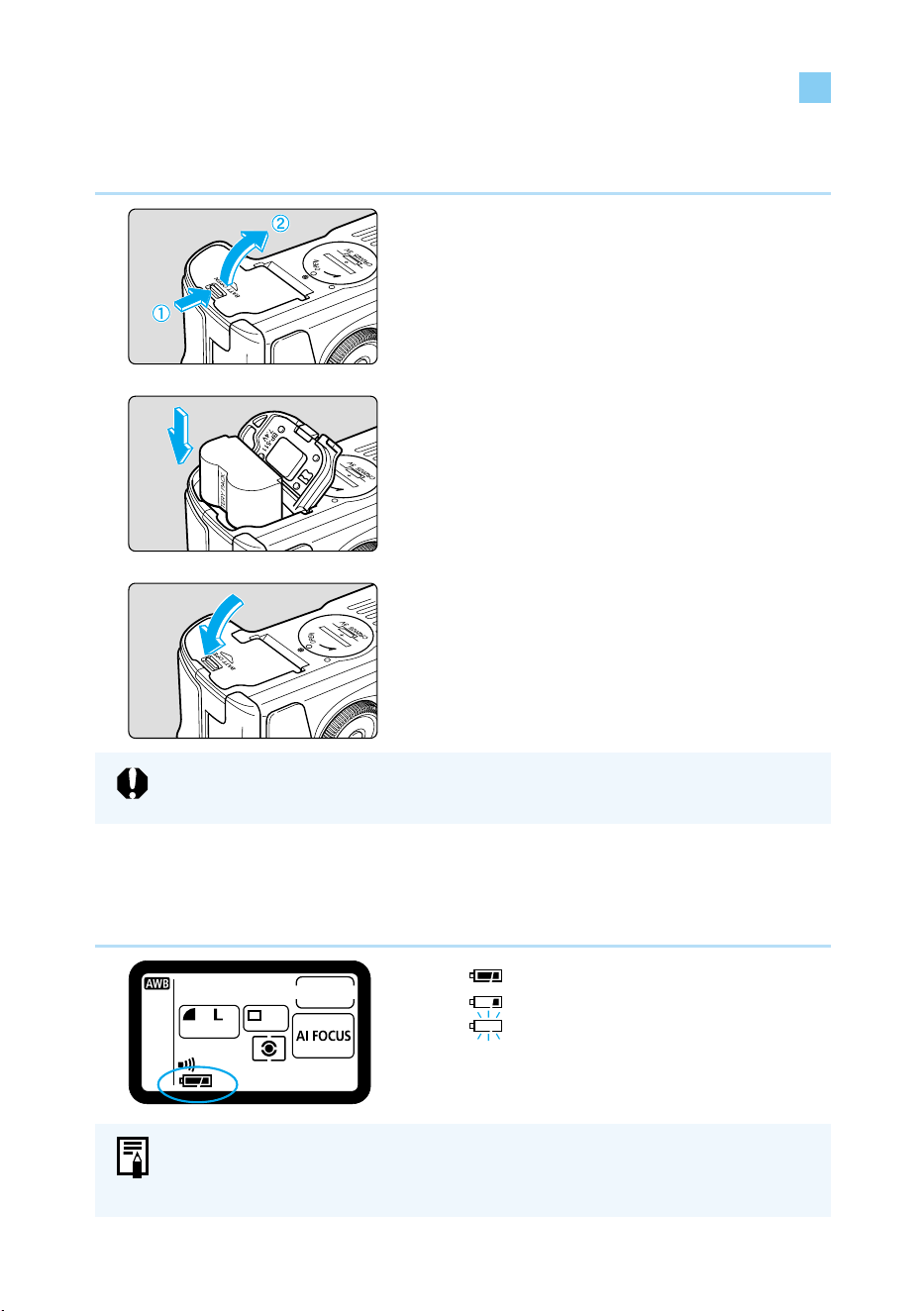
Inserting the Battery Pack
Load a fully charged BP-511 battery pack into the camera.
1
Open the battery chamber cover.
● Slide the lever in the direction shown by the
arrow in the diagram, and open the cover
as shown.
2
Insert the battery into the camera.
● Make sure the battery pack is facing the
right way, and insert it into the battery
chamber.
● Insert the battery pack until it locks into
place.
3
Close the cover.
● Press the cover closed until it clicks shut.
Battery Level Icons
The level of charge remaining is shown in three stages when the Main Switch is set to <ON>.
(→29)
: Charge is sufficient.
: Charge is low.
: Battery pack must be charged.
Battery Pack BP-512 cannot be used with this camera.
25
Before You Start
1
Inserting and Removing the Battery Pack
● The number of shots may be less than indicated in some cases, due to
differences in operating conditions.
● The number of shots is reduced by frequent use of the LCD monitor.
● Holding the shutter button halfway down for long periods to use the AF function
without taking a shot can reduce the number of shots.
● In low temperature conditions (0°C/32°F), the number of shots may be less than
indicated.
● Regarding the battery life (number of shots) with Battery Grip BG-ED3
(optional), refer to the BG-ED3’s instructions.
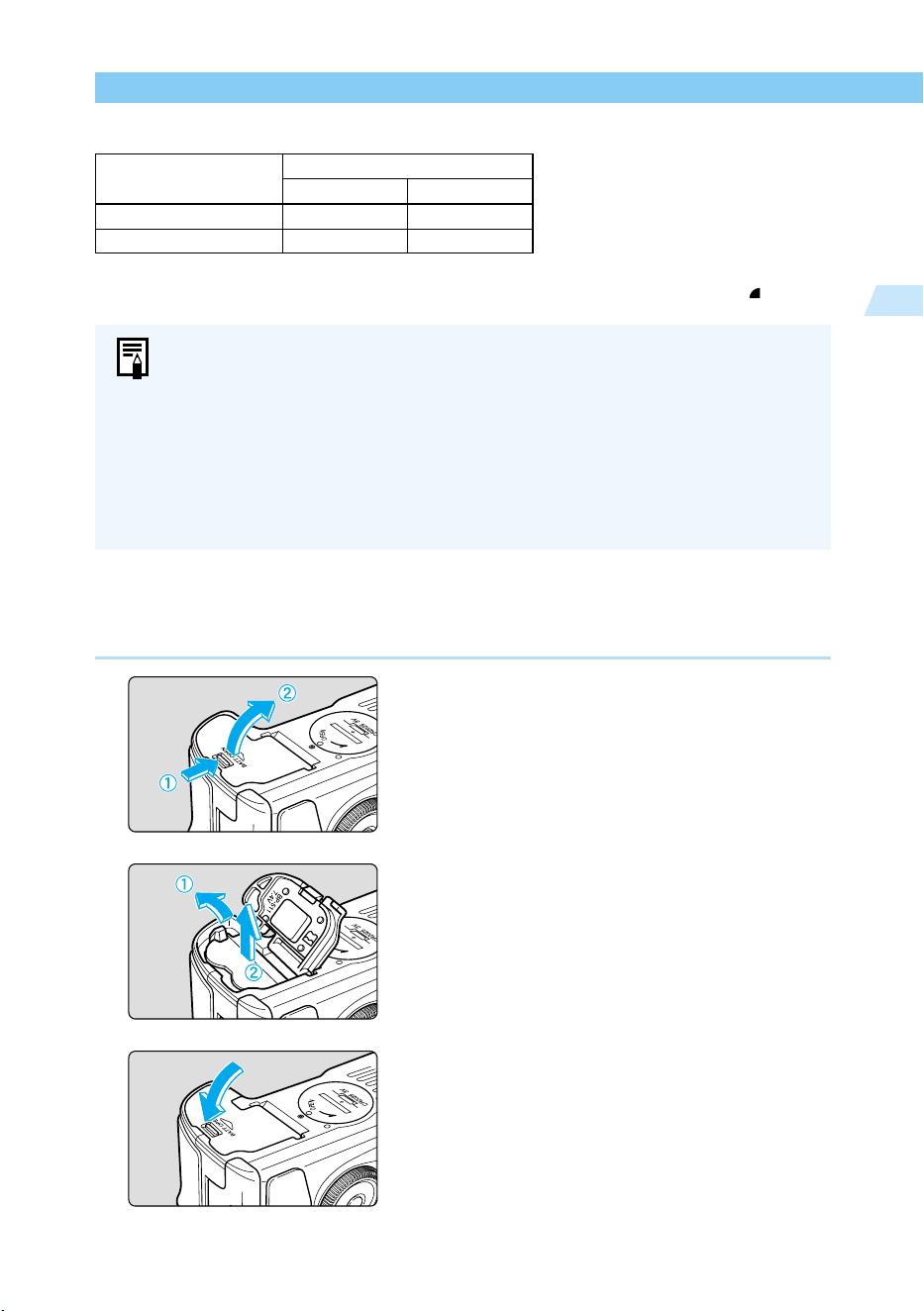
Removing the Battery Pack
1
Open the battery cover.
● Slide the lever in the direction shown by the
arrow in the diagram, and open the cover
as shown.
2
Remove the battery pack.
● Slide the battery lock lever in the direction
shown by the arrow, and remove the
battery.
3
Close the battery cover.
● Press the cover closed until it clicks shut.
● The above figures were obtained under Canon test conditions (fully charged battery, EF
50mm f/1.4 USM lens, Review function [On], Review Time [2 sec.], Quality [Large ]).
Battery Life
Temperature
Shooting conditions
No flash use 50% flash use
Normal (20°C/68° F) Approx. 620 Approx. 490
Low (0°C/32°F) Approx. 480 Approx. 400
26
Inserting and Removing the Battery Pack
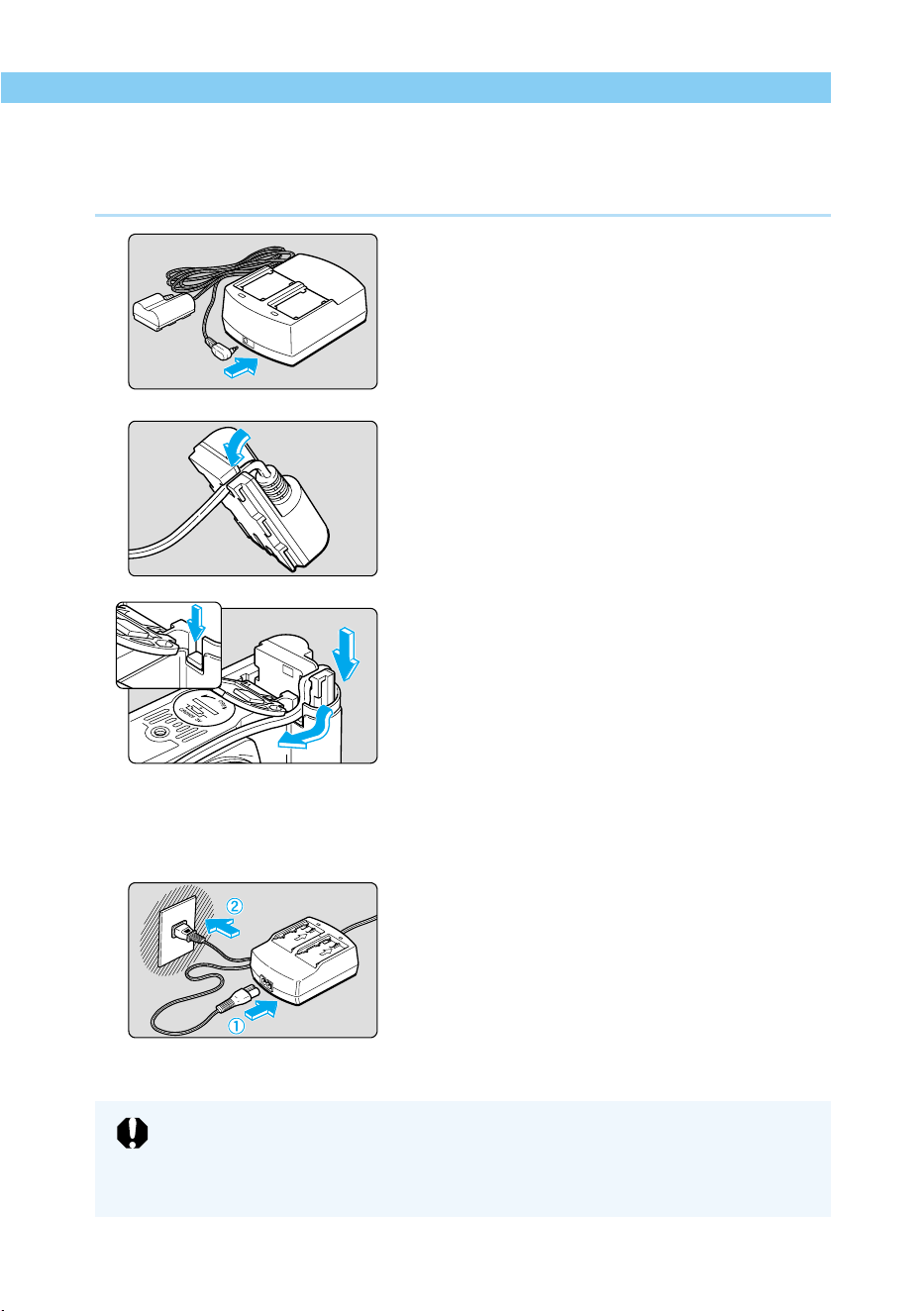
Using a Household Power Supply
You can operate the EOS D60 from a household power outlet by using the DC coupler. This
enables you to use the camera as long as you like without a battery.
1
Connect the DC coupler.
● Plug the DC coupler into the compact
power adapter.
2
Place the cord in the groove.
● Carefully insert the cord into the groove.
3
Insert the DC coupler into the
camera.
● Open the cover (→24) and lower the
covering on the cord hole.
● Insert the DC coupler and fit the cord into
the cord hole.
● Check that the cord is placed tightly in the
cord hole, and slide the DC coupler into the
chamber until it locks into place.
● Close the cover so that it clicks into place.
4
Connect the power cord.
● Connect the power cord to the compact
power adapter.
● Plug the cord into a power outlet.
● When you are finished, remove the plug
from the power outlet.
● Do not use any DC coupler other than the one provided with your EOS D30 or
D60 camera.
● The DC Coupler cannot be used with cameras other than the EOS D30 and
D60.
27
Before You Start
1
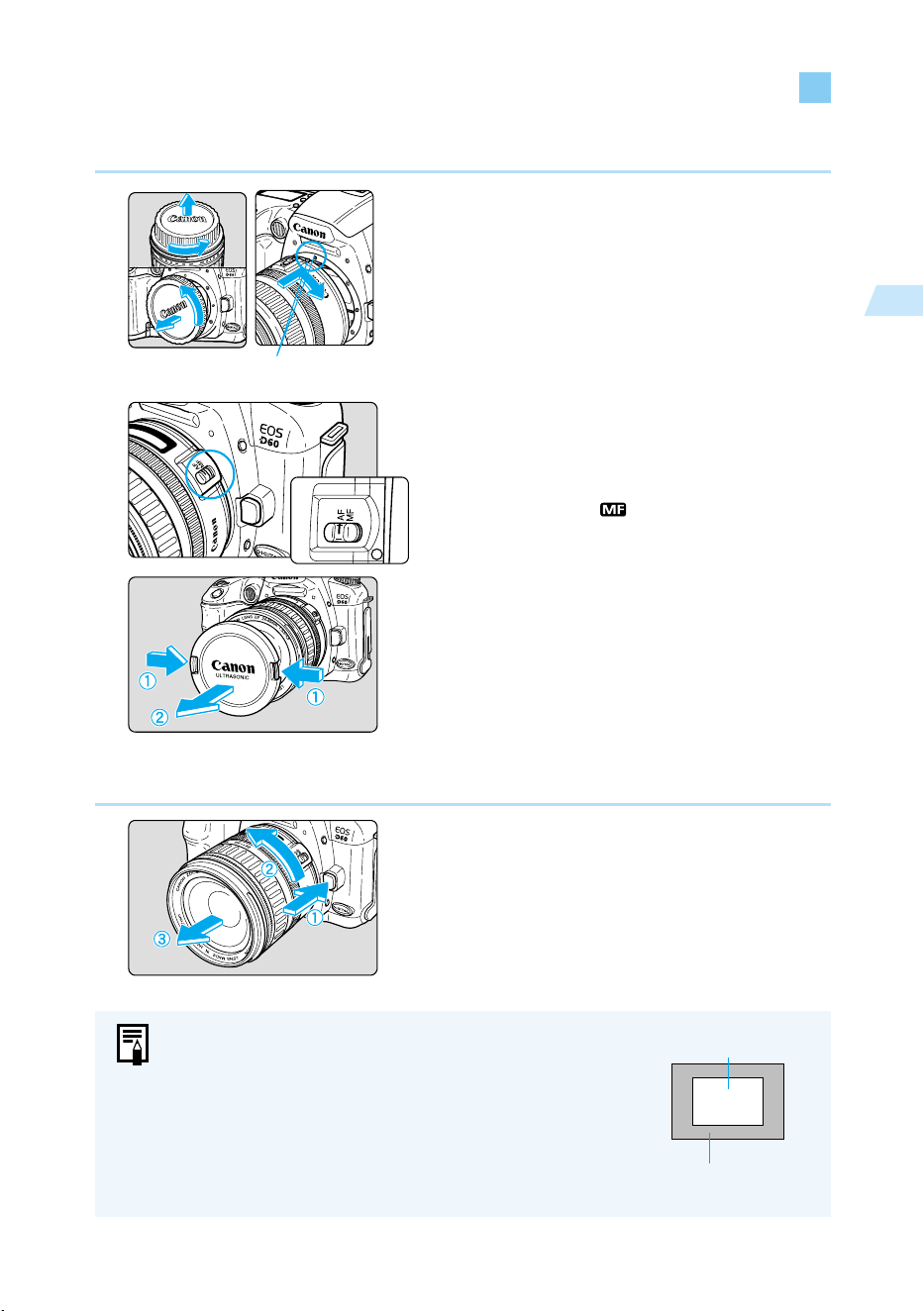
Mounting a Lens
1
Remove the caps.
● Remove the rear lens cap and the body cap
by turning them as shown by the arrows in
the diagram.
2
Attach the lens.
● Align the red dots on the lens and camera
and turn the lens as shown by the arrow
until it clicks in place.
3
Set the focus mode switch on the
lens to <AF>.
● If the focus mode switch is set to < MF> (or
<M> on older lenses), the autofocus will not
operate and < > will be displayed on the
LCD panel.
4
Remove the front lens cap.
Detaching a Lens
Press and hold the lens release
button, and turn the lens as
shown by the arrow.
● Turn the lens until the index mark is at the
top, then remove it.
Mounting and Detaching a Lens
Lens mount index
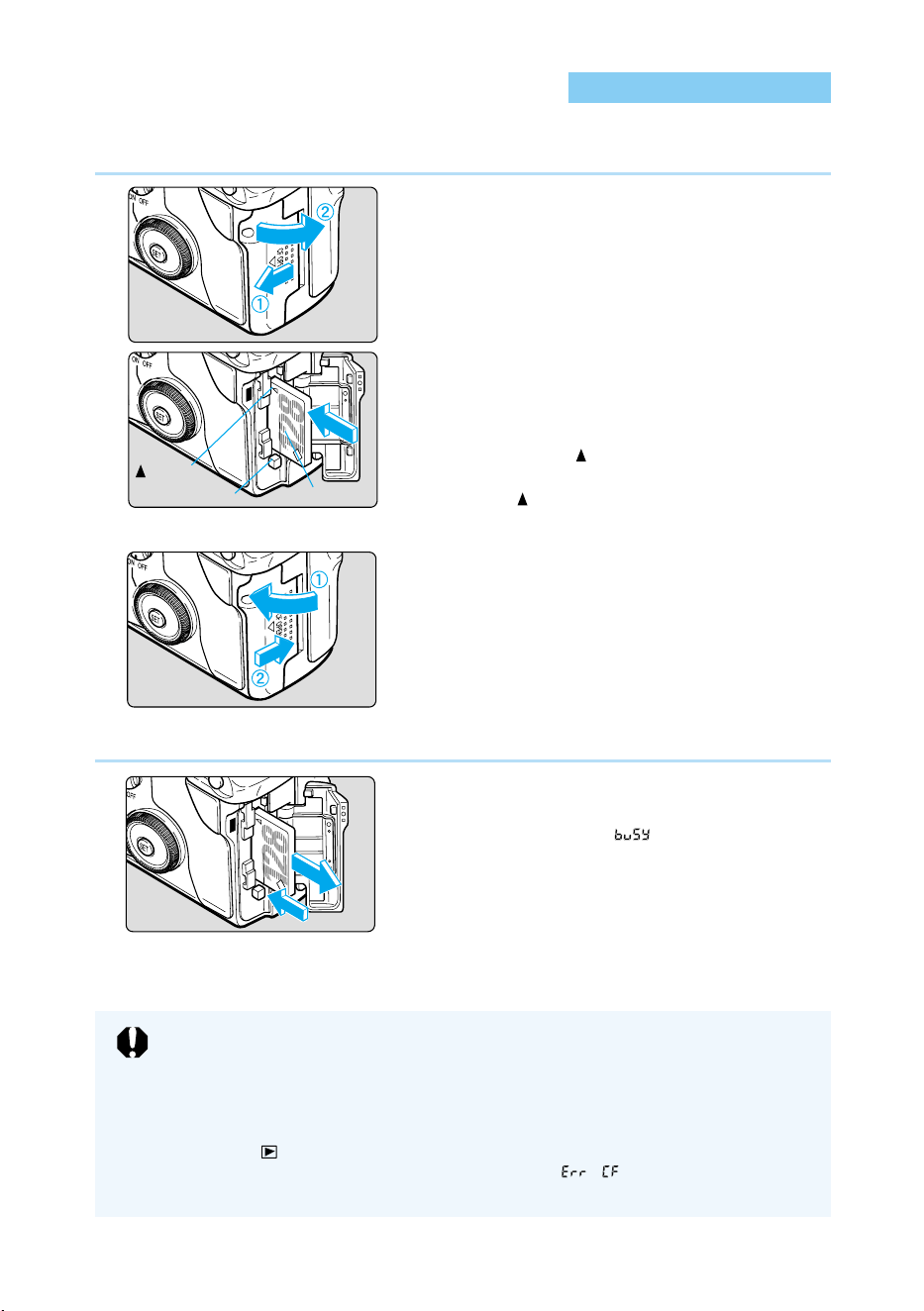
● Since the EOS D60’s picture coverage is smaller
than the normal 35mm film format (see illustration),
the EF lens attached to the camera will have a
telephoto effect equivalent to 1.6 times the lens
focal length.
● AF stands for autofocus.
● MF or M stands for manual focus.
● Be careful not to lose the lens caps or body cap.
EOS D60 image field
(22.7 x 15.1 mm / 0.89 x 0.59 in)
35 mm image field
(36 x 24 mm / 1.42 x 0.94 in)
28
Installing a CF Card
The captured images are saved on a CF card (optional).
The camera is compatible with Type I and Type II CompactFlash (CF) cards.
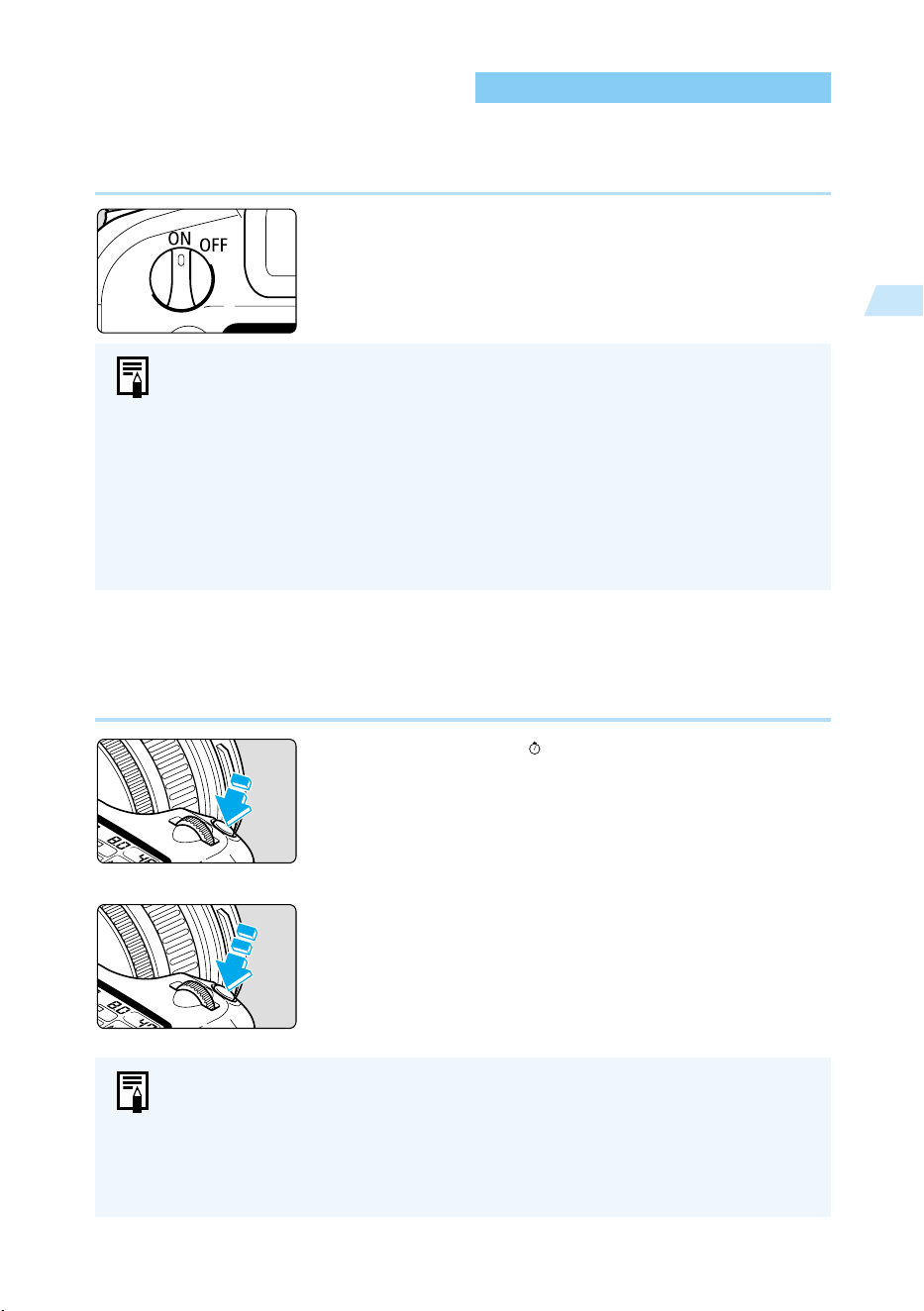
1
Open the cover.
● Slide the cover in the direction shown by
the arrow, and open it as shown in the
diagram.
2
Insert the CF card.
● Using CF cards made by Canon is recom-
mended.
● With the CF card label side (the side with
the printed mark) facing toward the rear of
the camera, slide the card in the direction of
the mark, into the slot.
➡ The Eject button pops out.
3
Close the cover.
● Close the cover and slide it in the direction
shown by the arrow until it clicks shut.
Removing a CF Card
1
Open the cover.
● Set the Main Switch to <OFF>.
● Check that the “ ” message is not
shown on the LCD panel.
● Make sure the access lamp is off (→15),
and open the cover.
2
Remove the CF card.
● Press the Eject button.
➡ The CF card is ejected.
● Close the cover.
● While the access lamp is blinking, never do the following:
• Shake or hit the camera. • Open the CF card slot cover.
• Open the battery compartment cover.
Doing so may destroy the image data or even damage the camera.
●
While the image data is being written to the CF card (access lamp blinks, →15), the on-screen
menu will not be displayed and recorded images cannot be played back. Pressing the <MENU >
button or < > button will only display the “Busy” message (→135) on the LCD monitor.
● If a CF card is being used for the first time and “ ” is displayed on the
LCD panel, see “Formatting the CF Card” (→105) to initialize the card.
mark
Eject button Label side
29
Before You Start
1
Basic Operation
Main Switch
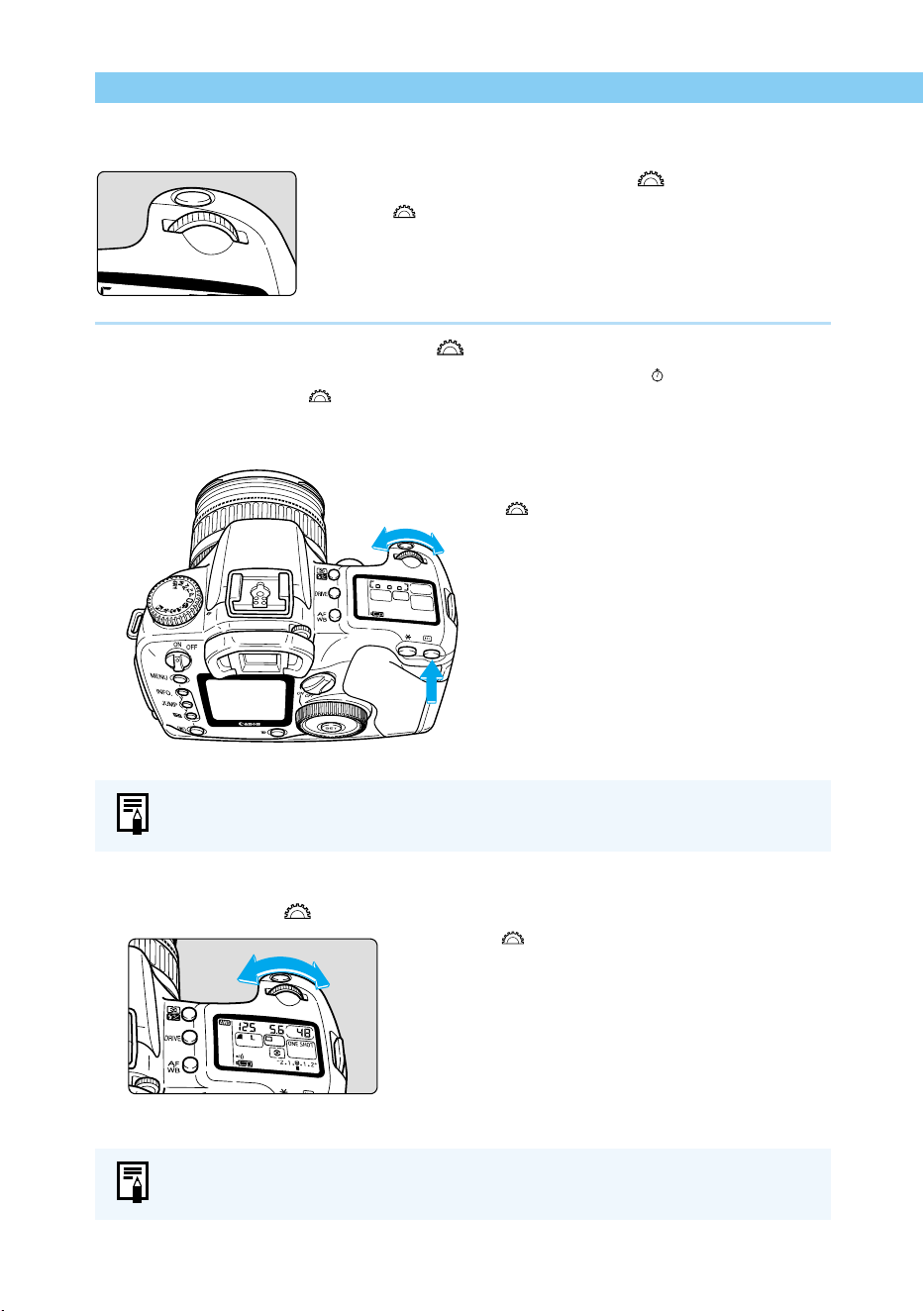
The camera operates only after the Main Switch is set to <ON >.
<ON> : Set to this position when the camera is in use.
<OFF> : The camera does not operate.
Set to this position when not using the camera.
Shutter Button
The shutter button has two stages. You can press it down halfway or fully. The two levels of
shutter button operation are as follows:
(1) Halfway pressing (
4
)
Pressing the shutter button down halfway activates
autofocusing (AF), and also activates the automatic exposure
mechanism and sets the shutter speed and aperture value.
The exposure (the combination of shutter speed and aperture
value) appears on the LCD panel and in the viewfinder.
(2) Full pressing
This releases the shutter and takes the picture.
● To save battery power, the camera automatically turns off if you do not operate it
for approximately one minute (Auto power off function). To use the camera
again, press the shutter button down halfway, or set the Main Switch to <OFF>
and then set it to <ON > again. You can use the Menu functions to set the Auto
power off function to [1], [2], [4], [8], [15 ], or [30] minutes, or [Off ]. (→120)
● If you set the Main Switch to <OFF> immediately after you take a picture, the
access lamp may blink for a few seconds so that the image is recorded onto the
CF card.
The access lamp will go off when the image has been recorded onto the CF
card and the camera will turn off automatically.
● This camera has been designed so that taking pictures is given priority over
other operations. Unless the internal memory is full, you will always be able to
take pictures immediately by pressing the shutter button down.
● Regardless of the camera status (playback, menu selection or image recording
in progress, etc.), you can return to shooting mode immediately by pressing the
shutter button down halfway.
30
Basic Operation
Using the Electronic Dials
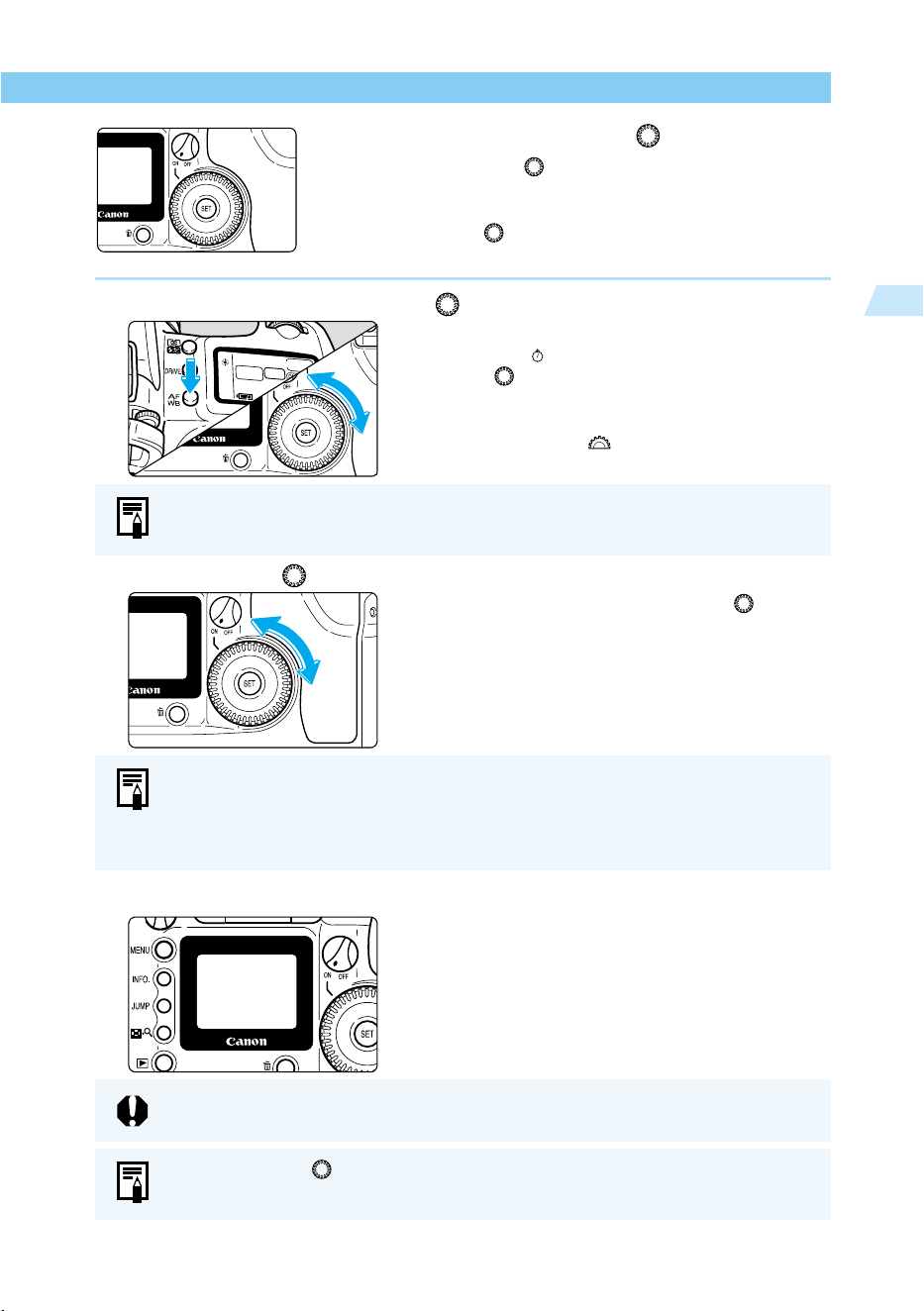
Basic Operations with the < > Dial
The < > dial is used to make settings only when taking
pictures. It can be used in two ways.
(1) Press a button and turn the < > dial.
When you press a button, its function remains active while a timer (
6
) runs. During this
time you can turn the < > dial and view the settings on the LCD panel. When the timer
runs out or you press the shutter button down halfway, the camera is ready to take a
picture.
(2) Just turn the < > dial.
Turn the < > dial while watching the LCD panel.
Use the dial this way to set the AF mode, AF point, metering mode or drive mode.
Use the dial this way to set the shutter speed and aperture value.
2 Turn the < > dial
1 After a button is pressed
31
Before You Start
1
Basic Operation
Basic Operations with the < > dial
You can only use the < > dial when the Quick Control Dial
switch is set to <ON>. Use the dial for shooting preparation
and selection of functions from the LCD monitor.
When using the < > dial to carry out basic operations, you
can use it in two ways.
(1) Press a button and turn the < > dial.
When you press a button, its function remains active
while a timer (
6
) runs. During this time you can
turn the < > dial and view settings on the LCD
panel.
The timer function and return to shooting mode are
the same as for the < > dial.
(2) Just turn the < > dial.
When you are taking pictures, turn the < > dial
while watching the viewfinder display or LCD panel.
When you are making selections and settings from
the LCD monitor, turn the dial while watching the
LCD monitor.
LCD Monitor
You can use the LCD monitor on the back of the
camera to review and select images, as well as
select and set menu functions.
Use the dial this way to select and set the white balance, drive mode and flash
exposure compensation.
● When you are taking pictures, use the dial to set the exposure compensation
and manual aperture value.
● When using the LCD monitor, use the dial to review and select the recorded
image and select menu functions.
You can use the < > dial when you are using the LCD monitor, regardless of
whether the Quick Control Dial Switch is set to <OFF>.
You cannot use the LCD monitor as a viewfinder while taking pictures.
32
Basic Operation
Menu Functions and Settings
The Canon EOS D60 uses menu functions to set functions such as the quality, the date and
time, and Custom Function settings. To use the menu functions, look at the LCD monitor and
use the <
MENU
> button, < > dial and < > button as shown below.
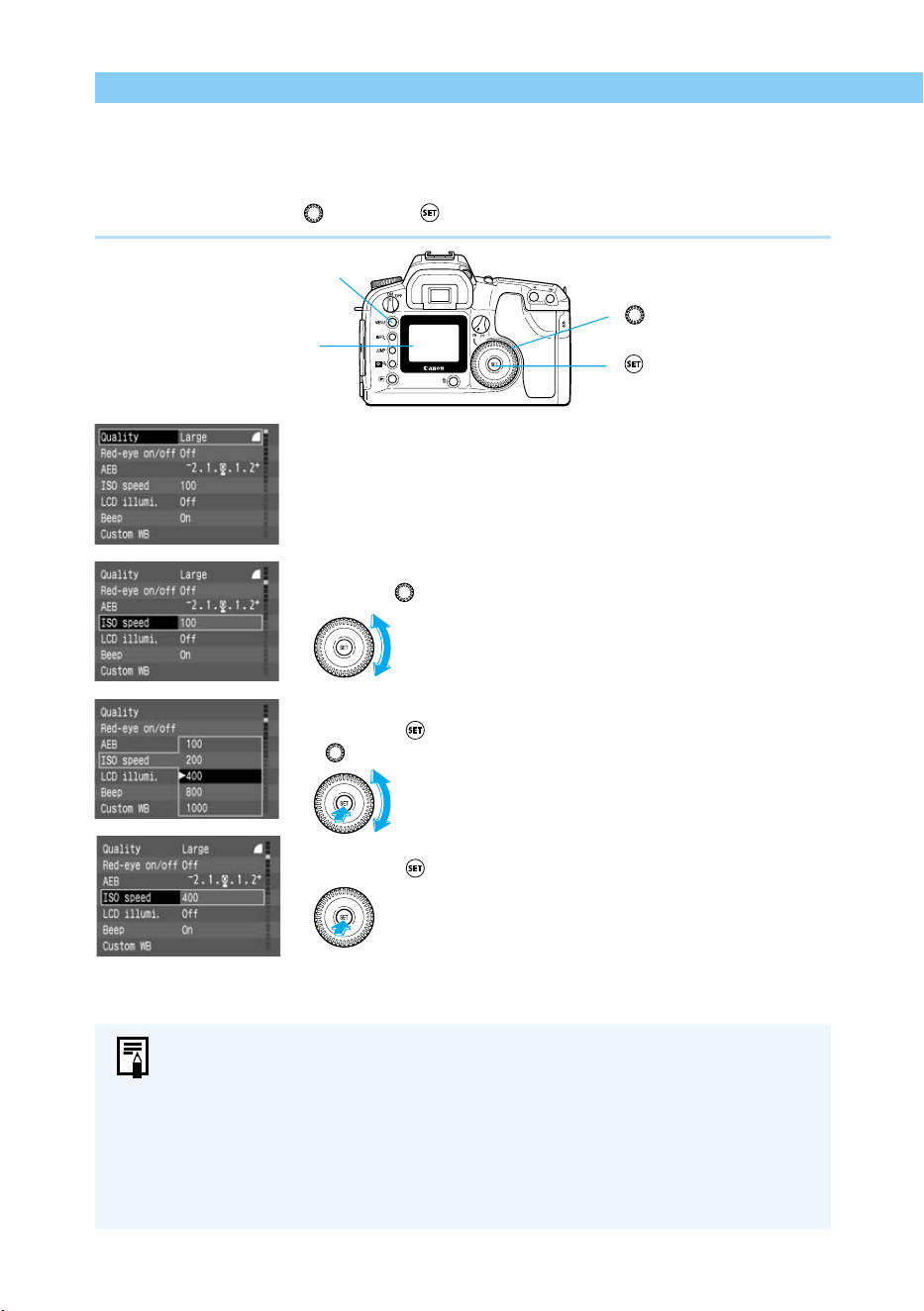
1. Display the menu.
Press the <
MENU
> button to display the menu. Press the button
again to clear the screen.
2. Select the menu item.
Turn the < > dial to select the desired item.
3. Display the options for the item and make your selection.
Press the < > button to display the options list, then turn the
< > dial to select the desired option.
4. Make the setting.
Press the < > button.
5. Exit the menu.
Press the <
MENU
> button to exit the menu.
● When the menu is displayed, you can take pictures immediately by pressing the
shutter button down.
● You can finish making a setting by pressing the shutter button down halfway.
● You can cycle through menu items and options lists.
● You can select the display language from three other languages besides
English. (→121)
● If you press the <
JUMP
> button while the menu screen is displayed, you can
move to the top item in the shooting, playback and setup sub-menus in that
order, each time you press this button.
<
MENU
> button
LCD monitor
< > dial
< > button
move the frame up
move the frame down
33
Before You Start
1
Basic Operation
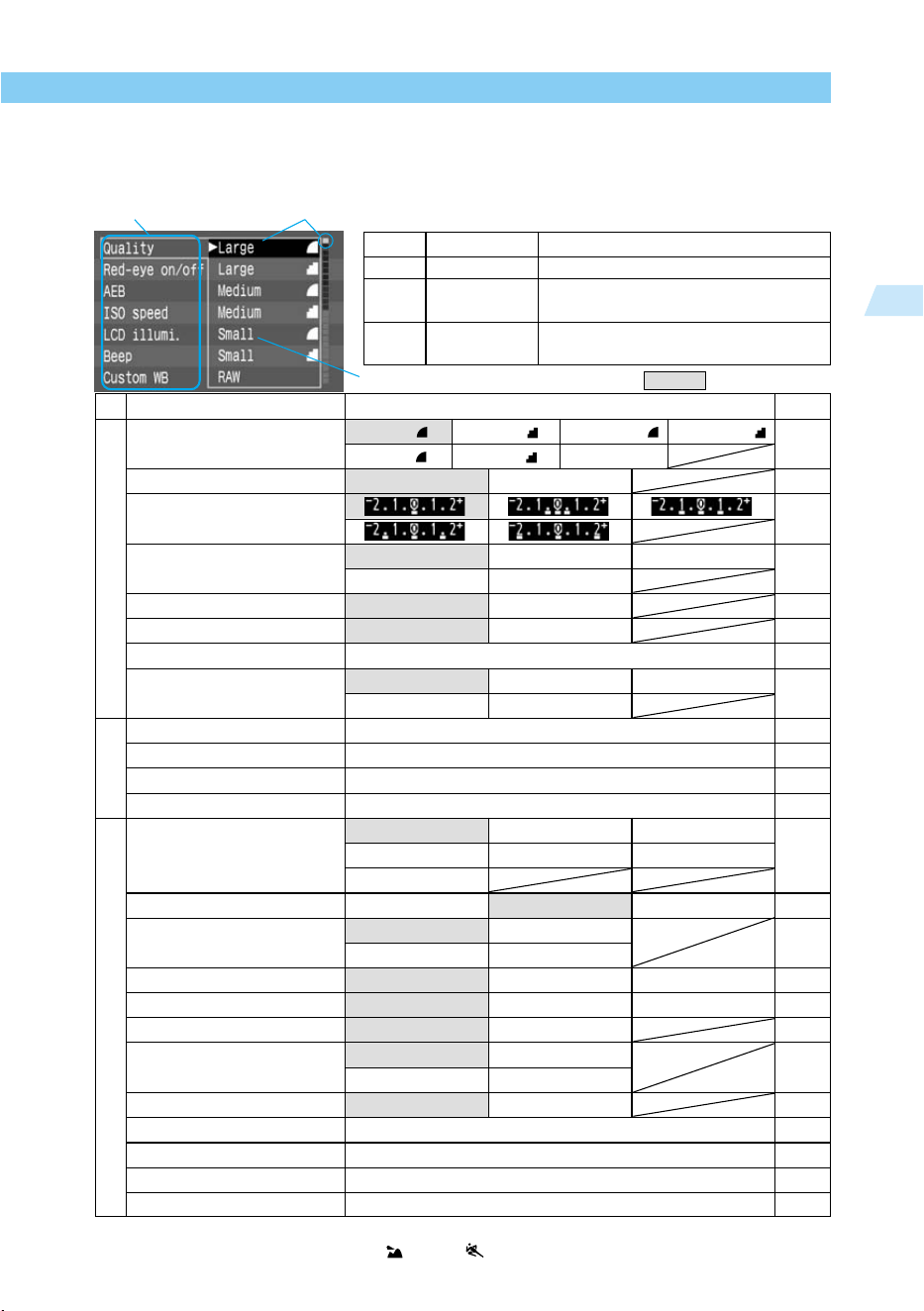
Menu Selections and Default Settings
On the Menu screen, items and settings are shown in different colors according to the
functions they control. Selected items are enclosed in a color frame.
Menu item Setting indicated by color frame
: Default setting
Menu item Settings and Description
Ref. page
Quality Large Large Medium Medium 50
Small Small RAW
Red-eye on/off
∗2
Off On 89
AEB
∗1
78
ISO speed 100 200 400 51
800 1000
LCD illumination Off On 67
Beep On Off 118
Custom WB
∗1
Set custom white balance 66
Parameters
∗1
Standard Set 1 Set 2 52
Set 3 Set up
Protect Protects the image from erasure. 103
Rotate Rotate recorded image 102
Print Order Order print of recorded image 106
Auto playback Plays the images automatically. 101
Auto power off 1 min. 2 min. 4 min. 120
8 min. 15 min. 30 min.
Off
Review Off On On (Info) 41
Review time 2 sec. 4 sec. 42
8 sec. Hold
LCD Brightness Normal Bright 120
Date/Time mm/dd/yy dd/mm/yy yy/mm/dd 34
File numbering Continuous Auto reset 114
Language English Deutsch 121
Français Japanese
Video system NTSC PAL 121
Format Format CF card 105
C. Fn
∗1
Custom Function settings 122
C. Fn default setting
∗1
Resets all Custom Functions to the default settings. 121
Firmware Ver. Camera’s firmware version. 121
∗1: Does not appear in the menu when the Basic zone (→18) is selected.
∗2: Does not appear in the menu in < > and < > modes.
Shooting (Red)
Playback (Blue)
Setup (Yellow)
Description
Menu items related to taking pictures.
Menu items related to playing back
recorded images.
Menu items related to basic camera
functions.
Color
Red
Blue
Yellow
Setting type
Shooting
Playback
Setup
Options list
34
Setting the Date and Time
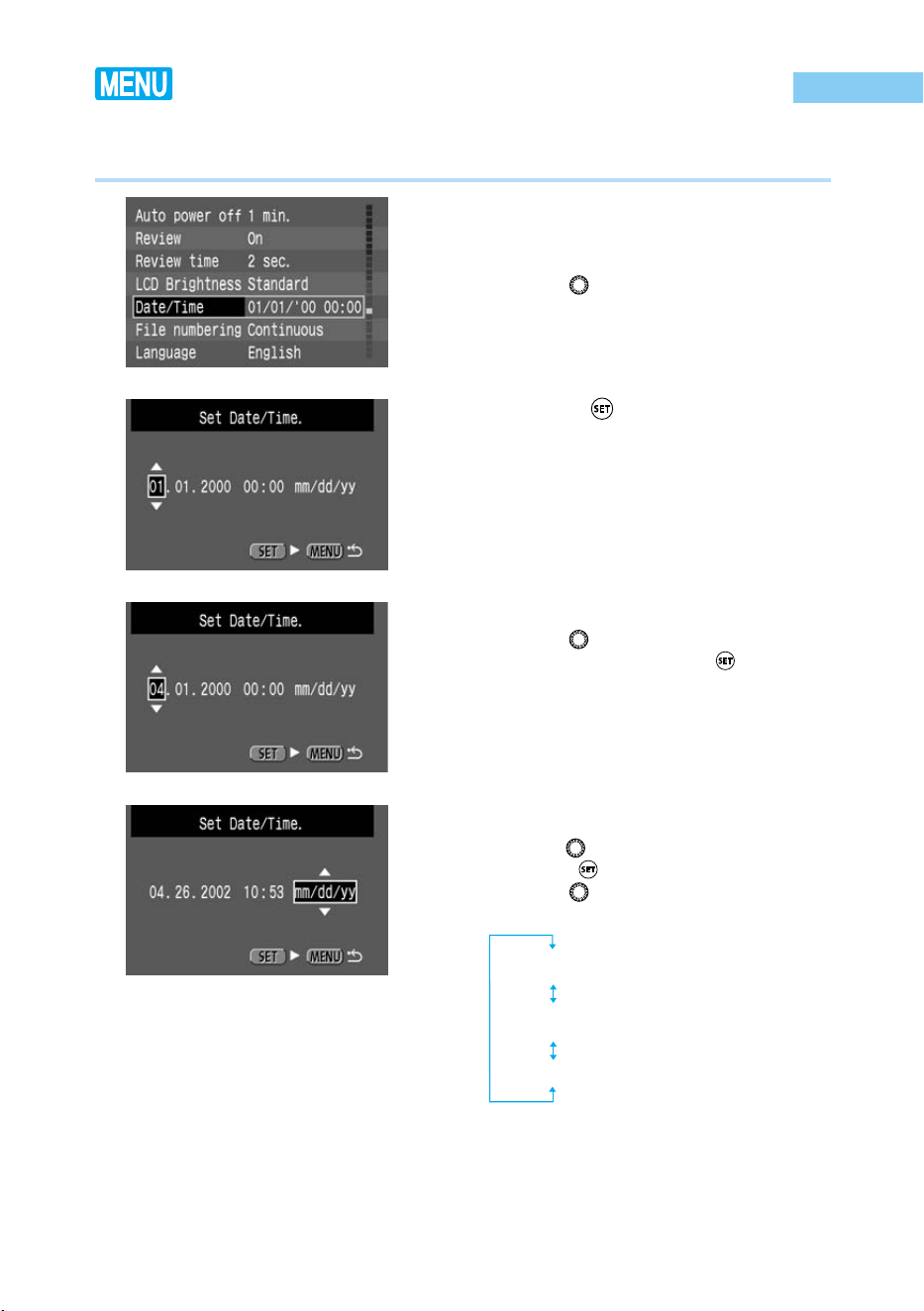
Set the date and time as shown below. The date and time are recorded with the image data for
each photographed image.
1
From the Menu, select [Date/
Time].
● Press the <
MENU
> button.
● Turn the < > dial to select [Date/Time].
2
Press the < > button.
➡ The Date/Time setting screen appears.
3
Set the date and time.
● Turn the < > dial to adjust the date or
time values, then press the < > button.
● After entering the setting, go to the next
item.
4
Select the order for the display.
● Use the < > dial to select the order, then
press the < > button.
● Turn the < > dial to cycle through the
selections in the order shown.
yy/mm/dd
mm/dd/yy
dd/mm/yy
35
Before You Start
1
Setting the Date and Time
5
Press the < > button.
➡ The date and time are set, and the display
returns to the menu.
● Press the <
MENU
> button to clear the
screen and exit the menu.
● Each photographed image is recorded with the date and time it was taken. If the
date and time are not set, they cannot be recorded correctly. Make sure you set
the date and time correctly.
● The date and time setting is maintained by the date/time battery.
36
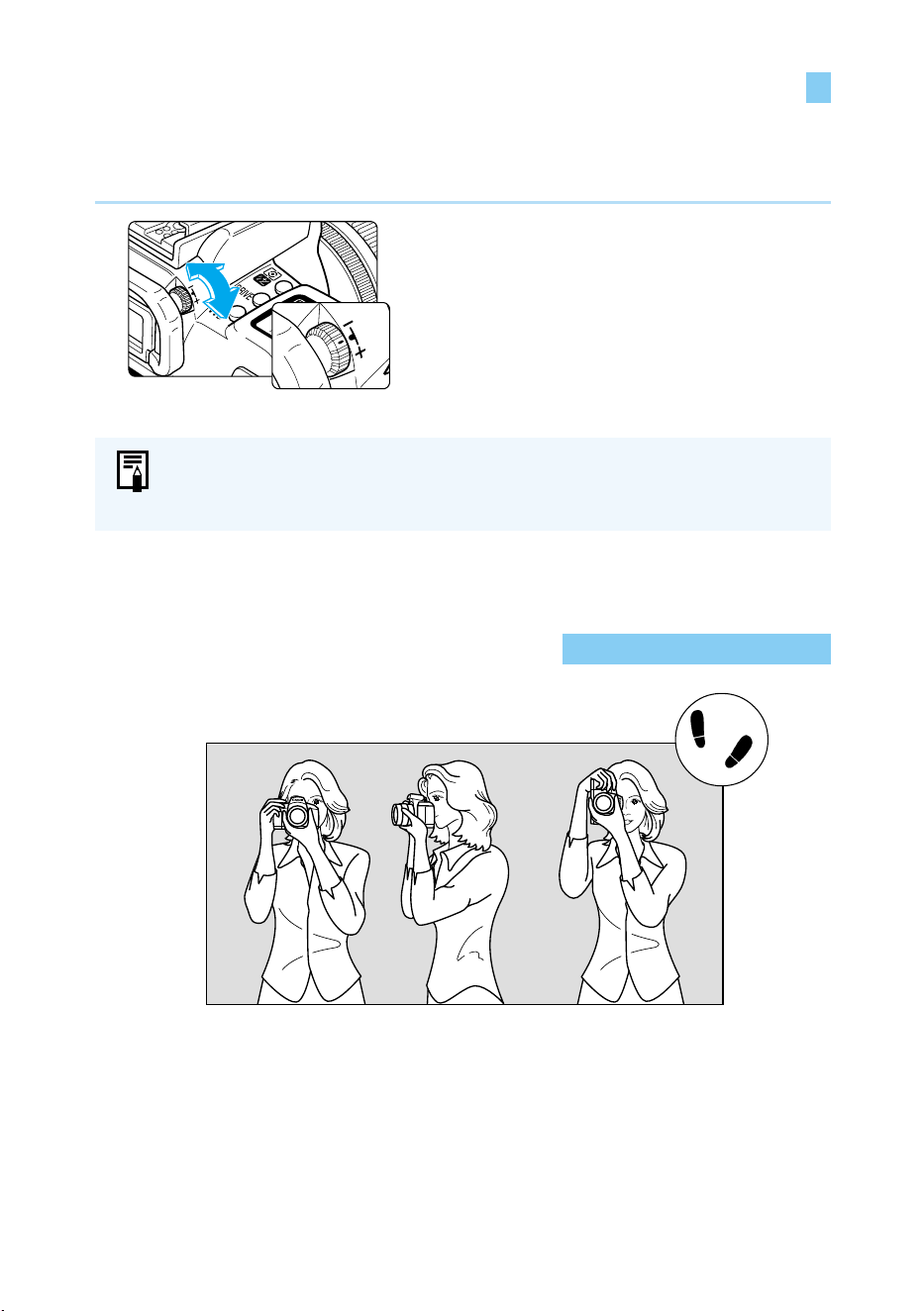
Dioptric Adjustment in the Viewfinder
Holding the Camera
Use the dioptric adjustment in the viewfinder to best suit your eyesight. This adjustment can
enable eyeglass wearers to see through the viewfinder clearly, even without their eyeglasses.
The camera’s adjustable dioptric range is –3 to +1 dpt.
Turn the Dioptric Adjustment
Knob
● Turn the knob right or left until the AF point
or the center spot metering circle appears
sharply defined in the viewfinder.
● The diagram shows the knob set at the
standard diopter (–1 dpt).
To get sharp pictures, hold the camera as still as possible.
Horizontal shooting Vertical shooting
● Grasp the camera grip firmly with your right hand, and hold your elbows lightly against your
body.
● Hold the lens at the bottom with your left hand.
● Hold the camera to your face and look through the viewfinder.
● To maintain a stable stance, place one foot slightly in front of the other.
If the viewfinder image still does not look sharp after adjusting the diopter
adjustment knob, try one of the E-series dioptric adjustment lenses (optional).
(→138)
37
Simple Picture Taking
2
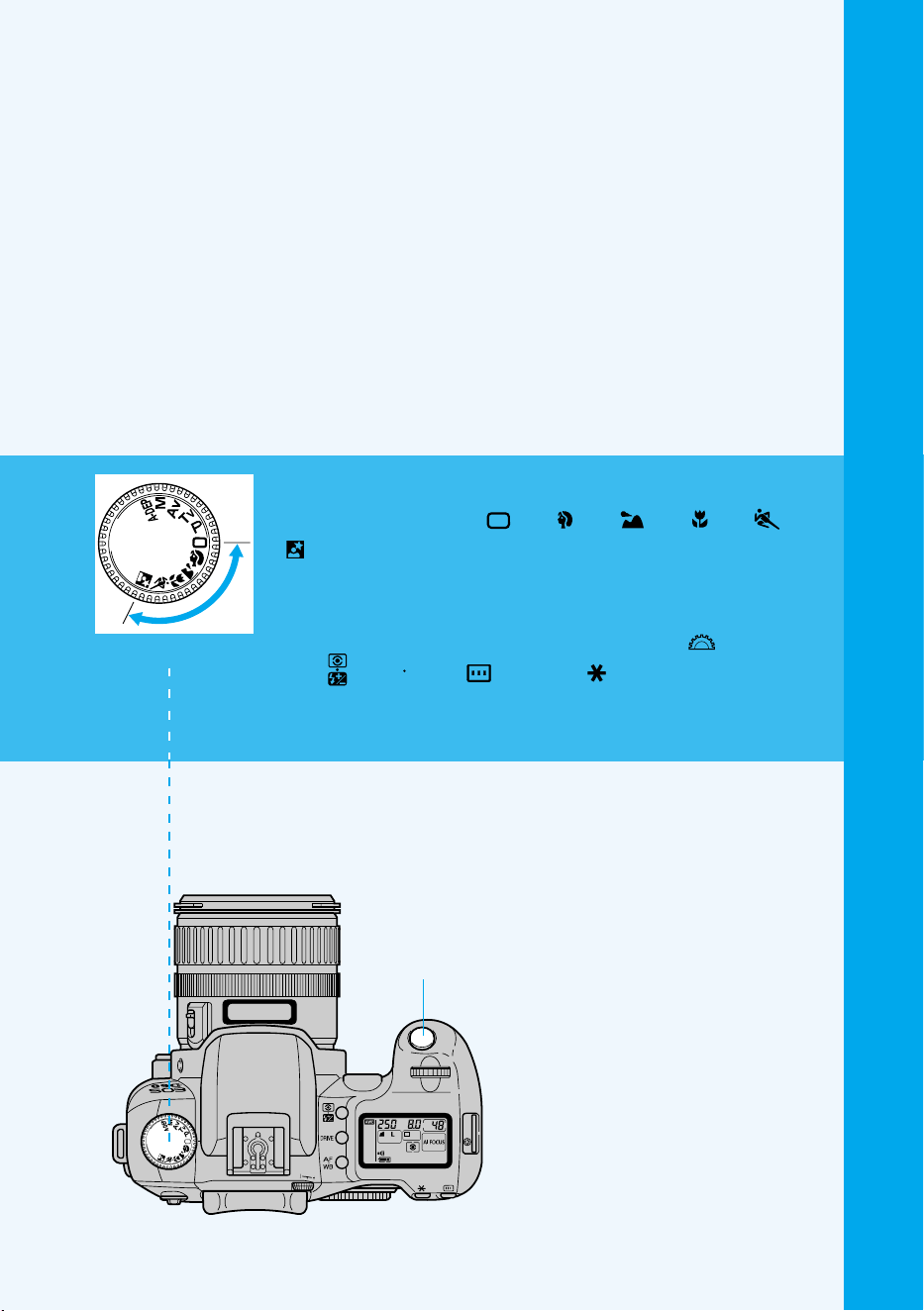
2
This chapter describes how to use the camera’s
Basic Zone modes<
>, < >, < >, < >, < >,
<
> for quick and easy shooting. In these modes,
all you do is point and shoot.
In addition, to help prevent mistakes caused by
operating the camera improperly, the <
> dial, and
the <
>, <
AF
WB
>, < >, and < > buttons do not
operate so there is no need to worry about acciden-
tal errors.
Simple Picture
Taking
Basic zone
Shutter button
38
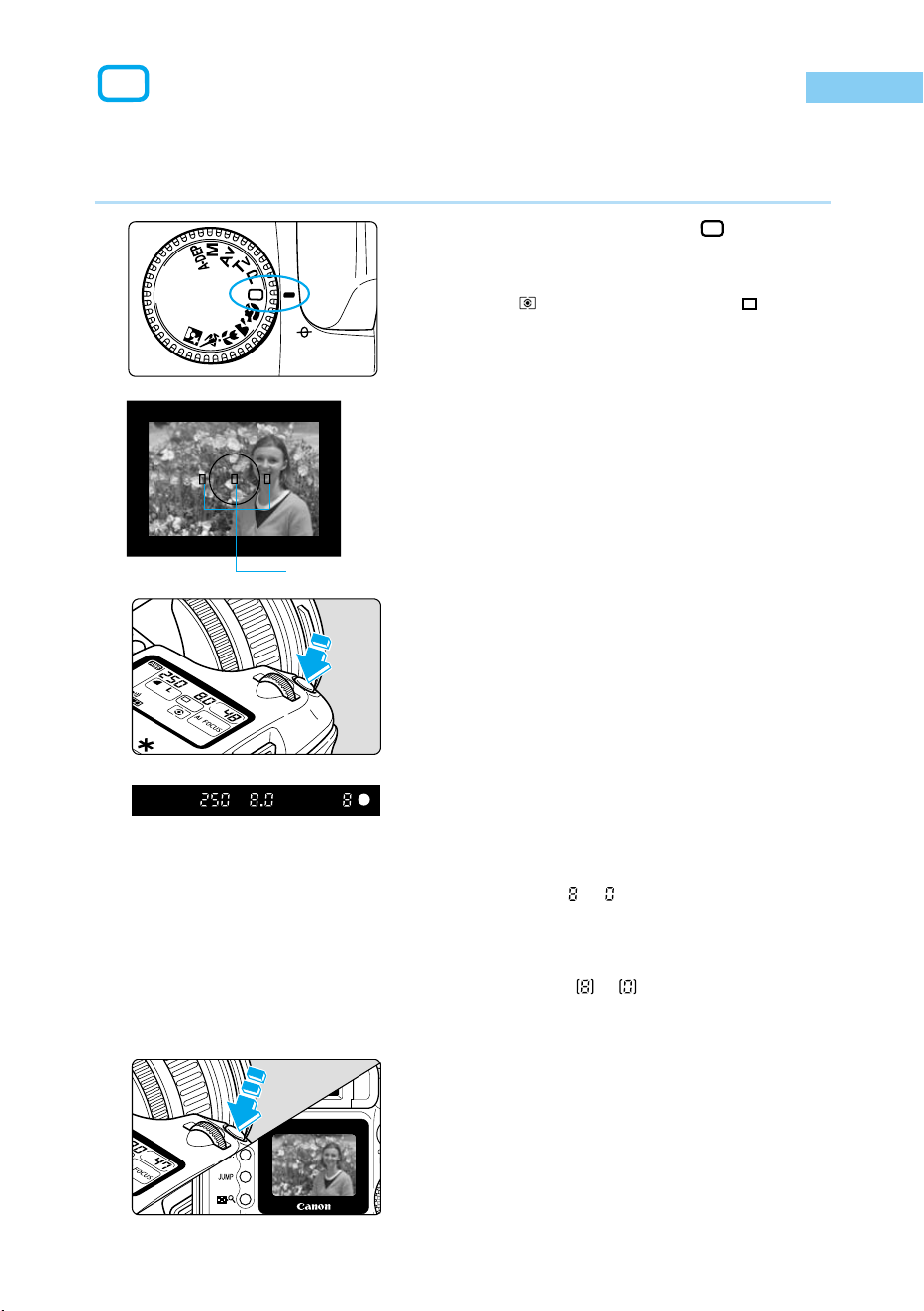
You can easily and confidently take pictures of any subject, with no need to do anything but
press the shutter button. The Canon EOS D60 can capture subjects at any of three AF points,
so that anybody can take great pictures easily.
1
Set the Mode Dial to < >.
➡ The AF mode is automatically set to <AI
FOCUS> (→56), the metering mode is set
to < > and the drive mode to < >
(Single-frame).
2
Place one of the AF points on the
subject.
●
The camera determines the subject position
and uses the most appropriate AF point.
● To focus on a subject that is not at any of
the three AF points, see “Focusing On an
Off-Center Subject” (→58).
3
Set the focus.
● Press the shutter button down halfway to
set the focus.
➡ The AF point achieving focus will flash in
red and the beeper will sound. The focus
confirmation light < ● > at the lower right will
also light.
4
Check the display.
➡
The camera determines the shutter speed and
aperture value automatically, and displays
them in the viewfinder and on the LCD panel.
●
A number to displayed on the left of the
focus confirmation light <● > indicates the
maximum number of shots that can be taken
in a single burst of continuous shooting.
If a number
to
is displayed, it indicates
the number of remaining shots that can be
stored in the almost-full CF card.
5
Take the picture.
● Compose the shot and press the shutter
button down fully.
➡ The image is shown for approximately 2
seconds on the LCD monitor.
Fully Automatic Picture Taking
AF point
39
Simple Picture Taking
2
Fully Automatic Picture Taking
Automatic Built-in Flash
In the Basic Zone (other than < > and < >), the flash pops up automatically and fires in
low-light conditions or backlit daylight conditions. Press the flash back down when you are
finished using it.
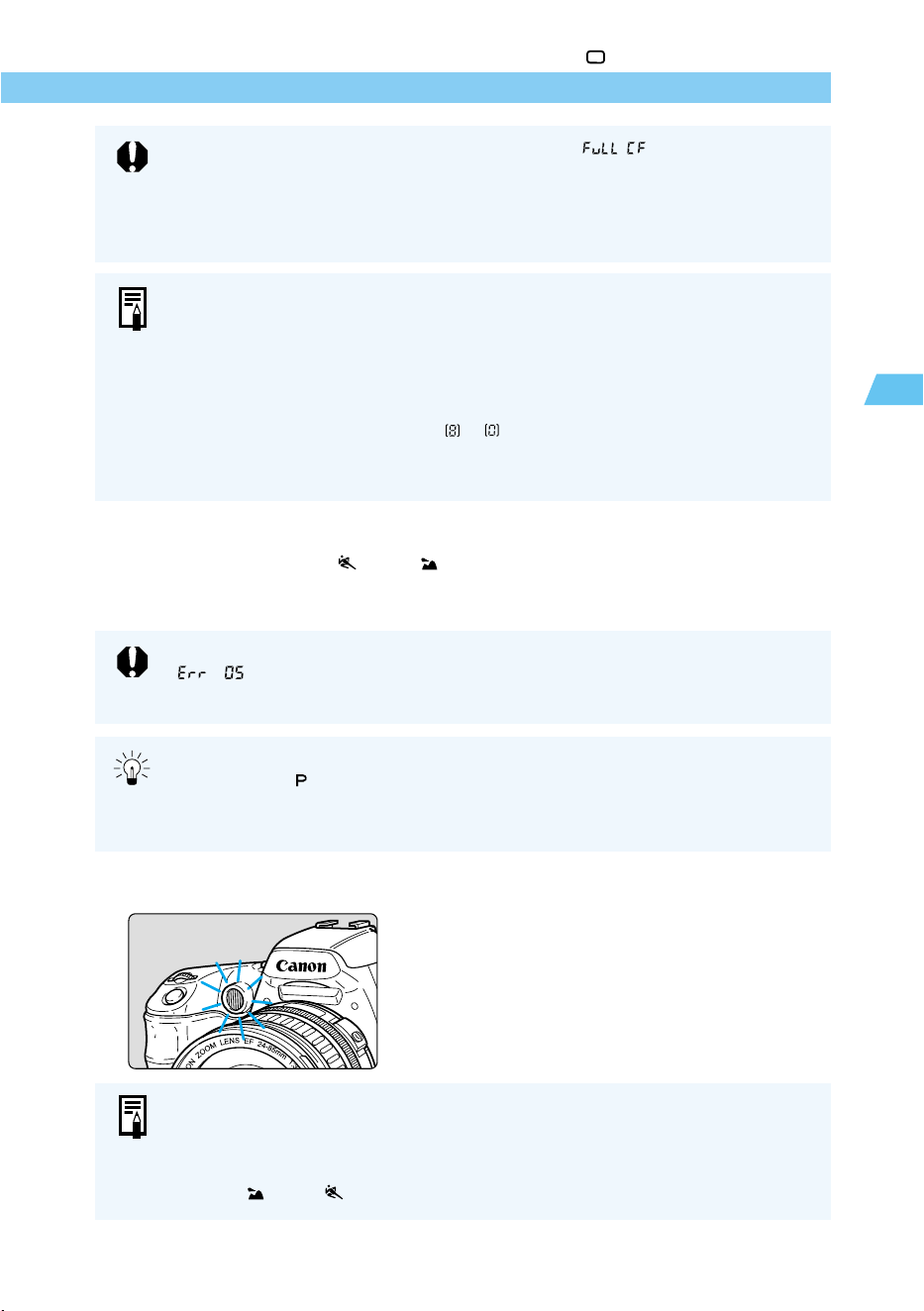
● If the CF card becomes full, the CF Full message “ ” appears on the
LCD panel and in the viewfinder, and the camera will not take any more
pictures. Replace the CF card with another CF card that has capacity available.
● When the in-focus indicator <● > is blinking, the camera will not take pictures.
(→59, 137)
● The focus and exposure are locked when AF focusing is complete.
● The camera automatically focuses on the AF point that is on the subject closest
to the camera.
● The image quality can also be set. (→50, 118)
● You can set the beep that indicates the subject is in focus or the beep that
indicates the self-timer is operating to [On] or [Off]. (→33, 118)
● If the number of remaining shots to in the CF card is displayed, changing
the image quality will also change this remaining number of shots.
● The LCD panel can be illuminated. (→67, 118)
If anything blocks the flash so that it cannot pop up automatically, the error code
“ ” (→135) appears on the LCD panel. When this occurs, set the Main
Switch to <OFF> and then set it to <ON> again.
● To take pictures in an area where flash photography is prohibited or using indoor
lighting, the < > (Program) (→68) mode setting is recommended.
● When taking flash pictures of people at night or in dark interiors, we recommend
using “Red-eye Reduction” (→89).
AF-Assist Beam
● In dark locations, pressing the shutter button
down halfway causes the AF-assist beam
emitter to light. The AF-assist beam helps the
AF function.
● The built-in AF-assist beam’s maximum range is 3.8 meters /12.5 ft.
● When an EX-series external Canon Speedlite (optional) is used, the AF-assist
beam will be emitted either by the camera or external Speedlite depending on the
shooting conditions.
● In the < > and < > modes, the AF-assist lamp will not light.
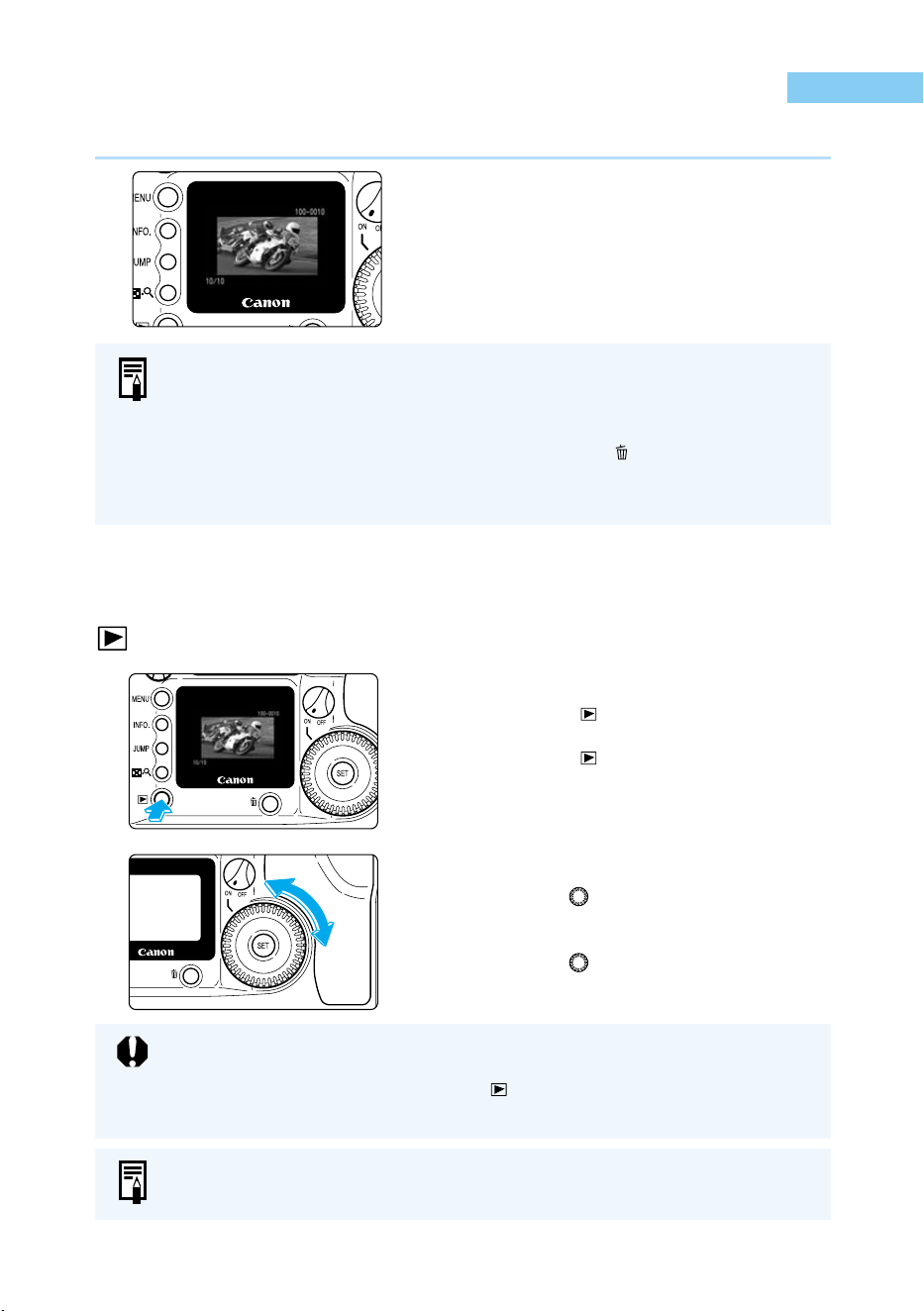
40
You can view the images you take immediately, on the LCD monitor on the back of the camera.
1
Take the picture.
➡ After the picture is taken, the image as it
was shot appears on the LCD monitor.
During continuous shooting, the last
captured image will be displayed.
● The image is shown for approximately 2
seconds.
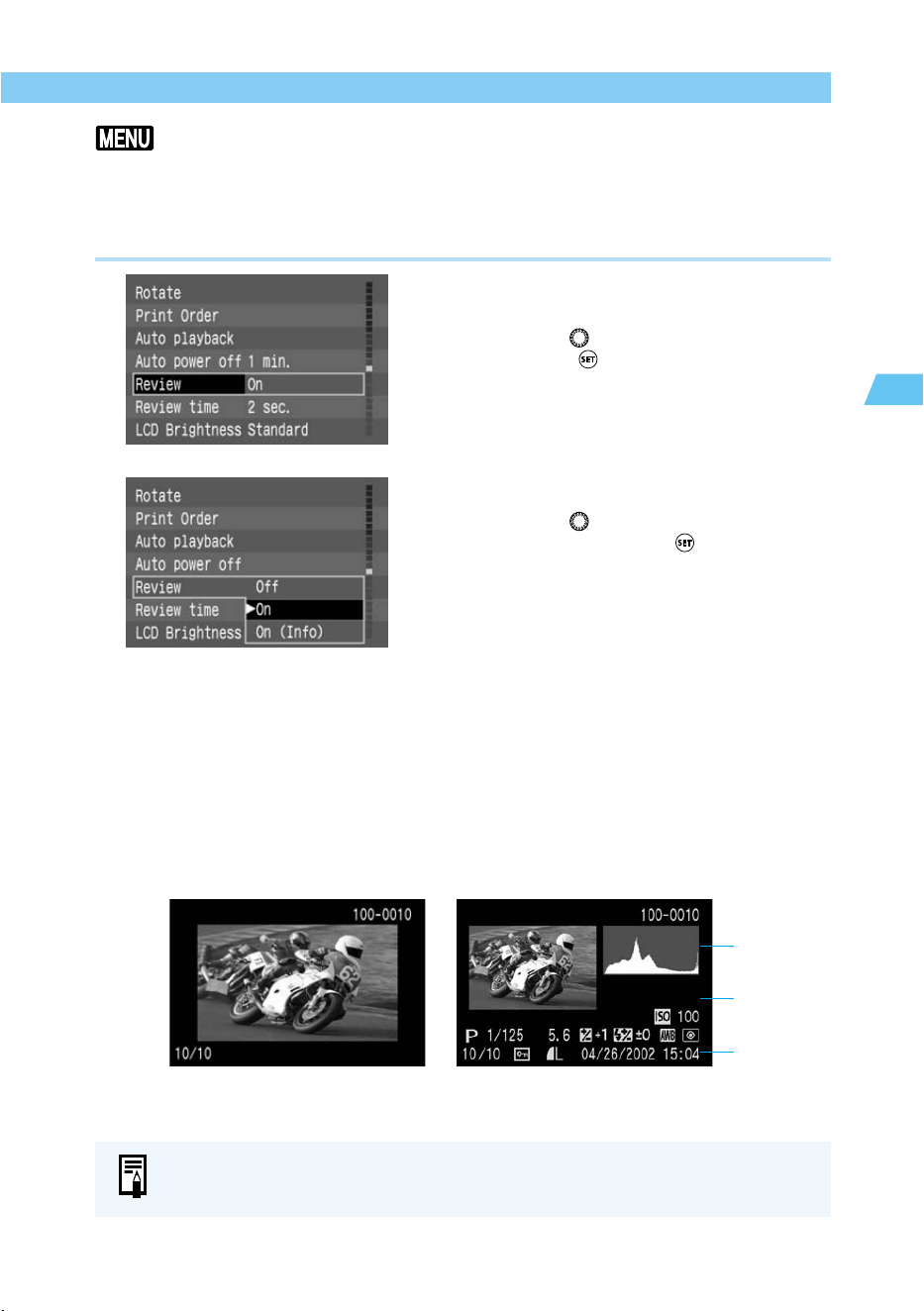
Check the Image in PLAY Mode
1
View the image.
● Press the < > button.
➡ The most recently recorded image appears.
● Press the < > button again to remove the
image from the LCD monitor and exit PLAY
mode.
2
Change the displayed image.
● Turn the < > dial counterclockwise to
move back through the images you have
taken, from newest to oldest.
● Turn the < > dial clockwise to move
through the images from oldest to newest.
Check the Image Immediately
● You can turn the Review function on or off, as well as display the image
information display. (→41)
● You can change the length of time the image is displayed. (→42)
● You can change the brightness of the LCD monitor. (→120)
● While a picture is being displayed, you can press the < > button to delete that
image. (→43) This will erase the image shown on the LCD monitor before it is
written to the CF card.
While the image data is being written to the CF card (access lamp blinks, →15),
the on-screen menu will not be displayed and recorded images cannot be played
back. Pressing the <MENU > button or < > button will only display the “Busy”
message (→135) on the LCD monitor.
You can also view the images you have taken in index form (→98) or enlarged form
(→99).
41
Simple Picture Taking
2
Check the Image Immediately
Checking the Image After it is Taken
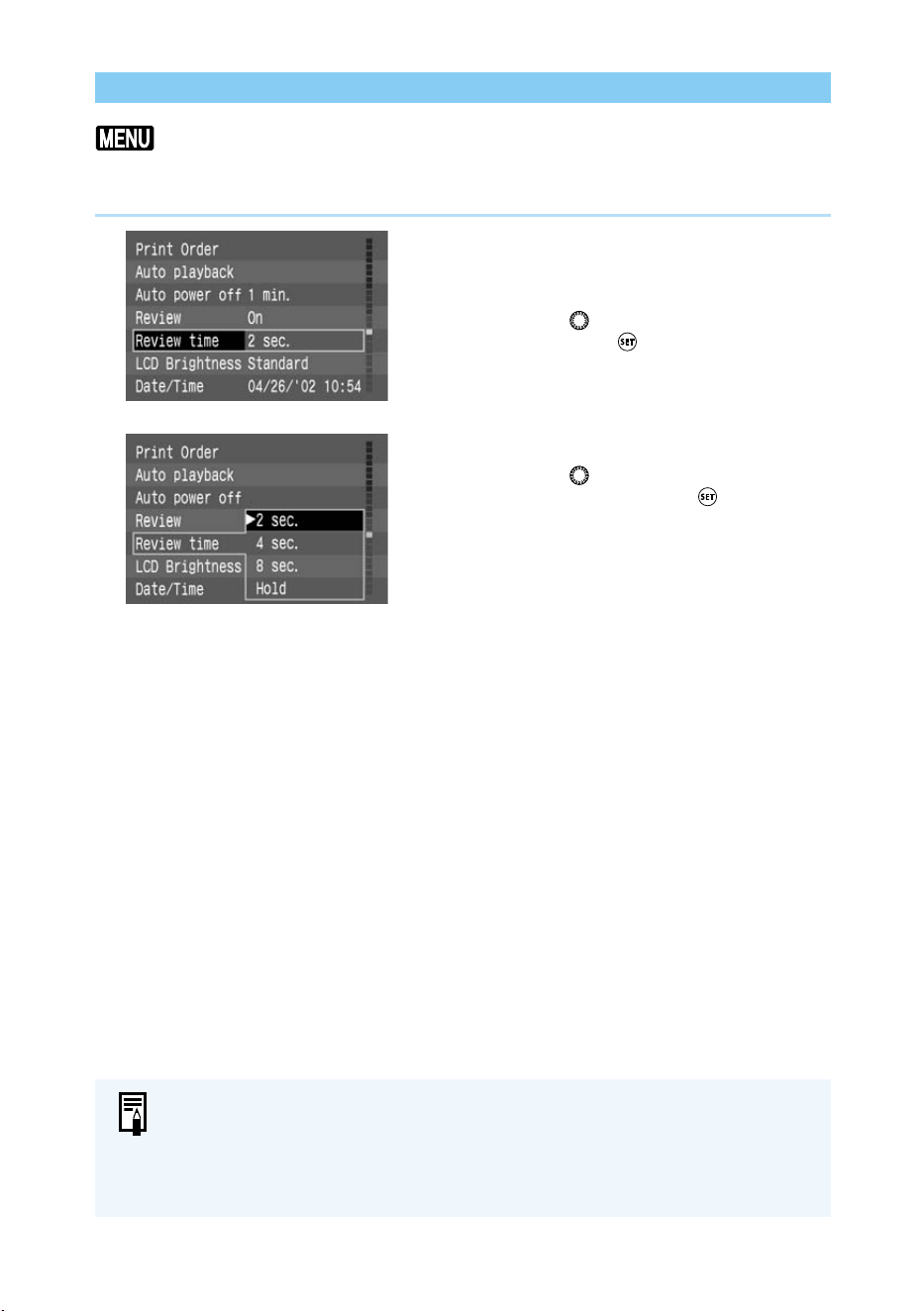
You can set the camera to display each image on the LCD monitor as soon as it is taken. You
can do this two ways: Select [On] to display the image by itself, or select [On (Info)] (→100) to
display the image with its recording information. Select [Off] if you do not want to display the
image. The default setting is [On].
1
From the Menu, select [Review].
● Press the <
MENU
> button.
● Turn the < > dial to select [Review], then
press the < > button.
2
Select the Review setting.
● Turn the < > dial to select the desired
option, then press the < > button.
➡ The setting is entered, and the display
returns to the menu.
● Press the <
MENU
> button to clear the
screen and exit the menu.
3
Take the picture.
➡ After the picture is taken, the image as it
was shot appears on the LCD monitor.
● The time that image is displayed depends
on the review time setting. (→42)
● The display differs depending on whether
you selected [On] or [On (Info)].
[On] selected [On (Info)] selected (→100)
You can change the review time setting. (→42)
Histogram
(→100)
Image
information
(→100)
Date/time
(→34)
42
Check the Image Immediately
Time for Image Review
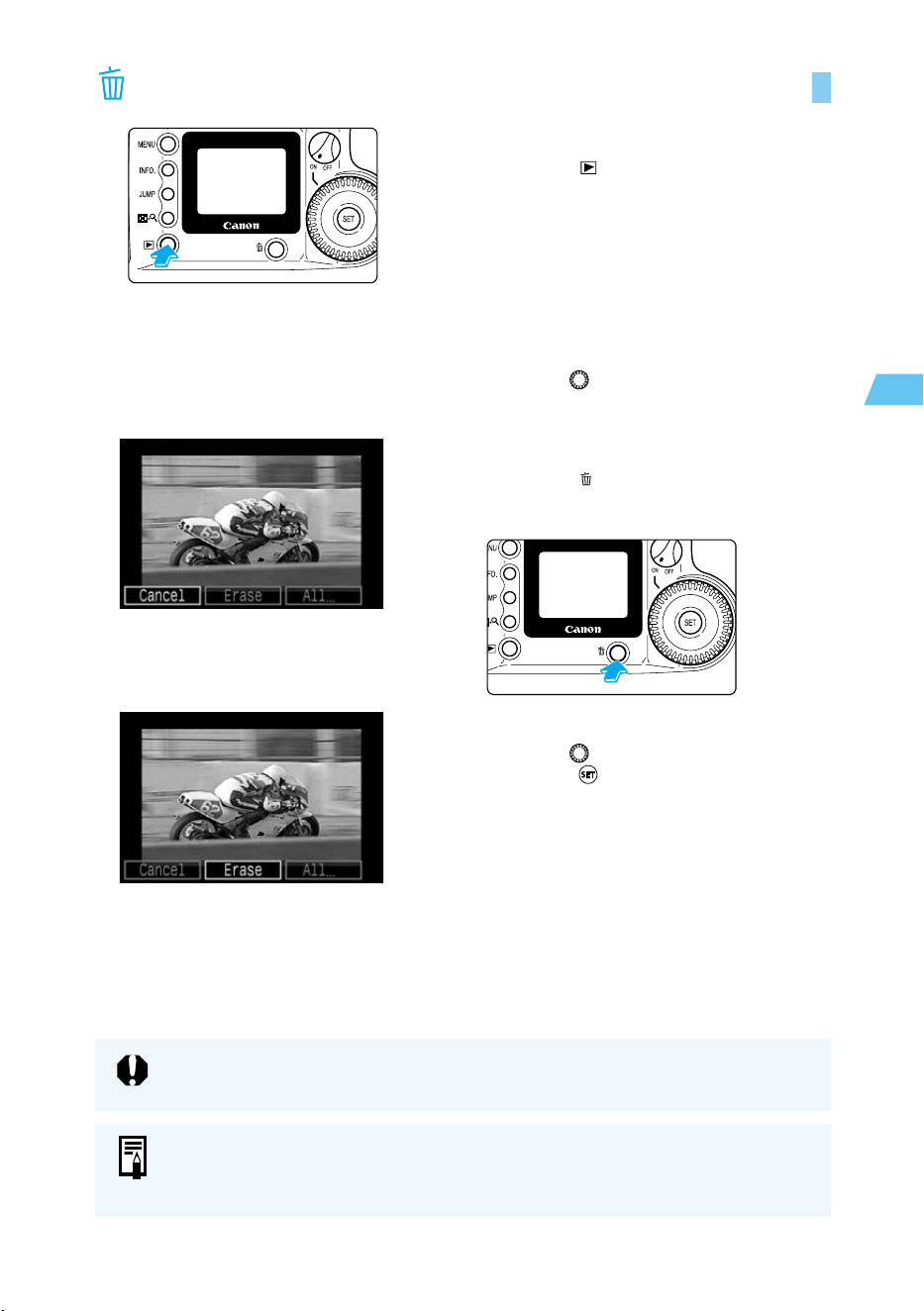
You can control how long images are displayed by setting the review time to [2 sec.], [4 sec.],
[8 sec.], or [Hold] which keeps the image on the monitor screen. The default setting is [2 sec.].
1
From the Menu, select [Review
time].
● Press the <
MENU
> button.
● Turn the < > dial to select [Review time],
then press the < > button.
2
Set the review time.
● Turn the < > dial to select the review time
you want, then press the < > button.
➡ The setting is entered, and the display
returns to the menu.
● Press the <
MENU
> button to clear the
screen and exit the menu.
● When this function is set to [Hold], the image is displayed until you press the
shutter button down halfway. Note however that the camera power will turn off
automatically when the Auto power off time setting is reached (→29, 120).
● The [Review time] setting is valid when the [Review] feature is set to [On] or [On
(Info)].
43
Simple Picture Taking
2
Erasing a Recorded Image (Single Image Erase)
1
Set the camera to Play mode.
● Press the < > button to enter Play mode.
➡ The most recent image appears.
2
Select the image you want to
erase.
● Turn the < > dial to select the image you
want to erase.
3
Open the Erase menu.
● Press the < > button.
➡ The Erase menu appears at the bottom of
the LCD monitor.
4
Erase the image.
● Turn the < > dial to select [Erase], then
press the < > button.
➡ The access lamp blinks and the image is
erased.
You cannot recover an image once you have erased it. Make sure you no longer
want an image before erasing it.
● You can protect images (→103) to prevent them from being erased accidentally.
● To erase all images recorded on the CF card, see “Erasing Images (All Image
Erase) ” (→104).
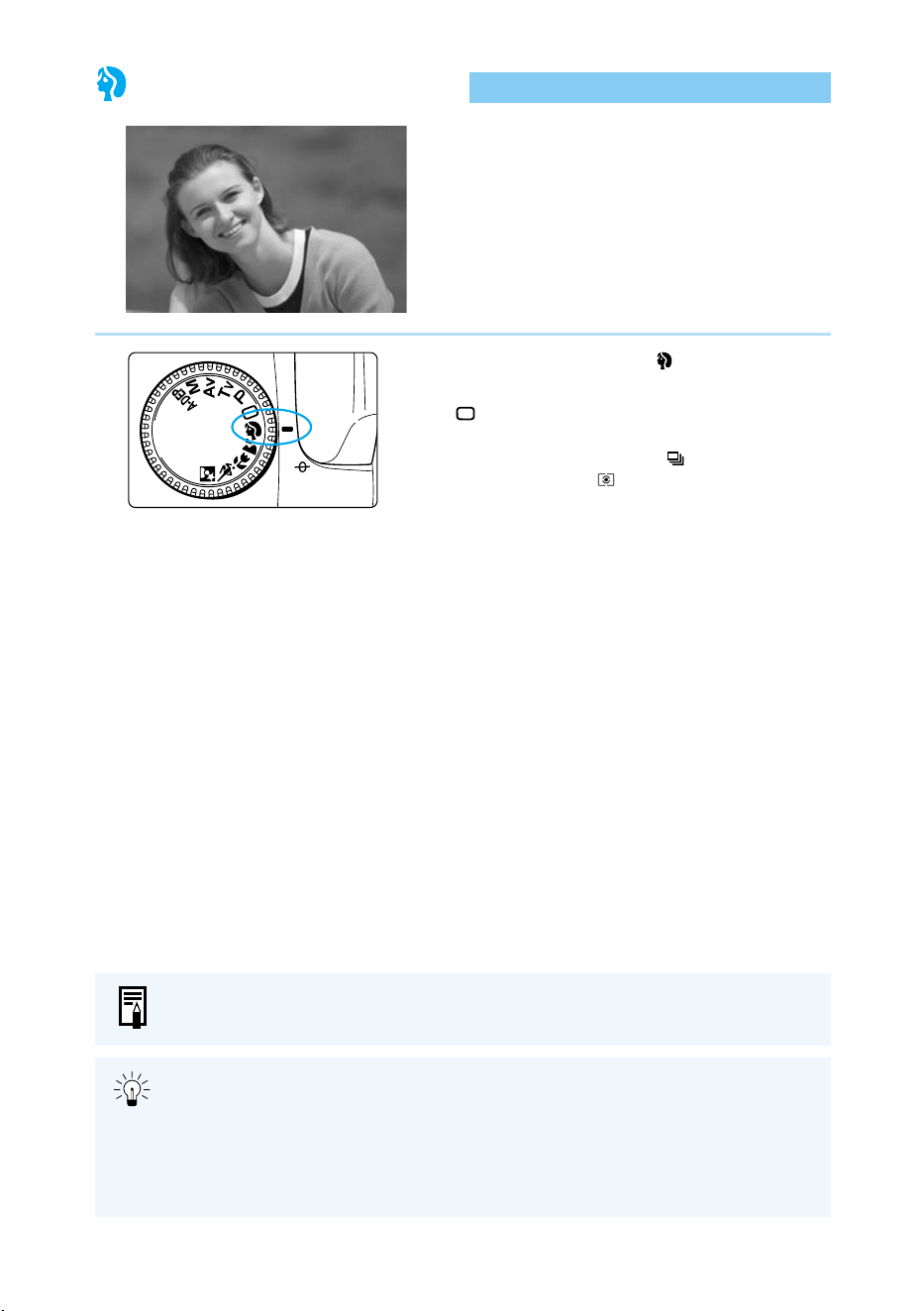
44
Portrait Mode
This mode blurs the background to make the
subject stand out.
Set the Mode Dial to < >.
● The way you take pictures is the same as in
< > (Full Auto) mode. (→38)
➡ The AF mode is automatically set to <ONE
SHOT>, the drive mode to < >, and the
metering mode to < >.
● Head-and-shoulder shots give the best background blur effect. Also, the farther
the subject is from the background, the more blurred the background will
appear.
● Use a telephoto lens to blur the background even more. If you use a zoom lens,
its longest focal length is the most effective (for example, a 24-85mm lens set to
85 mm).
The image quality can also be set. (→50, 118)
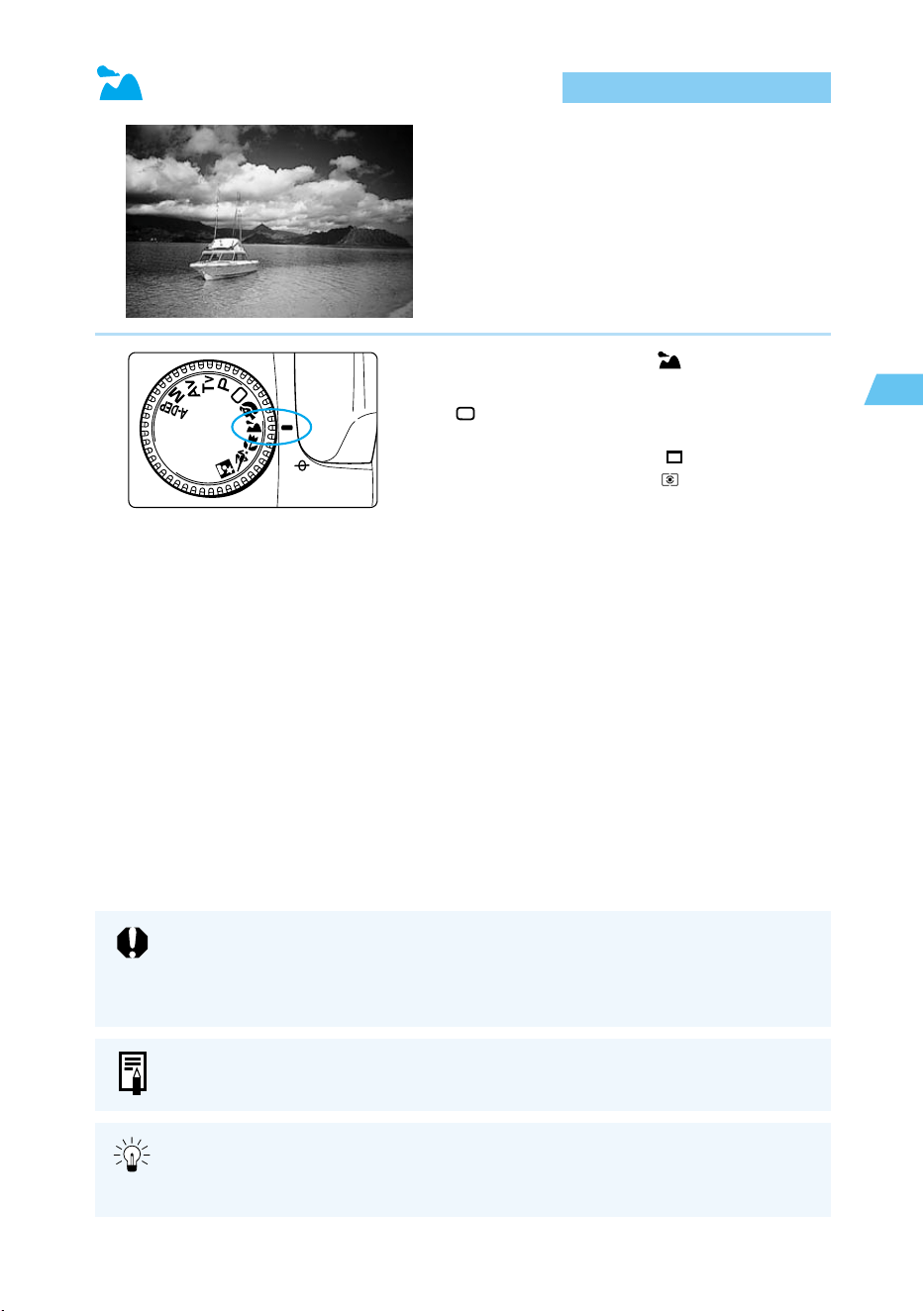
45
Simple Picture Taking
2
Landscape Mode
This mode is for sweeping scenery, sunsets, etc.
Set the Mode Dial to < >.
● The way you take pictures is the same as in
< > (Full Auto) mode. (→38)
➡ The AF mode is automatically set to <ONE
SHOT>, the drive mode to < > (Single-frame),
and the metering mode to < >.
If the shutter speed indicator blinks, the shutter speed may be too slow to keep the
picture from being blurred by camera shake. We recommend you use a tripod
when taking landscape pictures. (The shutter speed indicator still blinks if you use
a tripod, but camera shake will not be a problem.)
● The built-in flash does not fire in Landscape mode, even if it is raised.
● The image quality can also be set. (→50, 118)
A wide-angle lens provides the greatest depth from foreground to background, as
well as a wider image. If you use a zoom lens, its shortest focal length is the most
effective (for example, a 24-85mm lens set to 24 mm).
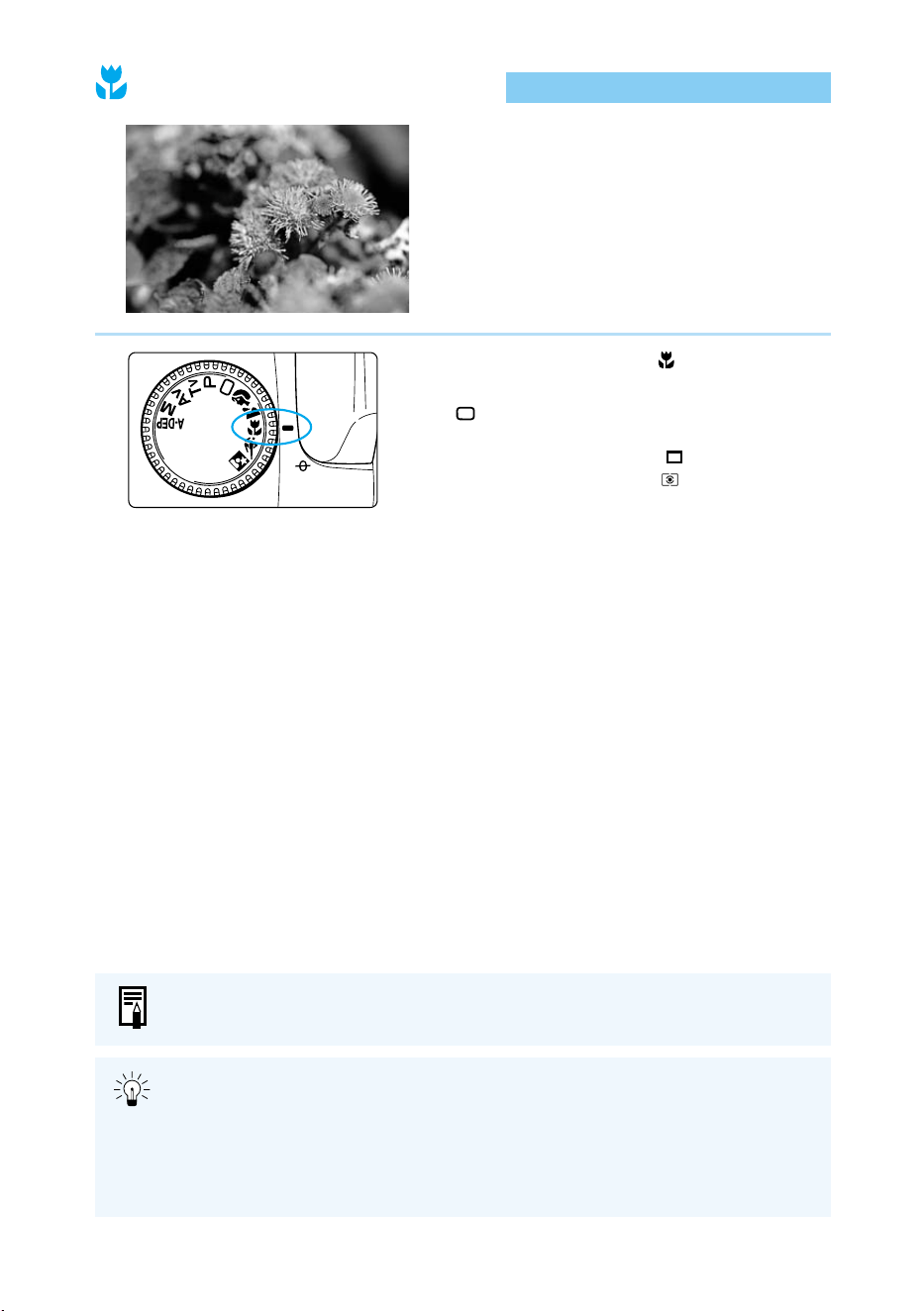
46
Close-Up Mode
This mode is for taking close-up shots of flowers,
insects, or other small subjects.
Set the Mode Dial to < >.
● The way you take pictures is the same as in
< > (Full Auto) mode. (→38)
➡ The AF mode is automatically set to <ONE
SHOT>, the drive mode to < > (Single-frame),
and the metering mode to < >.
● Close-up mode is most effective when the subject is at the minimum focusing
distance of the lens.
● If you use a zoom lens, use its longest focal length to get a higher magnifica-
tion.
● For serious macro photography, using EOS-dedicated macro lenses and Macro
Ring Lite MR-14EX or Macro Twin Lite MT-24EX is recommended.
The image quality can also be set. (→50, 118)
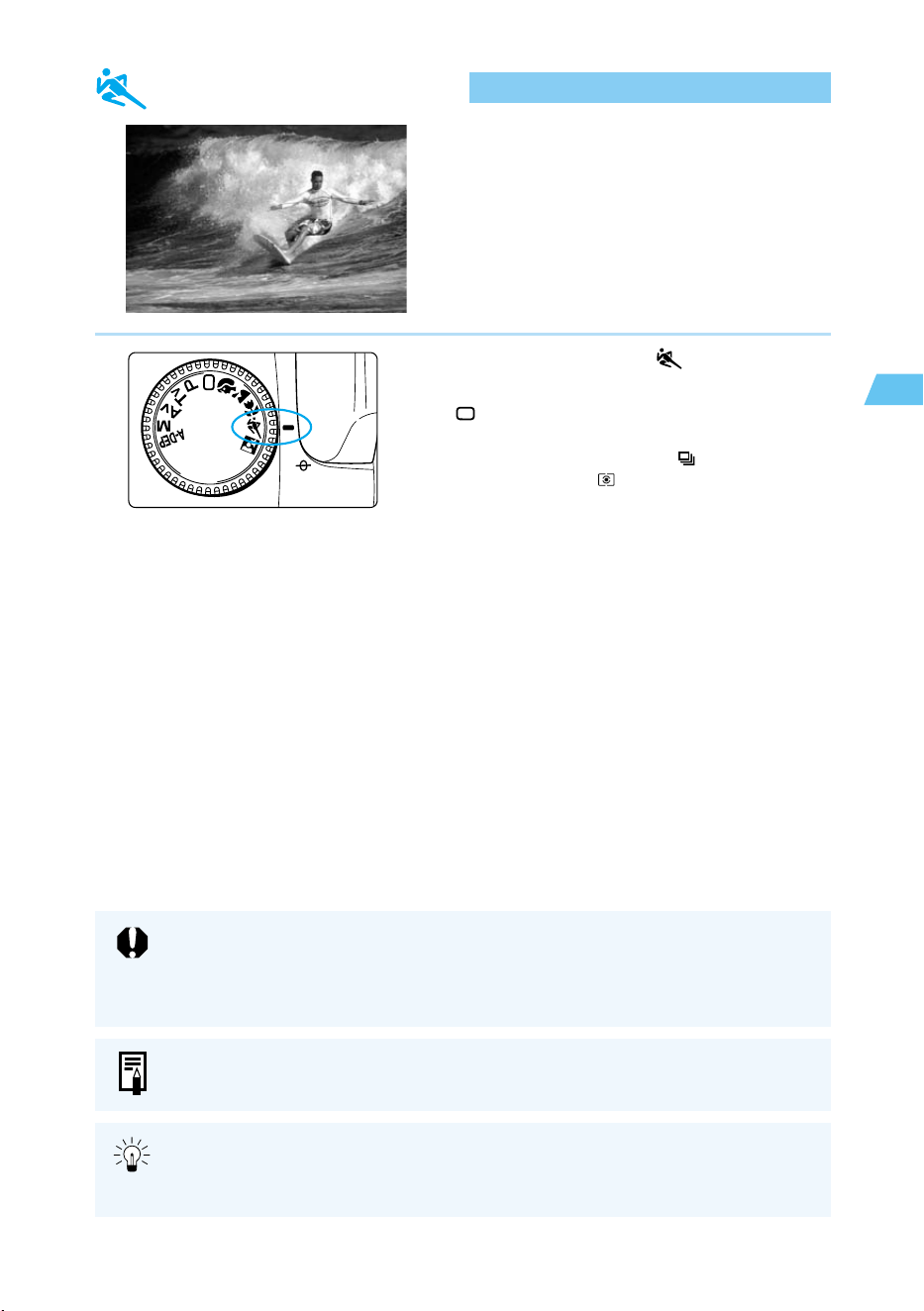
47
Simple Picture Taking
2
Sports Mode
This mode is used for sports photography and
capturing fast-moving subjects.
Set the Mode Dial to < >.
● The way you take pictures is the same as in
< > (Full Auto) mode. (→38)
➡ The AF mode is automatically set to <AI
SERVO>, the drive mode to < >, and the
metering mode to < >.
If the shutter speed indicator blinks, the shutter speed may be too slow to keep the
picture from being blurred by camera shake. Be careful to hold the camera steady
and press the shutter button smoothly, or use a tripod. (The shutter speed
indicator still blinks if you use a tripod, but camera shake will not be a problem.)
● The built-in flash does not fire in Sports mode, even if it is raised.
● The image quality can also be set. (→50, 118)
● For best results in Sports mode, use an ISO speed setting of ISO 400 or faster.
(→51, 118)
● For sports photography we recommend using a telephoto lens of 200-300 mm.
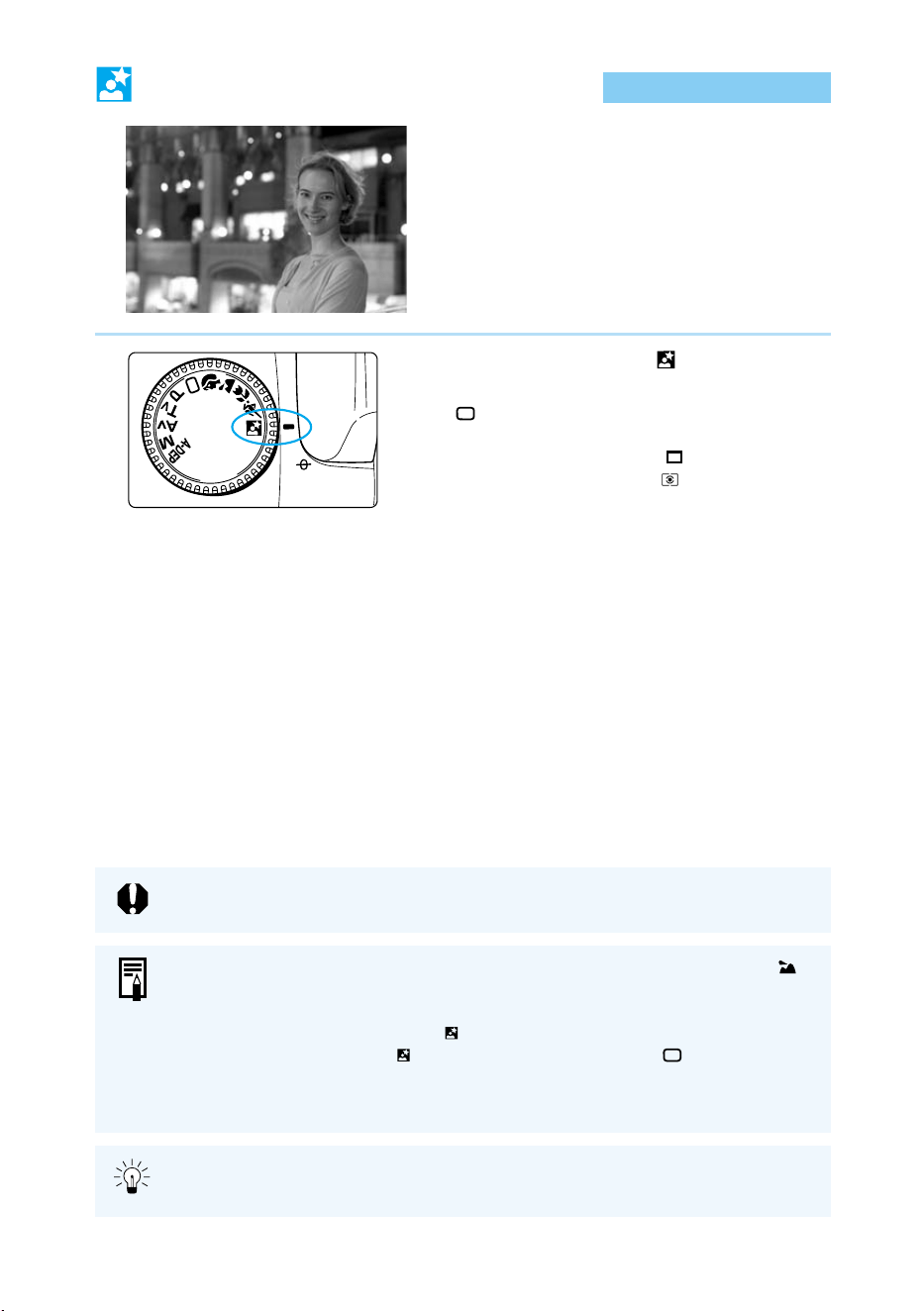
48
Night Portrait Mode
This mode is for taking pictures of people at sunset
or at night. It uses flash to illuminate the subject and
a slow shutter speed to expose the background,
resulting in a natural-looking exposure.
Set the Mode Dial to < >.
● The way you take pictures is the same as in
< > (Full Auto) mode. (→38)
➡ The AF mode is automatically set to <ONE
SHOT>, the drive mode to < > (Single-frame),
and the metering mode to < >.
To prevent camera shake, always use a tripod.
● If you are taking images of scenery only (and not people), use Landscape < >
mode.
● Tell your subjects not to move for a few seconds after the flash fires.
● You can also use Night Portrait < > mode with an EX-series Speedlite.
● In daylight, Night Portrait < > mode operates the same as < > (Full Auto)
mode.
● The image quality can also be set. (→50, 118)
For best results in Night Portrait mode, use an ISO speed setting of ISO 400 or
faster. (→51, 118)
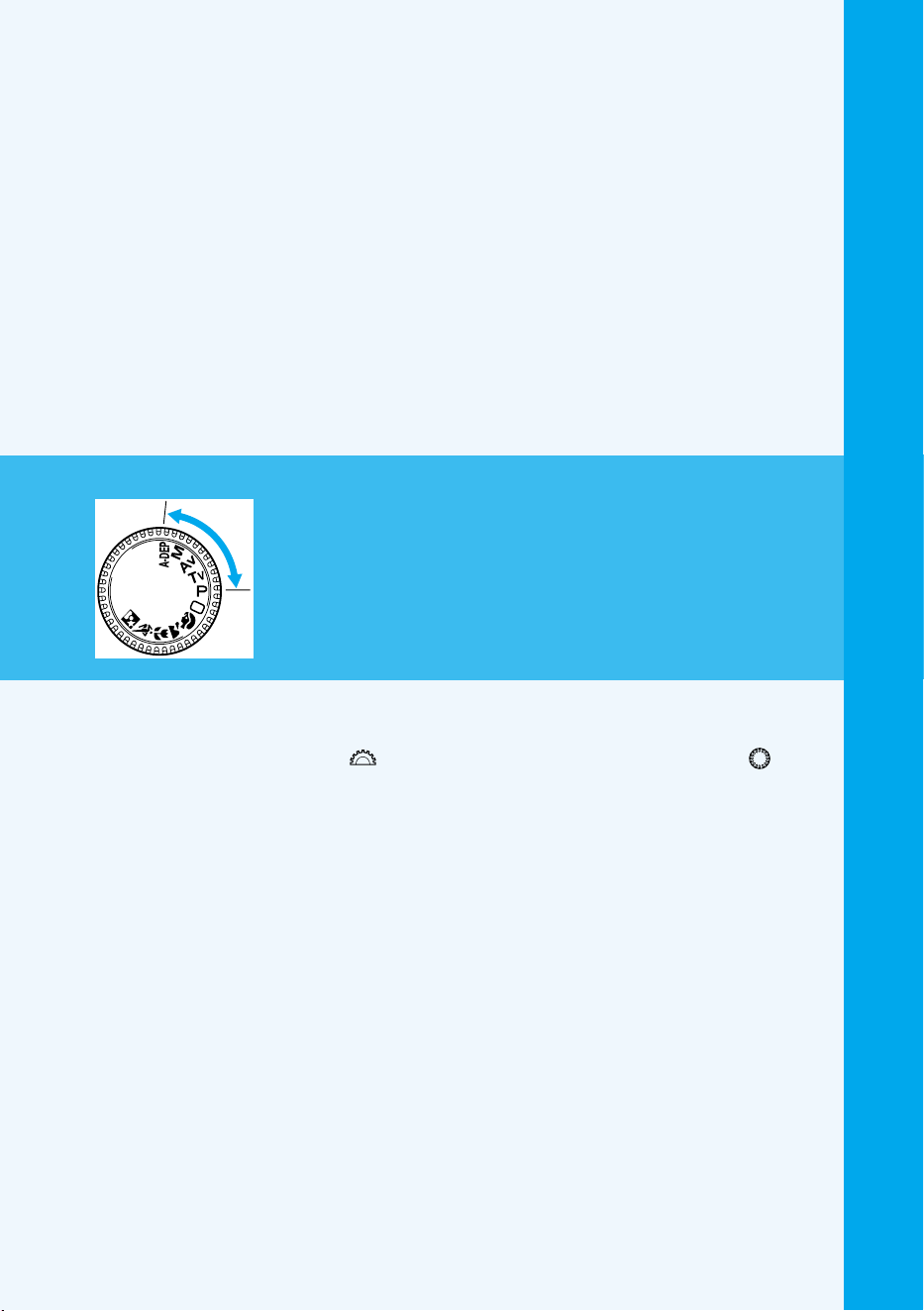
49
Advanced Operations
3
3
The Creative zone features shooting modes that let
you select the shutter speed or aperture value and
change the exposure yourself, providing you with
more flexibility to set up the camera for a variety of
shooting styles. This chapter describes how to make
effective use of each of these functions.
● The < > icon represents the Main Dial, and the < > icon
represents the Quick Control Dial.
● Press the shutter button down halfway and release, and a
timer will show the exposure setting for approximately 4
seconds on the LCD panel and viewfinder.
● You can set the AF mode, AF point, metering mode, drive
mode, and white balance only in the Creative Zone modes.
● You can use AE lock, exposure compensation, AEB, bulb
exposures, and depth-of-field preview only in the Creative
Zone modes.
● The AEB setting, M-WB image selection, processing
parameters, C.Fn settings and C.Fn cancel settings will be
displayed only in the Creative Zone modes.
Advanced
Operations
Creative zone
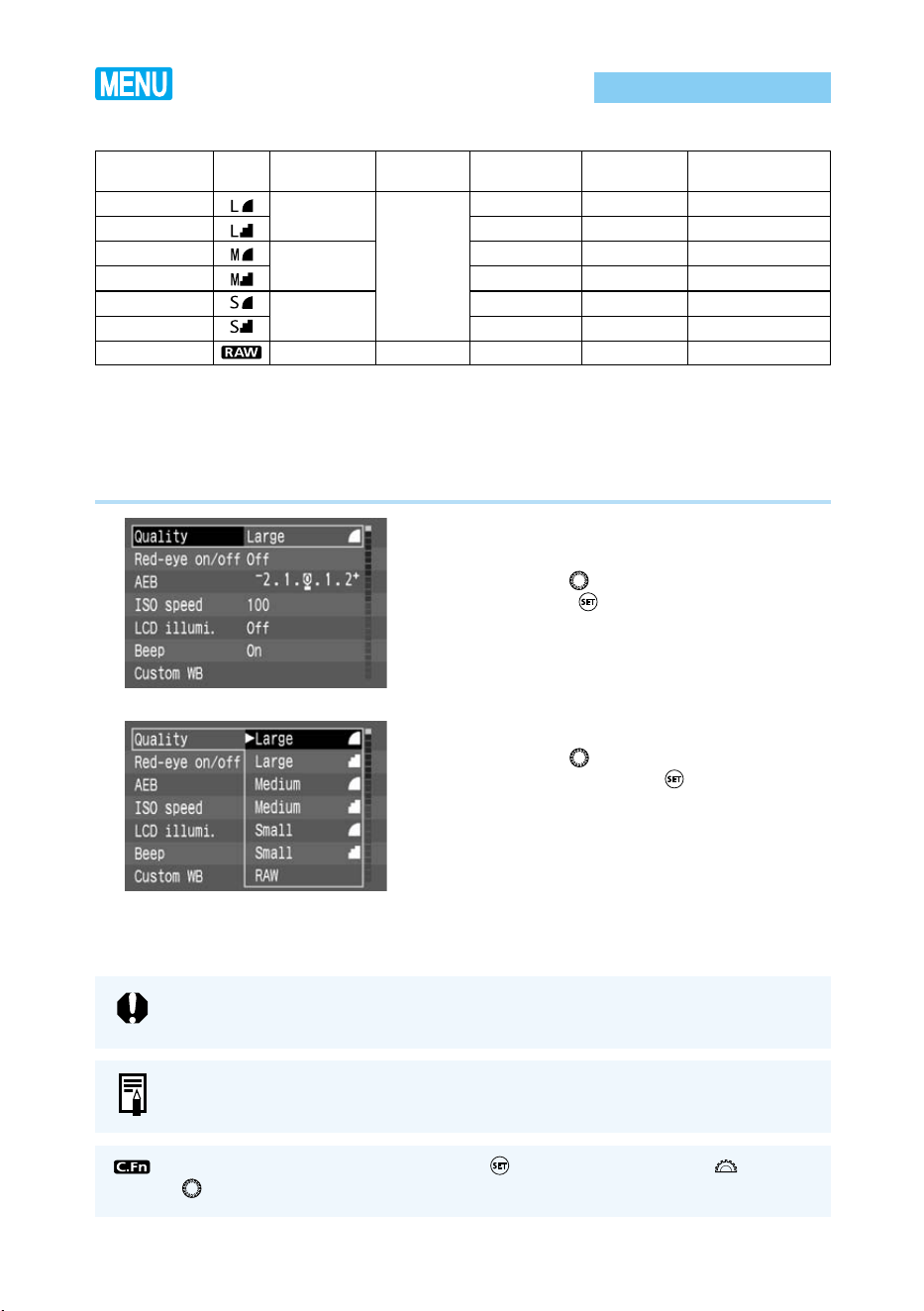
50
Quality Selection
Use the Menu function to choose from seven Quality settings:
● You can set the image quality also for the Basic Zone modes.
● The CF card's maximum capacity is based on Canon's testing standards (at ISO 100).
● The maximum capacity applies to a 128 MB CF card.
●
The image file size and the CF card's maximum capacity depend on the subject and ISO speed.
● The CF card's number of remaining shots is displayed on the LCD panel.
1
From the menu, select [Quality].
● Press the <
MENU
> button.
● Turn the < > dial to select [Quality], then
press the < > button.
2
Set the quality.
● Turn the < > dial to select the Quality you
want, then press the < > button.
➡ The selected Quality setting is entered, and
the screen returns to the menu.
● Press the <
MENU
> button to clear the
screen and exit the menu.
Quality
Large/Fine
Large/Normal
Medium/Fine
Medium/Normal
Small/Fine
Small/Normal
RAW
Icon
Recording
size
3072 × 2048
2048 × 1360
1536 × 1024
3072 × 2048
Recording
method
JPEG
RAW
Compression
ratio
Low
High
Low
High
Low
High
–
Size of one
image
2.5 Mbyte
1.3 Mbyte
1.4 Mbyte
0.7 Mbyte
0.9 Mbyte
0.5 Mbyte
7.4 Mbyte
Recording
capacity
Approx. 48 shots
Approx. 92 shots
Approx. 89 shots
Approx. 172 shots
Approx. 138 shots
Approx. 255 shots
Approx. 15 shots
To open RAW images with a personal computer, you must use the dedicated
driver software. For details, see the bundled software's instructions.
You can also use the bundled software to create a Medium/Fine JPEG file from the
RAW image. For details, see the software's instructions.
You can set the Quality by pressing the < > button and turning the < > or
< > dial as you look at the LCD panel. (C.Fn-12-1→126)
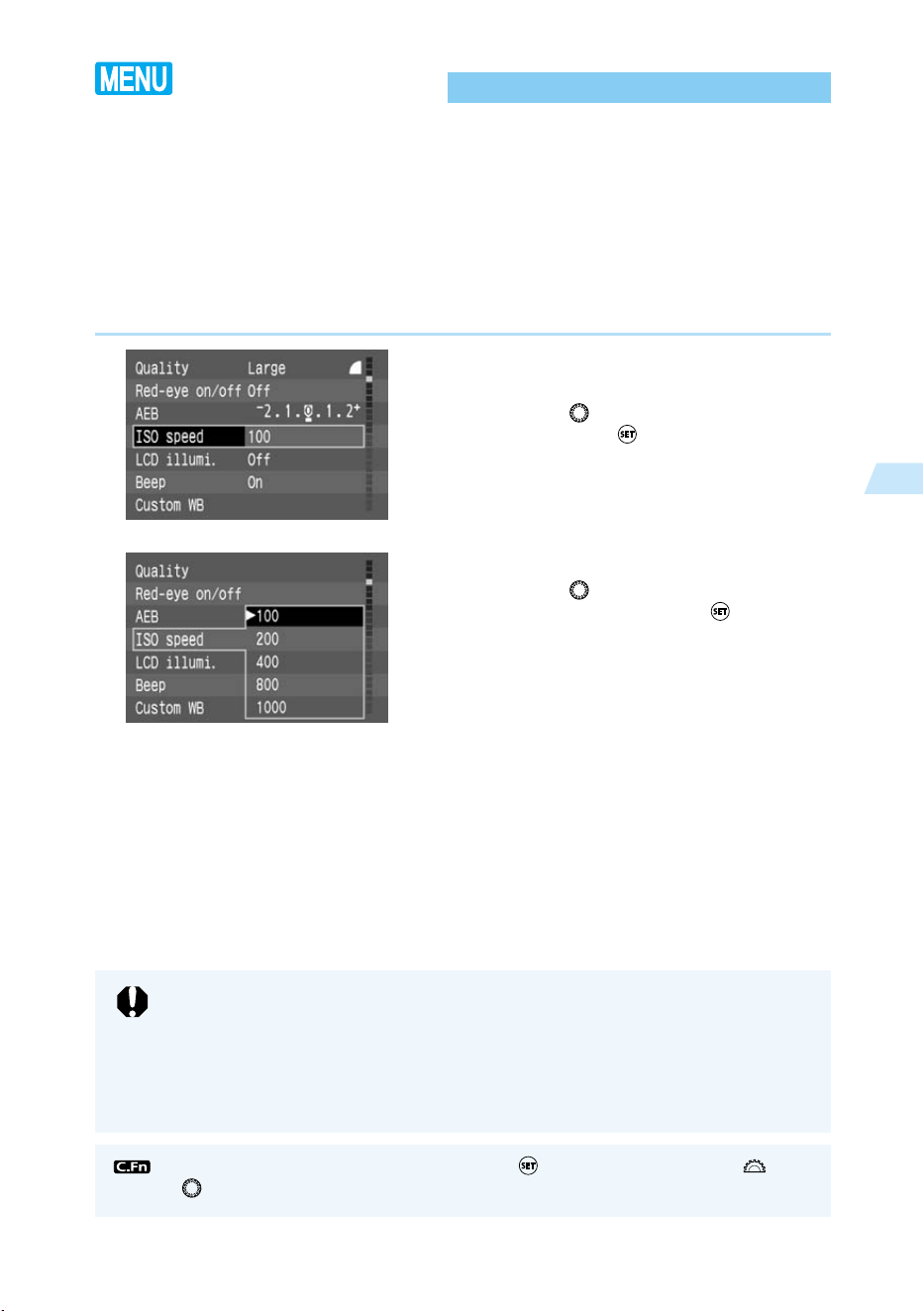
51
Advanced Operations
3
ISO Speed
ISO speed is an index number representing the photosensitivity of silver-halide film. Digital
cameras do not use film, but their photosensitivity is commonly described in terms of “ISO
equivalent” speed settings. (→130)
The higher the number, the greater the sensitivity. Higher speeds are better for taking pictures
of moving subjects or in dim light, but the pictures will also contain more noise and so will be
less sharp. Conversely, lower speeds are less suited to moving subjects or dim conditions, but
produce sharper, more detailed images.
The Canon EOS D60 provides ISO-equivalent speed settings from ISO 100 to ISO 1000, in
full-stop increments. The default setting is ISO 100.
1
Select [ISO speed].
● Press the <
MENU
> button.
● Turn the < > dial to select [ISO Speed],
then press the < > button.
2
Set the ISO speed.
● Turn the < > dial to select the desired
ISO speed, then press the < > button.
➡ The selected ISO speed is entered, and the
screen returns to the Menu.
● Press the <
MENU
> button to clear the
screen and exit the Menu.
You can set the ISO speed by pressing the < > button and turning the < > or
< > dial as you look at the LCD panel. (C.Fn-12-2 →126)
● The higher the ISO speed, the more noise the image will contain and the larger
the image file size will be. Therefore, setting a higher ISO speed will reduce the
number of images that the CF card can store. On the LCD panel, you can check
the number of images the CF card can hold. (→16)
● Taking pictures under a high temperature, at a high ISO speed, or with a long
exposure may cause irregular colors in the image.
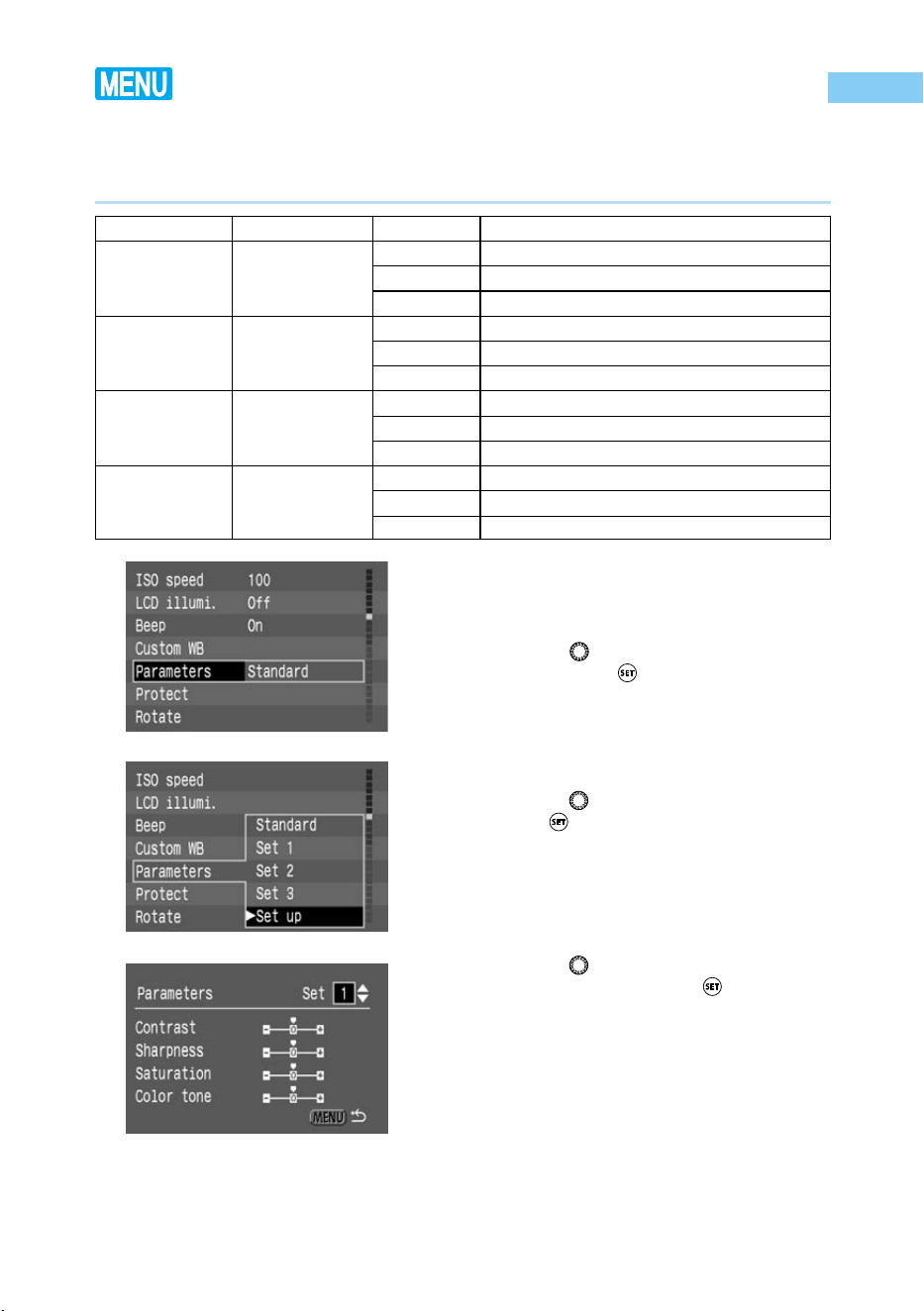
52
Setting Processing Parameters
1
From the menu, select [Param-
eters].
● Press the <
MENU
> button.
● Turn the < > dial to select [Parameters],
then press the < > button.
2
Select [Set].
● Turn the < > dial to select [Set up], then
press < >.
● By default, Sets 1 to 3 have all the param-
eters set to 0 (Standard).
3
Select the desired set number.
● Turn the < > dial and select Set [1], Set
[2], or Set [3]. Then press < >.
Parameter
Contrast
Sharpness
Saturation
Color tone
Setting
Adjusts the
contrast
Adjusts the
sharpness
Adjusts the
color saturation
Adjusts the color
balance
Level
– (Low)
0 (Standard)
+ (High)
– (Low)
0 (Standard)
+ (High)
– (Low)
0 (Standard)
+ (High)
– (Red)
0 (Standard)
+ (Yellow)
Effect
Takes pictures with lower contrast.
Takes pictures with normal contrast.
Takes pictures with higher contrast.
Takes pictures with lower sharpness.
Takes pictures with normal sharpness.
Takes pictures with higher sharpness.
Takes pictures with muted colors.
Takes pictures with normal color saturation.
Takes pictures with intense colors.
Makes skin tones look more reddish.
A standard color balance is applied.
Makes skin tones look more yellowish.
Contents of processing for the captured image (parameters: [contrast], [sharpness],[saturation]
and [color tone]) can be set with the camera, and you can set and register up to three sets of
parameters. Defaut setting is “standard” (0 for all parameters).
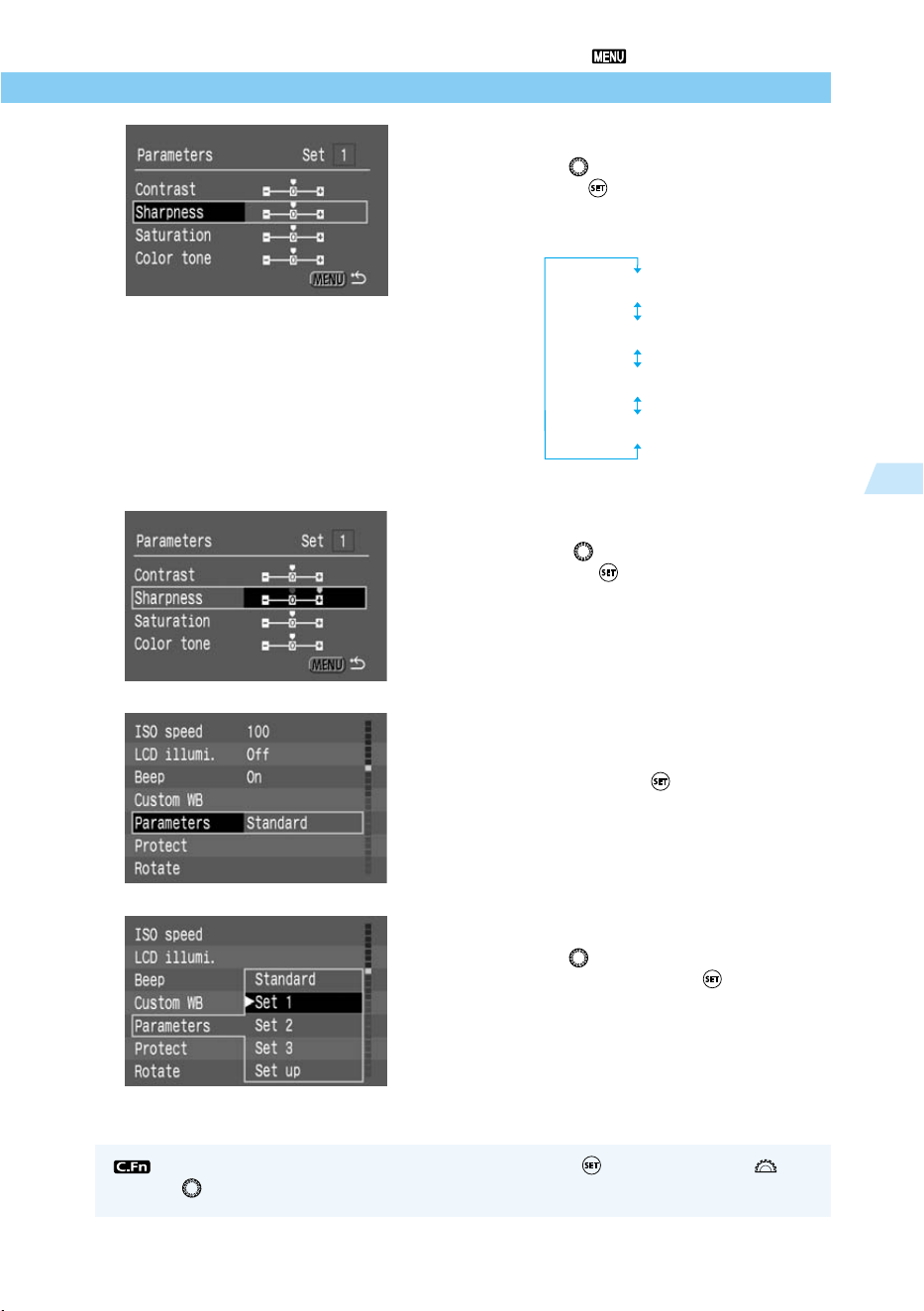
53
Advanced Operations
3
Setting Processing Parameters
You can set the processing parameter by pressing < > and turning the < > or
< > dial while looking at the LCD panel. (C.Fn-12-3→126)
4
Select the parameter to be set.
● Turn the < > dial to select the parameter,
then press < >.
● The parameter selection will change in the
following loop:
5
Set the desired parameter setting.
● Turn the < > dial and select [–], [0], or [+].
Then press < > .
6
Go back to step 1.
● Press the <MENU> button twice to return to
step 1, then press < >.
7
Select the desired set number.
● Turn the < > dial and select [Set 1], [Set
2], or [Set 3]. Then press < >.
[Contrast]
[Sharpness]
[Saturation]
[Color tone]
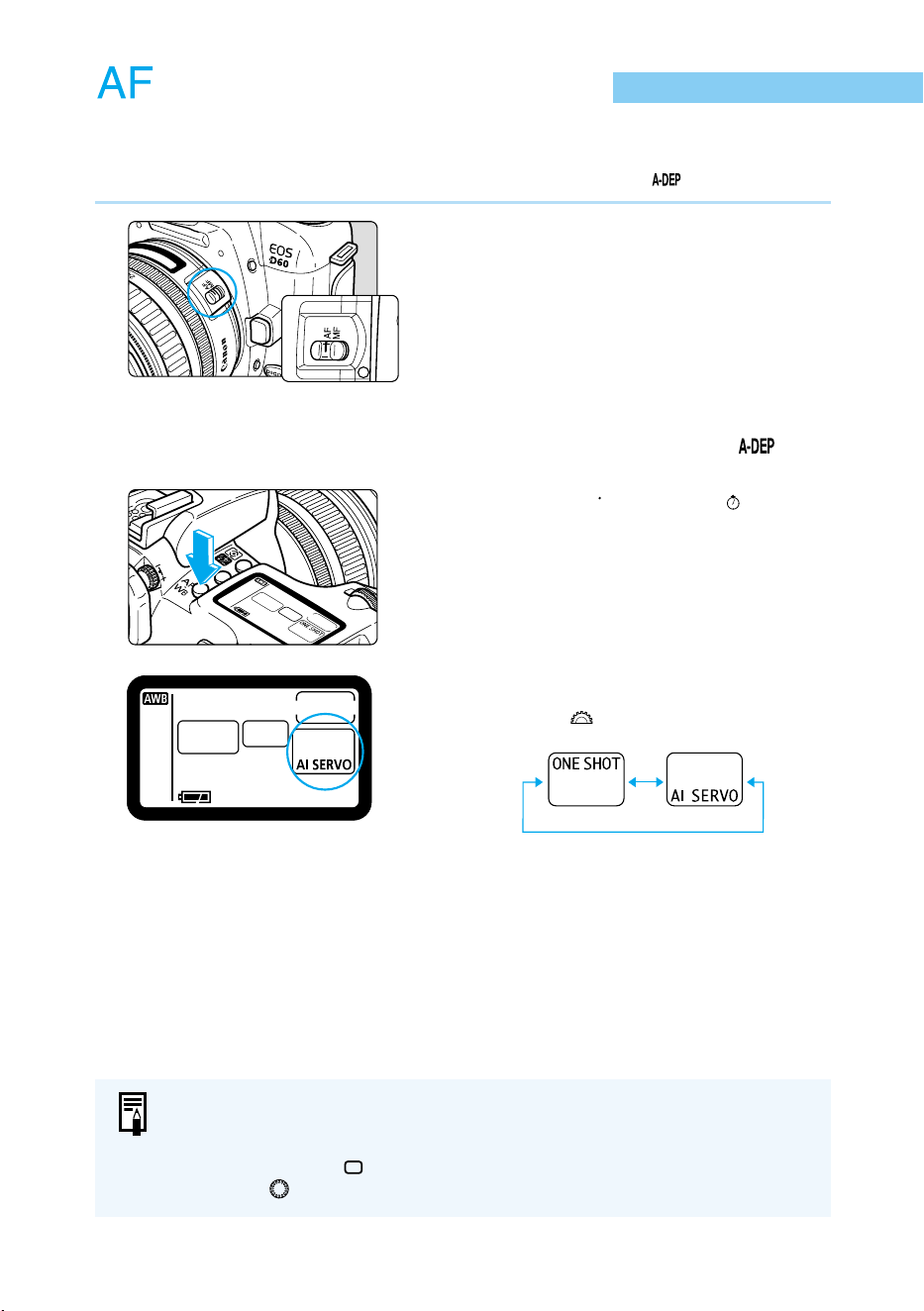
54
AF Mode Selection
The AF mode setting controls how the autofocus functions operate. The camera has two AF
modes: One-shot AF for still subjects, and AI Servo AF for moving subjects.
AF mode selection is available in all Creative zone settings except for < >.
1
Set the lens focus mode switch to
<AF>.
2
Set the Mode Dial to a Creative
zone setting other than < >.
3
Press the <
AF
WB
> button. (
6
)
4
Select the AF mode.
● Turn the < > dial to make the selection.
● Press the shutter button down halfway to
return to ready-to-shoot status.
● In addition to the above two AF modes, the EOS D60 provides AI Focus AF,
which automatically switches between One-shot and AI Servo AF modes
according to the state of the subject. AI Focus AF is automatically selected
when operating in < > (Full Auto) mode.
● Turn the < > dial to select the white balance (→64).
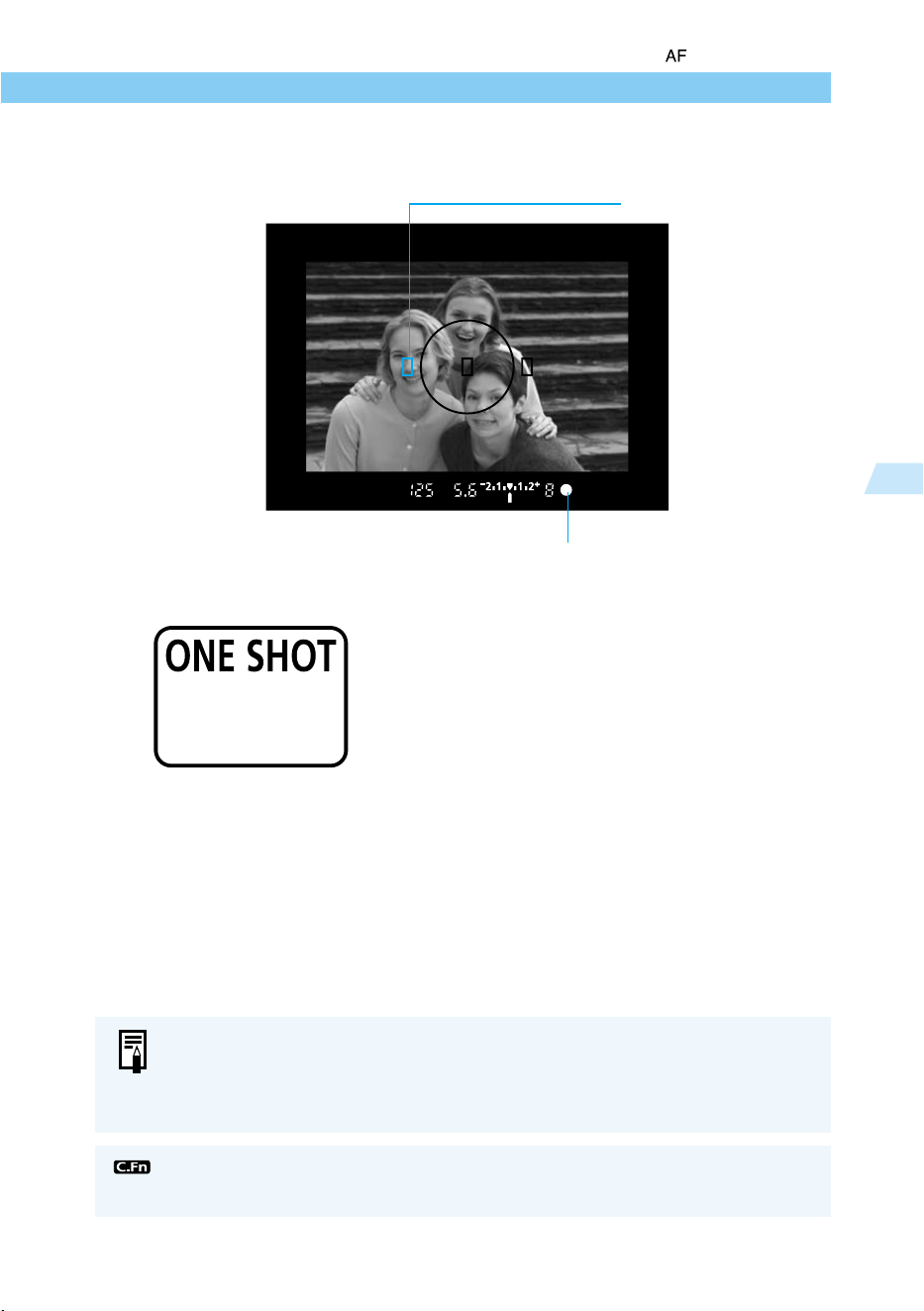
55
Advanced Operations
3
AF Mode Selection
One-Shot AF for Still Subjects
Press the shutter button down
halfway to activate AF operation
and focus once.
➡ The AF point achieving focus will flash in
red and the beeper will sound. The focus
confirmation light <● > at the lower right will
also light.
● When using evaluative metering, the
exposure setting is determined when focus
is achieved. The exposure setting and focus
remain locked as long as the shutter button
is pressed down halfway. You can then
recompose the shot while retaining the
exposure setting and focus (→58).
If the camera cannot focus, the focus confirmation light (● ) in the viewfinder
blinks. If this happens, you will not be able to take a picture even if you press the
shutter button down fully. Instead, reframe the shot and focus again. See also,
“Manual Focus” (→59).
Superimposed display
Focus confirmation light
You can disable the AF point’s red flashing (superimposed display).
(C.Fn-14-1→126)
56
AF Mode Selection
AI Servo AF for Moving Subjects
Press and hold the shutter button
down halfway, and the camera
focuses continuously.
● This mode is suited for moving subjects
when the focusing distance keeps chang-
ing.
● With its predictive AF function, the camera
can also track a subject that is steadily
approaching or retreating from the camera.
● The exposure settings are determined
immediately before the picture is taken.
Predictive AF
When a subject is approaching or retreating from the camera at a constant rate, the focusing
function can track the subject and predict the focusing distance immediately before the picture
is taken so that the shot will be in focus at the moment of exposure.
● When the AF point is selected automatically, the camera uses one of three AF points to
focus on the subject. Tracking and predictive focusing is carried out using the camera
selected AF point.
● When the AF point is selected manually (→57), the selected AF point tracks the subject.
AI Focus AF
AI Focus AF is set automatically in < > (Full Auto) mode. At the time of the shot, the camera
automatically selects One-shot AF or AI Servo AF according to the state of the subject.
If the subject is focused in One-shot AF and the subject then begins to move continuously, the
camera detects the movement, automatically switches to AI Servo AF, and focuses continu-
ously as it tracks the subject.
● The focus confirmation light <●> will not light and the beeper will not sound
when focus is achieved.
● When focus is not achieved, the focus confirmation light <● > will blink.
● Focus lock (→58) cannot be used.
You can set the camera so that during AI Servo AF operation, you can press the
< > button and the focus will momentarily lock as long as the button is held
down. (C.Fn-2-2→122)
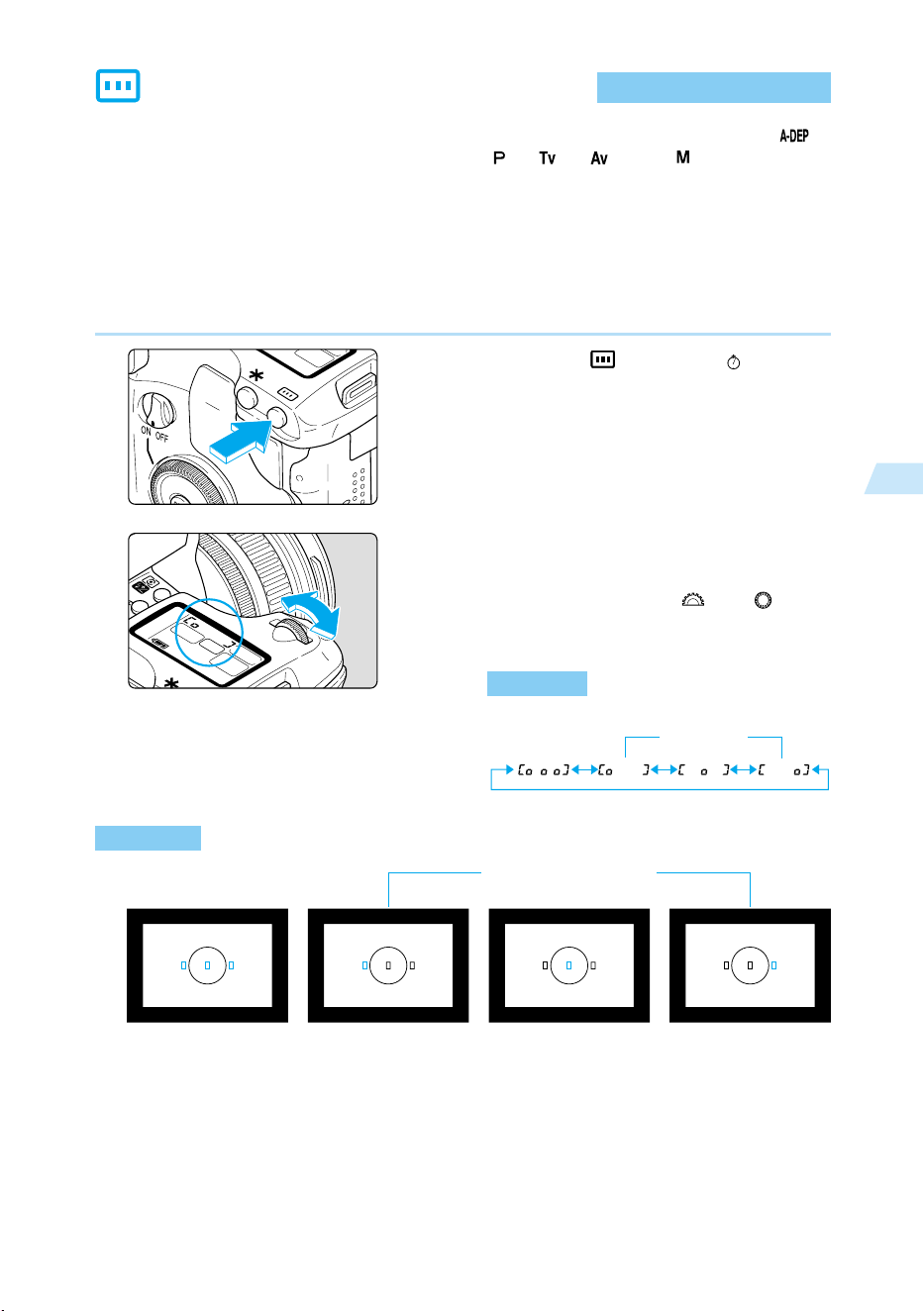
57
Advanced Operations
3
AF Point Selection
The AF point can be selected automatically or manually. In the Basic Zone modes and < >
mode, AF point selection will be automatic. In the <
>, < >, < >, and < > modes, AF
point selection can be set to either automatic or manual.
Automatic selection : The camera selects the AF point automatically according to conditions.
Manual selection : You can select any of the three AF points manually. This is best when
you want to be sure to focus on a particular subject, or to use the speed
of the AF focusing function to help you compose a particular shot
quickly.
1
Press the < > button. (
6
)
2
Select the AF point.
➡ Look at the LCD panel or the viewfinder
display as you turn the < > or < > dial.
● Press the shutter button halfway to ready
the camera for shooting.
●
Automatic selection
: All the AF points will light
in red.
●
Manual selection: The desired AF point
lights in red.
Automatic AF point
selection
Manual AF point
selection
Automatic
AF point selection
Manual
AF point selection
LCD panel
Viewfinder
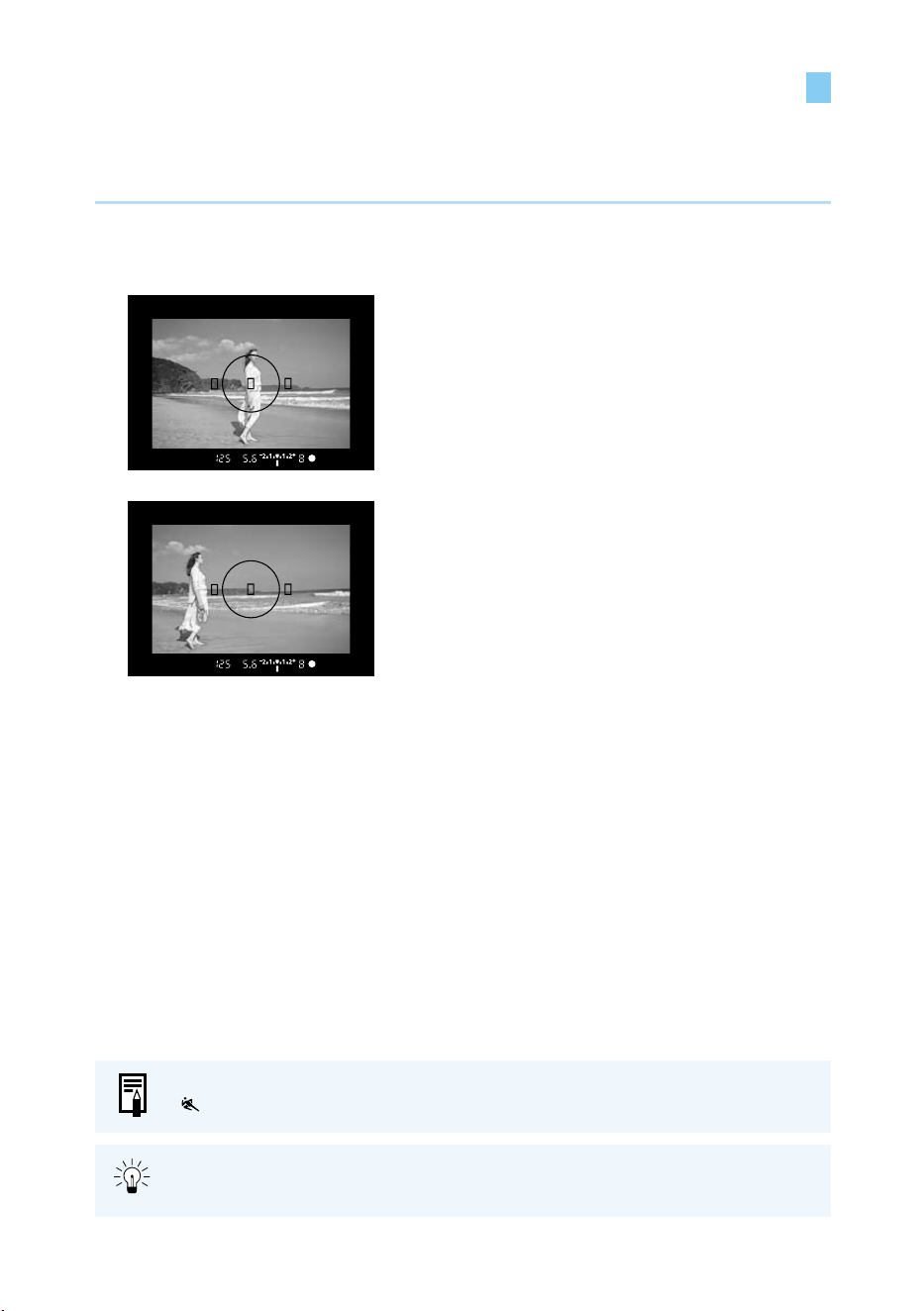
58
Focusing On an Off-Center Subject
To focus on a subject not covered by one of the three AF points, follow the procedure below.
This technique is called Focus Lock.
Focus lock is valid when the AF mode is set to One-shot AF.
1
Select an AF point.
(→57)
2
Focus on the subject.
● Place the AF point over the subject and
press the shutter button down halfway.
3
Hold the shutter button down
halfway and recompose the
picture.
4
Take the picture.
You can also use the Focus lock function in the Basic Zone (except for
< >mode), starting from step 2.
For best results, use the combination of One-shot AF with AE lock applied on the
AF point where focus is achieved, and evaluative metering.
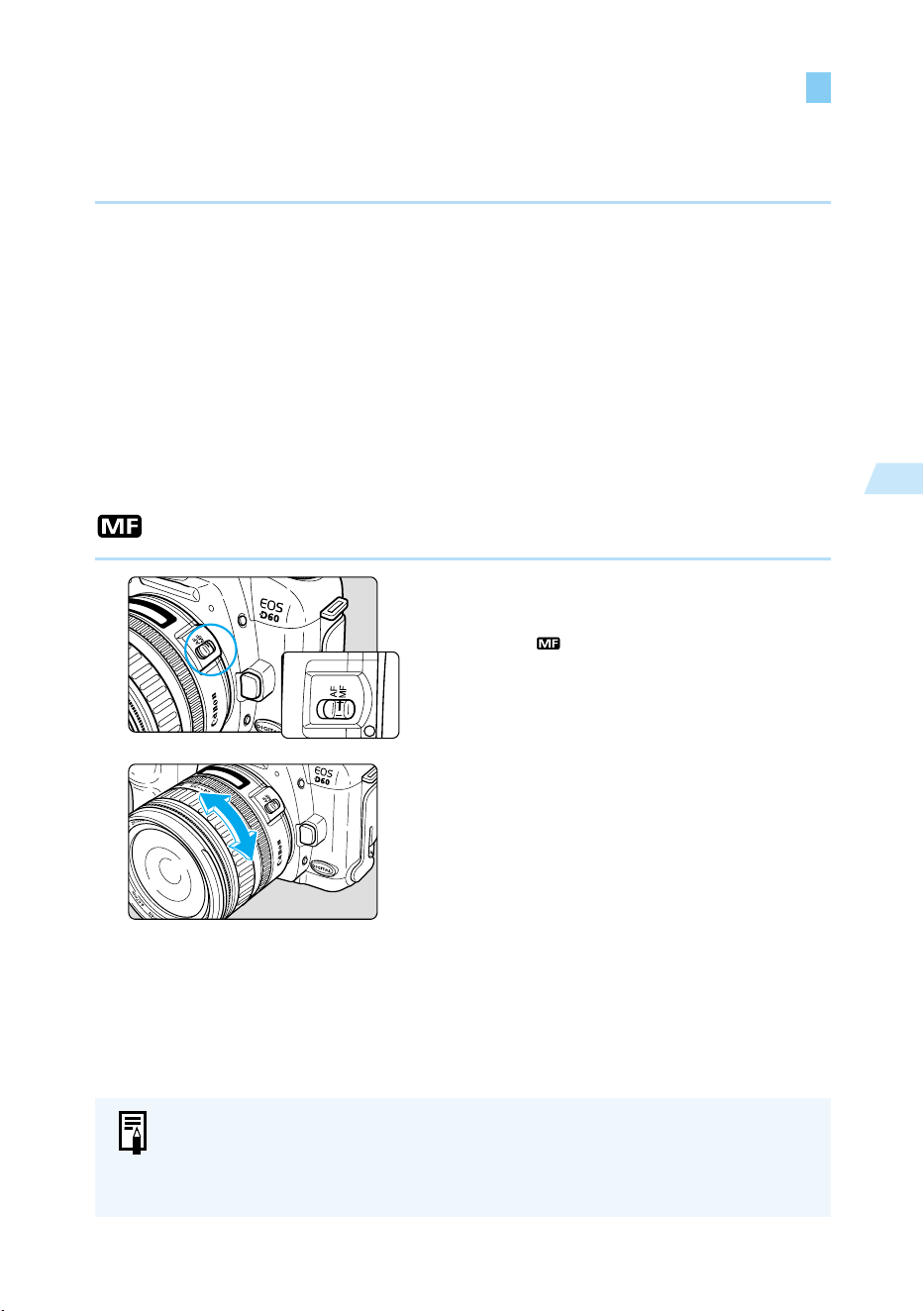
59
Advanced Operations
3
Problem Subjects for Autofocusing
The EOS D60 has a precision AF system that can focus on most subjects. However, it may not
be able to focus on subjects (focus confirmation light <●> blinks) in particular conditions such
as the following:
Difficult-to-Focus Subjects
● Very low-contrast subjects, such as a blue sky or single-color wall
● Subjects in very dark locations
● Extremely backlit or reflective subjects, such as a shiny new car
● Overlapping nearby and distant objects, such as cage bars and the animal inside the cage
In such cases, use one of the following procedures:
(1) Focus on an object that is at the same distance as the desired subject, apply Focus Lock,
then recompose the picture.
(2) Set the lens focus mode switch to <MF> (or <M>), and focus manually.
Manual Focus
1
Set the lens focus mode switch to
<MF> (or <M> on older lenses).
➡ The < > icon appears on the LCD panel.
2
Focus on the subject.
● Turn the manual focusing ring on the lens
until the subject appears sharp in the
viewfinder.
● If you press and hold the shutter button down halfway as you focus manually,
you will see the AF point where the subject is focused, and the focus confirma-
tion light <●> will light.
● During manual focus, the beeper will not sound even when focus is achieved.
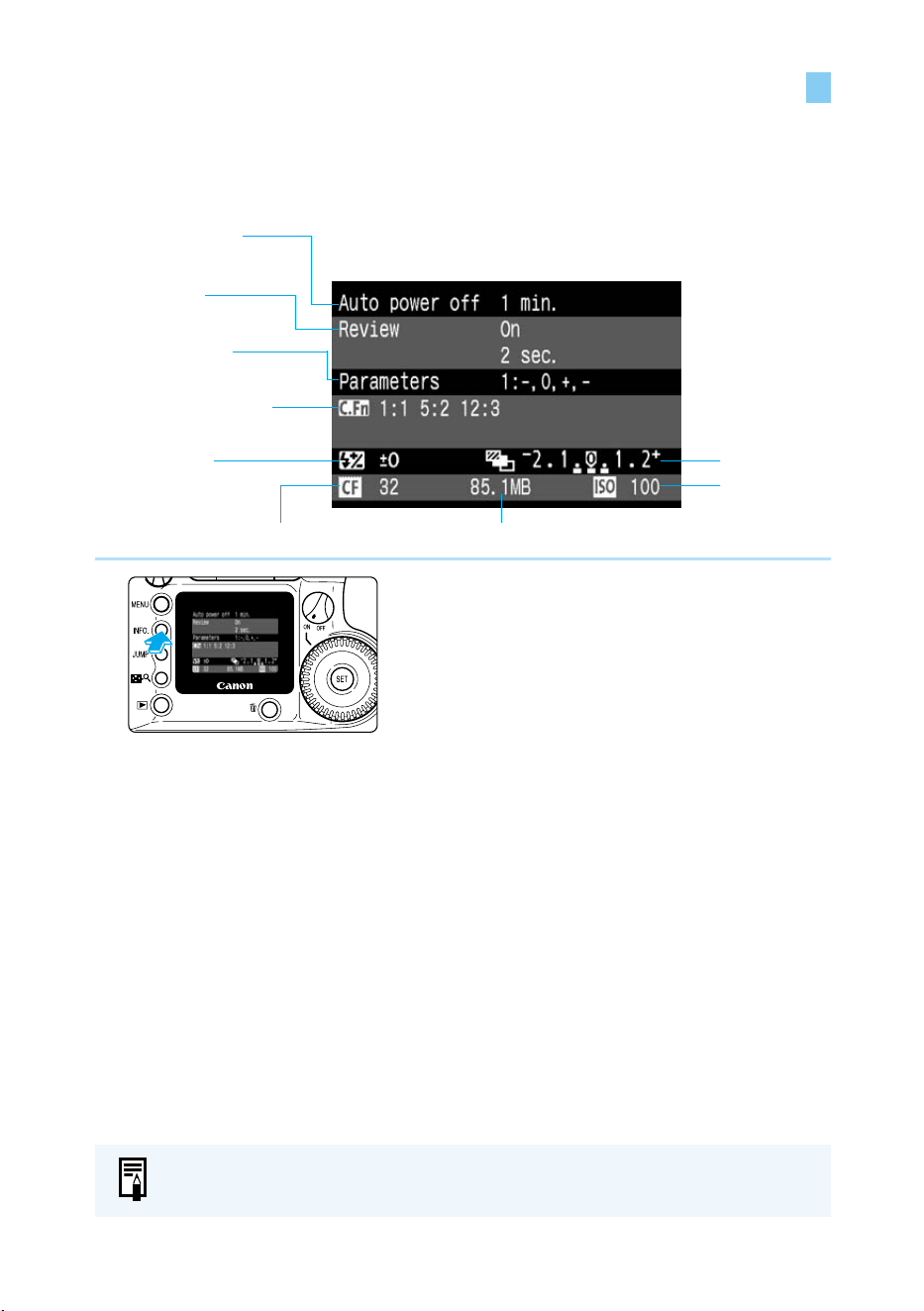
60
When the camera is ready to shoot, press the <
INFO.
> button to view the current camera
settings on the LCD monitor.
Camera Setting Information
1
Display the camera settings.
● Press the <
INFO.
> button.
➡ The current camera settings appear on the
LCD monitor.
● Press the <
INFO.
> button again to clear the
LCD monitor.
INFO.
Checking Camera Settings
Auto power off time
(→29, 120)
Review (→41),
Review time (→42)
Parameters (→52)
C.Fn (Custom Function)
number(s) (→122)
Flash exposure
compensation (→91)
Shots remaining
CF card capacity remaining (→50)
ISO speed
(→51)
AEB (→78)
For viewing image information during playback, see “Turning the Information
Display On and Off” (→100).
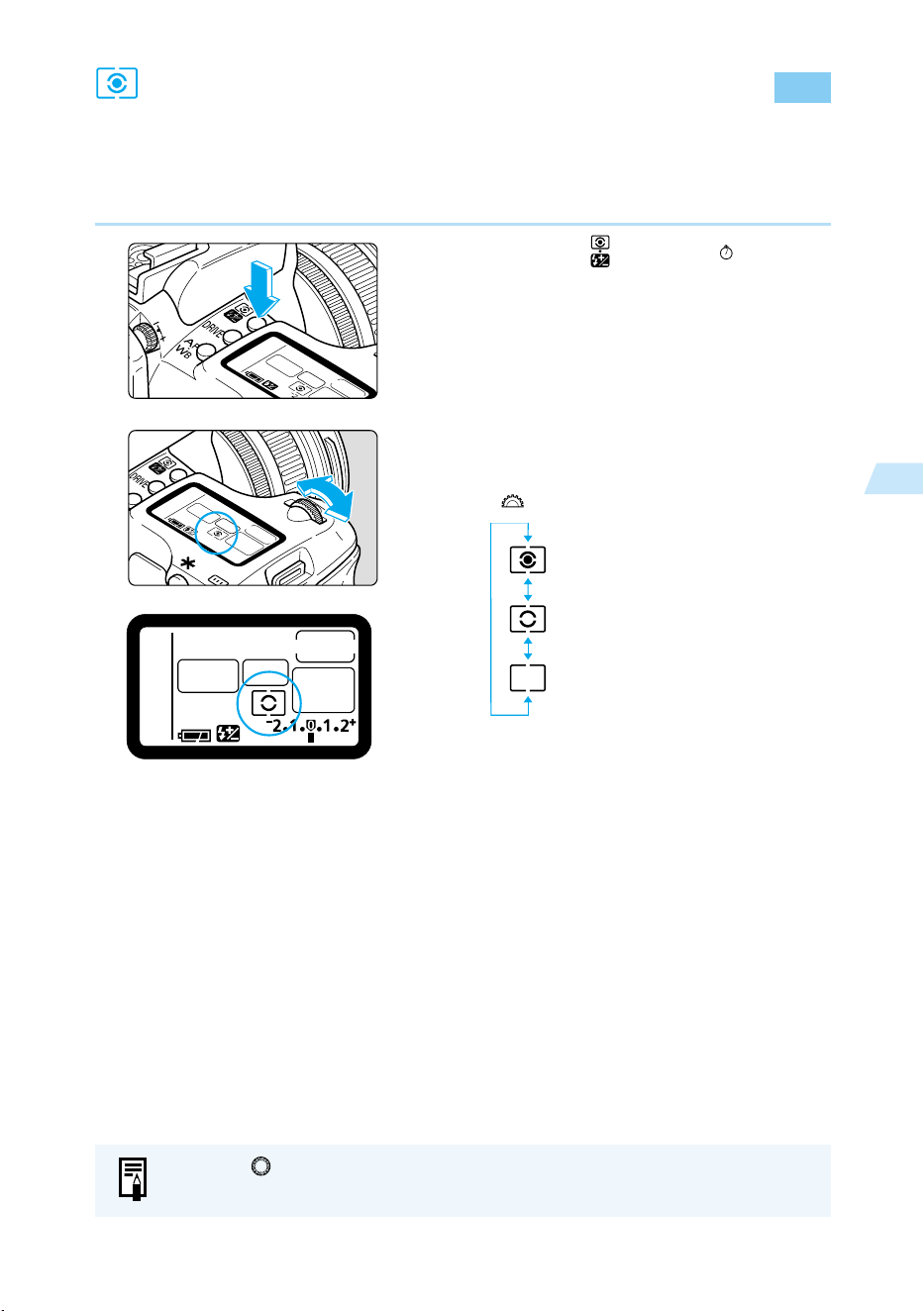
61
Advanced Operations
3
Selecting a Metering Mode
The EOS D60 uses three modes for metering: Evaluative, Partial, and Center-weighted
average.
The Basic Zone uses evaluative metering. In the Creative zone, any of the three modes can be
selected.
1
Press the < > button. (
6
)
2
Select a metering mode.
➡ Look at the LCD panel as you turn the
< > dial.
: Evaluative
: Partial
: Center-weighted average
● Press the shutter button down halfway to
return to ready-to-shoot mode.
Turn the < > dial to set the flash exposure compensation for the built-in/optional
flash (→91).
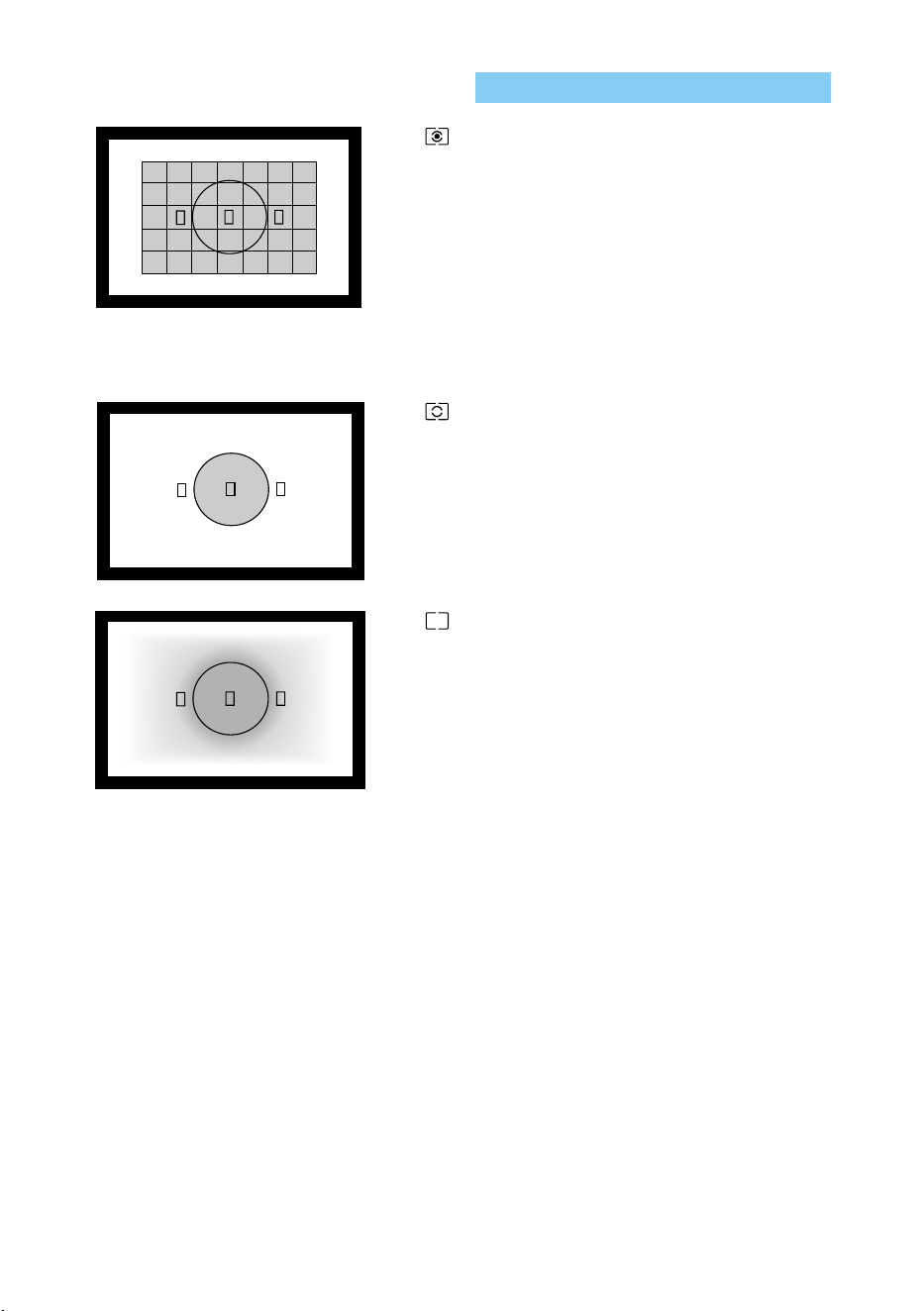
62
Metering Modes
: Evaluative Metering
This is an all-around metering mode suited even for
backlit subjects. The viewfinder field is divided into
35 metering zones to which the three AF points are
linked for evaluative metering. The camera deter-
mines the main subject’s size, position, brightness,
background, front and back lighting, etc., so that it
can select the proper exposure for the subject at all
times.
● When using manual focusing, evaluative
metering is based on the center AF point.
: Partial Metering
This is particularly effective when the background is
much brighter than the subject due to backlighting,
etc. This method uses a center area of approxi-
mately 9.5% of the screen.
● The area covered by partial metering is shown on
the left.
: Center-weighted Average Metering
This method meters the average exposure of the
entire viewfinder screen, and gives extra weight to
the center.
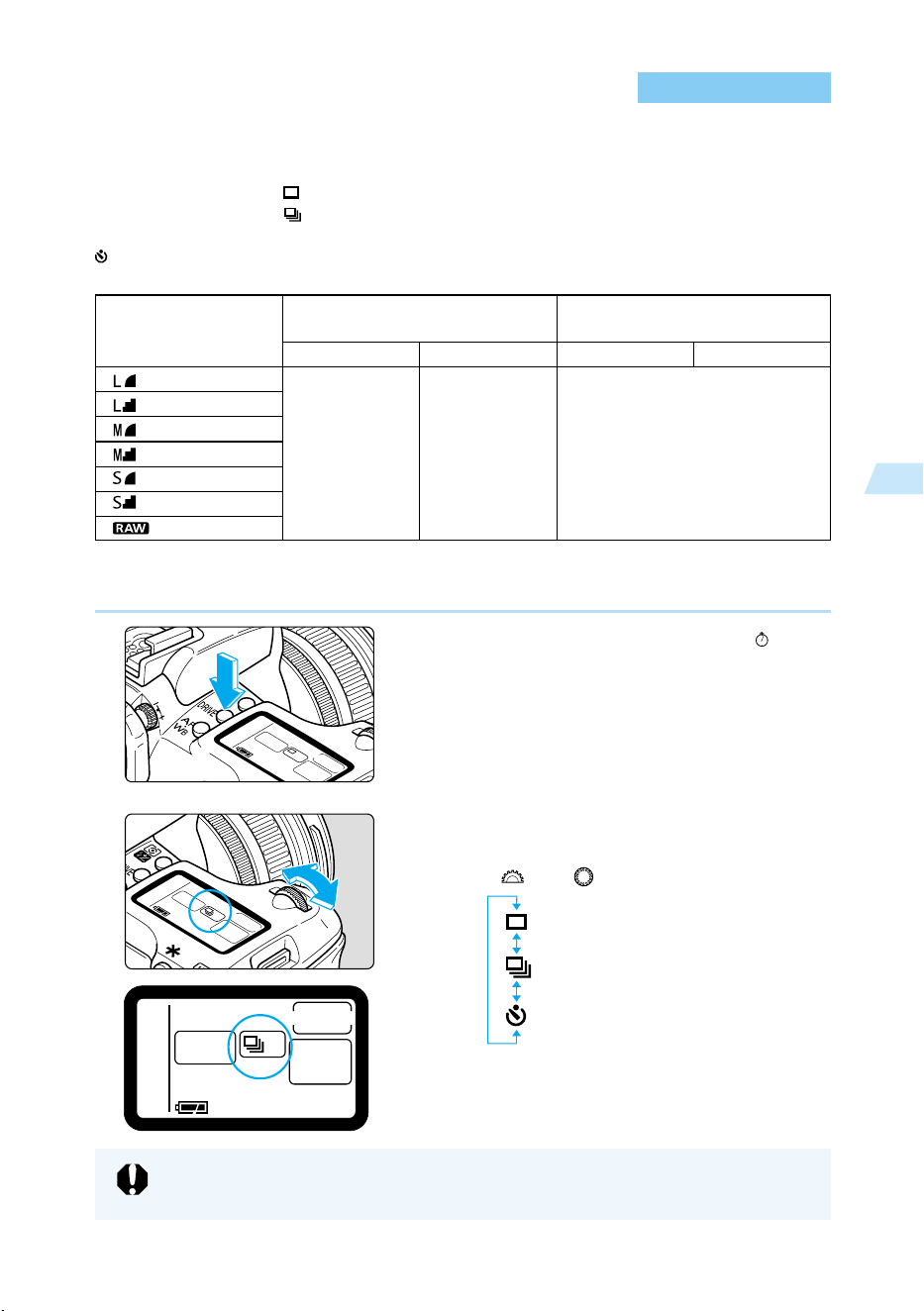
63
Advanced Operations
3
Selecting a Drive Mode
You can set the EOS D60’s drive mode to single-frame shooting, continuous shooting or self-
timer operation.
Single-frame shooting < >: Press the shutter button to take one image.
Continuous shooting < >: You can use the continuous shooting mode by pressing and
holding the shutter button.
Self-timer operation: When you press the shutter button, the picture will be taken
about 10 sec. later. (→81)
● The figures above are based on Canon’s testing standards (at 1/250 sec. or faster and ISO
100).
1
Press the <
DRIVE
> button. (
6
)
2
Select the drive mode.
● Look at the LCD panel as you turn the
< > or < > dial.
: Single-frame shooting
: Continuous shooting
: Self-Timer Operation
● Press the shutter button down halfway to
return to ready-to-shoot mode.
Size/Quality
Large/Fine
Large/Normal
Medium/Fine
Medium/Normal
Small/Fine
Small/Normal
RAW
ONE SHOT
3
AI SERVO
2.5
ONE SHOT AI SERVO
Maximum number of images
(Approx. images/sec.)
Max. Burst During Continuous Shooting
(Approx. images)
8
If the CF card’s remaining capacity is enough for less than 8 images, continuous
shooting might not be possible.
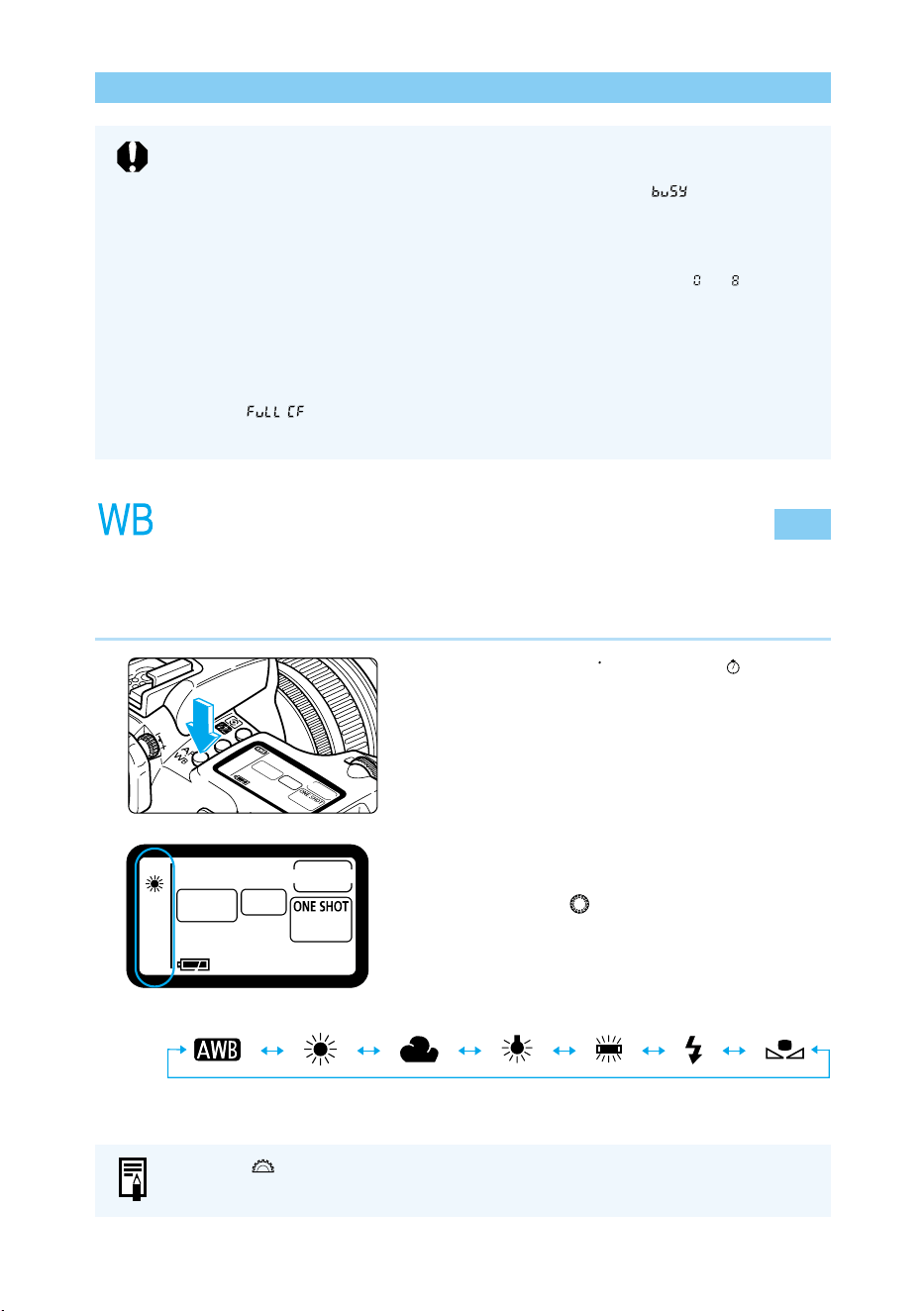
64
Setting the White Balance
The EOS D60 has seven white balance settings, Auto, Daylight, Cloudy, Tungsten, Fluores-
cent, Flash, and Custom. In the Basic Zone the Auto setting is selected automatically, while in
the Creative zone you can select any of the seven white balance settings.
1
Press the <
AF
WB
> button. (
6
)
2
Select the white balance setting.
● Set the Quick Control Dial switch to <ON>.
● Turn the < > dial.
● Press the shutter button down halfway to
return to ready-to-shoot mode.
Auto Daylight Cloudy Tungsten
Fluorescent
Flash Custom
Selecting a Drive Mode
● During continuous shooting, the captured images are first stored in the camera's
internal memory and then successively transferred to the CF card. When the
internal memory becomes full during continuous shooting, “ ” will be
displayed on the LCD panel and in the viewfinder and the camera cannot take
any more pictures. As the captured images are transferred to the CF card, you
will be able to take more pictures. Press the shutter button halfway to check in
the viewfinder the current remaining number of maximum shots ( to ) for
continuous shooting. Note that this number will be displayed even when there is
no CF card in the camera, so make sure a CF card is in the camera.
● If you press the shutter button halfway before all the images in the internal
memory are transferred to the CF card (access lamp blinking), the image
transfer to the CF card will stop temporarily.
● When “ ” is displayed in the viewfinder and on the LCD panel, replace
the CF card after the access lamp stops blinking.
Turn the < > dial to select the AF mode (→54).
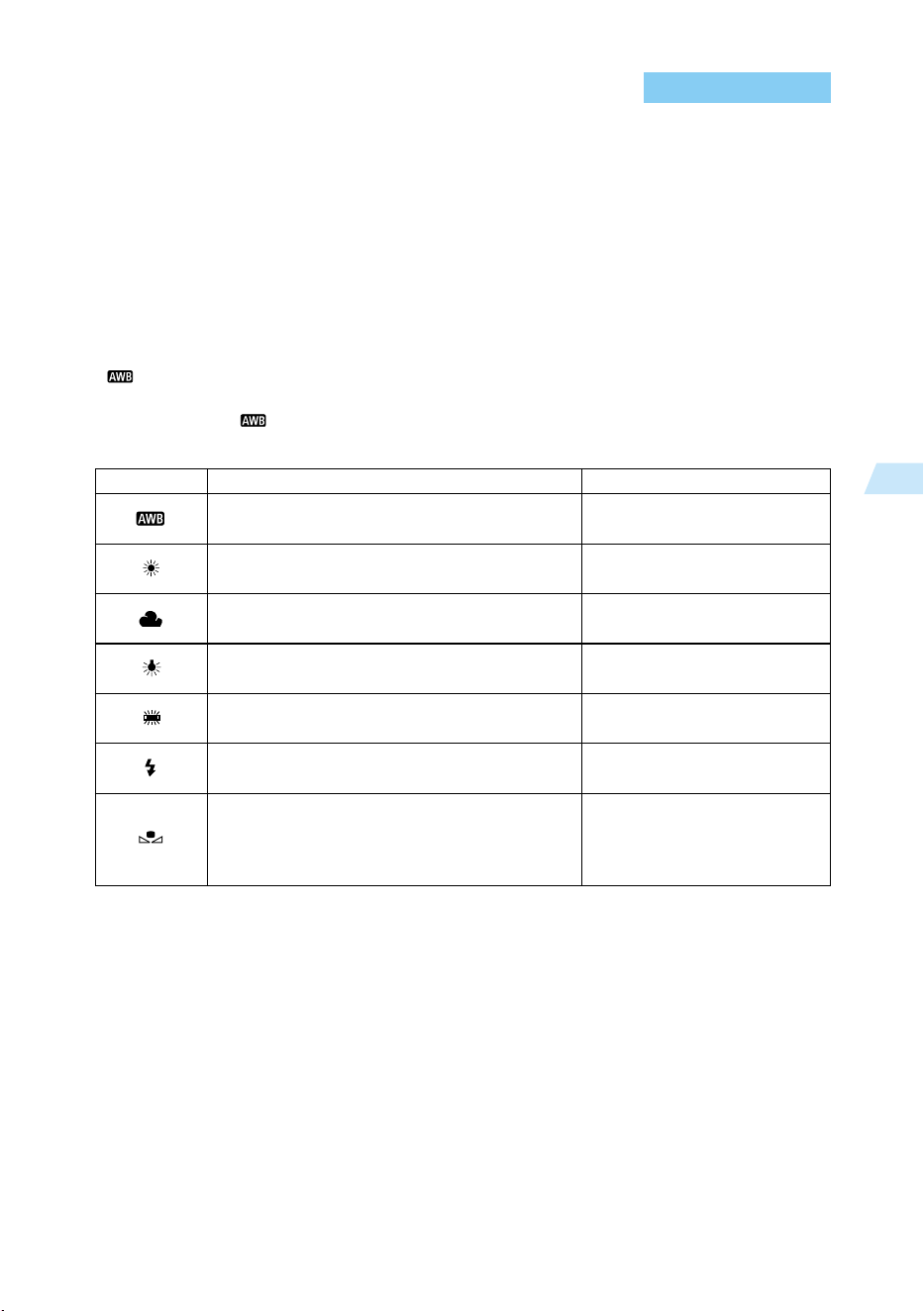
65
Advanced Operations
3
White Balance Settings
In light from any source, the proportion of the primary colors (red, green, blue) in the light
varies according to the color temperature. Higher color temperatures contain a greater
proportion of blue, and lower color temperatures contain a greater proportion of red. Moving
from low to high, the progression is red → orange → yellow → white → blue-white. For ex-
ample, a given subject will appear reddish if taken under tungsten (incandescent) lighting, or
greenish if taken under fluorescent lighting.
The human eye automatically adapts to changes in light so that white subjects appear white
even under different lighting conditions. Cameras that use film have to adjust for these
differences by using color-correcting filters or switching to different film types. Digital cameras
rely on software to correct the color temperature by determining white as the basis for the
colors in the subject, then correcting the other colors to achieve a natural color range.
< > mode automatically selects the white balance according to the light source where you
are shooting. If this does not produce pictures with satisfactory coloring, you can select a
mode other than < >.
Conditions
Camera selects the setting automatically.
For bright outdoor daylight.
For cloudy conditions, twilight or evening.
For indoor incandescent lighting.
For indoor white fluorescent lighting.
For flash pictures.
To photograph a white subject to use as a
base color, then load that white balancedata
to set the ideal white balance for that
shooting location (→66).
Color temperature K (Kelvin)
approx. 3000 -7000
approx. 5500
approx. 6000
approx. 3200
approx. 4000
approx. 6000
approx. 2000-10000
Icon
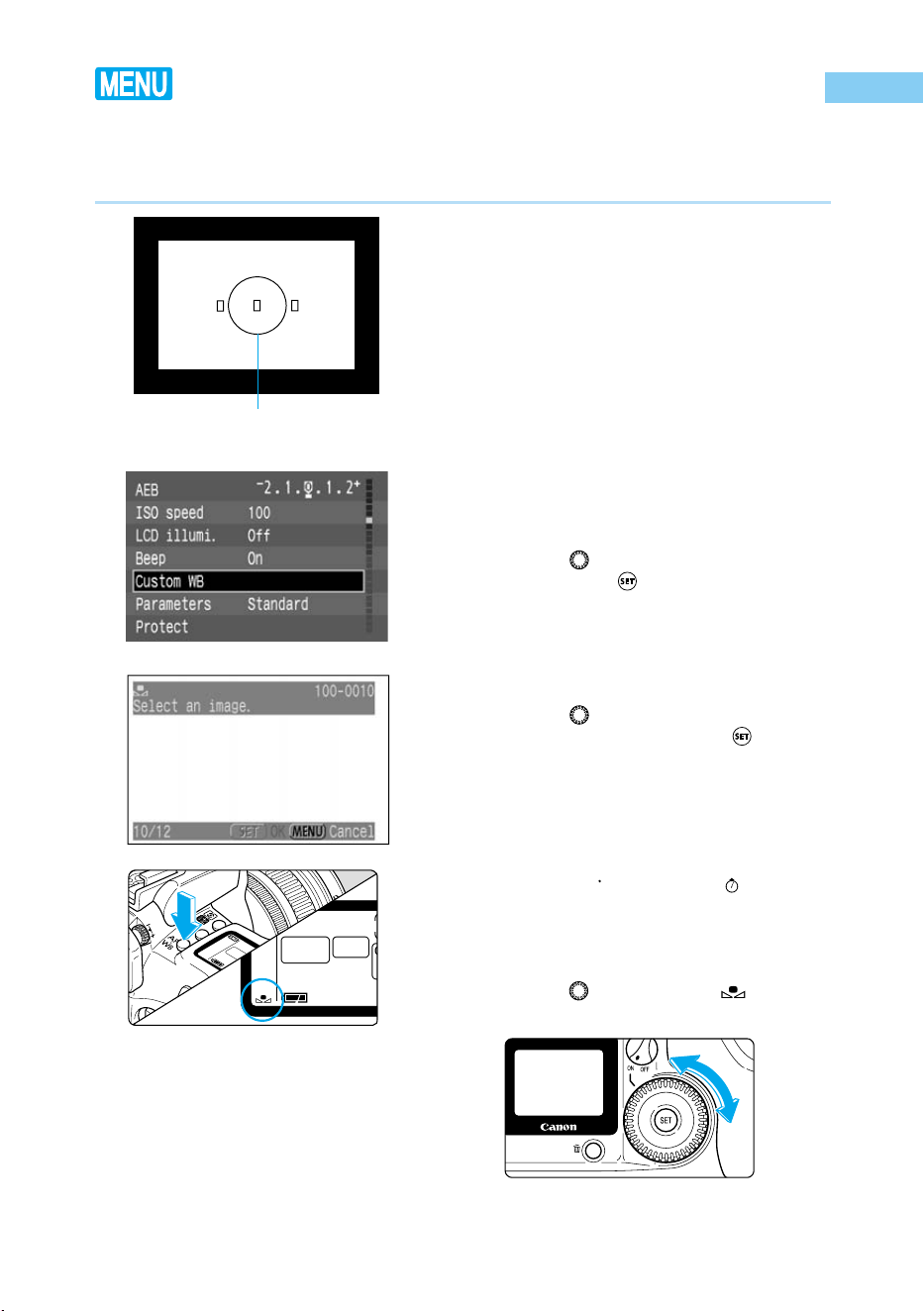
66
Custom White Balance Setting
Custom white balance lets you set the white balance yourself by photographing a white subject
to use as the basis for the camera’s white balance, and then selecting that picture for use as
white balance data.
1
Photograph a white subject.
● Take a picture of a white subject, just as
you would take a normal picture.
●
Frame the shot so that the white subject fills the
entire partial metering zone in the viewfinder.
●
This picture can be taken using any mode (→16).
●
Photograph a white subject so that a standard
exposure is obtained. If the picture is underex-
posed or overexposed, the correct white balance
might not be obtained.
2
From the menu, select [Custom
WB].
● Press the <
MENU
> button.
● Turn the < > dial to select [Custom WB],
then press the < > button.
3
Select the image.
● Turn the < > dial to select the picture you
took in step 1, then press the < > button.
● When the setting is entered, the screen
returns to the menu.
● Press the <
MENU
> button to clear the
screen and exit the menu.
4
Press the <
AF
WB
> button. (
6
)
5
Select the white balance.
● Turn the < > dial to select < >.
➡ The custom white balance is entered.
Partial metering zone
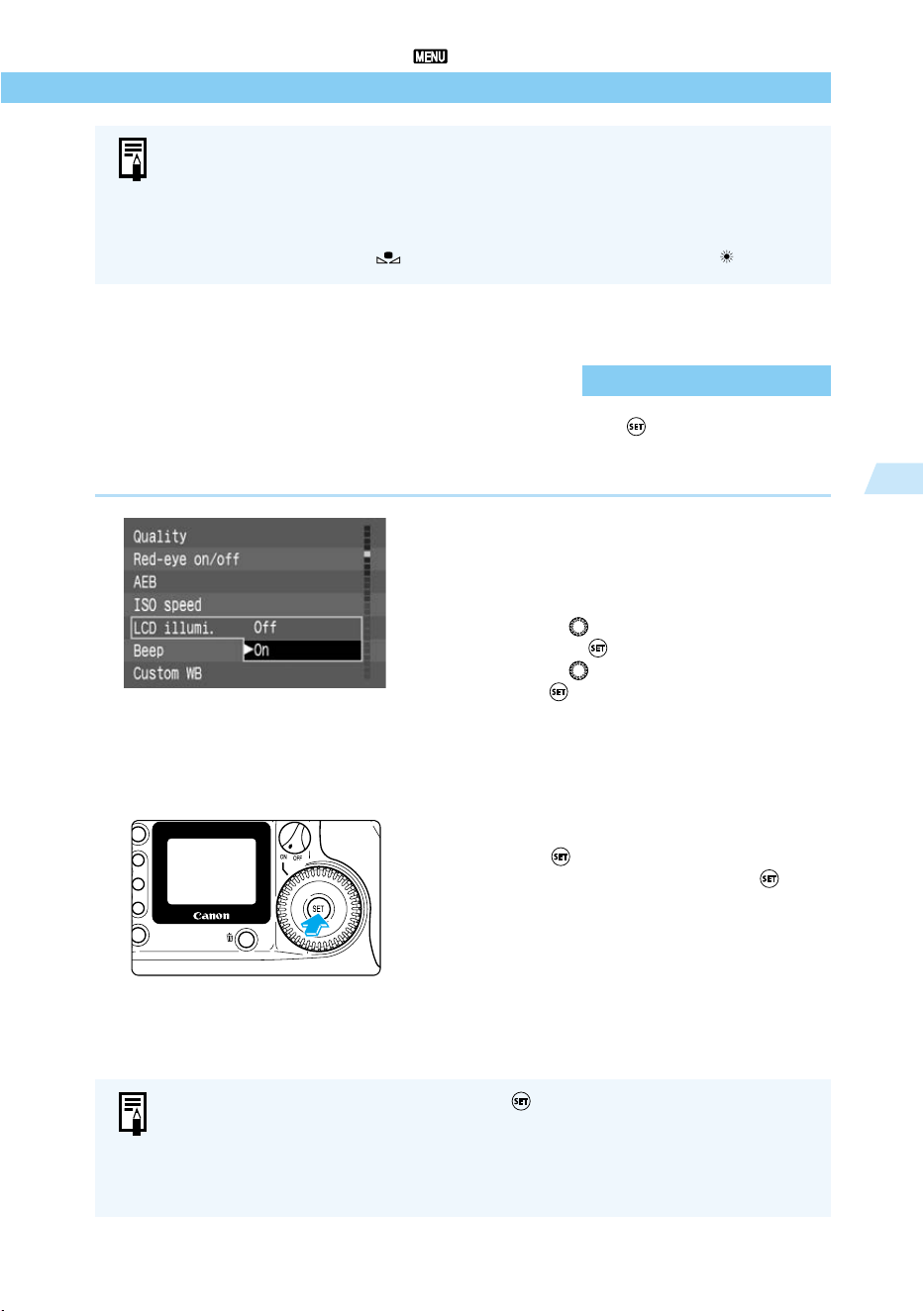
67
Advanced Operations
3
LCD Panel Illumination
Custom White Balance Setting/
LCD Panel Illumination
● For best results, use subjects such as plain white paper for white balance basis.
● White balance data is loaded from the partial metering zone (→17).
● You can store white subjects photographed under various conditions on the CF
card, then select these images as needed for the [Custom WB] function as an
easy way of setting the ideal white balance for any lighting conditions.
● The default setting for < > is the same as the default setting for < >.
The LCD panel can be illuminated for about 4 sec. by pressing the < > button. Pressing the
button again turns off the illumination.
After a picture is taken, the LCD panel illumination turns off automatically after 2 sec.
On the menu, select [LCD illumi.]
and set the LCD panel illumina-
tion.
● Press the <
MENU
> button.
● Turn the < > dial to select [LCD illumi.],
then press < >.
● Turn the < > dial to select [On], then
press < >.
➡ The LCD panel illumination will be enabled,
and the menu will reappear.
● Press the <
MENU
> to quit the menu and
turn off the display.
Illuminating the LCD panel
● Press < >.
● To turn off the illumination, press < >
again.
● If you operate a button or dial for picture-
taking while the LCD panel is illuminated,
the illumination will continue. If you press a
menu or image playback button, the
illumination will turn off.
● If C.Fn-12-1/2/3 has been set, pressing < > will not turn off the LCD panel
illumination (it will turn off automatically).
● If you take a picture while the LCD panel is illuminated, the illumination will
continue as you shoot.
● LCD panel illumination works in all shooting modes.
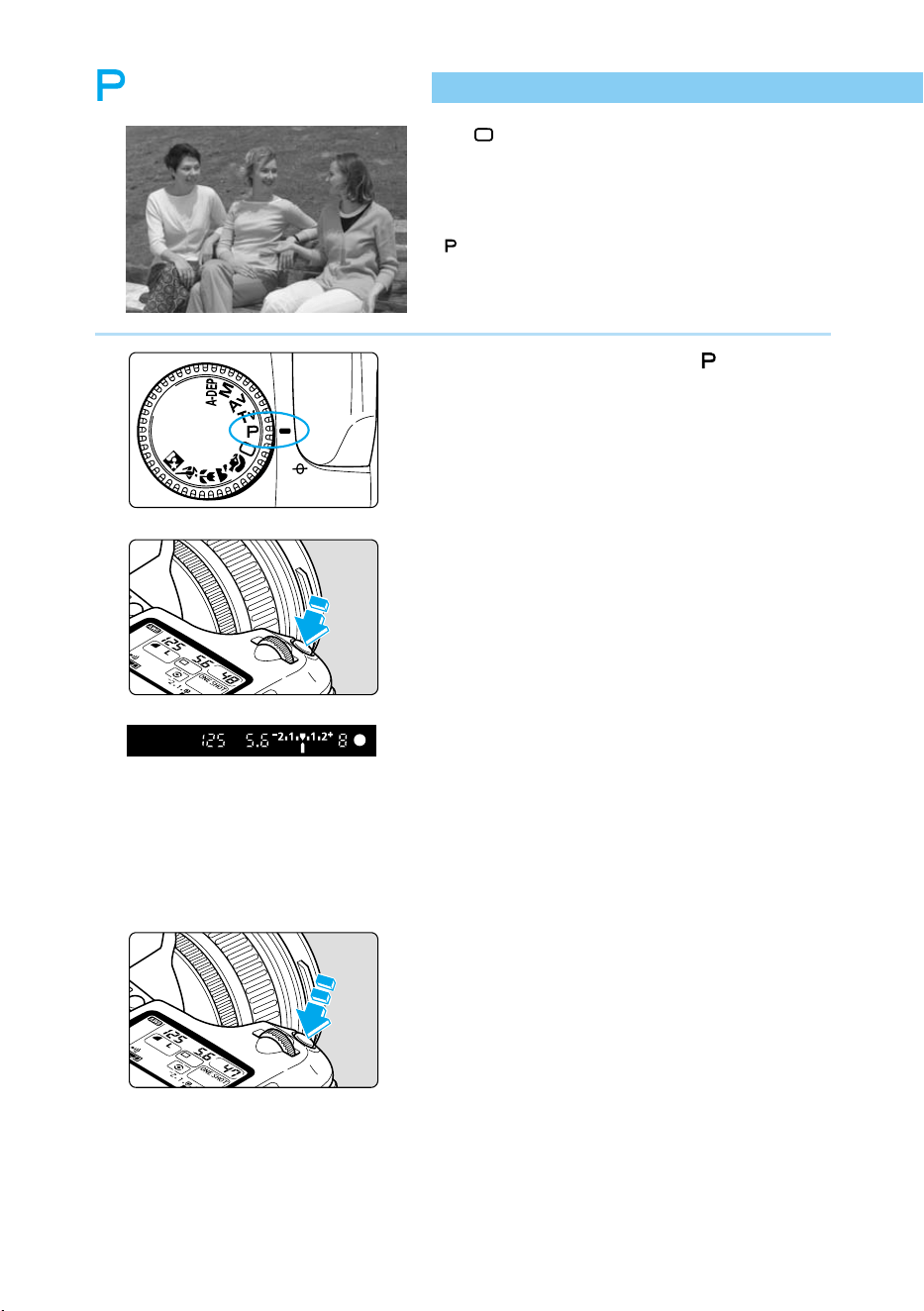
68
Program AE
Like < > (Full Auto) mode, this is a general-
purpose picture-taking mode. The camera automati-
cally sets the shutter speed and aperture value to
suit the scene’s brightness. This is called Program
AE.
∗ stands for Program
∗ AE stands for Auto Exposure
1
Set the Mode Dial to < >.
2
Focus on the subject.
● Press the shutter button down halfway.
➡ The AF point achieving focus will flash in
red and the beeper will sound. The focus
confirmation light < ● > at the lower right will
also light.
3
Check the display.
➡ The shutter speed and aperture value are
determined automatically, and displayed in
the viewfinder and on the LCD panel.
● If the shutter speed and aperture values are
not blinking, the exposure is correct.
● If either is blinking, see “Exposure Warn-
ings” (→132).
4
Take the picture.
● Compose the picture, then press the shutter
button down fully.
69
Advanced Operations
3
Program AE
Differences Between Program AE Mode < > and Full Auto Mode < >
● < > (Program AE) and < > (Full Auto) mode are alike in that both automatically deter-
mine the shutter speed and aperture values.
● The following functions can be used in < > mode but not in < > mode.
• AF mode selection • Built-in flash firing manually/firing prohibited
• Manual AF point selection • Flash exposure compensation
• Metering mode selection • Special features with EX-series Speedlites
• Drive mode selection - High-speed sync (FP Flash)
• Program shift - FE lock
• AE lock with < > button - Flash output ratio control
• Exposure compensation - FEB
• Autoexposure bracketing (AEB) - 2nd-curtain sync
• Depth-of-field preview - Modeling flash
• Custom Functions
Shifting the Program
In Program AE mode, you can freely change the shutter speed and aperture value combina-
tion (program) set by the camera while maintaining the same exposure value. This is called
shifting the program.
To do this, press the shutter button down halfway, then turn the < > dial until the shutter
speed or aperture value you want is displayed.
● Once you take a picture with the shifted program, the shifted program is canceled automati-
cally and the original program is restored.
● If you are using a flash, you cannot shift the program.
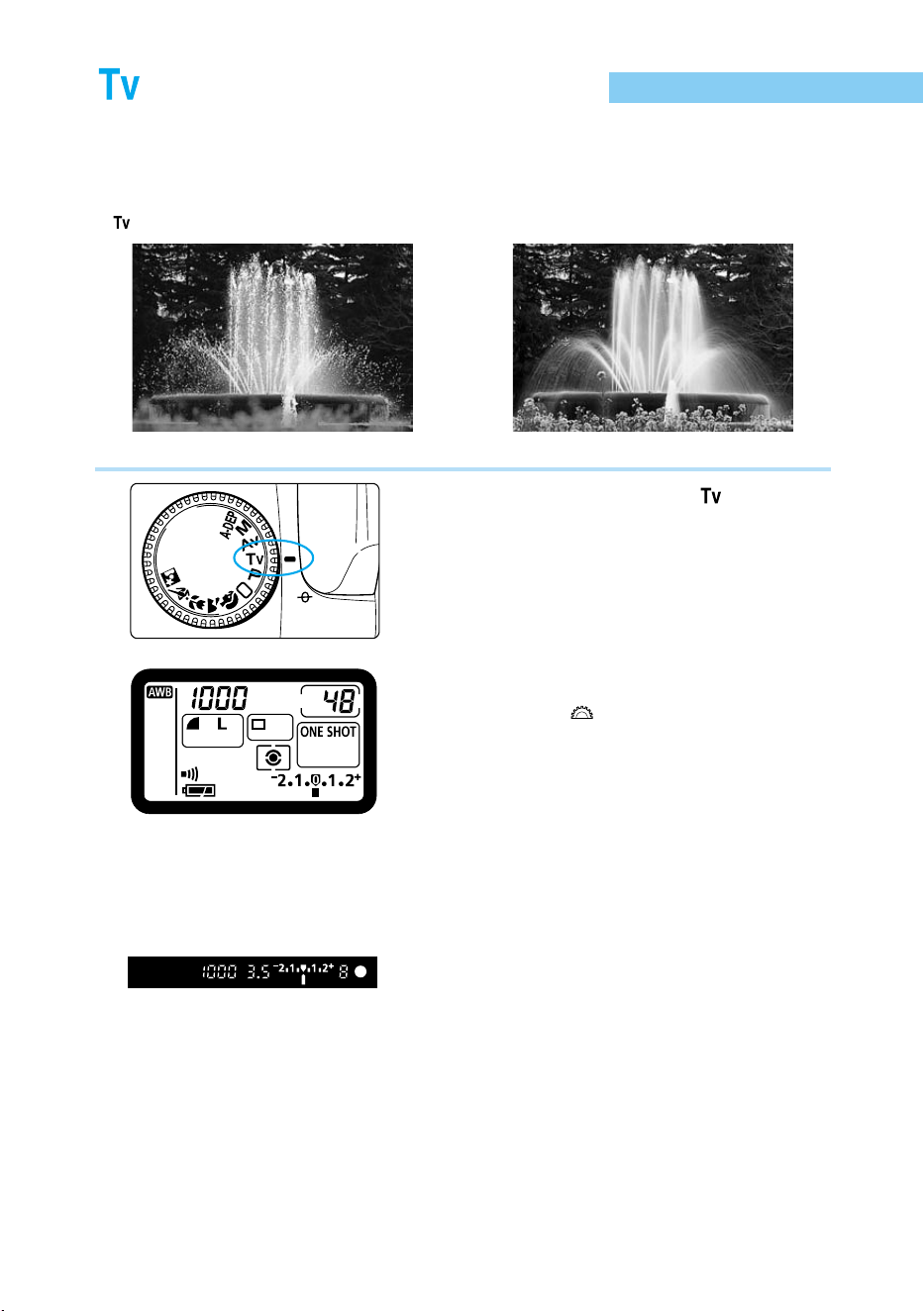
70
Shutter-Priority AE
In this mode, you set the shutter speed, and the camera automatically sets the aperture value
to suit the brightness of the subject. This is called Shutter-Priority AE.
A fast shutter speed can freeze the motion of a fast-moving subject, and a slow shutter speed
can blur the subject to give the impression of motion.
∗
stands for “time value.”
Fast shutter speed Slow shutter speed
1
Set the Mode Dial to < >.
2
Set the shutter speed.
● Turn the < > dial.
3
Focus on the subject.
● Press the shutter button down halfway.
➡ The aperture value is determined automati-
cally.
4
Check the display, then take the
picture.
● If the aperture value is not blinking, the
exposure is correct.
● Compose the picture, then press the shutter
button down fully.
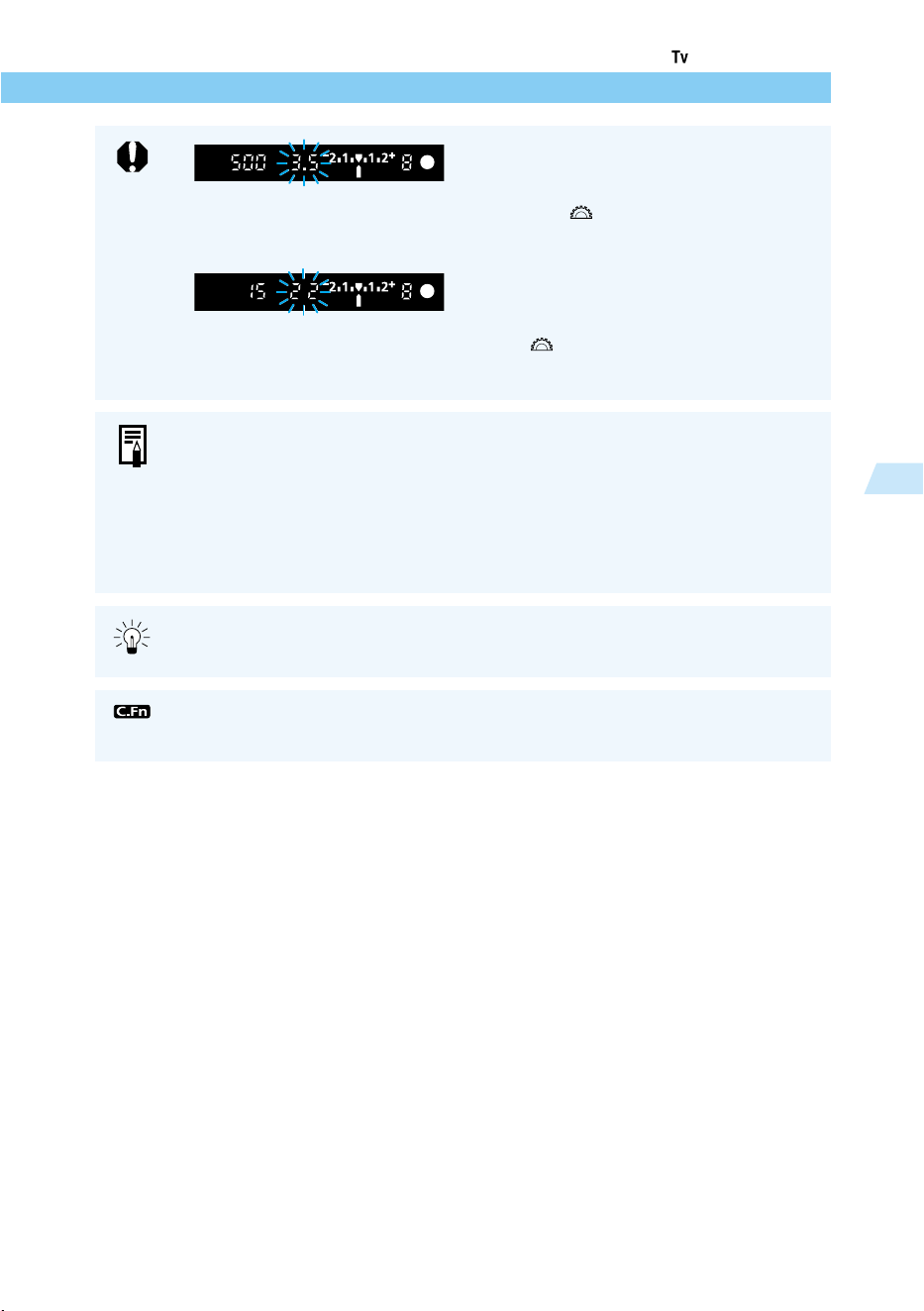
71
Advanced Operations
3
Shutter-Priority AE
● If the smallest aperture value (the
maximum open aperture) for the lens you
are using blinks, the scene is too dark.
Turn the < > dial to a slower shutter
speed until the aperture value stops
blinking.
● If the largest aperture value (the
minimum aperture) for the lens you are
using blinks, the scene is too bright. Turn
the < > dial to a faster shutter speed
until the aperture value stops blinking.
Shutter Speed Display
You can set the shutter speed in half-stop increments as shown below. The shutter
speeds from 4000 to 4 indicate the denominator of the fractional shutter speed, so
that—for example—125 is 1/125 second. For slow speeds, 0”7 is 0.7 seconds,
and 15” is 15 seconds.
4000 3000 2000 1500 1000 750 500 350 250 180 125 90 60 45 30 20
15 10 8 6 4 0”3 0”5 0”7 1” 1”5 2” 3” 4” 6” 8” 10” 15” 20” 30”
The ideal shutter speed for capturing a clear image from a TV screen is 1/15
second. We recommend using a tripod.
You can also set the camera so that you can set the shutter speed in 1/3-stop
increments. (C.Fn-4-1→122)
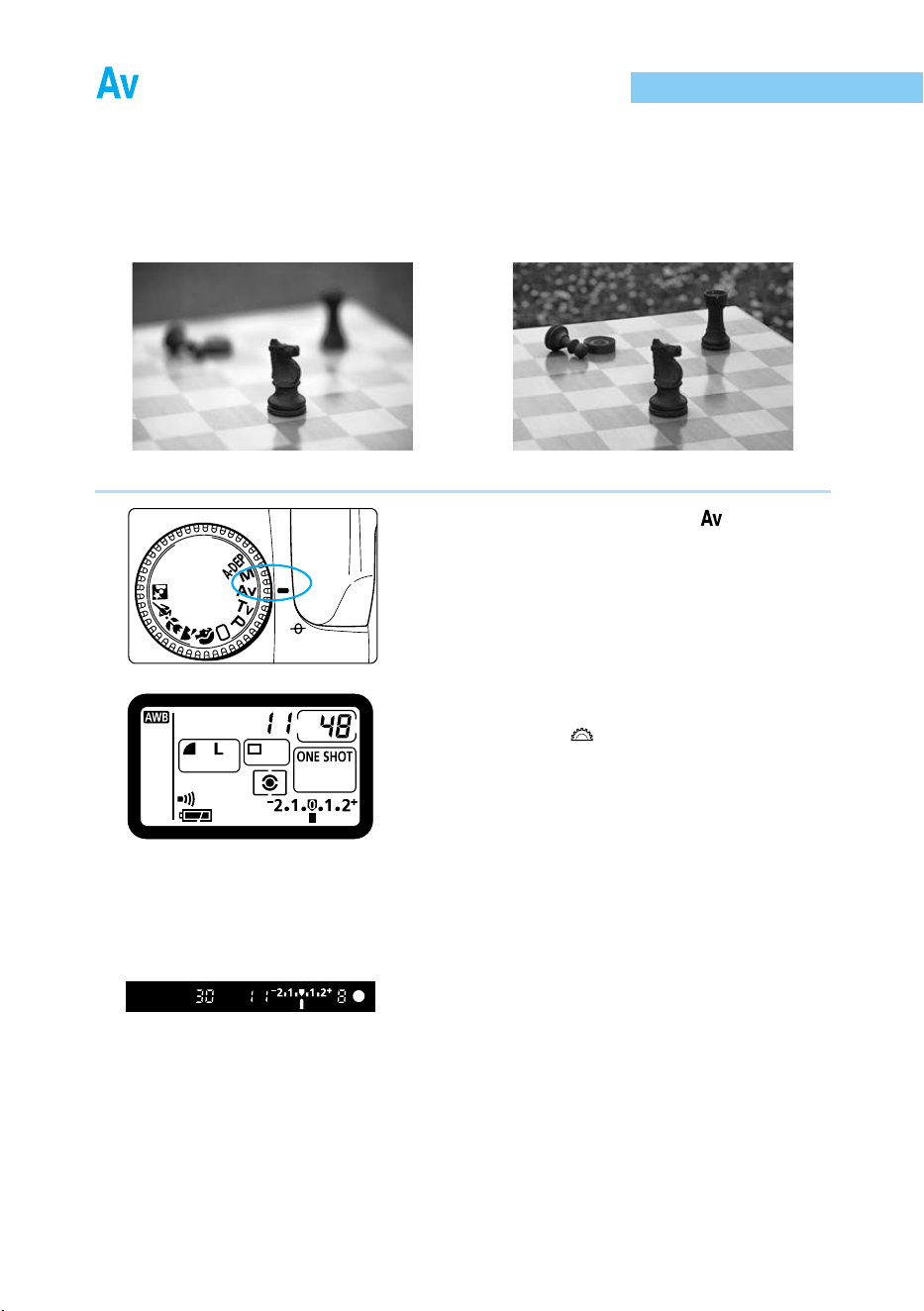
72
Aperture-Priority AE
In this mode, you set the aperture value, and the camera automatically sets the shutter speed
to suit the brightness of the scene. This is called Aperture-Priority AE.
By setting a smaller aperture value (larger aperture), you can blur the background to make the
subject stand out as in a portrait. Or, by setting a larger aperture value (smaller aperture), you
can increase the depth of field to make both the foreground and background look sharp.
∗ Av stands for “aperture value.”
Small aperture value Large aperture value
1
Set the Mode Dial to < >.
2
Select the aperture value.
● Turn the < > dial.
3
Focus on the subject.
● Press the shutter button down halfway.
➡ The shutter speed is determined automati-
cally.
4
Check the display, then take the
picture.
● If the shutter speed is not blinking, the
exposure is correct.
● Compose the picture, then press the shutter
button down fully.
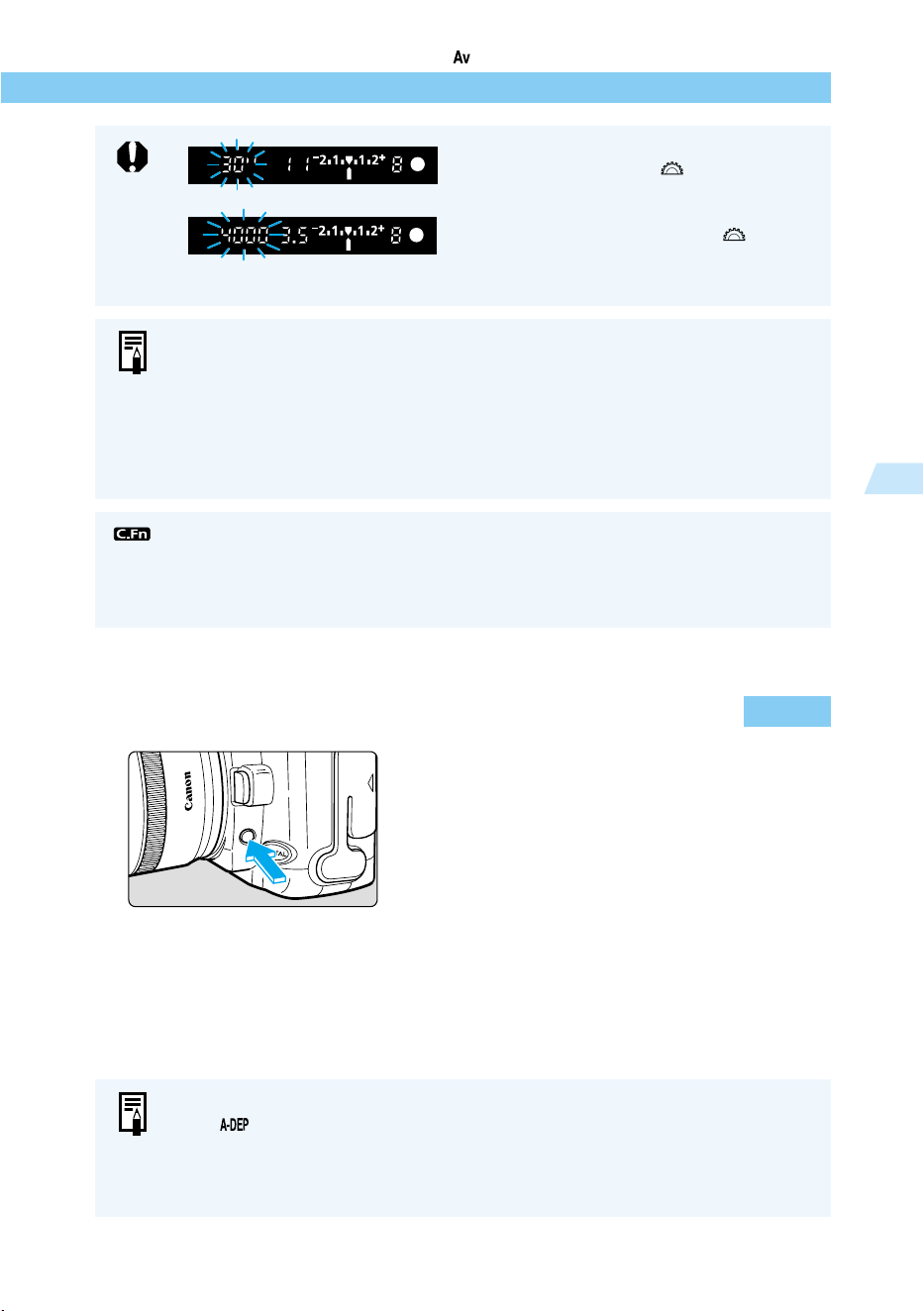
73
Advanced Operations
3
Aperture-Priority AE/Checking the Depth of Field
Checking the Depth of Field
You can press the Depth-of-Field Preview button to
close the aperture to the current aperture setting,
and then verify the range of focus in the viewfinder.
● If the 30” shutter speed blinks, the scene
is too dark. Turn the < > dial to reduce
the aperture value (larger aperture).
● If the 4000 shutter speed blinks, the
scene is too bright. Turn the < > dial to
increase the aperture value (smaller
aperture).
Aperture Value Display
You can set the aperture in half stops as shown below. The higher the aperture
value, the smaller the aperture opening. The range of aperture settings displayed
depends on the lens mounted on the camera.
1.0 1.2 1.4 1.8 2.0 2.5 2.8 3.5 4.0 4.5 5.6 6.7 8.0 9.5 11 13 16 19 22
27 32 38 45 54 64 76 91
If no lens is mounted on the camera, the aperture setting is displayed as 00.
● You can also set the camera so that you can set the aperture value in 1/3-stop
increments. (C.Fn-4-1→122)
● You can fix the shutter speed at 1/200 second for shooting with a flash.
(C.Fn-6-1→124)
● This feature can be used in the Creative zone.
● In < > mode, this feature operates when the shutter button is pressed down
halfway.
● The exposure is locked (AE lock) while the Depth-of-Field Preview button is
pressed.
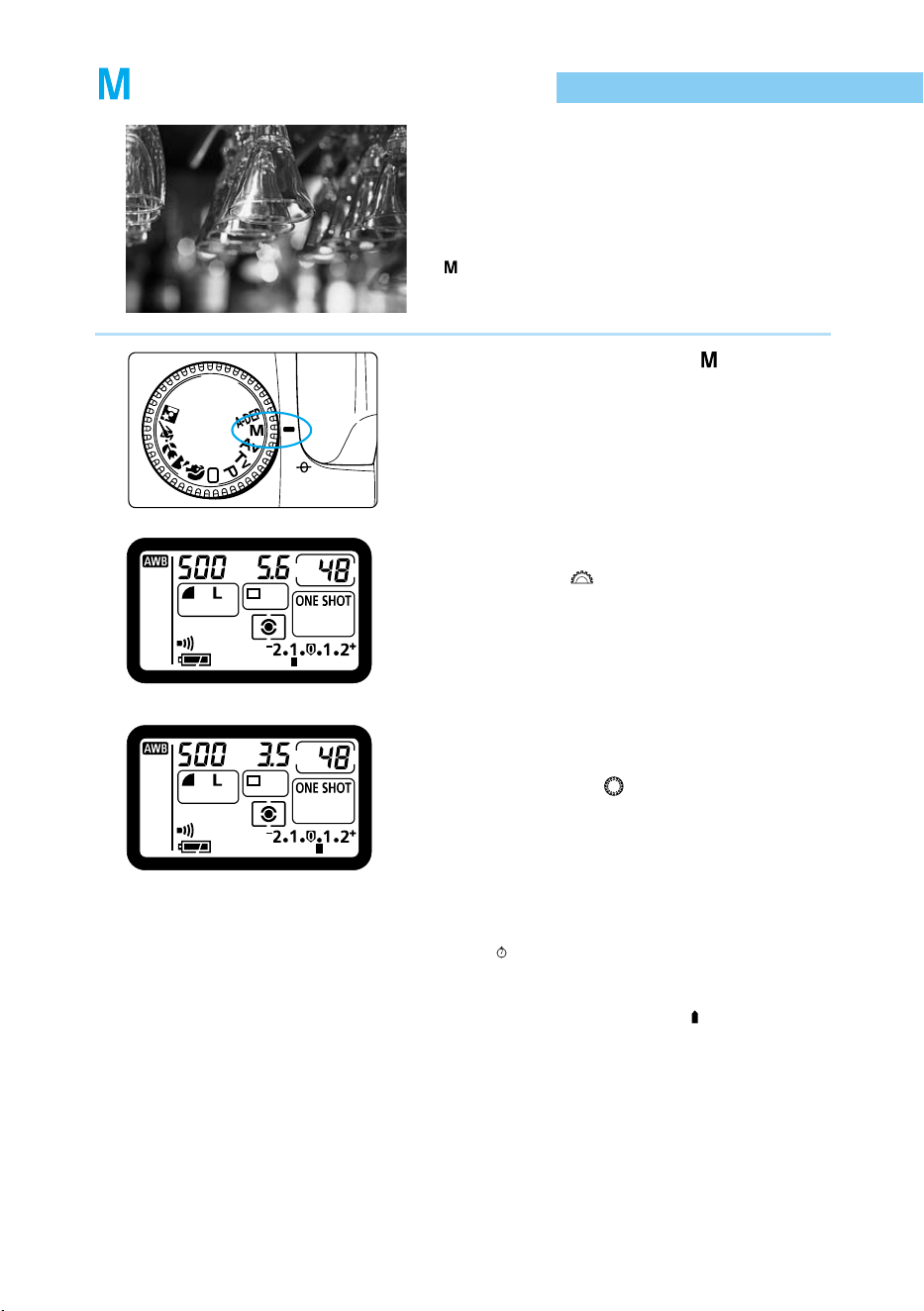
74
Manual Exposure
In this mode you set the shutter speed and aperture
value yourself. The camera makes no settings
automatically. You can determine the correct
combination of shutter speed and aperture value by
checking the exposure level displayed in the
camera.
∗ stands for manual.
1
Set the Mode Dial to < >.
2
Set the shutter speed.
● Turn the < > dial.
3
Set the aperture value.
● Set the Quick Control Dial switch to <ON>,
then turn the < > dial.
4
Focus on the subject.
● Press the shutter button down halfway.
(
4
)
➡ The exposure level indicator appears in the
viewfinder and on the LCD panel.
● The exposure level icon < > lets you see
how far you are from the standard exposure
level.
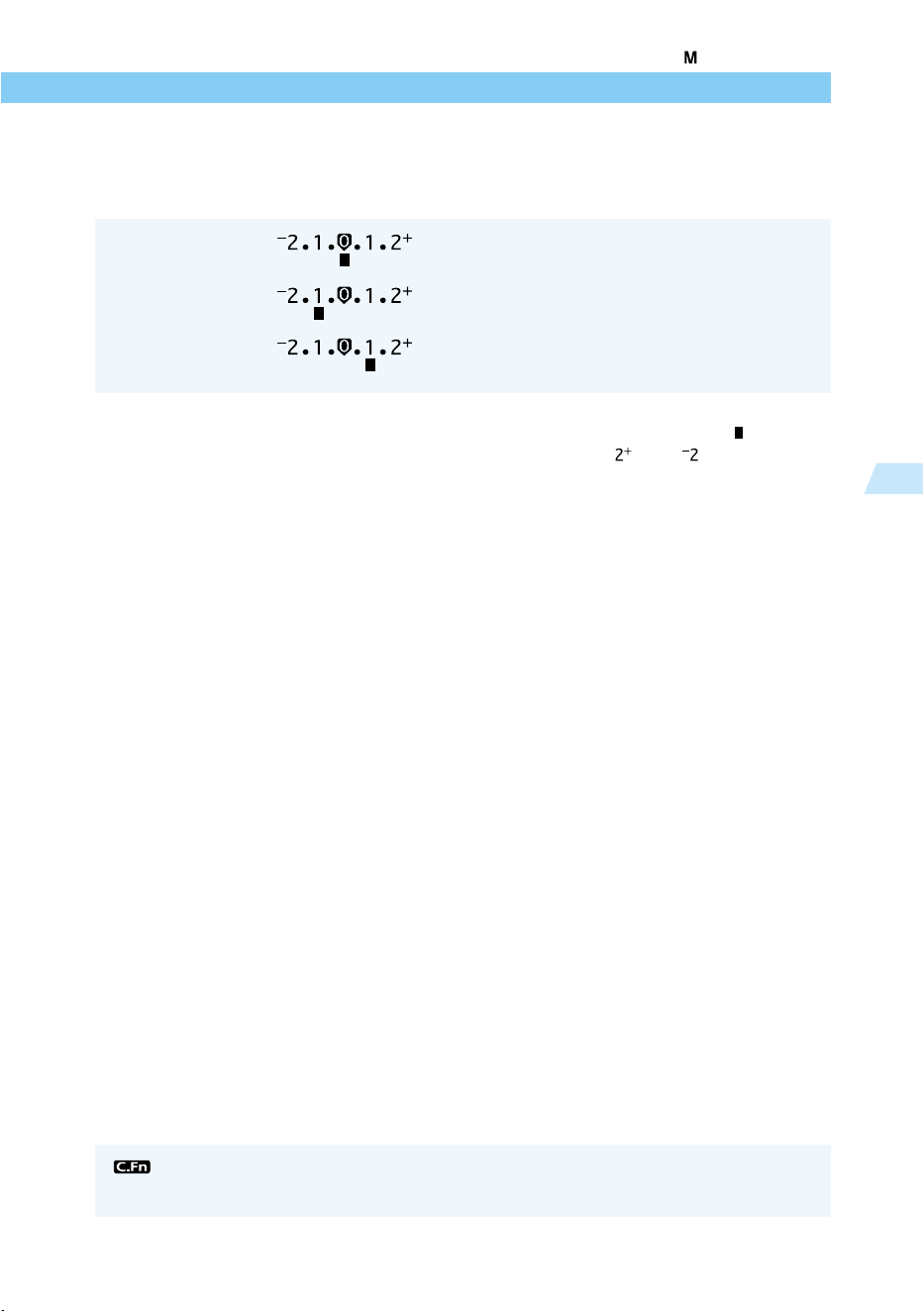
75
Advanced Operations
3
5
Determine the exposure.
● Set the shutter speed or aperture value
manually.
● If the exposure level indicator < > is
flashing at the < > or < > position, the
exposure is over- or under-exposed by
more than two stops.
6
Take the picture.
● Compose the picture, then press the shutter
button down fully.
Standard exposure : This is the standard reference point for a correct
exposure.
Underexposure : Decrease the shutter speed or reduce the
aperture value.
Overexposure : Increase the shutter speed or increase the
aperture value.
Manual Exposure
You can set the camera so that you can set the shutter speed or aperture value in
1/3-stop increments. (C.Fn-4-1→122)
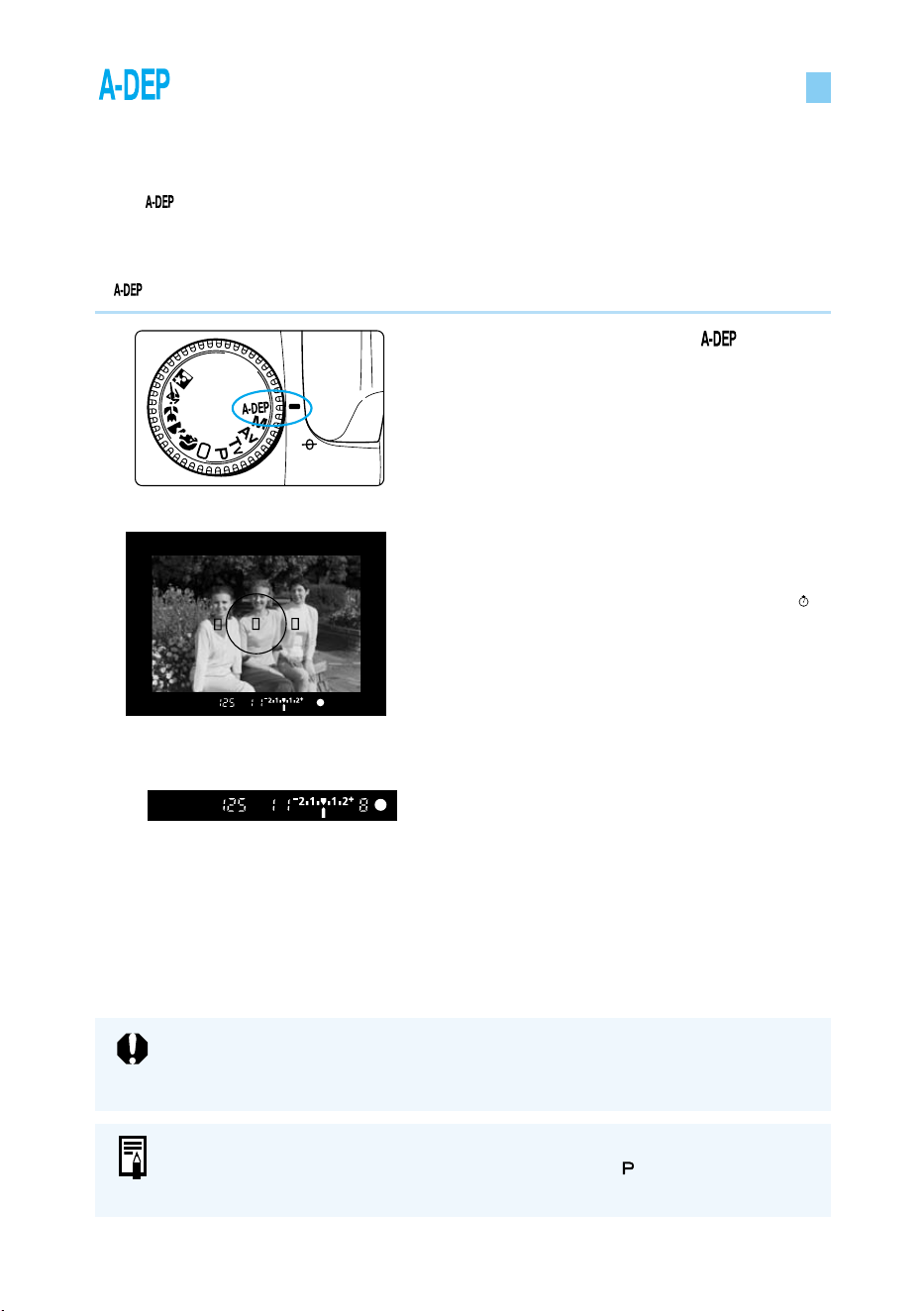
76
Automatic Depth-of-Field AE
When taking pictures of large groups or landscapes, the EOS D60 can automatically achieve a
sharp focus over a wide depth of field. All the subjects covered by the AF points, from those
close to the camera to those far away from the camera, can be taken clearly.
● In < > mode, the shutter speed and aperture value cannot be changed freely. If the
camera selects a slow shutter speed, the use of a tripod is recommended.
● Automatic depth-of-field AE cannot be used if the lens’ focus mode switch is set to <MF>
(or <M> on older lenses). Set the switch to <AF >.
∗ stands for Auto-Depth of field.
1
Set the Mode Dial to < >.
2
Focus the picture.
● Place an AF point over the subject and
press the shutter button down halfway. (
4
)
● The focus will be sharp between the
subjects where the AF points flashes in red.
● You can check the depth of field beforehand
while the exposure is displayed. (→73)
● In the example shown on the left, sharp
focus will be attained between the left-most
person and right-most person.
3
Check the display, then take the
picture.
● If the aperture value is not blinking, the
exposure is correct.
● Press the shutter button down fully.
If the aperture value is blinking, the exposure level is correct but the desired depth
of field cannot be achieved. Either use a wide-angle lens or move farther from the
subject.
● Regardless of the AF mode setting, ONE-SHOT AF will take effect.
● If you use a flash, the result will be the same as using < > (Program AE) mode
with flash.
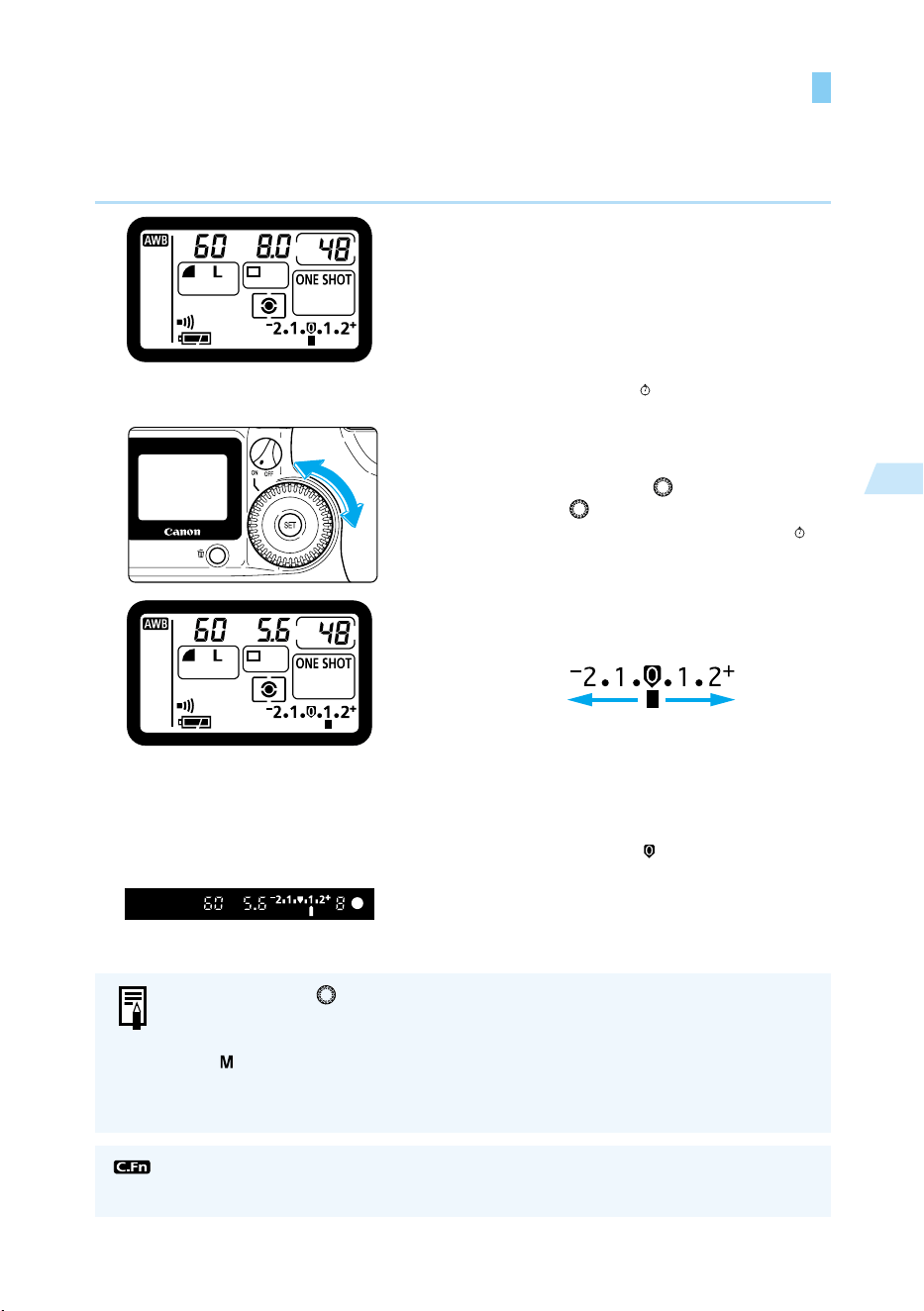
77
Advanced Operations
3
Setting Exposure Compensation
Exposure compensation is used to alter the camera’s standard exposure setting to make the
picture brighter (increased exposure) or darker (decreased exposure). Exposure compensation
can be set up to +/–2 stops, in 1/2-stop increments.
1
Set the Quick Control Dial switch
to <ON>.
2
Focus on the subject, then check
the exposure level.
● Press the shutter button down halfway and
check the display. (
4
)
3
Set the exposure.
● While looking at the LCD panel or
viewfinder, turn the < > dial.
● Turn the < > dial while pressing the
shutter button down halfway, or within (
4
)
seconds of pressing the shutter button
down halfway.
● Positions on the [+] side indicate increased
exposure, and positions on the [– ] side
indicate decreased exposure.
Decreased Increased
exposure
exposure
● Once set, the exposure compensation
remains in memory after the Main Switch is
set to <OFF>.
● To cancel exposure compensation, return
the compensation setting to the standard
exposure position < >.
4
Take the picture.
● To prevent the < > dial from turning inadvertently and changing the exposure
compensation, enter the setting and then set the Quick Control Dial switch to
<OFF>.
● In < > (Manual) mode, because you determine the exposure (the combination
of shutter speed and aperture) yourself, the exposure compensation function
does not operate.
You can set the camera so that you can set the exposure compensation amount in
1/3-stop increments. (C.Fn-4-1→122)
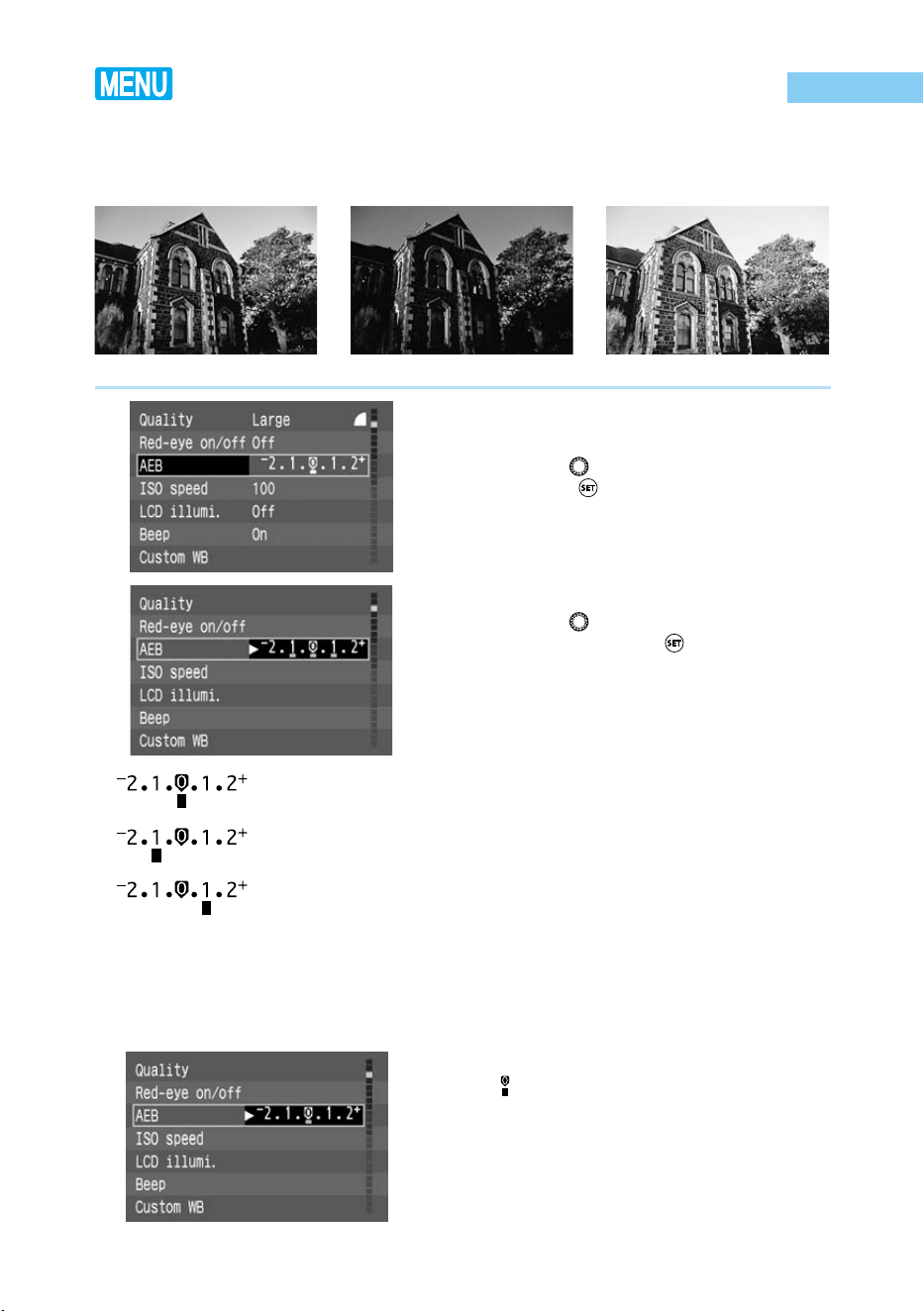
78
Autoexposure Bracketing
When using autoexposure bracketing, the camera automatically changes the exposure level within
the set range (up to +/–2 stops in 1/2-stop increments) for three successive frames. This is called
AEB (Auto Exposure Bracketing). The three bracketed shots are exposed in the selected drive mode
(→63) in the following order: correct exposure, decreased exposure, and increased exposure.
Standard exposure (0) Decreased exposure (–1.0) Increased exposure (+1.0)
1
From the menu, select [AEB].
● Press the <
MENU
> button.
● Turn the < > dial to select [AEB], then
press the < > button.
2
Set the AEB level.
● Turn the < > dial to set the AEB level you
want, then press the < > button.
● The AEB setting is entered, and the display
returns to the Menu.
● Press the <
MENU
> button to clear the
screen and exit the menu.
3
Take the picture.
➡
The bracketing sequence will be standard exposure,
decreased exposure, and increased exposure.
➡
The pictures will be taken in the drive mode currently
set. (→63)
●
When using continuous shooting, press and hold the
shutter button down fully to take all three bracketed
shots continuously, and then stop automatically.
●
When using AEB with the self-timer, the camera
takes the three bracketed shots in succession after
the 10-second timer delay.
Canceling AEB
● Follow steps 1 and 2 to set the AEB level to
< >.
● AEB will be automatically cancelled when
the Main Switch is set to <OFF>, the lens is
changed, the flash is charged, the battery
pack or the CF card is replaced.
: Correct exposure
: Decreased
exposure
: Increased
exposure
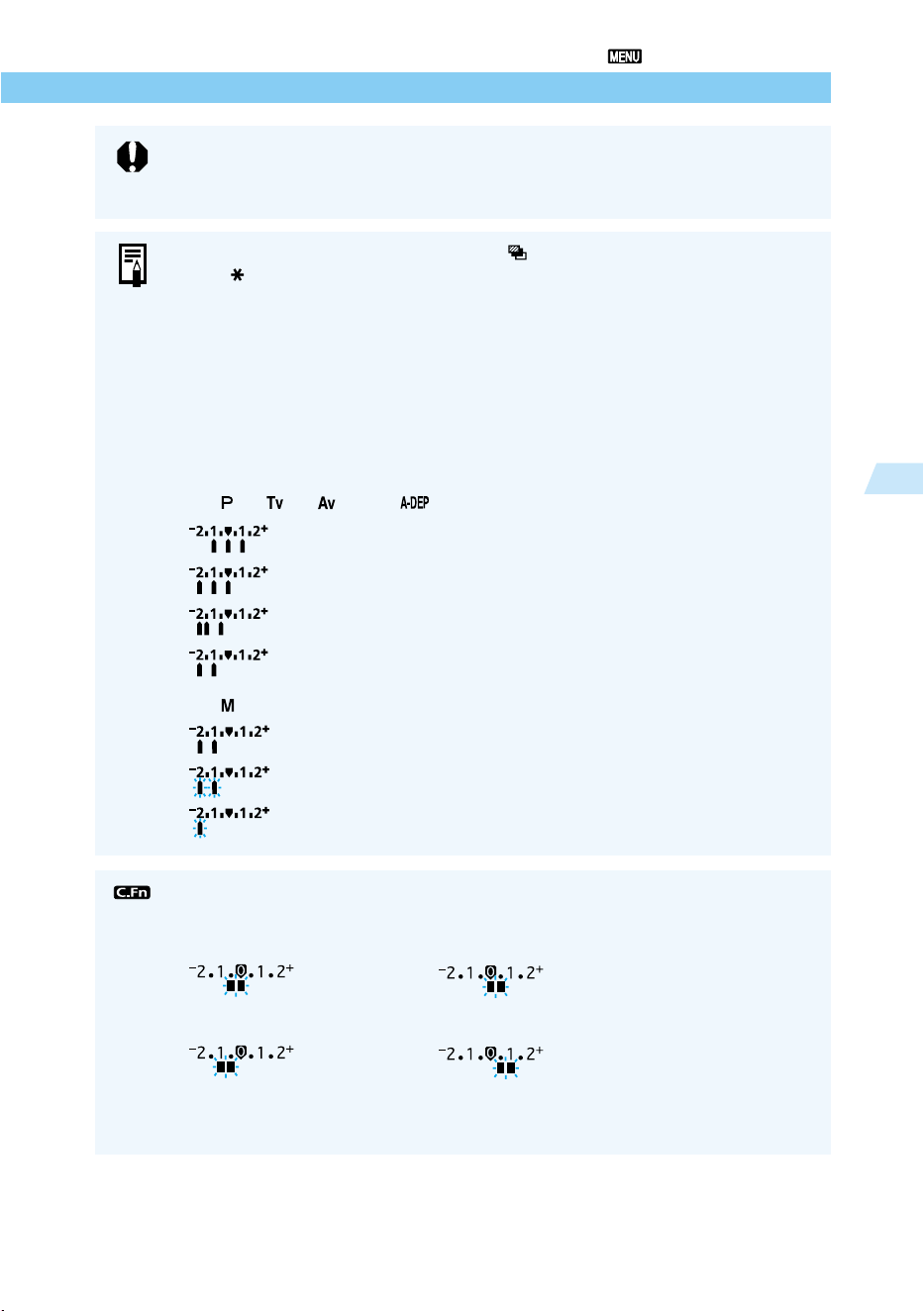
79
Advanced Operations
3
Autoexposure Bracketing
● Neither flash nor bulb exposures can be used in AEB mode.
● If you set mirror lockup with C.Fn-3-1 and then use AEB, single-frame shooting
takes effect even if the drive mode is set to continuous shooting.
● To indicate that AEB is in progress, the < > AEB icon on the LCD panel and
the < > indicator in the viewfinder blink until all three bracketed shots have
been taken.
● If the drive mode is set to single-frame shooting, you must press the shutter
button three times to complete the bracketing sequence.
● During continuous shooting, no viewfinder information is displayed.
● In manual exposure mode, AEB is applied by changing the shutter speed.
●
You can use AEB in combination with exposure compensation. In this case, if
exposure compensation causes the exposure to fall outside the indicated exposure
level, the viewfinder display looks as follows. In all cases, the exposures are taken
according to both the AEB and exposure compensation settings.
In < >, < >, < > and < > modes
: AEB set to +/–1 stop.
: With exposure compensation of –1 stop
: With exposure compensation of –1.5 stops
: With exposure compensation of –2 stops
In < > mode
: Center exposure –2 stops from standard exposure
: Center exposure more than –2 stops from satandard exposure
● You can change the AEB settings in 1/3-stop increments. (C.Fn-4→122)
In this case, the AEB indicator on the LCD panel looks like this.
AEB settings in 1/3-stop increments
: –1/3 : +1/3
AEB settings in 2/3-stop increments
: –2/3 : +2/3
● You can change the sequence to decreased exposure, standard exposure, or
increased exposure. (C.Fn-7→124)
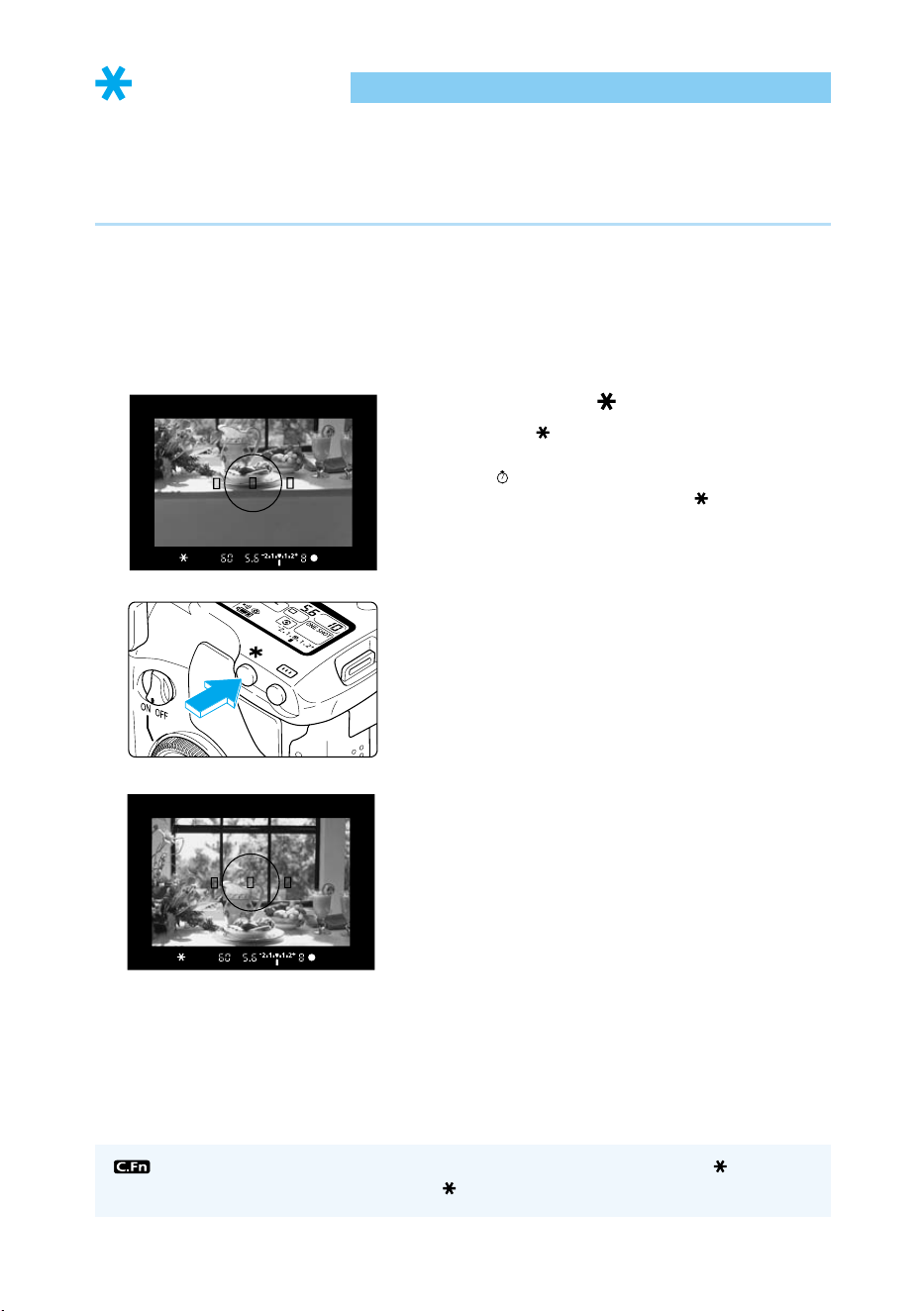
80
AE Lock
AE lock enables you to lock the exposure at a place other than the point of focus. After locking
the exposure, you can recompose the shot while maintaining the exposure level. This feature
is useful for backlit and spotlighted subjects.
● The effects of the AE lock depend on the AF point and metering method selected. (→133)
1
Focus on the point on which you
want to lock the exposure read-
ing.
➡ The exposure value is displayed in the
viewfinder.
2
Press the < > button.
● The < > icon lights in the viewfinder to
indicate that the exposure setting is locked.
(
4
)
● Each time you press the < > button, the
current exposure setting is locked.
3
Compose the shot and take the
picture.
You can apply AE lock by pressing the shutter button (instead of the < > button)
down halfway, and focus with the < > button. (C.Fn-2-1→122)
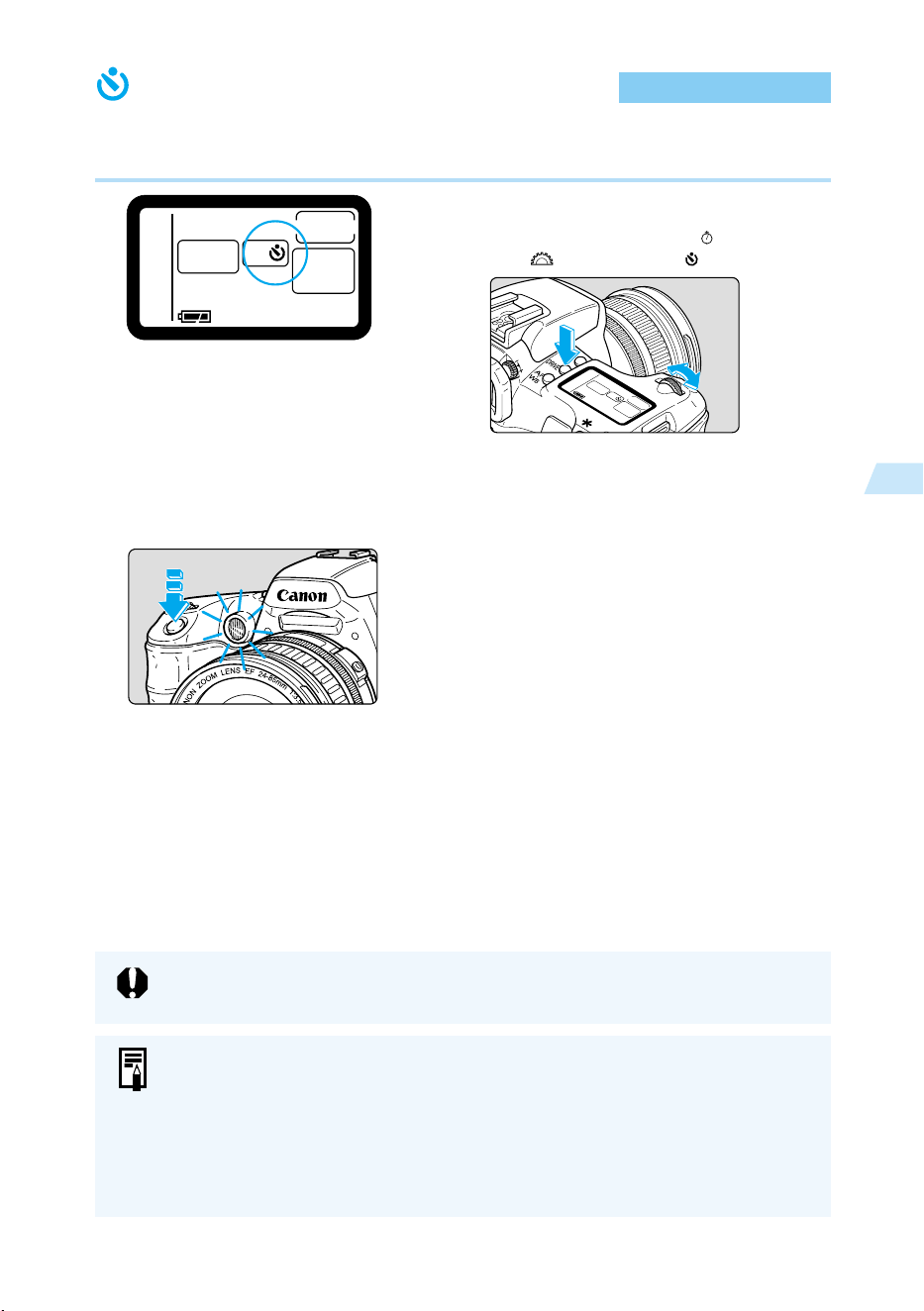
81
Advanced Operations
3
Self-timer Operation
The self-timer is convenient for group photographs. You can use it in any Basic mode or
Creative mode. We recommend using a tripod when you use the self-timer.
1
Select the self-timer.
● Press the <
DRIVE
> button (
6
), and turn
the < > dial to select < >.
2
Focus on the subject.
● Make sure the focus confirmation light <●>
and the exposure setting are displayed.
3
Take the picture.
● Press the shutter button down fully.
➡ The beeper sounds as the red-eye
reduction lamp operates, and the picture is
taken after 10 seconds.
First 8 seconds:
Slow beeps and the lamp blinks slowly.
Last 2 seconds:
Faster beeps and the lamp stays on.
➡ While the self-timer is operating, the LCD
panel shows count down.
● To cancel the self-timer, press the <
DRIVE
>
button.
Do not stand in front of the camera when you press the shutter button to start the
self-timer. Doing so prevents the camera from focusing on the subject.
● You can set the beep that indicates the subject is in focus and the beep that
indicates the self-timer is operating to [On ] or [Off]. (→118)
● When using the self-timer to shoot only yourself, lock the focus (→58) on an
object at about the same distance as where you will be.
● You can use the Remote Switch RS-80N3 (optional) or Timer Remote Controller
TC-80N3 (optional) to take a picture when you are away from the camera.
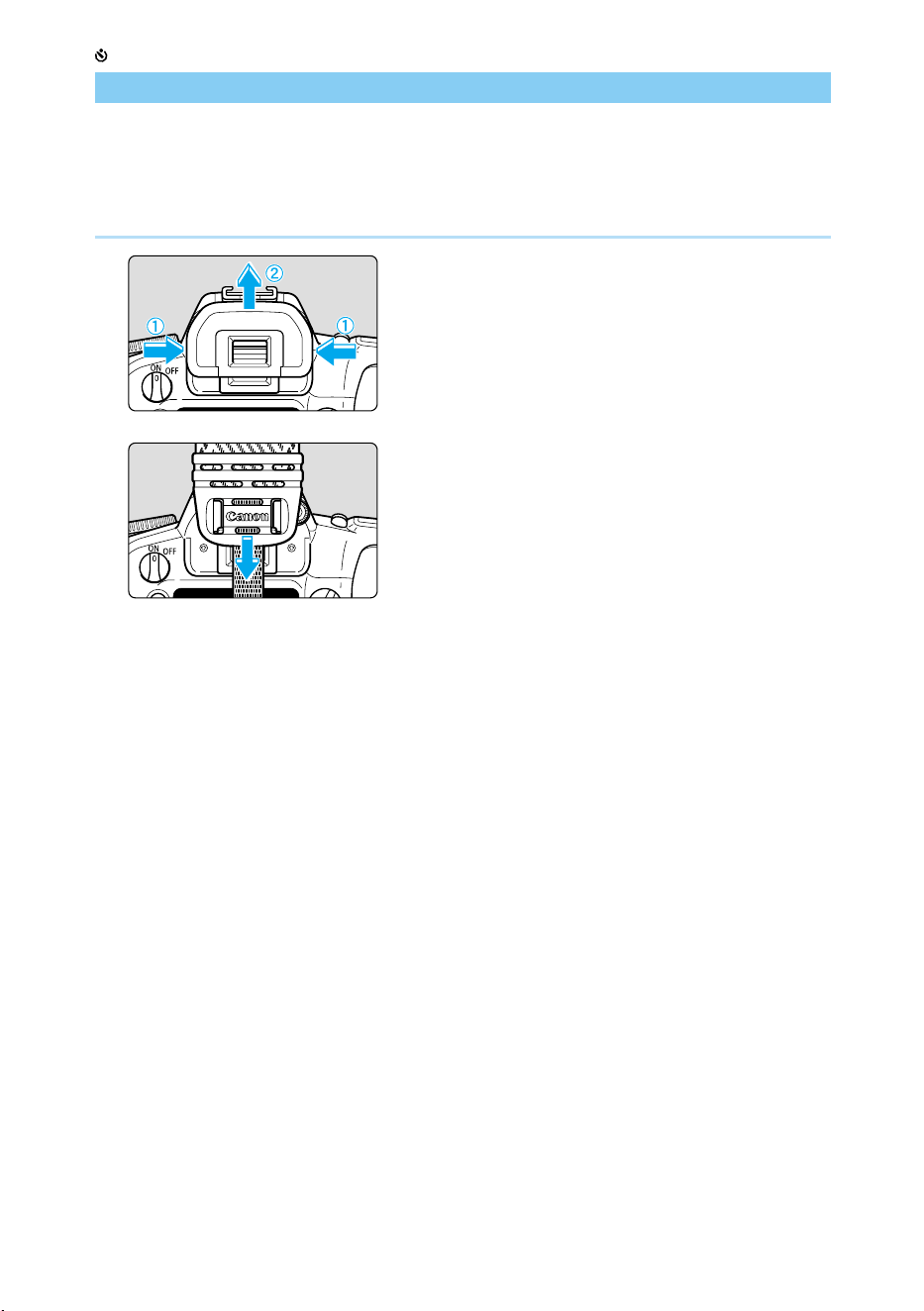
82
Self-timer Operation
Using the Eyepiece Cover
If you take a picture using the self-timer or remote switch (optional) without looking through the
viewfinder, stray light can enter the eyepiece and affect the exposure. To prevent this, attach
the eyepiece cover to the viewfinder eyepiece before taking the picture.
1
Remove the eyecup.
● Grasp both sides of the eyecup and lift it up
and away from the camera.
2
Slip the eyepiece cover over the
eyepiece.
● The eyepiece cover is attached to the strap.
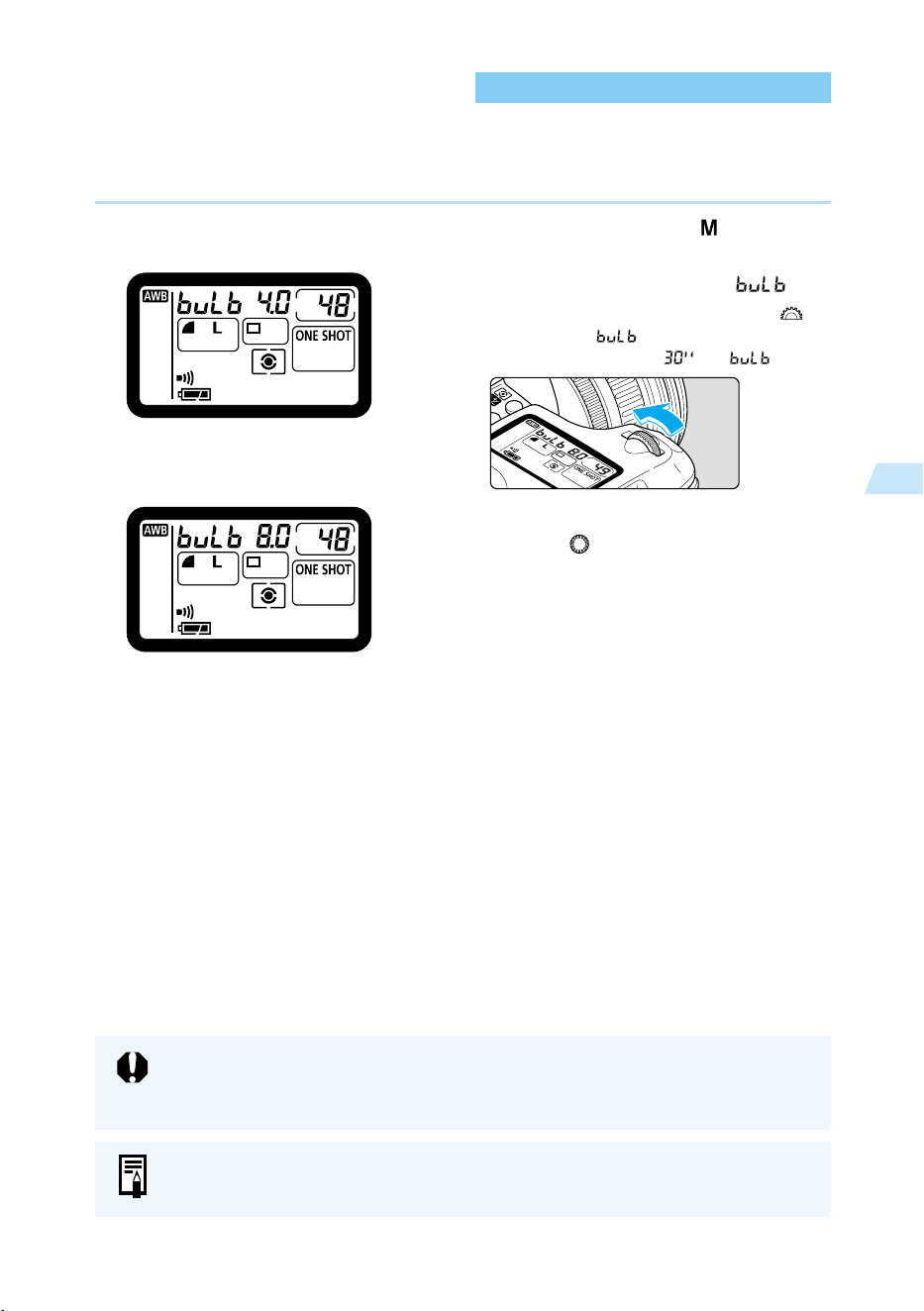
83
Advanced Operations
3
Bulb Exposures
In a bulb exposure, the shutter remains open as long as you hold the shutter button down, and
closes when you release it. Bulb exposures are useful for the long exposures required for
night scenes, fireworks, etc.
1
Set the Mode Dial to < >.
2
Set the shutter speed to “ ”.
● Look at the LCD panel and turn the < >
dial to select “ ”.
● The next setting after “ ” is “ ”.
3
Set the aperture value.
● Turn the < > dial.
4
Take the picture.
● Press and hold the shutter button down
fully.
➡ During the bulb exposure, the elapsed
exposure time is displayed on the LCD
panel (1 to 999 seconds).
● Exposure continues as long as you hold
down the shutter button.
The elapsed exposure time displayed on the LCD panel is only counted up to 999
seconds. For accurate exposure time, check the information display for the
exposed image. (→100)
The Remote Switch RS-80N3 (optional), or Timer Remote Controller TC-80N3
(optional) can be used to eliminate the need to hold down the shutter button.
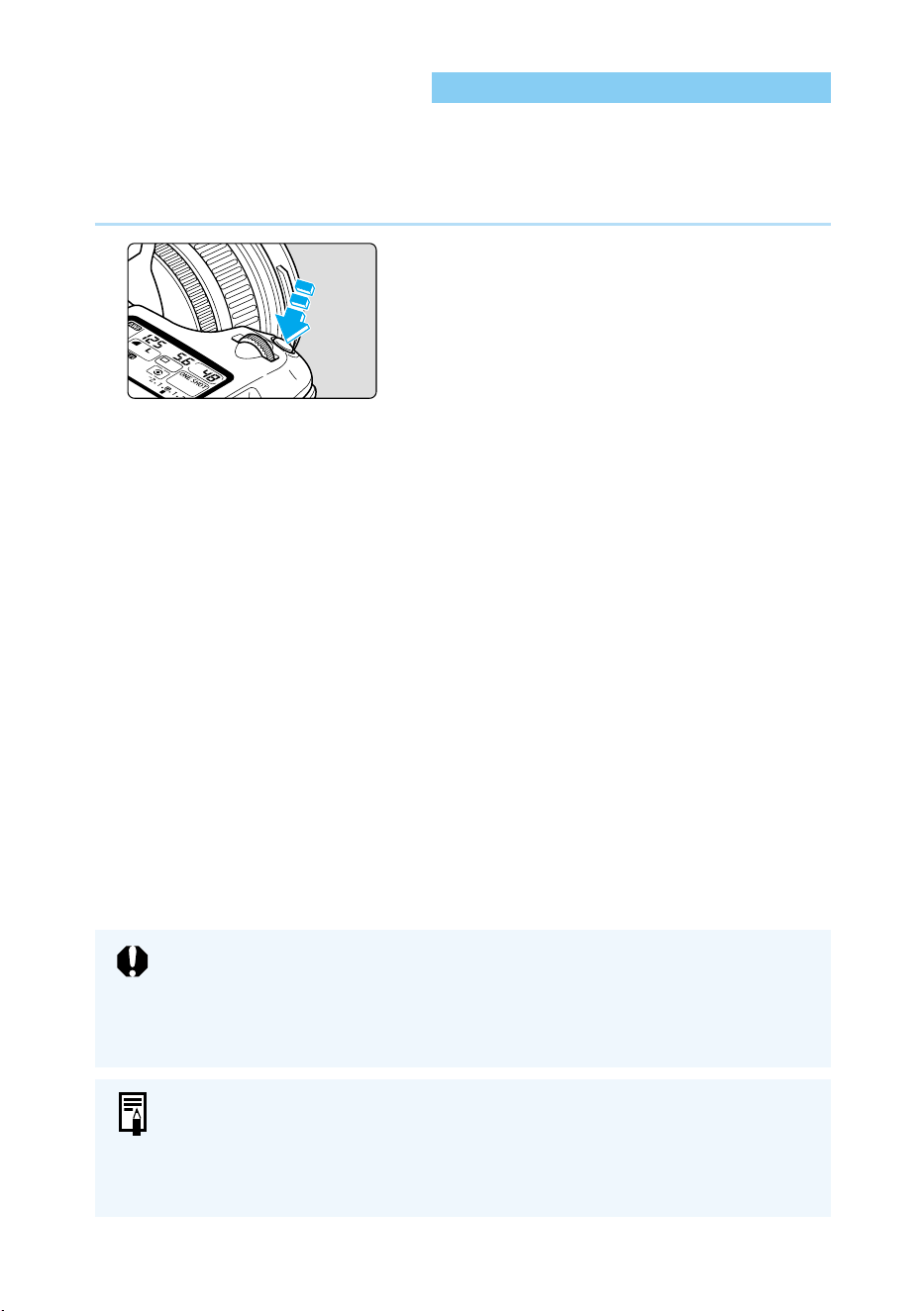
84
Mirror Lockup
Mirror lock is enabled with C.Fn-3-1 (→122). This function raises the mirror and exposes the
picture, in separate operations. It is useful for close-up shots or when using a super telephoto
lens, where the mirror shock could affect the picture.
● When using mirror lockup, we recommend you use the Remote Switch RS-80N3 (optional).
1
Press the shutter button down
fully.
➡ The mirror is raised.
● The mirror automatically returns to the
down position approximately 30 seconds
after it is raised. Be sure to take the picture
within 30 seconds.
2
Press the shutter button down
fully again.
● The picture is taken, and the mirror goes
back down.
● To take the picture again, repeat the
procedure from step 1.
● During mirror lockup, do not point the camera at the sun. The sun’s heat can
scorch and damage the shutter curtains.
● If you use mirror lockup with the self-timer for a bulb exposure, there will be a
shutter release sound when you release the shutter button during self-timer
operation. This is not the sound of the shutter release.
● During mirror lockup, the drive mode (→63) is single-frame shooting regardless
of the current setting.
● If you use mirror lockup with the self-timer, pressing the shutter button down
fully the first time raises and locks the mirror, then releases the shutter 2
seconds later.

85
Flash Photography
4
4
The EOS D60 can take easy, natural-looking flash pictures with
correct subject illumination using E-TTL autoflash (preflash evalua-
tive metering in memory) and either the camera’s built-in flash or any
EOS-dedicated EX-series Speedlite. The procedure is as easy as a
normal AE shot.
This chapter describes how to take flash pictures with the built-in
flash, with the EOS-dedicated 550EX Speedlite, or other types of
external flash.
Flash
Photography

86
Using the Built-in Flash
The built-in flash lets you take the following kinds of flash pictures with the ease of a normal
AE shot.
● E-TTL autoflash
E-TTL autoflash (preflash evaluative metering in memory) supplies the correct level of flash for
the subject in the AF point selected by AF.
●
FE (Flash Exposure) lock (→90)
FE (flash exposure) lock sets the correct flash exposure for a selected part of the subject. The
FE lock functions as an AE lock with flash.
●
Flash exposure compensation (→91)
This function corrects the flash level in much the same way as the Exposure compensation
function. The level of compensation can be up to +/–2 stops in 1/2-stop increments.
Using the Built-in Flash in the Basic Zone
In the Basic Zone (except in < > and < > modes), the built-in flash pops up and fires
automatically in low-light or backlit conditions.
Using the Built-in Flash in the Creative Zone
In the Creative zone, you can take flash pictures by simply pressing the < > button to pop up
the built-in flash at any time, regardless of lighting conditions.
: Select < > mode for full autoflash.
The shutter speed and aperture value are determined automatically, just as in < >
(Full Auto) mode.
: Select < > mode to manually set a shutter speed slower than 1/200 second.
The camera then automatically sets the flash aperture value to provide the proper
exposure for your shutter speed.
: Select < > mode to manually set the aperture value.
In low-light conditions against a background such as a night sky, you can use automatic
slow-sync settings to properly expose the main subject and the background. The main
subject is captured by the flash, and the background is captured by time exposure using
a slow shutter speed.
● Because automatic slow-sync photography uses a slow shutter speed, always use a
tripod.
: Select < > mode to set the shutter speed and the aperture value manually.
The main subject is exposed properly by the flash. The background exposure varies
according to the shutter speed and aperture settings.
: The effect is the same as using flash in < > mode.
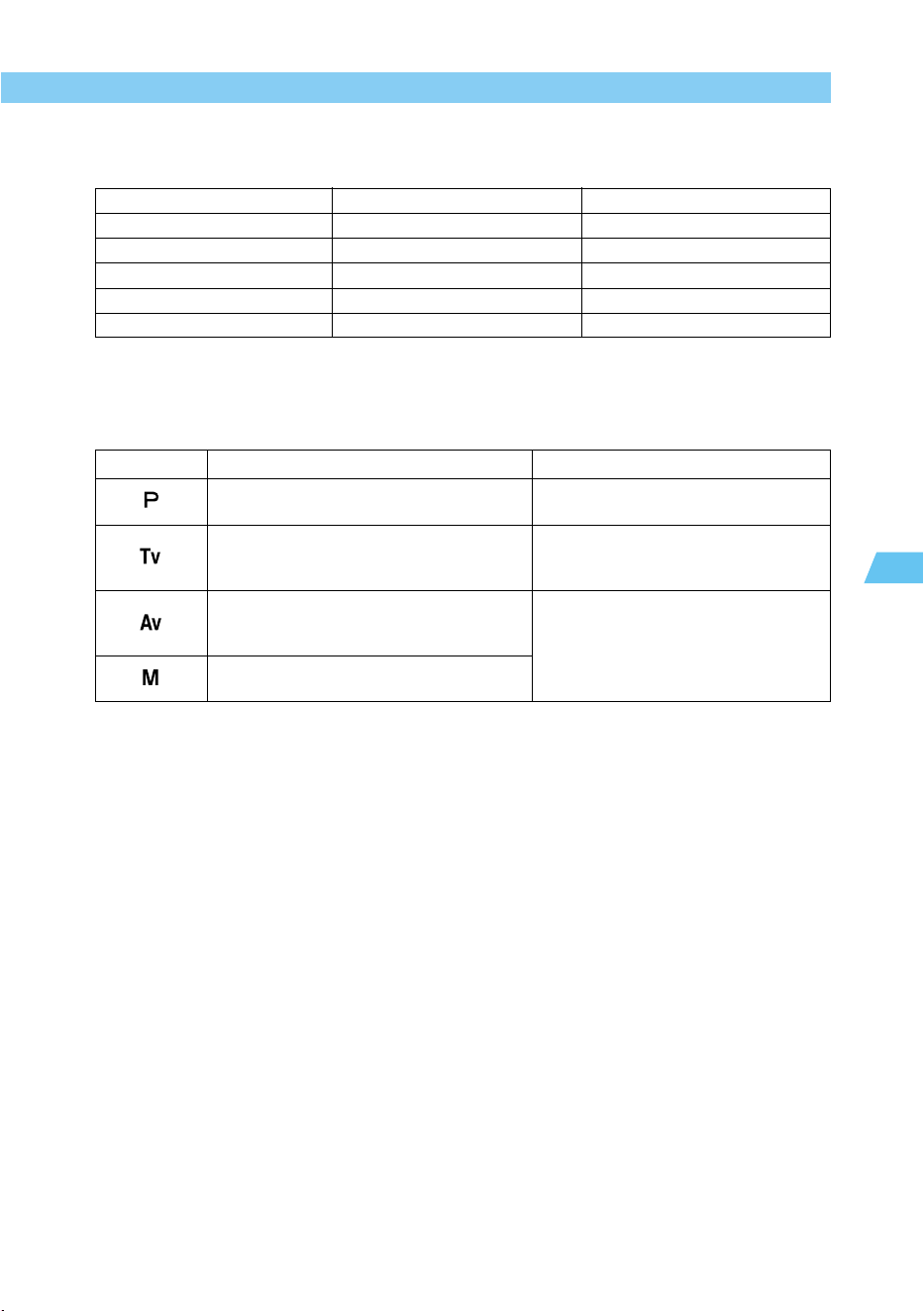
87
Flash Photography
4
Using the Built-in Flash
Built-in Flash Range
(using EF24-85mm f/3.5-4.5 USM lens)
Flash Sync Shutter Speed and Aperture Settings
ISO Speed Wide-angle: 24 mm Telephoto: 85 mm
100 Approx. 1-3.4 m (3.3-11.2 ft) Approx. 1-2.6 m (3.3-8.5 ft)
200 Approx. 1-4.8 m (3.3-15.7 ft) Approx. 1-3.7 m (3.3-12.1 ft)
400 Approx. 1-6.8 m (3.3-22.3 ft) Approx. 1-5.3 m (3.3-17.4 ft)
800 Approx. 1-9.6 m (3.3-31.5 ft) Approx. 1-7.5 m (3.3-24.6 ft)
1000 Approx. 1-10.8 m (3.3-35.4 ft) Approx. 1-8.4 m (3.3-27.6 ft)
Aperture Value
Automatically set by the E-TTL
program.
Automatically set for the metered
brightness, according to the shutter
speed setting.
Manually set as desired.
Sync shutter speed
Automatically set from 1/200 to 1/60
second.
Manually set to speeds slower than
1/200 second.
Automatically set (1/200 to 30 sec.)
for the metered brightness, according
to the aperture value.
Manually set to speeds slower than
1/200 second.
Mode
88
Using the Built-in Flash
● When using an EX-series Speedlite (→92), press the built-in flash back into the
camera before mounting the external flash.
● When using the built-in flash, keep at least 1 m/3.3 ft away from the subject.
Otherwise the lens barrel may partially obstruct the flash and cause part of the
photo to look dark.
● When using the built-in flash, detach any hood from the lens to keep it from
obstructing flash coverage.
● Using the built-in flash with any of the following lenses can partially obstruct the
flash coverage. Instead, use an EOS-dedicated external flash.
Large-aperture lenses, including the EF16-35mm f/2.8L USM, EF28-70mm
f/2.8L USM.
Super-telephoto lenses, including the EF300mm f/2.8L IS USM and EF600mm
f/4L IS USM.
● The built-in flash can cover the picture area for lenses with focal lengths as
short as 18 mm. If you use a lens shorter than 18 mm, the photo will be dark
around the edges.
● The ‘E’ in E-TTL stands for ‘Evaluative.’
● To retract the built-in flash, press it back down into the camera.
● You cannot use the built-in flash to set high-speed sync (FP flash).
● In < > or < > mode, if you set the shutter speed faster than 1/200 second,
the camera will automatically reset it to 1/200 unless the EX-series Speedlite
has been set for high-speed sync.
● AF flash exposure is always based on the aperture value at the time the shot is
taken, and controlled by E-TTL automatic flash compensation linked to the
active AF point and weighted for the main subject.
● The built-in flash and external flash cannot be used at the same time.
● If the camera finds it difficult to focus, the AF-assist lamp (→39) will light
automatically (except in the < > and < > modes).
● You can disable the AF-assist beam and built-in flash. (C.Fn-5→122)
● You can set the Shutter curtain sync to 2nd-curtain sync. (C.Fn-8-1→124)
● In the aperture-priority AE mode with flash, you can set the sync speed to 1/200
sec fixed. (C.Fn-6-1→124)
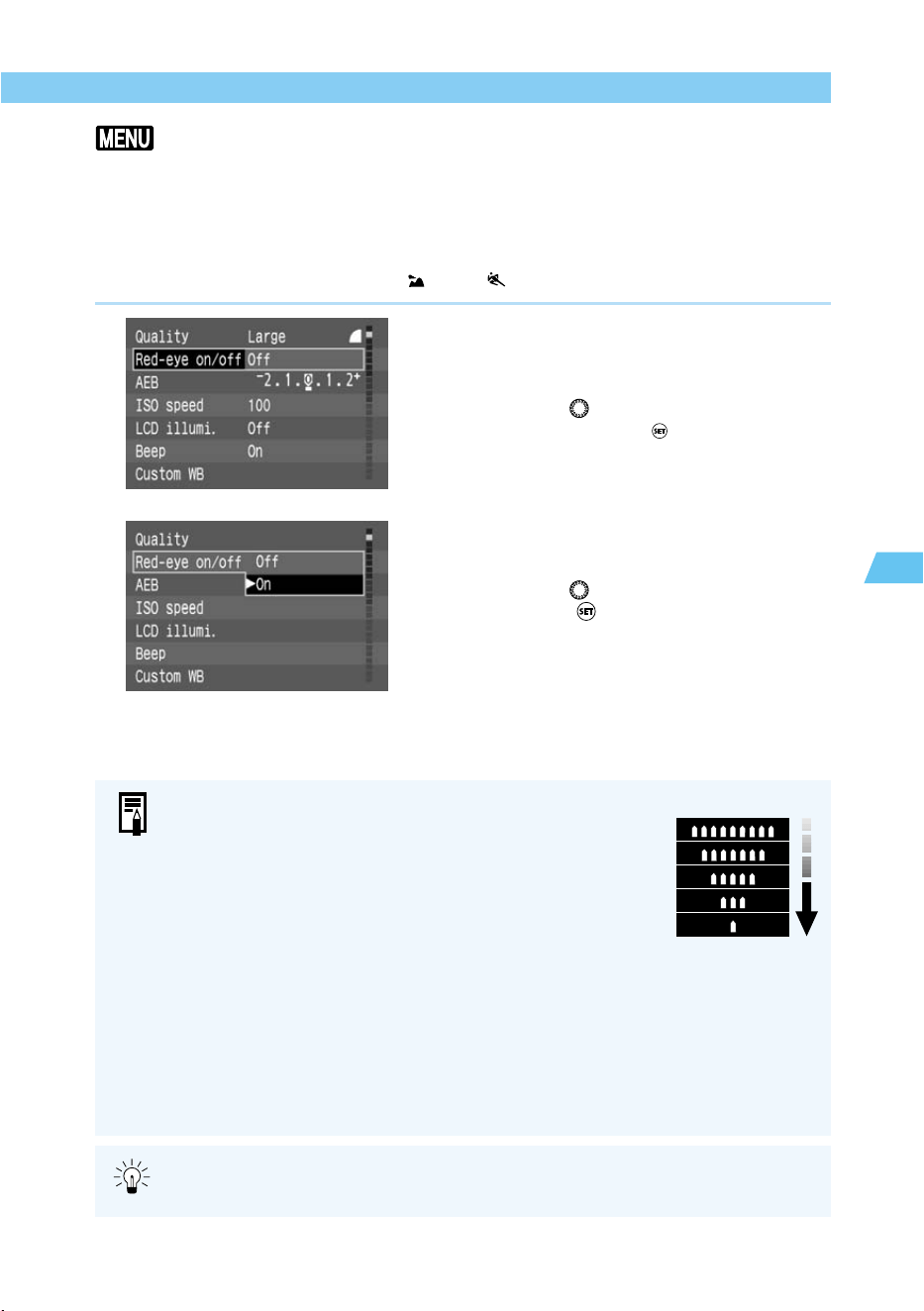
89
Flash Photography
4
Using the Built-in Flash
Red-eye Reduction
When you use flash in low-light conditions, it can reflect off your subject’s pupils and make
their eyes look red in the recorded imge. This effect is called “red-eye,” and is caused by the
light of the flash reflecting off the retina of the eye. The Red-eye reduction function uses the
camera’s red-eye reduction lamp, which gently shines into the subject’s eyes to constrict the
pupils and thereby reduces the likelihood that red-eye will occur. You can use red-eye reduc-
tion in any picture-taking mode except <
> and < > modes.
1
From the menu, select [Red-eye
on/off].
● Press the <
MENU
> button.
● Turn the < > dial to select [Red-eye on/
off], then press the < > button.
2
Set the Red-eye reduction func-
tion.
● Turn the < > dial to select [On], then
press the < > button.
➡ The red-eye reduction function is turned
On, and the display returns to the Menu.
● Press the <
MENU
> button to clear the
screen and exit the menu.
● When you press the shutter button down halfway, the red-
eye reduction lamp indicator appears in the viewfinder.
● Red-eye reduction is effective only when the subject is
looking at the red-eye reduction lamp. Be sure to tell your
subjects to look at the lamp.
● To increase the effectiveness of red-eye reduction, press the
shutter button down fully after the red-eye reduction lamp
(which lights for approximately 1.5 seconds) indicator goes
off.
● You can take a picture anytime by pressing the shutter
button down fully, even if the red-eye reduction lamp is on.
● Red-eye reduction also operates when you use an EOS-
dedicated Speedlite.
● The effectiveness of red-eye reduction varies from subject to
subject.
Red-eye reduction
lamp indicator
Red-eye reduction is more effective in bright interior locations, with the camera
closer to the subject.
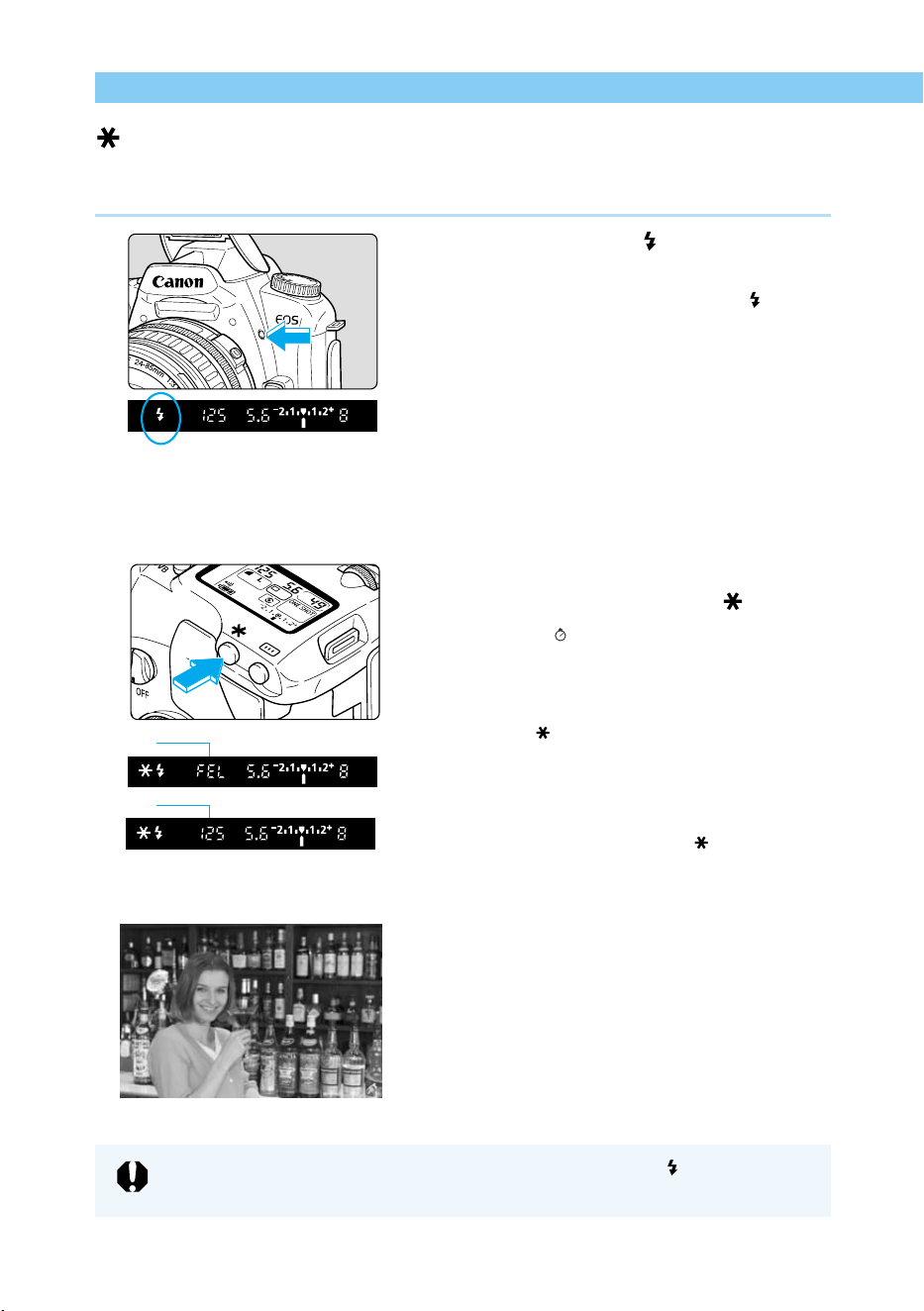
90
Using the Built-in Flash
FE Lock
FE (flash exposure) Lock obtains and locks the correct flash exposure reading for any part of a
subject. FE Lock is a function in the Creative zone.
1
Make sure the < > icon in the
viewfinder is on.
● In the Creative zone, press the < > button
to pop up the built-in flash.
2
Focus on the subject.
● Focus on the subject you want to lock the
flash exposure on.
3
Place the center AF point over the
subject, and press the < >
button. (
16
)
➡ The Speedlite fires a preflash and records
the required flash output for this subject in
memory.
➡ The < > icon lights in the viewfinder.
➡ The center AF point will flash in red.
➡ In the viewfinder, the display appears as
shown in 1 for 0.5 seconds, then changes
to 2.
● Each time you press the < > button the
preflash fires, and the FE lock is applied at
the required exposure level.
4
Take the picture.
● Compose the shot and take the picture.
If the subject is far enough away to cause underexposure, the < > icon will blink
in the viewfinder. Move closer to the subject and repeat steps 2 – 4.
1
2
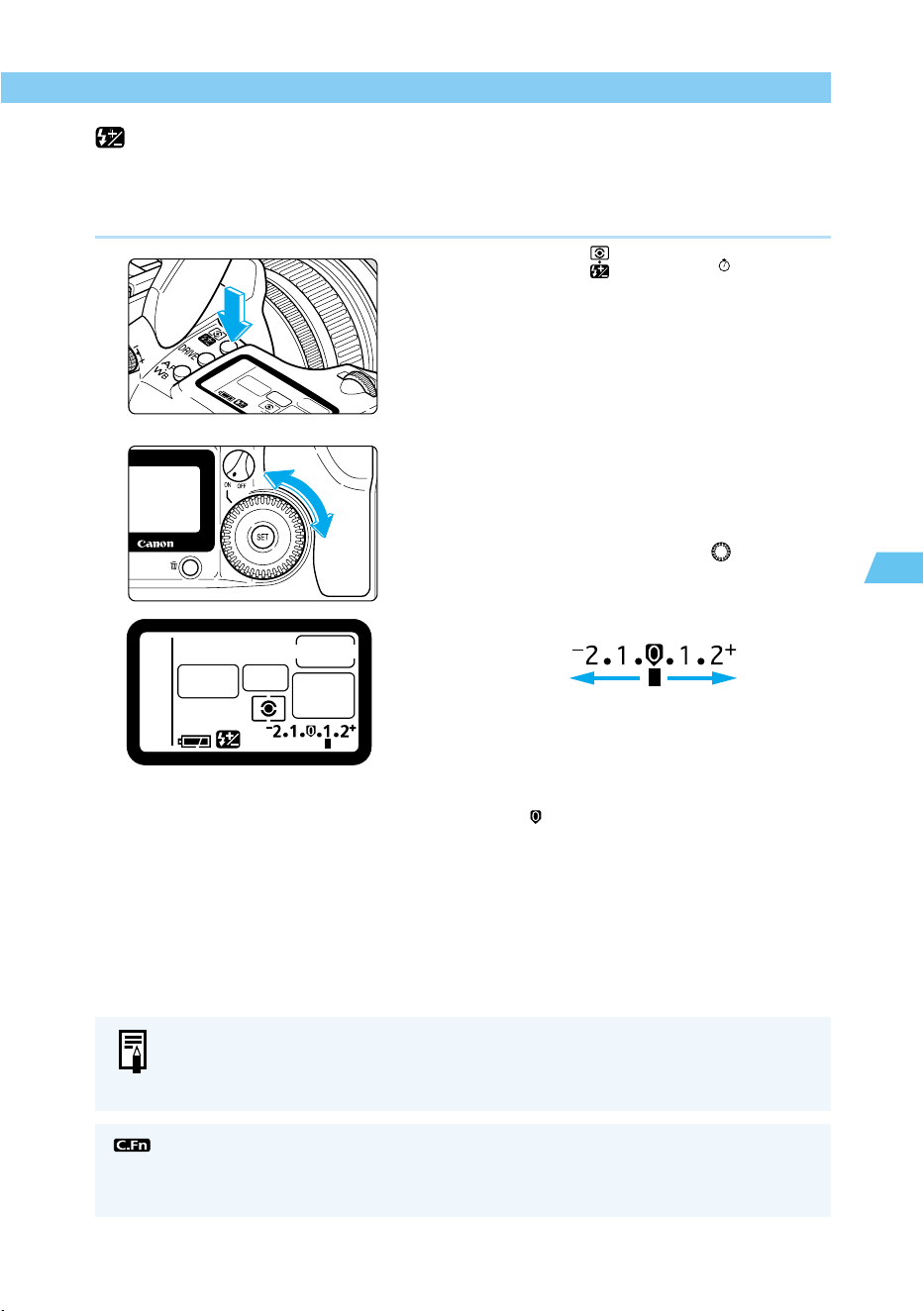
91
Flash Photography
4
Using the Built-in Flash
Flash Exposure Compensation
The EOS D60 camera can adjust the level of the built-in flash or any EX-series Speedlite. The
compensation amount can be up to +/–2 stops in 1/2-stop increments. You cannot use flash
exposure compensation in the Basic Zone.
1
Press the < > button. (
6
)
2
Set the exposure compensation
amount.
● Set the Quick Control Dial Switch to <ON>.
● While looking at the LCD panel or
viewfinder display, turn the < > dial.
● The [+] side indicates increased compensa-
tion, and the [–] side indicates decreased
compensation.
Decreased Increased
exposure
exposure
● Once set, the exposure compensation
amount remains in memory after the Main
Switch is set to <OFF>.
● To cancel, set the compensation amount to
the < > position.
● You can set the camera to adjust exposure compensation in 1/3-stop incre-
ments. (C.Fn-4-1→122)
● You can also disable the Auto reduction of fill flash function. (C.Fn-10-1→124)
Flash exposure compensation can also be set with EX-series Speedlites. If flash
exposure compensation is set with both the camera and EX-series Speedlite, the
Speedlite's setting will override the camera’s.
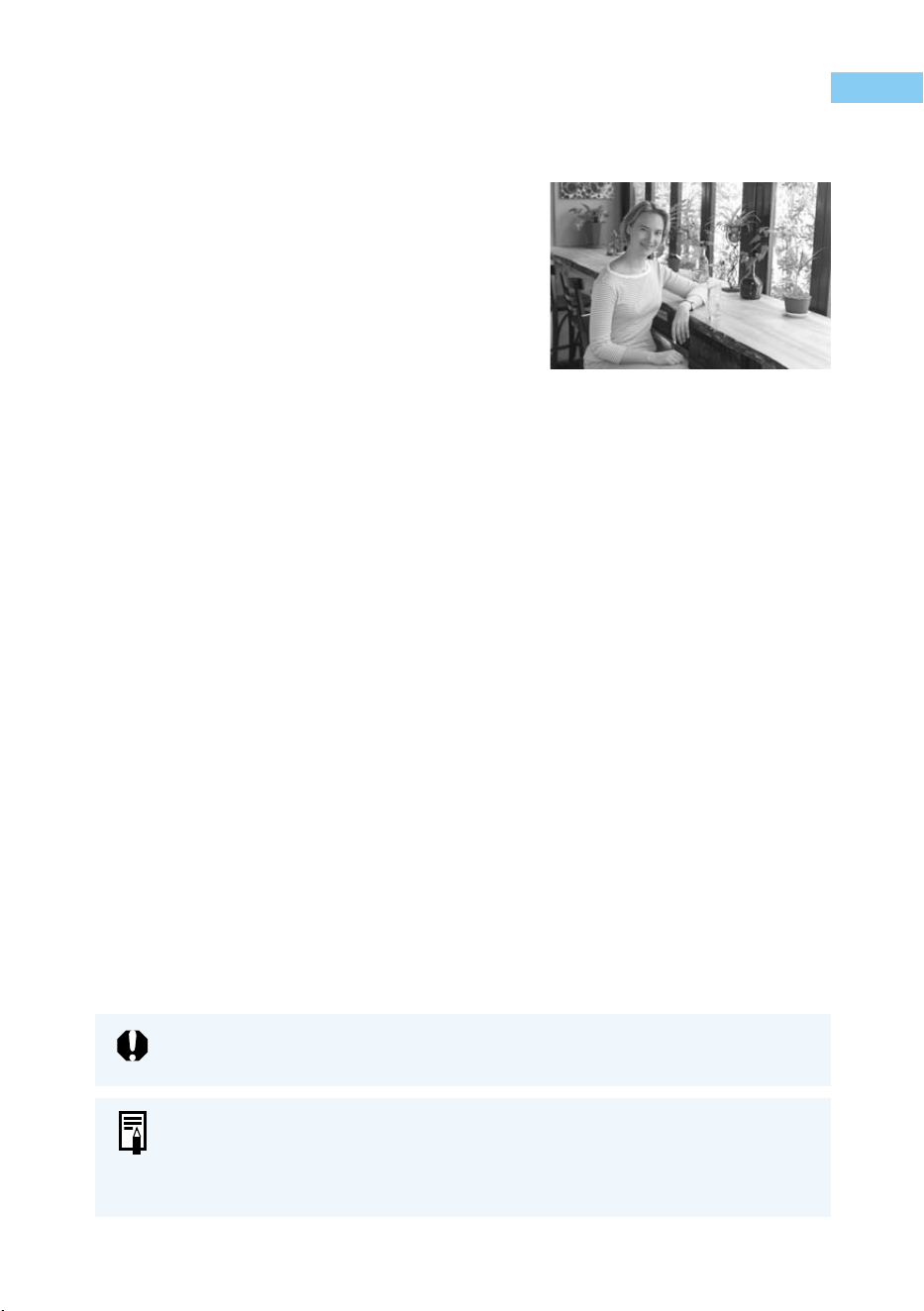
92
Flash Photography with the EOS-Dedicated 550EX Speedlite
The Canon 550EX Speedlite allows you to take high-quality flash pictures easily, in the same
way as you would with a built-in flash.
● E-TTL Autoflash
E-TTL autoflash (preflash evaluative metering in
memory) supplies the correct level of flash for the
subject in the AF point selected by AF. In dark locations,
you can set the camera to aperture-priority AE for
automatic slow-sync operation, for a natural-looking
exposure balanced between the subject and back-
ground.
●
High-Speed Sync (FP Flash) (→94)
High-speed sync (FP or focal-plane flash) enables flash synchronization at all shutter speeds
from 30 sec. to 1/4000 sec.
●
FE (Flash Exposure) Lock (→95)
FE lock obtains and locks the correct flash exposure for any part of the subject. This is the
flash equivalent of AE lock.
●
Flash Exposure Compensation (→95)
As with normal exposure compensation, you can use flash exposure compensation to adjust
the flash output within a range of +/–2 stops, in 1/2-stop increments.
●
FEB (Flash Exposure Bracketing) (→94)
The FEB function is like AEB (autoexposure bracketing) with flash. You can bracket flash
exposures by up to +/–3 stops, in 1/2-stop increments.
●
Modeling Flash (→95)
Modeling flash allows you to check shadows and the light balance produced by multi-light
settings.
●
Wireless Multi-Flash/E-TTL Autoflash (→95)
You can implement wireless multi-light E-TTL autoflash, using any or all of the features listed
above. This provides the freedom to set up sophisticated lighting effects with no connection
cords required.
Autoflash functions are not available with EZ, E, EG, ML, or TL-series Speedlites.
● In difficult focusing conditions, the AF-assist beam is emitted from the 550EX
Speedlite, and automatically linked to the active AF point.
● Besides the 550EX, other EX-series Speedlites can be used with the camera.
Regarding the available features, refer to the Speedlite's instructions.
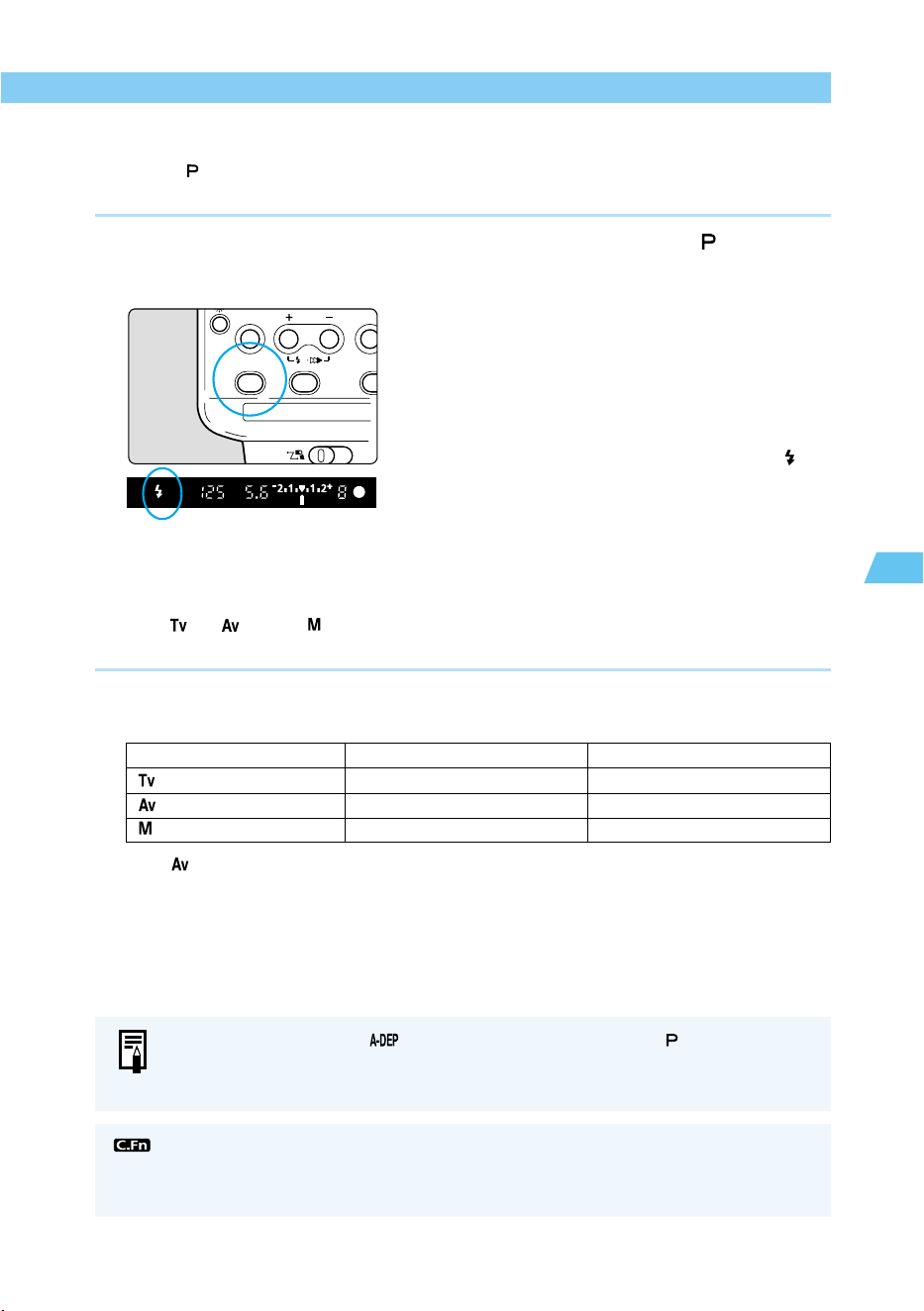
93
Flash Photography
4
Flash Photography with the EOS-Dedicated 550EX Speedlite
Full Auto Flash
Using the < > (Program AE) mode with E-TTL autoflash is described below. Regarding the
operation of the 550EX, refer to the Speedlite's instructions.
1
Set the Mode Dial to < >.
2
Make sure the 550EX Speedlite’s
pilot lamp is on.
3
Focus the subject, and take the
picture.
● Make sure the flash-ready indicator < > is
on, and check the shutter speed and
aperture value before taking the picture.
Taking Flash Pictures in Each Shooting Mode
Even in < >, < >, and < > modes, E-TTL autoflash is as easy as normal picture-taking
without flash.
(1) Press the shutter button down halfway to have the camera automatically set the shutter
speed or aperture value, just as in normal picture-taking without flash.
Mode Shutter speed setting
Aperture (flash aperture) setting
(Shutter-priority AE) Manual (30 to 1/200 sec.) Auto
(Aperture-priority AE) Auto (30 to 1/200 sec.) Manual
(Manual exposure) Manual (30 to 1/200 sec.) Manual
∗ If < > is set in low-light conditions, a slow shutter speed will be set. Therefore, use a
tripod to prevent camera shake.
(2) When you press the shutter button completely, a preflash will be fired based on the
aperture set in (1) and the picture will be taken with E-TTL autoflash.
(3) The background exposure is determined by the shutter speed and aperture value.
● Flash photography in < >mode operates the same as in < > mode.
● In the Basic Zone modes (→18), it will be automatic and as easy as flash
photography with the built-in flash.
MODE SELEC
PILOT
H
● You can disable the EX-series Speedlite from firing. (C.Fn-5-3→122)
● You can set the camera to apply a fixed shutter speed of 1/200 for flash
photography in aperture-priority AE mode. (C.Fn-6→124)
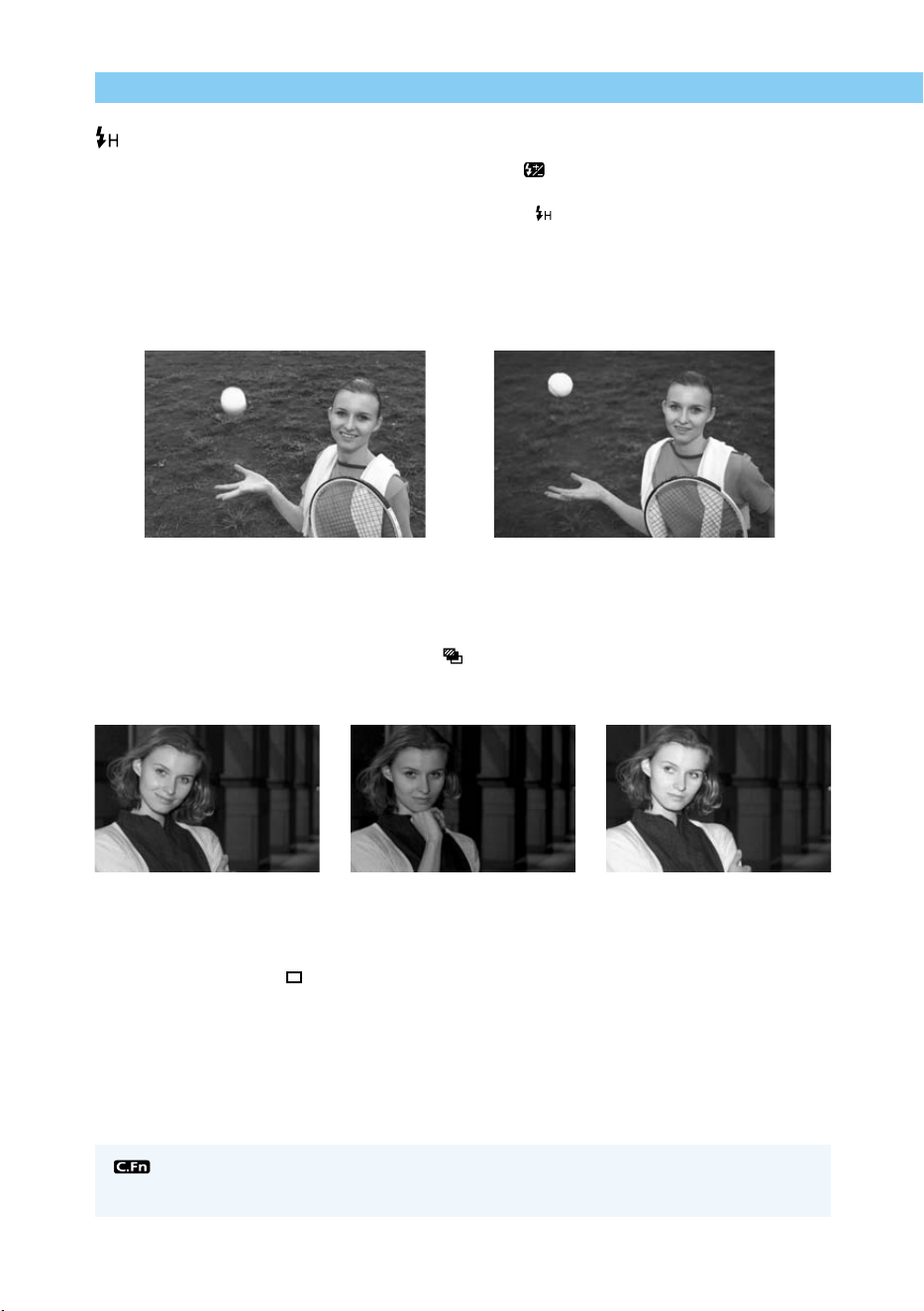
94
Flash Photography with the EOS-Dedicated 550EX Speedlite
High-Speed Sync (FP Flash)
When the 550EX Speedlite is set to high-speed sync < > mode, it can automatically
synchronize at any shutter speed of 1/200 second or faster, thus providing high-speed sync
(FP) flash operation. When high-speed sync is On, the <
> icon appears in the viewfinder.
High-speed sync is effective for portrait photography in the following situations:
(1) When you want to use daylight sync flash for a portrait, and widen the aperture (reduce
the aperture value) to blur the background.
(2) When you want to produce a catchlight in the subject’s eyes.
(3) When you want to use fill flash to eliminate shadows.
Normal flash FP flash
FEB (Flash Exposure Bracketing)
By setting FEB (flash exposure bracketing) < > with the 550EX, you can bracket the flash
exposure up to +/-3 stops in 1/2-stop increments. The flash output is changed automatically for
each bracketed shot so that the background exposure level remains the same.
Standard exposure (0) Decreased exposure (–1.0) Increased exposure (+1.0)
● FEB is applied from the 550EX Speedlite. For details, see the Instractions for your
Speedlite.
● For best results use < > (single-frame shooting) drive mode. (→63)
You can set the camera to change FEB settings in 1/3-stop increments.
(C.Fn-4-1→122)
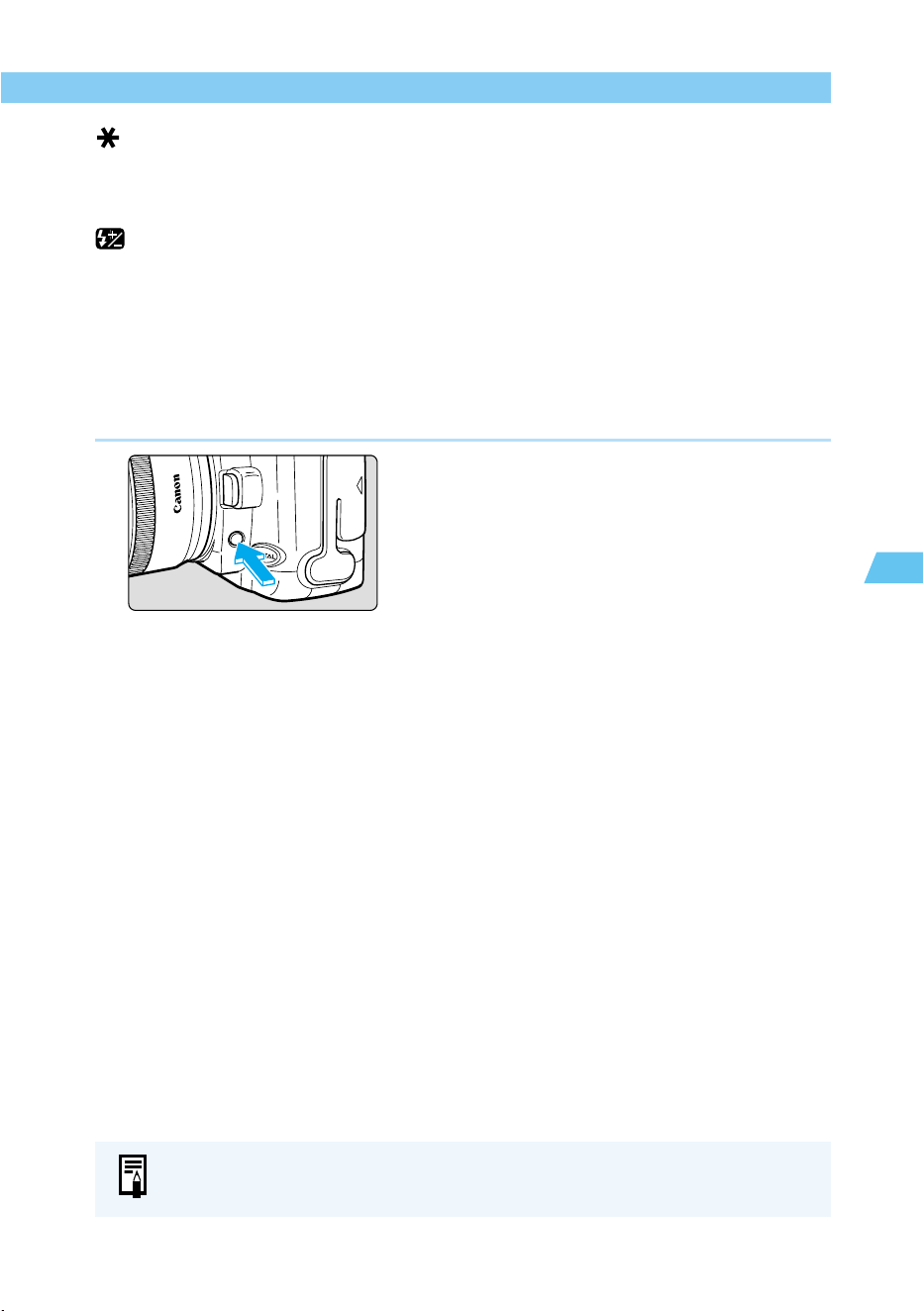
95
Flash Photography
4
Flash Photography with the EOS-Dedicated 550EX Speedlite
FE Lock
The procedure for setting FE lock is the same as with the built-in flash (→90). FE lock works in
both the normal flash and high-speed sync (FP flash) modes.
Flash Exposure Compensation
For flash pictures with flash exposure compensation, see “Flash Exposure Compensation” for
the built-in flash. (→91)
Modeling Flash
Modeling flash allows you to see shadows, light balance, and other effects produced by multi-
light settings.
1
Check that the camera and
Speedlite are properly set for flash
photography.
2
Press the camera’s depth-of-field
preview button.
● The Speedlite fires at 70Hz for approxi-
mately one second.
Wireless Multi-Flash/E-TTL Autoflash Shooting
The 550EX Speedlite can be operated as a slave light from a master (550EX or ST-E2) for
easy wireless multi-flash/E-TTL autoflash photography. The slave 550EX is placed to supple-
ment the master flash, which provides the primary flash for the subject.
● This is a Type-A camera. For details, refer to the instractions for your master Speedlite.
Macro Ring Lite MR-14EX and Macro Twin Lite MT-24EX can also be used as the
master unit, and Speedlite 420EX can also be used as a slave unit.
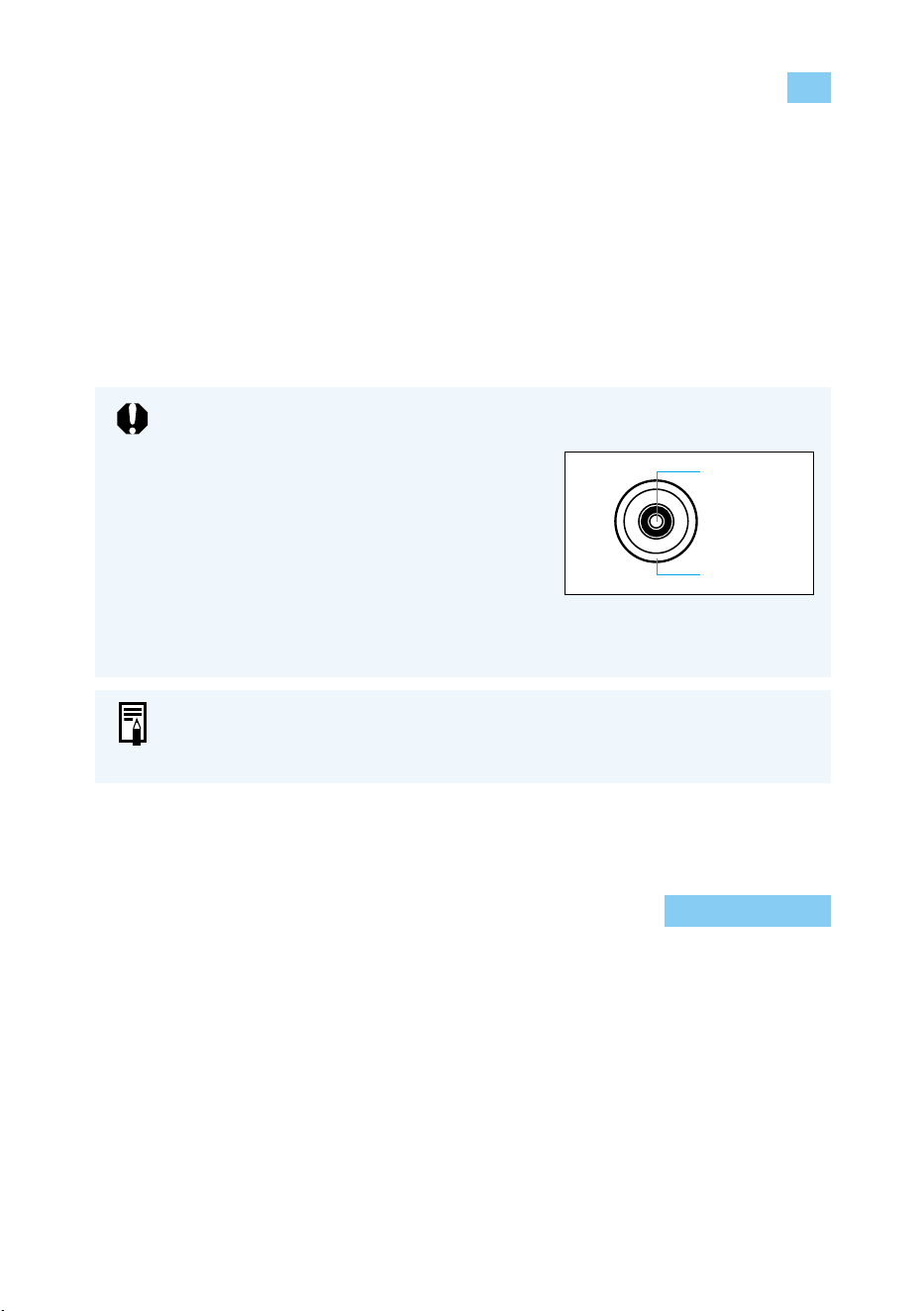
96
Using Non-Canon Flash Units
Sync Speed
The EOS D60 can synchronize with compact, non-Canon flash units at shutter speeds of 1/
200 second or slower. With larger studio flash units, the flash speed is 1/60 second or slower.
Be sure to test the flash you are using beforehand, to make sure it synchronizes properly with
the camera.
PC Terminal
We recommend you use a flash with sync cable connected to the PC contacts. The PC
terminal has a locking thread to prevent accidental disconnection. Only the X-sync terminal is
used for synchronization at 1/200 second or slower.
● You can use a flash unit attached to the camera's hot shoe and another flash
unit connected to the PC terminal at the same time.
● We recommend Canon EX-series Speedlites for use with this camera.
● If you use the EOS D60 with a flash unit or flash accessory built for another
brand of camera, the EOS D60 may not operate properly.
● Some large studio flash units have a sync
cord polarity that is the opposite of the EOS
D60’s PC terminal. Such flash units will not
work with the EOS D60 unless you change
the polarity of the sync cord. Consult the
manufacturer of the flash unit, or purchase a
commercially-available polarity conversion
cord. The camera’s PC terminal polarity is
shown in the figure on the right.
● Do not use a high voltage flash on the hot shoe. It might not fire.
+ (plus)
– (minus)
TTL and A-TTL Speedlites
● With an EZ-, E-, EG-, ML-, or TL-series Speedlite set in the TTL or A-TTL autoflash mode,
the flash will not fire. The manual flash mode must be used (with Speedlites having a
manual flash mode).
● When the 550EX is set to C.Fn-3-1, the flash will not fire in the TTL autoflash mode.

97
Playing and Erasing Recorded Images
5
5
This section explains how to view the images you have recorded
with the EOS D60, how to erase images, and how to make settings
for Digital Print Order Format (DPOF) printers or photo lab printing
services.
This section also describes how to connect the EOS D60 to a televi-
sion and how to set the date and time.
Playing and
Erasing
Recorded Images
About Image Data Taken or Recorded by Other Devices
The EOS D60 may in some cases be unable to accurately display images taken
with other cameras, or taken with the EOS D60 but subsequently had image data or
file names modified by computer or other means.
About DPOF
DPOF (Digital Print Order Format) is a standard used to record (on the CF card or
other recording media) the image number, number of prints, etc. of images taken by
digital camera.
● You can simply insert the CF card into a DPOF-compatible printer to make prints
as specified.
● You will not need to fill out the desired numbers and quantities of prints when
ordering prints from a photo printing lab.
∗ This camera is compatible with DPOF Version 1.1.
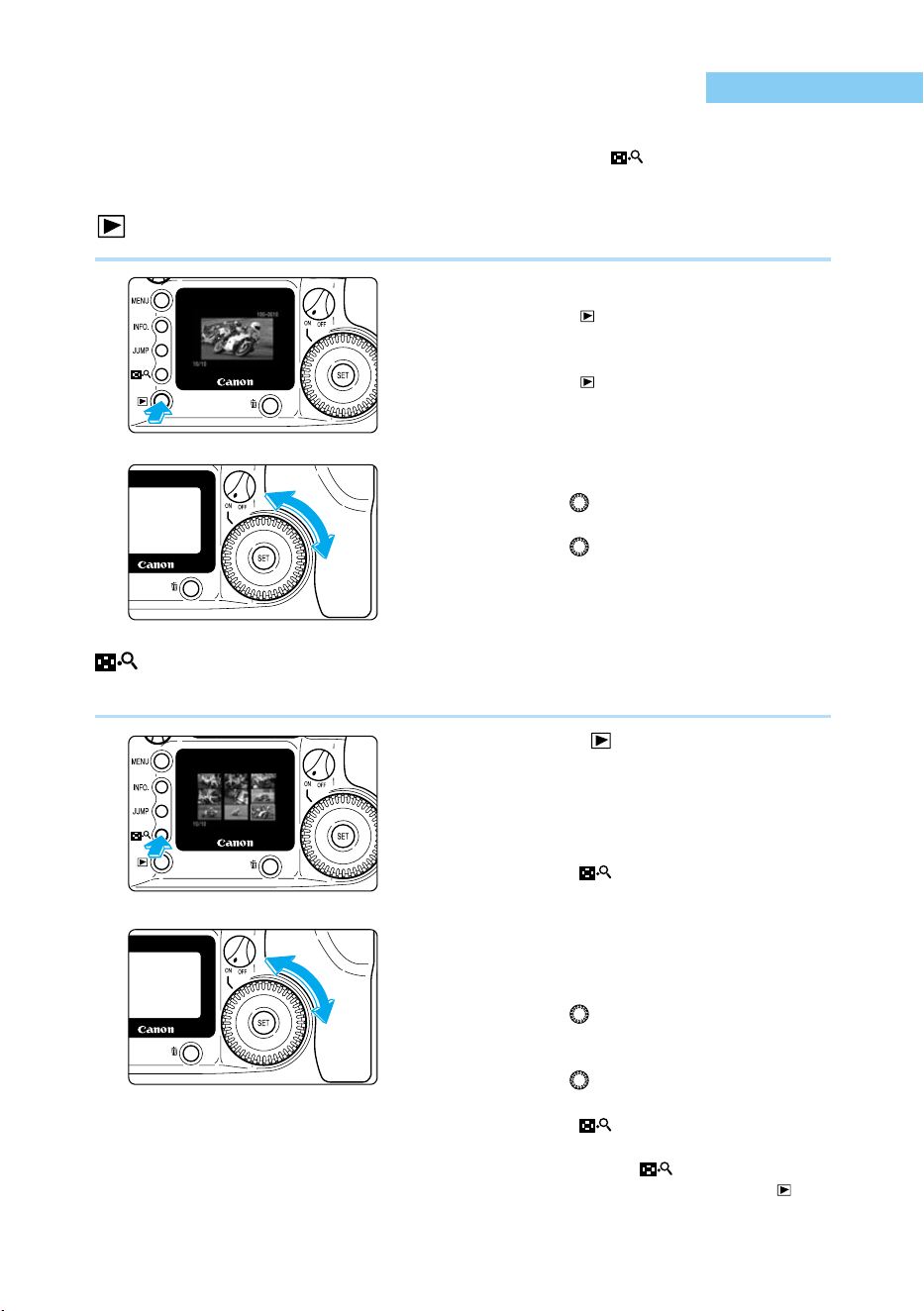
98
Viewing Recorded Images
The EOS D60 can display recorded images on its LCD monitor. You can view these images in
single-image format, index format, or enlarged format. Press the <
> button to switch
formats.
Viewing a Single Image
1
Check the image.
● Press the < > button.
➡ The most recent single image taken by the
camera appears.
● Press the < > button again to clear the
LCD monitor and exit PLAY.
2
Change the displayed image.
● Turn the < > dial counterclockwise to
view images in order from newest to oldest.
● Turn the < > dial clockwise to view
images in order from oldest to newest.
Viewing the Index
This mode displays 9 images simultaneously on a single screen.
1
Press the < > button.
➡ The most recent single image taken by the
camera appears.
2
Display the index.
● Press the < > button.
➡ The images are displayed in index format.
3
Change the image selection.
➡ The selected image is surrounded by a
green frame.
● Turn the < > dial counterclockwise to
select images in order from newest to
oldest.
● Turn the < > dial clockwise to select
images in order from oldest to newest.
● Press the < > button to enlarge the
selected image. To return to single-image
display, press the < > button again.
● When you finish viewing, press the < >
button.
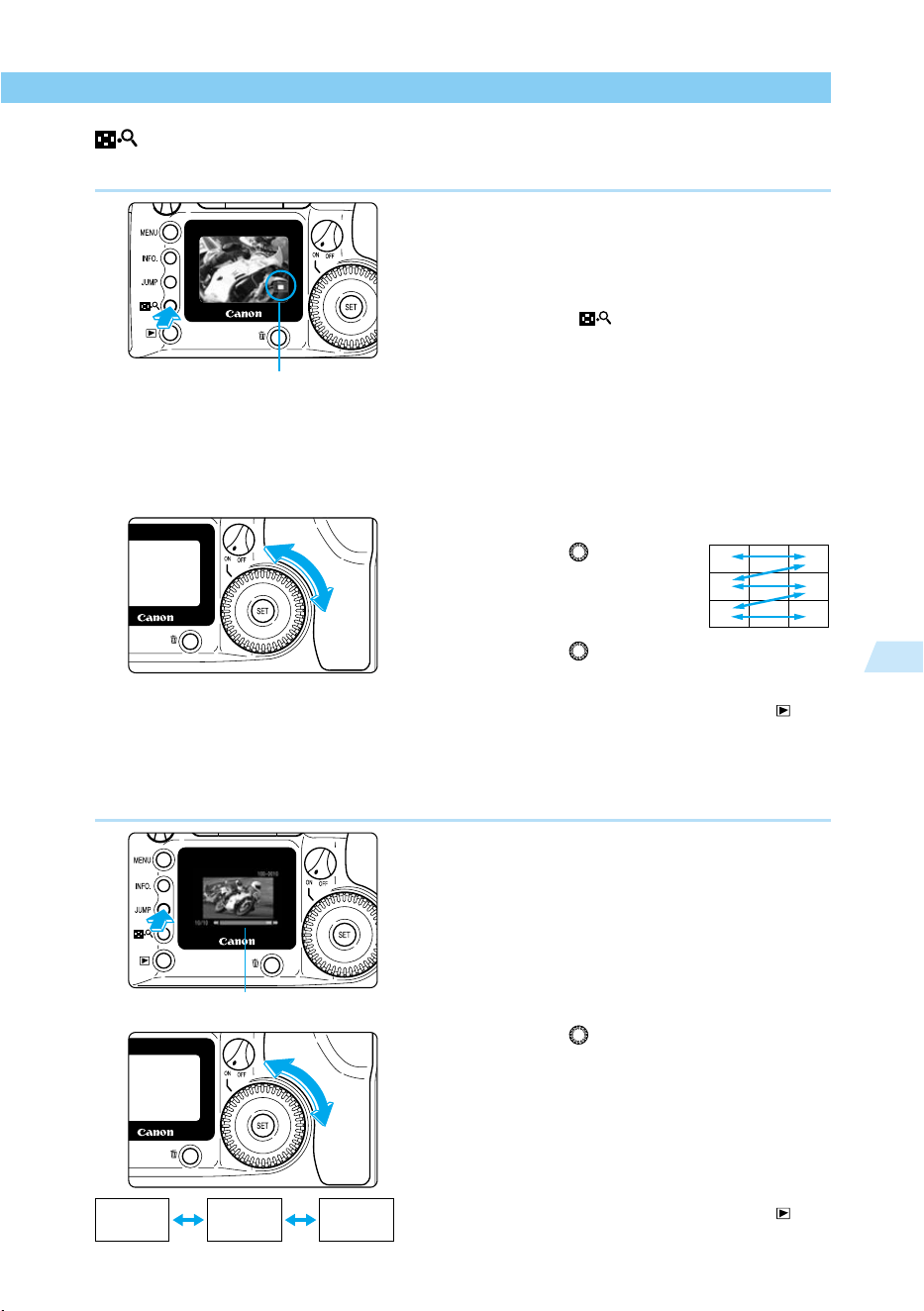
99
Playing and Erasing Recorded Images
5
Viewing Recorded Images
Viewing Enlarged Images
Recorded images can be enlarged approximately 3×.
1
Select the image you want to
enlarge from a single-image or
index display. (→98)
2
Enlarge the image.
● Press the < > button twice from a
single-image display, or once from an index
display.
➡ The selected image is enlarged approxi-
mately 3×.
➡ The central part of the image is displayed
first.
➡ An icon in the lower right part of the image
indicates which part of the picture is
currently displayed.
3
Change the display area.
● Turn the < > dial
clockwise to change the
displayed area of the
picture from center to
center right to lower left.
Turn the < > dial counterclockwise to
change the displayed area of the picture
from center to center left to top right.
● When you finish viewing, press the < >
button.
JUMP
Jumping to Another Image
The display can jump directly to another image.
1
Display a single image or index.
(→98)
2
Change to jump display.
● Press the <
JUMP
> button.
➡ The Jump bar appears.
3
Jump to another image.
● Turn the < > dial.
➡ From a single-image display, turn the dial
counterclockwise to go back 10 images, or
clockwise to go forward 10 images.
➡ From an index display, turn the dial
counterclockwise to go back 9 images, or
clockwise to go forward 9 images.
● Press the <
JUMP
> button to clear the Jump
bar and exit JUMP.
● When you finish viewing, press the < >
button.
Part to be enlarged
Jump bar
Image 10
frames back
Current
image
Image 10
frames forward
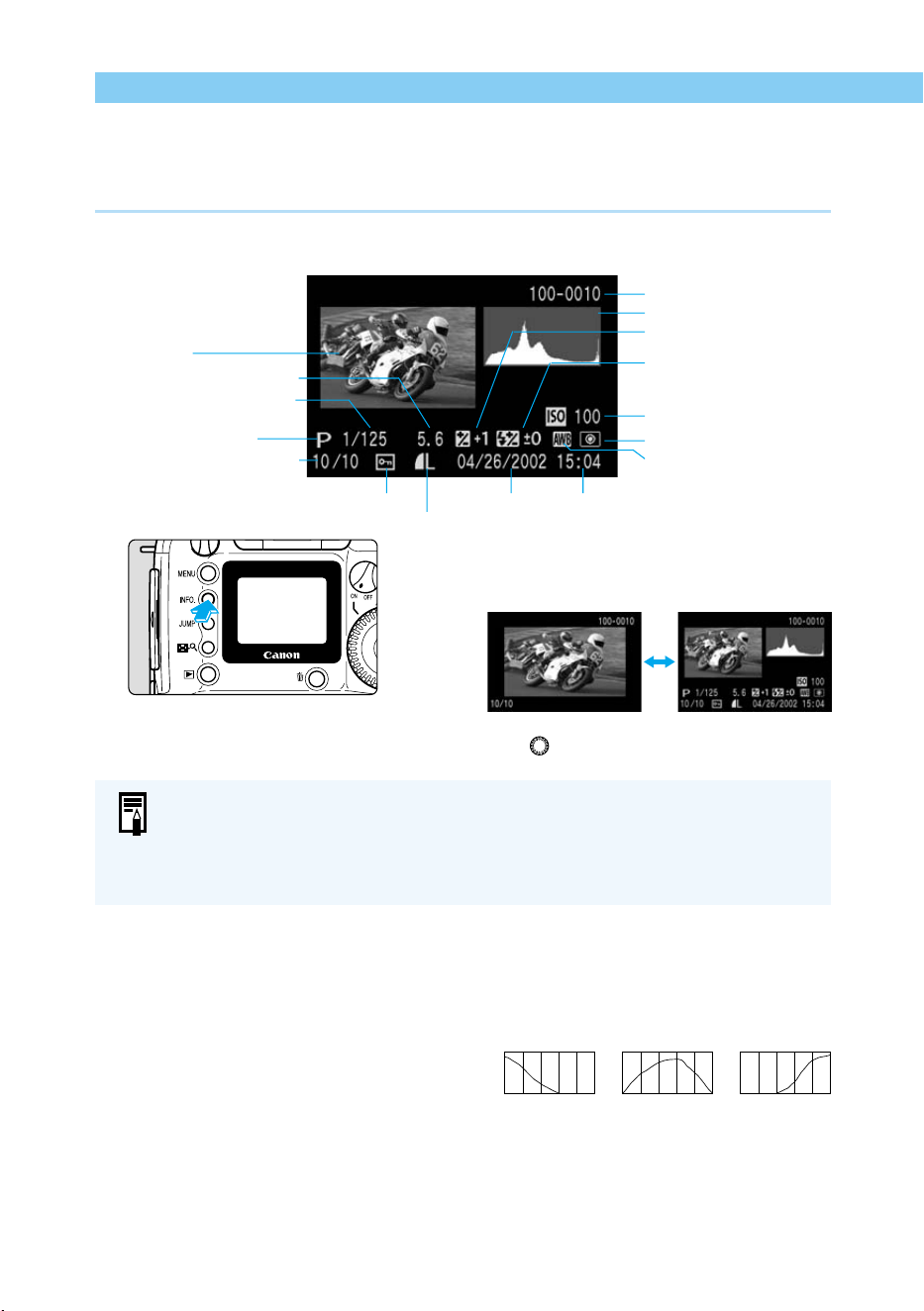
100
INFO.
Turning the Information Display On and Off
When an image is displayed on the LCD monitor, you can press the <
INFO.
> button to view
information about that image. Image information is available only for single-image displays.
Image Information Displayed During PLAY
The following information is displayed:
Press the <
INFO.
> button
➡ Pressing the button repeatedly switches the
LCD monitor information display On and Off.
● You can change the displayed image using
the < > dial, just as for a single-image
display.
Histograms
The histogram is a graph showing brightness levels on the horizontal axis, and the number of
pixels at each level of brightness on the vertical axis. Darker pixels are towards the left side of
the graph, and brighter pixels towards the right. By looking at a histogram you can judge the
brightness of a picture after it is recorded.
If the histogram is higher towards the dark end,
set the exposure compensation (→77) towards the
plus end. If the histogram is higher towards the
light end, set the exposure compensation towards
the minus end, then take the picture again.
Highlight Alert
When exposure information is displayed for a picture that will be overexposed, the related
settings will blink. For better results check the histogram and adjust the exposure compensa-
tion towards the decreased exposure end (→77), then take the picture again.
Viewing Recorded Images
Image (→40)
Aperture value (→128, 134)
Shutter speed (→130, 134)
Shooting mode (→18)
Image number/total images
recorded
Image protect (→103)
Quality (→50)
Date (→34) Time (→34)
File number (→114)
Histogram
Exposure compensation
(→77)
Flash exposure
compensation (→91) (not
displayed when flash not in use)
ISO speed (→51)
Metering mode (→61)
White balance (→64)
● For settings displayed while preparing to shoot, see “Checking Camera
Settings” (→60).
● You can switch the information display On and Off by pressing the <
INFO.
>
button, even during automated playback (Auto playback) (→101), or while
rotating (→102), or protecting images (→103).
Sample Histograms
Normal brightnessDarker image Lighter image
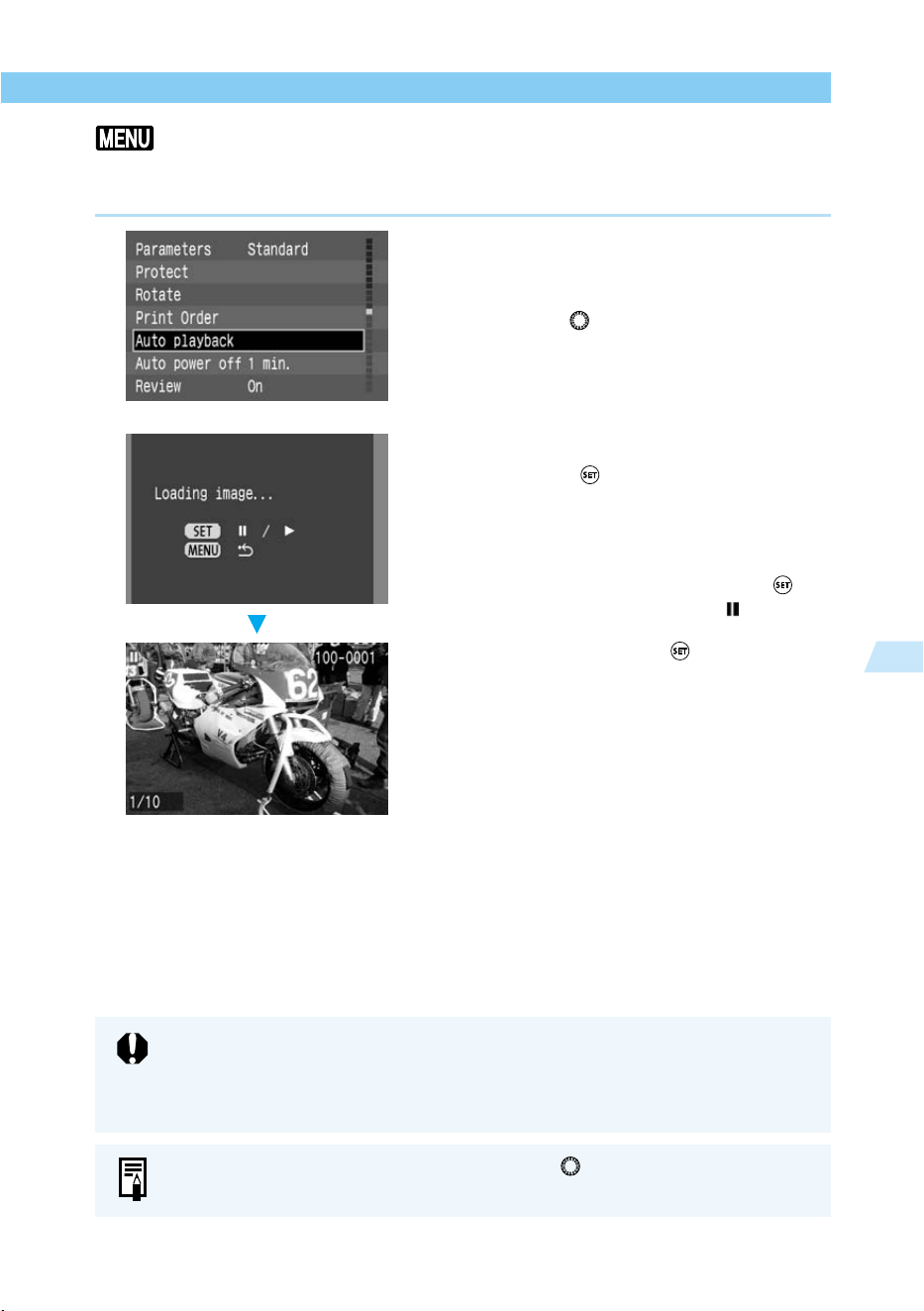
101
Playing and Erasing Recorded Images
5
Viewing Recorded Images
Automated Playback of Recorded Images (Auto playback)
This function automatically and continuously displays all images recorded on the CF card.
Each image is displayed for approximately 3 seconds.
1
From the menu, select [Auto
playback].
● Press the <
MENU
> button.
● Turn the < > dial to select [Auto play-
back].
2
Start auto playback.
● Press the < > button.
➡ The camera loads the images, and after the
“Loading image…” screen has been
displayed for approximately 2 seconds, the
auto playback starts.
● To pause auto playback, press the < >
button. During the pause, the [ ] indicator
appears in the upper left part of the image.
To resume, press the < > button again.
● To quit auto playback, press the <
MENU
>
button.
While auto playback is paused, you can turn the < > dial to change the picture
in the same way as for single-image display (→98).
● During auto playback, the Auto power off function (→29, 120) does not operate.
After you have finished viewing, be sure to press the <
MENU
> button to stop the
auto playback.
● Display time may vary depending on the image.
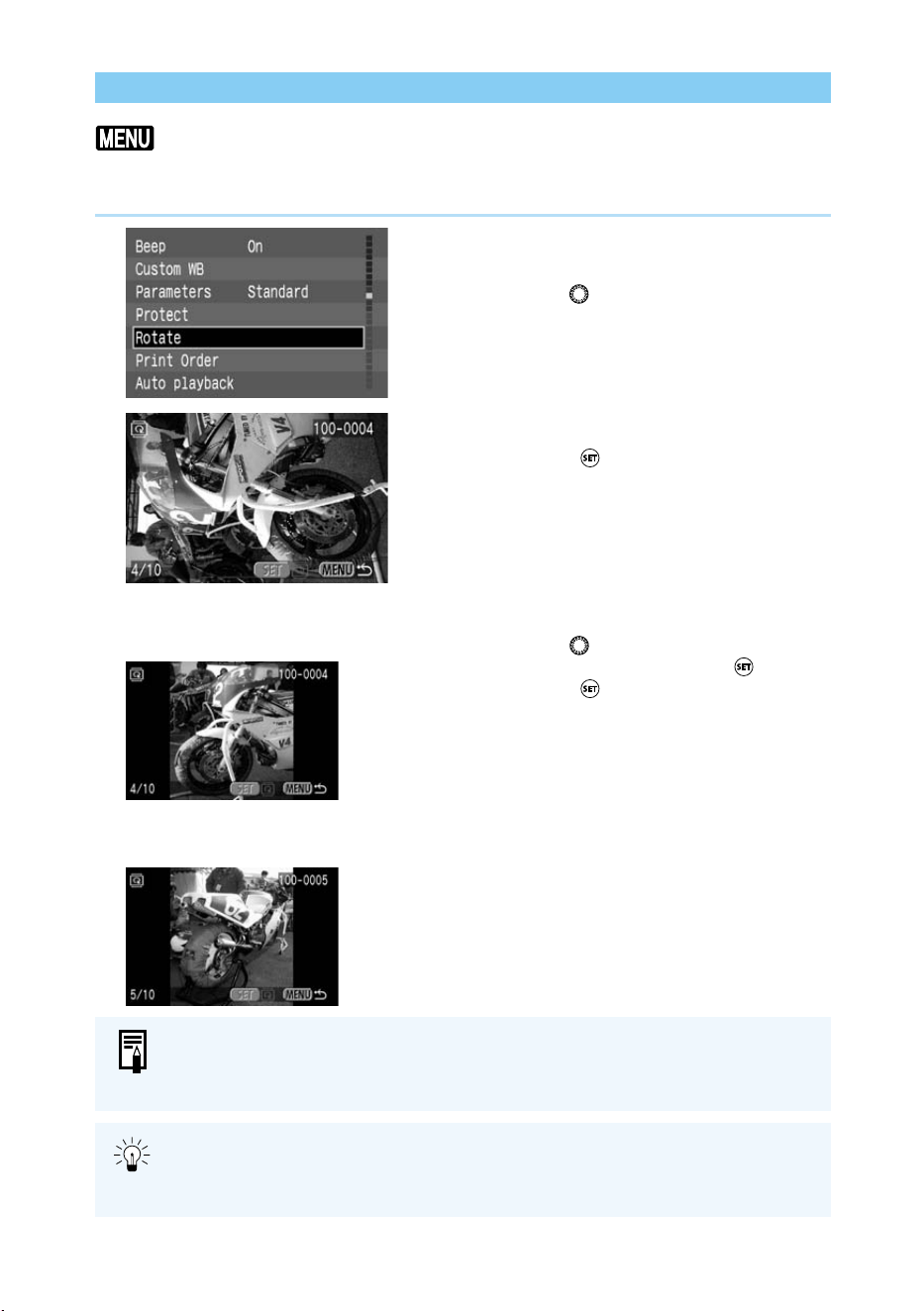
102
Viewing Recorded Images
Rotating an Image
The Rotate function can rotate an image 90° clockwise or counterclockwise. This allows you to
play images with the correct orientation.
1
From the menu, select [Rotate].
● Press the <
MENU
> button.
● Turn the < > dial to select [Rotate].
2
Go to Rotate mode.
● Press the < > button.
➡ The display goes to Rotate mode.
3
Rotate the image.
● Turn the < > dial to display the image you
want to rotate, then press the < > button.
➡ Press the < > button repeatedly to cycle
through the rotation: 90° clockwise → 90°
counterclockwise → 0°.
● If you have other images to be rotated,
repeat the above steps.
● Press the <
MENU
> button to exit Rotate
mode.
● Rotating images in the display has no effect on the recorded image data.
● Some software for loading images may not display a rotated image with the
correct orientation on a computer screen.
Pictures taken with the camera grip on the bottom should be rotated 90° clockwise
to be displayed correctly. Pictures taken with the camera grip on the top should be
rotated 90° counterclockwise to be displayed correctly.
Rotate pictures taken with
the camera grip on the
bottom 90° clockwise
Rotate pictures taken with
the camera grip on the top
90° counterclockwise
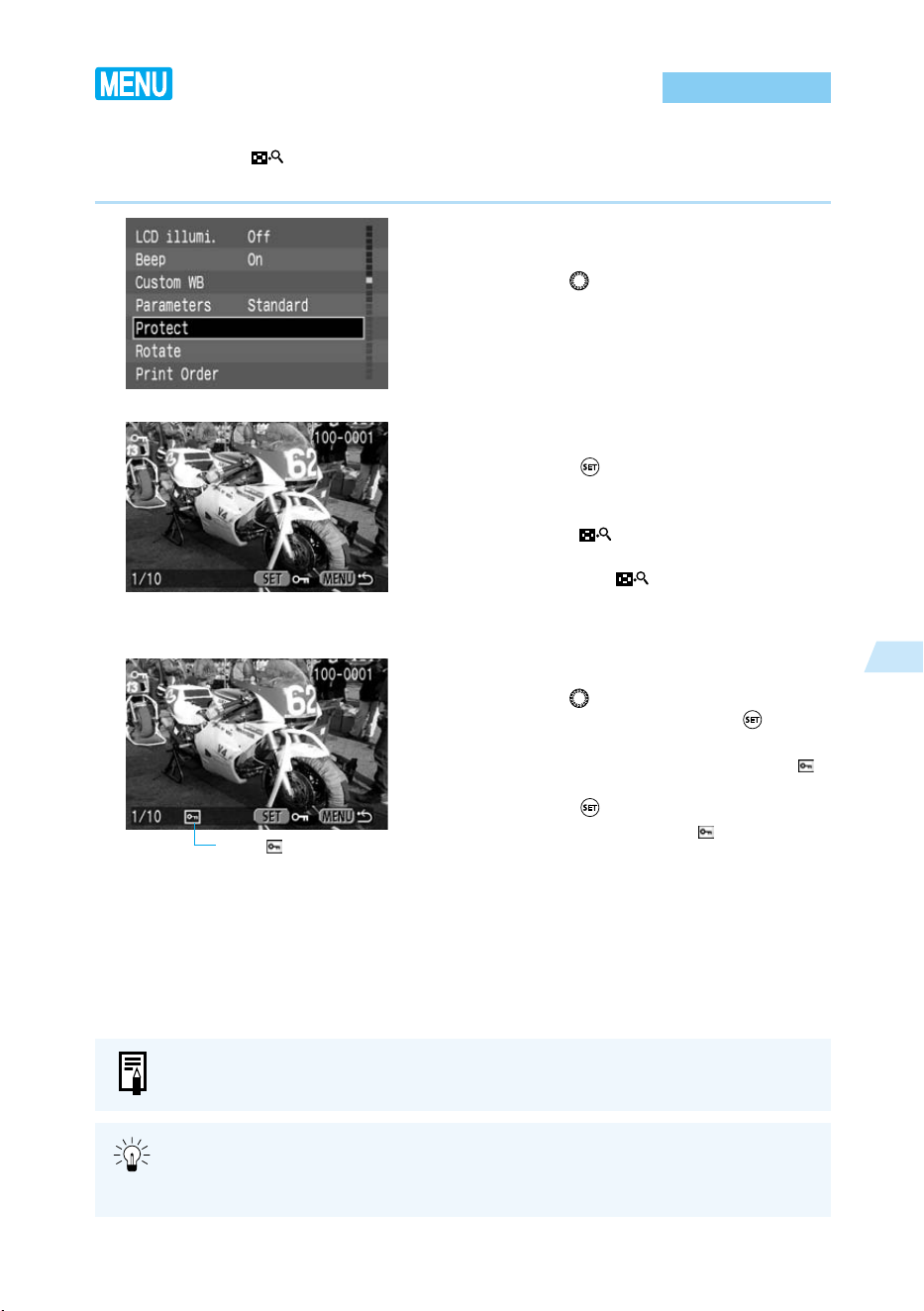
103
Playing and Erasing Recorded Images
5
Protecting an Image
You can erase-protect images to prevent accidental erasure.
You can press the <
> button to switch between single-image and index display in order to
protect individual pictures.
1
From the menu, select [Protect].
● Press the <
MENU
> button.
● Turn the < > dial to select [Protect].
2
Open the Protect Settings screen.
● Press the < > button.
➡ The display goes to the Protect Settings
screen.
● Press the < > button to show the
Protect Settings screen on an index display,
then press the < > button again to show
the Protect Settings screen on a single
image display.
3
Protect the image.
● Turn the < > dial to select the image you
want to protect, then press the < >
button.
➡ Protected images are identified with a < >
icon.
● Press the < > button again to cancel
protection and delete the < > icon.
● If you have other images to be protected,
repeat the above steps.
● Press the <
MENU
> button to exit Protect
mode.
The < > icon
Once an image is protected, it cannot be removed by the camera’s Erase function.
To erase a protected image, you must first remove the protection.
If you protect the images you need and erase all the images at once (→104), all
non-protected images will be erased. This is handy when you want to erase all the
images you do not need at once.
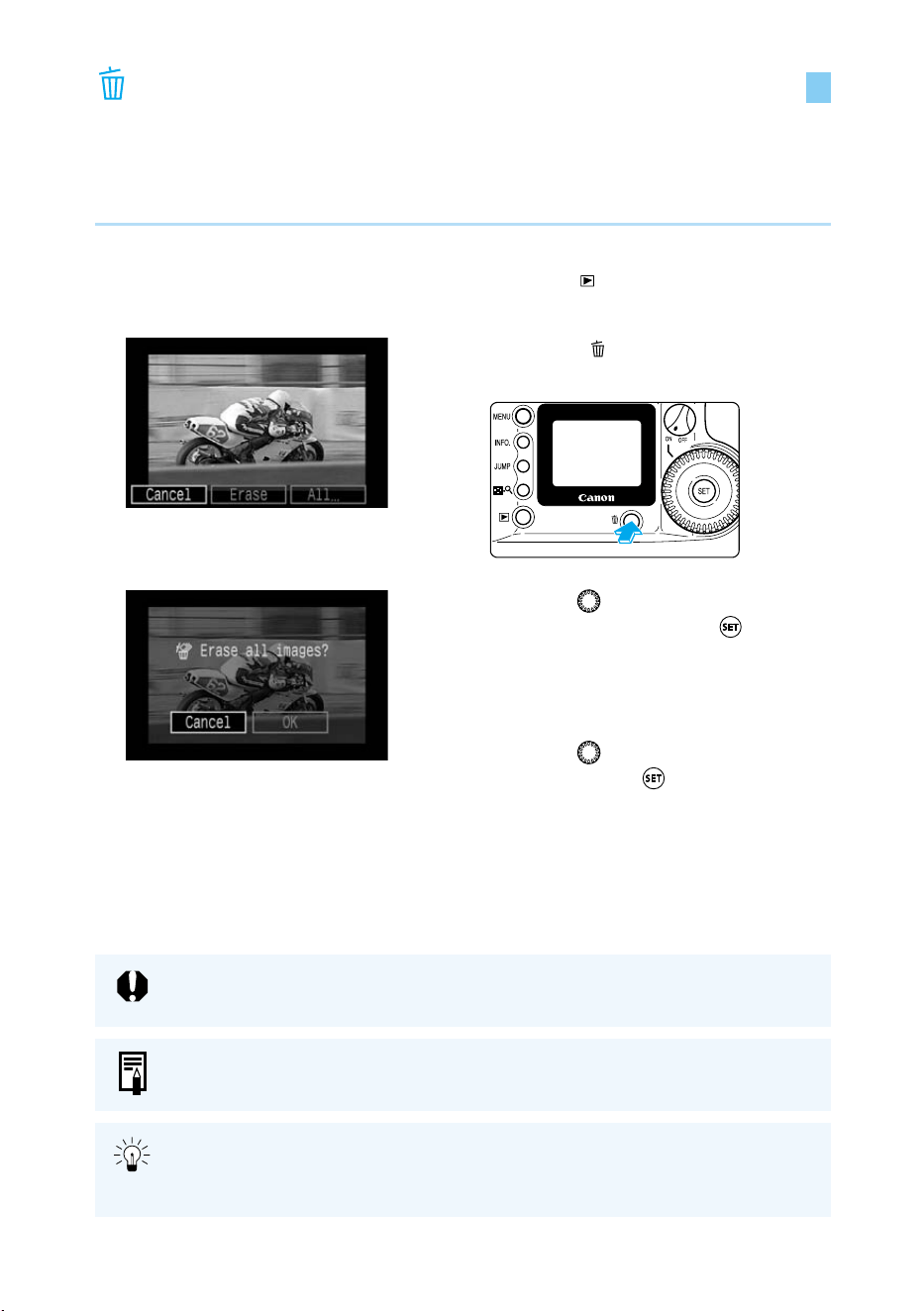
104
Erasing Images (All Image Erase)
You can erase images one image at a time, or you can erase all images on the CF card at
once. This section describes how to erase all the images recorded on a CF card in one
operation. To erase images one at a time, see “Erasing a Recorded Image (Single Image
Erase)”. (→43)
1
Set the camera to PLAY. (→98)
● Press the < > button.
➡ The latest picture taken will be displayed.
2
Press the < > button.
➡ The Erase menu appears.
3
Turn the < > dial to select
[All…], then press the < >
button.
➡ The Erase Confirmation message appears.
4
Turn the < > dial to select [OK],
then press the < > button.
➡ The camera erases all unprotected images.
Once an image is erased, it cannot be recovered. Make sure you no longer need
the image before erasing it.
Once an image is protected, it cannot be removed by the camera’s Erase function.
To erase a protected image, you must first remove the protection.(→103).
If you protect the images you need (→103) and erase all the images at once, all
non-protected images will be erased. This is handy when you want to erase all the
images you do not need at once.
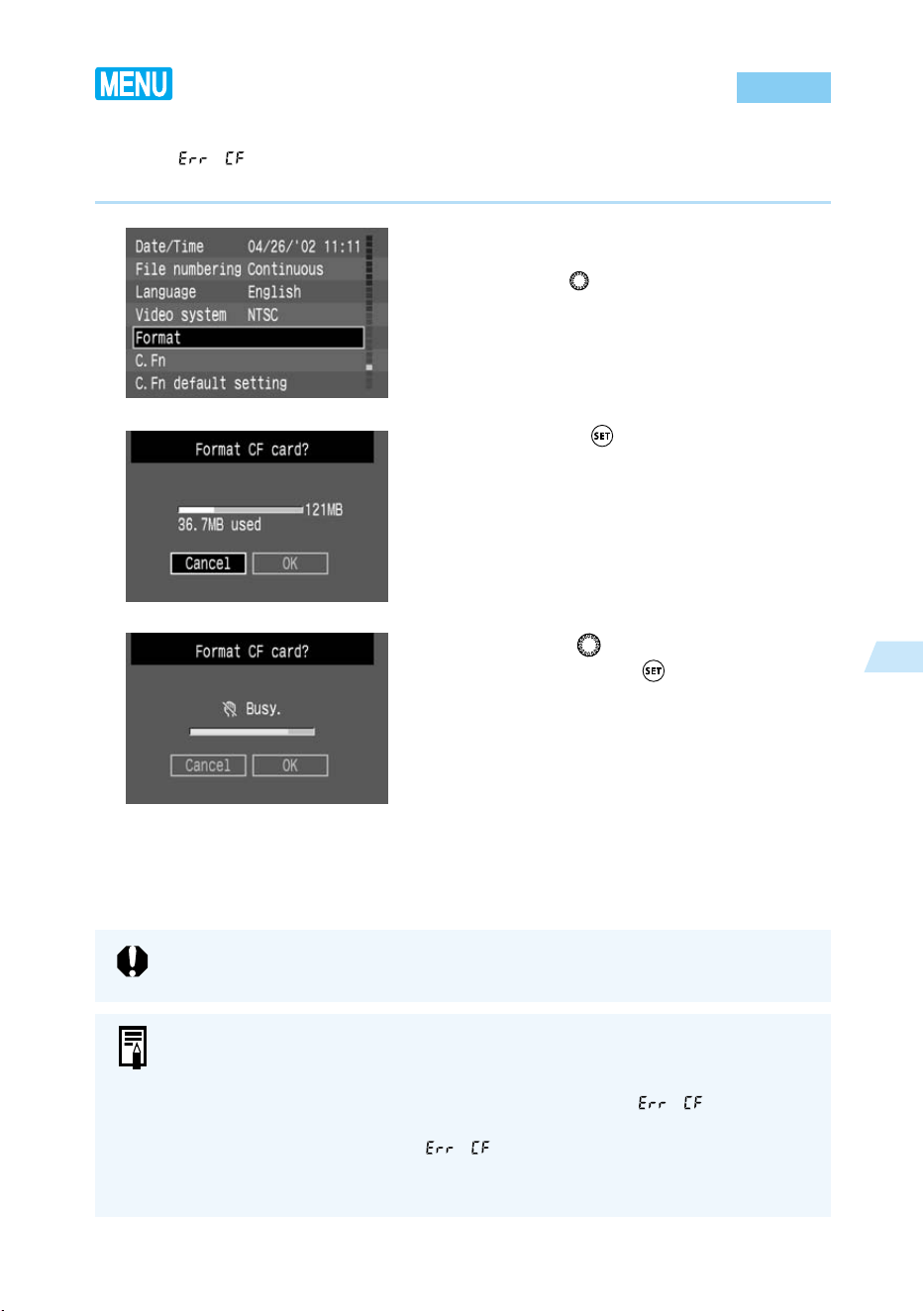
105
Playing and Erasing Recorded Images
5
Formatting the CF Card
The CF card must be formatted before it is used in the EOS D60 camera. Also, if you see the
message “
” (CF card error) on the LCD panel when you load a CF card, the CF card
may need to be formatted before it can be used.
1
From the Menu, select [Format].
● Press the <
MENU
> button.
● Turn the < > dial to select [Format].
2
Press the < > button.
➡ A message will appear asking you to
confirm that you want to format the CF
card.
3
Turn the < > dial to select [OK],
then press the < > button.
➡ The CF card will be formatted.
Formatting a CF card will erase all information on the card, including protected
images. Be sure to carefully review the contents of a CF card before formatting.
● A non-Canon CF card or a CF card formatted with another camera or personal
computer might not work with the EOS D60 camera. In such a case, format the
CF card with the camera first. Then it might work with the camera.
● If you insert the CF card and the CF card error message “ ” appears,
use a utility program such as Scan Disk to diagnose and fix the CF card.
● If the CF card error message “ ” appears even after you format the CF
card, or you use Scan Disk or a similar utility program, use another CF card
instead.
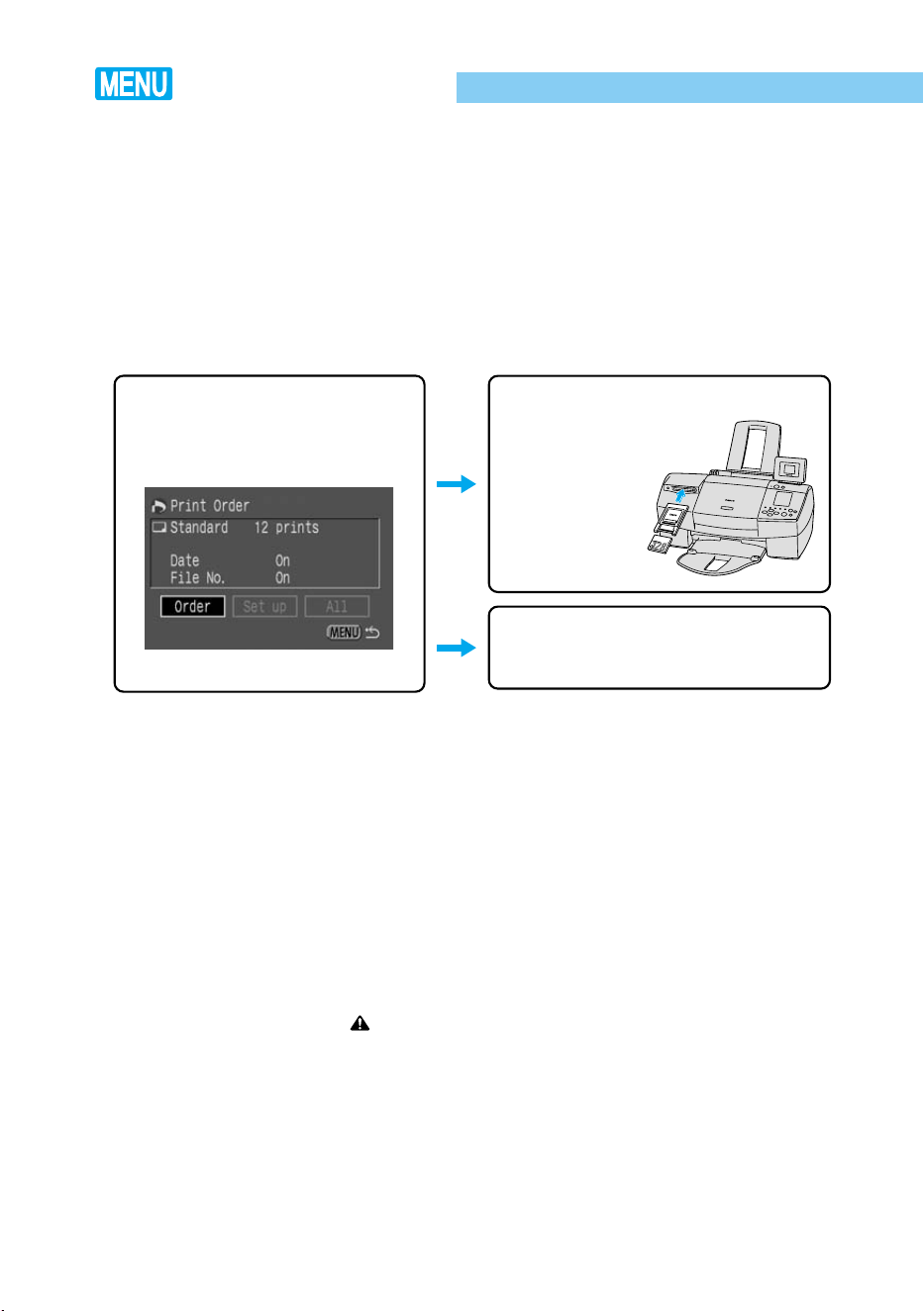
106
You can mark the images on a CF card for printing, as well as specify the number of prints,
print type, and the image data (date and file no.). The print specifications for the Canon EOS
D60 camera conform to the Print Order Format (DPOF) standard.
DPOF
DPOF (Digital Print Order Format) is a standard used to record (on the CF card or other
recording media) the image number, number of prints, etc. of images taken by digital cameras.
● By fitting a CF card into a PC card adapter (optional) and inserting it into a PC card slot-
equipped printer compatible with DPOF, you can make prints as specified.
● You will not need to fill out the desired numbers and quantities of prints when ordering prints
from a photo printing lab.
Precautions for Printing from DPOF-compatible Devices
Please note the following when printing from a DPOF-compatible device.
● The EOS D60 cannot change print order information set by another DPOF-compatible
device. Any such changes should be made by the device on which the print order was
entered.
● If the CF card contains image data with print order information from another device, entering
new print order information from the EOS D60 may erase the previous print order informa-
tion.
● Some DPOF-compatible devices or photo printing services may not use all the recorded
print order information. Check the instractions for the device you are using, or with the photo
printing service.
∗ The print specifications while [ ] is appearing on the LCD panel will cancel all the former
specifications.
∗ The Canon Card Photo Printer CP-10 cannot be connected to the EOS D60 to make direct
prints.
Print Order
1 Order the prints from the
camera.
2 Just insert the
CF card into
the printer for
easy printing.
2 Take the CF card to a photo
printing service for easy ordering.
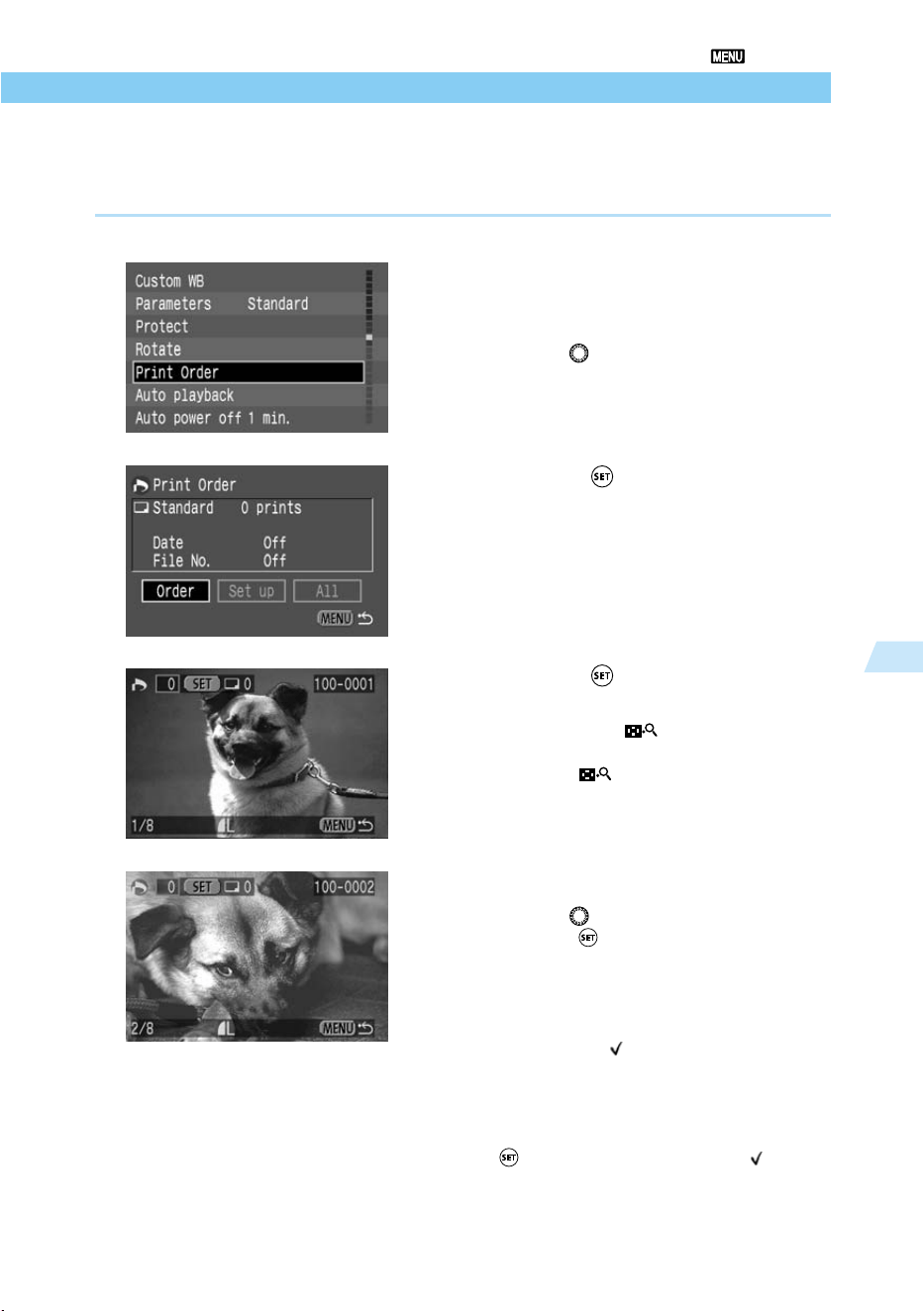
107
Playing and Erasing Recorded Images
5
Print Order
Selecting Images for Printing
There are two ways to select images for printing. You can select images one at a time, or
select all images.
Selecting a Single Image
1
From the menu, select [Print
Order].
● Press the <
MENU
> button.
● Turn the < > dial to select [Print Order].
2
Press the < > button.
➡ The Print Order screen appears.
➡ [Order] is selected.
3
Press the < > button.
➡ The Select Image screen appears.
● If you press the < > button, 3 images
are displayed on the “Select Image” screen.
Press the < > button again to enlarge
the image on the “Select Image” screen.
4
Select the images.
● Turn the < > dial to select an image, then
press the < > button.
➡ If the Print Type (→109) selection is
Standard or Both, the Print Quantity screen
appears.
➡ If the Print Type (→109) selection is [Index],
a check mark < > appears at the upper
left.
● Images in RAW format cannot be marked
for printing.
● If you selected [Index], you can press the
< > button again to delete the < > mark
and cancel the selection.
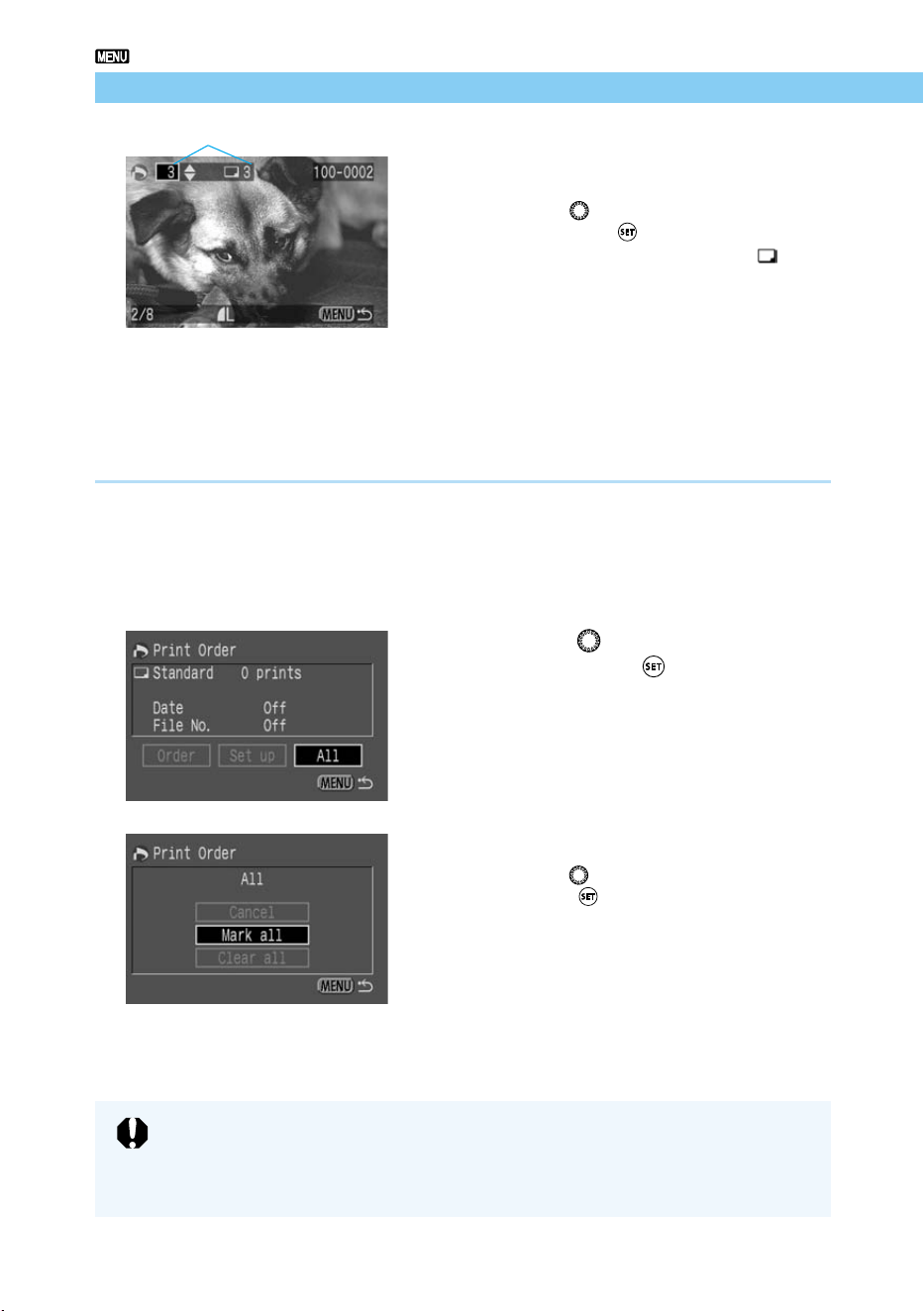
108
Print Order
5
Select the print quantity.
● If the Print Type (→109) is [Index], you can
not specify the print quantity.
● Turn the < > dial to select the quantity,
then press the < > button.
➡ The quantity appears next to the < > icon.
● To cancel the selection, set the quantity to
[0].
● To select another image, repeat steps 4 and
5.
● Press the <
MENU
> button to return to the
Select Image screen.
Selecting All Images
You can select all images on a CF card at once, except those in RAW format.
1
Follow steps 1 and 2 of the Select-
ing a Single Image procedure
(→107), to display the Print Order
screen.
2
Turn the < > dial to select [All],
then press the < > button.
➡ The Select All Images menu appears.
3
Select [Mark all].
● Turn the < > dial to select [Mark All], then
press the < > button.
➡ This orders all the images and the display
then returns to the Print Order screen.
● At this point you can select [Clear all] to
cancel print order for all images.
● Select [Cancel] to return to the Print Order
screen.
Number of prints of the selected image
● Images are printed in order from oldest to newest.
● You can order up to 998 images.
● If you select images using the Mark All method, one copy of each will be
printed. To specify quantities, use the Selecting a Single Image method. (→107)
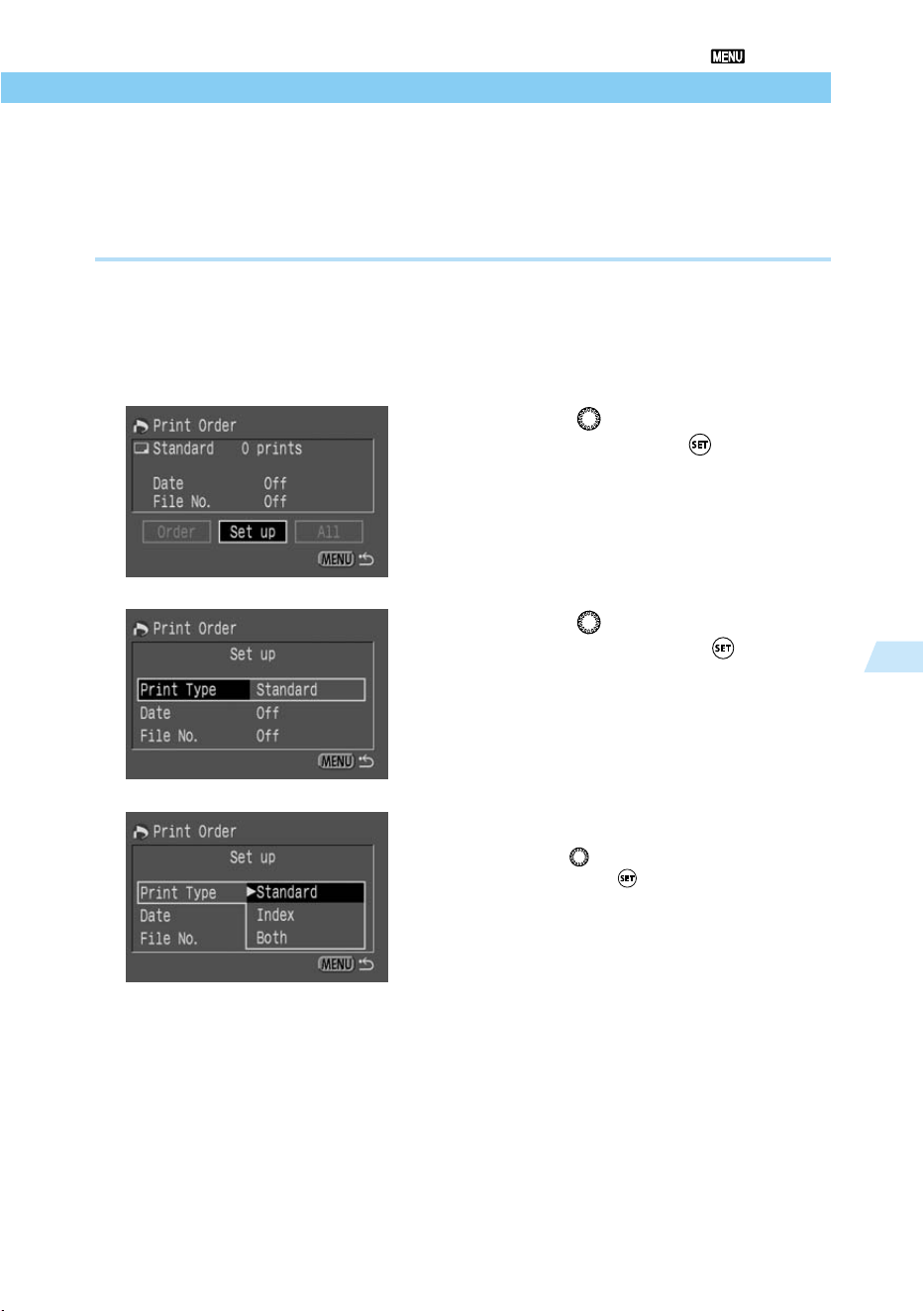
109
Playing and Erasing Recorded Images
5
Print Order
Print Type
You can specify the following print types.
Standard: Prints one image to each sheet.
Index: Prints an index of the images in reduced size, on one sheet.
Both: Prints the individual images and an index sheet.
1
Follow steps 1 and 2 of the Select-
ing a Single Image procedure
(→107), to display the Print Order
screen.
2
Turn the < > dial to select [Set
up], then press the < > button.
➡ The Print Order Setting screen appears.
3
Turn the < > dial to select [Print
Type], then press the < > button.
4
Select the print type.
● Turn the < > dial to select the print type,
then press the < > button.
● Press the <
MENU
> button to return to the
Print Order screen.
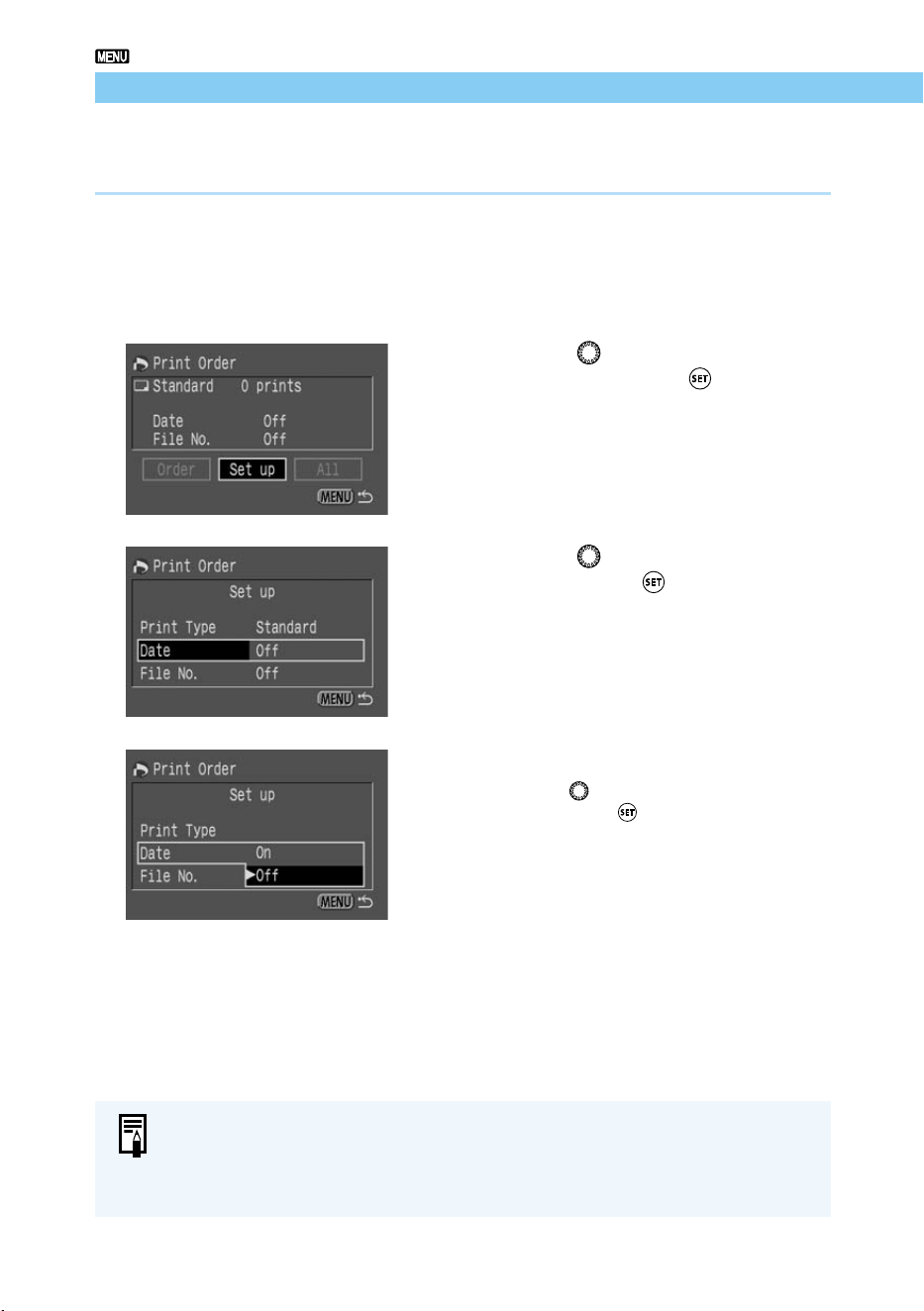
110
Print Order
Specifying Date Printing
You can specify printing of the date and time on each image.
1
Follow steps 1 and 2 of the Select-
ing a Single Image procedure
(→107), to display the Print Order
screen.
2
Turn the < > dial to select [Set
up], then press the < > button.
➡ The Print Order Setting screen appears.
3
Turn the < > dial to select [Date],
then press the < > button.
4
Specify date printing.
● Turn the < > dial to select [On] or [Off],
then press the < > button.
● Press the <
MENU
> button to return to the
Print Order screen.
● If the print type is [Index], you cannot specify both date and file number. Specify
one or the other.
● The date will be printed in the date style set from the menu in the Date/Time
function. (→34)
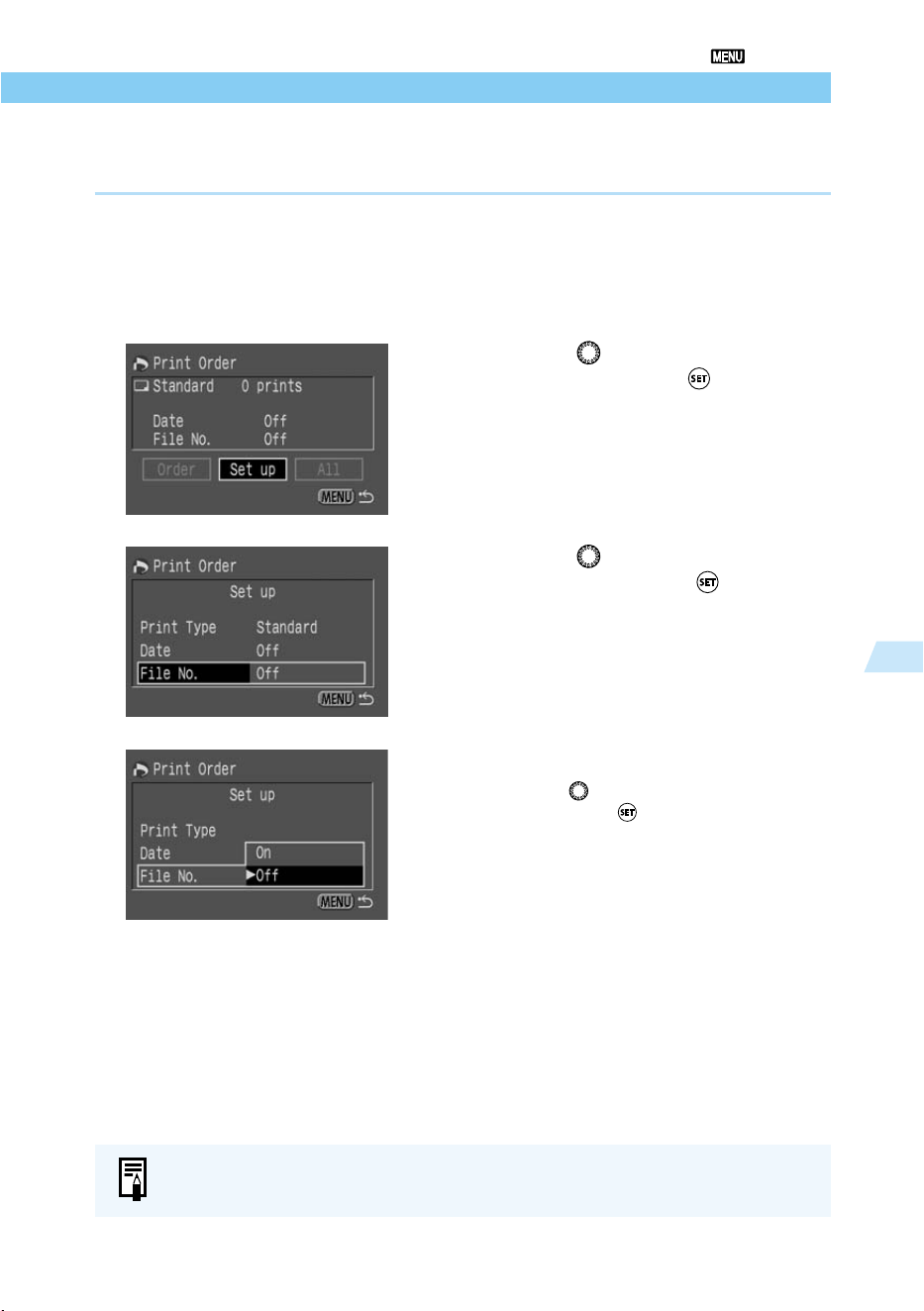
111
Playing and Erasing Recorded Images
5
Print Order
If the print type is [Index], you cannot specify both date and file number. Specify
one or the other.
Specifying File Number Printing
You can specify printing of file number information on each image.
1
Follow steps 1 and 2 of the Select-
ing a Single Image procedure
(→107), to display the Print Order
screen.
2
Turn the < > dial to select [Set
up], then press the < > button.
➡ The Print Order Setting screen appears.
3
Turn the < > dial to select [File
No.], then press the < > button.
4
Specify date printing.
● Turn the < > dial to select [On] or [Off],
then press the < > button.
● Press the <
MENU
> button to return to the
Print Order screen.
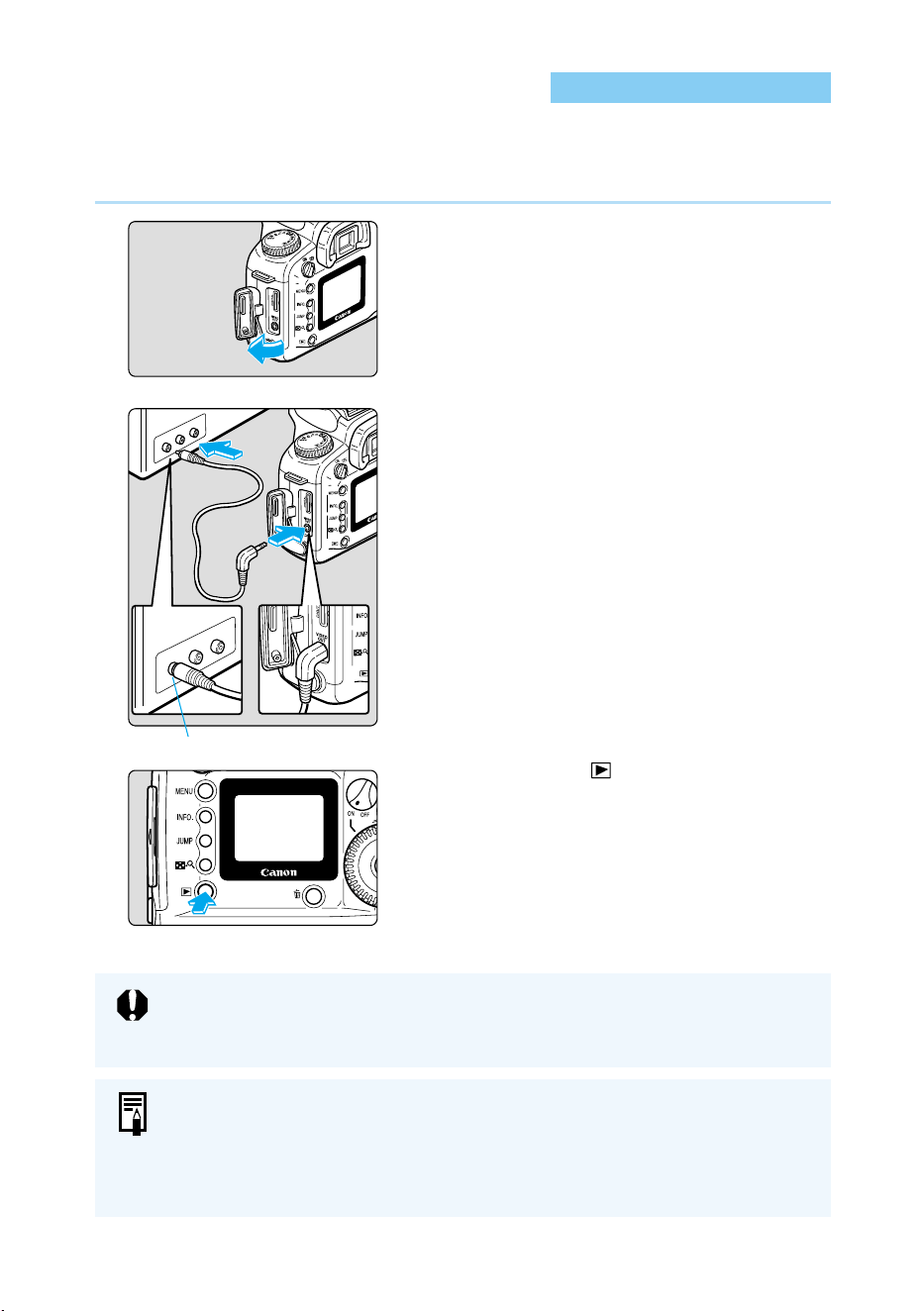
112
Connecting to a TV
If the camera is set to the wrong video system format (→121), you will not see a
proper image on the TV set. Make sure the camera is set to the video system
format (NTSC or PAL) compatible with the TV set.
● Using a DC coupler is recommended. (→26)
● Images and menus do not appear on the LCD monitor while the video cable is
connected to the camera.
● You can also switch the TV video signal to PAL (→121). The default setting is for
the NTSC signal standard.
Video input terminal
You can connect the EOS D60 to a television (using the video cable provided with your
camera) to display your recorded images. Always turn off the camera and the television before
connecting or disconnecting them.
1
Open the cover.
2
Connect the cable.
● Connect the cable to the VIDEO OUT
terminal on the camera and to the video
input terminal on the TV.
● Insert the cable plug all the way, until it
clicks into place.
3
Turn the TV on, and set the input
switch to Video In.
4
Set the Main Switch to <ON>.
5
Press the < > button.
➡ The image appears on the TV screen.
● You can use the TV to view images or make
menu settings just as you would do with the
LCD monitor.
● When you finish, set the Main Switch to
<OFF>, turn the TV off, then disconnect the
video cable.
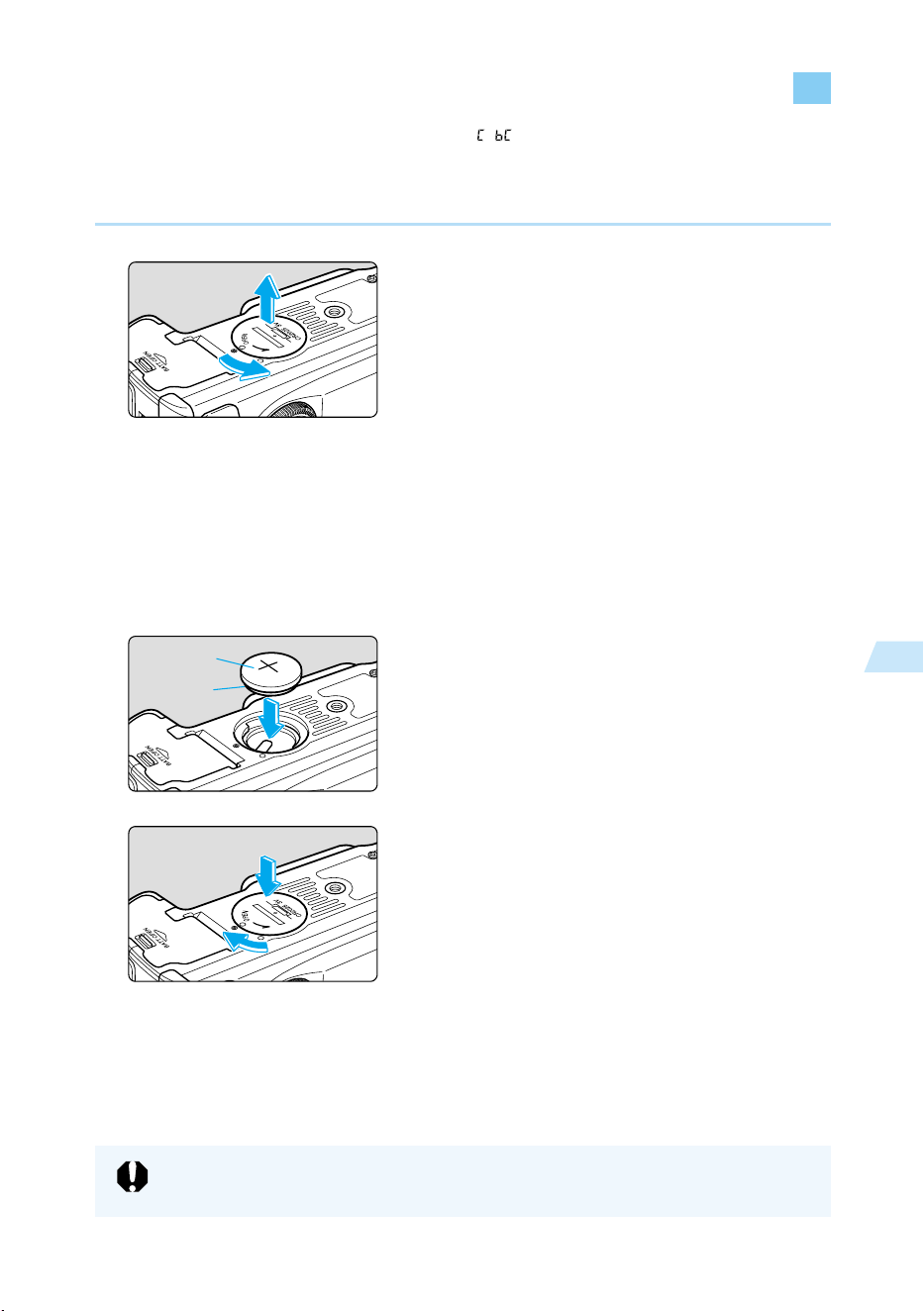
113
Playing and Erasing Recorded Images
5
When the date/time back-up battery level is low, “ ” will appear on the LCD panel. Replace
the CR2025 lithium battery as follows.
If you replace the backup battery while the camera is connected to a battery pack with power
remaining or to a DC coupler, the date, time, and other menu functions will retain their settings.
1
Set the Main Switch to <OFF>.
2
Open the date/time battery cham-
ber cover by turning it 45 degrees
counterclockwise, as shown by
the arrow in the diagram.
● Be careful not to rotate the cover more than
45 degrees.
3
Take out the old battery.
● With the camera bottom facing downward,
push in the edge of the battery to take it
out.
4
Install a new battery.
● The plus side of the battery must face
upward.
5
Close the cover by turning it
clockwise, as shown by the arrow.
● If the date and time now displayed in the
LCD panel are incorrect, you will need to
set them. (→34)
Replacing the Date/Time Battery
For the date/time battery, be sure to use a CR2025 lithium battery.
(+)
(–)
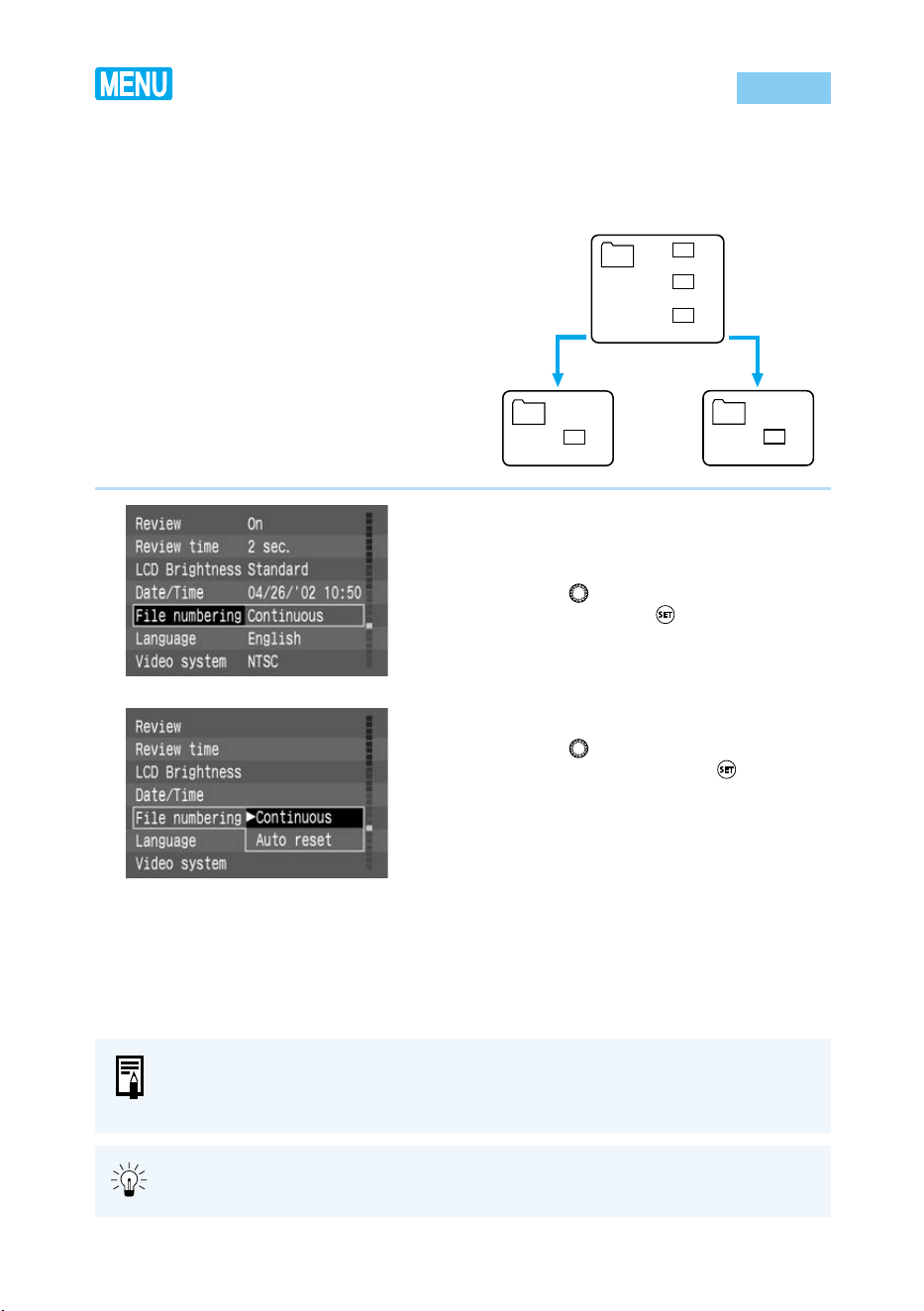
114
File Numbering System
The pictures you take are automatically assigned file numbers from 0001 to 9900 and stored in
folders of 100 images each. Each folder on the CF card is numbered from 100 to 998.
Automatic file numbering can be either by continuous numbering or auto reset numbering (the
default setting is continuous numbering):
(1) Continuous:
Numbering is continuous between cards, so that
the first file number assigned on a new CF card is
one more than the last file number assigned on
the previous CF card.
(2) Auto reset:
Each time you insert a new CF card, the file
number resets to its default value (Img_0001). If
the card already contains files, the next available
number is assigned.
1
From the menu, select [File num-
bering].
● Press the <
MENU
> button.
● Turn the < > dial to select [File Number-
ing], then press the < > button.
2
Select the setting you want.
● Turn the < > dial to select [Continuous] or
[Auto reset], then press the < > button.
➡ The selection is entered, and the display
returns to the menu.
● Press the <
MENU
> button to clear the
screen and exit the menu.
● File numbers are used the same way as frame numbers in a film camera.
● For details about file numbers, see “Basic Terminology” (→129).
● During continuous shooting, more than 101 images might be stored in a folder.
Because continuous numbering avoids duplication of image file numbers, this
setting is convenient for processing images on computers.
3 images are recorded on the CF card
Img_0001
Img_0002
Img_0003
Img
Continuous
numbering
Img_0004
Img
Auto reset
numbering
When you change the CF card
and take a picture
Img_0001
Img
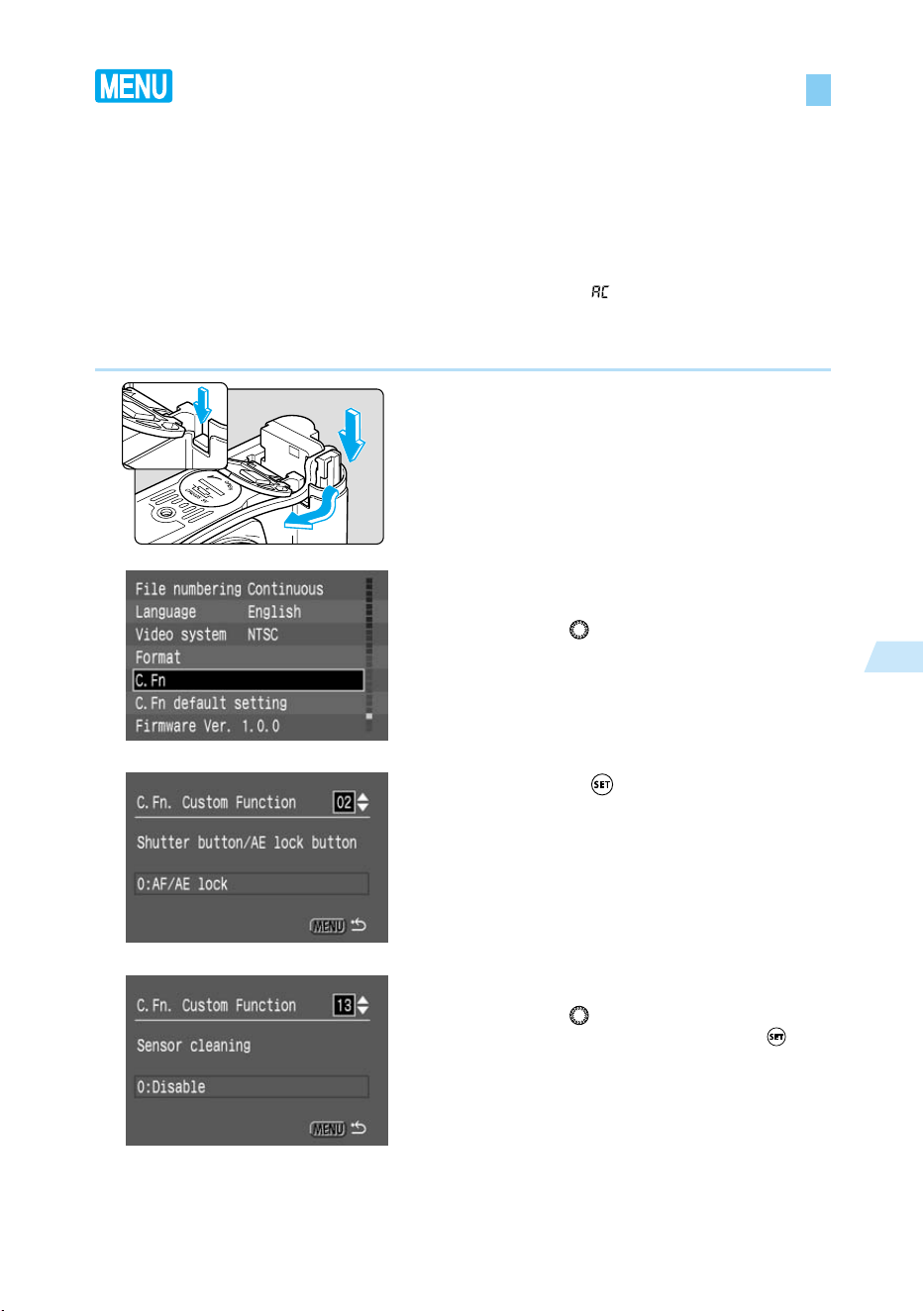
115
Playing and Erasing Recorded Images
5
The imaging element corresponds to the film in a film camera. If dirt or foreign matter gets on
this imaging element, black spots may be recorded on the corresponding part of the image. If
this happens, use the procedure below to clean the imaging element.
Because the imaging element is very sensitive, we strongly recommend that you have the
cleaning done by Canon service representatives.
When cleaning the imaging element, always connect the EOS D60 camera to a household
power outlet using the DC coupler. If you try to clean the imaging element while the battery
pack is installed in the camera, the cleaning warning message “
” will blink on the LCD
panel and you will not be able to clean the imaging element.
Before you start cleaning, remove the lens. (→27)
1
Insert the DC coupler (→26) and set
the Main Switch to <ON>. (→28)
2
From the menu, select [C.Fn].
● Press the <
MENU
> button.
● Turn the < > dial to select [C.Fn].
3
Press the < > button.
➡ The Custom Function Setting screen
appears.
4
Select [C.Fn-13].
● Turn the < > dial to select C.Fn-13
[Sensor cleaning ], then press the < >
button.
Cleaning the CMOS Imaging Element
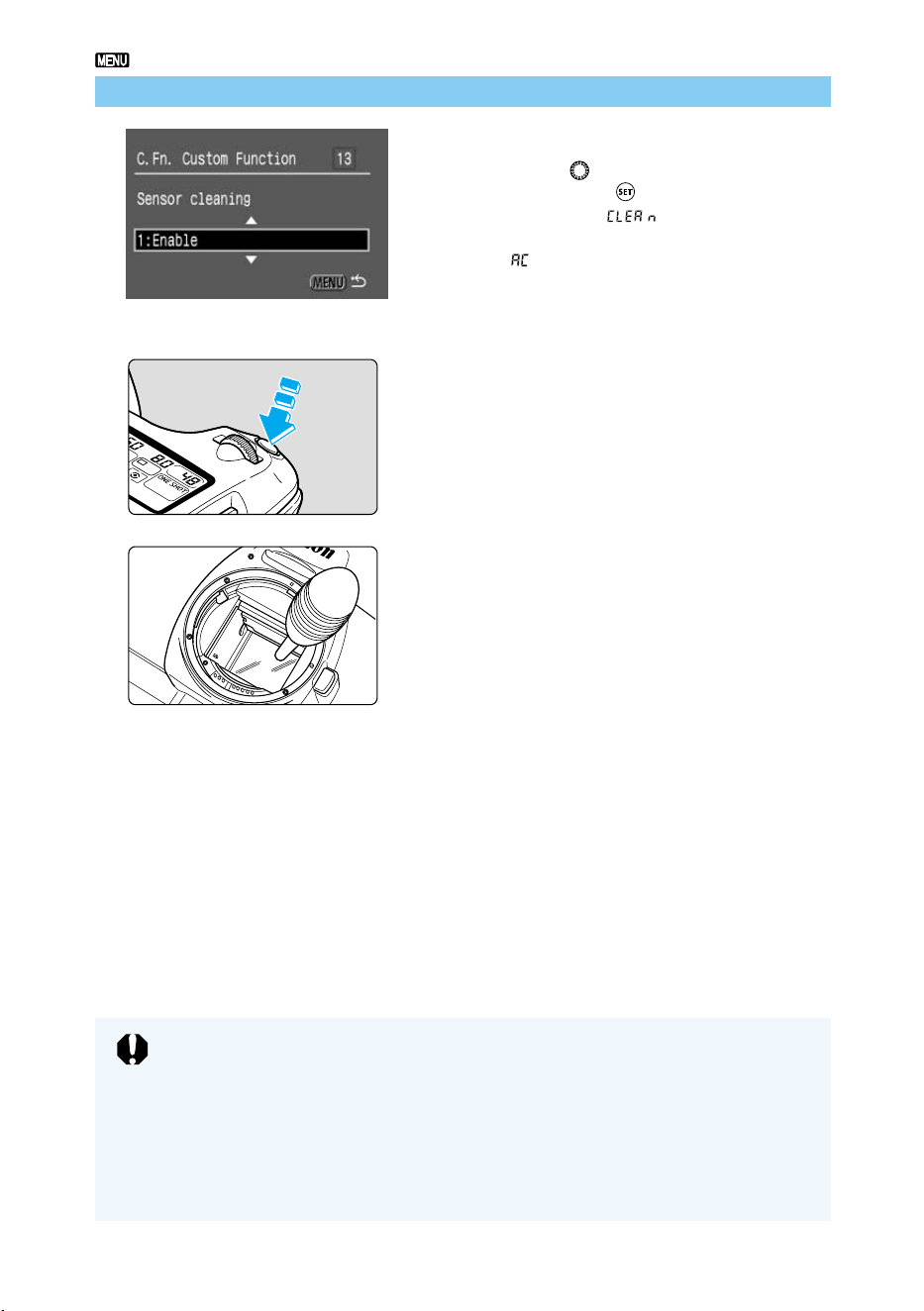
116
Cleaning the CMOS Imaging Element
● Never disconnect the camera power during cleaning. If the power is cut off, the
shutter will close and possibly damage the shutter curtain.
● Use a blower without a brush attached. Using a brush to remove dust from the
image element can damage the element.
● Do not insert a dust blower into the camera beyond the lens mount. If the power
shuts off and the shutter closes, this may damage the shutter curtains.
● Never use cleaning sprays or blower sprays. The pressure and freezing action
of the spray gas may damage the surface of the imaging element.
5
Select [1: Enable].
● Turn the < > dial to select [1: Enable],
then press the < > button.
➡ The message “ ” appears on the
LCD panel.
● If “ ” is blinking on the LCD panel, set the
Main Switch to <OFF> and remove the
battery pack. Then repeat the procedure
from Step1.
6
Press the shutter button down
fully.
● The reflex mirror of the camera then flips
up, and the shutter opens.
7
Clean the imaging element.
● Carefully blow any dust off the imaging
element using a commercially available
blower.
8
Finish cleaning.
● Set the Main Switch to <OFF>.
➡ The camera power turns off, the shutter
closes and the mirror is lowered.
● Set the Main Switch to <ON> again, and
the camera will be ready to shoot pictures
normally.

117
Menu Function Settings
6
6
You can make a variety of settings from the EOS D60’s menu. The
menu includes special settings called Custom Functions that are
related to camera operation. This booklet indicates these settings
with the
mark, and provides basic descriptions.
This chapter lists the EOS D60’s menu functions and describes the
use of the Custom Function settings. For Menu operations and
default settings, see “Menu Functions and Settings” (→32, 33).
Menu Function
Settings
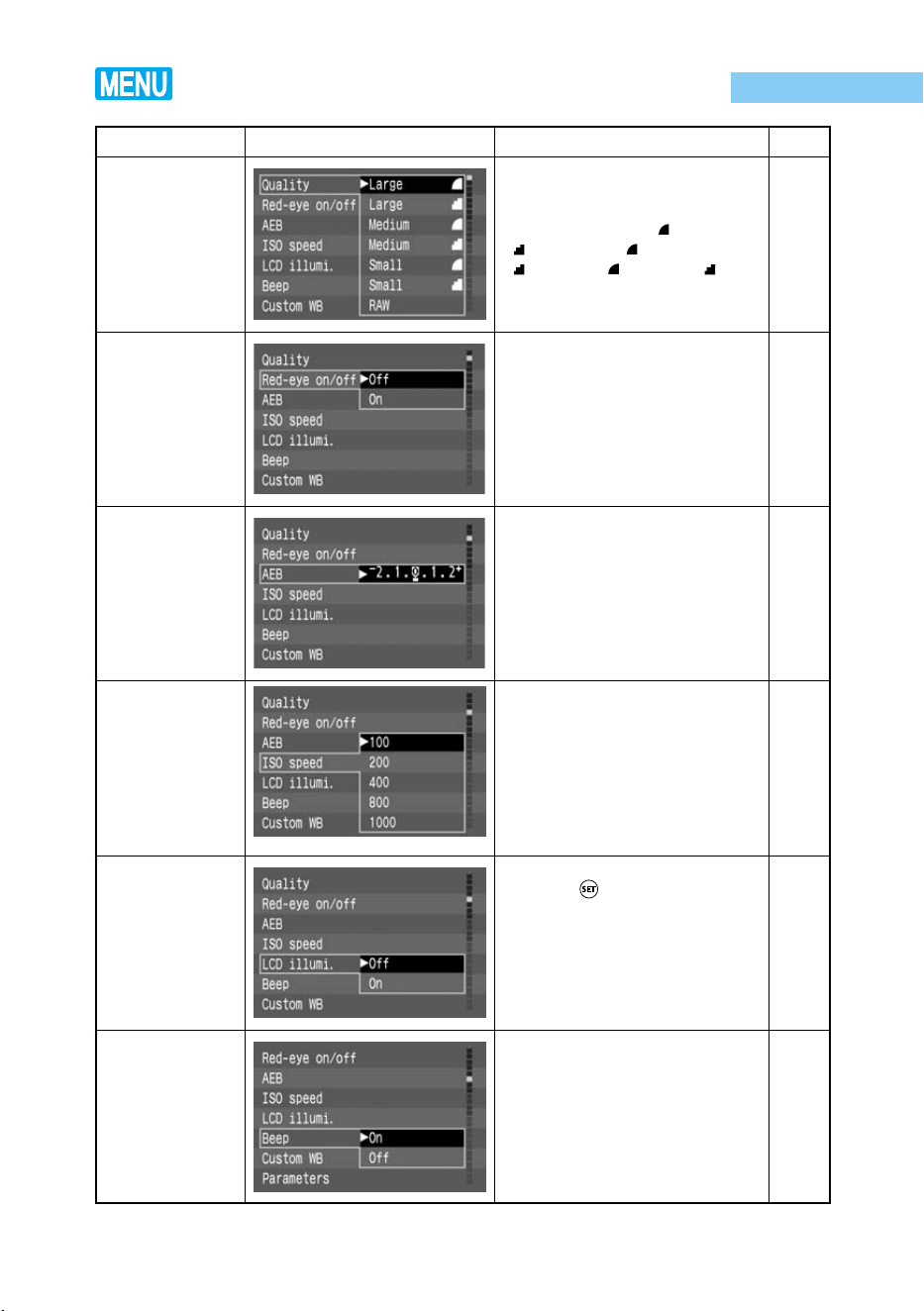
118
List of Menu Functions
Item Screen Description
See page
Quality
Red-eye
reduction
function
AEB to
automatically
change exposure
level
ISO speed
LCD panel
illumination
Beep
Sets the size in pixels of the
image as recorded on the CF
card, as well as the compression
ratio. Select Large < >, Large
< >, Medium < >, Medium
<
>, Small < >, Small < >, or
RAW.
Turns off/on a function for
reducing the “red-eye” look
caused by using a flash to shoot
people at night or in dark
settings.
Sets the increment steps for
dereased exposure and
increased exposure in AEB
shots.
Sets the ISO speed. Select ISO
100, 200, 400, 800, or 1000.
Enables LCD panel illumination
with the < > button. LCD panel
illumination is effective in the
dark.
Turns on/off the electronic beep
that sounds when the image is in
focus. Can also be set to function
as the beep that indicates the
self-timer is operating.
50
89
78
51
67
81
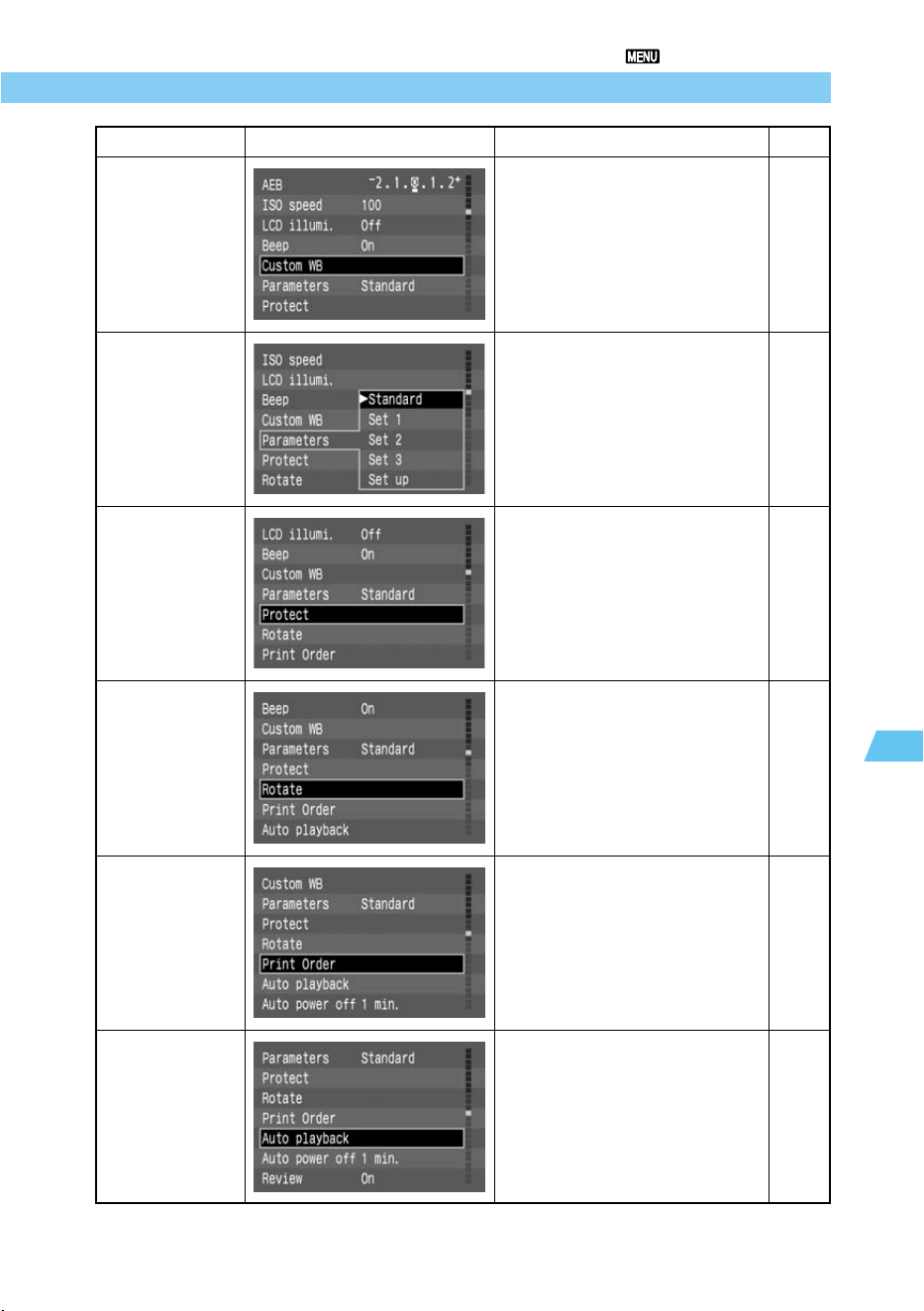
119
Menu Function Settings
6
List of Menu Functions
Item Screen Description
See page
Custom WB
Parameters
Protect
Rotate
Print Order
Auto playback
Selects the image to use as the
basis for custom white balance
adjustments.
Besides the standard processing
parameters applied automatically
by the camera, up to three sets of
processing parameters can be
set and saved.
Allows the user to protect image
files against accidental erasure.
Rotates the image display 90°
clockwise or counterclockwise.
Lets you order prints of your
captured images for printing on
DPOF-compatible devices.
Captured images can be
displayed automatically in
sequence on the LCD monitor.
66
52
103
102
106
101
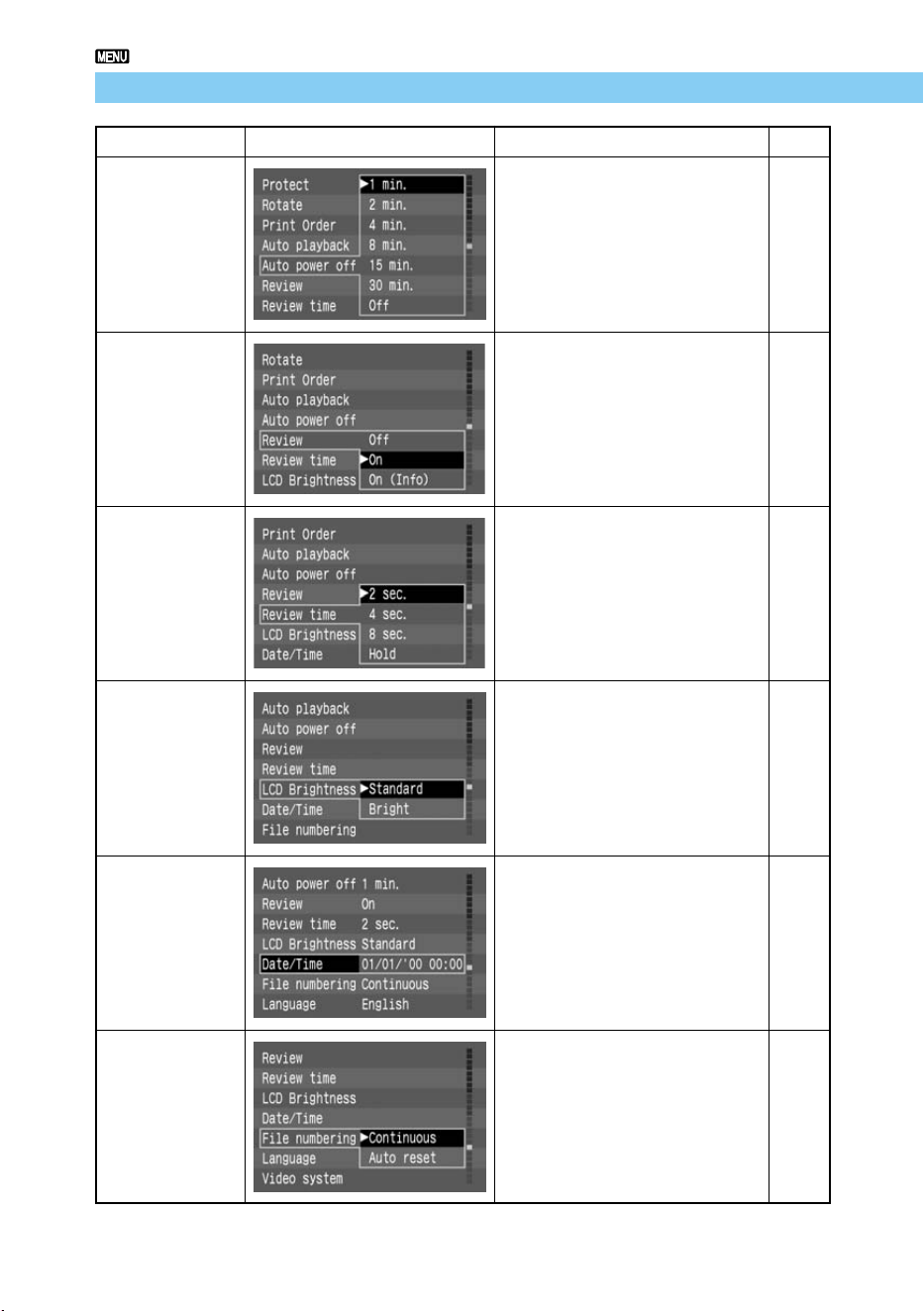
120
List of Menu Functions
Item Screen Description
See page
Auto power off
Review
Review time
LCD Brightness
Date/Time
File numbering
To conserve battery power, sets
the Auto power off function that
automatically switches off power
if there is no operation for a given
time. Select 1, 2, 4, 8, 15, or 30
minutes, or Off.
Determines whether images
appear on the LCD monitor after
they are taken. Select On, On
(Info), or Off. The display time is
set by the Review time setting
(below).
When the Review function has
been set to On or On (Info), this
determines the time that images
are displayed. Select 2, 4, or 8
seconds, or Hold.
Sets the LCD brightness. Select
normal or bright.
Sets the date and time, and the
order of display for year, month,
and day.
Sets the pattern for automatically
assigning file numbers to each
image. Select continuous or auto
reset.
29
41
42
–
34
114
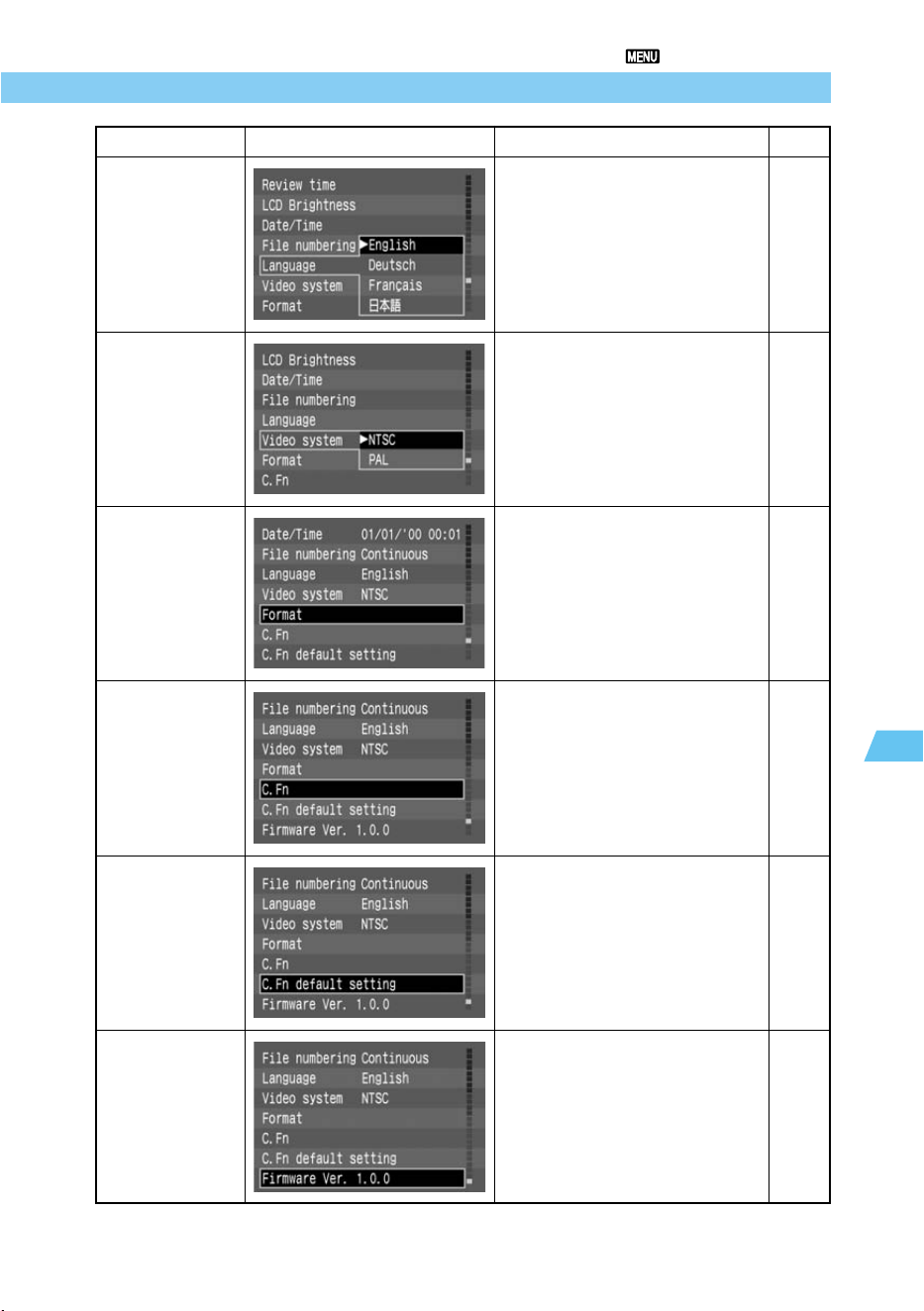
121
Menu Function Settings
6
List of Menu Functions
Item Screen Description
See page
Language
Video system
Format CF card
Custom Functions
Custom Function
default setting
Firmware version
information
Sets the language used for the
Menu screen. Select English,
Deutsch, Français, or Japanese.
Determines the video system
format. Select NTSC or PAL.
Formats the CF card in the
camera.
Sets Custom Functions that can
adjust many of the camera
functions to meet individual
requirements.
Resets all Custom Functions to
the default settings.
Displays the camera’s firmware
version No. (For firmware
updates, see Canon's Web site.)
–
112
105
122
–
–
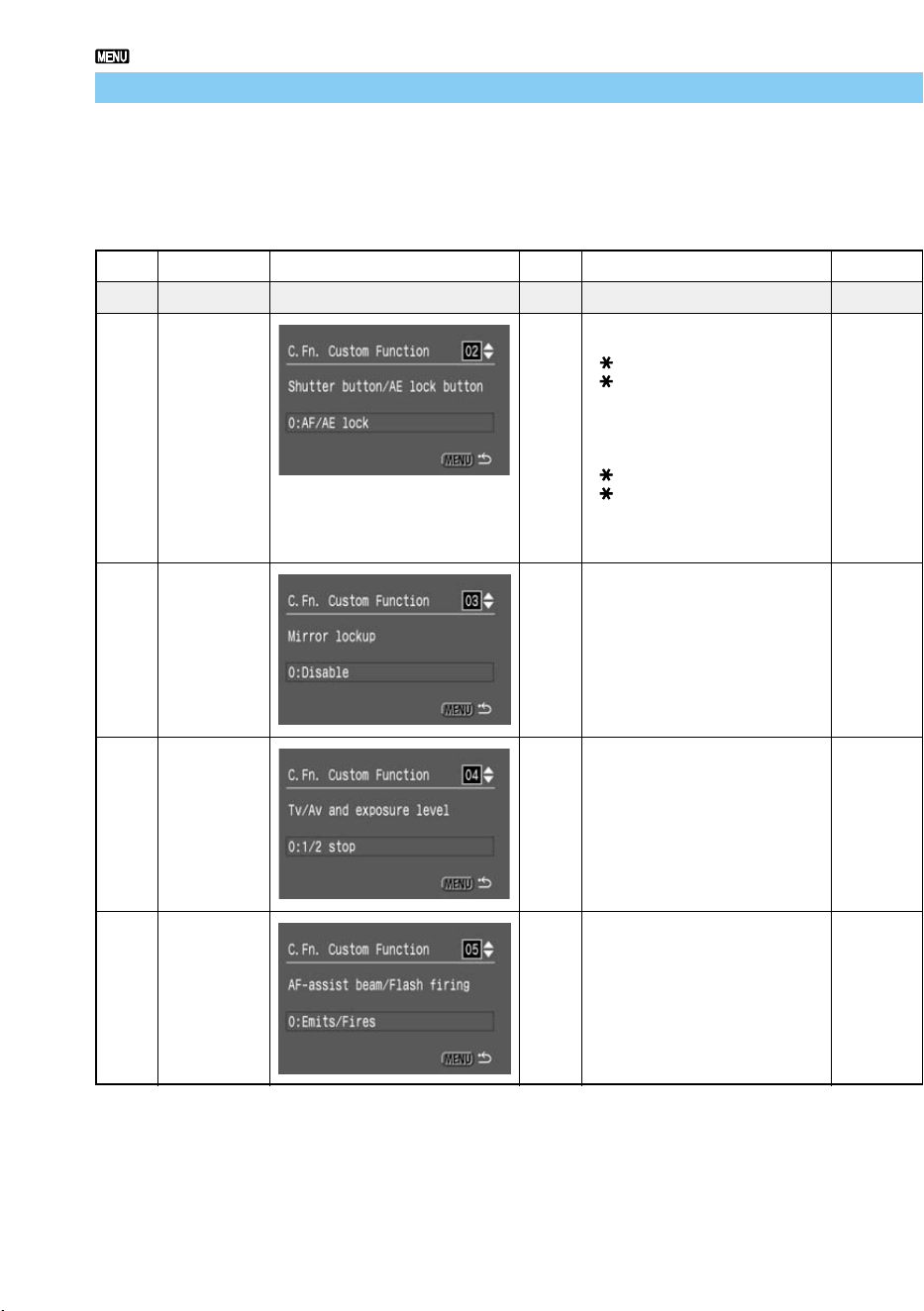
122
List of Menu Functions
Custom Function Settings
You can adjust many of the Canon EOS D60’s functions to meet your particular requirements
using the Custom Function settings. To change Custom Functions, select [C.Fn] from the
menu.
Func. No.
Item Screen
Select no.
Setting or change
01 Unused
02 Shutter
button / AE
lock button
0
1
2
3
Press the shutter button down
halfway: AE, AF
< > button: AE lock
< > button: AE, AF
Press the shutter button down
halfway: AE lock
Press the shutter button down
halfway: AE, AF
< > button: AF lock (no AE lock)
< > button: AE, AF (no AE lock)
Press the shutter button down
halfway: AE
03 Mirror
lockup
0
1
Disable (normal shooting)
Enable
04 Tv/Av and
exposure
level
0
1
1/2-stop increments
1/3-stop increments
05 AF-assist
beam/Flash
firing
0
1
2
3
Emits/Fires
Does not emit/Fires
Only ext. flash emits/Fires
Emits/Does not fire
123
Menu Function Settings
6
List of Menu Functions
See page
Effects, remarks
Effective for determining focus and exposure separately.
In AI Servo AF mode, if an object passes between the camera and the subject, you can
press the < > button to pause AF operation and keep the camera from focusing on the
obstruction. Exposure is determined when you take the picture.
This is useful when capturing subjects that move and stop repeatedly. In AI Servo AF mode
you can press the < > button to start or stop AI Servo AF operation. Exposure is
determined when you take the picture. The optimum focus and exposure are thus always
ready for the decisive moment.
80
56
84Effective for preventing the effects of camera shake caused by mirror action in
close-up and ultra-telephoto shots.
134Effective in conditions that require more precise exposure settings.
(The exposure indications may not change even if you change exposure settings.
However, exposure control will be done according to your setting.)
39AF-assist beam not emitted.
Camera's built-in AF-assist beam not emitted.
Flash not fired.
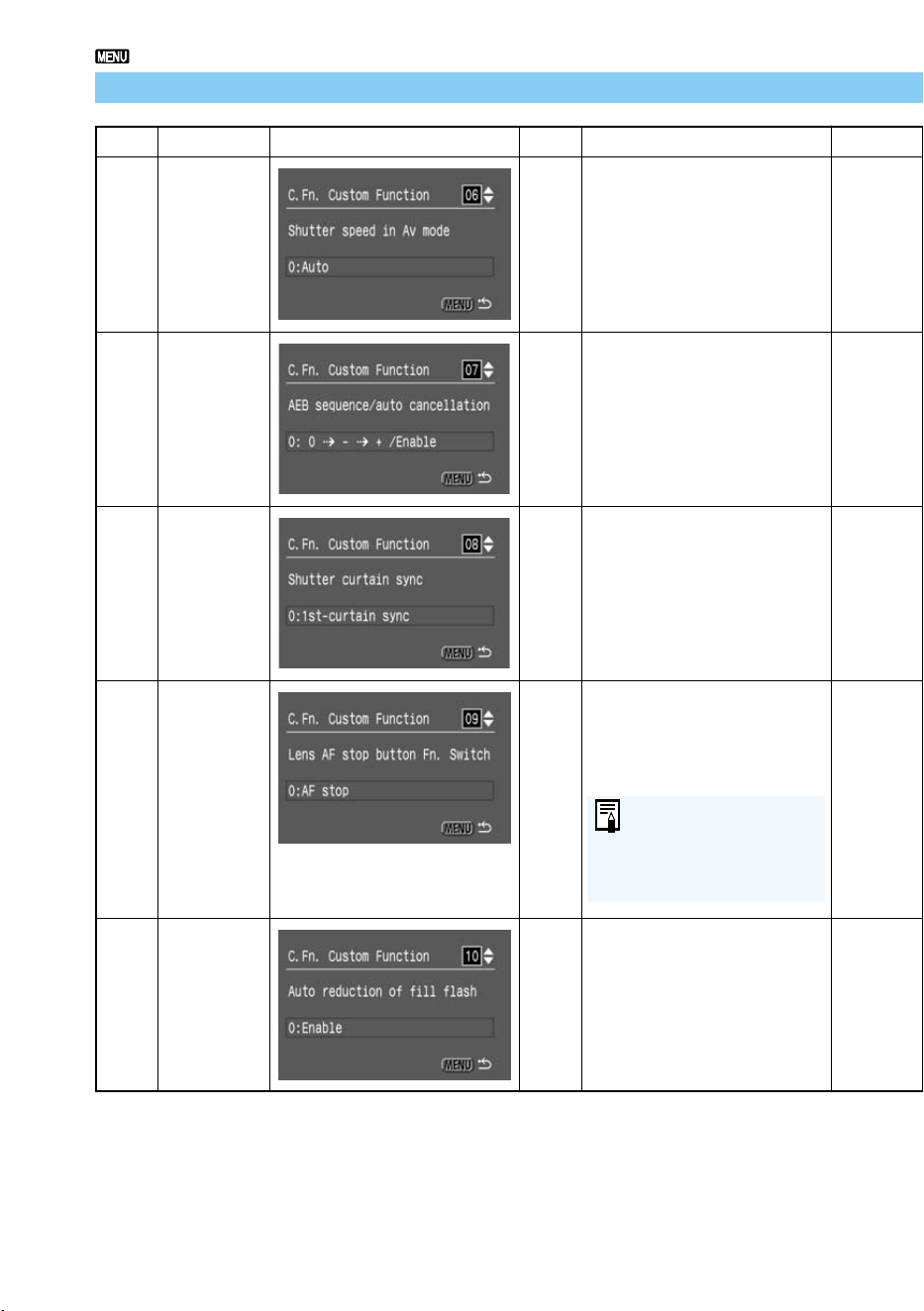
124
List of Menu Functions
Func. No.
Item Screen
Select no.
Setting or change
06 Shutter
speed in Av
mode with
flash
0
1
Automatic setting
Fixed at 1/200 second
(when using flash)
07 AEB
sequence /
auto
cancellaton
0
1
2
3
0 → – → +/Enable
0 → – → +/Disable
– → 0 → +/Enable
– → 0 → +/Disable
08 Shutter
curtain sync
0
1
1st-curtain sync.
Flash fires immediately after
the shutter reaches full-open
position.
2nd-curtain sync.
Flash fires immediately before
2nd curtain closes.
09 Lens AF
stop button
Fn. Switch
0
1
2
Stop AF while button is
pressed
Operate AF while button is
pressed
Press button to start AE lock
10 Auto
reduction of
fill flash
0
1
Enable
Disable
The AF stop button is
provided only on
certain super
telephoto lenses.
∗ C.Fn-8-1: This works with the built-in flash and EOS-dedicated Speedlites. However, if the
Speedlite has a second-curtain sync feature, set the Speedlite for second-curtain
sync.
125
Menu Function Settings
6
List of Menu Functions
See page
73
93
Effects, remarks
Effective for using flash at night or in dark locations
The first AEB shot will be taken at the standard exposure. The AEB setting will be saved even
when you turn off the main switch, change lenses, or replace the battery or CF card.
The AEB shots will be taken starting with the decreased exposure.
The AEB shots will be taken starting with the decreased exposure. The AEB setting will be saved
even when you turn off the main switch, change lenses, or replace the battery or CF card.
79
79
79
88Effective to capture movement of light sorce at slow shutter speeds.
Camera AF does not operate while this button is pressed.
Effective for determining focus and exposure separately.
91
Produces natural daylight sync imaging.
Prevents underexposure of people captured against strong backlighting such as
sunsets.
–
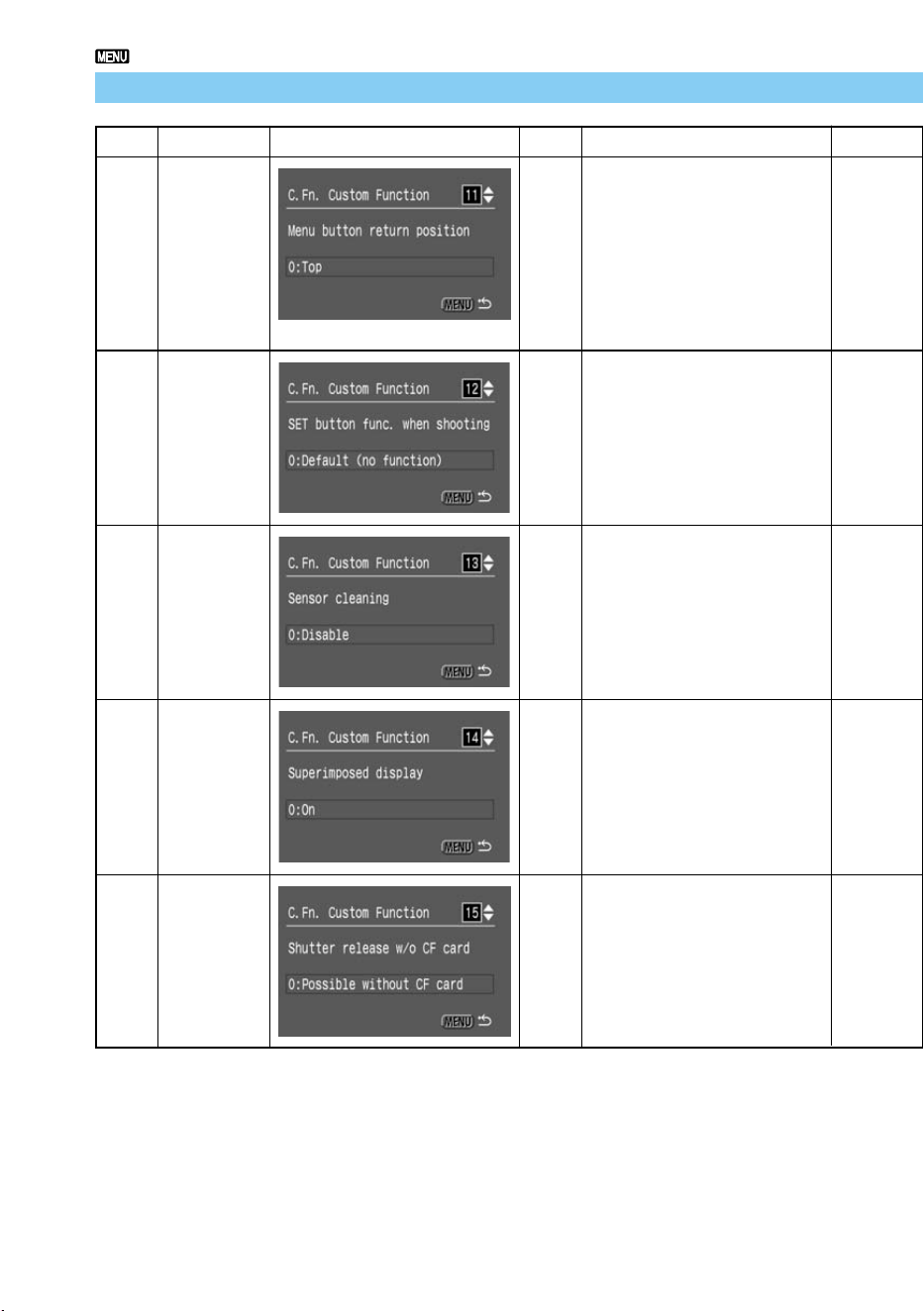
126
List of Menu Functions
Func. No.
Item Screen
Select no.
Setting or change
11 Menu button
return
position
0
1
2
Always show first menu item.
Show the most recently set
menu item. (Set the Main
Switch to Off to cancel, or On
to show the first menu item.)
Show the most recently set
menu item. (Retain in memory
when the main switch is set to
Off.)
12 SET button
func. when
shooting
0
1
2
3
Default (no function)
Change quality
Change ISO speed
Select parameters
13 Sensor
cleaning
0
1
Disable
Enable
14 Superim-
posed
display
0
1
On
Off
15 Shutter
release w/o
CF card
0
1
Possible without CF card
Not possible
∗ Settings you set with C.Fn-11 will be effective even in the Basic Zone.
127
Menu Function Settings
6
List of Menu Functions
See page
Effects, remarks
Enables prompt menu selection for items that are frequently changed.
Enables prompt menu selection for items that are frequently changed.
Convenient when you want to retain function settings, regardless of whether the
power is On or Off.
Lets you change quality quickly when you are shooting.
Lets you change ISO speed quickly when you are shooting.
Lets you change parameters quickly when you are shooting.
50
51
52
113Used when cleaning the imaging element. Effective when dust or small black
spots appear on pictures.
55
Disables the red flashing of the AF point.
–
Prevents you from shooting without a CF card.
–
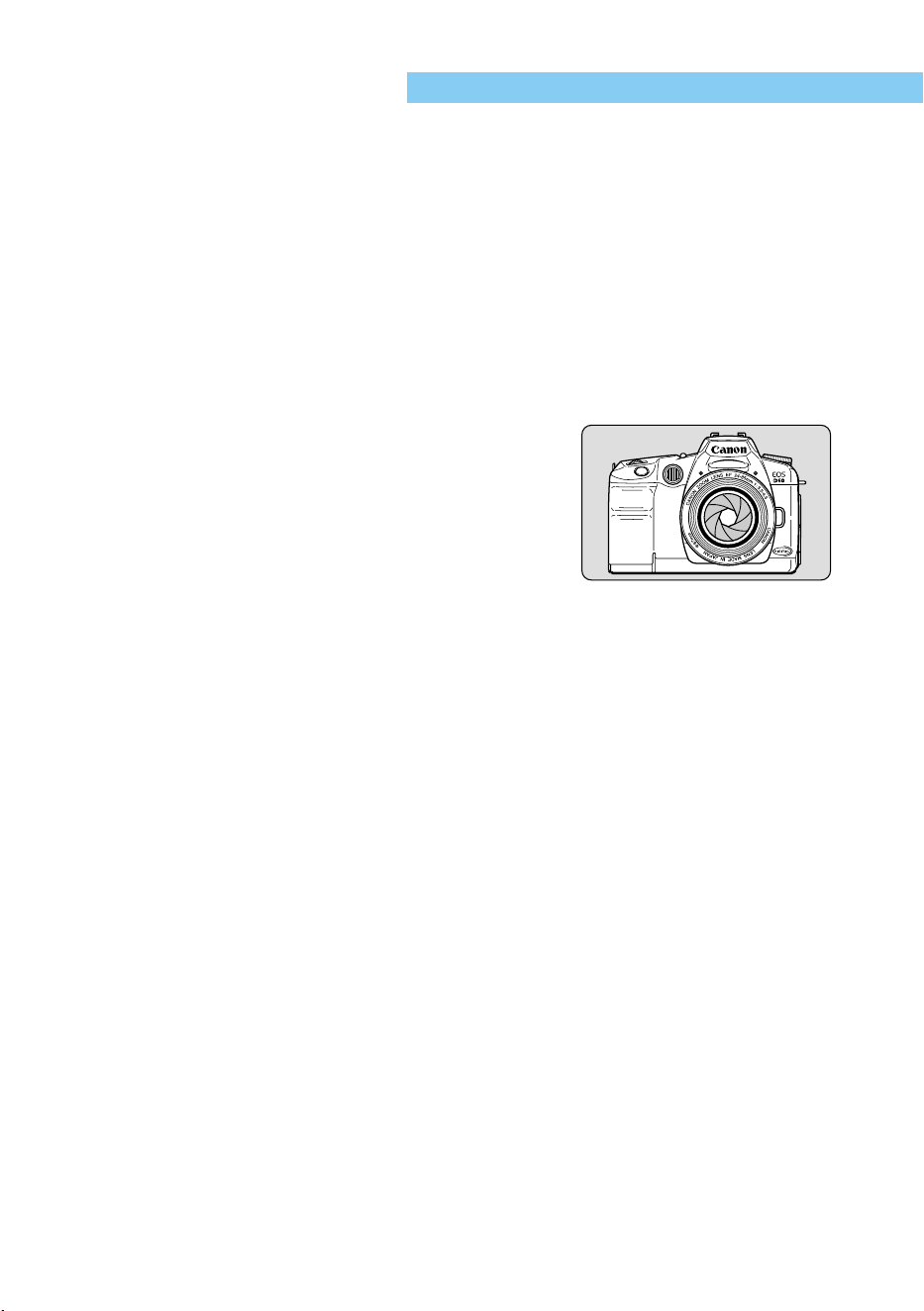
128
REFERENCE
Basic Terminology
AE
Auto Exposure is a function that calculates the exposure automatically. The camera has a
built-in exposure meter that automatically determines the correct exposure (the combination of
shutter speed and aperture value).
AF
Auto Focus is a function that focuses the camera automatically.
Aperture value
The lens aperture opens and closes to control the amount
of light that reaches the imaging element. The aperture
value (or f/number) is equal to the focal length divided by
the aperture diameter. The aperture value is displayed on
the camera’s LCD panel and in the viewfinder, and ranges
from 1.0 to 91, depending on the particular lens mounted
on the camera.
CF (CompactFlash) Card
CompactFlash card is the storage media used to record captured images taken by the EOS
D60.
Depth of Field
When a subject is in focus, a distance in front of and behind the subject is also in focus. This is
called the depth of field. The greater the aperture value (that is, the smaller the aperture), the
broader the depth of the field. This is called a deeper depth of field. Conversely, the smaller
the aperture value (larger aperture), the narrower the depth of field, called a shallower depth of
field.
The depth of field is affected as described below:
1 A smaller aperture (larger aperture value) increases the depth of field.
Thus, using smaller aperture provides a deeper depth of field.
2 At a given subject distance and aperture value, a lens with a shorter focal length increases
the depth of field.
Thus, a wide-angle lens gives a deeper depth of field than does a telephoto lens.
3 At a given aperture value, a greater distance between the camera and subject increases
the depth of field.
4 When the optimum focus is on the subject, the depth of field behind the point of optimum
focus is longer than the depth of field in front of the point of optimum focus. The depth of
field is normally twice as deep behind the subject as in front of the subject (see illustra-
tion).
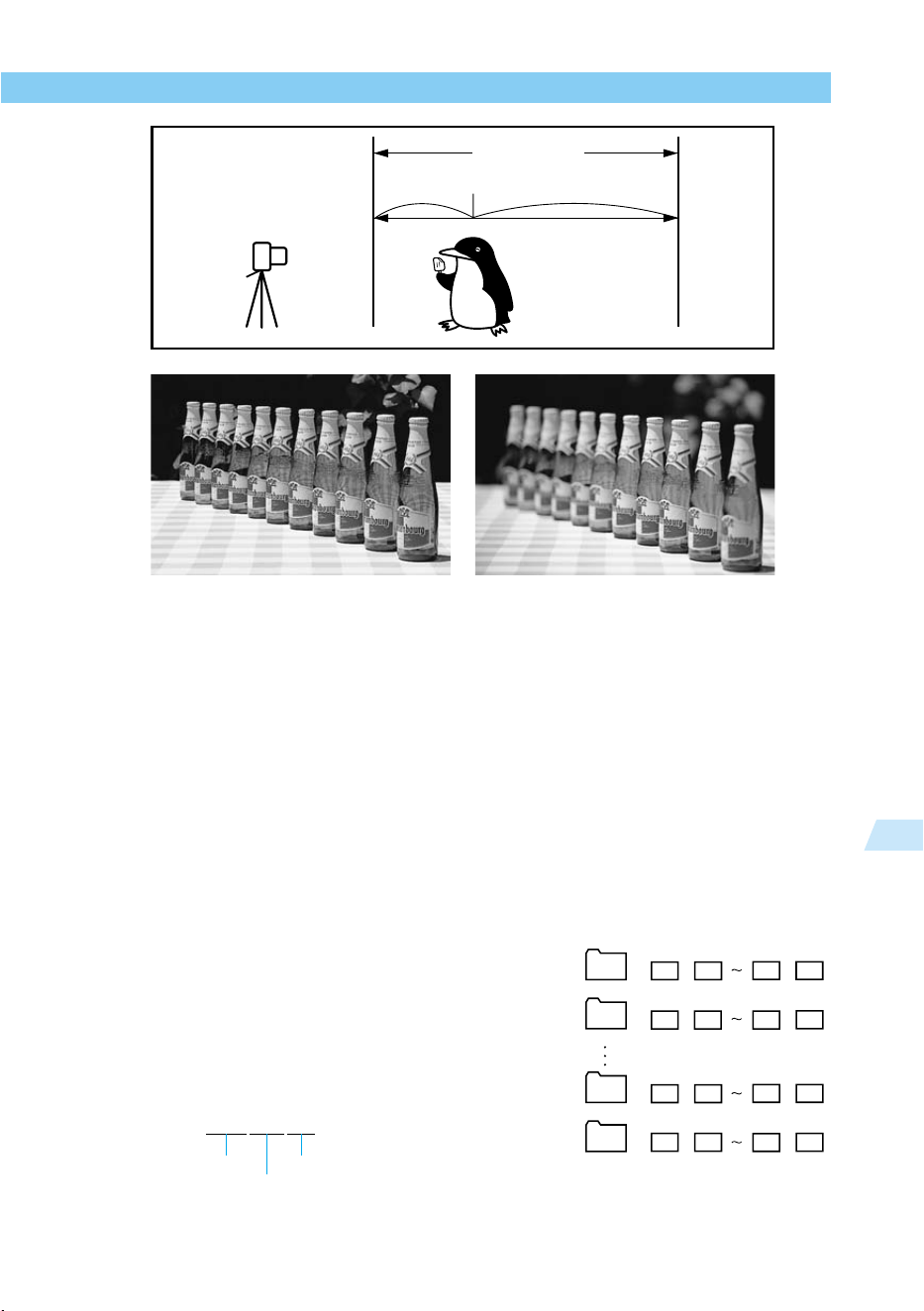
129
Reference
7
REFERENCE
Aperture value set to f/22 Aperture value set to f/2
DPOF
Digital Print Order Format is a standard format for ordering prints of digital camera images
from photo lab printing services, as well as printing from household printers. The Canon EOS
D60 is DPOF-compatible. You can specify printing from the camera itself and store the order
information on the CF card. Photo printing services or household printers using the DPOF
format can then produce prints easily using that information.
Exposure
Exposure refers to the amount of light striking the imaging element to produce an image. The
amount of light appropriate for the ISO speed is called the correct exposure. The correct
exposure is adjusted by changing the combination of the shutter speed and aperture value.
File Numbering and Folders
The pictures you take are automatically assigned file numbers from 0001-9900 and stored in folders
of 100 images each. Each folder is numbered from 100 to 998 and recorded on the CF card.
However, during continuous shooting, a folder may store
more than 101 images. Also note that there will be no folder
numbers whose last two digits is “99.”
Images stored in formats other than RAW format have the
file name Img_ and the extension ‘jpg’, and images stored in
RAW format have the file name CRW_ and the extension
‘crw’. Images with the extension ‘thm’ are thumbnail images
for index display.
Example: Img_0001.jpg
File name Extension
File number
0001
100
0002
0099 0100
0101101 0102 0199 0200
9801198 9802 9899 9900
0001200 0002
0099 0100
12
Depth of field
Point of optimum focus

130
REFERENCE
Firmware
This is software containing various camera control instructions. The EOS D60 uses the
firmware for image capture and image processing. Although the firmware is preinstalled in the
camera, you can later install the latest version of the firmware when it becomes available on
Canon’s Web site.
Format
Formatting a CF card is the process of preparing the CF card to store image data. Be careful
when formatting a CF card, because the formatting process erases all data stored on the card.
ISO Speed
An index number representing the photosensitivity of silver-halide photo film. This sensitivity
standard is determined by the International Standards Organization (ISO), and is normally
written as “ISO 100”, etc. The higher the ISO speed, the greater the sensitivity to light. Digital
cameras use ISO speeds based on silver-halide photography.
JPEG
Joint Photographic Experts Group is a file format for compressing and storing color images.
The compression ratio can vary, but higher compression results in lower image quality when
the file is expanded (restored).
RAW
This is an image file format that saves the image as is when captured by the camera’s imaging
element. It is intended for image editing with a personal computer.
Image compression, saving, and decompression feature lossless image quality. By using the
bundled software’s image-processing features, you can create the desired image
characteristics.
Red-eye Phenomenon
In a relatively dark room, where subjects’ pupils are dilated, the light from a camera flash
passes through the pupil, is reflected by the retina, and causes the subjects’ pupils to appear
red. Red-eye is particularly prevalent when the flash is close to the optical axis of the lens.
Use the following procedure to minimize red-eye:
1 Shoot with the Red-eye reduction function turned on. (The red-eye reduction lamp lights
before the image is taken, causing the pupils to contract and thus minimizing red-eye.)
2 Shoot with an EX-series Speedlite. (The light reflected from the pupil will not be directed
along the optical axis of the lens, thus minimizing red-eye.)
3 Shoot from as close as possible (same effect as 2).
Shutter Speed
The camera’s shutter opens for a variable length of time to control the amount of light that
reaches the imaging element. This length of time is called the shutter speed.
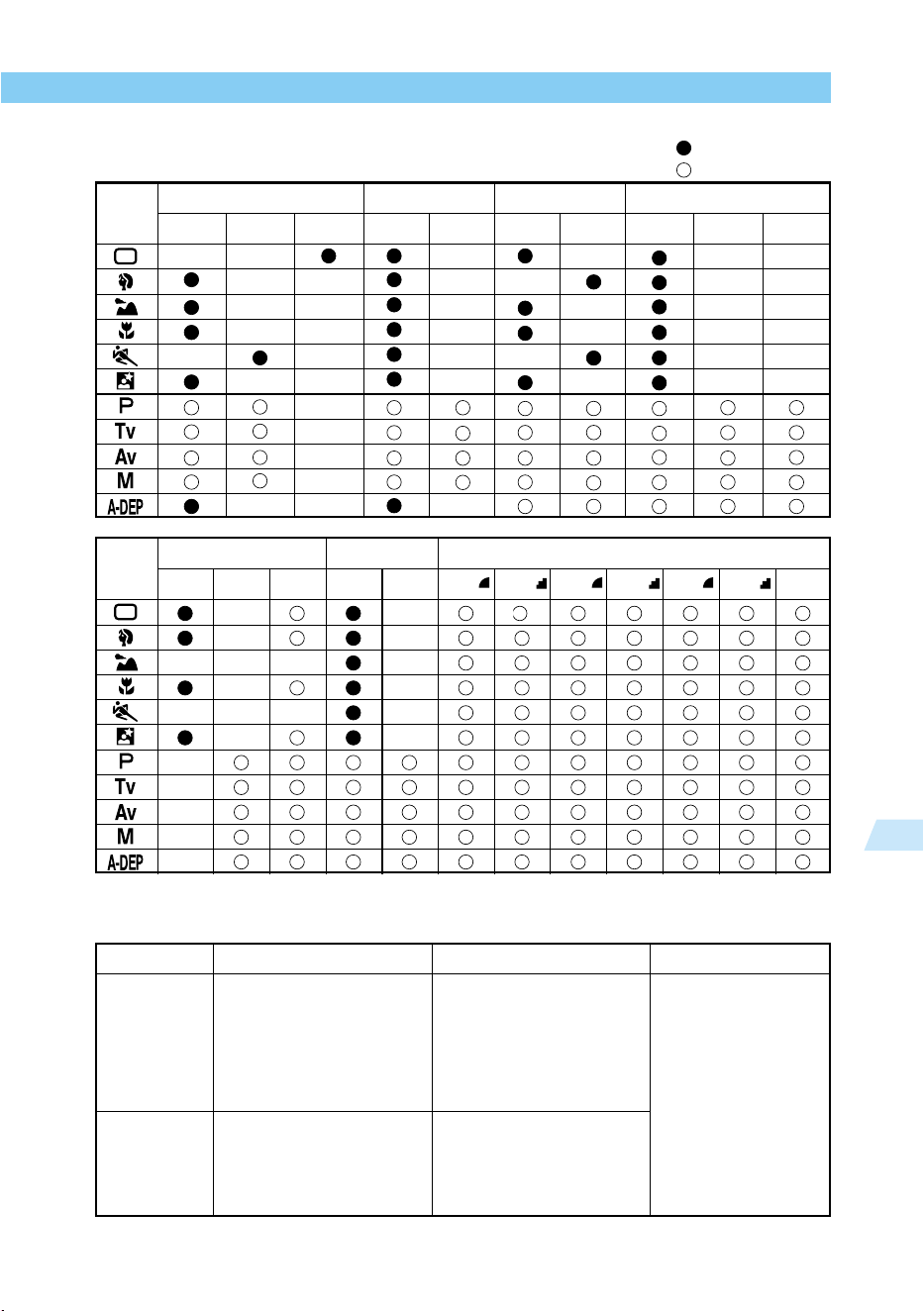
131
Reference
7
REFERENCE
: Automatic setting
: Selection possible
Mode
AF AF point selection Drive Metering mode
Dial
ONE SHOT
AI SERVO AI FOCUS Auto Manual Single
Continuous
Evaluative Partial
Mode
Built-in flash White balance Quality
Dial
Auto Manual
Red-eye
Auto Manual Large Large
Medium
Medium
Small Small RAW
reduction
Center-
weighted
average
AF Modes and Drive Modes
Drive mode ONE SHOT AF AI Servo AF AI Focus AF
Single
An image cannot be taken unless
focus is achieved. When focus is
achieved, it is locked. With
evaluative metering, the exposure
setting is also locked. (The exposure
setting is stored in memory before
the picture is taken.)
The above conditions apply
during continuous shooting.
(approximately 3 images per
second to a maximum of 8
images.)
Autofocus tracks the moving
subject, and the exposure is
set when the picture is taken.
The above conditions apply
during continuous shooting.
(approximately 2.5 images
per second, up to a maximum
of 8 images.)
Automatically switches
between ONE SHOT AF
and AI Servo AF
according to the subject
status.
Continuous
Function Availability Table
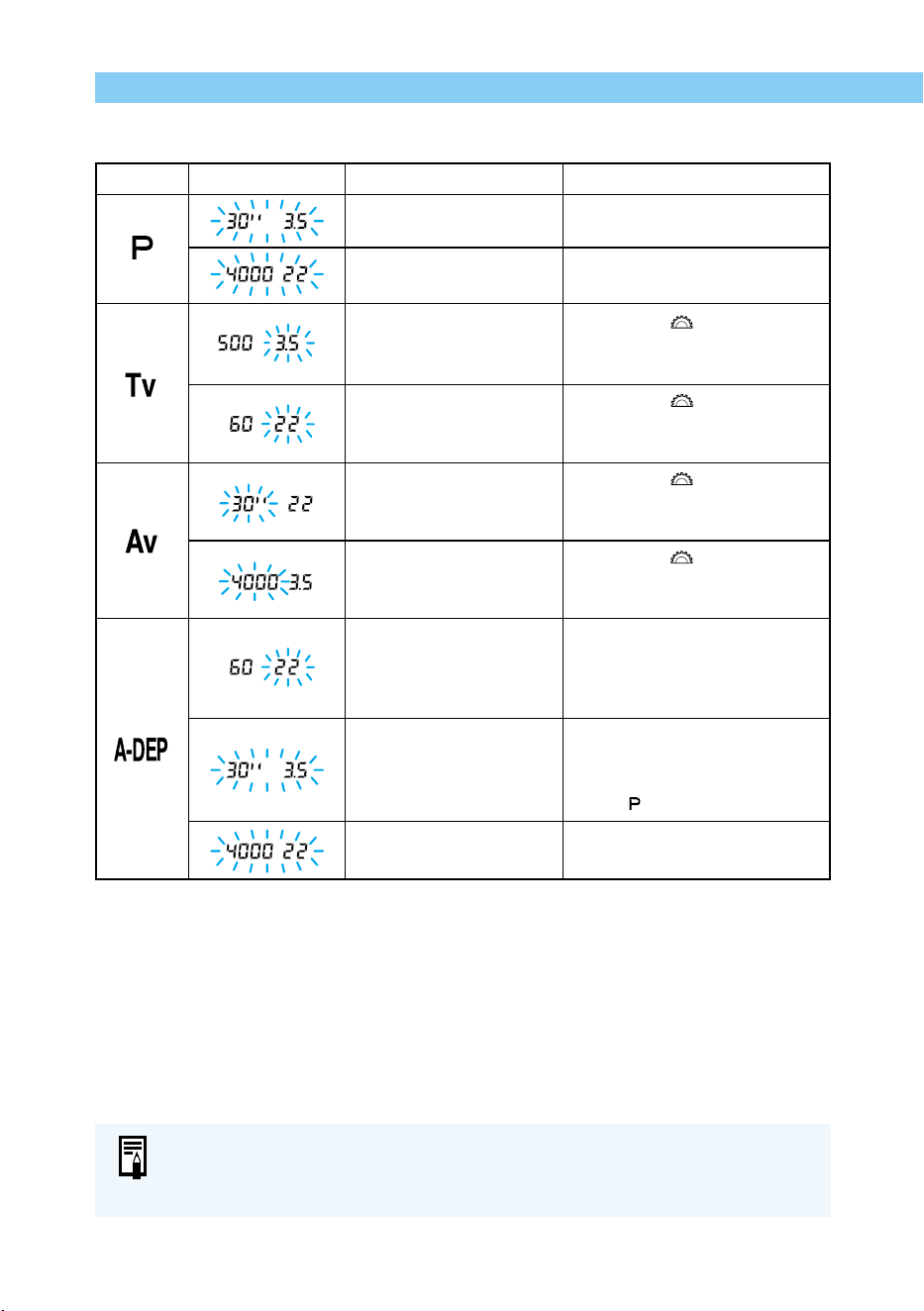
132
REFERENCE
Exposure Warnings
The warnings shown are examples using a lens with a minimum aperture value of
f/3.5, and a maximum aperture value of f/22. Actual maximum and minimum
aperture values will depend on the particular lens you use.
Mode Blinking warning Description Remarks
Subject is too dark.
Subject is too bright.
Picture will be underex-
posed.
Picture will be overex-
posed.
Picture will be underex-
posed.
Picture will be overex-
posed.
The desired depth of field
cannot be obtained.
Subject is too dark.
Subject is too bright.
1) Increase the ISO speed.
2) Use flash.
1) Decrease the ISO speed.
2) Use a neutral density filter.
1) Turn the < > dial to a
slower shutter speed.
2) Increase the ISO speed.
1) Turn the < > dial to a faster
shutter speed.
2) Decrease the ISO speed.
1) Turn the < > dial to a
smaller aperture value.
2) Increase the ISO speed.
1) Turn the < > dial to a larger
aperture value.
2) Decrease the ISO speed.
1) Move farther from the subject
and try again.
2) If using a zoom lens, use the
shortest focal length.
1) Increase the ISO speed.
2) Use a flash (the result will be
the same as using Program
AE < >).
1) Decrease the ISO speed.
2) Use a neutral density filter.
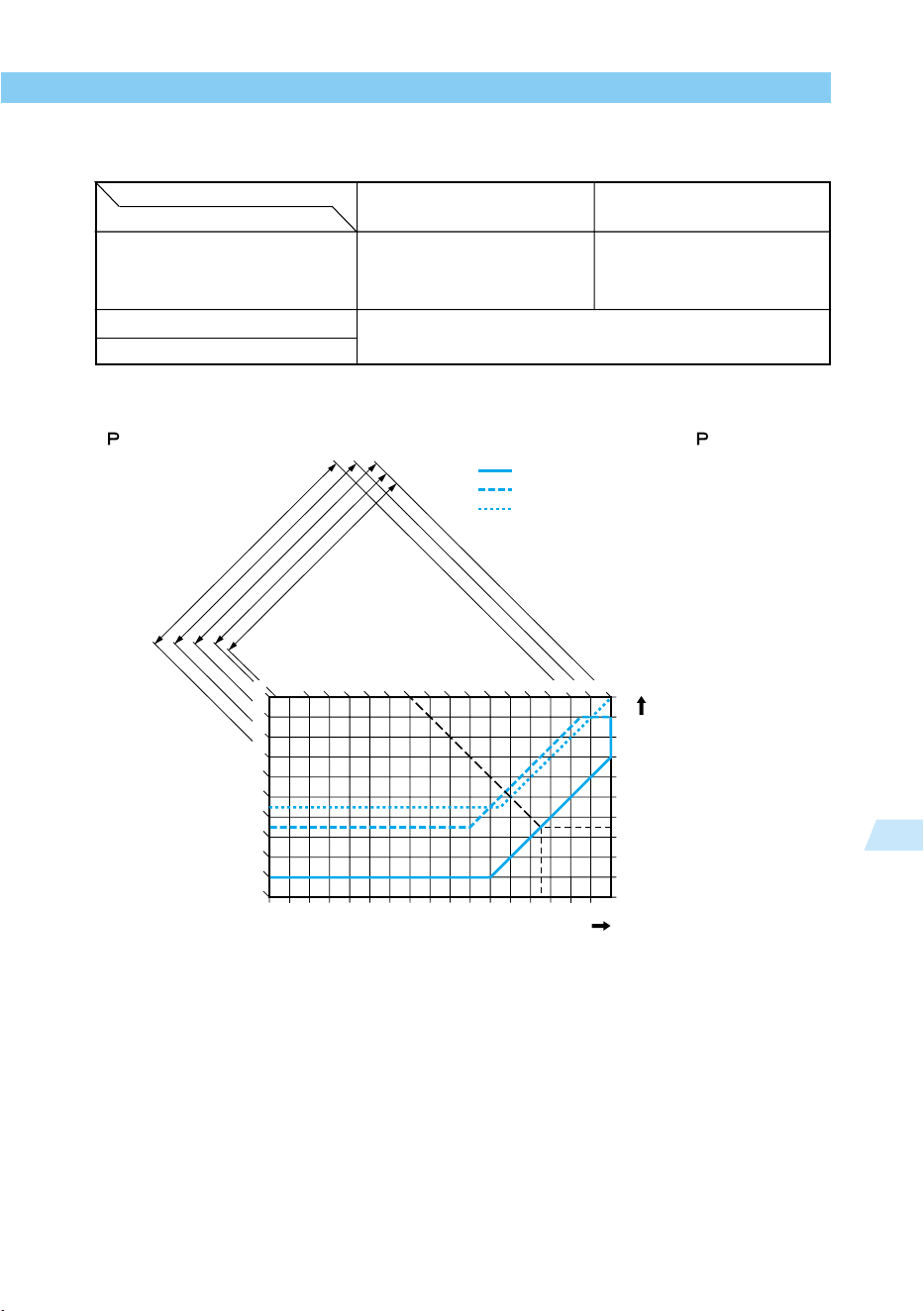
133
Reference
7
REFERENCE
AE Lock Effects for Combinations of AF Point Selection and Metering Method
(when using a mode in the Creative zone)
Program Line
< > The following program line applies when the camera is in Program AE < > mode.
Program Line Description
The lower horizontal axis represents the shutter speed, and the right-hand vertical axis
represents the aperture value. The combinations of shutter speed and aperture value
automatically determined by Program AE are shown as colored lines with respect to the
subject brightness (Exposure Value) gradations on the left and top edges of the graph.
Example: Using an EF50 f/1.4 USM lens with a subject brightness of EV12, the point where
the diagonal line from EV12 (on the top edge) intersects the Program AE line
represents the corresponding shutter speed (1/350 second) and aperture value (f/
3.5) that the program sets automatically.
The diagonal arrowed lines at the upper left indicate the metering range for the
indicated ISO speed.
AF point selection
Metering method
Evaluative metering
Partial metering
Center-weighted average
Auto selection AF
AE lock applied to the
metered value at the active
AF point.
Manual selection AF
AE lock applied to the
metered value at the
selected AF point.
AE lock applied to the metered value at the center AF
point.
–1
–2
–3
–4
1.4
–5
301584212481530601252505001000 2000 4000
1.0
2
2.8
4
5.6
8
11
16
22
32
6 7 8 910111213141516171819
IS
O
1
0
0
2
0
0
4
0
0
8
0
0
10
0
0
EF24–85mm f/3.5–4.5 USM WIDE24mm
EF24–85mm f/3.5–4.5 USM TELE85mm
2120 22
4
3
2
1
0
EV
5
EF50mm f/1.4 USM
Shutter speed
Aperture value (f/no.)
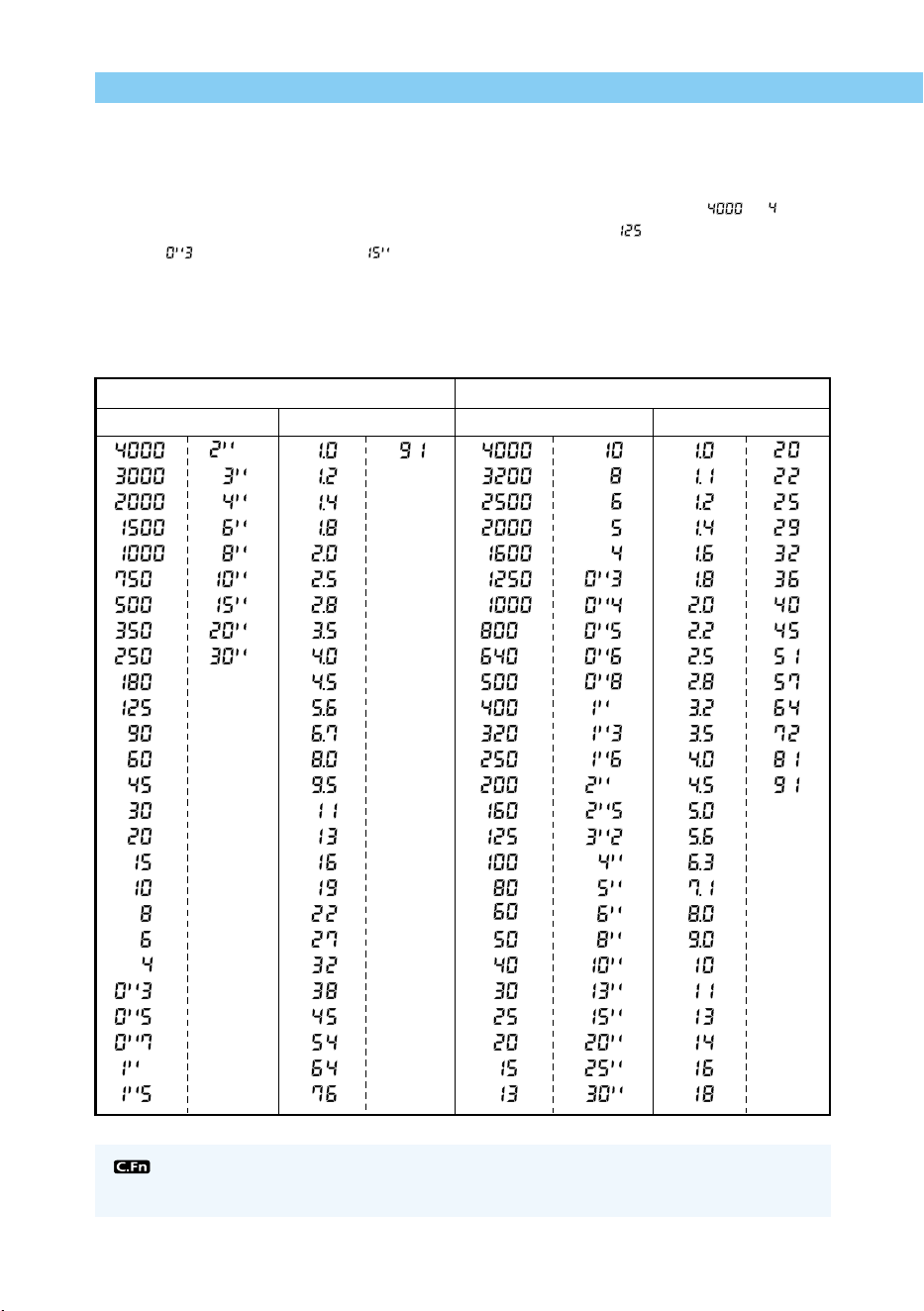
134
REFERENCE
Shutter Speed and Aperture Value Readouts
Shutter speed readout
The shutter speed is normally displayed in 1/2-stop increments. Numbers from to
denote the denominator of the shutter speed fraction: for example, is 1/125 seconds. In
addition, is 0.3 seconds, and is 15 seconds.
Aperture value readout
The aperture value is normally displayed in 1/2-stop increments. The larger the number, the
smaller the aperture opening. The range of aperture values (f/numbers) displayed depends on
the lens used.
The shutter speed and aperture value can be set in 1/3-stop increments. (C.Fn-
4→122)
1/2-stop increments 1/3-stop increments
Shutter speed Aperture value Shutter speed Aperture value
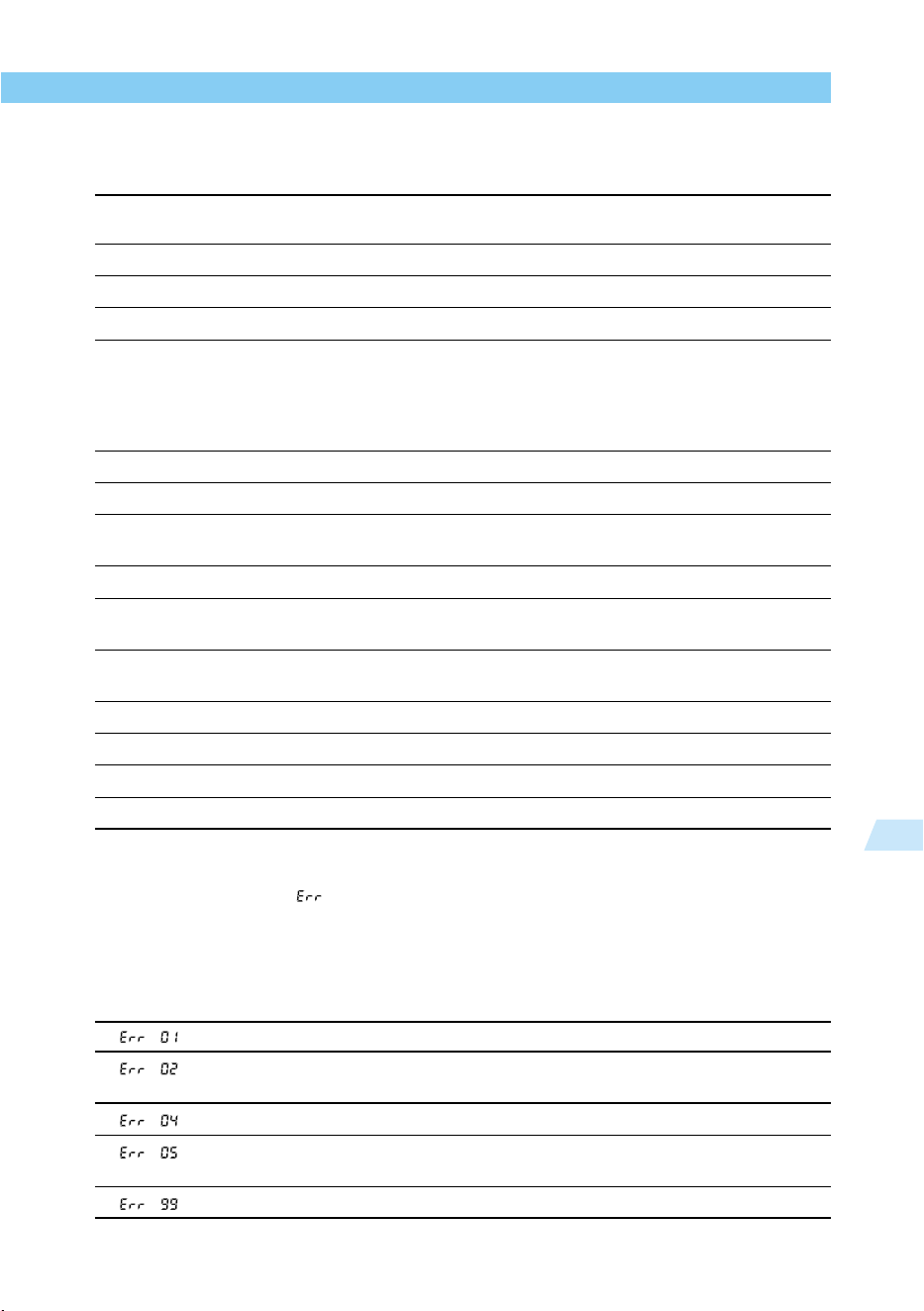
135
Reference
7
REFERENCE
Message List
The following messages are displayed on the LCD monitor.
Busy. A picture is being stored on the CF card, or the camera is
loading a recorded image.
No CF card
Attempted to take a picture or play an image with no CF card in the camera.
CF card error. There is a problem with the CF card.
CF card full. No more print orders can be stored.
Naming error!
A file already exists with the file name that the camera is attempting to create.
Or the file numbers have already reached the maximum value and no new file
numbers can be created. Transfer the necessary number of images to a
computer, then use the computer to format the CF card. Note that formatting
will erase all images and information on the CF card.
No Image. No images are recorded on the CF card.
Image too large.
Attempted to play an image having a size larger than 3200 × 2400 pixels.
Incompatible JPEG format. Attempted to play an image having a JPEG format that is not
compatible with the camera.
Corrupted data. Attempted to play an image containing corrupted data.
Cannot rotate Attempted to rotate an image recorded by another camera or
in another format, or processed by a computer.
Unidentified Image Attempted to play an image taken in a special format (such as
a format unique to a camera from another manufacturer).
Protected! Attempted to erase a protected image.
Too many marks.
Attempted to enter a print order quantity that is too high. Enter a lower quantity.
Cannot complete! Print order setting could not be stored.
CCDRAW
Playback of a CCDRAW image captured with a different camera was attempted.
Error Codes
If a camera error occurs, “ xx” will be displayed on the LCD panel. Refer to the table below
to check what the error code means. If the same error occurs often, something is probably
wrong with the camera. Jot down the “xx” error code and take your camera to the nearest
Canon Service Center (→back cover). If an error occurs after you take a picture, the camera
might have missed the shot. Press the playback button to see if the image appears on the LCD
monitor.
Clean the lens contacts. (→11)
There is a problem with the CF card. Do one of the following: Remove and
reinsert the CF card, format the CF card, or use another CF card.
The CF card is full. Delete unnecessary images or replace the CF card.
Something obstructed the built-in flash’s pop-up operation.
Turn off the main switch and turn it on again.
Either turn off the main switch and turn it on again or remove and reinsert the battery pack.
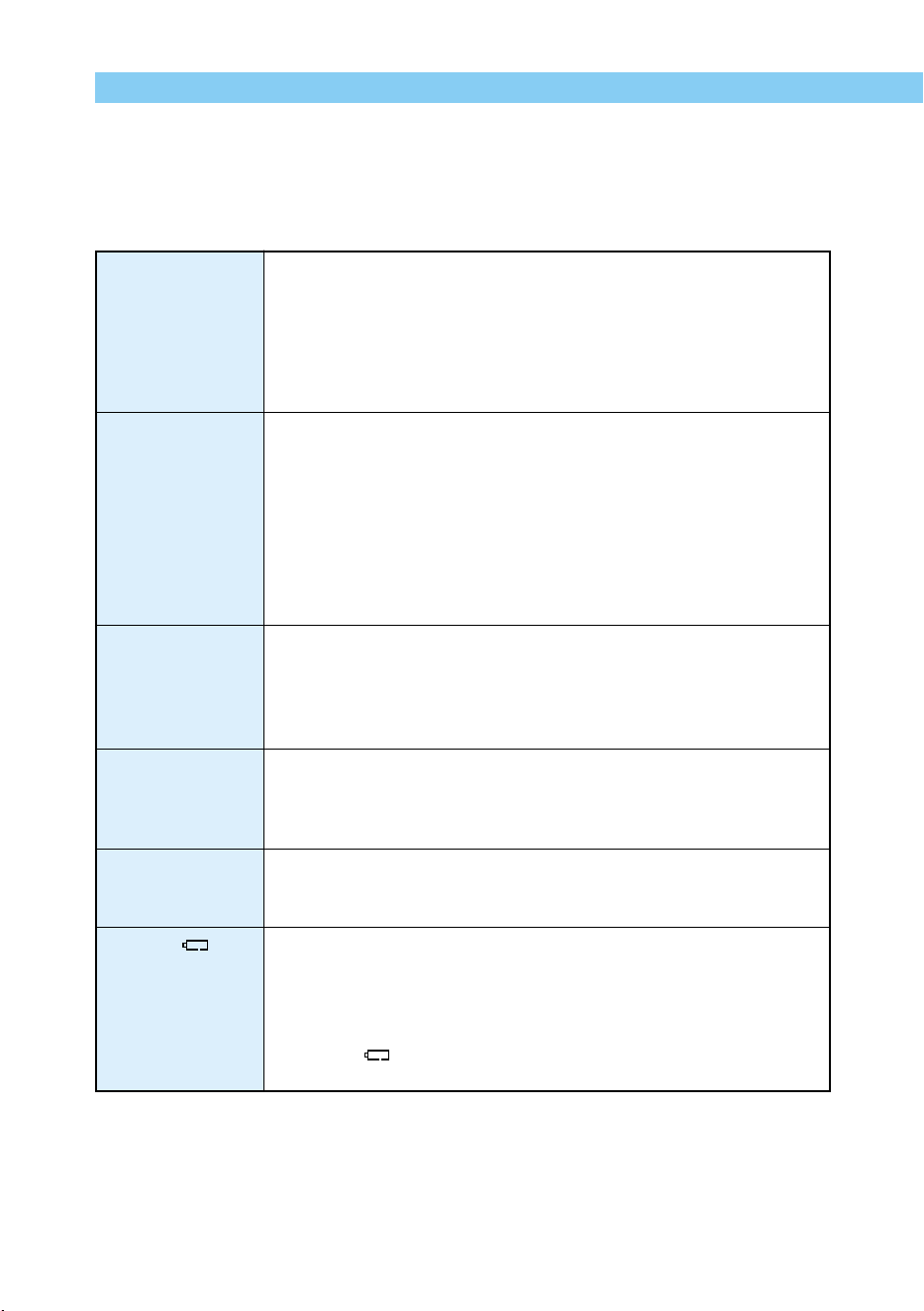
136
REFERENCE
An incorrect battery pack is being used.
➡Use Battery Pack BP-511. (→3)
Battery pack is not correctly attached to the compact power adapter.
➡ Attach the battery pack correctly. (→22)
The DC coupler is connected to the compact power adapter.
➡ Remove the DC coupler plug from the compact power adapter.
(→23)
The battery pack is out of power.
➡ Charge the battery pack. (→22)
Battery pack is not inserted correctly.
➡ Insert the battery pack correctly. (→24)
Battery chamber cover is not closed.
➡ Close the battery chamber cover tightly. (→24)
CF card slot cover is not closed.
➡ Insert the CF card firmly until the CF card eject button pops out, then
close the CF card slot cover tightly. (→28)
If the Main Switch is set to <OFF> immediately after taking a picture,
the access lamp continues flashing for a few seconds until the image is
stored on the CF card.
➡ After the image has been stored on the CF card the access lamp will
go out and the camera will turn off automatically.
Battery pack is not sufficiently charged.
➡ Charge the battery pack fully. (→22)
Battery pack is beyond its useful life.
➡ Obtain a new battery pack. (→138)
Auto power off function is operating.
➡ Switch the camera on again with the main switch, or turn off the Auto
power off function. (→120)
Battery pack level is very low.
➡ Charge the battery pack. (→22)
Camera is not operating properly.
➡ Press the shutter button down halfway to reset the camera to
normal. (→29)
∗ If the <
> icon still appears, the camera needs repair. Take it to
a Canon Service Center. (→back cover)
Troubleshooting
If you have a problem with your camera, first refer to this Troubleshooting Guide as you check
the camera.
Power
Unable to charge
battery pack.
Main switch does
not turn the camera
<ON>.
Access lamp blinks
even when the
Main Switch is
<OFF>.
Battery loses power
quickly
Camera switches
off by itself
Only the <
> icon
blinks on the LCD
panel
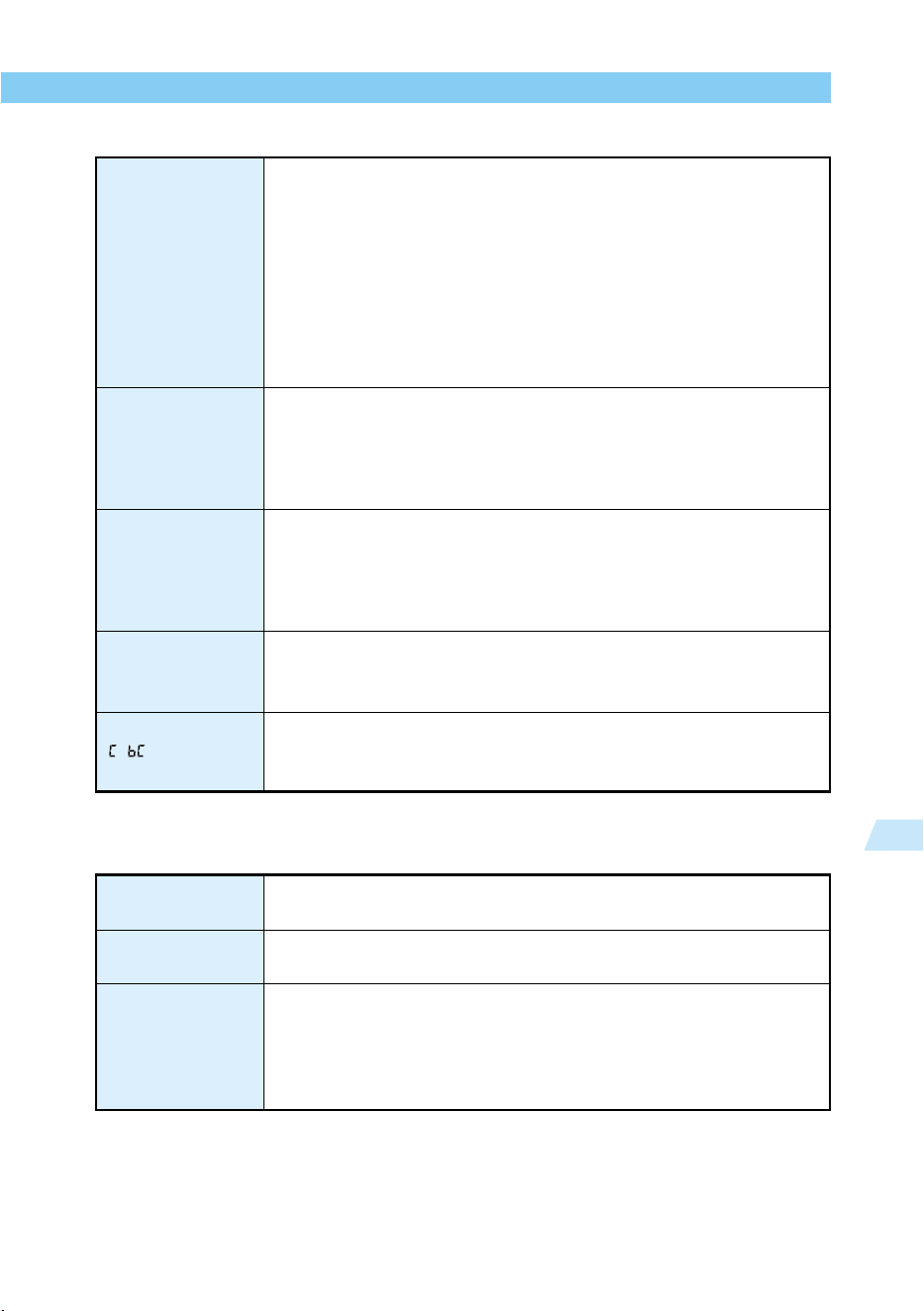
137
Reference
7
REFERENCE
CF card is not loaded correctly.
➡ Load the CF card correctly. (→28)
CF card is full.
➡ Change to a new CF card, or erase unwanted images. (→28, 43,
104)
The battery pack is out of power.
➡ Charge the battery pack. (→22)
Image out of focus (In-focus light in the viewfinder blinks).
➡ Press the shutter button down halfway to focus again. If this fails,
focus manually. (→29, 59)
Dust or foreign matter on the monitor.
➡ Clean the monitor with a soft eyeglass cloth.
LCD monitor is worn out.
➡ Consult the store where you bought your camera, or a Canon
Service Center. (→10, back cover)
Lens focusing mode switch set to <MF> (or <M>).
➡ Set the focusing mode switch to <AF >. (→27)
Camera shake when the shutter button is pressed.
➡ Press the shutter button carefully so that the camera does not shake.
(→29, 36)
CF card data is corrupted.
➡ Format the CF card. (→105)
➡ Use the specified type of CF card. (→2, 139)
The date/time battery is exhausted.
➡ Replace the battery with a new one. (→113)
Unable to shoot or
record images
LCD monitor
displays and
images are hard to
see
Images are blurred
Unable to use the
CF card
The message
“ ” appears on
the LCD panel
Shooting
Images may be protected.
➡ Remove image protection. (→103)
Date/Time setting may be incorrect.
➡ Set date/time correctly. (→34)
Video cable plugs are not inserted fully.
➡ Insert the video cable plugs firmly all the way. (→112)
The correct video format (NTSC or PAL) has not been set.
➡ Set the camera to the correct video format to match the TV set.
(→112)
Cannot erase
images
Incorrect date and
time displayed
No image appears
on the TV screen
Checking and Handling Images
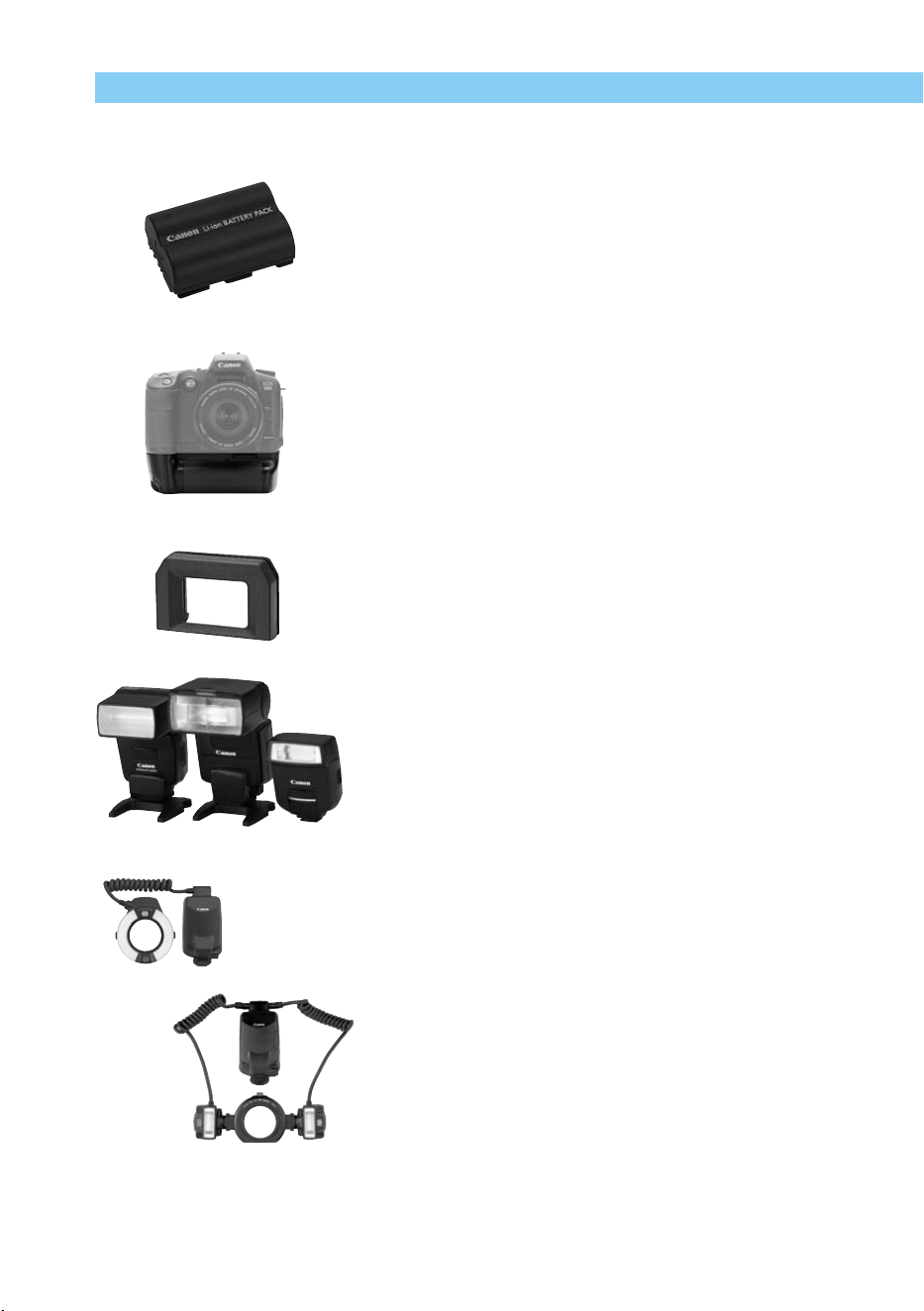
138
REFERENCE
Major Accessories (Optional)
Battery Pack BP-511
This is a powerful lithium ion rechargeable battery pack.
The rated voltage is 7.4V. You can use the Compact Power
Adapter CA-PS400 to charge the BP-511 battery pack,
and when fully charged it has enough power for you to
take approximately 490 images (Normal, with 50% flash
use). Charging takes about 90 minutes.
Battery Grip BG-ED3
This is a battery grip that holds two BP-511 battery packs.
It provides a shutter button, electronic dials, AE lock/FE
lock button, and AF point selection button for use in taking
portrait (vertical) shots. (Can also use the DC coupler)
E-series Dioptric Adjustment Lenses
One of ten E-series dioptric adjustment lenses (-4 to +3
diopters) with eyecup can be attached to the camera’s
eyepiece to further expand the dioptric correction range.
Shoe-mount Speedlites
Flash photography with an EX-series Speedlite is as easy
as normal auto exposure shooting without flash. All EX-
series Speedlites enable E-TTL autoflash, high-speed
sync (FP flash), and FE lock. With the 550EX, an easy-to-
use, wireless E-TTL autoflash system is possible with
multiple Speedlites.
Macro Flash
The EX-series Macro Lites are ideal for macro flash
shooting.
You can fire only one or both flash tubes and control the
flash ratio to easily obtain sophisticated lighting effects
with E-TTL autoflash. Also, high-speed sync (FP flash), FE
lock, and a multi-Speedlite, wireless system (with 550EX
as a slave) are possible to achieve various macro flash
effects.
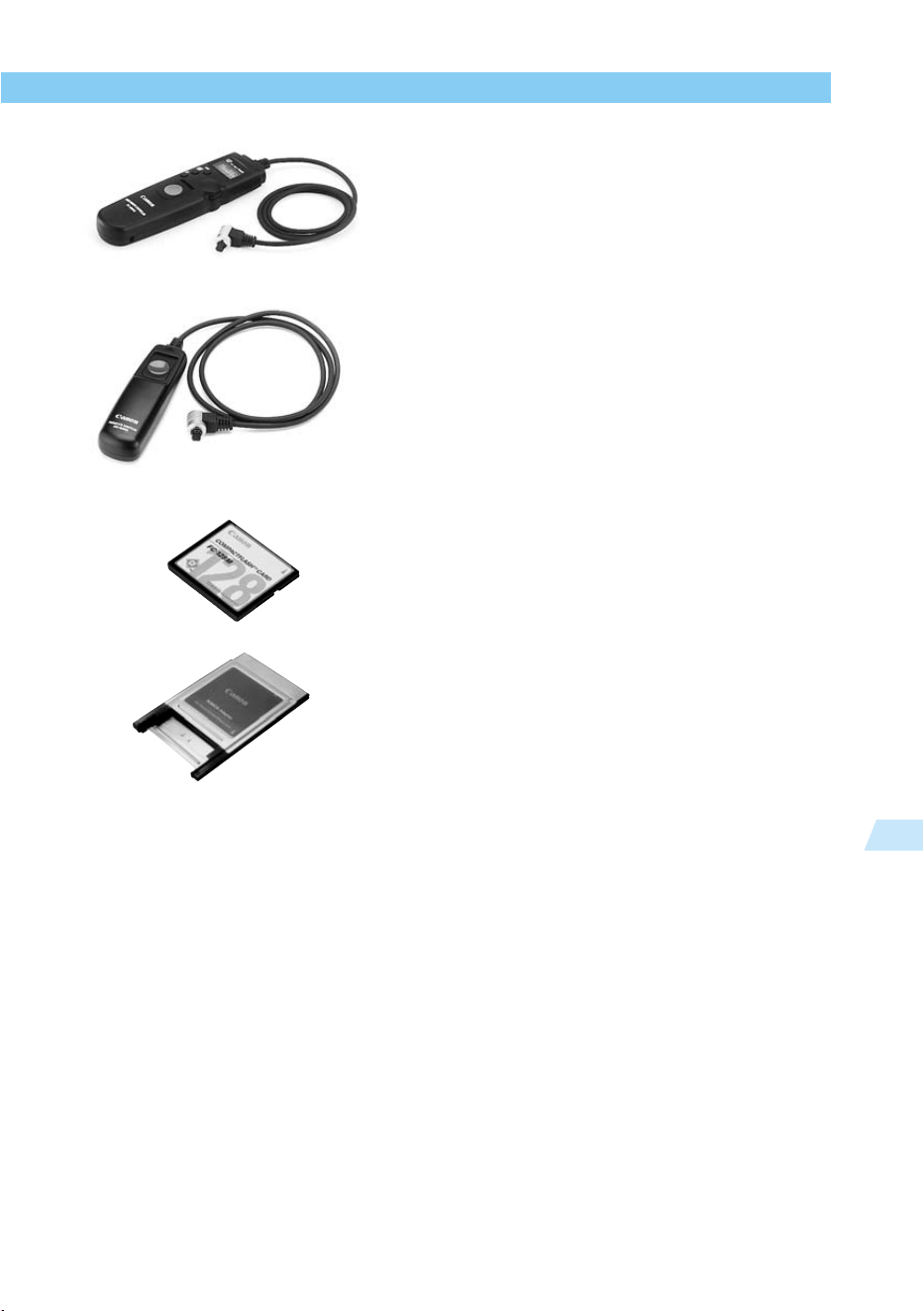
139
Reference
7
REFERENCE
Timer Remote Controller TC-80N3
The remote controller attaches with an 80-cm cord and
includes built-in (1) self timer, (2) interval timer, (3) long-
exposure timer, and (4) shutter release count-setting
function. You can set the time from 1 second to 99 hours,
59 minutes, 59 seconds, in 1-second increments. Also
includes shutter release lock and a one-touch locking plug
for connecting to the EOS D60’s remote control terminal.
Remote Switch RS-80N3
This is a remote switch with an 80-cm cord to prevent
camera shake for super-telephoto shots, macroshooting,
and bulb exposures. You can use the remote switch to
press the shutter button down halfway or completely. Also
includes shutter release lock and a one-touch locking plug
for connecting to the EOS D60’s remote control terminal.
CF Card
Data storage device where the captured images are
recorded. CF cards made by Canon are recommended.
PC Card Adapter
Enables a CF card to be inserted into a PC card slot or
PC card reader.
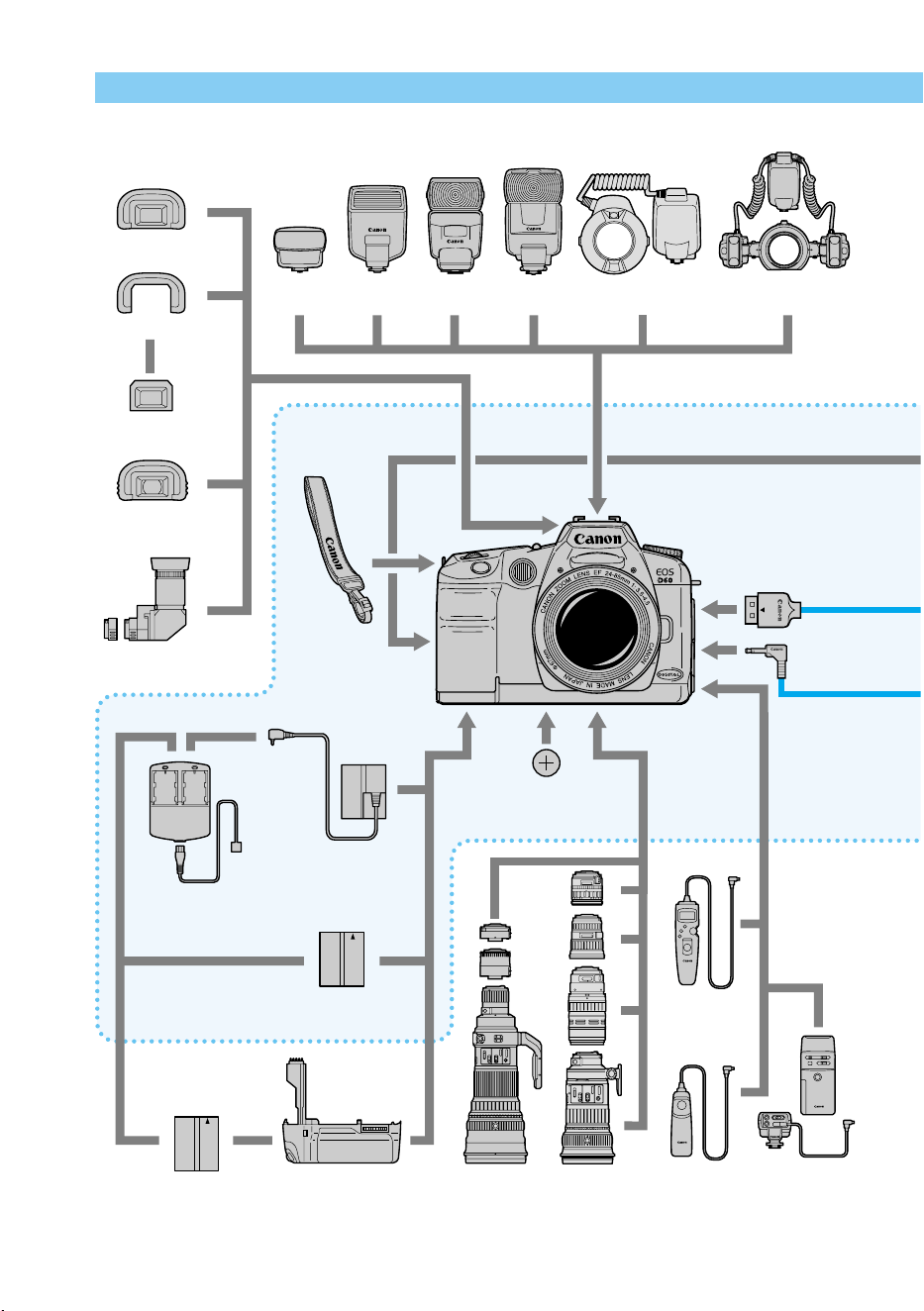
140
REFERENCE
System Map
EF Lens
Battery Pack
BP-511
Date/time CR2025
lithium battery
Timer Remote
Controller
TC-80N3
Remote Switch
RS-80N3
Wireless
Controller
LC-4
Strap
Eyecup Eb
Rubber Frame Eb
Eyepiece Extender
EP-EX15
Angle Finder C
Battery Grip BG-ED3Battery Pack
BP-511
Compact Power
Adapter CA-PS400
DC Coupler
DR-400
E-series Dioptric
Adjustment Lenses
220EXST-E2 420EX 550EX MR-14EX MT-24EX
Items included
with the Camera
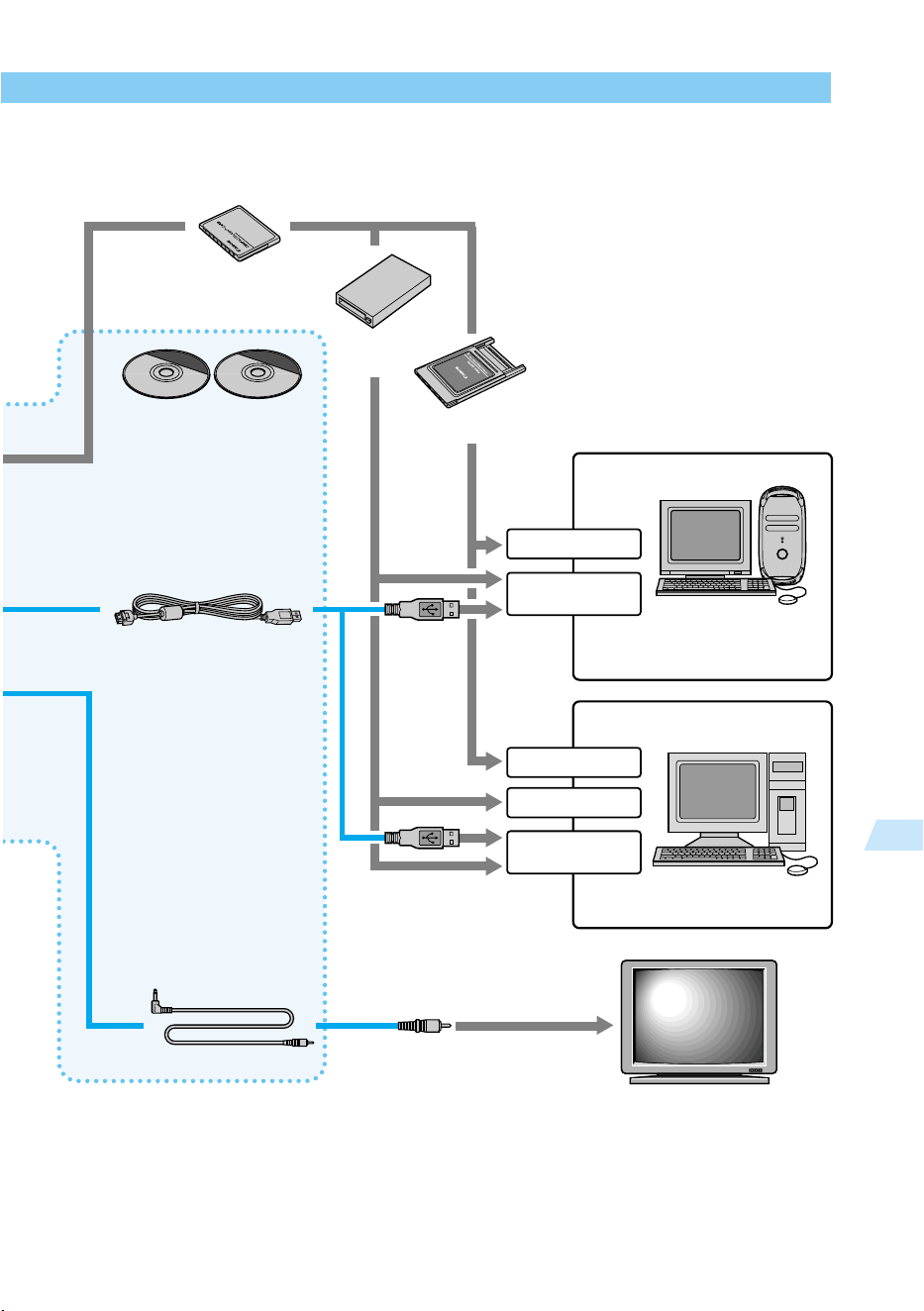
141
Reference
7
REFERENCE
PC Card Slot
CF Cards
CF Card
Reader
TV/Video
Macintosh
Computer
PC/AT Compatible
Computer
PC Card Adapter
• EOS Digital Solution Disk
• Adobe Photoshop LE Disk
Interface Cable
IFC-200 PCU
Video Cable VC-100
USB Port
USB Port
PC Card Slot
Parallel Port

142
REFERENCE
Major Specifications
•
Type
Type ......................................... Digital AF/AE SLR camera with built-in flash
Recording medium .................. Type I and II CF card
Image size ................................ 22.7 mm × 15.1 mm
Compatible lenses.................... Canon EF lenses
(Effective lens focal length: 1.6 times the lens focal length)
Lens mount .............................. Canon EF mount
•
Imaging Element
Type ......................................... High-sensitivity, high-resolution, single-plate CMOS sensor
Pixels........................................ Effective pixels: Approx. 6.3 megapixels
Total pixels: Approx. 6.52 megapixels (3152×2068)
Aspect ratio .............................. 3:2
Color filter system .................... Primary color filter
Low-pass filter .......................... Located in front of the CCD sensor, non-removable
•
Recording System
Recording format ..................... Design rule for Camera System (sRGB-compliant)
Image format ............................ JPEG and RAW (12-bit)
File size .................................... (1) Large/Fine: Approx. 2.5 MB (3072×2048 pixels)
(2) Large/Normal: Approx. 1.3 MB (3072×2048 pixels)
(3) Medium/Fine: Approx. 1.4 MB (2048×1360 pixels)
(4) Medium/Normal: Approx. 0.7 MB (2048×1360 pixels)
(5) Small/Fine: Approx. 0.9 MB (1536×1024 pixels)
(6) Small/Normal: Approx. 0.5 MB (1536×1024 pixels)
(7) RAW: Approx. 7.4 MB (3072×2048 pixels)
*
Exact file sizes depend on the shooting conditions and ISO speed.
File numbering ......................... (1) Continuous numbering (2) Auto reset
Processing parameters ............ Standard parameters plus up to three sets of custom
processing parameters.
Interface ................................... USB Ver. 1.1 (with dedicated cable)
•
White Balance
System ..................................... Imaging element
Settings .................................... (1) Auto (2) Daylight (3) Cloudy (4) Light bulb
(5) Fluorescent light (6) Flash (7) Custom
•
Viewfinder
Type ......................................... Eye-level pentaprism
Picture coverage ......................
95% vertically and horizontally with respect to the effective pixels
Magnification ............................ 0.88x (-1 diopter with 50mm lens at infinity)
Eyepoint ................................... 20 mm
Built-in dioptric adjustment ....... -3.0 - +1.0 diopter.
Focusing screen ....................... Fixed, New Laser Matte screen
Reflex mirror ............................. Quick-return half mirror
(Transmission:reflection ratio of 40:60, no mirror cut-off with
EF 600mm f/4 or shorter lens)

143
Reference
7
REFERENCE
Viewfinder information .............. AF information: AF points, focus confirmation light
Exposure information: shutter speed, aperture, manual exposure, AE lock,
partial metering circle, exposure level, exposure
compensation amount, AEB level
Flash information:
flash ready, high-speed sync, FE lock, flash exposure
compensation amount, flash exposure compensation
icon, red-eye reduction lamp-on indicator
Warnings: Exposure warning, improper FE lock warning, CF card-full
warning, CF card error warning, no CF card warning, Busy
Other information: Maximum burst during continuous shooting, shots
remaining
Depth-of-field preview .............. Enabled with depth-of-field preview button
•
Autofocus
Type ......................................... TTL-CT-SIR with a Multi-BASIS
(TTL secondary image registration AF)
AF points .................................. 3 (| + |)
AF working range ..................... EV 0.5-18 (at 20˚C, ISO 100)
Focusing modes ....................... (1) One-Shot AF (2) AI Servo AF (3) AI Focus AF
(4) Manual focusing (MF)
AF point selection .................... (1) Automatic (2) Manual
Active AF point indicator .......... Superimposed in viewfinder and indicated on LCD panel
AF-assist beam ........................ Emitted automatically by a lamp
Effective range: Approx. 3.8 m / 12.5 ft. (at center)
•
Exposure Control
Metering system ....................... 35-zone SPC, TTL full-aperture metering
(1) Evaluative metering (linked to all AF points)
(2) Partial metering (approx. 9.5% of viewfinder at center)
(3) Centerweighted average metering
Metering range ......................... EV 2-20 (at 20˚C with 50mm f/1.4 lens, ISO 100)
Exposure control systems ........ (1) Program AE (Full Auto, Portrait, Landscape, Close-up,
Sports, Night Portrait, Program) (2) Shutter-priority AE
(3) Aperture-priority AE (4) Depth-of-field AE (5) Manual
exposure (6) E-TTL program flash AE
ISO speed range ...................... Equivalent to ISO 100, 200, 400, 800, 1000
Exposure compensation .......... AEB: +/–2 stops in 1/2- or 1/3-stop increments.
Bracketing sequence: Standard exposure, decreased
exposure, increased exposure
Manual: +/–2 stops in 1/2- or 1/3-stop increments (can be
combined with AEB)
AE lock ..................................... Automatic: Applied automatically when focus is achieved in
One-Shot AF mode with evaluative metering.
Manual: Applied with AE lock button.
•
Shutter
Type ......................................... Electronically-controlled focal-plane shutter
Shutter speeds .........................
1/4000 to 30 sec. (1/2- or 1/3-stop increments), bulb, X-sync at 1/200 sec.
Shutter release ......................... Soft-touch electromagnetic release

144
REFERENCE
Self-timer .................................. 10-sec. delay.
Remote control ......................... Compatible with Remote Switch RS-80N3
•
Built-in Flash
Type ......................................... Auto pop-up E-TTL autoflash (retractable)
Guide No. ................................. 12 (ISO 100, meters)/ 39 (ISO 100, ft.)
Recycling time .......................... Approx. 3 sec.
Flash-ready indicator ............... Flash-ready icon lights in viewfinder
Flash coverage ......................... 18mm lens angle covered
Autoflash system ...................... E-TTL autoflash (linked to all AF points)
Flash exposure compensation ....
+/–2 stops in 1/2- and 1/3-stop increments
•
External Speedlite
Compatible Speedlites ............. EX-series Speedlites (E-TTL autoflash)
PC sync terminal ...................... Provided
•
Drive System
Drive modes ............................. (1) Single frame (2) Continuous (3) Self-timer
Continuous shooting speed ..... Max. speed approx. 3 fps (in One-Shot AF mode at 1/250 sec.
or faster speeds)
Max. burst during continuous shooting ..
8 shots
•
LCD Panel
LCD panel illumination ............. Provided
•
LCD Monitor
Type ......................................... TFT color liquid-crystal monitor
Screen size .............................. 1.8 inches
Pixels........................................ Approx. 114,000
Picture coverage ...................... Approx. 100% with respect to the effective pixels
Brightness control .................... Two levels (Standard or Bright)
•
Image Playback
Image display format ................ (1) Single image (2) Single image with information
(3) 9-image index (4) Magnified view (5) Autoplay
Highlight alert ........................... In display formats (1) and (2) above, any overexposed
highlight areas will blink in the image display.
•
Image Protect and Erase
Protect ...................................... Single image in the CF card can be protected.
Erase ........................................ Single image or all images in the CF card can be erased
(except protected images).
•
Menus
Menu categories ...................... (1) Shooting menu: Red (2) Image playback menu: Blue
(3) Setup menu: Yellow
LCD monitor language ............. (1) Japanese (2) English (3) French (4) German
Custom Functions .................... 14 Custom Functions with 38 settings
145
Reference
7
REFERENCE
•
Power Source
Battery ...................................... One Battery Pack BP-511
* AC power can be supplied via the DC coupler.
Battery life ................................ Normal temp. Low temp.
No flash use 620 shots 480 shots
50% flash use 490 shots 400 shots
*
The above figures apply when a fully-charged Battery Pack BP-511 is used.
Battery check ........................... Automatic, displayed in one of three levels
Power saving ............................ Provided. Power turns off after 1, 2, 4, 8, 15, or 30 min.
Date/time battery ...................... One CR2025 lithium battery
•
Dimensions and Weight
Dimensions .............................. 149.5 (W) × 106.5 (H) × 75 (D) mm (5.89 × 4.19 × 3.0 in)
Weight ...................................... 780 g (27.5 oz) (excluding battery and CF card)
•
Operating Conditions
Working temperature range ..... 0˚C – 40˚C
Working humidity range ........... 85% or lower
•
Compact Power Adapter CA-PS400
Compatible battery ................... Battery Pack BP-511
Compatible coupler .................. DC Coupler DR-400
Battery connector ..................... 2 (recharging disabled when the DC Coupler is installed)
Power cord length .................... Approx. 1.8 m / 5.9 ft.
Recharging time ....................... Approx. 90 min. (per battery)
Rated input ............................... 100-240 VAC (50/60 Hz)
Rated output ............................ During battery charging: 8.4 VDC
With coupler connected ........... 8.1 VDC
Working temperature range ..... 0˚C – 40˚C
Working humidity range ........... 85% or lower
Dimensions .............................. 100 (W) × 51 (H) × 133 (D) mm (3.94 × 2.0 × 5.24 in)
Weight ...................................... 285 g (10.1 oz) (excluding power cord)
•
DC Coupler DR-400
Compatible adapter .................. Compact Power Adapter Canon-PS400
Compatible camera .................. EOS D60, EOS D30
Rated input ............................... 6.3-10.5 VDC
Rated output ............................ 6.3-10.5 VDC
Cord length .............................. Approx. 1.8 m/ 5.9 ft.
Working temperature range ..... 0˚C – 40˚C
Working humidity range ........... 85% or lower
Dimensions .............................. 38.4 (W) × 21 (H) × 55.3 (D) mm (1.51 × 0.83 × 2.18 in)
Weight ...................................... 110 g (3.9 oz) (excluding power cord)
•
All the specifications above are based on Canon's testing standards.
•
The camera's specifications and external appearance are subject to change without notice.

146
A
Accessories ........................................... 138
A-DEP ..................................................... 76
AE ......................................................... 128
AEB (Autoexposure bracketing) .............. 78
AE lock ............................................ 80, 133
AF .................................................... 27,128
AF Assist-beam ....................................... 39
AF Mode ................................................. 54
AF point ................................................... 57
AI Focus AF ............................................ 56
AI Servo AF for moving subjects ............. 56
Aperture value ....................................... 128
Auto power off function ................... 29, 120
Auto reset .............................................. 114
Av ............................................................ 72
B
Basic Zone ........................................ 18, 86
Battery check .......................................... 20
Battery Life .............................................. 25
Battery pack .................................... 22, 138
Beep ...................................................... 118
Built-in flash use ...................................... 86
Flash range ......................................... 87
Flash sync shutter speed,
aperture value ................................... 87
Red-eye reduction ............................... 89
Bulb exposures ....................................... 83
C
Center-weighted average metering ......... 62
CF (CompactFlash) card ... 11, 28, 128, 139
Formatting ................................. 105, 130
Charge lamp ..................................... 19, 22
Close-up mode ........................................ 46
CMOS ............................................... 2, 115
Color temperature ................................... 65
Compact power adapter .................... 19, 22
Compression ratio ................................... 50
Continuous numbering .......................... 114
Continuous shooting ............................... 63
Creative zone .................................... 18, 86
Custom Functions ......................... 121, 122
Custom White Balance ............................ 66
D
Date printing specification ..................... 110
DC coupler ........................................ 19, 26
Depth of field ................................... 73, 128
Dioptric adjustment ................................. 36
Dioptric adjustment Lens ...................... 138
DPOF
(Digital Print Order Format)
............................................ 97, 106, 129
Drive Mode .............................................. 63
E
Erasing ............................................ 43, 104
Evaluative metering ................................. 63
Exposure ............................................... 129
Exposure compensation setting .............. 77
Exposure warnings ............................... 132
Eyepiece cover .................................. 21, 82
F
FEB (Flash Exposure Bracketing) ........... 94
FE lock .............................................. 90, 95
File numbers ................................. 114, 129
Flash exposure compensation .......... 91, 95
Flash photography ............................ 39, 85
Focus confirmation light .......................... 17
Focus lock ............................................... 58
Formatting ..................................... 105, 130
FP flash (high-speed sync) ..................... 94
Full pressing the shutter button ............... 29
Fully Automatic Picture Taking ................ 38
Function Availability Table ..................... 131
H
Halfway pressing the shutter button ........ 29
Handling precautions .............................. 10
High-speed sync ..................................... 94
I
Image information ........................... 41, 100
Image zone ............................................. 18
Imaging element ............................... 2, 115
Index printing ........................................ 109
Info button ....................................... 60, 100
Interface cable ........................................... 3
ISO speed ............................... 51, 118, 130
J
JPEG ............................................... 50, 130
Index

Reference
7
1472
Thank you for purchasing this Canon product
The EOS D60 digital camera is a high-performance, single-lens reflex AF camera with an ultra-
fine CMOS sensor having 6.29 million effective pixels. The camera is compatible with all
Canon EF lenses and designed for quick and easy shooting. It is full-featured for all types of
photography, from fully automatic snapshooting to professional-level, creative work.
CompactFlash cards (CF Type I and II) serve as the recording medium.
Before using the camera, be sure to read these Instructions to familiarize yourself with the
camera’s features and proper operation.
∗ Using CF cards made by Canon is recommended.
Radio and Television Interference (VCCI Statement)
This camera is an information technology device that does not exceed Class B limits for
electromagnetic interference (EMI) in compliance with standards set by Japan’s Voluntary
Control Council for Interference by Information Technology Equipment (VCCI). This device may
still cause interference with radio or television reception when placed near such an appliance.
Read these Instructions to learn how to avoid reception interference of other appliances.
Test the Camera Before Shooting
Before using the camera, be sure to test it first. Check that the images are properly recorded
on the CF card. If the camera or CF card is faulty and the images cannot be recorded or read
by a personal computer, Canon cannot be held liable for any loss or inconvenience caused.
About Copyrights
Copyright laws in your country may prohibit the use of images of people and certain subjects
for anything but private enjoyment. Photographing public performances or exhibitions may
also be prohibited.
● Canon and EOS are trademarks of Canon Inc.
● Adobe and Photoshop are trademarks of Adobe Systems Incorporated.
● CompactFlash is a trademark of SanDisk Corporation.
● IBM PC/AT and Microdrive are trademarks or registered trademarks of International
Business Machines.
● Macintosh is a registered trademark of Apple Corporation in the United States and other
countries.
● All other trademarks are the property of their respective owners.
Index
L
Landscape Mode .................................... 45
Language .............................................. 121
LCD brightness ..................................... 120
LCD panel ......................................... 10, 16
LCD panel Illumination ............................ 67
Lens ........................................................ 27
M
Macro Flash .......................................... 138
Main Dial ........................................... 20, 30
Manual .................................................... 74
Manual focus ........................................... 59
Main switch ....................................... 20, 29
Message List ......................................... 135
Menu functions ................................ 32, 118
Metering Modes ...................................... 61
MF (Manual Focus) ........................... 27, 59
Mirror lockup ................................... 84, 122
Mode dial ................................................ 18
Modeling flash ......................................... 95
N
Night Portrait Mode ................................. 48
Non-Canon flash unit .............................. 96
NTSC ............................................ 112, 121
O
One-shot AF ............................................ 55
P
PAL ................................................ 112, 121
Parameter selection ................................ 52
Partial metering ....................................... 62
PC Card Adapter ................................... 139
PC terminal ............................................. 96
Portrait Mode ........................................... 44
Print order selection .............................. 106
Date printing ...................................... 110
File number printing .......................... 111
Print type ........................................... 109
All images .......................................... 108
Single image ..................................... 107
Program AE............................................. 68
Program line .......................................... 133
Program shifting ...................................... 69
Protection .............................................. 103
Q
Quick Control Dial ............................. 20, 31
R
Recording capacity ................................. 50
Recording size ........................................ 50
Red-eye phenomenon ........................... 130
Red-eye reduction ................................... 89
Remote Switch ...................................... 139
S
Self-timer ................................................. 81
Settings checking .................................... 60
Shooting modes ...................................... 18
Shutter button.......................................... 29
Shutter speed ........................................ 130
Single-frame shooting ............................. 63
Specifications ........................................ 142
Sports Mode ............................................ 47
Strap ....................................................... 21
Sync shutter speed ........................... 87, 96
System Map .......................................... 140
T
Timer operation ....................................... 20
Timer Remote Controller ....................... 139
Tv ............................................................ 70
V
Video system ........................................ 121
Viewfinder ............................................... 17
Viewing the image ............................. 40, 98
Auto playback .................................... 101
Enlarged image viewing ...................... 99
Erasing images
Single .............................................. 43
All .................................................. 104
Jumping between images .................... 99
Protecting images ............................. 103
Rotating images ................................ 102
Viewing a single image ....................... 98
Viewing the index ................................ 98
W
White balance ................................... 64, 66
Wireless multi-flash shooting .................. 95
Be sure to read these Instructions before using
your camera for the first time. Keep this booklet
handy for easy reference.
English Edition
INSTRUCTIONS
E
E
CT1-1232-001
©
CANON INC. 2002 PRINTED IN JAPAN
This Instructions booklet is current as of January 2002. For information on using the
camera with system accessories introduced after this date, contact your nearest Canon
Service Center.
CANON INC. 30-2, Shimomaruko 3-chome, Ohta-ku, Tokyo 146-8501, Japan
U.S.A. CANON U.S.A. INC.
For all inquiries concerning this camera, call toll free in the U.S.
1-800-OK-CANON or write to: Customer Relations, Canon U.S.A., Inc.
One Canon Plaza, Lake Success, N.Y. 11042-1198
CANADA CANON CANADA INC. HEADQUARTERS
6390 Dixie Road, Mississauga, Ontario L5T 1P7, Canada
CANON CANADA INC. MONTREAL BRANCH
5990, Côte-de-Liesse, Montréal Québec H4T 1V7, Canada
CANON CANADA INC. CALGARY OFFICE
2828, 16th Street, N.E. Calgary, Alberta T2E 7K7, Canada
For all inquiries concerning this camera, call toll free in Canada
1-800-OK-CANON
EUROPE, CANON EUROPA N.V.
AFRICA &
Bovenkerkerweg 59-61, P.O. Box 2262, 1180 EG Amstelveen, The Netherlands
MIDDLE EAST CANON COMMUNICATION & IMAGE FRANCE S.A.
102, Avenue du Général de Gaulle 92257 La Garenne-Colombes Cedex, France
CANON UK LTD.
Woodhatch Reigate Surrey RH2 8BF, United Kingdom
CANON DEUTSCHLAND GmbH
Europark Fichtenhain A10, 47807 Krefeld, Germany
CANON ITALIA S.p.A.
Palazzo L, Strada 6, 20089 Rozzano, Milanofiori, Milano, Italy
CANON Benelux N.V./S.A.
Bessenveldstraat 7, 1831 Diegem (Machelen), Belgium
CANON Schweiz AG
Geschäftsbereich Wiederverkauf, Industriestrasse 12, CH-8305 Dietlikon, Switzerland
CANON G. m. b. H.
Oberlaaerstrasse 233, 4th floor, 1100 Wien, Austria
CANON España, S. A.
C/Joaquín Costa, 41, 28002 Madrid, Spain
SEQUE Soc. Nac. de Equip., Lda.,
Praça da Alegria, 58, 2°, 1269-149 Lisboa, Portugal
CENTRAL & CANON LATIN AMERICA, INC. DEPTO DE VENTAS
SOUTH AMERICA 703 Waterford Way Suite 400 Miami, FL 33126 U.S.A.
CANON LATIN AMERICA, INC. CENTRO DE SERVICIO Y REPARACION
Apartado 2019, Zona Libre de Colón, República de Panamá
ASIA CANON HONGKONG CO., LTD.
9/F, The Hong Kong Club Building, 3A Chater Road, Central, Hong Kong
CANON SINGAPORE PTE. LTD.
79 Anson Road #09-01/06 Singapore 079906
OCEANIA CANON AUSTRALIA PTY. LTD.
1 Thomas Holt Drive, North Ryde, N.S.W. 2113, Australia
CANON NEW ZEALAND LTD.
Fred Thomas Drive, P.O. Box 33-336, Takapuna, Auckland, New Zealand
JAPAN CANON SALES CO., INC.
12-15 Mita, 3-Chome, Minato-ku, Tokyo 108-8011, Japan
INSTRUCTIONS


