

2
Quick User Guide – IRIScan
TM
Express 4
Contents
1. Introduction ................................................................................................................................ 3
2. Software Installation .................................................................................................................... 4
2.1 Important Notes ..................................................................................................................... 4
2.2 Precautions ............................................................................................................................ 4
2.3 Installation ............................................................................................................................. 4
2.4 Activation ............................................................................................................................... 5
3. Supported Documents .................................................................................................................. 6
4. Using the Scanner ....................................................................................................................... 7
4.1 Top view ................................................................................................................................ 7
4.2 Rear view ............................................................................................................................... 7
4.3 Scanning with the IRIScan™ Express 4 ...................................................................................... 8
5. Maintenance ............................................................................................................................... 9
5.1 Calibrate the scanner............................................................................................................... 9
5.2 Cleaning the scanner ............................................................................................................. 10
6. Troubleshooting ........................................................................................................................ 11
6.1 Clearing a Paper Jam ............................................................................................................. 11
6.2 Questions and Answers .......................................................................................................... 12
6.3 Product Support .................................................................................................................... 13
7. Specifications ............................................................................................................................ 14
7.1. Scanner Specifications .......................................................................................................... 14
7.2. System Requirements ........................................................................................................... 14
8. Legal Information ...................................................................................................................... 15

3
Quick User Guide – IRIScan
TM
Express 4
1. Introduction
This User Guide helps you get started with the IRIScan™ Express 4.
Please read this guide before operating this scanner and its software. All information is subject to
change without prior notice.
The software delivered with this scanner is:
The IRIScan™ Express 4 scanner is bundled with different software packages.
Windows®:
• Readiris™ Pro
• Cardiris™
• Button Manager
macOS®:
• Readiris™ Pro
• Capture Tool
For detailed information about the full range of features of Readiris™, Cardiris™, and the Button
Manager, see their corresponding documentation on http://www.irislink.com.
4
Quick User Guide – IRIScan
TM
Express 4
2. Software Installation
2.1 Important Notes
• Install the software applications before you connect the scanner to your computer and in the order
indicated below
• Check the System Requirements to make sure your system is compatible.
2.2 Precautions
Keep the scanner out of direct sunlight. Direct exposure to the sun or excessive heat may cause
damage to the unit.
Do not install the scanner in a humid or dusty place.
Be sure to use the proper AC power source.
Place the scanner securely on an even, flat surface. Tilted or uneven surfaces may cause mechanical
or paper-feeding problems.
Retain the scanner box and packing materials for shipping purposes.
2.3 Installation
1. Go to www.irislink.com/start.
2. Scroll down to IRIScan™ Express 4.
3. Select the version you acquired and click Getting Started.
4. Then click Start now.
5. Complete the form and click Register now. (Registering activates the product guarantee)
6. Select the required Operating System.
7. Click Download to download the software.
8. Go to the location where you downloaded the software, and run the installation file.
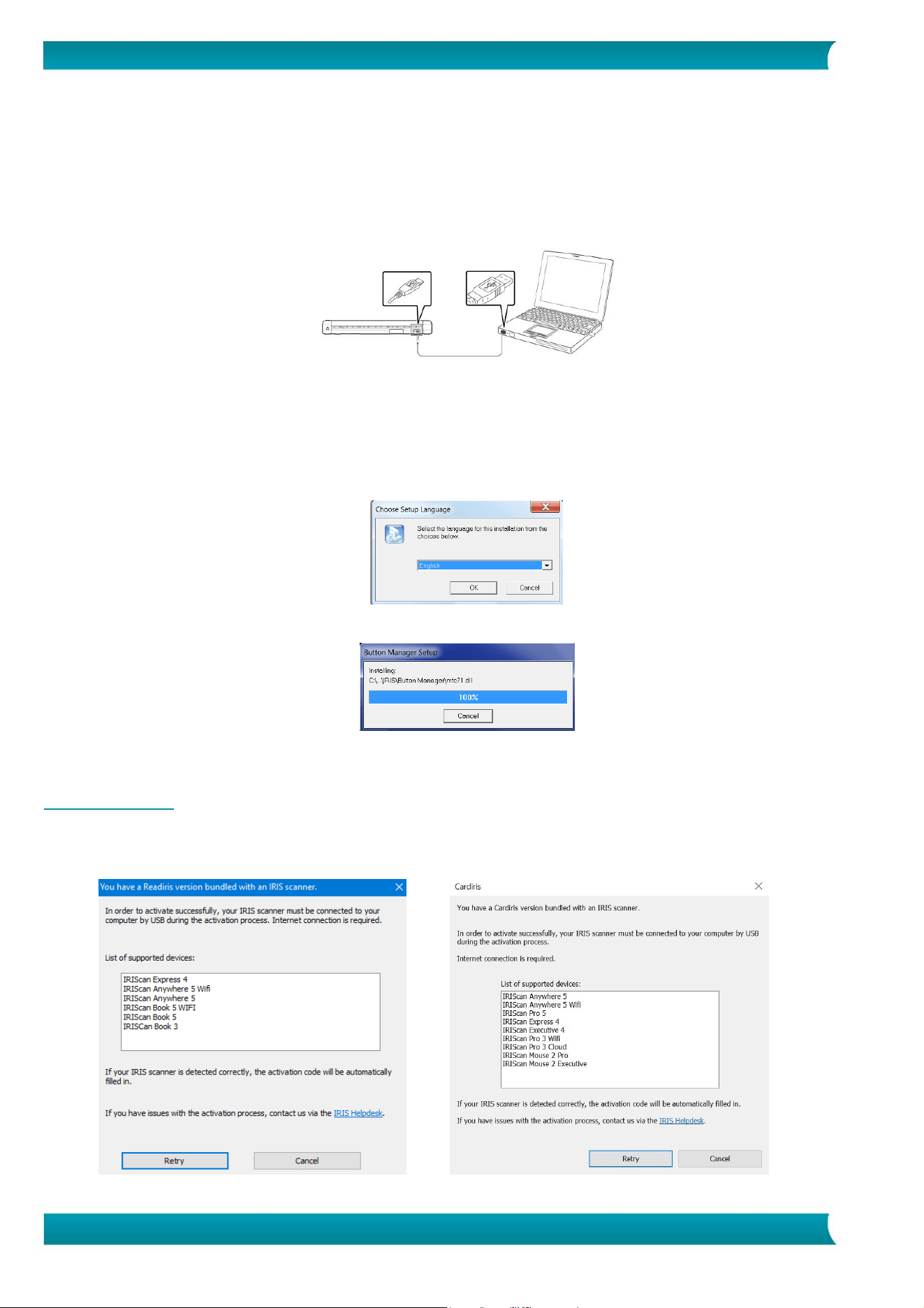
9. The following setup screen is displayed:
WARNING: install the different software applications in the order indicated below.
5
Quick User Guide – IRIScan
TM
Express 4
10. Click Readiris™ Pro to install it. Follow the on-screen instructions.
11. Return to the setup screen and click IRIScan™ Express 4 Driver to install the scanner driver.
12. Click Next until you reach the step Plug in the USB Cable.
Connect the micro USB connector to the USB port of the scanner.
Connect the other end of the USB connector to a USB port on your computer.
13. When the driver is successfully installed the following message appears: This device is now ready to
use.
14. Click Finish and return to the setup screen.
15. Click Button Manager to install the Button Manager. A language selection window appears.
16. Choose the language you wish to install. The InstallShield wizard guides you through the rest of the
installation.
17. Click Finish to complete the installation.
18. Click Cardiris™ Corporate to install Cardiris™. Follow the on-screen instructions.
2.4 Activation
The license numbers required to activate Readiris™ and Cardiris™ will be retrieved automatically on the
condition that your scanner is connected to your computer by USB during activation process.
Activation of Readiris™ Activation of Cardiris™

6
Quick User Guide – IRIScan
TM
Express 4
For detailed information about the full range of features of Readiris™ or Cardiris™, see their
corresponding documentation on http://www.irislink.com.
3. Supported Documents
The scanner is designed to obtain the best scanning results with the following types of originals:
• Photos and documents (3”x5”, 4”x6”, 5”x7”, 8.5”x14”) (76 x 127mm, 102 x 152 mm, 127 x 177
mm, 216 x 356 mm)
• Business cards [standard 3.5”x 2” (88 x 50 mm) or larger]
• Long page (8.5”x36”) (216 x 914 mm) for 300 dpi only
• Paper Weight: 60~107 g/m2 (16~28 lb)
Unsuitable Documents
Do not use the following types of originals for scanning, or the scanner may malfunction or cause the
original to jam in the slot.
• Originals thicker than 0.8 mm
• Originals with either side shorter than 50 mm
• Originals with lots of black or dark colors
• Originals with dark colors surrounding the edges
• Printed media (newspapers, magazines, etc.)
• Soft and thin materials (thin paper, cloth, etc.)
7
Quick User Guide – IRIScan
TM
Express 4
4. Using the Scanner
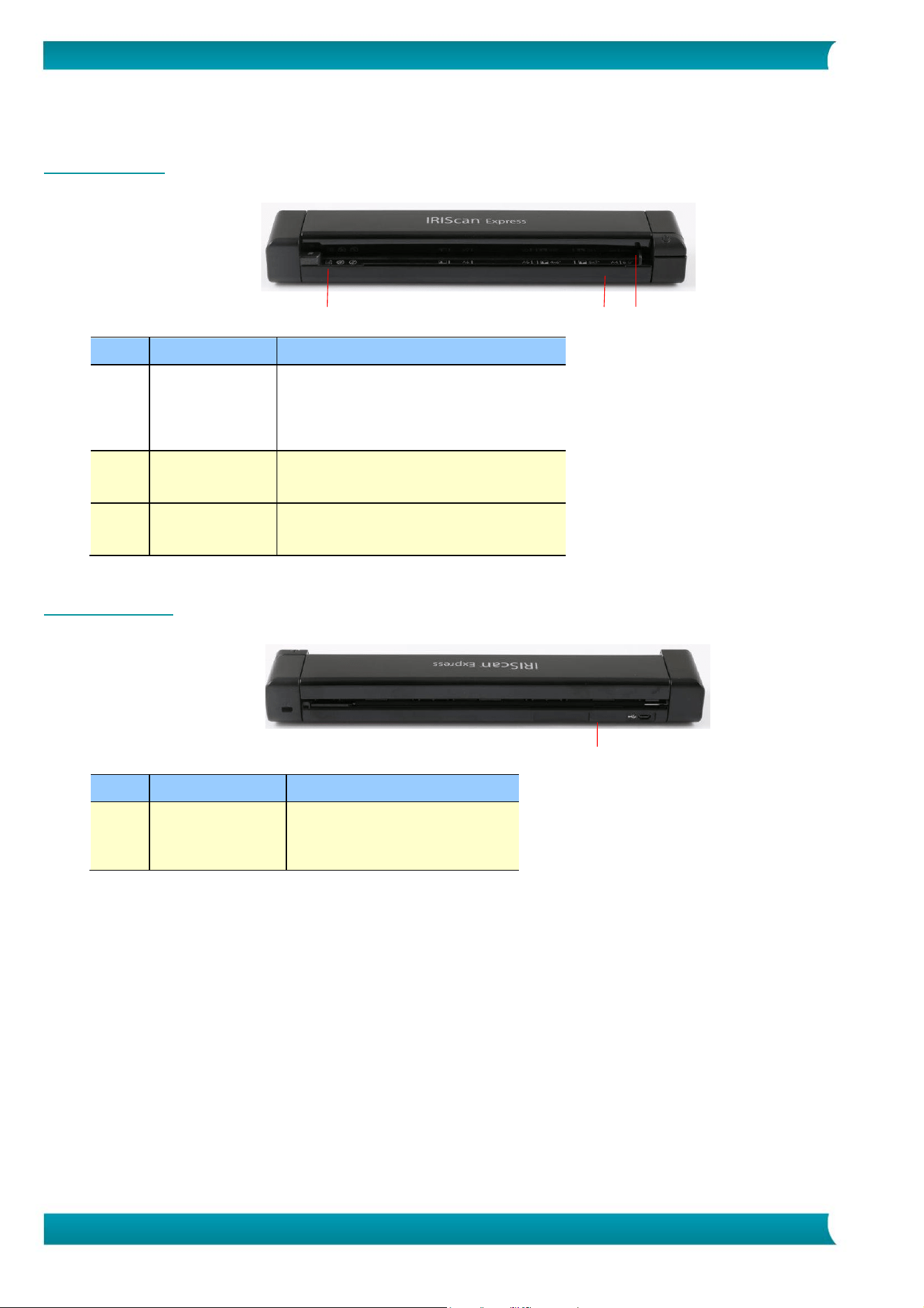
4.1 Top view
Item
Name
Description
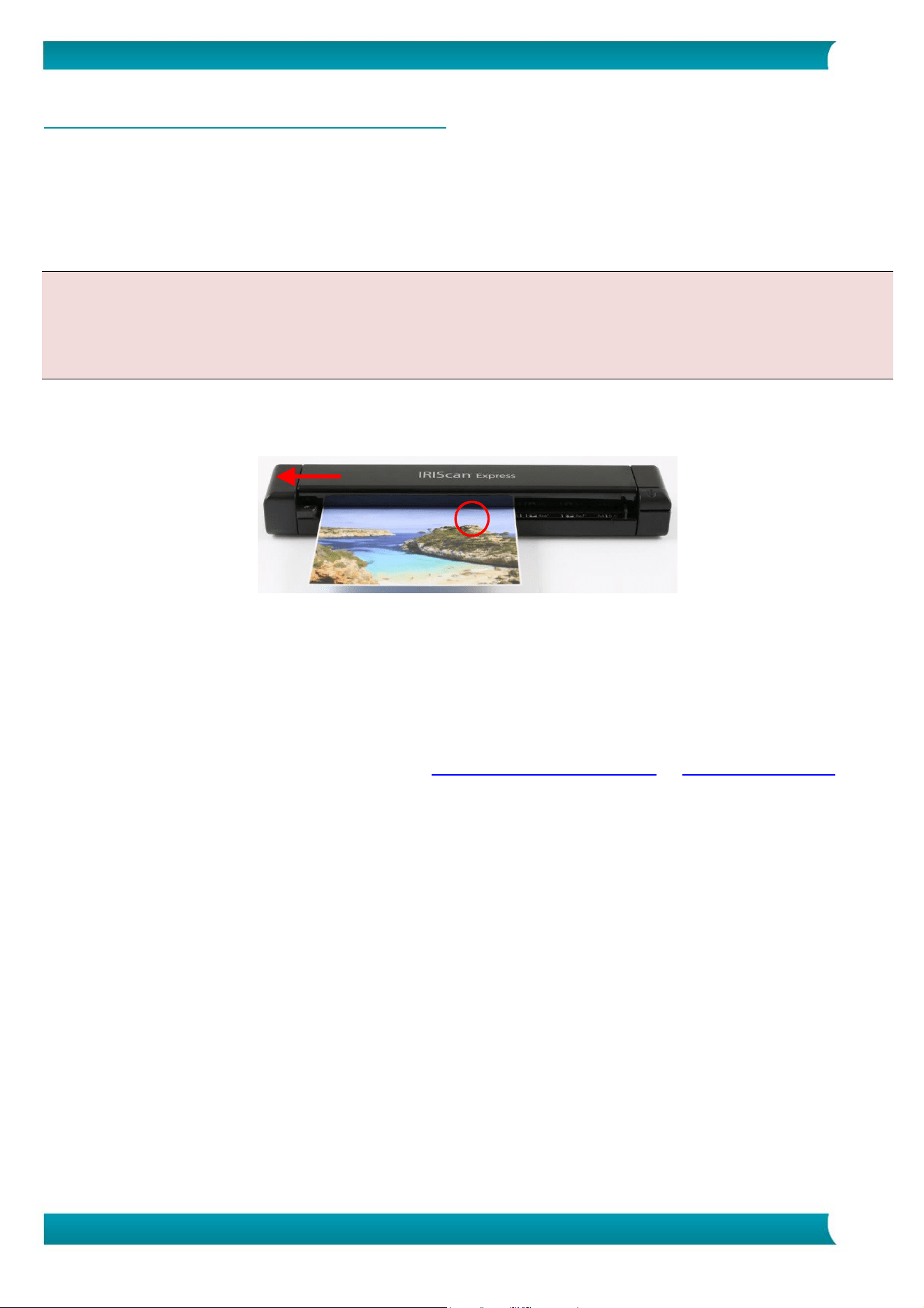
1
Feed slot
Insert document into the feed
slot, printed side UP and aligned
with the left edge to begin
scanning.
2
Paper guide
Adjust to scan documents of
different size.
3
Scanner
button
Press to scan (on Windows PC
only )
4.2 Rear view
Item
Name
Description
1
Micro USB
port
Connect to a computer via
the micro USB cable.
2 3
1
1
8
Quick User Guide – IRIScan
TM
Express 4
4.3 Scanning with the IRIScan™ Express 4
The IRIScan™ Express 4 can be used in several ways:
• With the Button Manager (Windows only) to scan documents directly to Readiris for text
recognition, scan them to other applications of your choice, to multiple Cloud destinations, etc.
• From within Readiris™ or Cardiris™.
• From within the Capture Tool.
Important!
◼ Insert only one page at a time, and insert the next one only when the previous one is done.
Otherwise, the scanner may malfunction.
◼ The paper detector is quite sensitive. Please do not push your document into the feeding slot or the
top of your image will be cut. Simply let go the document when it begins to feed into the slot.
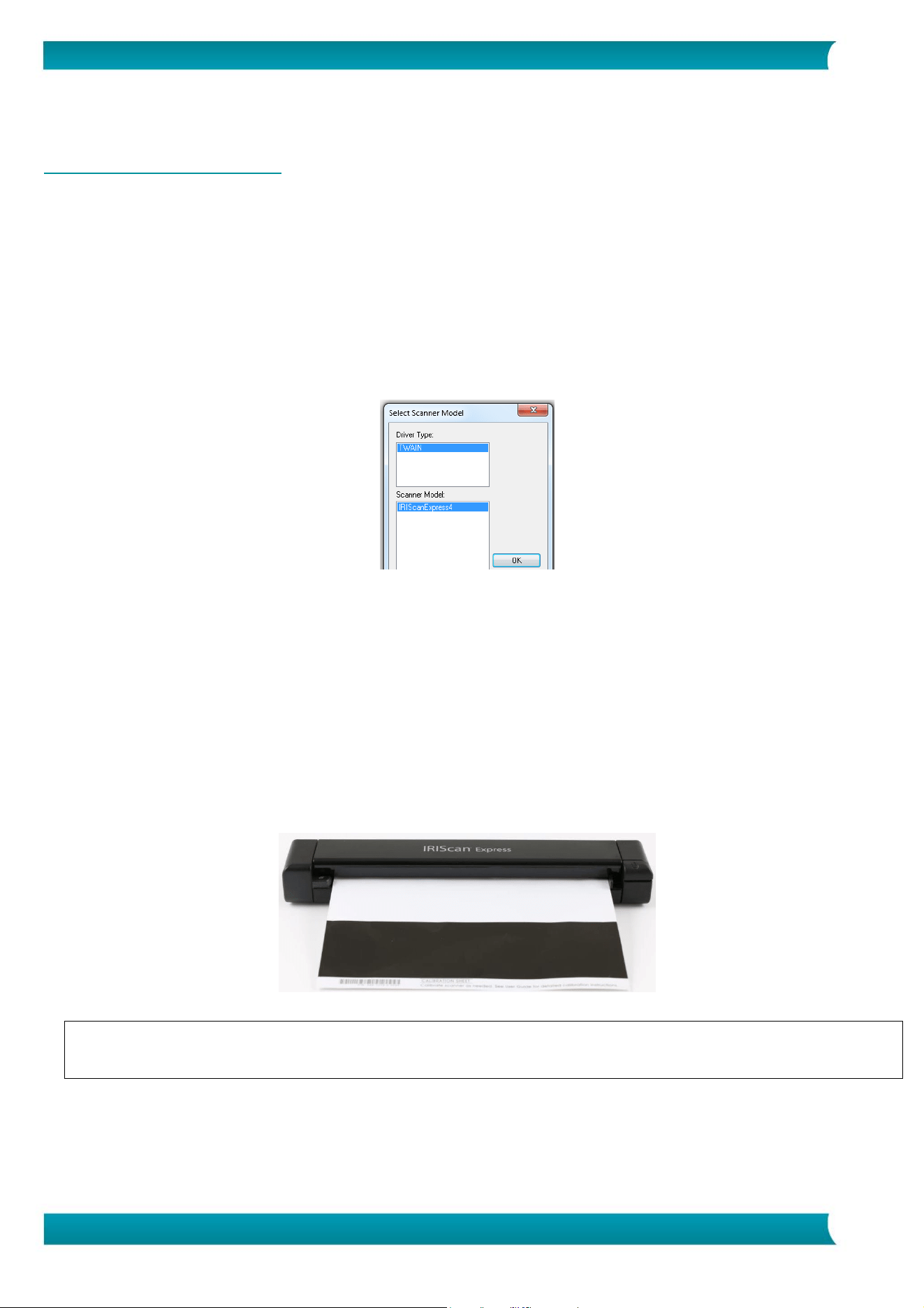
1. Insert your document FACE UP into the feeder and align it to the left edge of the feeder. Then, adjust
the paper guide to the right-hand side of the document.
2. Gently push the document into the feed slot.
3. On Windows: press the scanner button once to start scanning.
4. On macOS: click Scan from within Readiris™ or the Capture Tool.
In this User Guide we only describe the basics how to scan.
Separate User Guides are available for the Button Manager, the Capture Tool, Readiris™ and Cardiris™.
The documentation package can be found on the Technical Support section of www.irislink.com.
9
Quick User Guide – IRIScan
TM
Express 4
5. Maintenance
5.1 Calibrate the scanner
Calibrate only if the scanned image looks fuzzy, the color looks abnormal (e.g., darker than normal), after
more than 8,000 scans, or the scanner has been stored without use for a long time. The calibration process
resets the Contact Image Sensor to resume its color and sharpness precision.
1. Connect the scanner to your computer.
2. Start the Capture Tool.
In Windows:
• Click Start > All Programs > IRIScan Express 4 scanner > Capture Tool
• Select your driver type and scanner model and click OK.
On Mac OS:
• Click Finder > Applications > Capture Tool
3. The Capture Tool dialog box will be displayed.
4. Click the “Setup” button to open the Scanner Properties dialog box.
5. In Windows: click the “Settings” tab and then click the “Calibration” button.
6. On Mac OS: click the “Enhancement” tab and then click the “Calibration” button.
7. The “Insert calibration sheet” dialog box appears.
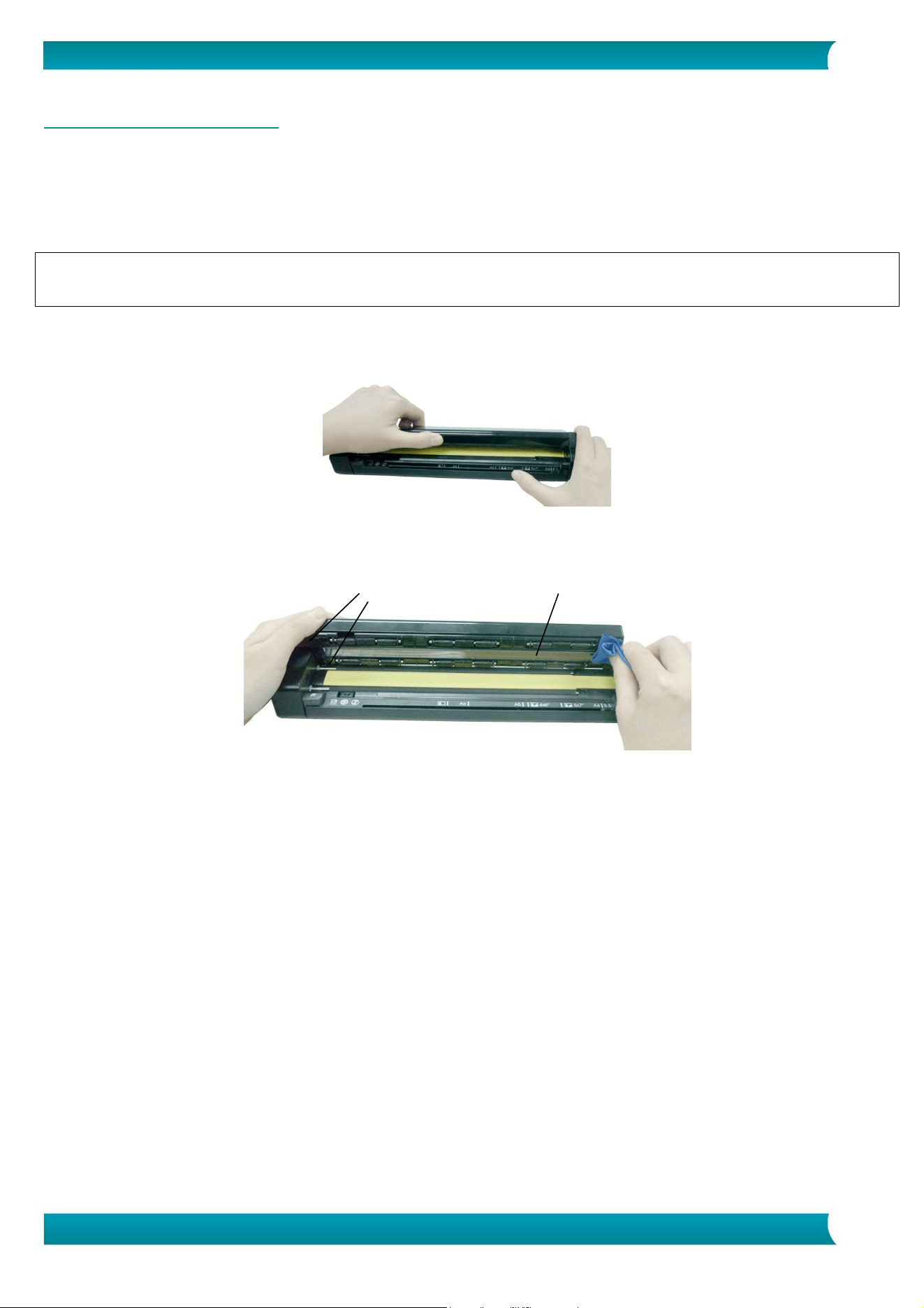
8. Hold the edges of the calibration sheet (included) and insert it with the text facing up and the white
area feeding first into the feeder (As shown below).
9. Click “OK” in the “Insert calibration sheet” dialog box to start calibrating the scanner.
Warning: If the calibration failed, the Red LED will be flashing and an error message will be displayed
on the screen. Disconnect and reconnect the scanner and then repeat the calibration.
10
Quick User Guide – IRIScan
TM
Express 4
5.2 Cleaning the scanner
In order to maintain an optimal scan quality and prevent dust accumulation, it is recommended you clean
the scanner (outer casing and feed rollers) approximately every 200 scans, or if vertical lines or stripes
appear on the scanned image.
◼ Use only the recommended and supplied tools to clean the scanner.
Warning: Do not use any solvents or corrosive liquid (i.e., alcohol, kerosene, etc.) to clean any part of the
scanner, otherwise the plastic material may be permanently damaged.
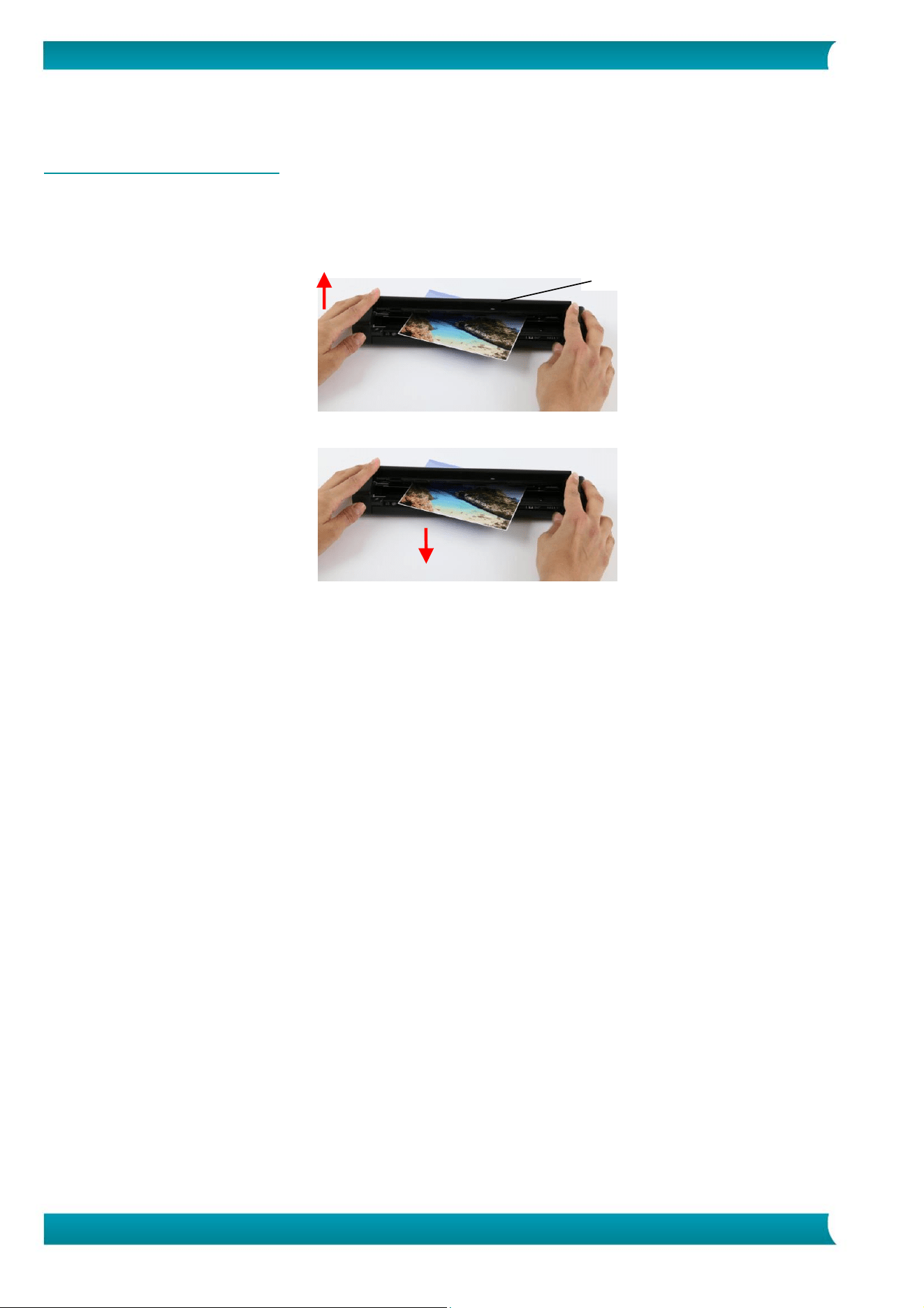
1. Open the cover by holding the scanner with one thumb on the feeder and another thumb on the cover.
Carefully and firmly press your thumb into the feeder and then raise the cover. This will cause the top
of the scanner to release from the bottom of the scanner.
2. Gently wipe the glass and feed rollers on the scanner, and the CIS cover with the cleaning cloth
(included).
Glass
Feed rollers
11
Quick User Guide – IRIScan
TM
Express 4
6. Troubleshooting
6.1 Clearing a Paper Jam
1. Open the cover by holding the scanner with one thumb on the feeder and another thumb on the cover.
Carefully and firmly press your thumb into the feeder and then raise the cover. This will cause the top
of the scanner to release from the bottom of the scanner.
2. Remove the item.
Close the cover and reinsert the item to rescan.
Cover

12
Quick User Guide – IRIScan
TM
Express 4
6.2 Questions and Answers
Question:
Why does my scanned image
always come out too dark?
Answer:
1. Please adjust the screen settings to
SRGB.
2. Please adjust the brightness
settings on the screen from
application software.
Question:
Why are there strange lines on the
scanned document?
Answer:
Please check the following:
1. Are there scratches on the original
or is the original clean?
2. Remove any stains or dust from the
original before scanning.
3. Clean the rollers and glass with the
included cleaning cloth. (Refer to the
section “Clean the scanner”)
Question:
When I choose 600 dpi as optical
resolution, why are the "auto crop"
and "deskew" functions disabled?
Answer:
Since performing auto crop and deskew
consumes great deal of system
memory, it is recommended to select
an optical resolution below 600 dpi to
prevent errors.
Question:
Should the scanner feel warm to
the touch?
Answer:
It is normal for the scanner to emit a
small amount of heat after prolonged
use. However, if there are strange
odors coming from the scanner or the
scanner feels a little bit hot to the
touch, turn the scanner off
immediately.
13
Quick User Guide – IRIScan
TM
Express 4
Question:
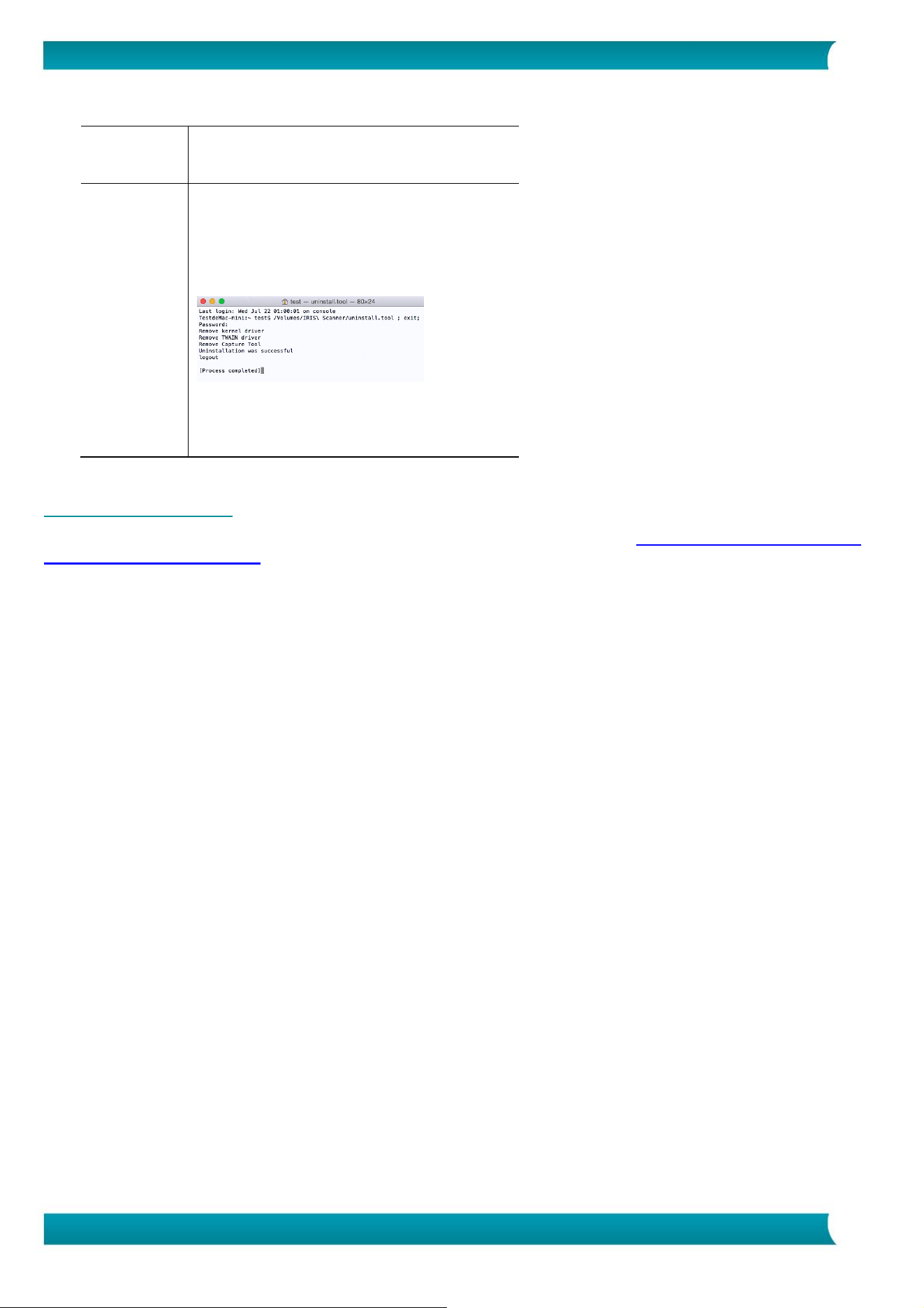
How do I uninstall IRIScan™ on
macOS?
Answer:
Go to the package you downloaded
from the I.R.I.S. website.
Open the Uninstall Scanner folder.
Double-click Press Uninstall.
Enter your super user password.
The IRIScan™ driver and Capture Tool
will be removed.
6.3 Product Support
Should you still experience issues using the IRIScan Express 4, consult the Technical Support section of
http://www.irislink.com.

14
Quick User Guide – IRIScan
TM
Express 4
7. Specifications
7.1. Scanner Specifications
Model Number: FF-1310H (simplex scanner)
Image Technology: Contact Image Sensor (CIS)
Optical Resolution: 1200 dpi
Scanning Modes: Black & White
Gray
Color
Paper Weight: 16~28 lbs (60~107 g/m
2
)
ID Card Thickness: Up to 0.8 mm
Interface: Micro USB port compatible with USB 2.0
USB Power: 5Vdc, 500mA
Power Consumption: <2W (operation)
<0.6W (standby)
Operating Temperature: 10ºC ~ 35ºC (50ºF~95ºF)
Humidity: 10%~85% RH
Dimensions: (HxWxD) 11.4” x 2” x 1.4”
(290 x 52 x 35 mm)
Weight: 0.88 lbs (400g)
7.2. System Requirements
For Windows®:
Memory: Minimum 1 GB RAM. 2 GB is recommended.
Hard disk space: 1 GB of available hard disk space.
Operating System: Windows® 7 | Windows® 8 | Windows® 10
For macOS®:
Memory: 1GB RAM. 2 GB is recommended.
Hard disk space: 1GB of available hard disk space
Operating System: Mac OS® 10.12 or above
The system requirements and compatibility can change over time, depending on the operating system and
updates from Microsoft/Apple.
To get the most up to date requirements, you can check the Support Page on our website.

15
Quick User Guide – IRIScan
TM
Express 4
8. Legal Information
Copyright
©
2019 I.R.I.S SA. All rights reserved.
The software described in this document is furnished under a license agreement or nondisclosure
agreement. The software may be used or copied only in accordance with the terms of those agreements.
No part of this publication can be reproduced in any form or by any means without prior written permission
of I.R.I.S. SA.
Material scanned by this product may be protected by governmental laws and other regulations, such as
copyright laws, the customer is solely responsible for complying with all such laws and regulations.
Documentation version 19-1.0
Specifications of this software and contents of this user manual are subject to change without notice. Any
modification, error correction, or feature updates made in the actual software may have not been timely
updated in this user manual. You may refer to the software itself for more accurate details. Any misprints,
translation error, or inconsistent with existing software, will be updated timely.
This documentation uses fictitious names as examples; references to actual persons, companies or
organizations are strictly coincidental.
Trademarks
The IRIScan™ Express is a trademark of Image Recognition Integrated Systems S.A.
Microsoft® is a U.S. registered trademark of Microsoft Corporation.
Windows®, Windows 7, Windows 8 and Windows 10 are either registered trademarks or trademarks of
Microsoft Corporation in the United States and/or other countries.
Microsoft and Windows are registered trademarks of Microsoft Corporation.
Energy Star
®
is a registered trademark of the U.S. government.
Other names and products mentioned in this document may be trademarks or registered trademarks of
their respective companies.
Warranty
I.R.I.S. makes no warranty of any kind with regard to this material, including, but not limited to, the
implied warranties of fitness for a particular purpose.
I.R.I.S. shall not be liable for errors contained herein or for incidental or consequential damages in
connection with the furnishing, performance, or use of this material.
Safety Instructions
Follow these safety instructions when setting up and using the scanner:
• Read all these instructions, and follow all warnings and instructions given in this document.
• Place the scanner close enough to the computer for the interface cable to reach it easily.
• Never handle the scanner with damp or wet hands, in nomadic mode, or when used as a fixed
unit.
• When connecting this product to a computer or other device with a cable, ensure the correct
orientation of the connectors. Each connector has only one correct orientation. Inserting a
connector in the wrong orientation may damage both devices connected by the cable.
• Other than placing a mini SD card or new batteries in the openings provided for the purpose and
indicated on the scanner, do not insert objects into any opening as they may touch dangerous
voltage points or short out parts and lead to a risk of electrocution.
• Place the product on a flat, stable surface large enough to safely hold the product and the
document to be scanned.
• Never disassemble the scanner.
• If the product overheats or produces smoke or an unusual odour, discolours or becomes deformed
in an abnormal way, immediately turn off the scanner, remove the batteries where applicable,
and disconnect the cables. Stop using the scanner and contact your dealer or IRIS customer
support to receive instructions on the procedure to follow.
• Take care not to drop the scanner or expose it to physical impacts.

16
Quick User Guide – IRIScan
TM
Express 4
• Do not place or store the scanner outdoors, in a car, near heat sources, in locations that are
dusty, damp or exposed to impact, vibration, condensation, high temperatures, sunlight, strong
light, or rapid changes in temperature or humidity.
• Never attempt to disassemble, modify, or repair the scanner or any of its components yourself.
FCC Regulations
This equipment has been tested and found to comply with the limits for a Class B digital device, pursuant
to Part 15 of the FCC Rules. These limits are designed to provide reasonable protection against harmful
interference in a residential installation. This equipment generates, uses, and can radiate radio frequency
energy and, if not installed and used in accordance with the instruction manual (available at
www.irislink.com/start) that may cause harmful interference to radio communications.
However, there is no guarantee that interference will not occur in a particular installation. If this equipment
does cause harmful interference to radio or television reception, which can be determined by turning the
equipment off and on, the user is encouraged to try to correct the interference by one or more of the
following measures:
• Increase the separation between the equipment and receiver.
• Connect the equipment into an outlet on a circuit different from that to which the receiver
isconnected.
• Consult the dealer or an experienced radio/TV technician for help.
This device complies with Part 15 of the FCC Rules. Operation is subject to the following two conditions:
(1) This device may not cause harmful interference, and (2) this device must accept any interference
received, including interference that may cause undesired operation. Changes and modifications to this
equipment not specifically approved by IRIS may void the user’s authority to operate this equipment.
Shielded cables must be used with this equipment to maintain compliance with FCC regulations.
European Union Regulatory Notice
Products bearing the CE marking comply with the following EU Directives:
• Low Voltage Directive 2014/35/EC
• EMC Directive 2014/30/EC
• Restriction of the use of certain hazardous substances (RoHS) Directive 2011/65/EU
• RED (Radio Equipment Directive) (2014/53/EC)
CE compliance of this product is valid if powered with the correct CE-marked AC adapter provided by
I.R.I.S. s.a.
This product satisfies the Class B limits of EN55022, EN55024, safety requirements of EN 60950 and ROHS
requirements of EN50581.
*This product is certified as Class 1 LED product.

17
Quick User Guide – IRIScan
TM
Express 4
Disposal of Waste Equipment by Users in Private Households in the European
Union
This symbol on the product or on its packaging indicates that the product can not be disposed of with your
other household waste. Instead it should be sent to appropriate facilities for recovery and recycling in an
effort to protect human health and the environment. Fore more information about where you can drop off
your waste equipment for recycling, please contact your local city office, your household waste disposal
service or the shop where you purchased the product.


