THINKSCAN 662
Quick Start Manual
1.Product Overview
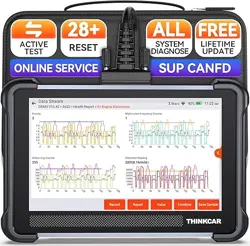
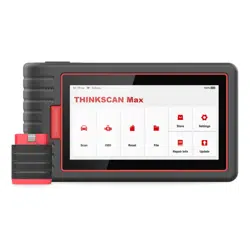
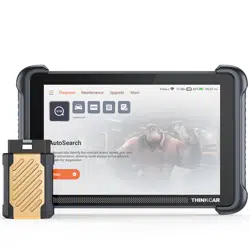
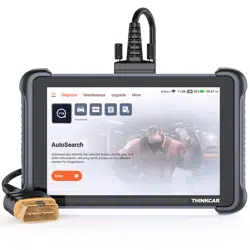
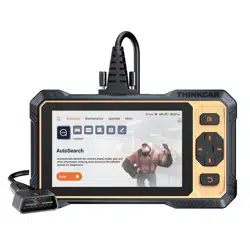
THINKSCAN 662 is a next-generation intelligent diagnostic device powered by Android 8.1. Featuring both
touch and button operation, it delivers exceptional, professional and comprehensive diagnostic features,
including reading and clearing DTCs, real-time data reading, actuation tests.
2. Components & Controls
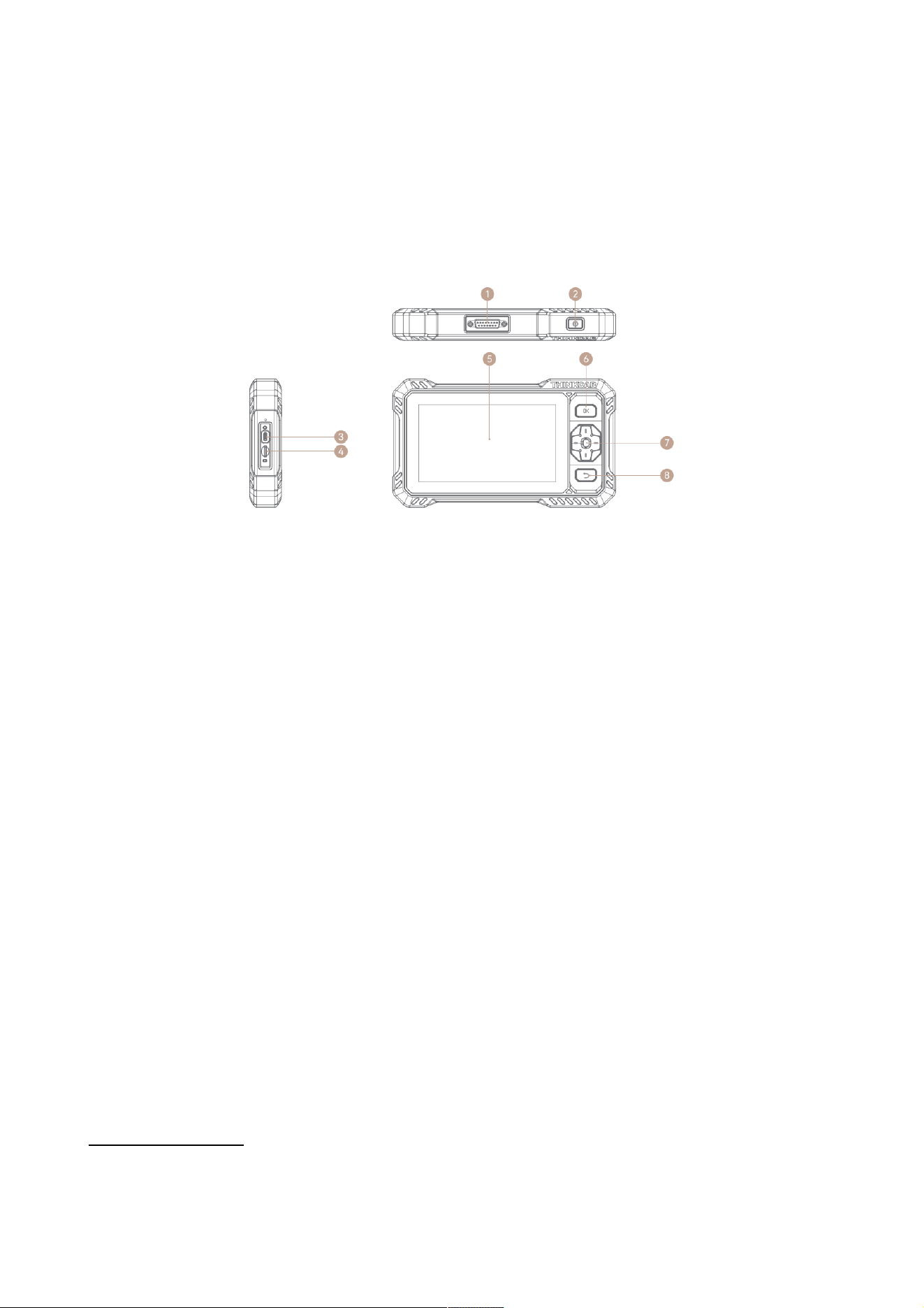
1) Diagnostic Cable Interface: Connect to vehicle’s OBD port for diagnos.
2) Power/Screen Lock Button: Press and hold for 3 seconds to turn on or off; Press once to lock or unlock
the screen.
3) Charging Port: Type-C charging port for charging or data transmission.
4) TF card slot: Expandable storage slot supporting up to 128GB.
5) Touch Screen: 6.2-inch display for user interaction.
6) Direction button: Control cursor movementfor selection.
7) Confirm button: Execute the selected function.
8) Return button: Cancel the current action or return to the previous menu.
3.Technical Specifications
Screen: 6.2 inches
Resolution: 1024*600 pixel
Working Environment: 0~50℃ (32~122℉ )
Storage Environment: -20~60℃ (-4~140℉ )
Working voltage: 9~18V
Working current: ≤1.2A
Supported Protocols: SAE J1850 PWM, SAE J1850 VPW, ISO 9141-2 ISO, ISO 14230-4 KWP, ISO 15765-4
CAN, CANFD
4.How to Use
4.1.Connect the THINKTOOL main device to your vehicle through the OBDII port/Data Link Connector (DLC)
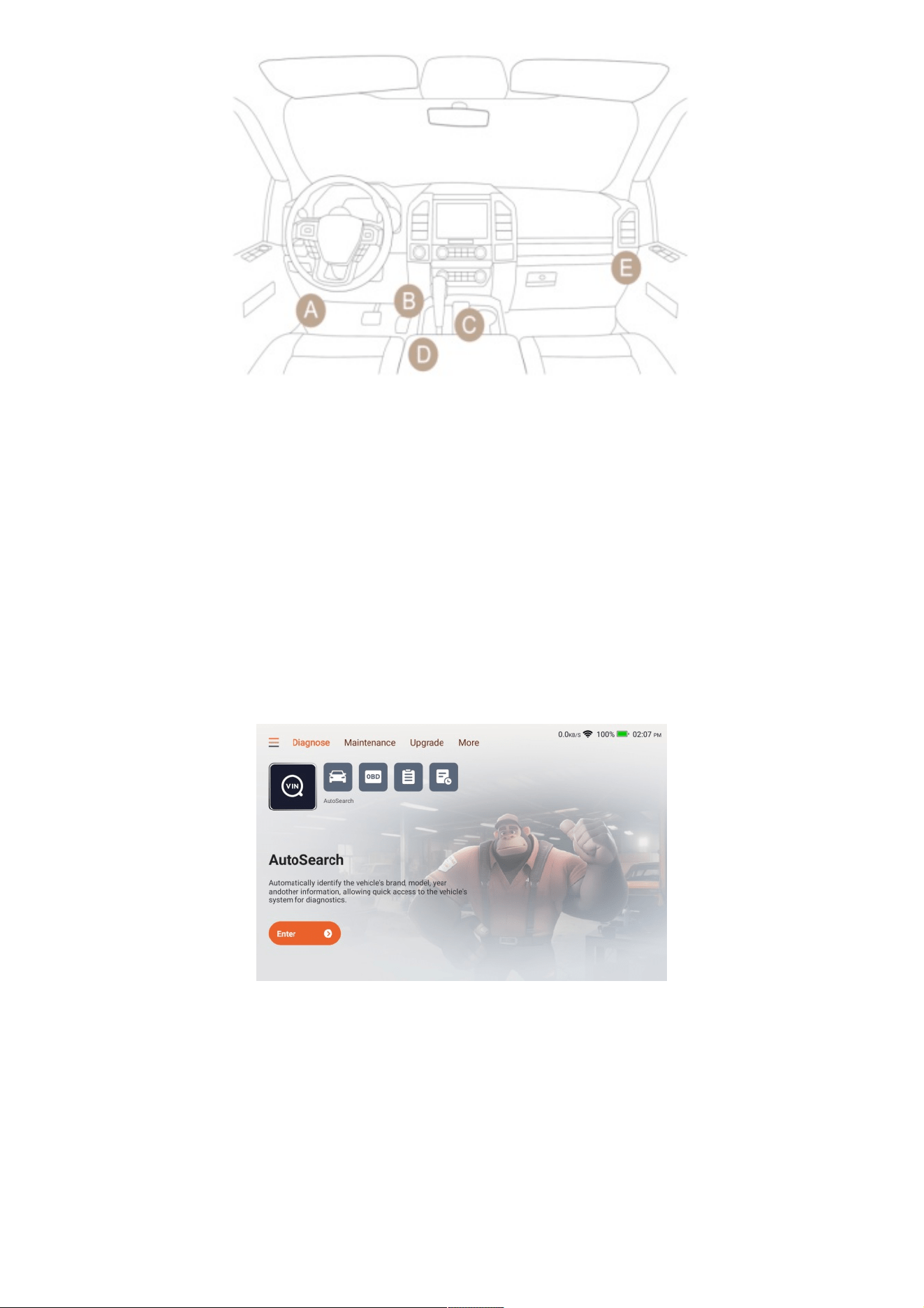
The DLC is typically a 16-pin port where diagnostic code readers interface with the vehicle's onboard computer.
The DLC is usually located within 12 inches of the center of the dashboard, under or around the driver’s side in
most vehicles. If the connector is not under the dashboard, a label may indicate its location. In some Asian and
European vehicles, the DLC is located behind the ashtray, which may need to be removed to access the connector.
If you cannot find the DLC, refer to the vehicle’s service manual for guidance.
4.2 Turn the vehicle ignition on.
Note: It is not necessary to start the engine.
4.3 Power on the THINKSCAN 662 device.
4.4 Once the Android system starts, set the language and Wi-Fi.
The device will then display the main interface. Select the desired function on the interface to access the
corresponding diagnostic feature.
5. Functions Description
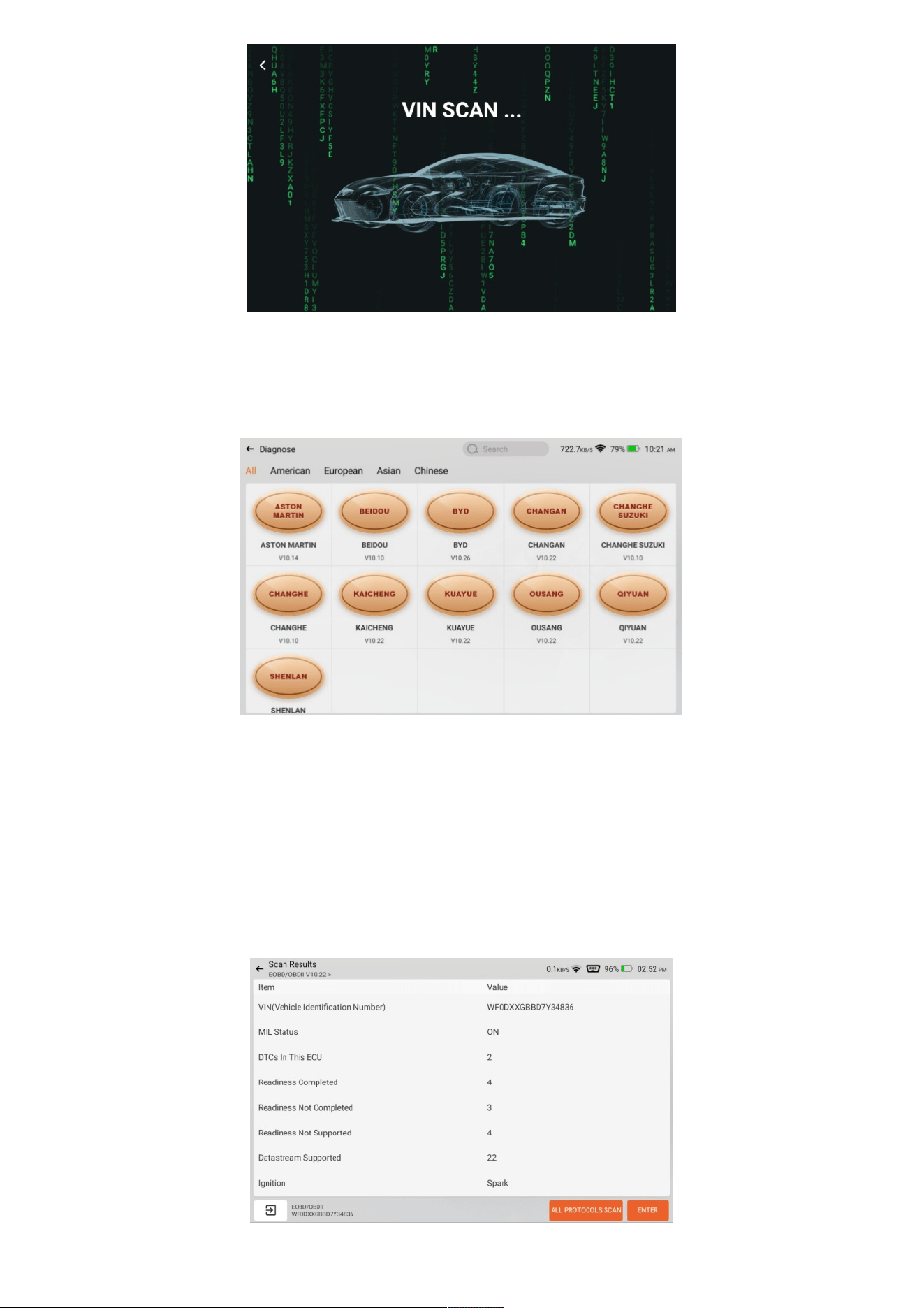
5.1 AutoSearch
Autosearch function can automatically read the vehicle's VIN number, and identifies the brand, model, and
year.This allows you to quickly access the diagnostic functions directly without manual input. If the vehicle
information cannot be read, you can enter it manually and continue the diagnosis.
5.2 Diagnose
The Diagnosis feature lets you manually select the vehicle's brand, model, and year to start the diagnostic process.
This function is best used when you are familiar with the vehicle information. If unsure, it is recommended to use
the Intelligent Diagnosis feature.
5.3 OBD
On-Board Diagnostics (OBD) is a system present in most modern vehicles that monitors and diagnoses the
performance of various components. It enables mechanics and vehicle owners to access real-time data, making
troubleshooting more efficient. OBD provides critical information about engine speed, fuel efficiency, emission
levels, and sensor readings. Additionally, it detects and displays fault codes, allowing technicians to identify and
resolve issues quickly.
Overall, OBD plays a vital role in vehicle maintenance, supporting optimal performance and reducing emissions.
When you press the OBD button, the device will automatically initiate the connection. Once the connection is
successful, you will enter the OBD diagnostic page.
5.4 Report
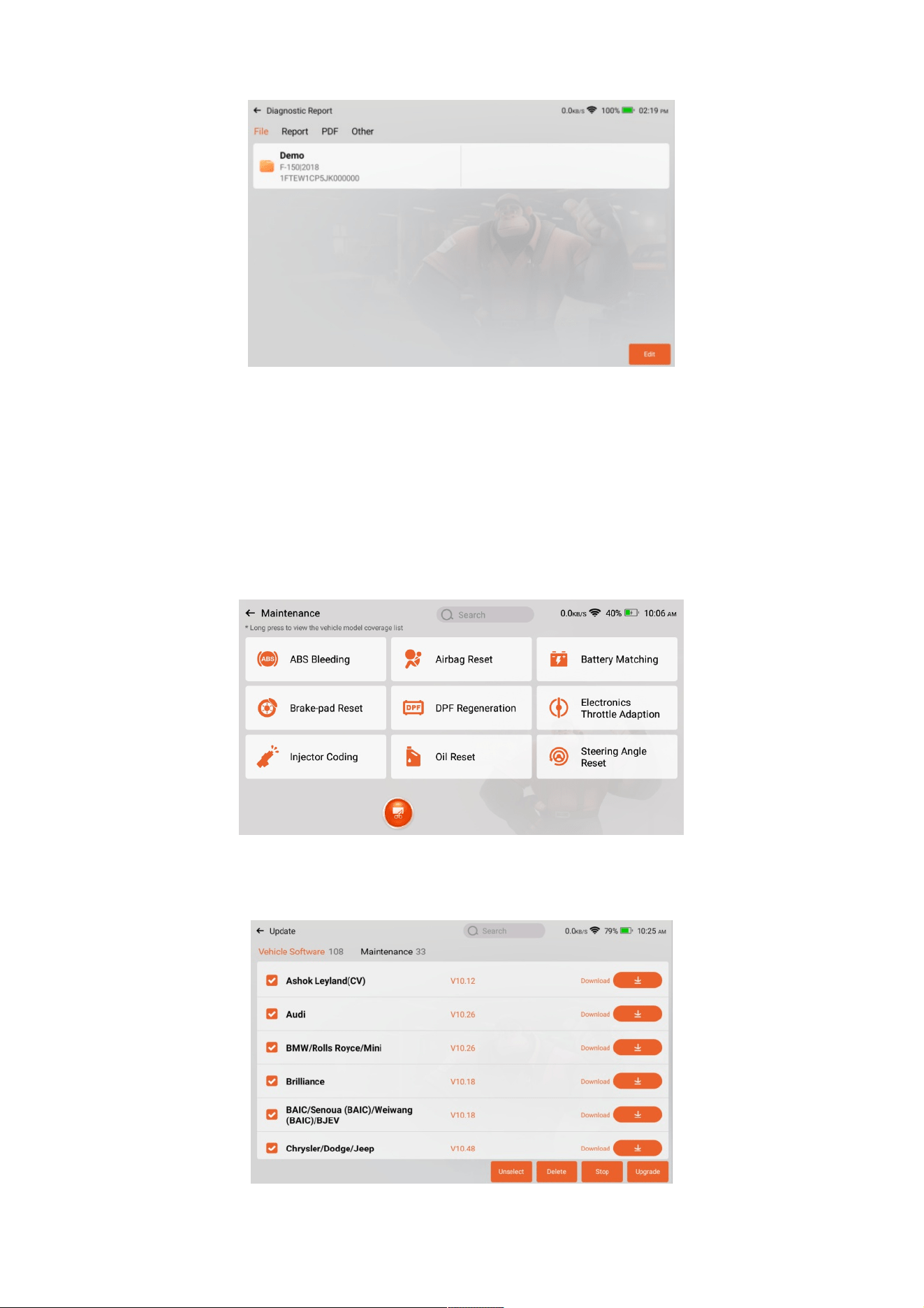
The function allows you to record and save data, including diagnostic reports, data streams, and images for future
reference and analysis.
5.5 Repair Info
The function enables you to access to a comprehensive Repair Info database, which includes DTC code libraries,
vehicle coverage lists, and detailed user manuals.
5.6 Maintenance
The Maintenance menu includes commonly used maintenance and reset functions to assist with regular vehicle
upkeep.
5.7 Upgrade
Use the Update function to check for and download new software and applications.
5.8 Feedback
If you encounter any unresolved issues or software bugs during diagnosis, you can use the Feedback function to
send the last 20 diagnostic test records to our service team. Our team will analyze the data and troubleshoot the
issue promptly to enhance the product and user experience.
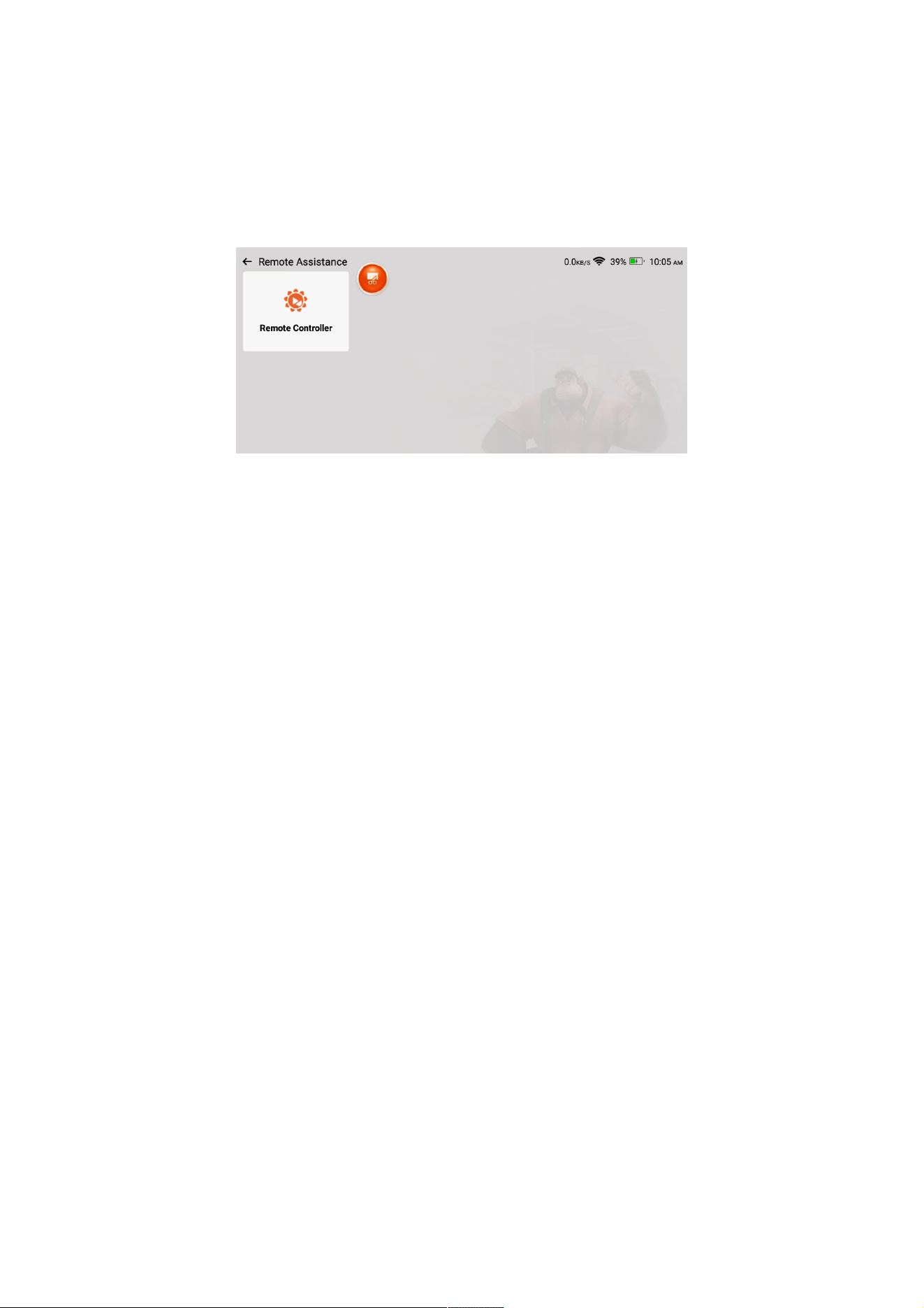
5.9 Remote Assistance
Remote Assistance enables you to seek help through third-party software. By sending your device ID number to a
remote technician or after-sales support, you can authorize them to remotely operate your product and help
resolve any issues you encounter.
5.10 Settings
The Settings menu allows you to customize the device according to your preferences. Configure options such as
language, time zone, WiFi, business information, etc.
5.11 Customer Service
To access Customer Service, pull down the task bar, locate the customer service icon, and click on it. You will be
connected to human online support to address any questions or issues you encounter while using the product.
6. Q&A
Q: Why does the software upgrade fail?
A: Please check whether the device is stably connected to the internet.
Q: Why is there no power with the device after connecting it to the vehicle’s DLC port?
A: Please check whether the device is securely connected and verify that the vehicle’s ignition switch is turned
ON.
Q: Why can't I access the vehicle ECU system?
A: Please check whether the vehicle is equipped with the system, whether the device is correctly connected, and
whether the vehicle ignition switch is ON.
Q: Why does the system stop while reading the data stream?
A: This may be caused by loose connection. Please unplug the device and try again.
Q: Why does the screen flash when the engine ignition starts?

A: This is a normal occurrence caused by electromagnetic interference.
7. Warranty Terms
The warranty is valid only for users who purchase products through authorized channels.
THINKCAR provides a one-year warranty from the date of product activation, covering defects in materials or
workmanship. The warranty period may be subject to adjustment in accordance with local laws.
This warranty does not cover damage to the device or its components caused by misuse, unauthorized
modifications, use for unintended purposes, or operation in a manner not specified in the manual.
Compensation for damage to the dashboard caused by defects in this device is limited to repair or
replacement. THINKCAR will not be liable for any indirect or incidental damages.
THINKCAR reserves the right to determine the nature of any device damage based on its prescribed
inspection methods. No agents, employees, or business representatives of THINKCAR are authorized to make
any confirmations, notifications, or commitments regarding THINKCAR products without explicit
authorization.
Thinkcar Tech Co., Ltd
Customer Service Email: support@mythinkcar.com
Official Website: www.mythinkcar.com
Tutorials, videos, FAQs, and coverage lists are available on the official THINKCAR website.