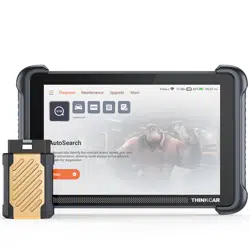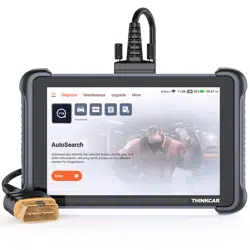
Quick Start Manual
1 Product Descriptions
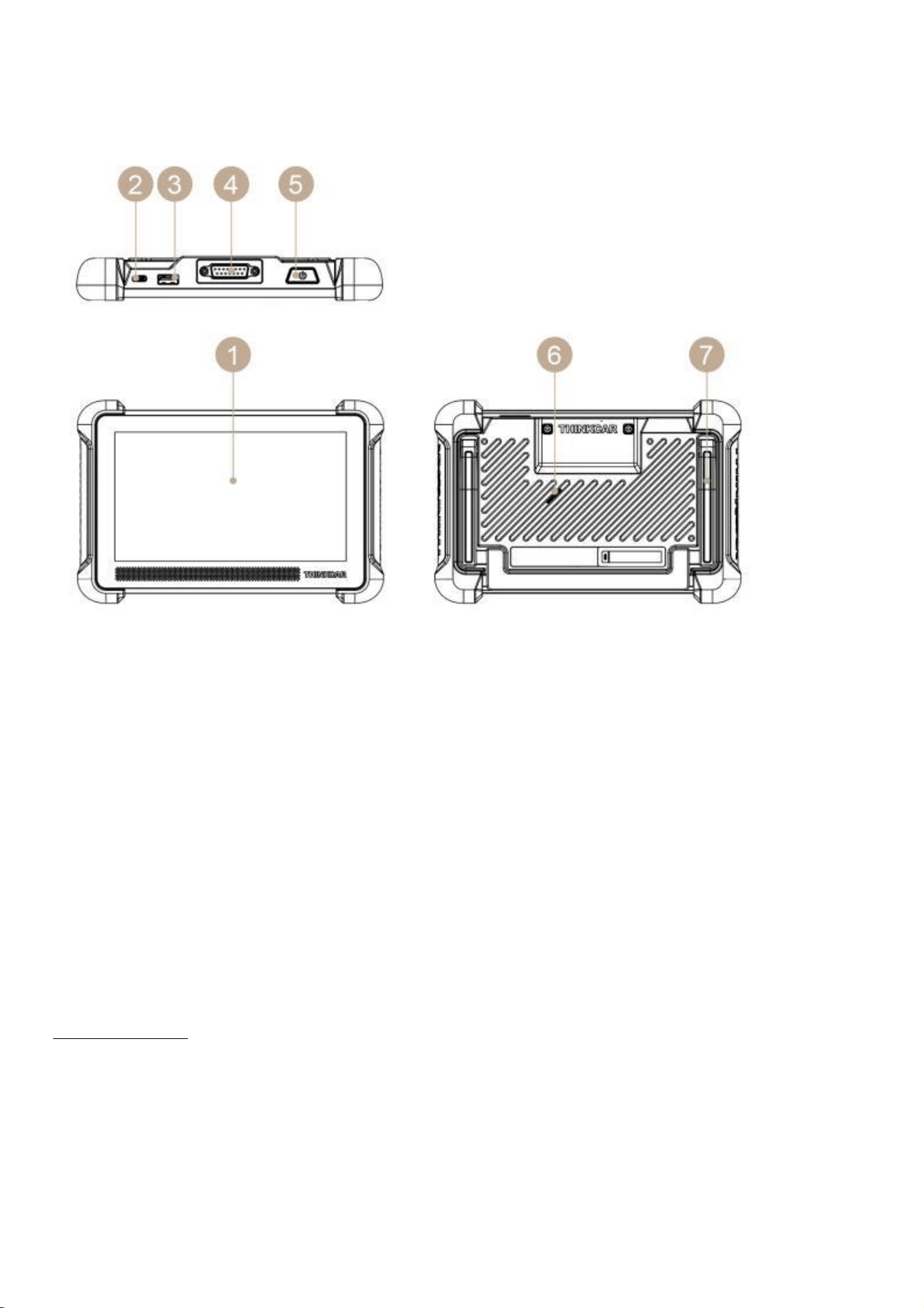
1. Touch Screen: 7 inches touch screen.
2. Charging Port: Type-C charging port for charger or data transmission.
3. USB Expansion Slot: For connecting USB expansion module.
4. Diagnostic Cable Interface: Connect to car OBD port for diagnosis.
5. Power/Screen Lock Button: Long press for 3 seconds to turn on or off, single press to
lock/unlock the screen.
6. Loudspeaker:Indicate product connection status and important information.
7. Bracket:Place the product on the desktop.
2 Technical Specifications
Host Computer
Display: 8" display
Resolution: 1024*600 pixel
Working Environment: 0~50℃ (32~122℉ )
Storage Environment: -20~60℃ (-4~140℉ )
Working voltage:9~18V
Working current: ≤1.2A
Supported Protocols:
SAE J1850 PWM, SAE J1850 VPW, ISO 9141-2 ISO, ISO 14230-4 KWP, ISO 15765-4 CAN, CANFD.
3 How To Use
Data Link Connector (DLC) Location
The DLC (Data Link Connector or Diagnostic Link Connector) is typically a 16 pin connector
where diagnostic code readers interface with the vehicle’s onboard computer. The DLC is
usually located 12 inches from the center of the instrument panel (dash), under or around the
driver’s side for most vehicles. If Data Link Connector is not located under dashboard, a label
should be there telling location. For some Asian and European vehicles, the DLC is located
behind the ashtray and the ashtray must be removed to access the connector. If the DLC cannot
be found, refer to the vehicle’s service manual for the location.
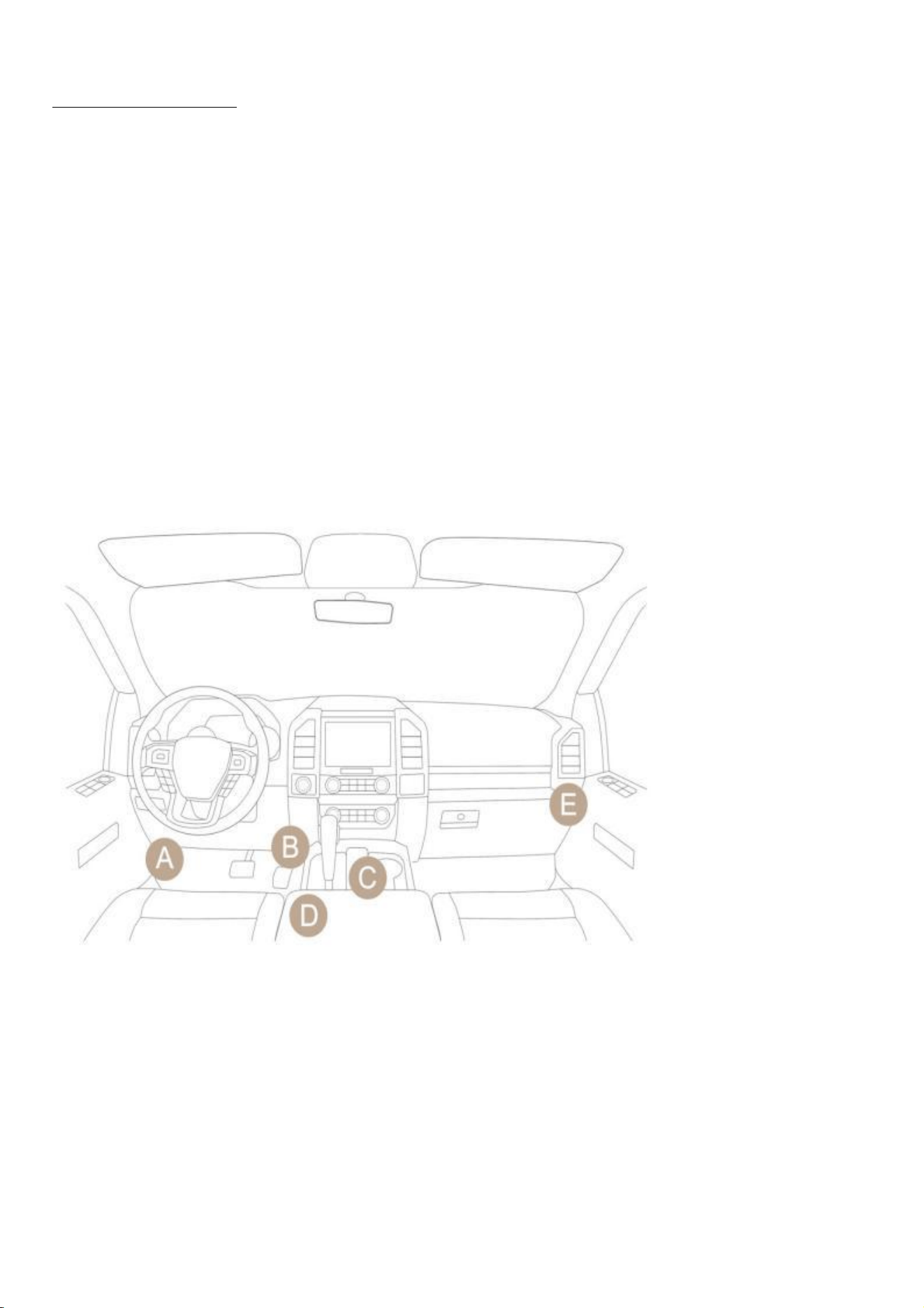
Connect the THINKTOOL host computer with your vehicle through the OBDII port/diagnostic
connector. Usually, the OBD port is located under the dashboard, above the pedal on the
driver’s side. The five locations shown in the picture are common OBDII port locations.
3.1 Turn on the device
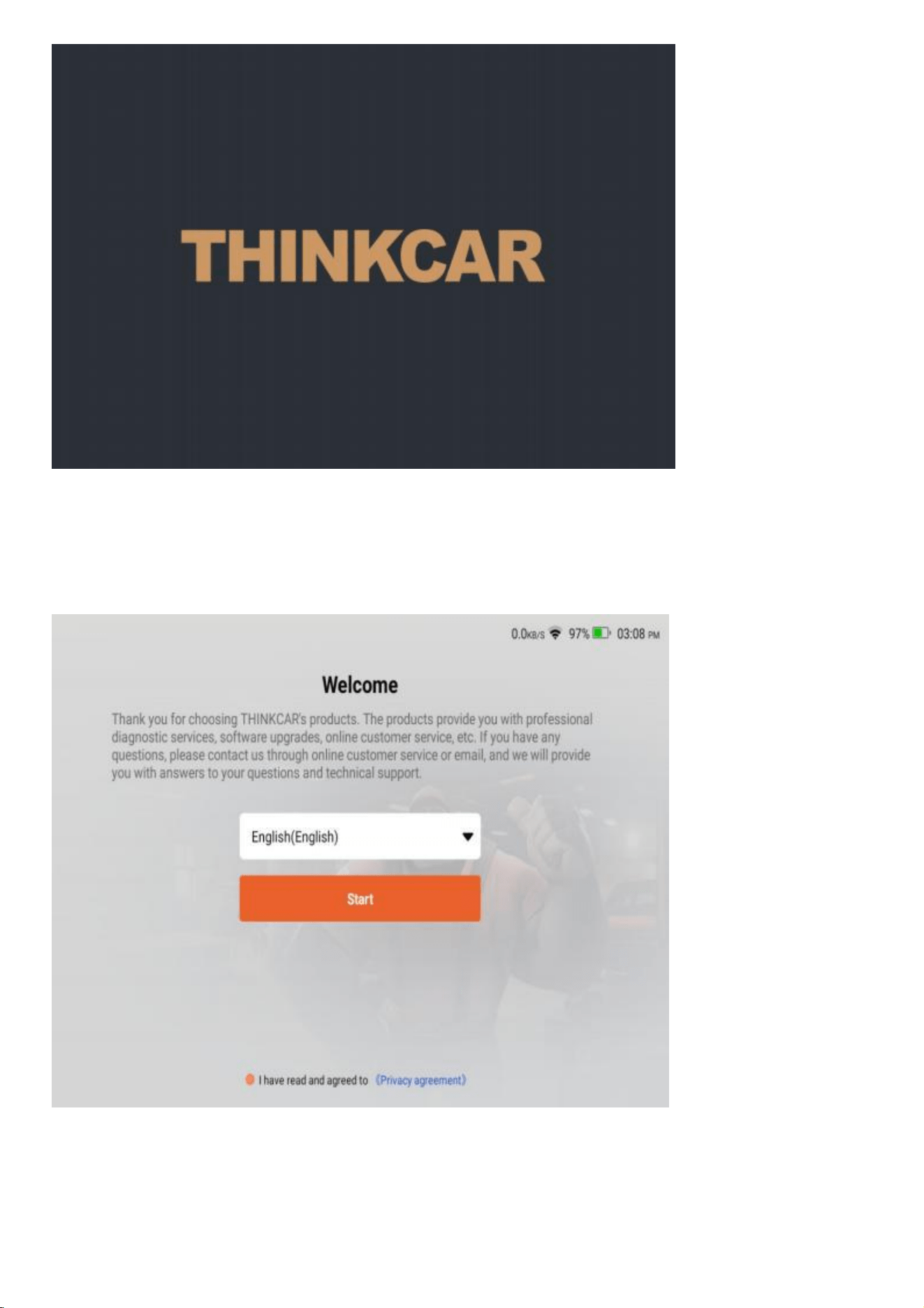
After pressing the power button, image will be shown on the screen as follow.
3.2 Language Setting
Select the tool language from the languages displayed on the page, If you do not select a
language, the default language is English. Please read and agree to the privacy agreement. Click
the Start button to start using this product.
3.3 Start Using
When you enter the product homepage, you can use the product functions. Our products
provide online customer service functions. If you have any product-related questions, you can
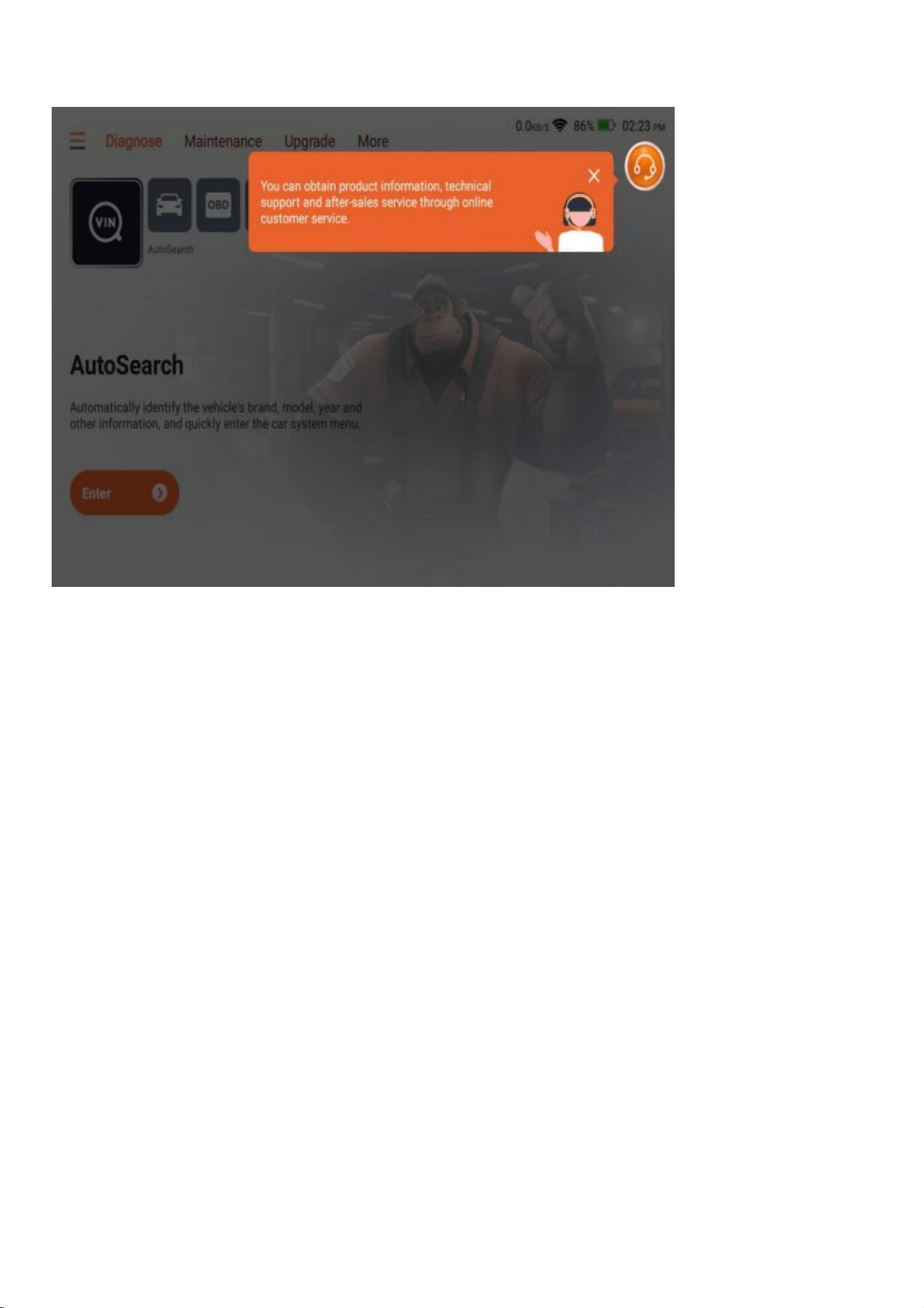
get technical support through online customer service. We have a professional team to provide
you with services.
3.4 Connect Wi-Fi( Recommend)
For a better product experience, we recommend that you connect to Wi-Fi and check and
update to the latest software version before you start using the product. If there is no Wi-Fi, you
can connect to the mobile hotspot, but please note that some software has a large capacity, so
please pay attention to the data consumption in a non-Wi-Fi environment to avoid additional
data consumption and incurring fees.
4 Function Descriptions
The THINKSCAN provides 4 functional modules, including Diagnose, Maintenance, Upgrade,
More. In addition, there are shortcuts to the above functions.
tips: Please note that manual and product pages may differ due to version updates.
tips: Different models of products display different product names.
4.1 Diagnose
Full system diagnosis: it supports more than 160 automobile brands, smart diagnosis , full-
system and full-function diagnosis: read fault codes, clear fault codes, read real-time data
streams, special functions, action tests, etc. A diagnostic report will be automatically generated
after the diagnosis.
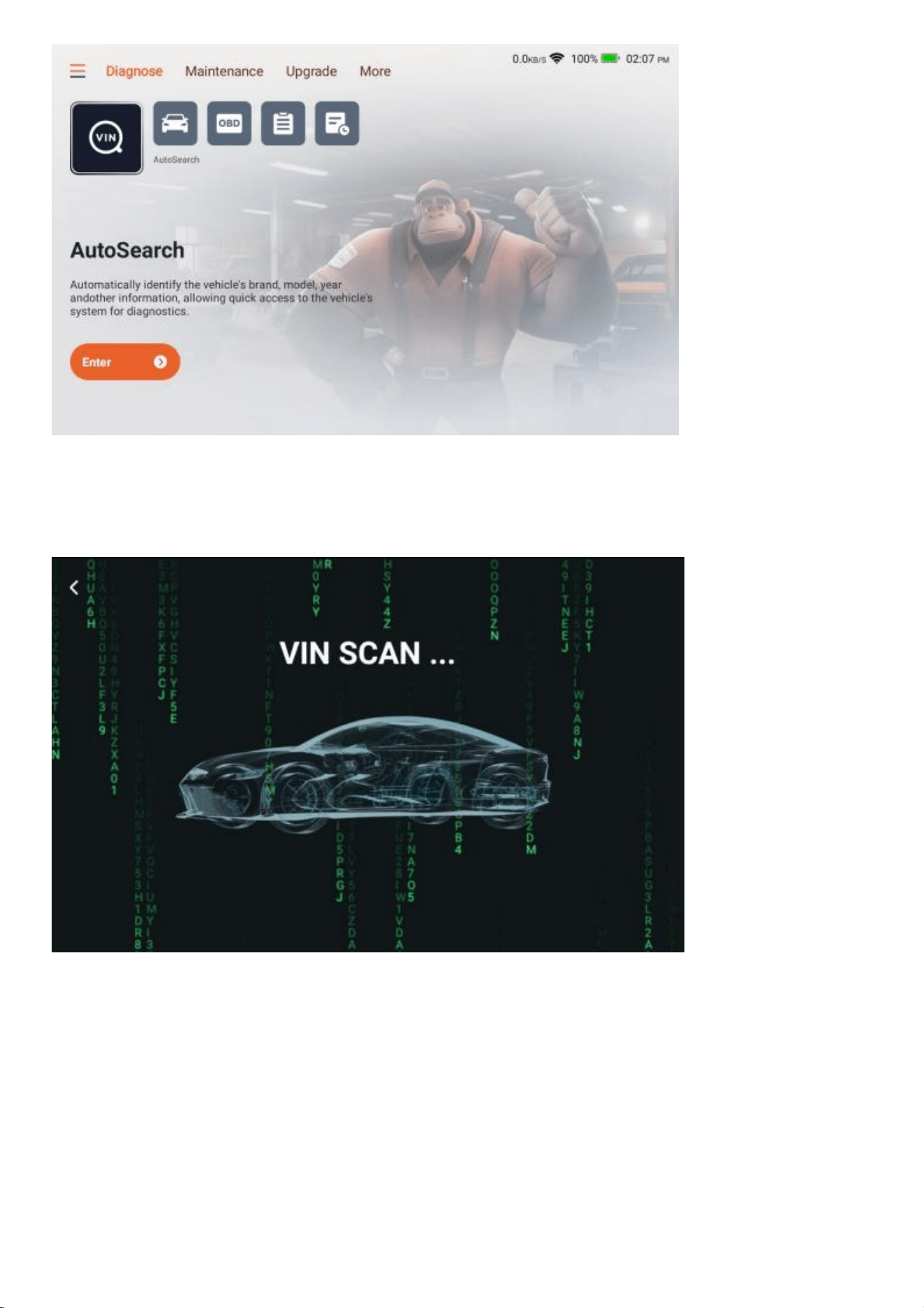
4.1.1 AutoSearch
Autosearch can automatically read the car's VIN number, manufacturer and year of manufacture.
If the vehicle information cannot be read, you can enter it manually and continue the diagnosis.
4.1.2 Diagnose
The diagnose module supports manual vehicle selection. You can filter by vehicle region, brand,
model, etc. Using this function requires you to have a full understanding of the diagnostic
vehicle information. If you do not know enough about the vehicle information, it is
recommended that you use Autosearch to automatically identify the vehicle information and
perform diagnosis.
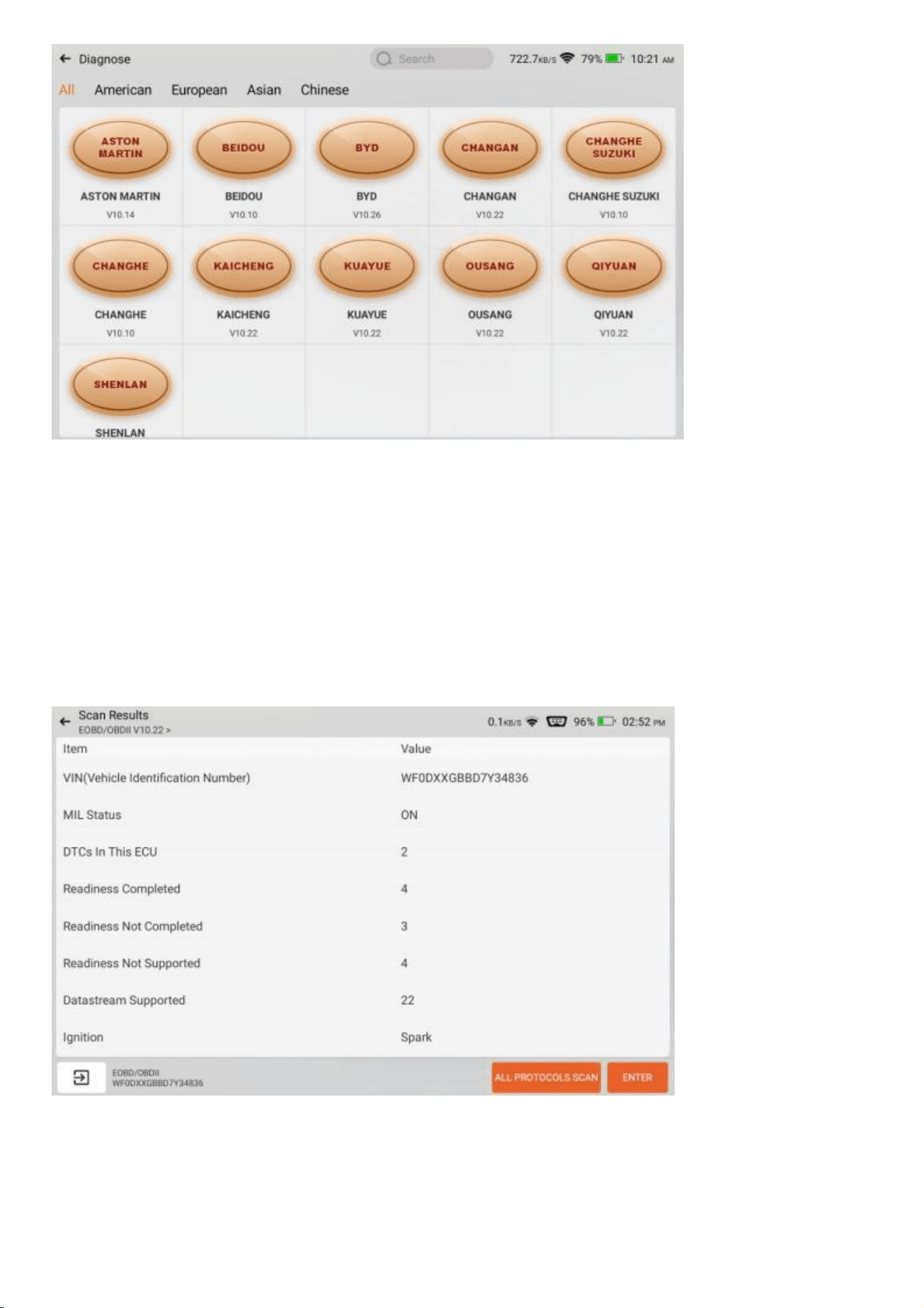
4.1.3 OBD
OBD (On-Board Diagnostics) is a system found in most modern vehicles that monitors and
diagnoses the performance of various components. It allows mechanics and car owners to
access real-time data and troubleshoot issues more efficiently. OBD can provide information
about engine speed, fuel efficiency, emission levels, and sensor readings. Additionally, it can
detect and display fault codes, enabling technicians to identify and fix problems quickly. Overall,
OBD plays a crucial role in vehicle maintenance and helps ensure optimal performance and
reduced emissions.When you click the OBD button, the connection will automatically start. After
the connection is successful, you will enter the OBD diagnostic page.
4.1.4 Report
Historical vehicle diagnostic reports can be found here.
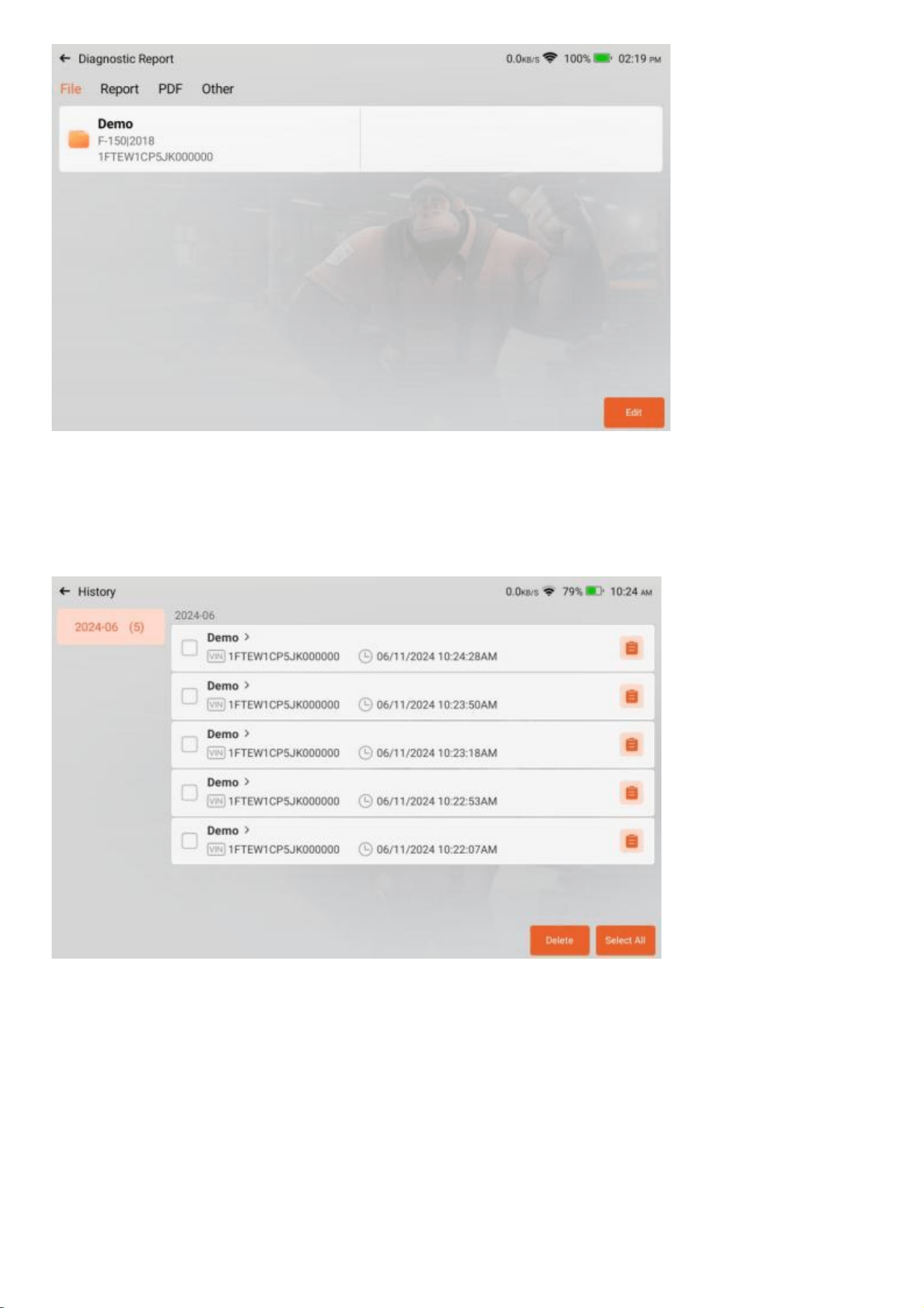
4.1.5 History
The diagnosed vehicle records will be displayed here. Click to view the diagnosis records. If you
diagnose a vehicle that has been diagnosed in the history records again, click the arrow in the
history records to quickly diagnose the vehicle again.
4.2 Maintenance
The reset function in car maintenance refers to the ability to reset certain maintenance indicators
or parameters in a vehicle's onboard computer system. This feature allows users to clear or
restart specific maintenance-related notifications or tracking systems.
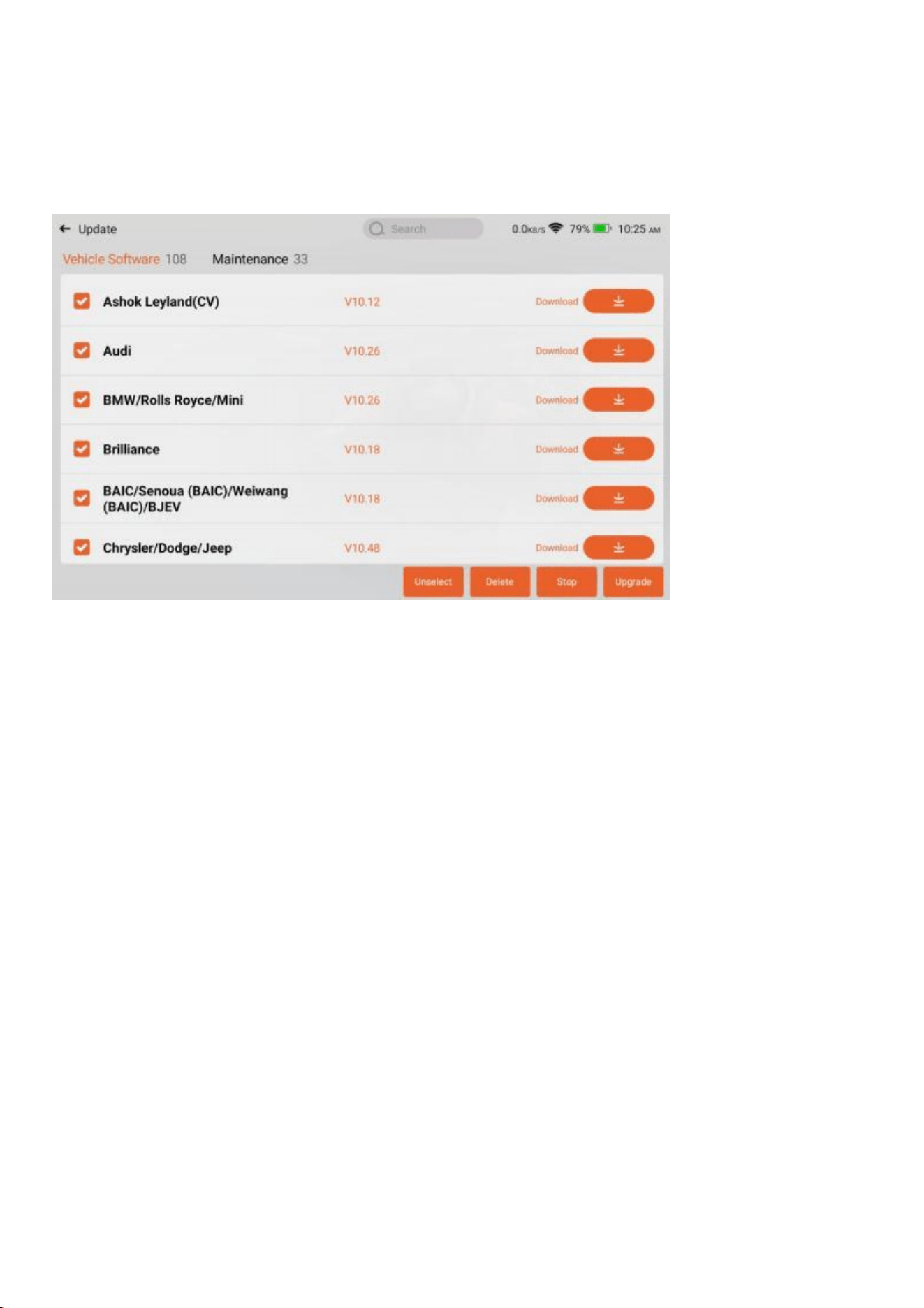
4.3 Upgrade
This module supports you to download and update vehicle model software and maintenance
software. And you can delete the software you no longer use in this module to save memory.
The searchbox is at the top of the page, through which you can quickly find the software you
need.
4.4 More
This module provides a variety of functions, including diagnostic history, query function, system
settings, etc. The following is a brief explanation of each function to help you quickly understand
and use the product.
4.4.1 Settings
System settings for the product host. After the initial setting is completed, the user can
modify or add related information here.
4.4.2 Online Service
Online manual customers provide you with product-related consultation and services.
4.4.3 User Manual
Electronic manual of the product. If you lose the paper manual, you can view the electronic
version here.
4.4.4 OBD Fault Code Library
If you encounter a fault code that you do not understand during the diagnosis process, you can
check the detailed explanation of the fault code here.
4.4.5 Coverage List
Check the models and functions supported by this product.
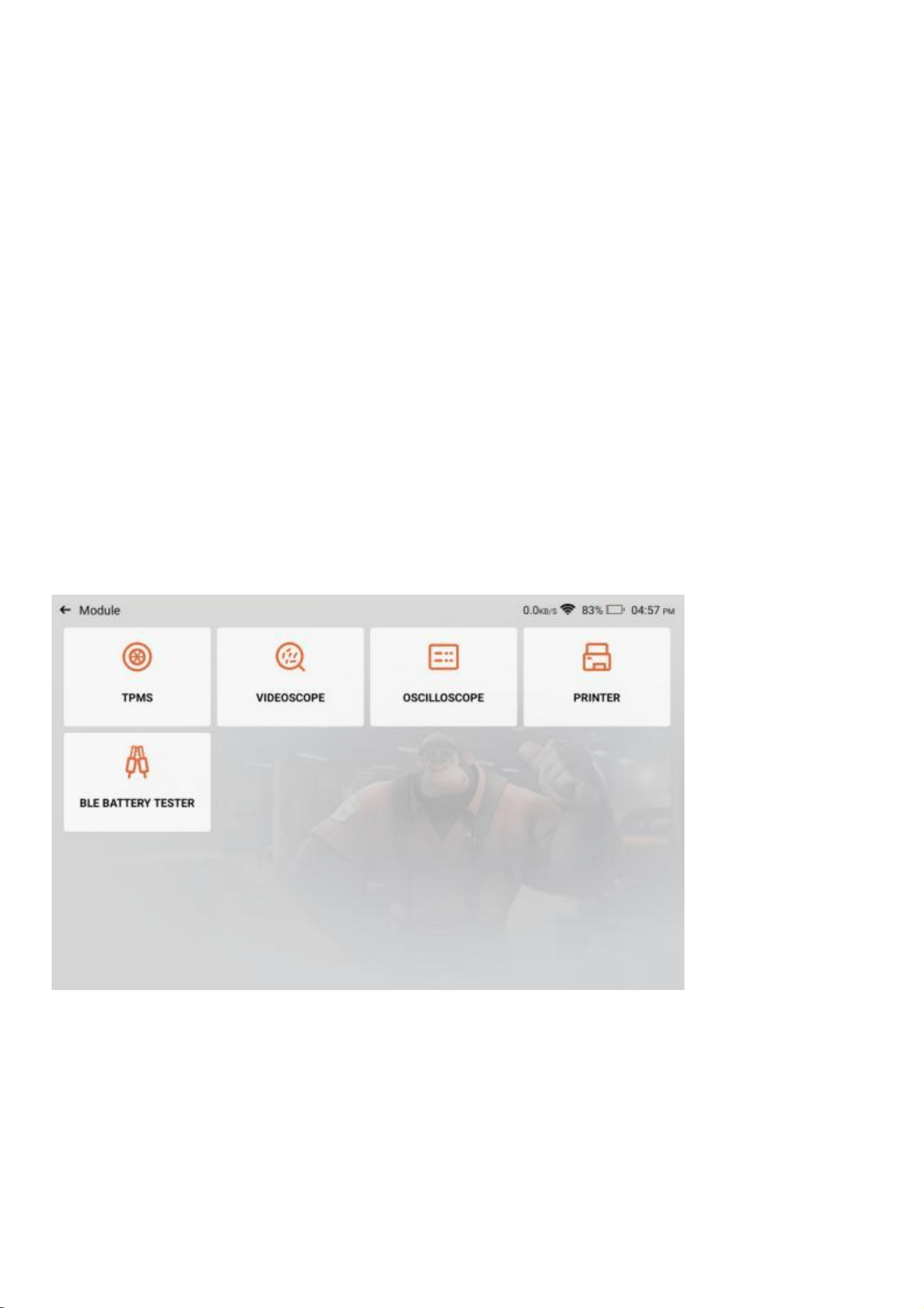
4.4.6 Module
It is the entry to use modular function components. On the screen, you can find and use
functional modules already connected to the host, check functional modules already bought or
buy functional modules needed. Supports USB printer, USB oscilloscope, USB video scope,
Bluetooth battery tester, tire pressure stick(TPMS), etc.
tips: These functions are optional.
4.4.7 Feedback
You can feedback the diagnostic software/app bugs to us for analysis and improvements. Your
submitted questions will be analyzed and provided with solutions by professionals.
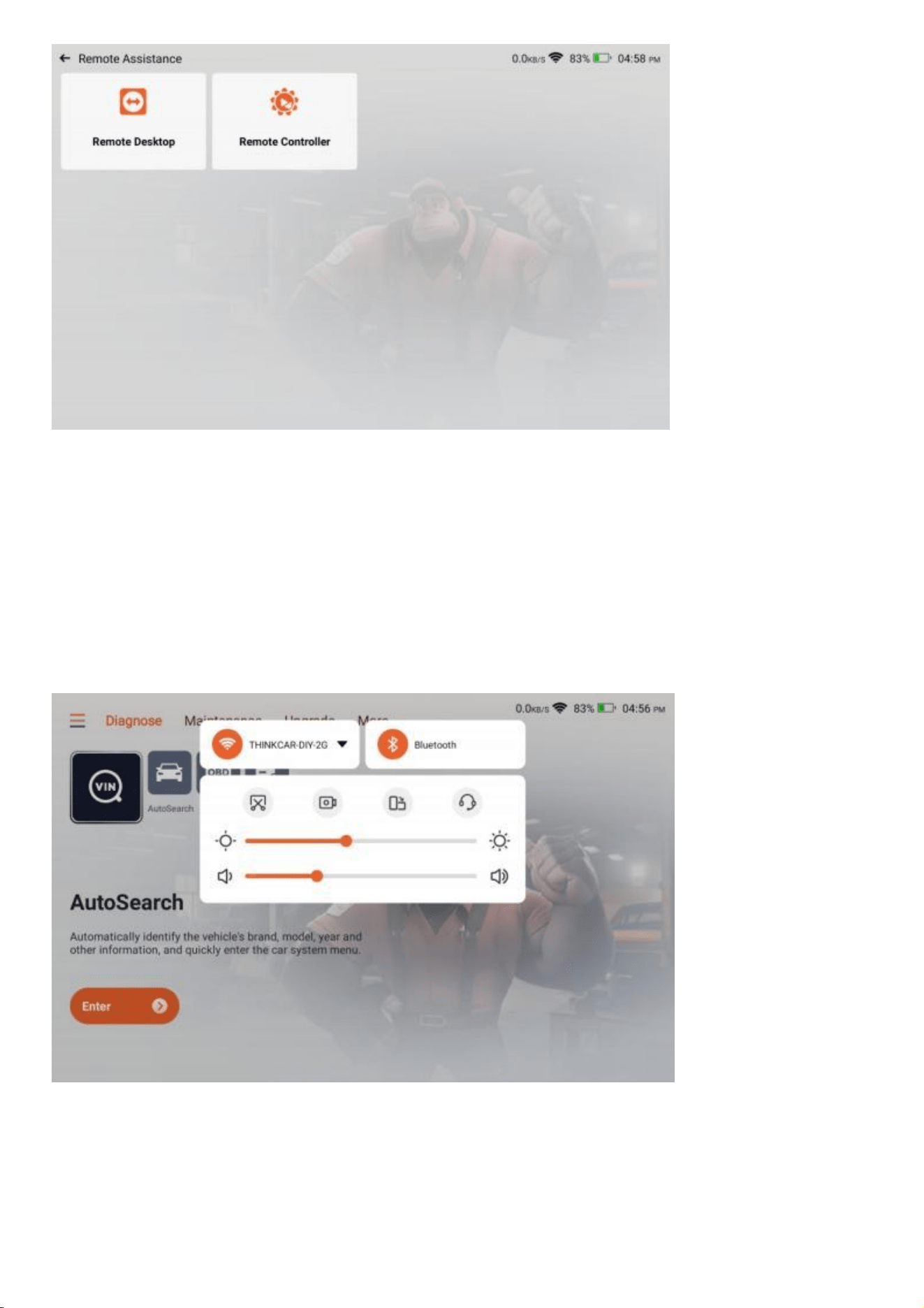
4.4.8 Remote Assistance
Provide service support through the use of remote assistance software. Different regions can
choose different remote assistance software according to your needs.Please note that before
using the remote assistance software, please communicate with the staff through the online
customer service to arrange the assistance time so that the technical staff can provide assistance.
4.4.9 Gadget
Provide tools such as chrome.
4.5 Quick access
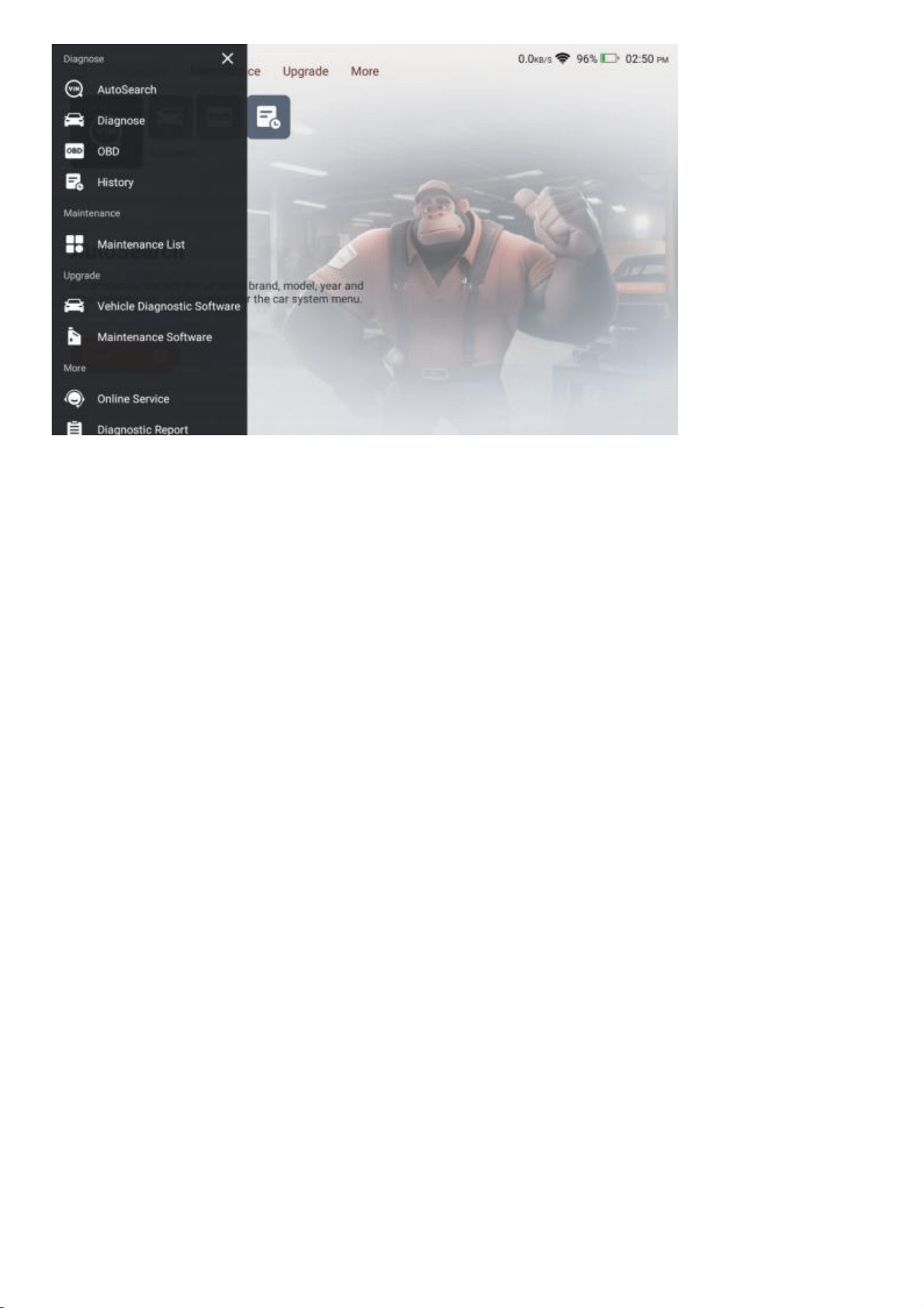
4.5.1 Quick Access to Settings
Swipe down from the screen to display the system settings shortcut entrance. Supports Wi-Fi,
Bluetooth, screenshot, screen recording, screen flip, screen brightness adjustment, and volume
adjustment.
4.5.2 Function shortcuts
Click the icon in the upper left corner of the home screen to display the shortcut menu of
product functions. Click the corresponding product function to quickly enter the function.
5 Q&A
Here we list some common questions and answers related to this tool.
Q: Why does it have no responses when connected to a car computer?
A: Check whether the connection with the vehicle diagnostic seat is normal, whether the ignition
switch is on, and whether the car supports the tool.
Q: Why does the system stop while reading the data stream?
A: This may be caused by loose connectors. Please turn off the tool, connect the
connector firmly, and then turn it on again.
Q: Why does the host screen flash when the engine ignition starts?
A: It is normal and caused by electromagnetic interference.
Q: How to upgrade the system software?
A: 1. Start the tool and ensure a stable Internet connection.
2. Set up: select "System Version", and then click "Check Version" to enter the system upgrade
interface.
3. Complete the process by following the instructions on the screen step by step. It may take a
few minutes depending on the internet speed. Please be patient. After successfully
completing the upgrade, the tool will automatically restart and enter the main interface.
Q: How to add function modules?
A: THINKCAR TECH INC offers 5 other functional modules. You can buy them on the official
website or contact dealer.
Q: Why does it have no diagnostic results for my car?
A: This may be caused by the incompatibility of the vehicle model. Please use the online

customer service to inquire whether your vehicle model is supported.
6 Warranty Terms
This warranty applies only to users and distributors who purchase THINKCAR products through
normal procedures. Provide free warranty within one year. THINKCAR warranty including
electronic products for damages caused by defects in materials or workmanship. Damages to
the equipment or components caused by abusing, unauthorized modification, using for non-
designed purposes, operation in a manner not specified in the instructions, etc.are not covered
by this warranty. The compensation for dashboard damage caused by the defect of this
equipment is limited to repair or replacement. THINKCAR does not bear any indirect and
incidental losses. THINKCAR will judge the nature of the equipment damage according to its
prescribed inspection methods.
Customer Service Email: Support@thinkcar.com
Official Website: www.thinkcar.com
Products tutorial, videos, FAQ and coverage list are available on THINKCAR official website.