
Headphones
User Guide
EN

Contents
Read This First 4
Advantages of this product.........................................................................4
About the manuals....................................................................................6
Cautions regarding product handling...........................................................7
Accessories and part names........................................................................8
Charging and Powering 11
Charging the headphones.........................................................................11
Turning on the power...............................................................................12
Turning off the power..............................................................................13
Remaining battery power.........................................................................14
Bluetooth® Connectivity 15
Pairing and connecting for the first time.....................................................15
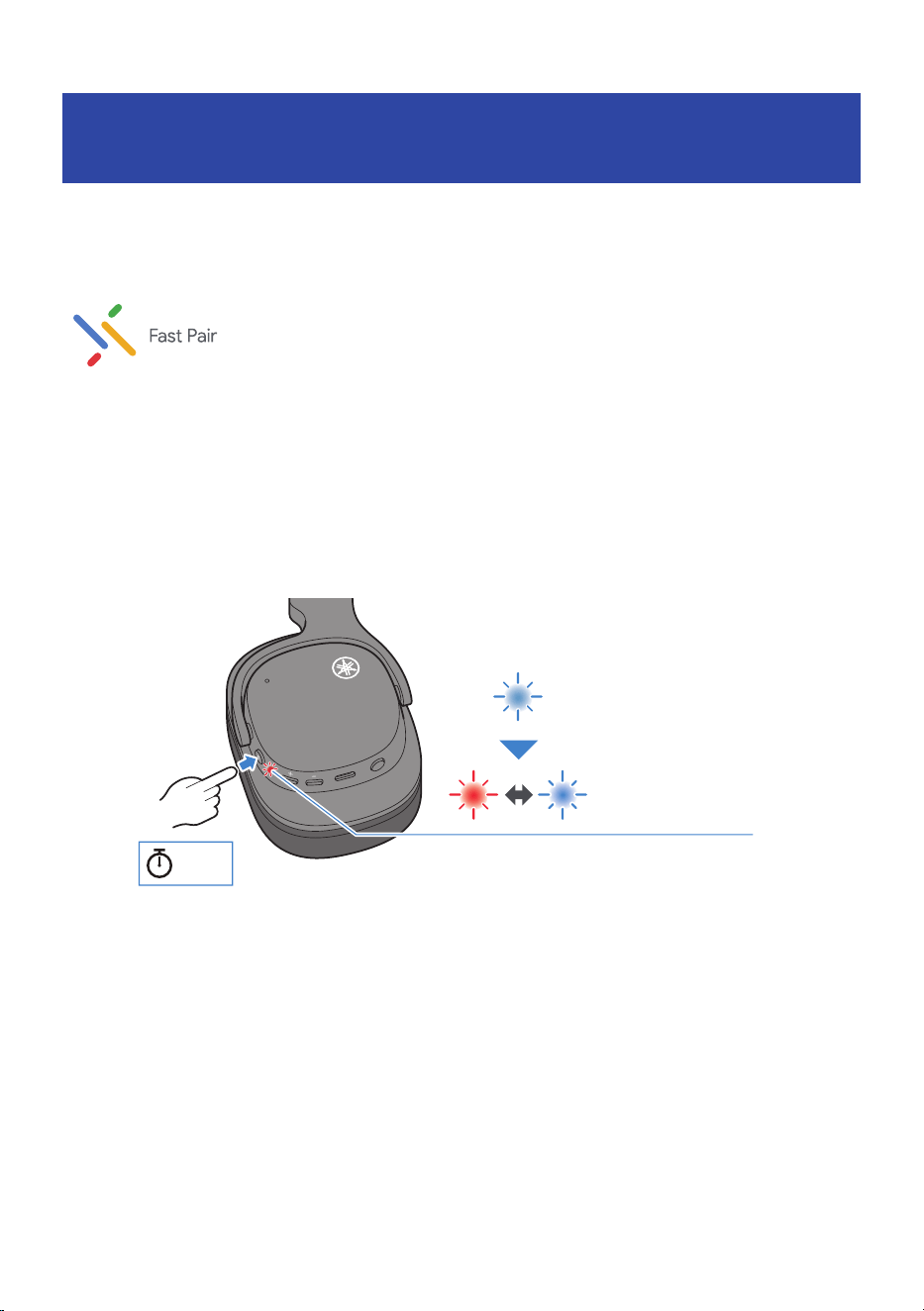
Pairing and connecting for the first time with Google Fast Pair......................18
Pairing and connecting with a different device............................................20
Multipoint connection (connecting to two devices at the same time)..............24
Connecting via Cable 26
Connecting via headphone cable.. ............................................................. 26
Wearing the Headphones 28
Putting the headphones on.......................................................................28
Operation (Audio Playback and Phone Calls) 29
Operations during audio playback.............................................................29
Talking on the phone.. .............................................................................31
Starting the voice assistant.. .................................................................... 32
2
Contents

Dedicated Application 33
About the “Headphone Control” app..........................................................33
Troubleshooting 34
Read this first.........................................................................................34
Cannot pair/connect................................................................................35
Multipoint connection unavailable.............................................................36
Power will not turn on.. ........................................................................... 37
The product cannot be charged.. ............................................................... 38
The product does not operate or play back..................................................39
No sound can be heard.. ........................................................................... 40
Sound can only be heard from one side.......................................................41
Sound is not good or sounds strange..........................................................42
The sound is distorted, noisy or choppy......................................................43
Initializing (performing a factory reset)......................................................44
Updating the firmware.............................................................................46
List of support centers............................................................................. 47
List of Operations and Indications 48
List of operations.................................................................................... 48
List of indicator displays and audio messages..............................................50
Appendix 51
Specifications.........................................................................................51
Optional accessories (sold separately).. ..................................................... 53
Replacing the earpads..............................................................................54
Trademarks and licenses..........................................................................57
3
Contents

Read This First
Advantages of this product
This product is a set of wireless headphones that connects to Bluetooth devices such as a portable music
player or smartphone over the air.
n
Supported codecs
This product supports the Qualcomm® aptX™ Adaptive, SBC and AAC codecs.
n
Google Fast Pair
You can easily pair this product with your Android™ smartphone. Pairing is supported with Android devices
that run Android OS 6.0 or later, or Google Play 11.7 or later.
(
“Pairing and connecting for the first time”(p.15)
n
Multipoint connection
You can pair and connect this product to two Bluetooth devices simultaneously.
n
Listening Care
This product features Listening Care, which lets you enjoy rich, high-quality music even at low volumes.
Focusing on the characteristics of the human ear where the low- and high-end sounds become harder to
hear at lower volumes, as well as how things sound differently in different listening environments, this
feature corrects the sound balance for the optimal sound to match the volume. By rendering a natural sound
that's easy to listen to, this feature reduces the load on your ears caused by excessive levels.
n
Sound Field
This is a technology that creates a sound field for deep immersion in the content you enjoy, including video
and audio.
(
“Operations during audio playback”(p.29)
n
Gaming Mode
This function also makes the audio and video sound more in sync, which is useful when you are watching a
video or playing a game.
(
“Operations during audio playback”(p.29)
n
Smartphone feature support
You can use this product to talk on the phone and start up the voice assistant while connected to this
product.
4
Read This First > Advantages of this product

n
Dedicated smartphone app: Headphone Control
Install the Headphone Control app on your smartphone to configure more detailed settings. You can switch
the Listening Care, Sound Field, Gaming Mode and other features ON/OFF.
NOTE
When using Gaming Mode, the video/audio latency may change or the sound quality and connection stability may degrade,
depending on the usage environment and how you wear the product.
Related links
(
“Pairing and connecting for the first time”(p.15)
(
“Multipoint connection (connecting to two devices at the same time)”(p.24)
(
“Operations during audio playback”(p.29)
(
“Starting the voice assistant”(p.32)
5
Read This First > Advantages of this product
About the manuals
Three manuals (Safety Guide, QUICK REFERENCE GUIDE and User Guide) are available for users of this
product. Be sure to read all manuals and keep them in a safe, accessible place for future reference.
Available manuals
Safety Guide (included)
This explains the necessary precautions that you must observe to use this product. Be sure to read them
before using this product.
QUICK REFERENCE GUIDE (illustrations on product’s outer box)
This illustrates how to immediately use the product after purchase.
User Guide (this guide)
This provides details on all functions. This guide is only available from our website.
(
The precautions and other matters in this guide are classified as follows.
(
WARNING
This content indicates “risk of serious injury or death.”
(
CAUTION
This content indicates “risk of injury.”
(
NOTICE
Indicates points that you must observe in order to prevent product failure, damage or malfunction and
data loss, as well as to protect the environment.
(
NOTE
Indicates notes on instructions, restrictions on functions, and additional information that may be
helpful.
NOTE
(
The explanations in this guide are based on the latest specifications at the time of publication.
(
The latest version (PDF) of each guide can be downloaded from the following website.
https://download.yamaha.com/
6
Read This First > About the manuals

Cautions regarding product handling
Please read the “Safety Guide” included with this product, and use caution regarding the following points.
About the charging performance
This product features built-in lithium-ion batteries. Lithium-ion batteries are consumable items. To extend
the life of the batteries as long as possible, use caution regarding the following.
(
If the product is not used for a long period of time, it may take longer to recharge the batteries.
(
When storing the product for a long time, charge the product around once every six months to avoid
excessive discharge.
(
If the duration of the battery’s charge is too short, it may have reached the end of its lifespan. Contact a
repair consulting center for assistance.
(
Refer to the “Safety Guide” for details such as disposal methods.
Notes regarding Bluetooth
(
We do not guarantee that this product will be able to connect with all Bluetooth devices.
(
The product to which you are connecting must be certified compliant with Bluetooth standards as
established by Bluetooth SIG, Inc. Note that even if the product to which you want to connect complies
with Bluetooth standards, it might not be able to connect with this unit depending on its characteristics or
specifications. Also, the method of operation or behavior of the product may differ.
7
Read This First > Cautions regarding product handling
Accessories and part names
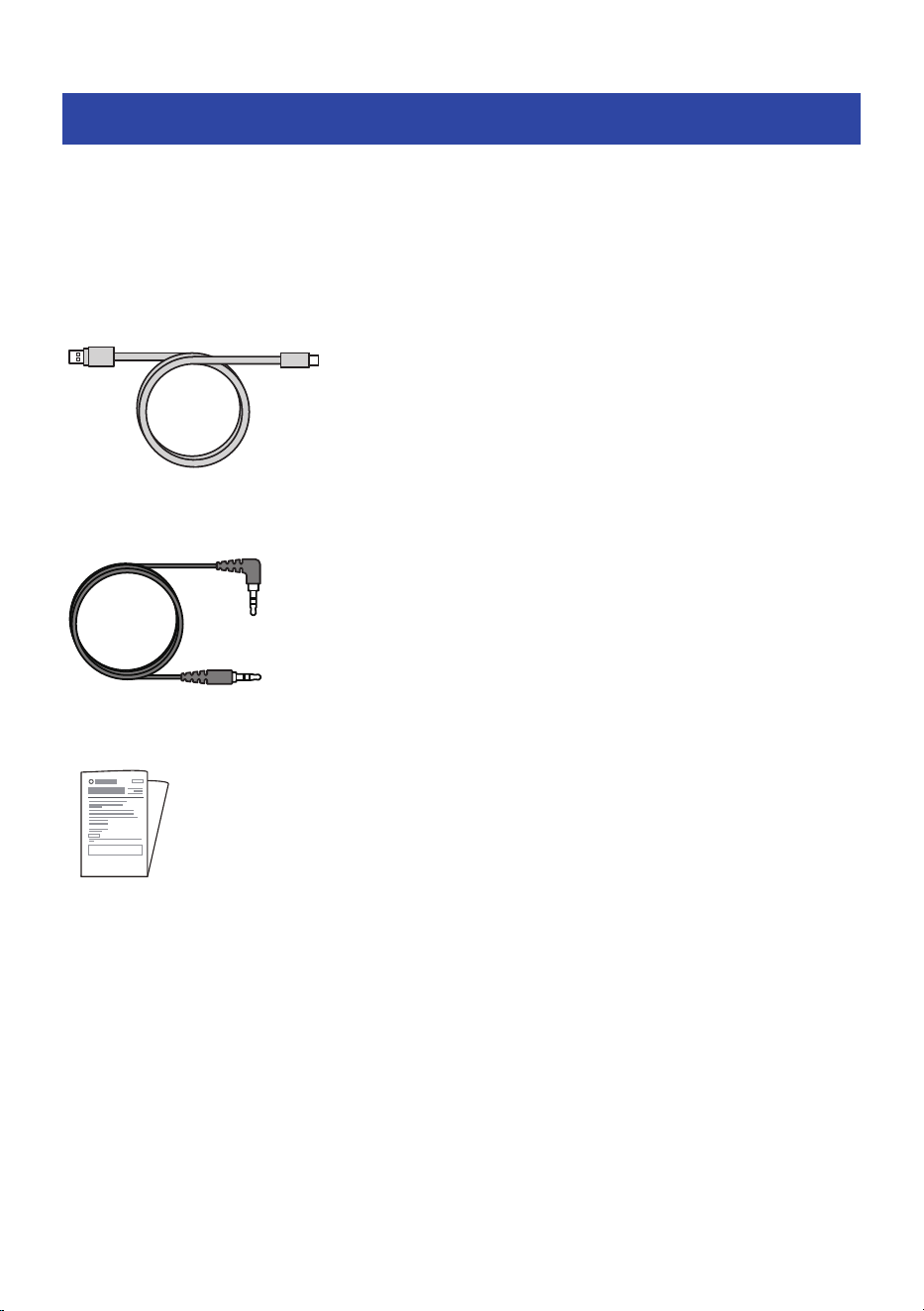
The accessories included with this product as well as the part names are as shown below.
n
Accessories
Make sure that all of the accessories are included with this product.
USB power cable (30 cm (11-3/4 in); type A to C)
3.5 mm stereo mini-plug cable (3 m (118-1/8"))
Safety Guide
8
Read This First > Accessories and part names
n
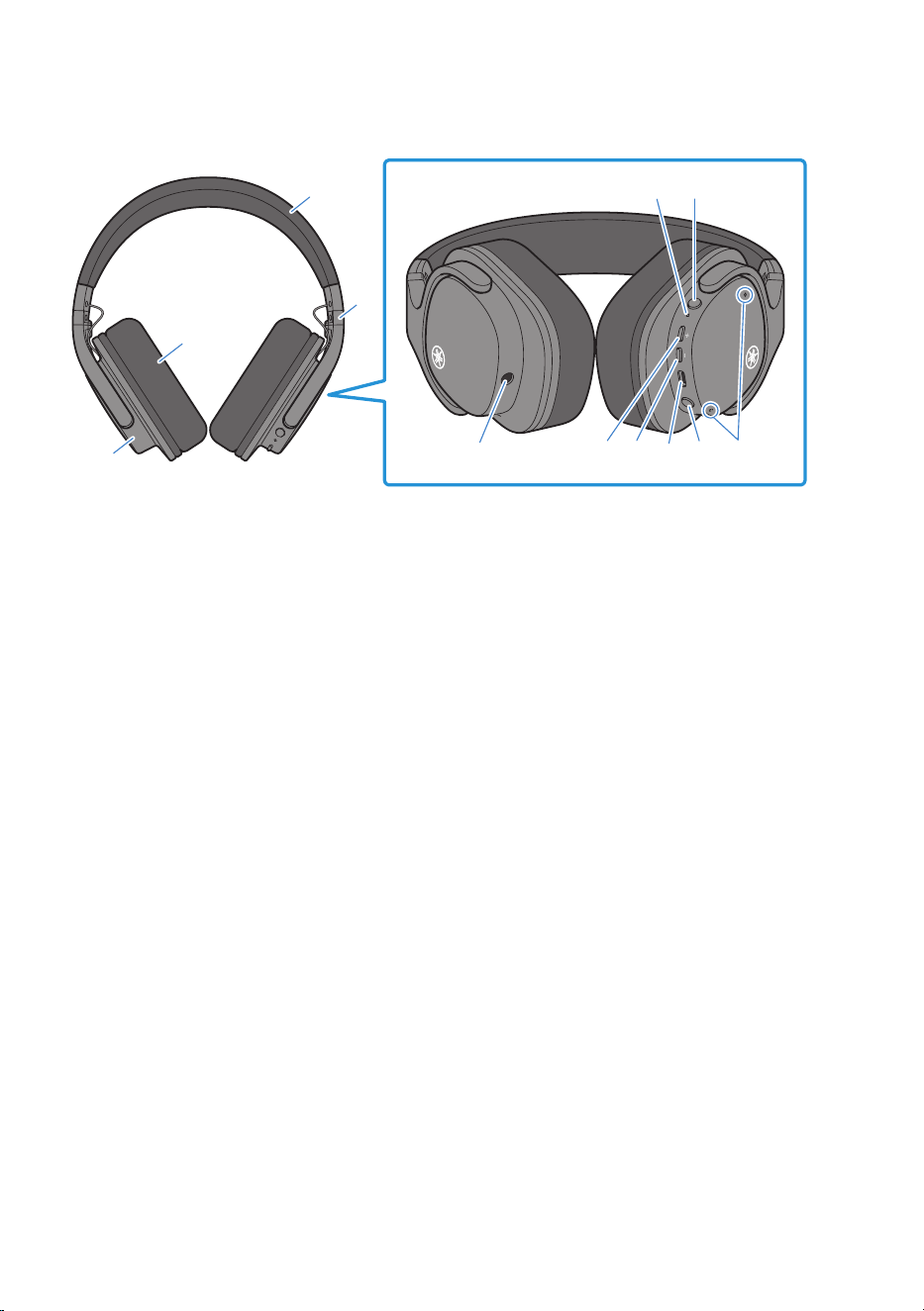
Part names
RL
R
L
a
g
d
c
b
j
k
fe
lih
Headphones
a
Housing
b
Earpads
c
Headband
d
Slider
e
Indicator
f
Power button
g
External input jack
Connect the included 3.5 mm stereo mini-plug cable here.
h
Plus (+) button
i
Minus (−) button
j
Charging connector
Plug the USB power cable into the connector for charging.
k
Multi-function button
l
Microphone for phone calls
Captures the sound of your voice when you make a phone call.
9
Read This First > Accessories and part names

NOTE
The housing features a built-in mic for phone calls, which captures ambient sounds. Make sure your hands, clothes or other objects do
not cover the housing, as this may result in noise.
10
Read This First > Accessories and part names
Charging and Powering
Charging the headphones
Charge the headphones before use.
WARNING
(
This product is not designed to be waterproof. Thoroughly wipe off any sweat, rainwater, seawater or other liquids before
charging.
(
Be sure to use the USB power cable that was included with this product.
(
When using a USB power adaptor, be sure that the commercially-available adaptor is compatible with 5 V DC (at least 0.5 A)
power output.
(
When charging this product inside of China, be sure to use a USB power adaptor that is approved by CCC.
(
Charge this product within a temperature range of 5–40°C.
2
3
1
RL
R
Type C
Type A
USB power adaptor
(commercially available)
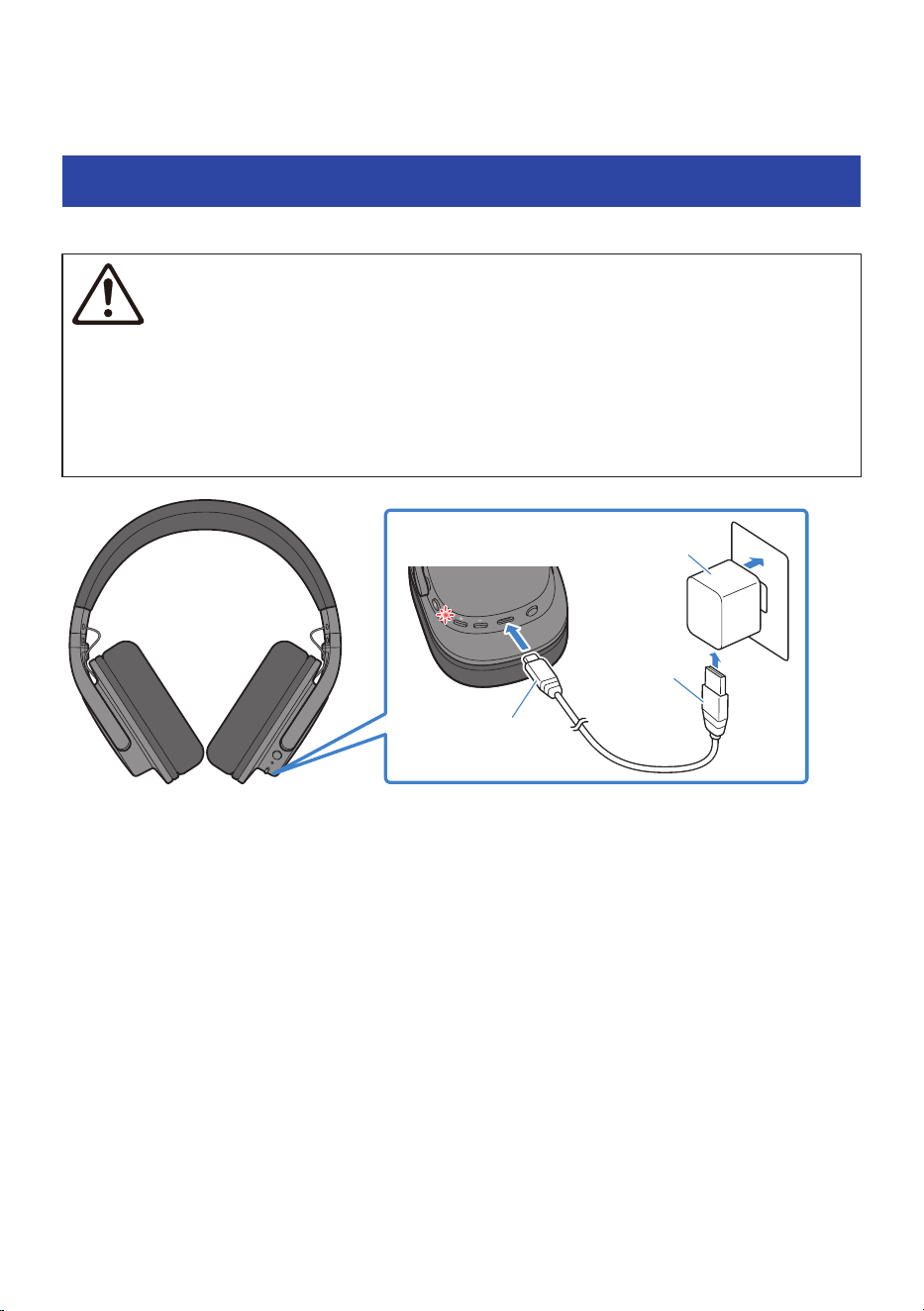
1 Plug the USB power cable (type C side) into the headphones charging connector.
2 Plug the USB power cable (type A side) into the USB power adaptor.
3 Plug the USB power adaptor into the power outlet.
Charging will begin. The indicator lights up red during charging, and goes dark when charging is
completed. Charging takes about two hours.
NOTE
You can charge from the USB port on your computer instead of using a USB power adaptor.
11
Charging and Powering > Charging the headphones
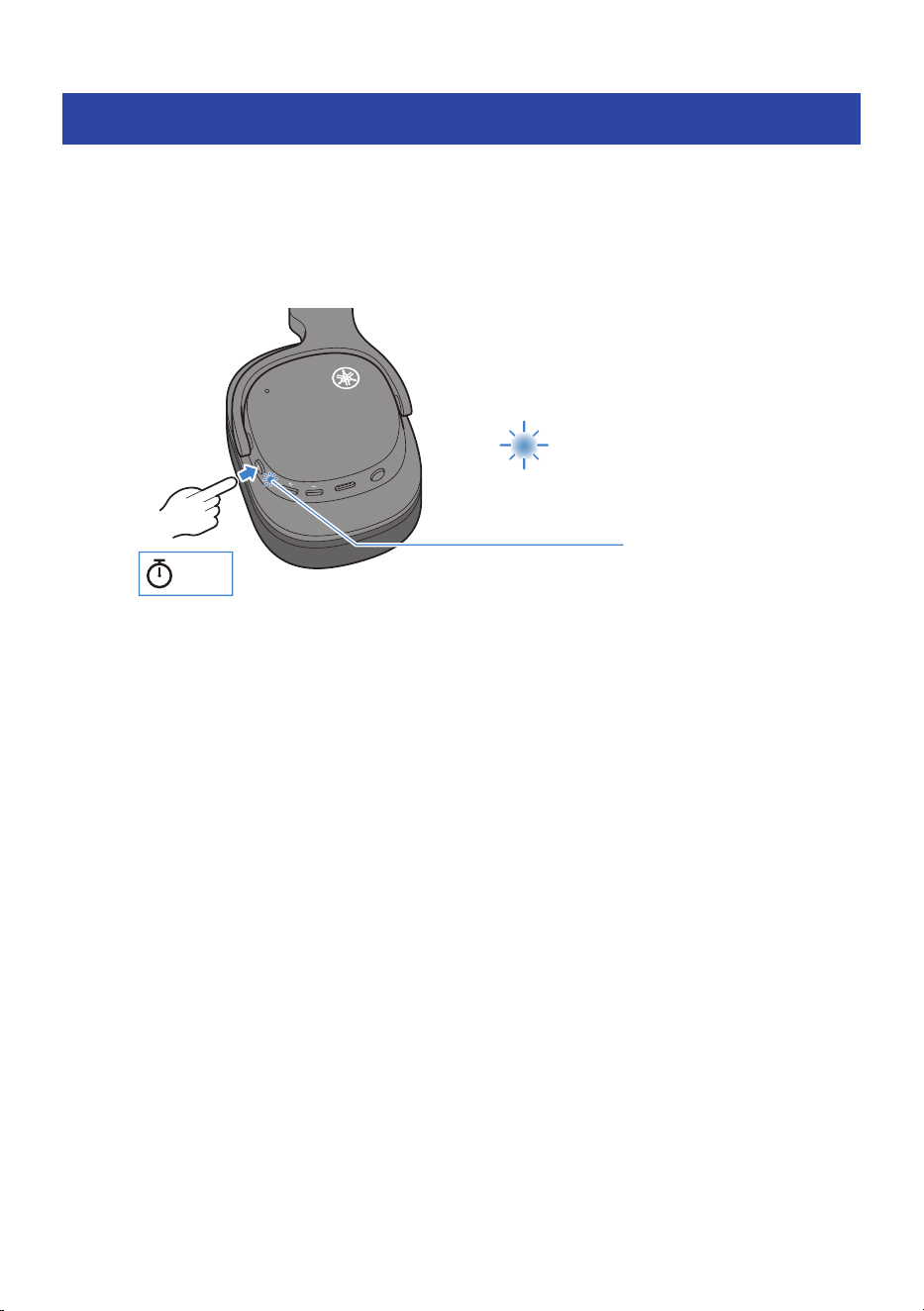
Turning on the power
Here’s how to turn this product on.
1 Hold down the power button for about three seconds.
The indicators light up as shown below, and the power turns on.
R
Blue
Lights up for about 1 sec
About
3 sec
Related links
“Remaining battery power”(p.14)
12
Charging and Powering > Turning on the power
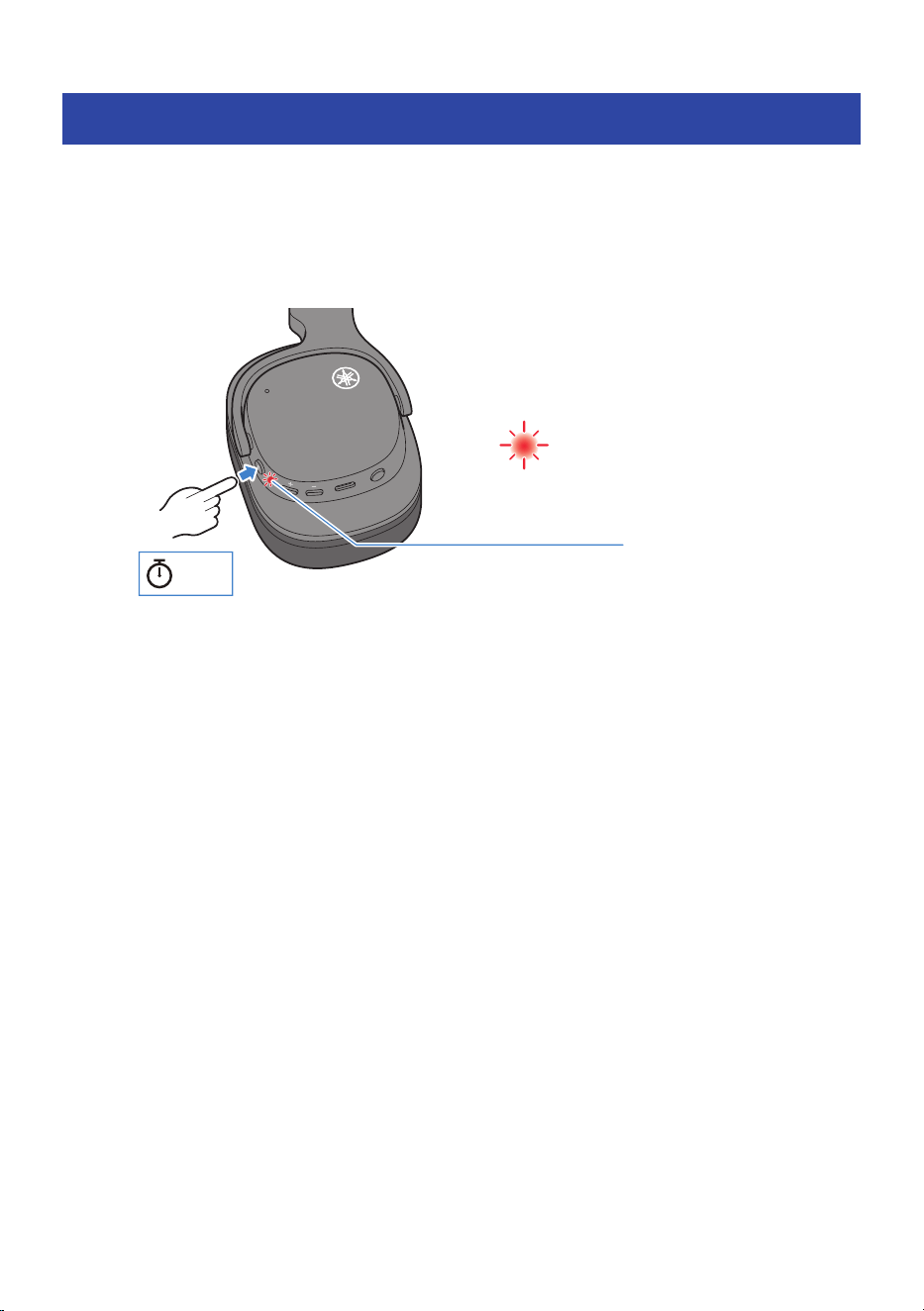
Turning off the power
Turn this product off.
1 Hold down the power button for about three seconds.
The indicator lights up as shown, and the power turns off.
R
Red
Lights up for about 1 sec
About
3 sec
13
Charging and Powering > Turning off the power

Remaining battery power
After this product is turned on, an audio message tells you how much battery power is left in the
headphones.
(
Audio messages:
(
Battery High: plenty of charge remaining
(
Battery Medium: moderate charge remaining
(
Battery Low: small amount of charge remaining
14
Charging and Powering > Remaining battery power
Bluetooth® Connectivity
Pairing and connecting for the first time
When first connecting this product to a Bluetooth device (such as a smartphone), follow the steps below to
pair (register) this product with that device.
NOTE
You can use Google Fast Pair to easily pair this product with your Android smartphone.
(
“Pairing and connecting for the first time with Google Fast Pair”(p.18)
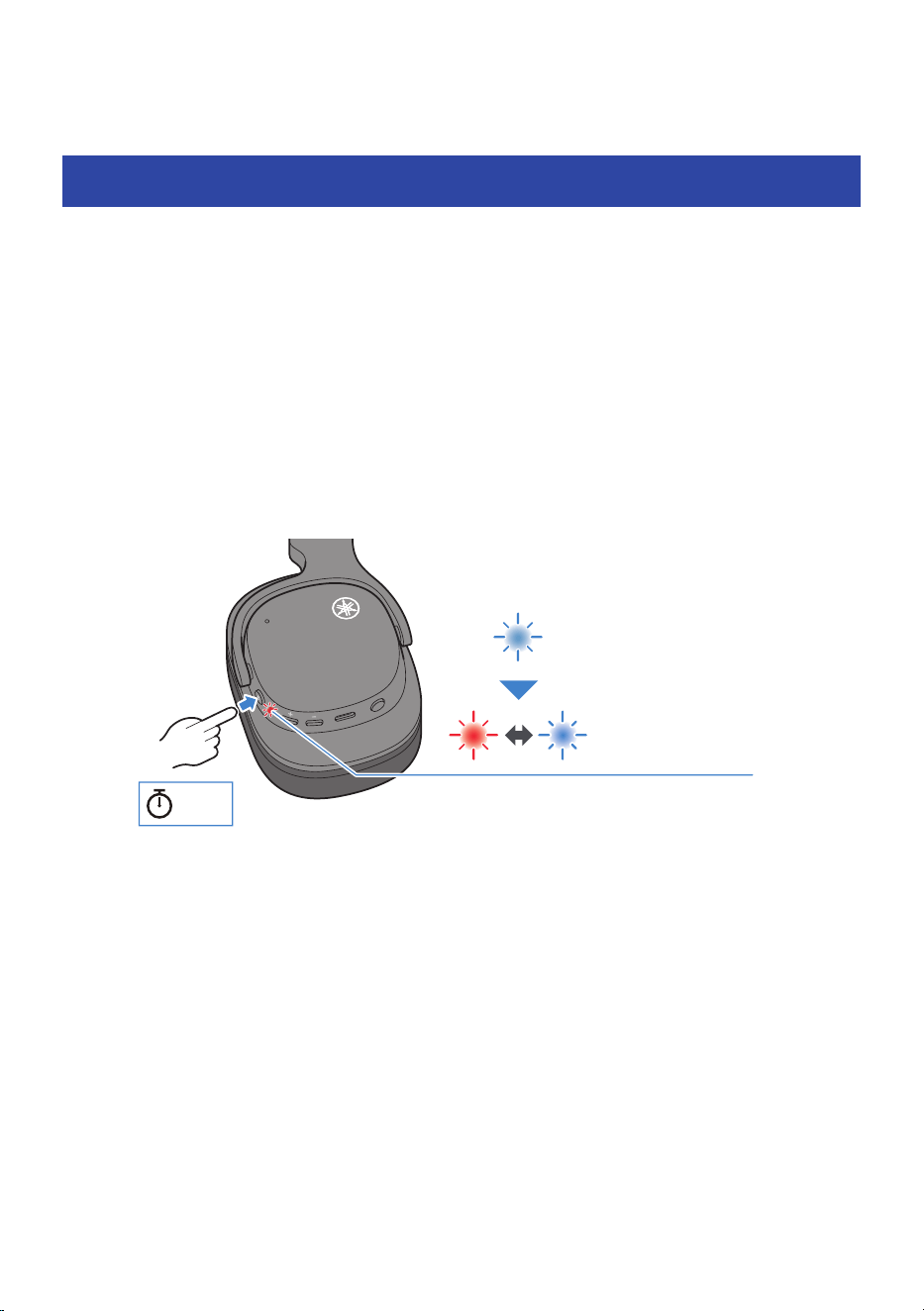
1 Set this product to pairing (registration) standby mode.
With the headphones powered off, hold down the power button until the indicator illuminates
as shown below. You will hear the “Pairing” audio message in the headphones, and the
product enters pairing (registration) standby mode.
R
Blue
Lights up for about 1 sec
Red and blue
Flashes alternately
About
3 sec
2 Activate Bluetooth on your Bluetooth device.
A list of Bluetooth devices that can be connected will be shown.
15
Bluetooth® Connectivity > Pairing and connecting for the first time
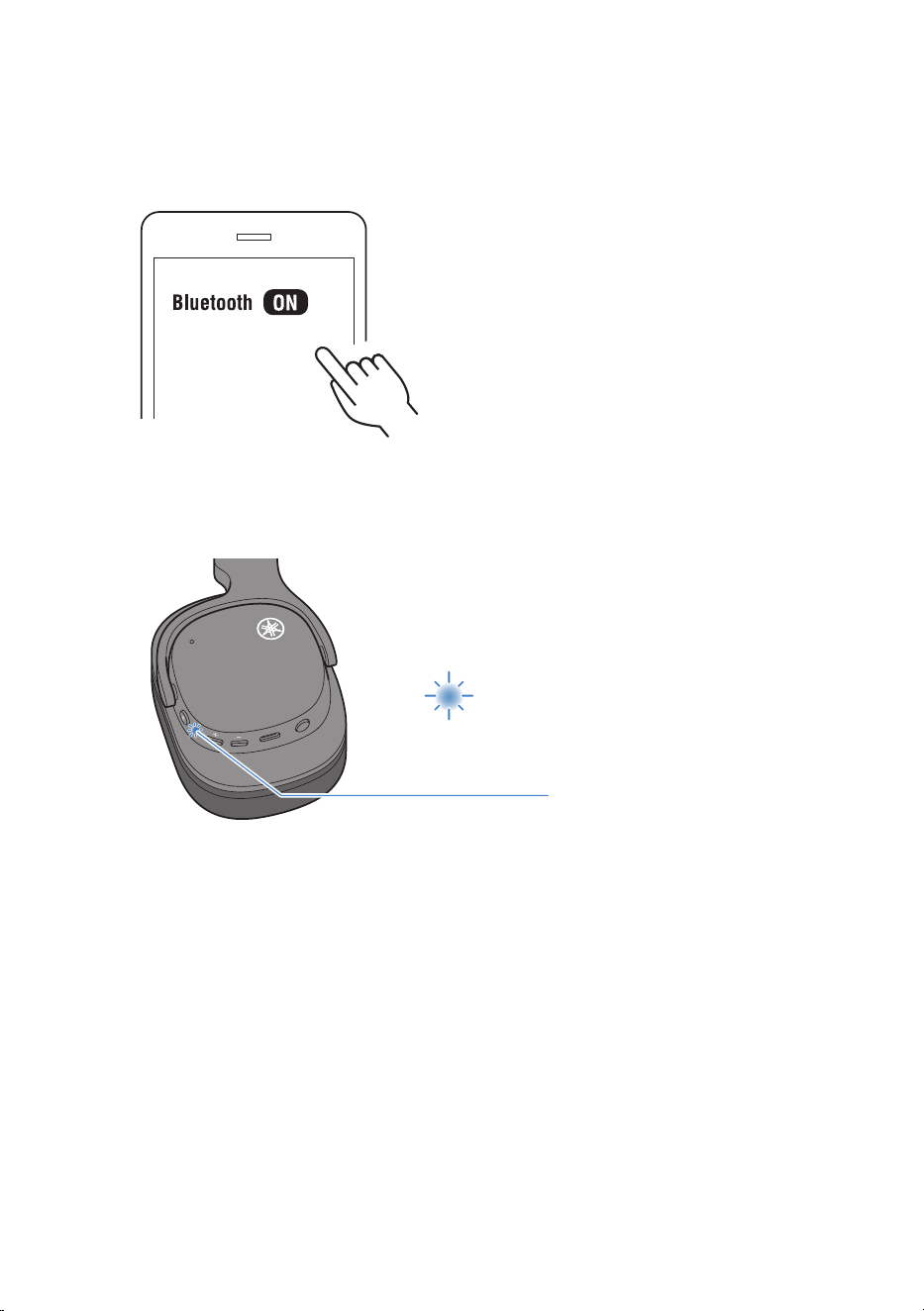
3 Select this product from the list on your Bluetooth device.
If you see this product listed more than once on the list of Bluetooth devices, select the one
that is marked with a headphones icon or the like.
Yamaha YH-L500A
Once connected, the indicator on this product lights up as shown below. You will hear the
“Connected” audio message in the headphones.
Pairing and connection are now complete.
R
Blue
Lights up for about 5 sec
n
How can I disconnect the Bluetooth device?
Disconnect using one of the following methods.
(
Turn this product or off manually.
(
Deactivate Bluetooth on the Bluetooth device.
(
Remove this product from the list of connections on the Bluetooth devices.
(
Delete the device from the list of Bluetooth devices that can be connected (pairing is required to
reconnect).
16
Bluetooth® Connectivity > Pairing and connecting for the first time

n
After disconnecting, can I reconnect?
If this product is on, it connects automatically to the device you want to connect once you activate Bluetooth
on that device. If this product is off, activate Bluetooth on the device to which you want to connect, and then
turn on this product. The product automatically connects to the last Bluetooth device to which it was
connected. If this product does not automatically connect, activate Bluetooth on the device to which you
want to connect, turn on this product and then select it from the list of Bluetooth devices.
NOTE
(
Pairing standby mode will automatically end on this product after about two minutes. To pair again or if the connection was
unsuccessful, go back to step 1.
(
This product cannot be paired with devices that require a passkey when pairing, as this feature is unsupported.
Related links
(
“Pairing and connecting for the first time with Google Fast Pair”(p.18)
(
“Pairing and connecting with a different device”(p.20)
17
Bluetooth® Connectivity > Pairing and connecting for the first time
Pairing and connecting for the first time with Google
Fast Pair
Follow the steps below to easily pair (register) this product with your Android device that supports Google
Fast Pair.
1 Set this product to pairing (registration) standby mode.
While this product is off, hold down the power button until the indicator illuminates as shown
below. You will hear the “Pairing” audio message, and the product enters pairing (registration)
standby mode.
R
Blue
Lights up for about 1 sec
Red and blue
Flashes alternately
About
3 sec
2 Move the Bluetooth device close to this product.
A notification will be shown on your Android device.
3 Tap the notification on your Android device.
The device will then finish pairing with this product.
If successfully connected, the indicator on this product lights blue (for about five seconds),
and you will hear the “Connected” audio message.
Pairing and connection are now complete.
18
Bluetooth® Connectivity > Pairing and connecting for the first time with Google Fast Pair

NOTE
(
To use Google Fast Pair, you’ll need to configure your Google account and connect to a network.
(
Pairing is supported with Android devices running Android OS 6.0/Google Play 11.7 or later.
Related links
“Pairing and connecting with a different device”(p.20)
19
Bluetooth® Connectivity > Pairing and connecting for the first time with Google Fast Pair
Pairing and connecting with a different device
Follow the steps below to pair with another Bluetooth device, or to try pairing with the same device again.
NOTE
Up to 7 Bluetooth devices can be registered with this product. If you pair a device beyond the maximum number, the information for
device you first paired (the oldest pairing) will be deleted.
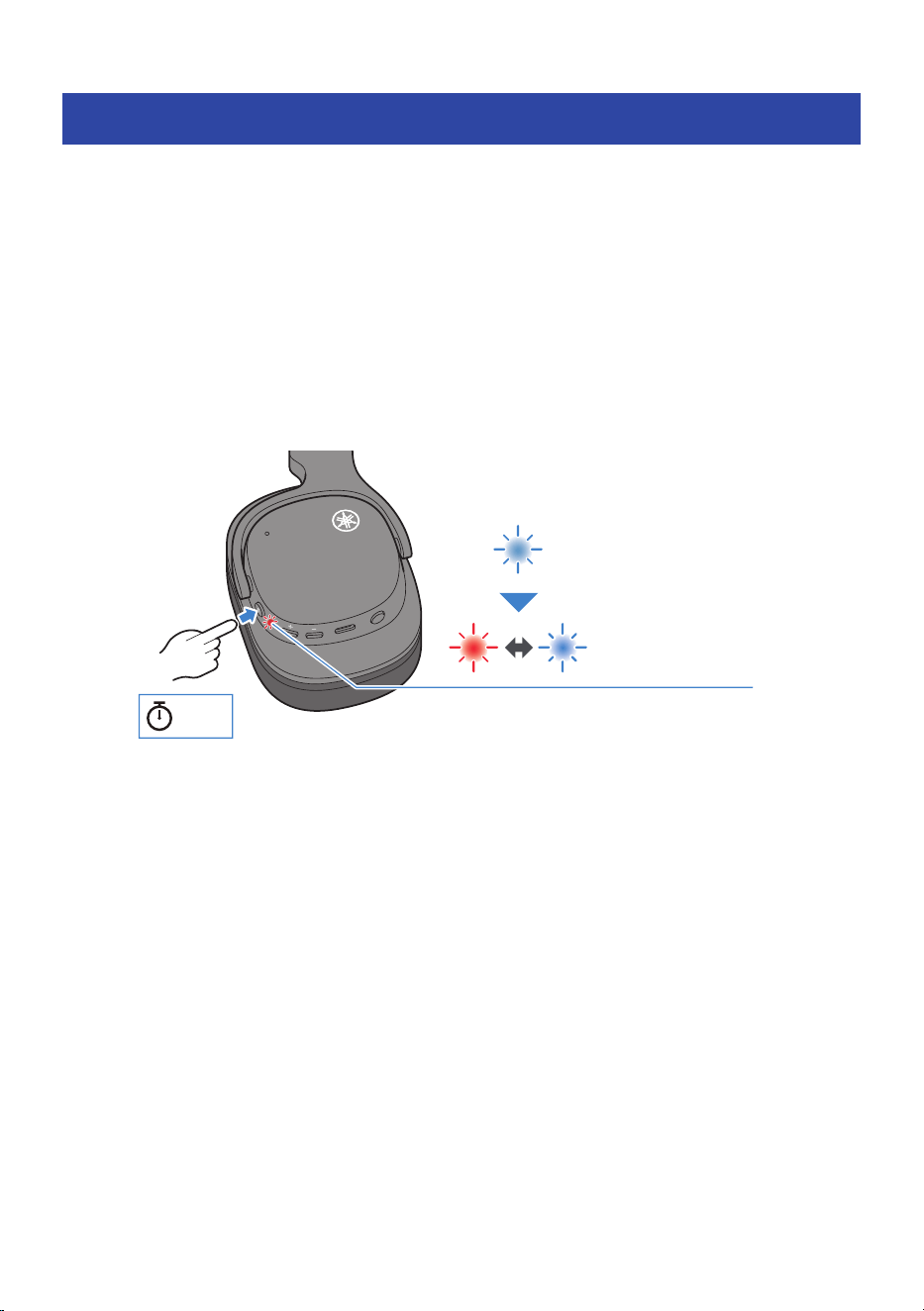
1 Set this product to pairing (registration) standby mode.
While this product is off, hold down the power button until the indicator illuminates as shown
below. You will hear the “Pairing” audio message, and the product enters pairing (registration)
standby mode.
R
Blue
Lights up for about 1 sec
Red and blue
Flashes alternately
About
5 sec
2 Activate Bluetooth on the Bluetooth device.
A list of Bluetooth devices that can be connected will be shown.
20
Bluetooth® Connectivity > Pairing and connecting with a different device
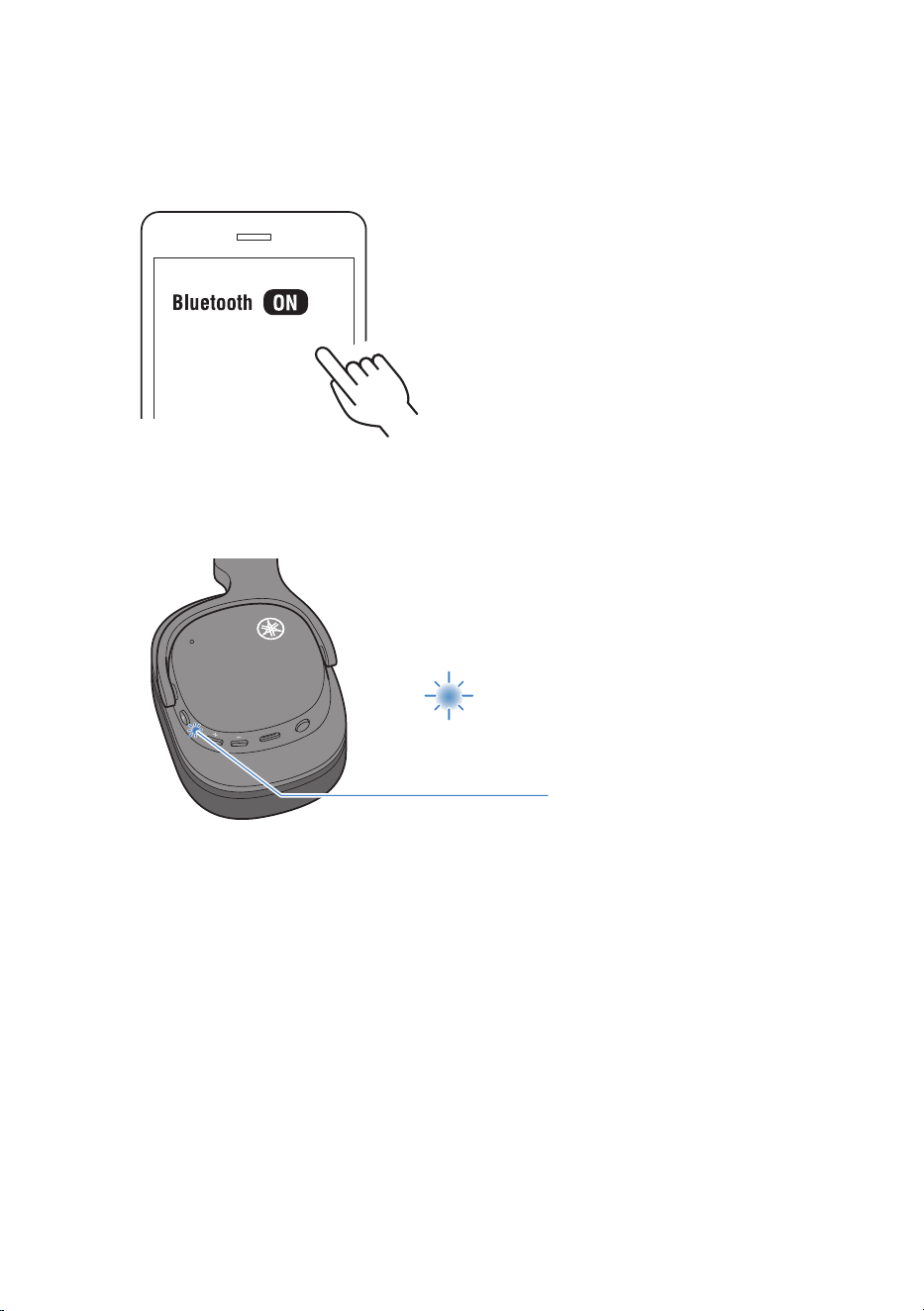
3 Select this product from the list on your Bluetooth device.
If you see this product listed more than once on the list of Bluetooth devices, select the one
that is marked with a headphones icon or the like.
Yamaha YH-L500A
Once connected, the indicator on this product lights up as shown below. You will hear the
“Connected” audio message in the headphones.
Pairing and connection are now complete.
R
Blue
Lights up for about 5 sec
n
How can I disconnect the Bluetooth device?
Disconnect using one of the following methods.
(
Turn this product or off manually.
(
Deactivate Bluetooth on the Bluetooth device.
(
Remove this product from the list of connections on the Bluetooth devices.
(
Delete the device from the list of Bluetooth devices that can be connected (pairing is required to
reconnect).
21
Bluetooth® Connectivity > Pairing and connecting with a different device

n
After disconnecting, can I reconnect?
If this product is on, it connects automatically to the device you want to connect once you activate Bluetooth
on that device. If this product is off, activate Bluetooth on the device to which you want to connect, and then
turn on this product. The product automatically connects to the last Bluetooth device to which it was
connected. If this product does not automatically connect, activate Bluetooth on the device to which you
want to connect, turn on this product and then select it from the list of Bluetooth devices.
NOTE
(
Pairing standby mode will automatically end on this product after about two minutes. To pair again or if the connection was
unsuccessful, go back to step 1.
(
This product supports multipoint connection, which lets you connect to two Bluetooth devices at the same time.
(
This product cannot be paired with devices that require a passkey when pairing, as this feature is unsupported.
Related links
(
“Pairing and connecting for the first time”(p.15)
(
“Multipoint connection (connecting to two devices at the same time)”(p.24)
22
Bluetooth® Connectivity > Pairing and connecting with a different device
Usage hints (when paired with multiple Bluetooth devices)
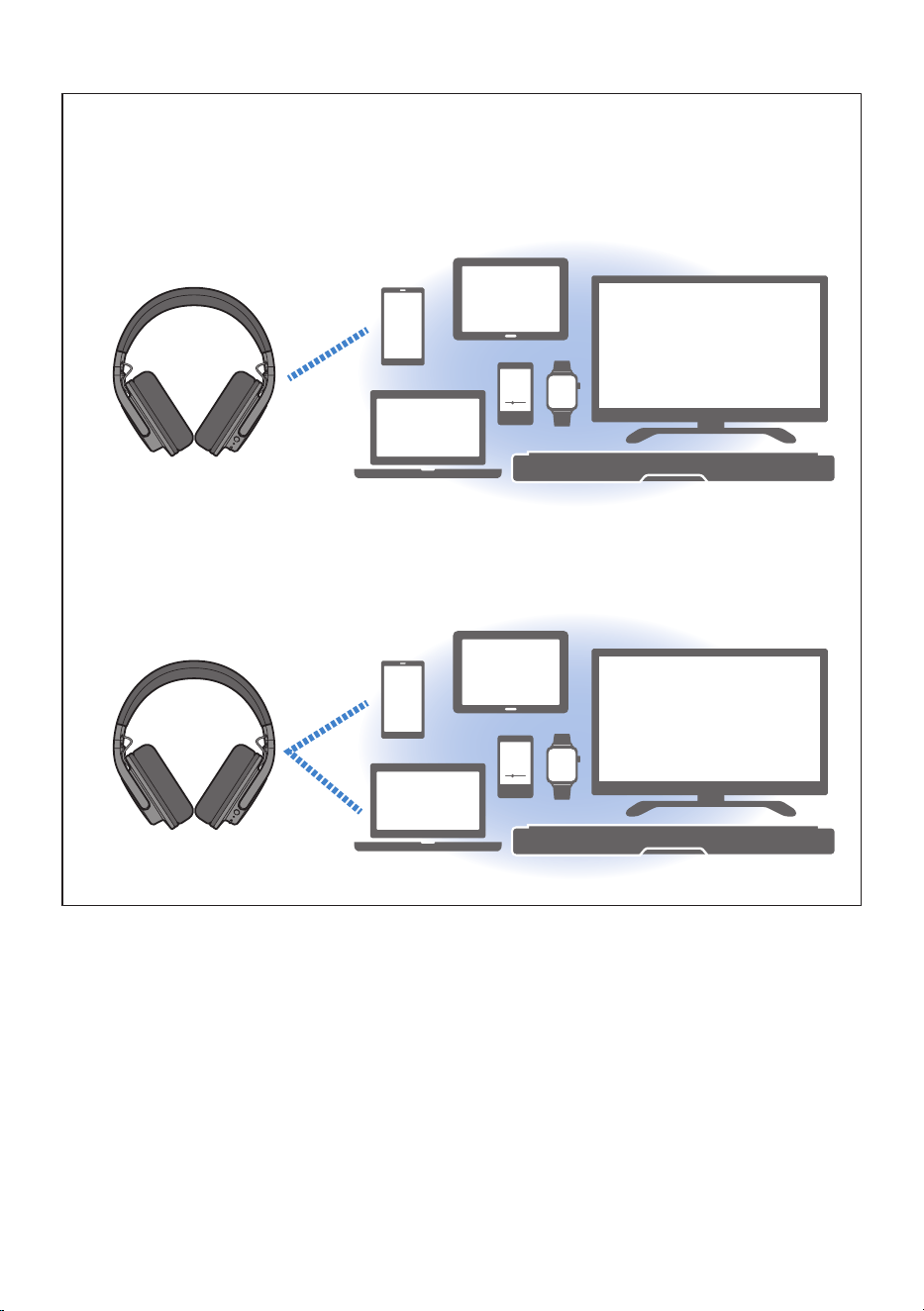
When paired with multiple Bluetooth devices, the product can be used in the following ways.
(
Connecting and using with any one Bluetooth device
(
In this case, disconnect all Bluetooth devices other than the one that you want to connect to.
♫
Connection with one of the paired Bluetooth devices
(
Connecting and using with any two Bluetooth devices at the same time (multipoint connection)
(
For details, refer to “Multipoint connection (connecting to two devices at the same time)”(p.24).
♫
Connection with two of the paired Bluetooth devices
23
Bluetooth® Connectivity > Pairing and connecting with a different device
Multipoint connection (connecting to two devices at the
same time)
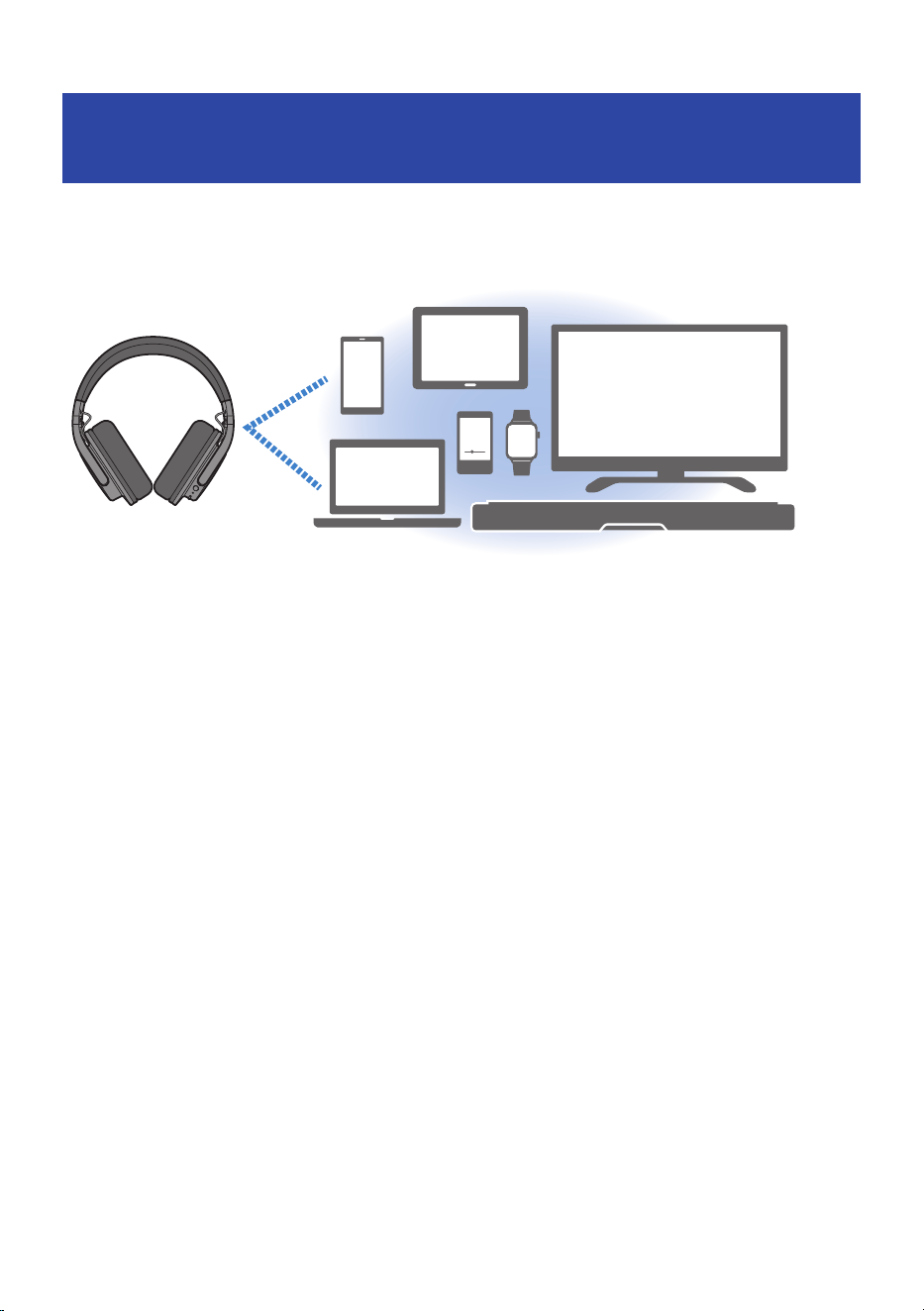
This product features multipoint connection, which lets you connect the product to two Bluetooth devices to
which it has been paired at the same time. For instance, this is useful when you want to use this product to
listen to music on your computer, while being able to receive phone calls on your smartphone.
♫
Connection with two of the paired Bluetooth devices at the same time
Getting the multipoint connection ready
For a multipoint connection, pair (register) this product beforehand with the two Bluetooth devices to which
you wish to connect.
(
“Pairing and connecting for the first time”(p.15)
(
“Pairing and connecting with a different device”(p.20)
Steps for multipoint connection
Here are the operations for establishing a multipoint connection.
1 Turn this product on.
2 Activate Bluetooth on the first Bluetooth device you want to connect to. When
Yamaha YH-L500A appears in the list of devices that can be connected, select it to
connect.
If the device is already connected, this step is not necessary.
Once connected, you will hear the message “Connected” on this product.
24
Bluetooth® Connectivity > Multipoint connection (connecting to two devices at the same time)

3 Activate Bluetooth on the second Bluetooth device you want to connect to. When
Yamaha YH-L500A appears in the list of devices that can be connected, select it to
connect.
Once connected, you will hear the message “Connected” on this product.
The devices are now connected.
n
Canceling the multipoint connection
To cancel the multipoint connection, remove the connection from your Bluetooth devices.
NOTE
(
You can connect to up to two Bluetooth devices that support multipoint connection at the same time. Before connecting to a
different Bluetooth device, disconnect one of the previously connected Bluetooth devices.
(
When connecting via Bluetooth, if you see this product listed more than once on the list of Bluetooth devices, select the one that is
marked with a headphones icon or the like.
(
Either device that’s connected can be used to play music, but music cannot be played from both devices at the same time.
(
If you turn this product off after establishing a multipoint connection and then turn it on again, the headphones automatically
connect to both devices to which they were connected. When connecting to a different Bluetooth device, disconnect one of the
previously connected Bluetooth devices.
(
The operations for multipoint connection vary depending on your Bluetooth device. We do not guarantee that these operations
will work on all Bluetooth devices. See the user’s manual of your Bluetooth device for details.
(
The connection to the second device may be interrupted when you use the first device, depending on the connected device.
(
This product may not operate correctly with some apps and software. If they do not work correctly, operate using the connected
device.
Related links
(
“Pairing and connecting for the first time”(p.15)
(
“Pairing and connecting with a different device”(p.20)
25
Bluetooth® Connectivity > Multipoint connection (connecting to two devices at the same time)
Connecting via Cable
Connecting via headphone cable
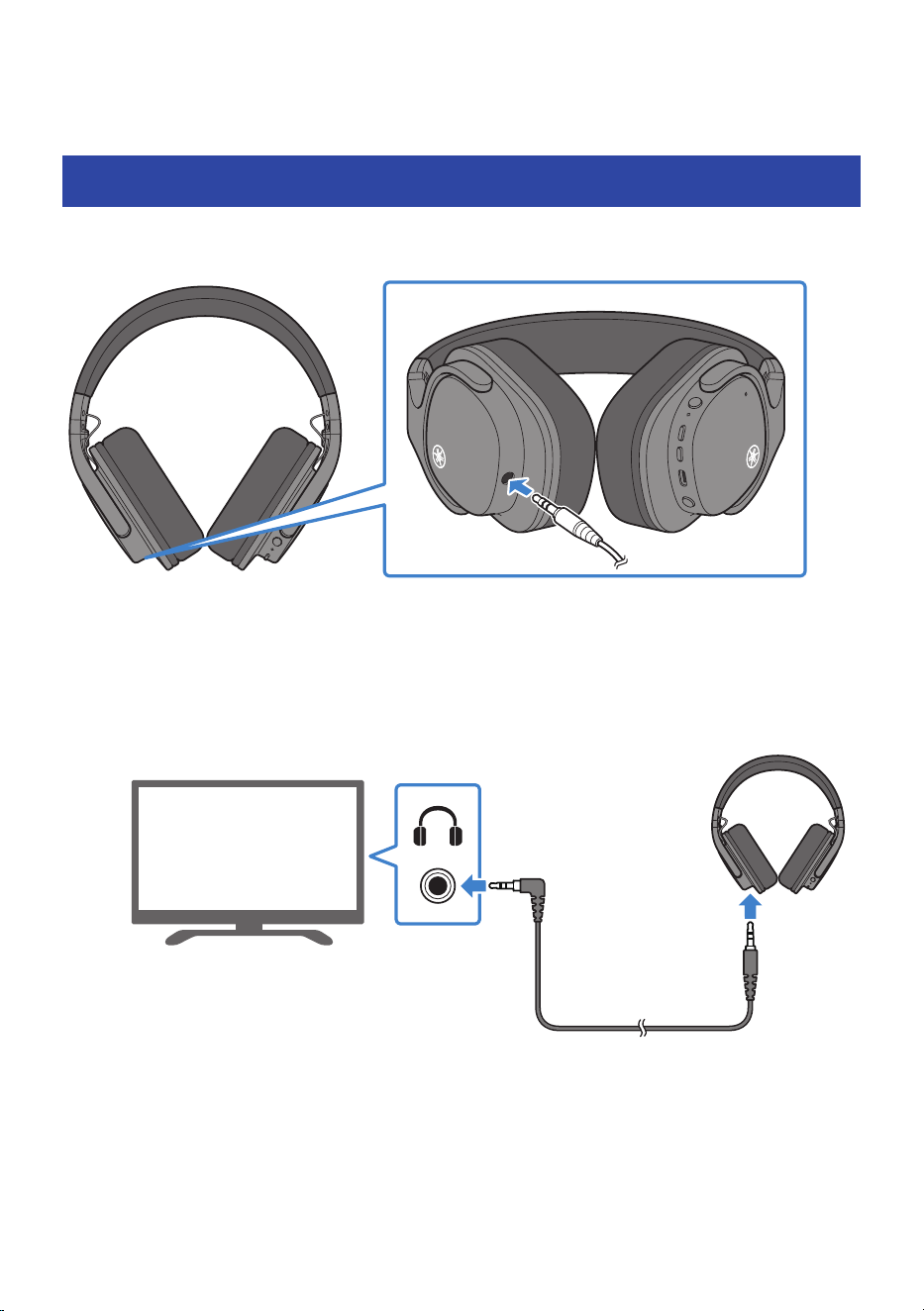
You can connect this product to the headphone output jack of an external device by using the 3.5 mm stereo
mini-plug cable (included).
RL
RL
1 Firmly plug the included 3.5 mm stereo mini-plug cable all the way into the
headphone jack on the TV or other device to which you want to connect.
TV Headphone jack
3.5 mm stereo
mini-plug cable (included)
Example: connecting to a TV
26
Connecting via Cable > Connecting via headphone cable
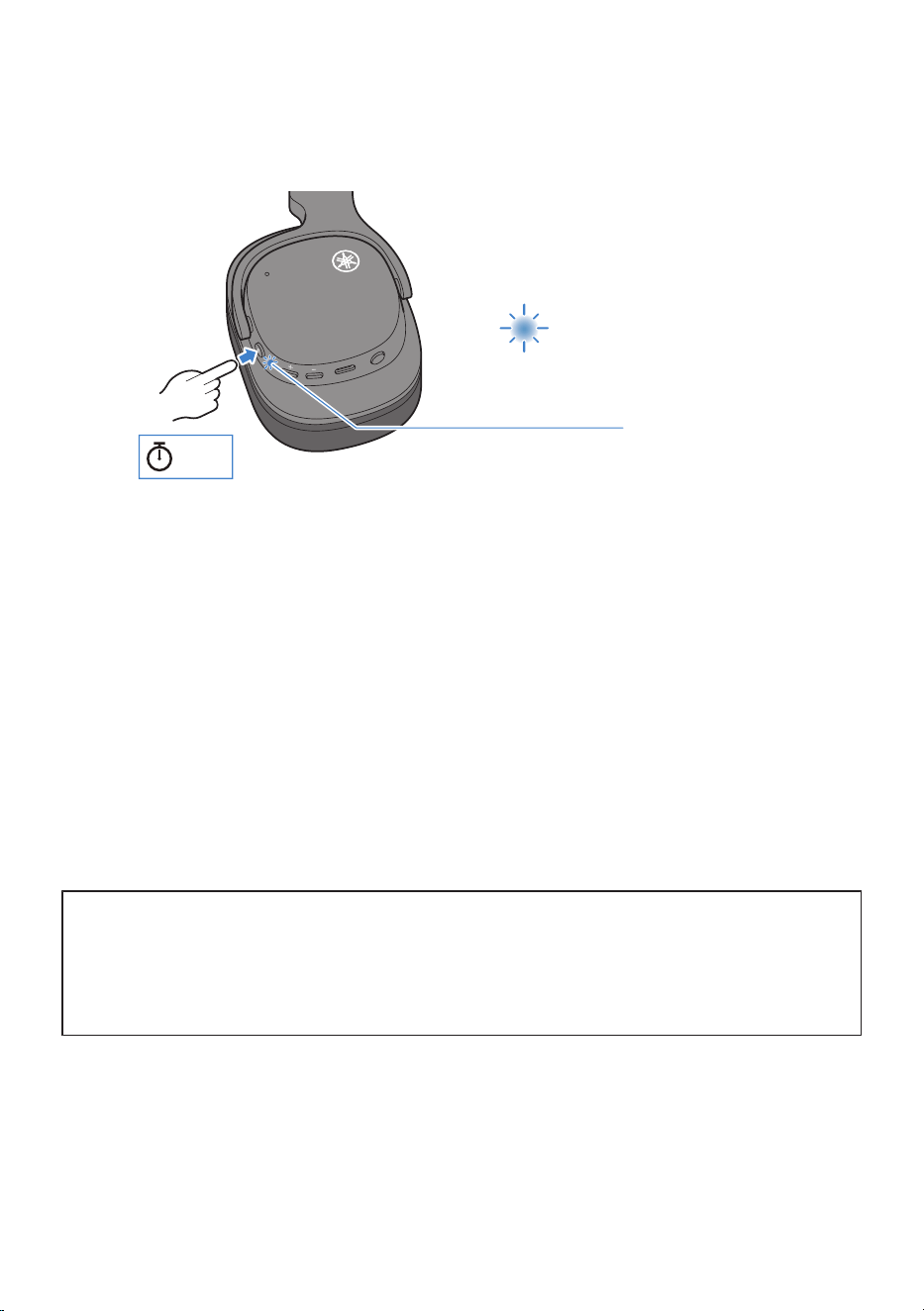
2 Turn this product on.
When using this product with the cable connected, no sound is heard if the power is off.
R
Blue
Lights up for about 1 sec
About
3 sec
3 Start playing back sound on the TV or other device to which this product is
connected.
The devices are now connected.
(
When connected via cable, the following functions are available even while you’re using this product.
(
Turning this product on/off
(
Toggling Sound Field/OFF
(
The following functions are not available when connected via cable while you’re using this product.
(
Connecting to a Bluetooth device
(
Using the + (plus) button and the − (minus) button
(
Using the pause/play button
(
Using the Gaming Mode ON/OFF button
(
Phone calls
(
Using the button to start/stop the voice assistant
(
Operating this product via the Headphone Control smartphone app
NOTICE
(
If you’re using this product with the cable connected, make sure to use the included 3.5 mm stereo mini-plug cable.
(
When plugging or unplugging the cable, make sure to grip the plugs with your hand. If you pull too hard on the cable itself, the
cable wires may break.
(
Insert the plug all the way into the jack. If the plug is not fully inserted, you may hear no sound, or you may hear breaks in the
sound.
NOTE
You can’t adjust the volume while using this product with the cable connected. Before raising or lowering the volume on this product,
adjust the volume on your connected device.
27
Connecting via Cable > Connecting via headphone cable
Wearing the Headphones
Putting the headphones on
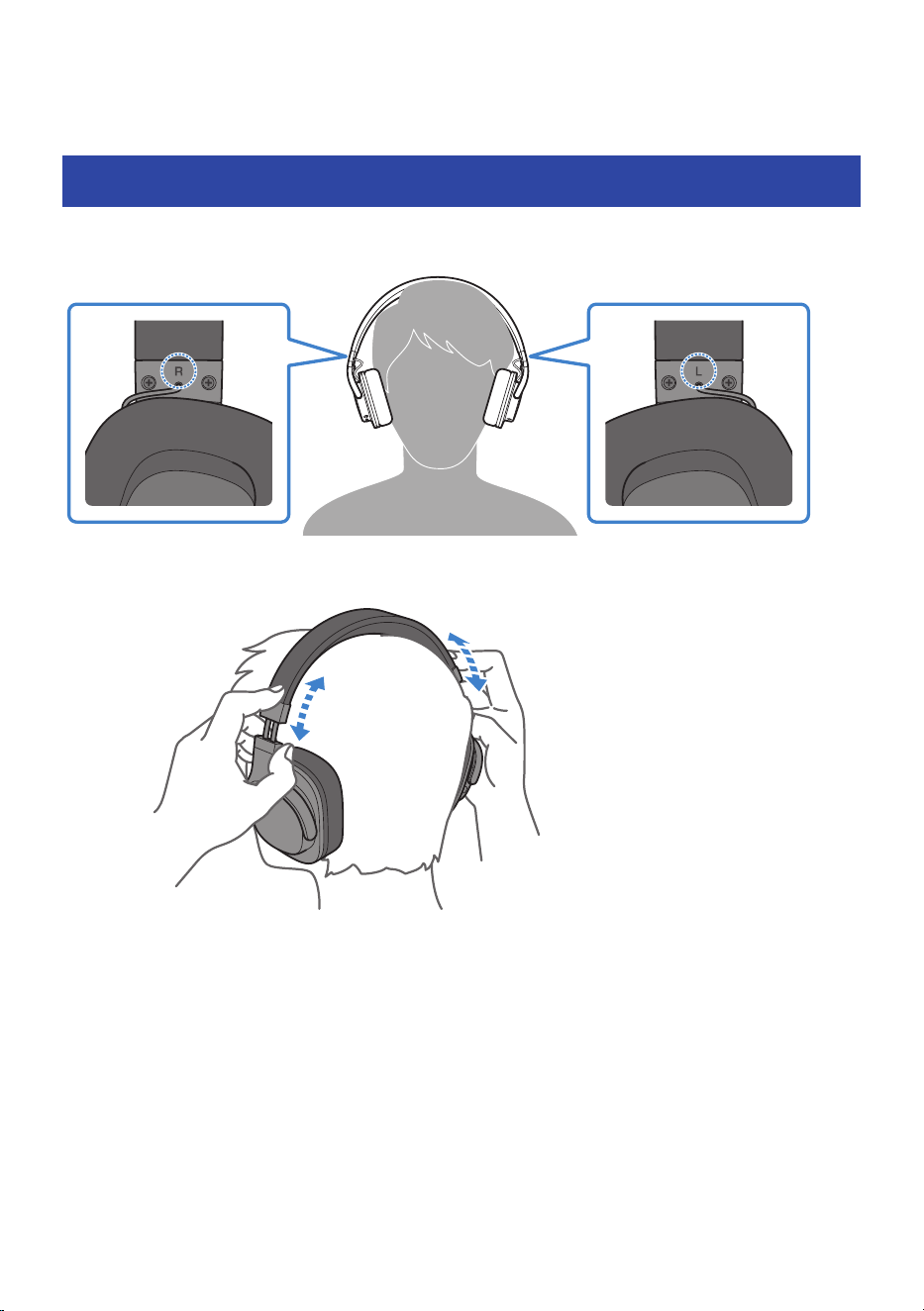
Check the markings on the headphones for the L (left) and R (right) sides when putting the headphones on.
Make sure that each earpad completely covers your ears.
Use the sliders to adjust the wearing position according to the size of your head.
28
Wearing the Headphones > Putting the headphones on
Operation (Audio Playback and Phone Calls)
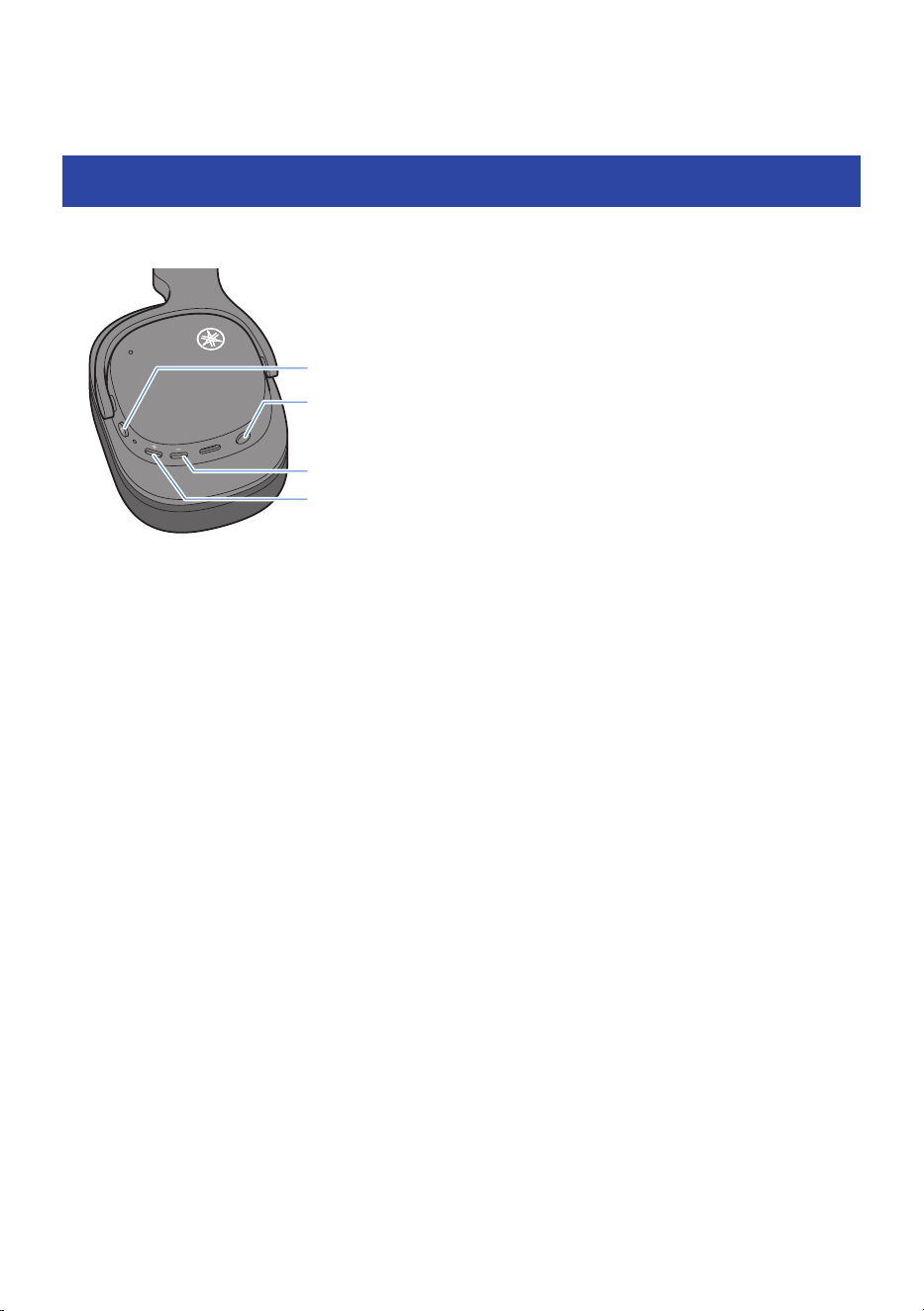
Operations during audio playback
You can operate this product during playback using the buttons as follows.
R
Power button
Multi-function button
Minus (−) button
Plus (+) button
Volume controls
(
Turn the volume up
Press the + (plus) button.
(
Turn the volume down
Press the − (minus) button.
Playing back audio
(
Pause/play
Press the power button.
(
Skip to the next track
Hold down the + (plus) button for about one second.
(
Go back to the beginning of the track (while in the middle of the track), or back to the previous track (when
at the beginning of a track)
Hold down the − (minus) button for about one second.
The operation may differ, depending on the Bluetooth device or app you use.
n
Switching between playback devices (with multipoint connection)
When using a multipoint connection, stop the music that’s playing on the first device, and then operate the
playback features on the other device.
n
Sound Field
This is a technology that creates a sound field for deep immersion in the content you enjoy, including video
and audio.
29
Operation (Audio Playback and Phone Calls) > Operations during audio playback

(
Cinema: Suitable for watching movies and videos.
This provides clear dialogue, realistic sound effects and depth to the background music.
(
Music: Suitable for listening to music.
When this parameter is selected, rich reverberations that resemble those in a concert hall are added to the
music source. This mode is recommended for enjoying content with a live feel.
1 Press the multi-function button once.
Each time you press the button toggles between the Cinema, Music and OFF modes.
OFF → Cinema → Music → back to OFF
(
When Cinema is turned ON: the “Cinema” audio message plays.
(
When Music is turned ON: the “Music” audio message plays.
(
When this setting is turned OFF: the “Off” audio message plays.
n
Gaming Mode
This function also makes the audio and video sound more in sync, which is useful when you are watching a
video or playing a game.
1 Press the multi-function button twice.
Press the key twice to toggle between enable and disable.
Gaming Mode → OFF → back to Gaming Mode
(
When Gaming Mode is activated: the “Gaming On” audio message plays.
(
When Gaming Mode is deactivated: the “Gaming Off” audio message plays.
NOTE
(
When using multipoint connection, either device that’s connected can be used to play music, but music cannot be played from
both devices at the same time.
(
By default, Sound Field and Gaming Mode are set to OFF.
(
You can also set the Sound Field and Gaming Mode features with the Headphone Control app.
(
In regard to Gaming Mode, please observe the following.
(
When Bluetooth is disconnected, the Gaming Mode setting is turned OFF. To turn this back ON, reconnect to the Bluetooth
device and press the multi-function button twice, or set this to ON in the Headphone Control app.
(
Gaming Mode does not work during a phone call.
(
When connecting to a device (such as a smartphone) on which the volume can be adjusted, you can also adjust the volume using
that device.
(
To select a song for playback, operate the connected device.
30
Operation (Audio Playback and Phone Calls) > Operations during audio playback
Talking on the phone
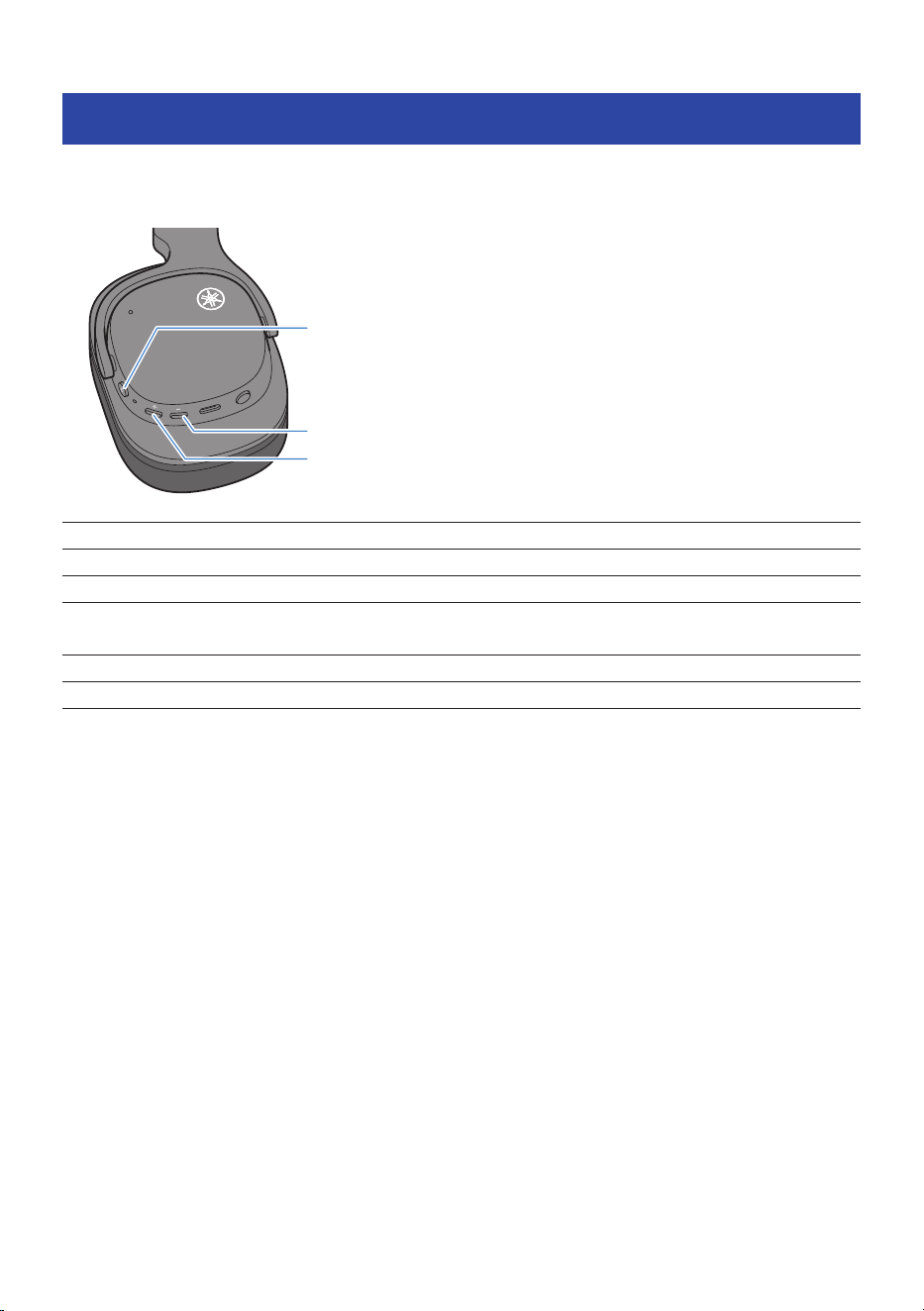
When connecting to a Bluetooth device, you can talk, adjust the volume and so on using this product.
Operate this product as follows.
R
Power button
Minus (−) button
Plus (+) button
Receive a phone call When a phone call comes in, press the power button once.
End a phone call During the phone call, press the power button for about one second.
Stop an outgoing phone call When a call is being made, press the power button for about one second.
Ignore an incoming phone call
When a phone call comes in, press the power button for about one second.
Take your finger off the button once you hear the effect sound.
Turn the volume up During the phone call, press the + (plus) button.
Turn the volume down During the phone call, press the − (minus) button.
n
Switching between connected devices (with multipoint connection)
(
When music is playing on the first connected device, answer the phone call coming in using the other
connected device (such as a smartphone).
The music that was playing on the first device is automatically paused. Once you hear the ringtone in the
headphones, press the power button once, or operate the connected device (such as a smartphone) on
which the call is being received.
(
While on a phone call using the first connected device (such as a smartphone), a phone call coming in on
the other connected device (such as a smartphone) can be answered.
Once you hear the ringtone while you are on a phone call, operate the first connected device that is being
used for a phone call (such as by placing the caller on hold or hanging up the phone), and then press the
power button once or operate the connected device (such as a smartphone) on which the call is being
received.
NOTE
(
When a call is coming in, any music being played will pause. Audio playback will automatically resume when the call ends or you
ignore the call.
(
While using multipoint connection, you cannot be on more than one phone call at a time or play music while on a phone call.
31
Operation (Audio Playback and Phone Calls) > Talking on the phone
Starting the voice assistant
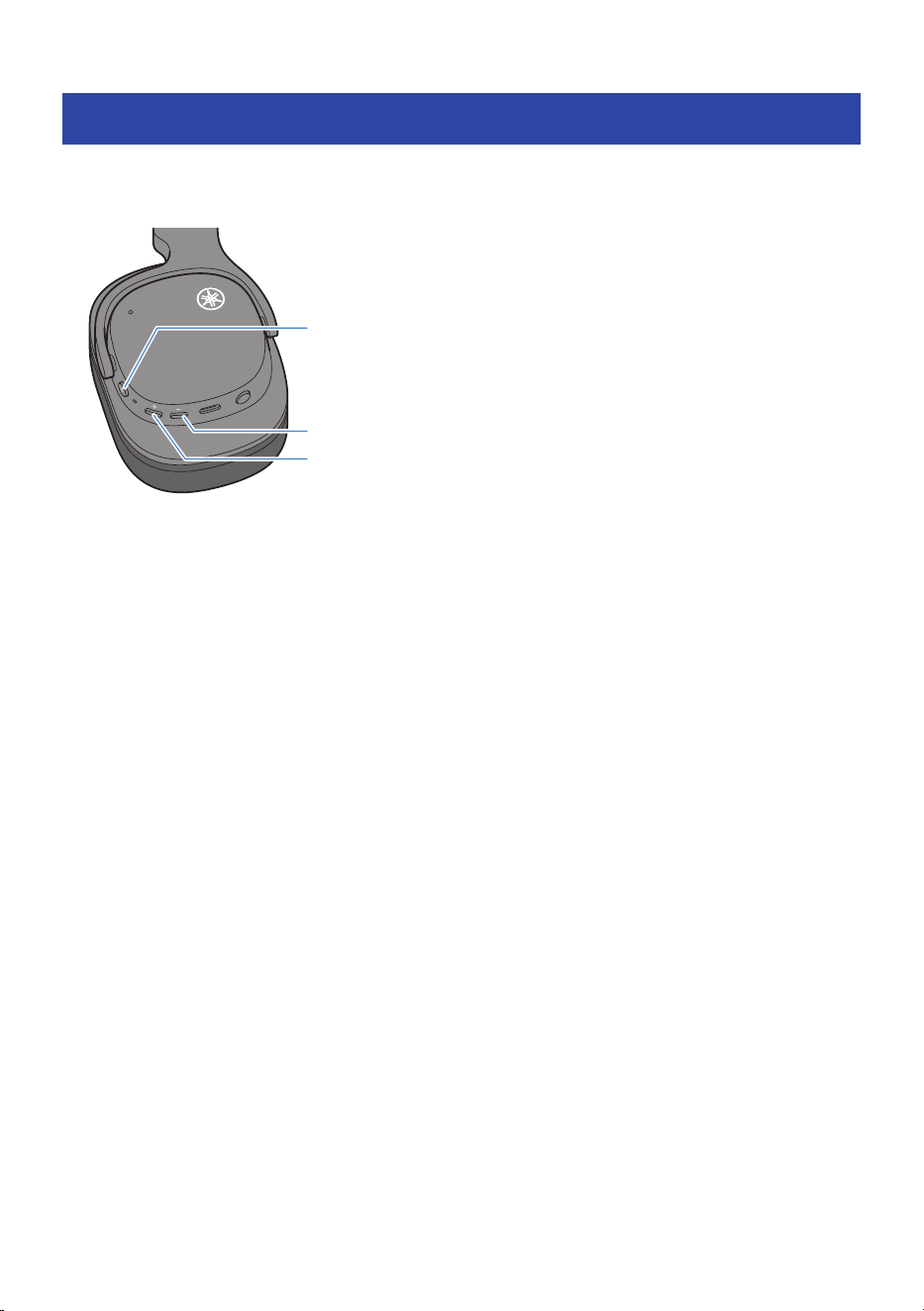
If connecting this product to a Bluetooth device that supports the use of Siri, Google Assistant or similar
features, you can control the voice assistant with this product.
R
Power button
Minus (−) button
Plus (+) button
(
Start voice assistant
Press the power button twice.
(
Stop voice assistant
(
When using Siri
Press the power button twice.
(
When using Google Assistant
Operate using your Bluetooth device.
Voice assistant volume operations
(
Turn the volume up
Press the + (plus) button once.
(
Turn the volume down
Press the − (minus) button once.
NOTE
The operations for the voice assistant feature will vary depending on your Bluetooth device. See the user’s manual of your Bluetooth
device for details.
32
Operation (Audio Playback and Phone Calls) > Starting the voice assistant
Dedicated Application
About the “Headphone Control” app
The Headphone Control smartphone app is a dedicated app for getting the best sound quality from your
Yamaha earbuds or headphones.
This app will let you do the following.
(
Show the status of your earbuds/headphones (such as remaining battery power)
(
Make detailed settings on your earbuds/headphones
Install the app from the App Store (iOS devices) or Google Play (Android devices). See the information about
the app on each store for details.
33
Dedicated Application > About the “Headphone Control” app

Troubleshooting
Read this first
If this product does not operate normally while you are using it, first check the following.
(
Turn the power off and then on again.
If this does not solve the problem, initialize (factory reset) the headphones.
(
“Initializing (performing a factory reset)”(p.44)
(
Make sure that this product has been sufficiently charged.
(
“Charging the headphones”(p.11)
(
Update the firmware of this product to the latest version.
(
“Updating the firmware”(p.46)
(
Check the following items according to the trouble you are experiencing.
(
“Cannot pair/connect”(p.35)
(
“Multipoint connection unavailable”(p.36)
(
“Power will not turn on”(p.37)
(
“The product cannot be charged”(p.38)
(
“The product does not operate or play back”(p.39)
(
“No sound can be heard”(p.40)
(
“Sound can only be heard from one side”(p.41)
(
“Sound is not good or sounds strange”(p.42)
(
“The sound is distorted, noisy or choppy”(p.43)
(
“Initializing (performing a factory reset)”(p.44)
(
“Updating the firmware”(p.46)
34
Troubleshooting > Read this first

Cannot pair/connect
If you can’t connect this product to your Bluetooth device (such as a smartphone), try the following steps.
(
After deleting the information for this product from the list of Bluetooth devices that can be connected, try
pairing again.
(
“Pairing and connecting with a different device”(p.20)
(
Check if this product is connected to another Bluetooth device. If it is connected, disconnect the other
device, and then connect the desired Bluetooth device to this product.
(
Check if the Bluetooth device is connected to another device. If it is connected, disconnect that other
device, and then connect to this product.
(
“Pairing and connecting with a different device”(p.20)
(
Check the setting on the Bluetooth device. Turn Bluetooth on, and then connect with this product.
(
“Pairing and connecting with a different device”(p.20)
(
When attempting to pair more than the set number of Bluetooth devices with this product, the
information for the oldest paired device is deleted. Pair this product once more.
(
“Pairing and connecting with a different device”(p.20)
(
Move this product within one meter of the Bluetooth device.
(
Do not use this product near other devices that emit electromagnetic waves.
(
This product cannot be paired with Bluetooth devices that require a passkey for pairing, as this feature is
unsupported.
(
If the 3.5 mm stereo mini-plug cable is connected, unplug it from this product and then connect via
Bluetooth.
35
Troubleshooting > Cannot pair/connect

Multipoint connection unavailable
If a multipoint connection is unavailable, try the following operations.
(
You can connect to up to two Bluetooth devices that support multipoint connection at the same time.
When connecting a third Bluetooth device, disconnect one of the previously connected Bluetooth devices.
(
“Multipoint connection (connecting to two devices at the same time)”(p.24)
(
If the information for this product still remains in the list of connected devices on your Bluetooth device,
delete that information and try pairing again.
(
“Pairing and connecting with a different device”(p.20)
(
“Multipoint connection (connecting to two devices at the same time)”(p.24)
36
Troubleshooting > Multipoint connection unavailable

Power will not turn on
If this product does not turn on, there may be no remaining battery power, or it may have become
inoperable for some reason. Try the following operations.
(
Charge this product.
(
“Charging the headphones”(p.11)
(
Turn the power off and then on again. If this does not solve the problem, initialize (factory reset) the
product.
(
“Initializing (performing a factory reset)”(p.44)
37
Troubleshooting > Power will not turn on

The product cannot be charged
If this product cannot be charged, try the following steps.
(
When charging with a computer, turn on the computer to charge this product.
(
Use the included USB power cable to make sure the product correctly charges.
38
Troubleshooting > The product cannot be charged

The product does not operate or play back
If you can’t operate or play back sound with this product, try the following steps.
(
You cannot use this product while it is charging. Use this product after charging is finished.
(
If there is no remaining battery power, charge the product before operating it.
(
“Charging the headphones”(p.11)
(
Turn the power off and then on again. If this does not solve the problem, initialize (factory reset) the
product.
(
“Initializing (performing a factory reset)”(p.44)
39
Troubleshooting > The product does not operate or play back

No sound can be heard
If no sound is output from this product, try the following steps.
(
After pairing, connect this product and your Bluetooth device.
(
“Pairing and connecting for the first time”(p.15)
(
“Pairing and connecting with a different device”(p.20)
(
“Multipoint connection (connecting to two devices at the same time)”(p.24)
(
Raise the volume.
(
“Operations during audio playback”(p.29)
(
“Talking on the phone”(p.31)
(
Start playback.
(
“Operations during audio playback”(p.29)
(
If you’re using this product with the cable connected, make sure that the 3.5 mm stereo mini-plug cable is
connected correctly.
(
“Connecting via Cable”(p.26)
(
If you’re using this product with the cable connected, turn it on.
(
“Connecting via Cable”(p.26)
40
Troubleshooting > No sound can be heard

Sound can only be heard from one side
If you only hear sound from one side, try the following steps.
(
Turn the power off and then on again.
If this does not solve the problem, initialize (factory reset) the product.
(
“Turning on the power”(p.12)
(
“Initializing (performing a factory reset)”(p.44)
(
Move away from wireless devices such as access points, or appliances that produce electromagnetic
waves such as microwave ovens. Turn the power off and then on again.
(
Confirm that sound played back from a different app on the Bluetooth device can be heard from both
headphones.
(
Delete the Bluetooth device’s connection information, and then pair this product with the device.
(
“Pairing and connecting with a different device”(p.20)
(
If you’re using this product with the cable connected, make sure that the 3.5 mm stereo mini-plug cable is
connected correctly.
(
“Connecting via Cable”(p.26)
41
Troubleshooting > Sound can only be heard from one side
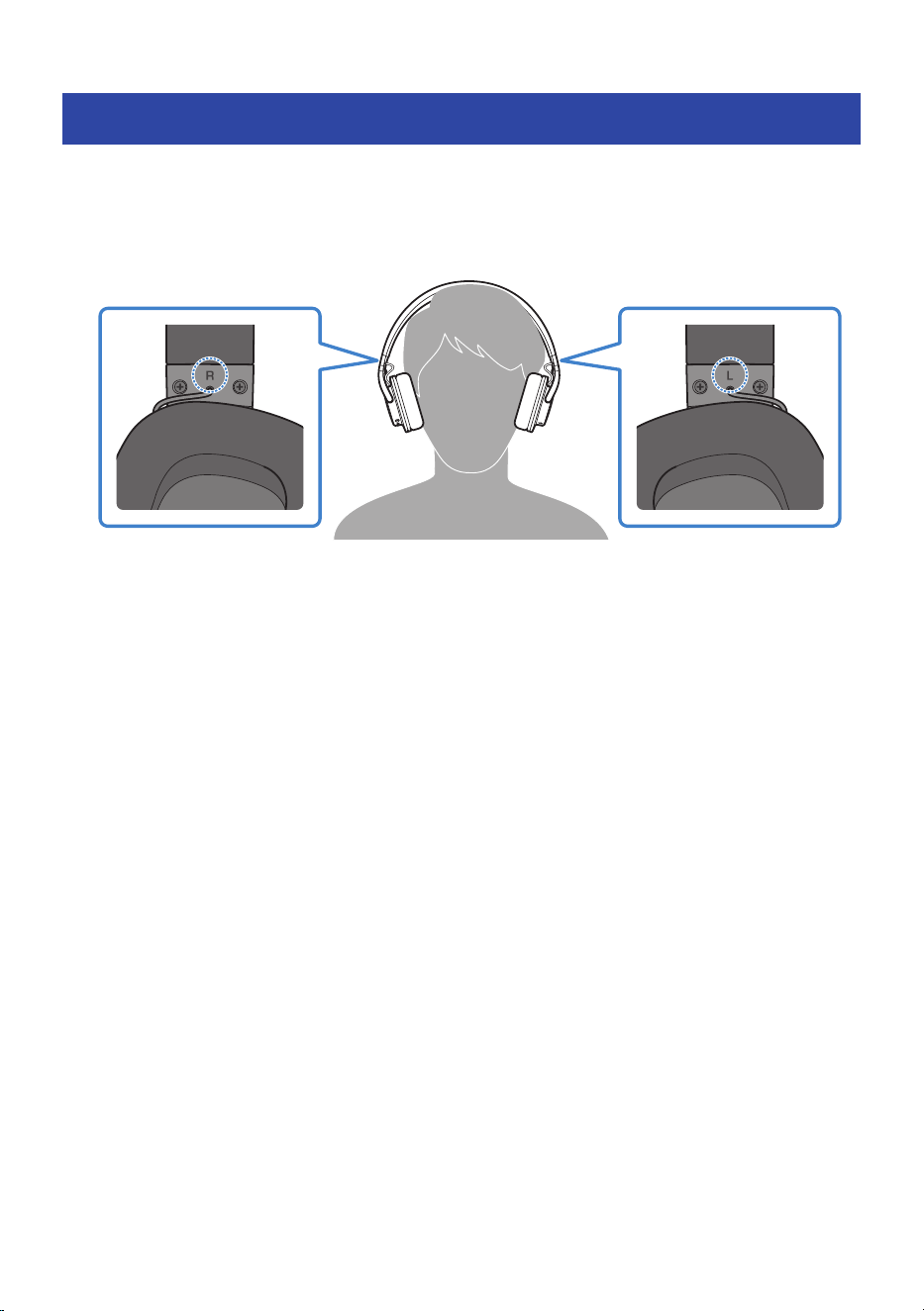
Sound is not good or sounds strange
If the sound is not good or sounds strange, try the following operations.
(
Be sure that you're wearing the earphones properly. Check whether the left (L) and right (R) sides are
facing correctly when you wear this product.
(
“Putting the headphones on”(p.28)
42
Troubleshooting > Sound is not good or sounds strange

The sound is distorted, noisy or choppy
If the sound is distorted or otherwise abnormal, try the following operations.
(
Move away from wireless devices such as access points, or appliances that produce electromagnetic
waves such as microwave ovens.
(
Try placing the connected Bluetooth device as close to this product as you can.
(
Devices with wireless network connectivity may transmit signals that obstruct Bluetooth communications.
In this case, turn off the wireless network connectivity feature on your Bluetooth device.
(
Turn the power off and then on again. If this does not solve the problem, initialize (factory reset) the
product.
(
“Initializing (performing a factory reset)”(p.44)
(
Deactivate Gaming Mode. When using Gaming Mode, the video/audio latency may change or the sound
quality and connection stability may degrade, depending on the usage environment and how you wear
the product.
(
“Operations during audio playback”(p.29)
43
Troubleshooting > The sound is distorted, noisy or choppy
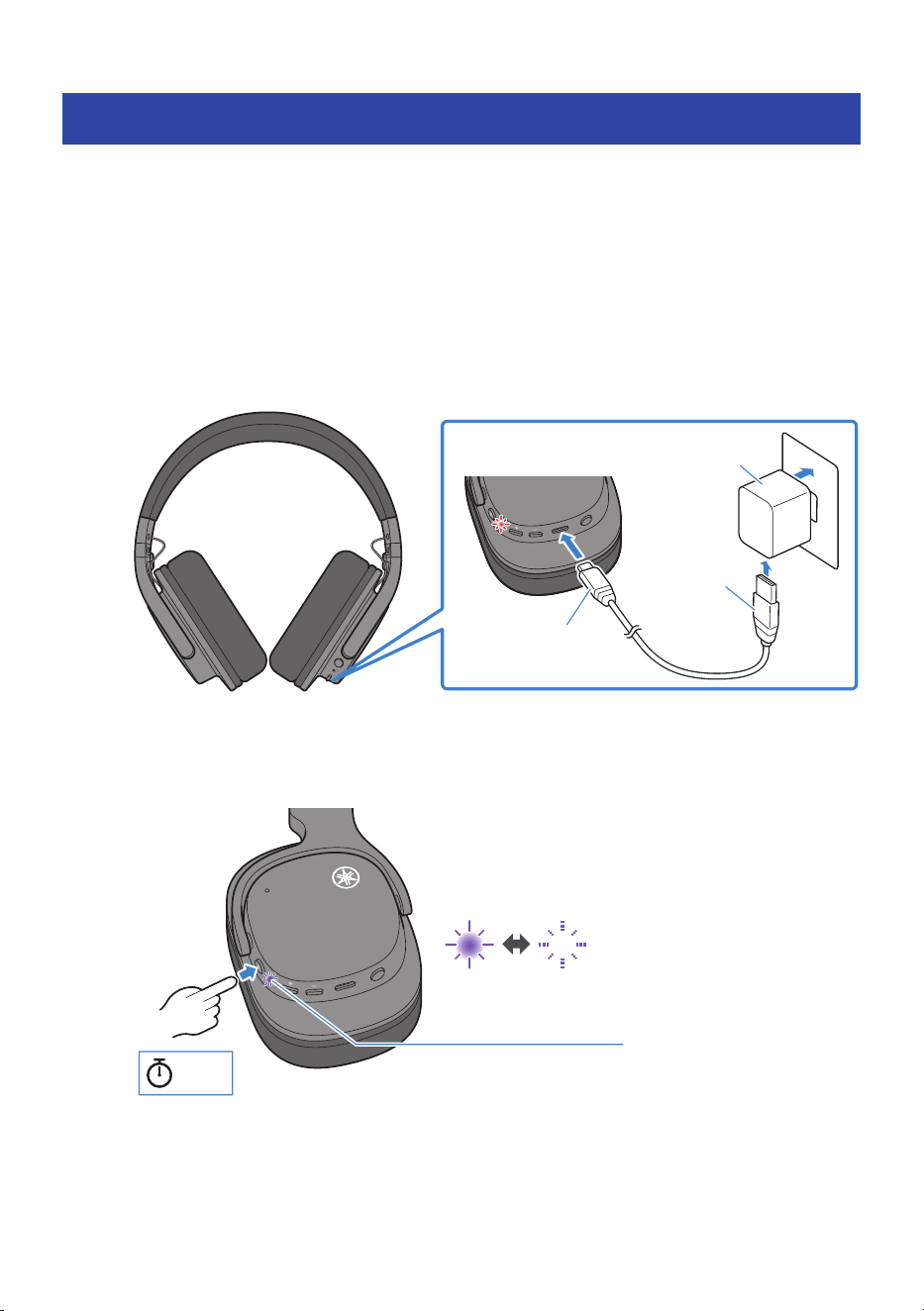
Initializing (performing a factory reset)
Follow the steps below to initialize (perform a factory reset on) this product.
Initializing (performing a factory reset)
This will restore all settings of this product to their factory defaults. The information for devices registered
(paired) will be deleted.
1 Charge this product.
The indicator lights up red.
2
3
1
R
L
R
Type C
Type A
USB power adaptor
(commercially available)
2 Once this product has charged, hold down the power button for about 10 seconds.
Make sure that the indicator lights up as shown below.
R
Flashes
purple twice
About
10 sec
The headphones are now initialized (factory reset).
44
Troubleshooting > Initializing (performing a factory reset)


Updating the firmware
Update the firmware on this product with the Headphone Control app.
The firmware on this product can be updated to add new functionality, rectify product issues and so on. For
more details on the contents of updates, see the product information page on the Yamaha website.
NOTICE
(
For stable data communication between this product and your Bluetooth device, update the firmware in a place where the
signal is good. Do not do the following while the firmware is being updated.
(
Turning this product off
(
Closing the Headphone Control app, or using another app
(
Turning your smartphone off
(
Canceling the connection between your smartphone and this product
(
Disconnect all Bluetooth devices except for the one for which the firmware is to be updated.
1 On the main screen of the Headphone Control app, open the menu.
2 Tap “Check for firmware update”.
If new firmware has been released, you will see instructions on how to perform the update.
Install the firmware by following the instructions on the screen.
Related links
“About the “Headphone Control” app”(p.33)
46
Troubleshooting > Updating the firmware

List of support centers
If the trouble still cannot be solved, please contact us for product support as shown below.
For customers within Japan
(
Please contact the store where you purchased this product, or the Product Support Center as listed in the
“Safety Guide” included with this product.
For customers outside of Japan
(
Please contact your nearest authorized Yamaha dealer or service center.
https://manual.yamaha.com/audio/address_list/
47
Troubleshooting > List of support centers
List of Operations and Indications
List of operations
The main operations of this product are as shown below.
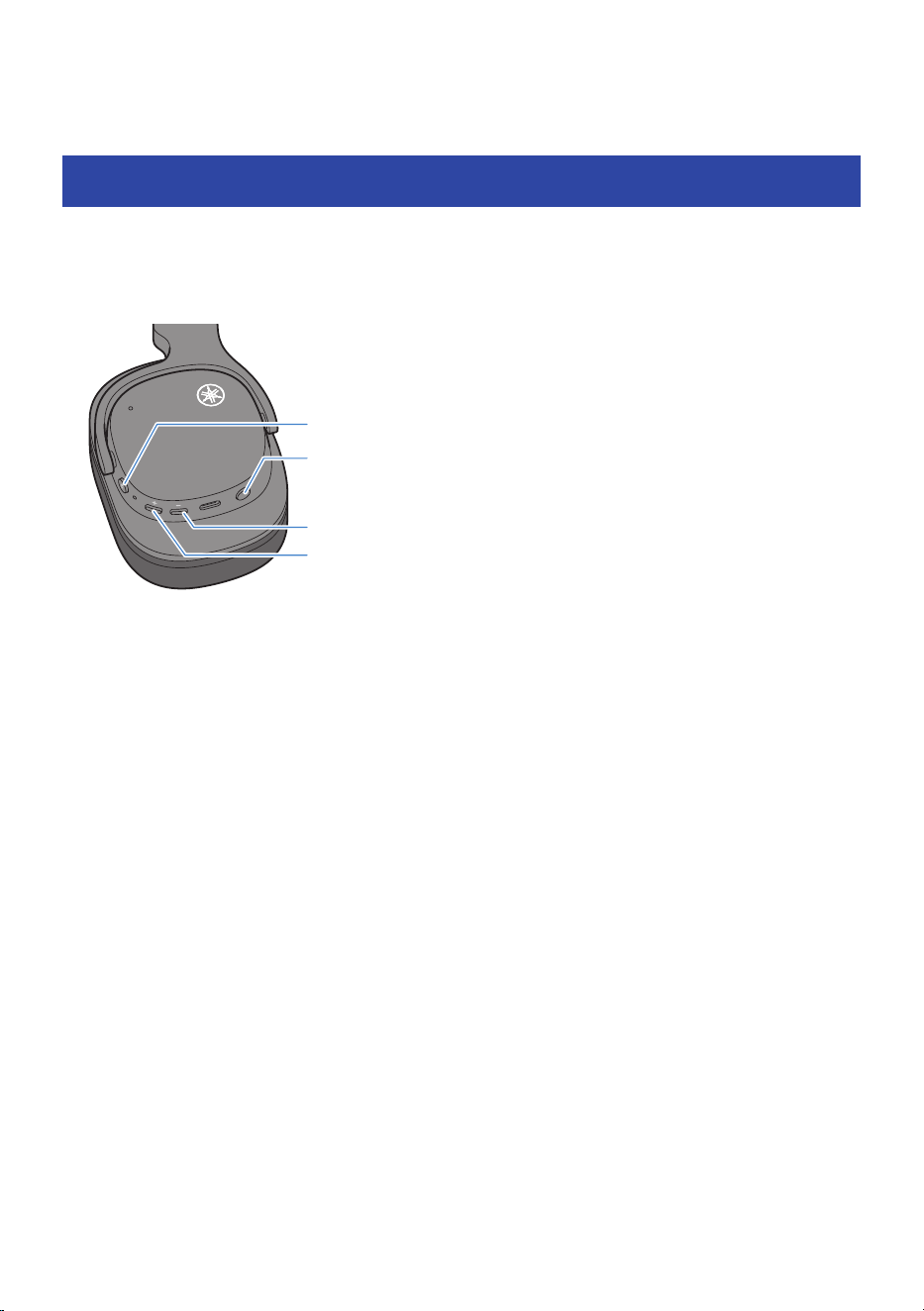
Buttons used for operating this product
R
Power button
Multi-function button
Minus (−) button
Plus (+) button
Power
Power on
(
Hold down the power button for about three seconds.
Power off
(
Hold down the power button for about three seconds.
Volume controls (during audio playback, voice assistant operations and when making a
phone call)
Volume up
Press the + (plus) button once.
Volume down
Press the − (minus) button once.
Operations during audio playback
Pause/play
Press the power button once.
Skip to the next track
Hold down the + (plus) button for about one second.
Go back to the beginning of the song, or skip to the previous song
Hold down the − (minus) button for about one second.
48
List of Operations and Indications > List of operations

The operation may differ, depending on the Bluetooth device or app you use.
Selecting the modes
Switch the Sound Field between Cinema/Music/OFF settings
Press the multi-function button once.
Gaming mode ON/OFF
Press the multi-function button twice.
Operations while on a phone call
Receive a phone call
Press the power button once when a call is coming in.
End a phone call
Hold down the power button for about one second during the phone call.
Stop an outgoing phone call
Hold down the power button for about one second while the call is being made.
Ignore an incoming phone call
Hold down the power button for about one second when a call is coming in.
Other operations
Start pairing
Hold down the power button for about five seconds while the power is off.
Turn the voice assistant on
Press the power button twice.
Turn the voice assistant off (Siri only)
Press the power button twice.
Related links
(
“Turning on the power”(p.12)
(
“Turning off the power”(p.13)
(
“Pairing and connecting with a different device”(p.20)
(
“Multipoint connection (connecting to two devices at the same time)”(p.24)
(
“Operations during audio playback”(p.29)
(
“Talking on the phone”(p.31)
(
“Starting the voice assistant”(p.32)
49
List of Operations and Indications > List of operations
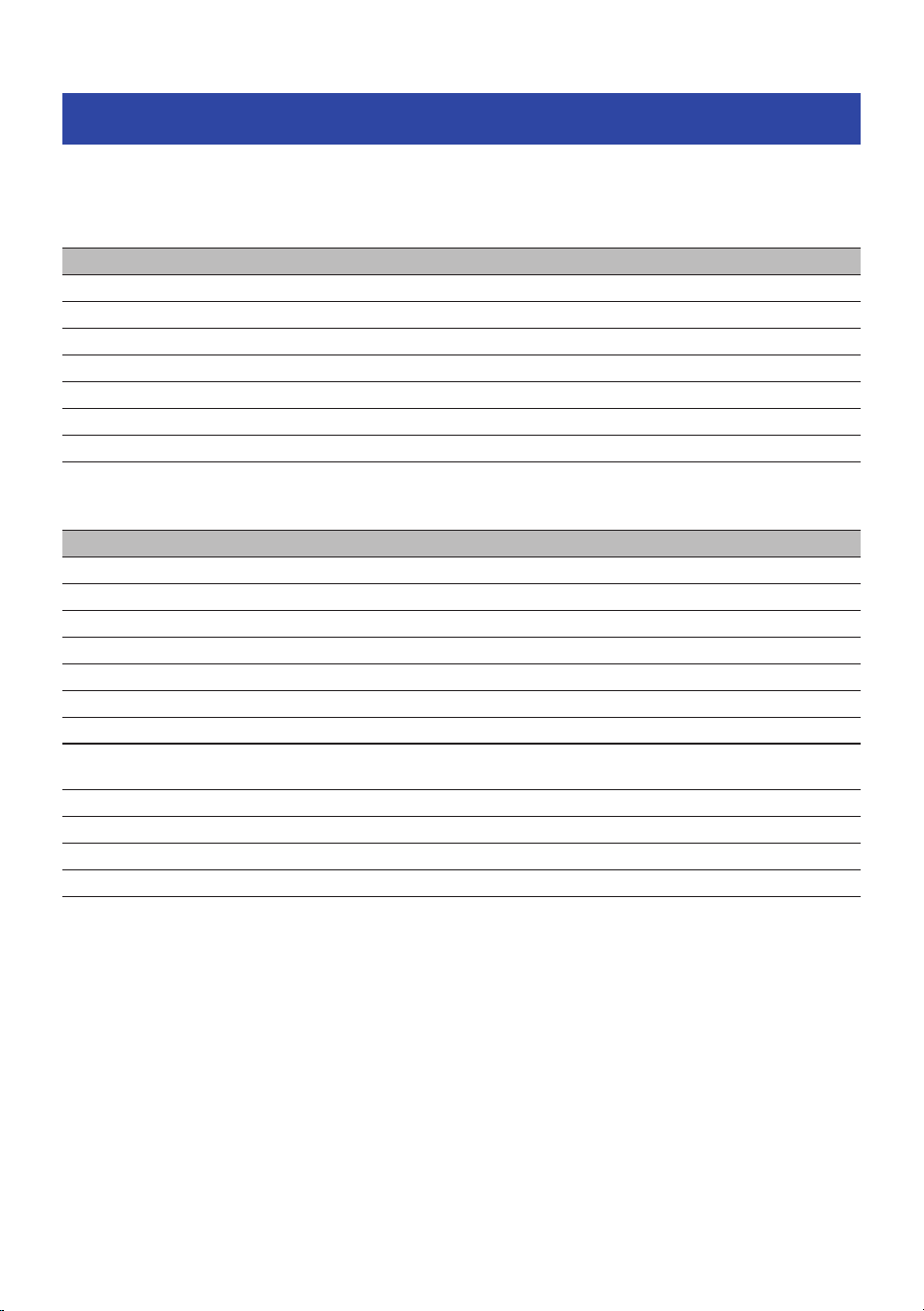
List of indicator displays and audio messages
The indicator displays and audio messages on this product are shown below.
Indicator display
Status Indication
Power on Lights up for about one second (blue) and goes dark
Power off Lights up for about one second (red) and goes dark
Standby mode for pairing with Bluetooth device Flashes (between red and blue alternately)
Searching for paired Bluetooth device Flashes (blue)
Finished connecting to Bluetooth device Lights up (blue, for approx. 5 sec) and goes dark
Charging Lights up (red)
Charging completed Goes dark
Audio messages
Status Indication
Battery High Plenty of battery charge remaining
Battery Medium Moderate battery charge remaining
Battery Low Small amount of battery charge remaining
Pairing Start pairing (device registration)
Pairing Failed Pairing unsuccessful
Connected Finished connecting to Bluetooth device
Disconnected Disconnected from Bluetooth device
Off
Either Sound Field Cinema or Music disabled (normal
playback mode)
Cinema Sound Field Cinema enabled
Music Sound Field Music enabled
Gaming On Gaming Mode enabled
Gaming Off Gaming Mode disabled
Related links
(
“Charging the headphones”(p.11)
(
“Turning on the power”(p.12)
(
“Turning off the power”(p.13)
(
“Remaining battery power”(p.14)
(
“Pairing and connecting for the first time”(p.15)
(
“Pairing and connecting with a different device”(p.20)
(
“Multipoint connection (connecting to two devices at the same time)”(p.24)
50
List of Operations and Indications > List of indicator displays and audio messages

Appendix
Specifications
The specifications of this product are as shown below.
(
Driver type
Over-ear
(
Driver unit
40 mm
(
Playback frequency range
20 Hz–20,000 Hz
(
Bluetooth version
5.4
(
Supported profiles
A2DP, AVRCP, HFP
(
Supported codecs
SBC, AAC, Qualcomm® aptX™ Adaptive, LC3 (only when making a phone call)
(
Supported content protection
SCMS-T
(
RF output power
Class 1
(
Maximum communication range
10 m (without obstructions)
(
Maximum number of pairable devices
7
(
Analog input jack
φ3.5 mm stereo mini jack
Microphone for phone calls
(
Driver type
MEMS
(
Directivity
Omnidirectional
(
Frequency range
100 Hz–10,000 Hz
51
Appendix > Specifications

Rechargeable battery
(
Internal rechargeable battery
Lithium-ion battery
(
Charging time (to full capacity)
Approx. 2 hour
(
Continuous playback time
Approx. 20 hours maximum
(
Continuous playback time after 10 minutes of charging
Approx. 2 hours maximum
(
Temperature range for usage (when charging)
5–40 °C
Charge this product within the listed temperature range.
General
(
Weight
265 g (9.35 oz)
* The contents of this User Guide apply to the latest specifications as of the publishing date. For the latest version of the
User Guide, refer to the Yamaha website.
52
Appendix > Specifications

Optional accessories (sold separately)
The following optional products are also available for purchase to use with this product.
(
HEP-L50 Headphone Earpads
53
Appendix > Optional accessories (sold separately)
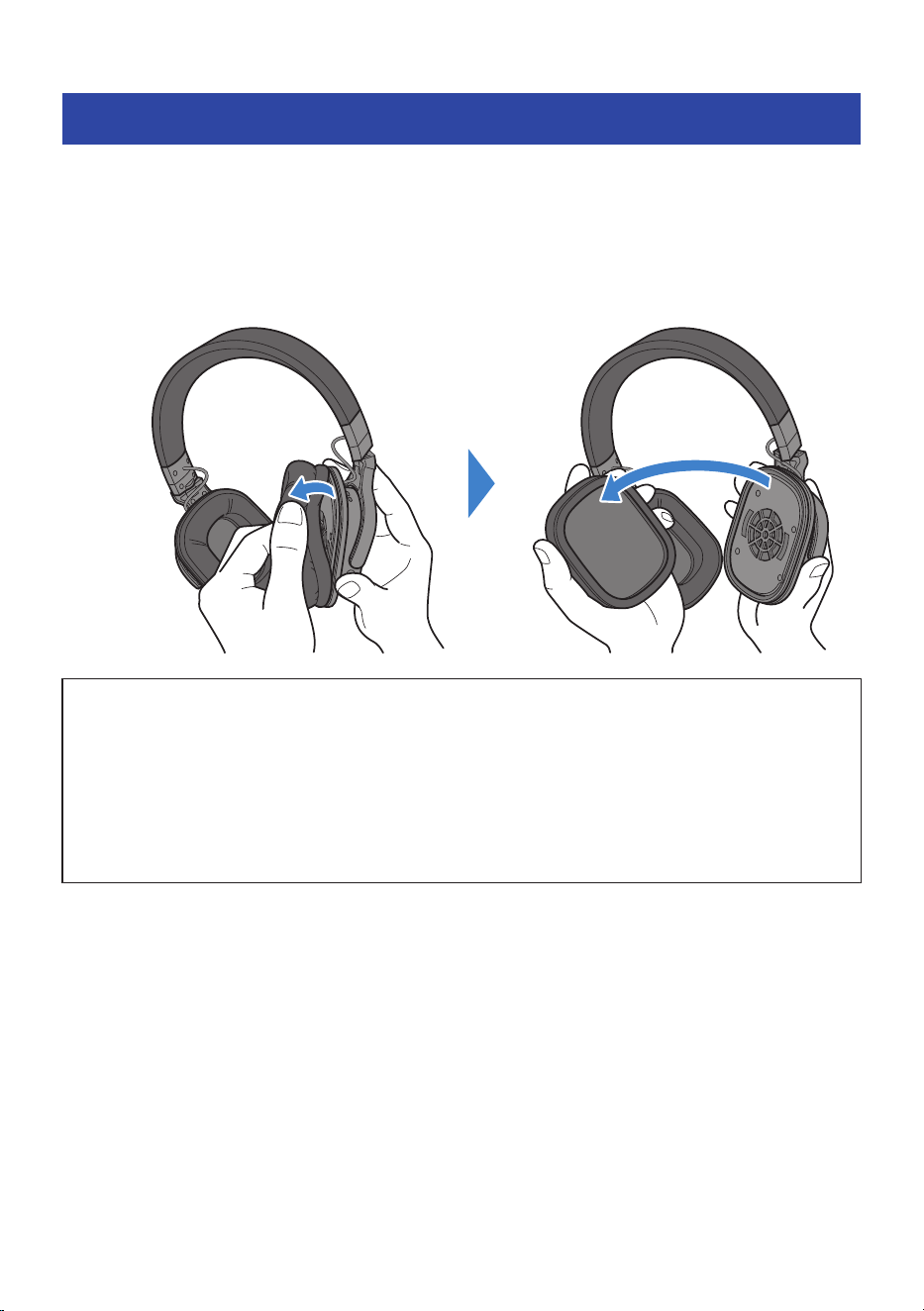
Replacing the earpads
Follow these steps to replace the earpads.
1 Pull on the earpad while lightly gripping it to remove it from the headphones.
Since the earpads are attached to the headphones by simply fitting into the grooves, they can
be easily removed.
NOTICE
(
If you pull too much on only one part of the earpads, the surface of the earpads may tear.
(
When removing the earpads, do not forcibly insert any sharp or hard objects or the like between the earpads and the
headphones. Doing so may scratch or damage the earpads and headphones.
(
When replacing the earpads, do not apply too much force to the interior part of the headphones (the driver unit), or expose it to
impact. This may damage the product.
(
The center of each driver unit contains a strong magnet. Be careful not to insert any paper clips, screws or other metallic
objects into this area. This action may cause a malfunction.
(
Be careful not to get any dust or other foreign matter inside the headphones, This action may cause a malfunction.
54
Appendix > Replacing the earpads
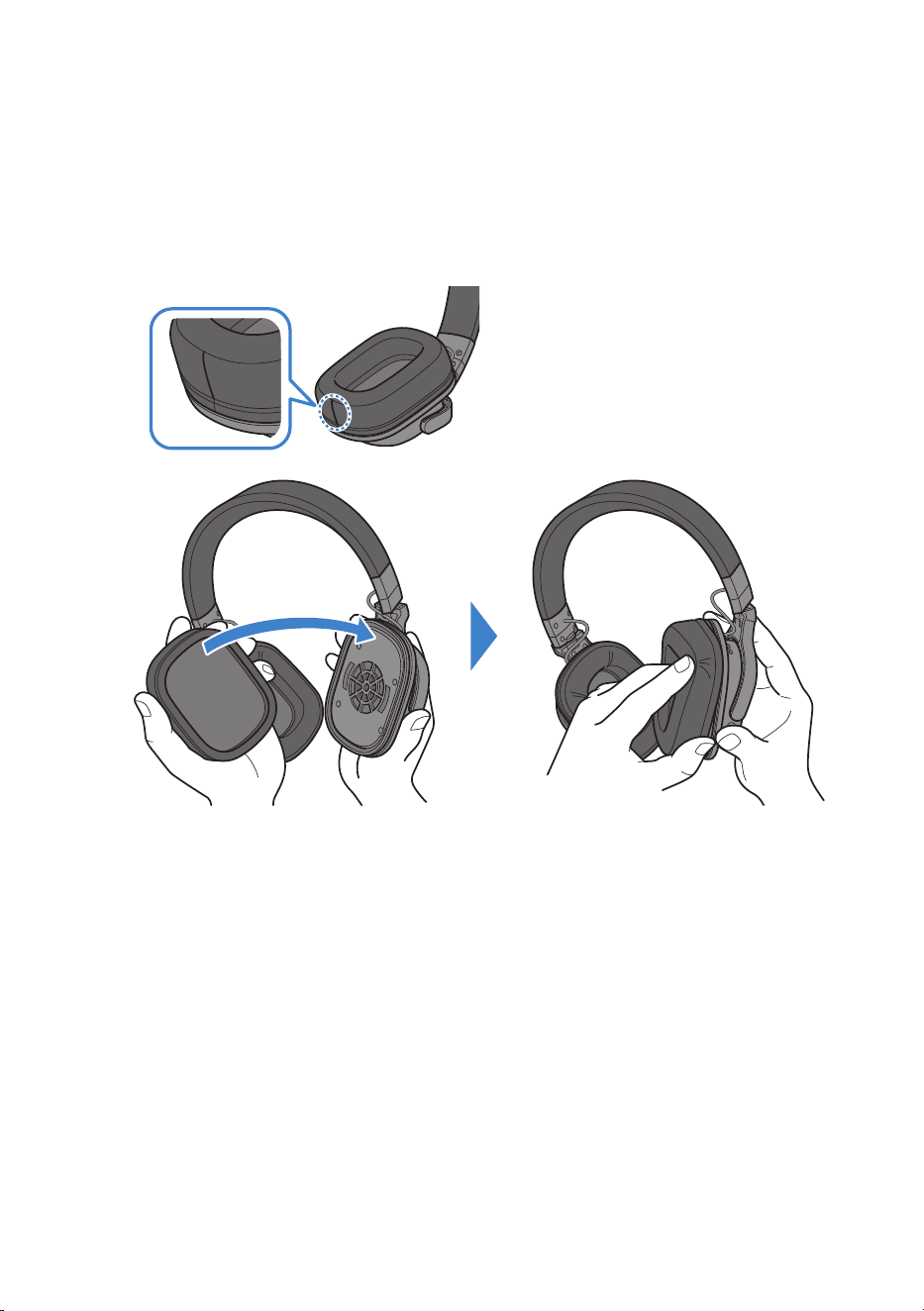
2 Insert the rim of the earpad you want to replace into the groove on the
headphones.
The L and R orientation of the earpads does not matter. The earpad that has stitching on the
side goes down.
It’s easier to do this when you use your fingers to insert the earpad while pressing down on the
part that’s already inserted into the groove.
55
Appendix > Replacing the earpads
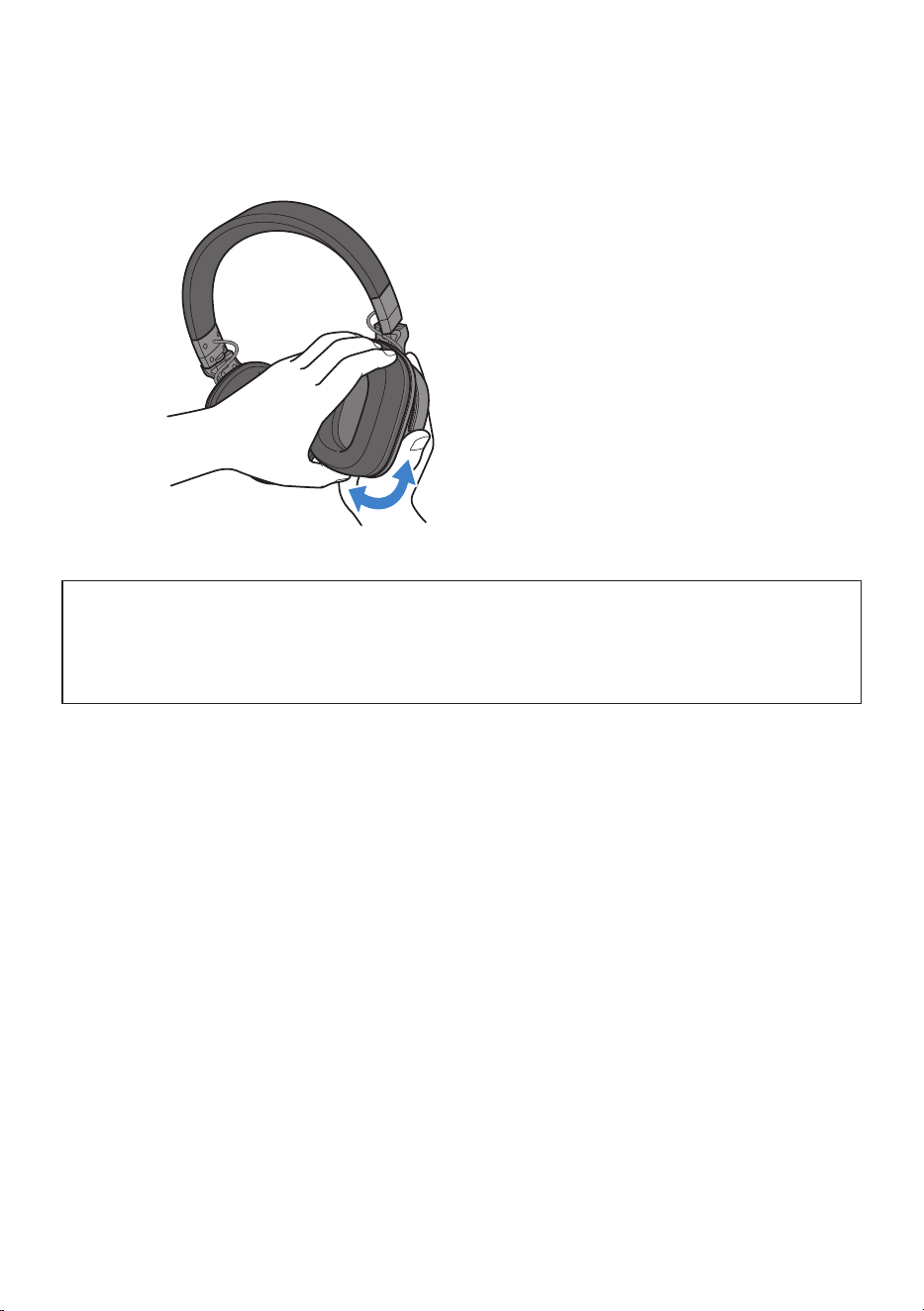
3 Once the rim of the earpad has been completely inserted into the groove on the
headphones, adjust the earpad by lightly pulling it from side to side, to make sure
it is in the right position.
Now you’re finished replacing the earpad.
NOTICE
(
When attaching the earpads onto the headphones, do not apply too much force to the interior part of the headphones (the
driver unit), or expose it to impact. This may damage the product.
(
After attaching the earpads, make sure that they don’t easily come off. The earpads might fall off or the sound quality may not
be as good if they are not firmly attached.
56
Appendix > Replacing the earpads

Trademarks and licenses
The trademarks used in this guide are as follows.
The Bluetooth® word mark and logos are registered trademarks owned by Bluetooth SIG, Inc. and any use of such marks by
Yamaha Corporation is under license. Other trademarks and trade names are those of their respective owners.
Qualcomm aptX is product of Qualcomm Technologies, Inc. and/or its subsidiaries.
Qualcomm is a trademark registered by Qualcomm Incorporated in the U.S.A. and other countries.
Android and Google Play
Android and Google Play are trademarks of Google LLC.
App Store
App Store is a service mark of Apple Inc., registered in the U.S. and other countries.
Siri
Siri is a trademark of Apple Inc., registered in the U.S. and other countries and regions.
License information
See the website below for information on the third-party software used by this product.
https://manual.yamaha.com/av/23/yhl500a/licenses.html
57
Appendix > Trademarks and licenses

Yamaha Global Site
https://www.yamaha.com/
Yamaha Downloads
https://download.yamaha.com/
© 2025 Yamaha Corporation
Published 03/2025 AM-A0
AV23-0093
Layout Folder: YMH_PDF_Manual_A5_AV
Stylesheet Name: 01_YMH_PDF_Manual_A5_AV_En-Multi
Stylesheet Version: 2022.12.12