Photo
Application
Guide
V1

2
Table of Contents
Printing with ImageBrowser .....................................................................................4
Basic Operation Procedure ......................................................................................7
What are Canon Utilities? ......................................................................................12
Starting ImageBrowser ...........................................................................................13
Using ImageBrowser .............................................................................................15
Using the Browser window .....................................................................................16
Changing the Appearance of the Browser area .....................................................19
Organizing Images .................................................................................................22
Editing Image Using Image Viewer ........................................................................26
Slide show ..............................................................................................................30
Time Tunnel ...........................................................................................................36
Adding Sound to Image ..........................................................................................37
Creating Image Files Attached to E-mail ................................................................40
Creating Panoramic Photo Using PhotoStitch ........................................................44
Opening Image Selected in the Browser Area from Other Applications .................46
Importing Images ...................................................................................................48
Importing images with the Automation wizard ........................................................49
Importing images using the Camera window .........................................................55
Using the Camera window .....................................................................................58
Setting up your Canon digital camera ....................................................................66
Table of Contents

3
Table of Contents
Printing ..................................................................................................................69
Custom layout printing ............................................................................................70
Fixed photo size printing ........................................................................................84
Tiled photo printing (Borderless printing) ...............................................................89
Canon perforated paper printing ............................................................................95
About Canon perforated paper .............................................................................102
Starting printing ....................................................................................................103
Index printing ........................................................................................................107
Page Artwork .......................................................................................................115
Editing the layout format .......................................................................................116
Inserting text .........................................................................................................125
Cropping an image ...............................................................................................130
How to Use Online Help ......................................................................................133
Index ....................................................................................................................134
4
Printing with ImageBrowser
Printing with ImageBrowser
ImageBrowser enables you to import image data captured with digital cameras or scanners into a
computer and produce photo-quality printouts in a quick and easy fashion. Using ImageBrowser
with a Canon BJ printer and a scanner or digital camera, you can enjoy superb-quality photo prints.
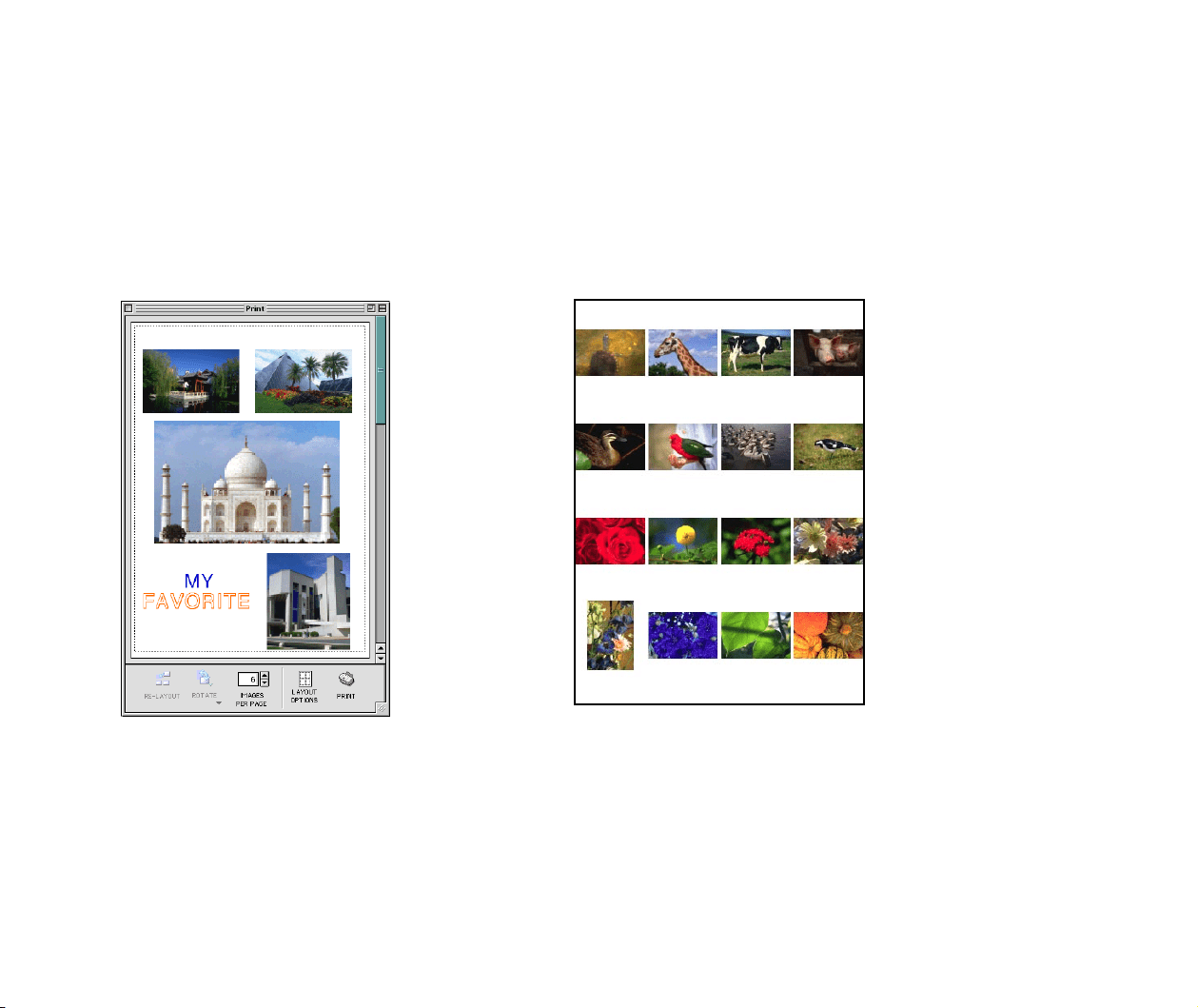
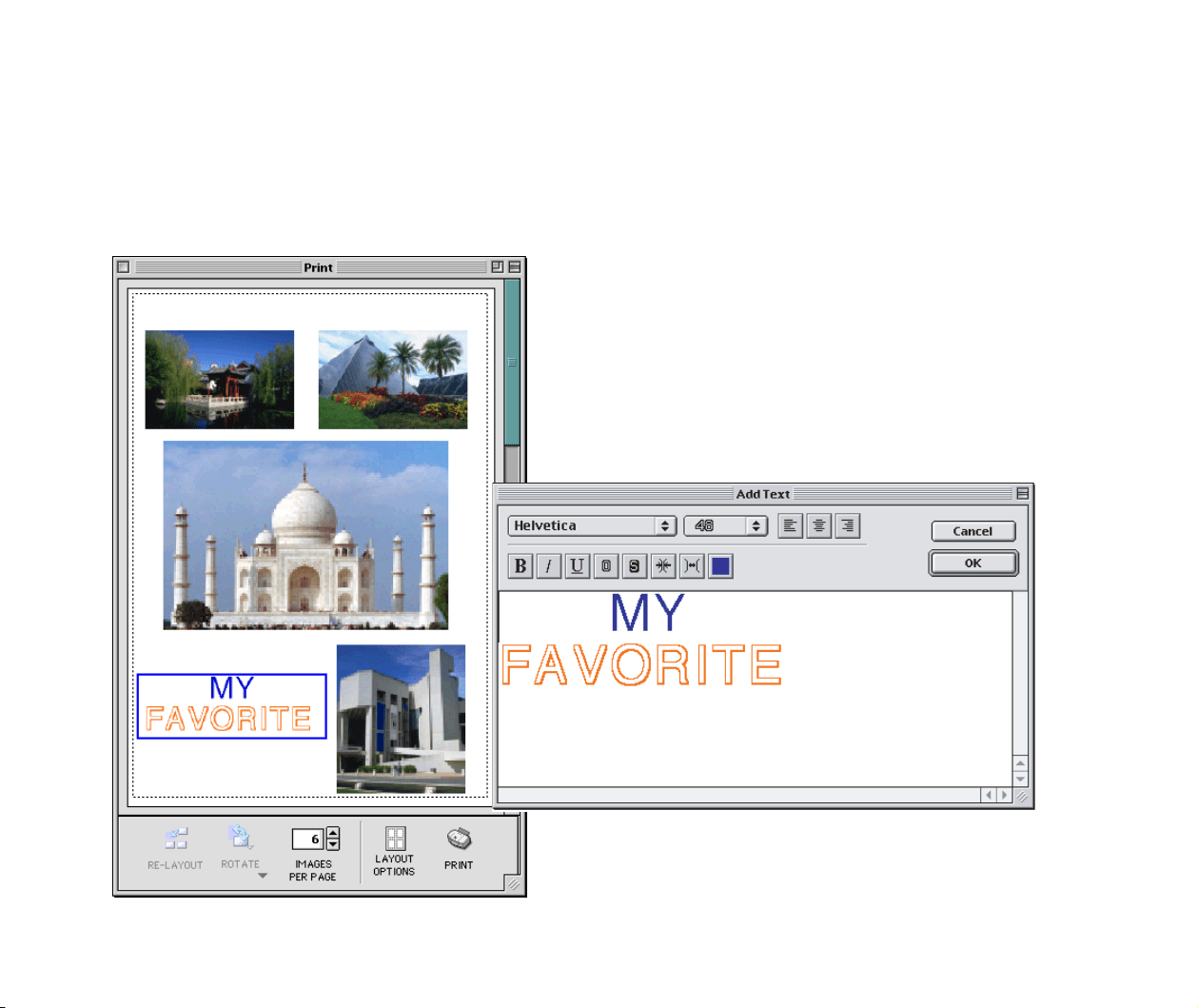
Custom layout printing
You can quickly reorganize the selected images.
The trimming and text insertion tasks are also
easy.
Index printing
You can print a photo index that contains thumbnails
automatically arranged in a suitable layout for the selected
thumbnail size (large, medium, or small).
5
Printing with ImageBrowser
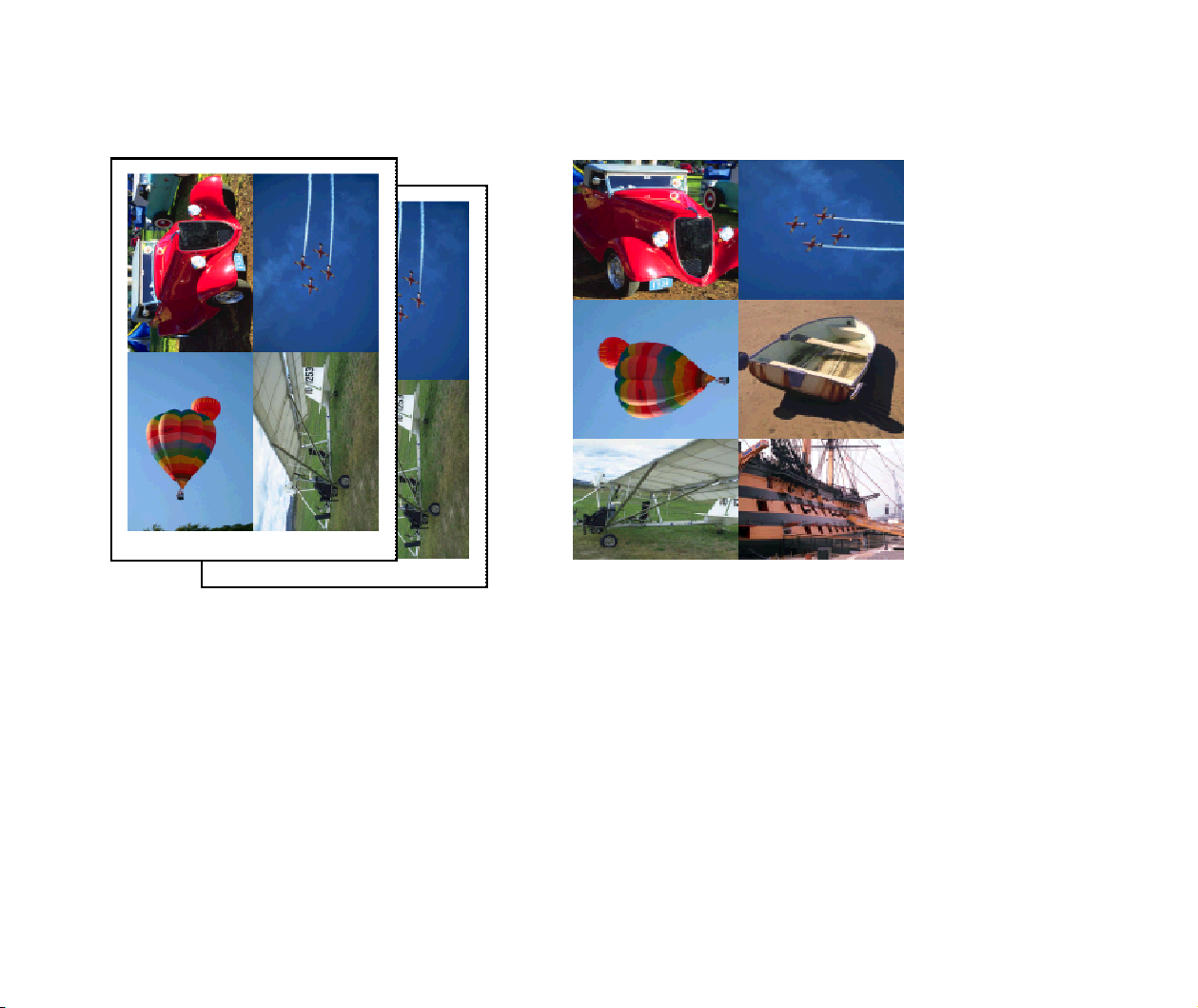
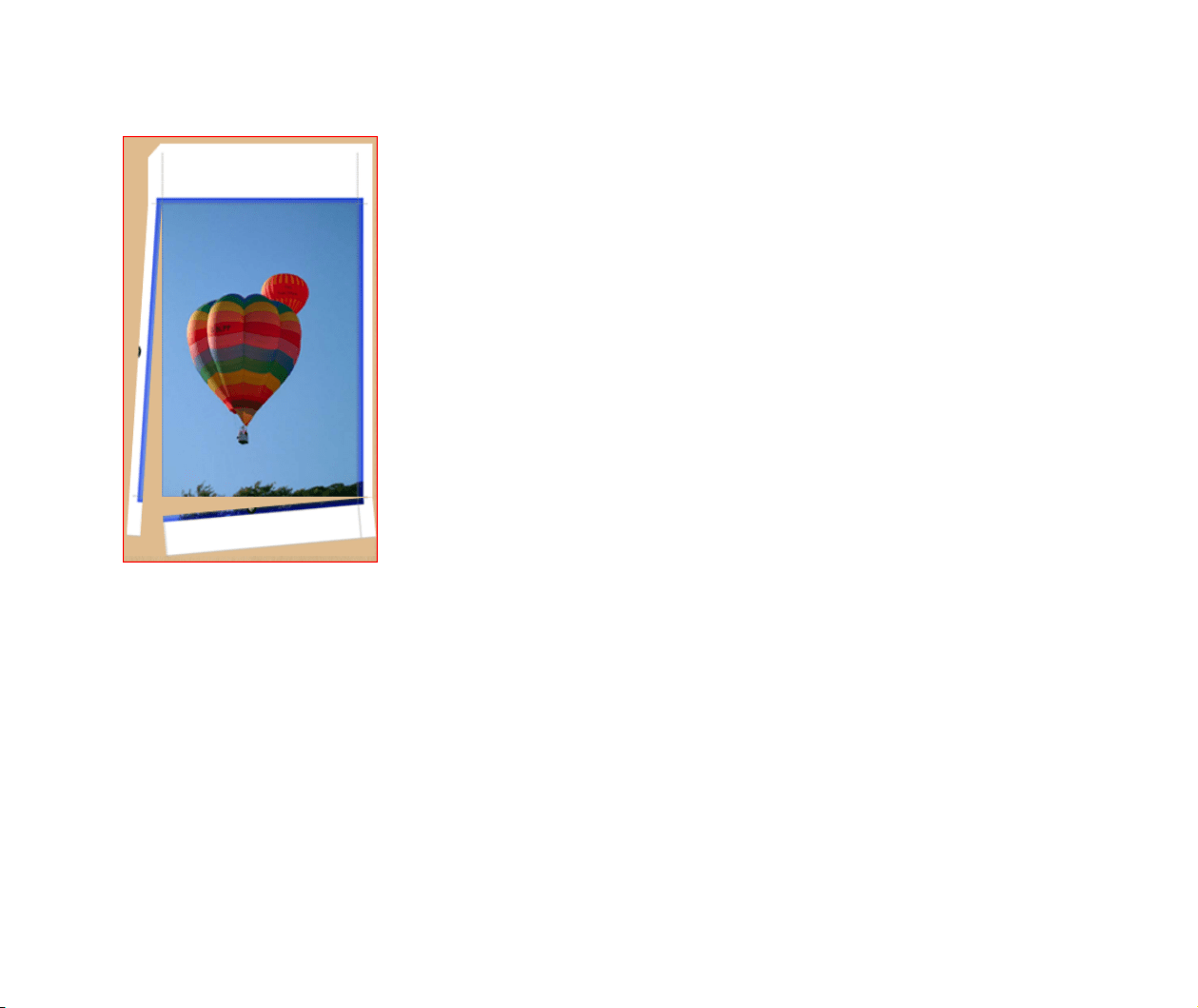
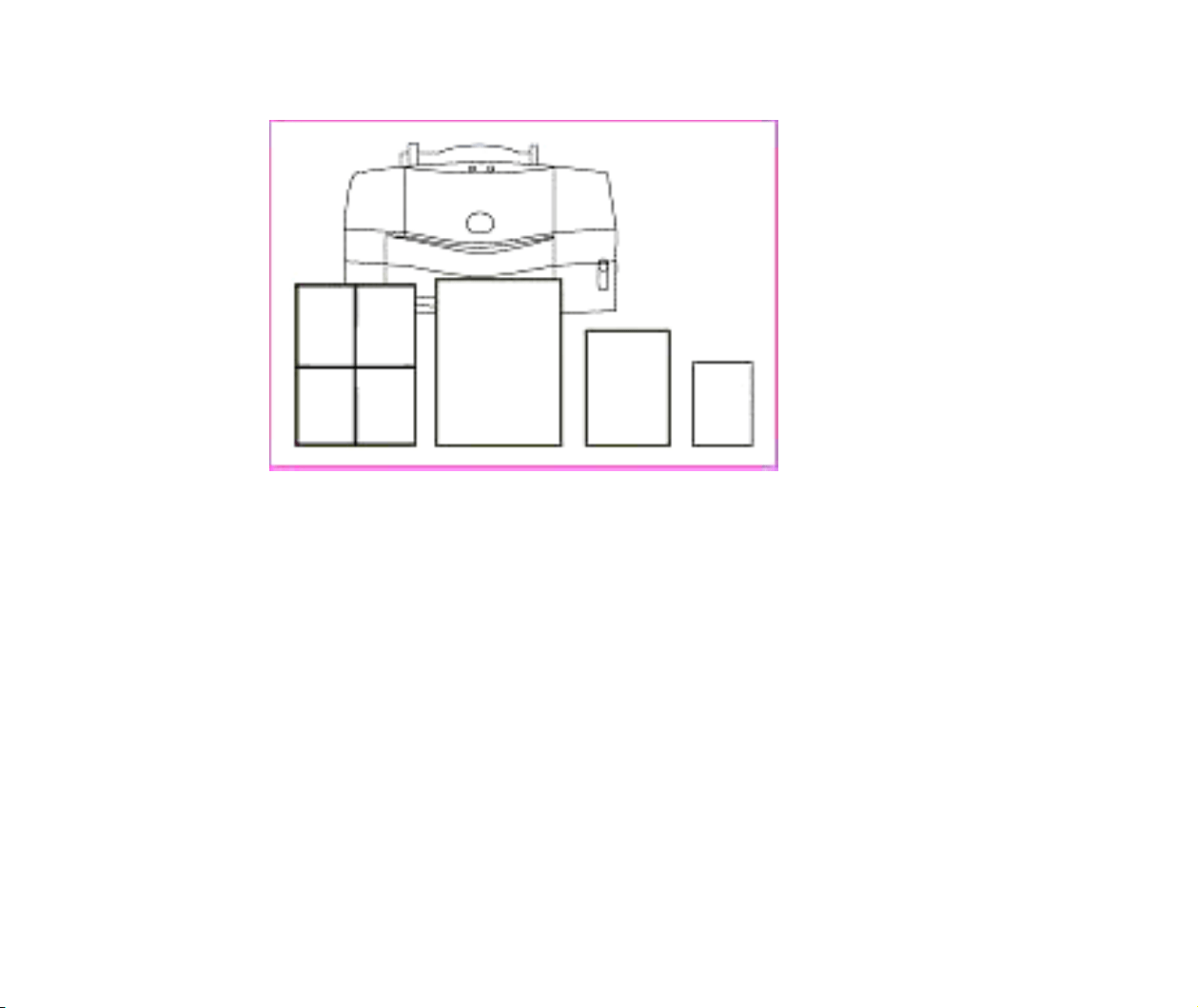
Fixed photo size printing
Tiled photo printing (Borderless printing)
You can print images with no margins around each
image, so that a single image is printed borderless along
the paper edges and multiple images are arranged like
tiles with no space between them (available with BJ
printers that support the borderless printing feature).
You can print images in the specified photo size.

12
What are Canon Utilities?
Canon Utilities are application softwares included in the “BJ Solution Disk” or
“Setup&User’s Guide” in the CD-ROM, which is supplied with Canon BJ series printers. These
utilities enable you to display, save (import) to hard disk, edit, print the images captured by digital
cameras or scanners.
• Image Browser
ImageBrowser allows you to display a list of thumbnails (images stored in the internal memory
card), import them to your computer, and print them in photo-quality using the BJ printer. With
ImageBrowser, you can easily display, edit, and manage images stored in your computer’s hard disk
as well.
• PhotoStitch
PhotoStitch is an utility program for image merging and allows you to quickly create panoramic
photos by merging multiple images captured with your digital camera.
With PhotoStitch, you can merge any number of images vertically or horizontally, producing unique
posters or other photo-prints.The wide-mode merging feature is also useful when you want to create
a wide panoramic photo of a building or straight-lined object with straight lines as natural as the
original.
Starting ImageBrowser
13
Starting ImageBrowser
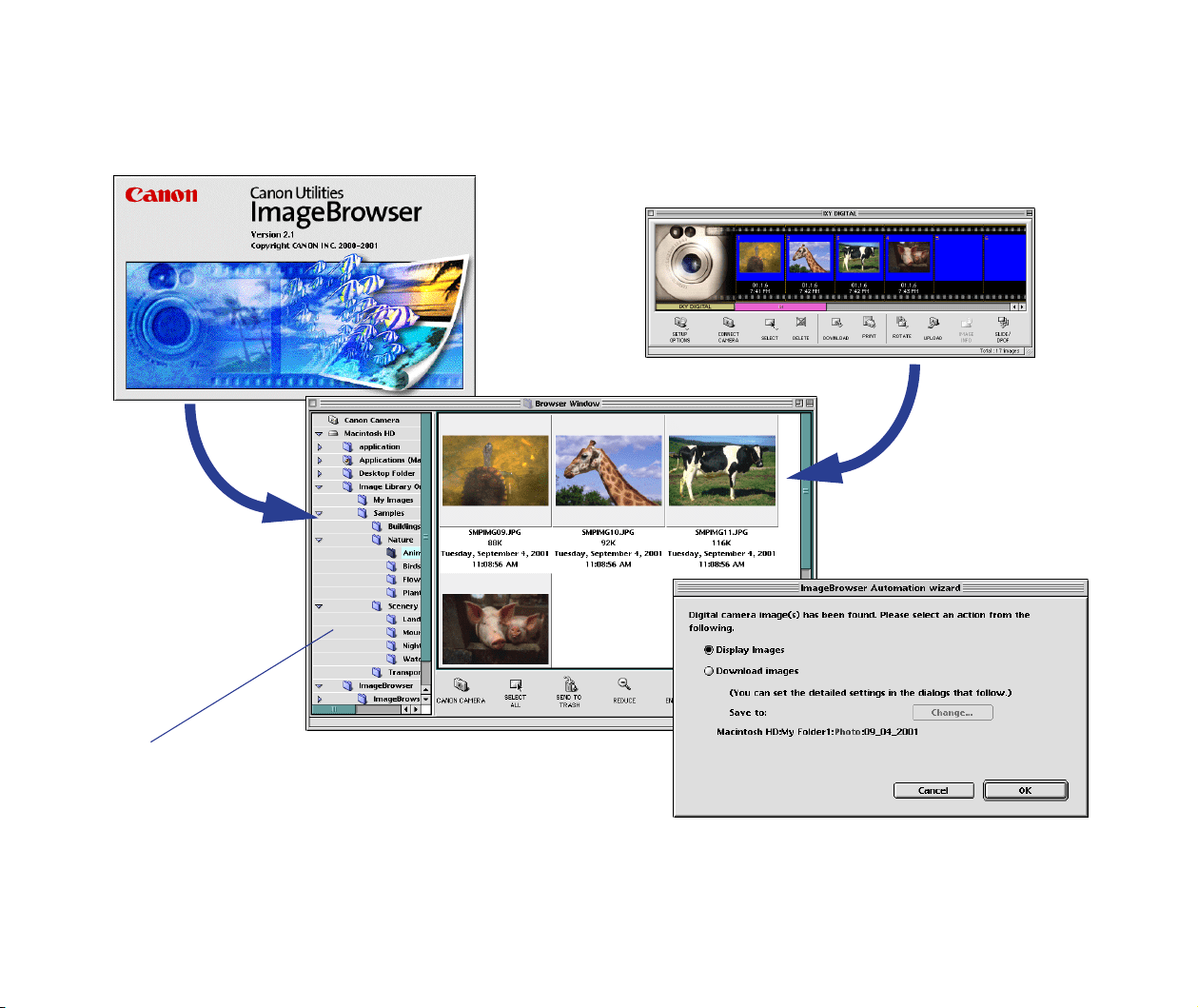
ImageBrowser automatically starts through its automatic execution feature. You can also start
ImageBrowser by double-clicking its icon in the same way as you would for other applications.
ImageBrowser supports the following image file types:
Automatic execution by the Automation wizard
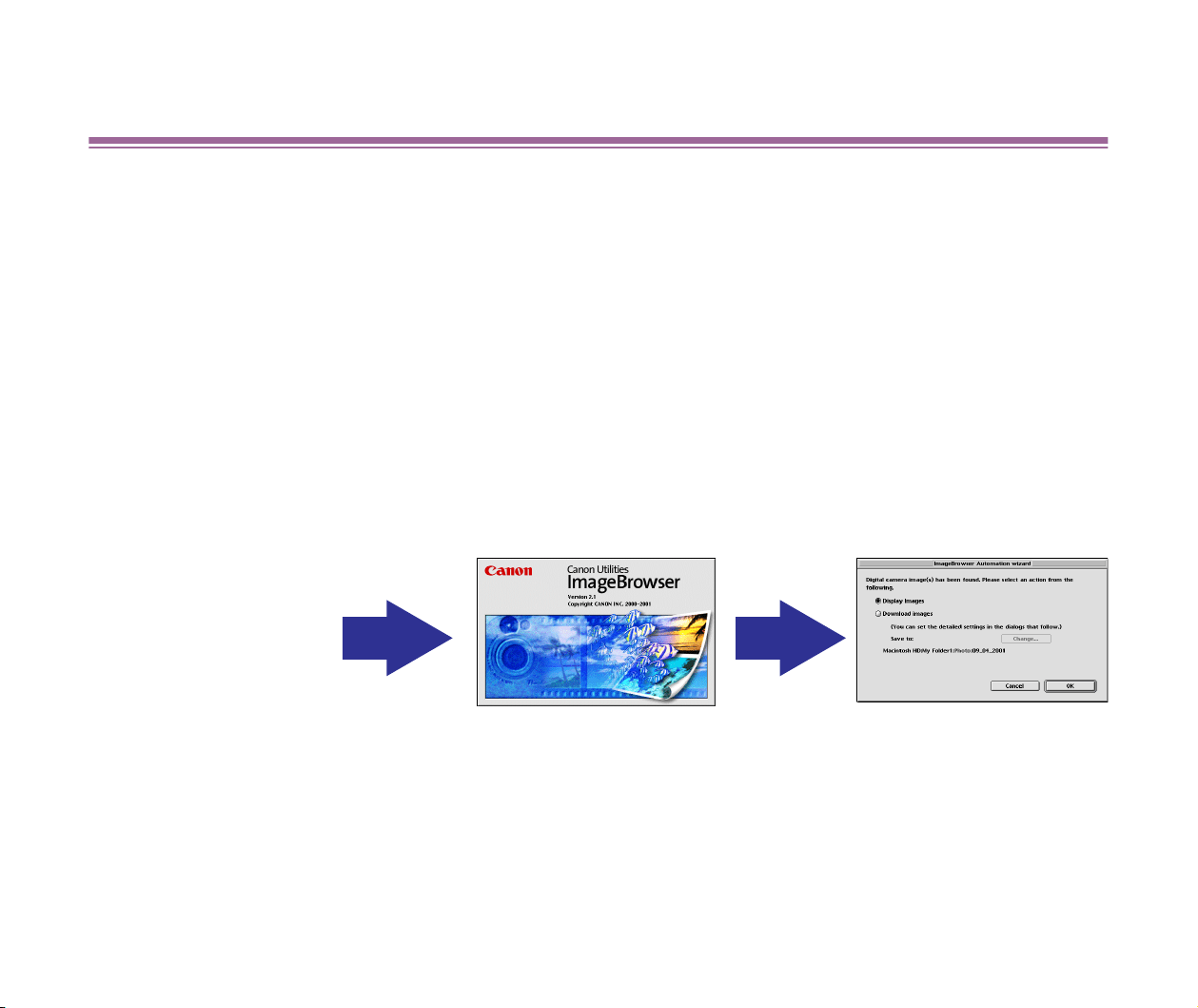
ImageBrowser automatically starts when it detects a digital camera connected to your computer. At
the same time, the Automation wizard starts.
Note
➤
The Canon ImageBrowser Auto Launch control panel allows you to specify whether
ImageBrowser automatically starts or not when the digital camera is detected.
When this option is not selected, ImageBrowser will not automatically launch even
if the digital camera is detected.
Joint Photographic Experts Group (JPEG) CIFF
Tagged Image File Format (TIFF) PICT
EXIF Windows Bitmap (BMP)
The digital camera is
detected.
Importing images with the Automation wizard
Starting ImageBrowser
14
Starting ImageBrowser manually
As with other applications, ImageBrowser can be started by double-clicking its icon.
When you install ImageBrowser onto you computer, you can select the option to create the Canon
ImageBrowser icon (alias) on the desktop.
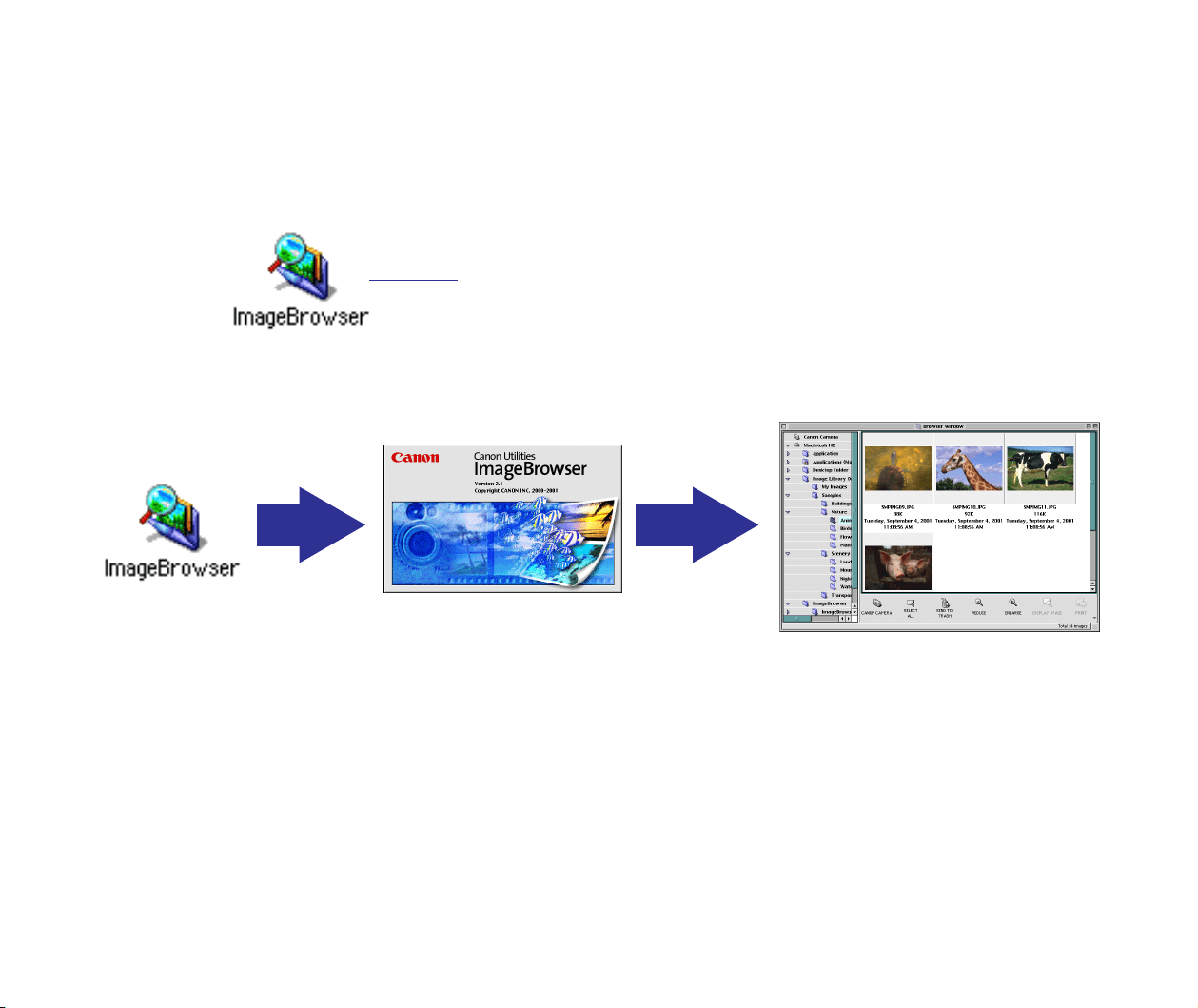
Double-clicking the Canon ImageBrowser icon (alias) on the desktop will start ImageBrowser, and
the initial window is displayed as shown below. Then the Browser window appears.
When the Canon ImageBrowser alias icon is not displayed on the desktop, open the ImageBrowser
folder, in which the ImageBrowser program has been installed, and double-click the ImageBrowser
icon in the folder to launch.
Refer to Using the Browser window for more information on this window.
Canon ImageBrowser on the desktop

15
Using ImageBrowser
This section provides an overview of ImageBrowser and its functions.
• Using the Browser window
• Changing the Appearance of the Browser area
• Switching to the Preview Display
• Changing Display Options
• Organizing Images
• Deleting Image
• Updating Information in the Browser Area
• Editing Image Using Image Viewer
• Cropping Image
• Adjusting Image Colors
• Saving Image after Processing
• Slide show
• Time Tunnel
• Adding Sound to Image
• Creating Image Files Attached to E-mail
• Creating Panoramic Photo Using PhotoStitch
• Opening Image Selected in the Browser Area from Other Applications
Using the Browser window
16
Using the Browser window
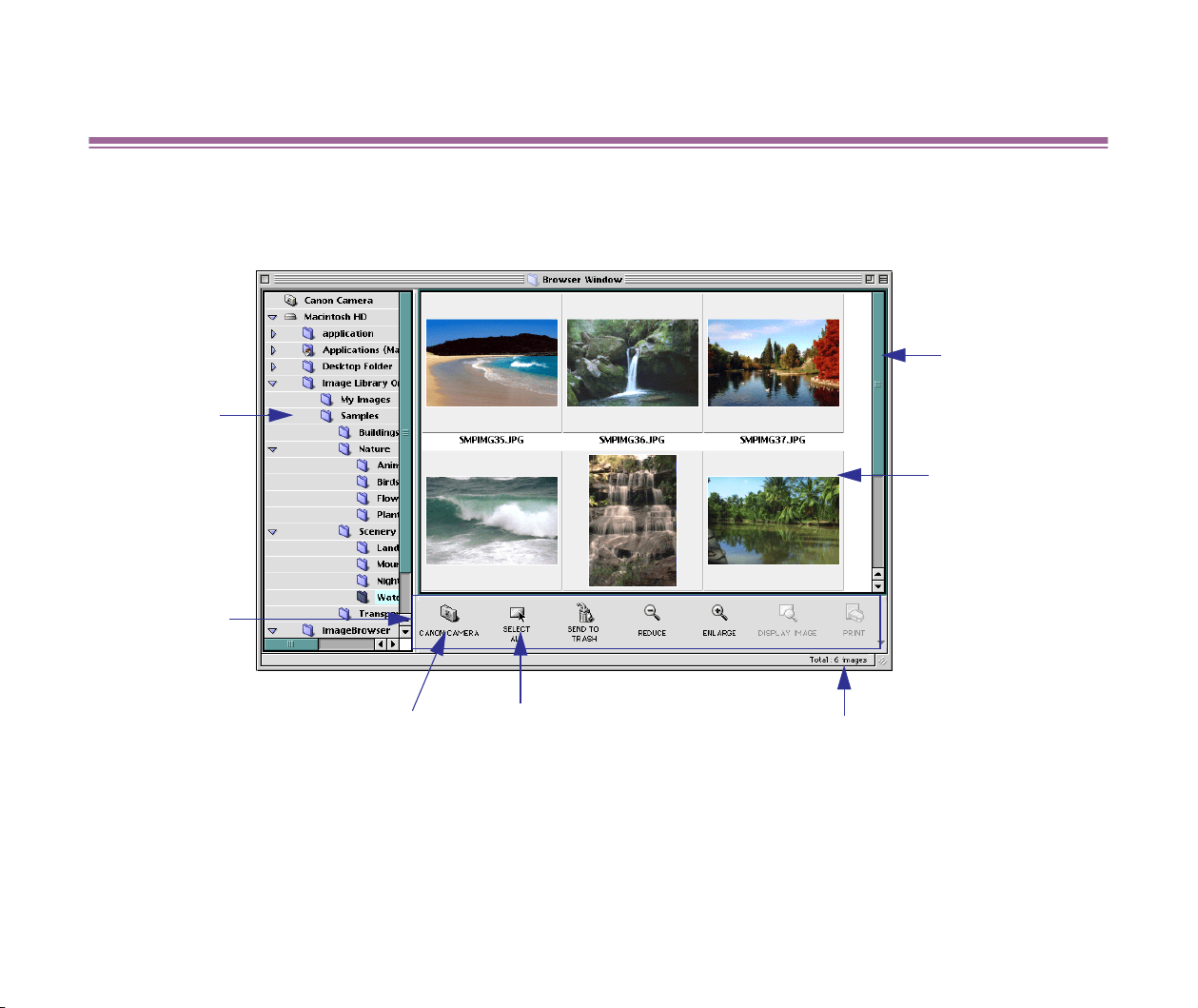
This section describes the names and functions of the areas and buttons in the Browser window,
the main window of ImageBrowser.
(1) Explorer
View
(2) Browser
area
(3) Control
panel
(4) CANON CAMERA
button
(6) The number of images
contained in the folder is
displayed.
(7) Thumbnails
(5) SELECT ALL
button

Using the Browser window
17
(1) Explorer View
This view presents the names of your hard drives and the folders contained in the hard drives.
When your Canon digital camera is connected, double-click the Canon camera icon to open
the Camera window, where the images stored in your digital camera are displayed.
(2) Browser area
The Browser area presents the images in thumbnail format contained in the folder currently
selected in the Explorer View.
The View menu allows you to change display settings such as the size of thumbnails, the
items displayed, and the display mode.
Refer to Changing the appearance of the Browser area.
(3) Control panel
This area contains several buttons to manipulate the images in the Browser window.
(4) CANON CAMERA button
Click this button to access your Canon digital camera connected to your computer, and
download the images in the camera to display in the Camera window.
Refer to Using the Camera window.
(5) SELECT ALL button
Clicking this button selects all images in the Browser area.
(6) The number of images contained in the folder is displayed.
(7) Thumbnails
Thumbnails are reduced images contained in the selected folder in the Explorer View. Click a
thumbnail to select its associated image.
To select multiple images, click each thumbnail while pressing the Shift key.
Using the Browser window
18
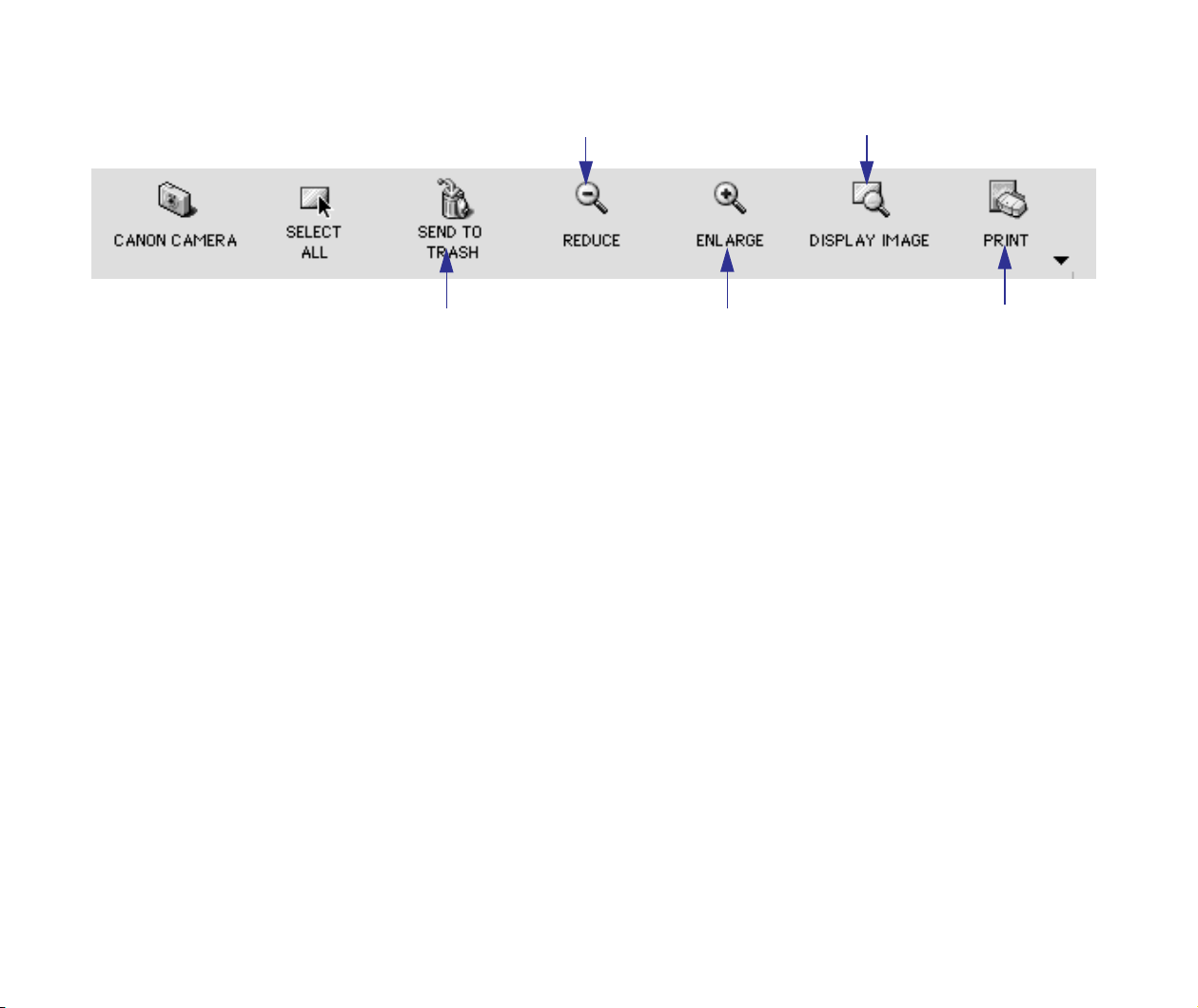
(1) SEND TO TRASH button
Click this button to delete the selected images (image files) in the Browser area.
(2) REDUCE button
Click this button to reduce the size of thumbnails displayed in the Browser area. You can also
use the Reduce and Enlarge commands in the View menu to change the size of thumbnails
displayed in the Browser area.
(3) ENLARGE button
Click this button to increase the size of thumbnails displayed in the Browser area. You can also
use the Reduce and Enlarge commands in the View menu to change the size of thumbnails
displayed in the Browser area.
(4) DISPLAY IMAGE button
Click this button to display the selected image (thumbnail) in the Image viewer.
Refer to Editing Image Using Image Viewer.
(5) PRINT button
Clicking this button opens the submenu from which you can select either the index printing or
layout printing. Refer to Printing.
(1) SEND TO TRASH button
(2) REDUCE button
(3) ENLARGE button
(4) DISPLAY IMAGE button
(5) PRINT
Changing the Appearance of the Browser area
19
Changing the Appearance of the Browser area
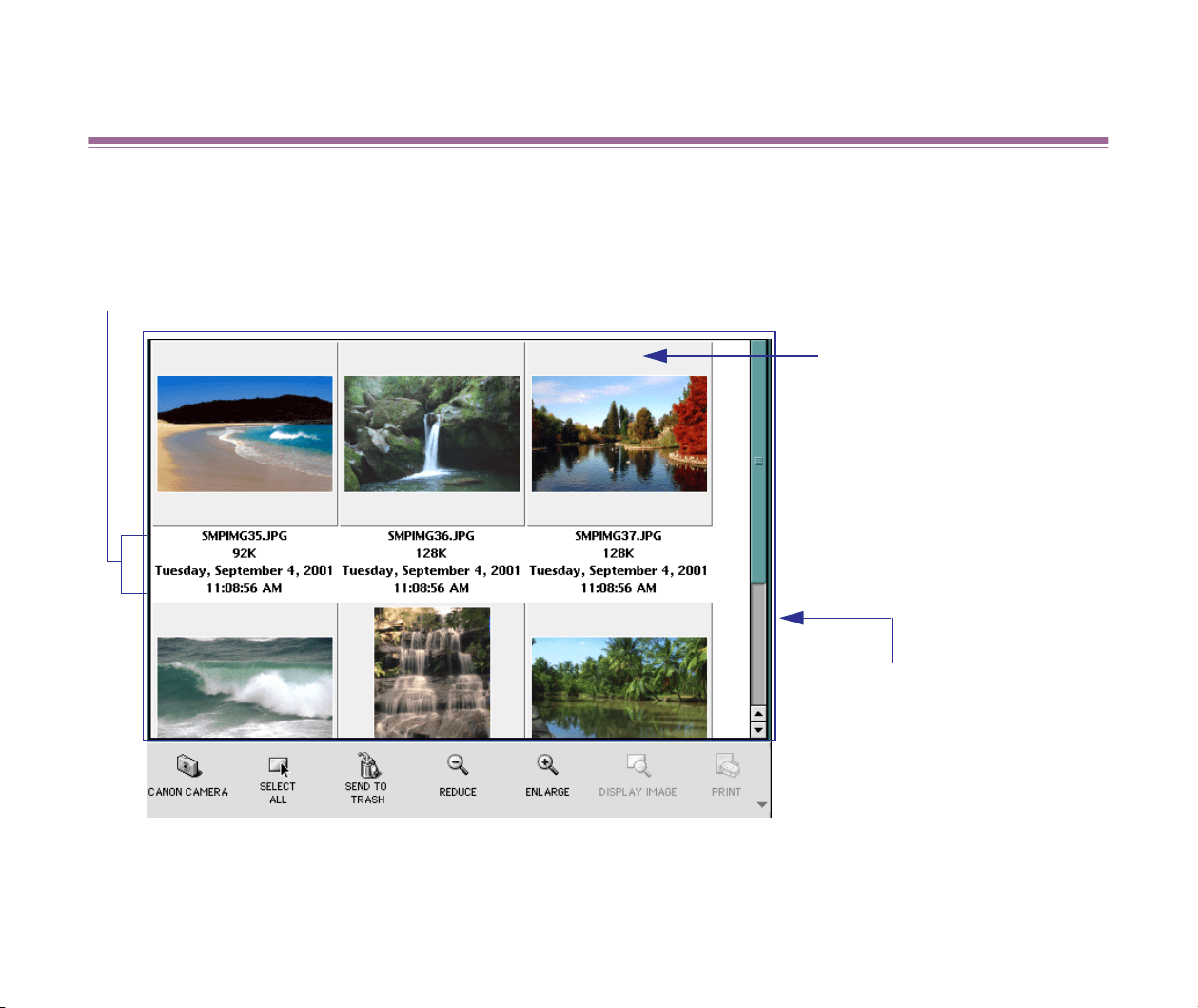
The Browser area of ImageBrowser presents the images and their associated information
contained in the selected folder in the Explorer View.
The information on the image appears.
The display format can be changed. Refer to Changing Display Options.
Browser area
The display format can be
changed.
Refer to Switching to the Preview
Display.
Thumbnail
The size can be changed.
Changing the Appearance of the Browser area
20
Switching to the Preview Display
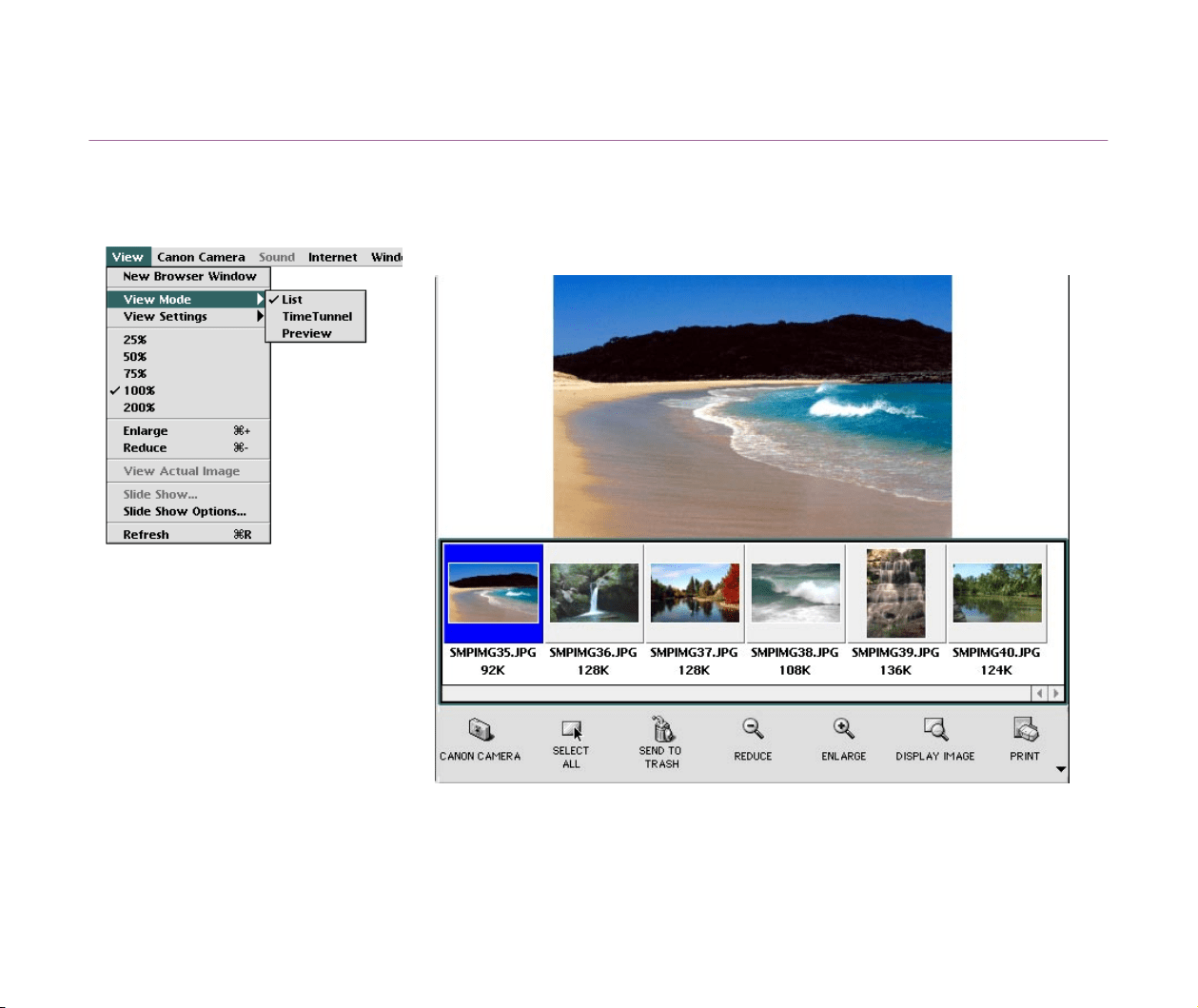
The selected image can be previewed. In this mode, the image is sized and displayed so that it fits
in the Browser area.
Select the
View Mode
from the
View
menu, and then select the
Preview
from the submenu that
appears. The mode switches to the preview display mode.
Select the
List
from the submenu to return to the list mode.
Changing the Appearance of the Browser area
21
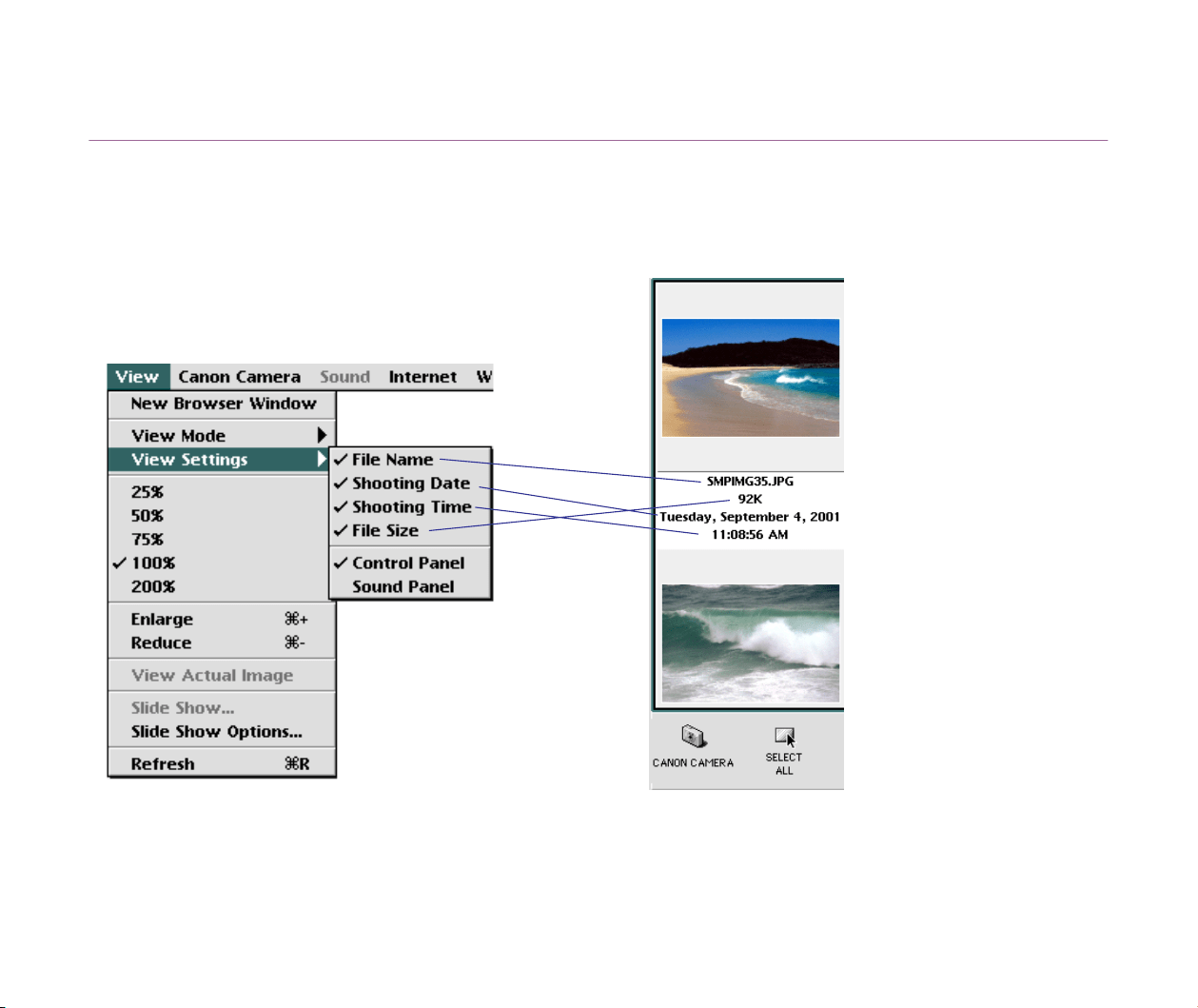
Changing Display Options
You can control what information about an image is displayed below the thumbnail.
Select the
View Settings
from the
View
menu, and then select the information you want to display
from the submenu that appears.
Organizing Images
22
Organizing Images
• Changing the location of Images
• Deleting Image
• Updating Information in the Browser Area
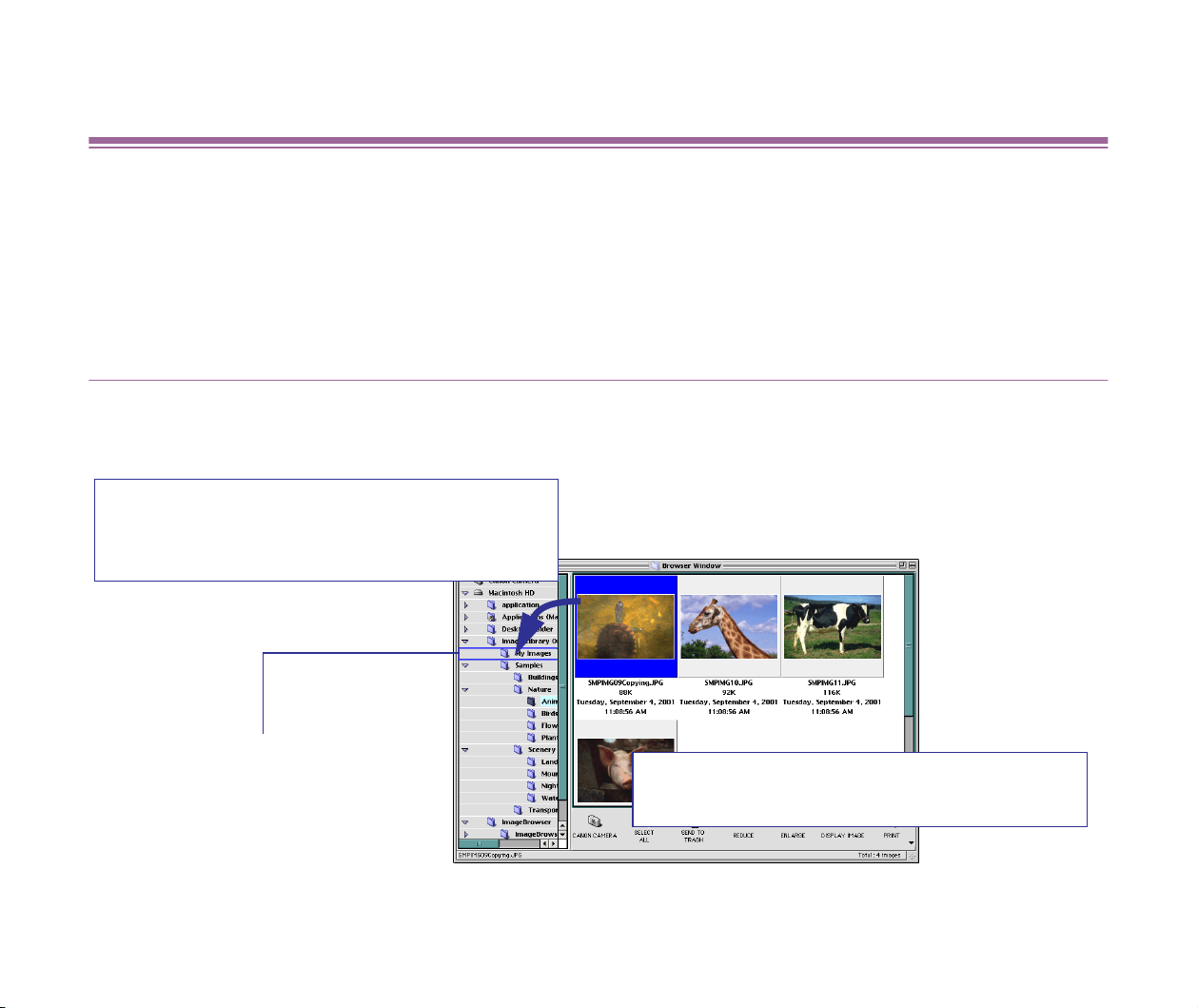
Changing the location of Images
To place an image to a different folder, simply drag and drop it (its thumbnail) in the Browser area
onto another folder in the Explorer View.
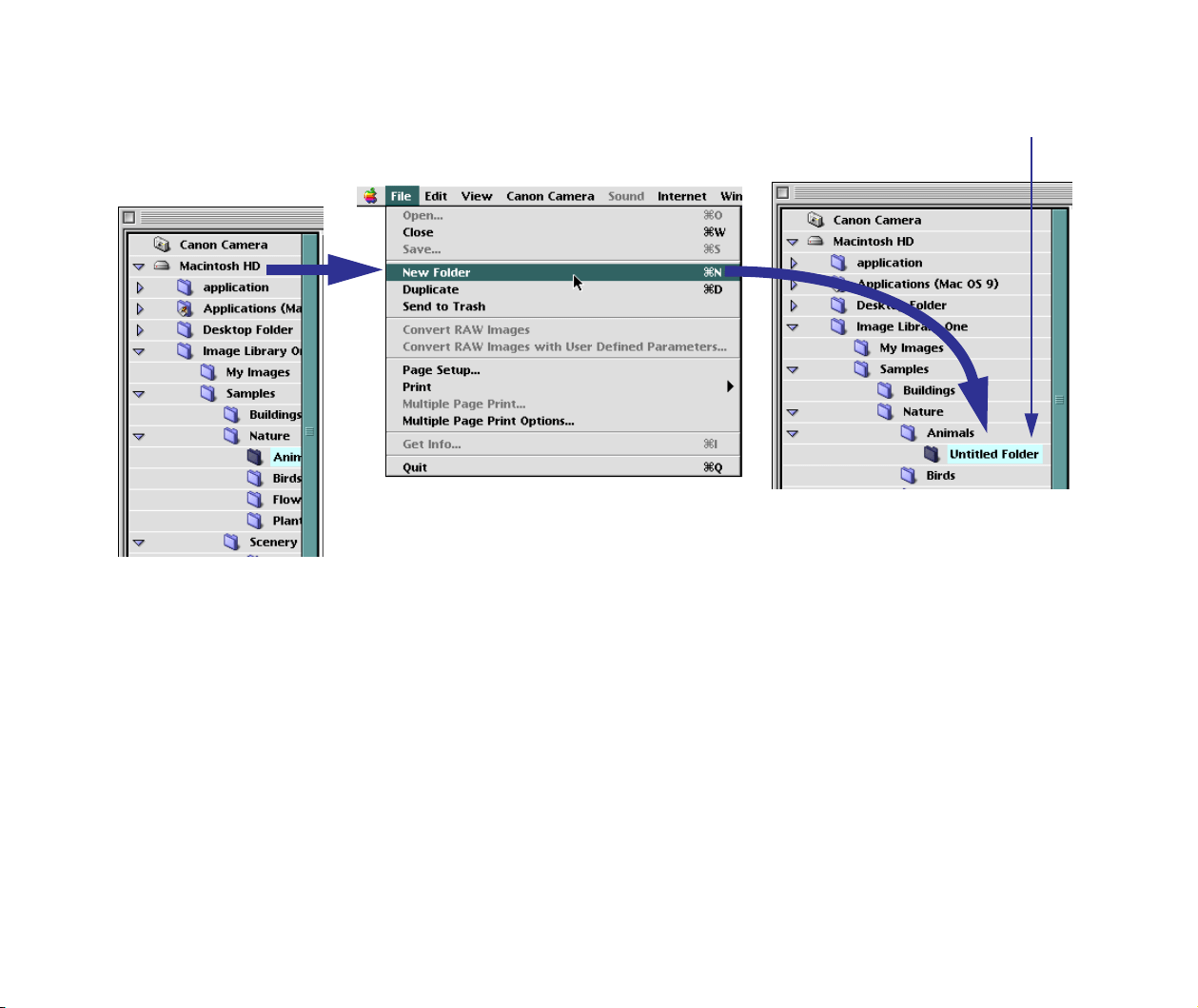
The figure below shows the steps to create a new folder.
You can copy an image to a different folder by
dragging it while pressing the Option key.
The folder where the selected
image is stored.
Drag and drop an image (its thumbnail) onto the
folder you want to place it.
Organizing Images
23
To move a folder to a different location in the Explorer View, drag and drop it onto another folder. You
can copy a folder to a different location by dragging it while pressing the Option key.
(1) Select the folder in which
you want to create a new
folder.
(2) Select the New Folder from the
File menu.
An untitled folder is created and its name
can be entered.
Organizing Images
24
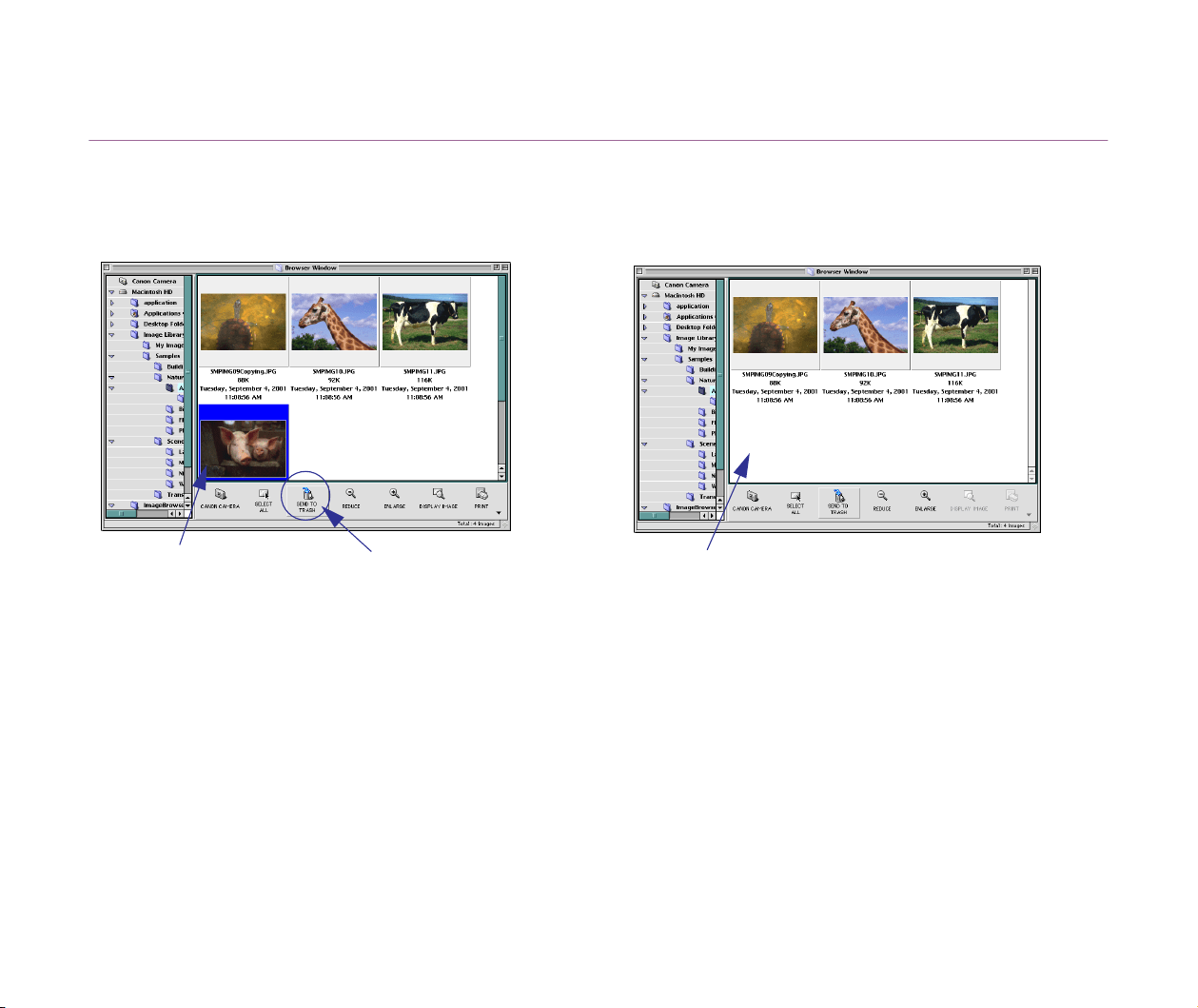
Deleting Image
To delete an image, select its thumbnail in the Browser area and click the
SEND TO TRASH
button.
To delete a folder, select the folder in the Explorer View and click the
SEND TO TRASH
button.
Note
➤
When you delete an image that has not been imported but is just displayed in the
Browser area, the image is deleted from the memory card of the camera.
Even if you delete an image by clicking the
SEND TO TRASH
button, it is just
moved to the Trash. To completely delete the image files contained in the Trash,
select
Empty Trash
from the
Special
menu in the Finder.
(2) Click the SEND TO
TRASH button.
(3) The selected image is deleted.
(1) Select the image you
want to delete.

Organizing Images
25
Updating Information in the Browser Area
When you create a new folder, or move, copy or delete an existing folder in the Finder, these
changes are not reflected immediately in ImageBrowser. In cases where you have managed files or
folders in the Finder or other applications, select the
Refresh
from the
View
menu to update the
contents of the Browser area.
Editing Image Using Image Viewer
26
Editing Image Using Image Viewer
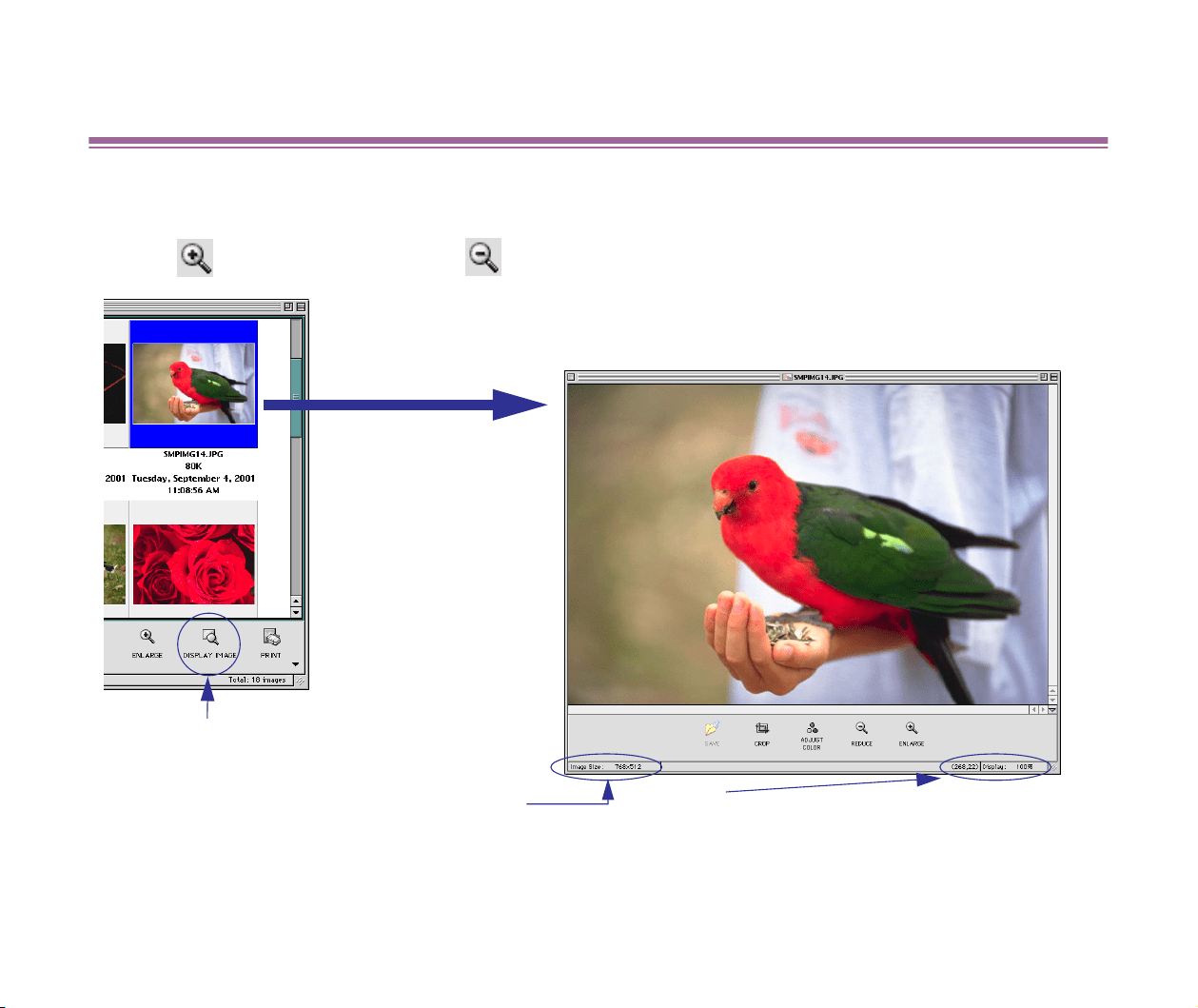
To display an image in the Image viewer, click its thumbnail in the Browser area to select it and click
the DISPLAY IMAGE button to run the Image viewer.
Use the
ENLARGE
button or the
REDUCE
button to magnify or reduce the size of the image.
The size of the image is displayed.
The display scale of the image appears.
The Image viewer is also invoked by double-clicking an image (thumbnail) in the
Browser area. You can perform such actions as image cropping, color
adjustment, and saving of modified images.
DISPLAY IMAGE button
Click this button to invoke the Image viewer.
Editing Image Using Image Viewer
27
Cropping Image
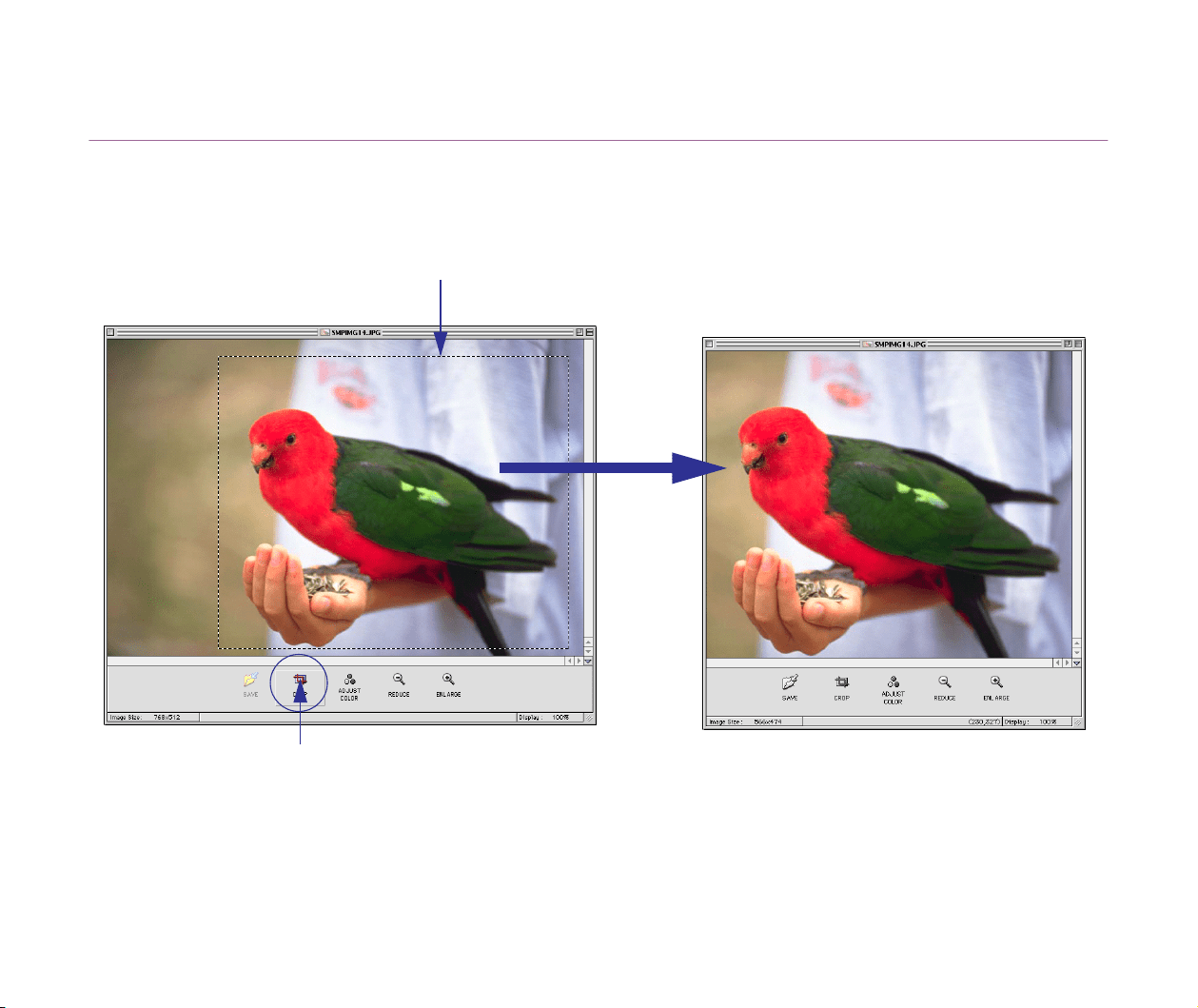
Select the portion of the image you want to keep by mouse-dragging over it, and then click the
CROP
button. Area outside the selection is trimmed away.
CROP button
Clicking this button will trim the area outside the selection.
Cropped area
Editing Image Using Image Viewer
28
Adjusting Image Colors
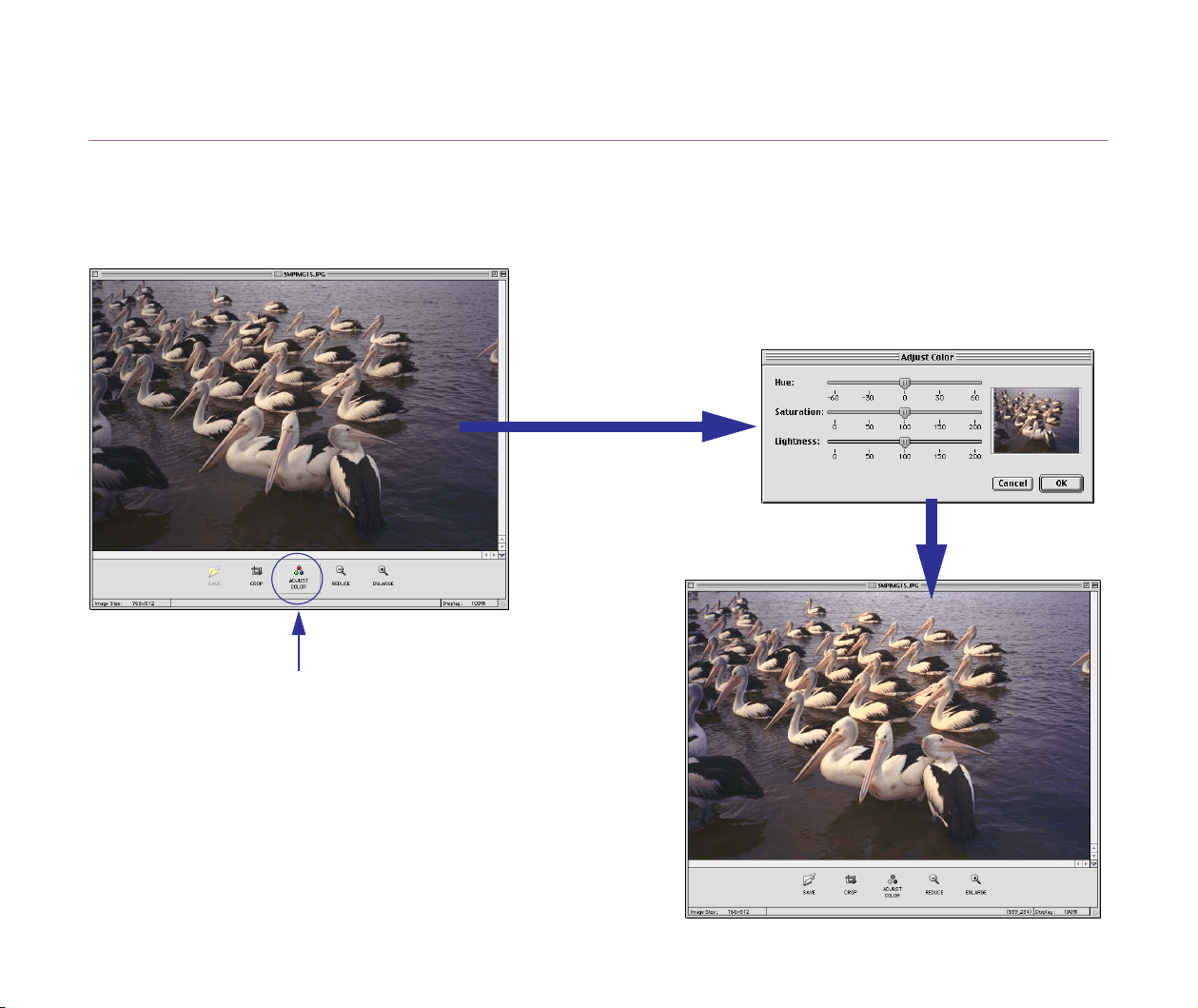
You can change the hue, saturation, and lightness of the image displayed in the Image viewer.
Clicking the
ADJUST COLOR
button opens the
Adjust Color
dialog box, which allows you to make
color adjustments.
Click the OK button to make the
changes take effect.
The hue, saturation, and lightness
are adjustable.
ADJUST COLOR button
Click this button to open the Adjust Color dialog box.
Editing Image Using Image Viewer
29
Saving Image after Processing
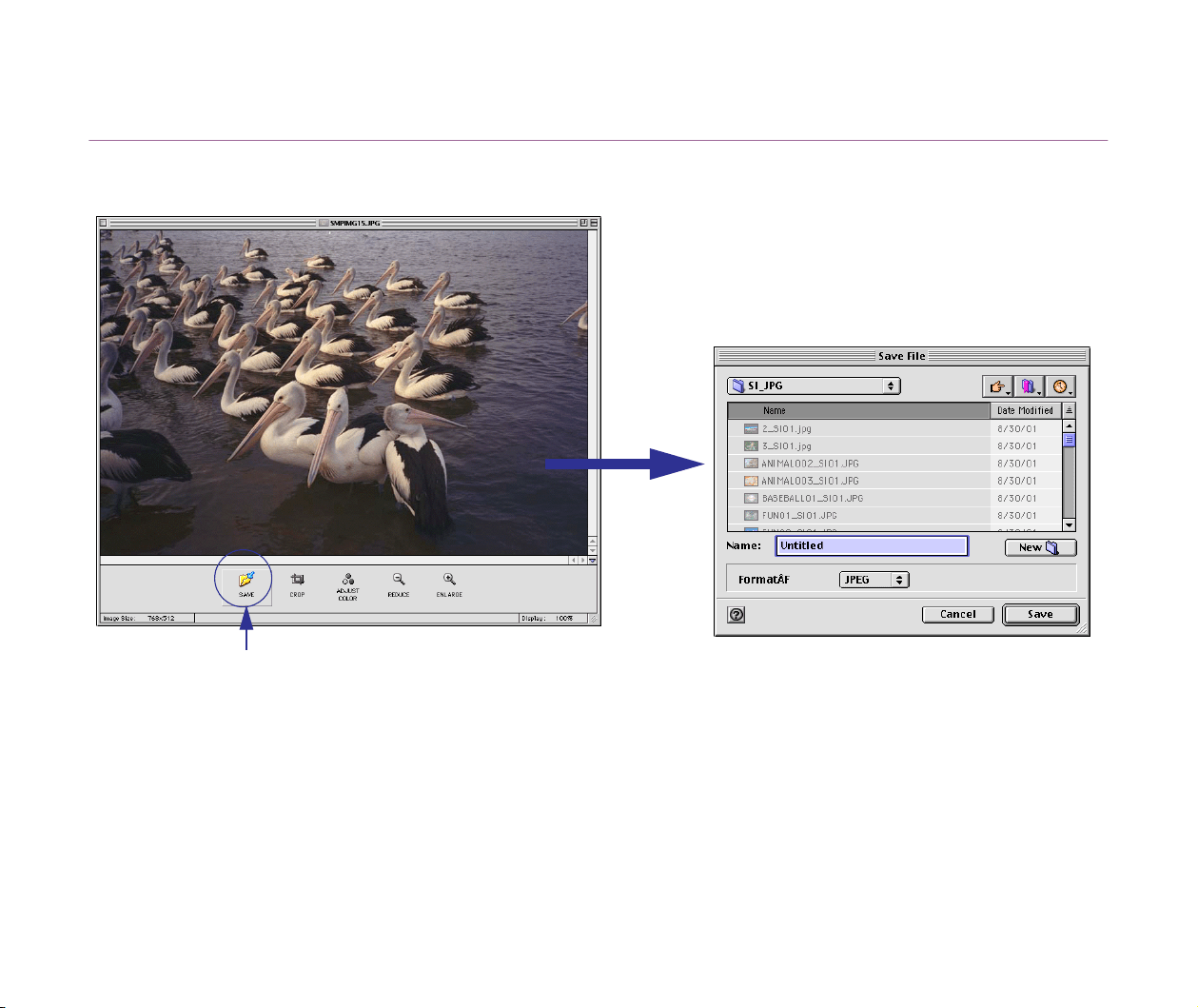
The modified image file can be saved with a new name.
Type in a file name and specify the file type,
and click the Save button. The iamge is
saved as a new file.
SAVE button
Clicking this button opens the Save File window.
Slide show
30
Slide show
You can review sequentially the selected images in the Browser area as a slide show in full screen
mode.
Steps
1
Choose the
Slide Show Options
from the
View
menu.
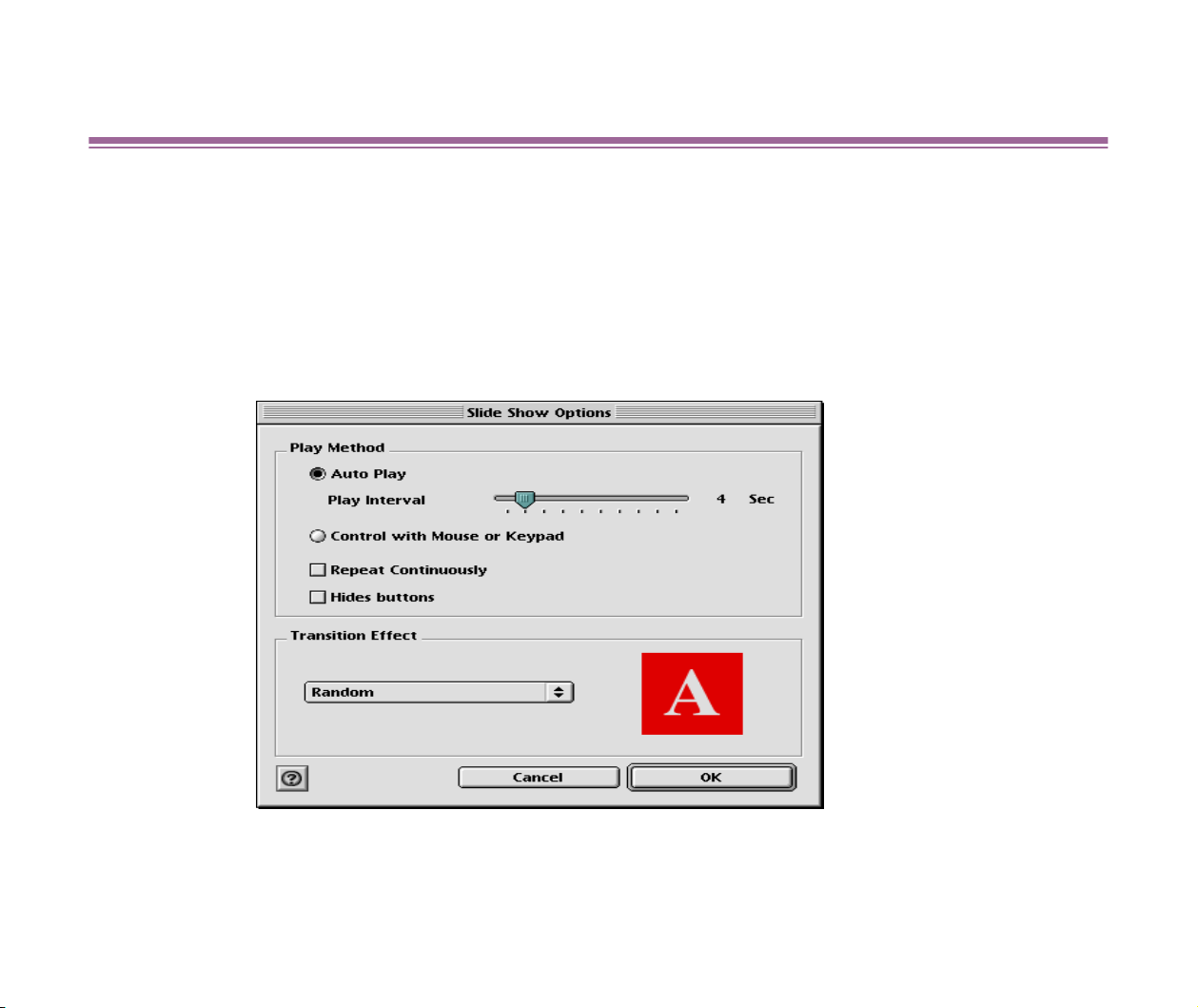
The window containing options for a slide show opens.

Slide show
31
2
Specify the playing mode and options for slide show.
The window allows you to specify the following options:
Auto Play
: When you select this option, specify the interval of image
switching with the slider.
Repeat Continuously
: When this radio button is selected, the slide show is
repeated endlessly, working as a screen saver. Press the ESC
key to exit the
slide show.
3
Specify effects for slide show.
Click the button to choose from the following effects:
Random
: Images are randomly selected and arranged to be displayed on
the screen.
Fade: The current image fades out to be replaced with the next image.
Push: The current image is pushed away in the specified direction to be
replaced with the next image.
Wipe: The current image is overwritten by the next image from the specified
side.
Zigzag: The current image is overwritten by the next image from the
specified side with a zigzag-shape boundary.
4 Click the OK button.
The window for the slide show options closes to return to the Browser
window.
Slide show
32
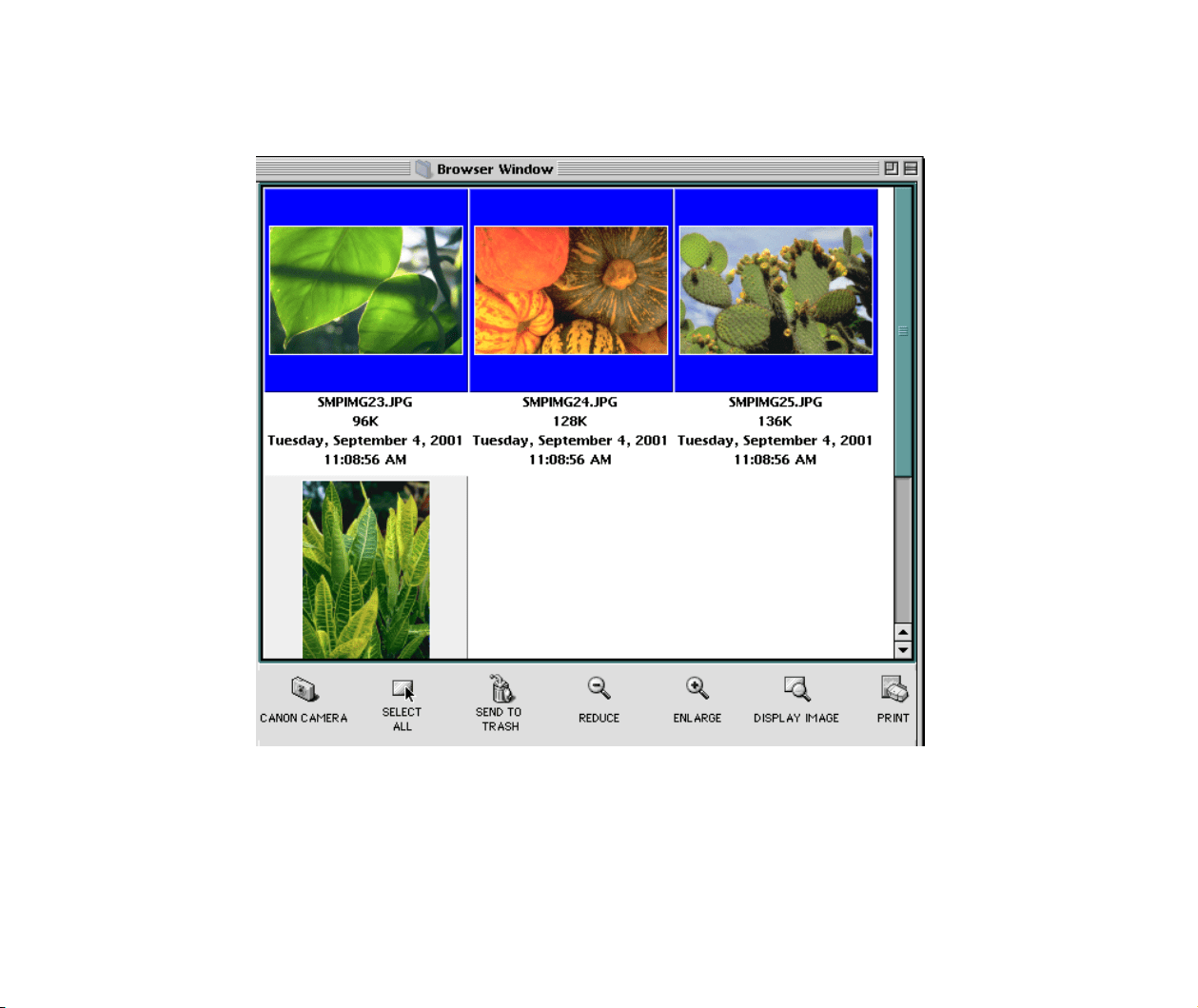
5 Select images in the Browser area you want to display as a slide
show.
Slide show
33
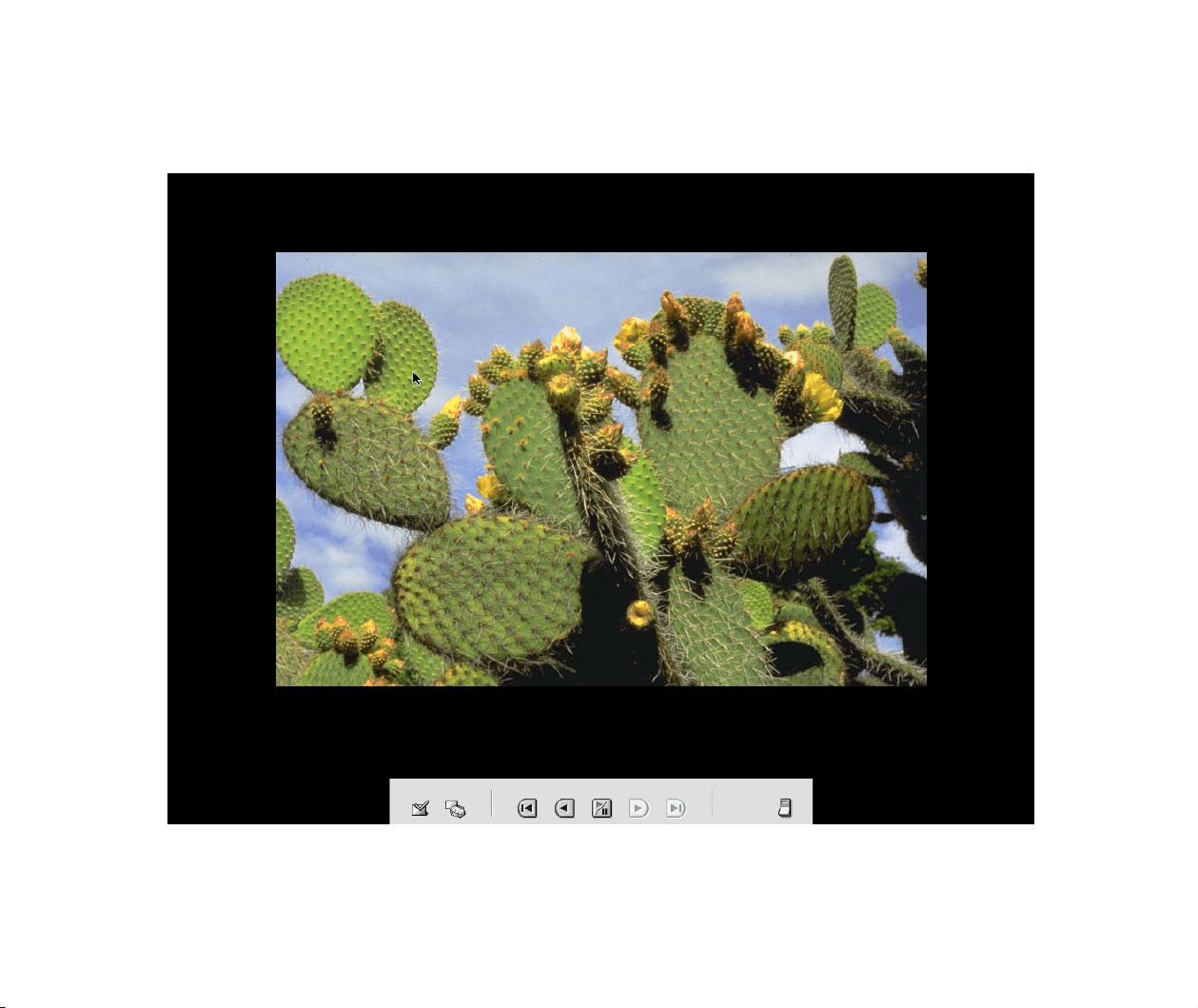
6 Select the Slide Show from the View menu.
The selected images are sequentially displayed in full screen mode.
The slide show terminates when the last image has been processed.
Slide show
34
■ Slide show navigation buttons
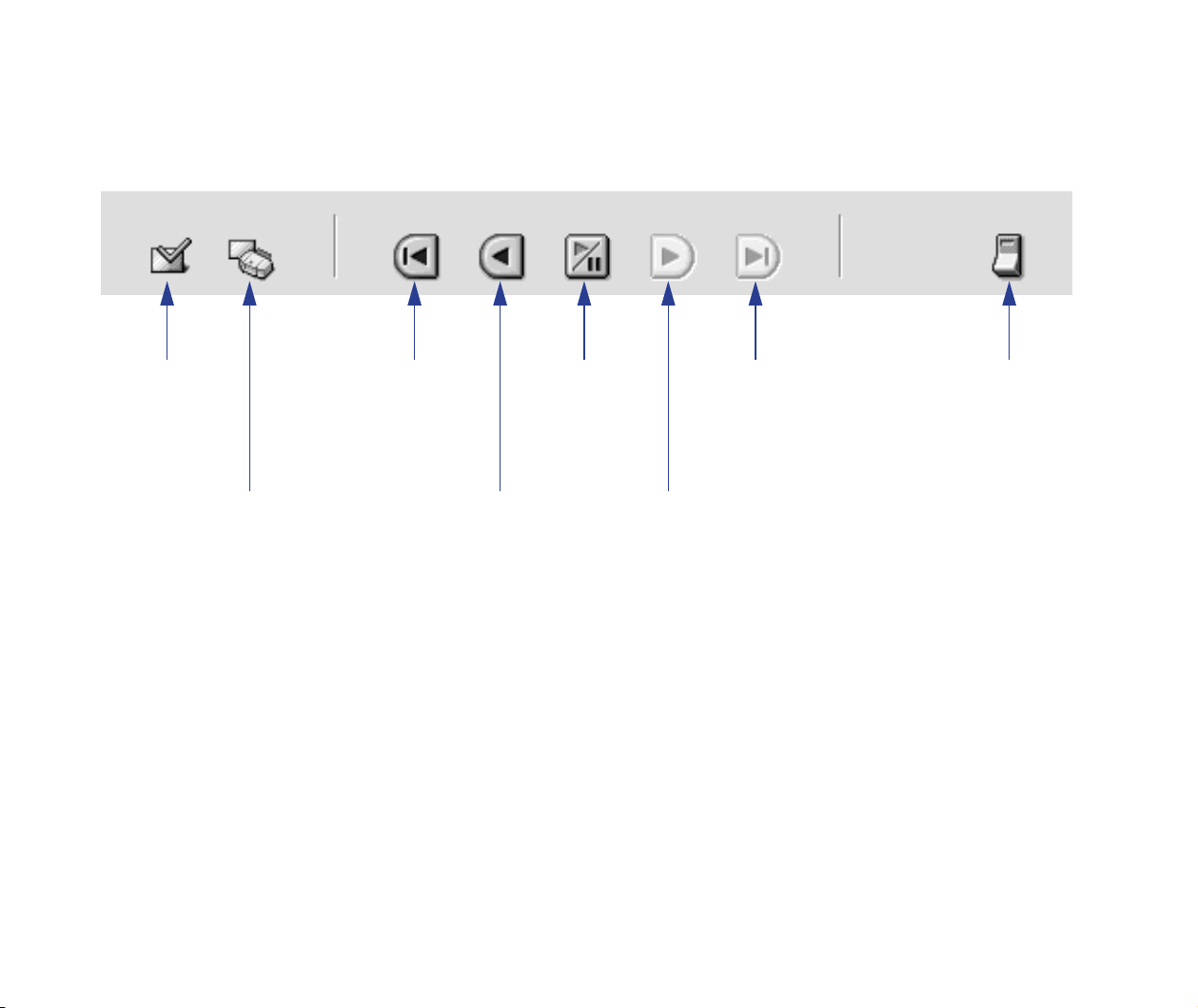
The following buttons are displayed when you invoke the slide show function.
Deselects/Selects image
Clicking this button will deselect the current image (selected in the Browser area). Click again
to select the same image.
Marks images for printing
If you want to print the current image, click this button while it is being displayed. When the
slide show ends, the program automatically proceeds to the layout printing. Click again to
disable the printing of the image.
Returns to first image
Click this button to go back to the first image.
Deselects/
Selects
image
Marks images
for printing
Returns to
first image
Returns to
previous
image
Pauses
image
Displays
next image
Displays
last image
Closes slide
show

Slide show
35
Returns to previous image
Click this button to return to the previous image.
Pauses image
During the auto play, click this button to suspend the slide show.
Click again to resume the slide show.
Displays next image
The next image is displayed.
Displays last image
The last image is displayed.
Closes slide show
Exits the slide show.
Note that these buttons will not be displayed when the Hides buttons check box in the Slide Show
Options dialog box is checked.
Time Tunnel
36
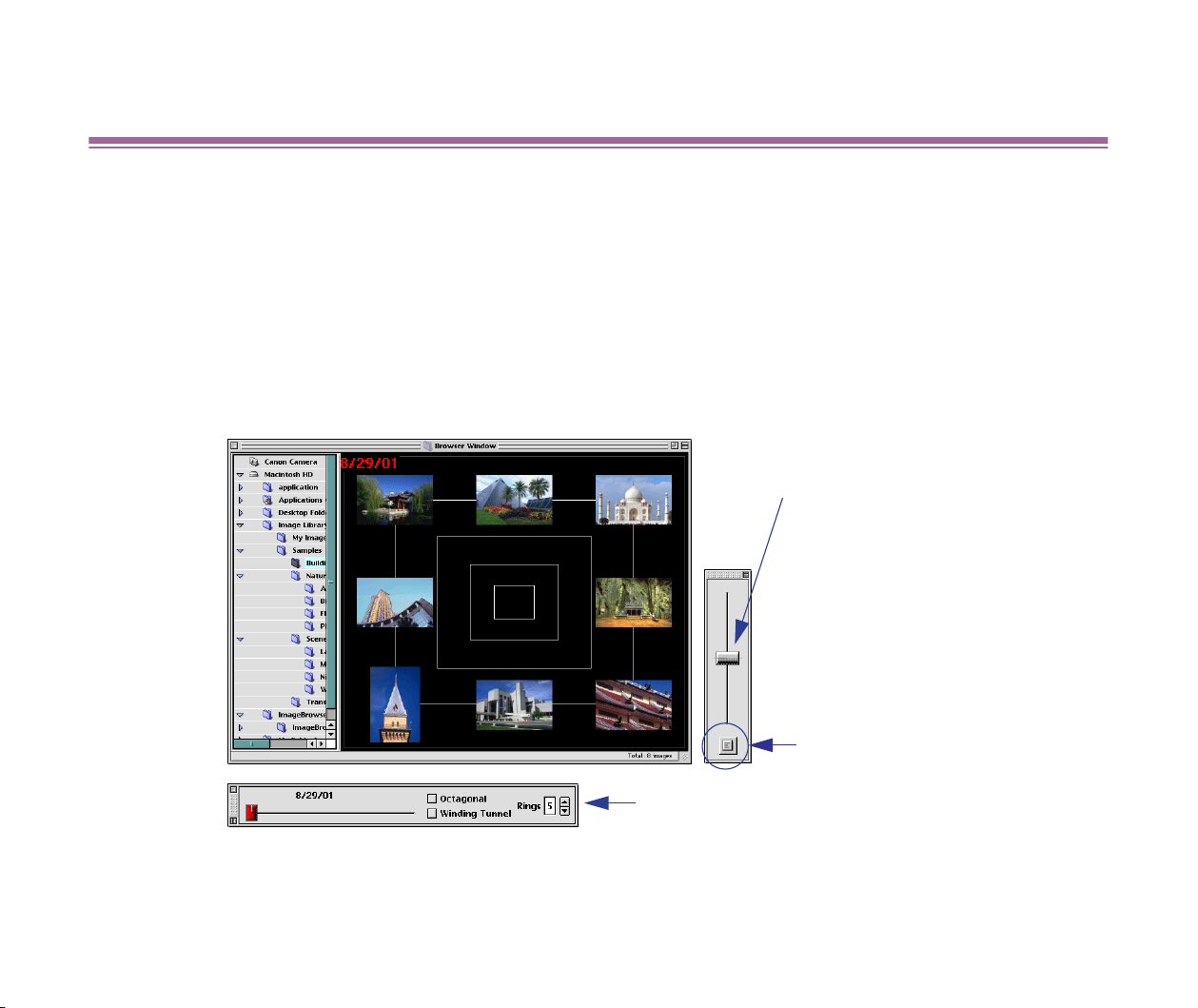
Time Tunnel
When you select the View Mode from the View menu, the Browser area changes to the Time
Tunnel display mode. In this mode, the images contained in the selected folder appear in the
Browser area as if you were in front of the entrance to a time tunnel. Images are allocated to the
walls in order of creation date.
Drag the slider in the floating pallet displayed to the right of the Time Tunnel window to show older or
newer images. The Tool Pallet allows you to change the appearance of the Time Tunnel window.
When you select a different folder in the Explorer View, the images in that folder are shown in the
Time Tunnel window.
To return to the standard Browser area mode, select the List item from the submenu that appears
when you point to the View Mode command in the View menu.
Tool Panel
Drag the slider to zoom in/out of
the time tunnel.
Menu button
Clicking this button displays the
popup menu in which you can
select the Display Tool Panel,
Auto Cruise, etc.
Adding Sound to Image
37
Adding Sound to Image
ImageBrowser enables you to add sound (audio data) to an image file. The sound input device
selected in the Sound Panel is used for recording.
Steps for Recording
1 Select the image to which you want to add sound.
2 Select the Record from the Sound menu.
The Record panel is displayed over the Browser window.
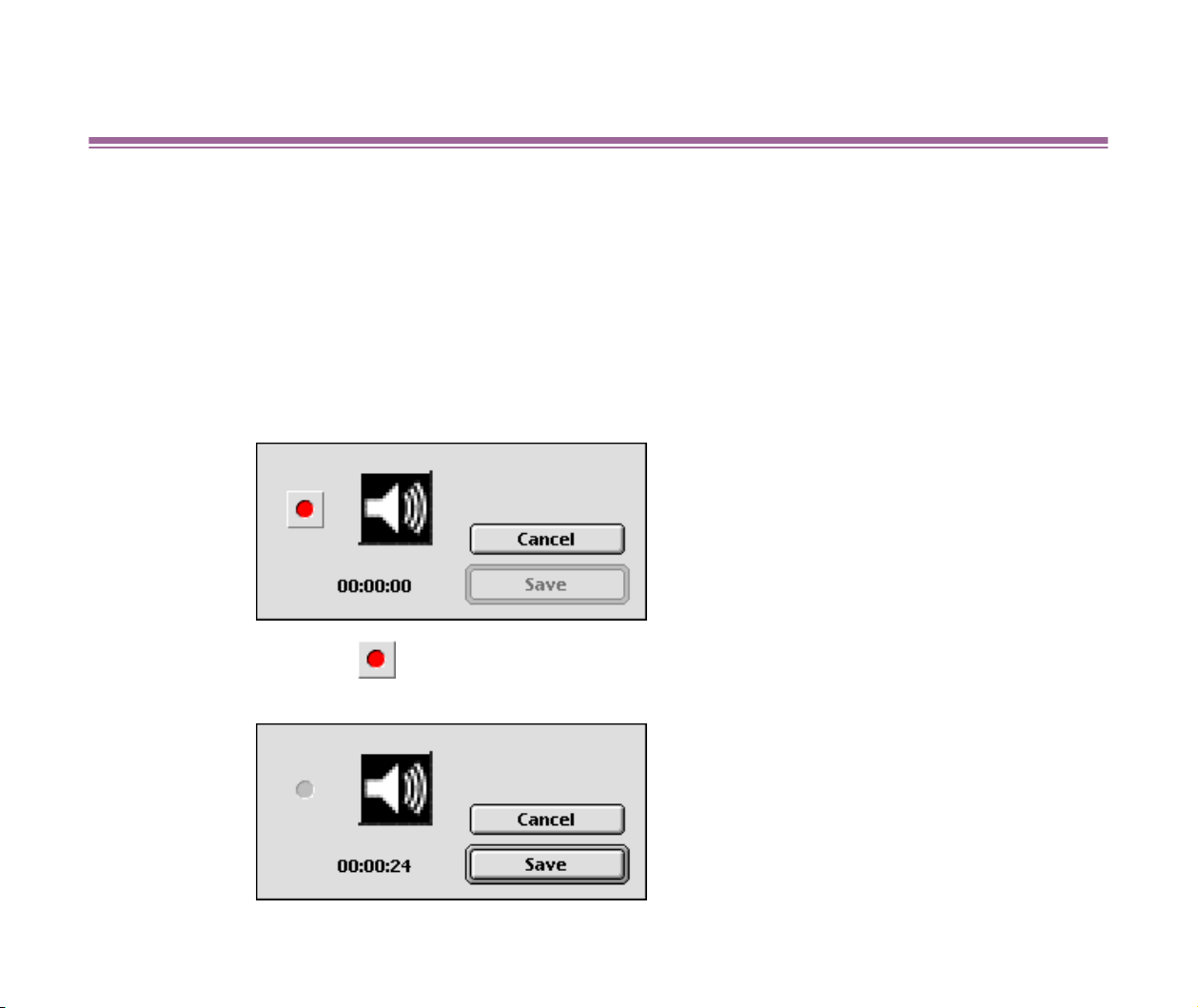
3 Click the Record button to start recording. The Record panel
during recording is as shown below.
Adding Sound to Image
38
4 To finish recording and save the sound data, click the Save button.
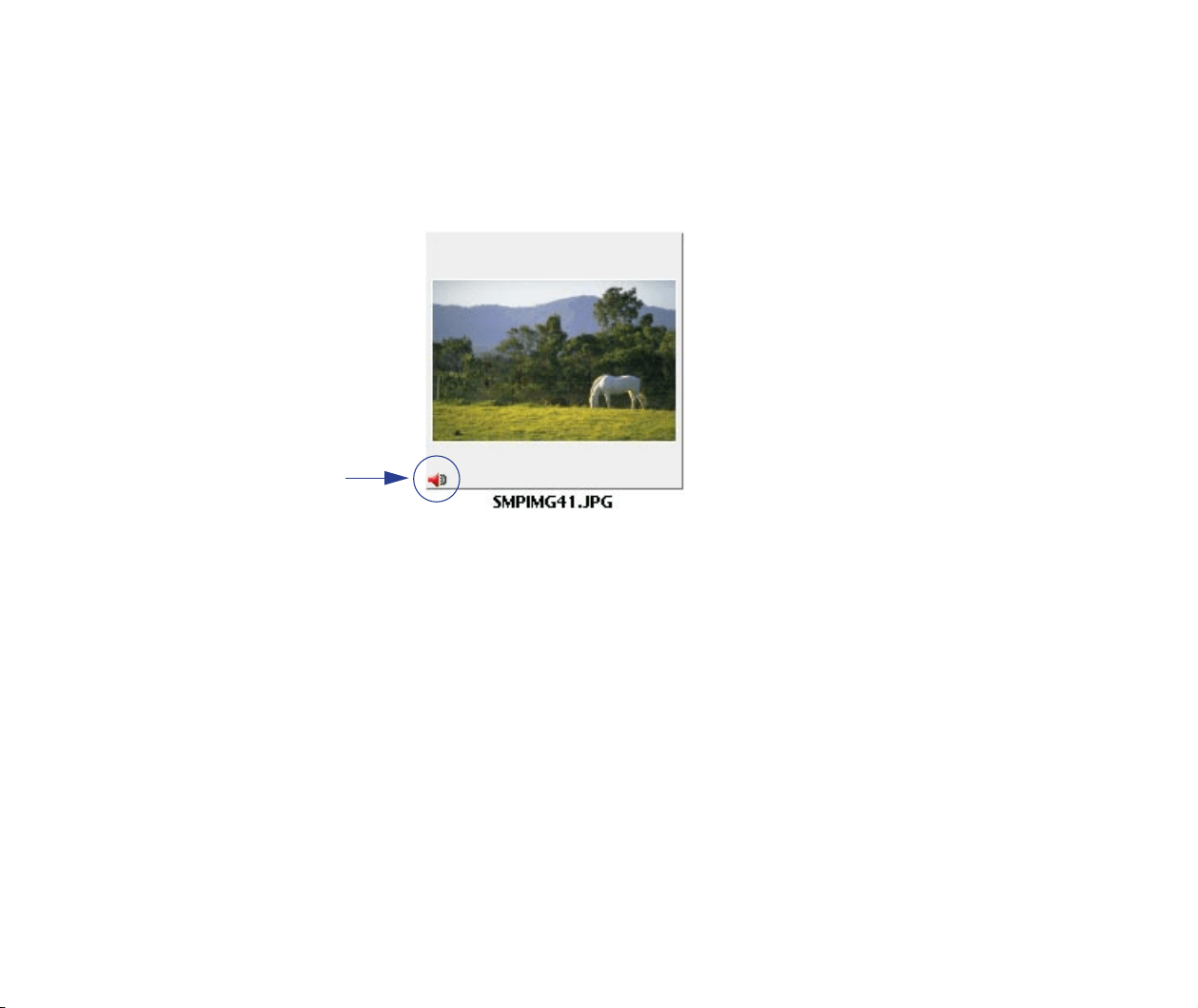
The recorded sound data is saved as a sound file. A mark appears in the
bottom left corner of the selected image (thumbnail), indicating that sound
data is attached to that image file.
The created sound file is stored in the same folder as the image file.
Steps for Playing
1 Select the thumbnail that has a sound mark in the bottom left
corner.
2 Select the Play from the Sound menu.
Mark
Adding Sound to Image
39
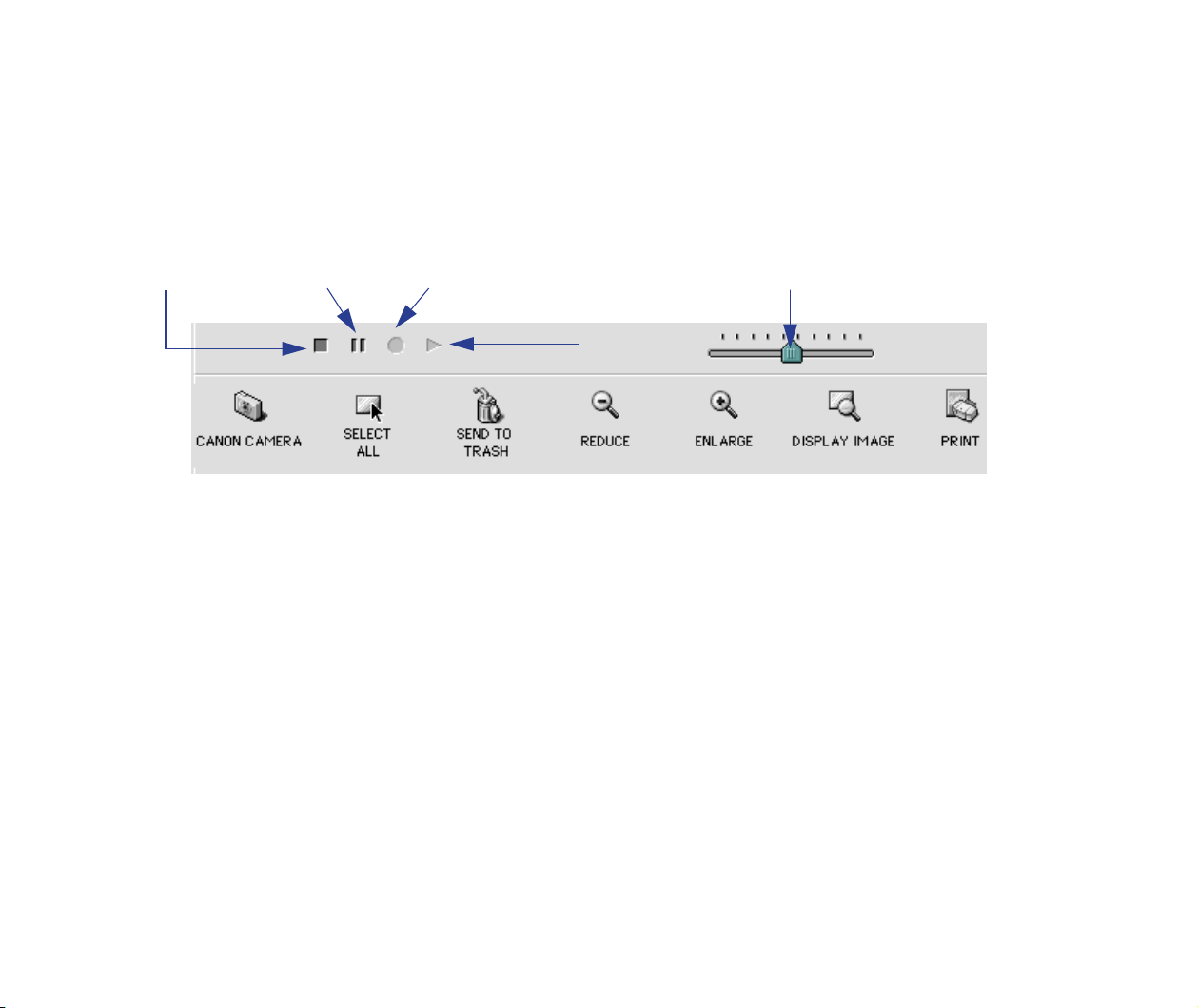
■ Sound Panel
When you select the Sound Panel from the View Settings submenu in the View menu, the Sound
Panel is displayed.
The buttons on the Sound Panel provide convenient access to the commands in the Sound menu.
Stop Pause Record Play
Volume slider
Creating Image Files Attached to E-mail
40
Creating Image Files Attached to E-mail
ImageBrowser gives you the ability to quickly edit the image selected in the Browser area and can
be attached to E-mail using the wizard.
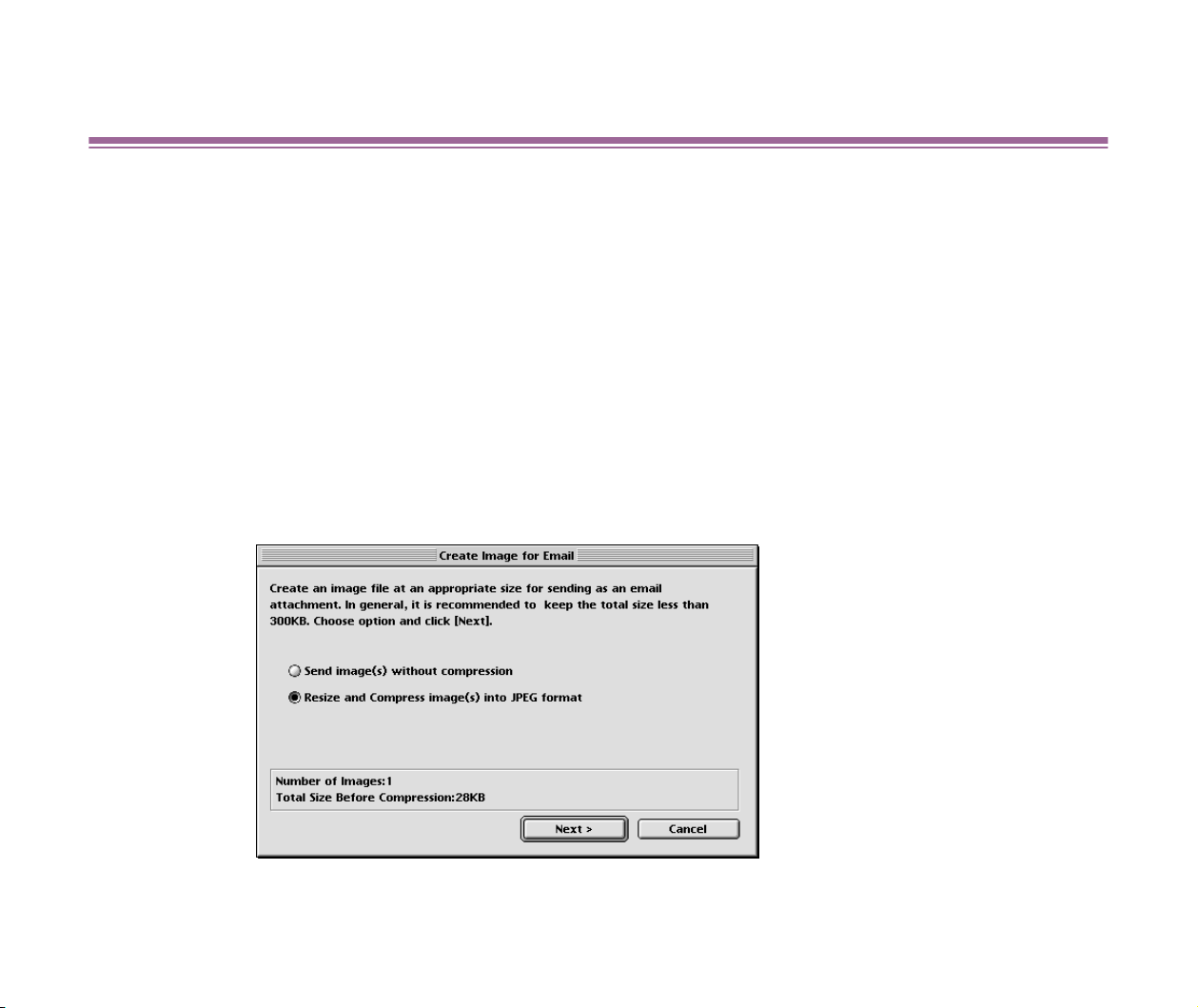
1 Select the image you want to attach to your Email in the Browser
area. Choose the Create image for Email command from the
Internet menu to open the Create image for Email dialog box. At
the same time, the wizard starts.
Select the Resize and Compress image(s) into JPEG format option.
If you select the Send image(s) without compression option, the image
data will be sent with your message as it is (not compressed).
Click the Next button.
Creating Image Files Attached to E-mail
41
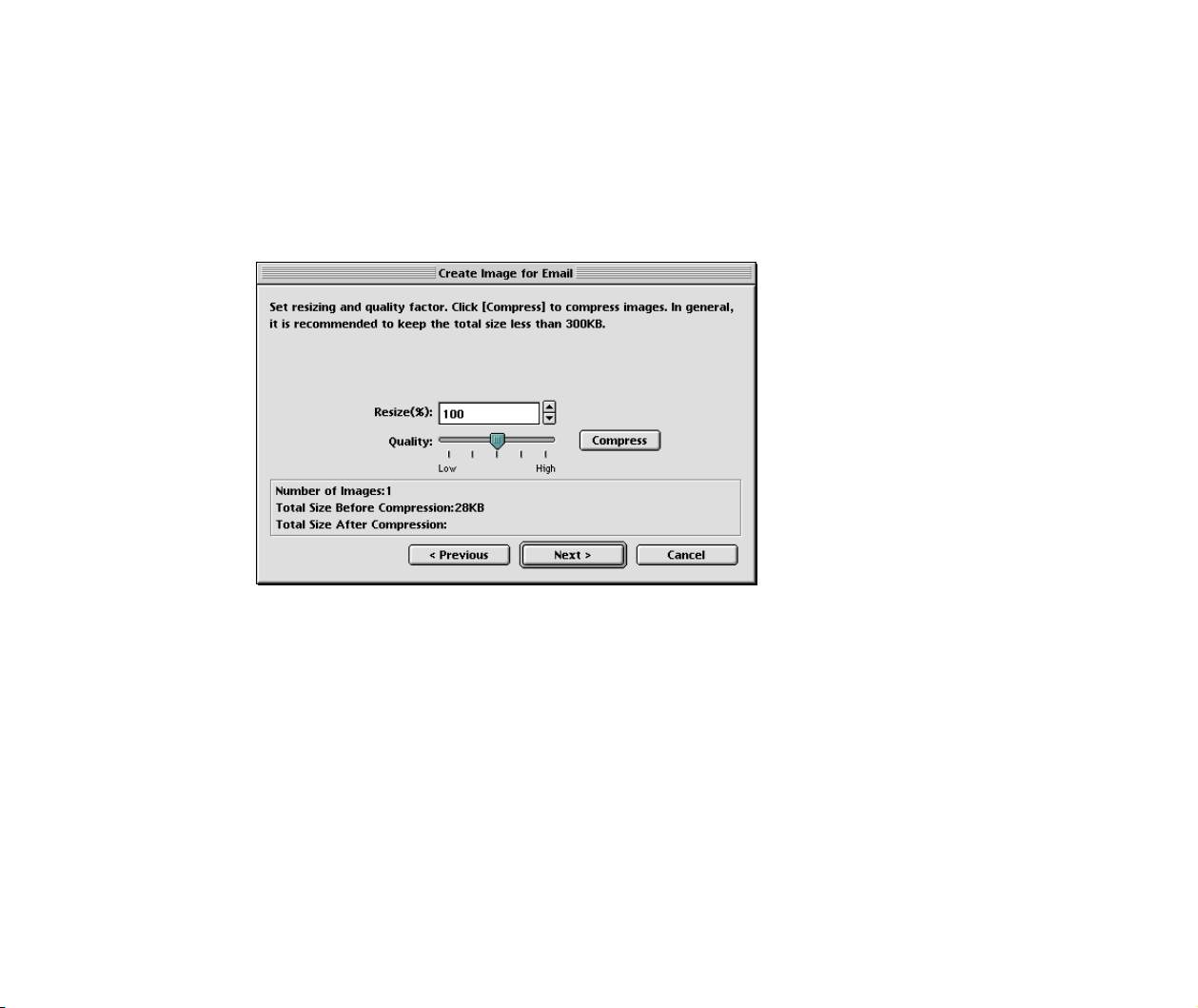
2 In the next wizard dialog box, specify the Resize rate and the
quality of JPEG data.
When you click the Compress button, the calculated file size after
compression is displayed at the bottom of the dialog box.
Click the Next button.
Creating Image Files Attached to E-mail
42
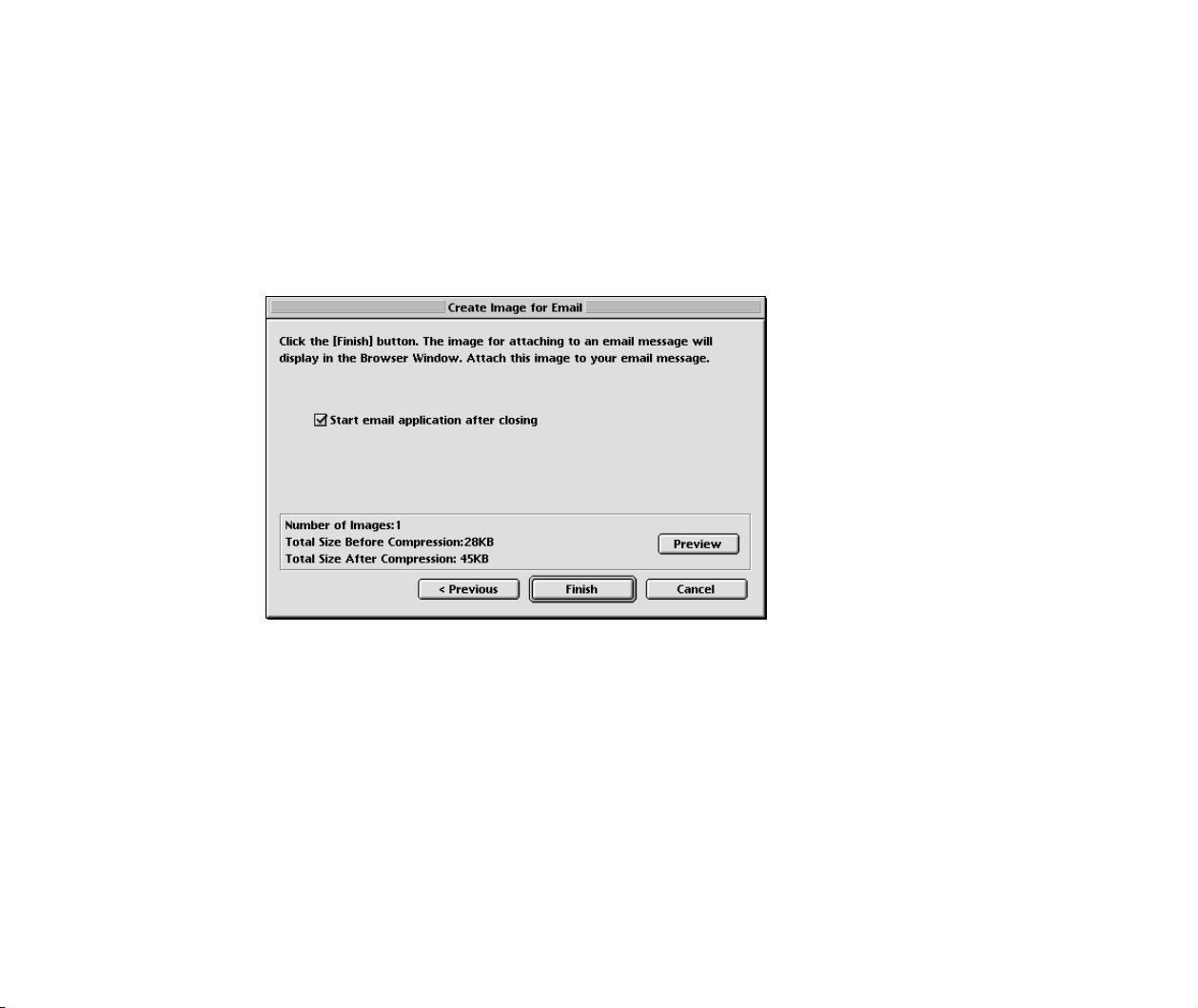
3 In this dialog box, specify the action after data compression.
If you select the Start email application after closing check box, your E-
mail application will automatically start upon completion of data
compression.
Click the Preview button to preview the image that has been compressed.
Click the Finish button.
Creating Image Files Attached to E-mail
43
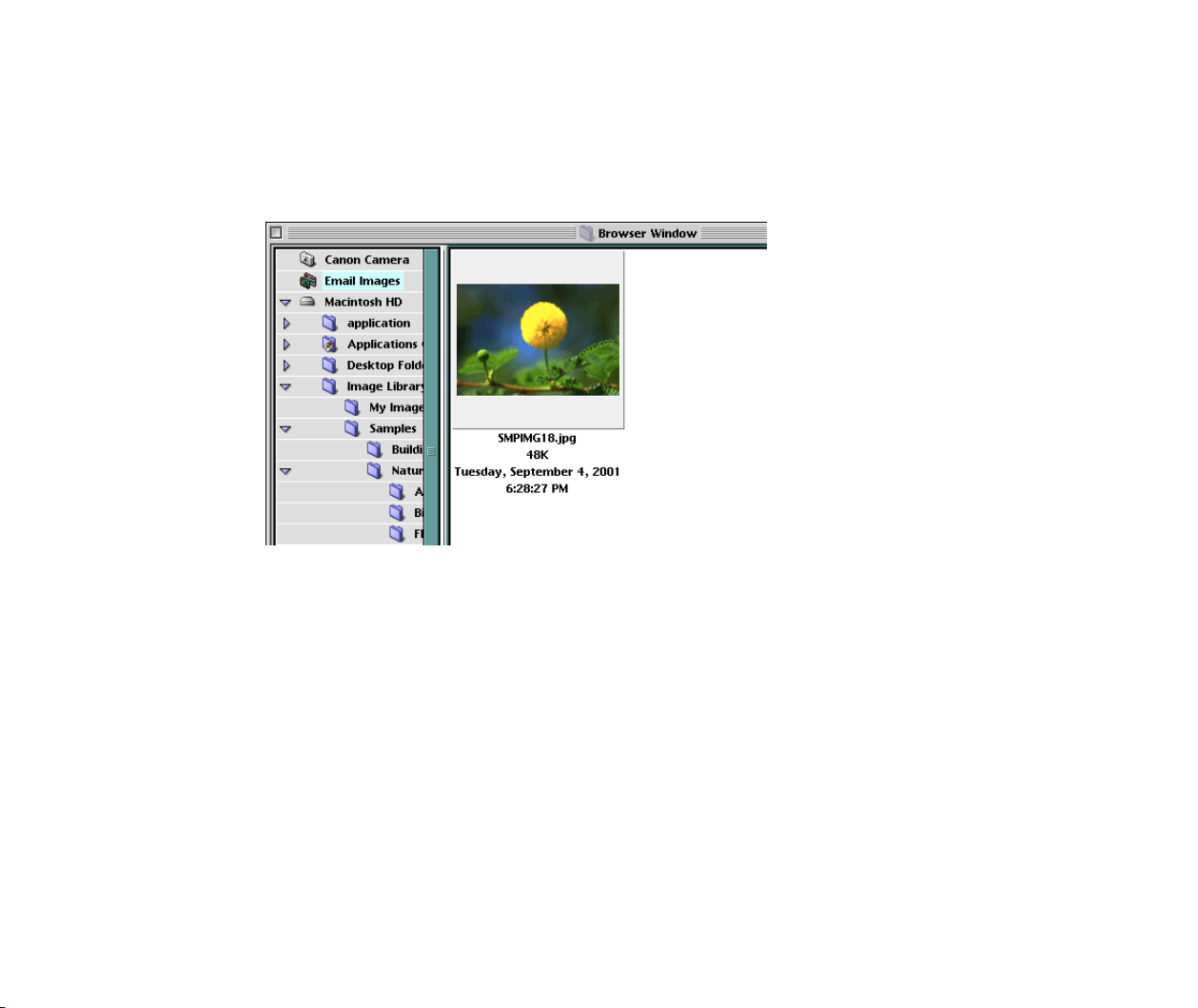
4 A new folder called Email Images is created in which the
compressed image is stored.
To attach the compressed image to your E-mail message, drag and drop the
thumbnail in the Browser area onto your message in your Email application.
Creating Panoramic Photo Using PhotoStitch
44
Creating Panoramic Photo Using PhotoStitch
PhotoStitch is an utility program for quickly creating a panoramic photo by merging multiple images
captured wth your digital camera.
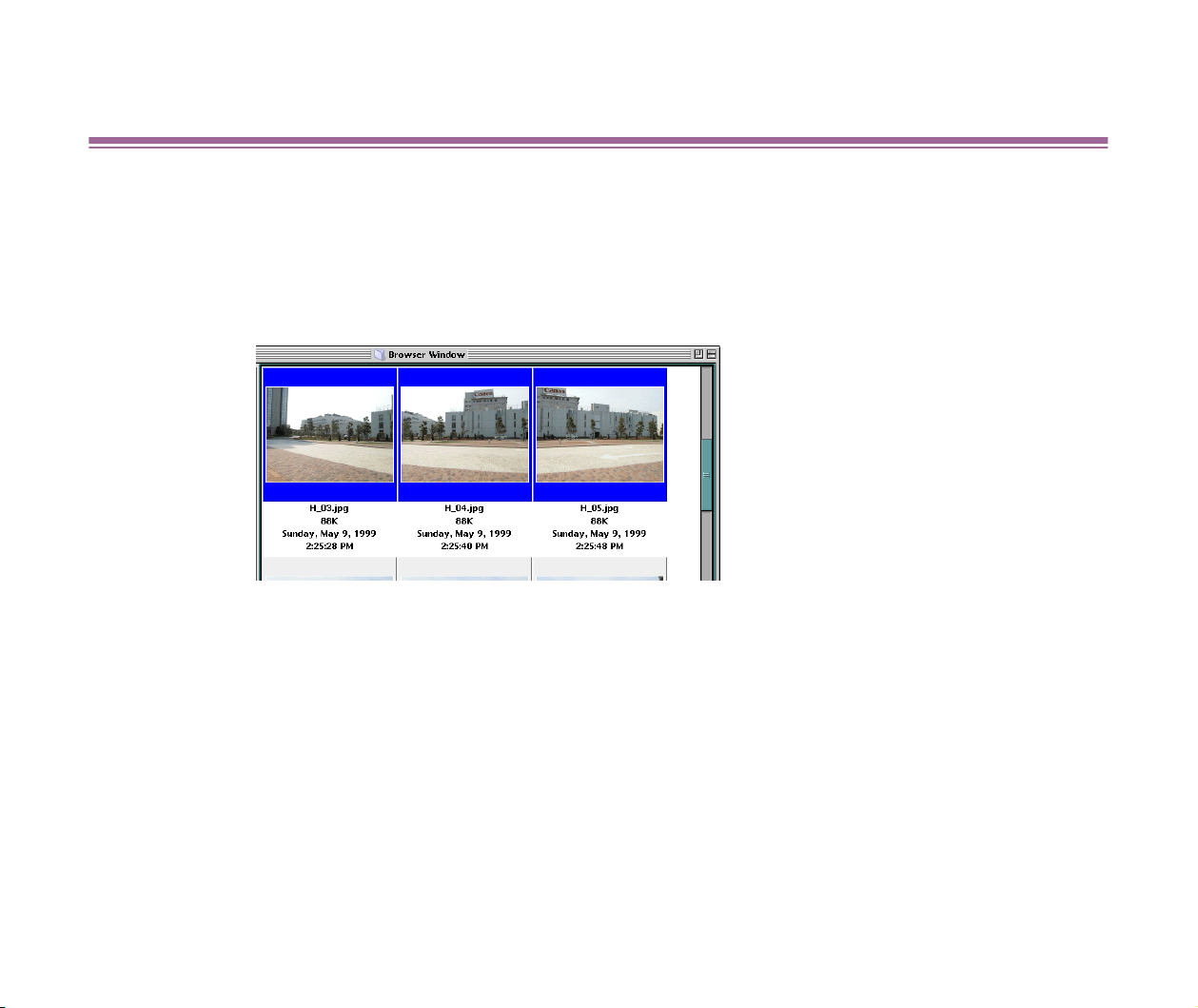
1 Select multiple images (thumbnails) in the Browser area and select
the PhotoStitch from the Edit menu.
Creating Panoramic Photo Using PhotoStitch
45
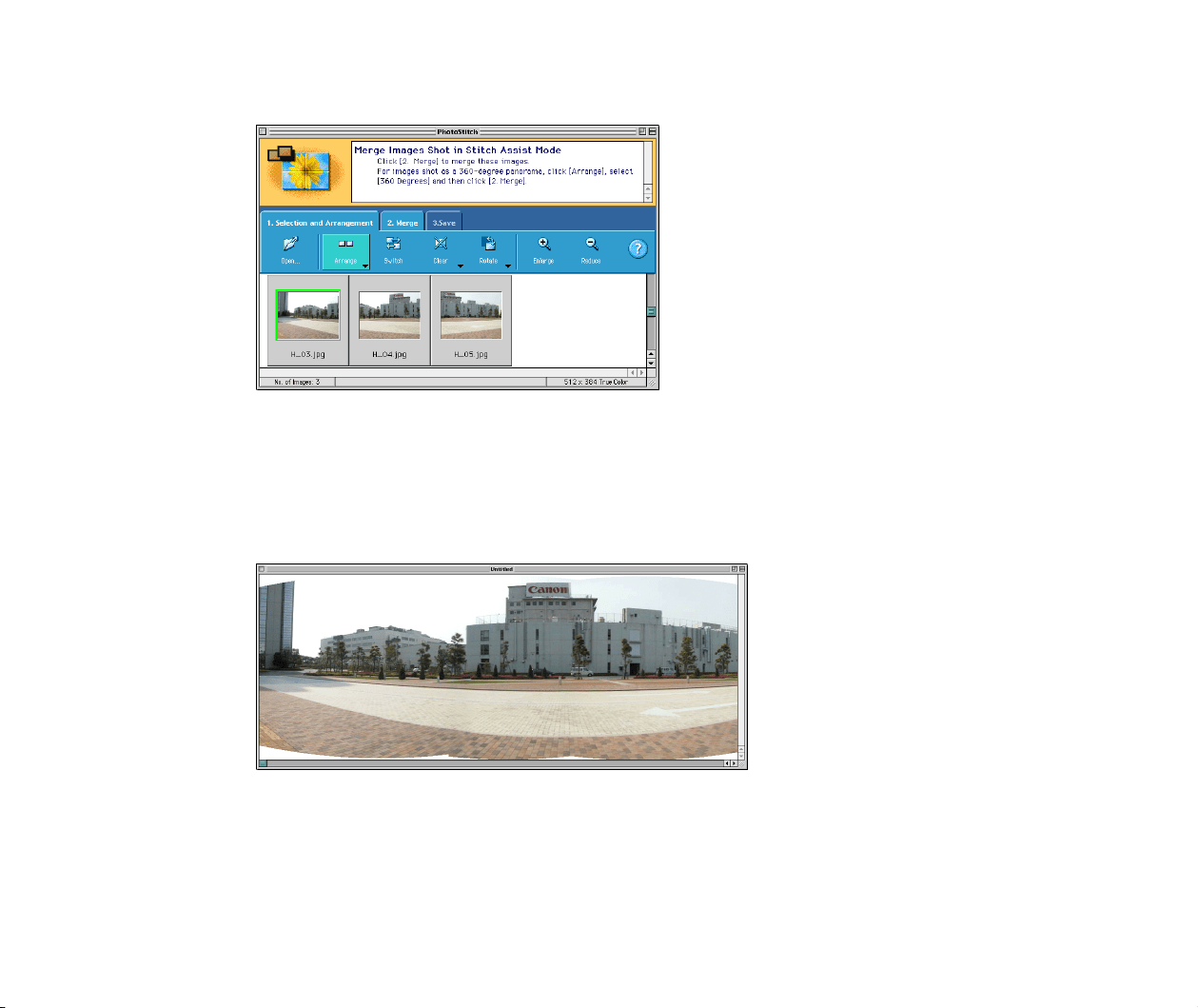
2 PhotoStitch starts and loads the selected images.
With PhotoStitch, you can merge any number of images vertically or
horizontally, producing unique posters or other photo-prints. The wide-mode
merging feature is also useful when you want to create a wide panoramic
photo of a building or straight-lined object with straight lines as natural as the
original.
Opening Image Selected in the Browser Area from Other Applications
46
Opening Image Selected in the Browser Area from Other
Applications
ImageBrowser allows you to register other application programs. You can start the registered
application programs from ImageBrowser and open the images displayed in the Browser area using
those programs.
■ Registering Application Programs
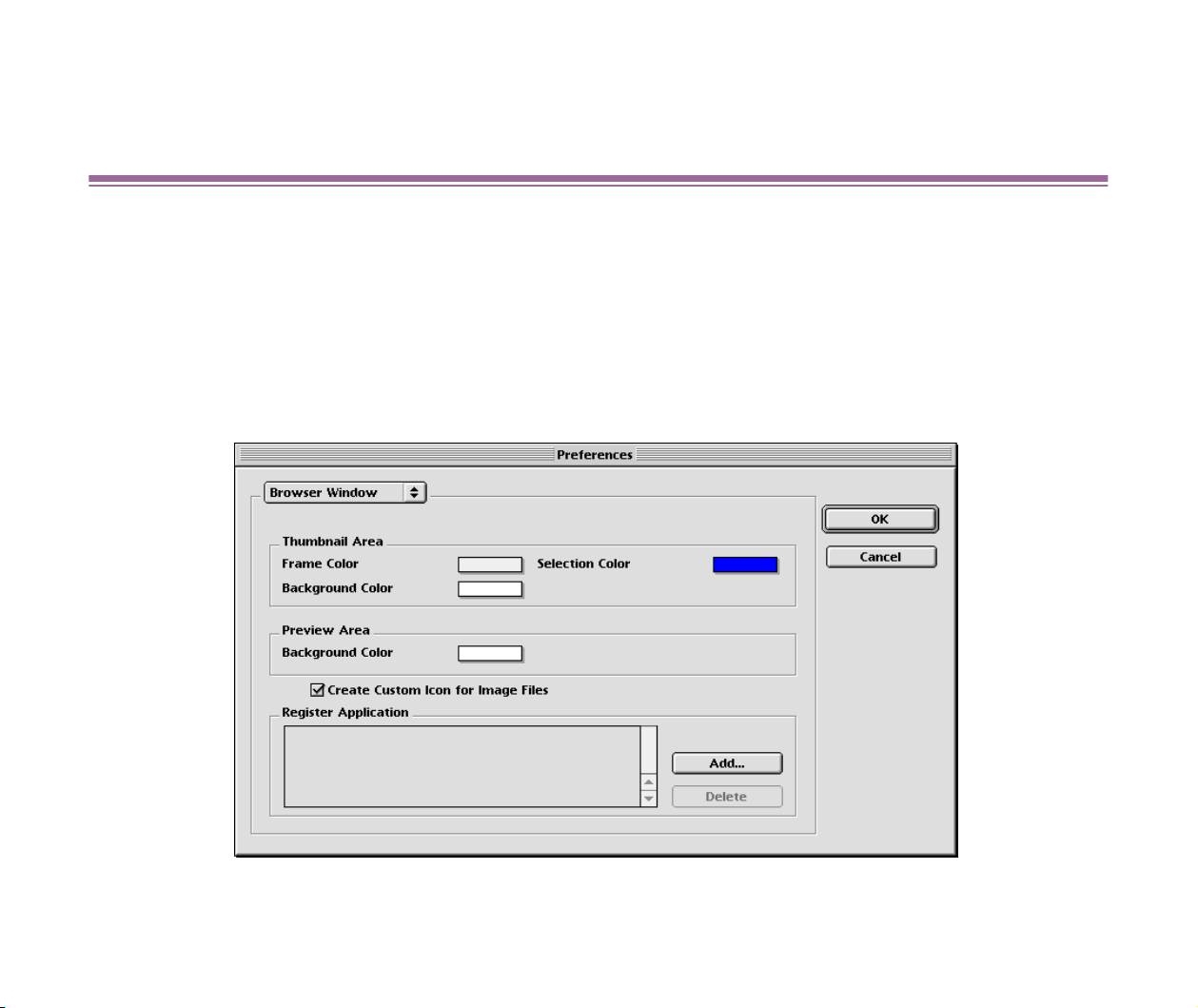
Open the Preference window by selecting the Preference from the Edit menu.

Opening Image Selected in the Browser Area from Other Applications
47
Click the Add button to the right of the Register Application list box. Select the application
program you wish to register in the Select File dialog box that appears.
Click the OK button to complete the registration.
■ Starting a registered application program
To run a registered application program, select an image in the Browser area and then select the
name of the application program from the Start Application submenu in the Edit menu. The
specified application starts, and the selected image is loaded to the application.
Refer to the documentation of the invoked application program for more information about how to
use it.

Importing images with the Automation wizard
49
Importing images with the Automation wizard
The Automation wizard takes you through all the necessary actions from importing images to
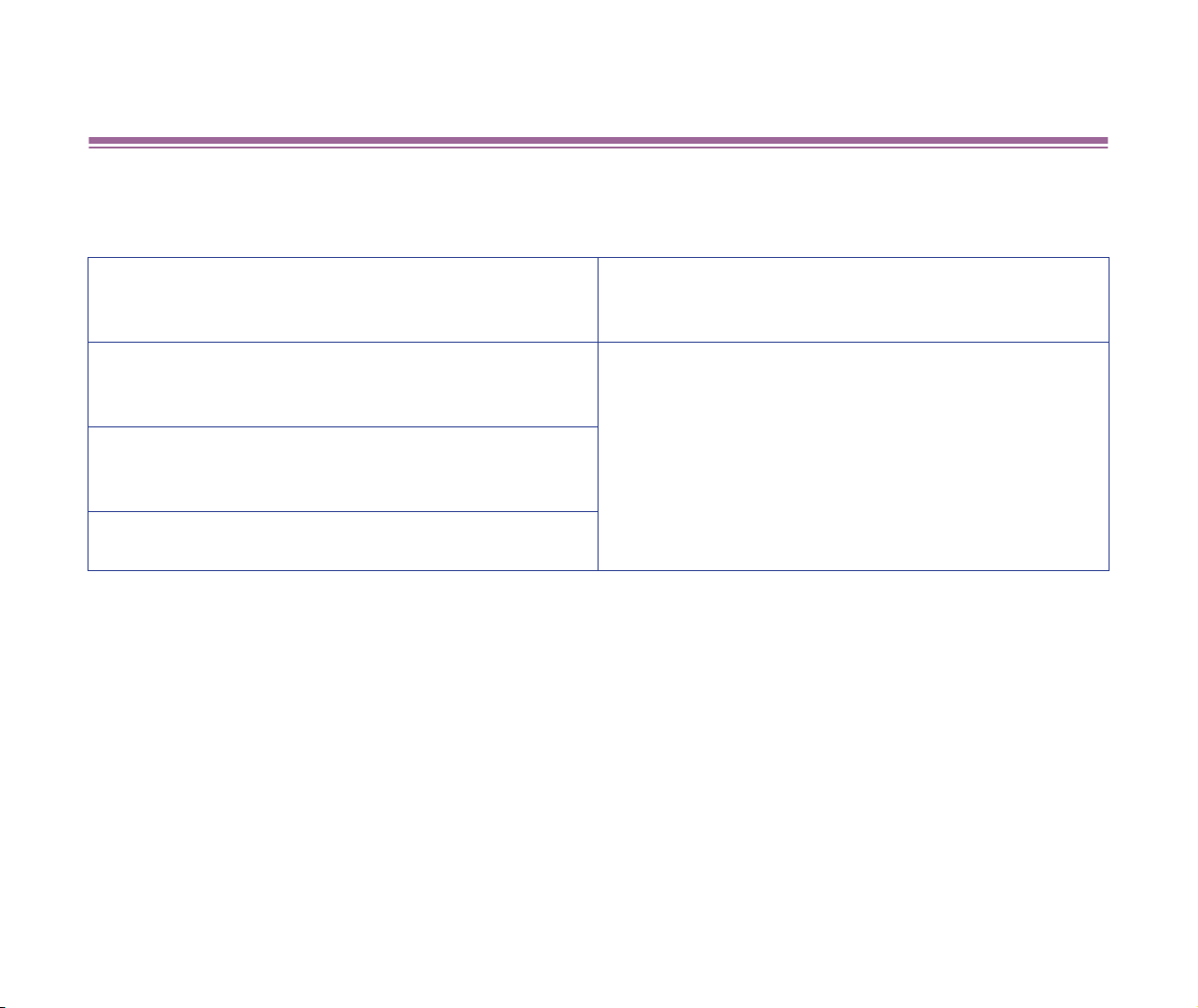
printing. The wizard is invoked when one of the following conditions is met:
Note
➤
Some digital cameras may not be compatible with the automatic execution feature.
When you turn on your Canon digital camera con-
nected to your computer, while ImageBrowser is not
running.
ImageBrowser starts and then the Automation wiz-
ard is invoked.
When you turn on your Canon digital camera con-
nected to your computer, while ImageBrowser is
running.
The Automation wizard starts.
When you turn on your digital camera, which is not
manufactured by Canon, while ImageBrowser is
running.
When you insert the memory card into the memory
card reader, while ImageBrowser is running.
Importing images with the Automation wizard
50
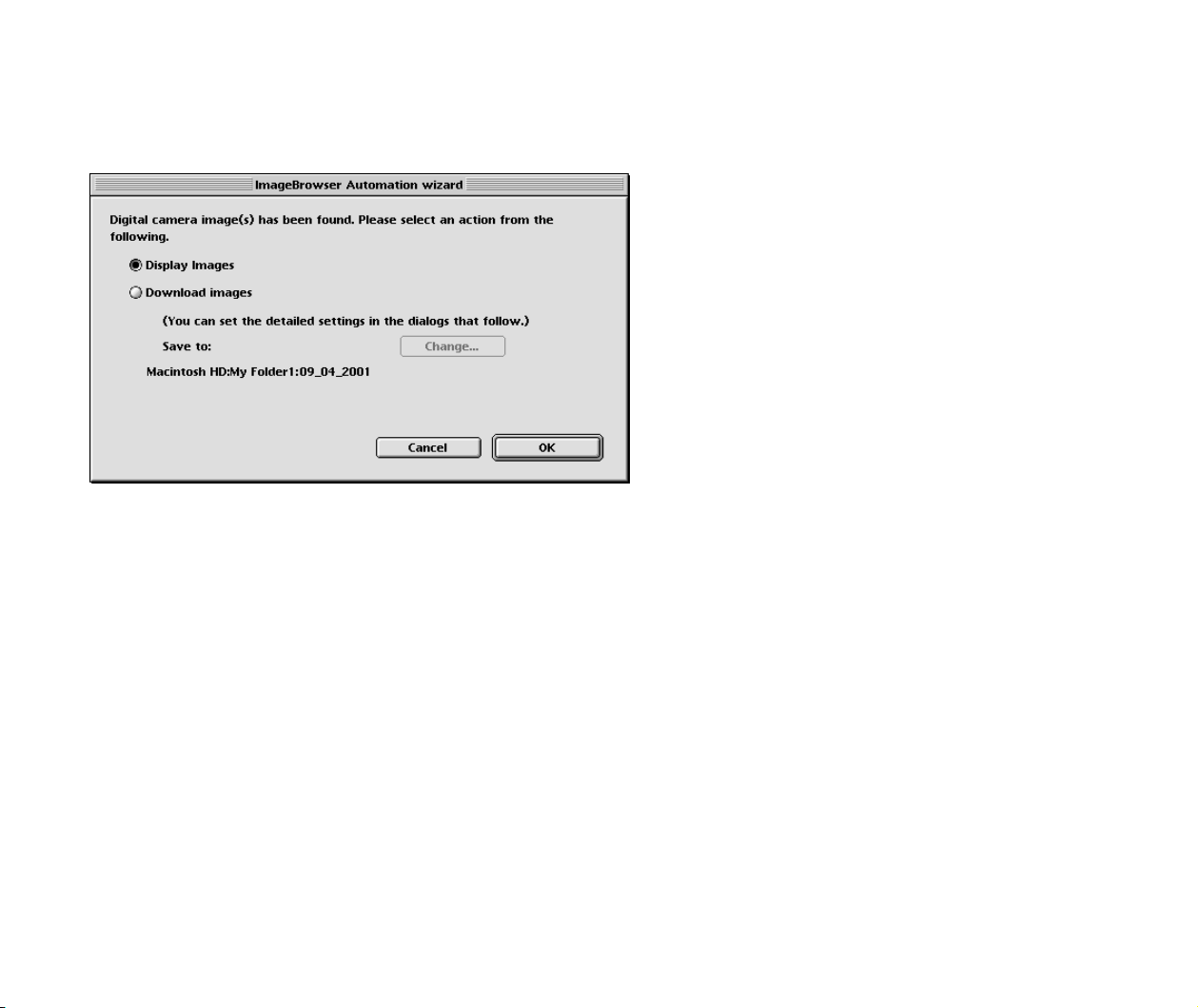
■ Automation wizard starts
When the Automation wizard starts, the following dialog box containing several options is displayed.
Select Download images if you prefer the automated image downloading with the Automated
wizard. See Setting the Automation wizard to download images.
Importing images with the Automation wizard
51
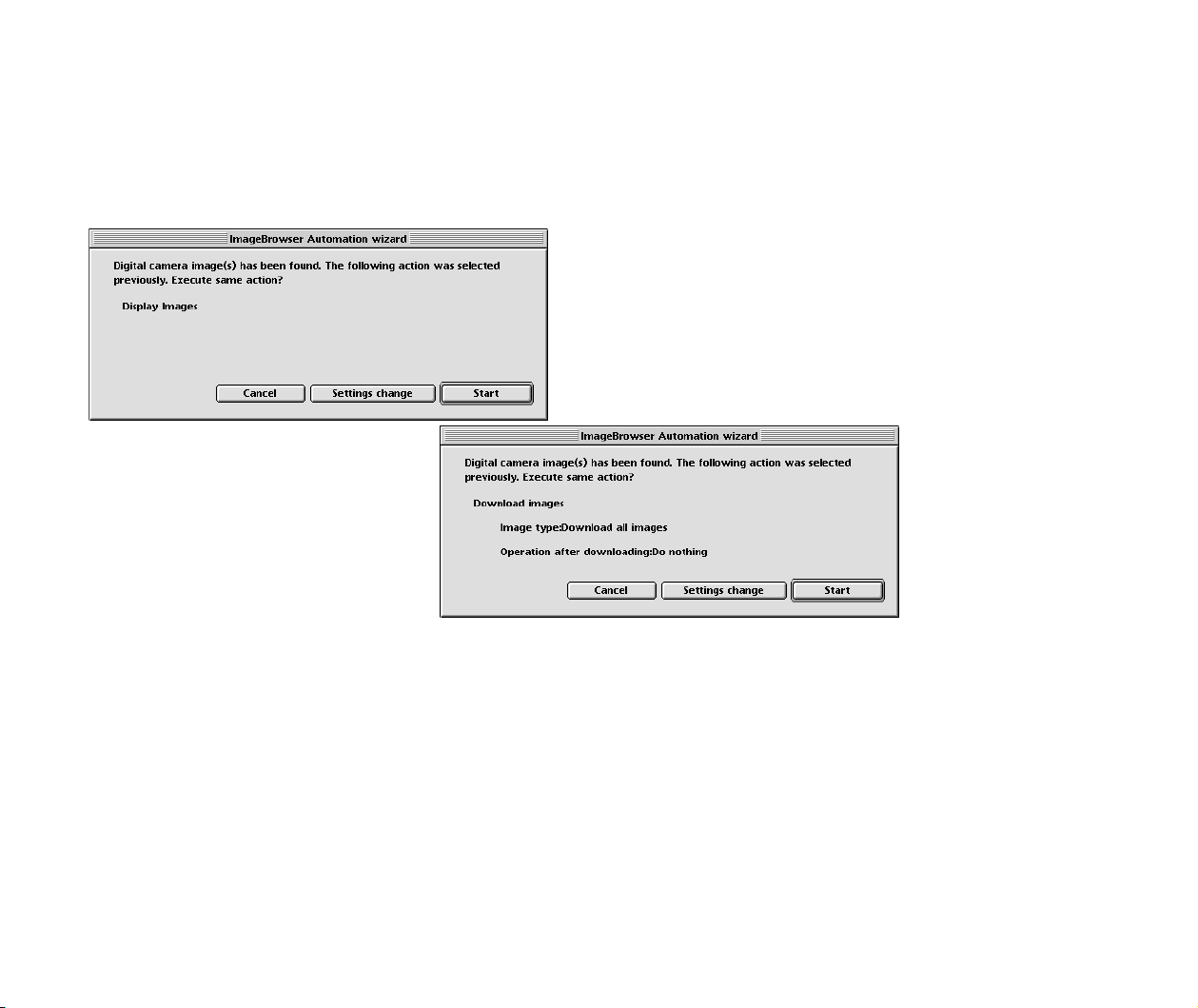
■ When the Automation wizard shows the previous settings
Your settings in the ImageBrowser Automation wizard dialog box are saved. The next time the
Automation wizard starts, the ImageBrowser Automation wizard dialog box shows the previous
settings as shown below:
Click the Start button to use the saved sequence of actions.
If you do not want to use the saved action sequence, click the Settings change button to change
the saved settings.
Click the Cancel button to exit the Automation wizard and return to the Browser window.
Importing images with the Automation wizard
52
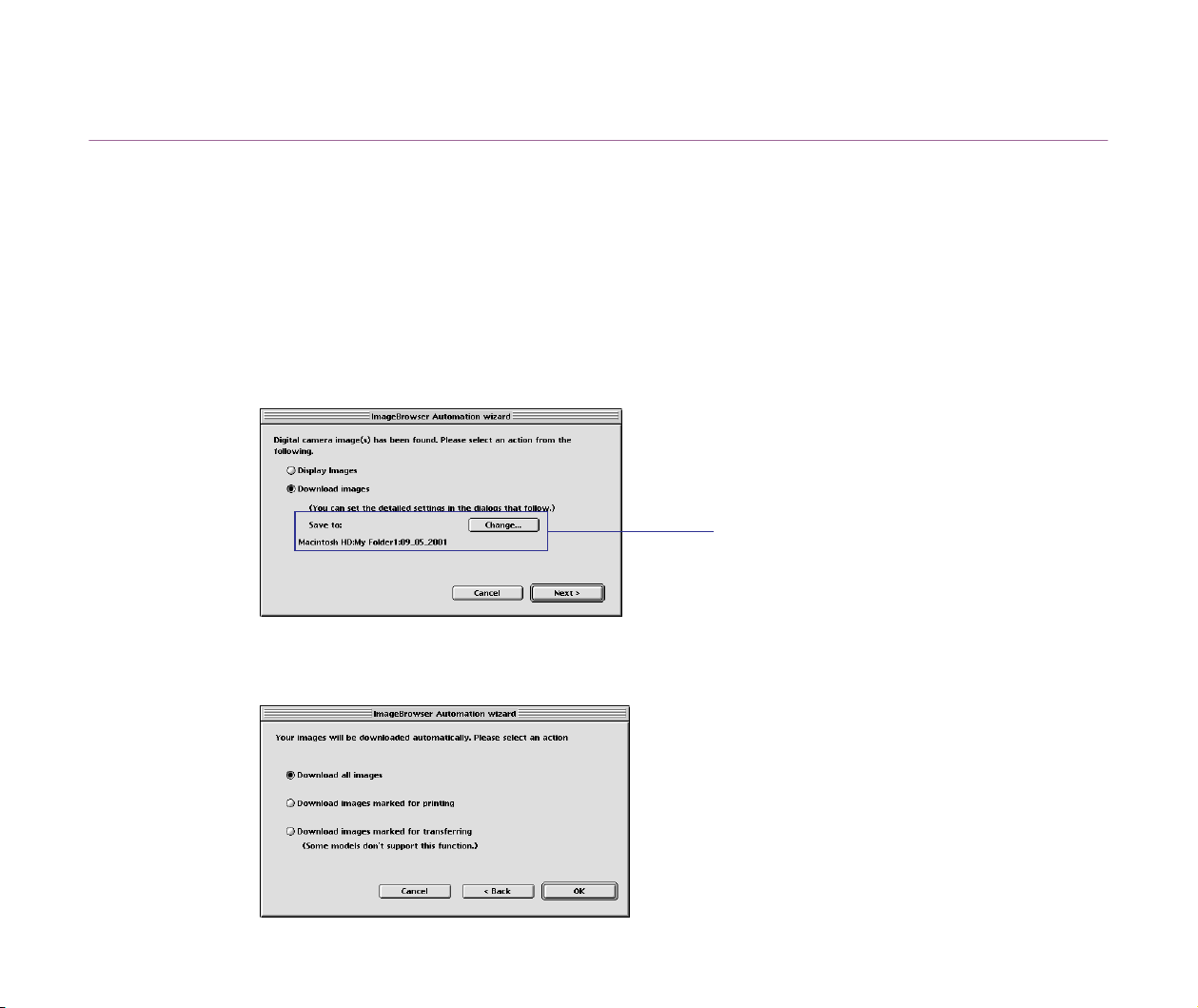
Setting the Automation wizard to download images
Follow the steps below to download the images stored in the device connected to your computer
with the Automation wizard.
Steps
1 Select the Download Images option in the ImageBrowser
Automation wizard dialog box.
The Change button becomes active.
2 Click the Next button to proceed.
The dialog box shows the following options:
The downloaded images are saved to the
folder displayed here. To change the
destination folder, click the Change
button and select a destination folder.
Download all images
Select this option to download all the images.
Download images marked for printing
Select this option to download only the images
selected for printing (DPOF).
Download images marked for transferring
Select this option to download only the images
selected for attaching to your Email.
Importing images with the Automation wizard
53
3 Select a category of images to download with the Automation
wizard.
Refer to the documentation of your Canon camera for more information on how to
select an image depending on its use (for printing or for Email attachment).
4 Click the OK button.
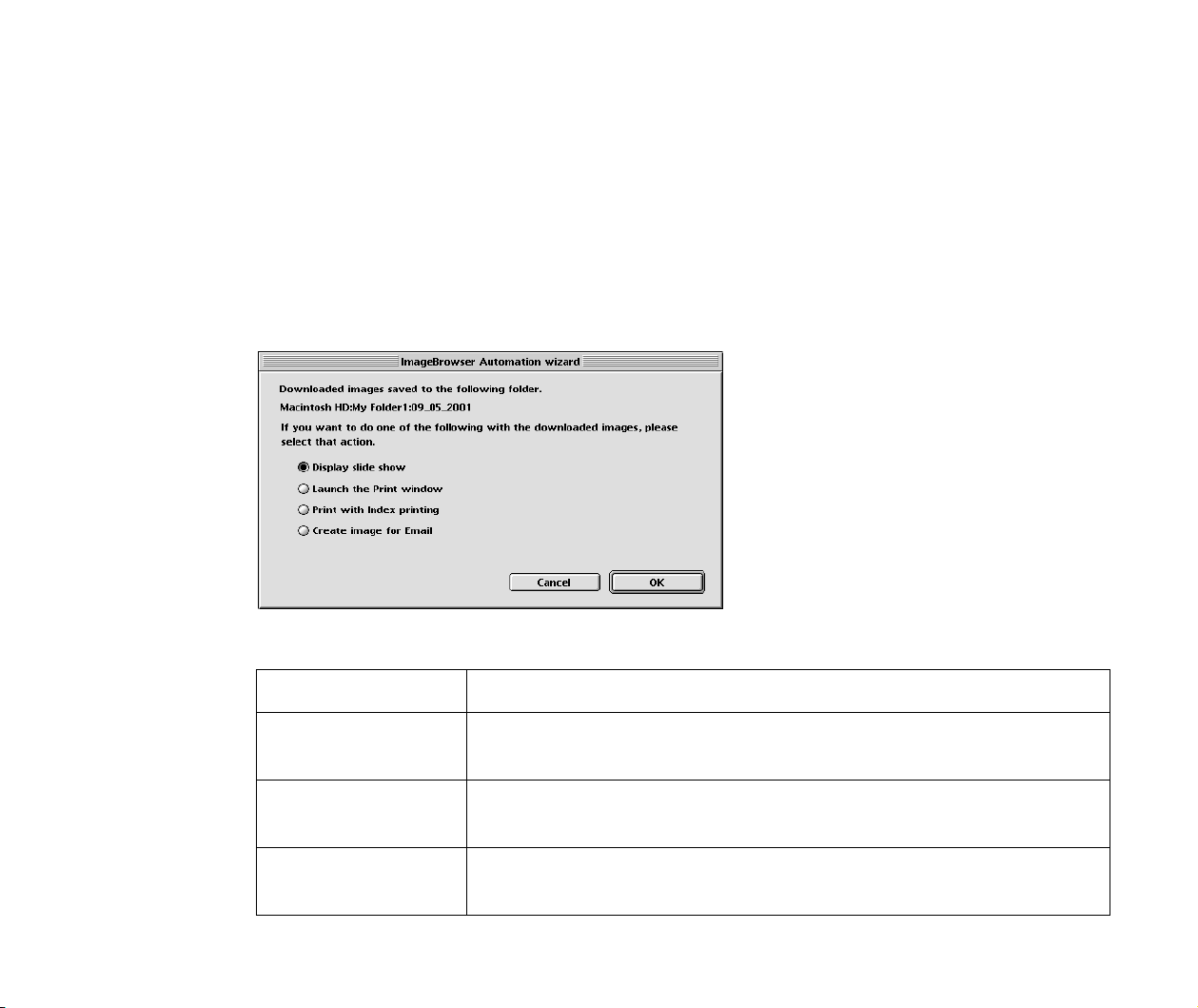
The Automation wizard starts downloading the selected images and saving them in
the selected folder.
When downloading is complete, the following message appears:
Select the next action to do on the downloaded images from the following options:
Option Action
Display slide
show
Select this option to view the downloaded images as a slide show.
Launch the Print
window
Select this option to perform custom layout printing (all images are
automatically selected and printed).
Print with index
printing
Select this option to perform index printing (all images are auto-
matically selected and printed).

Importing images with the Automation wizard
54
5 Click the OK button.
The Automation wizard terminates and the selected action is performed.
If you click the Cancel button, the Automation wizard terminates to return to the
Browser window with no action performed.
When the Automation wizard terminates, it saves the selected settings so that the
ImageBrowser Automation wizard dialog box shows the settings the next time
the wizard starts.
Create image for
Email
Select this option to open the Create Image for Email dialog box
(all images are automatically selected).
Refer to Creating image files attached to Email for more informa-
tion.
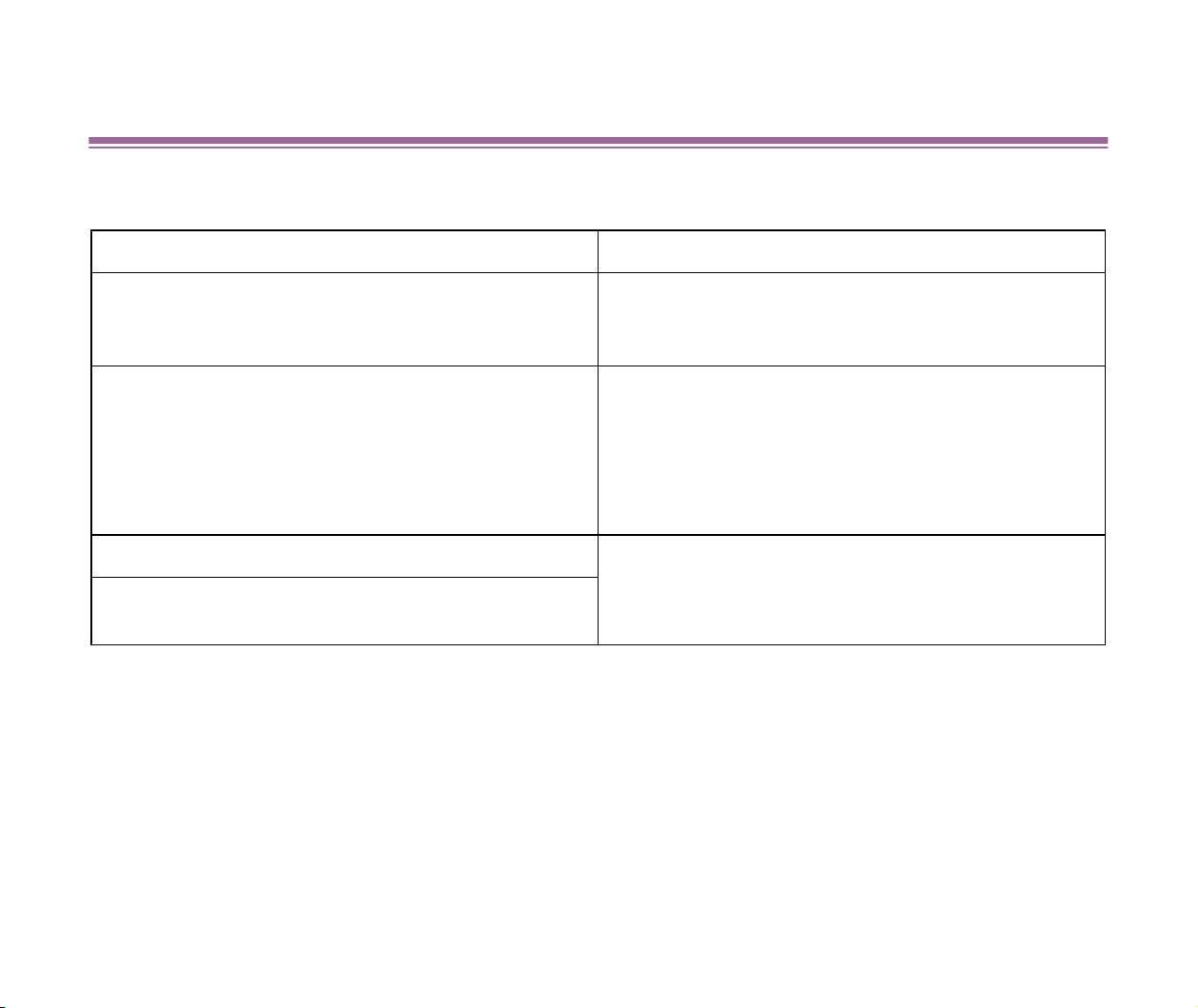
Importing images using the Camera window
55
Importing images using the Camera window
The Camera window is invoked when one of the following conditions is met:
This section describes how to import or download the images to ImageBrowser using the Camera
window.
Note
➤
Make sure that adaptors for the memory card reader or the memory card are
installed correctly on your computer before importing image data saved in the
memory card.
Note
➤
Your Canon digital camera must be connected correctly to your computer to open
the Camera window using the Canon Camera button or the Canon Camera icon.
Condition Data displayed in the Camera window
When you select the Display Images option in the
Automation wizard.
All the images stored in your device that can be rec-
ognized by the Automation wizard, such as a digital
camera or a memory card.
When you double-click the DCIM icon in the
Explorer View.
All the images stored in the DCIM folder in the
memory card or the smart media.
*The folder name, DCIM, may be different depend-
ing on the type of data stored in the memory card
used or the hard drive connected. For example, the
foler name may be DC97 or PWSHOTO.
When you click the Canon Camera button. The images stored in your Canon digital camera
connected to your computer.
When you click the Canon Camera icon in the
Explorer View.
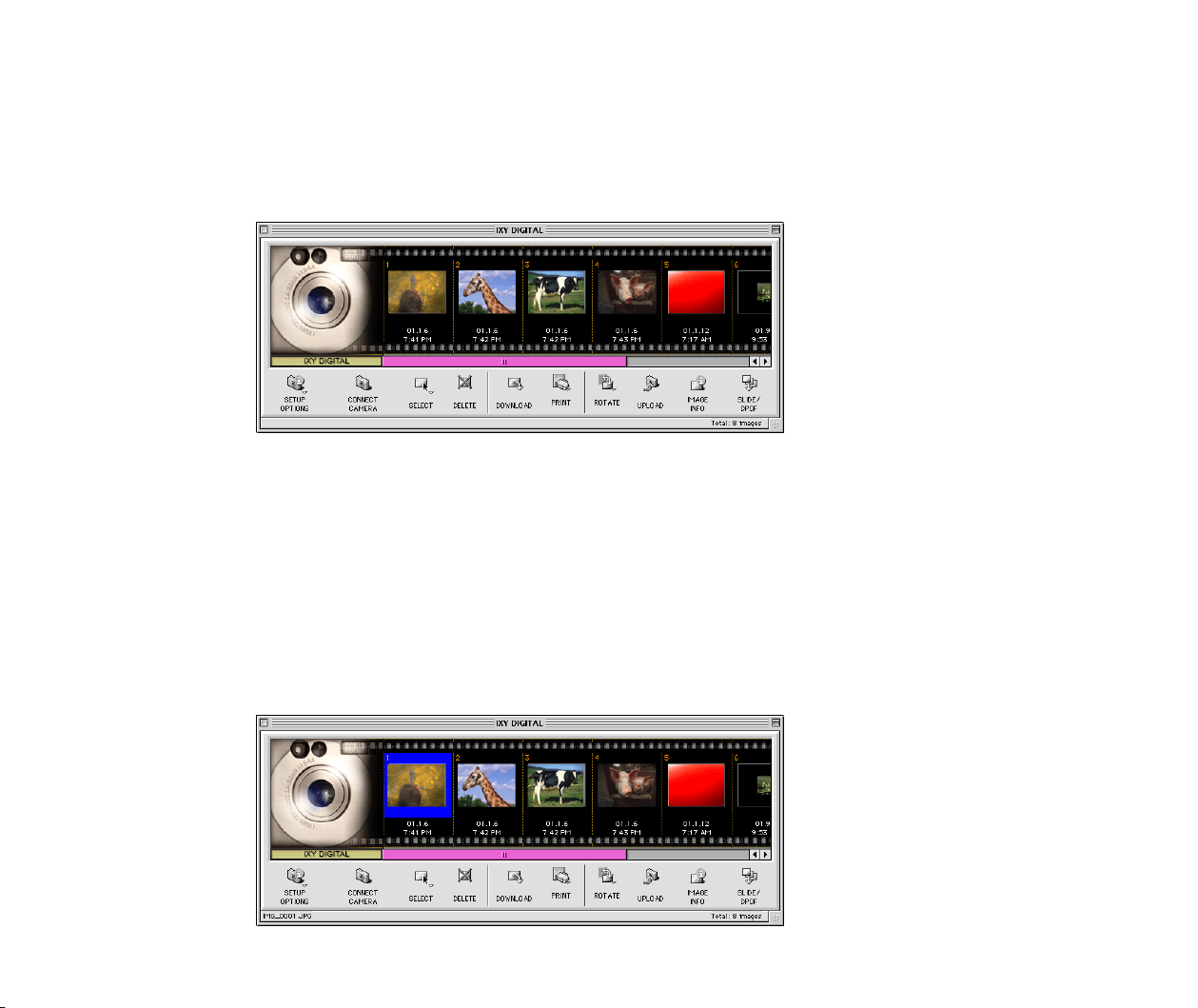
Importing images using the Camera window
56
■ Steps to import images using the Camera window
1 The images in the device are displayed in the Camera window (in
thumbnail format).
Refer to Using the Camera window for more information on this window.
2 Select the folder where to save the images in the Explorer View.
Refer to Changing the location of images for more information on dealing with
folders, including creating a new folder.
3 Return to the Camera window and click each image you want to
import.
When you click an image (thumbnail), its background color changes to blue,
indicating it has been selected.
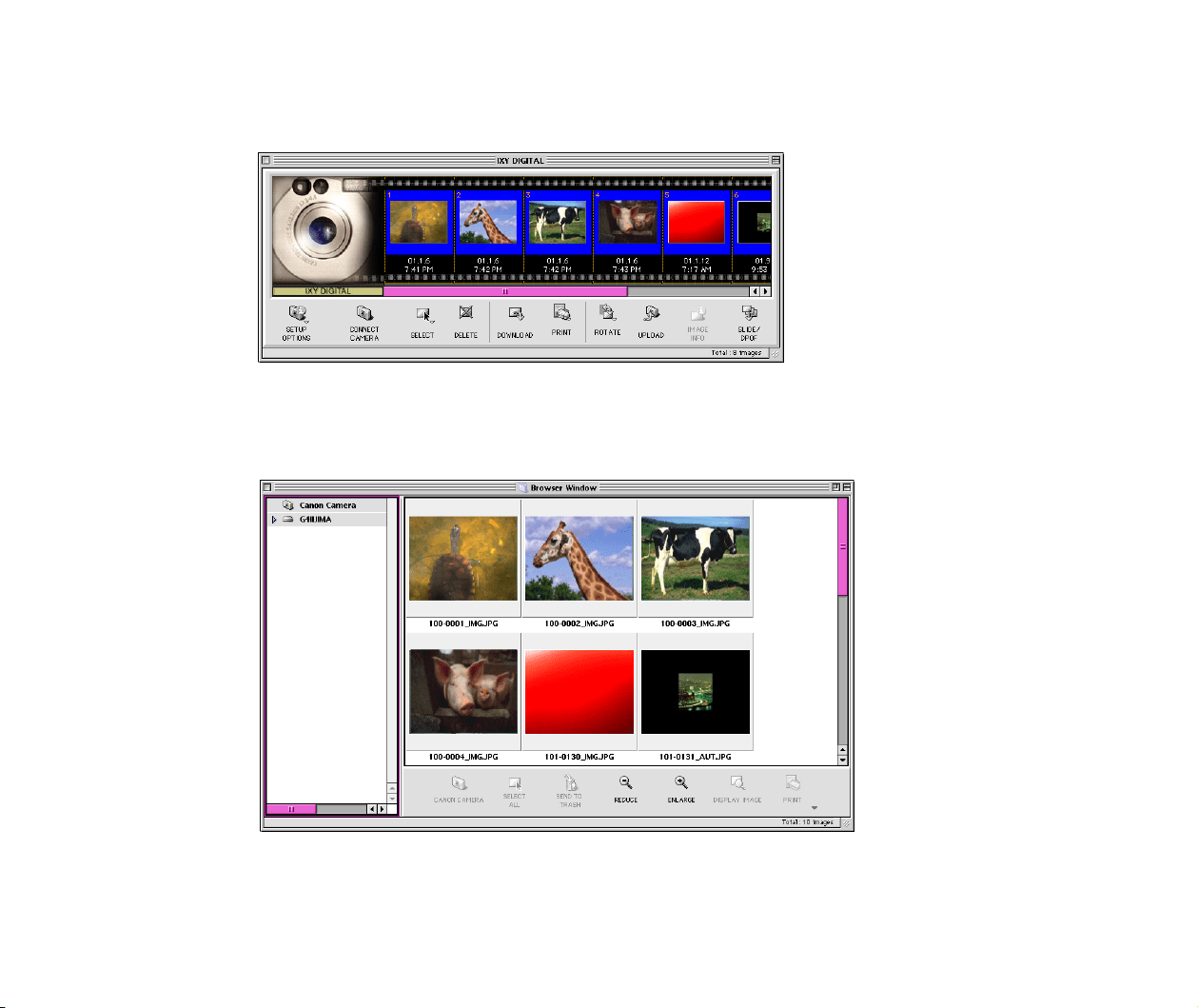
Importing images using the Camera window
57
You can select multiple images by clicking desired thumbnails while pressing the
Shift key.
4 Click the DOWNLOAD button in the Camera window.
The selected image(s) is imported to your computer and displayed in the Browser
area.
5 Click the close box at the upper left corner of the window.
Repeat Steps 3 and 4 above to import other images.
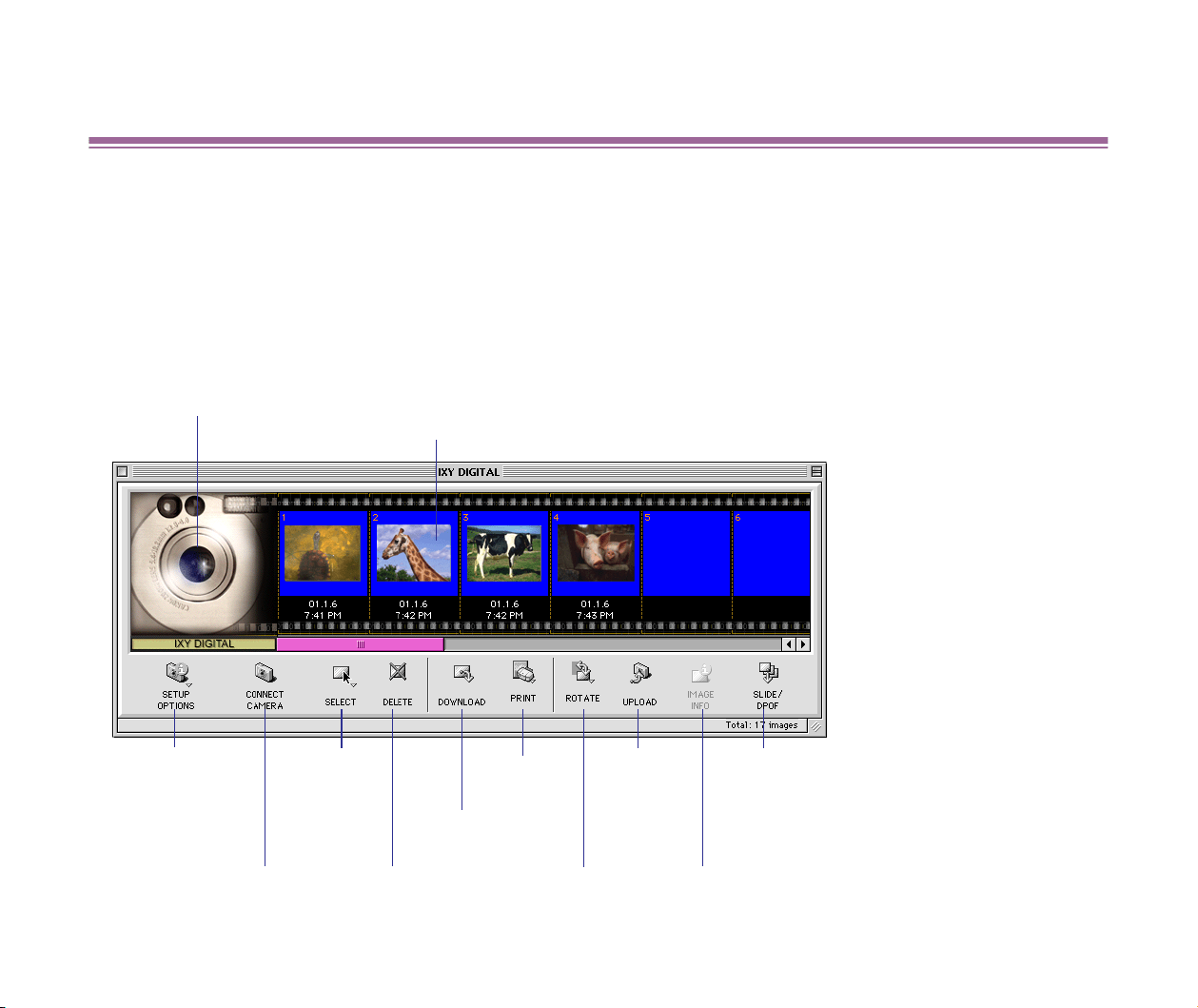
Using the Camera window
58
Using the Camera window
The Camera window shows the images saved in the device connected to your computer.
You can display the information on each image in the device, as well as import or print these images
using the Camera window.
Click an image (thumbnail) to select it. The border is displayed around the selected image. You can
select multiple images by clicking each image while pressing the Shift key.
Images (thumbnails) in the
memory card are displayed.
Thumbnails
The thumbnails of the images in the memory card are displayed.
When you click a thumbnail, its background color changes.
(1) SETUP
OPTIONS
button
(2) CONNECT
CAMERA button
(3) SELECT
button
(4) DELETE
button
(5) DOWNLOAD
button
(6) PRINT
button
(7) ROTATE
button
(8) UPLOAD
button
(9) IMAGE INFO button
(10) SLIDE/DPOF
button
Using the Camera window
59
(1) SETUP OPTIONS button
When the SETU POPTIONS button is selected, a menu is displayed.
Note
➤
This button is available only when the connected device is a Canon digital camera.
(2) CONNECT CAMERA button
To re-establish the connection between the device and the computer and download the images in
the device again, click the CONNECT CAMERA button.
Note
➤
This button is available only when the connected device is a Canon digital camera.
(3) SELECT button
Click the SELECT button to open a menu containing two items Select All and Deselect All. Click
Select All to select all the images displayed in the Camera window. Click Deselect All to deselect
all the images displayed in the Camera window.
Items in the menu Features
Camera Settings Selecting this item displays a dialog box, which shows the information on
the connected camera such as owner’s name and date. The information
in this dialog box can be modified.
Communication Settings Selecting this item displays a dialog box, which shows the settings of the
connected camera such as the communication port the camera uses.
The settings can be modified.

Using the Camera window
60
(4) DELETE button
Click the DELETE button to delete the selected image from the device. When clicking this button, a
warning message is displayed asking you to confirm the deletion.
Click the OK button to completely delete the image from the device. Click the Cancel button to
cancel the deletion. The deleted image is not recoverable.
(5) DOWNLOAD button
Click the DOWNLOAD button to copy the selected image(s) to the folder selected in the Explorer
View.
When you click an image (s) and click this button, downloading starts and at the same time a dialog
box indicating the progress of downloading appears.
Using the Camera window
61
(6) PRINT button
Click the PRINT button to print the selected images. This button works the same as the PRINT
button in the Browser window. This button allows you to start custom layout printing or index printing
directly from the device (images are not imported to your computer).
Refer to Printing for more information on the custom layout printing and index printing.

Using the Camera window
62
(7) ROTATE button
The ROTATE button allows you to rotate a thumbnail in the Camera window. When you select a
thumbnail and then click this button, a submenu appears.
Select 90 degrees right to rotate the selected thumbnail 90 degrees clockwise.
Select 90 degrees left to rotate the selected thumbnail 90 degrees counterclockwise.
Select 180 degrees to rotate the selected thumbnail 180 degrees.
These rotation options will rotate only the selected thumbnail displayed in the Camera window (the
original image stored in the device is not rotated). However, when you import the image of a rotated
thumbnail, it is automatically rotated according to the rotation option and downloaded to the
specified folder.
Note
➤
When you import the image of a rotated thumbnail, the original image (not rotated)
is also downloaded in addition to the rotated image. To prevent the original image
from being downloaded, select the File Format option from the pulldown menu at
the upper left corner of the Preferences dialog box and then check the Retain
original when rotating JPEG images check box. The Preferences dialog box is
displayed by selecting Preferences from the Edit menu.
Using the Camera window
63
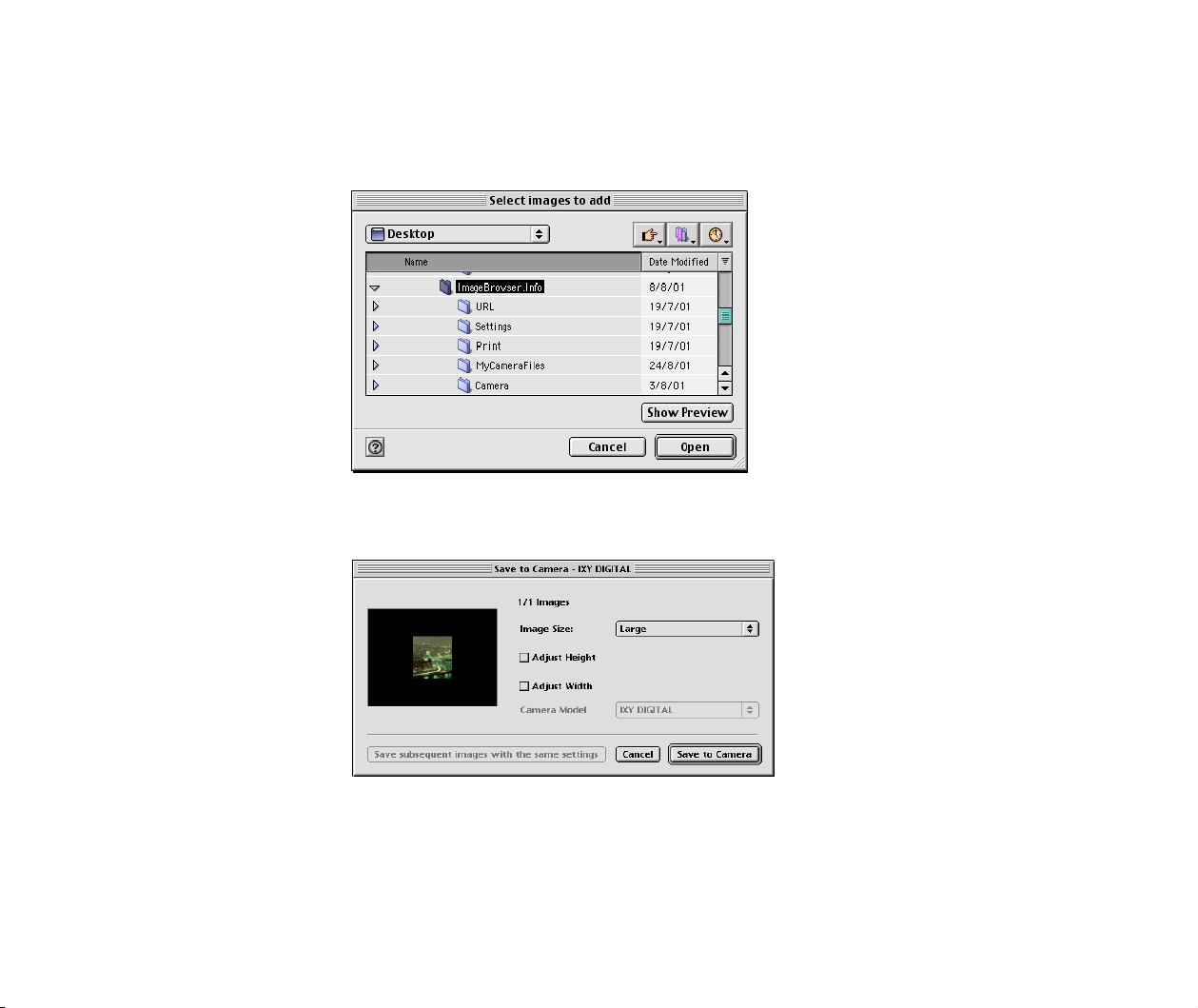
(8) UPLOAD button
Use this button to export or upload an image located in a folder on your computer to the device.
Clicking this button displays the dialog box where you can select an image file.
When you select an image to upload in the dialog box, the following dialog box appears.
Specify uploading options such as image size and resizing options, and then click the Save to
Camera button to start uploading the image to the device.
Note
➤
An image in the Browser area can be uploaded to the device by dragging and
dropping it onto the thumbnail area of the Camera window.
Using the Camera window
64
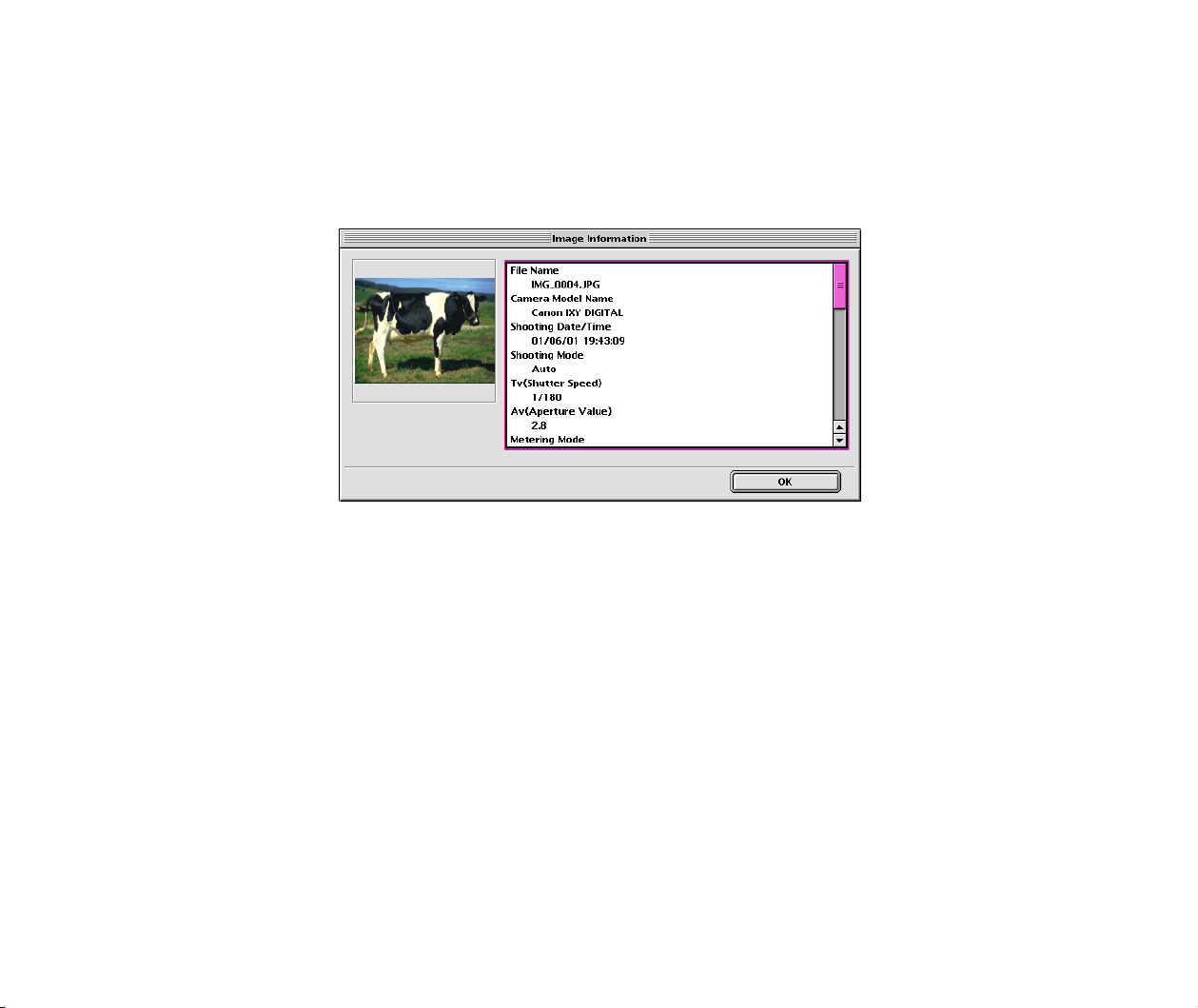
(9) IMAGE INFO button
This button enables you to view the information on an image selected in the Camera window.
Select an image in the Camera window and then click the IMAGE INFO button. The following dialog
box appears.
Using the Camera window
65
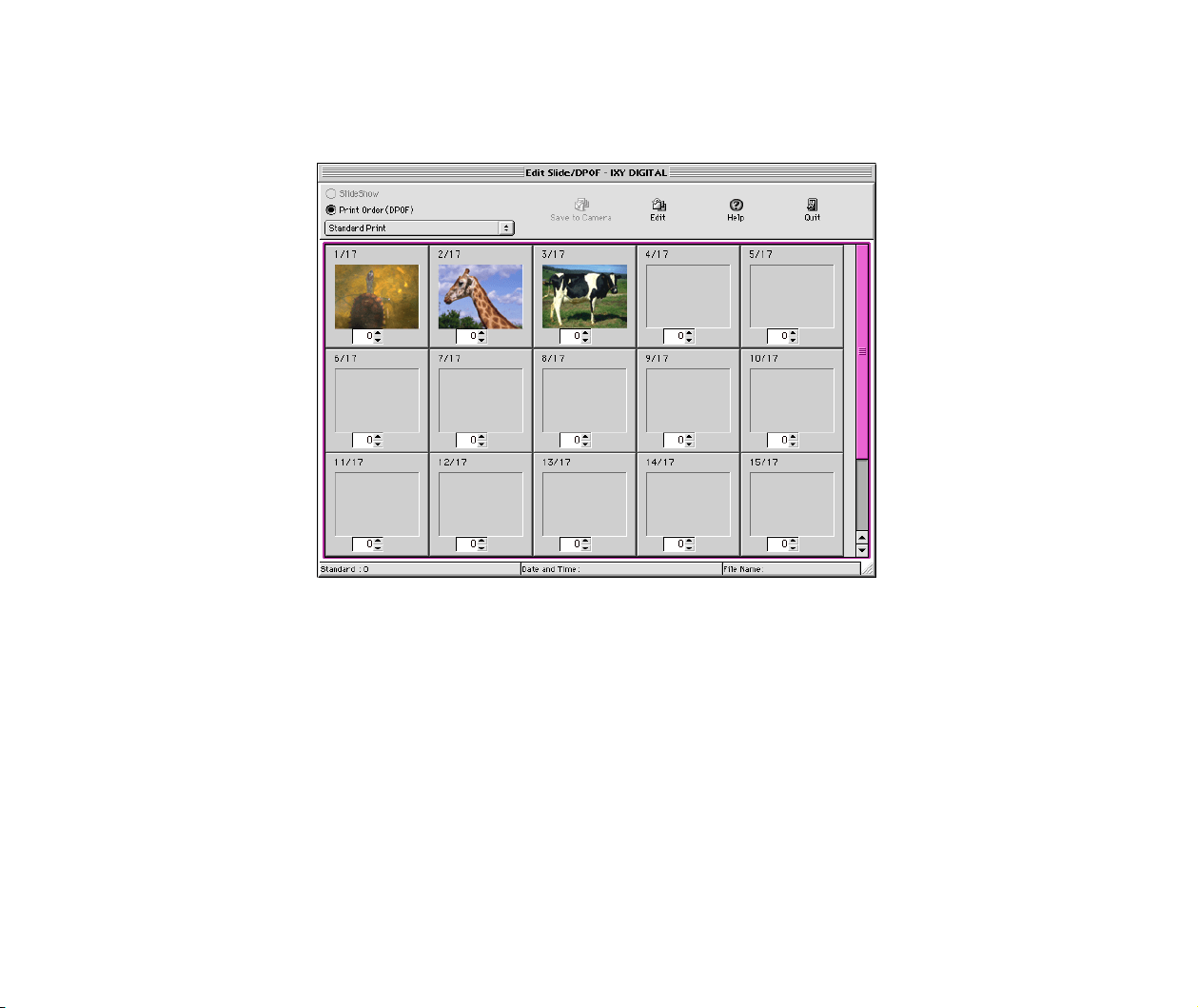
(10) SLIDE/DPOF button
Click the SLIDE/DPOF button to open the Edit Slide/DPOF window.
Using this window, you can modify the settings for slide shows or DPOF for your Canon Digital
Camera and write the modified information to your camera.
Note
➤
Only Canon digital cameras support the functions provided by this button.
Setting up your Canon digital camera
66
Setting up your Canon digital camera
This section describes how to set up your Canon digital camera to connect to your computer. Only
when your digital camera is communicating with your computer correctly, the Automation wizard is
available. Double-clicking the Canon Camera icon in the Explorer View displays the Camera
window.
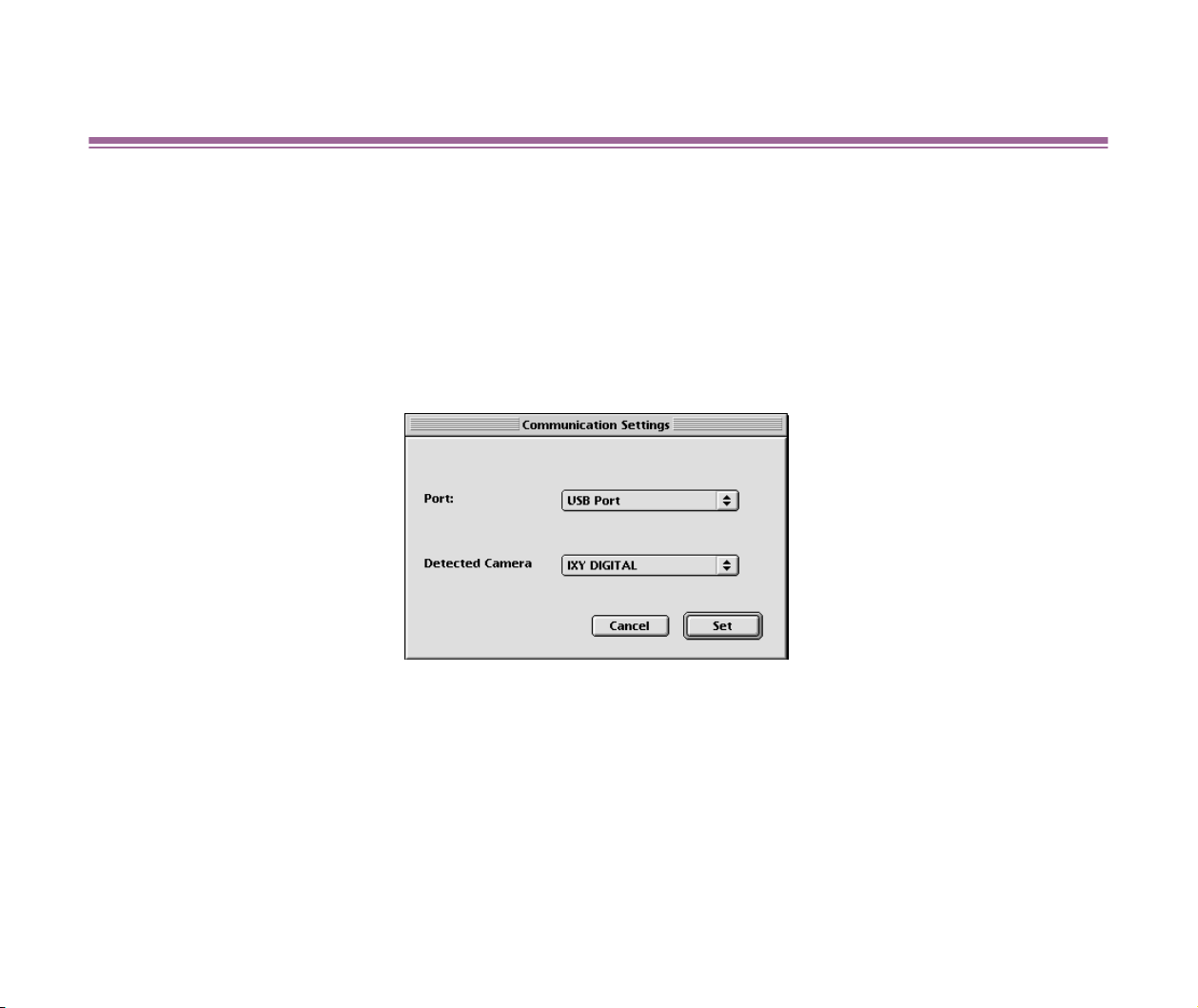
Communication settings
Select the Communication Settings option from the Settings submenu in the Canon Camera
menu to display the following dialog box.
Note
➤
When setting up the communication between your computer and digital camera,
make sure that the driver of your digital camera has been installed correctly and
your digital camera has been connected to your computer. Also turn on your digital
camera before starting the setup.
ImageBrowser may not recognize some digital camera models.
Setting up your Canon digital camera
67
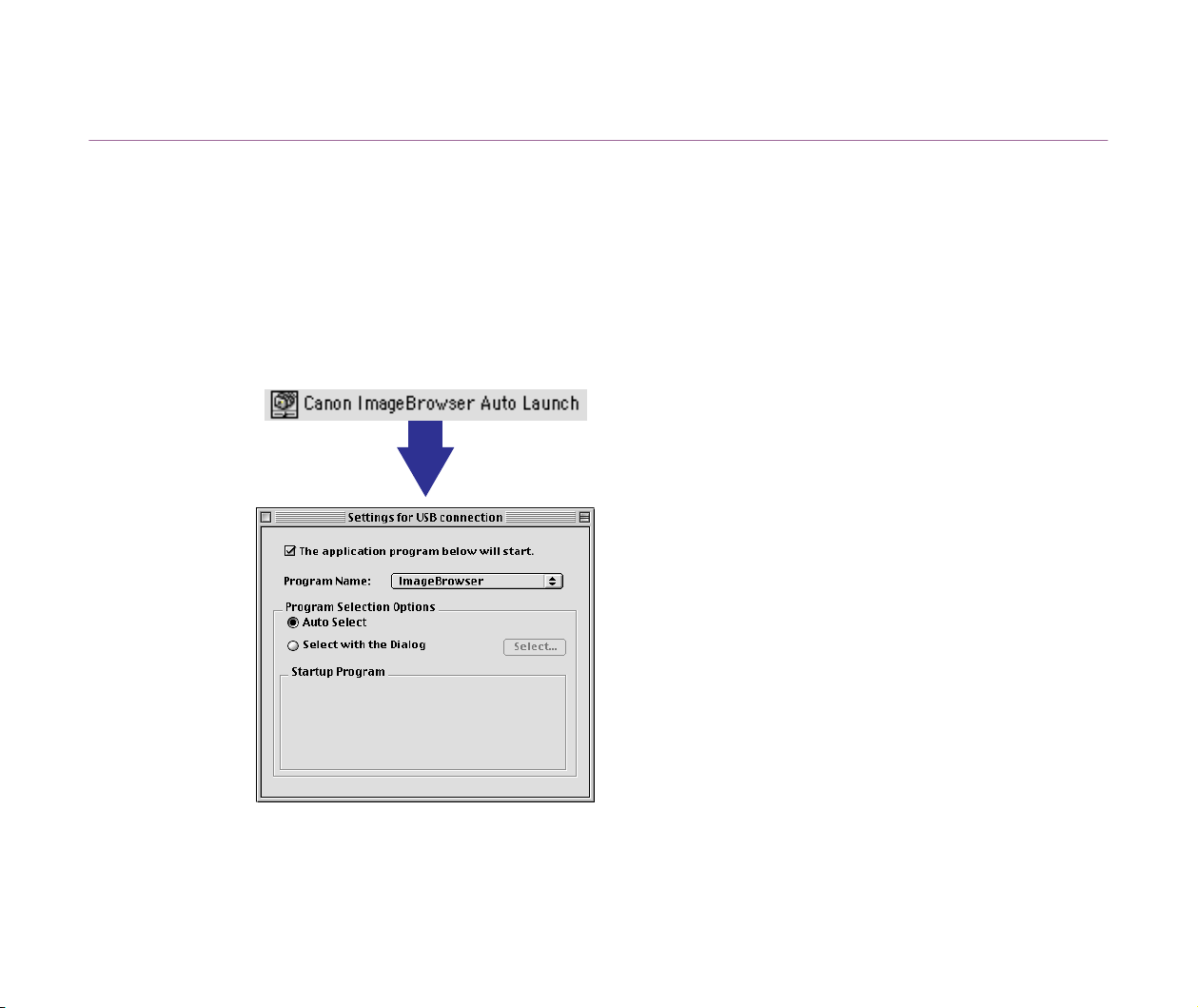
Canon ImageBrowser Auto Launch control panel
The Canon ImageBrowser Auto Launch control panel is installed onto the Control Panels folder at
the time of ImageBrowser installation. This control panel allows you to specify the action when a
Canon camera is detected.
1 Double-click the Canon ImageBrowser Auto Launch control
panel located in the Control Panels folder. The Settings for USB
connection dialog box appears.
To automatically start ImageBrowser and run the Automation wizard when a digital
camera is detected, check The application program below will start check box
and select the ImageBrowser option from the Program Name pulldown menu.

Setting up your Canon digital camera
68
If the Select with the Dialog radio button is selected in the Program Selection
Options group box, a dialog box that allows you to select an application program
will open when a digital camera is detected.
2 Click the close box at the upper left-hand corner of the dialog box
to close the Canon ImageBrowser Auto Launch control panel.

69
Printing
• Custom layout printing
• Fixed photo size printing
• Tiled photo printing (Borderless printing)
• Canon perforated paper printing
• About Canon perforated paper
• Starting printing
• Index printing
This section describes ImageBrowser's printing features.
These features can be accessed by displaying the Browser window or the Camera window and clicking the Print button.
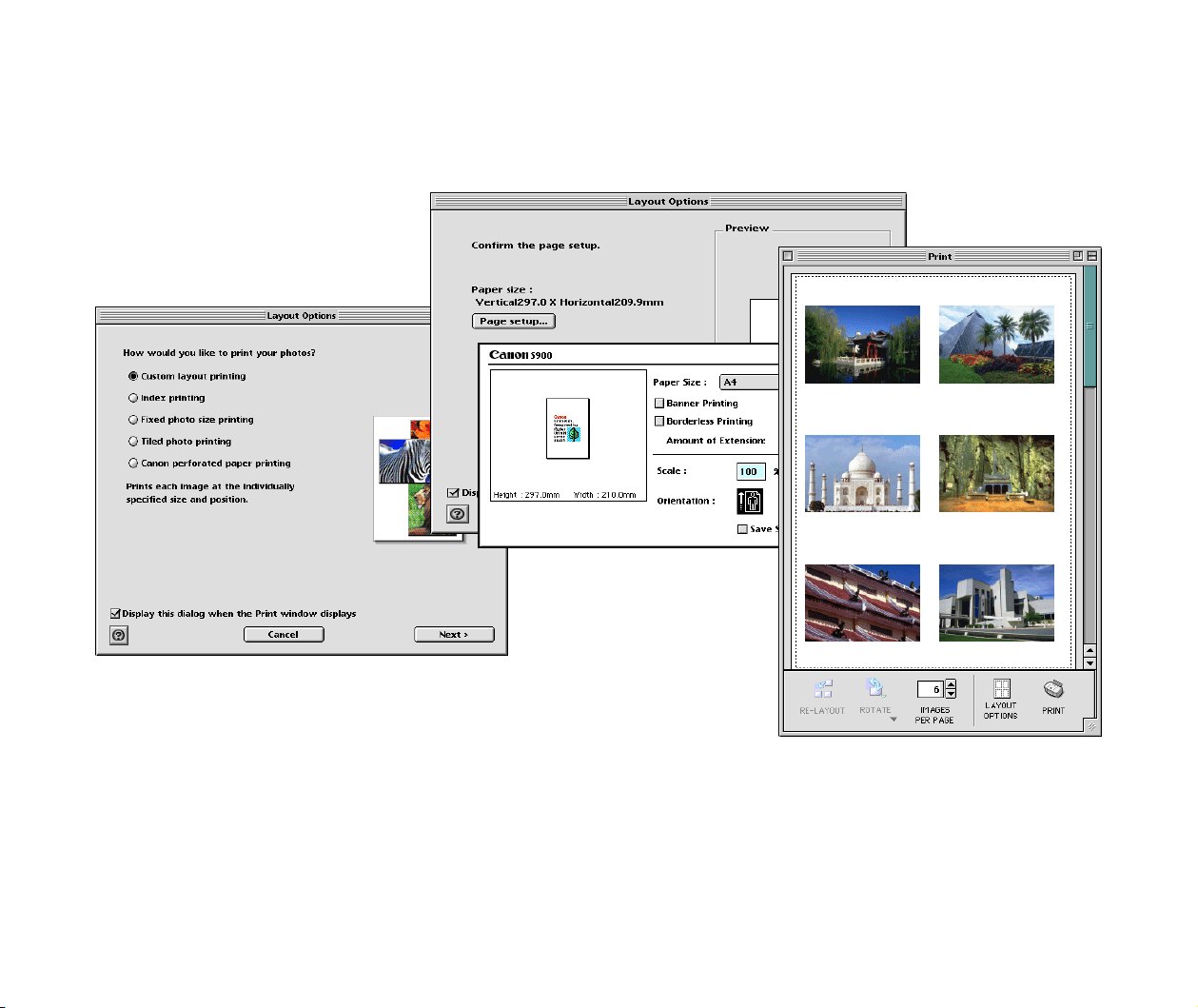
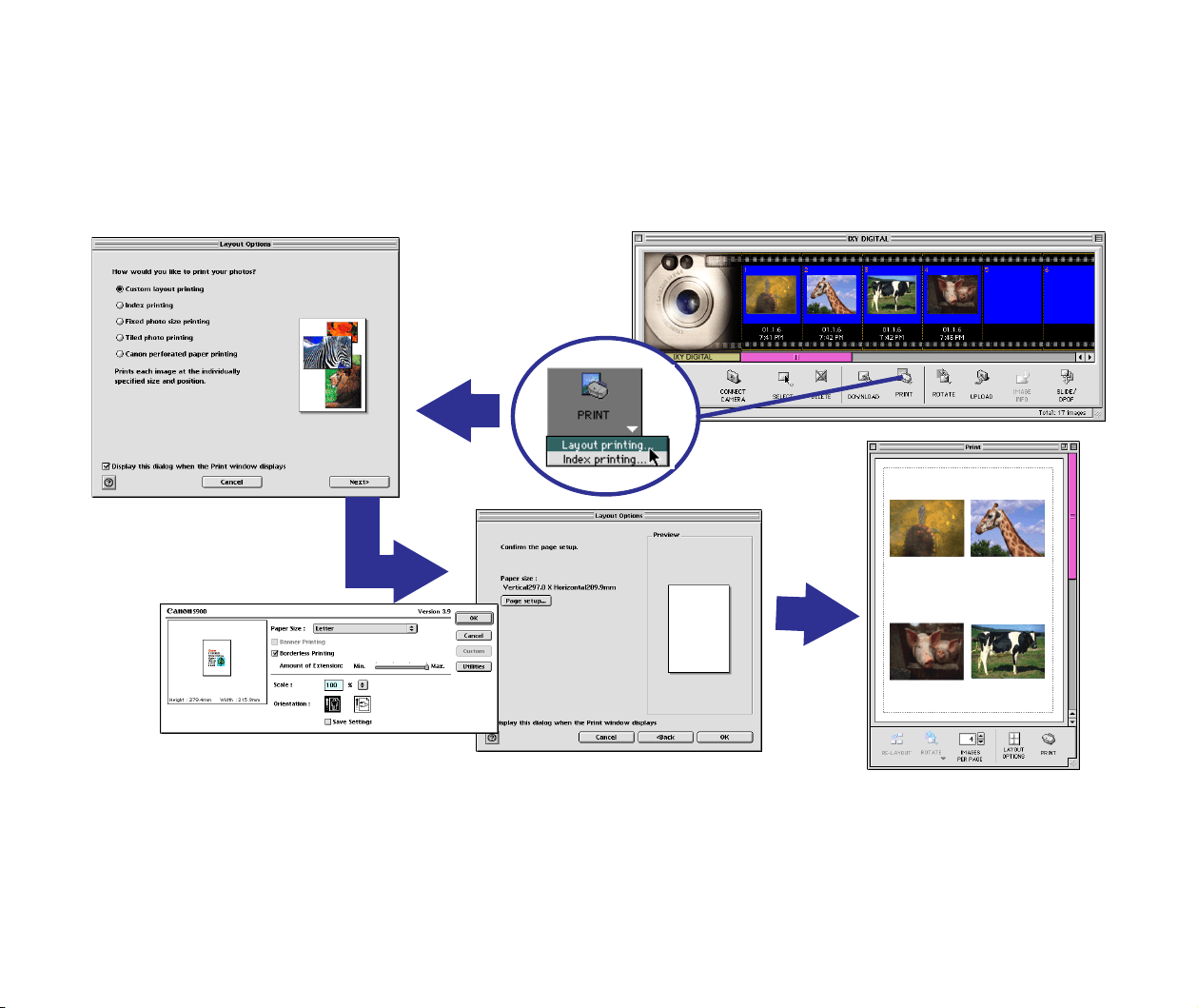
The diagram below shows the flow of printing in ImageBrowser.
Custom layout printing
70
Custom layout printing
• Selecting a layout
• Page artwork
Selecting a layout
The layout selection wizard lets you quickly select a desired layout for printing.
Steps
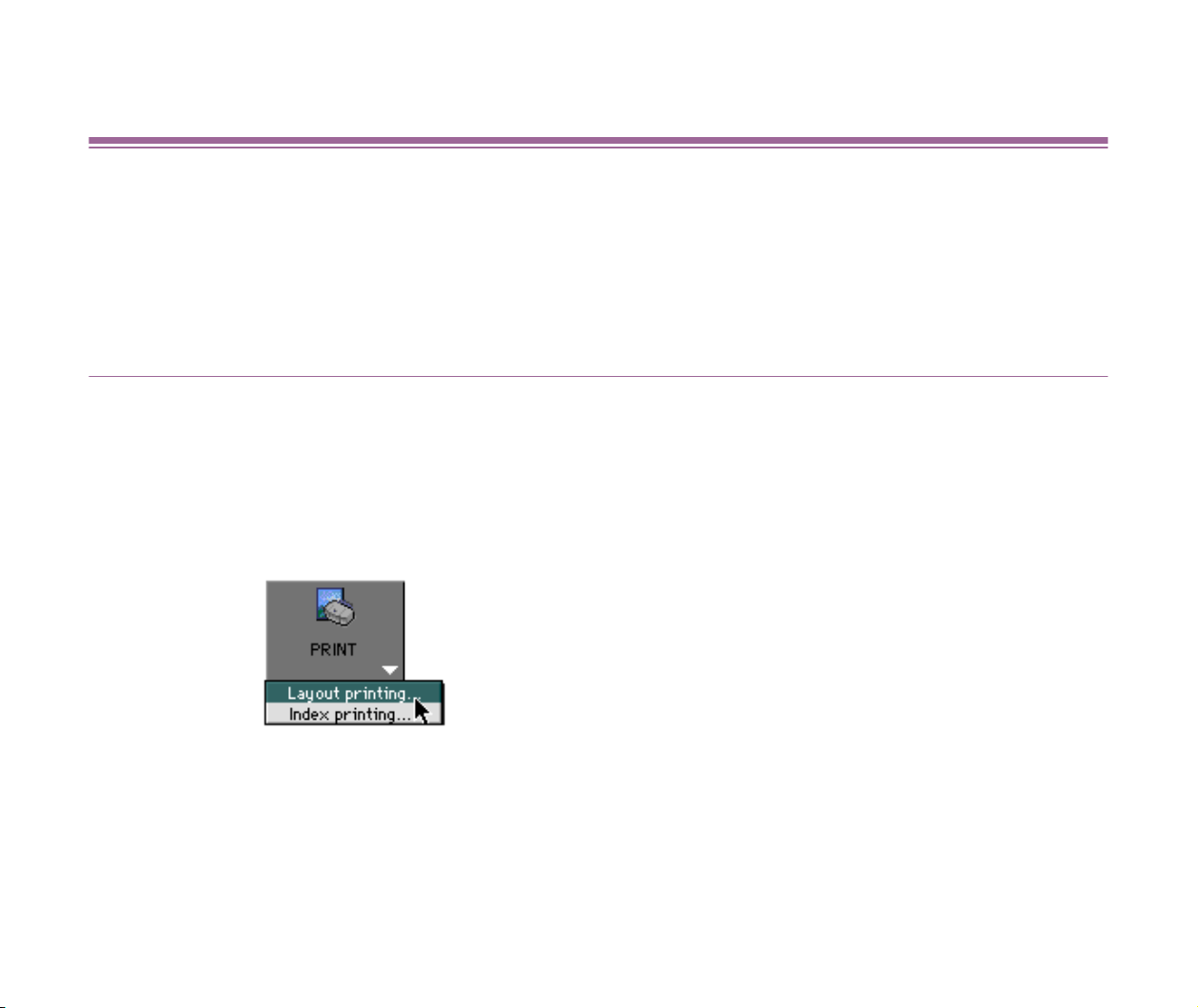
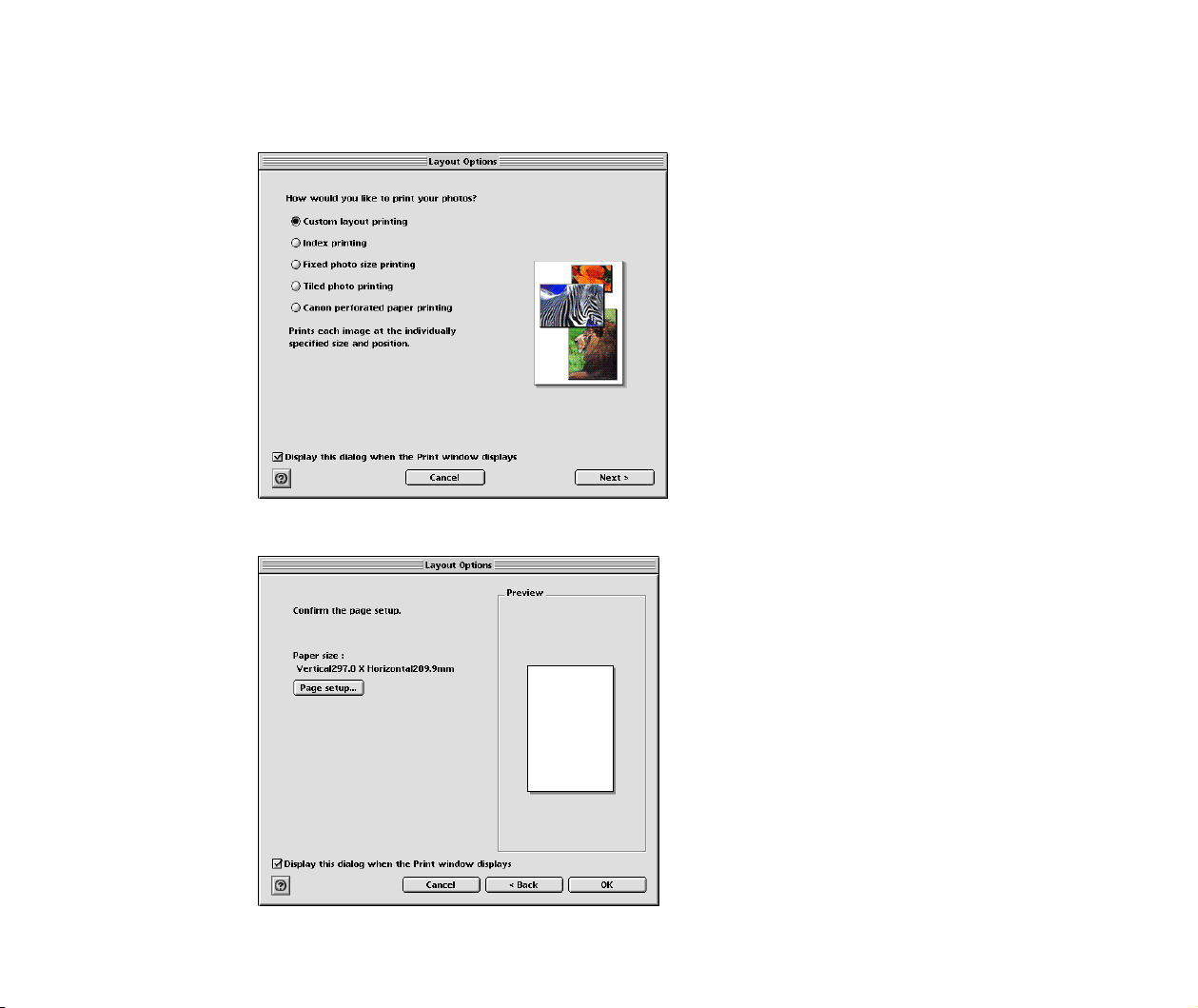
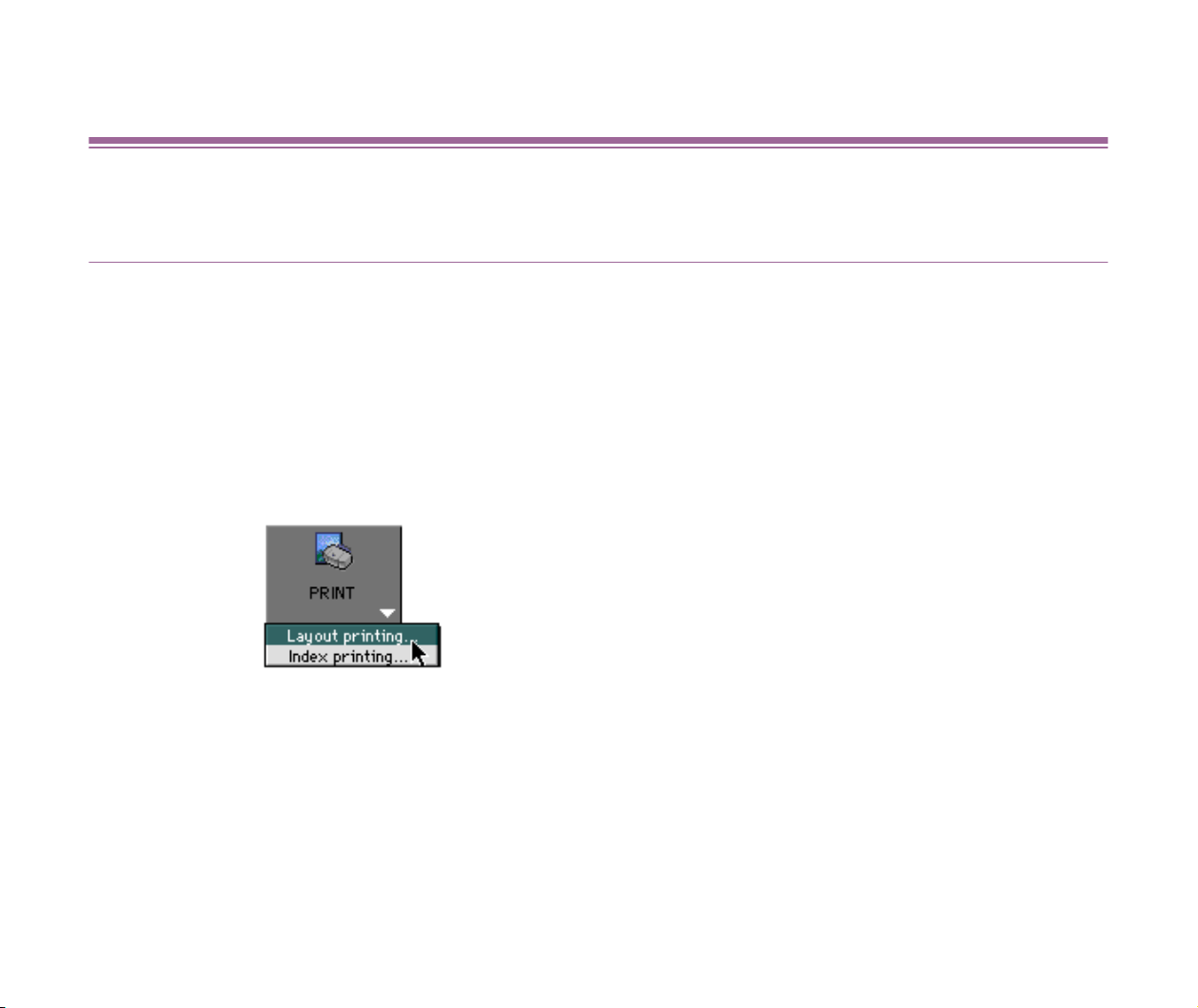
1 Select the image you want to print in the Browser area, and select Layout printing
from the submenu that appears when clicking the PRINT button.
Custom layout printing
71
The Layout Options window appears and, at the same time, the layout selection
wizard starts. Select the Custom layout printing radio button.
2 Click the Next button to proceed to the next page for page setup.
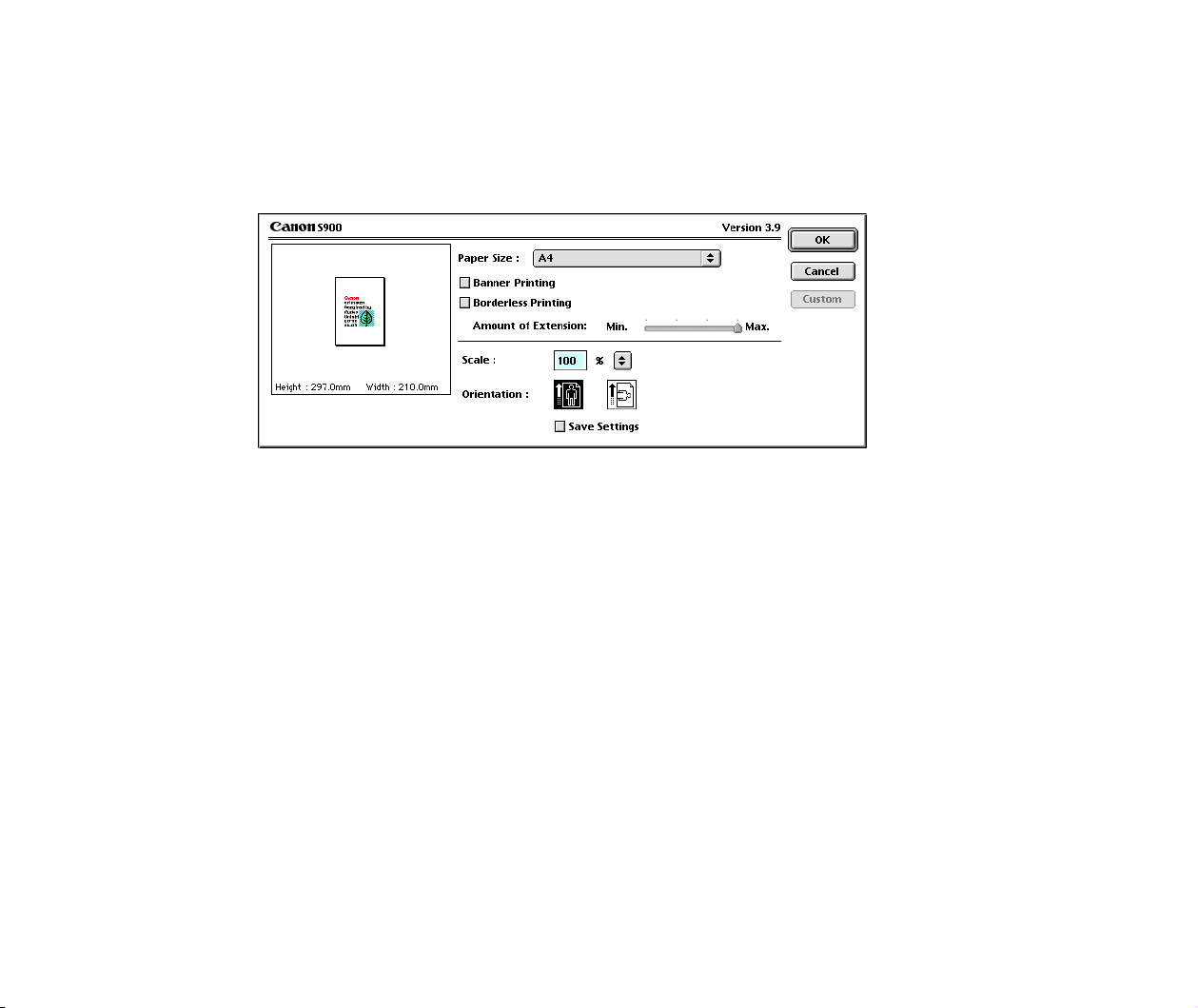
Custom layout printing
72
3 Click the Page setup button.
The Page Setup dialog box for the printer selected in the Chooser appears. Specify
the paper size and orientation. Select the Borderless Printing check box to print
images with no margins.
Custom layout printing
73
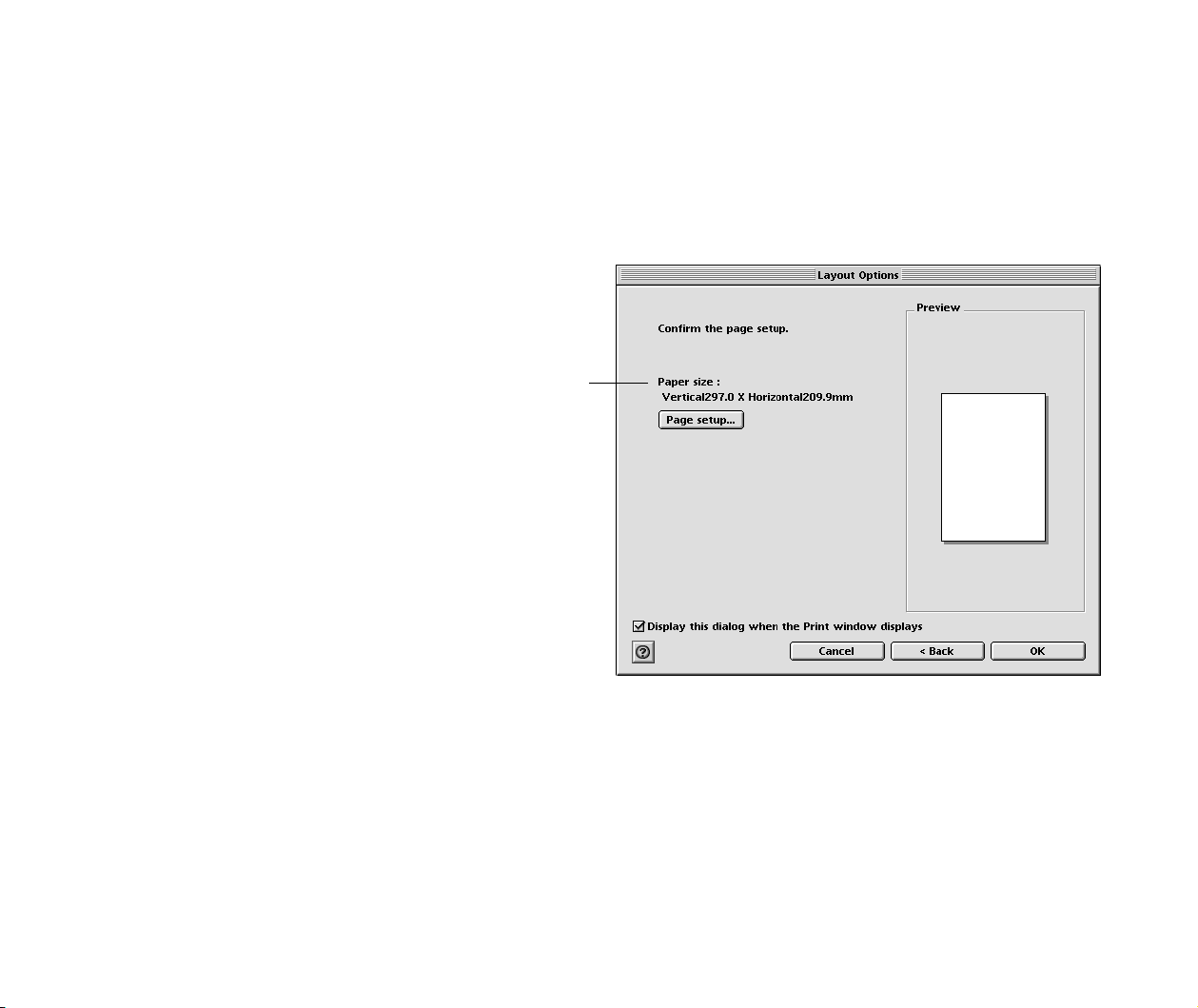
4 Click the OK button to complete the page setup.
The page size that you specified in the Page Setup dialog box is displayed under
the Paper size label in the Layout Options window.
Note
➤
Note that the Page Setup and Print dialog boxes shown here are of BJ F900.
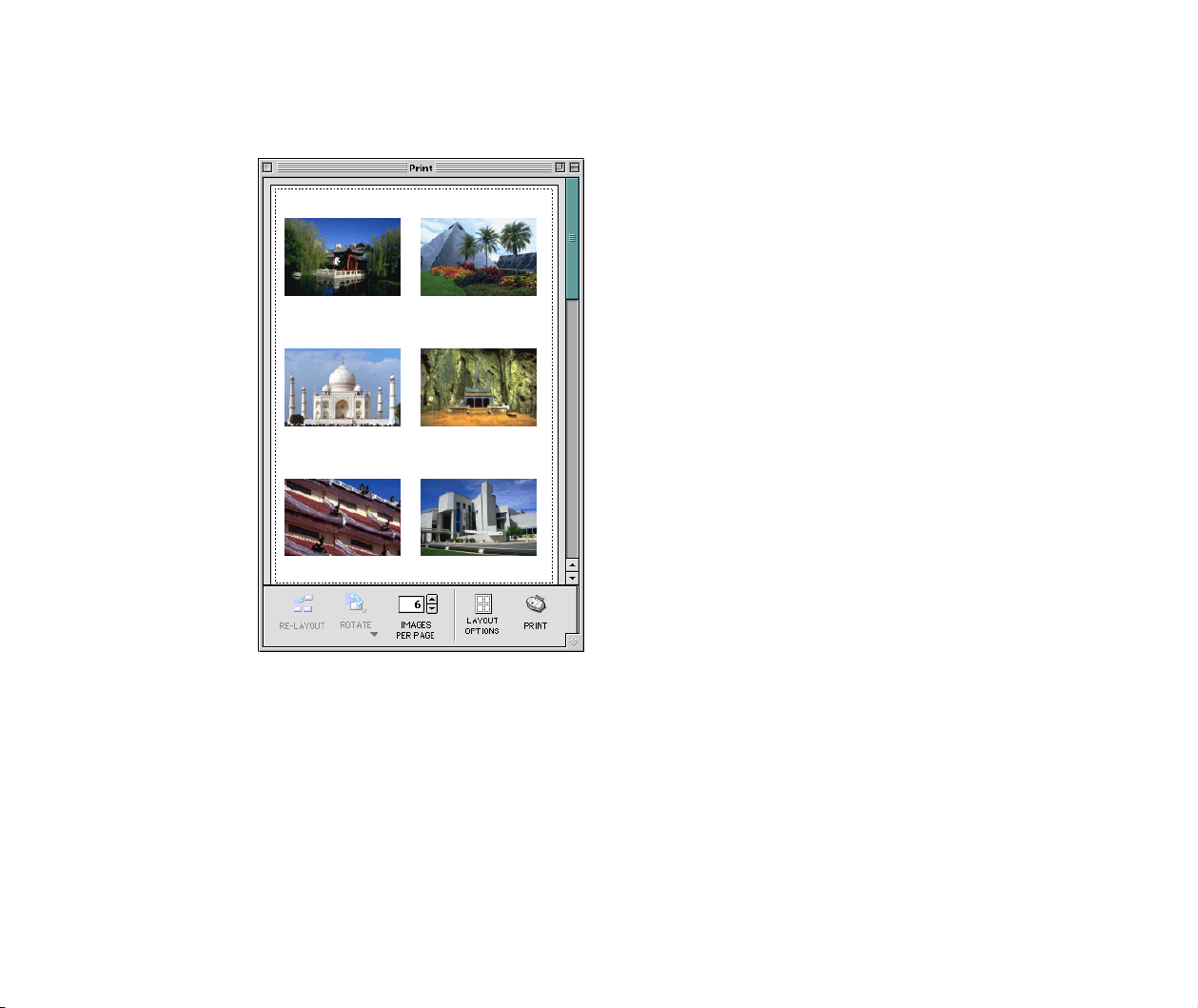
5 Click the OK button to exit the layout selection wizard.
The Print window appears where the selected images are arranged so that they fit
the page size you specified.
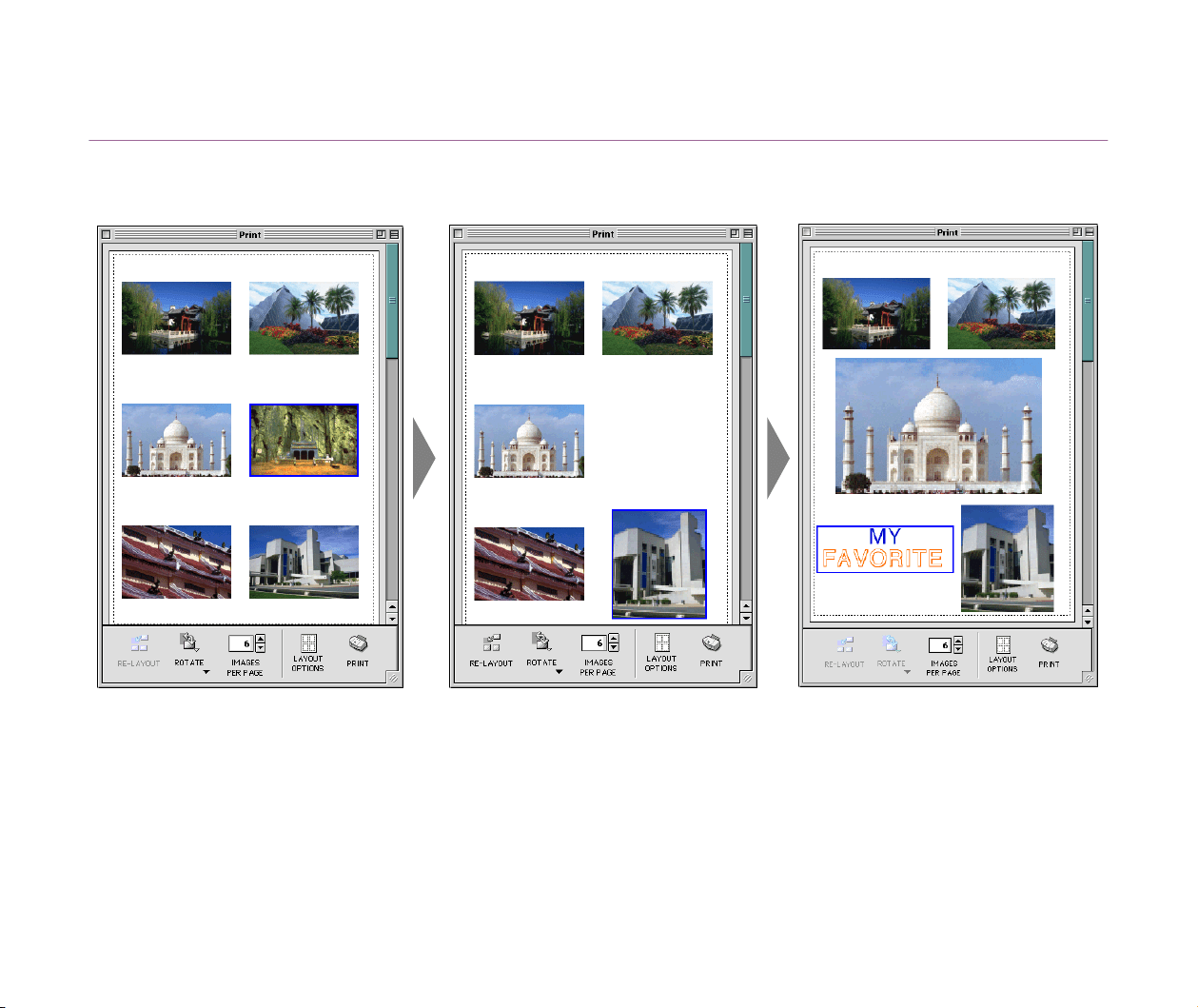
Page artwork
When the Custom layout printing option is selected, you can change the size and
position of the images as well as perform image cropping.
The size of paper you specified in the
Page Setup dialog box is displayed
here.
Custom layout printing
75
Page artwork
When the Custom layout printing option is selected, you can change the size and position of the images as well as
perform image cropping. You can also add text information to the page.
Custom layout printing
76
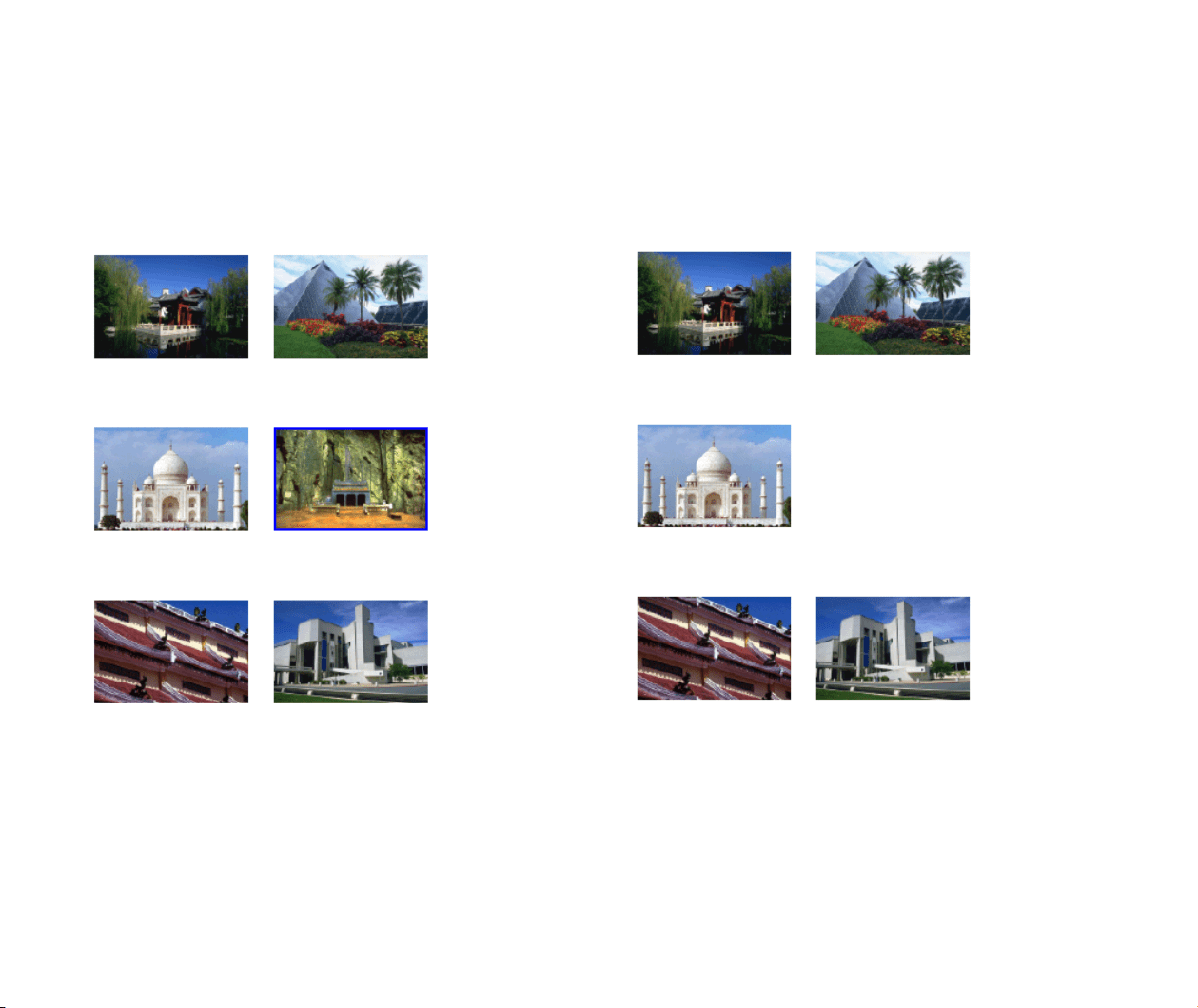
Steps to delete an image
1. Select the image you want to delete.
A frame appears around the selected image.
2. Press the Delete key on the keyboard.
You can also delete the selected image by selecting
Clear from the Edit menu.
Selected image
The image is deleted.
Custom layout printing
77
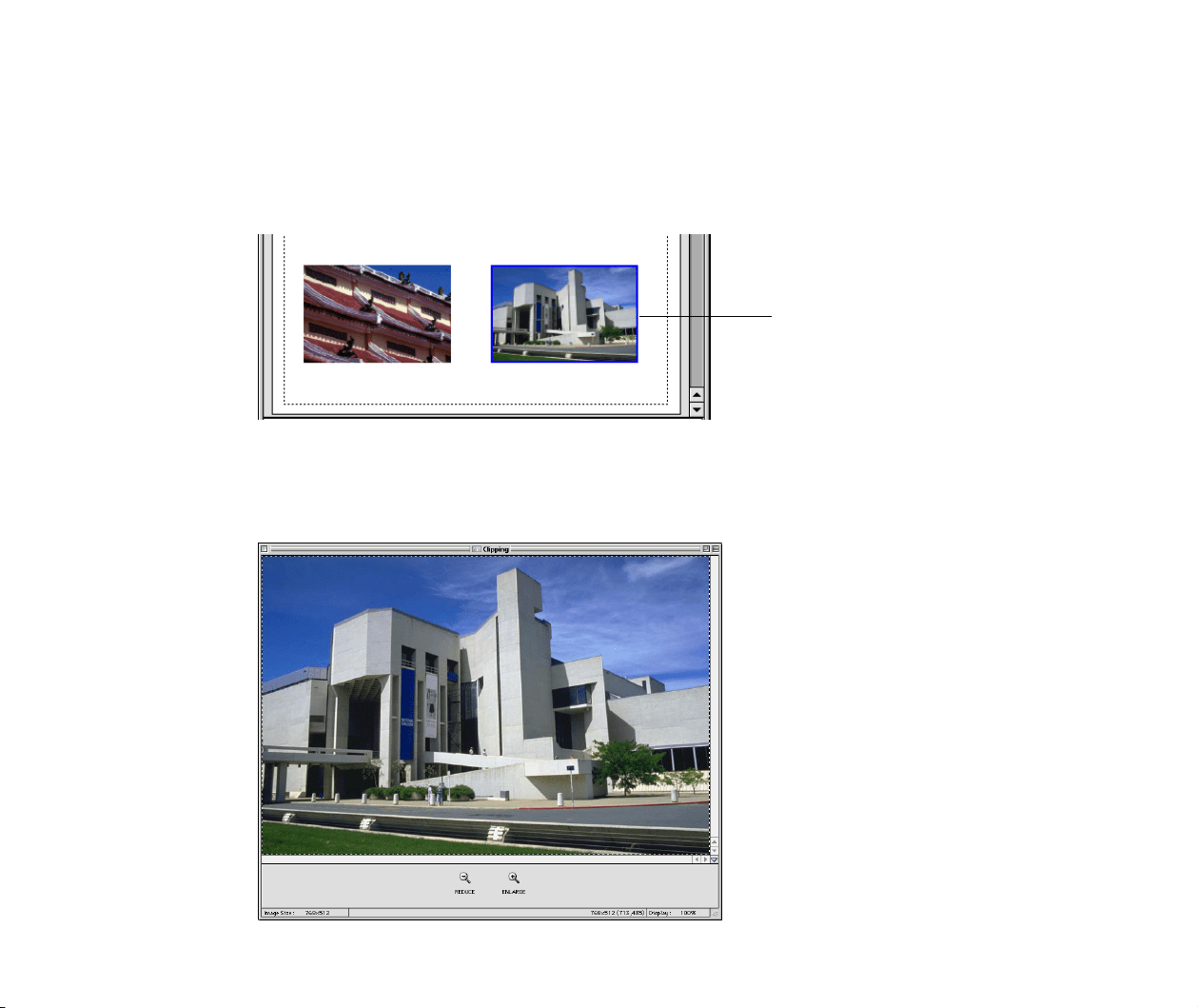
Cropping an image
1 Select the image you want to crop.
A frame appears around the selected image.
2 Double-click the selected image.
The Clipping window appears in which the selected image is displayed.
You can also open the Clipping window by selecting Clipping from the Edit menu.
Selected image
Custom layout printing
78
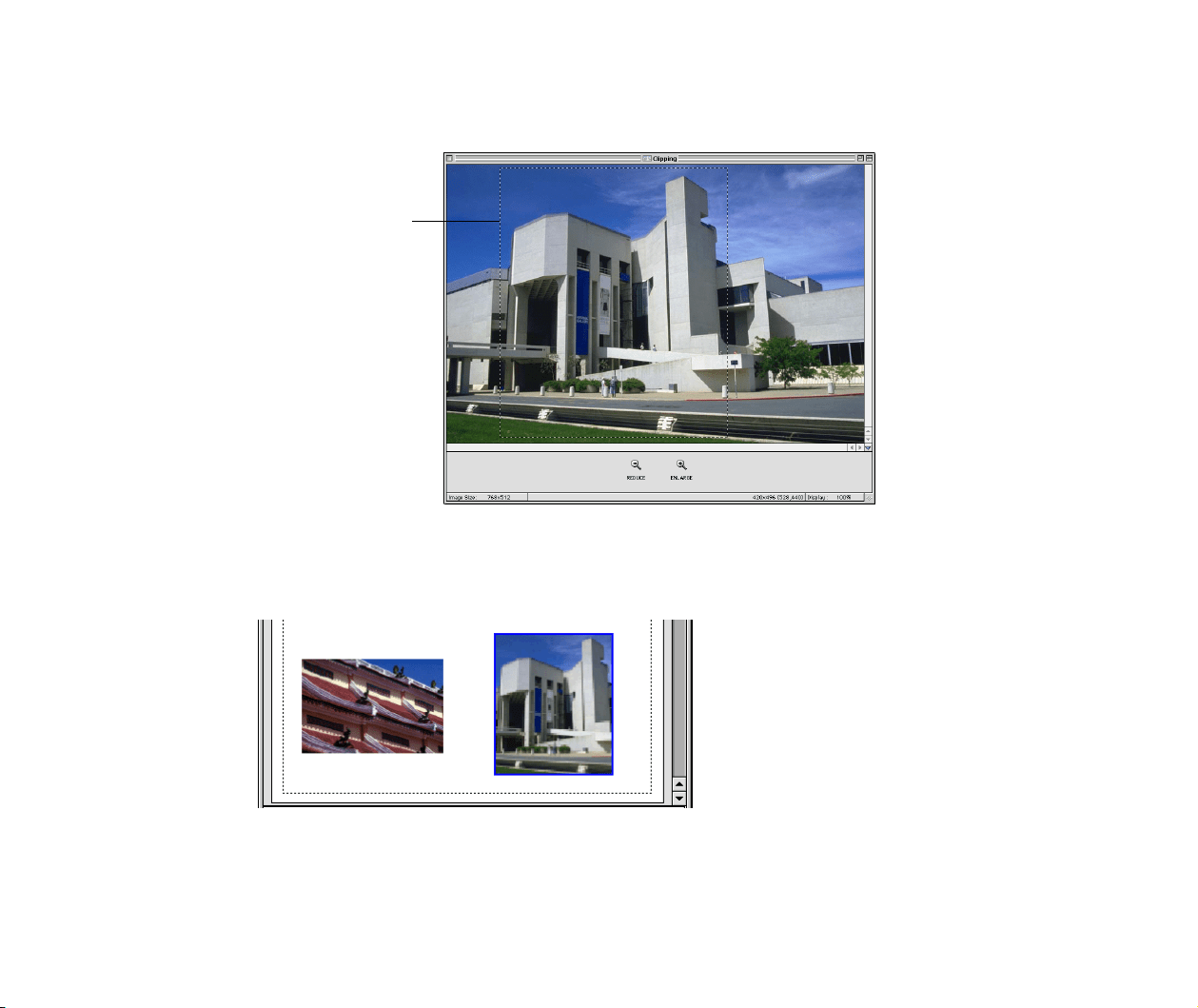
3 In the Clipping window, drag the mouse to select the clipping
area.
4 Click the close box at the upper left corner of the window to close
the Clipping window.
The image after cropping is displayed in the Print window.
Refer to Cropping an image for more information on the Clipping window and how
to crop an image.
Clipping area
Image after cropping
Custom layout printing
79
Moving an image (changing the position of an image)
1. Select the image you want to move.
A frame appears around the selected image.
2. Drag the image with the mouse to move to a different
location.
Image moved to a
different location
Custom layout printing
80
Enlarging and reducing an image (changing the size of an image)
1 Select the image you want to enlarge or reduce.
A frame appears around the selected image.
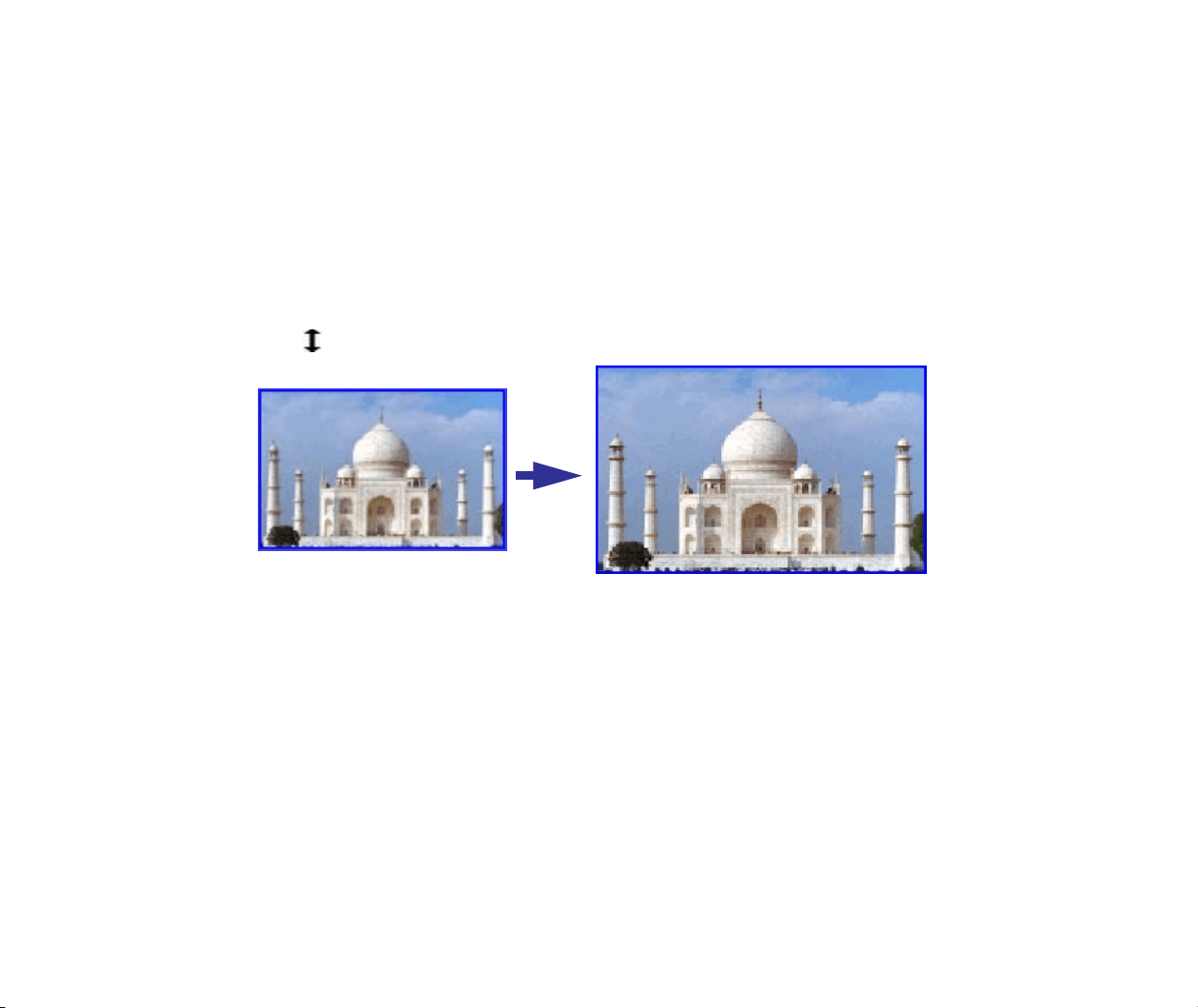
2 Place the mouse cursor over the border of the selected image, and
drag the mouse to enlarge or reduce the image.
When the mouse cursor is positioned over the image border, the cursor changes
into .
Custom layout printing
81
Adding text
1 Select Add Text from the Edit menu.
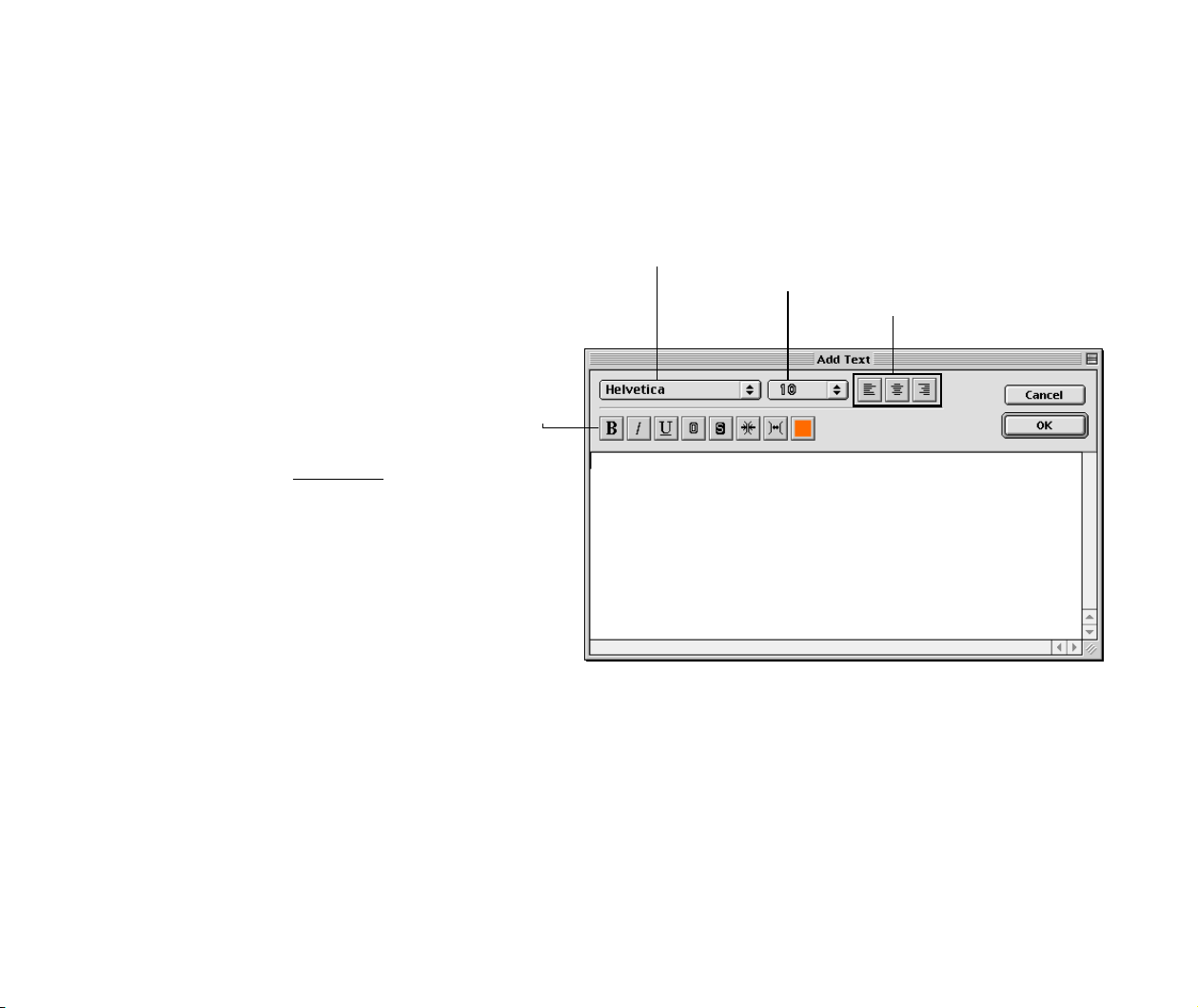
The Add Text window appears.
Specify the font style. Available styles
and effects are (from left to right):
bold, italic, underlined
, outline, shadow,
wide space, narrow space, and color.
Select the font used.
Select the font size.
Specify text’s justification.
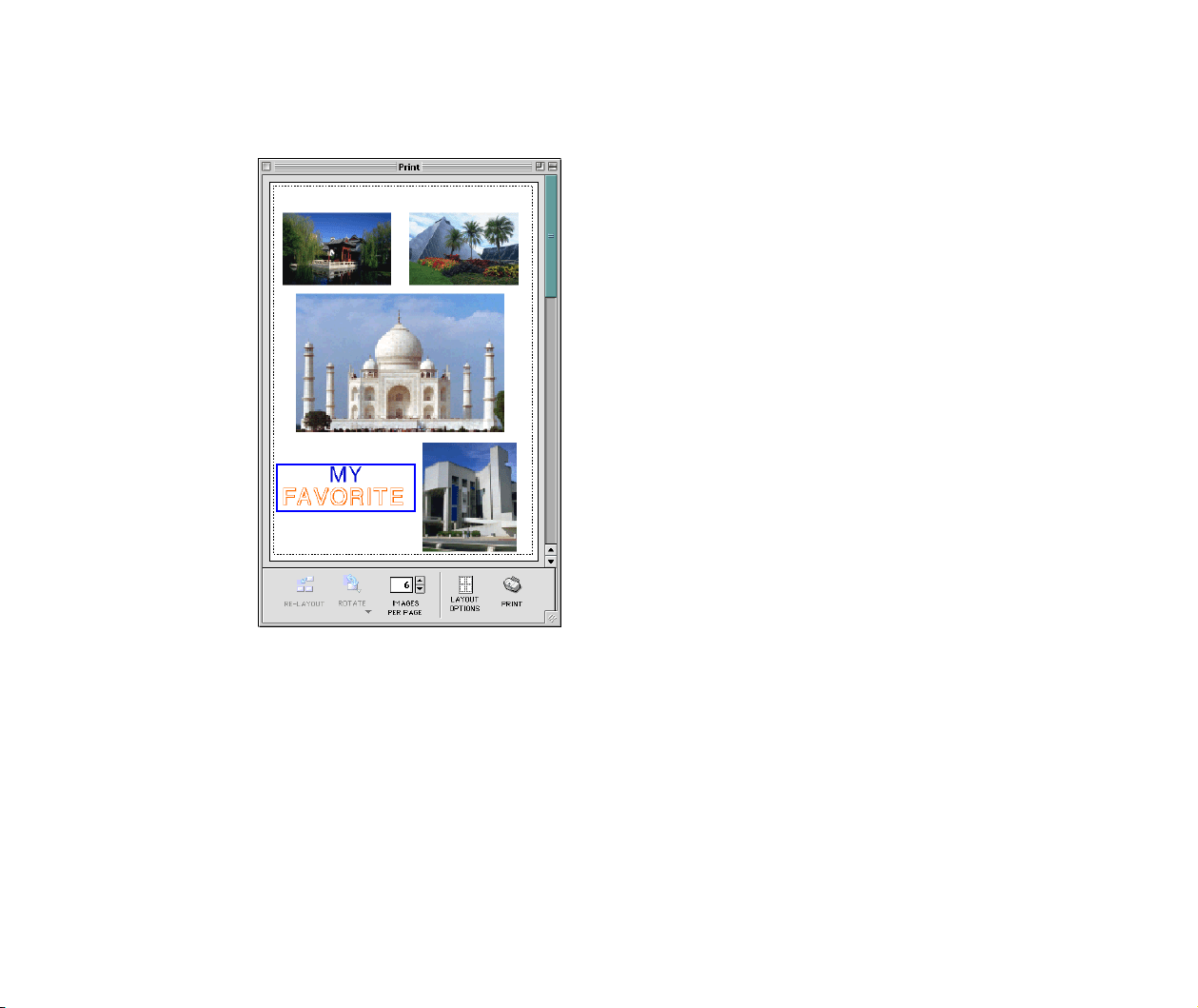
Custom layout printing
82
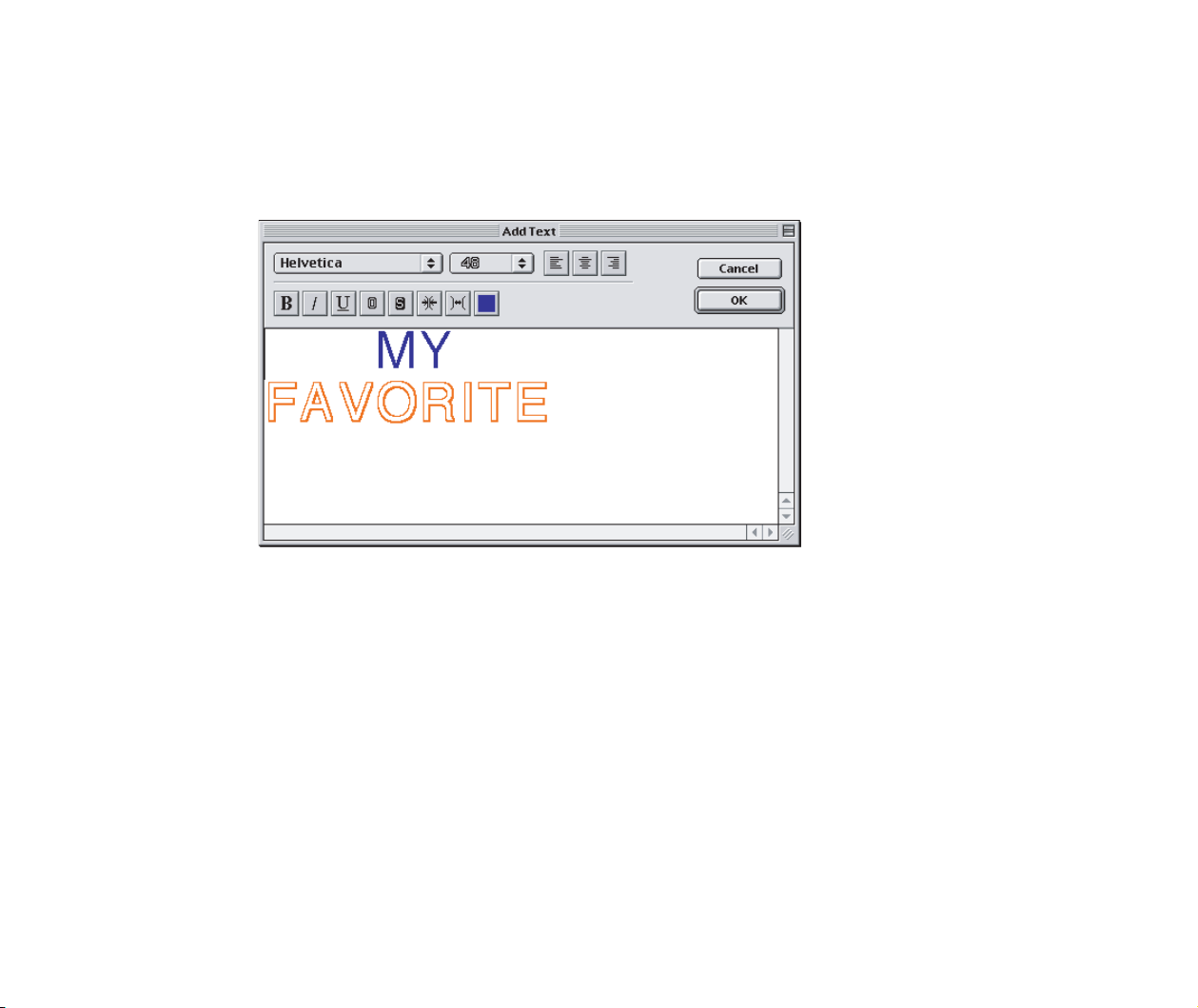
2 Enter text in the text box.
You can specify text attributes such as font, font style, color and justification.
The entered text is inserted into the Print window according to the format specified
in the Add Text window.
Fixed photo size printing
84
Fixed photo size printing
Selecting a layout
Follow the steps below when performing fixed photo size printing.
Steps
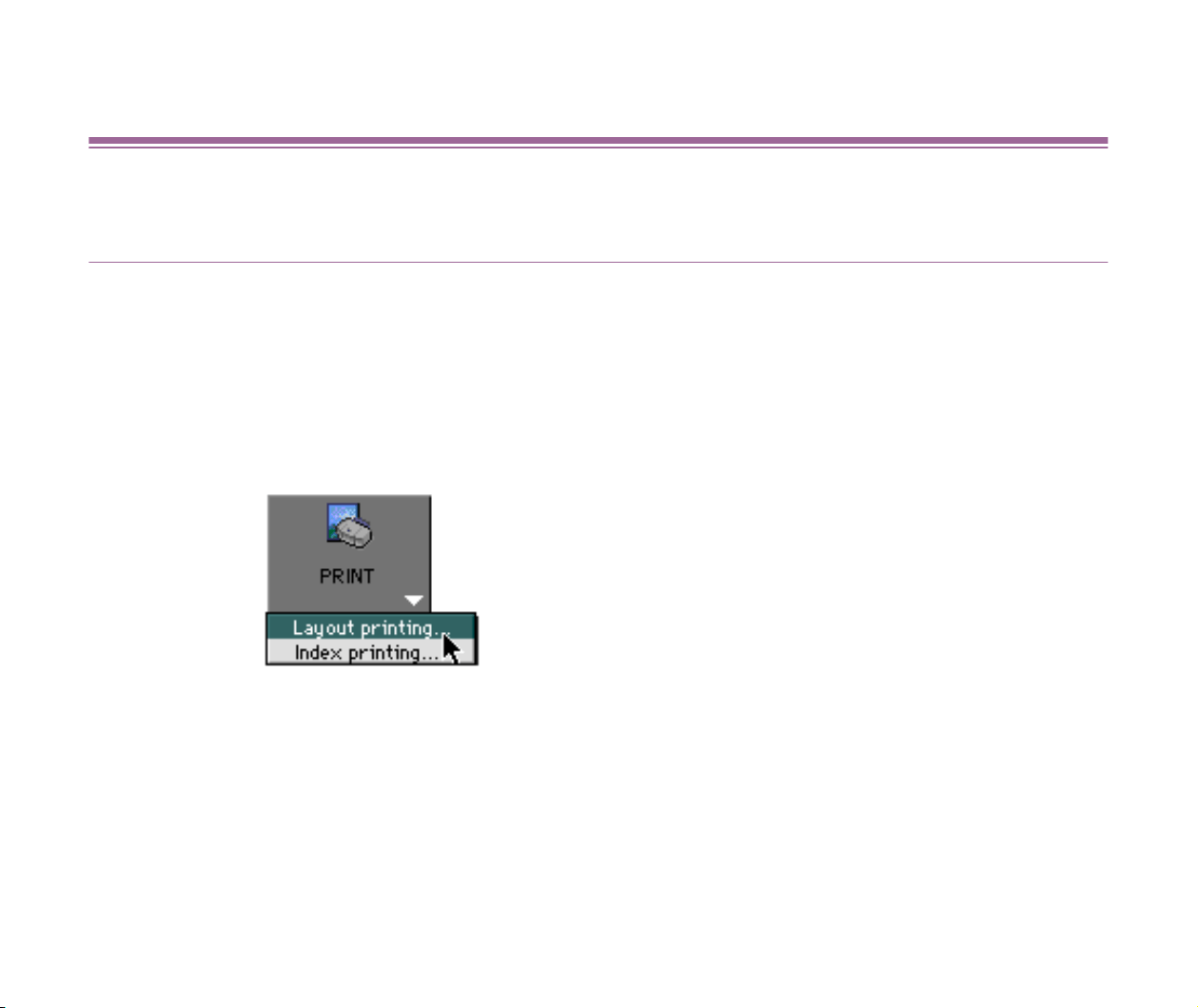
1 In the Browser area, select the image(s) to print with the fixed
photo size printing option. Then select Layout printing from the
submenu that appears when clicking the PRINT button.
The Layout Options window appears and the layout selection wizard starts.
Fixed photo size printing
85
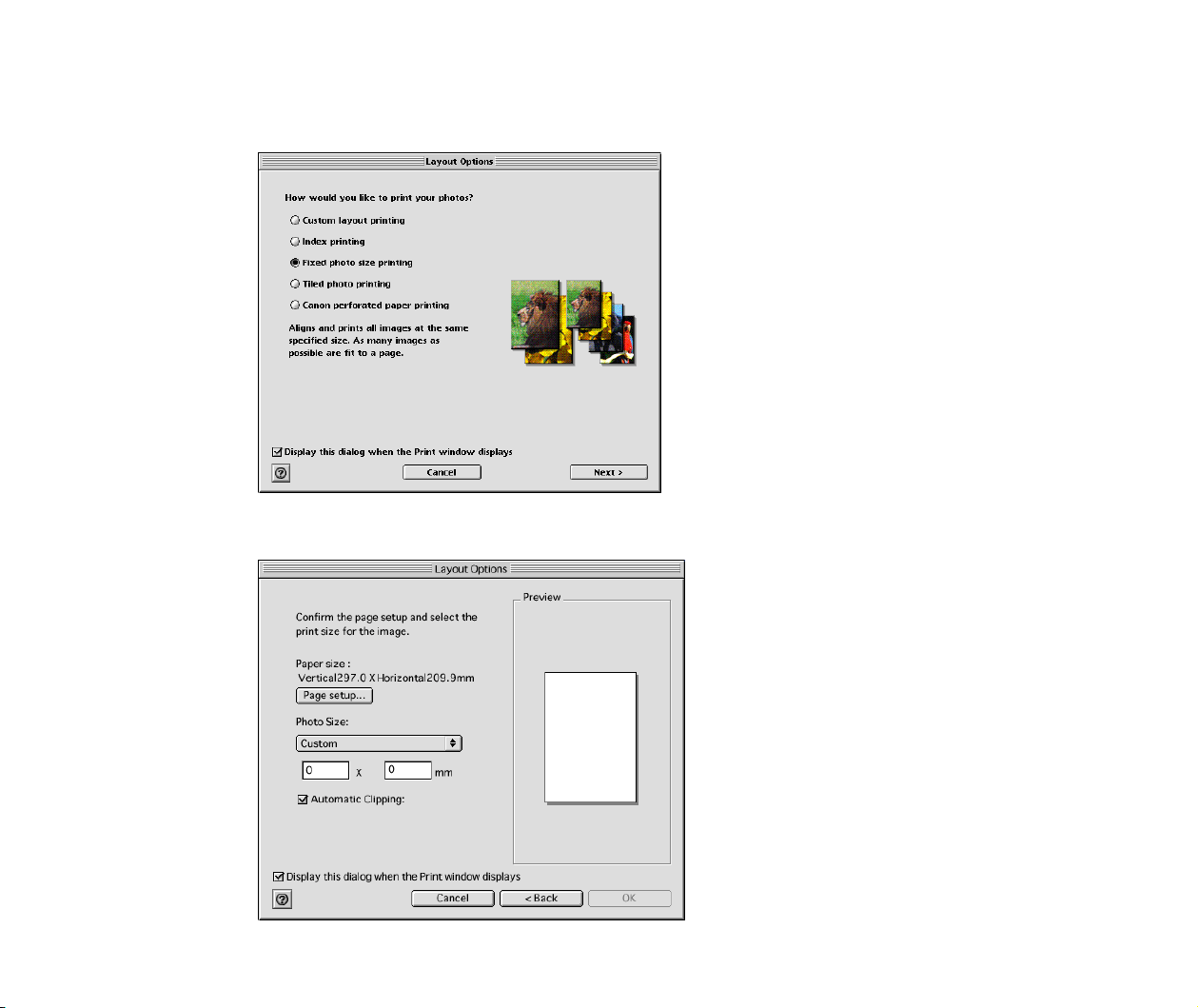
2 Select the Fixed photo size printing option in the Layout
Options window.
3 Click the Next button to proceed to the next page.
Fixed photo size printing
86
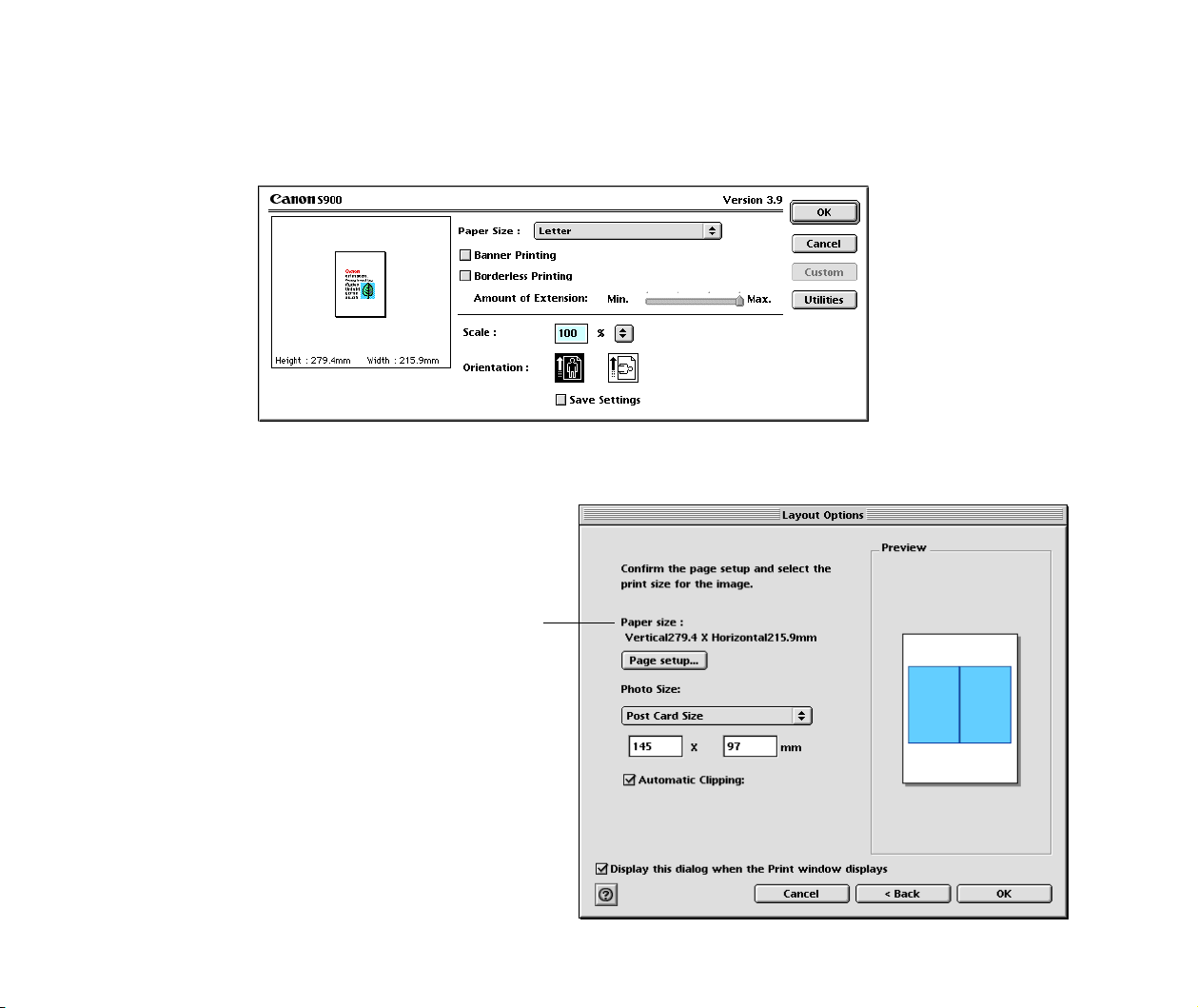
4 Click the Page setup button.
The Page Setup dialog box for the printer selected in the Chooser appears. Specify
the paper size and orientation.
5 Click the OK button to close the Page Setup dialog box and return
to the Layout Options window.
The size of paper you specified in the
Page Setup dialog box is displayed.
Fixed photo size printing
87
6 Select the size of the photos.
Check the Automatic Clipping check box to automatically crop images so that
they fit the paper of the specified size.
Select the size of photos from the Photo Size pulldown menu. The Preview area
on the right side of the window shows how the selected images are arranged under
the current settings.
The figure below illustrates how the images are placed on A4 paper for each photo
size.
Select the Custom option when printing non-standard photos. In this case, you
have to specify the height and width of the photo.

Fixed photo size printing
88
7 Click the OK button to exit the layout selection wizard.
The Print window appears where the selected images are arranged so that they fit
the paper size you specified.
Page Artwork
When printing using the fixed photo size printing option, you cannot change the
location and size of the images although the image cropping and text insertion
features are available.
Starting printing
Click the PRINT button to begin printing.
Tiled photo printing (Borderless printing)
89
Tiled photo printing (Borderless printing)
Selecting a layout
Follow the steps below when performing tiled photo printing.
Steps
1 In the Browser area, select the image(s) to print with the Tiled
photo printing option. Then select Layout printing from the
submenu that appears when clicking the PRINT button.
The Layout Options window appears and the layout selection wizard starts.
Tiled photo printing (Borderless printing)
90
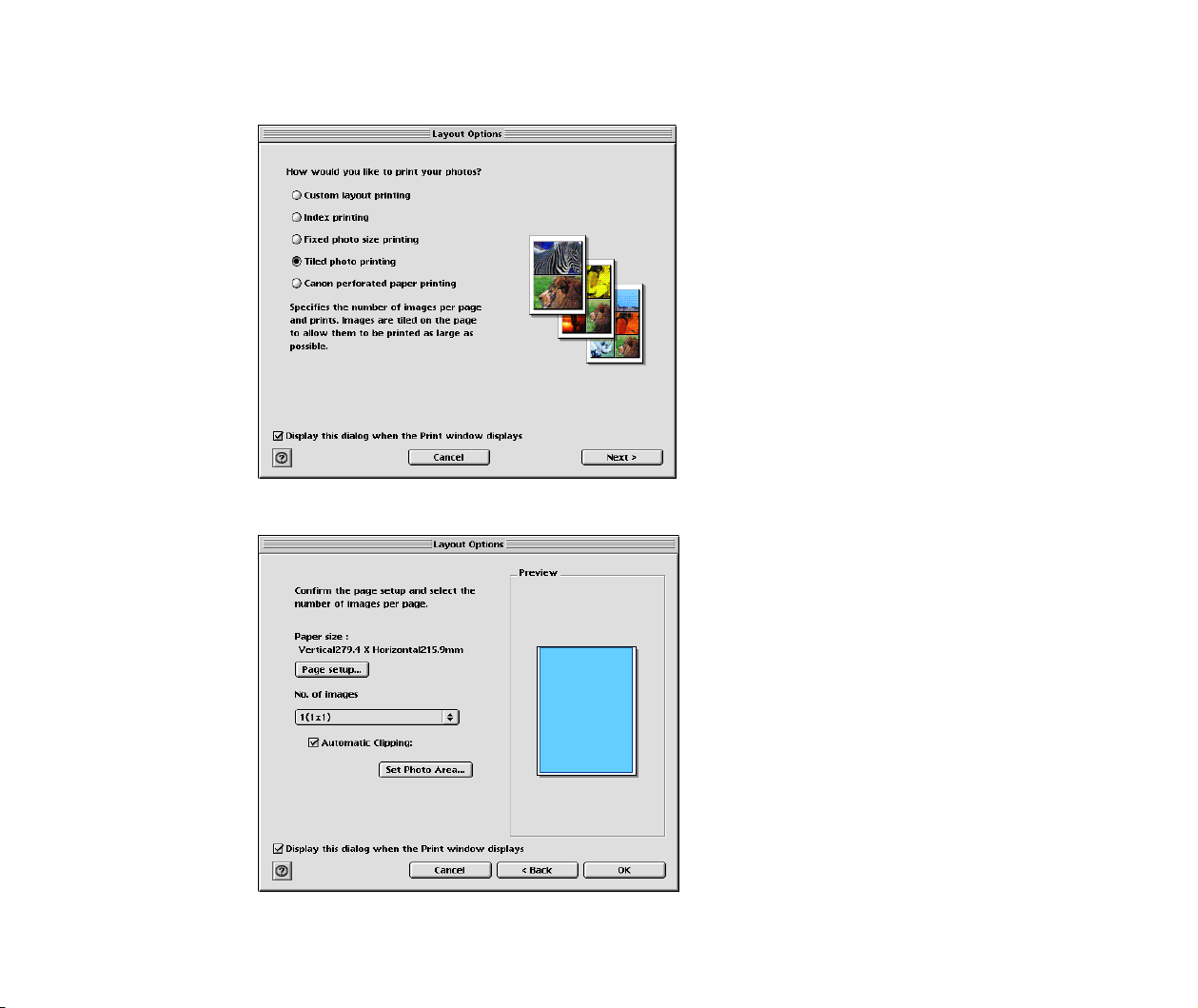
2 Select Tiled photo printing option in the Layout Options window.
3 Click the Next button to proceed to the next page.
Tiled photo printing (Borderless printing)
91
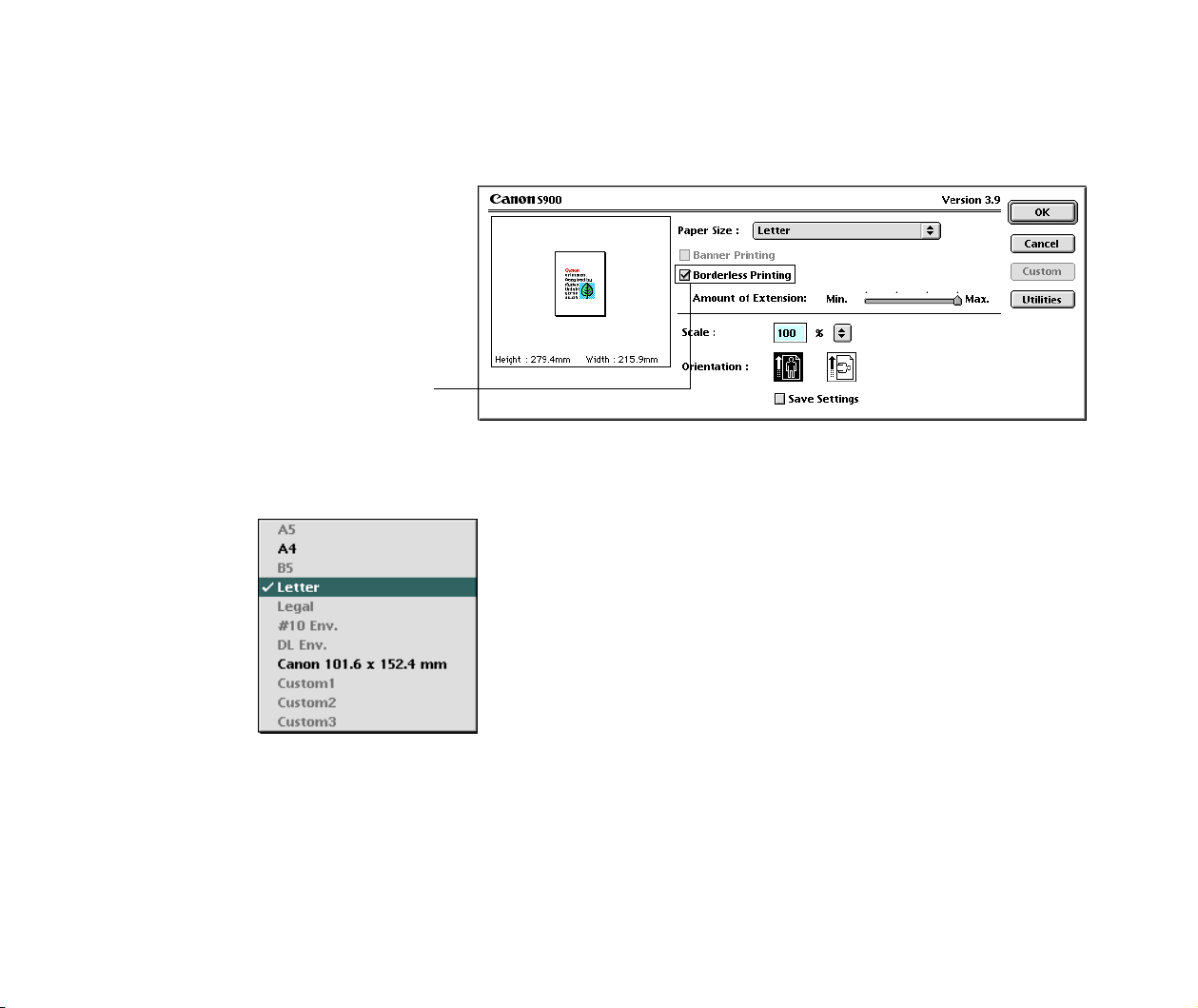
4 Click the Page setup button.
The Page Setup dialog box for the printer selected in the Chooser appears. Specify
the paper size.
With the tiled photo printing, the types of paper that can be selected are limited to
those shown below:
To specify settings for the tiled photo
printing:
Select the Borderless Printing check
box to print images with no margins.
Tiled photo printing (Borderless printing)
92
5 Click the OK button to close the Page Setup dialog box.
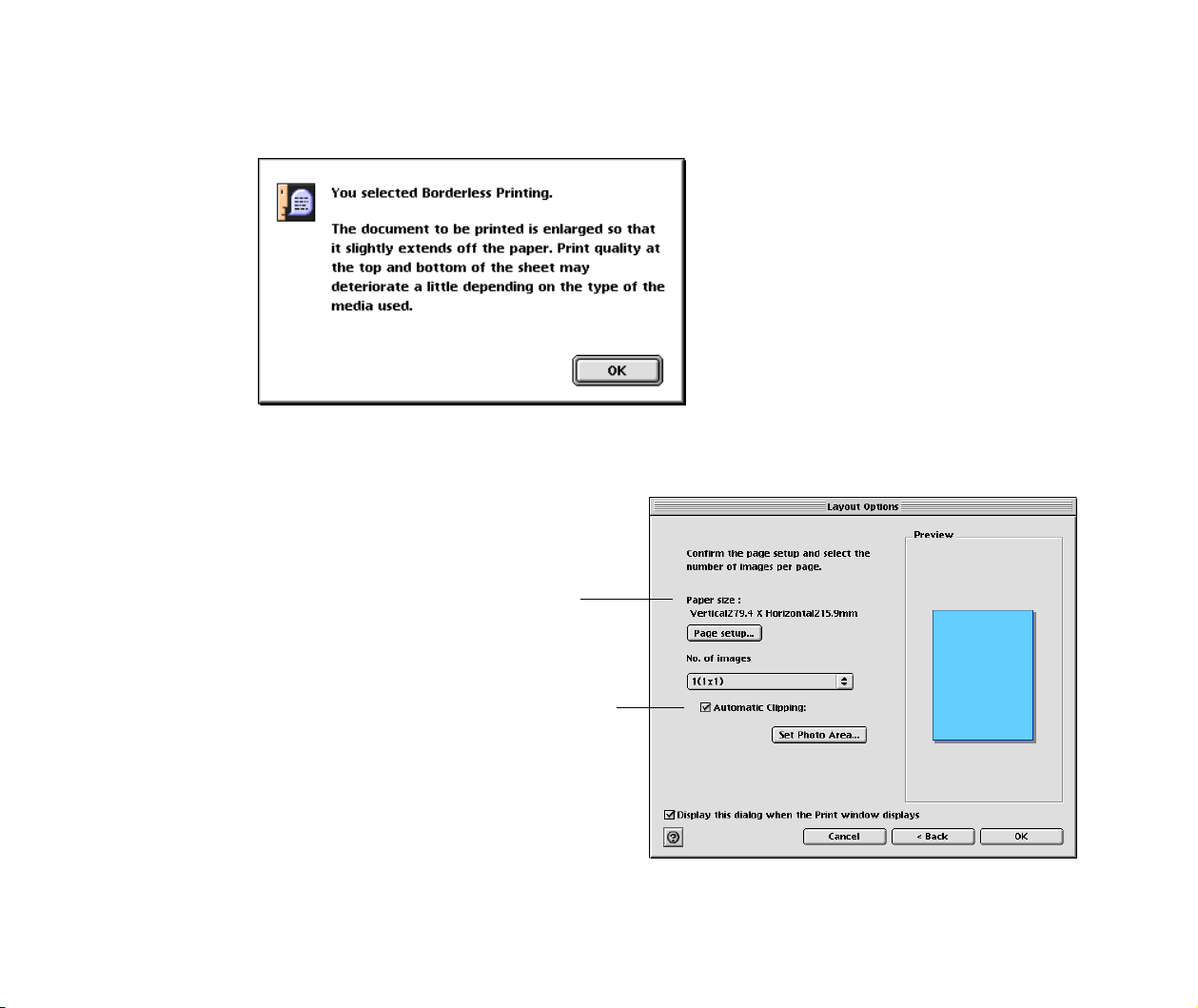
A message box pops up, displaying the information about printing.
6 Read the message and click the OK button.
You will be returned to the Layout Options window.
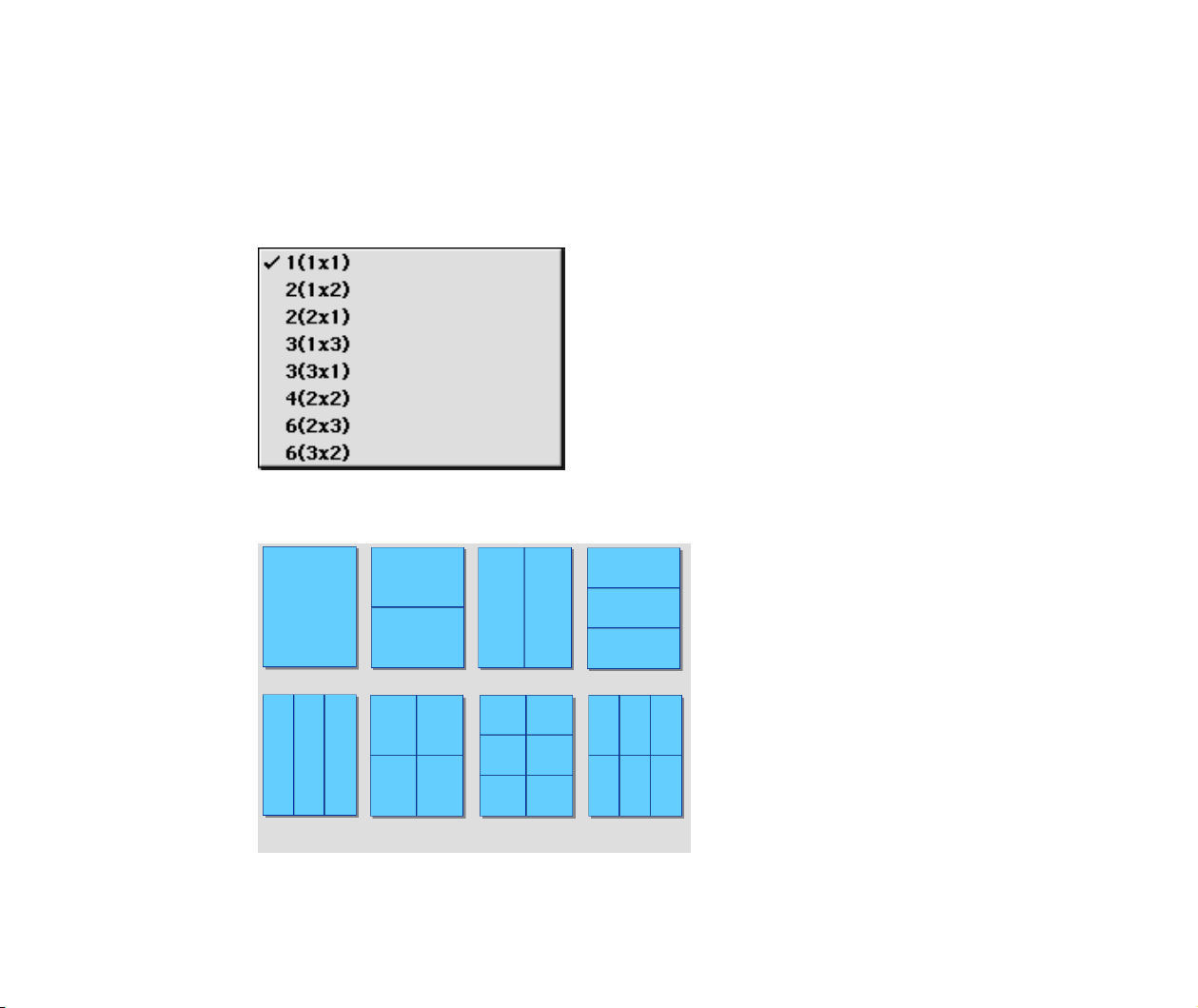
The size of paper you specified in the
Page Setup dialog box is displayed.
Check the Automatic Clipping check box
to automatically crop images so that they
fit the paper you specified.
Tiled photo printing (Borderless printing)
93
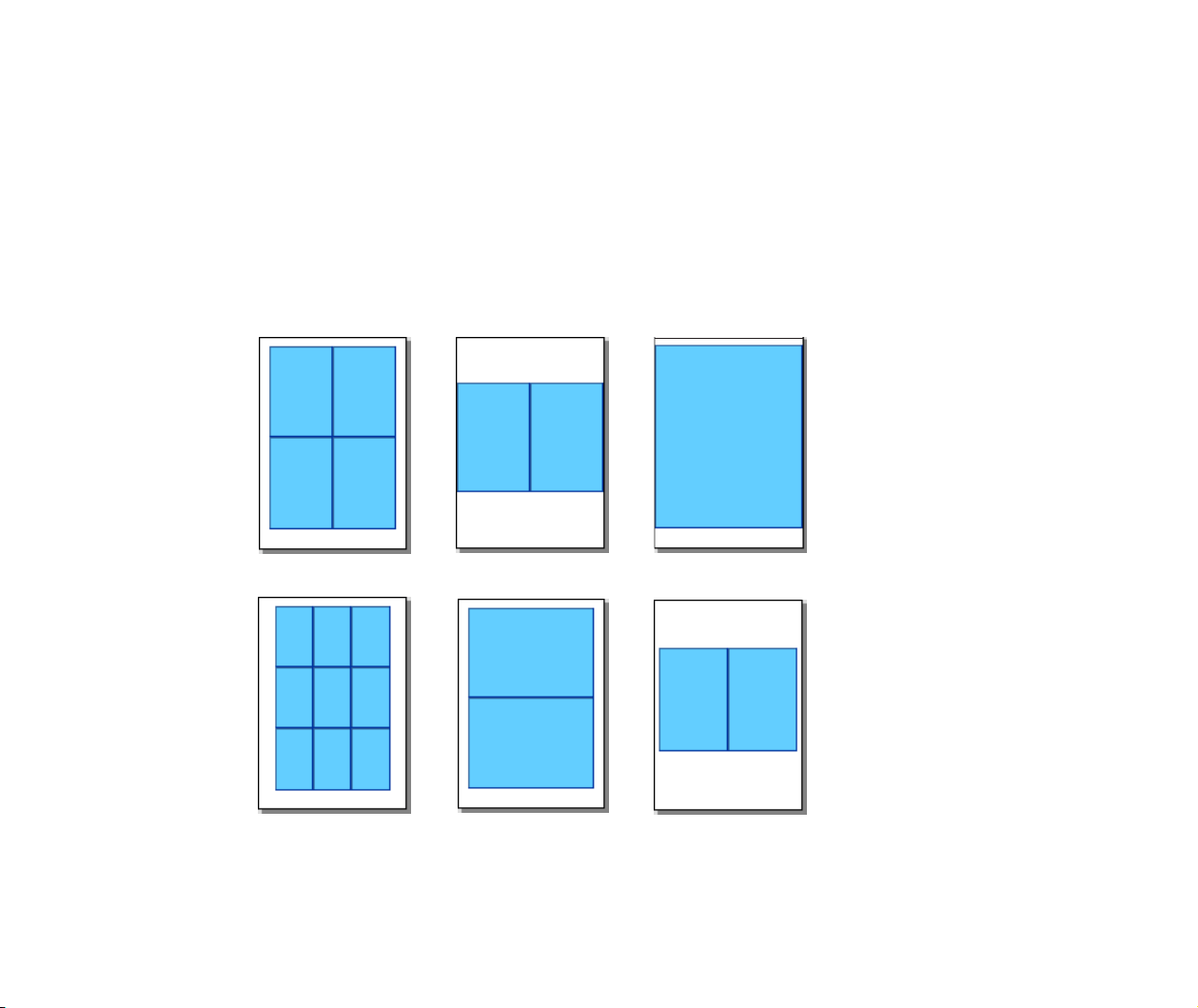
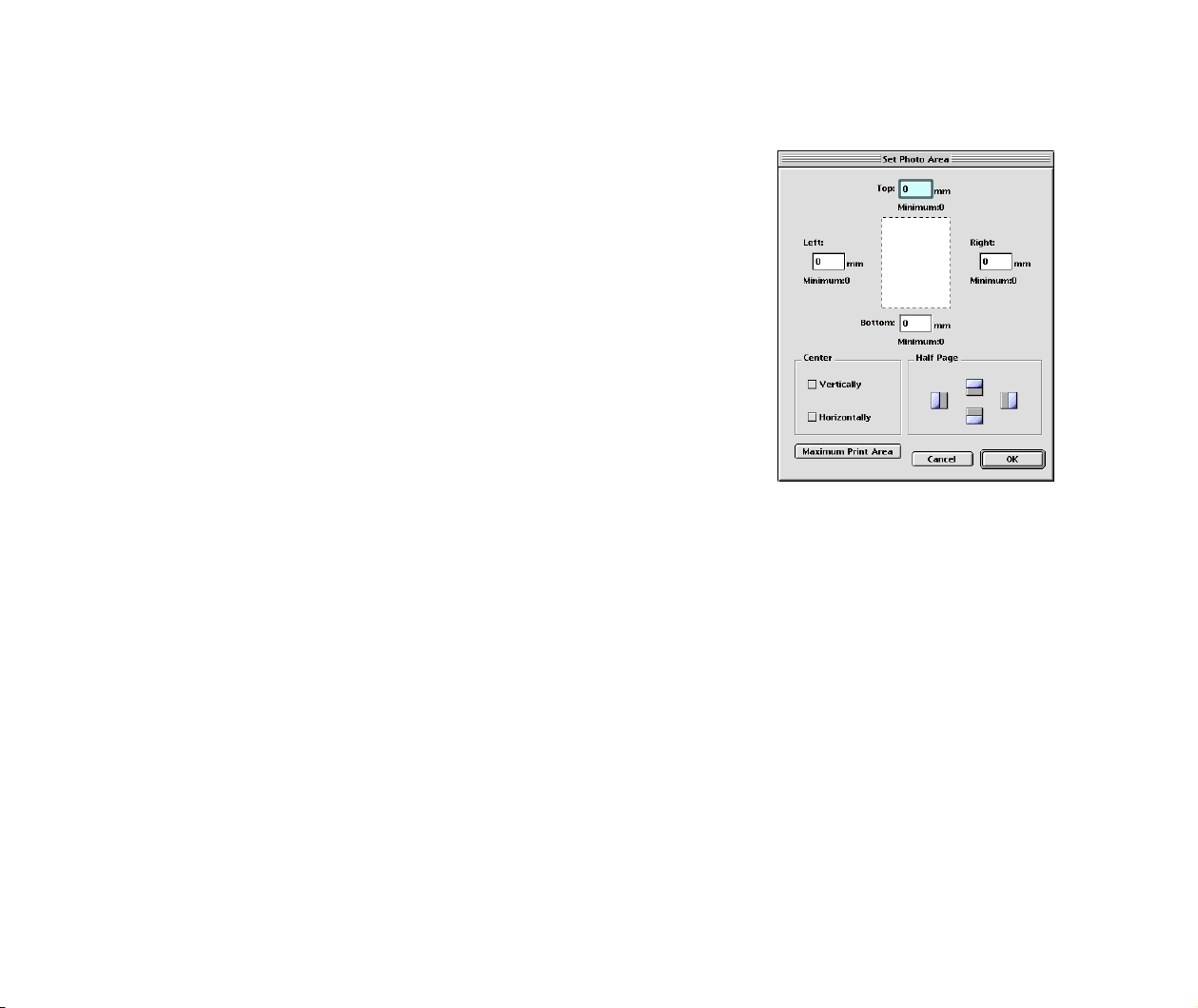
7 Specify the number of photos.
Select the number of photos printed on one page from the No. of images pulldown
menu. The Preview area on the right side of the window shows how the selected
photos are arranged under the current settings.
*For example, select 1(1x1) to print only one photo on a page.
The figure below illustrates how the photos are placed on A4 paper depending on
the value of the No. of images pulldown menu.
Tiled photo printing (Borderless printing)
94
8 Specify paper margins (the space around the printed matter on a
page) if necessary.
9 Click the OK button to exit the layout selection wizard.
The Print window appears where the selected photo images are arranged so that
they fit the page size you specified.
Page Artwork
When the Tiled photo printing option is selected, you cannot change the location
and size of the images although the image cropping and text insertion features are
available.
Starting printing
Click the PRINT button to begin printing.
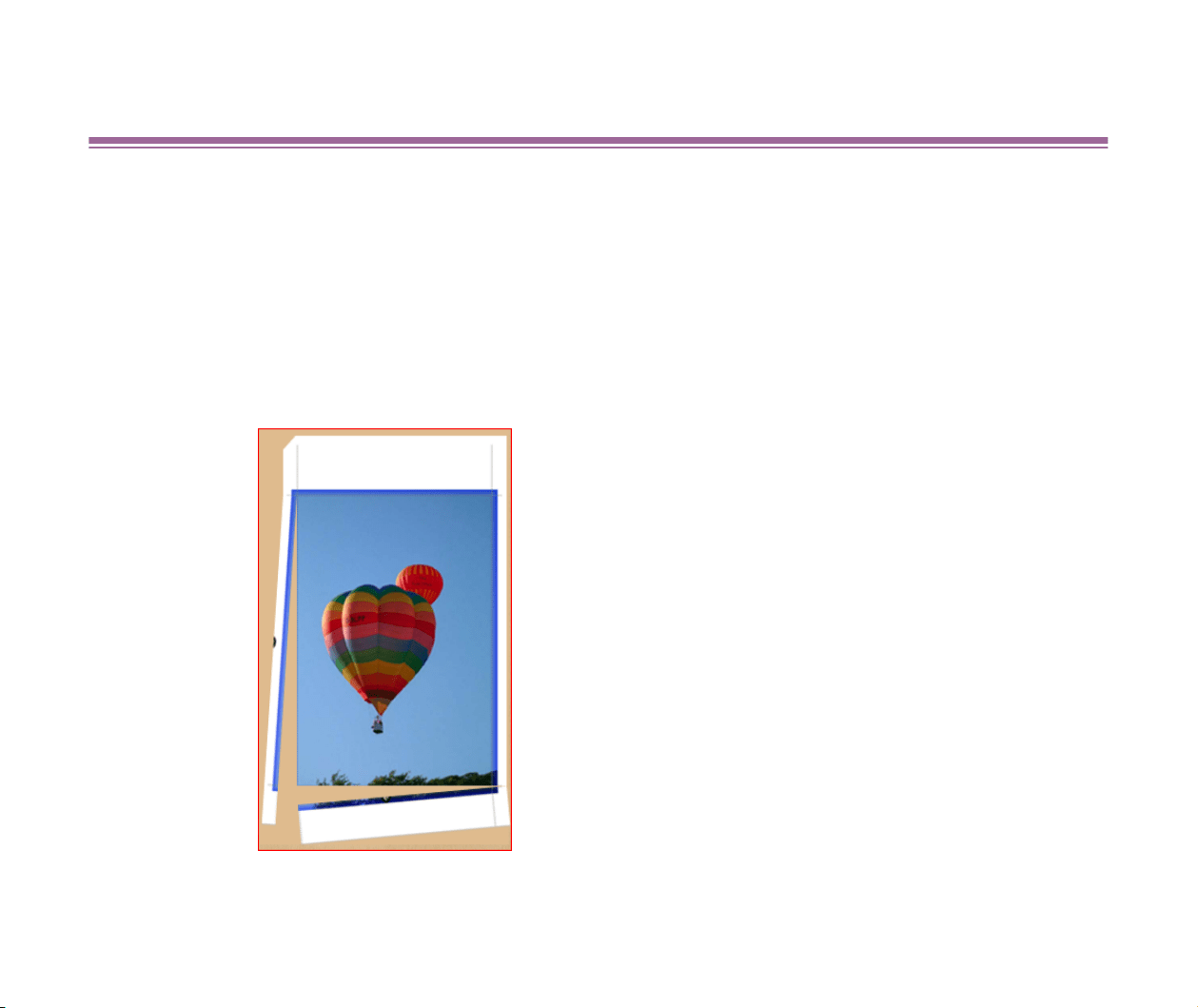
Click the Set Photo Area button to open the Set Photo
Area dialog box. In this dialog box, you can specify the top,
bottom, right, and left margins. However, since the margins
will be automatically calculated and set to appropriate
values by the printer driver, in most cases you do not have to
specify manually. You should specify the margins only when
desired outputs are not produced.
Click the OK button to make the settings take effect.
Canon perforated paper printing
95
Canon perforated paper printing
• Selecting a layout
• Starting printing
The Canon perforated paper printing feature allows you to quickly print images on Canon perforated paper.
Refer to About Canon perforated paper for more information on the types of Canon perforated paper.
Note
➤
Some printer models may not support the printing on Canon perforated paper. See
your printer manuals for more information.
Canon perforated paper printing
96
Selecting a layout
Follow the steps below when performing the Canon perforated paper printing.
Steps
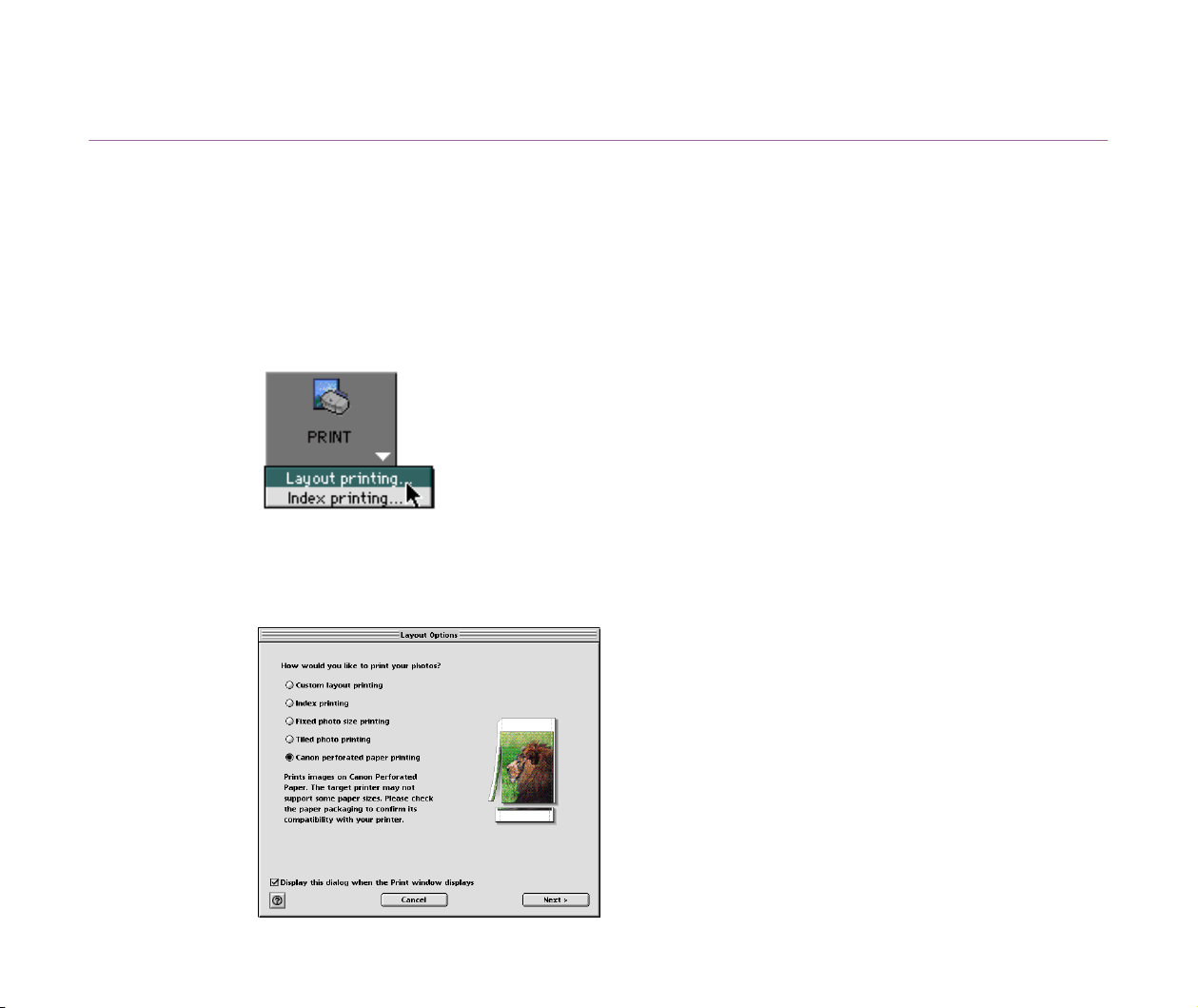
1 In the Browser area, select the image(s) to print with the Canon
perforated paper printing option. Then select Layout printing
from the submenu that appears when clicking the print button.
The Layout Options window appears and the layout selection wizard starts.
2 Select the Canon perforated paper printing option in the Layout
Options window.
Canon perforated paper printing
97
3 Click the Next button to proceed to the next page.
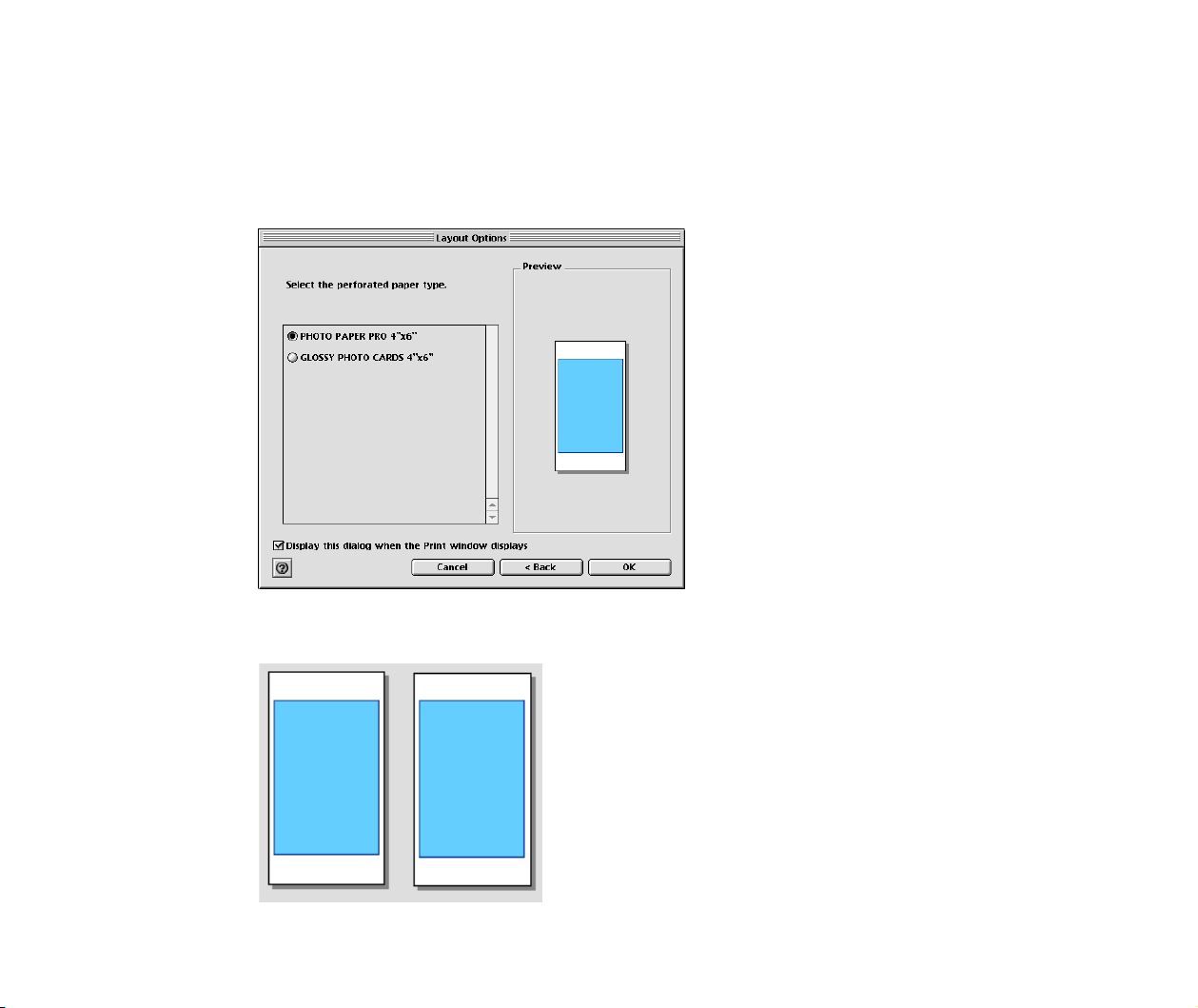
4 Specify the type of Canon perforated paper.
When you select the type of Canon perforated paper, the Preview area on the right
side of the window shows how the photos are arranged under the current settings.
The figure below illustrates how the photos are placed depending on the selected
type of Canon perforated paper.
Canon perforated paper printing
98
5 Click the OK button.
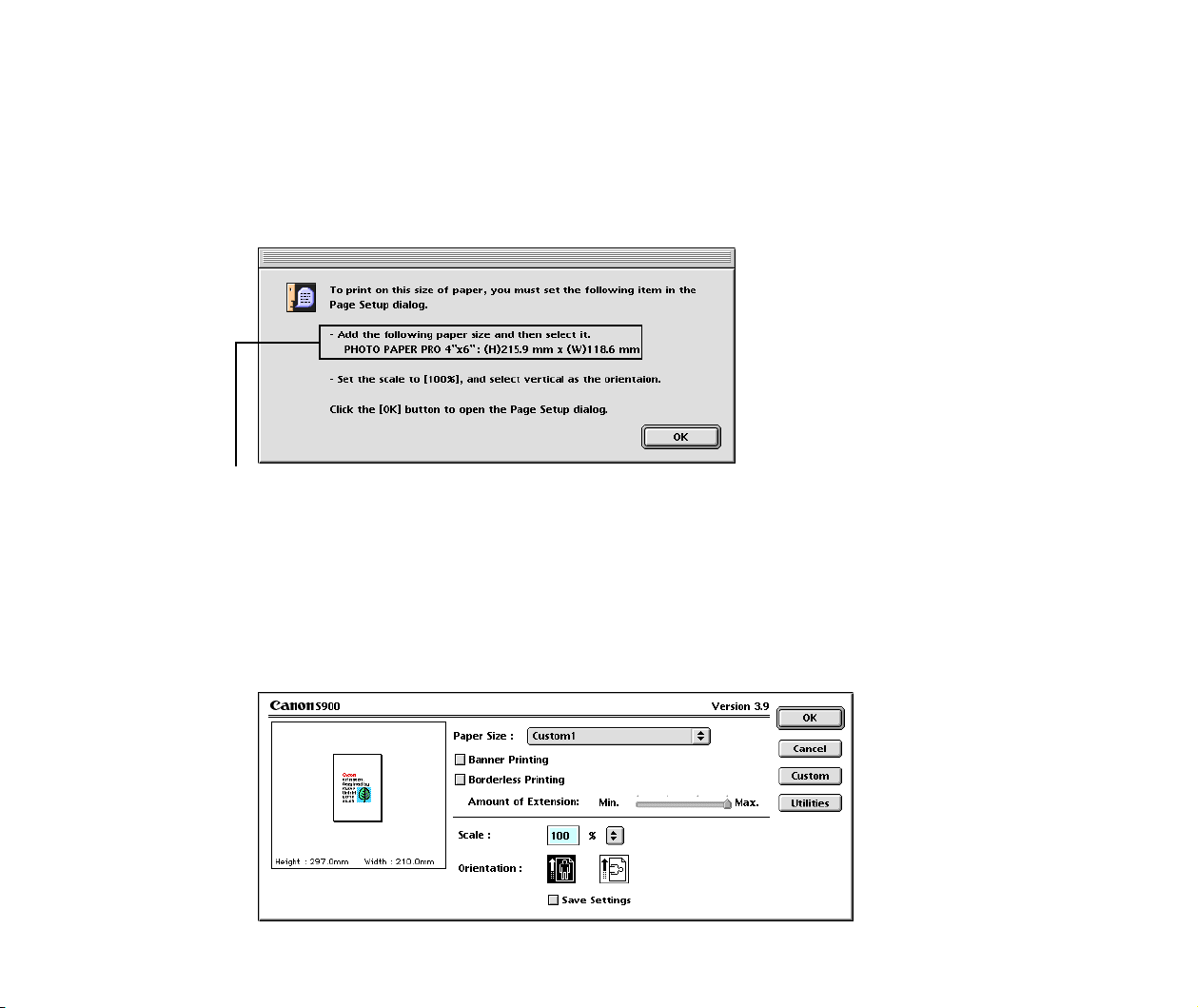
A message dialog box appears, indicating the size of Canon perforated paper you
just selected in the Layout Options window.
This paper size must be registered in the Page Setup dialog box that appears in the
next step.
6 Click the OK button on the message box.
The Page Setup dialog box for the printer selected in the Chooser appears.
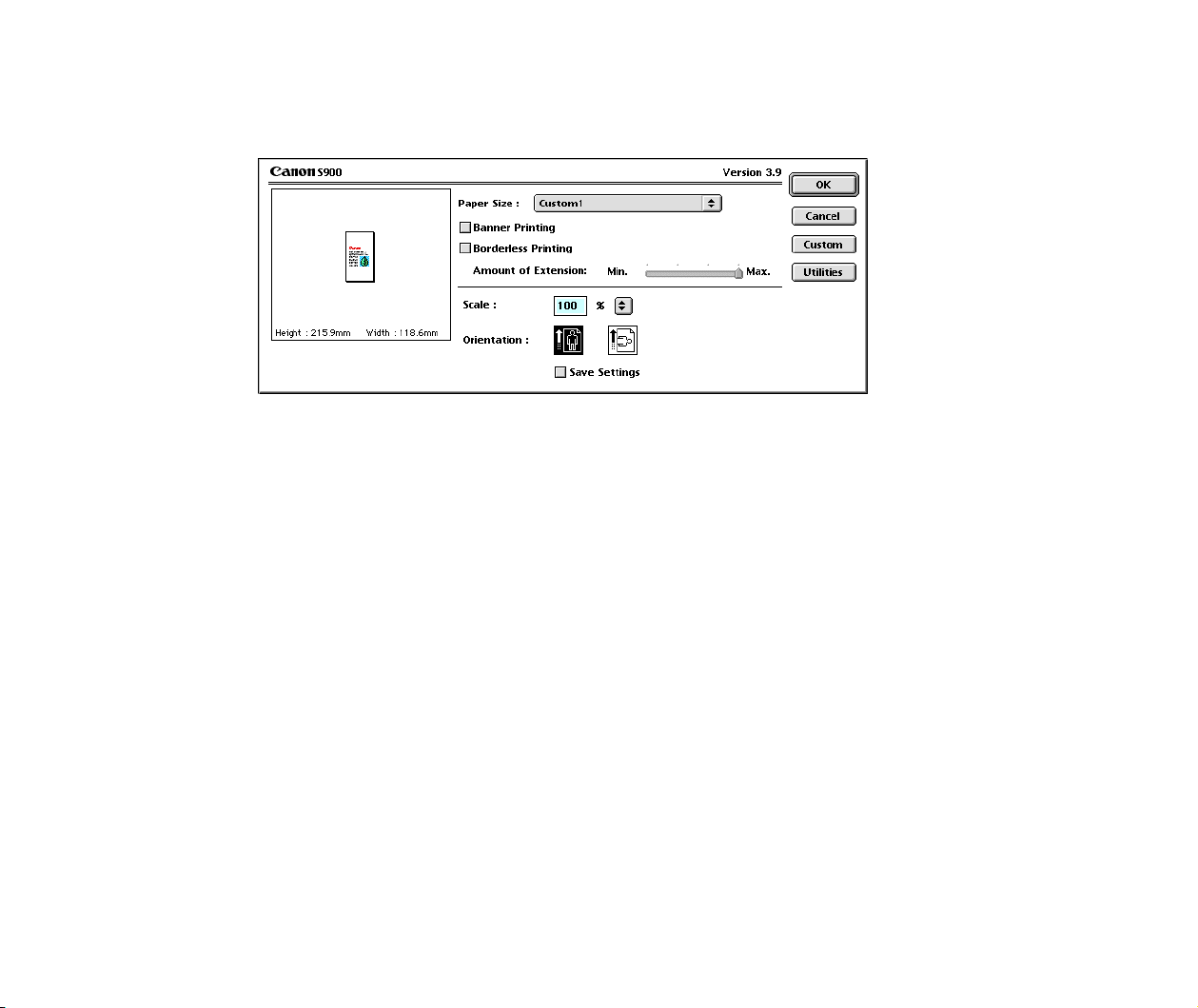
7 Select the Custom1 option from the Paper Size pulldown menu.
The Custom button becomes active.
The size of Canon perforated paper you
selected in the Layout Options window.
The figure above shows the size of Photo Paper PRO <PC-
101S>.
Canon perforated paper printing
99
Note
➤
Be sure to unselect the Borderless Printing check box when performing the
Canon perforated paper printing. When this check box is selected, the Custom1
option in the Paper Size pulldown menu is disabled.
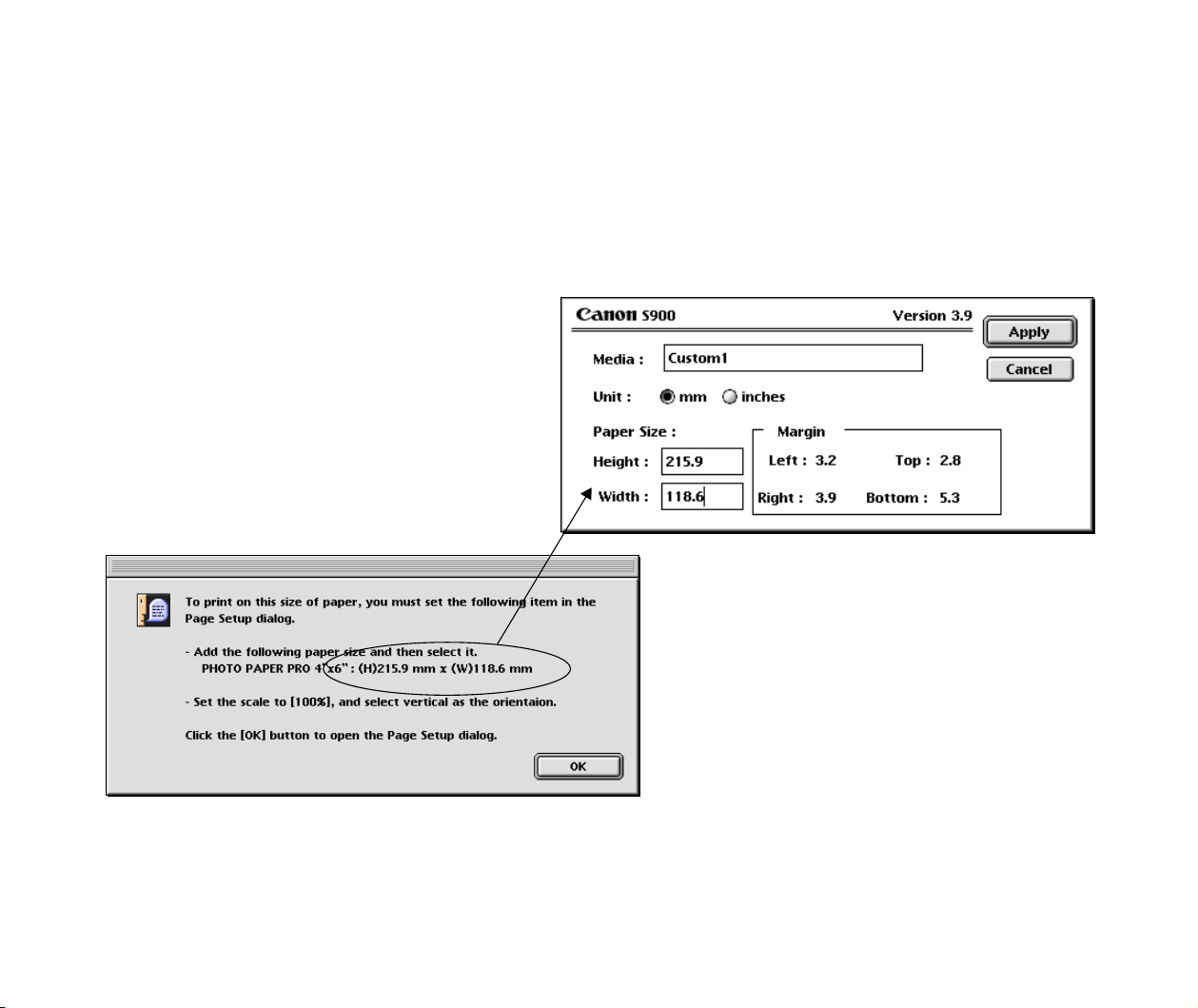
8 Click the Custom button.
A dialog box for paper registration appears.
9 Enter the size of the custom paper by following the message.
A custom paper can be registered with a name.
Once you have registered a custom paper, you do
not need to set up the same paper again.
Canon perforated paper printing
100
10 Click the Apply button.
The custom paper has been registered, and the layout selection wizard terminates.
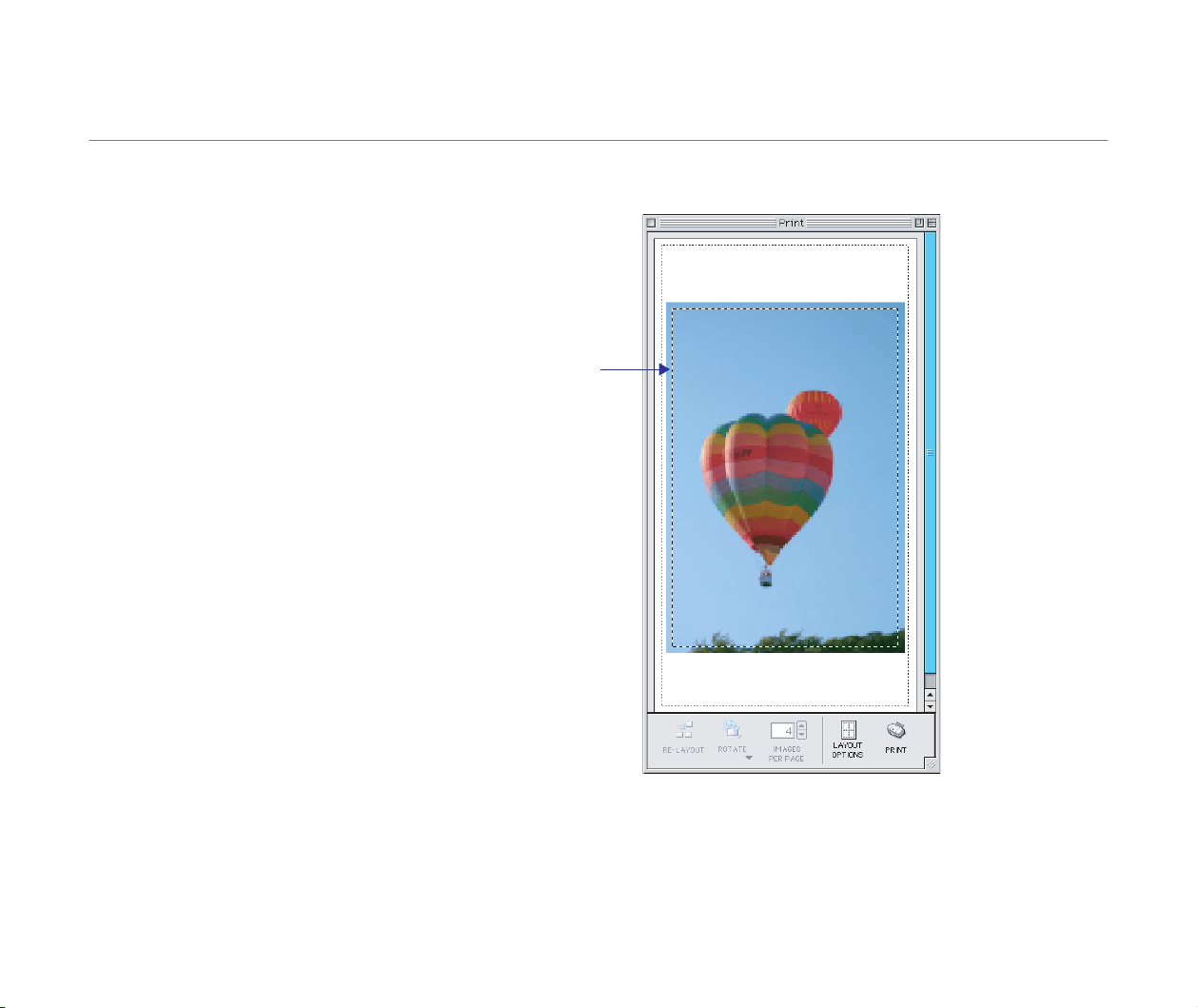
The Print window appears where the selected photos are arranged so that they fit
the paper size you specified.
Page Artwork
When the Canon perforated paper printing option is selected, you cannot
change the location and size of the images although the image cropping and text
insertion features are available.
Canon perforated paper printing
101
Starting printing
Click the PRINT button to start printing.
The perforated line is displayed.

About Canon perforated paper
102
About Canon perforated paper
This section briefly describes the Canon perforated paper.
The photos printed on Canon perforated paper can easily be cut apart by along the perforated lines. This relatively thick,
high glossy paper lets you print photo-quality images without blank portions around them.
Types of Canon perforated paper are:
• Glossy Photo Card <FM-101>
Paper size:
Height 213.9 mm x Width 118.6 mm
• Photo Paper Pro <PC-101S>
Paper size:
Height 215.9 mm x Width 118.6 mm
Starting printing
103
Starting printing
Once you have completed all necessary steps for the page layout, follow the steps below to start printing.
Steps
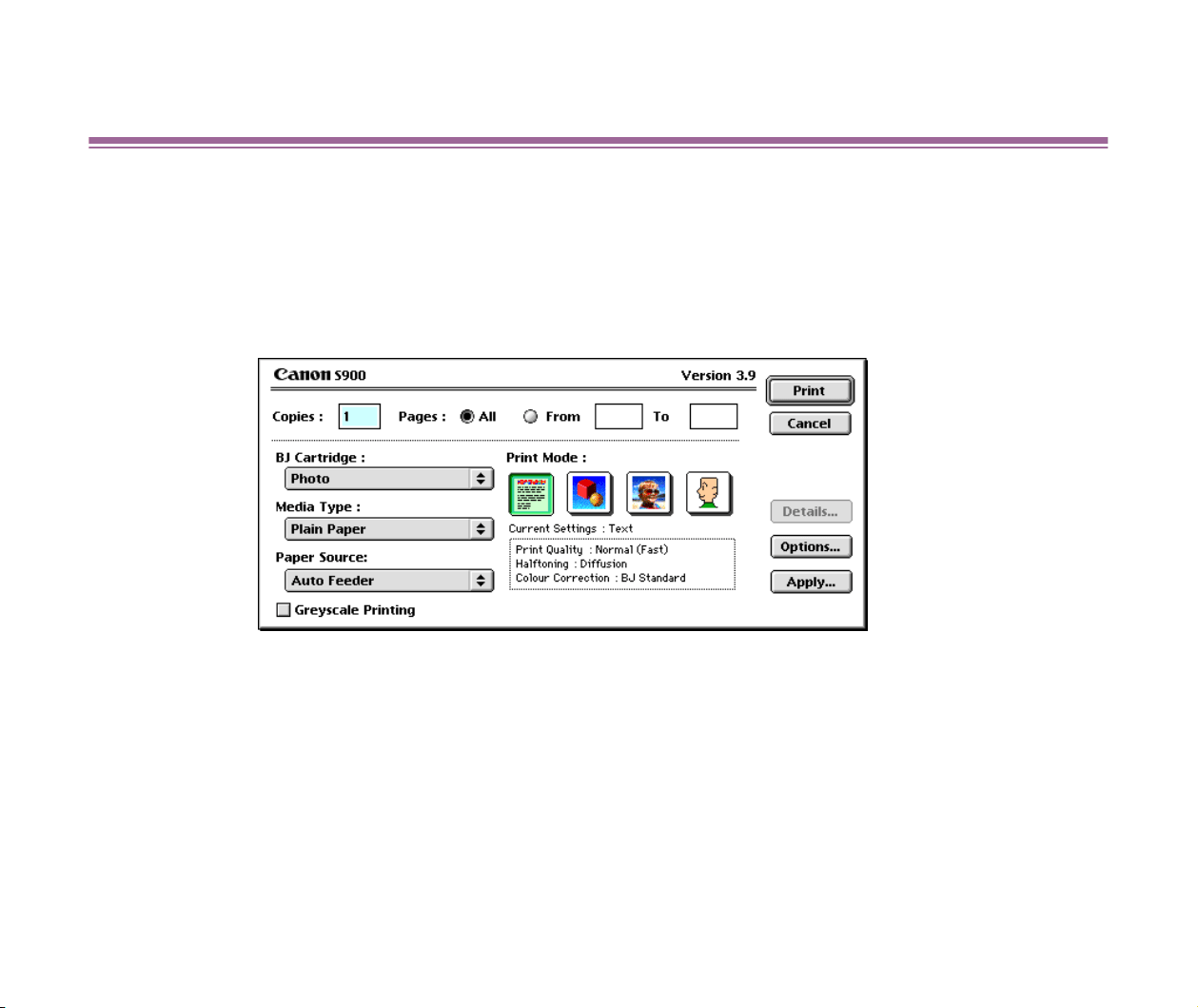
1 Click the PRINT button.
The Print dialog box of the printer selected in the Chooser appears.
Starting printing
104
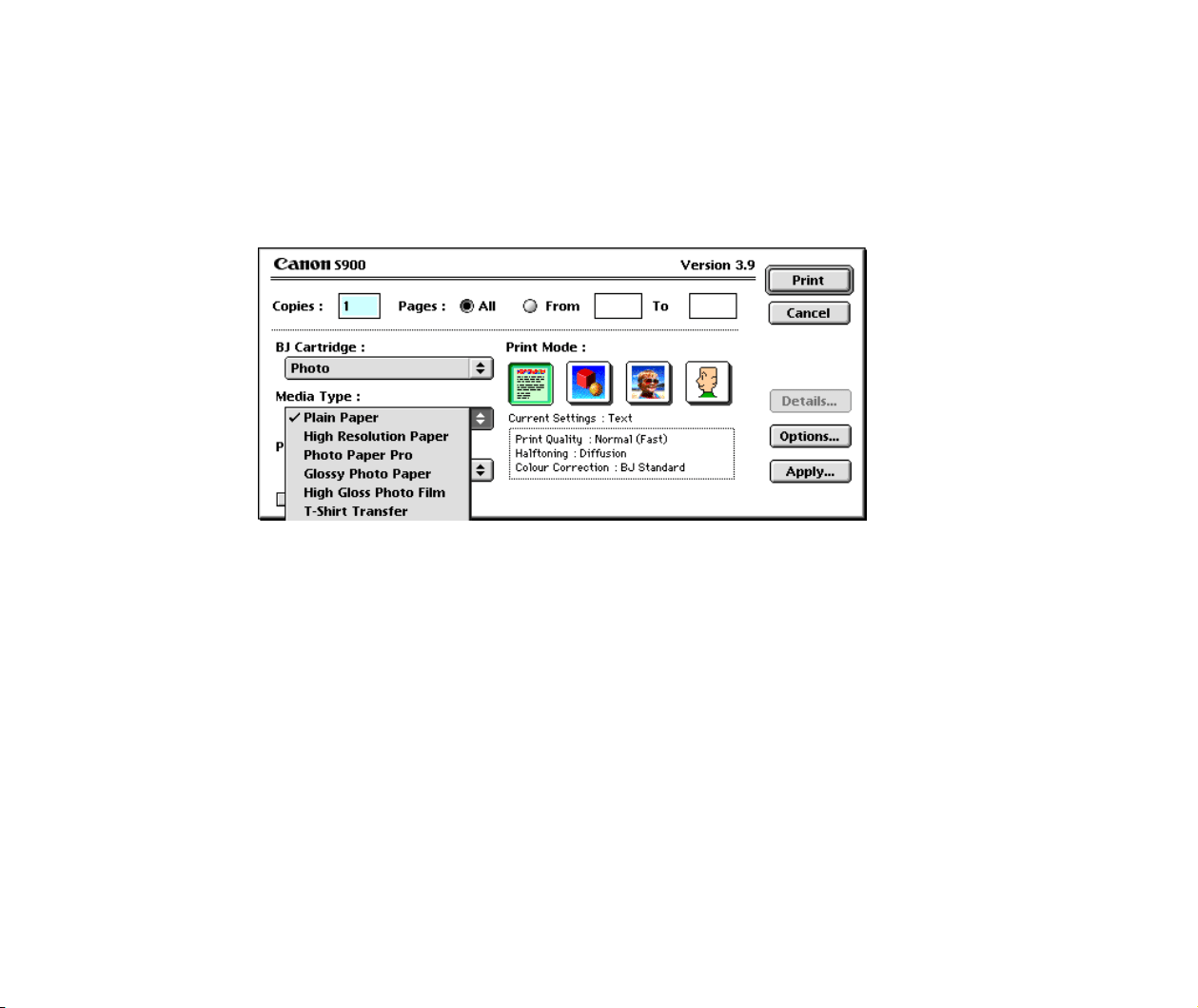
2 Select the type of paper used for printing.
Select the type of paper you specified in the Page Setup dialog box from the Media
Type pulldown menu.
For example, select Photo Paper Pro when printing on the Pro Photo Card, and
select Glossy Photo Paper when printing on the Photo Glossy Card.
Starting printing
105
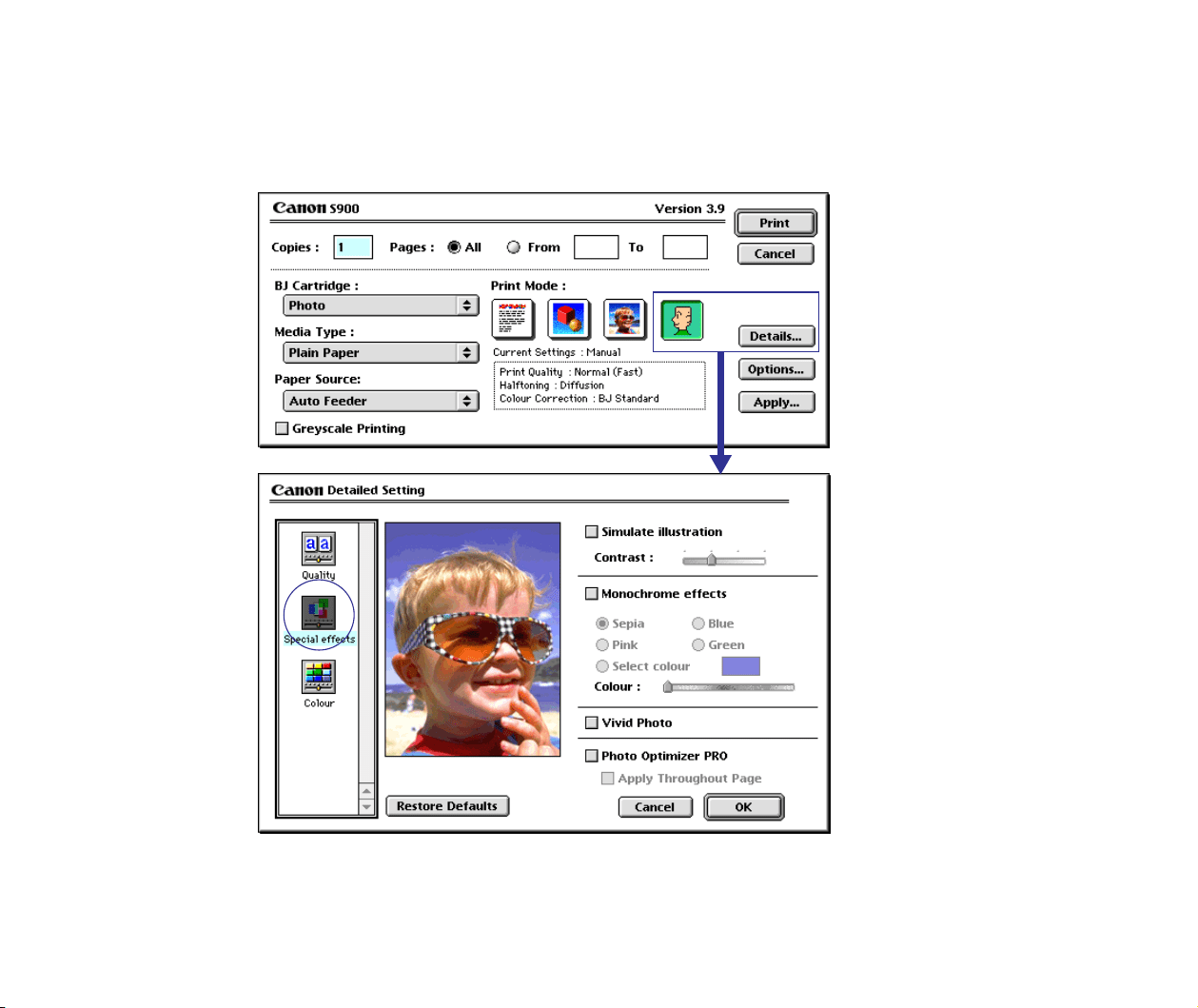
3 Specify a print mode.
Normally, you should choose the Photo option when printing photos.
If you click the Manual button, the Details button becomes active as shown below:
Click the Details button to display the Detailed Setting dialog box. In this dialog
box, click the Special Effects button on the left side to activate photo color
correction features such as Vivid Photo and Photo Optimizer PRO.

Starting printing
106
Vivid Photo
If the Vivid Photo check box is selected, green and blue are printed more vividly
while the color of skin tones remains intact. This feature is useful when printing
photos containing grass, sky, or sea in the background.
Photo Optimizer PRO
If the Photo Optimizer PRO check box is selected, the color data captured by a
digital camera is corrected based on the colors and tones. This may be useful when
correcting unnatural tones caused by fluorescent lights or incandescent lamps, or
overexposure or underexposure. This Auto Photo Perfect feature automatically
adjusts the brightness, preventing extremely dark areas in an image from turning to
shadows.
4 Click the Print button.
Printing starts.
Index printing
107
Index printing
• Printing index quickly
• Previewing the page layout before printing
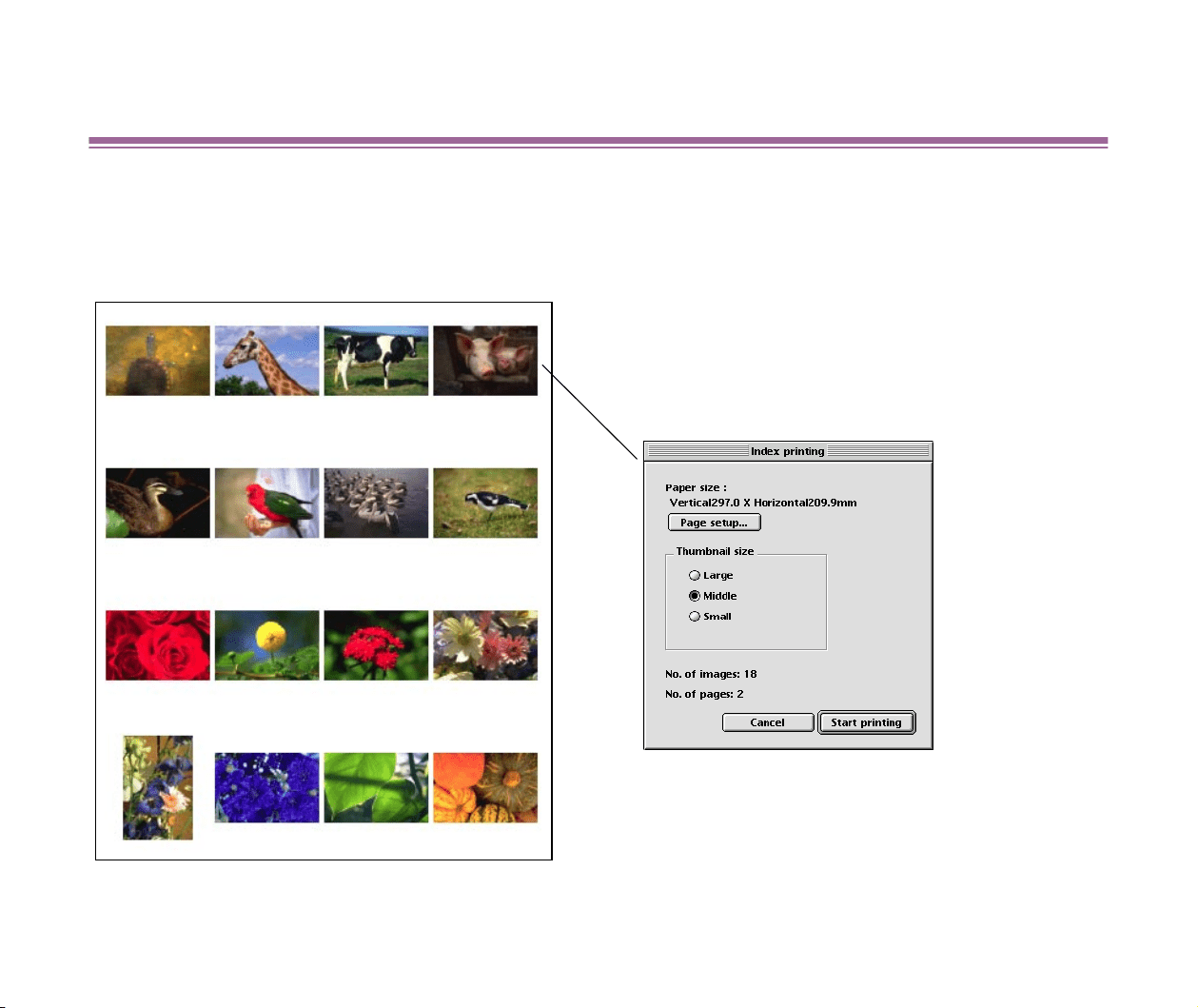
ImageBrowser's index printing feature allows you to quickly print an index (a list of thumbnails) of the selected images. You
can specify the size of the thumbnails.
All of the selected images are automationallty arranged
and then printed.
Index printing
108
Printing index quickly
Use this printing method to quickly print the index of the selected images (thumbnails) without opening the Print window.
Steps
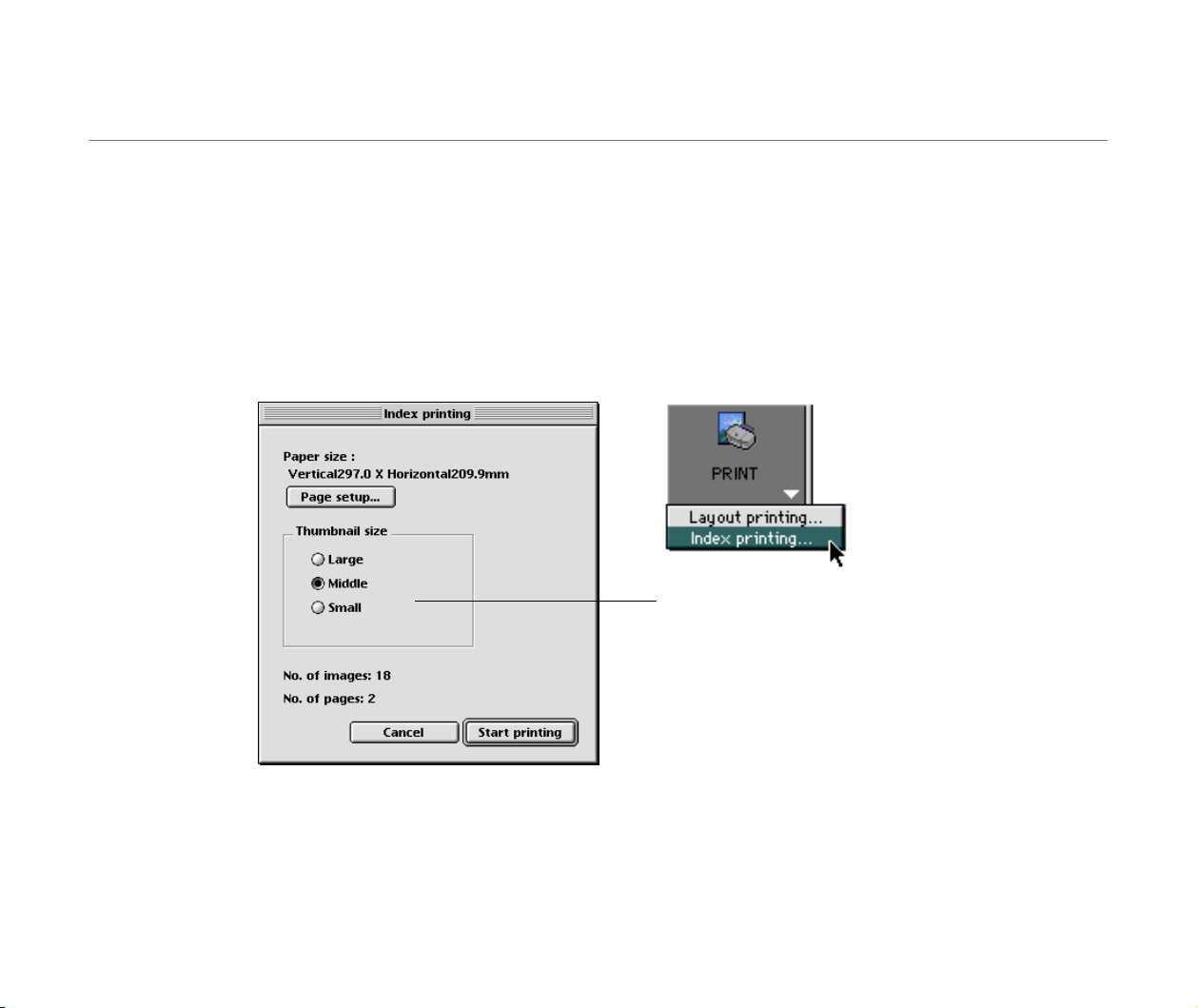
1 In the Browser area, select the image(s) to print with the index
printing technique. Then select Index printing from the submenu
that appears when clicking the PRINT button.
The Index printing window appears.
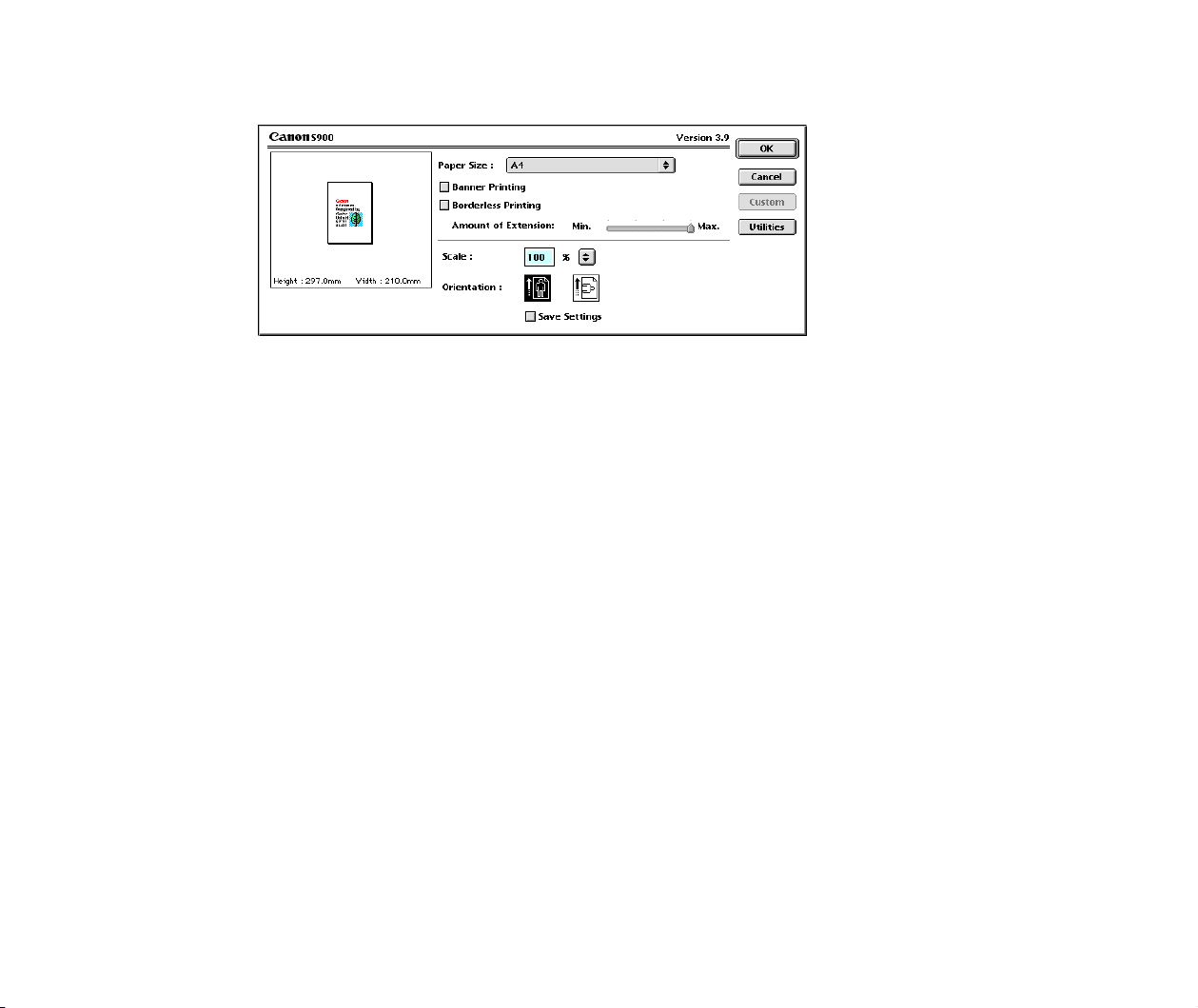
2 Click the Page setup button.
The Page Setup dialog box for the printer selected in the Chooser appears. Specify
the paper size and orientation.
Select the size of thumbnails. The number of
pages used for printing depends on the number
of selected images and the size of thumbnails
specified in the Index printing window.
Index printing
109
3 Click the OK button to close the Page Setup dialog box.
4 Specify the size of thumbnails.
The number of pages used for printing depends on the number of selected images,
the size of thumbnails specified in the Index printing window, and the size of paper
specified in the Page Setup dialog box.
5 Click the Start printing button.
The Print dialog box appears.
6 Click the Print button in the Print dialog box.
Printing starts.
Index printing
110
Previewing the page layout before printing
You can preview the page layout before printing an index of the selected images.
Steps
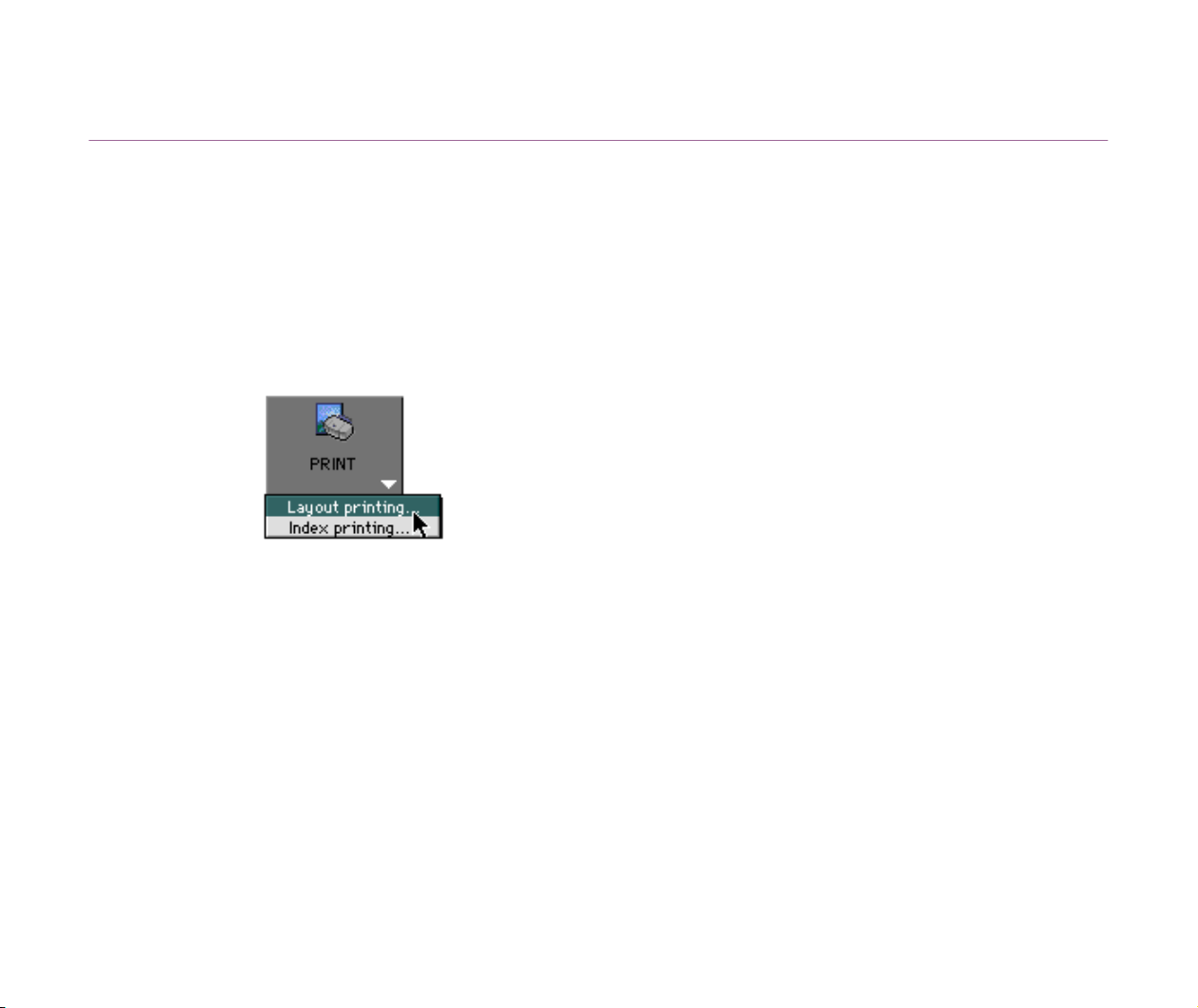
1 In the Browser area, select the image(s) to print with the index
printing. Then select the Layout printing from the submenu that
appears when clicking the PRINT button.
The Layout Options window appears and the layout selection wizard starts.
Index printing
111
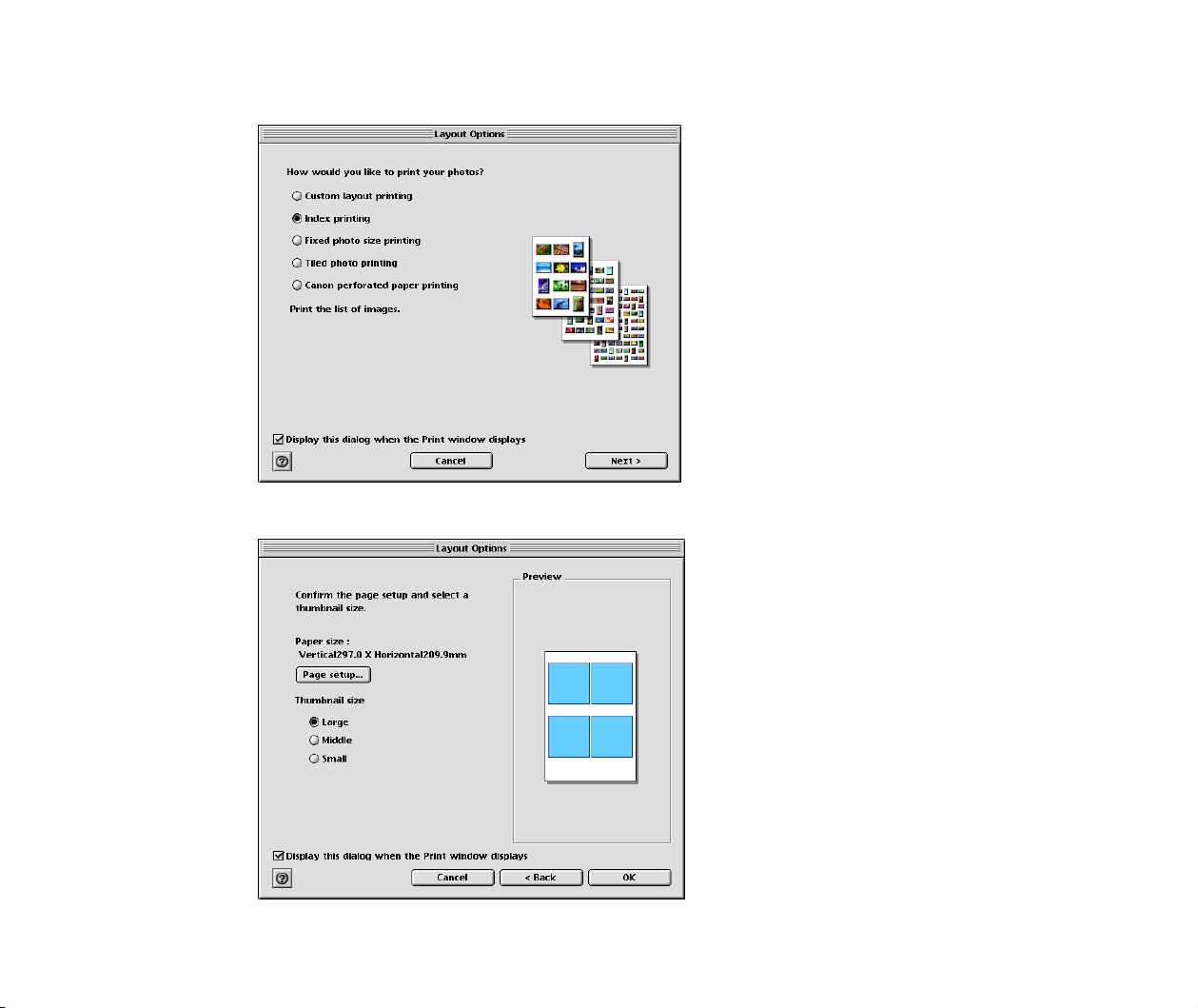
2 Select the Index printing option.
3 Click the Next button to proceed to the next page.
Index printing
112
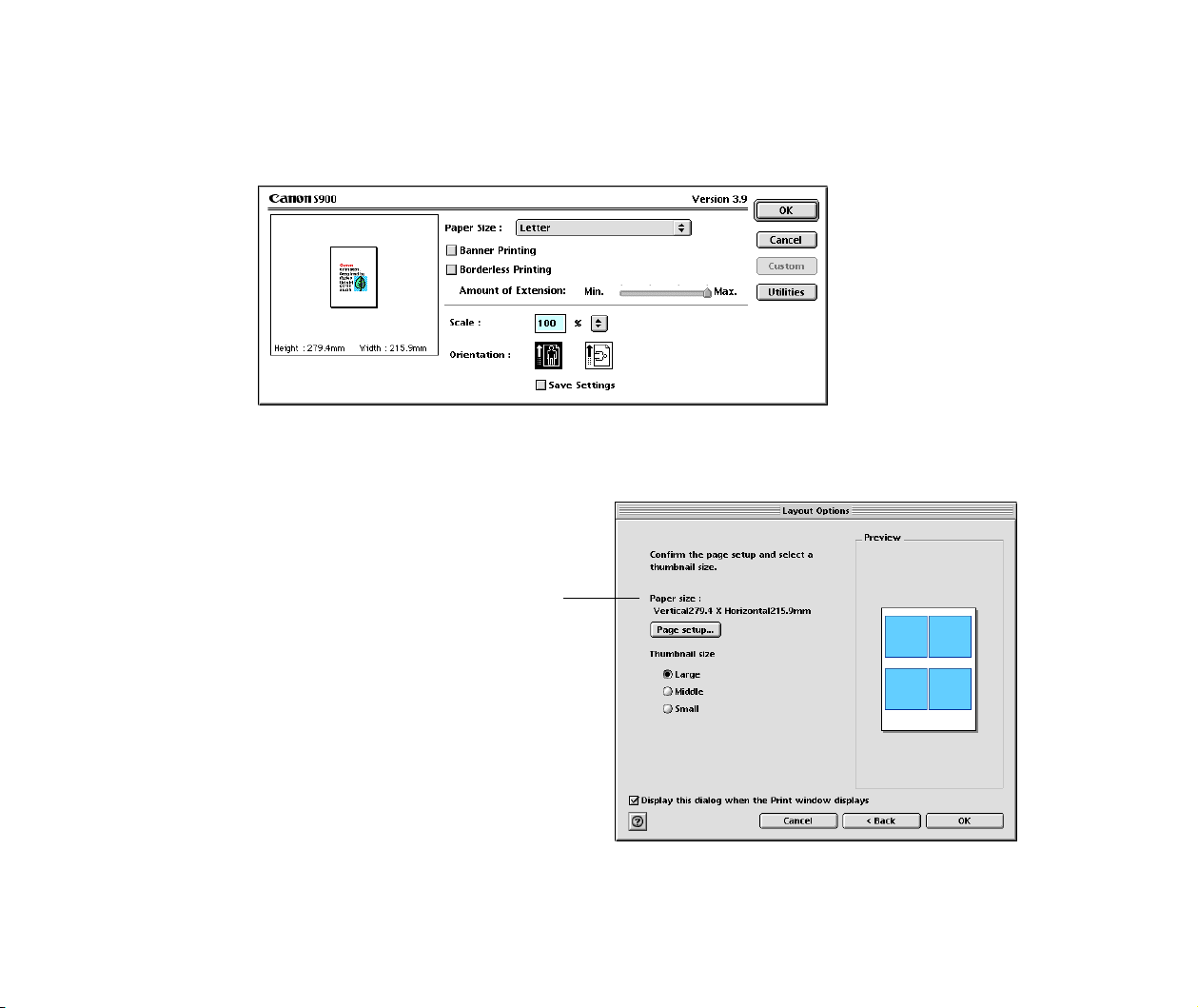
4 Click the Page setup button.
The Page Setup dialog box for the printer selected in the Chooser appears. Specify
the paper size and orientation.
5 Click the OK button to close the Page Setup dialog box and return
to the Layout Options window.
The size of paper you specified in the
Page Setup dialog box is displayed.
Index printing
113
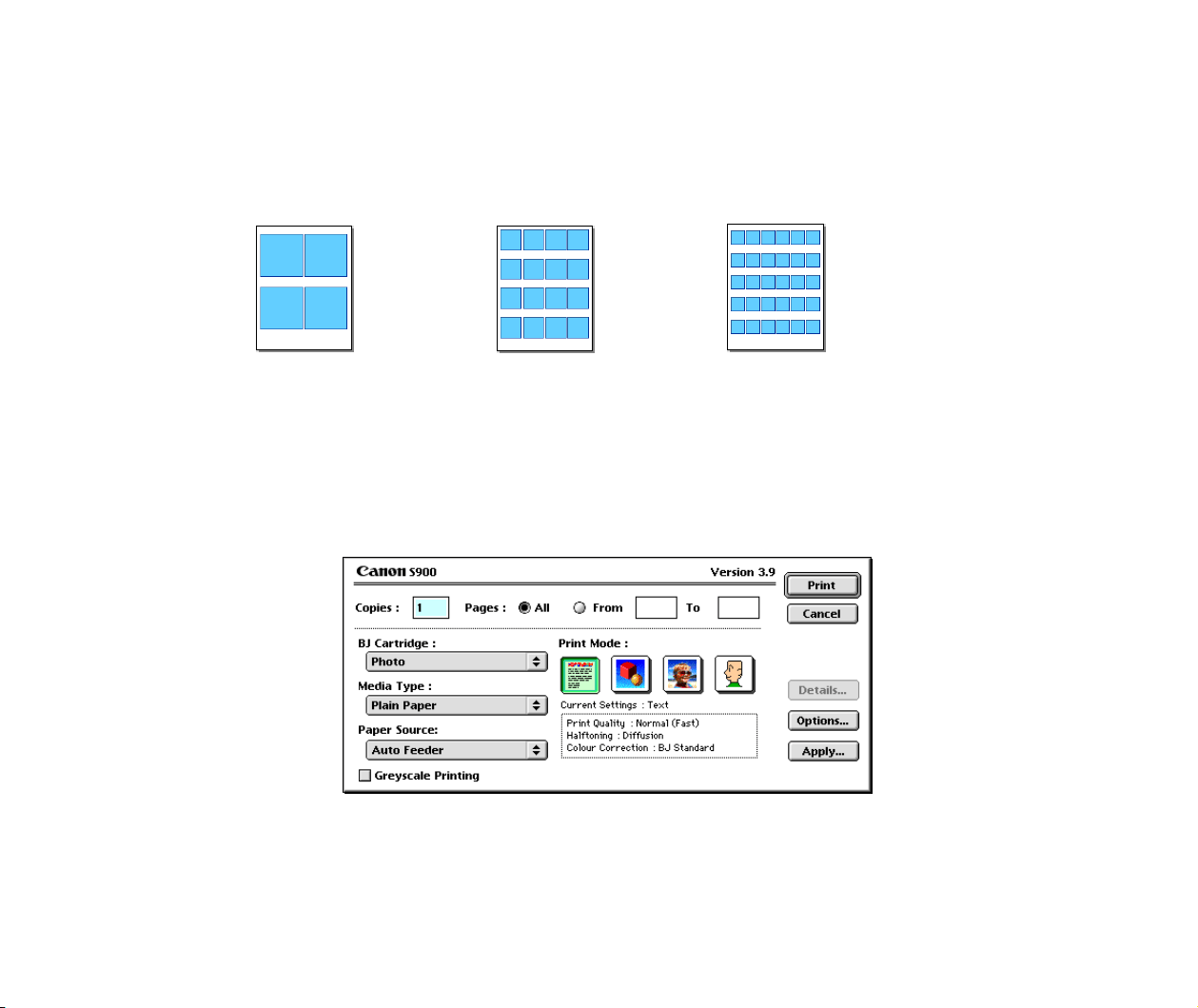
6 Specify the size of thumbnails.
You can select from the Large, Medium, and Small options.
The Preview area on the right side of the window shows how the thumbnails are
arranged under the current settings.
7 Click the OK button to exit the layout selection wizard.
The Print window appears, showing the thumbnails that are arranged according to
the current settings.
8 Click the PRINT button.
The Print dialog box for the printer selected in the Chooser appears.
Large
Medium
Small

Index printing
114
9 Specify the Media Type and the Print Mode.
Select the type of paper you specified in the Page Setup dialog box from the Media
Type pulldown menu.
When printing photos, usually select the Photo option for the Print Mode. Select
the Text option for the Print Mode to reduce printing time, if necessary.
10 Click the Print button to start printing.

Editing the layout format
117
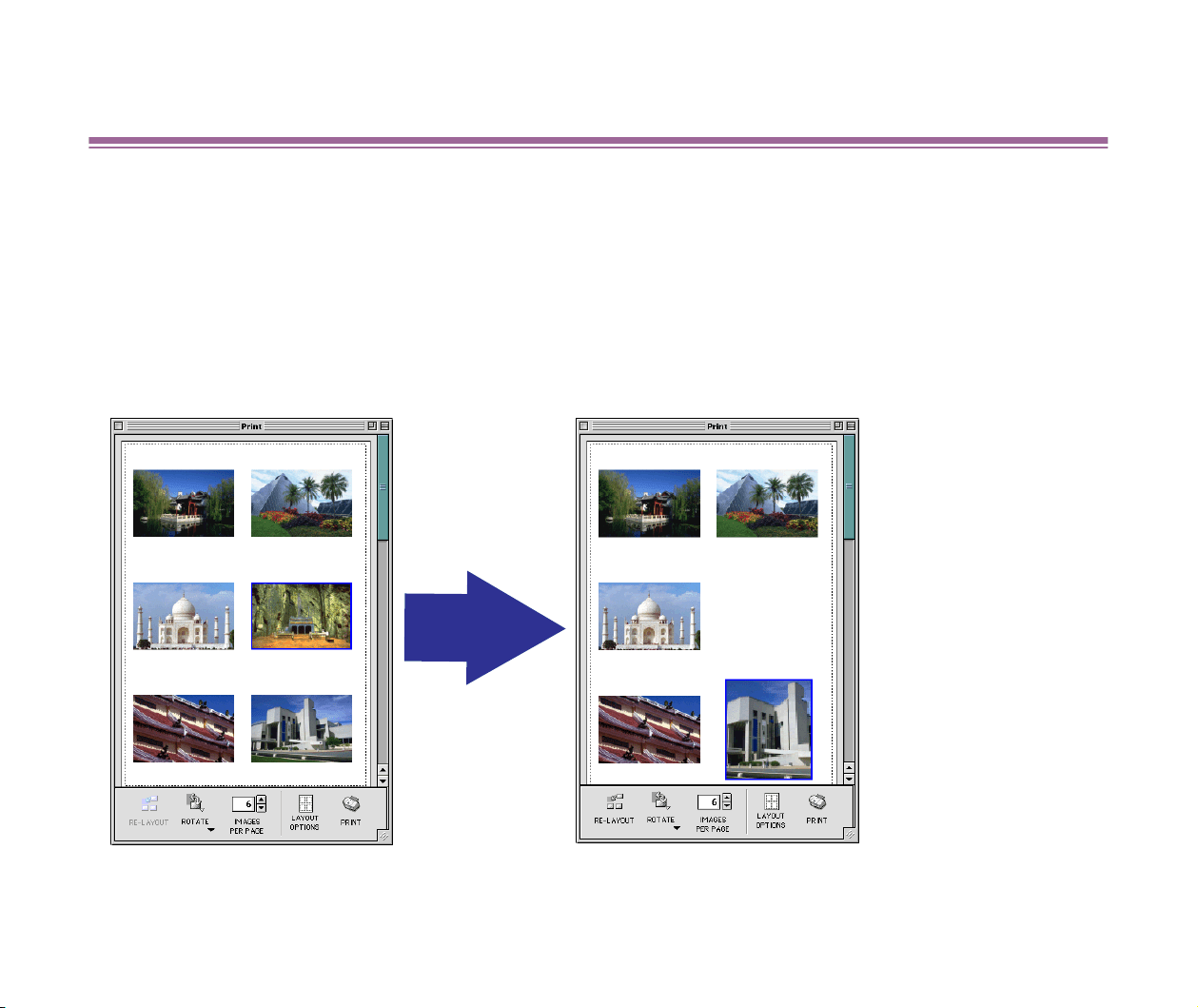
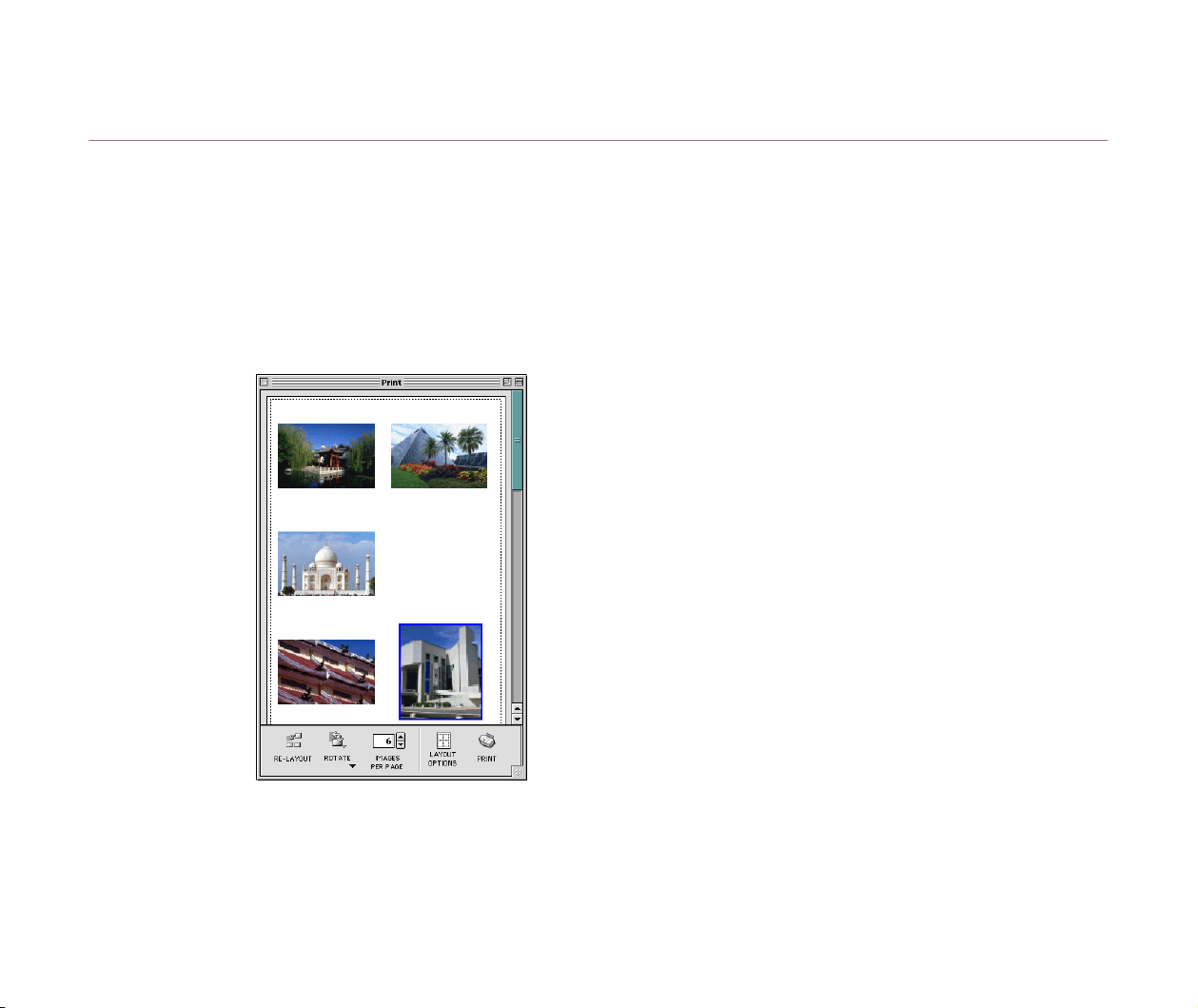
Moving an image
In the Print window, you can move an image to a different location.
When you select the Custom layout printing option in the Layout Options dialog box, you can
move an image by dragging it in the Print window.
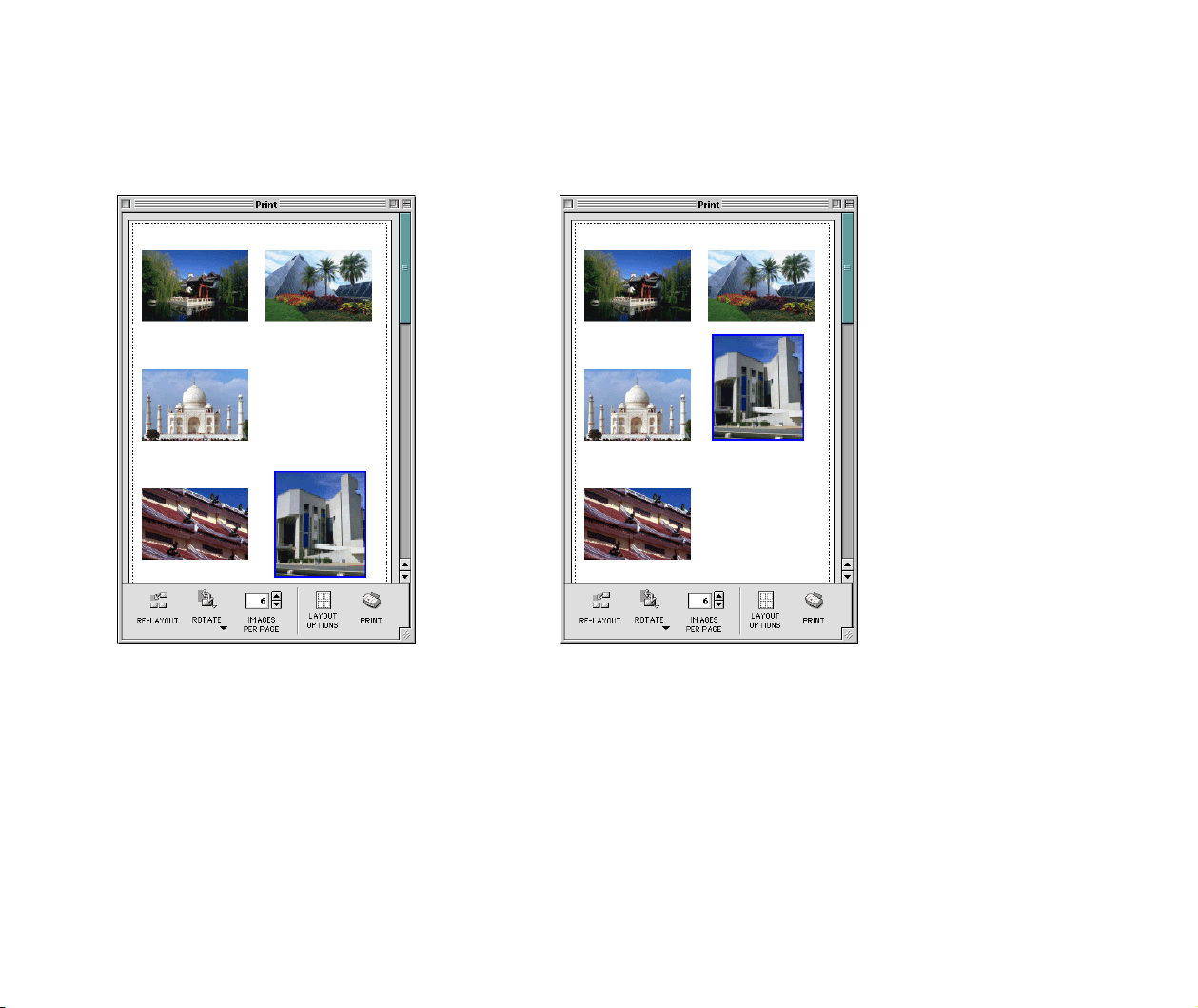
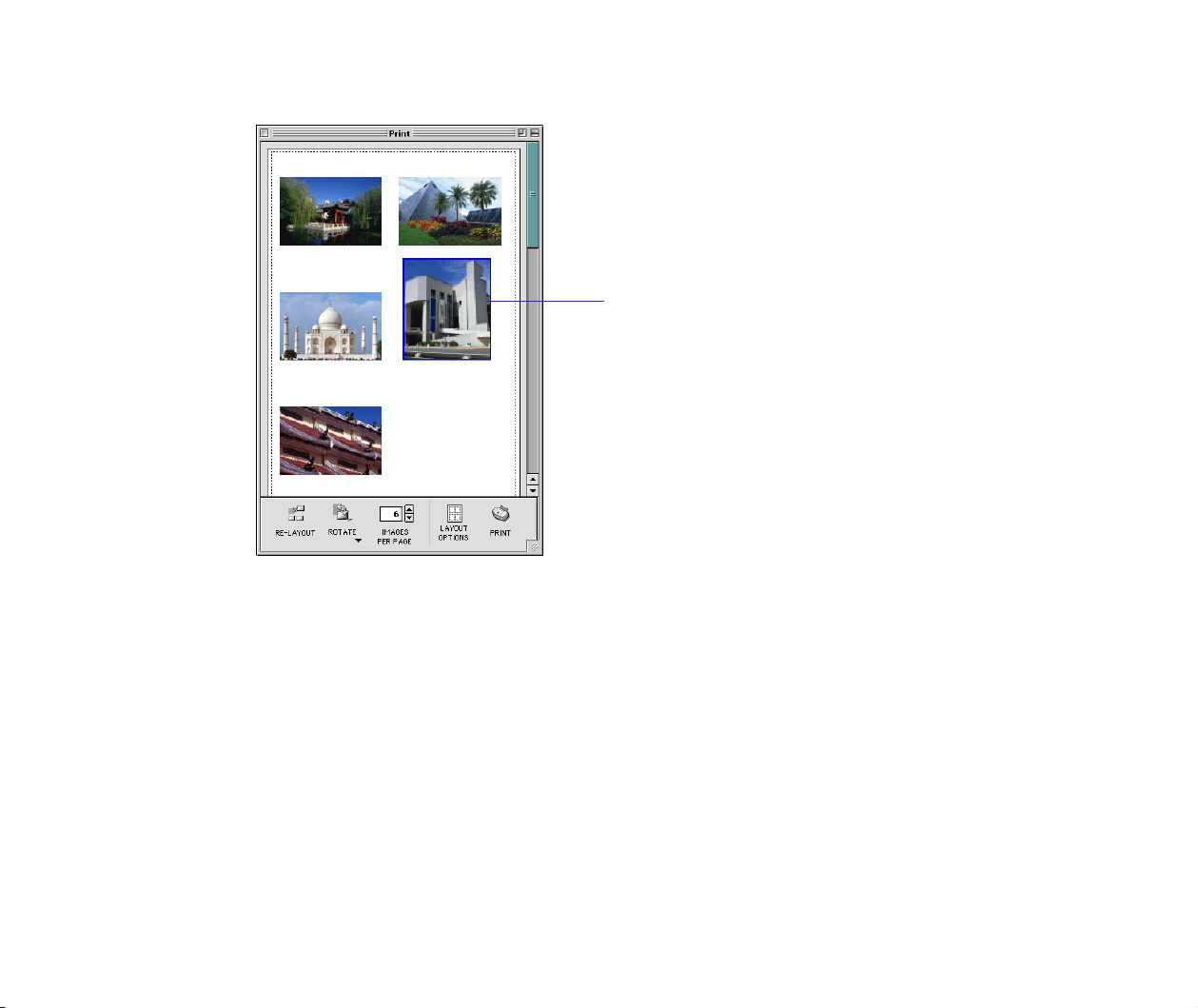
1 Select the image you want to move in the Print window.
A blue frame appears around the image.
Editing the layout format
118
2 Drag the image to move to a different location.
Note
➤
When you select one of the options other than the Custom layout printing, you
cannot move images in the Print window. However, the display order can be
changed by dragging one of the images.
The image that was moved.
Editing the layout format
119
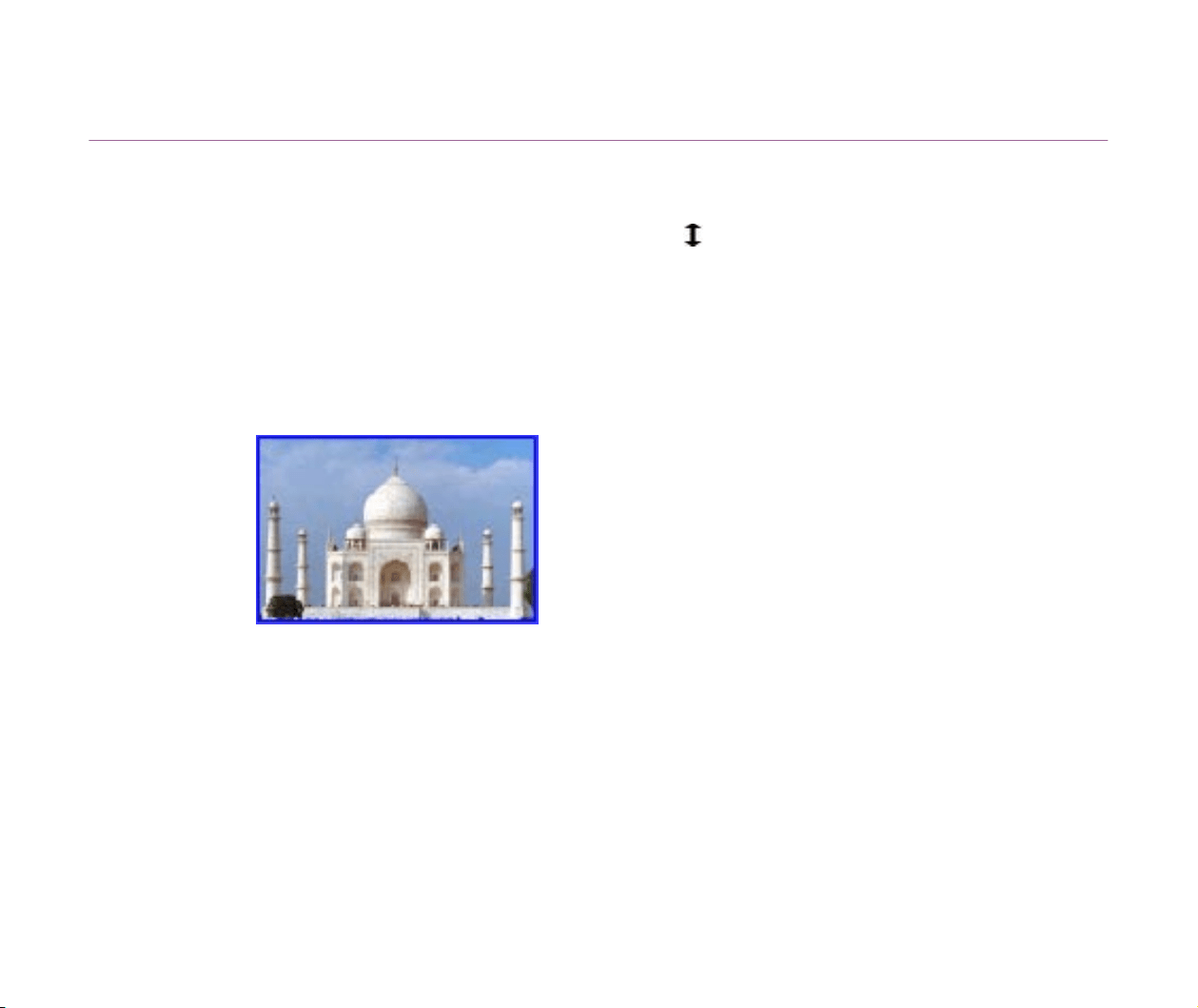
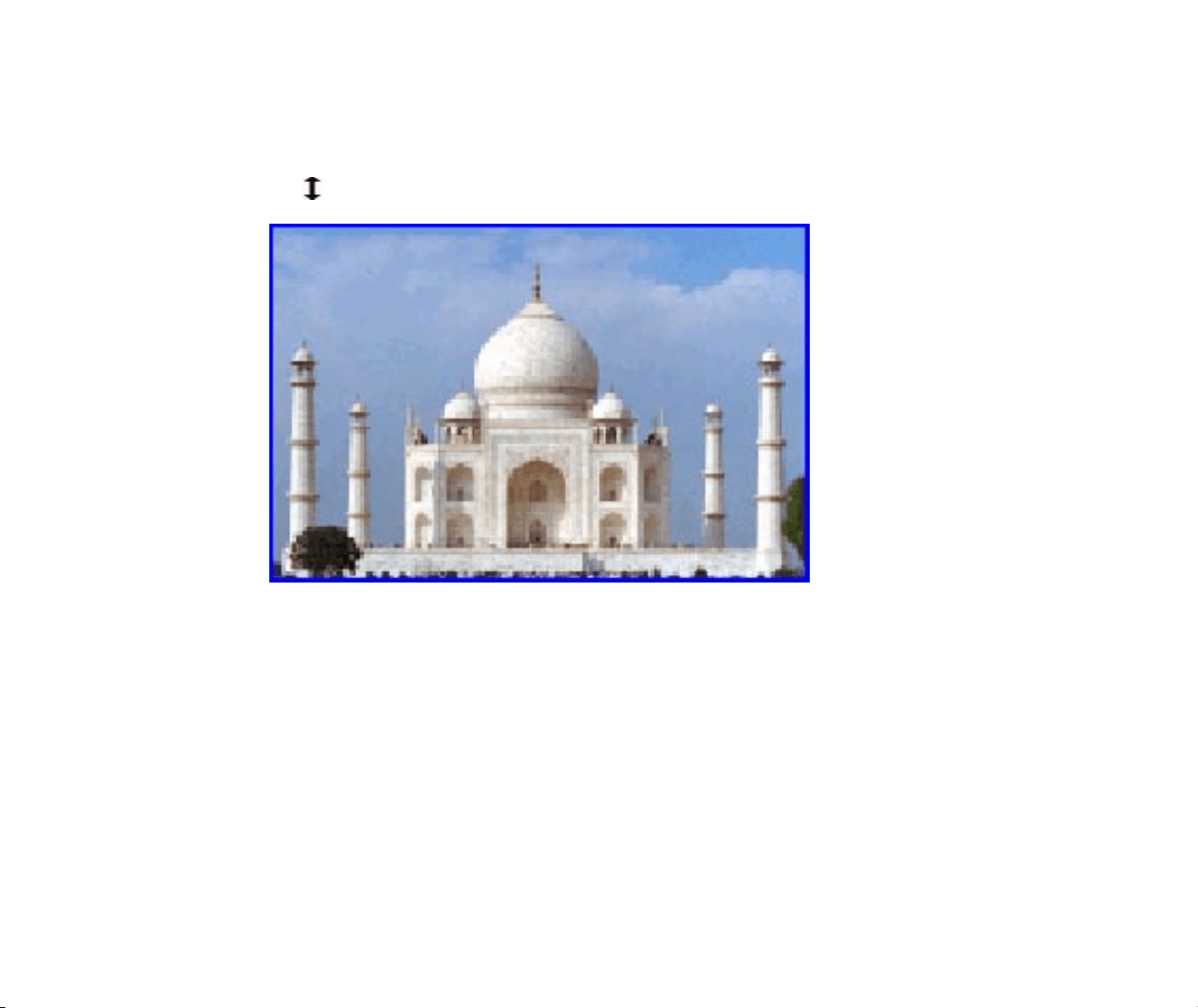
Changing the size of an image
When you selected the Custom layout printing option in the Layout Options dialog box, you can
enlarge or reduce the selected image by dragging its frame (blue line). When the mouse cursor is
positioned over the image frame, the cursor changes into . Then drag the mouse to enlarge or
reduce the image.
Steps
1 Select the image you want to change its size.
The frame appears around the image.
Editing the layout format
120
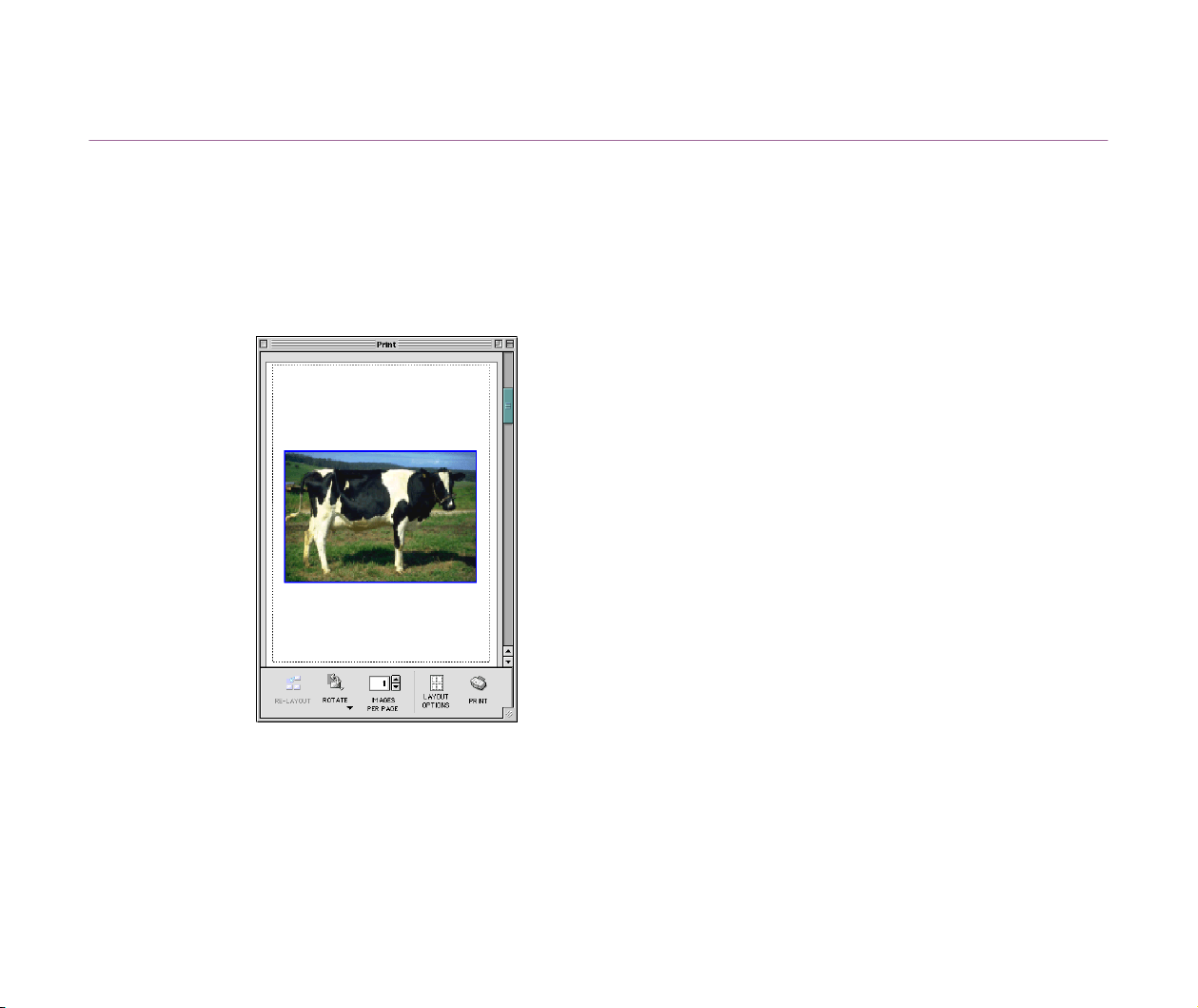
2 Move the cursor over the frame of the image, and drag the mouse
to enlarge or reduce it.
When the mouse cursor is positioned over the image frame, the cursor changes
into .
Note
➤
When you select one of the options other than the Custom layout printing, you
cannot enlarge or reduce images in the Print window.
Editing the layout format
121
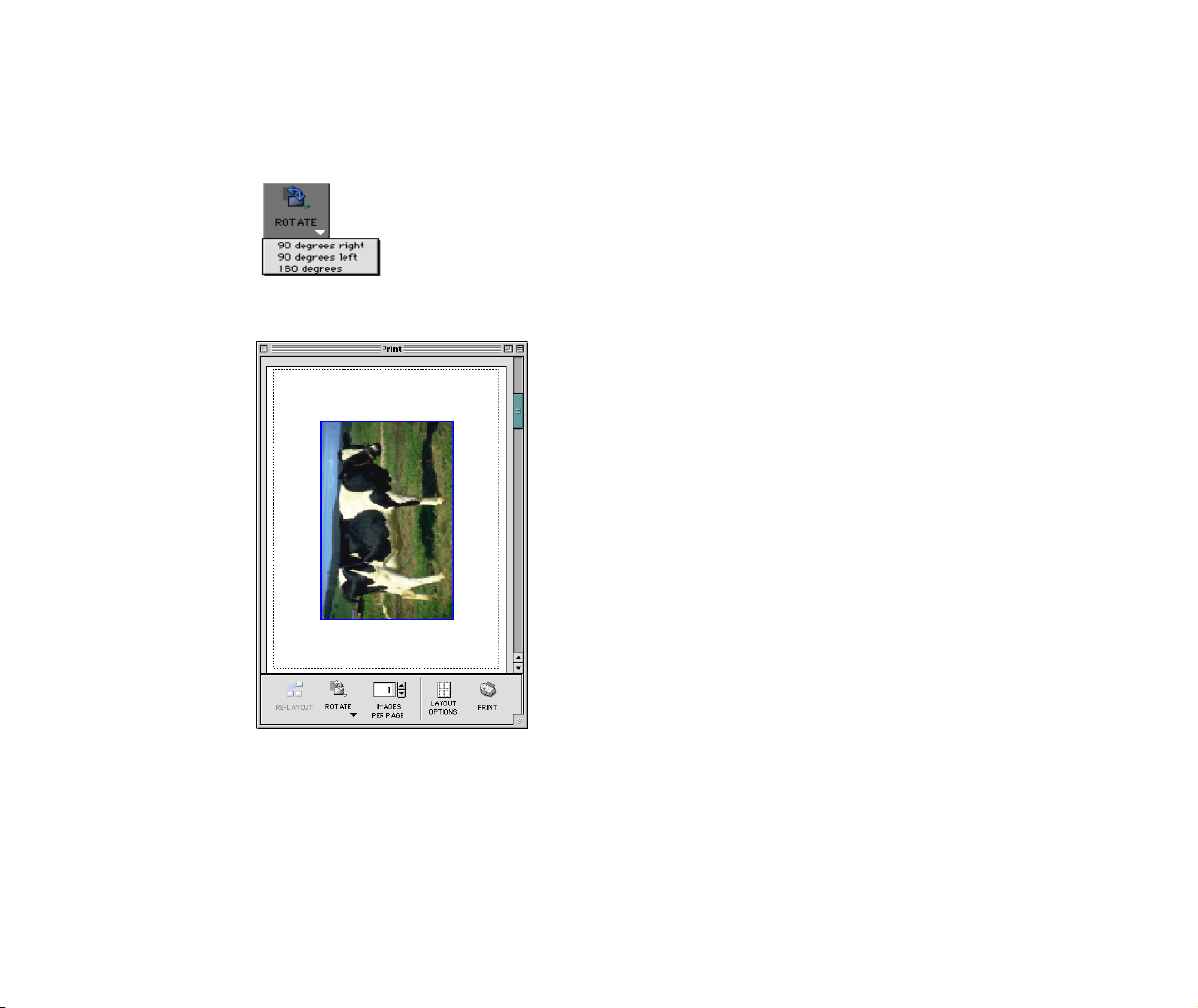
Rotating an image
You can rotate the selected image by selecting the 90 degrees right, 90 degrees left, or 180
degrees option from the submenu that appears when clicking the ROTATE button.
1 Select the image you want to rotate.
The frame appears around the image.
Editing the layout format
122
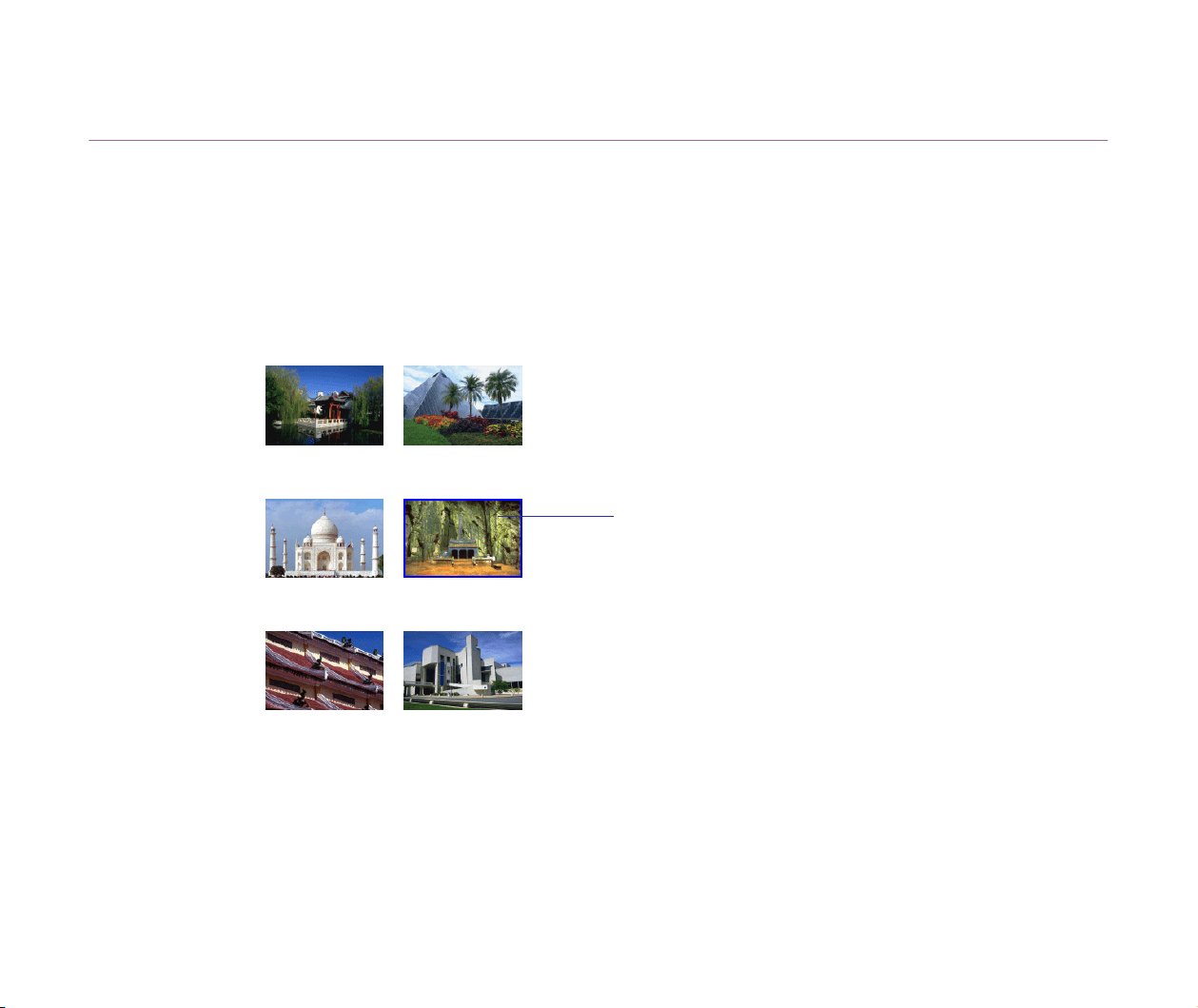
2 Click the ROTATE button to display a submenu, and select one of
three options, 90 degrees right, 90 degrees left, and 180
degrees, as needed.
3 According to the option you selected, the image is rotated.
Note
➤
When you select one of the options other than the Custom layout printing, only
the 180 degrees option is available. When the current layout is the Index printing,
all image rotation features in the Print window are disabled.
Editing the layout format
123
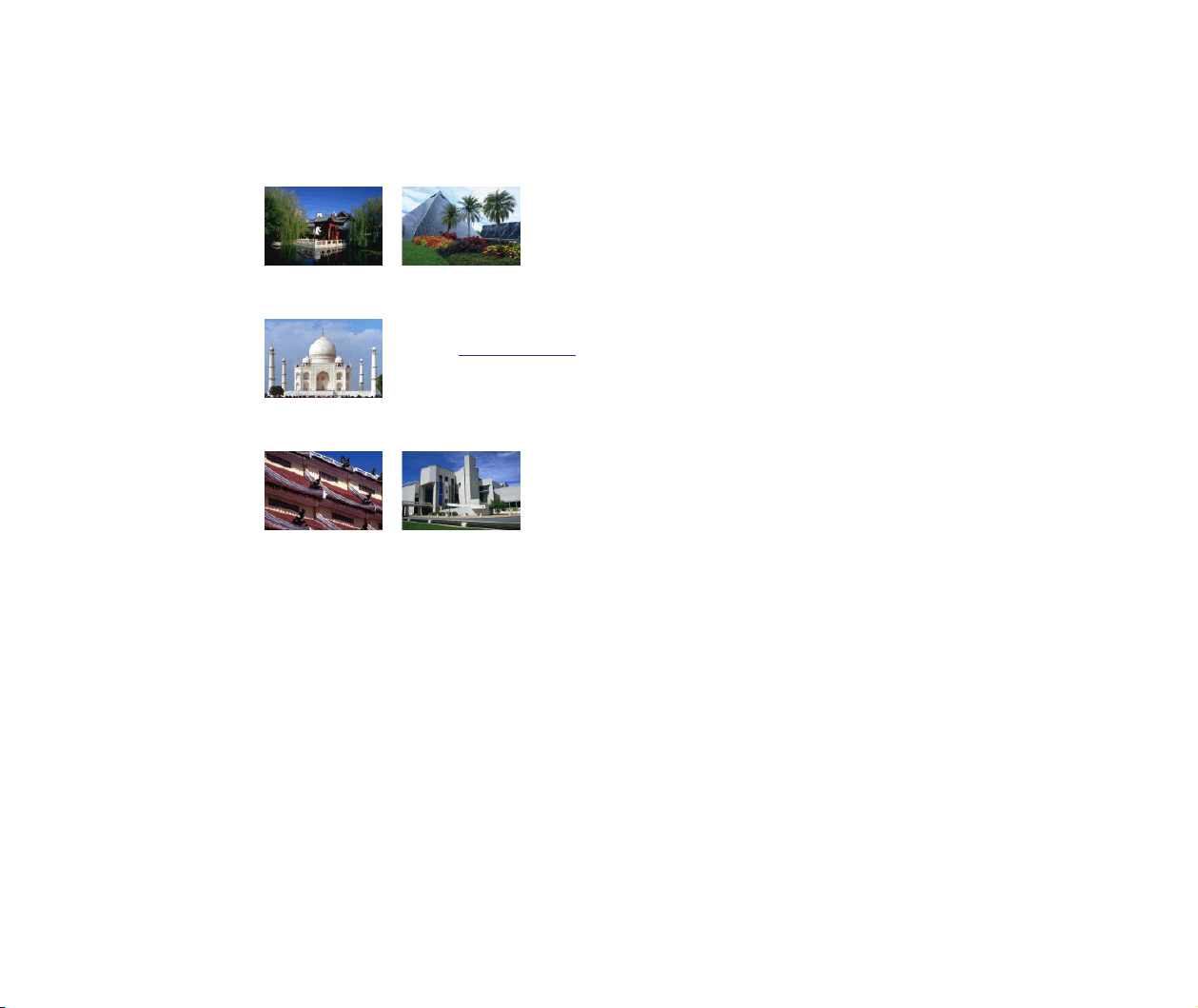
Deleting an image
You can delete a selected image in the Print window. However, note that the deleted image is only
excluded from printing, and the original image file remains intact.
1 Select the image you want to delete.
The frame appears around the image.
Selected image
Editing the layout format
124
2 Press the Delete key on the keyboard.
The selected image is cleared.
The image disappears.
You can also delete the selected image by selecting
Clear from the Edit menu.

Inserting text
125
Inserting text
• Entering text into the page
• Adding a caption to the image
• Adding a header to the page
Entering text into the page
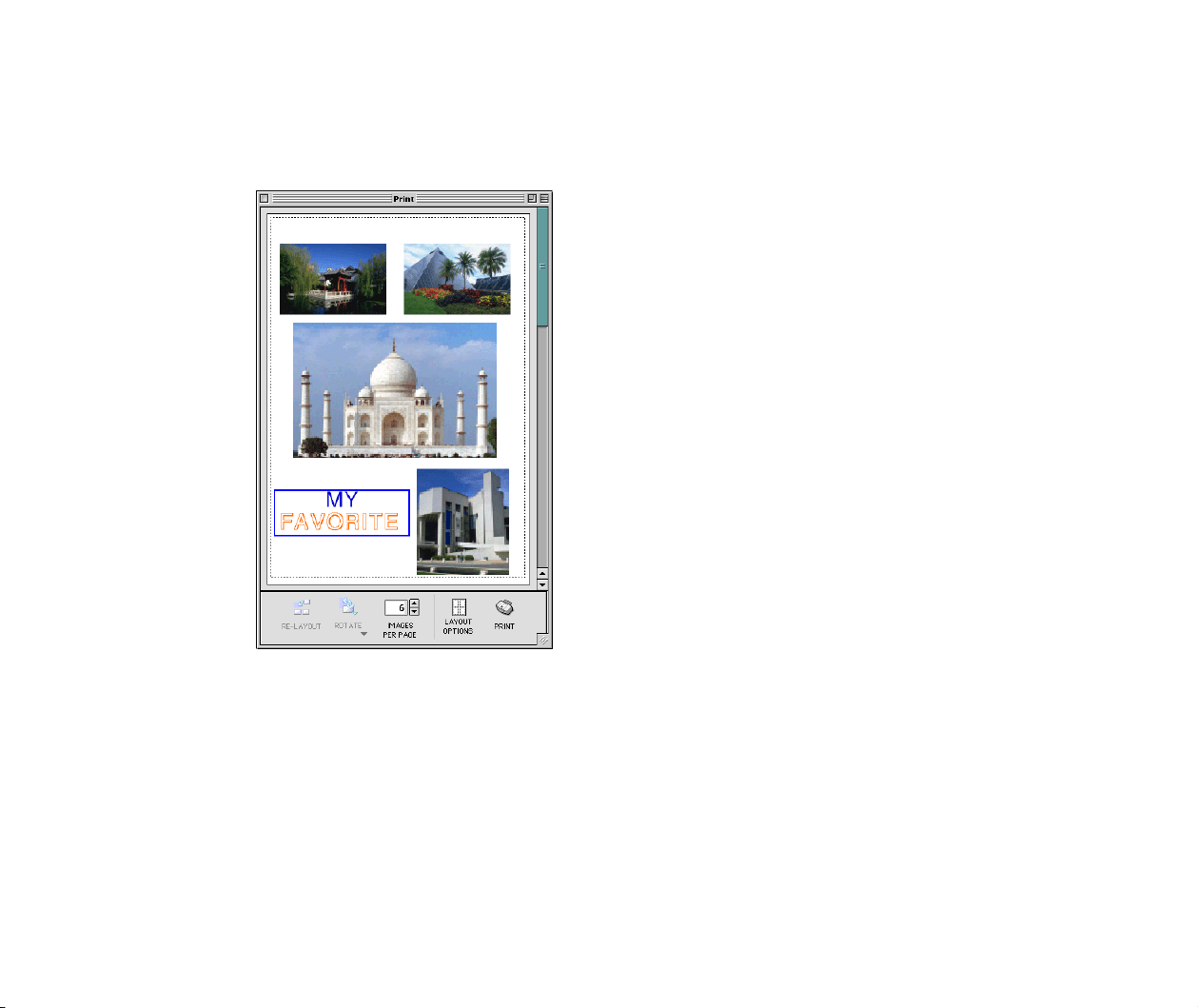
You can enter text anywhere in the page displayed in the Print window.
The text entered in the Add Text window is displayed in the center of the Print window within the
frame (blue outline rectangle), indicating the text is selected. The selected text can be moved by
dragging with the mouse.
Double-clicking the selected text displays the Edit Text window, in which you can edit the text.
Inserting text
126
Steps
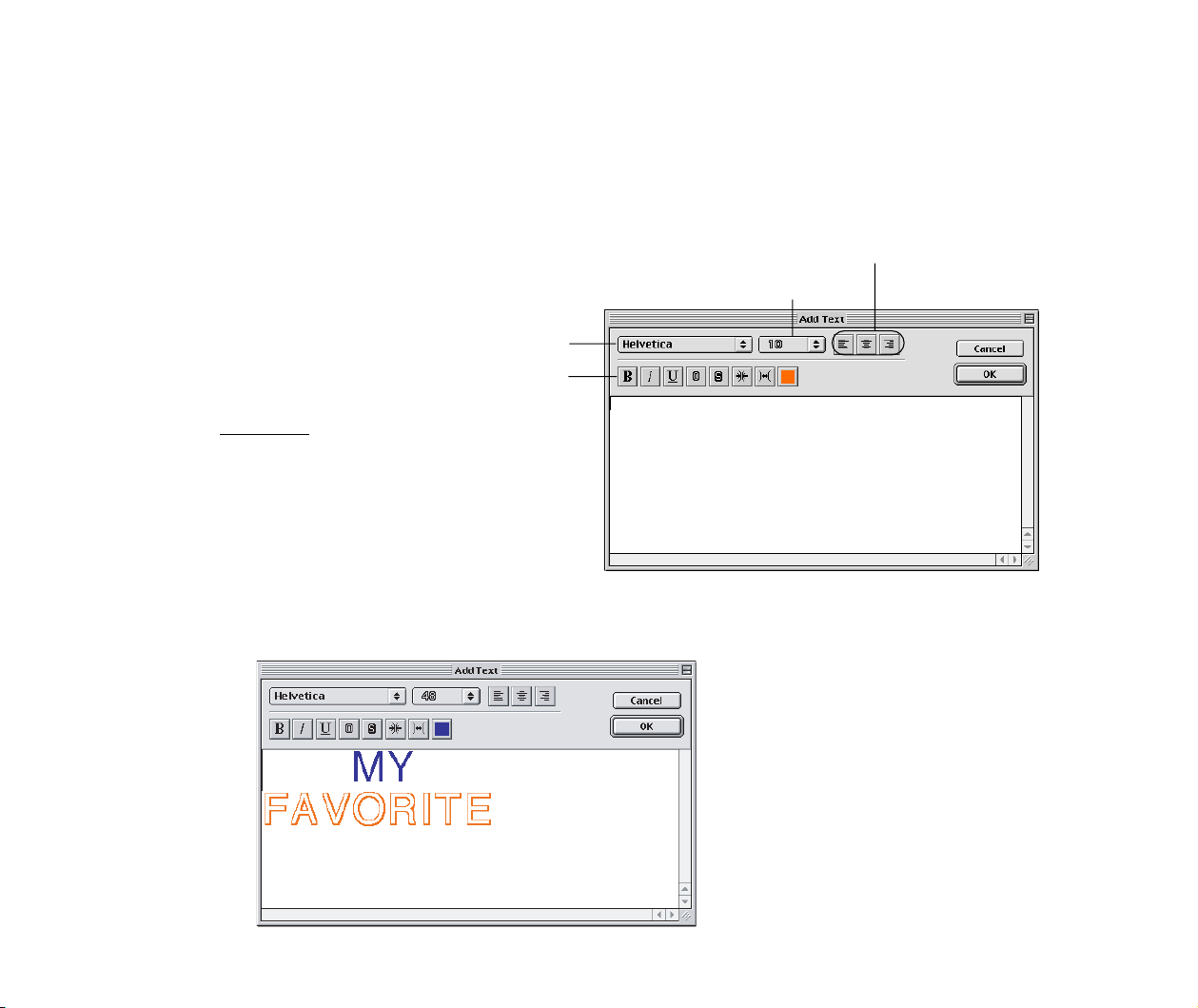
1 Select Add Text ofrom the Edit menu.
The Add Text window appears.
2 Enter text.
You can specify the text attributes such as the font, font style, color, and alignment.
Specify text’s justification.
Select the font size.
Select the font.
Specify the font style. Available styles and effects are
(from left to right):
bold, italic, under
lined, outline, shadow, wide space,
narrow space, and color.
The entered text is inserted into the
Print window in the format it appears in
the Add Text window.
Inserting text
127
3 Click the OK button.
The entered text is displayed in the Print window within the frame (blue). The text
can be moved by dragging with the mouse.

Inserting text
128
Adding a caption to the image
You can add a caption to each of the images in the Print window.
If the current layout is the Custom layout printing or the Index printing, the entered caption
appears immediately below the selected image.
When the current layout option is neither the Custom layout printing nor the Index printing, the
entered caption is displayed in the location specified in the Edit Caption window (the alignment
setting for text). Double-clicking the entered caption in the Print window displays the Edit Caption
window, in which you can edit the string.
Note
➤
The steps for adding a caption to the image are the same as those for entering text
into the page except for the window invoked by the command and the location
where the text is displayed.

Inserting text
129
Adding a header to the page
You can add a header to the page. The header is displayed at the top of the printable area of the
page.
In the Print window, the entered header is inserted at the horizontal position specified in the Edit
Header window (the justification setting for text, that is, left, center or right).
Double-clicking the entered header in the Print window displays the Edit Header window, in which
you can edit the string.
Note
➤
The steps for adding a header to the page are the same as those for entering text
into the page except for the window invoked by the command and the location
where the text is displayed.
Cropping an image
130
Cropping an image
An image in the Print window can be cropped. This image cropping feature gives you the ability to
specify the area for printing without changing the original image data.
Steps
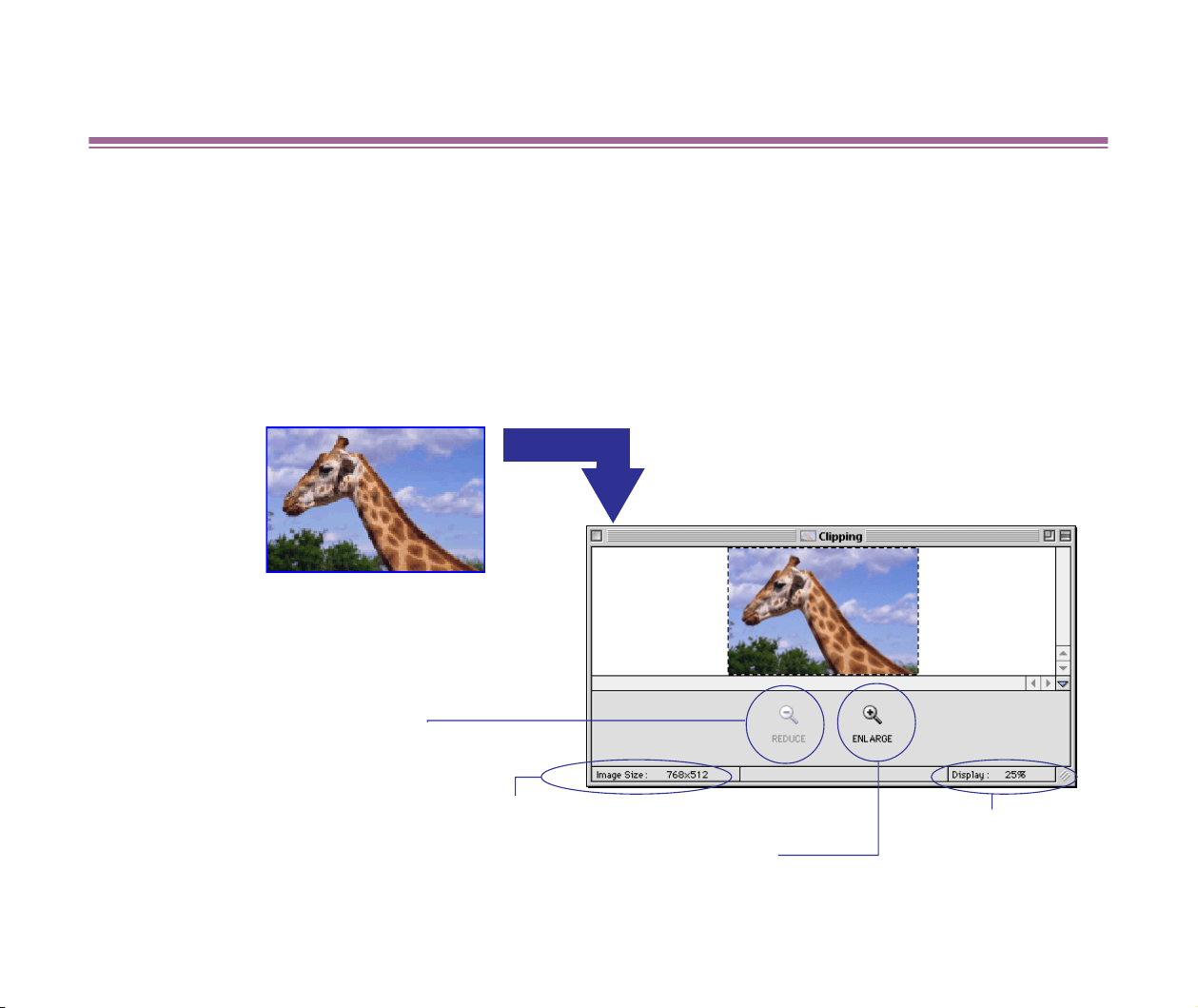
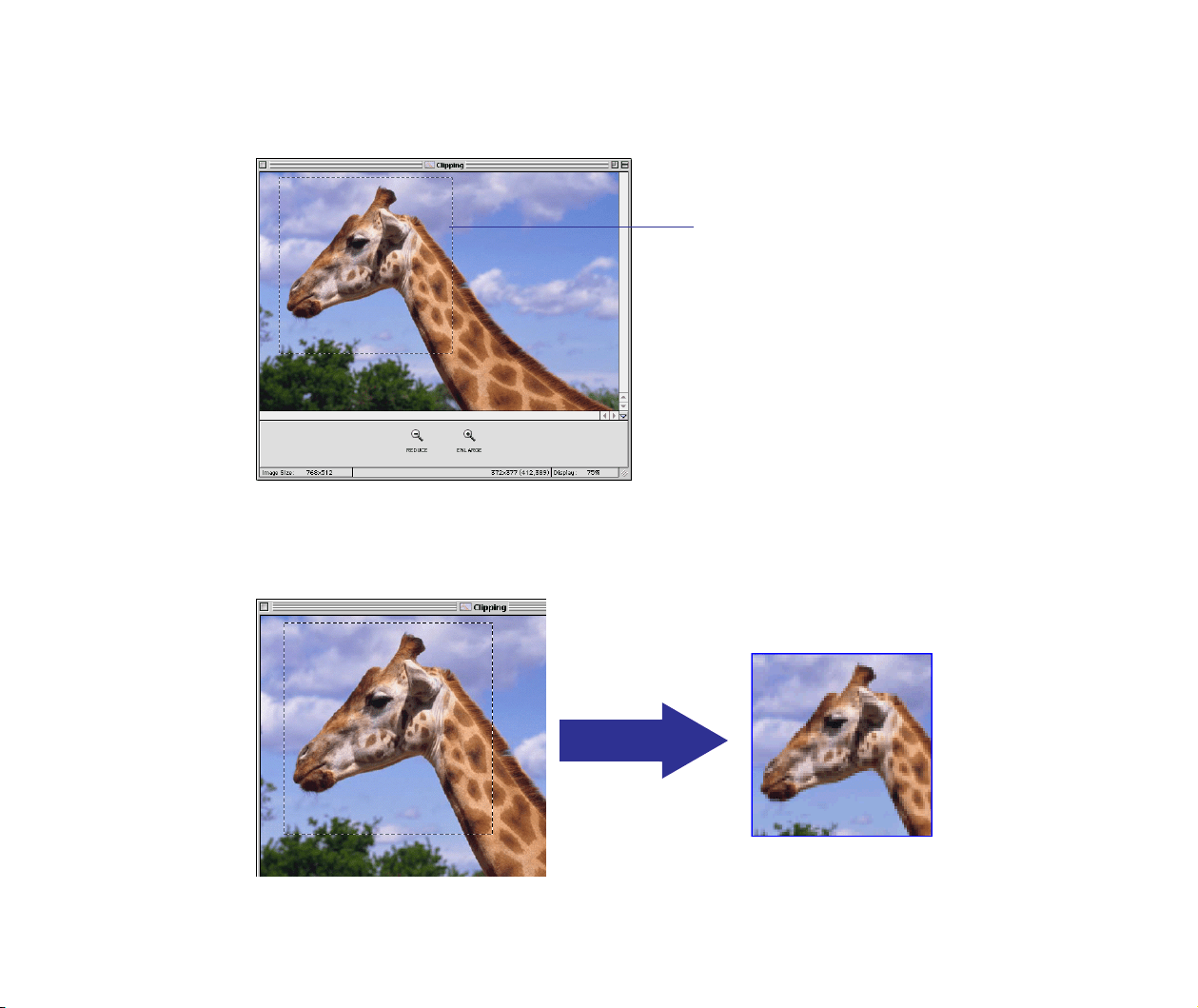
1 Select the image you want to crop, and select Clipping from the
Edit menu.
The Clipping window appears.
The current display
percentage appears.
ENLAEGE button
Enlarges the size of the image.
The size of the image is displayed.
REDUCE button
Reduces the size of the
image up to 25% of the
original size.
The size of the image is
displayed.
Double-clicking the image also displays
the Clipping window.
Cropping an image
131
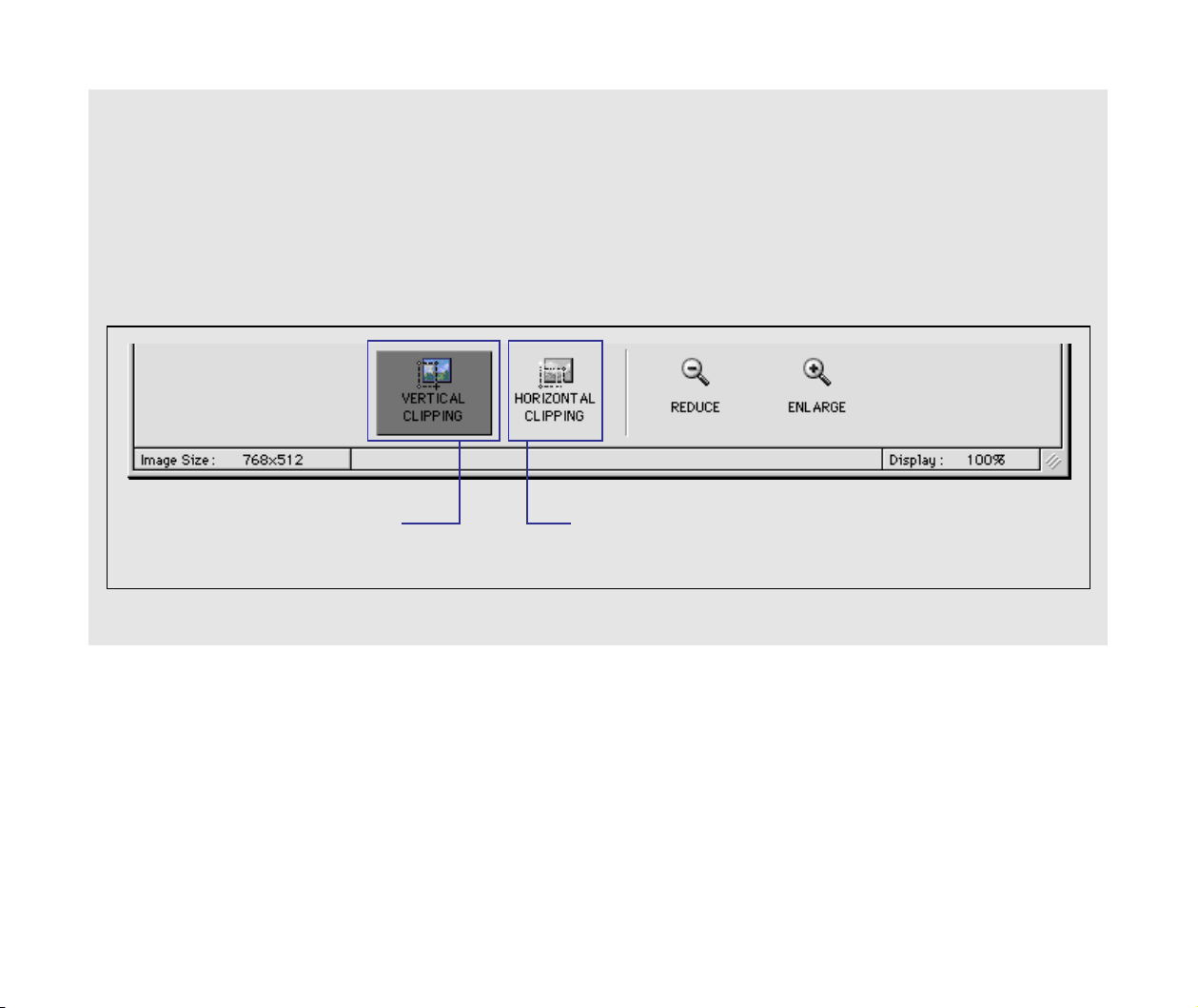
2 Drag the mouse over the image to select the area to be cropped.
Click outside the selected area to deselect it.
3 Click the close box at the upper left corner of the Clipping window.
The Clipping window is closed and the cropped image is displayed in the Print
window.
Selected area for cropping
Cropping an image
132
Limitations of the image cropping feature depending on the current layout
When the current layout is the Custom layout printing, you can select a clipping area of any
size and any height/width ratio.
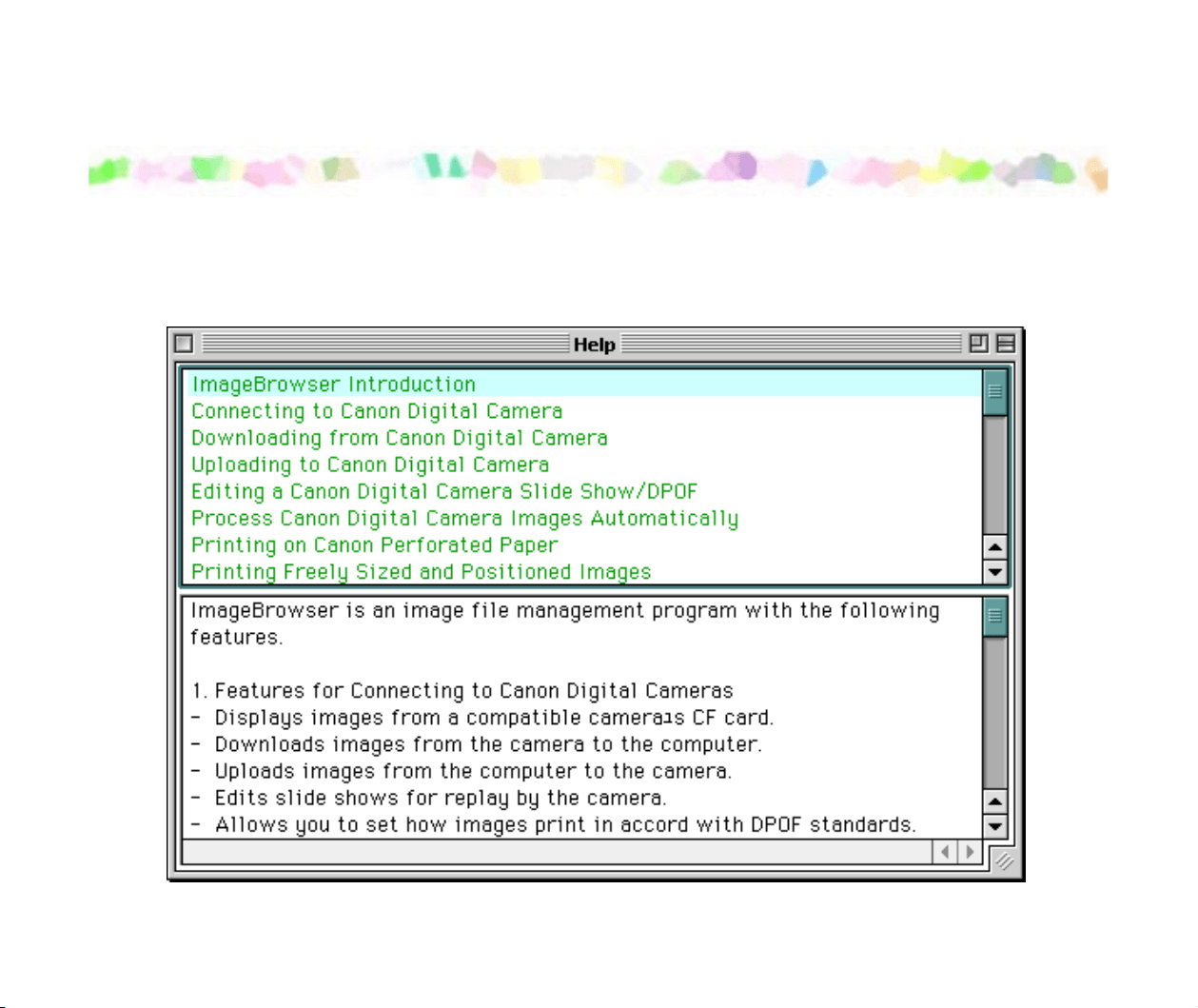
However, in case the current layout is the Tiled photo printing, Fixed photo size printing, or
Canon perforated paper printing, cropping is restricted to the vertical clipping or horizontal
clipping. This is because the height/width ratio is fixed in these three layout modes.
Select this button to
crop the image in a
portrait format.
Select this button to
crop the image in a
landscape format.
Note that the Index printing layout option does not support the cropping feature.
133
How to Use Online Help
ImageBrowser provides you Online Help with information about functions and operations. It
contains a brief description of operational steps that you can read on the screen while operating the
program.

134
Index
A
Add Text window 81
Adding a caption to the image
128
Adding a header to the page
129
Adding sound to an image
37
Adjusting colors of an image
28
audio data
37
Auto Launch control panel
67
Automatic Clipping
87
Automatic Clipping check box
92
Automation wizard
8, 13, 49, 52, 55, 66
Automation wizard dialog box
51
B
Borderless printing 91
Browser area
19, 25, 40, 46, 89, 110
C
Camera window 55, 58
Canon Utilities
12
Changing display options
21
Changing the location of images
22
Changing the size of an image
119
Index

135
Index
Chooser 86, 91, 103, 112, 113
Clipping window
77, 130
Communication settings
66
CONNECT CAMERA button
59
connection between the device and the computer
59
Control panel
17
Control Panels
67
Create Image for Email dialog box
54
Creating image files attached to Email
40
Creating panoramic photos in PhotoStitch
44
Cropping an image
130
Cropping image
77
Custom layout printing
10, 71, 75
custom layout printing
61
custom paper
99, 100
D
DCIM 55
delete an image
76
DELETE button
60
Delete button
60
delete the image from the device
60
Deleting an image
24, 123
digital camera
7, 13, 17, 59, 66
Display Mode
36
DOWNLOAD button
60
Download button
60
downloading
60

136
Index
E
Edit Caption window 128
Edit Header window
129
Edit menu
124
Editing the layout format
116
effects for slide show
31
Enlarging and reducing an image
80
Entering text into the page
125
Explorer View
17, 19, 36, 56
export
63
F
Fixed Photo Size Printing 5
Fixed photo size printing
85
I
image cropping 94, 100, 130, 132
IMAGE INFO button
64
image size
10, 63
Importing Images
48
Importing images
13, 52
Importing images using the Camera window
55
index (list) format
9
Index printing
4, 84, 108, 111
index printing
61
information about printing
92
inserting of text
10
Inserting text
125

137
Index
J
justification setting for text 129
L
layout 84, 89, 95, 96
layout option
9, 128
Layout Options dialog
117
Layout Options dialog box
116, 119
Layout Options window
84, 85, 89, 90, 92, 96, 98, 110, 112
Layout printing
70
layout selection wizard
70, 71, 88, 89, 96, 100
M
Media Type 114
memory card
8, 55, 58
Moving an image
79, 117
O
Online Help 133
Opening the image
46
P
Page artwork 75
page layout
110
Page Setup dialog box
72, 86, 91, 92, 104, 109, 112
paper size
86, 112
Paper Size pulldown menu
98
perforated line
101
perforated paper
9, 95, 97, 102

138
Index
perforated paper printing 6
Photo Optimizer Pro
106
Photo Size
87
PhotoStitch
44
playing mode and options for slide show
31
Preference window
46
preview area
97
preview display
20
Previewing the page layout
110
PRINT button
61
Print button
61
Print dialog box
103, 113
Print Mode
114
Print window
73, 128
Printing
69
printing
61, 95, 103
R
resizing 63
ROTATE button
62
Rotating an image
121
rotation
62
S
Saving a modified image 29
scanner
7
SELECT button
59
Select button
59
Set Photo Area dialog box
94
Settings for USB connection
67

139
Index
SETUP OPTIONS button 59
Slide show
30
Slide show navigation buttons
34
SLIDE/DPOF button
65
Sound control panel
37
Sound menu
39
Sound panel
39
T
text insertion 94, 100
thumbnail area
63
Thumbnails
17
thumbnails
4, 44, 58, 109, 113
tiled photo
89, 91
Tiled Photo Printing
5
Tiled photo printing
89, 90, 94
Time Tunnel
36
trimming
4, 10
U
Updating the information 25
upload an image
63
UPLOAD button
63
V
View menu 36, 39
View Mode
20, 36
View Settings
21
Vivid Photo
106