EN
ProVisionaire Control PLUS
V1.0 User Guide

Contents
1. Introduction . . . . . . . . . . . . . . . . . . . . . . . . . . . . . . . . . . . . . . . . . . . . . . . . . . . . . . . . . . . . . . . . . . . . . . . . . . . . . . . . . . . Ê3
1.1. Note . . . . . . . . . . . . . . . . . . . . . . . . . . . . . . . . . . . . . . . . . . . . . . . . . . . . . . . . . . . . . . . . . . . . . . . . . . . . . . . . . . . . . Ê3
1.2. What you can do using ProVisionaire Control PLUS. . . . . . . . . . . . . . . . . . . . . . . . . . . . . . . . . . . . . . . . . . . . . . Ê4
1.2.1. Operating requirements of the software. . . . . . . . . . . . . . . . . . . . . . . . . . . . . . . . . . . . . . . . . . . . . . . . . . . Ê4
1.3. Terms and concepts to understand . . . . . . . . . . . . . . . . . . . . . . . . . . . . . . . . . . . . . . . . . . . . . . . . . . . . . . . . . . . Ê5
2. Installation procedure . . . . . . . . . . . . . . . . . . . . . . . . . . . . . . . . . . . . . . . . . . . . . . . . . . . . . . . . . . . . . . . . . . . . . . . . . . . Ê8
3. Screen structure. . . . . . . . . . . . . . . . . . . . . . . . . . . . . . . . . . . . . . . . . . . . . . . . . . . . . . . . . . . . . . . . . . . . . . . . . . . . . . . . Ê9
4. Basic process. . . . . . . . . . . . . . . . . . . . . . . . . . . . . . . . . . . . . . . . . . . . . . . . . . . . . . . . . . . . . . . . . . . . . . . . . . . . . . . . . Ê11
4.1. Start up, and register devices . . . . . . . . . . . . . . . . . . . . . . . . . . . . . . . . . . . . . . . . . . . . . . . . . . . . . . . . . . . . . . . Ê11
4.2. Placing widgets on a page. . . . . . . . . . . . . . . . . . . . . . . . . . . . . . . . . . . . . . . . . . . . . . . . . . . . . . . . . . . . . . . . . . Ê13
4.3. Labeling widgets for easier recognition. . . . . . . . . . . . . . . . . . . . . . . . . . . . . . . . . . . . . . . . . . . . . . . . . . . . . . . Ê16
4.4. Adding a page . . . . . . . . . . . . . . . . . . . . . . . . . . . . . . . . . . . . . . . . . . . . . . . . . . . . . . . . . . . . . . . . . . . . . . . . . . . . Ê19
4.5. Specifying a background for the page . . . . . . . . . . . . . . . . . . . . . . . . . . . . . . . . . . . . . . . . . . . . . . . . . . . . . . . . Ê25
4.6. Adjusting the placement of the widgets . . . . . . . . . . . . . . . . . . . . . . . . . . . . . . . . . . . . . . . . . . . . . . . . . . . . . . Ê26
4.7. Saving the project file. . . . . . . . . . . . . . . . . . . . . . . . . . . . . . . . . . . . . . . . . . . . . . . . . . . . . . . . . . . . . . . . . . . . . . Ê27
4.8. Testing operation . . . . . . . . . . . . . . . . . . . . . . . . . . . . . . . . . . . . . . . . . . . . . . . . . . . . . . . . . . . . . . . . . . . . . . . . . Ê28
4.9. Making security settings . . . . . . . . . . . . . . . . . . . . . . . . . . . . . . . . . . . . . . . . . . . . . . . . . . . . . . . . . . . . . . . . . . . Ê30
4.10. Creating a controller file . . . . . . . . . . . . . . . . . . . . . . . . . . . . . . . . . . . . . . . . . . . . . . . . . . . . . . . . . . . . . . . . . . Ê34
5. Adding parameters and meters from apps other than ProVisionaire Control . . . . . . . . . . . . . . . . . . . . . . . . . . . . Ê35
6. Functions specific to initial mode . . . . . . . . . . . . . . . . . . . . . . . . . . . . . . . . . . . . . . . . . . . . . . . . . . . . . . . . . . . . . . . . Ê36
7. Title bar . . . . . . . . . . . . . . . . . . . . . . . . . . . . . . . . . . . . . . . . . . . . . . . . . . . . . . . . . . . . . . . . . . . . . . . . . . . . . . . . . . . . . . Ê37
8. Menu bar. . . . . . . . . . . . . . . . . . . . . . . . . . . . . . . . . . . . . . . . . . . . . . . . . . . . . . . . . . . . . . . . . . . . . . . . . . . . . . . . . . . . . Ê38
9. Tool bar. . . . . . . . . . . . . . . . . . . . . . . . . . . . . . . . . . . . . . . . . . . . . . . . . . . . . . . . . . . . . . . . . . . . . . . . . . . . . . . . . . . . . . Ê42
10. “Controllers” area. . . . . . . . . . . . . . . . . . . . . . . . . . . . . . . . . . . . . . . . . . . . . . . . . . . . . . . . . . . . . . . . . . . . . . . . . . . . . Ê43
11. “Devices” area . . . . . . . . . . . . . . . . . . . . . . . . . . . . . . . . . . . . . . . . . . . . . . . . . . . . . . . . . . . . . . . . . . . . . . . . . . . . . . . Ê48
12. “Widgets” area . . . . . . . . . . . . . . . . . . . . . . . . . . . . . . . . . . . . . . . . . . . . . . . . . . . . . . . . . . . . . . . . . . . . . . . . . . . . . . . Ê50
13. Work area . . . . . . . . . . . . . . . . . . . . . . . . . . . . . . . . . . . . . . . . . . . . . . . . . . . . . . . . . . . . . . . . . . . . . . . . . . . . . . . . . . . Ê51
14. “Properties” area . . . . . . . . . . . . . . . . . . . . . . . . . . . . . . . . . . . . . . . . . . . . . . . . . . . . . . . . . . . . . . . . . . . . . . . . . . . . . Ê54
14.1. Buttons . . . . . . . . . . . . . . . . . . . . . . . . . . . . . . . . . . . . . . . . . . . . . . . . . . . . . . . . . . . . . . . . . . . . . . . . . . . . . . . . Ê54
15. Widgets. . . . . . . . . . . . . . . . . . . . . . . . . . . . . . . . . . . . . . . . . . . . . . . . . . . . . . . . . . . . . . . . . . . . . . . . . . . . . . . . . . . . . Ê55
15.1. “Common widget items” . . . . . . . . . . . . . . . . . . . . . . . . . . . . . . . . . . . . . . . . . . . . . . . . . . . . . . . . . . . . . . . . . . Ê55
15.1.1. General . . . . . . . . . . . . . . . . . . . . . . . . . . . . . . . . . . . . . . . . . . . . . . . . . . . . . . . . . . . . . . . . . . . . . . . . . . . . Ê55
15.1.2. Control . . . . . . . . . . . . . . . . . . . . . . . . . . . . . . . . . . . . . . . . . . . . . . . . . . . . . . . . . . . . . . . . . . . . . . . . . . . . Ê55
15.1.3. Position/Appearance . . . . . . . . . . . . . . . . . . . . . . . . . . . . . . . . . . . . . . . . . . . . . . . . . . . . . . . . . . . . . . . . Ê56
15.1.4. Text . . . . . . . . . . . . . . . . . . . . . . . . . . . . . . . . . . . . . . . . . . . . . . . . . . . . . . . . . . . . . . . . . . . . . . . . . . . . . . . Ê58
15.1.5. Label / Value Lavel . . . . . . . . . . . . . . . . . . . . . . . . . . . . . . . . . . . . . . . . . . . . . . . . . . . . . . . . . . . . . . . . . . Ê58
15.2. Recall Button. . . . . . . . . . . . . . . . . . . . . . . . . . . . . . . . . . . . . . . . . . . . . . . . . . . . . . . . . . . . . . . . . . . . . . . . . . . . Ê59
15.3. Page Control Button. . . . . . . . . . . . . . . . . . . . . . . . . . . . . . . . . . . . . . . . . . . . . . . . . . . . . . . . . . . . . . . . . . . . . . Ê59
15.4. Direct Set Button. . . . . . . . . . . . . . . . . . . . . . . . . . . . . . . . . . . . . . . . . . . . . . . . . . . . . . . . . . . . . . . . . . . . . . . . . Ê60
15.5. On/Off Button . . . . . . . . . . . . . . . . . . . . . . . . . . . . . . . . . . . . . . . . . . . . . . . . . . . . . . . . . . . . . . . . . . . . . . . . . . . Ê62
15.6. Inc/Dec Button . . . . . . . . . . . . . . . . . . . . . . . . . . . . . . . . . . . . . . . . . . . . . . . . . . . . . . . . . . . . . . . . . . . . . . . . . . Ê63
15.7. Direct Play Button. . . . . . . . . . . . . . . . . . . . . . . . . . . . . . . . . . . . . . . . . . . . . . . . . . . . . . . . . . . . . . . . . . . . . . . . Ê63
15.8. Play Info. . . . . . . . . . . . . . . . . . . . . . . . . . . . . . . . . . . . . . . . . . . . . . . . . . . . . . . . . . . . . . . . . . . . . . . . . . . . . . . . Ê64
15.9. Transport. . . . . . . . . . . . . . . . . . . . . . . . . . . . . . . . . . . . . . . . . . . . . . . . . . . . . . . . . . . . . . . . . . . . . . . . . . . . . . . Ê64
15.10. Track List. . . . . . . . . . . . . . . . . . . . . . . . . . . . . . . . . . . . . . . . . . . . . . . . . . . . . . . . . . . . . . . . . . . . . . . . . . . . . . Ê64
15.11. Slider . . . . . . . . . . . . . . . . . . . . . . . . . . . . . . . . . . . . . . . . . . . . . . . . . . . . . . . . . . . . . . . . . . . . . . . . . . . . . . . . . Ê64
15.12. Dial . . . . . . . . . . . . . . . . . . . . . . . . . . . . . . . . . . . . . . . . . . . . . . . . . . . . . . . . . . . . . . . . . . . . . . . . . . . . . . . . . . . Ê65
15.13. Value . . . . . . . . . . . . . . . . . . . . . . . . . . . . . . . . . . . . . . . . . . . . . . . . . . . . . . . . . . . . . . . . . . . . . . . . . . . . . . . . . Ê65
15.14. Line Edit. . . . . . . . . . . . . . . . . . . . . . . . . . . . . . . . . . . . . . . . . . . . . . . . . . . . . . . . . . . . . . . . . . . . . . . . . . . . . . . Ê66
15.15. Meter . . . . . . . . . . . . . . . . . . . . . . . . . . . . . . . . . . . . . . . . . . . . . . . . . . . . . . . . . . . . . . . . . . . . . . . . . . . . . . . . . Ê66
Contents
ProVisionaire Control PLUS V1.0 User Guide | 1

15.16. Indicator . . . . . . . . . . . . . . . . . . . . . . . . . . . . . . . . . . . . . . . . . . . . . . . . . . . . . . . . . . . . . . . . . . . . . . . . . . . . . . Ê66
15.17. Line . . . . . . . . . . . . . . . . . . . . . . . . . . . . . . . . . . . . . . . . . . . . . . . . . . . . . . . . . . . . . . . . . . . . . . . . . . . . . . . . . . Ê67
15.18. Rectangle / Ellipse / Polygon . . . . . . . . . . . . . . . . . . . . . . . . . . . . . . . . . . . . . . . . . . . . . . . . . . . . . . . . . . . . . Ê67
15.19. Image. . . . . . . . . . . . . . . . . . . . . . . . . . . . . . . . . . . . . . . . . . . . . . . . . . . . . . . . . . . . . . . . . . . . . . . . . . . . . . . . . Ê67
15.20. System Monitor . . . . . . . . . . . . . . . . . . . . . . . . . . . . . . . . . . . . . . . . . . . . . . . . . . . . . . . . . . . . . . . . . . . . . . . . Ê67
15.21. Contact List / Recent List / Dialer . . . . . . . . . . . . . . . . . . . . . . . . . . . . . . . . . . . . . . . . . . . . . . . . . . . . . . . . . Ê67
15.22. SourceAndPGM / Album Art . . . . . . . . . . . . . . . . . . . . . . . . . . . . . . . . . . . . . . . . . . . . . . . . . . . . . . . . . . . . . . Ê67
16. Dialog boxes and windows. . . . . . . . . . . . . . . . . . . . . . . . . . . . . . . . . . . . . . . . . . . . . . . . . . . . . . . . . . . . . . . . . . . . . Ê68
16.1. “Setup” dialog box . . . . . . . . . . . . . . . . . . . . . . . . . . . . . . . . . . . . . . . . . . . . . . . . . . . . . . . . . . . . . . . . . . . . . . . Ê68
16.2. “New Project Wizard” dialog box . . . . . . . . . . . . . . . . . . . . . . . . . . . . . . . . . . . . . . . . . . . . . . . . . . . . . . . . . . . Ê72
16.3. “Add Controller” dialog box . . . . . . . . . . . . . . . . . . . . . . . . . . . . . . . . . . . . . . . . . . . . . . . . . . . . . . . . . . . . . . . . Ê75
16.4. “Auto Page Change” dialog box . . . . . . . . . . . . . . . . . . . . . . . . . . . . . . . . . . . . . . . . . . . . . . . . . . . . . . . . . . . . Ê76
16.5. “Run Controller File” dialog box . . . . . . . . . . . . . . . . . . . . . . . . . . . . . . . . . . . . . . . . . . . . . . . . . . . . . . . . . . . . Ê78
16.6. “Select Controllers to Import” dialog box . . . . . . . . . . . . . . . . . . . . . . . . . . . . . . . . . . . . . . . . . . . . . . . . . . . . Ê79
16.7. “Export Controller File” dialog box . . . . . . . . . . . . . . . . . . . . . . . . . . . . . . . . . . . . . . . . . . . . . . . . . . . . . . . . . . Ê80
16.7.1. [To Your Computer] tab . . . . . . . . . . . . . . . . . . . . . . . . . . . . . . . . . . . . . . . . . . . . . . . . . . . . . . . . . . . . . . Ê80
16.7.2. [To ProVisionaire Kiosk] tab. . . . . . . . . . . . . . . . . . . . . . . . . . . . . . . . . . . . . . . . . . . . . . . . . . . . . . . . . . . Ê81
16.8. “Imported Images” dialog box. . . . . . . . . . . . . . . . . . . . . . . . . . . . . . . . . . . . . . . . . . . . . . . . . . . . . . . . . . . . . . Ê82
16.9. “Add Device” dialog box. . . . . . . . . . . . . . . . . . . . . . . . . . . . . . . . . . . . . . . . . . . . . . . . . . . . . . . . . . . . . . . . . . . Ê83
16.10. “Target Editor” dialog box . . . . . . . . . . . . . . . . . . . . . . . . . . . . . . . . . . . . . . . . . . . . . . . . . . . . . . . . . . . . . . . . Ê84
16.11. “Edit Text” dialog box. . . . . . . . . . . . . . . . . . . . . . . . . . . . . . . . . . . . . . . . . . . . . . . . . . . . . . . . . . . . . . . . . . . . Ê85
16.12. “Edit Device Identifier” dialog box . . . . . . . . . . . . . . . . . . . . . . . . . . . . . . . . . . . . . . . . . . . . . . . . . . . . . . . . . Ê86
16.13. “Select Image” dialog box . . . . . . . . . . . . . . . . . . . . . . . . . . . . . . . . . . . . . . . . . . . . . . . . . . . . . . . . . . . . . . . . Ê87
16.14. “Style” dialog box . . . . . . . . . . . . . . . . . . . . . . . . . . . . . . . . . . . . . . . . . . . . . . . . . . . . . . . . . . . . . . . . . . . . . . . Ê89
17. Tips . . . . . . . . . . . . . . . . . . . . . . . . . . . . . . . . . . . . . . . . . . . . . . . . . . . . . . . . . . . . . . . . . . . . . . . . . . . . . . . . . . . . . . . . Ê90
18. Troubleshooting. . . . . . . . . . . . . . . . . . . . . . . . . . . . . . . . . . . . . . . . . . . . . . . . . . . . . . . . . . . . . . . . . . . . . . . . . . . . . . Ê91
Contents
2 | ProVisionaire Control PLUS V1.0 User Guide

1. Introduction
Thank you for downloading Yamaha ProVisionaire Control PLUS.
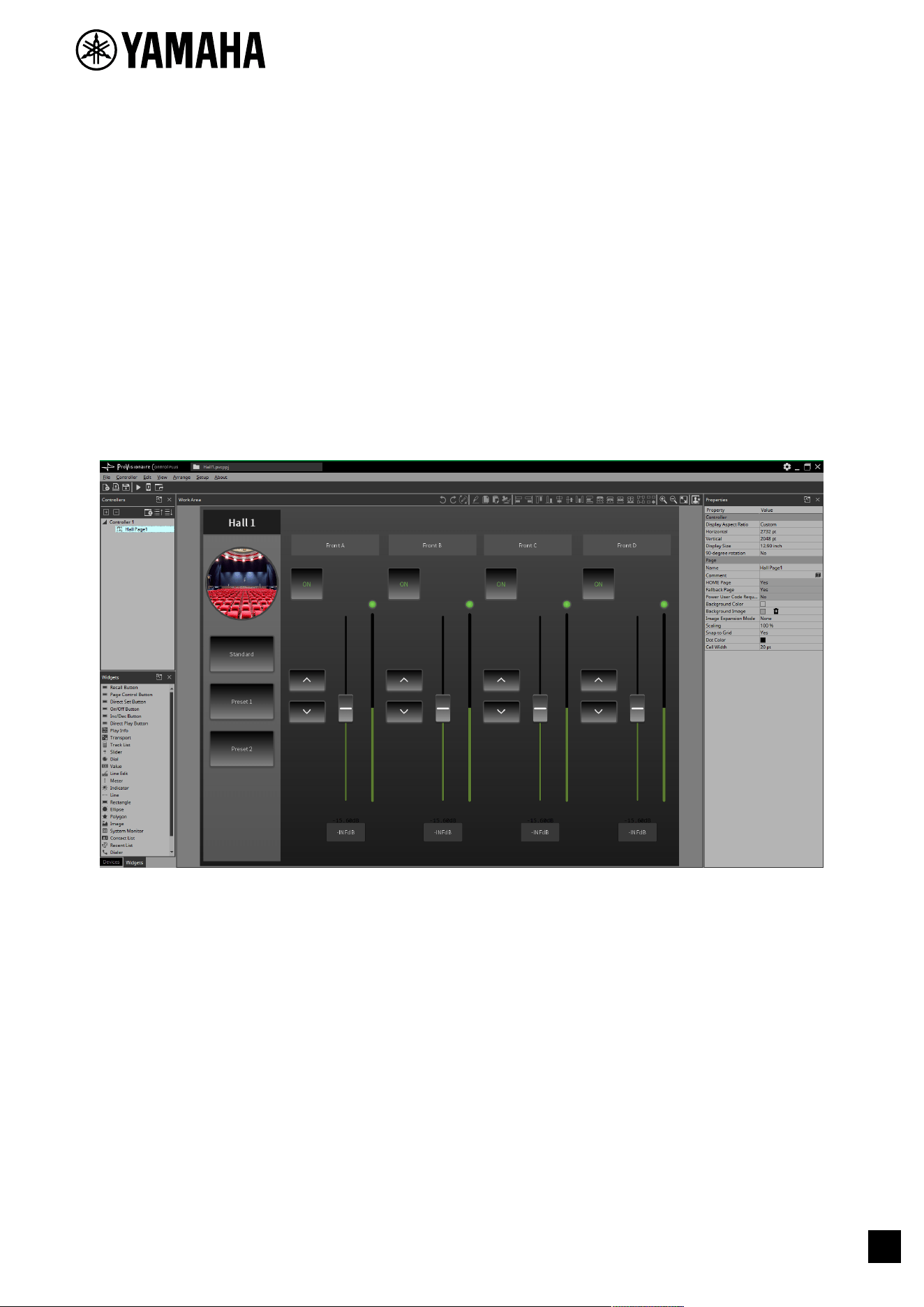
ProVisionaire Control PLUS is a Windows application software program that allows you to intuitively create
original, custom control panels.
You can design a custom controller by placing widgets such as sliders, buttons, and photos on a page (screen)
and assigning the parameters of the device you want to control.
By importing the design data for custom control panels, which are created with ProVisionaire Control PLUS, into
the dedicated control application software ProVisionaire Kiosk(*), you can control audio processors (RM-CR),
microphones (RM-CG), digital mixers (DM7, DM3), MusicCast-compatible devices, and more.
*:ProVisionaire Kiosk runs on Windows, iPad, and iPhone.
By combining ProVisionaire Control PLUS and ProVisionaire Kiosk, you can quickly design and control custom
control panels.
1.1. Note
• All copyrights for this software and user guide are the property of Yamaha Corporation.
• Unauthorized copying or modification of this software or user guide in part or in whole is prohibited.
• Please be aware that Yamaha Corporation accepts no responsibility for any results or consequences that
may follow from the use of this software and user guide.
• All of the illustrations and screen shots in this user guide are provided for the purpose of explaining
operations. For this reason, they may differ from the actual specifications.
• Windows is a registered trademark of Microsoft Corporation in the United States and other countries.
• iPad and iPhone are trademarks of Apple Inc., registered in the U.S. and other countries and regions.
• IOS is a trademark or registered trademark of Cisco in the U.S. and other countries and is used under
license.
• Please be aware of copyright when using audio sources for a commercial purpose. Infringement of
copyright is prohibited by law.
• Company names and product names appearing in this document are the trademarks or registered
trademarks of their respective owners.
•
The application software may be updated without notice for improvement.
The latest application software can be downloaded from the Yamaha Pro Audio website.
https://www.yamahaproaudio.com/
1. Introduction
ProVisionaire Control PLUS V1.0 User Guide | 3
1.2. What you can do using ProVisionaire Control PLUS
• You can intuitively place widgets such as sliders, buttons, and photos on the page (screen) to create an
original control panel that suits the contents of your facility and how it will be used.
• The control panel consists of multiple pages, and up to 50 pages can be added. You can create control
panels for each area and user and create design pages that suit the situations in which the spaces will be
used.
You can also restrict access by setting a pass code for each control panel and each design page. This
allows for safe operation on-site.
A maximum of 1024 widgets can be placed on one page.
• A project file for ProVisionaire Control PLUS contains data for multiple control panels. This allows data
from multiple control panels within a building to be managed centrally.
Control panel data can be exported on a controller-by-controller basis as a file for ProVisionaire Kiosk.
• By placing the [System Monitor] widget, you can also check the operating status of the target device.
• Since connection with the system being operated can also occur via Wi-Fi, the tablet PC does not have to
be mounted on the wall; it can be operated while held in the hand, and used as a convenient remote
controller.
• ProVisionaire Kiosk supports multiple major operating systems(*). Therefore, you can use the control
panel data created with ProVisionaire Control PLUS without worrying about the OS type of the device.
*: Windows, iOS
1.2.1. Operating requirements of the software
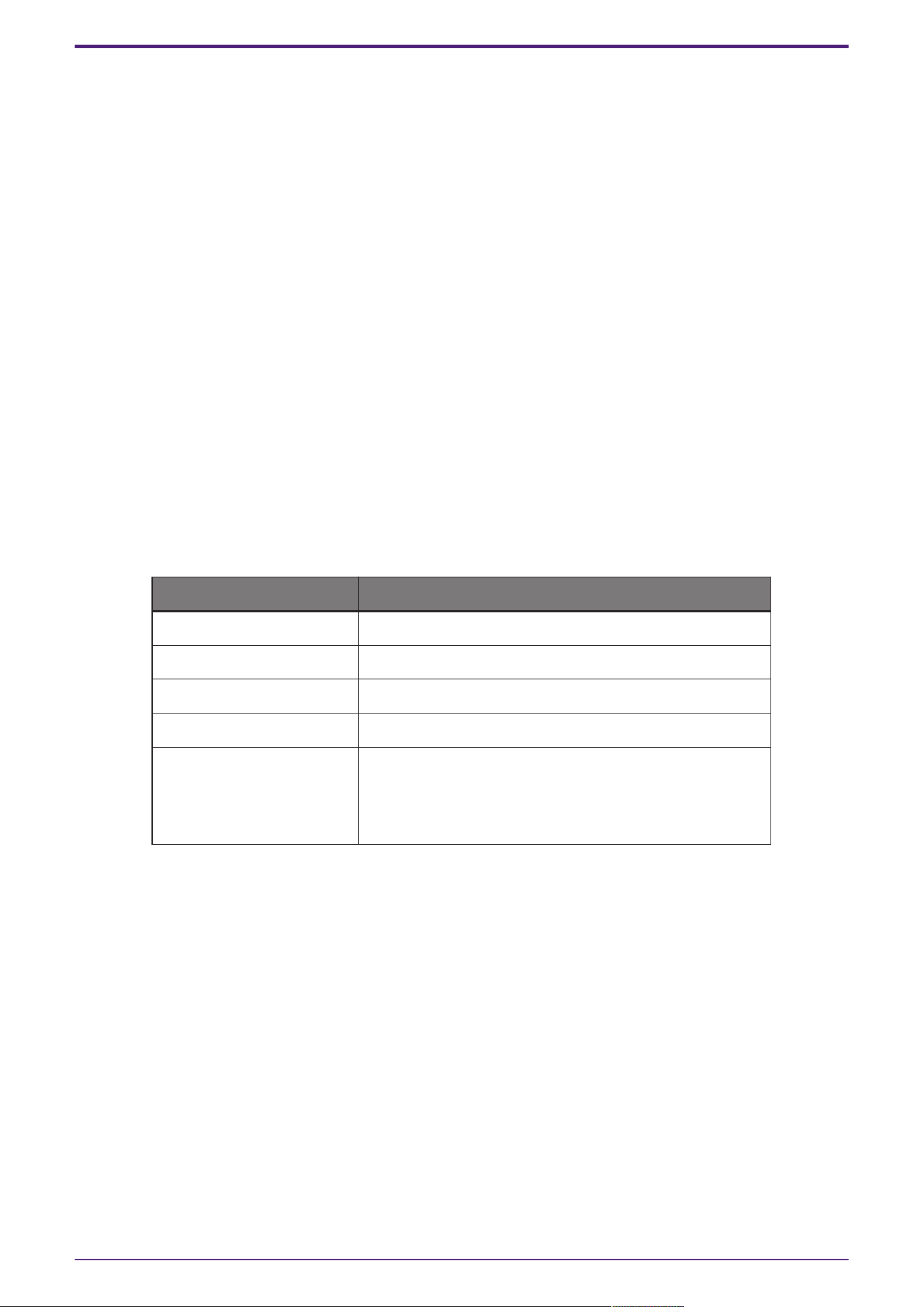
ProVisionaire Control PLUS
OS Windows 11/Windows 10 (64 bit)
CPU Intel Core i or better
Memory 4 GB or more
HDD/SSD 1.5 GB or more free
Other A system equipped with Ethernet (1000BASE-T or better)
or Wi-Fi capability.
To use System Monitor Widget with ProVisionaire Control,
DirectX version must be 10.0 or later.
1. Introduction
4 | ProVisionaire Control PLUS V1.0 User Guide
1.3. Terms and concepts to understand
Software
•
ProVisionaire Control PLUS
Software for designing ProVisionaire Kiosk. This is used by administrators. In this document, this is
subsequently abbreviated as ProVisionaire Control.
•
ProVisionaire Kiosk
Software optimized for remote control operating on Windows/iPad/iPhone. This is used by power users
or staff. In this document, this is subsequently abbreviated as Kiosk.
•
ProVisionaire Edge
This is Windows software that monitors the operating status of the applicable devices.The operating
status can be viewed using the [System Monitor] widget. In order to view the operating status, there must
be at least one computer running this software within the same network.
•
ProVisionaire Design
This is Windows software for comprehensively designing audio systems consisting of Yamaha products.
You can assign the parameters of signal processing components to ProVisionaire Control by dragging
and dropping them.
Roles
In ProVisionaire Control, you can set the following roles for Kiosk.
•
Administrator
The person who designs and edits the control panel (mainly the installation contractor). This is the person
reading this user guide. This person knows the Administrator Code (four digits) that lifts restrictions on
functions.
•
Power User
The sound engineer of the facility, etc. This person knows a Power User Code (four digits) to enter a page
that is protected by access control, or to edit a controller file.
•
Staff
A person who operates the parameters. This person knows an Unlock Code (four digits) to unlock the
screen lock.
•
Guest
A person who has no operating privileges, such as a visitor.
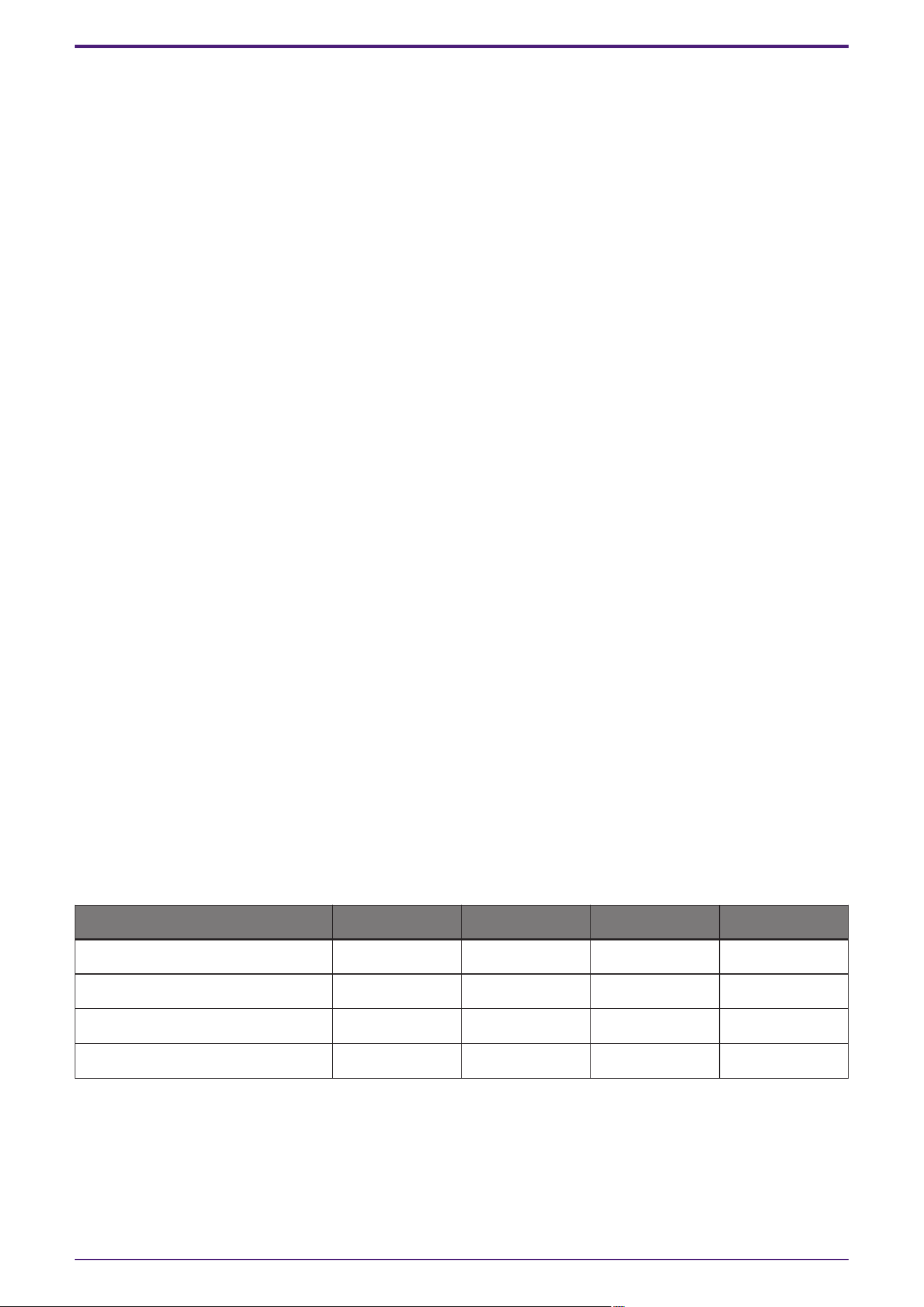
Each role can perform the following actions.
Administrator Power User Staff Guest
Unlock the screen lock
- -
✔
-
Operate parameters
✔ ✔ ✔
-
Edit a controller file
✔ ✔
- -
Edit the design
✔
- - -
1. Introduction
ProVisionaire Control PLUS V1.0 User Guide | 5
Units
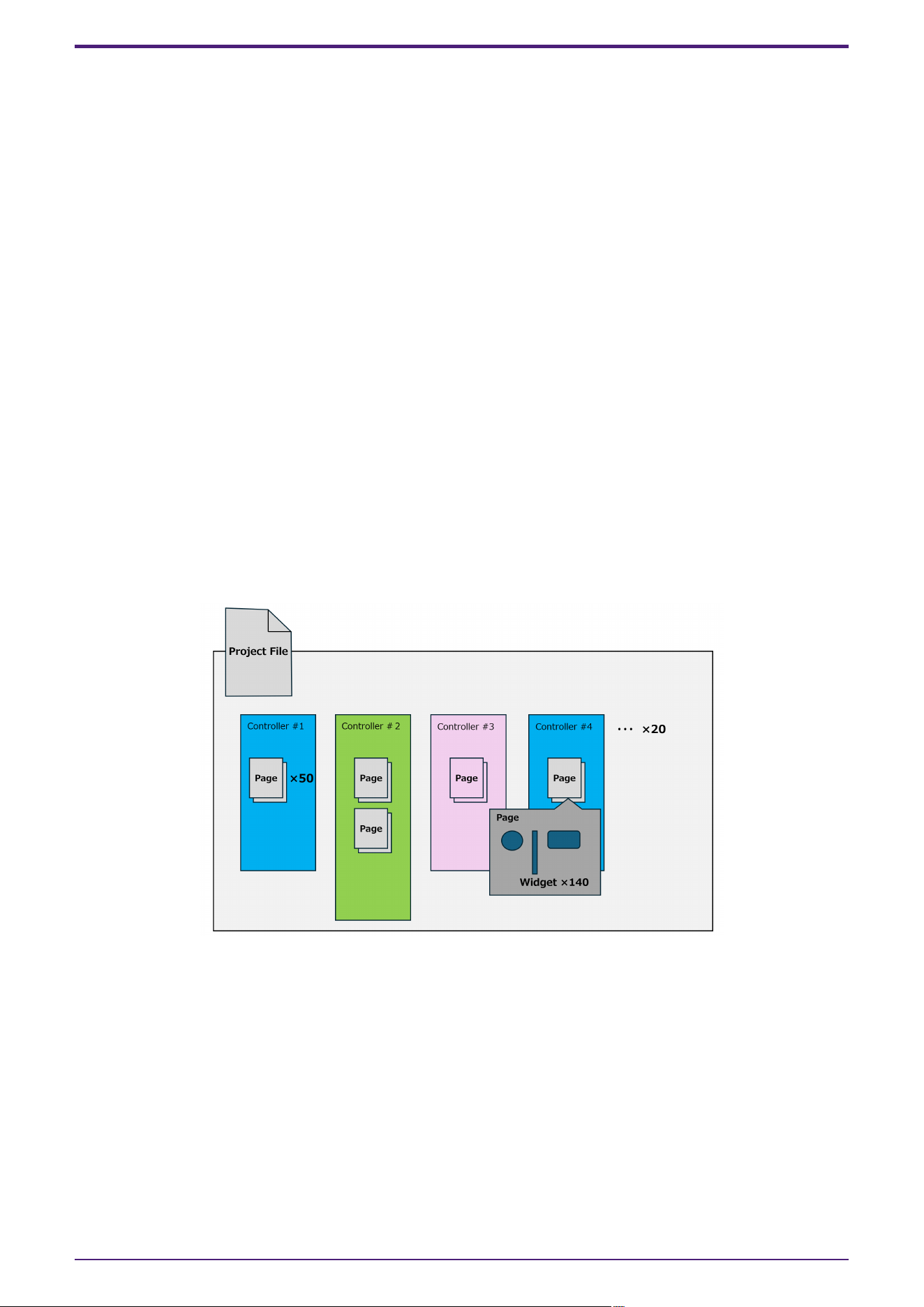
In ProVisionaire Control, the following units are used when discussing the structure of a system.
•
Project
The system being proposed. This unit is used to encompass an entire building or entire facility. This
corresponds to an entire building or hall.
•
Controller
The unit handled by Kiosk. You can create them for different locations, such as the wings of a stage,
conference room, and auditorium, or for different users. You can create up to 20 controllers in one project.
•
Page
A screen consisting of multiple widgets (such as buttons and sliders) that control devices is called a
“page.” You can create up to 50 pages for one controller.The page that you specify as the home page is
displayed when the file is opened in KIOSK.
Files
ProVisionaire Control, and KIOSK use the following files.
•
Project file (extension.pvcppj)
This file contains all the settings of a ProVisionaire Control project. It contains the settings for multiple
controllers, pages, images, and devices to control.
•
Style file (extension.ypvcs)
This is the default style for a project file. It mainly describes information on the appearance of widgets.
•
Controller file (extension.pvksk)
This is the file loaded into KIOSK. It contains the settings for a single controller and for multiple pages,
images, and devices to control.
1. Introduction
6 | ProVisionaire Control PLUS V1.0 User Guide

Modes
ProVisionaire Control have the following modes.
•
Initial Mode
This is the mode in which no file has been loaded. From this mode, loading a settings file takes
ProVisionaire Control to Design Mode.
•
Design Mode
In this mode you can use ProVisionaire Control to create or edit controllers and pages.
•
Control Mode
This mode is for checking the operation of the controller you created. It allows you to simulate starting up
the controller on Kiosk.
Other
This user guide also uses the following terms.
•
Widget
GUI parts such as sliders, buttons, and images. You can assign parameters of the devices to these parts,
and synchronize them to the faders or on/off parameters.
•
Style
This is the default style (information related to the color or shape of the widget) for a project file. A style
can be specified for each widget. You can export this as a style file and import it into another project to
specify the same style.
1. Introduction
ProVisionaire Control PLUS V1.0 User Guide | 7

2. Installation procedure
Download the installers for ProVisionaire Control, Kiosk or the ProVisionaire Edge from the Yamaha Pro Audio
website.
https://www.yamaha.com/2/provisionaire/
Decompress the compressed file that you downloaded, double-click “Install_PVControlPlus.exe,” or
“Install_PVKiosk.exe” and follow the installer’s directions.
NOTE
To check the operation information of devices in the system from Kiosk, you must install ProVisionaire Edge
separately.
NOTE
When ProVisionaire Control or KIOSK as well as ProVisionaire Edge are installed on the same computer
•
When you install ProVisionaire Control, Kiosk, and ProVisionaire Edge all on one computer
You can leave monitoring online without needing to be specifically aware of it, and view the operating
status of the applicable devices by opening the “ProVisionaire Edge” window.
If PostgreSQL is already installed before ProVisionaire Edge is installed, you will be asked to enter the
user name and password of the already-registered PostgreSQL super user.
• When only ProVisionaire Control or KIOSK is installed, and the operating status is obtained from an
instance of ProVisionaire Edge that is installed on another computer
In the “Setup” dialog box [Log] tab, specify information for the computer on which ProVisionaire Edge is
installed.
•
When only ProVisionaire Edge is installed
If PostgreSQL is already installed before ProVisionaire Edge is installed, you will be asked to enter the
user name and password of the already-registered PostgreSQL super user.
2. Installation procedure
8 | ProVisionaire Control PLUS V1.0 User Guide
3. Screen structure
Initial mode
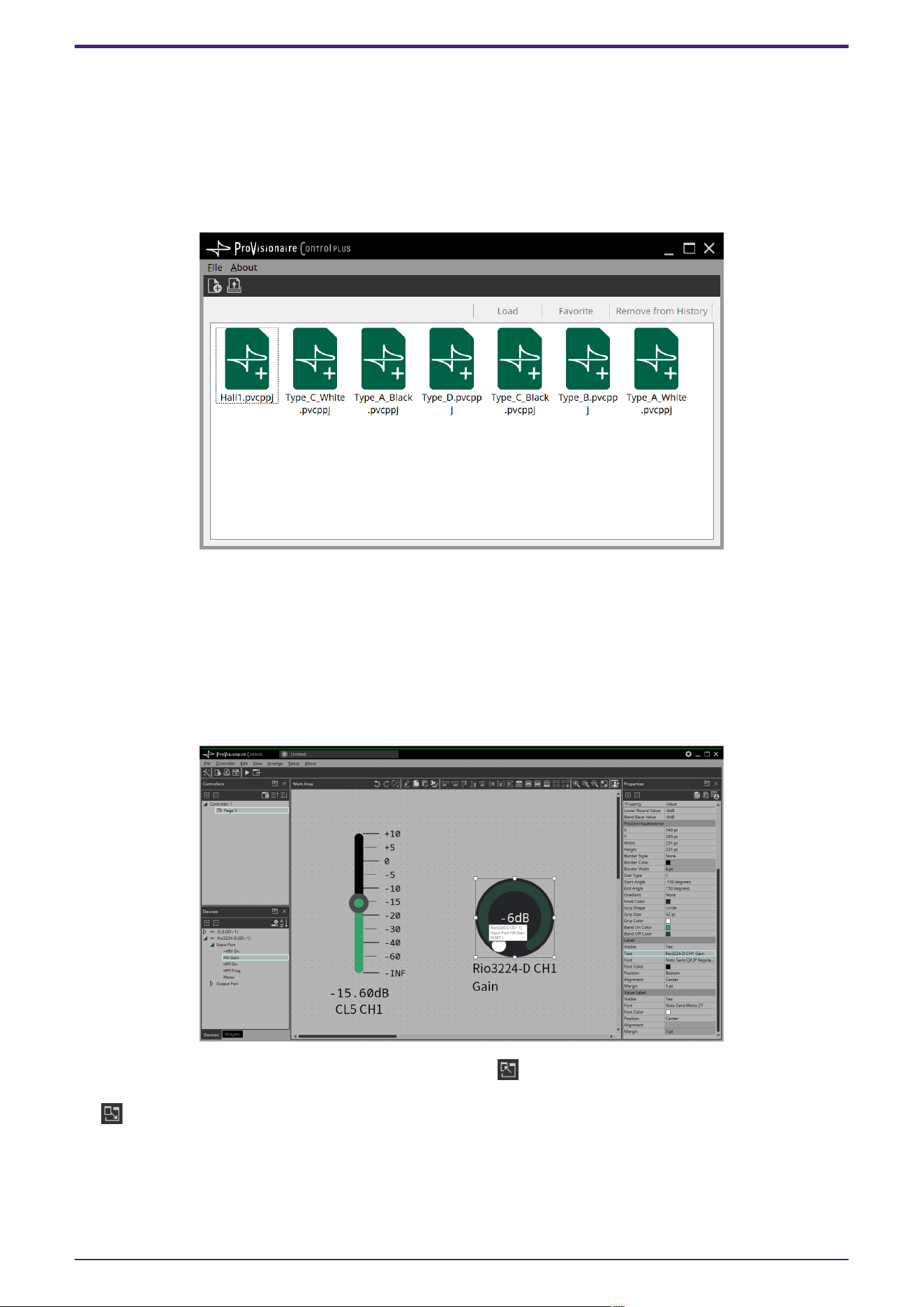
When you start ProVisionaire Control, the initial mode screen will be displayed.
When you start the software for the first time, the template files are displayed. Use this to help you create a
controller.
For details on the initial mode screen, refer to "Functions specific to initial mode."
Select New Project from the "File" menu or toolbar, or double-click a file to enter design mode.
Design Mode
ProVisionaire Control’s design mode consists of a title bar, menu bar, tool bar, controllers area, devices area,
widgets area, work area, and properties area.
In the upper right of areas other than the work area, there is a ; clicking this will make the area float
(undocking it), allowing you to use a wider work area. To re-dock the area (that is, cancel the floating state), click
the located in the upper right.
To re-dock all floating areas, execute the “View” menu command [Dock All].
When the cursor is located at the border between work areas, the cursor changes shape, letting you drag to
change the width of the area.
3. Screen structure
ProVisionaire Control PLUS V1.0 User Guide | 9
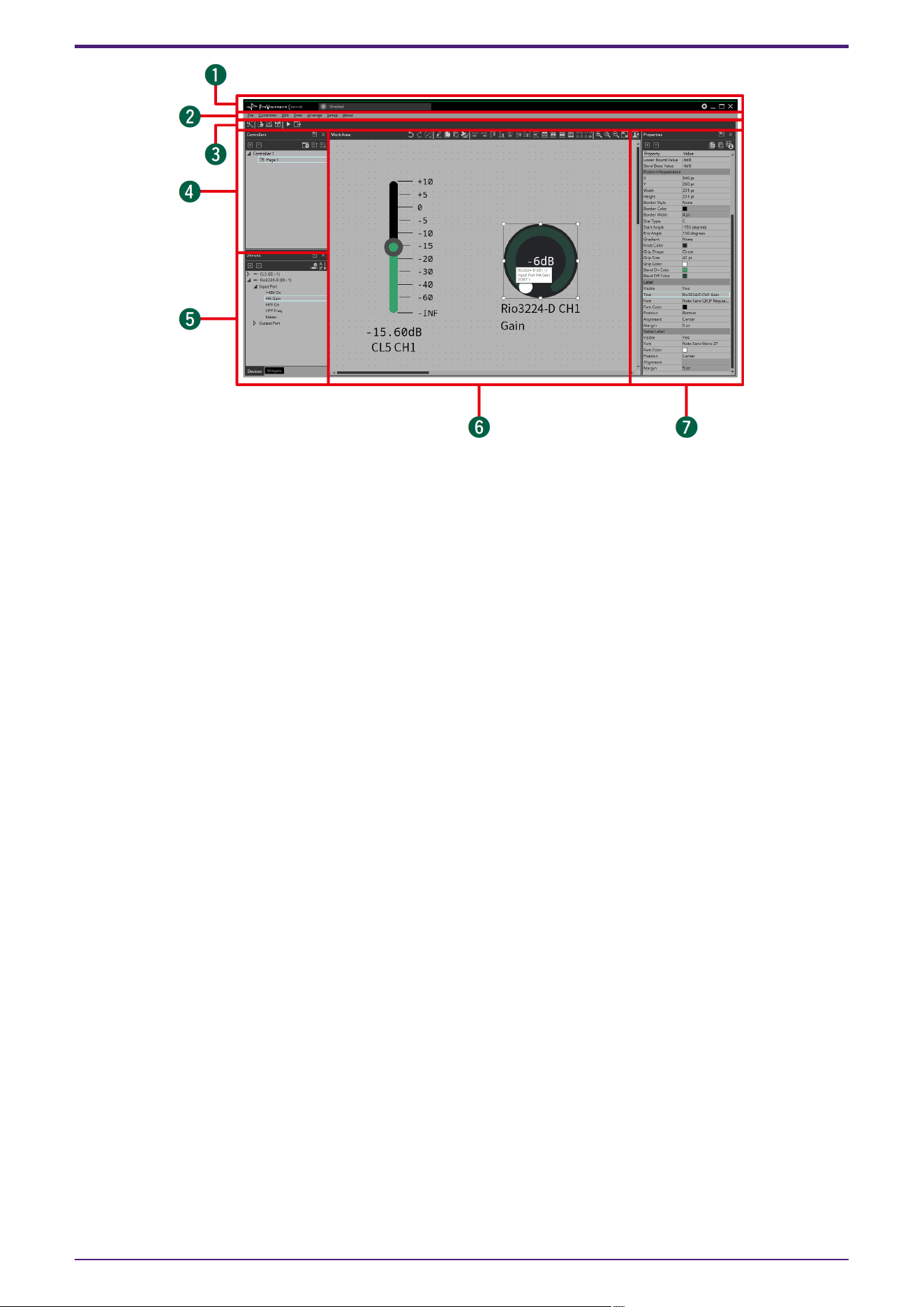
①Title bar
This shows the project file name. This also contains a [Setup] button, etc (page 37).
②Menu bar
This contains commands that can be executed by ProVisionaire Control, organized by category (page 38).
③Tool bar
Frequently-used commands are placed here as buttons (page 42).
④“Controllers” area
This lists the project’s controllers and pages. You can also use this area to add controllers and pages (page 43).
⑤“Devices” / “Widgets” area
Devices shows a list of the devices used in the project, and their parameters (page 48).
Widgets shows a list of the widgets that can be used (page 50).
⑥Work area
Drag and drop from the Devices/Widgets area to place widgets in this area (page 51).
Frequently-used functions are shown at the top of this area as buttons.
⑦“Properties” area
This lists information about the currently selected widget, page, controller, or device. Click an item to edit it. For
details, refer to the page that explains each area or widget.
3. Screen structure
10 | ProVisionaire Control PLUS V1.0 User Guide
4. Basic process
Using the creation of a simple page as an example, this section explains the process from startup to controlling
a device. In this example, we control the level and on/off for input channel 1 of a DM7 (console ID=1).
In the case of an MRX7-D/DME7, this procedure cannot be used to place a widget; refer to"Adding parameters
and meters from apps other than ProVisionaire Control."
4.1. Start up, and register devices
Here’s how to start ProVisionaire Control, create a controller and page, and register a device to control.
1.
Start ProVisionaire Control.
To start, choose [Start] button → [All Programs] or [All Apps] → [Yamaha ProVisionaire Control PLUS]
→[ProVisioniare Control PLUS Vx.x] (x.x is the version number).
2.
If you want to create a new project, click [New Project] button .
If you want to load an existing file, choose the [File] menu command [Open Project File], and select the
file that you want to load.
In this example, we explain the procedure when you click [New Project] button.
3.
When the “Setup” dialog box appears, click [OK] or [Cancel].
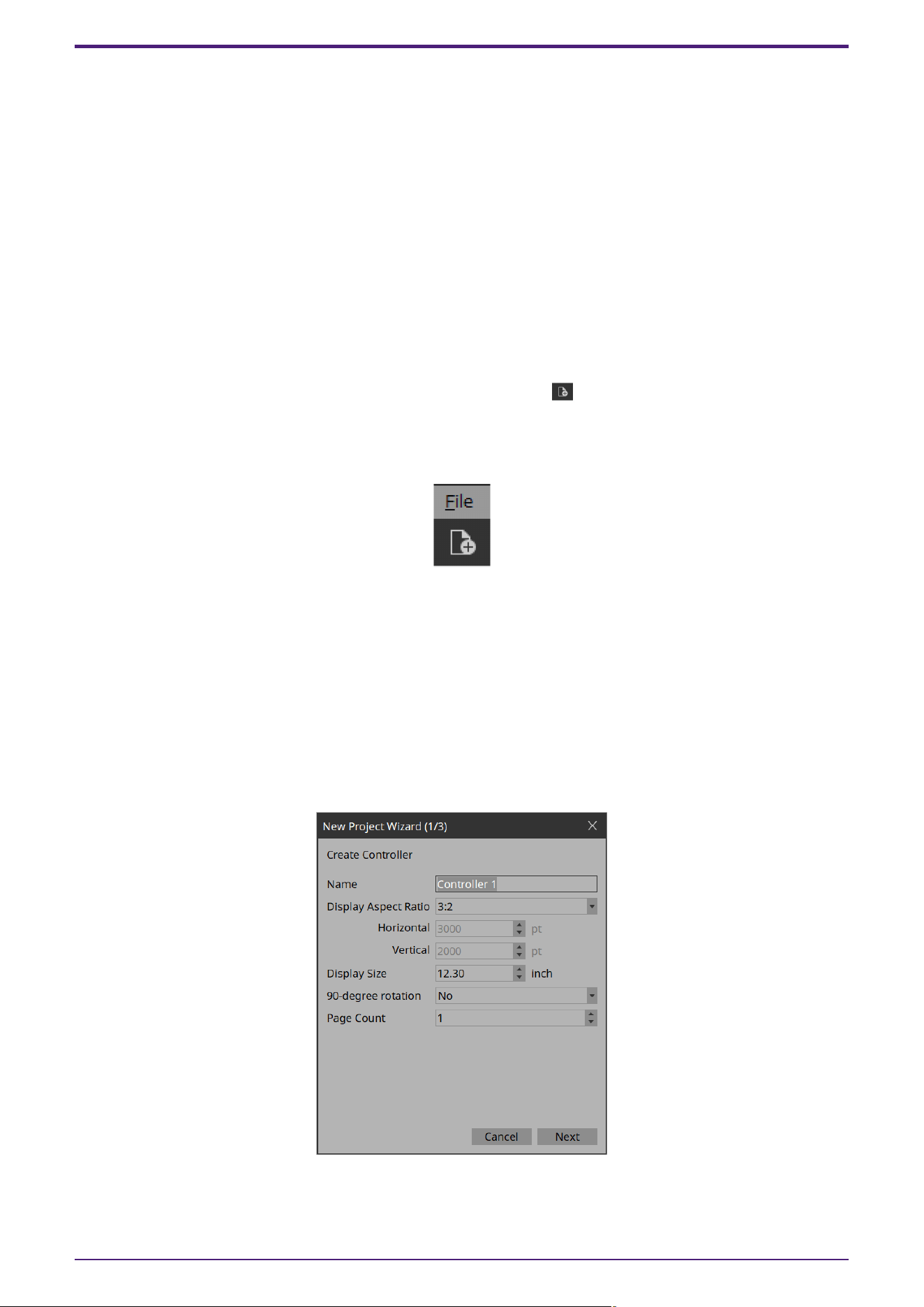
ProVisionaire Control transitions to design mode, and the “New Project Wizard” dialog box opens.
NOTE
In the “Setup” dialog box, when you select a network adapter in “Network” and click [OK], the device will be
recognized by connecting the computer on which ProVisionaire Control is installed to the network.
Register a device by right-clicking on the relevant device in the “Devices” area and selecting [Add].
NOTE
Up to eight network adapters can be selected at the same time.
4. Make settings as appropriate for the screen device used to operate the controller (the screen of the
computer on which Kiosk is installed), and click the [Next] button.
4. Basic process
ProVisionaire Control PLUS V1.0 User Guide | 11
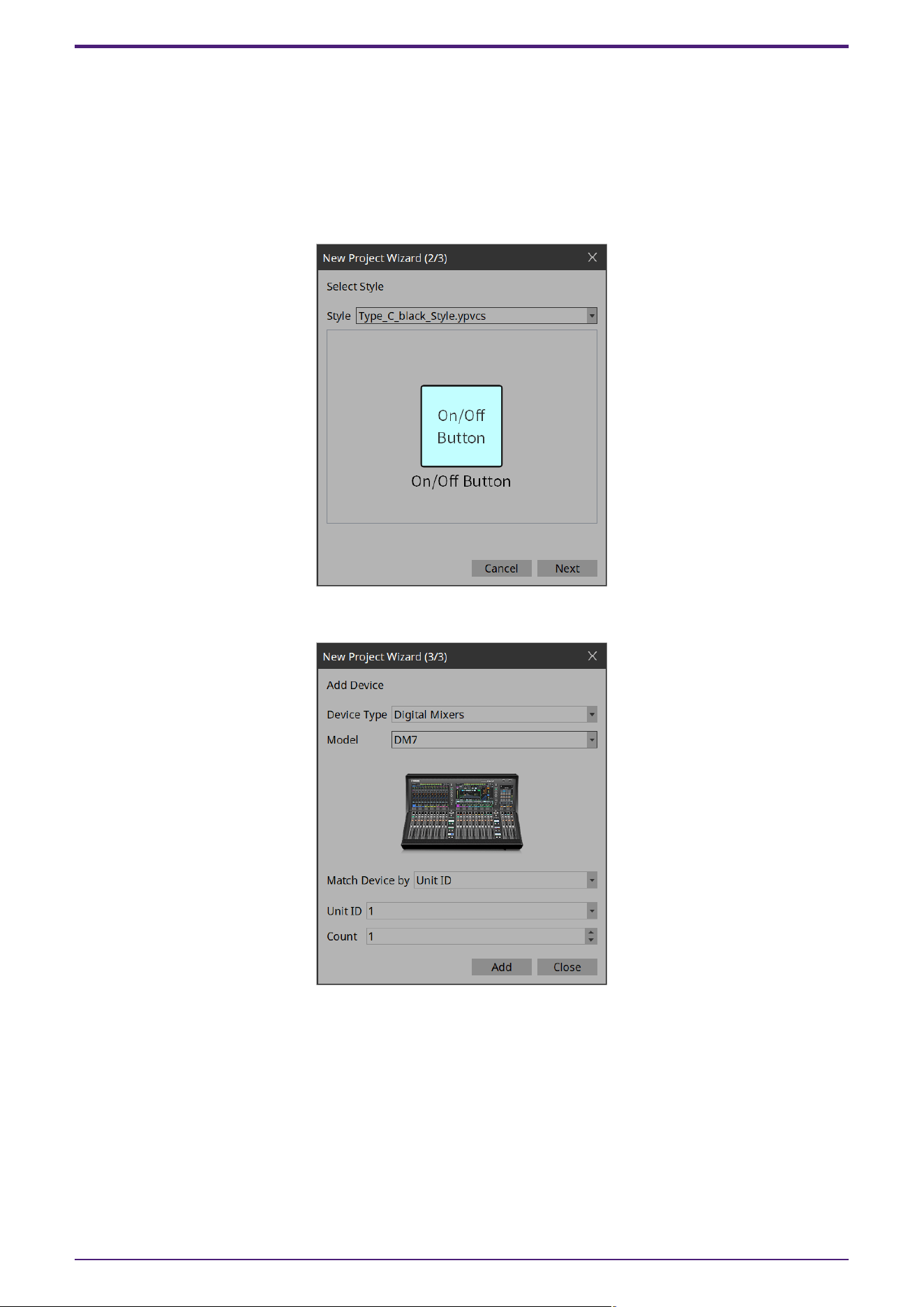
In this example, we keep the default settings.
All settings can be changed later in Properties under Controller.
Tips
If you don’t know the aspect ratio of the screen, select [3:2] and place the widgets accordingly.
Once the aspect ratio has been finalized, reconfigure the screen size in Properties under Controller.
5. Select the Style file to be used when creating the controller and click the [Next] button.
6. Make the following settings, and click the [Add] button.
•
Match Device by
Unit ID: Matches the device by using the Unit ID/Device ID as a key.
IP Address: Matches the device by using the IP address as a key.
•
Count
If “Match Device by” is set to “Unit ID”, you can register multiple devices at once. The devices are
registered sequentially starting from the Unit ID.
The DM7 whose Unit ID is 1 is added to the “Devices” area, and the dialog box closes.
4. Basic process
12 | ProVisionaire Control PLUS V1.0 User Guide
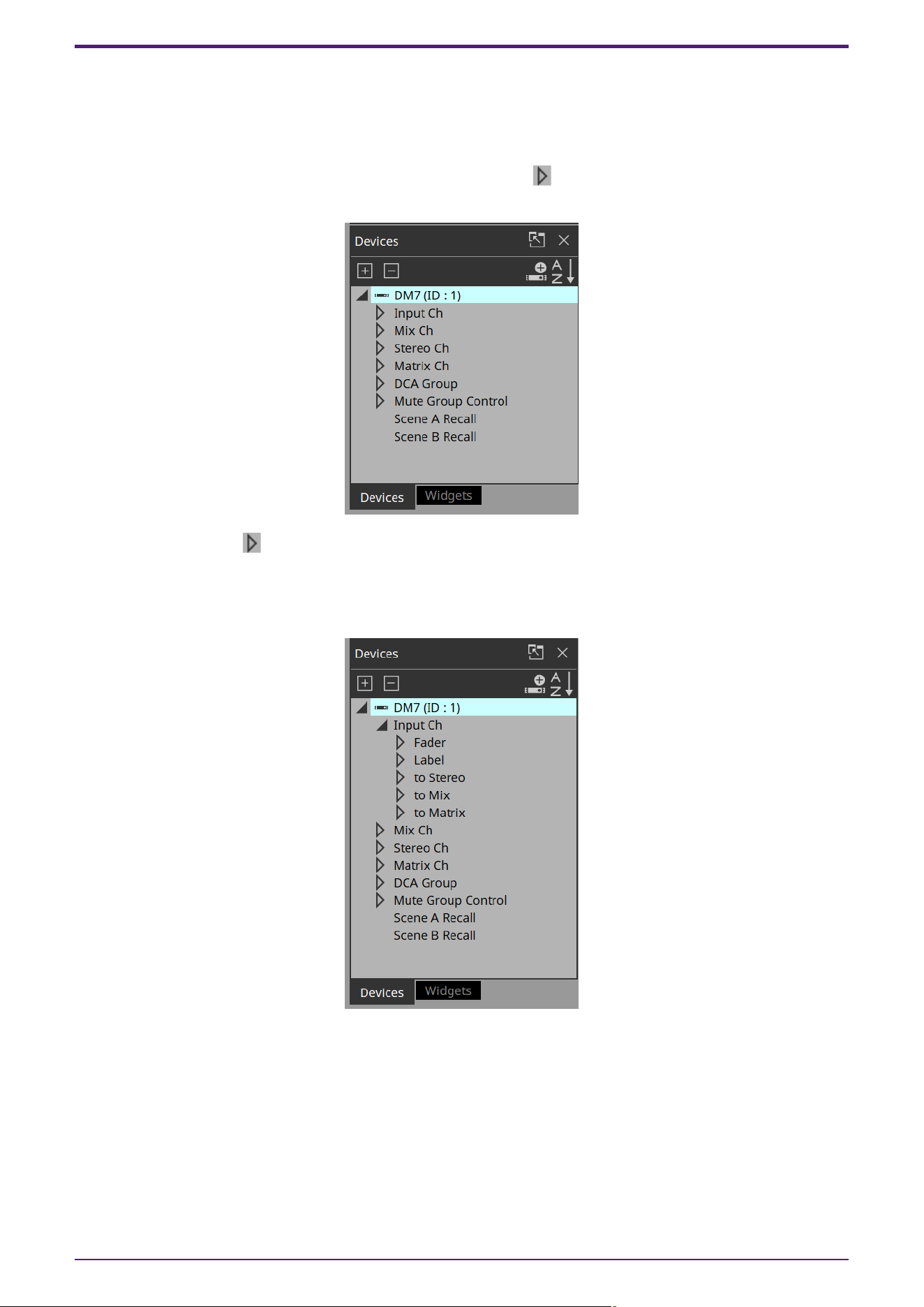
4.2. Placing widgets on a page
Here’s how to place widgets in the work area so that the parameters of the DM7 can be controlled.
This section describes how to drag and drop widgets from the parameter list.
1.
In the “Devices” area, in the “Device List,” click the triangle located at the left of DM7.
The parameter group is expanded.
2. Click the triangle located at the left of the parameter group containing the parameter that you want to
assign.
The parameters are expanded.
In this example, we want to control the level and on/off of input channel 1, so you’ll expand [Input Ch].
3.
Drag and drop [Level] in the work area.
The “Input Ch Fader Level” dialog box opens.
4. Basic process
ProVisionaire Control PLUS V1.0 User Guide | 13
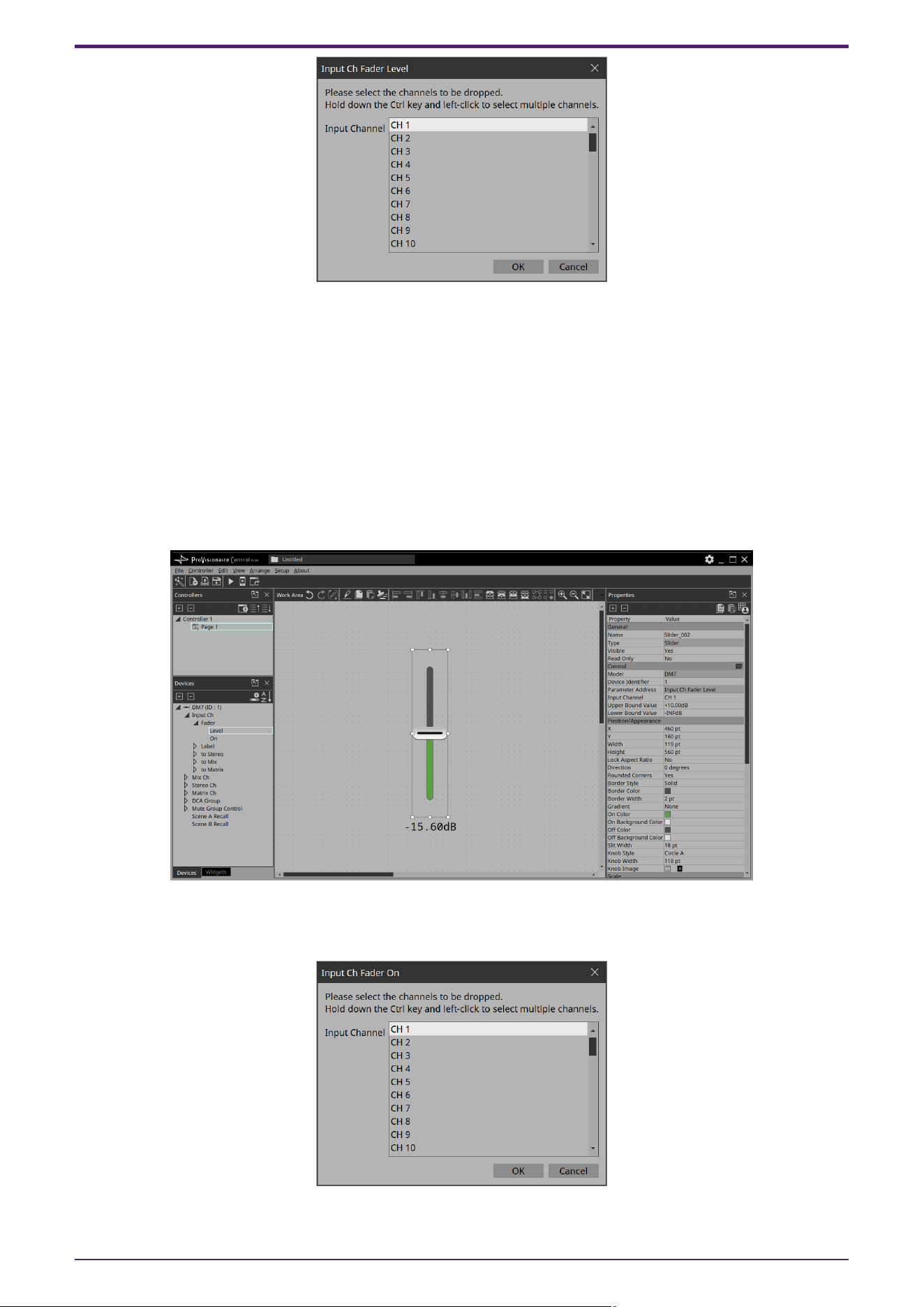
Tips
By holding down the <Ctrl> key or <Shift> key while you make a selection, you can select multiple channels and
place multiple sliders simultaneously.
Tips
When you drop a parameter onto a blank area in the work area, a default widget is placed.
If you drop a parameter onto an already placed widget, you can replace (or add, depending on the widget type)
the parameter to be controlled.
4.
Select [CH1] and click the [OK] button.
The slider is placed in the work area.
5.
Drag and drop [On] into the work area.
The “Input Ch Fader On” dialog box opens.
4. Basic process
14 | ProVisionaire Control PLUS V1.0 User Guide
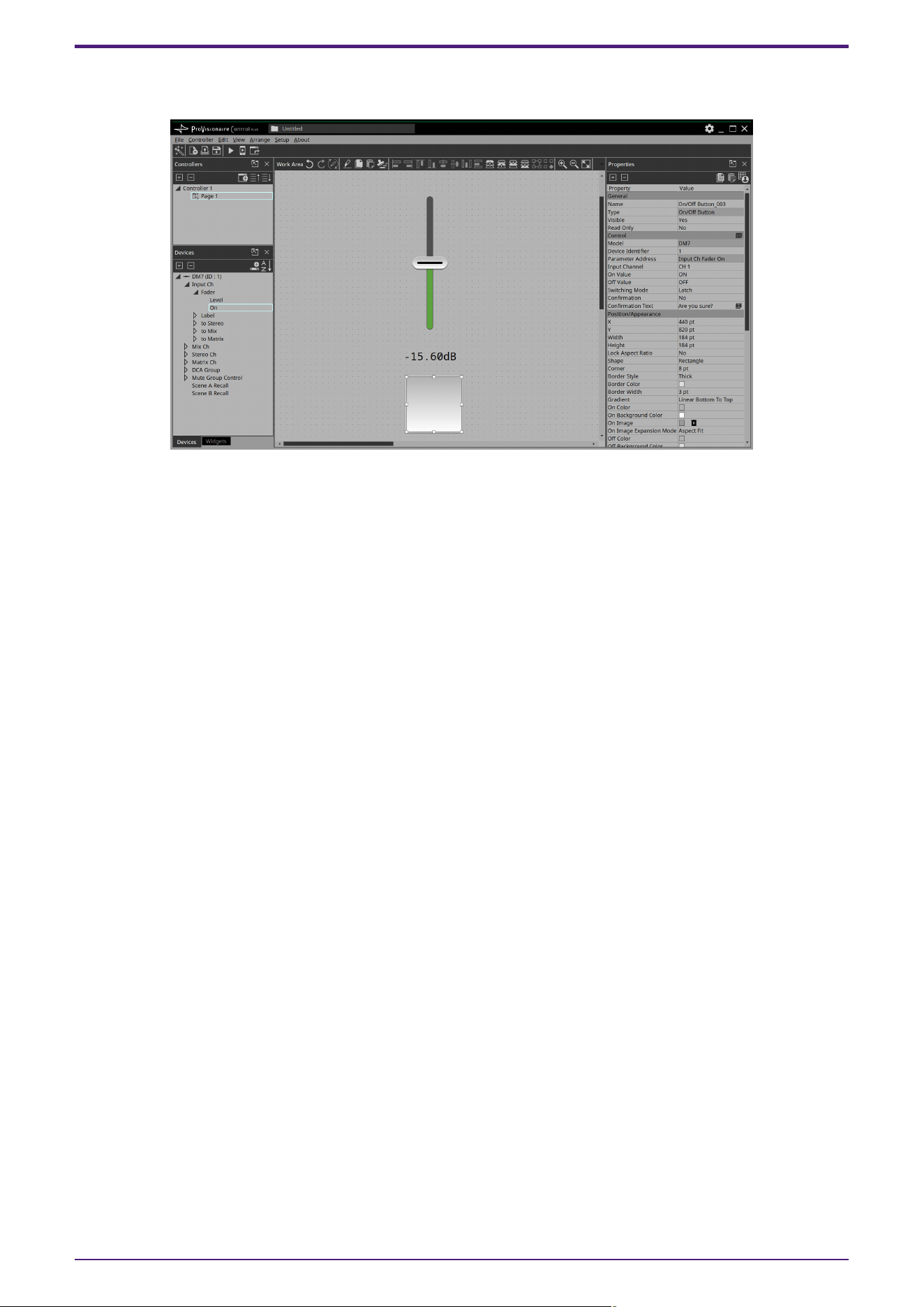
6.
Select [CH1] and click the [OK] button.
The button is placed in the work area.
7. Drag and drop the slider and button to place them as you like.
Tips
There are other ways to place widgets:
・Drag and drop a widget from the widget list displayed in ProVisionaire Control. Then, drag and drop a
parameter onto the widget.
・Drag and drop a widget displayed in ProVisionaire Design or MTX-MRX Editor onto the page of ProVisionaire
Control to place it.
4. Basic process
ProVisionaire Control PLUS V1.0 User Guide | 15
4.3. Labeling widgets for easier recognition
If you simply place a widget, Kiosk will not provide any indication as to what that widget does; here’s how to add
a label that will be shown in Kiosk.
1.
Click the slider.
The slider is selected.
2.
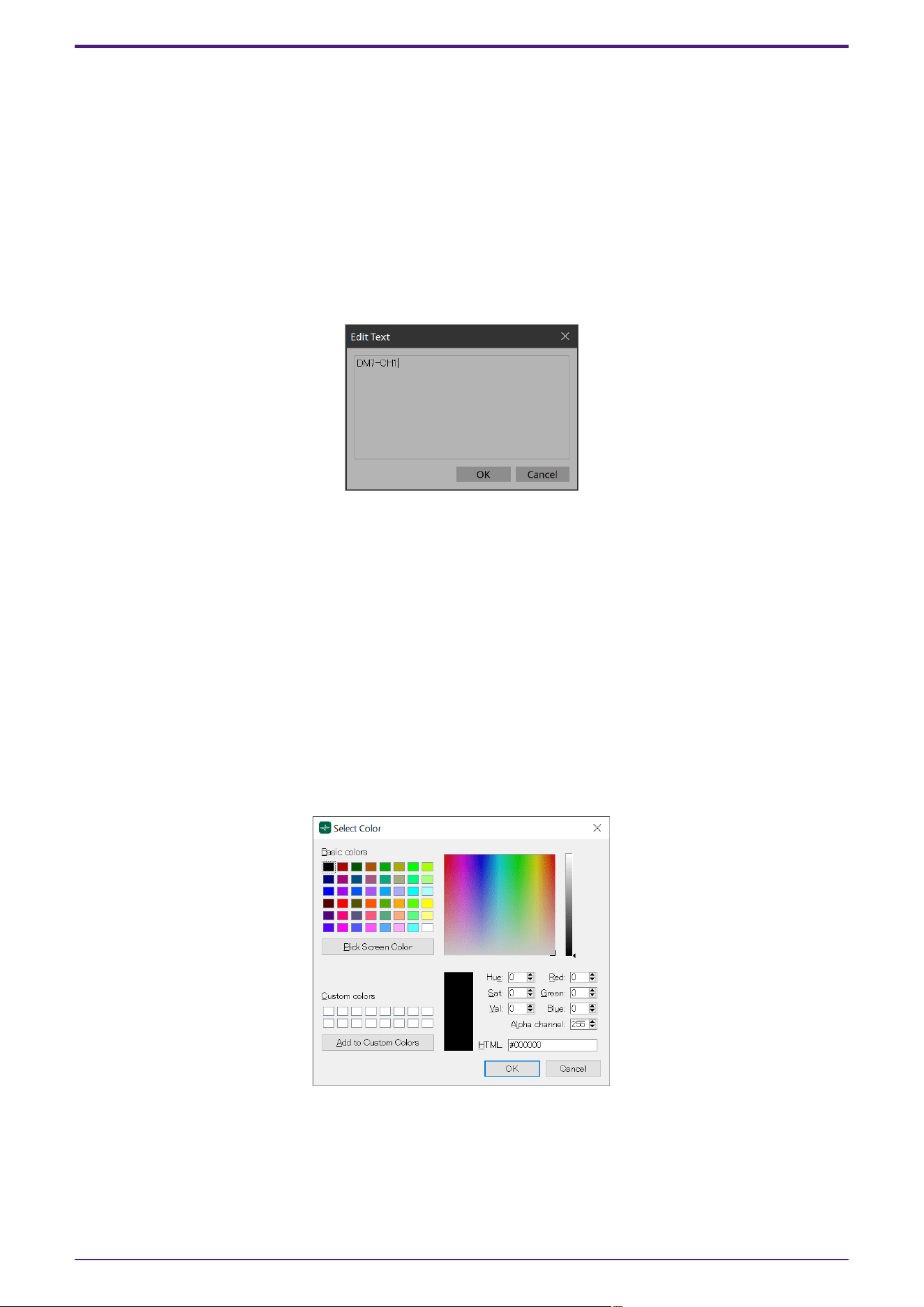
「In the “Properties” area’s “Label,” click the column at the right of “Text.”
The “Edit Text” dialog box opens.
3.
Enter a name for the slider.
For this example, specify “DM7-CH1.”
4.
Click the [OK] button.
The input is confirmed, and the name is shown below the slider.
5. In the same way, assign the label “DM7-CH1” to the button.
6. In the button’s “Properties” area, in “Text,” click the column at the right of “On Text.”
7.
Enter the text for when the button is on.
For this example, specify “ON.”
8. In the “Text” area, click the column at the right of “Off Text.”
9.
Enter the text for when the button is off.
For this example, specify “OFF.”
10.
In the “Text” area, click the column at the right of “Off Color.”
The “Select Color” dialog box opens.
11.
Select a different text color for when the button is off.
For this example, select yellow.
4. Basic process
16 | ProVisionaire Control PLUS V1.0 User Guide
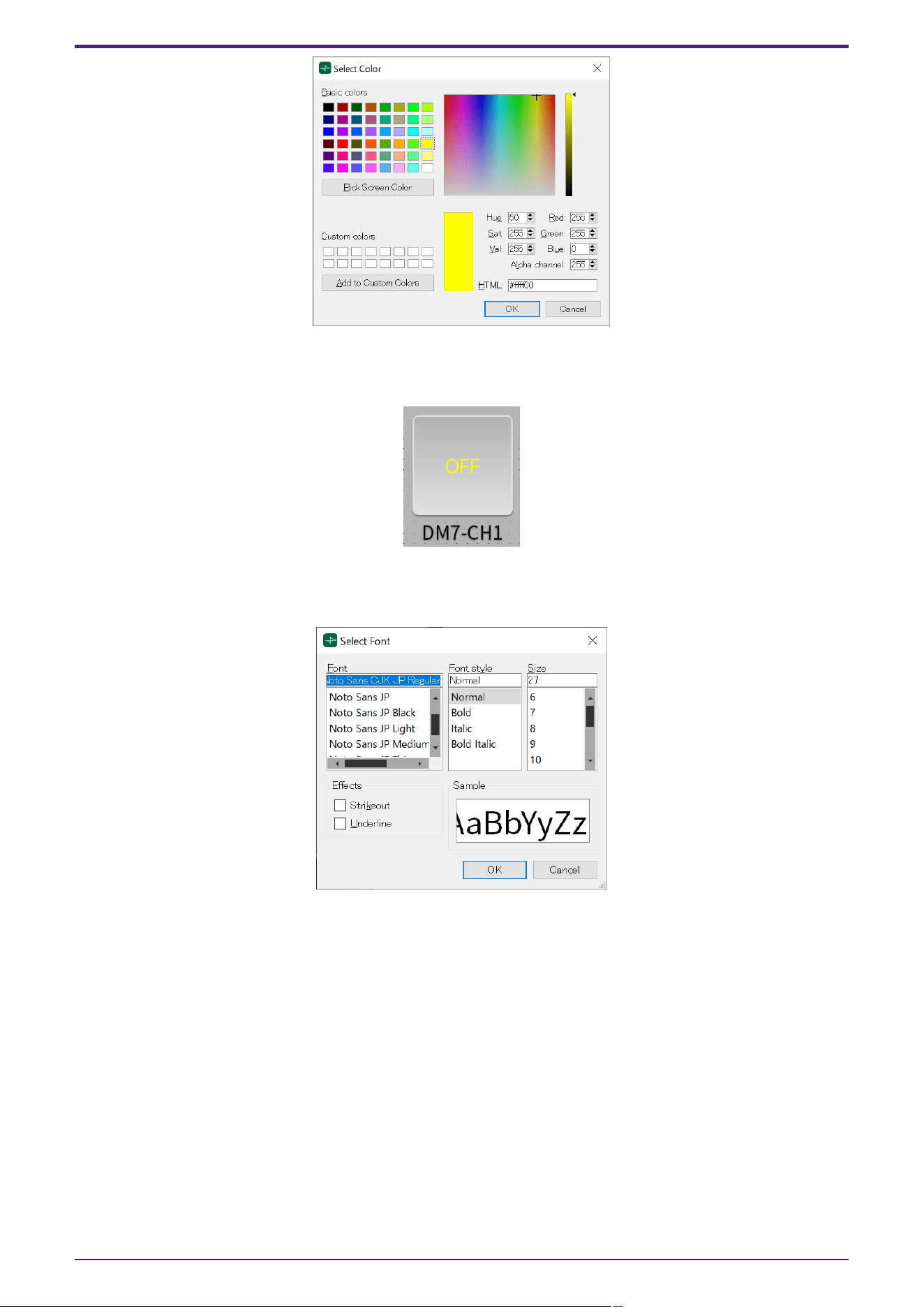
12.
Click the [OK] button.
The dialog box closes, and the text color when off will be yellow.
13.
In the “Text” area, click the column at the right of “Font.”
The “Select Font” dialog box opens.
14.
Adjust the font used for the text when the button is on/off.
For this example, set the font size at 48 points.
4. Basic process
ProVisionaire Control PLUS V1.0 User Guide | 17
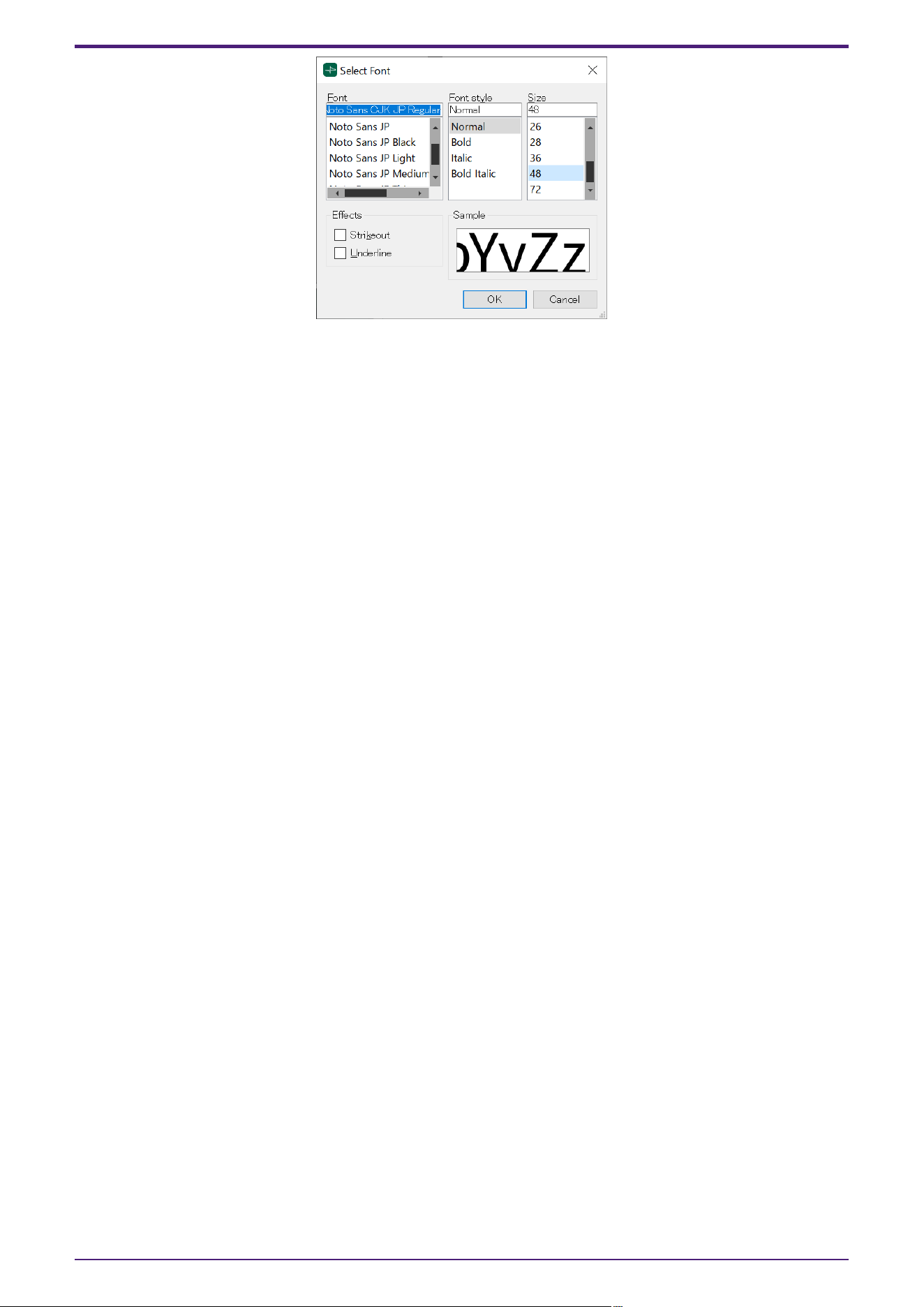
15.
Click the [OK] button.
The dialog box closes, and the text size when the button is on/off will change.
4. Basic process
18 | ProVisionaire Control PLUS V1.0 User Guide
4.4. Adding a page
Let’s add a page to the controller, and add buttons for switching between pages.
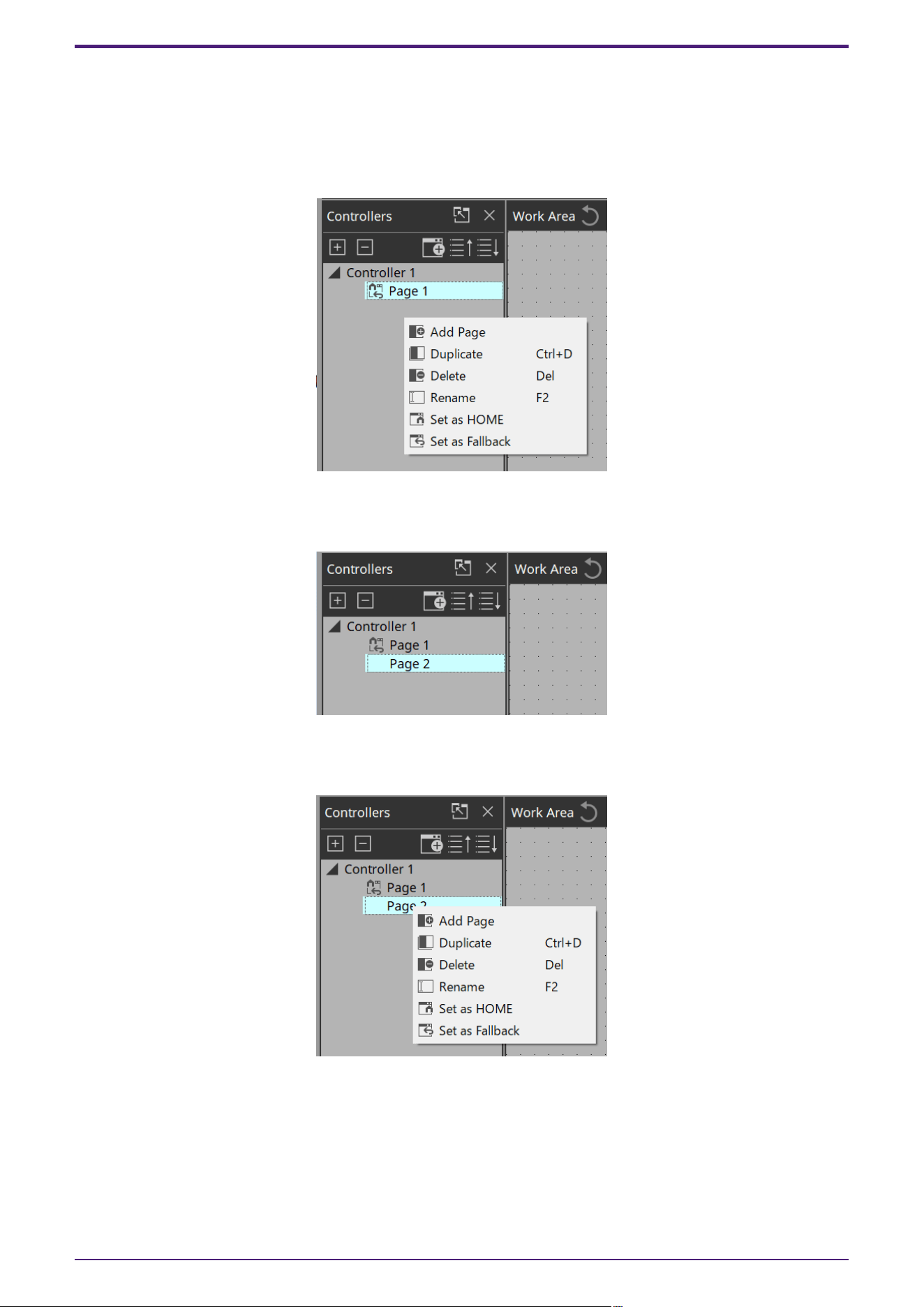
1.
In the “Controllers” area, right-click any location.
The context menu appears.
2.
Select [Add Page].
A page is added to [Controller 1], and the work area switches to the page that was added.
3.
Right-click the added page.
The context menu appears.
4.
Select [Set as HOME].
The added page becomes the home page.
NOTE
Home Page and Fallback Page can also be set in Properties > Auto Page Change under Controller.
4. Basic process
ProVisionaire Control PLUS V1.0 User Guide | 19
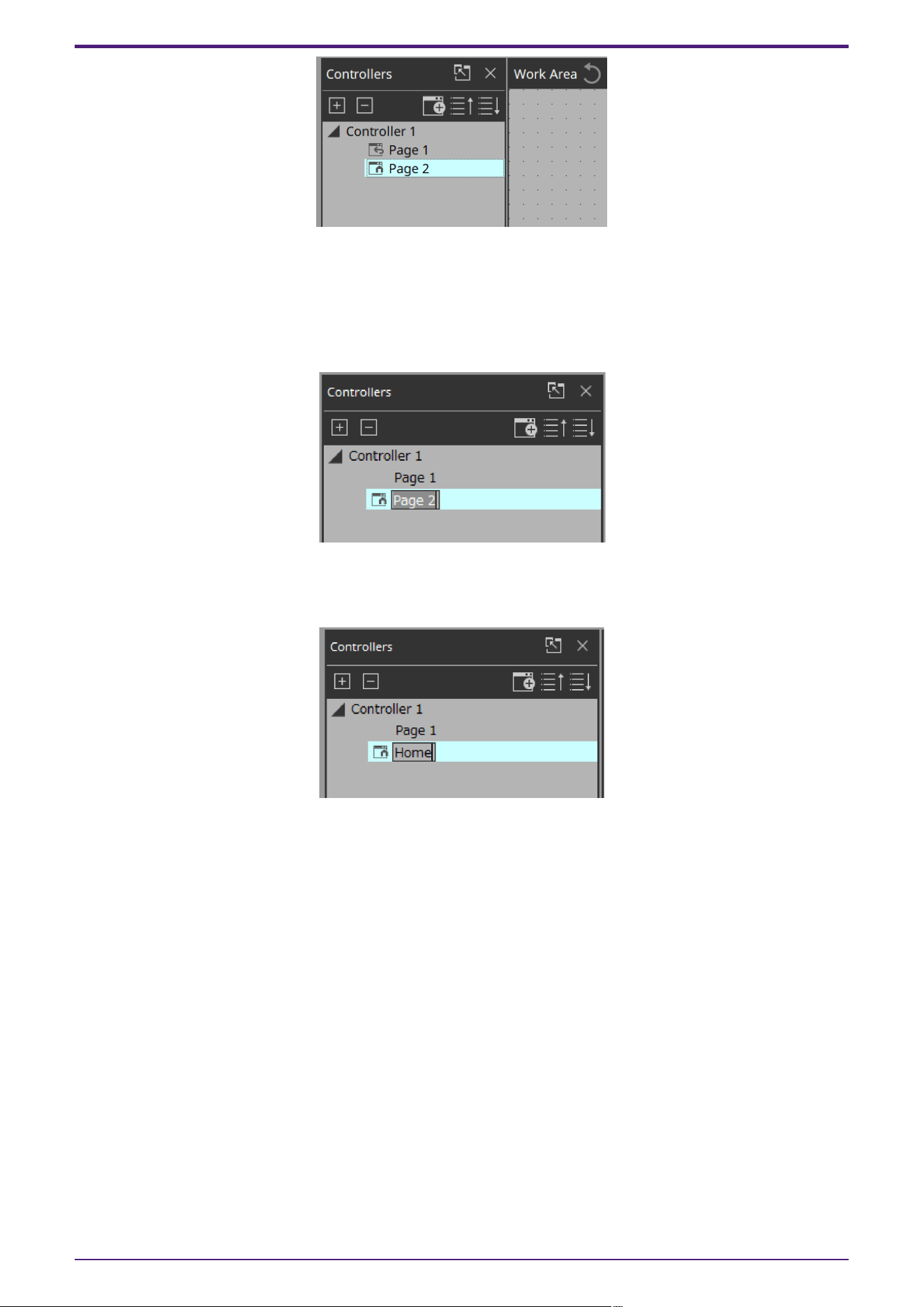
5.
Right-click the added page.
The context menu appears.
6.
Select [Rename].
Now you can rename the page.
7.
Enter a name for the page.
Since this is the home page for this example, specify “Home.”
8.
In the “Devices” area, click the [Widgets] tab.
The area switches to the “Widgets” area.
4. Basic process
20 | ProVisionaire Control PLUS V1.0 User Guide
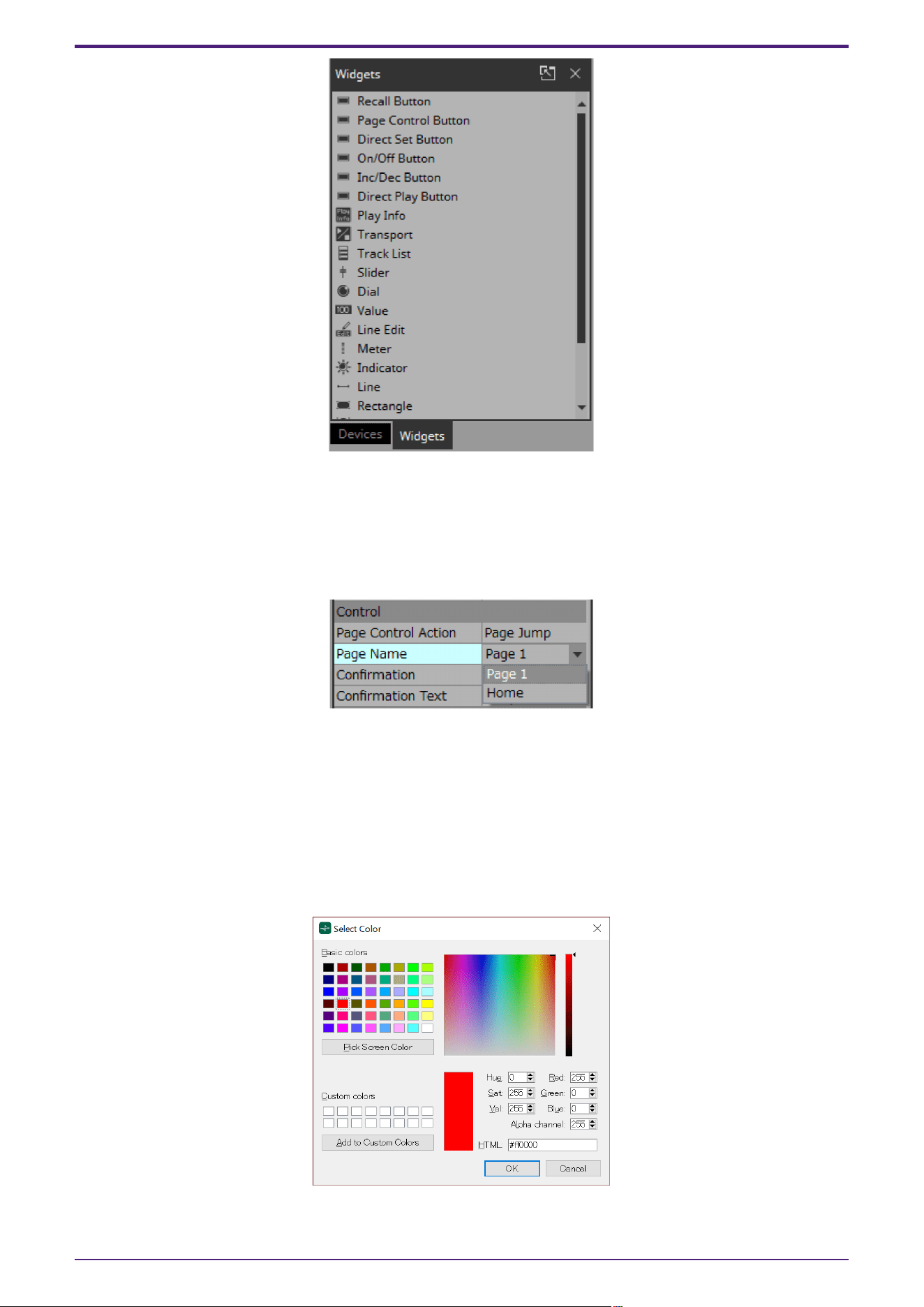
9.
Drag and drop [Page Control Button] into the work area.
A button for switching pages is placed in the work area.
10.
In the “Properties” area’s “Control,” click the column at the right of “Page Name.”
When you click the button, the pages that can be switched are shown as a list.
11.
Select [Page 1].
When in control mode, clicking the button will now switch to “Page 1.”
12.
In the “Position/Appearance” area, click the column at the right of “Color.”
The “Select Color” dialog box opens.
13.
Select the color for when the button is clicked.
For this example, select red.
4. Basic process
ProVisionaire Control PLUS V1.0 User Guide | 21
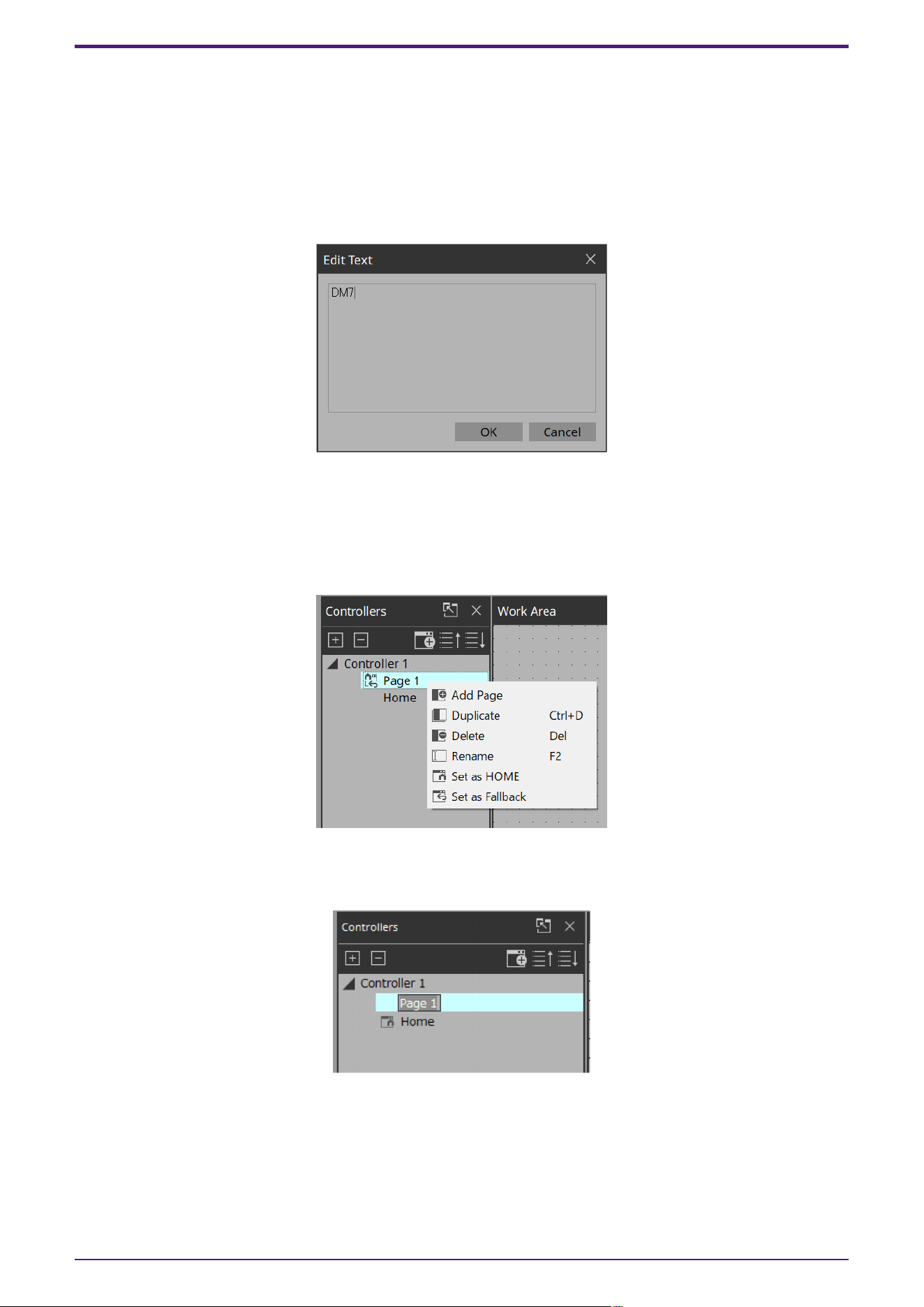
14.
Click the [OK] button.
The dialog box closes, and the button turns red.
15.
In the “Label” area, click the column at the right of “Text.”
The “Edit Text” dialog box opens.
16.
Enter a name for the button.
For this example, specify “DM7.”
17.
Click the [OK] button.
“DM7” is shown below the button.
18.
In the “Controllers” area, right-click [Page 1].
The Page 1 work area appears, and the context menu appears.
19.
Select [Rename].
Now you can enter a name for “Page 1” from the keyboard.
20.
Enter a name for the page.
In this example, this page is specifically for the DM7, so specify “DM7.”
4. Basic process
22 | ProVisionaire Control PLUS V1.0 User Guide
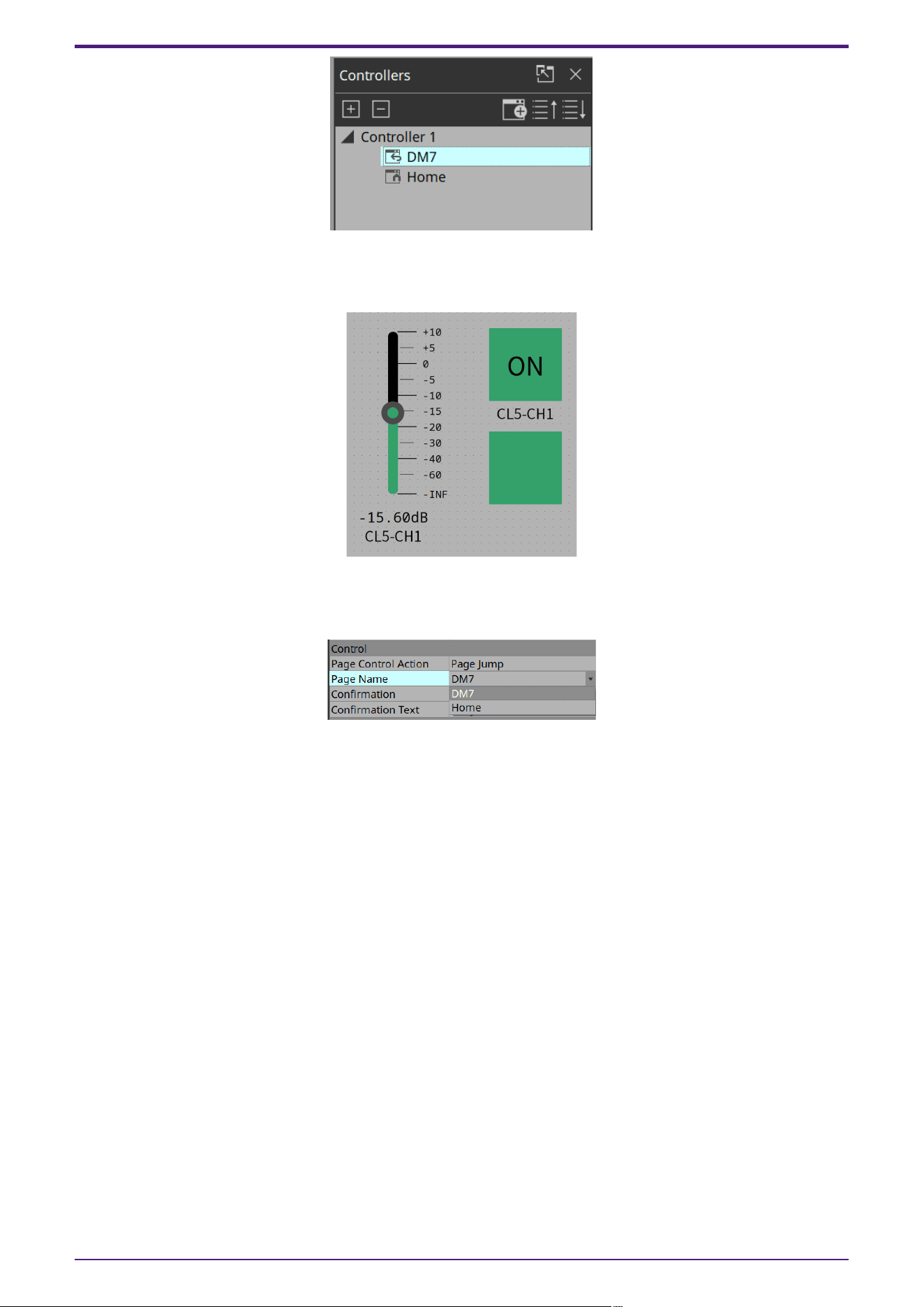
21.
From the “Widgets” area, drag and drop [Page Control Button] into the work area.
A button for switching pages is placed in the work area.
22.
In the “Properties” area’s “Control,” click the column at the right of “Page Name.”
When you click the button, the pages that can be switched are shown as a list.
23.
Select [Home].
When in control mode, clicking the button will now switch to “Home.”
24.
In the “Position/Appearance” area, click the at the right of “Image.”
The “Select Image” dialog box opens.
4. Basic process
ProVisionaire Control PLUS V1.0 User Guide | 23
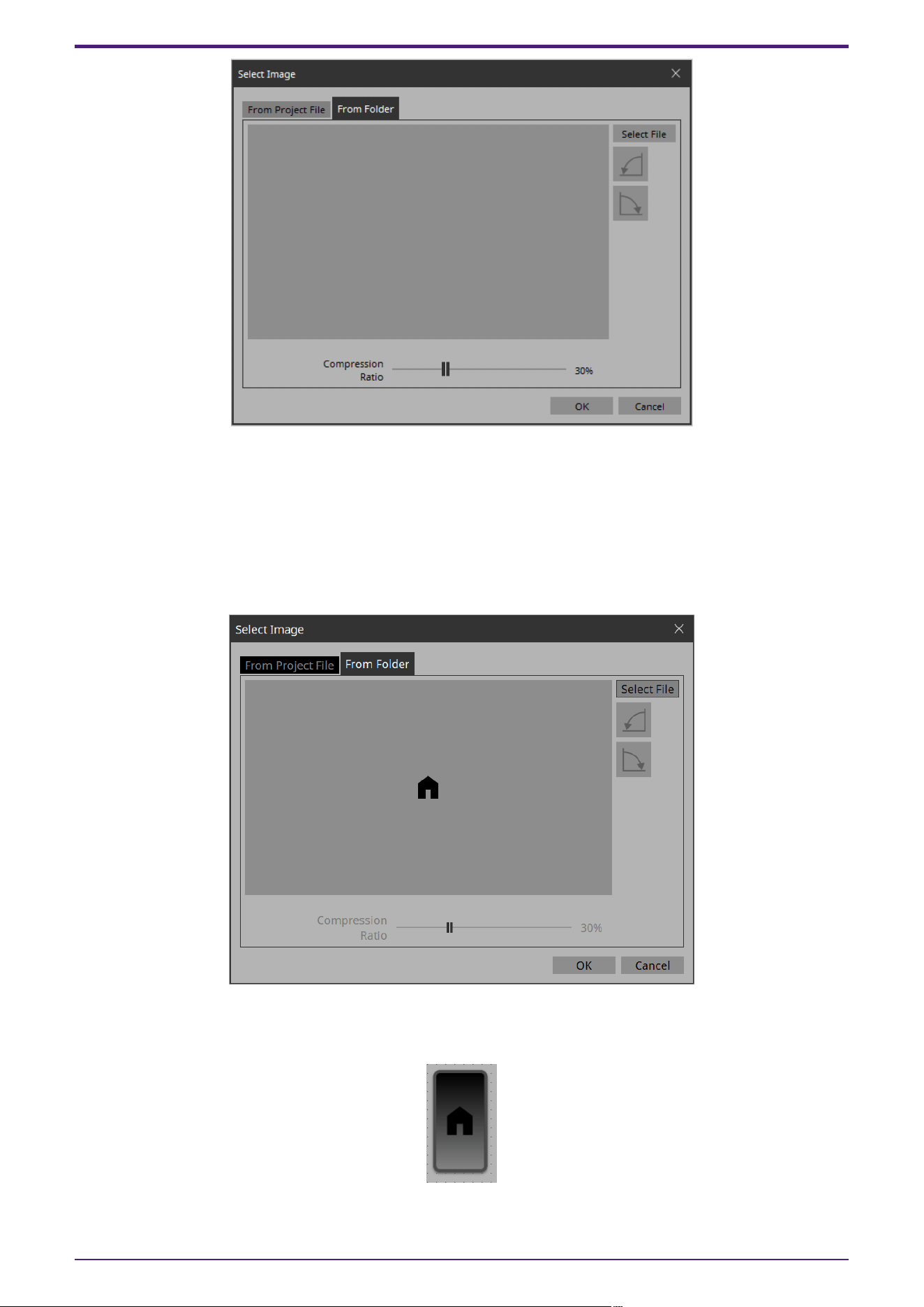
25.
*Go to the Form Folder tab, click the [Select File] button, and select any image file on your computer. *
In this example, we use an icon of a house.
NOTE
SVG images are installed in the ImageFile folder. Feel free to use them.
SVG images cannot be displayed as thumbnails in File Explorer of Windows. Click on the image to view it
in the preview window of File Explorer.
26.
Click the [OK] button.
The dialog box closes, and the image is applied to the button that moves to the “Home” page.
4. Basic process
24 | ProVisionaire Control PLUS V1.0 User Guide
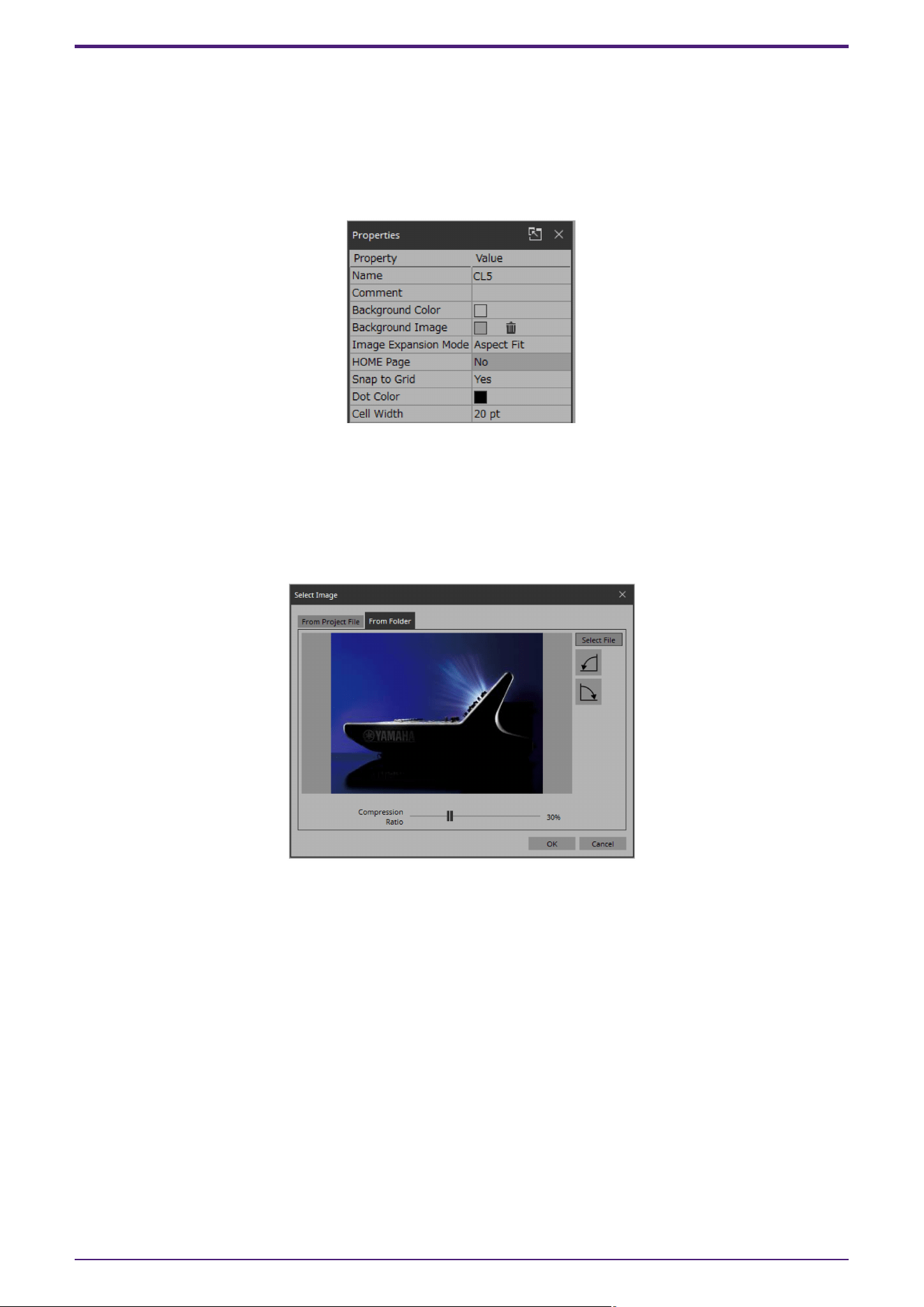
4.5. Specifying a background for the page
If you want to specify a background, you’ll save time by specifying the background before you adjust the
placement of the widgets.
1.
Click somewhere in the work area where there is no widget.
“Properties” shows the settings of the page.
2.
Click the □ at the right of “Background Image.”
The “Select Image” dialog box opens.
3. Click the [From Folder] tab.
4. Click the [Select File] button, and select an image.
5.
In the “Select Image” dialog box, use the [Compression Ratio] slider to change the compression ratio.
Since this image data is embedded in the project file or controller file, a lower compression ratio will
increase the size of the file.
A large file size will affect the operation of the overall application, so we recommend that you compress
the image a certain amount to decrease the file size.
6. Click the [OK] button.
4. Basic process
ProVisionaire Control PLUS V1.0 User Guide | 25
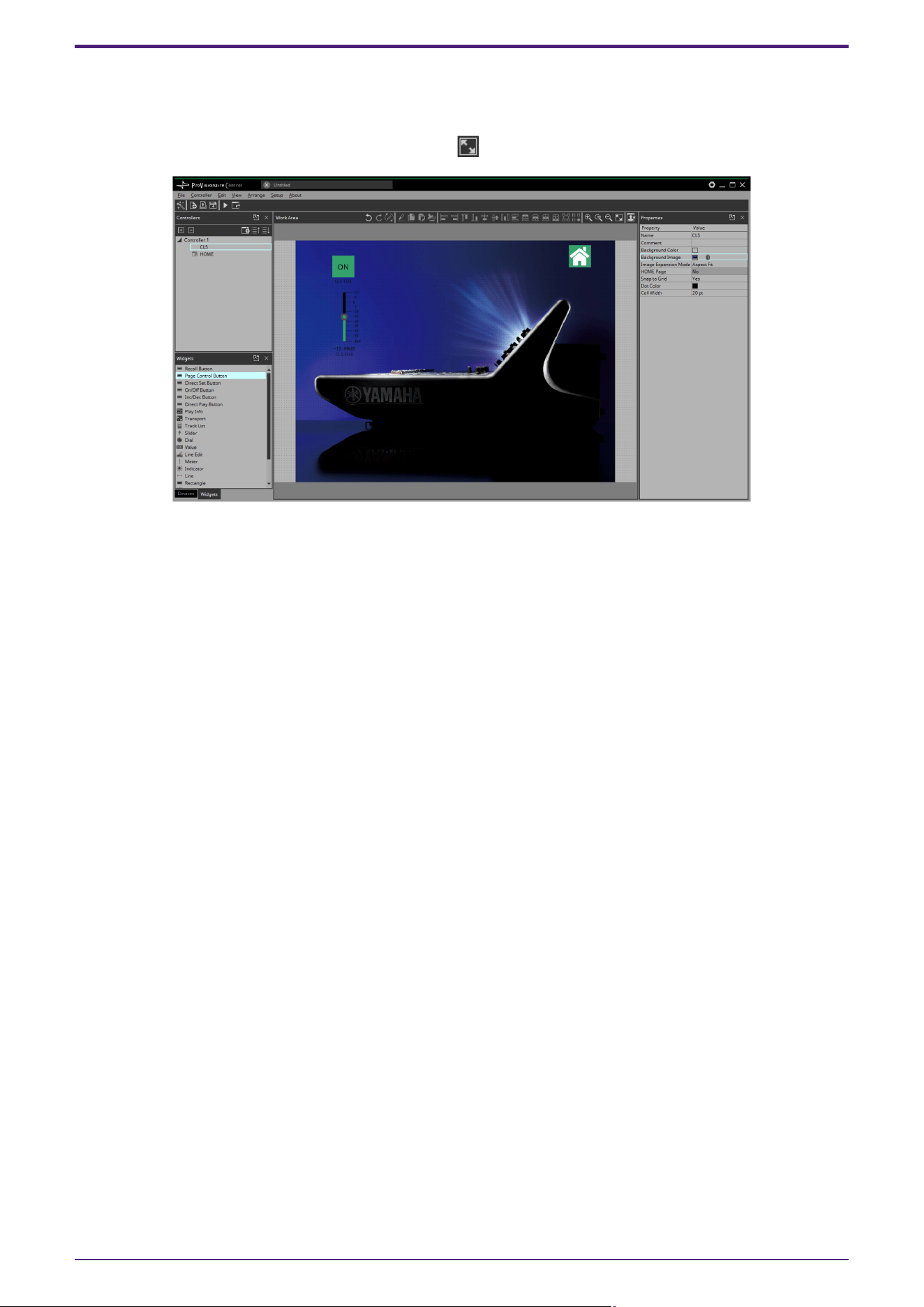
4.6. Adjusting the placement of the widgets
Now we’ll make adjustments while watching the widgets that we placed.
1. On the menu bar, click the [Fit to Screen] button so that the entire page is visible.
2.
To change the size of the widget, and then adjust its size by clicking and dragging the white squares □
that are shown around its edges.
3. Drag and drop the widget to adjust its position.
4.
As necessary, use the “Properties” area to adjust the text size etc. of the label.
Perform these steps for each page.
4. Basic process
26 | ProVisionaire Control PLUS V1.0 User Guide

4.7. Saving the project file
Let’s save the project that we created so far.
1.
On the menu bar, click the [Save] button .
The “Save File” dialog box appears.
If file was saved, it is overwritten by the saved data.
2. If the “Save File” dialog box appears, specify a save location for the file, assign a file name, and save it.
4. Basic process
ProVisionaire Control PLUS V1.0 User Guide | 27
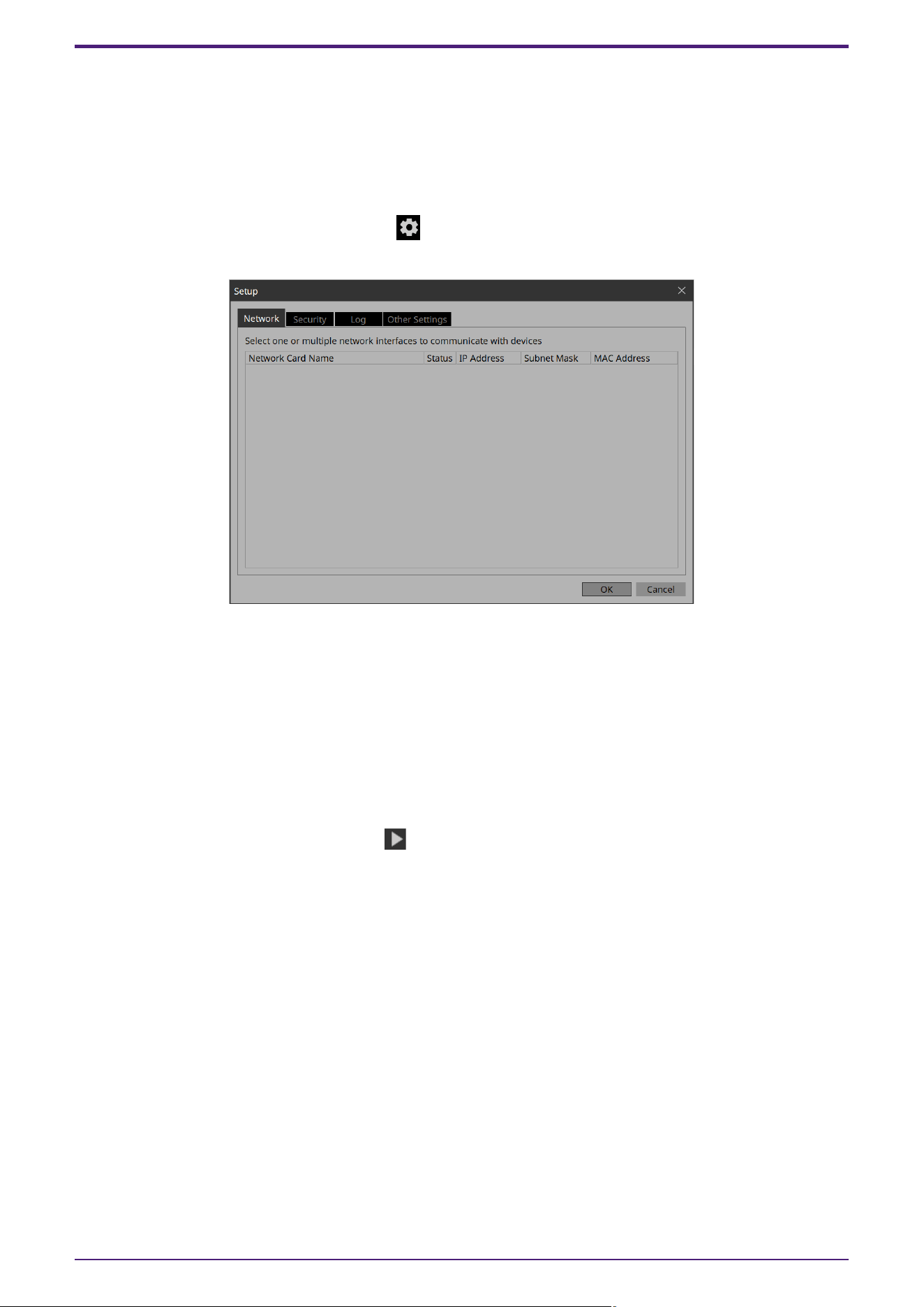
4.8. Testing operation
Let’s operate the widgets on each page to verify that they work. We assume that there is a device that is being
controlled.
1. Power-on the device.
2. Connect the computer to the network that is connected to the device’s NETWORK port.
3.
On the title bar, click the [Setup] button .
The “Setup” dialog box opens.
4. Select the network interface card that is connected to the network that is connected to the device’s
NETWORK port.
NOTE
Up to eight network adapters can be selected at the same time.
5.
Click the [OK] button.
The dialog box closes.
6. In the “Controllers” area, select the controller that you want to operate.
7.
On the tool bar, click the [Run] button .
Kiosk starts.
The operation when a controller file is loaded in Kiosk can be checked.
8.
Note that the indication “All Devices are ONLINE” is shown in the upper right.
If this indicates “All Devices are OFFLINE,” then Kiosk has not detected the devices. Make sure that the
network settings of the devices and the computer are correct.
9.
Click the button labeled “DM7.”
The page changes.
4. Basic process
28 | ProVisionaire Control PLUS V1.0 User Guide

10.
Operate the fader and button, and verify that they are linked with the device.
If you want to edit the placement etc., exit Kiosk and proceed as described in “Adjusting the placement of
the widgets.” The changes are not applied if Kiosk is left running.
11. Exit Kiosk.
4. Basic process
ProVisionaire Control PLUS V1.0 User Guide | 29
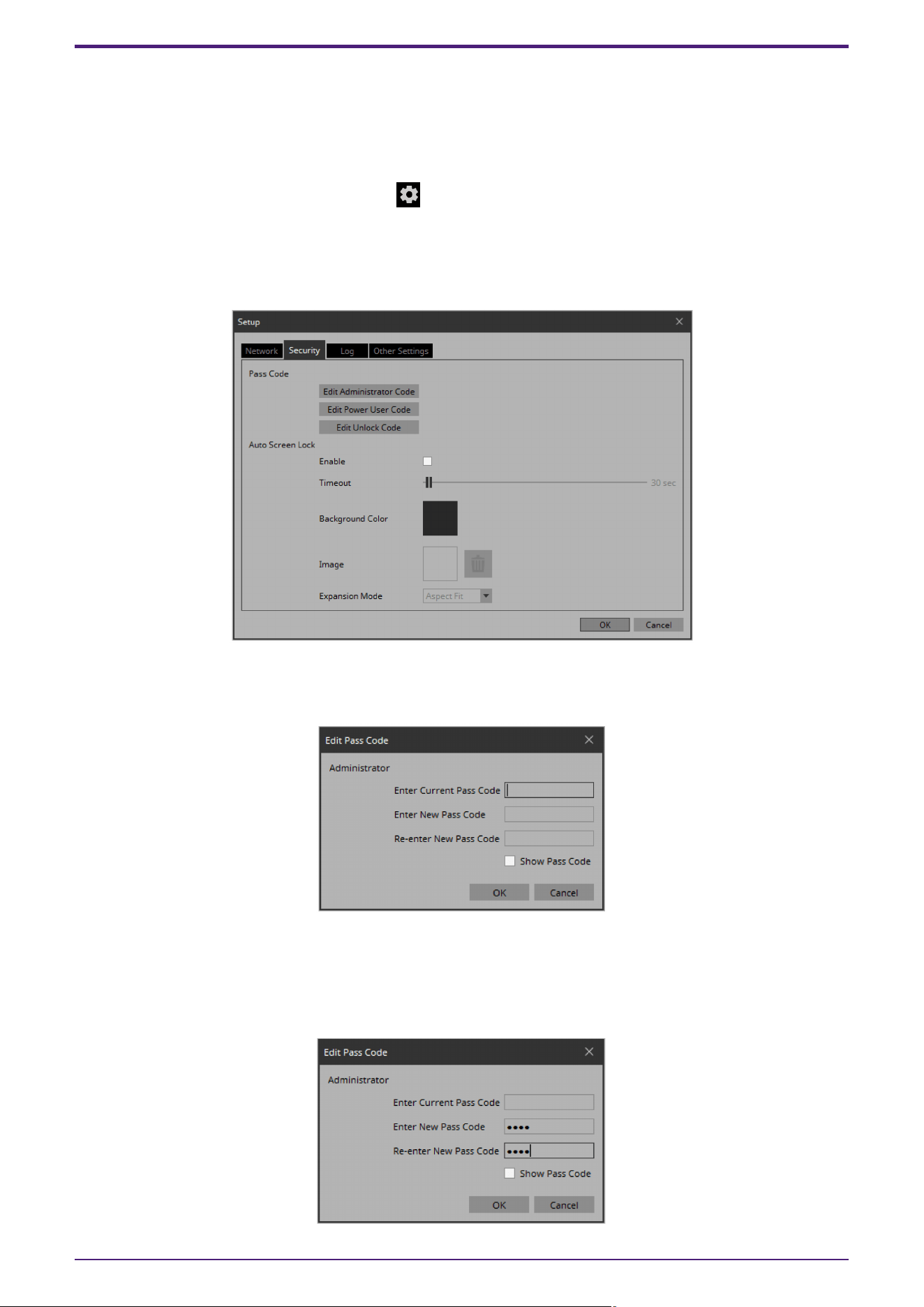
4.9. Making security settings
You can set a screen lock to prevent unauthorized persons from making inadvertent changes to a system in
operation.
Now we’ll specify the screen lock settings and the various pass codes used to unlock restricted functions.
1.
On the title bar, click the [Setup] button .
The “Setup” dialog box opens.
2.
Click the [Security] tab.
The security settings screen appears.
3.
Click the [Edit Administrator Code] button.
The “Edit Pass Code” dialog box appears, with “Administrator” shown in the upper left.
4. Enter the same four-digit number into the [Enter New Pass Code] text box and the [Re-enter New Pass
Code] text box.
The number that you entered will be the administrator pass code.
Since a pass code is not specified by default, leave the [Enter Current Pass Code] text box blank.
4. Basic process
30 | ProVisionaire Control PLUS V1.0 User Guide
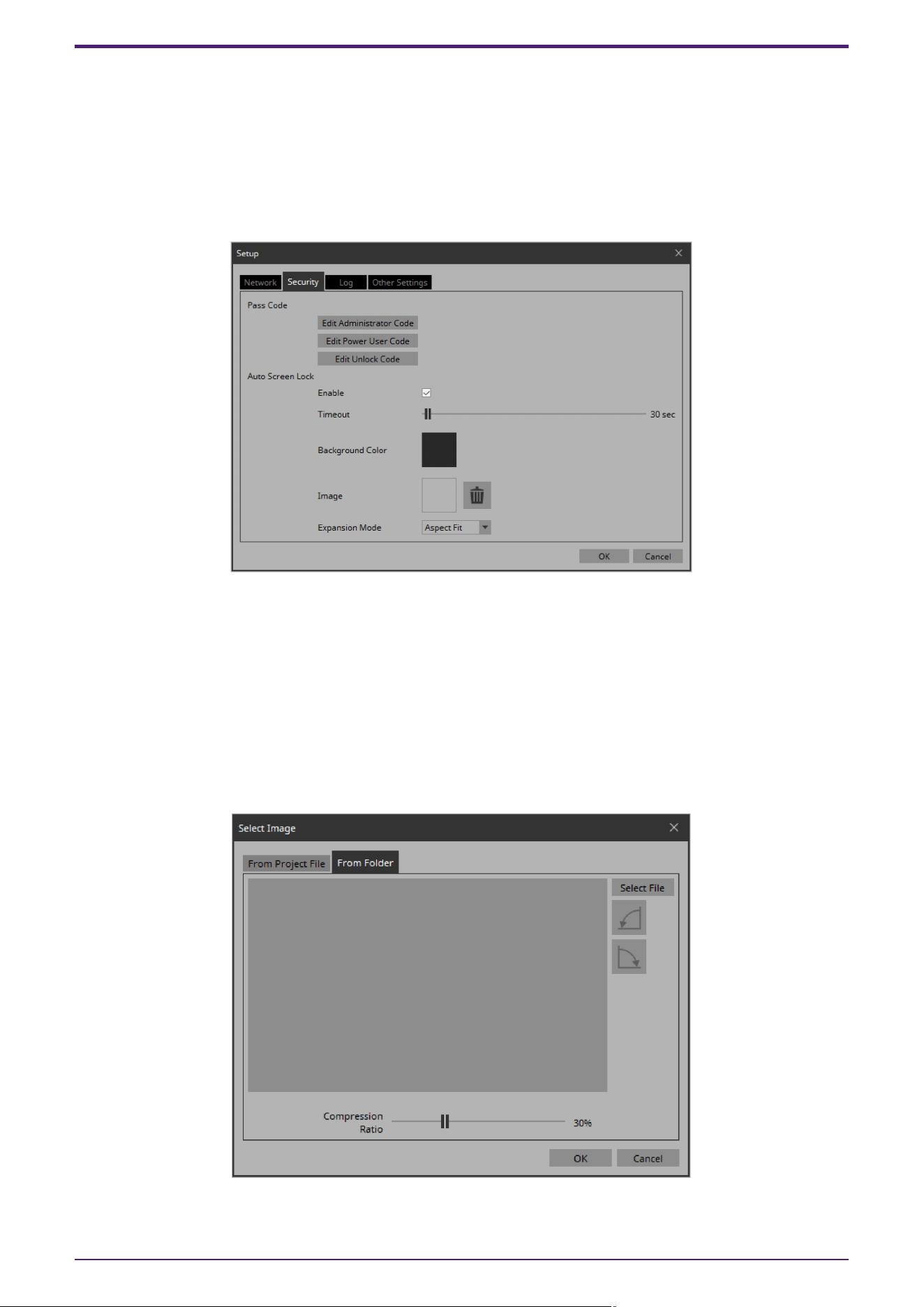
5.
Click the [OK] button.
The administrator pass code is confirmed.
6. In the same way, click the [Edit Power User Code] button or the [Edit Unlock Code] button to specify pass
codes for power users or for staff.
Since the staff pass code can be changed by the power user, you don’t need to specify the staff pass code
if the power user will specify it.
7. In the Screen Lock area, select the [Enable] check box.
8. Use the [Timeout] slider to specify the number of seconds since the last operation until the screen is
locked.
9.
Specify the display when the screen is locked.
If you want to specify a solid color, click the [Background Color] field. The color selection screen appears.
If you want to specify an image, click the □ at the right of [Image]. In this example we will specify an
image, so click the □.
10.
Click the [From Folder] tab.
A screen appears, allowing you to apply an image file from the computer.
11. Press the [Select File] button, and select the image file that is shown when the screen is locked.
4. Basic process
ProVisionaire Control PLUS V1.0 User Guide | 31
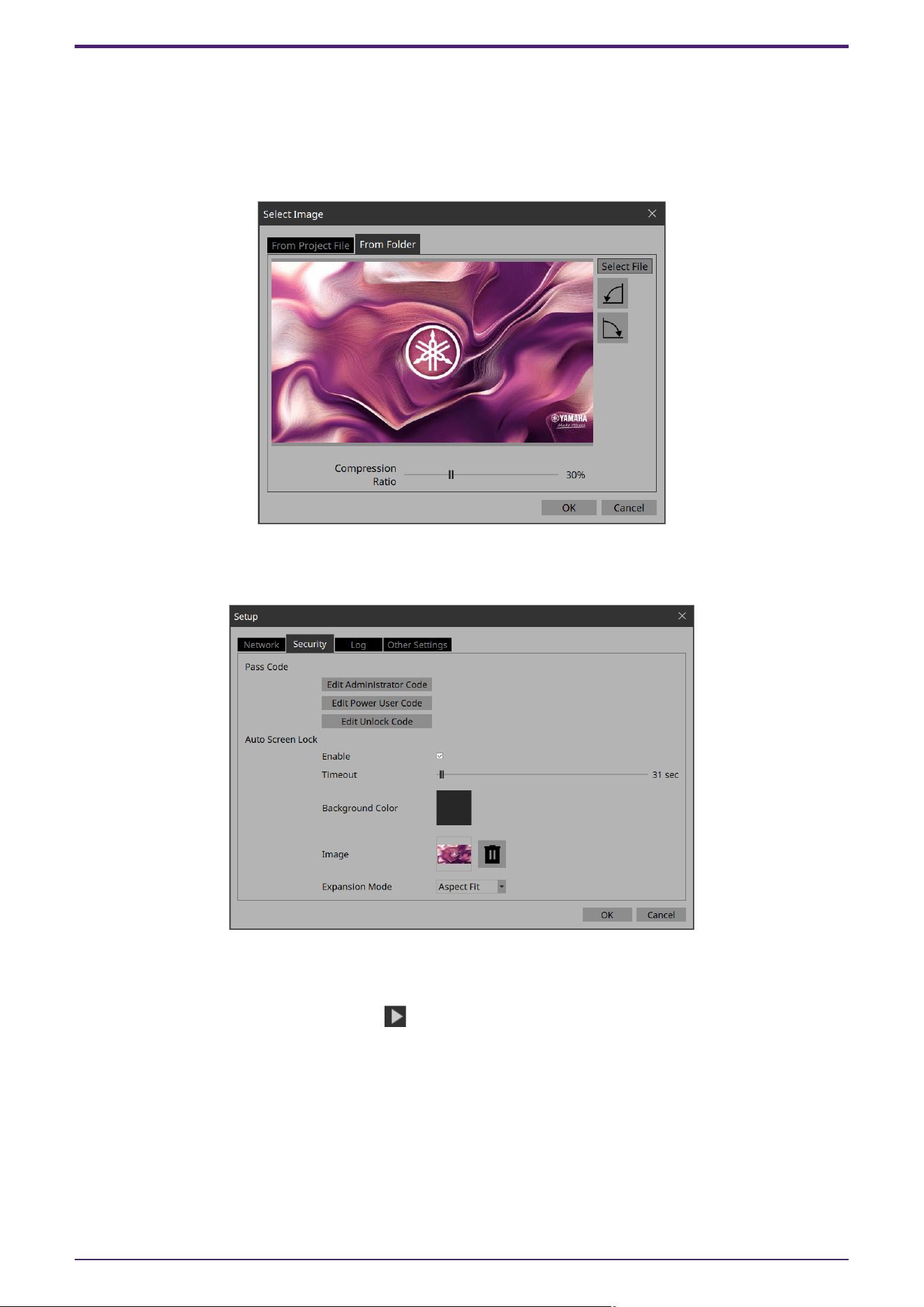
12.
In the “Select Image” dialog box, use the [Compression Ratio] slider to change the compression ratio.
Since this image data is embedded in the project file or controller file, a lower compression ratio will
increase the size of the file.
NOTE
For SVG files, Compression Ratio is disabled.
13.
Click the [OK] button.
Close the dialog box to return to the “Setup” dialog box.
14.
Click the [OK] button.
The dialog box closes.
15.
On the tool bar, click the [Run] button .
Kiosk starts.
16.
Refrain from performing any operation for the length of time specified by the [Timeout] slider.
The lock screen appears.
If you want to change the appearance of the image, exit Kiosk, and in the “Setup” dialog box’s [Security]
tab, use [Expansion Mode] to change the appearance.
4. Basic process
32 | ProVisionaire Control PLUS V1.0 User Guide
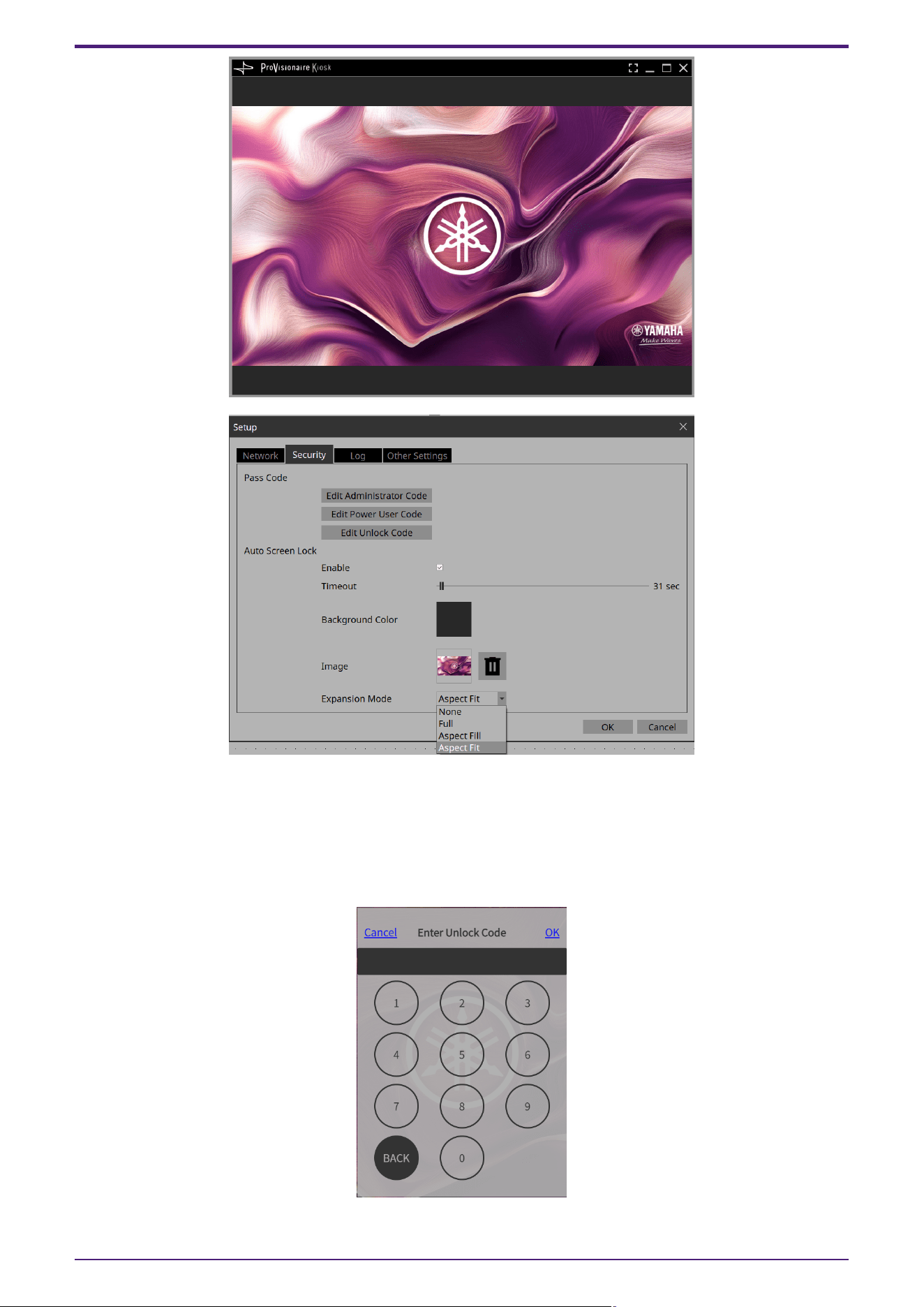
17.
Click the lock screen.
The screen indicates “Enter Unlock Code,” allowing you to unlock the screen.
If you did not specify an “Edit Unlock Code” in step 6, you return to the screen without any “Enter Unlock
Code” indication.
18. Click to enter the Unlock Code that you specified in step 6.
4. Basic process
ProVisionaire Control PLUS V1.0 User Guide | 33

4.10. Creating a controller file
Here’s how to create a controller file for Kiosk installed on the actual operating terminal.
1. In the “Controllers” area, select the controller for which you want to create a controller file.
2.
On the tool bar, click the [Export] button .
The “Export Controller File” dialog box opens.
3.
Assign a file name, and click [Save].
Select the [To Your Computer] tab and click [Select Destination Folder]. A file save dialog box opens.
Select a save location and click [Save] to save the controller file.
NOTE
To send controller files to your iPad/iPhone, refer to “Export Controller File” dialog box.
4. Basic process
34 | ProVisionaire Control PLUS V1.0 User Guide
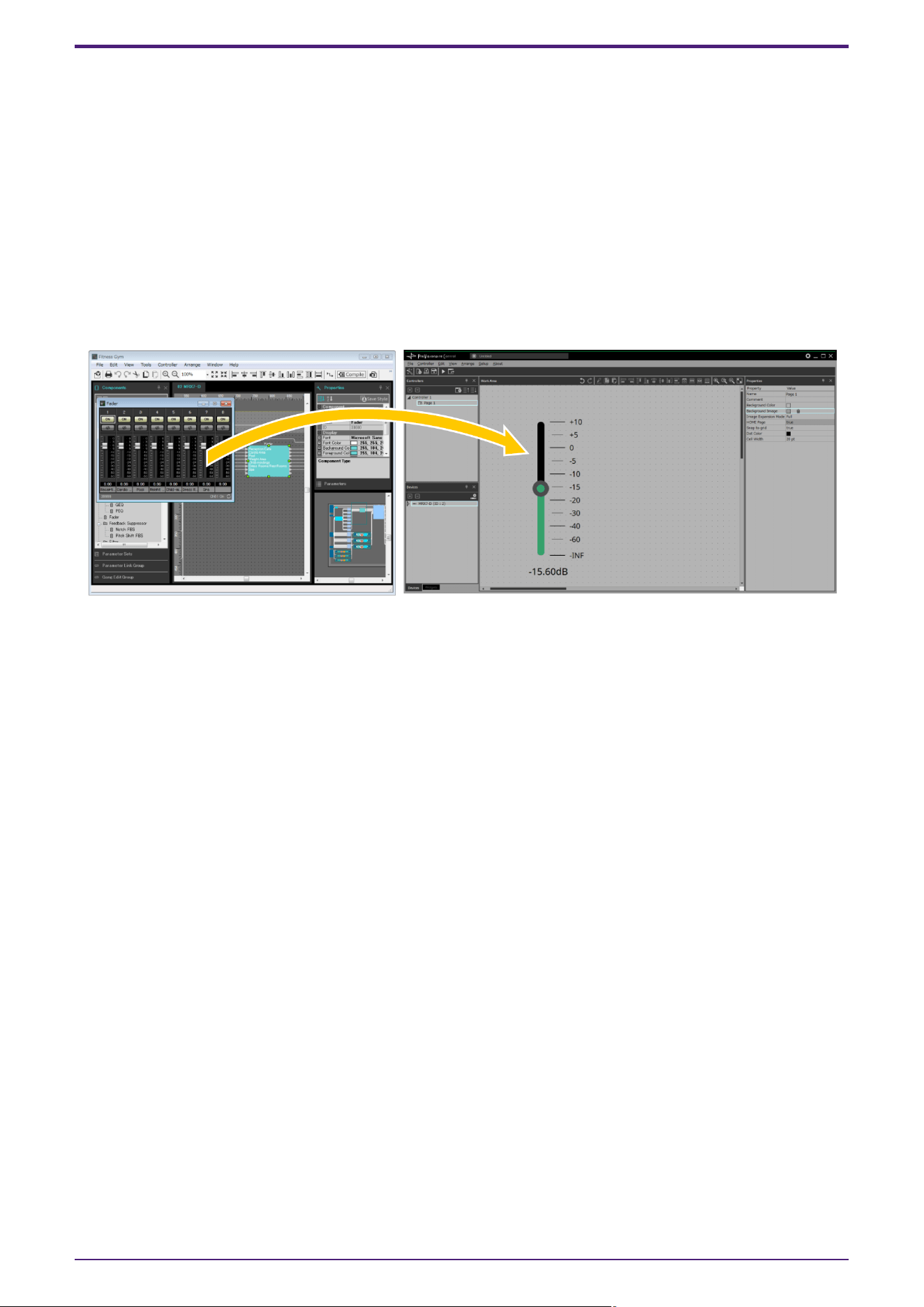
5. Adding parameters and meters from apps other than
ProVisionaire Control
Parameters and meters of some devices can be added to the work area from ProVisionaire Design and MTX-
MRX Editor.
While holding down the <Ctrl> key, drag and drop parameters or meters from the component editor or
[Parameters] area of ProVisionaire Design or MTX-MRX Editor into the work area.
Tips
When you drop a parameter onto a blank area in the work area, a default widget is placed.
If you drop a parameter onto an already placed widget, you can replace (or add, depending on the widget type)
the parameter to be controlled.
5. Adding parameters and meters from apps other than ProVisionaire Control
ProVisionaire Control PLUS V1.0 User Guide | 35
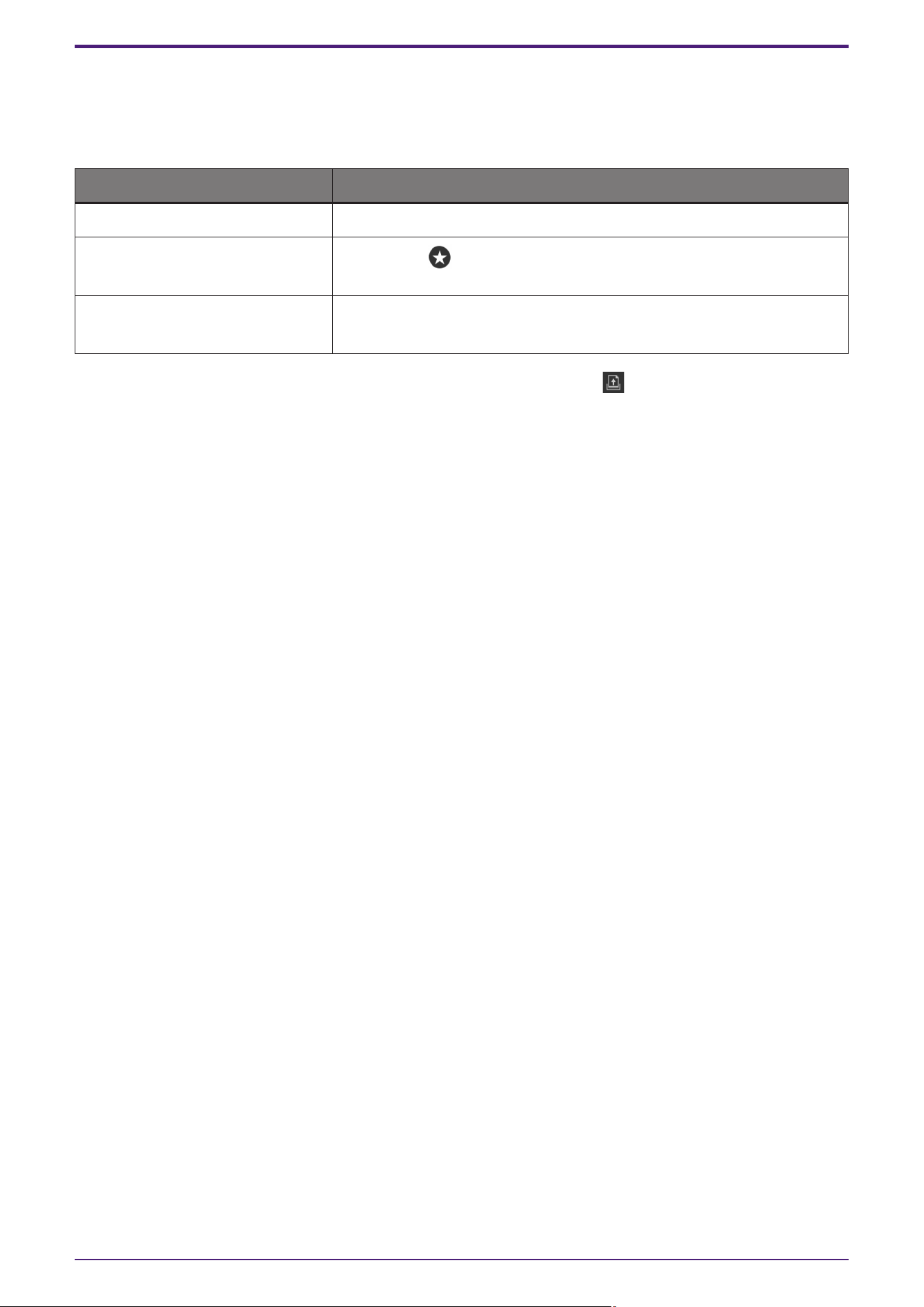
6. Functions specific to initial mode
Initial mode shows a list of the files that have been previously opened.
In initial mode, a menu for handling the file list is shown in the upper right.
Menu Summary
[Load] Opens the selected file.
[Favorite]
Adds a mark to the file.
Click once again to remove the mark.
[Remove from History]
Removes the selected file from the list.
The file itself is not deleted.
To open a file that is not shown in the list, click the [Open Project File] button in the upper left and open the
file, or double-click the file.
6. Functions specific to initial mode
36 | ProVisionaire Control PLUS V1.0 User Guide
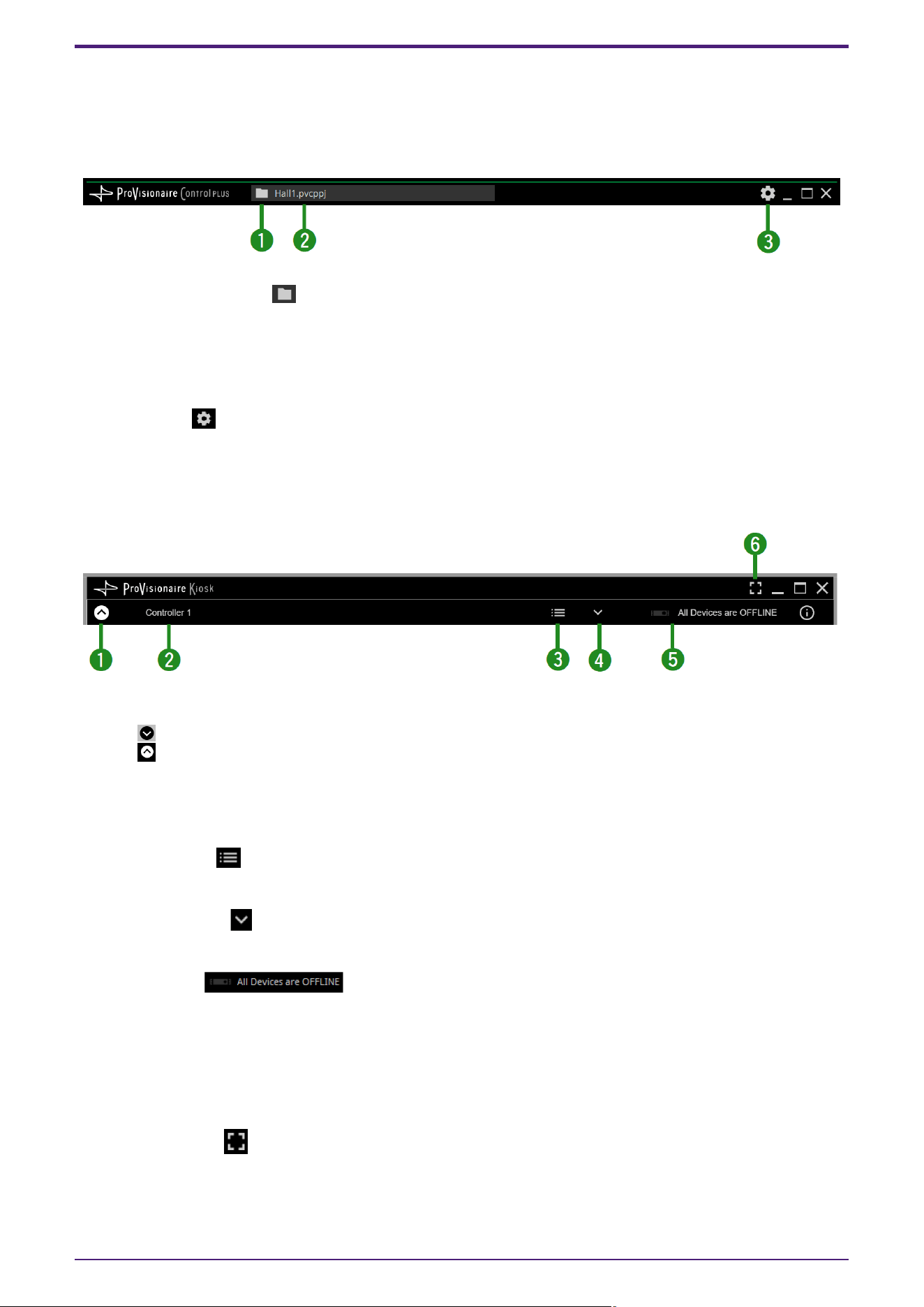
7. Title bar
This shows the name of the currently open file, and provides buttons that let you change the screen display
settings, etc.
①[File Management] button
Closes the open project file and returns to the initial mode screen.
②File name
Shows the name of the opened file.
③[Setup] button
Opens the “Setup” dialog box, allowing you to select a network interface and make security settings.
■ Control Mode
Click the [Run] button on the toolbar to switch to control mode.
①Display switch button
Click the icon to display the menu bar.
Click the icon to close it.
②Controller name
Displays the name of the active controller.
③[Page List] button
Shows the page list. You can switch the page being displayed.
④[Device Info] button
Shows information about the devices that are registered in the controller file.
⑤Online indicator
Indicates whether the devices registered in the controller file are online.
Green icon: All devices registered in the controller file are online.
Yellow icon: Some of the devices registered in the controller file are online.
Red icon: The devices registered in the controller file are discovered, but are not online.
Gray icon: No devices are online.
⑥[Fullscreen] button
Displays the controller in full screen mode. To exit full screen mode, press the <Esc> key.
7. Title bar
ProVisionaire Control PLUS V1.0 User Guide | 37
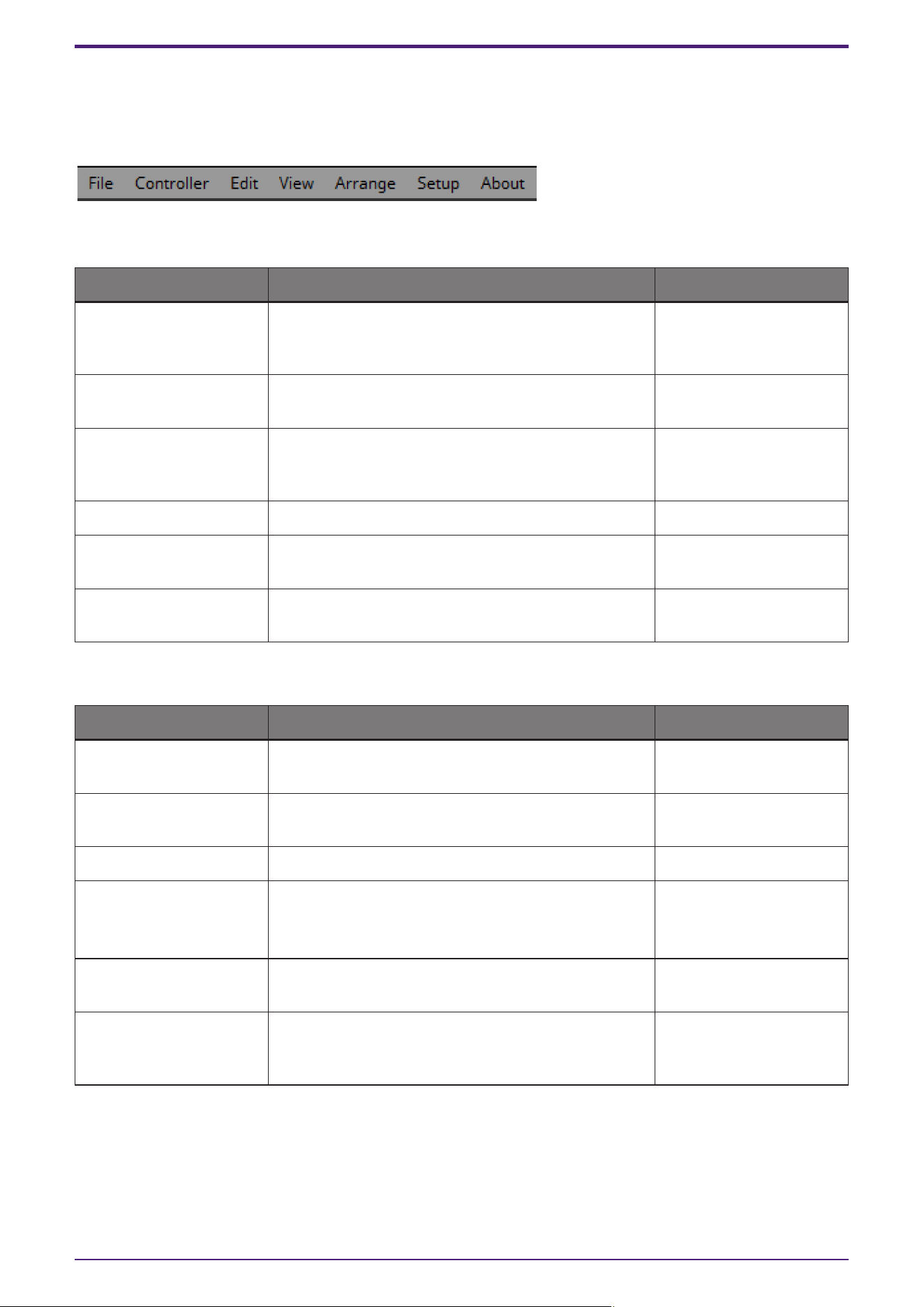
8. Menu bar
This contains commands that can be executed by ProVisionaire Control, organized by category. In initial mode,
only some of the commands are shown.
[File]
Command Summary Dialog box opened
[New Project] Creates a new project file. If you were editing the
project file, a confirmation message appears.
“New Project Wizard”
dialog box or “Setup”
dialog box
[Open Project File] Opens an existing project file. If you were editing the
project file, a confirmation message appears.
“Open File” dialog box
[Save] Overwrite-saves the project file. The first time a file is
saved, the “Save File” dialog box opens; assign a name
to the file and save it.
―
[Save As] Saves the project file as a different file. “Save File” dialog box
[Close Project] Closes the project file. If you were editing the project
file, a confirmation message appears.
Initial mode
[Exit] Exits ProVisionaire Control. If you were editing the
project file, a confirmation message appears.
―
[Controller]
Command Summary Dialog box opened
[Add] Adds a controller. One page is added to the controller
that is added.
“Add Controller” dialog box
[Auto page Change] Switches pages by recalling an arbitrary device. “Auto page Change” dialog
box
[Run] Runs the selected controller in control mode. ―
[Run Controller File]
Opens the “Run Controller File” dialog box.
You can send the controller to your iPad/iPhone and
check its operation.
“Run Controller File” dialog
box
[Import] Selects the controller you want to copy from the
project file.
“Select Controllers to
Import” dialog box
[Export] Creates a controller file for the selected controller. This
also transfers the controller file to the iPad/iPhone on
which ProVisionaire Kiosk is installed.
“Export Controller File”
dialog box
8. Menu bar
38 | ProVisionaire Control PLUS V1.0 User Guide
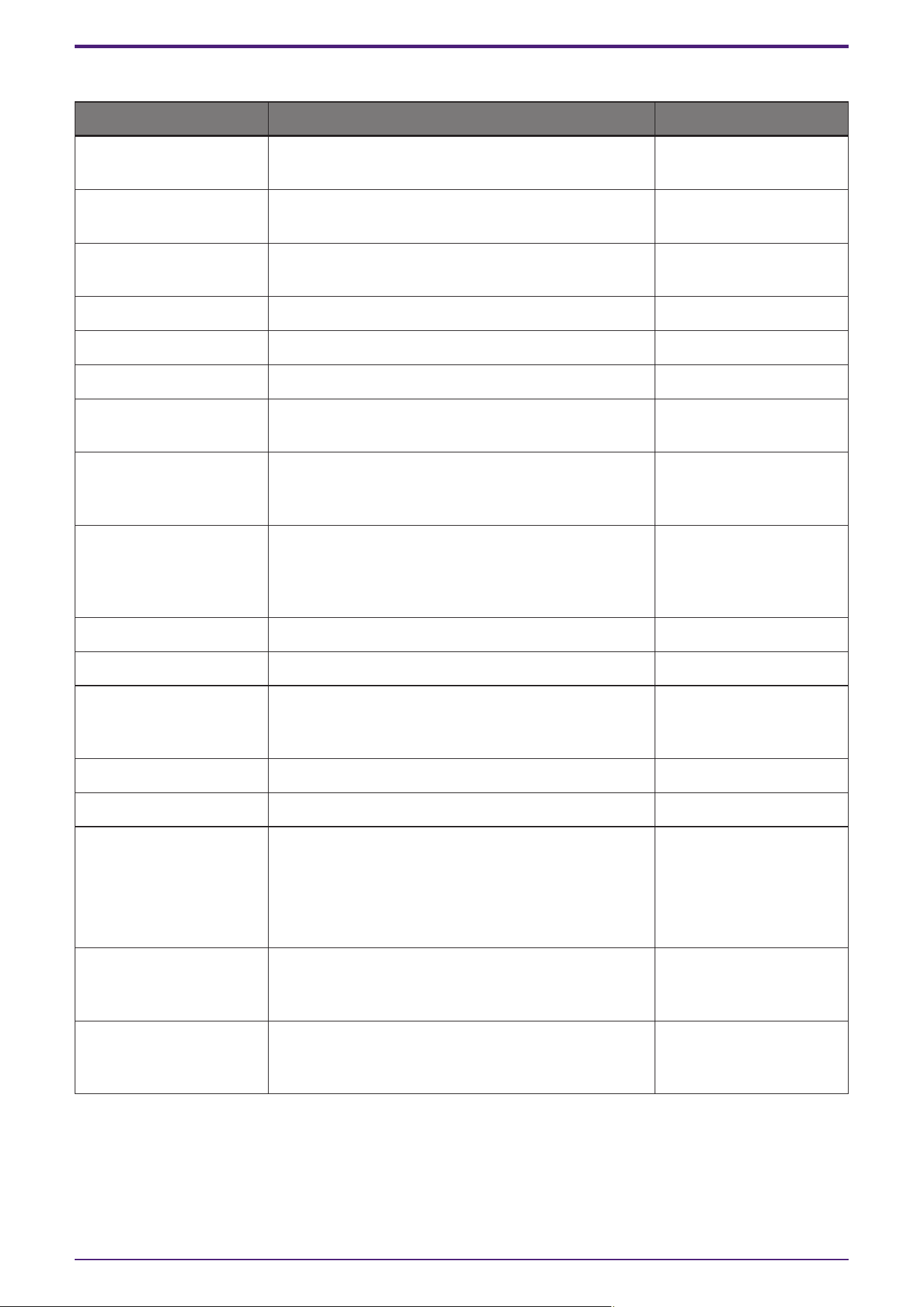
[Edit]
Command Summary Dialog box opened
[Undo] Cancels the previous operation. Some items cannot be
undone.
―
[Redo] Re-executes the operation that was canceled by
[Undo].
―
[Repeat] Repeats the most recent widget style-related operation
that was executed. Some items cannot be repeated.
―
[Cut] Moves the selected object into the copy buffer. ―
[Copy] Copies the selected object into the copy buffer. ―
[Paste] Pastes the object from the copy buffer. ―
[Copy Appearance] Copies the Appearance (appearance-related settings)
of the single selected widget to the copy buffer.
―
[Paste Appearance] Pastes the Appearance (appearance-related settings)
stored in the copy buffer onto the single selected
widget.
―
[Save as Style] Reflects the Appearance (appearance-related settings)
of the selected widget as the style selected in the
project. Once the settings are reflected, you can check
the result in the "Style" dialog box.
―
[Apply Style to Widgets] Applies the style to the selected widget. ―
[Duplicate] Duplicates the selected widget. ―
[Duplicate to Other
Channels]
Duplicates the selected single widget, and assigns it to
a different channel. Multiple channels can be selected
for duplication.
―
[Delete] Deletes the selected widget. ―
[Select All] Selects all widgets on the page. ―
[Imported Images]
Shows/deletes the image data in the project file.
NOTE
Image data used in placed widgets and those used in
the style selected in the project will also be deleted.
Once confirmed, the operation cannot be undone.
“Imported Images” dialog
box
[Create Multi Buttons] Creates a multi button that operates multiple buttons
placed on the work area at once. Before executing this
command, select the buttons to which it will apply.
―
[Create Multi Slider] Creates a multi slider that controls multiple sliders
placed in the work area at once. Before executing this
command, select the buttons to which it will apply.
―
8. Menu bar
ProVisionaire Control PLUS V1.0 User Guide | 39
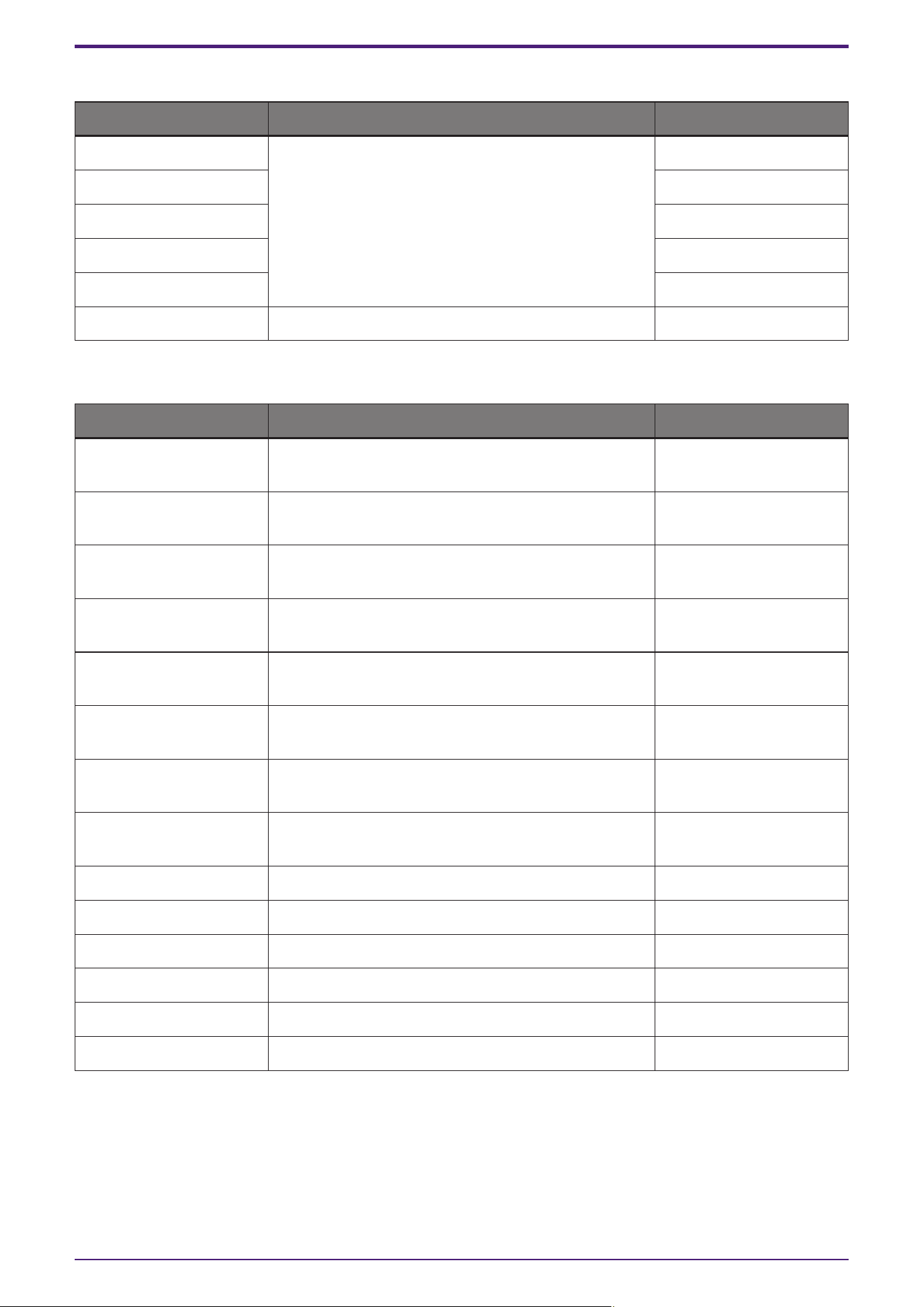
[View]
Command Summary Dialog box opened
[Devices] If this has a check mark, the corresponding area is
shown.
―
[Widgets] ―
[Controllers] ―
[Properties] ―
[Tool Bar] ―
[Dock All] Cancels the floating state of all areas. ―
[Arrange]
Command Summary Dialog box opened
[Align Left] Aligns the left edge to the left-most of the multiple
selected widgets.
―
[Align Right] Aligns the right edge to the right-most of the multiple
selected widgets.
―
[Align Top] Aligns the top edge to the highest of the multiple
selected widgets.
―
[Align Bottom] Aligns the bottom edge to the lowest of the multiple
selected widgets.
―
[Align Horizontal Center] Aligns the center of the widget to the horizontal mid-
point of the multiple selected widgets.
―
[Align Vertical Center] Aligns the center of the widget to the vertical mid-point
of the multiple selected widgets.
―
[Distribute Horizontally] Equidistantly spaces the multiple selected widgets in
the horizontal direction.
―
[Distribute Vertically] Equidistantly spaces the multiple selected widgets in
the vertical direction.
―
[Bring to Front] Moves the selected widget all the way forward. ―
[Bring Forward] Moves the selected widget forward. ―
[Send Backward] Moves the selected widget backward. ―
[Send to Back] Moves the selected widget all the way back. ―
[Group] Groups the selected multiple widgets. ―
[Ungroup] Cancels grouping for the selected group. ―
8. Menu bar
40 | ProVisionaire Control PLUS V1.0 User Guide
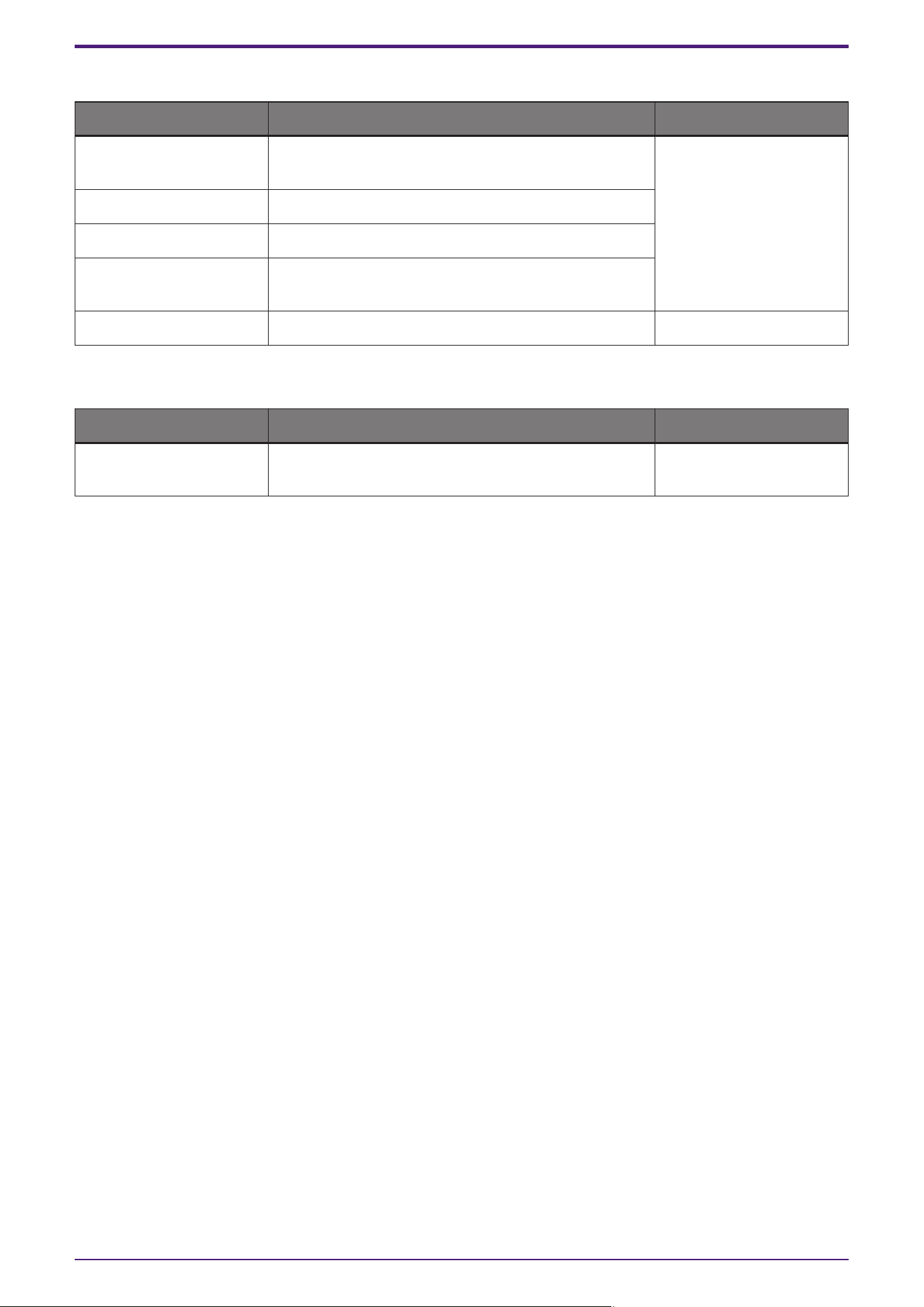
[Setup]
Command Summary Dialog box opened
[Network] Selects a computer network interface card for
communicating with devices.
“Setup” dialog box
[Security] Makes security settings.
[Log] Makes settings related to ProVisionaire Edge.
[Others] Specifies the units for the size and position
information of the widgets.
[Style] Sets the style to be used in a project. “Style” dialog box
[About]
Command Summary Dialog box opened
[About ProVisionaire
Control PLUS]
Displays detailed information such as the version of
ProVisionaire Control.
“About” dialog box
8. Menu bar
ProVisionaire Control PLUS V1.0 User Guide | 41
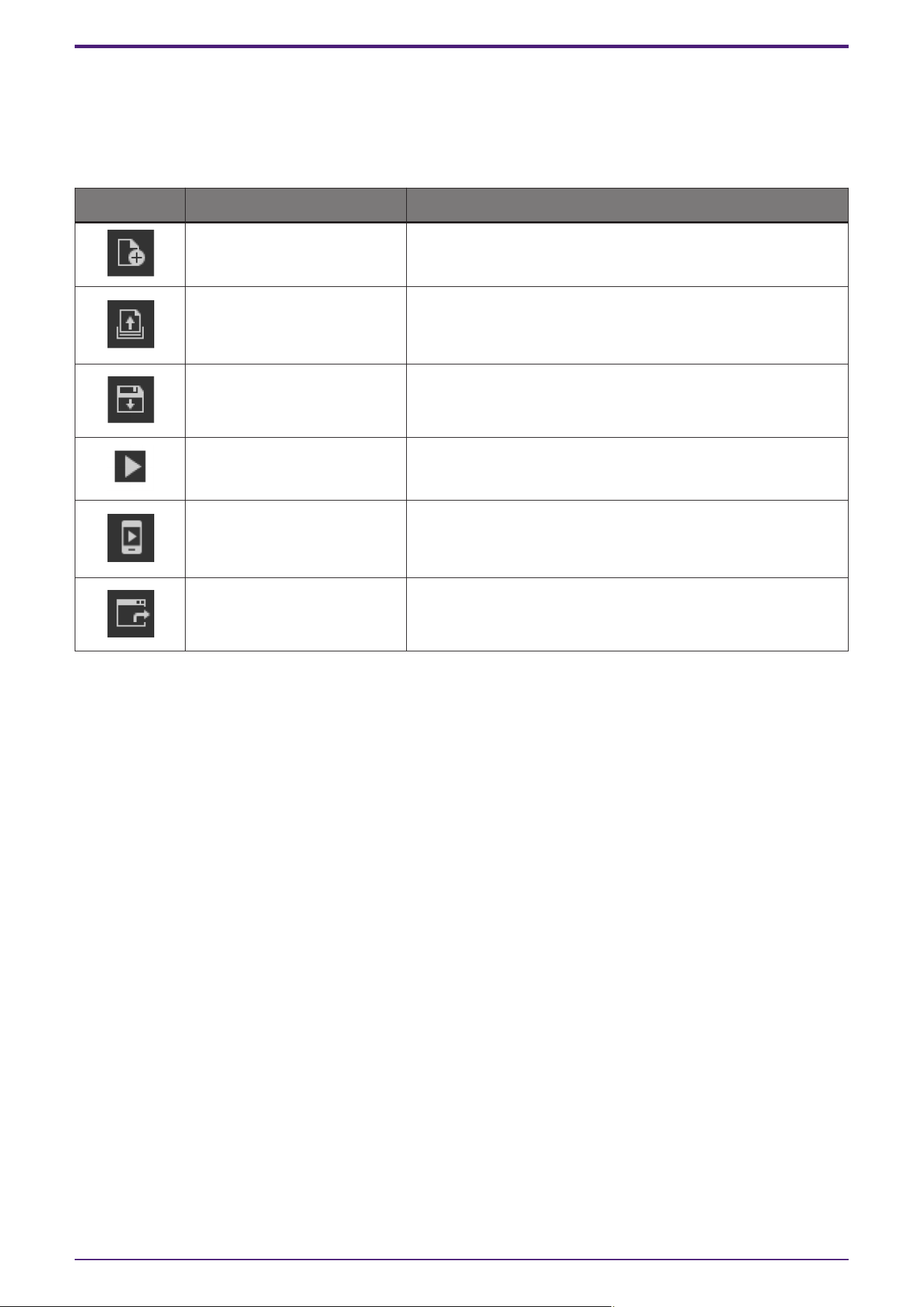
9. Tool bar
This contains buttons for commands that are frequently used with a ProVisionaire Control project, such as [Open
Project File] or [Save].
In initial mode, the two buttons [New Project] and [Open Project File] are shown.
Button Command Summary
[New Project] Creates a new project file. If you were editing the project file, a
confirmation message appears.
[Open Project File] /[Open
Controller File]
Opens an existing project file or controller file.
If you were editing the project file, a confirmation message
appears.
[Save] Overwrite-saves the project file. The first time a file is saved,
the “Save File” dialog box opens; assign a name to the file and
save it.
[Run] Runs the selected controller in control mode.
[Run Controller File]
Opens the “Run Controller File” dialog box.
You can send the controller to your iPad/iPhone and check its
operation.
[Export] Creates a controller file for the selected controller. Also, sends
the controller file to the iPad/iPhone on which Kiosk is
installed.
9. Tool bar
42 | ProVisionaire Control PLUS V1.0 User Guide
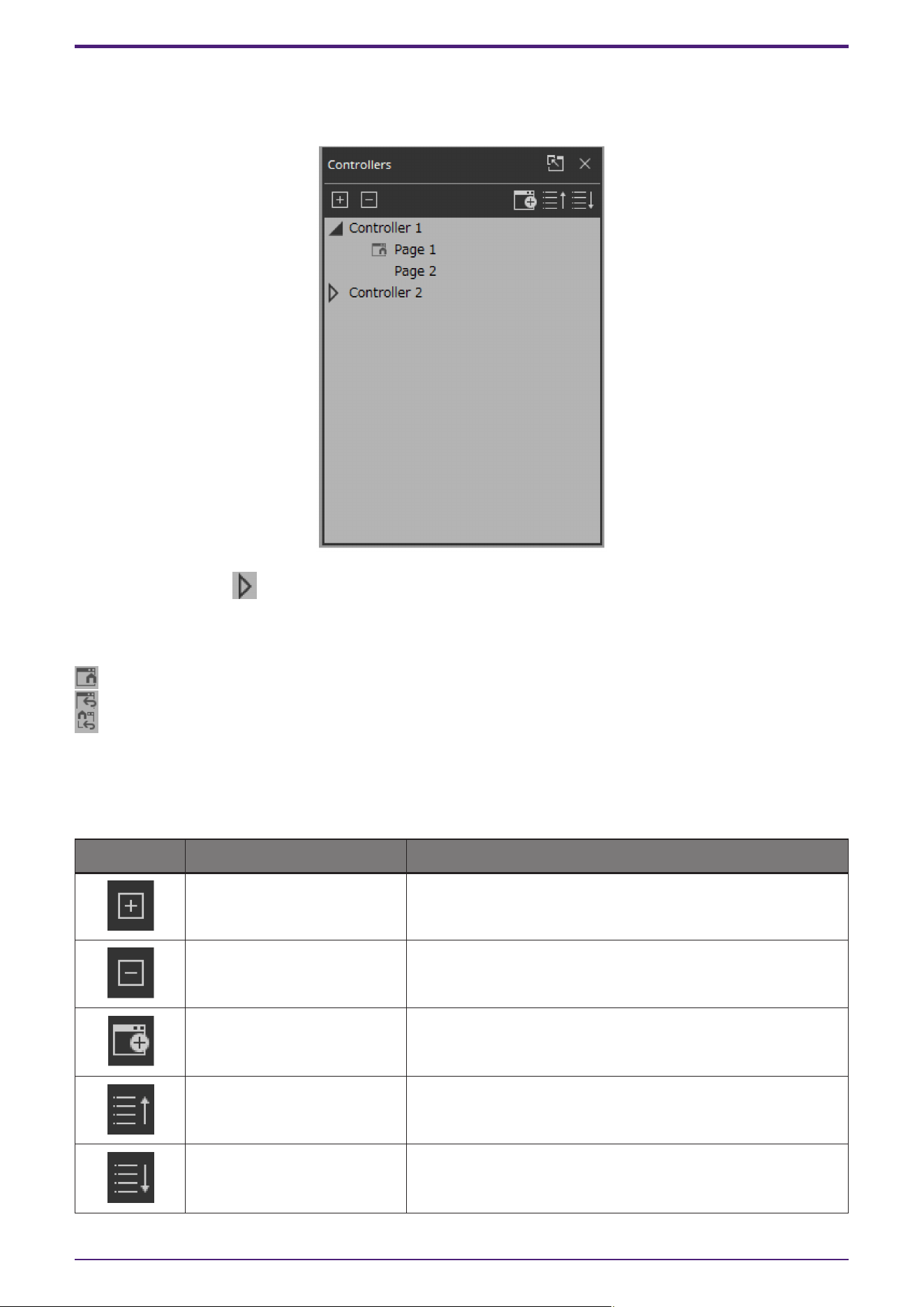
10. “Controllers” area
This area shows a list of the project’s controllers and pages. The selected page is shown in the work area.
By clicking the triangle located at the left of a controller, you can expand or collapse the pages for each
individual controller.
There are two types of icons on the left side of the page.
Home Page: This is the page to be displayed when a controller file is launched in Kiosk.
Fallback: This is the page to be displayed if a problem occurs with Kiosk.
Home & Fallback: This is a page that serves both functions.
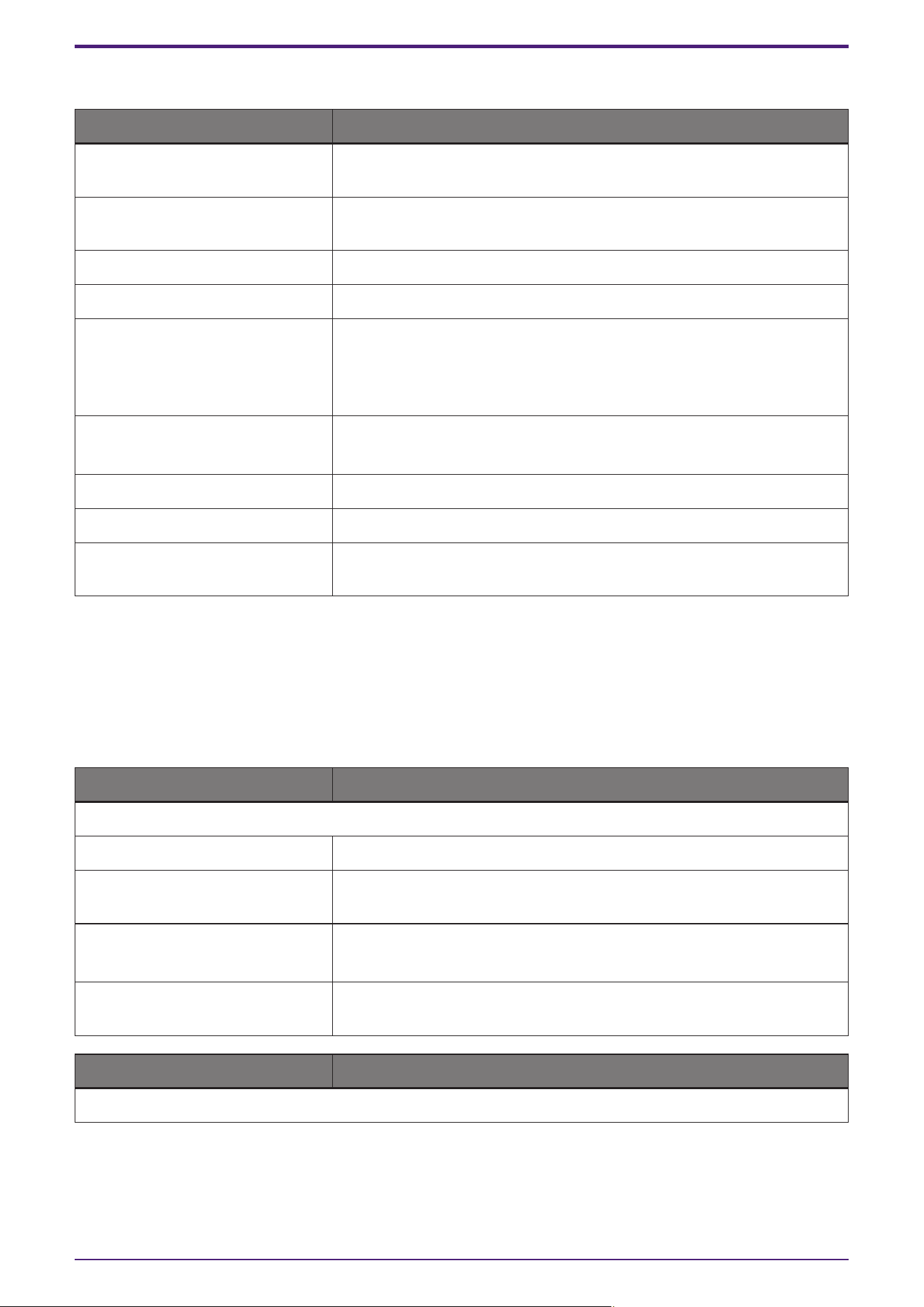
■ Buttons
Here we explain the buttons of the “Controllers” area.
Button Command Summary
[Expand All] Expands all controllers and pages.
[Collapse All] Collapses all controllers and pages.
[Add] Adds a controller. One page is added to the controller that is
added.
[Move Page Up] Move the selected page one position upward.
[Move Page Down] Move the selected page one position downward.
10. “Controllers” area
ProVisionaire Control PLUS V1.0 User Guide | 43
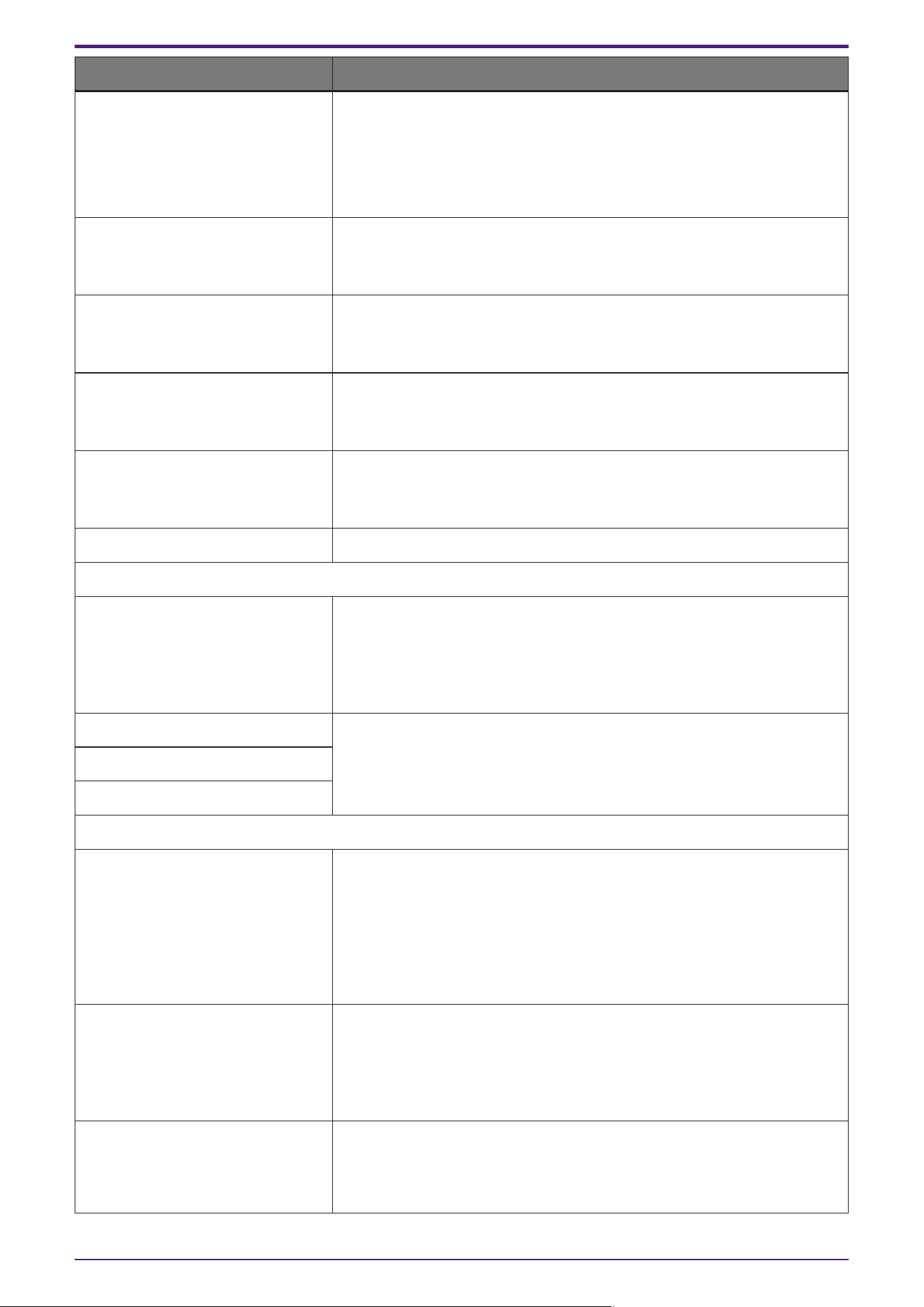
■ Context menu
Menu Summary
[Add Page] Adds a page to the selected controller. If a page is selected, the page is
added to the controller that includes that page.
[Duplicate] Adds a duplicate of the selected controller or page. If a page is selected,
the duplicate is added to the controller that includes that page.
[Delete] Deletes the selected controller or page.
[Rename] Lets you rename the selected controller or page.
[Run]
Runs the selected controller in control mode.
If the controller’s [Type] is ProVisionaire Kiosk, this opens the “Run
Controller File” dialog box. Transfer the controller, and use ProVisionaire
Kiosk on the iPad to verify that it operates.
[Run Controller File]
Opens the “Run Controller File” dialog box.
Send the controller to your iPad/iPhone and check its operation.
[Export] Creates a controller file for the selected controller.
[Set as HOME] Sets the selected page as the home page of that controller.
[Set as Fallback] Specifies the page to be displayed if a problem occurs with Kiosk (such
as a code authentication failure).
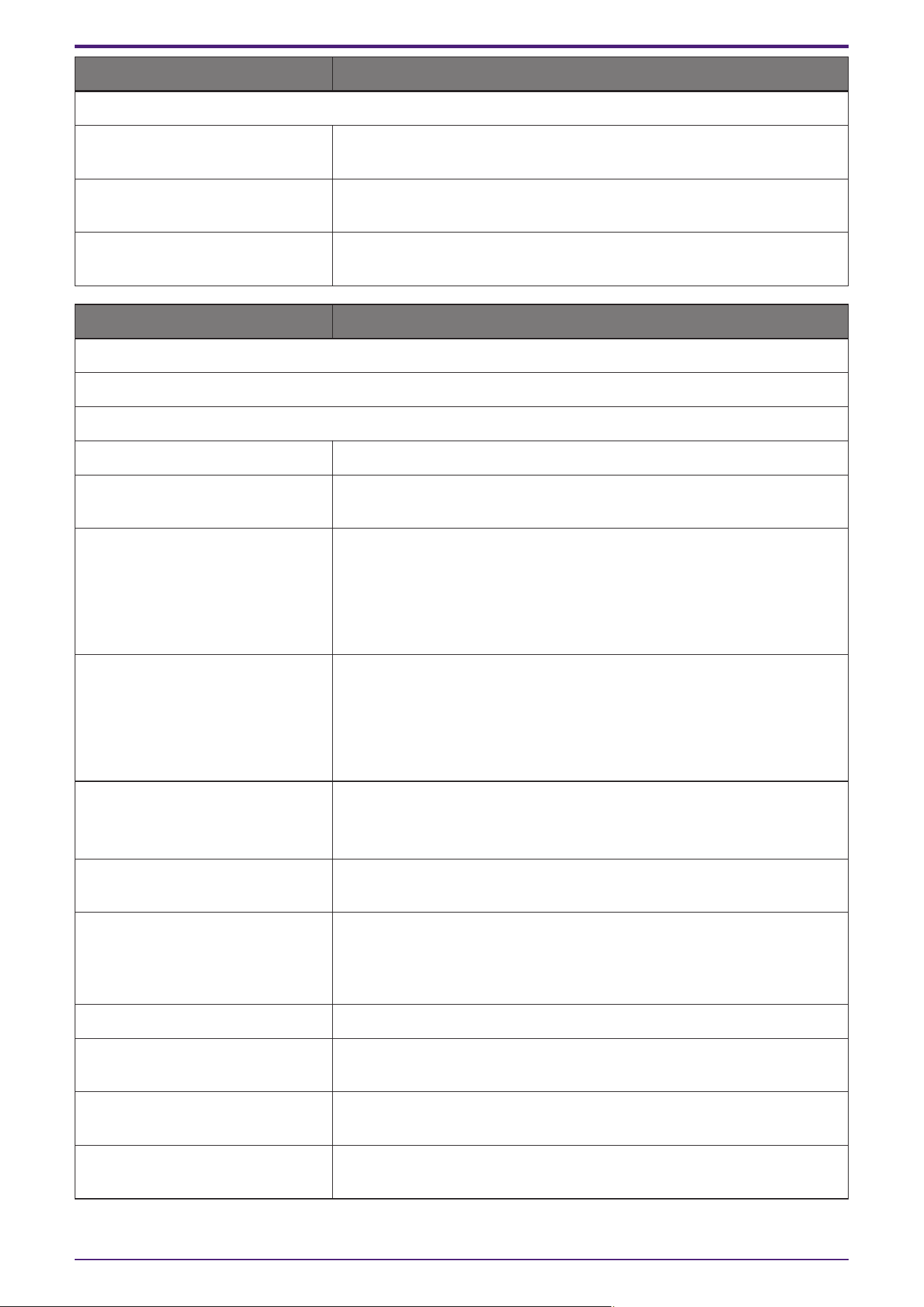
■Properties
Here we explain the parameters that are shown in the “Properties” area when the focus is on a controller or page.
Depending on the type of controller, some parameters are not shown.
●Controller
Property Value
General
[Name] The name of the controller. Click this to edit it.
[Comment] A comment for the controller. You can use this to enter explanatory
content that is not sufficiently conveyed by the controller name.
[Enable File Operation for Power
User]
In Kiosk, this opens a controller file with Power User privileges.
Power Users have restrictions on some settings, such as Settings.
[Auto Page Change] This property switches the Kiosk page when a preset or scene is recalled
from a specified device.
Property Value
Pages
10. “Controllers” area
44 | ProVisionaire Control PLUS V1.0 User Guide
Property Value
[Display Aspect Ratio]
Screen ratio (horizontal:vertical)
Adjust the screen ratio to match that of the device on which Kiosk will be
run.
When you select Custom, directly enter the Horizontal and Vertical values.
You can change the screen ratio during creation of the controller.
[Horizontal] Specifies the horizontal size of the controller when Display Aspect Ratio is
set to Custom.
You can change the screen ratio during creation of the controller.
[Vertical] Specifies the vertical size of the controller when Display Aspect Ratio is
set to Custom.
You can change the screen ratio during creation of the controller.
[Display Size]
The diagonal length of the controller.
Adjust the display size to match that of the device on which Kiosk will be
run.
[90-degree rotation] Select (Yes) to swap the vertical and horizontal dimensions of the
controller.
The orientation of the placed widgets does not change.
[Open with Full Screen Style] Select (Yes) to display the Kiosk in full screen.
Pass code
[Pass Code Setting] Select the code set in the “Setup” dialog box (Use Project Pass Code) or
the code set for each controller (Use Controller Pass Code) as the
passcode to be used in Kiosk.
When [Use Controller Pass Code] is selected, you will be able to edit
[Administrator Code], [Power User Code], and [Unlock Code].
[Administrator Code] These codes become editable when [Use Controller Pass Code] is
selected in [Pass Code Setting].
Click on Value to display the edit screen.
[Power User Code]
[Unlock Code]
ProVisionaire Edge
[ProVisionaire Edge Setting] For each controller, this selects whether settings for ProVisionaire Edge
will use the settings specified in the “Setup” dialog box (Use Project
Setting) or the settings specified in the controller’s properties (Use
Controller Setting).
When [Use Controller Setting] is selected, you will be able to edit
[Destination ProVisionaire Edge] and [Destination ProVisionaire Edge IP
Address].
[Destination ProVisionaire Edge] This property becomes editable when [Use Controller Setting] is selected
in [ProVisionaire Edge Setting].
Select whether to acquire the ProVisionaire Edge data to be displayed in
the [System Monitor] widget from the same computer as Kiosk (This PC)
or acquire it from a different computer (Other PC).
[Destination ProVisionaire Edge IP
Address]
This property becomes editable when [Use Controller Setting] is selected
in [ProVisionaire Edge Setting] and Other PC is selected in [Destination
ProVisionaire Edge]. Set the IP address of the computer on which
ProVisionaire Edge is installed.
10. “Controllers” area
ProVisionaire Control PLUS V1.0 User Guide | 45
Property Value
Widgets (displayed when used with ProVisionaire Kiosk)
[Show Widget Selection Border] Select Yes to display a frame around the widget to indicate that it is
selected.
[Offline Indication] Select Yes to display an indicator in the top right corner of the widget,
showing the online status of the device that has the parameters.
[No Assign Indication] Select Yes to display a clip in the top right corner of widgets to which no
device parameters are assigned.
Property Value
Controller
These are the same setting as Properties > pages under Controller.
Page
[Name] The name of the page. Click this to edit it.
[Comment] A comment for the page. When you click this, the “Edit Text” dialog box
opens, allowing you to edit the comment.
[HOME Page]
Yes is displayed when the page is set as the home page.
You can set this property in the following places:
・[Set as HOME] in the menu that appears when you right-click on a page
in the Devices area
・Properties > Auto Page Change under Controller
[Fallback Page]
Yes is displayed when the page is set as the fallback page.
You can set this property in the following places:
・[Set as Fallback] in the menu that appears when you right-click on a
page in the Devices area
・Properties > Auto Page Change under Controller
[Power User Code Required] Select Yes to authenticate with a Power User code when navigating to this
page in Kiosk.
Editing is not possible when specified on the home page.
[Background Color] The background color of the page. When you click the square, the “Select
Color” dialog box opens, allowing you to select a background color.
[Background Image] The background image of the page. When you click the square, the “Select
Image” dialog box opens, allowing you to select image data that will be
shown above the background color. If you click the trash can button, the
background image settings are discarded.
[Scaling] Sets the reduction ratio of the image.
[Image Expansion Mode] Specifies how the background image is shown. For details on this setting,
refer to 「About the Expansion Mode」
[Snap to Grid] Selects whether widgets will be aligned with the grid (Yes) or can be
placed freely (No).
[Dot Color] The color of the grid’s dots. When you click the square, the “Select Color”
dialog box opens, allowing you to select the dot color.
10. “Controllers” area
46 | ProVisionaire Control PLUS V1.0 User Guide
Property Value
[Cell Width] The spacing of the grid. When you click this, a spin box appears; you can
edit the setting by clicking or by directly entering a value.
10. “Controllers” area
ProVisionaire Control PLUS V1.0 User Guide | 47
11. “Devices” area
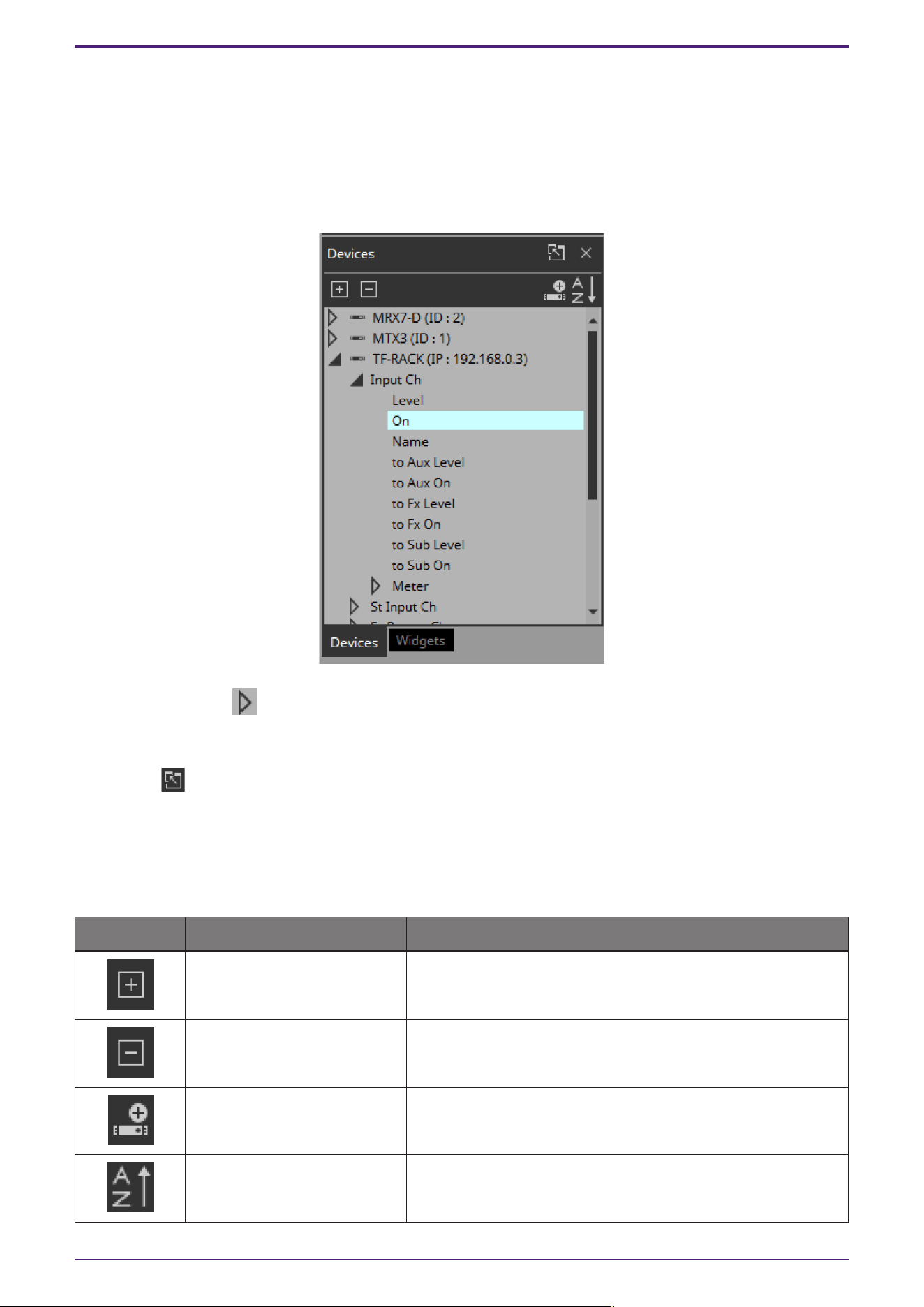
This area shows the devices registered in the project and the parameters of those devices.
Place widgets in the work area by dragging and dropping parameters into the work area.
If the parameter has multiple instances, such as the [On] switch of an input channel, a dialog box asks you which
should be assigned when you drop the item. In the dialog box, you can use the <Ctrl> key or <Shift> key to make
a multiple selection.
By clicking the triangle located at the left of a device or parameter, you can expand or collapse the display for
each individual device or parameter.
Use the tab below to switch between showing the “Devices” area or the “Widgets” area.
If you click “ ,” the area floats, and the tab is not shown.
If an unregistered device is detected, a “?” is shown at the left of that device.
■ Buttons
Here we explain the buttons of the “Devices” area.
Button Command Summary
[Expand All] Expands all devices and parameters.
[Collapse All] Collapses all devices and parameters.
[Add Device] Adds a device to the project.
[Sort Devices in Ascending
Order]
Shows the devices in ascending order.
11. “Devices” area
48 | ProVisionaire Control PLUS V1.0 User Guide
Button Command Summary
[Sort Devices in Descending
Order]
Shows the devices in descending order.
■ Context menu
Menu Summary
[Add] If a device not registered in the project is detected, the corresponding
device is registered.
[Delete] Deletes the device from the project.
■ Properties
Here we explain the parameters that are shown in the “Properties” area when the focus is on a device or
parameter.
Property Value
[Model] Indicates the model name of the device.
[Identifier]
Indicates the unit ID or IP address of the device.
When you click this, the “Edit Device Identifier” dialog box opens, allowing
you to edit the unit ID or IP address. If a widget for the corresponding
device is already placed, the unit ID and IP address of the widget change
in response to your edit.
[Device Name] Indicates the name of the device. Click this to edit it.
11. “Devices” area
ProVisionaire Control PLUS V1.0 User Guide | 49
12. “Widgets” area
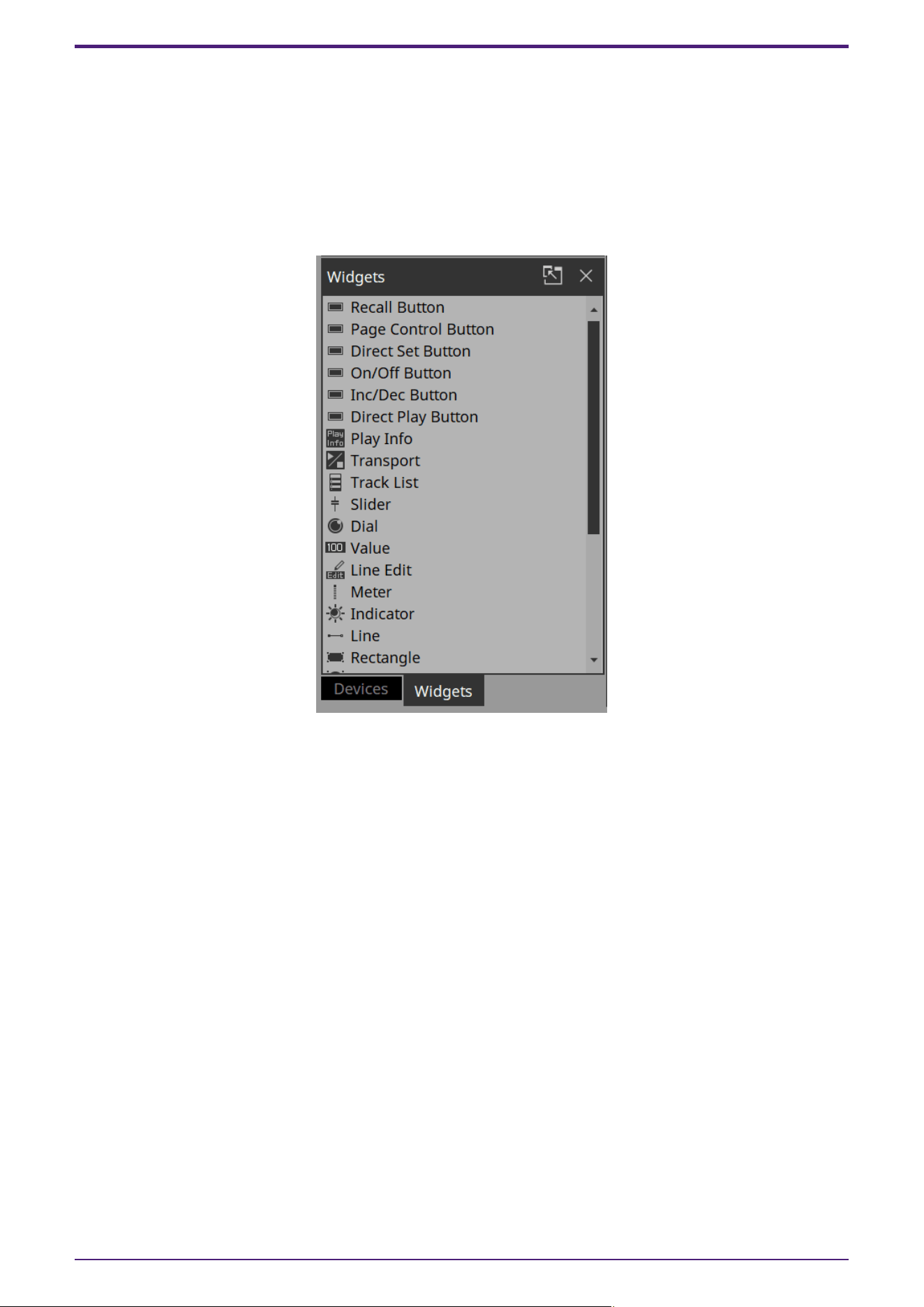
This area shows the widgets that can be placed in the work area.
Place widgets in the work area by dragging and dropping a widget into the work area.
Assign device parameters by dragging and dropping a parameter from the “Devices” area onto the placed
widget.
Device parameters can also be assigned by dragging and dropping them from the MTX-MRX Editor or
ProVisionaire Design component editor.
For details on each widget, refer to the chapter "wigets."
This area does not have buttons, a context menu, or property-related items.
12. “Widgets” area
50 | ProVisionaire Control PLUS V1.0 User Guide
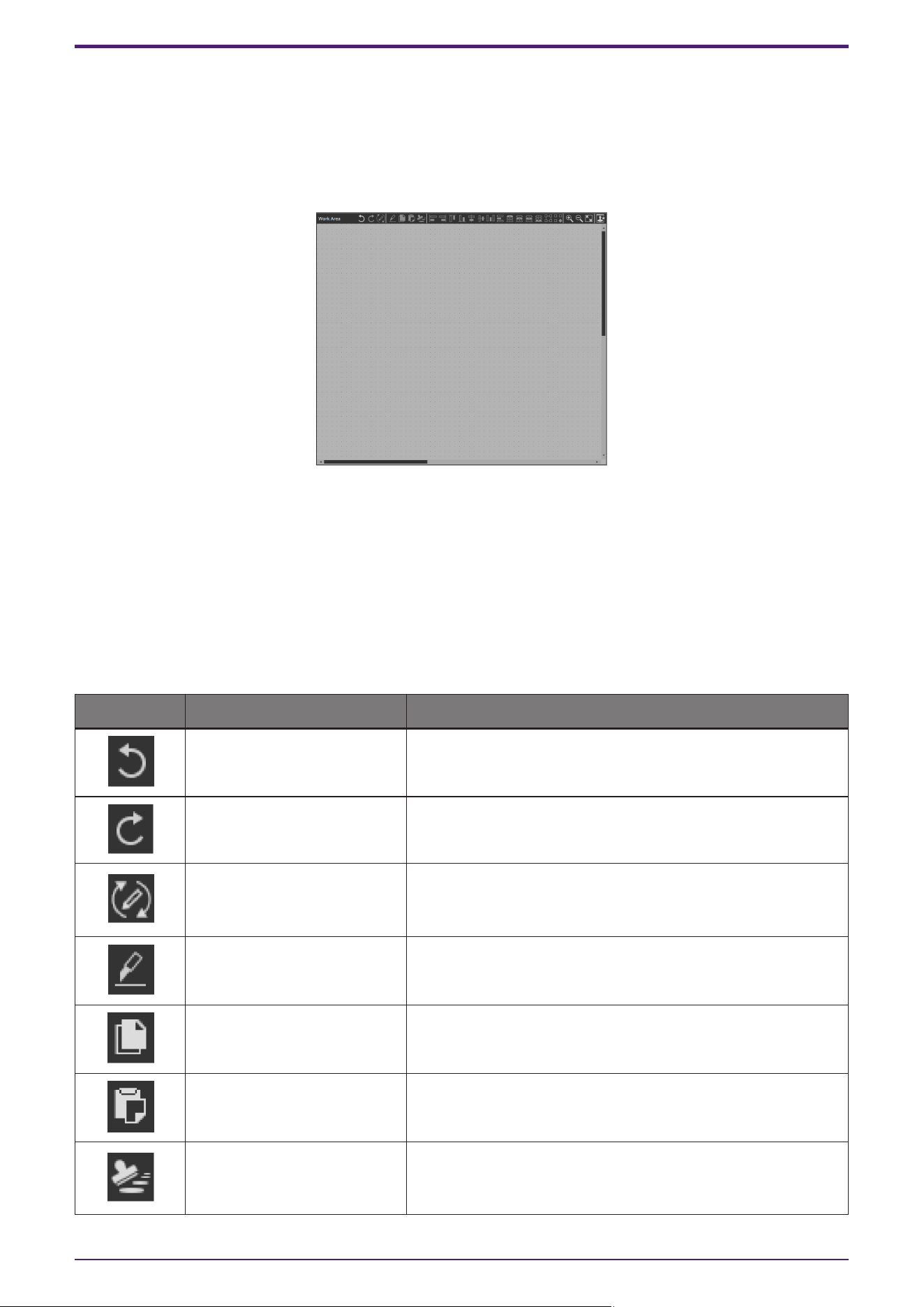
13. Work area
The currently selected page is shown here.
Place parameters and widgets in this area.
For placement instructions, refer to the “Devices” area, “Widgets” area, and “Adding parameters and meters from
apps other than ProVisionaire Control”.
If you drag and drop a parameter (while holding down the <Ctrl> key when using ProVisionaire Design or MTX-
MRX Editor) onto an already placed widget, you can replace (or add, depending on the widget type) the
parameter to be controlled.
When you click in the work area on a location where there is no widget, the properties of the page appear in the
“Properties” area.
■ Buttons
Commands that are frequently used for work area operations are placed above the work area as buttons.
Button Command Summary
[Undo] Cancels the previous widget-related operation. Some items
cannot be undone.
[Redo] Re-executes the operation that was canceled by [Undo].
[Repeat] When the “Properties” area > Position/Appearance (except X, Y,
Width, and Height) of any widget was changed, applies the
same change to the next selected widget.
[Cut] Moves the selected object into the copy buffer.
[Copy] Copies the selected object into the copy buffer.
[Paste] Pastes the object from the copy buffer.
[Duplicate to Other Channels] For a widget to which device parameters are assigned and the
set channels or such parameters were changed, duplicates the
widget.
13. Work area
ProVisionaire Control PLUS V1.0 User Guide | 51
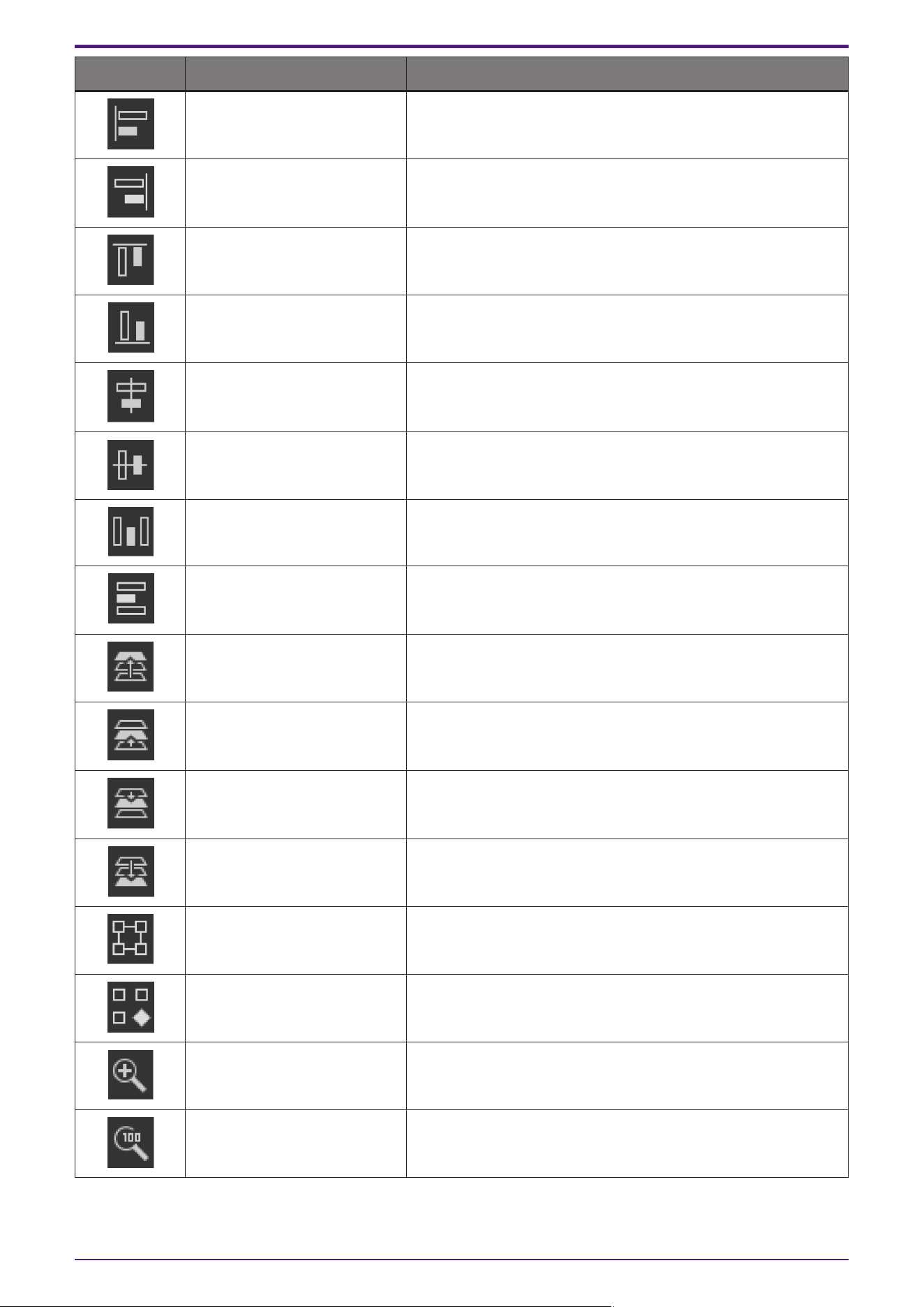
Button Command Summary
[Align Left] Aligns the left edge to the left-most of the multiple selected
widgets.
[Align Right] Aligns the right edge to the right-most of the multiple selected
widgets.
[Align Top] Aligns the top edge to the highest of the multiple selected
widgets.
[Align Bottom] Aligns the bottom edge to the lowest of the multiple selected
widgets.
[Align Horizontal Center] Aligns the center of the widget to the horizontal mid-point of
the multiple selected widgets.
[Align Vertical Center] Aligns the center of the widget to the vertical mid-point of the
multiple selected widgets.
[Distribute Horizontally] Equidistantly spaces the multiple selected widgets in the
horizontal direction.
[Distribute Vertically] Equidistantly spaces the multiple selected widgets in the
vertical direction.
[Bring to Front] Moves the selected widget all the way forward.
[Bring Forward] Moves the selected widget forward.
[Send Backward] Moves the selected widget backward.
[Send to Back] Moves the selected widget all the way back.
[Group] Groups the selected multiple widgets.
[Ungroup] Cancels grouping for the selected group.
[Zoom In] Increases the magnification of the work area display.
[Zoom Origin] Sets the work area display to 100% magnification.
13. Work area
52 | ProVisionaire Control PLUS V1.0 User Guide
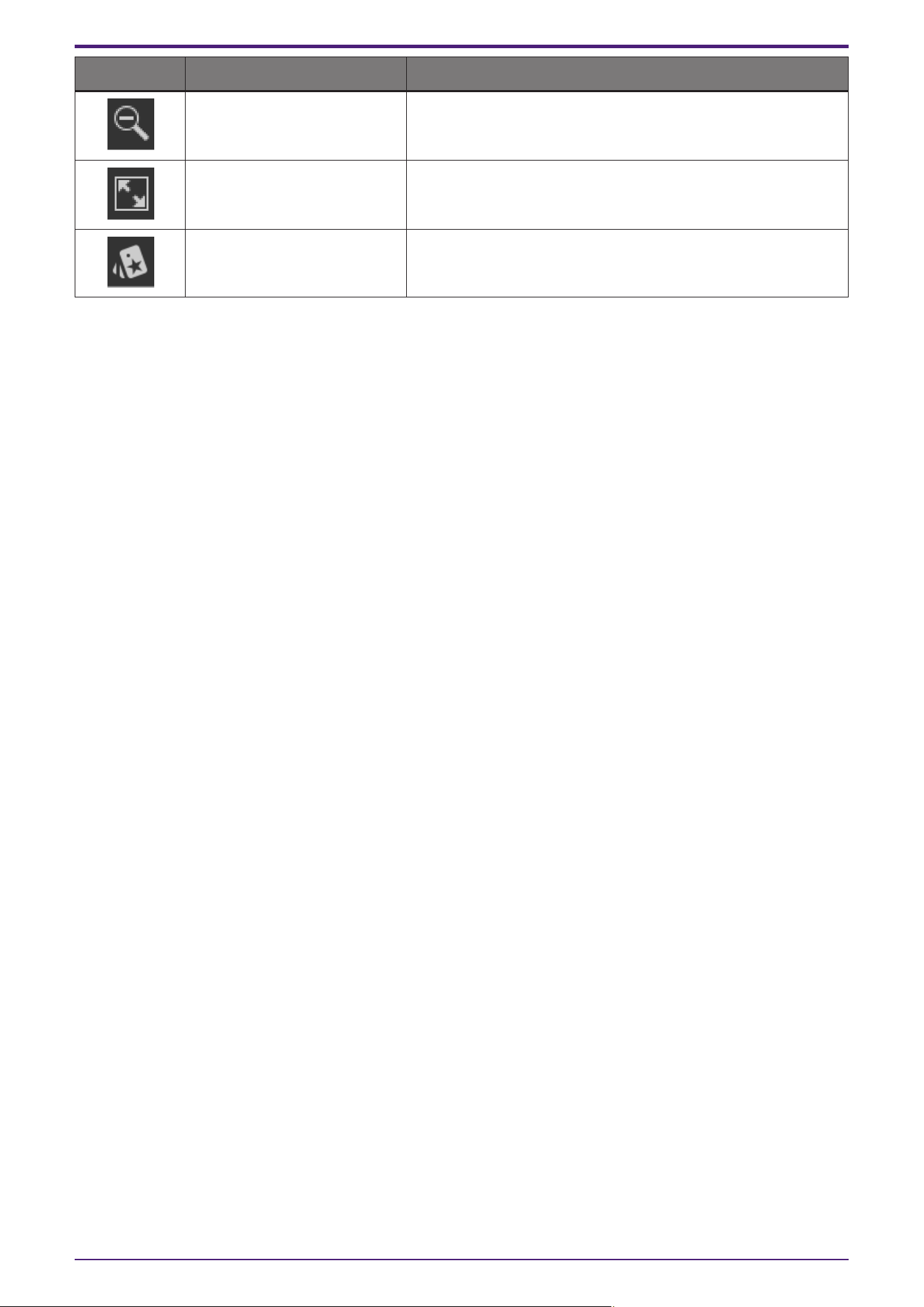
Button Command Summary
[Zoom Out] Decreases the magnification of the work area display.
[Fit to Screen] Shows the entire page in the work area.
[Open Style] Opens the “Style” dialog box.
13. Work area
ProVisionaire Control PLUS V1.0 User Guide | 53
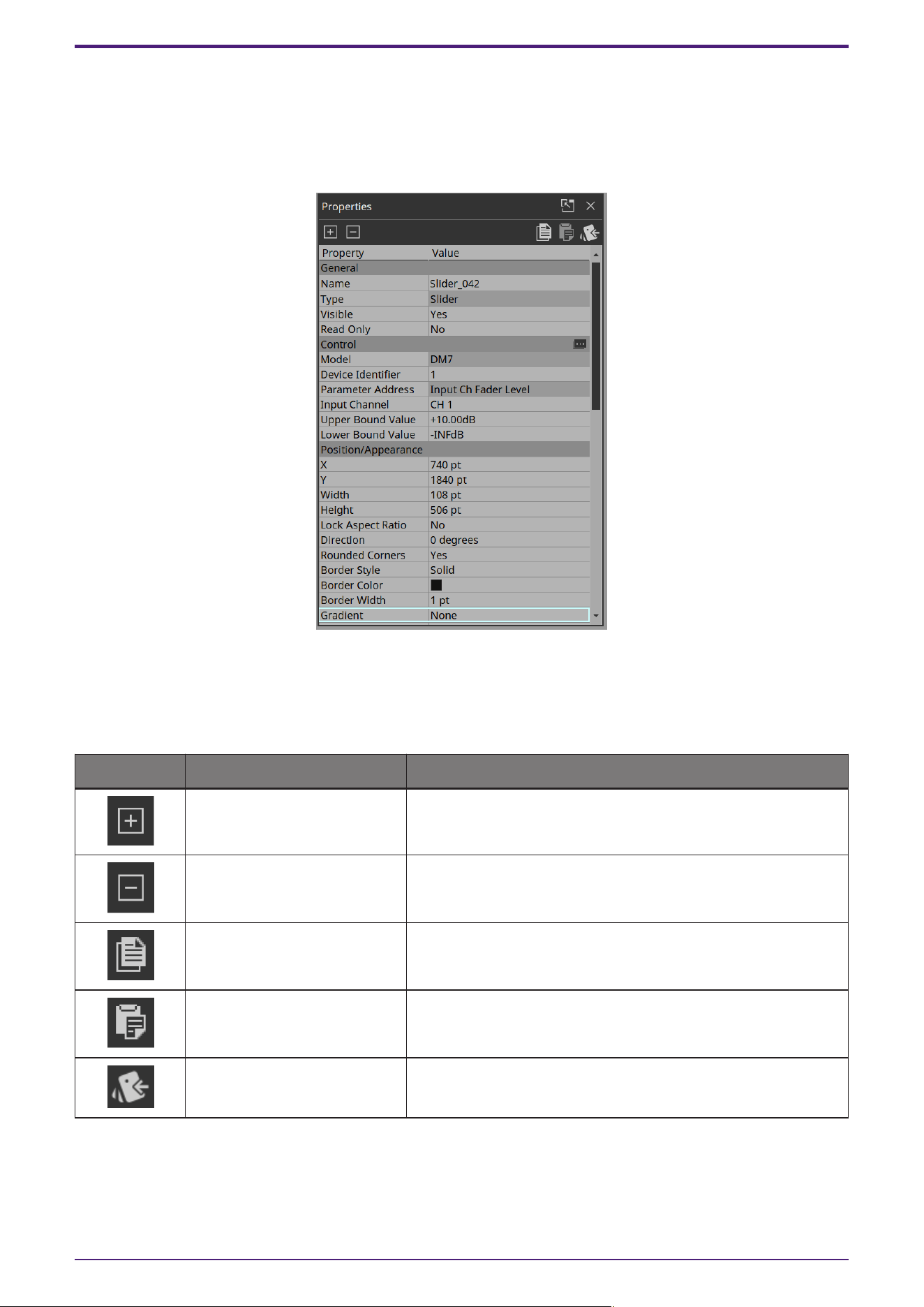
14. “Properties” area
This area shows the properties of a page or a widget.
You can edit items whose “Value” field is not shaded.
To expand or collapse individual items, double-click the property category name.
14.1. Buttons
Commands that are frequently used for properties operations are placed at the top of the “Properties” area as
buttons.
Button Command Summary
[Expand All] Expands all of the properties items.
[Collapse All] Collapses all of the properties items.
[Copy Appearance] Copies the Appearance (appearance-related settings) of the
selected widget to the copy buffer.
[Paste Appearance] Pastes the Appearance (appearance-related settings) stored in
the copy buffer onto the selected widget.
[Save as Style] Reflects the Appearance of the selected widget as the style.
14. “Properties” area
54 | ProVisionaire Control PLUS V1.0 User Guide
15. Widgets
This chapter describes widgets and parameters that are displayed in the “Properties” area when a widget is
selected.
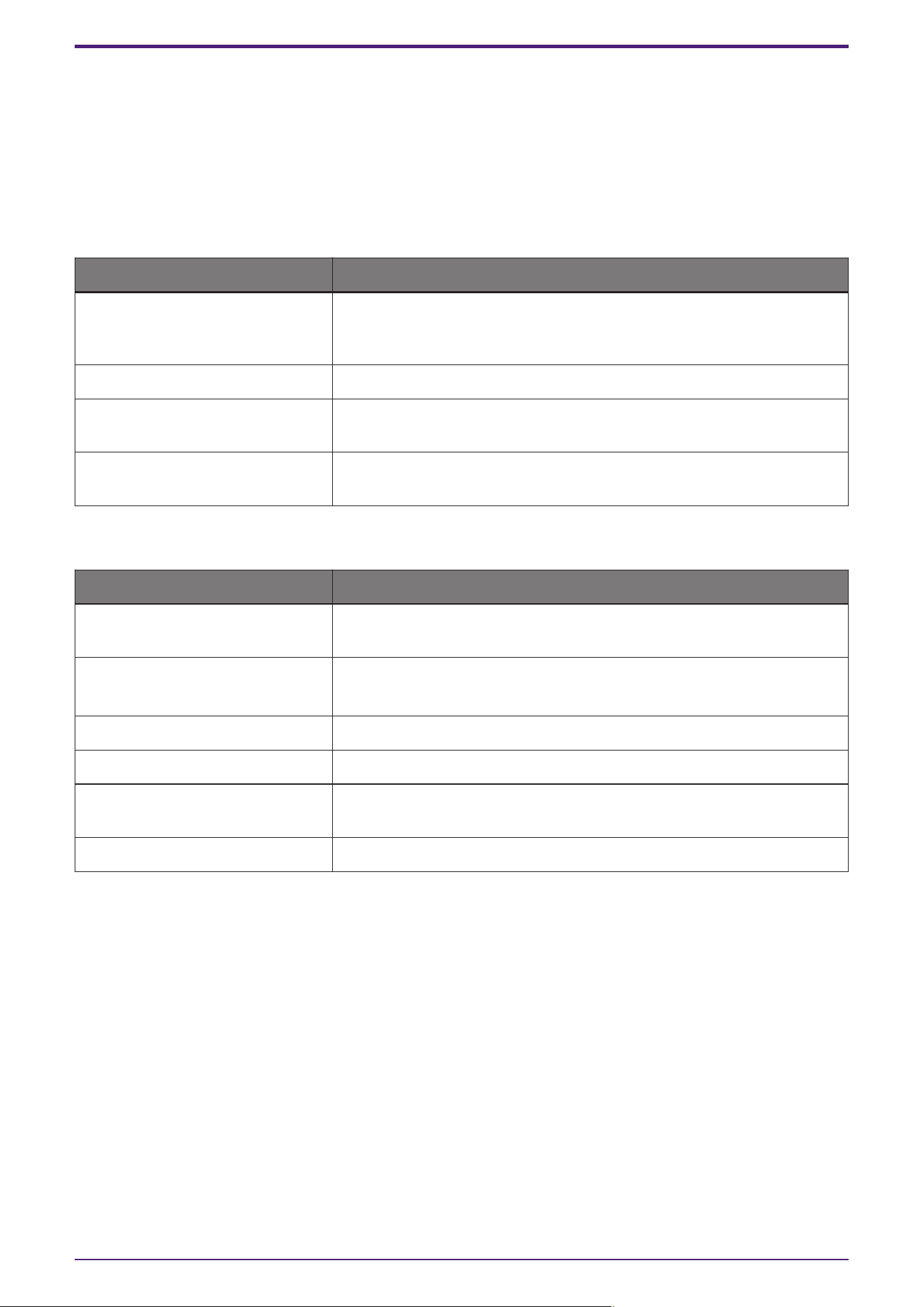
15.1. “Common widget items”
15.1.1. General
Property Value
[Name] The name of the widget. If you place the widget first and assign a
parameter later, you can enter a name here to indicate the parameter that
you intend to assign.
[Type] The type of widget.
[Visible] When [No] is selected, the widget will not be displayed when Kiosk starts
up.
[Read Only] When [Yes] is selected, you will not be able to operate the widget when
Kiosk starts up. In this case, the widget acts like an indicator.
15.1.2. Control
Property Value
[Model] The model name of the device that has parameters, presets, etc.,
assigned to the widget.
[Device Identifier]
The search method for devices on the network.
Click here to change the method.
[Parameter Address] The address of the parameter assigned to the widget.
[Input Channel] The channel number of the parameter assigned to the widget.
[Confirmation] When [Yes] is selected, a confirmation message appears before Kiosk
executes the operation.
[Confirmation Text] Click here to edit the confirmation message.
15. Widgets
ProVisionaire Control PLUS V1.0 User Guide | 55
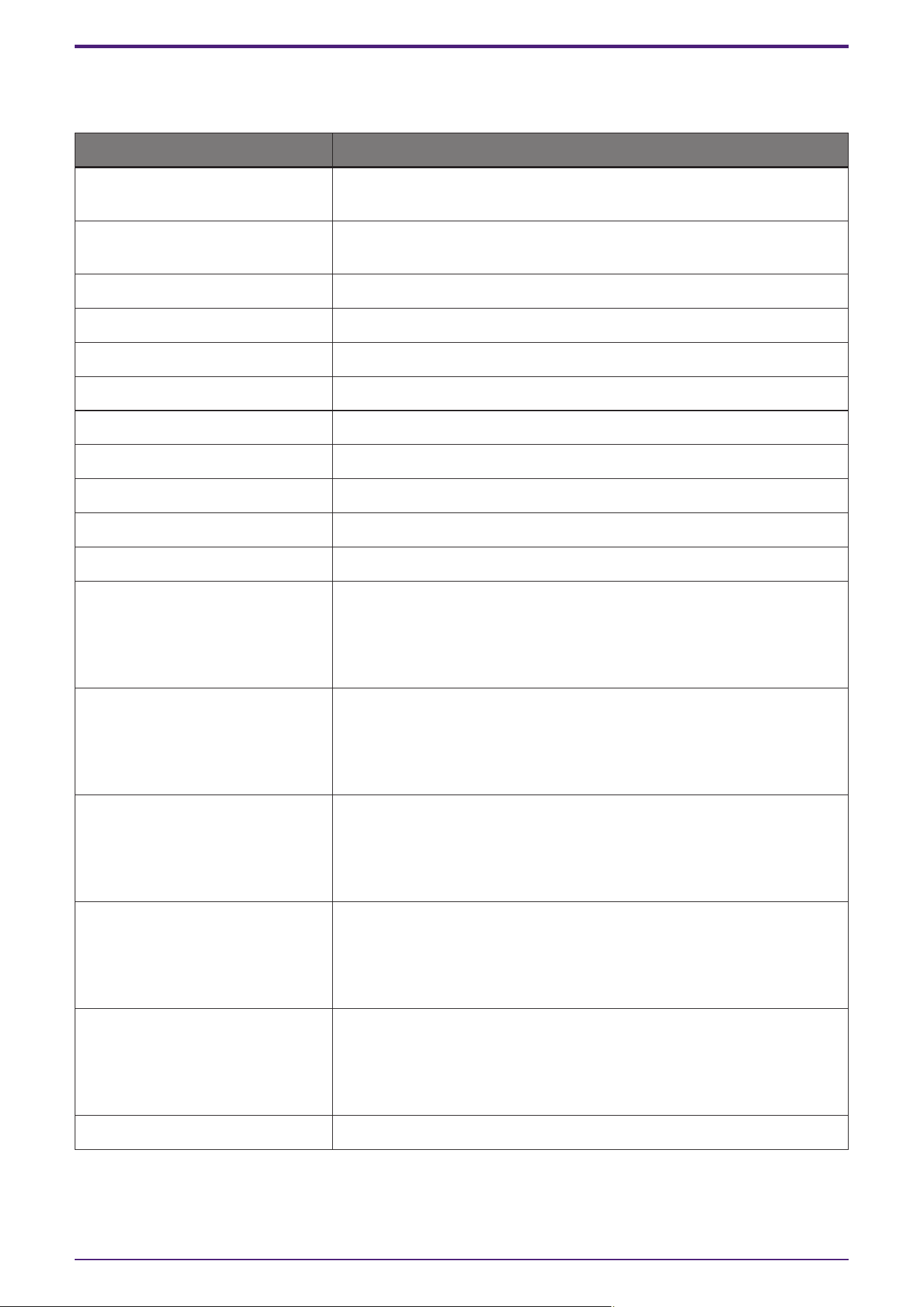
15.1.3. Position/Appearance
All information other than the X and Y values is style-related information.
Property Value
[X] Specifies the horizontal distance from the top left of the screen and the
top left of the widget.
[Y] Specifies the vertical distance from the top left of the screen and the top
left of the widget.
[Width] Specifies the width of the widget.
[Height] Specifies the height of the widget.
[Lock Aspect Ratio] Selects whether the width/height ratio of the widget will be fixed.
[Shape] Selects the widget shape.
[Corner] Sets the corner radius of the widget.
[Border Style] Selects the type of border for the widget.
[Border Color] Specifies the color of the slit’s border.
[Border Width] Specifies the width of the slit’s border.
[Gradient] Selects the type of gradation within the slit.
[Color]
[On Color]
[Off Color]
*1
Specifies the color within the widget.
[Background Color]
[On Background Color]
[Off Background Color]
*1
Specify the background color within the widget.
[Image]
[On Image]
[Off Image]
*1
Specifies the image within the widget.
[Image Expansion Mode]
[On Image Expantion Mode]
[Off Image Expantion Mode]
*1
Selects how the image is seen within the widget.
[Scaling]
[On Image Scaling]
[Off Image Scaling]
*1
Sets the reduction ratio of the image.
[Effect] Specifies how a shadow is added to the outer part of the widget.
*1 If the widget has statuses, each status can be set.
15. Widgets
56 | ProVisionaire Control PLUS V1.0 User Guide
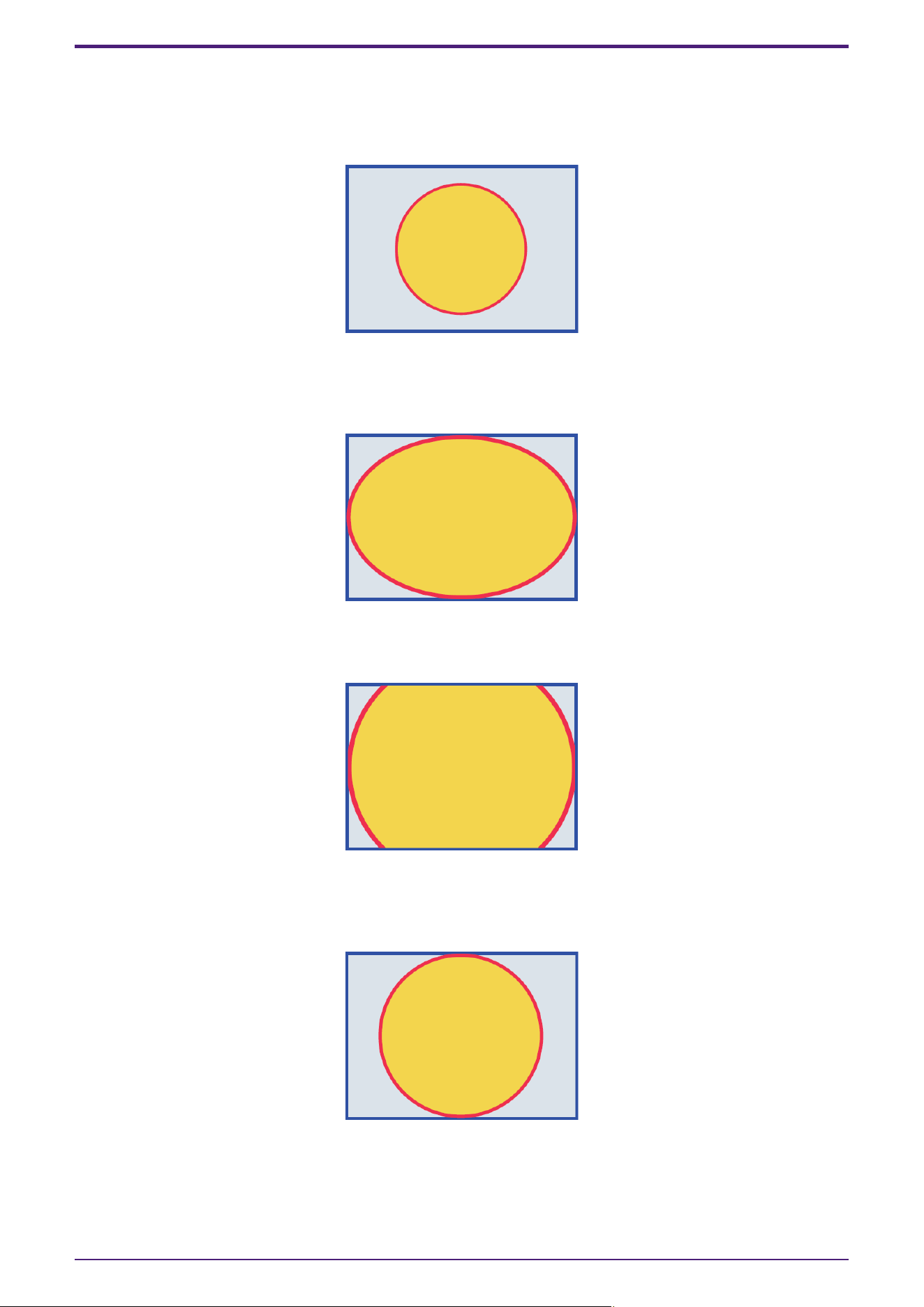
Image Expansion Mode
• None
The image is placed in the center of the area without any change in size
• Full
The displayed image is scaled to fit the entire display area in both height and width, while its aspect ratio is
ignored.
• Aspect Fill
The displayed image is scaled to fill as much of the display area as possible, while its aspect ratio is maintained.
• Aspect Fit
The displayed image is scaled to the maximum size that fits the entire image in the display area, while its aspect
ratio is maintained.
• Scaling
You can set the image reduction ratio in relation to the widget. When 100% is selected, the displayed image will
fill the entire area.
15. Widgets
ProVisionaire Control PLUS V1.0 User Guide | 57
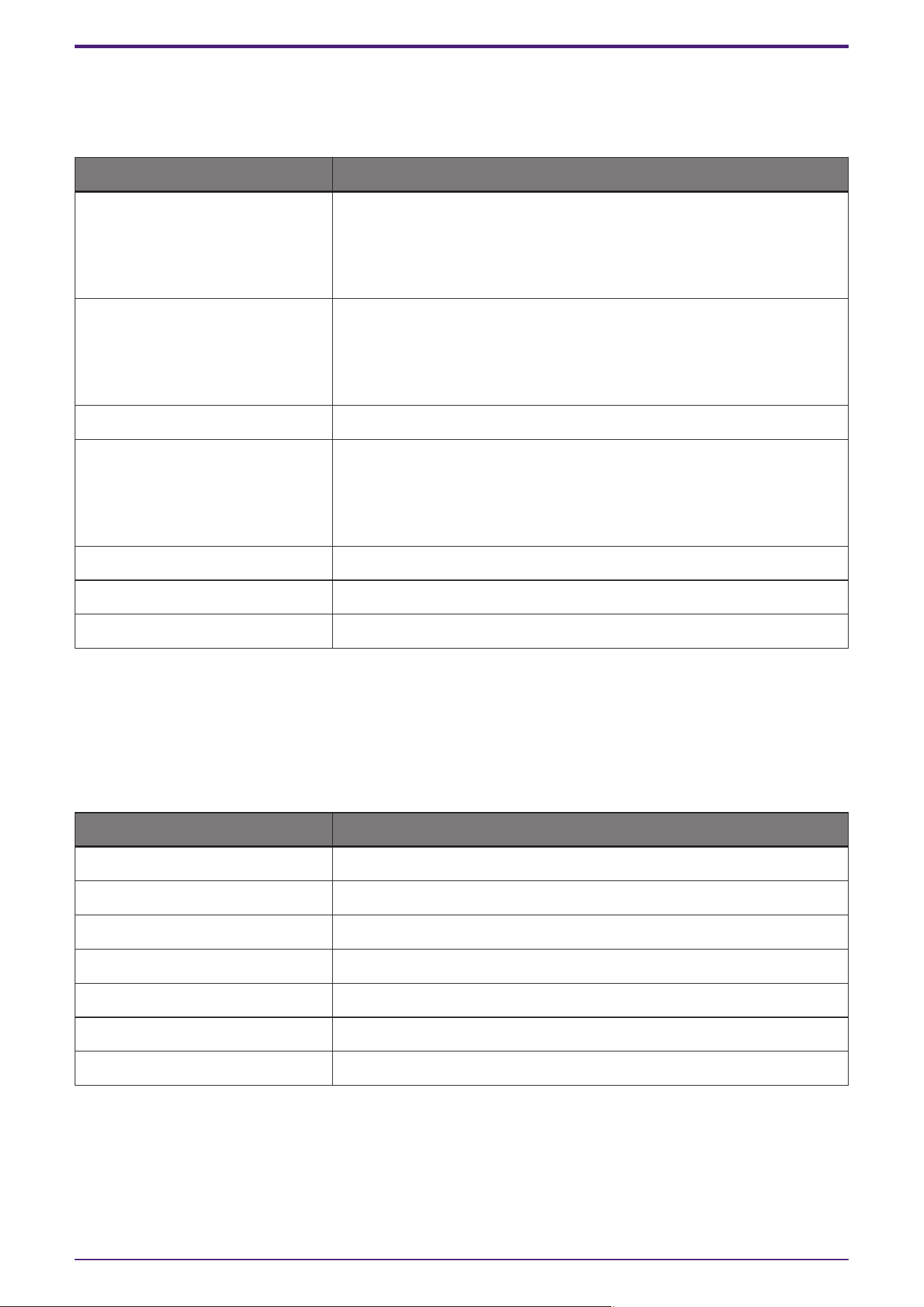
15.1.4. Text
A text string to be displayed inside the widget.
Information other than “Text” is style-related information.
Property Value
[Visible]
[On Visible]
[Off Visible]
*1
Select [Yes] to display the text in Kiosk.
[Text]
[On Text]
[Off Text]
*1
Specifies the text.
[Font] Specifies the font of the text.
[Color]
[On Color]
[Off Color]
*1
Specifies the color of the text.
[Vertical Alignment] Selects the vertical position of the text.
[Horizontal Alignment] Selects the horizontal position of the text.
[Direction] Selects the direction of the text.
*1 If the widget has statuses, each status can be set.
15.1.5. Label / Value Lavel
A text string to be displayed outside the widget.
Information other than “Text” is style-related information.
Property Value
[Visible] Select [Yes] to display the label in Kiosk.
[Text] Edits the label.
[Font] Specifies the font of the label.
[Font Color] Specifies the color of the label.
[Position] Selects the position of the label.
[Alignment] Selects the alignment of the label.
[Margin] Sets the distance between the label and the widget.
15. Widgets
58 | ProVisionaire Control PLUS V1.0 User Guide
15.2. Recall Button
Used to recall scenes or presets.
You can assign up to 16 presets or scenes for the same device or multiple devices.
Control
Property Value
[Control]
Click the [...] button to open the “Target Editor” dialog box.
You can check/edit the assigned presets and scenes.
[Indicator Mode]
When Press is selected, the [On Color] color will always be applied.
When Stateful is selected, the indicator will light up in the [On Color] color
when a preset/scene with the corresponding number is recalled on the
device.
[Preset No]
[Scene No]
[Scene A/B No]
[Param. Set ID / Snapshot No]
These select the number of the scene, preset,or snapshot.
For DME7/MRX7-D snapshots, drag and drop Snapshot from the “Parameter Sets” area that can be accessed
from ProVisionaire Design > DME7.
15.3. Page Control Button
Used to navigate to another page in Kiosk.
Control
Property Value
[Page Control Action]
Page Jump - Moves to the page specified in [Page Name].
Home - Moves to the Home page.
Close - Closes the currently displayed Kiosk.
Screen Lock - Switches to the lock screen.
[Page Name]
This is enabled when Page Jump is selected in [Page Control Action].
Click here to specify the page to which you want to move.
15. Widgets
ProVisionaire Control PLUS V1.0 User Guide | 59
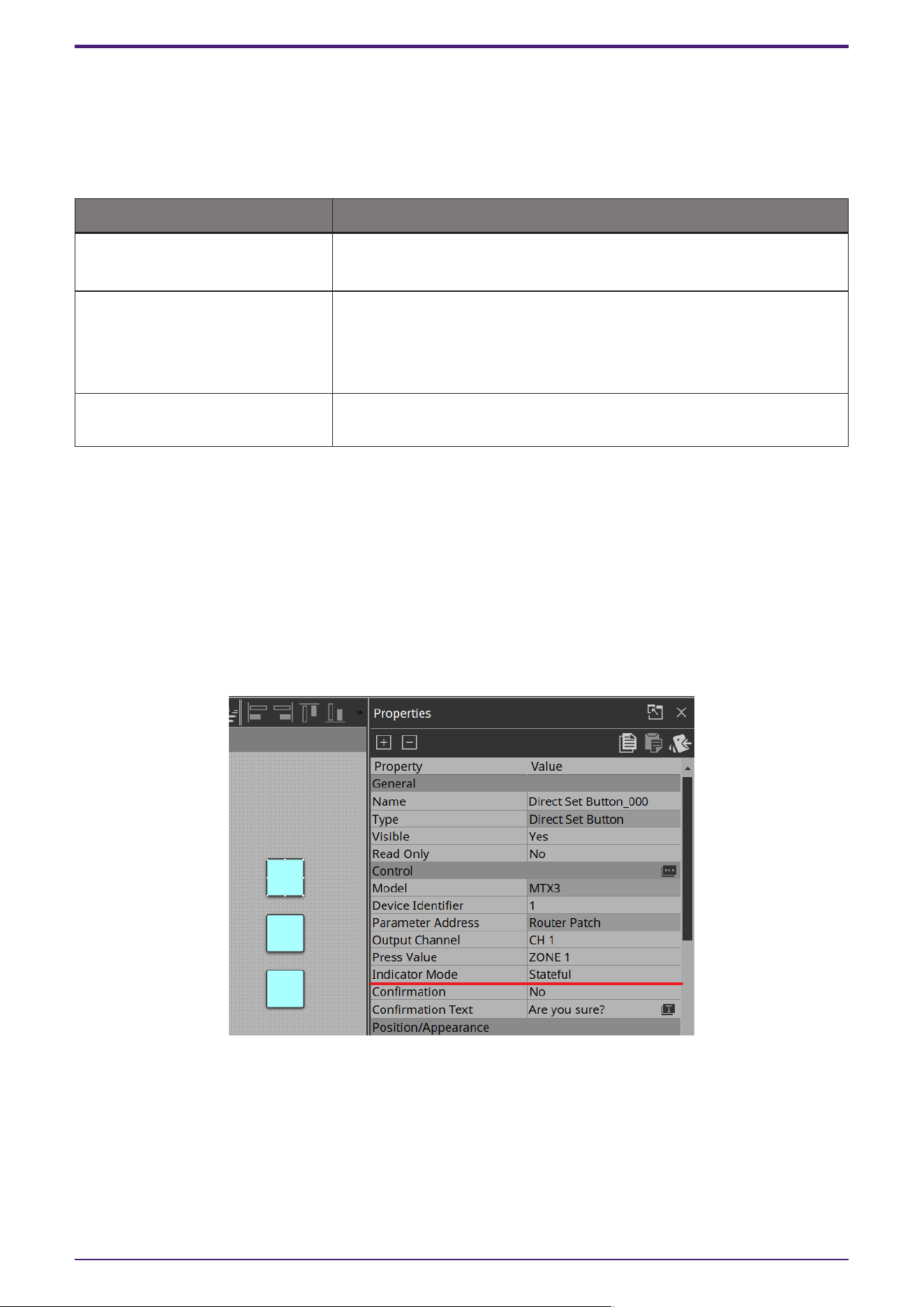
15.4. Direct Set Button
Changes the device parameter to the value specified in [Press Value].
You can assign up to 16 parameters for the same device or multiple devices.
Control
Property Value
[Control]
Click the [...] button to open the “Target Editor” dialog box.
You can check/edit the assigned parameters.
[Press Value]
Sets the value to be set on the device.
When multiple parameters are assigned, check/change them in the
“Target Editor” dialog box.
The dialog box opens when you click the […] button under Control.
[Indicator Mode] When Stateful is selected, the indicator lights up when the device is at the
specified value.
When you click the Direct Set Button, the parameter value set in Press Value under Properties is sent to the
device.
If the sent parameter value matches the value of the controlled device, the button lights up in the color specified
by On Color. If the values do not match, the button lights up in the color set by Off Color.
By placing multiple Direct Set Buttons, you can achieve radio button-like behavior.
Specifically, these buttons are suitable for controlling the Router and Source Selector parameters of MTX3,
MTX5-D, MRX7-D, and DME7.
The following shows a specific example.
Place a Direct Set Button and set Indicator Mode in Properties to Stateful.
Place multiple buttons with these same settings.
Assign Ch 1 to all buttons from Router > Patch.
15. Widgets
60 | ProVisionaire Control PLUS V1.0 User Guide
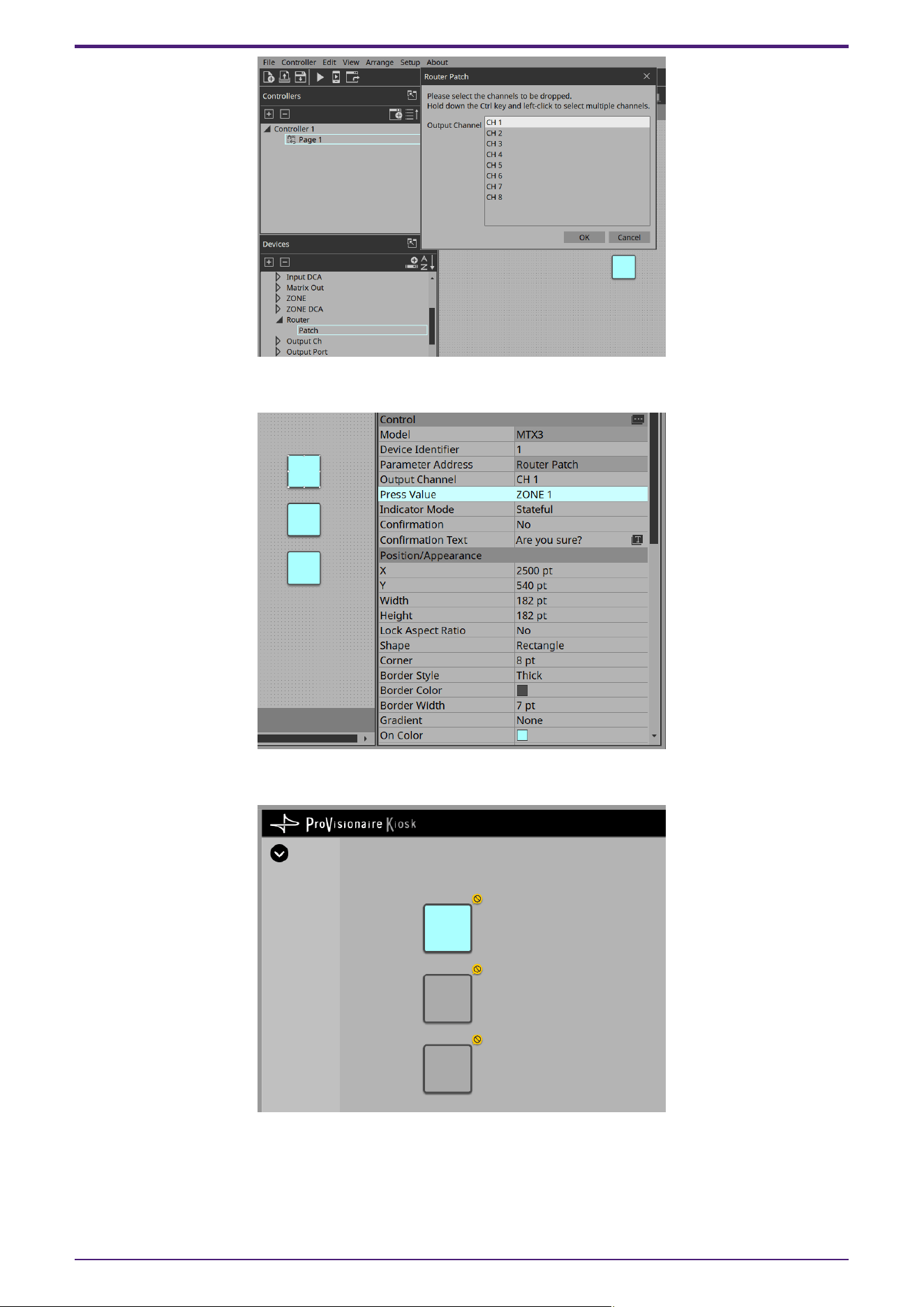
Under Properties > Press Value, select Zone 1. For the other buttons, select Zone 2 and Zone 3 respectively.
When you execute the buttons on Kiosk and click them, only the button that is on will light up.
15. Widgets
ProVisionaire Control PLUS V1.0 User Guide | 61
15.5. On/Off Button
Toggles device parameter values between on and off.
You can assign up to 16 parameters for the same device or multiple devices.
A button to which multiple parameters are assigned is called a multi button.
When you drag and drop a parameter to a button for which a parameter has already been assigned, a
confirmation dialog box asks whether you want to replace (Replace), add (Add), or cancel (Cancel).
Simultaneously select multiple buttons to which parameters have already been assigned and then select Create
Multi Button from the Edit menu to create a new multi button.
Control
Property Value
[Control]
Click the [...] button to open the “Target Editor” dialog box.
You can check/edit the assigned parameters.
[On Value]
[Off Value]
Sets the value that will be set on the device when the button is turned on
or off.
When multiple parameters are assigned, check/change them in the
“Target Editor” dialog box.
The dialog box opens when you click the […] button under Control.
[Switching Mode] Selects whether the button operates in latched or unlatched mode.
15. Widgets
62 | ProVisionaire Control PLUS V1.0 User Guide
15.6. Inc/Dec Button
Increases or decreases a parameter value of the device.
Control
Property Value
[Inc/Dec Step] Sets the amount by which to increase or decrease the value each time you
click.
A positive value increases the parameter value, and a negative value
decreases it.
[Repeat] When [Yes] is selected, you can press and hold the button to continuously
increase/decrease.
[Rotation] When [Yes] is selected, click the button when the value reaches the
maximum value to change the value to the minimum value.
When [Yes] is selected, click the button when the value reaches the
minimum value to change the value to the maximum value.
CAUTION
If you assign a volume-type parameter (such as Level) and specify Yes,
the volume will suddenly increase from the minimum value to the
maximum value, possibly causing explosive sound.
[Upper Bound Value] Specifies the maximum value.
[Lower Bound Value] Specifies the minimum value.
15.7. Direct Play Button
Plays back/stops files on the SD card inserted in the MTX/MRX7-D/DME7.
Control
Property Value
[Action]
Play - Plays the file.
Pause - Pauses the file.
[Play Target]
Play 1 Song - Plays the file specified by [SD Card:/].
Play Folder - Plays the files in the folder specified by [SD Card:/].
[Play Mode]
Specifies how the file will be played back.
Normal - Plays the file or files in the folder specified by [SD Card:/] once.
Repeat - Plays the file or files in the folder specified by [SD Card:/] on
repeat.
[Go to the top when playback stops]
Specifies the action to be taken when playback starts after stopping.
Yes - Plays the specified file/folder from the beginning.
No - Resumes playback from where it was stopped.
[Interval Time] Sets the interval between files during playback.
[SD CARD:/] Specifies a file or folder on the SD card of MTX or MRX7-D.
15. Widgets
ProVisionaire Control PLUS V1.0 User Guide | 63
15.8. Play Info
This item displays information about the currently selected file on the SD card inserted in MTX/MRX7-D/DME7.
For Properties, refer to “Common widget items.”
15.9. Transport
This item controls the currently selected file on the SD card inserted in MTX/MRX7-D/DME7.
For Properties, refer to “Common widget items.”
15.10. Track List
This item selects a file/folder on the SD card inserted in MTX/MRX7-D/DME7.
For Properties, refer to “Common widget items.”
15.11. Slider
This item mainly changes level-related parameters.
You can assign up to 16 parameters for the same device or multiple devices.
A slider to which multiple parameters are assigned is called a “multi slider.”
When you drag and drop a parameter to a slider for which a parameter has already been assigned, a
confirmation dialog box is displayed, asking whether you want to replace or add the parameter, or cancel.
Simultaneously select multiple sliders to which parameters have already been assigned and then select Create
Multi Slider from the Edit menu to create a new multi slider.
Control
Property Value
[Control]
Click the [...] button to open the “Target Editor” dialog box.
You can check/edit the assigned parameters.
[Upper Bound Value] Specifies the maximum value.
[Lower Bound Value] Specifies the minimum value.
Appearance/Position
Information about styles.
Property Value
[Direction] Selects the direction of the widget.
[Rounded Corners] Select [Yes] to round the corners of slits.
[Knob Style] Selects the type of knob.
[Knob Width] Specifies the width of the knob.
[Knob Image] Specifies the image of the knob.
15. Widgets
64 | ProVisionaire Control PLUS V1.0 User Guide
Scale
Information about styles.
Property Value
[Position] Selects the position of the scale.
[Width] Specifies the thickness of the scale.
[Color] Specifies the color of the scale.
[Value Visible] Select [Yes] to display numbers on the scale.
[Font] Selects the font of the scale numerals.
[Font Color] Selects the color of the scale numerals.
15.12. Dial
This item mainly changes level-related parameters.
Control
Property Value
[Band Base Value] Specifies the initial value specified when the widget is placed.
Appearance/Position
Information about styles.
Property Value
[Dial Type] Selects the type of dial.
[Start Angle] Sets the knob position when it is at the minimum value.
[End Angle] Sets the knob position when it is at the maximum value.
[Knob Color] Specifies the color within the knob.
[Background Color] Sets the background color within the knob.
[Grip Shape] Selects the shape of the grip.
[Grip Size] Specifies the size of the grip.
[Grip Color] Specifies the color of the grip.
[Band On Color] Specifies the color inside the band below the current value.
[Band Off Color] Specifies the color inside the band above the current value.
15.13. Value
This widget displays the current value of a parameter.
For Properties, refer to “Common widget items.”
15. Widgets
ProVisionaire Control PLUS V1.0 User Guide | 65
15.14. Line Edit
This widget allows you to directly enter parameter values.
For Properties, refer to “Common widget items.”
15.15. Meter
This item displays the meter value of a device.
Control
Property Value
[Meter Type] Selects the meter’s display method.
[Bar Base Point] Selects the point from which the bar is solidly colored.
Scale
Information about styles.
Property Value
[Position] Selects the position of the scale.
[Width] Specifies the thickness of the scale.
[Color] Specifies the color of the scale.
[Value Visible] Selects whether numerals are shown for the scale.
[Font] Selects the font of the scale numerals.
[Font Color] Selects the color of the scale numerals.
15.16. Indicator
This item displays the status of a device meter.
Control
Property Value
[Indication Threshold]
Specifies the threshold value at which on/off is switched.
The indicator turns on when the value reaches or exceeds the threshold
and turns off when it falls below the threshold.
15. Widgets
66 | ProVisionaire Control PLUS V1.0 User Guide
15.17. Line
Control
Property Value
[Angle] Indicates the angle of the widget, relative to the bottom edge when the
widget is placed.
To change Angle, drag one of the squares that appear on both ends when
a widget is selected.
[Length]
Indicates the length of the widget.
To change Length, drag one of the squares that appear on both ends
when a widget is selected.
[Style] Selects the style of the widget.
15.18. Rectangle / Ellipse / Polygon
These widgets are convenient for placing titles or comments. In addition to text, you can also assign a logo or
other image.
For Properties, refer to “Common widget items.”
15.19. Image
This item displays svg, png, bmp, jpg, and jpeg image files.
When the widget is placed, the “Select Image” dialog box appears.
After placing the widget, you can change the settings by clicking an image in the Value field of [Image] under
Properties.
Click the trash can button in the Value field of [Image] to cancel display of the corresponding image.
In this case, the image will not be deleted but will remain in the project file. To delete an image from within the
file, delete it using the “Imported Images” dialog box.
15.20. System Monitor
This item allows you to check the device operation information collected by “ProVisionaire Edge.” The color will
change if a device failure occurs.
Set which ProVisioniare Edge to collect information from in Log under the Setup menu.
For Properties, refer to “Common widget items.”
For information about “ProVisionaire Edge,” refer to the “ProVisionaire Edge User Guide.”
15.21. Contact List / Recent List / Dialer
This is a widget related to RM-CR.
For Properties, refer to “Common widget items.”
15.22. SourceAndPGM / Album Art
This is a widget related to MusicCast.
For Properties, refer to “Common widget items.”
15. Widgets
ProVisionaire Control PLUS V1.0 User Guide | 67
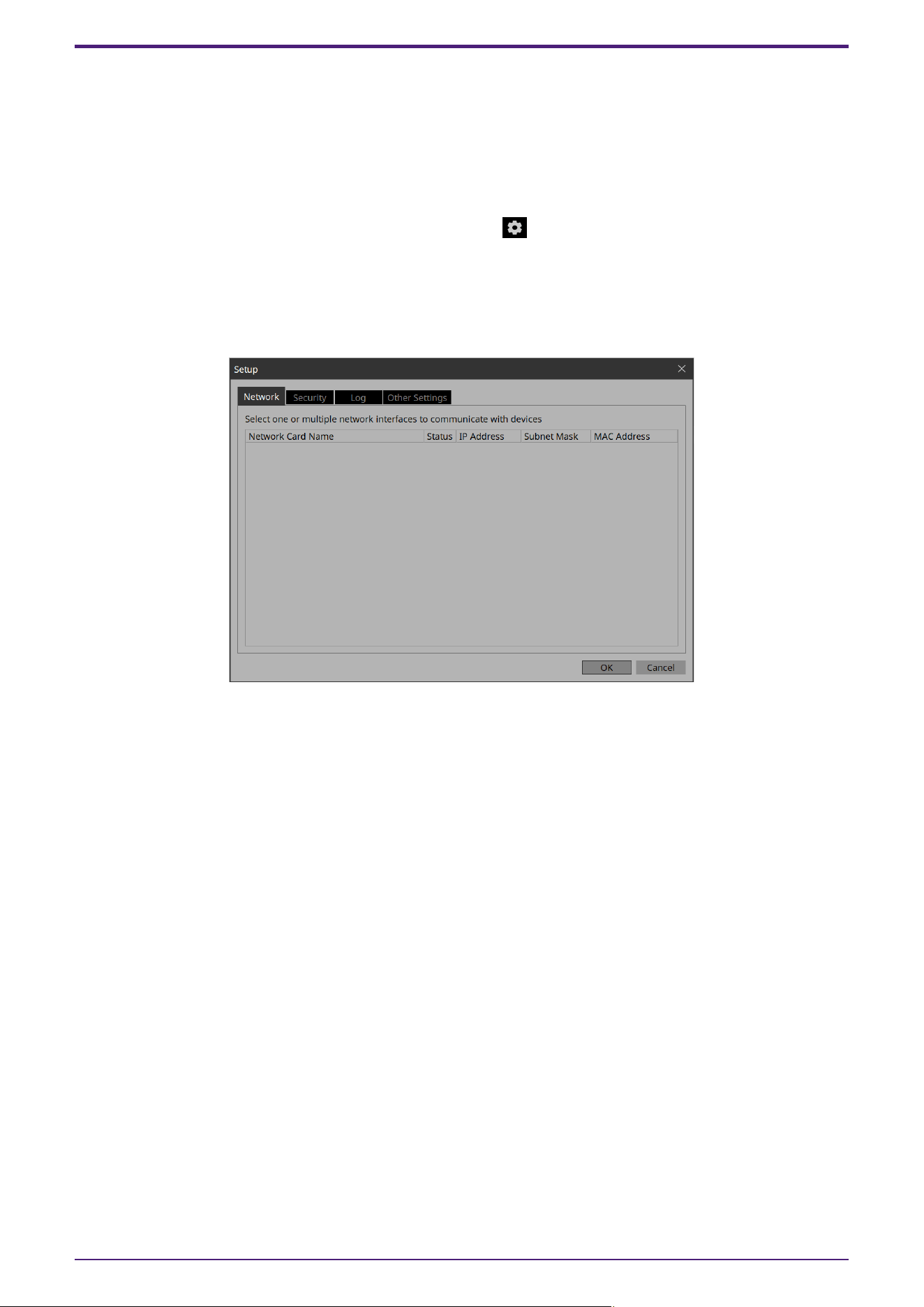
16. Dialog boxes and windows
Here we explain the dialog boxes and windows.
16.1. “Setup” dialog box
In this dialog box you make settings for the entire project or controller.
You can open this dialog box from the [Setup] menu or [Setup] on the title bar.
[Network] tab
Here you can select the computer’s network interface card (subsequently called the “network card”) used for
communicating with devices.
NOTE
You can select up to eight network cards.
When using more than one network card, each card must have a unique network address.
If the computer is not connected to the network, click the [Cancel] button to close the dialog box.
•
[Network Card Name]
Indicates the name of the network card.
•
[Status]
Indicates the status of the network card (Up or Down).
•
[IP Address]/[Subnet Mask]
Indicates the IP address and subnet mask that are assigned to the network card.
You cannot use network cards for which "0.0.0.0" is displayed for reasons such as not being physically
connected.
•
[MAC Address]
Indicates the MAC address of the network card.
•
[OK] button
Updates the settings and closes the dialog box.
•
[Cancel] button
Closes the dialog box without updating the settings.
16. Dialog boxes and windows
68 | ProVisionaire Control PLUS V1.0 User Guide
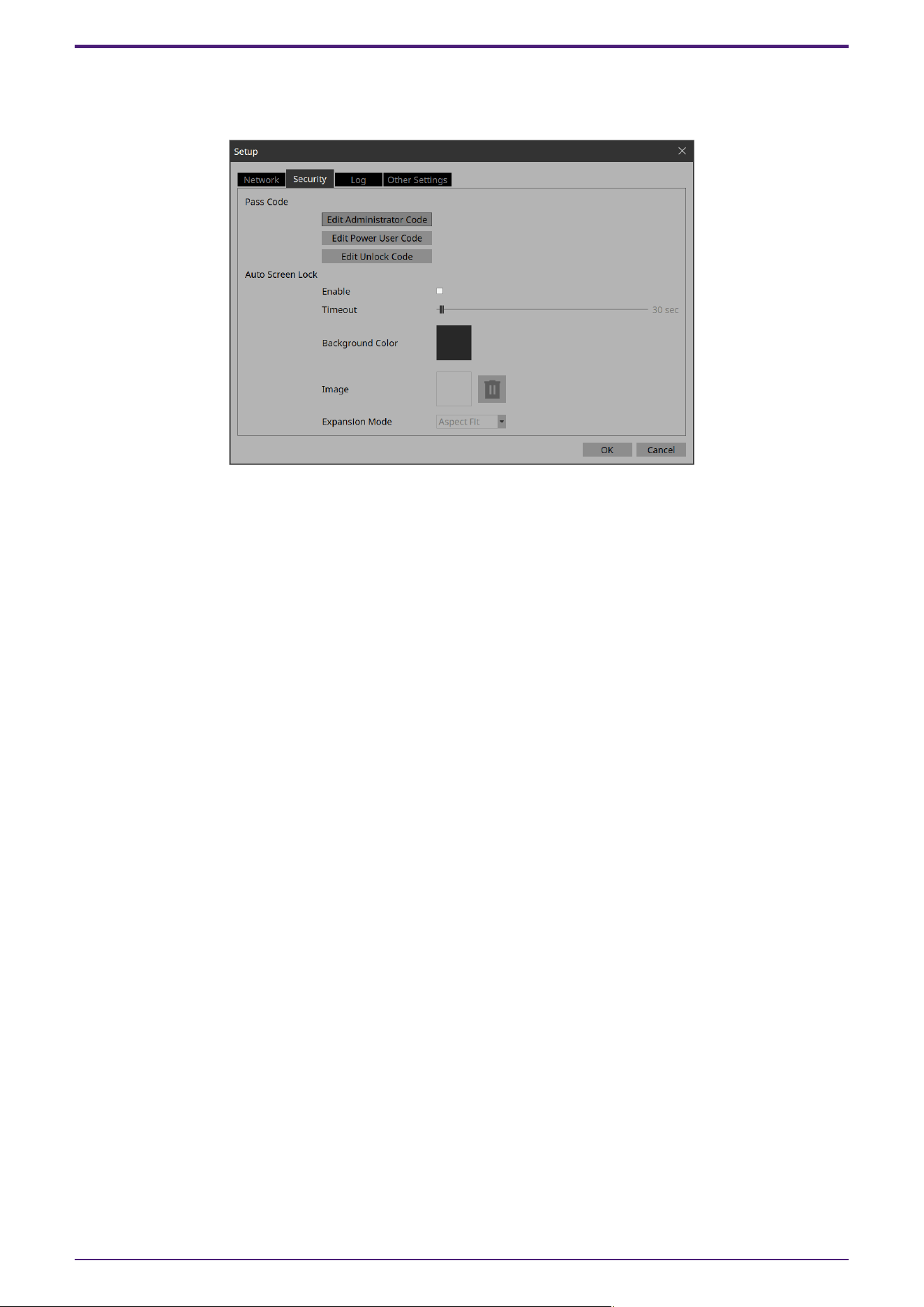
[Security] tab
Here you can make security settings.
•
Pass Code [Edit Administrator Code]/[Edit Power User Code]/[Edit Unlock Code] buttons
Click a button to open the “Edit Pass Code” dialog box.
When entering a pass code for the first time, leave the [Enter Current Pass Code] field empty when you
specify the pass code.
•
Auto Screen Lock [Enable] check box
If this is selected, you can make screen lock settings.
•
Auto Screen Lock [Timeout] slider
Specifies the time until screen lock occurs.
•
Auto Screen Lock [Background Color] button
Click this to open the “Select Color” dialog box. Specify a background color that is used when the image is
not shown in the full screen.
•
Auto Screen Lock [Image] button
Click this to open the “Select Image” dialog box. Select an image file that is shown when the screen is
locked.
•
Auto Screen Lock Image trash can button
Cancels the selection of the image specified by the Screen Lock [Image] button. Even if this selection is
canceled, the image remains embedded into the project file.
•
Auto Screen Lock [Expansion Mode] list box
From the list, select how the image will be shown in the display area. For details on these choices, refer
toAbout the Expansion Mode
•
[OK] button
Updates the settings and closes the dialog box.
•
[Cancel] button
Closes the dialog box without updating the settings.
16. Dialog boxes and windows
ProVisionaire Control PLUS V1.0 User Guide | 69
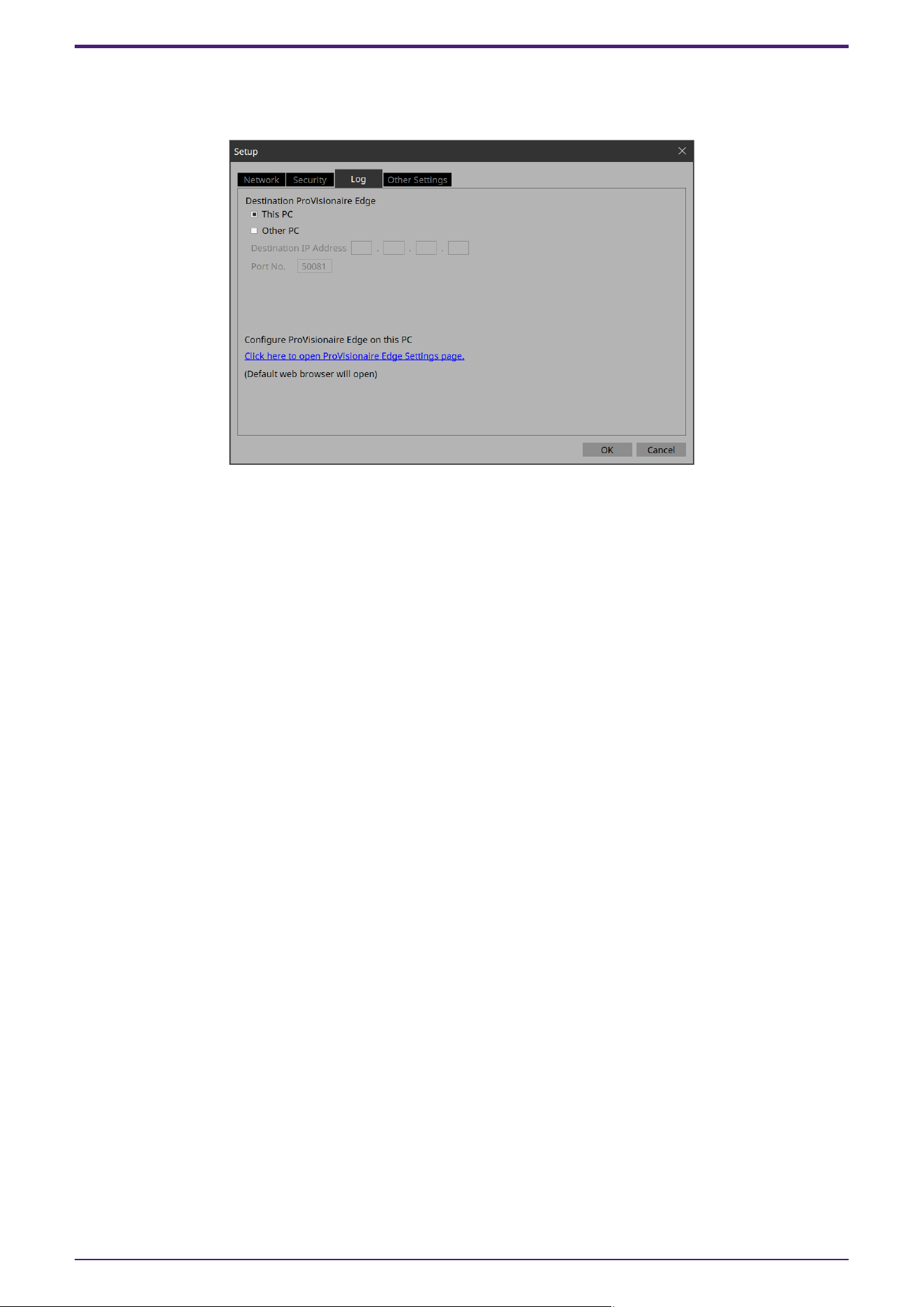
[Log] tab
Specify the ProVisioniare Edge to be connected.
•
[This PC] radio button
Displays device operation information collected by the ProVisionaire Edge installed on the computer you
are currently operating in the “System Monitor” window.
•
[Other PC] radio button
Displays device operation information collected by the ProVisionaire Edge installed on another computer
in the “System Monitor” window.
•
[Destination IP Address] text box
If the [Other PC] radio button is enabled, enter the IP address of the computer.
•
[Port No.] text box
Enter the port number used by “ProVisionaire Edge” on the other computer. The default value at
installation is 50081.
If you manually change the port number that is used by “ProVisionaire Edge” on the other computer, you
must also change the firewall settings of the other computer.
•
[Click here to Open PV Monitoring Service Configuration page] link
Click here to display the “ProVisionaire Edge Settings” screen of the “ProVisionaire Edge” installed on the
computer you are currently using in your default web browser.
This cannot be displayed if Internet Explorer is specified as the default web browser, so you must specify
a different web browser as the default web browser.
•
[OK] button
Updates the settings and closes the dialog box.
•
[Cancel] button
Closes the dialog box without updating the settings.
16. Dialog boxes and windows
70 | ProVisionaire Control PLUS V1.0 User Guide
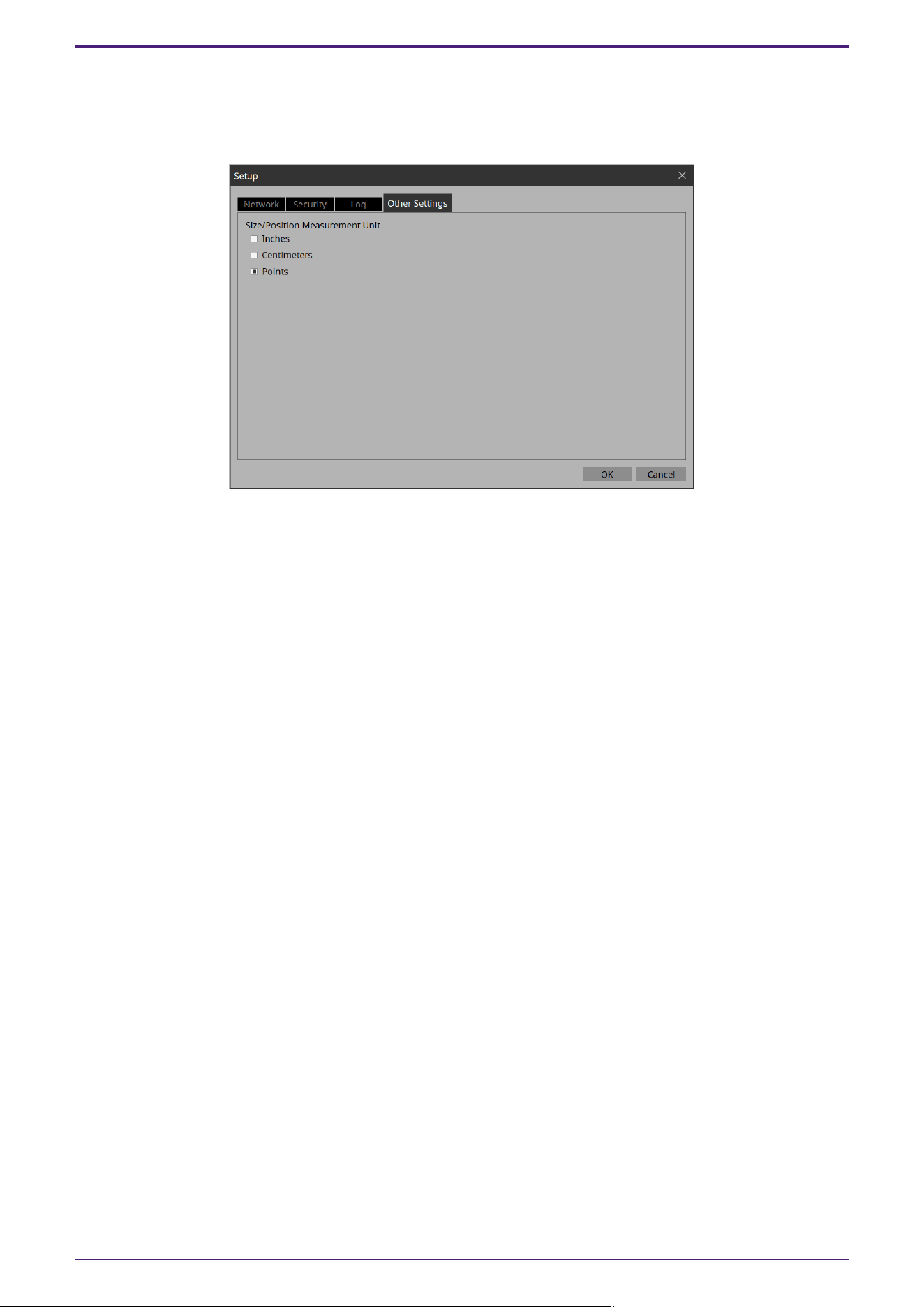
[Other Settings] tab
Here you can specify the units for the size and position information of the widgets.
This setting is saved in the computer, not in the project file.
•
「Size/Position Measurement Unit」radio buttons
Here you can select the units for the size and position information of the widgets.
•
[OK] button
Updates the settings and closes the dialog box.
•
[Cancel] button
Closes the dialog box without updating the settings.
16. Dialog boxes and windows
ProVisionaire Control PLUS V1.0 User Guide | 71
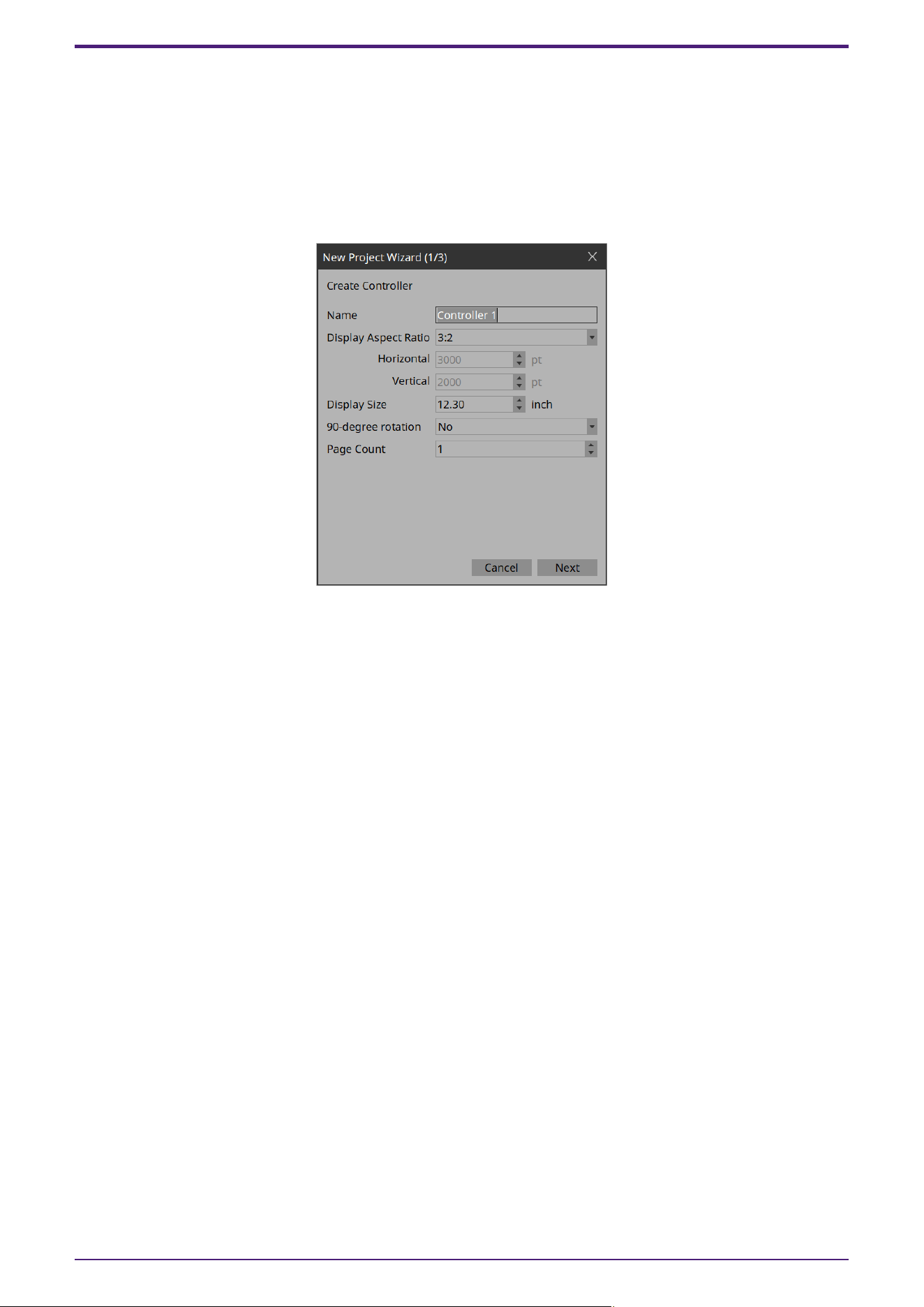
16.2. “New Project Wizard” dialog box
Use this dialog box to create a new project.
Open it from [New Project] under the [File] menu.
1/3: Create Controller
Here you can make settings for a new controller.
•
[Name] text box
Specifies the name of the controller.
•
[Display Aspect Ratio] spin box
The screen ratio (horizontal:vertical).
Adjust the screen ratio to match that of the computer, tablet, or other device where Kiosk will be installed.
When you select Custom, directly enter the Horizontal and Vertical values.
You can change the screen ratio later in “Properties” of the controller.
◦ [Horizontal] spin box
Specifies the horizontal size of the controller when Display Aspect Ratio is set to Custom.
◦ [Vertical] spin box
Specifies the vertical size of the controller when Display Aspect Ratio is set to Custom.
•
[Display Size] list box
The diagonal length of the controller.
Adjust the display size to match that of the device on which Kiosk will be run.
This is the basis for displaying the widget size and position in centimeters or inches.
•
[90-degree rotation] list box
Select (Yes) to swap the vertical and horizontal dimensions of the controller.
•
[Page count] list box
Specifies the number of pages for the controller.
•
[Cancel] button
Discards the settings and closes the dialog box.
•
[Next] button
Moves to the next settings page.
16. Dialog boxes and windows
72 | ProVisionaire Control PLUS V1.0 User Guide
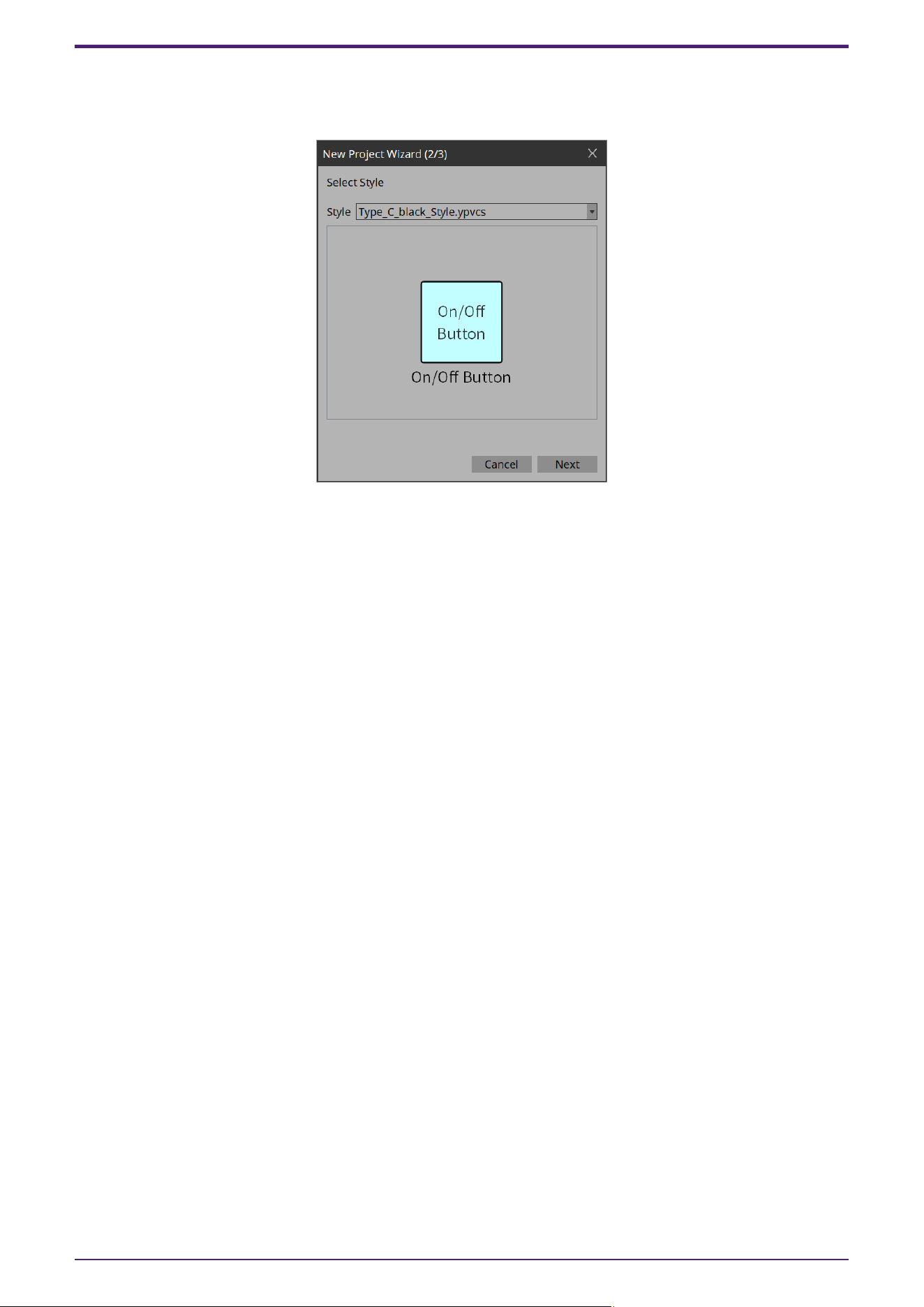
2/3: Select Style
Selects which style file to use when creating a controller.
•
[Style]
Select a style.
The style can also be changed later in [Style] under the [Setup] menu.
Select “User” to open the file selection dialog box. You can select an individually-created style file.
•
[Preview]
Displays a sample of the widget.
•
[Next] button
Moves to the next settings page.
16. Dialog boxes and windows
ProVisionaire Control PLUS V1.0 User Guide | 73
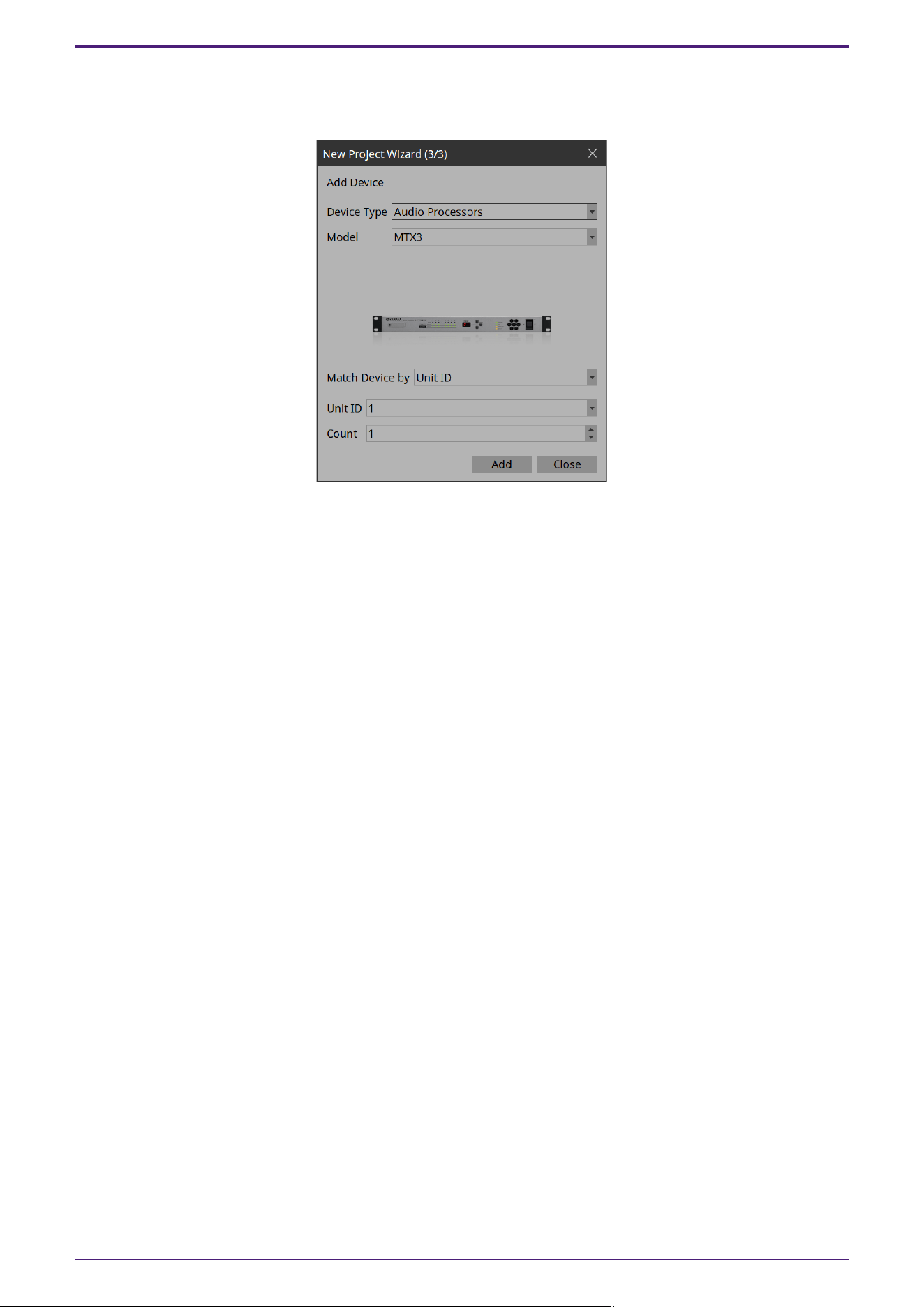
3/3: Add Device
Select the device you want to register to the project.
•
[Device Type] list box
Selects the type of device.
•
[Model] list box
Selects the device.
•
[Match Device by] list box
Selects the search method for devices on the network.
If you select [Unit ID], the [Unit ID] list box and [Count] spin box are shown below.
If you select [IP Address], the [IP Address] text box is shown below.
If you want to control a device that is on a different subnet than Kiosk, select [IP Address].
•
[Unit ID] list box
Selects the starting unit ID of the devices that you want to register.
•
[Count] spin box
Specifies the number of units of the devices that you want to register.
•
[IP Address] text box
Specifies the IP address of the device that you want to register.
•
[Add] button
Registers the device(s) and closes the dialog box.
If you want to register another device, execute [Add Device] in the “Devices” area.
•
[Close] button
Closes the dialog box without registering a device.
16. Dialog boxes and windows
74 | ProVisionaire Control PLUS V1.0 User Guide
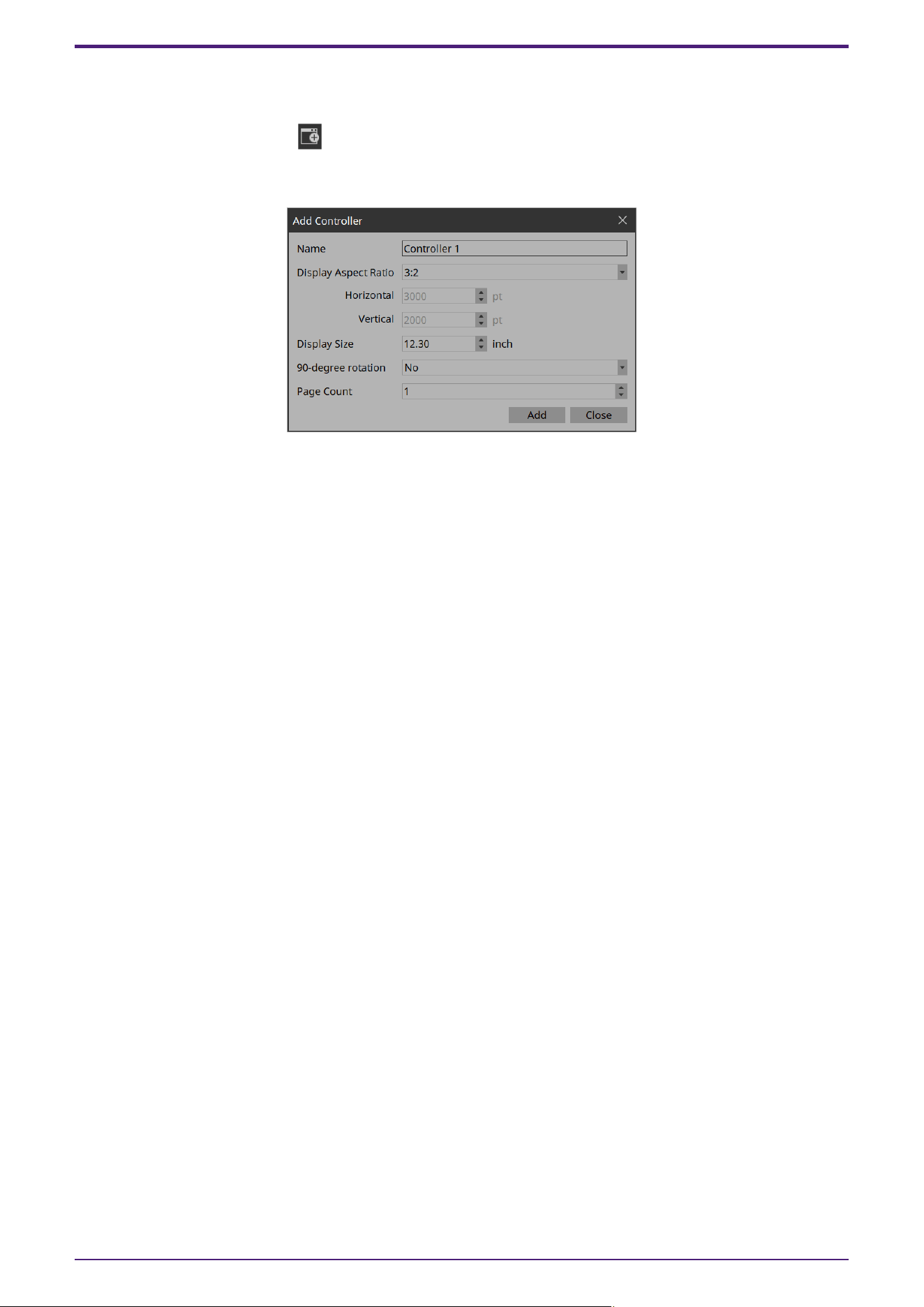
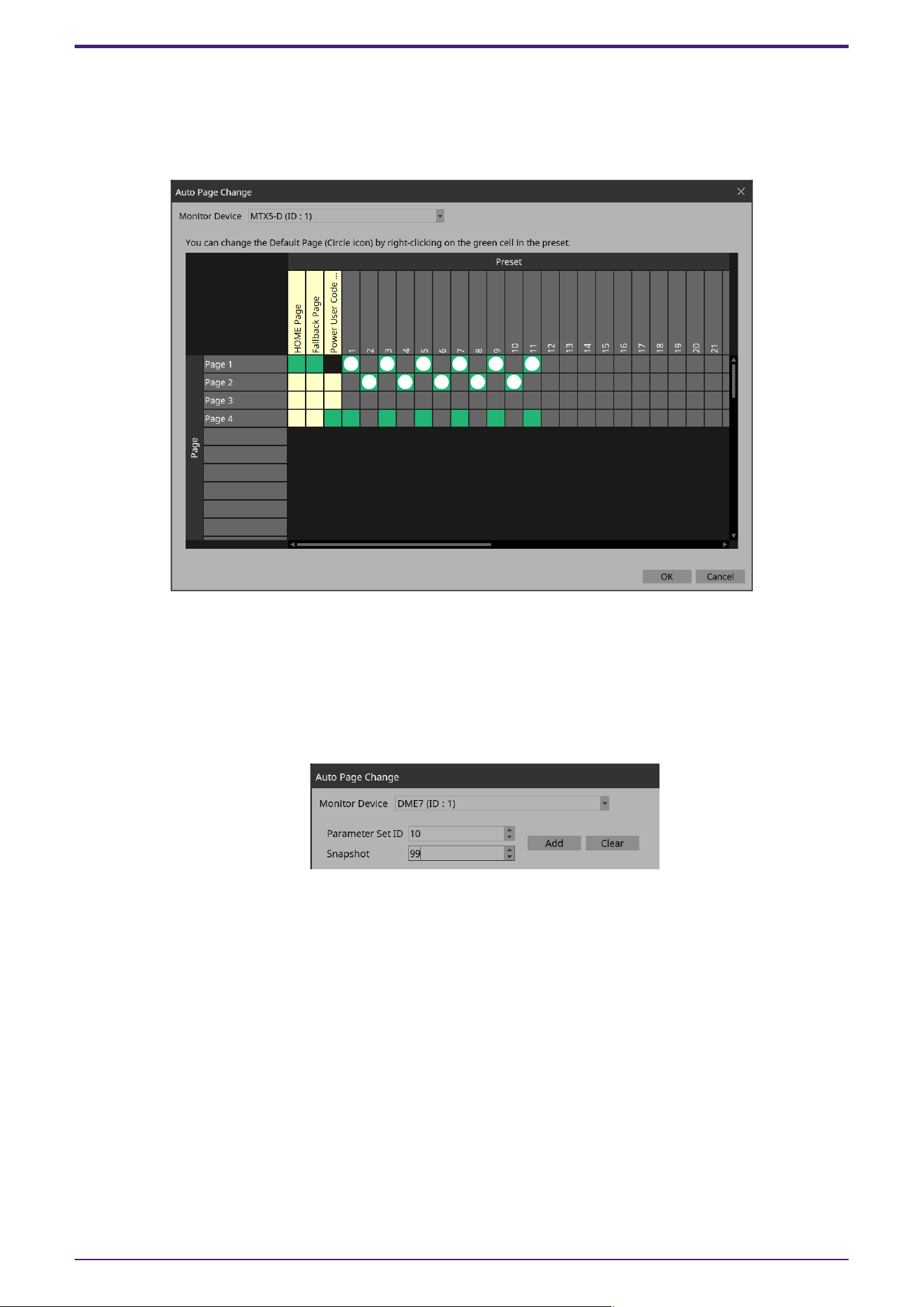
16.4. “Auto Page Change” dialog box
You can switch the page set to be displayed on Kiosk according to the preset numbers recalled on any device.
Open this dialog box from [Auto Page Change] under the [Controller] menu or from Properties > Auto Page
Change under Controller.
•
Monitor Device
Selects which device will be the target of page changes when presets are recalled.
Select from the devices registered in Devices. Target devices are MTX3/MTX5-D/MRX7-D/DME7/RM-CR.
Once the device is set, when you recall a preset on a device, you will be able to select only the specific
pages in the Kiosk title bar > Page List.
For DME7, snapshots must be registered in advance.
Click the [Clear] button to delete the snapshot selected in the Preset field.
•
Page lines
Displays the pages added to Controller.
•
Home Page column
Click a cell to select a page to be specified as Home.
•
Fallback Page column
Click a cell to select a page to be specified as Fallback.
•
Power User Code Required column
Before moving to a page where this cell is turned on, authentication with a Power User code is required.
You cannot select pages for which Home Page or Fallback Page is turned on.
16. Dialog boxes and windows
76 | ProVisionaire Control PLUS V1.0 User Guide

•
Preset columns
Displays the Monitor Device presets.
You can select multiple pages for one preset.
The selected pages will be displayed on the Page List button on the title bar when the preset is recalled.
Right-click on the selected page to set it as the Default Page.
The Default Page is the page that is first displayed when a preset is recalled.
16. Dialog boxes and windows
ProVisionaire Control PLUS V1.0 User Guide | 77
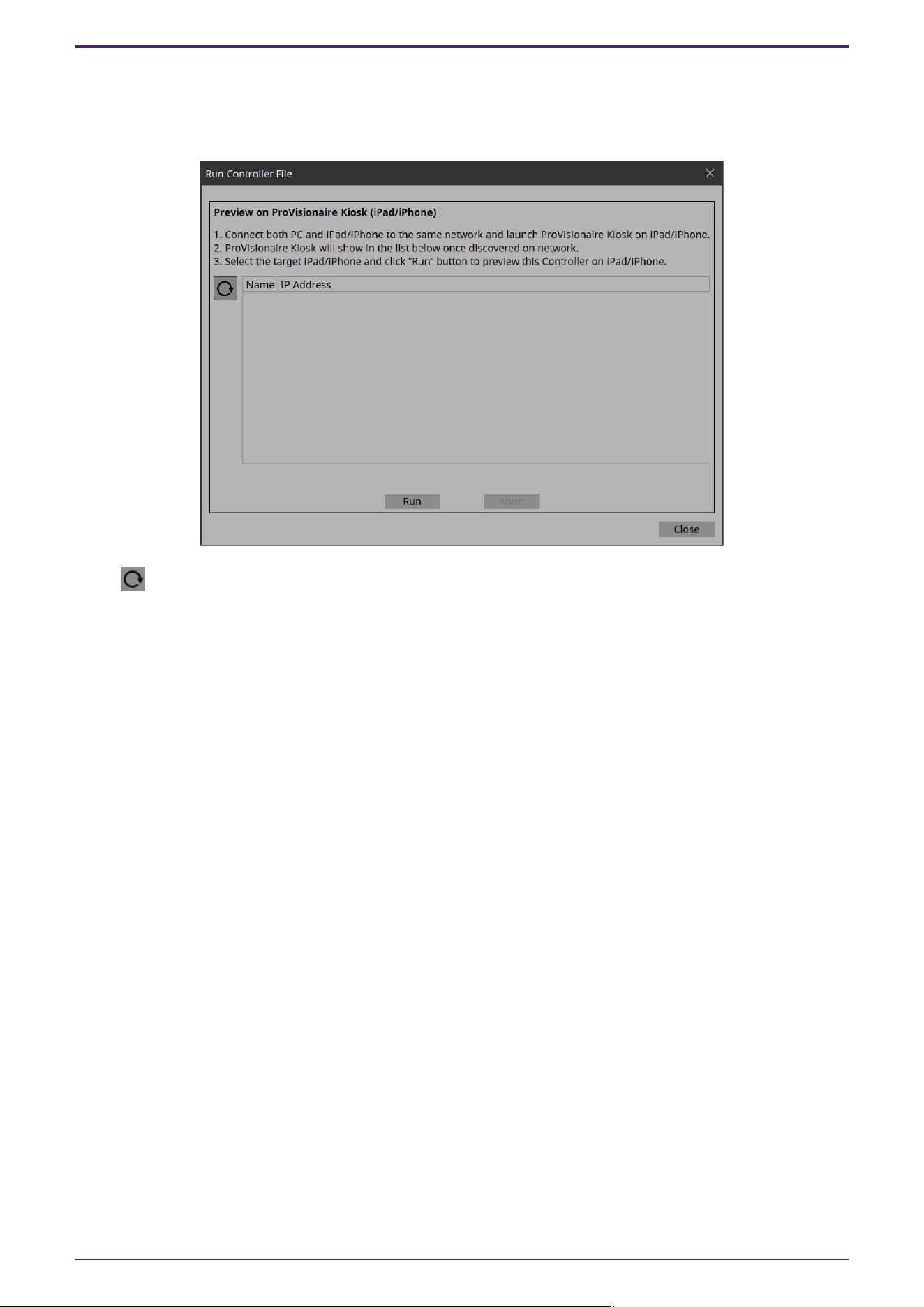
16.5. “Run Controller File” dialog box
Preview the controller you are creating on Kiosk (iPad/iPhone) on the same network.
Open the dialog box from [Run Controller File] under the [Controller] menu.
•
(Refresh) button
Re-searches for Kiosks on the network and updates the list.
•
[Name]/[IP Address]
Displays information about iPads/iPhones that are connected to the same network as the network card
selected in the Network tab of the “Setup” dialog box.
Select the transfer destination for the controller file.
•
[Run] button
Transfers the controller file to the iPad that is selected. The receiving ProVisionaire Kiosk shows a
confirmation screen.
•
[Abort] button
Cancels controller file transfer.
•
[Close] button
Closes the dialog box.
16. Dialog boxes and windows
78 | ProVisionaire Control PLUS V1.0 User Guide
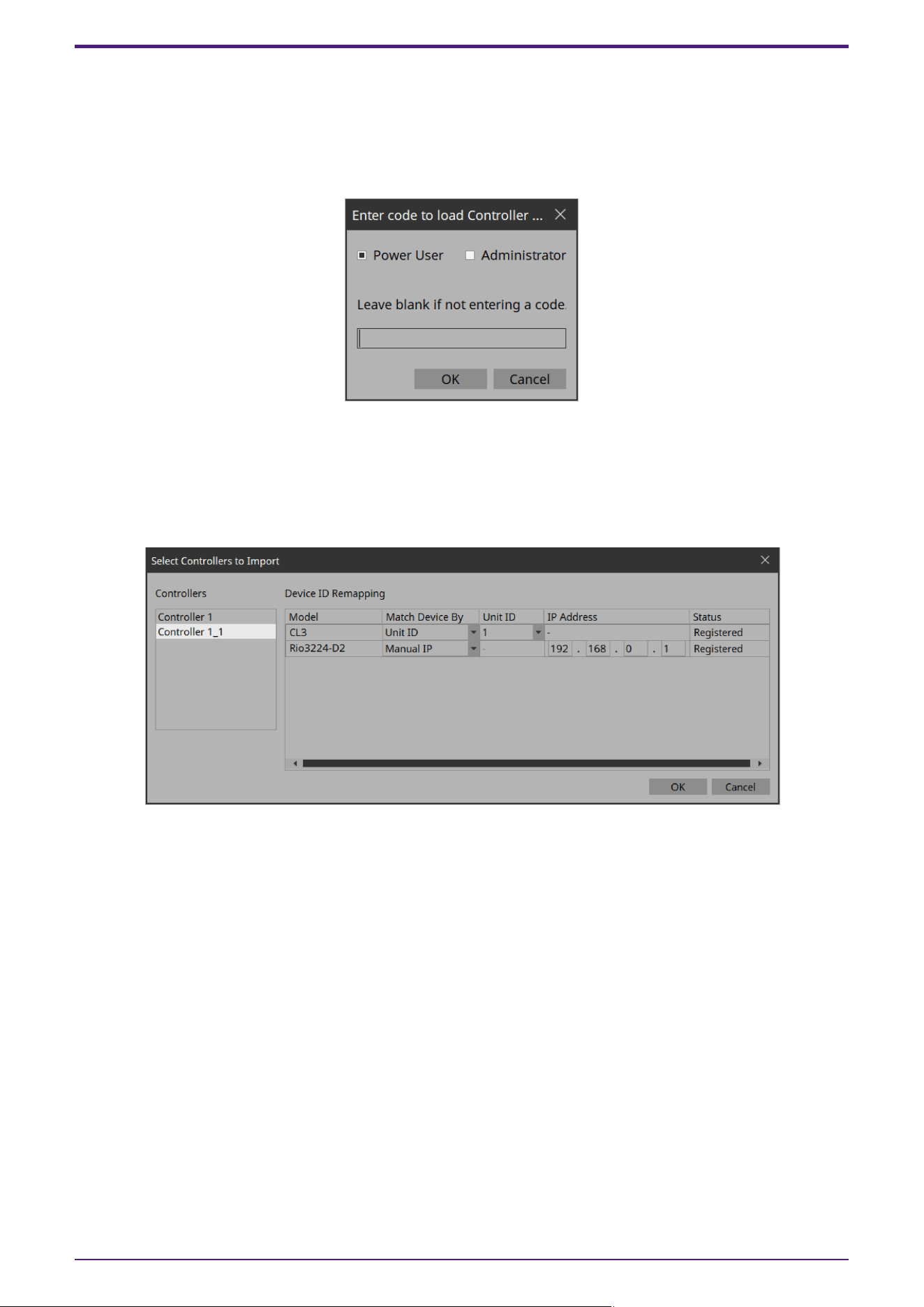
16.6. “Select Controllers to Import” dialog box
This dialog box imports controller files from other projects.
Open it from [Import] under the [Controller] menu.
When a file is selected, a dialog box opens to allow you to select a passcode.
•
Leave blank if not entering a code.
If a passcode is set to the file to be imported, enter the passcode.
If a passcode is not set, simply click OK.
Click the [OK] button to open the “Import Controller File” dialog box.
•
Controllers
Displays a list of the controllers contained in the project file. Select a controller to be imported. When a
controller is selected, Device ID Remapping on the right side lists the devices used in the controller.
•
Device ID Remapping
When importing controllers, you can collectively convert the identification information of the devices in
use.
16. Dialog boxes and windows
ProVisionaire Control PLUS V1.0 User Guide | 79
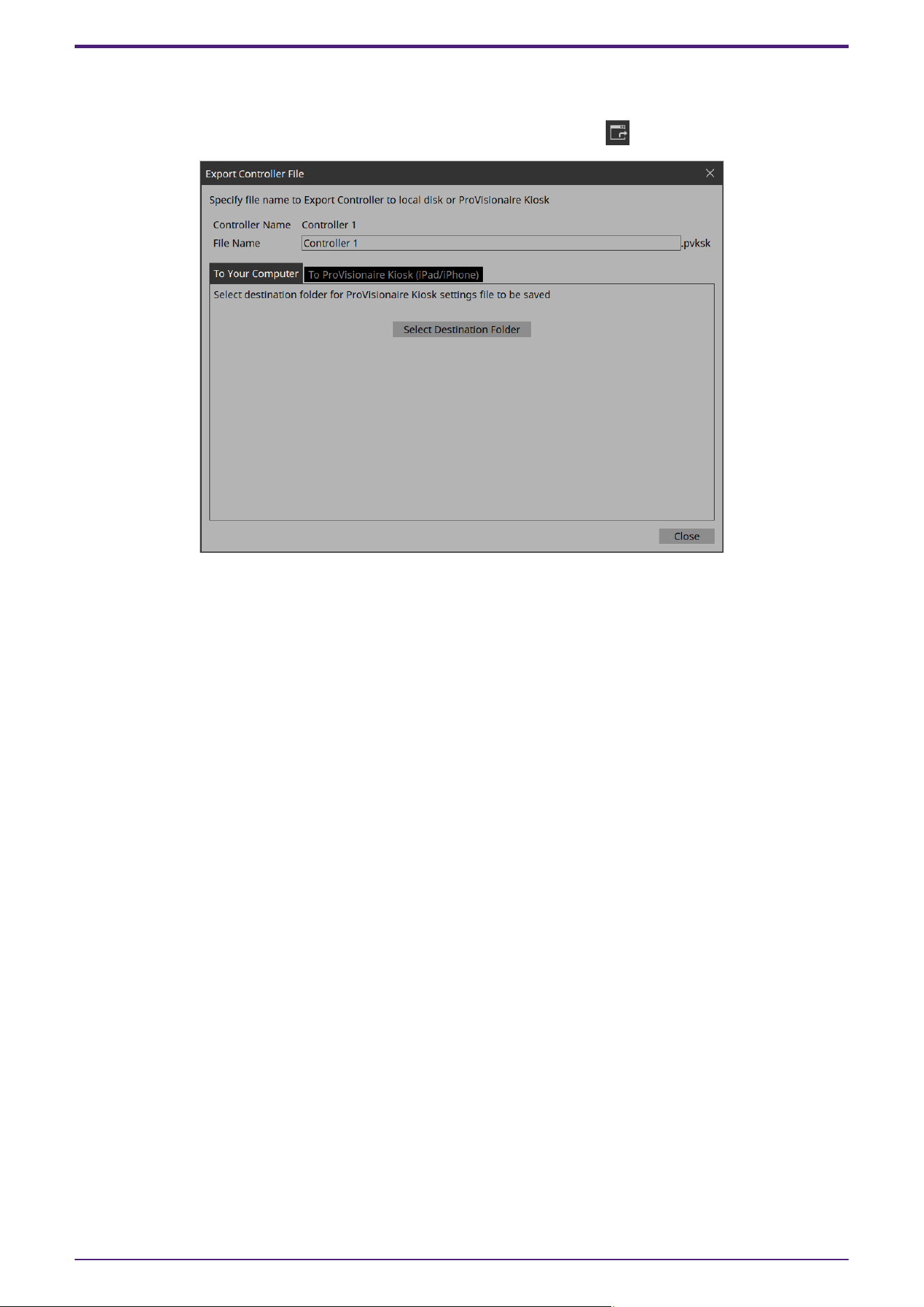
16.7. “Export Controller File” dialog box
You can save a controller file to a computer or to an iPad/iPhone that is running Kiosk.
Open this dialog box from [Export] under the [Controller] menu or from Export on the toolbar.
•
[Controller Name]
Displays the name of the controller currently selected in the Controllers area.
•
[File Name] text box
Enters the name of the controller file.
•
[Close] button
Closes the dialog box.
16.7.1. [To Your Computer] tab
Select this when you want to save the control file to the computer.
•
[Select Destination Folder] button
Selects the save-destination for the controller file and save the controller file.
16. Dialog boxes and windows
80 | ProVisionaire Control PLUS V1.0 User Guide
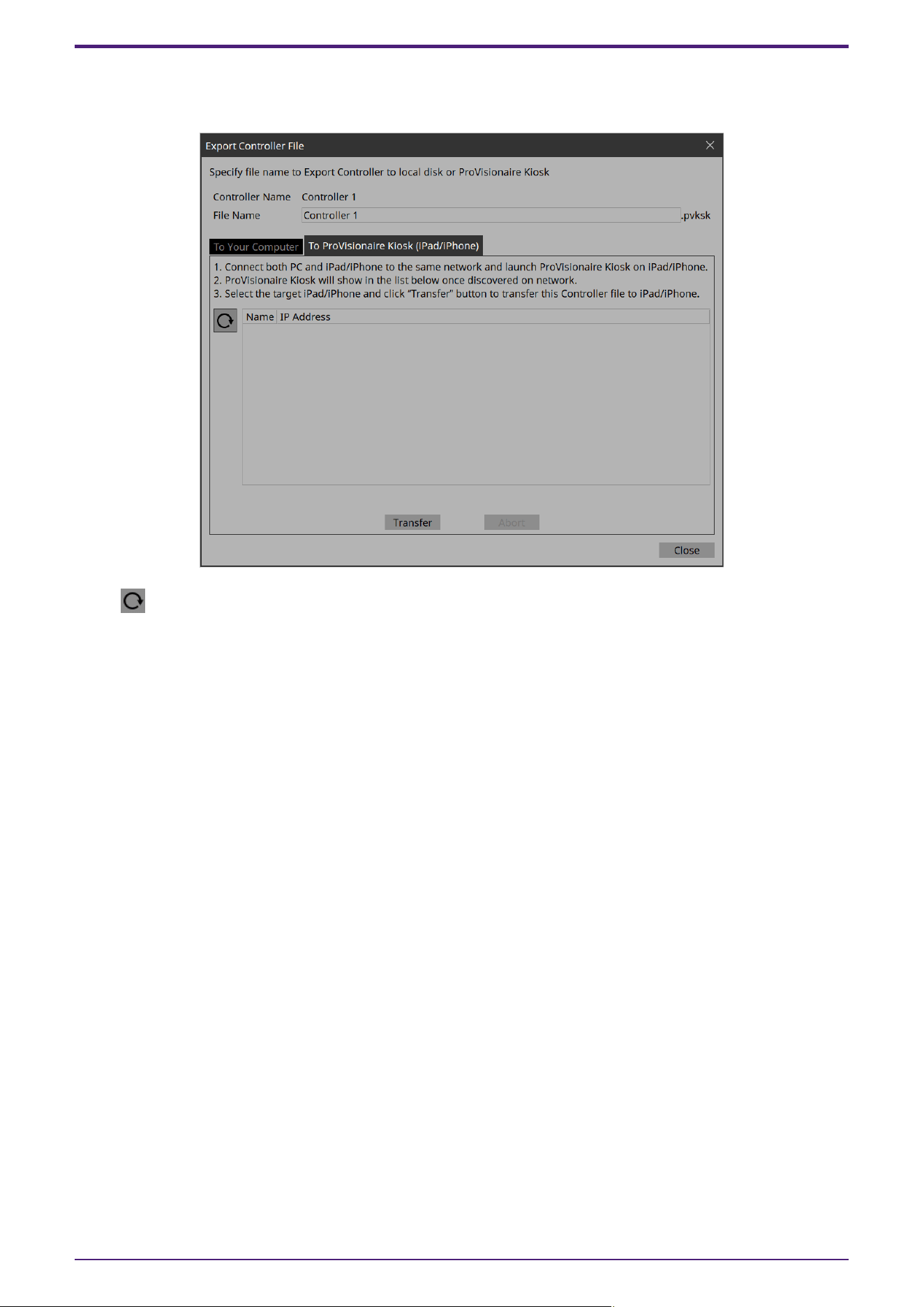
16.7.2. [To ProVisionaire Kiosk] tab
Sends a controller file directly to an iPad/iPhone where Kiosk is running.
•
(Refresh) button
Updates the iPad list.
•
[Name]/[IP Address]
Displays information about iPads/iPhones that are connected to the same network as the network card
selected in the Network tab of the “Setup” dialog box.
Select the transfer destination for the controller file.
•
[Transfer] button
Sends a controller file to the selected iPad/iPhone.
•
[Abort] button
Cancels controller file transfer.
16. Dialog boxes and windows
ProVisionaire Control PLUS V1.0 User Guide | 81
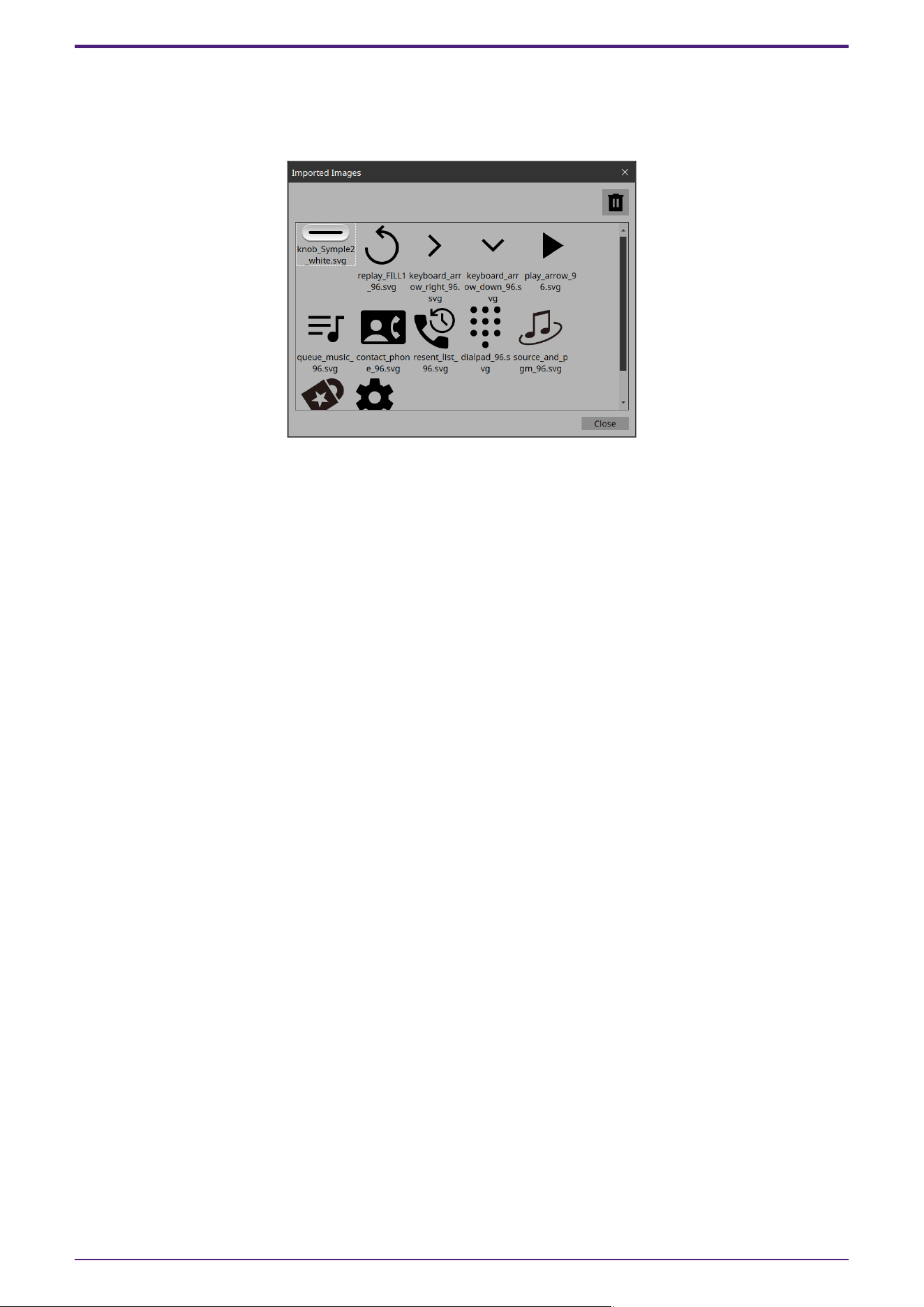
16.8. “Imported Images” dialog box
Here you can view or delete image data embedded in the project file.
Open the dialog box from [Imported Images] under the [Edit] menu.
•
Image tile
Shows the image data embedded in the project file.
To delete data, select the tile of the file that you want to delete.
•
Trash con button
Deletes the data whose image tile is selected from the project file.
•
[Close] button
Closes the dialog box.
NOTE
The data includes images used in the style.
16. Dialog boxes and windows
82 | ProVisionaire Control PLUS V1.0 User Guide
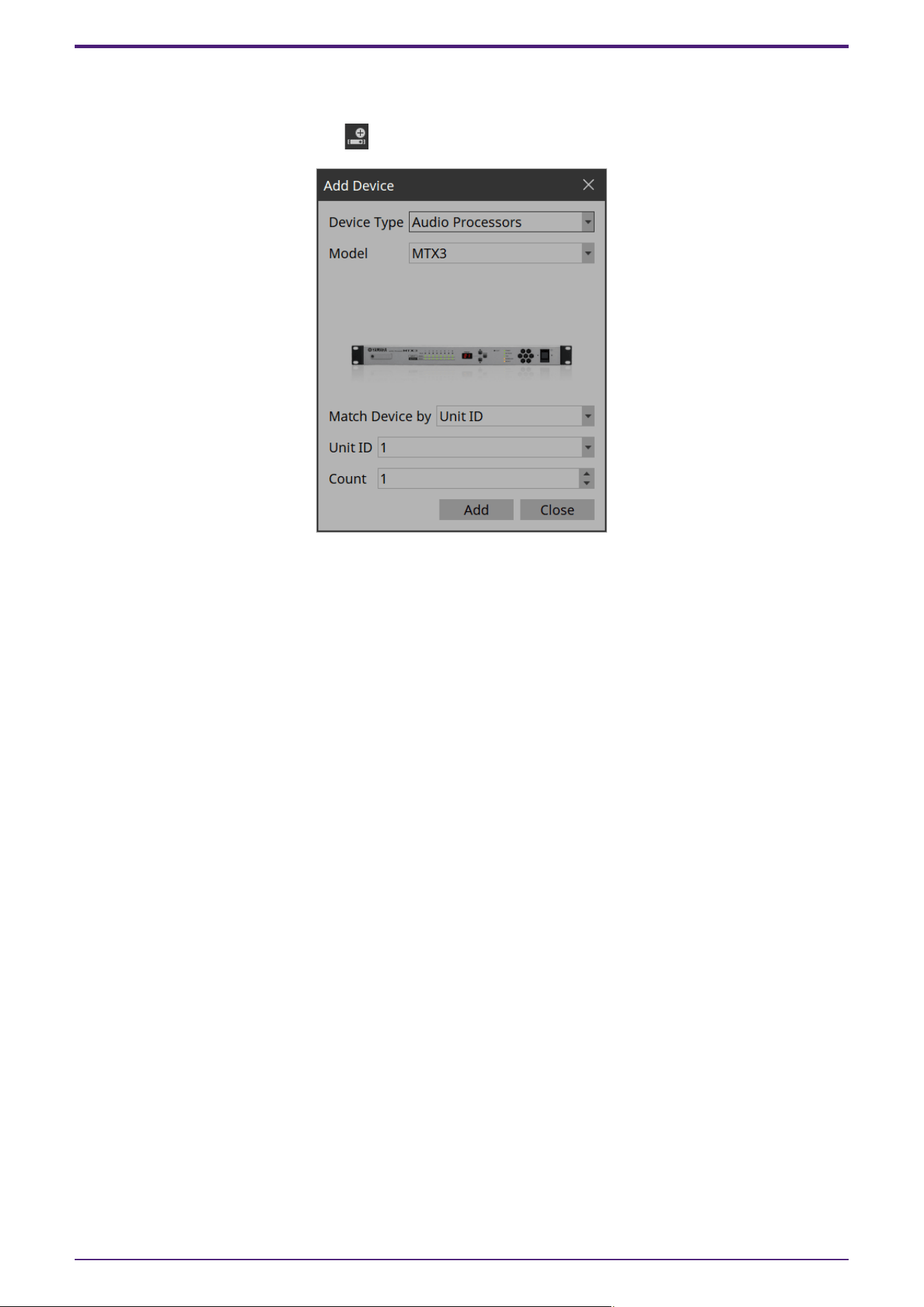
16.9. “Add Device” dialog box
Here you can add a device to the project.
Open this dialog box from [Add Device] in the “Devices” area.
•
[Device Type] list box
Selects the type of device.
•
[Model] list box
Selects the device.
•
[Match Device by] list box
Selects the search method for devices on the network.
If you select [Unit ID], the [Unit ID] list box and [Count] spin box are shown below.
If you select [IP Address], the [IP Address] text box is shown below.
If you want to control a device that is on a different subnet than Kiosk, select [IP Address].
•
[Unit ID] list box
Selects the starting unit ID of the devices that you want to register.
•
[Count] spin box
Specifies the number of units of the devices that you want to register.
•
[IP Address] text box
Specifies the IP address of the device that you want to register.
•
[Add] button
Registers the device(s) and closes the dialog box.
•
[Close] button
Closes the dialog box without registering a device.
NOTE
The data includes images used in the style.
16. Dialog boxes and windows
ProVisionaire Control PLUS V1.0 User Guide | 83
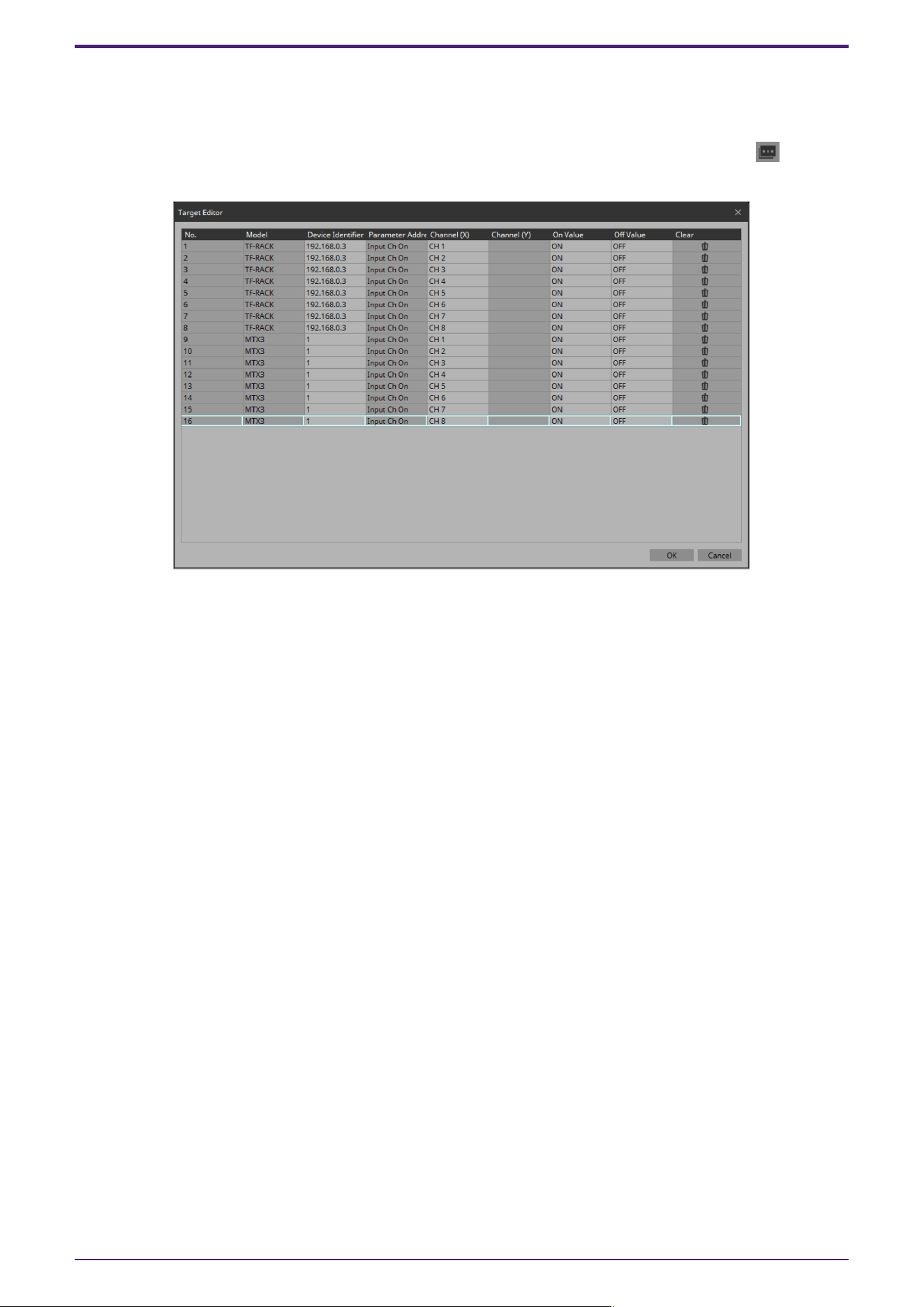
16.10. “Target Editor” dialog box
Here you can show or modify parameter information for buttons (multi buttons) to which are assigned
parameters of multiple devices or multiple parameters of a single device.
Open this dialog box from Recall Button, Direct Set Button, or On/Off Button of a widget or from the button in
the “Properties” area > Control of a Slider.
•
[Model]
Shows the model name of the assigned parameter.
•
[Device Identifier]
Shows or changes the UNIT ID or IP address of the assigned parameter.
•
[Parameter Address]([On/Off] button、[Direct Set] button、Slider)
Shows the type of the assigned parameter.
•
[Channel(X)]/[Channel(Y)]([On/Off] button、[Direct Set] button、Slider)
Shows or changes the channel number of the assigned parameter.
•
[On Value]/[Off Value] ([On/Off] button)
Shows or changes whether the assigned parameter is turned on or off when the button is on or off.
•
[Preset/Scene/Snapshot]([Recall] button)
Shows the type of the assigned parameter.
•
[No.] ([Recall] button)
Displays/changes the preset, scene, and snapshot numbers.
•
[Press Value]([Direct Set] button、Slider)
Shows or changes the value that is specified when the button is pressed.
•
[Clear]
Clears the assigned parameter.
•
[OK] button
Applies the settings and closes the dialog box.
•
[Cancel] button
Closes the dialog box without applying the settings.
16. Dialog boxes and windows
84 | ProVisionaire Control PLUS V1.0 User Guide
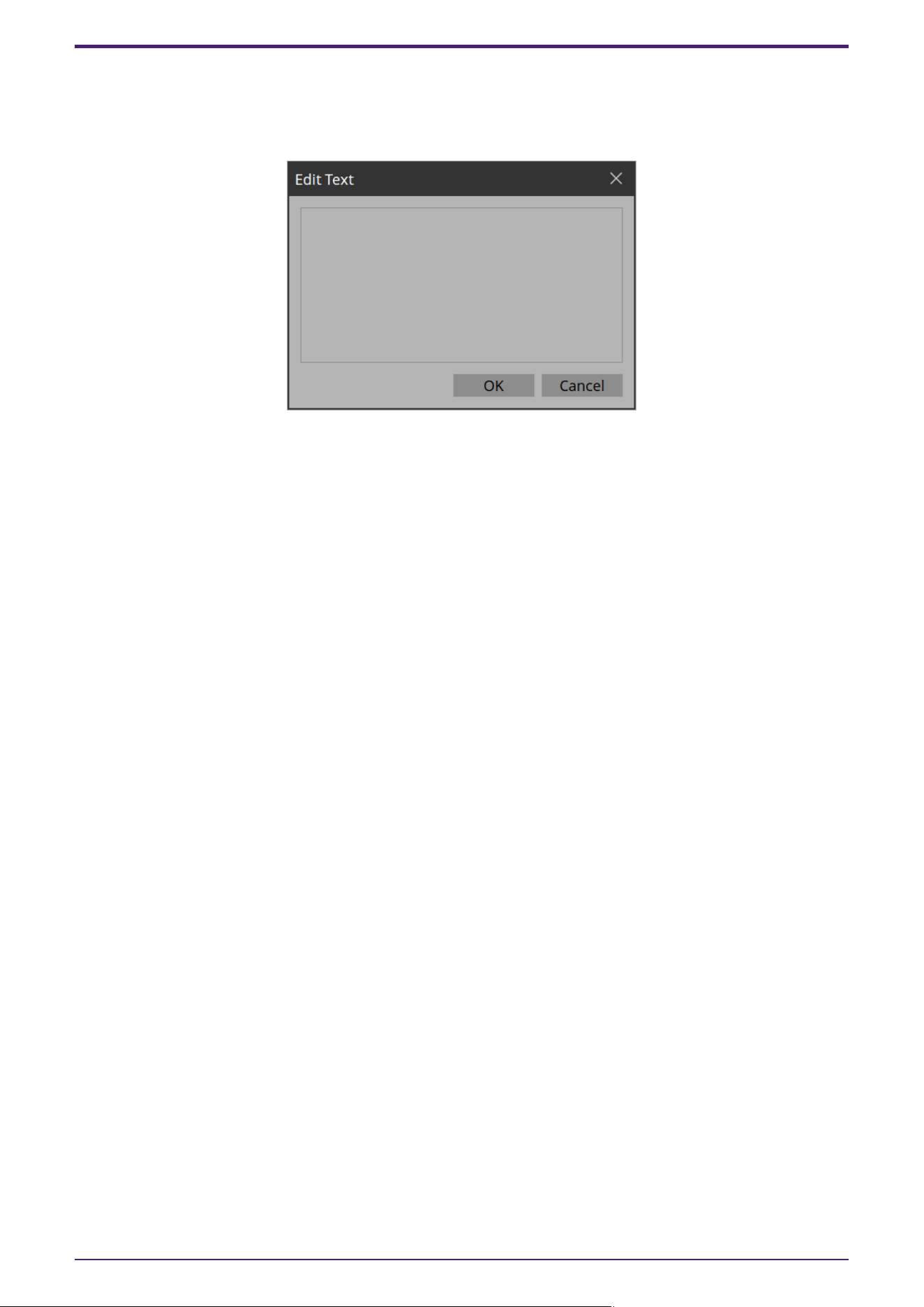
16.11. “Edit Text” dialog box
Here you can edit the text of a label, etc.
Open this dialog box from the “Properties” area > Text of each widget.
•
Text box
Enter or edit text here. You might or might not be able to enter a line-return, depending on the item.
•
[OK] button
Applies the text and closes the dialog box.
•
[Cancel] button
Closes the dialog box without applying the entered or edited text.
16. Dialog boxes and windows
ProVisionaire Control PLUS V1.0 User Guide | 85
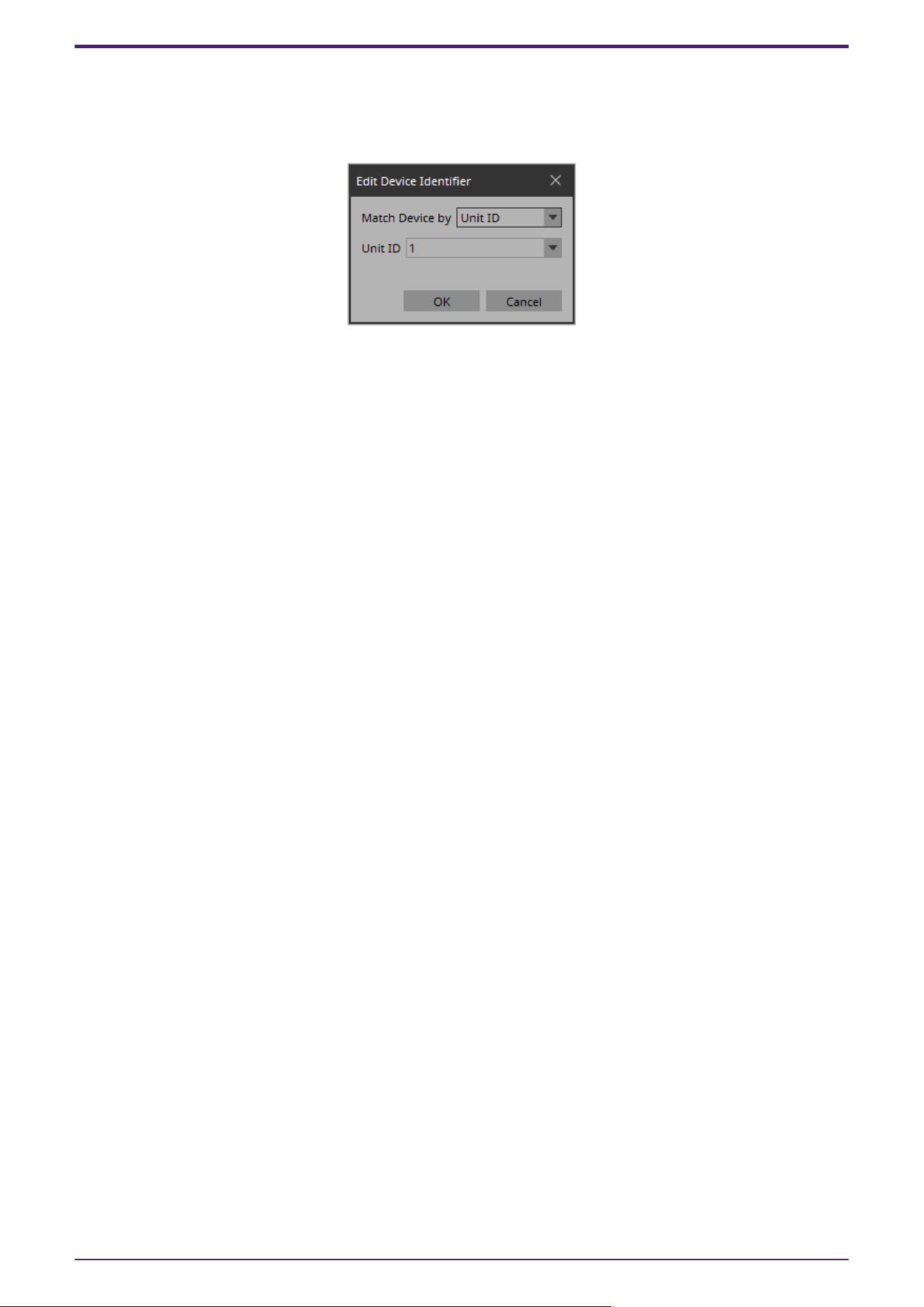
16.12. “Edit Device Identifier” dialog box
Here you can edit the identifying information of a device.
Open this dialog box from the “Properties” area > Identifier of a widget.
•
[Match Device by] list box
Specifies the search method for devices on the network.
If you select [Unit ID], the [Unit ID] list box is shown below.
If you select [IP Address], the [IP Address] text box is shown below.
Devices are searched directly via their IP addresses.If you cannot find the device when you select “Unit
ID,” select “IP Address.”
•
[Unit ID] list box
Selects the starting unit ID of the devices that you want to register.
•
[IP Address] text box
Specifies the IP address of the device that you want to register.
•
[OK] button
Applies the settings and closes the dialog box.
•
[Cancel] button
Closes the dialog box without applying the settings.
16. Dialog boxes and windows
86 | ProVisionaire Control PLUS V1.0 User Guide
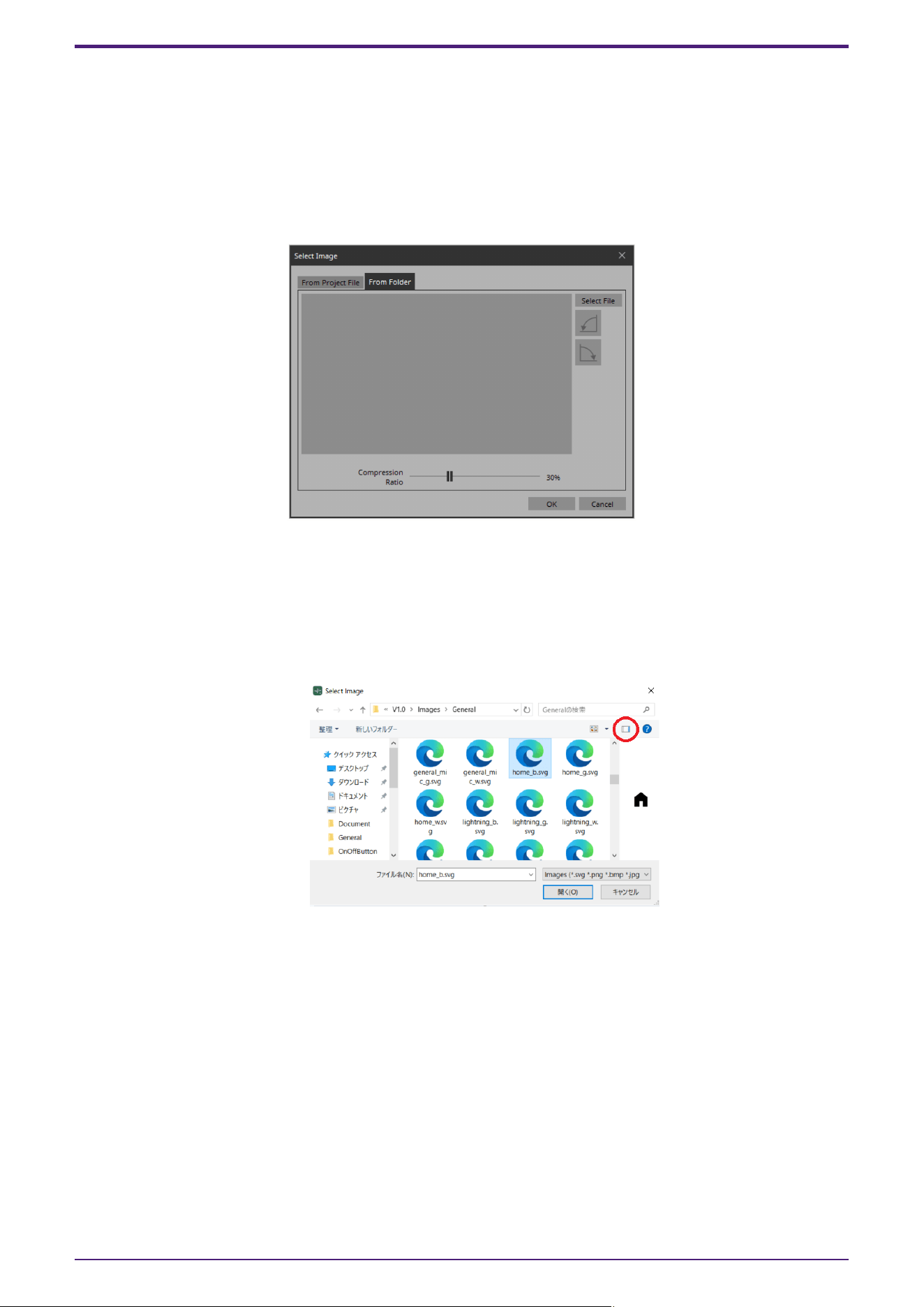
16.13. “Select Image” dialog box
Here you can select image data to use.
Open this dialog box from the “Properties” area > Image, On Image, Off Image, etc., of each widget.
[From Folder] tab
Here you can select an image file from a folder of the computer.
•
[Select File] button
Clicking this button opens a dialog box where you can select an image file.
NOTE
The file selection dialog box cannot display thumbnails of SVG files. Use the preview window of File
Explorer.
•
Rotate counterclockwise button
Rotates the displayed image 90 degrees counterclockwise.
•
Rotate clockwise button
Rotates the displayed image 90 degrees clockwise.
•
[Compression Ratio] slider
Specifies the compression ratio when embedding the image in the project file. This slider is disabled
when an SVG image is selected.
•
[OK] button
Applies the image and closes the dialog box.
•
[Cancel] button
Closes the dialog box without applying the image.
16. Dialog boxes and windows
ProVisionaire Control PLUS V1.0 User Guide | 87
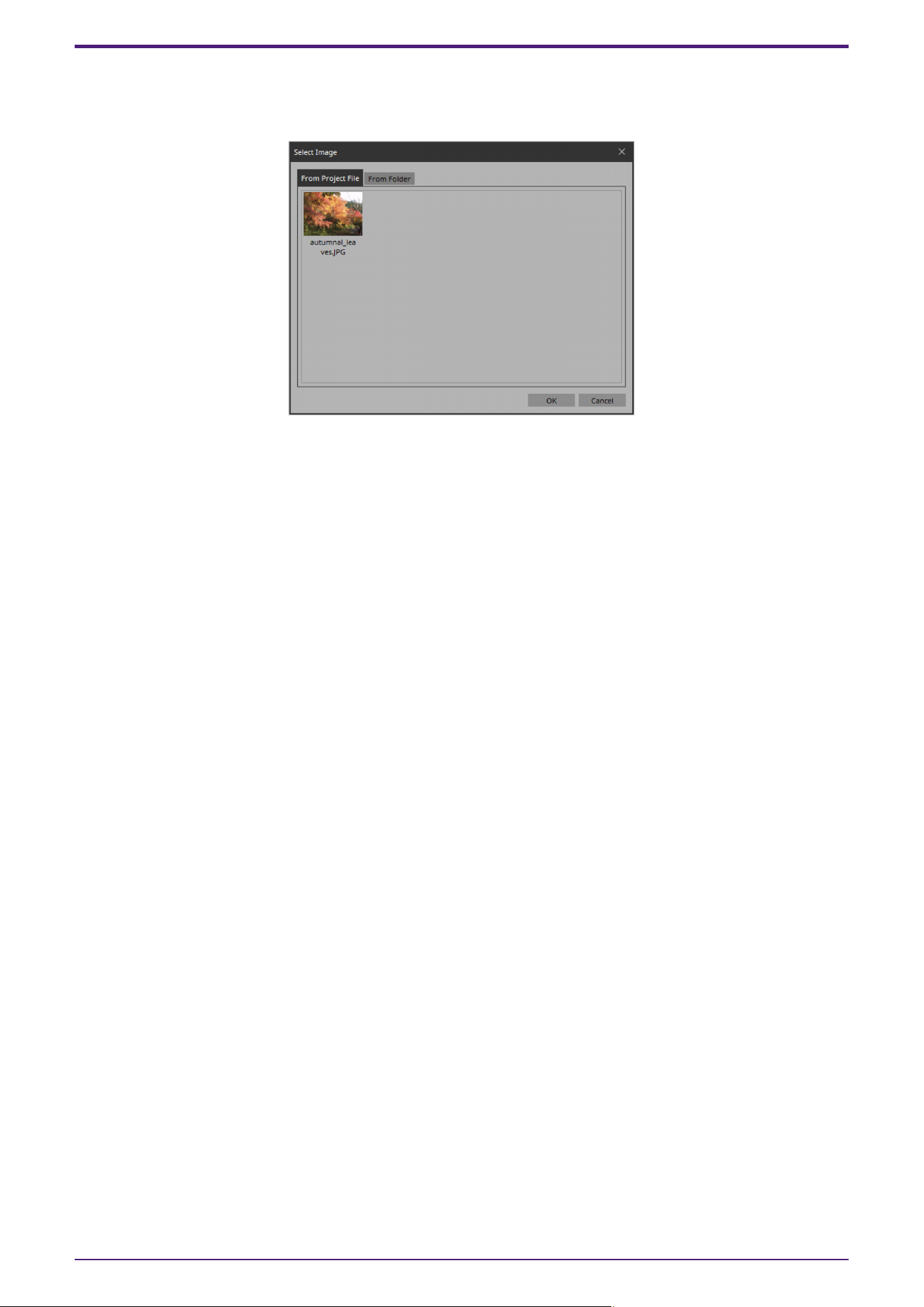
[From Project File] tab
Here you can select image data from the project file.
•
Image tile
Shows the image data embedded in the project file. Select the image that you want to use.
•
[OK] button
Applies the selected image and closes the dialog box.
•
[Cancel] button
Closes the dialog box without applying the selected image data.
16. Dialog boxes and windows
88 | ProVisionaire Control PLUS V1.0 User Guide
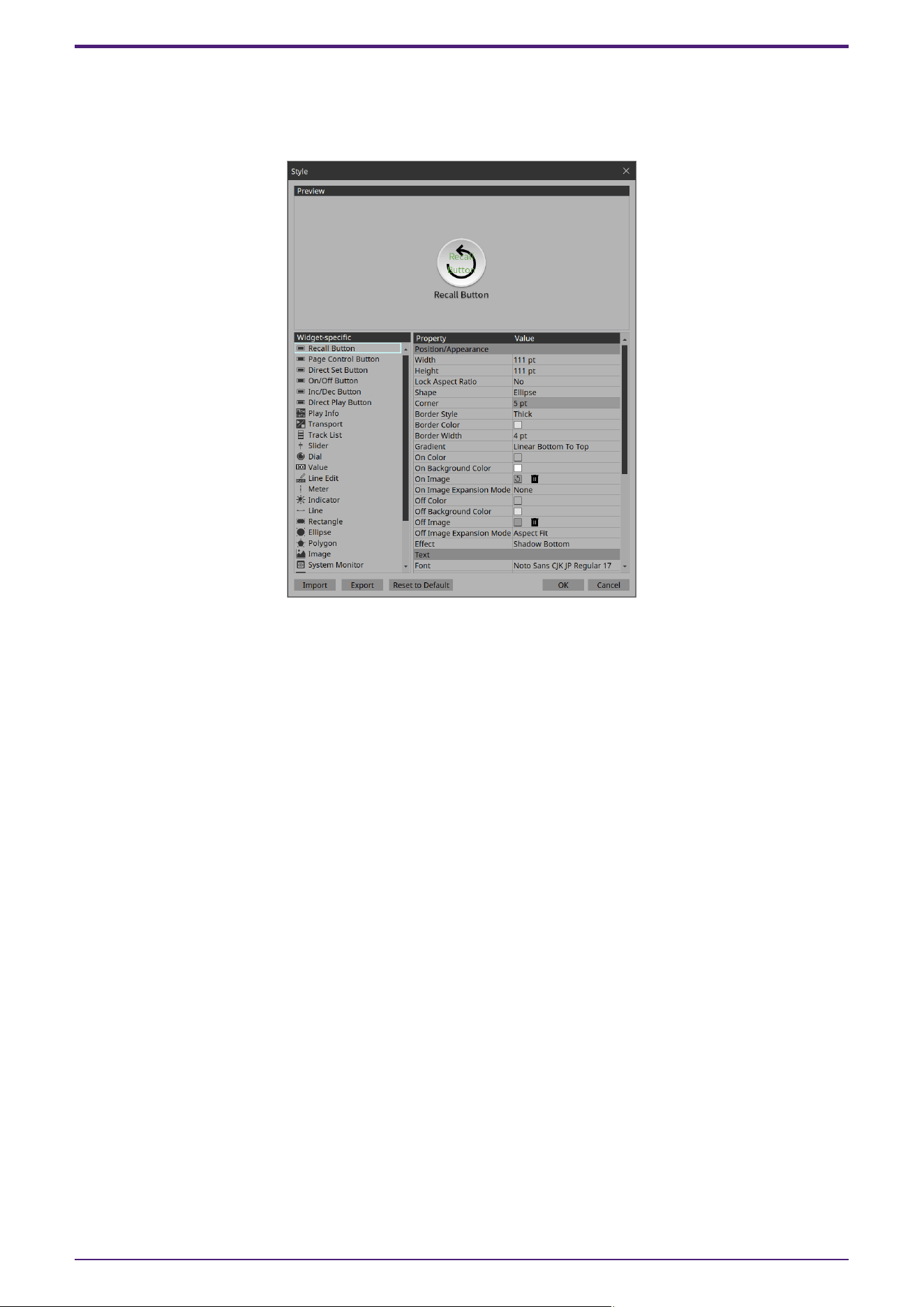
16.14. “Style” dialog box
Check/edit the appearance (style) of the widget when it is placed.
Open this dialog box from [Style] under the [Setup] menu.
•
[Preview]
Displays the style of the widget selected in Widget-specific.
•
[Widget-specific]
When you select a widget, the Preview widget is switched, and style information for that widget is shown
at the right.
•
[Property]/[Value]
Style information of the selected widget. This can also be edited.
•
[Import] button
Loads a style file. Changing the style changes how the widget will look when it is placed.
•
[Export] button
Saves the current style information as a file.
•
[Reset to Default] button
Returns to the style immediately after installation.
•
[OK] button
Applies the settings and closes the dialog box.
•
[Cancel] button
Closes the dialog box without applying the settings.
16. Dialog boxes and windows
ProVisionaire Control PLUS V1.0 User Guide | 89

17. Tips
Here are some things that are convenient to know when creating a project.
Q: I want to create multiple widgets of the same design.
A: ① After creating a widget, copy its appearance by clicking [Copy Appearance]. Then, select a placed widget
and execute [Paste Appearance].
A: ② After creating a widget, register it as a style by clicking [Save as Style]. New widgets will be placed with the
same appearance. You can also select a placed widget and execute [Apply Style to Widgets] to change the
appearance of the placed widget to the saved style.
Q: Is there a suggested size for widgets?
A: When you are using a touch panel to operate a widget, design the widget so that it can be reliably touched and
so the knobs and buttons are large enough that they are not completely covered by your finger when you touch
them.
Q: I want to enable screen lock using a button, rather than after a specified length of time.
A: Place a “Page Control Button” widget, and in the “Properties” area, in “Control,” set “Page Control Action” to
[Screen Lock].
To set the image that will be displayed when the screen is locked, go to the Security tab of the “Setup” dialog
box.
Q: I want to hide the work area grid.
A: In page properties, set the [Dot Color] Alpha value to 0.
Q: I want to control a device that’s on a different subnet.
A: When registering the device, use the [Match Device by] list box to select [IP Address], and specify the IP
address. To change a device registered using [Unit ID] to registration by IP address, select the device in the
“Devices” area, then in the “Properties” area’s [Identifier] click “Value” and use the “Edit Device Identifier” dialog
box to make the change.
Q: What should I be aware of when running Kiosk on a computer equipped with a touch panel?
A: If Kiosk is running as full-screen, it will not be possible to perform operations such as shutting down the
computer unless a keyboard is connected. Place a [Page Control] button widget on one of the pages, and in the
“Properties” area, set [Page Control Action] to [Close]. When that button is tapped, the screen for loading a
controller file appears, allowing you to close Kiosk. Additionally, some standard functions such as snap and
shake will not operate.
Q: How can I edit all the channels at once for the parameters to which multiple widgets (buttons, sliders, etc.)
are assigned?
A: When the number of channels is the same for the widgets you have selected, you can edit all the channels at
once in the “Properties” area.
17. Tips
90 | ProVisionaire Control PLUS V1.0 User Guide
18. Troubleshooting
Problem Cause Action
Can’t go online. The network interface card
selection is wrong.
In the “Setup” dialog box, select the network interface
card that is connected to the device.
The network interface card
settings are wrong.
Enter ncpa.cpl in the search box at the right of the start
button, and open “Network Connections.” Right-click
the network interface card that you want to connect to
the system, choose [Properties], and make sure that
the IP/v4 settings are correct.
You have exceeded the
maximum number of
devices that can be
connected simultaneously.
There is a limit on the number of devices that can be
simultaneously connected to Kiosk or to R Remote.
The device-related settings
are incorrect.
Make sure that the device identification information
(the ID or IP displayed to the right of the device in the
Devices area) matches the device on the network.
A floating area is not
shown in the display.
The floating area was
moved outside the visible
area of the display.
On the [View] menu, execute the [Dock All] command.
Operating status
information is not shown
in the “System Monitor”
window.
Three or more computers
on which “ProVisionaire
Edge” is running are
connected to the same
network.
Allow no more than two computers on the same
network to be running “ProVisionaire Edge.”
18. Troubleshooting
ProVisionaire Control PLUS V1.0 User Guide | 91

© 2024 Yamaha Corporation
Published 05/2024
YJ-A0