
Wired LAN Instruction Manual
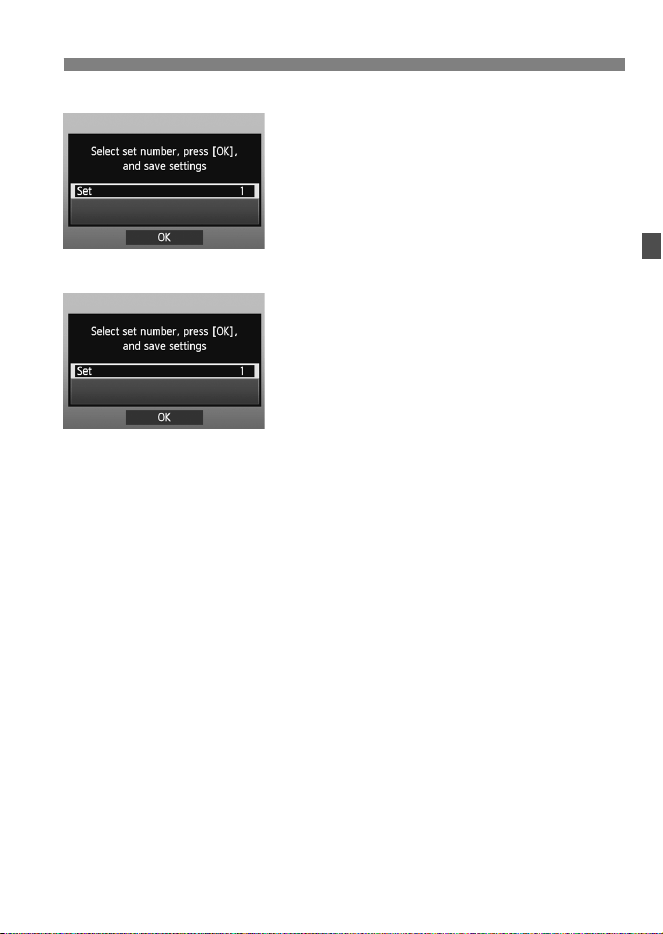
INSTRUCTION
MANUAL
ENGLISH
This Instruction Manual booklet is current as of April 2015. For information on the
camera’s compatibility with any accessories and lenses introduced after this date,
contact any Canon Service Center.
CEL-SS5AA211 © CANON INC. 2015
CANON INC.
30-2 Shimomaruko 3-chome, Ohta-ku, Tokyo 146-8501, Japan
Europe, Africa & Middle East
CANON EUROPA N.V.
PO Box 2262, 1180 EG Amstelveen, The Netherlands
For your local Canon office, please refer to your warranty card or to www.canon-europe.com/Support
The product and associated warranty are provided in European countries by Canon Europa N.V.
2
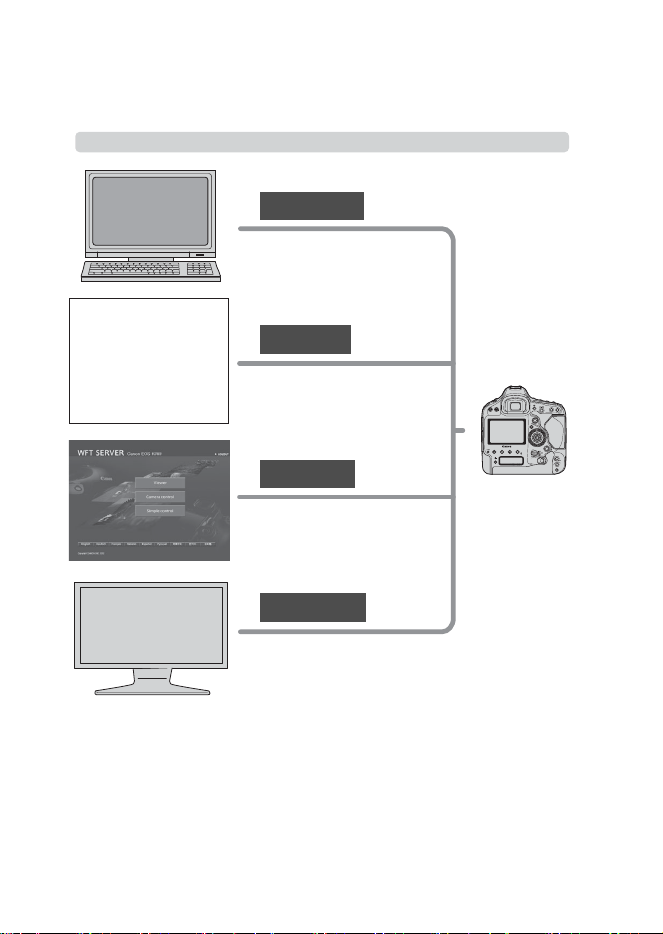
EOS-1D X wired LAN functions enable the following operations.
Wired LAN Functions
Transfer images to an FTP
server
Use a web browser to
capture, view, and
download images remotely
Use EOS Utility to capture,
view, and download images
remotely
View images on a DLNA-
compatible TV or other
devices
FTP Transfer
EOS Utility
WFT Server
Media Server
EOS Utility
3
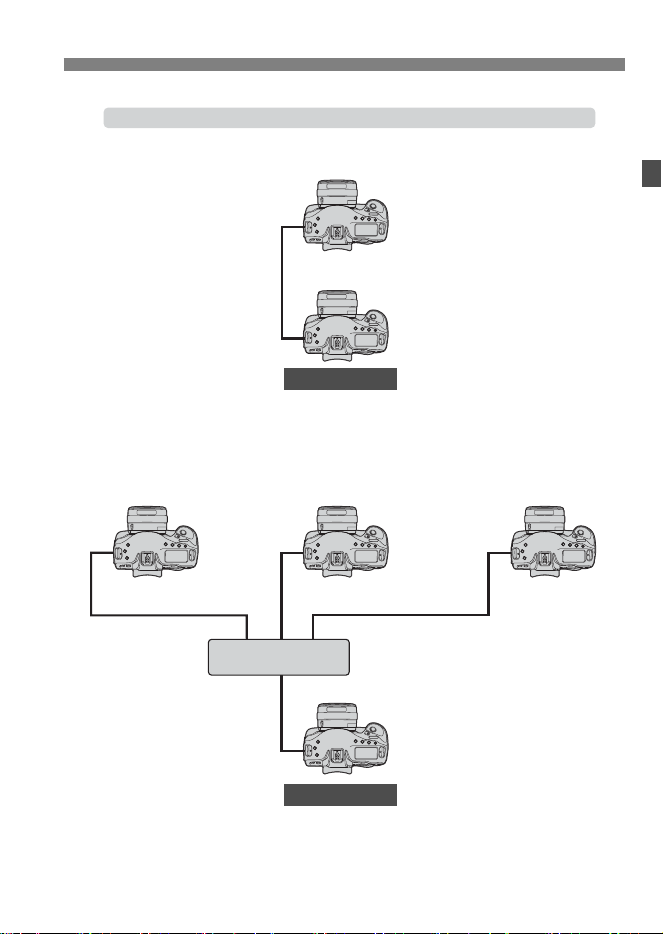
Synchronizing the Camera Time
Slave camera
Master camera
Slave camera
Master camera
LAN cable
LAN cable
Hub

4
These instructions assume that your wired LAN and FTP server
settings are complete. For details on configuring these settings, refer
to the documentation provided with the respective equipment.
Terms in brackets [ ] indicate button or icon names or other
software elements. Brackets also denote camera menu items.
Page numbers in parentheses indicate where you can find additional
information.
These instructions assume that you have read the Camera
Instruction Manual and are familiar with operating the camera.
Sections of this manual labeled with the following symbols contain
information of the corresponding nature.
: Warnings to avoid potential problems are labeled with a caution
symbol.
: Supplemental information is labeled with a note symbol.
Conventions Used in this Manual
Microsoft and Windows are trademarks or registered trademarks
of Microsoft Corporation in the United States and/or other
countries.
Macintosh and Mac OS are trademarks of Apple Inc., registered
in the U.S. and other countries.
UPnP is a trademark of the UPnP Implementers Corporation.
All other corporate and brand names in this manual are
trademarks or registered trademarks of their respective owners.
Using the camera for remote image transfer, capture, or viewing requires
adequate knowledge of configuring your wired LAN and FTP server.
Canon cannot provide support for configuring wired LANs or FTP servers.
Note that Canon cannot be held liable for any loss or damage to the camera
from erroneous network or FTP server settings. In addition, Canon cannot be
held liable for any other loss or damage caused by use of the camera.


6
2
3
4
5
1
Introduction
Conventions Used in this Manual..................................................................... 4
Chapter List...................................................................................................... 5
Contents........................................................................................................... 6
Basic Network Settings 9
LAN Cable Connection................................................................................... 10
Getting Ready................................................................................................ 11
Displaying the Connection Wizard.................................................................. 12
Selecting the Communication Method and LAN Type.................................... 14
Configuring Network Settings......................................................................... 17
Transferring Images toan FTP Server 21
Configuring FTP Communication Settings..................................................... 22
Automatic Image Transfer After Each Shot.................................................... 25
Transferring Images Individually..................................................................... 30
Batch Transfer................................................................................................ 34
Checking Image Transfer History................................................................... 40
Viewing Transferred Images........................................................................... 42
Remote Capture UsingEOS Utility 43
Configuring EOS Utility Communication Settings........................................... 44
Using EOS Utility............................................................................................ 48
Remote Capture Using WFT Server 49
Configuring WFT Server Communication Settings......................................... 50
Displaying WFT Server................................................................................... 52
Viewing Images.............................................................................................. 54
Remote Capture [Camera control].................................................................. 57
Remote Capture [Simple control] ................................................................... 61
Remote Capture............................................................................................. 63
Using the Camera asa Media Server 65
Configuring Media Server Communication Settings....................................... 66
Displaying Captured Images on a Television ................................................. 67
Contents

7
Contents
8
7
9
6
Managing SettingsInformation 69
Checking Settings ........................................................................................... 70
Changing Settings........................................................................................... 72
Saving and Loading Settings.......................................................................... 76
Synchronizing the Camera Time 79
Synchronizing the Time................................................................................... 80
Troubleshooting 83
Handling Error Messages................................................................................ 84
Checking Network Settings............................................................................. 97
Reference 99
Creating and Registering Captions ............................................................... 100
Index............................................................................................................. 114
8

9
1
Basic Network Settings
Complete the basic network settings by following
connection instructions on the camera menu screen.

10
Connecting a LAN Cable
Open the Ethernet RJ-45 terminal
cover and connect the LAN cable.
Use a highly shielded Category 5e or higher STP (Shielded Twisted
Pair) Gigabit Ethernet cable.
LAN Cable Connection
LAN Cable

11
The connection instructions help you connect the camera via a wired
LAN connection.
Set up the EOS-1D X and computer in advance so that you can connect
the camera to the computer via wired LAN.
Set up a DLNA*-compatible television, digital photo frame, or similar
media player so that it is ready for use after the EOS-1D X is
connected.
* DLNA: Digital Living Network Alliance
Getting Ready
[FTP trans.], [EOSUtility], [WFTserver]
[MediaServ.]
12
This section’s explanation follows the flow of the connection
instructions. If an error is displayed, see “Troubleshooting” in Chapter 8
(p.83) and check the settings.
Pressing the shutter button or other camera controls during
configuration will cause the connection instructions to close. Do not
press the shutter button or other controls until configuration is
finished.
On the [
5
2] tab, set [Auto power off] to [Disable]. If auto power off
is activated, the connection instructions will close during the
configuration process.
1
Turn the camera on.
2
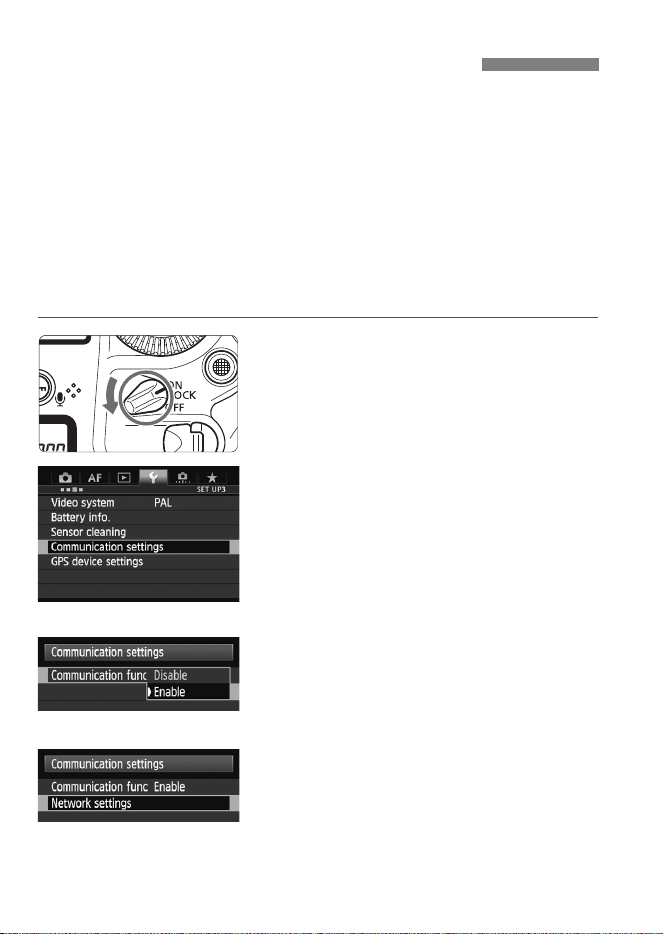
Display the communication
functions menu.
On the camera, press the <7>
button.
On the [53] tab, select
[Communication settings] and
press <0>.
3
Select [Communication func].
Set [Communication func] to
[Enable], and then press <0>.
[Network settings] is now available.
4
Select [Network settings].
Displaying the Connection Wizard
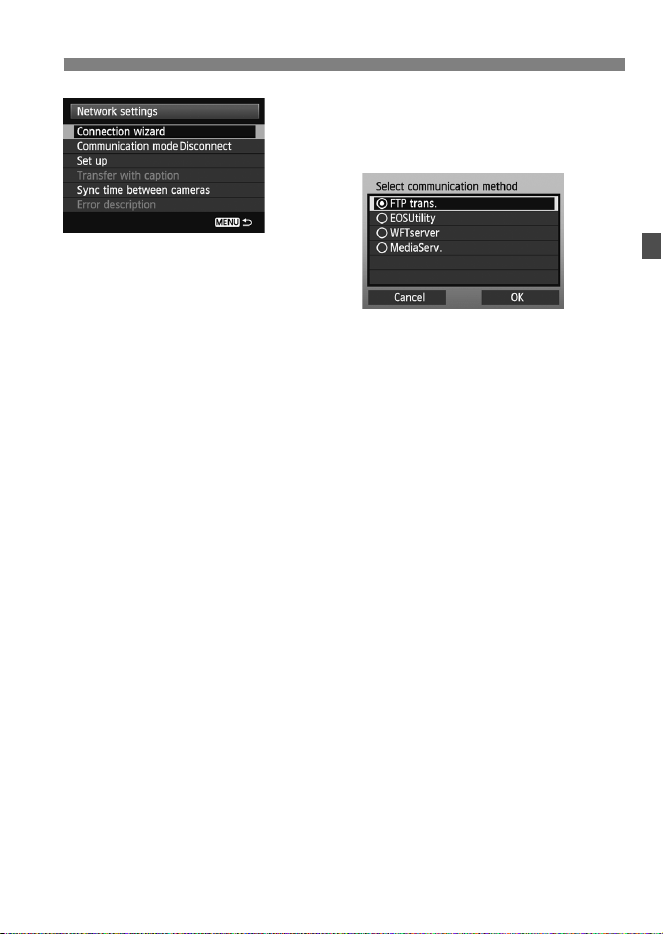
13
Displaying the Connection Wizard
5
Select [Connection wizard].
The [Select communication
method] screen is displayed.
The <Y> lamp on the camera
starts blinking.
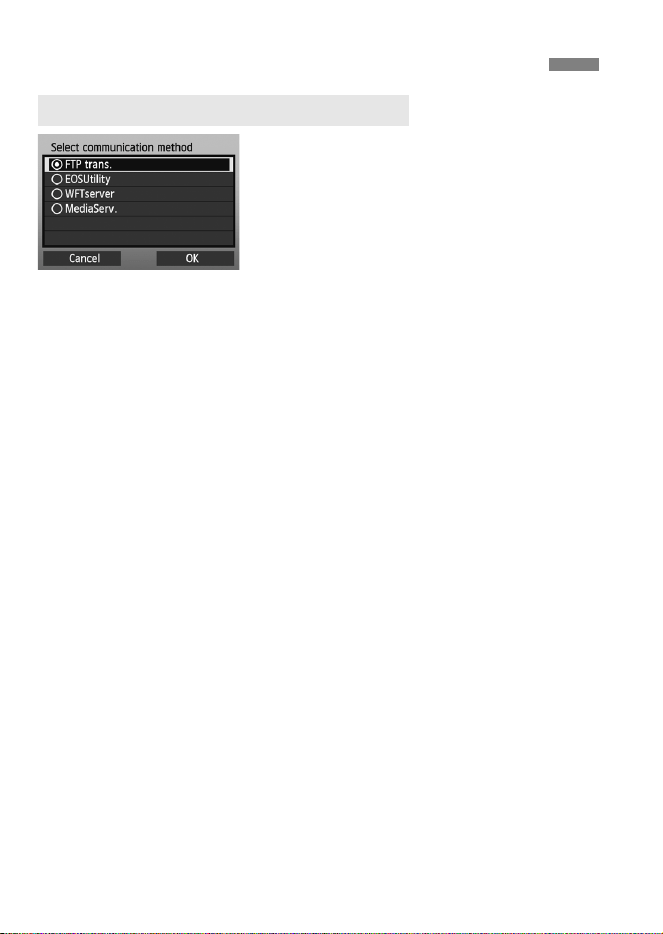
14
Turn the <5> dial to select the
communication method, and then
press <0>.
Select [OK] and press <0> to go to
the next screen.
• FTP trans.
Select this option to transfer captured images to an FTP server.
Images can be automatically transferred as you shoot them, or you can
select images to be transferred later.
Computer Operating Systems
Use of [FTP trans.] requires that one of the following operating
systems be installed on your computer. In addition, the computer
must be set up as an FTP server in advance.
• Windows 8, Windows 8 Pro, Windows 8.1, Windows 8.1 Pro
• Windows 7 (Professional, Enterprise, or Ultimate Edition for
32- or 64-bit systems)
• Windows Vista (Business, Enterprise, or Ultimate Edition for
32- or 64-bit systems)
For instructions on setting up your computer as an FTP server, refer
to the computer documentation.
The following operating systems cannot be used because FTP
server functionality is not provided.
• Windows 7 Home Premium
• Windows Vista Home Premium/Home Basic Edition
Selecting the Communication Method and LAN Type
Selecting the Communication Method

15
Selecting the Communication Method and LAN Type
• EOSUtility
Select this option for remote capture over a wired LAN using the EOS
Utility (EOS software).
In addition to remote capture, almost all EOS Utility camera operations
except firmware updating are supported, because this option utilizes a
wired network instead of a USB cable.
Requires a computer with EOS Utility (EOS software) installed.
• WFTserver
Select this option for remote capture over a wired LAN with the
EOS-1DX acting as a server.
Additionally, images on a memory card in the camera can be viewed
and downloaded to a computer.
The camera can be accessed in the same way as browsing a web
page, by users at up to three computers.
Computer Operating Systems
Any computer with a web browser can be used, regardless of the
operating system.
Devices other than computers that feature a web browser can also
be used. However, if the web browser does not support JavaScript,
WFT Server functions will be limited. Also note that devices with
limited performance may display images more slowly, and
downloading images to these devices may not be possible.
• MediaServ.
Select this option to view images on a memory card in the camera over
a wired LAN on a television.
This function requires a DLNA-compatible television, digital photo
frame, or similar media player.

16
Selecting the Communication Method and LAN Type
Make sure [Wired] is selected, and
then press <0>.
Select [OK] and press <0> to go to
the next screen.
Selecting the LAN Type
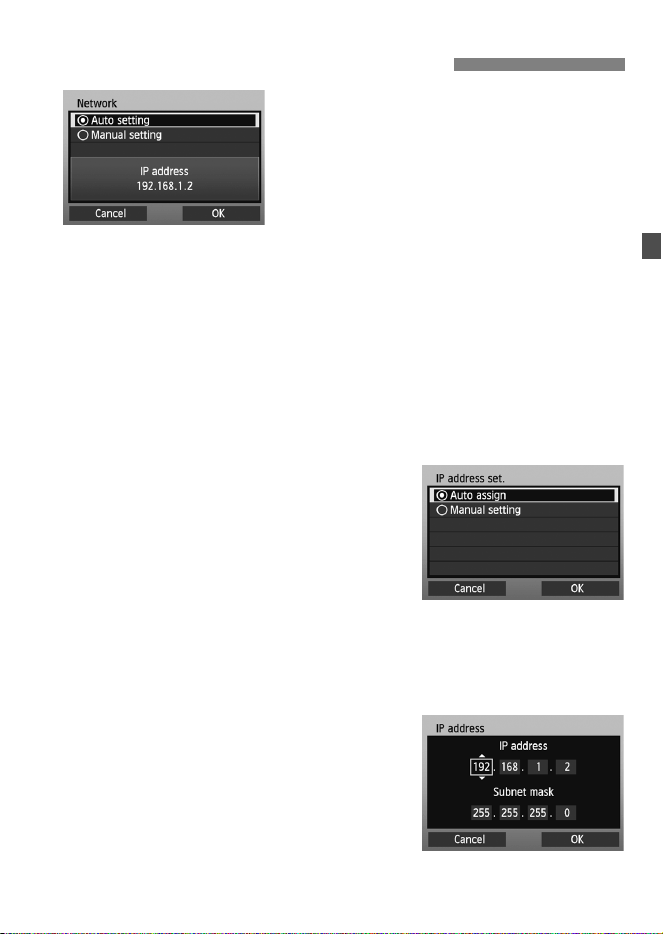
17
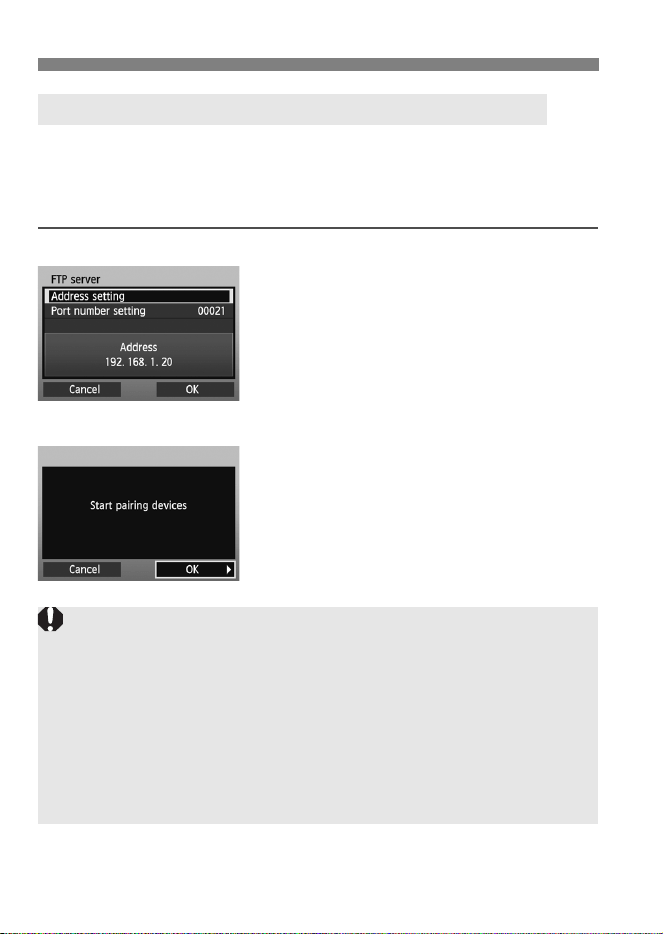
Turn the <5> dial to select a
configuration method for the network
settings, and then press <0>.
Select [OK] and press <0> to go to
the next screen.
[Auto setting]
Settings otherwise configured with [Manual setting] can be
configured automatically. However, in environments using DHCP
servers or routers supporting DHCP server functions, the IP address
and similar settings must be assigned and configured automatically.
If an error is displayed, select [Manual setting] regardless of
whether the IP address and similar settings are automatically
assigned and configured.
[Manual setting]
The [IP address set.] screen is displayed
after you select [Manual setting]. If [Auto
assign] results in an error, select [Manual
setting]. The IP address you enter must be
the IP address assigned to the camera.
Enter the [IP address], [Subnet mask],
[Gateway], and [DNS address] on each
screen as they are displayed.
If you are not sure what to enter, see page 97, “Checking Network
Settings,” or ask the network administrator or another person
knowledgeable about the network.
When entering numbers for the IP
address, subnet mask, and so on, press
<0> to move the input position and turn
the <5> dial to enter the number.
Configuring Network Settings
18
Configuring Network Settings
The following instructions are for setting screens that vary depending
on the communication method (FTP Transfer, EOS Utility, WFT Server,
or Media Server), as shown below. Read the page that describes the
selected communication method.
FTP trans.
Chapter 2 (p.21)
EOSUtility
Chapter 3 (p.43)
Completing Settings for the Communication Method
Users of EOS Utility Ver. 2.13 or Earlier in Windows
Before performing the operations described from page 43, perform the
operations below. If these operations are not performed, the Pairing
Software described on page 44 may not start.
Open the [C Drive] [Program Files] [Canon] [EOS Utility]
[WFTPairing] folder (in this order), and then double-click the [WFT
FirewallSettings] icon. (This folder name is only an example. The folder
where files are saved varies depending on the computer environment used.)
After performing this operation, perform the operations described from
page43.
20
Configuring Network Settings
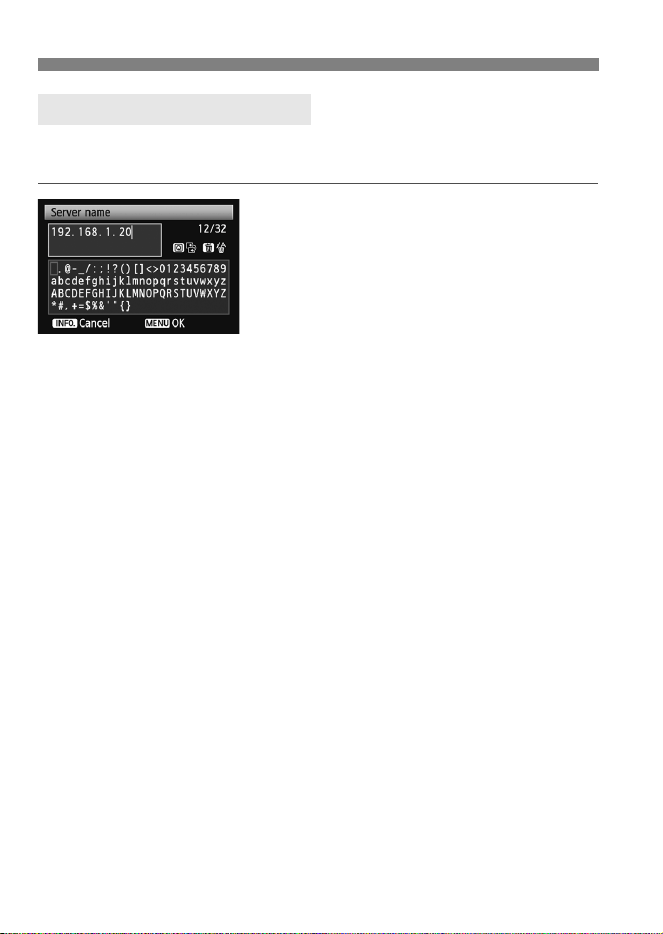
The virtual keyboard is displayed when entering the server name and
other information.
Switching between input areas
To switch between input areas, press the
<Q> button.
Moving the cursor
To move the cursor, turn the <5> dial.
You can also move the cursor using
<9>.
Entering text
In the bottom input area, turn the <5>
dial to move the cursor and press <0>
to enter text.
You can also move the cursor using
<9>.
You can check how many characters you
have entered by referring to [*/32] in the
upper-right corner of the screen.
Deleting text
If you make a mistake, press the <L>
button to erase characters.
Confirming entries
Press the <7> button to confirm
what you have entered and go to the
next screen.
Canceling entries
Press the <6> button to erase the
entry and return to the previous screen.
Virtual Keyboard Operation

21
2
Transferring Images
toan FTP Server
With FTP transfer, you can automatically transfer each
image to the FTP server as you shoot or transfer
images in batches after shooting.
22
These instructions are continued from Chapter 1.
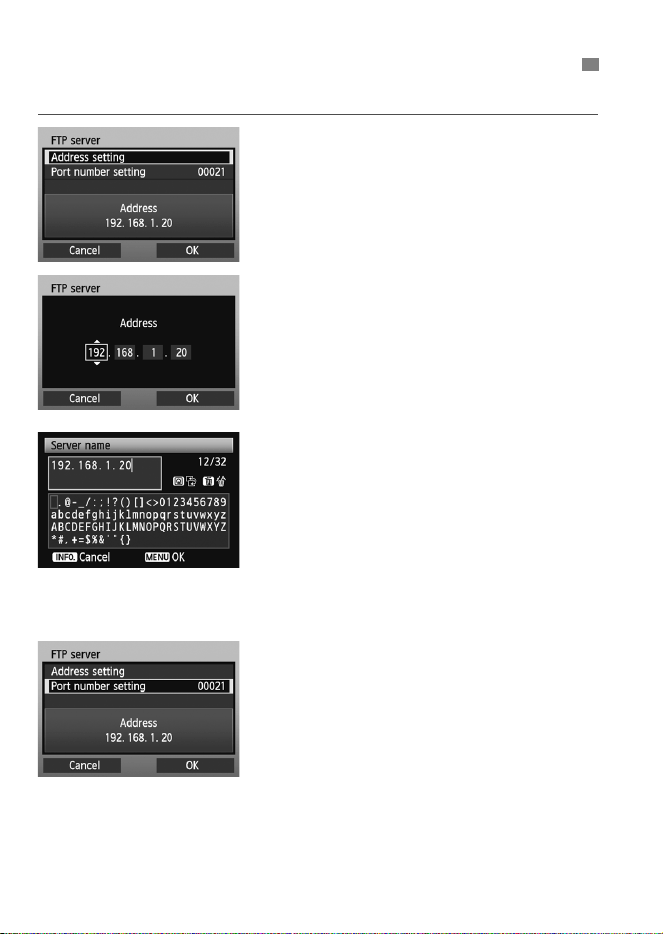
1
Turn the <5> dial to select [Address
setting], and then press <0>.
2
If you set the DNS server setting to
[Disable], the screen on the left is
displayed.
Press <0> to select the input
position, and then turn the <5> dial
to enter the IP address of the FTP
server.
If you set the DNS server IP address
setting to [Auto assign] or [Manual
setting], the screen on the left is
displayed.
For instructions on screen operations,
see “Virtual Keyboard Operation”
(p.20).
Enter the FTP server’s server name
or IP address.
3
In [Port number setting], enter
00021, in most cases.
Turn the <5> dial to select [OK], and
then press <0> to go to the next
screen.
Configuring FTP Communication Settings
23
Configuring FTP Communication Settings
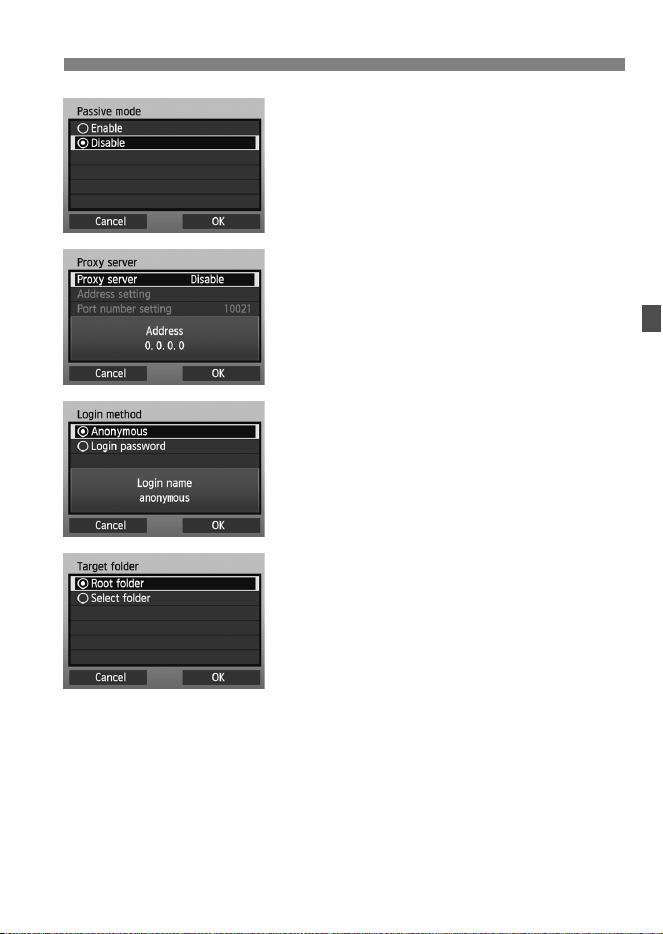
4
Complete the [Passive mode]
settings.
If an Error 41 (“Cannot connect to
FTP server”) is displayed in step 8,
setting [Passive mode] to [Enable]
may resolve it.
5
Complete the [Proxy server]
settings.
Turn the <5> dial to select [OK], and
then press <0> to go to the next
screen.
6
Complete the [Login method]
settings.
Turn the <5> dial to select [OK], and
then press <0> to go to the next
screen.
7
Complete the [Target folder]
settings.
Select [Root folder] to save images
in the root folder as specified in FTP
server settings (p.42).
Select [Select folder] to specify a
subfolder in the root folder. If no folder
exists, a folder will be created
automatically.
Turn the <5> dial to select [OK], and
then press <0> to connect to the
FTP server.
Configuring FTP Communication Settings
24
8
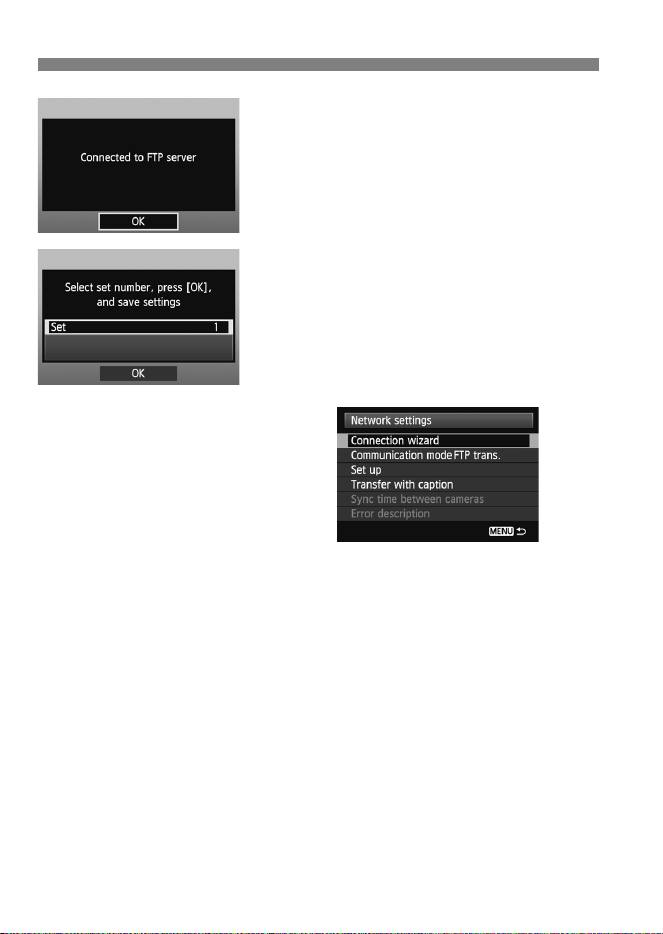
On the confirmation screen displayed
next, select [OK] and press <0>.
The <Y> lamp on the camera
lights up green.
9
Press <0> and turn the <5> dial to
select the set number, and then press
<0>.
Turn the <5> dial to select [OK], and
then press <0>. After the
connection wizard closes, the display
will return to the menu screen.
The network settings for FTP transfer are now complete.
During image transfer, the <Y> lamp on the camera blinks green.
25
An image can be automatically transferred to the FTP server
immediately after shooting. You can continue still photo shooting even
while images are being transferred.
Before shooting, be sure to insert a memory card in the camera. If you
shoot without recording images, they will not be transferred.
Note that automatic transfer of movies is not supported. Transfer
movies after shooting, as described on pages 30-38.
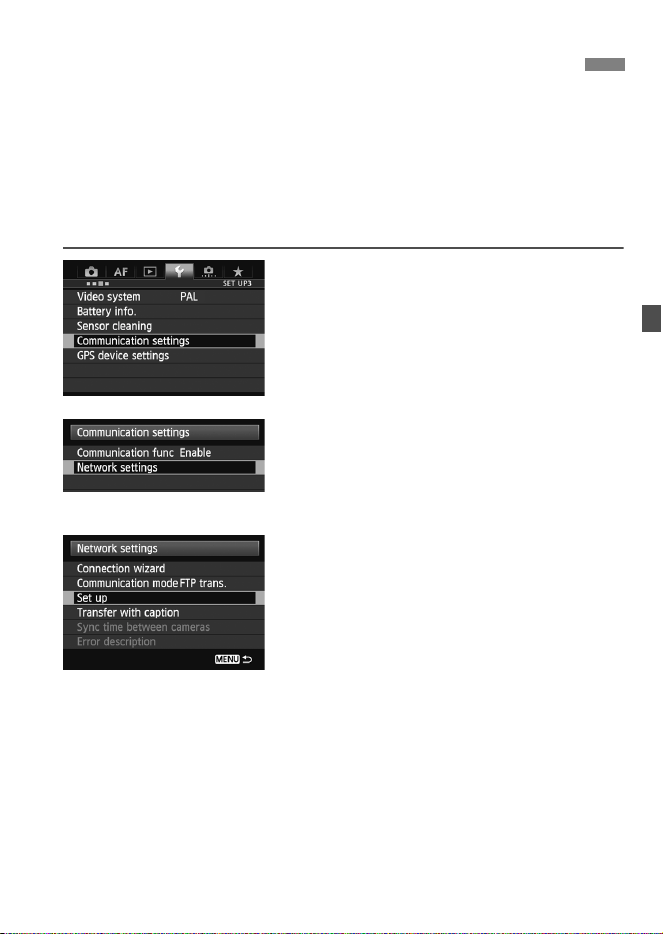
1
Select [Communication settings].
2
Select [Network settings].
Once [Communication func] is set
to [Enable], you can select [Network
settings].
3
Select [Set up].
Automatic Image Transfer After Each Shot
Automatic Image Transfer After Each Shot
26
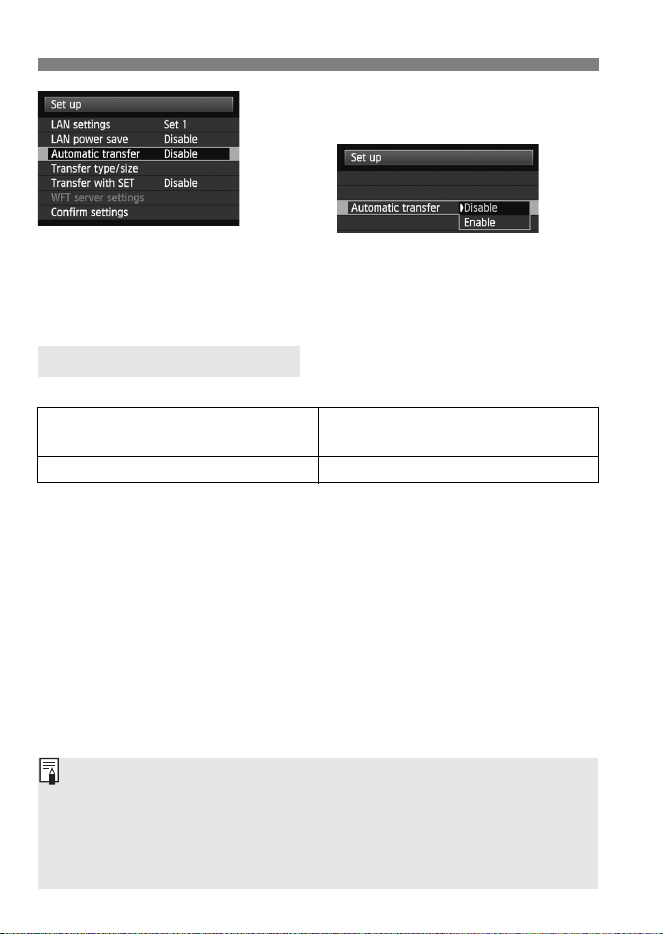
4
Select [Automatic transfer].
Select [Enable].
5
Take the picture.
The captured images are transferred
to the FTP server.
Approx. number of shots
* Using a fully charged LP-E4N Battery Pack.
*[LAN power save: Enable]
* Based on Camera & Imaging Products Association (CIPA) standards.
Number of Possible Shots
Normal Temperature
(23°C / 73°F)
Low Temperature
(0°C / 32°F)
950 740
During continuous shooting, images are transferred to the FTP server in
the order they are captured.
The captured images are also stored on the memory card.
Any images for which transfer fails or is interrupted will be transferred
automatically when the connection is restored (p.28). These images can
also be transferred in batches manually at a later time (p.34).
27
Automatic Image Transfer After Each Shot
With automatic transfer, you can select which images to transfer when
recording images of different sizes to separate cards, or when recording
both RAW and JPEG images.
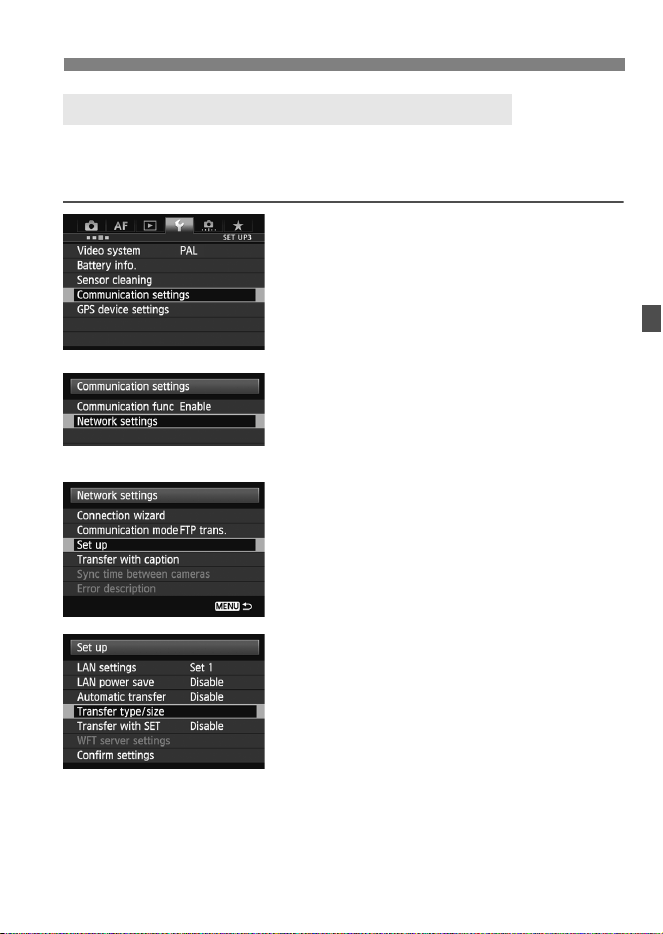
1
Select [Communication settings].
2
Select [Network settings].
Once [Communication func] is set
to [Enable], you can select [Network
settings].
3
Select [Set up].
4
Select [Transfer type/size].
Setting the Size or Type of Images to Transfer
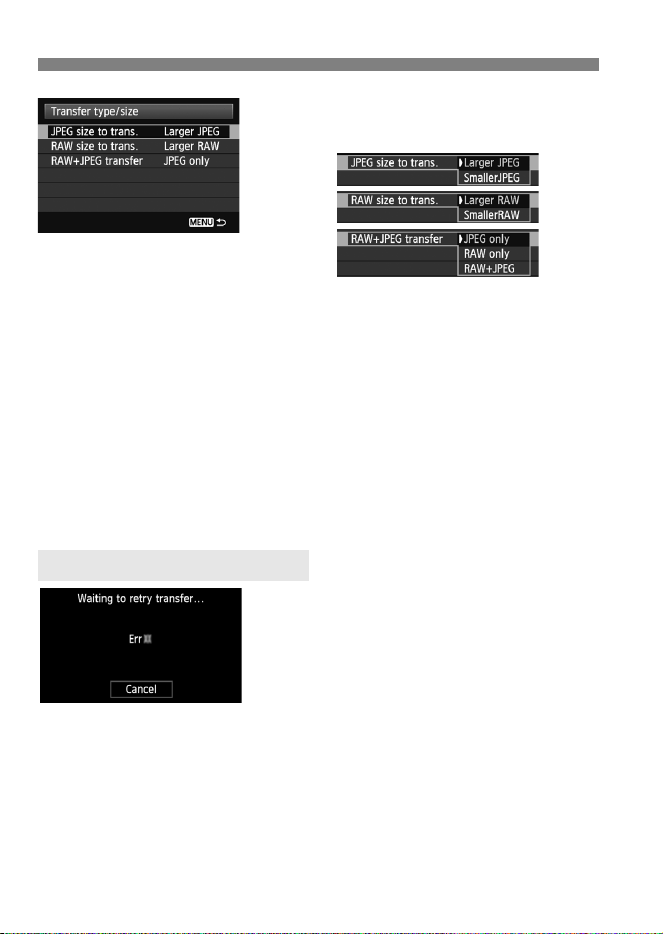
Automatic Image Transfer After Each Shot
28
5
Select the size and type of images
to transfer.
To transfer smaller JPEGs when the camera is set up to record
larger JPEGs to one card and smaller JPEGs to the other, set [JPEG
size to trans.] to [Smaller JPEG].
To transfer either RAW or JPEG images when the camera is set up
to record RAW images to one card and JPEGs to the other, specify
which images to transfer in the [RAW+JPEG transfer] setting.
Similarly, complete the same setting when RAW+JPEG images are
recorded simultaneously to a single memory card.
When images of the same size are recorded to both cards
simultaneously, images recorded to card 1 are transferred,
regardless of image quality (compression).
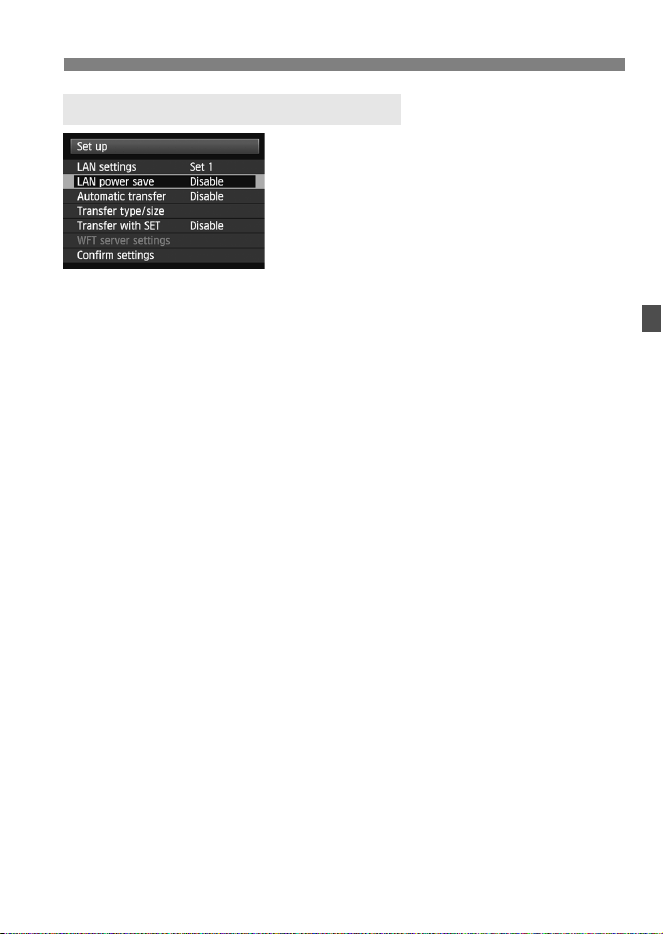
If transfer fails, the <Y> lamp on the
camera blinks in red. In this case, press
the <7> button, select
[Communication settings] on the [53]
tab, and press <0>. When the screen
shown on the left is displayed, check the
error number and see page 84 to eliminate the cause of the error.
Once the cause of the error is eliminated, the images whose transfer
previously failed will be transferred automatically. With this option
activated, transfer is attempted again automatically after failure, both
when automatic transfer is used and when transferring captured images
via FTP. Note that when you cancel image transfer, or turn off the
camera, the image will not be re-transferred automatically. See page 34
and transfer the image manually.
Auto Retry if Transfer Fails
29
Automatic Image Transfer After Each Shot
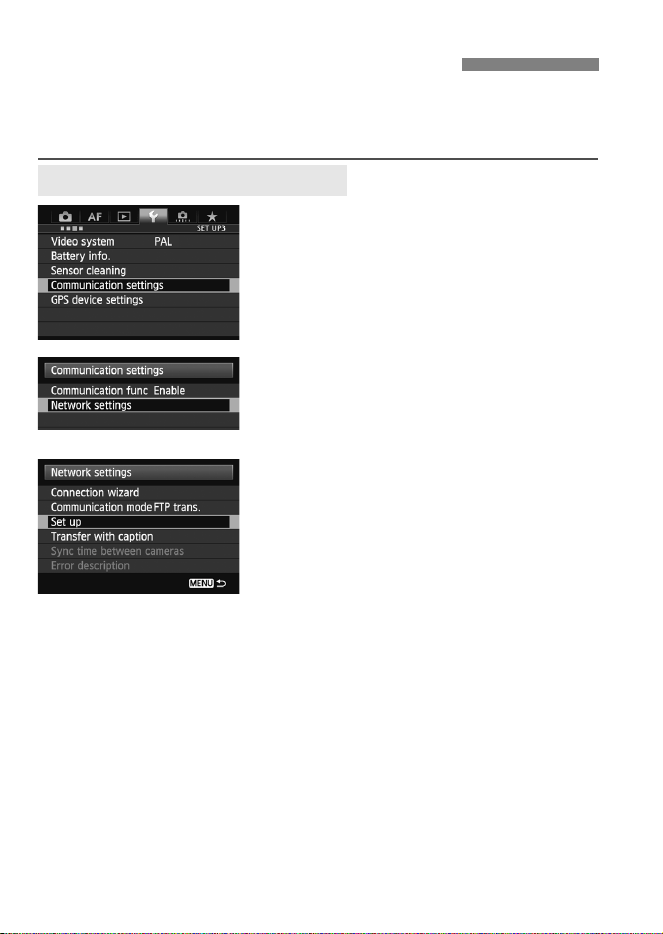
In the menu, select [Communication settings] [Network
settings] [Set up] [LANpowersave].
When this option is set to [Enable], the camera will log off from the
FTP server after transfer and switch to standby mode. Wired
connectivity will be restored automatically when you attempt to
transfer images, and the camera will reconnect to the FTP server.
Enabling LAN Power Management
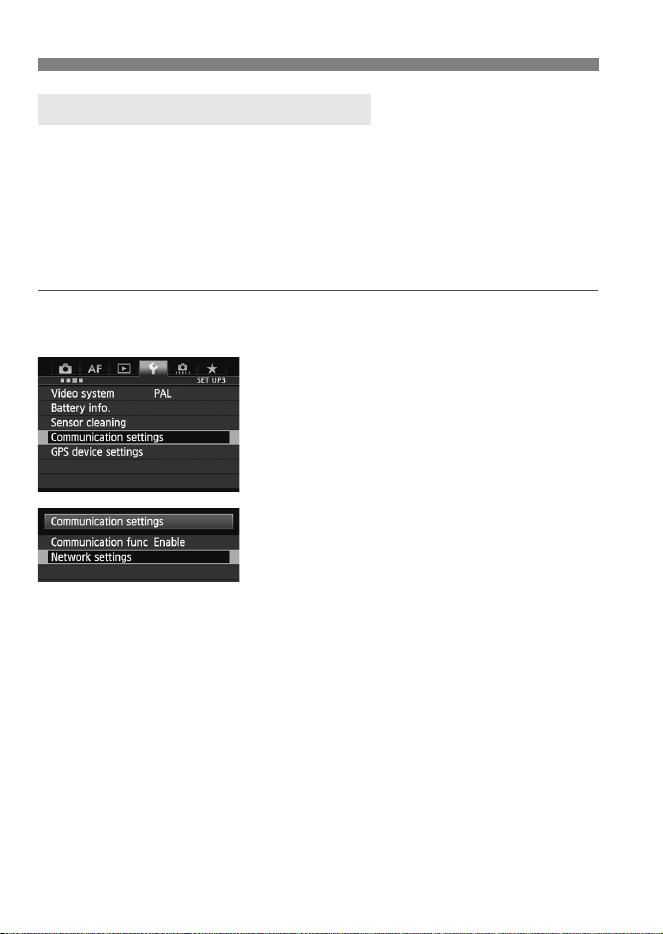
30
Simply select an image and press <0> to transfer it. You can add a
caption before transferring the image. You can continue still photo
shooting even while images are being transferred.
1
Select [Communication settings].
2
Select [Network settings].
Once [Communication func] is set
to [Enable], you can select [Network
settings].
3
Select [Set up].
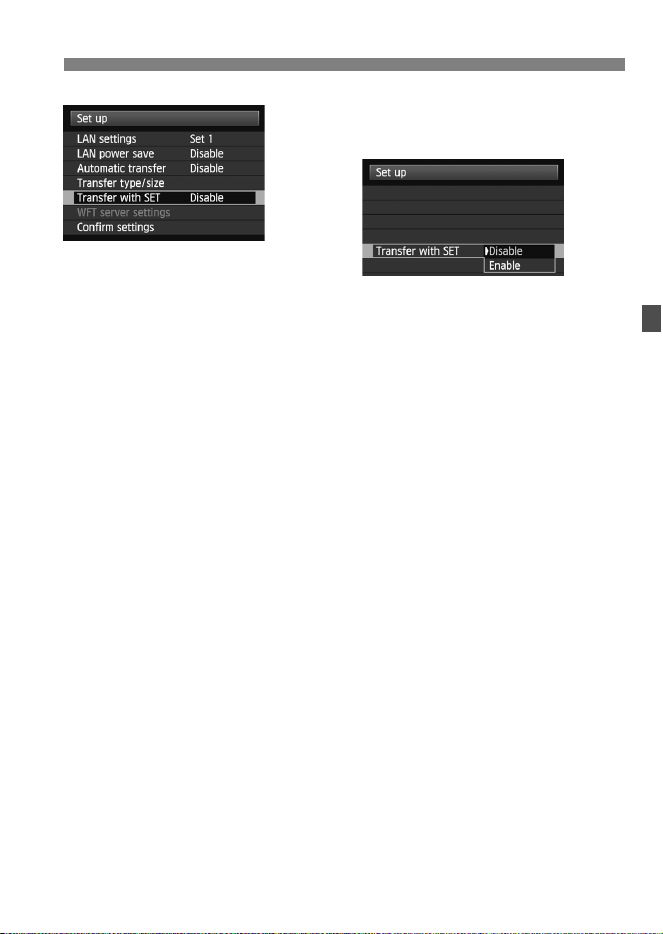
Transferring Images Individually
Transferring the Current Image
31
Transferring Images Individually
4
Select [Transfer with SET].
Select [Enable].
5
Select the image.
Press the <x> button on the
camera.
Select the image to transfer, and then
press <0> to transfer the image.
Movies cannot be transferred with
this function. If you select a movie
and press <0>, the movie
playback panel will be displayed.
Transferring Images Individually
32
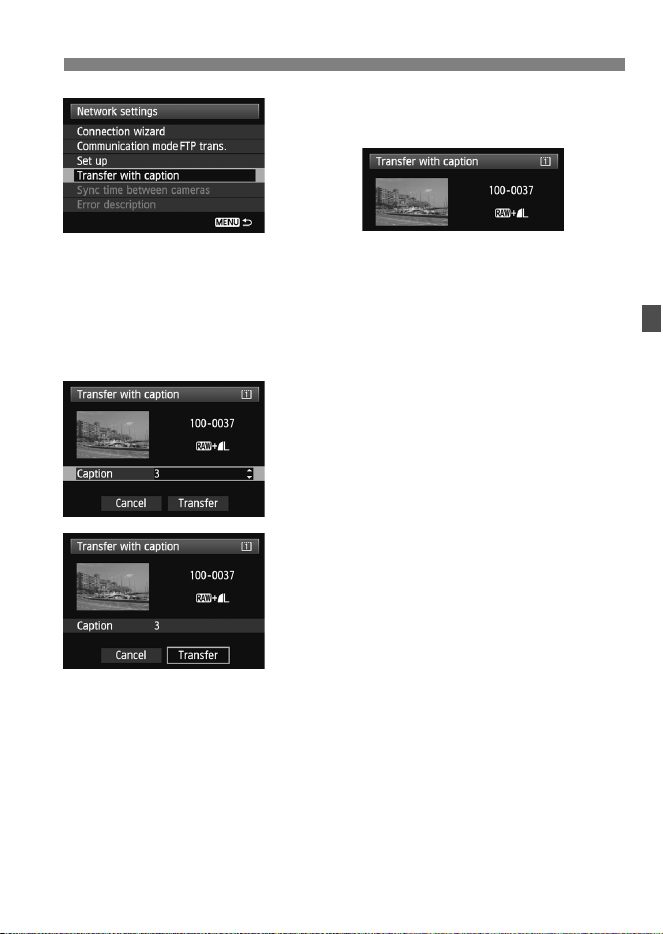
You can add a registered caption to each image before transfer. This is
convenient if you want to inform the recipient of the quantity to print, for
example. The caption is also added to images stored on the camera.
For instructions on creating and registering captions, see page
100.
You can check the captions added to images in the user comments
included in the Exif information.
1
Take the picture.
2
Select [Communication settings].
3
Select [Network settings].
Once [Communication func] is set
to [Enable], you can select [Network
settings].
Adding a Caption Before Transfer
33
Transferring Images Individually
4
Select [Transfer with caption].
The last captured image is displayed.
It is not possible to select other
images on the [Transfer with
caption] screen. To select another
image for transfer with a caption, play
back that image before following
these steps.
5
Select a caption.
Turn the <5> dial to select the
[Caption] box, and then press <0>.
Turn the <5> dial to select the
caption content, and then press
<0>.
6
Transfer the image.
Turn the <5> dial to select
[Transfer], and then press <0>.
34
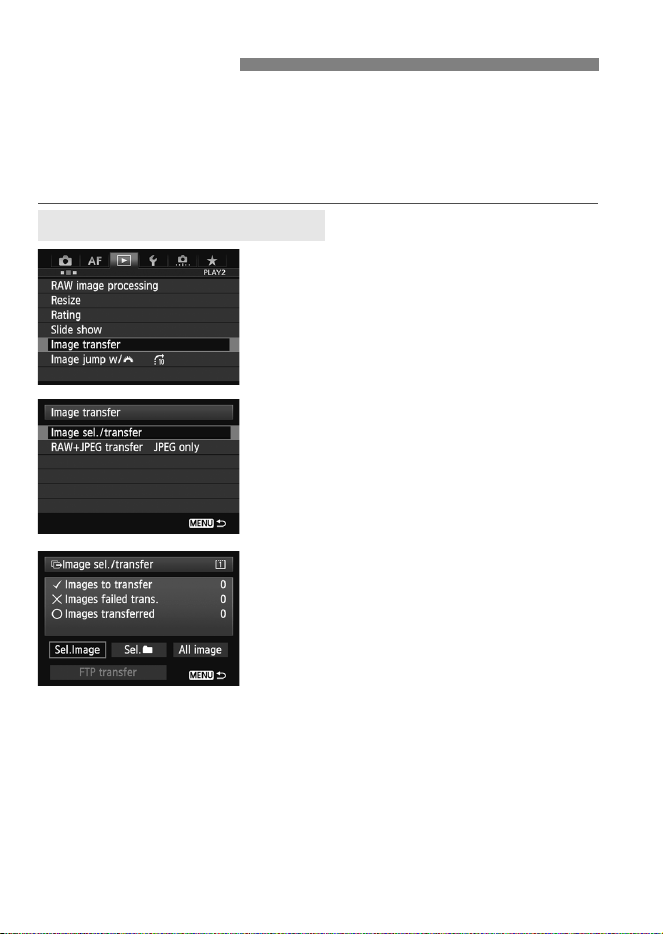
After shooting, you can select multiple images as desired and transfer
them all at once. You can transfer unsent images or images whose
transfer failed previously.
You can continue still photo shooting even while images are being
transferred.
1
On the [32] tab, select [Image
transfer].
2
Select [Image sel./transfer].
3
Select [Sel.Image].
An image is displayed.
Batch Transfer
Selecting Images to Transfer
35
Batch Transfer
4
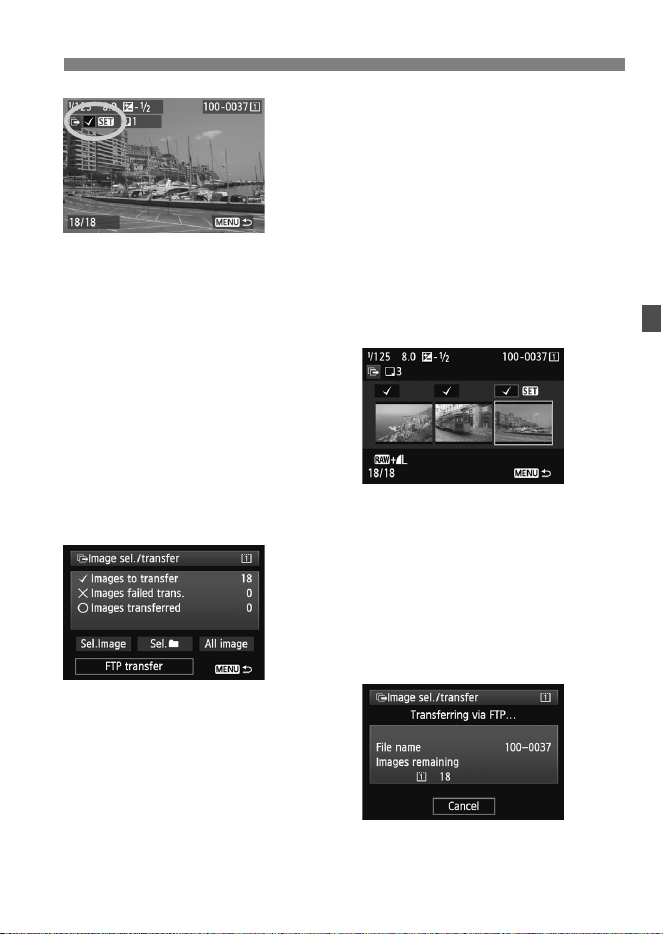
Select images to transfer.
Press <0> and turn the <5> dial to
display <X> in the upper left corner
of the images to transfer.
Press <0> to confirm your selection.
You can select up to 9,999 images.
To display three images per screen,
hold the <u> button and turn the
<6> dial left. To display one image
per screen, hold the <u> button and
turn the <6> dial right.
After selecting images to transfer,
press the <7> button.
5
Transfer the images.
Select [FTP transfer].
Select [OK] on the confirmation
screen displayed next.
A transfer progress screen is
displayed.
Batch Transfer
36
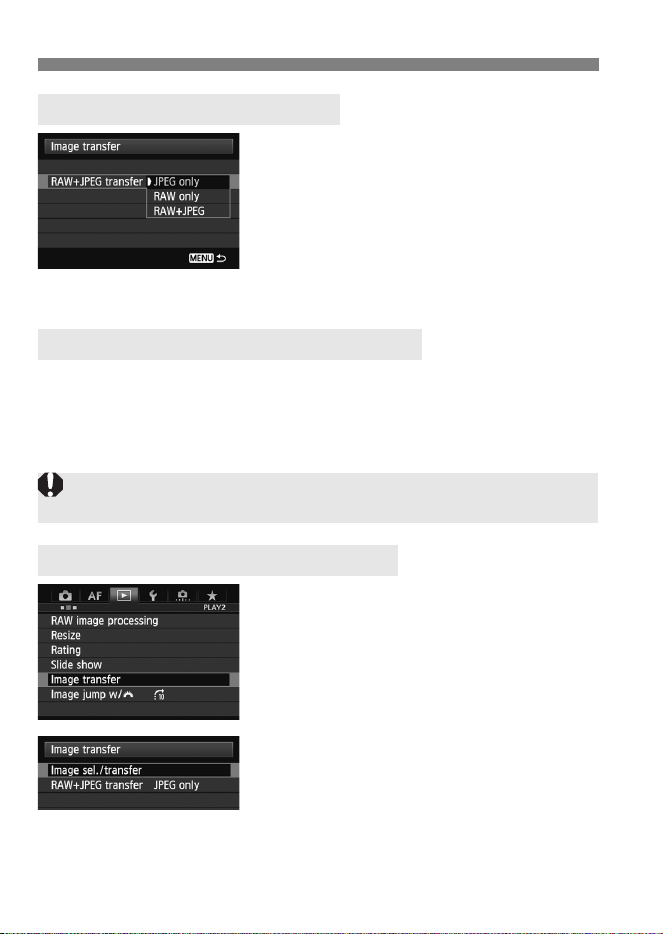
Selecting [RAW+JPEG transfer] in step
2 on page 34 will give you the option of
transferring RAW images, JPEG images,
or both types of images.
The options will be the same whether
you specify [Sel. Image], [Sel. n], or
[All image] as the image selection
method.
You can use the menu even during image transfer. However, to prevent
transfer problems, some menu items are unavailable during transfer,
such as [Communication settings], [Protect images], [Erase
images], [Format card], and [Record func+card/folder sel.].
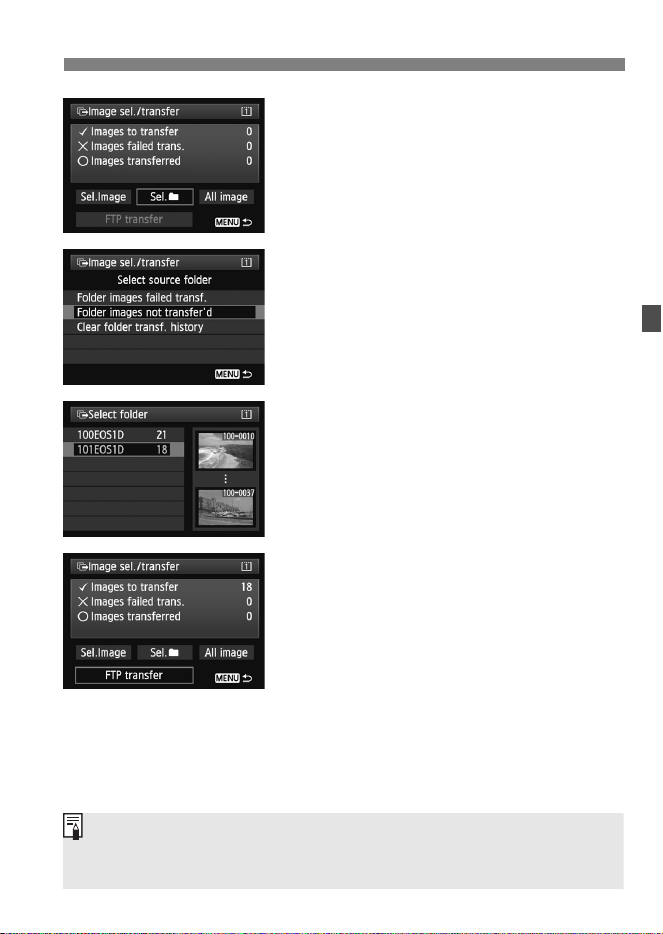
1
On the [32] tab, select [Image
transfer].
2
Select [Image sel./transfer].
[RAW+JPEG transfer] Options
Menu Operation During Image Transfer
Batch Transfer of Images in a Folder
If you shoot a movie during the image transfer of captured images, the
image transfer will be temporary cancelled during movie shooting.
37
Batch Transfer
3
Select [Sel.n].
4
Select [Folder images not
transfer’d].
To transfer images whose transfer
previously failed, select [Folder
images failed transf.].
5
Select a folder.
6
Transfer the images.
Select [FTP transfer].
Select [OK] on the confirmation
screen displayed next.
A transfer progress screen is
displayed.
Selecting [Clear folder transf. history] will set the transfer history of
images in the selected folder to “unsent.” This enables you to resend all the
images in the folder later by selecting [Folder images not transfer’d].
Batch Transfer
38
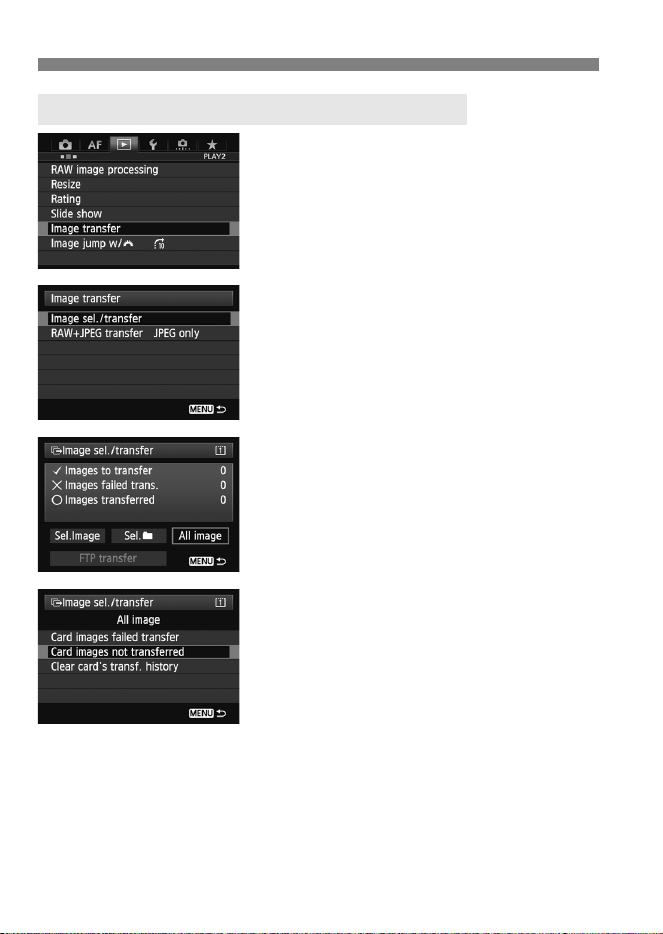
1
On the [32] tab, select [Image
transfer].
2
Select [Image sel./transfer].
3
Select [All image].
4
Select [Card images not
transferred].
To transfer images whose transfer
previously failed, select [Card
images failed transfer].
Batch Transfer of Images on Memory Cards
39
Batch Transfer
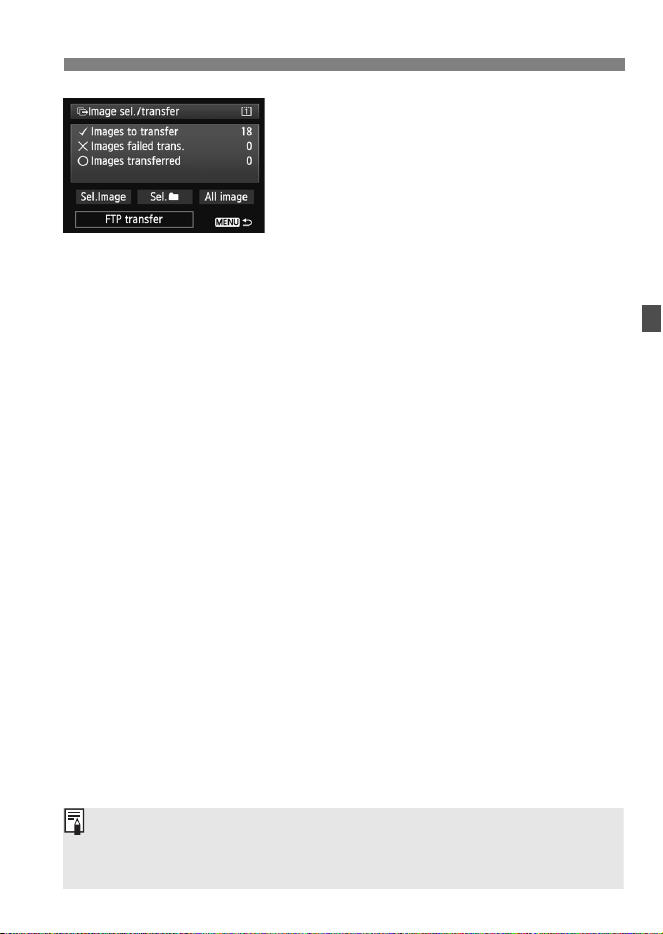
5
Transfer the images.
Select [FTP transfer].
Select [OK] on the confirmation
screen displayed next.
A transfer progress screen is
displayed.
Selecting [Clear card’s transf. history] will set the transfer history of
images on the memory card to “unsent.” This enables you to resend all the
images on the card later by selecting [Card images not transferred].
40
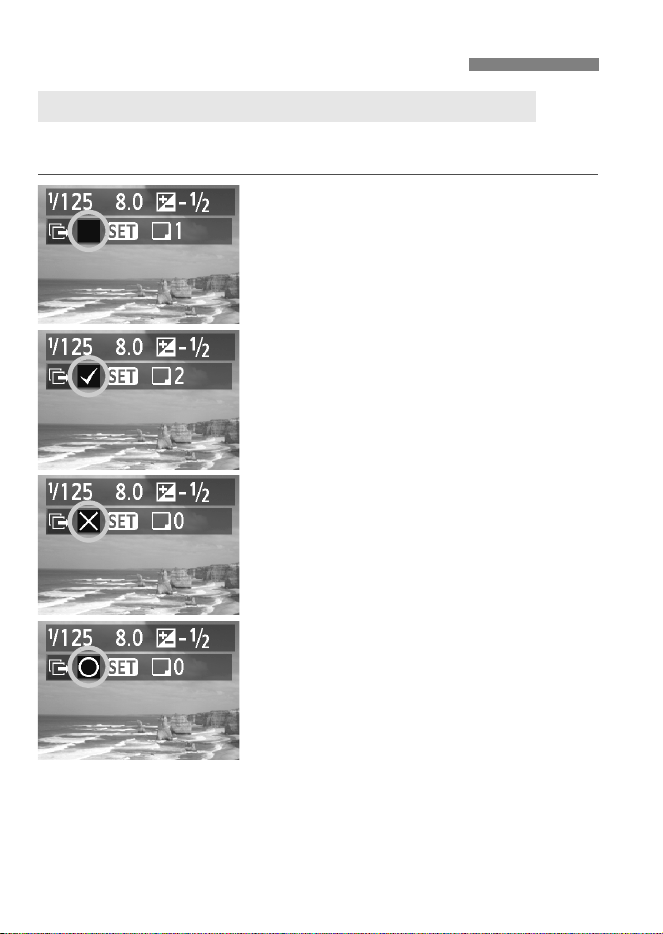
To check the transfer history in [Image sel./transfer], select
[Sel.Image].
Image not selected for transfer
(no mark)
Image selected for transfer
Image whose transfer failed
Image already transferred
Checking Image Transfer History
Checking the Transfer History of Individual Images
41
Checking Image Transfer History
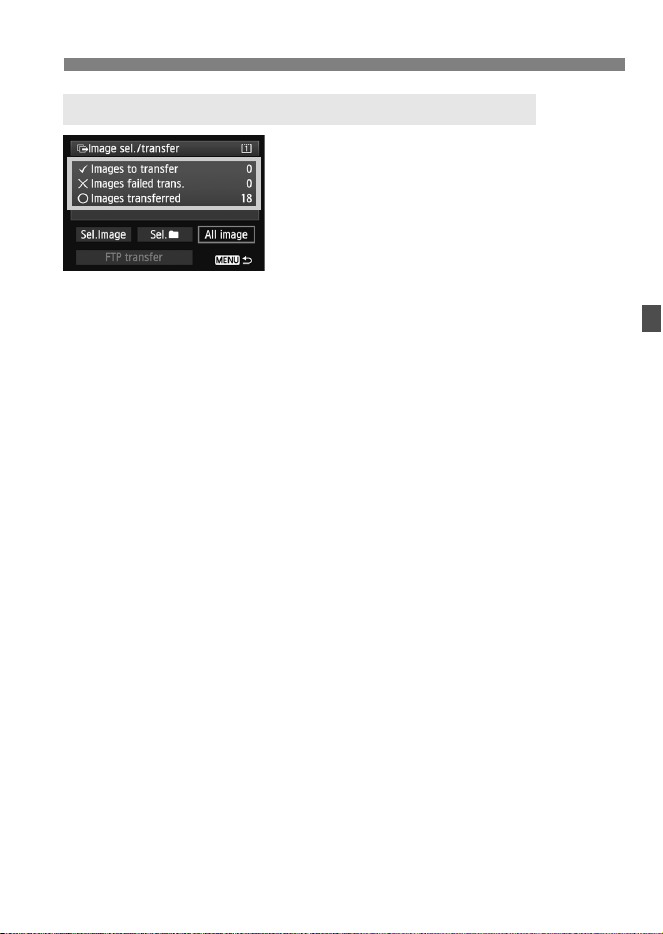
On the [Image sel./transfer] screen, you
can check the number of images to be
transferred as well as the transfer history
of images in the memory card.
Specifically, you can check the number
of images classified as [Images failed
trans.] and [Images transferred].
Checking the Transfer History of Memory Cards

42
Images transferred to the FTP server are stored in the following folder as
specified in the FTP server settings.
Under the default settings of the FTP server, images are stored in [C
drive] [Inetpub] folder [ftproot] folder, or in a subfolder of this
folder.
If the root folder of the transfer destination has been changed in the
FTP server settings, ask the FTP server administrator where images
are transferred.
Open the [Macintosh HD] [Users] folder. The folder where
images are stored is located in the folder of the user currently logged
in, or in a subfolder of this folder.
Under default settings, transferred images will be stored in the root
folder specified in the FTP server settings, in a folder structure such as
A/DCIM/100EOS1D that is automatically created.
Additionally, when you have selected card 1 for recording and playback,
a folder structure such as “A/DCIM/100EOS1D” is automatically
created for image storage. For card 2, the folder structure is “B/DCIM/
100EOS1D”. (Images are stored separately, with card 1 images in
folder A and card 2 images in folder B.)
Viewing Transferred Images
Windows
Macintosh
Folders for Image Storage

43
3
Remote Capture
UsingEOS Utility
You can use EOS Utility to shoot remotely over a wired
LAN.
In addition to remote capture, almost all EOS Utility
camera operations except firmware updating are
supported, because this option utilizes a wired network
instead of a USB cable.
Mac Versions of EOS Utility
The EOS-1D X’s wired LAN functions cannot be used in Mac OS X
10.8.0 or 10.8.1.
44
These instructions are continued from Chapter 1.
With EOS Utility, you can use Pairing Software (EOS software) to
establish a connection between the camera and a computer.
Pairing Software is installed automatically with EOS Utility.
The configuration procedure below uses Windows 8.1 as an example.
Users of EOS Utility Ver. 2.13 or earlier: Go to step 3.
1
Start EOS Utility on the computer.
2
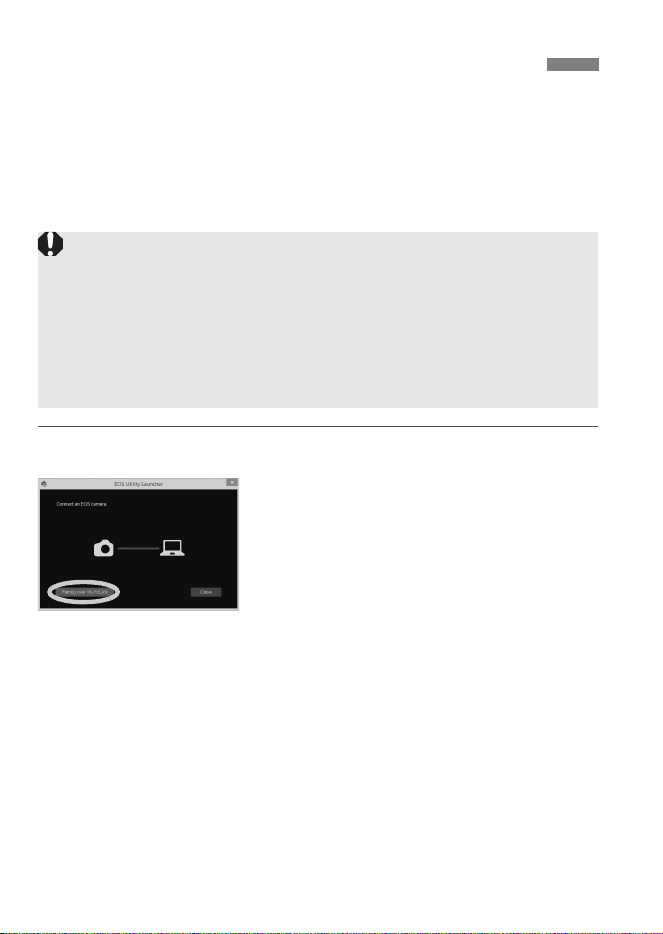
In EOS Utility, click [Pairing over
Wi-Fi/LAN].
Select [Yes] if a message is displayed
regarding the firewall.
Configuring EOS Utility Communication Settings
Users of EOS Utility Ver. 2.13 or Earlier in Windows
Perform the operations below initially. If these operations are not performed,
Pairing Software may not start.
Open the [C Drive] [Program Files] [Canon] [EOS Utility]
[WFTPairing] folder (in this order), and then double-click the [WFT
FirewallSettings] icon.
* This folder name is only an example. The folder where files are saved
varies depending on the computer environment used.
45
Configuring EOS Utility Communication Settings
3
Select [OK].
First, the pairing screen is displayed.
Turn the <5> dial to select [OK].
When you press <0>, the following
message is displayed.
“******” represents the last six digits of
the MAC address of the EOS-1D X
you are connecting.
Users of EOS Utility Ver. 2.14 or
later: Go to step 6.
4
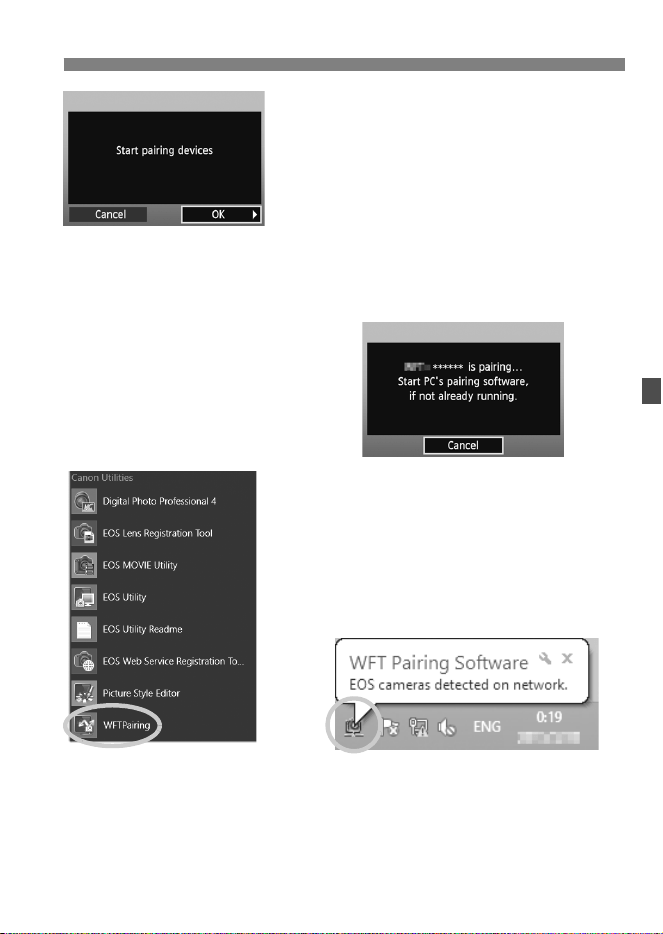
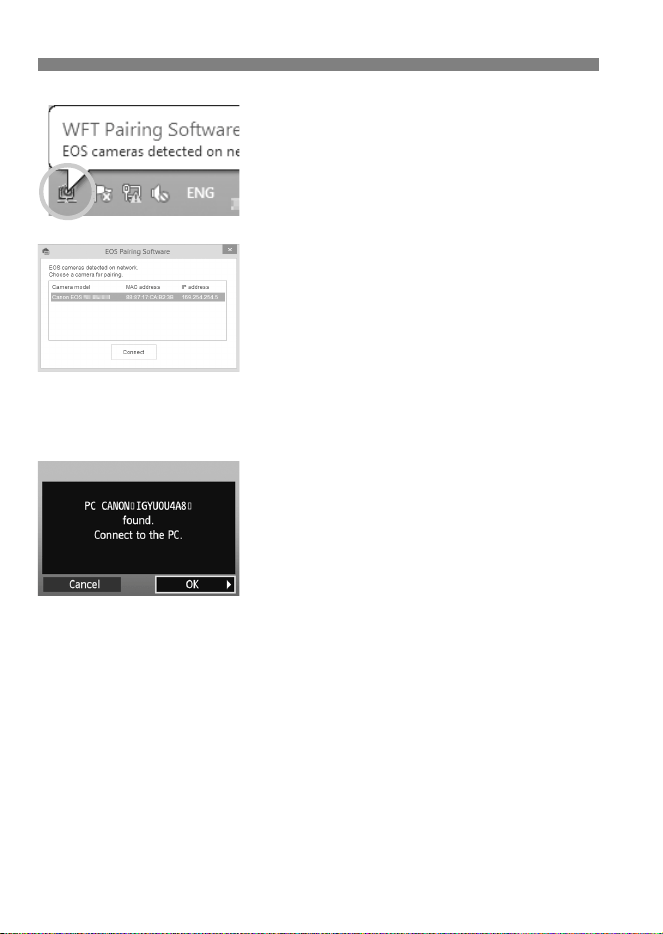
Start the pairing software.
Normally, it is installed in the same
location as EOS Utility.
When the pairing software starts up,
an icon is displayed in the task bar.
When the camera is detected, a
message is displayed.
46
Configuring EOS Utility Communication Settings
5
Click the pairing software icon.
Detected cameras are listed. If a
camera is already connected, it is not
displayed in the list.
6
Select the camera to connect to
and click [Connect].
If multiple cameras are displayed,
identify the camera to connect to by
its [MAC address] or [IP address].
You can check the [MAC address]
and [IP address] by accessing
[Confirm settings] in the menu
(p.70).
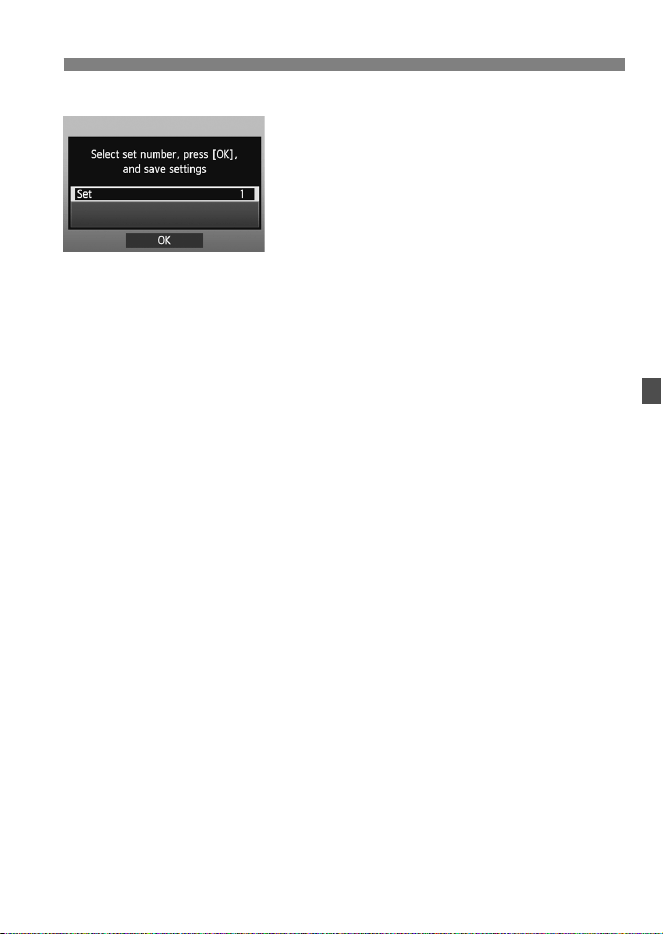
7
Select [OK].
When the camera detects the
computer on which you clicked
[Connect] in step 6, the message on
the left is displayed.
Turn the <5> dial to select [OK], and
then press <0>.
47
Configuring EOS Utility Communication Settings
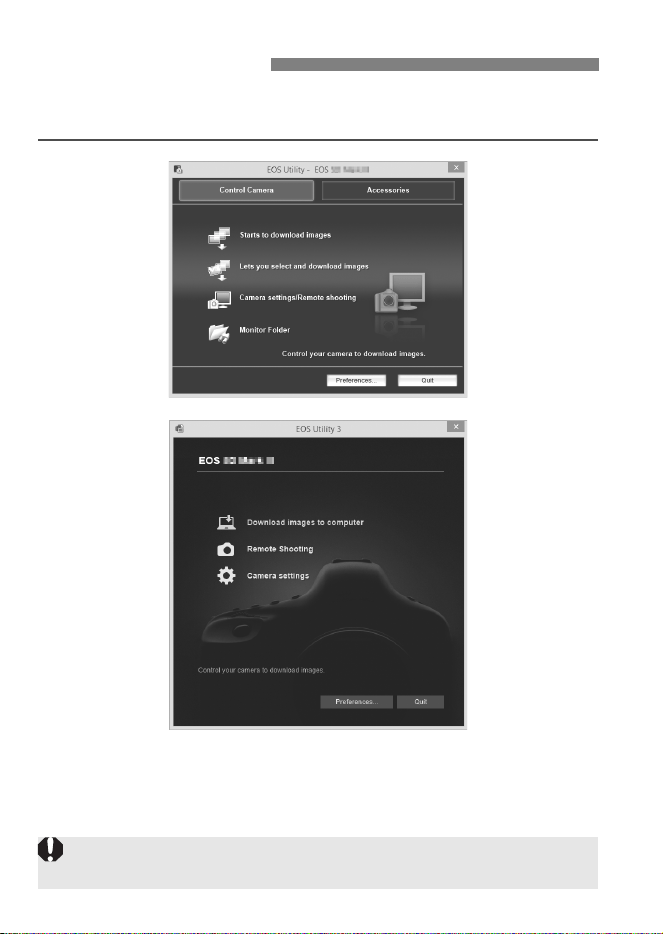
8
Save the settings.
Press <0> and turn the <5> dial to
select the set number, and then press
<0>.
After you turn the <5> dial to select
[OK] and press <0>, the connection
wizard closes and EOS Utility starts
up.
The <
LAN
> lamp on the camera lights
up in green.
The EOS Utility network settings are now complete.
There is no need to complete pairing again if you continue using a
particular camera and computer together after pairing without
changing the settings.
Users of EOS Utility Ver. 2.13 or Earlier
When using this function the next time, simply turn on the camera
and start the pairing software. The connection between the camera
and computer will be established automatically.
You can add the pairing software to the software launched at startup
of your computer. On the [Preferences] [Basic Settings] tab in
EOS Utility, select [Add WFT Pairing Software to the Startup
folder]. (Macintosh users: Select [Register WFT Pairing Software
in Login Options].)
48
For EOS Utility instructions, refer to the Software Instruction Manual
(PDF).
Using EOS Utility
The motion of moving subjects may not be displayed smoothly depending
on the image transmission speed of the wired LAN.

49
4
Remote Capture
UsingWFT Server
Using a web browser, you can view images recorded on
a memory card in the camera and download them to a
computer.
Additionally, you can shoot remotely over a wired LAN.
Note that bulb, mirror lockup, and movie shooting are
not supported.
50
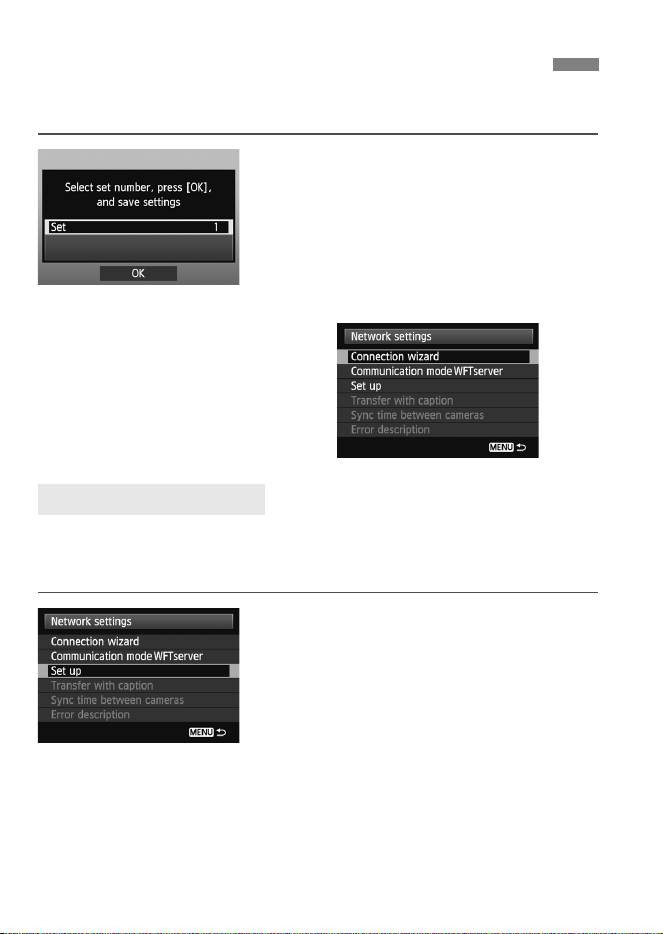
These instructions are continued from Chapter 1.
Press <0> and turn the <5> dial to
select the set number, and then press
<0>.
Press <0> again. After the
connection wizard closes, the display
will return to the menu screen.
The <Y> lamp on the camera
lights up green.
Enter a login name and password to access the camera from a
computer. The login name and password you specify here are used on
the computer when connecting to the camera.
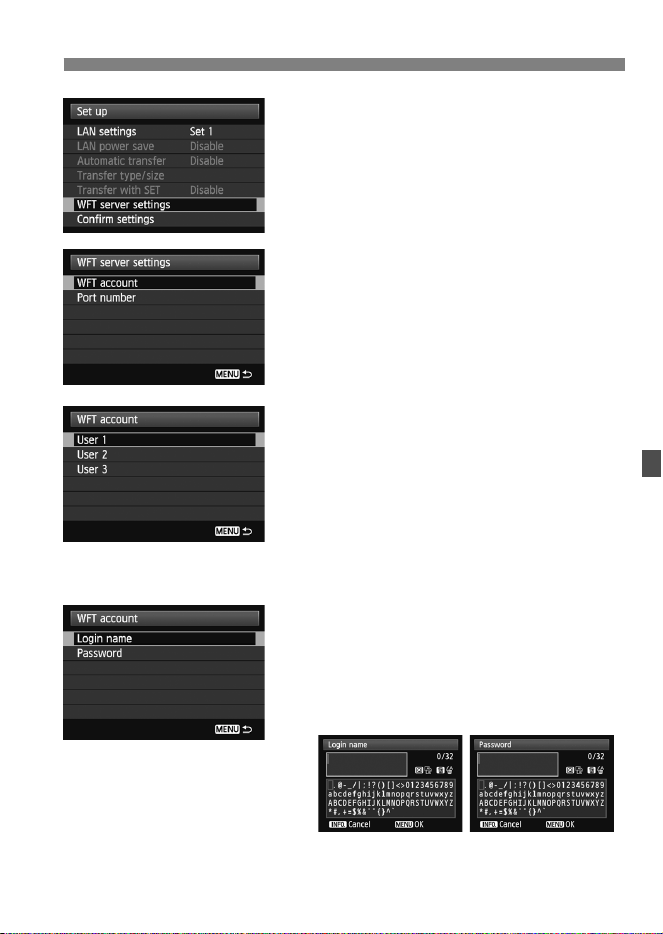
1
Turn the <5> dial to select [Set up],
and then press <0>.
Configuring WFT Server Communication Settings
Setting up an Account
51
Configuring WFT Server Communication Settings
2
Turn the <5> dial to select [WFT
server settings], and then press
<0>.
3
Turn the <5> dial to select [WFT
account], and then press <0>.
When changing the port number, turn
the <5> dial to select [Port number]
and press <0>. Note that there is
normally no need to change the port
number (80).
4
Select a user number.
With WFT Server, you can connect
the camera to up to three computers.
Select a user number to prevent
conflicts when users at other
computers are connected to the
camera simultaneously.
Turn the <5> dial to select [User *],
and then press <0>.
5
After you select [Login name] and
[Password], the following input
screen is displayed.
For instructions on input screen
operations, see “Virtual Keyboard
Operation” (p.20).
The WFT Server network settings are now complete.
52
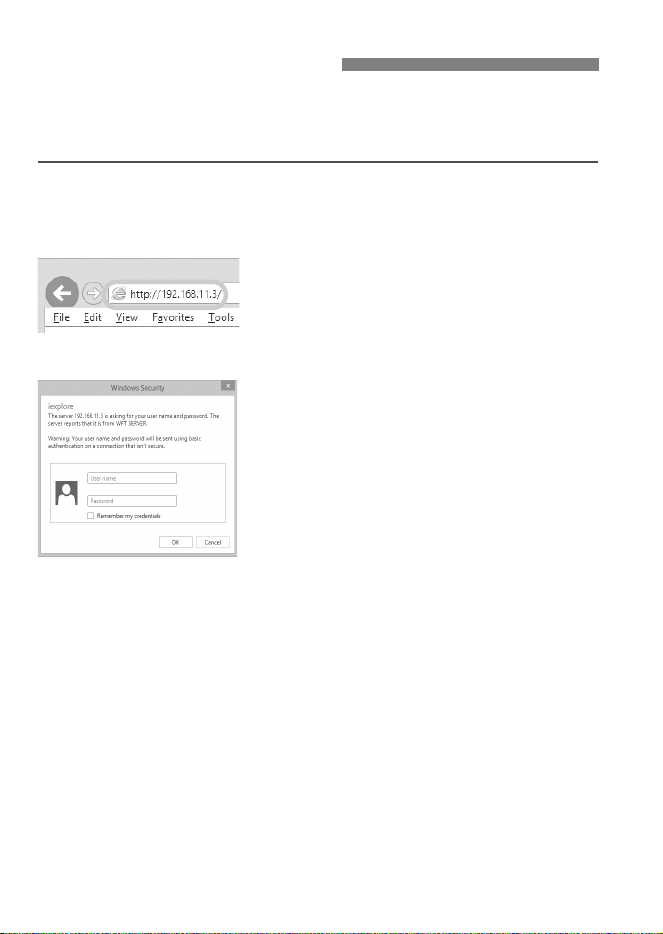
In the web browser, display the WFT Server screen for EOS-1D X
operations. Make sure you have already established a connection
between the camera and computer.
1
Start the web browser.
First, start Internet Explorer or
another web browser.
2
Enter the URL.
In the address bar, enter the IP
address assigned to the camera.
Press the <
Enter
> key.
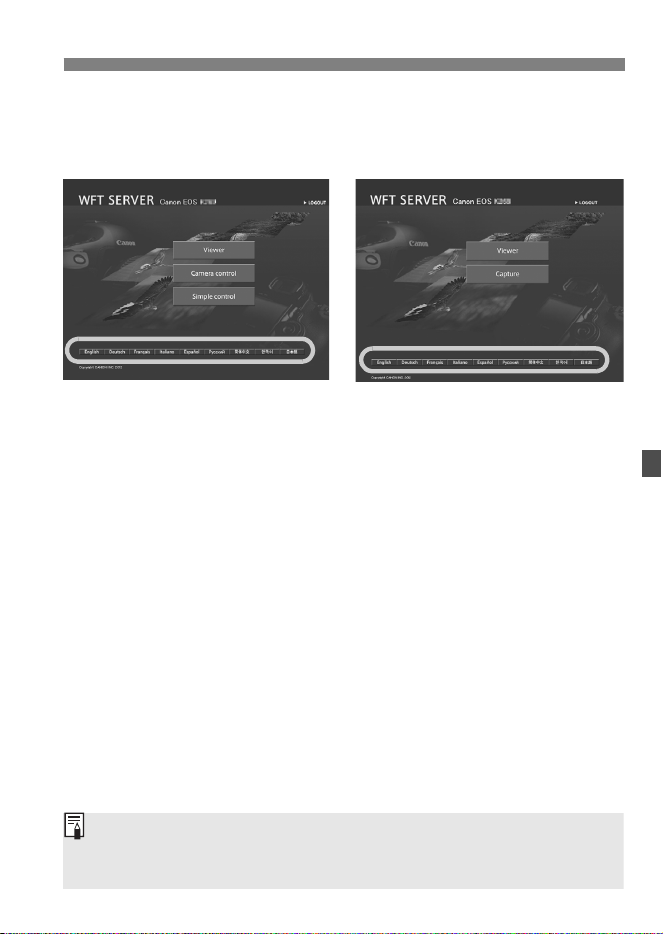
3
Enter the [User name] and
[Password] settings.
Enter the login name and password
as specified in the procedure on page
51. Click [OK] to display the WFT
Server screen.
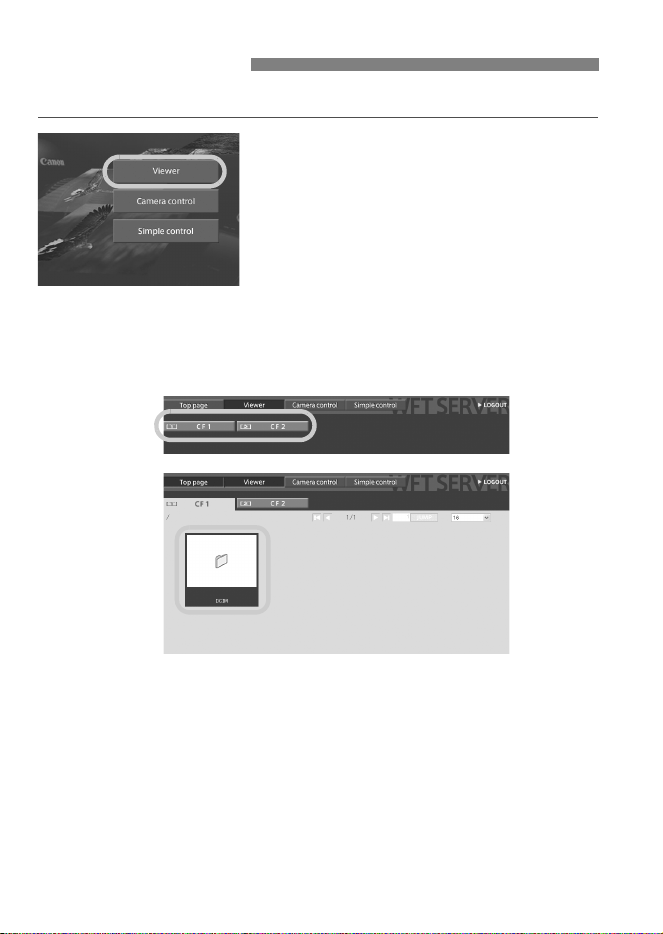
Web browsers that support
JavaScript will display the screen on
the lower left in step 4.
Otherwise, a message is displayed
when JavaScript is not supported.
Choosing not to use JavaScript will
display the screen on the lower right
in step 4, with limited functions.
Displaying WFT Server
54
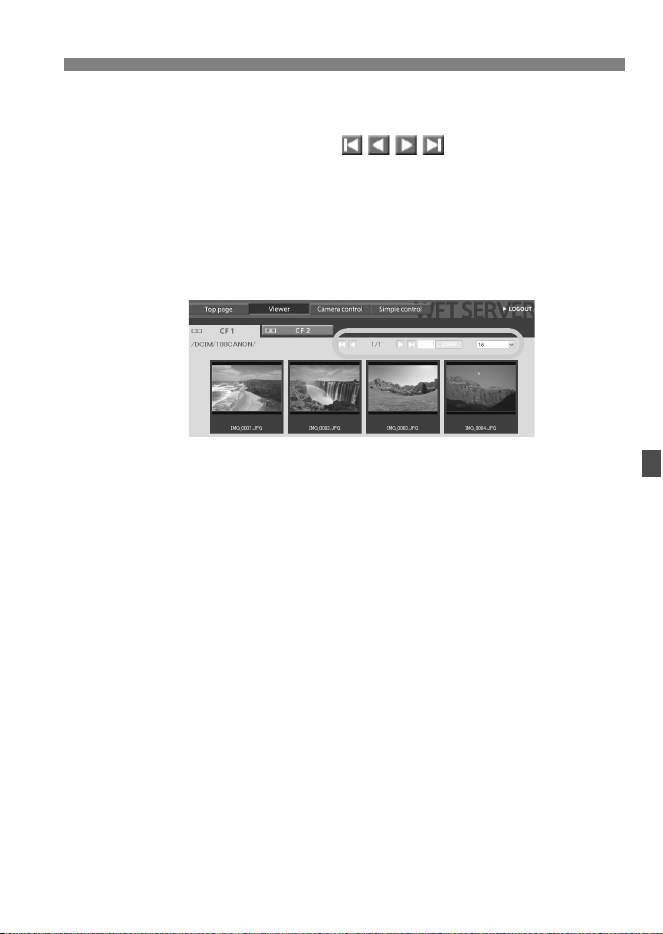
You can browse the images recorded on the camera’s memory card.
1
Click [Viewer].
The image viewing screen is
displayed.
2
Select the memory card.
Click [CF1] or [CF2].
Click the [DCIM] folder and select the
folder containing the images.
Viewing Images
55
Viewing Images
3
Select an image.
To view another image, click the
< > buttons or jump to
other pages.
In JavaScript-compatible web
browsers, you can specify how many
thumbnails are shown per screen by
clicking the pull-down list in the
upper-right corner of the screen.
56
Viewing Images
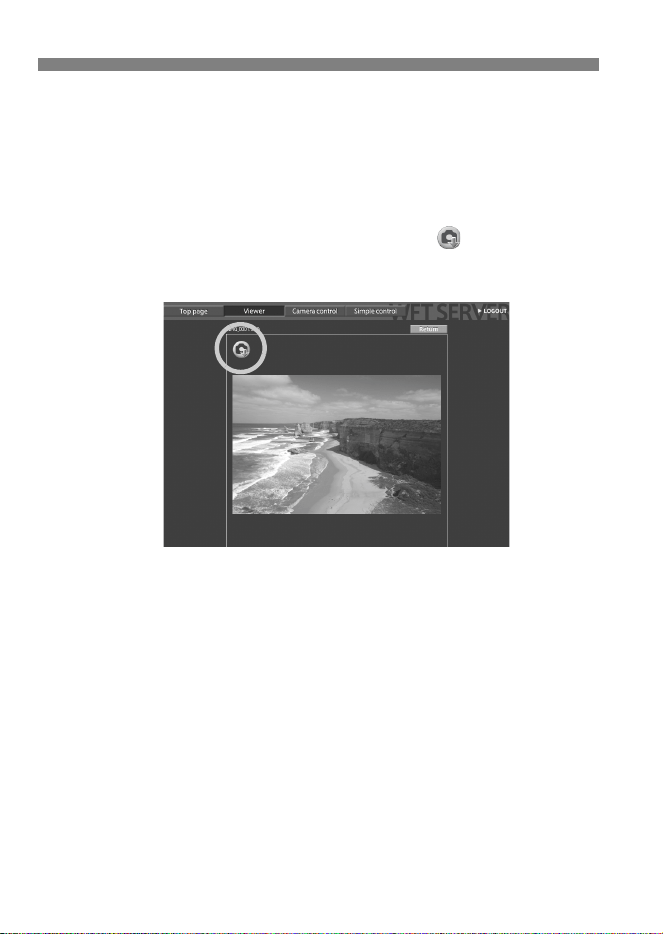
4
Download images to the
computer.
Click a thumbnail.
The image is displayed at a larger
size.
To download the image to your
computer, click < >.
Click [Return] to return to the image
viewing screen.
Although actual RAW images and movies are not displayed here, they
can be downloaded to the computer in the same way as JPEG images.
58
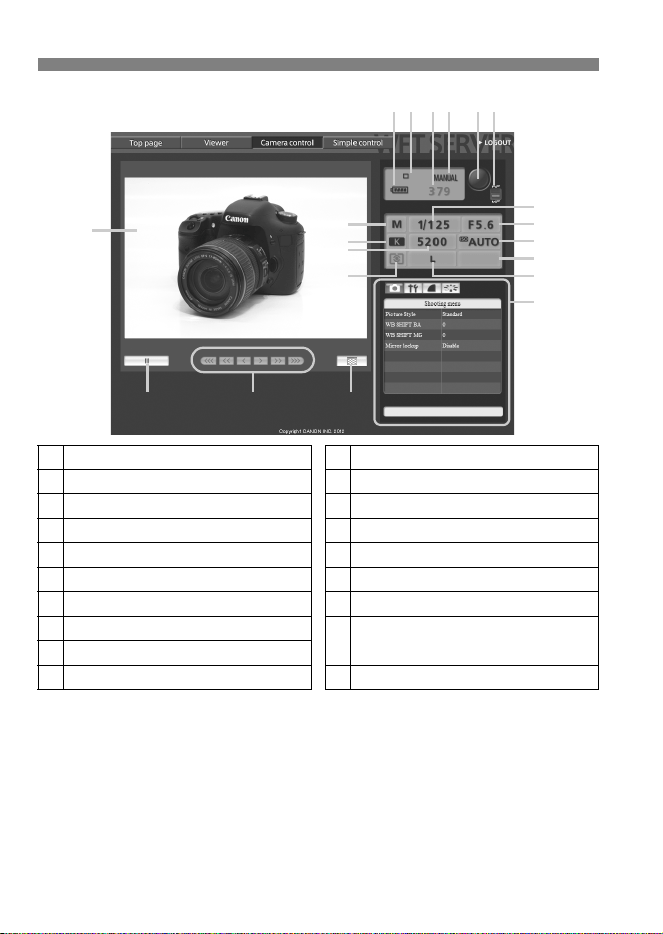
Remote Capture [Camera control]
*Items that cannot be set via WFT Server are shaded on the screen.
①
Battery check
⑪
Quality
②
Drive mode
⑫
Shooting mode
③
Number of possible shots
⑬
White balance
④
AF mode
⑭
Metering mode
⑤
Release button
⑮
Menu
⑥
AF/MF switch
⑯
Live View shooting button
⑦
Shutter speed
⑰
Manual focus button
⑧
Aperture
⑱
Live View image size switching
button
⑨
ISO speed
⑩
Exposure compensation
⑲
Live View image screen
⑯ ⑰⑱
⑲
①
②③④ ⑤⑥
⑦
⑧
⑨
⑩
⑪
⑫
⑬
⑭
⑮
59
Remote Capture [Camera control]
2
Set the lens focus mode switch to
<f>.
Click the release button (⑤). When
you let go of the button, the camera
autofocuses and the picture is taken.
With One-Shot AF, the picture is not
taken if focus is not achieved. Display
the Live View image and focus
manually as described in the next
steps.
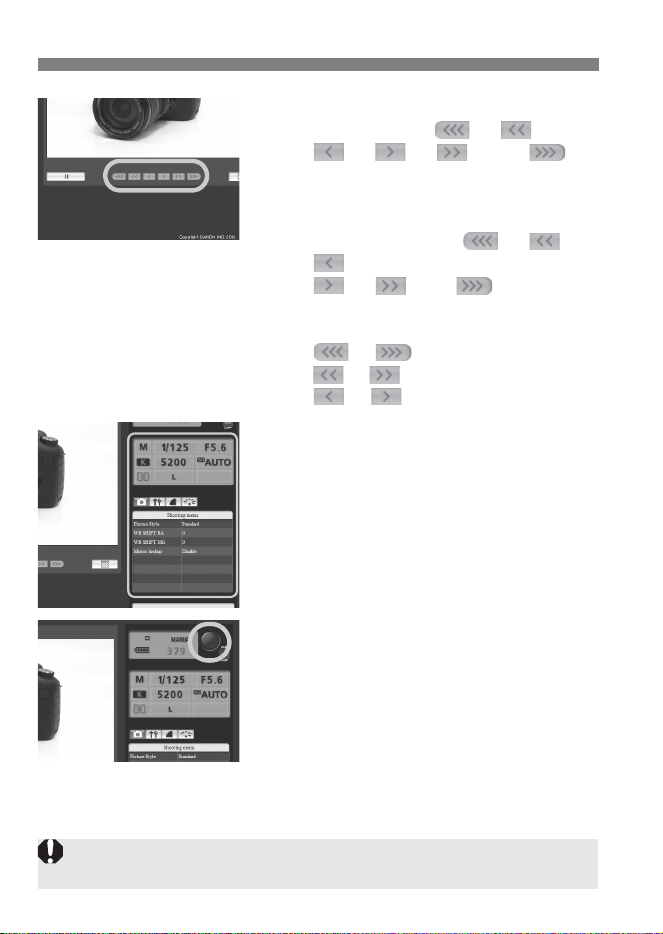
3
Display the Live View image.
Click the Live View shooting button
(⑯).
The AF/MF switch (⑥) is set to
<g>, and the Live View image is
displayed.
If the Live View image is not
displayed, enable Live View shooting
in the menu (⑮).
To make the Live View image display
more responsive, click the Live View
image size switching button (⑱). The
Live View image will be displayed at a
smaller size, improving
responsiveness. To restore the
original size, click this button again.
⑯⑱
60
Remote Capture [Camera control]
4
Manually adjust the focus.
Click the buttons < >, < >,
< >, < >, < >, and < > to
adjust the focus. Note that autofocus is not
supported during the Live View image
display.
To focus closer, click < >, < >, or
< >. To focus farther away, click
< >, < >, or < >.
Three levels of focus adjustment are
available.
< > < > : Largest increment
< > < > : Intermediate increment
< > < > : Smallest increment
5
Configure the shooting functions.
Click items such as quality to view
and configure their settings.
Complete the settings as needed.
6
Take the picture.
Click the release button (
⑤
). When you
let go of the button, the picture is taken.
The captured image will be displayed.
Captured images are stored on the
camera’s memory card.
To download images to your
computer, see page 54, and use the
[Viewer] function.
The Live View image may freeze when shooting if the camera is accessed
by multiple computers.
61
Set up the camera for Live View shooting beforehand. Note that
remote capture of movies is not supported.
For web browsers that do not support JavaScript, see page 63,
“Remote Capture.”
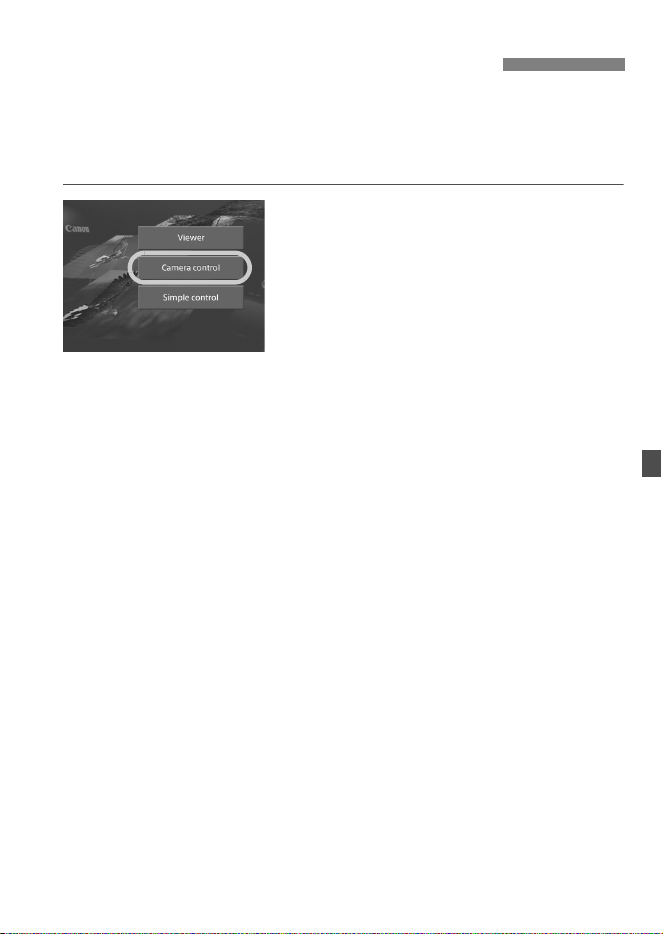
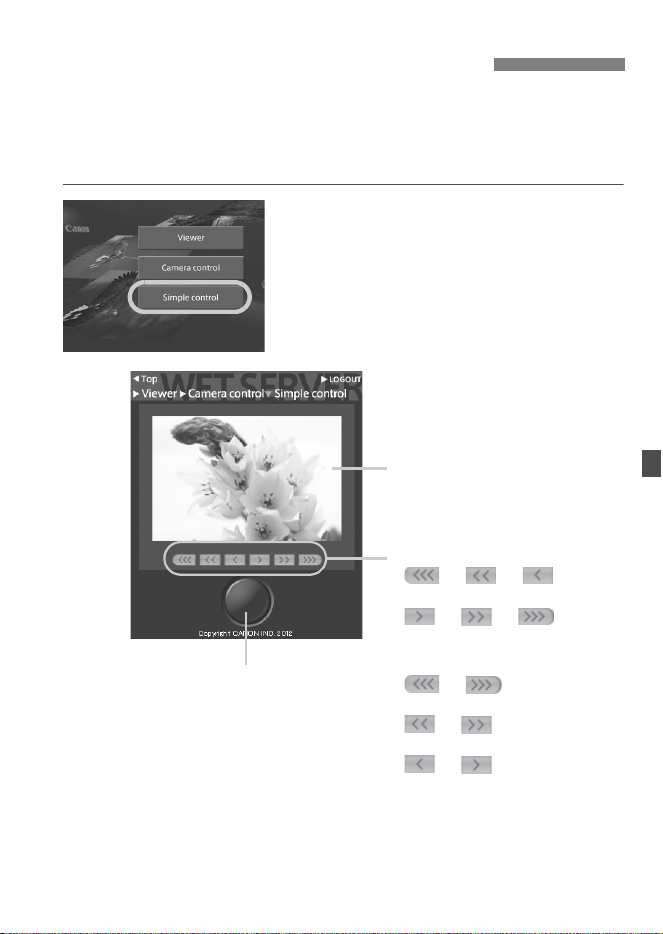
1
Click [Simple control].
The basic capture screen and the
Live View image are displayed.
Remote Capture [Simple control]
Live View image screen
Release button
Manual focus button
<> <> <>:
Focuses closer
<> <> < >:
Focuses farther away
Levels of focus adjustment
< > < > : Largest
increment
< > < > : Intermediate
increment
< > < > :Smallest
increment
62
Remote Capture [Simple control]
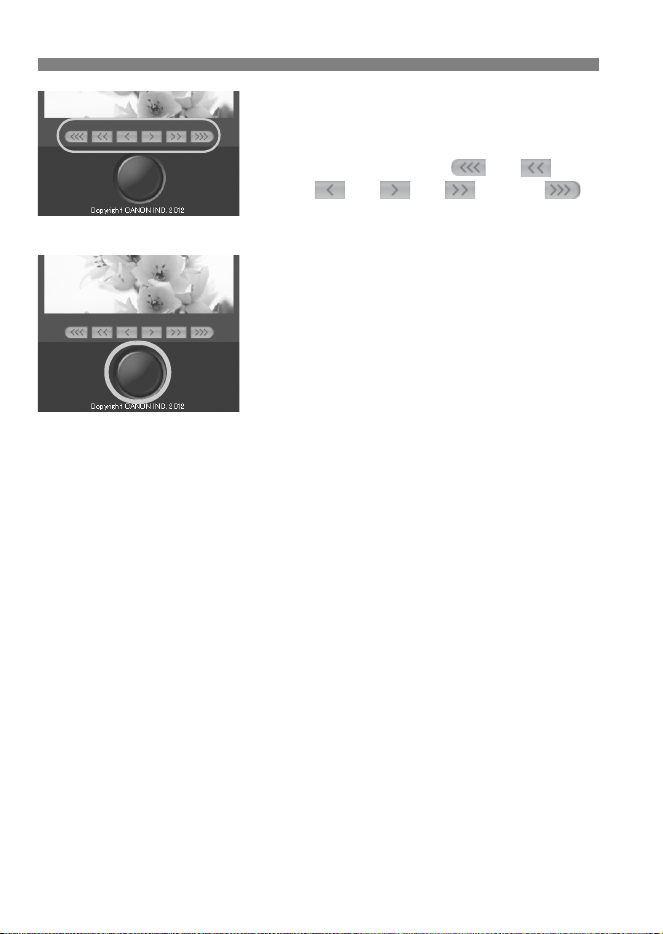
2
Manually adjust the focus.
Set the lens focus mode switch to
<f>.
Click the buttons < >, < >,
< >, < >, < >, and < >
to adjust the focus.
3
Take the picture.
Click the release button. When you
let go of the button, the picture is
taken.
The captured image is now displayed.
Captured images are stored on the
camera’s memory card.
To download images to your
computer, see page 54, and use the
[Viewer] function.
63
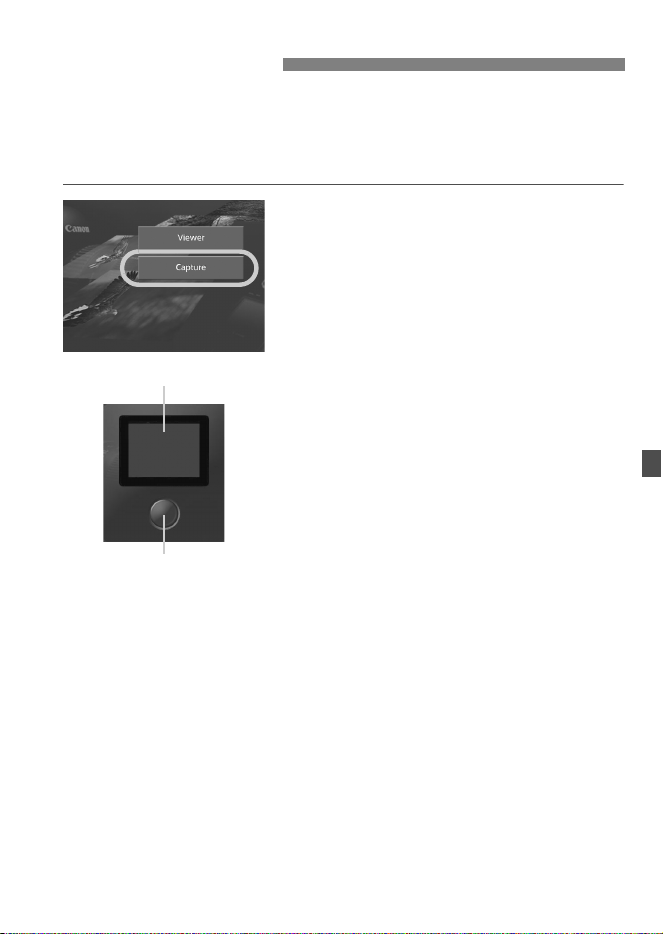
The following instructions are for remote capture with web
browsers that do not support JavaScript.
Set up the camera for Live View shooting beforehand. Note that
remote capture of movies is not supported.
1
Click [Capture].
The capture screen is displayed.
The Live View image is not displayed.
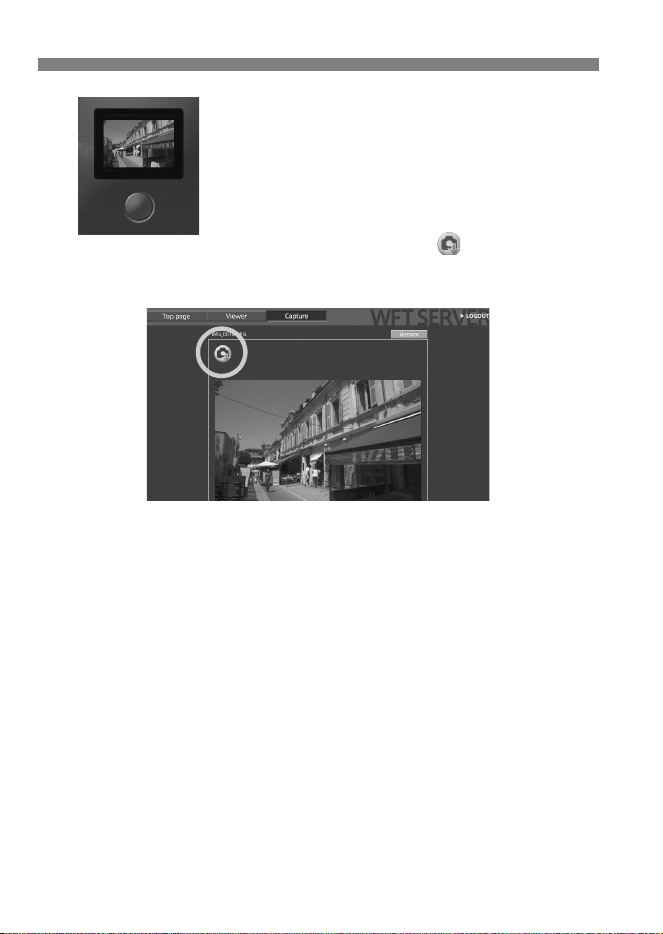
2
Take the picture.
Set the lens focus mode switch to
<g>. Adjust the focus on the
camera.
Click the release button. When you
let go of the button, the picture is
taken.
The captured image will be displayed.
Captured images are stored on the
camera’s memory card.
Remote Capture
Screen
Release button
64
Remote Capture
3
Download images to the
computer.
Click the image.
The image is displayed at a larger
size.
To download the image to your
computer, click < >.
Click [Return] to return to the capture
screen.
Although actual RAW images are not displayed here, they can be
downloaded to the computer in the same way as JPEG images.

65
5
Using the Camera
asa Media Server
Images on a memory card in the camera can be viewed
over a wired LAN on a television.
This function requires a DLNA*-compatible television,
digital photo frame, or similar media player.
(Subsequently, this equipment is collectively referred to
as the media player.)
* DLNA: Digital Living Network Alliance
66
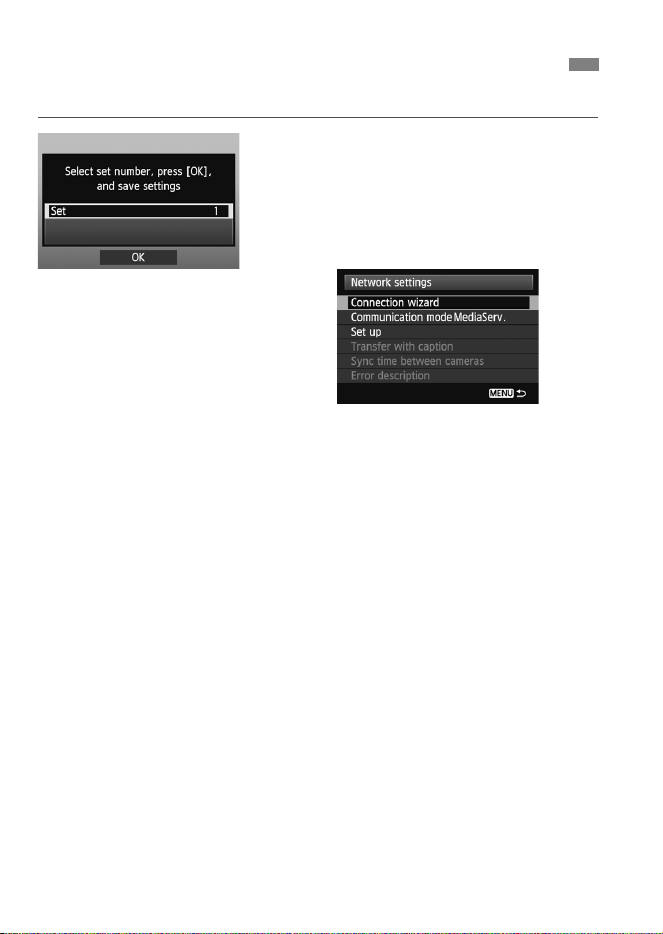
These instructions are continued from Chapter 1.
Press <0> and turn the <5> dial to
select the set number, and then press
<0>.
Press <0> again. After the
connection wizard closes, the display
will return to the menu screen.
The media server network settings are now complete.
Configuring Media Server Communication Settings
67
Operate the media player controls to display images recorded on the
camera’s memory card on a television. Note that RAW images and
movies cannot be displayed.
The following operations are performed on the media player. For
details, refer to the instruction manual for the media player.
1
Display the media player setting
screen on your television.
Using the media player functions,
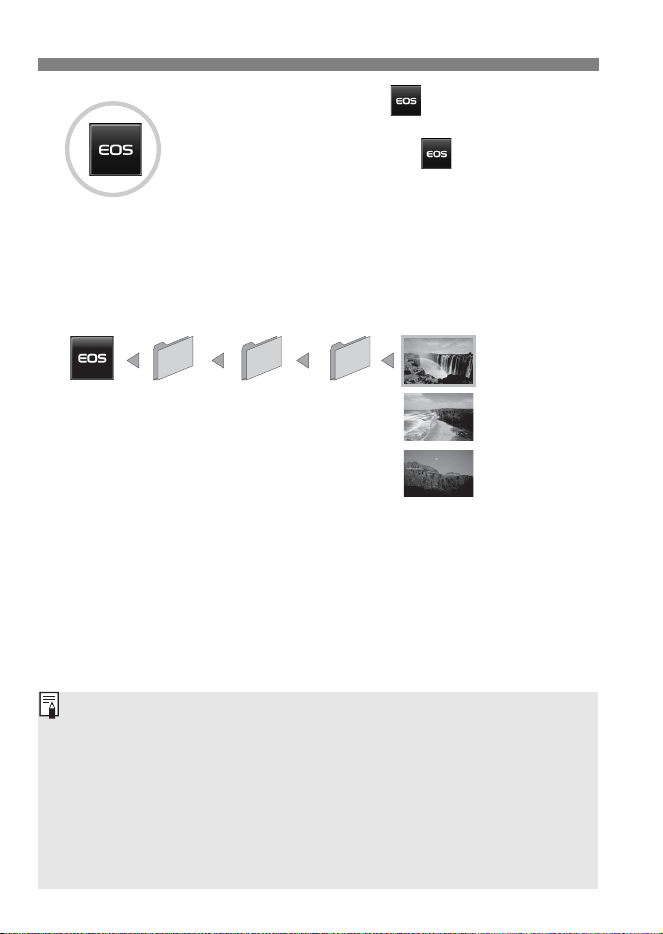
display the < EOS1D> (media
server) icon on the television.
A different icon may be displayed,
depending on the media player. In
that case, locate the icon labeled
EOS1D.
Displaying Captured Images on a Television
68
Displaying Captured Images on a Television
2
Select the < EOS1D> (media
server) icon.
Selecting the < EOS1D> icon will
display an icon of the memory card.
After you select this icon, you can
select folders and images.
Select an image to display it at a
larger size on the television. For
details, refer to the instruction manual
for the media player.
EOS1D
Information overlay and details displayed on the television vary
depending on the media player. Note that depending on the media
player, image information may not be displayed.
Icons labeled 1-100 (for example) contain images grouped by file
number in the selected folder (***EOS1D).
Date information shown for images is based on Exif information added to
the images.
Date information shown for memory cards or folders may be the current
date set on the camera, in some cases.
IMG_0002.JPG
IMG_0003.JPG
CF
28/02/2012
100EOS1D
28/02/2012
1-100
28/02/2012
IMG_0001.JPG
28/02/2012
EOS 1D

69
6
Managing
SettingsInformation
70
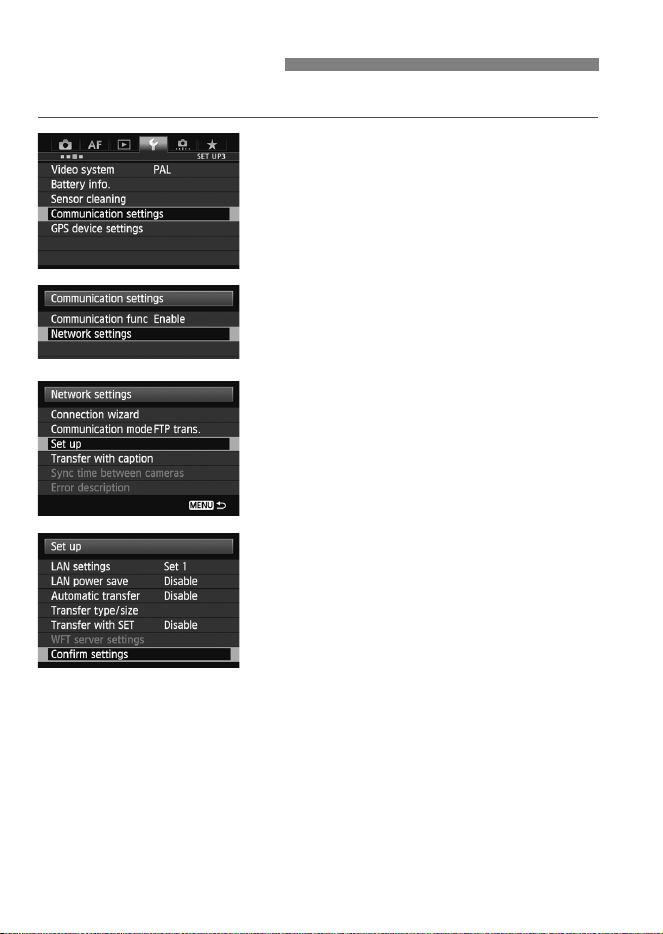
Check the network settings as follows.
1
Select [Communication settings].
2
Select [Network settings].
Once [Communication func] is set
to [Enable], you can select [Network
settings].
3
Select [Set up].
4
Select [Confirm settings].
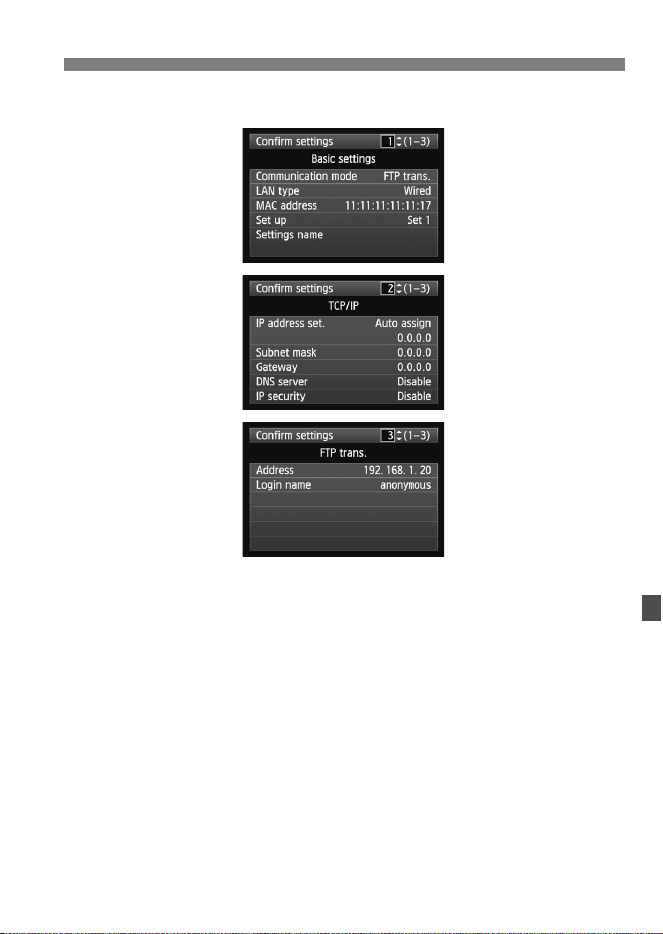
The settings are displayed.
Checking Settings
71
Checking Settings
Example of FTP transfer and wired LAN settings
72
Settings originally completed using the connection wizard can be
changed as follows. You can also change IP security settings (IPsec)
that cannot be set using the connection wizard, as well as other
settings, such as when an image with the same file name as an existing
file is sent to the FTP server (p.73).
1
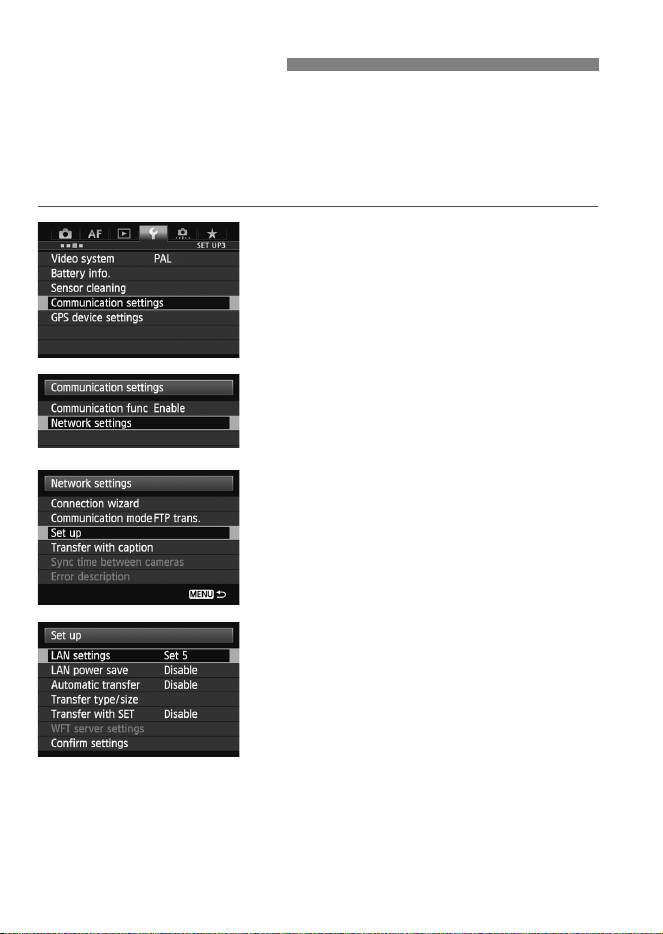
Select [Communication settings].
2
Select [Network settings].
Once [Communication func] is set
to [Enable], you can select [Network
settings].
3
Select [Set up].
4
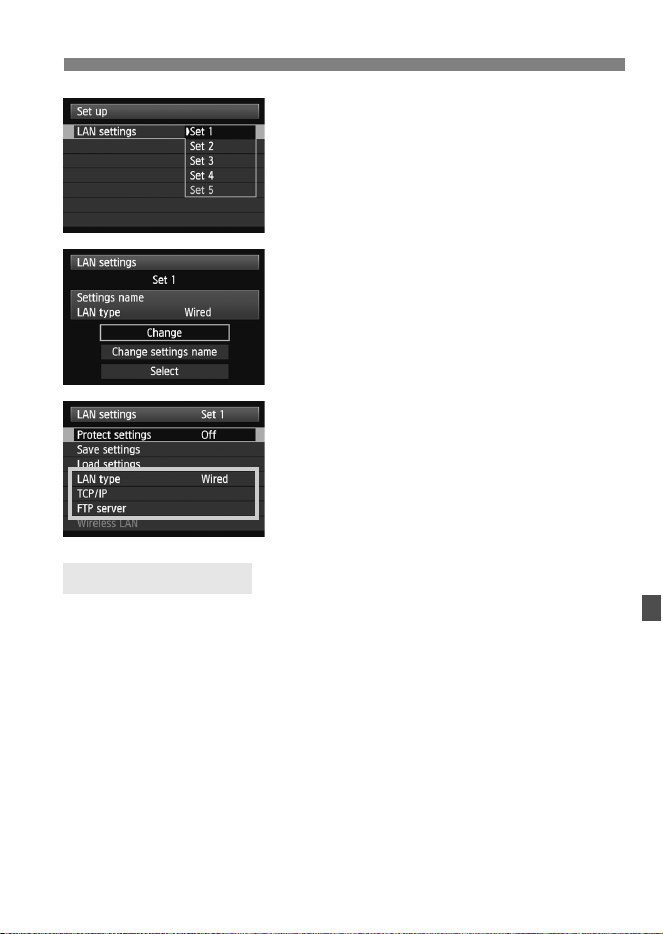
Select [LAN settings].
Changing Settings
73
Changing Settings
5
Select the settings number.
Select the settings number that
identifies the LAN settings.
6
Select [Change].
After selecting [Change settings
name], you can rename and change
the settings.
7
Select the item to change.
Select the desired item from [LAN
type], [TCP/IP], or [FTP server], and
change the setting.
Configured in [TCP/IP] [Security].
IPsec is a set of standards for encrypted communication over the
Internet. It provides effective security for both wireless and wired LANs.
To use this function, you must enable IPsec in the network settings of
your computer. When IPsec is employed, only transport mode is
supported, and 3DES or AES encryption and SHA1 authentication are
used. Note that the IP address of the computer for communication with
the camera must be entered in [Destination address] on the settings
screen.
IP Security (IPsec)

74
Changing Settings
Configured in [FTP server] [Directory structure].
Selecting [Camera] automatically creates a folder structure matching
that of the camera’s (such as A/DCIM/100EOS1D) in the server’s root
folder for image storage. If you have created a subfolder in the root
folder by changing the [Target folder] setting, a folder structure such as
A/DCIM/100EOS1D is automatically created in that folder for image
storage.
Selecting [Default] will use the root folder for image storage. If you have
created a subfolder in the root folder by changing the [Target folder]
setting, images are saved in that folder.
Configured in [FTP server] [Overwrite same file].
When the camera is configured to prevent overwriting
If there is already a file of the same name in the target folder on the FTP
server, a suffix consisting of an underscore and a number is appended
to the new file’s name. For example: IMG_0003_1.JPG.
When you resend images if initial transfer fails
Even if the camera is configured to overwrite files of the same name, if
you resend an image file that could not be transferred initially, the
existing file may not be overwritten in some cases. If this happens, a
suffix consisting of an underscore, a letter, and a number is appended
to the new file’s name. For example: IMG_0003_a1.JPG.
Directory Structure of the Target Folder
Overwriting Files of the Same Name
75
Changing Settings
Configured in [FTP server] [Passive mode].
Enable this setting in network environments protected by a firewall. If an
Error 41 occurs (“Cannot connect to FTP server”), setting passive mode
to [Enable] may enable access to the FTP server.
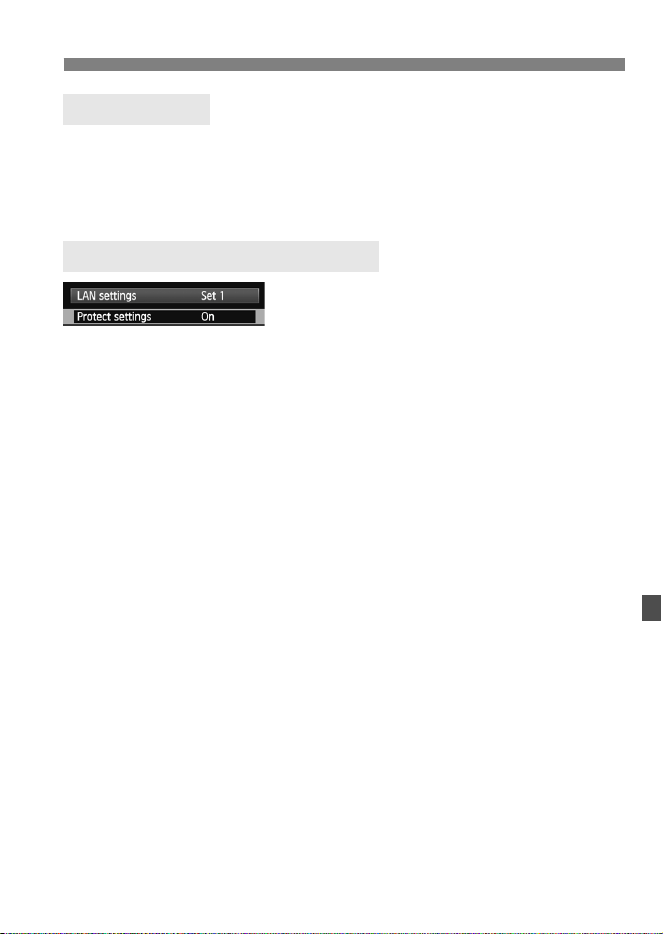
To prevent accidental changes to LAN
settings, set [Protect settings] to [On].
Passive Mode
Preventing Changes to Settings
76
Network settings can be saved on a memory card for use with other
cameras.
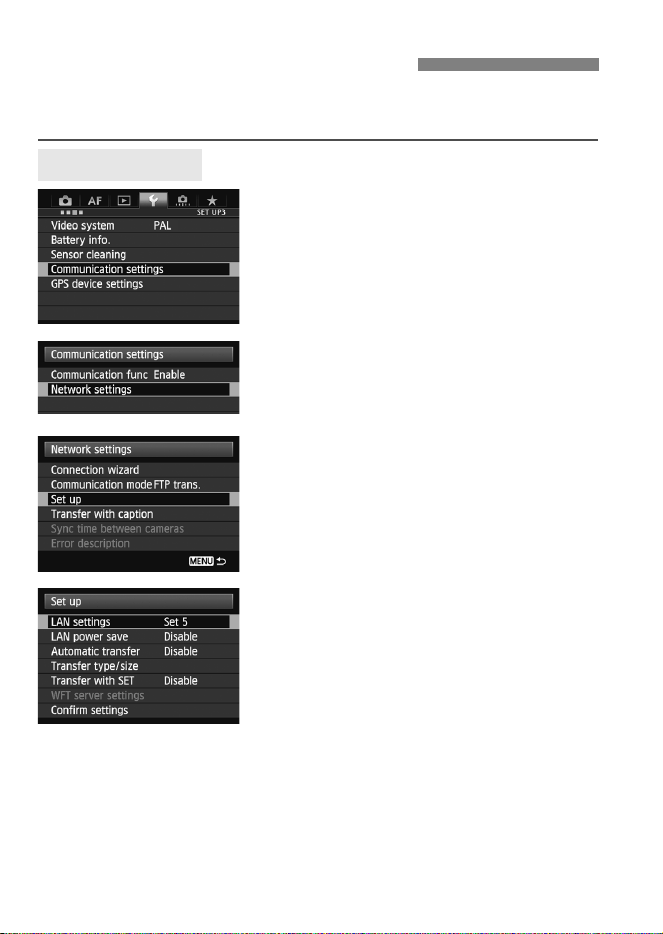
1
Select [Communication settings].
2
Select [Network settings].
Once [Communication func] is set
to [Enable], you can select [Network
settings].
3
Select [Set up].
4
Select [LAN settings].
Saving and Loading Settings
Saving Settings
77
Saving and Loading Settings
5
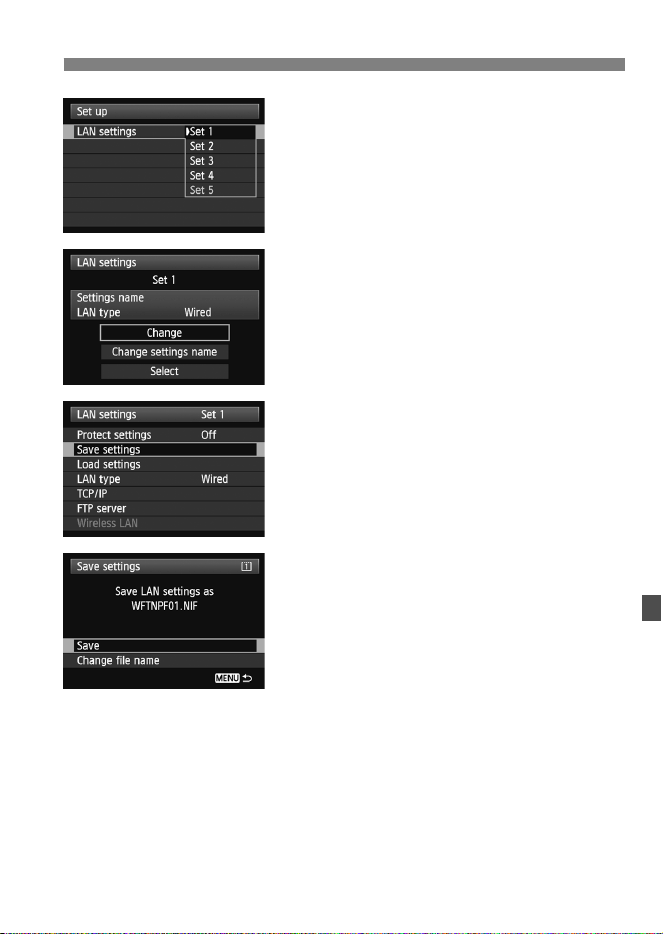
Select the settings number.
Select the settings number that
identifies the LAN settings.
6
Select [Change].
7
Select [Save settings].
8
Select [Save].
The settings are now saved as a file
on the memory card.
The settings are saved as a file
(WFTNPF**.NIF) in the area of the
memory card shown when the card is
opened (in the root directory).
The file name is determined
automatically by the camera:
WFTNPF, followed by a number (01
to 99) and the extension NIF. You can
rename the file as desired by
selecting [Change file name].
78
Saving and Loading Settings
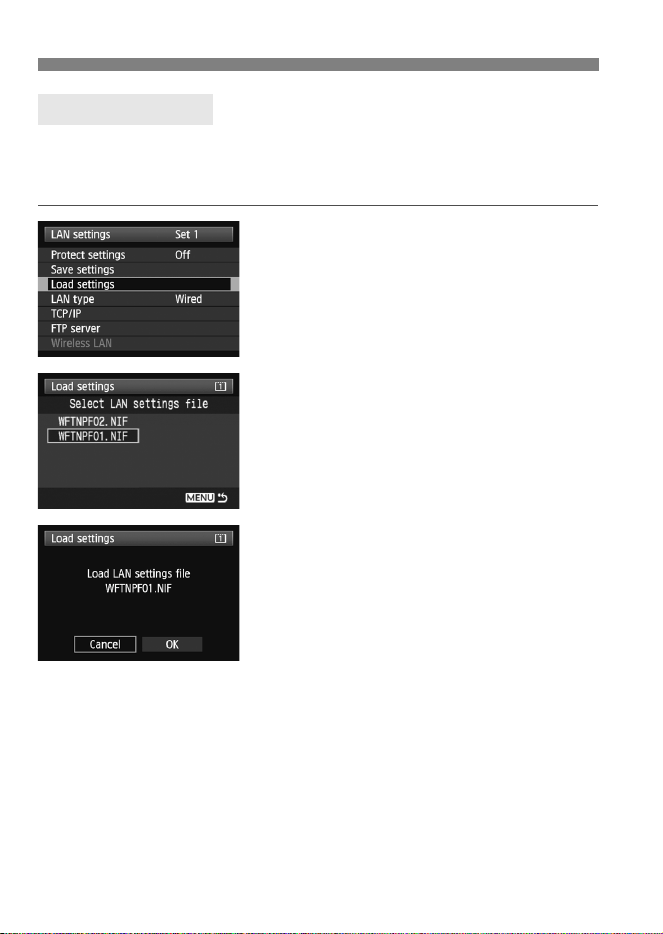
Load settings files stored on a memory card as follows.
Make sure the settings file is saved in the folder shown when the
memory card is opened (that is, the root directory).
1
Select [Load settings].
2
Select the settings file.
Select a settings file that matches
your network environment.
3
Load the settings file.
Information from the settings file is
loaded into the selected settings
number.
Loading Settings
79
7
Synchronizing the
Camera Time
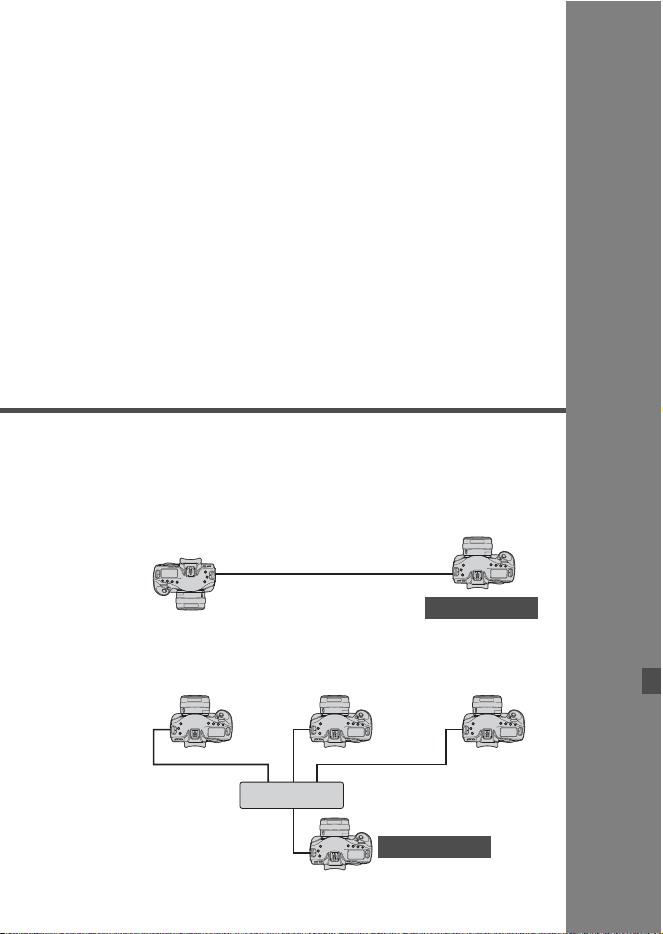
Set the master camera time on up to 10 slave cameras,
as needed. Note that even after synchronization, there
will be a slight margin of error between master and slave
camera time of ±0.05 seconds, at most.
Slave camera
Master camera
LAN cable
Master camera
LAN cable
Slave camera
Hub
80
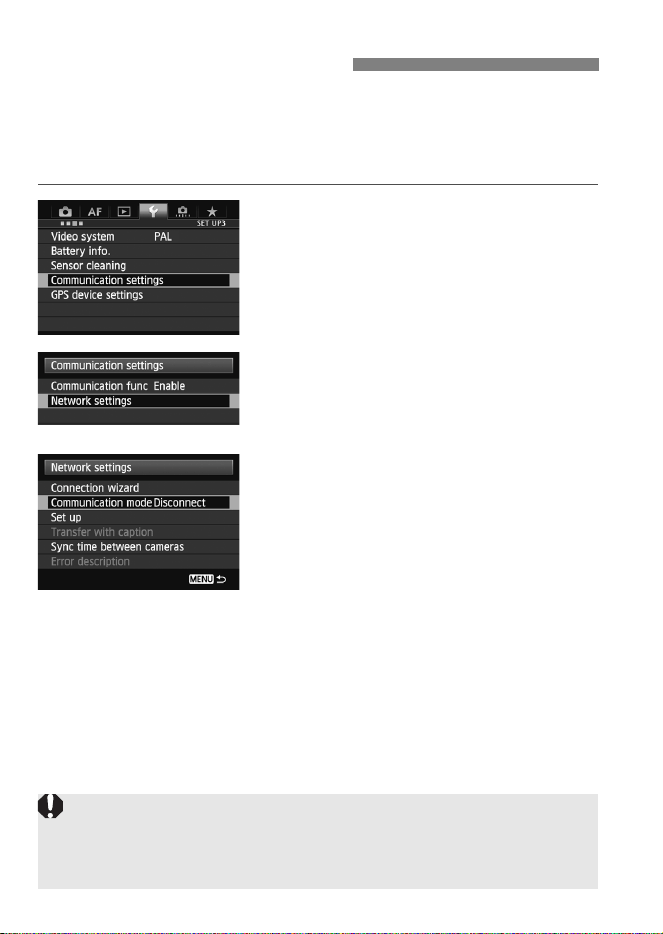
Steps 1–5 are the same on master and slave cameras.
Connect the EOS-1D X cameras to each other with a LAN cable. When
there are multiple slave cameras, connect them to a hub with LAN
cables, and connect the hub to the master camera with a LAN cable.
1
On the [53] tab, select
[Communication settings].
2
Select [Network settings].
Once [Communication func] is set
to [Enable], you can select [Network
settings].
3
Set [Communication mode] to
[Disconnect].
Once [Communication mode] is set
to [Disconnect], you can select
[Sync time between cameras].
Synchronizing the Time
Synchronize the camera time between the same camera models.
If the camera models of the master camera and the slave camera are
different, the time or zone set on the slave camera may differ from the one
set on the master camera.
81
Synchronizing the Time
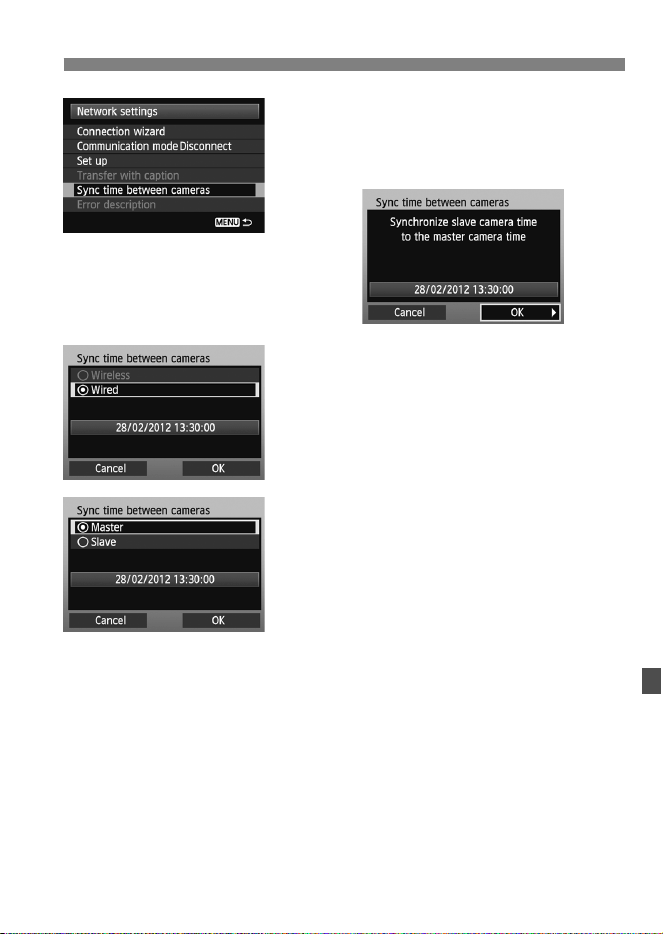
4
Select [Sync time between
cameras].
Select [OK] on the next screen
displayed, shown below.
5
Select [Wired].
After selecting [Wired], select [OK].
Steps up to this point are the same on
master and slave cameras.
6
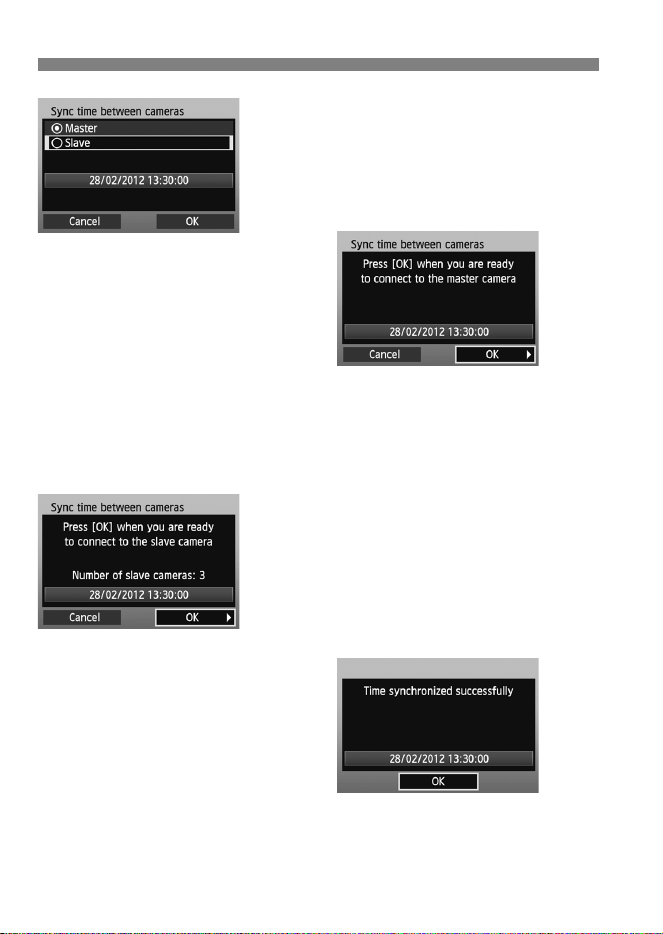
Set up the master camera.
After configuring the master camera
settings following steps 1–5, select
[Master].
When the next screen is displayed,
the master camera is ready. Go to
step 7 to set up the slave cameras.
82
Synchronizing the Time
7
Set up the slave cameras.
After configuring the slave camera
settings following steps 1–5 on the
preceding pages, select [Slave].
Select [OK] on the next screen
displayed, shown below.
To set the time on multiple slave
cameras, follow these steps on each
slave camera. The master camera
screen shown in step 8 indicates the
number of slave cameras.
8
On the master camera, select
[OK].
Check the number of slave cameras,
and then select [OK].
The time on slave cameras is now
synchronized to the master camera
time.
Select [OK] to return to the [Network
settings] screen.

83
8
Troubleshooting
84
If wired LAN errors are displayed on the camera LCD monitor, refer to
the examples of corrective actions in this chapter to eliminate the cause
of the error. In case of errors, the <Y> lamp on the camera blinks.
The error details can also be checked on the [53] tab under
[Communication settings] [Network settings]
[Errordescription].
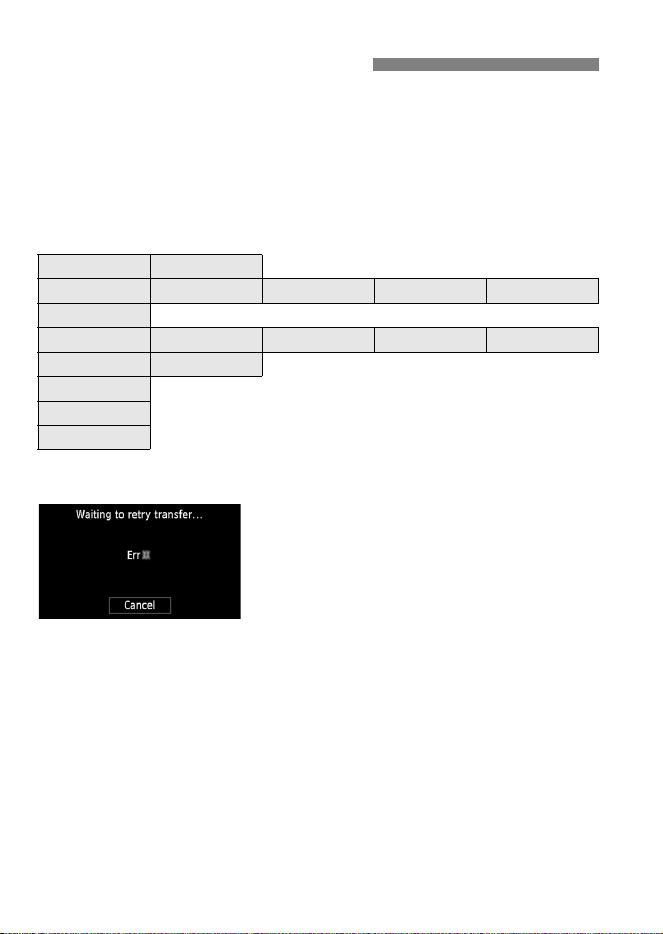
If [Waiting to retry transfer…] is displayed
If image transfer via FTP fails after
shooting, the screen on the left is
displayed, and the camera’s <Y>
lamp blinks in red. Check the error
number and eliminate the cause of the
error.
Once the cause of the error is eliminated, the images whose transfer
previously failed will be transferred automatically.
Note that if you cancel image transfer or turn off the camera, auto retry
is not performed. Follow the steps on page 34 to transfer the images.
Handling Error Messages
11 (p.85) 12 (p.85)
21 (p.85) 22 (p.86) 23 (p.87) 24 (p.88) 25 (p.89)
26 (p.89)
41 (p.91) 42 (p.93) 43 (p.93) 44 (p.94) 45 (p.94)
46 (p.95) 47 (p.95)
73 (p.96)
81 (p.96)
91 (p.96)

85
Handling Error Messages
Is EOS Utility ready for pairing?
Check that EOS Utility is ready for pairing (p.44).
Is the target computer on?
Turn on the target computer and wait for a while.
What to check on the camera
Is the camera’s network setting set to [Auto setting], or its IP
address setting set to [Auto assign]?
If you are not using a DHCP server, set the camera’s network setting
to [Manual setting] and IP address setting to [Manual setting] (p.17).
What to check on the DHCP server
Is the DHCP server on?
Turn the DHCP server on.
Are there enough addresses for assignment by the DHCP server?
Increase the number of addresses assigned by the DHCP server.
Remove devices assigned addresses by the DHCP server from the
network to reduce the number of addresses in use.
11: Connection target not found
12: Connection target not found
21: No address assigned by DHCP server

86
Handling Error Messages
Is the DHCP server functioning correctly?
Check the DHCP server settings to make sure it is functioning
correctly as a DHCP server.
If applicable, ask your network administrator to ensure that the DHCP
server can be used.
What to check on the camera
Is the camera’s network setting set to [Auto setting], or its IP
address setting set to [Auto assign]?
If you are not using a DNS server, set the camera’s DNS address
setting to [Disable] (p.17).
On the camera, does the DNS server’s IP address setting match
the server’s actual address?
Configure the IP address on the camera to match the actual DNS
server address (p.17, 97).
What to check on the DNS server
Is the DNS server on?
Turn the DNS server on.
Are the DNS server settings for IP addresses and the
corresponding names correct?
On the DNS server, make sure IP addresses and the corresponding
names are entered correctly.
22: No response from DNS server

87
Handling Error Messages
Is the DNS server functioning correctly?
Check the DNS server settings to make sure the server is functioning
correctly as a DNS server.
If applicable, ask your network administrator to ensure that the DNS
server can be used.
What to check on the network as a whole
Does your network include a router or similar device that serves
as a gateway?
If applicable, ask your network administrator for the network gateway
address and enter it on the camera (p.17, 97).
Make sure the gateway address setting is correctly entered on all
network devices, including the camera.
What to check on the camera
Is another device on the camera network using the same IP
address as the camera?
Change the camera’s IP address to avoid using the same address as
another device on the network. Otherwise, change the IP address of
the device that has a redundant address.
In network environments with a DHCP server, if the camera’s IP
address setting is [Manual setting], change it to [Auto assign] (p.17).
23: Duplicate IP address

88
Handling Error Messages
What to check on the camera
The camera’s proxy server setting is [Enable]. Does the error
occur under this setting?
If you are not using a proxy server, set the camera’s proxy server
setting to [Disable] (p.23).
Do the camera’s [Address setting] and [Port No.] settings match
those of the proxy server?
Configure the camera’s proxy server address and port number to match
those of the proxy server (p.22).
In the camera’s [Proxy server] settings, have you only entered
[Server name]?
If the proxy server’s [Address] setting is not configured on the
camera, enter it along with the DNS server address (p.17). Make sure
the server name and port number for the proxy server are entered
correctly (p.22).
What to check on the proxy server
Is the proxy server on?
Turn the proxy server on.
Is the proxy server functioning correctly?
Check the proxy server settings to make sure the server is functioning
correctly as a proxy server.
If applicable, ask your network administrator for the proxy server
address or server name and port number, and then enter them on the
camera.
24: No response from proxy server

89
Handling Error Messages
What to check on the network as a whole
Does your network include a router or similar device that serves
as a gateway?
If applicable, ask your network administrator for the network gateway
address and enter it on the camera.
Make sure the gateway address setting is correctly entered on all
network devices, including the camera.
Is another device on the camera network using the same IP
address as the camera?
This error occurs if the camera is connected to a network where
another device subsequently connects with the same IP address.
Change the camera’s IP address to avoid using the same address as
another device on the network. Otherwise, change the IP address of
the device that has a redundant address.
What to check on the camera
On the camera, the network setting is [Auto setting]. Does the
error occur under this setting?
If you are not using a DHCP server, set the camera’s network setting
to [Manual setting] (p.17).
25: Another terminal has set the same IP address
26: No response from DHCP server

90
Handling Error Messages
What to check on the DHCP server
Is the DHCP server on?
Turn the DHCP server on.
Are the DHCP server settings for IP addresses and the
corresponding names correct?
On the DHCP server, make sure IP addresses and the corresponding
names are entered correctly.
Is the DHCP server functioning correctly?
Check the DHCP server settings to make sure it is functioning
correctly as a DHCP server.
If applicable, ask your network administrator to ensure that the DHCP
server can be used.
What to check on the network as a whole
Does your network include a router or similar device that serves
as a gateway?
If applicable, ask your network administrator for the network gateway
address and enter it on the camera (p.17).
Make sure the gateway address setting is correctly entered on all
network devices, including the camera.

91
Handling Error Messages
What to check on the camera
On the camera, does the FTP server’s IP address setting match
the server’s actual address?
Configure the IP address on the camera to match the actual FTP
server address (p.22).
On the camera, does the [Port number setting] for the FTP server
match the actual port number of the FTP server?
Configure the same port number (usually 21) on the camera and FTP
server. Configure the port number on the camera to match the actual
FTP server port number (p.22).
If only the FTP server’s [Server name] is configured on the
camera, are the DNS server settings complete?
If the FTP server’s [Address] setting is not configured on the camera,
enable use of the DNS server on the camera and enter its address
(p.17). Make sure the FTP server name is entered correctly (p.22).
What to check on the FTP server
Is the FTP server functioning correctly?
Configure the computer correctly to function as an FTP server.
If applicable, ask your network administrator for the FTP server
address and port number, and then enter them on the camera.
41: Cannot connect to FTP server

92
Handling Error Messages
Is the FTP server on?
Turn the FTP server on. The server may have been turned off because
of an energy-saving mode.
On the camera, does the FTP server’s IP address setting (in
[Address]) match the server’s actual address?
Configure the IP address on the camera to match the actual FTP
server address (p.22).
Is a firewall or other security software enabled?
Some security software uses a firewall to restrict access to the FTP
server. Change the firewall settings to allow access to the FTP server.
You may be able to access the FTP server by setting [Passive mode]
to [Enable] on the camera (p.75).
Are you connecting to the FTP server via a broadband router?
Some broadband routers use a firewall to restrict access to the FTP
server. Change the firewall settings to allow access to the FTP server.
You may be able to access the FTP server by setting [Passive mode]
to [Enable] on the camera (p.75).

93
Handling Error Messages
What to check on the network as a whole
Does your network include a router or similar device that serves
as a gateway?
If applicable, ask your network administrator for the network gateway
address and enter it on the camera (p.17).
Make sure the gateway address setting is correctly entered on all
network devices, including the camera.
What to check on the FTP server
Is the FTP server configured to restrict access to only some IP
addresses?
Change the FTP server settings to allow access from the [IP address]
configured on the camera in the TCP/IP settings.
What to check on the FTP server
Have you exceeded the maximum number of FTP server
connections?
Disconnect some network devices from the FTP server or increase the
maximum number of connections.
42: FTP server rejected connection
43: Cannot connect to FTP server. Error code received
from server.

94
Handling Error Messages
This error occurs if the camera fails to disconnect from the FTP
server for some reason.
Turn the FTP server and camera off and on.
What to check on the camera
On the camera, is the [Login name] entered correctly?
Check the login name for accessing the FTP server. The setting is
case-sensitive, so check upper- and lower-case characters. Make sure
the correct login name is entered on the camera (p.23).
On the camera, is the [Login password] entered correctly?
If a login password is configured on the FTP server, check the upper-
and lower-case characters to make sure the password on the camera
matches it (p.23).
What to check on the FTP server
Do the user rights for the FTP server allow reading, writing, and
log access?
Configure the FTP server’s user rights to allow reading, writing, and
log access.
Is the folder specified as the transfer destination on the FTP
server named with ASCII characters (p.20)?
Use ASCII characters for the folder name.
44: Cannot disconnect FTP server. Error code received
from server.
45: Cannot login to FTP server. Error code received from
server.

95
Handling Error Messages
What to check on the FTP server
The connection was terminated by the FTP server.
Restart the FTP server.
Do the user rights for the FTP server allow reading, writing, and
log access?
Configure the FTP server’s user rights to allow reading, writing, and
log access.
Do user rights allow access to the target folder on the FTP
server?
Configure the user rights for access to the target folder on the FTP
server to allow saving images from the camera.
Is the FTP server on?
Turn the FTP server on. The server may have been turned off because
of an energy-saving mode.
Is the hard disk of the FTP server full?
Increase available space on the hard disk.
This error occurs if, for some reason, the camera fails to receive
confirmation from the FTP server that image file transfer is
complete.
Turn the FTP server and camera off and on and transfer the images
again.
46: For the data session, error code received from FTP
server
47: Image file transfer completion not confirmed by FTP
server

96
Handling Error Messages
Are you following the correct procedure to establish a connection
between the master and slave cameras?
Operate the master and slave cameras by following the correct
instructions (p.80-82).
Is the LAN cable securely connected?
Reconnect the LAN cable between the camera and server. Because
the cable may be severed, try using another cable to connect the
devices.
Is the hub or router on?
Turn on the hub or router.
Is the server on?
Turn the server on. The server may have been turned off because of
an energy-saving mode.
An error other than error number 11 to 81 has occurred.
Turn the camera’s power switch off and on.
.
73: Could not synchronize the time
81: Wired LAN connection lost
91: Other error

97
In Windows, open the [Command Prompt], input ipconfig/all, and
press the <
Enter
> key.
The IP address assigned to the computer is displayed, as well as the
subnet mask, gateway, and DNS server information.
To avoid using the same IP address for the computer and other devices
on the network when configuring the IP address assigned to the camera
(page 17), change the rightmost numbers here.
In Mac OS X, open the [Terminal] application, type ifconfig -a, and
press the <
Return
> key. The IP address assigned to the computer is
indicated in the [en0] item by [inet], in the format ***.***.***.***.
To avoid using the same IP address for the computer and other devices
on the network when configuring the IP address assigned to the camera
(page 17), change the rightmost numbers here.
* For information on the [Terminal] application, refer to the Mac OS X
help.
If security settings have not been properly set, the following problems
may occur.
Unauthorized network access
Third parties with malicious intent may gain unauthorized access to
the network you are using to steal, modify, or destroy information.
Additionally, you could fall victim to other types of unauthorized
access such as impersonation (where someone assumes an identity
to gain access to unauthorized information) or springboard attacks
(where someone gains unauthorized access to your network as a
springboard to cover their tracks when infiltrating other systems).
To prevent these types of problems from occurring, be sure to
thoroughly secure your network.
Checking Network Settings
Windows
Macintosh
Security
98

99
9
Reference
100
Follow these steps to create captions and register them on the camera,
as described in “Adding a Caption Before Transfer” (p.32). When
creating and registering captions, use a computer on which EOS Utility
is installed.
Before you start, use the USB cable provided with the camera to
connect the camera to the computer. For instructions on connecting
the camera to the computer with the USB cable and starting EOS Utility,
refer to the PDF Software Instruction Manual on the EOS Software
Instruction Manuals Disk (CD-ROM) provided with the camera.
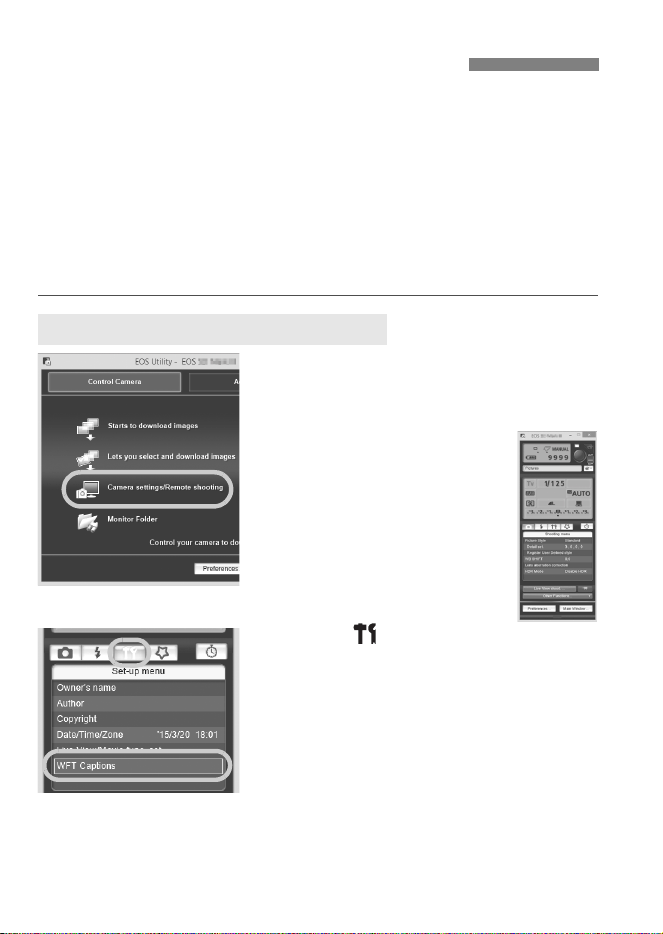
1
Start EOS Utility and select
[Camera settings/Remote
shooting].
The camera settings/
remote capture screen is
displayed.
2
On the [ ] tab, select [WFT
Captions].
The screen for caption creation is
displayed.
Creating and Registering Captions
When Using EOS Utility 2 or Earlier
101
Creating and Registering Captions
3
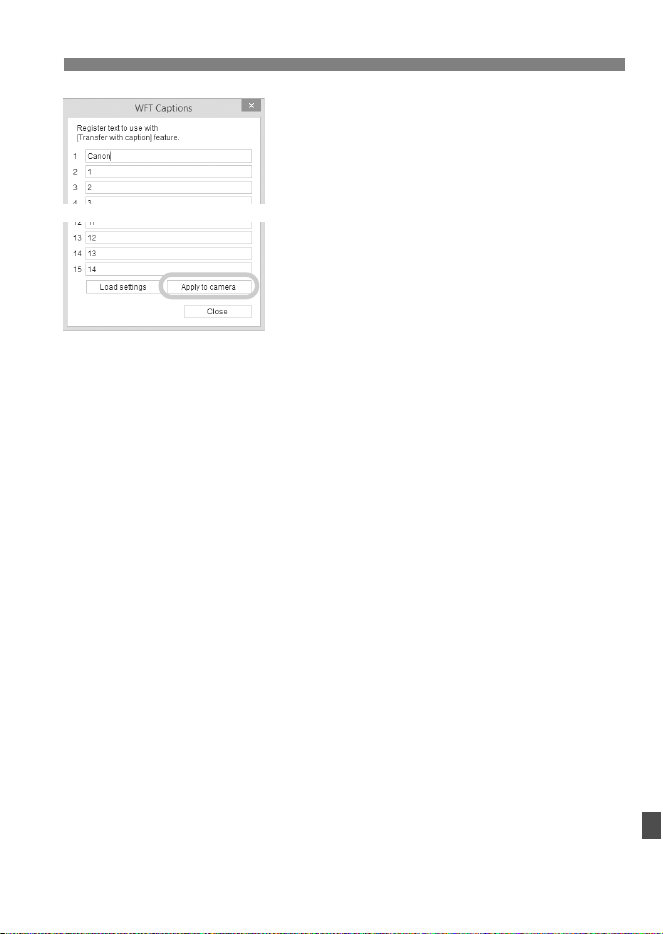
Enter the captions.
Enter up to 31 characters (in ASCII
format).
To acquire caption data stored on the
camera, select [Load settings].
4
Register the captions on the
camera.
Select [Apply to camera] to register
your new captions on the camera.
102
Creating and Registering Captions
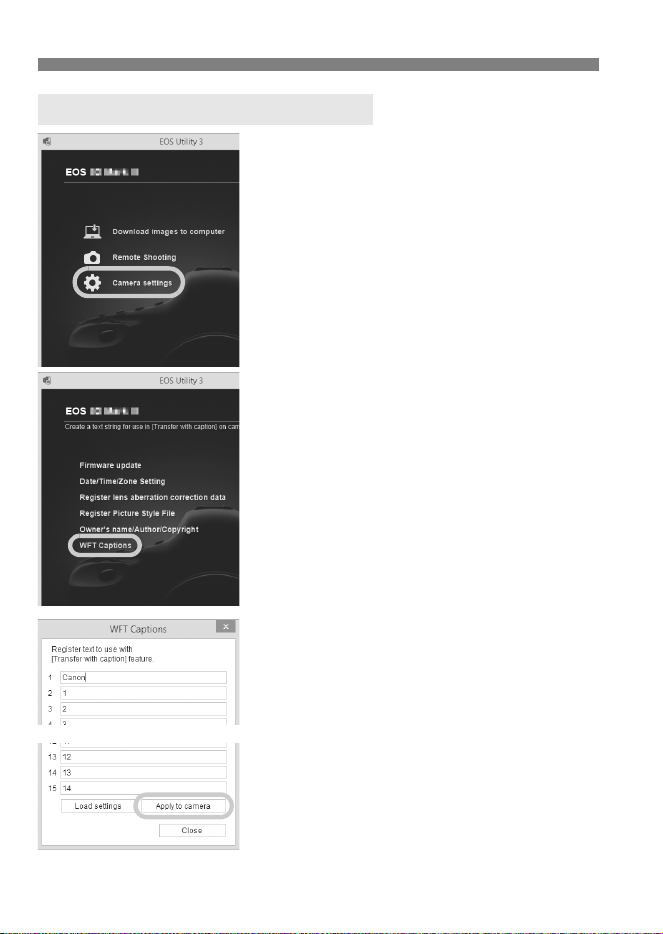
1
Start EOS Utility and select
[Camera settings].
The camera settings screen is
displayed.
2
Select [WFT Captions].
The screen for caption creation is
displayed.
3
Enter the captions.
Enter up to 31 characters (in ASCII
format).
To acquire caption data stored on the
camera, select [Load settings].
4
Register the captions on the
camera.
Select [Apply to camera] to register
your new captions on the camera.
When Using EOS Utility 3 or Later

103
European Union (and EEA) only.
These symbols indicate that this product is not to be
disposed of with your household waste, according to
the WEEE Directive (2002/96/EC), the Battery Directive
(2006/66/EC) and/or your national laws implementing
those Directives.
If a chemical symbol is printed beneath the symbol
shown above, in accordance with the Battery Directive,
this indicates that a heavy metal (Hg = Mercury, Cd = Cadmium, Pb = Lead) is
present in this battery or accumulator at a concentration above an applicable
threshold specified in the Battery Directive.
This product should be handed over to a designated collection point, e.g., on an
authorized one-for-one basis when you buy a new similar product or to an
authorized collection site for recycling waste electrical and electronic equipment
(EEE) and batteries and accumulators. Improper handling of this type of waste
could have a possible impact on the environment and human health due to
potentially hazardous substances that are generally associated with EEE.
Your cooperation in the correct disposal of this product will contribute to the
effective usage of natural resources.
For more information about the recycling of this product, please contact your
local city office, waste authority, approved scheme or your household waste
disposal service or visit
www.canon-europe.com/environment
.
(EEA: Norway, Iceland and Liechtenstein)

104

105

106

107

108

109

110

111

112

113

114
Index
A
Account...........................................50
Authentication.................................73
Auto power off.................................12
B
Batch transfer.....................34, 36, 38
Browser...........................................52
C
Camera control ...............................57
Caption...........................................32
Connection......................................12
D
DHCP server...................................17
Digital photo frame..........................65
DLNA ..............................................65
DNS address ..................................17
DNS server .....................................22
E
Encryption.......................................73
EOS Utility ................................43, 48
EOSUtility .......................................15
Error................................................84
F
File of same name ..........................74
Folder........................................23, 42
FTP server......................................21
FTP trans........................................14
G
Gateway..........................................17
I
Image transfer.................................21
IP address.................................17, 22
IPsec...............................................73
J
JPEG..............................................27
K
Keyboard........................................20
L
Login..............................................23
Login name....................................50
M
MAC address.................................44
Master camera ...............................81
Media player...................................65
Media Server..................................65
MediaServ......................................15
Movie..................................25, 56, 57
N
Network ............................................9
Number of possible shots...............26
P
Pairing......................................18, 44
Passive mode.................................75
Password.......................................50
Port number...................................22
Protect settings..............................75
Proxy..............................................23
R
RAW ...............................................27
RAW+JPEG...................................28
Remote capture...... 43, 49, 57, 61, 63
Router............................................17
S
Select folder ...................................23
Settings information.......................69
Simple control................................ 61
Slave camera .................................82

115
Index
Storage...........................................42
Subnet mask...................................17
Synchronizing camera time.............79
T
Target..............................................23
Target folder....................................74
Television ..................................65, 67
Transfer after shooting....................34
Transfer history ...............................40
Transfer with SET ...........................31
Transferred images.........................42
Transferring images, automatic......25
Transferring images, individual
images ............................................30
Troubleshooting ..............................83
U
URL.................................................52
V
Viewing images...............................54
W
Web.................................................52
WFT Server.....................................49
WFTserver.......................................15
Wired LAN.......................................16
Wizard.............................................12

Wired LAN Instruction Manual
INSTRUCTION
MANUAL
ENGLISH
This Instruction Manual booklet is current as of April 2015. For information on the
camera’s compatibility with any accessories and lenses introduced after this date,
contact any Canon Service Center.
CEL-SS5AA211 © CANON INC. 2015
CANON INC.
30-2 Shimomaruko 3-chome, Ohta-ku, Tokyo 146-8501, Japan
Europe, Africa & Middle East
CANON EUROPA N.V.
PO Box 2262, 1180 EG Amstelveen, The Netherlands
For your local Canon office, please refer to your warranty card or to www.canon-europe.com/Support
The product and associated warranty are provided in European countries by Canon Europa N.V.


