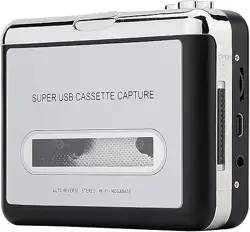
SUPER USB CASSETTE CAPTURE
AUTO REVERSE HI·FI·MEGA BASS
CASSETTE TO MP3 CONVERTER
QUICK START GUIDE-218
| EN |
01
If you have any questions about operation, please feel free to contact us. You
can enjoy seven days of no-reason returns and exchanges. Our After-sales
Email Address:
link4customers@outlook.com
Please read this manual before use and keep it in a safe place for future
reference. You can use this machine to:
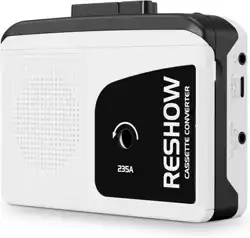
Thank you for purchasing the Reshow Cassette Player & Converter.
① Play the tape to listen to music.
② Record sound function to record external sound to tape through the built-in
microphone.
③ Digitise music from cassette tapes into mp3 or other digital audio formats (digital
signal, 128Kbps) via software on your computer.
01
02
03
04
05
06
07
08
09
10
11
12
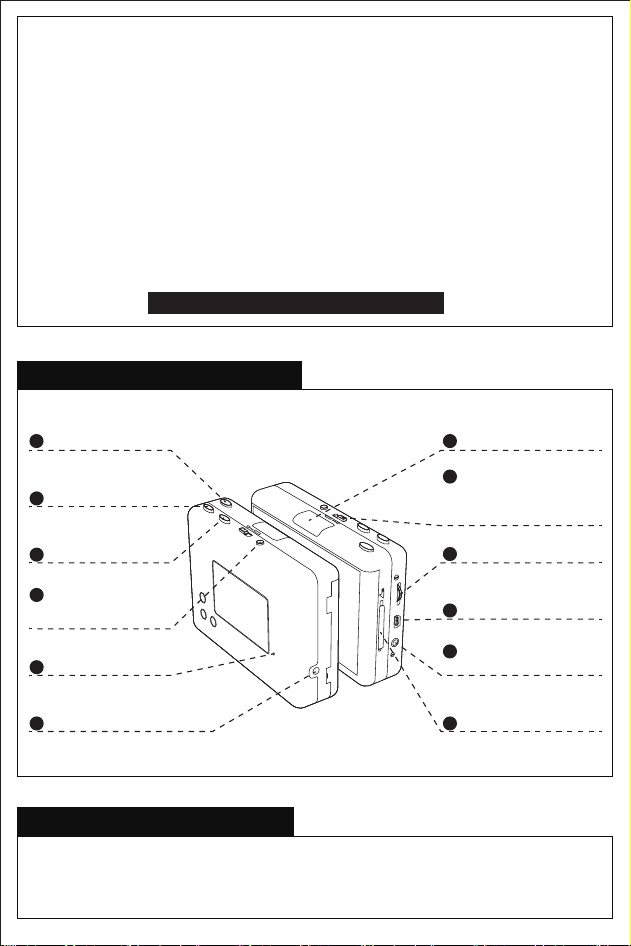
Play Button
Tape Fast Forward
Tape Rewinding
(Left: play both sides in
sequence; Right: stop after
playing one side)
Play Mode
Stop Playing
Dir
(Select the direction of
tape playback)
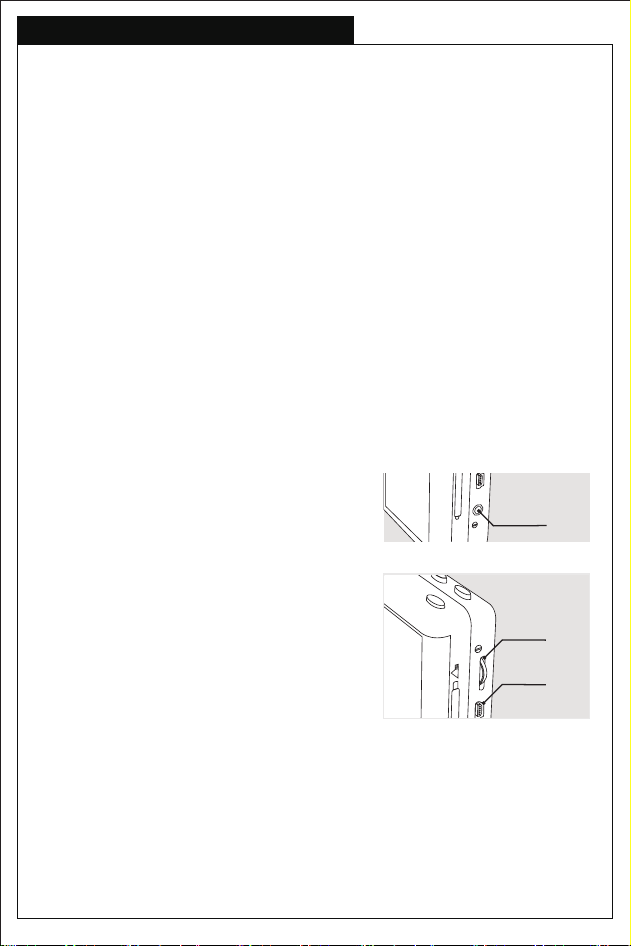
DC 3V 500mA Power Port
Volume Adjustment
USB Port
Eject Button
3.5mm Headphone
Hole
Speed Governing
PRODUCT OVERVIEW
PACKAGE CONTAINS
Reshow 218 Cassette Player x 1, Instruction Manual x 1, USB Cable x 1,
Headphones x 1
02
QUESTIONS AND ANSWERS
Q4. The sound is low or unusual.
IWhen the sound becomes low. it is suggested
to replay the item by changing another cassette,
If this problem maintains, the reasons may be as
listed below.
A.
lnsufficient power supply. In order to have a
good sound quality of MP3 conversion, it is
suggested to run the cassette player via USB
power when converting cassettes.
B.
There's a small wheel gear for volume adjustment You may adjust the volume to
low or loud as your needs.
Q3. Does the cassette player have speakers?
Can I hear it without headphones?
It doesnt hove bult-in speaker. You will need
headphones, ear budsor a portable speaker,
or plug in external speakers
Q2. The cassette player would not play on regular speed.
Before leave the factory, all the cassette players are checked and adjusted with
technical instruments. So normally, it is quite a rare case. If you happen to
meetthis problem, please try to change another cassette to play. If the speed is
stiliregular, you may try to adjust the speed on your own by spinning a small hole
which is in the lower right corner of the sticker back in the device (see the image,
below). When you find the small hole, you can use a tiny needle or screw driver to
spin the hole for speed adjustment.
Q1. There's a humming noise after converting to MP3 files.
Generally this issue occurs because desktop computer is directly connected
with use cable for power supply of cassette player and at the meantime, use
the desktop computer to convert cassettes, which results in a humming noise
after the conversion. As the ADC amplifier and other sensitive circuits are built
in the device, the electricity of the device may not perfectly match with desktop
computer if connecting to desktop computer it would easily cause
electromagnetic interference. If it's in this case, please try to use a charger as
power supply or change another computer.
Volume
USB Port
Headphone
Please follow the instructions listed below to operate the cassette
player correctly if you also encounter the same problem while
using.
Q5. Can it play in the car?
Yes t wil.all you need is (1) a car charger with a USB input and (2) a 3.5 mm
cord (both ends have the same inputas a headphone). As long as your car
has an auxillary input which most post 2006 cars have, you can listen to it
(without batteries).
03
PREPARATION FOR USING
CONVERT TO MP3 FORMAT
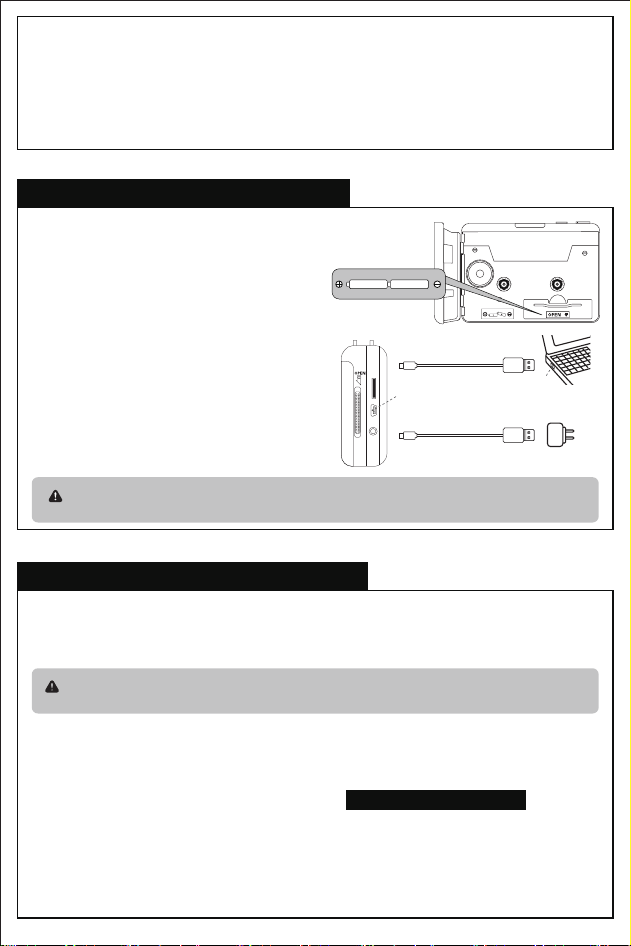
Two power supply modes:
Insert and open the cover of the
battery compartment. When inserting
the batteries, place them in the correct
position according to the polarity
marking (+ or -).
① Insert 2pcs AA batteries:
Use the supplied USB power cable to
connect the USB port of your computer
or USB AC adapter (not included) to the
USB-C port of the cassette.
② Power supply through USB-C port of
computer or power adapter:
Note: Do not use battery and USB power supply at the same time. When
using power through the USB-C port, remove the battery.
1 2
USB power cable
USB power cable
USB port
USB-C port
USB AC adapter
Note: The procedure for digitising tape or LINE IN audio is the same as for
converting tape.
Digitising tape or LINE IN audio to MP3 format.
1. This manual will use the "Audacity Windows 3.1.3" version as instructions. Please
make sure that the latest version of "Audacity" software has been installed on your
computer, if not, please download it through
"https://bit.ly/eb22"
and install
it to your computer correctly. The software supports both Windows and Mac OS,
so please choose the right version according to your computer system. If you have
a Mac OS system, you can also digitise tapes via "QuickTime". (Note: Do not use
batteries when digitizing tapes).
Q6. Why does it keep clicking over on the reverse button and refusing to
play the tape?
The tape is likely jammed. Try sticking a pen or pencil in one of the cassette reels
and see if the ape moves freely. Sometimes older tape will stick, and may not be
playable anymore.
04
5. Press the "PLAY" button to play
the cassette, and click the red
round RECORD icon on the
"Audacity" software panel to start
recording. Please note that at this
time you cannot hear the sound
from the speakers of the Reshow
cassette player, so in order to be
clear about what is currently being
recorded, your computer needs to
have built-in speakers or extra
speakers, and the sound will be
broadcast from the computer's
speakers while recording. will be
broadcast from the computer's
speakers.
6. Click the "STOP" icon to stop
recording. Click on the "File" icon
and select "Export", then select
"Export as MP3" or any other
option you want, you may need to
fill in some information about this
music file, and then click "Save" to
save the file on your computer(as
shown in Figure 3).
Figure 3
4. Click "Recording" on the left list
and tick "Software play through
of input", then click "OK"(As
shown in Figure 2).
Figure 2
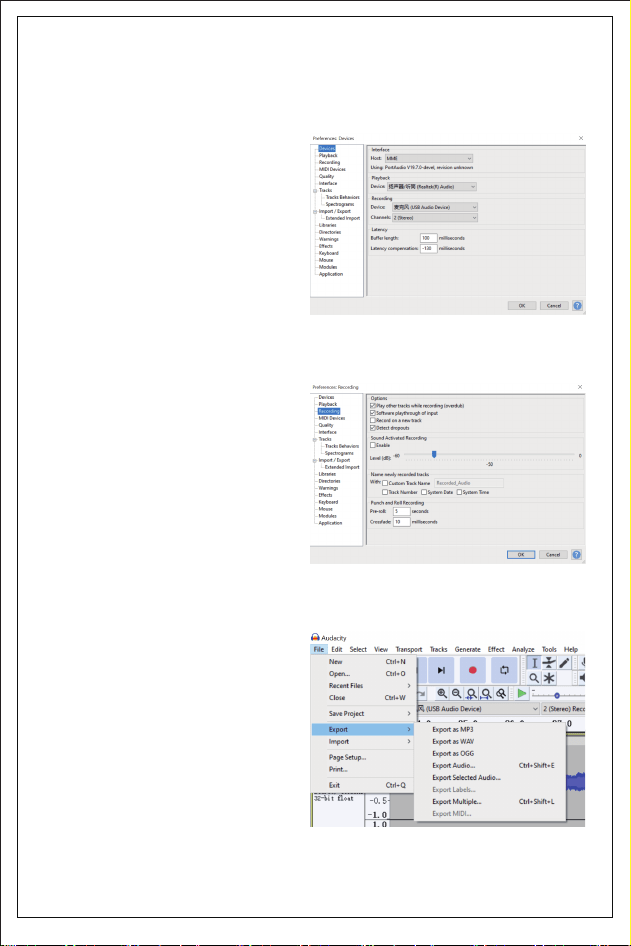
3. Click the "Audacity" icon on the
desktop, then click "Edit" on the
software panel and select
"Preferences". Click "Device" on
the left list and then click the
"Recording" drop-down box, and
select "Microphone(USB Audio
Device)" and "2(Stereo)"(as shown
in Figure 1).
Figure 1
2. Use the supplied USB-C cable to connect the "TAPE TO PC" port of the Reshow
cassette player to your computer. You will be prompted that the new hardware
is installed and ready to use, which means that the device driver has been
installed correctly.
05
SPECIFICATIONS
Specifications:
- Host Interface: USB 2.0
- Audio Input: Cassette Slot
- Audio Output: Earphone (3.5mm stereo jack)
- User Interface: PLAY and other buttons, Lid switcher, Volume control knob, Mini
USB to connect PC for power or converting
- Recording Information: .mp3 or .wav, 128Kbps
- Power Supply: 2 x AA battery, or DC 5V USB power
- Working Time: 1 hour with 2 x AA battery
- Dimension / Weight: 113(L) x 85(W) x 32(H) mm, 180g
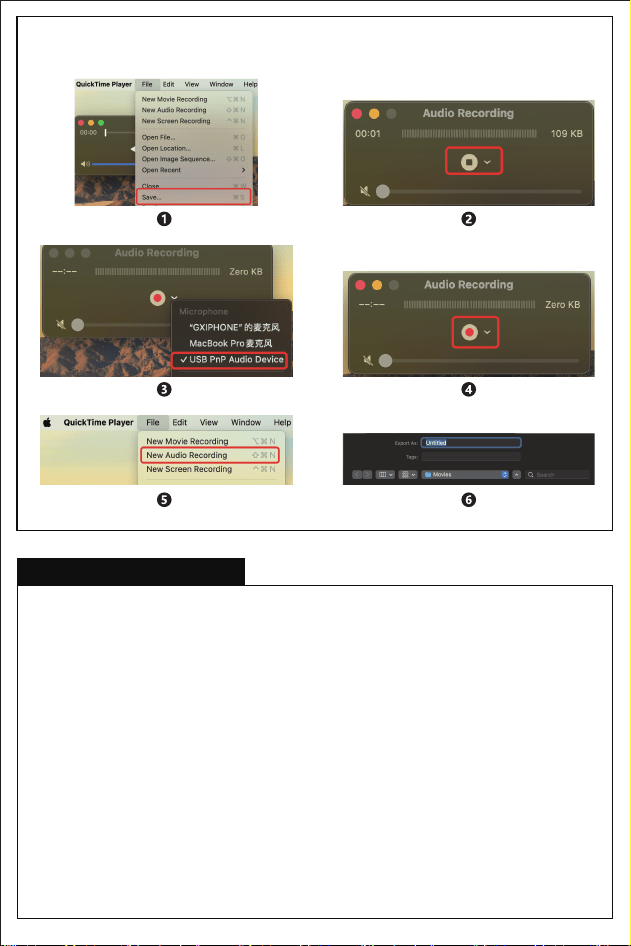
7. If you are on Mac OS system, you can also use "QuickTime" to digitise the tape music
on your Mac OS (As shown below).