ENG
Instructions
ENG-1
Thank you for purchasing a Canon product.
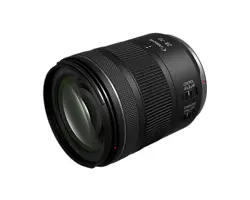
Canon RF28-70mm F2.8 IS STM is a standard
zoom lens for use with EOS R series cameras.
z
“IS” stands for Image Stabilizer.
z
“STM” stands for Stepping Motor.
Conventions used in these instructions
Warning to prevent lens or camera malfunction
or damage.
Supplementary notes on using the lens and
taking pictures.
Camera Firmware and Camera
Applications
Please use the latest versions of firmware and
applications with the camera in use. For details on
whether the firmware and applications in use are the
latest version or not, and for details on updating them,
please check the Canon website.
If the camera’s* firmware is not a compatible
version, the following limitations will apply.
z
Magnified view functionality is not available.
z
In some cases, the camera malfunction may
occur.
*
Applies to the following camera models:
EOS R and EOS RP
ENG-2
Precautions to ensure that the camera is used
safely. Read these precautions thoroughly. Make
sure all details are observed in order to prevent
risks and injury to the user and other people.
Warning
Details pertaining to risks that may
result in death or serious injury.
z
Do not look directly at the sun or other strong
light sources through a lens. This may result in
loss of sight.
z
Do not leave a lens in the sun without the lens
cap attached. The lens may concentrate entering
sunlight and cause a malfunction or fire.
Caution
Details pertaining to risks that may
result in injury or damage to other
objects.
z
Do not leave the product in places exposed to
extremely high or low temperatures. The product
may cause burns or injury when touched.
z
Do not insert your hand or fingers into the
product. This may result in injury.
Safety Precautions
ENG-3
General Precautions
Handling Precautions
z
Do not leave the product in excessive heat such as
in a car in direct sunlight. High temperatures can
cause the product to malfunction.
z
If the lens is taken from a cold environment into a
warm one, condensation may develop on the lens
surface and internal parts. To prevent condensation
in this case, first put the lens into an airtight
plastic bag before taking it from a cold to warm
environment. Then take out the lens after it has
warmed gradually. Do the same when taking the
lens from a warm environment into a cold one.
z
In order to optimize aperture control, there are
occasions in which the aperture blades will move
during zooming and focusing, even when the
aperture value is set for aperture-priority AE or
manual exposure, etc.
z
Please also read any lens related handling
precautions listed in your camera’s instruction
manual.
Shooting Precautions
z
Focus again after recovering from the auto power
off status.
z
To maintain the focus position in the shooting-ready
status, set [Auto power off] to [Disable] on the
camera.

ENG-4
This device complies with Part 15 of the FCC Rules.
Operation is subject to the following two conditions: (1) This
device may not cause harmful interference, and (2) this
device must accept any interference received, including
interference that may cause undesired operation.
Do not make any changes or modifications to the equipment
unless otherwise specified in the instructions. If such
changes or modifications should be made, you could be
required to stop operation of the equipment.
This equipment has been tested and found to comply with
the limits for a class B digital device, pursuant to part 15
of the FCC Rules. These limits are designed to provide
reasonable protection against harmful interference in a
residential installation. This equipment generates, uses and
can radiate radio frequency energy and, if not installed and
used in accordance with the instructions, may cause harmful
interference to radio communications.
However, there is no guarantee that interference will not
occur in a particular installation. If this equipment does
cause harmful interference to radio or television reception,
which can be determined by turning the equipment off and
on, the user is encouraged to try to correct the interference
by one or more of the following measures:
• Reorient or relocate the receiving antenna.
• Increase the separation between the equipment and
receiver.
• Connect the equipment into an outlet on a circuit different
from that to which the receiver is connected.
• Consult the dealer or an experienced radio/TV technician
for help.
CAN ICES-3 (B) / NMB-3 (B)
ENG-5
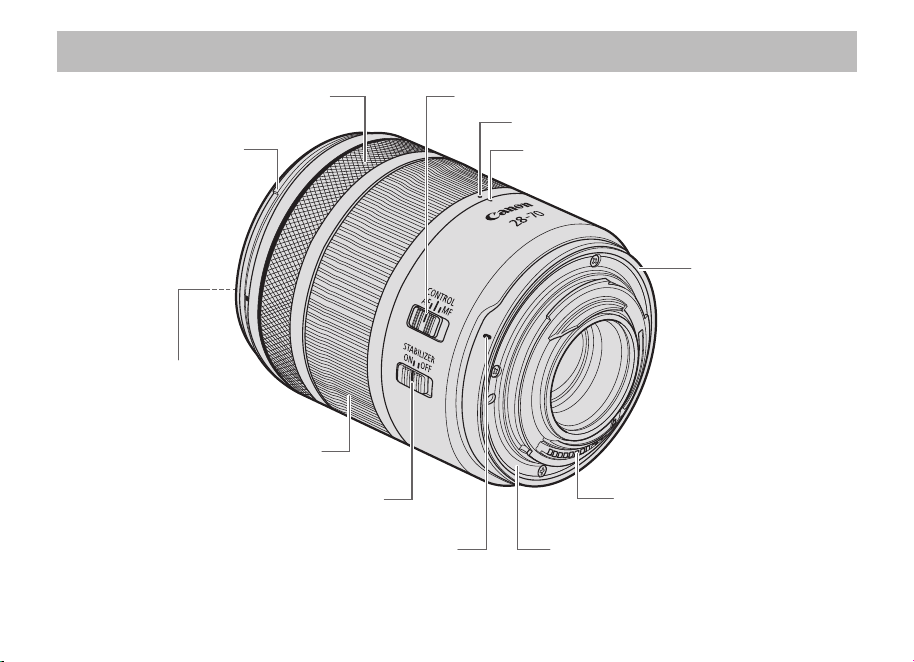
Focusing/Control ring (→ 8)
Hood mount (→ 17)
Filter mounting
thread (→ 18)
Zoom ring (→ 7, 14)
Image stabilizer switch (→ 15)
Lens mount index (→ 6)
Focus mode/Control selector switch (→ 8)
Zoom position index (→ 7, 14)
Rubber ring (→ 6)
Contacts (→ 6)
Lens retracted position index (→ 7)
Lens mount (→ 6)
z
For detailed information, reference page numbers are provided in parentheses (→ **).
Nomenclature
ENG-6
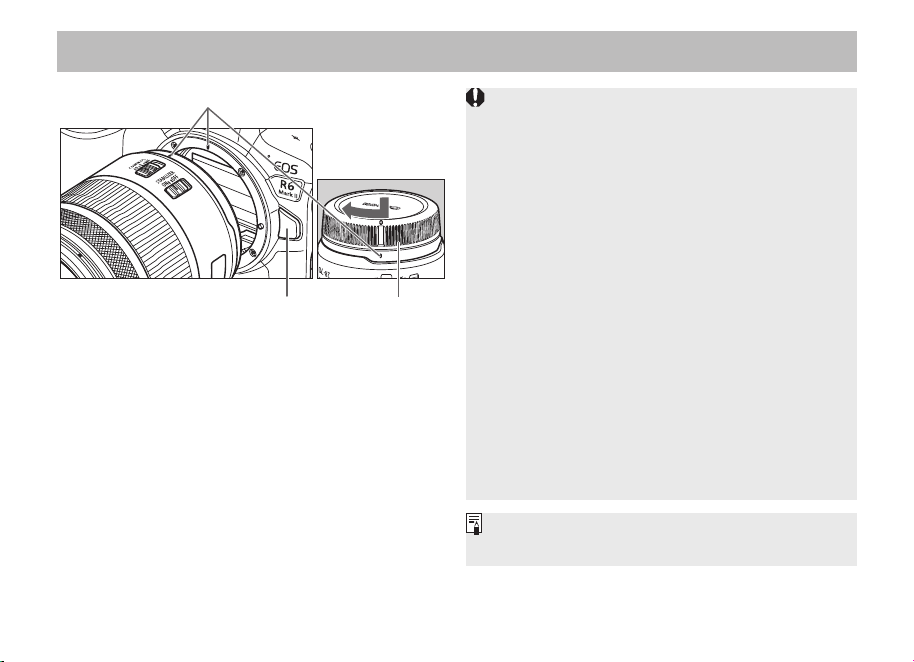
Lens mount index
Lens release button Dust cap
Attaching the Lens
Align the lens mount indexes of the lens and
camera, and turn the lens clockwise until you
hear a click.
Detaching the Lens
Turn the lens counterclockwise while pressing
the camera’s lens release button. Detach the
lens once it has stopped turning.
Please refer to the camera’s instructions for
details.
z
Set the camera’s power switch to OFF when
attaching or detaching the lens.
z
Attach the lens cap before detaching the lens
from the camera.
z
After detaching the lens, place the lens with the
rear end up and attach the dust cap to prevent
the lens surface and contacts from getting
scratched. Make sure the lens and dust cap
mount indexes are aligned when attaching the
dust cap.
z
Contacts that are scratched, soiled, or have
fingerprints on them may result in faulty
connections or corrosion, which may lead to
malfunctions. If the contacts get soiled, clean
them with a soft cloth.
z
The lens mount has a rubber ring to improve
dust-resistance and water-resistance
performance. This rubber ring may cause
friction marks to appear around the camera’s
lens mount, although this will have no effect on
usage.
z
Rubber rings can be replaced at a Canon
Service Center. (chargeable)
1.
Attaching and Detaching the Lens
ENG-7
The lens is fitted with a retraction mechanism.
This enables the length of the lens to be shortened in comparison to when shooting.
Shooting is not possible when the lens is stored.
Observe the following procedure to set the lens in the position for shooting.
Retracting Lens
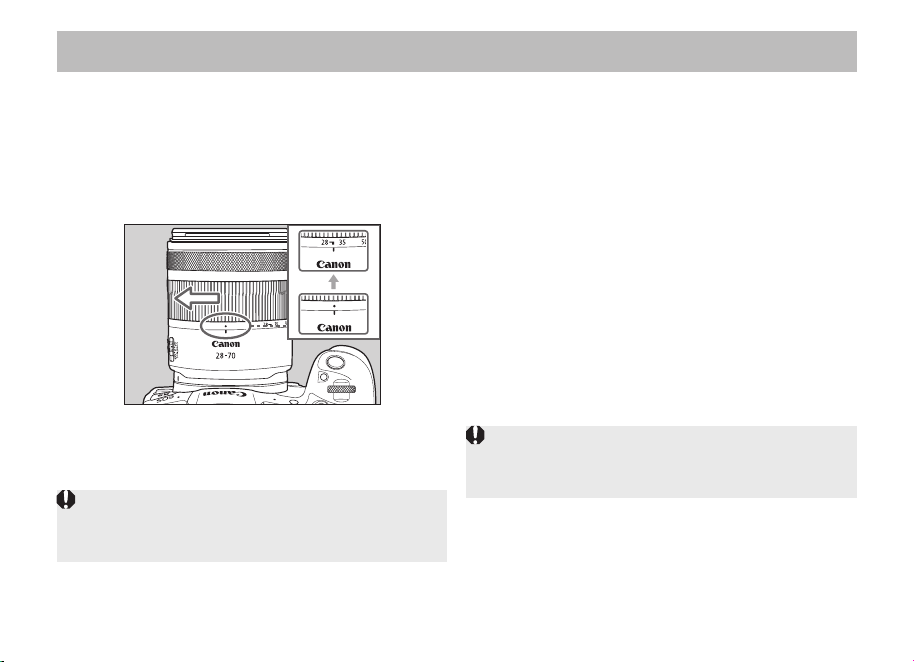
1 Rotate the zoom ring from the shooting
position in the opposite direction to the
white arrow.
2 Continue rotating after it exceeds the
wide-angle position (28 mm).
3 Rotate it to the end to align the lens
retraction position indicator with the
zoom indicator and store it.
z
Please be careful not to let your fingers get
caught in between the lens portion that extends
and the lens body when retracting.
2.
Shooting Preparations and Retracting Lens
Preparations from Retraction to Shooting
Rotate the zoom ring in the direction of the white
arrow until you hear a click to set the lens in the
preparatory shooting position.
z
If the lens retraction position indicator is aligned
with the zoom indicator, add slight pressure to
rotate the zoom ring in the direction of the arrow.
ENG-8
3.
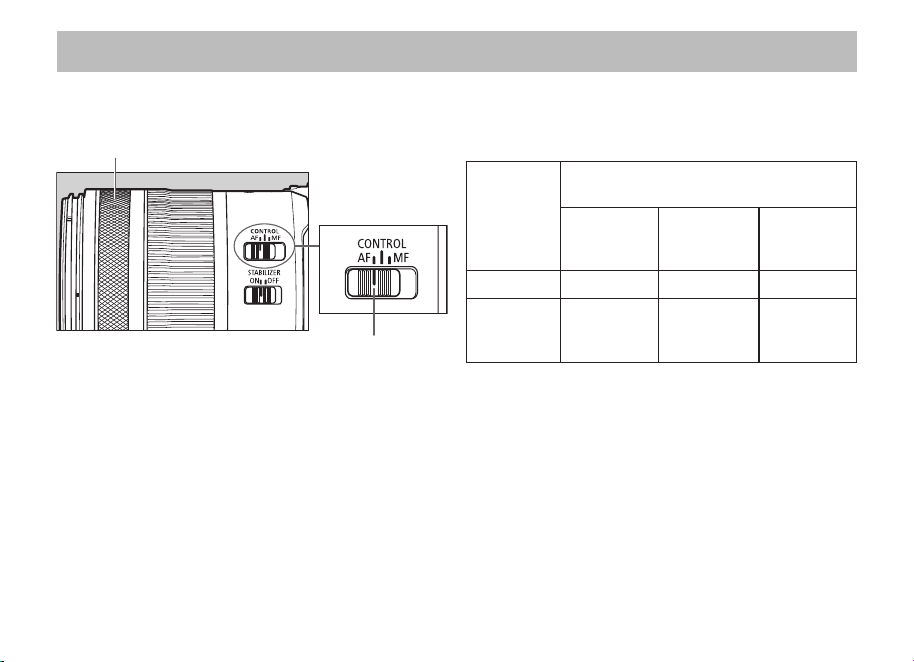
Focusing/Control ring
The focusing/control ring can be used as either a
focusing ring or a control ring.
Focusing/Control ring
Focus mode/control selector switch
Use as a Focusing Ring
Set the focus mode/control selector switch to AF
or MF.
To shoot in autofocus (AF) mode, set the focus
mode/control selector switch to AF. Table*1
To use only manual focusing (MF), set the focus
mode/control selector switch to MF, and focus by
turning the focusing ring (focusing/control ring).
Table*2
Table: List of Focus Mode and Focusing/Control
Ring Functions Using the Focus Mode/
Control Selector Switch
Focus mode/
Control selector switch
*1 AF *3 CONTROL *2 MF
Focus mode AF *4 AF/ *5 MF MF
Focusing/
control ring
functions
Focusing ring
Control ring
Focusing ring
Use as a Control Ring
Set the focus mode/control selector switch to
CONTROL. Table*3
Set the control ring function using the camera’s
menu. The control ring can be assigned the
functions that are commonly used with cameras,
such as shutter speed and aperture settings.
Please refer to the camera’s instructions for
details on how to use the control ring.
ENG-9
z
Delayed focus may occur if the focusing ring
(focusing/control ring) is quickly turned.
z
Setting the focus mode/control selector switch to
CONTROL will fix the focus mode as AF. Table*4
However, depending on the camera used, it is
possible to switch the focus mode to MF on the
camera. Table*5
Please refer to the camera’s instructions for
details.
Focusing/Control ring
z
The lens’ focusing ring (focusing/control ring) is
electronic.
z
With a camera capable of electronic full-time
manual focus, manual focusing is possible while
the camera is operable. However, this requires a
change in camera settings.
z
When AF operation is set to One-Shot AF,
manual focus is possible after autofocusing
has been completed by continuing to press the
shutter button halfway (electronic manual focus
function). However, this requires a change in
camera settings.
z
When movie recording, the AF speed will be
slower than the still photo shooting mode. It is
possible to adjust the AF speed on the camera
by setting Movie Servo AF to [Enable].
Please refer to the camera’s instructions for
details.
ENG-10
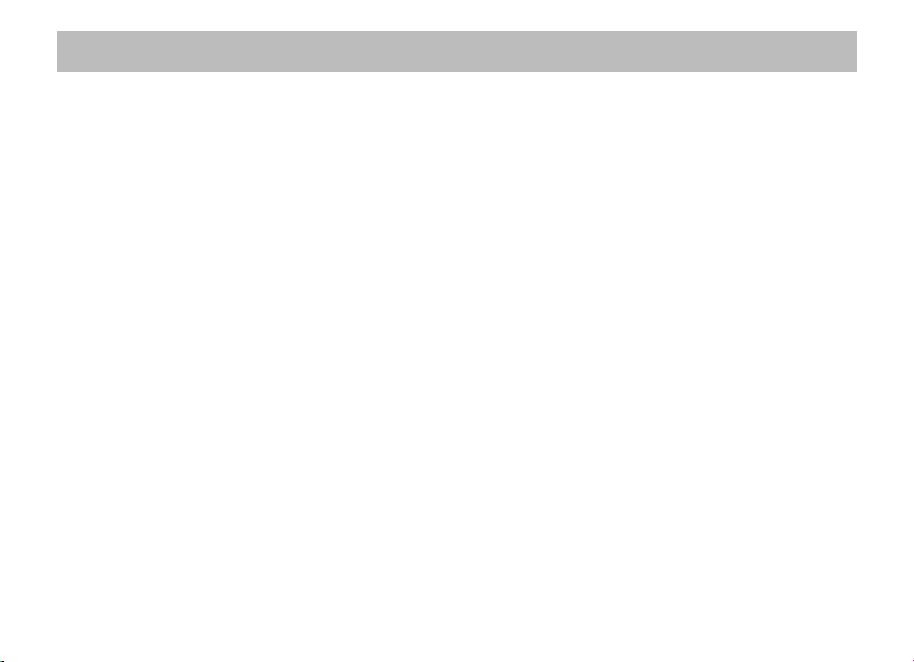
When using this lens, shots taken with the
manual focusing (MF) mode within a range of
less than 64 mm from the wide end make the
subject seem closer and larger than with the
autofocus (AF) mode.
The focusing distance ranges of the wide end
are shown below.
• AF in-focus range: 0.27 m/0.89 ft. to ∞
• MF in-focus range: 0.24 m/0.79 ft. to ∞
Focusing within a range of 0.24 m/0.79 ft. to less
than 0.27 m/0.89 ft. is possible only when using
the MF mode. (MF-only range)
z
The [MF in-focus range] will differ in accordance
with the focal length within a range of less than
64 mm from the wide end.
z
Refer to the specifications on page 19 for details
on the range of focusing distances apart from
with wide-angle lenses.
z
The focusing distance represents the distance
between the [
] mark (focal plane mark) on the
camera and the subject.
4.
Taking Closeup Shots in the Manual Focusing (MF) Mode
Wide-end Examples:
AF
MF
Focal plane
Subject
0.27 m/0.89 ft.
AF
0.24 m/
0.79 ft.
MF
ENG-11
Taking Closeup Shots in the Manual Focusing (MF) Mode
Take the following steps for shooting in the [MF-only range].
1 Set the focus mode/control selector switch to MF.
2 Set the focal length to a wider setting than 64 mm with the zoom ring.
3 Turn the focusing ring in the short-range direction to move the focusing position from [AF
in-focus range] to [MF-only range]. (*Notes 1 & 2)
4 Manually focus on the subject while in the [MF-only range] and take the picture.
Note 1: It is possible to focus within the [MF-only range] only when the focus mode is set to MF.
The lens cannot focus within the [MF-only range] when the focus mode is set to AF.
Note 2: Changing the focus mode from MF to AF will automatically move the focus position to the short-range side
of the [AF in-focus range].
ENG-12
The following limitations are in effect when the focus point is within the [MF-only range].
z
The image quality will decline compared to the [AF in-focus range]. It is therefore recommended that you
shoot while checking the images after each shot.
z
When mounted on EOS R cameras, detection accuracy levels for the focus guide function will be lowered.
Use the focus guide function within the [AF in-focus range].
z
It is not possible to align the focus when taking remote shots with PCs and smartphones.
The following limitations are in effect when the focus point is within the [MF-only range] unless set to MF as
indicated in Table*5 on page 8.
z
Even when the focus mode/control selector switch is moved to [CONTROL], AF mode is not possible as the
focusing position is made in the [MF-only range]. Also, manual focus is not possible as the ring function is set
to control ring at this time. Therefore, it is not possible to adjust focus by moving the focus lens.
z
Use the following steps when switching to [CONTROL] when focus is made in the [MF-only range]. After
switching to [CONTROL], you can focus using AF.
• Turn the focusing ring in the direction of [Infinity] until the focusing position moves from the [MF-only range]
to the [AF in-focus range], then switch to [CONTROL].
• Alternatively, switch the focus mode/control selector switch from MF to AF, then return it to [CONTROL].
Taking Closeup Shots in the Manual Focusing (MF) Mode
ENG-13
Taking Closeup Shots in the Manual Focusing (MF) Mode
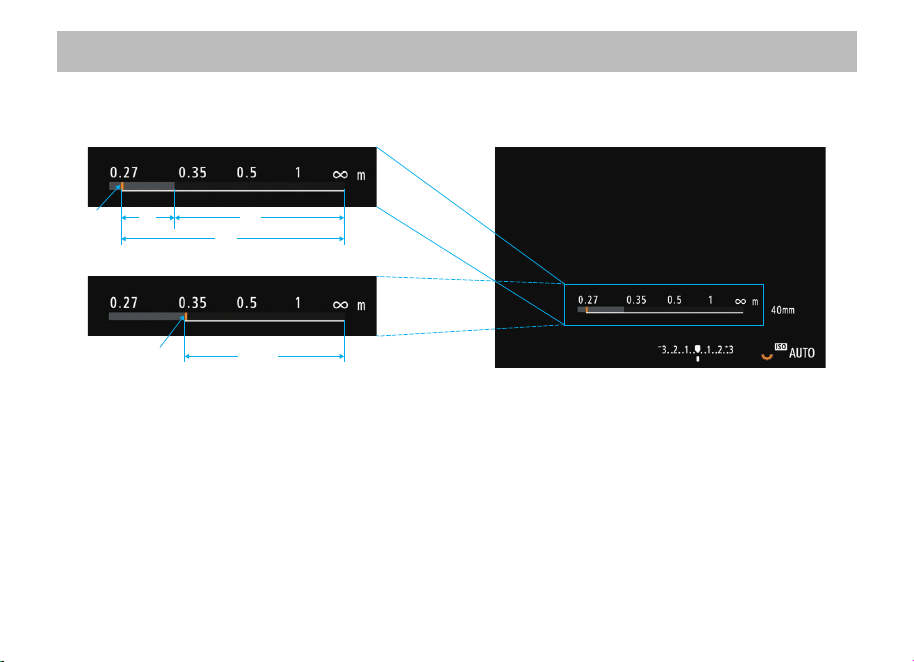
It is possible to check the focusing position with the use of the camera’s focusing distance display function*
1
.
④②
④③
②
①
①
Focusing distance display at 40 mm focal length (image)
Telephoto focusing distance display (image)
Camera monitor display (image)
The illustrations on the left above are enlarged images of the camera’s focusing distance display areas*
2
.
• The short-range direction is on the left and the infinity symbol on the right indicates the infinity direction.
• The orange vertical line shown in (1) indicates the current focusing position.
• The range of the white line shown in (2) indicates the range of focusing positions that can be used for shooting.
• The range shown in (3) is the [MF-only range] within which the focus can be aligned only when in the [MF] mode.
• The range shown in (4) is the range within which the focus can be aligned when in both the [MF] and [AF] modes.
The focus can only be aligned within the range shown in (4) when in the [AF] mode.
*1 Refer to the camera’s instruction manual for details on displaying the [Focusing Distance Display].
*2 The [AF in-focus range] and [MF in-focus range] will differ in accordance with the focal length, which means that
the focusing distance display will vary with the focal length.
ENG-14
5.
Zooming
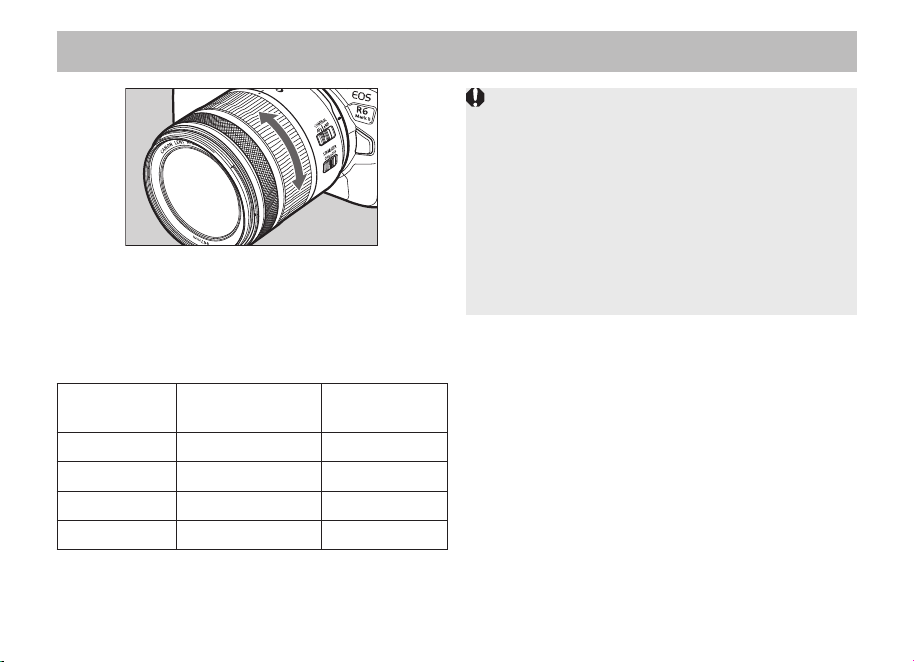
To zoom, turn the zoom ring.
Minimum focusing distance:
The minimum focusing distance differs depending
on the focal length.
Focal length
Minimum
focusing distance
Magnification
28 mm 0.27 m/0.89 ft. 0.16x
35 mm 0.32 m/1.05 ft. 0.15x
50 mm 0.35 m/1.15 ft. 0.18x
70 mm 0.35 m/1.15 ft. 0.24x
z
Be sure to finish zooming before focusing.
Zooming after focusing can affect the focus.
z
Once a close-up subject is in focus, zooming
may cause the subject to come out of focus.
In this instance, move back from the subject and
refocus.
z
Blurring may temporarily occur if the zoom ring
is quickly turned.
z
Please be careful not to let your fingers get
caught in between the lens portion that extends
and the lens body when zooming.
ENG-15
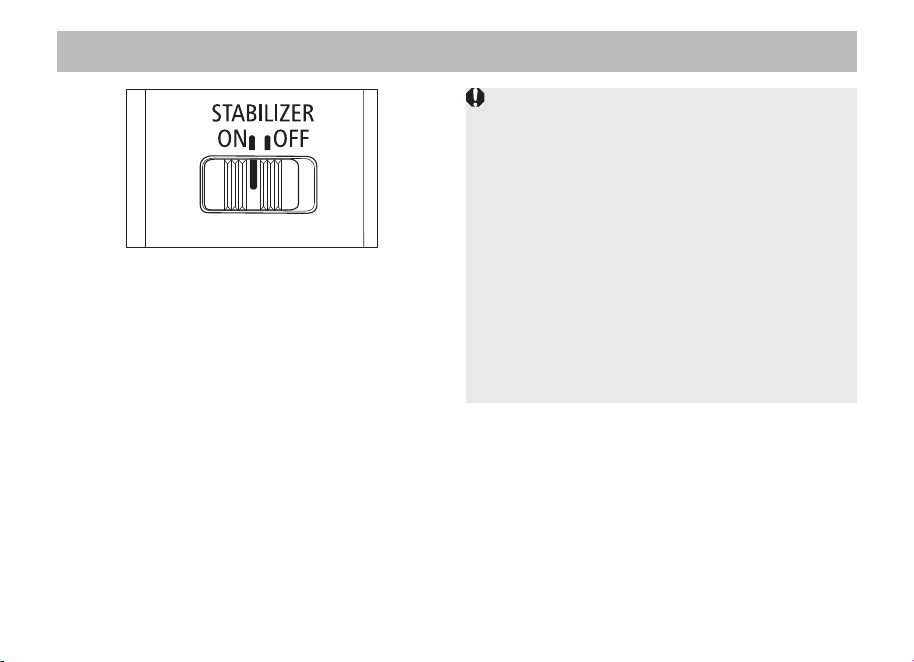
Set the image stabilizer switch to ON when you
want to use the Image Stabilizer.
z
This function provides image stabilization
appropriate for shooting conditions (such as
shooting still subjects and panning shots).
z
The coordinated control will work in
combination with cameras with in-body Image
Stabilizer.
z
Set the image stabilizer switch to OFF when
you are not going to use the Image Stabilizer.
6.
Image Stabilizer
z
The Image Stabilizer cannot compensate for a
blurred shot caused by a subject that moved.
z
The Image Stabilizer may not be fully effective if
you shoot from a violently shaking vehicle or other
transportation.
z
When using a tripod, the Image Stabilizer might
not be fully effective or it might be better to set the
image stabilizer switch to OFF, depending on the
type of tripod and where the tripod is located, as
well as on the camera’s settings such as shutter
speed.
z
Even with a monopod, the Image Stabilizer will
be as effective as during hand-held shooting.
However, depending on the shooting conditions,
there are cases in which the Image Stabilizer
effect may be less effective.
ENG-16
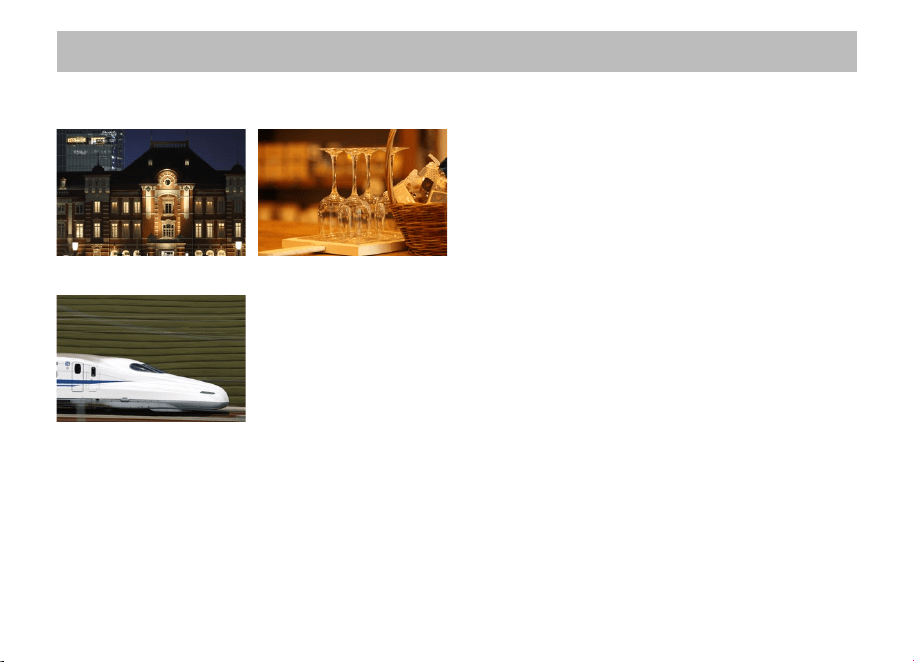
The Image Stabilizer for this lens is suited to hand-held shots in the following conditions.
Image Stabilizer
z
In semi-darkened areas such as indoors or
outdoors at night.
z
In locations where the flash cannot be used,
such as art museums and theater stages.
z
In situations where your footing is uncertain.
z
In situations where fast shutter speed settings
cannot be used.
z
Panning shots of vehicles, trains, etc.
It compensates for vertical camera shake during panning shots in a
horizontal direction, and compensates for horizontal camera shake
during panning shots in a vertical direction.
ENG-17
The custom lens hood cuts out unwanted light and protects the front of the lens from rain, snow, and
dust.
7.
Hood (Sold separately)
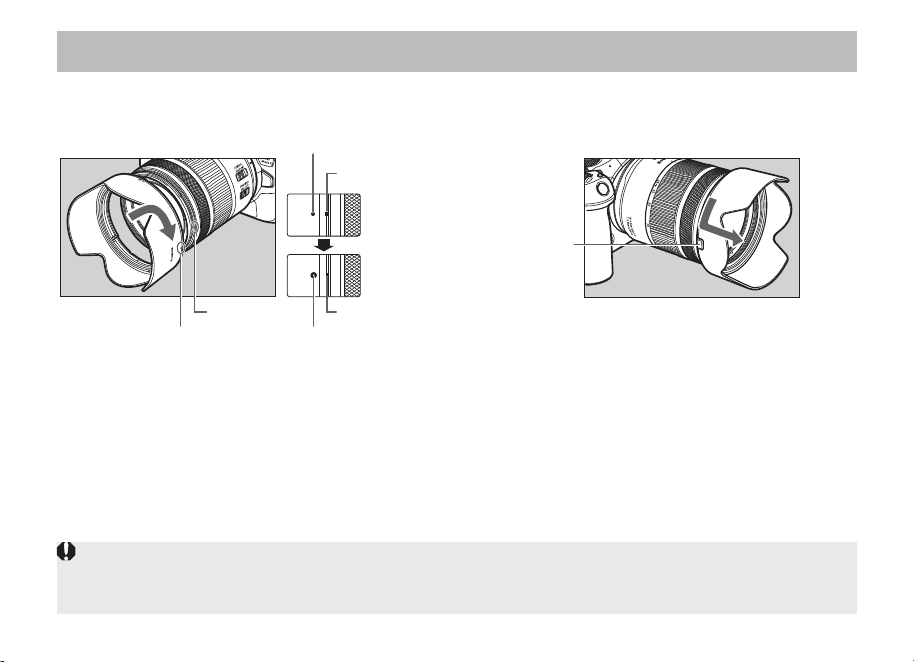
Attachment position mark
Stop position markAttachment position mark
Red dot
Red dotRed dot
Attaching the Hood
Align the red attachment position mark on the
hood with the red dot on the front of the lens,
and then turn the hood in the direction of the
arrow until you hear a click.
Button
Detaching the Hood
Keep your finger pressed down on the button
located on the side of the hood, and then turn
the hood in the direction of the arrow until the
attachment position mark on the hood is aligned
with the red dot on the front of the lens to detach it.
The hood can be reverse-mounted on the lens
for storage.
z
If the hood is not attached properly, vignetting (darkening of the perimeter of the picture) may occur.
z
Grasp and turn the base of the hood when attaching and detaching it. There are cases in which it may
become deformed if the hood is turned with it grasped near to the rim.
ENG-18
8.
Filters (Sold separately)
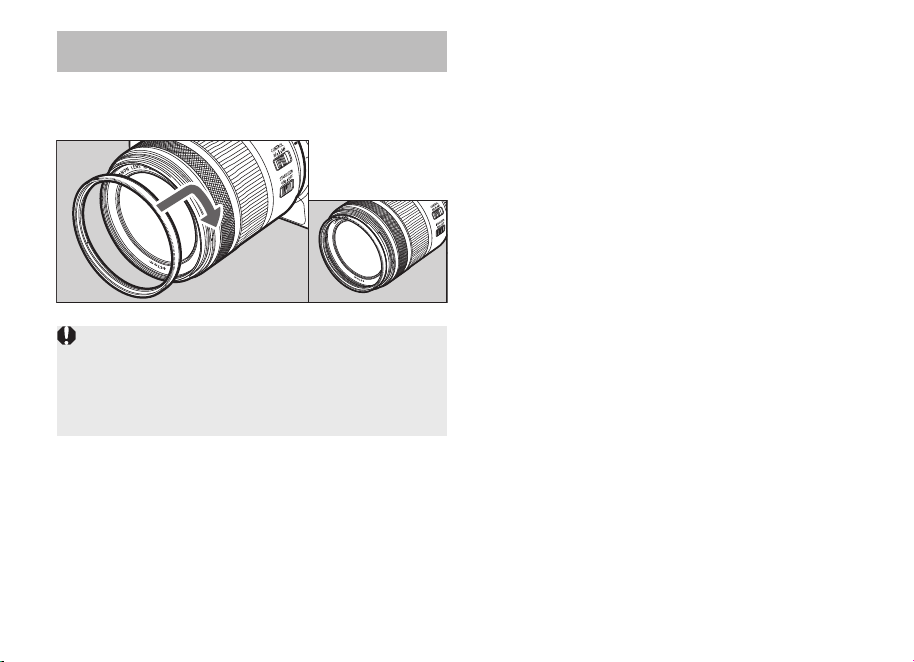
You can attach filters (Φ67) to the filter mounting
thread on the front of the lens.
z
Only one filter may be attached.
z
If you need a polarizing filter, use the Canon
Circular Polarizing Filter PL-C B.
z
Detach the hood when adjusting the polarizing
filter.
ENG-19
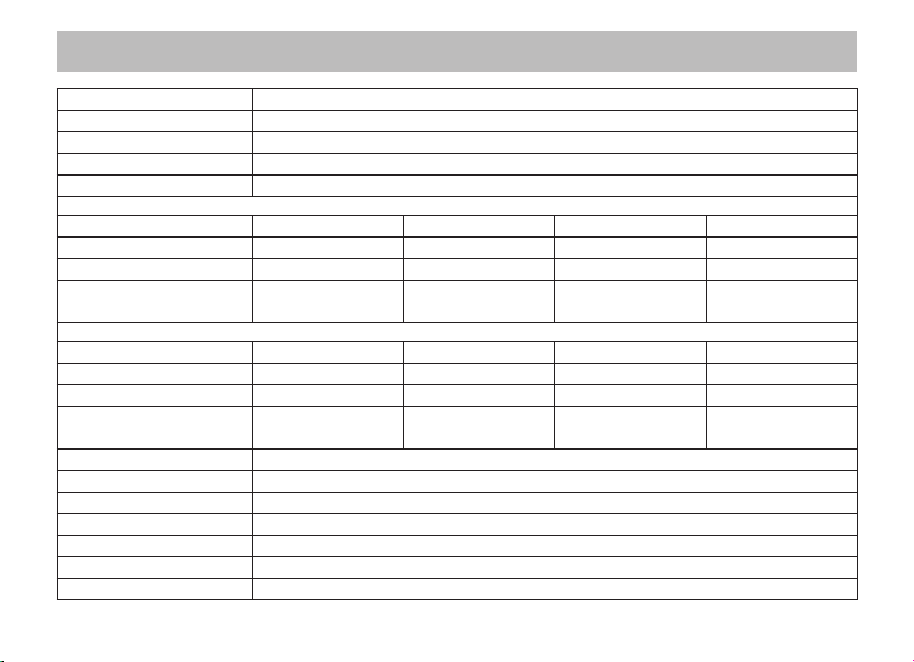
Specifications
Focal Length/Aperture 28-70mm f/2.8
Lens Construction 12 groups, 15 elements
Maximum Aperture f/2.8
Minimum Aperture f/22
Angle of View Horizontal: 65°- 29° / Vertical: 46°- 19°30′ / Diagonal: 75°- 34°
AF Mode
Focal Length 28 mm 35 mm 50 mm 70 mm
Min. Focusing Distance
0.27 m/0.89 ft. 0.32 m/1.05 ft. 0.35 m/1.15 ft. 0.35 m/1.15 ft.
Magnification 0.16x 0.15x 0.18x 0.24x
Field of View
Approx. 220 x 146 mm/
8.66 x 5.75 in.
Approx. 237 x 158 mm/
9.33 x 6.22 in.
Approx. 190 x 127 mm/
7.48 x 5.00 in.
Approx. 142 x 94 mm/
5.59 x 3.70 in.
MF Mode
Focal Length 28 mm 35 mm 50 mm 70 mm
Min. Focusing Distance
0.24 m/0.79 ft. 0.26 m/0.85 ft. 0.33 m/1.08 ft. 0.35 m/1.15 ft.
Magnification 0.19x 0.2x 0.2x 0.24x
Field of View
Approx. 182
x
122 mm/
7.17 x 4.80 in.
Approx. 176
x
117 mm/
6.93 x 4.61 in.
Approx. 176
x
118 mm/
6.93 x 4.65 in.
Approx. 142 x 94 mm/
5.59 x 3.70 in.
Filter Diameter 67 mm
Max. Diameter and Length
Approx. 76.5
x
92.2 mm/3.01 x 3.63 in. (when lens is stored)
Weight Approx. 495 g/17.46 oz.
Hood EW-73D (Sold separately)
Lens Cap E-67 II*
Lens Dust Cap Lens Dust Cap RF*
Case LP1116 (Sold separately)
ENG-20
z
The lens length is measured from the lens mount surface to the front end of the lens.
Add 24.2 mm/0.95 in. when including the lens cap and dust cap.
z
The maximum diameter, length and weight listed are for the lens itself only.
z
* comes included with the lens, but can also be purchased separately.
z
Close-up Lens 250D/500D cannot be attached because there is no size that fits the lens.
z
You cannot use extenders.
z
Multiple exposure shooting is not possible when using this lens on certain cameras**.
** EOS R, RP, Ra, R5, R6
z
There are cases in which using the zoom function during continuous shooting may result in
conspicuous image distortion.
z
All data listed is measured according to Canon standards.
z
Photos shown are for illustration purposes only.
z
Product specifications and appearance are subject to change without notice.
Specications

CT1-D345-A 0624Ni © CANON INC. 2024


