App Store
Google Play

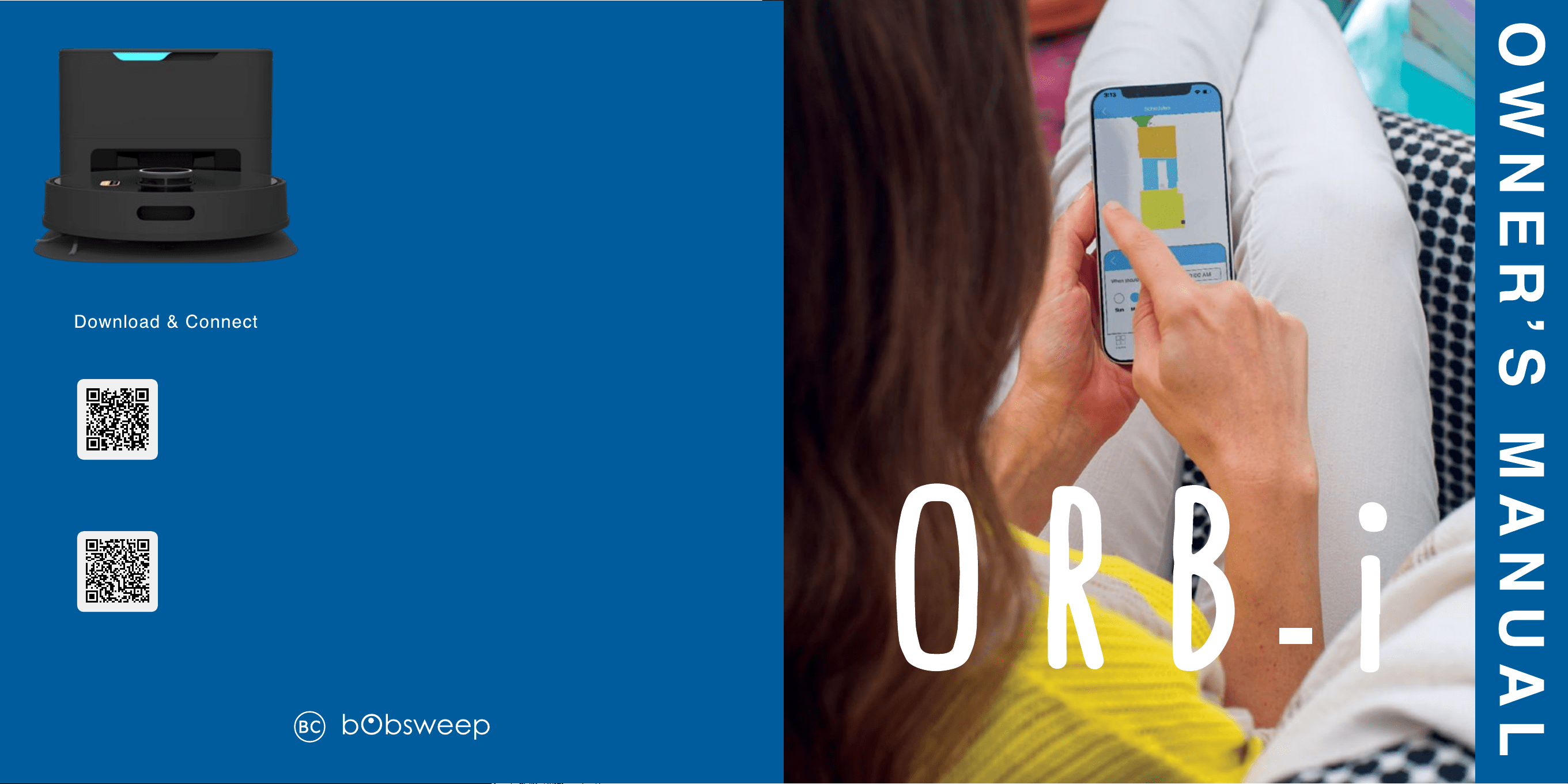
OWNER’S MANUAL
Model PET24-7-313
Version 2024.a
TM
Congratulations!
Congratulations on your new intelligent oor cleaner! Orb-i is now
at your service. To see Orb-i at his best, please read the Quick Start
Guide and this manual thoroughly.
Welcome to the bObsweep family and Happy Sweeping!
If you have any questions or concerns, feel free to contact our
helpful support team at [email protected] or 1-888-549-
8847.
Business Hours: Monday – Friday, 9 a.m. – 5 p.m. Pacific Time.

Table of
Contents
Getting Started
Who is Orb-i?
Navigating Difcult Obstacles
8
Orb-i’s First Clean
Install Side Brush
Power Orb-i ON
Set up Charging Station
Charge Orb-i
Download the bObsweep App
Let Orb-i Sweep
10
Maintenance
Dust bag
Charging Station
Dustbin
Filters
Brushes
Sensors
Front Wheel
Battery
17
Troubleshooting
Trouble messages
Home Checkup Test
2725
FAQs
1
General
Safety Instructions
Declaration of Conformity
Warranty
Contact Us
3
Box Contents
4
Anatomy
Orb-i
Screen & Buttons
Charging Station
Dustbin
Manuel
D’utilisation
Franciase
29
End User
License
Agreement
63

Declaration of Conformity
This device complies with Part 15 of the FCC rules. Operation is subject to the following two conditions: (1) this device may
not cause harmful interference, and (2) this device must accept any interference received, including interference that may
cause undesired operation. The manufacturer is not responsible for any radio or TV interference caused by unauthorized
modications or changes to this equipment. Such modications or changes could void the user’s authority to operate the
equipment.
This equipment has been tested and found to comply with the limits for a Class B digital device, pursuant to part 15 of
the FCC Rules. These limits are designed to provide reasonable protection against harmful interference in a residential
installation. This equipment generates, uses, and can radiate radio frequency energy and, if not installed and used in
accordance with the instructions, may cause harmful interference to radio communications. However, there is no guarantee
that interference will not occur in a particular installation. If this equipment does cause harmful interference to radio or
television reception, which can be determined by turning the equipment off and on, the user is encouraged to try to correct
the interference by one or more of the following measures:
• Reorient or relocate the receiving antenna.
• Increase the separation between the equipment and receiver.
• Connect the equipment to an outlet on a circuit different from that to which the receiver is connected.
• Consult the dealer or an experienced radio/TV technician for help.
Warranty
Every Orb-i purchased from an authorized seller comes with our warranty coverage:
• 2-Year Standard Warranty
• 5-Year Subsidized Repair Plan
• Lifetime of Customer Service
To claim your warranty, register your bot at
www.bobsweep.com/warranties.
Contact Us
If you have any questions or concerns, please contact our helpful support team at
[email protected] or 1-888-549-8847.
Hours: Monday – Friday, 9 a.m. – 5 p.m. Pacic Time.
Additional troubleshooting information and how-to guides can be found on the bObsweep app and at
www.bobsweep.com/orbi-support.
Important Safety Instructions
• Orb-i is not intended for use by persons (including children)
with reduced physical or mental capabilities, or lack
of experience and knowledge, unless under the close
supervision of a person responsible for their safety.
• Orb-i is composed of electronic components that in rare
and unintended cases can cause hazards of heating, re,
and other malfunctions. And, because Orb-i is capable of
autonomous movement, his use poses the risk of collision
with property, pets, and persons. Unintended removal
of articles — such as small valuables, jewelry, or hair of
persons or pets lying on the oor — may also occur.
• Orb-i is not a toy. Small children and pets should be
supervised when Orb-i is operating.
• Be aware that Orb-i moves on its own. Take care when
walking in the area that Orb-i is operating in to avoid
stepping on it or tripping over it.
• If Orb-i or his charging station has been damaged in any
way, do not operate them. Contact our support team for
further assistance.
• Do not let Orb-i drop. The impact from a drop can damage
the SLAM LiDAR.
• Do not use Orb-i outdoors. And , do not store Orb-i in a car.
• Do not expose Orb-i or his charging station to temperatures
higher than 113° F (45° C), moisture, or humidity.
• Store and operate in room temperature environments only.
• Only use Orb-i with a 110-120v electric plug. Do not use
with a voltage converter or transformer. Note: Using Orb-i
with a power converter will immediately void the warranty.
Use of Orb-i outside of the country where it was initially
purchased voids the warranty.
• Orb-i comes with a North American region approved power
supply cord and is designed to be plugged into a standard
household AC power outlet only. Do not use any other
power supply cord or power strip.
• Do not use unauthorized cords or chargers. Use of an
unauthorized charger could cause the battery to generate
heat, smoke, catch re, or explode.
• Risk of electric shock, use indoors in dry location only. Do
not handle Orb-i or his charging station with wet hands;
use only on dry surfaces. Do not use a broken or damaged
power inlet/wire.
• The charging station may be protected with a surge
protector in the event of electrical storms or uctuations.
• Do not pull or carry the charging station by the cord, close
a door on the cord, or pull the cord around sharp edges
or corners. Keep the cord away from heated surfaces. To
unplug the cord, grasp the plug, not the cord.
• Power Orb-i OFF and remove him from a power source
when you are not using him and before conducting
maintenance.
• Do not open or handle Orb-i’s charging station when
plugged into the wall. Unplug rst.
• Periodically inspect the battery pack for any sign of damage
or leakage. Do not charge damaged or leaking battery
packs. Leaks from the battery cells can occur under extreme
usage or temperature conditions. If the liquid gets on the
skin, wash quickly with water. If the liquid gets into the eyes,
ush them immediately with clean water for a minimum of
10 minutes, and seek immediate medical attention.
• Do not mutilate or incinerate the battery, as it will explode at
high temperatures.
• Do not short-circuit the battery by allowing metal objects
to contact battery terminals or immerse in liquid. Do not
subject batteries to mechanical shock.
• Do not dispose of your battery in re. Old batteries should
be recycled safely through your local recycler.
• If the oor contains stairs, place physical barriers to block
off Orb-i and prevent access to the stairs and ensure safe
operation.
• If the oor contains a balcony, place physical barriers
to block off Orb-i and prevent access to the balcony and
ensure safe operation.
• If the oor contains equipment, such as a stove, fan,
space heater, or humidier, remove the equipment before
operation. There is a risk of injury, accident or malfunction if
Orb-i comes in contact and pushes the equipment.
• If Orb-i passes over a power cord and drags it, there is a
chance an object could be pulled off a table or shelf. Before
using this device, pick up objects like clothing, loose papers,
pull cords for blinds or curtains, power cords, and any fragile
objects. Extinguish candles. Shut off space heaters.
• Do not use Orb-i to pick up sharp objects, glass, or anything
that is burning or smoking such as cigarettes, matches, or
hot ashes.
• Do not operate Orb-i in areas with exposed electrical outlets
on the oor.
• With the exception of the wet mop attachment, do not
immerse any part of Orb-i into water or other liquids. Do not
use Orb-i to pick up spills. Do not allow Orb-i or his station
to become wet.
• Do not look directly into the rotating transmitting part (laser)
of the SLAM LiDAR.
• For your safety, do not insert tools, ngers, or other items
into the rotating part of the SLAM LiDAR.
• Do not use without dust bag and/or lters in place.
• Do not attempt to disassemble or open the charging station
other than instructed in this Owner’s Manual. Repairs
on the station should only be carried out by our qualied
technicians.
• Do not expose Orb-i’s SLAM LiDAR to direct sunlight or
infrared light.
• Perform the required maintenance per the Owner’s Manual
to ensure safe operation of the robot and dock.
2
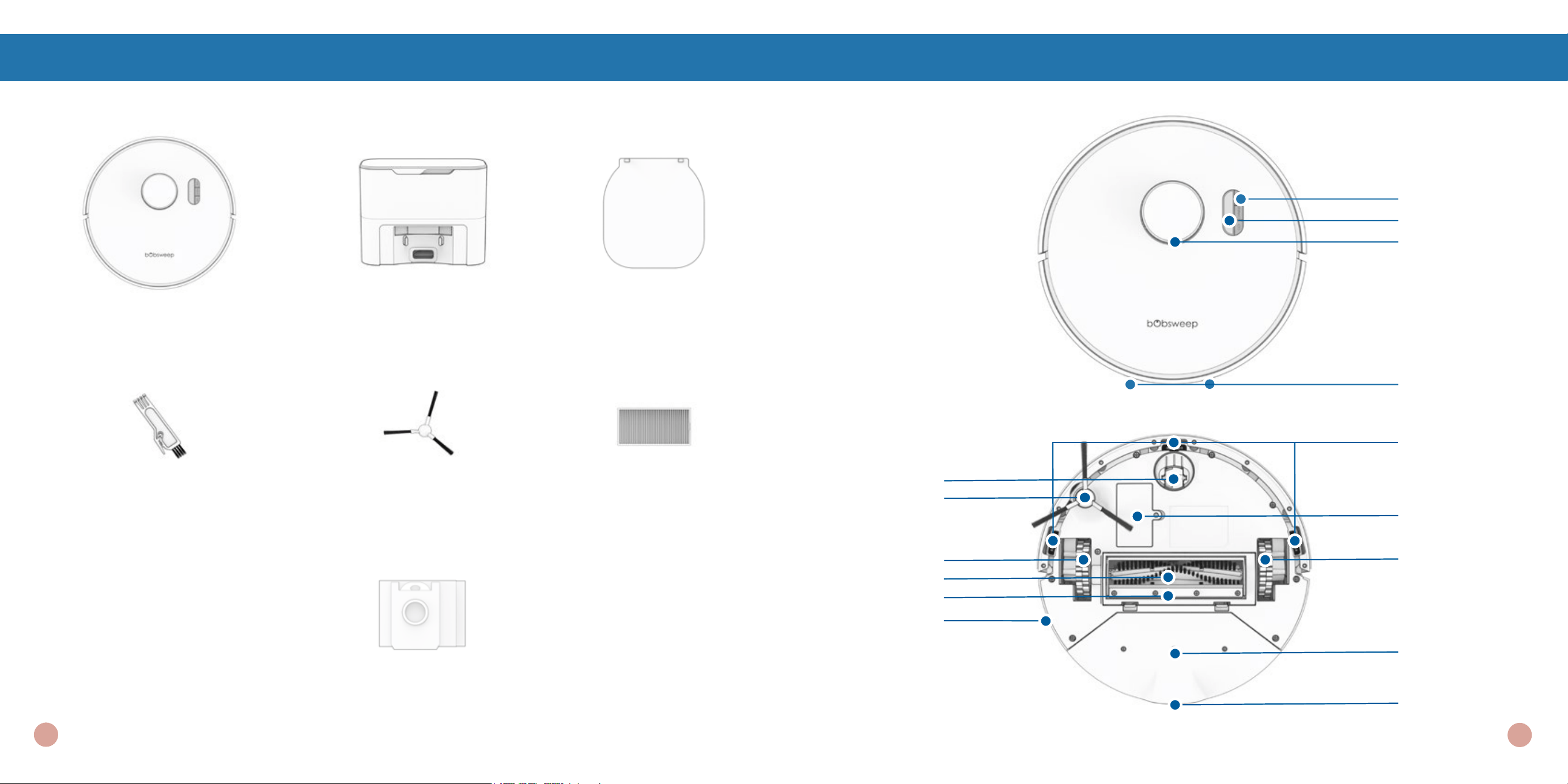
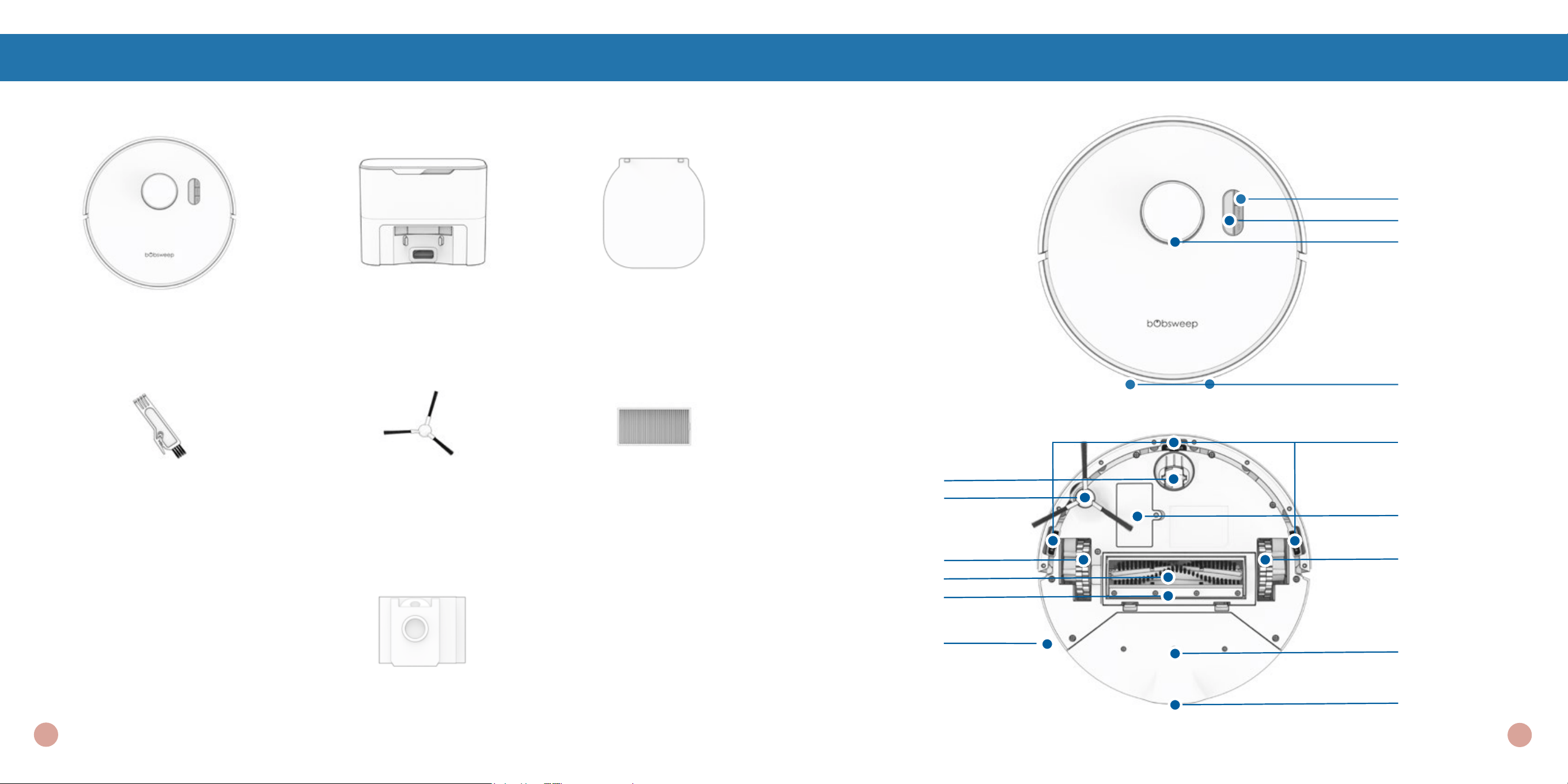
Box Contents
Side Brush
SLAM LiDAR
Main Brush
Right Wheel
Front Wheel
Left Wheel
Edge Sensors
Battery
Dustbin
Speaker
Buttons
Display Screen
Anatomy
Charging Bed
FilterSide Brush (2)
Self-empty
Charging Station
Orb-i
™
Cleaning Tool
Main Brush Gate
Disposal Vent
Aperture
Dust Bag
Orb-i
Charging Plates
4
3
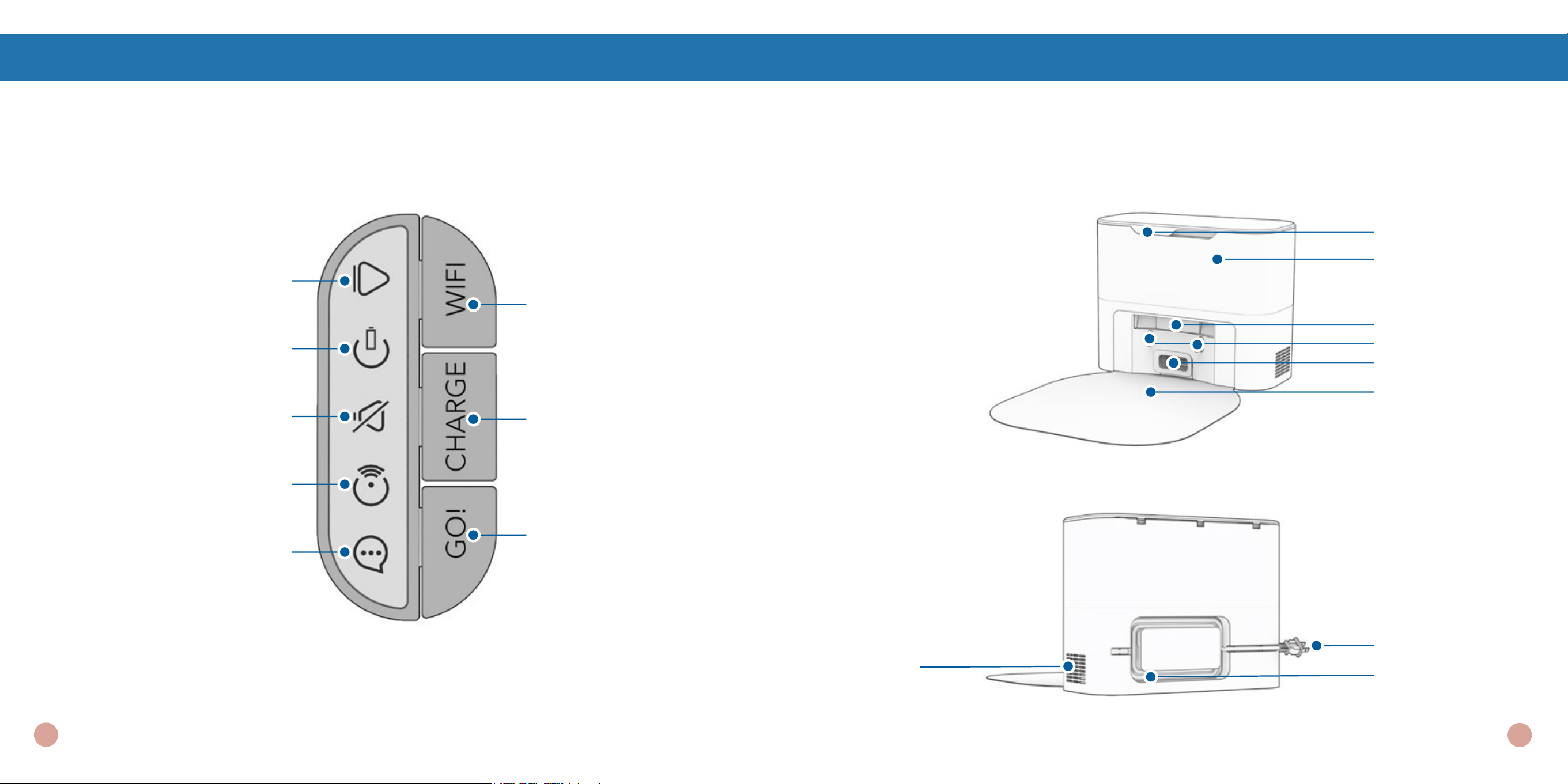
Anatomy Anatomy
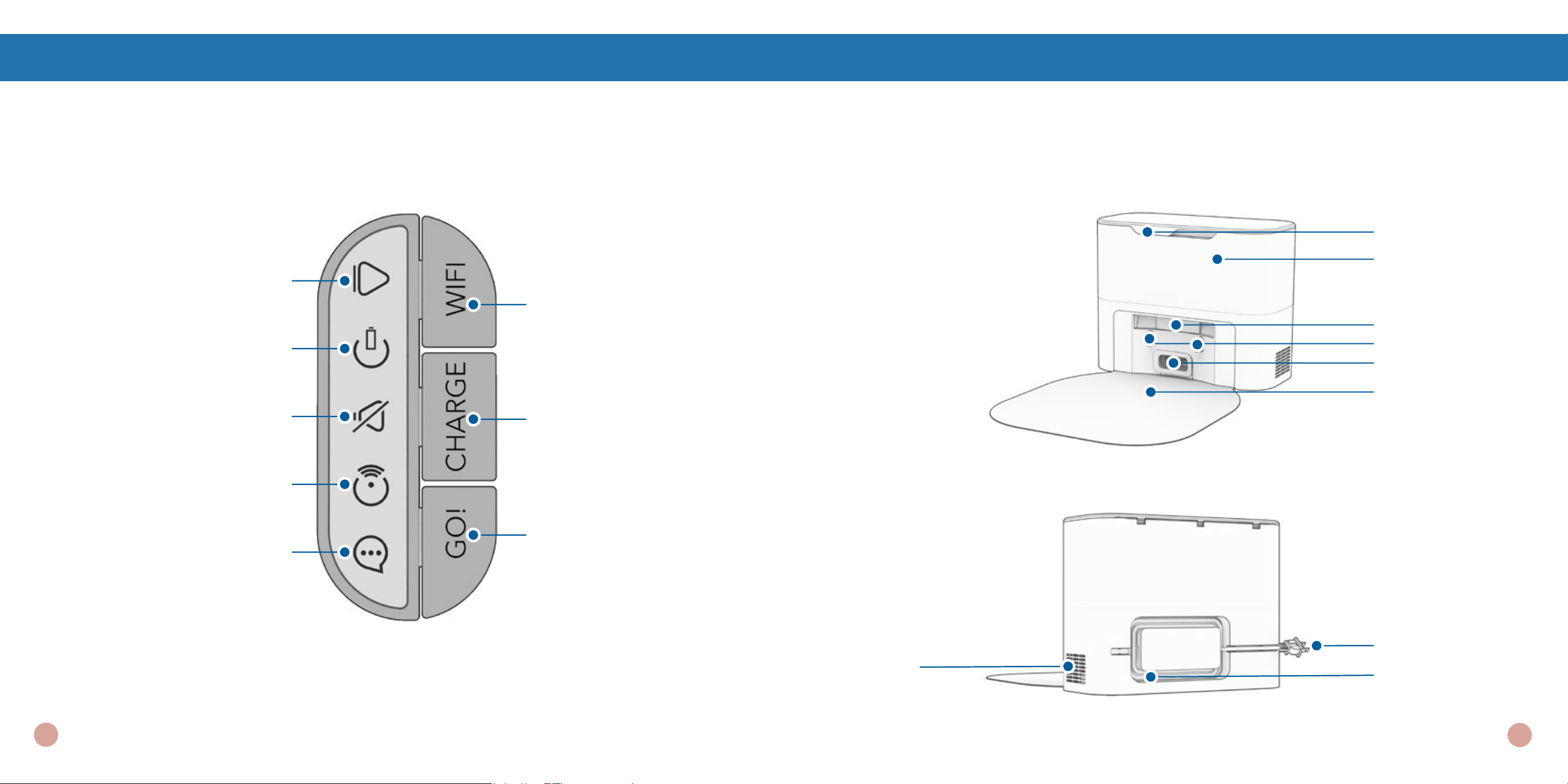
CHARGE
Short Press -
Off Station - Charge/Stop
On Station - Self-empty
Long Press - Low Power Standby
mode
GO
Short Press - Start/Pause
Long Press - Power ON/OFF
Wi-Fi
Initiate Wi-Fi search
SOUND
Solid Shine - Muted
GO
Solid Shine - Cleaning
Blinking - Paused
CHARGE
Rapid Blinking - Low battery
Blinking - Finding station
Slow Blinking - Charging
Solid Shine - Fully charged
Wi-Fi
Solid Shine - Connected to Wi-Fi
Blinking - Searching for Wi-Fi
Trouble Indicator
Blinking - Trouble detected
Check the bObsweep App
Charging Bed
Air Vent
Cord
Indoor Plug
Charging Plates
Disposal Vent
Lid
Dust Bag
Display Screen & Buttons
Self-empty Charging Station
Charging Station
Indicator /Transmitter
6
5
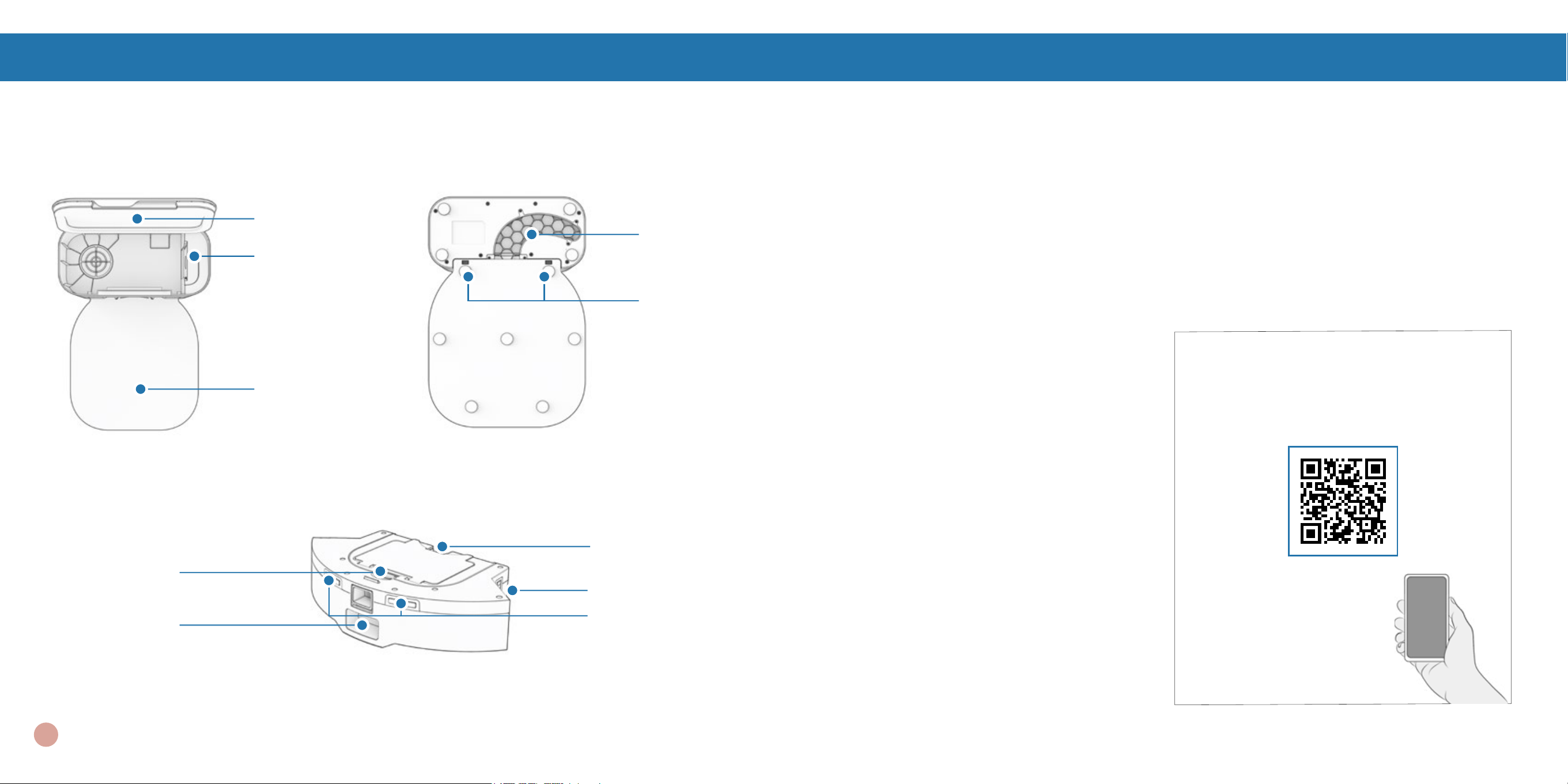
Anatomy
Charging Bed
Charging Bed
Connection
Sockets
Lid
Dust Bag Slide
Self-empty Charging Station
Air Pathway
Access Window
Dustbin
Filter Opening
Dustbin Contact Point
Charging Plates
Disposal Vent
Aperture
Dustbin Opening
Getting Started
Who is Orb-i?
Orb-i is an autonomous robotic vacuum cleaner, at your service! Connect Orb-i to Wi-Fi and use the
bObsweep app to create a customized cleaning plan. Orb-i will clean your home, your way.
How does Orb-i nd
his way around?
Orb-i uses laser vision, a network of
sensors, and a state-of-the-art mapping
and localizing technology to detect walls,
furniture, and obstacles.
As Orb-i cleans, he simultaneously
creates a map of the areas he is able to
access and clean. Areas where furniture
and small items are found are marked on
the map. View the map by clicking the
Map Icon on the bObsweep App, and
customize it as desired. Using the map,
and the app’s customization criteria,
Orb-i efciently cleans your home over
the course of a full cycle.
After cleaning, Orb-i returns to his
station and empties his dustbin into his
Charging Station’s container. Forget
about vacuuming and enjoy clean oors
for weeks!
Learn about Orb-i’s mapping and other
features using his how-to videos and
instructions:
7
Navigating Difcult Obstacles
Unique Furniture
Specialty furniture, such
as desk chairs with wheels
or stools with circular
bases, may confuse Orb-i
momentarily; he may get
stuck on a ledge for a few
minutes, and then decide
to clean somewhere else.
As long as Orb-i is
not displaying a trouble
message, let him continue
cleaning and nding his
own way around. Take note
of the areas that Orb-i nds
most challenging, and, if
possible, adjust furniture,
or add NoSweep
™
zones.
Shag Carpet
Orb-i’s main brush is not
designed to clean shag
carpets or rugs with long
bers and fringes. If you’d
like Orb-i to clean shag
carpet or long-bered rugs,
you may remove his main
brush and allow him to
vacuum without it.
Getting Started
Dark-Colored
Carpet
If Orb-i repeatedly backs
up or displays a trouble
message while cleaning
dark carpets, deactivate the
edge sensors.
To deactivate them, open
the bObsweep app and
disable “ edge detection ”
under Cleaning Preferences
in Settings .
Just remember that while
Orb-i’s edge sensors are
deactivated, he will not be
able to detect edges or
stairs and will fall off the
edge if he gets close to one!
Add a NoSweep line where
the edge or stairs are to
keep Orb-i safe.
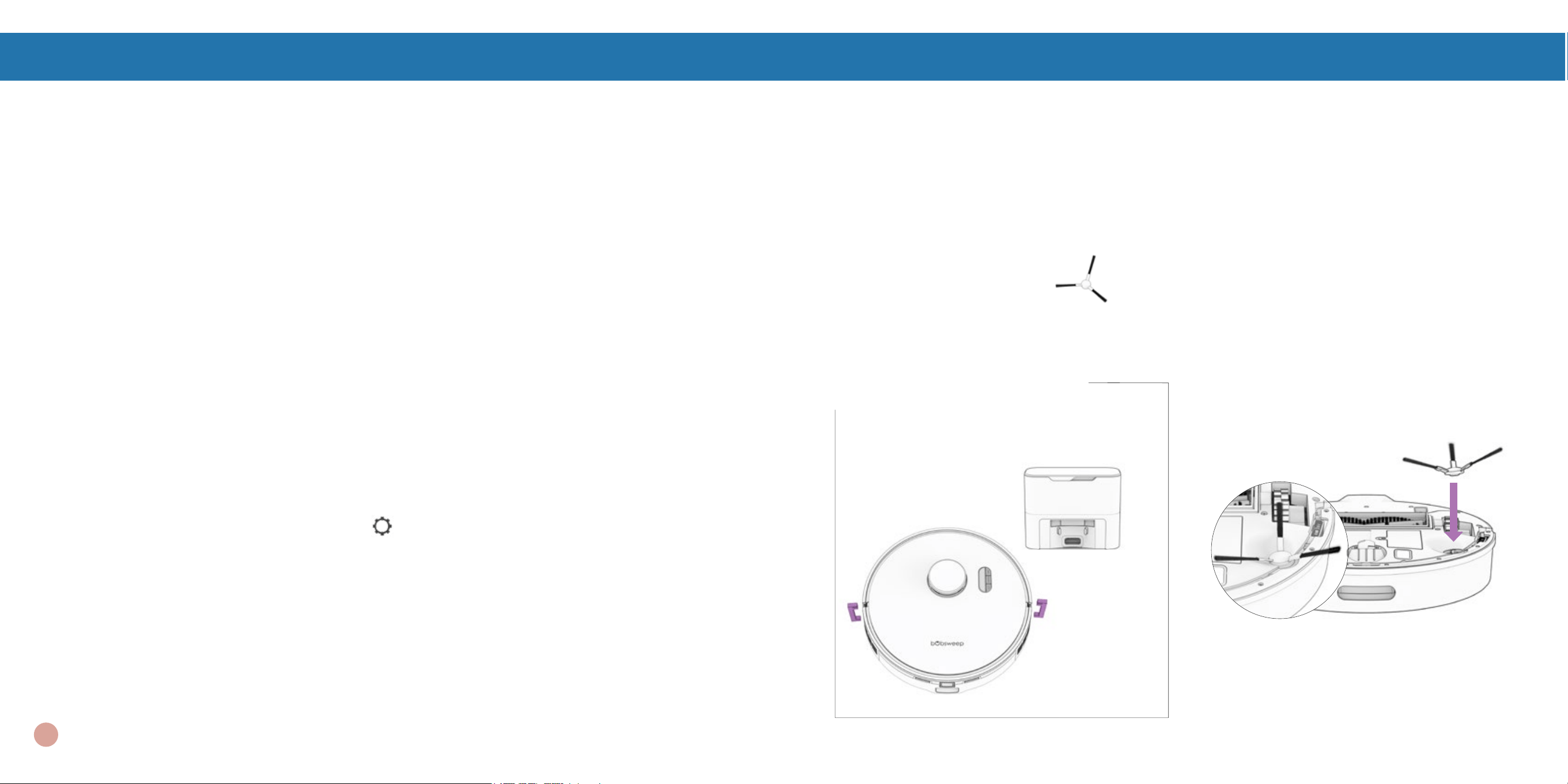
Place the side brush over the empty socket
on Orb-i. Press down to click and lock in
place.
Orb-i’s First Clean
Before Starting Orb-i
Remove protective pieces from Orb-i, his
bumper, and charging station.
Install Orb-i’s Side Brush
Install Orb-i’s side brush to help him reach the corners and edges of rooms.
Parts You’ll Need: Side Brush
Important Note: The strength of side
brush’s connection can be increased by
slightly rotating the screw in the center of
the side brush socket counter-clockwise.
9
Orb-i’s First Clean
Power Orb-i ON
Press and hold the GO button until the screen lights up.
If you are not going to use Orb-i for a while,
you can place him on Low Power Standby
mode (LPS mode). To do so, place Orb-i
on his charging station. Press and hold the
CHARGE button on Orb-i for 5 seconds.
You’ll hear “low power mode”, conrming
Orb-i is in LPS mode. To exit this mode,
press GO on Orb-i while he’s on the charging
station, or remove him from the station.
Storing Orb-i
If you are not using Orb-i for an extended
period of time (over a month), power him
OFF, remove his battery, and unplug his
charging station. Store everything in a dry
room, away from direct sunlight or extreme
temperature.
Important Note: In this mode, Orb-i is
ofine and the bObsweep App is not able
to connect to Orb-i. Furthermore, any
scheduled cleaning will be paused.
Orb-i’s First Clean
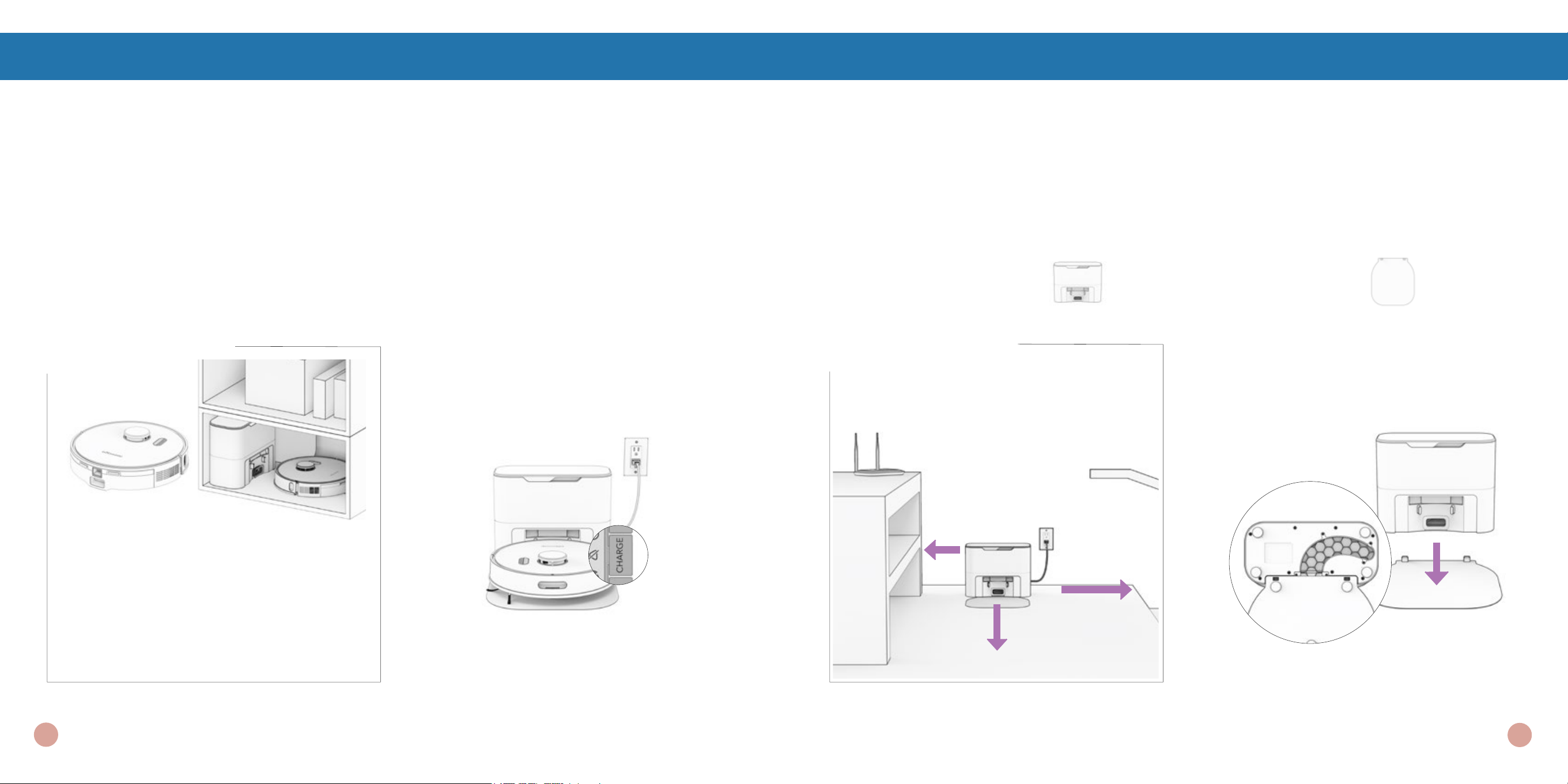
Set up Orb-i’s Self-empty Charging Station
Bright sunlight, shiny surfaces, and reective objects can interfere with Orb-i’s docking signals. Set up
Orb-i’s station away from uncovered windows, mirrors, and shiny furniture or objects.
Orb-i returns to his charging station after
cleaning. To help Orb-i, place the charging
station on a hard, at surface, away from
edges and stairs, with plenty of
room around it.
10 feet (3 m)
2 feet
(0.6 m)
Parts You’ll Need: Self-empty Charging Station Charging bed
10 feet
(3 m)
Place the charging station over the
sockets on the charging bed. Place
down to hold into place.
Positioning
Quick Tips: The sockets on the
charging bed t into the charging
station on its front.
12
11
Orb-i’s First Clean
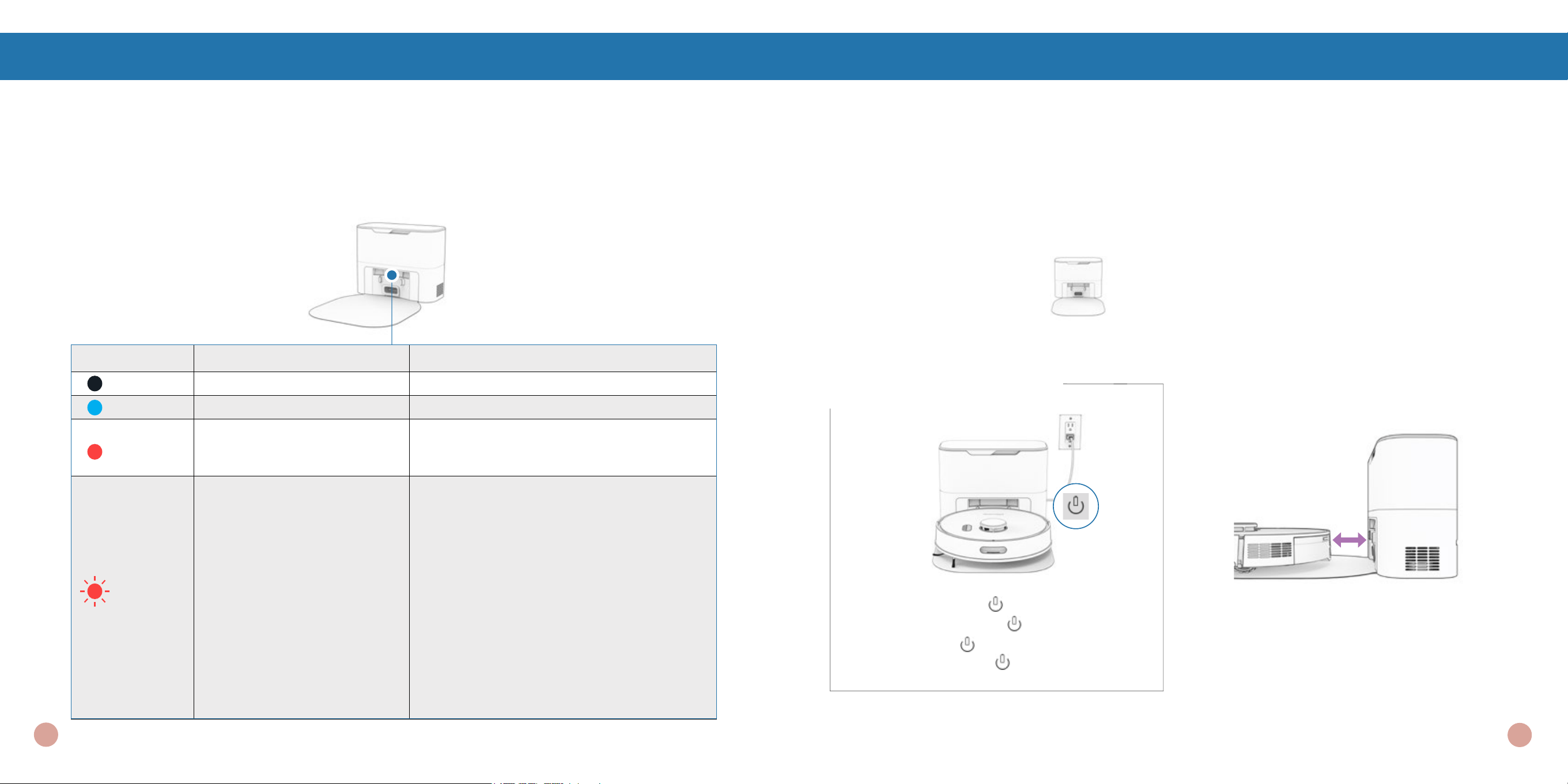
Self-empty Charging Station Indicator
Light Status Station Status What to do
Off Powered OFF Plug into the outlet.
Solid Blue Ready Station is ready for Orb-i to charge / self-empty.
Solid Red
Dust Bag not detected / Dust
Bag’s opening is closed.
Insert Dust Bag into the slide and push the tab
all the way down to open and line up with the
air pathway.
Blinking
Red
Congestion in air pathway.
• Remove and open the dustbin to clean and
remove heavy congestion.
• Clean the Disposal Vent Aperture on the
back of the dustbin. Check the ap for free
movement.
• Place Orb-i on the station and press ‘Charge’
to initiate a self-empty.
If the airpathway does not clear:
• Unplug the station, turn the station around
to open the Air Pathway Access Window
and remove any congestion from the air
pathway.
• Place Orb-i on the station again and press
‘Charge’ to initiate a self-empty.
When Orb-i nishes docking on his charging station, and there is no station error, the indicator light on
the station turns off.
Orb-i’s First Clean
Charge Orb-i
Press the CHARGE button on Orb-i to send him to his charging station.
Charging Indicator
Low Battery: blinks rapidly.
Finding Station: blinks.
Charging: blinks slowly.
Fully Charged: shines white.
Parts You’ll Need: Self-empty Charging Station
Quick Tip: Orb-i empties his bin each
time he docks at the end of a cleaning
session. You can dene how often Orb-i
self-empties under “Cleaning Prefer-
ences” on the bObsweep App.
To charge Orb-i manually, place him
on his charging bed with the metal nodes
on his back resting against the plates on
the station.
Orb-i’s First Clean
14
13
Orb-i’s First Clean
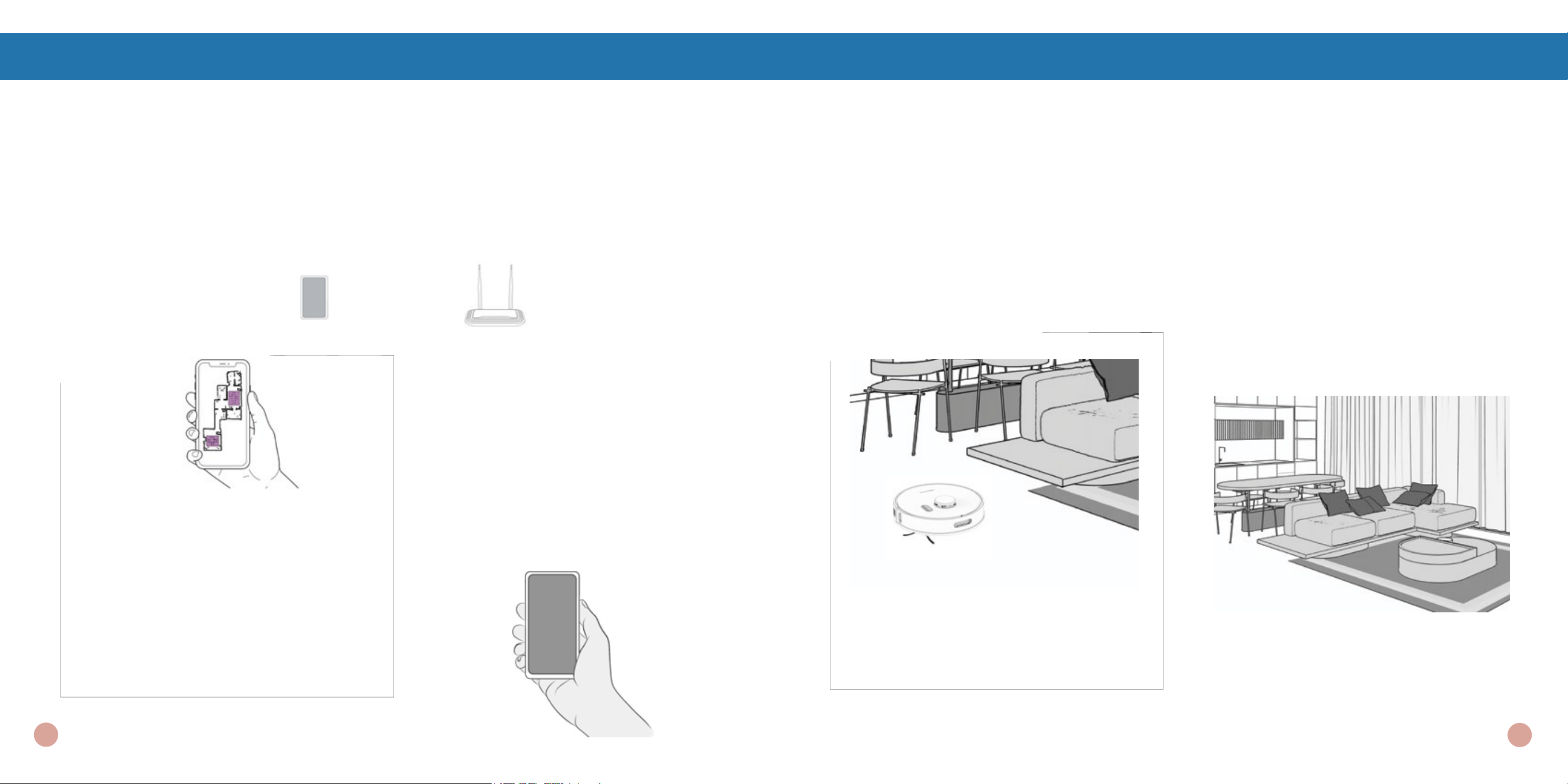
Download the bObsweep App
Connect Orb-i to Wi-Fi to gain access to Orb-i’s full suite of features and important software updates.
Download and open the bObsweep App, create your account, and follow the instructions on the app to
connect your bot to Wi-Fi, Amazon Alexa or Google Home devices.
Quick Tips: To keep Orb-i up-to-date:
Check the App Store/Google Play Store and
update the bObsweep app to access the
latest features released on the app.
Check the Bot Settings page on the
bObsweep app and update Orb-i’s software
to access the latest version of Orb-i’s
operating system.
Items You’ll Need: Smart Phone 2.4GHz Wi-Fi Connection
Orb-i maps the area at rst glance. Use
Swift Map
™
to send Orb-i on a ‘map
only‘ journey, or hit GO to send Orb-i to
map while cleaning. Toggle ON Auto-
resume
™
to activate Orb-i ‘s back-to-back
cleaning feature. Last but not least, edit,
personalize, customize, and save Orb-i’s
cleaning map, then set cleaning schedules
and enjoy fresh oors without having to lift
a nger for several weeks at a time.
Let Orb-i Sweep!
Orb-i is now ready to sweep! Clear away any clutter or wires and press the GO button.
Orb-i’s First Clean
Equipped with Room-to-Room
™
cleaning
technology, Orb-i automatically explores
and cleans your home, avoiding furniture
and obstacles along his path. For best
results, remove clutter and small objects.
Lifting & Moving
Do not pick Orb-i up while cleaning to avoid
distorting his map.
It’s best not to change the location of Orb-
i’s charging station after he’s done mapping
the house.
16
15
Quick Tips:
Clear debris out of nooks and crannies around the brushes and wheels.
Use tweezers to remove congestion from the brush ends and main and side brush
compartments on Orb-i.
Use scissors or the included cleaning tool to cut hair wrapped around the brushes.
Maintenance
Part Maintenance Frequency Replacement Frequency
Charging Station Monthly
Dustbin Monthly
Filter Monthly Every 6 months
Brushes Weekly Every 12 months
Sensors Weekly
Front Wheel Weekly
Battery Every 24 to 36 months
For Best Performance
To maximize Orb-i’s efficiency, it is best to keep his brushes, filters, and sensors clean.
Maintenance
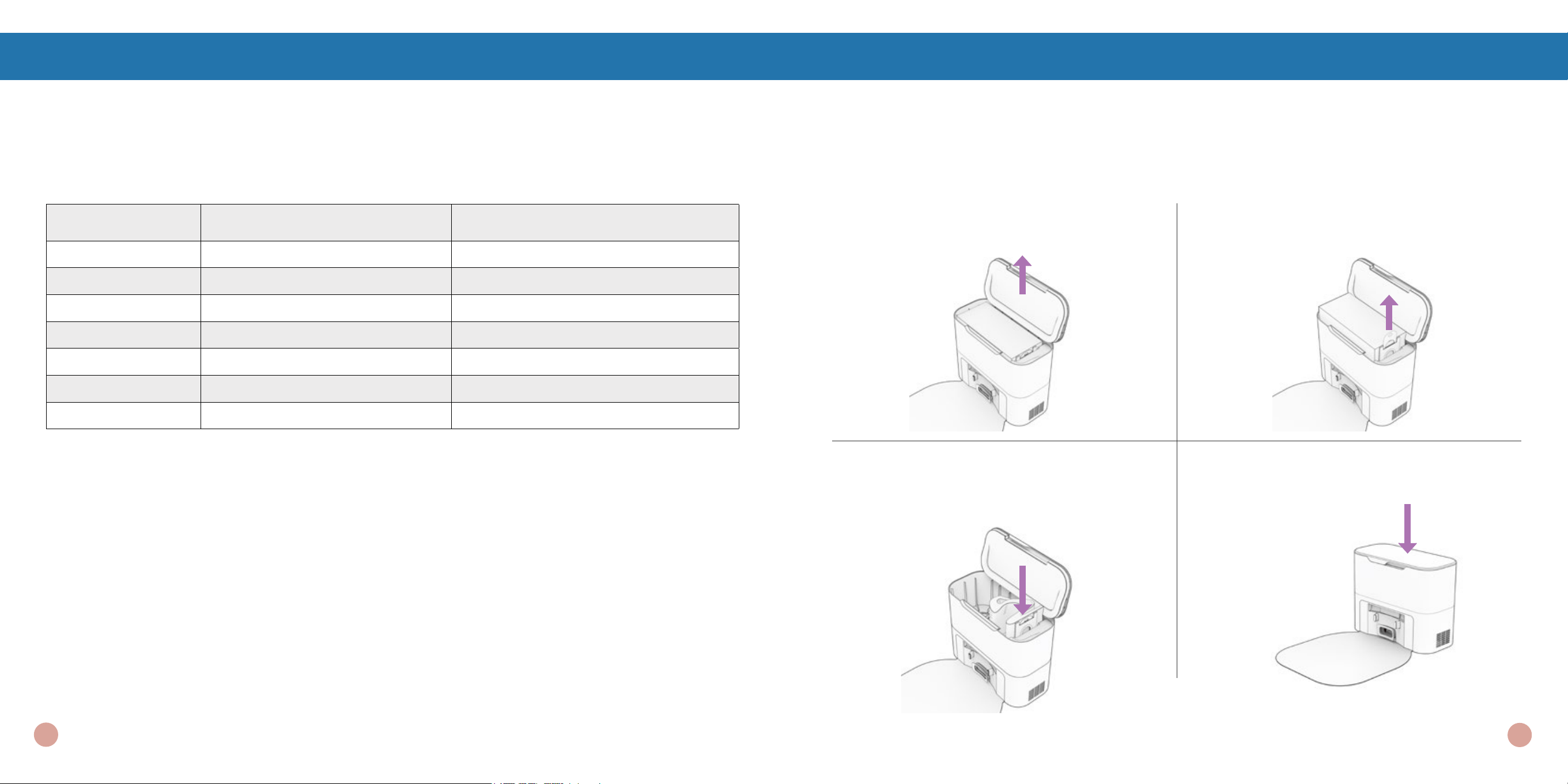
Dust Bag
1. Open the lid.
4. Close the lid.3. Place the new dust bag, sliding the card
into place completely. Slide the opening
tab all the way down.
2. Pull up the tab to close the dust bag’s
opening. Lift to remove the full dust bag
and discard.
18
17
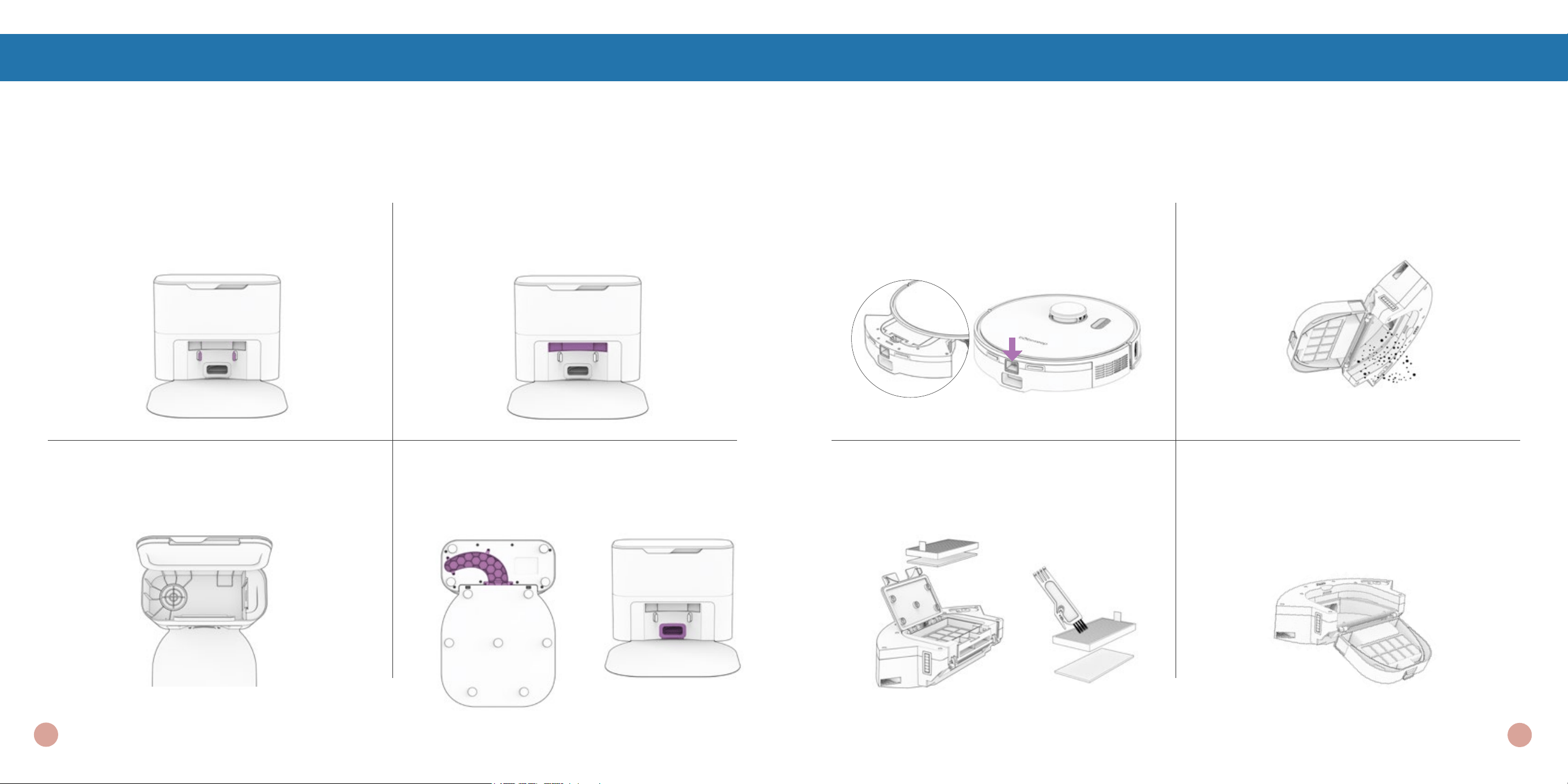
Self-empty Charging Station
Before cleaning the charging station, unplug it.
Maintenance
1. Wipe the charging nodes (contact
points).
4. Unplug the station. Inspect the
disposal vent and air pathway.
Clean and remove any congestion.
3. Remove the dustbag and clean the
dustbag container from debris buildups
or any blockage for free ow of air.
2. Wipe the transmitter window clean,
making sure it is not blocked or covered.
Dustbin
Maintenance
1. Press down the tab to remove the
dustbin.
4. Wipe clean or wash the dust container.
Make sure it’s dry before putting it back
together.
3. Open the lter container and remove
debris. Remove and dust the lter.
2. Open the dustbin and dump its contents.
20
19
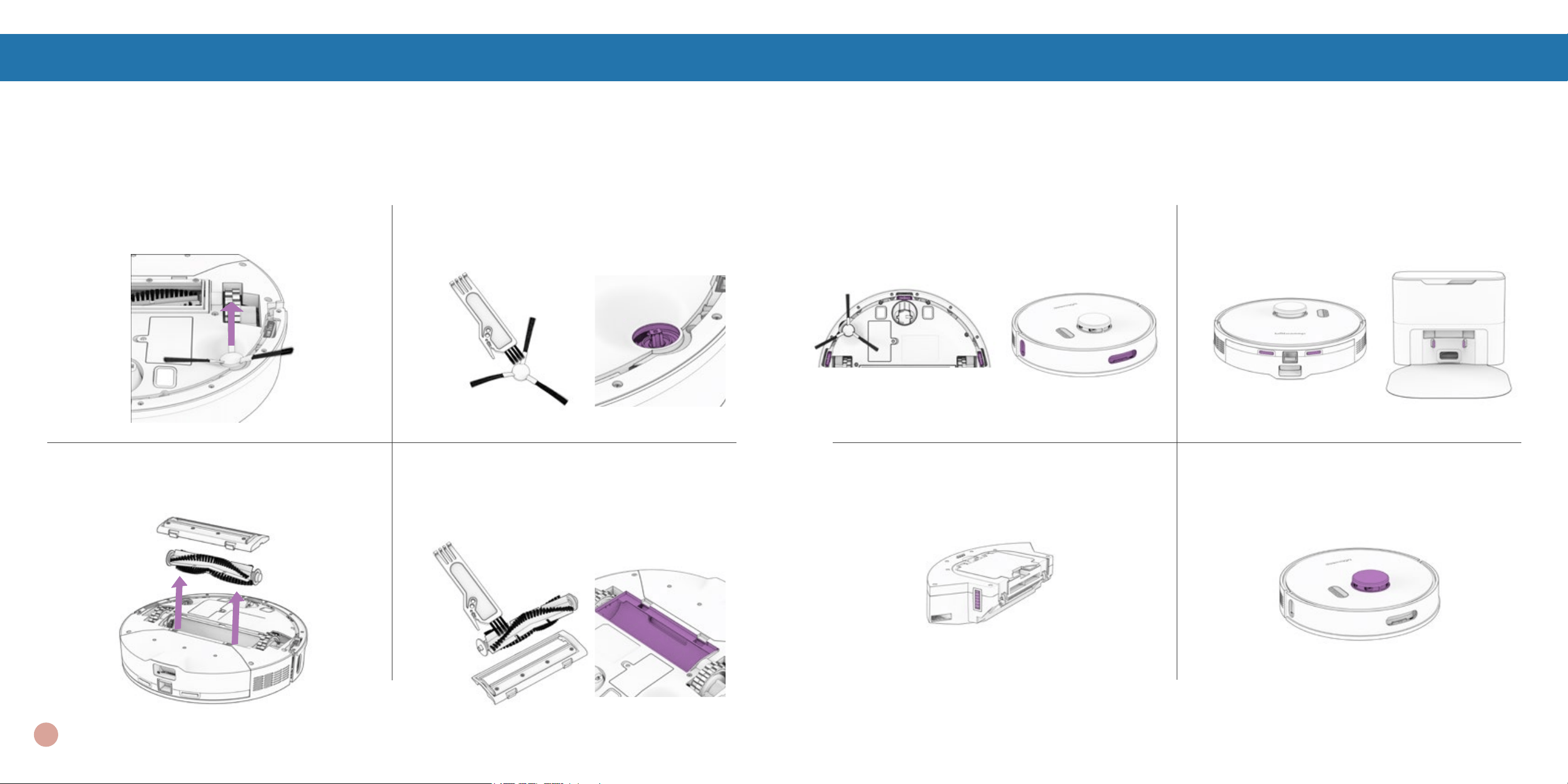
Sensors
1.
Wipe the edge and wall sensors. 2. Wipe the charging nodes on Orb-i and
his station.
3. Wipe the metal connectors on the
dustbin.
4. Wipe the top and the area around the
SLAM LiDAR.
Use a soft cotton cloth to wipe the sensors.
Maintenance
Important Note: Orb-i’s SLAM LiDAR is a sensitive sensor. Do not apply force, insert objects, or
adjust the SLAM LiDAR. Do not sit on Orb-i or place items on top of him.
1. Pull up to remove the side brush. 2. Remove debris from the side brush and
its socket.
4. Clean the main brush and all its
components, including the brush gate
and brush compartment.
3. Pinch the tabs on the main brush gate
and lift.
Brushes
Maintenance Maintenance
21
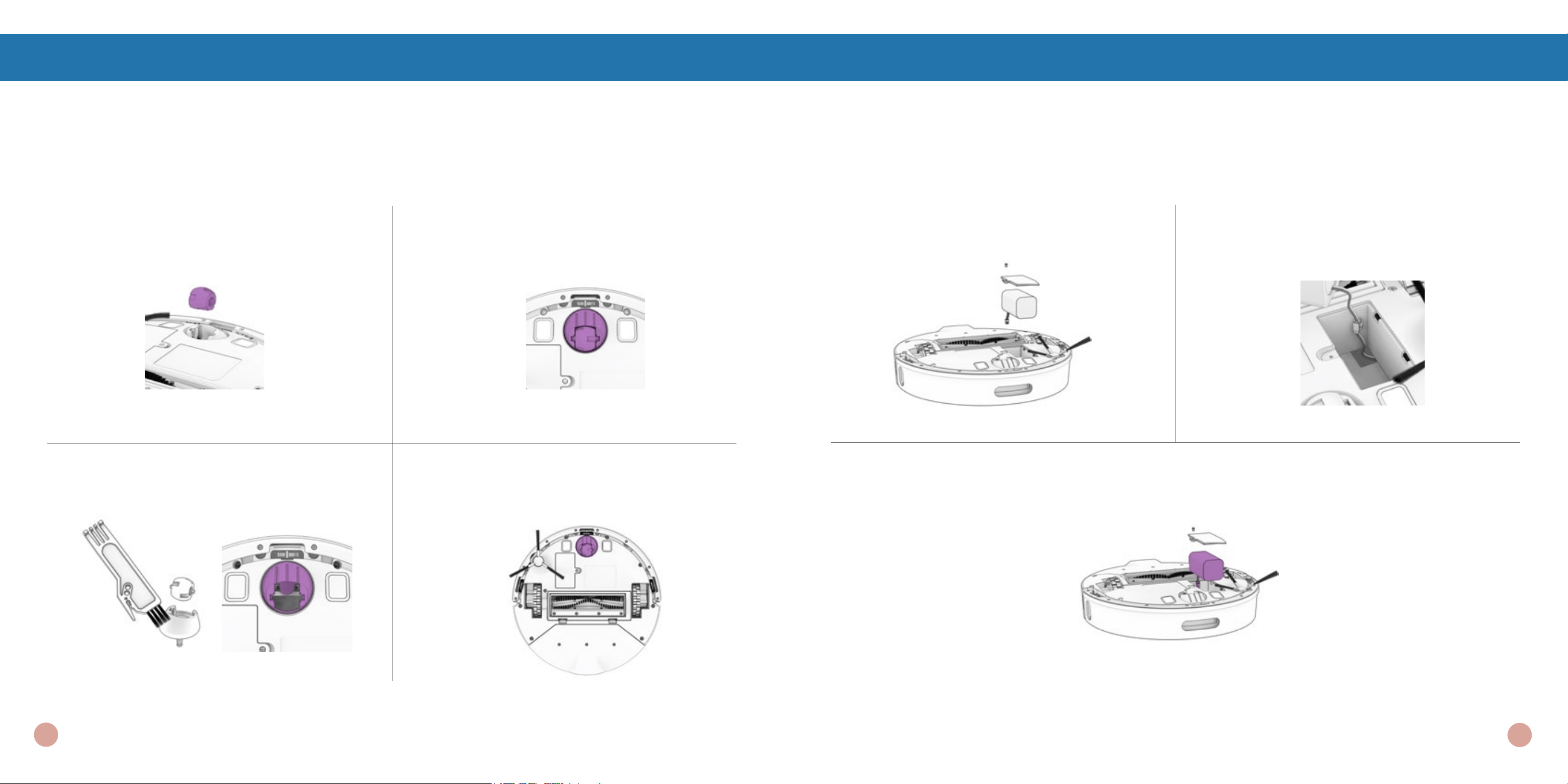
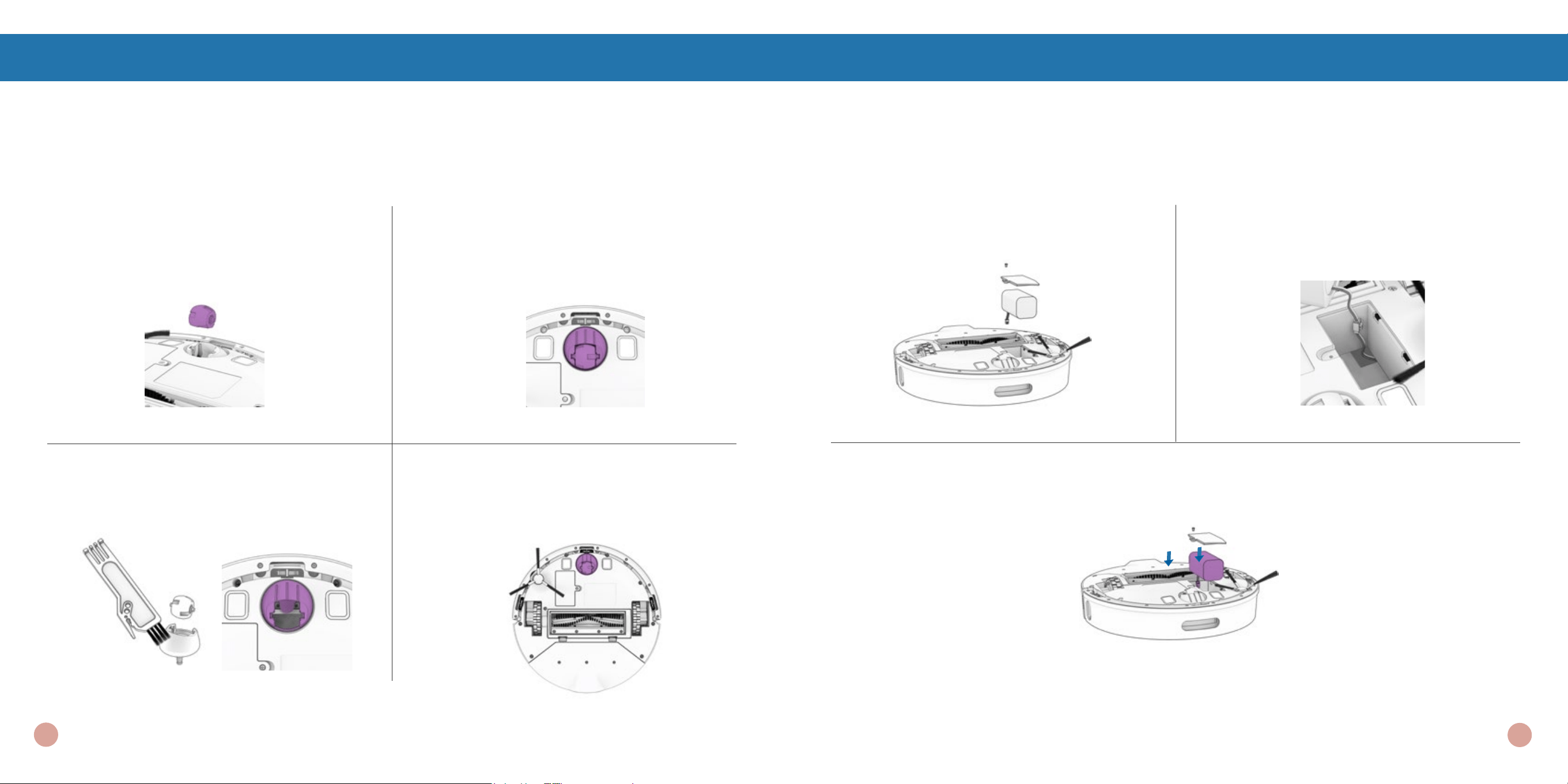
Battery
Power OFF Orb-i before replacing the battery. Press and hold the GO button.
1. Use a Phillips head screwdriver to open
the battery compartment.
2. Unplug the old battery and plug in your
new one.
3. Slide the new battery into Orb-i.
Maintenance
Important Note: High power mode exponentially increases Orb-i’s battery use. Use low power mode
to reduce power usage on Orb-i.
MaintenanceMaintenance
Front Wheel
1. Using a at head screwdriver for leverage,
grip the wheel rmly and pull.
2. Once the wheel is removed, use the
screwdriver to pry out the wheel assembly.
3. Clean the wheel and all its components,
including the assembly and wheel socket.
4. Replace both parts when done.
Push down to lock them into place.
Maintenance
24
23
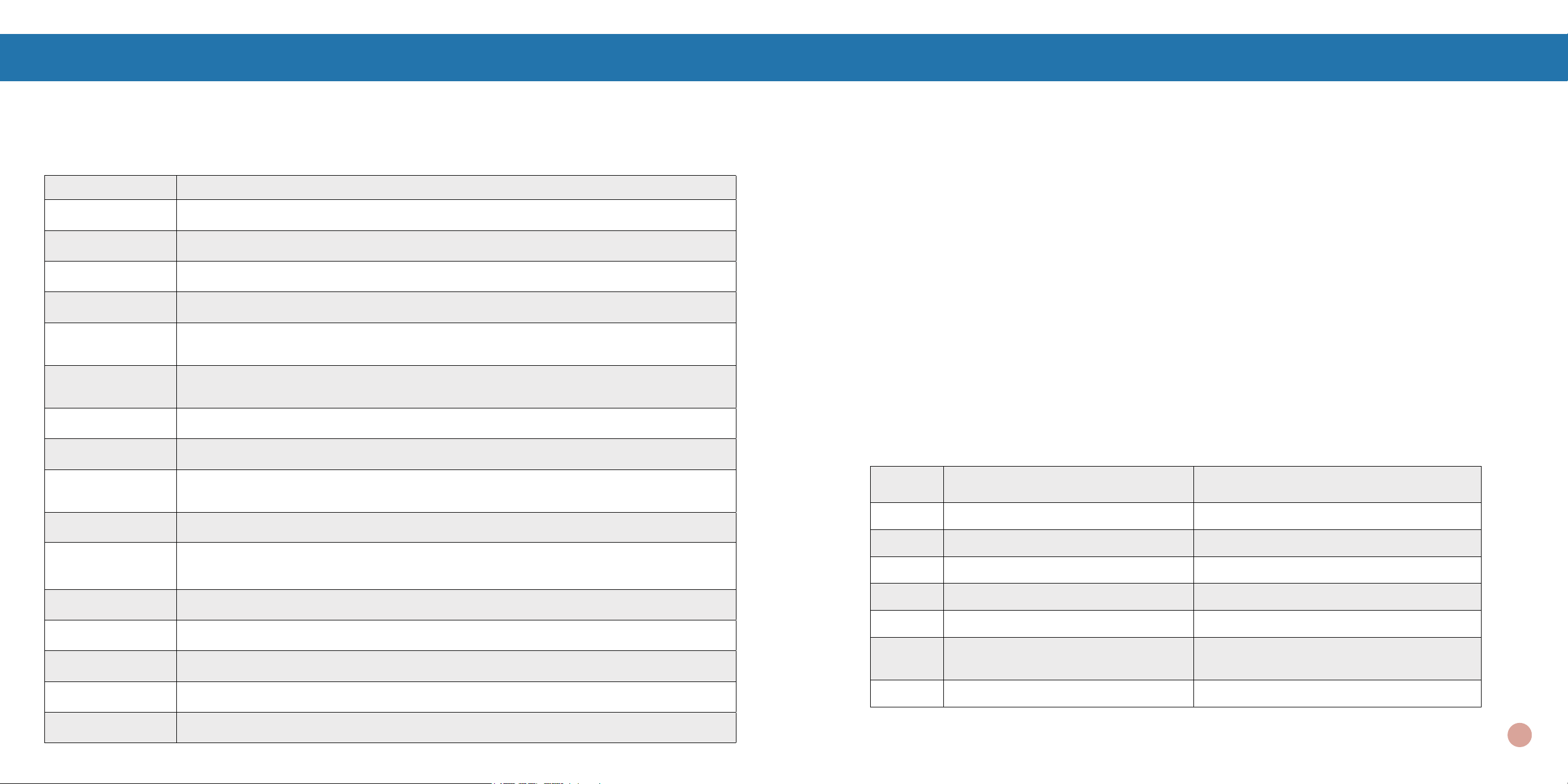
Home Checkup Test
If Orb-i is not performing as well as he should, you can diagnose the problem with a simple home
checkup test.
Putting Orb-i in/out of Checkup mode
To put Orb-i in Checkup mode:
Press and hold the “GO” “CHARGE” and “WI-FI” buttons simultaneously for a few seconds until the
bot says: “Home Checkup Mode Activated”. In this mode, Orb-i’s LiDAR sensor rotates.
To exit the Checkup mode:
Press the “GO” “CHARGE” and “WI-FI” buttons together again. You’ll hear “Exiting Home Checkup
Mode” and Orb-i’s LiDAR sensor stops rotating.
Important Notes:
- During the test, if Orb-i’s left idle for over a minute, he’ll automatically exit the Home Checkup Test.
- To move among Steps in the Checkup test, press the Wi-Fi button.
- To start / stop the tests in each Step, press the GO button until you hear “Begin Test” and “Stop
Test”. Always stop a test before moving to the next step.
Step Part(s) Tested Description
1 Battery After a full charge, test Orb-i’s battery.
2 Edge Sensors Test edge sensors individually.
3 Charging Station Test charging sensors individually.
4 Bumpers and Wi-Fi Test the Wi-Fi module & touch sensors.
5 Motors (wheels, brushes, vacuum) Test Orb-i’s motors individually.
6
SLAM LiDAR, Charging and
Self-empty
Test Orb-i’s SLAM LiDAR, charging con-
tact points, and self-empty function.
7 Hard Resetting Orb-i Factory reset Orb-i and erase all data.
For a step-by-step video guide of Home Checkup Test, visit: bobsweep.com/Orbi-support.
Home Checkup Test
Troubleshooting
Whenever Orb-i runs into trouble, he will stop and his trouble indicator will blink. Check the bObsweep
app for trouble details.
Trouble Solution
Battery Low or disconnected battery. Check connection. Reset, and charge Orb-i.
Left/Right Wheel Left/Right wheel is jammed. Check for obstruction and clean.
Main Brush Main brush is jammed. Remove and clean.
Side Brush Side brush is jammed. Remove and clean.
Dustbin
Dustbin is disconnected or contact points are dirty. Clean contact points and
reinsert. Or, the vacuum Motor is jammed. Check for obstruction and clean.
Edge Sensors
Orb-i is stuck near a cliff, is off ground, or the edge sensors are dirty. Move Orb-i
to safety, and clean the edge sensors.
Bumper Bumper is dirty or jammed. Wipe around the bumper; remove any obstruction.
LiDAR Bumper SLAM LiDAR’s bumper is jammed. Check for obstruction and clean.
LiDAR
SLAM LiDAR is not clean/lost visibility. Clean the SLAM LiDAR and move Orb-i
away from mirrors/metallic surfaces/walls and to the center of the room.
Charging Station
Can’t locate the charging station. Replug the charging station and charge Orb-i.
User Interface
Orb-i’s UI/USB port is not responding. Reset Orb-i & ensure the USB port is
empty.
Electronic
Electronic component error. Reset Orb-i (Power OFF and back ON).
Stuck Orb-i is stuck. Clear away obstacles/clutter/wires & reset Orb-i.
Navigation
Orb-i is not able to navigate. Clear away any clutter/wires & reset Orb-i.
Localization
Orb-i can’t self locate on map. Check map accuracy/erase map for remapping.
Settings
Current room settings don’t match Orb-i’s. Change map settings/schedules.
Home Checkup Test
26

Orb-i is Ofine.
Orb-i may be hibernating or is powered OFF and
disconnected himself from Wi-Fi. To bring him
back online, place him on the charging station
and let him charge and power ON. For more
information, visit:
bobsweep.com/Orbi-support.
Does Orb-i work with Google
and Alexa devices?
Yes! Orb-i can be connected to Google Home and
Alexa apps / devices. For more information, visit:
bobsweep.com/Orbi-support.
Orb-i’s getting stuck.
If there are areas of repeat problem in the
house that Orb-i gets stuck under or stops on,
draw NoSweep zones over them on the map
to keep Orb-i out of trouble.
For step-by-step
instructions on how to draw/edit/save/delete
NoSweep areas, visit: bobsweep.com/Orbi-
support.
Can I make changes to or delete
the map Orb-i made?
Yes. Orb-i’s map is fully customizable and
editable. Review the map Orb-i creates, and
make any modication you wish. For step-by-step
instructions, visit:
bobsweep.com/Orbi-support.
Orb-i stopped cleaning and
the trouble indicator is ash-
ing.
When Orb-i is in trouble and needs your help, he
will stop and the trouble indicator blinks.
Open the bObsweep app and nd the trouble
details at the top of the Control page.
FAQs
Can Orb-i clean my multi-oor
house?
Yes. Orb-i can save up to 3 oor maps. For
step-by-step instructions on how to save
maps, visit: bobsweep.com/Orbi-support.
How can I diagnose Orb-i’s
exact problem?
You can check Orb-i’s health through a Home
Checkup Test. For more information on the test,
visit:
bobsweep.com/Orbi-support.
FAQs
Orb-i is not self-emptying and
the indicator on the station is
ashing red.
By default, every time Orb-i docks, a loud
vacuuming process empties his dustbin into his
station’s disposable dust bag. You can change the
frequency using the bObsweep App.
If Orb-i’s dustbin gets too packed, or if the station’s
air passage is clogged, contents cannot be
vacuumed out. Remove and open the dustbin and
dump its contents. Unplug the station and open
the air passage to remove anything clogging it.
Orb-i won’t turn on no matter
what I do.
If Orb-i is not responding to his buttons, then
his battery has likely drained too low for him to
operate. Place Orb-i on his charging station and
allow him to fully charge. When placing him on
the station, ensure the dustbin is fully latched,
and there’s perfect alignment between the
charging nodes on the back of Orb-i and his
charging station’s.
Orb-i’s having trouble nding
his station.
Make sure Orb-i’s charging bed is installed.
You may need to relocate Orb-i’s station to a more
accessible area. Make sure the station is placed
in a centralized area, on a hard, at surface away
from stairs or edges, direct sunlight, mirrors or
reective surfaces, and with plenty of open space
around it. Then, erase the old map and let Orb-i
remap the house from his new station.
Orb-i has to charge before
completing the mapping of my
house
Use the Swift Map feature on the bObsweep app
to ask Orb-i to map the oor without cleaning
it. In this mode, Orb-i explores and maps the
house, then returns to his charging station without
cleaning it.
Can I pick Orb-i up?
Picking up and moving Orb-i during a cleaning
session is not recommended, as it can affect
his current cleaning cycle/map. Furthermore, it’s
best not to relocate Orb-i’s charging station once
he has mapped his environment. If you have to
relocate the station, erase the old map and let
Orb-i map the house again.
Orb-i’s not picking up as
much as he used to.
Orb-i will have trouble cleaning if his dustbin is
clogged, or his main brush is clogged or tangled
with hair. Remove Orb-i’s main brush and clean
it thoroughly from end to end. Remove and open
the dustbin, and remove any large debris from
Orb-i’s dustbin container to ensure smooth ow
of air.
Can’t connect Orb-i to Wi-Fi.
You can connect Orb-i to a 2.4GHz Wi-Fi after
he’s fully charged. To do so, turn ON ‘Location
Services’ and ‘Bluetooth’ on your phone settings.
Also allow ‘Local Network’ access and turn off
‘Wi-Fi Calling’ on your phone. Write down your
2.4GHz Wi-Fi network and its password (note
that they are case sensitive). Bring Orb-i and your
phone close to your modem or router and be sure
to select the correct model name ‘Orb-i’ from the
list of bots.. For more information, visit:
bobsweep.
com/Orbi-support.
FAQs
28

MANUEL D’UTILISATION
Model PET24-7-313
Version 2024.a
TM
Félicitations!
Félicitations pour votre nouvel aspirateur de sol intelligent ! Orb-i
est maintenant à votre service. Pour que Orb-i donne le meilleur de
lui-même, lisez attentivement le guide de démarrage rapide et le
présent manuel.
Bienvenue dans la famille bObsweep et bon nettoyage !
Si vous avez des questions ou des préoccupations, n’hésitez pas à contacter
notre équipe d’assistance à [email protected] ou au 1-888-549- 8847.
Heures d’ouverture : Du lundi au vendredi, de 9 h à 17 h, heure du Pacifique.

Table des
Matieres
Bien commencé
Qui est Orb-i ?
Franchir des obstacles
difciles
43
Premier nettoyage
de Orb-i
Installer la brosse latérale
Allumer Orb-i
Installer la station de charge
Charger Orb-i
Télécharger l’app bObsweep
Laisser Orb-i balayer
45
Maintenance
Poubelle
Sac de poussiere
Station de recharge
Filtres
Brosses
Capteurs
Roue Avant
Batterie
52
35
Généralités
Consignes de sécurité
Déclaration de
conformité
Garantie
Nous contacter
37
Contenu de la
Boîte
38
Anatomie
Orb-i
Écran et boutons
Station de charge
Bac à poussière
Dépannage
Messages d’erreur
Test de contrôle check-up
6359
FAQs
End User
License
Agreement
67

Déclaration de Conformité
Cet appareil est conforme à la partie 15 des règles de la FCC. Son fonctionnement est soumis aux deux conditions suivantes
:
(1) cet appareil ne doit pas causer d’interférences nuisibles, et (2) cet appareil doit accepter toute interférence reçue, y
compris les interférences susceptibles de provoquer un fonctionnement indésirable. Le fabricant n’est pas responsable des
interférences radio ou TV causées par des modications ou des changements non autorisés apportés à cet équipement. De
telles modications ou changements pourraient annuler le droit de l’utilisateur à faire fonctionner l’équipement.
Cet équipement a été testé et déclaré conforme aux limites imposées aux appareils numériques de classe B, conformément
à la partie 15 des règles de la FCC. Ces limites sont conçues pour fournir une protection raisonnable contre les interférences
nuisibles dans une installation résidentielle. Cet équipement génère, utilise et peut émettre des fréquences radio et, s’il n’est
pas installé et utilisé conformément aux instructions, peut causer des interférences nuisibles aux communications radio.
Cependant, il n’y a aucune garantie que des interférences ne se produiront pas dans une installation particulière. Si cet
équipement provoque des interférences nuisibles à la réception de la radio ou de la télévision, ce qui peut être déterminé
en éteignant et en rallumant l’équipement, l’utilisateur est encouragé à essayer de corriger les interférences par une ou
plusieurs des mesures suivantes :
• Réorienter ou déplacer l’antenne de réception.
• Augmenter la distance entre l’appareil et le récepteur.
• Brancher l’appareil sur une prise de courant située sur un circuit différent de celui sur lequel le récepteur est branché.
• Consulter le revendeur ou un technicien radio/TV expérimenté pour obtenir de l’aide.
Garantie
Chaque Orb-i acheté auprès d’un vendeur agréé est
couvert par notre garantie:
• Garantie standard de 2 ans
• Plan de réparation subventionné de 5 ans
• Service clientèle à vie
Pour bénécier de la garantie, enregistrez votre robot à
l’adresse suivante:
www.bobsweep.com/warranties.
Nous Contacté
Si vous avez des questions ou des préoccupations,
veuillez contacter notre équipe d’assistance à l’adresse
suivante:
[email protected] or 1-888-549-8847.
Heures : Du lundi au vendredi, de 9 heures à 17 heures
(heure du Pacique) .
Des informations de dépannage supplémentaires et
des guides pratiques sont disponibles sur l’application
bObsweep et sur: www.bobsweep.com/orbi-support.
• Orb-i n’est pas destiné à être utilisé par des personnes
(y compris les enfants) ayant des capacités physiques
ou mentales réduites, ou un manque d’expérience et de
connaissances, sauf si elles sont étroitement surveillées
par une personne responsable de leur sécurité.
• Orb-i est composé de composants électroniques qui,
dans de rares cas non intentionnels, peuvent présenter
des risques de surchauffe, d’incendie ou d’autres
dysfonctionnements. De plus, comme Orb-i est capable
de se déplacer de manière autonome, son utilisation
comporte un risque de collision avec des biens, des
animaux domestiques ou des personnes. Il peut également
entraîner le retrait involontaire d’objets — tels que de petits
objets de valeur, des bijoux ou des cheveux de personnes
ou d’animaux allongés sur le sol.
• Orb-i n’est pas un jouet. Les jeunes enfants et les
animaux domestiques doivent être surveillés lorsque
Orb-i est en fonctionnement.
• Veuillez noter que Orb-i se déplace de manière autonome.
Soyez prudent lorsque vous vous déplacez dans la zone
où il fonctionne an d’éviter de marcher dessus ou de
trébucher.
• Si Orb-i ou sa station de recharge a été endommagé de
quelque façon que ce soit, ne les utilisez pas. Veuillez
contacter notre équipe de soutien pour obtenir de l’aide.
• Ne laissez pas tomber Orb-i. L’impact d’une chute peut
endommager le SLAM LiDAR.
• N’utilisez pas Orb-i à l’extérieur. De plus, ne laissez pas
Orb-i dans une voiture.
• N’exposez pas Orb-i ou sa station de recharge à des
températures supérieures à 45 °C (113 °F), à l’humidité
ou à l’eau.
• Entreposez et utilisez Orb-i uniquement dans des
environnements à température ambiante.
• N’utilisez Orb-i qu’avec une prise électrique de 110-120
V. N’utilisez pas de convertisseur ou de transformateur
de tension. Remarque : L’utilisation de Orb-i avec un
convertisseur de tension annulera immédiatement la
garantie. L’utilisation de Orb-i à l’extérieur du pays où il a
été initialement acheté annule la garantie.
• Orb-i est fourni avec un cordon d’alimentation homologué
pour la région nord-américaine et doit être branché
uniquement dans une prise CA domestique standard.
N’utilisez aucun autre cordon d’alimentation ou barre
d’alimentation.
• N’utilisez pas de cordons ou de chargeurs non autorisés.
L’utilisation d’un chargeur non autorisé peut provoquer une
surchauffe, de la fumée, un incendie ou une explosion de
la batterie.
• Risque de choc électrique : utiliser à l’intérieur, dans un
endroit sec seulement. Ne manipulez pas Orb-i ou sa
station de recharge avec les mains mouillées; utilisez-le
uniquement sur des surfaces sèches. N’utilisez pas une
prise ou un câble d’alimentation endommagé.
• La station de recharge peut être protégée à l’aide d’un
parasurtenseur en cas d’orage ou de uctuation électrique.
• Ne tirez pas sur le cordon de la station de recharge
et ne la transportez pas par celui-ci. Ne coincez pas
le cordon dans une porte et ne le tirez pas autour de
coins ou de surfaces tranchantes. Gardez le cordon
à l’écart des surfaces chaudes. Pour le débrancher,
saisissez la che, et non le cordon.
• Éteignez Orb-i et débranchez-le de la source
d’alimentation lorsque vous ne l’utilisez pas et avant
de procéder à toute maintenance.
• Ne touchez pas à la station de recharge de Orb-i et
ne l’ouvrez pas lorsqu’elle est branchée dans une
prise murale. Débranchez-la d’abord.
• nspectez périodiquement le bloc-piles pour détecter
tout signe de dommage ou de fuite. Ne rechargez
pas un bloc-piles endommagé ou qui fuit. Des fuites
provenant des cellules de la batterie peuvent survenir
dans des conditions d’utilisation ou de température
extrêmes. Si le liquide entre en contact avec la peau,
rincez rapidement à l’eau. Si le liquide entre en
contact avec les yeux, rincez-les immédiatement à
l’eau claire pendant au moins 10 minutes et consultez
immédiatement un médecin.
• Ne mutilez pas et n’incinérez pas la batterie, car elle
pourrait exploser à haute température.
• Ne provoquez pas de court-circuit de la batterie
en permettant à des objets métalliques d’entrer
en contact avec les bornes de la batterie ou en
l’immergeant dans un liquide. Ne soumettez pas les
batteries à un choc mécanique.
• Ne jetez pas votre batterie au feu. Les batteries usées
doivent être recyclées de façon sécuritaire auprès de
votre centre de recyclage local.
• Si le plancher comporte des escaliers, placez des
barrières physiques pour empêcher Orb-i d’y accéder
et assurer un fonctionnement sécuritaire.
• Si le plancher comporte un balcon, placez des
barrières physiques pour empêcher Orb-i d’y accéder
et assurer un fonctionnement sécuritaire.
• Si le plancher comporte des appareils tels qu’un poêle,
un ventilateur, un radiateur ou un humidicateur,
retirez-les avant l’utilisation. Il existe un risque de
blessure, d’accident ou de dysfonctionnement si Orb-i
entre en contact avec ces appareils et les pousse.
• Si Orb-i passe sur un cordon d’alimentation et le
traîne, un objet pourrait être tiré d’une table ou d’une
étagère. Avant d’utiliser l’appareil, ramassez les
objets comme les vêtements, les papiers lâches, les
cordons de stores ou rideaux, les cordons électriques
et tout objet fragile. Éteignez les bougies. Fermez les
radiateurs.
• N’utilisez pas Orb-i pour ramasser des objets tranchants,
du verre ou quoi que ce soit qui brûle ou dégage de la
fumée, comme des cigarettes, des allumettes ou des
cendres chaudes.
• N’utilisez pas Orb-i dans des zones où des prises
électriques sont exposées au sol.
• À l’exception de l’accessoire pour vadrouille humide,
n’immergez aucune partie de Orb-i dans l’eau ou dans
un autre liquide. N’utilisez pas Orb-i pour nettoyer des
liquides renversés. Ne laissez pas Orb-i ou sa station
devenir mouillés.
• Ne regardez pas directement dans la partie rotative
émettrice (laser) du SLAM LiDAR.
• Pour votre sécurité, n’insérez pas d’outils, de doigts ni
d’autres objets dans la partie rotative du SLAM LiDAR.
• N’utilisez pas l’appareil sans sac à poussière et/ou ltres
en place.
• Ne tentez pas de démonter ou d’ouvrir la station de
recharge autrement que selon les instructions de ce
manuel d’utilisation. Les réparations de la station
doivent uniquement être effectuées par nos techniciens
qualiés.
• N’exposez pas le SLAM LiDAR de Orb-i à la lumière
directe du soleil ou à une lumière infrarouge.
• Effectuez l’entretien requis tel qu’indiqué dans le manuel
d’utilisation pour assurer le bon fonctionnement du robot
et de sa station.
36
Contenu de la Boîte
Brosse latérale
SLAM LiDAR
Brosse principale
Roue droite
Roue avant
Roue guauche
Capteur de Bord
Batterie
Poubelle (Dustbin)
Haut-parleur
Buttons
Ecran
Anatomie
Lit de charge
FiltreBrosse latérale
(2)
Station de recharge
auto-videuse
Orb-i
™
Brosse de
nettoyage
Trappe de la
brosse principale
Ouverture de ven-
tilation
Sac à poussière
Orb-i
Nœuds de charge
38
37
Anatomie Anatomie
CHARGE
Appui Court-
Hors Station - Charge/Stop
Sur Station - Self-empty
Appui Long - Mode veille à faible
consommation
GO
Appui Court - Start/Pause
Appui Long - Power ON/OFF
Wi-Fi
Lancer la recherche Wi-Fi
SON
Lumiere Fixe - Mute
GO
Lumiere Fixe - Nettoie
Clignotant - En pause
CHARGE
Clignotant Rapid - Batterie Faible
Clignotant - A la recherche de la station
Clignotant Lent - En charge
Lumiere Fixe - Chargé
Wi-Fi
Lumiere Fixe - Connecté au Wi-Fi
Clignotant - Recherche du Wi-Fi
Indicateur d’erreur
Clignote - Problème détecté Vérier
l’application bObsweep
Lit de chargement
Ventilation
Cable
Prise intérieure
Plaques de recharge
Évent d’évacuation
Couvercle
Sac à poussière
Écran d’afchage & boutons
Station de recharge et d’auto-vidage
Station de recharge
Indicateur/émetteur
40
39
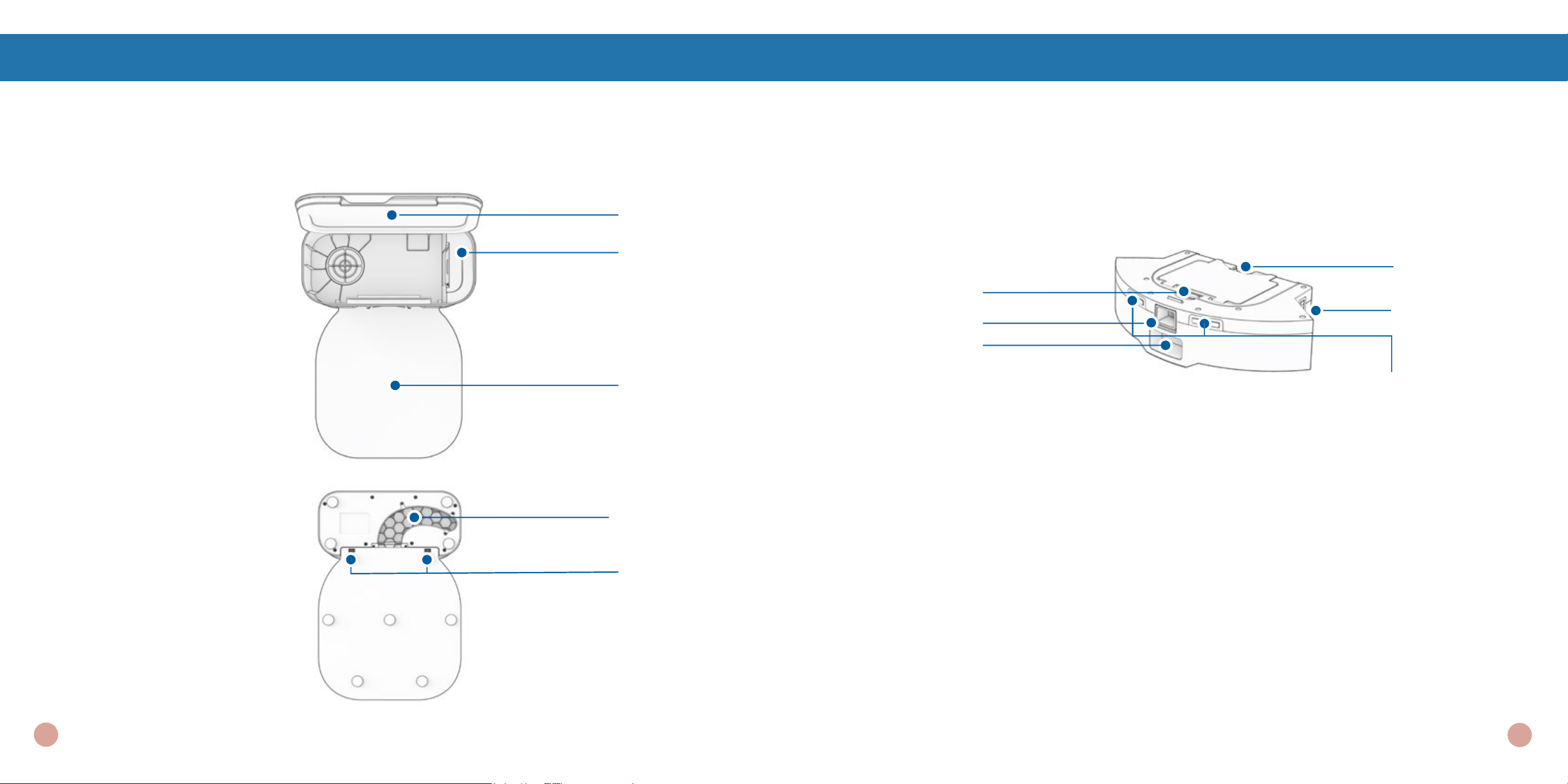
Anatomie
Lit de charge
Lit de charge
Prises de
contact
Couvercle
Glissière du sac
à poussière
Station de recharge & d’autovidage
Voie d’accès
à air
Anatomie
Ouverture Filtre
Contacte Dustbin
Plaques de
recharge
Bouton d’éjection
Évent d’evacuation
débris (auto-vide)
Ouverture poubelle
Poubelle
42
41
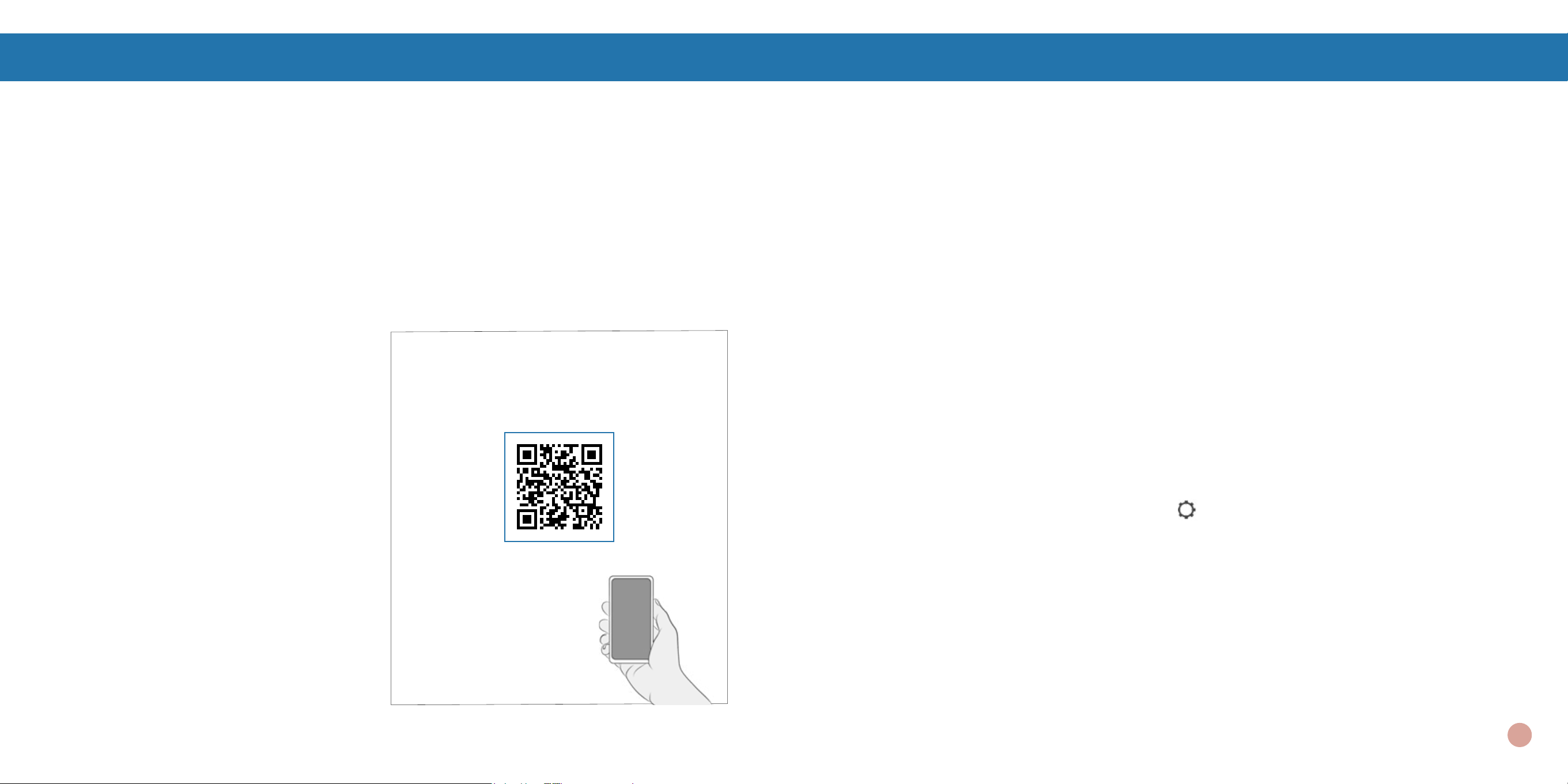
Bien Commencé
Qui est Orb-i?
Orb-i est un robot aspirateur autonome, à votre service ! Connectez Orb-i au Wi-Fi et utilisez l’application
bObsweep pour créer un plan de nettoyage personnalisé. Orb-i nettoiera votre maison, à votre manière.
Franchir des obstacles difciles
Meuble unique
Les meubles spéciaux,
tels que les chaises de
bureau à roulettes ou les
tabourets à base circulaire,
peuvent perturber Orb-i
momentanément ; il peut
rester coincé sur un rebord
pendant quelques minutes,
puis décider de nettoyer
ailleurs.
Tant que Orb-i n’afche
pas de message d’erreur,
laissez-le continuer à
nettoyer et à trouver son
propre chemin. Prenez
note des zones que Orb-i
trouve les plus difciles
et, si possible, ajustez les
meubles ou ajoutez des
zones NoSweep™.
Tapis a poil long
La brosse principale de
Orb-i n’est pas conçue pour
nettoyer les tapis à poils
longs ou les tapis à bres
longues et à franges.Si vous
souhaitez que Orb-i nettoie
des tapis à poils longs ou à
bres longues, vous pouvez
lui retirer sa brosse principale
et lui permettre de passer
l’aspirateur sans elle.
Bien Commencé
Comment Orb-i s’y prend-
il pour s’orienter ?
Orb-i utilise la vision laser, un réseau
de capteurs et une technologie de
cartographie et de localisation de pointe
pour détecter les murs, les meubles et
les obstacles.
Tout en nettoyant, Orb-i crée une carte
des zones auxquelles il peut accéder
et qu’il peut nettoyer. Les zones où se
trouvent les meubles et les petits objets
sont marquées sur la carte. Vous pouvez
afcher la carte en cliquant sur l’icône
Carte de l’application bObsweep et la
personnaliser à votre guise. En utilisant la
carte et les critères de personnalisation de
l’application, Orb-i nettoie efcacement
votre maison au cours d’un cycle complet.
Après le nettoyage, Orb-i retourne à
sa station et vide sa poubelle dans le
conteneur de sa station de recharge.
Oubliez le nettoyage et protez de sols
propres pendant des semaines !
Découvrez les fonctions de la carte de
Orb-i, Plus de vidéos et d’instructions :
Tapis sombres
Si Orb-i recule de manière
répétée ou afche un message
d’erreur lors du nettoyage de
tapis sombres, désactivez les
capteurs de bord.
Pour les désactiver, ouvrez
l’application bObsweep et
désactivez “ Edge detection”
dans Settings .
N’oubliez pas que si les
capteurs de bord de Orb-i
sont désactivés, il ne pourra
pas détecter les bords ou les
escaliers et tombera du bord
s’il s’en approche ! Ajoutez
une ligne NoSweep à l’endroit
du bord ou de l’escalier pour
assurer la sécurité de Orb-i.
44
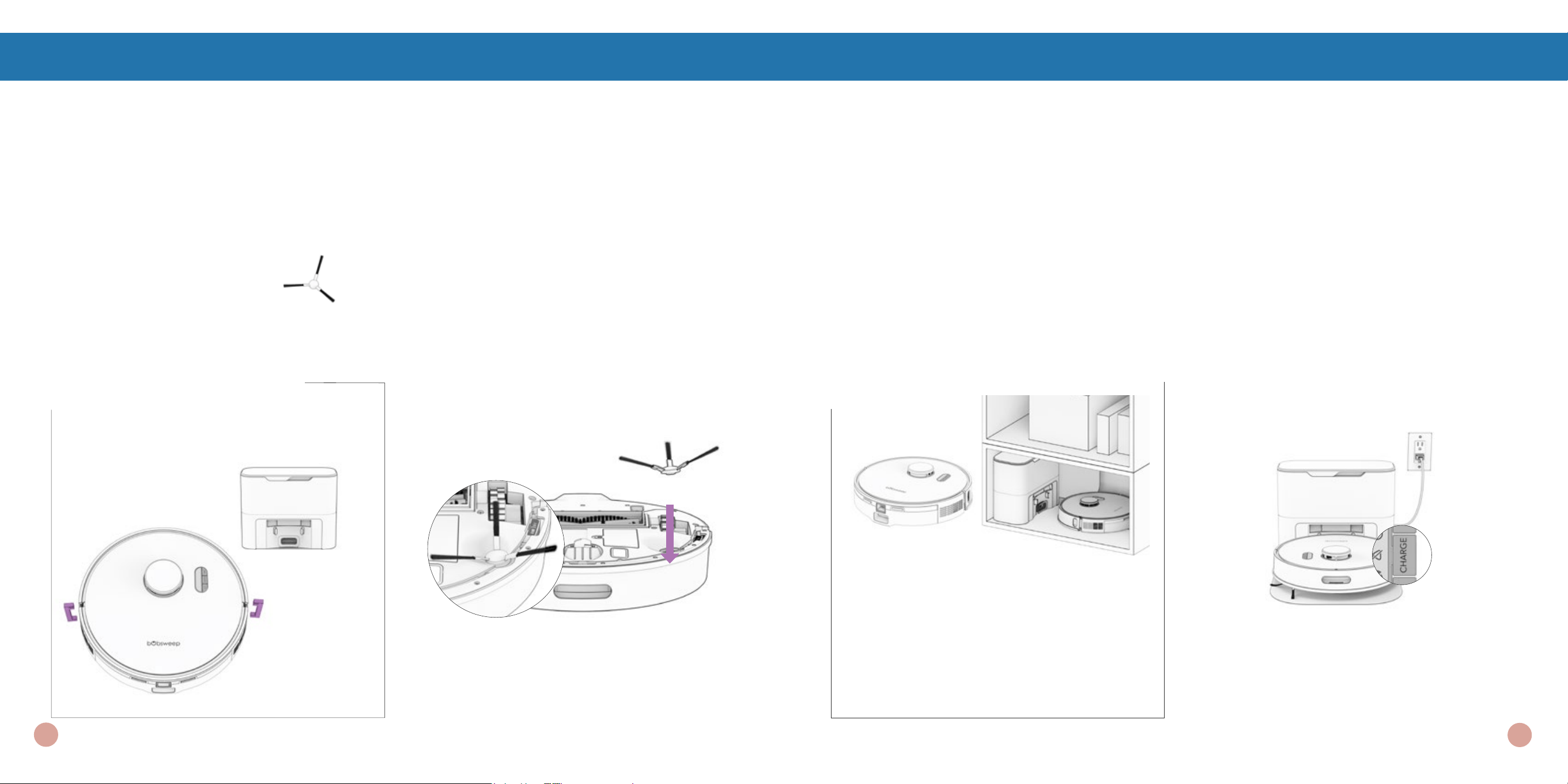
Placez la brosse latérale sur le socle
vide de Orb-i. Appuyez jusqu’à ce qu’il
s’enclenche et se verrouille en place.
Premier Nettoyage de Orb-i Premier Nettoyage de Orb-i
Avant de commencer
Retirer les pièces de protection de Orb-i,
de son bumper et de la station de charge.
Installez la Brosse Latérale de Orb-i
Installez la brosse latérale de Orb-i pour l’aider à atteindre les coins et les bords des pièces.
Pièces nécessaires : Brosse Latérale
Allumer Orb-i
Appuyez sur le bouton GO et maintenez-le enfoncé jusqu’à ce que l’écran s’allume.
Si vous n’avez pas l’intention d’utiliser Orb-i
pendant un certain temps, vous pouvez le
mettre en mode veille à faible consommation
(mode LPS). Dans ce cas, placez Orb-i sur
sa station de charge. Appuyez sur le bouton
CHARGE de Orb-i et maintenez-le enfoncé
pendant 5 secondes. Vous entendrez “low
power mode”, conrmant que Orb-i est en
mode LPS. Pour quitter ce mode, appuyez
sur le bouton GO de Orb-i lorsqu’il est sur la
station de charge, ou retirez-le de la station.
Conserver Orb-i
Si vous n’utilisez pas Orb-i pendant une
période prolongée (plus d’un mois),
éteignez-le, retirez sa batterie et débran-
chez sa station de charge. Stockez le tout
dans une pièce sèche, à l’abri de la lu-
mière directe du soleil et des températures
extrêmes.
Note Important : Dans ce mode, Orb-i est
hors ligne et l’application bObsweep ne
peut pas se connecter à Orb-i. De plus, tout
nettoyage programmé sera mis en pause.
Note Importante : La force de la xation
de la brosse latérale peut être augmentée
en tournant la vis au centre de la brosse
latérale dans le sens inverse des aiguilles
d’une montre.
46
45
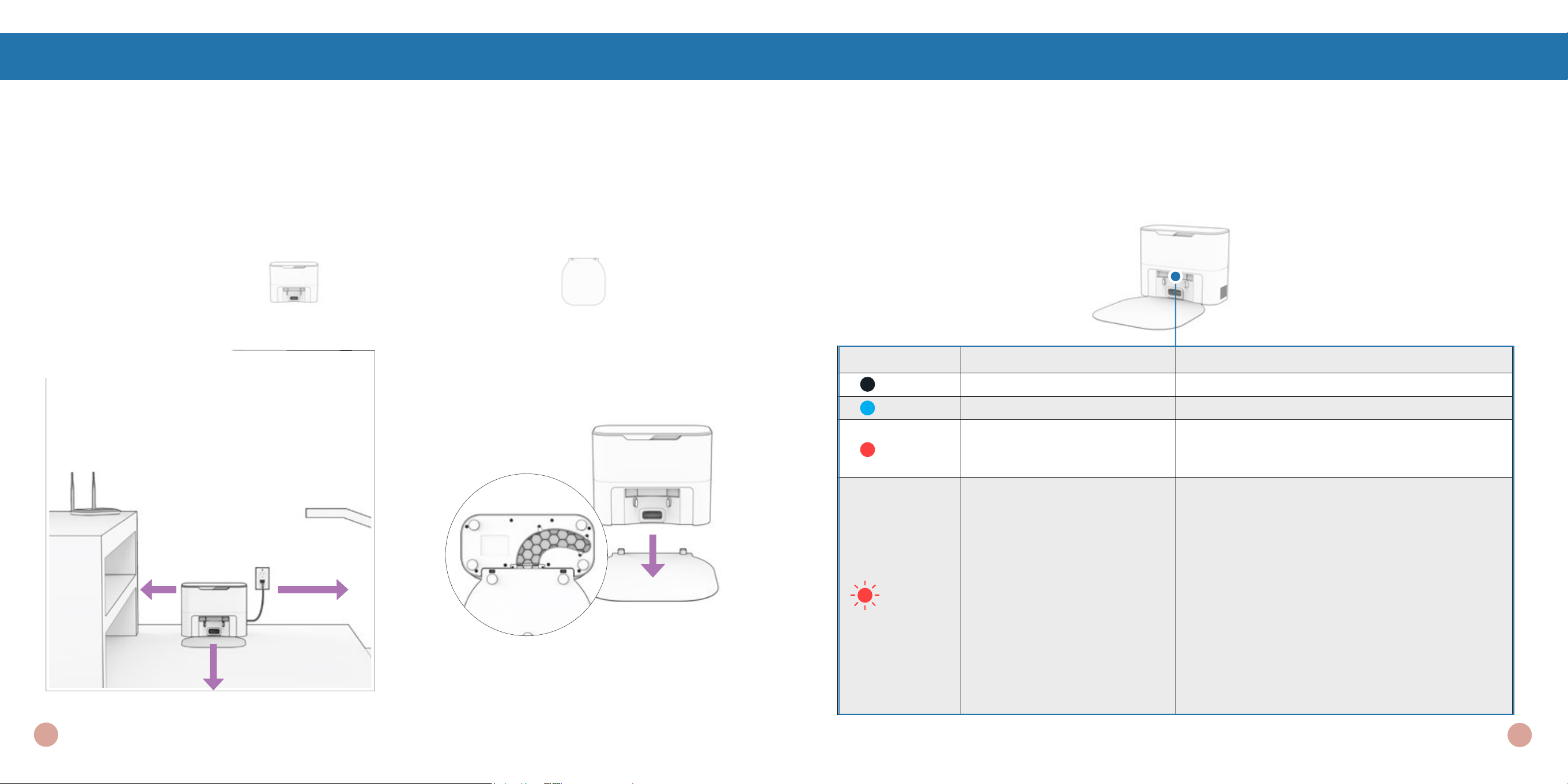
Premier Nettoyage de Orb-i
Mise en place de la station de Orb-i
La lumière vive du soleil, les surfaces brillantes et les objets rééchissants peuvent interférer avec les
signaux d’amarrage de Orb-i. Placez la station de Orb-i loin des fenêtres non couvertes, des miroirs et
des meubles ou objets brillants.
Orb-i retourne à sa station de recharge
après avoir nettoyé. Pour aider Orb-i,
placez la station de recharge sur une
surface plane et dure, loin des bords et
des escaliers, avec sufsamment d’espace
autour.
10 feet (3 m)
2 feet
(0.6 m)
Pièces nécessaires : Station de recharge Lit de recharge
10 feet
(3 m)
Placez la station de recharge sur les
socles du lit de recharge. Appuyez
pour la maintenir en place.
Positionement
Quick Tip: Les socles du lit de re-
charge s’insèrent dans la station de re-
charge située à l’avant de celui-ci.
Premier Nettoyage de Orb-i
Indicateurs de la station de recharge
État de LED État de la station Ce qu’il faut faire
Désactivé Eteint Brancher dans la prise de courant.
Bleu Prés Envoyer Orb-i pour charger/s’auto-vider.
Rouge uni
Le sac à poussière n’est pas dé-
tecté/l’ouverture du sac à poussière
est fermée
Insérer le sac à poussière dans la glissière et pousser
la languette vers le bas pour l’ouvrir et l’aligner avec le
passage d’air.
Rouge
clignotant
Encombrement de la voie
aérienne
-Retirez et ouvrez le dutbin an de le nettoyer et de le
débarrasser des encombrements importants.
-Nettoyez l’orice d’évacuation situé à l’arrière du dustbin.
Vériez que le clapet se déplace librement.
-Débranchez la station puis ouvrez la fenêtre d’accès
au passage d’air pour éliminer les encombrements du
passage d’air.
- Placez Orb-i sur la station et appuyez « Charge » pour
lancer un auto-vide.
Si cela ne résout pas le problème:
- Débranchez la station, retournez la station pour ouvrir la
voie d’accès à air. Accédez à la fenêtre et supprimez tout
congestion.
- Placez Orb-i sur la station et appuyez « Charge » pour
lancer une auto-vide.
Lorsque Orb-i a ni de stationner sur sa station de recharge et qu’il n’y a pas d’erreur de la station, le
voyant lumineux de la station s’éteint. Lorsque Orb-i n’est pas sur sa station de recharge, le voyant de
la station signie :
48
47
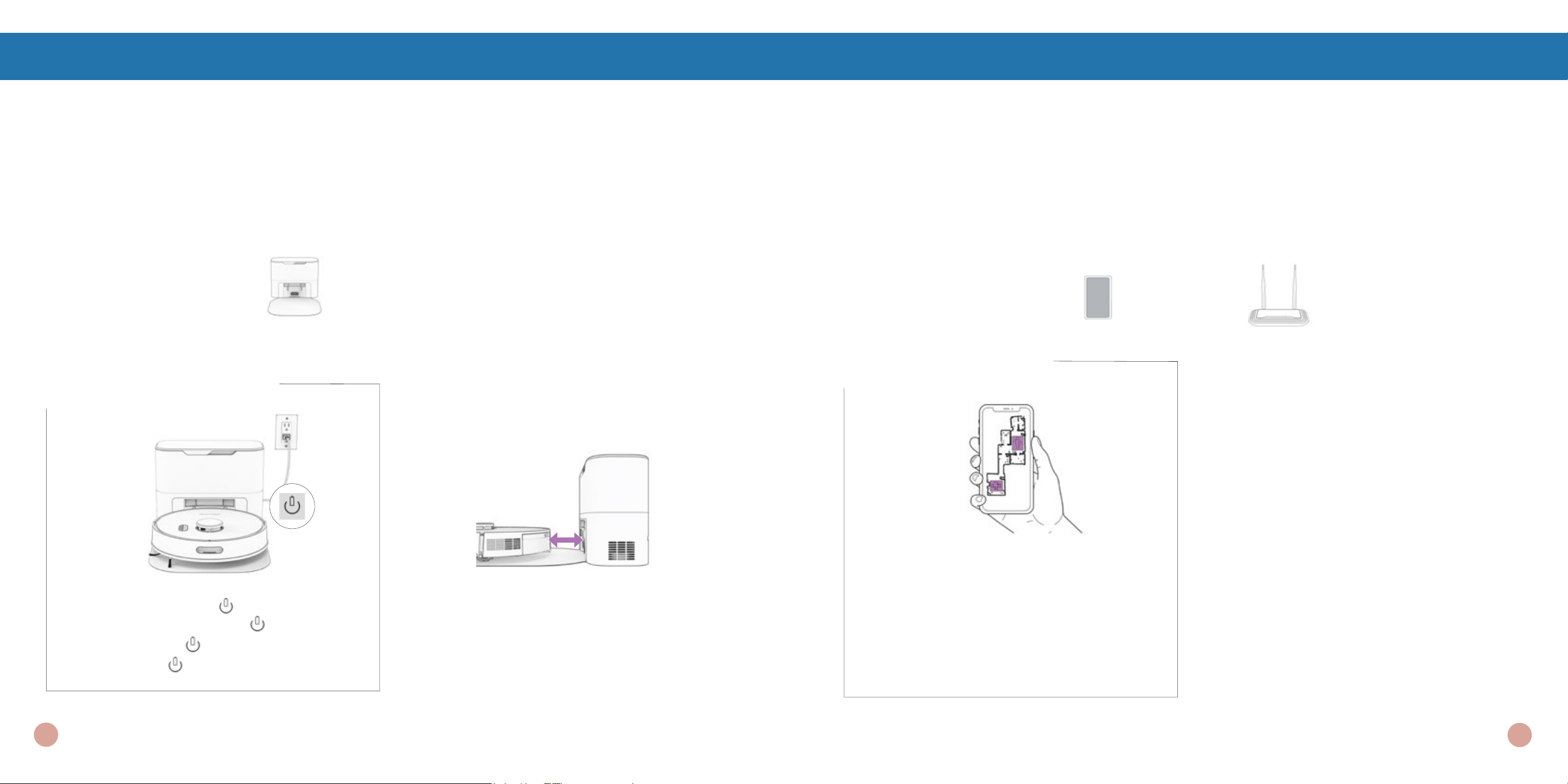
Orb-i’s First Clean
Rechargé Orb-i
Appuyez sur le bouton CHARGE de Orb-i pour l’envoyer à sa station de recharge.
Charging Indicator
Batterie Fiable : Cligne rapidement.
Recherche Station : Cligne.
En charge : Cligne lentement.
Chargé : Brille en blanc.
Pièces nécessaires : Station de recharge & d’autovidage
Quick Tip: Orb-i vide son bac à chaque
fois qu’il se stationne à la n d’une session
de nettoyage. Dénissez la fréquence à
laquelle Orb-i se vide lui-même dans “Clean-
ing Preferences” sur l’application bObsweep.
Pour recharger Orb-i manuellement,
placez-le sur son lit de recharge, les
nœuds métalliques de son dos reposant
sur les plaques de la station.
Premier Nettoyage de Orb-i
Télécharger l’application bObsweep
Connectez Orb-i au Wi-Fi pour accéder à l’ensemble des fonctionnalités de Orb-i et aux mises à jour
logicielles importantes. Suivez les instructions de l’application pour vous connecter aux appareils
Amazon Alexa ou Google Home.
Ouvrez l’application bObsweep, créez
votre compte et suivez les instructions pour
connecter votre robot.
Quick Tips:
Consultez l’App Store/Google Play Store
(le code QR se trouve sur la couverture de
ce manuel) et mettez à jour l’application
bObsweep pour accéder aux dernières
fonctionnalités de l’application bObsweep.
Consultez la page Paramètres du Bot sur
l’application bObsweep et mettez à jour le
logiciel Orb-i pour accéder à la dernière
version du système d’exploitation de Orb-i.
Articles nécessaires : Smart Phone Connexion Wi-Fi 2.4GHz
Orb-i cartographie la zone au premier coup
d’œil. Modiez, personnalisez la carte de
nettoyage de Orb-i, puis dénissez des
horaires de nettoyage et protez de sols
propres sans avoir à lever le petit doigt
pendant plusieurs semaines d’aflée.
Premier Nettoyage de Orb-i
50
49
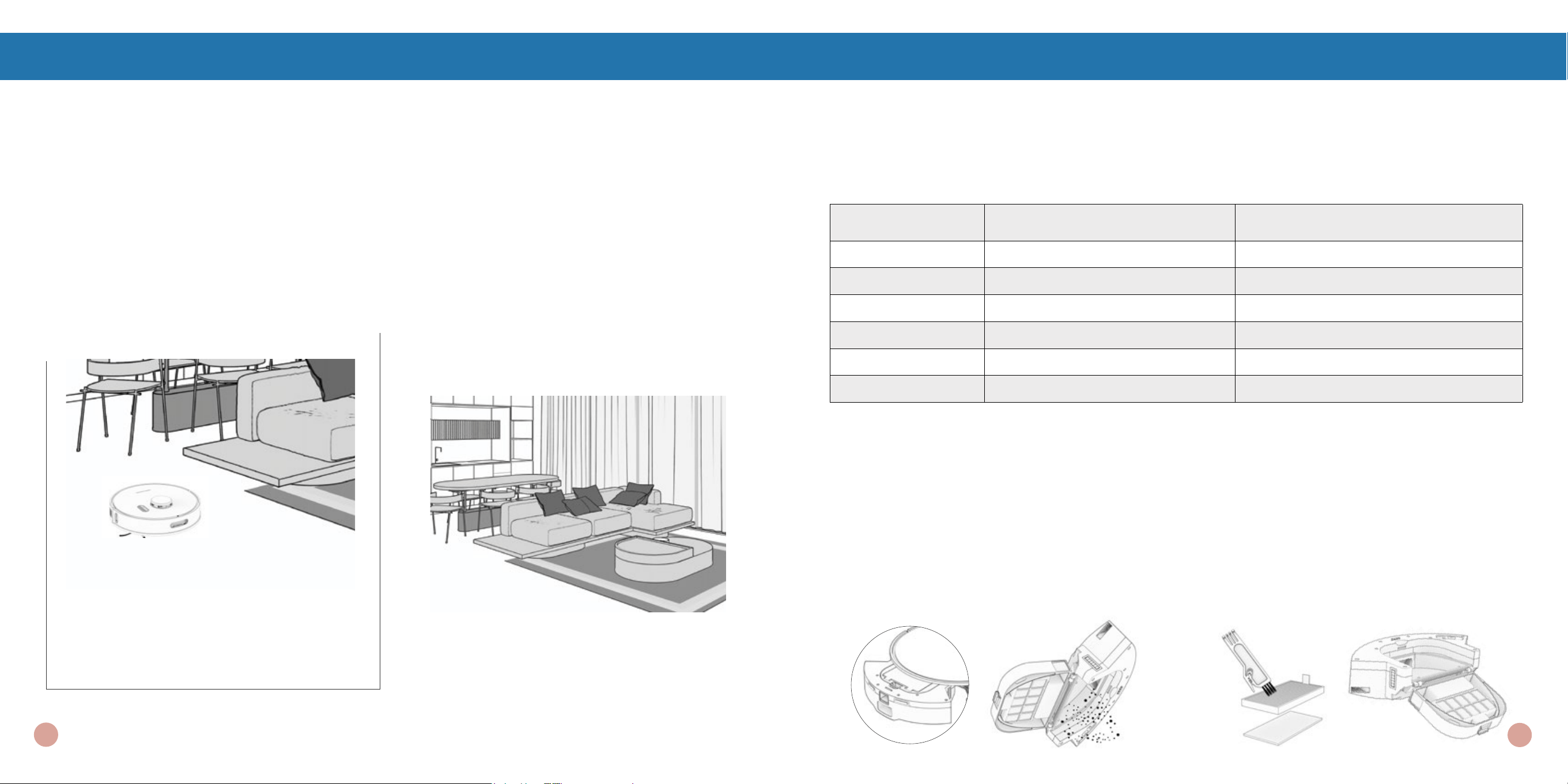
Levage et déménagement
Ne soulevez pas Orb-i pendant le nettoyage
pour éviter de déformer sa carte.
Ne changez pas l’emplacement de la
station de Orb-i une fois la carte terminée.
Laissez Orb-i balayer !
Orb-i est maintenant prêt à balayer ! Éliminez tout encombrement ou câble et appuyez sur le
bouton GO.
Premier Nettoyage de Orb-i
Doté de la technologie de nettoyage
Room-to-Room™, Orb-i explore et nettoie
automatiquement votre maison, en évitant
les meubles et les obstacles sur son chemin.
Pour de meilleurs résultats, retirez le désordre
et les petits objets.
Quick Tips: Enlevez les débris des coins et recoins autour des brosses et des roues.
Utilisez une pince à épiler pour éliminer la congestion des extrémités des brosses et des
compartiments de la brosse principale et des brosses latérales de Orb-i.
Utilisez des ciseaux ou l’outil de nettoyage fourni pour couper les poils qui s’enroulent
autour des brosses.
Maintenance
Partie Maintenance recommandé Replacement Frequency
Poubelle et Station Au mois
Filtre Au mois Tous les 6 mois
Brosses Chaque semaine Tous les 12 mois
Capteurs Chaque semaine
Roue avant Chaque semaine
Batterie Tous les 24 à 36 mois
Pour une meilleure performance
Pour optimiser l’efficacité de Orb-i, il est préférable de maintenir ses brosses, ses filtres et ses
capteurs propres.
Poubelle
1.
Retirez le poubelle. Ouvrez et videz son
contenu.
2. Dépoussiérez les ltres et essuyez la
poubelle.
52
51
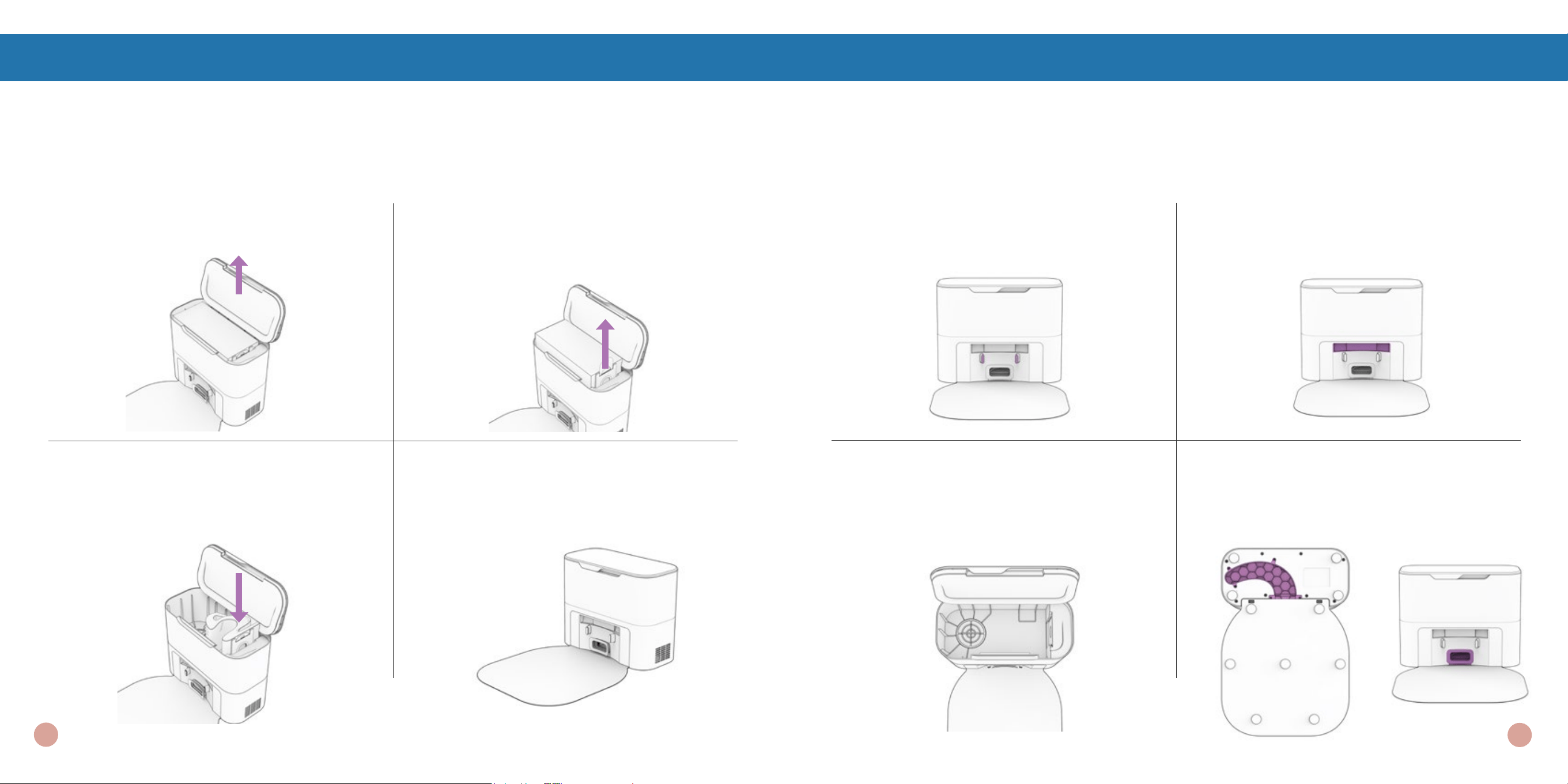
Maintenance
Sac de poussière
1. Ouvrez le couvercle.
4. Fermez le couvercle.3. Placez le nouveau sac à poussière, en
faisant glisser la carte complètement en
place. Faites glisser la languette
d’ouverture vers le bas.
2. Tirez la languette vers le haut pour fermer
l’ouverture du sac à poussière. Soulever
pour retirer le sac à poussière plein et le
jeter.
Station de recharge et d’autovidage
Avant de nettoyer la station de recharge, débranchez-la.
Maintenance
1. Essuyez les nœuds de charge (points
de contact).
4. Débranchez la station. Inspectez
l’évent d’évacuation et le passage
de l’air. Nettoyez et éliminez tout
encombrement.
3. Retirez le sac à poussière et nettoyez le
bac à poussière pour éviter
l’accumulation de débris ou toute
obstruction à la libre circulation de l’air.
2. Essuyer la fenêtre de l’émetteur, en
s’assurant qu’elle n’est pas bloquée ou
couverte.
54
53
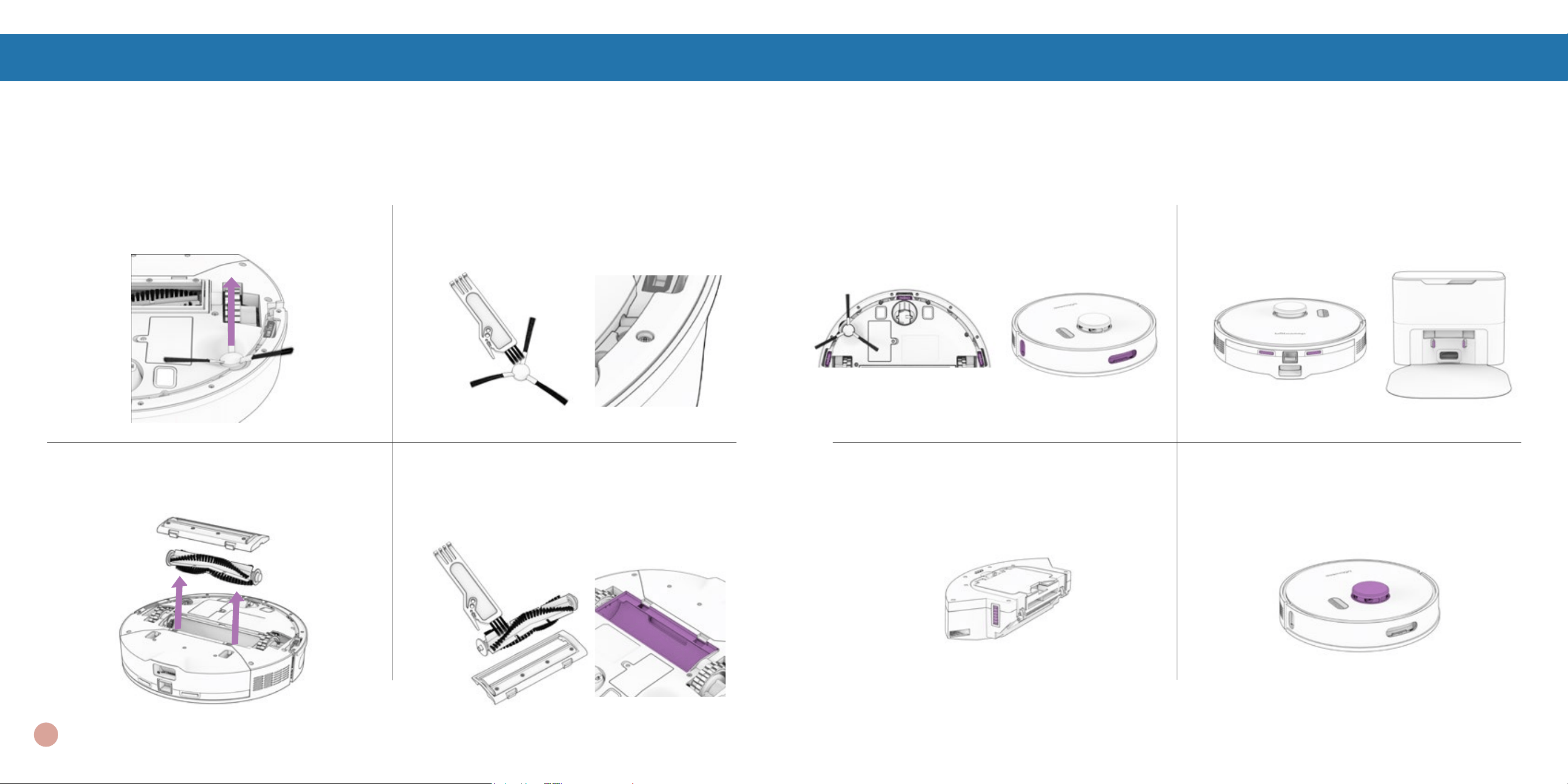
1. Tirez vers le haut pour retirer la brosse
latérale.
2. Retirez les débris de la brosse latérale
et son logement.
4. Nettoyez le balai principal et tous ses
composants, y compris la porte de la
brosse et le compartiment de la brosse.
3. Pincez les languettes de la porte principale
des brosses et soulevez-la.
Brosses
Maintenance
Capteurs
1.
Essuyez les capteurs de bord et de mur. 2. Essuyez les nœuds de charge sur Orb-i
et sa station.
3. Essuyez les connecteurs métalliques du
de la poubelle.
4. Essuyez la partie supérieure et la zone
autour du SLAM LiDAR.
Utilisez un chiffon doux en coton pour essuyer les capteurs.
Maintenance
Remarque
importante :
Le SLAM LiDAR de Orb-i est un capteur sensible. N’appliquez pas de force,
n’insérez pas d’objets et ne réglez pas le SLAM LiDAR. Ne vous asseyez pas sur
Orb-i et ne placez pas d’objets sur lui.
55
MaintenanceMaintenance
Roue avant
1. En utilisant un tournevis à tête plate
comme levier, saisissez fermement la
roue et tirez, saisissez fermement la roue
et tirez.
2. Une fois la roue retirée, utilisez le
tournevis pour extraire l’ensemble de la
roue.
3. Nettoyez la roue et tous ses composants, y
compris l’assemblage et la douille de la roue.
4. Remettez les deux parties en place
lorsque c’est fait. Poussez vers le bas
pour les verrouiller en place.
Batterie
Eteignez Orb-i avant de remplacer la pile. Appuyez sur le bouton GO et maintenez-le enfoncé.
1. Utilisez un tournevis cruciforme pour
ouvrir le compartiment à piles.
2. Débranchez l’ancienne batterie et
branchez la nouvelle.
3. Glissez la nouvelle batterie dans Orb-i.
Maintenance
Note importante : Le mode haute puissance augmente de façon exponentielle l’utilisation de
la batterie de Orb-i. Utilisez le mode basse consommation pour réduire la
consommation d’énergie de Orb-i.
58
57
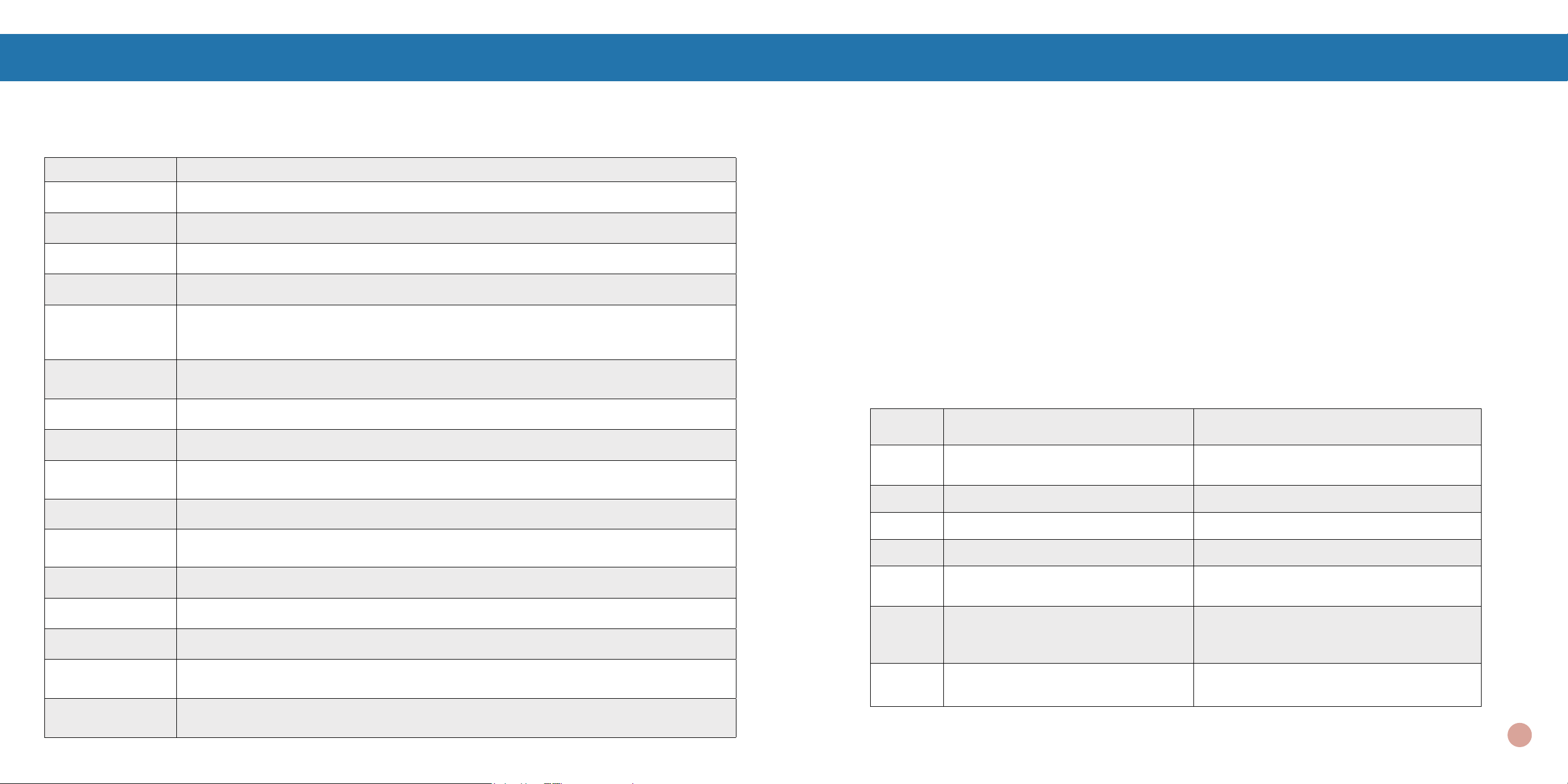
Dépannage
Lorsque Orb-i rencontre un problème, il s’arrête et son indicateur de trouble clignote. Consultez
l’application bObsweep pour connaître les détails des problèmes.
Trouble Solution
Battery
Batterie faible ou déconnectée. Vérier la connexion. Réinitialisez et chargez Orb-i.
Left/Right Wheel
La roue gauche/droite est bloquée. Vérier qu’il n’y a pas d’obstruction et nettoyer.
Main Brush
La brosse principale est obstruée. Retirer et nettoyer.
Side Brush
La brosse latérale est obstruée. Retirer et nettoyer.
Dustbin
Poubelle est déconnectée ou les points de contact sont sales. Nettoyez les points de
contact et remettez-les en place. Ou le moteur d’aspiration est bloqué. Vérier qu’il n’y a
pas d’obstruction et nettoyer.
Edge Sensors
Orb-i est coincé près d’un bord, ou n’est pas en contact avec le sol ou les capteurs de bord
sont sales. Mettez Orb-i en sécurité et nettoyez les capteurs de bord.
Bumper
Le Bumper est sale ou bloqué. Essuyez autour du bumper ; éliminez toute obstruction.
LiDAR Bumper
Le bumper du SLAM LiDAR est bloqué. Vériez qu’il n’y a pas d’obstruction et nettoyez-le.
LiDAR
Le SLAM LiDAR n’est pas propre/perte de visibilité. Nettoyez le SLAM LiDAR et éloignez
Orb-i des miroirs/des surfaces métalliques/des murs et placez-le au centre de la pièce.
Charging Station
Impossible de localiser la station de recharge. Rebranchez la station de charge et chargez.
User Interface
L’interface utilisateur de Orb-i/le port USB ne répond pas. Réinitialisez Orb-i et assurez-
vous que le port USB est vide.
Electronic
Erreur de composant électronique. Réinitialisez Orb-i (Éteignez et allumez Orb-i).
Stuck
Orb-i est coincé. Éliminez les obstacles,et les ls et réinitialisez Orb-i.
Navigation
Orb-i ne peut pas naviguer. Éliminez les encombrements et les ls et réinitialisez Orb-i.
Localization
Orb-i ne peut pas se repérer sur la carte. Vérier l’exactitude de la carte/effacer la carte
pour la refaire.
Settings
Les paramètres actuels de la chambre ne correspondent pas à ceux de Orb-i. Modier les
paramètres/horaires de la carte.
Test de contrôle check-up
Si Orb-i ne fonctionne pas aussi bien qu’il le devrait, vous pouvez diagnostiquer le problème à l’aide
d’un simple test de contrôle check-up.
Mettre Orb-i en/hors mode check-up
Mettre Orb-i en mode check-up :
Appuyez simultanément sur les boutons “GO”, “CHARGE” et “WI-FI” et maintenez-les enfoncés
pendant quelques secondes jusqu’à ce que le robot indique : “Home Checkup Mode Activated” (Mode
de contrôle à domicile activé). Dans ce mode, le capteur LiDAR de Orb-i tourne.
Pour quitter le mode check-up :
Appuyez à nouveau simultanément sur les boutons “GO”, “CHARGE” et “WI-FI”. Vous entendrez
“Exiting Home Checkup Mode” et le capteur LiDAR de Orb-i s’arrêtera de tourner.
Notes Importantes :
• Pendant le test, si Orb-i reste inactif pendant plus d’une minute, il quittera automatiquement le test
de contrôle à domicile.
• Pour passer d’une étape à l’autre du test de contrôle, appuyez sur le bouton Wi-Fi.
• Pour démarrer/arrêter les tests à chaque étape, appuyez sur le bouton GO jusqu’à ce que vous
entendiez “Begin test” et “Stop test”. Arrêtez toujours un test avant de passer à l’étape suivante.
Etape Partie (s) Tésté Description
1 Battery
Après une charge complète, testez la bat-
terie de Orb-i.
2 Edge Sensors Testez les capteurs de bord.
3 Charging Station Tester les capteurs de charge.
4 Bumpers and Wi-Fi Testez le module Wi-Fi & capteurs tactiles.
5 Motors (wheels, brushes, vacuum)
Test chacun des moteurs de Orb-i individu-
ellement.
6
SLAM LiDAR, Charging and
Self-empty
Testez le SLAM LiDAR de Orb-i, les points
de contact de charge et la fonction d’au-
to-vidage.
7 Hard Resetting Orb-i
Réinitialisez Orb-i aux paramètres
d’usine et effacez toutes les données.
Guide vidéo étape par étape du test de contrôle check-up: bobsweep.com/Orbi-support.
60

FAQs
Comment puis-je savoir
que Orb-i est complètement
chargé et prêt à nettoyer ?
Lorsque Orb-i est en cours de chargement, le voyant
de chargement clignote lentement. Lorsque Orb-i est
entièrement chargé et prêt à nettoyer, l’indicateur de
charge brille en blanc.
Orb-i ne s’allume pas, quoi que
je fasse.
Si Orb-i ne réagit pas aux boutons, sa batterie est
probablement trop faible pour qu’il puisse fonction-
ner. Placez Orb-i sur sa station de chargement et
laissez-le se recharger complètement. Lorsque
vous le placez sur la station, assurez-vous que la
poubelle est bien enclenchée et que les nœuds de
charge situés à l’arrière de Orb-i sont parfaitement
alignés avec ceux de sa station de charge.
Orb-i a du mal à trouver son
poste.
Assurez-vous que le lit de recharge de Orb-i est
installé. Vous devrez peut-être déplacer la station de
Orb-i dans un endroit plus accessible. Assurez-vous
que la station est placée dans une zone centrale,
sur une surface dure et plate, loin des escaliers ou
des bords, de la lumière directe du soleil, des miroirs
ou des surfaces rééchissantes, et avec beaucoup
d’espace libre autour d’elle. Ensuite, effacez
l’ancienne carte et laissez Orb-i refaire la carte de la
maison à partir de sa nouvelle station.
Orb-i doit être rechargé avant
de terminer la cartographie de
ma maison.
Utilisez la fonction Swift Map de l’application
bObsweep pour demander à Orb-i de cartographier
les sols sans les nettoyer. Dans ce mode, Orb-i
explore et cartographie la maison, puis retourne à
sa borne de recharge sans la nettoyer. Assurez-
vous qu’Orb-i est complètement chargé avant de
lancer cette fonctionnalité.
Est ce que je peux passer
prendre Orb-i ?
Il n’est pas recommandé de prendre et de déplacer
Orb-i pendant une session de nettoyage, car
cela peut affecter son cycle de nettoyage/carte
en cours. En outre, il est préférable de ne pas
déplacer la station de charge de Orb-i une fois qu’il
a cartographié son environnement. Si vous devez
déplacer la station, effacez l’ancienne carte et
laissez Orb-i cartographier à nouveau la maison.
Orb-i ne ramasse plus autant
qu’avant.
Orb-i aura du mal à se nettoyer si son bac à poussière
est bouché ou si sa brosse principale est obstruée
ou emmêlée de poils. Retirez la brosse principale
de Orb-i et nettoyez-la soigneusement d’un bout
à l’autre. Retirez et ouvrez le bac à poussière, et
enlevez tous les gros débris du bac à poussière de
Orb-i pour assurer une bonne circulation de l’air.
Orb-i est Ofine.
Orb-i est peut-être en veille prolongée ou est éteint et
s’est déconnecté du Wi-Fi. Pour le remettre en ligne,
placez-le sur la station de recharge et laissez-le se
charger et s’allumer. Pour obtenir des instructions
visitez :
bobsweep.com/Orbi-support.
Impossible de connecter Orb-i
au Wi-Fi.
Vous pouvez connecter Orb-i à un Wi-Fi 2,4 GHz
une fois qu’il est complètement chargé. Activez
«Location Services» et «Bluetooth» dans votre
téléphone. Autorisez également l’accès au «Local
Networks» et désactivez les «Wi-Fi Calling» sur
votre téléphone. Notez votre réseau Wi-Fi 2,4 GHz
et son mot de passe (notez qu’ils sont sensibles
à la casse). Rapprochez Orb-i et votre téléphone
de votre modem ou routeur et assurez-vous de
sélectionner le nom de modèle correct «Orb-i»
dans la liste des robots. Pour plus d’informations,
visitez : bobsweep.com/Orbi-support.
Orb-i est souvent coincé.
S’il y a des zones à problèmes répétés dans la
maison sous lesquelles Orb-i se coince ou s’arrête,
dessinez des zones NoSweep au-dessus de ces
zones sur la carte pour éviter à Orb-i d’avoir des
ennuis.
Puis-je modier ou supprimer la
carte que Orb-i a créée ?
Oui. La carte de Orb-i est entièrement
personnalisable et modiable. Examinez la
carte créée par Orb-i et apportez-y toutes les
modications que vous souhaitez. Pour des
instructions étape par étape, visitez : bobsweep.
com/Orbi-support.
Orb-i a arrêté le nettoyage et
l’indicateur de panne clignote.
Lorsque Orb-i est en difculté et a besoin de votre
aide, il s’arrête et l’indicateur de panne clignote.
Ouvrez l’application bObsweep et trouvez les
détails du problème en haut de la page Control.
FAQs
Orb-i peut-il nettoyer ma maison
à plusieurs étages ?
Oui. Orb-i peut sauvegarder jusqu’à 3 cartes
d’étage. Pour obtenir des instructions étape par
étape sur la façon de sauvegarder les cartes, visitez
: bobsweep.com/Orbi-support.
Comment puis-je diagnos-
tiquer le problème exact de
Orb-i ?
Si Orb-i n’est pas aussi performant qu’il le devrait,
vous pouvez diagnostiquer le problème à l’aide d’un
test de contrôle à domicile. Pour plus d’informations
sur la manière d’effectuer ce test, consultez :
bobsweep.com/Orbi-support.

End User License Agreement
IMPORTANT - READ BEFORE USING. Do not use the robot (“Orb-i” or “bObsweep”) accompanying this license agreement
(“Agreement”) until you have carefully read and agreed to the following terms and conditions.
By using the bObsweep, you agree to the terms of this End User License Agreement (“EULA”) and any amendment or
addenda accompanying this Agreement. If you do not agree to the terms of this EULA, you may not use the bObsweep.
The bObsweep contains an electronic and software interface that allows you to control or modify its behavior, and remotely
monitor its sensors.
THIS IS A LEGAL AGREEMENT. BY ACCESSING AND USING THE PRODUCT AND PRODUCT SOFTWARE, YOU ARE
ACCEPTING AND AGREEING TO THIS EULA ON BEHALF OF YOURSELF OR THE ENTITY YOU REPRESENT IN
CONNECTION WITH THE ACCESS. YOU REPRESENT AND WARRANT THAT YOU HAVE THE RIGHT, AUTHORITY, AND
CAPACITY TO ACCEPT AND AGREE TO THIS EULA ON BEHALF OF YOURSELF OR THE ENTITY YOU REPRESENT.
YOU REPRESENT THAT YOU ARE OF SUFFICIENT LEGAL AGE IN YOUR JURISDICTION OR RESIDENCE TO USE
OR ACCESS THE PRODUCT SOFTWARE AND TO ENTER INTO THIS EULA. IF YOU DO NOT AGREE WITH ANY OF
THE PROVISIONS OF THESE TERMS, YOU SHOULD CEASE USING THE PRODUCT AND PRODUCT SOFTWARE.
Terms and Conditions
LICENSE: Subject to all of the terms of this Agreement, Bobsweep Inc. (“bObsweep”) grants to you one (1) revocable,
royalty-free, personal, non-exclusive, non-transferable, non-assignable, non-commercial intellectual property license to use
the Bobsweep software contained on the bObsweep (“Bobsweep Software”), including the protocol for communicating with
the bObsweep Software, and to use the bObsweep.
NONCOMMERCIAL LICENSE: You may use the Bobsweep Software and the bObsweep only for personal, non-commercial,
educational, and research purposes. The Bobsweep Software and the bObsweep may not be used for any other purpose,
whether “for prot” or “not for prot.” Any work performed or produced using the bObsweep, including any software that
you create for your bObsweep (“Your Software”), cannot be performed or produced for the benet of other parties for a fee,
compensation, or any other reimbursement or remuneration. A separate license is required for each additional use and/or
individual user in all other cases. If you are an entity, Bobsweep grants you the right to designate one individual within your
organization to have the sole right to use the Bobsweep Software and the bObsweep in the manner provided above.
RESTRICTIONS: You agree not to: (i) use or copy the Bobsweep Software or the bObsweep except as provided in this
Agreement; (ii) rent or lease the Bobsweep Software or the bObsweep to any third party; (iii) assign this Agreement or
transfer the Bobsweep Software or the bObsweep except as provided in this Agreement; (iv) modify, adapt, or translate
the Bobsweep Software or the bObsweep in whole or in part except as expressly provided in this Agreement; (v) reverse
engineer, reverse compile, or disassemble the Bobsweep Software or the bObsweep; or (vi) distribute, sublicense or transfer
the source code form of Your Software and derivatives thereof to any third party except as provided in this Agreement.
YOUR SOFTWARE : Your Software is also subject to the following limitations: You (i) shall be solely responsible for any
update or support obligation or other liability which may arise from your use or distribution, (ii) shall not make any statement
that Your Software is “certied,” or that its performance is guaranteed, by Bobsweep, (iii) shall not use Bobsweep’s name
or trademarks, (iv) shall prohibit disassembly and reverse engineering of the bObsweep Software and the bObsweep, (v)
shall not publish reviews of bObsweep products designated as beta without written permission from bObsweep, and (vi)
shall indemnify, hold harmless, and defend bObsweep and its suppliers from and against any claims or lawsuits, including
attorney’s fees, that arise or result from Your Software, including your use and your distribution.
TITLE: Title to the bObsweep Software remains with bObsweep or its suppliers. The bObsweep Software is licensed, not
sold. Except as expressly provided herein, bObsweep does not grant any express or implied right to you under bObsweep
patents, copyrights, trademarks, or trade secret information. You will not remove any copyright or patent notice from the
bObsweep Software or the bObsweep.
ONE-TIME TRANSFER: The initial user of the bObsweep Software and the bObsweep may make a one-time permanent
transfer of this Agreement, the bObsweep Software, and the bObsweep to another end user, provided that the initial user
retains no copies of the bObsweep Software and the bObsweep. This transfer must include the bObsweep Software, the
bObsweep, and all of the materials accompanying the bObsweep (including all component parts and printed materials,
any upgrades, and this End User License Agreement document). The transfer may not be an indirect transfer, such as a
consignment. Prior to the transfer, the end user receiving the bObsweep Software and the bObsweep must agree to all the
terms of this Agreement.
NO WARRANTY AND LIMITED REPLACEMENT: EXCEPT AS STATED IN THE LIMITED WARRANTY TO THE ORIGINAL
PURCHASER, THE SOFTWARE AND THE BOBSWEEP ARE PROVIDED “AS IS” WITH NO WARRANTIES, EXPRESS
OR IMPLIED, INCLUDING BUT NOT LIMITED TO ANY IMPLIED WARRANTY OF MERCHANTABILITY, FITNESS FOR
A PARTICULAR PURPOSE, NON-INFRINGEMENT OF INTELLECTUAL PROPERTY RIGHTS, OR ANY WARRANTY
OTHERWISE ARISING OUT OF ANY PROPOSAL, SPECIFICATION, OR SAMPLE. NO ORAL OR WRITTEN INFORMATION
OR ADVICE GIVEN BY BOBSWEEP OR ITS AGENTS SHALL CREATE A WARRANTY.
If the Bobsweep Software or the bObsweep is found to be defective in material or workmanship under normal use for a period
of one (1) year from the date of receipt, Bobsweep’s entire liability and your exclusive remedy shall be the replacement of
the Bobsweep Software or the bObsweep. This offer is void if the defect results from accident, abuse, misapplication, or
software that you developed for your bObsweep. Any updates or supplements to the Bobsweep Software or the bObsweep
provided to you after the expiration of the one (1) year period are not covered by any warranty or condition, express, implied
or statutory.
SOME JURISDICTIONS DO NOT ALLOW THE EXCLUSION OF IMPLIED WARRANTIES, SO THE ABOVE EXCLUSION
MAY NOT APPLY TO YOU. LIMITATION OF LIABILITY: THE ABOVE REPLACEMENT PROVISION IS THE ONLY
WARRANTY OF ANY KIND. BOBSWEEP OFFERS NO OTHER WARRANTY EITHER EXPRESS OR IMPLIED
INCLUDING THOSE OF MERCHANTABILITY, NON INFRINGEMENT OF THIRD- PARTY INTELLECTUAL PROPERTY
OR FITNESS FOR A PARTICULAR PURPOSE. NEITHER BOBSWEEP NOR ITS SUPPLIERS SHALL BE LIABLE FOR
ANY DAMAGES WHATSOEVER (INCLUDING, WITHOUT LIMITATION, VICARIOUS LIABILITY, CONSEQUENTIAL
DAMAGES, INCIDENTAL DAMAGES, DAMAGES FOR LOSS OF BUSINESS PROFITS, BUSINESS INTERRUPTION,
LOSS OF BUSINESS INFORMATION, OR OTHER LOSS) ARISING OUT OF THE USE OF OR INABILITY TO USE THE
BOBSWEEP SOFTWARE, THE BOBSWEEP, OR SOFTWARE THAT YOU DEVELOPED FOR YOUR BOBSWEEP, EVEN
IF BOBSWEEP HAS BEEN ADVISED OF THE POSSIBILITY OF SUCH DAMAGES. BECAUSE SOME JURISDICTIONS

referred to in any proceeding concerning this Agreement. Further, no understanding contained in this Agreement shall be
modied, altered or amended, except by a writing signed by the party against whom enforcement is sought.
ARBITRATION: All disputes relating to this Agreement (excepting any dispute relating to intellectual property rights) shall
be subject to nal and binding arbitration, with the losing party paying all costs of arbitration. Any arbitration relating to this
Agreement shall be held in California, under the auspices of an arbiter selected by Bobsweep. Any litigation relating to this
Agreement shall be subject to exclusive venue and jurisdiction in the federal and state courts of California, with the losing
party responsible for costs, including without limitation, court costs and reasonable attorneys fees and expenses.
APPLICABLE LAWS: Any claim arising under or relating to this Agreement shall be governed by the internal substantive
laws of the Commonwealth of California, without regard to its principles of conict of laws. The application of the United
Nations Convention on Contracts for the International Sale of Goods is expressly excluded.
® and © Bobsweep Inc. All rights reserved.
PROHIBIT THE EXCLUSION OR LIMITATION OF LIABILITY FOR CONSEQUENTIAL OR INCIDENTAL DAMAGES,
THE ABOVE LIMITATION MAY NOT APPLY TO YOU UNAUTHORIZED USE: THE BOBSWEEP SOFTWARE AND THE
BOBSWEEP ARE NOT DESIGNED, INTENDED, OR AUTHORIZED FOR USE IN ANY AERONAUTICAL, NUCLEAR,
MEDICAL, LIFE SAVING OR LIFE SUSTAINING SYSTEMS, OR FOR ANY OTHER APPLICATION IN WHICH THE USE
OF THE BOBSWEEP SOFTWARE OR THE BOBSWEEP COULD CREATE A SITUATION WHERE PERSONAL INJURY
OR DEATH MAY OCCUR.
Should you use the Bobsweep Software or bObsweep for any such unintended or unauthorized use, you shall indemnify
and hold harmless Bobsweep and its ofcers, subsidiaries and afliates against all claims, costs, damages, and expenses,
and reasonable attorney fees arising out of, directly or indirectly, any claim of product liability, personal injury or death
associated with such unintended or unauthorized use, even if such claim alleges that Bobsweep was negligent regarding
the design or manufacture of the Bobsweep Software, the bObsweep, or any part or portion thereof.
USER SUBMISSIONS: You agree that any material, information or other communication, including all data, images,
sounds, text, and other things embodied therein, that you transmit or post to a Bobsweep website or provide to Bobsweep
(“Communications”) will be considered non-condential. Bobsweep will have no condentiality obligations with respect to
the Communications. You agree that Bobsweep and its designees will be free to copy, modify, create derivative works,
publicly display, disclose, distribute, license and sublicense through multiple tiers of distribution and licensees, incorporate
and otherwise use the Communications, including derivative works thereof, for any and all commercial or non-commercial
purposes without the payment of any royalty to you, and that such license will survive the termination of this Agreement.
TERMINATION: This Agreement becomes effective on the date you accept this Agreement and will continue until terminated
as provided for in this Agreement. You may terminate this Agreement voluntarily at any time. Bobsweep may terminate this
Agreement at any time if you are in breach of any of its terms and conditions, and may refuse to license the Bobsweep
Software or the bObsweep to you after termination. Upon termination by either party, you will immediately return to
bObsweep or destroy the Bobsweep Software and the bObsweep and all your copies thereof. Articles 5 and 7 through 17 of
this Agreement shall survive such termination. U.S. GOVERNMENT RESTRICTED RIGHTS: The Bobsweep Software and
the bObsweep are provided with “RESTRICTED RIGHTS.” Use, duplication or disclosure by the Government is subject to
restrictions set forth in FAR52.227-14 and DFAR252.227-7013 et seq. or its successor. Use of the Bobsweep Software or
the bObsweep by the Government constitutes acknowledgment of Bobsweep’s rights in them.
NO EXPORT: You may not export the Bobsweep Software or the bObsweep in violation of applicable export laws.
INTERPRETATION PROVISION: The provisions of this Agreement are severable. If any provision of this Agreement is
held to be unenforceable, such provision shall be reformed only to the extent necessary to make it enforceable. Any law
or regulation which provides that the language of a contract shall be construed against the drafter shall not apply to this
Agreement.
INTEGRATION: This Agreement represents the complete agreement concerning the subject matter hereof, and any and all
understandings, conversations and communications, proposals, and counterproposals, oral and written (including any draft
of this Agreement) are merged into and superseded by this Agreement and shall be of no force or effect, except as expressly
provided herein. No such understandings, conversations, communications, proposals, counterproposals or drafts shall be
66