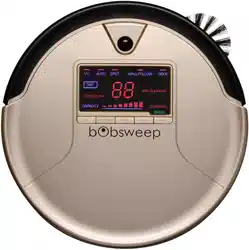
bObi Pet
OWNER’S MANUAL

bObi Pet
OWNER’S MANUAL
Model NWP20800
Manual Version 2020.1
Congratulations!
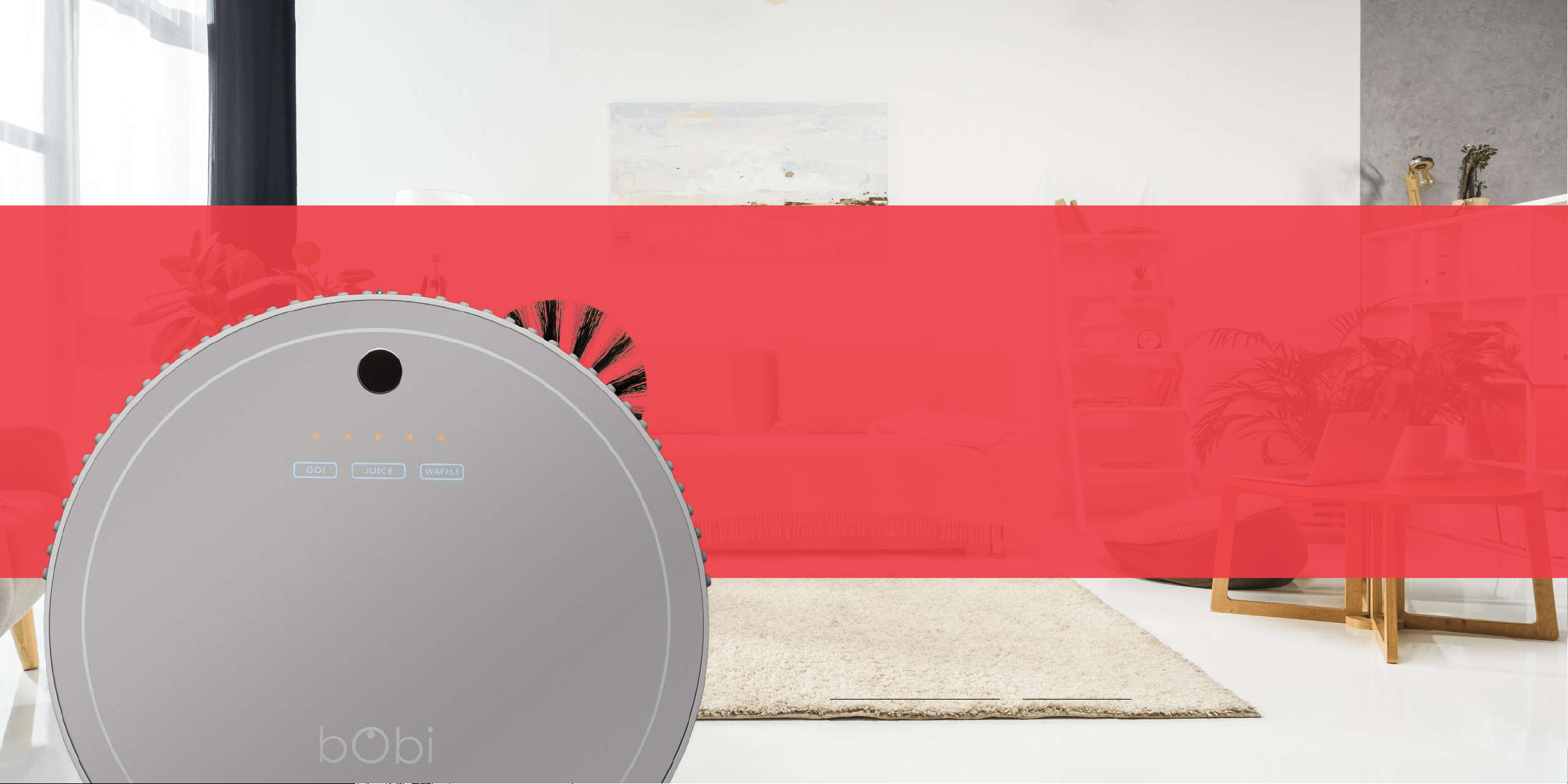
Congratulations on your new intelligent oor cleaner! bObi is now
at your service. To see bObi at her best, please read the Quick
Start Guide and this manual thoroughly.
Welcome to the bObsweep family and Happy Sweeping!
If you have any questions or concerns, feel free to contact our helpful support team at
[email protected] or 1-888-549-8847.
Our business hours are Monday – Friday, 9 a.m. – 5 p.m. Pacic Time.

—
Important Safety
Instructions
Flip bObi’s power switch OFF and unplug her from the
outlet when she is not in use and before conducting
maintenance.
bObi is not intended for use by persons (including
children) with reduced physical or mental capabilities,
or lack of experience and knowledge, unless under
the close supervision of a person responsible for
their safety.
Leaks from the battery cells can occur under extreme
usage or temperature conditions. If the liquid gets on
the skin, wash quickly with water. If the liquid gets
into the eyes, ush them immediately with clean
water for a minimum of 10 minutes, and seek medical
attention.
bObi is composed of electronic components that in
rare and unintended cases can cause hazards of
heating, re, and other malfunctions. Furthermore,
because bObi is capable of autonomous movement,
her use poses the risk of collision with property, pets,
and persons. Unintended removal of articles such
as small valuables, jewelry, or hair of persons or pets
lying on the oor — may also occur.
If bObi, her remote control, or her charging station
has been damaged in any way, do not operate
them. Contact our customer care center at
[email protected] or call 1-888-549-8847.
Do not handle bObi, her remote,
or her charging station with wet
hands; use only on dry surfaces.
Do not pull or carry the charging
station by the cord, use the cord
as a handle, close a door on the
cord, or pull the cord around sharp
edges or corners. Keep the cord
away from heated surfaces. To
unplug the cord, grasp the plug,
not the cord.
Do not attempt to open the
charging station. Repairs on the
station should only be carried out
by our qualied technicians.
With the exception of the mopping
cloth, do not immerse any part of
bObi into water or other liquids.
Do not mutilate or incinerate the
battery, as it will explode at high
temperatures.
Do not use bObi outdoors.
Do not expose bObi, her
charging station, or remote to
temperatures higher than 113° F
(45° C), moisture, or humidity.
Do not dispose of your battery
in re. Old batteries should be
recycled safely through your
local recycler.
Do not let bObi pick up
anything that is burning or
smoking, such as cigarettes,
matches, or hot ashes.

Declaration of Conformity
This device complies with Part 15 of the FCC rules. Operation is subject to the following two conditions:
(1) this device may not cause harmful interference, and (2) this device must accept any interference
received, including interference that may cause undesired operation. The manufacturer is not responsible
for any radio or TV interference caused by unauthorized modications or change to this equipment.
Such modications or change could void the user’s authority to operate the equipment.
This equipment has been tested and found to comply with the limits for a Class B digital device, pursuant
to part 15 of the FCC Rules. These limits are designed to provide reasonable protection against
harmful interference in a residential installation. This equipment generates, uses, and can radiate radio
frequency energy and, if not installed and used in accordance with the instructions, may cause harmful
interference to radio communications. However, there is no guarantee that interference will not occur
in a particular installation. If this equipment does cause harmful interference to radio or television
reception, which can be determined by turning the equipment off and on, the user is encouraged to try
to correct the interference by one or more of the following measures:
• Reorient or relocate the receiving antenna.
• Increase the separation between the equipment and receiver.
• Connect the equipment to an outlet on a circuit different from that to which the receiver is connected.
• Consult the dealer or an experienced radio/TV technician for help.
Warranty
Every bObi Pet purchased from an authorized seller includes a 2-year limited warranty, 5-year
subsidized repair plan, and lifetime of customer support. The warranty covers the battery, labor, and
non-consumable parts; it does not cover postal charges and consumable parts such as brushes, lters,
and mopping cloths.
To activate bObi’s warranty, register him online at www.bobsweep.com/warranties. To purchase
additional coverage plans, go to www.bobsweep.com/coverageplans.

4
Table of
Contents
Getting Started
22
Charging FullCommand™
Remote
30
5. Box Contents 23. Charging bObi
7. bObi’s Anatomy 25. Charging Station
31. Remote Buttons
9. Get to Know bObi 27. Syncing the Charging
33. Syncing the Remote
14. Get bObi Started Station
35. Navigating bObi
Cleaning Maintenance Parts and
Schedule Accessories
38
46 60
39. Setting the Current 47. Dustbin 61. bObi blOck™
Time and Day 49. Filter 67. Mop
41. Setting the Cleaning 51. Main Brush 69. Edge Sensors
Schedule 53. Side Brush 71. Battery
43. Auto-Resume Mode 55. Sensors
57. Front Wheel
Troubleshooting Home Checkup Test
FAQs
End User
License
74 86 94 100
75. Edge Sensors 87. Putting bObi in
77. Brushes Checkup Mode
Agreement
79. Power System 89. Home Checkup
81. Wheels Test Steps
83. Dustbin
Quick Start
Getting Started
Box Contents
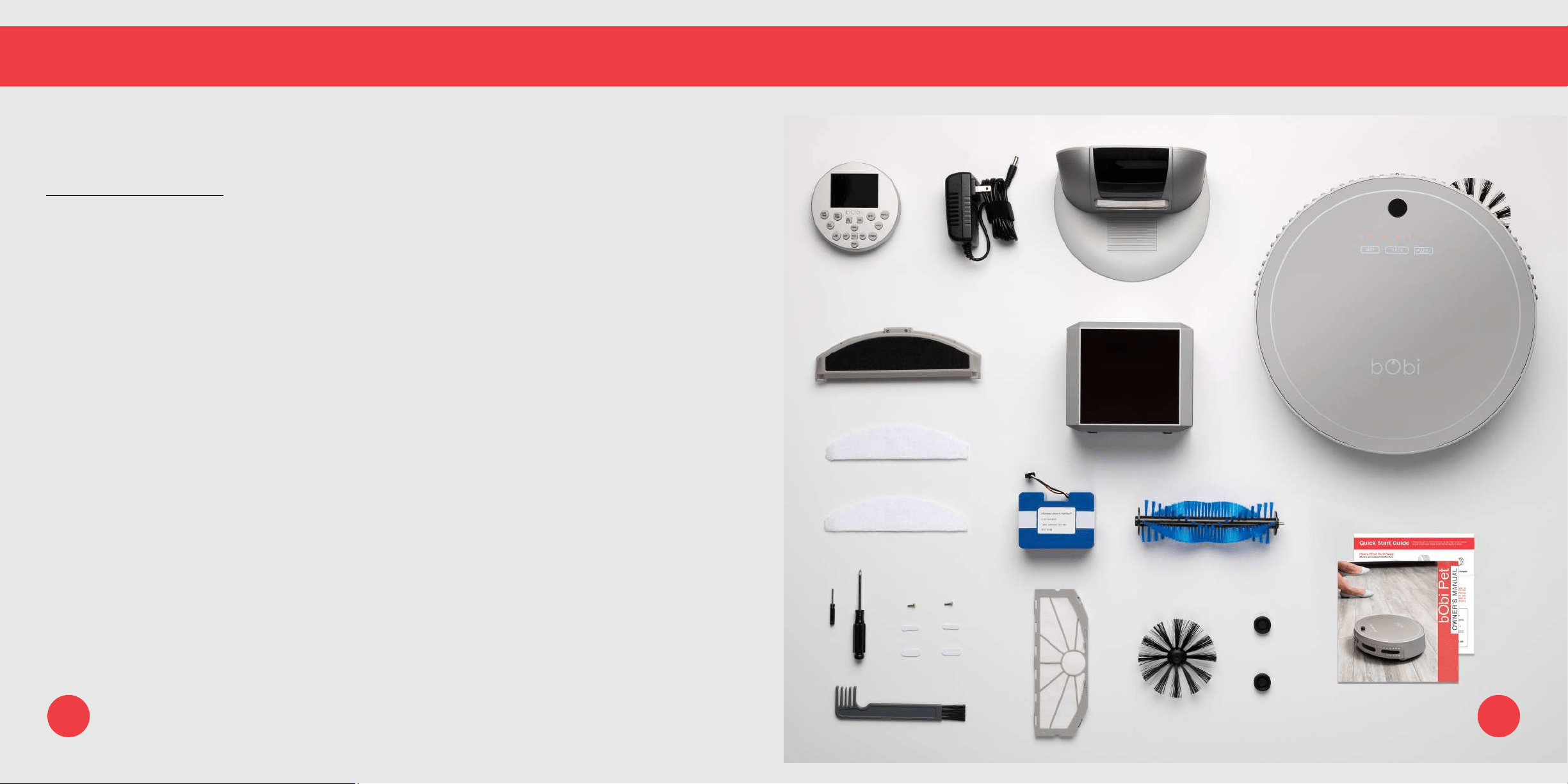
Bob comes with the following items. You can purchase replacement parts and accessories at
www.bobsweep.com/shop.
1 FullCommand™ Remote 10 Blindfold Stickers (4)
2 Charging Adapter 11 Cleaning Tool
3 Charging Station 12 Filter
4 bObi blOck™ 13 Battery
5 Mop Attachment 14 Main Brush
6 Microber Mopping Cloths (2) 15 Side Brush
7 Syncing Tool 16 Main Brush Holders
8 Philips Head Screwdriver 17 Owner’s Manual, Quick Start Guide, and Warranty Card
9 Side Brush Screws (2) 18 bObi Pet
1 2
3
5
6
4
8
10
9
12
6
7
15 16
13 14
18
11
17
5
Quick Start
Getting Started
bObi’s Anatomy
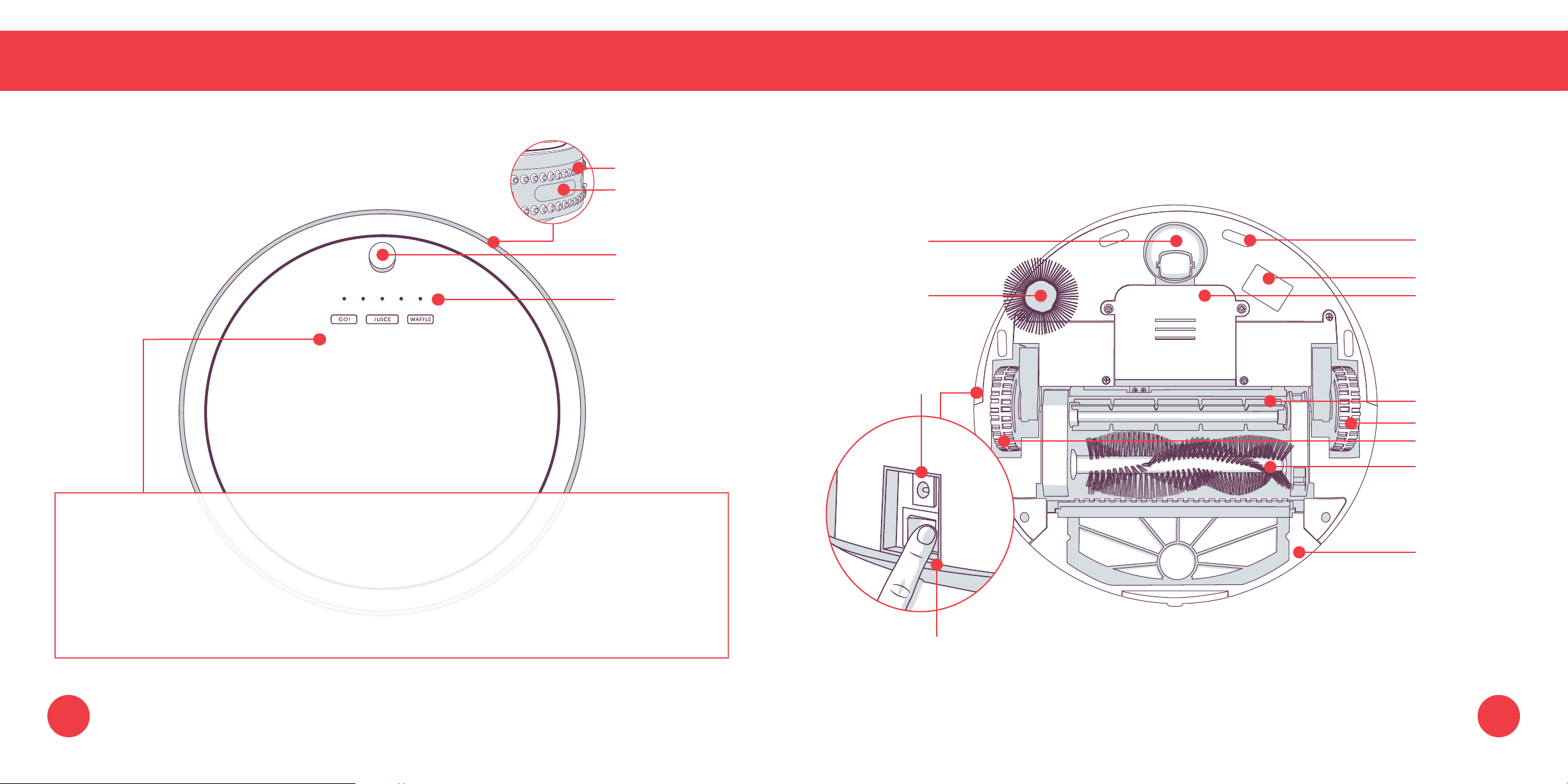
Top View
Touch Sensors
Bottom View
Wall Sensors
Front Wheel
Edge Sensors
Transmitter
UV Lamp
Charging Indicator
Side Brush
Battery
1 2 3
Charging Inlet
Rubber Brush
Left Wheel
L
R
Right Wheel
Main Brush
Cover Buttons
Dustbin
1 GO! - Sends bObi to clean.
2 JUICE - Sends bObi to her charging station.
3 WAFFLE - Sends bObi to clean localized mess.
Power Switch
Covered with clear plastic when bObi rst arrives
7 8
Getting Started
Who is bObi?
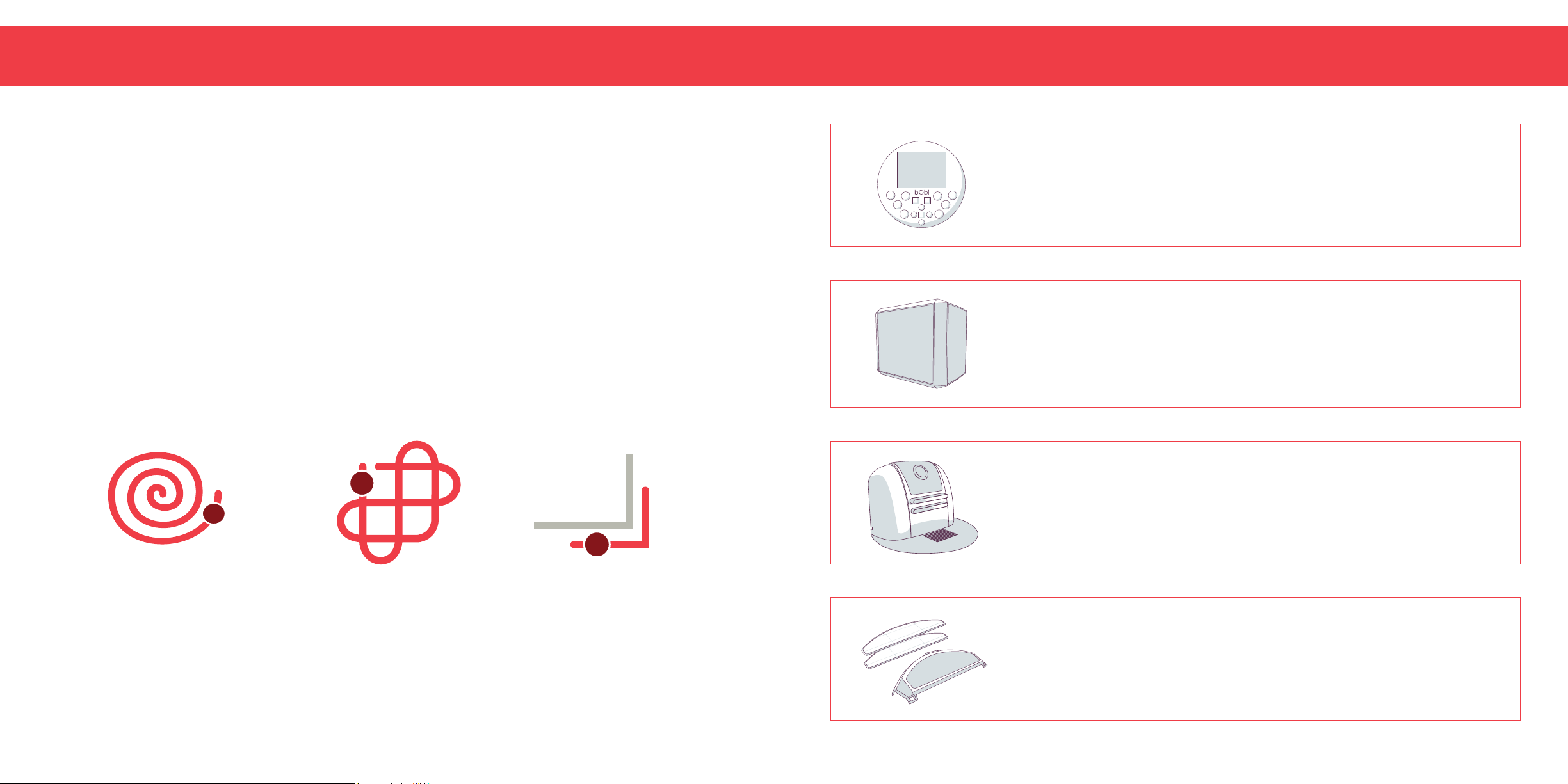
bObi is an autonomous robotic vacuum cleaner, at your service! She can vacuum, sweep, and
mop all at the same time — and at the end of her cleaning session, she automatically returns to
her charging station for a power nap. Set bObi to clean on a schedule and she’ll clean on her own
even when you’re not around.
How does bObi nd her way around?
bObi doesn’t store any data about your home; instead, she uses a network of reactionary sensors
to detect obstacles. To maximize her coverage, she may spiral outward, zigzag across a small
area, or follow along walls. If she seems to be ignoring some spaces or spending too much time
on others, don’t worry! bObi will efciently clean your home over the course of a full cycle — just
check her dustbin for the evidence!
Should I pick up bObi?
You may pick up bObi while she’s cleaning, but it’s best to let her work in her own way. Moving
her around, manipulating her movements, or picking her up may confuse her and disrupt her
cycle.
Get to Know bObi
FullCommand™ Remote
If you wish to control bObi’s movements manually, you may use the
navigational buttons on her remote.
bObi blOck™
You can keep bObi away from obstacles that she nds difcult to
navigate, such as areas with cords or high ledges, by using blOck™.
Charging Station
bObi automatically returns to her charging station when low on battery. If
bObi is having trouble nding her station, try re-syncing it and relocating
it to a more easily accessible location with more space around it.
Mop Attachment
bObi may have a tough time climbing over elevated surfaces while
mopping. Remove bObi’s mop when she is not cleaning smooth
surfaces. Do not let her climb onto carpet or rugs when mopping.
Quick Start
Getting Started
Get to Know bObi
Navigating Difcult Obstacles
Unique Furniture
bObi is designed to maneuver
around furniture of most
shapes and sizes, but she
may nd it difcult to clean
under chairs with narrow legs
or around furniture that is too
low for her sensors to detect.
Specialty furniture, such as
desk chairs with wheels or
stools with circular bases,
may also confuse her — but
don’t worry, bObi usually
nds her way around with
time.
Dark-Colored
Carpet
If bObi repeatedly backs up
or displays an error message
while cleaning dark carpet,
then you’ll need to deactivate
the edge sensors. To do so,
simply use bObi’s blindfold
stickers to cover her edge
sensors. Just remember that
while bObi’s edge sensors
are deactivated, she will not
be able to detect edges or
stairs!
Shag Carpet
bObi’s main and side brushes
are not designed to clean shag
carpet or rugs with long bers.
If you’d like bObi to clean shag
carpet or long-bered rugs,
you may remove her main and
side brushes and allow her to
vacuum without it.
Inclines
Sometimes bObi will attempt
to drive up angled surfaces,
get stuck for a few minutes,
and then decide to clean
somewhere else. As long
as bObi does not stop and
display an error message on
her remote’s screen, let her
continue cleaning and nd
her own way around. Take
note of the areas bObi nds
the most challenging and, if
possible, adjust your furniture
accordingly.
Easy Fix
Use bObi blOck™ to keep
bObi away from areas she
finds particularly challenging.
bObi blOck
™ emits a digital
barriers that bObi won’t cross.
11 12
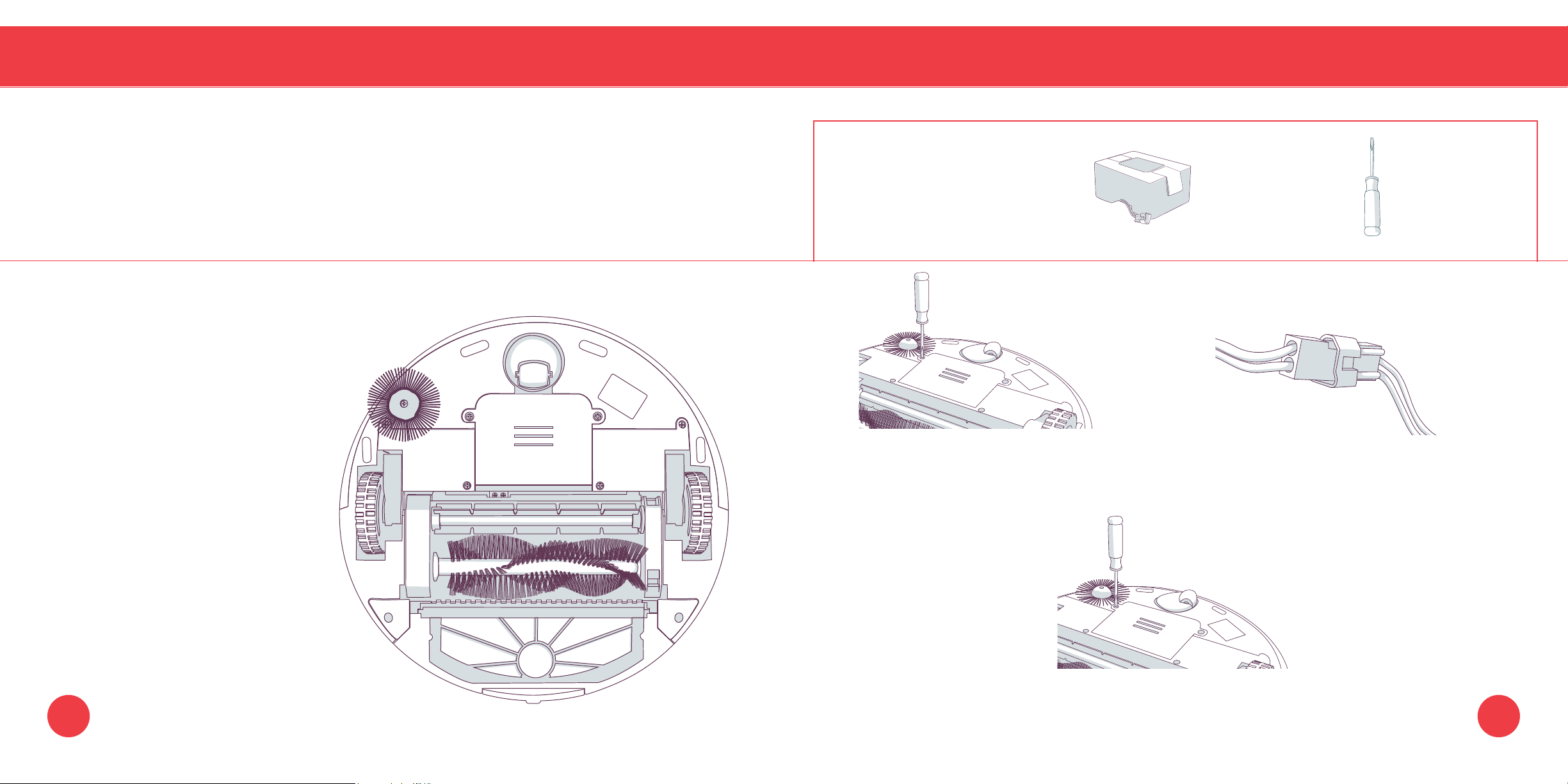
Get bObi Started: bObi will be ready to clean in just 3 easy steps.
Getting Started
Step 1: Install bObi’s Battery
Parts You’ll Need: Battery Phillips Head
Screwdriver
1. Remove the 2 screws on the battery cover
2.
Plug the battery into its socket, then slide
using a Phillips head screwdriver. the battery into the compartment.
R
L
3. Replace the screws on the battery cover.
13 14
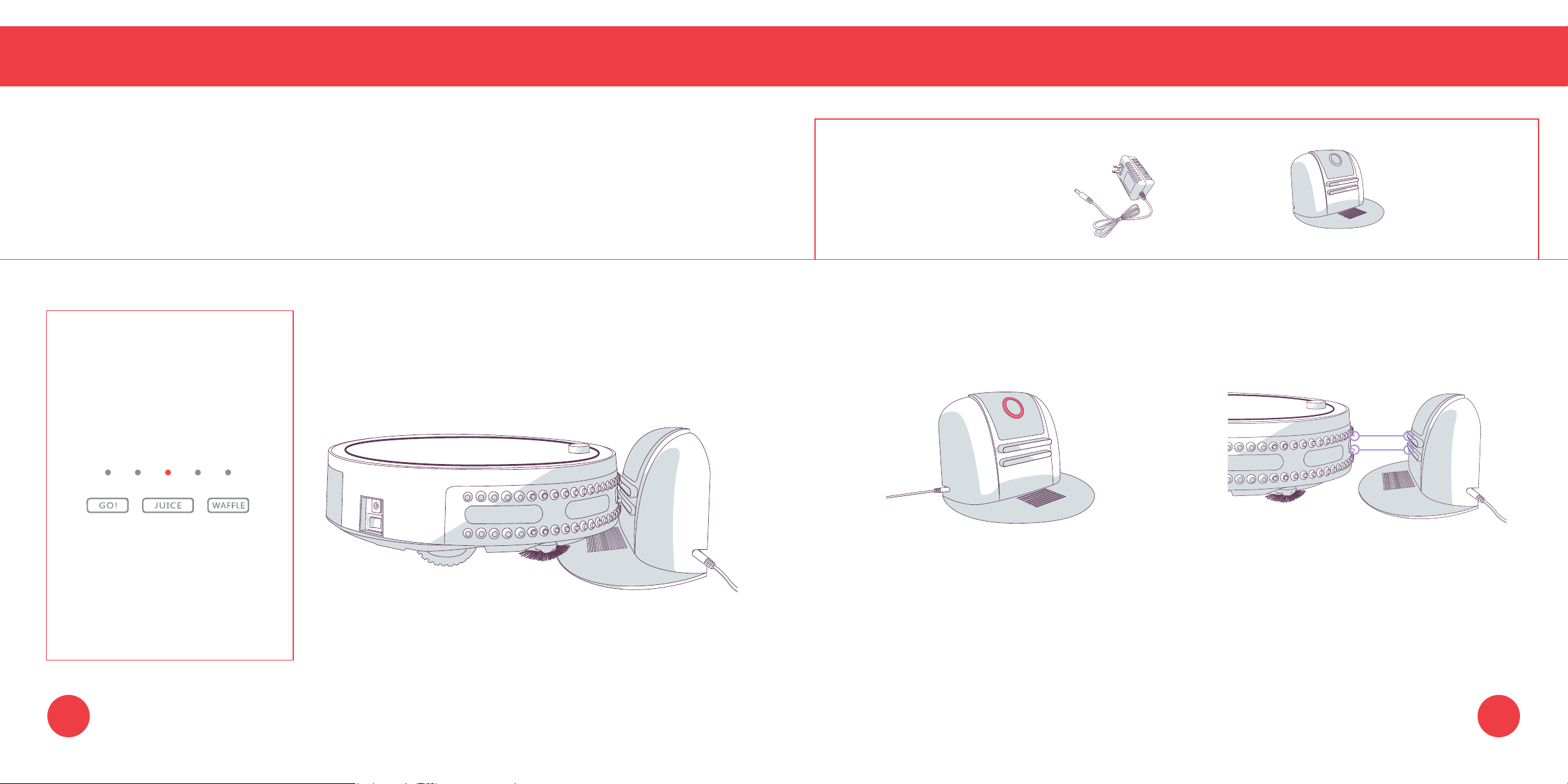
Get bObi Started: bObi will be ready to clean in just 3 easy steps.
Getting Started
Step 2: Charge bObi
Allow bObi to fully charge before using her for the rst time.
Parts You’ll Need: Charging Charging
Adapter Station
When bObi Is Charging:
The charging indicator’s center
light will flash to indicate that
she is charging.
When bObi Is Fully Charged:
1. Plug the charging adapter into the side 2. Place bObi on her charging station
The center light remains still.
of the charging station. The station’s with the metal nodes on her front resting
power light will turn on. against the plates on her station.
15 16
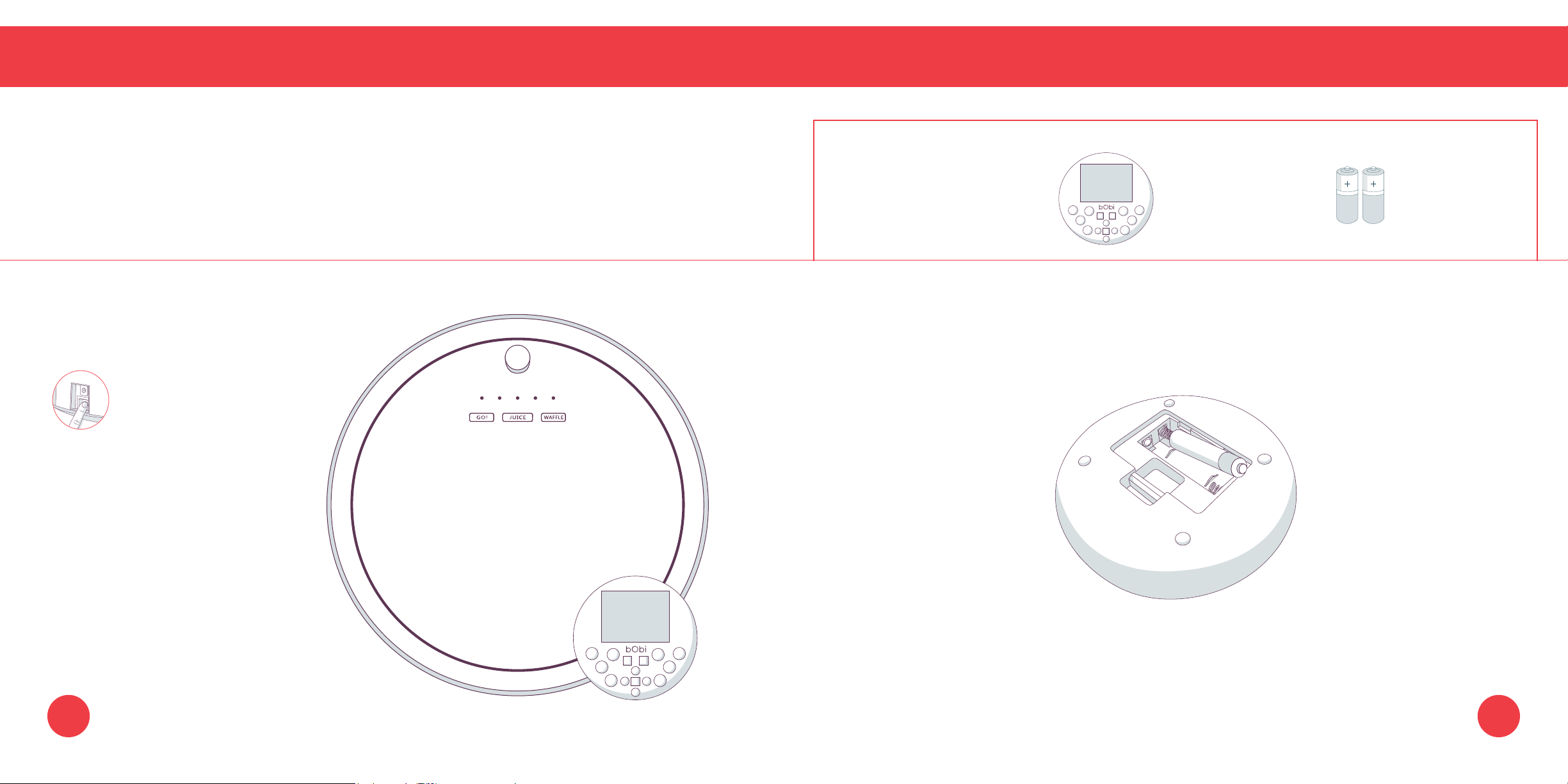
Quick Start
Step 3: Prepare bObi’s Remote
Setup bObi’s remote so that she can respond to its commands.
Getting Started
Get bObi Started: bObi will be ready to clean in just 3 easy steps.
Parts You’ll Need: FullCommand™
Remote
AAA Batteries x2
(not included)
Quick Tip:
Make sure to remove the
clear plastic covering on
bObi’s power switch.
Insert 2 x AAA batteries to turn
on bObi’s remote.
17 18
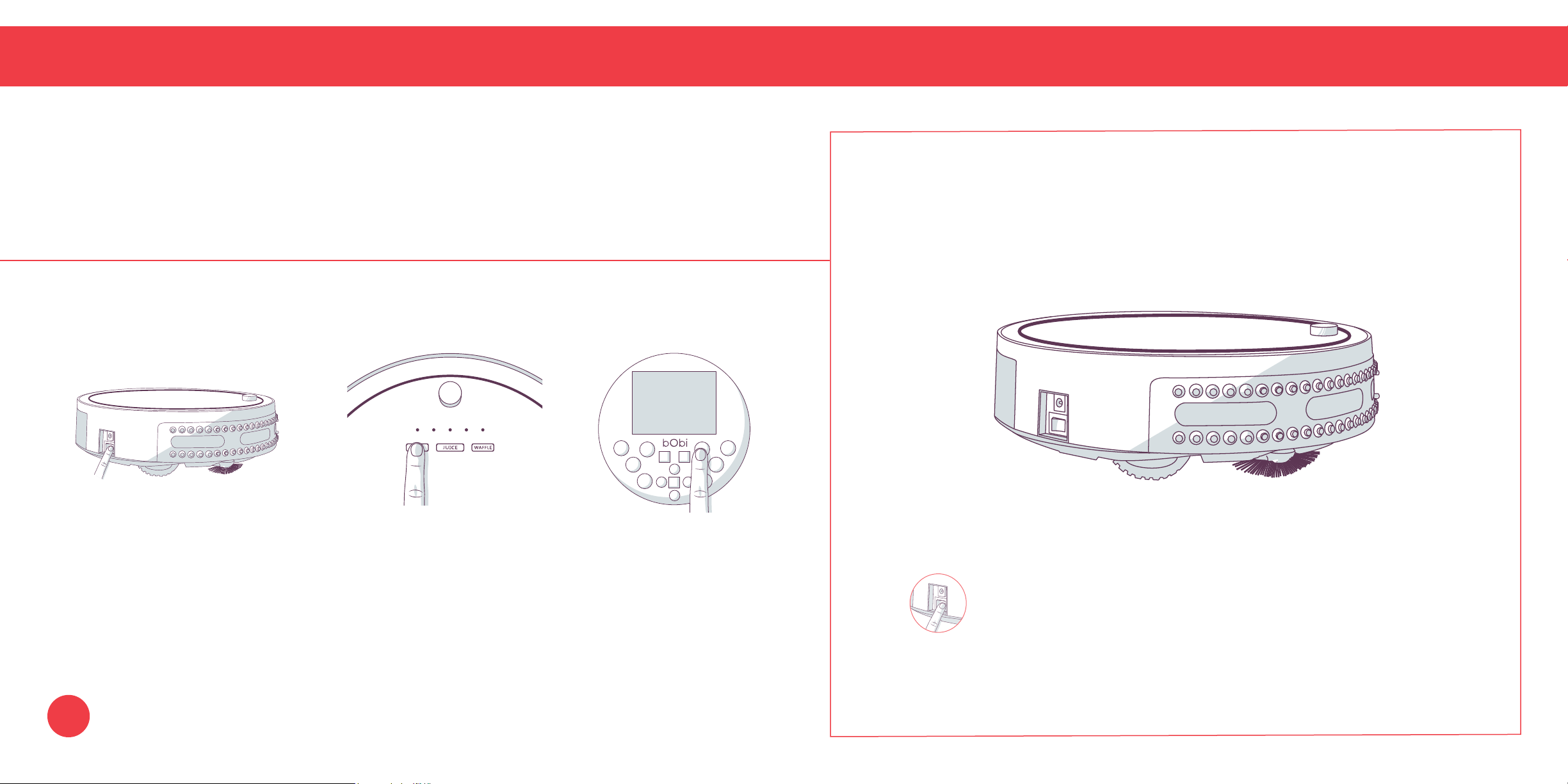
Get bObi Started: bObi will be ready to clean in just 3 easy steps.
Getting Started
bObi is now ready to clean!
OR
1. Flip bObi power switch ON. 2. Press the GO! button on bObi’s cover or FullCommand™
remote, and she will clean on her default Deep Clean
Quick Tip:
mode.
Make sure to remove the clear plastic covering on the power switch.
19
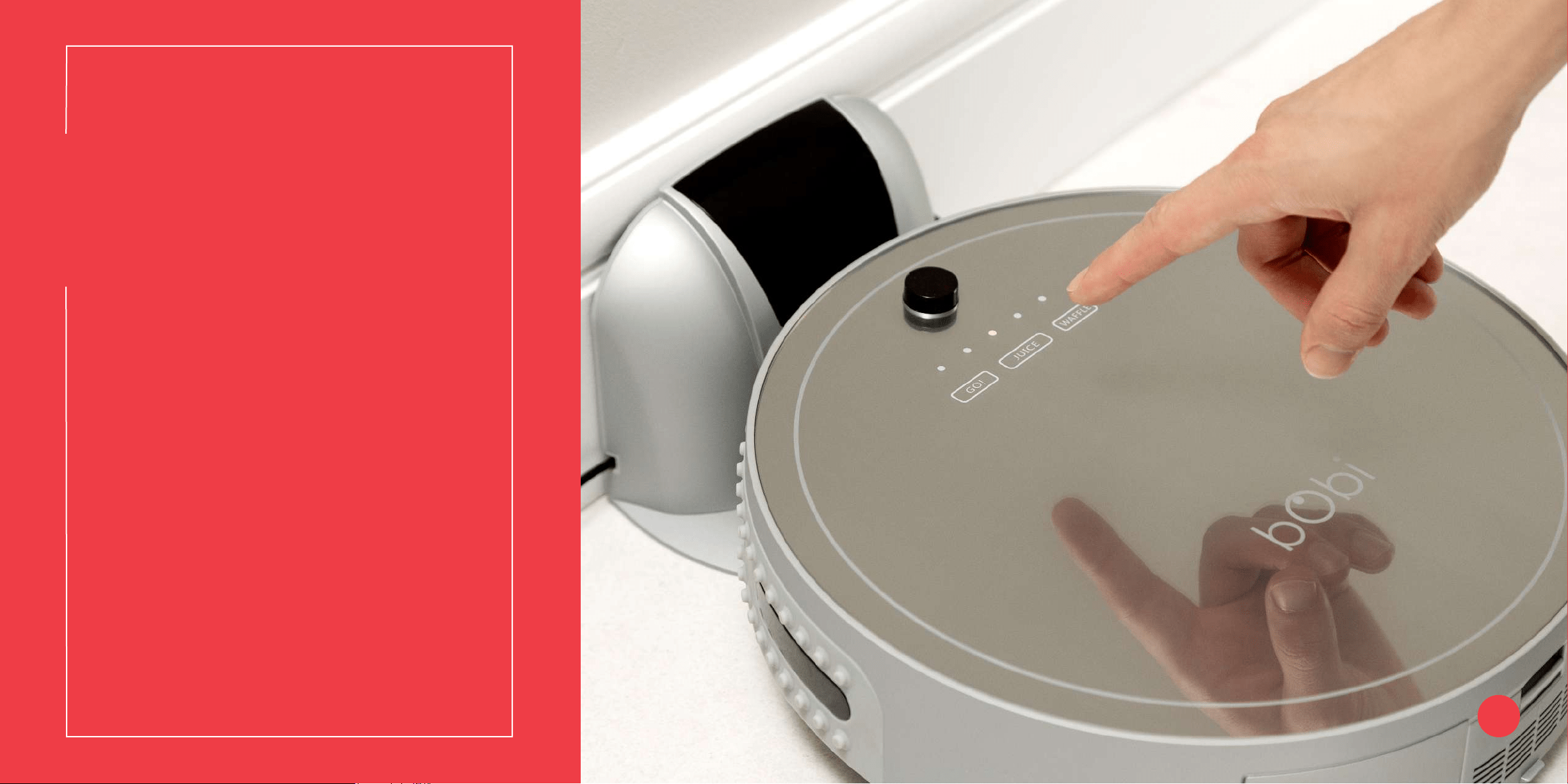
22
Charging
bObi automatically returns to her
charging station when low on battery.
To maximize bObi’s chance of nding
her station, it’s best to place it in an
easily accessible location with plenty
of space around it. If bObi continues
to have trouble nding her station,
you may need to sync it.
23 Charging bObi
25 Charging Station
27 Syncing the Charging Station
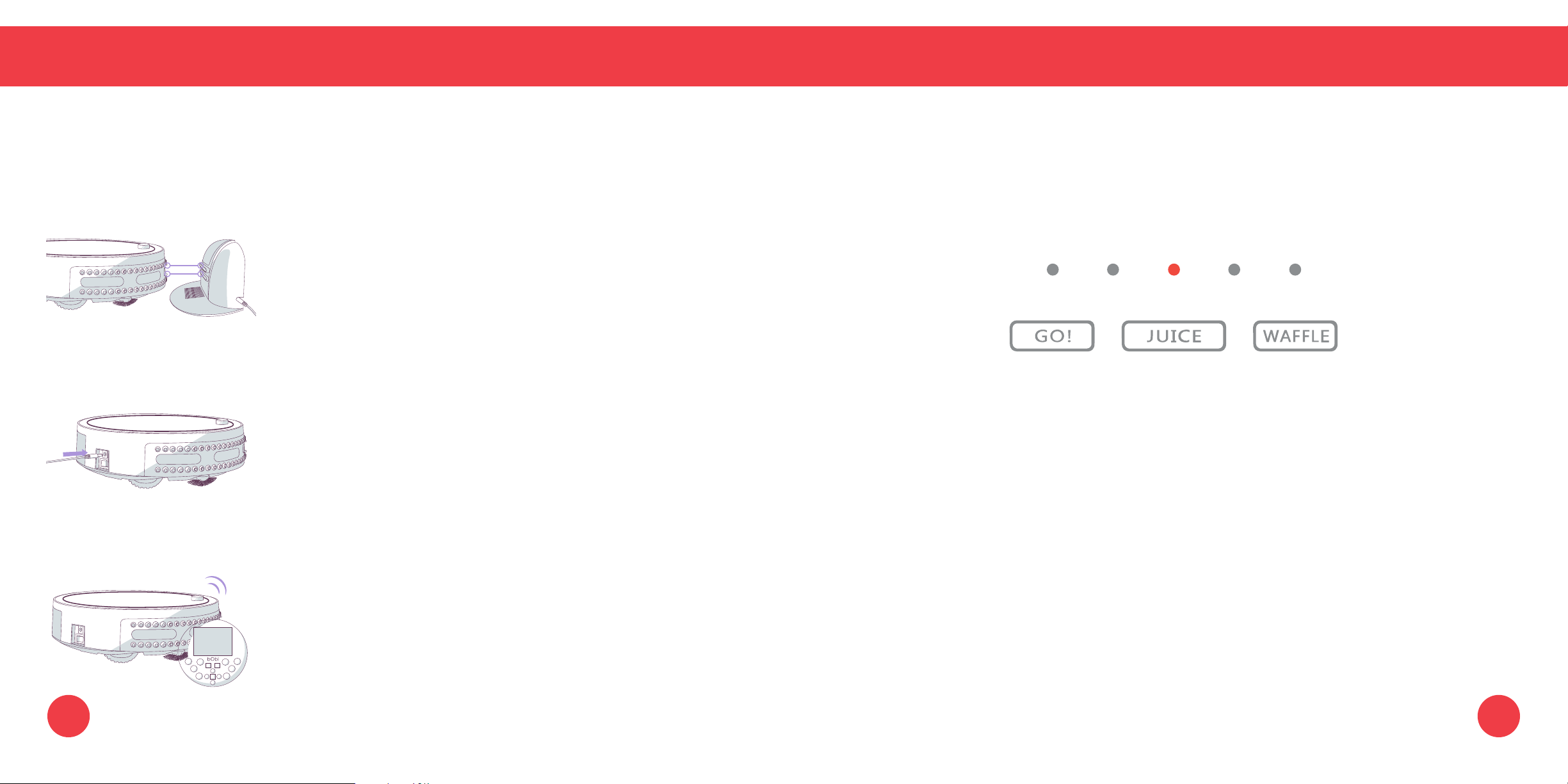
Charging bObi
Charging
Charging bObi
Charging bObi Using the Charging Station
Place bObi on her charging station with the metal nodes on her
front resting against the plates on her station. Make sure the
station is plugged in and the station’s power light is on.
Charging bObi Using the Adapter
Plug the charging adapter directly into the inlet on bObi’s side.
When bObi Is Charging:
The charging indicator’s center light will flash to indicate that she is charging.
Sending bObi to Her Charging Station
Press the JUICE button on her FullCommand™ remote or cover.
When bObi Is Fully Charged:
The center light remains still.
23 24
Quick Start
26
Charging
Charging Station
Charging Station
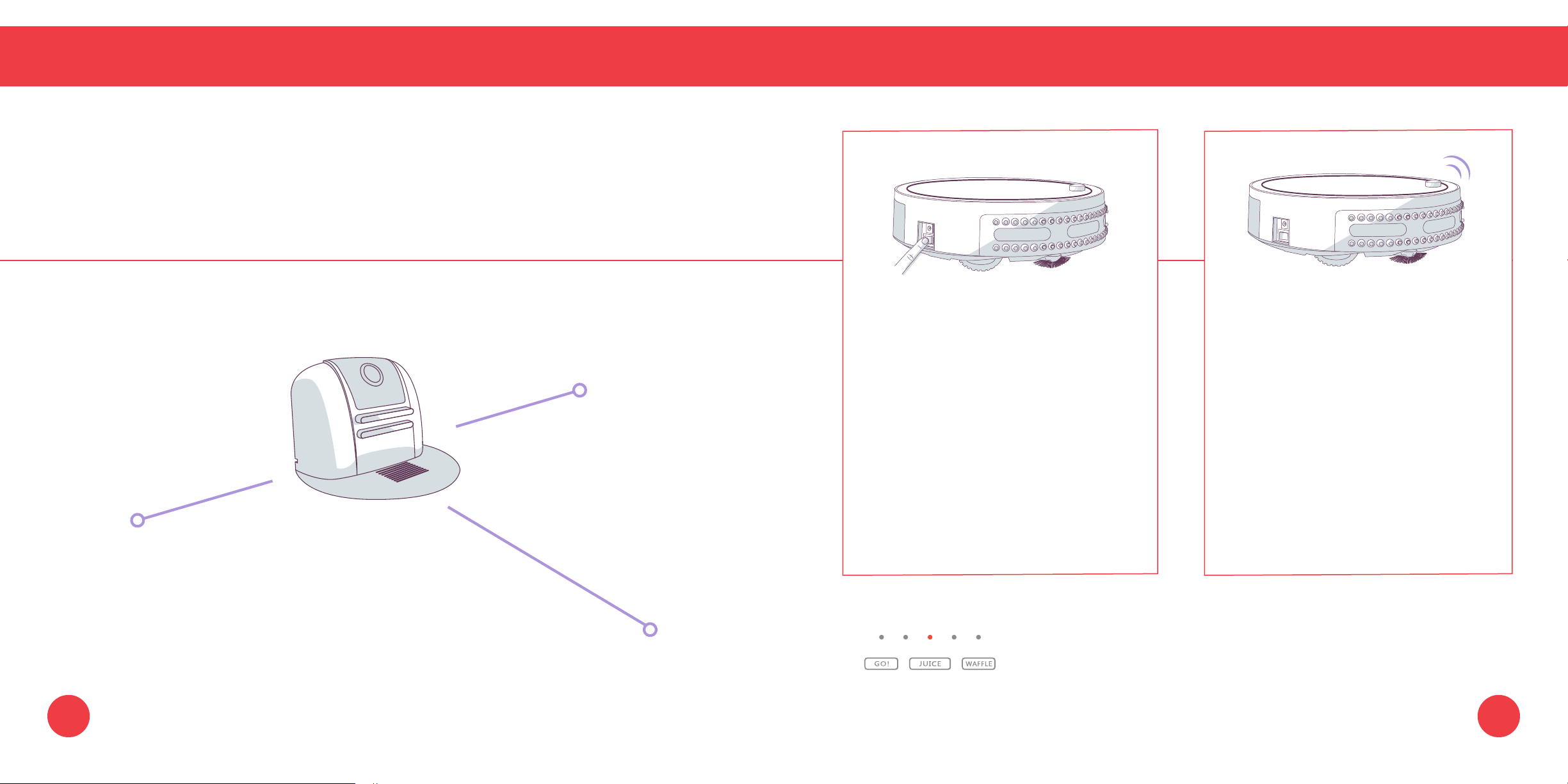
Position the charging station against a wall on a hard, at surface. Make sure there is at least 10 feet
(3 m) of open space to the front and 2 feet (0.6 m) of open space to the sides of the station.
Conserving bObi’s Battery Standby Mode
To conserve bObi’s battery, turn her After a minute of idling with her power
power switch OFF and remove her switch ON, bObi will enter standby
from her charging station when she is mode to conserve her battery. In
not in use. bObi should not sit on her standby mode, bObi will beep once
station for more than 5 days. every 2 minutes. To mute the beeps
bObi makes in standby mode, turn
her power switch OFF or place bObi
on her charging station.
When bObi is charging, the charging indicator’s center light will flash
to indicate that she is charging.
10 feet (3 m)
When bObi is fully charged, the center light remains still.
2 feet (0.6 m)
2 feet (0.6 m)
25
26
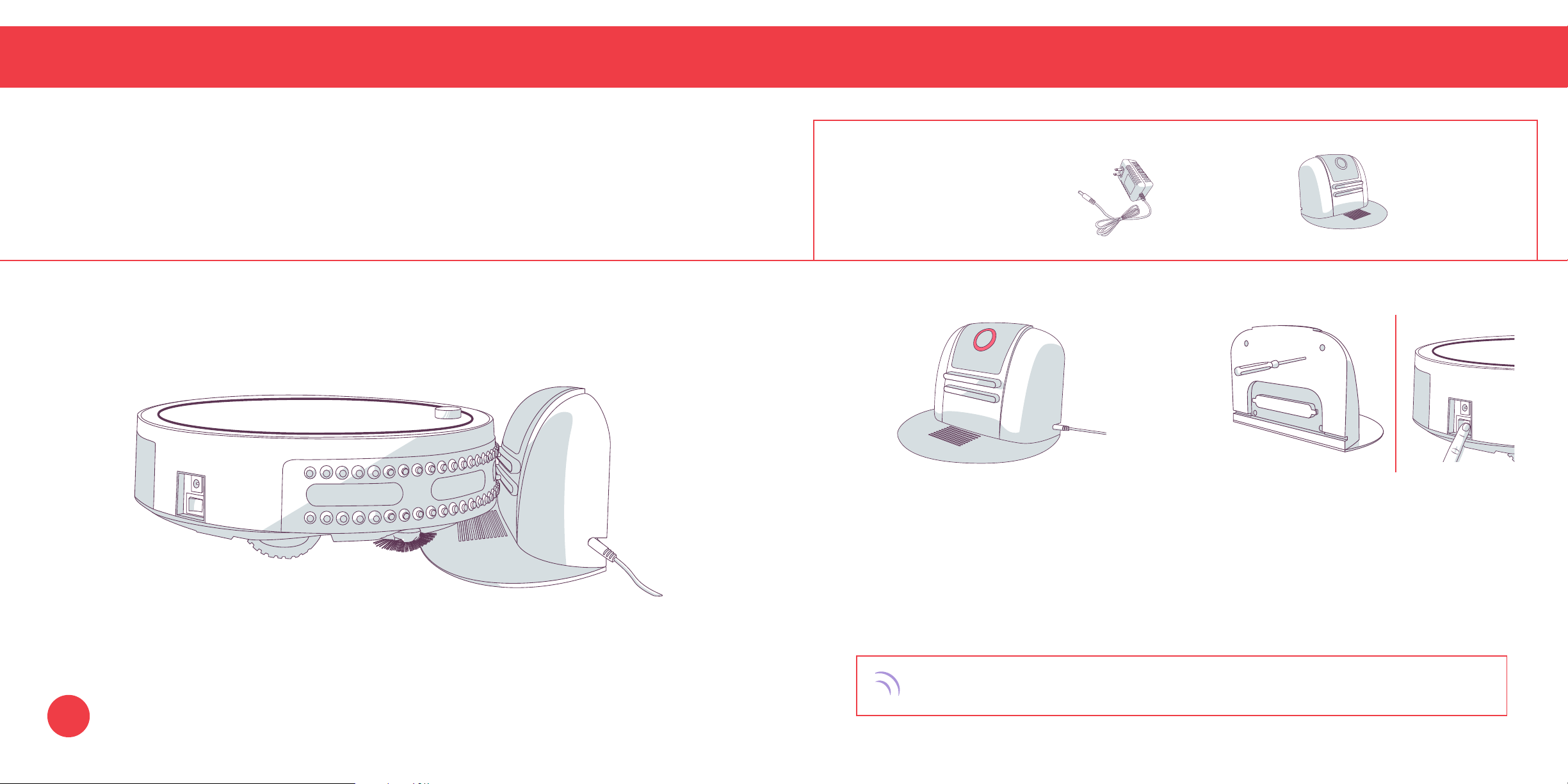
Syncing the Charging Station
Charging
Syncing the Charging Station
bObi is smart and will automatically search for her charging station when her battery power reaches 15%.
Parts You’ll Need: Charging Charging
You will need to sync the station if bObi is having trouble nding it.
Adapter Station
1. Plug the charging adapter into the side of 2. Using the syncing tool, press the SYNC
the charging station. The station’s power button on the back of the charging station
light will turn on. while at the same time ipping bObi’s
power switch ON.
Quick Tip:
!
Make sure bObi is not on the charging
station during the sync.
bObi will chirp twice to let you know the sync was successful. If bObi does not chirp,
repeat the process.
27
32
Quick Start
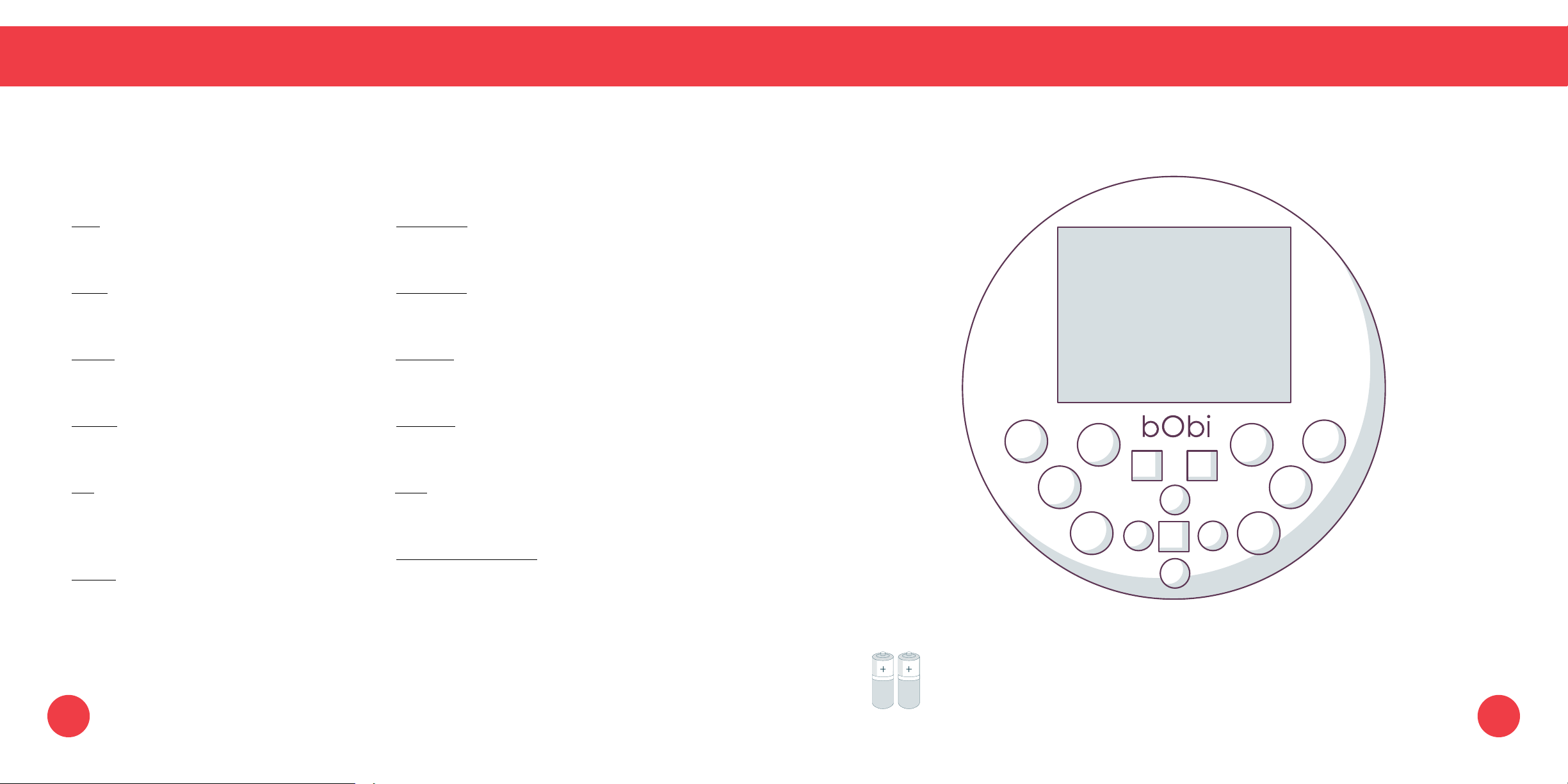
FullCommand™ Remote
Remote Buttons
Remote Buttons
1 GO! 7 CUR Time
Sends bObi to clean. Sets the current time and day.
2 Juice 8 SCH Time
Sends bObi to her charging station. Sets bObi’s cleaning schedule.
3 Wafe 9 All/None
Sends bObi to clean a localized mess. Shortcut to select/deselect all weeksdays.
4 Hi/Bye 10 UV Light
Puts bObi in and out of standby mode. Activates or deactivates the UV light.
5 OK 11 Stop
Conrms time selection or Pauses or resumes bObi’s movements.
synchroniz es the remote.
12 Navigational Buttons
6 Speed Guide bObi forward, backward, right, or left.
Slows bObi down for an intensive clean
or speeds her up to her default speed.
1
2
3
4 5
6
7
8
9
10
11 12
12
12
12
31
bObi’s FullCommand™ remote requires 2 AAA batteries (not included).
Remove the batteries if you are not using the remote on a regular basis.
Keep the remote at room temperature.
32
Quick Start
FullCommand™ Remote
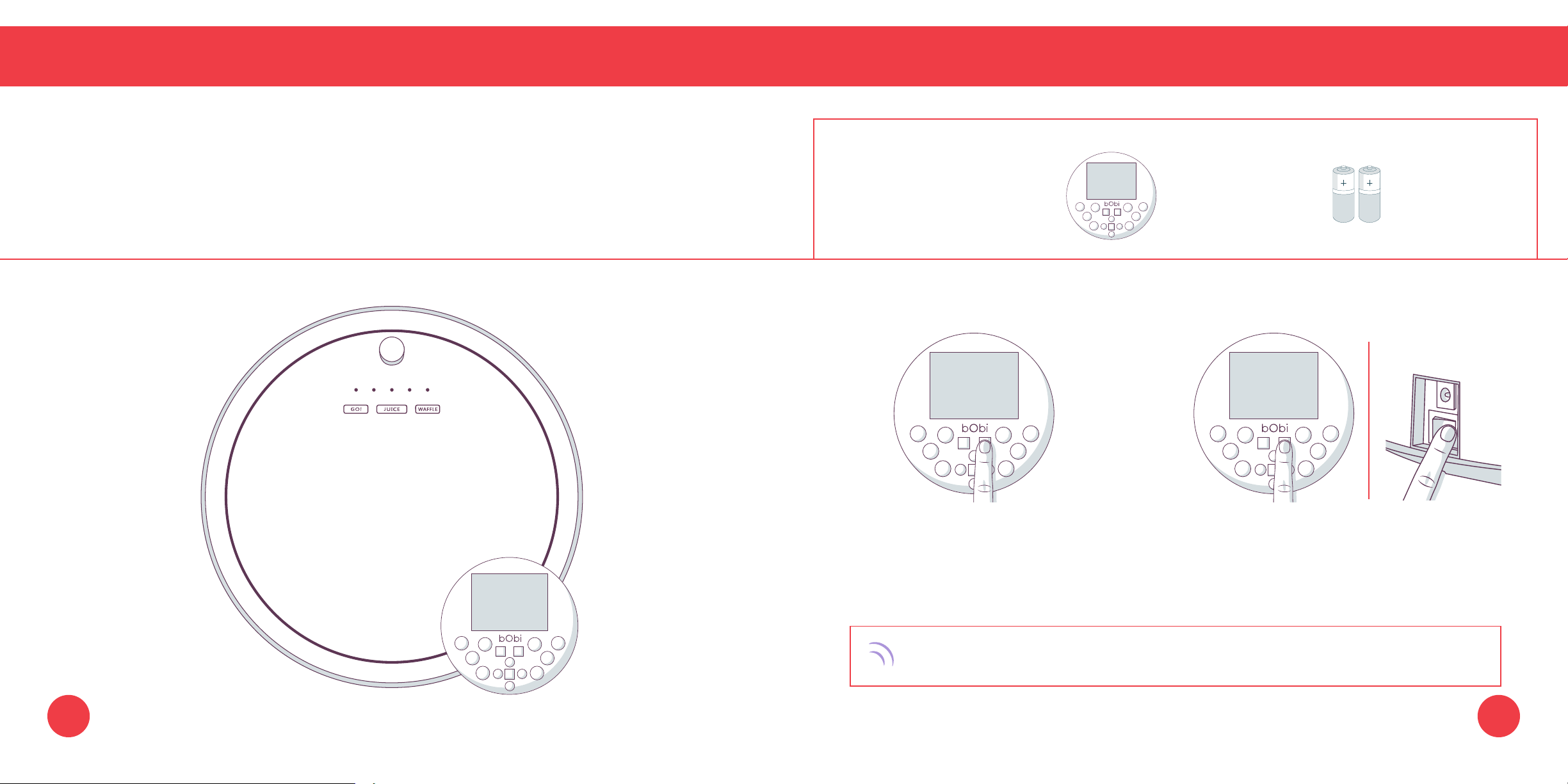
Syncing the Remote
Syncing the Remote
bObi must be synced to her FullCommand™ remote before she is able to obey its commands.
Parts You’ll Need:
FullCommand™
Remote
AAA Batteries x2
(not included)
1. Hold down the OK button on 2. While still holding down the OK
bObi’s remote. button, ip bObi’s power switch ON.
bObi will chirp twice to let you know the sync was successful. If bObi does not chirp,
repeat the process.
33 34
Quick Start
FullCommand™ Remote
Navigating bObi
Navigating bObi
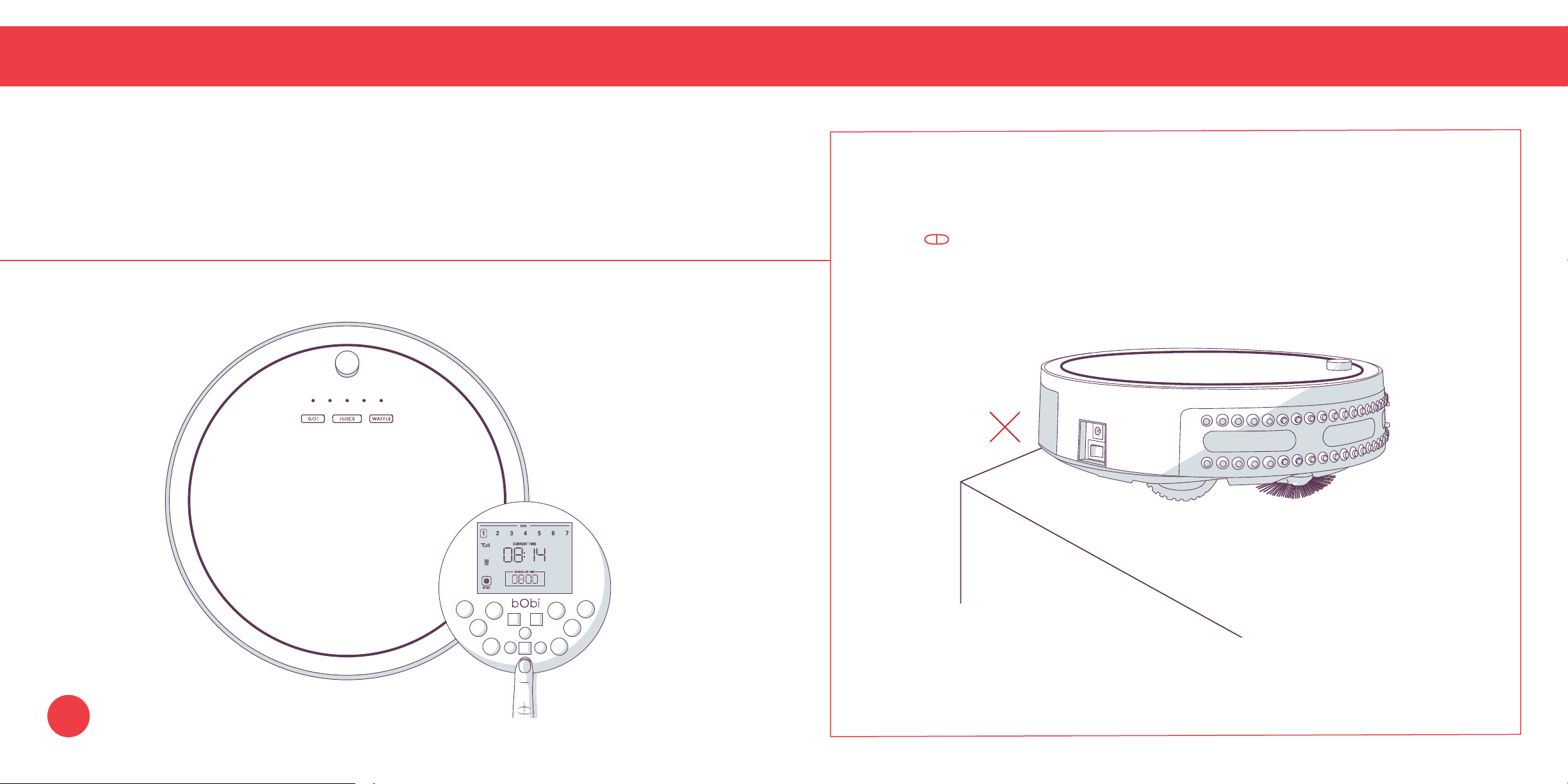
Hold down a navigational button on the remote to keep bObi moving in the desired direction.
Release the button when you are done manually driving bObi.
35
Quick Tip:
bObi’s edge sensors are located along her front, not along her back.
Do not reverse bObi towards edges, as she will fall.

Quick Start
Cleaning Schedule
Setting the Current Time and Day
Setting the Current Time and Day
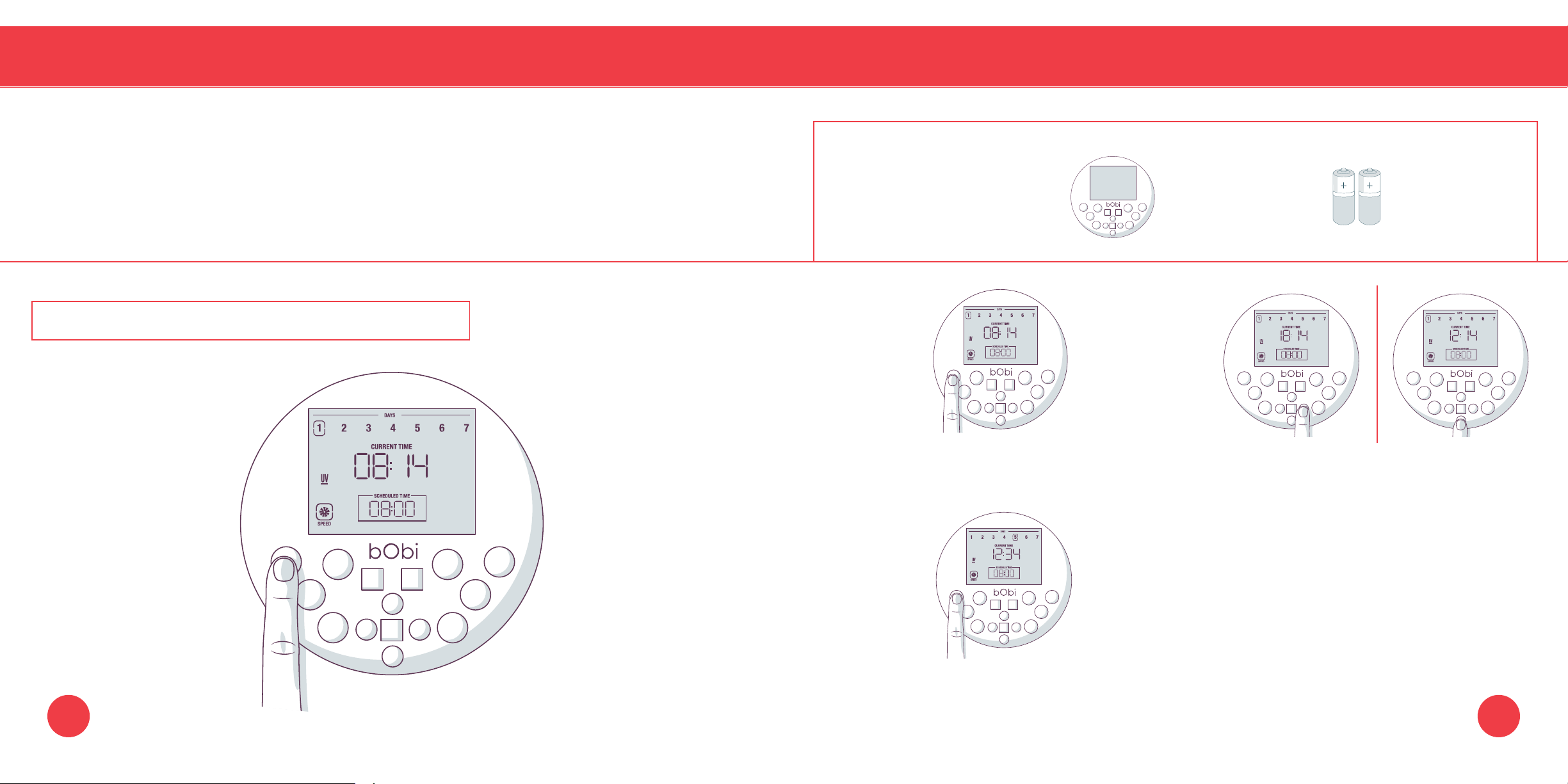
bObi can be programmed to clean at the same time on multiple days of the week through her
FullCommand™ remote. To set bObi’s cleaning schedule, you must rst set the current time and
day on her remote. Make sure bObi is turned ON and synced to her remote before proceeding.
Parts You’ll Need: FullCommand™
Remote
AAA Batteries x2
(not included)
The remote works on a 24-hour clock, so adjust accordingly.
39
1. Press the CUR TIME button on 2. Use the LEFT and RGHT buttons to move
the remote. The rst hour digit will start between minutes, hours, and days of the
ashing. week. Use the FWD and BACK buttons to
adjust your selection.
3. Press the CUR TIME button again to save
your settings. bObi will chirp to conrm
your save.
40
Quick Start
Cleaning Schedule
Setting the Cleaning Schedule
Setting the Cleaning Schedule
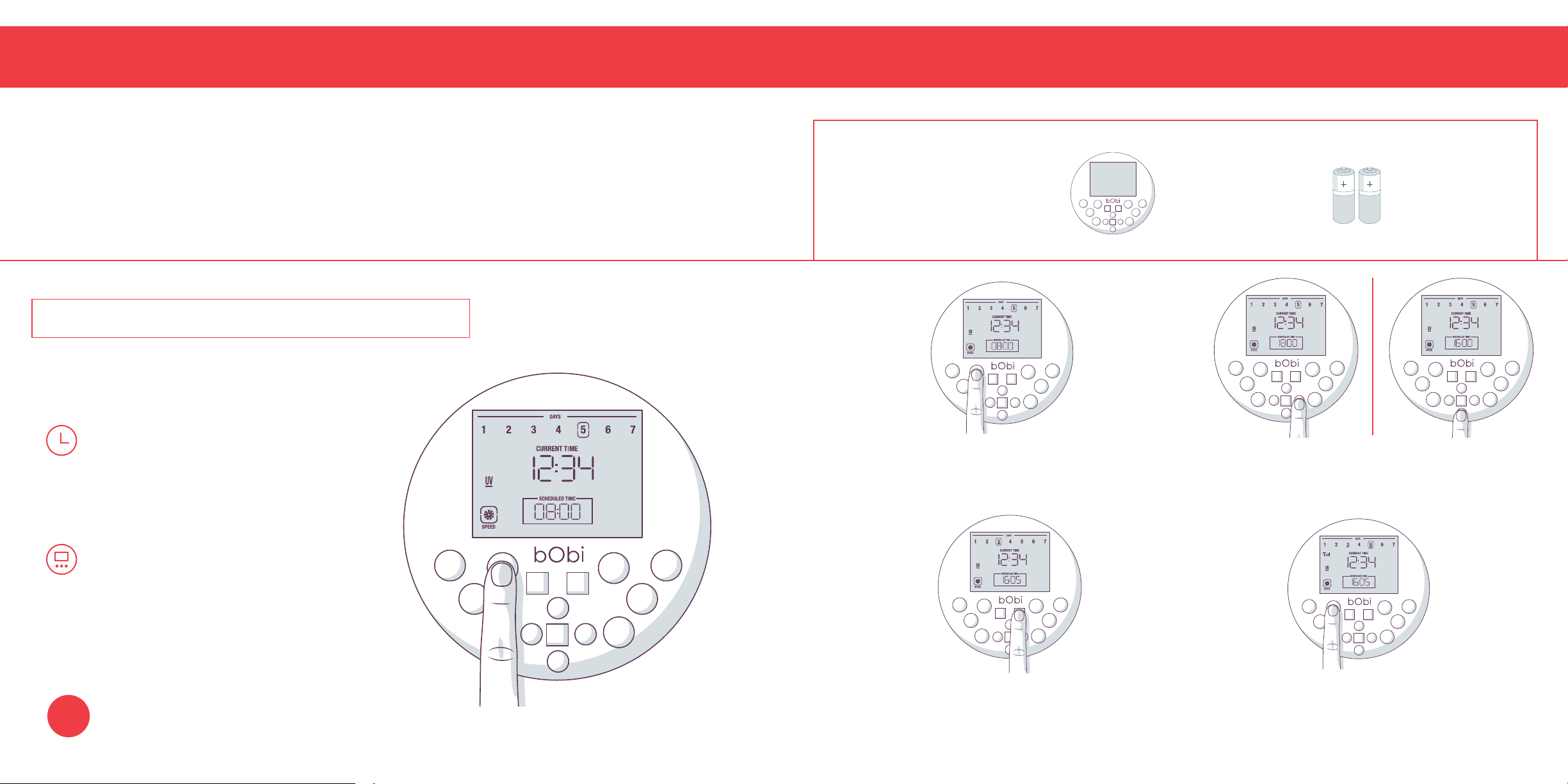
bObi can be programmed to clean at the same time on multiple days of the week through her
Parts You’ll Need: FullCommand™ AAA Batteries x2
FullCommand™ remote. After setting the current time and day on bObi’s remote, you may set her
Remote (not included)
cleaning schedule. Make sure bObi is turned ON and synced to her remote before proceeding.
The remote works on a 24-hour clock, so adjust accordingly.
Important to Note:
The remote keeps its cleaning
schedule for 4 hours after the
1. Press the SCH TIME button on the remote.
2. Use the LEFT and RGHT buttons to move
The rst hour digit will start ashing.
between minutes, hours, and days of the week.
Use the FWD and BACK buttons to adjust your
selection.
batteries are removed.
Quick Tip:
To clear bObi’s schedule, press the
SCH TIME button and go through
each day of the week, pressing
OK to deselect. The days of the
week that are selected will be lit.
3. Press the OK button to select or deselect 4. Pess the SCH TIME button again to save
days of the week. The days of the week your settings. bObi will chirp to conrm
that are selected will be lit. your save.
41
Cleaning Schedule
Auto-Resume Mode
Auto-Resume Mode
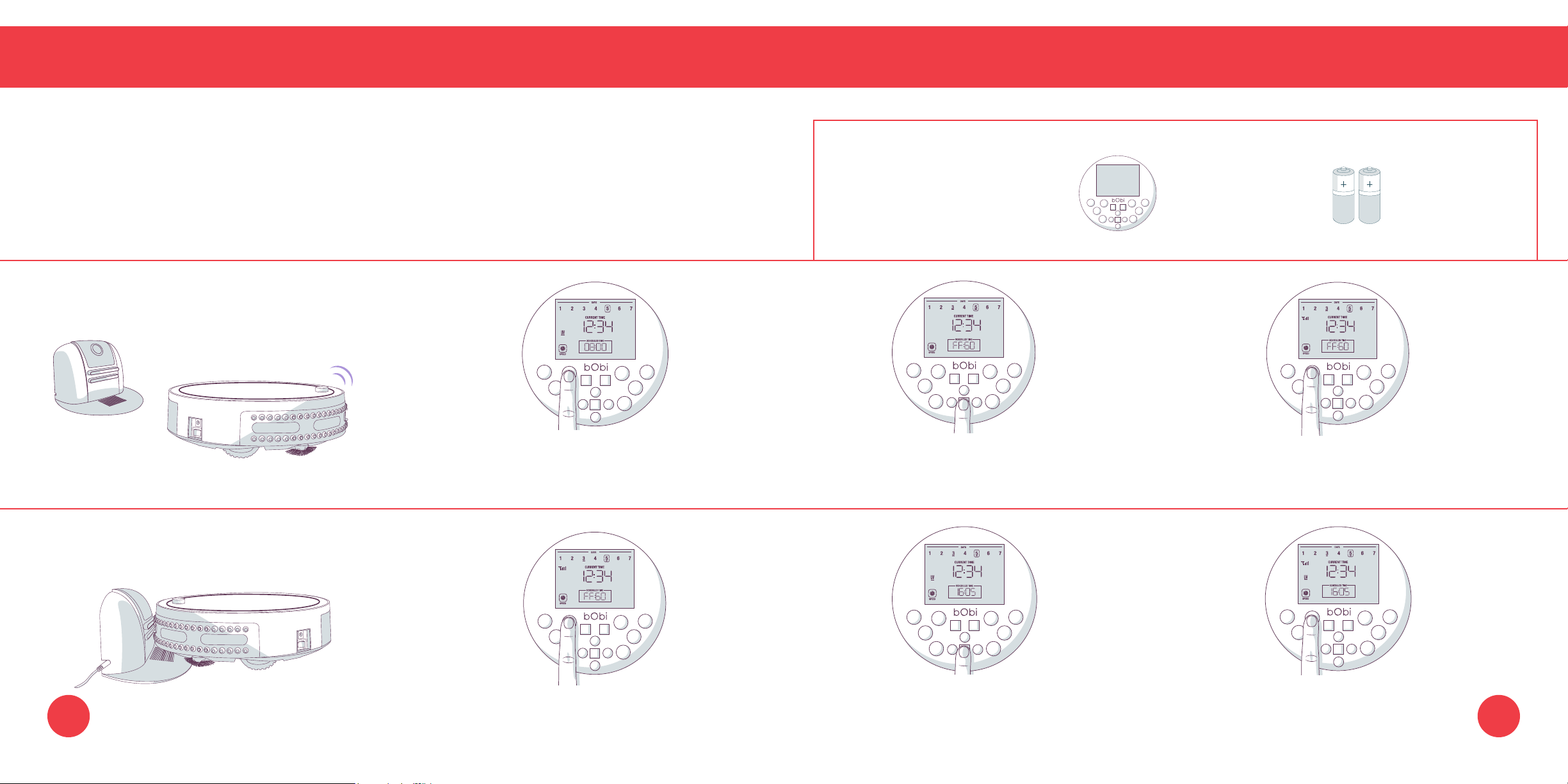
On auto-resume mode, bObi leaves her charging station after every recharge to perform “back-
to-back” cleaning cycles. To enable auto-resume, make sure bObi is turned ON and synced to her
FullCommand™ remote.
Parts You’ll Need: FullCommand™
Remote
AAA Batteries x2
(not included)
Enabling Auto-Resume
1.
Press the SCH TIME
button on the remote.
2. Press the STOP button and “FFGO” (finish
fueling and go) will appear on the remote’s
3. Press the SCH TIME button again to
save your settings.
screen.
Disabling Auto-Resume
43
1. Press the SCH TIME
button on the remote.
2. Press the STOP button and “FFGO” will
reset to the last saved time.
3. Press the SCH TIME button again to
save your settings.
44
Maintenance
Dustbin
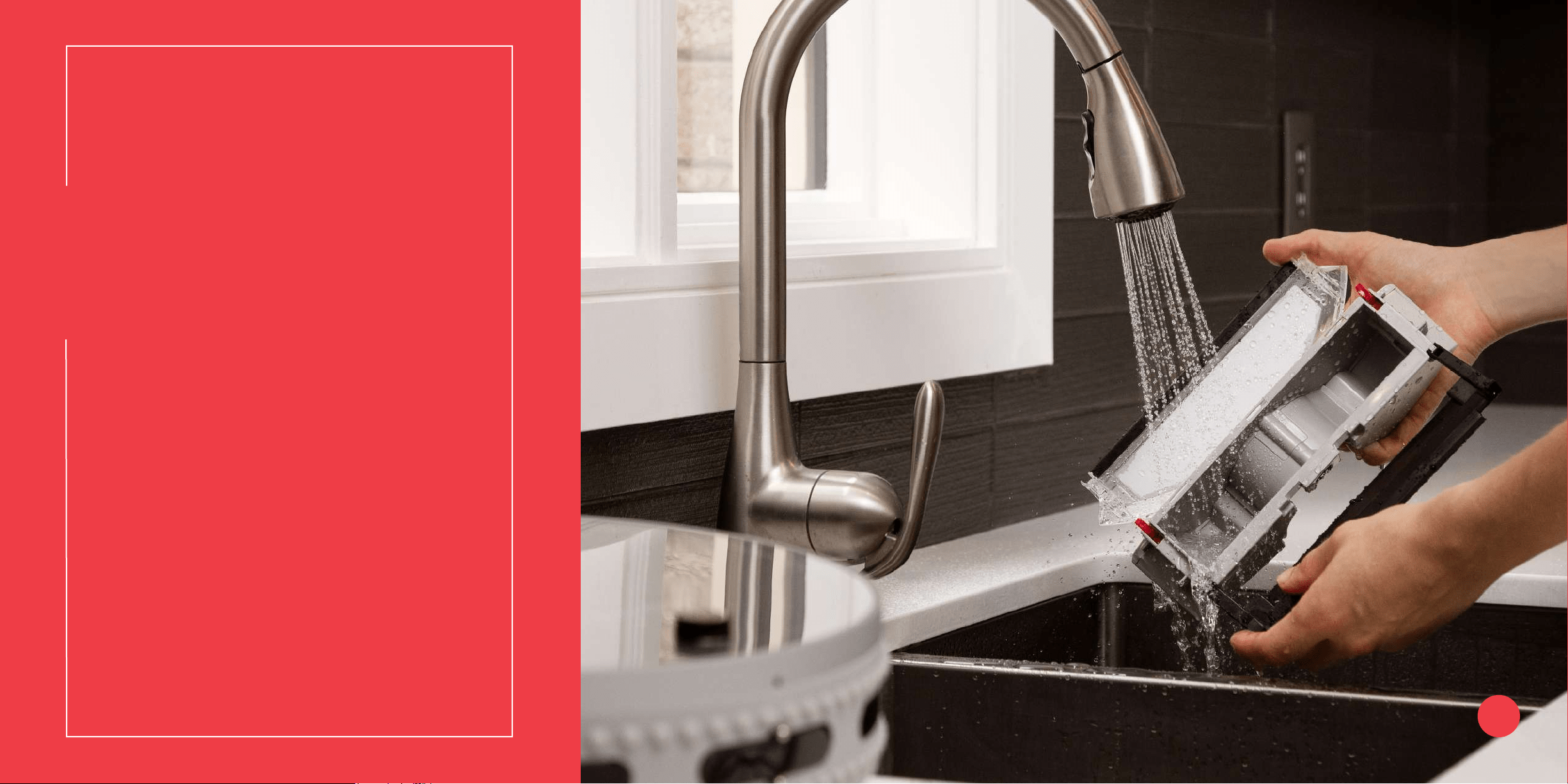
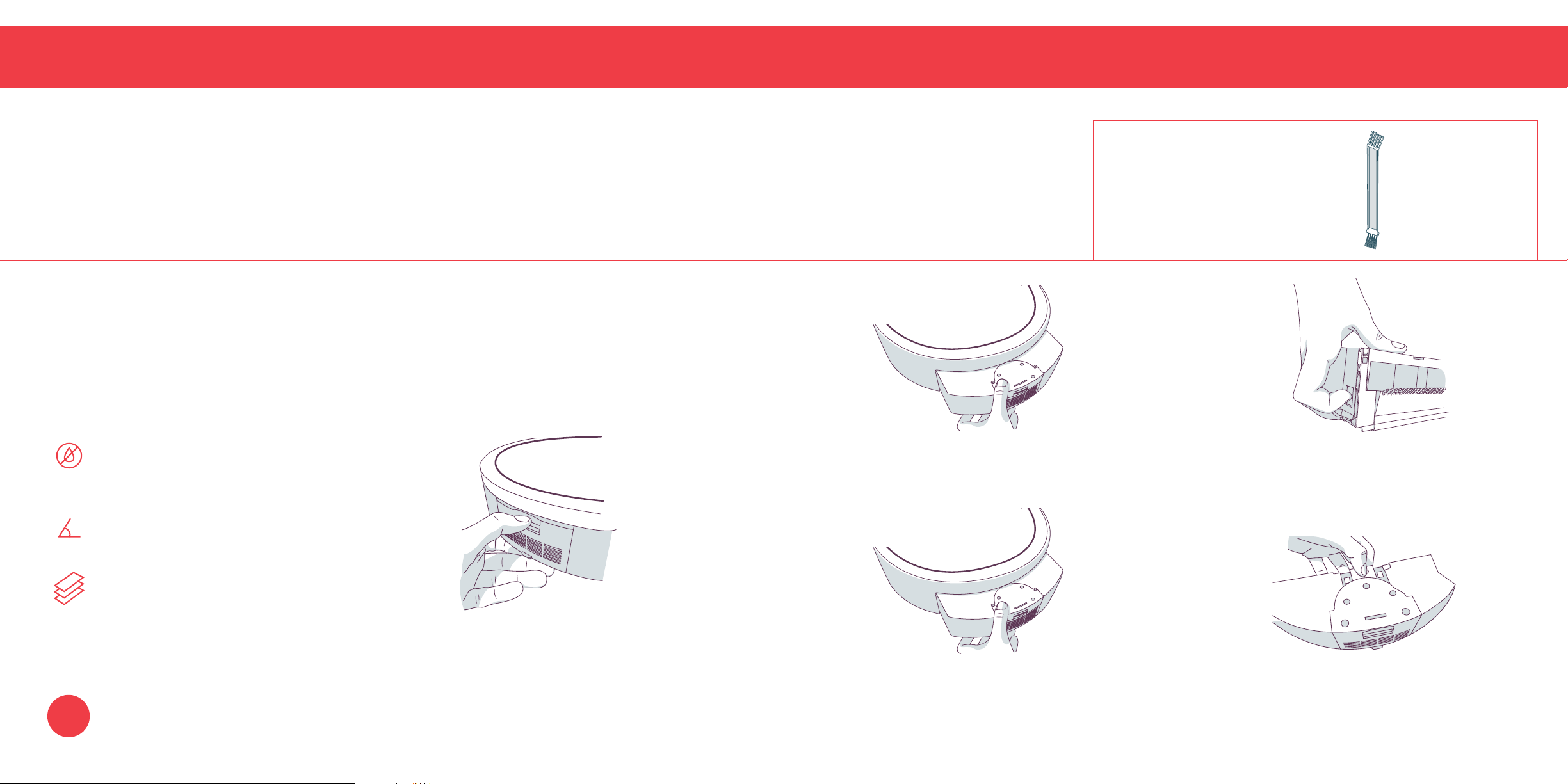
To maximize bObi’s efciency, it is best to empty her dustbin about once a week, or about once
every 6 cleaning cycles.
Emptying bObi’s Dustbin
Quick Tips:
Never ll the dustbin with
water or any other liquid with
the vacuum motor attached.
Do not force the dustbin gate
past its natural opening point.
Do not remove the dustbin
while bObi is upside down.
Dustbin
Parts You’ll Need: Cleaning Tool
1.
Hold down the eject button on the back of 2. Pull up the two color clips on either side of
the dustbin. and slide the dustbin out. the dustbin with both hands. This will
release the gate. Carefully open the gate
and dump out the contents of the dustbin.
3. Wipe the dustbin with a dry cloth or brush 4. To wash the dustbin, rst remove the
it with bObi’s cleaning tool. Carefully close vacuum motor and lter. Press the button
the gate and slide the dustbin back into on top of the dustbin to remove the vacuum
bObi. motor.
47
Filter
Maintenance
Filter
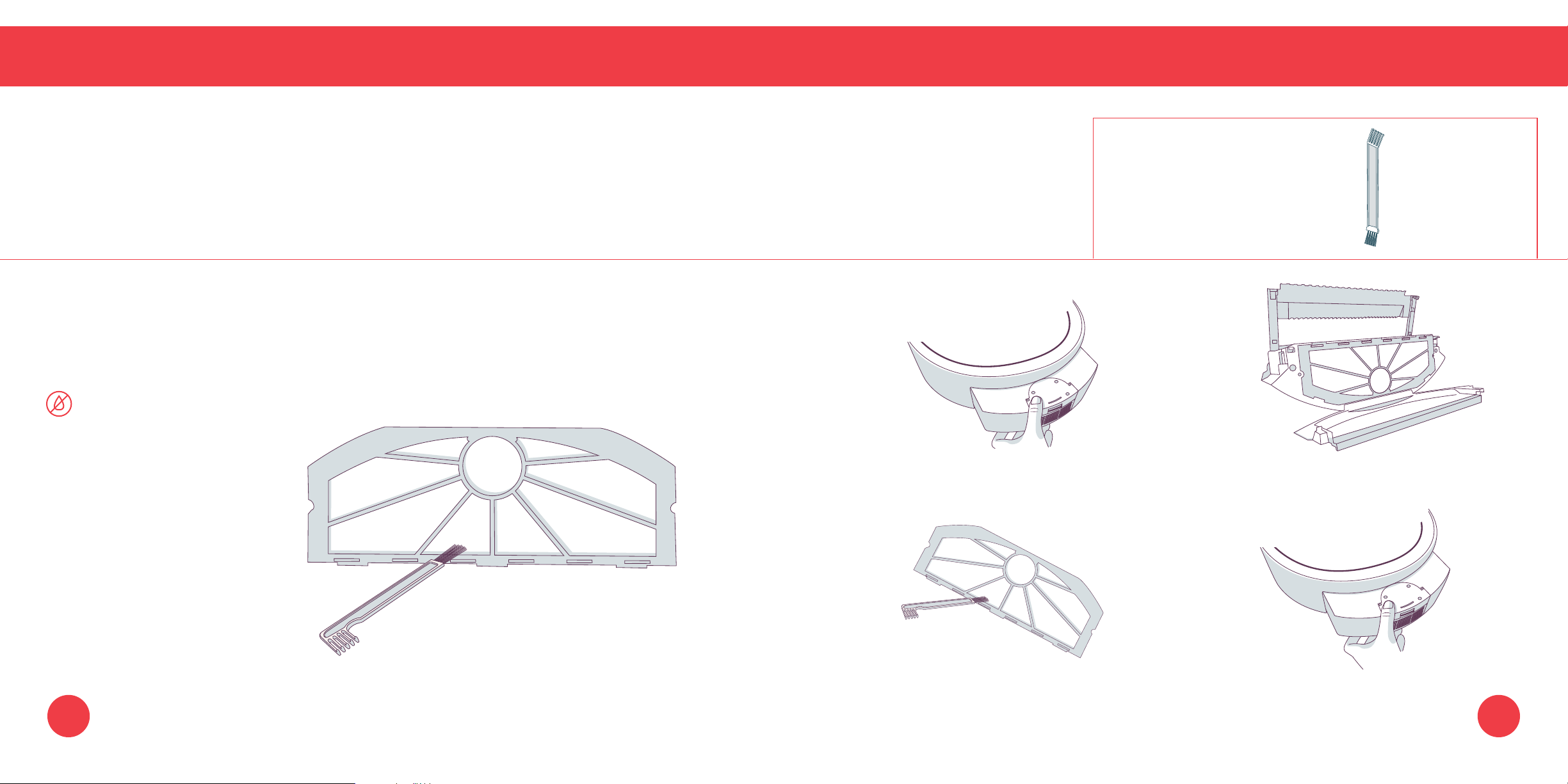
To maximize bObi’s efciency, it is best to clean her lter about once a week and replace it about once
Parts You’ll Need: Cleaning Tool
every 6 months. The lter is located inside the dustbin. These lter captures ne particles and prevents
them from escaping the dustbin.
Cleaning bObi’s Filter
Quick Tip:
Do not wash bObi’s lter
with water or any other
liquid.
1. Push the button on bObi’s back and slide
2.
Open the gate and flip the dustbin upside-
the dustbin out. down to open the filter compartment.
3. Remove the lter and brush it with 4. Replace the lter and slide the
bObi’s cleaning tool. dustbin back into bObi.
49 50
Main Brush
Maintenance
Main Brush
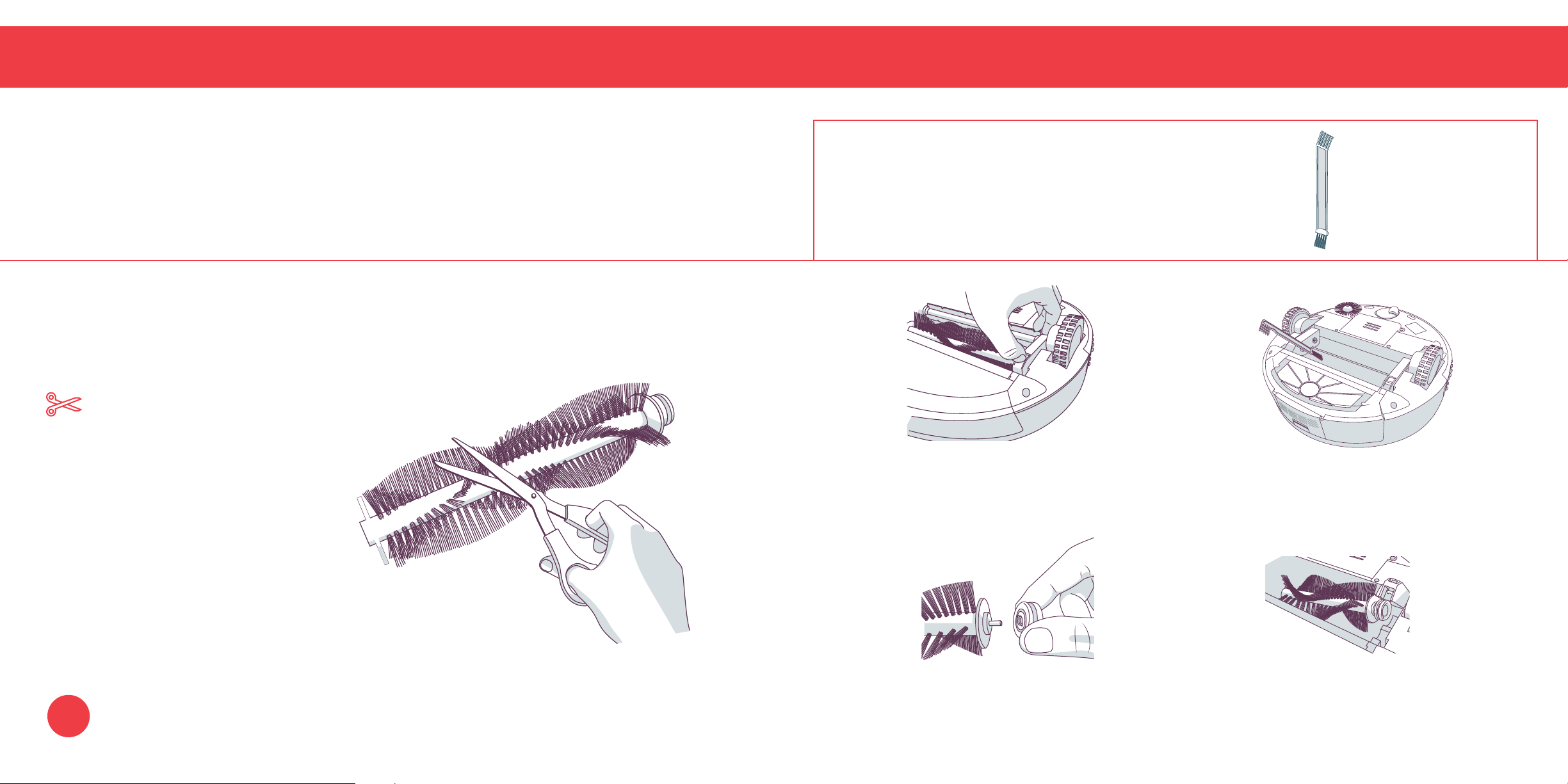
bObi uses a dual brush cleaning system. It is recommended that you open and clean bObi’s main
brushes once a week.
Parts You’ll Need: Cleaning Tool
Cleaning bObi’s Main Brushes
Quick Tip:
You may use scissors to cut away
entanglements of hair, or tweezers to
unclog the notches inside bObi.
1.
Press the latch on the side of the main
brushes. Lift the locking bar up and
remove the main brushes.
2. Use the cleaning tool to remove debris from
the ends of the brush as well as the brush
compartment.
3. Remove and clean the rubber brush 4.When done, starting with the rubber brush,
ends. Make sure the metal cores remain replace the brushes and lower the locking
in place before replacing the brush ends. bar until it clicks and locks into place.
51
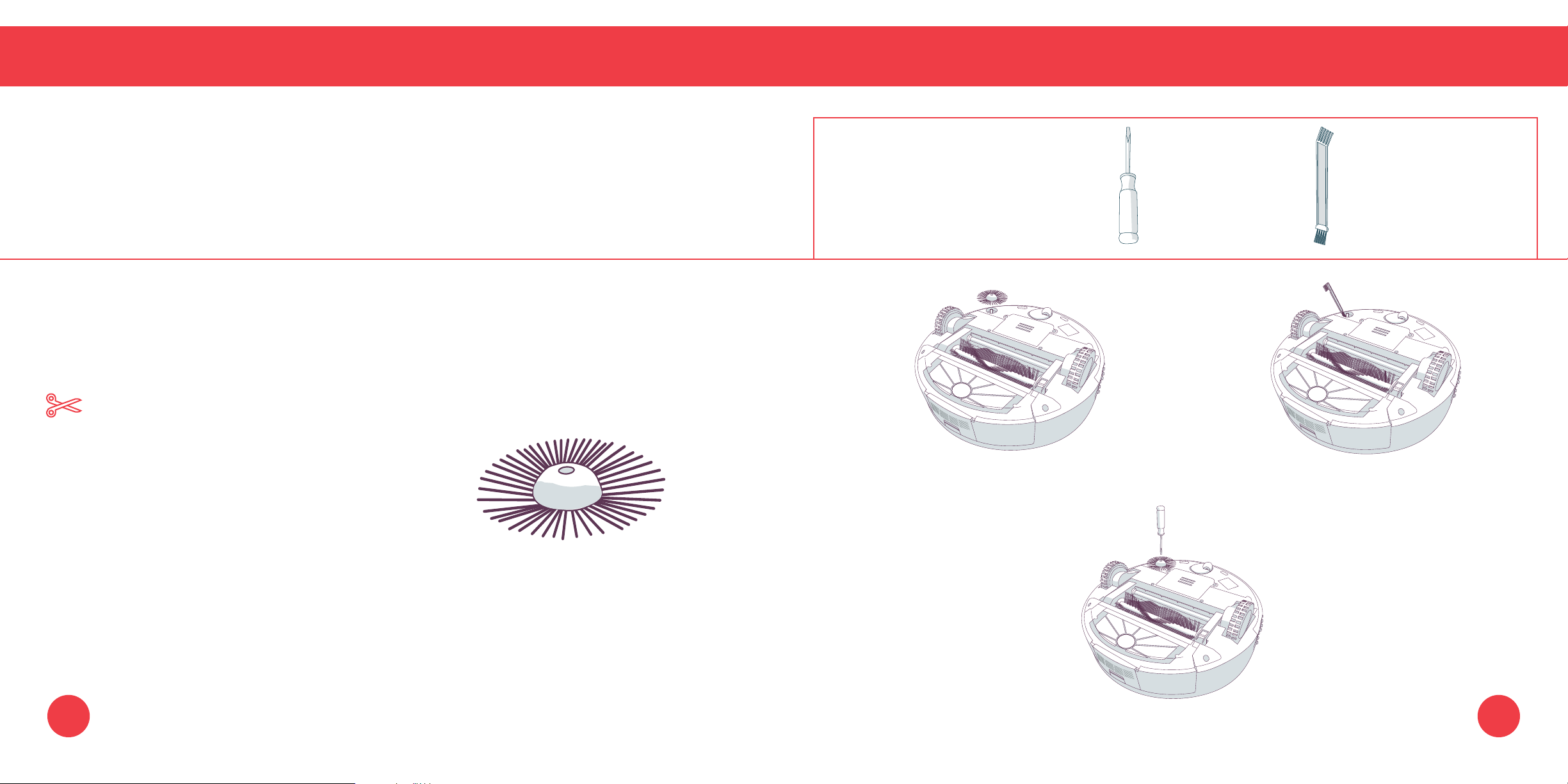
Side Brush
Maintenance
Side Brush
To maximize bObi’s efciency, it is best to clean her side brush about once a week.
Parts You’ll Need:
Philips Head Cleaning Tool
Screwdriver
Cleaning bObi’s Side Brush
Quick Tip:
You may use scissors to cut away
entanglements of hair, or tweezers to
unclog the notches inside bObi.
1. Remove the screw on the side brush using 2. Clean the brush and the brush socket using
a Philips head screwdriver. bObi’s cleaning tool.
53 54
3. When done, replace the side brush and screw.
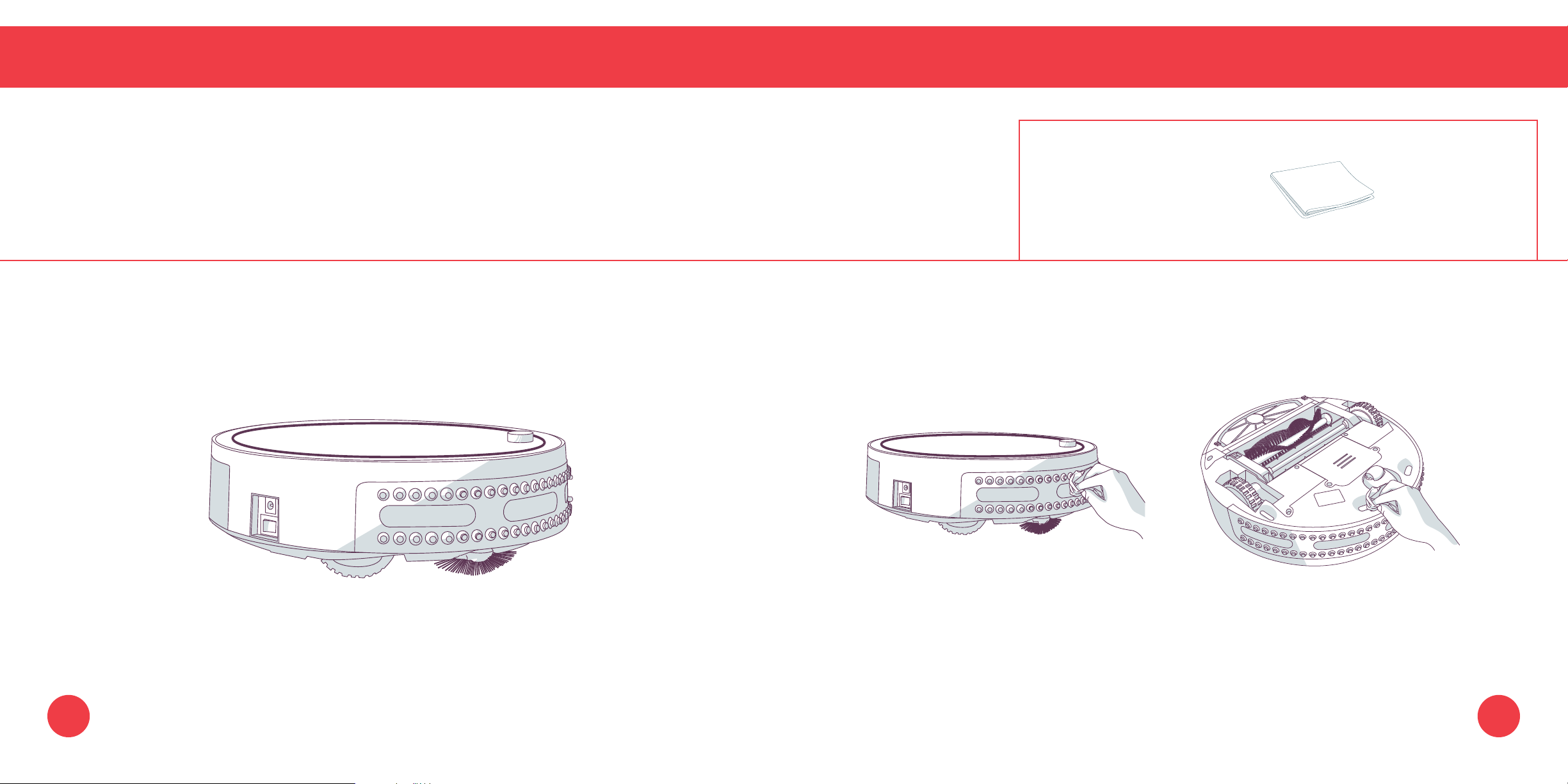
Sensors
Maintenance
Sensors
To maximize bObi’s efciency, it is best to clean her sensors about once a week. bObi’s obstacle/wall
Parts You’ll Need: Cloth
sensors are located along her bumper; her edge sensors are located along the front of her underside.
(not included)
Cleaning bObi’s Sensors
1.
Wipe the obstacle/wall and edge sensors with a soft cloth slightly dampened with cold water
or alcohol.
55 56
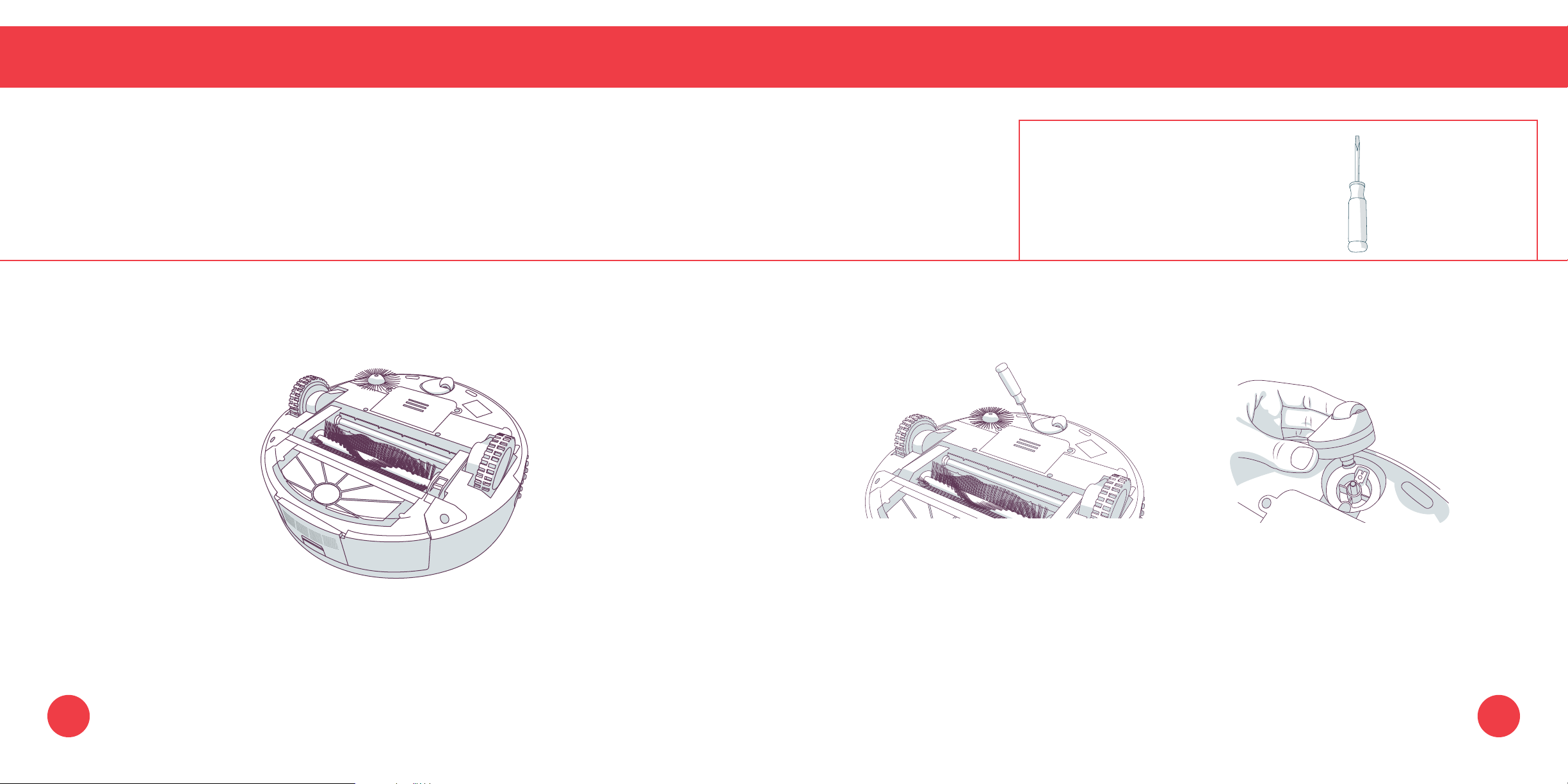
Front Wheel
Maintenance
Front Wheel
To maximize bObi’s efciency, it is best to clean her front wheel about once a week.
Parts You’ll Need:
Flat Head
Screwdriver
(not included)
Cleaning bObi’s Front Wheel
1.
Pop the front wheel out of its socket using 2. Clean the wheel and the socket then
a at head screwdriver. replace the wheel and press until
locked in place.
57 58
60
Parts and
Accessories
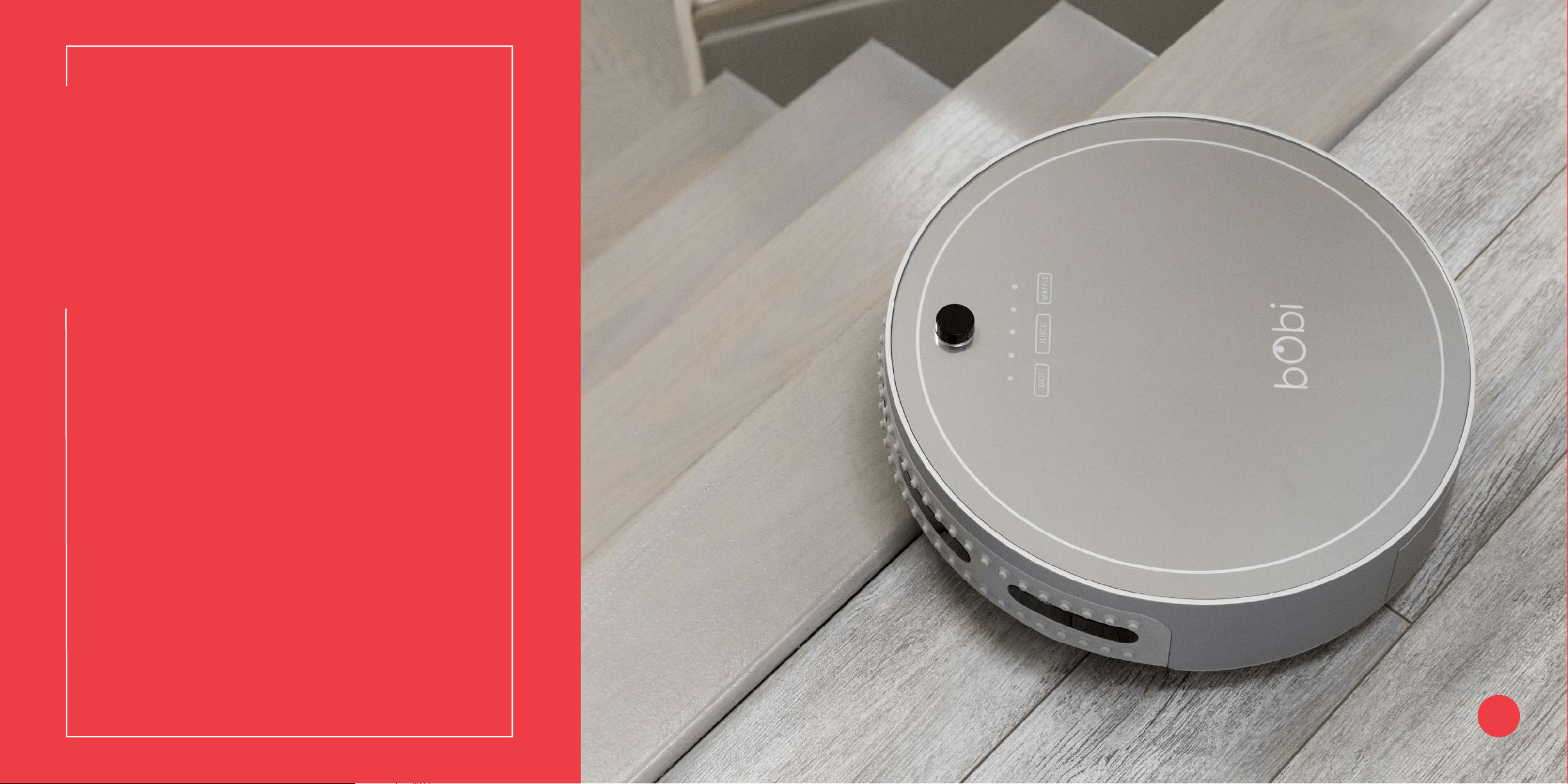
bObi’s additional features include
blOck, a mop attachment, edge
sensors, and a lithium-ion battery. You
can use bObi blOck™ to create digital
barriers that bObi will not cross. You
can deactivate bObi’s edge sensors
so she is better able to clean dark-
colored carpet.
61 bObi blOck™
67 Mop
69 Edge Sensors
71 Battery
Quick Start
Parts and Accessories
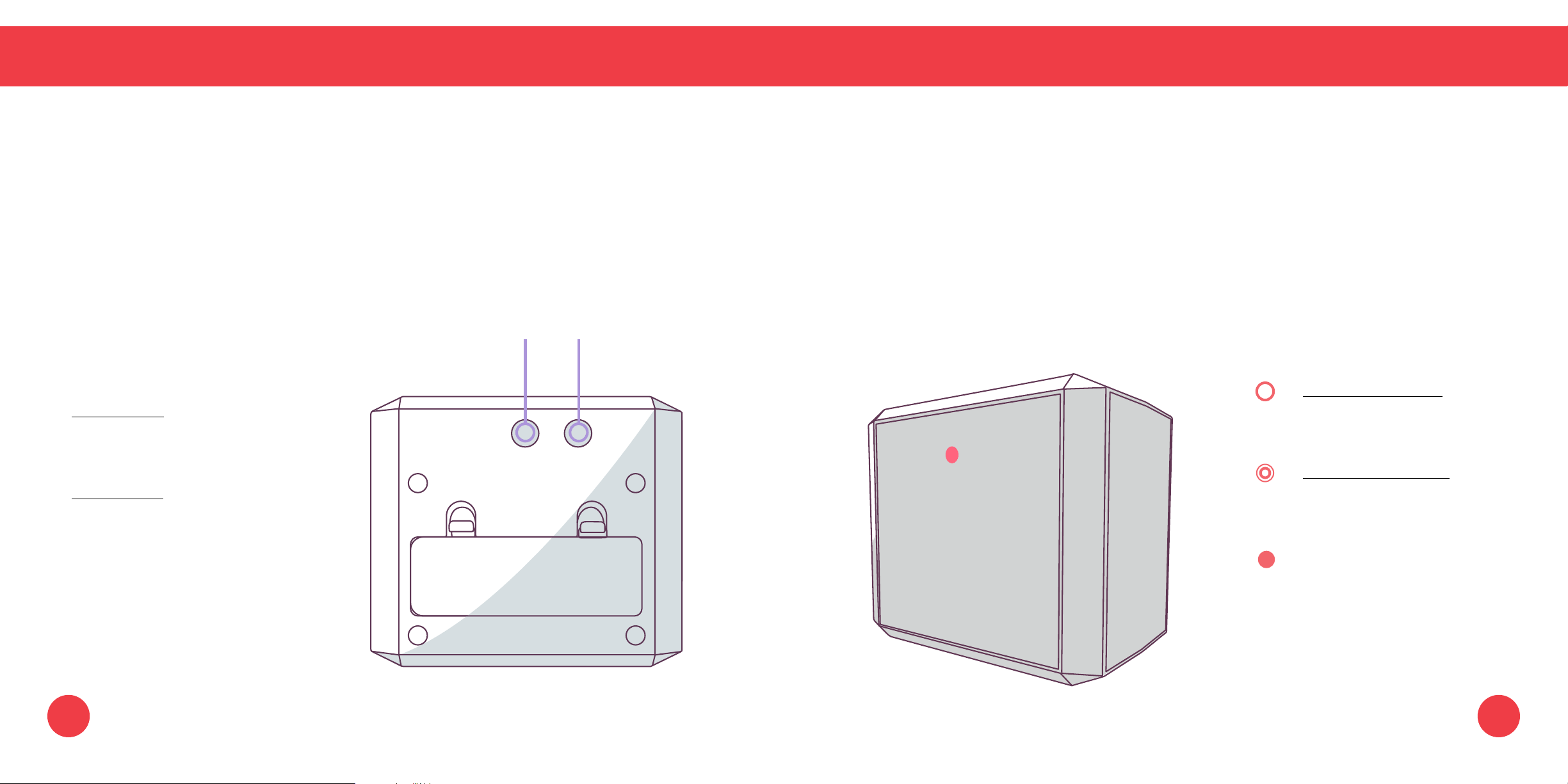
blOck™
bObi blOck™
You can use bObi blOck
™
to create digital barriers that bObi will not cross. bObi blOck
™
emits a 10 foot
barrier from its front window.
bObi blOck™ Buttons
1 2
Power Light
Slowly Blinking Light
1 Power Button
The barrier is turned on.
Turns front barrier on or off.
Rapidly Blinking Light
2 SYNC Button
bObi blOck
™
is low on battery.
Syncs bObi blOck
™
.
Quick Note:
The power light will remain solid
for a few seconds after you turn
on the barrier. Afterward, the
light will slowly blink.
6261
Syncing bObi blOck™
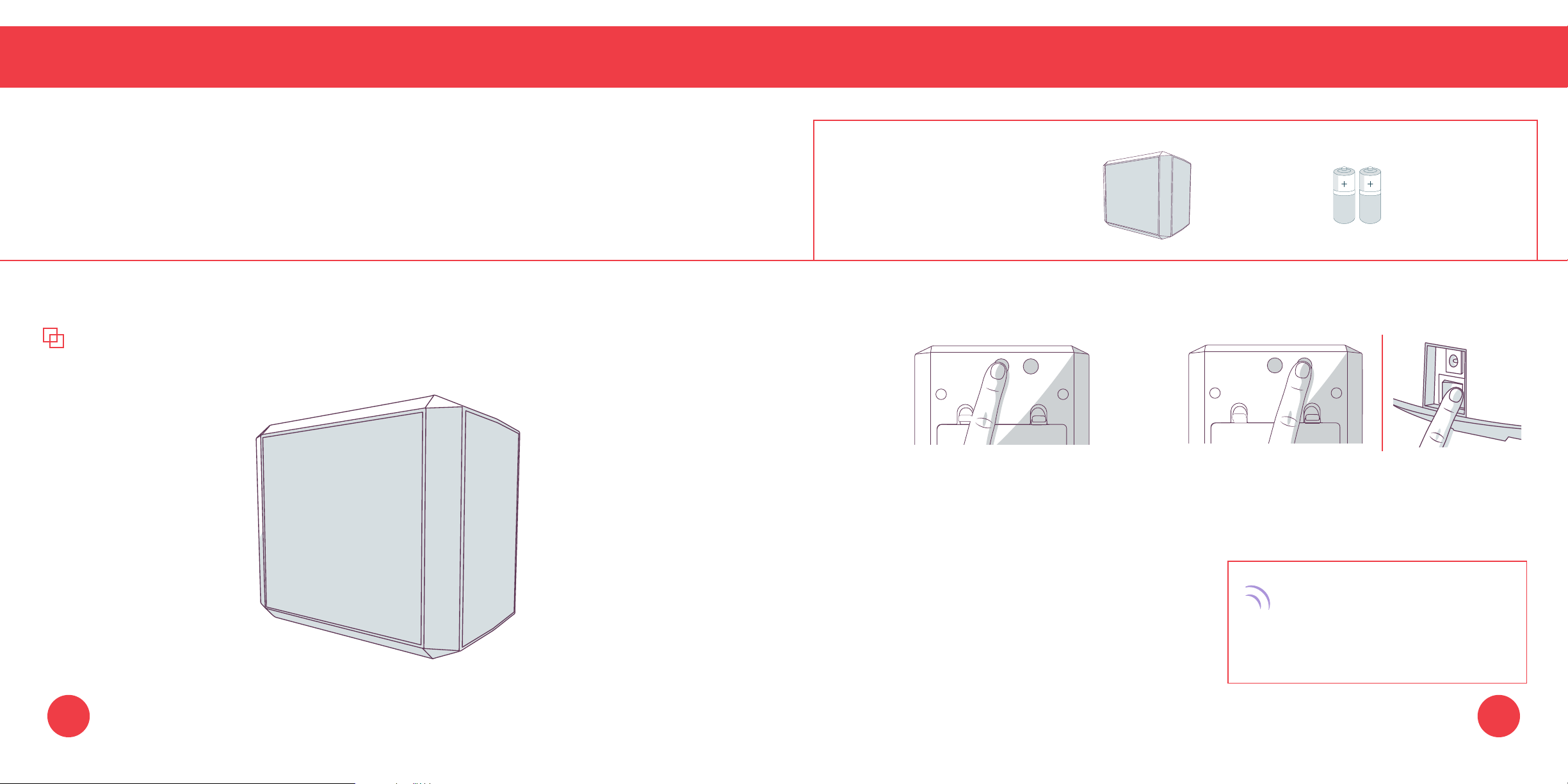
As with bObi’s remote, you will need to sync bObi blOck
™
before using it for the rst time.
Parts You’ll Need: bObi AA Batteries x4
blOck
™
(not included)
Parts and Accessories
Syncing blOck™
Quick Tip:
You can sync multiple blOck
™
accessories with bObi.
Quick Start
1. Press the power button. Wait for the red 2. Hold down the SYNC button while at the
light on the front side of bObi blOck
™ to
same time ipping bObi’s power switch ON.
start slowly blinking before proceeding.
bObi will chirp twice to let you
know the sync was successful.
If bObi does not chirp, repeat
the process.
6463
Quick Start
Using bObi blOck™
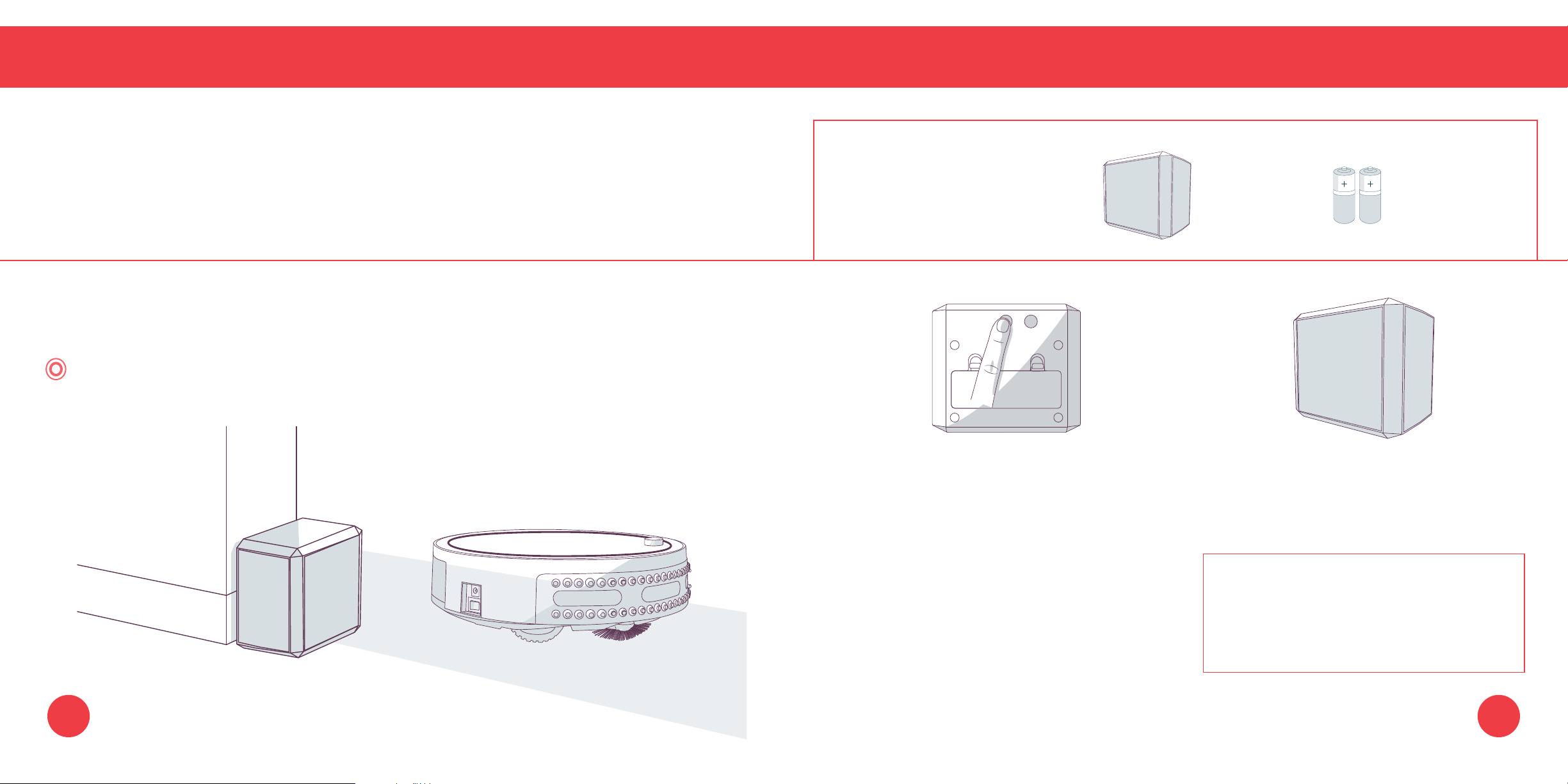
You can use bObi blOck
™
to create digital barriers that bObi will not cross. bObi blOck
™
emits a 10
foot barrier from its front side.
Parts You’ll Need: bObi AA Batteries x4
blOck™ (not included)
Parts and Accessories
Using blOck™
Make sure bObi blOck
™
is synced before proceeding.
Quick Tip:
The power lights will blink rapidly when bObi blOck
™
is low on battery.
To conserve battery, turn bObi blOck
™
off when it is not in use.
1. Press the power button. The power 2. Position bObi blOck
™
so the area you
light on the front side will turn on.
do not want bObi to enter is blocked.
bObi blOck™ will remain ON for 3 hours
before turning itself OFF. To conserve
battery, turn blOck off when it is not in
use.
65 66
Quick Start
Parts and Accessories
Mop
Mop
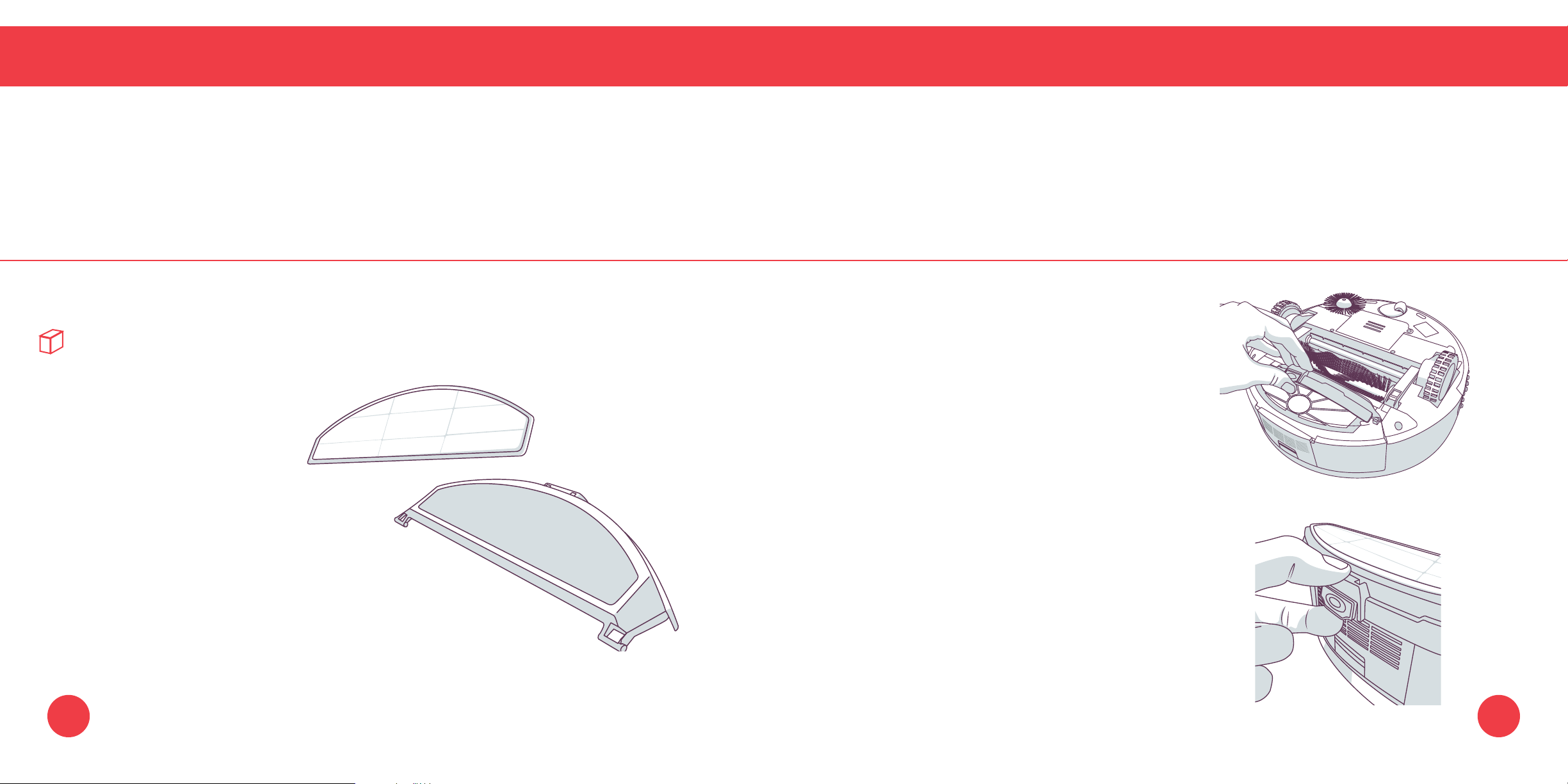
bObi’s mop attachment allows her to mop as she vacuums and sweeps.
Quick Tip:
Do not let bObi climb onto
carpet or rugs when she
is mopping. You may use
blOck to keep her away from
carpet or rugs.
67
Installing bObi’s Mop Attachment
1.
Dampen bObi’s mopping cloth with water or
cleaning solution before placing it on the
mop attachment.
2. Align the prongs of the mop attachment
between bObi’s wheels and press down,
then lock in place.
Removing bObi’s Mop Attachment
1.
Grip the button on the back of the mop
attachment and pull up to unlock, then lift
until it’s perpendicular to bObi, and pull up
to detach.
68
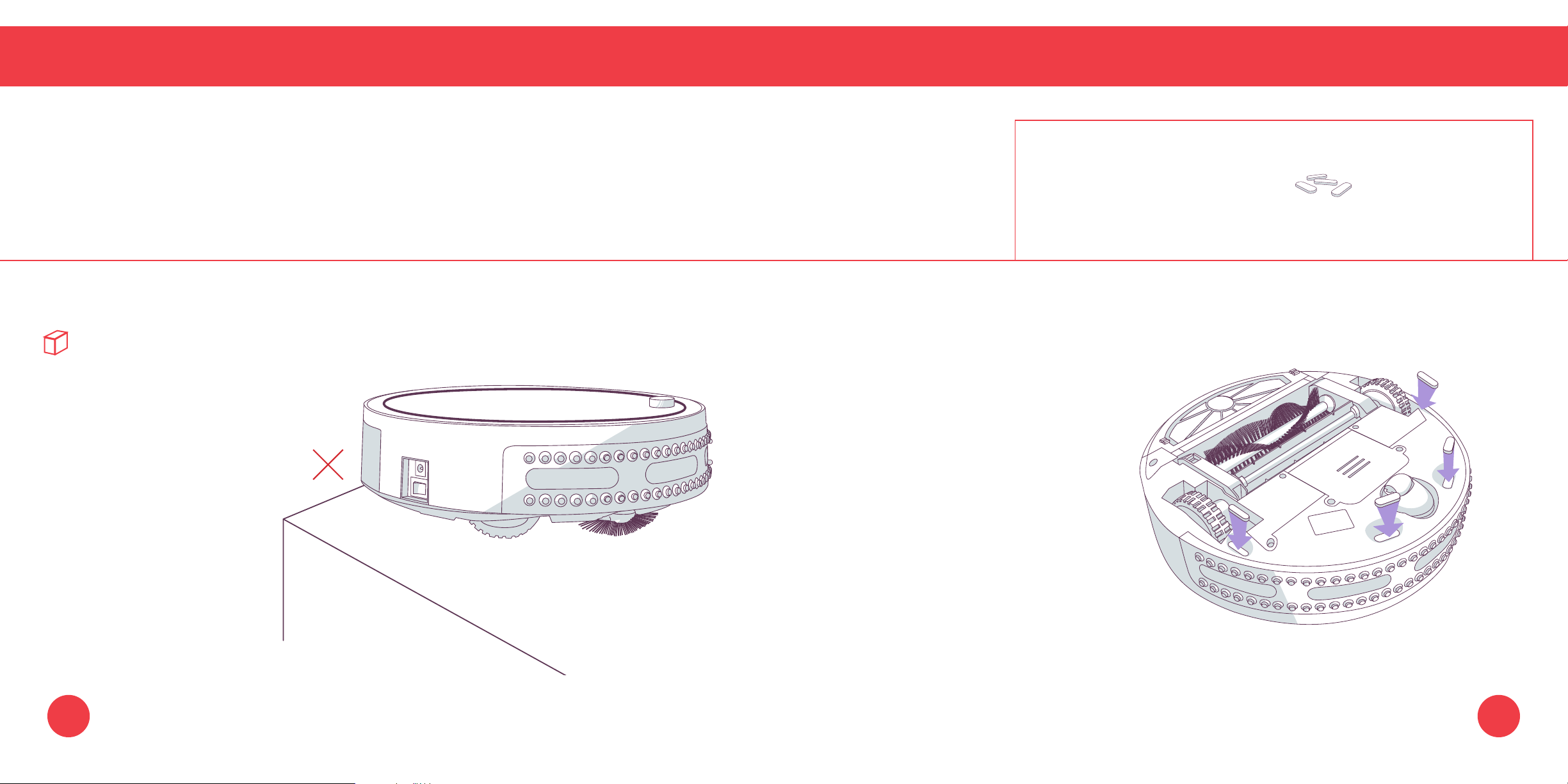
Quick Start
Parts and Accessories
Edge Sensors
If bObi repeatedly backs up or displays an error message (Er 01) while cleaning dark-colored carpet,
then you’ll need to deactivate the edge sensors. Make sure bObi’s is turned ON before proceeding.
Quick Tip:
When the edge sensors
are deactivated, bObi is
unable to detect stairs
or sharp drops. You
may use blOck to keep
her away from these
obstacles.
Edge Sensors
Parts You’ll Need:
Blindfold Stickers
Deactivating bObi’s Edge Sensors
Peel off the backs of each blindfold
sticker and place one onto each of
bObi’s 4 edge sensors.
Make sure each sensor is completely
covered.
Remove the blindfold stickers, and wipe
the sensor covers clean to reactivate
bObi’s edge sensors.
69 70
Parts and Accessories
Battery
On her default Deep Clean mode, bObi’s battery lasts about 45 – 90 minutes per charge. bObi’s battery
has a 2-year warranty. Replacement batteries can be purchased at www.bobsweep.com/shop.
Quick Tips:
To conserve bObi’s battery,
ip her power switch OFF
and remove her from her
charging station when she is
not in use. bObi should not
sit on her charging station
for more than 5 days.
If you are not using bObi
for an extended period of
time, unplug her charging
station, remove her battery,
and store everything in a
dry, room-temperature place
away from direct sunlight.
Battery
Parts You’ll Need: Phillips Head
Screwdriver
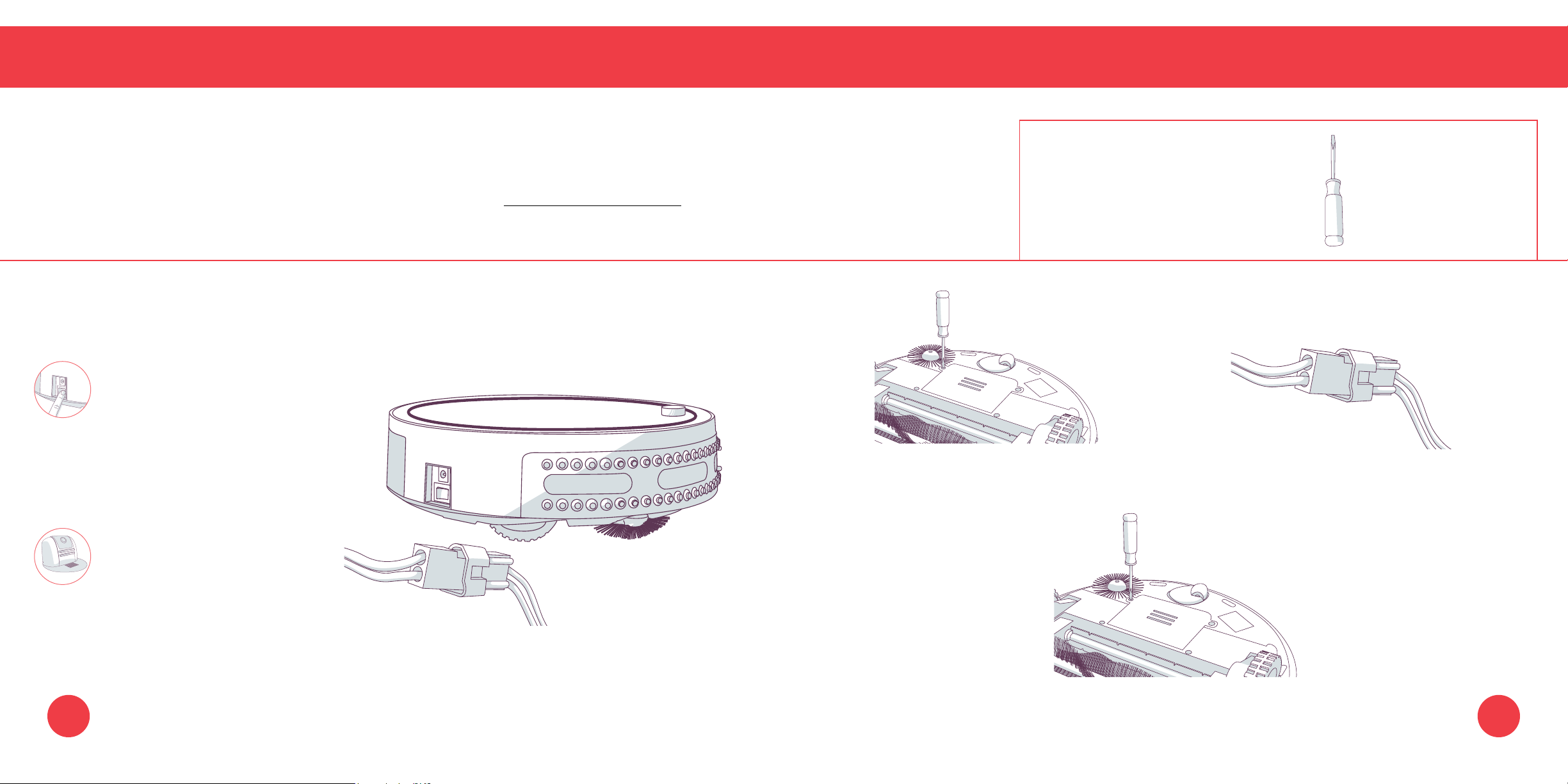
1. Remove the 2 screws on the battery cover 2. Disconnect the old battery by pulling the
using a Phillips head screwdriver. plug, not the wires. Plug in your new battery.
3. Slide the new battery into the compartment and replace the screws on the battery cover.
71 72
If the problems persist, please contact our helpful support team
at [email protected] or 1-888-549-8847. Our business
hours are Monday – Friday, 9 a.m. – 5 p.m. Pacic Time.
Troubleshooting
If bObi is having a problem with one
of her parts, an error message will
light up on her remote screen.
75 Edge Sensors
77 Brushes
79 Power System
81 Wheels
83 Dustbin
74
Quick Start
Troubleshooting
Troubleshooting: Edge Sensors
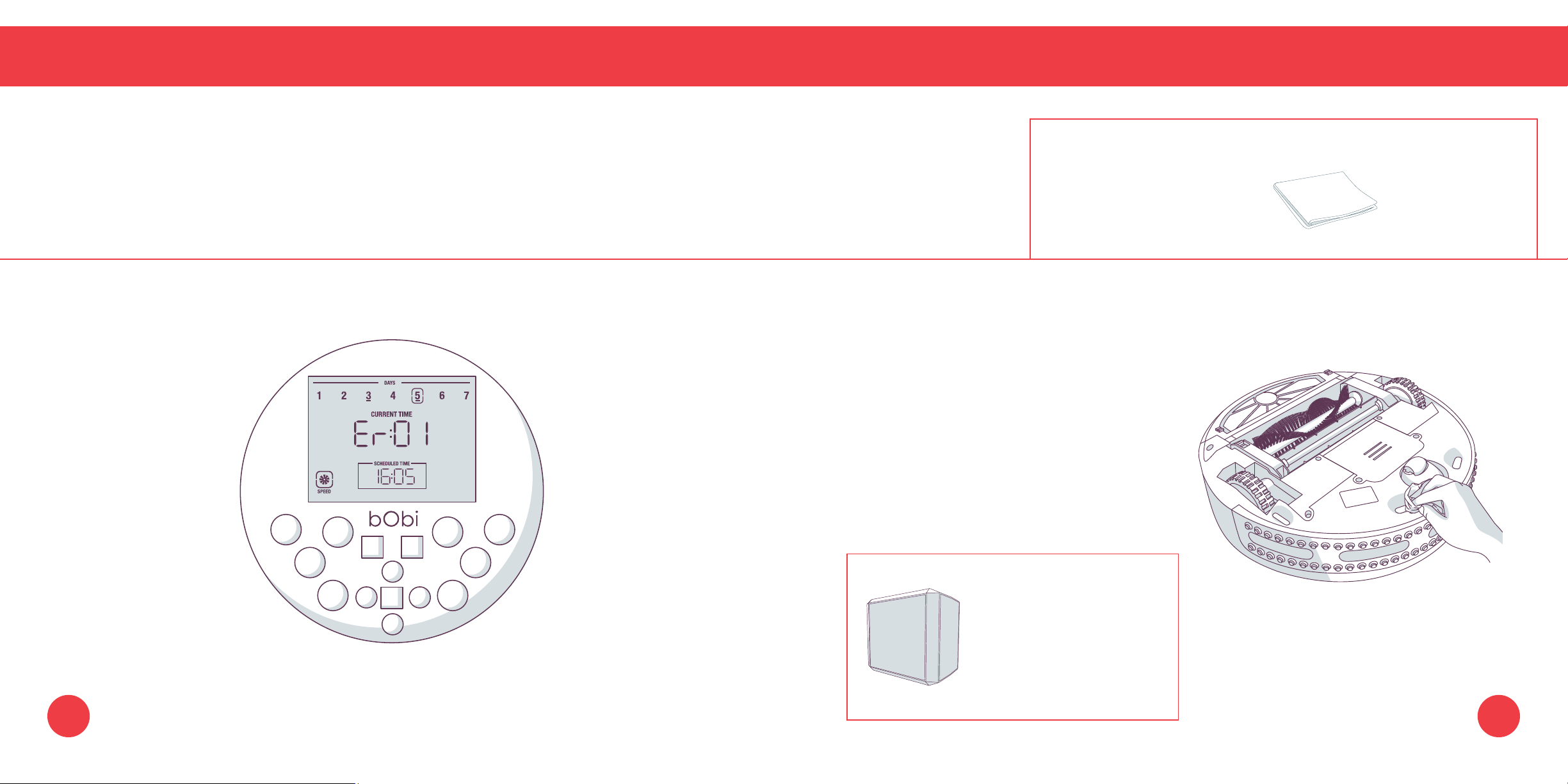
Edge Sensors: Er 01
Parts You’ll Need: Cloth
(not included)
What to do:
1.
Wipe the edge sensors with a soft cloth
slightly dampened with cold water or alcohol.
2.
If problems persist, deactivate the edge
sensors using bObi’s blindfold stickers.
When the edge sensors
are deactivated, bObi is
unable to detect stairs
or sharp drops. You
may use bObi blOck™
to keep her away from
these obstacles.
75 76
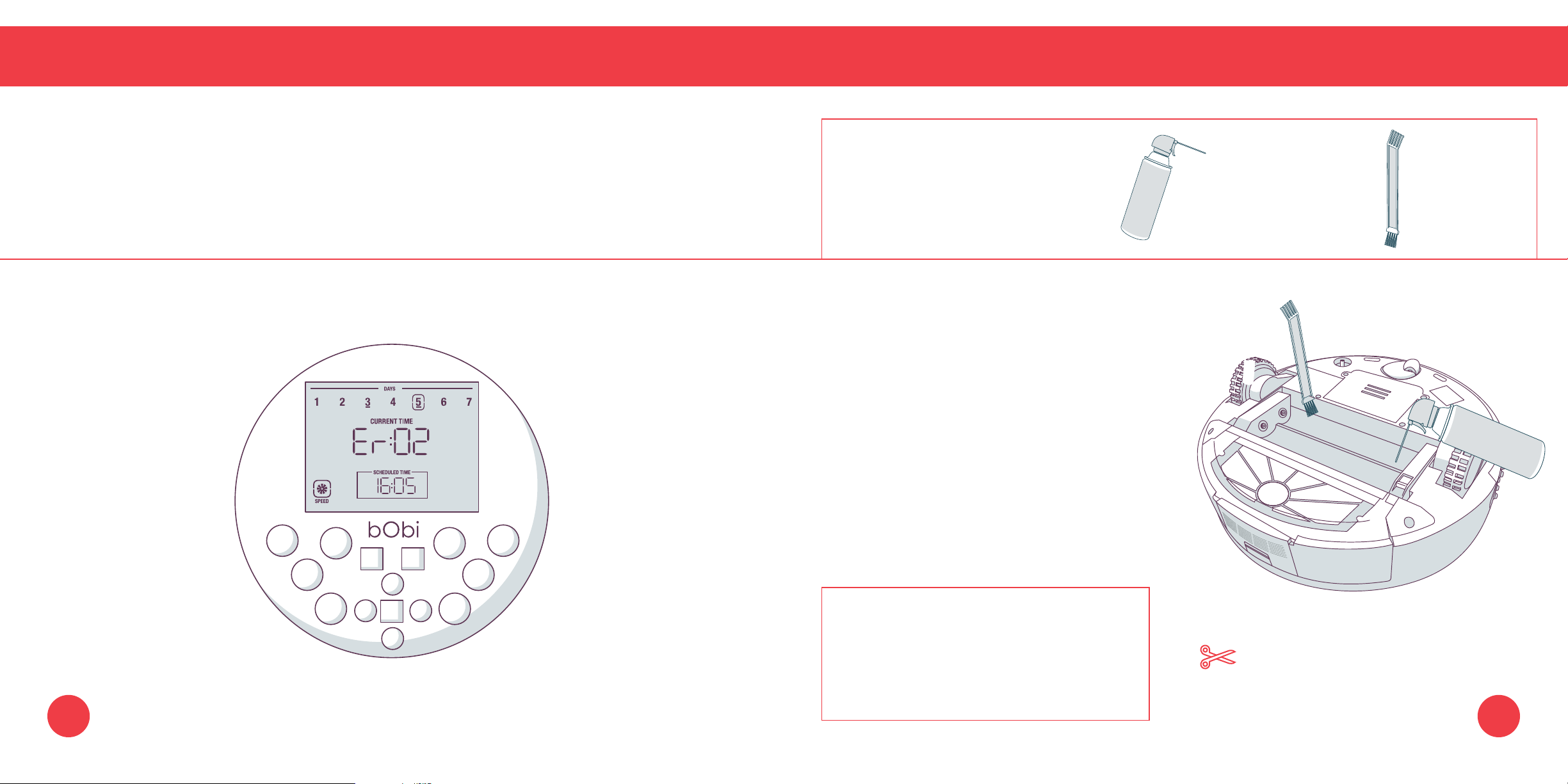
Troubleshooting: Brushes
Troubleshooting
Brushes: Er 02
Parts You’ll Need:
Compressed Air Cleaning Tool
(not included)
What to do:
1.
Remove and clean bObi’s brushes and
brush holders.
2.
Clean the brush compartment from end
to end using Bob’s cleaning tool and
compressed air.
bObi’s main brush is not designed to clean
shag carpet or rugs with long fibers. If you’d
like bObi to clean shag carpet or long-
fibered rugs, you may remove her main
brush and allow her to vacuum without it.
Quick Tip:
You may use scissors to cut away
entanglements of hair, or tweezers to
unclog the notches inside bObi.
77 78
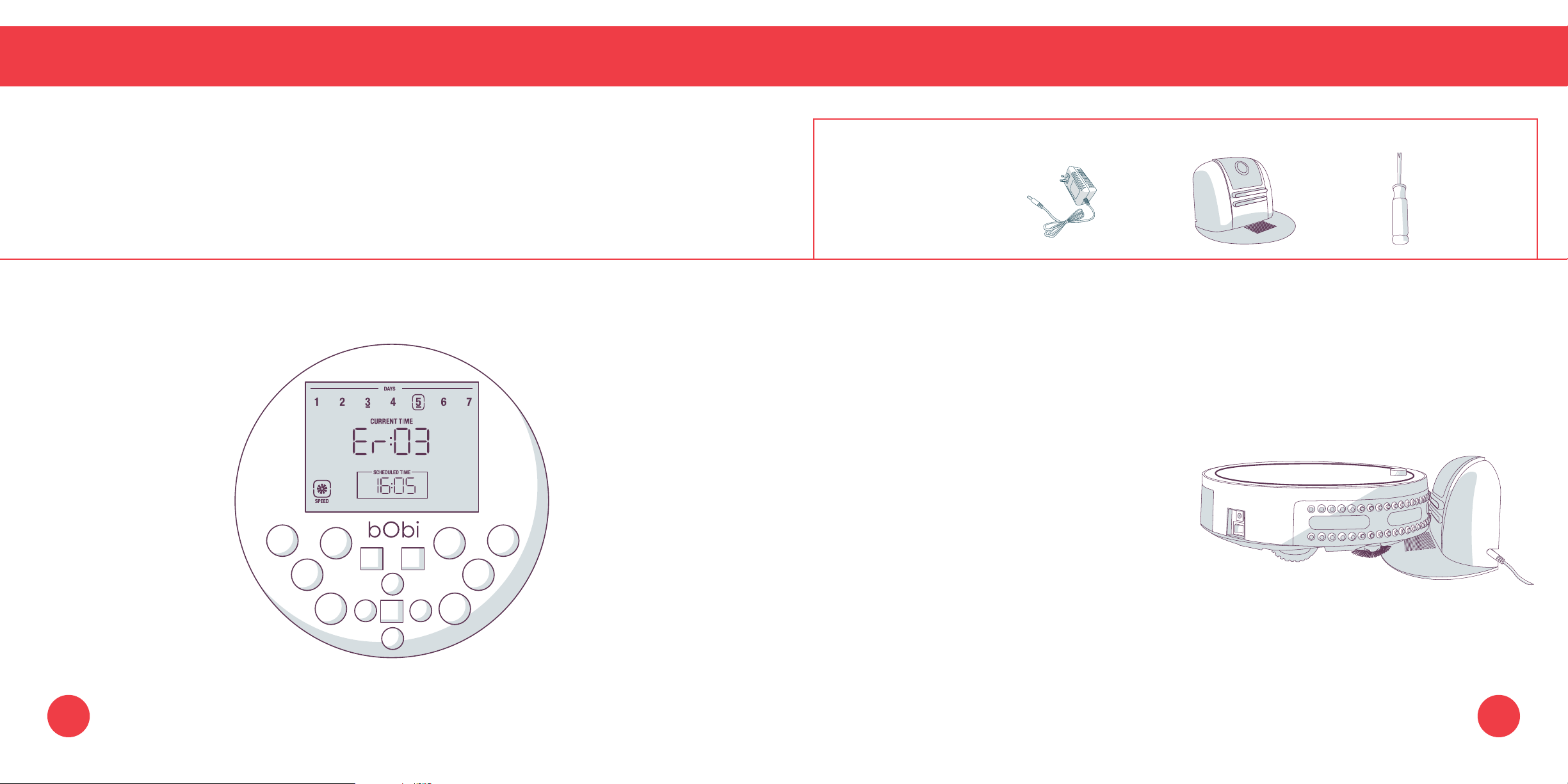
Troubleshooting: Power System
Troubleshooting
Power System: Er 03
Parts You’ll Need: Charging Charging Phillips Head
Adapter Station Screwdriver
What to do:
1.
Place bObi on her charging station and allow
her to fully charge.
2.
If bObi is unable to charge on her station, charge
her directly by plugging the charging adapter
into the inlet above her power switch.
3.
If bObi still has trouble charging, try reconnecting
the battery. Flip bObi’s power switch OFF.
79 80
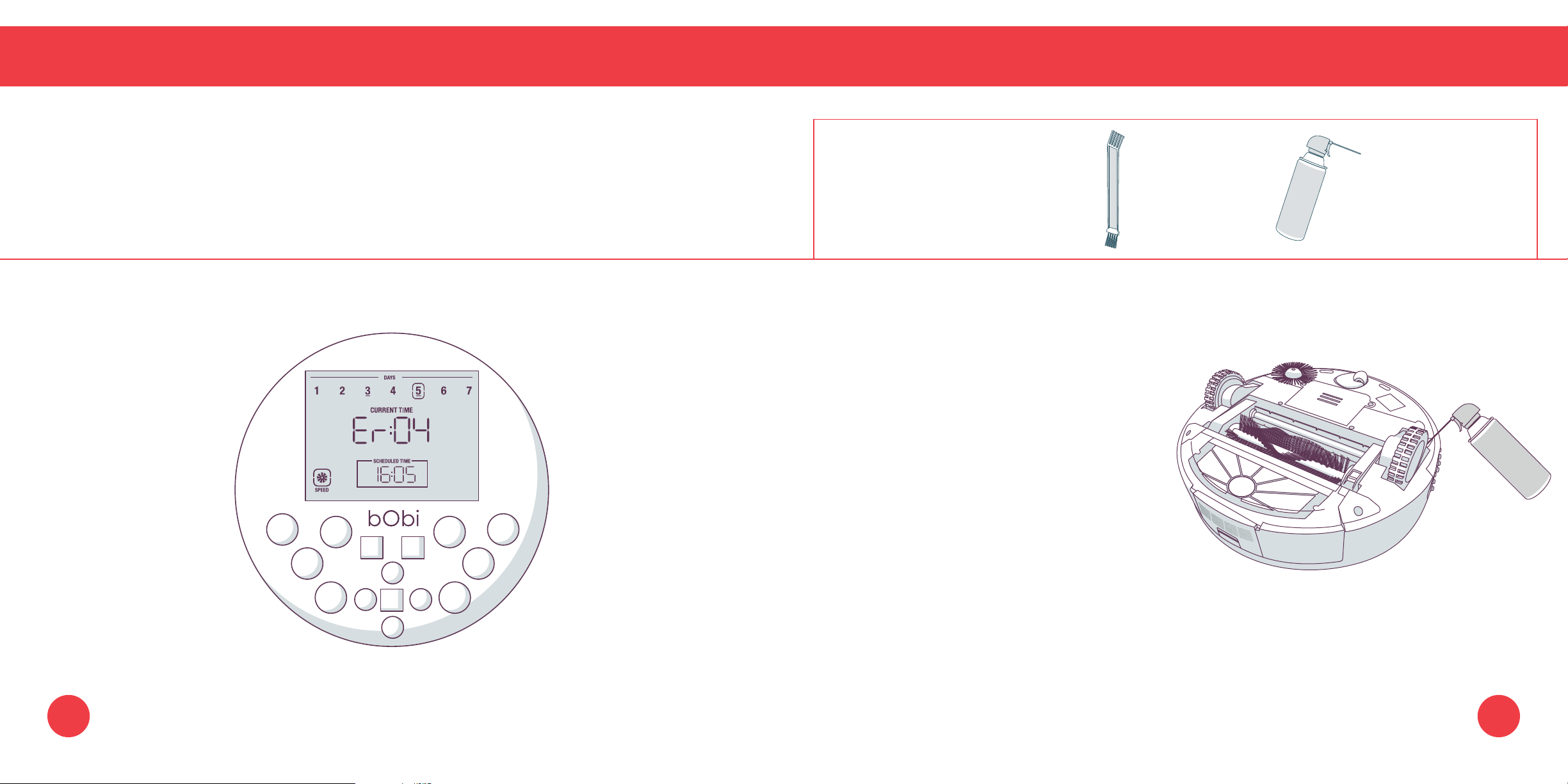
Troubleshooting: Wheels
Troubleshooting
Wheels: Er 04
Parts You’ll Need: Cleaning Tool Compressed Air
(not included)
What to do:
1.
Use the cleaning tool
jamming bObi’s wheels.
to remove debris
2.
Remove the two screws around each wheel
and use compressed air to remove debris
inside the wheel compartments.
81 82
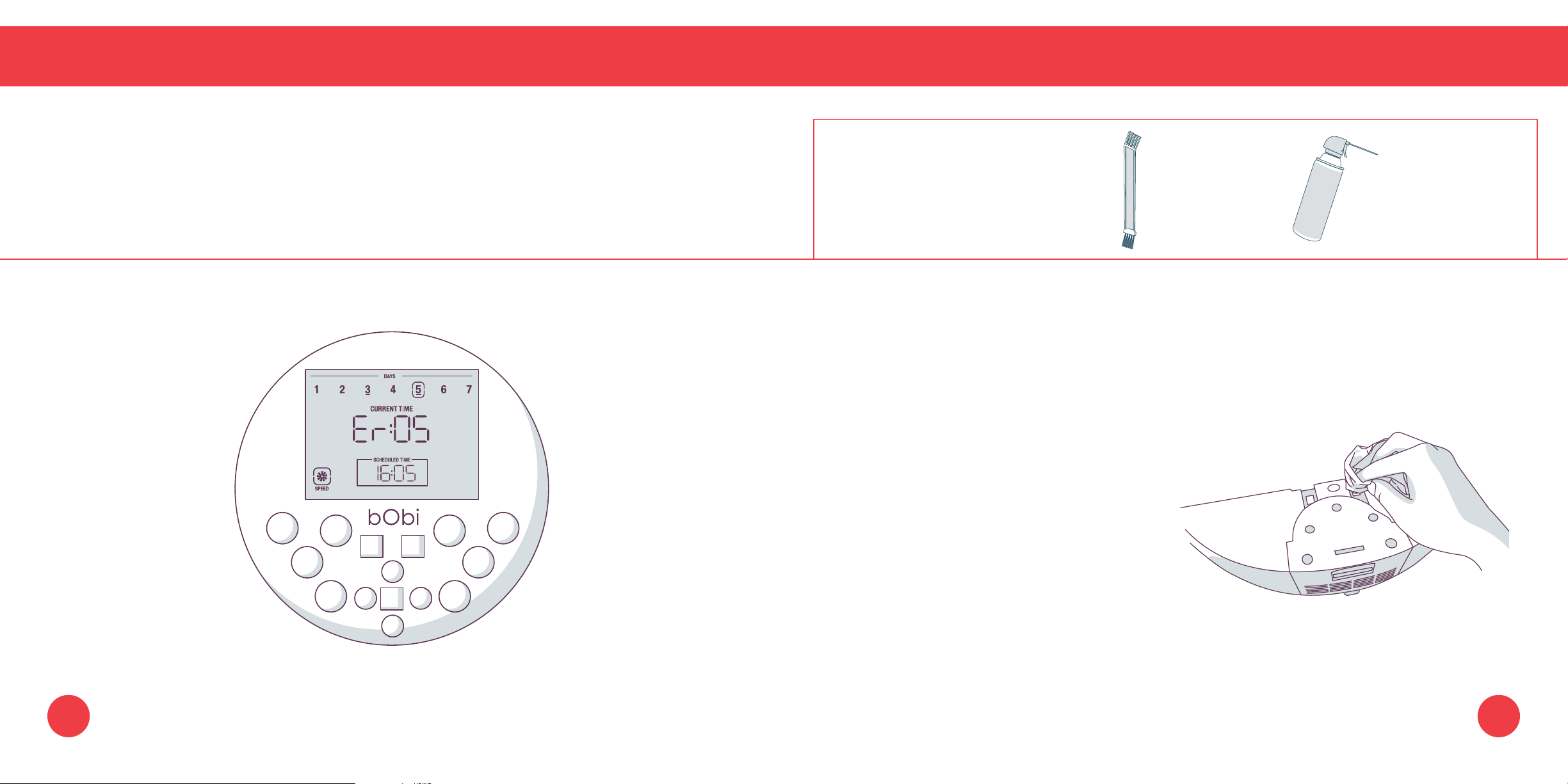
Troubleshooting: Dustbin
Troubleshooting
Dustbin: Er 05
Parts You’ll Need: Cleaning Tool Compressed Air
(not included)
What to do:
1.
Remove bObi’s dustbin and empty it.
2.
Gently wipe the two metal connectors on the
bottom of the dustbin with a dry cloth. If the
two metal connectors seem damaged, they
may need to be replaced.
3.
Lastly, clean the metal contact points
inside bObi where the dustbin is
inserted. If one or both of the contact
points are stuck, use a screwdriver to
gently pull them out.
4.
Carefully reinstall the dustbin while
bObi is in the upright position, so
that the dustbin securely locks.
83 84
Home Checkup Test
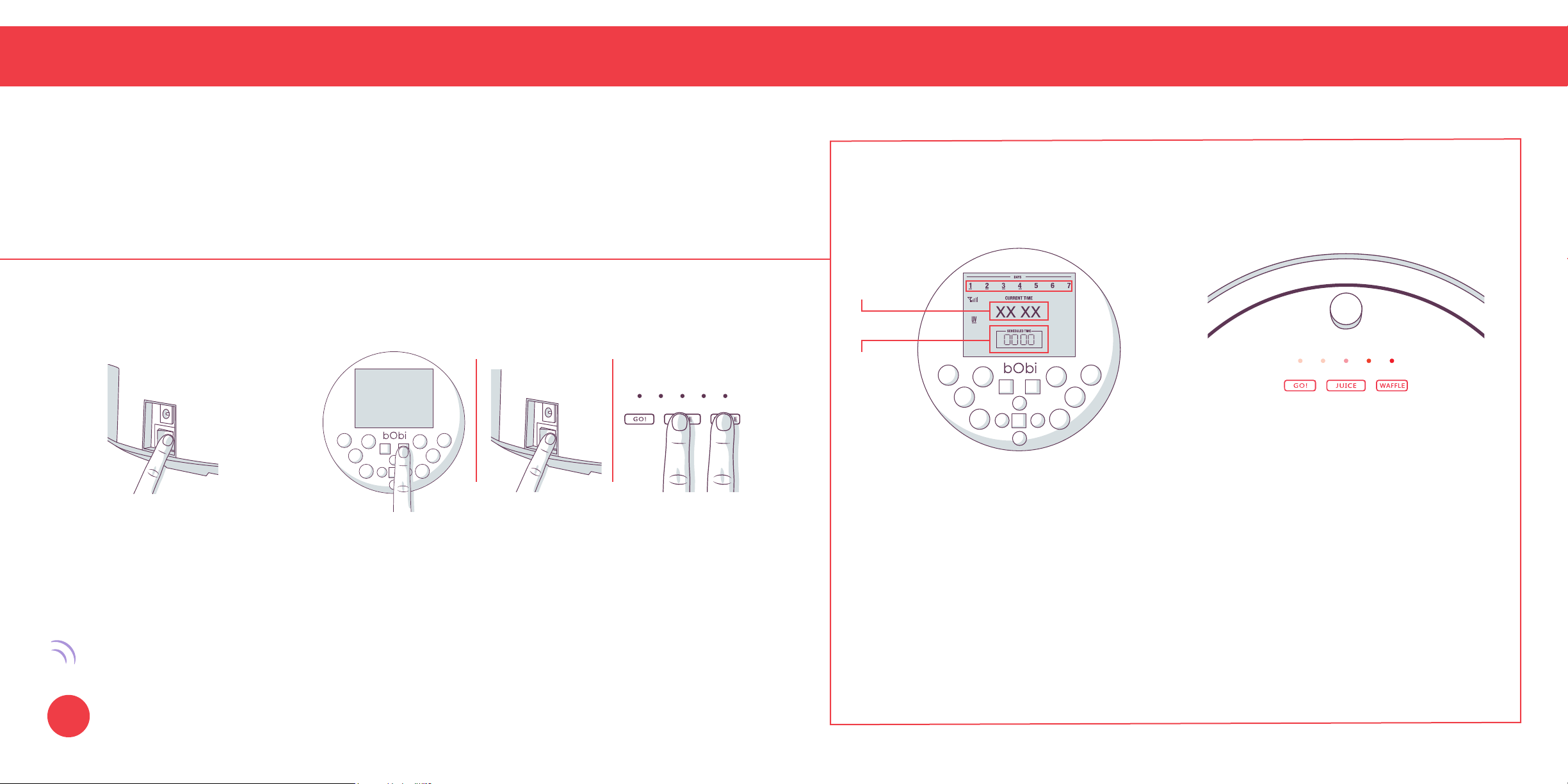
Putting bObi in Checkup Mode
1. Flip bObi’s power switch OFF. 2. While holding down the OK button on bObi’s remote,
ip bObi’s power switch ON, then simultaneously
press WAFFLE and JUICE on bObi’s cover.
bObi will chirp 3 times to let you know she is now in checkup mode. You may release the OK
button. Do not press any additional buttons on bObi or her remote.
Putting bObi in Checkup Mode
When In Checkup Mode:
Value
Indicator
Checkup
Indicator
Current and scheduled times disappear
from the remote’s screen and new
indicators appear as the test progresses:
Numbers 1 to 7 display status of various
sensors.
The four-digit number in the center
– Value Indicator – displays various
measures of bObi’s parts.
The Checkup Indicator displays the step
of the test bObi is in – starting at 0000.
!
During the test, GO!, JUICE, and
WAFFLE all remain lit on bObi’s
cover, and charging indicators cycle
sequentially.
Quick Tip:
Use the RGHT button on bObi’s remote to
cycle through each step of the Checkup
Test. Use the LEFT button to alternate
between subsections of each step.
87
Quick Start
Home Checkup Test
Home Checkup Test
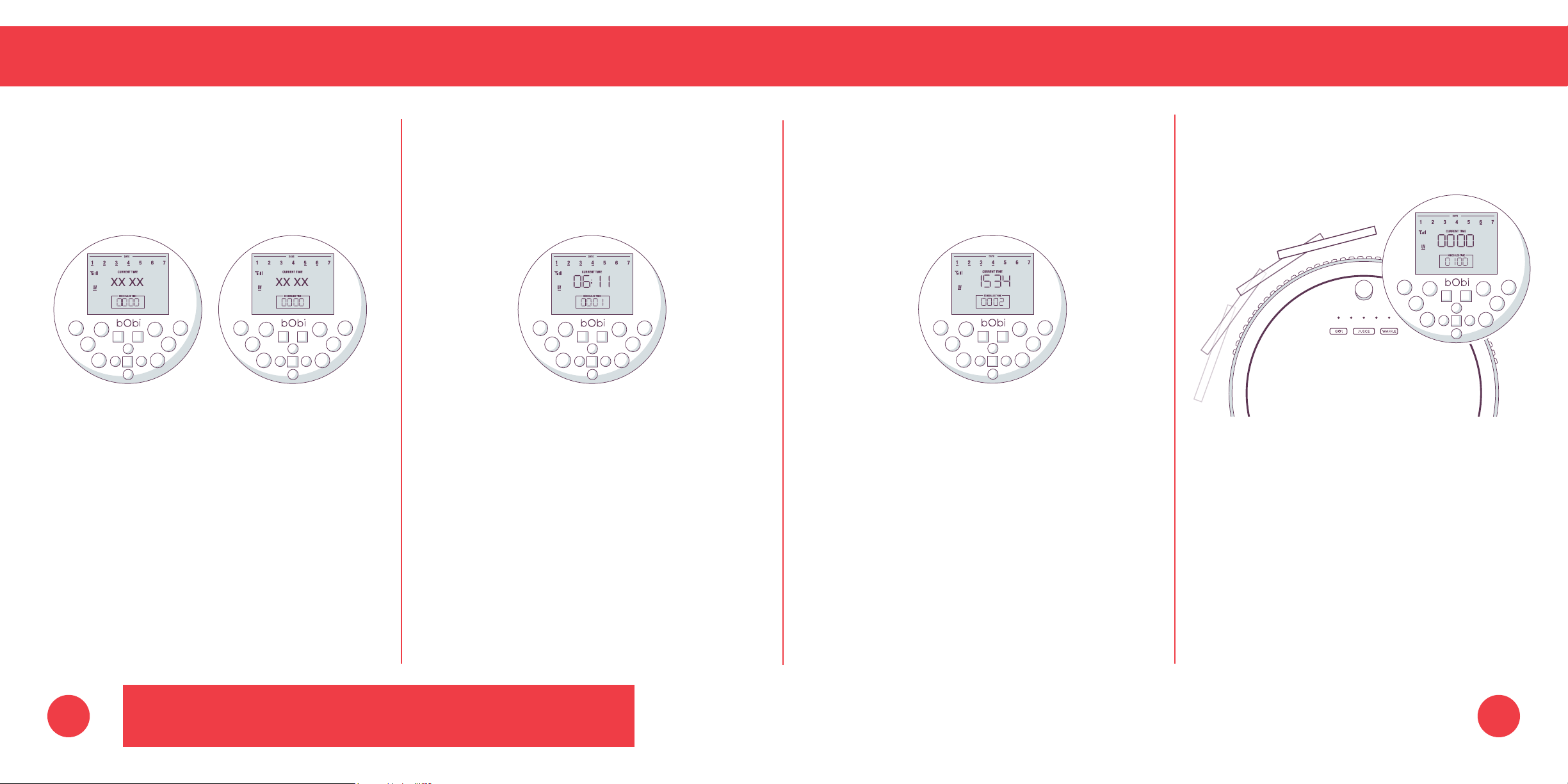
Step 1: 0000
Edge and Wheel Sensors
With bObi on the ground look at the remote’s
screen.
The 4 bars below numbers 1 to 4 should be
underlined. Lift bObi about 6 inches (15 cm) off
the ground and the numbers 1 to 4 will no longer
be underlined, while the numbers 5 and 6 will be
underlined.
Step 2: 0001
Firmware Version
Press LEFT on the remote. The Checkup
Indicator changes to 0001.
The four-digit number in the center of the screen
indicates bObi’s rmware version.
Step 3: 0002
Battery
Press LEFT on the remote and Checkup
Indicator changes to 0002.
The four-digit number in the center of the screen
indicates the battery voltage in millivolts (mv).
A fully charged battery should have a voltage
between 1200 and 1600 mv. If the number
is below 1200, charge bObi overnight and
repeat the test. If bObi is fully charged and the
number is 0000 mv, ip bObi, open the battery
compartment, and check the wiring connectivity.
Quick Tip:
!
bObi should not be tested while on the charging station.
Step 4: 0100
Wall Sensors
Press RGHT on the remote and the Checkup
Indicator changes to 0100.
Drag a thick, at, and light-colored surface
around bObi’s bumper. Numbers 1 to 5 at the
top of the remote will become underlined one
at a time as you move your surface from the left
side of bObi’s bumper around to the right side.
The far right sensor is less sensitive than the
others, so it may not respond the rst few
passes.
89
To exit the checkup test, ip Bob’s power switch OFF and then ON.
90
Home Checkup Test
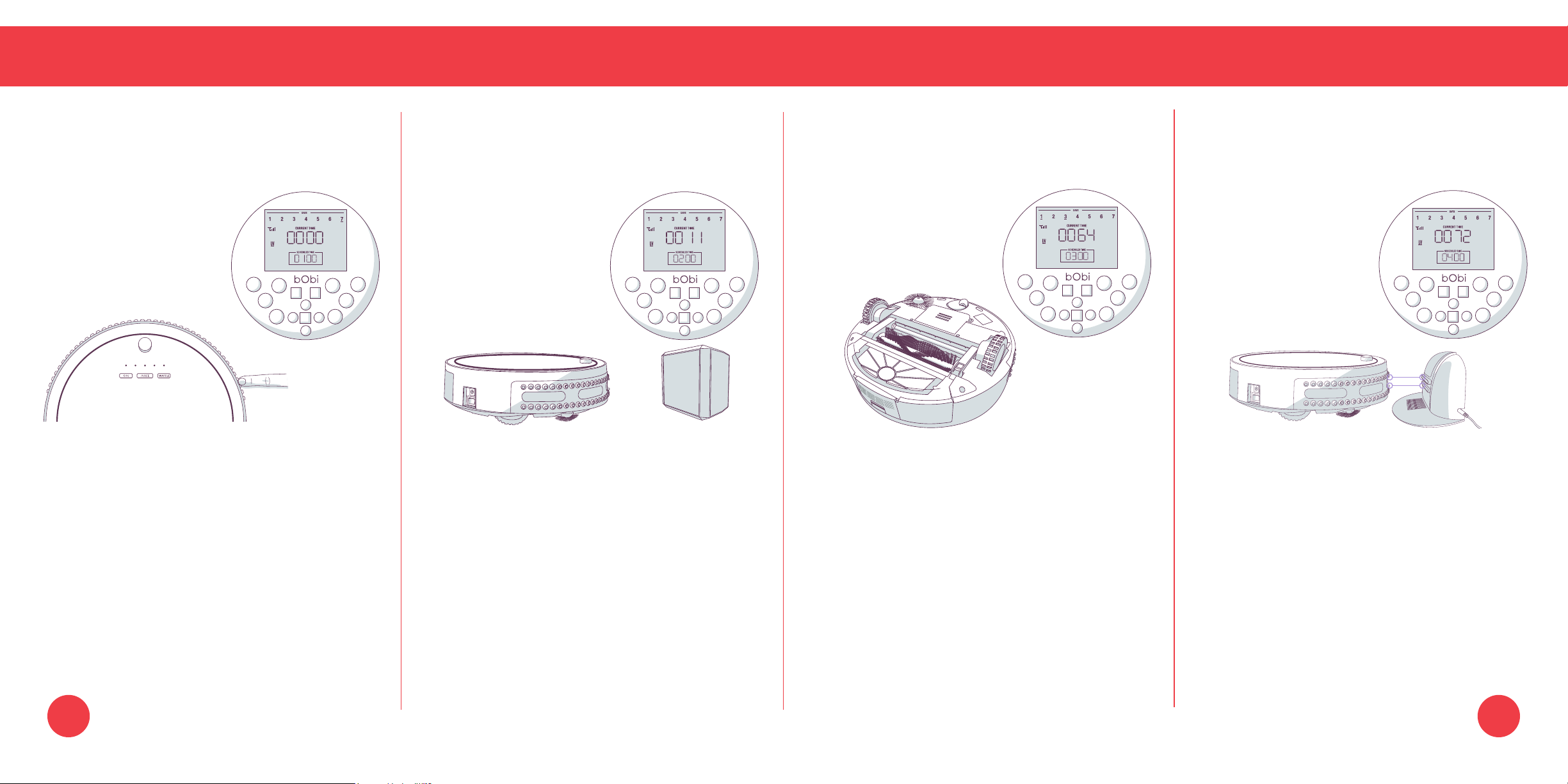
Step 5: (0100 continued) Step 6: 0200
Touch Sensors blOck and Battery Life
80 touch sensors surround bObi’s bumper. Unplug the charging station so its signal does
not interfere with this test.
Press on any of the touch sensors on the left
side of bObi’s bumper, and number 6 at the top Press RGHT on the remote and the Checkup
of the remote should be underlined. Indicator changes to 0200.
Press on any of the touch sensors on the right The four-digit number on the remote indicates
side of the bumper, and number 7 at the top of the number of times bObi’s battery has been
the remote should be underlined; . used.
When you release the bumper, the lines should Place the blOck with its front facing bObi. Turn
disappear. on the blOck. Number 5 at the top of the remote
should be underlined. If 5 is not underlined, sync
bObi and blOck and repeat this step.
Home Checkup Test
Step 7: 0300 Step 8: 0400
Wheels, Brushes, and Vacuum Charging Station
With an emptied dustbin attached to bObi, ip Plug the charging station.
bObi over onto a at surface to keep her from
running away! Press RGHT on the remote. The Checkup
Indicator changes to 0400.
Press RGHT on the remote. The Checkup
Indicator changes to 0300. Place bObi on her charging station with charging
nodes touching.
bObi’s wheels and brushes should spin, and air
should ow out of the dustbin. The four-digit number on the remote displays a
number ranging from 0020 to 0200 to conrm that
Numbers 1 and 3 at the top of the remote should bObi and her station are working well together.
be underlined, indicating that the wheels’ sensors
are working. If the number is between 0400 and 0800, let bObi
charge overnight and repeat the test.
91 92

Quick Start
FAQs
My bObi won’t turn on no
matter what I do.
First, make sure bObi’s power switch is turned
ON. The power switch is located on bObi’s
side. If bObi’s power switch is turned ON and
she is not responding to her cover buttons,
then her battery has likely drained too low for
him to operate. Place bObi on her charging
station and allow her to fully charge.
Why is bObi beeping?
bObi beeps periodically while in standby
mode. You may mute her beeping by ipping
her power siwtch OFF or by placing her on
the charging station.
bObi also beeps when she encounters a
problem and needs assistance. In addition to
beeping, she will display an error message
on her remote. Consult the Troubleshooting
section of this manual for solutions.
How do I know that bObi is
fully charged and ready to
clean?
When bObi is charging, the center light on her
cover ashes. When she is fully charged, the
light remains still.
bObi just stopped cleaning
and her screen turned off.
What do I do next?
bObi may be in standby mode. If this is the
case, pressing any button on her cover or
FullCommand™ remote should wake her.
If this does not work, her battery is likely
completely drained. Place bObi on her
charging station and allow her to fully charge.
How often should I empty the
dustbin?
Depending on the size of the room and the
amount of debris piled up, bObi may be able
to perform up to 6 cleaning cycles before
lling her dustbin. Simply remove the dustbin
and check to see if emptying is necessary.
bObi is having trouble nding
her charging station.
First, sync the charging station. Start by
ipping bObi’s power switch OFF. Then,
press down the SYNC button on the back
of the station using the syncing tool and ip
bObi’s power switch ON. bObi will chirp twice
to conrm the sync was successful. If after
syncing the station bObi is still having trouble
nding it, relocate the station to a more easily
accessible location with more space around
it. Make sure the station is against a wall on a
at, level surface.
I am having problems
removing bObi’s brushes.
Open the brush compartment and gently
wriggle them while pulling up. Do not force the
brushes out, as this can damage them. You
may use scissors to cut away entanglements
of hair, or tweezers to unclog the notches
inside bObi. It is best to clean bObi’s brushes
about once a week to prevent buildup.
How often should I clean
bObi’s brushes?
To maximize bObi’s efciency, it is best to
clean her brushes about once a week. Re-
member to also clean the notches inside bObi
that hold the brushes in place.
To watch bObi Pet’s how-to videos visit
www.bobsweep.com/bobi-pet-support or
download the bObsweep App on your iOS or
Android device.
9695

Quick Start
FAQs
What is bObi’s runtime? How
long should bObi’s battery
last?
The exact runtime depends on the age of
the battery and the type of surface bObis is
cleaning; the younger the battery and the
smoother the cleaning surface, the longer
the runtime. The normal runtime range for
bObi is 45 – 75 minutes.
bObi’s battery comes with a 2-year warranty
and should last for several years. To
conserve bObi’s battery, do not leave her on
her charging station for more than 5 days. If
you are not using bObi regularly, remove her
from her station and ip her power switch
OFF.
What is the best way to clean
bObi’s wheels?
Use compressed air to clear the wheels of
debris, or wipe the wheels as they spin during
the checkup test. For a more thorough clean,
you may remove the wheels completely. See
bObi’s wheel repair guide on www.bobsweep.
com/bobi-pet-support for detailed instructions.
bObi gets stuck under my
furniture or travels over wires
that tangle up her brush. How
can I stop her from going into
certain areas?
If bObi maneuvers under a piece of furniture
and there is only one open entrance, he may
need a few minutes to nd her way out. If
bObi does need help, she’ll stop cleaning
completely, beep, and display a trouble
message.
If you would like bObi to avoid a certain area,
such as an area with lots of wires, you may
use bObi blOck™ to create a digital barrier.
bObi is showing Er on her
remote. How can I x this?
bObi’s error messages identify the specic
parts on bObi that need help. Consult the
Troubleshooting section of this manual for
solutions.
Why does bObi start up when
I did not tell him to clean?
bObi is either scheduled to clean or is on
auto-resume mode.
First, make sure the current time and day
is set correctly on bObi’s FullCommand™
remote. Remember, bObi works on a 24-hour
clock. If the current time and day is incorrect,
then bObi’s cleaning schedule will be out of
sync.
Consult the Scheduling section of this manual
for detailed instructions on how to reset bObi’s
cleaning schedule.
On auto-resume mode, bObi automatically
begins cleaning after every recharge. When
bObi is on auto-resume, she displays “FFGO”
on her remote. To disable auto-resume, press
the SCH TIME button on bObi’s remote. Then
press STOP. The remote will reset to the last
time saved.
Press SCH TIME again to save your settings.
I think my bObi is broken. What
do I do next?
Don’t worry, a customer service agent will
work with you personally to ensure you have
a healthy, fully functional bObi. To connect
with an agent, call 1-888-549-8847 or email
Monday – Friday, 9 a.m. – 5 p.m. PT.
If problems persist, please contact our helpful
support team at [email protected] or
1-888-549-8847.
Our business hours are Monday – Friday,
9 a.m. – 5 p.m. Pacic Time.
97 98
End User
Agreement
100

IMPORTANT - READ BEFORE USING. Do not use the robot (“Bobsweep”) accompanying this license agreement
(“Agreement”) until you have carefully read and agreed to the following terms and conditions.
By using the Bobsweep, you agree to the terms of this End User License Agreement (“EULA”) and any amendment or
addenda accompanying this Agreement. If you do not agree to the terms of this EULA, you may not use the Bobsweep.
The Bobsweep contains an electronic and software interface that allows you to control or modify its behavior, and remotely
monitor its sensors.
THIS IS A LEGAL AGREEMENT. BY ACCESSING AND USING THE PRODUCT AND PRODUCT SOFTWARE, YOU ARE
ACCEPTING AND AGREEING TO THIS EULA ON BEHALF OF YOURSELF OR THE ENTITY YOU REPRESENT IN
CONNECTION WITH THE ACCESS. YOU REPRESENTAND WARRANT THAT YOU HAVE THE RIGHT, AUTHORITY, AND
CAPACITY TO ACCEPT AND AGREE TO THIS EULA ON BEHALF OF YOURSELF OR THE ENTITY YOU REPRESENT.
YOU REPRESENT THAT YOU ARE OF SUFFICIENT LEGAL AGE IN YOUR JURISDICTION OR RESIDENCE TO USE
OR ACCESS THE PRODUCT SOFTWARE AND TO ENTER INTO THIS EULA. IF YOU DO NOT AGREE WITH ANY OF
THE PROVISIONS OF THESE TERMS, YOU SHOULD CEASE USING THE PRODUCT AND PRODUCT SOFTWARE.
Terms and Conditions
LICENSE: Subject to all of the terms of this Agreement, Bobsweep Inc. (“Bobsweep”) grants to you one (1) revocable,
royalty-free, personal, non-exclusive, non-transferable, non-assignable, non-commercial intellectual property license to use
the Bobsweep software contained on the Bobsweep (“Bobsweep Software”), including the protocol for communicating with
the Bobsweep Software, and to use the Bobsweep.
NONCOMMERCIAL LICENSE: You may use the Bobsweep Software and the Bobsweep only for personal, non-commercial,
educational, and research purposes. The Bobsweep Software and the Bobsweep may not be used for any other purpose,
whether “for prot” or “not for prot.” Any work performed or produced using the Bobsweep, including any software that you
create for your Bobsweep (“Your Software”), cannot be performed or produced for the benet of other parties for a fee,
compensation, or any other reimbursement or remuneration. A separate license is required for each additional use and/or
individual user in all other cases. If you are an entity, Bobsweep grants you the right to designate one individual within your
organization to have the sole right to use the Bobsweep Software and the Bobsweep in the manner provided above.
RESTRICTIONS: You agree not to: (i) use or copy the Bobsweep Software or the Bobsweep except as provided in this
Agreement; (ii) rent or lease the Bobsweep Software or the Bobsweep to any third party; (iii) assign this Agreement or
transfer the Bobsweep Software or the Bobsweep except as provided in this Agreement; (iv) modify, adapt, or translate
the Bobsweep Software or the Bobsweep in whole or in part except as expressly provided in this Agreement; (v) reverse
engineer, reverse compile, or disassemble the Bobsweep Software or the Bobsweep; or (vi) distribute, sublicense or transfer
the source code form of Your Software and derivatives thereof to any third party except as provided in this Agreement.
YOUR SOFTWARE : Your Software is also subject to the following limitations: You (i) shall be solely responsible for any
update or support obligation or other liability which may arise from your use or distribution, (ii) shall not make any statement
that Your Software is “certied,” or that its performance is guaranteed, by Bobsweep, (iii) shall not use Bobsweep’s name
or trademarks, (iv) shall prohibit disassembly and reverse engineering of the Bobsweep Software and the Bobsweep, (v)
shall not publish reviews of Bobsweep products designated as beta without written permission from Bobsweep, and (vi)
shall indemnify, hold harmless, and defend Bobsweep and its suppliers from and against any claims or lawsuits, including
attorney’s fees, that arise or result from Your Software, including your use and your distribution.
TITLE: Title to the Bobsweep Software remains with Bobsweep or its suppliers. The Bobsweep Software is licensed, not
sold. Except as expressly provided herein, Bobsweep does not grant any express or implied right to you under Bobsweep
patents, copyrights, trademarks, or trade secret information. You will not remove any copyright or patent notice from the
Bobsweep Software or the Bobsweep.
ONE-TIME TRANSFER: The initial user of the Bobsweep Software and the Bobsweep may make a one-time permanent
transfer of this Agreement, the Bobsweep Software, and the Bobsweep to another end user, provided that the initial user
retains no copies of the Bobsweep Software and the Bobsweep. This transfer must include the Bobsweep Software, the
Bobsweep, and all of the materials accompanying the Bobsweep (including all component parts and printed materials,
any upgrades, and this End User License Agreement document). The transfer may not be an indirect transfer, such as a
consignment. Prior to the transfer, the end user receiving the Bobsweep Software and the Bobsweep must agree to all the
terms of this Agreement.
NO WARRANTY AND LIMITED REPLACEMENT: EXCEPT AS STATED IN THE LIMITED WARRANTY TO THE ORIGINAL
PURCHASER, THE BOBSWEEP SOFTWARE AND THE BOBSWEEP ARE PROVIDED “AS IS” WITH NO WARRANTIES,
EXPRESS OR IMPLIED, INCLUDING BUT NOT LIMITED TO ANY IMPLIED WARRANTY OF MERCHANTABILITY,
FITNESS FOR A PARTICULAR PURPOSE, NON-INFRINGEMENT OF INTELLECTUAL PROPERTY RIGHTS, OR ANY
WARRANTY OTHERWISE ARISING OUT OF ANY PROPOSAL, SPECIFICATION, OR SAMPLE. NO ORAL OR WRITTEN
INFORMATION OR ADVICE GIVEN BY BOBSWEEP OR ITS AGENTS SHALL CREATE A WARRANTY. If the Bobsweep
Software or the Bobsweep is found to be defective in material or workmanship under normal use for a period of one (1) year
from the date of receipt, Bobsweep’s entire liability and your exclusive remedy shall be the replacement of the Bobsweep
Software or the Bobsweep. This offer is void if the defect results from accident, abuse, misapplication, or software that
you developed for your Bobsweep. Any updates or supplements to the Bobsweep Software or the Bobsweep provided
to you after the expiration of the one (1) year period are not covered by any warranty or condition, express, implied or
statutory. SOME JURISDICTIONS DO NOT ALLOW THE EXCLUSION OF IMPLIED WARRANTIES, SO THE ABOVE
EXCLUSION MAY NOT APPLY TO YOU. LIMITATION OF LIABILITY: THE ABOVE REPLACEMENT PROVISION IS THE
ONLY WARRANTY OF ANY KIND. BOBSWEEP OFFERS NO OTHER WARRANTY EITHER EXPRESS OR IMPLIED
INCLUDING THOSE OF MERCHANTABILITY, NON INFRINGEMENT OF THIRD- PARTY INTELLECTUAL PROPERTY
OR FITNESS FOR A PARTICULAR PURPOSE. NEITHER BOBSWEEP NOR ITS SUPPLIERS SHALL BE LIABLE FOR
ANY DAMAGES WHATSOEVER (INCLUDING, WITHOUT LIMITATION, VICARIOUS LIABILITY, CONSEQUENTIAL
DAMAGES, INCIDENTAL DAMAGES, DAMAGES FOR LOSS OF BUSINESS PROFITS, BUSINESS INTERRUPTION,
LOSS OF BUSINESS INFORMATION, OR OTHER LOSS) ARISING OUT OF THE USE OF OR INABILITY TO USE THE
BOBSWEEP SOFTWARE, THE BOBSWEEP, OR SOFTWARE THAT YOU DEVELOPED FOR YOUR BOBSWEEP, EVEN
IF BOBSWEEP HAS BEEN ADVISED OF THE POSSIBILITY OF SUCH DAMAGES. BECAUSE SOME JURISDICTIONS
PROHIBIT THE EXCLUSION OR LIMITATION OF LIABILITY FOR CONSEQUENTIAL OR INCIDENTAL DAMAGES,
THE ABOVE LIMITATION MAY NOT APPLY TO YOU UNAUTHORIZED USE: THE BOBSWEEP SOFTWARE AND THE
BOBSWEEP ARE NOT DESIGNED, INTENDED, OR AUTHORIZED FOR USE IN ANY AERONAUTICAL, NUCLEAR,
MEDICAL, LIFE SAVING OR LIFE SUSTAINING SYSTEMS, OR FOR ANY OTHER APPLICATION IN WHICH THE USE
OF THE BOBSWEEP SOFTWARE OR THE BOBSWEEP COULD CREATE A SITUATION WHERE PERSONAL INJURY
OR DEATH MAY OCCUR. Should you use the Bobsweep Software or Bobsweep for any such unintended or unauthorized
use, you shall indemnify and hold harmless Bobsweep and its ofcers, subsidiaries and afliates against all claims, costs,
damages, and expenses, and reasonable attorney fees arising out of, directly or indirectly, any claim of product liability,
personal injury or death associated with such unintended or unauthorized use, even if such claim alleges that Bobsweep
was negligent regarding the design or manufacture of the Bobsweep Software, the Bobsweep, or any part or portion thereof.

USER SUBMISSIONS: You agree that any material, information or other communication, including all data, images,
sounds, text, and other things embodied therein, that you transmit or post to a Bobsweep website or provide to Bobsweep
(“Communications”) will be considered non-condential. Bobsweep will have no condentiality obligations with respect to
the Communications. You agree that Bobsweep and its designees will be free to copy, modify, create derivative works,
publicly display, disclose, distribute, license and sublicense through multiple tiers of distribution and licensees, incorporate
and otherwise use the Communications, including derivative works thereof, for any and all commercial or non-commercial
purposes without the payment of any royalty to you, and that such license will survive the termination of this Agreement.
TERMINATION: This Agreement becomes effective on the date you accept this Agreement and will continue until terminated
as provided for in this Agreement. You may terminate this Agreement voluntarily at any time. Bobsweep may terminate this
Agreement at any time if you are in breach of any of its terms and conditions, and may refuse to license the Bobsweep
Software or the Bobsweep to you after termination. Upon termination by either party, you will immediately return to Bobsweep
or destroy the Bobsweep Software and the Bobsweep and all your copies thereof. Articles 5 and 7 through 17 of this
Agreement shall survive such termination. U.S. GOVERNMENT RESTRICTED RIGHTS: The Bobsweep Software and
the Bobsweep are provided with “RESTRICTED RIGHTS.” Use, duplication or disclosure by the Government is subject to
restrictions set forth in FAR52.227-14 and DFAR252.227-7013 et seq. or its successor. Use of the Bobsweep Software or
the Bobsweep by the Government constitutes acknowledgment of Bobsweep’s rights in them.
NO EXPORT: You may not export the Bobsweep Software or the Bobsweep in violation of applicable export laws.
INTERPRETATION PROVISION: The provisions of this Agreement are severable. If any provision of this Agreement is
held to be unenforceable, such provision shall be reformed only to the extent necessary to make it enforceable. Any law
or regulation which provides that the language of a contract shall be construed against the drafter shall not apply to this
Agreement.
INTEGRATION: This Agreement represents the complete agreement concerning the subject matter hereof, and any and all
understandings, conversations and communications, proposals, and counterproposals, oral and written (including any draft
of this Agreement) are merged into and superseded by this Agreement and shall be of no force or effect, except as expressly
provided herein. No such understandings, conversations, communications, proposals, counterproposals or drafts shall be
referred to in any proceeding concerning this Agreement. Further, no understanding contained in this Agreement shall be
modied, altered or amended, except by a writing signed by the party against whom enforcement is sought.
ARBITRATION: All disputes relating to this Agreement (excepting any dispute relating to intellectual property rights) shall
be subject to nal and binding arbitration, with the losing party paying all costs of arbitration. Any arbitration relating to this
Agreement shall be held in California, under the auspices of an arbiter selected by Bobsweep. Any litigation relating to this
Agreement shall be subject to exclusive venue and jurisdiction in the federal and state courts of California, with the losing
party responsible for costs, including without limitation, court costs and reasonable attorneys fees and expenses.
APPLICABLE LAWS: Any claim arising under or relating to this Agreement shall be governed by the internal substantive
laws of the Commonwealth of California, without regard to its principles of conict of laws. The application of the United
Nations Convention on Contracts for the International Sale of Goods is expressly excluded.
103