
macOS
UFR II/UFRII LT/LIPSLX/CARPS2/PS Printer Driver
User's Guide
USRMA-3844-07 2024-09 en Copyright CANON INC. 2024

Contents
Introduction ....................................................................................................................................................... 2
How to Use the Manual ............................................................................................................................................. 3
Notations Used in the Manual ................................................................................................................................ 4
Disclaimers ............................................................................................................................................................... 5
Copyright .................................................................................................................................................................. 6
Trademarks .............................................................................................................................................................. 7
Before Use ........................................................................................................................................................... 9
Installing the Driver .................................................................................................................................. 11
Preparations for Using the Driver ............................................................................................................................ 12
Pre-installation Check ............................................................................................................................................. 13
System Requirements ......................................................................................................................................... 14
About the Readme File ........................................................................................................................................ 15
Installing the Driver ................................................................................................................................................ 16
Registering a Printer ............................................................................................................................................... 17
Registering a Printer Connected by TCP/IP ............................................................................................................. 18
Registering a Printer Connected by USB ................................................................................................................ 23
Registering a Printer Connected by Bonjour ........................................................................................................... 28
Uninstalling a Driver ............................................................................................................................................... 33
Printing ................................................................................................................................................................ 36
Printing from an Application ................................................................................................................................... 37
Arranging Multiple Pages on One Sheet of Paper ...................................................................................................... 40
Overlapping Forms .................................................................................................................................................. 41
Holding a Print Job .................................................................................................................................................. 43
Attaching a PIN to Print Data .................................................................................................................................. 44
Saving Print Data in a Box in the Device ................................................................................................................... 45
Suspend Currently Printing Jobs to Prioritize a Print Job ........................................................................................... 46
Prioritizing a Print Job Over Other Print Jobs ............................................................................................................ 47
Registering Presets ................................................................................................................................................. 48
Setting User Information from a Printer Utility ........................................................................................................ 49
Creating a Booklet When Printing ................................................................................................ 51
Booklet Printing ...................................................................................................................................................... 52
Correcting Booklet Printing Displacement ............................................................................................................... 53
Saddle Stitched Booklet Printing .............................................................................................................................. 54
Trimming Pages When Creating Saddle Stitched Booklets ......................................................................................... 55
Saddle Press Processing When Creating Saddle Stitched Booklets ............................................................................. 56
Perfect Binding Booklet Printing .............................................................................................................................. 57
I

Using Various Types of Paper ............................................................................................................ 59
Registering Custom Paper Sizes ............................................................................................................................... 60
Inserting Sheets ...................................................................................................................................................... 61
Inserting Sheets Between Transparencies ................................................................................................................ 62
Print on the Tab of Tab Paper ................................................................................................................................... 63
Linking the Driver and the Device ................................................................................................ 65
Setting the Options of the Device ............................................................................................................................. 66
Enabling Automatic Setting of the Options of the Device ......................................................................................... 67
Manually Setting the Options of the Device ............................................................................................................ 70
Setting the Authentication Function ........................................................................................................................ 72
Settings List ..................................................................................................................................................... 75
[Color Matching] Pane ............................................................................................................................................. 76
[Paper Source] Pane ................................................................................................................................................ 77
[Finishing] Pane ...................................................................................................................................................... 79
[Quality] Pane ......................................................................................................................................................... 84
[Special Features] Pane ............................................................................................................................................ 89
[Basic] Pane ............................................................................................................................................................ 91
[Authenticate and Print] Pane .................................................................................................................................. 92
[Advanced] Pane ..................................................................................................................................................... 93
Printer Utility Settings ............................................................................................................................................ 94
Troubleshooting ........................................................................................................................................... 98
Cannot Register a Device Connected by Bonjour ....................................................................................................... 99
Printing is Slow ..................................................................................................................................................... 100
Cannot Retrieve Device Information in Printer Utility (macOS 15 or Later) .............................................................. 101
II

Introduction
Introduction .......................................................................................................................................................... 2
How to Use the Manual ......................................................................................................................................... 3
Notations Used in the Manual .......................................................................................................................... 4
Disclaimers ............................................................................................................................................................. 5
Copyright ............................................................................................................................................................... 6
Trademarks ............................................................................................................................................................ 7
Introduction
1



Notations Used in the Manual
This explains symbols and settings used in this manual.
Symbols Used in This Manual
In this manual, explanations of items and operations that must be followed while using the driver are set forth
the symbols that indicate the following.
IMPORTANT
● Indicates operational requirements and restrictions. Be sure to read these items carefully to operate the
product correctly, and avoid damage to the product.
NOTE
● Indicates a clarication of an operation, or contains additional explanations for a procedure. Reading these
notes is highly recommended.
About Settings
In this manual, setting names displayed on the computer screen are represented as shown in the following
examples.
Example:
[Settings]
[OK]
Introduction
4

Disclaimers
The information in this document is subject to change without notice.
CANON INC. MAKES NO WARRANTY OF ANY KIND WITH REGARD TO THIS MATERIAL, EITHER EXPRESS OR
IMPLIED, EXCEPT AS PROVIDED HEREIN, INCLUDING WITHOUT LIMITATION, THEREOF, WARRANTIES AS TO
MARKETABILITY, MERCHANTABILITY, FITNESS FOR A PARTICULAR PURPOSE OF USE OR NON-INFRINGEMENT.
CANON INC. SHALL NOT BE LIABLE FOR ANY DIRECT, INCIDENTAL, OR CONSEQUENTIAL DAMAGES OF ANY
NATURE, OR LOSSES OR EXPENSES RESULTING FROM THE USE OF THIS MATERIAL.
Introduction
5

Copyright
Copyright CANON INC. 2024
No part of this publication may be reproduced, transmitted, transcribed, stored in a retrieval system, or
translated into any language or computer language in any form or by any means, electronic, mechanical,
magnetic, optical, chemical, manual, or otherwise, without the prior written permission of Canon Inc.
Introduction
6

Trademarks
Apple, macOS, and Safari are trademarks of Apple Inc.
All brand names and product names appearing on this document are registered trademarks or trademarks of
their respective owners.
All other trademarks are the property of their respective owners.
Introduction
7


Before Use
● The newest driver software is posted on the Canon website. Please verify the operating environment etc. and
download the appropriate software as required.
Canon Global Site: https://global.canon/
● The functions that you can use may vary according to the following conditions.
- The device you are using and its settings
- The rmware version of the device
- The option structure of the device
- The driver you are using
- The driver version
- The computer environment you are using
- The application you are using
● The screen content, procedures, etc. displayed and described in the manual may differ from those actually
displayed.
● In this manual, examples using macOS 14 (Sonoma) are explained.
Before Use
9

Installing the Driver
Installing the Driver ....................................................................................................................................... 11
Preparations for Using the Driver ...................................................................................................................... 12
Pre-installation Check ......................................................................................................................................... 13
System Requirements ..................................................................................................................................... 14
About the Readme File ................................................................................................................................... 15
Installing the Driver ............................................................................................................................................ 16
Registering a Printer ........................................................................................................................................... 17
Registering a Printer Connected by TCP/IP ..................................................................................................... 18
Registering a Printer Connected by USB ......................................................................................................... 23
Registering a Printer Connected by Bonjour ................................................................................................... 28
Uninstalling a Driver ........................................................................................................................................... 33
Installing the Driver
10


Preparations for Using the Driver
Before using the driver and printing, there are preparations that need to be done beforehand.
Carry out preparations and settings in the following order.
1. Obtain an installer by one of the following methods.
- Download it from the Canon website (https://global.canon/)
- Supplied CD-ROM
2. Install the driver to macOS.
3. Register the printer you want to use to macOS.
4. Set the device options as necessary.
NOTE
● You can check the version of the currently installed printer driver by clicking [Special Features] or [Basic] after
clicking [Printer Options] in the [Print] dialog.
Related Topics
Installing the Driver(P. 16)
Registering a Printer Connected by TCP/IP(P. 18)
Registering a Printer Connected by USB(P. 23)
Registering a Printer Connected by Bonjour(P. 28)
Enabling Automatic Setting of the Options of the Device(P. 67)
Manually Setting the Options of the Device(P. 70)
Installing the Driver
12


System Requirements
Use one of the following system environments with this driver.
Operating Systems
macOS 10.14.6 or later
Hardware
A computer guaranteed to operate using the above operating system.
Installing the Driver
14

About the Readme File
The Readme le contains information such as limitations, restrictions, and cautions when installing or using the
driver.
Refer to README-ENG.html in the accompanying CD-ROM or the downloaded driver folder.
Installing the Driver
15

Installing the Driver
This section explains the procedure for installing the driver to macOS.
Install the driver and register the printer to use.
NOTE
● This driver does not support shared printer environments.
Prerequisites
● Obtain the driver installer.
● System Requirements(P. 14)
● Close all running applications.
● If the computer and device are connected by USB, turn off the main power of the device.
Procedures
1
Open the driver installer folder → select one of the following.
- [UFRII_LT_LIPS_LX_Installer.pkg]
- [Canon_PS_Installer.pkg]
- [Canon_Driver.pkg]
2
Read the Software License Agreement → click [Continue].
If a dialog asking you to conrm that you agree to the Software License Agreement is displayed, click [Agree].
3
Click [Install].
If a dialog for entering a user name and/or password is displayed, enter the name and password of a
computer administrator and continue according to the instructions in the dialog.
4
Click [Close].
Register the printer.
Related Topics
Preparations for Using the Driver(P. 12)
Registering a Printer Connected by TCP/IP(P. 18)
Registering a Printer Connected by USB(P. 23)
Registering a Printer Connected by Bonjour(P. 28)
Installing the Driver
16

Registering a Printer
Register the printer you are going to use.
Select a registration method according to the method by which the computer and printer are connected.
Registering a Printer Connected by TCP/IP(P. 18)
Registering a Printer Connected by USB(P. 23)
Registering a Printer Connected by Bonjour(P. 28)
Installing the Driver
17
Registering a Printer Connected by TCP/IP
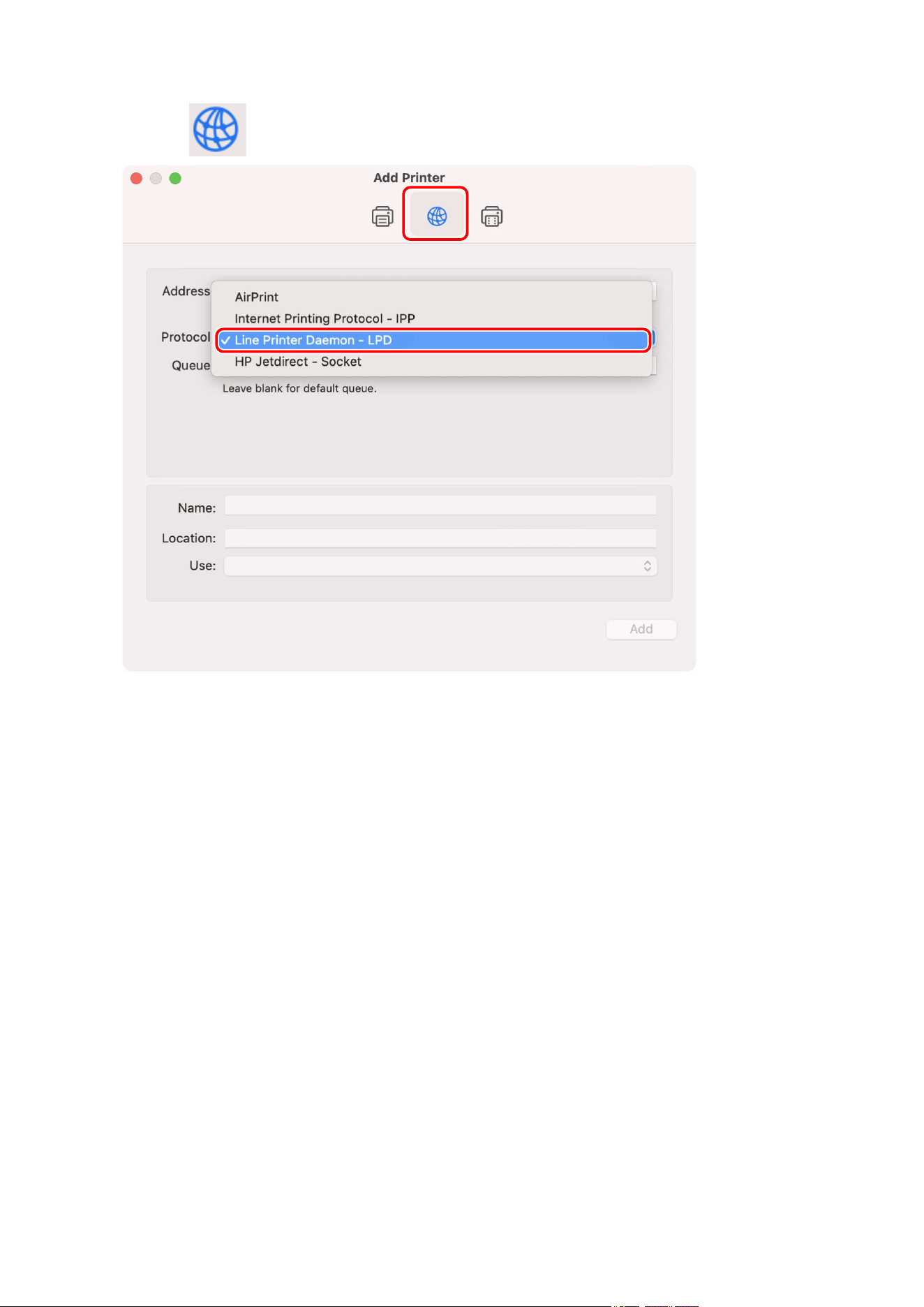
You can register a printer connected by "Line Printer Daemon – LPD" in macOS.
Prerequisites
● System Requirements(P. 14)
● Installing the Driver(P. 16)
● Conrmation of specied IP address
If you do not know the IP address, check with the network administrator or check the network settings. For
details, refer to the manual of the device.
Procedures
1
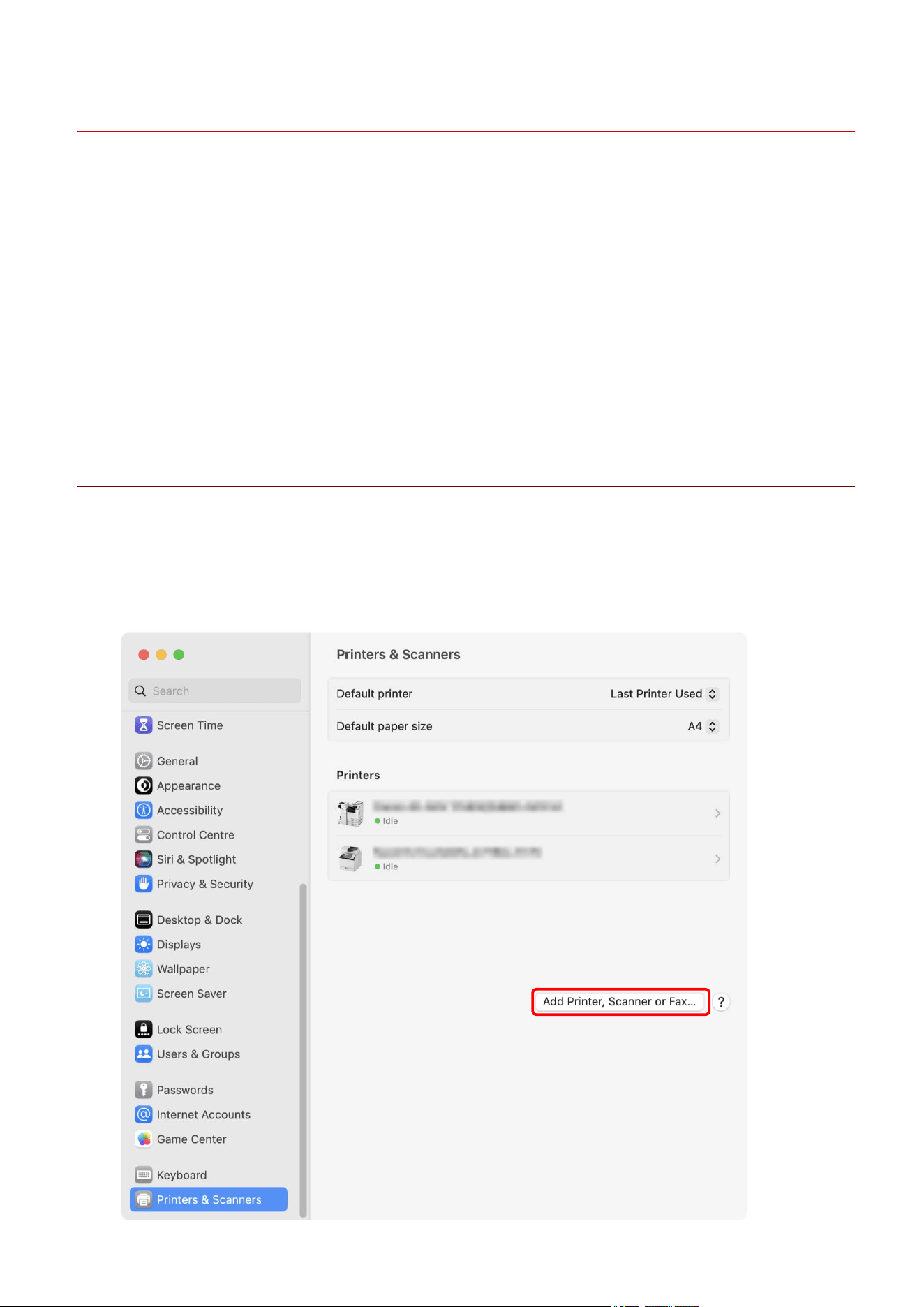
Open [System Settings] in macOS → click [Printers & Scanners] in the sidebar.
2
Click [Add Printer, Scanner, or Fax].
Installing the Driver
18
NOTE
● A message indicating that the IP address is incorrect may be displayed even if the correct IP address has
been entered.
5
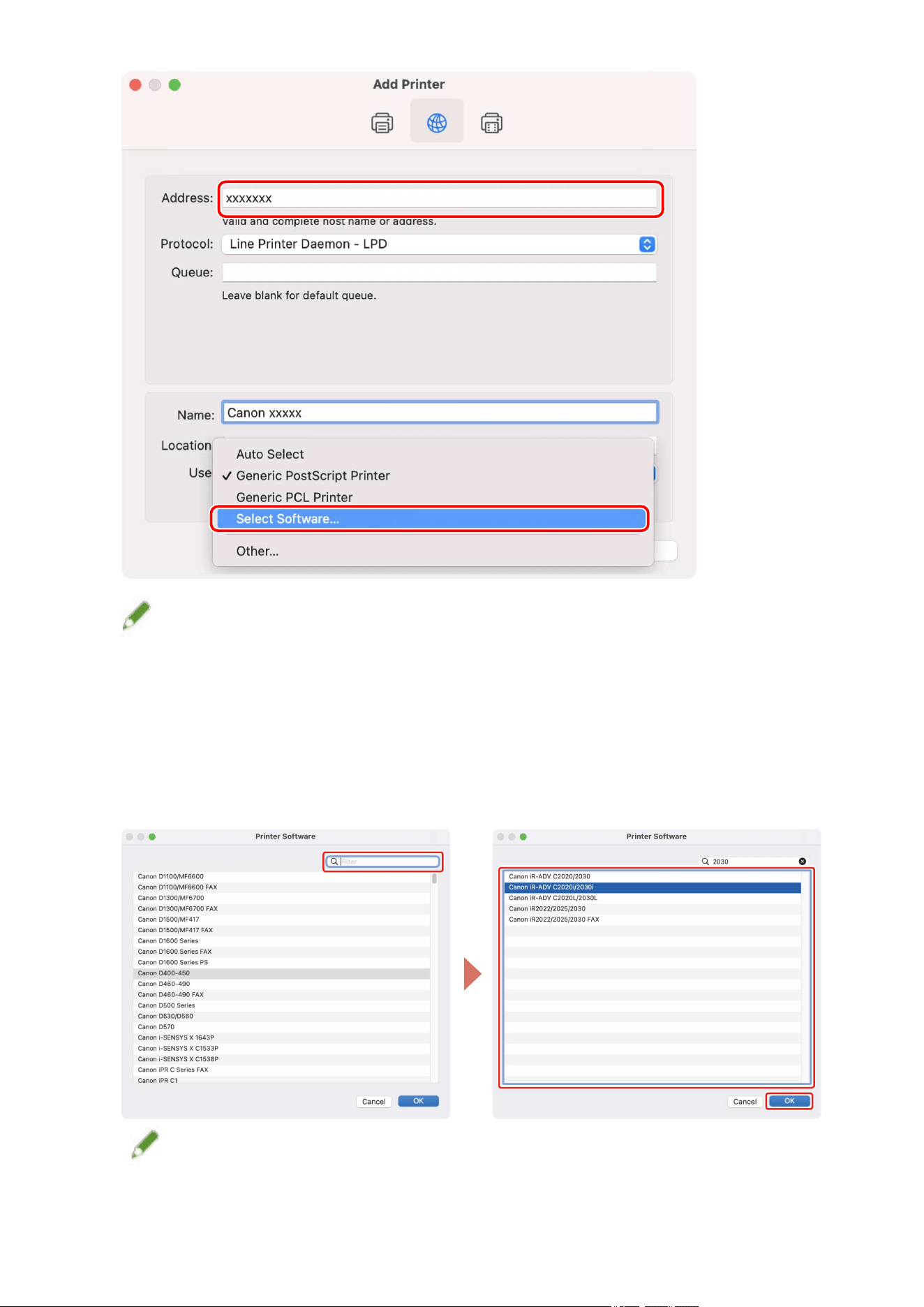
Enter the number included in the model name of the printer in the search eld →
select the corresponding driver in the search results → click [OK].
For example, if the model name is "imageRUNNER ADVANCE C2030i", enter "2030" and select "Canon iR-ADV
C2020i/2030i" (UFR II/UFRII LT/LIPSLX printer driver) or "Canon iR-ADV C2020i/2030i PS" (PS printer driver) in
the search results.
NOTE
● Select a driver with a name starting with "Canon".
● If a driver matching the model name is not displayed in the search results, try the following:
Installing the Driver
20
- Try removing the last digit. For example, if the model name is "MF542", enter "54", and select the driver
that matches the model name with the last digit removed, such as "Canon MF540 Series" (UFR II/UFRII LT/
LIPSLX printer driver) or "Canon MF540 Series PS" (PS printer driver), in the search results.
- If the corresponding driver is not displayed with the above method, try removing the last two digits. For
example, if the model name is "MF9220", enter "92", and select the driver that matches the model name
with the last two digits removed, such as "Canon MF9200 Series" (UFR II/UFRII LT/LIPSLX printer driver) or
"Canon MF9200 Series PS" (PS printer driver).
● Drivers with the name "***** JP" or "***** CARPS2" are drivers for Japan. For other regions, select a driver
that does not include "JP" or "CARPS2" in its name.
● Drivers with the name "***** EUR" are drivers for Europe. For other regions, select a driver that does not
include "EUR".
● If the corresponding driver is not displayed with the above method, select the driver corresponding to the
model as follows:
- imageRUNNER C3020 Series/C3025 Series:
Canon iR C3000 Series (UFR II/UFRII LT/LIPSLX printer driver) or Canon iR C3000 Series PS (PS printer driver)
- imageRUNNER 7095 Series/iR7095 Series:
Canon iR7086-7105 (UFR II/UFRII LT/LIPSLX printer driver) or Canon iR7086-7105 PS (PS printer driver)
6
Change [Name] for the printer as necessary → click [Add].
7
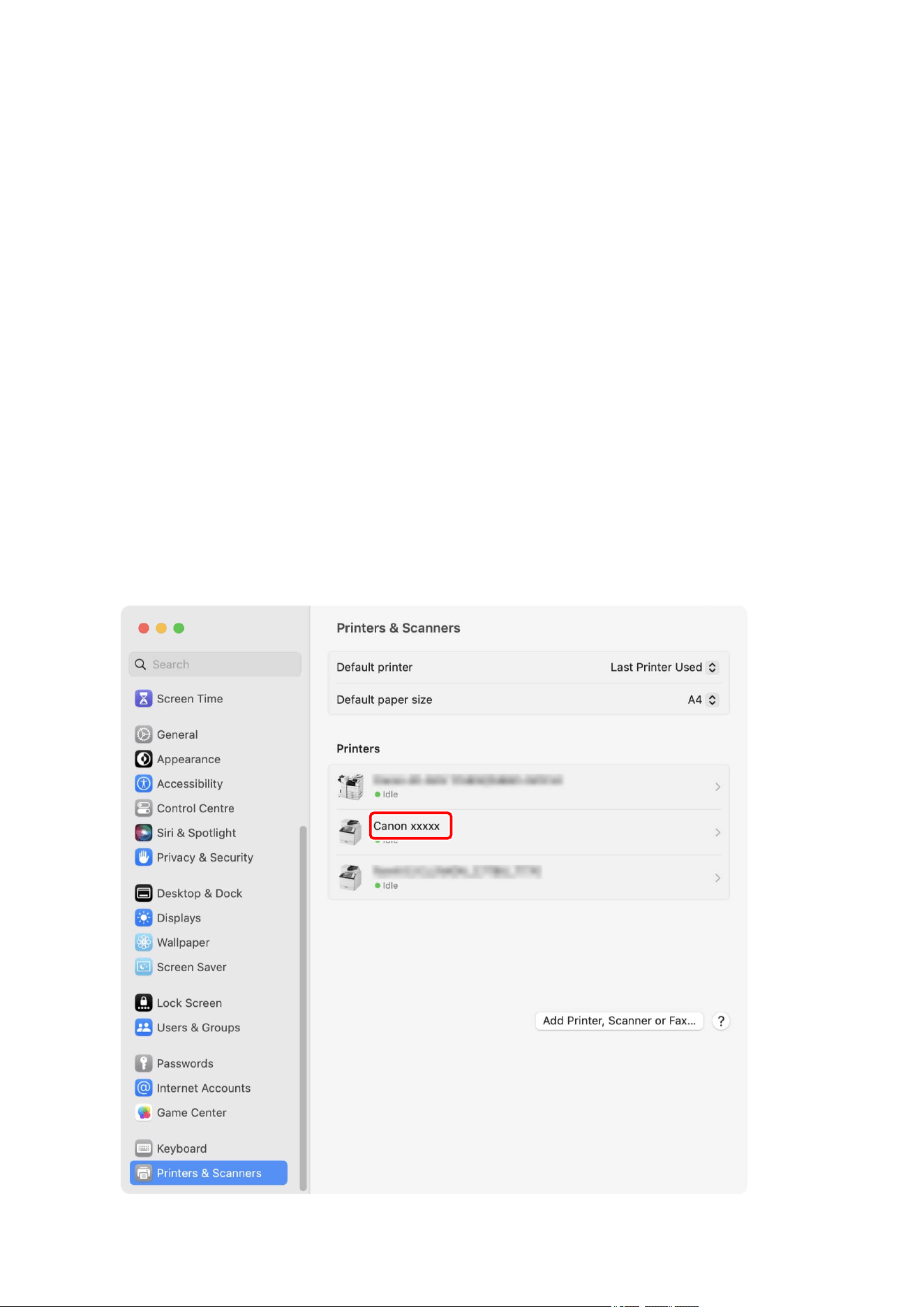
Check that the registered printer is displayed in the [Printers] list.
Set the device options as necessary.
Installing the Driver
21


Registering a Printer Connected by USB
You can register a printer connected by USB in macOS.
Prerequisites
● System Requirements(P. 14)
● Installing the Driver(P. 16)
● Installation of the optional USB interface board (if required with the printer you are using)
Procedures
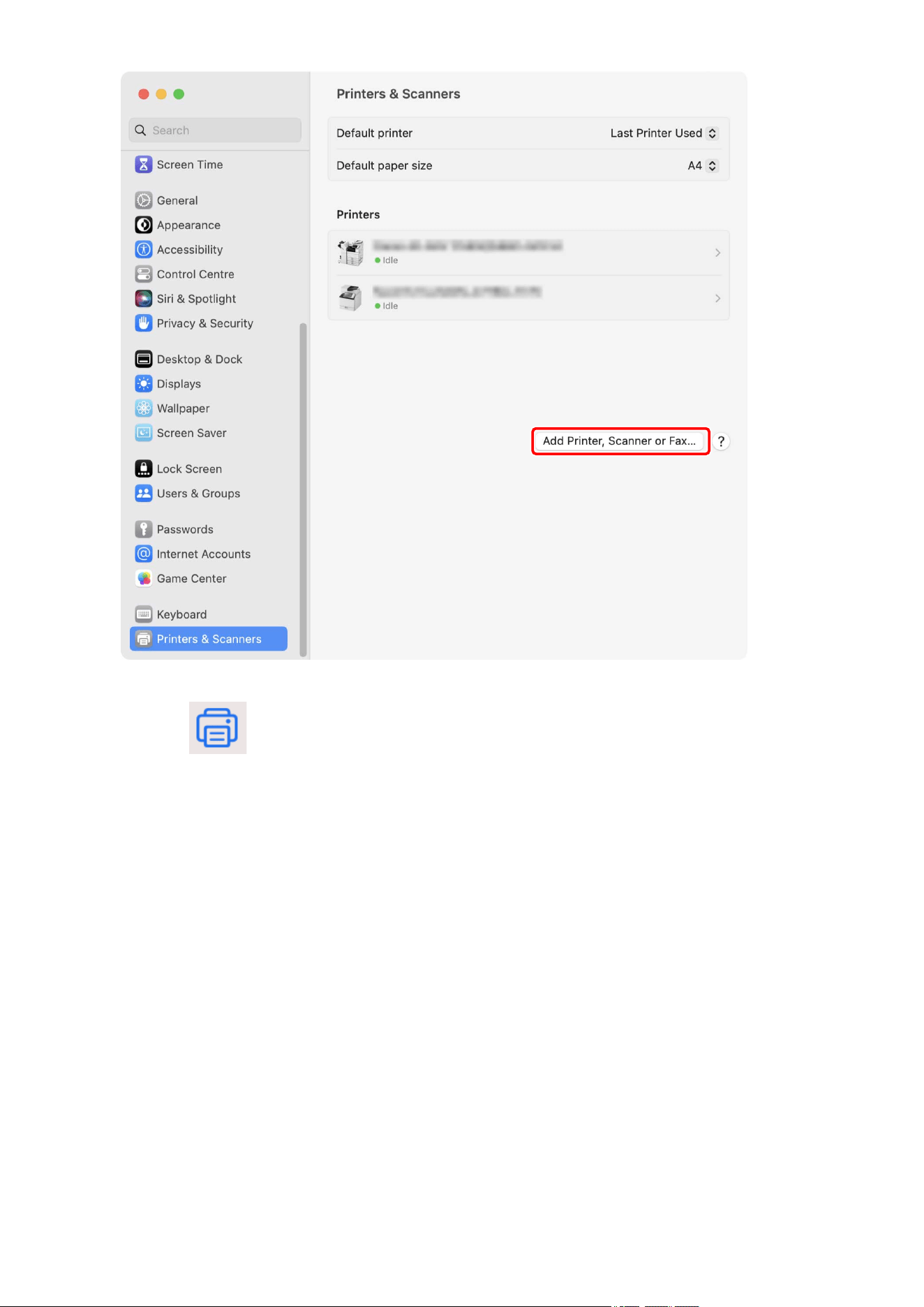
1
Open [System Settings] in macOS → click [Printers & Scanners] in the sidebar.
2
Turn the printer on → connect the printer and the computer by USB cable.
3
Click [Add Printer, Scanner, or Fax].
Installing the Driver
23
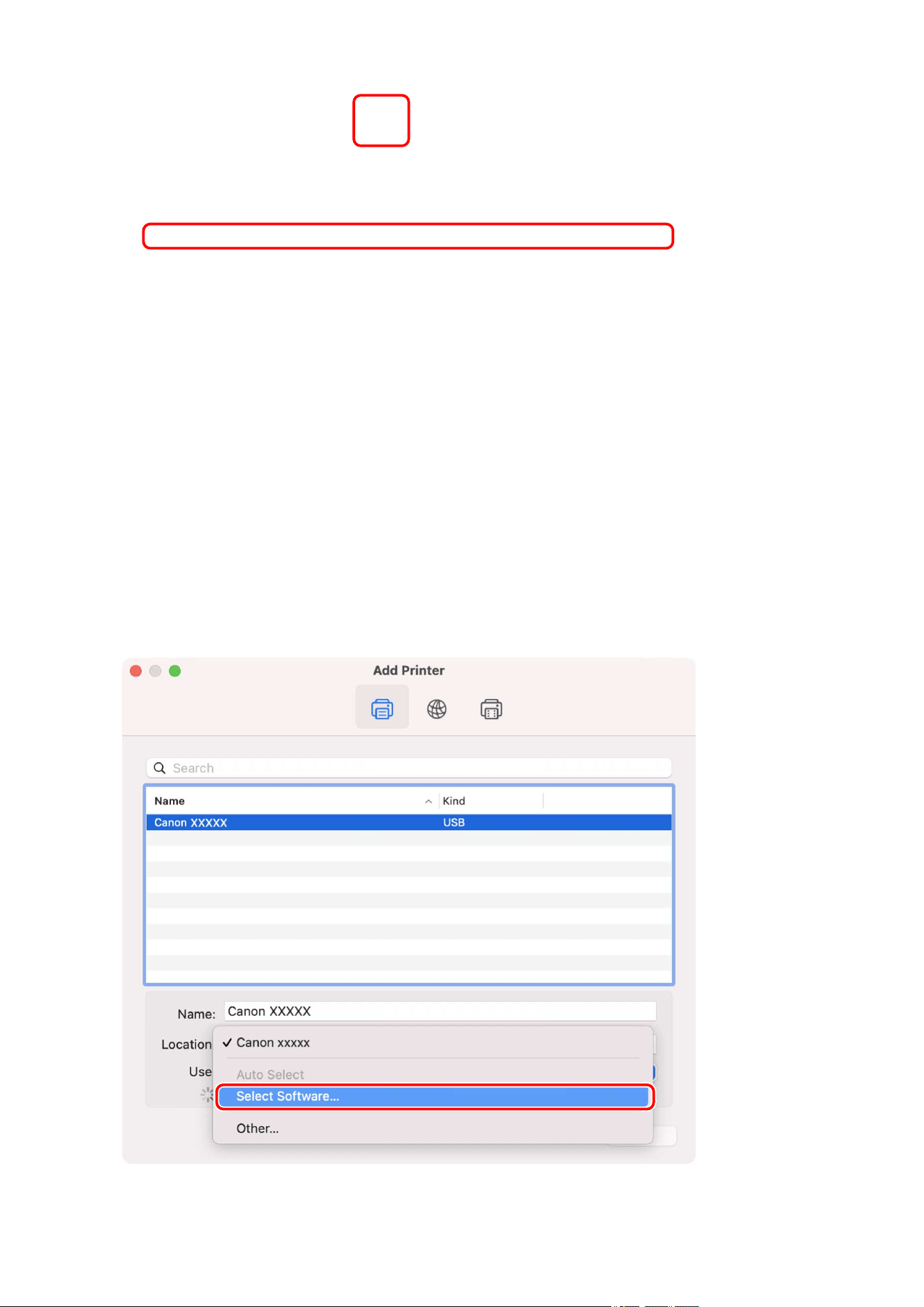
4
Select [ Default] in the toolbar → select a printer from the list.
Select a printer displayed as "USB" in [Kind].
Installing the Driver
24
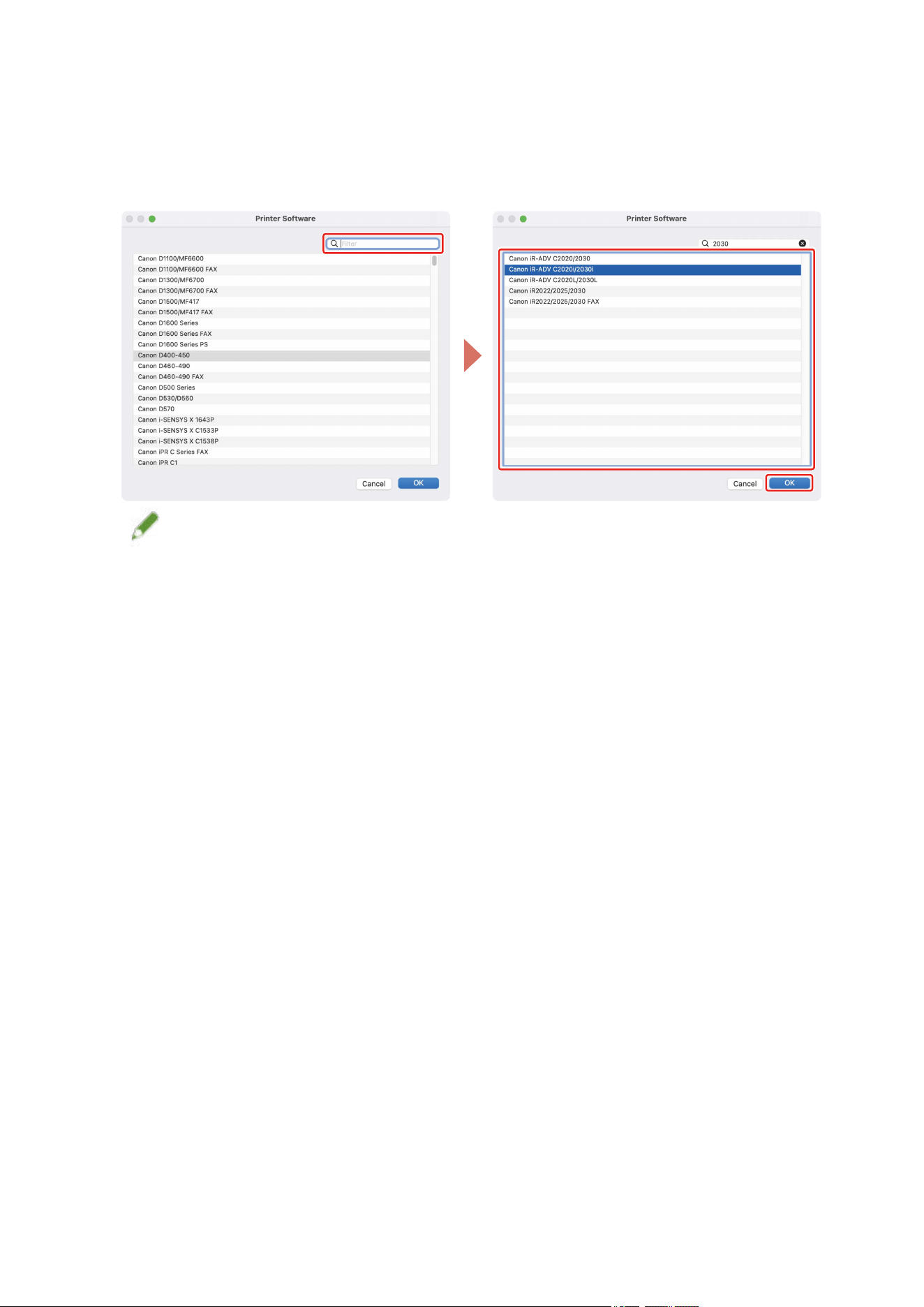
5
Select [Select Software] from [Use].
Installing the Driver
25
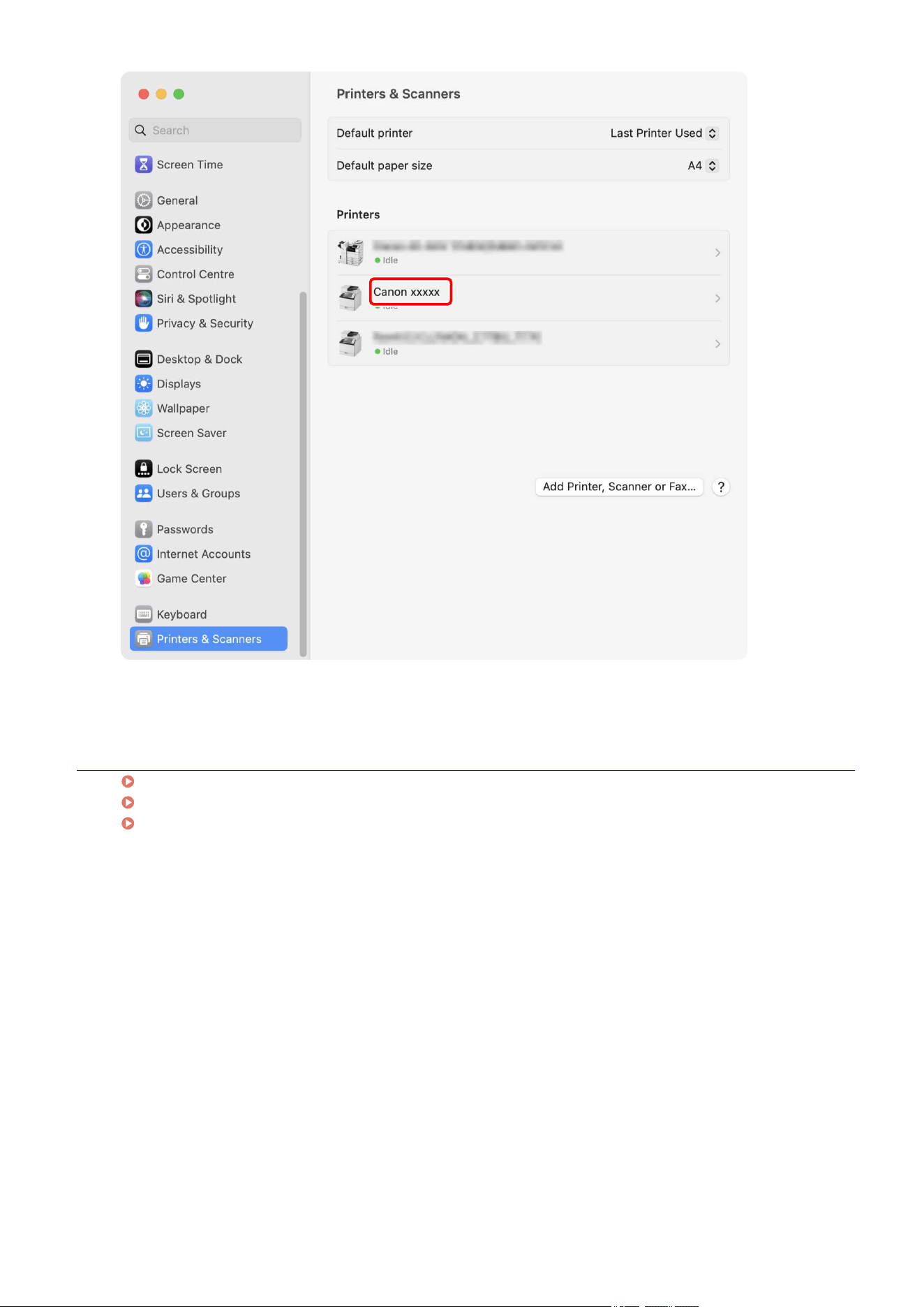
6
Enter the number included in the model name of the printer in the search eld →
select the corresponding driver in the search results → click [OK].
For example, if the model name is "imageRUNNER ADVANCE C2030i", enter "2030" and select "Canon iR-ADV
C2020i/2030i" (UFR II/UFRII LT/LIPSLX printer driver) or "Canon iR-ADV C2020i/2030i PS" (PS printer driver) in
the search results.
NOTE
● Select a driver with a name starting with "Canon".
● If a driver matching the model name is not displayed in the search results, try the following:
- Try removing the last digit. For example, if the model name is "MF542", enter "54", and select the driver
that matches the model name with the last digit removed, such as "Canon MF540 Series" (UFR II/UFRII LT/
LIPSLX printer driver) or "Canon MF540 Series PS" (PS printer driver), in the search results.
- If the corresponding driver is not displayed with the above method, try removing the last two digits. For
example, if the model name is "MF9220", enter "92", and select the driver that matches the model name
with the last two digits removed, such as "Canon MF9200 Series" (UFR II/UFRII LT/LIPSLX printer driver) or
"Canon MF9200 Series PS" (PS printer driver).
● Drivers with the name "***** JP" or "***** CARPS2" are drivers for Japan. For other regions, select a driver
that does not include "JP" or "CARPS2" in its name.
● Drivers with the name "***** EUR" are drivers for Europe. For other regions, select a driver that does not
include "EUR".
● If the corresponding driver is not displayed with the above method, select the driver corresponding to the
model as follows:
- imageRUNNER C3020 Series/C3025 Series:
Canon iR C3000 Series (UFR II/UFRII LT/LIPSLX printer driver) or Canon iR C3000 Series PS (PS printer driver)
- imageRUNNER 7095 Series/iR7095 Series:
Canon iR7086-7105 (UFR II/UFRII LT/LIPSLX printer driver) or Canon iR7086-7105 PS (PS printer driver)
7
Change [Name] for the printer as necessary → click [Add].
8
Check that the registered printer is displayed in the [Printers] list.
Installing the Driver
26

Registering a Printer Connected by Bonjour
You can register a printer connected by Bonjour to macOS.
NOTE
● Some printer models are not compatible with Bonjour connections.
Prerequisites
● System Requirements(P. 14)
● Installing the Driver(P. 16)
Procedures
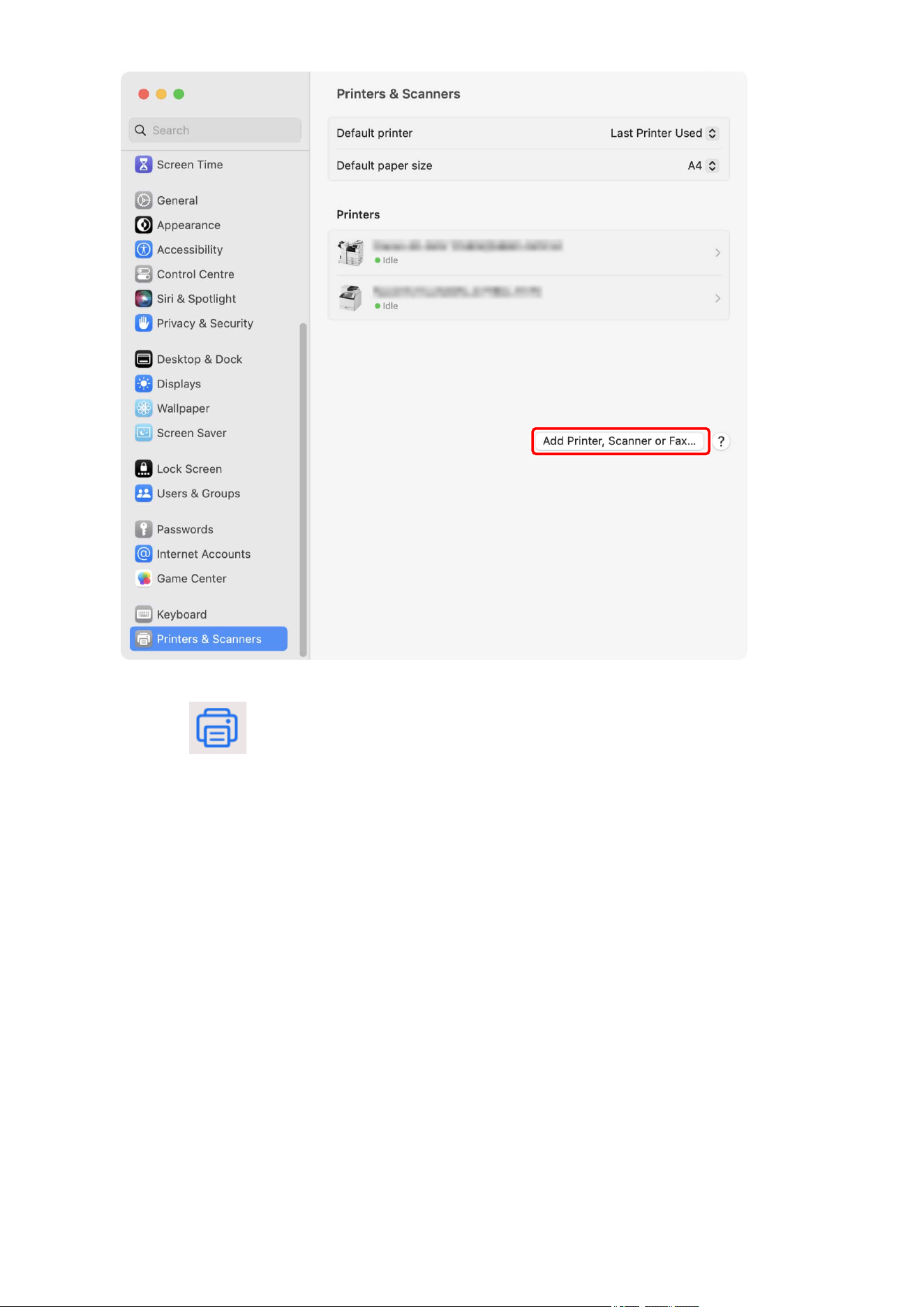
1
Open [System Settings] in macOS → click [Printers & Scanners] in the sidebar.
2
Click [Add Printer, Scanner, or Fax].
Installing the Driver
28
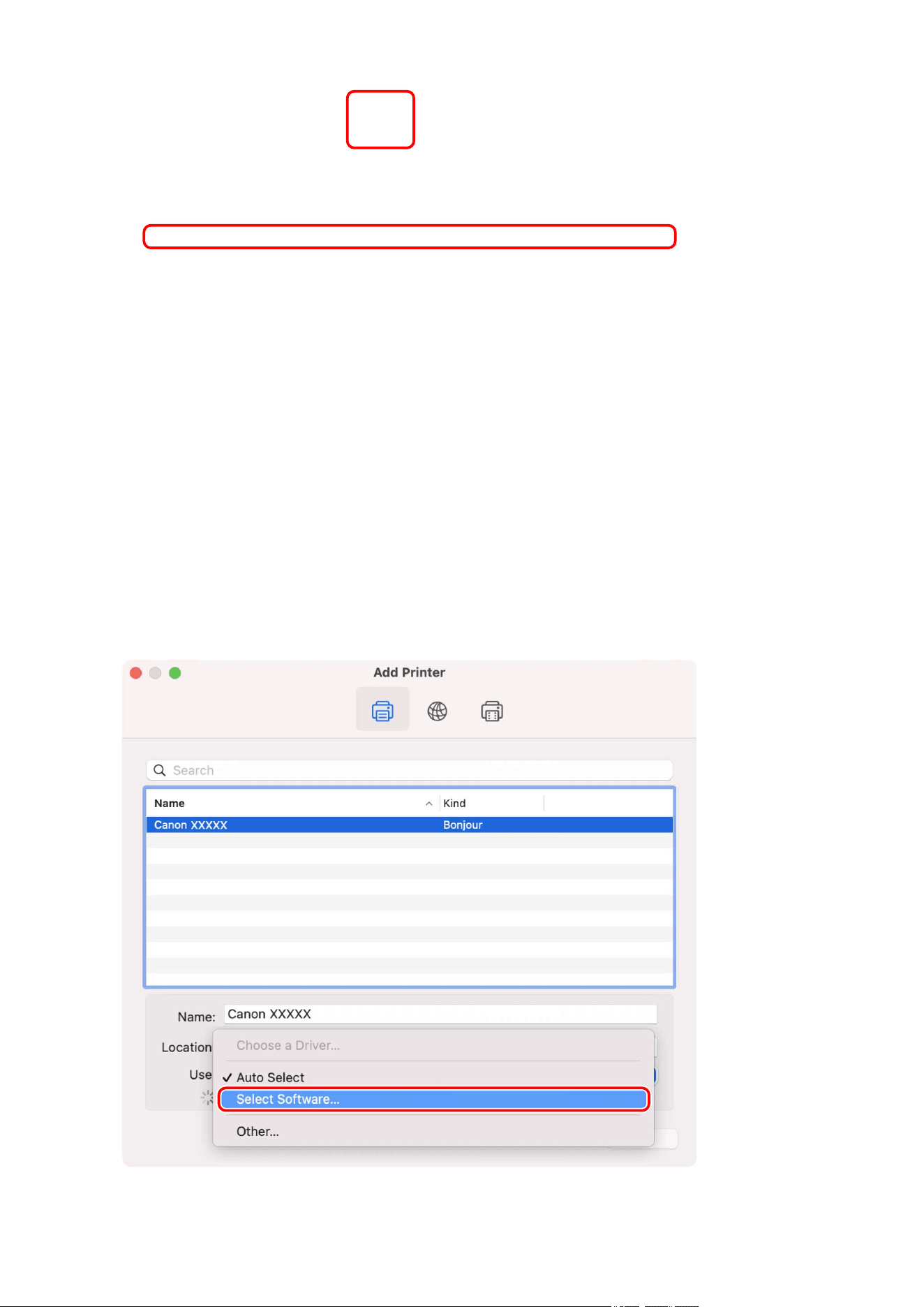
4
Select [Select Software] from [Use].
Installing the Driver
30
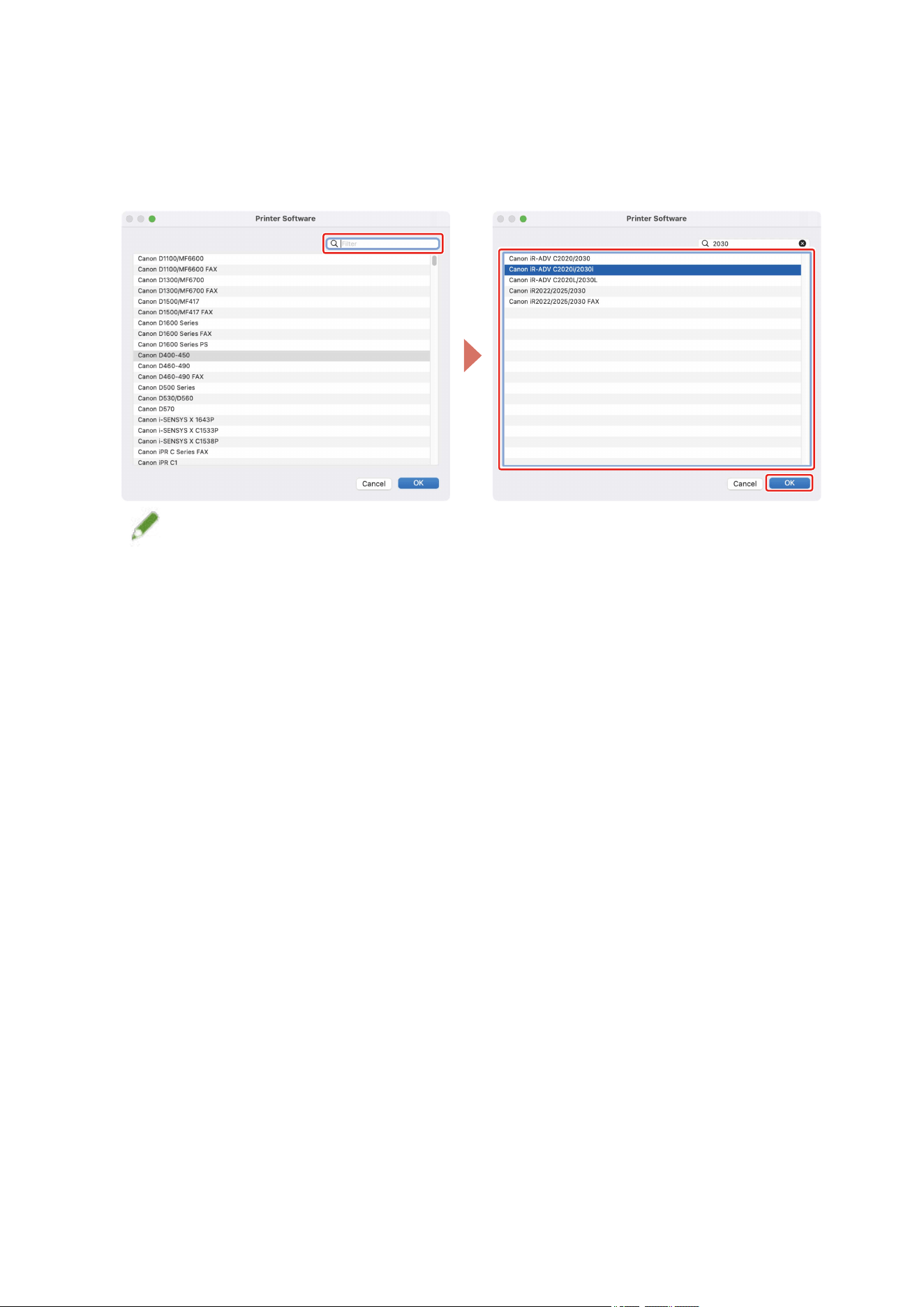
5
Enter the number included in the model name of the printer in the search eld →
select the corresponding driver in the search results → click [OK].
For example, if the model name is "imageRUNNER ADVANCE C2030i", enter "2030" and select "Canon iR-ADV
C2020i/2030i" (UFR II/UFRII LT/LIPSLX printer driver) or "Canon iR-ADV C2020i/2030i PS" (PS printer driver) in
the search results.
NOTE
● Select a driver with a name starting with "Canon".
● If a driver matching the model name is not displayed in the search results, try the following:
- Try removing the last digit. For example, if the model name is "MF542", enter "54", and select the driver
that matches the model name with the last digit removed, such as "Canon MF540 Series" (UFR II/UFRII LT/
LIPSLX printer driver) or "Canon MF540 Series PS" (PS printer driver), in the search results.
- If the corresponding driver is not displayed with the above method, try removing the last two digits. For
example, if the model name is "MF9220", enter "92", and select the driver that matches the model name
with the last two digits removed, such as "Canon MF9200 Series" (UFR II/UFRII LT/LIPSLX printer driver) or
"Canon MF9200 Series PS" (PS printer driver).
● Drivers with the name "***** JP" or "***** CARPS2" are drivers for Japan. For other regions, select a driver
that does not include "JP" or "CARPS2" in its name.
● Drivers with the name "***** EUR" are drivers for Europe. For other regions, select a driver that does not
include "EUR".
● If the corresponding driver is not displayed with the above method, select the driver corresponding to the
model as follows:
- imageRUNNER C3020 Series/C3025 Series:
Canon iR C3000 Series (UFR II/UFRII LT/LIPSLX printer driver) or Canon iR C3000 Series PS (PS printer driver)
- imageRUNNER 7095 Series/iR7095 Series:
Canon iR7086-7105 (UFR II/UFRII LT/LIPSLX printer driver) or Canon iR7086-7105 PS (PS printer driver)
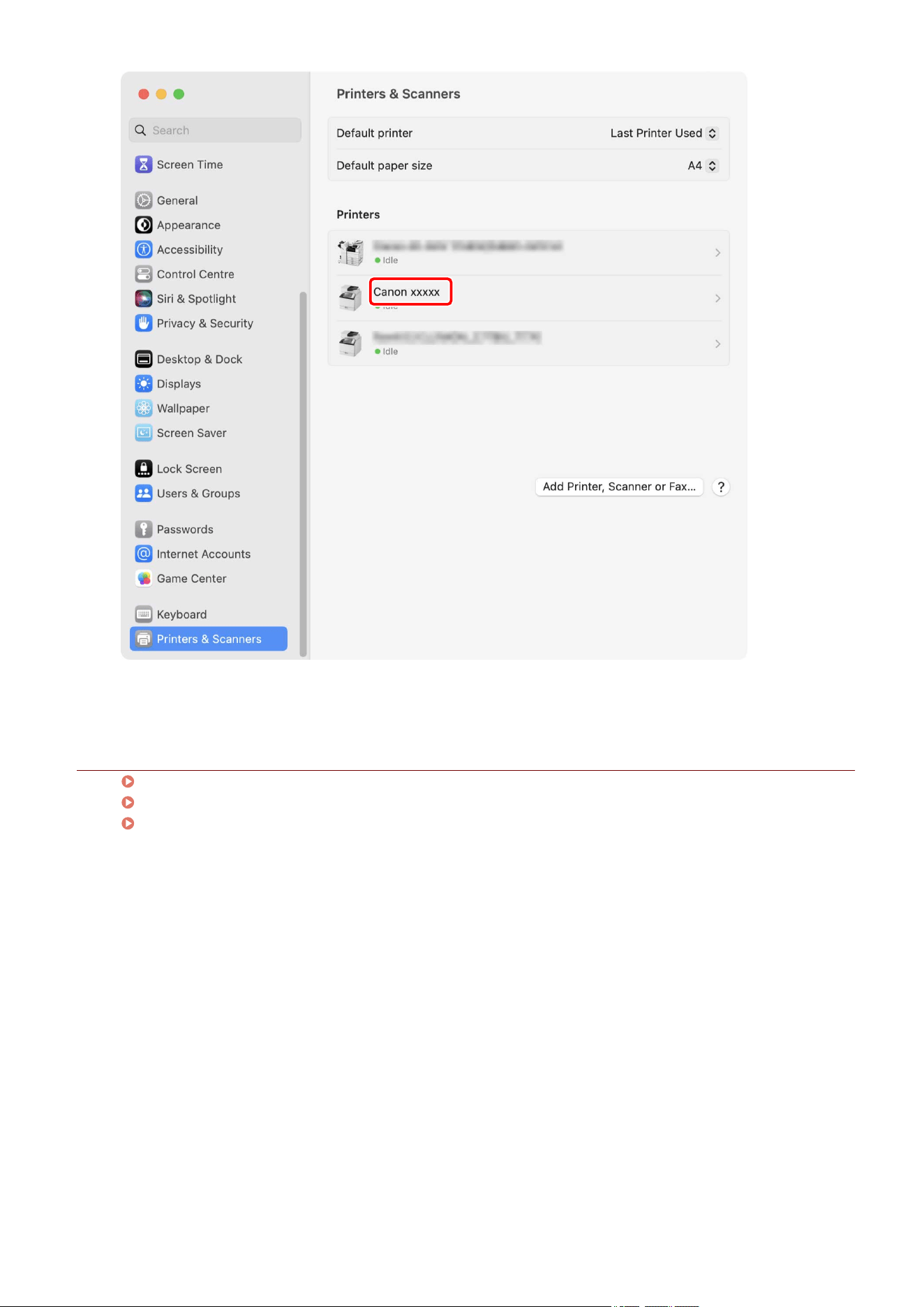
6
Change [Name] for the printer as necessary → click [Add].
7
Check that the registered printer is displayed in the [Printers] list.
Installing the Driver
31

Uninstalling a Driver
This explains the procedure for uninstalling a driver that is no longer needed.
Prerequisites
● When connected by USB, removal of the USB cable connecting the device and the computer
● Conrmation of the device name to be deleted
NOTE
● The driver can be upgraded. It is not necessary to uninstall the old driver.
Procedures
1
Open [System Settings] in macOS → click [Printers & Scanners] in the sidebar.
2
Select the device to uninstall.
3
In the displayed dialog, click [Remove Printer].
Installing the Driver
33
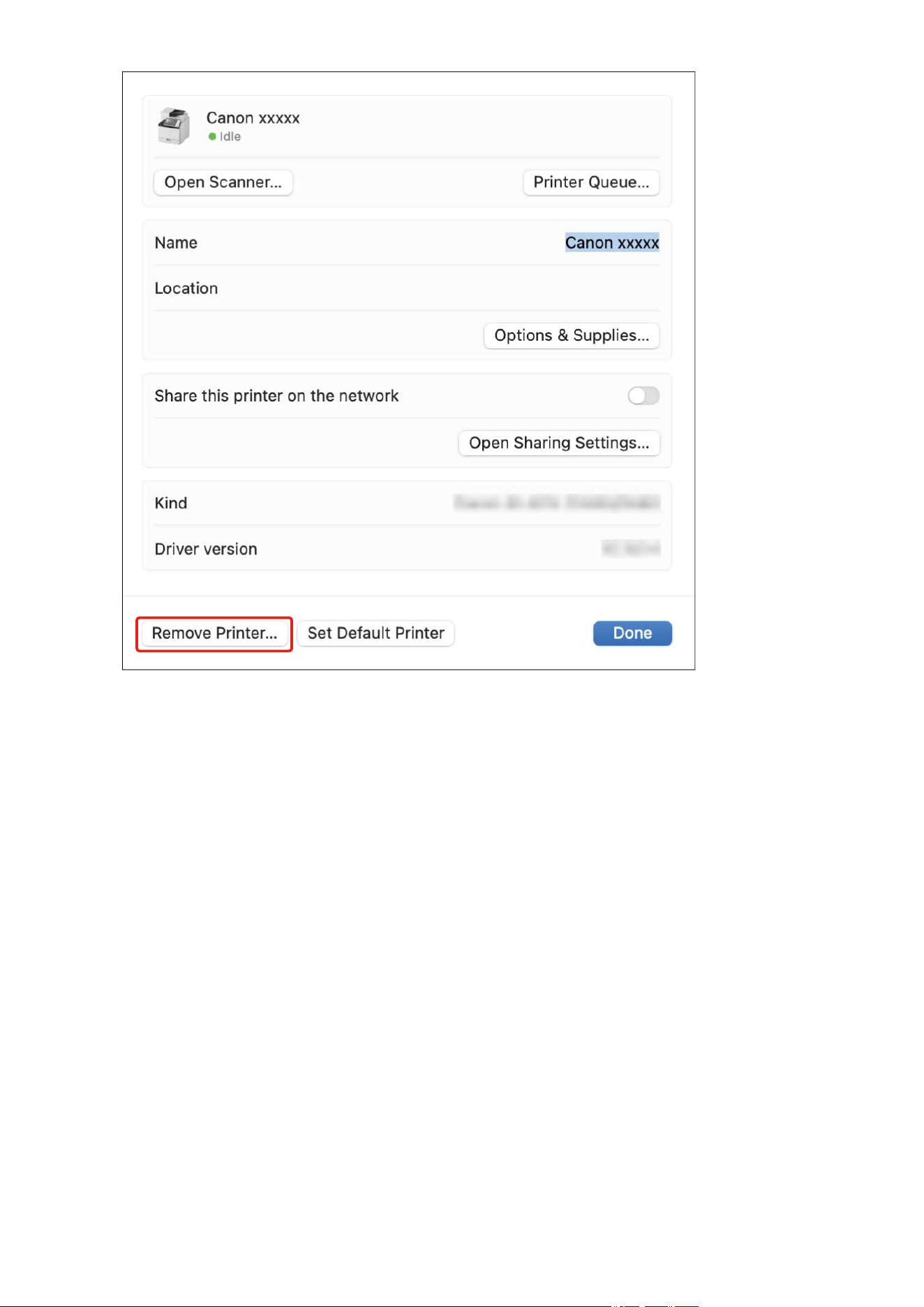
4
Delete the les of the driver to uninstall in the [Library] folder of macOS.
If a conrmation dialog is displayed, enter an administrator name and password and click [OK].
The name represented by "****" varies according to the device.
For the UFR II/UFRII LT/LIPSLX/CARPS2 Printer Driver
- Library/Printers/Canon/CUPS_Printer
- Library/Printers/PPDs/Contents/Resources/CNPZU****ZU.ppd.gz
- usr/libexec/cups/backend/canonoipnetzu
For the PS Printer Driver
- Library/Printers/Canon/CUPSPS2
- Library/Printers/PPDs/Contents/Resources/CNMC****S2.ppd.gz
- usr/libexec/cups/backend/canonoipnets2
5
Restart macOS.
Installing the Driver
34

Printing
Printing .................................................................................................................................................................. 36
Printing from an Application .............................................................................................................................. 37
Arranging Multiple Pages on One Sheet of Paper ............................................................................................. 40
Overlapping Forms .............................................................................................................................................. 41
Holding a Print Job .............................................................................................................................................. 43
Attaching a PIN to Print Data ............................................................................................................................. 44
Saving Print Data in a Box in the Device ............................................................................................................ 45
Suspend Currently Printing Jobs to Prioritize a Print Job .................................................................................. 46
Prioritizing a Print Job Over Other Print Jobs .................................................................................................... 47
Registering Presets ............................................................................................................................................. 48
Setting User Information from a Printer Utility ................................................................................................ 49
Printing
35

Printing
Printing from an Application(P. 37)
Arranging Multiple Pages on One Sheet of Paper(P. 40)
Overlapping Forms(P. 41)
Holding a Print Job(P. 43)
Attaching a PIN to Print Data(P. 44)
Saving Print Data in a Box in the Device(P. 45)
Suspend Currently Printing Jobs to Prioritize a Print Job(P. 46)
Prioritizing a Print Job Over Other Print Jobs(P. 47)
Registering Presets(P. 48)
Setting User Information from a Printer Utility(P. 49)
Printing
36

Printing from an Application
This explains the basic procedure for printing from an application.
1
Select [Print] from the application's [File] menu.
2
In the [Print] dialog, select the device to use from the [Printer] pop-up menu.
3
Congure the print options.
Printing
37
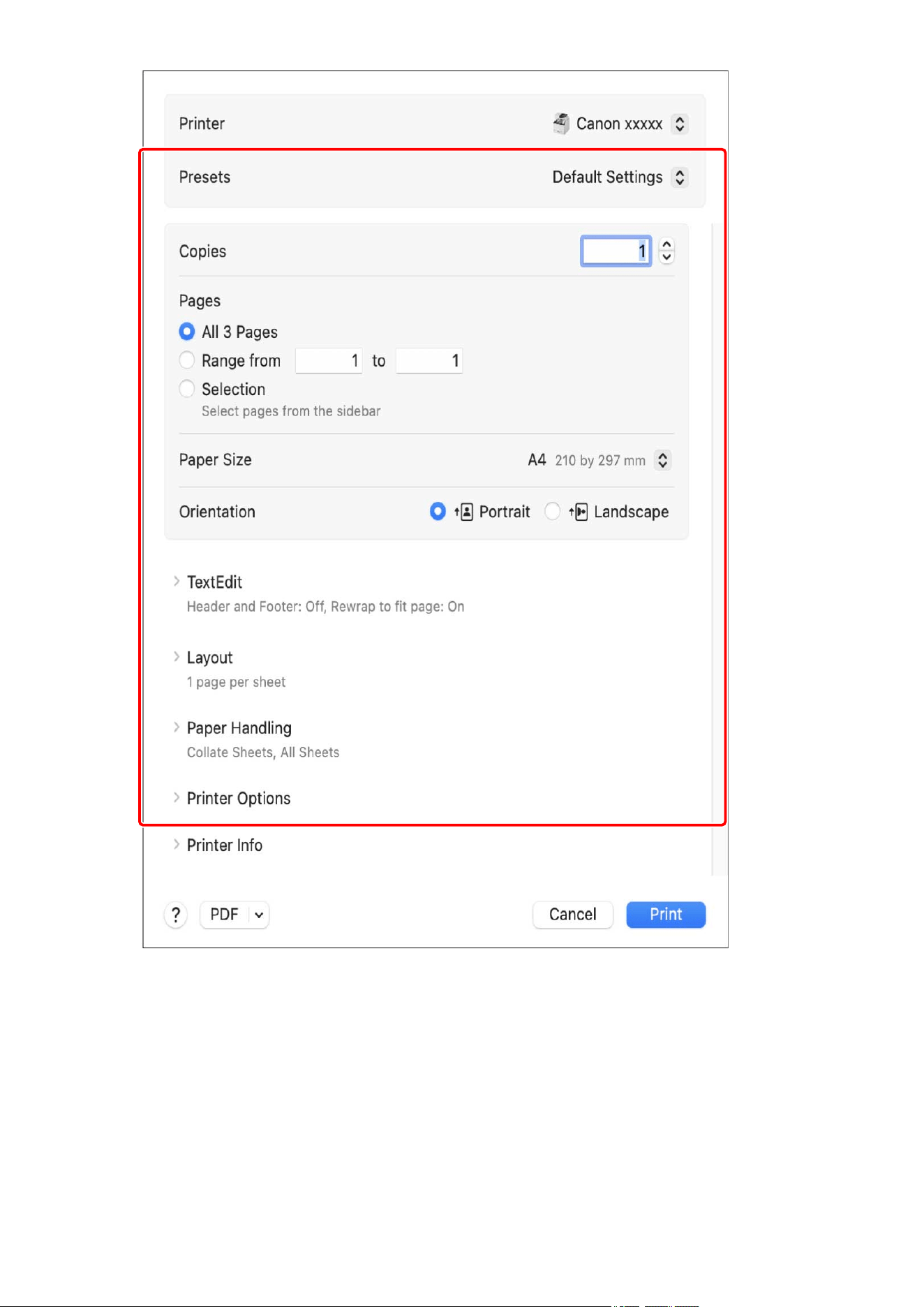
To use settings saved as a preset
Select the name of the preset from the [Presets] pop-up menu.
To congure the print function of the device
Click [Printer Options] → congure the required items.
Printing
38
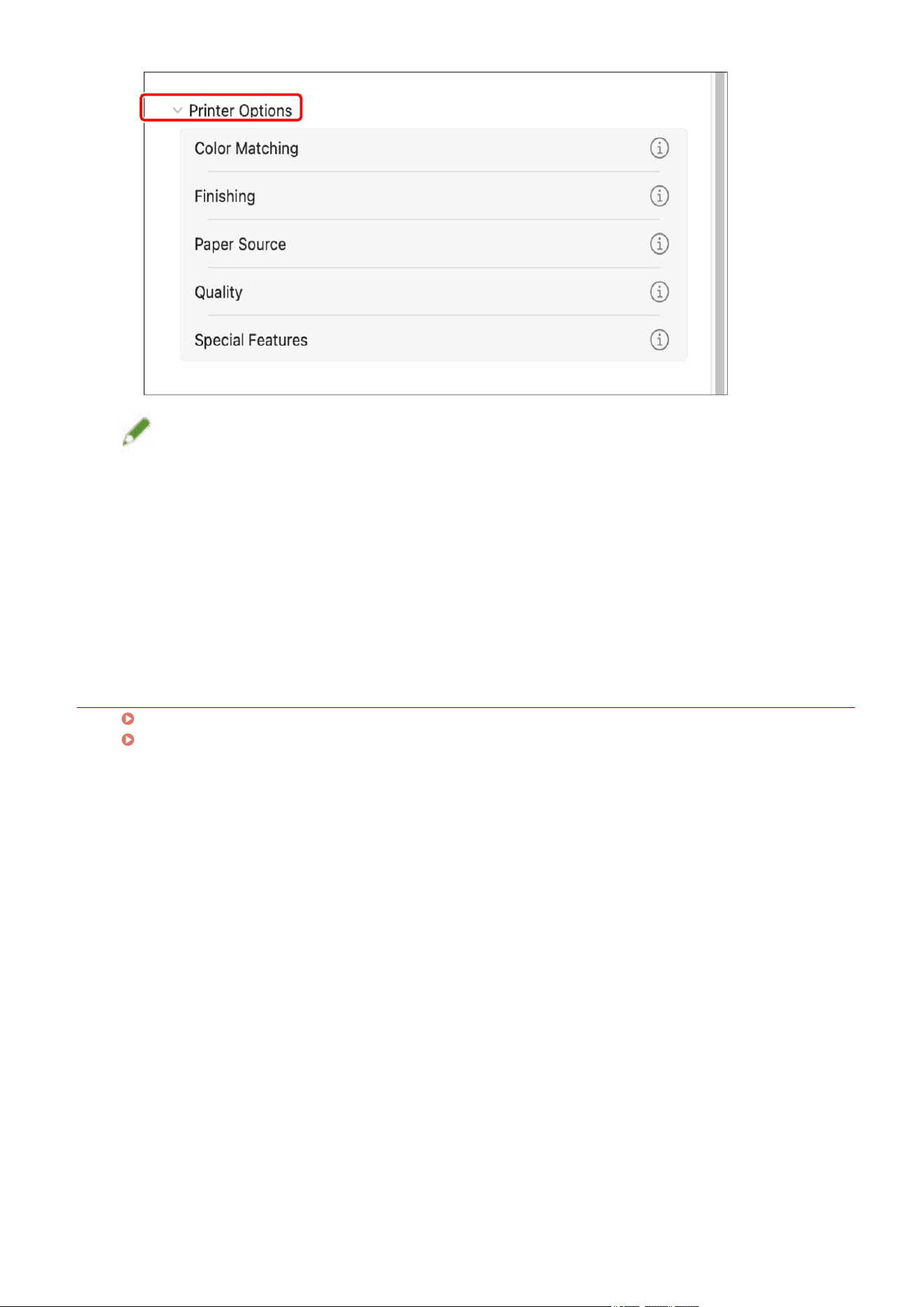
NOTE
● [Printer Features] may be displayed in [Printer Options], depending on the application you are using. In this
case, click [Printer Features], then select the function you want to set from the [Feature Sets] pop-up menu.
● If the functions you want to set are not displayed in the print options, congure the settings after enabling
the device option, etc.
4
In the [Print] dialog, click [Print].
Related Topics
Preparations for Using the Driver(P. 12)
Registering Presets(P. 48)
Printing
39

Arranging Multiple Pages on One Sheet of Paper
This section explains the procedure for printing multiple pages on a single sheet of paper.
Select the direction you want to arrange the pages in on the paper and print borders around the arranged
pages.
1
In the [Print] dialog, click [Layout].
2
Select the number of pages to be arranged on each sheet of paper from the [Pages per
Sheet] pop-up menu.
For detailed settings such as the direction in which the pages are arranged, printing borders around each
page, etc., perform the following procedure.
3
Select what direction the pages are to be arranged in from [Layout Direction].
4
Select the type of border from the [Border] pop-up menu.
Printing
40

Overlapping Forms
The function for printing data overlapping a xed form stored in the device is known as overlay printing.
Fixed form information saved to the device in advance can be recalled in the operating system and printed in
combination with overlapping print data.
Perform overlay printing in the following order.
1. To Save a Fixed Form in the Device(P. 41)
2. To Retrieve the Saved Form File Information(P. 41)
3. To Perform Overlay Printing(P. 42)
To Save a Fixed Form in the Device
After creating a xed form beforehand, carry out the following procedure. At the end, you can save the xed
form in the device by clicking [Print] in the [Print] dialog.
1
In the [Print] dialog, click [Printer Options] → click [Special Features].
2
Click [Page Options].
3
In the displayed dialog, select [Create Form File] from the [Processing Method] pop-up
menu.
4
Enter the name of the form in [File Name] → click [OK].
5
Click [OK].
6
Click [Print].
To Retrieve the Saved Form File Information
To perform overlay printing, it is necessary to import the form information stored in the device using Oce
Printer Utility or CUPS PS Printer Utility.
1
Open [System Settings] in macOS → click [Printers & Scanners] in the sidebar.
Printing
41

2
Select the device to use.
3
In the displayed dialog, click [Options & Supplies].
4
In the displayed dialog, click the [Utility] tab → click [Open Printer Utility].
Oce Printer Utility or CUPS PS Printer Utility starts.
5
In Oce Printer Utility or CUPS PS Printer Utility, click [Printer Information].
6
Click [OK].
To Perform Overlay Printing
After importing the form information, you can combine it with the print data to be overlaid, and print.
1
In the [Print] dialog, click [Printer Options] → click [Special Features].
2
Click [Page Options].
3
In the displayed dialog, select [Overlay Printing] from the [Processing Method] pop-up
menu.
4
Select the form to use from [File List] → click [OK].
When performing two-sided printing, select the page (front or back) on which the form is to be overlaid from
the [Application] pop-up menu.
5
Click [OK].
6
Click [Print].
Related Topics
[Special Features] Pane(P. 89)
Printing
42

Holding a Print Job
You can temporarily save a print job in a hold queue in the device. You can change the print order or settings of
stored jobs from the control panel of the device or the Remote UI.
1
In the [Print] dialog, click [Printer Options] → click [Special Features].
2
Select [Hold] from the [Job Processing] pop-up menu → click [OK].
3
Click [Print].
4
In the [Name Settings] dialog, enter [Name of Data to Hold] → click [OK].
Related Topics
[Special Features] Pane(P. 89)
Printing
43

Attaching a PIN to Print Data
You can attach a PIN to print data and save it in the device. This is useful when printing condential documents
etc.
NOTE
● To use this function, it may be necessary to enable secure printing in the device options in advance,
depending on the device model.
1
In the [Print] dialog, click [Printer Options] → click [Special Features] or [Authenticate
and Print].
2
Select the Secured Print function.
For the [Special Features] pane
(1) Select [Secured Print] from the [Job Processing] pop-up menu → click [OK].
(2) Click [Print] to display the [Secured Print] dialog.
For the [Authenticate and Print] pane
(1) Select [Use Secured Print].
3
Enter [Document Name], [User Name], and [PIN] → click [OK].
NOTE
● [Document Name], [User Name], and [PIN] may not be able to be entered, depending on the application you
are using. In this case, enter [User Name] and [PIN] with the Oce Printer Utility or CUPS PS Printer Utility.
[Document Name] is used as the document name in the print data.
Related Topics
Enabling Automatic Setting of the Options of the Device(P. 67)
Manually Setting the Options of the Device(P. 70)
Setting User Information from a Printer Utility(P. 49)
[Special Features] Pane(P. 89)
[Authenticate and Print] Pane(P. 92)
Printer Utility Settings(P. 94)
Printing
44

Saving Print Data in a Box in the Device
You can save print data in a box in the device. You can change the settings of or combine stored data from the
control panel of the device or the Remote UI.
1
In the [Print] dialog, click [Printer Options] → click [Special Features].
2
Select [Store] from the [Job Processing] pop-up menu → click [OK].
3
Click [Print].
4
In the [Store Destination] dialog, enter [Document Name] → select the save
destination from [Mail Boxes]/[Box].
NOTE
● [Document Name] and the [Mail Boxes]/[Box] to save the data may not be able to be set, depending on the
application you are using. In this case, set the [Mail Boxes]/[Box] to save the data in the Oce Printer Utility
or CUPS PS Printer Utility. [Document Name] is used as the document name of the data sent to the box.
5
Click [OK].
Related Topics
Setting User Information from a Printer Utility(P. 49)
[Special Features] Pane(P. 89)
Printer Utility Settings(P. 94)
Printing
45

Suspend Currently Printing Jobs to Prioritize a Print Job
You can suspend the printing currently being processed by the device and prints the specied job.
This enables you to prioritize another print job when the current printing is taking too long.
The suspended print job is automatically restarted after the inserted job is nished.
1
In the [Print] dialog, click [Printer Options] → click [Special Features].
2
Select [Interrupt Print] from the [Job Processing] pop-up menu → click [OK].
3
Click [Print].
Related Topics
[Special Features] Pane(P. 89)
Prioritizing a Print Job Over Other Print Jobs(P. 47)
Printing
46

Prioritizing a Print Job Over Other Print Jobs
You can prioritize a print job over other print jobs in a state where they are waiting on the device.
If you execute prioritized printing, print jobs being processed on the device are started immediately after the
prioritized job is complete.
1
In the [Print] dialog, click [Printer Options] → click [Special Features].
2
Select [Promote Print] from the [Job Processing] pop-up menu → click [OK].
3
Click [Print].
Related Topics
[Special Features] Pane(P. 89)
Suspend Currently Printing Jobs to Prioritize a Print Job(P. 46)
Printing
47

Registering Presets
You can register frequently used print settings in [Presets] and recall the settings when printing.
For example, if you frequently use 1-sided printing, registering the 1-sided print setting as a preset is
convenient.
You can also set a preset you use frequently so that it is displayed and immediately available next time you
print.
1
Select a print option in the [Print] dialog and set the functions to register as a preset.
2
Select [Save Current Settings as Preset] from [Presets].
3
Enter [Preset Name] → select [Available For].
4
In [Type], select [Print Job Preset] → click [OK].
[Print Job Preset] is the preset used for general print jobs. To register a preset to use in combination with [Print
Job Preset], select [Custom Preset] in [Type].
When you frequently use a registered preset, select the preset and print after executing the following
procedure. Next time you print thereafter, it will be displayed in [Presets].
5
Select [Edit Preset List] from [Presets].
6
Deselect [Reset Presets Menu to "Default Settings" After Printing] → click [OK].
Printing
48

Setting User Information from a Printer Utility
You can set default settings relating to user information (PINs for department ID management and secured
printing, and the box number to save the data to, etc.) using the Oce Printer Utility or CUPS PS Printer Utility.
1
Open [System Settings] in macOS → click [Printers & Scanners] in the sidebar.
2
Select the device to use.
3
In the displayed dialog, click [Options & Supplies].
4
In the displayed dialog, click the [Utility] tab → click [Open Printer Utility].
Oce Printer Utility or CUPS PS Printer Utility starts.
5
In Oce Printer Utility or CUPS PS Printer Utility, set the required items.
6
Click [Save Settings].
Related Topics
Printer Utility Settings(P. 94)
Printing
49

Creating a Booklet When Printing
Creating a Booklet When Printing ......................................................................................................... 51
Booklet Printing .................................................................................................................................................. 52
Correcting Booklet Printing Displacement ........................................................................................................ 53
Saddle Stitched Booklet Printing ........................................................................................................................ 54
Trimming Pages When Creating Saddle Stitched Booklets ............................................................................... 55
Saddle Press Processing When Creating Saddle Stitched Booklets .................................................................. 56
Perfect Binding Booklet Printing ........................................................................................................................ 57
Creating a Booklet When Printing
50

Creating a Booklet When Printing
Booklet Printing(P. 52)
Correcting Booklet Printing Displacement(P. 53)
Saddle Stitched Booklet Printing(P. 54)
Trimming Pages When Creating Saddle Stitched Booklets(P. 55)
Saddle Press Processing When Creating Saddle Stitched Booklets(P. 56)
Perfect Binding Booklet Printing(P. 57)
Creating a Booklet When Printing
51

Booklet Printing
When folding pages in half, you can automatically arrange and print the pages of a document to create a
booklet.
NOTE
● Select the nished size of the booklet for [Paper Size] in the [Print] dialog.
When A4 is selected for [Paper Size], the A3 paper that is output is folded into two to make an A4 size
booklet.
1
In the [Print] dialog, click [Printer Options] → click [Finishing].
2
Select [Booklet Printing] from the [Print Style] pop-up menu.
If [Detailed Settings for Booklet] is displayed, perform the following procedure.
3
Click [Detailed Settings for Booklet].
4
In the displayed dialog, select the opening direction when creating the booklet from
the [Book Opening] pop-up menu → click [OK].
5
Click [OK].
To add a cover:
When performing booklet printing, it is not possible to print on the cover. You can add a cover when
performing booklet printing by preparing the paper to use for the cover in advance.
Congure the settings for booklet printing in steps 1.(P. 52) to 5.(P. 52) above, load the cover in a paper
source of the device, and congure the following settings.
(1) Click [Printer Options] → click [Paper Source].
(2) Click [Front/Back Cover Settings].
(3) Select [Only Front Cover] from the [Cover Settings] pop-up menu.
(4) In [Paper Source], select the paper source where you have loaded the cover → click [OK].
(5) Click [OK].
Related Topics
[Finishing] Pane(P. 79)
Correcting Booklet Printing Displacement(P. 53)
Saddle Stitched Booklet Printing(P. 54)
Creating a Booklet When Printing
52

Correcting Booklet Printing Displacement
You can create and print booklets while correcting displacement between outer and inner pages that occurs
during booklet printing. When trimming the edges of pages, you can adjust the margins of the gutter widths so
that the position of the print data does not diverge between pages.
1
In the [Print] dialog, click [Printer Options] → click [Finishing].
2
Select [Booklet Printing] from the [Print Style] pop-up menu.
3
Click [Detailed Settings for Booklet].
4
In the displayed dialog, select [Use Creep (Displacement) Correction].
5
Select a correction method in [Displacement Correction Method] → click [OK].
When selecting [Manual Correction], specify [Correction Width].
6
Click [OK].
Related Topics
[Finishing] Pane(P. 79)
Booklet Printing(P. 52)
Creating a Booklet When Printing
53

Saddle Stitched Booklet Printing
When creating and printing booklets, you can output pages stapled in the center. When folding the pages in
half, each set is output saddle stitched in the center.
1
In the [Print] dialog, click [Printer Options] → click [Finishing].
2
Select [Booklet Printing] from the [Print Style] pop-up menu.
3
Select a saddle stitching method from the [Saddle Stitch Settings] pop-up menu.
4
Click [OK].
Related Topics
[Paper Source] Pane(P. 77)
[Finishing] Pane(P. 79)
Booklet Printing(P. 52)
Saddle Press Processing When Creating Saddle Stitched Booklets(P. 56)
Trimming Pages When Creating Saddle Stitched Booklets(P. 55)
Creating a Booklet When Printing
54

Trimming Pages When Creating Saddle Stitched
Booklets
When stapling in the middle to form a booklet, you can trim and align the edges of the pages.
1
In the [Print] dialog, click [Printer Options] → click [Finishing].
2
Select [Booklet Printing] from the [Print Style] pop-up menu.
3
Select a setting item that includes "Trim" from the [Saddle Stitch Settings] pop-up
menu.
4
Select a trimming method from the [Trim Settings] pop-up menu.
5
Specify the trim width.
6
Click [OK].
Related Topics
[Finishing] Pane(P. 79)
Saddle Stitched Booklet Printing(P. 54)
Creating a Booklet When Printing
55

Saddle Press Processing When Creating Saddle Stitched
Booklets
When creating and printing saddle stitched booklets, you can compress the stapled sections so that they are
at.
1
In the [Print] dialog, click [Printer Options] → click [Finishing].
2
Select [Booklet Printing] from the [Print Style] pop-up menu.
3
Select a saddle stitching method from the [Saddle Stitch Settings] pop-up menu.
4
Click [Detailed Settings for Booklet].
5
In the displayed dialog, select [Saddle Press] → specify a saddle press processing
strength in [Saddle Press Adjustment] → click [OK].
6
Click [OK].
Related Topics
[Finishing] Pane(P. 79)
Saddle Stitched Booklet Printing(P. 54)
Creating a Booklet When Printing
56

Perfect Binding Booklet Printing
You can apply glue to the gutter side of the contents and enclose them in a cover to create a booklet.
1
In the [Print] dialog, click [Printer Options] → click [Finishing].
2
Select the type of perfect binding from the [Print Style] pop-up menu.
3
Click [Perfect Binding Settings].
4
In the displayed dialog, set the required items → click [OK].
5
Click [OK].
Related Topics
[Finishing] Pane(P. 79)
Creating a Booklet When Printing
57

Using Various Types of Paper
Using Various Types of Paper .................................................................................................................... 59
Registering Custom Paper Sizes ......................................................................................................................... 60
Inserting Sheets .................................................................................................................................................. 61
Inserting Sheets Between Transparencies ........................................................................................................ 62
Print on the Tab of Tab Paper ............................................................................................................................. 63
Using Various Types of Paper
58


Registering Custom Paper Sizes
You can register a desired paper size as "Custom Papers" and use it for printing.
Registered "Custom Papers" can also be used when printing from another device.
1
In the [Print] dialog, select [Manage Custom Sizes] from the [Paper Size] pop-up menu.
2
Click [+] at the bottom of the displayed dialog.
3
Congure detailed settings such as the name, dimensions, etc. of "Custom Papers" →
click [OK].
Using Various Types of Paper
60

Inserting Sheets
You can insert chapter pages, tab paper, etc. between specied pages.
1
In the [Print] dialog, click [Printer Options] → click [Paper Source].
2
Select [Insert Sheets] → click [Insert Sheets Settings].
3
In the displayed dialog, select the type of sheet to insert from the [Sheets to Insert]
pop-up menu.
4
Select the appropriate items from the [Paper Source] pop-up menu and [Print on] pop-
up menu.
5
In [Insert], enter the page to insert the sheets → click [OK].
6
Click [OK].
Related Topics
[Paper Source] Pane(P. 77)
Using Various Types of Paper
61

Inserting Sheets Between Transparencies
You can print while inserting sheets of paper between transparencies.
1
In the [Print] dialog, click [Printer Options] → click [Paper Source].
2
Select [Paper Type] from the [Select by] pop-up menu → click [Settings].
3
In the displayed dialog, select "Transparency" from the [Paper Type] list → click [OK].
4
Select [Insert Cover Sheets] → click [Settings].
5
In the displayed dialog, select the type of paper to insert from the [Paper Type] list →
click [OK].
6
Click [OK].
Related Topics
[Paper Source] Pane(P. 77)
Using Various Types of Paper
62

Print on the Tab of Tab Paper
You can print on the tab part of tab paper.
1
In the [Print] dialog, click [Printer Options] → click [Paper Source].
2
Select [Paper Type] from the [Select by] pop-up menu → click [Settings].
3
In the displayed dialog, select "Tab Paper" from the [Paper Type] list → click [OK].
If it is necessary to adjust the tab width, perform the following procedure.
4
Click [Tab Details].
5
In the displayed dialog, select [Offset Printing Position] → specify [Offset Width] →
click [OK].
When printing data on one of the following paper types, do not select [Offset Printing Position]. The tab part of
the paper is included in the paper width.
- A4 tab paper: 223 x 297 mm (8.77 x 11.69 inches)
- Letter tab paper: 228.6 x 279.4 mm (9.00 x 11.00 inches)
6
Click [OK].
Related Topics
[Paper Source] Pane(P. 77)
Using Various Types of Paper
63

Linking the Driver and the Device
Linking the Driver and the Device ......................................................................................................... 65
Setting the Options of the Device ...................................................................................................................... 66
Enabling Automatic Setting of the Options of the Device ............................................................................... 67
Manually Setting the Options of the Device .................................................................................................... 70
Setting the Authentication Function ................................................................................................................. 72
Linking the Driver and the Device
64


Setting the Options of the Device
You can register, in the driver, the options (such as paper drawers and nishers) installed in the device, and set
the functions related to the options so that they can be used by the driver.
When using the device for the rst time or adding options to the device, the option information must be
registered in the driver.
Enabling Automatic Setting of the Options of the Device(P. 67)
Manually Setting the Options of the Device(P. 70)
Linking the Driver and the Device
66

Enabling Automatic Setting of the Options of the
Device
When using a device that supports bi-directional communication, you can set the computer to automatically
retrieve the option information of the device using the Oce Printer Utility or CUPS PS Printer Utility.
Prerequisites
● Installing the Driver(P. 16)
● Registering a Printer(P. 17)
● Conrmation that the device you are using is set to perform duplex communication
For information on the setting method, refer to the manual of the device.
Procedures
1
Open [System Settings] in macOS → click [Printers & Scanners] in the sidebar.
2
Select the device to use.
3
In the displayed dialog, click [Options & Supplies].
4
In the displayed dialog, click the [Utility] tab → click [Open Printer Utility].
Oce Printer Utility or CUPS PS Printer Utility starts.
Linking the Driver and the Device
67
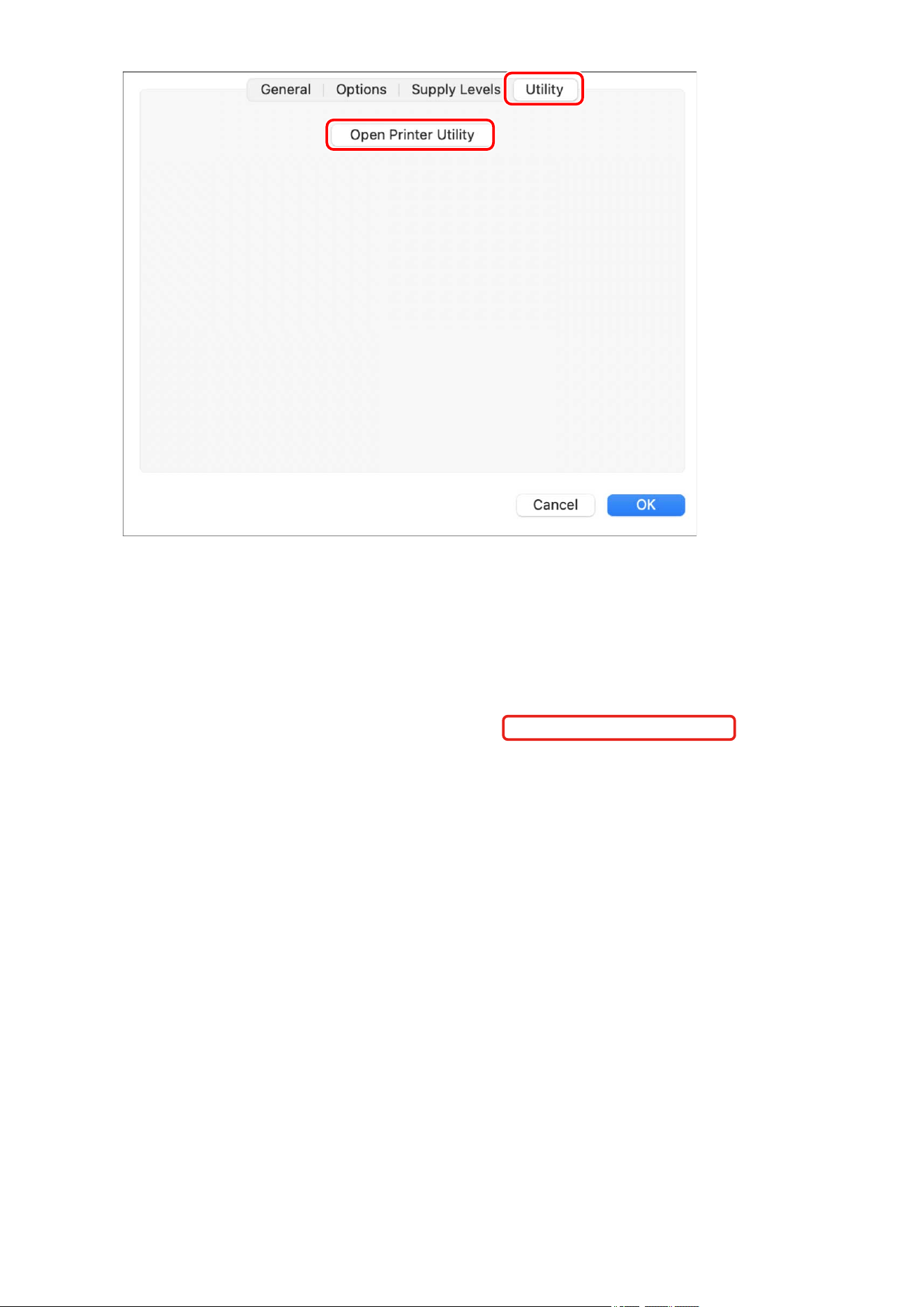
5
Click [Printer Information] in the displayed Oce Printer Utility or CUPS PS Printer
Utility dialog.
6
In the [Printer Information] dialog, check the device information → click [OK].
Linking the Driver and the Device
68

NOTE
● If the driver name displayed at the top of the [Printer Information] dialog and the name displayed in
[Conguration] > [Name Retrieved from Printer] do not match, you may not be able to use the functions of
the device. If this happens, delete the device from the [System Settings] of macOS and register the device
again.
Related Topics
Preparations for Using the Driver(P. 12)
Registering a Printer Connected by TCP/IP(P. 18)
Registering a Printer Connected by USB(P. 23)
Registering a Printer Connected by Bonjour(P. 28)
Manually Setting the Options of the Device(P. 70)
Linking the Driver and the Device
69
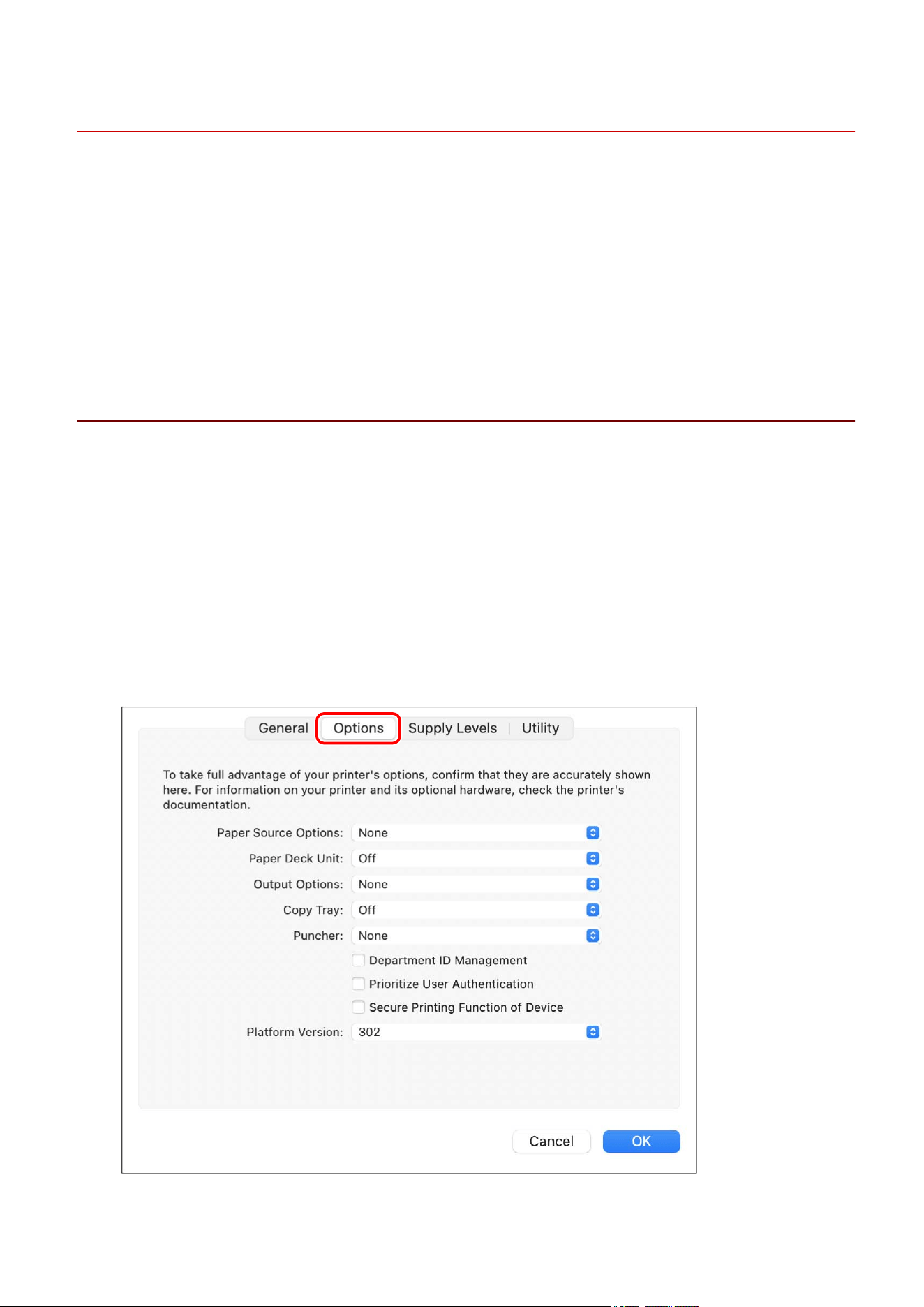
Manually Setting the Options of the Device
If the device is connected by uni-directional communication, the options of the device must be set manually.
Prerequisites
● Installing the Driver(P. 16)
● Registering a Printer(P. 17)
Procedures
1
Open [System Settings] in macOS → click [Printers & Scanners] in the sidebar.
2
Select the device to use.
3
In the displayed dialog, click [Options & Supplies].
4
In the displayed dialog, click the [Options] tab.
Linking the Driver and the Device
70

5
Set the options of the device → click [OK].
NOTE
● Select only the options that are actually installed in the device.
● Set [Function Version] to the version displayed on the conguration page printed from the control panel of
the device.
● Select the version of the platform installed in the device in [Platform Version]. If [Platform Version] is not set
correctly, some print settings may not be able to be used.
Conrm [Platform Version] in the control panel of the device.
● For information on operating the device, check the manual of the device.
Related Topics
Preparations for Using the Driver(P. 12)
Registering a Printer Connected by TCP/IP(P. 18)
Registering a Printer Connected by USB(P. 23)
Registering a Printer Connected by Bonjour(P. 28)
Enabling Automatic Setting of the Options of the Device(P. 67)
Linking the Driver and the Device
71

Setting the Authentication Function
You can perform print management by means of the department ID management function or the user
authentication function.
NOTE
● To use this function, enable the authentication function in the device options in advance.
● [Department ID], [PIN], [User Name], and [Password] may not be able to be entered, depending on the
application you are using. In this case, set the required items in the Oce Printer Utility or CUPS PS Printer
Utility.
Department ID Management
You can perform print management for groups using department IDs and PINs.
1
In the [Print] dialog, click [Printer Options] → click [Special Features] or [Authenticate
and Print].
2
In the displayed pane, select the Department ID Management function.
If [User Management] is displayed in the [Special Features] pane
(1) Select [Department ID Management] from the [User Management] pop-up menu → click [Settings].
(2) In the displayed dialog, set [Department ID] and [PIN].
(3) If necessary, set whether to conrm the authentication information, etc. → click [OK].
If [Use Department ID Management] is displayed in the [Special Features] pane
(1) Select [Use Department ID Management] → click [Settings].
(2) In the displayed dialog, set [Department ID] and [PIN] → click [OK].
For the [Authenticate and Print] pane
(1) Select [Use Department ID Management].
(2) Set [Department ID] and [PIN] → click [OK].
User Authentication Management
You can perform user authentication management using user names and passwords.
1
In the [Print] dialog, click [Printer Options] → click [Special Features].
2
Select [User Authentication] from the [User Management] pop-up menu → click
[Settings].
Linking the Driver and the Device
72

3
In the displayed dialog, enter [User Name] and [Password] → click [OK].
Related Topics
Enabling Automatic Setting of the Options of the Device(P. 67)
Manually Setting the Options of the Device(P. 70)
Setting User Information from a Printer Utility(P. 49)
[Special Features] Pane(P. 89)
[Authenticate and Print] Pane(P. 92)
Printer Utility Settings(P. 94)
Linking the Driver and the Device
73

Settings List
Settings List ......................................................................................................................................................... 75
[Color Matching] Pane ......................................................................................................................................... 76
[Paper Source] Pane ............................................................................................................................................ 77
[Finishing] Pane ................................................................................................................................................... 79
[Quality] Pane ...................................................................................................................................................... 84
[Special Features] Pane ....................................................................................................................................... 89
[Basic] Pane .......................................................................................................................................................... 91
[Authenticate and Print] Pane ............................................................................................................................ 92
[Advanced] Pane .................................................................................................................................................. 93
Printer Utility Settings ........................................................................................................................................ 94
Settings List
74


[Color Matching] Pane
Set the color prole to use for matching the color of the monitor with the color of the print results.
[ColorSync]
Select this to use a color prole installed on the computer you are using. Select the prole to use from the
[Prole] pop-up menu.
[Canon Color Matching]/[In printer]
Select this to perform color matching on the driver side or device side.
For the UFR II/UFRII LT/LIPSLX/CARPS2 Printer Driver
Set the matching method in the [Quality] pane > [Color Settings] > [Matching].
For the PS Printer Driver
Set the matching method in the [Quality] pane > [Prole Settings].
Settings List
76

[Paper Source] Pane
You can set the paper type and paper source.
[Select by]
Species whether to set the paper to print on from a paper source or by paper type.
[Paper Source]
Select this to specify the paper to print on from a paper source. If you select [Auto], a paper source is
automatically selected according to the specied output paper size.
[Paper Type]
Select this to specify the paper to print on by paper type. If [Settings] is displayed, display the dialog for
selecting the paper type, and set the paper type.
[Settings]
Species the paper type.
[Insert Sheets]
Sets whether to insert sheets, chapter pages, or tab paper between specied pages.
[Insert Sheets Settings]
Sets the type of paper to be inserted, the insertion location, etc.
☞
[Insert Sheets Settings] Dialog
[Sheets to Insert]
Sets the paper to be inserted.
[Paper Source]
Species the paper source of the paper to be inserted.
[Print on]
Sets whether to print on the paper to be inserted. If the paper is to be printed on, select which side to print.
[Insert]
Species the page number where the paper is to be inserted. The paper is inserted before the specied
pages.
[Tab Paper]
Sets the type of tab paper and species a shift width to offset print data to the tab portion of the tab paper.
[Print on Transparencies]
Prints on transparencies.
[Insert Cover Sheets]
Inserts paper between transparencies. Select whether to specify the paper by paper source or paper type in
[Select by]. If you select [Paper Type], click [Details] to select the paper type.
[Print on Cover Sheets]
Prints on the paper to be inserted.
Settings List
77

[Front/Back Cover Settings]
Sets a front or back cover. Also species which side of the set paper to print on and the paper source of the
paper.
[Tab Position]/[Tab Details]
Species [Offset Width] and offsets the print data so that it is printed on the tab portion of the paper.
[Print on the Other Side]
When manually performing two-sided printing, select this to print on the back side.
[Carbon Copy Settings]
Prints one copy each from multiple specied paper sources.
This function is convenient for printing the same data to different paper, such as printing a document for
submission on high quality paper and printing a copy for storage purposes on recycled paper.
This function can be used when something other than [Auto] is set in [Paper Source].
If this function is enabled, one copy is printed from each specied paper source, regardless of the number of
print copies that is set.
☞
[Carbon Copy Settings] Dialog
[Carbon Copy]
Select this to use the Carbon Copy function.
[Primary Paper Source]
Displays the paper source set in [Paper Source] on the [Paper Source] pane.
[Secondary Paper Sources]
Selects the paper source for the Carbon Copy function. If you selected multiple paper sources, one copy is
printed from each paper source.
Related Topics
Inserting Sheets(P. 61)
Inserting Sheets Between Transparencies(P. 62)
Print on the Tab of Tab Paper(P. 63)
Settings List
78

[Finishing] Pane
You can set nishing options such as two-sided printing, stapling, booklet printing, etc.
[Print Style]
Species printing methods such as two-sided printing, booklet printing, etc.
[1-sided Printing]
Prints on one side of the paper.
[2-sided Printing]
Prints on both sides of the paper.
[Booklet Printing]
Prints with the pages of a document arranged so that it can be folded in half to create a booklet.
NOTE
● Select the nished size of the booklet for [Paper Size] in the [Print] dialog.
When A4 is selected for [Paper Size], the A3 paper that is output is folded into two to make an A4 size
booklet.
[Perfect Binding]
Applies glue to the gutter side of the contents and encloses them in a cover to create a booklet.
[Binding Location]
Species the binding location.
[Gutter]
Sets the gutter width.
When gutters are set, the printable region of the page is reduced only by the amount equivalent to the set
width. In such cases, part of the data that cannot t within the printable region may not be printed.
[Saddle Stitch Settings]
Sets saddle stitching and trimming methods when creating booklets.
[Trim Settings]
Sets a width when setting a nished width and/or height and trimming the edges of the paper.
[Fore]
Sets the trim width of the opening edge (fore) of a booklet.
[Top/Bottom]
Sets the trim width of the upper edge (top) and lower edge (bottom) of a booklet.
[Booklet]
Sets details required for booklet printing such as opening direction, gutter width, etc.
☞ [Booklet] Dialog
Settings List
79

[Book Opening]
Enables you to select whether a document opens to the right or left when creating a booklet.
[Use Creep (Displacement) Correction]
Corrects the offsetting that occurs between outer and inner pages during booklet printing. Select a correction
method from [Displacement Correction Method]. If you want to correct offsetting manually, specify the
amount of correction in [Correction Width].
[Saddle Press]
Performs saddle press processing when creating a saddle stitched booklet. You can specify the pressing force
in [Saddle Press Adjustment].
[Perfect Binding Settings]
Applies glue to the gutter side of the contents and encloses them in a cover to create a booklet.
☞ [Perfect Binding Settings] Dialog
[Book Opening]
Enables you to select whether a document opens to the right or left when creating a booklet.
[Perfect Bound Cover Settings]
Sets the size of a cover and the paper source to be used for the cover.
[Content Page Size]
Sets the paper size to be used for the contents.
[Specify Finishing by]
Selects a method for specifying the nished size of a booklet.
[Finishing Size]
Sets the nished size when creating a booklet.
[Staple]
Staples the pages together.
[Position]
Species stapling locations.
The available staple locations vary depending on the output paper size, paper feed direction, and paper source
method.
[Misc. Finishing Modes]
Offsets stacks output pages, punches holes in printed pages, etc.
☞ [Misc. Finishing Modes] Dialog
[Offset]
Offsets each stack of output pages.
[Number of Copies for Offset]
Offsets each specied number of output pages.
[Rotate]
Rotates and outputs each print job at 90 degrees.
Settings List
80

[Hole Punch]
Outputs printed pages with holes for binding. This function can only be used when enabled at the device.
[Fold Type]
Enable this when outputting pages folded into one of a variety of forms, and specify the type of fold.
C-fold (Saddle C-fold) Z-fold Saddle Fold Accordion Z-fold Double Parallel Fold
[Fold Details]
When selecting [C-fold], [Saddle C-fold], [Half Fold], [Saddle Fold], [Accordion Z-fold], or [Double Parallel Fold]
for the fold type, specify the fold pattern.
NOTE
● If Z-fold and stapling are specied together, the fold direction of the Z-fold changes depending on the
stapling location.
[Paper Output]
Selects an output destination for printed paper.
[Finishing Details]
Species whether pages are output face up or face down, rotates the printing orientation, etc. You can also set
watermark printing, copy set numbering, etc.
☞
[Finishing Details] Dialog
[Rotate Print Data 180 Degrees]
Rotates the orientation of the paper when printing paper that must be supplied in a specic direction, such as
tab paper, envelopes, etc.
[Calibrate]
Sets color adjustment. Set this if documents are not printed in the specied colors etc.
[Job Note]
Displays a comment regarding the print data. You can check the comment information that has been input in
each set of data from the control panel of the device or the Remote UI.
[Glossy Plain Paper Processing]
When printing on normal paper, sets to output it with a glossy appearance.
[Face Up/Face Down]
Species whether the printed side is output face up or face down.
[Transparency Printing]
Prints using the method appropriate to the type of transparency that has been set.
[Postcard Printing]
Sets the print method when printing postcards.
Settings List
81

[Use Secure Watermark Function of Device]/[Use Secure Printing Function of Device]
Embeds restriction and tracking information into the print data as a dot pattern. This is useful when printing
condential documents etc.
[Copy Set Numbering]
Prints serial numbers when printing multiple sets. This is a useful function when printing condential
documents etc.
[Advanced Settings]
Sets special print adjustment, the position to start printing, etc.
[Image Special Process]
Set this when printing dark letters or when the central parts of lines are not printed.
[Level 2] performs special processing of images at a higher level than [Level 1].
[Fixing Mode]
Improves the xing state of toner. Try the settings in order, starting with [Mode 1].
[Blurry Image Correction]/[Special Print Adjustment]/[Special Print Adjustment A]
Thins out the dots when printing. Try the settings in order, starting with [Mode 1].
[Special Print Adjustment B]
Prints with high toner xing. Try the settings in order, starting with [Mode 1].
[Quiet Mode]/[Special Print Adjustment C]
Slows down the printing speed to improve printing conditions.
[Special Print Mode (Plain Paper)]/[Special Print Adjustment V]
Corrects paper curling when using plain paper.
[Special Smoothing Mode]
Corrects the contours of characters and lines, and smoothes gradations.
[Printer Default]: Follows the device setting.
[Mode 1]: Smoothes the contours of dark letters and lines.
[Mode 2]: Smoothes the contours of dark letters and halftones within lines.
[Mode 3]: Smoothes dark letters and lines over halftone backgrounds.
[Mode 4]: Smoothes the contours of various letters and lines.
[Mode 5]: Corrects non-uniformity in photographic images and halftone objects.
[Mode 6]: Smoothes print data as a whole.
[Small-size Curl Adjustment]
Adjusts the xing temperature so that paper of smaller sizes does not curl due to heat.
[Curl Adjustment]
Corrects curling of paper due to the pressure applied during toner xing.
[Wrinkle Adjustment]
Improves printing so that the paper does not wrinkle. Try [Mode 1] rst. Depending on the printer model,
[Mode 1] corrects wrinkles when printing with envelopes, and [Mode 2] when printing with paper whose
edges are moist.
[Print Mixed Color/B&W Documents at High Speed]
Automatically switches between color and black-and-white when printing data containing a mixture of color
and black-and-white pages.
[Increase Print Speed for Forms]
Improves the print result on long narrow pages such as report forms etc.
[Prevent Postcard Fogging]
If the printed image is entirely or partially fogged when printing to postcards, select [Mode 1]. If this does not
solve the problem, you can select [Mode 2], but this may affect the printed image itself.
[Print Last Page in 1-sided in 2-sided Printing]
Prints faster than normal two-sided printing if the last page during two-sided printing is one-sided.
Settings List
82

However, when performing two-sided printing on hole-punched paper, the orientation of the last page may
be different to that of the other pages. If this is the case, cancel this setting.
[Print on Back with Special Mode in 2-sided Printing]
Processes the paper so that the other side of the paper does not wrinkle and the print result does not
become pale in places when performing two-sided printing.
[Special Fine Line Processing]
Corrects thinly lined sections to thicken them during printing.
[Barcode Adjustment Mode]
Adjusts the line thickness when printing barcodes so that they are not blurred or broken.
[Offset the Position to Start Printing]
Prints with the start position for printing offset in the up and down or left and right directions. This is useful
when the widths of the up, down, left and right margins are printed out of alignment or when using the
booklet printing function.
Related Topics
Booklet Printing(P. 52)
Correcting Booklet Printing Displacement(P. 53)
Saddle Stitched Booklet Printing(P. 54)
Trimming Pages When Creating Saddle Stitched Booklets(P. 55)
Saddle Press Processing When Creating Saddle Stitched Booklets(P. 56)
Perfect Binding Booklet Printing(P. 57)
Settings List
83

[Quality] Pane
You can set the print resolution, color mode, etc.
[Quality]
Selects the print resolution.
[Quality Settings]
Sets print quality details such as gradation, toner amount, etc.
☞ [Quality Settings] Dialog
[Graphics Mode]
Selects a processing method for print data.
[Vector Mode]
Processes print data with the LIPS control command and sends it to the device.
[Raster Mode]
Converts print data to image data (.bmp) and sends it to the device.
[Gradation]
Species the gradation method.
[High 2] uses a ner gradation than [High 1] to express smoothness.
[Halftones]/[Color Halftones]/[B & W Halftones]
Species dither patterns for representing halftones (intermediate areas between dark and light areas).
[Prioritize for Processing When in Raster Mode]
Sets the items to prioritize when the print data conversion method is set to the raster mode. You can select
images, graphics, or text.
The raster mode is set as the conversion method when [Raster Mode] is set in the [Quality Settings] dialog >
[Graphics Mode] on the [Quality] pane.
[Toner Save]
Saves toner by printing the print data with less toner.
[Ink Saving]
Thins out the print data to save ink.
[Line Renement]
Thickens and corrects thin lines. set this when you want to clearly print small characters etc.
[Toner Density Adjustment]/[Toner Density]
Adjusts the toner density. If [Settings] is displayed, adjust the toner density for each color.
[Advanced Smoothing]
Smooths the contours of text, lines, and images.
[Smooth 2] performs stronger smoothing processing than [Smooth 1].
[Toner Volume Correction]
Adjusts the amount of toner to match the content of the print data.
Settings List
84

[Line Control]
Improves reproduction of text and lines.
[Sharpness]
Strengthens and weakens the contours of text and images.
[Sharpness (Photo)]
Strengthens and blurs the contours of images.
[Use Image Renement]
Corrects the smoothness of the contours of text and diagrams.
[Gradation Smoothing]
Smoothly prints the amount of color change of gradations.
[Smooth 2] performs stronger smoothing processing than [Smooth 1].
[Image Compression]
Adjusts the print data compression ratio when sending print data to the printer, and prints with priority given
to either image quality or print speed.
[Image Compression Optimization]
Sets an image compression method. Select whether to compress by optimizing each section within the image
or whether to compress uniformly.
[Density Fine Adjustment]
When correcting blurriness, adjusts the density of small characters and ne lines.
[Grayscale Conversion]
Selects a method for converting color data to grayscale.
[Width Adjustment]
Adjusts the thickness of specic objects such as text and lines.
[Trapping]
Prevents overlapping at the border line between text or graphics and the background color as well as
unprinted sections along the outlines of text. If [Details] is displayed, adjust the trapping content.
[Trapping Width]
Species the width of trapping.
[Trapping Density]
Species the density of trapping.
[Adjust Toner Volume Used for Color Printing]
Suppresses an over-supply of toner by adjusting the toner amount during color printing.
[Sharpen Text]
Prints white text and lines on a black background clearly.
[Increase Line Density]
Makes pale-colored thin lines and text easier to see.
Set this when gray lines are interrupted.
[Advanced Settings]
Sets print quality options.
[Gray Compensation]
Reliably prints black and gray data for text (characters) and graphics (lines/gures) as black and gray.
Settings List
85

[Prioritize Printing of Colored Lines and Text]
Processes color lines and text so that they do not blur.
[Composite Overprint]
Recreates overprint attributes specied by the application as they are.
[Spot Color Matching]
Recreates special colors specied by the application.
[Dot Gain Adjustment]
Adjusts the surface area covered by dots and adjusts the density of ll.
As the numerical value increases, the density of ll increases.
[Color Mode]
Switches between printing in color or in black-and-white.
[Output at Color Printing Speed]
To increase the printing speed, prints mixed color and black-and-white page data at color print speed.
[Number of Colors Settings]
Switches between full color printing and two color printing. If you select [Two Colors], select [Color to Use with
Black].
[Color Settings]
Adjusts color, brightness, contrast, or color matching.
☞
[Color Settings] Dialog
[Color Adjustment]
Sets brightness and contrast.
[Preview]
Displays the image after color adjustment as a sample image.
[Original]
Displays the image before color adjustment as a sample image.
[Adjusted Position]
Displays what stage of adjustment color highlighting is at, with the color tone of the image prior to
adjustment as "X = 0, Y = 0".
The strength of colors is adjusted using the icons indicating each color or by dragging the image over the
coordinates.
[Brightness]
Adjust the brightness by moving the slider.
[Contrast]
Adjust the contrast by moving the slider.
[Matching]
Sets a matching method for color adjustment.
[Matching Mode]
Select whether to embed and use the monitor prole or use the driver prole.
Alternatively, you can select whether to implement color matching at the device end or the driver end.
[Matching Method]
Settings List
86

Species what elements to prioritize when matching, such as matching the colors on the monitor,
photographs, etc.
[Monitor Prole]
Sets an input prole suitable for the monitor or scanner you are using.
[Gamma Adjustment]
Prints with gamma correction.
[Restore]
Restores to the settings when opening this dialog.
[Combine Color Separations]
Integrates four-color-separated CMYK data to print a single document.
[Prole Settings]
Performs detailed prole settings.
☞ [Prole Settings] Dialog
[Pure Black Text]/[Pure Black]
Prints black (R=G=B=0%) text and graphics using black toner only. This prevents the color toner around the
black text and graphics from being misaligned when printing.
[Black Overprint]
Prints the black text and graphics using pure black specied in [Pure Black Text]/[Pure Black] overlaid on a
color background. This prevents the edges of the black text and graphics from being left blank.
[RGB]
Set this when inputting RGB.
[Matching Mode]
Sets RGB input color matching. If [Device Link Prole] has been selected, congure the settings in [Input
(Light + Color Space)].
[Source Prole]
Select an RGB prole suitable for the monitor you are using.
[Matching Method]
Sets a printing method when converting an RGB input prole to CMYK.
[Pure Black Process]
Prints gray data created in RGB with black toner only.
[Input (Light + Color Space)]
Sets the color temperature of ambient light and the color space of the monitor applied by [Device Link
Prole] in [Matching Mode].
[CMYK]
Set this when inputting CMYK.
[Matching Mode]
Sets the CMYK input color matching mode. If [Device Link Prole] has been selected, congure the
appropriate settings in [Input (Light + Color Space)].
[Simulation Prole]
Sets a simulation target when printing CMYK data.
[Pure Black Process]
Prints gray data with black toner only.
[Input (Light + Color Space)]
Sets the color temperature of ambient light and the color space of the monitor applied by [Device Link
Prole] in [Matching Mode].
Settings List
87

[Grayscale]
Displays documents created in color as monochromatic data formed by multiple gradations.
[Use Grayscale Prole]
Converts color images to grayscale using a grayscale prole.
[Output Prole]
Sets a prole for dening the color attributes of the device you are using.
[Prioritize Printing of Lines and Text]
Prints with the appropriate toner density for printing ne lines and text.
[Brightness]
Adjust the brightness by moving the slider.
Settings List
88

[Special Features] Pane
You can congure settings and department management relating to print data processing.
[Job Processing]
Sets the method for outputting print data. You can save the data to the device, move a print job in the print
queue ahead of other jobs and print it, etc.
[Print]
Performs normal printing.
[Hold]
Saves print data in a hold queue (temporary storage area) in the device. You can change the print order or
settings of the stored data from the control panel of the device or the Remote UI.
[Secured Print]
Sets a PIN for print data and saves it in the device. This function is useful when printing condential
documents etc. If the encrypted secure print function is enabled, you can encrypt and print data and increase
the effectiveness of your security.
The saved data can be printed by entering the PIN at the control panel of the device.
[Store]
Saves the print data to a box in the device. You can change the settings of or combine the stored data from the
control panel of the device or the Remote UI.
[Interrupt Print]
Suspends the print job currently being processed by the device and prints the specied job.
[Promote Print]
Prints with priority over other print jobs that are waiting to be printed by the device.
[Scheduled Print]
Starts printing at the specied time.
[Use Department ID Management]
Manages printing status by department. If [Settings] is displayed, set the department ID, PIN, etc.
[User Management]
Manages printing by means of the department ID management function or the user authentication function.
[Copy Current Setting Values]
Copies the current settings of each pane to the clipboard.
[Page Options]
Set options such as overlay printing etc.
☞ [Page Options] Dialog
Settings List
89

[Processing Method]
Sets overlay printing, clear coating on entire page, etc. You can also create a new form le.
[Overlay Printing]
Overlaps and prints print data on a form created beforehand.
[Clear Coating on Entire Page]
Decorates the document so that desired text or a desired pattern seems to oat above the document.
[Clear Coating on Form Composition]
Creates a form for the region you want to clear coat so that desired text or a desired pattern seems to oat
above the document.
[Create Form File]
Creates a new form le.
[File List]
Displays a list of form les stored in the device. When performing overlay printing and clear coating on form
composition, select a form le to be used from the list.
If you cannot acquire information from the device, the list is not displayed.
[Application]
When [Overlay Printing] is selected, selects which side to print on for two-sided printing. When [Clear Coating
on Form Composition] is selected, species the area to which clear coating is applied.
[File Name]
Species a name for the newly created form le.
[Version]
Displays information about the driver version.
Related Topics
Holding a Print Job(P. 43)
Attaching a PIN to Print Data(P. 44)
Setting the Authentication Function(P. 72)
Saving Print Data in a Box in the Device(P. 45)
Suspend Currently Printing Jobs to Prioritize a Print Job(P. 46)
Prioritizing a Print Job Over Other Print Jobs(P. 47)
Settings List
90

[Basic] Pane
You can set the binding location when performing two-sided printing, toner saving, etc.
[Print Style]
Selects whether to print on one side or both sides.
[Binding Location]
Selects the binding location.
[Toner Save]
Saves toner by reducing its density when printing.
[Version]
Displays information about the driver version.
Settings List
91

[Authenticate and Print] Pane
You can manage the print status by department, and encrypt and print the print data, etc.
[Use Secured Print]
Sets a PIN in the print data and saves it to the device.
The saved data can be printed by entering the PIN at the control panel of the device.
[Use Department ID Management]
Manages the print status of each department.
You can print by entering the department ID and PIN registered in the device.
Related Topics
Attaching a PIN to Print Data(P. 44)
Setting the Authentication Function(P. 72)
Settings List
92

[Advanced] Pane
When printing text or images, you can improve the print results when contours are hazy or blurred.
[Smooth Outline of Characters and Figures]
Corrects the smoothness of the contours of text and diagrams by means of a smoothing process.
Settings List
93

Printer Utility Settings
You can use the Oce Printer Utility or CUPS PS Printer Utility to set the authentication function and initial
settings to use when printing, etc. You can also check the information of the device you are using.
Common Items
This section describes the common items displayed in each dialog.
[Printer Name]
Displays the name of the target printer.
If the utility was started from [Printers & Scanners], the printer name of the selected device is displayed.
If the utility was started from "Finder", a list of the printer names of the devices registered in macOS is
displayed.
[Kind]
Displays the type of driver that is set.
If the utility was started from [Printers & Scanners], the driver name of the selected device is displayed.
If the utility was started from "Finder", a list of the driver names of the devices registered in macOS is displayed.
[Printer Information]
Displays a list of information for the options installed in the device.
☞
[Printer Information] Dialog
[Conguration]
Displays the settings of the options installed in the device.
When duplex communication is used and device information can be retrieved, the option settings are
displayed.
When simplex communication is used or information cannot be retrieved from the device, the option settings
manually specied in advanced are displayed.
[Paper Source]
When duplex communication is used and device information can be retrieved, information regarding the
paper size and paper type set in the paper sources of the device is displayed.
[Remote UI]
Displays the Remote UI page of the selected device.
[Save Settings]
Saves the changed settings.
[Department ID Management] Pane
Species settings regarding printing using the Department ID Management function.
Settings List
94

[Use Department ID Management]
Set this to perform Department ID Management.
Enter the numbers set on the device in [Department ID] and [PIN]. If you select [Verify], you can check whether
the values you entered match the device settings.
[Conrm Department ID/PIN When Printing]
Displays a dialog for checking the authentication information each time printing is performed.
[Do Not Use Department ID Management When B&W Printing]
If [Allow Black & White Printer Jobs] has been enabled on the device side, black-and-white printing is performed
regardless of Department ID Management.
[Authentication Function] Pane
Species settings regarding printing using the user management function.
[User Management]
Set this when using [Department ID Management] or [User Authentication].
Enter the values set on the device in [Department ID] and [PIN] or [User Name] and [Password]. If you select
[Verify], you can check whether the values you entered match the device settings.
[Conrm Department ID/PIN When Printing]
Displays a dialog for checking the authentication information each time printing is performed.
[Do Not Use Department ID Management When B&W Printing]
If [Allow Black & White Printer Jobs] has been enabled on the device side, black-and-white printing is performed
regardless of Department ID Management.
[User Information] Pane
Sets the user name to use for the print data and secure printing.
[Name to Set for User Name]
Sets the name to use as the user name. If you selected [Enter Name], enter an arbitrary name. The user name
you set is displayed on the control panel of the device and used for printing.
[PIN for Secured Print]
Enter the PIN to use for secure printing.
[Store Destination] Pane
Sets the device box for saving the print data.
Settings List
95

[Mail Boxes]/[Box]
Specify the box number for saving the print data. You can also change the box number when saving the data.
Related Topics
Enabling Automatic Setting of the Options of the Device(P. 67)
Manually Setting the Options of the Device(P. 70)
Attaching a PIN to Print Data(P. 44)
Setting the Authentication Function(P. 72)
Saving Print Data in a Box in the Device(P. 45)
Setting User Information from a Printer Utility(P. 49)
Settings List
96

Troubleshooting
Troubleshooting ............................................................................................................................................... 98
Cannot Register a Device Connected by Bonjour .............................................................................................. 99
Printing is Slow .................................................................................................................................................. 100
Cannot Retrieve Device Information in Printer Utility (macOS 15 or Later) .................................................. 101
Troubleshooting
97


Cannot Register a Device Connected by Bonjour
When registering a device connected by Bonjour in macOS, the corresponding device may not be displayed in
the [Add Printer] dialog.
If this happens, it could be due to a number of causes. Change settings as necessary by referring to each
"Remedy."
Cause 1.
The settings of the device are incorrect
Remedy
Conrm that the Bonjour settings in the control panel of the device are enabled. For details, refer to the
manual of the device.
Cause 2.
The network settings of macOS are incorrect
Remedy
Check whether the necessary settings have been congured in the network settings of macOS. If they have not
been set, change the settings according to the following procedure.
(1) Open [System Settings] in macOS → click [Network] in the sidebar.
(2) Select [
] > [Locations] > [Edit Locations], and congure the network environment.
(3) Click "Finder" in "Dock".
(4) Select [Finder] > [Settings] in the menu bar.
(5) Click the [General] tab in the [Finder Settings] dialog → select [Connected servers].
Cause 3.
The driver has not been installed correctly
Remedy
Reinstall the driver and register the device again.
Related Topics
Installing the Driver(P. 16)
Troubleshooting
99

Printing is Slow
If transmission takes a long time when sending data to the device, it could be caused by the following. Follow
the instructions described in "Remedy."
Cause
The amount of data being sent to the device is large, such as a document containing color photographs
or large images
Remedy 1.
● If the resolution is set higher than needed, change the resolution.
(1) In the [Print] dialog, click [Printer Options] → click [Quality].
(2) Select the appropriate resolution from the [Quality] pop-up menu.
Remedy 2.
● When using the UFR II/UFRII LT/LIPSLX Printer Driver, transmission may be improved by converting the print
data to image data (.bmp) and sending it according to the following procedure.
(1)In the [Print] dialog, click [Printer Options] → click [Quality].
(2)Click [Quality Settings].
(3) Select [Raster Mode] from [Graphics Mode] in the [Quality Settings] dialog.
Related Topics
[Quality] Pane(P. 84)
Troubleshooting
100

Cannot Retrieve Device Information in Printer Utility
(macOS 15 or Later)
If you cannot retrieve device information in Oce Printer Utility or CUPS PS Printer Utility, it could be caused by
the following. Follow the instructions in "Remedy".
Cause
Oce Printer Utility or CUPS PS Printer Utility is not allowed to search for devices on the local network
Remedy
Allow Oce Printer Utility or CUPS PS Printer Utility to search for devices on the local network.
(1) Open [System Settings] in macOS → click [Privacy & Security] in the sidebar.
(2) Select [Local Network].
(3) Turn on [Canon Oce Printer Utility] or [Canon CUPS PS Printer Utility].
Troubleshooting
101

This Font Software is licensed under the SIL Open Font License,
Version 1.1.
This license is copied below, and is also available with a FAQ at:
http://scripts.sil.org/OFL
-----------------------------------------------------------
SIL OPEN FONT LICENSE Version 1.1 - 26 February 2007
-----------------------------------------------------------
PREAMBLE
The goals of the Open Font License (OFL) are to stimulate worldwide
development of collaborative font projects, to support the font
creation efforts of academic and linguistic communities, and to
provide a free and open framework in which fonts may be shared and
improved in partnership with others.
The OFL allows the licensed fonts to be used, studied, modied and
redistributed freely as long as they are not sold by themselves. The
fonts, including any derivative works, can be bundled, embedded,
redistributed and/or sold with any software provided that any reserved
names are not used by derivative works. The fonts and derivatives,
however, cannot be released under any other type of license. The
requirement for fonts to remain under this license does not apply to
any document created using the fonts or their derivatives.
DEFINITIONS
"Font Software" refers to the set of les released by the Copyright
Holder(s) under this license and clearly marked as such. This may
include source les, build scripts and documentation.
"Reserved Font Name" refers to any names specied as such after the
copyright statement(s).
"Original Version" refers to the collection of Font Software
components as distributed by the Copyright Holder(s).
"Modied Version" refers to any derivative made by adding to,
deleting, or substituting -- in part or in whole -- any of the
components of the Original Version, by changing formats or by porting
the Font Software to a new environment.
"Author" refers to any designer, engineer, programmer, technical
writer or other person who contributed to the Font Software.
PERMISSION & CONDITIONS
Permission is hereby granted, free of charge, to any person obtaining
a copy of the Font Software, to use, study, copy, merge, embed,
modify, redistribute, and sell modied and unmodied copies of the
Font Software, subject to the following conditions:
SIL OPEN FONT LICENSE
102

1) Neither the Font Software nor any of its individual components, in
Original or Modied Versions, may be sold by itself.
2) Original or Modied Versions of the Font Software may be bundled,
redistributed and/or sold with any software, provided that each copy
contains the above copyright notice and this license. These can be
included either as stand-alone text les, human-readable headers or
in the appropriate machine-readable metadata elds within text or
binary les as long as those elds can be easily viewed by the user.
3) No Modied Version of the Font Software may use the Reserved Font
Name(s) unless explicit written permission is granted by the
corresponding Copyright Holder. This restriction only applies to the
primary font name as presented to the users.
4) The name(s) of the Copyright Holder(s) or the Author(s) of the Font
Software shall not be used to promote, endorse or advertise any
Modied Version, except to acknowledge the contribution(s) of the
Copyright Holder(s) and the Author(s) or with their explicit written
permission.
5) The Font Software, modied or unmodied, in part or in whole,
must be distributed entirely under this license, and must not be
distributed under any other license. The requirement for fonts to
remain under this license does not apply to any document created using
the Font Software.
TERMINATION
This license becomes null and void if any of the above conditions are
not met.
DISCLAIMER
THE FONT SOFTWARE IS PROVIDED "AS IS", WITHOUT WARRANTY OF ANY KIND,
EXPRESS OR IMPLIED, INCLUDING BUT NOT LIMITED TO ANY WARRANTIES OF
MERCHANTABILITY, FITNESS FOR A PARTICULAR PURPOSE AND NONINFRINGEMENT
OF COPYRIGHT, PATENT, TRADEMARK, OR OTHER RIGHT. IN NO EVENT SHALL THE
COPYRIGHT HOLDER BE LIABLE FOR ANY CLAIM, DAMAGES OR OTHER LIABILITY,
INCLUDING ANY GENERAL, SPECIAL, INDIRECT, INCIDENTAL, OR CONSEQUENTIAL
DAMAGES, WHETHER IN AN ACTION OF CONTRACT, TORT OR OTHERWISE, ARISING
FROM, OUT OF THE USE OR INABILITY TO USE THE FONT SOFTWARE OR FROM
OTHER DEALINGS IN THE FONT SOFTWARE.
SIL OPEN FONT LICENSE
103


