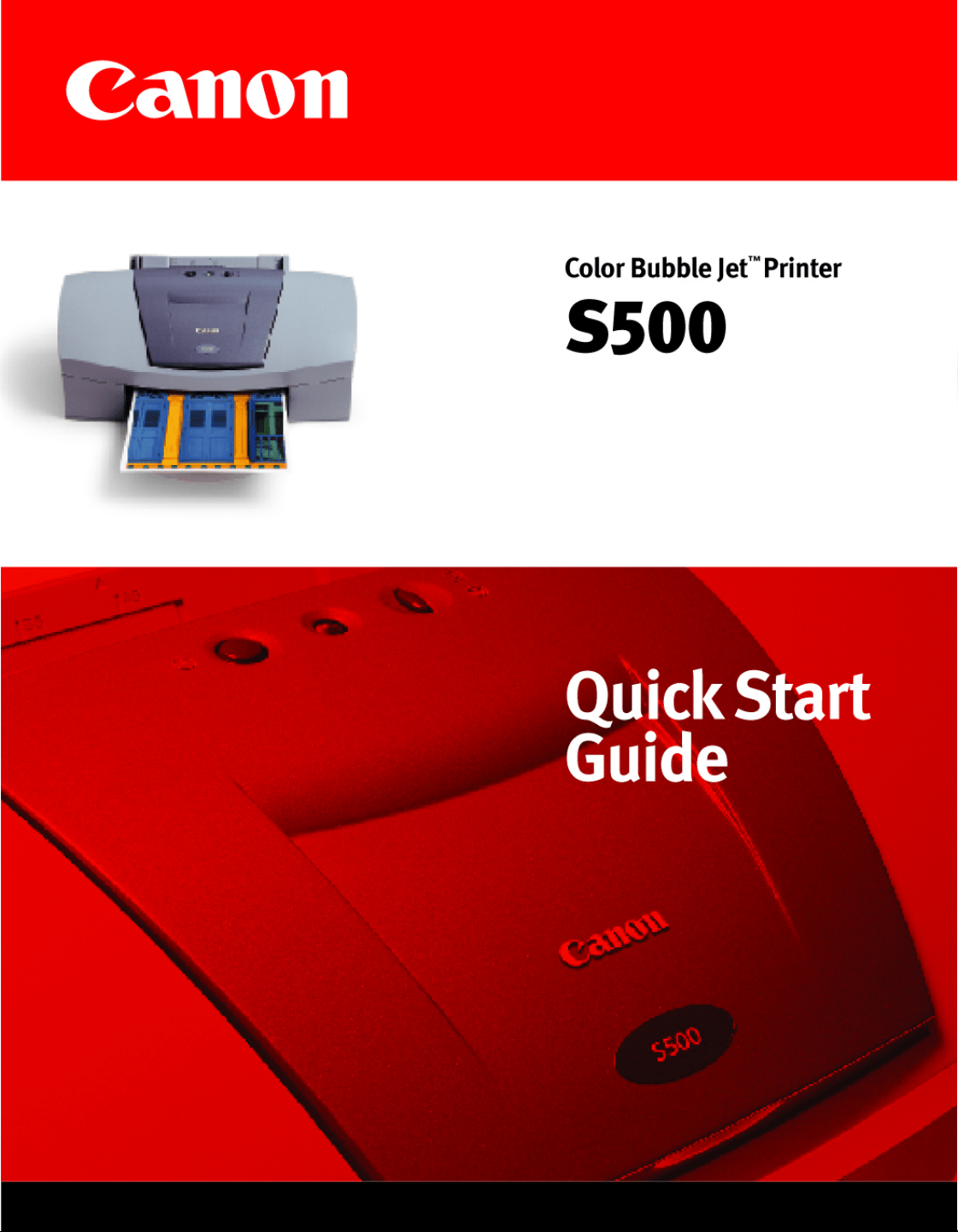

S500
™
Color Bubble Jet
™
Printer
Quick Start Guide
S500_Front Matter.QXD 5/12/01 1:49 PM Page 1

Canon S500 Color Bubble JetPrinter Quick StartGuide.
CCooppyyrriigghhtt
Thismanualis copyrighted byCanon U.S.A. Inc. with allrights reserved. Under the copyright laws, this
manualmaynotbe reproduced in anyform, in whole or in part, withoutthe prior written consentofCanon
U.S.A. Inc.
© 2001 Canon U.S.A. Inc.
DDiissccllaaiimmeerr
Canon U.S.A. Inc. hasreviewed thismanualthoroughlyin order thatitwillbe an easyto use guide to your
Canon S500 Color Bubble JetPrinter. Allstatements, technicalinformation and recommendationsin this
manualand in anyguides or related documentsare believed reliable, but the accuracyand completeness
thereofare notguaranteed or warranted, and they are notintended to be, nor should theybe understood to
be, representation or warrantiesconcerning the productsdescribed.
Specificationsare subject to change withoutnotice.
Allprint speedsbased on draftmode. Printspeed willvarydepending on system configuration, software,
documentcomplexity, printmode and page coverage.
Asan
EnergyStar partner, Canon U.S.A. Inc., hasdetermined thatthisproductmeetsthe
EnergyStar guidelinesfor energyefficiency.
Allinformation regarding non-Canon productswascompiled from publiclyavailable information. No
representation is made regarding the accuracythereof.
TTrraaddeemmaarrkkss
Canon and BJ are registered trademarksand Bubble Jetand S500 are trademarks ofCanon Inc.
Canon U.S.A. Inc.
DigitalHome and Personal SystemsDivision
2995 Redhill Avenue
Costa Mesa, CA 92626
PRINTED IN THAILAND
Partnumber 6861A002AA
S500_Front Matter.QXD 5/12/01 1:49 PM Page 2

CCoonntteennttss
Chapter 1: BasicPrinting
Turning Your Printer On and Off . . . . . . . . . . . . . . . . . . . . . . . . . . . . . 1
WhatIs a Printer Driver? . . . . . . . . . . . . . . . . . . . . . . . . . . . . . . . . . . 2
Selecting the S500 Printer for Use . . . . . . . . . . . . . . . . . . . . . . . . . . 2
Recommended Paper Use . . . . . . . . . . . . . . . . . . . . . . . . . . . . . . . . . 3
Loading Paper and Other Media . . . . . . . . . . . . . . . . . . . . . . . . . . . . 4
Cancelling a PrintJob . . . . . . . . . . . . . . . . . . . . . . . . . . . . . . . . . . . . . 7
Chapter 2: Advanced PrintFeatures
Improving Printed Images . . . . . . . . . . . . . . . . . . . . . . . . . . . . . . . . . 9
Adjusting PrintQuality . . . . . . . . . . . . . . . . . . . . . . . . . . . . . . . . . . . . 9
Adjusting Color Balance, Intensity and Brightness . . . . . . . . . . . . . 12
Changing the Page Setup . . . . . . . . . . . . . . . . . . . . . . . . . . . . . . . . 14
Saving and Recalling Driver Settings . . . . . . . . . . . . . . . . . . . . . . . . 17
Chapter 3: Printing Maintenance
Monitoring Ink Levels . . . . . . . . . . . . . . . . . . . . . . . . . . . . . . . . . . . . 19
Replacing InkTanks . . . . . . . . . . . . . . . . . . . . . . . . . . . . . . . . . . . . . 20
Printing a Nozzle CheckPattern . . . . . . . . . . . . . . . . . . . . . . . . . . . . 20
Cleaning the Printhead . . . . . . . . . . . . . . . . . . . . . . . . . . . . . . . . . . 22
Aligning the Printhead . . . . . . . . . . . . . . . . . . . . . . . . . . . . . . . . . . . 23
Chapter 4: Troubleshooting
Tipsfor Troubleshooting . . . . . . . . . . . . . . . . . . . . . . . . . . . . . . . . . 25
Customer Care Center . . . . . . . . . . . . . . . . . . . . . . . . . . . . . . . . . . . 32
Chapter 5: The BJ Solution Software–Downloading Images
Minimum System Requirements . . . . . . . . . . . . . . . . . . . . . . . . . . . 34
Installing the BJ Solution Software . . . . . . . . . . . . . . . . . . . . . . . . . . .34
Accessing the Online Manual . . . . . . . . . . . . . . . . . . . . . . . . . . . . . . .35
WindowsUsers: Using Your Software . . . . . . . . . . . . . . . . . . . . . . . . .36
WindowsUsers: Uninstalling the Software . . . . . . . . . . . . . . . . . . . .38
Macintosh Users: Using Your Software . . . . . . . . . . . . . . . . . . . . . . . .38
Macintosh Users: Uninstalling the Software . . . . . . . . . . . . . . . . . . .40
iii
S500_TOC.QXD 5/12/01 1:51 PM Page iii

Appendix
Installing the Printer Driver . . . . . . . . . . . . . . . . . . . . . . . . . . . . . . . 41
Uninstalling the Printer Driver . . . . . . . . . . . . . . . . . . . . . . . . . . . . 43
Registering Your Canon Product . . . . . . . . . . . . . . . . . . . . . . . . . . . 43
SafetyInformation . . . . . . . . . . . . . . . . . . . . . . . . . . . . . . . . . . . . . . 44
RegulatoryInformation . . . . . . . . . . . . . . . . . . . . . . . . . . . . . . . . . . 46
Product Specifications . . . . . . . . . . . . . . . . . . . . . . . . . . . . . . . . . . . 47
Limited Warranty—U.S. Only . . . . . . . . . . . . . . . . . . . . . . . . . . . . . . 49
Index . . . . . . . . . . . . . . . . . . . . . . . . . . . . . . . . . . . . . . . . . . . . . . . . . . . . . . . . . . . . . 53
iv
Contents
S500_TOC.QXD 5/12/01 1:51 PM Page iv
CChhaapptteerr 11:: BBaassiicc PPrriinnttiinngg
Congratulationson purchasing your new Canon
®
S500 Color Bubble Jet
™
Printer!
With this printer, you can print basicbusiness documents in color or black and
white, as well asprinton a varietyofspecialtymedia, such asCanon High
Resolution Paper (idealfor businessdocumentssuch aspresentationsthat
include large numbersofcolor illustrations), Canon GlossyPhoto Paper or
Canon Photo Paper Pro (for digitalphotographs) and Canon Transparencies (for
presentations). For a fulllistofthe Canon specialtymedia that can be used with
your S500 printer, see “SpecialtyMedia” on page 3.
Thisquickstartguide describessome ofthe featuresofyour S500
printer and how to use them. For more information, view and/or
printthe S500 User’sGuideon the Setup Software & User’sGuide
CD-ROM.
Driver featuresand screen shotsdescribed in this guide reflect
Windows
®
98 and may be differentfor WindowsNT
®
4.0 and
Windows 2000 users.
TTuurrnniinngg YYoouurr PPrriinntteerr OOnn aanndd OOffff
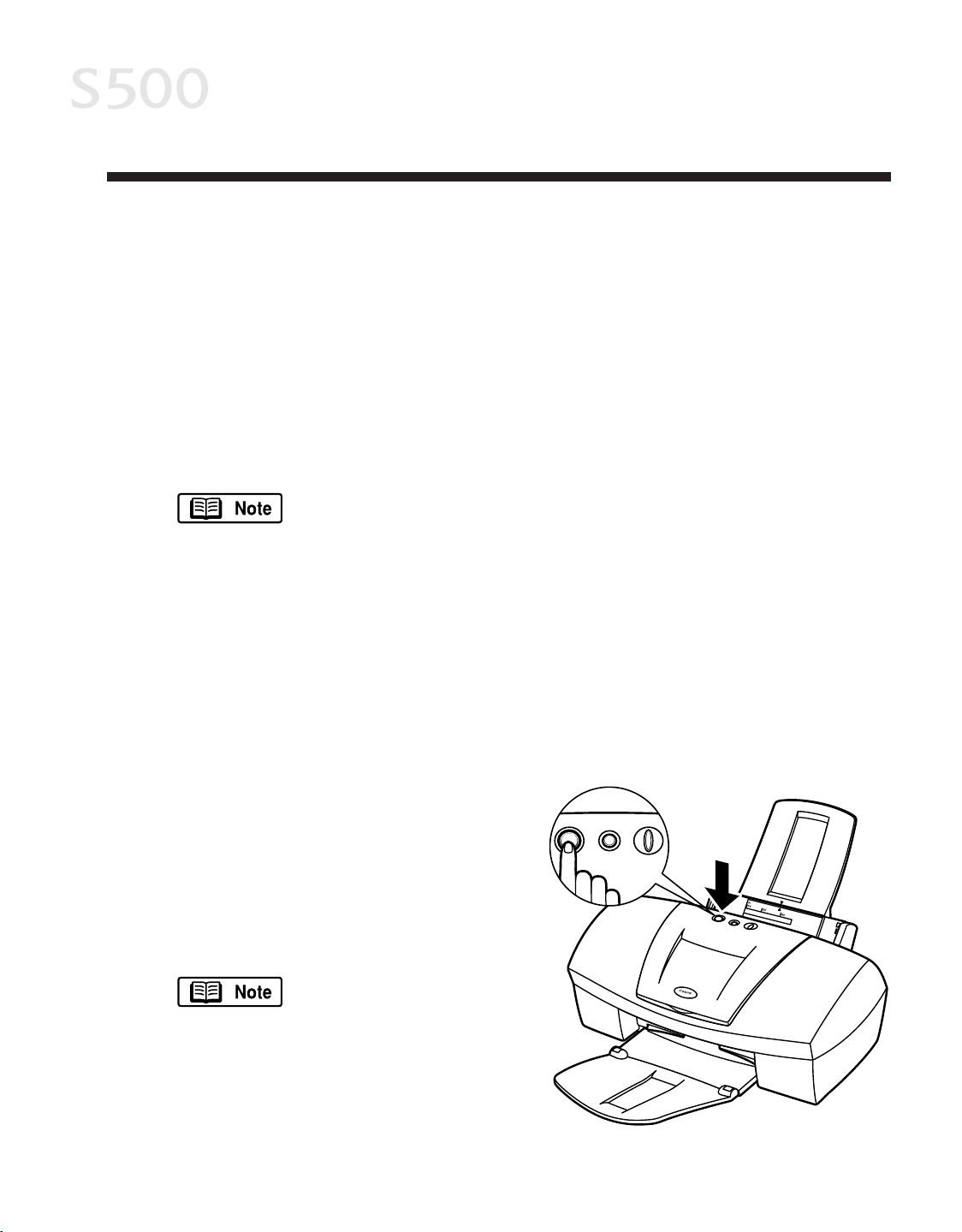
To turn your printer on or off, pressthe
POWER button.
The POWER lamp willflash green when
warming up or when a print job is
being sentto the printer. It will glow a
steady(non-flashing) green when the
printer is readyfor use or when the
printjob iscomplete.
Ifthe POWER lamp
flashes orange, see
“Handling Error
Messages” beginning
on page 30.
11
S500_Chapter1.QXD 5/12/01 1:55 PM Page 1

BasicPrinting
22
WWhhaatt IIss aa PPrriinntteerr DDrriivveerr??
Mostcomputersrequire specialsoftware to link the software applicationsyou
use to create documentsor imageswith your printer. This software, called a
printerdriver, convertsinformation from the application into a formatthatthe
printer can understand. The Canon S500 printer driver also providesother
featuressuch as monitoring the printer’s paper supplyand ink levels.
SSeelleeccttiinngg tthhee SS550000 PPrriinntteerr ffoorr UUssee
Ifthe S500 isthe onlyprinter connected to your computer, it willautomatically
be setas the default(main) printer. However, if your computer hasaccess to
multiple printers, you can setthe S500 asthe defaultprinter.
TToo sseett tthhee SS550000 aass tthhee ddeeffaauulltt pprriinntteerr iinn WWiinnddoowwss
®
::
1. Click
SSttaarrtt
, then
SSeettttiinnggss
, then
PPrriinntteerrss
.
2. Right-clickthe Canon S500 printer icon, then click
SSeett aass DDeeffaauulltt
. The Canon
S500 printer icon willdisplaya check markindicating itisthe default
printer.
TToo sseelleecctt tthhee SS550000 ffrroomm wwiitthhiinn aa WWiinnddoowwss aapppplliiccaattiioonn::
Even if another printer issetasthe defaultprinter, you can still selectthe Canon
S500 for a specific printjob from within most Windowsapplications.
Menus varybetween applications. Consult your application user
documentation if the Printoption isnotlisted.
1. From the
FFiillee
menu, click
PPrriinntt
.
2. Select
CCaannoonn SS550000
from the Name drop-down list, then click
OOKK
.
TToo sseelleecctt tthhee SS550000 iinn MMaacc
®
OOSS::
1. Click
AAppppllee
, then
CChhoooosseerr
.
2. Clickthe
SS550000
printer icon. The S500 willremain the defaultprinter until
another isselected.
S500_Chapter1.QXD 5/12/01 1:55 PM Page 2

RReeccoommmmeennddeedd PPaappeerr UUssee
There are two stepsrecommended for getting the bestoutput for your printed
documents:
• Setthe printer thicknesslever for the media used. (See “Load Limitand
Paper Thickness Lever Position” on page 4.)
• Selectthe correctmedia setting in the printer driver. (See “Chapter 2:
Advanced PrintFeatures” on page 9.)
GGeenneerraall BBuussiinneessss PPrriinnttiinngg
For everydaypaper printing, use plain paper (17 to 28 lb.). Use standard #10
envelopeswith your S500 printer.
SSppeecciiaallttyy MMeeddiiaa
For optimum results, Canon recommendsthatyou use genuine Canon media
with your S500 printer. Follow the instructionsthatcome with any specialty
media on storing, handling and printing.
The specialty media available for use with the S500 include:
• Canon High Resolution Paper
• Canon Transparencies
• Canon Banner Paper
• Canon GlossyPhoto Paper
• Canon Photo Paper Pro
• Canon GlossyPhoto Cards
• Canon High GlossPhoto Film
• Canon T-ShirtTransfers
For instructionson loading and handling specialtymedia, see the
instructionsthat come with thatmedia type or see the S500
User’sGuide on the Setup Software & User’sGuide CD-ROM.
Handle media carefullybyitsedges. Dirtor fingerprints on the
printsurface will adverselyaffect printquality.
BasicPrinting
33
S500_Chapter1.QXD 5/12/01 1:55 PM Page 3
MMeeddiiaa ttoo AAvvooiidd
Do notuse the following typesofmedia with your S500 astheycould produce
poor qualityprintimages, or jam or damage the printer:
• Paper that is folded, excessivelycurled, wrinkled or wrapped
• Damp paper
• Excessively thin or thickpaper
• Paper with pasted photos, stickers, etc.
• Envelopes with overlapping flapsor self-sealing flaps
• Tractor feed paper, perforated paper or 3-hole punched paper, or paper with
anytype of attached fasteners, ribbons, etc.
LLooaaddiinngg PPaappeerr aanndd OOtthheerr MMeeddiiaa
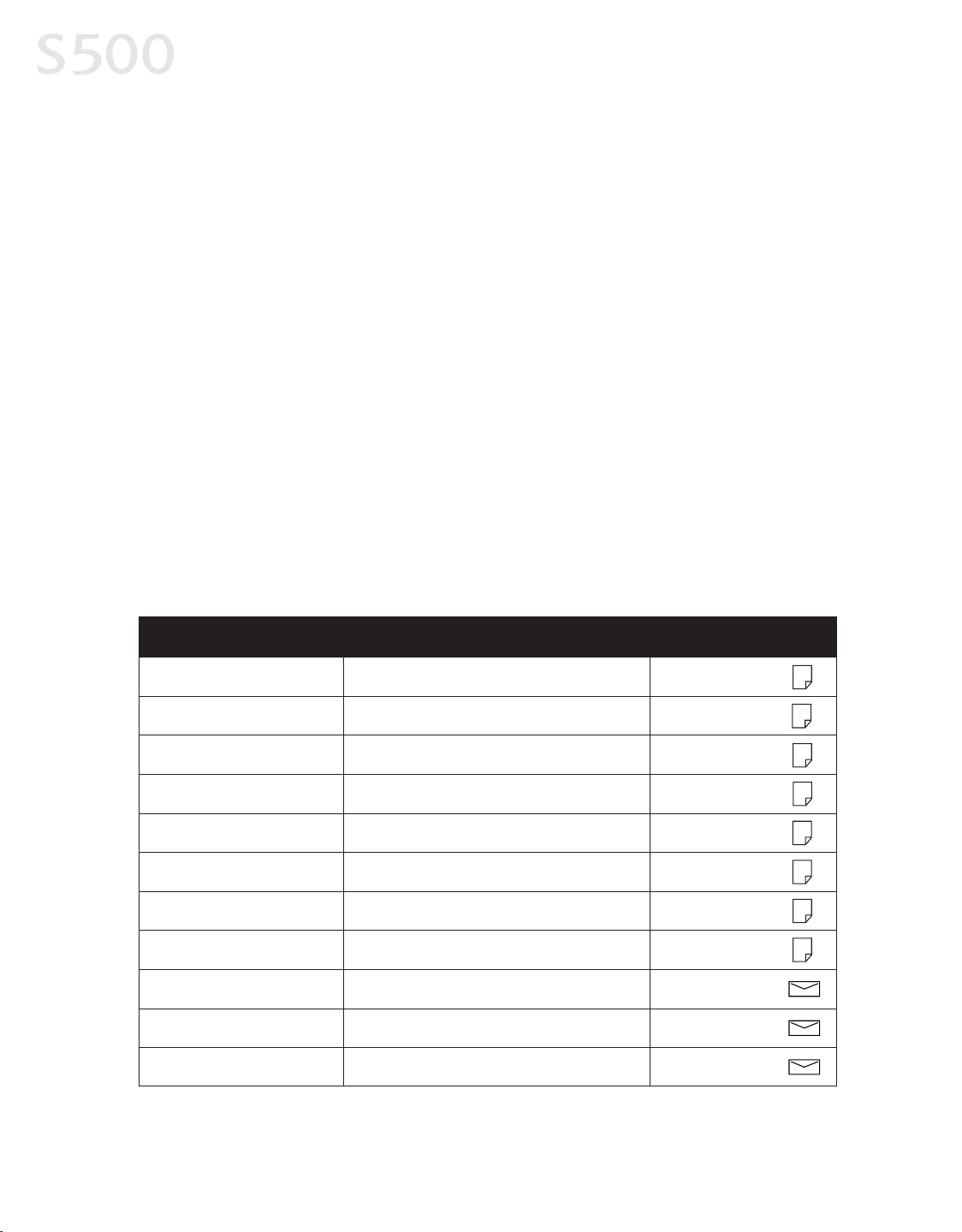
LLooaadd LLiimmiitt aanndd PPaappeerr TThhiicckknneessss LLeevveerr PPoossiittiioonn
BasicPrinting
44
PPaappeerr TThhiicckknneessss
LLeevveerr PPoossiittiioonn
up to to 100 sheets(17 lbs.)
High Resolution Paper
Photo Paper Pro
Photo Paper Pro (4 x 6)
High GlossPhoto Film
GlossyPhoto Paper
GlossyPhoto Cards
Transparencies
#10 envelopes
Banner paper
T-ShirtTransfers
MMeeddiiaa TTyyppee PPaappeerr RReesstt LLooaadd LLiimmiitt
Plain paper Left
up to 10 sheets Left
up to 80 sheets Left
Left
up to 20 sheets Left
1 sheet
1 sheet Left
up to 20 sheets Left
up to 30 sheets
up to 10 envelopes
1 sheet(printup to 6 connected sheets)
1 sheet
Left
Right
Right
Right
S500_Chapter1.QXD 5/12/01 1:55 PM Page 4
The S500 can printon paper ranging from
standard copier paper (usually17–28 lb.)
to specialtymedia paper and envelopes.
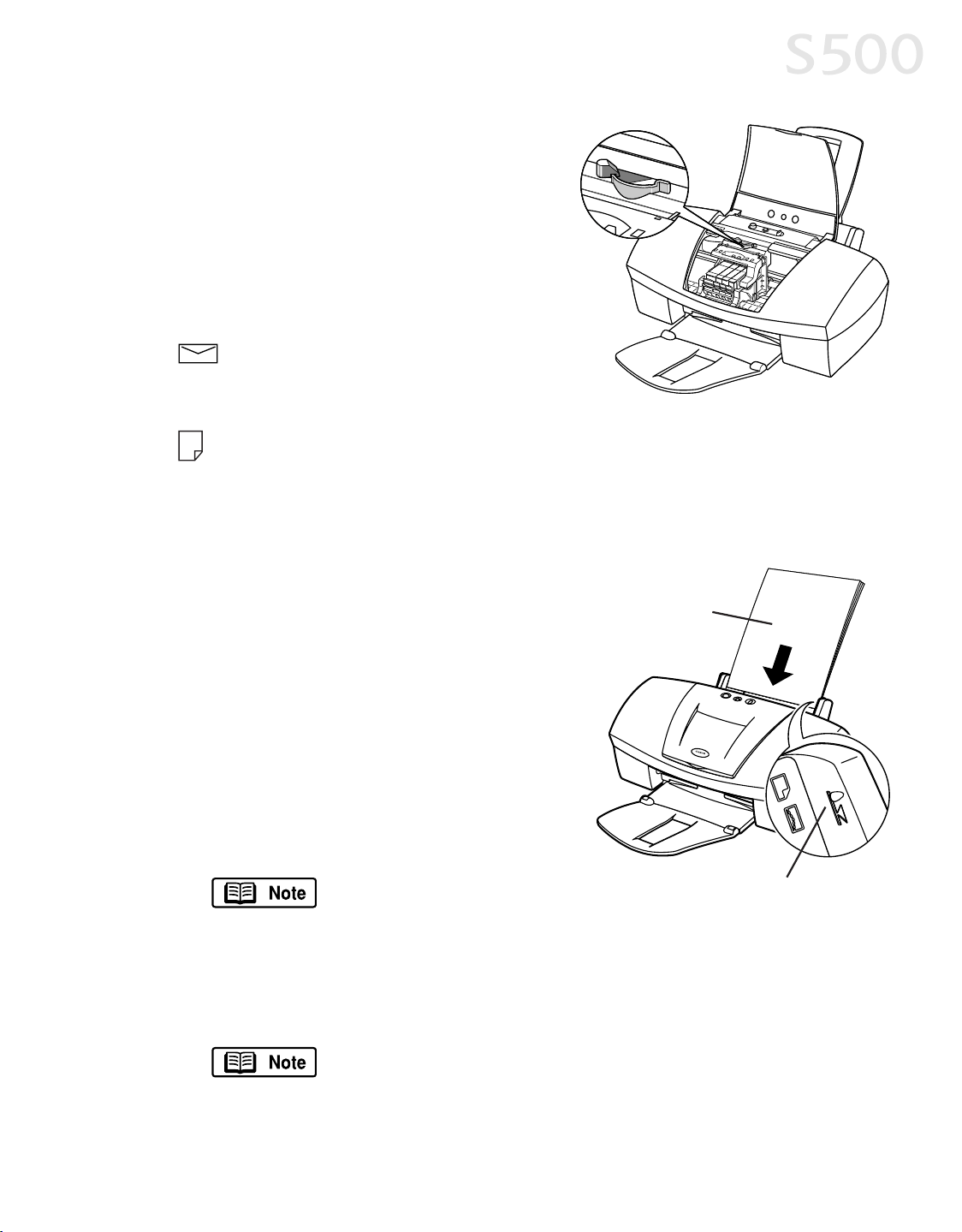
The paper thicknesslever islocated inside
the frontcover, on the printhead holder. It
controls the paper feed for the type and
weightof the media on which you are
printing.
For envelopes(see “To load
envelopes:” on page 6), bannersand
T-ShirtTransfers.
For regular paper and other media with a leftposition in the table (see
“Load Limit and Paper ThicknessLever Position” on page 4).
Use the charton the previouspage to ensure thatthe paper thicknesslever is
setcorrectlyfor the type of media you are using.
TToo llooaadd ppaappeerr oorr ootthheerr mmeeddiiaa::
1. Make sure the paper thicknesslever is
setcorrectlyfor the media used.
2. Slide the paper guide completely to the left.
3. Fan the edgesofthe sheets to remove
static cling and avoid paper jams, then
tap the edgesofthe stack againsta flat
surface so the stack isaligned.
4. Insertthe media into the paper rest,
with the printside facing up.
Some papers, especially
specialty media, have
specific sides for printing. The printside isusuallythe glossier
side or the brighter white side. When using specialtymedia,
do nottouch the printside.
5. Slide the paper guide to the edge of the media until itisfirmlyin place.
You can load up to 100 sheets ofplain (17 lb.) paper or 80
sheetsofCanon High Resolution Paper in the paper restatone
time. Never load the paper above the load limitmark.
BasicPrinting
55
Printside
Load limit mark
S500_Chapter1.QXD 5/12/01 1:55 PM Page 5
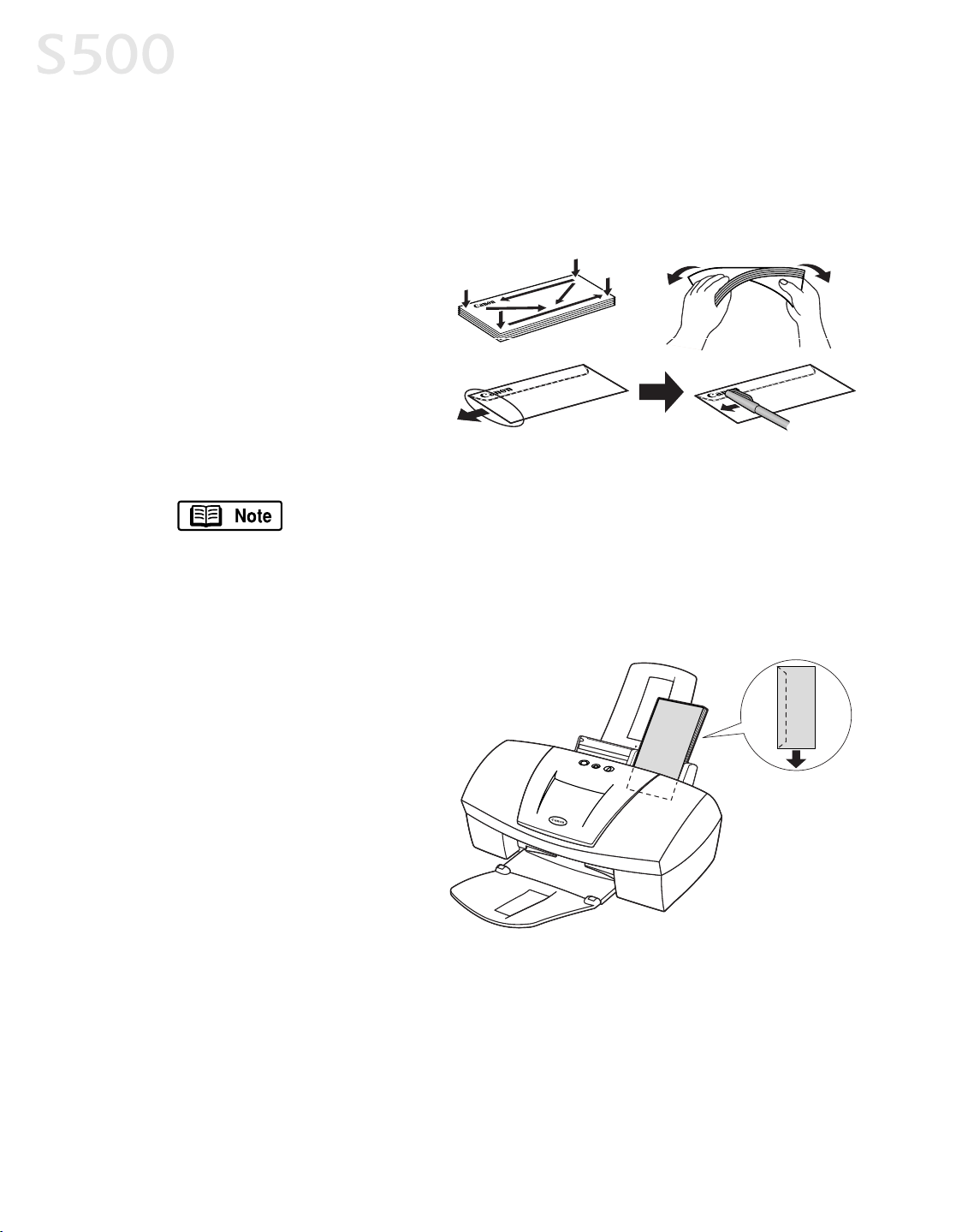
TToo llooaadd eennvveellooppeess::
1. Liftthe cover and setthe paper thicknesslever to the envelope mark. Close
the cover.
2. Slide the paper feed guide to the left.
3. Press down on the corners
and sides ofthe envelopes
to make them asflat as
possible byexpelling all of
the air.
To avoid paper jams, make
sure envelopes are flat
before you load them into
the paper tray.
Make sure that none ofthe flapsoverlap. Ifthe envelope
edges are notflat, crease them with the side ofa pen.
Do notallow more than 10 envelopesto stackon the paper
outputtray.
4. With the address side facing
up and pointed in the
direction shown in the
illustration, align the stack
with the rightside ofthe
paper rest, then insertthe
stackinto the printer.
5. Slide the paper guide to the
edge ofthe envelopesuntilit
isfirmly in place.
BasicPrinting
66
Flap side ofenvelope facesdown
S500_Chapter1.QXD 5/12/01 1:55 PM Page 6
CCaanncceelllliinngg aa PPrriinntt JJoobb
There are several waysto cancela printjob in progress:
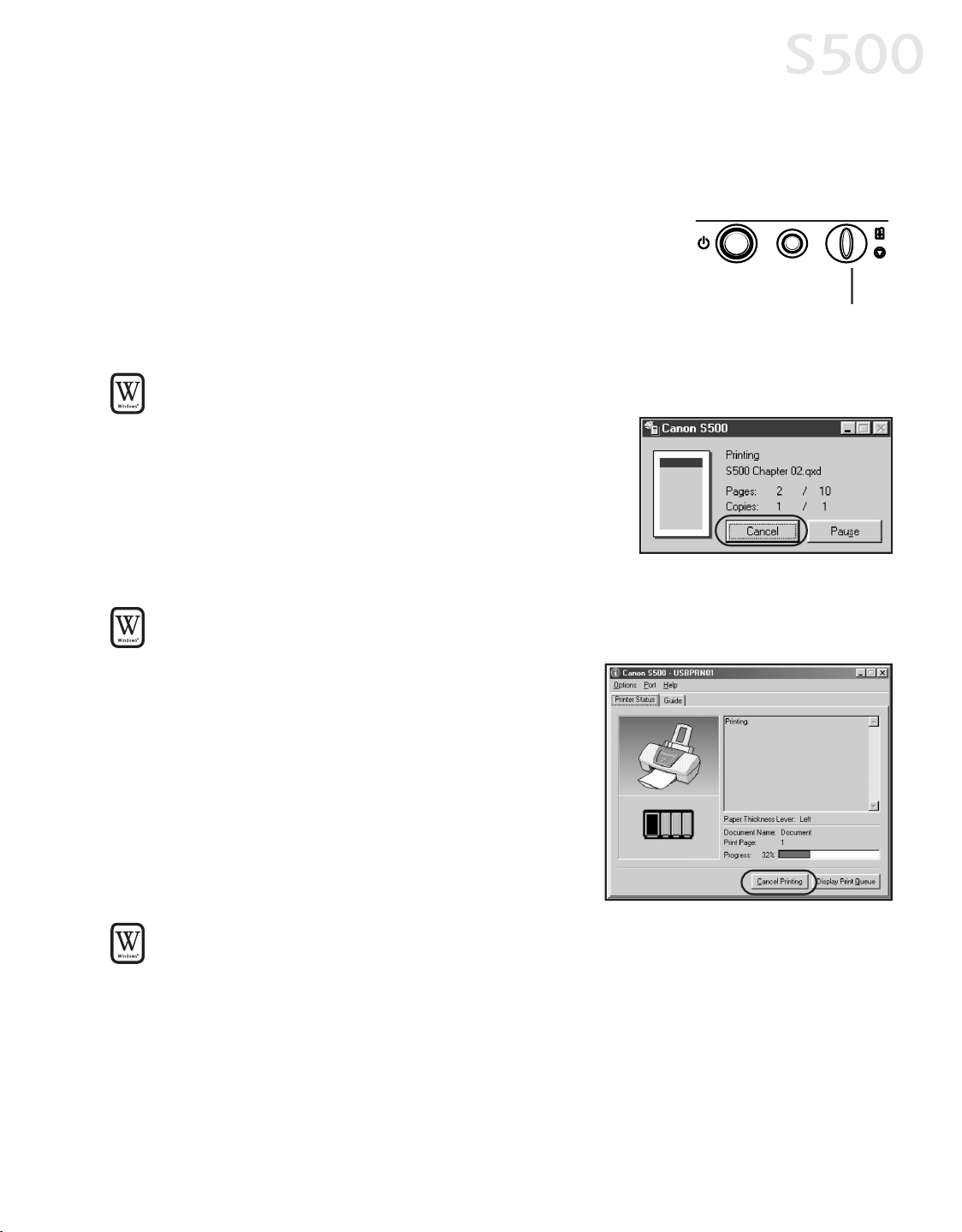
TToo ccaanncceell aa pprriinntt jjoobb ffrroomm tthhee pprriinntteerr::
While a job isprinting, pressthe
RREESSUUMMEE//CCAANNCCEELL
button on the printer. The printjob willbe cancelled
and the paper ejected.
TToo ccaanncceell aa pprriinntt jjoobb ffrroomm tthhee SS550000 pprriinntt
ddiiaalloogg bbooxx::
When a job is printing on the S500, a printstatus
dialog box displays on your screen.
Click
CCaanncceell
atany time while this dialog boxis
open to cancelthe currentprint job. The printjob
willbe cancelled and the paper ejected.
TToo ccaanncceell aa pprriinntt jjoobb ffrroomm tthhee PPrriinntteerr SSttaattuuss MMoonniittoorr::
1. Click
SSttaarrtt
, then
SSeettttiinnggss
, then
PPrriinntteerrss
.
2. Right-click
CCaannoonn SS550000
, then click
PPrrooppeerrttiieess
.
3. Selectthe
MMaaiinntteennaannccee
tab, then clickthe
SSttaarrtt SSttaattuuss MMoonniittoorr
button.
4. Click
CCaanncceell PPrriinnttiinngg
.
The printjob willbe cancelled and the paper
ejected.
TToo ccaanncceell aa pprriinntt jjoobb ffrroomm WWiinnddoowwss::
1. Click
SSttaarrtt
, then
SSeettttiinnggss
, then
PPrriinntteerrss
.
2. Double-click
CCaannoonn SS550000,,
clickthe printjob, then pressthe
DDeelleettee
key.
The printjob willbe cancelled and the paper ejected.
BasicPrinting
77
RESUME/CANCEL button
S500_Chapter1.QXD 5/12/01 1:55 PM Page 7
TToo ccaanncceell aa pprriinntt jjoobb iinn MMaacc OOSS wwhheenn uussiinngg ffoorreeggrroouunndd pprriinnttiinngg::
On your keyboard, pressthe Apple
™
CCoommmmaanndd
key ( ) and the period key ( . )
atthe same time.
The printjob willbe cancelled and the paper ejected.
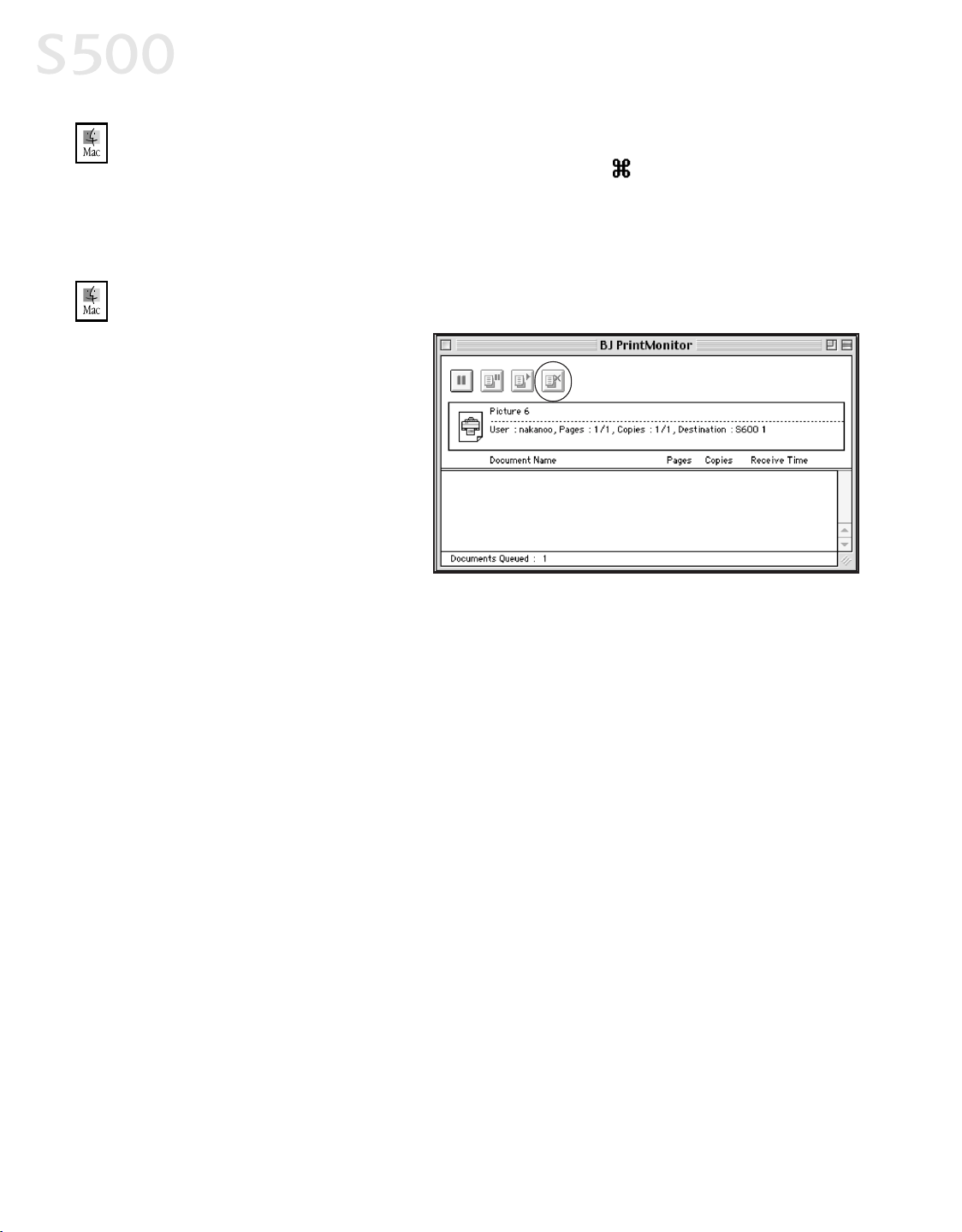
TToo ccaanncceell aa pprriinntt jjoobb iinn MMaacc OOSS wwhheenn uussiinngg bbaacckkggrroouunndd pprriinnttiinngg::
1. While a job isprinting, go
to the BJ PrintMonitor
window (click
FFiinnddeerr
, then
BBJJ PPrriinntt MMoonniittoorr
).
2. Highlightthe job to be
cancelled.
3. Clickthe
SSttoopp PPrriinnttiinngg
icon
in the PrintQueue dialog
box.
The printjob willbe cancelled
and the paper ejected.
BasicPrinting
88
S500_Chapter1.QXD 5/12/01 1:55 PM Page 8
CChhaapptteerr 22:: AAddvvaanncceedd PPrriinntt
FFeeaattuurreess
IImmpprroovviinngg PPrriinntteedd IImmaaggeess
Two importantfactorscontrol the quality and outputof your printed images:
PPaappeerr aanndd IInnkk
Using recommended paper or specialtymedia for printing
graphicimagesor photographs can significantlyimprove the quality ofyour
printout. (See “Recommended Paper Use” on page 3.) Also, alwaysuse the
specific Canon inks for your S500 printer, as noted on the inside backcover.
PPrriinntteerr DDrriivveerr SSeettttiinnggss
There is a varietyof settingsyou can use to enhance
the qualityofthe print, the colorsand the way in which the document
comes outofthe printer.
Manyof these features are covered in thischapter. For more
information, see the S500 User’s Guideon the Setup Software
& User’sGuide CD-ROM, or accessthe online help:
While in the Propertieswindow, pressthe
FF11
key, or click in
the upper rightcorner then click the feature you wantto know
more about, or clickthe button when displayed.
Turn Bubble Help on byselecting
HHeellpp
, then
SShhooww BBuubbbbllee
HHeellpp
.
AAddjjuussttiinngg PPrriinntt QQuuaalliittyy
Two ofthe featuresthat affectthe appearance and quality ofyour printed
documentscan be controlled with the printer driver.
MMeeddiiaa TTyyppee
The S500 automaticallyadjustsprinter settingsto improve
printqualitybased on the media type (plain paper, GlossyPhoto Paper, etc.)
you select.
PPrriinntt QQuuaalliittyy
When you select a media type, printqualityis automatically
setfor thatmedia. You can change printquality settingsifdesired.
99
S500_Chapter 2.QXD 5/12/01 1:53 PM Page 9
Advanced PrintFeatures
1100
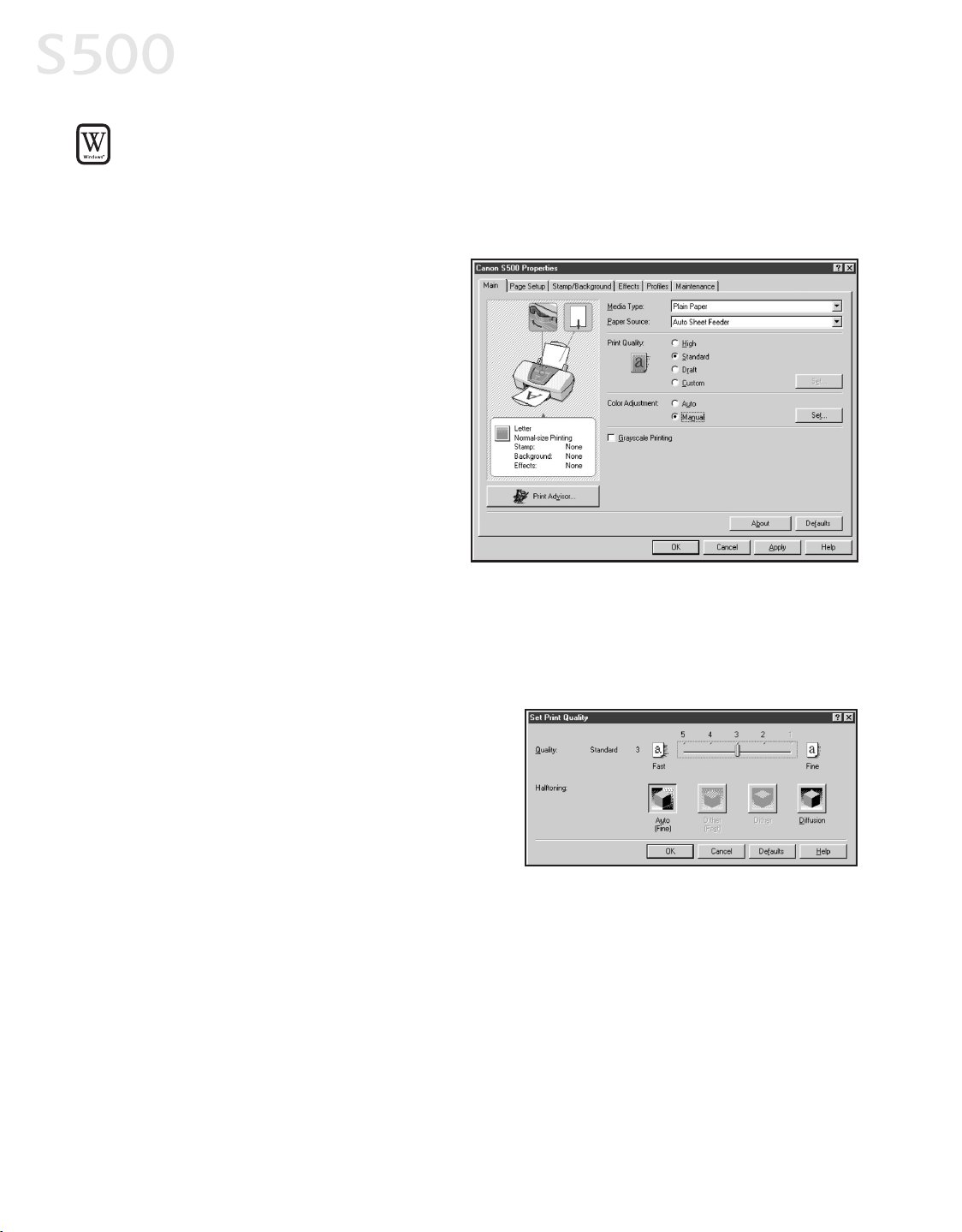
TToo mmaannuuaallllyy aaddjjuusstt pprriinntt qquuaalliittyy sseettttiinnggss iinn WWiinnddoowwss::
1. From an application
FFiillee
menu, select
PPrriinntt
.
2. With
CCaannoonn SS550000
asthe selected printer, click
PPrrooppeerrttiieess
. The S500
Propertieswindow willopen to the Main tab.
3. Selectthe appropriate
MMeeddiiaa
TTyyppee
from the drop-down
menu.
4. Each media type hasa default
quality, butyou can selecta
different
PPrriinntt QQuuaalliittyy
:
HHiigghh
For high qualitywhen
printing a color document.
SSttaannddaarrdd
For high quality
when printing text.
DDrraafftt
For printing textdrafts
ata faster speed.
CCuussttoomm
Allowsfor more precise control.
Ifyou select
CCuussttoomm
, the Set button becomesactive. Click
SSeett
to open the
SetPrintQuality dialog box. There are two features you can control:
PPrriinntt QQuuaalliittyy
The printer driver
providesfive settingsfor custom
printquality, ranging from
FFaasstt
atthe far left(printsat 600 dpi,
which means faster printing and
lessink) to
FFiinnee
, which printsat
2400 x1200 dpi.
HHaallffttoonniinngg
Thiscontrolsthe
pattern in which the inkislaid
down during printing for
graphicimages.
5. When done, click
OOKK
.
S500_Chapter 2.QXD 5/12/01 1:53 PM Page 10
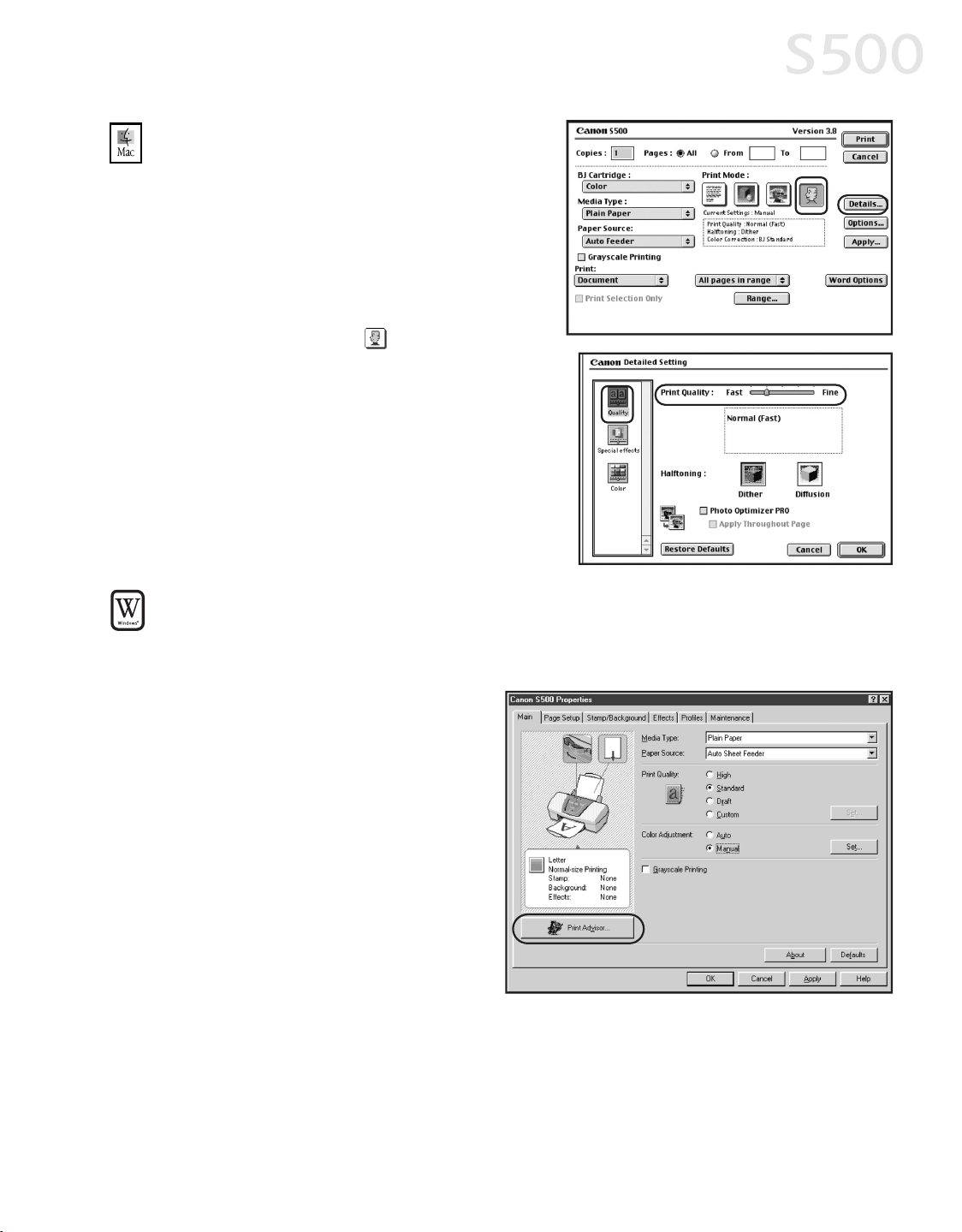
TToo mmaannuuaallllyy aaddjjuusstt pprriinntt qquuaalliittyy
sseettttiinnggss iinn MMaacc OOSS::
1. Make sure thatthe
SS550000
isthe
selected printer (from the
AAppppllee
menu, select
CChhoooosseerr
, then
SS550000
).
2. From an application
FFiillee
menu, click
PPrriinntt
.
3. Clickthe
MMaannuuaall
printmode icon,
then click the
DDeettaaiillss
button. The
Detailed Setting dialog boxwillopen.
Make sure
QQuuaalliittyy
isselected.
4. Click and drag the
PPrriinntt QQuuaalliittyy
slide
bar to select your preferred output
quality.
5. When done, click
OOKK
, then
PPrriinntt
.
TToo sseelleecctt bbeesstt pprriinntt qquuaalliittyy wwiitthh tthhee PPrriinntt AAddvviissoorr wwiizzaarrdd::
PrintAdvisor isa wizard that helpsyou selectthe mostoptimum media type and
printqualityfor your printjob.
1. From an application
FFiillee
menu, select
PPrriinntt
.
2. With
CCaannoonn SS550000
asthe
selected printer, click
PPrrooppeerrttiieess
. The S500
Propertieswindow willopen
to the Main tab.
3. Clickthe
PPrriinntt AAddvviissoorr
button.
The wizard dialog boxwill
open.
4. Follow the on-screen
instructionsto select the
optimum outputtype, media
and settingsfor your print job.
5. Click
OOKK
to save the setting and close the S500 Propertieswindow.
Advanced PrintFeatures
1111
S500_Chapter 2.QXD 5/12/01 1:53 PM Page 11
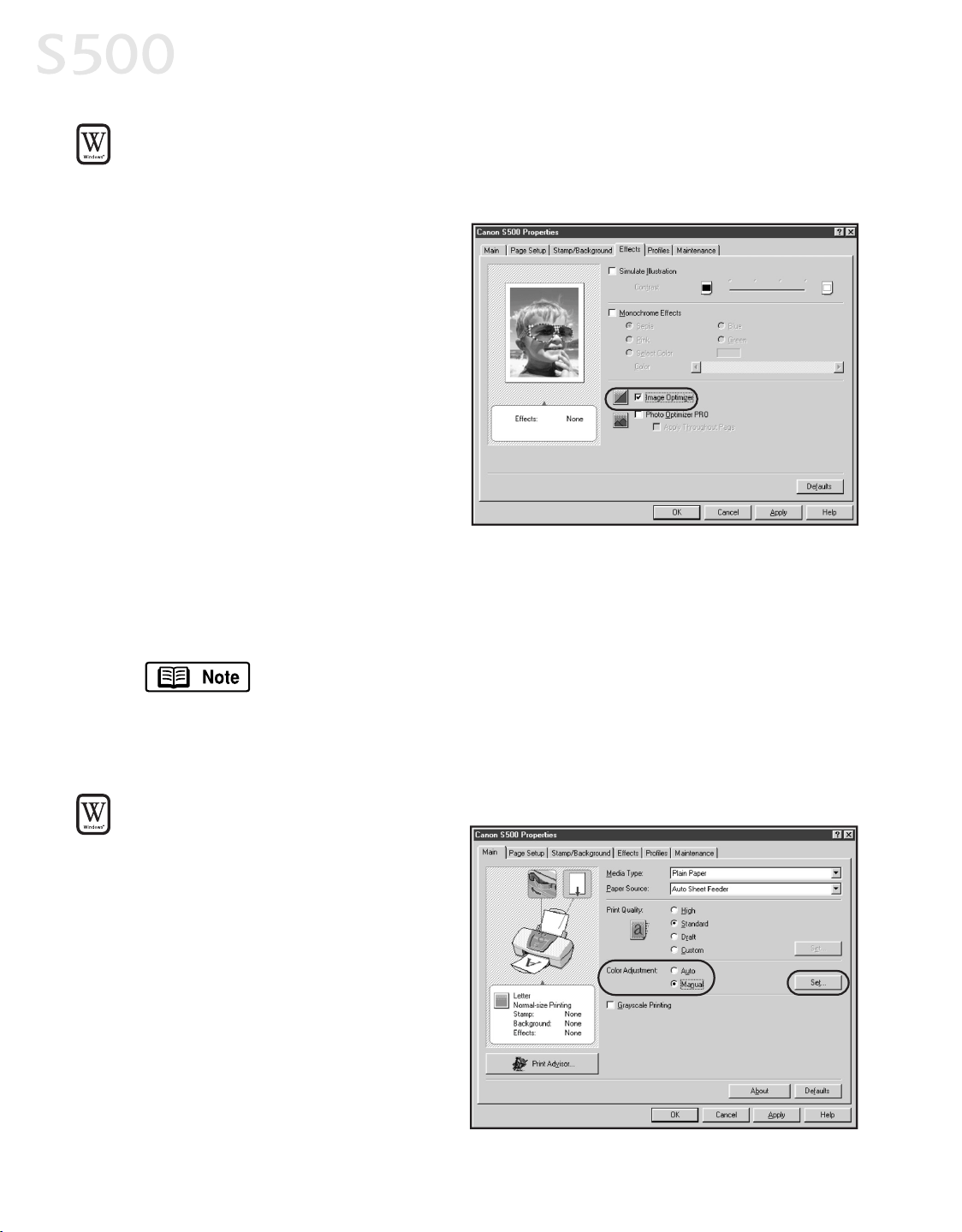
TToo aauuttoommaattiiccaallllyy mmaakkee iimmaaggeess mmoorree ssmmooootthh iinn WWiinnddoowwss::
Image Optimizer smoothesjagged edgesformed when enlarging a photo or
graphicfrom itsoriginal size. It ismost effective when used with low-resolution
images.
1. From an application
FFiillee
menu,
select
PPrriinntt
.
2. With
CCaannoonn SS550000
asthe
selected printer, click
PPrrooppeerrttiieess
.
3. Clickthe
EEffffeeccttss
tab, then click
the
IImmaaggee OOppttiimmiizzeerr
checkbox.
4. Click
OOKK
to save thissetting
and close the S500 Properties
window.
AAddjjuussttiinngg CCoolloorr BBaallaannccee,, IInntteennssiittyy aanndd BBrriigghhttnneessss
You can enhance color printing by adjusting the color balance, intensity
(saturation) and brightness.
For more information on these settings, see the S500 User’sGuide
on the Setup Software & User’s Guide CD-ROM, or accessthe
online help (press
FF11
or click in Windows; turn on Bubble Help in
Mac) while in the printer driver interface.
TToo mmaannuuaallllyy aaddjjuusstt ccoolloorr
sseettttiinnggss iinn WWiinnddoowwss::
1. From an application
FFiillee
menu,
select
PPrriinntt
.
2. With
CCaannoonn SS550000
asthe
selected printer, click
PPrrooppeerrttiieess
.
3. On the
MMaaiinn
tab, under
CCoolloorr
AAddjjuussttmmeenntt
, select
MMaannuuaall
.
The Set button willbecome active.
4. Click
SSeett
, and the Manual
Color Adjustmentdialog box
willopen.
Advanced PrintFeatures
1122
S500_Chapter 2.QXD 5/12/01 1:53 PM Page 12
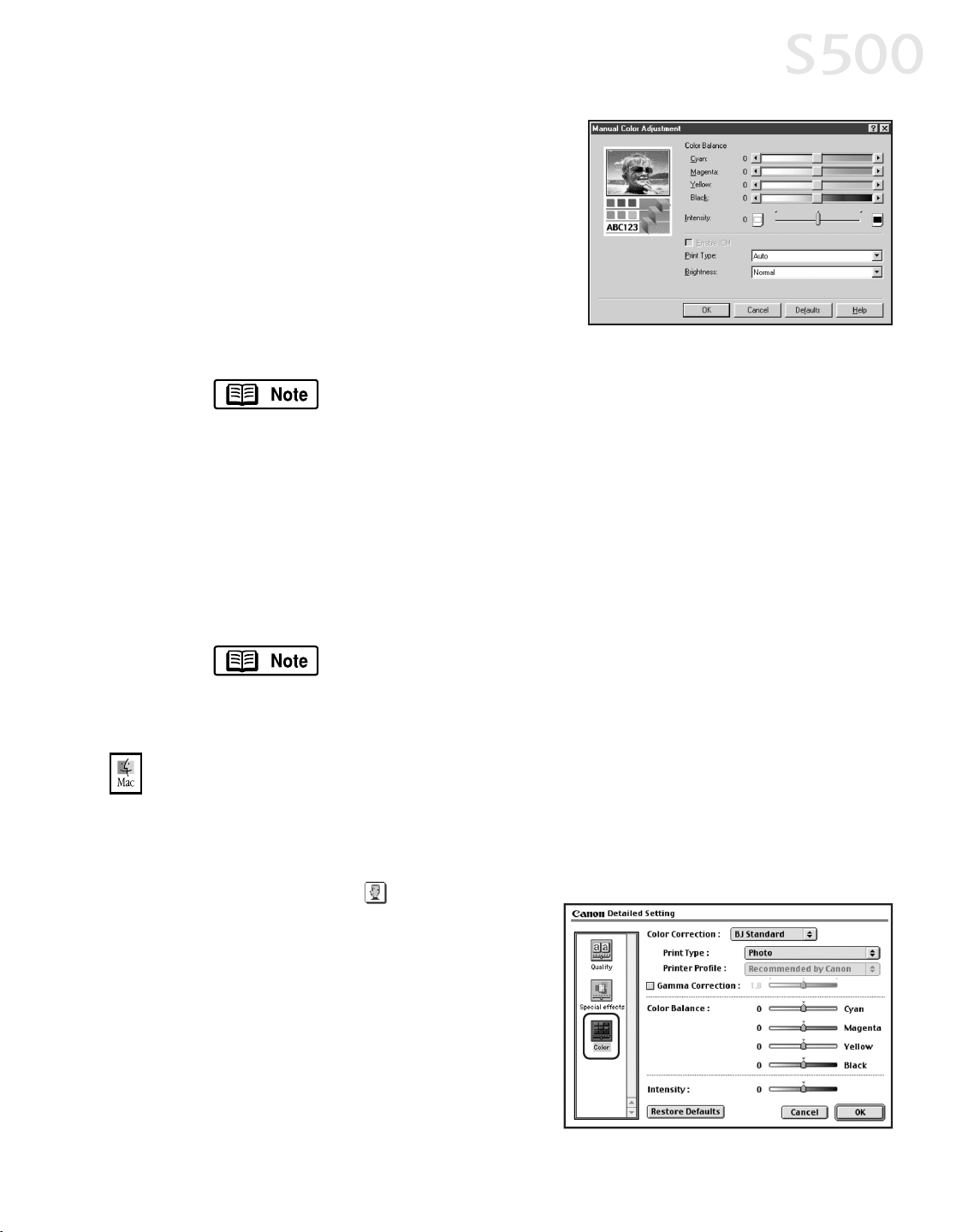
5. Click and drag the
CCoolloorr BBaallaannccee
slide
bar for each color to adjustthe color
settings. The resultswillpreview.
6. Click and drag the
IInntteennssiittyy
slide bar to
change the intensity(saturation) for the
image. The resultswillpreview.
7.
IImmaaggee CCoolloorr MMaannaaggeemmeenntt ((IICCMM))
is a
feature that automaticallyadjuststhe
image colors. (Thisfeature isonly available in Windows98, Me and 2000).
To use ICM for automaticcolor adjustment, clickthe
EEnnaabbllee
IICCMM
checkbox. Allother featureson thistab (exceptIntensity)
willbecome inactive.
8. Under
PPrriinntt TTyyppee
, select
PPhhoottoo
when printing photographs. Thisallowsfor a
wider range oftones. Setto
GGrraapphhiicc
when printing graphic imagesfor
crisper, cleaner graphic images.
9. Selecta
BBrriigghhttnneessss
setting to determine how light or darkthe image will
appear when printed.
10.When done, click
OOKK
.
To printin black only, check the
GGrraayyssccaallee PPrriinnttiinngg
box. This
willconvertcolor imagesto grayscale when printing, without
changing the originalcolorsin the document.
TToo mmaannuuaallllyy aaddjjuusstt ccoolloorr sseettttiinnggss iinn MMaacc OOSS::
1. Make sure thatthe
SS550000
isthe selected printer. (From the
AAppppllee
menu,
select
CChhoooosseerr
, then
SS550000
.)
2. From an application
FFiillee
menu, click
PPrriinntt
.
3. Clickthe
MMaannuuaall
printmode icon,
then click
DDeettaaiillss
.
4. Clickthe
CCoolloorr
icon.
5. Adjustthe
CCoolloorr CCoorrrreeccttiioonn
,
PPrriinntt
TTyyppee
,
GGaammmmaa CCoorrrreeccttiioonn
,
CCoolloorr
BBaallaannccee
and
IInntteennssiittyy
settingsfor
your image.
6. When done, click
OOKK
, then
PPrriinntt
.
Advanced PrintFeatures
1133
S500_Chapter 2.QXD 5/12/01 1:54 PM Page 13
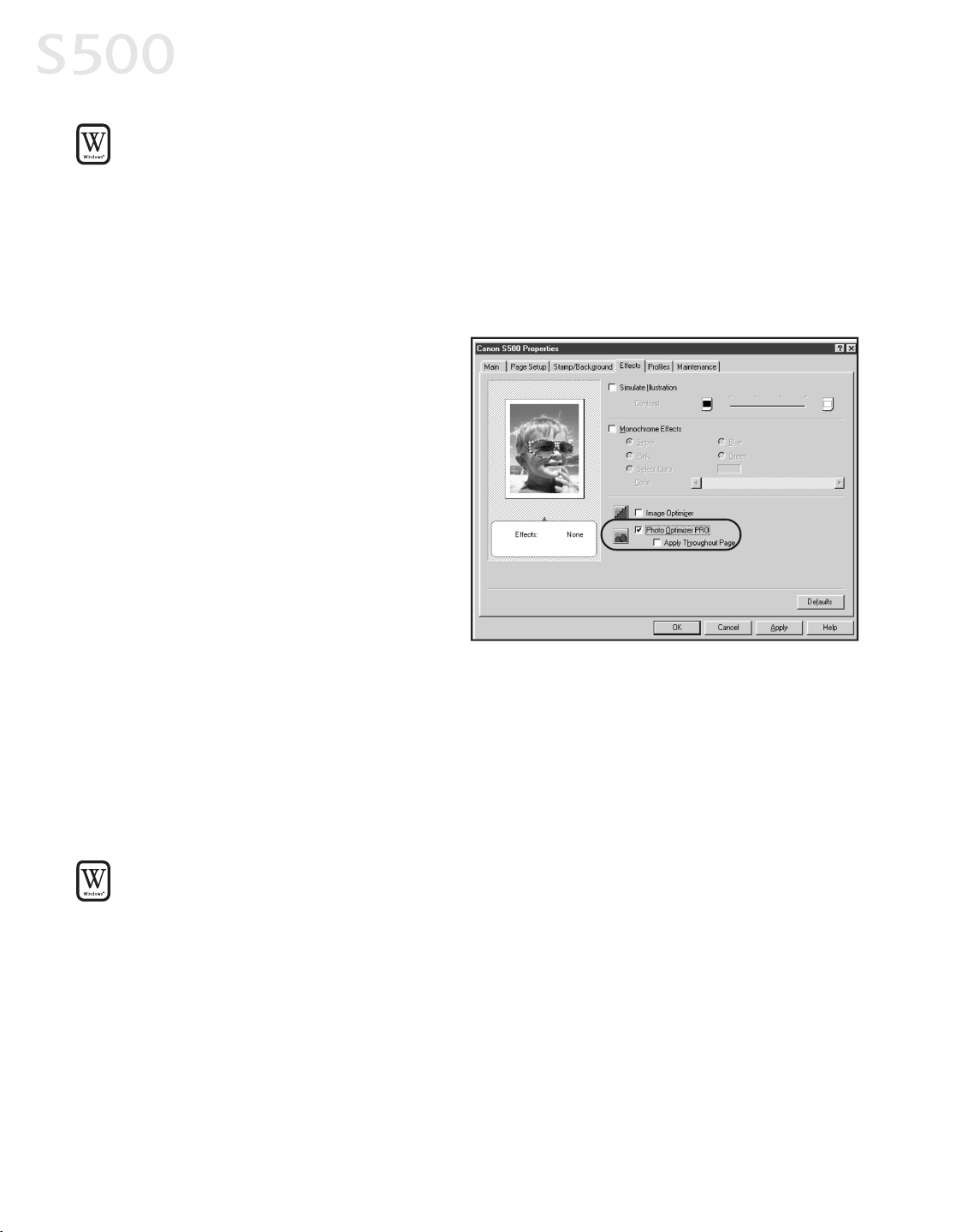
TToo aauuttoommaattiiccaallllyy ooppttiimmiizzee tthhee iimmaaggee iinn WWiinnddoowwss::
Photo Optimizer PRO automaticallyadjusts a photographicimage created with a
digitalcamera. Use this feature to compensate for unsatisfactorycolor balance and
over- or under-exposure before printing.
1. From an application
FFiillee
menu, select
PPrriinntt
.
2. With
CCaannoonn SS550000
asthe selected printer, click
PPrrooppeerrttiieess
.
3. Selectthe
EEffffeeccttss
tab.
4. Click to checkthe
PPhhoottoo
OOppttiimmiizzeerr PPRROO
checkbox.
When
PPhhoottoo OOppttiimmiizzeerr PPRROO
ischecked, the
AAppppllyy
TThhrroouugghhoouutt PPaaggee
option
becomes active. Ifthisboxis
leftunchecked, the S500 will
optimize each image
individually. Ifchecked, all
imageswillbe automatically
corrected with the same
settings.
5. When done, click
OOKK
.
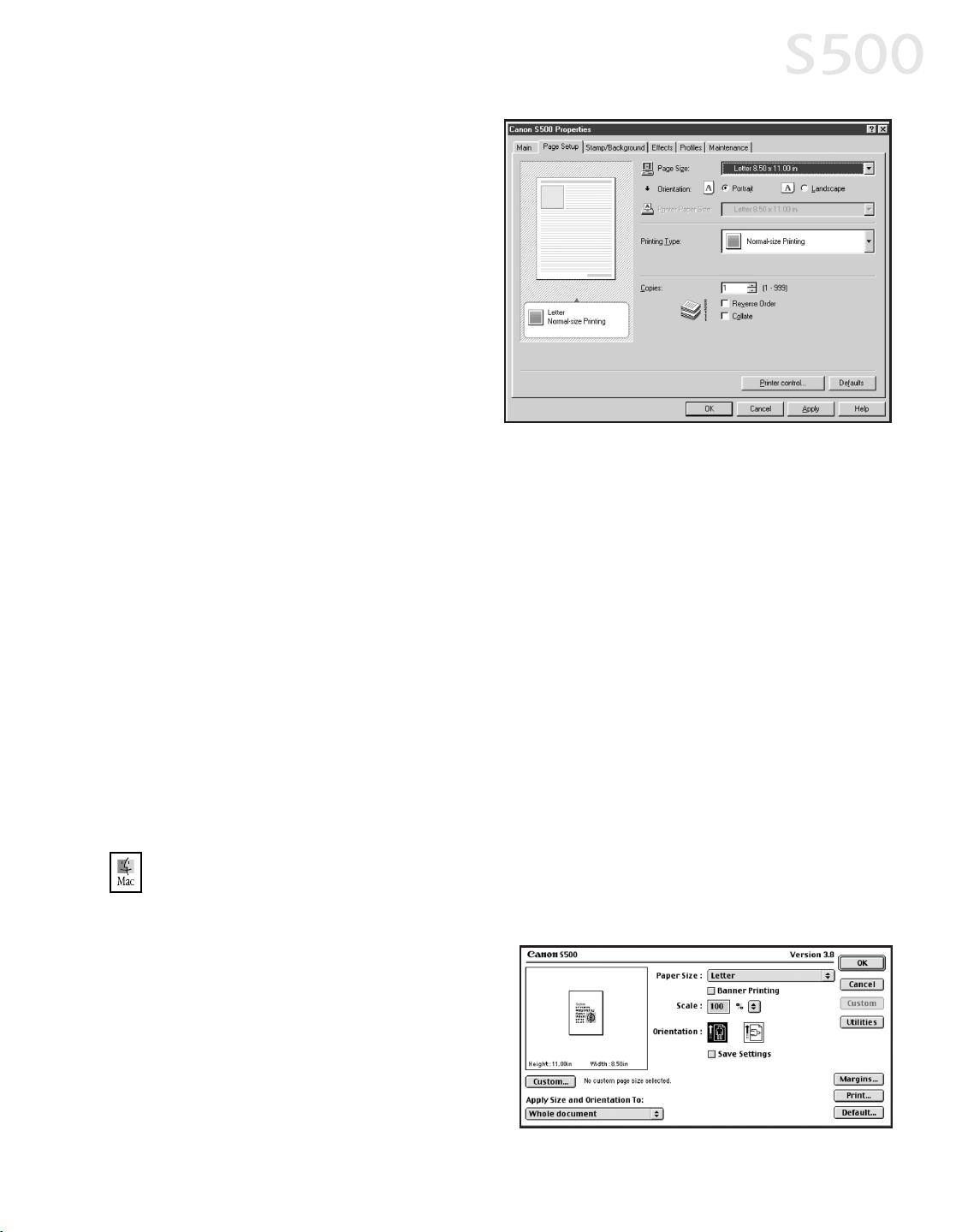
CChhaannggiinngg tthhee PPaaggee SSeettuupp
You can change how the image isprinted withoutaffecting the originalimage
file.
TToo cchhaannggee ppaaggee sseettuupp iinn WWiinnddoowwss::
1. From an application
FFiillee
menu, select
PPrriinntt
.
2. With
CCaannoonn SS550000
asthe selected printer, click
PPrrooppeerrttiieess
.
3. Clickthe
PPaaggee SSeettuupp
tab.
4. From this tab, you can change the following options:
PPaaggee SSiizzee
Defaultsto the page size setin the originaldocument, butcan
be changed.
OOrriieennttaattiioonn
Lets you selecteither portraitor landscape orientation.
Advanced PrintFeatures
1144
S500_Chapter 2.QXD 5/12/01 1:54 PM Page 14
PPrriinntteerr PPaappeerr SSiizzee
The page
size used by the printer. This
defaults to match the page
size. However, a different
printer paper size can be
selected ifa Printing Type
other than normal isselected
(see below).
PPrriinnttiinngg TTyyppee
Defaultsto
Normal-size Printing. Click the
drop-down arrow to selecta
different
PPrriinnttiinngg TTyyppee
:
SSccaalleedd PPrriinnttiinngg
With this option you can setthe scale ofthe printed
image down to 20% or up to 400% of the original.
PPaaggee LLaayyoouutt PPrriinnttiinngg
Lets you setthe number ofpages to printon a
single sheet. Click
SSppeecciiffyy
to setthe number of pagesto a sheet of
paper (1 to 16), the printorder for those pages(leftto rightor rightto
left) and whether you want to printa border around each page.
PPoosstteerr PPrriinnttiinngg
Lets you printan oversized image on multiple pages that
can then be manuallyjoined together. Click
SSppeecciiffyy
to setthe image
divisions(how manytiles the image willbreak up into).
BBaannnneerr PPrriinnttiinngg
Used for printing bannerson specialbanner paper.
5. When done, click
OOKK
.
For more feature descriptions, see the S500 User’sGuideon the Setup Software
& User’sGuide CD-ROM or accessthe online help.
TToo cchhaannggee ppaaggee sseettuupp iinn MMaacc OOSS::
1. Make sure that
SS550000
isthe selected printer (from the
AAppppllee
menu, select
CChhoooosseerr
, then
SS550000
).
2. From an application
FFiillee
menu,
click
PPaaggee SSeettuupp
. The Page
Setup dialog boxwillopen.
3. From this dialog box, you can
change the following:
Advanced PrintFeatures
1155
S500_Chapter 2.QXD 5/12/01 1:54 PM Page 15
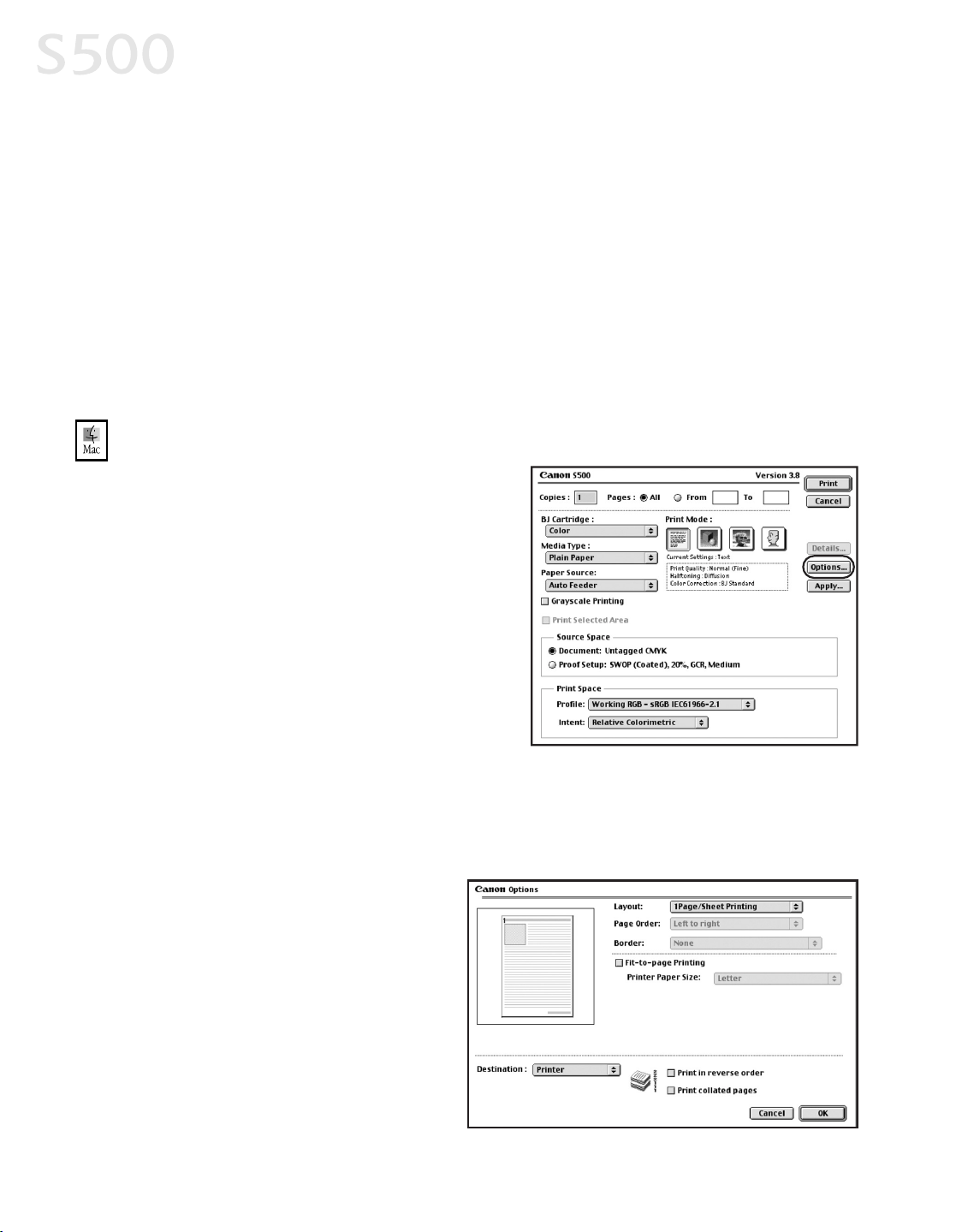
• Selecta paper size from the
PPaappeerr SSiizzee
drop-down list. (Ifprinting a
banner, clickto check the
BBaannnneerr PPrriinnttiinngg
checkbox, then follow the on-
screen instructions.)
• Seta
SSccaallee
percentage value between 50% and 200% to printthe image
in a size differentfrom the originaldocument.
• Clickan
OOrriieennttaattiioonn
icon to change the page orientation.
4. To save these settings for the nextprintjob, click the
SSaavvee SSeettttiinnggss
check
box.
5. When done, click
PPrriinntt
.
TToo cchhaannggee ppaaggee llaayyoouutt aanndd pprriinntt oorrddeerr iinn MMaacc OOSS::
1. Make sure that
SS550000
isthe selected
printer (from the
AAppppllee
menu, select
CChhoooosseerr
, then
SS550000
).
2. From an application
FFiillee
menu, click
PPrriinntt
. The Print window willappear.
3. Click
OOppttiioonnss
. The Optionsdialog
boxwillopen.
4. From the Options dialog box, you can
enter or change the following:
• To printin reverse order, check
the
PPrriinntt iinn rreevveerrssee oorrddeerr
box.
• Ifyou are printing more than one copy, check the
PPrriinntt ccoollllaatteedd ppaaggeess
box to collate each copyinstead ofprinting allof page 1, then all ofpage
2, etc.
• Under
LLaayyoouutt
, click the
drop-down arrow to
change the number of
pages to printon a sheet
(1 Page up to 16 Page).
• Ifthe page layoutisother
than 1 Page, you can
selecta different
PPaaggee
OOrrddeerr
specificto the
selected page layout.
Advanced PrintFeatures
1166
S500_Chapter 2.QXD 5/12/01 1:54 PM Page 16
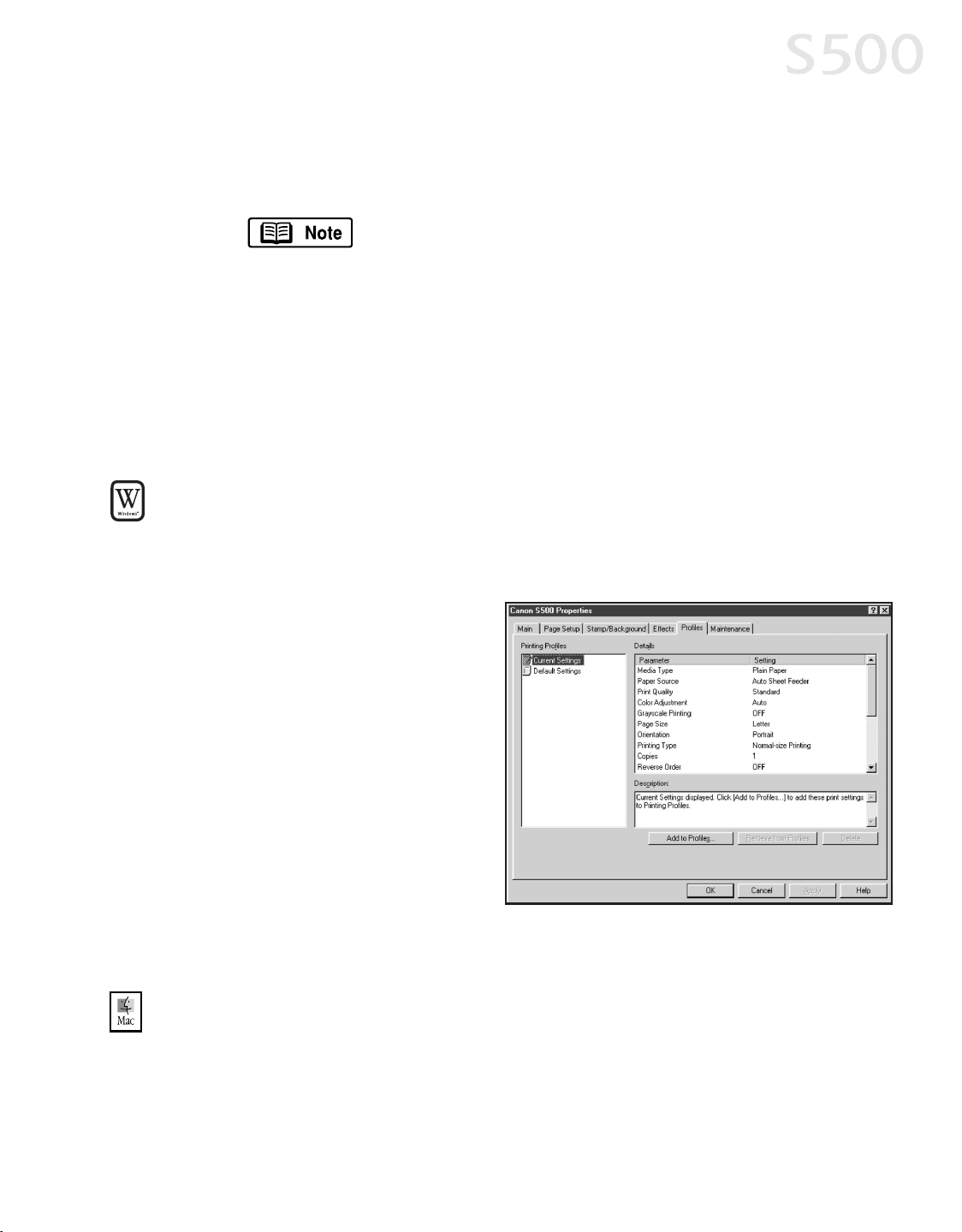
• Ifthe page layoutisother than 1 Page/SheetPrinting, you can also
selectwhether to print a
BBoorrddeerr
around each page.
5. When done, click
OOKK
, then
PPrriinntt
.
For more information on printer driver features, see the
S500 User’sGuideon the Setup Software & User’sGuide
CD-ROM, or use the MacBubble Help.
SSaavviinngg aanndd RReeccaalllliinngg DDrriivveerr SSeettttiinnggss
When you change printer driver settingsfor a specificprintjob, such asprinting
black and white photos, or printing documentswith a specialbackground, you
can save and name these settingsfor future use on other similar printjobs.
TToo ssaavvee ddrriivveerr sseettttiinnggss iinn WWiinnddoowwss::
1. From an application
FFiillee
menu, select
PPrriinntt
.
2. With
CCaannoonn SS550000
asthe selected printer, click
PPrrooppeerrttiieess
.
3. Make the desired printer
driver setting changes.
4. Withoutexiting the Properties
window, selectthe
PPrrooffiilleess
tab.
5. Click
AAdddd ttoo PPrrooffiilleess
, then
type a name for your settings
in the
NNaammee
field. You can
also selectan icon for this
profile.
6. Type a description of your
settings.
7. Click
SSaavvee
.
TToo ssaavvee ddrriivveerr sseettttiinnggss iinn MMaacc OOSS::
1. From an application
FFiillee
menu, select
PPrriinntt
. The Print window willappear.
2. Make the desired printer driver setting changes.
3. From the Printwindow, click
AAppppllyy
. The Register Settingsdialog willopen.
Advanced PrintFeatures
1177
S500_Chapter 2.QXD 5/12/01 1:54 PM Page 17
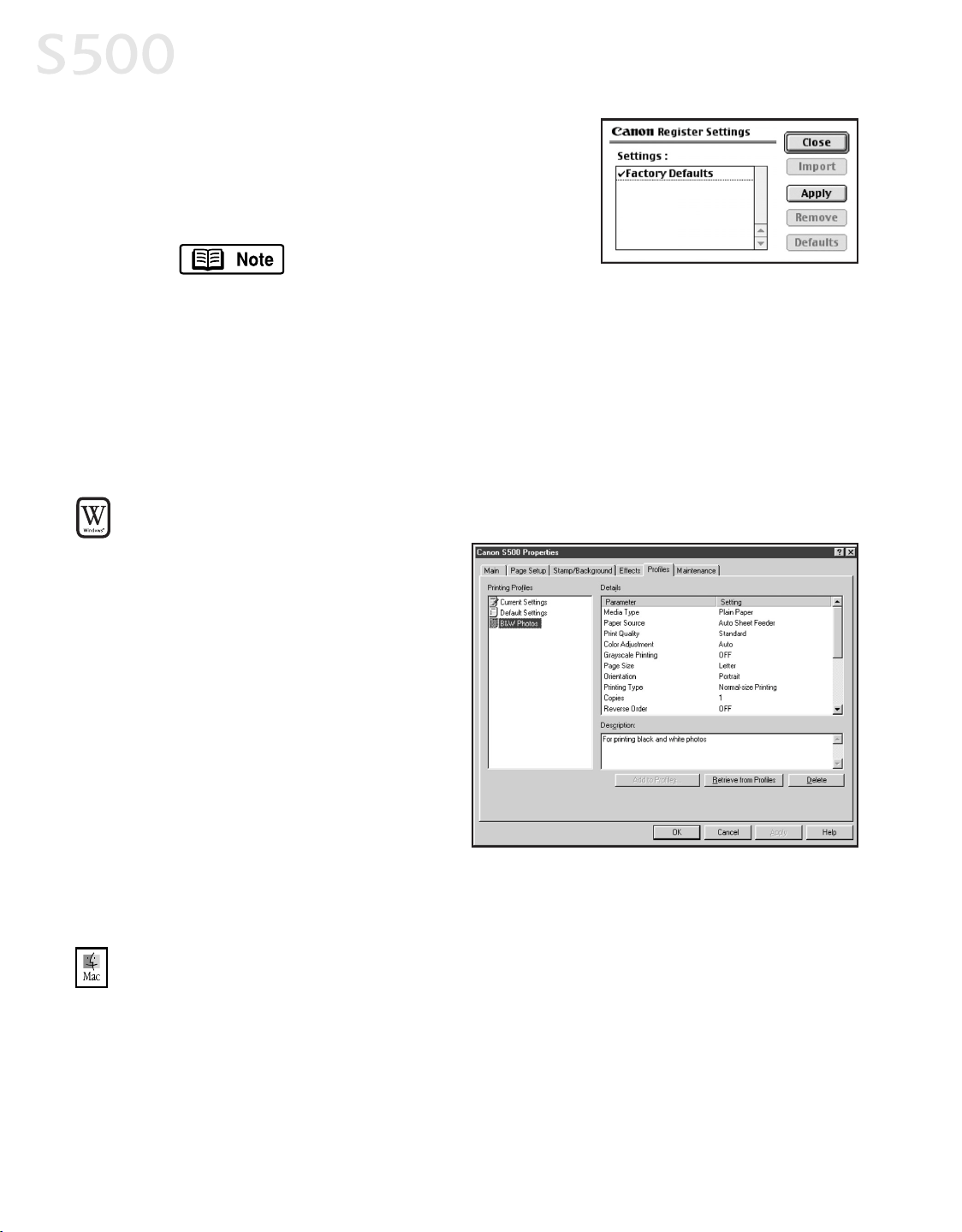
4. Click
AAppppllyy
again, then type a name for the
settings.
5. Click
OOKK
. The Register Settingswindow will
reappear.
To save the new settings as
your defaultsettingsfor the
Manualicon, click the name in the
SSeettttiinnggss
list, then click
DDeeffaauulltt
.
See the S500 User’sGuideon the Setup Software & User’s
Guide CD-ROM for instructionson removing manual settings
and restoring defaultsettings.
6. When done, click
CClloossee
.
TToo rreettrriieevvee aa ssaavveedd sseettttiinngg pprrooffiillee iinn WWiinnddoowwss::
1. From an application
FFiillee
menu, select
PPrriinntt
.
2. With
CCaannoonn SS550000
asthe
selected printer, click
PPrrooppeerrttiieess
.
3. Selectthe
PPrrooffiilleess
tab.
4. Highlightthe saved setting
profile you wantto use.
5. Click
RReettrriieevvee ffrroomm PPrrooffiilleess
,
then click
OOKK
to confirm the
profile change. The profile
settingswillbecome active.
6. Click
OOKK
again to close the window.
TToo rreeccaallll ddrriivveerr sseettttiinnggss iinn MMaacc OOSS::
1. From an application
FFiillee
menu, select
PPrriinntt
.
2. Click
AAppppllyy
, then selectthe name of your saved settings.
3. Click
DDeeffaauullttss
, then
OOKK
.
4. Click
IImmppoorrtt
, then
CClloossee
.
Advanced PrintFeatures
1188
S500_Chapter 2.QXD 5/12/01 1:54 PM Page 18
CChhaapptteerr 33:: PPrriinnttiinngg
MMaaiinntteennaannccee
MMoonniittoorriinngg IInnkk LLeevveellss
The printdriver allows you to monitor the level ofink in each ink tank.
TToo cchheecckk iinnkk lleevveellss iinn WWiinnddoowwss::
1. With the printer on, click
SSttaarrtt
, then
SSeettttiinnggss
, then
PPrriinntteerrss
.
2. Right-clickthe
CCaannoonn SS550000
icon, then
select
PPrrooppeerrttiieess
.
3. Selectthe
MMaaiinntteennaannccee
tab, then click
SSttaarrtt SSttaattuuss MMoonniittoorr
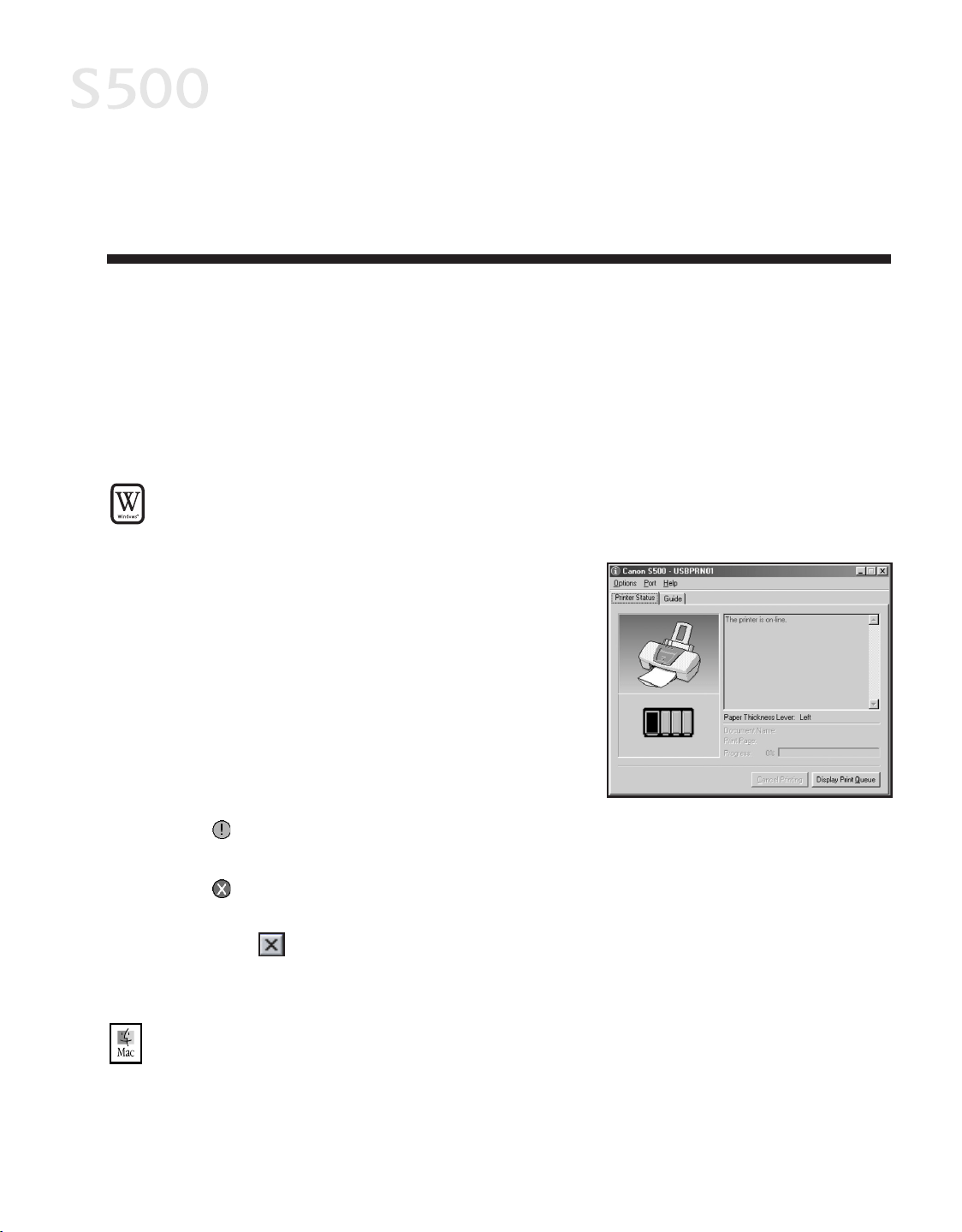
. The Canon S500
Status Monitor window willappear.
The Ink paneldisplaysthe ink levelsfor
each tank.
The following iconsappear when an ink
tank islow or hasrun outof ink:
Ink low. Replace inktankas
soon aspossible.
Ink out. Replace inktank
immediately.
4. Click on the top rightof the window to close the StatusMonitor, then
click
OOKK
to close the Propertieswindow.
TToo cchheecckk iinnkk lleevveellss iinn MMaacc OOSS::
The S500 Print Monitor can display inklevelswhen they are running low if you
have enabled backgrounding printing in the Choose option. See the S500 User’s
1199
S500_Chapter3.QXD 5/12/01 1:52 PM Page 19
Printing Maintenance
2200
Guideon the Setup Software and User’s Guide CD-ROM for more information
aboutthisfeature.
Bydefault,
BBaacckkggrroouunnddiinngg
is
OOffff
.
RReeppllaacciinngg IInnkk TTaannkkss
TToo rreeppllaaccee aann eemmppttyy iinnkk ttaannkk::
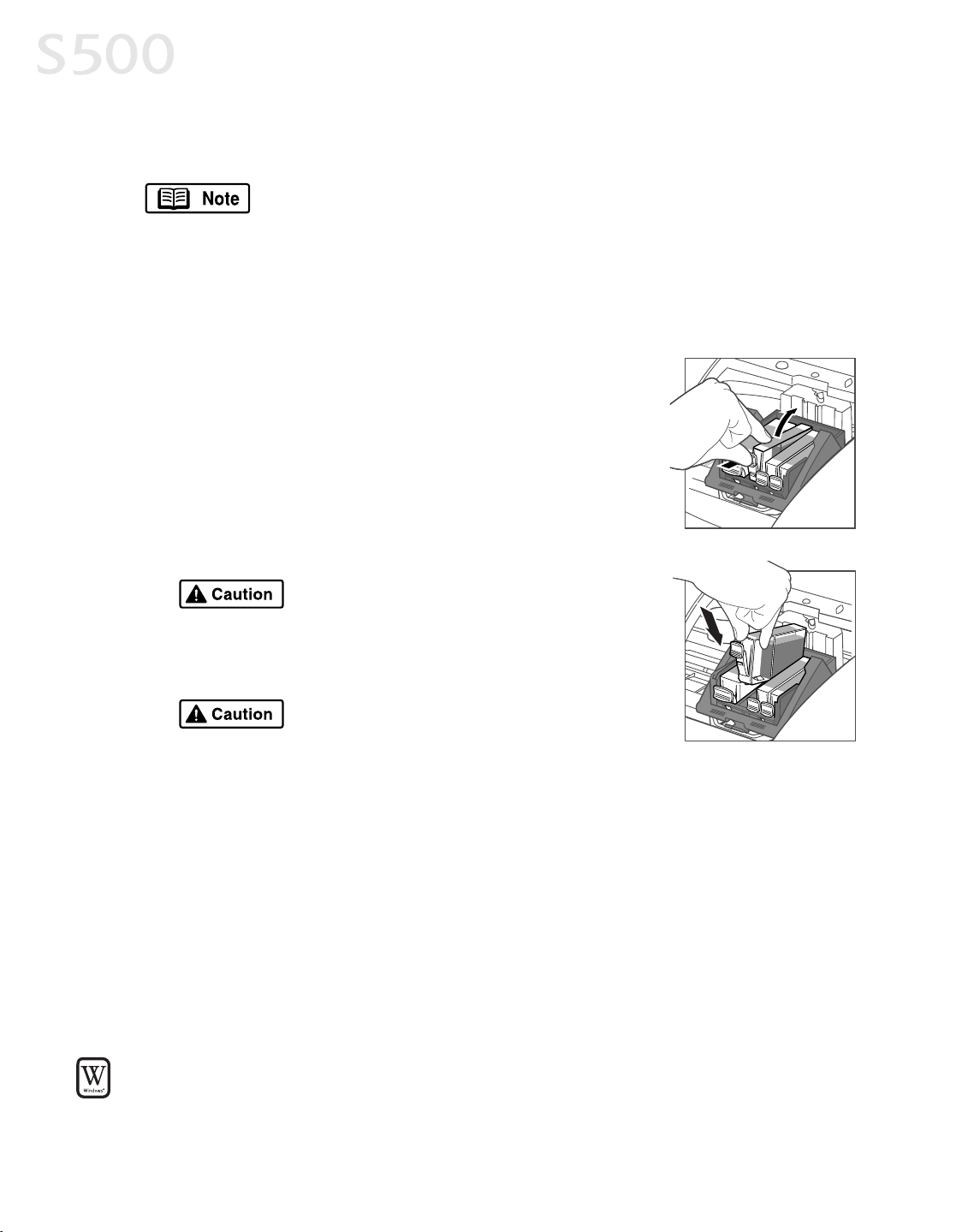
1. With the printer on, open the front cover. The
printhead holder willautomaticallymove to the
center.
2. Press the tab on the frontof the emptyink tank,
then remove and discard the emptytank.
3. Remove the new ink tank from itspackage. Pull the
orange tape up, remove the wrapper and twistoff
the orange protective cap.
To avoid spilling ink, never press on
the sides ofan ink tank.
4. Holding the new ink tank ata slightangle, align it
with the correctcolor slot, then gentlyinsertit.
Do notforce an inktankinto the
printhead. If the inktank doesnotgo
in smoothly, realign it, then tryagain.
5. Press down on the inktankuntilitclicksinto place.
6. Close the front cover.
PPrriinnttiinngg aa NNoozzzzllee CChheecckk PPaatttteerrnn
The printhead dischargesink through nozzles—tiny openingsfrom which the ink
issprayed. If faded or streaked colorsand textappear on your outputwhen you
print, some ofthe nozzlesmaybe clogged. You can check for this problem by
printing a nozzle check pattern.
TToo pprriinntt aa nnoozzzzllee cchheecckk ppaatttteerrnn iinn WWiinnddoowwss::
1. Make sure the printer is on and paper loaded.
S500_Chapter3.QXD 5/12/01 1:52 PM Page 20
2. Click
SSttaarrtt
, then
SSeettttiinnggss
, then
PPrriinntteerrss
.
3. Right-clickthe
CCaannoonn SS550000
printer icon, then select
PPrrooppeerrttiieess
.
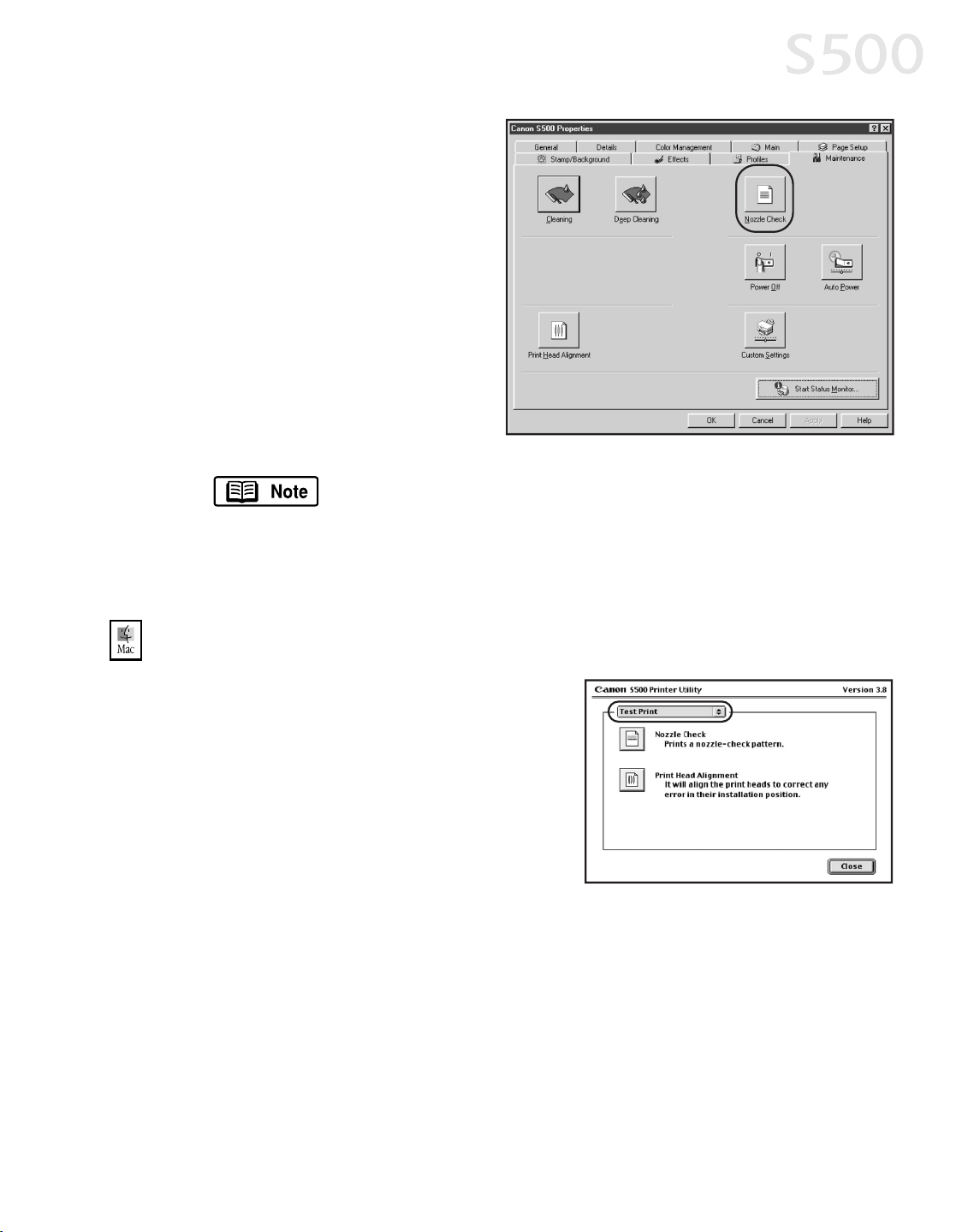
4. Clickthe
MMaaiinntteennaannccee
tab,
then click the
NNoozzzzllee CChheecckk
button.
5. Click
OOKK
to startthe nozzle
test. The nozzle test pattern
will print.
The Maintenance tab may varyfor WindowsNT 4.0 and
Windows2000.
6. Check the printed nozzle check pattern. Ifpartofthe top pattern ismissing,
see “Cleaning the Printhead” on page 22 for procedures.
TToo pprriinntt aa nnoozzzzllee cchheecckk ppaatttteerrnn iinn MMaacc OOSS::
1. Make sure the printer is on and paper
loaded.
2. In a software application, click
FFiillee
,
then
PPaaggee SSeettuupp
.
3. Click
UUttiilliittiieess
. The Canon S500 Printer
Utilitywindow willappear.
4. Select
TTeesstt PPrriinntt
from the drop-down
menu.
5. Clickthe
NNoozzzzllee CChheecckk
button. When
prompted, click
OOKK
. The nozzle testpattern willprint.
6. When done, click
CClloossee
.
7. Check the printed nozzle check pattern. Ifpartofthe top pattern ismissing,
see “Cleaning the Printhead” on page 22 for procedures.
Printing Maintenance
2211
S500_Chapter3.QXD 5/12/01 1:52 PM Page 21
CClleeaanniinngg tthhee PPrriinntthheeaadd
Ifyour printed outputappears faded, streaked or scratchy, the printhead may
need to be cleaned or aligned. See the S500 User’sGuideon the Setup
Software & User’s Guide CD-ROM for additionalcorrective actions.
Printhead cleaning consumesink. Avoid unnecessarycleaning.
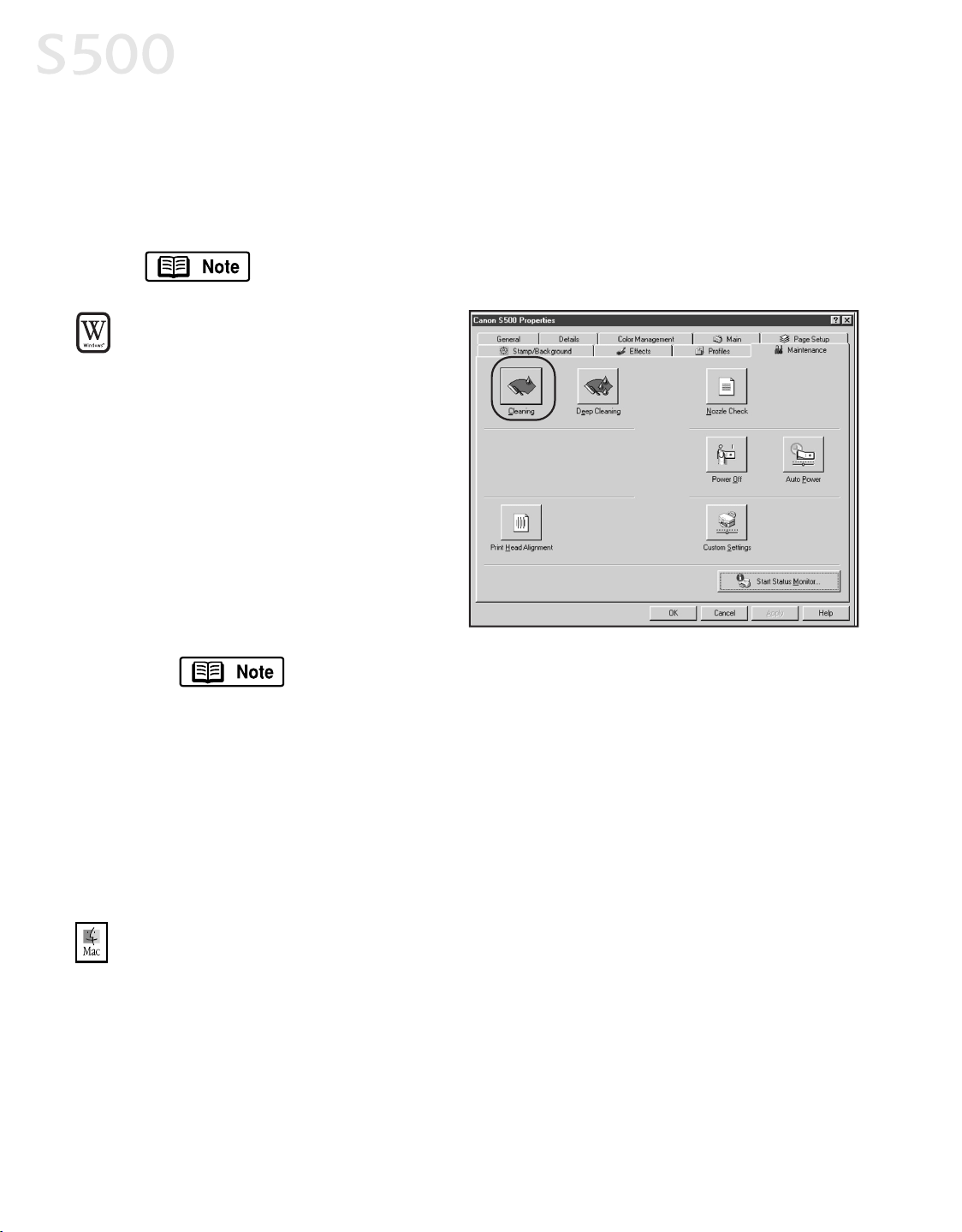
TToo cclleeaann tthhee pprriinntthheeaadd iinn
WWiinnddoowwss::
1. With the printer on, click
SSttaarrtt
, then
SSeettttiinnggss
, then
PPrriinntteerrss
.
2. Right-clickthe
CCaannoonn SS550000
printer icon, then select
PPrrooppeerrttiieess
.
3. Clickthe
MMaaiinntteennaannccee
tab,
then click the
CClleeaanniinngg
button. The printer willclean
the printhead.
The Maintenance tab and proceduresmayvaryfor WindowsNT
4.0 and Windows2000. Follow the instructionswhen
prompted.
4. Click
OOKK
to close the window.
5. After the cleaning, printa nozzle check pattern to check the results. See
“Printing a Nozzle CheckPattern” on page 20.
6. Ifthere isno change after cleaning, check the amount ofink remaining. Ifan
ink tank isempty, replace it. See “Monitoring Ink Levels” on page 19.
TToo cclleeaann tthhee pprriinntthheeaadd iinn MMaacc OOSS::
1. Make sure the printer is on.
2. In a software application, click
FFiillee
, then
PPaaggee SSeettuupp
.
3. Click
UUttiilliittiieess
. The Canon S500 Printer Utility window willappear.
4. Clickthe
CClleeaanniinngg
button.
Printing Maintenance
2222
S500_Chapter3.QXD 5/12/01 1:52 PM Page 22
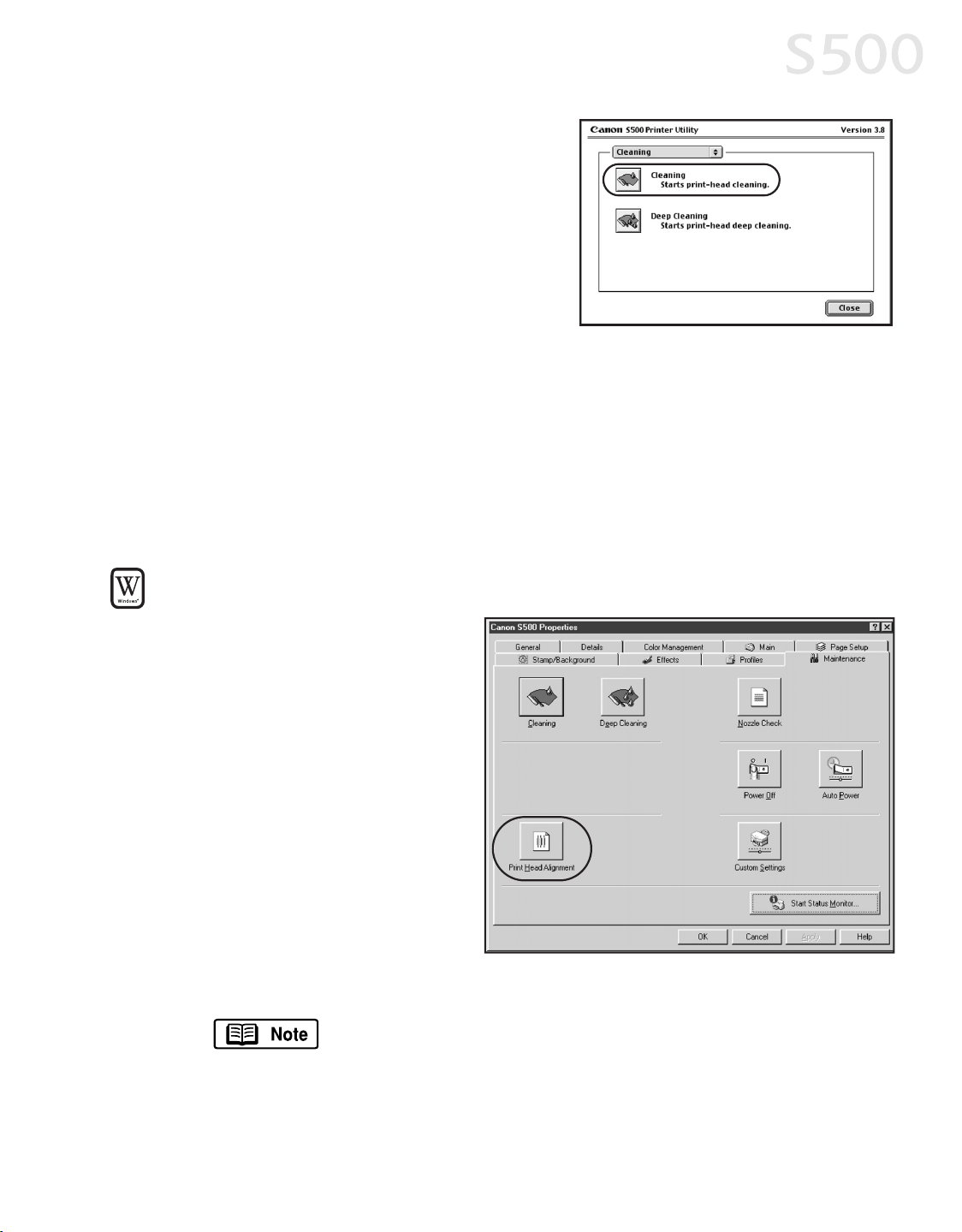
5. Selectthe colorsto be cleaned, then
click
OOKK
. The printer willclean the
printhead.
6. When done, click
CClloossee
.
7. After the cleaning, printa nozzle check
pattern to check the results. See
“Printing a Nozzle CheckPattern” on
page 20.
8. Ifthere isno change after cleaning, check the amount ofink remaining. Ifan
ink tank isempty, replace it. See “Monitoring Ink Levels” on page 19.
AAlliiggnniinngg tthhee PPrriinntthheeaadd
Sometimesprinted outputcan be faded or unclear because the printhead needs
to be aligned.
TToo aalliiggnn tthhee pprriinntthheeaadd iinn WWiinnddoowwss::
1. Make sure the printer is on
and paper loaded.
2. Click
SSttaarrtt
, then
SSeettttiinnggss
,
then
PPrriinntteerrss
.
3. Right-clickthe
CCaannoonn SS550000
printer icon, then select
PPrrooppeerrttiieess
.
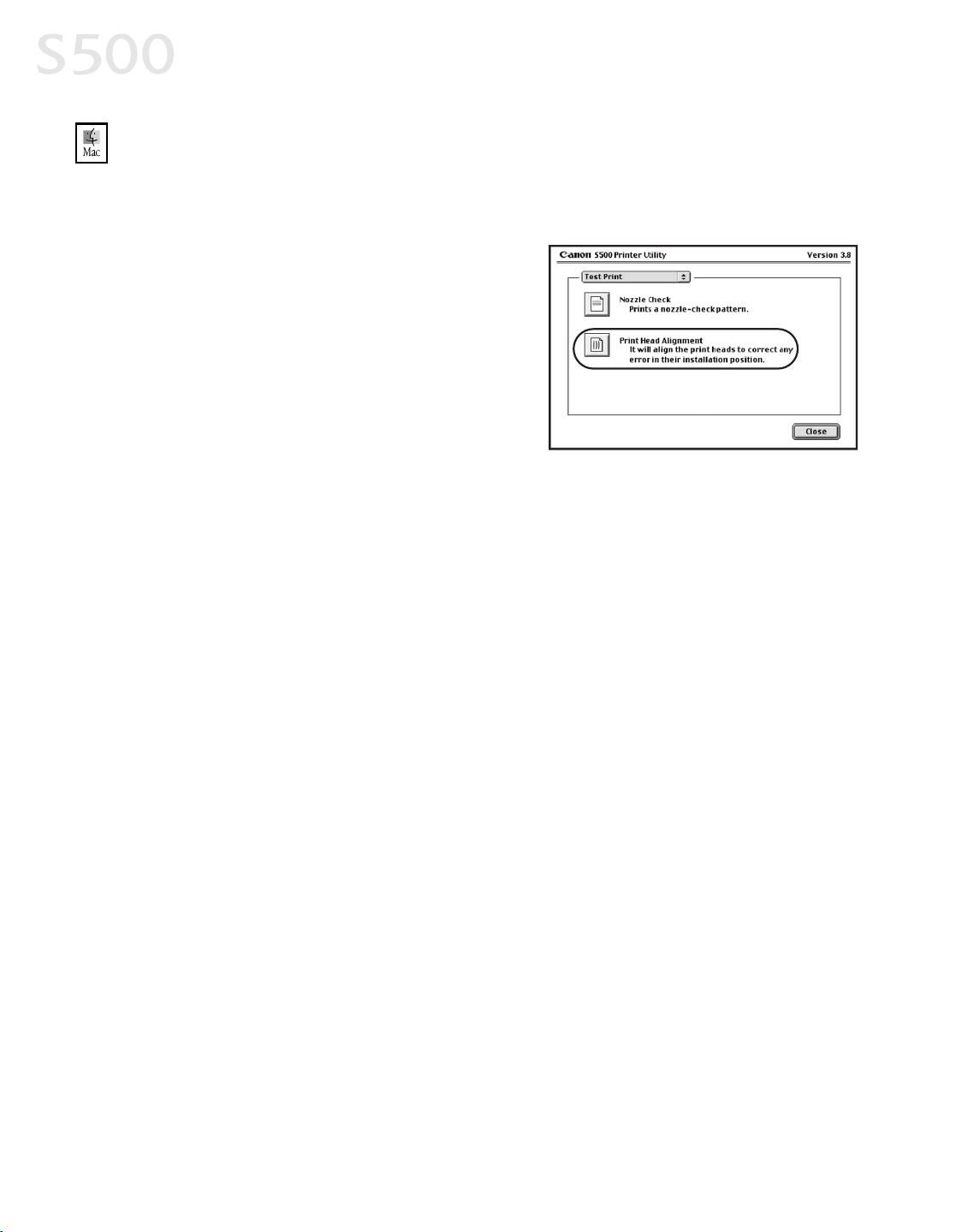
4. Clickthe
MMaaiinntteennaannccee
tab,
then click the
PPrriinntt HHeeaadd
AAlliiggnnmmeenntt
button.
5. When asked to start
printhead alignment,
click
OOKK
.
6. Follow the on-screen instructionsto complete printhead alignment.
The Maintenance tab and proceduresmayvaryfor WindowsNT
4.0 and Windows2000. Follow the instructionswhen
prompted.
7. When printhead alignment iscomplete, click
OOKK
to close the window.
Printing Maintenance
2233
S500_Chapter3.QXD 5/12/01 1:53 PM Page 23
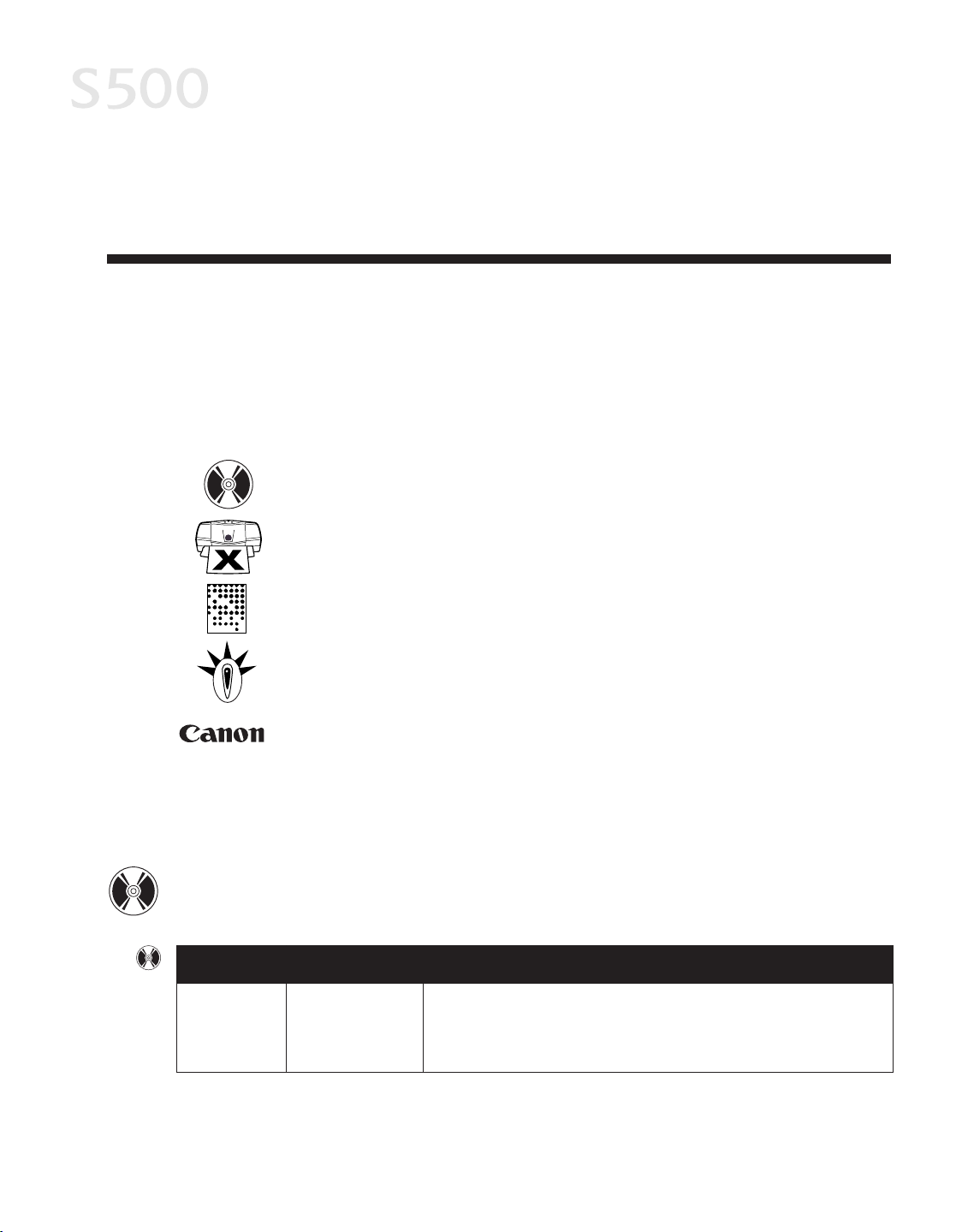
TToo aalliiggnn tthhee pprriinntthheeaadd iinn MMaacc OOSS::
1. Make sure the printer is on and paper loaded.
2. From the
FFiillee
menu in a software application, click
PPaaggee SSeettuupp
.
3. Clickthe
UUttiilliittiieess
button.
4. Clickthe down-arrow to select
TTeesstt
PPrriinntt
.
5. Clickthe
PPrriinntt HHeeaadd AAlliiggnnmmeenntt
icon.
6. Follow the on-screen instructionsto
complete printhead alignment.
7. After each printhead alignmentpattern
check, click
SSeenndd
.
8. When printhead alignment iscomplete, click
CClloossee
.
Printing Maintenance
2244
S500_Chapter3.QXD 5/12/01 1:53 PM Page 24
CChhaapptteerr 44::
TTrroouubblleesshhoooottiinngg
TTiippss ffoorr TTrroouubblleesshhoooottiinngg
Troubleshooting usuallyfallsinto one ofthe following categories:
IInnssttaallllaattiioonn
The printer driver willnot installproperly.
PPrriinntteerr HHaarrddwwaarree
The printer is notworking or notworking asexpected.
PPrriinntteedd OOuuttppuutt
The printed outputisnotcoming out asexpected.
EErrrroorr MMeessssaaggee
You are getting an error message from the software (displayed
on the screen) or the printer (indicated bya flashing lamp).
CCuussttoommeerr CCaarree CCeenntteerr
Canon offersa full range ofcustomer technicalsupportoptions.
Ifyou encounter difficulties during installation or operation ofyour Canon S500
printer, quicklyscan alltopicsuntilyou find a description that approximates
your difficulty. Go through the related solutionsuntilyou find one that works.
TTrroouubblleesshhoooottiinngg IInnssttaallllaattiioonn
TryThisPossible CauseProblem
Cannot
installthe
printer driver
Procedure not
followed correctly
See “Installing the Printer Driver” on page 41.
2255
S500_Chapter4.QXD 5/12/01 1:51 PM Page 25
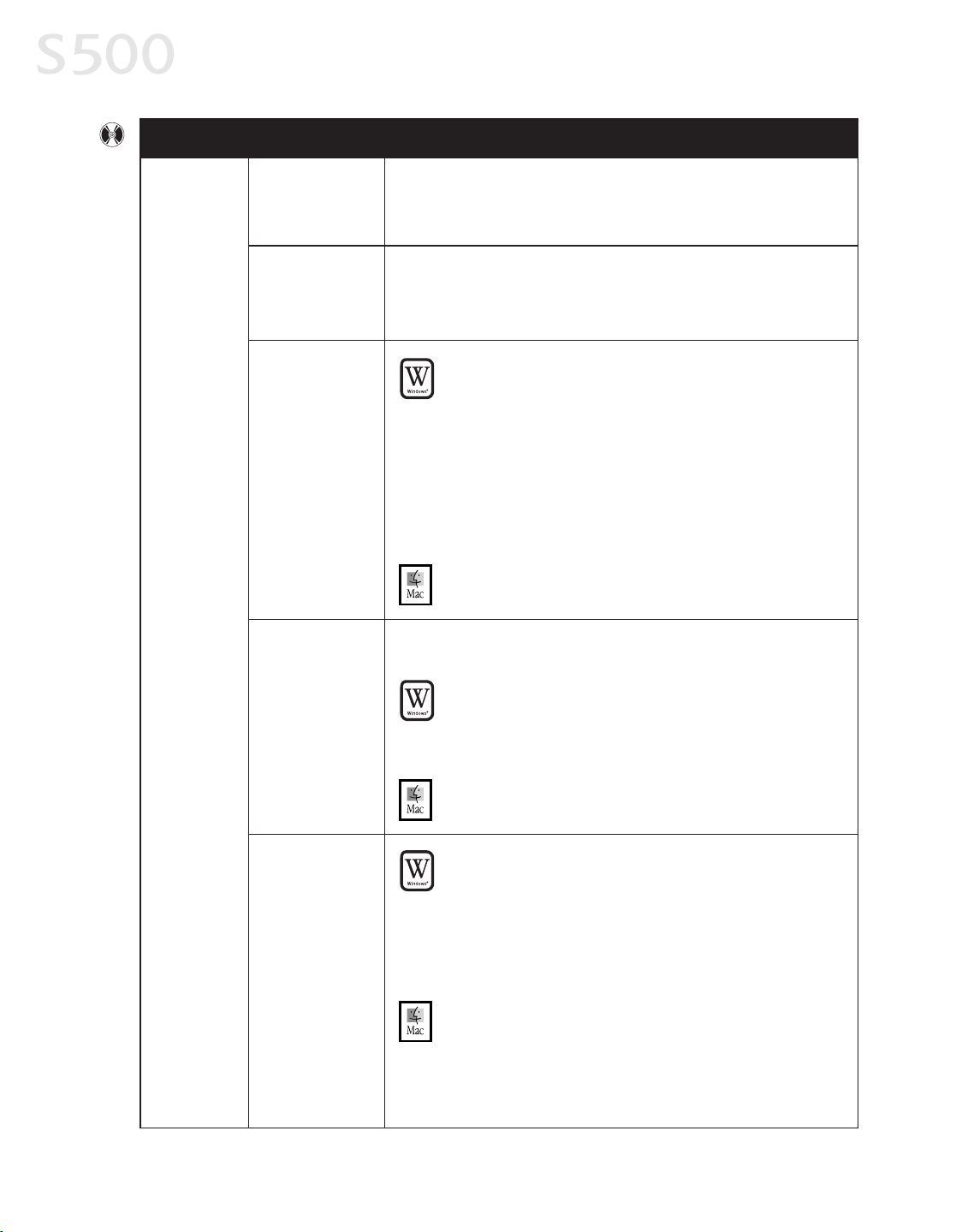
Troubleshooting
Problem Possible Cause TryThis
Always uninstall the previousversion ofthe printer driver before
installing the new version. See “Uninstalling the Printer Driver” on
page 43.
Previousor same
printer driver
version already
installed
Other
applications
running in the
background
Other open applications on your computer can interfere with the
installation routine. Close allopen software applicationsbefore
reinstalling the printer driver. See “Installing the Printer Driver” on
page 41.
Installation not
starting
automatically
when CD is
inserted into
drive
WW
IINNDDOOWWSS
Ifprinter driver installation did notstartautomaticallywhen
you loaded the CD-ROM:
1. Double-click
MMyy CCoommppuutteerr
on the Windows desktop, then
double-clickthe
CCDD--RROOMM ddrriivvee
.
2. Double-click
mmsseettuupp..eexxee
.
Ifyou installthe printer driver byclicking
SSttaarrtt
, then
RRuunn
,
specifythe correctCD-ROM drive and file name
(
xx::\\mmsseettuupp..eexxee
, where
xx
isthe CD-ROMdrive).
MM
AACC
OOSS
Double-clickthe
CCDD--RROOMM
icon on your desktop.
CD-ROM drive not
specified
Normally, after you insertthe S500 CD-ROM, the setup window
displaysautomatically. Ifit doesnot:
WW
IINNDDOOWWSS
1. Double-click
MMyy CCoommppuutteerr
on the Windows desktop, then
double-clickthe
CCDD--RROOMM ddrriivvee
.
2. Double-click
mmsseettuupp..eexxee
.
MM
AACC
OOSS
Double-clickthe
CCDD--RROOMM
icon on your desktop.
CD-ROM drive not
working properly
WW
IINNDDOOWWSS
Use WindowsExplorer to confirm thatthe CD-ROMisoperating
normally:
1.From the desktop, double-click
MMyy CCoommppuutteerr
, then
CCDD--RROOMM
.
2.Ifthe filesdo notappear, refer to your Windows
documentation for more information.
MM
AACC
OOSS
Open the
AAppppllee SSyysstteemm PPrrooffiilleerr
, click
DDeevviicceess
and
VVoolluummeess
,
then open the CD-ROM.
Cannot
installthe
printer driver
(continued)
2266
S500_Chapter4.QXD 5/12/01 1:51 PM Page 26
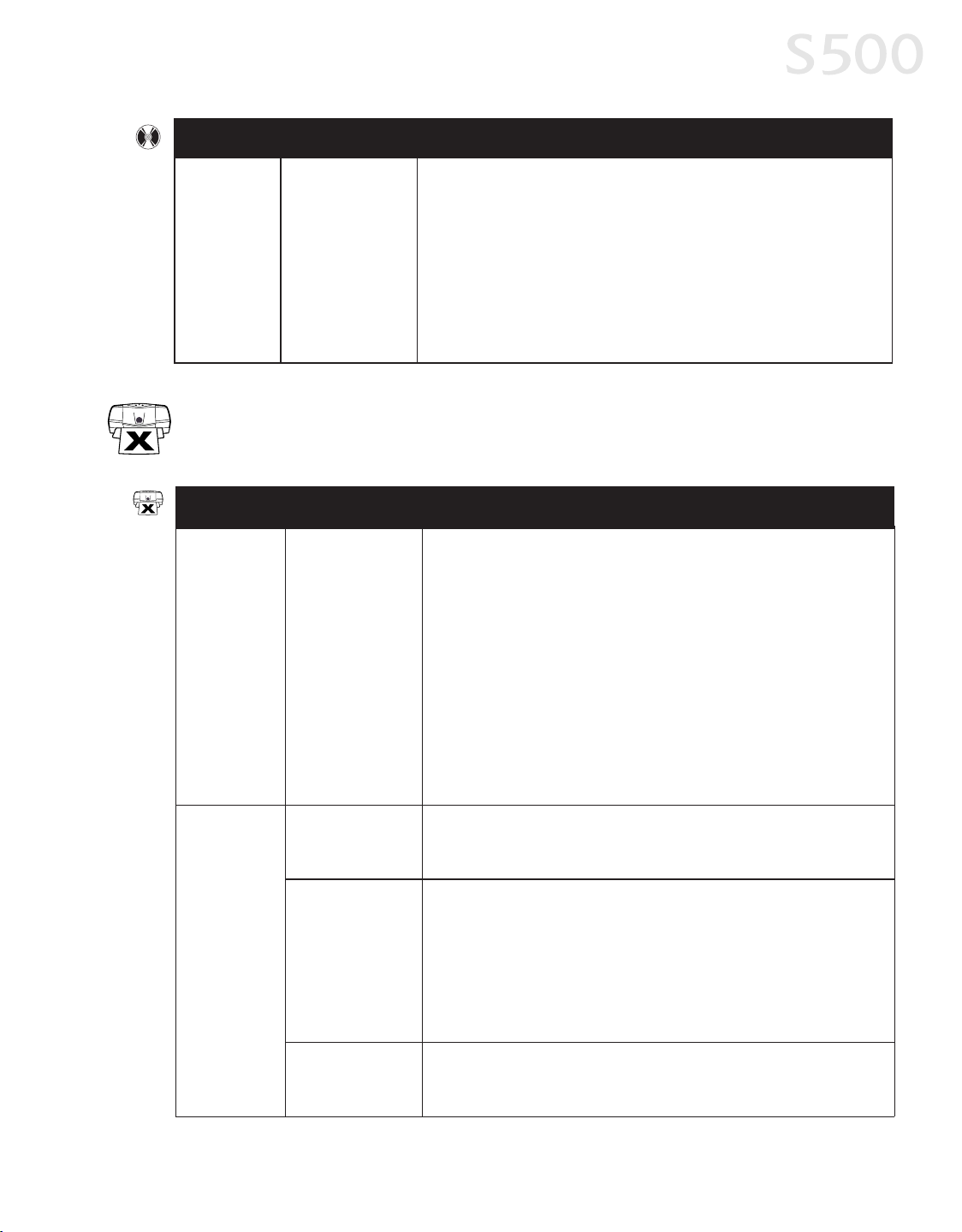
Troubleshooting
2277
Possible Cause
Problem
TryThis
Cannot
installthe
printer driver
(continued)
Computer cannot
detecta printer
port
Verifythatthe correctcable (USB or parallel) isconnected to both
your printer and your computer, and thatthe connection issecure.
Verifythatthe computer isturned on and the POWER lamp is a steady
(non-flashing) green.
Ifthisdoes notsolve the problem, exitthe installation procedure,
turn offthe printer, restartthe computer and reinstall the software.
The installer will promptyou when to turn the printer backon.
Problem Possible Cause TryThis
Paper jamsin
the printer
Media jammed
during paper feed
1. Gentlypullthe jammed paper outofthe paper output trayor the
paper rest, whichever iseasier.
Ifthe paper tearsand some isleftin the printer, turn the printer
off, open the frontcover, and remove the pieces. Ifyou cannot
reach or remove the torn paper, do notattemptto disassemble the
printer yourself. Contactthe Customer Care Center.
2. Reload paper into the paper rest, then press the RESUME/CANCEL
button on the printer.
You willneed to reprint the page thatjammed.
Ifyou turn the printer off, your printjob data will be lost. Printthe job
again.
Use a standard paper size whenever possible to preventjams.
Printer isnot
responding
Power cord not
securely
connected
Verifythatthe power cord issecurelyconnected to the printer and
plugged into a working outlet.
Printer isnotset
asdefault, isnot
turned on, or is
notready
Verifythatthe Canon S500 printer isthe default printer.
Verifythatthe printer ison. Ifthe POWER lamp is off, pressthe
POWER button. The lamp willflash green asthe printer warmsup,
then go to a steady (no flash) green when the printer isready.
Flashing green can also indicate the printer is processing a print job.
Ifthe POWER lamp flashesorange, or green and orange alternately,
see “Handling Error Messages” on page 30.
Printer/computer
incorrectly
connected
Reconnect the printer cable to the correct port, with the correctcable.
TTrroouubblleesshhoooottiinngg PPrriinntteerr HHaarrddwwaarree
S500_Chapter4.QXD 5/12/01 1:51 PM Page 27
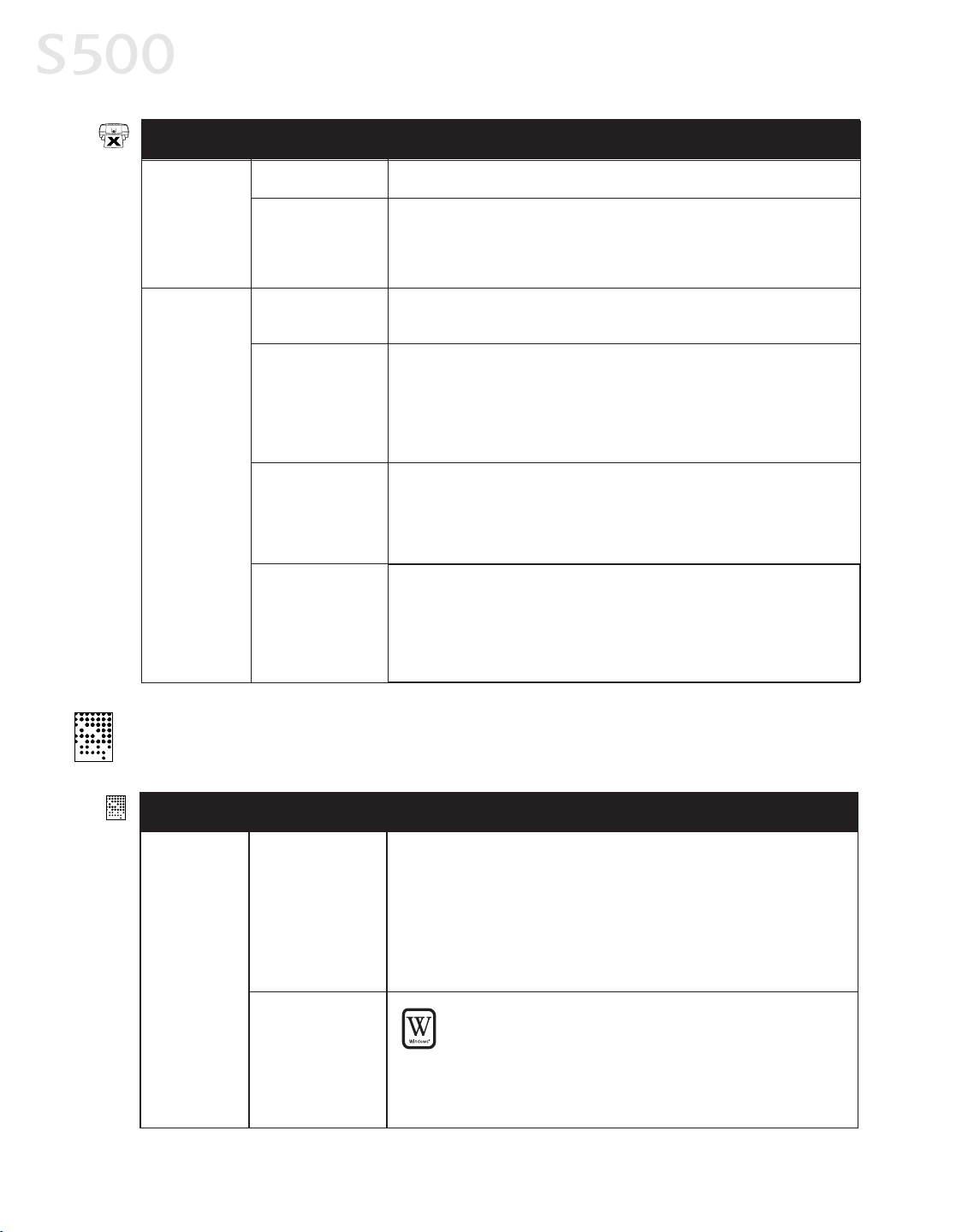
Troubleshooting
2288
Printer isnot
responding
(continued)
Problem Possible Cause TryThis
Bad cable Replace the printer cable.
Computer and/or
printer needsto
be reset
Rebootthe computer and/or resetthe printer.
1. To rebootthe computer, close allopen applications, then restart.
2. To resetthe printer, turn it off, then on again.
Inktanksare not
seated properly
Printer tried
to printbut
no inkon
paper
Check the inktanks, and reseatthem ifnecessary. See “Replacing Ink
Tanks” on page 20.
Printhead
clogged
Verifythatthe printhead isworking properly. See “Printing a Nozzle
Check Pattern” on page 20 or “Cleaning the Printhead” on page 22.
Ifnecessary, perform multiple printhead cleanings. Ifprintquality
doesnotimprove, trydeep cleaning. Perform printhead deep
cleaning from the printer driver.
Inktanksmay
need to be
replaced
Verifythat you have sufficientink in the inktanks. See “Monitoring
InkLevels” on page 19.
Ifnecessary, replace the inktanks. See “Replacing Ink Tanks” on
page 20.
Printhead may
need to be
replaced
Verifythatthe printhead isworking properly. See “Printing a Nozzle
Check Pattern” on page 20 or “Cleaning the Printhead” on page 22.
Ifnecessary, perform multiple printhead cleanings. See “Cleaning the
Printhead” on page 22. If the printhead isstill notworking properly,
contact the Customer Care Center.
Problem
Possible Cause TryThis
Printed
colors are
incorrect
One or more ink
tanksinstalled in
the wrong
position
Verifythateach inktank islined up with the correct color labelin
the printhead. For more information, see “Replacing Ink Tanks” on
page 20.
Ifink tankswere placed in the incorrectcolor slots in the printhead,
after switching the tanksto their correct slots, perform atleasttwo
printhead cleanings to remove the incorrectresidualcolorsfrom the
printhead. For procedures, see “Cleaning the Printhead” on page 22.
IncorrectColor
Adjustment
setting
WW
IINNDDOOWWSS
1.On the
MMaaiinn
tab ofthe S500 Propertieswindow, confirm
thatColor Adjustmentissetto
AAuuttoo
.
2. If
MMaannuuaall
isset, clickthe
DDeeffaauullttss
button on the Manual
Color Adjustmentwindow.
TTrroouubblleesshhoooottiinngg PPrriinntteedd OOuuttppuutt
S500_Chapter4.QXD 5/12/01 1:51 PM Page 28
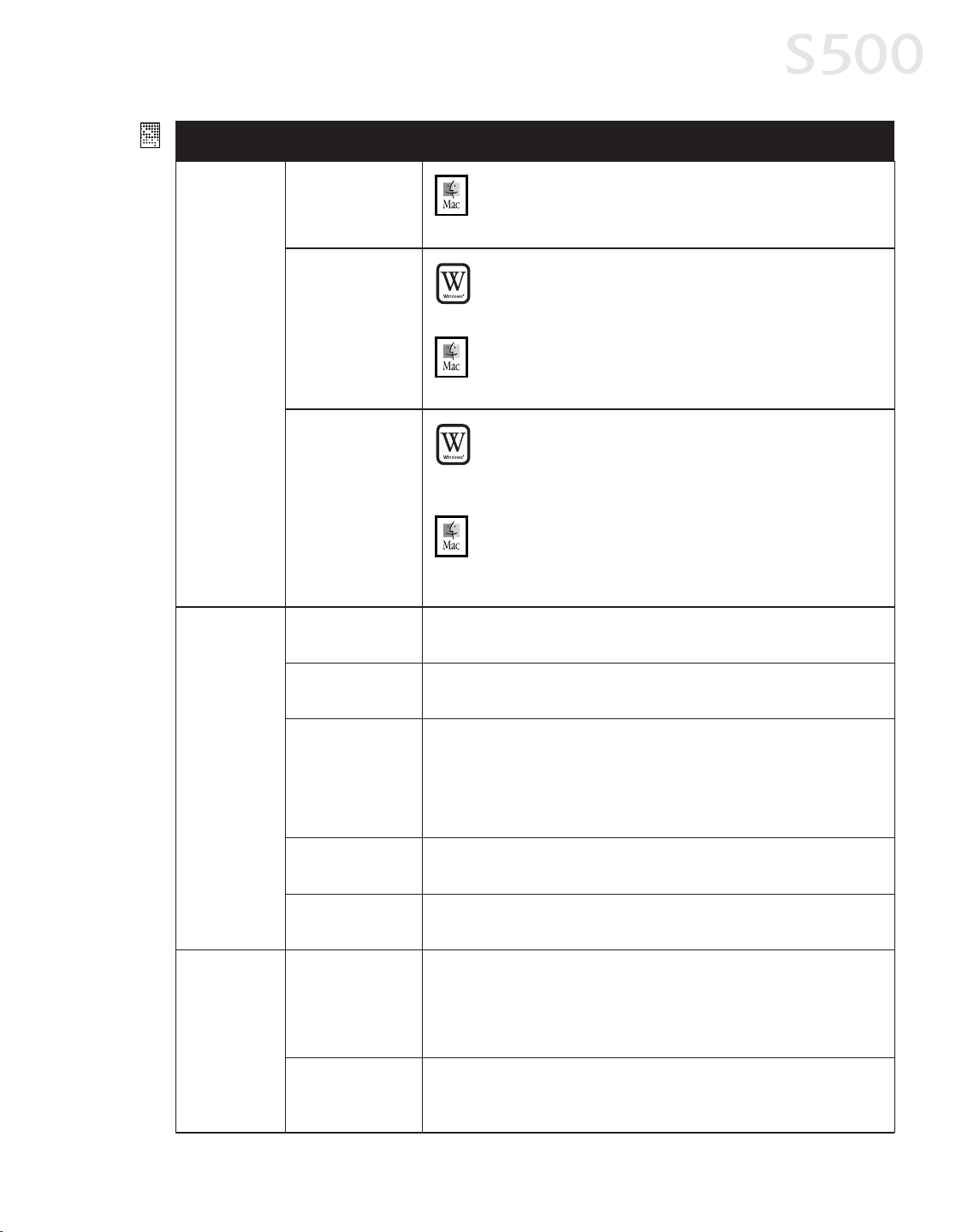
Troubleshooting
2299
TryThisProblem Possible Cause
Printed
colors are
incorrect
(continued)
PrintMode is
improperlyset
MM
AACC
OOSS
In the Printdialog box, select the appropriate
PPrriinntt MMooddee
setting.
Incorrectmedia
type
WW
IINNDDOOWWSS
On the
MMaaiinn
tab ofthe S500 Propertieswindow, confirm that
the
MMeeddiiaa TTyyppee
selected matchesthe paper loaded.
MM
AACC
OOSS
In the Printdialog box, confirm thatthe
MMeeddiiaa TTyyppee
selected
matchesthe paper loaded.
PrintQualityis
improperlyset
WW
IINNDDOOWWSS
On the
MMaaiinn
tab ofthe S500 Propertieswindow, select the
appropriate PrintQualitysetting:
HHiigghh
,
SSttaannddaarrdd
,
DDrraafftt
or
CCuussttoomm
.
MM
AACC
OOSS
In the
PPrriinntt
dialog box, selectthe
MMaannuuaall
icon, then clickthe
DDeettaaiillss
button. In the Detailed Setting window, slide the
PPrriinntt
QQuuaalliittyy
bar to selectyour preferred outputquality.
Printed
outputis
faded or
unclear
Media notloaded
printside up
Check thatyour media isplaced in the printer facing in the correct
direction. See “Loading Paper and Other Media” on page 4.
Low ink Verifythat you have sufficientink in the inktanks. See “Monitoring
InkLevels” on page 19.
Verifythatthe printhead isworking properly. See “Printing a Nozzle
Check Pattern” on page 20 and “Cleaning the Printhead” on page 22.
Ifnecessary, perform multiple printhead cleanings. See the S500
User’sGuideon the Setup Software & User’sGuide CD-ROM for more
information.
Printhead nozzles
clogged or
damaged
Inktanksare not
seated properly
Check the inktanks, and reseatthem ifnecessary. See “Replacing Ink
Tanks” on page 20.
Printhead needs
to be aligned
Perform printhead alignment. See "Aligning the Printhead" on
page 23.
1. Turn the printer offto clear the printer buffer.
2. Cancel the printjob from the computer. See “Cancelling a Print
Job” on page 7.
3. Turn the printer on again.
Meaningless
characters
printed
Corrupted print
instructionsare
stored in the
printer buffer
Printer/computer
notsecurely
connected
Check the cable connectionsbetween the printer and the computer to
verifythattheyare securelyconnected.
S500_Chapter4.QXD 5/12/01 1:51 PM Page 29
Troubleshooting
3300
Meaningless
characters
printed
(continued)
TryThis
Previousprintjob
paused before it
wasfinished
Ifa previousprint job waspaused before it wasprinted, turn the
printer and the computer off, then backon again, or
WW
IINNDDOOWWSS
1. Click
SSttaarrtt
, then
SSeettttiinnggss
, then
PPrriinntteerrss
.
2. Double-click
CCaannoonn SS550000
and cancelanyunfinished print
jobs.
MM
AACC
OOSS
On your keyboard, pressthe Apple Command key ( ) and
the period key(.) at the same time. The print job willbe
cancelled and the paper ejected.
Check the Printer window to verifythatthe correctprinter driver is
selected.
Incorrectprinter
driver selected
Bad (corrupted)
file
Create the document again and printit. Ifitprintssuccessfully, the
originalfile wascorrupted.
Extended Capabilities(Parallel) Port, or ECP, providesfaster data
transfer between the computer and the printer. Ifthe ECP setting is
incorrect, itcould resultin incorrectprintinformation going to the
printer. See the S500 User’sGuideon the Setup Software & User’s
Guide CD-ROM for instructions on how to check ECP settingsand
reconfigure ifneeded.
ECPmode notset
Problem Possible Cause
Problem
When a printer error occurs, the POWER lamp flashes orange between green flashes. Count
the number oforange flashesto determine and resolve the problem:
Printer does
notprint/
flashing lamp
on printer
Possible Cause TryThis
Alternately
flashesgreen and
orange (service
error)
1. Remove the paper from the printer, switch the printer off, then
unplug it.
2. Reconnectthe printer power and turn itback on.
Ifthe same error message persistsafter restarting the printer, contact
the Customer Care Center.
2 orange flashes
(paper isoutor
notfeeding
correctly)
Ifno paper isloaded in the paper rest, or ifpaper isnotloaded
correctly, reload the paper correctlythen pressthe RESUME/CANCEL
button on the printer. See “Loading Paper and Other Media” on page
4 for how to load differenttypesofmedia.
HHaannddlliinngg EErrrroorr MMeessssaaggeess
S500_Chapter4.QXD 5/12/01 1:51 PM Page 30
Troubleshooting
3311
Problem
Printer does
notprint/
flashing lamp
on printer
(continued)
3 orange flashes
(paper jam)
See the troubleshooting topic“Paper jamsin the printer” on page 27.
7 orange flashes
(defective
printhead)
Remove and re-install the printhead.
Also ensure that the protective tape hasbeen removed.
Ifre-installing the printhead doesnotresolve the problem, contact
the Customer Care Center to replace itwith a new one.
8 orange flashes
(waste tank
almostfull)
The printer hasa built-in waste inktankto hold the ink consumed
during printhead cleaning. Pressthe RESUME/CANCEL button to
restartprinting, then contactthe Customer Care Center to have the
waste ink tank replaced immediately.
Printer flashes
green only
When the lamp flashes green, the printer iswarming up or is
receiving printdata from the computer. Thisisnotan error condition.
Possible Cause
TryThis
When Backgrounding is turned on, you can confirm the low inkalert
in the BJ PrintMonitor. See the S500 User’sGuideon the Setup
Software & User’sGuide CD-ROM for more information on using the
BJ PrintMonitor.
After the alertdisplays, you can continue printing for a shorttime,
buthave a replacementreadyto install.
WW
IINNDDOOWWSS
The low inkalertdisplaysin the BJ StatusMonitor. Clickthe
InkInformation tab to determine which ink tankis low.
MM
AACC
OOSS
The low inkalertdisplays in a statusdialog before a printjob
starts.
One or more of
the inktanksis
low
Error
message
displaysin
the BJ Status
Monitor
Printer isoutof
paper
Inkislow
Paper jam
Printhead
installed
incorrectly
WW
IINNDDOOWWSS
The BJ StatusMonitor opensand displaysa message when an
error occurs.
Read the error message, then click the
GGuuiiddee
tab to display
more information aboutsolving the problem.
MM
AACC
OOSS
IfBackgrounding isturned on with the Chooser, the BJ Print
Monitor displaysan error.
Follow the instructionsin the message to resolve the problem.
See the S500 User’sGuideon the Setup Software & User’s
Guide CD-ROM for more information on error messages.
One ofthe ink tanksis empty. Replace it. See “Monitoring InkLevels”
on page 19 and “Replacing Ink Tanks” on page 20 for more
information.
4 orange flashes
(emptyinktank)
Low ink alert
displaysin
the BJ Print
Monitor
S500_Chapter4.QXD 5/12/01 1:51 PM Page 31
CCuussttoommeerr CCaarree CCeenntteerr
Canon offersa fullrange of customer technicalsupport* options:
• For e-mail support, the latestdriver downloads and answersto frequently
asked questions(
wwwwww..uussaa..ccaannoonn..ccoomm
)
• 24-hour, 7-day-a-weekautomated supportfor troubleshooting issues on
mostcurrentproducts(
11--880000--442233--22336666
)
• 24-hour, Fax-On-Demand System for productspecificationsand technical
information (
11--880000--552266--44334455
)
• Free technicalsupportMonday–Saturday (excluding holidays) for products
still under warranty** (
11--775577--441133--22884488
)
• Technicalsupport7 days a week(excluding holidays) for products no longer
under warranty, at$9.99 per call(
11--775577--441133--22884488
)
Within Canada, callfor technical support24 hoursa day, 7
daysa week (
11--880000--OOKK--CCAANNOONN
).
* Supportprogram specifics are subjectto change withoutnotice.
** Refer to the productinformation starting on page 49 for warrantydetails.
Troubleshooting
3322
Problem
Possible Cause
TryThis
System error
message
displays
System error
occurred
Ifa system error occurs, printing stops.
WW
IINNDDOOWWSS
A window displaysthe error message. System errorsmay
include problemswriting to LPT1 or USBPRN, application
errors, or generalprotection faults. Make sure thatthe printer
isturned on, the printer and computer are connected securely,
and thatthe printer portis operating correctly.
MM
AACC
OOSS
The error message containsan error code *XXX, where * isa
letter and XXXisa number, which representsthe cause ofthe
error. Make sure thatthe printer isturned on, the printer and
computer are connected securely, and thatthe printer portis
operating correctly.
S500_Chapter4.QXD 5/12/01 1:51 PM Page 32

CChhaapptteerr 55::
TThhee BBJJ SSoolluuttiioonn SSooffttwwaarree––
DDoowwnnllooaaddiinngg IImmaaggeess
The BJ Solution software—a fun wayto view, organize, adjust, and print
images—includes ZoomBrowser EXand PhotoRecord (for Windows) and
ImageBrowser (for Macintosh) and PhotoStitch (for Windows/Macintosh).
EEaassyy--ttoo--uussee ffeeaattuurreess iinncclluuddee::
• Move, copy, or delete imagesstored on computer disks.
• Crop imagesand adjust colorswith simple editing tools.
• View allfileswithin a specified folder simultaneously; zoom in and outfor
easier visual searches.
• View your files in chronologicalordervia the “time tunnel” window.
• Displayimagesone-by-one at full-screen size using the slide show function.
• Merge a seriesofimagesinto a panoramicviewusing the PhotoStitch
feature.
• Produce photo-like printsusing Canon Photo Paper Pro or Canon Specialty
Paper. (See “Recommended Paper Use” on page 3.) Printmultiple imageson
a single sheet, and add customized bordersand background designs. Even
add titles and inserttextin imagesand on pages. Or use a printing utility,
PhotoRecord, to create your own personalalbum.
3333
S500_Chapter 5.QXD 5/12/01 1:49 PM Page 33

Chapter 5
3344
MMiinniimmuumm SSyysstteemm RReeqquuiirreemmeennttss
WWiinnddoowwss
• Pentium 133 MHz, Windows 95/98 (32 MB RAM), Windows 2000/Windows
NT 4.0 (64 MB RAM)
MMaacciinnttoosshh
• MacOS8.1 or higher, 20 MB RAM
IInnssttaalllliinngg tthhee BBJJ SSoolluuttiioonn SSooffttwwaarree
TToo IInnssttaallll tthhee BBJJ SSoolluuttiioonn SSooffttwwaarree iinn WWiinnddoowwss::
Driver featuresand screen shotsdescribed in this chapter, reflect
Windows 98 and maybe different for Windows 2000 and Windows
NT 4.0 users.
1. Close anyopen software applications.
2. Insertthe BJ Solution CD in the CD-ROM drive. The Choose Destination
Location dialog boxwillopen. Click Next. To choose another installation
folder, click Browse, then OK.
Ifthe setup program doesnotrun automatically, click Cancel,
then Exit. Click Start, then Run, and type x:\setup.exe, where
xisyour CD-ROM drive.
3. Selectthe software to be installed. Click Next. Follow the on-screen instructions.
4. When the Setup Complete dialog box appears, click Finish.
TToo IInnssttaallll tthhee BBJJ SSoolluuttiioonn SSooffttwwaarree iinn MMaacciinnttoosshh::
1. Close anyopen software applicationsand insertthe BJ Solution CD in the
CD-ROM drive.
2. Double-click the CanonBJSD iconon your desktop. Double-click Install.
3. Select the software to be installed, then click Install. The Choose a Folder
dialog box will open.
S500_Chapter 5.QXD 5/12/01 1:49 PM Page 34

4. Select the destination folder, then click Choose. Follow the
on-screen instructions.
5. When the Installation HasFinished dialog box appears, click OK.
AAcccceessssiinngg tthhee OOnnlliinnee MMaannuuaall
The BJ Solution CD includesan electronicmanualthat isviewable with Adobe
®
AcrobatReader 4.0. Follow the instructionsbelow to installAcrobatReader,
which willenable you to view or printthe BJ Solution User’s Manual.
TToo iinnssttaallll AAddoobbee AAccrroobbaatt RReeaaddeerr iinn WWiinnddoowwss::
1. On your computer, insertthe BJ Solution CD in the CD-ROM drive. The
BJ Solution installer program willbegin. Click Cancel, then ExitSetup.
2. Click Start, then Run, then type x:\readme\english\acrobat\ar405eng.exe,
where x is your CD-ROM drive. Follow the on-screen instructions.
TToo vviieeww tthhee mmaannuuaall iinn WWiinnddoowwss::
1. Insertthe CD in the CD-ROM drive.
2. The BJ Solution installer program willbegin. Click Cancel, then ExitSetup.
3. ClickStart, then Run, then type x:\readme\english\bj_solution_disk_manual.pdf,
where xisyour CD-ROM drive. Click OK.
TToo iinnssttaallll AAddoobbee AAccrroobbaatt RReeaaddeerr iinn MMaacciinnttoosshh::
1. On your computer, insertthe BJ Solution CD in the CD-ROM drive.
2. From your desktop, double-click the CanonBJSDicon, then clickReadme,
English, Acrobat, Reader Installer. Follow the on-screen instructions.
TToo vviieeww tthhee mmaannuuaall iinn MMaacciinnttoosshh::
1. Insertthe CD in the CD-ROM drive.
2. From your desktop, double-click the CanonBJSDicon. Double-clickReadme,
English, BJ_Solution_Disk-Manual.pdf.
Chapter 5
3355
S500_Chapter 5.QXD 5/12/01 1:49 PM Page 35
WWiinnddoowwss UUsseerrss:: UUssiinngg YYoouurr SSooffttwwaarree
IInn tthhiiss sseeccttiioonn yyoouu’’llll lleeaarrnn hhooww ttoo::
• Start ZoomBrowser EX
• Print on Canon Photo Paper Pro
• Merge photosto create a panoramicview
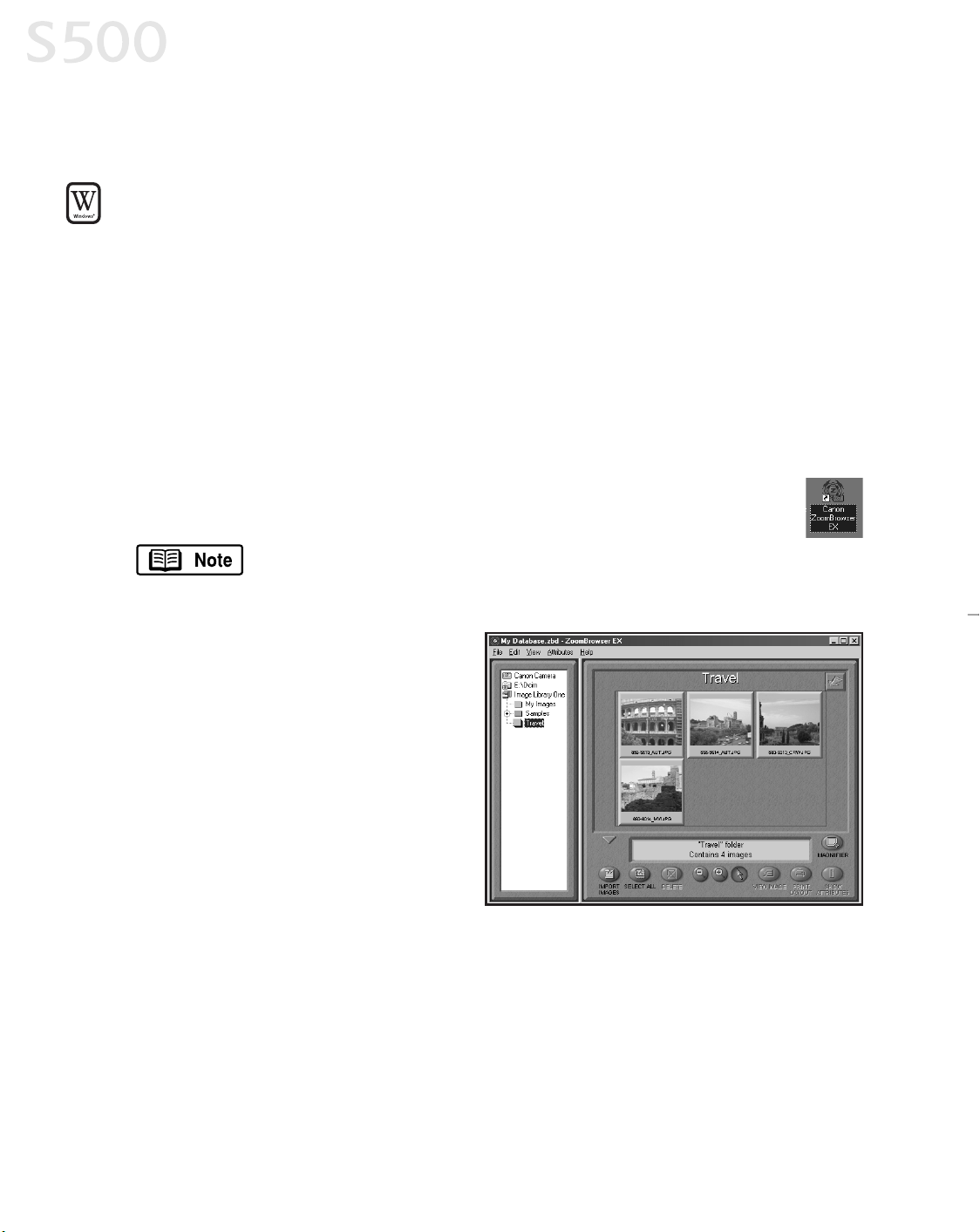
SSttaarrttiinngg ZZoooommBBrroowwsseerr EEXX
TToo SSttaarrtt ZZoooommBBrroowwsseerr EEXX::
1. Make sure the images are on your hard drive or other accessible media.
2. Double-click the Canon ZoomBrowser EXicon on the desktop to start
the program.
Ifthe Canon ZoomBrowser EXicon does notappear on the
desktop, click Start, Programs, Canon Utilities, ZoomBrowser EX,
then ZoomBrowser EX.
3. From the File menu, selectAdd
Image Library. Identifywhere the
imagesare stored, and click OK.
The imageswilldisplayas
thumbnails.
PPrriinnttiinngg oonn CCaannoonn PPhhoottoo PPaappeerr PPrroo
TToo pprriinntt oonn CCaannoonn PPhhoottoo PPaappeerr PPrroo::
1. Select a folder or imagesfor printing from the ZoomBrowser EXDisplay
window and click Print Layout to startthe PhotoRecord program. The
selected imageswill display automatically.
Chapter 5
3366
S500_Chapter 5.QXD 5/12/01 1:49 PM Page 36
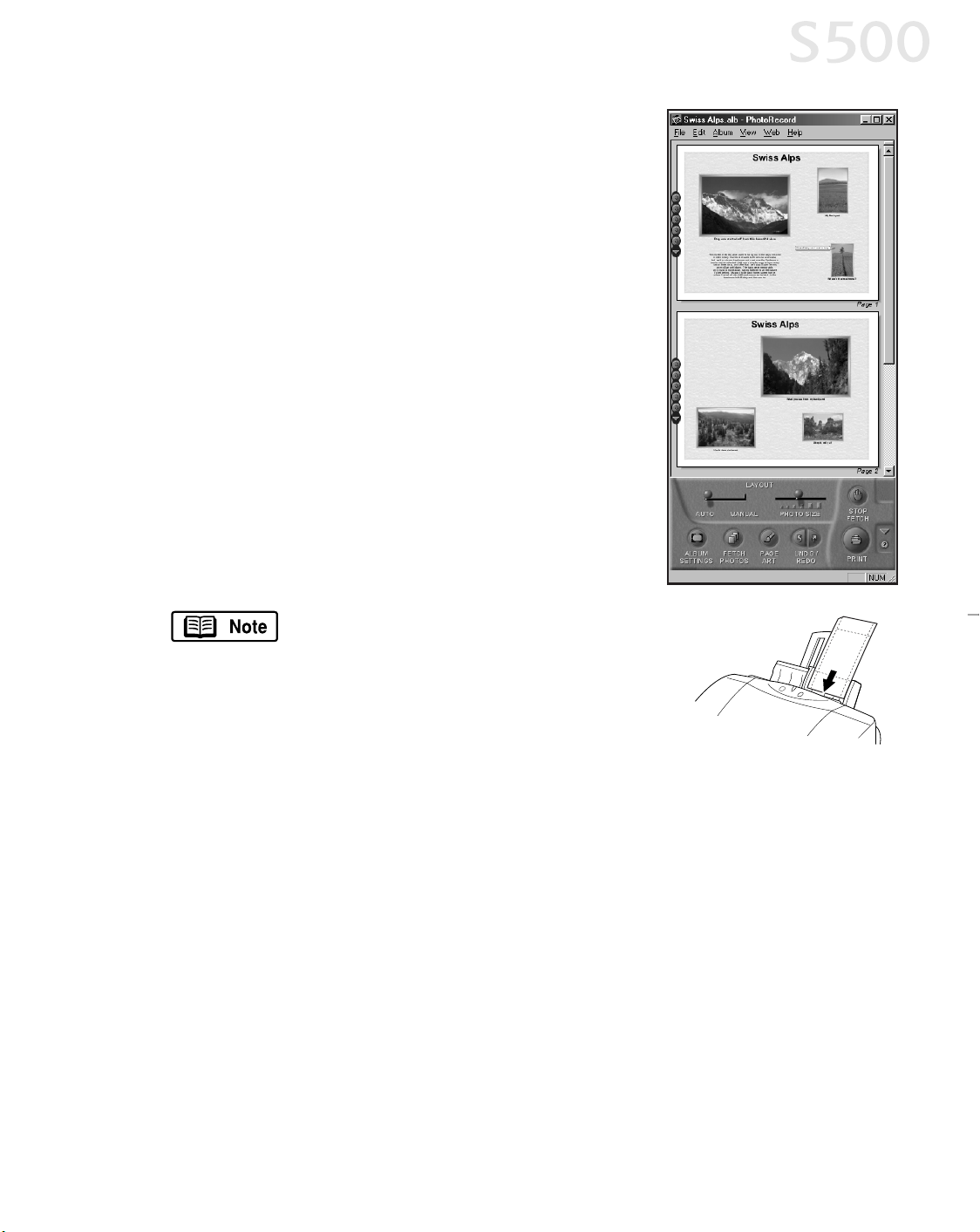
2. From the PhotoRecord window, you can drag
imagesto change the layout, inputdescriptive
textor captions, or add images.
3. Click Album Settings. The Album Settings dialog
boxwillappear.
4. Make sure the Canon S500 isthe selected printer.
5. Under Album Type, selectCanon perforated paper
printing. Canon Photo Paper Pro 4 x6 will become
the default media. The resultswillpreview,
clickOK.
6. Load a sheetof Canon Photo Paper Pro into the
paper tray, then click Instant Print.
When using Canon Photo Paper Pro 4 x6, insert
the sheetsin the direction shown and print on
the glossier side. When finished, remove
perforated edges. The resultslook justlike a
photograph.
Remember, when handling specialty media
papers, alwaysfollow the instructions
included with the media for the bestprinting
results. See page 3 for a list ofother fun-to-
use Canon SpecialtyPapers.
MMeerrggiinngg PPhhoottooss ttoo CCrreeaattee aa PPaannoorraammiicc VViieeww
You can merge a series ofoverlapping imagesinto a seamless panoramicview.
TToo ccrreeaattee aa ppaannoorraammiicc vviieeww::
1. Select the imagesin the ZoomBrowser window, then click SelectAll.
The imageswillhighlight. From the Edit menu, selectPhotoStitch. The
PhotoStitch program will start.
Chapter 5
3377
S500_Chapter 5.QXD 5/12/01 1:49 PM Page 37
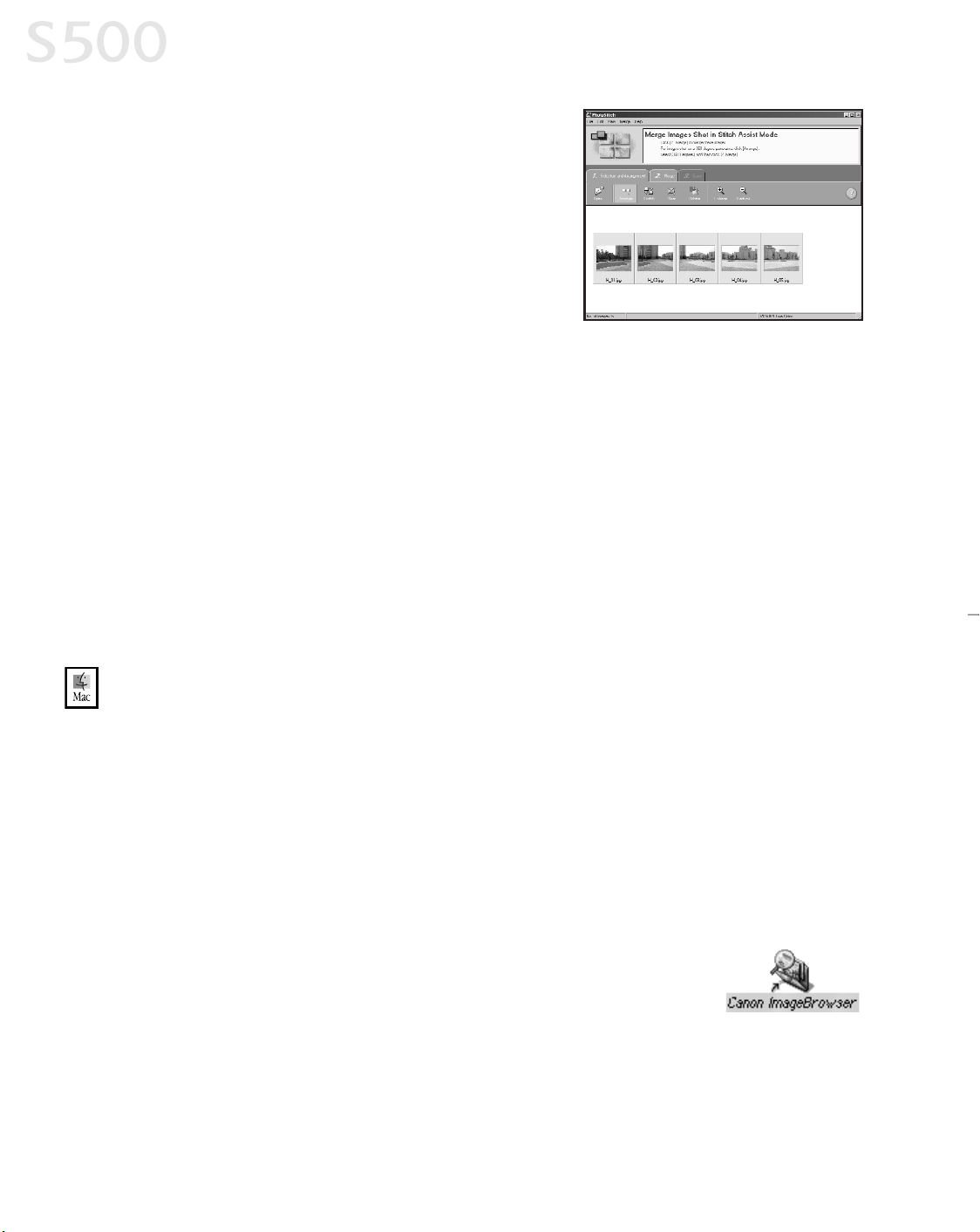
2. Follow the on-screen instructions to arrange,
stitch, rotate, enlarge, or reduce your image.
WWiinnddoowwss UUsseerrss:: UUnniinnssttaalllliinngg tthhee BBJJ SSoolluuttiioonn SSooffttwwaarree
TToo uunniinnssttaallll tthhee BBJJ SSoolluuttiioonn SSooffttwwaarree iinn WWiinnddoowwss::
• ClickStart, Programs. ClickCanon Utilities,ZoomBrowser EX, then
ZoomBrowser Uninstall, and follow the on-screen instructions.
• ClickStart, Programs. ClickCanon Utilities, PhotoStitch, thenPhotoStitch
Uninstall,and follow the on-screen instructions.
MMaacciinnttoosshh UUsseerrss:: UUssiinngg YYoouurr SSooffttwwaarree
IInn tthhiiss sseeccttiioonn yyoouu’’llll lleeaarrnn hhooww ttoo::
• Start ImageBrowser
• Printon Canon Photo Paper Pro
• Merge photosto create a panoramic view
SSttaarrttiinngg IImmaaggeeBBrroowwsseerr
TToo SSttaarrtt IImmaaggeeBBrroowwsseerr EEXX::
1. Make sure the images are on your hard drive or other
accessible media.
2. Double-click the Canon ImageBrowsericon on the desktop
to startthe program.
Chapter 5
3388
S500_Chapter 5.QXD 5/12/01 1:49 PM Page 38
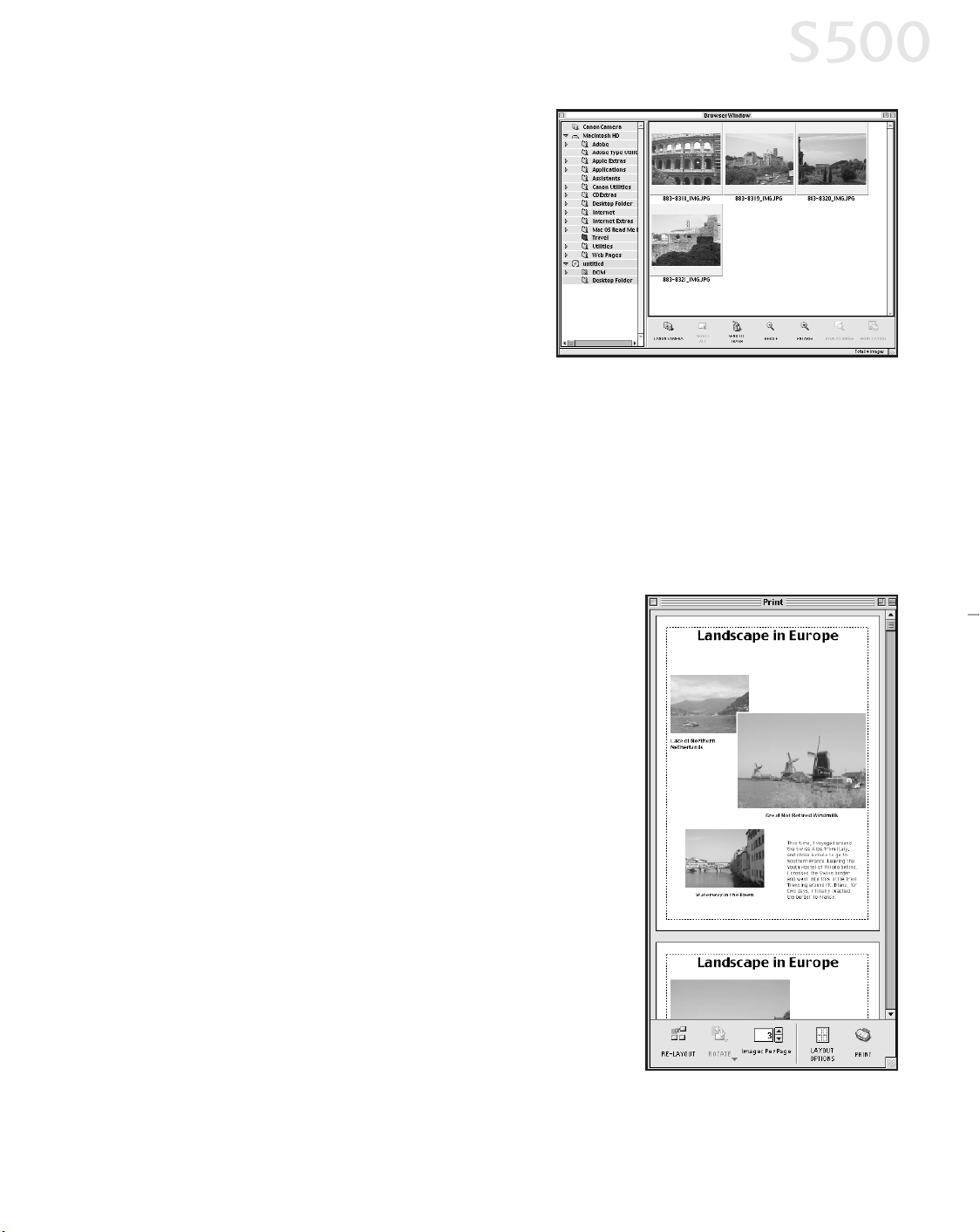
3. Double-click the folder for the device
containing your imagesin the
Browser window. The imageswill
display asthumbnails.
PPrriinnttiinngg oonn CCaannoonn PPhhoottoo PPaappeerr PPrroo
TToo pprriinntt oonn CCaannoonn PPhhoottoo PPaappeerr PPrroo::
1. Select the images you desire to print, then click PrintLayout. The selected
imageswilldisplay automatically.
2. From the Browser window, you can drag images to change the layout, input
descriptive textor captions, or add images.
3. Click LayoutOptionsin the Printwindow.
The Layout Optionsdialog boxwillopen.
4. Under LayoutType, selectCanon perforated
paper. Canon Photo Paper Pro 4 x6 will
become the defaultmedia. Resultswill
preview, then click OK.
5. The Paper Registration dialog box willopen.
ClickOK.
6. In the Page Setup dialog box, select the Paper
Sizemenu and selectCustom 1 - 3.
7. Click Custom. The Custom dialog boxwillopen.
Type the Photo Paper Pro valuesfound in the
Paper Registration dialog box. Click Apply. Make
sure to save your setting for future use.
8. Click OK in the Page Setup dialog box.
The paper size isregistered.
Chapter 5
3399
S500_Chapter 5.QXD 5/12/01 1:49 PM Page 39
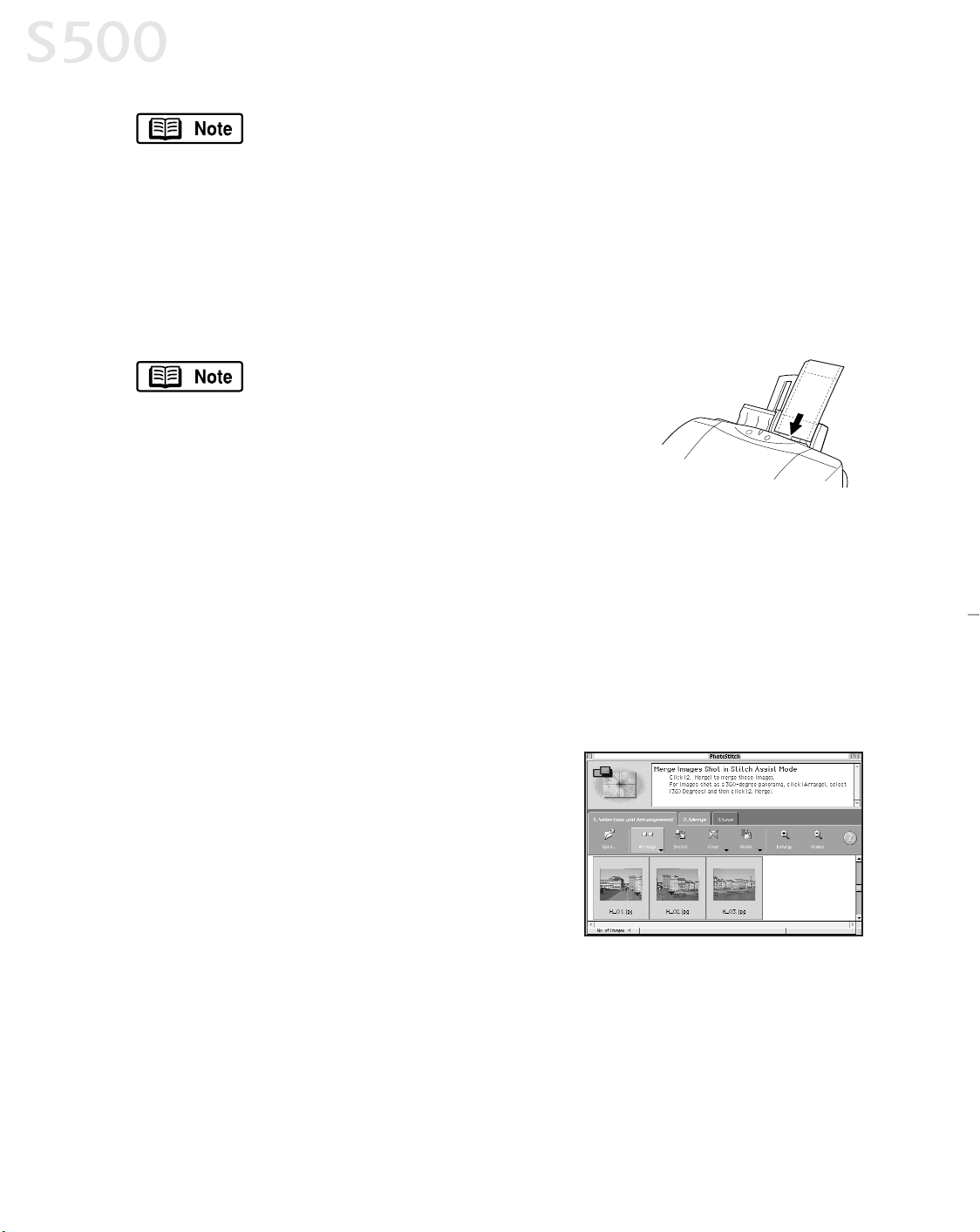
Now that Canon Photo Paper Pro hasbeen registered, you can
simply selectthiscustom paper size in the Page Setup dialog box
for future use.
9. Click Print. The printer driver setup screen willopen.
10.Load a sheetofCanon Photo Paper Pro into the paper tray. Click Print.
When using Canon Photo Paper Pro 4 x6, insertthe sheetsin the direction
shown and printon the glossier side. When finished, remove perforated
edges. The resultslook just like a photograph.
Remember, when handling specialty media
papers, alwaysfollow the instructions
included with the media for the bestprinting
results. See page 3 for a list ofother fun-to-
use Canon SpecialtyPapers.
MMeerrggiinngg PPhhoottooss ttoo CCrreeaattee aa PPaannoorraammiicc VViieeww
You can merge a series ofoverlapping imagesinto a seamless panoramicview.
TToo ccrreeaattee aa ppaannoorraammiicc vviieeww::
1. Select the imagesin the Browser window, then click SelectAll. The images
willhighlight. In the Edit menu, selectPhotoStitch. The PhotoStitch
program willstart.
2. Follow the on-screen instructions to arrange,
stitch, rotate, enlarge, or reduce your image.
MMaacciinnttoosshh UUsseerrss:: UUnniinnssttaalllliinngg tthhee BBJJ SSoolluuttiioonn SSooffttwwaarree
TToo uunniinnssttaallll tthhee BBJJ SSoolluuttiioonn SSooffttwwaarree iinn MMaacciinnttoosshh::
• Drag itsfoldersto the Trash icon located on your desktop.
Chapter 5
4400
S500_Chapter 5.QXD 5/12/01 1:49 PM Page 40
AAppppeennddiixx
IInnssttaalllliinngg tthhee PPrriinntteerr DDrriivveerr
Ifyou are re-installing the printer driver, firstfollow the uninstallprocedureson
page 43 to remove the existing printer driver before you re-install.
TToo iinnssttaallll tthhee pprriinntteerr ddrriivveerr iinn WWiinnddoowwss::
For WindowsNT 4.0 or Windows2000, refer to the README.TXT file
on the S500 Setup Software & User’sGuide CD-ROM.
1. Turn the printer off.
2. Make sure the cable between the printer and computer (USB or parallel) is
securelyconnected.
3. Turn the computer on, and close anyopen software applications. Insertthe
S500 Setup Software & User’s Guide CD-ROM in the CD-ROM drive. The
setup program should run automatically.
Ifthe printer wason when the setup program started, the Add
New Hardware Wizard willappear. Do NOT use the wizard—
click
CCaanncceell
to close the window and continue.
4. Ifthe setup program doesnotrun automatically, click
SSttaarrtt
, then
RRuunn
, then
type
xx::\\mmsseettuupp..eexxee
(where
xx
isthe CD-ROM drive).
5. Read the Welcome screen, then click
NNeexxtt
. Read the License Agreement,
then click
YYeess
. When the main menu appears, click
IInnssttaallll SSooffttwwaarree
.
6. Ifa message promptsyou to restart Windows, remove the CD-ROM, then
click
OOKK
. After the computer restarts, re-insertthe CD-ROM and continue.
7. Click
SSttaarrtt
. (Ifthe Printer Driver button is notred, select
PPrriinntteerr DDrriivveerr
, then
click
SSttaarrtt
.) The printer driver willstartloading automatically.
8. TURN THE PRINTER ON so the printer portcan be automaticallydetected. The
software willbegin identifying the printer portbeing used.
4411
S500_Appendix.QXD 5/12/01 1:56 PM Page 41
Appendix
4422
Ifyour computer cannot detecta printer port, see the tip,
“Computer cannotdetect a printer port” on page 27.
9. When the Terminate Installation window appears, click
OOKK
. Ifyou are
prompted to restartthe computer, click
YYeess
. When the installation process
hascompleted, click
EExxiitt
.
10.Align the printhead. (See “Aligning the Printhead” on page 23.)
TToo iinnssttaallll tthhee pprriinntteerr ddrriivveerr iinn MMaacc OOSS::
1. Insertthe S500 Setup Software & User’s Guide CD-ROM in the CD-ROM
drive.
2. Open the Printer Driver folder on the CD-ROM, then double-click the
IInnssttaalllleerr
icon.
3. Read the License Agreement, then click
AAcccceepptt
.
4. Click
IInnssttaallll
. The printer driver willload automatically.
Ifthe message “No other applications can be running...” displays,
click
CCoonnttiinnuuee
.
5. When the installation process iscomplete, click
RReessttaarrtt
.
6. After the computer restarts, TURN THE PRINTER ON.
7. Selectthe
AAppppllee
menu, then
CChhoooosseerr
.
8. Clickthe
SS550000
icon in the Chooser.
To use the BJ PrintMonitor, click the
BBaacckkggrroouunnddiinngg
button to
the
OOnn
position. For instructionson using this feature, see
the S500 User’sGuideon the Setup Software & User’s Guide
CD-ROM.
9. Close the Chooser.
10.Align the printhead. (See “Aligning the Printhead” on page 23.)
S500_Appendix.QXD 5/12/01 1:56 PM Page 42

UUnniinnssttaalllliinngg tthhee PPrriinntteerr DDrriivveerr
TToo uunniinnssttaallll tthhee pprriinntteerr ddrriivveerr iinn WWiinnddoowwss::
1. Click
SSttaarrtt
, then
PPrrooggrraammss
, then
CCaannoonn SS550000
.
2. Click
UUnniinnssttaallll
.
3. Click
YYeess
to confirm thatyou want to uninstallthe printer driver.
4. Restartyour computer.
TToo uunniinnssttaallll tthhee pprriinntteerr ddrriivveerr iinn MMaacc OOSS::
1. Insertthe S500 Setup Software & User’s Guide CD-ROM in the CD-ROM
drive, then click the
CCDD--RROOMM
icon.
2. Double-click
IInnssttaalllleerr
.
3. Read the License Agreement, then click
AAcccceepptt
.
4. Select
UUnniinnssttaallll
from the drop-down listat the top leftofthe dialog box,
then click the
UUnniinnssttaallll
button on the bottom right.
5. Follow the on-screen instructions.
6. When the uninstall iscomplete, click
QQuuiitt
.
7. Click
RReessttaarrtt
when prompted to restartyour computer.
RReeggiisstteerriinngg YYoouurr CCaannoonn PPrroodduucctt
TToo rreeggiisstteerr yyoouurr CCaannoonn PPrroodduucctt iinn WWiinnddoowwss::
1. Insertthe S500 Setup Software & User’s Guide CD-ROM in the
CD-ROM drive.
2. When the Canon installation screen launches, click
IInnssttaallll SSooffttwwaarree
.
3. Click
UUttiilliittiieess
, then
PPrroodduucctt RReeggiissttrraattiioonn
.
4. Click
PPrroodduucctt RReeggiissttrraattiioonn
.
5. Follow the on-screen instructionsto register your product. Note that
the serialnumber islocated on the inside ofthe printer, to the rightof
the printhead.
Appendix
4433
S500_Appendix.QXD 5/12/01 1:56 PM Page 43
TToo rreeggiisstteerr yyoouurr CCaannoonn PPrroodduucctt iinn MMaacciinnttoosshh::
1. Insertthe S500 Setup Software & User’sGuide CD-ROM in the CD-ROM drive.
2. From the Canon BJ window, double-click the ProductRegistrationicon.
3. Click the Register Nowbutton and follow the on-screen instructionsto
register your product. The serialnumber is located on the inside ofthe
printer, to the rightof the printhead.
SSaaffeettyy IInnffoorrmmaattiioonn
WWaarrnniinnggss aanndd CCaauuttiioonnss
Thisguide usesthe following iconsto indicate situations thatcould cause damage or injury:
Always follow the instructionsprovided in Warnings to preventpotentialor seriouspersonal
injuryor death asa resultofcarelessoperation ofthe equipment.
Always follow the instructions provided in Cautions to preventminor injuriesto yourself or
damage to the equipment asa resultofcarelessoperation ofthe equipment.
Read and follow allofthese cautionsand warningsto ensure the safe use ofthe printer. To avoid the hazards
offire, personalinjury, or damage to the printer, never attemptto use the printer in any wayother than the
methodsdescribed in this guide.
CChhoooossiinngg aa LLooccaattiioonn
Never place the printer near flammable solventssuch asalcohol, thinner, etc. To avoid the
hazards offire or electricshock, keep allflammable liquids awayfrom the printer.
• Never setthe printer on a surface thatisunstable or subjectto excessive vibration. The printer could tip or
fall and cause injury.
• Never use the printer in a location thatissubjectto high humidity, dust, high temperatures, or direct
sunlight.
• Setup and use the printer in a location where ambienttemperature iswithin 41°F–95°F(5°C–35°C) and
10%–90% humiditywith no condensation.
Never place the printer on a thickcarpet or rug. Fibersor dustentering the printer could cause
a fire.
Keep the power outlet for the printer free ofallobstaclesso you can unplug the power cord at
anytime. Such obstaclescould preventyou from unplugging the printer when a printer fault
occurs and cause a fire or electricshock. The socket-outletshall be installed near the
equipmentand shall be easily accessible.
• Alwayscarrythe printer with both handsholding both endsofthe printer. To avoid dropping the printer
and causing injury, alwayscarryitcarefullywhen moving itto another location.
Appendix
4444
S500_Appendix.QXD 5/12/01 1:56 PM Page 44
PPoowweerr SSuuppppllyy
Never attemptto plug the power cord into a power outletwhen your handsare wet. To avoid
electricshock, make sure thatyour handsare dry.
• Alwayspush the plug completelyinto the power outlet. A loose or poorlyconnected plug could cause a fire
or electricshock.
Never cut, modify, stretch, bend, or twistthe power cord, and never place heavyobjectson the
power cord. A power leak from a damaged power cord could cause a fire or electric shock.
Never plug the printer power cord into a power outlet(power board, double adapter, etc.) that
isshared byother devicesor office equipment. To preventthe hazardsof fire or electricshock,
avoid overloading power points.
• Never use the printer ifthe power cord is bundled or knotted. To preventthe hazardsoffire or electric
shock, make sure the power cord isstraight.
Ifyou detect smoke, unusualodors, or strange noisesaround the printer, immediatelypress
the POWER button to turn offthe printer and disconnectthe power plug. To avoid fire or electric
shock, never use the printer under these conditions. Callthe Customer Care Center.
• Alwaysgrasp the plug when you unplug the power cord. Pulling on the power cord could damage the cord
and cause a fire or electricshock.
Never use an extension cord. To avoid a fire or electricshock, alwaysplug the power cord
directlyinto the power outlet.
Never use a power supplyvoltage other than thatsupplied in the countrywhere you purchased
the printer. Using incorrectvoltage could cause a fire or electricshock. The correctpower
supplyvoltage for thisprinter is AC120V, 60 Hz.
CClleeaanniinngg aanndd MMaaiinnttaaiinniinngg tthhee PPrriinntteerr
Use onlya slightly damp cloth to clean the printer. Never use flammable solventslike alcohol,
benzene, thinner, etc. Ifa flammable solventcontacts an electricalcomponent inside the
printer, a fire or electricshockcould result.
Always unplug the printer power cord before you clean the printer. If you mistakenlyturn on
the printer while cleaning it, you could touch moving componentsinside the printer and suffer
injury.
Never attemptto disassemble or modifythe printer. The printer containshigh voltage
componentswhich could cause a fire or seriouselectric shock.
WWoorrkkiinngg AArroouunndd tthhee PPrriinntteerr
Never use flammable spraysnear the printer. Gasesin the spraycould cause a fire or electric
shock iftheycome in contactwith electrical componentsinside the printer.
Never insertyour fingersor handsinside the printer while itisprinting. The printer contains
moving partswhich could cause injury.
Never place anything on top of the printer, especiallymetalobjects(paper clips, staples, etc.),
or containers with flammable solvents(alcohol, thinners, etc.) Objectsfalling into the printer
could cause a fire or electric shock.
Appendix
4455
S500_Appendix.QXD 5/12/01 1:56 PM Page 45
Ifanyforeign object, especially a piece ofmetalor liquid, fallsinto the printer, immediately
pressthe POWER button to turn offthe printer, unplug the power cord, then call the Customer
Care Center. Continuing to use the printer after a foreign objecthasfallen into itcould cause a
fire or electricshock.
PPrriinntthheeaadd aanndd IInnkk TTaannkkss
For safety, alwaysstore printhead and inktanksout ofthe reach of smallchildren. Ifa child
accidentallylicks or ingestsanyink, consulta physician immediately.
Never subjecta printhead or ink tank to shocks or excessive vibration. Shaking could cause ink
to leak and stain clothing.
Never touch the printhead or electricalcontactson a printhead immediatelyafter removing it
from the printer. These metalpartsbecome veryhotduring printing and could cause minor
burns.
TTuurrnniinngg tthhee PPrriinntteerr OOffff
• To avoid printer malfunction alwaysuse the POWER button to turn the printer on and off. Never remove the
power cord from the power outlet untilyou have turned offthe printer bypressing the POWER button. After
the POWER lamp goes out, you can unplug the power cord from the power outlet.
UUssiinngg tthhee PPrriinntteerr NNeeaarr AApppplliiaanncceess aanndd FFlluuoorreesscceenntt LLaammppss
• Allow atleast6 inchesclearance between the printer and another appliance or a fluorescentlamp.
Electricalnoise generated by a fluorescentlamp placed too close to the printer could cause the printer to
malfunction.
RReegguullaattoorryy IInnffoorrmmaattiioonn
CCoolloorr PPrriinntteerr MMooddeell KK1100220066 ((SS550000))
Thisdevice complieswith Part15 ofthe FCCRules. Operation issubjectto the following two conditions: (1)
Thisdevice maynotcause harmfulinterference, and (2) thisdevice mustaccept anyinterference received,
including interference thatmaycause undesired operation.
Note: Thisequipment hasbeen tested and found to complywith the limitsfor a ClassB digitaldevice,
pursuantto Part15 ofthe FCCRules. These limits are designed to provide reasonable protection against
harmfulinterference in a residentialinstallation. Thisequipmentgenerates, usesand can radiate radio
frequencyenergyand, ifnotinstalled and used in accordance with the instructions, maycause harmful
interference to radio communications. However, there isno guarantee thatinterference willnot occur in a
particular installation. Ifthisequipmentdoescause harmfulinterference to radio or television reception,
which can be determined byturning the equipmentoffand on, the user is encouraged to tryto correctthe
interference byone or more of the following measures:
• Reorientor relocate the receiving antenna.
• Increase the separation between the equipmentand receiver.
• Connect the equipmentinto an outleton a circuitdifferent from thatto which the receiver isconnected.
• Consultthe dealer or an experienced radio/TVtechnician for help.
Appendix
4466
S500_Appendix.QXD 5/12/01 1:56 PM Page 46

Use ofa shielded cable is required to complywith ClassB limits in SubpartB ofPart15 ofthe FCCRules.
Do notmake anychanges or modificationsto the equipment unlessotherwise specified in the manual. Ifsuch
changesor modificationsshould be made, you could be required to stop operation ofthe equipment.
Canon U.S.A. Inc.
DigitalHome and PersonalSystemsDivision
2995 Red HillAvenue
Costa Mesa, CA 92626
1-800-423-2366
CCaannaaddiiaann RRaaddiioo IInntteerrffeerreennccee RReegguullaattiioonnss
Thisdigitalapparatusdoesnot exceed ClassB limitsfor radio noise emissionsfrom a digitalapparatusasset out
in the interference-causing equipmentstandard entitled “DigitalApparatus”, ICES-003 ofthe IndustryCanada.
Cet appareilnumérique respecte leslimitesde bruits radio éléctiquesapplicablesaux appareilsnumériques
de Classe B prescritesdansla norme sur le matérielbrouilleur: “AppareilsNumériques”, NMB-003 édictée par
l’Industrie Canada.
PPrroodduucctt SSppeecciiffiiccaattiioonnss
SSyysstteemm RReeqquuiirreemmeennttss
WWiinnddoowwss 9955//9988::
486 processor; 16 MB RAM; 40 MB free hard disk space
WWiinnddoowwss MMee::
Pentium
®
processor, 150MHz; 32 MB RAM; 40 MB free hard diskspace
WWiinnddoowwss 22000000::
Pentium processor, 133MHzor faster; 32 MB RAM for Professional, 64MB RAM
for Server; 25 MB free hard disk space
WWiinnddoowwss NNTT 44..00::
Pentium processor; 16 MB RAM; 25 MB free hard disk space
MMaacciinnttoosshh::
OS8.5-9.x; USB port; 12 MB RAM; 30 MB free hard disk space
The BJ StatusMonitor cannotbe used when the printer is
used in a networkoperating environment.
PPrriinnttiinngg mmeetthhoodd::
Bubble Jeton-demand
PPrriinnttiinngg rreessoolluuttiioonn::
PrintQuality(media) Horizontalx Vertical
High (specialtymedia) 2400 x 1200 dpi
PPrriinntt ssppeeeedd::
(Allprintspeedsare based on draft mode. Printspeedswill varydepending on
system configuration, software, document complexity, printmode and page
coverage.):
Black printing, high: 12 ppm
Color printing, high: 8 ppm
PPrriinntt ddiirreeccttiioonn::
Bi-directional
PPrriinntt wwiiddtthh::
8.0 inches max. (203 mm)
IInntteerrffaaccee ((ppaarraalllleell))::
IEEE1284-compatible
IInntteerrffaaccee ((UUSSBB))::
USB 1.1-compatible
IInntteerrffaaccee ccoonnnneeccttoorr ((ppaarraalllleell))::
Amphenol57-40360 or equivalent
IInntteerrffaaccee ccoonnnneeccttoorr ((UUSSBB))::
USB standard Series B receptacle
RReeccoommmmeennddeedd pprriinntteerr ccaabbllee ((ppaarraalllleell))::
MMaatteerriiaall::
AWG28 or larger
TTyyppee::
Twisted-pair shielded cable
LLeennggtthh::
Up to 6.5 feet(2.0 m)
CCoonnnneeccttoorrss::
Amphenol30360 or equivalent
Appendix
4477
S500_Appendix.QXD 5/12/01 1:56 PM Page 47

RReeccoommmmeennddeedd pprriinntteerr ccaabbllee ((UUSSBB))::
MMaatteerriiaall::
AWG28 (data wiring pair) or AWG20 to 28 (distribution pair)
TTyyppee::
Twisted-pair shielded cable
LLeennggtthh::
Up to 16.4 feet(5.0 m)
CCoonnnneeccttoorrss::
USB standard Series B pluggable
AAccoouussttiicc nnooiissee lleevveell::
Approx. 43 dB in the best printqualitymode (per ISO 9296)
OOppeerraattiinngg eennvviirroonnmmeenntt::
Temperature: 41°Fto 95°F (5°C to 35°C)
Humidity: 10% to 90% (no condensation)
SSttoorraaggee eennvviirroonnmmeenntt::
Temperature: 32°Fto 95°F (0°C to 35°C)
Humidity: 5% to 90% (no condensation)
PPoowweerr ssuuppppllyy::
AC120 V, 60 Hz
PPoowweerr ccoonnssuummppttiioonn::
Off: Approx. 1.5 W(to shutdown completely, disconnect power cord)
Standby: Approx. 3 W
Printing: Approx. 25 W
DDiimmeennssiioonnss::
(with paper restand paper output trayretracted)
16.9" (W) x 11.6" (D) x7" (H)
WWeeiigghhtt::
Approx. 11 lb. (5 kg)
FFeeeedd mmeetthhoodd::
Continuous feed through auto sheetfeeder for High Resolution Paper, plain
paper, envelopes, Transparencies, GlossyPhoto Paper, GlossPhoto Film,
GlossyPhoto Cards, Banner Paper, T-ShirtTransfers
SShheeeett ffeeeeddeerr ccaappaacciittyy::
PPllaaiinn ppaappeerr ((1177 llbb..))
100 sheetsmax.
HHiigghh RReessoolluuttiioonn PPaappeerr
80 sheetsmax.
EEnnvveellooppeess
10 envelopesmax.
TTrraannssppaarreenncciieess
30 sheetsmax.
GGlloossssyy PPhhoottoo PPaappeerr
10 sheetsmax.
HHiigghh GGlloossss PPhhoottoo FFiillmm
1 sheet
GGlloossssyy PPhhoottoo CCaarrddss
20 sheetsmax.
BBaannnneerr PPaappeerr
1 sheet(can print up to 6 connected sheets)
PPhhoottoo PPaappeerr PPrroo
1 sheet
TT--SShhiirrtt TTrraannssffeerrss
1 sheet
OOrrddiinnaarryy pprriinntt mmeeddiiaa::
Weight: 17–28 lb.
Regular size: Letter, Legal, and standard #10 envelopes
Custom size: 3.54" to 8.5" (W) x4.72" x 23" (H)
GGrraapphhiicc iimmaaggee pprriinnttiinngg::
Data format: Canon extended mode; raster image format
Resolution: Canon extended mode; 600, 1200, 2400 dpi
PPrriinntthheeaadd::
Black nozzles: 320 (600 dpi)
Color nozzles: 256 (1200 dpi)
IInnkk TTaannkk BBCCII--33ee::
Inkcolors: Black, Cyan, Magenta, Yellow
BBllaacckk iinnkk ttaannkk ccaappaacciittyy::
Approx. 695 sheets(1500 charactersper page, normaltext)
IInnkk ttaannkk ccaappaacciittiieess::
(Based on ISO JIS-SCID No. 5 Pattern on plain paper with Plain Paper selected
for the Media Type in the WindowsME, Windows98 and Windows95 printer
driver for thisprinter)
Black: Approx. 1250 sheets
Cyan: Approx. 460 sheets
Magenta: Approx. 395 sheets
Yellow: Approx. 300 sheets
RReessiiddeenntt pprriinntt ccoonnttrrooll mmooddee::
Canon extended mode
RReecceeiivveerr bbuuffffeerr::
62KB
Appendix
4488
S500_Appendix.QXD 5/12/01 1:56 PM Page 48

LLiimmiitteedd WWaarrrraannttyy——UU..SS.. OOnnllyy
The limited warrantyset forth below isgiven byCanon U.S.A. Inc. (“Canon”) with respectto the Canon brand
computer peripheral product(the “product”) thatyou have purchased, when purchased and used in the United
States. The productthat you have purchased isthe onlyproductto which thiswarranty card and the limited
warrantyprovided byCanon and stated on the card apply.
Your product, when delivered to you in new condition in its originalcontainer, iswarranted againstdefectsin
materialsor workmanship asfollows: for a period ofone (1) year from the date oforiginalpurchase, defective
partsor a defective productreturned to a Canon repair facilityor a Canon Authorized Service Facility(“ASF”)
for such product, asapplicable, and proven to be defective upon inspection, willbe exchanged for new or
comparable rebuiltparts, or a refurbished product, as determined bythe Canon repair facilityor the ASF.
Warrantyrepair or replacementshallnotextend the originalwarrantyperiod ofthe defective product. This
limited warrantydoes notcover any suppliesor accessories, including withoutlimitation, ink tanks, asto
which there shallbe no warrantyor replacement.
Thislimited warrantyshallonlyapply ifthe productisused in conjunction with compatible computer
equipmentand compatible software, as to which itemsCanon shallhave no responsibility.
Non-Canon brand equipment and software thatmay be distributed with the productare sold “as is,” without
warrantyof anykind byCanon, including anyimplied warrantyregarding merchantabilityor fitnessfor a
particular purpose, and allsuch warrantiesare disclaimed. The sole warranty, ifany, with respectto such non-
Canon brand items isgiven bythe manufacturer or producer thereof.
Thislimited warrantycoversall defectsencountered in normal use ofthe product, and doesnotapplyin the
following cases:
(a)Loss ofor damage to the productdue to abuse, mishandling, improper packaging byyou, alteration,
accident, electricalcurrentfluctuations, failure to follow operating, maintenance or environmental
instructions prescribed in Canon’sinstruction manual, or service performed byother than a Canon repair
facility or an ASF.
(b) Use ofpartsor supplies(other than those sold byCanon) thatcause damage to the productor cause
abnormallyfrequent service callsor service problems.
(c) Ifthe producthashad itsserialnumber or dating altered or removed.
NO IMPLIED WARRANTY, INCLUDING ANYIMPLIED WARRANTYOFMERCHANTABILITYOR FITNESS FOR A
PARTICULAR PURPOSE, APPLIES TO THEPRODUCT AFTER THEAPPLICABLEPERIOD OF THEEXPRESSLIMITED
WARRANTY STATED ABOVE, AND NO OTHER EXPRESSWARRANTY OR GUARANTY, EXCEPT ASMENTIONED ABOVE,
GIVEN BYANY PERSON OR ENTITYWITH RESPECT TO THEPRODUCT SHALLBIND CANON. (SOME STATESDO NOT
ALLOWLIMITATIONSON HOW LONG AN IMPLIED WARRANTYLASTS, SO THEABOVE LIMITATION MAYNOT APPLY
TO YOU.) CANON SHALLNOT BELIABLEFOR LOSSOF REVENUESOR PROFITS, INCONVENIENCE, EXPENSEFOR
SUBSTITUTEEQUIPMENT OR SERVICE, STORAGE CHARGES, LOSSOR CORRUPTION OFDATA, OR ANYOTHER
SPECIAL, INCIDENTALOR CONSEQUENTIAL DAMAGESCAUSED BYTHE USEOR MISUSEOF, OR INABILITY TO USE
THEPRODUCT, REGARDLESS OFTHELEGALTHEORYON WHICH THECLAIM IS BASED, AND EVEN IF CANON HAS
BEEN ADVISED OF THEPOSSIBILITY OFSUCH DAMAGES. IN NO EVENT SHALLRECOVERYOFANYKIND AGAINST
CANON BEGREATER IN AMOUNT THAN THEPURCHASE PRICEOF THEPRODUCT SOLD BYCANON WHICH CAUSED
THEALLEGED DAMAGE.
WITHOUT LIMITING THEFOREGOING, YOU ASSUMEALLRISKAND LIABILITYFOR LOSS, DAMAGEOR INJURY TO
YOU AND YOUR PROPERTYAND TO OTHERSAND THEIR PROPERTYARISING OUT OFUSEOR MISUSEOF, OR
INABILITY TO USE THEPRODUCT NOT CAUSED DIRECTLYBY THENEGLIGENCEOFCANON. (SOME STATESDO NOT
ALLOWTHEEXCLUSION OR LIMITATION OF INCIDENTAL OR CONSEQUENTIAL DAMAGES, SO THEABOVE
EXCLUSION OR LIMITATION MAYNOT APPLYTO YOU.) THISLIMITED WARRANTYSHALL NOT EXTEND TO ANYONE
OTHER THAN THEORIGINALPURCHASER OFTHEPRODUCT, OR THEPERSON FOR WHOM IT WASPURCHASED AS
A GIFT, AND STATESYOUR EXCLUSIVEREMEDY.
Appendix
4499
S500_Appendix.QXD 5/12/01 1:56 PM Page 49

Canon offersa fullrange ofcustomer technicalsupport* options:
For e-mailtechnicalsupport, the latestdriver downloadsand answersto frequentlyasked questions
((wwwwww..uussaa..ccaannoonn..ccoomm))
24-hour, 7-day-a-week, automated supportfor troubleshooting issueson mostcurrent products
((11--880000--442233--22336666))
24-hour, Fax-On-Demand System for productspecificationsand technicalinformation
((11--880000--552266--44334455))
Free technicalsupportMonday—Saturday(excluding holidays) for productsstillunder warranty
((11--775577--441133--22884488))
Technicalsupport7 daysa week (excluding holidays) for productsno longer under warranty, at$9.99 per call
((11--775577--441133--22884488))
Ifthe problem can’tbe corrected byusing one of the above technicalsupportoptions, you willbe asked to
follow the applicable proceduresfor warrantyservice.
NNoottee tthhaatt aa ddaatteedd pprrooooff ooff ppuurrcchhaassee ((bbiillll ooff ssaallee)) iiss
rreeqquuiirreedd ttoo vveerriiffyy eelliiggiibbiilliittyy aatt tthhee ttiimmee ooff sseerrvviiccee.. TThhiiss rreeqquuiirreemmeenntt wwiillll bbee ssaattiissffiieedd bbyy pprroovviiddiinngg aa ccooppyy ooff
yyoouurr ddaatteedd bbiillll ooff ssaallee.. YYoouu wwiillll aallssoo nneeeedd ttoo ssuuppppllyy tthhee pprroodduucctt sseerriiaall nnuummbbeerr..
CCaarrrryy--IInn//MMaaiill--IInn
Carry-In/Mail-In is a service program bywhich your defective product isrepaired byan ASF. The name and
telephone number ofthe ASF(s) nearestto your location maybe obtained from our Web site at:
www.usa.canon.com, or bycalling the Canon Customer Care Center at1-800-423-2366. Ifshipping isinvolved,
itis your responsibility to properlypackage and send your defective product, together with your dated proofof
purchase, a complete explanation ofthe problem and a return address, to the ASFatyour expense. Do not
include anyother itemswith your product. The repair(s) covered bythislimited warrantywillbe made and the
productwillbe returned to you withoutcharge bythe ASF. Repairsnotcovered under this limited warrantywill
be charged to you atsuch costsaseach ASF maygenerallyestablish from time to time.
IInnssttaannttEExxcchhaannggee††
InstantExchange isa warrantyprogram thatexpedites, usuallyby the nextbusinessday,†† the exchange ofa
defective productwith a refurbished product. The refurbished productyou receive willbe covered by the
balance ofthe period remaining on your originallimited warranty.
NNoottee tthhaatt bbyy uussiinngg tthhiiss sseerrvviiccee yyoouu wwiillll kkeeeepp
tthhee rreeppllaacceemmeenntt pprroodduucctt tthhaatt iiss sseenntt ttoo yyoouu,, aanndd yyoouurr oorriiggiinnaallllyy ppuurrcchhaasseedd pprroodduucctt sshhaallll bbeeccoommee tthhee pprrooppeerrttyy
ooff CCaannoonn
. InstantExchange warrantyprogram service isavailable onlyduring the expresslimited-warranty
period for your productand onlyin the continentalUnited States, Alaska and Hawaii during such period.
Ifthe Canon Customer Care Center representative cannotcorrect the problem with your productover the
telephone, and you elect InstantExchange warrantyprogram service, the representative willissue you a
reference number upon verification of warrantyeligibility. You willbe asked for information pertaining to your
defective productand for a ship-to location for the replacementproduct (streetaddressonly). You mustalso
provide a major creditcard number thatwillbe pre-authorized byCanon in an amountup to the costofa new
productatthe time you electInstantExchange warrantyprogram service.
YYoouurr ccrreeddiitt ccaarrdd nnuummbbeerr wwiillll bbee
cchhaarrggeedd iinn aann aammoouunntt uupp ttoo tthhee ccoosstt ooff aa nneeww pprroodduucctt
(i) ifyou do not return your defective productto a Canon
repair facilitybythe date specified byCanon and in the manner described below; (ii) if the defect(s) in the
productis/are notcovered bythislimited warranty; or (iii) ifthe warrantyperiod on the producthasexpired or
hasnot been sufficientlyestablished byyour supplying the appropriate documentation.
The Canon repair facilitywillship out the replacementproduct via overnightcourier, prepaid byCanon. After
receipt ofthe replacementproduct (with instructionsand a pre-paid return waybill), follow the instructionsto
ship the defective productto a Canon repair facility. You mustreturn the defective product in the shipping
carton in which the replacementproductwas packed (be sure to retain your printhead and inktanks), and you
mustinclude the reference number,
aa ccooppyy ooff yyoouurr ddaatteedd pprrooooff ooff ppuurrcchhaassee
(billofsale) and a complete
explanation ofthe problem.
DDoo nnoott iinncclluuddee aannyy ootthheerr iitteemmss iinn tthhee rreettuurrnn sshhiippppiinngg ccoonnttaaiinneerr
.
Appendix
5500
S500_Appendix.QXD 5/12/01 1:56 PM Page 50

Thislimited warrantygivesyou specific legalrights, and you mayalso have other rights thatvaryfrom state
to state.
* Supportprogram specificsare subject to change without notice.
† InstantExchange warrantyprogram service issubjectto availabilityofrefurbished replacementunits.
†† 9 a.m.–5 p.m. (local), Monday–Friday(excluding holidays). The Canon Customer Care Center must receive pertinent
information by3 p.m. (E.S.T.) to ensure next-business-dayInstantExchange warranty program service (two-business-day
InstantExchange warrantyservice for Alaska and Hawaii). Canon doesnotguarantee next-business-dayservice in the event
offactorsbeyond Canon’sreasonable control.
Appendix
5511
S500_Appendix.QXD 5/12/01 1:56 PM Page 51

Appendix
5522
S500_Appendix.QXD 5/12/01 1:56 PM Page 52

AA
adjusting
brightness . . . . . . . . . . . . . . . . . . . . . . . . . . .12
color balance . . . . . . . . . . . . . . . . . . . . . . . . .12
color saturation . . . . . . . . . . . . . . . . . . . . . . .12
paper thicknesslever . . . . . . . . . . . . . . . . . . .4
printquality . . . . . . . . . . . . . . . . . . . . . . . . . . .9
advanced printfeatures . . . . . . . . . . . . . . . . . . .9
aligning the printhead . . . . . . . . . . . . . . . . . . .23
auto feed paper limits . . . . . . . . . . . . . . . . . . . .4
auto sheetfeeder . . . . . . . . . . . . . . . . . . . . . . . .5
avoiding paper jams . . . . . . . . . . . . . . . . . . . . . .5
BB
BJ Solution Software . . . . . . . . . . . . . . . . . . . . .33
brightness, adjusting . . . . . . . . . . . . . . . . . . .12
CC
cancelling printjobs . . . . . . . . . . . . . . . . . . . .7-8
checking ink levels . . . . . . . . . . . . . . . . . . . . . .19
cleaning the printhead . . . . . . . . . . . . . . . . . . .22
color balance, adjusting . . . . . . . . . . . . . . . . . .12
color saturation, adjusting . . . . . . . . . . . . . . . .12
customer care center, contacting . . . . . . . . . . .32
DD
default printer, setting . . . . . . . . . . . . . . . . . . . .2
driver
definition of . . . . . . . . . . . . . . . . . . . . . . . . . . .2
installing . . . . . . . . . . . . . . . . . . . . . . . . . . . .41
recalling saved settings . . . . . . . . . . . . .17, 18
removing . . . . . . . . . . . . . . . . . . . . . . . . . . . .43
saving settings for future use . . . . . . . . . . . .17
troubleshooting installation of . . . . . . . . . . .25
uninstalling . . . . . . . . . . . . . . . . . . . . . . . . . .43
EE
edges, smoothing . . . . . . . . . . . . . . . . . . . . . . .12
envelopes, how to load . . . . . . . . . . . . . . . . . . .6
error messages . . . . . . . . . . . . . . . . . . . . . .30-32
FF
fixing problems, how to . . . . . . . . . . . . . . . . . .25
GG
graphics, improving quality . . . . . . . . . . . .10-14
grayscale . . . . . . . . . . . . . . . . . . . . . . . . . . . . .13
II
ImageBrowser . . . . . . . . . . . . . . . . . . . . . . . . . .38
Image Color Management(ICM) . . . . . . . . . . . .13
Image Optimizer . . . . . . . . . . . . . . . . . . . . . . . .12
improving enlarged graphics . . . . . . . . . . . . . .12
improving print quality . . . . . . . . . . . . . . . . . . . .9
inktanks
monitoring levelsin . . . . . . . . . . . . . . . . . . . .19
replacing . . . . . . . . . . . . . . . . . . . . . . . . . . . .20
installing the BJ Solution Software . . . . . . . . . .34
installing the printer driver . . . . . . . . . . . . .41-42
LL
loading envelopes . . . . . . . . . . . . . . . . . . . . . . .6
loading paper and other media . . . . . . . . . . . . .5
MM
manually adjusting color settings . . . . . . . . . .12
media
loading . . . . . . . . . . . . . . . . . . . . . . . . . . . . . .5
to avoid . . . . . . . . . . . . . . . . . . . . . . . . . . . . . .4
typesof . . . . . . . . . . . . . . . . . . . . . . . . . . . . . .3
monitoring ink levels . . . . . . . . . . . . . . . . . . . .19
5533
IInnddeexx
S500_Index.QXD 5/12/01 1:50 PM Page 53

Index
5544
NN
nozzle check pattern, printing . . . . . . . . . . . . .20
OO
online manual/BJ Solution Software . . . . . . . . .35
online productregistration . . . . . . . . . . . . .43-44
PP
panoramic view . . . . . . . . . . . . . . . . . . . . . .37, 40
page setup . . . . . . . . . . . . . . . . . . . . . . . . .14, 15
paper
how manysheetscan be used in auto feeder . . . 4
loading . . . . . . . . . . . . . . . . . . . . . . . . . . . . . .5
paper jams, avoiding . . . . . . . . . . . . . . . . . . . . .5
paper thicknesslever . . . . . . . . . . . . . . . . . . .4, 5
paper typesto avoid . . . . . . . . . . . . . . . . . . . . . .4
perforated paper . . . . . . . . . . . . . . . . . .37, 39, 40
photos, improving quality when printing . .13, 14
Photo Paper Pro . . . . . . . . . . . . . . . . . . .33, 36-40
POWERbutton . . . . . . . . . . . . . . . . . . . . . . . . . .1
POWERlamp . . . . . . . . . . . . . . . . . . .1, 25, 30-31
powering up the printer . . . . . . . . . . . . . . . . . . .1
printjob, cancelling . . . . . . . . . . . . . . . . . . . .7-8
printquality
adjusting . . . . . . . . . . . . . . . . . . . . . . . . . . . .10
controlling . . . . . . . . . . . . . . . . . . . . . . . . . . . .9
printer
choosing . . . . . . . . . . . . . . . . . . . . . . . . . . . . .2
setting asdefault . . . . . . . . . . . . . . . . . . . . . . .2
printer driver, definition of . . . . . . . . . . . . . . . . .2
printhead alignment . . . . . . . . . . . . . . . . .22, 23
printhead cleaning . . . . . . . . . . . . . . . . . . . . . .22
printing
adjusting brightness . . . . . . . . . . . . . . . . . . .12
adjusting color balance . . . . . . . . . . . . . . . . .12
adjusting color saturation . . . . . . . . . . . . . . .12
nozzle check pattern . . . . . . . . . . . . . . . . . . .20
smoothing rough edges . . . . . . . . . . . . . . . .12
troubleshooting . . . . . . . . . . . . . . . . . . . .27-30
printing color imagesin grayscale . . . . . . . . . .13
problems, what to do to fix . . . . . . . . . . . . . . .25
productregistration . . . . . . . . . . . . . . . . . . . . .43
QQ
qualityofprinting . . . . . . . . . . . . . . . . . . . . . . . .9
RR
registering your product . . . . . . . . . . . . . . . . . .43
replacing emptyink tanks . . . . . . . . . . . . . . . .20
SS
safetyinformation . . . . . . . . . . . . . . . . . . . .44-46
scaled printing . . . . . . . . . . . . . . . . . . . . . .16, 17
smoothing rough edgesin images . . . . . . . . . .12
stopping a printjob, how to . . . . . . . . . . . . . .7-8
support . . . . . . . . . . . . . . . . . . . . . . . . . . .32, 50
system requirements . . . . . . . . . . . . . . . . .34, 47
TT
tech support, how to contact . . . . . . . . . . .32, 50
thick paper, lever position for . . . . . . . . . . . . . .5
troubleshooting
error messages . . . . . . . . . . . . . . . . . . . .30-32
installation . . . . . . . . . . . . . . . . . . . . . . . .25-27
installing the printer driver . . . . . . . . . . .41-42
printer hardware . . . . . . . . . . . . . . . . . . .27-28
software installation problems . . . . . . . .25-27
turning your printer on and off . . . . . . . . . . . . . .1
UU
uninstalling the BJ Solution Software . . . . .38, 40
uninstalling the printer driver . . . . . . . . . . . . .43
WW
warranty . . . . . . . . . . . . . . . . . . . . . . . . . . .49-51
ZZ
ZoomBrowser EX . . . . . . . . . . . . . . . . . . . . . . . .36
S500_Index.QXD 5/12/01 1:50 PM Page 54

5555
S500_Index.QXD 5/12/01 1:50 PM Page 55

5566
S500_Index.QXD 5/12/01 1:50 PM Page 56