
User Guide
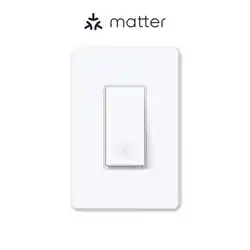
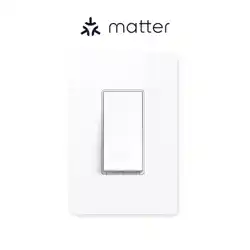
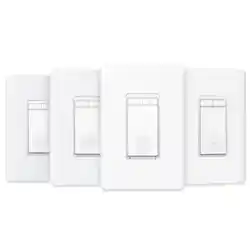
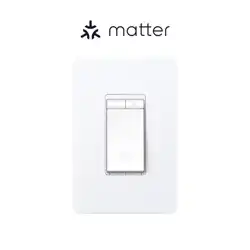
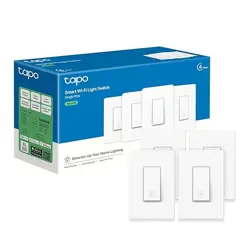
Smart Wi-Fi Light Switch
©2024 TP-Link 1910013653 REV1.0.0

Contents
About This Guide ···········································································1
Set Up Your Switch ·······································································2
Main Device Controls ··································································3
Manage Device Settings ···························································6
Smart Actions ···············································································10
Me Page ··························································································· 13
1
About This Guide
This guide provides a brief introduction to the Smart Switch and regulatory information.
Please note that features available in Tapo may vary by model and software version. Tapo availability may also vary by region. All images, steps, and
descriptions in this guide are only examples and may not reect your actual Tapo experience.
Conventions
In this guide, the following convention is used:
Convention Description
Blue
Key information appears in blue, including management page text such as menus, items, buttons and so on.
Underline
Hyperlinks are in blue and underlined. You can click to redirect to a website.
Note:
Ignoring this type of note might result in a malfunction or damage to the device.
More Info
• Specications can be found on the product page at https://www.tapo.com.
• Our Technical Support and troubleshooting information can be found at https://www.tapo.com/support/.
2
Set Up Your Switch
Follow the steps below to set up your switch.
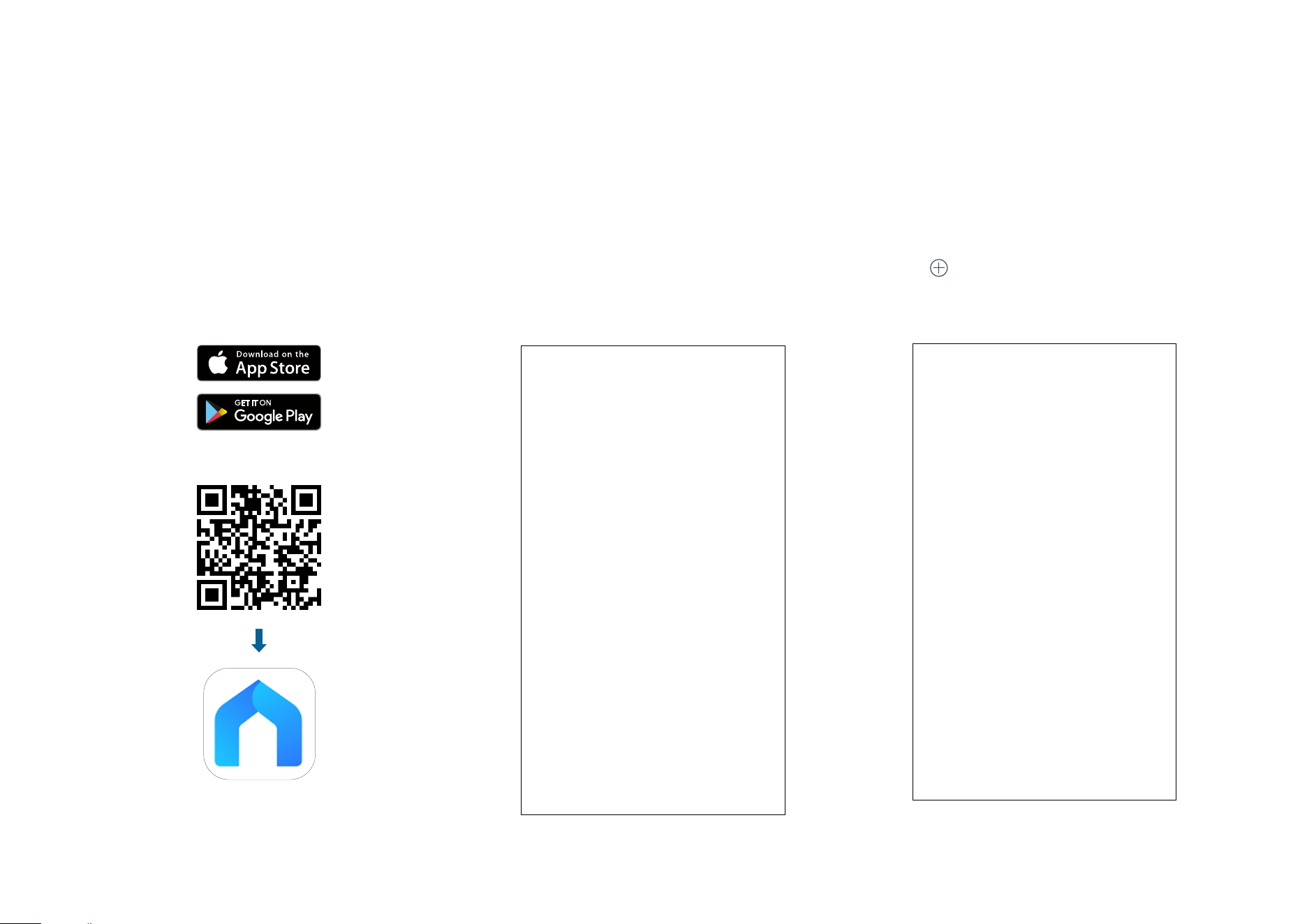
Step 1. Download Tapo App
Get the Tapo app from the App Store or
Google Play, or by scanning the QR code
below.
OR
Step 2. Log In
Open the app, and log in with your TP-Link ID.
If you don't have an account, create one rst.
Step 3. Add Your Switch
Tap the button in the app and select your
switch. Then follow app instructions to set up
your switch.
3
Main Device Controls
After you successfully set up your Smart Switch, you will see the home page of the Tapo app. Here you can view and manage all devices that you've
added to Tapo. Tap your smart switch to control and manage it.
Home Page
Turn on/o your device on the Home page.
Status Page
Turn on/o your device, or set schedules, timer, Away Mode or
check runtime on the Status page. If your Smart Switch is a dimmer
switch, you can also change light brightness and check preset
brightness.
Only supported by
dimmer switches.
4
Set Schedules
Automatically turn on/o the light at set times according to your
daily routine.
Check Runtime
Keep track of how long your Smart Switch has been working today,
for the past 7 days, or for the past 30 days.

5
Set Away Mode
Turn on/o the light automatically at random intervals while you are
away to make the appearance that someone is at home.
Set a Timer
Automatically turn on/o after the time ends.

6
Manage Device Settings
You can change the name and icon of your Smart Switch and check its device info.
Tap on the Status Page to enter the Device Settings page.
1. Set light brightness presets.
(*Only supported by dimmer switches.)
Set preset brightness levels so you can switch to the desired
brightness with just one tap. The presets will appear on the Status
page of the light.
7
3. Set light to turn on/o gradually.
(*Only supported by dimmer switches.)
Set the duration for the light to turn on or o gradually.
2. Set default state.
Set the default state your Smart Switch will turn to when it is turned
on from the app or the power source.
*The default state options may vary for dierent models.
8
5. Calibrate your device.
(*Only supported by dimmer switches.)
Calibrate your device to dim your light smoothly.
4. Control your device LED.
Set when the LED is on or o.
9
6. Check device info.
If your device supports Matter, you can nd the Matter setup code
here to add it the rst Matter ecosystem.

10
Smart Actions
Smart Actions automate repetitive tasks, allowing you to blaze through tedium with utmost ease. Set everything up once and never have to worry about
it again. With Smart Actions, giving your home that level of intelligence is a snap. Shortcut lets you perform an action with a simple tap. Automation
allows you to automate tasks to be performed at a set time. e.g. Turn on the lights when your camera detects motion.
Option 1: Edit based on the routine actions
1. Open the Tapo app, tap 1. Open the Tapo app, tap SmartSmart on the on the
bottom to enter the smart actions page.bottom to enter the smart actions page.
2. Under 2. Under Routine ActionsRoutine Actions, tap an action. Tap , tap an action. Tap EditEdit to change the settings as needed and tap nge the settings as needed and tap ApplyApply
to save changes.to save changes.

11
Option 2: Create your own shortcuts
1. Under 1. Under ShortcutsShortcuts, tap + on the top right to , tap + on the top right to
add a simple and smart action.add a simple and smart action.
2. Add an action and choose whether to delay 2. Add an action and choose whether to delay
the action. the action.
3. Name your shortcut and choose an icon. 3. Name your shortcut and choose an icon.
Tap Tap DoneDone to save all the settings. to save all the settings.

12
Option 3: Create your own actions
1. Under 1. Under AutomationAutomation, tap + on the top right to , tap + on the top right to
add a simple and smart action.add a simple and smart action.
2. 2. Name the new action. Tap + to add conditions
(
WhenWhen) like the trigger time, and tap + to add
tasks (Then) like turning on the switch.
3. 3. Name your automation and set the eective
time for the automation. Tap Done to save all
the settings.

13
Me Page
The Tapo app oers a list of advanced features to fulll diverse smart home needs.
Manage Your Account
Open the Tapo app, tap Me on the bottom to enter the page. Then you can tap your avatar or
account to change the avatar, name, password, and login security.
Tapo Care
Tapo Care is a comprehensive service with
unlimited cloud storage. You can subscribe to
the advanced plan for your Tapo cameras.

14
Camera Memory
All saved recordings appear in Memory. You
can tap the
icon to manage and lter the
recordings.
Playback & Download
You can tap any of your Tapo cameras to enter the camera's Playback & Download page. If you tap
Upgrade Now, the Tapo Care page appears.

15
Notications
Turn on Notications to allow Tapo to show
alerts on the Lock Screen, Banners, and
Notication Center as needed.
Firmware Update
Tap to check if any rmware updates are
available on this page and update your
devices as instructed.
Device Sharing
Share your Tapo device with your families and
check the devices shared by others. Tap the
icon to add a bothering inviter to the Deny List.

16
Link Tapo with Kasa
You can link Tapo with Kasa to Manage
Devices, Groups, and Smart Actions. Tap
Authorize Now to allow Tapo to access Kasa.
Widgets
With Widgets, you can conveniently control your smart device from the home screen on Android
devices or the Today View on iOS devices.
Note: For detailed instructions, please refer to https://www.tp-link.com/support/faq/3313/.

17
Third-Party Services
You can control your smart devices through third-party services, including voice control.
Amazon Alexa
Follow the guide https://www.tp-link.com/hk/support/faq/2780/.
Google Assistant
Follow the guide https://www.tp-link.com/hk/support/faq/2779/.

18
Third-Party Services
You can control your smart devices through third-party services, including voice control.
Samsung SmartThings / Add to Siri / IFTTT
You can tap the one as needed, then follow the detailed instructions on the Tapo to complete the connection. Add to Siri is for iOS devices only.