The development of Matter is ongoing, with
progress varying across platforms. Device
performance and bugs can occur unrelated to the
device itself. TP-Link, along with other CSA
members, is committed to enhancing user
experiences and service quality.
7106510364 REV1.2.0 ©2023 TP-Link
Frequently Asked Questions
for Matter
Our expert Technical Support team is ready to
assist you. Please don't hesitate to reach out
with any questions. Your feedback is vital to us!
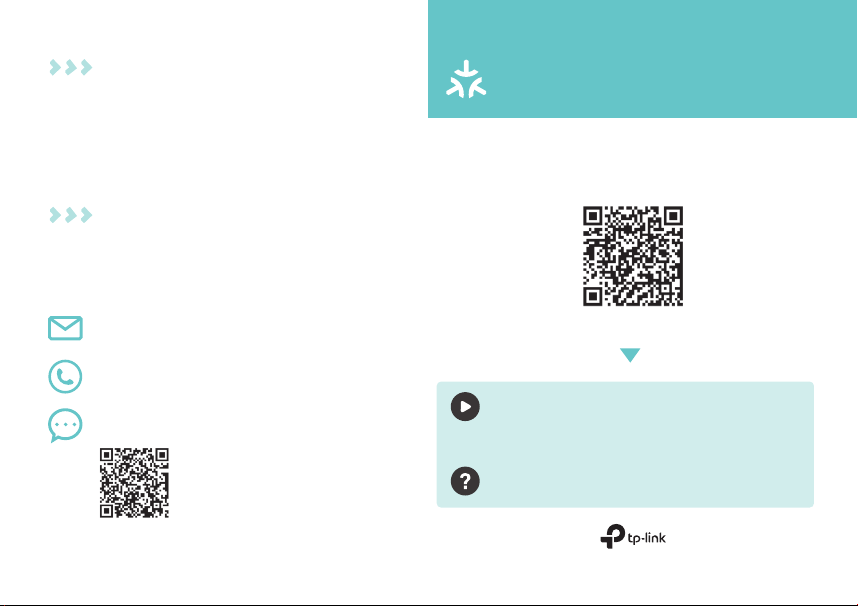
Setup Videos
Matter setup for Amazon Alexa, Apple
Home, Google Home, and SmartThings
Scan QR Code
Visit
https://www.tp-link.com/support/faq/3520/
Troubleshooting & Help
Setup Videos
Matter setup for Amazon Alexa, Apple
Home, Google Home, and SmartThings
Troubleshooting & Help
EMAIL
CALL
+1 866 225 8139 (Toll Free)
CHAT
https://livechat.tp-link.com/us/smart/
You can set up your TP-Link Matter-enabled
device with any Matter-enabled app, not just
TP-Link Kasa Smart. Follow the instructions below
to congure your Matter products.
• Get a Matter Controller: This is needed to connect
and manage Matter devices on your home
network. For instance, Apple TV and HomePod are
examples of Matter controllers.
• Reset Your Device: It's important to start with a
fresh device. Here's how:
- For most devices: Press and hold the 'Reset' button
for 10 seconds.
- For smart bulbs: Turn the light switch o and on ve
times, with a 1-second pause between each action.
• Access Matter Setup Mode: This mode turns o
15 minutes after the device is powered up. To
return to setup, simply turn your device o and
then back on.
Before You Start
*Setup processes may vary between dierent apps.
1. Turn on Bluetooth on your phone.
2. Open the smart home app, and either scan the
Matter QR code or input the given numeric
code.
3. Connect your device to the same network as
your controller.
4. Follow the instructions in the app to complete
setup.
How to Set Up
• Restart: Try turning o and then turning back on
your device, controller, or phone.
• Check IPv6: Ensure that IPv6 is activated on your
router. Visit our FAQ for step-by-step guidance:
https://www.tp-link.com/support/faq/1525/
• Regarding the Matter Code: The original Matter
code can only be used for setup in one app (you
can reuse it after a device reset). If you wish to set
it up in multiple apps, generate a new code using
the rst app for all subsequent ones.
Failed to Set Up?
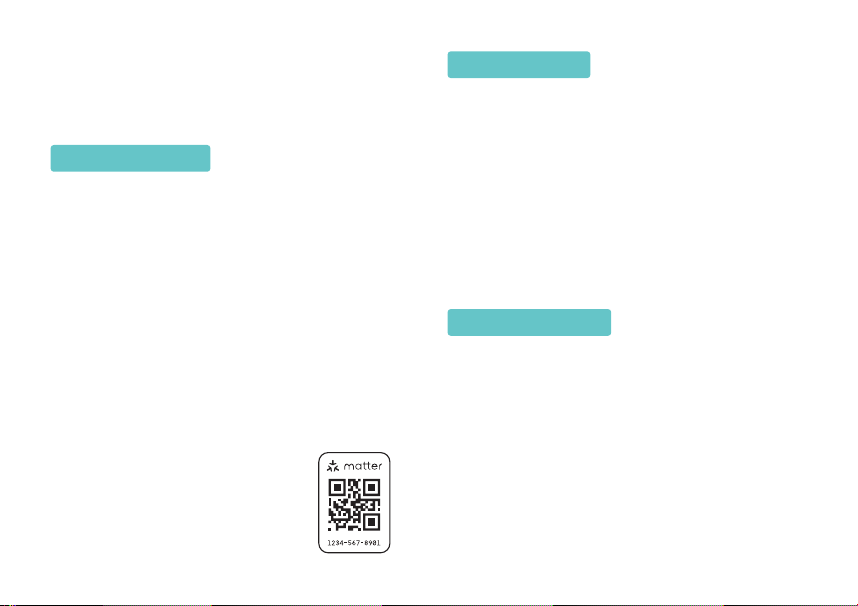
• Locate Your Matter Code: Look
for a QR code or a numeric code
on your device or in its packaging.
Snap a picture of it for future
reference.