
Quick Start Guide
1
Your TCL Phone
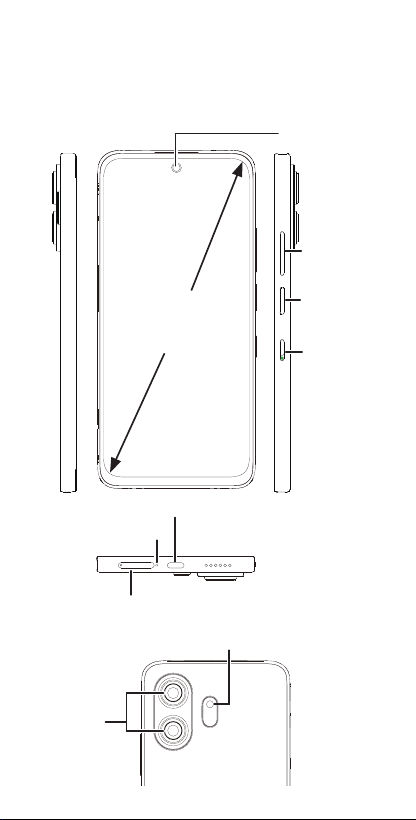
Keys and connectors
SIM & microSD
TM
Tray
USB Type-C/Headset Connector
Front Camera
Volume Up/
Down
Power/Lock Key
& Fingerprint
Sensor
6.9"
NXTPAPER
Key
Microphone
Rear
cameras
Flash
2
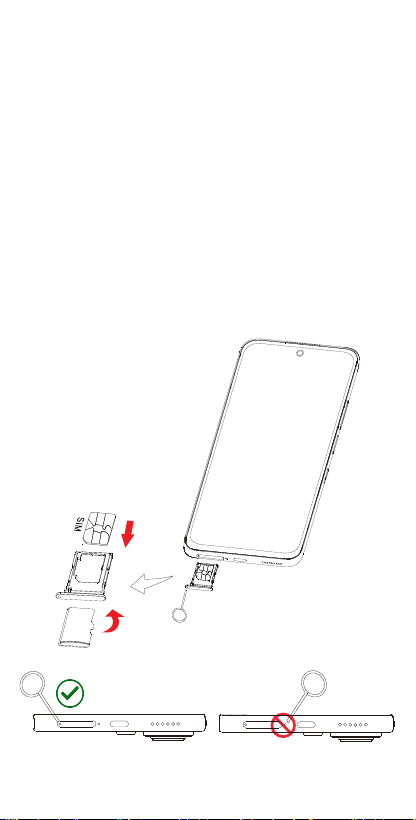
Installing the SIM/microSD
TM
Card
① Locate the SIM tray located at the bottom of
your device.
② Insert the provided SIM pin into the hole and
pull out the SIM tray.
③ Place the SIM card or microSD
TM
card with
the gold contacts facing up into the tray slot
and carefully close the SIM tray.
Note: microSD
TM
cards are sold separately.
SIM pin is included in the box.
Micro SD
Caution: Do not insert the SIM pin into the
small holes on top or bottom of the phone.

3
Set up your SIM card
The SIM (Subscriber Identity Module) card
identifies your device to the wireless network.
You can't make or receive phone calls without
a properly installed SIM card unless it's an
emergency call (911).
You don't need to power off your device before
inserting or removing the SIM card.
Note: Your device only supports Nano SIM
cards. To avoid damage to your device, do not
attempt to insert any other SIM types.
Battery
To optimize battery performance, be sure to
fully charge your device before using it for the
first time.
4
Charging the device
(1)
It is recommended that you charge the battery
for about 10-30 minutes with the included
USB-C cable before turning on the phone.
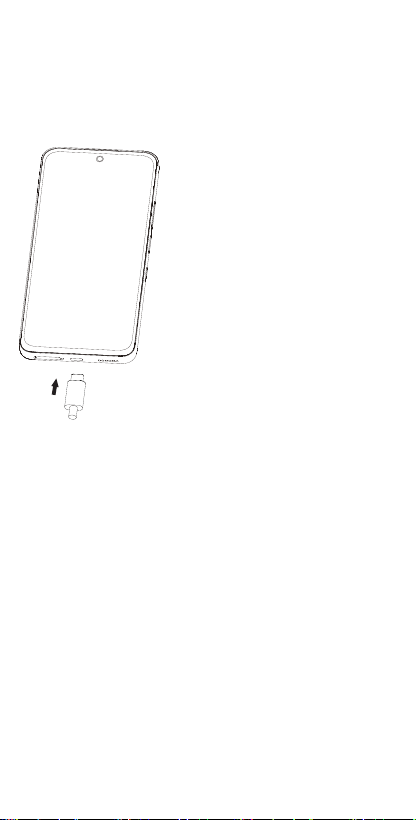
1. Insert the USB Type-C
cable into the charge
port as shown.
2. Connect charger
(1)
to
power outlet.
Note: Please use the USB Type-C cable that’s
included with your device. Using the wrong
cable and charger may damage the charging
port or reduce battery performance.
(1)
Charger not included with your device.
Only use chargers that meet all applicable
standards for safety of information
technology equipment and office equipment
use.

5
Optimize battery life
To optimize battery life, adjust your screen
brightness and display timeout.
1. Adjusting brightness level
: Lowering your
screen brightness level can optimize your
battery level. To adjust the brightness level,
from the Home screen, touch Settings >
Display. To lower the brightness level, move
the wheel to the left.
2. Power saving mode: Power saving mode
minimizes battery usage to extend battery
life. To explore power management options,
from the Home screen, touch Settings >
Smart Manager > Battery > Super saving
mode. Then touch Enable to activate power
saving mode.
3. Adjust screen timeout: Sleep mode is a low
power mode function and it significantly saves
your battery power. Lower the amount of
time your device stays on after you stop using
it to optimize your battery level. To do so,
from the Home screen, touch Settings >
Display > Sleep and select screen timeout
duration.
6
Security & convenience
To protect your phone and privacy, you can
activate the following security options:
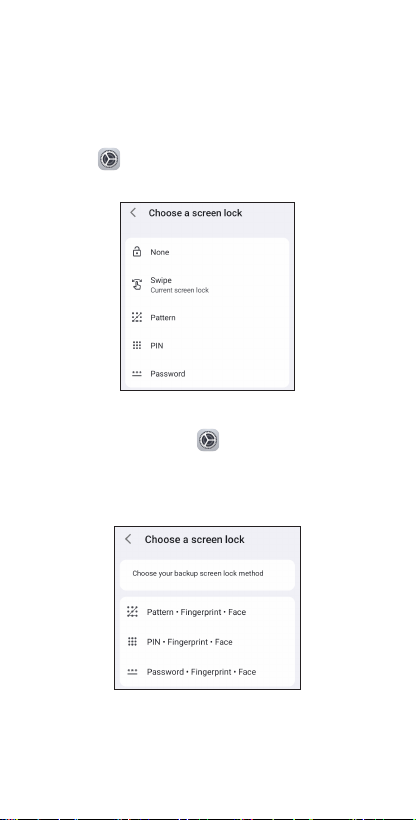
Screen lock: From the Home screen, touch
Settings > Security & privacy > Set a
screen lock.
Face & fingerprint unlock: From the Home
screen, touch Settings > Security & privacy >
Device unlock > Face & fingerprint unlock
and follow the instructions to set up the face
and fingerprint unlock feature.
7
Useful apps
When you’re up and running, try these apps to
see what you can do with your new phone.
Find it: Swipe up from the Home screen to see
all your apps.
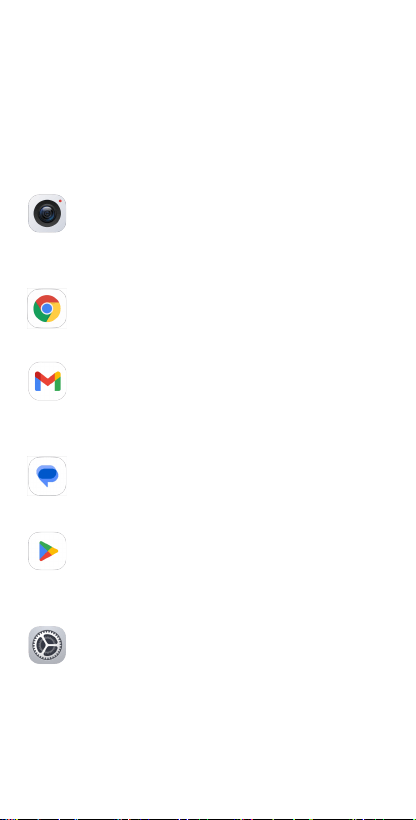
Camera
Your mobile phone is equipped with
a camera and a camcorder for taking
photos and shooting videos.
Chrome
Using the Chrome browser, you can
enjoy surfing the Web.
Gmail
With Gmail, you can send and receive
emails, manage emails by labels,
archive them, etc.
Messages
You can create, edit, and receive SMS
and MMS with this phone.
Play Store
In Play Store, search for the app you
need, download it, and then follow the
installation guide to install the app.
Settings
To access this function, swipe up from
the Home screen and then touch
Settings.
Note: Software updates happen frequently,
so your phone may not have all listed apps or
features.

8
Approved firmware versions
This device will only operate with firmware
versions that have been approved for use by your
wireless carrier and the device manufacturer. If
unauthorized firmware is placed on the device
it will not function.
Information about
safeguarding handsets
We encourage customers to take appropriate
measures to secure their devices and invite
them to take advantage of the features available
on this device to help secure it from theft and/
or other unauthorized access and use. This
device has a locking function (e.g., Security
PINs) that can serve as a first line of defense
against unauthorized use or access to stored
information. Preloaded security applications
that allow customers to track or locate misplaced
devices can be found on several devices. Lost or
stolen devices should be immediately reported
to your wireless carrier so that proper measures
can be taken to protect accounts. For additional
information, visit your wireless carrier’s Privacy
Policy.
5G: Not all devices, signals, or uses are
compatible; check device specs. See T-Mobile.
com or MetrobyT-Mobile.com for 5G coverage,
access and network management details.

9
Emergency call
If your phone has network coverage, dial the
emergency number and touch to make an
emergency call. This works even without a SIM
card and without typing the PIN code.
Although all phones are equipped with 9-1-1
emergency calling, this phone may or may not
permit its location to be approximated during a
9-1-1 call. Be prepared to report your location
when dialing 911*.
* Availability of this feature depends on upgrades
to the (a) wireless network and (b) 9-1-1 calling
system that are required to be installed by the local
9-1-1 response agency or public safety answering
point (PSAP); these upgrades may not be available
everywhere within your wireless service provider’s
coverage area or roaming area. This approximation
of the phone’s location and the transmittal of
location information are subject to emergency
situations, transmission limits, network problems/
limitations, interconnecting carrier problems, your
phone, buildings/tunnels, signal strength and
atmospheric/topographical conditions, and may
be curtailed, interrupted, dropped, or refused. The
phone’s approximate location may be transmitted
to the local 9-1-1 response agency or PSAP
while the call is in progress; this approximation
is intended solely to aid the PSAP in dispatching
emergency assistance or to limit the search area
for emergency services personnel. You should
not rely solely on a mobile phone for essential
communications (such as a medical or other
emergency). Please see your wireless carrier’s
Terms and Conditions, and Privacy Policy for
additional service restrictions and details.

10
TCL Communication Technology Holdings
Limited reserves the right to alter material or
technical specification without prior notice.
TCL is a registered trademark of TCL
Technology Group Corporation ©2026 TCL
Technology Group Corporation.
CJB2PH0LCAAA
Printed in China
Additional information
Use of some content or features may require
qualifying service, or access to a Wi-Fi
connection.