

- 1 -
Content
Content ............................................................................................................................... 1
1 Overview ....................................................................................................................... 2
2 How to use the CLI ....................................................................................................... 3
2.1 Accessing the CLI .................................................................................................... 3
2.1.1 via SSH .............................................................................................................. 3
2.1.2 via Terminal in Controller .................................................................................. 5
2.2 Conventions .............................................................................................................. 6
3 Debug Commands ......................................................................................................... 7
3.1 cliclientd reset ....................................................................................................... 7
3.2 restart ..................................................................................................................... 8
3.3 iwconfig ................................................................................................................. 8
3.4 ifconfig ................................................................................................................ 13
3.5 iwlist .................................................................................................................... 13
3.6 iperf ..................................................................................................................... 16
3.7 cliclientd setctrladdr “inform_url” ...................................................................... 18
3.8 cliclientd wltool scan ........................................................................................... 19
3.9 cliclientd wltool sta ............................................................................................. 20
3.10 cliclientd wltool interface .................................................................................... 22
3.11 cliclientd (ping) ................................................................................................... 23
3.12 cliclientd (tcpdump) ............................................................................................ 25
3.13 cliclientd debug “hostapd” .................................................................................. 27
3.13.1 cliclientd debug “hostapd log_level” ........................................................... 27
3.13.2 cliclientd debug “hostapd log_type” ............................................................ 29
3.13.3 cliclientd debug “hostapd log_size” ............................................................. 31
3.14 cliclientd debug “hostapd_cli get_ptk” ............................................................... 33
3.15 dmesg .................................................................................................................. 36
4 Public commands ........................................................................................................ 39
4.1 top ........................................................................................................................ 39
4.2 ps ......................................................................................................................... 41

- 2 -
1 Overview
TP-Link Omada/Omada Pro/Festa EAPs provide Command Line Interface (CLI) for
debugging. This guide introduces detailed information about the debug commands to facilitate
troubleshooting and locating the fault when the EAP encounters an exception.
With these commands, you can:
1. Perform channel scanning to analyze the Wi-Fi environment; view the wireless
information, including the settings and statistics of the EAP’s wireless interfaces, and
the statistics of clients, etc.
2. Invoke built-in tools, including ping, tcpdump, iPerf.
3. Manage the hostapd logs: determine the level of logs to be outputted, the output
method, and the size of log files to be saved in /tmp/logdump.
Currently, all EAPs that are still being updated and maintained (that is, not in EOL status)
apply to the commands in this document to varying degrees. If you encounter some commands
that do not take effect as described in the guide during the use of these commands, please keep
an eye on the TP-Link official website to upgrade your device to the latest firmware released if
possible. If it still doesn’t work, you can report it to the TP-Link Technical support center or
R&D department. We will provide you with timely assistance and guidance.
Kindly note: the commands displayed in the terminal by entering cliclientd -h may be not
supported completely by the device you are using, please refer to this document for specific
support of the device. In the future, if the commands supported by EAP are added or improved,
we will update them simultaneously in this document.
- 3 -
2 How to use the CLI
2.1 Accessing the CLI
2.1.1 via SSH
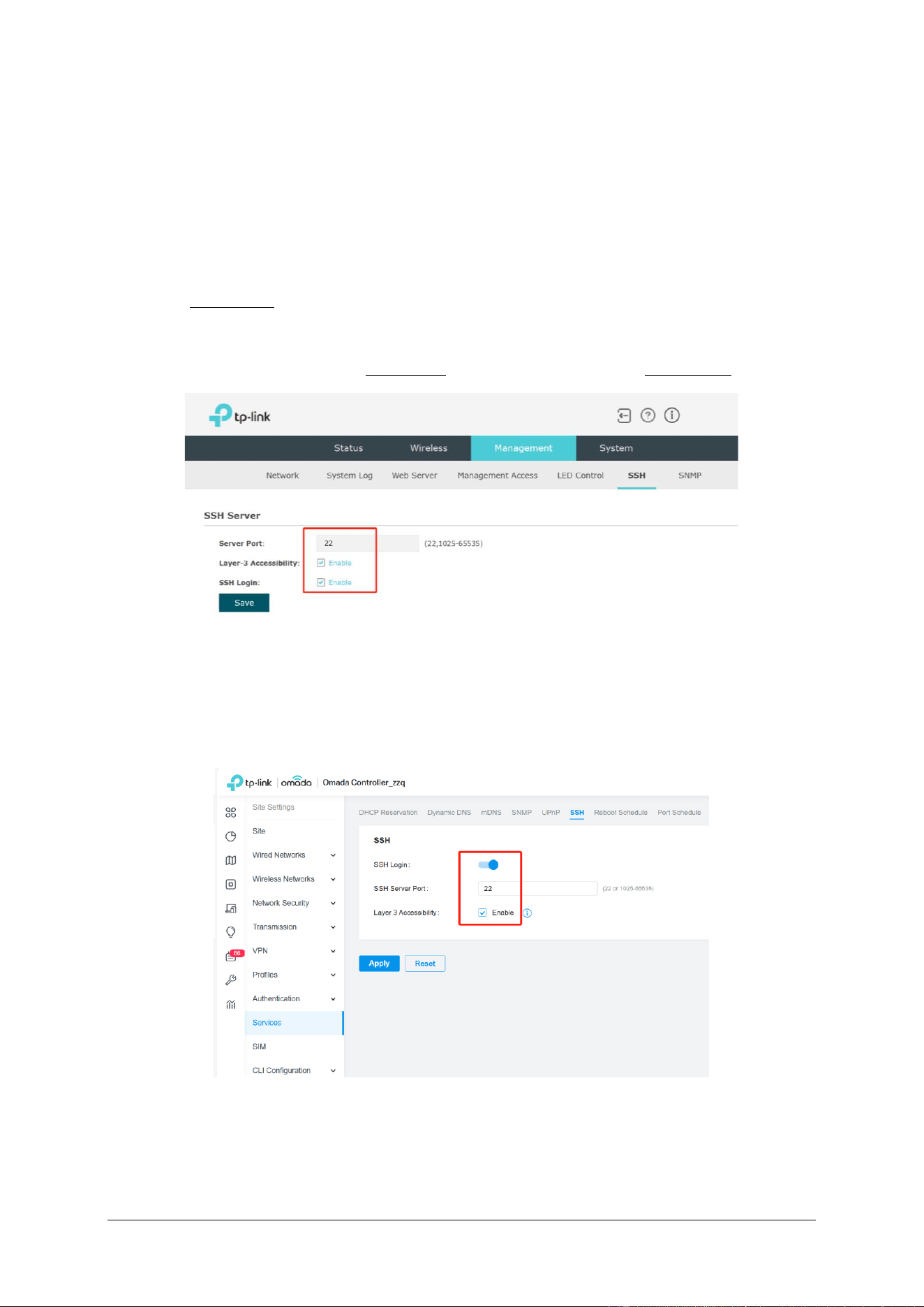
1. Enable SSH Login first
(1) If the EAP is managed in standalone mode, please access its web page and go to
Management > SSH to enable SSH Login and set a proper value for Server Port.
Figure 2-1 Enable SSH login in Standalone web
(2) If the EAP is managed via Controller, then go to Site’s Settings > Services > SSH to perform
the relevant operations.
Figure 2-2 Enable SSH login in Controller
Kindly note: If the host PC from which you access EAP via SSH is not on the same
LAN as the EAP, please make sure to enable Layer-3-Accessibility, as well as ensuring
they are accessible to each other.
- 4 -
2. Access the EAP via SSH
To log on by SSH, you are recommended to use a SSH connection tools via password
authentication, such as Software PuTTY, Teraterm, MobaXterm. etc. Here we take putty as
an example to introduce how to access EAP through SSH, which can be analogous to know
how to configure the other software.
Kindly note: To ensure secure data transmission over SSH connections, the EAP will
stop supporting weak security algorithms in the future. Therefore, it’s recommended to use
the latest version of these SSH connection tools.
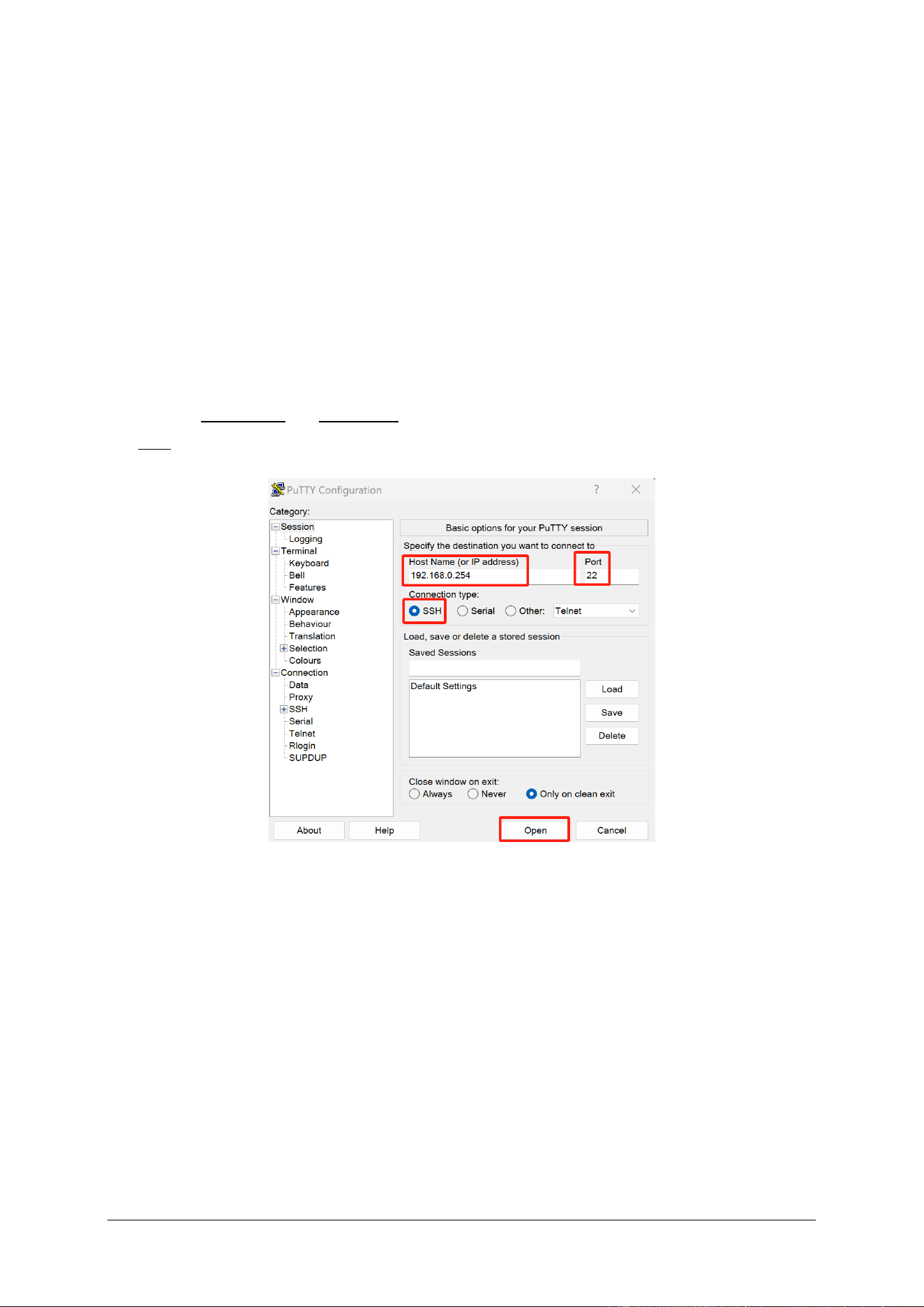
(1) Open the software to logon to the interface of Putty, enter the IP address of the EAP
into the Host Name (or IP address) field; fill the server port value set in the step 1 in the
Port field; select SSH as the Connection Type.
Figure 2-3 How to configure PuTTY for SSH connection – 01
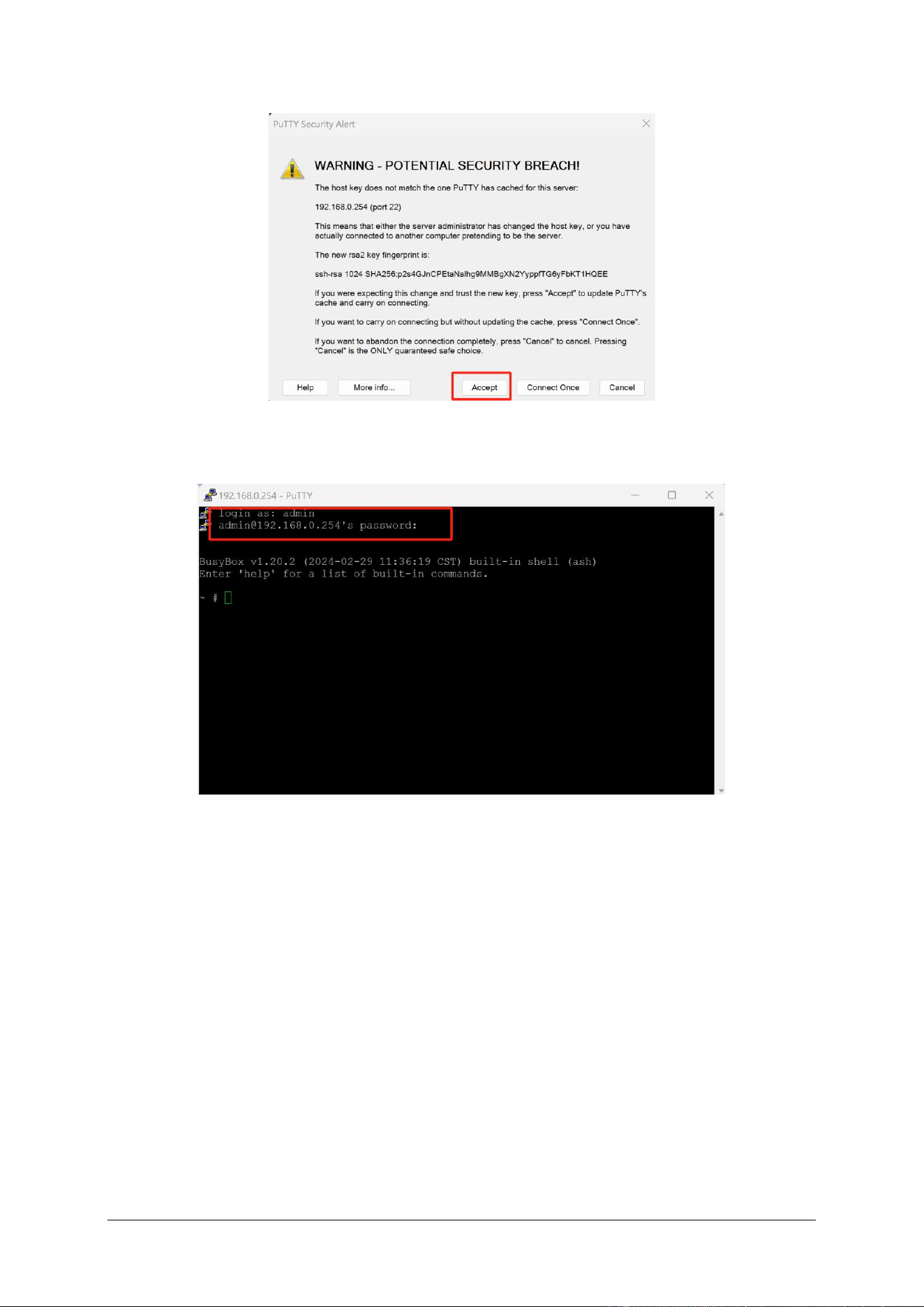
(2) Click the “Open” button in the above picture to log on to the EAP and click “Accept”
or “Connect Once” according to your needs.
- 5 -
Figure 2-4 How to configure PuTTY for SSH connection - 02
(3) Finally enter the login user name and password to log on the EAP.
Figure 2-5 How to configure PuTTY for SSH connection - 03
2.1.2 via Terminal in Controller
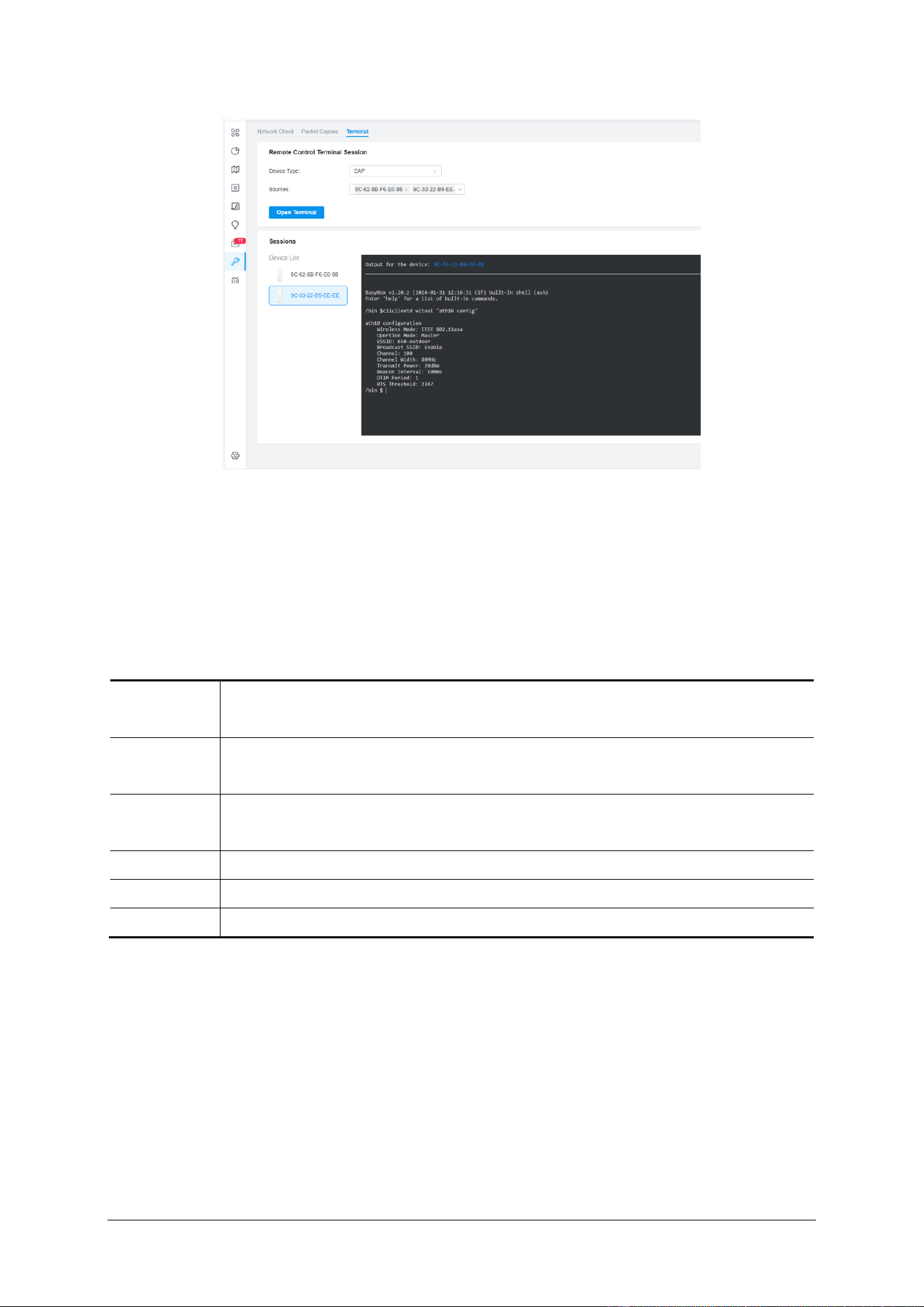
The commands for EAP embedded in the Terminal Tool of the Controller are coupled with
the commands for SSH access to the EAPs. By using the Terminal tool, there is no need to
download and configure SSH connection software to enter commands to get the information
you want.
For the detailed operation, please go to Site’s Tools > Terminal to select the target devices
and click “Open Terminal” button. (Kindly note: Currently the terminal tool supports
simultaneous access to up to 10 devices.)
- 6 -
Figure 2-6 Terminal Tool in Controller
2.2 Conventions
The following conventions are used for EAP CLI commands in this Guide:
Table 2-1 Command conventions
Bold Font
An unalterable keyword
For example: cliclientd wltool in cliclientd wltool “interface {stats | config}”
Normal
Font
A constant (several options are enumerated and only one can be selected).
For example: stats & config in cliclientd wltool “interface {stats | config}”
Italic Font
A variable (an actual value must be assigned)
For example: host_IP in cliclientd pingstart “host_IP [options]”
{}
Items in braces {} are required
[]
Items in square brackets [] are optional.
|
Alternative items are grouped in braces and separated by vertical bars.

- 7 -
3 Debug Commands
The commands introduced in this chapter and their usage are listed in the following table:
Table 3-1 Brief introduction of commands listed in this chapter
Command
Brief introduction
cliclientd reset
To reset AP.
restart
To reboot AP.
iwconfig
View the all wireless interfaces’ information.
ifconfig
View the all network interfaces’ information.
iwlist
A wireless device configuration and diagnostic
tool that can be utilized to obtain various
parameters of a wireless network.
iperf
A network performance testing tool that can be
used to test TCP/UDP bandwidth quality, report
network delay jitter, view packet loss rate and
other statistical information.
cliclientd setctrladdr “inform_url”
Configure the IP/URL of the Controller for the
EAP to facilitate adoption and management
across the layer-3 network.
cliclientd wltool scan
Detect the BSS information of each wireless
channel in the current environment.
cliclientd wltool sta
View the basic statistics information of all
clients currently associated with the EAP or the
detailed statistics information of a certain client.
cliclientd wltool interface
View the configuration of a specified interface
or the statistics of Tx and Rx packets.
cliclientd (ping)
A TCP/ IP-based network diagnostic tool for
testing network connectivity.
cliclientd (tcpdump)
A packet capture tool that can be used for
network analysis and troubleshooting.
cliclientd debug “hostapad”
Adjust Hostapd log’s level, type and size.
cliclientd debug “hostapd_cli get_ptk”
Obtain the PTK generated each time the
wireless client connects to the AP to decrypt
wireless packets captured by Wireshark.
dmesg
Display all messages from kernel ring buffer and
the driver.
3.1 cliclientd reset
Description:

- 8 -
Triggers the device to perform a reset operation.
Syntax:
cliclientd reset
Note:
Some models, such as Wi-Fi7 products or Wi-Fi5 models that have not fully adapted the
new functions of Omada Controller v5.9, may not support this command yet. And they will
gradually adapt to this command in the near future, please follow the TP-Link official website
to get the latest firmware in time.
Example:
/bin $ cliclientd reset
Reset Success
3.2 restart
Description:
Triggers the device to perform a reboot operation.
Syntax:
restart
Note:
The commands supported by different models to reboot the device may not be consistent.
For example, EAP772 V2 supports both reboot and restart, while the EAP650-Outdoor V1
only supports restart. And the command to trigger AP reboot will be changed to restart
uniformly in the near future.
Example:
/bin $ restart
3.3 iwconfig
Description:
This command can be used to view the status information of all the wireless interfaces of
EAP, including the identification name (ESSID), working mode, operating frequency,
transmission rate, and signal strength of each interface, etc.

- 9 -
Syntax:
iwconfig [interface]
Note:
As different models adopt different design schemes, which leads to different interfaces of
different models with different names obtained through enter iwconfig, currently it can be
divided into two categories, We will show the two categories of design schemes in detail in the
Example module below of the specific information of the wireless interface.
Example:
1. Scheme 1
Table 3-2 Interfaces brief introduction of EAP in category 1
Interface
Description
br0
Indicates the bridge interface, which combines multiple network interfaces into
a single logical interface.
bkhap{n}
The interface used in the mesh network to provide wireless connectivity to
downlinked EAPs, with n being 0/1/2 to indicate that it operates at
2.4GHz/5GHz/6GHz radio, respectively.
sta{n}
The interface used to connect to the uplink EAP wirelessly in the mesh network,
with n being 0/1/2 to indicate that it operates at 2.4GHz/5GHz/6GHz radio,
respectively.
ath{n}
Indicates the n+1th VAP (virtual access point) of 2.4GHz of the device, each
SSID corresponds to one VAP. e.g. ath1 indicates the interface of the second
2.4GHz SSID.
ath1{n}
Indicates the n+1th VAP (virtual access point) of 5GHz of the device, each SSID
corresponds to one VAP. e.g. ath12 indicates the interface of the third 5GHz
SSID.
ath2{n}
Indicates the n+1th VAP (virtual access point) of 6GHz of the device, each SSID
corresponds to one VAP. e.g. ath21 indicates the interface of the second 6GHz
SSID.
wifi{n}
Radio layer interface of the device. In general, 2.4GHz /5GHz/6GHz radio
corresponds to wifi0/wifi1/wifi2 interfaces respectively (2.4GHz and 5GHz
correspond to wifi1 and wifi0 for individual models, e.g. EAP620 v3)
eth{n}
Usually refers to the n+1th Ethernet interface.
lo
A local loopback interface that provides intra-system communication and self-
identification of network services.
/bin $ iwconfig

- 10 -
br0 no wireless extensions.
bkhap1 IEEE 802.11axa ESSID:"mesh_00ff00243411"
Mode:Master Frequency:5.24 GHz Access Point: 0A:FF:00:24:34:12
Bit Rate:1.201 Gb/s Tx-Power=21 dBm
RTS thr=1 B Fragment thr:off
Encryption key:33C2-1461-6928-E313-B318-A20C-28C5-3F5B Security mode:restricted
Power Management:off
Link Quality=94/94 Signal level=-35 dBm Noise level=-91 dBm (BDF averaged NF
value in dBm)
Rx invalid nwid:2586 Rx invalid crypt:0 Rx invalid frag:0
Tx excessive retries:0 Invalid misc:0 Missed beacon:0
ath10 IEEE 802.11axa ESSID:"EAP653-01"
Mode:Master Frequency:5.24 GHz Access Point: 00:FF:00:24:34:12
Bit Rate:1.201 Gb/s Tx-Power=21 dBm
RTS thr:off Fragment thr:off
Encryption key:2E9E-62BA-555A-B080-4773-9D8B-39AD-FE0A Security
mode:restricted
Power Management:off
Link Quality=94/94 Signal level=-42 dBm Noise level=-91 dBm (BDF averaged NF
value in dBm)
Rx invalid nwid:2417 Rx invalid crypt:0 Rx invalid frag:0
Tx excessive retries:0 Invalid misc:0 Missed beacon:0
wifi0 no wireless extensions.
ath0 IEEE 802.11axg ESSID:"EAP653-01"
Mode:Master Frequency:2.412 GHz Access Point: 00:FF:00:24:34:11
Bit Rate:286.8 Mb/s Tx-Power=24 dBm
RTS thr:off Fragment thr:off
Encryption key:991A-D3FE-7344-9168-5AD6-70BC-C4C8-10A9 Security
mode:restricted
Power Management:off
Link Quality=94/94 Signal level=-49 dBm Noise level=-99 dBm (BDF averaged NF
value in dBm)
Rx invalid nwid:503 Rx invalid crypt:0 Rx invalid frag:0
Tx excessive retries:0 Invalid misc:0 Missed beacon:0
lo no wireless extensions.
sta1 IEEE 802.11axa ESSID:""
Mode:Managed Frequency:5.24 GHz Access Point: Not-Associated
Bit Rate:0 kb/s Tx-Power=21 dBm
RTS thr=1 B Fragment thr:off
Encryption key:off
Power Management:off
Link Quality=0/94 Signal level=-91 dBm Noise level=-91 dBm (BDF averaged NF value
in dBm)
Rx invalid nwid:0 Rx invalid crypt:0 Rx invalid frag:0
Tx excessive retries:0 Invalid misc:0 Missed beacon:0
eth0 no wireless extensions.
wifi1 no wireless extensions.
soc0 no wireless extensions.
……
2. Scheme 2
Table 3-3 Interfaces brief introduction of EAP in category 2
Interface
Description
br0
Indicates the bridge interface, which combines multiple network interfaces into

- 11 -
a single logical interface.
apcli0
The interface used to connect to the uplink EAP via 2.4GHz radio in the mesh
network. Currently, EAP does not support mesh networking over 2.4GHz, so this
interface will not work and you can ignore it.
apclix0
The interface used to connect to the uplink EAP via 5GHz radio in the mesh
network.
ra{n}
Indicates the n+1th VAP (virtual access point) of 2.4GHz of the device, each
SSID corresponds to one VAP. e.g. ra1 indicates the interface of the second
2.4GHz SSID.
rax{n}
Indicates the n+1th VAP (virtual access point) of 5GHz of the device, each SSID
corresponds to one VAP. e.g. rax2 indicates the interface of the third 5GHz SSID.
Note: The rax8 interface is used in the mesh network to provide 5GHz wireless
connectivity to downlinked EAPs which is similar to bkhap1 interface of EAP in
category 1.
eth{n}
Usually refers to the n+1th Ethernet interface.
lo
A local loopback interface that provides intra-system communication and self-
identification of network services.
/bin $ iwconfig
rax0 RTWIFI SoftAP ESSID:"TP-Link 001"
Mode:Master Channel=48 Access Point: 00:FF:00:2A:E0:8B
Bit Rate:1.134 Gb/s
RTS thr=2347 B
Link Quality:10 Signal level:0 Noise level:199
Rx invalid nwid:0 invalid crypt:0 invalid misc:0
lo no wireless extensions.
br0 no wireless extensions.
rax8 RTWIFI SoftAP ESSID:"mesh_00ff002ae08a"
Mode:Master Channel=48 Access Point: 22:FF:00:2A:E0:8B
Bit Rate:1.134 Gb/s
RTS thr=2347 B
Link Quality:10 Signal level:0 Noise level:199
Rx invalid nwid:0 invalid crypt:0 invalid misc:0
apclix0 RTWIFI SoftAP ESSID:""
Mode:Managed Channel=48 Access Point: Not-Associated
Bit Rate:0.001 kb/s
RTS thr=2347 B
Link Quality:10 Signal level:0 Noise level:199
Rx invalid nwid:0 invalid crypt:0 invalid misc:0
eth1 no wireless extensions.
rax7 RTWIFI SoftAP ESSID:""
Mode:Master Channel=48 Access Point: Not-Associated

- 12 -
Bit Rate:0.015 kb/s
RTS thr=0 B
Link Quality:10 Signal level:0 Noise level:199
Rx invalid nwid:0 invalid crypt:0 invalid misc:0
ra0 RTWIFI SoftAP ESSID:"TP-Link 001"
Mode:Master Channel=6 Access Point: 00:FF:00:2A:E0:8A
Bit Rate:541 Mb/s
RTS thr=2347 B
Link Quality:10 Signal level:0 Noise level:199
Rx invalid nwid:0 invalid crypt:0 invalid misc:0
eth0 no wireless extensions.
apcli0 RTWIFI SoftAP ESSID:""
Mode:Managed Channel=6 Access Point: Not-Associated
Bit Rate:0 kb/s
RTS thr=2347 B
Link Quality:10 Signal level:0 Noise level:199
Rx invalid nwid:0 invalid crypt:0 invalid misc:0
ra7 RTWIFI SoftAP ESSID:""
Mode:Master Channel=6 Access Point: Not-Associated
Bit Rate:0.007 kb/s
RTS thr=0 B
Link Quality:10 Signal level:0 Noise level:199
Rx invalid nwid:0 invalid crypt:0 invalid misc:0
……

- 13 -
3.4 ifconfig
Description:
This command is used to view the basic parameters of EAP’s network interfaces, such as
IP address, subnet mask, hardware address, traffic statistics, etc.
Syntax:
ifconfig [[-a] | [interface]]
Example:
Show the br0 interface’s basic parameters:
/bin $ ifconfig br0
br0 Link encap:Ethernet HWaddr 00:FF:00:39:D2:5B
inet addr:192.168.0.254 Bcast:192.168.0.255 Mask:255.255.255.0
inet6 addr: fe80::2ff:ff:fe39:d25b/64 Scope:Link
UP BROADCAST RUNNING MULTICAST MTU:1500 Metric:1
RX packets:5625 errors:0 dropped:0 overruns:0 frame:0
TX packets:6566 errors:0 dropped:0 overruns:0 carrier:0
collisions:0 txqueuelen:0
RX bytes:1129559 (1.0 MiB) TX bytes:4127984 (3.9 MiB)
3.5 iwlist
Description:
This command iwlist is a wireless device configuration and diagnostic tool for Linux that
can be utilized to obtain various parameters of a wireless network, including frequency, rate,
power mode, transmission power, etc., so that we can perform a series of actions to diagnose
the status and performance of the wireless network.
Syntax:
iwlist [{interface} {scanning | channel | bitrate | rate | encryption | keys | power | txpower}]
Parameters:
scanning: Display the list of access points and ad-hoc cells in range.
channel: Display available frequencies in the device.
bitrate/rate: List the bit-rates supported by the device.
encryption/keys: List the encryption key sizes supported and list all the encryption keys set

- 14 -
in the device.
power: List the various power management attributes and models of the device.
txpower: List the various available transmit-powers and the current Tx-power of the device
Example:
Perform scanning for the access points or ad-hoc cells nearby on the ath10 interface:
/bin $ iwlist ath10 scanning
ath10 Scan completed :
Cell 01 - Address: 06:00:FF:FF:0B:E1
ESSID:"!!!gxc1"
Mode:Master
Frequency:5.22 GHz (Channel 44)
Quality=91/94 Signal level=-57 dBm Noise level=-95 dBm (BDF averaged
NF value in dBm)
Encryption key:off
Bit Rates:6 Mb/s; 9 Mb/s; 12 Mb/s; 18 Mb/s; 24 Mb/s
36 Mb/s; 48 Mb/s; 54 Mb/s
Extra:bcn_int=100
Extra:wme_ie=dd180050f2020101800003a4000027a4000042435e0062322f00
Extra:phy_mode=IEEE80211_MODE_11AC_VHT80
Extra:dtim_period=1
……
Cell 135 - Address: 06:31:27:B1:39:32
ESSID:"!!!ruijie_5g_ap2"
Mode:Master
Frequency:5.22 GHz (Channel 44)
Quality=93/94 Signal level=-54 dBm Noise level=-95 dBm (BDF averaged
NF value in dBm)
Encryption key:on
Bit Rates:6 Mb/s; 9 Mb/s; 12 Mb/s; 18 Mb/s; 24 Mb/s
36 Mb/s; 48 Mb/s; 54 Mb/s
Extra:bcn_int=100
IE: IEEE 802.11i/WPA2 Version 1
Group Cipher : CCMP
Pairwise Ciphers (1) : CCMP
Authentication Suites (1) : PSK
IE: WPA Version 1
Group Cipher : CCMP
Pairwise Ciphers (1) : CCMP
Authentication Suites (1) : PSK
Extra:wme_ie=dd180050f2020101880003a4000027a4000042435e0062322f00
Extra:phy_mode=IEEE80211_MODE_11AXA_HE40PLUS
Extra:dtim_period=1
- 15 -
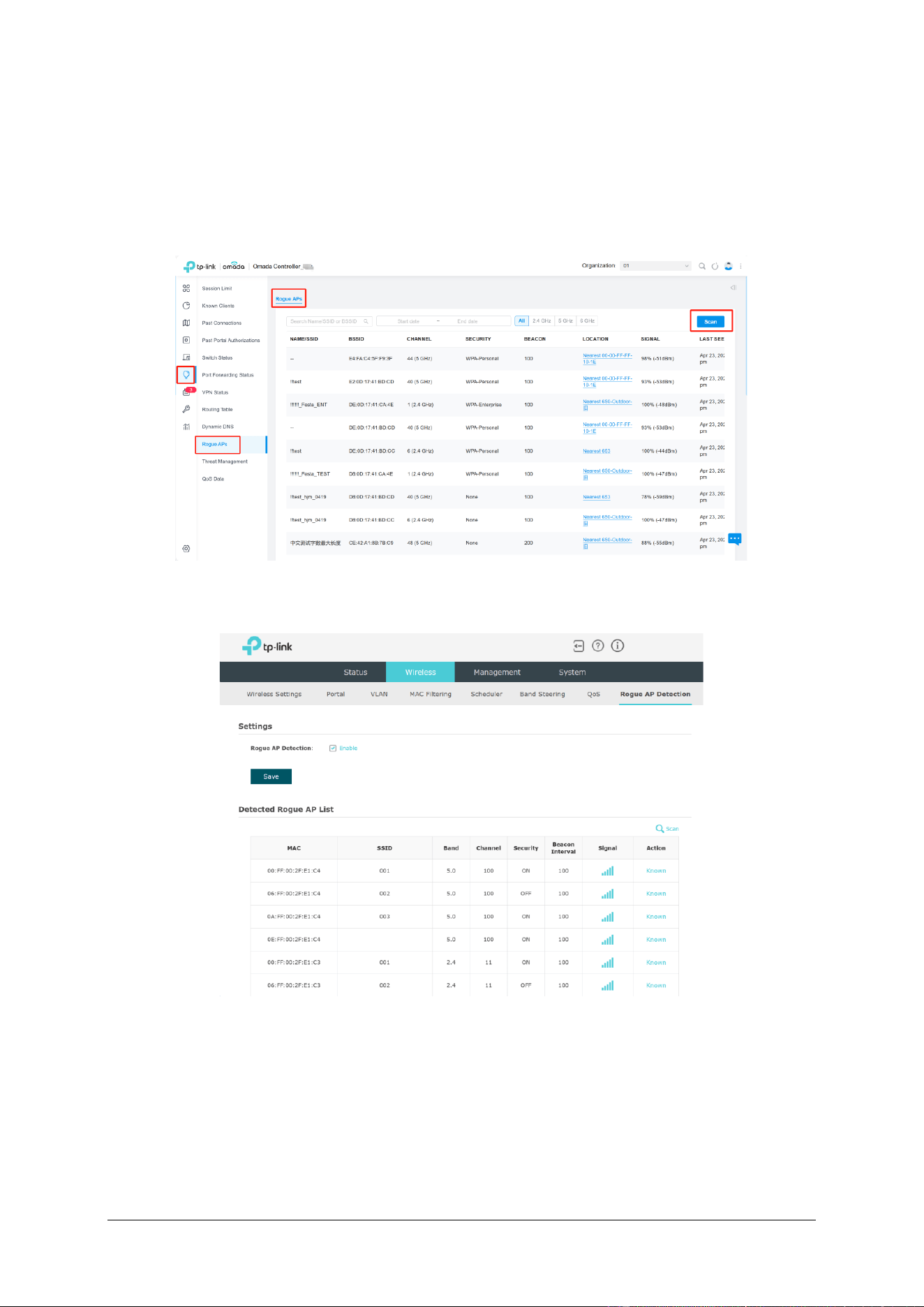
This command acts like the Rouge AP Detection functionality similar to the Controller and
Standalone Web, but provides more detailed information about all the Access Points/SSIDs
around the device than either.
Figure 3-1 Rogue APs function in Controller
Figure 3-2 Rogue AP Detection function in Standalone Web

- 16 -
3.6 iperf
Description:
iPerf is a network performance testing tool that can be used to test TCP/UDP bandwidth
quality, report network delay jitter, view packet loss rate and other statistical information. Based
on these information, we can grasp and evaluate network performance problems, so as to locate
network bottlenecks and solve network failures.
Syntax:
iperf -c server_IP [options]
iperf -s
Note:
1. The built-in iPerf version of EAP is iPerf2, the specific version varies from model to model,
which can be viewed by executing iperf -v. For instance, iperf version 2.0.5 (08 Jul 2010)
pthreads for EAP650-Outdoor v1, while 2.0.13(21 Jan 2019) pthreads for EAP772v2.
/bin $ iperf -v
iperf version 2.0.13 (21 Jan 2019) pthreads
2. iPerf2 and iPerf3 are two different versions of network testing tools, which cannot be used
in combination due to the differences in architecture, design and features. The different
versions of iPerf2 maintain the same core functionality, the main difference is reflected in
some of the new features, improvements and bug fixes, different versions of iPerf2 can
theoretically be used in combination, in order to ensure the accuracy and validity of the test
results, it is recommended that you try to use the same version of the iPerf tool.
3. For more details about iPerf, run the command iperf -h to show the help information.
Example:
1. Measuring the throughput between two APs.
To measure the throughput between the Root AP and Mesh AP can provide a reference for
judging the quality of the mesh link. You can use one AP as the iPerf server and the other
AP as the iPerf client.
In the iPerf server’s side:
/bin $ iperf -s
------------------------------------------------------------
Server listening on TCP port 5001

- 17 -
TCP window size: 128 KByte (default)
------------------------------------------------------------
[ 4] local 192.168.0.10 port 5001 connected with 192.168.0.253 port 60456
[ 8] local 192.168.0.10 port 5001 connected with 192.168.0.253 port 60472
[ 6] local 192.168.0.10 port 5001 connected with 192.168.0.253 port 60466
[ 5] local 192.168.0.10 port 5001 connected with 192.168.0.253 port 60454
[ 9] local 192.168.0.10 port 5001 connected with 192.168.0.253 port 60478
[ ID] Interval Transfer Bandwidth
[ 4] 0.0-10.1 sec 307 MBytes 255 Mbits/sec
[ 6] 0.0-10.1 sec 320 MBytes 266 Mbits/sec
[ 9] 0.0-10.1 sec 313 MBytes 261 Mbits/sec
[ 8] 0.0-10.1 sec 325 MBytes 269 Mbits/sec
[ 5] 0.0-10.1 sec 210 MBytes 174 Mbits/sec
[SUM] 0.0-10.1 sec 1.44 GBytes 1.22 Gbits/sec
In the iPerf client’s side:
/bin $ iperf -c 192.168.0.10 -P 5 -t 10
------------------------------------------------------------
Client connecting to 192.168.0.10, TCP port 5001
TCP window size: 238 KByte (default)
------------------------------------------------------------
[ 5] local 192.168.0.253 port 60466 connected with 192.168.0.10 port 5001
[ 3] local 192.168.0.253 port 60456 connected with 192.168.0.10 port 5001
[ 4] local 192.168.0.253 port 60454 connected with 192.168.0.10 port 5001
[ 6] local 192.168.0.253 port 60472 connected with 192.168.0.10 port 5001
[ 7] local 192.168.0.253 port 60478 connected with 192.168.0.10 port 5001
[ ID] Interval Transfer Bandwidth
[ 3] 0.0-10.0 sec 307 MBytes 257 Mbits/sec
[ 7] 0.0-10.0 sec 313 MBytes 263 Mbits/sec
[ 5] 0.0-10.0 sec 320 MBytes 267 Mbits/sec
[ 4] 0.0-10.0 sec 210 MBytes 176 Mbits/sec
[ 6] 0.0-10.0 sec 325 MBytes 272 Mbits/sec
[SUM] 0.0-10.0 sec 1.44 GBytes 1.23 Gbits/sec
2. Measuring the throughput between AP and the client
To measure the throughput between AP and a specific client, you can download and use the
same version of iPerf tool on the client, which is available at https://iperf.fr/iperf-download.php.

- 18 -
3.7 cliclientd setctrladdr “inform_url”
Description:
Executing this command is equivalent to configuring an inform URL in the standalone
web page of the device or using the Omada Discovery Utility to facilitate Layer-3 adoption and
management when the Controller is not on the same LAN as the device.
Syntax:
cliclientd setctrladdr {IP_address | domain_name }
Note:
1. the domain name for the controller cannot contain special characters (only “0-9/a-z/A-Z/.”
are supported), otherwise it will not work.
2. This command is not currently supported to configure an inform URL of Cloud-Based
Controller for an EAP to enable it to be discovered and managed by the Cloud-Based
Controller.
Example:
The IP address of the EAP is 192.168.5.31/24, and the IP address of the controller is
192.168.100.102/24. To configure the controller's inform URL for EAP through the command
cliclientd setctrladdr "192.168.100.102" so that it can actively discover the controller and be
managed by it.
/bin $ cliclientd setctrladdr "192.168.100.102"
set url:192.168.100.102, discoverPort:0, managePort:0 success.
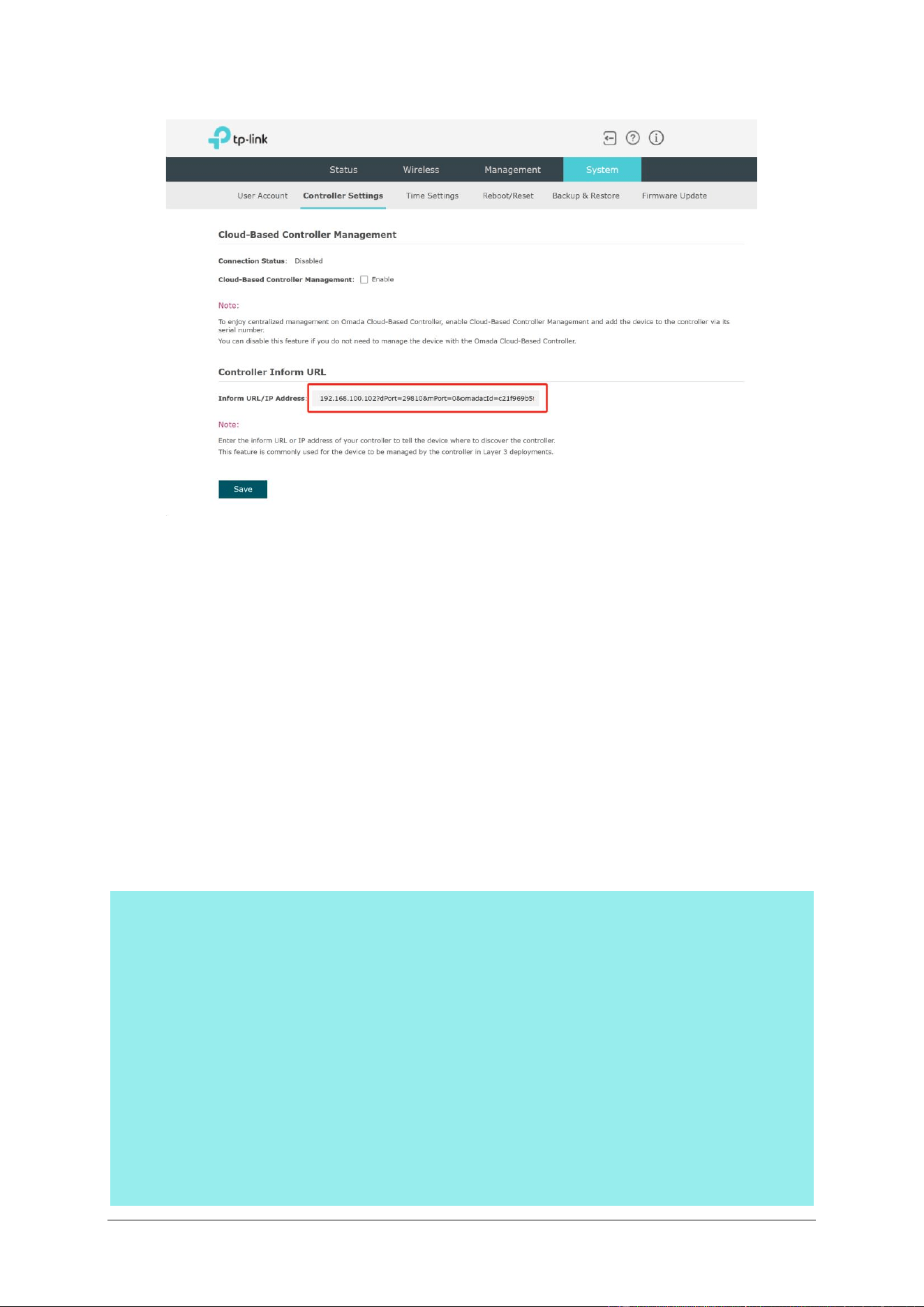
Then you can see in the EAP's standalone web pege that Controller Inform URL filed has
been populated with the inform URL you entered in the above command, and that the controller
has been able to discover the EAP in the pending state and successfully adopt it.
- 19 -
Figure 3-3 How to configure Inform URL in the standalone web
3.8 cliclientd wltool scan
Description:
This command is used to detect the BSS information of each wireless channel in the
current environment. When the command cliclientd wltool scan is entered, an active scan will
be performed on all allowed working channels, and the scanning results include the total
number of BSS on each channel, the maximum RSSI and minimum RSSI of the BSS scanned
on each channel, and the channel utilization in both Rx and Tx directions on each channel.
Example:
/bin $ cliclientd wltool scan
/bin $ it will take about 15s, scanning...
ath0: TR069ACSDIAGNOSTICSTATE: COMPLETED
ath10: TR069ACSDIAGNOSTICSTATE: COMPLETED
Channel | Bss | Maxrssi | Minrssi| Rxutil
-----------------------------------------
1 23 -73 -95 58
2 9 -80 -95 62
3 0 -95 -95 35
4 0 -95 -95 42
5 0 -95 -95 54
6 31 -65 -95 56
7 0 -95 -95 61

- 20 -
8 6 -79 -95 45
9 0 -95 -95 33
10 0 -95 -95 46
11 26 -40 -78 32
36 21 -65 -70 35
40 23 -65 -72 60
44 24 -63 -78 61
48 19 -68 -70 11
149 20 -65 -77 8
153 23 -56 -75 13
157 10 -66 -68 10
161 10 -47 -76 6
165 0 -95 -95 1
3.9 cliclientd wltool sta
Description:
This command is used to view the statistics information of all clients currently associated
with the device, including data rate, signal strength, connection time and inactive time between
the client and the device.
Use the command cliclientd wltool sta to show the basic statistics of all clients, and use
cliclientd wltool “sta mac_address” to show the statistics information of a certain client.
Kindly note:
1. Specify the MAC address of the client of which you want to show the detailed statistics,
the MAC address should be entered in the format of xx-xx-xx-xx-xx-xx or
xx:xx:xx:xx:xx:xx or xxxxxxxxxxxx, and it’s not case sensitive.
2. Compared to viewing client statistics in the Status > Client of the standalone web
interface or in the Clients module of the Controller, it is more accurate and real-time
to view client statistics through this CLI command.
Syntax:
cliclientd wltool sta
cliclientd wltool “sta mac_address”
Example:
1. Show the basic statistics of all clients associated to the device:
/bin $ cliclientd wltool sta
ifname | channel | addr | txrate | rxrate | rssi | connect-time | inactive-time

- 21 -
------------------------------------------------------------------------------------------------------------
ath10 48 fa-6b-f6-8a-87-58 6M 1201M -27 296s 2s
ath11 48 60-45-2e-92-6d-55 137M 816M -41 192s 1s
ath11 48 22-e3-e9-81-97-7e 6M 1201M -45 28s 0s
total 3 associated stations
2. Show the detailed statistics of the client whose MAC address is fa-6b-f6-8a-87-58:
/bin $ cliclientd wltool "sta fa-6b-f6-8a-87-58"
station fa-6b-f6-8a-87-58 :
ifname:ath10
channel:48
rssi:-26dB
maxrssi:-18dB
minrssi:-32dB
connection time:361s
inactive time:1s
average tx rate:172(mbps)
average rx rate:1201(mbps)
last tx data pkt rate:172(mbps)
last rx data pkt rate:1201(mbps)
tx bytes:8443
tx packets:85
tx ucast packets:85
tx mcast packets:0
tx error packets:0
rx bytes:18962
rx packets:241
rx ucast packets:187
rx mcast packets:43
rx error packets:0
rx decrypt error:0

- 22 -
3.10 cliclientd wltool interface
Description:
This command is used to view the configuration of a specified interface (including the
wireless mode, ESSID, whether to broadcast SSID, working channel and bandwidth, transmit
power, beacon frame interval, and so on) and the statistics of Tx and Rx packets.
Syntax:
cliclientd wltool “interface {config | stats}”
Example:
1. Show the configuration of this device’s ath10 interface:
/bin $ cliclientd wltool “ath10 config”
ath10 configuration
Wireless Mode: IEEE 802.11axa
Opertion Mode: Master
ESSID: EAP653-01
Broadcast SSID: Enable
Channel: 161
Channel Width: 80MHz
Transmit Power: 22dBm
Beacon Interval: 100ms
DTIM Period: 1
RTS Threshold: 2347
2. Show the statistics information of this device’s ath10 interface:
/bin $ cliclientd wltool “ath10 stats”
ath10 statistic:
tx bytes:463534
tx packets:2116
tx error packets:1
tx discard packets:3352
rx bytes:43809
rx packets:541
rx error packets:21
rx discard packets:21
channel 161 util(Busy/RX/TX): 16/9/5

- 23 -
3.11 cliclientd (ping)
Description:
The command are used to invoke the Ping tool. Use the command cliclientd pingstart
“{host_IP [options]} ”to start the ping test. Use the command cliclientd pingstop to stop the
ping test.
Syntax:
cliclientd pingstart “{host_IP [options]}”
cliclientd pingstop
Note:
1. cliclientd pingstart can be replaced by xping, cliclientd pingstop can be replaced by
xping stop. that is, cliclientd pingstart "192.168. 0.1 -w 10" is equivalent to xping
"192.168.0.1 -w 10".
2. For more about ping tool, please run the command cliclientd pingstart -h or xping -h
to show the help information.
3. Always remember to perform clcilientd pingstop to stop it, otherwise the performance
of the device may be affected.
Example:
Perform a ping test on the device with IP 192.168.0.253 and set the test to stop
automatically after 5 seconds.
/bin $ cliclientd pingstart "192.168.0.253 -w 5"
/bin $ PING 192.168.0.253 (192.168.0.253): 56 data bytes
64 bytes from 192.168.0.253: seq=0 ttl=64 time=2.910 ms
64 bytes from 192.168.0.253: seq=1 ttl=64 time=2.418 ms
64 bytes from 192.168.0.253: seq=2 ttl=64 time=2.817 ms
64 bytes from 192.168.0.253: seq=3 ttl=64 time=2.654 ms
64 bytes from 192.168.0.253: seq=4 ttl=64 time=2.404 ms
--- 192.168.0.253 ping statistics ---
5 packets transmitted, 5 packets received, 0% packet loss
round-trip min/avg/max = 2.404/2.640/2.910 ms
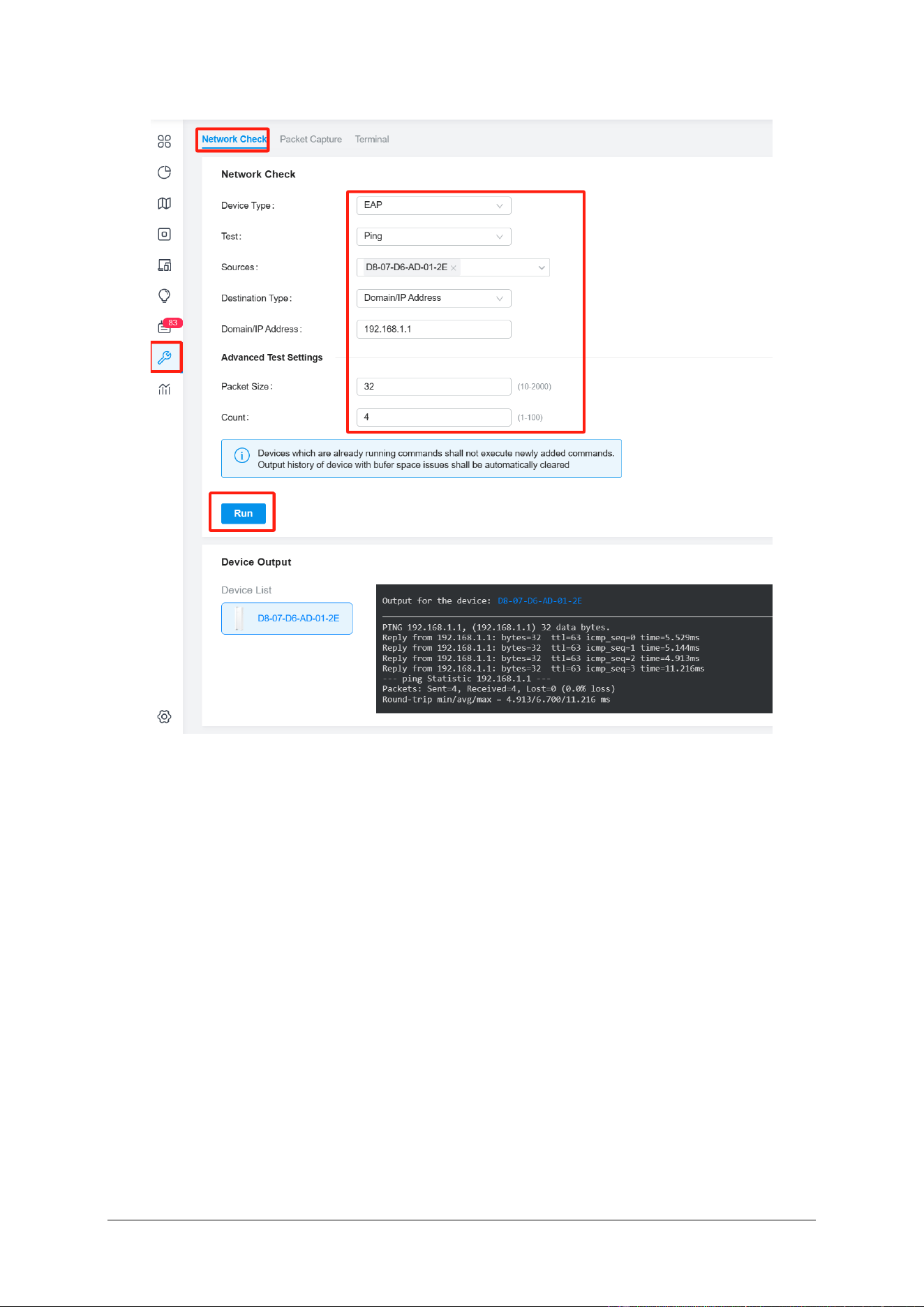
For convenience, you can also perform a ping test by selecting an AP with connected state
in Tools > Network Check of the Controller currently.
- 24 -
Figure 3-4 Network Check Tool in Controller

- 25 -
3.12 cliclientd (tcpdump)
Description:
The command are used to invoke the tcpdump tool. Use the command cliclientd
tcpdumpstart “options” to start the capturing or filtering packets. Use the command cliclientd
tcpdumpstop to stop the process.
Syntax:
cliclientd tcpdumpstart “{options}”
cliclientd tcpdumpstop
Note:
1. The string cliclientd tcpdumpstart in this command can be replaced by string
xtcpdump, cliclientd tcpdumpstop can be also replaced by xtcpdump stop.
2. All standard tcpdump parameters are supported. For more about tcpdump tool, please
run the command cliclientd tcpdumpstart -h or xtcpdump -h to show the help
information.
~ # cliclientd tcpdumpstart -h
~ # tcpdump version 4.2.1
libpcap version 1.1.1
Usage: tcpdump [-aAbdDefhHIKlLnNOpqRStuUvxX] [ -B size ] [ -c count ]
[ -C file_size ] [ -E algo:secret ] [ -F file ] [ -G seconds ]
[ -i interface ] [ -M secret ]
[ -r file ] [ -s snaplen ] [ -T type ] [ -w file ]
[ -W filecount ] [ -y datalinktype ] [ -z command ]
[ -Z user ] [ expression ]
3. Always remember to perform clcilientd tcpdumpstop and delete the file via rm
file_name when you are done capturing packets, otherwise the performance of the
device may be affected.
Example:
1. To capture the DHCP interaction between the device and the DHCP server and show it
in terminal window, as follows for the DHCP renewal message:
/bin $cliclientd tcpdumpstart "-i br0 udp port 67 or port 68"
/bin $ tcpdump: verbose output suppressed, use -v or -vv for full protocol decode listening on br0, link-
type EN10MB (Ethernet), capture size 65535 bytes
23:14:45.576526 IP 192.168.1.105.bootpc > 192.168.1.1.bootps: BOOTP/DHCP, Request from
00:ff:00:39:cf:f1 (oui Unknown), length 311
- 26 -
23:14:45.578654 IP 192.168.1.1.bootps > 192.168.1.105.bootpc: BOOTP/DHCP, Reply, length 300
23:15:17.606485 IP 192.168.1.105.bootpc > 192.168.1.1.bootps: BOOTP/DHCP, Request from
00:ff:00:39:cf:f1 (oui Unknown), length 311
23:15:17.608512 IP 192.168.1.1.bootps > 192.168.1.105.bootpc: BOOTP/DHCP, Reply, length 300
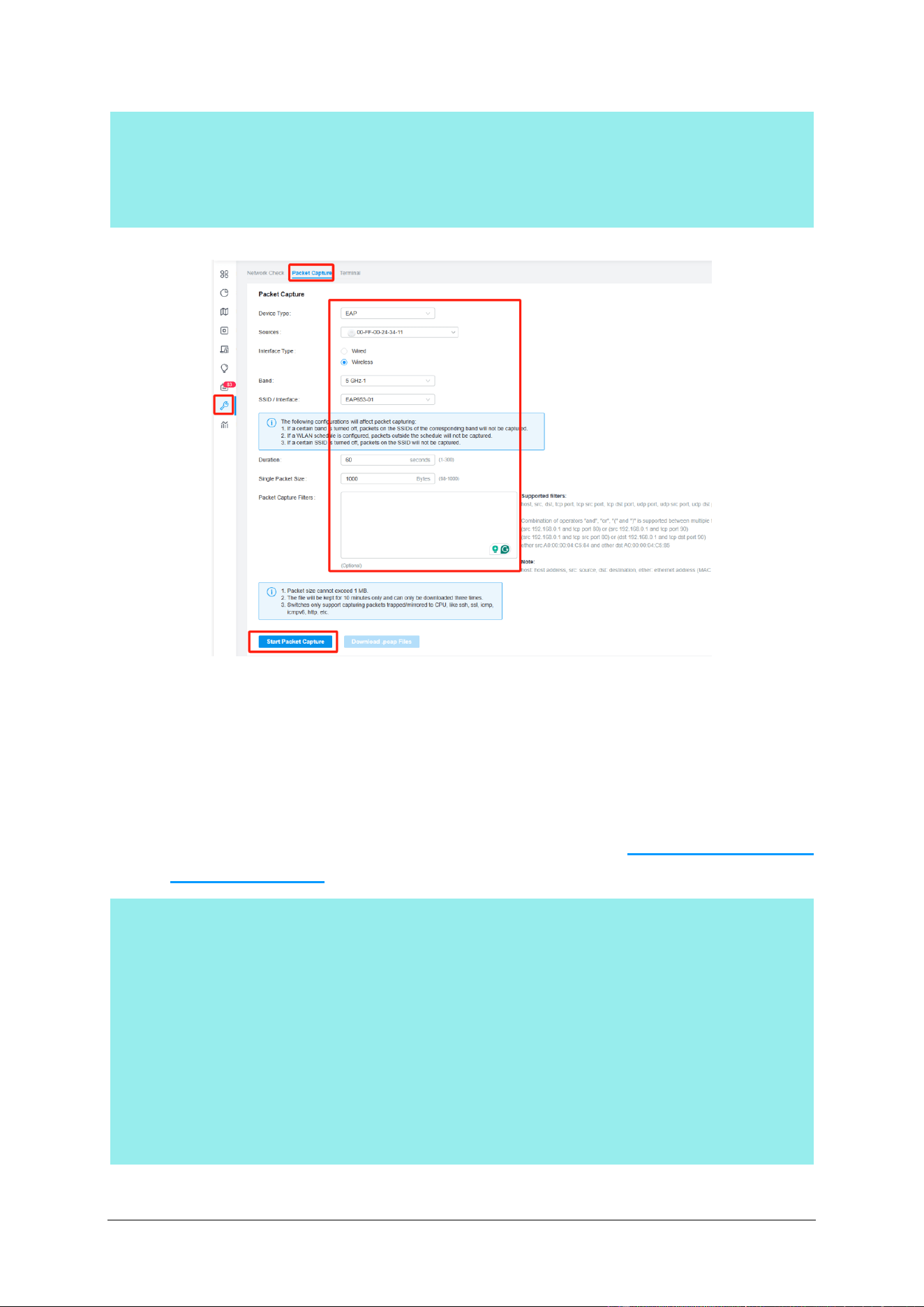
Figure 3-5 Packet Capture Tool in Controller
2. To capture all packets flowing through the ath10 interface (wireless packets are not
included) and output them to the specified file. Note: the file name must contain a
complete path, and the path must be /tmp/logdump. For example, -w
/tmp/logdump/file_name, not -w file_name, then you can use TFTP to export the file
to your PC and open it with Wireshark. Please refer to 3.13.2 cliclientd debug
“hostapd log_type” for how to use TFTP.
/bin $ cliclientd tcpdumpstart "-w /tmp/logdump/capture_test capture_test -i ath10"
tcpdump: WARNING: ath10: no IPv4 address assigned
tcpdump: listening on ath10, link-type EN10MB (Ethernet), capture size 65535 bytes
/bin $ cliclientd tcpdumpstop
/bin $ ls -al /tmp/logdump
total 16
drwxrwxrwx 3 0 root 0 May 31 14:04 .
drwxr-xr-x 11 0 root 0 May 31 14:03 ..
-rw-r--r-- 1 0 root 9985 May 31 14:05 capture_test

- 27 -
3.13 cliclientd debug “hostapd”
Hostapd (Host access point Daemon) is a daemon used to create and manage wireless
network access points. Modifying the working channel, bandwidth, transmit power, MAC
authentication, Radius authentication and other wireless-related parts are all handled by
Hostapd. Hostapd's logs contain detailed information related to the operation of the wireless
network, which is useful for diagnosing and solving network problems.
Note: After you get the desired Hostapd logs, please make sure to adjust the hostapd
log_level/log_type/log_size to the default state to prevent them from affecting the device’s
performance.
3.13.1 cliclientd debug “hostapd log_level”
Description:
When the wireless part of the device is abnormal or bugs are found during the working
process, we can adjust the log level of Hostapd to make the log content printed out more detailed,
so as to quickly locate the cause of the issue.
Synax:
cliclientd debug “hostapd log_level {error | warning | info | debug | msgdump} [0 | 1]”
cliclientd debug “hostapd log_level”
Parameters:
error | warning | info | debug | msgdump: Specify the level of Hostapd logs to be outputted.
The log levels from high to low are error, warning, info, debug and msgdump, it’s info by
default. Logs that are not lower than the set level will be output. For instance, if the log level is
set to info, all error, warning and info messages will be outputted.
0 | 1: Specify whether to output the log messages with the time stamp. It’s 0 by default,
indicating that the log messages will be outputted without the time stamp. If no value is
specified here, the system will follow the previous settings.
Note:
1. TP-Link's EAP products adopt two major types of design schemes, and currently only
the models adopting Scheme 1 intruduced in 3.3 iwconfig support this command.
2. Use the command cliclientd debug “hostapd log_type” directly without any
parameters to show the current settings.
Example:
1. Show which levels of Hostapd logs are outputted currently.

- 28 -
/bin $ cliclientd debug "hostapd log_level"
/bin $ Selected interface 'ath11'
Current level: INFO
Timestamp: 0
2. Set the log level of hostapd to info, the following are the relevant log messages of a
client connecting and disconnecting from the device.
/bin $ cliclientd debug "hostapd log_level info 1"
/bin $ Selected interface 'ath11'
OK
……
01-01 00:55:34 ath10: STA dc:6a:e7:10:1a:05 IEEE 802.11: associated
01-01 00:55:34 ath10: AP-STA-CONNECTED dc:6a:e7:10:1a:05
01-01 00:56:00 ath10: STA dc:6a:e7:10:1a:05 IEEE 802.11: disassociated
01-01 00:56:00 ath10: AP-STA-DISCONNECTED dc:6a:e7:10:1a:05
3. While if you set the log level of Hostapd to debug, the log messages when a client is
connected and disconnected from the device are as follows, you can see more detailed
relevant output.
/bin $ cliclientd debug "hostapd log_level debug 1"
/bin $ Selected interface 'ath11'
OK
……
01-01 00:59:05 Custom wireless event: 'Manage.auth 30'
01-01 00:59:05 atheros_raw_receive: subtype 0xb len 30
01-01 00:59:05 ath10: Event AUTH (11) received
01-01 00:59:05 New STA
01-01 00:59:05 ap_sta_add: register ap_handle_timer timeout for dc:6a:e7:10:1a:05 (300 seconds -
ap_max_inactivity)
01-01 00:59:05 trans sta dc:6a:e7:10:1a:05 state:7 to 1
01-01 00:59:05 update sta dc:6a:e7:10:1a:05 state 1 at time: 1704041945366
01-01 00:59:05 atheros_sta_auth: addr=dc:6a:e7:10:1a:05 status_code=0
01-01 00:59:05 trans sta dc:6a:e7:10:1a:05 state:1 to 2
01-01 00:59:05 update sta dc:6a:e7:10:1a:05 state 2 at time: 1704041945367
01-01 00:59:05 Custom wireless event: 'Manage.assoc_req 167'
01-01 00:59:05 atheros_raw_receive: subtype 0x0 len 167
01-01 00:59:05 ath10: Event ASSOC (0) received
01-01 00:59:05 ath10: STA dc:6a:e7:10:1a:05 IEEE 802.11: associated
01-01 00:59:05 STA did not include WPS/RSN/WPA IE in (Re)AssocReq
01-01 00:59:05 trans dc:6a:e7:10:1a:05 acl's state:10 to 8
01-01 00:59:05 trans dc:6a:e7:10:1a:05 acl's state:8 to 10
01-01 00:59:05 atheros_sta_assoc: addr=dc:6a:e7:10:1a:05 status_code=0 reassoc 0

- 29 -
01-01 00:59:05 trans sta dc:6a:e7:10:1a:05 state:2 to 6
01-01 00:59:05 update sta dc:6a:e7:10:1a:05 state 6 at time: 1704041945373
01-01 00:59:05 ath10: AP-STA-CONNECTED dc:6a:e7:10:1a:05
01-01 00:59:05 IEEE 802.1X: Ignore STA - 802.1X not enabled or forced for WPS
01-01 00:59:05 ath10: hostapd_new_assoc_sta: reschedule ap_handle_timer timeout for dc:6a:e7:10:1a:05
(300 seconds - ap_max_inactivity)
01-01 00:59:20 Custom wireless event: 'STA-TRAFFIC-STATj'
01-01 00:59:20 DISASSOC_REASON19:0xf0003
01-01 00:59:20 ath10: Event DISASSOC (1) received
01-01 00:59:20 ath10: STA dc:6a:e7:10:1a:05 IEEE 802.11: disassociated
01-01 00:59:20 trans sta dc:6a:e7:10:1a:05 state:6 to 7
01-01 00:59:20 update sta dc:6a:e7:10:1a:05 state 7 at time: 1704041960623
01-01 00:59:20 ath10: AP-STA-DISCONNECTED dc:6a:e7:10:1a:05
01-01 00:59:20 ap_free_sta: cancel ap_handle_timer for dc:6a:e7:10:1a:05
3.13.2 cliclientd debug “hostapd log_type”
Description:
The command is used to configure how Hostapd logs are outputted.
Syntax:
cliclientd debug “hostapd log_type {file file_name | stdout} [0 | 1]”
cliclientd debug “hostapd log_type”
Parameters:
file file_name | stdout: Specify how Hostapd logs are outputted. It is stdout by default, the
log messages will be displayed in the terminal windows opend with console port via the stdout
(standard out) stream, not SSH for now. When set it to file, the log messages will be outputted
as a file named file_name, which is defined by yourself in the folder /tmp/logdump.
0 |1: Specify whether to output the log messages with the time stamp.It is 0 by default,
indicating that the log messages will be outputted without the time stamp. While if you set it to
1, the log messages will be outputted with the time stamp.
Note:
1. Among the models that support cliclientd debug “hostapd log_level {error | warning
| info | debug | msgdump} [0 | 1]” command, only 802.11AC (WiFi5) models support
this command to configure how to output the Hostapd log messages, other models will
also support this command in the future, please pay attention to the TP-Link official
website to obtain the latest firmware. The Hostapd logs will be sent to the console port
via stdout stream for the other models which don’t support this command, and the log
cannot be accessed in the current SSH connection which will be adapted in the future.

- 30 -
2. use the command cliclientd debug “hostapd log_type” directly without any
parameters to show the current settings.
3. When the size of hostapd log exceeds the pre-set log size, it will be packed into a zip
file and named hostapd_logx_xxxx_xxxxxx.tar.gz. A total of 10 zip files can be stored,
and when the number exceeds 10, the newly generated zip file will overwrite the old
one. These files will be erased after the device is rebooted or reset again.
Example:
1. Configure the device to output the Hostapd logs into a file and the logs is required to
be outputted with the time stamp via cliclientd debug “hostapd log_type hostapd_test
1”, then enter ls –al /tmp/logdump to check the real-time log file and generated zip
files.
/bin $ cliclientd debug "hostapd log_type file hostapd_test 1"
Selected interface 'bkhap1'
log_file:[hostapd_test] ,
OK
/bin & ls –al /tmp/logdump
total 288
drwxrwxrwx 3 0 root 0 May 31 09:30 .
drwxr-xr-x 11 0 root 0 May 31 09:22 ..
-rw-r--r-- 1 0 root 74621 May 31 09:30 hostapd_test
drwxr-xr-x 2 0 root 0 Jan 1 1970 bk_scan_debug
-rwxr-xr-x 1 0 root 12113 May 31 09:16 hostapd_log0_0531_091605.tar.gz
-rwxr-xr-x 1 0 root 5598 May 31 09:17 hostapd_log1_0531_091739.tar.gz
-rwxr-xr-x 1 0 root 3892 May 31 09:19 hostapd_log2_0531_091909.tar.gz
-rwxr-xr-x 1 0 root 11949 May 31 09:20 hostapd_log3_0531_092027.tar.gz
-rwxr-xr-x 1 0 root 9325 May 31 09:21 hostapd_log4_0531_092147.tar.gz
-rwxr-xr-x 1 0 root 4059 May 31 09:23 hostapd_log5_0531_092323.tar.gz
-rwxr-xr-x 1 0 root 4053 May 31 09:25 hostapd_log6_0531_092507.tar.gz
-rwxr-xr-x 1 0 root 3996 May 31 09:26 hostapd_log7_0531_092648.tar.gz
-rwxr-xr-x 1 0 root 4047 May 31 09:28 hostapd_log8_0531_092831.tar.gz
-rwxr-xr-x 1 0 root 3866 May 31 09:30 hostapd_log9_0531_093003.tar.gz
2. Show how the Hostapd log messages are outputted currently:
/bin $ cliclientd debug "hostapd log_type"
/bin $ Selected interface 'bkhap1'
Current log type: file
Timestamp: 1
Addition:
You can also export the log file and generated zip files to a local host via TFTP for viewing.
- 31 -
For instance, you can do this if the product is working abnormally to provide them to the TP-
Link R&D department.
There are many free Simple File Transfer Protocol (TFTP) servers on the Internet, which
are able to perform the file transfer task, such as tfpd32/tfpd64 software, you can choose the
appropriate TFTP server according to your actual needs. We are here to briefly describe how to
export the target file to the local host via TFTP:
1. Open the TFTP server at first.
2. Change the current directory in SSH via the command cd /tmp/logdump.
3. Enter tftp -pl file_name local_IP to export the file to the local host, file_name is the
file’s name you want to export, local_IP is the IP address of the PC where TFTP server
is located. (Please make sure your PC's firewall does not isolate it),
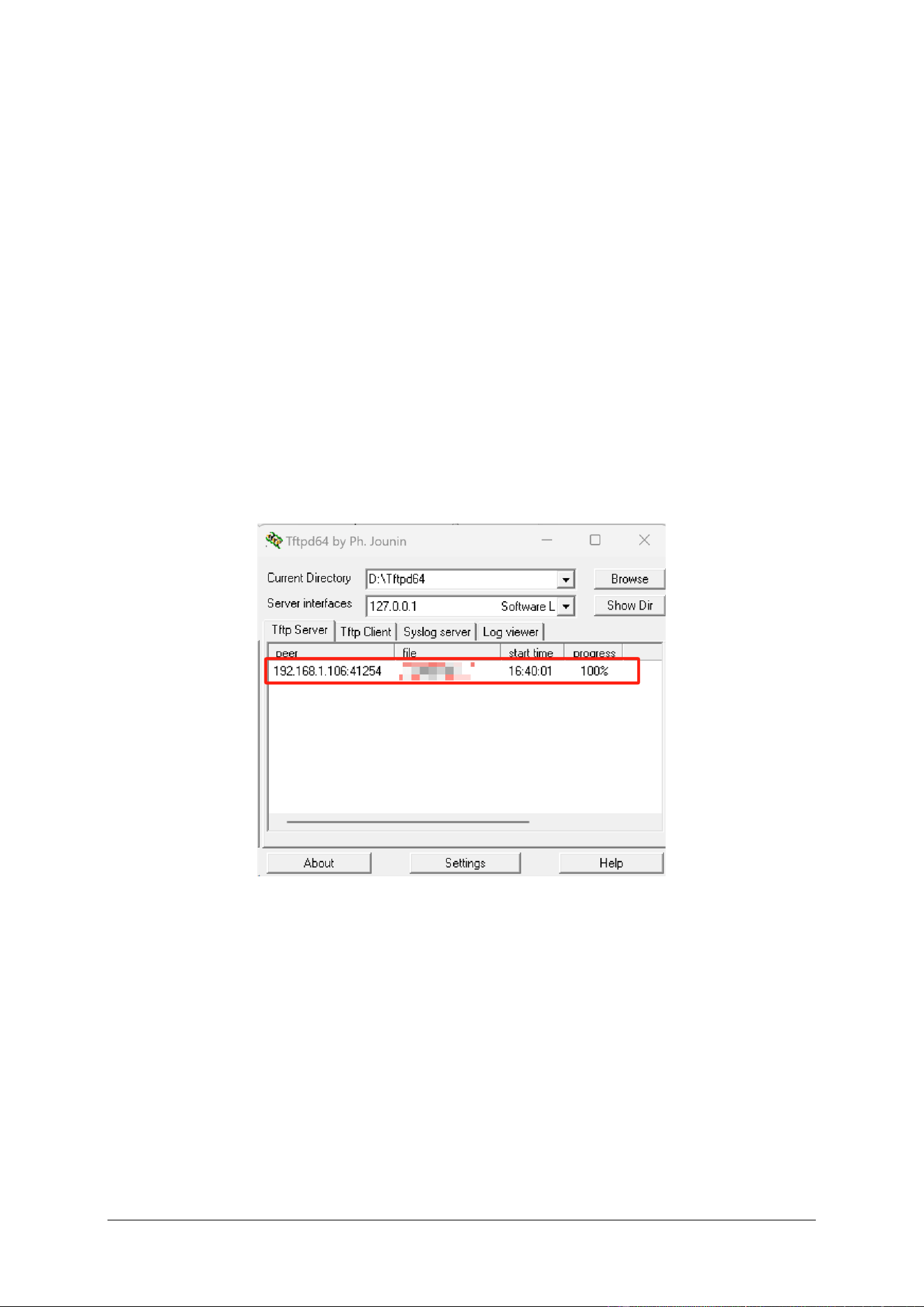
Then you can find the exported file in the folder where the tftpd64 software is installed.
Figure 3-6 Display when the file is successfully transferred using Tftpd64
3.13.3 cliclientd debug “hostapd log_size”
Description:
The command is used to configure the size for Hostapd log files when the log type is set to
“file”. The system will automatically compress the log file and store it in /tmp/logdump every
time the file reaches the specified size. Ten log files can be retained at most. After the file
number reaches 10, the earliest one will be overridden.
Syntax:

- 32 -
cliclientd debug “hostapd log_size [size]”
cliclientd debug “hostapd log_size”
Parameters:
size: Specify the size for the Hostapd log files in bytes. Valid values are from 256KB to
10MB, and the new content will overwrite the old content, and the file size is 256 KB (262144
bytes) by default. Please convert values into bytes before running the command cliclientd
debug “hostapd log_size [size]”.
Note:
1. Among the models that support cliclientd debug “hostapd log_level {error | warning
| info | debug | msgdump} [0 | 1]” command, only 802.11AC (WiFi5) models support
this command to configure the size for Hostapd log files, other models will also support
this command in the future, please pay attention to the TP-Link official website to
obtain the latest firmware.
2. It is recommended that you change the file size back to 256 KB after debugging.
Otherwise, the log files will occupy too much system memory and affect performance.
3. use the command cliclientd debug “hostapd log_size” directly without any
parameters to show the current settings.
Examples:
1. Show how the Hostapd log messages are outputted currently
/bin $ cliclientd debug "hostapd log_size"
/bin $ Selected interface 'ath11'
Current log size: 262144
2. Show how the Hostapd log messages are outputted currently: Configure the size for
Hostapd files as 1 MB(1048576 B):
/bin $ cliclientd debug "hostapd log_size 1048576"
/bin $ Selected interface 'ath11'
OK

- 33 -
3.14 cliclientd debug “hostapd_cli get_ptk”
Description:
This command is used to obtain the PTK of a specific wireless client when it is associated
with EAP. PTK is used to encrypt the unicast packets communicated between the AP and
wireless clients. PTK is unique for each client that the AP communicates with, and is different
each time a client associates with the AP. Generally, we can enter wpa-pwd in Wireshark > Edit >
Preferences > Protocols > IEEE 802.11 > Decryption keys for decryption. However, the
Wireshark must be able to capture the complete association process between a client and an AP
in this mode.
The command introduced in this chapter is not required to capture the complete association
process of the wireless client. It is useful in scenarios where clients are prohibited from
disconnecting from the Wi-Fi, such as when there are a lot of security devices in the network,
or when the wireless network is down and some clients’ wireless packets need to be captured
for troubleshooting.
Syntax:
cliclientd debug “hostapd_cli get_ptk xx:xx:xx:xx:xx:xx –i interface”
Note:
1. The string xx:xx:xx:xx:xx:xx in this command refers to the mac address of the wireless client.
The mac address format is case insensitive. " xx:xx:xx:xx:xx:xx " can also be replaced with
" xx-xx-xx-xx-xx-xx ".
2. Currently, TP-Link's EAP products adopt two major types of design schemes, and currently
only the models adopting Scheme 1 intruduced in 3.3 iwconfig support this command, and
some of these models may not have been adapted to it yet, please wait for firmware updates
on the official website.
3. Some wireless clients such as many Android phones use randomly generated MAC
addresses when connecting to Wi-Fi instead of the client's real WLAN MAC address.
Moreover, it is difficult for us to determine which wireless interface of the AP the client is
connected to. We strongly recommend that customers use the command cliclientd wltool
sta to obtain the MAC address and wireless interface at first, and then enter cliclientd debug
“hostapd_cli get_ptk xx:xx:xx:xx:xx:xx –i interface” get the PTK.
4. The PTK in the client's association process is different each time, so please make sure that
the captured packets and PTK are in the same association.
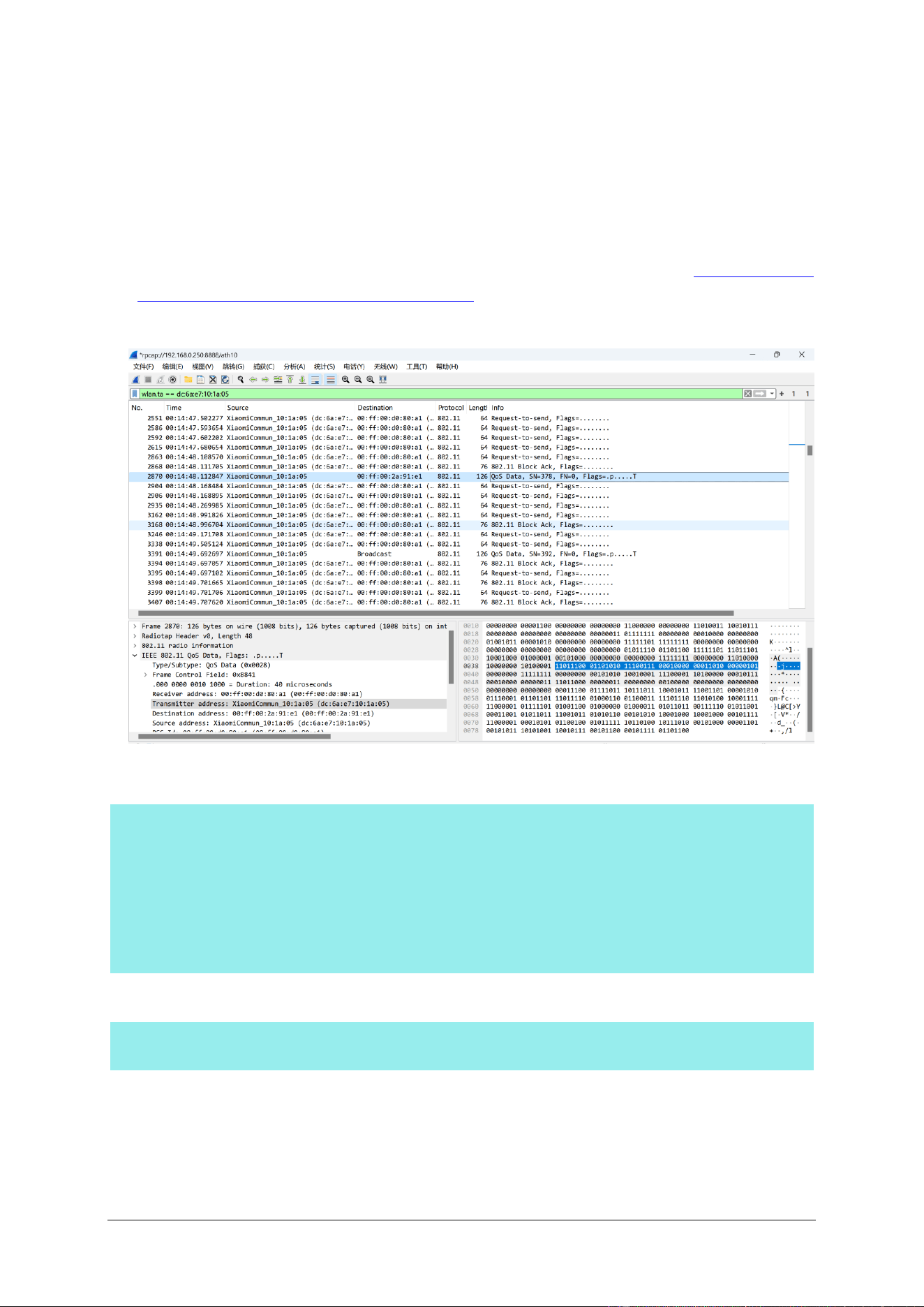
5. The wireshark version must be at least v3.4.6.
- 34 -
6. Currently, this command does not support WPA3 encryption (only WPA/WPA2-PSK,
WPA/WPA2-Enterprise, and PPSK are supported.)
Example:
1. Connect the wireless client to AP at first.
2. Capture the wireless packets via Wireshark for a few time, please refer to How to Capture
the Wireless Packets on MacBook | TP-Link to learn how to capture wireless packets. Of
course, you can also search for other packet capture methods online.
3. Obtain the WLAN MAC address and the wireless interface connected to the AP at first.
/bin $ cliclientd wltool sta
/bin $
ifname | channel | addr | txrate | rxrate | rssi | connect-time | inactive-time
-------------------------------------------------------------------------------------------
ath10 40 dc-6a-e7-10-1a-05 960M 6M -41 37s 0s
total 1 associated stations
4. Obtain the PTK generated by the client and AP during this connection.
/bin $ cliclientd debug "hostapd_cli get_ptk dc-6a-e7-10-1a-05 -i ath10"
f7bb0f4950ac59cc2a88c52b47a98d31
5. In the Wireshark, go to Edit > Preferences > Protocols > IEEE 802.11 > Decryption keys
to select tk as key type and enter the PTK obtained in step 4.
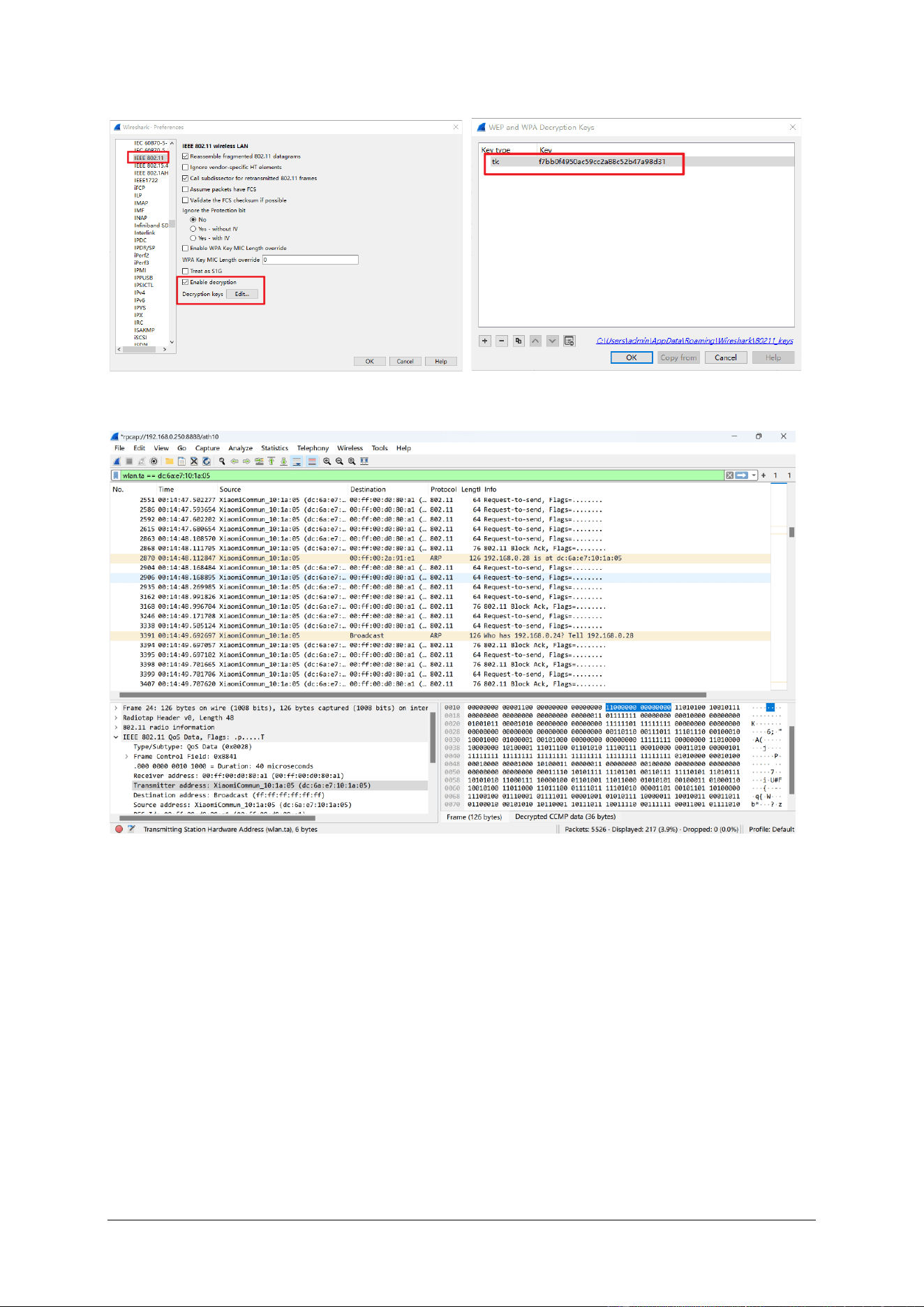
- 35 -
6. Finally, you can see that the encrypted Qos Data packets have been decrypted.

- 36 -
3.15 dmesg
Description:
The default action is to read all messages from kernel ring buffer and the driver. These
messages contain detailed information about the system boot process, such as memory
initialization, device driver loading, filesystem mounts, etc. The output of dmesg is useful for
diagnosing system problems, monitoring hardware status, and debugging software. For
example, if you encounter problems during EAP startup, you can check the output of dmesg
for possible error messages. For a more detailed description, please refer to the Linux manpage.
Syntax:
dmesg
Note:
The size of the file does not exceed 128KB for most models, and the new content will
overwrite the old content.
Example:
1. When the root AP in the mesh network modifies the working channel from channel 36 to
channel 161, the dmesg printout of the mesh AP is shown in the figure below, and you
can clearly see that the output of dmesg records in detail the process of the mesh AP
successfully completing the channel switching and re-associating to the root AP.
Accordingly, if there are some abnormalities during the process, we can also clearly see
the kernel or driver error messages, which can help quickly locate the cause of the
problem.
/bin $ dmesg
……
[22900.339668] wlan: [0:I:ANY] ieee80211_mgmt_sta_send_csa_rx_nl_msg: valid=1 chan=161 width=80 sec=0 cfreq2=0
[22900.339668]
[22900.339884] wlan: [0:E:CMN_MLME] wlan_pdev_mlme_vdev_sm_csa_restart: Starting MVR for Pdev 0
[22900.351033] wlan: [0:W:ANY] ol_ath_vdev_beacon_template_update: Channel switch is ON - Ignore Template update
[22900.368195] wlan: [0:W:ANY] ol_ath_vdev_beacon_template_update: Channel switch is ON - Ignore Template update
[22900.442104] wlan: [0:I:ANY] ieee80211_mgmt_sta_send_csa_rx_nl_msg: valid=1 chan=161 width=80 sec=0 cfreq2=0
[22900.749257] wlan: [0:I:ANY] ieee80211_mgmt_sta_send_csa_rx_nl_msg: valid=1 chan=161 width=80 sec=0 cfreq2=0
[22900.851667] wlan: [0:I:ANY] ieee80211_mgmt_sta_send_csa_rx_nl_msg: valid=1 chan=161 width=80 sec=0 cfreq2=0
[22901.160066] wlan: [0:I:ANY] ieee80211_mgmt_sta_send_csa_rx_nl_msg: valid=1 chan=161 width=80 sec=0 cfreq2=0
[22901.331487] wlan: [0:I:MBSSIE] ol_ath_pdev_csa_status_event_handler: vdev_id: 0
[22901.331573] wlan: [0:I:MBSSIE] ol_ath_pdev_csa_status_event_handler: vdev_id: 1
[22901.337704] wlan: [0:I:MBSSIE] ol_ath_pdev_csa_status_event_handler: vdev_id: 4
[22901.345157] wlan: [0:E:CMN_MLME] wlan_pdev_mlme_vdev_sm_seamless_chan_change: Starting MVR Vdev 5 Pdev 0
[22901.352230] wlan: [0:E:CMN_MLME] mlme_multivdev_restart: Sending MVR for Pdev 0
[22901.361942] wlan: [0:E:CMN_MLME] mlme_vdev_multivdev_restart_fw_send_cb: (vdev-id:0) des chan(36)
[22901.368988] wlan: [0:I:CMN_MLME] phymode for mvr: 18
[22901.896306] wlan: [0:I:CMN_MLME] vdev[0] ieee chan:36 freq:5180
[22901.896454] wlan: [0:D:dfs] Skip CAC on NON-DFS chan
[22901.901598] wlan: [0:I:ANY] vdev[0]: Mgt Rate:6000(kbps)
[22901.906296] wlan: [0:I:ANY] ol_ath_vap_set_param: Now supported BCAST RATE is 6000(kbps) rate code: 0x10000003
[22901.911560] wlan: [0:I:ANY] ol_ath_vap_set_param: Now supported MCAST RATE 6000(kbps), rate code: 0x10000003
[22901.921454] wlan: [0:I:CMN_MLME] vdev[1] ieee chan:36 freq:5180
[22901.931428] wlan: [0:D:dfs] Skip CAC on NON-DFS chan
[22901.937726] wlan: [0:I:ANY] vdev[1]: Mgt Rate:6000(kbps)
[22901.942200] wlan: [0:I:ANY] ol_ath_vap_set_param: Now supported BCAST RATE is 6000(kbps) rate code: 0x10000003
[22901.947584] wlan: [0:I:ANY] ol_ath_vap_set_param: Now supported MCAST RATE 6000(kbps), rate code: 0x10000003

- 37 -
[22901.957385] wlan: [0:I:CMN_MLME] vdev[4] ieee chan:36 freq:5180
[22901.967471] wlan: [0:D:dfs] Skip CAC on NON-DFS chan
[22908.175510] wlan: [0:I:ANY] ieee80211_assoc_state_run_event: ieee80211_assoc_state_run_event: vap: 5(0x913e0060) event: 13
[22908.185521] wlan: [0:I:ANY] ieee80211_connection_state_connected_event: vdev:5(0x913e0060) event: 5
[22908.185593] wlan: [0:I:ANY] wlan_candidate_list_free: SSID:mesh_00ff003b69b0 bssid:22:ff:00:3b:69:b1 score:4486
[22908.194923] br0: port 2(sta1) entered disabled state
[22908.199327] wlan: [0:I:ANY] ol_ath_update_stats_event_handler: ol_ath_update_stats_event_handler: pdev object (id: 255) is NULL
[22908.206264] wlan: [0:I:ANY] ol_ath_update_stats_event_handler: ol_ath_update_stats_event_handler: pdev object (id: 255) is NULL
[22908.216530] wlan: [0:I:ANY] ol_ath_update_stats_event_handler: ol_ath_update_stats_event_handler: pdev object (id: 255) is NULL
[22908.228254] wlan: [0:I:ANY] ol_ath_update_stats_event_handler: ol_ath_update_stats_event_handler: pdev object (id: 255) is NULL
[22908.240141] wlan: [0:I:ANY] ol_ath_update_stats_event_handler: ol_ath_update_stats_event_handler: pdev object (id: 255) is NULL
[22908.258655] wlan: [0:I:ANY] wlan_bss_node_freed_handler: wlan_bss_node_freed_handler for vap: 5 (0x913e0060)
[22908.265551] wlan: [0:I:ANY] ieee80211_connection_state_init_event: vdev:5(0x913e0060) event: 14
[22908.752191] wlan: [0:E:NSS] osif_nss_wifili_update_wds_activeinfo: [nss-wifili]: Could not set astenty active for hw_idx = 190 due to ast
NULL
[22917.757174] wlan: [3137:I:ANY] wlan_cfg80211_get_wideband_support: Sending wideband support: 0
[22917.769730] wlan: [3137:I:ANY] wlan_cfg80211_connect: DES SSID SET=mesh_00ff003b69b0
[22917.774640] wlan: [3137:I:ANY] wlan_cfg80211_connect: DES BSSID SET=22:ff:00:3b:69:b1
[22917.782622] wlan: [3137:E:mlme] wlan_mlme_stop_sta_vdev: connection stop failed
[22917.805504] wlan: [0:I:ANY] ieee80211_connection_state_init_event: vdev:5(0x913e0060) event: 1
[22917.814352] wlan: [0:I:ANY] ieee80211_candidate_list_print: Num of entries: 1
[22917.822921] wlan: [0:I:ANY] ieee80211_candidate_list_print: SSID:mesh_00ff003b69b0 bssid:22:ff:00:3b:69:b1 score:4986
[22917.830103] wlan: [0:I:ANY] ieee80211_connection_state_init_event: AP list found. move to connecting state
[22917.840681] wlan: [0:I:ANY] ieee80211_connection_state_connecting_entry: vdev:5(0x913e0060) entry
[22917.850223] wlan: [0:I:ANY] wlan_candidate_list_get: Selected candidate is ssid:mesh_00ff003b69b0 bssid:22:ff:00:3b:69:b1
[22917.859294] wlan: [0:E:CMN_MLME] wlan_pdev_mlme_vdev_sm_seamless_chan_change: Starting MVR Vdev 4 Pdev 0
[22917.870204] wlan: [0:E:CMN_MLME] mlme_multivdev_restart: Sending MVR for Pdev 0
[22917.879715] wlan: [0:E:CMN_MLME] mlme_vdev_multivdev_restart_fw_send_cb: (vdev-id:0) des chan(161)
[22917.886740] wlan: [0:I:CMN_MLME] phymode for mvr: 18
[22918.425195] wlan: [0:I:CMN_MLME] vdev[0] ieee chan:161 freq:5805
[22918.425925] wlan: [0:I:ANY] vdev[0]: Mgt Rate:6000(kbps)
[22918.430317] wlan: [0:I:ANY] ol_ath_vap_set_param: Now supported BCAST RATE is 6000(kbps) rate code: 0x10000003
[22918.435628] wlan: [0:I:ANY] ol_ath_vap_set_param: Now supported MCAST RATE 6000(kbps), rate code: 0x10000003
[22918.445560] wlan: [0:I:CMN_MLME] vdev[1] ieee chan:161 freq:5805
[22918.456025] wlan: [0:I:ANY] vdev[1]: Mgt Rate:6000(kbps)
[22918.461405] wlan: [0:I:ANY] ol_ath_vap_set_param: Now supported BCAST RATE is 6000(kbps) rate code: 0x10000003
[22918.466716] wlan: [0:I:ANY] ol_ath_vap_set_param: Now supported MCAST RATE 6000(kbps), rate code: 0x10000003
[22918.476589] wlan: [0:I:CMN_MLME] vdev[4] ieee chan:161 freq:5805
[22918.905637] wlan: [0:I:ANY] wlan_bss_node_freed_handler: wlan_bss_node_freed_handler for vap: 5 (0x913e0060)
[22918.906155] wlan: [0:I:ANY] [NODE] vap-5(sta1):ieee80211_setup_node forcing sta to associate in 30 mode
[22918.914637] wlan: [0:I:ANY] wlan_bss_node_freed_handler: wlan_bss_node_freed_handler for vap: 5 (0x913e0060)
[22918.928619] wlan: [0:I:ANY] wlan_scan_update_channel_list: num_chan: 25
[22918.937149] wlan: [0:E:ANY] ol_get_rate_code: Rate code not found
[22918.943302] wlan: [0:I:ANY] ieee80211_connection_state_connecting_event: vdev:5(0x913e0060) event: 14
[22918.950900] wlan: [0:I:ANY] ieee80211_connection_state_connecting_event: vdev:5(0x913e0060) event: 14
[22919.008553] wlan: [0:I:ANY] ol_ath_vap_set_param: Setting SGI value: 1
[22919.015588] wlan: [0:I:ANY] wlan_mlme_connection_up:
[22919.015588] Number of STA VAPs connected: 0
[22919.028874] wlan: [0:I:ANY] ieee80211_connection_state_connecting_event: vdev:5(0x913e0060) event: 4
[22919.031914] wlan: [0:I:ANY] ssid: mesh_00ff003b69b0 len: 17 bssid:22:ff:00:3b:69:b1
[22919.134562] br0: port 2(sta1) entered forwarding state
[22919.134655] br0: port 2(sta1) entered forwarding state
2. If the device is currently working on fixed channel 161, when we configure its channel
as Auto, it will perform auto-channel-select process, and then adjust the working channel
to channel 157 on its own. The following is the detailed output of the command dmesg
of the device performing the auto-channel-select process.
/bin $ dmesg
……
[70364.413490] Set_AutoChannelSel_Proc: Alg = 3
[70364.418573] [AutoChSelBuildChannelListFor5G] ChListNum5G = 9
[70364.424331] AutoChSelScanStart: IsABand = 1, ChannelListNum = 8
[70364.430442] mt7915_apply_dpd_flatness_data: eeprom 0x62 bit 0 is 0, do runtime cal
[70364.430588] ExtEventBeaconLostHandler::FW EVENT (00:ff:00:3b:69:b1), Reason 0x10
[70364.430591] AP Beacon OFF!!!
[70364.431493] ExtEventBeaconLostHandler::FW EVENT (06:ff:00:3b:69:b1), Reason 0x10
[70364.431496] AP Beacon OFF!!!
[70364.431755] ExtEventBeaconLostHandler::FW EVENT (22:ff:00:3b:69:b1), Reason 0x10
[70364.431757] AP Beacon OFF!!!
[70364.469519] MtCmdChannelSwitch: ctrl_chl=36, ctrl_ch2=0, cent_ch=36 DBDCIdx=1, ChBand=1, BW=0, TXStream=2, RXStream=2, scan(1)
[70364.489425] MtCmdSetTxRxPath: ctrl_chl=36, ctrl_ch2=0, cent_ch=36, RxPath=3, BandIdx=1, ChBand=1, BW=0,TXStream=2, RXStream=3,
scan(1)
[70364.632083] ExtEventBeaconLostHandler::FW EVENT (00:ff:00:3b:69:b1), Reason 0x10
[70364.639492] AP Beacon OFF!!!
[70364.642743] ExtEventBeaconLostHandler::FW EVENT (06:ff:00:3b:69:b1), Reason 0x10
[70364.650136] AP Beacon OFF!!!

- 38 -
[70364.653385] ExtEventBeaconLostHandler::FW EVENT (22:ff:00:3b:69:b1), Reason 0x10
[70364.660779] AP Beacon OFF!!!
[70364.701496] mt7915_apply_dpd_flatness_data: eeprom 0x62 bit 0 is 0, do runtime cal
[70364.709092] MtCmdChannelSwitch: ctrl_chl=40, ctrl_ch2=0, cent_ch=40 DBDCIdx=1, ChBand=1, BW=0, TXStream=2, RXStream=2, scan(1)
[70364.728966] MtCmdSetTxRxPath: ctrl_chl=40, ctrl_ch2=0, cent_ch=40, RxPath=3, BandIdx=1, ChBand=1, BW=0,TXStream=2, RXStream=3,
scan(1)
[70364.941559] mt7915_apply_dpd_flatness_data: eeprom 0x62 bit 0 is 0, do runtime cal
[70364.949166] MtCmdChannelSwitch: ctrl_chl=44, ctrl_ch2=0, cent_ch=44 DBDCIdx=1, ChBand=1, BW=0, TXStream=2, RXStream=2, scan(1)
[70364.969051] MtCmdSetTxRxPath: ctrl_chl=44, ctrl_ch2=0, cent_ch=44, RxPath=3, BandIdx=1, ChBand=1, BW=0,TXStream=2, RXStream=3,
scan(1)
[70365.181535] mt7915_apply_dpd_flatness_data: eeprom 0x62 bit 0 is 0, do runtime cal
[70365.189143] MtCmdChannelSwitch: ctrl_chl=48, ctrl_ch2=0, cent_ch=48 DBDCIdx=1, ChBand=1, BW=0, TXStream=2, RXStream=2, scan(1)
[70365.209011] MtCmdSetTxRxPath: ctrl_chl=48, ctrl_ch2=0, cent_ch=48, RxPath=3, BandIdx=1, ChBand=1, BW=0,TXStream=2, RXStream=3,
scan(1)
[70365.421496] mt7915_apply_dpd_flatness_data: eeprom 0x62 bit 0 is 0, do runtime cal
[70365.429102] MtCmdChannelSwitch: ctrl_chl=149, ctrl_ch2=0, cent_ch=149 DBDCIdx=1, ChBand=1, BW=0, TXStream=2, RXStream=2,
scan(1)
[70365.449164] MtCmdSetTxRxPath: ctrl_chl=149, ctrl_ch2=0, cent_ch=149, RxPath=3, BandIdx=1, ChBand=1, BW=0,TXStream=2,
RXStream=3, scan(1)
[70365.661520] mt7915_apply_dpd_flatness_data: eeprom 0x62 bit 0 is 0, do runtime cal
[70365.669123] MtCmdChannelSwitch: ctrl_chl=153, ctrl_ch2=0, cent_ch=153 DBDCIdx=1, ChBand=1, BW=0, TXStream=2, RXStream=2,
scan(1)
[70365.689152] MtCmdSetTxRxPath: ctrl_chl=153, ctrl_ch2=0, cent_ch=153, RxPath=3, BandIdx=1, ChBand=1, BW=0,TXStream=2,
RXStream=3, scan(1)
[70365.901538] mt7915_apply_dpd_flatness_data: eeprom 0x62 bit 0 is 0, do runtime cal
[70365.909145] MtCmdChannelSwitch: ctrl_chl=157, ctrl_ch2=0, cent_ch=157 DBDCIdx=1, ChBand=1, BW=0, TXStream=2, RXStream=2,
scan(1)
[70365.929178] MtCmdSetTxRxPath: ctrl_chl=157, ctrl_ch2=0, cent_ch=157, RxPath=3, BandIdx=1, ChBand=1, BW=0,TXStream=2,
RXStream=3, scan(1)
[70366.141510] mt7915_apply_dpd_flatness_data: eeprom 0x62 bit 0 is 0, do runtime cal
[70366.149113] MtCmdChannelSwitch: ctrl_chl=161, ctrl_ch2=0, cent_ch=161 DBDCIdx=1, ChBand=1, BW=0, TXStream=2, RXStream=2,
scan(1)
[70366.169141] MtCmdSetTxRxPath: ctrl_chl=161, ctrl_ch2=0, cent_ch=161, RxPath=3, BandIdx=1, ChBand=1, BW=0,TXStream=2,
RXStream=3, scan(1)
[70366.381445] ====================================================================
[70366.388867] Channel 36 : Busy Time = 1924, Skip Channel = FALSE, BwCap = TRUE
[70366.396287] Channel 40 : Busy Time = 1934, Skip Channel = FALSE, BwCap = TRUE
[70366.403696] Channel 44 : Busy Time = 3103, Skip Channel = FALSE, BwCap = TRUE
[70366.411103] Channel 48 : Busy Time = 4298, Skip Channel = FALSE, BwCap = TRUE
[70366.418497] Channel 149 : Busy Time = 1465, Skip Channel = FALSE, BwCap = TRUE
[70366.425903] Channel 153 : Busy Time = 1800, Skip Channel = FALSE, BwCap = TRUE
[70366.433312] Channel 157 : Busy Time = 429, Skip Channel = FALSE, BwCap = TRUE
[70366.440706] Channel 161 : Busy Time = 437, Skip Channel = FALSE, BwCap = TRUE
[70366.448107] ====================================================================
[70366.455524] Rule 3 Channel Busy time value : Select Primary Channel 157
[70366.462149] Rule 3 Channel Busy time value : Min Channel Busy = 1800
[70366.468501] Rule 3 Channel Busy time value : BW = 80
……

- 39 -
4 Public commands
The commands described in this chapter are some of the common commands natively
supported (not including the commands iwconfig/ifconfig/dmesg mentioned in the previous
sections) by the Linux system. The specific commands supported can be obtained by typing
help in the terminal, and a more detailed description of each command can be found in the
manpage of Linux.
/bin $ help
Built-in commands:
------------------
. : [ [[ alias bg break cd chdir command continue echo eval exec
exit export false fg hash help jobs kill let local printf pwd
read readonly return set shift source test times trap true type
ulimit umask unalias unset wait
4.1 top
Description:
The top program provides a dynamic real-time view of a running system. It can display
system summary information as well as a list of processes or threads currently being managed
by the Linux kernel. For a more detailed description you can refer to the manpage of the Linux.
Syntax:
top
Note:
Although we can also click on the device in the Controller to go to Details > Overview in
the right column to view the CPU and memory utilization as the picture below, due to the
limitation of the refresh rate, it is more accurate to use the command top to view the CPU and
memory utilization of the device in real time.

- 40 -
Figure 4-1 CPU and Memory Utilization displayed in Controller
Example:
/bin $ top
Mem: 259816K used, 154840K free, 0K shrd, 1100K buff, 1804K cached
CPU: 0% usr 1% sys 0% nic 94% idle 0% io 1% irq 3% sirq
Load average: 1.32 1.31 1.09 2/151 31237
PID PPID USER STAT VSZ %VSZ %CPU COMMAND
27704 6198 1 R 1240 0% 2% top
417 2 0 SW< 0 0% 1% [scheduler_threa]
2433 1 0 S 7552 2% 0% /usr/bin/eap-cs
283 1 0 S 7288 2% 0% /usr/bin/uclited
3137 1 0 S 5440 1% 0% wpa_supplicant -g /var/run/wpa_supplic
556 1 0 S 5140 1% 0% hostapd -g /var/run/hostapd/global -P
2414 1 0 S 4616 1% 0% /usr/bin/httpd_portal
2417 1 0 S 4588 1% 0% /usr/bin/cloud-brd -c /etc/cloud_confi
281 1 0 S 3224 1% 0% /usr/bin/eap-mesh
318 1 0 S 3208 1% 0% /usr/bin/tpsyslogd
2420 1 0 S 2792 1% 0% /usr/bin/tdpd
274 1 0 S 1832 0% 0% /usr/bin/radius
270 1 0 S 1636 0% 0% /usr/bin/dhcp6c -fd br0
10923 1 0 S 1496 0% 0% nrd -d -C /tmp/nrd.conf
275 1 0 S 1400 0% 0% /usr/bin/auth-time
375 1 0 S 1392 0% 0% /usr/sbin/snmpd -L -c /tmp/snmp/snmpd.
307 1 0 S 1376 0% 0% /usr/bin/client-state
272 1 0 S 1316 0% 0% /usr/bin/msg-center
306 1 0 S 1264 0% 0% /usr/bin/cliserverd
352 1 0 S 1240 0% 0% syslogd -C -l 7

- 41 -
4.2 ps
Description:
Entering ps can obtain the information about a selection of the active processes. For a more
detailed description you can refer to the manpage of the Linux.
Syntax:
ps
Example:
/bin $ ps
PID USER COMMAND
1 0 init
2 0 [kthreadd]
3 0 [ksoftirqd/0]
5 0 [kworker/0:0H]
7 0 [rcu_preempt]
8 0 [rcu_sched]
9 0 [rcu_bh]
10 0 [migration/0]
……
10923 0 nrd -d -C /tmp/nrd.conf
24820 0 [kworker/u4:3]
29451 0 [kworker/u4:0]
31607 0 [kworker/u4:1]
32637 0 [kworker/u4:2]
32643 0 sleep 10
32655 1 ps