
User Guide
Access Point
© 2024 TP-Link 1910013169 REV4.10.0
Note: Features available in the EAP may vary by model and software version. All images, steps, and descriptions in this guide are only
examples and may not reflect your actual product experience.

I
CONTENTS
About This User Guide........................................................................................................ 1
Overview ................................................................................................................................. 3
1 Quick Start ....................................................................................................................... 4
1.1 Determine the Management Method .................................................................................................. 5
1.2 Connect Network Devices ...................................................................................................................... 6
1.2.1 Connect Common APs .................................................................................................................... 6
1.2.2 Connect GPON APs ........................................................................................................................... 7
1.3 Complete Initial Setup .............................................................................................................................. 9
1.3.1 Register GPON Service (Only for GPON APs) .......................................................................... 9
1.3.2 Change Basic Settings ..................................................................................................................... 9
1.3.3 Configure the Telephony Service (Only for GPON APs) ................................................... 14
2 System Overview ........................................................................................................15
3 Configure the Network ..............................................................................................17
3.1 Configure the Wireless Parameters ..................................................................................................18
3.1.1 Configure SSIDs .............................................................................................................................. 19
3.1.2 Configure Wireless Advanced Settings ................................................................................. 26
Radio Setting .................................................................................................................................... 26
Load Balance .................................................................................................................................... 28
Airtime Fairness .............................................................................................................................. 28
More Settings .................................................................................................................................. 29
3.1.3 Configure the MLO Network
(Only for Wi-Fi 7 Devices) ............................................................................ 31
3.2 Configure Portal Authentication ........................................................................................................33
Configure Portal............................................................................................................................................ 34
Configure Free Authentication Policy .................................................................................................. 40
3.3 Configure VLAN ........................................................................................................................................43
3.4 Configure MAC Filtering ........................................................................................................................44

II
3.5 Configure Scheduler ...............................................................................................................................47
3.6 Configure Band Steering .......................................................................................................................50
3.7 Configure QoS ...........................................................................................................................................51
3.8 Configure Rogue AP Detection ...........................................................................................................55
Detect Rogue APs and Move the Rogue APs to the Trusted AP List ....................................... 56
Manage the Trusted AP List ..................................................................................................................... 57
3.9 Configure Smart Antenna (Only for Certain Devices) .................................................................59
4 Monitor the Network ..................................................................................................60
4.1 Monitor the EAP ........................................................................................................................................61
4.2 Monitor the GPON Information ...........................................................................................................63
4.3 Monitor the Wireless Parameters ......................................................................................................65
Monitor the SSIDs ........................................................................................................................................ 66
Monitor the Radio Settings ....................................................................................................................... 66
Monitor Radio Traffic .................................................................................................................................. 67
Monitor LAN Traffic ..................................................................................................................................... 68
4.4 Monitor the Clients ..................................................................................................................................69
View Client Information .............................................................................................................................. 69
View Block Client Information ................................................................................................................. 71
5 Configure the Telephony Service (Only for GPON APs) ...............................72
5.1 Configure Telephone Numbers ..........................................................................................................73
5.2 Configure the Telephony Device .......................................................................................................76
5.3 Configure the Telephony Book ...........................................................................................................77
5.4 Check the Call Logs ................................................................................................................................79
5.5 Configure the Digit Map .........................................................................................................................80
5.6 Configure Call Blocking .........................................................................................................................81
6 Manage the EAP ...........................................................................................................83
6.1 Manage Bridge APs (Only for the Bridge Main AP) ......................................................................84
6.2 Manage the IP Address of the EAP ....................................................................................................85

III
6.3 Manage System Logs .............................................................................................................................87
View System Logs ....................................................................................................................................... 87
Configure the Way of Receiving Logs .................................................................................................. 88
6.4 Configure Web Server............................................................................................................................90
6.5 Configure Management Access .........................................................................................................91
Configure Access MAC Management .................................................................................................. 91
Configure Management VLAN ................................................................................................................ 92
6.6 Configure Trunk (Only for Certain Devices) ...................................................................................93
6.7 Configure LED ...........................................................................................................................................94
6.8 Configure Wi-Fi Control
(Only for Certain Devices) ....................................................................95
6.9 Configure PoE Out (Only for Certain Devices) ..............................................................................96
6.10 Configure SSH ...........................................................................................................................................97
6.11 Configure SNMP .......................................................................................................................................98
6.12 Configure Power Saving (Only for Certain Devices) ................................................................100
7 Manage the System ................................................................................................. 101
7.1 Configure the User Account .............................................................................................................102
7.2 Configure Controller Settings .......................................................................................................... 103
Enable Cloud-Based Controller Management ................................................................................103
Configure Controller Inform URL .........................................................................................................105
7.3 Configure the System Time...............................................................................................................106
Configure the System Time ...................................................................................................................107
Configure Daylight Saving Time ...........................................................................................................109
7.4 Reboot and Reset the EAP .................................................................................................................111
7.5 Backup and Restore the Configuration.........................................................................................112
7.6 Update the Firmware ...........................................................................................................................113
8 Application Example ............................................................................................... 114
8.1 Determine the Network Requirements .........................................................................................115
8.2 Build the Network Topology ..............................................................................................................116
8.3 Log in to the EAP ...................................................................................................................................117

IV
8.4 Configure the EAP ................................................................................................................................118
Configure SSIDs .........................................................................................................................................118
Configure Portal Authentication ...........................................................................................................119
Configure Scheduler ................................................................................................................................. 121
8.5 Test the Network ...................................................................................................................................123

1
About This User Guide
When using this guide, notice that features available in the EAP may vary by model and software
version. Availability of the EAP may also vary by region or ISP. All images, steps, and descriptions in
this guide are only examples and may not reflect your actual experience.
Some models featured in this guide may be unavailable in your country or region. For local sales
information, visit
https://www.tp-link.com
.
The information in this document is subject to change without notice. Every effort has been made
in the preparation of this document to ensure the accuracy of the contents, but all statements,
information, and recommendations in this document do not constitute the warranty of any kind,
express or implied. Users must take full responsibility for their application of any product.
Wireless Speed and Range Disclaimer
Maximum wireless transmission rates are the physical rates derived from IEEE Standard 802.11
specifications. Range and coverage specifications were defined according to test results under
normal usage conditions. Actual wireless transmission rate and wireless coverage are not
guaranteed, and will vary as a result of 1) environmental factors, including building materials,
physical objects and obstacles, 2) network conditions, including local interference, volume and
density of traffic, product location, network complexity, and network overhead and 3) client
limitations, including rated performance, location, connection quality, and client condition.
Ethernet Port Limitation Disclaimer
Actual network speed may be limited by the rate of the product’s Ethernet WAN or LAN port, the
rate supported by the network cable, Internet service provider factors and other environmental
conditions.
Wireless Client Capacity Disclaimer
Wireless client capacity specifications were defined according to test results under normal
usage conditions. Actual wireless client capacity is not guaranteed, and will vary as a result of 1)
environmental factors, including building materials, physical objects and obstacles, 2) network
conditions, including local interference, volume and density of traffic, product location, network
complexity, and network overhead and 3) client limitations, including rated performance, location,
connection quality, and client condition.
Wi-Fi Feature Disclaimer (for EAPs that support the corresponding features)
Use of Wi-Fi 7 (802.11be), Wi-Fi 6 (802.11ax), and features including Multi-Link Operation (MLO),
320 MHz Bandwidth, 6 GHz, 4K-QAM, Multi-RUs, OFDMA, MU-MIMO, and BSS Color require clients
to also support the corresponding features.

2
Seamless Roaming Disclaimer (for EAPs that support Seamless Roaming)
Seamless roaming requires both the access point and client devices to support 802.11k and
802.11v protocols.
Lightning and Electro-Static Discharge Protection Disclaimer (for Outdoor EAPs)
Protection against lightning and electro-static discharge may be achieved through proper product
setup, grounding and cable shielding. Refer to the instruction manual and consult an IT professional
to assist with setting up this product.
More Info
Some models featured in this guide may be unavailable in your country or region. For local sales
information, visit
https://www.tp-link.com/business-networking/
.
For technical support, latest software, and management app, visit
https://www.tp-link.com/support/?type=smb
.
The Quick Installation Guide can be found where you find this guide or inside the package of the
EAP.
The authentication information can be found where you find this guide.
Specifications can be found on the product page at
https://www.tp-link.com/business-networking/
.
To ask questions, find answers, and communicate with TP-Link users or engineers, please visit
https://community.tp-link.com/business
to join TP-Link Community.

3
Overview
Omada series products provide wireless coverage solutions for small-medium business and
households. They can either work independently as standalone APs or be centrally managed
by Omada Software Controller, Omada Hardware Controller, or Omada Cloud-Based Controller,
providing a flexible, richly-functional but easily configured wireless network for small-medium
business and households.


5
1.1 Determine the Management Method
Before building your network, choose a proper method to manage your EAPs. You have
the following two options:
■ Controller Mode
If you want to manage a large-scale network centrally, choose Controller Mode. In
Controller Mode, you can configure and monitor mass EAPs, switches, and gateways
via Omada SDN Controller. For detailed instructions, go to the Support Page of Omada
Controller and download the User Guide.
■ Standalone Mode
If you want to manage only a few EAPs, choose Standalone Mode. In Standalone Mode,
you can singly configure and monitor your EAPs via Omada APP or a web browser, and
each EAP has its own management page.
This chapter introduces how to start configuring the EAP in Standalone Mode.
Note:
• Standalone Mode is inaccessible while the EAP is managed by a controller. To turn the EAP back
to Standalone Mode, you can forget the EAP on the controller or reset the EAP.
• To make your EAPs discovered by the controller, you need to configure
7.2 Configure Controller
Settings
in certain scenarios.
6
1.2 Connect Network Devices
To connect your EAPs to the local network, refer to the following topology.
1.2.1 Connect Common APs
EAP Bridge AP (Main AP) Bridge AP (Sub-A
P)
Wireless Bridge
EAP
Management Clients
Router
Note:
• Before you start, be sure to power up and connect your devices according to the above topology.
• A DHCP server (typically a gateway/router with the DHCP function enabled) is required to assign
IP addresses to the EAPs and clients in your local network.
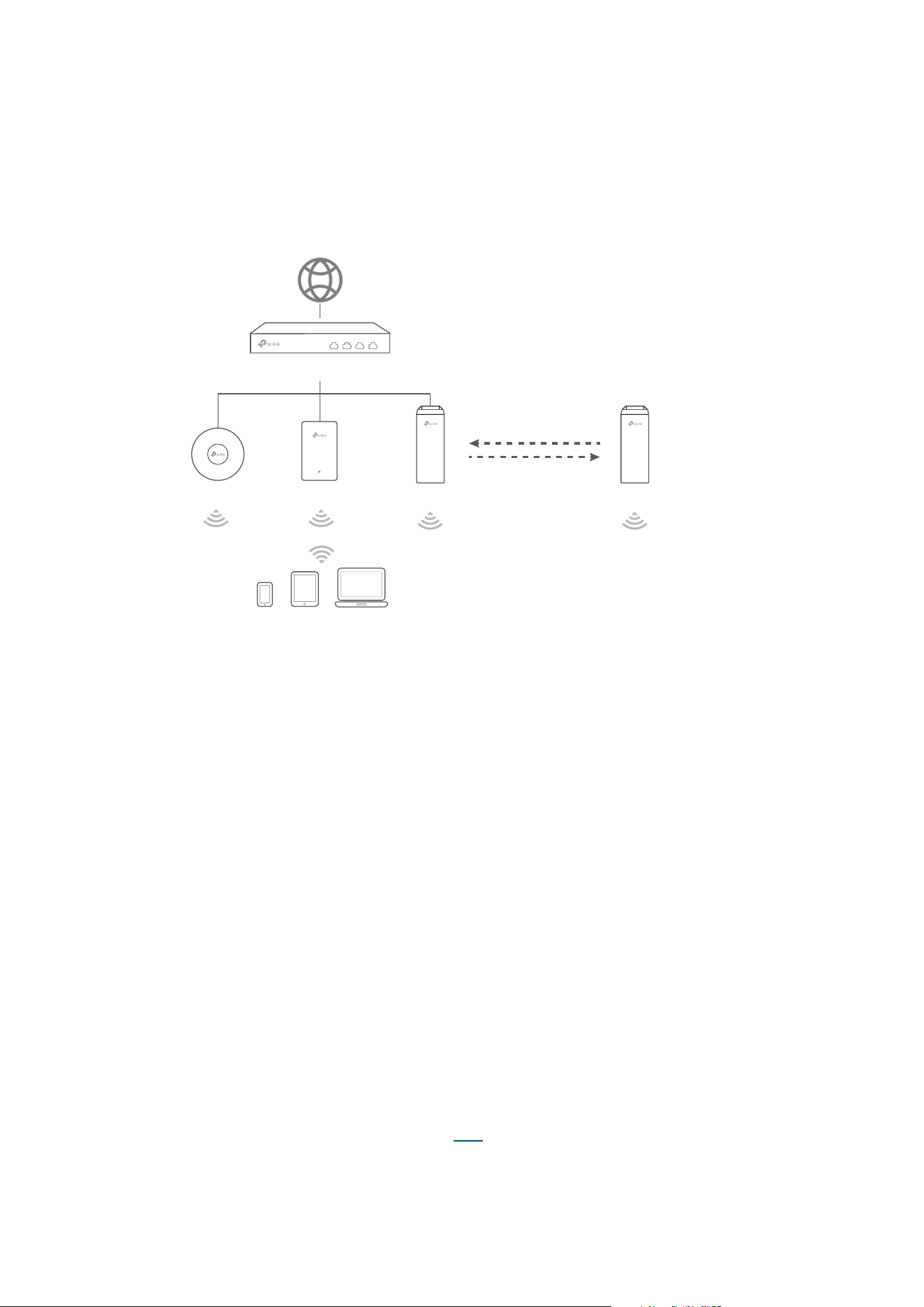
1. Connect your router to the internet.
2. Connect the EAPs to the LAN ports of your router.
For a Bridge kit product, connect one EAP to your router. This EAP will work as the Main
AP. The other EAP(s) in the kit will automatically connect to the Main AP via wireless
bridge and work as the Sub-AP(s).
3. Connect your wireless clients such as phones, tablets and laptops to the WiFi of an
EAP. The default SSIDs are printed on the EAP.
4. Now you can surf the internet on your phones, tablets and laptops. For network
security, we recommend that you further complete the initial setup.
Note:
If you cannot access the internet, follow the FAQ to troubleshoot the problem.
7
Tips:
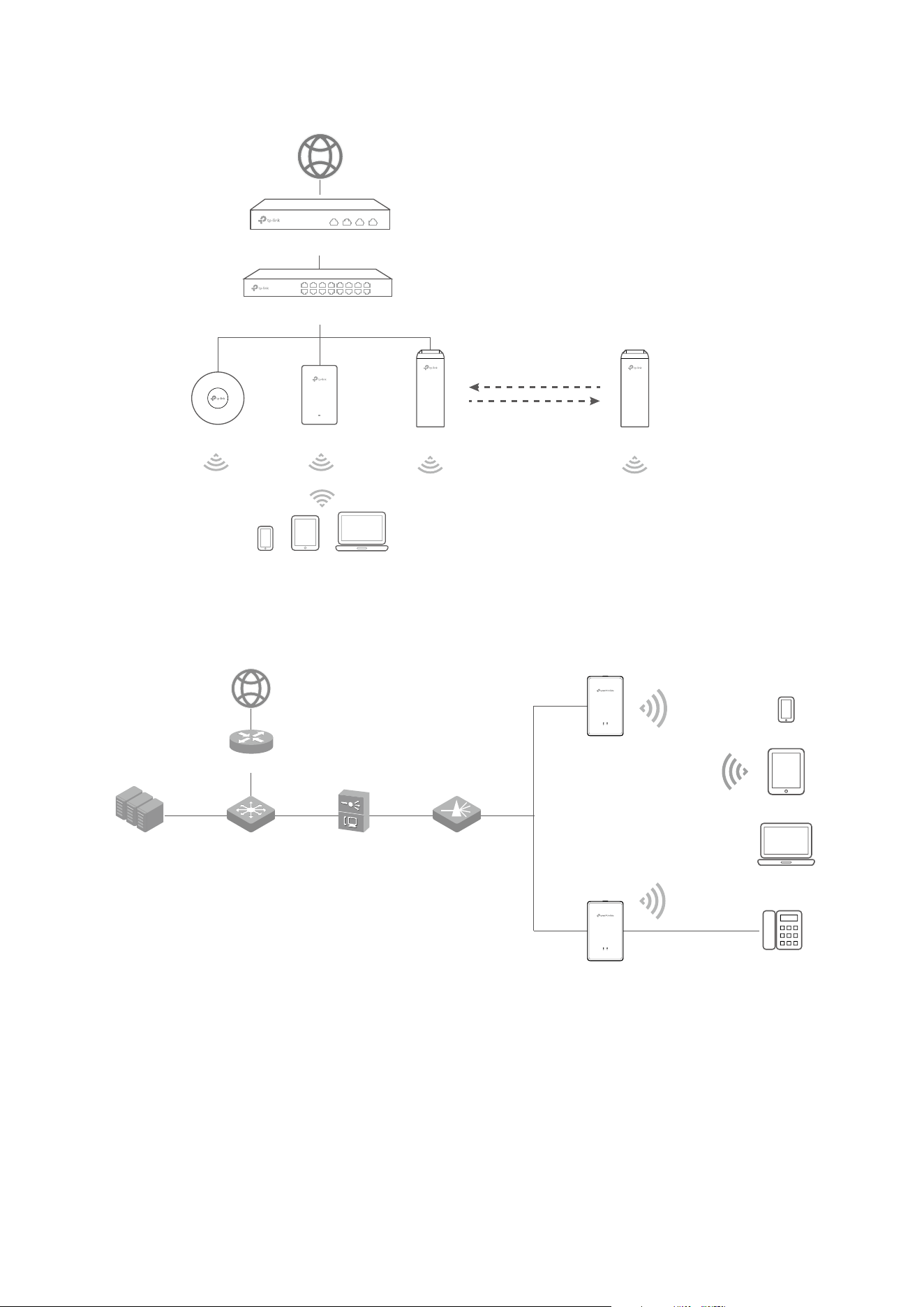
If you want to power your EAPs using a PoE switch, refer to the following topology.
Router
EAP Bridge AP (Main AP) Bridge AP (Sub-A
P)
Wireless Bridge
EAP
Management Clients
PoE Switch
1.2.2 Connect GPON APs
GPON AP
GPON AP
T
elephone
Gateway
Switch
OLTOptical Splitter
SIP
Server
Clients
Note:
• Before you start, be sure to power up and connect your devices according to the above topology.
• A DHCP server (typically a gateway/router with the DHCP function enabled) is required to assign
IP addresses to the EAPs and clients in your local network.
1. Connect your gateway to the internet.
2. Connect the EAPs to the OLT via optical splitters.

8
3. Connect your telephone to the EAP’s FXS port. If you don’t need the telephone service,
skip this step.
4. Connect your wireless clients such as phones, tablets and laptops to the WiFi of an
EAP. The default SSIDs are printed on the EAP.
Now you can further complete the initial setup.

9
1.3 Complete Initial Setup
1.3.1 Register GPON Service (Only for GPON APs)
For GPON APs, you need to register them on your OLT. For detailed instructions, refer to
your OLT's user manual.
1.3.2 Change Basic Settings
After EAPs are connected to the internet, anyone can access its web management page
by using the default username and password, and connect to its WiFi using the default
SSID. For security purposes, we recommend that you change basic settings.
To change basic settings, you can use either the Omada App on your mobile device or
the web browser on your PC. Choose a method from the following sections and follow the
instructions.
Note:
• Only one user is allowed to log in to the EAP at one time.
• Omada app is designed to help you quickly configure some basic settings. To configure advanced
functions, use the web browser on your PC.
• Omada app is only compatible with certain firmware versions of the EAP. To check the firmware
versions of the supported EAPs, please refer to https://www.tp-link.com/omada_compatibility_
list.
• Method 1: Set Up via the Omada App
1. Download and install the TP-Link Omada App from App Store or Google Play.
Scan for Omada App Download Omada App
or
2. Connect your mobile device to the WiFi of an EAP. The default SSIDs are printed on the
EAP.

10
3. Launch the Omada app and go to Standalone Devices > EAPs. The Omada app will
discover and list all the EAPs in the current subnet.
4. Tap on each EAP and follow the app instructions to the initial setup.
Generally, you need to set up a new username and password for login to the EAP’s web
management page and configure the SSID and password for WiFi connection.
5. Enjoy the internet!
Now you can connect your phones, tablets and laptops to the new WiFi and surf the
internet.
Note:
If you cannot access the internet, follow the FAQ to troubleshoot the problem.

11
• Method 2: Set Up via a Web Browser (for a PC connected to EAP via WiFi)
1. Make sure your PC is set to obtain an IP address automatically.
2. Connect your PC to the WiFi of an EAP. The default SSIDs are printed on the EAP.
3. Launch a web browser and enter http://tplinkeap.net in the address bar. The login page
will appear. By default, both the username and password are admin.
4. Follow the step-by-step web instructions to complete the initial setup.
Generally, you need to set up a new username and password for login to the EAP’s web
management page and configure the SSID and password for WiFi connection.

12
If you connect to the Main AP (the one connected to your router) of a Bridge kit product,
the system will automatically scan for the Sub-AP(s) in the kit and connect it/them to the
network.
5. Enjoy the internet!
Now you can connect your phones, tablets and laptops to the new WiFi and surf the
internet.
Note:
If you cannot access the internet, follow the FAQ to troubleshoot the problem.
• Method 3: Set Up via a Web Browser (for a PC connected to EAP via Ethernet)
1. Get the IP address of the EAP. There are two methods.
• Using the DHCP Client List of the Gateway/Router
Log in to your gateway/router which acts as the DHCP server. In the DHCP client list,
find the IP address of your EAP according to its MAC address. The MAC address can
be found at the bottom of the EAP. In the following figure, for example, the IP address of
the EAP is 192.168.0.118.
Note:
When the DHCP server is not available in your network, the EAP has the DHCP fallback IP
address, which is 192.168.0.254 by default.
• Using the EAP Discovery Utility

13
Go to https://www.tp-link.com/download/EAP-Controller.html#EAP_Discovery_Tool to
download, install and launch EAP Discovery Utility on your PC. EAP Discovery Utility can
scan all EAPs in the same network segment, and find the IP address of the EAP. In the
following figure, for example, the IP address of the EAP is 192.168.0.5.
Note:
Some EAP models only works with certain software version of Discovery Utility. If your Discovery
Utility can’t discover your EAP anyway, try a different software version.
2. Launch a web browser and enter the IP address of the EAP in the address bar. The login
page will appear. By default, both the username and password are admin.
Tips:
To facilitate access to the EAP, you can set a static IP address for the EAP and remember it well or
write it down. But make sure that this IP address is not being used by other devices in the same LAN.
For detailed instructions about how to set a static IP address for the EAP, refer to
6.2 Manage the
IP Address of the EAP
.

14
3. Follow the step-by-step web instructions to complete the initial setup.
Generally, you need to set up a new username and password for login to the EAP’s web
management page and configure the SSID and password for WiFi connection.
If you connect to the Main AP (the one connected to your router) of a Bridge kit product,
the system will automatically scan for the Sub-AP(s) in the kit and connect it/them to the
network.
4. Enjoy the internet!
Now you can connect your phones, tablets and laptops to the new WiFi and surf the
internet.
Note:
If you cannot access the internet, follow the FAQ to troubleshoot the problem.
1.3.3 Configure the Telephony Service (Only for GPON APs)
For GPON APs, if you want to make telephone calls over the internet, you need to go to the
Telephony page and set up the telephone number with the information provided by your
telephony service provider. For detailed instructions, refer to
5.1 Configure Telephone
Numbers
.

15
2
System Overview
This chapter provides a brief introduction to the web management page so you can quickly
find the functions you need under the corresponding tabs:

16
If you use the web browser to configure your EAP, you can configure more advanced
functions according to your needs, and manage it conveniently on the web page.
On the top of the page, you can:
Click
to log out.
Click
to open the technical support website.
The tabs on the page allow you to access different configurations. The following table
introduces what you can configure under each tab, and the following chapters discuss
these topics in detail.
Status You can view the information of the EAP, GPON (only for GPON APs), wireless
traffic and clients.
Wireless You can configure wireless features, such as wireless radio settings, Portal,
VLAN, MAC Filtering, Scheduler, Band Steering, QoS, and more.
Telephony (Only for GPON APs)
You can configure the telephone service, such as telephone numbers,
telephony devices, telephone book, call logs, and more.
Management You can manage the EAP using the management features, such as System
Logs, Web Server, Management Access, LED Control, SSH, SNMP, and more.
System You can configure the system parameters, such as the login account,
system time, and more. In addition, you can reboot and reset the EAP,
backup and restore configurations, and update the firmware.

17
3
Congure the Network
This chapter introduces how to configure the network parameters and the advanced
features of the EAP, including:
• 3.1 Configure the Wireless Parameters
• 3.2 Configure Portal Authentication
• 3.3 Configure VLAN
• 3.4 Configure MAC Filtering
• 3.5 Configure Scheduler
• 3.6 Configure Band Steering
• 3.7 Configure QoS
• 3.8 Configure Rogue AP Detection
• 3.9 Configure Smart Antenna (Only for Certain Devices)

18
3.1 Configure the Wireless Parameters
To configure the wireless parameters, go to the Wireless > Wireless Settings page.

19
For a multi-band EAP, you can click each band to enable Wireless Radio and configure
wireless parameters.
Demonstrated with 2.4GHz, the following sections introduce these contents:
3.1.1
Configure SSIDs
and
3.1.2 Configure Wireless Advanced Settings
.
3.1.1 Configure SSIDs
SSID (Service Set Identifier) is used as an identifier for a wireless LAN, and is commonly
called as the “network name“. Clients can find and access the wireless network through
the SSID. For one EAP, you can build up to eight SSIDs per frequency band.
Follow the steps below to create an SSID on the EAP:
1. If your EAP is a dual-band device, click
to choose a frequency band on
which the new SSID will be created.

20
2. Click to add a new SSID on the chosen band.
Tips:
You can also click to edit the specific SSID which already exists in the list. And you can click
to delete the SSID in the list.
3. Configure the following required parameters for this SSID:
SSID Specify a name for the wireless network.
SSID Broadcast With the option enabled, EAP will broadcast the SSID to the nearby
hosts, so that those hosts can find the wireless network identified by
this SSID. If this option is disabled, users must enter the SSID manually
to connect to the EAP.
Security Mode Select the security mode of the wireless network. There are four
options:
None
: Clients can access the wireless network without authentication.
WEP
/
WPA-Enterprise
/
WAP-Personal
: Clients need to pass the
authentication before accessing the wireless network.
For 6GHz:
Enhanced Open
: Enhanced Open is a Wi-Fi Alliance certification that
preserves the convenience open networks offer while reducing some of
the risks associated with accessing an unsecured network.
WPA3-Enterprise
/
WAP3-Personal
: Clients need to pass the
authentication before accessing the wireless network.
For network security, we recommend that you encrypt your wireless
network. The following sections will introduce how to configure these
security modes.
Guest Network With this option enabled, guest network will block clients from reaching
any private IP subnet.
Rate Limit With this option enabled, the download and upload rate of each client
which connects to the SSID will be limited to balance bandwidth usage.
You can limit the download and upload rate for some specific clients by
configuring rate limit in client list, refer to
View Client Information
to
get more details.
Note that the download and upload rate will be limited to the smaller
value if you set the limit value both in SSID and client configuration.
4. Click OK to create the SSID.
Following is the detailed instructions about how to configure
WEP
,
WPA-Enterprise
,
WPA-
Personal
,
WPA3-Enterprise
, and
WAP3-Personal

21
• WEP (for certain models)
WEP (Wired Equivalent Privacy) is a traditional encryption method. It has been proved
that WEP has security flaws and can easily be cracked, so WEP cannot provide effective
protection for wireless networks. Since WPA-Personal and WPA-Enterprise are much
safer than WEP, we recommend that you choose WPA-Personal or WPA-Enterprise if your
clients also support them.
Note:
WEP is not supported in 802.11n mode or 802.11ac mode. If WEP is applied in 802.11n, 802.11 ac
or 802.11n/ac mixed mode, the clients may not be able to access the wireless network. If WEP is
applied in 802.11b/g/n mode (2.4GHz) or 802.11a/n (5GHz), the EAP may work at a low transmission
rate.
The following table detailedly introduces how to configure each item:
Type Select the authentication type for WEP.
Auto: The EAP can select Open System or Shared Key automatically based
on the wireless capability and request of the clients.
Open System: Clients can pass the authentication and associate with
the wireless network without password. However, correct password is
necessary for data transmission.
Shared Key: Clients have to input the correct password to pass the
authentication, otherwise the clients cannot associate with the wireless
network or transmit data.
Key Selected Select one key to specify. You can configure four keys at most.
WEP Key Format Select ASCII or Hexadecimal as the WEP key format.
ASCII: With this format selected, the WEP key can be any combination of
keyboard characters of the specified length.
Hexadecimal: With this format selected, the WEP key can be any
combination of hexadecimal digits (0-9, a-f, A-F) with the specified length.

22
Key Type Select the WEP key length for encryption.
64Bit: Enter 10 hexadecimal digits or 5 ASCII characters.
128Bit: Enter 26 hexadecimal digits or 13 ASCII characters.
152Bit: Enter 32 hexadecimal digits or 16 ASCII characters.
Key Value Enter the WEP keys. The length and valid characters are determined by the
key format and key type.
• WPA-Enterprise (for certain models)
WPA-Enterprise (Wi-Fi Protected Access-Enterprise) is a safer encryption method
compared with WEP and WPA-Personal. It requires a RADIUS server to authenticate the
clients via 802.1X and EAP (Extensible Authentication Protocol). WPA-Enterprise can
generate different passwords for different clients, which ensures higher network security.
But it also costs more to maintain the network, so it is more suitable for business networks.
The following table introduces how to configure each item:
Version Select the version of WPA-Enterprise according to your needs. If you
select WPA/WPA2-Enterprise, the EAP automatically decides whether
to use WPA-Enterprise or WPA2-Enterprise during the authentication
process.

23
Encryption Select the Encryption type. Note that some encryption type is only
available under certain circumstances.
Auto: The default setting is Auto and the EAP will select TKIP or AES
automatically based on the client device’s request.
TKIP: Temporal Key Integrity Protocol. TKIP is not supported in
802.11n mode, 802.11ac mode or 802.11n/ac mixed mode. If TKIP is
applied in 802.11n, 802.11 ac or 802.11n/ac mixed mode, the clients
may not be able to access the wireless network. If TKIP is applied in
11b/g/n mode (2.4GHz) or 11a/n mode(5GHz), the device may work at
a low transmission rate.
AES: Advanced Encryption Standard. It is securer than TKIP.
RADIUS Server IP Enter the IP address of the RADIUS Server.
RADIUS Port Enter the port number of the RADIUS Server.
RADIUS Password Enter the shared secret key of the RADIUS server.
RADIUS Accounting Enable or disable RADIUS accounting feature.
Accounting Server IP Enter the IP address of the accounting server.
Accounting Server
Port
Enter the port number of the accounting server.
Accounting Server
Password
Enter the shared secret key of the accounting server.
Interim Update With this option enabled, you can specify the duration between
accounting information updates. By default, the function is disabled.
Enter the appropriate duration between updates for EAPs in Interim
Update Interval.
Interim Update
Interval
With Interim Update enabled, specify the appropriate duration
between updates for EAPs. The default duration is 600 seconds.
Group Key Update
Period
Specify an update period of the encryption key. The update period
instructs how often the EAP should change the encryption key. 0
means that the encryption key does not change at anytime.

24
• WPA-Personal (for certain models)
WPA-Personal is based on a pre-shared key. It is characterized by high safety and simple
settings, so it is mostly used by common households and small businesses.
The following table introduces how to configure each item:
Version Select the version of WPA-Personal according to your needs. If you select
WPA/WPA2-PSK, the EAP automatically decides whether to use WPA-PSK
or WPA2-PSK during the authentication process.
Encryption Select the Encryption type. Note that some encryption type is only available
under certain circumstances.
Auto: The default setting is Auto and the EAP will select TKIP or AES
automatically based on the client device’s request.
TKIP: Temporal Key Integrity Protocol. TKIP is not supported in 802.11n
mode, 802.11ac mode or 802.11n/ac mixed mode. If TKIP is applied in
802.11n, 802.11 ac or 802.11n/ac mixed mode, the clients may not be able
to access the wireless network. If TKIP is applied in 11b/g/n mode (2.4GHz)
or 11a/n mode(5GHz), the device may work at a low transmission rate.
AES: Advanced Encryption Standard. It is securer than TKIP.
Wireless
Password
Configure the wireless password with ASCII characters.
• For ASCII, the length should be between 8 and 63 and the valid characters
contain numbers, letters (case-sensitive) and common punctuations.
Group Key
Update Period
Specify an update period of the encryption key. The update period instructs
how often the EAP should change the encryption key. 0 means that the
encryption key does not change at anytime.
• WPA3-Enterprise (for certain models)
WPA3-Enterprise is a safer encryption method compared with WPA3-Personal. It requires
a RADIUS server to authenticate the clients via 802.1X and AP (Extensible Authentication
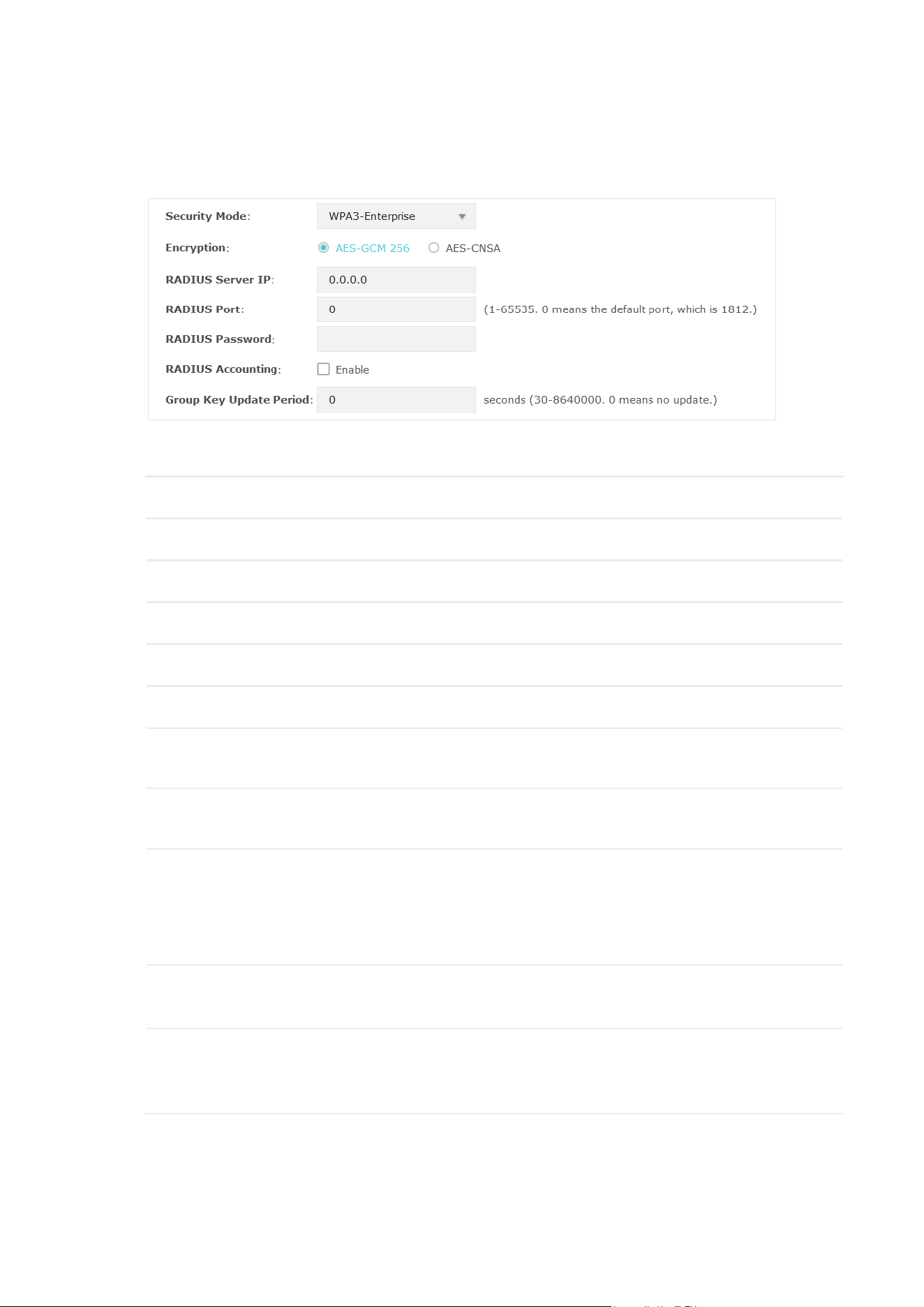
25
Protocol). WPA3-Enterprise can generate different passwords for different clients, which
ensures higher network security. But it also costs more to maintain the network, so it is
more suitable for business networks.
The following table introduces how to configure each item:
Encryption Select the Encryption type: AES-GCM 256 or AES-CNSA.
RADIUS Server IP Enter the IP address of the RADIUS Server.
RADIUS Port Enter the port number of the RADIUS Server.
RADIUS Password Enter the shared secret key of the RADIUS server.
RADIUS Accounting Enable or disable RADIUS accounting feature.
Accounting Server IP Enter the IP address of the accounting server.
Accounting Server
Port
Enter the port number of the accounting server.
Accounting Server
Password
Enter the shared secret key of the accounting server.
Interim Update With this option enabled, you can specify the duration between
accounting information updates. By default, the function is disabled.
Enter the appropriate duration between updates for APs in Interim
Update Interval.
Interim Update
Interval
With Interim Update enabled, specify the appropriate duration
between updates for APs. The default duration is 600 seconds.
Group Key Update
Period
Specify an update period of the encryption key. The update period
instructs how often the AP should change the encryption key. 0
means that the encryption key does not change at anytime.
26
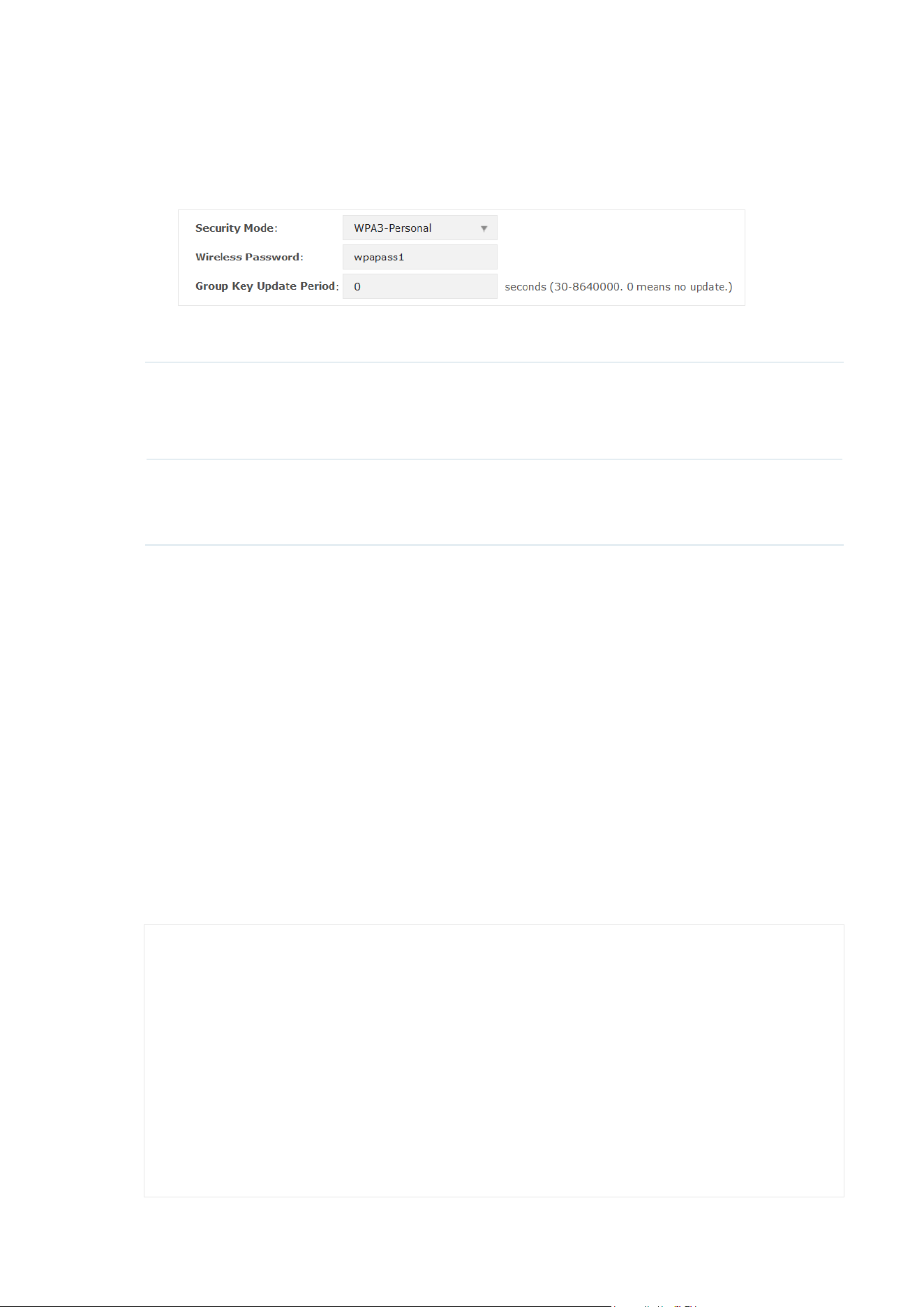
• WPA3-Personal (for certain models)
WPA-Personal is based on a pre-shared key. It is characterized by high safety and simple
settings, so it is mostly used by common households and small businesses.
The following table introduces how to configure each item:
Wireless
Password
Configure the wireless password with ASCII characters.
• For ASCII, the length should be between 8 and 63 and the valid characters
contain numbers, letters (case-sensitive) and common punctuations.
Group Key
Update Period
Specify an update period of the encryption key. The update period instructs
how often the AP should change the encryption key. 0 means that the
encryption key does not change at anytime.
3.1.2 Configure Wireless Advanced Settings
Proper wireless parameters can improve the performance of your wireless network.
This section introduces how to configure the advanced wireless parameters of the EAP,
including
Radio Setting
,
Load Balance
,
Airtime Fairness
and
More Settings
.
Radio Setting
Radio settings directly control the behavior of the radio in the EAP and its interaction with
the physical medium; that is, how and what type of signal the EAP emits.
Note:
For Sub-APs, the Wireless Mode, Channel Width, and Channel will follow the settings of their Main
AP and cannot be edited.

27
Select the frequency band and configure the following parameters.
Wireless Mode Select the IEEE 802.11 mode the radio uses.
• For 2.4GHz:
802.11b/g/n/ax/be mixed is recommended so that all of 802.11b, 802.11g,
802.11n, 802.11ax, and 802.11be clients operating in the 2.4GHz frequency
can connect to the AP. Note that some devices may not support 802.11ax
and 802.11be; in this case, select the one with most types mixed.
• For 5GHz:
802.11a/n/ac/ax/be mixed is recommended so that all of 802.11a, 802.11n,
802.11ac, 802.11ax, and 802.11be clients operating in the 5GHz frequency
can connect to the AP. Note that some devices may not support 802.11ax
and 802.11be; in this case, select the one with most types mixed.
• For 6GHz:
802.11ax/be mixed is recommended so that all of 802.11ax and 802.11be
clients operating in the 6GHz frequency can connect to the AP. Note that
Wi-Fi 6E devices support 802.11ax only.
Channel Width Select the channel width of the AP. The available options differ among
different APs.
We recommend you set the channel bandwidth to Auto to improve the
transmission speed. However, you may choose a lower bandwidth due to
the following reasons:
• To increase the available number of channels within the limited total
bandwidth.
• To avoid interference from overlapping channels occupied by other
devices in the environment.
• Lower bandwidth can concentrate higher transmit power, increasing
stability of wireless links over long distances.
Channel Limit Check the box to enable the Channel Limit function. With this function
enabled, the wireless frequency 5150MHz~5350MHz will be disabled. This
function can influence the available options in Channel.
This feature is only available on certain devices. To check whether your
device supports this feature, refer to the actual web interface.
Channel Select the channel used by the EAP. For example, 1/2412MHz means that
the channel is 1 and the frequency is 2412MHz.
By default, the channel is automatically selected, and we recommend that
you keep the default setting.
28
Tx Power (EIRP) Specify the transmit power value.
If this value is set to be larger than the maximum transmit power that is
allowed by the local regulation, the regulated maximum transmit power will
be applied in the actual situation.
Note:
In most cases, it is unnecessary to use the maximum transmit power.
Specifying a larger transmit power than needed may cause interference to
the neighborhood. Also it consumes more power and reduces longevity of
the device.
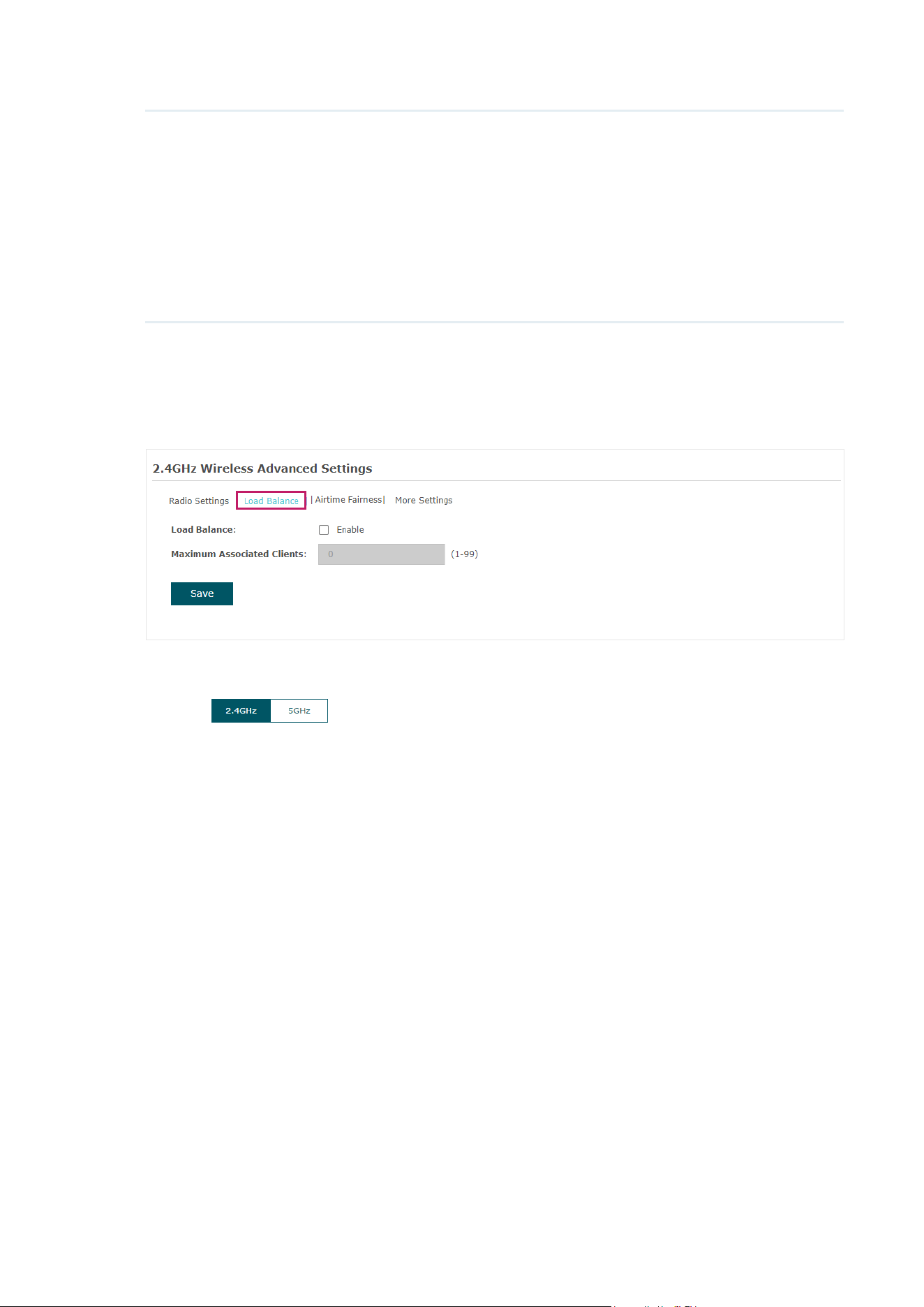
Load Balance
With the Load Balance feature, you can limit the maximum number of clients who can
access the EAP. In this way, you can achieve rational use of network resources.
Follow the steps below to configure Load Balance:
1. Click
to choose a frequency band on which the load balance feature will
take effect.
2. Check the box to enable Load Balance.
3. Specify the maximum number of clients who can connect to the EAP at the same time.
While the number of connected clients has reached the limit and there are more clients
requesting to access the network, the EAP will disconnect those with weaker signals.
4. Click Save.
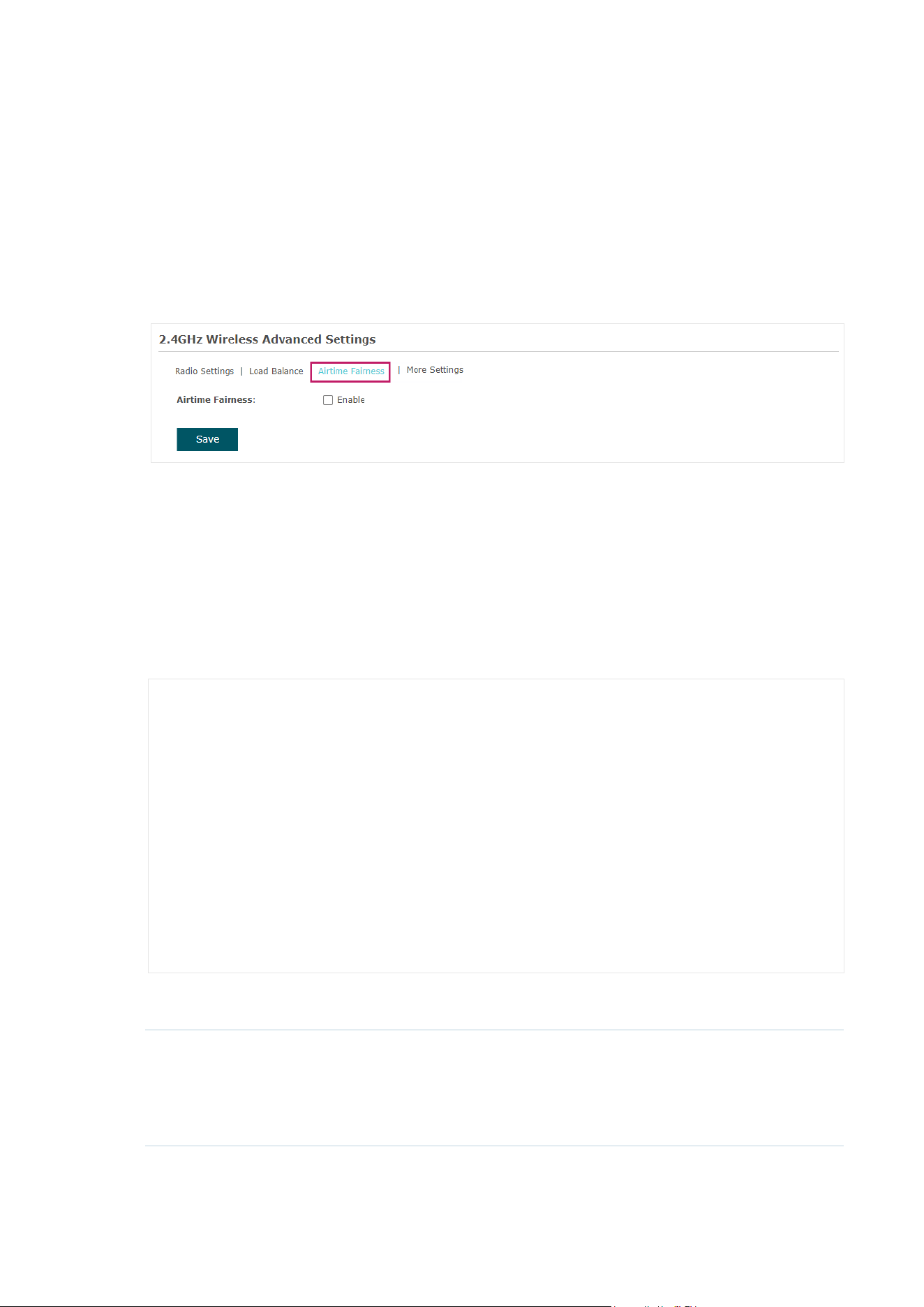
Airtime Fairness
Note:
Airtime Fairness is only available on certain devices. To check whether your device supports this
feature, refer to the actual web interface.
With Airtime Fairness enabled, each client connected to the EAP can get the same amount
of time to transmit data, avoiding low-data-rate clients to occupy too much network
bandwidth.
29
Compared with the relatively new client devices, some legacy client devices support
slower wireless rate. If they communicate with the same EAP, the slower clients take more
time to transmit and receive data compared with the faster clients. As a result, the overall
wireless throughput of the network decreases.
Therefore we recommend you check the box to enable this function under multi-
rate wireless networks. In this way, the faster clients can get more time for the data
transmission and the network overall throughput can be improved.
Note:
With Airtime Fairness enabled, 50 wireless clients at most can connect to the EAP in 2.4GHz band.
More Settings
Proper wireless parameters can improve the network’s stability, reliability and
communication efficiency.
The following table introduces how to configure each item:
Beacon Interval Beacons are transmitted periodically by the EAP to announce the presence
of a wireless network for the clients. Beacon Interval determines the time
interval of the beacons sent by the EAP.
You can specify a value between 40 and 100ms. The default is 100ms.

30
DTIM Period The DTIM (Delivery Traffic Indication Message) is contained in some
Beacon frames. It indicates whether the EAP has buffered data for client
devices. The DTIM Period indicates how often the clients served by this
EAP should check for buffered data still on the EAP awaiting pickup.
You can specify the value between 1-255 Beacon Intervals. The default
value is 1, indicating that clients check for buffered data at every beacon.
An excessive DTIM interval may reduce the performance of multicast
applications, so we recommend you keep the default value.
RTS Threshold RTS/CTS (Request to Send/Clear to Send) is used to improve the data
transmission efficiency of the network with hidden nodes, especially when
there are lots of large packets to be transmitted.
When the size of a data packet is larger than the RTS Threshold, the RTS/
CTS mechanism will be activated. With this mechanism activated, before
sending a data packet, the client will send an RTS packet to the EAP to
request data transmitting. And then the EAP will send CTS packet to inform
other clients to delay their data transmitting. In this way, packet collisions
can be avoided.
For a busy network with hidden nodes, a low threshold value will help
reduce interference and packet collisions. But for a not-so-busy network, a
too low threshold value will cause bandwidth wasting and reduce the data
throughput. The recommended and default value is 2347 bytes.
Fragmentation
Threshold
The fragmentation function can limit the size of packets transmitted over
the network. If the size of a packet exceeds the Fragmentation Threshold,
the fragmentation function is activated and the packet will be fragmented
into several packets.
Fragmentation helps improve network performance if properly configured.
However, a too low fragmentation threshold may result in poor wireless
performance caused by the extra work of dividing up and reassembling
of frames and increased message traffic. The recommended and default
value is 2346 bytes.
OFDMA OFDMA enables multiple users to transmit data simultaneously, and thus
greatly improves speed and efficiency. Only when your clients also support
OFDMA, can you fully enjoy the benefits.
This feature is only available on certain devices. To check whether your
device supports this feature, refer to the actual web interface.
Non-PSC
Channel
Preferred Scanning Channels (PSCs) are channels that are prioritized
within the 6 GHz WiFi band for efficient connectivity. Some clients may not
discover 6GHz networks using non-PSC channels.
This feature is only available on certain devices. To check whether your
device supports this feature, refer to the actual web interface.

31
3.1.3 Configure the MLO Network
(Only for Wi-Fi 7 Devices)
MLO (Multi-Link Operation) enables Wi-Fi 7 devices to simultaneously send and receive
data across different bands and channels. This ensures fast and reliable connections even
in dense network environments.
To configure an MLO network, go to Wireless > Wireless Settings > MLO and click Add.
Configure the parameters and save the settings.
SSID Specify a name for the MLO network.
Band Select the bands to form the MLO network. Available band options may
vary by model.
SSID Broadcast With the option enabled, AP will broadcast the SSID to the nearby hosts,
so that those hosts can find the wireless network identified by this SSID.
If this option is disabled, users must enter the SSID manually to connect
to the AP.
Security Mode/
Version/
Encryption
Configure the security settings of the wireless network.
For detailed instructions, refer to
3.1.1 Configure SSIDs
.
Guest Network With this option enabled, guest network will block clients from reaching
any private IP subnet.

32
Rate Limit With this option enabled, the download and upload rate of each client
which connects to the SSID will be limited to balance bandwidth usage.
You can limit the download and upload rate for some specific clients by
configuring rate limit in client list, refer to
View Client Information
to
get more details.
Note that the download and upload rate will be limited to the smaller
value if you set the limit value both in SSID and client configuration.

33
3.2 Configure Portal Authentication
Portal authentication provides authentication service to the clients that only need
temporary access to the wireless network, such as the customers in a restaurant or in a
supermarket. To access the network, these clients need to enter the authentication login
page and use the correct login information to pass the authentication. In addition, you can
customize the authentication login page and specify a URL which the authenticated clients
will be redirected to.
In this module, you can also configure Free Authentication Policy, which allows the specific
clients to access the specific network resources without authentication.
To configure portal authentication, go to the Wireless > Portal page.

34
Configure Portal
Three portal authentication types are available:
No Authentication
,
Local Password
and
External RADIUS Server
. The following sections introduce how to configure each
authentication type.
• No Authentication
With this authentication type configured, clients can pass the authentication and access
the network without providing any login information. They only need to accept the term of
use on the authentication page.
Follow the steps below to configure No Authentication as the portal authentication type:
1. Select the SSID on which the portal will take effect.
2. Select No Authentication as the authentication type.
3. Configure the relevant parameters as the following table shows:

35
Authentication
Timeout
Specify the value of authentication timeout.
A client’s authentication will expire after the authentication timeout and
the client needs to log in to the authentication page again to access the
network.
Options include 1 Hour, 8 Hours, 24 Hours, 7 Days, and Custom. With
Custom selected, you can customize the time in days, hours, and minutes.
Redirect With this function configured, the newly authenticated client will be
redirected to the specific URL.
Redirect URL With Redirect enabled, you also need to enter the URL in this field. The
newly authenticated client will be redirected to this URL.
Portal
Customization
Configure the authentication page. Local Web Portal is the only available
option in this authentication type. Enter the title and term of use in the two
boxes.
The EAP uses its built-in web server to provide this authentication page for
clients. To pass the authentication, clients only need to check the box of I
accept the Term of Use and click the Login button.
4. Click Save.

36
• Local Password
With this authentication type configured, clients are required to provide the correct
password to pass the authentication.
Follow the steps below to configure Local Password as the portal authentication type:
1. Select the SSID on which the portal will take effect.
2. Select Local Password as the authentication type.
3. Configure the relevant parameters as the following table shows:
Password Specify a password for authentication.

37
Authentication
Timeout
Specify the value of authentication timeout.
A client’s authentication will expire after the authentication timeout and
the client needs to log in to the authentication page again to access the
network.
Options include 1 Hour, 8 Hours, 24 Hours, 7 Days, and Custom. With
Custom selected, you can customize the time in days, hours, and minutes.
Redirect With this function configured, the newly authenticated client will be
redirected to the specific URL.
Redirect URL With Redirect enabled, you also need to enter the URL in this field. The
newly authenticated client will be redirected to this URL.
Portal
Customization
Configure the authentication page. Local Web Portal is the only available
option is this authentication type. Enter the title and term of use in the two
boxes.
The EAP uses its built-in web server to provide this authentication page
for clients. To pass the authentication, clients need to provide the correct
password in the Password field, check the box of I accept the Term of Use
and click the Login button.
4. Click Save.

38
• External RADIUS Server
If you have a RADIUS server on the network to authenticate the clients, you can select
External Radius Server. Clients need to provide the correct login information to pass the
authentication.

39
Follow the steps below to configure External Radius Server as the portal authentication
type:
1. Select the SSID on which the portal will take effect.
2. Build a RADIUS server on the network and make sure that it is reachable by the EAP.
3. Go to the Portal configuration page on the EAP. Select External Radius Server as the
authentication type.
3. Configure the relevant parameters as the following table shows:
RADIUS Server IP Enter the IP address of RADIUS server.
RADIUS Port Enter the port of the RADIUS server.
RADIUS Password Enter the password of the RADIUS server.
NAS ID Configure a Network Access Server Identifier (NAS ID) using 1
to 64 characters on the portal. The NAS ID is sent to the RADIUS
server by the EAP through an authentication request packet. With
the NAS ID which classifies users to different groups, the RADIUS
server can send a customized authentication response.
RADIUS Accounting Enable or disable RADIUS accounting feature.
Accounting Server IP Enter the IP address of the accounting server.
Accounting Server Port Enter the port number of the accounting server.
Accounting Server
Password
Enter the shared secret key of the accounting server.
Interim Update With this option enabled, you can specify the duration between
accounting information updates. By default, the function is
disabled.
Enter the appropriate duration between updates for EAPs in
Interim Update Interval.
Interim Interval With Interim Update enabled, specify the appropriate duration
between updates for EAPs. The default duration is 600 seconds.
Authentication Timeout Specify the value of authentication timeout.
A client’s authentication will expire after the authentication
timeout and the client needs to log in to the authentication page
again to access the network.
Options include 1 Hour, 8 Hours, 24 Hours, 7 Days, and Custom.
With Custom selected, you can customize the time in days, hours,
and minutes.
40
Redirect With this function configured, the newly authenticated client will
be redirected to the specific URL.
Redirect URL With Redirect enabled, you also need to enter the URL in this
field. The newly authenticated client will be redirected to this URL.
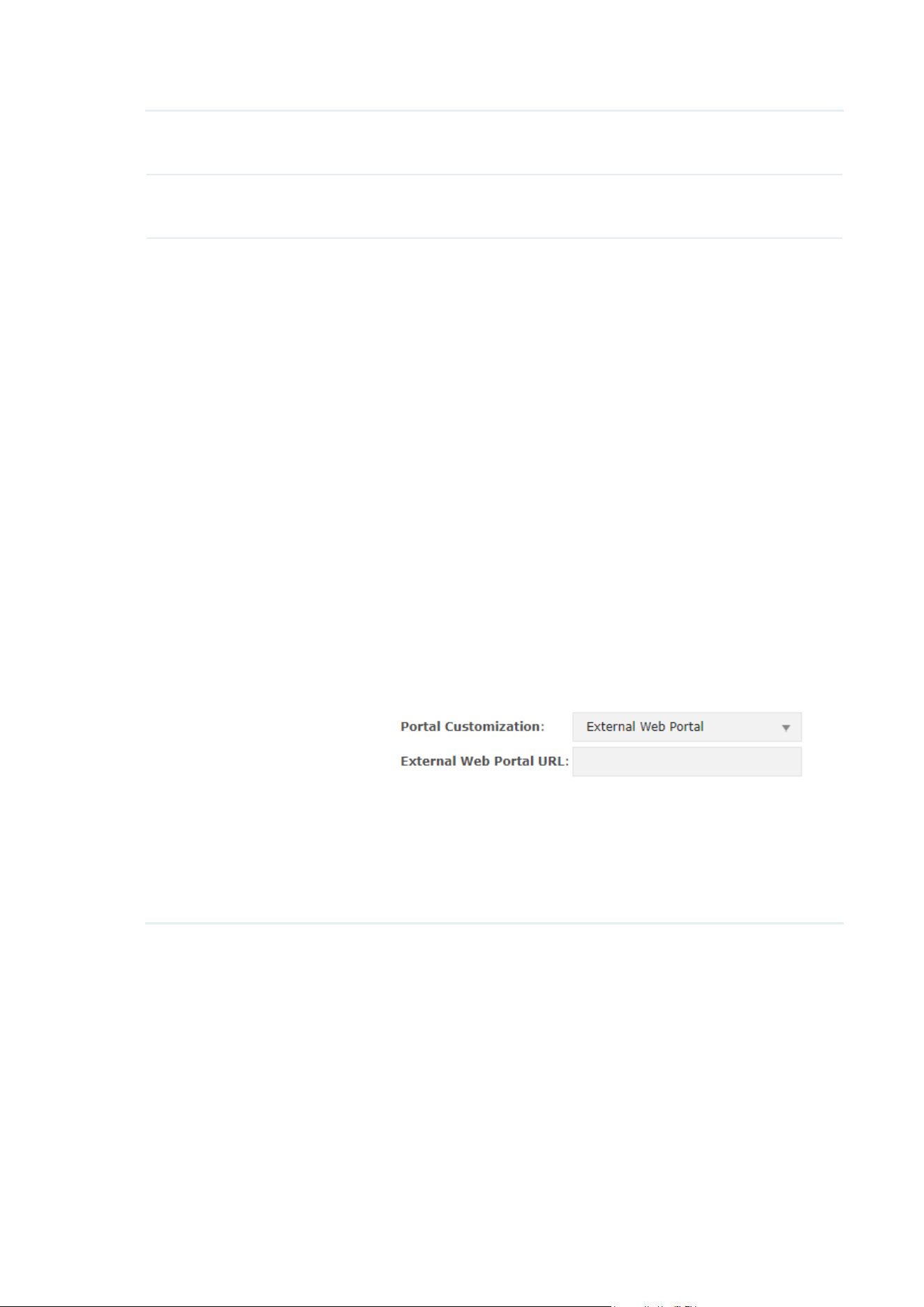
Portal Customization Configure the authentication page. There are two options: Local
Web Portal and External Web Portal.
• Local Web Portal
Enter the title and term of use in the two boxes. The EAP uses its
built-in web server to provide this authentication page for clients.
To pass the authentication, clients need to provide the correct
username and password in the Username and Password fields,
check the box of I accept the Term of Use and click the Login
button.
• External Web Portal
With External Web Portal configured, the authentication page
will be provided by the web portal server built on the network.
To configure External Web Portal, you need to complete the
following configurations:
1. Build an external web portal server on your network and make
sure that it is reachable by the EAP.
2. On this configuration page, enter the URL of the authentication
page provided by the external portal server.
3. Add the external web portal server to the Free Authentication
Policy list. In this way, clients can access the web portal server
before authenticated. For details about how to configure
Free Authentication Policy, refer to
Configure Free
Authentication Policy
.
4. Click Save.
Configure Free Authentication Policy
Free Authentication Policy allows some specific clients to access the specific network
resources without authentication. For example, you can set a free authentication policy
to allow clients to visit the external web portal server before authenticated. In this way,
41
the clients can visit the login page provided by the web portal server and then pass the
subsequent authentication process.
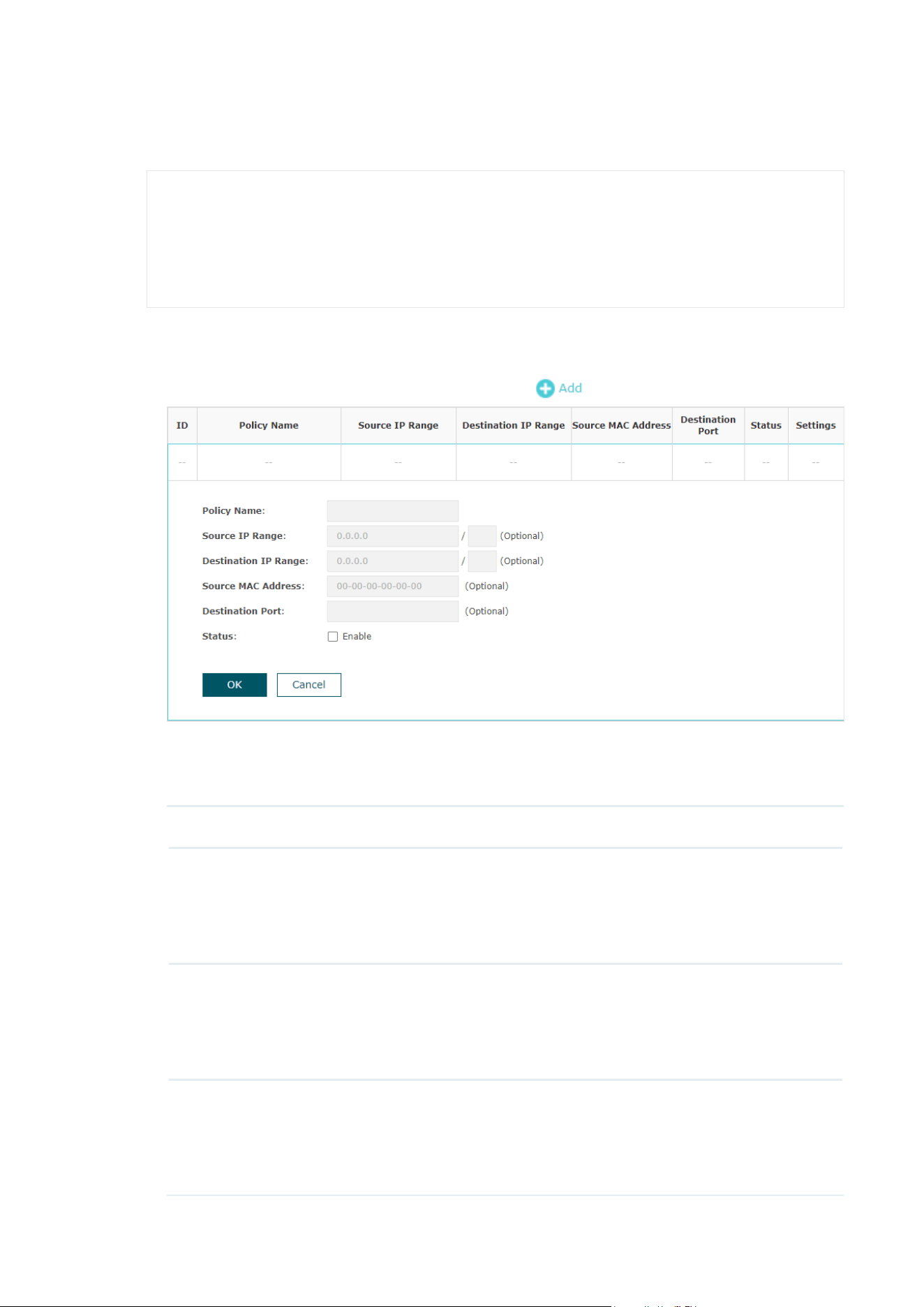
Follow the steps below to add free authentication policy.
1. In the Free Authentication Policy section, click
to load the following page.
2. Configure the following parameters. When all the configured conditions are met, the
client can access the network without authentication.
Policy Name Specify a name for the policy.
Source IP Range Specify an IP range with the subnet and mask length. The clients in this
IP range can access the network without authentication.
Leaving the field empty means that clients with any IP address can
access the specific resources.
Destination IP
Range
Specify an IP range with the subnet and mask length. The devices in
this IP range can be accessed by the clients without authentication.
Leaving the field empty means that all devices in the LAN can be
accessed by the specific clients.
Source MAC
Address
Specify the MAC address of the client, who can access the specific
resources without authentication.
Leaving the field empty means that clients with any MAC address can
access the specific resources.

42
Destination Port Specify the port number of the service. When using this service, the
clients can access the specific resources without authentication.
Leaving the field empty means that clients can access the specific
resources no matter what service they are using.
Status Check the box to enable the policy.
Tips:
When External Web Portal is configured in the portal configuration, you should set the IP address
and subnet mask of the external web server as the Destination IP Range. As for Source IP Range,
Source MAC Address and Destination Port, you can simply keep them as empty or configure them
according to your actual needs.
3. Click OK to add the policy.

43
3.3 Configure VLAN
Wireless VLAN is used to set VLANs for the wireless networks. With this feature, the EAP
can work together with the switches supporting 802.1Q VLAN. Traffic from the clients
in different wireless networks is added with different VLAN tags according to the VLAN
settings of the wireless networks. Then the wireless clients in different VLANs cannot
directly communicate with each other. Note that the traffic from the wired clients will not
be added with VLAN tags.
To configure VLAN for the wireless network, go to the Wireless > VLAN page.
Follow the steps below to configure VLAN on this page.
1. Select the specific SSID in the list to configure the VLAN.
2. In the VLAN column and select Enable to enable the VLAN function on the SSID.
3. Specify the VLAN ID for the wireless network in the VLAN ID column. Every VLAN ID
represents a different VLAN. It supports maximum 8 VLANs per frequency band. The
VLAN ID range is 0 to 4094. 0 is used to disable VLAN tagging.
4. Click Save.

44
3.4 Configure MAC Filtering
MAC Filtering is used to allow or block the clients with specific MAC addresses to access
the network. With this feature you can effectively control clients’ access to the wireless
network according to your needs.
To configure MAC Filtering, go to the Wireless > MAC Filtering page.
Follow the steps below to configure MAC Filtering on this page:
1. In the Settings section, check the box to enable MAC Filtering, and click Save.

45
2. In the Station MAC Group section, click and the following page will
appear.
1 ) Click and specify a name for the MAC group to be created. Click OK.
You can create up to eight MAC groups.
2 ) Select a MAC group in the group list (the color of the selected one will change to
blue). Click
to add group members to the MAC group. Specify
the MAC address of the host and click OK. In the same way, you can add more MAC
addresses to the selected MAC group.
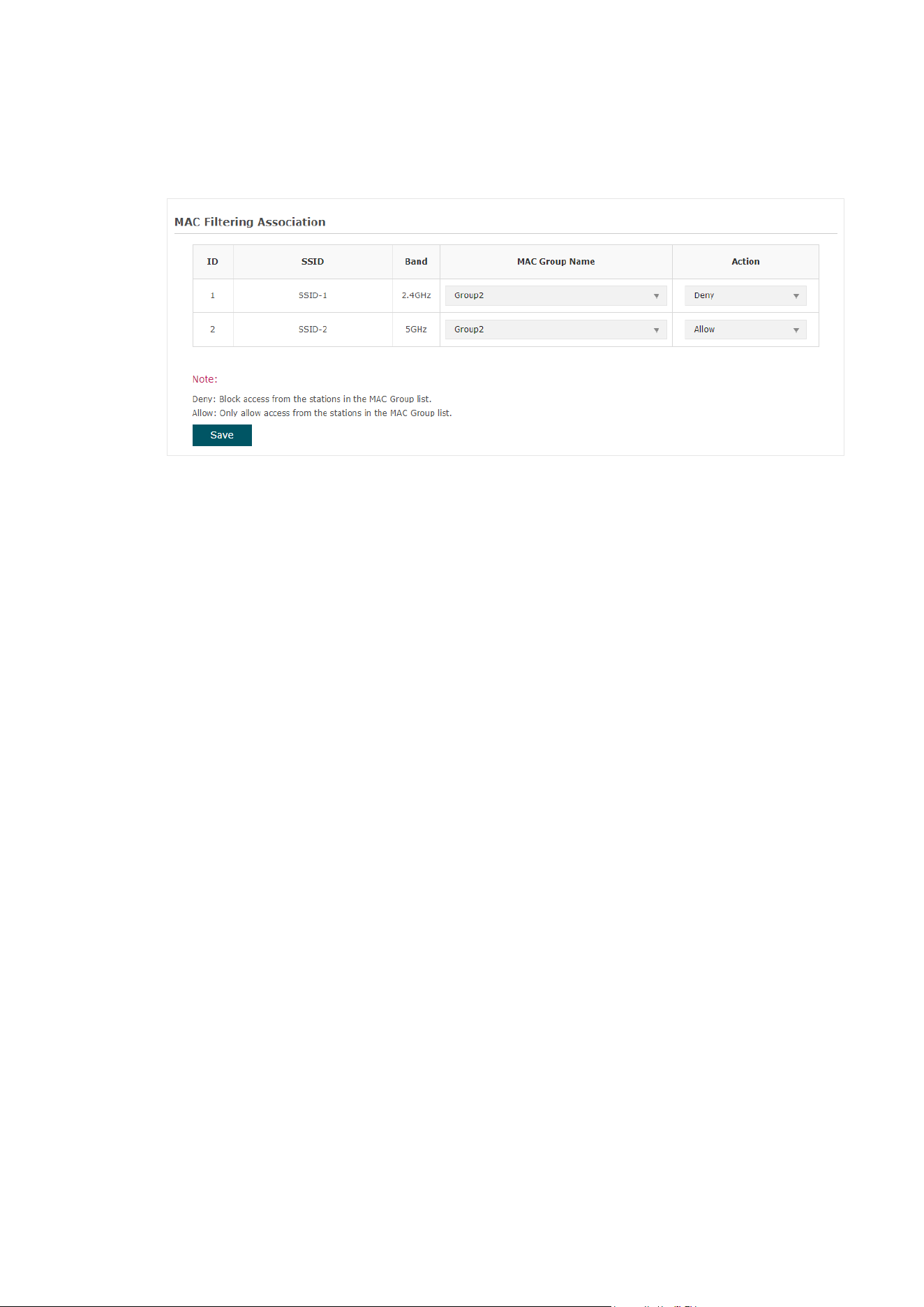
3. In the MAC Filtering Association section, configure the filtering rule. For each SSID, you
can select a MAC group in the MAC Group Name column and select the filtering rule
(Allow/Deny) in the Action column. Click Save.
46
For example, the following configuration means that the hosts in Group 2 are denied to
access the SSID SSID-1 on the 2.4GHz band and allowed to access the SSID SSID-2 on
the 5GHz band.

47
3.5 Configure Scheduler
With the Scheduler feature, the EAP or its wireless network can automatically turn on or
off at the time you set. For example, you can schedule the radio to operate only during the
office working time to reduce power consumption.
To configure Scheduler, go to the Wireless > Scheduler page.
Follow the steps below to configure Scheduler on this page:
1. In the Settings section, check the box to enable Scheduler and select the Association
Mode. There are two modes: Associated with SSID (the scheduler profile will be applied
to the specific SSID) and Associated with AP (the profile will be applied to all SSIDs on
the EAP). Then click Save.

48
2. In the Scheduler Profile Configuration section, click and the following
page will appear.
1 ) Click and specify a name for the prole to be created. Click OK. You
can create up to eight proles.
2 ) Select a profile in the list (the color of the selected one will change to blue). Click
to add time range items to the prole. Specify the Day, Start Time and
End Time of the time range, and click OK.
Tips:
You can add up to eight time range items for one profile. If there are several time range items in one
profile, the time range of this profile is the sum of all of these time ranges.
49
3. In the Scheduler Association section, configure the scheduler rule. There are two
association modes:
Association with SSID
and
Association with AP
. The following
sections introduce how to configure each mode.
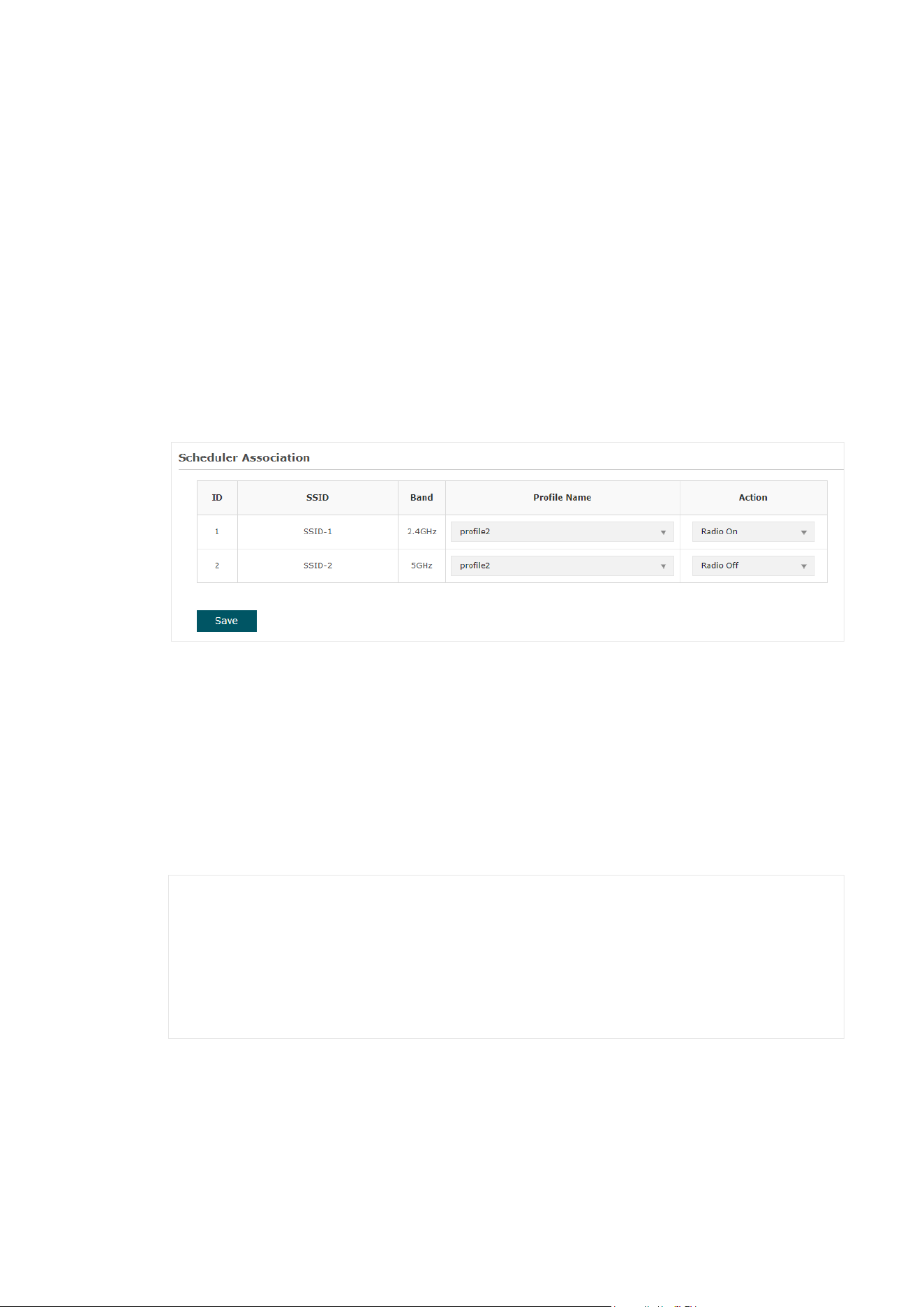
■ Association with SSID
If you select Association with SSID in step 1, the Scheduler Association table will
display all the SSIDs on the EAP. For each SSID, you can select a profile in the Profile
Name column and select the scheduler rule (Radio On/Radio Off) in the Action column.
Then click Save.
For example, the following configuration means that during the time range defined in
Profile2, the radio of SSID SSID-1 is on and the radio of SSID SSID-2 is off.
■ Association with AP
If you select Association with AP in step 1, the Scheduler Association table will display
the name and MAC address of the EAP. Select a profile in the Profile Name column and
select the scheduler rule (Radio On/Radio Off) in the Action column. Then click Save.
For example, the following configuration means that during the time range defined in
Profile2, the radio of all SSIDs on the EAP is on.
50
3.6 Configure Band Steering
A client device that is capable of communicating on multiple frequency bands will typically
connect to the 2.4GHz band. However, if too many client devices are connected to an AP
on the same band, the efficiency of communication will be diminished. Band Steering can
steer multi-band clients to different bands to greatly improve the network quality.
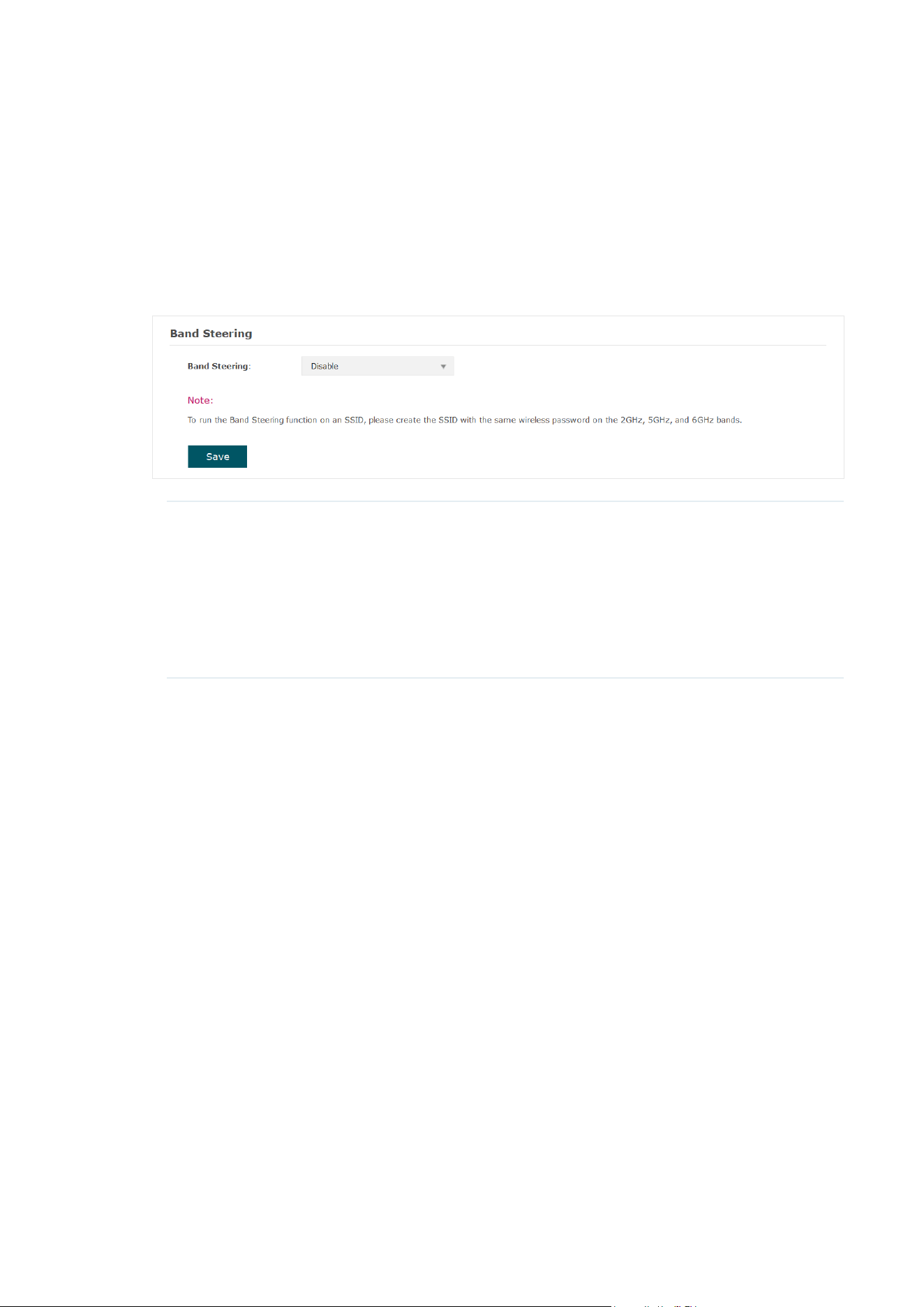
To configure Band Steering, go to the Wireless > Band Steering page.
Band Steering Configure the Band Steering function.
Disable: The AP will not steer clients.
Prefer 5GHz/6GHz: The AP will steer clients to the 5GHz and 6GHz
in priority.
Balance: The AP will balance client connections among different
bands.

51
3.7 Configure QoS
Quality of service (QoS) is used to optimize the throughput and performance of the EAP
when handling differentiated wireless traffic, such as Voice-over-IP (VoIP), other types of
audio, video, streaming media, and traditional IP data.
In QoS configuration, you should set parameters on the transmission queues for
different types of wireless traffic and specify minimum and maximum wait time for data
transmission. In normal use, we recommend that you keep the default values.
To configure QoS, go to the Wireless > QoS page.
Follow the steps below to configure QoS on this page:
1. Click
to choose a frequency band to be configured.

52
2. Check the box to enable Wi-Fi Multimedia (WMM). With WMM enabled, the EAP uses
the QoS function to guarantee the high priority of the transmission of audio and video
packets.
Note:
If 802.11n only mode is selected in 2.4GHz (or 802.11n only, 802.11ac only, or 802.11 n/ac mixed
mode selected in 5GHz), the WMM should be enabled. If WMM is disabled, the 802.11n only mode
cannot be selected in 2.4GHz (or 802.11n only, 802.11ac only, or 802.11 n/ac mixed mode in 5GHz).
3. In the AP EDCA Parameters section, configure the AP EDCA ((Enhanced Distributed
Channel Access) parameters. AP EDCA parameters affect traffic flowing from the EAP
to the client station. The following table detailedly explains these parameters.
The following table detailedly explains these parameters:
Queue Displays the transmission queue. By default, the priority from high to
low is Data 0, Data 1, Data 2, and Data 3. The priority may be changed if
you reset the EDCA parameters.
Data 0 (Voice): Highest priority queue, minimum delay. Time-sensitive
data such as VoIP and streaming media are automatically sent to this
queue.
Data 1 (Video): High priority queue, minimum delay. Time-sensitive
video data is automatically sent to this queue.
Data 2 (Best Effort): Medium priority queue, medium throughput and
delay. Most traditional IP data is sent to this queue.
Data 3 (Background): Lowest priority queue, high throughput. Bulk data
that requires maximum throughput and is not time-sensitive is sent to
this queue (FTP data, for example).
Arbitration Inter-
Frame Space
A wait time for data frames. The wait time is measured in slots. Valid
values are from 0 to 15.

53
Minimum
Contention
Window
A list to the algorithm that determines the initial random backoff wait
time (window) for retry of a transmission.
This value cannot be higher than the value of Maximum Contention
Window.
Maximum
Contention
Window
The upper limit (in milliseconds) for the doubling of the random backoff
value. This doubling continues until either the data frame is sent or the
Maximum Contention Window size is reached.
This value must be higher than the value of Minimum Contention
Window.
Maximum Burst Maximum Burst specifies the maximum burst length allowed for
packet bursts on the wireless network. A packet burst is a collection of
multiple frames transmitted without header information. The decreased
overhead results in higher throughput and better performance.
4. In the Station EDCA Parameters section, configure the station EDCA (Enhanced
Distributed Channel Access) parameters. Station EDCA parameters affect traffic
flowing from the client station to the EAP.
The following table detailedly explains these parameters:
Queue Displays the transmission queue. By default, the priority from high to
low is Data 0, Data 1, Data 2, and Data 3. The priority may be changed if
you reset the EDCA parameters.
Data 0 (Voice): Highest priority queue, minimum delay. Time-sensitive
data such as VoIP and streaming media are automatically sent to this
queue.
Data 1 (Video): High priority queue, minimum delay. Time-sensitive
video data is automatically sent to this queue.
Data 2 (Best Effort): Medium priority queue, medium throughput and
delay. Most traditional IP data is sent to this queue.
Data 3 (Background): Lowest priority queue, high throughput. Bulk data
that requires maximum throughput and is not time-sensitive is sent to
this queue (FTP data, for example).

54
Arbitration Inter-
Frame Space
A wait time for data frames. The wait time is measured in slots. Valid
values are from 0 to 15.
Minimum
Contention
Window
A list to the algorithm that determines the initial random backoff wait
time (window) for retry of a transmission.
This value cannot be higher than the value of Maximum Contention
Window.
Maximum
Contention
Window
The upper limit (in milliseconds) for the doubling of the random backoff
value. This doubling continues until either the data frame is sent or the
Maximum Contention Window size is reached.
This value must be higher than the value of Minimum Contention
Window.
TXOP Limit The TXOP Limit is a station EDCA parameter and only applies to traffic
flowing from the client station to the EAP.
The Transmission Opportunity (TXOP) is an interval of time, in
milliseconds, when a WME (Wireless Multimedia Extensions) client
station has the right to initiate transmissions onto the wireless medium
(WM) towards the EAP. The valid values are multiples of 32 between 0
and 8192.
5. Choose whether to enable the following two options according to your need.
The following table detailedly explains these options:
No Acknowledgment With this option enabled, the EAP would not acknowledge frames
with QosNoAck. No Acknowledgment is recommended if VoIP
phones access the network through the EAP.
Unscheduled
Automatic Power Save
Delivery
As a power management method, it can greatly improve the
energy-saving capacity of clients.
6. Click Save.

55
3.8 Configure Rogue AP Detection
A Rogue AP is an access point that is installed on a secure network without explicit
authorization from the network administrator. With Rogue AP Detection, the EAP can scan
all channels to detect the nearby APs and display the detected APs in the Detected Rogue
AP list. If the specific AP is known as safe, you can move it to the Trusted APs list. Also, you
can backup and import the Trusted AP list as needed.
Note:
The Rogue AP Detection feature is only used for collecting information of the nearby wireless
network and does not impact the detected APs, no matter what operations you have executed in
this feature.
To configure Rogue AP Detection, go to the Wireless > Rogue AP Detection page.

56
Detect Rogue APs and Move the Rogue APs to the Trusted AP List
Follow the steps below to detect the nearby APs and move the trusted ones to the Trusted
AP list.
1. In the Settings section, check the box to enable Rogue AP Detection. Click Save.
2. In the Detected Rogue AP List section, click .
3. Wait for a few seconds without any operation. After detection is finished, the detected
APs will be displayed in the list.
The following table introduces the displayed information of the APs:
MAC Displays the MAC address of the AP.
SSID Displays the SSID of the AP.
Band Displays the frequency band the AP is working on.
Channel Displays the channel the AP is using.
Security Displays whether the security mode is enabled on the AP.
57
Beacon Interval Displays the Beacon Interval value of the EAP.
Beacon frames are sent periodically by the AP to announce to
the stations the presence of a wireless network. Beacon Interval
determines the time interval of the beacon frames sent by the AP
device.
Signal Displays the signal strength of the AP.
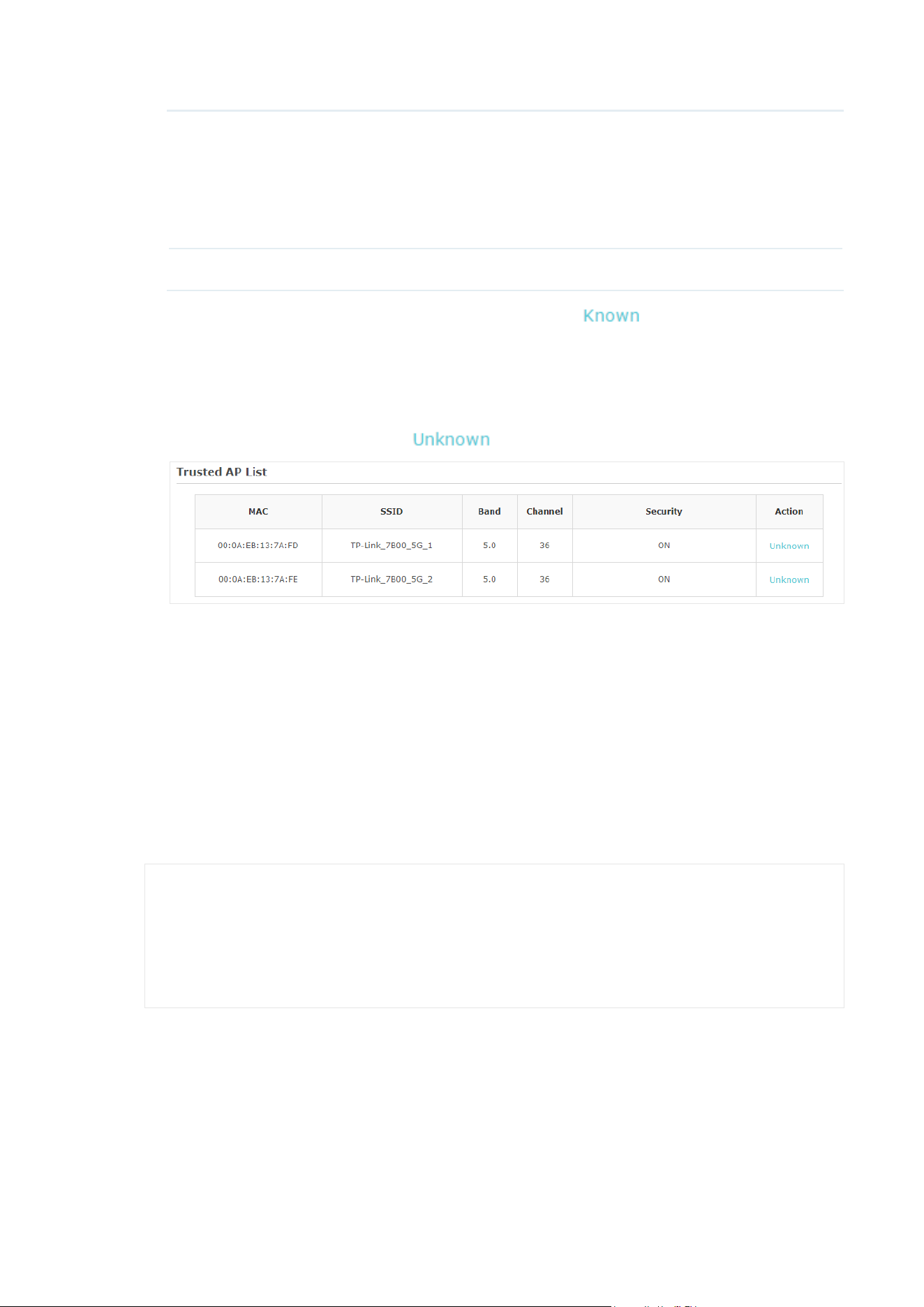
4. To move the specific AP to the Trusted AP list, click in the Action column. For
example, we move the first two APs in the above Detected Rogue AP list to the Trusted
AP list.
5. View the trusted APs in the Trusted AP List section. To move the specific AP back to
the Rogue AP list, you can click
in the Action column.
Manage the Trusted AP List
You can download the trusted AP list from your local host to the EAP or backup the current
Trusted AP list to your local host.
• Download the Trusted AP List From the Host
You can import a trusted AP list which records the MAC addresses of the trusted APs. The
AP whose MAC address is in the list will not be detected as a rogue AP.
Follow the steps below to import a trusted AP list to the EAP:
1. Acquire the trusted AP list. There are two ways:
• Backup the list from a EAP. For details, refer to
Backup the Trusted AP List to the
Host
.

58
• Manually create a trusted AP list. Create a txt. file, input the MAC addresses of the
trusted APs in the format XX:XX:XX:XX:XX:XX and use the Space key to separate each
MAC address. Save the file as a cfg file.
2. On this page, check the box to choose Download (PC to AP).
3. Click
and select the trusted AP list from your local host.
4. Select the file management mode. Two modes are available: Replace and Merge.
Replace means that the current trusted AP list will be replaced by the one you import.
Merge means that the APs in the imported list will be added to the current list with the
original APs remained.
5. Click Save to import the trusted AP list.
• Backup the Trusted AP List to the Host
You can backup the current trusted AP list and save the backup file to the local host.
Follow the steps below to backup the current trusted AP list:
1. On this page, check the box to choose Backup (AP to PC).
2. Click Save and the current trusted AP list will be downloaded to your local host as a cfg
file.

59
3.9 Configure Smart Antenna
(Only for Certain Devices)
Smart Antenna improve Wi-Fi performance for user-heavy scenarios through antenna
array and intelligent algorithm, and it helps overcome obstacles and signal interference.
To enable or disable Smart Antenna, go to the Wireless > Smart Antenna page.


61
4.1 Monitor the EAP
To monitor the EAP information, go to the Status > Device page.
The following device information will be displayed:
Device Name Displays the name of the EAP. The name consists of the product model
followed with the MAC address of the EAP by default.
Device Model Displays the product model of the EAP.
Firmware Version Displays the current firmware version the EAP. To update the firmware,
you can refer to
7.6 Update the Firmware
.
Hardware Version Displays the hardware version the EAP.
MAC Address Displays the MAC address of the EAP.
IP Address Displays the IP address of the EAP.
Subnet Mask Displays the subnet mask of the EAP.
GPON (Only for GPON APs)
Displays the GPON status of the EAP.
ETH/ETH1/ETH2 Displays the Ethernet port status of the EAP.
System Time Displays the current system time. To configure the system time, you can
refer to
7.3 Configure the System Time
.
Uptime Displays how long the EAP has been working since it starts up.

62
CPU Utilization Displays the CPU occupancy. If this value is too high, the EAP may work
abnormally.
Memory Utilization Displays the memory occupancy.
If your product is a Bridge kit:
On the Main AP’s Device page, you can view the Sub-AP list. For a Sub-AP entry, you can
click to launch its web page.
On the Sub-AP’s Device page, you can view its Main AP.

63
4.2 Monitor the GPON Information
To monitor the GPON information, go to the Status > GPON page.
The following GPON information will be displayed:
PON Type Displays the PON type of the EAP.
ONU ID Displays the ONU ID of the EAP.
Registration
Status
Displays the GPON registration status of the EAP.
Upstream FEC/
Downstream FEC
Displays the upstream/downstream FEC (Forward Error Correction) of
the EAP.
GPON SN Displays the GPON SN of the EAP.
Temperature Displays the temperature of the EAP.
Supply Voltage Displays the supply voltage of the EAP.
Bias Current Displays the bias current of the EAP.
TX Power/
RX Power
Displays the transmit/received power of the EAP.
Upstream/
Downstream
GPON Data (bytes)
Displays the upstream/downstream GPON data rate in bytes of the EAP.
Upstream/
Downstream
GPON Data (pkts)
Displays the upstream/downstream GPON data rate in pkt/s of the EAP.

64
OMCI (pkts) Displays the OMCI (ONT Management and Control Interface) data rate in
pkt/s of the EAP.

65
4.3 Monitor the Wireless Parameters
You can view the wireless parameters of the EAP, including SSID lists, radio settings, radio
traffic and LAN traffic.
Tips:
To change the wireless parameters, you can refer to
3.1 Configure the Wireless Parameters
.
To monitor the wireless parameters, go to the Status > Wireless page.
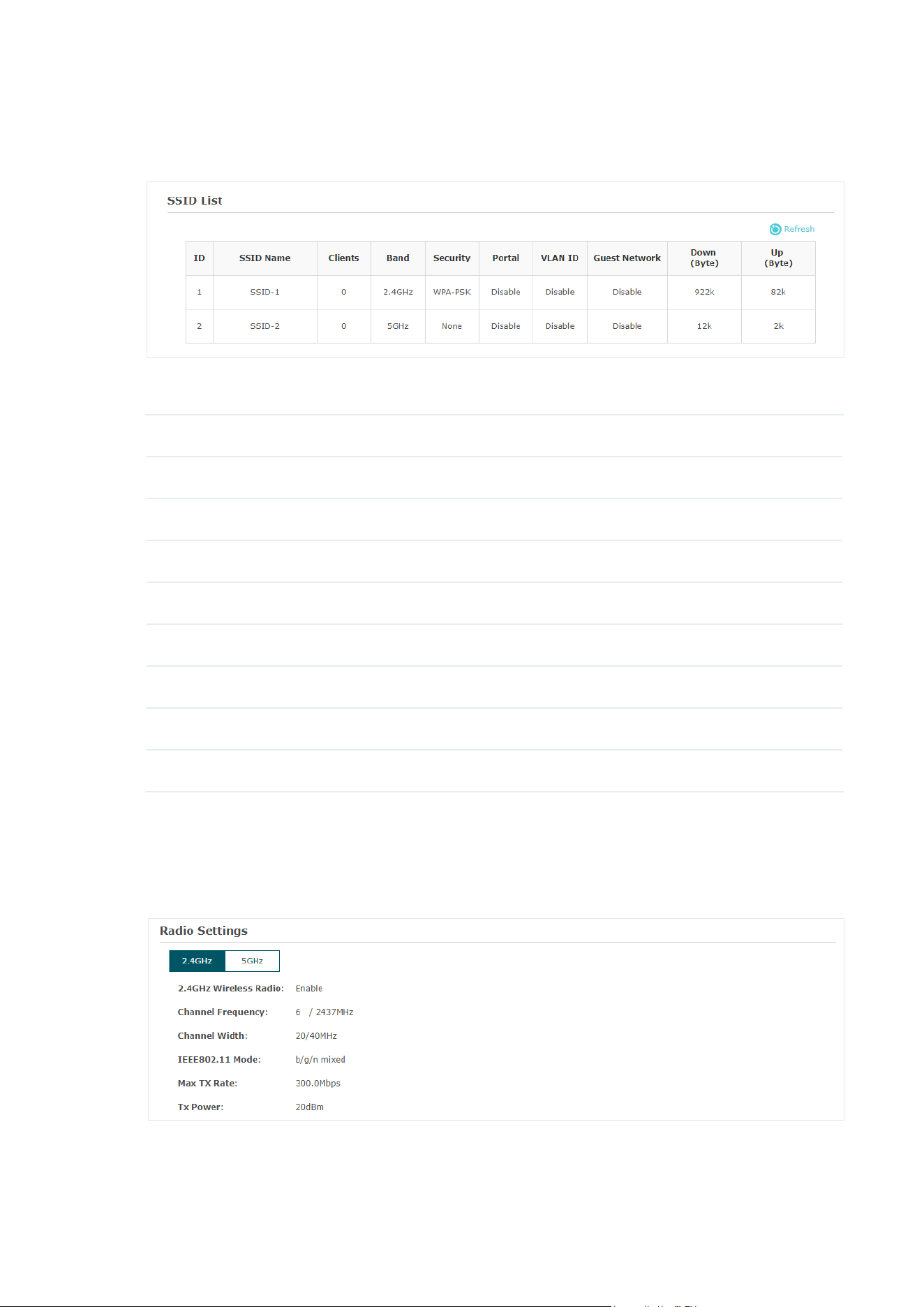
66
Monitor the SSIDs
You can monitor the SSID information of the EAP.
The following table introduces the displayed information of the SSID:
SSID Name Displays the SSID name.
Clients Displays the number of clients currently connected to the SSID.
Band Displays the frequency band the SSID is currently using.
Security Displays the security mode of the SSID.
Portal Displays whether portal function is enabled on the SSID.
VLAN ID Displays the VLAN ID of the SSID.
Guest Network Display guest network is enabled on the SSID.
Down (Byte) Displays the total download traffic since the SSID starts working.
Up (Byte) Displays the total upload traffic since the SSID starts working.
Monitor the Radio Settings
You can monitor the radio settings of the EAP. The following figure posted in the
introduction takes 2.4GHz as an example.
The following table introduces the displayed information of the EAP.
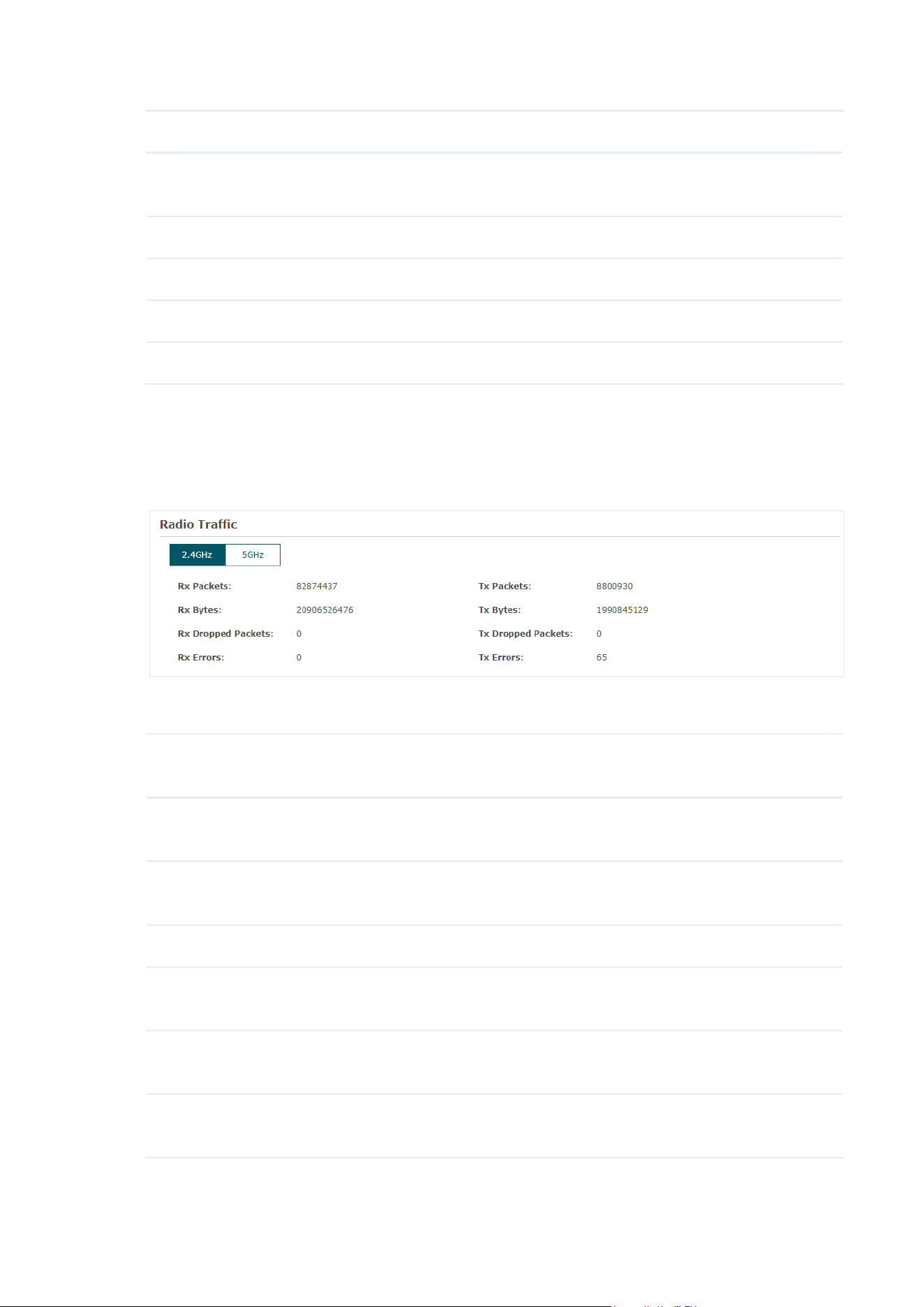
67
Wireless Radio Displays whether wireless function is enabled on the radio band.
Channel Frequency Displays the channel and frequency which are currently used by the
EAP.
Channel Width Displays the channel width which is currently used by the EAP.
IEEE802.11 Mode Displays the IEEE802.11 protocol currently used by the EAP.
Max TX Rate Displays the maximum physical rate of the EAP.
Tx Power Displays the transmit power of the EAP.
Monitor Radio Traffic
You can monitor the radio traffic of the EAP. The following figure posted in the introduction
takes 2.4GHz of a dual-band device as an example.
The following traffic information of the radio will be displayed:
Rx Packets Displays the total number of the received packets on the current band
since the EAP starts up.
Tx Packets Displays the total number of the sent packets on the current band since the
EAP starts up.
Rx Bytes Displays the total received traffic on the current band since the EAP starts
up.
Tx Bytes Displays the total sent traffic on the current band since the EAP starts up.
Rx Dropped
Packets
Displays the total number of the dropped packets which are received on
the current band since the EAP starts up.
Tx Dropped
Packets
Displays the total number of the dropped packets which are sent on the
current band since the EAP starts up.
Rx Errors Displays the total number of error packets which are received on the
current band since the EAP starts up.
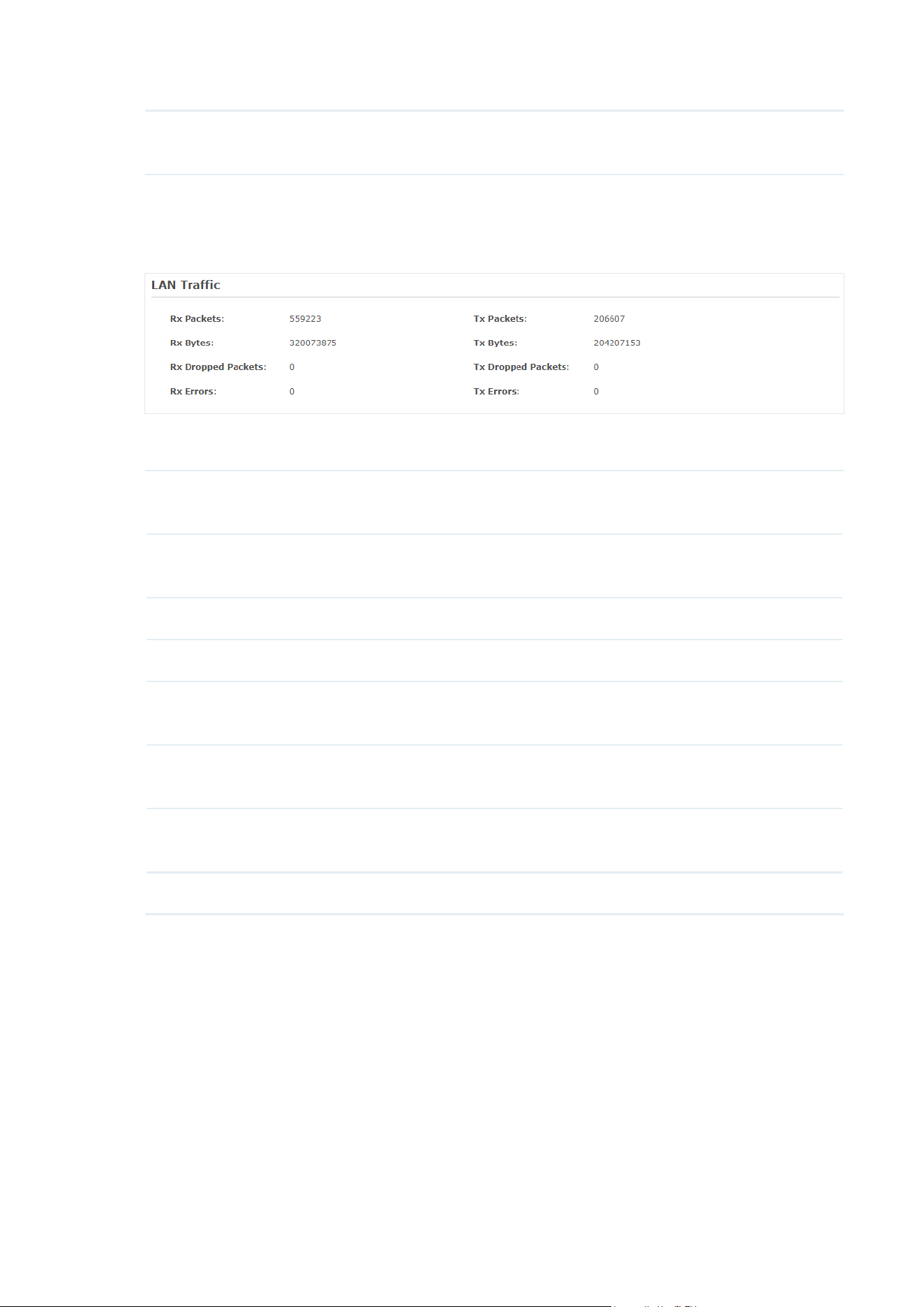
68
Tx Errors Displays the total number of error packets which are sent on the current
band since the EAP starts up.
Monitor LAN Traffic
You can view the LAN traffic of EAP.
The following traffic information of the LAN will be displayed:
Rx Packets Displays the total number of received packets in the LAN since the EAP
starts up.
Tx Packets Displays the total number of sent packets in the LAN since the EAP starts
up.
Rx Bytes Displays the total received traffic in the LAN since the EAP starts up.
Tx Bytes Displays the total sent traffic in the LAN since the EAP starts up.
Rx Dropped
Packets
Displays the total number of the dropped packets which are received by the
EAP since it starts up.
Tx Dropped
Packets
Displays the total number of the dropped packets which are sent by the
EAP since it starts up.
Rx Errors Displays the total number of the received error packets since the EAP
starts up.
Tx Errors Displays the total number of the sent error packets since the EAP starts up.

69
4.4 Monitor the Clients
You can monitor the information of the clients connected to the EAP.
To monitor the client information, go to the Status > Client page.
View Client Information
There are two types of clients: users and portal authenticated guests. Users are the clients
that connect to the SSID with portal authentication disabled. Guests are the clients that
connect to the SSID with portal authentication enabled.
Click the
to select the client types to view the information of the EAP. The
following figure posted in the introduction takes user as an example.
The following client information will be displayed:
Hostname Displays the hostname of the user.
IP Address Displays the IP address of the user.
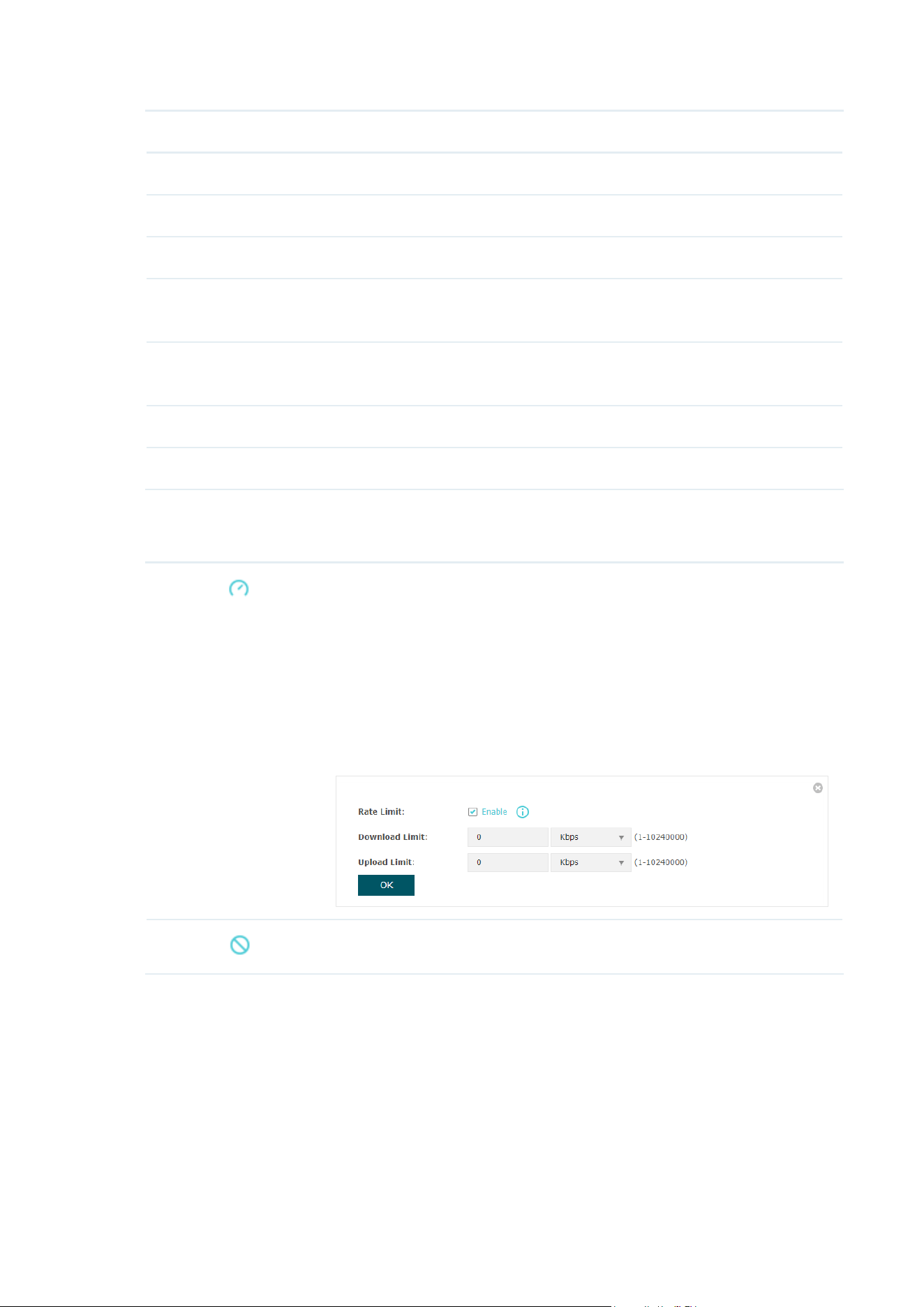
70
MAC Address Displays the MAC address of the user.
Band Displays the frequency band the user is working on.
SSID Displays the SSID the user is connecting to.
Active Time Displays how long the user has been connected to the SSID.
Up (Byte) Displays the user’s total uploaded traffic to the EAP since the last
connection.
Down (Byte) Displays the user’s total downloaded traffic from the EAP since the last
connection.
RSSI (dBm) Displays the RSSI(Received Signal Strength Indication) of the user.
Rate (Mbps) Displays the wireless transmission rate of the user.
You can execute the corresponding operation to the EAP by clicking an icon in the Action
column.
Click the icon to configure the rate limit of the client to balance
bandwidth usage. Enter the download limit and upload limit and click
OK.
You can limit the download and upload rate for each clients by which
connect to specific SSIDs when configuring SSIDs, refer to
3.1.1
Configure SSIDs
to get more details.
Note that the download and upload rate will be limited to the smaller
value if you set the limit value both in SSID and client configuration.
Click the icon to block the access of the client to the network.
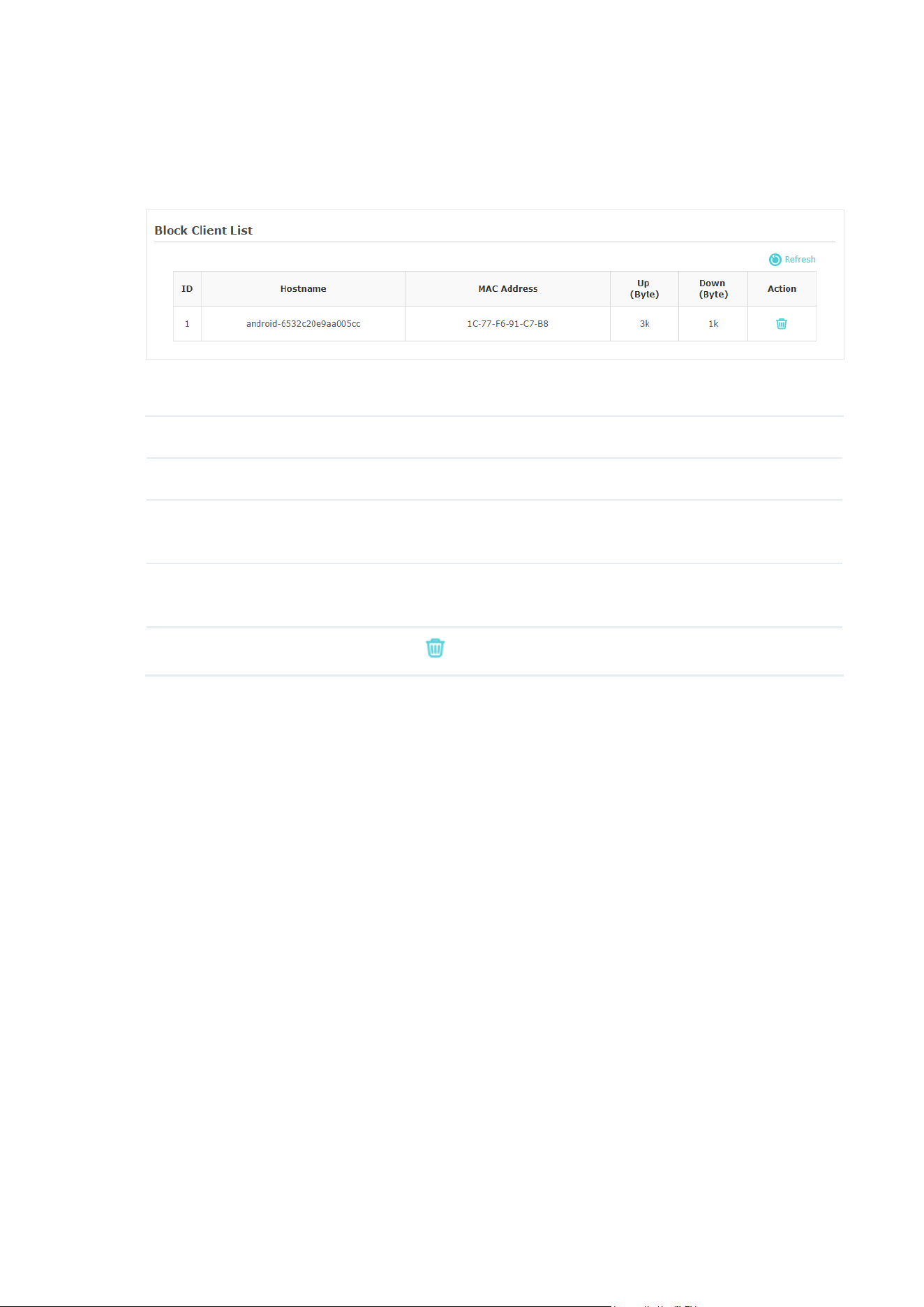
71
View Block Client Information
You can view the information of the clients that have been blocked and resume the client’s
access.
The following information of the blocked client will be displayed:
Hostname Displays the hostname of the user.
MAC Address Displays the MAC address of the user.
Up (Byte) Displays the user’s total uploaded traffic to the EAP since the last
connection.
Down (Byte) Displays the user’s total downloaded traffic from the EAP since the last
connection.
Action
You can click the
to resume the client's access to the internet.

72
5
Congure the Telephony Service
(Only for GPON APs)
This chapter introduces how to configure the telephony service of the GPON AP to make
telephone calls via internet, including:
• 5.1 Configure Telephone Numbers
• 5.2 Configure the Telephony Device
• 5.3 Configure the Telephony Book
• 5.4 Check the Call Logs
• 5.5 Configure the Digit Map
• 5.6 Configure Call Blocking

73
5.1 Configure Telephone Numbers
Telephone Number allows you to add telephone accounts and to modify their settings.
To configure telephone numbers, go to the Telephony > Telephone Number page.
■ Telephone Numbers
To add a telephone number:
1. Click Add.
2. Choose your Telephony Provider, then enter the parameters provided by your service
provider. The parameters differ according to your selection.
If your service provider is not listed, choose other provider, then refer to the following
table to configure the parameters:
Phone Number The number you use to dial and answer.
Registrar Address Usually it is a domain name, if not, an IP address.
Authentication ID/
Password
Not necessary information, but if you have, fill them in.
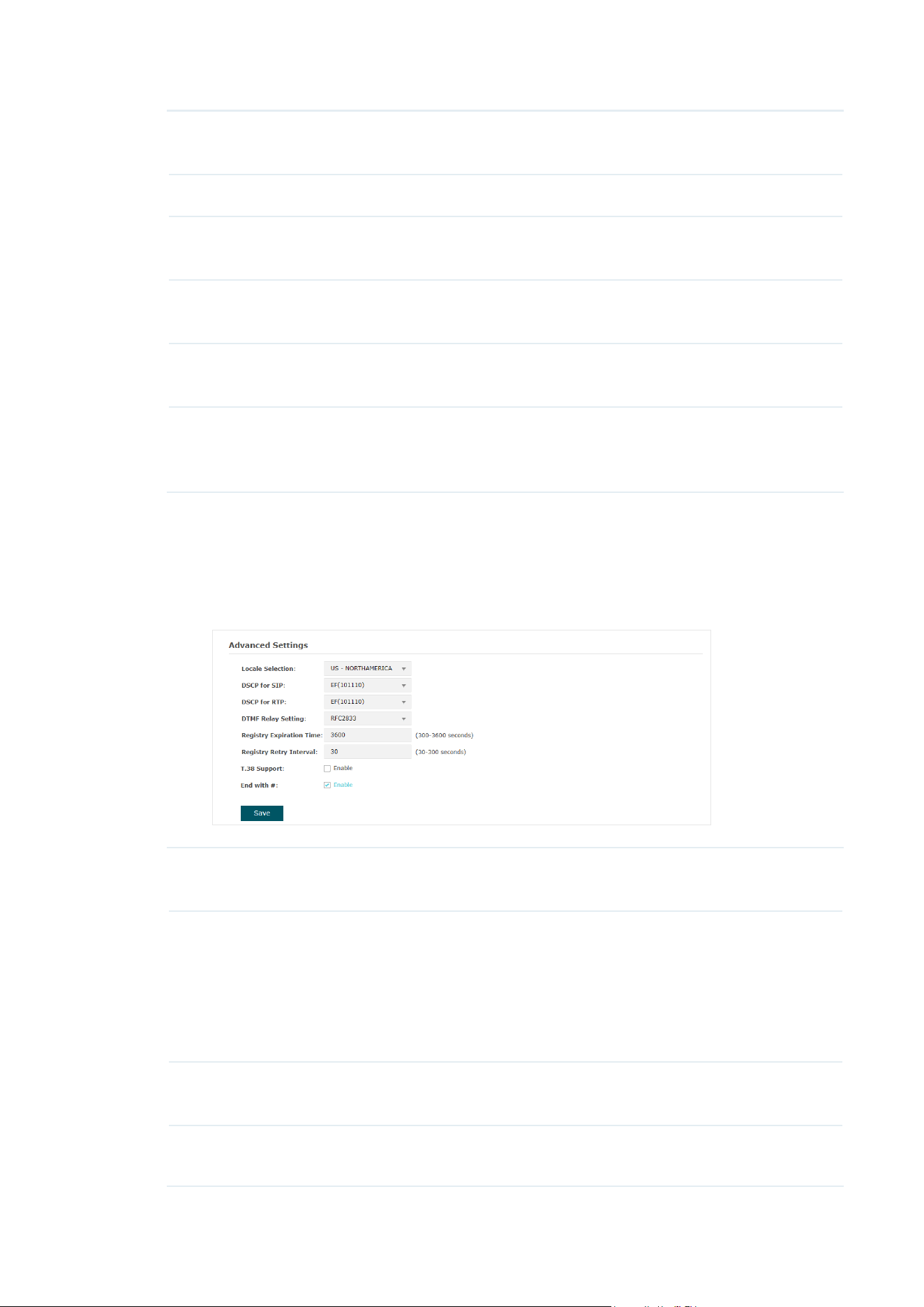
74
Registrar Port Typically 5060, unless your telephony provider specifies a different
port.
SIP Proxy Usually the domain name of the SIP Proxy Server, if not, an IP address.
SIP Proxy Port Typically 5060, unless your telephony provider specifies a different
port.
Outbound Proxy Usually the domain name of the Outbound Proxy Server, if not, an IP
address.
Outbound Proxy
Port
Typically 5060, unless your telephony provider specifies a different
port.
Register via
Outbound Proxy
When enabled, the EAP will use the specified Outbound Proxy for
registration. When disabled, the EAP will use the Registrar Address
above for registration.
3. Click OK.
■ Advanced Settings
Refer to the following table to configure advanced settings if needed:
Locale Selection Select your location. The EAP is embedded with the default location-
based parameters such as ring tones.
DSCP for SIP/
DSCP for RTP
DSCP (Differentiated Services Code Point) is the first 6 bits in the
ToS (Tpye of Service) byte. DSCP marking allows you to ensure
preferential treatment for higher-priority traffic on the network
based on the DSCP value. Select DSCP for the SIP (Session Initiation
Protocol) and RTP (Real-time Transport Protocol) respectively. If you
are unsure, please keep the default value.
DTMF Relay
Setting
Select a protocol for DTMF relay setting. If you are unsure of which
one to select, please keep the default value.
Registry Expiration
Time
Enter the expiration time of the SIP registration.

75
Registry Retry
Interval
Enter the time duration for which the EAP sends a request to retry
registering automatically prior to the Registry Expiration Time. If you
are unsure, please keep the default value.
T.38 Support Select the check box to enable T.38 support that allows fax
documents to be transferred in real-time between two standard
Group 3 facsimile terminals over the Internet or other networks using
IP protocols. This function is only effective between two T.38-enabled
terminals.
End with # Select the check box to use the pound sign (#) as an end-of-dialing.

76
5.2 Configure the Telephony Device
Telephony Devices allows you to configure phone settings for all registered devices.
To configure the telephony device, go to the Telephony > Telephony Device page.
Follow the steps below to configure a telephony device:
1. Click the edit icon.
2. Refer to the following table to configure the parameters. Then click OK.
Device Name Specify the device name.
Number for
Outgoing Calls
Select the number used by your telephony device to make outgoing
calls through your EAP. The default is Auto, which means the EAP will
select an available number to be the outgoing number.
Number for
Incoming Calls
Select the number used by your telephony device to receive
incoming calls through your EAP.
VAD Support VAD (Voice Activity Detection) saves bandwidth consumption by
avoiding transmission of silence packets. It also ensures that the
bandwidth is reserved only when voice activity is activated.
Speaker Gain Adjust the slider to control the speaker sound.
Mic Gain Adjust the slider to control the microphone sound.

77
5.3 Configure the Telephony Book
To configure the telephony book and emergency numbers, go to the Telephony >
Telephony Book page.
■ Telephone Book
Telephone Book allows you to save contact details and assign a speed dial number to the
contact.
To add a new contact:
1. Click Add.
2. Refer to the following table to configure the parameters. Then click OK.
First Name /
Last Name
Enter the last name and first name of your contact.
Private Phone
Number
Enter the private phone number of your contact.
Work Phone
Number
Enter the work phone number of your contact.
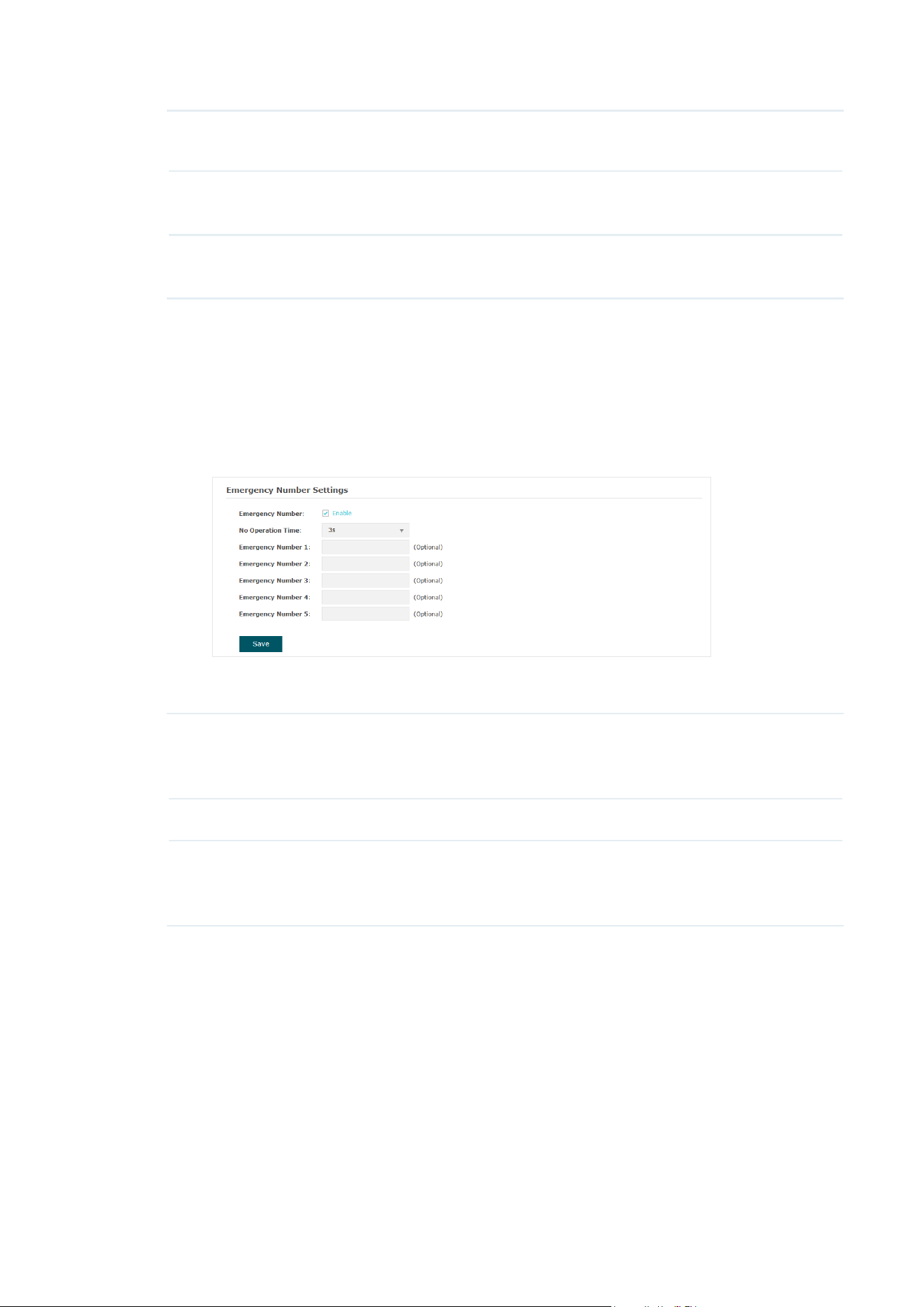
78
Mobile Phone
Number
Enter the mobile phone number of your contact.
Speed Dial Number
Type
Select the type of number for speed dial. Speed Dial allows you to
quickly place a call with fewer numbers to dial.
Speed Dial
Number
Set the speed dial number. After saving the settings, you can simply
press this number followed by # to place a call.
■ Emergence Number
Emergency Number helps to make a call for help when emergency occurs.
To set the emergency numbers:
1. Enable Emergency Number.
2. Refer to the following table to configure the parameters. Then click Save.
Emergency
Number
Emergency Number allows your telephony device to call a specific
contact when the handset is picked up but no operation is done
within a specific time period.
No Operation Time Set the time period before the phone makes the call automatically.
Emergency
Number 1/2/3/4/5
Enter one or more telephone numbers for emergency calls. The
phone will call these numbers in order if the previous call is not
answered.

79
5.4 Check the Call Logs
Call Log records the details of incoming calls and outgoing calls through your EAP.
To check the call logs, go to the Telephony > Call Log page, enable Call Log, and save the
settings.

80
5.5 Configure the Digit Map
A digit map can be used to match digits to control numbers from being dialed. A number
can be dialed out only when its digit sequence matches the digit map.
To use the digit map, go to the Telephony > Digit Map page, then enter a digit map by
referring to the example settings. Save the settings.

81
5.6 Configure Call Blocking
Call Blocking allows you to block unwanted calls and to prevent the EAP from making
certain call types. The blocked calls will be recorded in the Call Log table.
To block calls, go to the Telephony > Call Blocking page.
■ To block incoming calls:
1. In the Incoming Calls section, click Add.
2. Select Anonymous Number to block all unknown incoming calls, or select Specific
Number and enter a telephone number to block incoming calls from the specified
number.
3. Click OK.
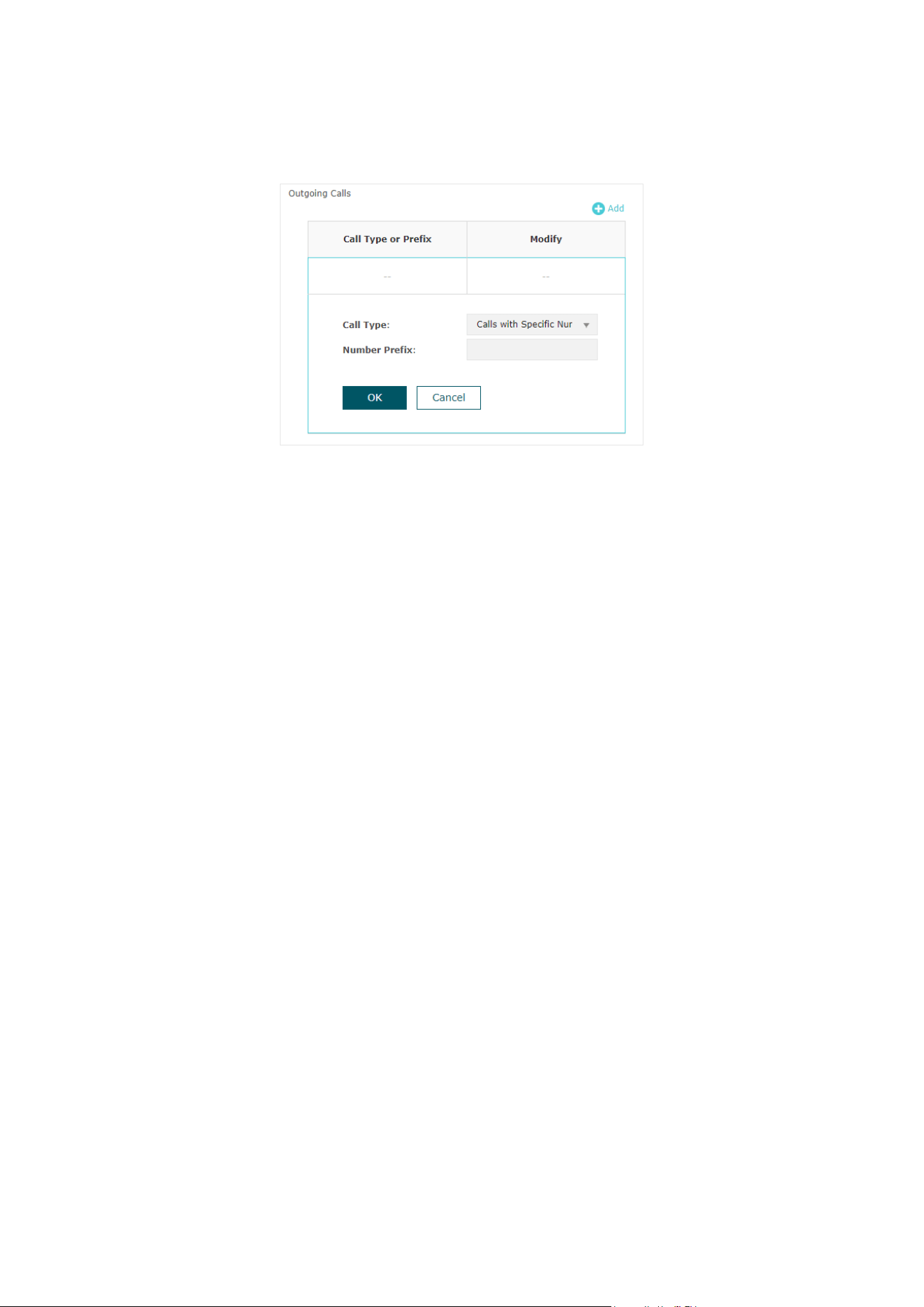
82
■ To block outgoing calls:
1. In the Outgoing Calls section, click Add.
2. Select a Call Type to block a specific type of outgoing calls, or select Call with Specific
Number Prefix and enter a telephone number prefix to block outgoing calls to numbers
with the specified prefix.
3. Click OK.

83
6
Manage the EAP
The EAP provides powerful functions of device management and maintenance. This
chapter introduces how to manage the EAP, including:
• 6.1 Manage Bridge APs (Only for the Bridge Main AP)
• 6.2 Manage the IP Address of the EAP
• 6.3 Manage System Logs
• 6.4 Configure Web Server
• 6.5 Configure Management Access
• 6.6 Configure Trunk (Only for Certain Devices)
• 6.7 Configure LED
• 6.8 Configure Wi-Fi Control (Only for Certain Devices)
• 6.9 Configure PoE Out (Only for Certain Devices)
• 6.10 Configure SSH
• 6.11 Configure SNMP
• 6.12 Configure Power Saving (Only for Certain Devices)

84
6.1 Manage Bridge APs
(Only for the Bridge Main AP)
If your product is a Bridge kit, you can view and manage Bridge APs centrally on the Main
AP’s web page.
Go to the Management > Wireless Bridge APs page. The system automatically displays
the Main AP and Sub-AP(s) in the kit.
For a Sub-AP entry, you can click to launch its web page.
If you want to add other APs, click the Add Sub-AP button and follow the web instructions
to add them.

85
6.2 Manage the IP Address of the EAP
The IP address of the EAP can be a dynamic IP address assigned by the DHCP server or
a static IP address manually specified by yourself. By default, the EAP gets a dynamic IP
address from the DHCP server. You can also specify a static IP address according to your
needs.
To configure the IP address of the EAP, go to the Management > Network page.
Follow the steps below to configure the IP address of the EAP:
1. Choose your desired IP address mode: Dynamic or Static.
2. Configure the related parameters according to your selection.
• Dynamic
If you choose Dynamic as the IP address mode, make sure that there is a reachable
DHCP server on your network and the DHCP sever is properly configured to assign IP
address and the other network parameters to the EAP.
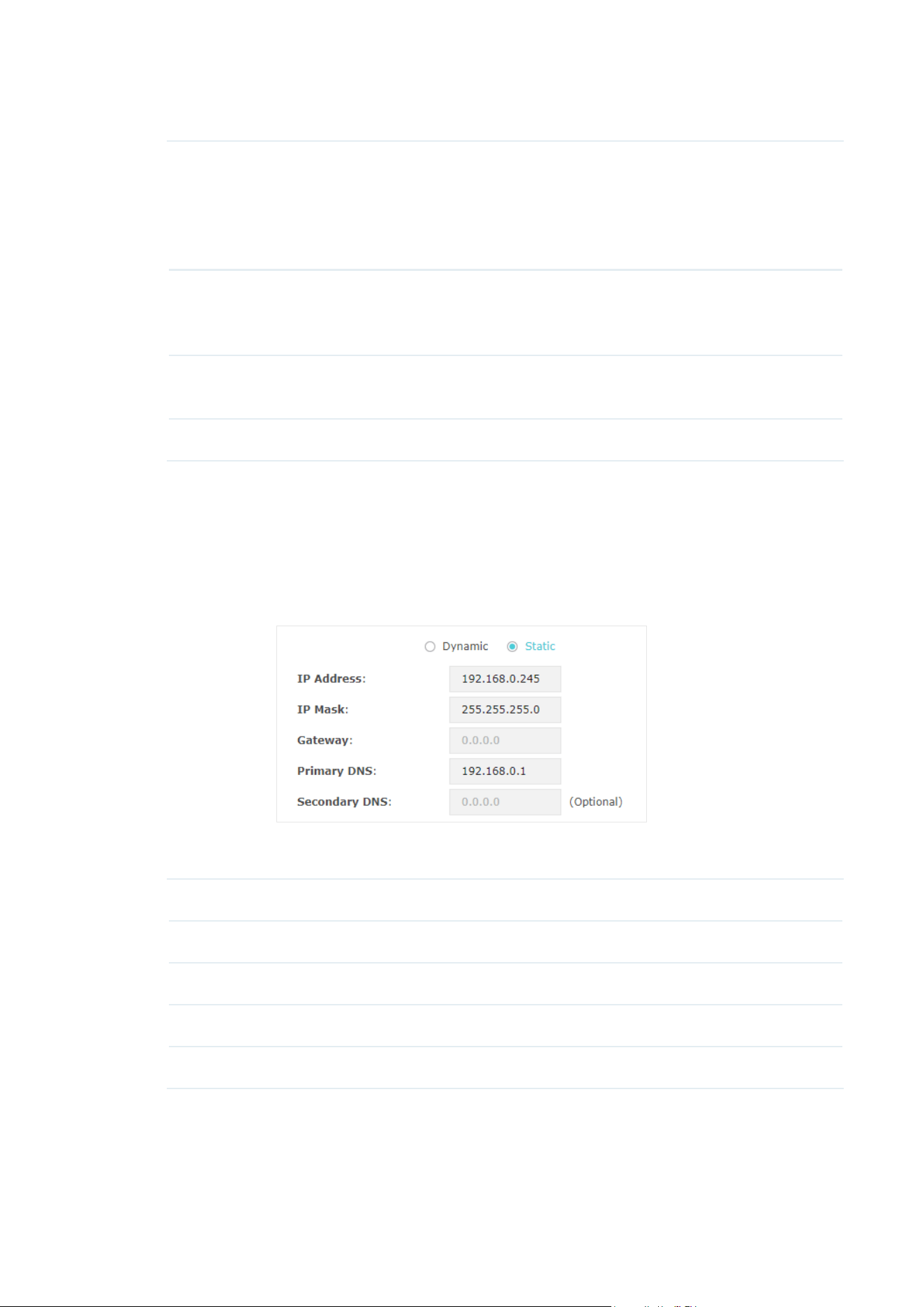
86
For network stability, you can also configure the fallback IP parameters for the EAP:
Fallback IP With the fallback IP configured, if the EAP fails to get an IP
address from a DHCP server within 10 seconds, the fallback
IP will work as the IP address of the EAP. After that, however,
the EAP will keep trying to obtain an IP address from the DHCP
server until it succeeds.
DHCP Fallback IP Specify a fallback IP address for the EAP. Make sure that this IP
address is not being used by any other device in the same LAN.
The default DHCP fallback IP is 192.168.0.254.
DHCP Fallback IP MASK Specify the network mask of the fallback IP. The default DHCP
fallback IP mask is 255.255.255.0.
DHCP Fallback Gateway Specify the network gateway.
• Static
If you choose Static as the IP address mode, you need to manually specify an IP
address and the related network parameters for the EAP. Make sure that the specified
IP address is not being used by any other device in the same LAN.
Configure the IP address and network parameters as the following table shows:
IP Address Specify a static IP address for the EAP.
IP Mask Specify the network mask.
Gateway Specify the network gateway.
Primary DNS Specify the primary DNS server.
Secondary DNS Specify the secondary DNS server. (Optional)
3. Click Save.
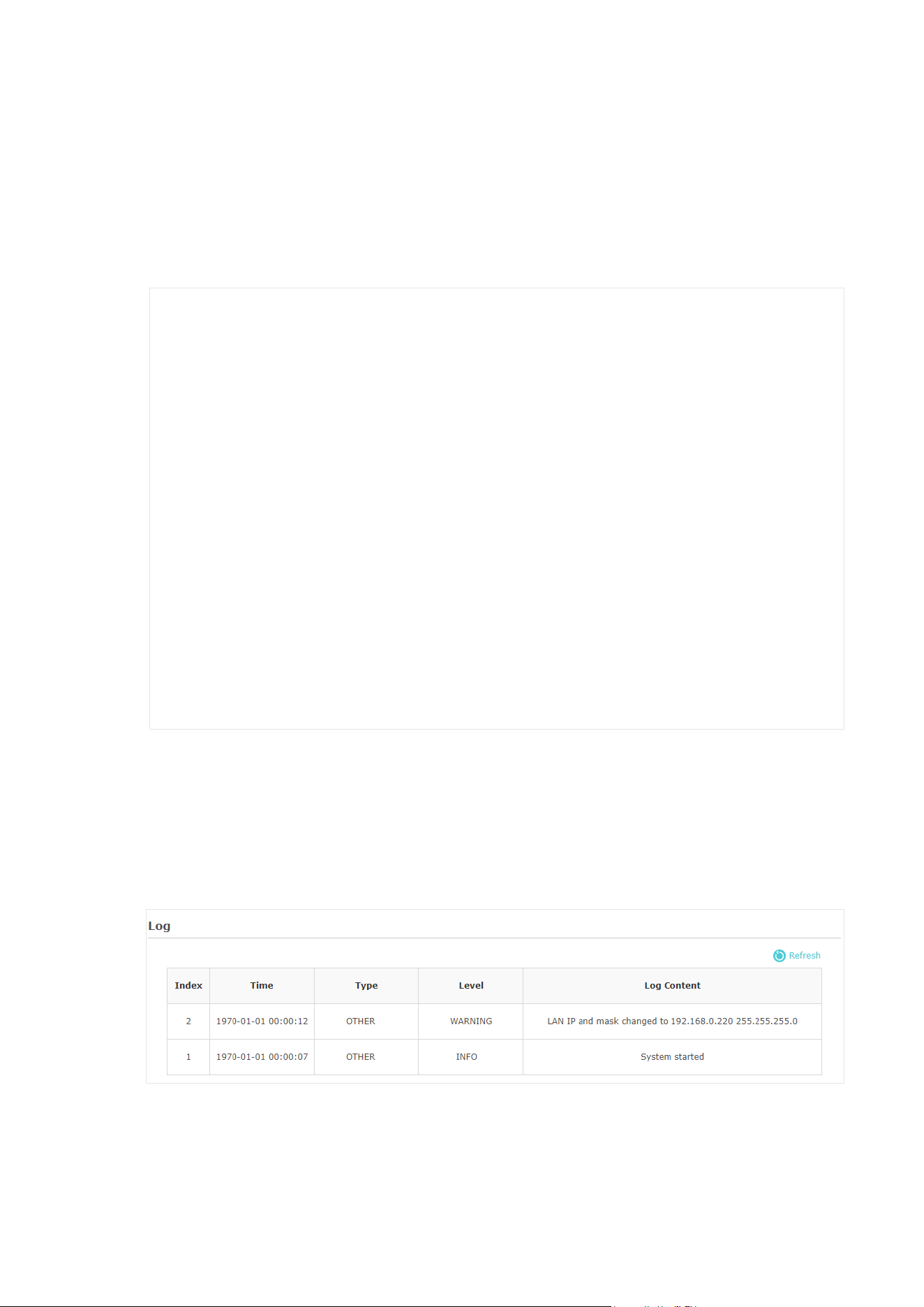
87
6.3 Manage System Logs
System logs record information about hardware, software as well as system issues and
monitors system events. With the help of system log, you can get informed of system
running status and detect the reasons for failure.
To manage system logs, go to the Management > System Log page.
On this page, you can view the system logs and configure the way of receiving system
logs.
View System Logs
In the Log section, you can click to refresh the logs and view them in the table.
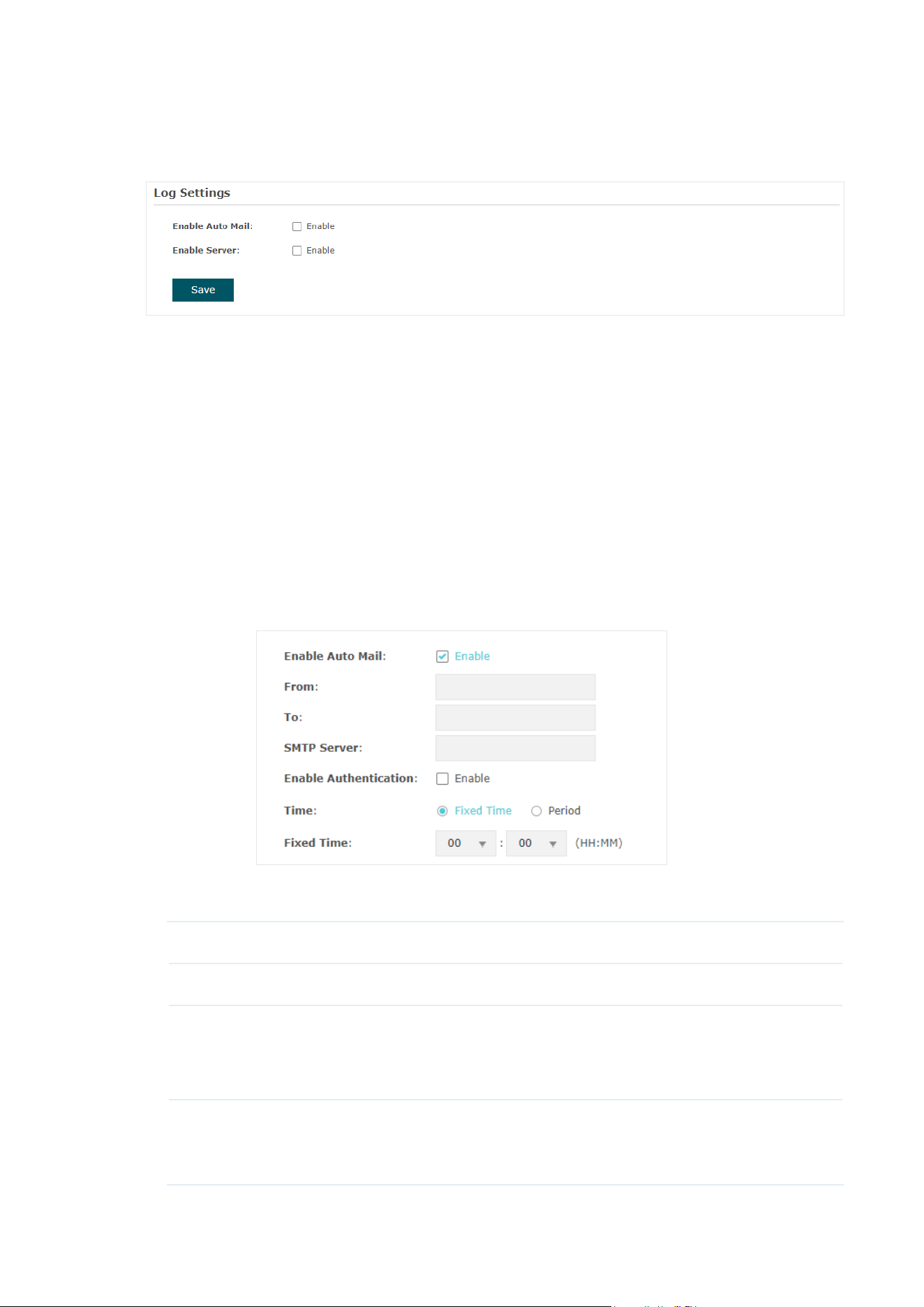
88
Configure the Way of Receiving Logs
In the Log Settings section, you can configure the ways of receiving system logs.
Follow the steps below to configure this feature:
1. Check the corresponding box to enable one or more ways of receiving system logs,
and configure the related parameters. Two ways are available:
Auto Mail
and
Server
.
■ Auto Mail
If Auto Mail is configured, system logs will be sent to a specified mailbox. Check the box
to enable the feature and configure the related parameters.
Note:
SSL encryption is not currently supported.
The following table introduces how to configure these parameters:
From Enter the sender’s E-mail address.
To Enter the receiver’s E-mail address.
SMTP Server Enter the IP address of the sender’s SMTP server.
Note:
At present, the domain name of SMTP server is not supported in
this field.
Enable
Authentication
If the sender’s mailbox is configured with You can check the box to
enable mail server authentication. Enter the sender’s username and
password.
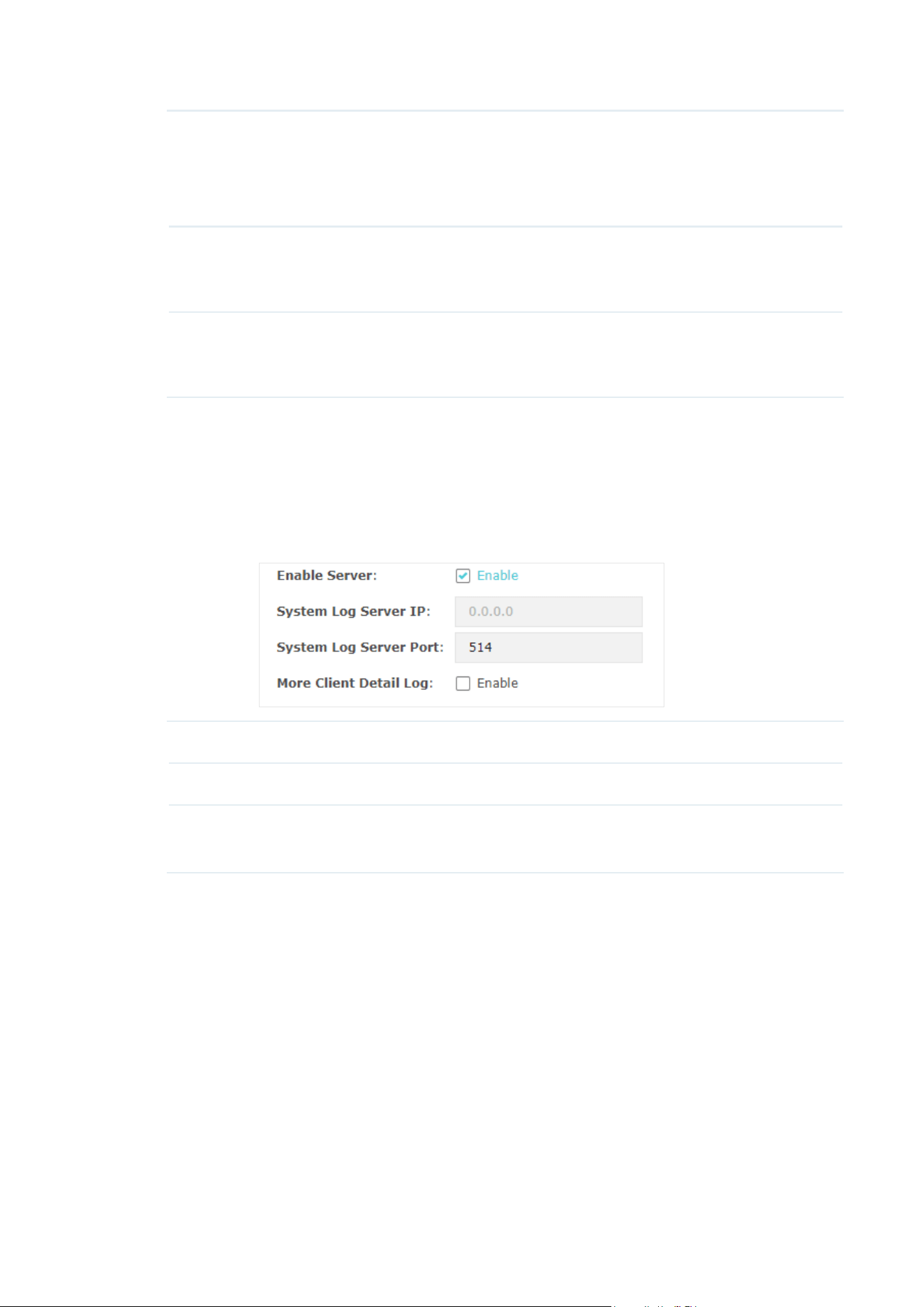
89
Time Mode Select Time Mode: Fixed Time or Period Time.
Fixed Time means that the system logs will be sent at the specific time
every day. Period Time means that the system logs will be sent at the
specific time interval.
Fixed Time If you select Fixed Time, specify a fixed time to send the system log
mails. For example, 08:30 indicates that the mail will be sent at 8:30 am
everyday.
Period Time If you select Period Time, specify a period time to regularly send the
system log mail. For example, 6 indicates that the mail will be sent every
six hours.
■ Server
If Server is configured, system logs will be sent to the specified system log server, and
you can use the syslog software to view the logs on the server.
Enable this feature and enter the IP address and port of the system log server.
System Log Server IP Enter the IP address of the server.
System Log Server Port Enter the port of the server.
More Client Detail Log With the option enabled, the logs of clients will be sent to the
server.
2. Click Save.

90
6.4 Configure Web Server
With the web server, you can log in to the management web page of the EAP. You can
configure the web server parameters of the EAP according to your needs.
To configure Web Server, go to the Management > Web Server page.
Follow the steps below to configure Web Server:
1. Refer to the following table to configure the parameters:
Secure Server Port Designate a secure server port for web server in HTTPS mode. By
default the port is 443.
Server Port Designate a server port for web server in HTTP mode. By default the
port is 80.
Session Timeout Set the session timeout. If you do nothing with the web page within
the timeout, the system will log out automatically. You can log in again
if you want to go back to web page.
Layer-3
Accessibility
With this feature enabled, devices from a different subnet can access
Omada managed devices via the management web page. With this
feature disabled, only the devices in the same subnet can access
Omada managed devices via the management web page.
TLS Version
1.0/1.1
The EAP management page uses TLS v1.2 by default. You can enable
the feature if you prefer TLS v1.0/1.1.
This feature is only available on certain devices. To check whether
your device supports this feature, refer to the actual web interface.
2. Click Save.

91
6.5 Configure Management Access
By default, all hosts in the LAN can log in to the management web page of the EAP with the
correct username and password. To control the hosts’ access to the web page of the EAP,
you can specify the MAC addresses and management VLAN of the hosts that are allowed
to access the web page.
To configure Management Access, go to the Management > Management Access page.
Configure Access MAC Management
Only the hosts with the specific MAC addresses are allowed to access the web page, and
other hosts without MAC addresses specified are not allowed to access the web page.
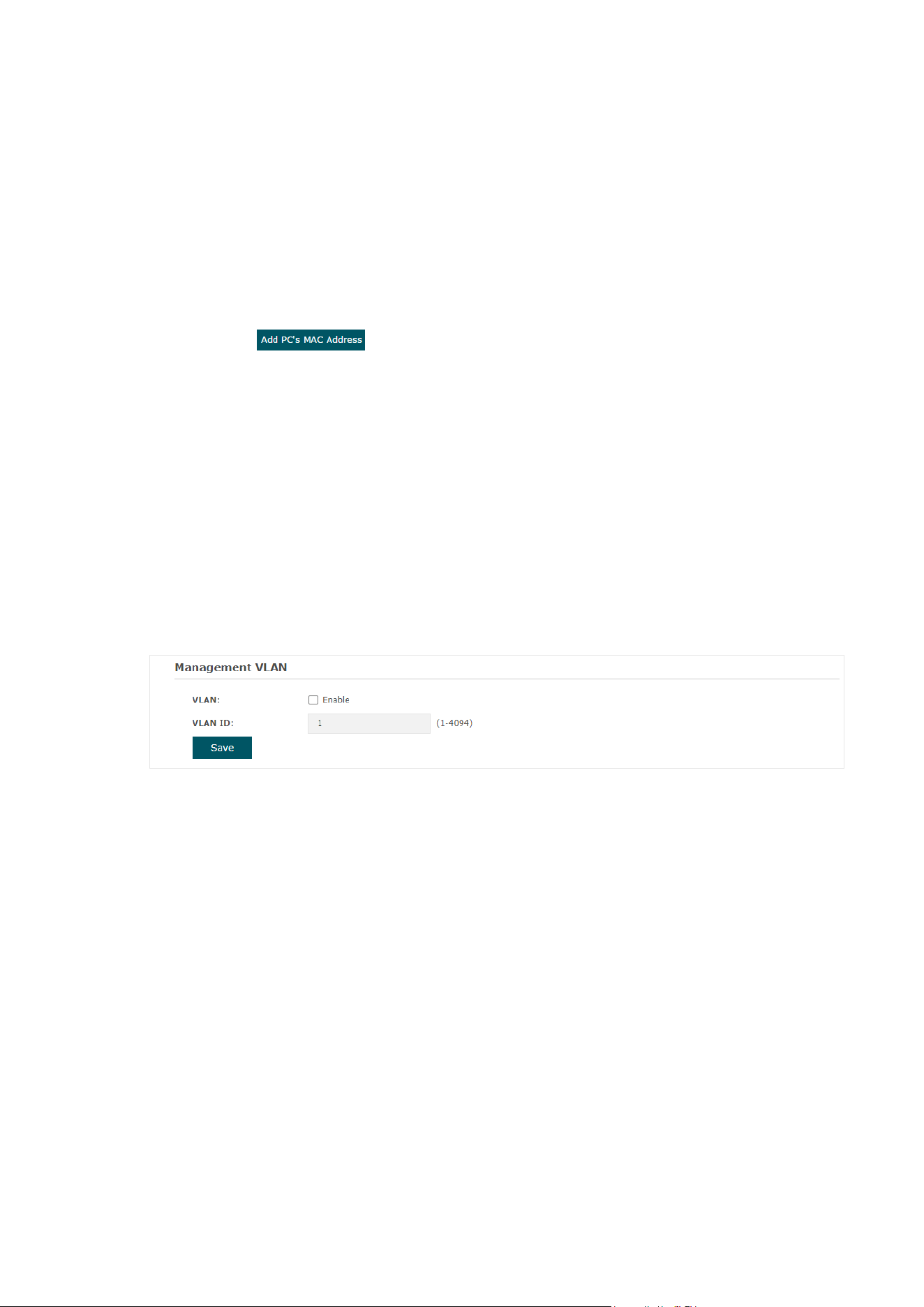
92
Follow the steps below to configure Management Access on this page:
1. Check the box to enable MAC Authentication.
2. Specify one or more MAC addresses in the MAC1/MAC2/MAC3/MAC4 fields. Up to
four MAC addresses can be added.
3. Click Save.
Tips:
• You can click to quickly add the MAC address of your current logged-in host, .
• Verify the MAC addresses carefully. Once the settings are saved, only the hosts in the MAC
address list can access the web page of the EAP.
• If you cannot log in to the web page after saving the wrong configuration, you can reset the EAP
to the factory defaults and use the default username and password (both admin) to log in.
Configure Management VLAN
Management VLAN provides a safer method to manage the EAP. With Management VLAN
enabled, only the hosts in the Management VLAN can access the web page of the EAP.
Since most hosts cannot process VLAN TAGs, you can connect the management host to
the network via a switch, and set up correct VLAN settings for the switches on the network
to ensure the communication between the host and the EAP in the Management VLAN.
Follow the steps below to configure Management VLAN on this page:
1. Check the box to enable Management VLAN.
2. Specify the VLAN ID of the management VLAN. Only the hosts in the Management
VLAN can log in to the EAP via the Ethernet port.
3. Click Save.
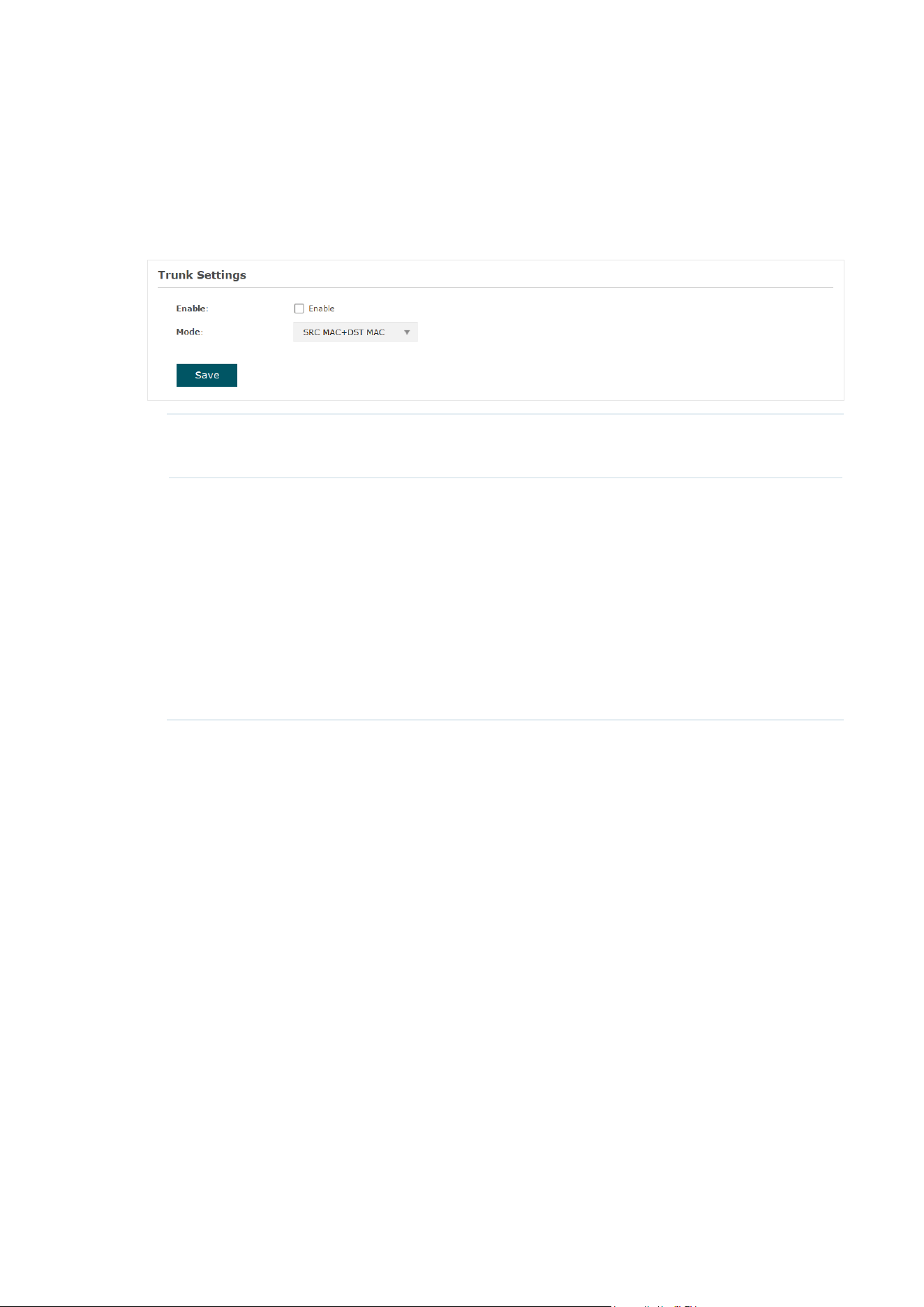
93
6.6 Configure Trunk
(Only for Certain Devices)
The trunk function can bundle multiple Ethernet links into a logical link to increase
bandwidth and improve network reliability.
To configure the trunk function, go to the Management > Trunk page.
Enable Check the box to enable the function.
Mode Select the trunk algorithm mode. Based on the selected algorithm
mode, the AP determines which physical port is used to send out the
received packet.
SRC MAC+DST MAC: The AP determines the outgoing port based on
both the source and destination MAC addresses of the packet.
DST MAC: The AP determines the outgoing port based on the
destination MAC address of the packet.
SRC MAC: The AP determines the outgoing port based on the source
MAC address of the packet.

94
6.7 Configure LED
You can turn on or off the LED light of the EAP and flash the LED to locate your device.
To configure LED, go to the Management > LED Control page.
Check the box to turn on or turn off the LED light of the EAP, and click Save. To flash the
LED, click Locate. Then the LED will flash for 10 minutes or until the locate button is clicked
again.

95
6.8 Configure Wi-Fi Control
(Only for Certain Devices)
Note:
Wi-Fi Control is only available on certain devices. To check whether your device supports this
feature, refer to the actual web interface. If Wi-Fi Control is available, there is Management > Wi-Fi
Control in the menu structure.
Certain devices have an LED/Wi-Fi button on the front panel. With Wi-Fi Control enabled,
you can press the button to turn on or off both of the Wi-Fi and LED at the same time.
To configure Wi-Fi Control, go to the Management > Wi-Fi Control page.
Check the box to enable Wi-Fi Control and click Save.
Note:
You can enable Wi-Fi Control only when the option LED ON/OFF is enabled.

96
6.9 Configure PoE Out
(Only for Certain Devices)
Note:
PoE Out is only available on certain devices. To check whether your device supports this feature,
refer to the actual web interface. If PoE Out is available, there is Management > LAN Port Config in
the menu structure.
Certain devices have a PoE OUT port that can transmit data and supply power to the client
simultaneously. You can also disable PoE Out to make the port transmit data only.
To configure PoE Out, go to the Management > LAN Port Config page.
Check the box to enable PoE Out and click Save.

97
6.10 Configure SSH
If you want to remotely log in to the EAP via SSH, you can deploy an SSH server on your
network and configure the SSH feature on the EAP.
To configure SSH, go to the Management > SSH page.
Follow the steps below to configure SSH on this page:
1. Refer to the following table to configure the parameters:
Server Port Designate a server port for SSH. By default the port is 22.
Layer-3
Accessibility
With this feature enabled, devices from a different subnet can access
Omada managed devices via SSH. With this feature disabled, only the
devices in the same subnet can access Omada managed devices via
SSH.
SSH Login Enable or disable SSH Login globally.
2. Click Save.

98
6.11 Configure SNMP
The EAP can be configured as an SNMP agent and work together with the SNMP manager.
Once the EAP has become an SNMP agent, it is able to receive and process request
messages from the SNMP manager. At present, the EAP supports SNMP v1 and v2c.
To configure the EAP as an SNMP agent, go to the Management > SNMP page.
Follow the steps below to complete the configuration on this page:
1. Check the box to enable SNMP Agent.
2. Refer to the following table to configure the required parameters:
SysContact Enter the textual identification of the contact person for this managed
node.
SysName Enter an administratively-assigned name for this managed node.
SysLocation Enter the physical location of this managed node.
Get Community Community refers to a host group aiming at network management.
Get Community only has the read-only right of the device’s SNMP
information. The community name can be considered a group password.
The default setting is public.
Get Source Defines the IP address (for example, 10.10.10.1) for management
systems that can serve as Get Community to read the SNMP information
of this device. The default is 0.0.0.0, which means all hosts can read the
SNMP information of this device.

99
Set Community Set Community has the read and write right of the device’s SNMP
information. Enter the community name that allows read/write access to
the device’s SNMP information. The community name can be considered
a group password. The default setting is private.
Set Source Defines the IP address (for example, 10.10.10.1) for management
systems that can serve as Set Community to read and write the SNMP
information of this device. The default is 0.0.0.0, which means all hosts
can read and write the SNMP information of this device.
3. Click Save.
Note:
Defining community can allow management systems in the same community to communicate
with the SNMP Agent. The community name can be seen as the shared password of the network
hosts group. Thus, for the security, we recommend that modify the default community name before
enabling the SNMP Agent service. If the field of community is blank, the SNMP Agent will not
respond to any community name.

100
6.12 Configure Power Saving
(Only for Certain Devices)
Power saving can reduce the AP’s power usage.
To configure power saving, go to the Power > Power Saving page.
Trigger by Time With this option enabled, you can specify the start and end time to
enable power saving every day within the time period.
Trigger by
Band
With this option enabled, you can specify the bands and idle duration to
enable power saving when there are no connections for the specified
duration on the bands.


102
7.1 Configure the User Account
Every EAP has a user account, which is used to log in to the management page of the EAP.
When you start the EAP at the first time, the username and password of the user account
are both admin. After the first login, the system will require you to set a new username and
a new password for the user account. And then you can use the new user account to log in
to the EAP. Also, you can change your user account as needed.
Tips:
Please remember your user account well. If you forget it, reset the EAP to the factory defaults and
log in with the default user account (username and password are both admin).
To configure the user account, go to System > User Account page.
Follow the steps below to change your user account on this page:
1. Enter the old username and old password of your user account.
2. Specify a new username and a new password for your user account. The system
will automatically detect the strength of your entered password. For security, we
recommend that you set a password with high strength.
3. Retype the new password.
4. Click Save.

103
7.2 Configure Controller Settings
To make your controller adopt your EAP, make sure the EAP can be discovered by the
controller. Controller Settings enable your EAP to be discovered in either of the following
scenarios.
• If you are using Omada Cloud-Based Controller,
Enable Cloud-Based Controller
Management
.
• If your EAP and controller are located in the same network, LAN and VLAN, the controller
can discover and adopt the EAP without any controller settings. Otherwise, you need to
inform the EAP of the controller’s URL/IP address, and one possible way is to
Configure
Controller Inform URL
.
For details about the whole procedure, refer to the User Guide of Omada SDN
Controller. The guide can be found on the download center of our official website:
https://www.tp-link.com/support/download/
Enable Cloud-Based Controller Management
Go to the System > Controller Settings page. In the Cloud- Based Controller Management
section, enable Cloud-Based Controller Management and click Save. After you add the

104
EAP to your Omada Cloud-Based Controller, you can check the connection status on this
page.

105
Configure Controller Inform URL
Go to the System > Controller Settings page. In the Controller Inform URL section, inform
the EAP of the controller’s URL/IP address, and click Save. Then the EAP make contact
with the controller so that the controller can discover the EAP.

106
7.3 Configure the System Time
System time is the standard time for Scheduler and other time-based functions. The EAP
supports the basic system time settings and the Daylight Saving Time (DST) feature.
To configure the system time, go to the System > Time Settings page.
The following two sections introduce how to configure the basic system time settings and
the Daylight Saving Time feature.

107
Configure the System Time
In the Time Settings section, you can configure the system time. There are three methods
to set the system time:
Set the System Time Manually
,
Acquire the System Time From an
NTP Server
, and
Synchronize the System Time with PC’s Clock
.
Determine the way of setting the system time and follow the steps below to complete the
configurations:
• Set the System Time Manually
To set the system time manually, follow the steps below:
1. Configure the following three options on the page: Time Zone, Date and Time.
Time Zone Select your time zone from the drop-down list. Here GMT means
Greenwich Mean Time.
Date Specify the current date in the format MM/DD/YYYY. MM means month,
DD means day and YYYY means year.
For example: 06/01/2017.
Time Specify the current time in the format HH/MM/SS. HH means hour, MM
means minute and SS means second.
It uses 24-hour system time. For example: 14:36:21.
2. Click Save.
Note:
The system time set manually will be lost after the EAP is rebooted.
• Acquire the System Time From an NTP Server
To get the system time from an NTP server, follow the steps below:
1. Build an NTP server on your network and make sure that it is reachable by the EAP. Or
you can simply find an NTP server on the internet and get its IP address.
108
Note:
If you use an NTP server on the internet, make sure that the gateway address is set correctly on the
EAP. Otherwise, the EAP cannot get the system time from the NTP server successfully. To set the
gateway address, refer to
3.1 Configure the Wireless Parameters
.
2. Specify the NTP server for the EAP. If you have two NTP servers, you can set one of
them as the primary NTP server, and the other as the secondary NTP server. Once the
primary NTP server is down, the EAP can get the system time from the secondary NTP
server.
Primary NTP
Server
Enter the IP address of the primary NTP server.
Note:
If you have only one NTP server on your network, enter the IP
address of the NTP server in this field.
Secondary NTP
Server
Enter the IP address of the secondary NTP server.
3. Click the button and the acquired system time will be displayed in the Date
and
Time fields.
4. Click Save.
• Synchronize the System Time with PC’s Clock
To synchronize the system time with the clock of your currently logged-in host,
follow the steps below:
1. Click the button and the synchronized system time will be displayed
in the Date and Time fields.
2. Click Save.
Note:
The system time synchronized with PC’s clock will be lost after the EAP is rebooted.

109
Configure Daylight Saving Time
Daylight saving time is the practice of advancing clocks during summer months so that
evening daylight lasts longer, while sacrificing normal sunrise times. The EAP provides
daylight saving time configuration.
Follow the steps below to configure daylight saving time:
1. Check the box to enable Daylight Saving.
2. Select the mode of daylight saving time. Three modes are available: Predefined Mode,
Recurring Mode and Date Mode.
3. Configure the related parameters of the selected mode.
■ Predefined Mode
If you select Predefined Mode, choose your region from the drop-down list and the EAP
will use the predefined daylight saving time of the selected region.
There are four regions provided: USA, European, Austrilia and New Zealand. The
following table introduces the predefined daylight saving time of each region.
USA From 2: 00 a.m. on the Second Sunday in March to 2:00 a.m. on the First
Sunday in November.
European From 1: 00 a.m. on the Last Sunday in March to 1:00 a.m. on the Last
Sunday in October.
Australia From 2:00 a.m. on the First Sunday in October to 3:00 a.m. on the First
Sunday in April.
New Zealand From 2: 00 a.m. on the Last Sunday in September to 3:00 a.m. on the
First Sunday in April.

110
■ Recurring Mode
If you select Recurring Mode, manually specify a cycle time range for the daylight saving
time of the EAP. This configuration will be used every year.
The following table introduces how to configure the cycle time range.
Time Offset Specify the time to set the clock forward by.
Start Specify the start time of daylight saving time. The interval between the
start time and end time should be more than 1 day and less than 1 year
(365 days).
End Specify the end time of daylight saving time. The interval between the
start time and end time should be more than 1 day and less than 1 year
(365 days).
■ Date Mode
If you select Date Mode, manually specify an absolute time range for the daylight saving
time of the EAP. This configuration will be used only once.
The following table introduces how to configure the absolute time range.
Time Offset Specify the time to set the clock forward by.
Start Specify the start time of daylight saving time. The interval between the
start time and end time should be more than 1 day and less than 1 year
(365 days).
End Specify the end time of daylight saving time. The interval between the
start time and end time should be more than 1 day and less than 1 year
(365 days).
4. Click Save.

111
7.4 Reboot and Reset the EAP
You can reboot and reset the EAP according to your need.
To reboot and reset the EAP, go to the System > Reboot&Reset page.
• To reboot the EAP, click the button , and the EAP will be rebooted automatically.
Please wait without any operation.
• To reset the EAP, click the
button , and the EAP will be reset to the factory
defaults automatically. Please wait without any operation.
Note:
After reset, all the current configuration of the EAP will be lost. We recommend that you check
whether you have any configuration that needs to be backed up before resetting the EAP.

112
7.5 Backup and Restore the Configuration
You can save the current configuration of the EAP as a backup file and save the file to
your host. And if needed, you can use the backup file to restore the configuration. We
recommend that you backup the configuration before resetting or upgrading the EAP.
To backup and restore the configuration, go to the System > Backup&Restore page.
• To backup the configuration, click the button in the Backup section, and the
backup file will be saved to the host automatically.
• To restore the configuration, click the button
in the Restore section and
choose the backup file from the host. Then click the button
to restore the
configuration.

113
7.6 Update the Firmware
We occasionally provide the firmware update files for the EAP products on our official
website. To get new functions of the EAP, you can check our official website and download
the update files to update the firmware of your EAP.
To update the firmware, go to the System > Firmware Update page.
Follow the steps below to update the firmware of your EAP:
1. Go to our website
https://www.tp-link.com
and search your EAP model. Download the
proper firmware file on the support page of the EAP.
2. Click the button
, locate and choose the correct firmware file from your host.
3. Click the button
to update the firmware of the EAP. After updated, the EAP will
be rebooted automatically.
Note:
The update process takes several minutes. To avoid damage to the EAP, please wait without any
operation until the update is finished.

114
8
Application Example
This chapter provides an application example about how to establish and manage a EAP
wireless network:
A restaurant wants to provide the wireless internet access for the employees and guests.
The restaurant now has a router, a switch, a dual-band EAP and a computer. Follow the
steps below to establish the wireless network:
8.1 Determine the Network Requirements
8.2 Build the Network Topology
8.3 Log in to the EAP
8.4 Configure the EAP
8.5 Test the Network

115
8.1 Determine the Network Requirements
Before starting to build the network, we need to first analyze and determine the network
requirements. In this restaurant example, the network requirements are as follows:
• On both 2.4GHz and 5GHz bands, there are two SSIDs needed: one for the restaurant
employees and one for the guests.
• In order to advertise the restaurant, the Portal feature needs to be configured on the
SSIDs for the guests. In this way, the guests who have passed the portal authentication
will be redirected to the restaurant’s official website http://www.restaurant1.com.
• The employees of the restaurant can use the correct password to access the internet
and do not need to pass the portal authentication. For security, the SSIDs for the
employees should be encrypted with WPA2-PSK.
• To reduce power consumption, the Scheduler feature needs to be configured. The radio
should operate only during the working time (9:00 am to 22:00 pm).
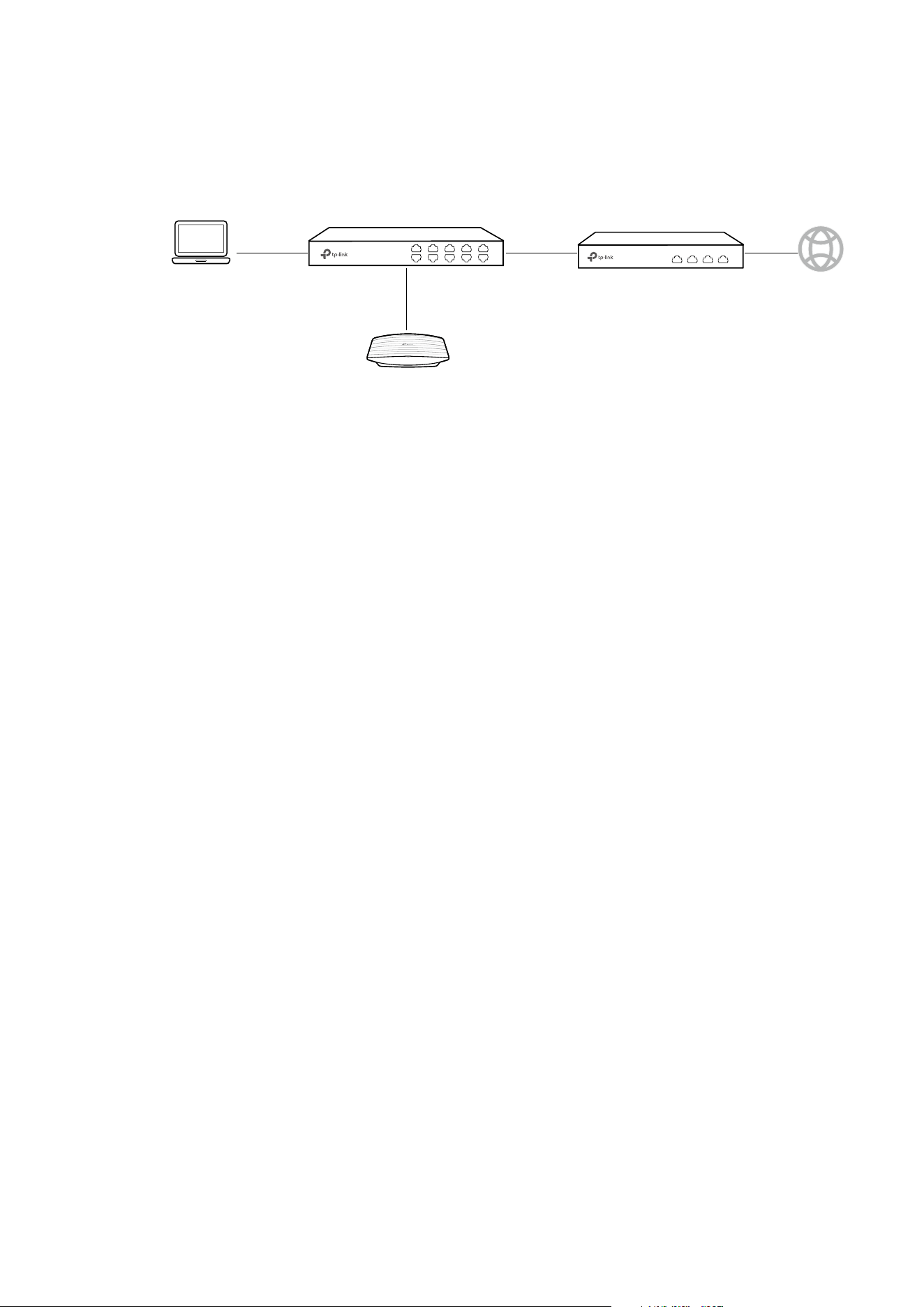
116
8.2 Build the Network Topology
Build the network topology as the following figure shows.
EAP
Management Host
Switch
Router (DHCP Server)
LAN: 192.168.88.1
Internet
• The router is the gateway of the network and acts as a DHCP server to assign dynamic
IP addresses to the management host, EAP and clients. The LAN IP of the router is
192.168.88.1/24.
• Connect the switch to the LAN port of the router.
• Connect the management host and the EAP to the switch. The IP address mode of
the management host and EAP is dynamic, which means that they will get dynamic IP
addresses from the router.
Tips:
If the router has more than one LAN port, we can also respectively connect the management host
and the EAP to the LAN ports of the router.

117
8.3 Log in to the EAP
After building the network topology, follow the steps below to log in to the web page of the
EAP:
1. On the management host, launch the web browser and enter “192.168.88.1” in the
address bar. Then log in to the router and find the IP address of the EAP. As the
following figure shows, the IP address of the EAP is 192.168.88.101.
2. Enter “192.168.88.101” in the address bar to load the login page of the EAP. Type the
default username and password (both admin) in the two fields and click LOGIN.
3. In the pop-up window, specify a new username and a new password for the user
account. Click Next.

118
8.4 Configure the EAP
To achieve the network requirements in this application example, we need to
Configure
SSIDs
,
Configure Portal Authentication
and
Configure Scheduler
.
Configure SSIDs
1. After Logging in to EAP, follow the step-by-step instructions to complete the basic
configurations of creating SSIDs. Configure the SSID as “employee_2.4GHz” and
“employee_5GHz”, specify the Password as “restaurant123abc“. Click Save.
2. Go to the Wireless > Wireless Settings page. Create SSIDs for guests on 2.4GHz. Click
to add a new SSID.

119
3. The following page will appear. Configure this SSID as “guest_2.4GHz“, keep the
Security Mode as “None” and check the box to enable the Portal feature for this SSID.
Click OK.
4. Click to enter the configuration page for the 5GHz band. Similarly to
the configurations for the 2.4GHz band, configure another SSID for the guests on the
5GHz band.
Configure Portal Authentication
Follow the steps below to configure portal authentication:
1. Go to the Wireless > Portal page.

120
2. Configure the portal feature as the following figure shows.
1 ) Select the SSIDs for the guests on which the portal will take eect.
2 ) Select the Authentication Type as “Local Password” and specify the Password as
“restaurant123”.
3 ) Configure Authentication Timeout. Here we customize the timeout as 2 hours. It
means that guests will be logged out after they have been authenticated for 2 hours.
To continue to use the internet service, these guests need to enter the password to
pass the portal authentication once again.
4 ) Check the box to enable Redirect, and enter the website of the restaurant: http://
www.restaurant1.com.

121
5 ) Congure the authentication page. Specify the title and the term of use. To access
the internet, guests need to enter the correct password in the Password field,
accept the Term of Use, and click the Login button.
3. Click Save.
Configure Scheduler
Follow the steps below to schedule the radio to operate only during the working time (9:00
am to 22:00 pm).
1. Go to the Wireless > Scheduler page.
2. In the Settings section, check the box to enable Scheduler, and select the Association
Mode as “Associated with AP“. Click Save.
3. In the Scheduler Profile Configuration section, click .
1 ) The following page will appear. Click and specify the prole name as
“worktime”. Click OK.

122
2 ) Choose the newly added prole “worktime”, and click . Then the item
configuration page will appear. Specify the time range as everyday 9:00 to 22:00.
Click OK.
4. In the Scheduler Association section, select “worktime“ in the Profile Name column
and select “Radio On” in the Action column. Click Save.

123
8.5 Test the Network
To ensure that the employees and guests can surf the internet via the wireless network,
we can use a client device, such as a telephone, to test whether the SSIDs are working
normally.
• To test the SSIDs for the employees, follow the steps below:
1 ) Enable the Wi-Fi feature of the client device.
2 ) Choose the SSID “employee_2.4GHz“ or “employee_5GHz“ among the detected
SSIDs.
3 ) Enter the password “restaurant123abc“ to join the wireless network.
4 ) Check whether internet websites can be visited successfully.
• To test the SSIDs for the guests, follow the steps below:
1 ) Enable the Wi-Fi feature of the client device.
2 ) Choose the SSID “guest_2.4GHz“ or “guest_5GHz“ among the detected SSIDs.
3 ) The default web browser on the device will pop up and the authentication page will
appear. Enter the password “restaurant123”, check the box to accept the term of
use, and click the LOGIN button.

124
Tips:
Generally, the web browser pops up automatically. But if the web browser does not pop up, we
can manually launch the web browser and visit any http website. Then the authentication page
will appear.
4 ) If the network is working normally, we will be redirected to the website of the
restaurant: http://www.restaurant1.com.