
H4M Pro
User Manual
Document ID
Version
Pages
H4MPro-01
1.0 20
Version Author Description Completion Date
1.0
Admin
2026.9.10

Contents
1 Product Introduction ......................................................................................................... 1
2 Hardware Specifications ................................................................................................... 1
3 Device Preparation and SD Card Resource Deployment .................................................. 2
3.1 Battery Installation and Capacity Calibration ...................................................... 2
3.2 Charging and Precautions .................................................................................... 3
3.3 SD Card Formatting Standard .............................................................................. 4
4 Touch Calibration and the Main Interface ........................................................................ 4
4.1 One-click Touch Calibration ................................................................................ 4
4.2 Physical Controls ................................................................................................. 5
5 BLE Transmit-Receive Test .............................................................................................. 5
5.1 BLE Receiver Function ....................................................................................... 5
5.2 BLE Receiver Operation Instruction.................................................................... 6
5.3 BLE Transmitters Function.................................................................................. 6
5.4 BLE Transmitter Operation Instruction ............................................................... 7
6 FCC Warning: .............................................................................................................. 12

PortaPack H4M Pro User Manual
1
1 Product Introduction
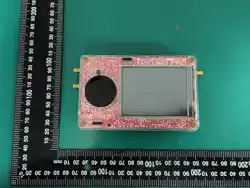
The H4M Pro Open Source Portable Terminal is specifically designed for BLE transmission
and reception. Built on fully open-source hardware and firmware, this product delivers reliable BLE
signal capture, analysis, decoding and packet transmission without requiring a connected PC.
Equipped with an integrated touchscreen and intuitive physical controls, it supports standalone field
operation for BLE device scanning, packet sniffing, signal replay and wireless protocol validation.
Its compact portable form factor and battery-powered design make it ideal for RF engineers, IoT
developers, security researchers and radio enthusiasts to test, debug and explore BLE wireless
communications anywhere.
The H4M Pro Open Source Portable Terminal is a portable RF transceiver designed for BLE
transmission and reception. Its firmware is factory pre-flashed and locked. End users are unable to
modify, reflash, or install any other firmware. The device only supports the built-in BLE functions;
no additional radio operating modes can be activated by users.
2 Hardware Specifications
Item
Specification
RF Transceiver
MAX2831
ADC / DAC
MAX5865, 8-bit quadrature
Main MCU
LPC4330FET180
Logic
ICE40UP5 UltraPlus FPGA
Frequency Range
BLE 1M:2402~2480MHz
Sample Rate
Up to 20 Msps, 8-bit I/Q
Duplex Mode
Half-duplex (transmit or receive, not both at once)
Reference Clock
Built-in 25 MHz 0.5 ppm TCXO, external clock input / output supported
Onboard Flash
32M-bit (W25Q32)
USB Interface
USB-C, USB 2.0
Item
Specification
Display
3.2-inch colour resistive touch screen
Physical Control
5-way rotary encoder key
Audio Input
Built-in microphone
Audio Output
Built-in speaker and 3.5 mm headphone jack
Power Management
lithium battery management chip, USB charging
Recommended Cell
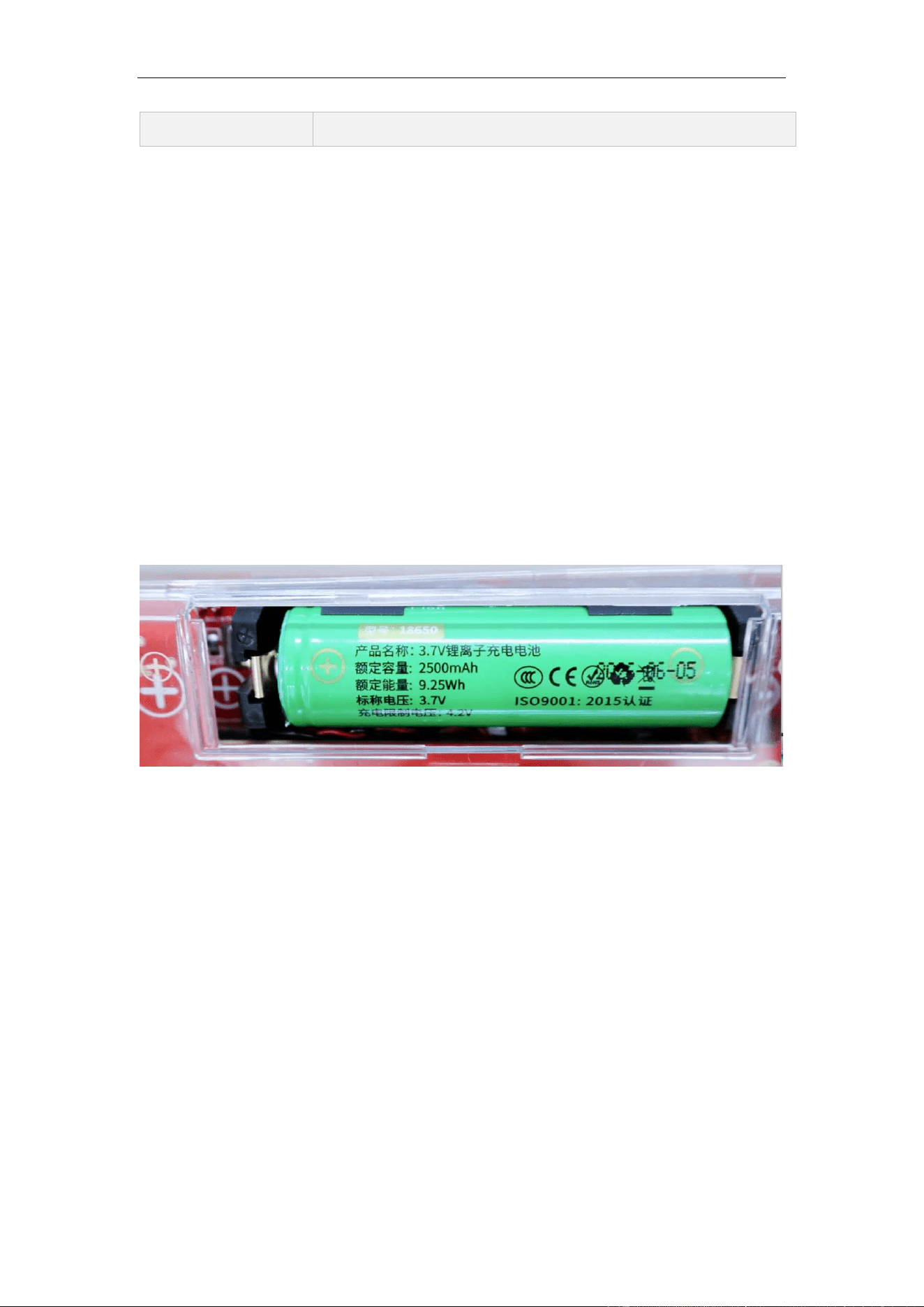
3.7 V nominal / 4.2 V max charge, 2500 mAh, 9.25 Wh
Storage
microSD card slot, FAT32 or exFAT
PortaPack H4M Pro User Manual
2
Antenna Port
Non-standard Port, male-threaded needle
3 Device Preparation and SD Card
Resource Deployment
This chapter covers everything that must be done before the first power-on: assembling the two
boards, installing and calibrating the battery, choosing an antenna, and deploying the resource
package to the SD card.
3.1 Battery Installation and Capacity Calibration
Step 1 · Battery installation
Open the battery compartment on the back of the PortaPack H4M Pro and install a 3.7 V 2500
mAh 18650 cell strictly according to the plus and minus marks moulded into the holder. Never
reverse the polarity — it will burn the power-management chip.
Step 2 · Capacity calibration
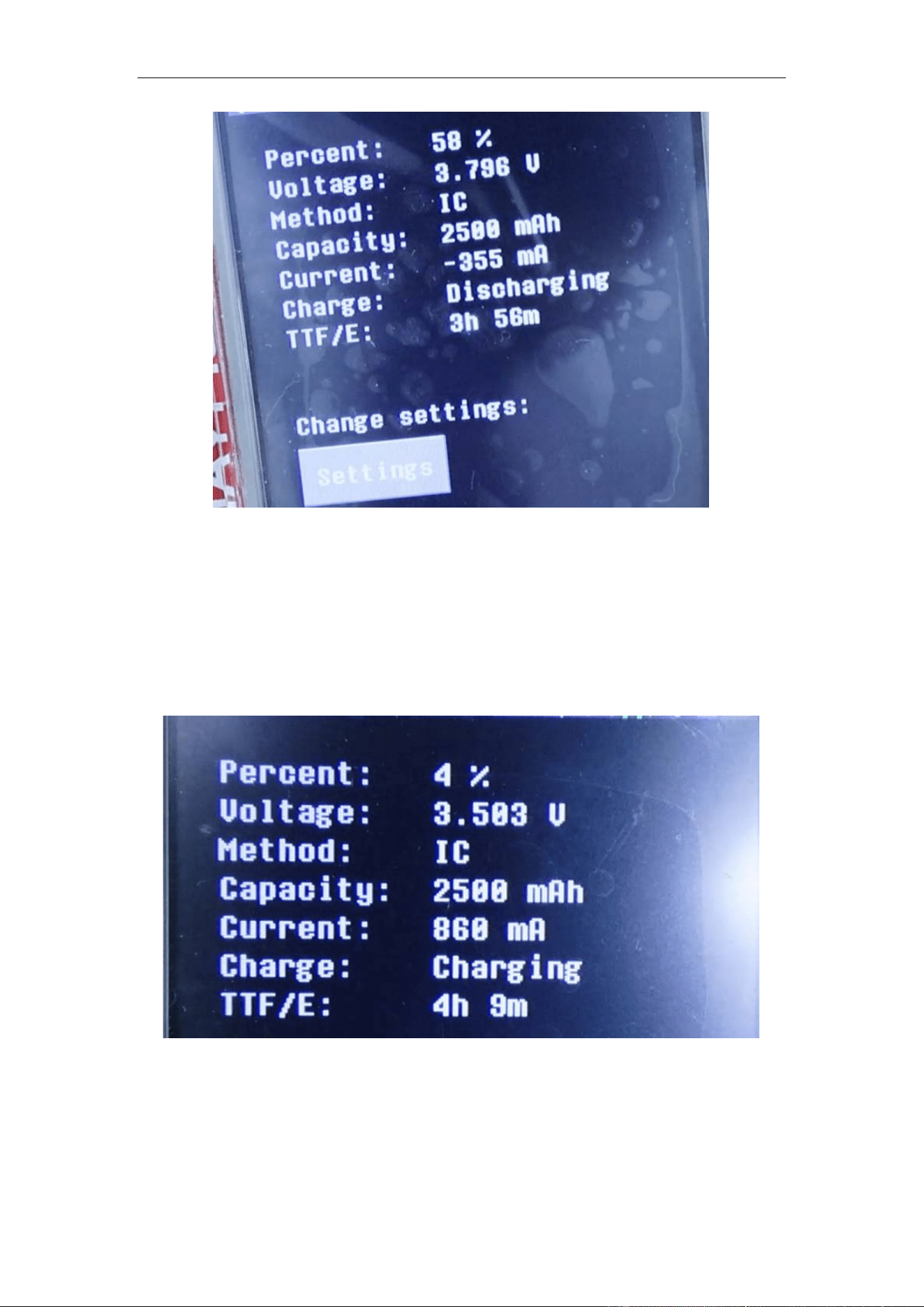
After powering on, tap the battery icon at the top right of the title bar to enter its settings,
change the default 1500 mAh to the actual 2500 mAh, and save. From then on the title bar reports
remaining percentage, real-time voltage and estimated runtime accurately.
PortaPack H4M Pro User Manual
3
The capacity value is only a reference figure used by the fuel-gauge calculation. Leaving it at
1500 mAh with a 2500 mAh cell installed does not damage anything, but the percentage reading
and the runtime estimate will both be wrong.
3.2 Charging and Precautions
Step 1 · Charging
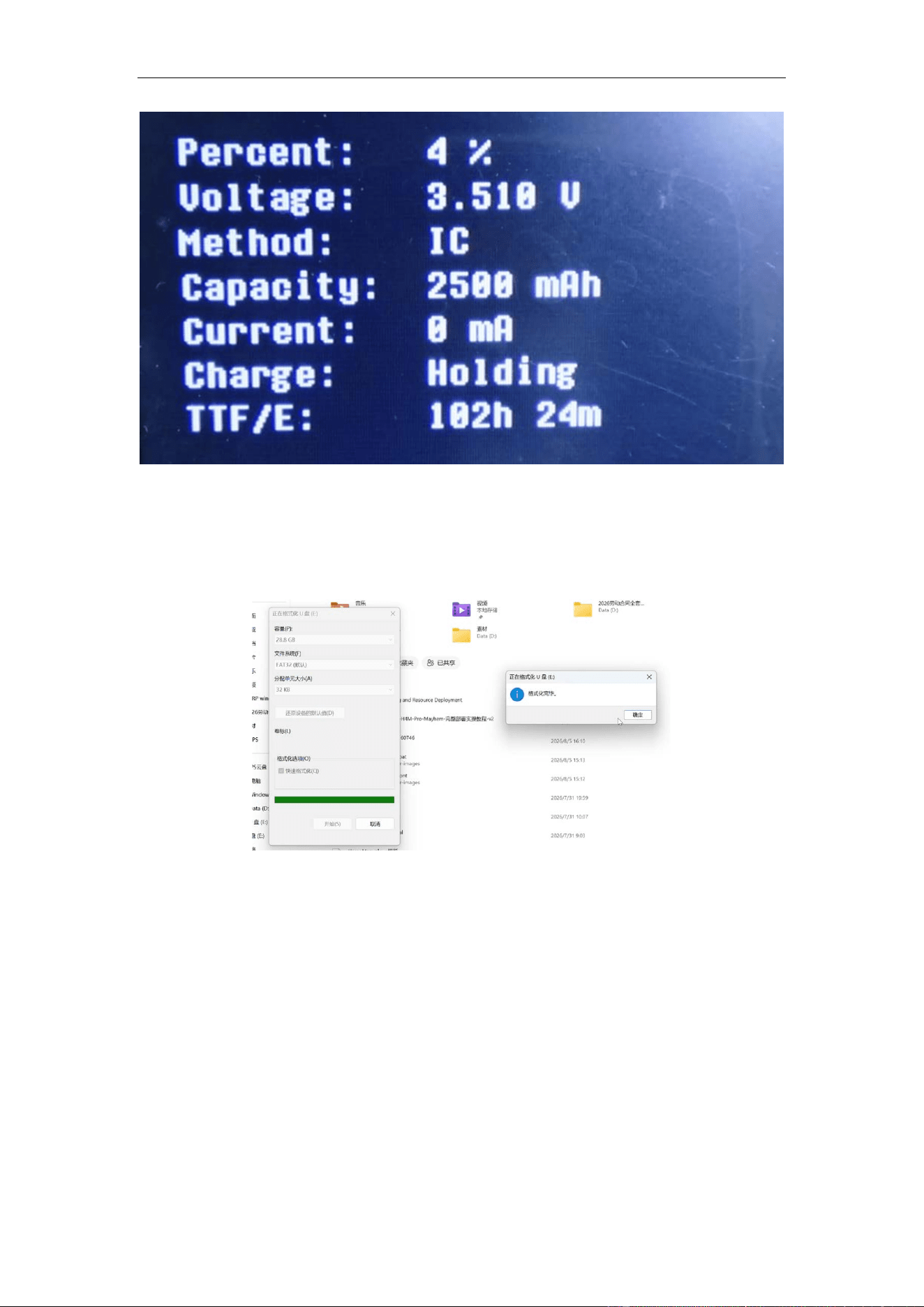
Connect the device to a USB power source with a USB cable to start charging. Tap the battery
icon to check the status: the
charge field reads charging while the cell is being charged.
Step 2 · Precautions
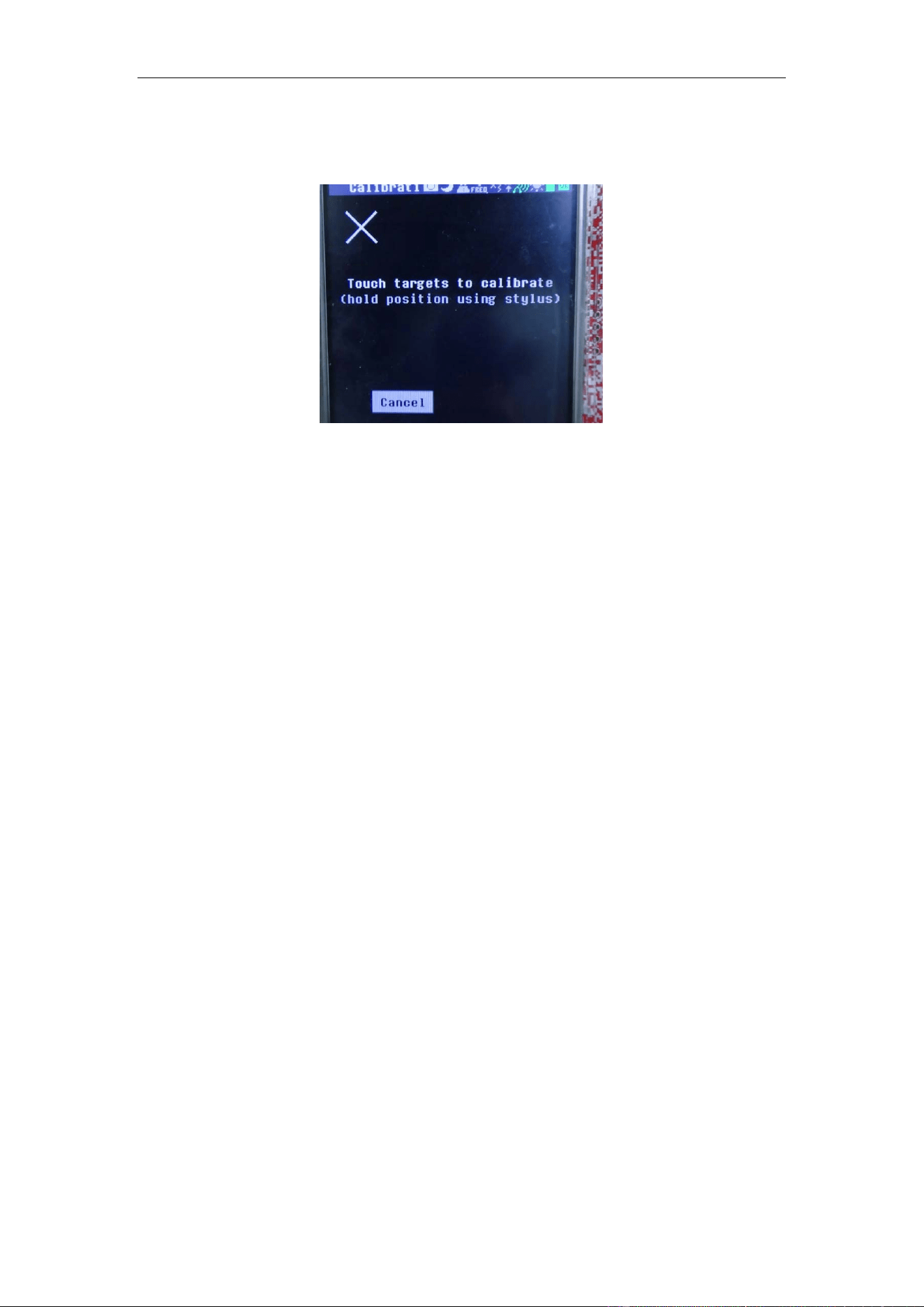
The power switch must be on while charging. If the switch is off, the
charge field shows
holding and the cell will not charge. This is the single most frequently reported "battery is dead"
problem, and it is not a fault.
PortaPack H4M Pro User Manual
4
3.3 SD Card Formatting Standard
Use a Class10 / A1 microSD card and format it as FAT32 or exFAT. Low-quality or worn
cards are the root cause of two distinct failures: packet loss during IQ recording, which silently
corrupts a capture, and flashing failure, which can leave the unit unbootable.
4 Touch Calibration and the Main
Interface
An uncalibrated resistive touch panel makes every subsequent operation unreliable, so
calibration comes first. The rest of this chapter reads the title bar and the main menu so that device
status can be judged at a glance.
4.1 One-click Touch Calibration
Step 1 · Enter calibration
Main menu → Settings → Calibration.
PortaPack H4M Pro User Manual
5
Step 2 · Four-point calibration
Tap each cross target in sequence as prompted, holding each point for at least one second before
releasing. Releasing too early is the usual reason calibration data comes out inaccurate.
Step 3 · Troubleshooting
If the touch is still offset after a restart, the internal coin cell is depleted. Replacing it makes
the calibration persist permanently — otherwise the calibration is lost at every power cycle.
4.2 Physical Controls
The 5-way rotary encoder key gives precise control where the resistive touch panel is awkward.
Rotate to step a value up or down, push the four directions to move between fields, and press the
centre to confirm. Frequency digits in particular are far easier to set with the encoder than by tapping.
5 BLE Transmit-Receive Test
5.1 BLE Receiver Function
Main menu-->Receive-->BLE Rx, enter into the BLE receive function.
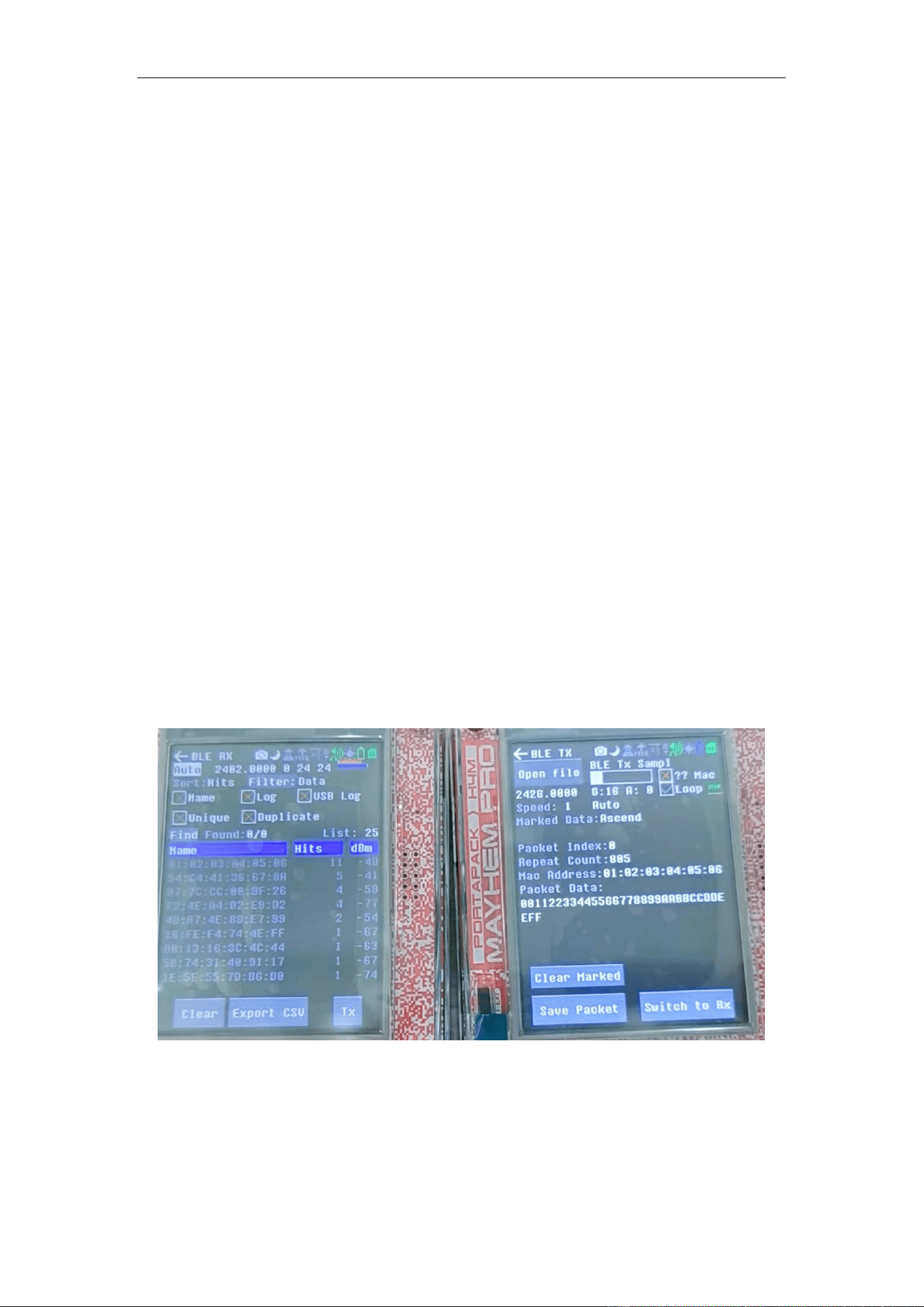
This is the main view which provides the user with incoming packet entries captured by the
BLE Scanning.
The BLE app upon entry will scan for BLE advertisement packets, and report them on the
screen. The Channel knob can be used to select which advertisement channel to listen on. There
is an Auto feature which will switch channels upon receiving a new packet. (Randomized from
37-39).
Once found the user can then select an individual MAC Address entry to pull up a more detailed
view of the captured data packet.
The Sort Knob will sort the list of MAC indices by either Ascending MAC Address, dB, or by
most recently updated entry.
The Filter button allows the user to filter based on the hex data of each packet. It also allows
for filtering based on the ASCII name of the device (if found). More on that below.
The Name toggle allows the user to toggle off and on name display, if there is a name associated
with the device. Not all devices have a name string. This name string is being parse from the
Shortened and Complete Local Name packet type. See BLE Spec for information on packet
types.
PortaPack H4M Pro User Manual
6
The Clear button allows the user to clear entries as they fill up the screen.
The Export CSV file allows the user to export the current list of packet entries into a csv style
file. Upon resaving the file, the file will update the existing entries with new data, as well as
append new entries to the existing file.
The Tx button allows the user to switch to the BLE Tx app. See BLETX for more information.
5.2 BLE Receiver Operation Instruction
This chapter gives the detail operation instruction for the BLE Receiver.
Step 1, Boot the device via the right switch of the device.
Step 2, enter into the top menu, find and click the menu Receive;
Step 3, click the BLE Rx , enter into the BLE icon, then you will enter into the BLE receive
function.
Step 4, receive the BLE signal.
BLE is tested on the 2.4 GHz advertising channels 37, 38 and 39.
On the receiving unit, open BLE RX, set the mode to Auto so that it hops across all three
advertising channels, set Sort to Hits so that the most frequently seen device rises to the top of the
list, and set the gain to 24. Tap clear before every run to flush the entries left over from the previous
test.
On the transmitting unit, open BLE TX, use Open file to import any file as the advertising
payload — the file content itself is irrelevant to the result — then set the transmit gain to 16 and
enable Loop so that the packet is broadcast continuously.
The test passes when the MAC address 01:02:03:04:05:06 keeps hitting at the top of the
receiver list.
Step 5, Turn off the device via the switch.
5.3 BLE Transmitters Function
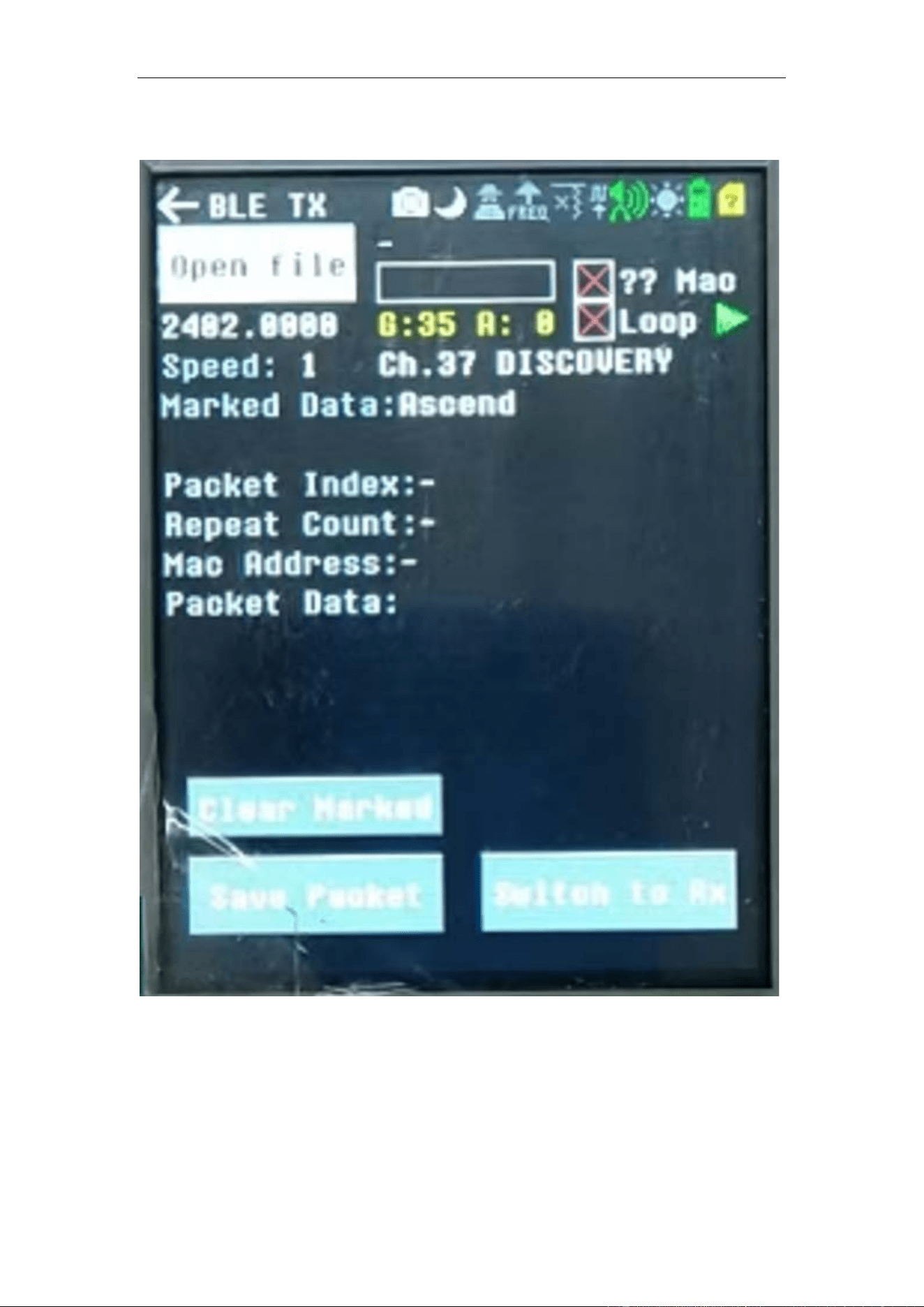
Main menu-->Transmit-->BLE Tx, enter into the BLE transmit function.
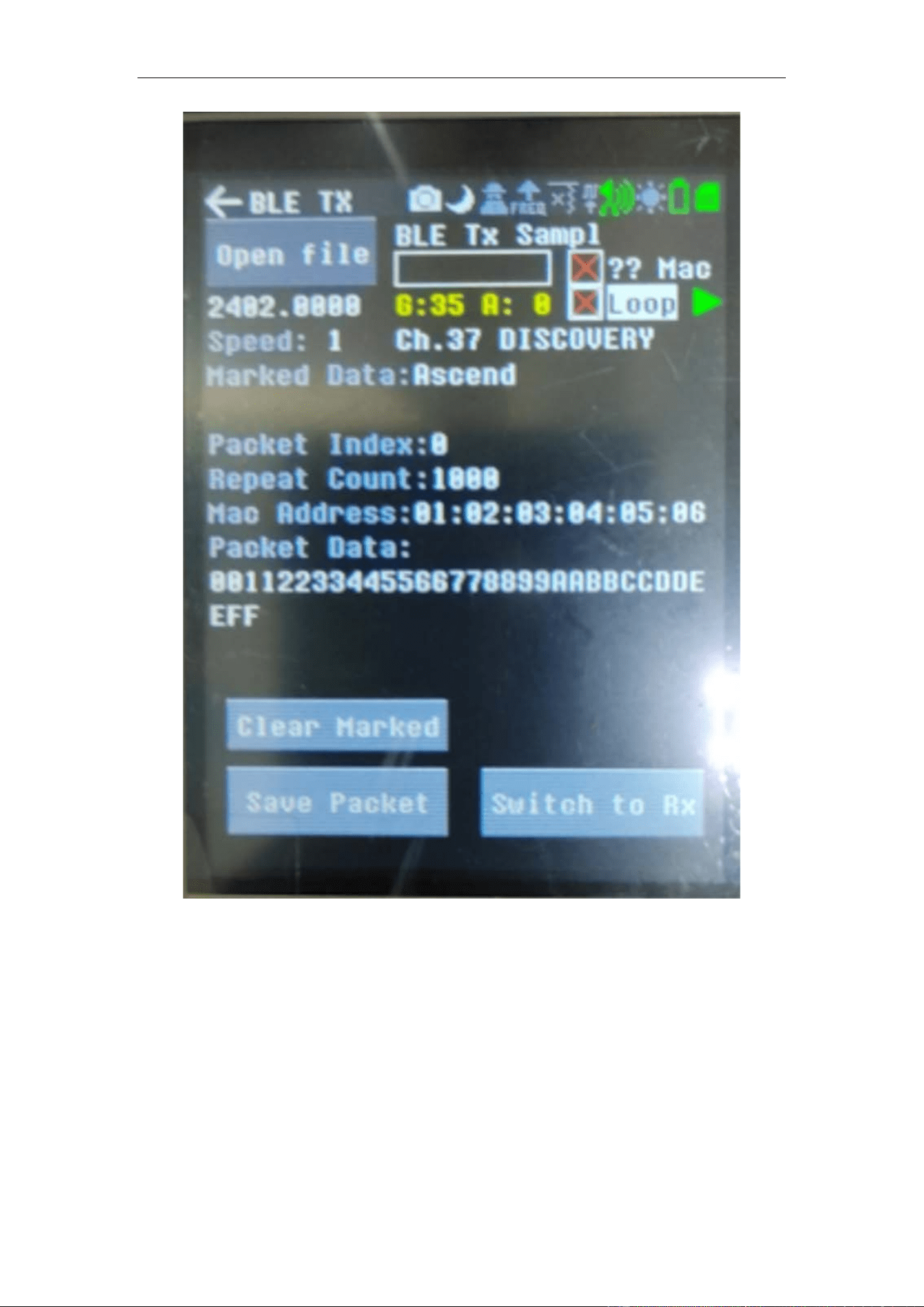
The BLETX application is intended for importing a BLE Advertisement file,
parsed by the application and transmit it OTA.

PortaPack H4M Pro User Manual
7
The BLETX application has two modes, both which can be used after importing a
file.
Single transmit mode. (This mode transmits a single BLE packet OTA given the
file parameters.)
Loop Mode (This mode continuously transmits by the total number of repeats given
by the file.)
A file must be present, unless moving from the BLE RX app, in order to transmit
a packet. Use the Open file button to select which file to transmit. Information on file
format is found below. Once loaded, the screen will update the UI with the current
packet to send. If there are multiple packets in the file, the screen will update this
information based on which packet is being transmitted.
The Speed setting allows the user to adjust how fast the transmit occurs.
Current Speed table is as follows:
Speed 1: 16ms per packet.
Speed 2: 32ms per packet.
Speed 3: 48ms per packet.
Speed 4: 100ms per packet.
Speed 5: 200ms per packet.
Note: Values are approximate based on a 16ms timer period.
The Channel setting allows you to select which channel to transmit on.
The Advertisement PDU Type setting allows you to select between various types
of advertisement types.
The Random toggle allows you to randomize the MAC Address that you send out
with each packet.
The Save Packet saves to file the current packet list in TX format to the name you
specify.
The Switch to RX button will send you to the BLE RX App. See BLE RX App for
more information.
The progress bar will update, (in Loop Mode), to show how many of the current
packets are left to be transmitted. This is also seen by the Packets Left indicator on
screen.
5.4 BLE Transmitter Operation Instruction
This chapter gives the detail operation instruction for the BLE Transmitter.
Step 1, Boot the device via the right switch of the device.
Step 2, enter into the top menu, find and click the menu Transmit;
Step 3, click the BLE Tx , enter into the BLE icon, then you will enter into the BLE transmit
function.
PortaPack H4M Pro User Manual
8
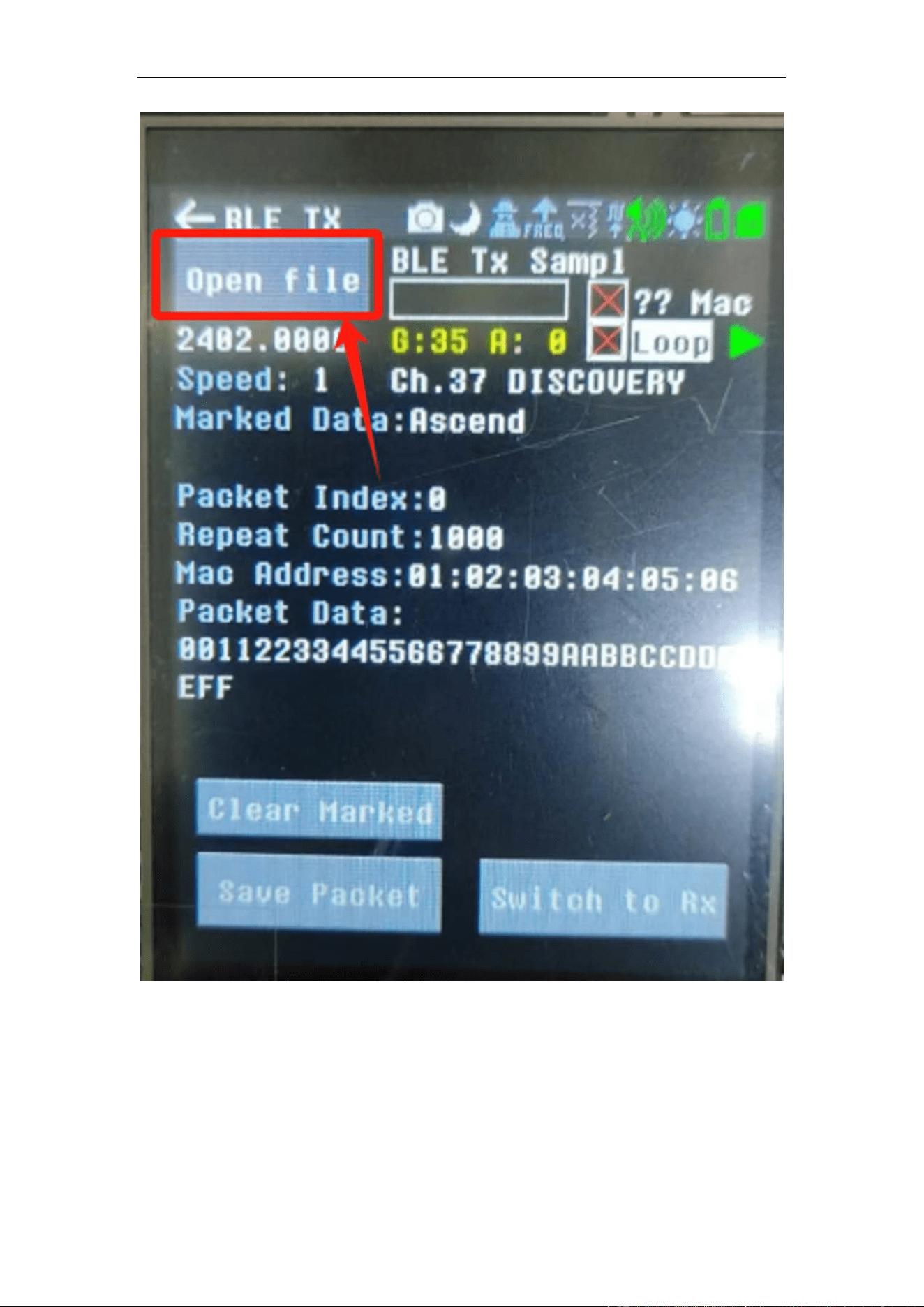
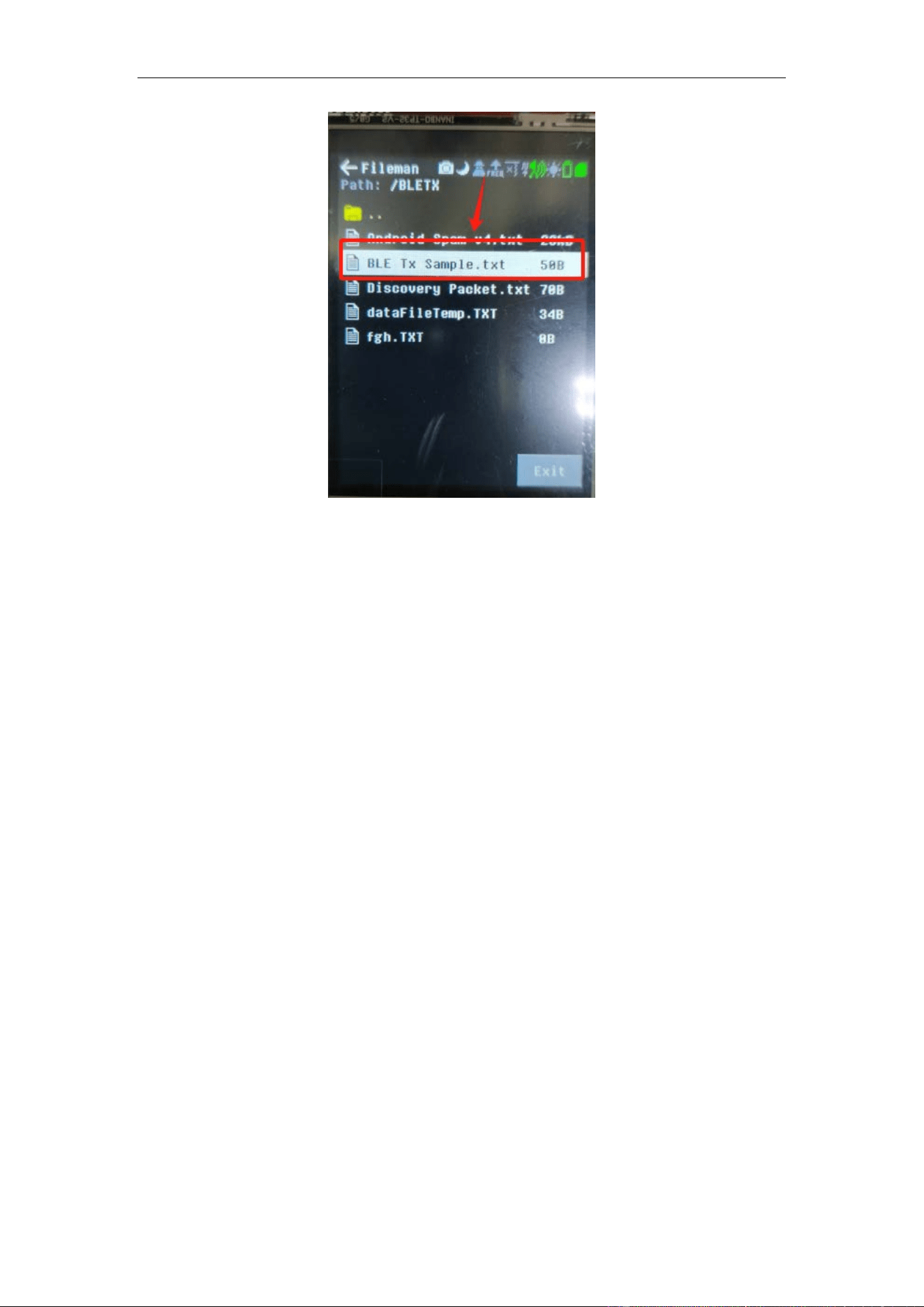
Step 4, transmit the BLE signal. Click the <Open file>, and enter into BLERX file, find <BLE
TX Sample.txt>.
PortaPack H4M Pro User Manual
9
PortaPack H4M Pro User Manual
10
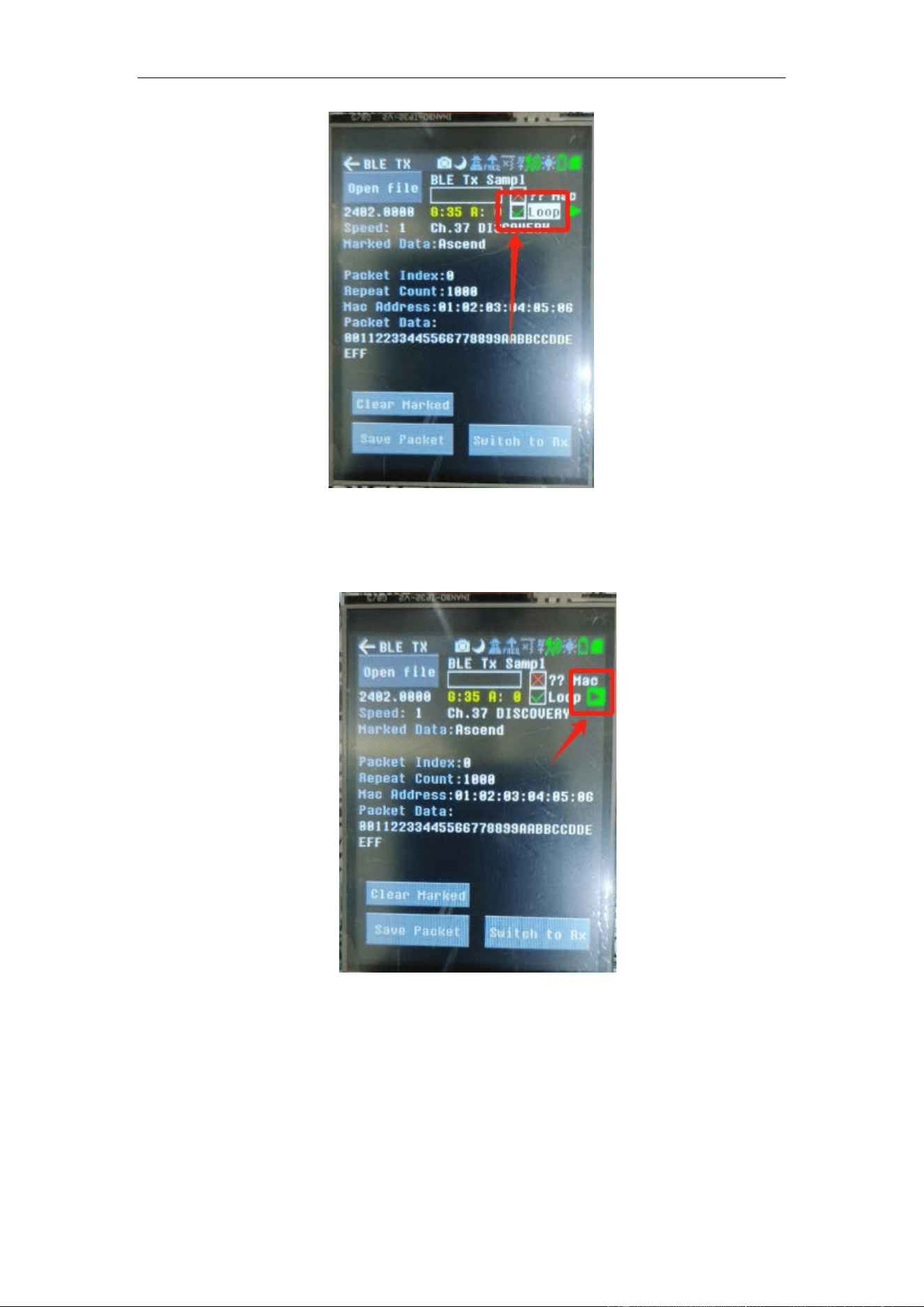
Find the Loop parameter box, and one click the center button of the 360-degree knob button to
enable it.
PortaPack H4M Pro User Manual
11
PortaPack H4M Pro User Manual
12
Step 5, click the transmit icon to send the BLE signals (one click the center button of the 360-
degree knob button after your cursor move to the following icon). Then the device will transmit the
BLE signal. You need to one click the center button of the 360-degree knob button to stop the
transmitting.
6 FCC Warning
:
Any Changes or modifications not expressly approved by the party responsible for compliance
could void the user’s authority to operate the equipment.

PortaPack H4M Pro User Manual
13
This device complies with part 15 of the FCC Rules. Operation is subject to the following two
conditions: (1) This device may not cause harmful interference, and (2) this device must accept any
interference received, including interference that may cause undesired operation.
Note: This equipment has been tested and found to comply with the limits for a Class B digital
device, pursuant to part 15 of the FCC Rules. These limits are designed to provide reasonable
protection against harmful interference in a residential installation. This equipment generates uses
and can radiate radio frequency energy and, if not installed and used in accordance with the
instructions, may cause harmful interference to radio communications. However, there is no
guarantee that interference will not occur in a particular installation. If this equipment does cause
harmful interference to radio or television reception, which can be determined by turning the
equipment off and on, the user is encouraged to try to correct the interference by one or more of the
following measures:
—Reorient or relocate the receiving antenna.
—Increase the separation between the equipment and receiver.
—Connect the equipment into an outlet on a circuit different from that to which the receiver is
connected.
—Consult the dealer or an experienced radio/TV technician for help.
FCC Radiation Exposure Statement:
This equipment complies with FCC radiation exposure limits set forth for an uncontrolled
environment.
This transmitter must not be co-located or operating in conjunction with any other antenna or
transmitter.