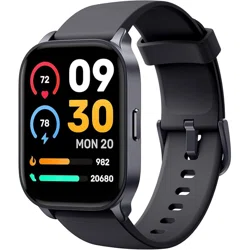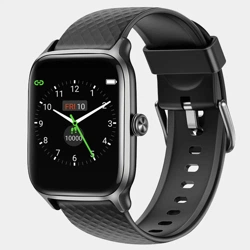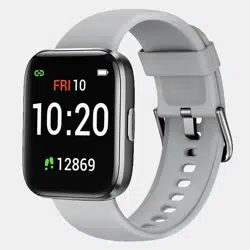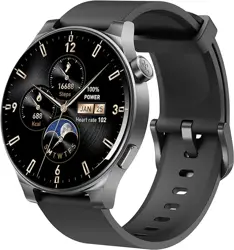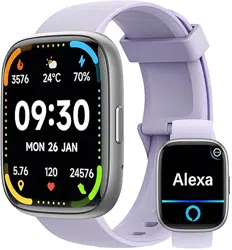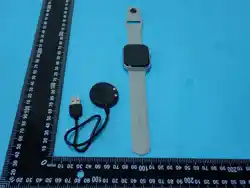
Item No. YS-SW004
(SWHR-12/0577)
FITNESS TRACKING SMART WATCH
INSTRUCTION MANUAL
PLEASE READ ALL INSTRUCTIONS CAREFULLY
AND RETAIN FOR FUTURE USE

GETTING STARTED
Remove Fitness Tracking Smart Watch and other accessories from the box.
Remove any packaging from the product.
Please read all instructions and retain all packaging until you have checked and counted all of
the parts.
PACKAGE CONTENTS
Fitness Tracking Smart Watch
Charging Cable
Extra Blue Watch Strap
Instruction manual
KEY FEATURES
2” color LCD touch screen
Heart rate, blood pressure and blood oxygen monitoring
Step count, distance, calories burned, and activity tracking
Sleep quality monitoring and activity mode
SMS, social App notifications and Bluetooth call support
Multiple watch faces via App customization
Magnetic USB charging base with quick charging
Bluetooth connectivity for iOS 9.0+ and Android 5.0+
Lightweight, unisex design
Comes with an extra blue watch strap for more styling options
Data sync through smartphone or tablet vis App on iOS V9.0 or above; Android V5.0 or above
SAFETY INSTRUCTIONS
Keep the unit away from extreme heat sources or fire.
Do not use the unit if it has been dropped or damaged in any way.
Repairs to electrical equipment should only be performed by a qualified electrician. Improper
repairs may place the user at serious risk.
Keep the unit free from dust, lint etc.
Do not use this unit for anything other than its intended use.
Keep the unit out of reach of children.
This appliance is not a toy.
Batteries (battery pack or batteries installed) shall not be exposed to excessive heat place, such
as sunshine, fire or the like.
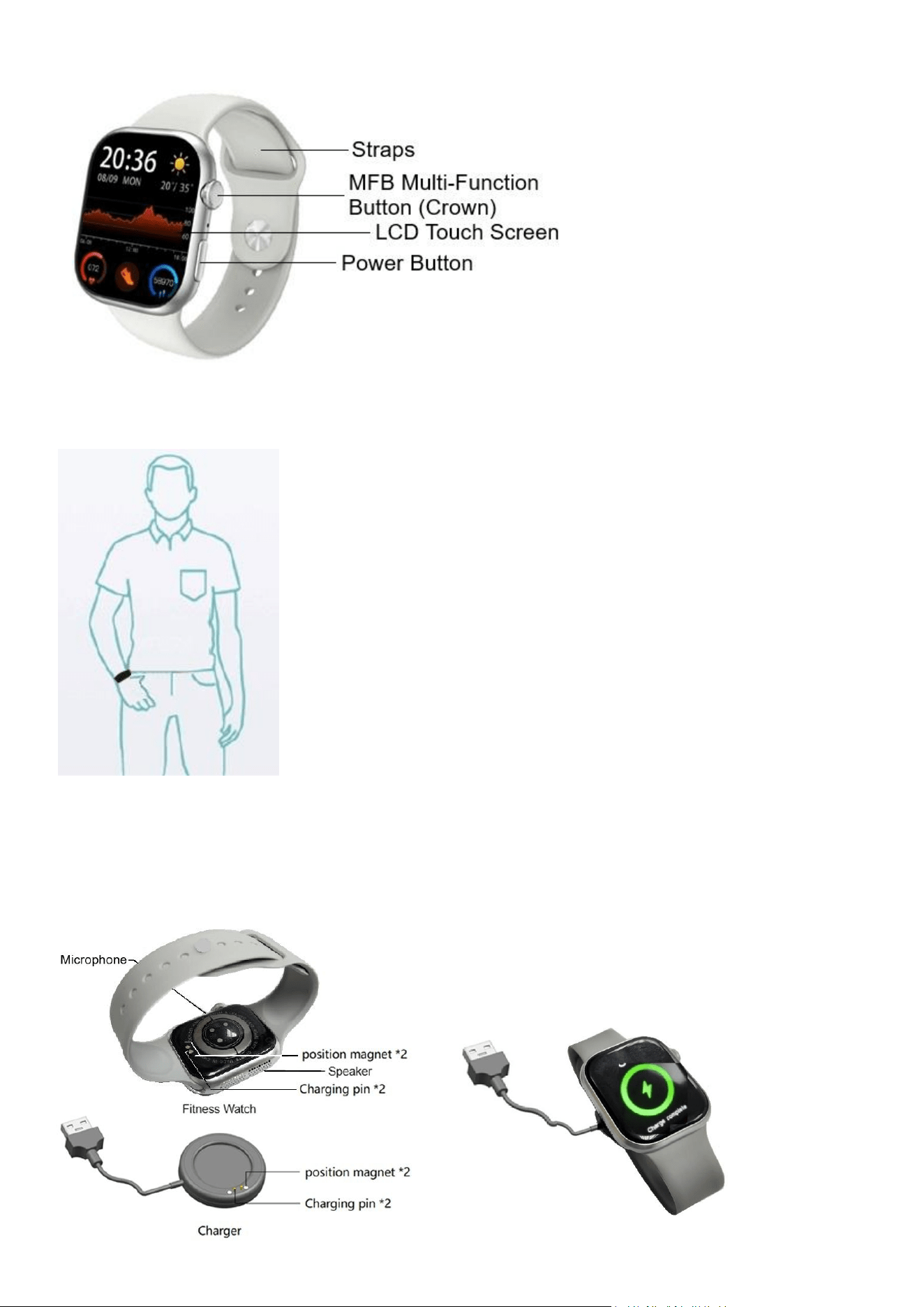
Description of Parts
How to wear the Fitness Tracking Smart Watch?
Use the adjustable straps to wear on your wrist.
OPERATING INSTRUCTIONS
Quick Start Guide
Charging the Fitness Tracking Smart Watch:
Plug the included charging cable to USB power source and place the Fitness Tracking Smart
Watch on the charging plate aligning with the magnetic contacts. Fully recharge the Fitness
Tracking Smart Watch for about 2-3 hours before using for first time use.
Compatibility
This Fitness Tracking Smart Watch is compatible with the App – “HryFine”
This Fitness Tracking Smart Watch and App is compatible with the smartphone, devices using
Android 5.0 or above / iOS 9.0 and above, and with Bluetooth 4.0 and above.
Operating Instructions
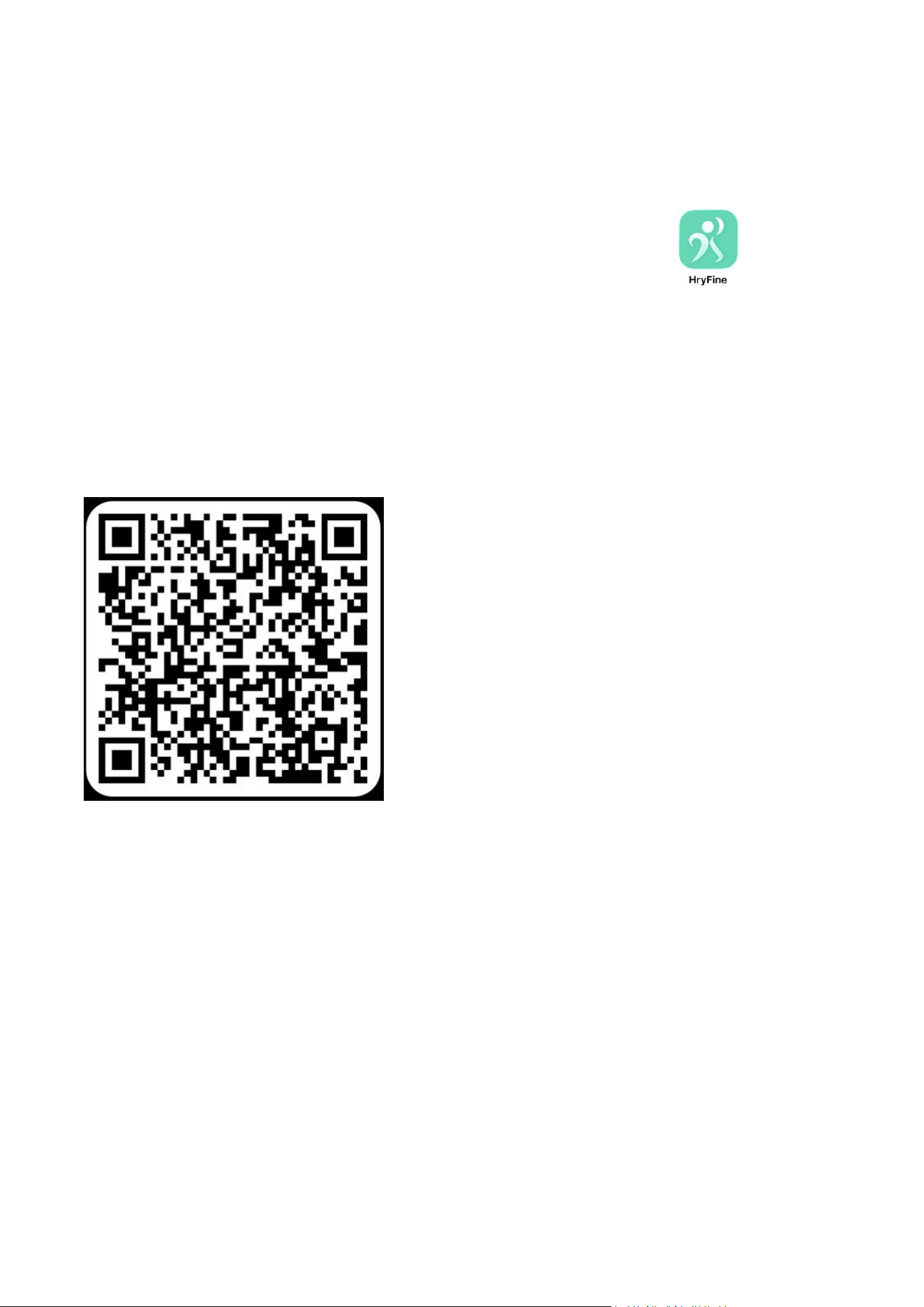
1. Download the app, from Google Play or iOS app Store. You can search “HryFine” or scan the
QR code available in the support app or in the wearable itself. Note: QR code in the Fitness
Tracking Smart Watch is usually available in the settings of the device.
2. Activate the Bluetooth connection of your smartphone.
3. Open the App. When you open the app, the “HryFine” App may ask for several permissions.
Below are some of the permissions being asked by the support app. Please take note that you
can deny some of the permissions if you think that you don’t need the feature or not comfortable
with the permission. Please note, some functions may not work, if you disallow the permissions.
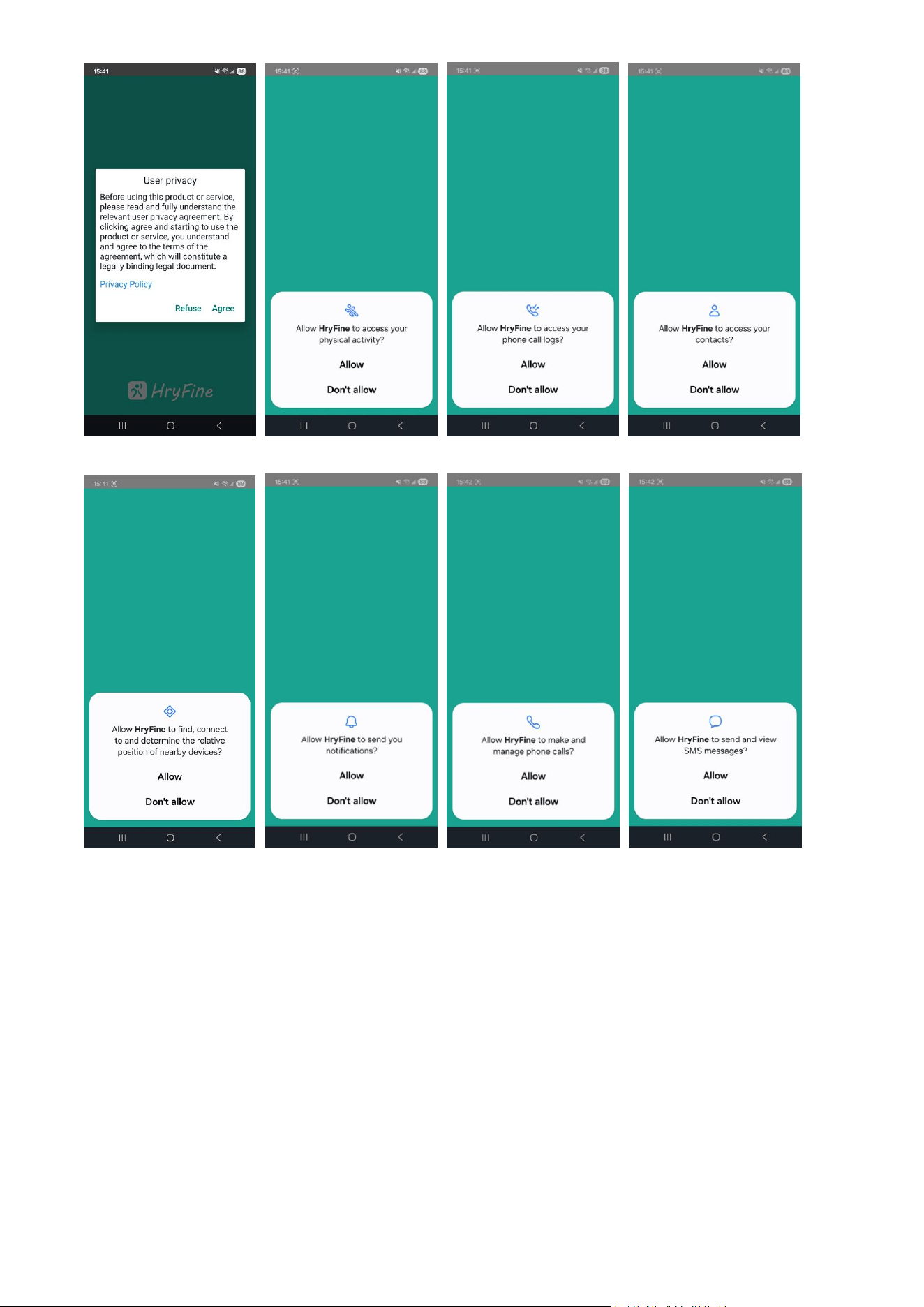
Permissions: Access physical activity, phone call logs & contacts, find, connect to and
determine the relative position of nearby devices, send notifications, make and manage phone
calls, send and view SMS messages.
4. Register your own account with your mailbox -
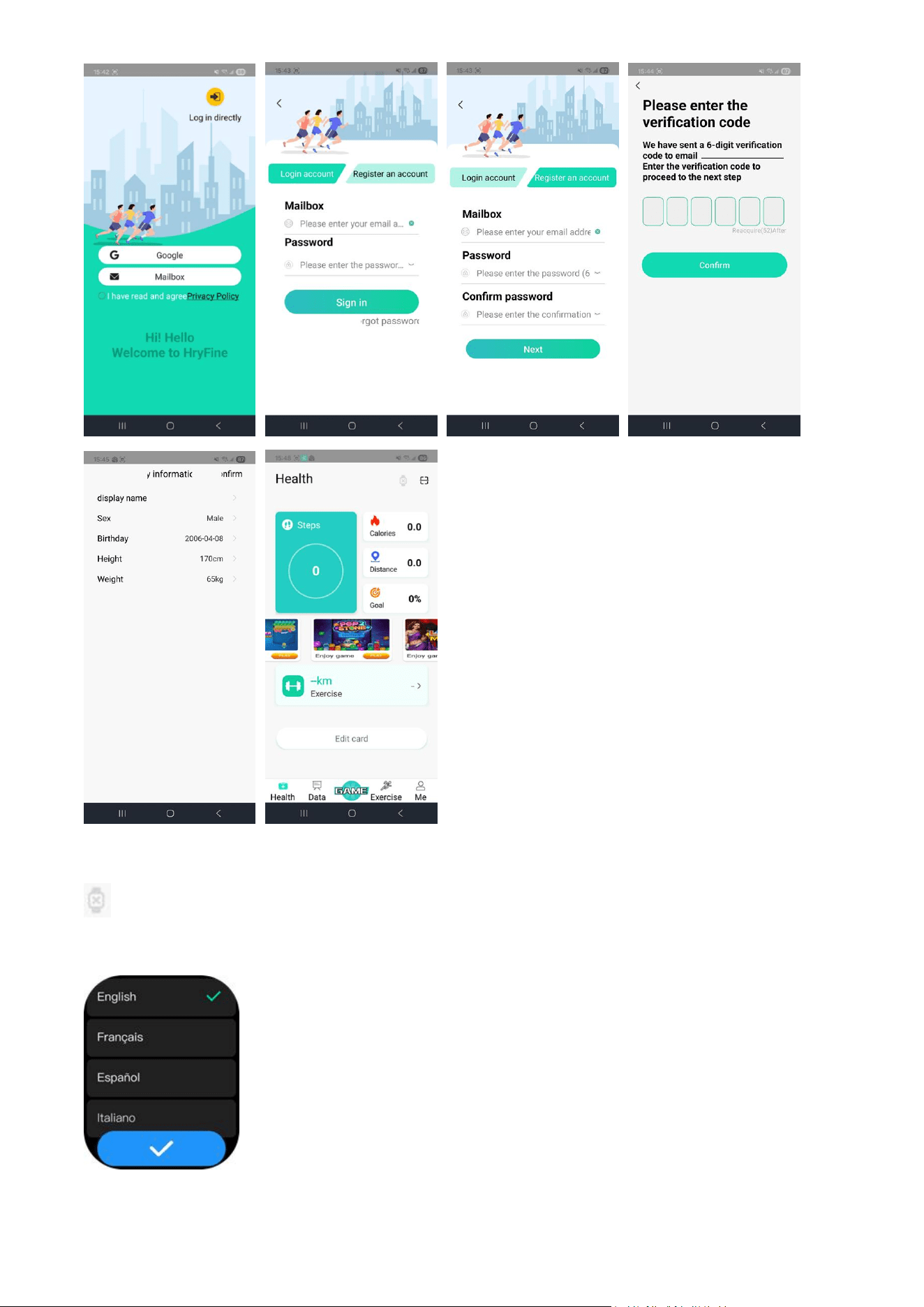
5. Select English language by clicking “ ” on your Smart Watch. Tap the “Search device” icon
on top-right corner of “HryFine” App to search, select the device name “Nuvomed
Watch” to connect.
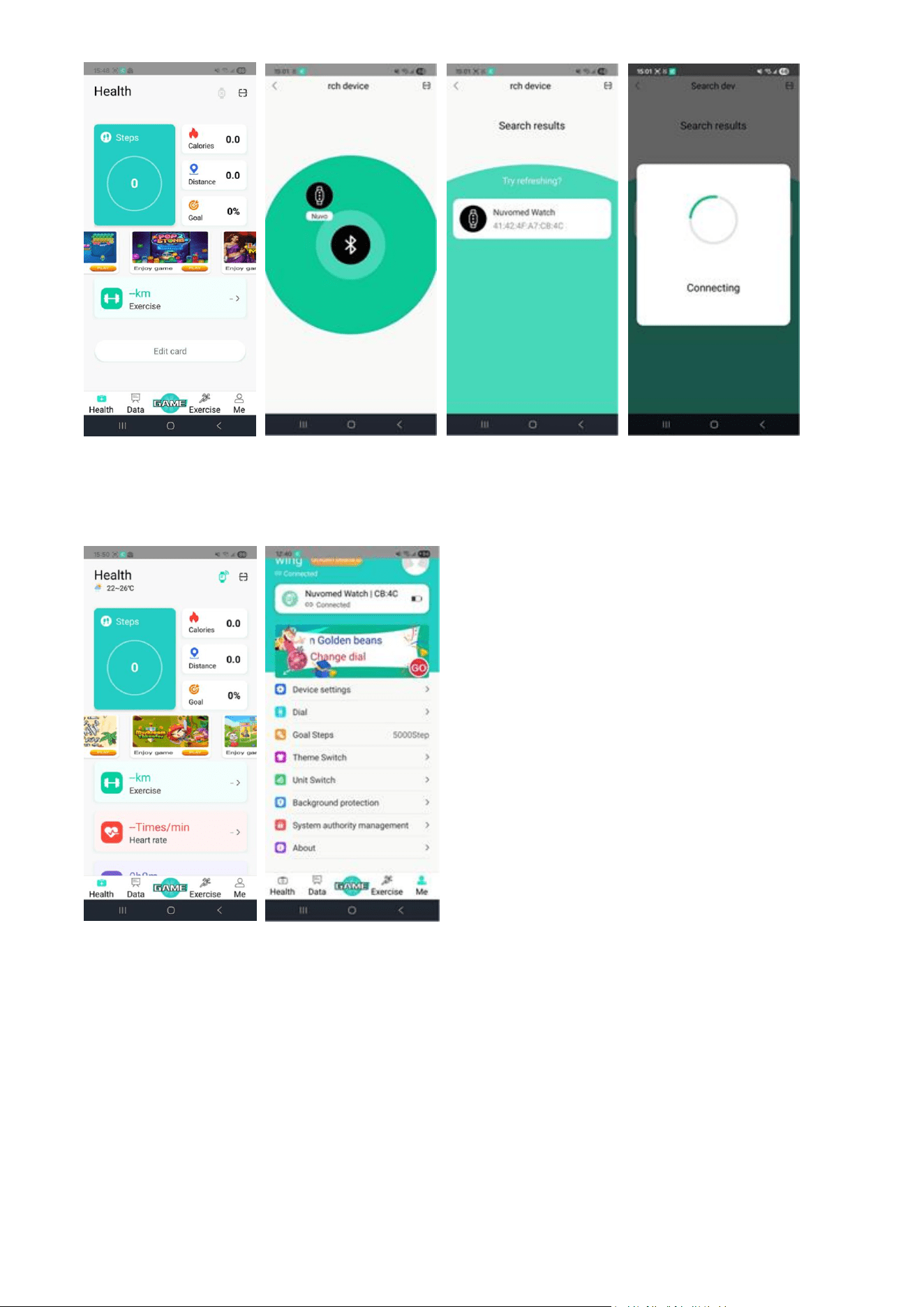
Once it’s done, you have successfully connected your Fitness Tracking Smart Watch
“Nuvomed Watch” to the “HryFine” App, that can be found on the “Me” icon.
(REMARK: You might be prompted with “Pair with Nuvomed Watch?” message on your
smartphone, with “Cancel” and “OK” or “Pair” options. Please click “OK” or “Pair” to ensure that
the Fitness Tracking Smart Watch is paired with smartphone for phone call functions.)
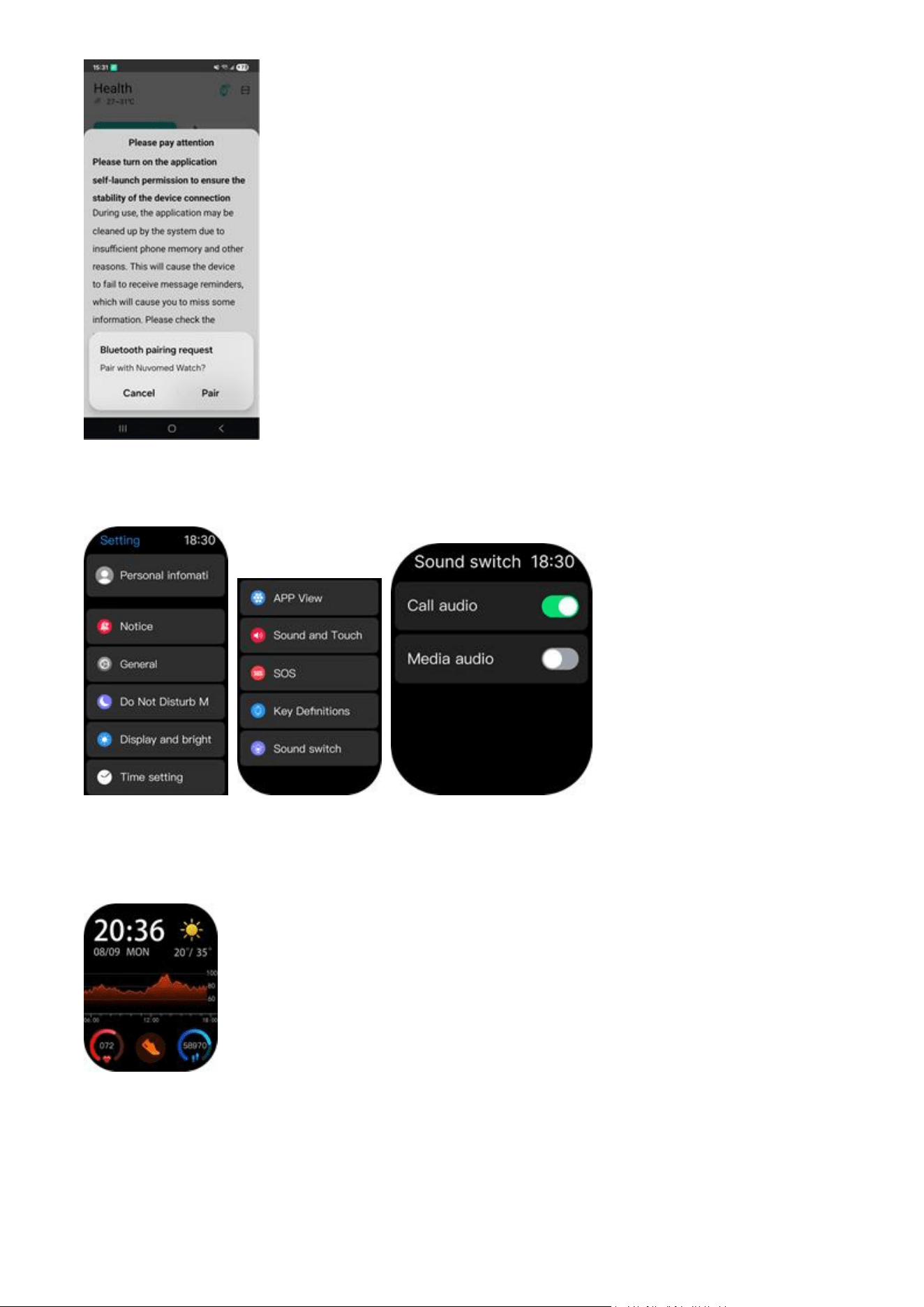
*For Bluetooth streaming music and voice assistant, you need to select ‘Sound switch’ menu of
‘Setting’, and then turn on the ‘Media audio’ for functions -
Functions of Fitness Tracking Smart Watch:
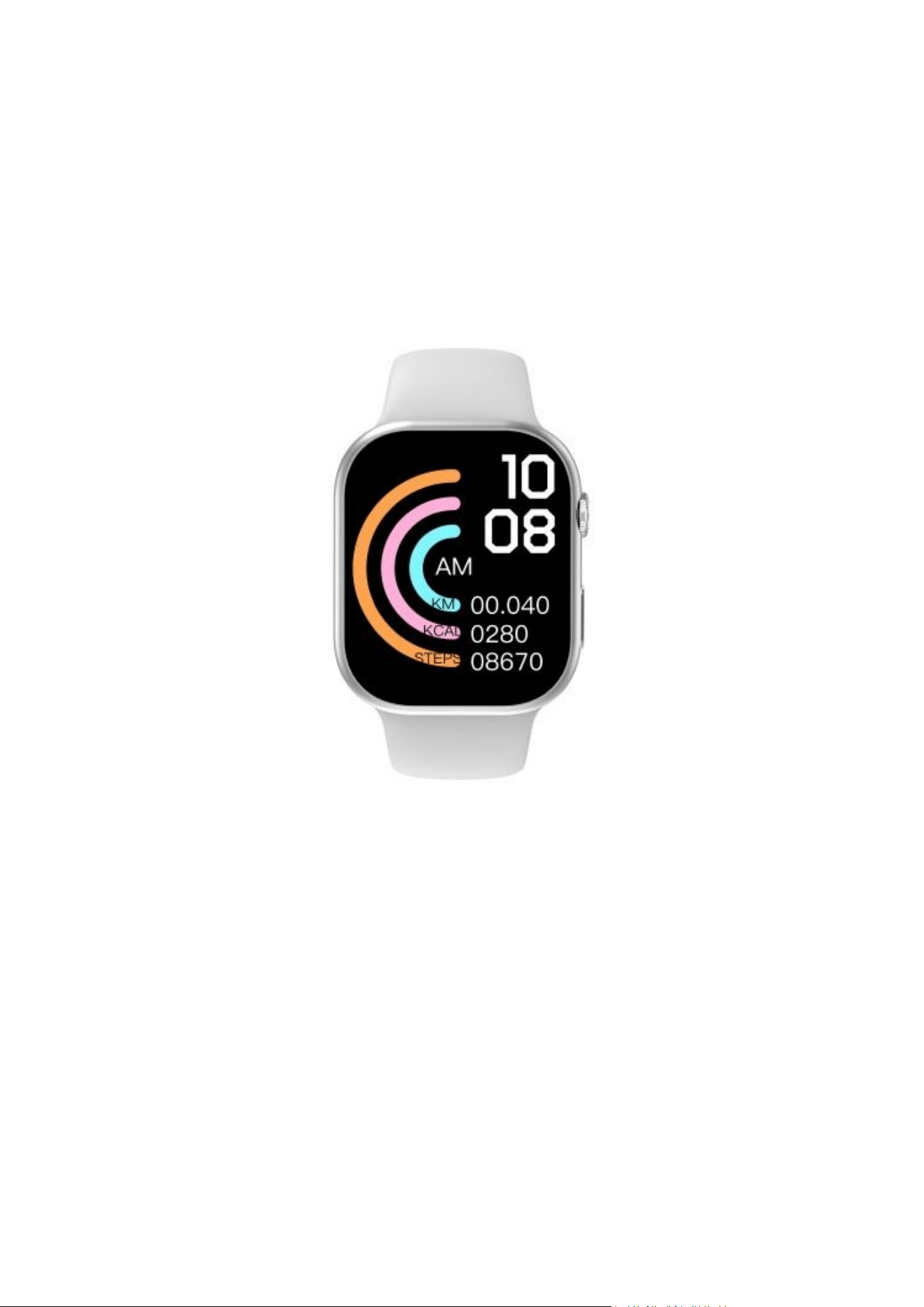
1. Click the Power button on Fitness Tracking Smart Watch to turn on, and you can see the watch
face on display screen as below:
Rotate the MFB Crown clockwise or counterclockwise switches to other watch faces (total five
options on watch, and there are more options on App).
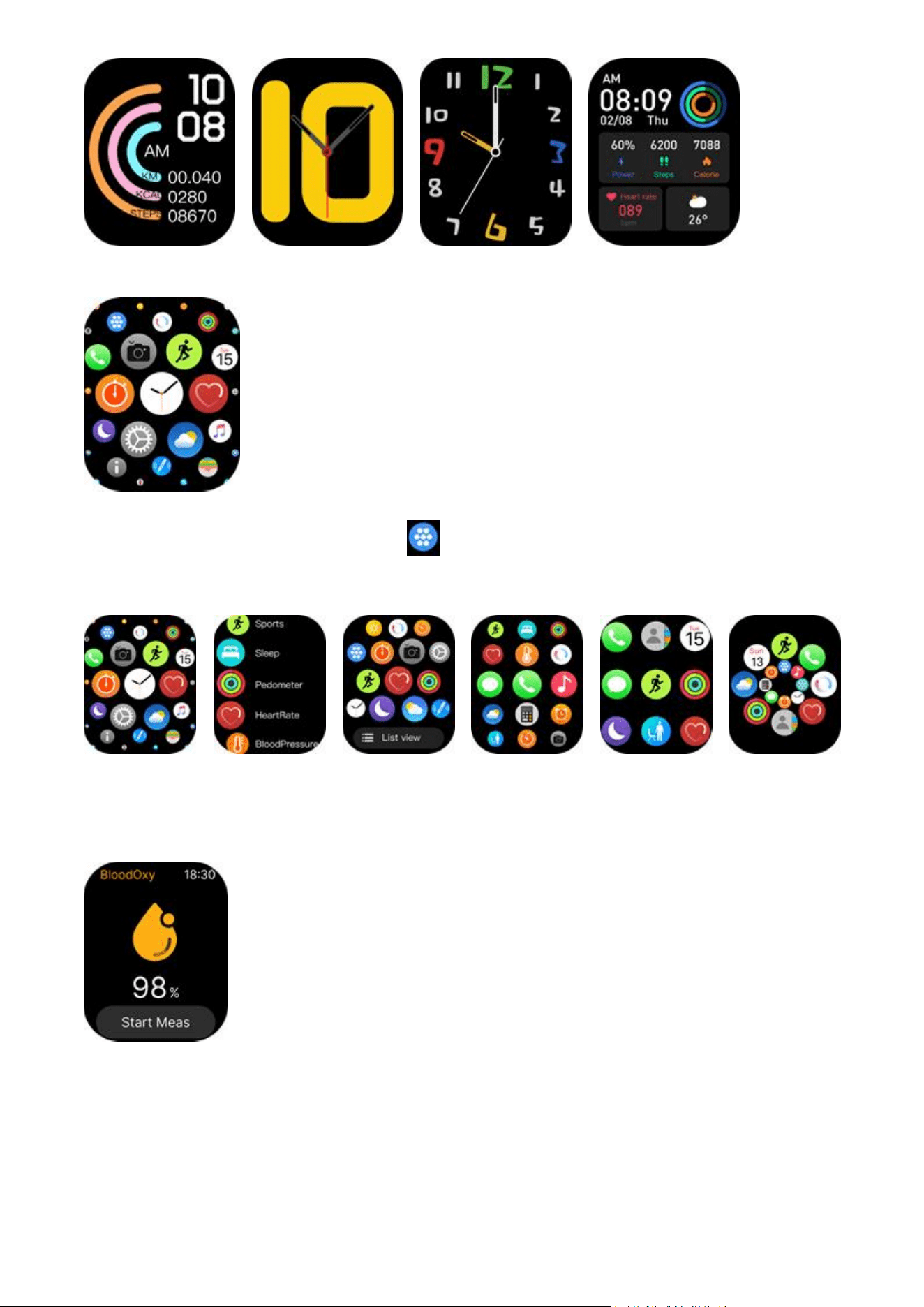
2. Short press the MFB Crown will enter below menu:
Slide on the screen and tap the icon , you can change other menu styles for displaying
(total six options on watch). Or simply short press the MFB Crown twice to next menu style.
3. When you click the function, such as blood oxygen, you can test function, usually it will take
around 10 seconds to show the data.
4. When you click the function, such as heart rate, you can test function, usually it will take around
10 seconds to show data.
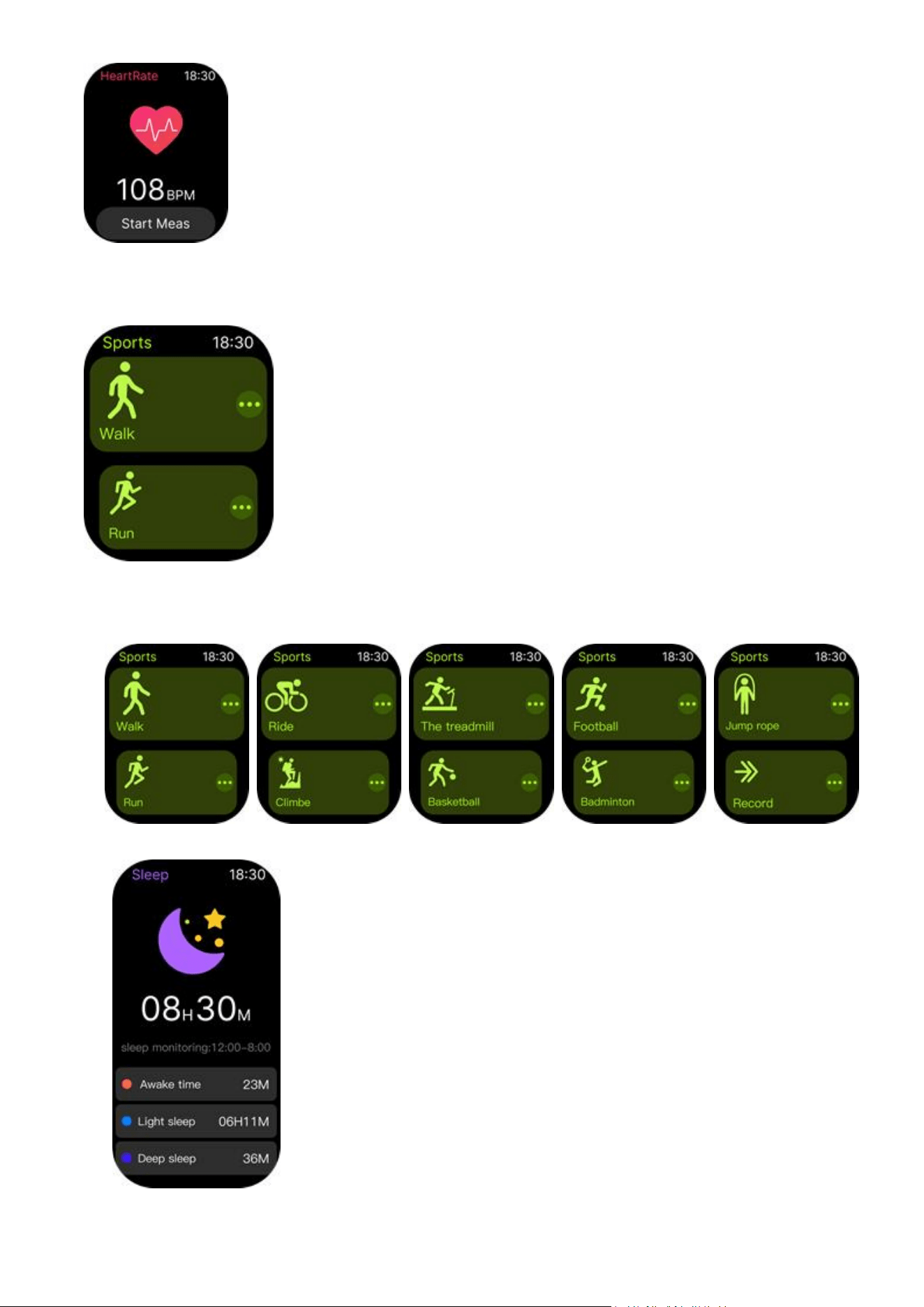
5. When you click the function, such as sports, you can see more sports mode list. If you want to
walk outdoors, you can click ‘Walk’, then you’re ready to exercise and sync records
6. Screen display for menu list for activation/operation –
a. Sports
b. Sleep
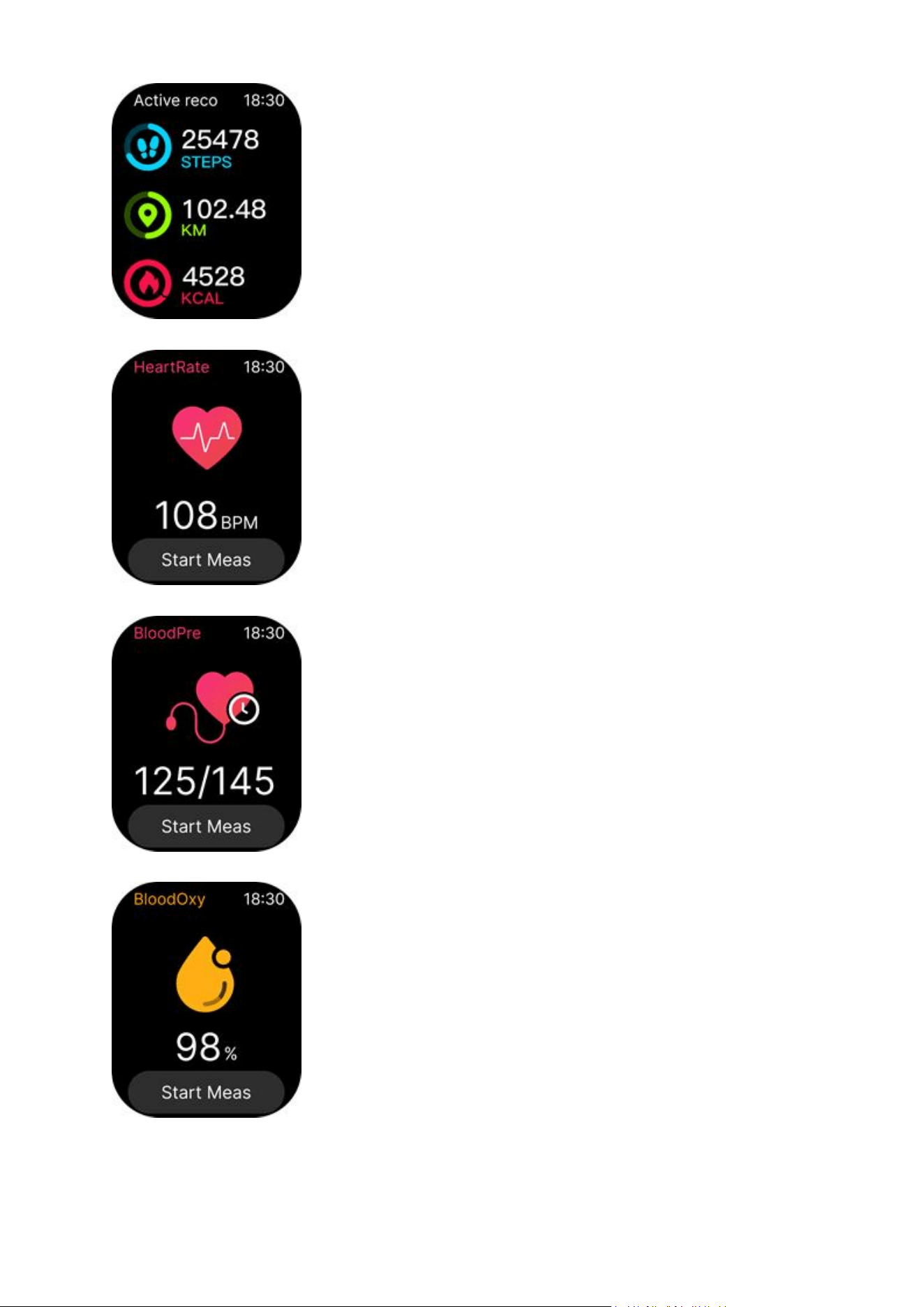
c. Pedometer
d. Heart Rate
e. Blood Pressure
f. Blood Oxygen
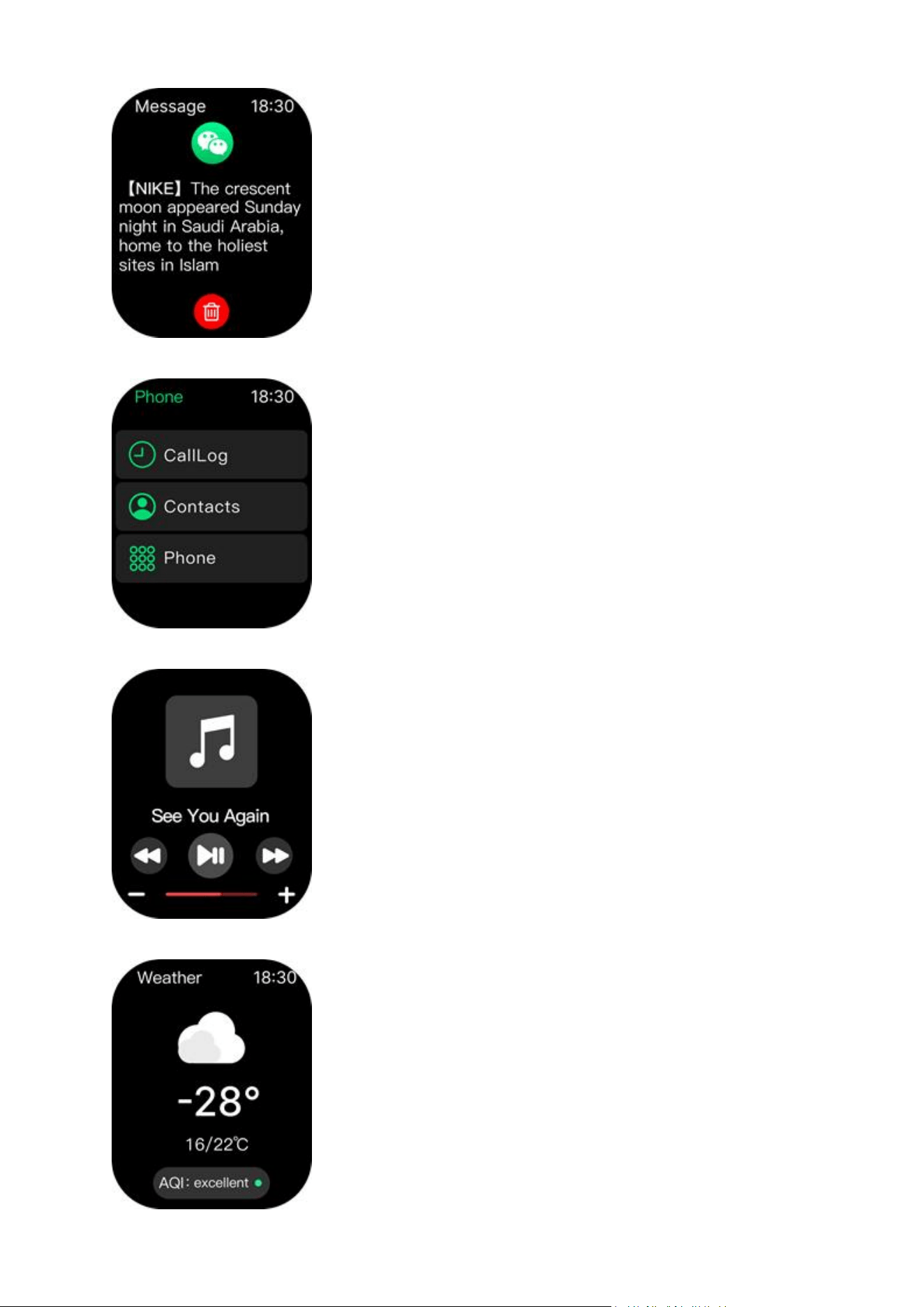
g. Message
h. Dial
i. BT music
j. Weather
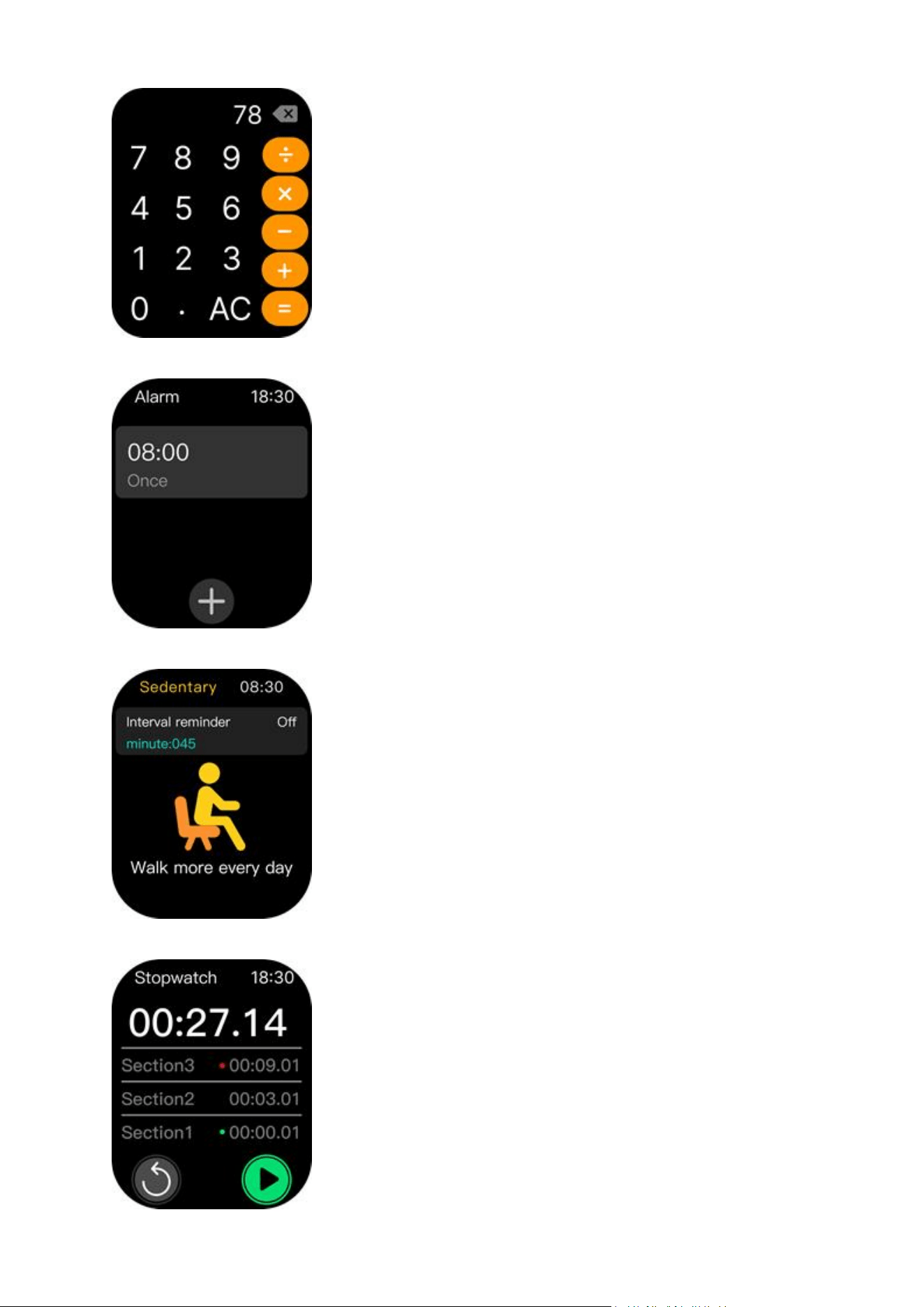
k. Calculator
l. Alarm
m. Sedentary
n. Stopwatch
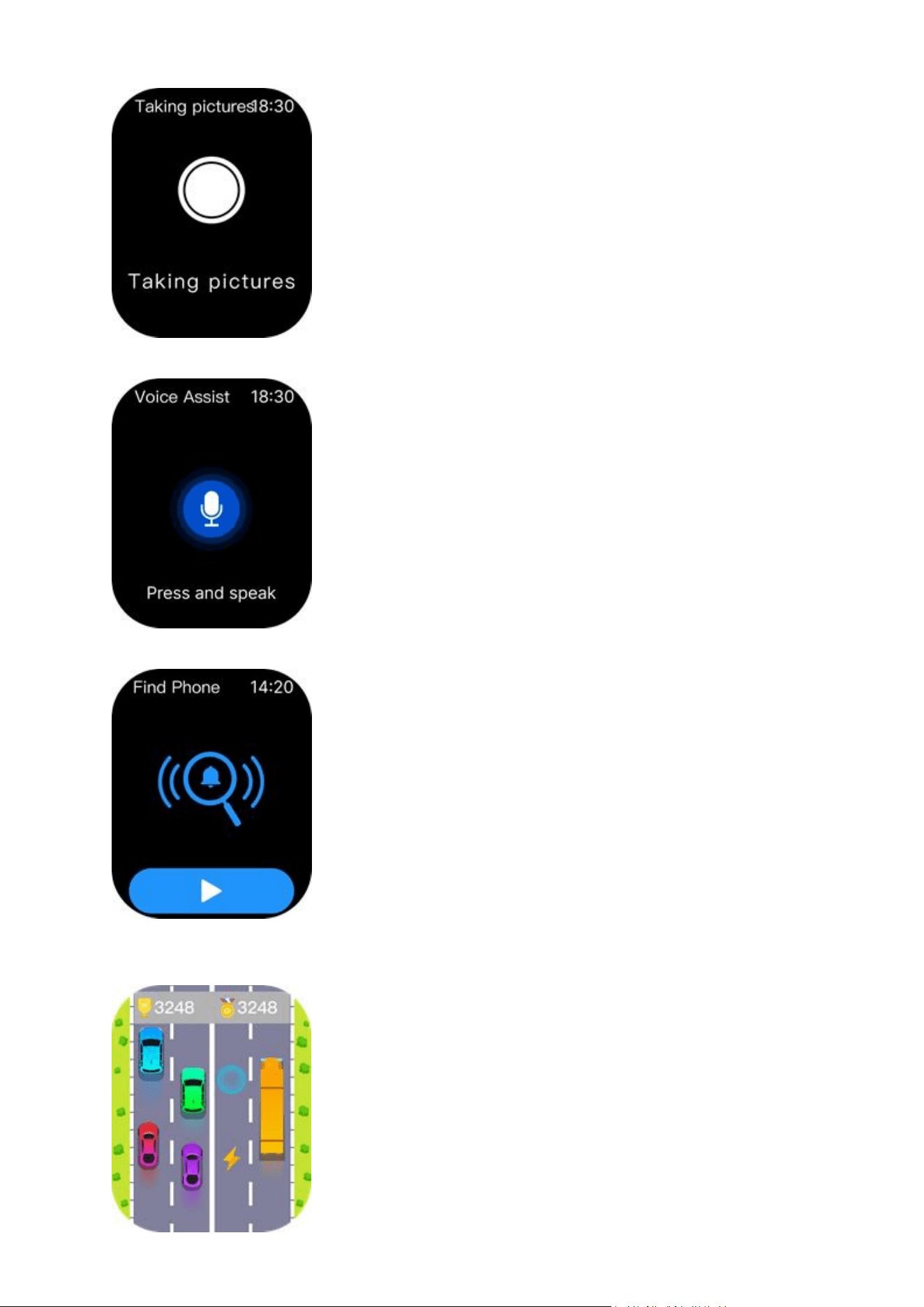
o. Taking pictures
p. Voice Assistant
q. Find phones
r. Car Race
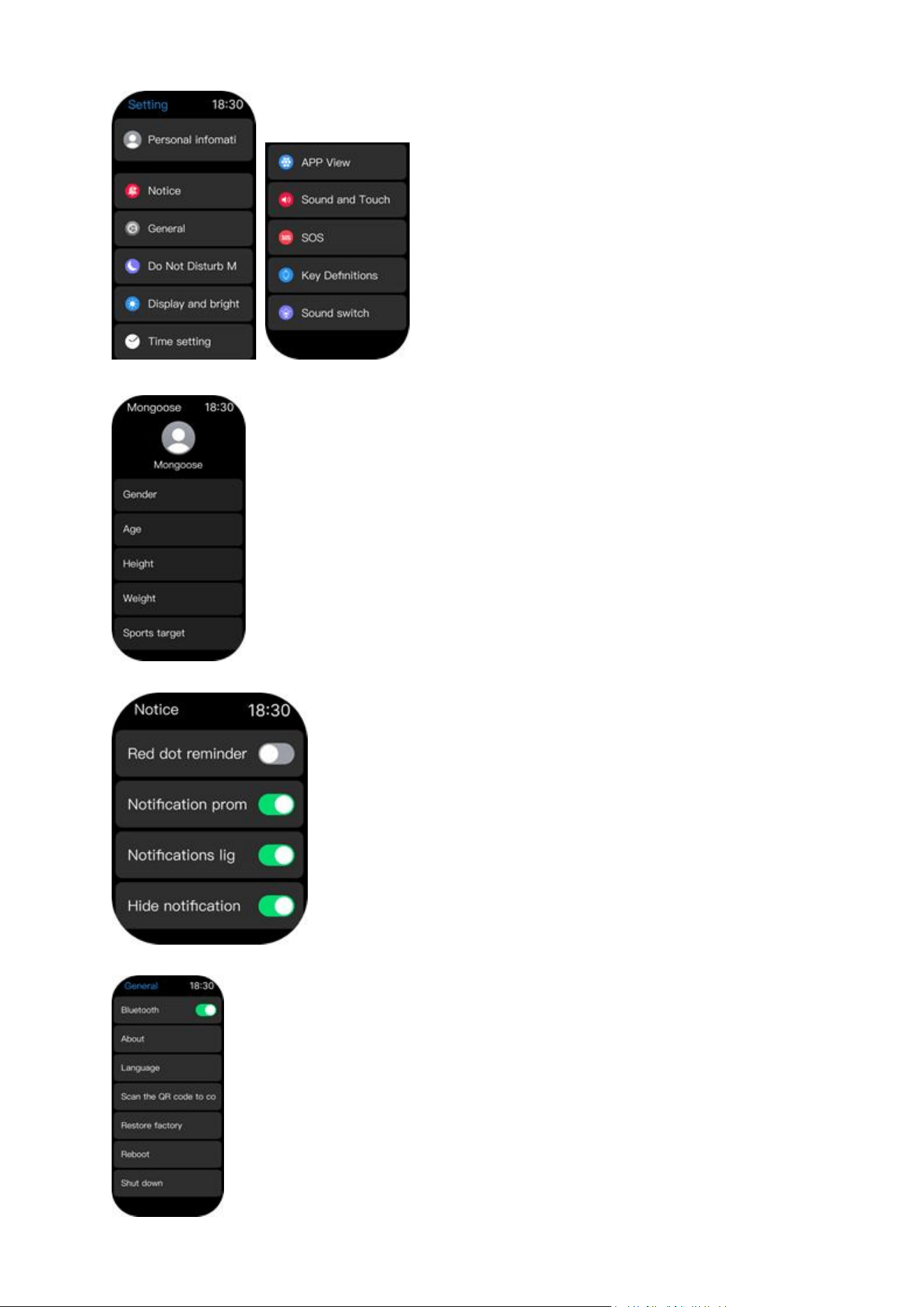
s. Setting
- Personal information
- Notice
- General
- Do not Disturb Mode
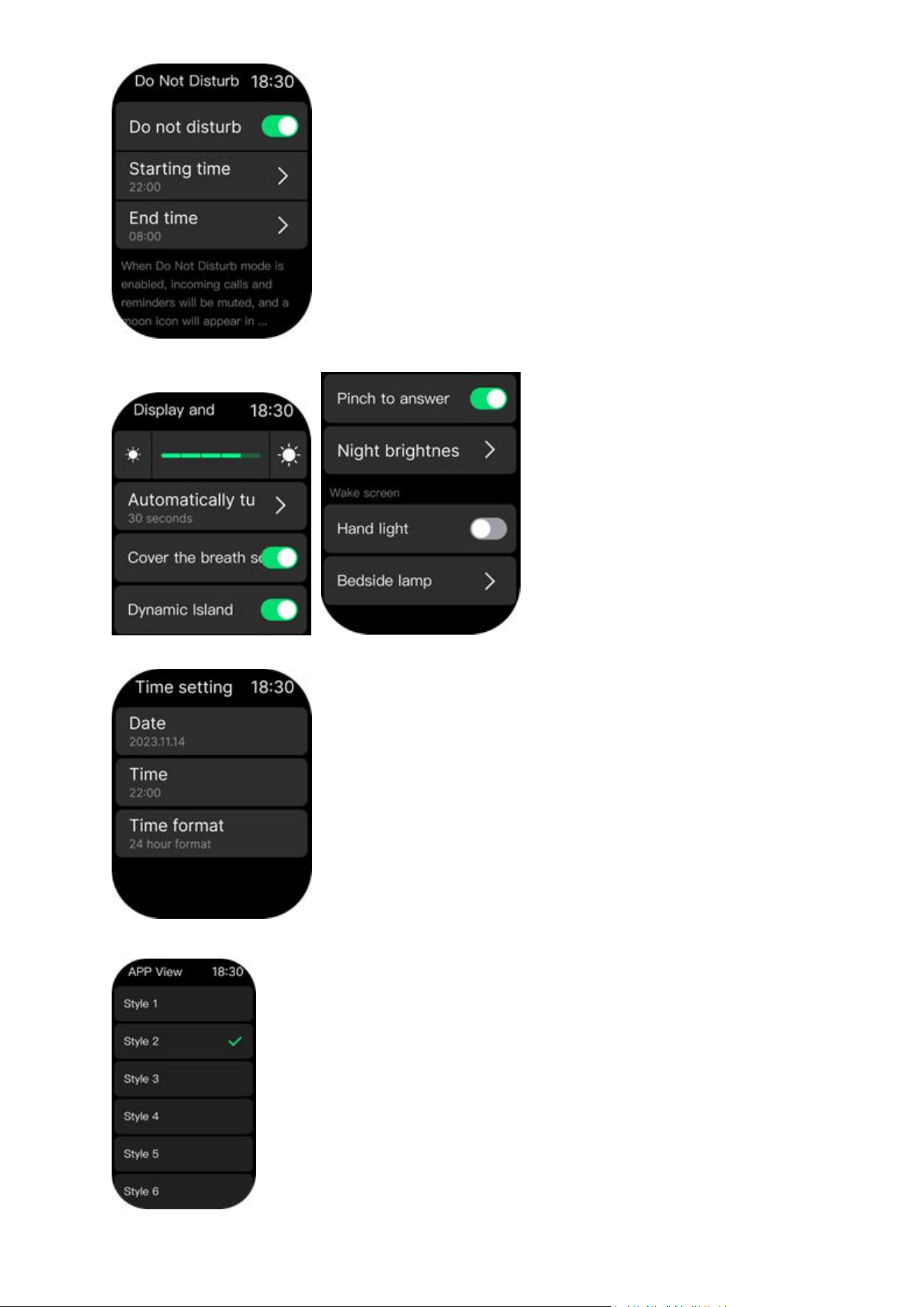
- Display and brightness
- Time setting
- App view
- Sound and Touch
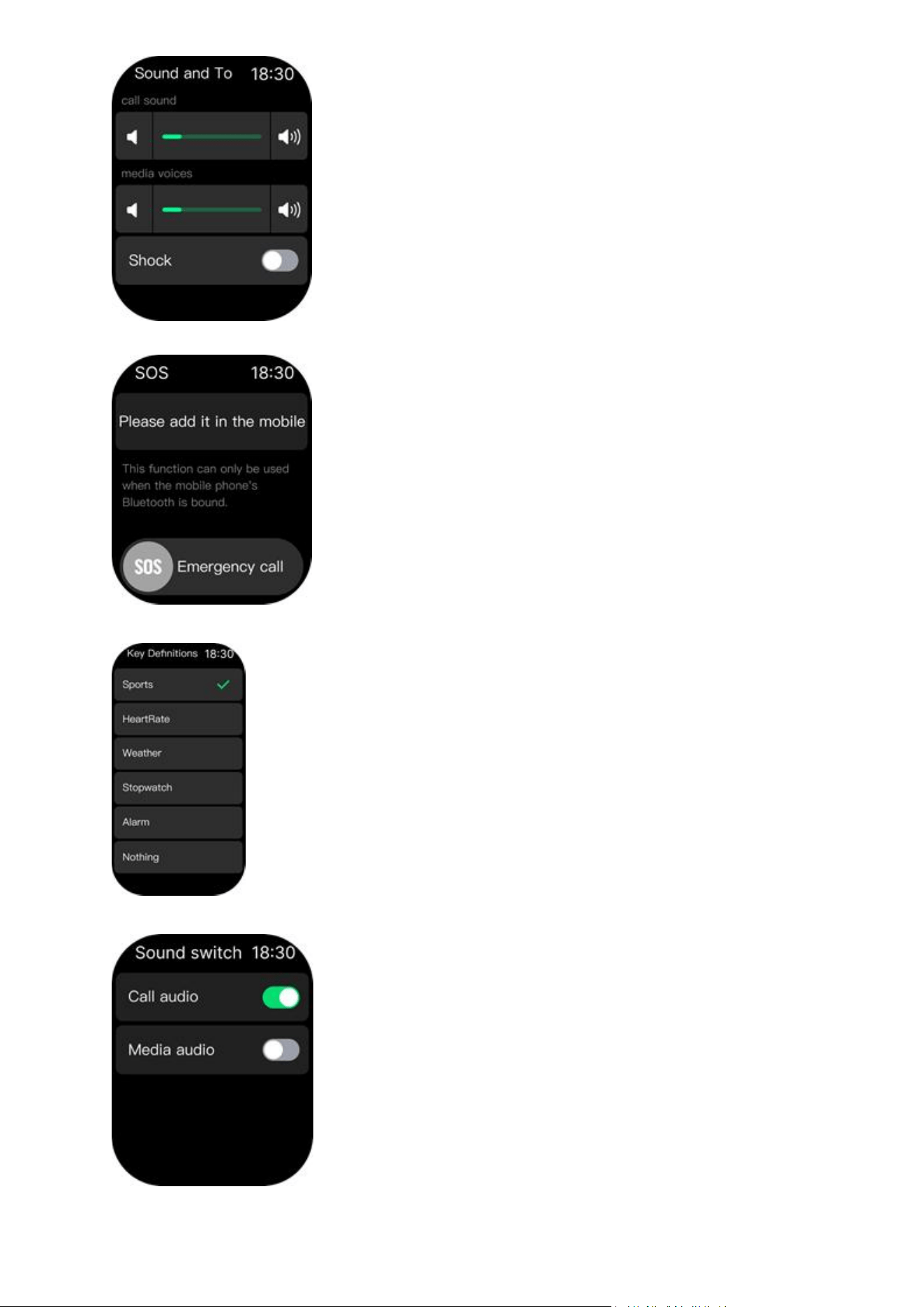
- SOS
- Key Definitions
- Sound switch
t. Calendar
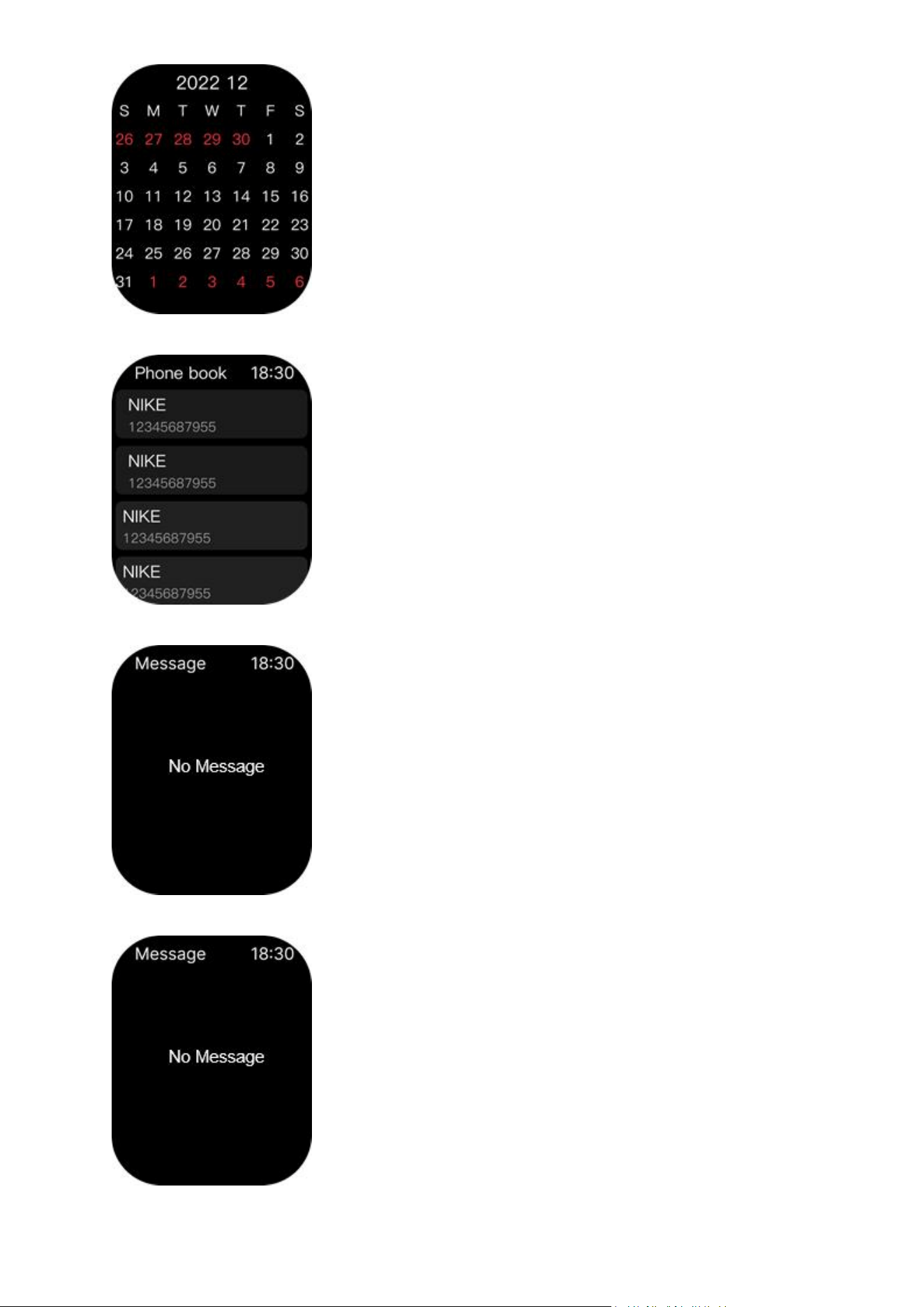
u. Contacts
v. Facebook
w. Twitter
x. WhatsApp
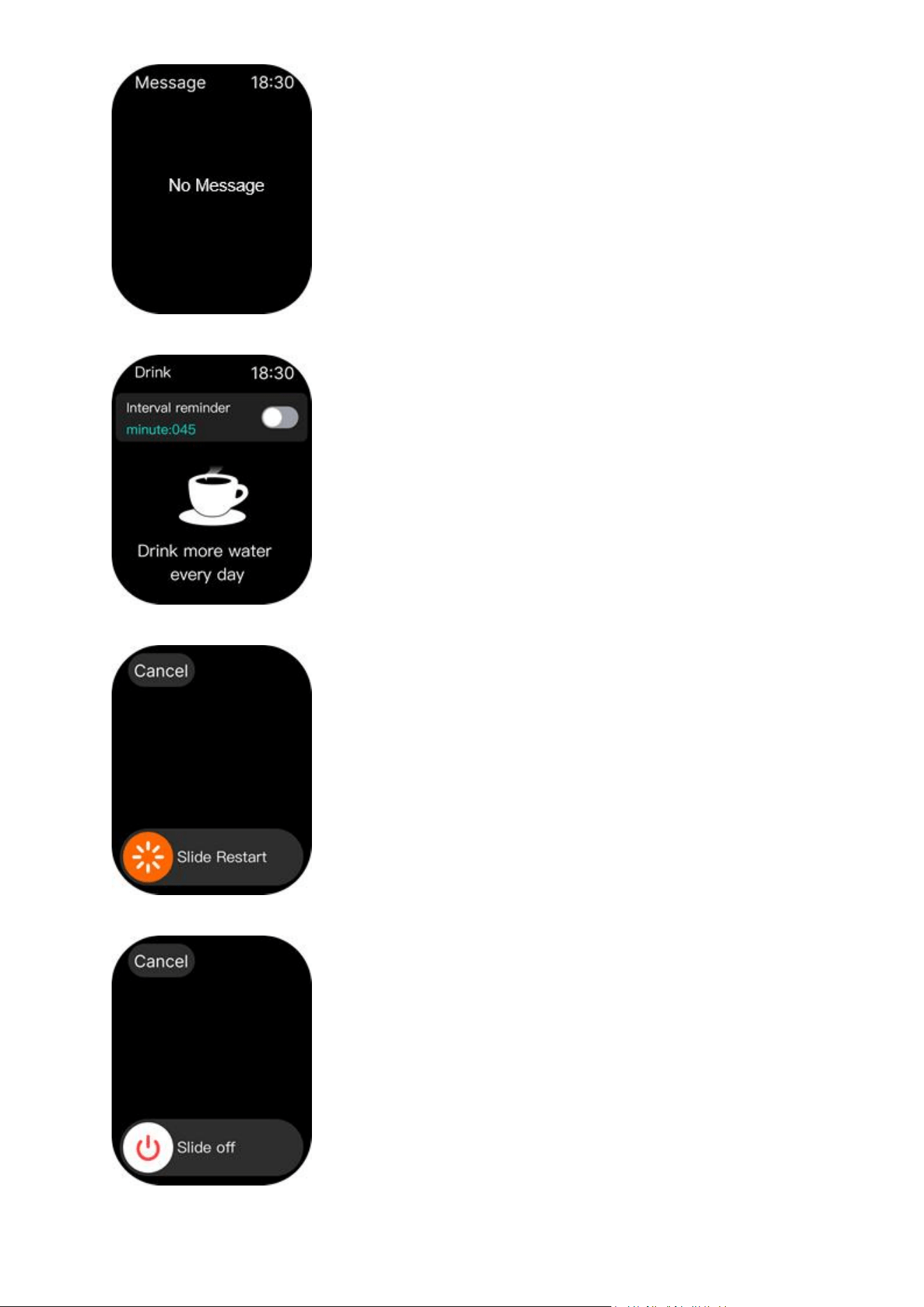
y. Drink
z. Reboot
aa.Shut Down
bb. Language
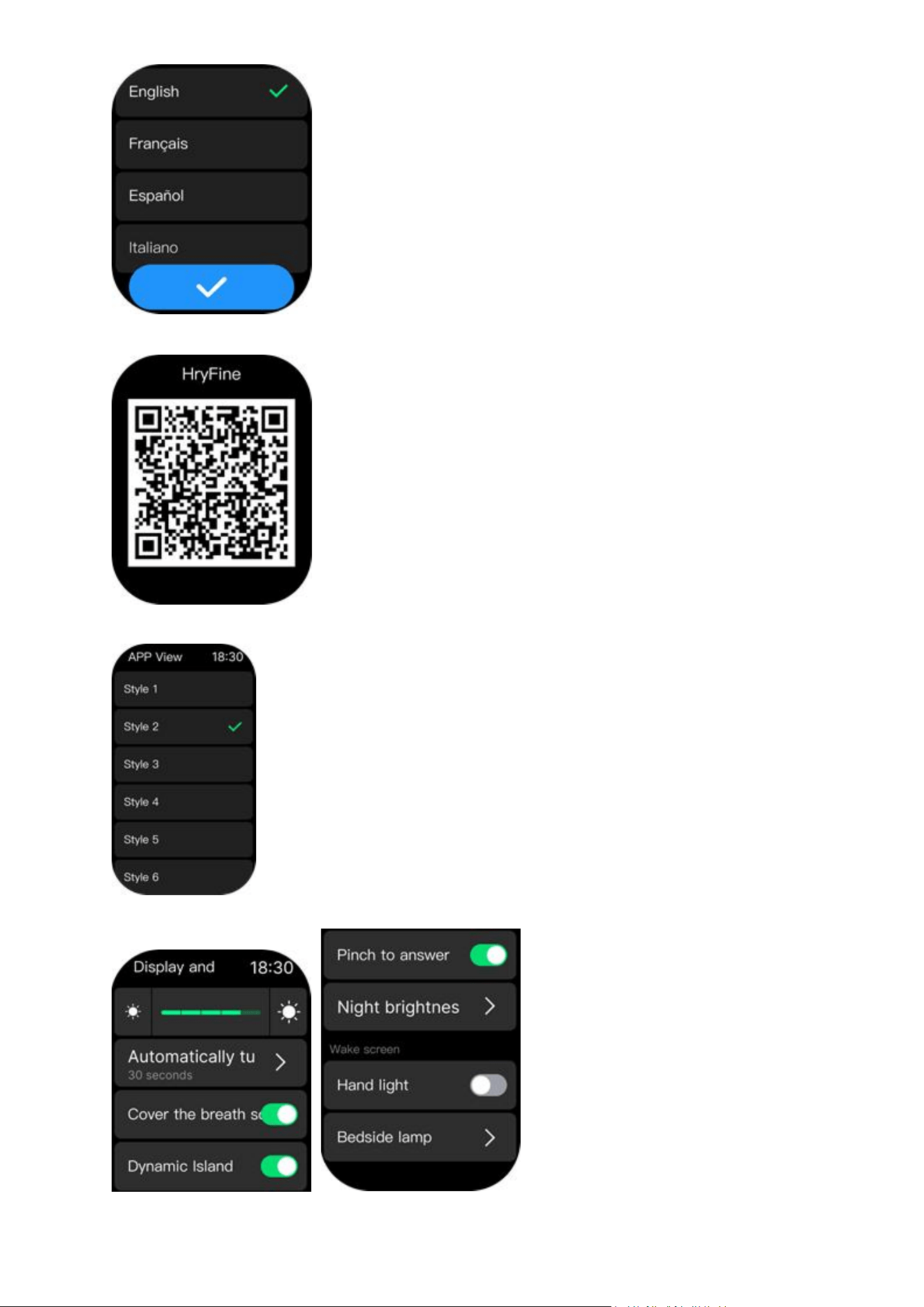
cc. QR code
dd. App view
ee. Display and brightness
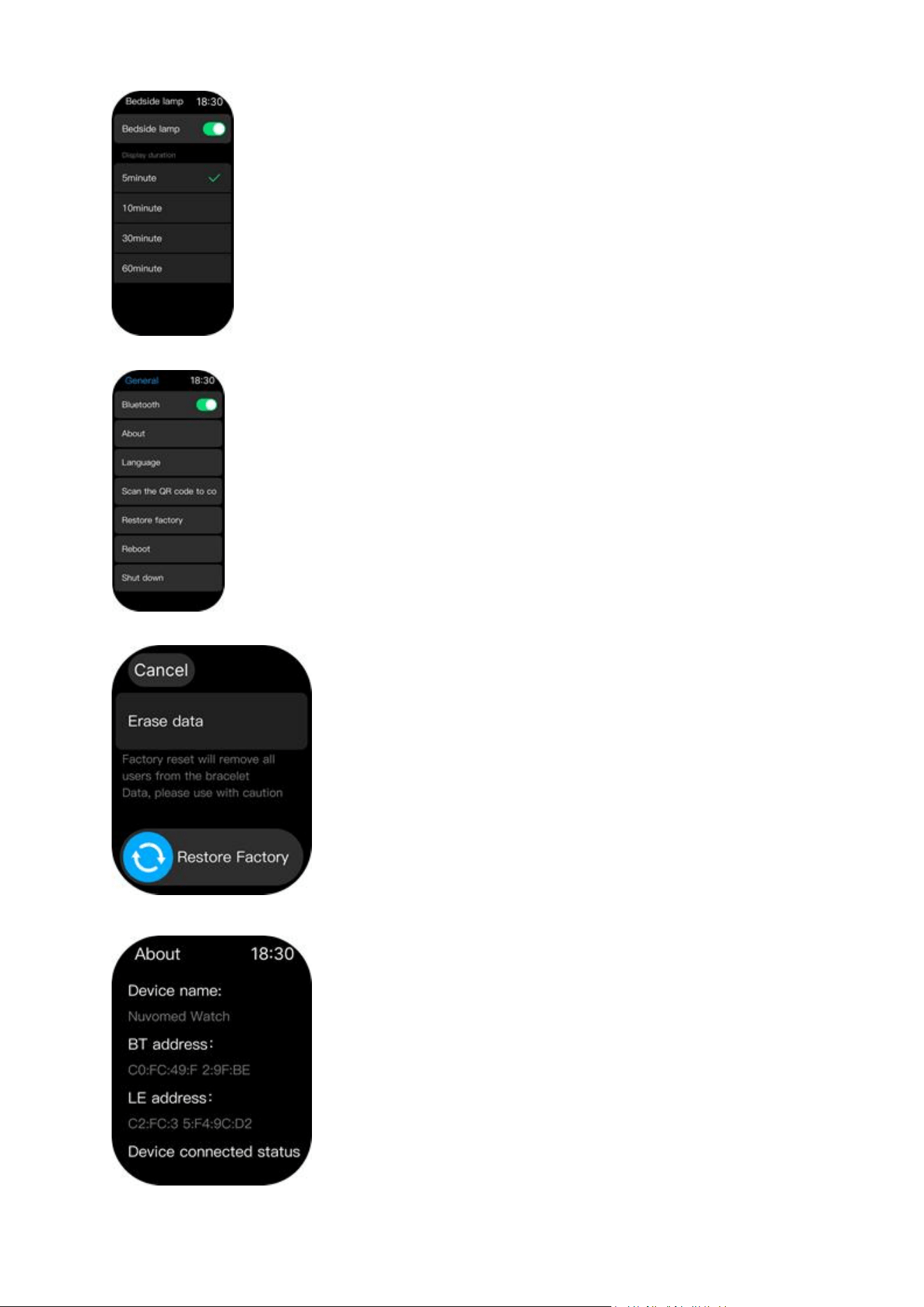
ff. Bedside lamp
gg. Bluetooth
hh. Restore factory
ii. About
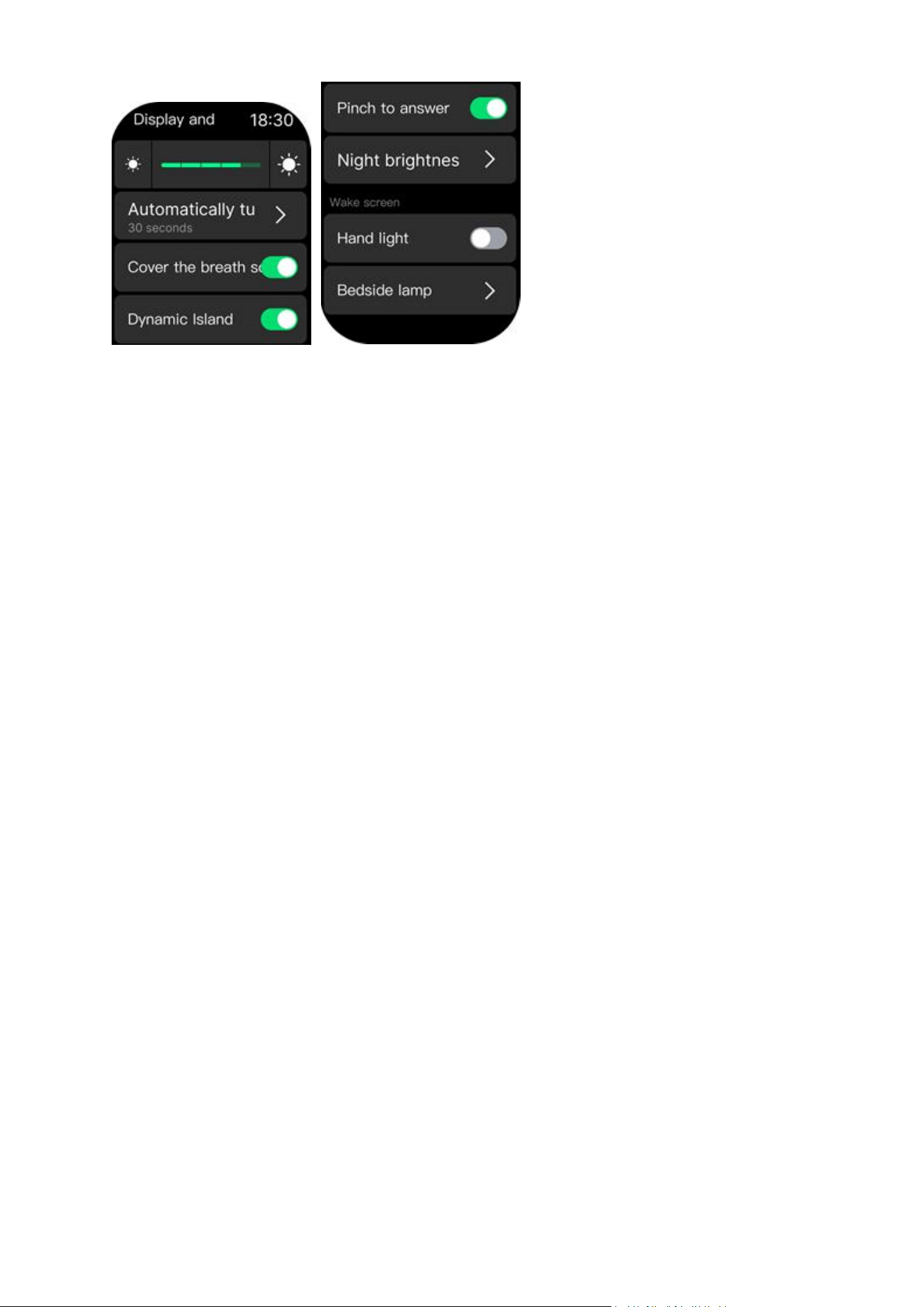
jj. Pinch to answer
REMARK: Short press the MFB Crown each time will return to previous display.
Troubleshooting “HryFine” App
1. “HryFine” App Cannot Find the Device
Make sure your Bluetooth is activated (Smartphone and Fitness Tracking Smart Watch if there
is an option).
Check if the Fitness Tracking Smart Watch is powered on.
Manually select the Fitness Tracking Smart Watch “Nuvomed Watch” in the Bluetooth settings
of the smartphone.
2. The Fitness Tracking Smart Watch Keeps on Disconnecting on the App?
Install the correct/updated version of the app.
See the recommended/supported version for the smartphone and the Fitness Tracking Smart
Watch.
Restart your phone and your wearable.
3. “HryFine” App becomes unstable after the recent update
This usually happens when the support app upgraded to the latest version, and the old device
did not receive any updates on its firmware to be compatible with the latest app update.
If this happens to your device, uninstall the app and download the lower version of the “HryFine”
App.
4. My Fitness Tracking Smart Watch is not receiving any notifications, like calls and
messages
Please check the message notification on the support app, go to “Device settings” and turn on
the call and SMS reminders.
Check the “HryFine” permissions on the App Permission settings of the smartphone, and allow
“HryFine” App to run in the background and receive notifications.
Specifications
Size (including watch straps): 10.31” L x 1.63” W x 0.52” T
Weight (including watch straps): ~1.6 oz
Power Input: DC 5V
Built-in Rechargeable Battery: 3.7V 200mAh

This device complies with Part 15 of the FCC Rules. Operation is subject to the following two
conditions: (1) this device may not cause harmful interference, and (2) this device must accept any
interference received, including interference that may cause undesired operation.
Changes or modifications to this unit not expressly approved by the party responsible for
compliance could void the user’s authority to operate the equipment.
NOTE: This equipment has been tested and found to comply with the limits for a Class B digital
device, pursuant to Part 15 of the FCC Rules. These limits are designed to provide reasonable
protection against harmful interference in a residential installation. This equipment generates uses
and can radiate radio frequency energy and, if not installed and used in accordance with the
instructions, may cause harmful interference to radio communications. However, there is no
guarantee that interference will not occur in a particular installation. If this equipment does cause
harmful interference to radio or television reception, which can be determined by turning the
equipment off and on, the user is encouraged to try to correct the interference by one or more of the
following measures:
-- Reorient or relocate the receiving antenna.
-- Increase the separation between the equipment and receiver.
-- Connect the equipment into an outlet on a circuit different from that to which the receiver is
connected.
-- Consult the dealer or an experienced radio/TV technician for help.
This device and its antenna(s) must not be co-located or operation in conjunction with any other
antenna or transmitter.
Radiation Exposure Statement
The device has been evaluated to meet general RF exposure requirement in portable exposure
condition without restriction.