1
Contents
Part Names
Basic Operations
Print Settings
Printing via USB Cable
Troubleshooting
Appendix
Cover
Printer User Guide
ENGLISH
© CANON INC. 2015 CT0-D256-A
• Make sure you read this guide, including the “Safety
Precautions” section, before using the printer.
• Reading this guide will help you learn to use the printer
properly.
• Store this guide safely so that you can use it in the
future.
• Click the buttons in the lower right to access other pages.
: Next page
: Previous page
: Page before you clicked a link
• To jump to the beginning of a chapter, click the chapter
title at right.
From chapter title pages, you can access topics by
clicking their titles.
Package Contents
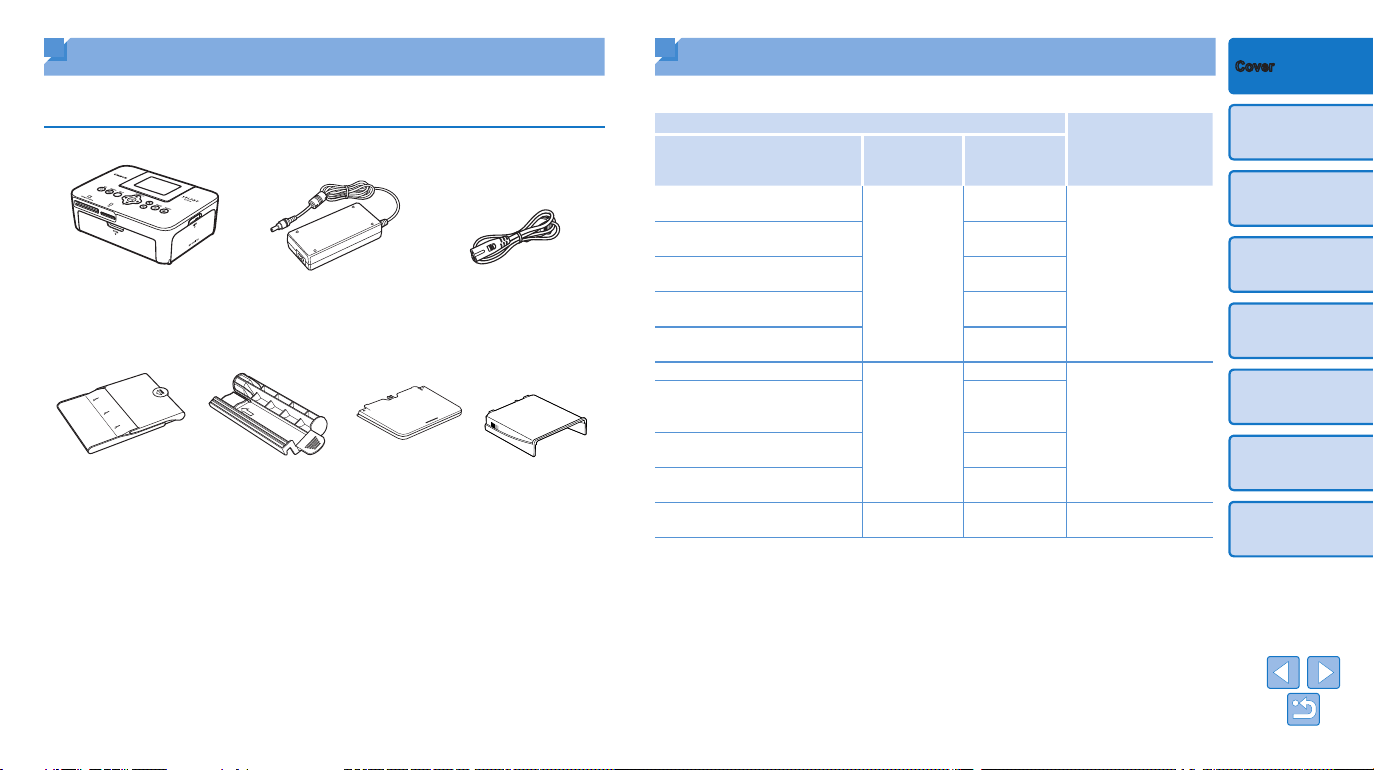
Before use, make sure the following items are included in the package.
If anything is missing, contact the retailer where you purchased the printer.
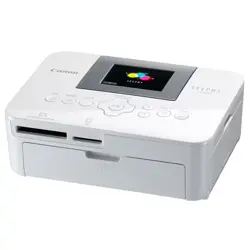
□ SELPHY Printer □ Compact
Power Adapter
CA-CP200 B
□ Power Cord
□ Paper Cassette
PCP-CP400
□ Cleaner Unit* □ Dust Protection
Cover
(For Back)*
□ Dust Protection
Cover
(For Front)*
• Printed matter is also included.
* May not be included in some regions.
2
Contents
Part Names
Basic Operations
Print Settings
Printing via USB Cable
Troubleshooting
Appendix
Cover
Ink and Paper (Sold Separately)
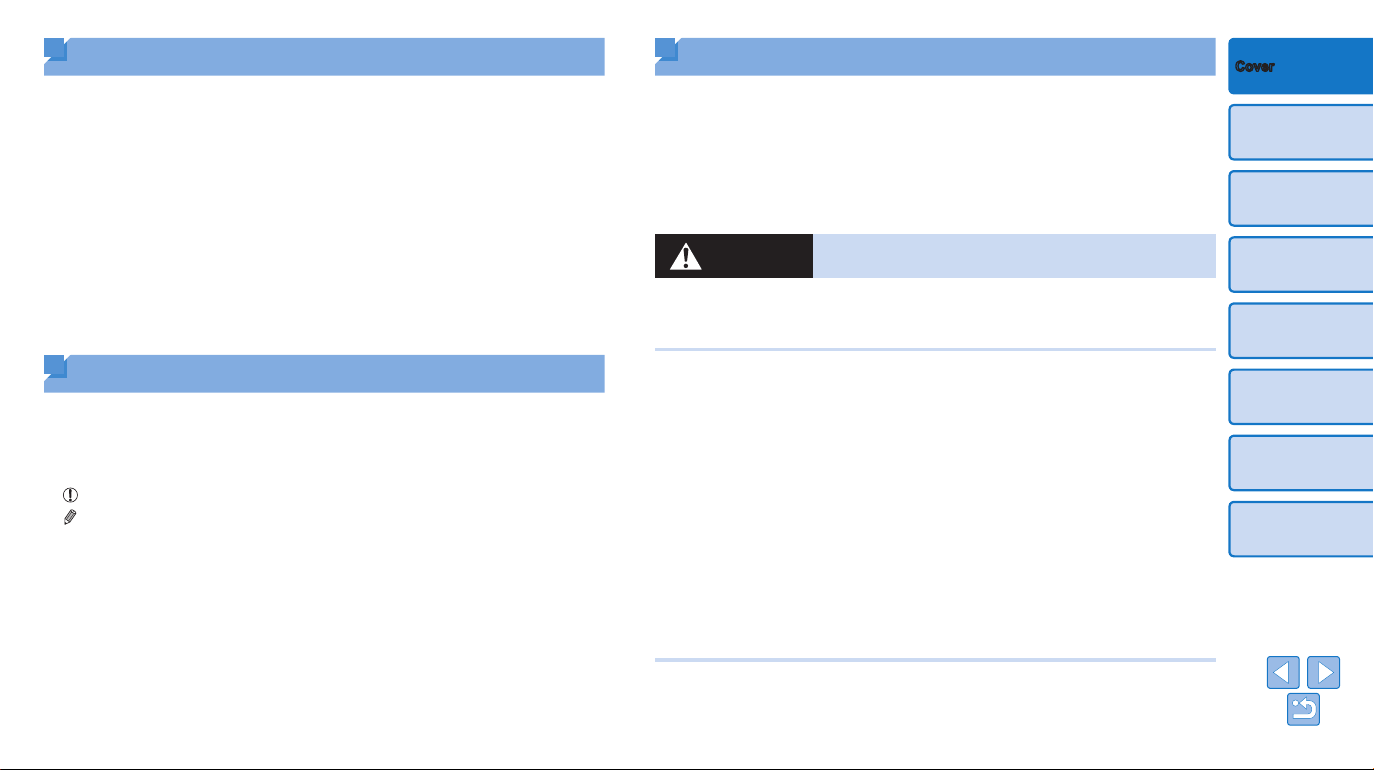
Before use, purchase a Color Ink / Paper Set.
Color Ink / Paper Set
Necessary Paper
Cassette
Product Name Paper Size
Number of
Possible
Prints
Color Ink / Paper Set
RP-54 (Photo Paper)
Postcard Size
54
Paper Cassette
PCP-CP400
(included with
SELPHY)
Color Ink / Paper Set
RP-108 (Photo Paper)
108
Color Ink / Paper Set
RP-1080V (Photo Paper)
1080
Color Ink / Paper Set KP-36IP
(Postcard)
36
Color Ink / Paper Set KP-108IN
(Photo Paper)
108
Color Ink / Paper Set KC-36IP
Card Size
36
Paper Cassette
PCC-CP400*
Color Ink /
Label Set
KC-18IF (Full-Page Label)
18
Color Ink / Label Set KC-18IL
(8 Labels per Page)
18
Color Ink / Label Set KC-18IS
(Square Labels)
18
Color Ink / Paper Set KL-36IP L Size 36
Paper Cassette
PCPL-CP400*
* Purchase with the Color Ink / Paper Set.
Accessory availability varies by region.
3
Contents
Part Names
Basic Operations
Print Settings
Printing via USB Cable
Troubleshooting
Appendix
Cover
Safety Precautions
• Before using the product, please ensure that you read the safety precautions
described below. Always ensure that the product is used correctly.
• The safety precautions noted on the following pages are intended to
prevent injuries to yourself and other persons, or damage to the equipment.
• Be sure to also check the guides included with any separately sold
accessories you use.
Warning
Denotes the possibility of serious injury or death.
• Store this equipment out of the reach of children and infants.
Mistakenly putting the power cord around a child’s neck could result in
asphyxiation.
• Use only recommended power sources.
• Do not attempt to disassemble, alter, or apply heat to the product.
• Avoid dropping or subjecting the product to severe impacts.
• To avoid the risk of injury, do not touch the interior of the product if
it has been dropped or otherwise damaged.
• Stop using the product immediately if it emits smoke, a strange
smell, or otherwise behaves abnormally.
• Do not use organic solvents such as alcohol, benzine, or thinner to
clean the product.
• Do not let the product come into contact with water (e.g. sea water)
or other liquids.
• Do not allow liquids or foreign objects to enter the product.
This could result in electrical shock or re.
If liquid comes into contact with the product, unplug it from the outlet and
consult your retailer or a Canon Customer Support Help Desk.
• Do not touch the printer or the power plug during thunderstorms.
This could result in electrical shock or re. Immediately stop using the
equipment and distance yourself from it.
Before Use
• Images printed with this product are to be used for personal enjoyment.
Unauthorized printing of copyrighted material is prohibited.
• The printer warranty is valid only in the country or area of purchase. In
case of printer problems while abroad, return to the area of purchase
before contacting a Canon Customer Support Help Desk.
• Although the LCD monitor is produced under extremely high-precision
manufacturing conditions and more than 99.99% of the pixels meet
design specications, in rare cases some pixels may be defective or may
appear as red or black dots. This does not constitute a malfunction or
affect printed images.
• The LCD monitor may be covered with a thin plastic lm for protection
against scratches during shipment. If so, remove the lm before use.
Conventions in This Guide
• In this guide, the printer is referred to as “SELPHY” or “the printer”.
• Icons are used in this guide to represent buttons on SELPHY. Refer to
“Controls” (=
6) for details.
• On-screen text or icons are shown in square brackets, as in [ ].
•
: Important information you should know
•
: Notes and tips for expert use
• =xx: Pages with related information (In this example, “xx” represents a
page number.)
• Instructions in this guide apply to the printer under default settings.
• For convenience, all supported memory cards are simply referred to as
“memory card”.
4
Contents
Part Names
Basic Operations
Print Settings
Printing via USB Cable
Troubleshooting
Appendix
Cover
Caution
Denotes the possibility of damage to the equipment.
• Unplug the product from the power outlet when you are not using it.
• Do not place anything, such as cloth, on top of the printer while in
use.
Leaving the unit plugged in for a long period of time may cause it to
overheat and distort, resulting in re.
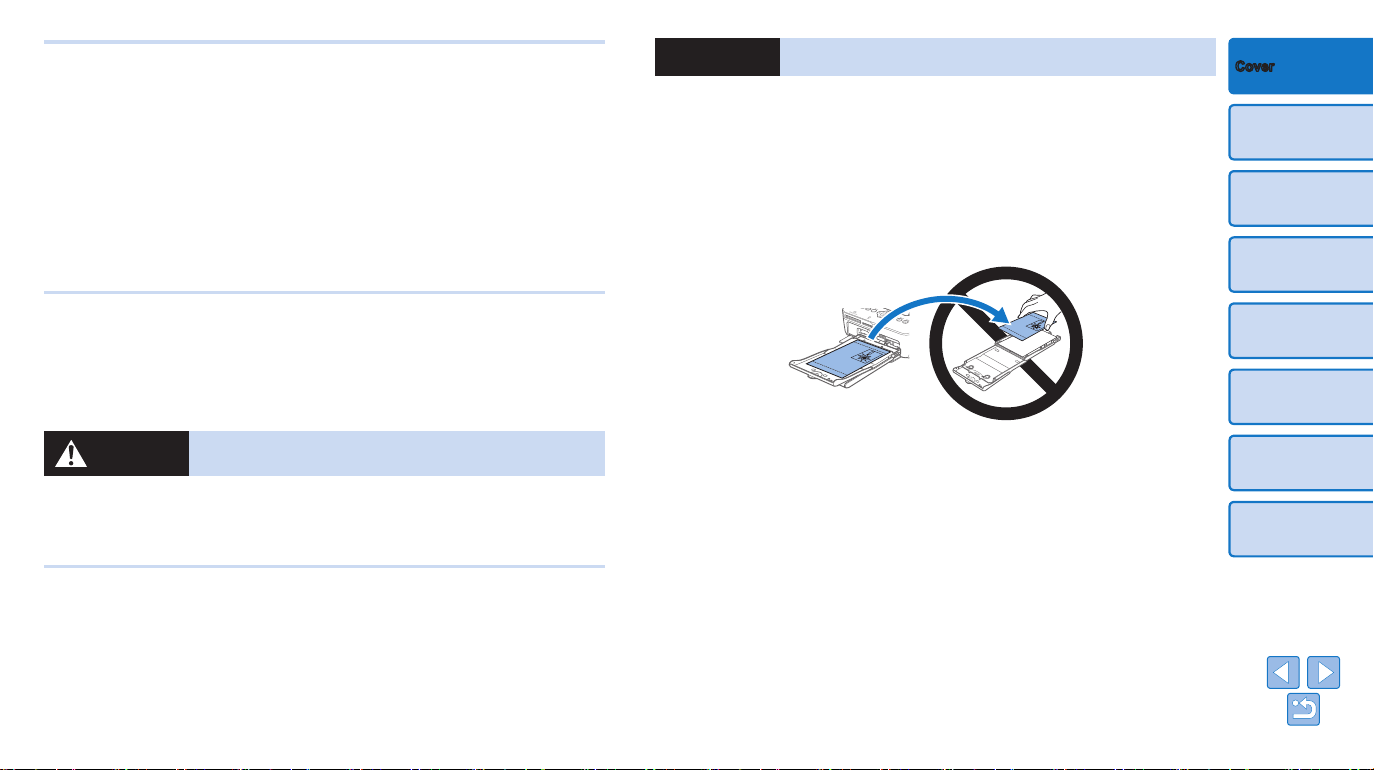
• Never reuse paper for printing, even if most of the paper is blank, as
shown.
Reusing paper may damage the printer if paper jams or the ink sheet
adheres to the paper.
• Do not unplug the printer while it is printing.
If you accidentally turn the printer off while printing, restart it and wait until
the paper is ejected. If paper jams and cannot be removed, contact your
retailer or a Canon Customer Support Help Desk. Do not attempt to remove
jammed paper by force, which may damage the printer.
• Do not use the printer near motors or other devices that generate
strong magnetic elds, or in dusty environments.
This may damage the printer or cause malfunction.
• Unplug the power cord periodically, and using a dry cloth, wipe away
any dust or dirt that has collected on the plug, the exterior of the
power outlet, and the surrounding area.
• Do not handle the power cord with wet hands.
• Do not use the equipment in a manner that exceeds the rated
capacity of the electrical outlet or wiring accessories. Do not use if
the power cord or plug are damaged, or not fully plugged into the
outlet.
• Do not allow dirt or metal objects (such as pins or keys) to contact
the terminals or plug.
• Do not cut, damage, alter, or place heavy items on the power cord.
This could result in electrical shock or re.
• If a CD-ROM is supplied, do not play it in any CD player that does not
support data CD-ROMs.
It is possible to suffer hearing loss from listening with headphones to the
loud sounds of a CD-ROM played on a music CD player. Additionally,
playing the CD-ROM(s) in an audio CD player (music player) could damage
the speakers.
Caution
Denotes the possibility of injury.
• Do not stick any part of your hand into the printer interior.
• Place SELPHY in a safe location where people will not trip over the
power cord.
Failure to do this may lead to injury or printer damage.
• Avoid using, placing, or storing the product in the following places:
• Places subject to direct sunlight • Places subject to
temperatures above 40 °C (104 °F)
• Humid or dusty places • Places subject to strong vibration
This may cause overheating of or damage to the printer or adapter, which
may result in electric shock, burns or other injury, or re.
High temperature may deform the product or adapters.
Package Contents .........................2
Ink and Paper (Sold Separately) ....2
Before Use .....................................3
Conventions in This Guide .............3
Safety Precautions .........................3
Contents.........................................5
Part Names ....................................5
Basic Operations ............. 7
Initial Preparations .........................8
Supported Cards/Images .............14
Printing Images (Select & Print) ...15
Storing Prints ...............................18
After Printing ................................18
Print Settings ................. 20
Printing All Images .......................21
Cropping Images .........................22
Printing ID Photos ........................23
Adjusting Settings ........................25
Printing via USB Cable .. 33
Printing from a Computer .............34
Printing from a Camera ................36
Troubleshooting ............. 38
Appendix ........................ 42
Printing without a Power Outlet ...43
Specications ...............................44
Handling and Maintenance ..........46
5
Cover
Basic Operations
Print Settings
Printing via USB Cable
Troubleshooting
Appendix
Contents
Part Names
Part Names
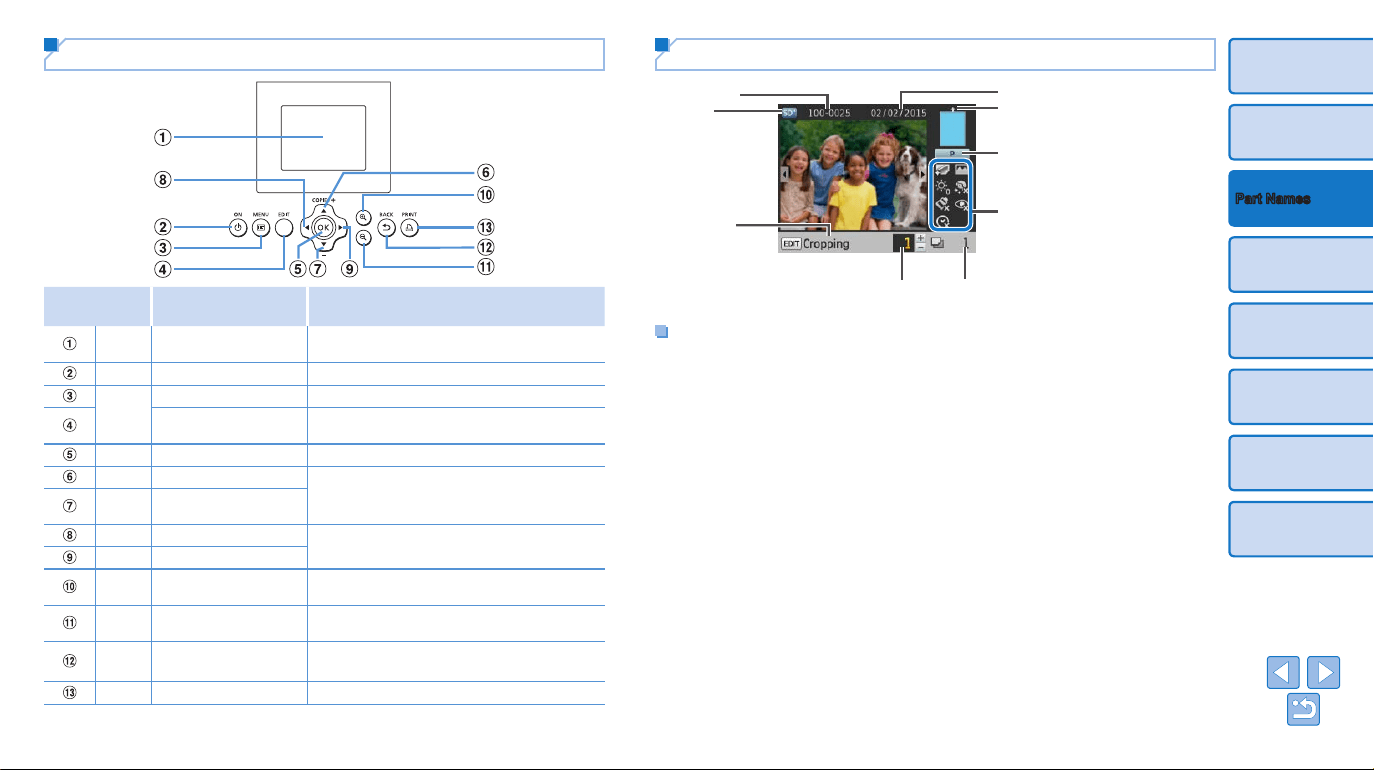
Camera / Flash Drive
USB Port (=
17, 36)
DC IN (Power Input)
Terminal (=
12)
Computer USB Port
(=
34)
Paper Ejection Slot
Security Slot*
Air Vent (=
46)
Battery Mounting Cover
(=
43)
Battery / Battery
Cover Removal Switch
(=
43)
Memory Card Slot (=
14)
Paper Cassette
Compartment (=
10)
Paper Cassette
Compartment Cover
(=
10)
Ink Cassette Lock
(= 16)
Ink Cassette
Compartment (=
10)
Ink Cassette
Compartment Cover
(=
10)
* Security cables, such as a Kensington lock, can be attached to this slot.
Contents
6
Cover
Contents
Basic Operations
Print Settings
Printing via USB Cable
Troubleshooting
Appendix
Part Names
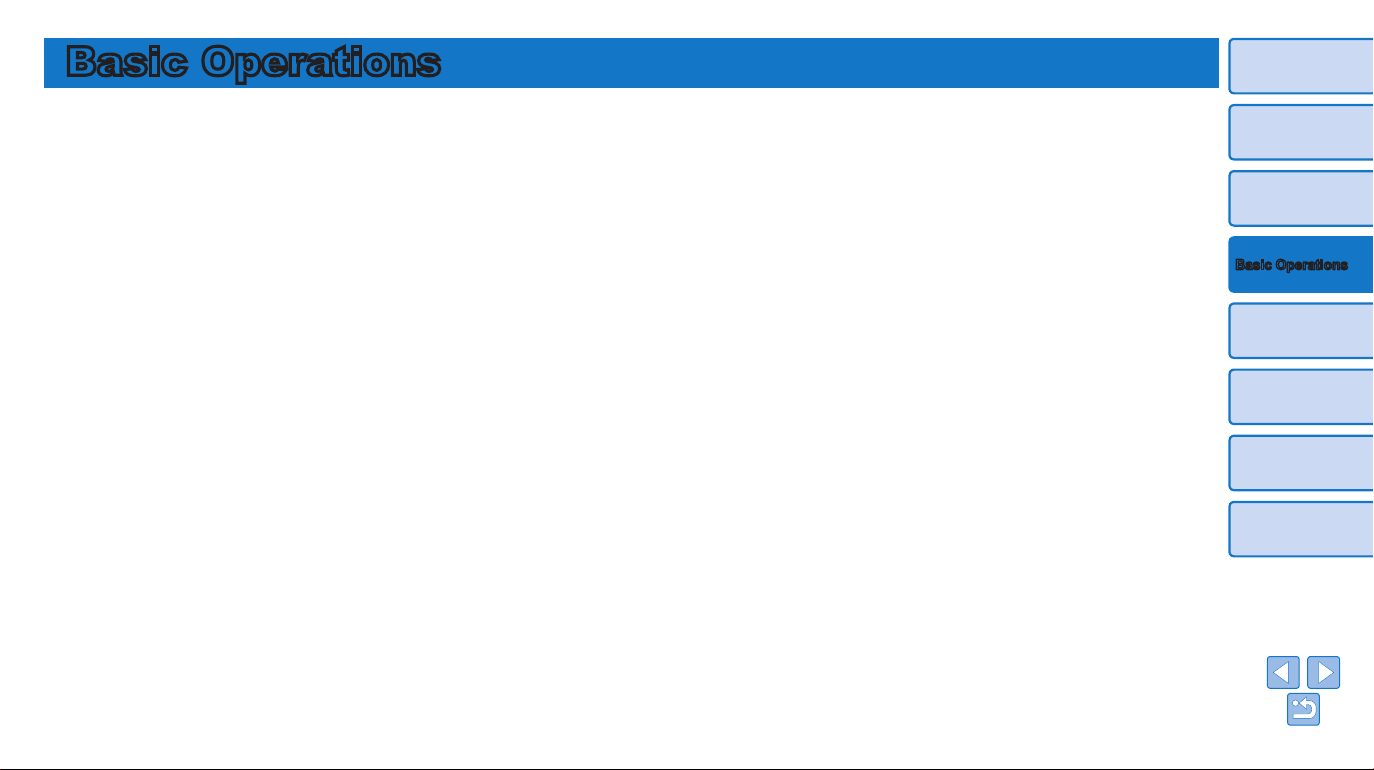
Controls
Icons in This
Guide
Name Function
–
Screen (LCD monitor)
Displays images, setting screens, or error
messages (=
41)
<q>
Power button
Turns SELPHY on or off (=
13)
<k>
MENU button
Displays the menu screen (=
13)
–
EDIT button
Displays the editing menu and rotates the
crop frame
<o>
OK button Conrms the selected item
<u>
Up / More prints button
Species the print quantity or selects setting
items
<d>
Down / Fewer prints
button
<l>
Left button
Switches images, changes setting values
<r>
Right button
<->
Enlarge button
Switches display modes, enlarges the crop
frame
<0>
Reduce button
Switches display modes, reduces the crop
frame
<v>
Back button
Restores the previous screen (=
26),
cancels printing (=
16)
<p>
Print button
Starts printing (=
16)
On-Screen Information
File number
Print settings (=
26 – 31)
(Dimmed when unavailable)
Total prints
Prints of current image
Port/slot
in use (=
14, 17)
Cropping
(=
22)
Paper orientation
Shooting date of current image
Print size
(L size shown here)
Switching Display Modes
Press the <-> button for full-screen display at higher resolution. The print
area is outlined. Press the <0> button to restore single-image display.
Press the <0> button to view nine images at once. Press the <-> button
to restore single-image display.
7
Cover
Contents
Part Names
Print Settings
Printing via USB Cable
Troubleshooting
Appendix
Basic Operations
Basic Operations
This chapter introduces basic printing operations such as preparing the printer, selecting images
on a memory card, and specifying the number of prints.
Initial Preparations ....................................................................................8
Preparing the Ink Cassette ................................................................................8
Preparing the Paper Cassette ...........................................................................9
Loading the Cassettes ....................................................................................10
Attaching the Dust Protection Covers .............................................................11
Installing and Plugging in SELPHY .................................................................12
Display Language ...........................................................................................13
Supported Cards/Images ........................................................................14
Checking Supported Memory Cards and the Slot to Use ...............................14
Supported Images ...........................................................................................14
Printing Images (Select & Print) ............................................................15
Avoiding Left Over Paper ................................................................................17
Printing from USB Flash Drives ......................................................................17
Making One Print from a Selected Image .......................................................17
Storing Prints ..........................................................................................18
After Printing ...........................................................................................18
Regular Cleaning ............................................................................................19
8
Cover
Contents
Part Names
Print Settings
Printing via USB Cable
Troubleshooting
Appendix
Basic Operations
Initial Preparations
Prepare for printing as follows. This example shows a Postcard-size Color
Ink / Paper Set (sold separately, =
2) but the same steps are followed
for other sizes.
Avoid getting dust on ink sheets or paper, which may cause banding or
damage the printer (=
4).
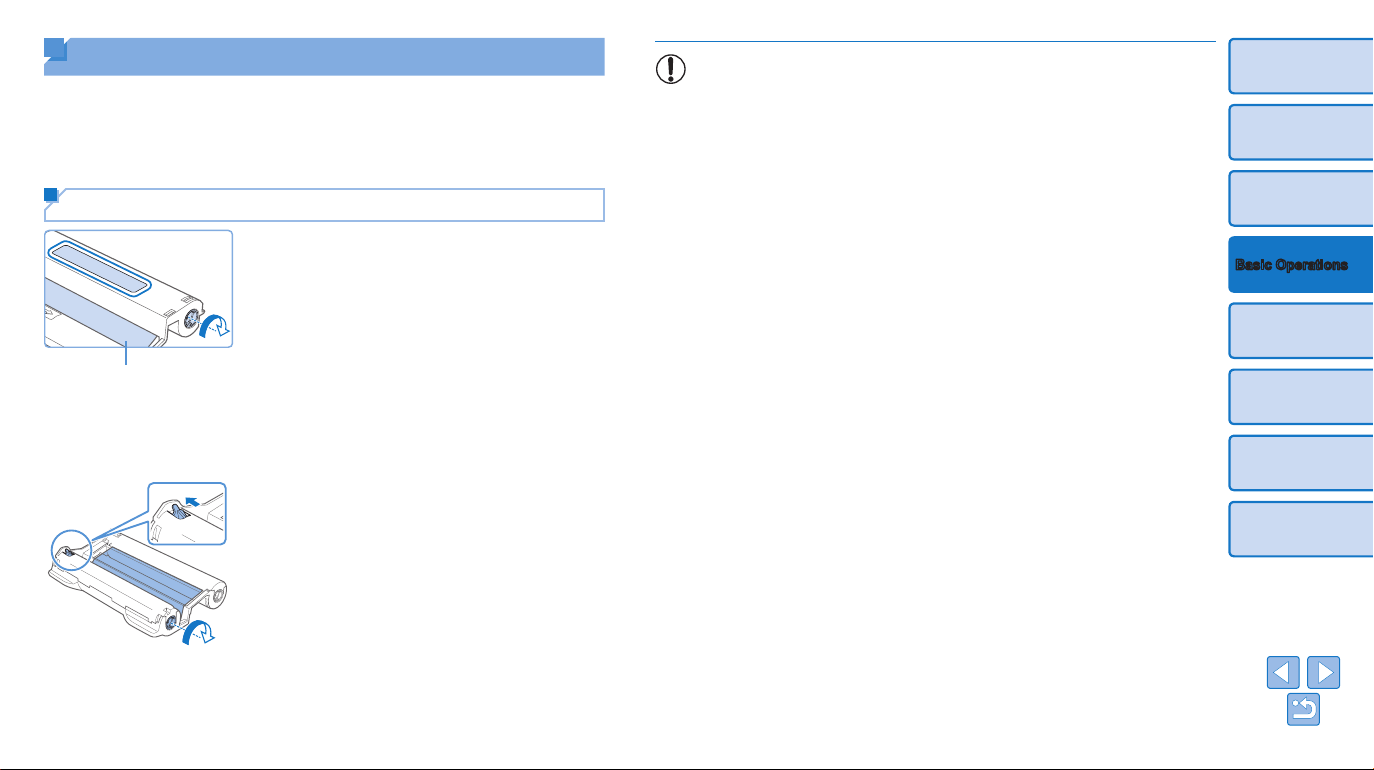
Preparing the Ink Cassette
Check the ink cassette and ink
sheet.
zz Holding the ink cassette without touching
the ink sheet, check the size (such as
“Postcard Size” or “Card Size”) to make
sure it matches the size of paper you will
print on.
zz Make sure the ink sheet is taut. Loose
ink sheets may tear when loaded. If
the sheet is loose, turn the sprocket as
shown.
zz For an ink cassette that has a lock on
the bottom, press the lock (as shown)
to release it as you turn the sprocket to
make the sheet taut.
Ink sheet
• Do not hold the ink cassette with wet hands. Avoid touching the
ink sheet, and avoid getting dust on it. Dirt or moisture may cause
banding or affect print quality, tear ink sheets and prevent printing,
or damage the printer (=
4).
• When turning the sprocket, turn it gently, only until the sheet is taut.
Forcing the sprocket or overtightening it may tear ink sheets and
prevent printing, or SELPHY may run out of ink before paper.
• Never reuse ink cassettes, which may damage the printer or cause
malfunction.
9
Cover
Contents
Part Names
Print Settings
Printing via USB Cable
Troubleshooting
Appendix
Basic Operations
Preparing the Paper Cassette
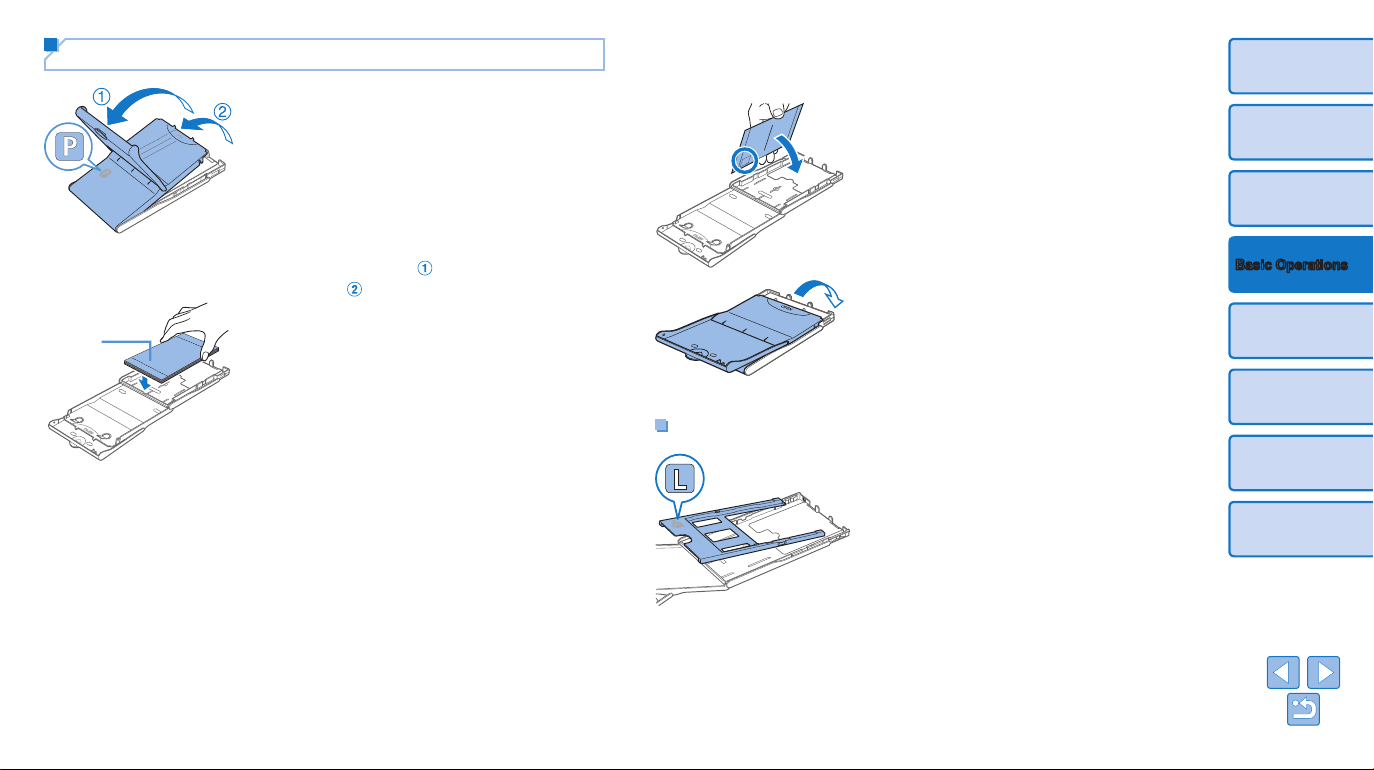
1 Check the paper size.
zz Check the size on the paper cassette
(such as “Postcard Size” or “Card Size”)
to make sure it matches the size of the
ink cassette.
2 Open both covers.
zz There are two layers of covers. First open
the outer cover (
), and then the inner
cover (
).
3 Load the paper.
zz Load the paper in the paper cassette.
zz The paper cassette holds up to 18
sheets. Loading 19 or more sheets may
damage the printer or cause malfunction.
zz Holding the paper as shown, load it with
the glossy side up. (Do not touch the
glossy side of the paper, which may affect
print quality.)
Glossy
side
zz Remove any protective sheets from
the paper, and load only paper into the
cassette.
zz When making postcard prints with space
for a stamp, load the paper with the
stamp area facing as shown.
4 Close the inner cover.
zz Close the inner cover rmly until it clicks
into place.
zz Leave the outer cover open when
printing.
Printing on L-Size Paper
zz You can use Paper Cassette PCPL-
CP400 (sold separately) to print on L-size
paper.
zz To print on postcard paper, remove the
adapter as shown.
10
Cover
Contents
Part Names
Print Settings
Printing via USB Cable
Troubleshooting
Appendix
Basic Operations
• Use only paper in a genuine Canon Color Ink / Paper Set for
SELPHY CP printers. Other paper, such as regular postcards or
paper for SELPHY ES printers, cannot be used.
• Never do the following, which may damage the printer or cause
malfunction.
- Loading paper upside-down, with the glossy
and back sides reversed
- Bending or separating paper at the
perforations before printing
- Using label paper whose upper label surface
is peeling off or has been partially pulled up
- Writing on paper before printing
- Reusing paper, as by printing on blank areas
(=
4)
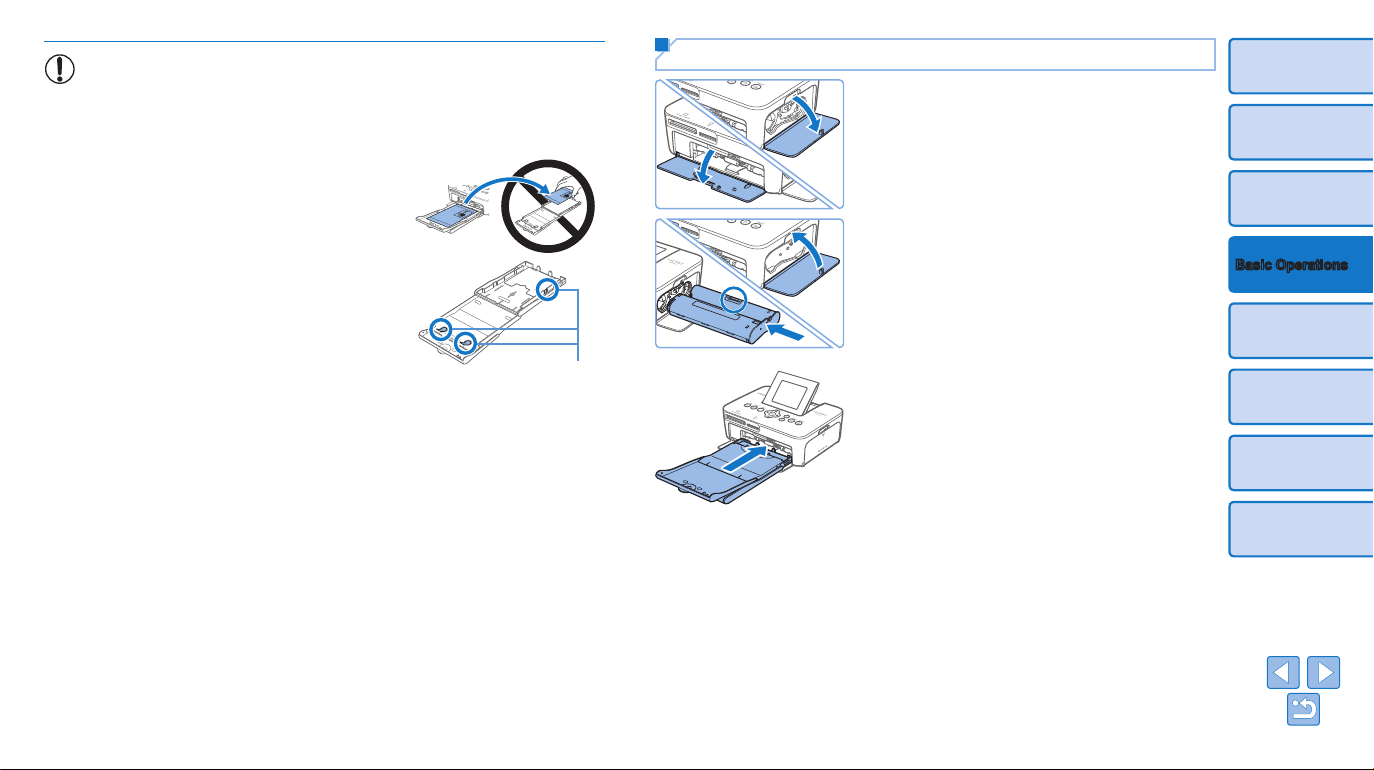
• Do not touch the springs on the paper
cassette.
Accidentally bending the springs may
prevent efcient paper feeding.
• Note that one spring is attached in the center on the top of card-size
paper cassettes.
• Avoid touching or rubbing the glossy, printing side of the paper. Do
not handle paper with wet hands, and keep paper free of dust. Dirt
or moisture may cause banding or affect print quality, or damage the
printer (=
4).
Springs
Loading the Cassettes
1 Open the covers.
zz Open the ink and paper compartment
covers.
2 Load the ink cassette.
zz Insert the ink cassette into the printer in
the direction of the arrow on the cassette
until it clicks into place.
zz Close the ink cassette compartment
cover.
3 Load the paper cassette.
zz Making sure the outer cover is open
(=
9), insert the paper cassette all
the way into the compartment.
11
Cover
Contents
Part Names
Print Settings
Printing via USB Cable
Troubleshooting
Appendix
Basic Operations
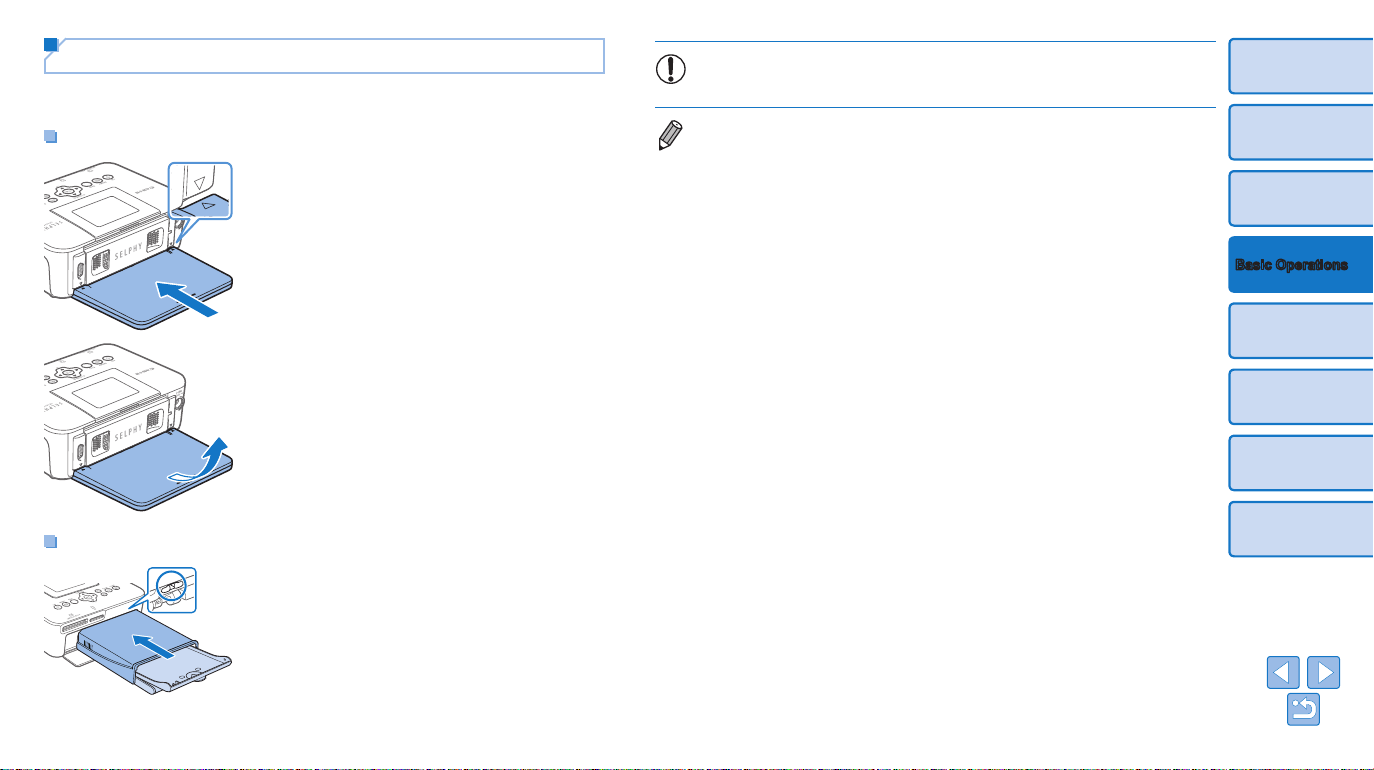
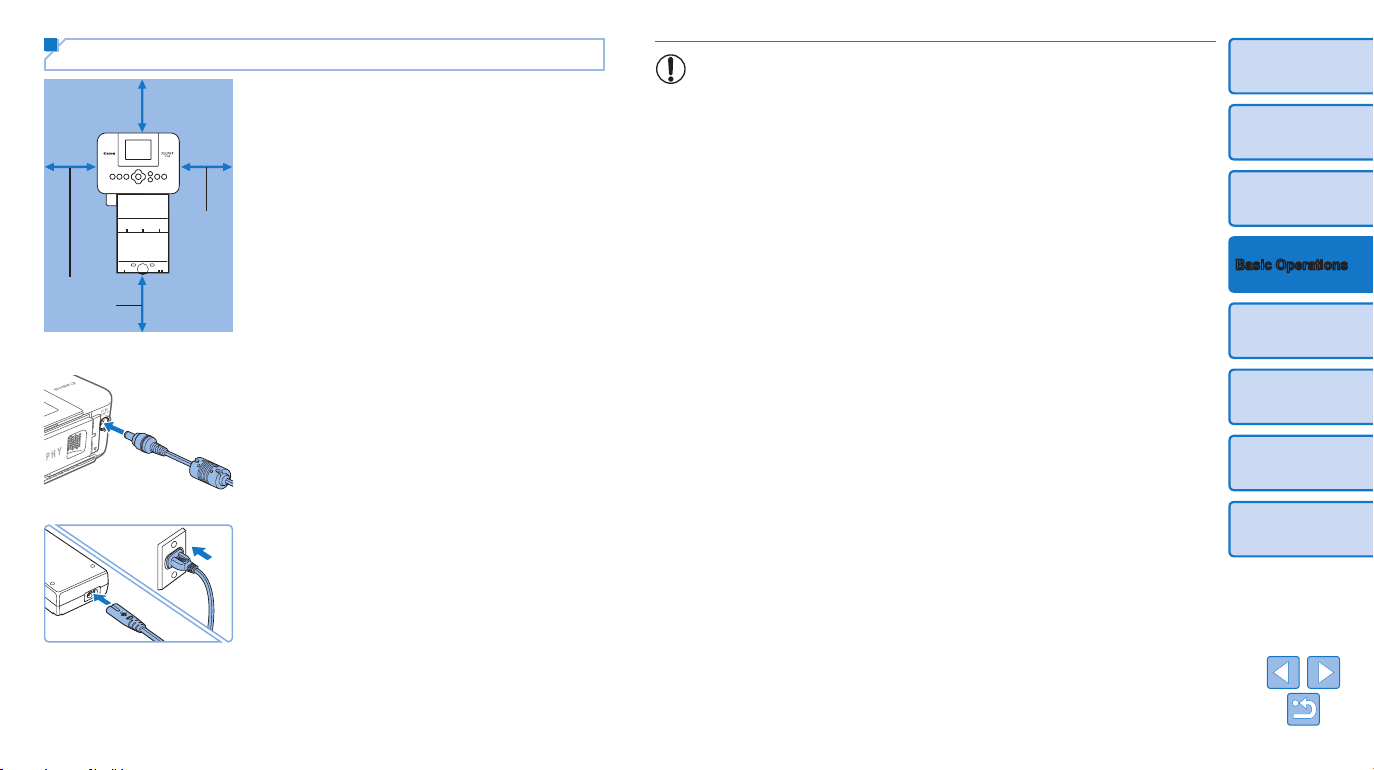
Attaching the Dust Protection Covers
Attaching the dust protection covers will help keep paper clean and free of
dust. Note that dust protection covers are not included in some regions.
Attaching and Removing the Back Cover
zz Insert the back dust protection cover as
shown, by aligning with the marks
behind the printer.
zz To remove, rst lift it upwards to release
the tabs, and then pull it towards you.
Attaching and Removing the Front Cover
zz Insert the tab of the front dust protection
cover as shown.
zz To remove, pull it towards you.
• It may not be possible to keep paper free of dust outdoors or in
dusty environments. Be careful about where you use the printer.
• Store the dust protection covers in a bag or other container to keep them free
of dust.
12
Cover
Contents
Part Names
Print Settings
Printing via USB Cable
Troubleshooting
Appendix
Basic Operations
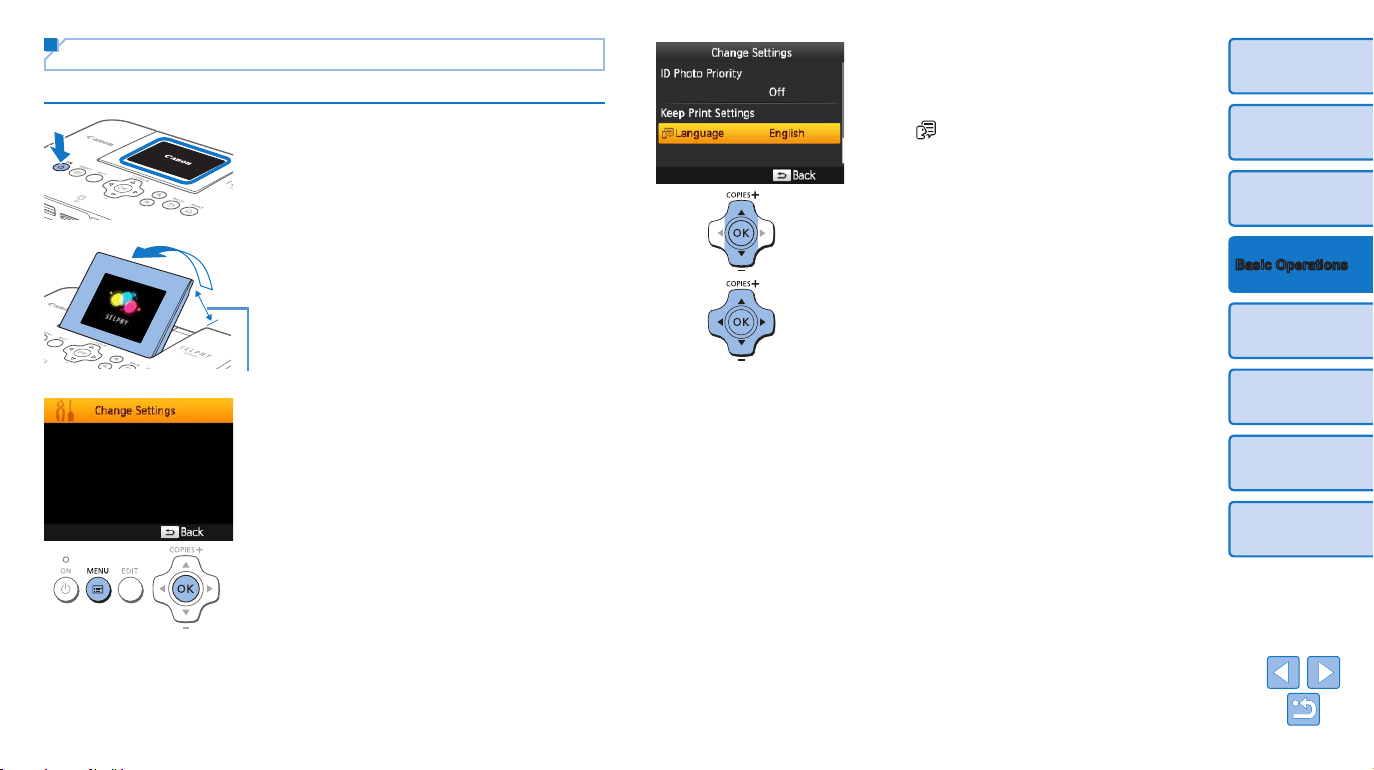
Installing and Plugging in SELPHY
1 Choose the right place to put
SELPHY.
zz Place the printer on a table or other at,
stable surface. Never place the printer on
an unstable or tilted surface.
zz Keep the printer away from sources of
electromagnetism or strong magnetism.
zz Leave at least 10 cm (4 in.) of open
space around the printer.
zz Leave more open space behind the
printer than the length of paper used, so
that the paper can pass in and out of the
printer freely when printing.
2 Plug the adapter cord into
SELPHY.
zz Insert the adapter plug fully into the
power inlet on SELPHY.
3 Connect the power cord.
zz Connect the power cord to the compact
power adapter, and then plug the other
end into a power outlet.
Minimum
10 cm
(4 in.)
Minimum
10 cm
(4 in.)
More than
length of paper
BATTERY
• Do not use the printer near motors or other devices that generate
strong magnetic elds, or in dusty environments. This may damage
the printer or cause malfunction.
• Do not place the printer near televisions or radios. This may cause
the printer to malfunction.
13
Cover
Contents
Part Names
Print Settings
Printing via USB Cable
Troubleshooting
Appendix
Basic Operations
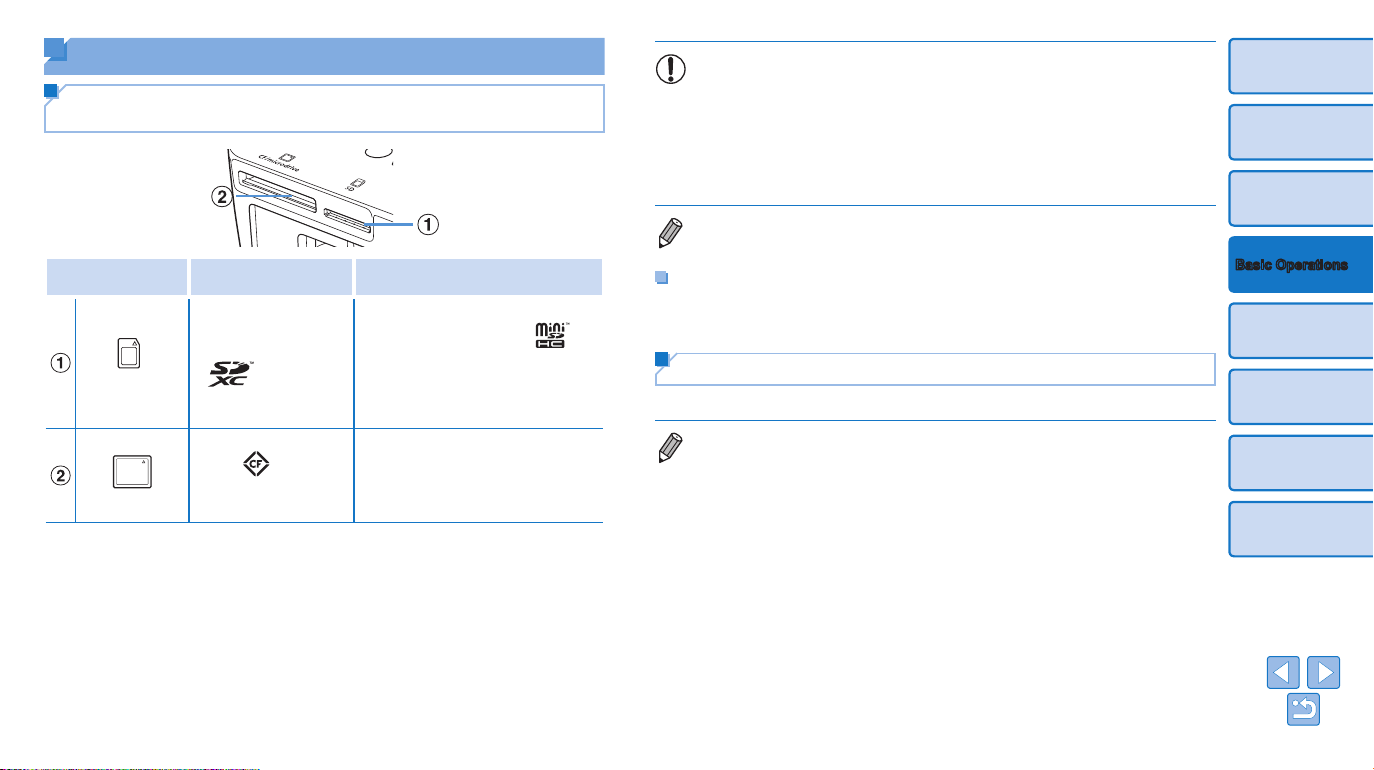
Display Language
Change the language of menus and messages.
1 Turn on SELPHY.
zz Hold the <q> button until the screen at
left is displayed.
zz To turn off SELPHY, hold the <q> button
again until the screen changes.
Approx. 45°
2 Raise the screen (LCD monitor).
zz Never force the screen up more than 45°,
which may damage the printer or cause
malfunction.
3 Access the setting screen.
zz Press the <k> button.
zz Press the <o> button.
4 Access the language setting
screen.
zz Press the <u><d> buttons to select
[
Language], and then press the
<o> button.
5 Choose a language.
zz Press the <u><d><l><r> buttons
to select a language, and then press the
<o> button.
14
Cover
Contents
Part Names
Print Settings
Printing via USB Cable
Troubleshooting
Appendix
Basic Operations
Supported Cards/Images
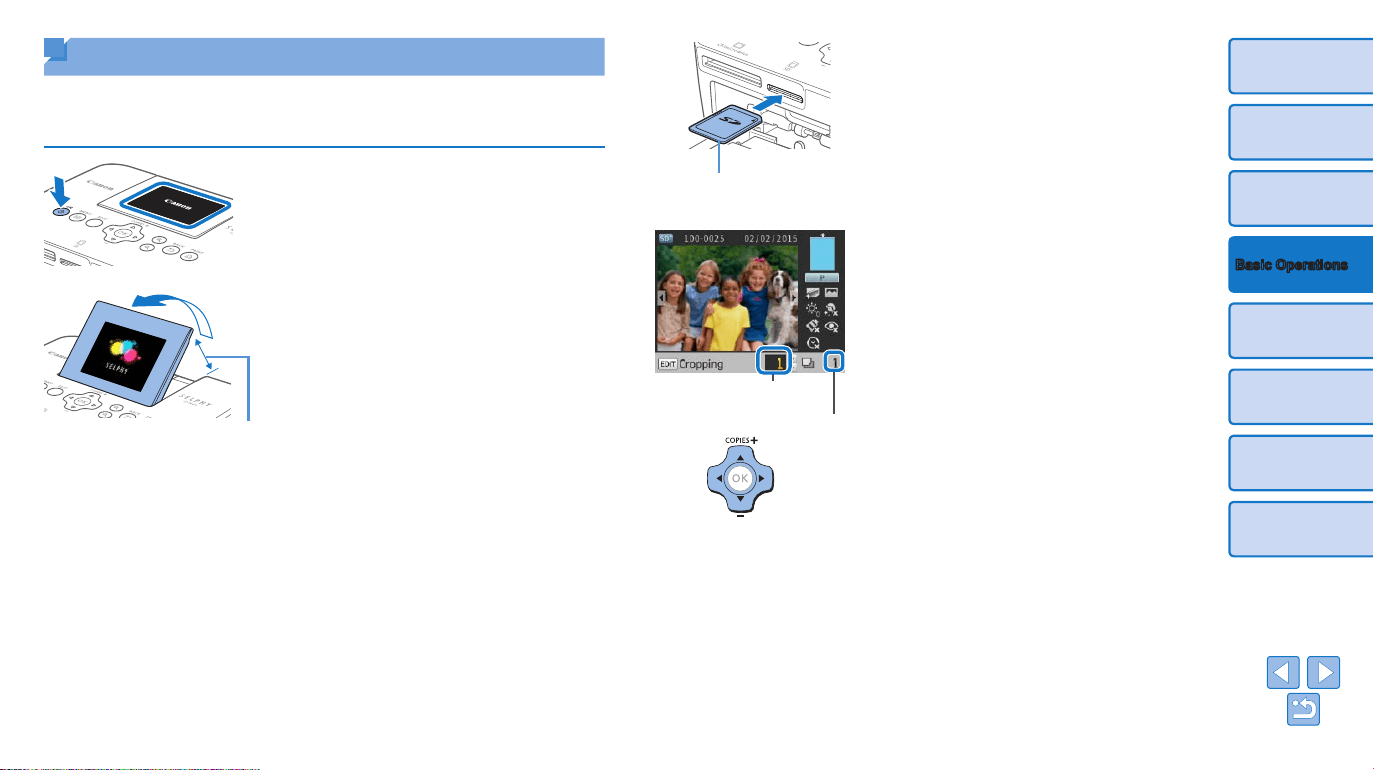
Checking Supported Memory Cards and the
Slot to Use
Memory Card
Slot
No Adapter Required Adapter Required (Sold Separately)
SD
• SD Memory Card
• SDHC Memory Card
• SDXC Memory Card
• miniSD Memory Card
• miniSDHC Memory Card
• microSD Memory Card
• microSDHC Memory Card
• microSDXC Memory Card
CF/microdrive
• CF (CompactFlash)
Card
• Microdrive
• xD-Picture Card
• For memory cards that require an adapter, always insert the card
into the adapter before inserting the adapter into the card slot.
If you mistakenly insert the memory card into the card slot without
an adapter, you may not be able to remove the card from the printer.
• Use a memory card formatted with the device you shot the photos
with. Images on cards formatted with a computer may not be
recognized.
• For instructions, refer to the memory card or adapter user manual.
USB Flash Drives
You can print images on USB ash drives (sold separately) by inserting the
drive into the USB port on SELPHY (=
17).
Supported Images
JPEG images conforming to the Exif standard can be printed with SELPHY.
• Images may not be displayed or printed correctly depending on their size or if
they have been edited on a computer.
15
Cover
Contents
Part Names
Print Settings
Printing via USB Cable
Troubleshooting
Appendix
Basic Operations
Printing Images (Select & Print)
Select images and specify the number of prints as follows. Here, printing
from an SD memory card is described as an example, but you can print
from other memory cards with the same steps.
1 Turn on SELPHY.
zz Hold the <q> button until the screen at
left is displayed.
zz To turn off SELPHY, hold the <q> button
again until the screen changes.
2 Raise the screen (LCD monitor).
zz Never force the screen up more than 45°,
which may damage the printer or cause
malfunction.
Approx. 45°
3 Insert the memory card into the
slot.
zz Insert the memory card facing as shown
until it clicks into place.
zz To remove the card, push it in until it
clicks, and then slowly release it.
zz The image display screen used in the
next step is displayed (=
6).
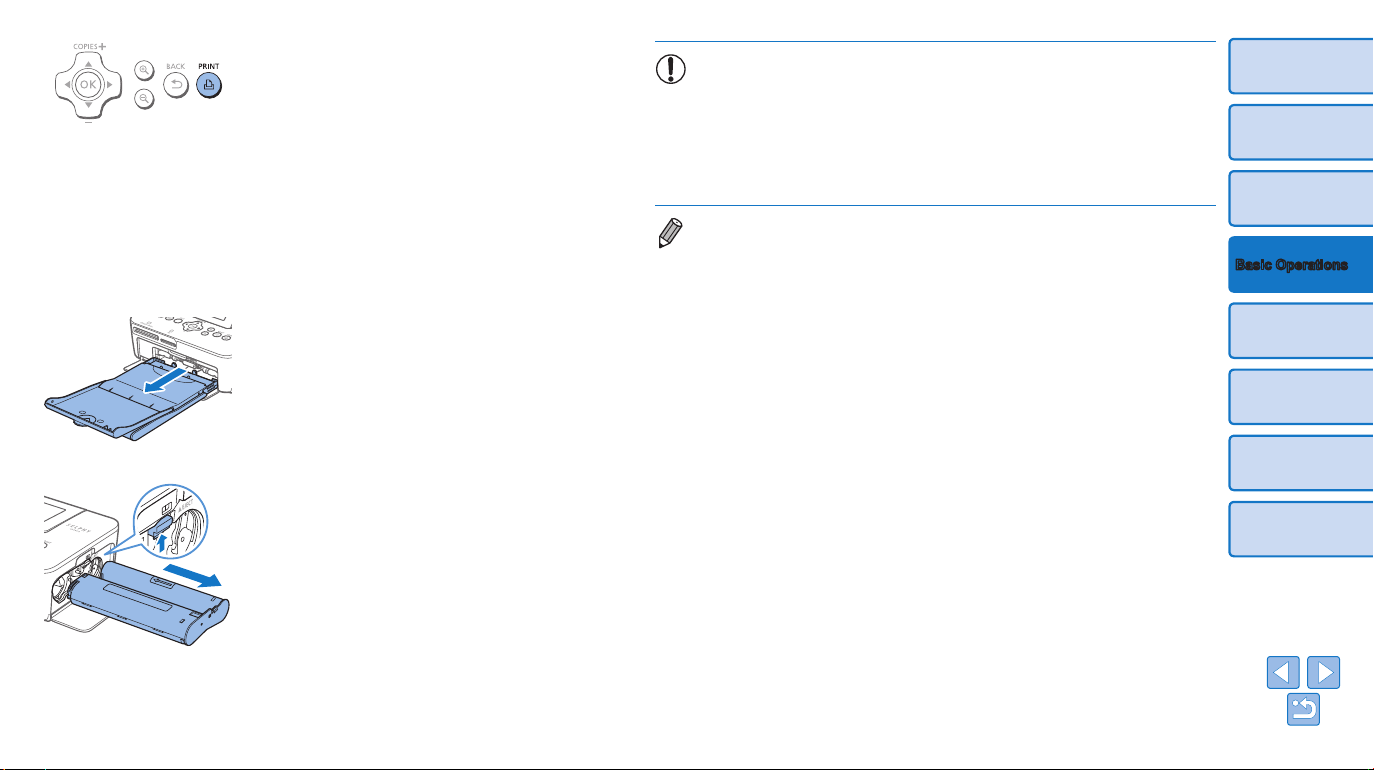
4 Choose an image.
zz Press the <l><r> buttons to select an
image to print.
zz To jump forward or back by ve images,
hold down the <l><r> buttons.
5 Specify the number of prints.
zz Press the <u><d> buttons to specify
the number of prints.
zz To increase or decrease the quantity
by ve prints, hold down the <u><d>
buttons.
zz To print other images at the same time,
repeat steps 4 – 5.
Label side
Prints of current
image
Total prints
16
Cover
Contents
Part Names
Print Settings
Printing via USB Cable
Troubleshooting
Appendix
Basic Operations
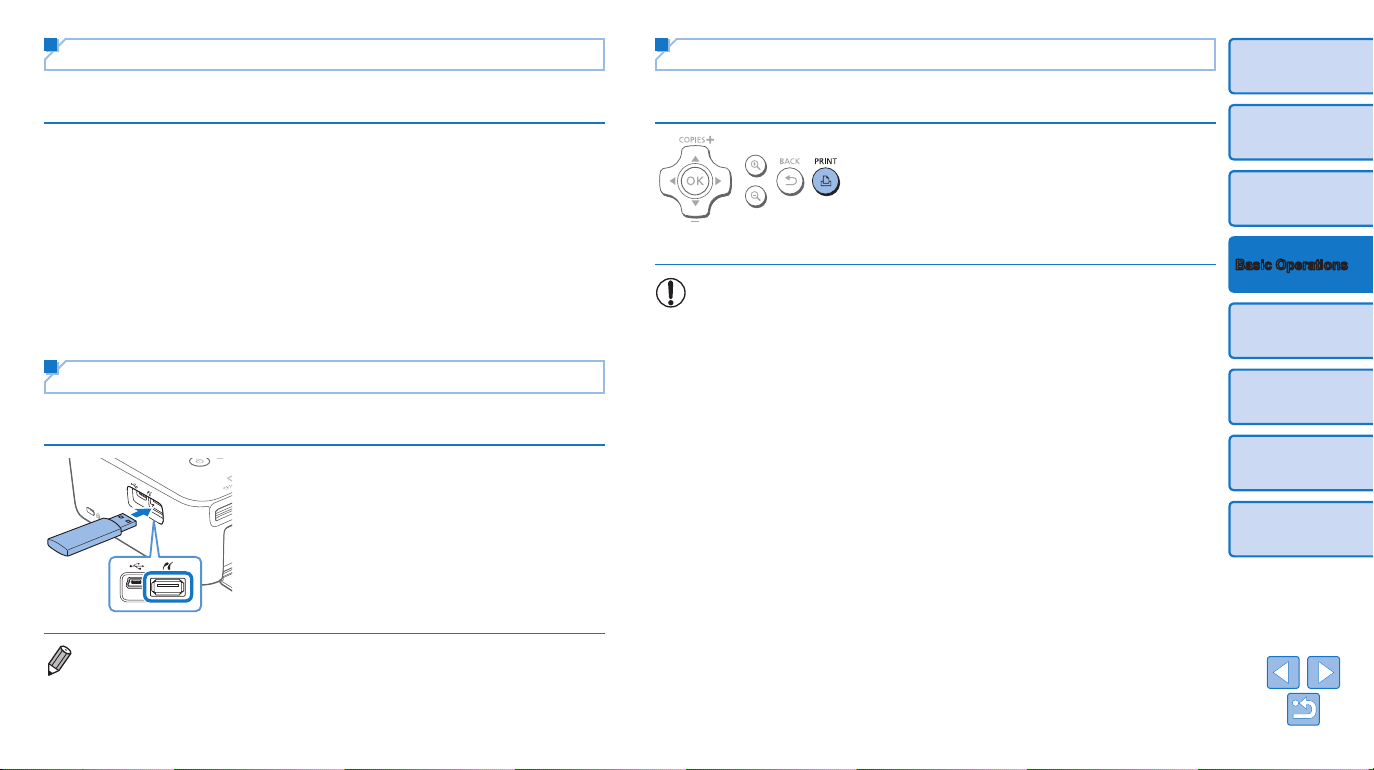
6 Print.
zz Press the <p> button to start printing.
zz While printing, paper passes in and out
of the back of SELPHY several times.
Do not touch the paper until printing is
nished and the print is ejected onto the
paper cassette.
zz Do not allow 19 or more prints to
collect in the ejection area on the paper
cassette.
zz To cancel printing in progress, always
press the <v> button.
7 Add more paper as needed.
zz If a message indicates that the paper
has run out, remove the paper cassette
without turning off the power.
zz Add more paper to the cassette (=
9)
and reinsert the cassette in SELPHY
(=
10).
8 Change the ink cassette as
needed.
zz If a message indicates that the ink
has run out, open the ink cassette
compartment cover without turning off the
power.
zz To remove the ink cassette, move the
lock in the direction shown. Insert a new
ink cassette (=
8, 10).
• Never pull out the paper cassette, open the ink cassette
compartment cover, or remove a memory card while printing or
when you hear printer operation sounds immediately after it has
been turned on. This may damage the printer.
• To cancel printing in progress, always press the <v> button.
Printing cannot be canceled by pressing the <q> button, and
unplugging the printer may damage it.
• Image display in step 4 may take some time when memory cards contain
many images.
• If a message indicates that DPOF images remain, see “Printing Using Camera
Settings (DPOF Print)” (=
37).
• You can specify up to 99 images in step 4 and up to 99 prints per image in
step 5. However, the total number of prints cannot exceed 999.
• Even if you press the <v> button to cancel printing, the printer will continue
printing until the current sheet is nished.
17
Cover
Contents
Part Names
Print Settings
Printing via USB Cable
Troubleshooting
Appendix
Basic Operations
Making One Print from a Selected Image
For a convenient way to make a single print of a selected image, follow
these steps.
Choose and print an image.
zz Choose an image as described in steps
1 – 4 of “Printing Images” (=
15).
zz Press the <p> button for a single print
of the selected image.
• A single print is not produced this way if you follow steps 4 – 5 in
“Printing Images” (=
15) to choose images and the number
of prints. To use this method for individual prints, make sure the
number of prints is [0] in step 4 on =
15 beforehand.
Avoiding Left Over Paper
Note the following to prevent wasted paper, which occurs if ink is consumed
faster than the paper.
• Do not turn the sprocket too much when removing slack from the ink
sheet (=
8).
• To cancel printing in progress, always press the <v> button; after
pressing the <v> button, never turn off the power before SELPHY is
nished printing (step 6).
• If a message indicates that the paper has run out, add paper without
turning off the printer or removing the ink cassette (step 7). Otherwise,
press the <v> button to cancel printing (step 6).
Note that under some conditions, even if you follow these instructions, ink
may be consumed faster than the paper, leaving you with excess paper.
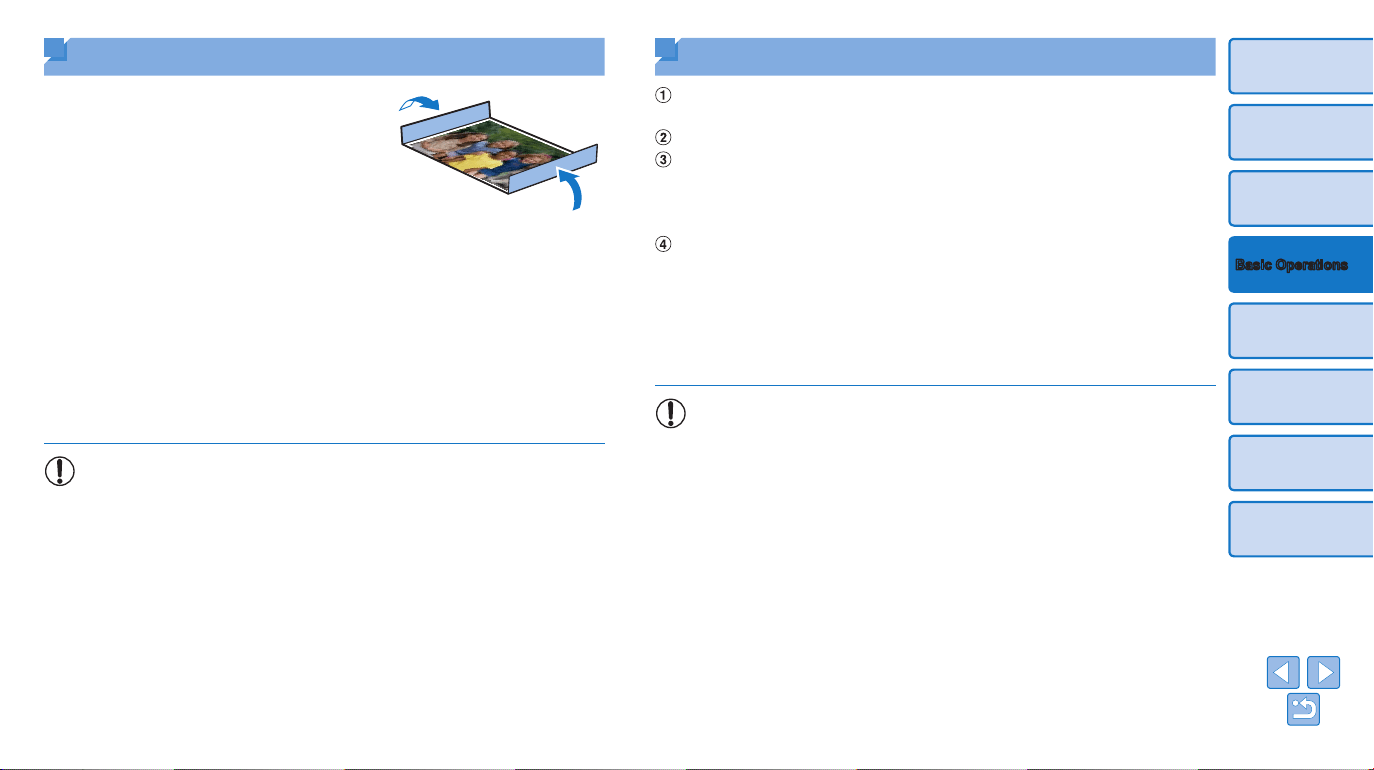
Printing from USB Flash Drives
Images on USB ash drives (sold separately) can be printed the same way
as images on memory cards.
zz Remove any inserted memory cards.
zz Insert a USB ash drive as shown.
zz After this, all steps are the same as for
printing images from memory cards
(=
15 – 16).
• Some USB ash drives may be more difcult than others to insert and remove,
and some may not work as expected.
• For instructions, refer to the ash drive user manual.
18
Cover
Contents
Part Names
Print Settings
Printing via USB Cable
Troubleshooting
Appendix
Basic Operations
Storing Prints
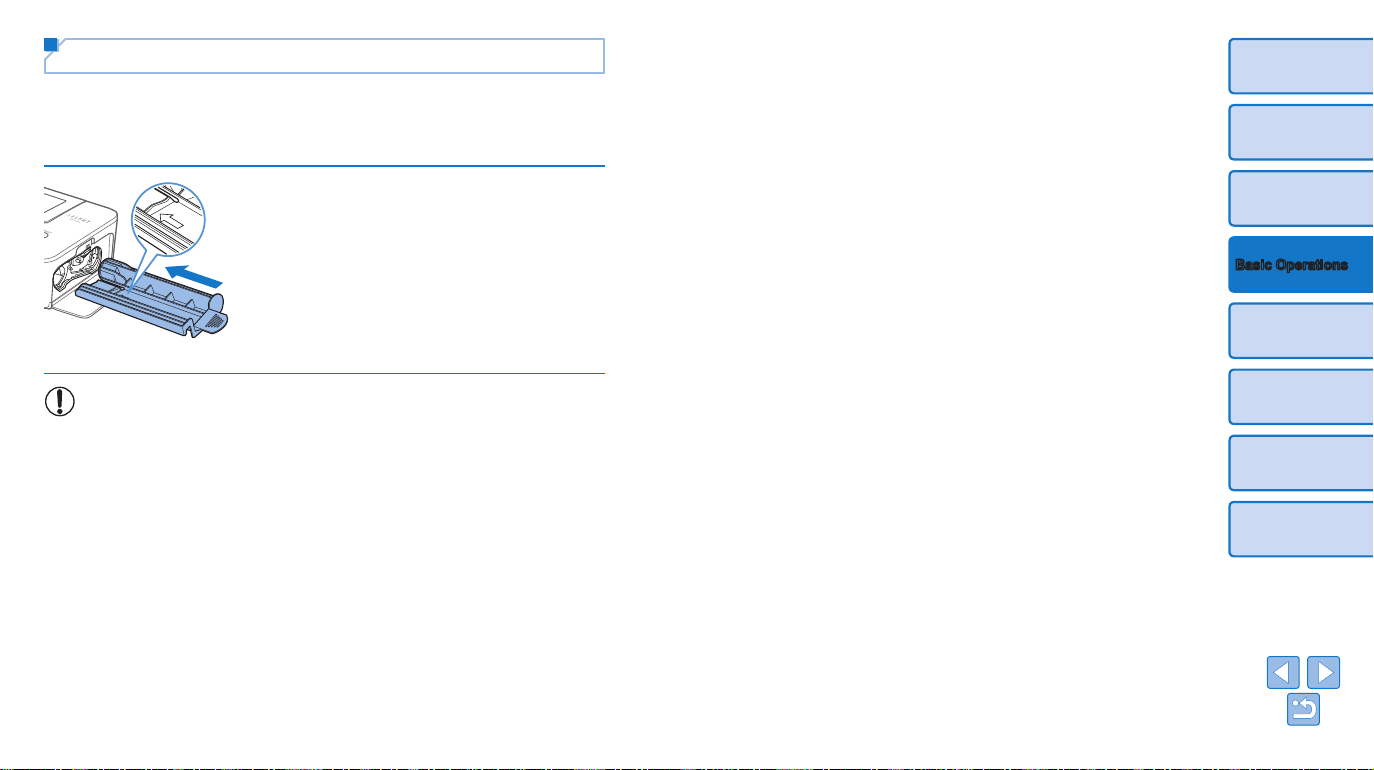
• To remove any extra paper from the
edges of a print, fold the paper along the
perforations and tear the edges off.
• When writing on prints, use an oil-based
pen.
• To prevent discoloration, do not store
prints where temperatures exceed 40 °C
(104 °F), in humid or dusty places, or in
direct sunlight.
• Also avoid the following actions, which may cause discoloration, fading,
or bleeding: sticking tape on the printed surface, allowing the printed
surface to contact vinyl or plastic, applying alcohol or volatile solvents to
the printed surface, or leaving the printed surface pressed rmly against
other surfaces or objects over extended periods.
• When storing prints in an album, choose an album with photo covers
made of nylon, polypropylene, or cellophane.
• Color may change over time or depending on storage conditions.
Canon cannot be held liable for discoloration.
After Printing
Turn off SELPHY (=
13) and remove any memory cards or USB
ash drives.
Lower the screen for storage.
Unplug the power cord from the outlet and disconnect the adapter plug
from SELPHY.
• If the compact power adapter is still warm, wait for it to cool down
before putting it away.
Remove the paper cassette and close the paper cassette compartment
cover. Leave any remaining paper in the cassette, and store the
cassette in a dark, cool, and dry place away from dust.
• Leave the ink cassette in SELPHY.
• Store SELPHY on a at surface, away from sunlight and dust. Any
dust that gets inside SELPHY may cause white banding on photos
or damage the printer.
• Store any extra ink cassettes in the original package or a bag, away
from sunlight and dust.
• Store any unused paper or ink cassettes in their unopened
packages, away from sunlight.
19
Cover
Contents
Part Names
Print Settings
Printing via USB Cable
Troubleshooting
Appendix
Basic Operations
Regular Cleaning
Before printing, after ink replacement, and at other times, use the included
cleaner unit (=
2) in regular cleaning to prevent dust or dirt from
causing banding on prints. Note that the cleaner unit is not included in some
regions.
Clean the printer.
zz Remove the ink cassette if it is in the
printer.
zz With the arrow side face-up, slide the
cleaner unit all the way in and out of the
ink cassette compartment 2 – 3 times.
zz Store the cleaner unit in a bag or other
container to keep it free of dust.
• Do not touch the white strip on the cleaner. This may affect cleaning
performance.
• Do not use other types of cleaners, which may damage the printer.
• If prints are affected by banding even after you use the cleaner unit,
contact a Canon Customer Support Help Desk.
20
Cover
Contents
Part Names
Basic Operations
Printing via USB Cable
Troubleshooting
Appendix
Print Settings
Print Settings
Explore a variety of printing features in this chapter, such as cropping images, preparing ID
photos, and enhancing images.
Printing All Images ..................................................................................21
Cropping Images .....................................................................................22
Printing ID Photos ...................................................................................23
Cropping Images .............................................................................................25
Adjusting Settings ..................................................................................25
Conguring Settings ........................................................................................26
Choosing the Finish (Print Finish) ...................................................................26
Printing with a Border around Images (Borders) .............................................27
Choosing a Layout (Page Layout) ...................................................................27
Optimal Prints with Auto Correction (Image Optimize) ....................................28
Adjusting the Brightness .................................................................................29
Making Skin Look Smooth (Smooth Skin) .......................................................29
Adjusting the Color Tone (My Colors) .............................................................30
Reducing the Appearance of Red-Eye (Correct Red-Eye)..............................30
Printing with the Date ......................................................................................31
Changing How the Date Is Displayed (Date Format) ......................................31
Saving Energy (Auto Power Down) .................................................................32
Using ID Photo Printing by Priority (ID Photo Priority) ....................................32
Using the Same Borders and Page Layout Settings after Turning
off the Power (Keep Print Settings) .................................................................32
21
Cover
Contents
Part Names
Basic Operations
Printing via USB Cable
Troubleshooting
Appendix
Print Settings
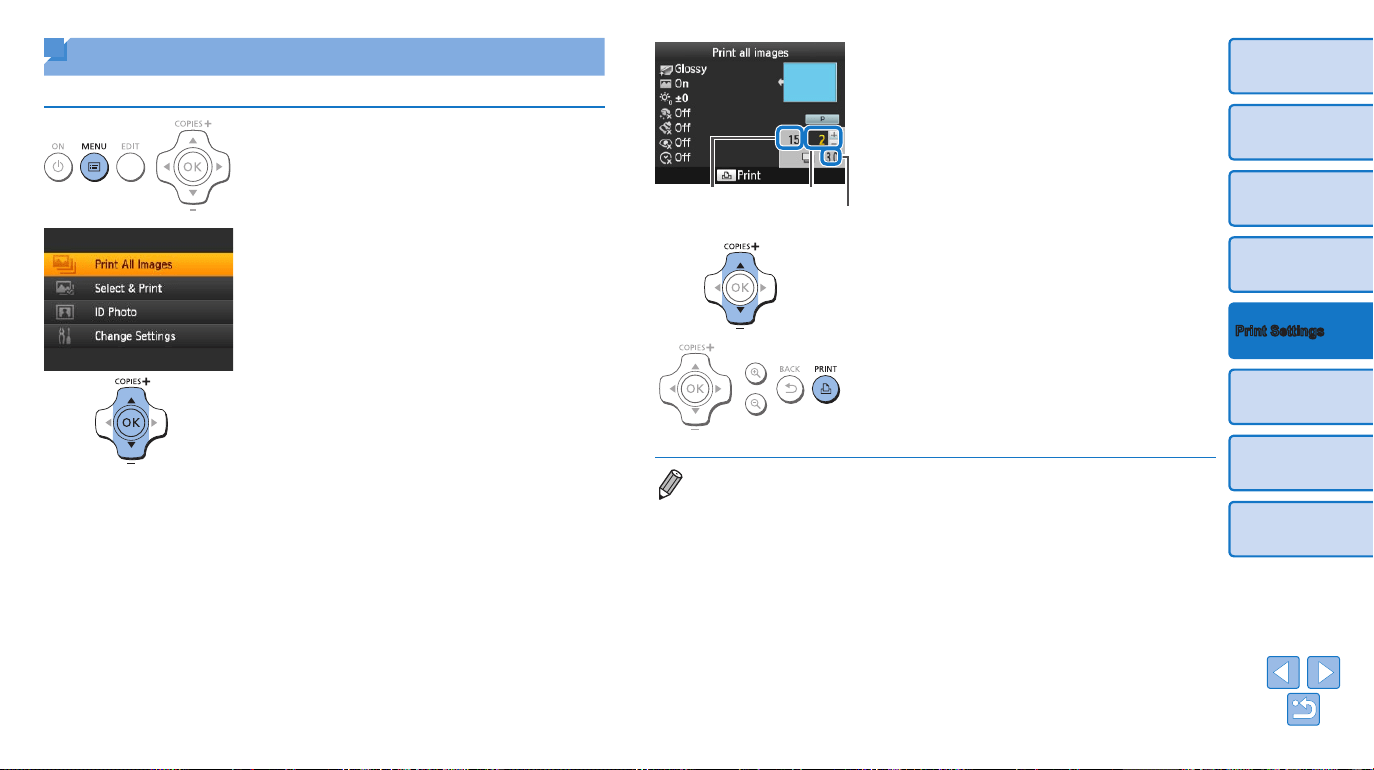
3 Choose the number of prints.
zz Press the <u><d> buttons to specify
the number of prints.
4 Print.
zz Press the <p> button to start printing.
zz To cancel printing, press the <v> button.
• If the memory card contains more than 1,000 images, the 999 most recent
images are printed, as determined by shooting date.
• You can specify up to 99 prints in step 3. However, the total number of prints
cannot exceed 999.
(For example, you can specify up to nine prints of each image if the card
contains 100 images.)
Prints per image
Number of
sheets required
Number of
images on
card
Printing All Images
Print all images on a memory card at once as follows.
1 Access the menu.
zz Press the <k> button.
2 Access the setting screen.
zz Press the <u><d> buttons to select
[Print All Images], and then press the
<o> button.
22
Cover
Contents
Part Names
Basic Operations
Printing via USB Cable
Troubleshooting
Appendix
Print Settings
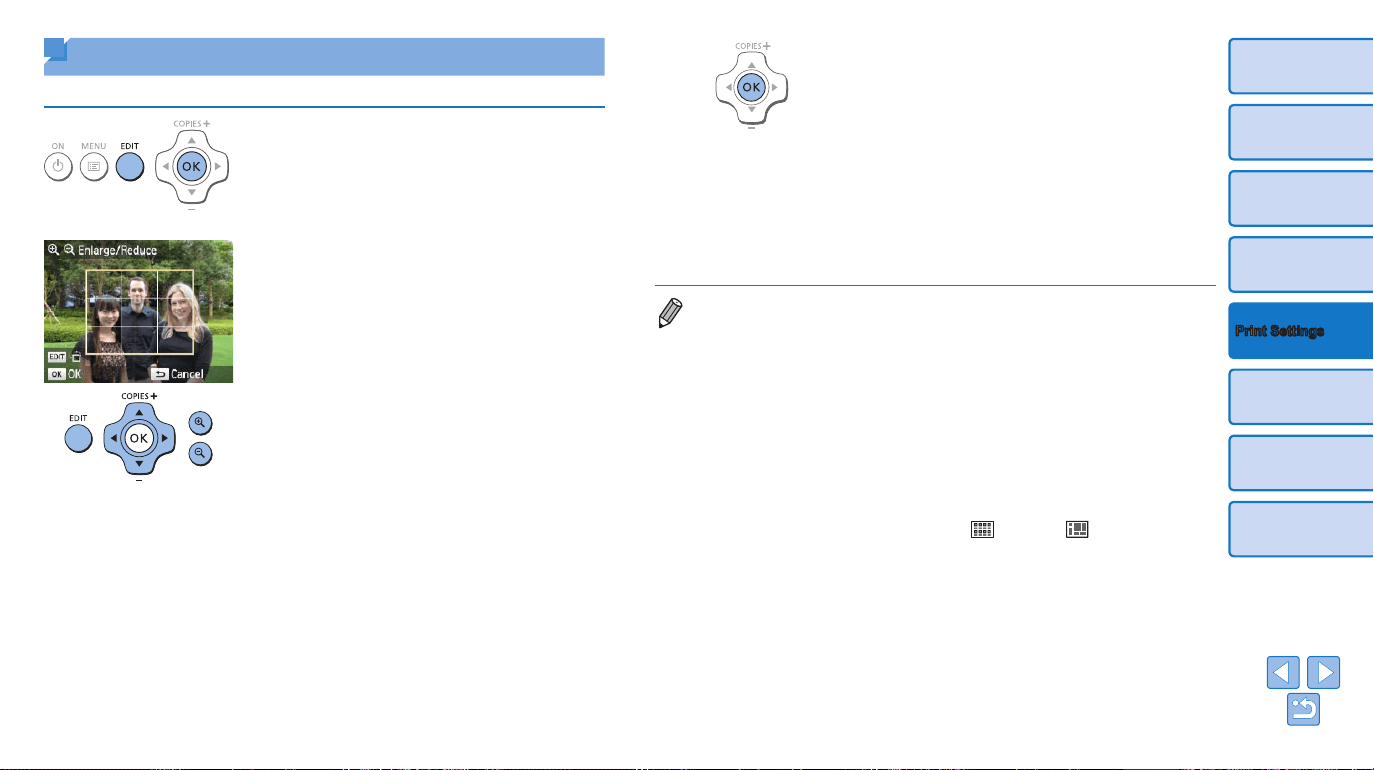
Cropping Images
Print only selected areas of an image as follows.
1 Access the cropping screen.
zz Choose an image as described in step 4
of “Printing Images” (=
15), press the
EDIT button, and then press the <o>
button.
zz A crop frame is displayed, showing the
image area that will be cropped.
2 Adjust the image area to crop.
zz To switch the crop frame between portrait
and landscape orientation, press the
EDIT button.
zz To move the crop frame, press the
<u><d><l><r> buttons.
zz To enlarge the crop frame, press the
<-> button, and to reduce it, press the
<0> button.
3 Conrm the setting.
zz To conrm the cropping area and return
to the image display screen, press the
<o> button.
zz To crop other images for printing with the
rst one, repeat steps 1 – 3.
4 Print.
zz Print as described in step 6 of “Printing
Images” (=
16).
zz After printing, crop settings are cleared.
• To adjust the cropping area once you have set it, press the EDIT button on the
image display screen, press the <u><d> buttons to select [Adjust Cropping],
and then press the <o
> button. Repeat steps 2 – 3.
• To cancel cropping after you have set the cropping area, press the EDIT button
on the image display screen, press the <u><d> buttons to select [Reset
Cropping], press the <o> button to access the reset cropping screen, and
then press the <o> button again.
• Cropping areas you have set are cleared if you turn off SELPHY or remove the
memory card before printing.
• You can specify cropping for up to 99 images at once.
• Cropping is not available when printing with [Print All Images] or [DPOF Print]
or when [Page Layout] (=
27) is set to [ Index] or [ Shufe].
• The cropping aspect ratio indicated by the frame displayed on images cannot
be adjusted.
• To change the number of prints, press the <u><d> buttons on the image
display screen in step 3. Note that specifying zero prints will not clear cropping
settings.
23
Cover
Contents
Part Names
Basic Operations
Printing via USB Cable
Troubleshooting
Appendix
Print Settings
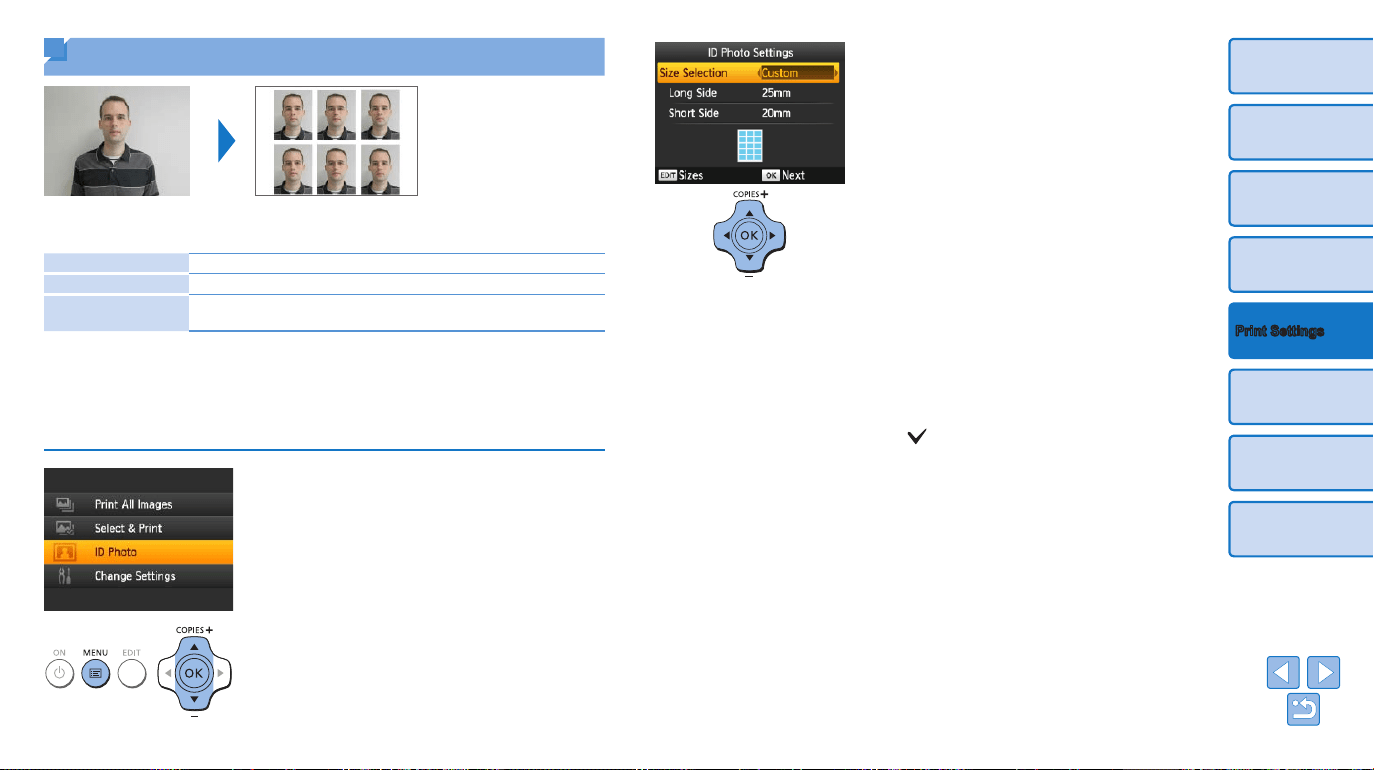
Printing ID Photos
Images can be printed for use in photo identication. Choose from the
following three sizes.
[Custom] Specify the length of the long and short sides, and then print.
[Standard]
Print a photo that complies with the international ICAO standard.
[Dual]
Print two sizes: 50x50 mm (approx. 2.0x2.0 in.) and 45x35 mm
(approx. 1.8x1.4 in.).
zz With [Custom] and [Standard], two different images can be printed on
each sheet.
zz The photo may not be accepted as an ofcial ID photo, depending on
the intended purpose. For details, contact the institution that requires the
photo.
1 Specify ID photo printing.
zz Press the <k> button.
zz Press the <u><d> buttons to select [ID
Photo], and then press the <o> button.
2 Specify the nished size of the
photo.
zz Press the <l><r> buttons to specify
how the size is determined.
zz [Custom]: Press the <u><d> buttons
to select [Long Side], and then press the
<l><r> buttons to specify the length.
Specify the [Short Side] length, and then
press the <o> button again. Note
that options available for [Short Side]
are automatically updated based on the
[Long Side] length.
zz [Standard] or [Dual]: Check the indicated
image size and press the <o> button.
3 Choose an image to print.
zz Press the <l><r> buttons to select an
image, and then press the <u> button.
is shown in the lower right (up to two
images with [Custom] and [Standard],
only one image with [Dual]).
zz To specify the cropping area (=
22),
press the EDIT button.
zz Print as described in step 6 of “Printing
Images” (=
16).
zz Settings are cleared after printing.
24
Cover
Contents
Part Names
Basic Operations
Printing via USB Cable
Troubleshooting
Appendix
Print Settings
• Card-size paper cannot be used.
• [Borders] settings are not applied, and dates are not printed.
• Selecting two images in step 3 will produce an equal number of prints of each
image per sheet, in your specied layout. Note that for layouts with an odd
number of prints per sheet, the center frame on the sheet will be blank.
• The settings in the ID Photo Settings screen (=
23) are retained even when
SELPHY is turned off.
• You can set the ID Photo Settings screen (=
23) to display when SELPHY
is turned on or a memory card is inserted (=
32).
• Marks are printed in the four corners of each printed image as a guide for
cutting out the photo.
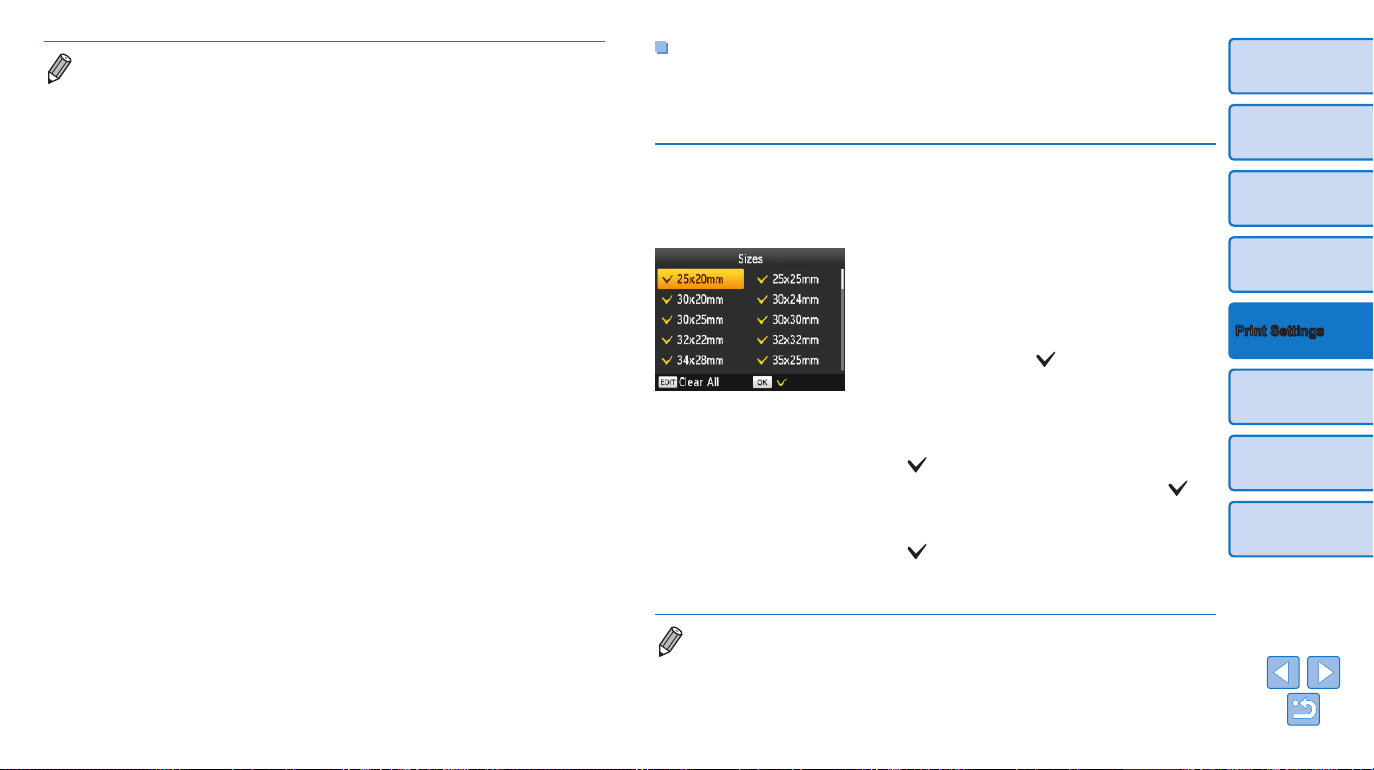
Filtering Candidate Image Sizes
Many image size options are listed when you select [ID Photo]
►
[Size
Selection]
►
[Custom]. To simplify size selection, you can edit the list to
show only sizes used most often.
1 Access the setting screen.
zz On the ID photo settings screen, choose
[Size Selection]
►
[Custom] (=
23),
and then press the EDIT button.
2 Select sizes for display.
zz To remove a size from the list, press the
<u><d><l><r> buttons to select the
size, and then press the <o> button.
zz The check mark ( ) is cleared, and the
size will no longer be listed on the [ID
Photo Settings] screen (=
23). To
include a size in the list, press the <o>
button again to select the size, displaying
.
zz Pressing the EDIT button clears all .
When no sizes are selected, pressing the
EDIT button selects all sizes, displaying
.
zz Once you have selected the sizes to
include in the list, press the <v> button.
• A warning message is displayed if you press the <v> button when no sizes
are selected. Press the <o> button to return to the [Sizes] screen. Select at
least one size to list, and then press the <v> button.
25
Cover
Contents
Part Names
Basic Operations
Printing via USB Cable
Troubleshooting
Appendix
Print Settings
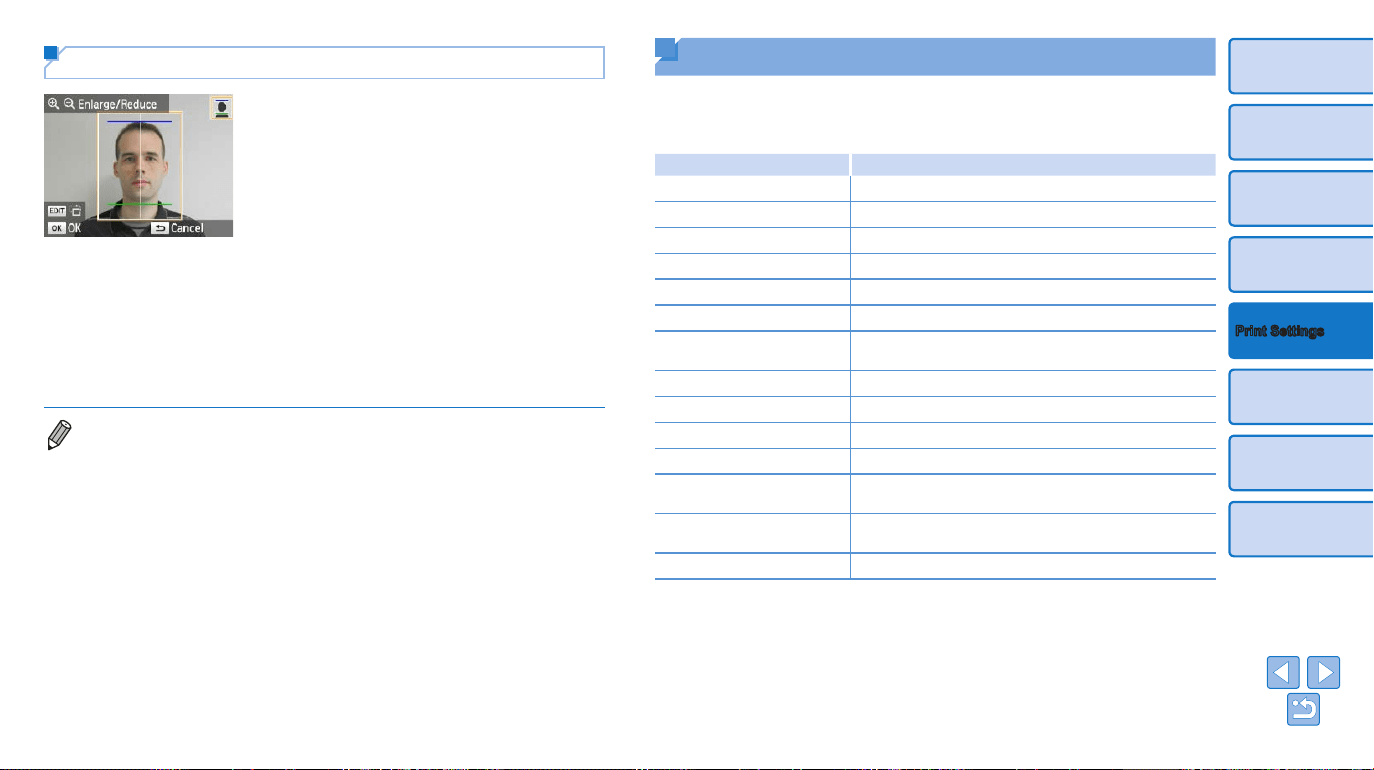
Cropping Images
zz Two cropping guide lines are displayed
when you access the crop frame
(=
22) when [Standard] or [Dual]
size is selected in [Size Selection] of [ID
Photo].
zz When [Standard] is selected, to print
a photo that conforms to passport
standards for face size and position,
adjust the crop frame so that one line is
above the head and the other is below
the chin.
zz When [Dual] is selected, two frames
with differing sizes are displayed
simultaneously.
• For specic requirements other than face size and position, contact the
institution that requires the photo.
Adjusting Settings
You can enhance images in several ways before printing. Add the shooting
date, adjust colors, and more. Settings apply to all images, so there is no
need to adjust each image individually.
Congurable Items Description
Print Finish (=
26)
Choose the surface nish of prints.
Borders (=
27)
Print images with or without a border.
Page Layout (=
27)
Choose the number of images per sheet.
Image Optimize (=
28)
Automatically correct images, for optimal quality.
Brightness (=
29)
Adjust image brightness in a range of –3 to +3.
Smooth Skin (=
29)
Make skin appear smooth and beautiful.
My Colors (=
30)
Choose special color tones to make prints look
distinctive, or choose sepia or black-and-white prints.
Correct Red-Eye (=
30)
Correct images affected by red-eye.
Date (=
31)
Add camera shooting dates when you print.
Date Format (=
31)
Adjust the date format.
Auto Power Down (=
32)
Specify automatic power-off when the printer is idle.
ID Photo Priority (=
32)
Set the ID Photo Settings screen to be the default
display.
Keep Print Settings (=
32)
Retain the [Borders] and [Page Layout] settings even
after being turned off.
Language (=
13)
Change the language of menus and messages.
26
Cover
Contents
Part Names
Basic Operations
Printing via USB Cable
Troubleshooting
Appendix
Print Settings
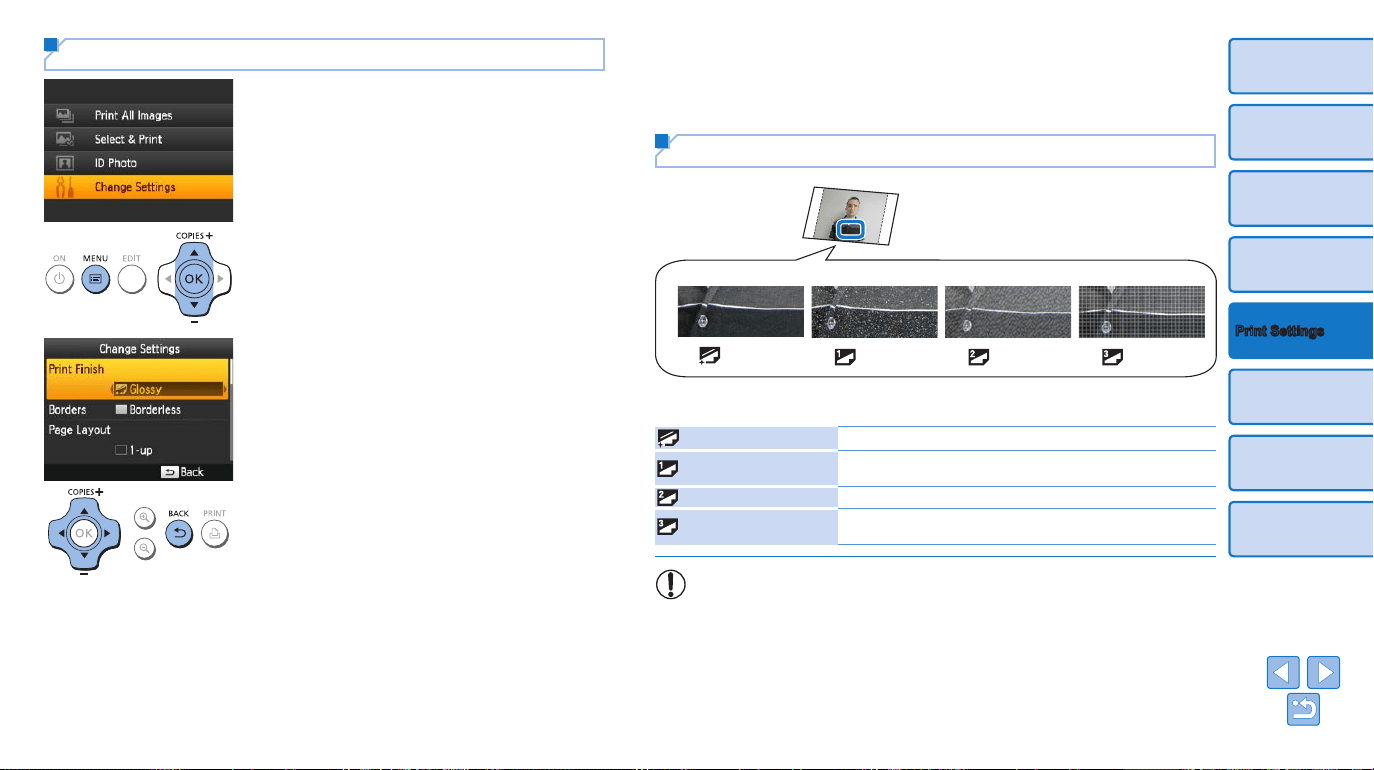
Conguring Settings
1 Access the setting screen.
zz Press the <k> button.
zz Press the <u><d> buttons to select
[Change Settings], and then press the
<o> button.
2 Select an item and adjust the
setting.
zz Press the <u><d> buttons to select an
item.
zz Press the <l><r> buttons to adjust the
settings, and then press the <v> button
to conrm your choice.
3 Access the image display
screen.
zz Press the <u><d> buttons to select
[Select & Print], and then press the
<o> button.
zz See =
26 – 31 for details on each
feature.
4 Print.
zz Select the images (=
15) and the
number of prints (=
15), and then
press the <p> button to print.
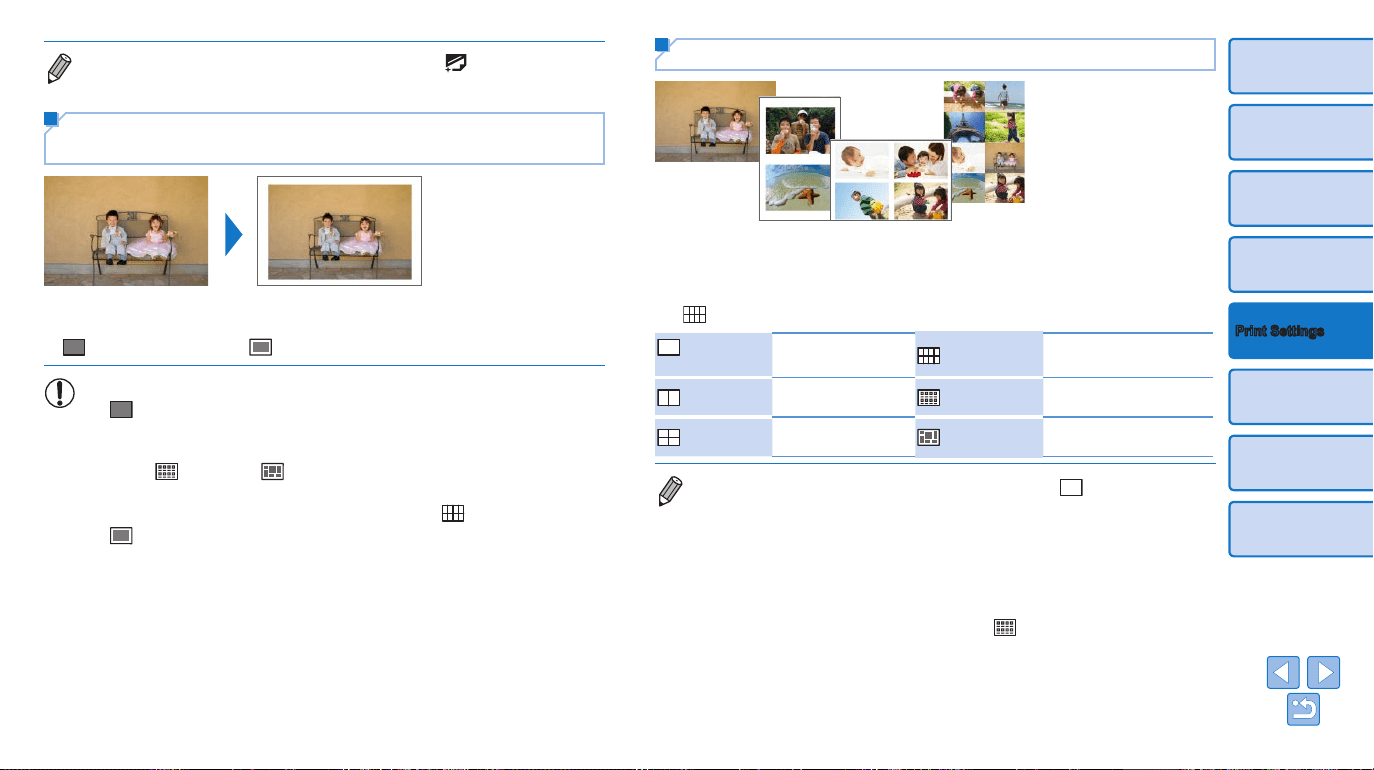
Choosing the Finish (Print Finish)
[ Glossy]
Example of nish
[
Pattern 1] [
Pattern 2]
[
Pattern 3]
zz By adding a subtle texture to the surface of prints, you can create a less
glossy nish.
Glossy (default)
Prints with a glossy surface nish.
Pattern 1
Applies a slightly rough surface pattern, for a less glossy
nish.
Pattern 2
Applies a ne surface pattern, for a less glossy nish.
Pattern 3
Applies a ne grid-like surface pattern, for a less glossy
nish.
•
The surface nish may be less noticeable depending on the
printer’s internal temperature when you turn it on. Before turning
on the printer and printing, wait until it has adjusted to an ambient
temperature of 10 – 35 °C (50 – 95 °F).
27
Cover
Contents
Part Names
Basic Operations
Printing via USB Cable
Troubleshooting
Appendix
Print Settings
• Turning off SELPHY will restore the default setting of [ Glossy].
Printing with a Border around Images
(Borders)
zz Print images with or without a border.
zz Borderless (default) / Bordered
• Turning off SELPHY will restore the default setting of
[ Borderless]. You can have SELPHY retain congured settings
(=
32).
• Images are printed without borders when [Page Layout] (=
27) is
set to [ Index] or [ Shufe].
• On card-size paper (=
2), images are printed without
borders when [Page Layout] (=
27) is set to [ 8-up] even if
[ Bordered] is selected.
Choosing a Layout (Page Layout)
zz Choose the number of images per sheet. Your specied quantity of prints
(=
15) will be printed in the congured layout.
zz With Color Ink / Label Set KC-18IL (8 Labels per Page, =
2), specify
[
8-up].
1-up
(default)
One image per sheet
8-up
Eight images per sheet
2-up
Two images per
sheet
Index
Many small, uniform size
images per sheet
4-up
Four images per
sheet
Shufe
Images in a variety of
sizes on a single sheet
• Turning off SELPHY will restore the default setting of [ 1-up]. You can have
SELPHY retain congured settings (
=
32).
• The position of images cannot be specied.
• Depending on the congured layout, images may not be printed with the
settings in [Date] (=
31), [Image Optimize] (=
28), [Correct Red-Eye]
(=
30), [Borders] (=
27), [Smooth Skin] (=
29), or [Brightness]
(=
29).
• Carrying out [Print All Images] (=
21) with [ Index] selected, allows you
to print all images on the memory card as an index.
28
Cover
Contents
Part Names
Basic Operations
Printing via USB Cable
Troubleshooting
Appendix
Print Settings
Optimal Prints with Auto Correction (Image
Optimize)
zz Automatically correct images, for optimal quality.
zz On (default) / Off
• Some images may not be adjusted correctly.
• Turning off SELPHY will restore the default setting of [ On].
• When [
Index] is selected in [Page Layout] (=
27),
[Image Optimize] is not applied.
• The degree of correction may vary depending on layout and paper size.
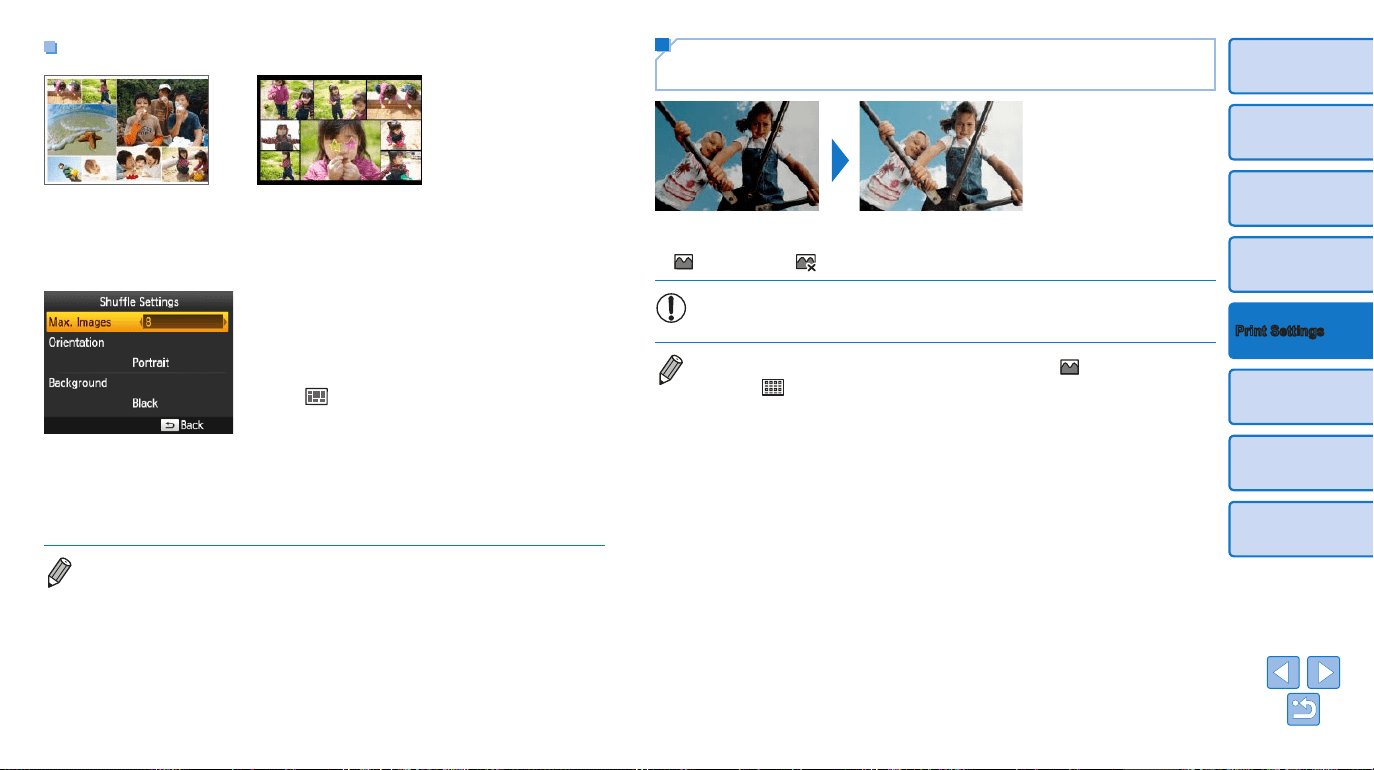
Combining Images of Various Sizes (Shufe)
zz Use the shufe feature to have images arranged automatically in a
variety of sizes.
zz Groups of up to 8 or 20 images can be printed on a single sheet.
zz Either L or postcard-size paper (=
2) can be used for printing.
zz On the screen in step 2 of “Conguring
Settings” (=
26), press the <u><d>
buttons to select [Page Layout]. Press the
<l><r> buttons to select
[
Shufe], and then press the <o>
button.
zz On the screen at left, press the <u><d>
buttons to select an item.
zz Press the <l><r> buttons to adjust the
settings, and then press the <v> button
to conrm your choice.
• The position of images cannot be specied.
• It may take some time before printing begins.
29
Cover
Contents
Part Names
Basic Operations
Printing via USB Cable
Troubleshooting
Appendix
Print Settings
Making Skin Look Smooth (Smooth Skin)
zz Make skin appear smooth and beautiful.
zz Off (default) / On
• Correction may be applied to image areas other than skin in some
cases, and results may not be as expected.
• The default setting of [ Off] is restored after printing, when SELPHY is
turned off,
or when a memory card is removed.
• When [
Index] is selected in [Page Layout] (=
27),
[Smooth Skin] is not applied.
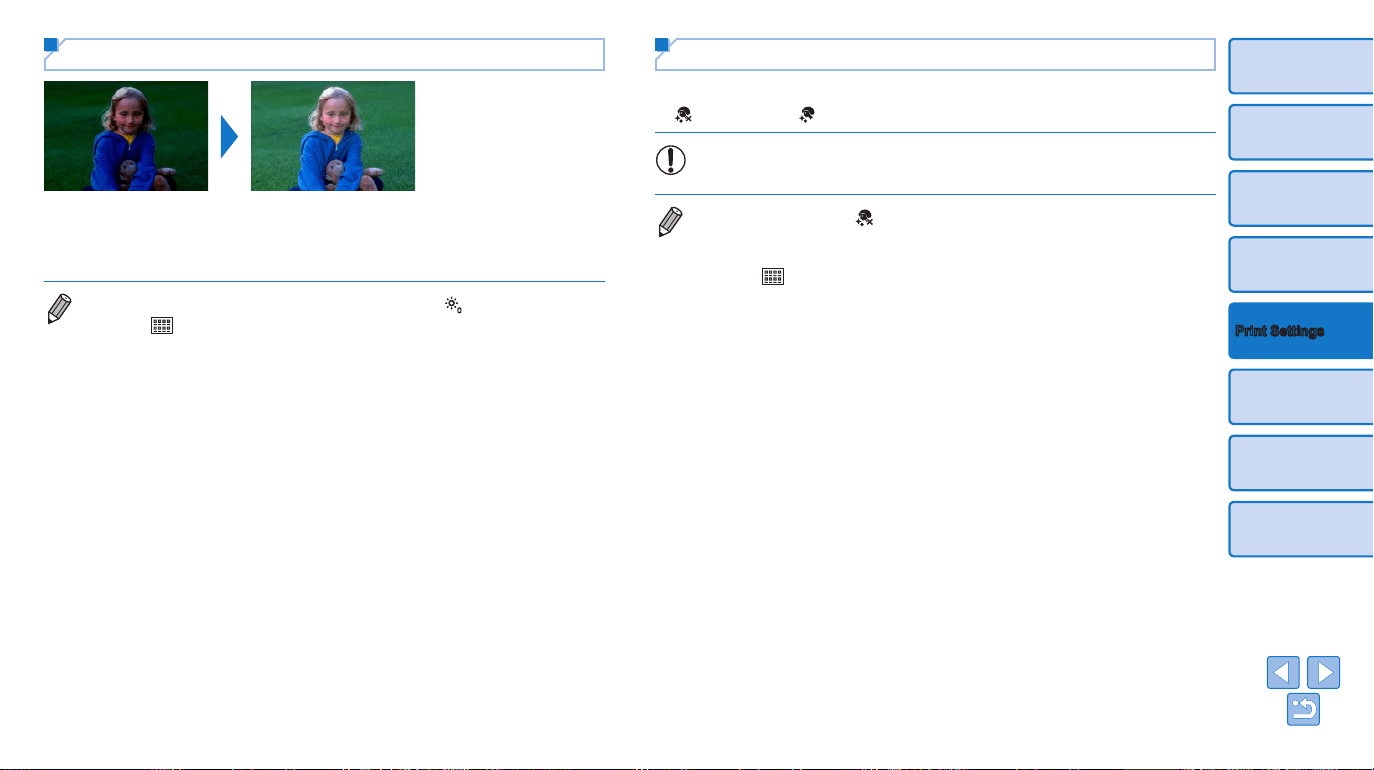
Adjusting the Brightness
zz Adjust image brightness in a range of –3 to +3.
zz Choose larger positive values to make images brighter, or larger negative
values to make them darker.
• Turning off SELPHY will restore the default setting of [ ±0].
• When [
Index] is selected in [Page Layout] (=
27), settings in
[Brightness] are not applied.
30
Cover
Contents
Part Names
Basic Operations
Printing via USB Cable
Troubleshooting
Appendix
Print Settings
Adjusting the Color Tone (My Colors)
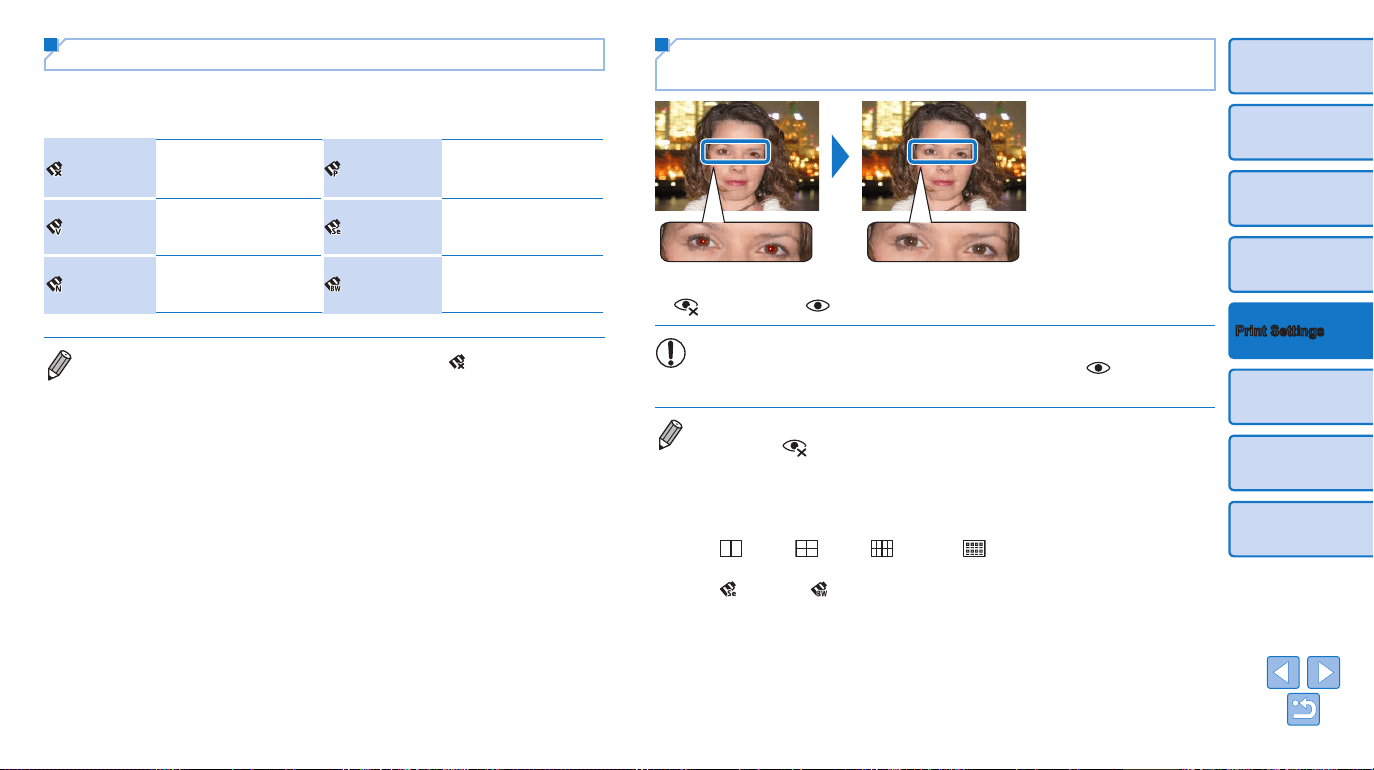
zz Choose special color tones to make prints look distinctive, or choose
sepia or black-and-white prints.
Off (default)
–
Positive Film
Saturated, natural
colors, as produced
with positive lm
Vivid
Vivid prints with greater
contrast and color
saturation
Sepia
Sepia-tone
Neutral
Subdued prints with
less contrast and color
saturation
B/W
Black and white
• Turning off SELPHY will restore the default setting of [ Off].
• Some color options may prevent red-eye correction (=
30).
Reducing the Appearance of Red-Eye (Correct
Red-Eye)
zz Correct images affected by red-eye.
zz Off (default) / On
• Red-eye correction may mistakenly be applied to areas of the image
other than the affected eyes. To avoid this, select [ On] only for
images affected by red-eye.
• Turning off SELPHY or removing the memory card will restore the default
setting of [
Off].
• Red-eye may not be detected or corrected well on faces covering a very large/
small area of the screen, on bright/dark faces, in shots from the side of or at an
angle to the face, or when part of the face is not visible.
• Red-eye correction is not applied when [Page Layout] (=
27) is set to
[
2-up], [ 4-up], [ 8-up], or [ Index].
• Similarly, red-eye correction is not applied when [My Colors] (=
30) is set to
[
Sepia] or [ B/W].
• The degree of correction may vary depending on cropping, page layout, and
paper size.
31
Cover
Contents
Part Names
Basic Operations
Printing via USB Cable
Troubleshooting
Appendix
Print Settings
Printing with the Date
02/02/2015
zz Add camera shooting dates when you print.
zz Off (default) / On
• To prevent two instances of the date on images already labeled by
the camera, select [ Off].
• Turning off SELPHY will restore the default setting of [ Off].
• The date added to prints cannot be changed, because it is the date assigned
by the camera when the photos were taken.
• To change how the date displays, adjust [Date Format] (=
31).
• Dates are not printed when [Page Layout] (=
27) is set to [ Index] or
[
Shufe].
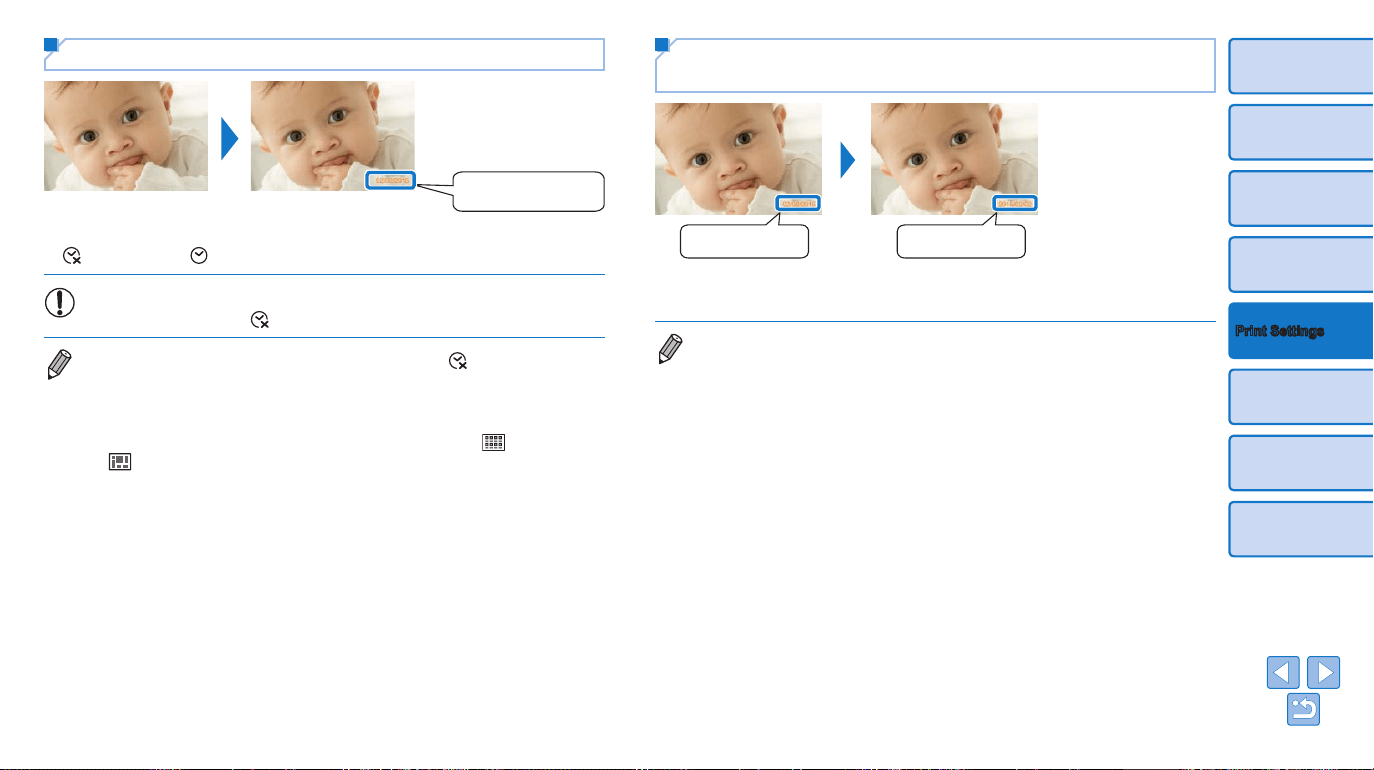
Changing How the Date Is Displayed (Date
Format)
02/02/2015 2015/02/02
zz When adding the date (=
31), adjust the date format as needed.
zz dd/mm/yyyy (default), yyyy/mm/dd, or mm/dd/yyyy
• The setting is retained even when SELPHY is turned off or memory cards are
removed.
32
Cover
Contents
Part Names
Basic Operations
Printing via USB Cable
Troubleshooting
Appendix
Print Settings
Saving Energy (Auto Power Down)
zz SELPHY turns off automatically if left idle for about ve minutes.
zz On (default) / Off
• SELPHY does not turn off automatically when connected to other devices, or
when an error message is displayed.
• If an unsupported image is included (=
14) when printing multiple images,
[Could not print some images! Cancel printing?] is displayed and printing
stops. If this happens, SELPHY does not turn off automatically.
Using ID Photo Printing by Priority (ID Photo
Priority)
zz You can set the ID Photo Settings screen (=
23) to display when
SELPHY is turned on, when a memory card is inserted, and after printing.
zz When set to [Off], the [Select & Print] screen (=
15) is displayed.
zz Off (default) / On
zz In the screen in step 2 of “Conguring
Settings” (=
26), press the <u><d>
buttons to select [ID Photo Priority], and
then press the <o> button.
zz On the screen at left, press the <u><d>
buttons to adjust the settings, and then
press the <o> button to conrm your
choice.
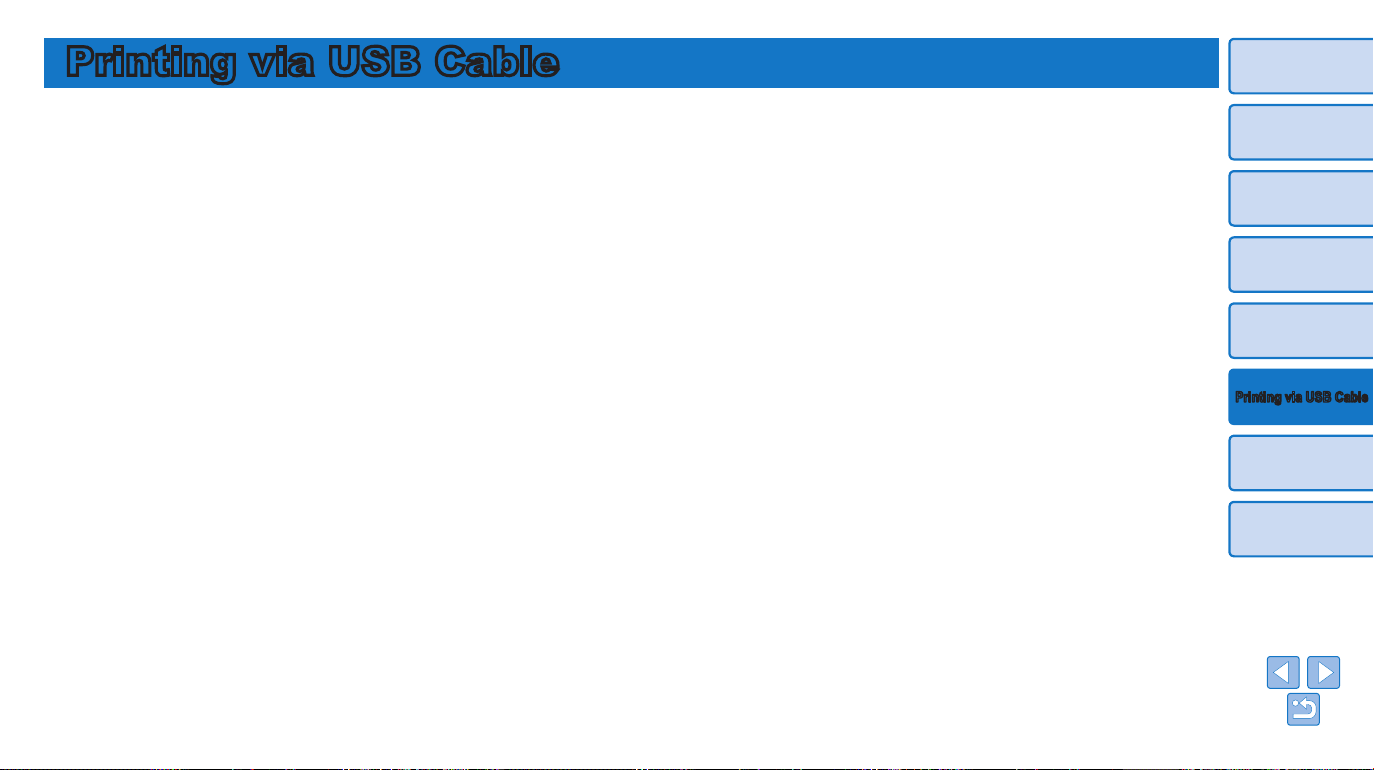
Using the Same Borders and Page Layout
Settings after Turning off the Power (Keep
Print Settings)
zz You can have SELPHY retain the Borders (=
27) and Page Layout
(=
27) settings even after being turned off.
zz Off (default) / On
zz You can set this separately for Borders and Page Layout.
zz In the screen in step 2 of “Conguring
Settings” (=
26), press the <u><d>
buttons to select [Keep Print Settings],
and then press the <o> button.
zz On the screen at left, press the <u><d>
buttons to select [Border Settings] or
[Layout Settings], and then press the
<o> button.
zz On the screen displayed, press the
<u><d> buttons to adjust the settings,
and then press the <o> button to
conrm your choice.
33
Cover
Contents
Part Names
Basic Operations
Print Settings
Troubleshooting
Appendix
Printing via USB Cable
Printing via USB Cable
This chapter describes how to connect a camera or computer via a USB cable for printing.
Printing from a Computer .......................................................................34
Preparing the Computer ..................................................................................34
Printing from a Computer ................................................................................35
Printing from a Camera ..........................................................................36
Printing Using Camera Settings (DPOF Print) ................................................37
34
Cover
Contents
Part Names
Basic Operations
Print Settings
Troubleshooting
Appendix
Printing via USB Cable
Printing from a Computer
Here, instructions are given using Windows 7 and Mac OS X 10.8 as an
example.
Preparing the Computer
What You Will Need
• A computer with Internet access*
• USB cable, 2.5 m (8.2 ft.) or shorter, sold separately (SELPHY port:
Mini-B)
* In some sales region, a SELPHY CP1000 Solution Disk is included and can be used
for printer installation. For details, refer to the “Getting Started” guide.
System Requirements
Windows Mac OS
OS
Windows 7 SP1
Windows 8.1
Mac OS X 10.8/10.9
Free Disk Space Approx. 5 MB* Approx. 7 MB*
* Space required for printer driver installation. The space required for software
operation and printing varies depending on the software and print data.
Installing the Printer Driver (Windows)
1 Download the printer driver.
zz Connect to the Internet from a computer
and access “http://www.canon.com/icpd/”.
zz Select your country/region and follow the
instructions displayed to complete the
download.
zz Double-click the downloaded le and
follow the on-screen instructions.
zz If the User Account Control window
is displayed, follow the on-screen
instructions.
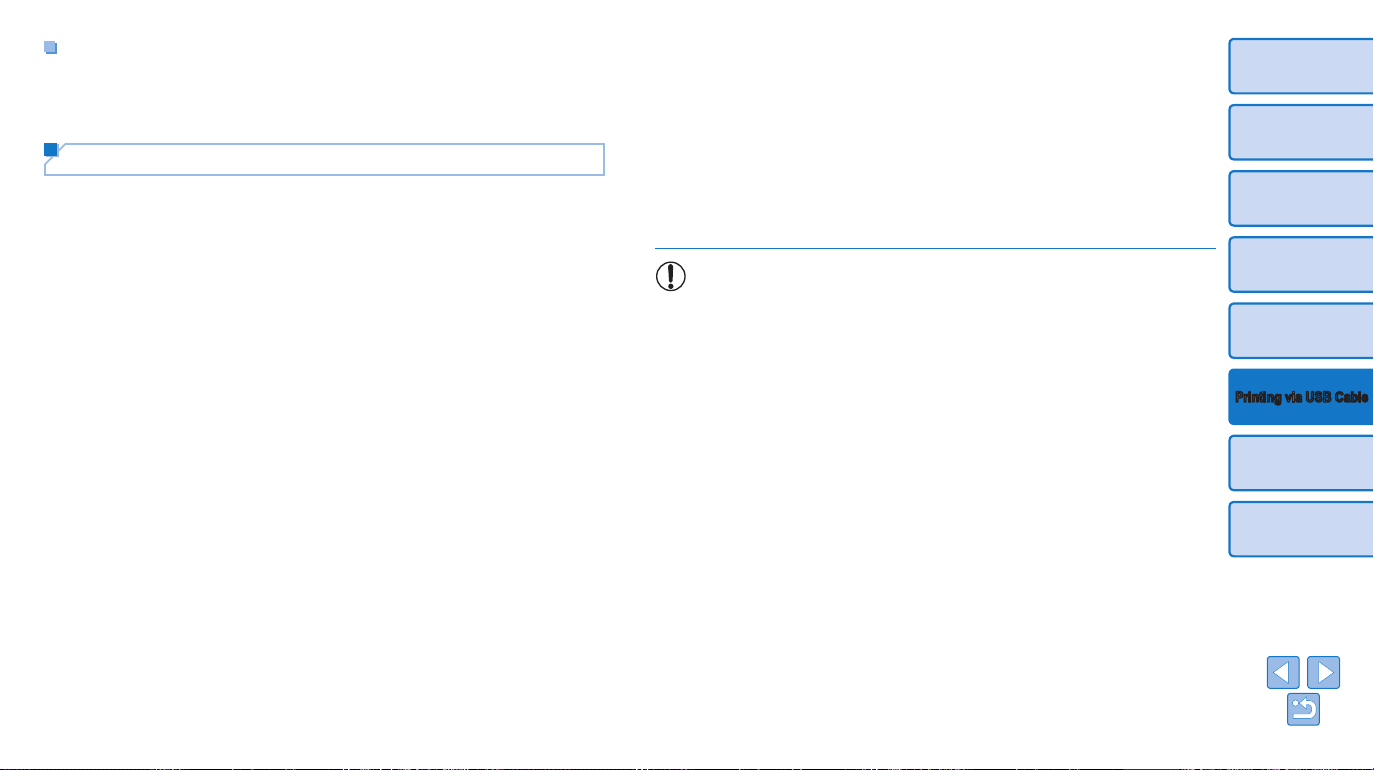
2 When the screen at left is
displayed, prepare the printer
and connect it to the computer.
zz Turn off SELPHY and remove any
inserted memory cards or USB ash
drives.
zz Insert a loaded paper cassette and an ink
cassette in SELPHY (=
8 – 10).
zz Use the USB cable to connect SELPHY
to the computer. For instructions, refer to
the computer or cable user manual.
3 Turn on the printer to complete
the installation process.
zz Press the <q> button to turn on
SELPHY.
zz The printer driver is installed.
USB cable, sold separately
35
Cover
Contents
Part Names
Basic Operations
Print Settings
Troubleshooting
Appendix
Printing via USB Cable
3 Choose printing options.
zz Choose a paper size corresponding
to the size of paper and ink cassettes
in SELPHY. Also choose bordered or
borderless printing as an option with the
listed paper sizes.
zz Choose the printing orientation and
number of copies, as desired.
4 Print.
• Printing in progress cannot be canceled from SELPHY by using the
<v> button. To cancel printing, use the computer to delete the print
job.
• The printer may not work correctly if it is connected to a computer
via a USB hub.
• Avoid allowing your computer to enter sleep or standby mode while
the printer is connected via USB. If the computer enters standby
mode with the printer connected via USB, wake the computer
without disconnecting the USB cable. If recovery fails, restart the
computer.
• For computer or photo software instructions, refer to the relevant
user manual.
Installing the Printer Driver (Mac OS)
zz Download and install the printer driver
following step 1 in “Installing the Printer
Driver (Windows)” (=
34).
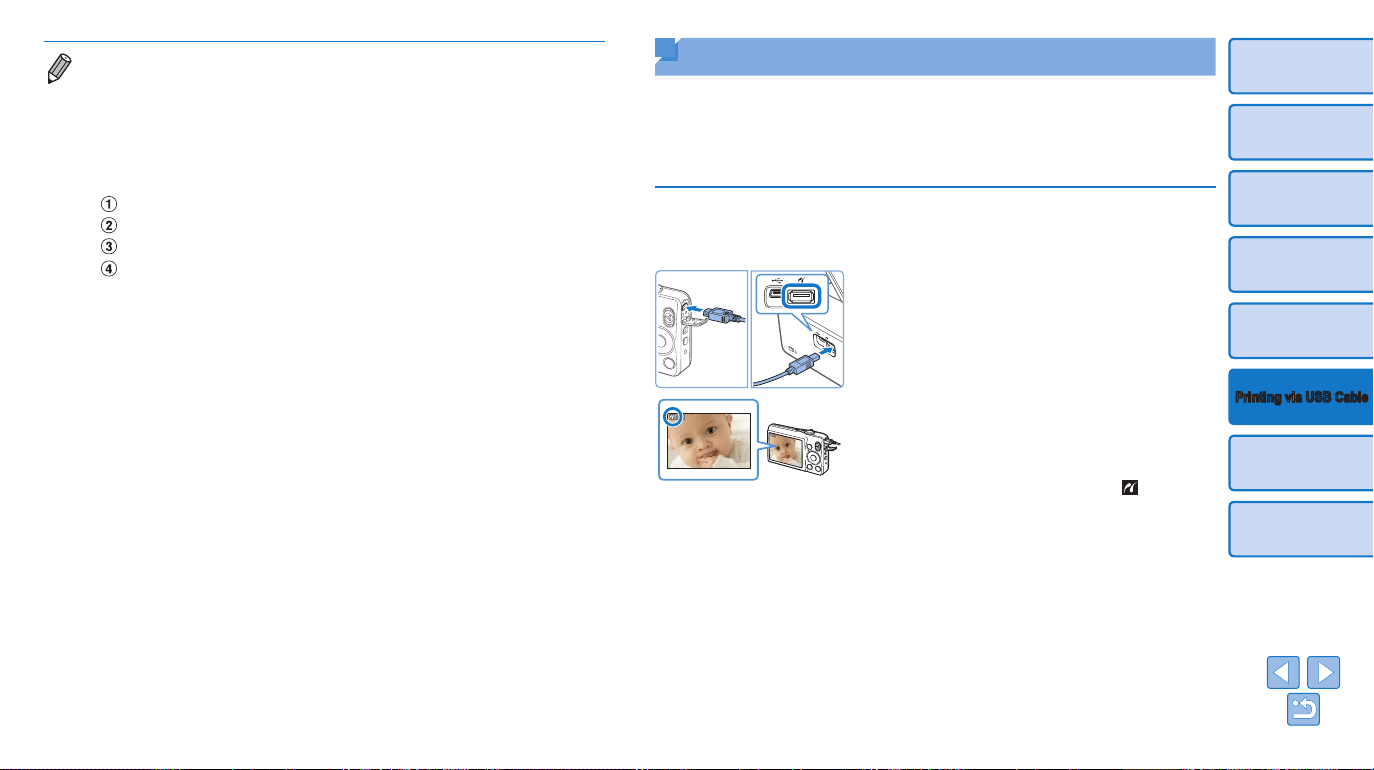
Printing from a Computer
1 Prepare SELPHY.
zz Remove any inserted memory cards or
USB ash drives.
zz Insert a loaded paper cassette and an ink
cassette in SELPHY (=
8 – 10).
zz If the printer and computer are not
connected yet, turn off the printer
momentarily, connect it to the computer
via USB (=
34), and then turn on the
printer again.
2 Access the printing dialog box.
zz Start the photo software, select images to
print, and access the printing dialog box.
zz As the destination printer, select [Canon
(SELPHY) CP1000].
36
Cover
Contents
Part Names
Basic Operations
Print Settings
Troubleshooting
Appendix
Printing via USB Cable
Printing from a Camera
By connecting a PictBridge-compatible camera, you can choose images
with the camera and print.
Here, printing instructions are given using a Canon compact digital camera
as an example. If your camera is operated differently, refer to the camera
user manual.
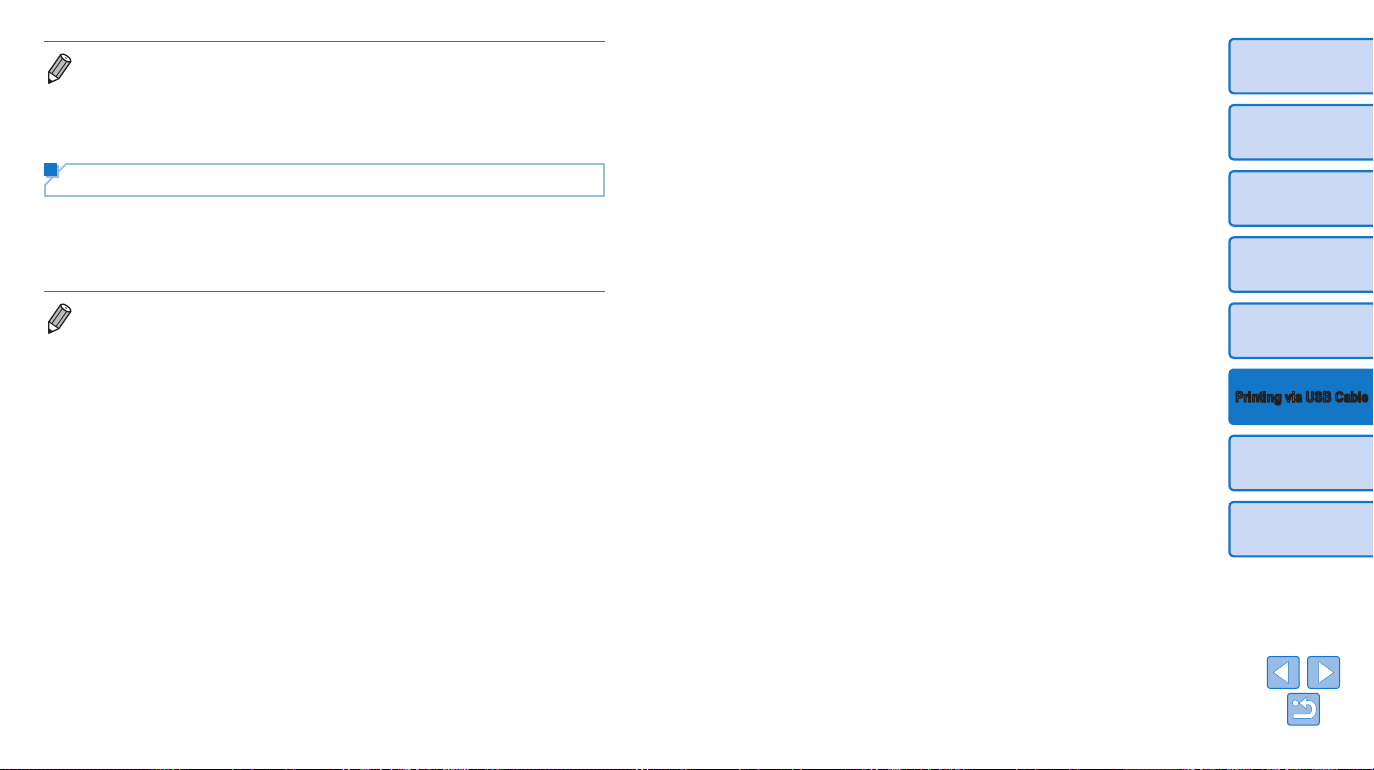
1 Prepare SELPHY.
zz Conrm that no memory cards are
inserted in SELPHY.
2 Connect SELPHY to the camera
using the USB cable (=
34).
3 Turn on SELPHY and then the
camera, and enter Playback
mode.
zz Some cameras will display a icon.
4 On the camera, choose images
and prepare to print.
zz Use the camera to start printing.
zz After printing, turn off SELPHY and the
camera and disconnect the cable.
• If an error message is displayed on SELPHY, also check for any error
messages displayed on the computer (in desktop mode). Messages will be
automatically dismissed once you resolve the issue indicated.
• If a message is displayed on the computer, you can also click [Cancel] to
cancel printing.
• Mac OS: If [Canon CP1000] is not available as a destination printer, register
the printer on the computer as follows.
Access [Printers & Scanners] from [System Preferences].
Click [+] below the list.
Choose [Canon CP1000].
Click [Add].
37
Cover
Contents
Part Names
Basic Operations
Print Settings
Troubleshooting
Appendix
Printing via USB Cable
• Printing in progress cannot be canceled from SELPHY by using the <v>
button. Use the camera to stop printing.
• This product uses PictBridge technology to print via USB.
PictBridge technical standards facilitate direct connection of cameras, printers,
and other devices for easy printing.
Printing Using Camera Settings (DPOF Print)
Inserting a memory card with DPOF information congured on a camera
will display [DPOF images remain / Print images?]. To review the printing
information set on the camera, press the <o> button, and to print all
designated images at once, press the <p> button.
• For instructions on conguring DPOF information, refer to the camera user
manual.
• Dates and le numbers are DPOF information set on the camera that cannot
be changed on SELPHY.
• Images prepared with a [Print Type] of [Standard] on Canon cameras are
printed according to the settings in “Adjusting Settings” (=
25 – 31).
• You can also review the printing information set on the camera by pressing the
<k> button, selecting [DPOF Print], and pressing the <o> button.
However, [DPOF Print] is only displayed when a camera-congured memory
card is inserted.

38
Cover
Contents
Part Names
Basic Operations
Print Settings
Printing via USB Cable
Appendix
Troubleshooting
Troubleshooting
Refer to these troubleshooting tips to resolve problems with SELPHY. If the problem persists,
contact a Canon Customer Support Help Desk.
Power ..............................................................................................................39
Screen .............................................................................................................39
Printing ............................................................................................................39
Paper ...............................................................................................................40
Error Messages ...............................................................................................41

39
Cover
Contents
Part Names
Basic Operations
Print Settings
Printing via USB Cable
Appendix
Troubleshooting
Power
Cannot turn on SELPHY
• Conrm that the power cord is connected and plugged in correctly (=
12).
• Hold the <q> button until the startup screen is displayed (=
13).
• When using Battery Pack NB-CP2L (sold separately), conrm that the battery pack is
charged and inserted correctly, and that the cable is connected correctly.
Screen
The image display screen is not displayed (=
32)
• While the ID Photo Settings screen is displayed, press <k> to display the menu,
press <u><d> to choose [Select & Print], and then press <o>.
Printing
Cannot print
• Conrm that SELPHY is on (=
13).
• Conrm that the paper and ink cassettes are loaded correctly (=
10).
• Conrm that the ink sheet is not loose (=
8).
• Conrm that you are using paper designed especially for SELPHY (=
10).
• Replace the ink cassette and rell the paper cassette as needed (=
16).
• Conrm that you are using the correct combination of paper, paper cassette, and ink
cassette (=
8).
• SELPHY will temporarily halt printing if it exceeds a specic temperature; this does
not indicate a problem. Wait until the printer cools off. During continuous printing, in
hot environments, or if the printer’s interior becomes hot because the rear-side air
vent (=
5) is blocked, SELPHY may temporarily stop printing, causing printing to
take longer.
Cannot display or print images on memory cards or USB ash drives
• Conrm that the memory card is fully inserted in the correct slot, with the label face-
up (=
14, 15).
• Conrm that the USB ash drive is fully inserted, right-side up (=
17).
• Conrm that the image format is supported (=
14).
• Conrm that a memory card requiring the use of an adapter has not been inserted
without its adapter (=
14).
Cannot print from a camera
• Conrm that your camera supports PictBridge (=
36).
• Conrm that SELPHY and the camera are connected correctly (=
36).
• Conrm that your camera batteries have enough charge left. If the batteries are
depleted, replace them with fully charged or new ones.
• Remove any inserted memory cards or USB ash drives.

40
Cover
Contents
Part Names
Basic Operations
Print Settings
Printing via USB Cable
Appendix
Troubleshooting
Cannot print from a computer
• Conrm that you have installed the printer driver correctly (=
34).
• Remove any inserted memory cards or USB ash drives.
• When printing via USB, conrm that SELPHY is connected directly to the computer
with the USB cable (=
34).
• Windows: Conrm that the printer is not ofine. If so, right-click the printer icon and
bring the printer online.
• Mac OS: Conrm that you have added SELPHY to the Printer List (=
36).
No date when printing from memory cards or USB ash drives
• Conrm that SELPHY is set up to print the date (=
31).
Note that in DPOF printing, date printing is congured on the camera.
No date when printing from cameras
• Conrm that the date setting is enabled on the camera. Note that under standard
camera settings, the date setting on SELPHY will be used.
Print quality is poor
• Conrm that the ink sheet and paper are free of dirt or dust.
• Conrm that SELPHY’s interior is free of dust (=
46).
• Conrm that no condensation has formed on SELPHY (=
46).
• Conrm that SELPHY is away from sources of electromagnetic waves or strong
magnetic elds (=
12).
Printed colors do not match on-screen colors
• Computer monitors employ a different method of color development from printers.
Colors may also look different depending on the intensity and color temperature of
lighting in the monitor viewing environment, as well as monitor color calibration.
Individual images are printed reduced, in only one layout position
• Change the [Page Layout] settings (=
27). When a layout in [Page Layout] other
than [1-up] is selected, individual images are printed in one layout position per sheet
if you print from a camera or other device that can only send one image at a time.
Paper
Paper does not t in the cassette
• Conrm that the paper is the same size as the paper cassette (=
2).
Paper feed problems or frequent paper jams occur
• Conrm that the paper and cassette are inserted correctly (=
9, 10).
• Conrm that there are less than 19 sheets in the cassette.
• Conrm that 19 or more prints have not collected on the paper cassette.
• Conrm that you are using paper designed especially for SELPHY (=
10).
Cannot print the correct quantity (unused paper left after ink runs out)
• Some unused paper may remain if the ink runs out rst (=
17).
Paper jams
• If paper protrudes from the front or back paper ejection slot
(=
5)
, carefully pull it
out. If you cannot remove the paper by gently pulling it out, never force it out. Turn the
printer off and then on. Repeat until the paper is ejected. If you accidentally turn the
printer off while printing, restart it and wait until the paper is ejected. If paper jams and
cannot be removed, contact your retailer or a Canon Customer Support Help Desk. Do
not attempt to remove jammed paper by force, which may damage the printer.
41
Cover
Contents
Part Names
Basic Operations
Print Settings
Printing via USB Cable
Appendix
Troubleshooting
Error Messages
Error messages indicate problems with SELPHY. When error messages
include troubleshooting tips, follow the instructions. If only an error message
is displayed, follow the suggestions in “Troubleshooting” (=
38).
If the problem persists, contact a Canon Customer Support Help Desk.
• If a problem occurs while SELPHY is connected to a camera, an error
message may also be displayed on the camera. Check both SELPHY and the
camera.

42
Cover
Contents
Part Names
Basic Operations
Print Settings
Printing via USB Cable
Troubleshooting
Appendix
Appendix
Instructions for battery-powered printing with an optional battery pack are given here, along with
printer specications and handling and maintenance tips.
Printing without a Power Outlet .............................................................43
Attaching the Battery Pack ..............................................................................43
Charging the Battery to Use SELPHY .............................................................43
Specications ..........................................................................................44
Handling and Maintenance .....................................................................46
43
Cover
Contents
Part Names
Basic Operations
Print Settings
Printing via USB Cable
Troubleshooting
Appendix
Printing without a Power Outlet
To print where no power outlet is available, use Battery Pack NB-CP2LI
(sold separately). On a full charge, up to about 72 sheets* of postcard-size
paper can be printed.
* According to Canon testing. May vary depending on printing conditions.
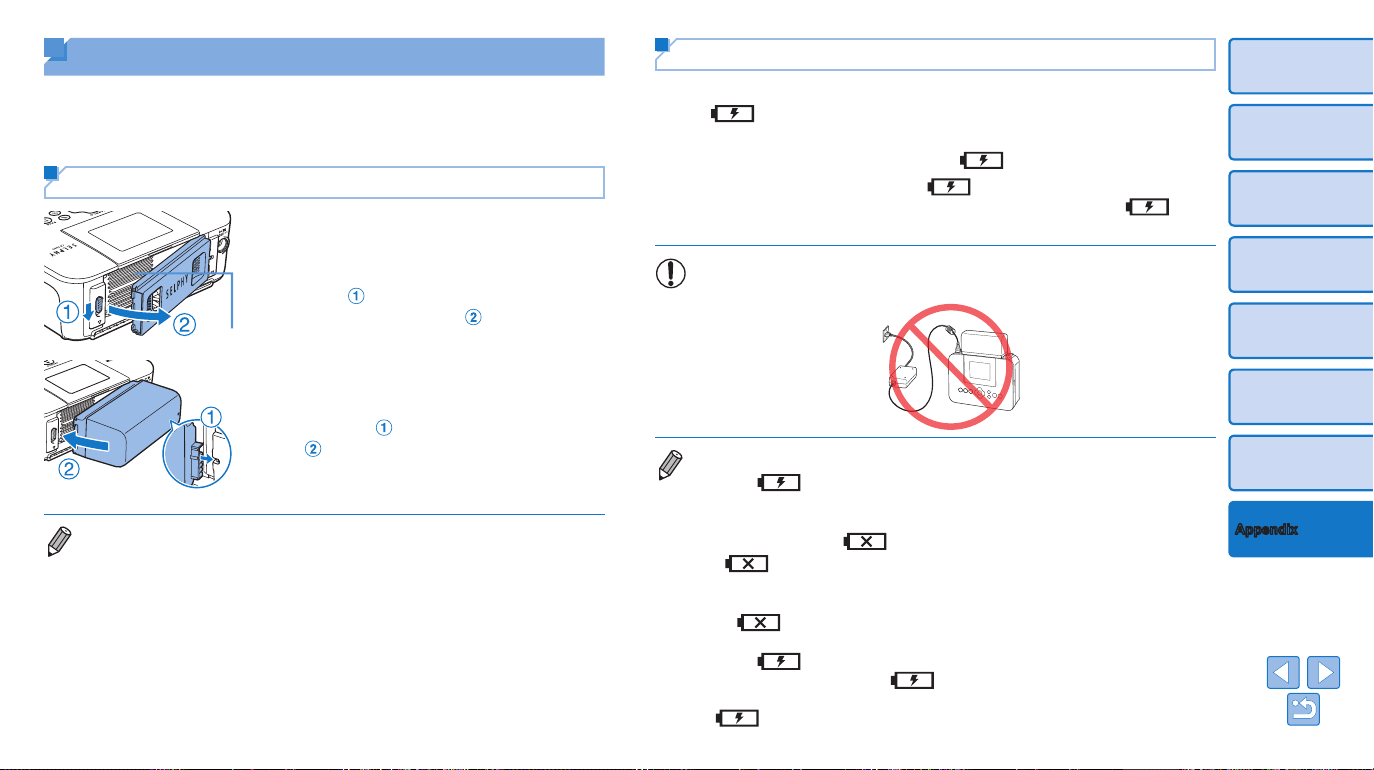
Attaching the Battery Pack
1 Remove the battery pack
mounting cover.
zz With the switch held in the direction of the
arrow (
), move the cover in the
direction of the arrow (
) to remove.
2 Attach the battery pack.
zz Slide the terminal-end in the direction of
the arrow (
) and insert the other end
(
) until it clicks into place.
• Battery Pack NB-CP2LH (sold separately) is also supported. On a full charge,
up to about 54 sheets* of postcard-size paper can be printed.
* According to Canon testing. May vary depending on printing conditions.
BATTERY
Air Vent
Charging the Battery to Use SELPHY
• Once SELPHY is connected to a power outlet (=
12), charging starts
and [ ] blinks on the screen.
• A complete charge for the NB-CP2LI requires approximately 4 hours (at
normal temperatures), after which the [ ] will disappear.
• SELPHY can be used even while [ ] is blinking by turning it on
(=
12). However, charging stops. When power is turned o, [ ]
blinks and charging resumes.
• Please keep the SELPHY horizontal while charging. If the SELPHY
is charged while standing upright, it may not charge completely.
• For battery precautions, refer to the battery user manual.
• When [
] is displayed, place SELPHY in an environment at operating
temperature (=
44), and charge once it has adjusted to the ambient
temperature.
• Response when an [
] is displayed
- [
] may appear when charging the NB-CP2LI while the SELPHY is
upright. Unplug the device and remove the NB-CP2LI. After a short while, lay
the device at and charge it.
- If [
] appears while the device is horizontal, the battery may need
replacing. Please purchase a new battery.
• When [
] is displayed, press and hold any button other than <q> for
3 seconds or more to clear [
]. After the screen is no longer displayed
and while the printer is charging, press any button other than <q>, and
[
] will appear for around 10 seconds.

44
Cover
Contents
Part Names
Basic Operations
Print Settings
Printing via USB Cable
Troubleshooting
Appendix
Interfaces
Hi-Speed USB Type A port for PictBridge-compatible devices
Mini-B port for computers
Memory Cards SD, SDHC, SDXC, miniSD
*2
, miniSDHC
*2
, microSD
*2
,
microSDHC
*2
, microSDXC
*2
, CF, Microdrive and xD-Picture
Card
*2
USB Flash Drives FAT or exFAT format only
Operating
Temperature
5 – 40 °C (41 – 104 °F)
Operating Humidity 20 – 80 %
Power Compact Power Adapter CA-CP200 B
Battery Pack NB-CP2LH (sold separately)
Battery Pack NB-CP2LI (sold separately)
Power Consumption 60 W or less (standby: 4 W or less)
Dimensions 178.0 x 135.0 x 60.5 mm (7.01 x 5.31 x 2.38 in.) excluding
protrusions
Weight (printer body
only)
Approx. 840 g (1.85 lb.)
*1 From the initial yellow printing pass until ejection.
*2 Requires an optional dedicated adapter.
Specications
Printing Method Dye-sublimation thermal transfer (with overcoating)
Resolution 300 x 300 dpi
Gradation 256 shades per color
Ink Dedicated color ink (Y/M/C/overcoating)
Paper Postcard, L, and card size (including full-page label, 8
labels per sheet conguration, square labels)
Print Size Borderless Bordered
Postcard
L Size
Card
Label on 8-label
sheet
Square labels
100.0 x 148.0 mm
(3.94 x 5.83 in.)
89.0 x 119.0 mm
(3.50 x 4.69 in.)
54.0 x 86.0 mm
(2.13 x 3.39 in.)
22.0 x 17.3 mm
(0.87 x 0.68 in.)
50.0 x 50.0 mm
(1.97 x 1.97 in.)
91.3 x 121.7 mm
(3.59 x 4.79 in.)
79.1 x 105.1 mm
(3.11 x 4.14 in.)
49.9 x 66.6 mm
(1.96 x 2.62 in.)
–
–
Printing Speed
*1
Printing speed when a memory card or USB ash drive
is inserted, or when a camera is connected (PictBridge)
(time in parentheses applies to [Pattern 1], [Pattern 2],
or [Pattern 3] in [Print Finish])
Postcard
L Size
Card
Approx. 47 sec.
Approx. 39 sec.
Approx. 27 sec.
(Approx. 58 sec.)
(Approx. 49 sec.)
(Approx. 32 sec.)
Feeding System Auto feeding from paper cassette
Ejection System Auto ejection onto paper cassette
Screen Tilting 2.7-type TFT LCD color monitor
45
Cover
Contents
Part Names
Basic Operations
Print Settings
Printing via USB Cable
Troubleshooting
Appendix
CAUTION
RISK OF EXPLOSION IF BATTERY IS REPLACED BY AN INCORRECT TYPE.
DISPOSE OF USED BATTERIES ACCORDING TO LOCAL REGULATION.
Use of genuine Canon accessories is recommended.
This product is designed to achieve excellent performance when used with
genuine Canon accessories.
Canon shall not be liable for any damage to this product and/or accidents
such as re, etc., caused by the malfunction of non-genuine Canon
accessories (e.g., a leakage and/or explosion of a battery pack). Please
note that this warranty does not apply to repairs arising out of the
malfunction of non-genuine Canon accessories, although you may request
such repairs on a chargeable basis.
Compact Power Adapter CA-CP200 B
Rated Input 100 – 240 V AC (50/60 Hz), 1.0 A (100 V) – 0.6 A (240 V)
Rated Output 24 V DC, 1.8 A
Operating
Temperature
0 – 40°C (32 – 104°F)
Dimensions 134.0 × 67.5 × 34.0 mm (5.28 x 2.66 x 1.34 in.) excluding power cord
Weight Approx. 275 g (9.70 oz.)
Battery Pack NB-CP2LH (Sold Separately)
Type Rechargeable lithium-ion battery
Nominal Voltage 22.2 V DC
Nominal Capacity 1290 mAh
Charging Cycles Approx. 300 times
Operating
Temperature
5 – 40°C (41 – 104°F)
Dimensions 110.0 x 40.7 x 37.5 mm (4.33 x 1.60 x 1.48 in.)
Weight Approx. 246 g (8.68 oz.)
Battery Pack NB-CP2LI (Sold Separately)
Type Rechargeable lithium-ion battery
Nominal Voltage 21.6 V DC
Nominal Capacity 1900 mAh
Charging Cycles Approx. 300 times
Operating
Temperature
5 – 40°C (41 – 104°F)
Dimensions 111.0 x 60.4 x 44.7 mm (4.37 x 2.38 x 1.76 in.)
Weight Approx. 390 g (13.76 oz.)
• All data is based on tests by Canon.
• Printer specications or appearance are subject to change without notice.

46
Cover
Contents
Part Names
Basic Operations
Print Settings
Printing via USB Cable
Troubleshooting
Appendix
Handling and Maintenance
• Do not subject the printer to excessive force, which may damage the
printer or cause paper jams.
• Do not expose the printer to insecticides or other volatile substances.
Additionally, do not store the printer in contact with rubber, vinyl, or plastic
products over extended periods, which may deteriorate the casing.
• Avoid condensation on the printer, which may happen when moving
the printer from cold to warm environments. Put the printer in a sealed
plastic bag and allow it to adjust to the new temperature before removing
the bag. If condensation forms, allow the printer to dry naturally at room
temperature before using again.
• When the printer becomes dirty, wipe it with a soft, dry cloth.
• If the air vent (=
5) becomes dusty, remove the ink cassette
(=
16) before wiping the dust away, to prevent dust from getting inside
and affecting print quality.
• Never wipe the printer with solvents, such as benzene or thinner, or
neutral detergent, which may cause deformation or peeling of the
casing.
Trademarks and Licenses
• Microsoft and Windows are trademarks or registered trademarks of
Microsoft Corporation in the United States and/or other countries.
• Macintosh and Mac OS are trademarks of Apple Inc., registered in the
U.S. and other countries.
• The SDXC logo is a trademark of SD-3C, LLC.
• All other trademarks are the property of their respective owners.
• This device incorporates exFAT technology licensed from Microsoft.
• Portions of the code used in this rmware are based in part on the work
of the Independent JPEG Group.
Disclaimer
• Reprinting, transmitting, or storing in a retrieval system any part of this
guide without the permission of Canon is prohibited.
• Canon reserves the right to change the contents of this guide at any time
without prior notice.
• Illustrations and screenshots in this guide may differ slightly from the
actual equipment.
• The above items notwithstanding, Canon accepts no liability for damages
due to mistaken operation of the products.


