1
deutsch english francais italiano slovensko
1
2
The following conditions are needed to add
the SecuroSmart Keypad system:
• The LED on the ngerscanner must shine
when connecting the door to a power
supply.
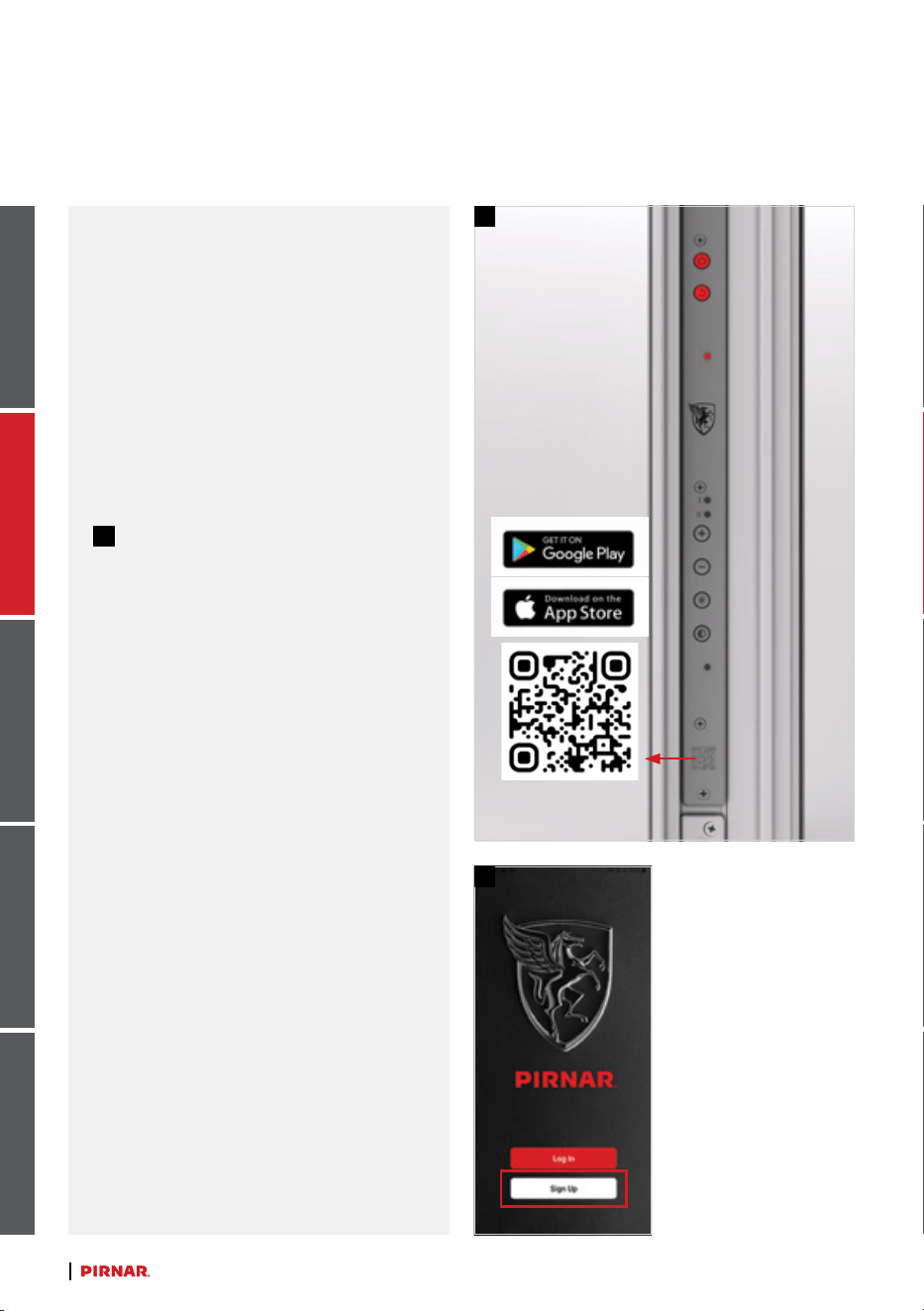
• You must have the Pirnar app installed on
your phone.
downloading the pirnar mobile
app -
You can download the Pirnar app
two ways:
1
Scan the QR code on the door’s control
panel.
Search for “Pirnar” on Google Play or the
App Store.
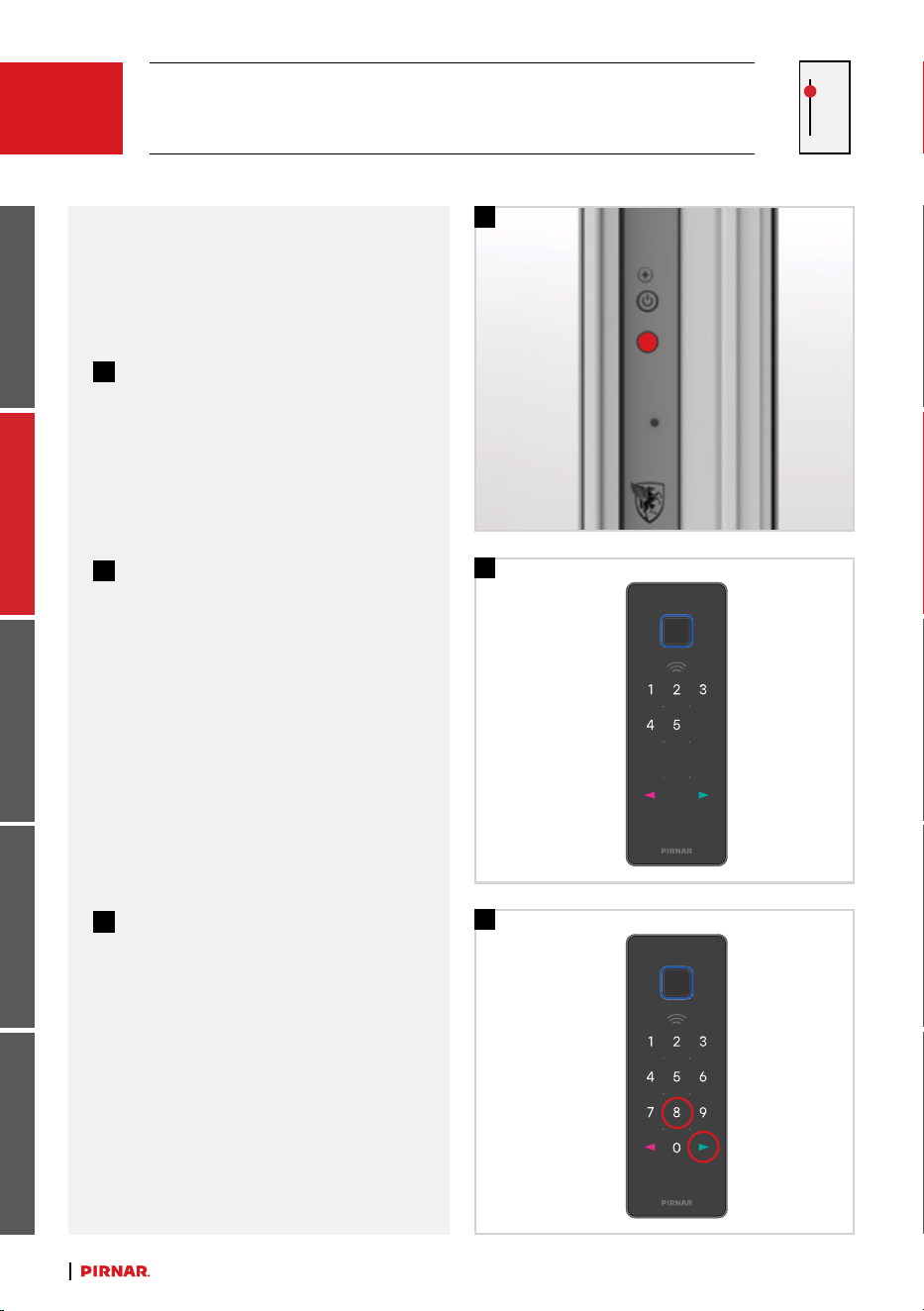
First Startup: Upon the rst connection of
the entrance door to the electrical power
supply, the SecuroSmart and SecuroSmart
Keypad systems are automatically set to
DEMO mode. This mode is indicated by a blue
illumination around the reader.
Purpose of DEMO mode: In DEMO mode,
the door can be unlocked with any ngerprint,
allowing easy verication of the system’s
functionality aer installation and electrical
connection. This mode is intended exclusively
for testing and is not suitable for regular use.
Switching to safe operating mode: Aer
successfully adding the device to the PIRNAR
app, the reader illumination changes to white,
indicating that the system is ready for safe
use. From this point on, the door can only be
unlocked with authorized ngerprints and/
or numeric codes added by the user through
the app.
User Instructions
SecuroSmart keypad
1
3
2
50x140 mm
2
deutsch english francais italiano slovensko
2.3
adding the securosmart
keypad keypad to the pirnar
app:
1
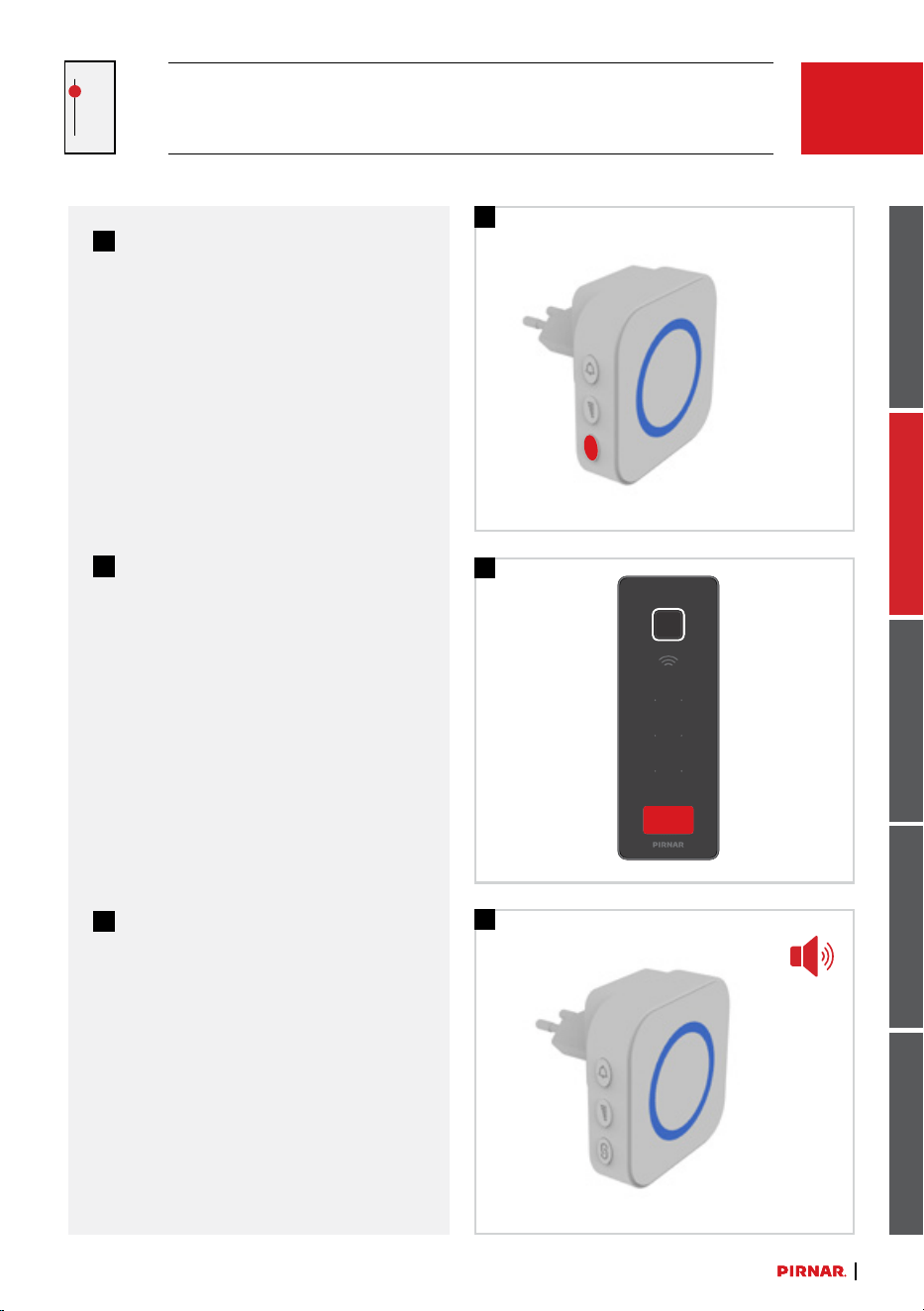
On the control unit, press and hold the
reset button, then simultaneously press
the power button. Release the power
button while continuing to hold the
reset button.
2
The keypad will count down from ve
to one. A successful factory reset is
conrmed by a blue light on the reader.
3
Press number 8 and the green arrow.
The SecuroSmart Keypad is now in
pairing mode and can be detected and
added to the PIRNAR app.
SECUROSMART KEYPAD
1
3
2
50x140 mm
3
deutschenglishfrancaisitalianoslovensko
1
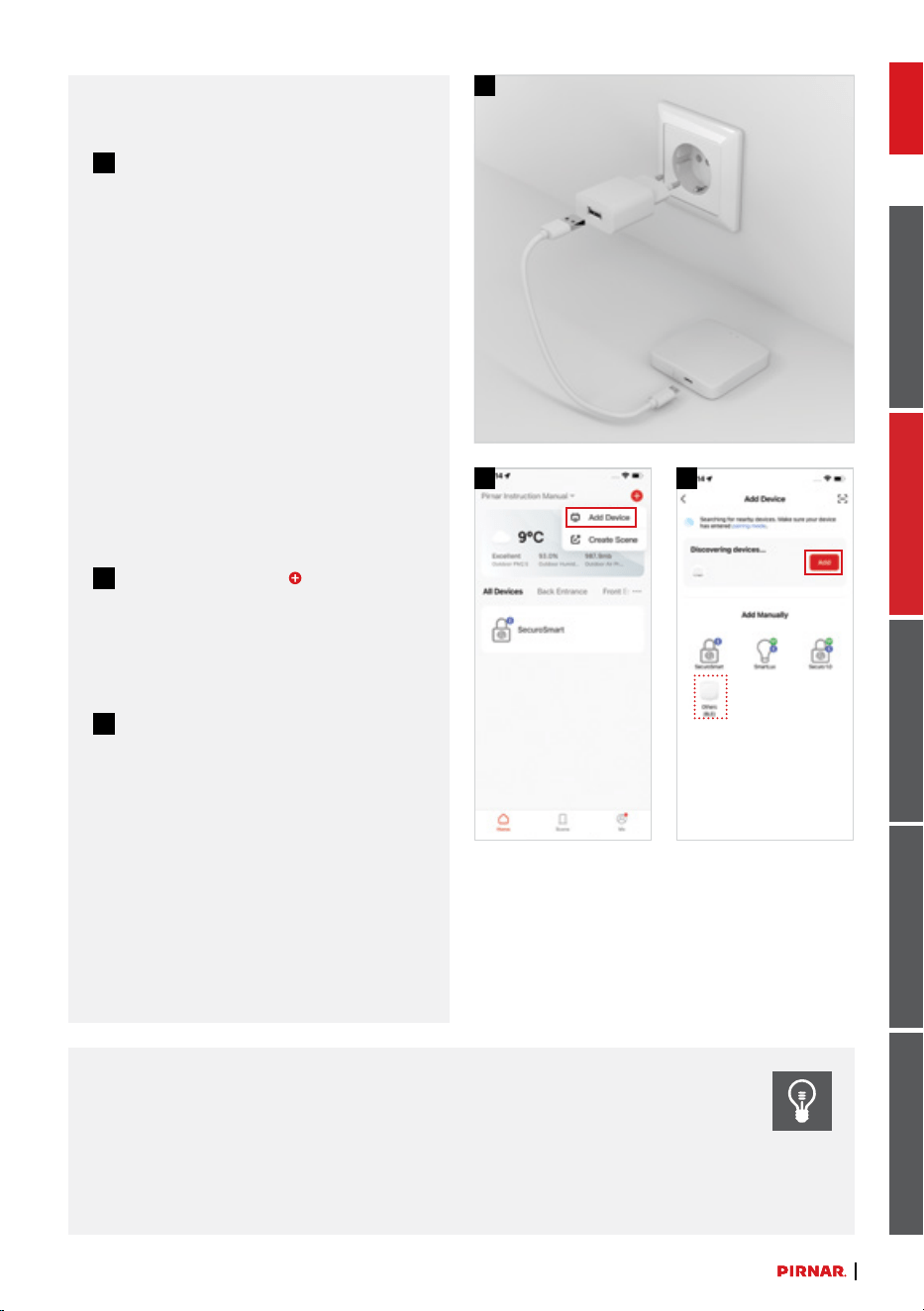
Plug the doorbell into a socket. Press
and hold the pairing button until the
LED indicator lights up blue.
2
On the keypad, press and hold the
doorbell button.
3
Successful pairing of the doorbell and
keypad is conrmed by a light and
sound signal.
2.4
ADDING THE DOORBELL
(INDOOR UNIT)
1
2 3
4
deutschenglishfrancaisitalianoslovensko
remote access
1
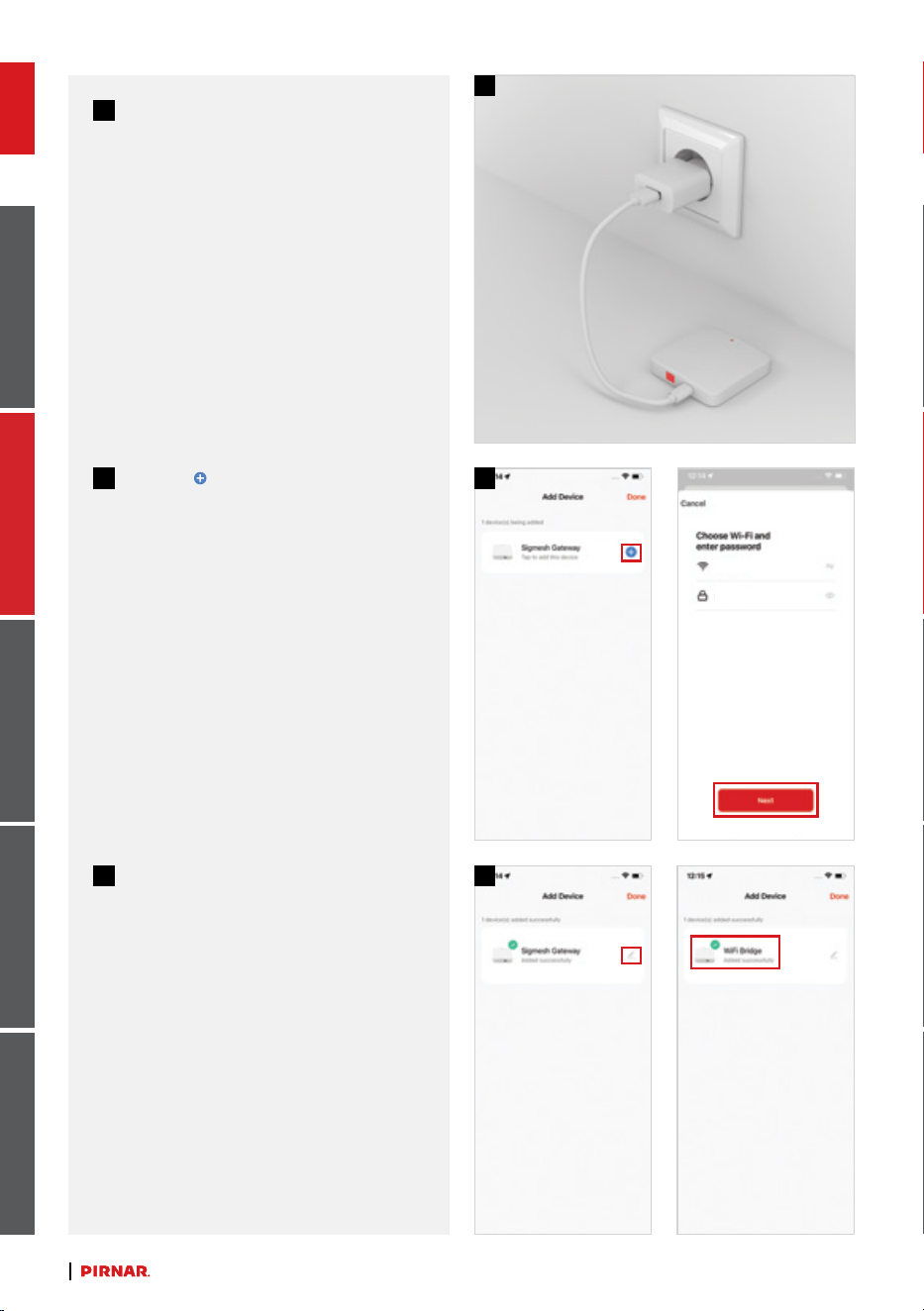
Connect the Wi-Fi Bridge device,
included with every door, in order to
activate remote access. Wi-Fi Bridge
must be kept in the same space as
the door, at a maximum of 10 meters
away.
Insert the included micro USB cable
into the device. Plug the other end into
the power supply. Plug the power supply
into the wall outlet.
adding wi-fi bridge
2
Click on “Add Device” in the top right
corner of the Pirnar app.
3
Wait for the app to nd a device
and click ADD, or choose Others
(BLE) manually and follow the in-app
instructions.
* pirnar’s advice:
• Just rest your nger on the reader without sliding it around.
• The same administrator should save more than one ngerprint. We recommend allocating ad-
min rights and ngerprints to more than one person. This will ensure that you will always have
access to your device even when unpredictable circumstances arise (e.g. death in the family,
new owner, divorce, etc.).
6
5
enter pass
Wi-Fi Name
4
5
deutsch english francais italiano slovensko
6
Conrm the added device or rename it
if you prefer.
5
Click the
symbol and add the Wi-Fi
password (the device only supports 2.4
GHz Wi-Fi networks), then click “next”.
4
If a device was not found
automatically, check whether the red
LED is blinking slowly. If the red LED is
not blinking, press and hold the device
button for 5–10 seconds until the red
LED begins blinking slowly.
1
2
3
4 5
6
deutschenglishfrancaisitalianoslovensko
connecting the securosmart
keypad with added functions
(e.g. alexa, google assistant,
siri, remote access, etc.)
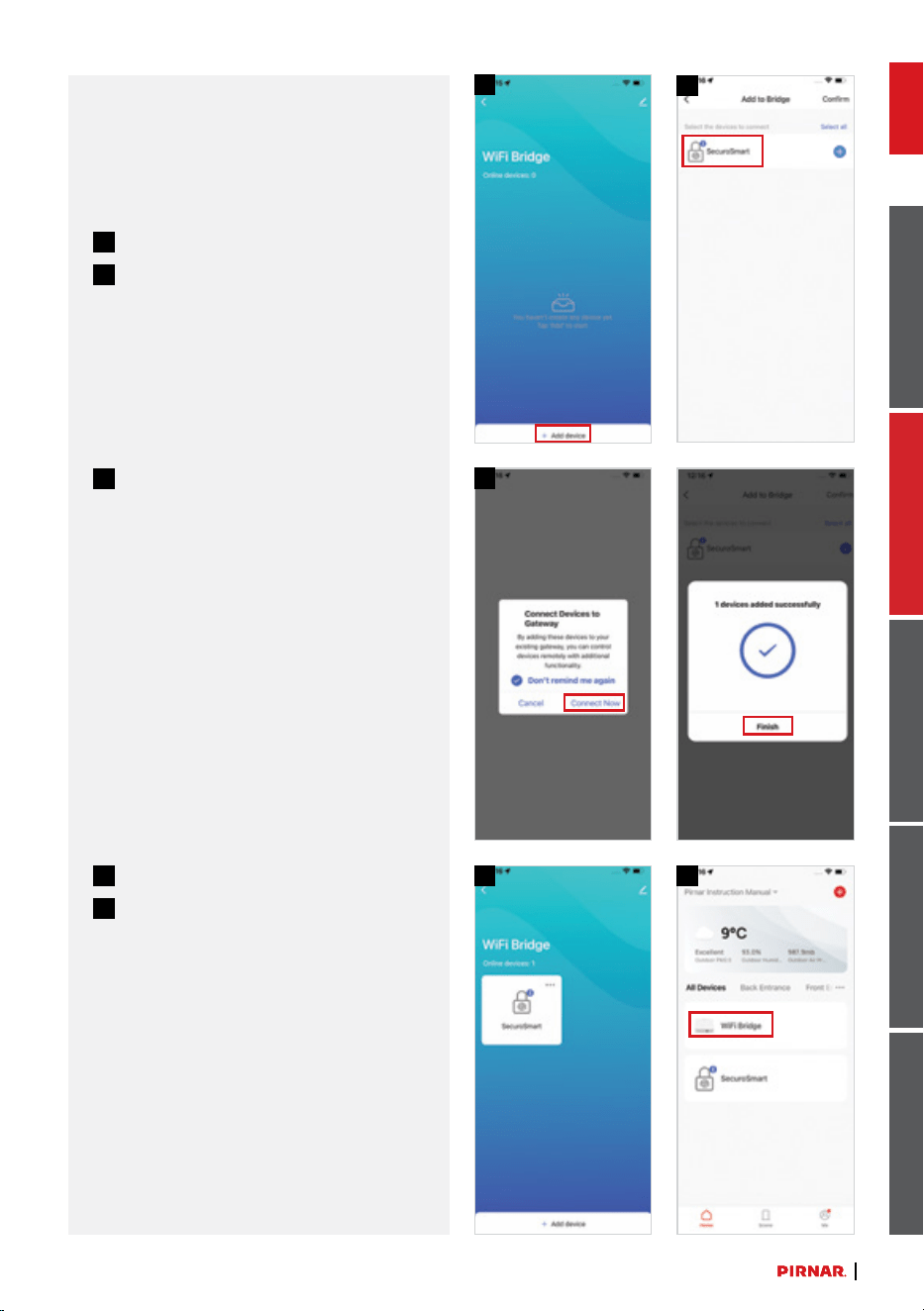
1
Choose “Add Device”.
2
Select the already added SecuroSmart
Keypad.
3
Conrm all prompts.
4
Your device was added.
5
Control the device from the home
menu.
1
2
3
7
deutsch english francais italiano slovensko
sharing the device with other
users
The admin can share the device with other
users who have the Pirnar app installed on
their phone and a valid user account.
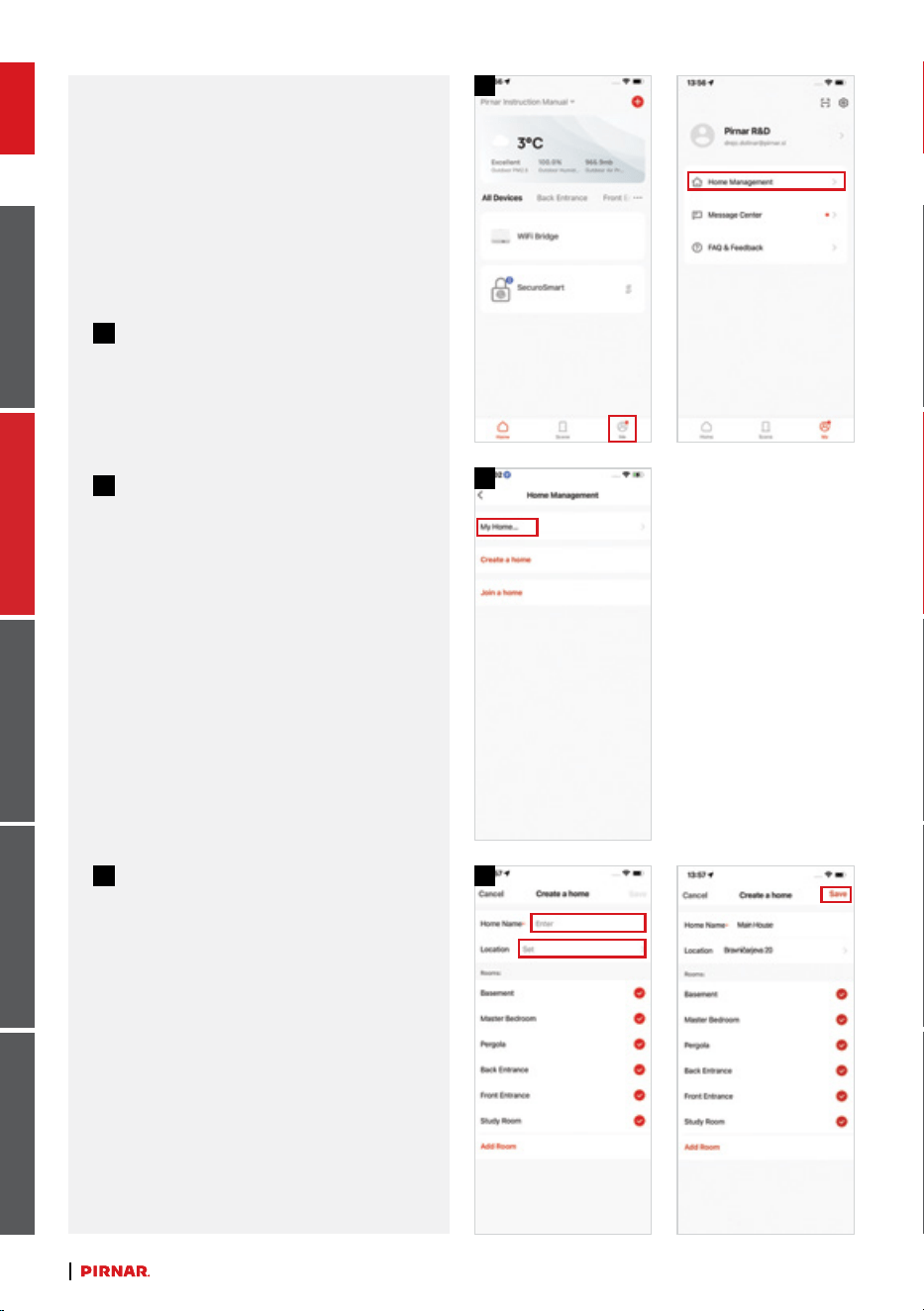
Sharing a device:
1
In the home menu, choose the “Prole”
menu and then “Home Management”.
2
Choose the default property “My
Home”.
3
Name the property and assign it
a location – this will allow the app
to give you information about the
weather at your chosen location. If
you want, select or add rooms in your
home.
4
5
6 7
8
deutschenglishfrancaisitalianoslovensko
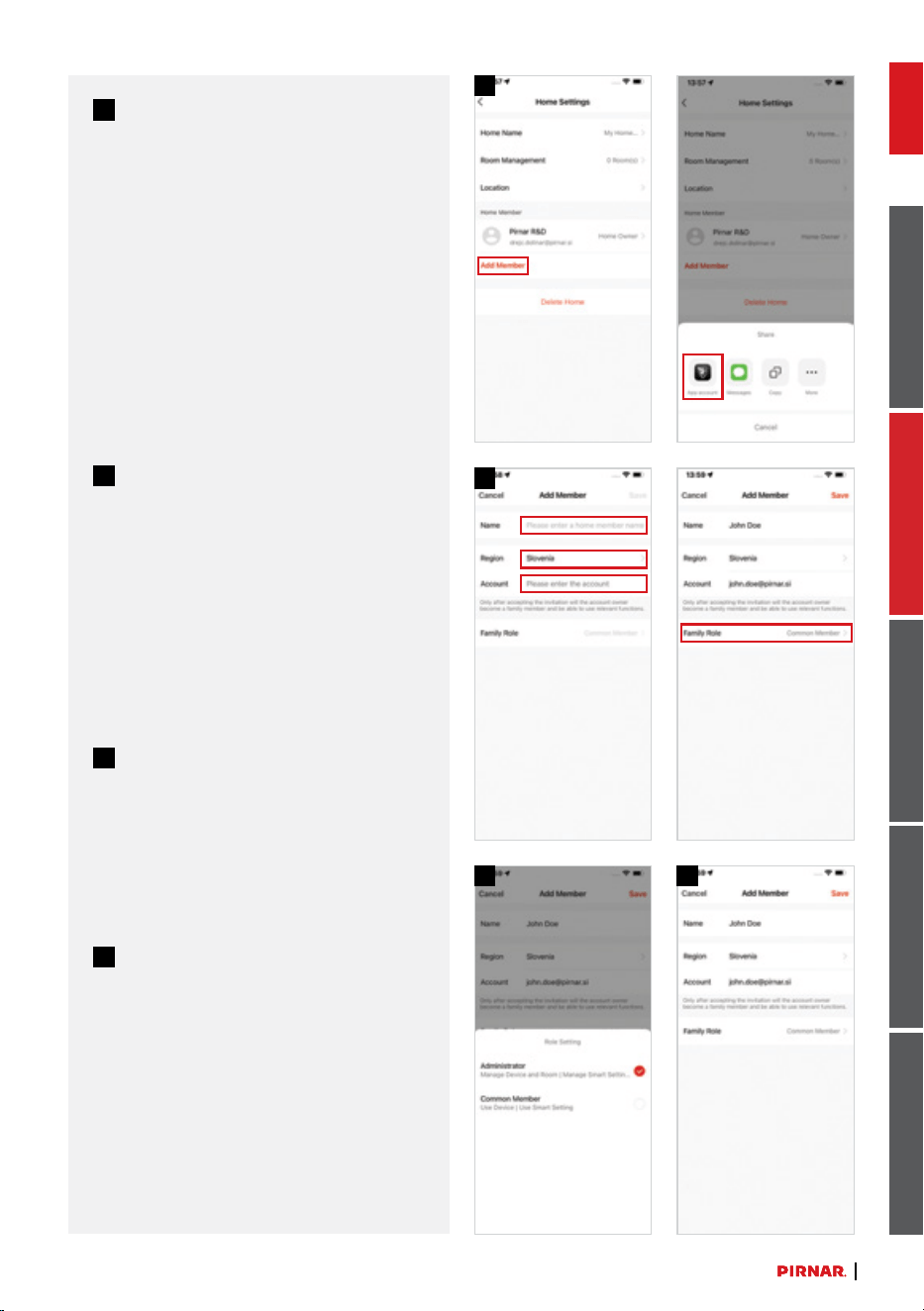
4
Choose “Add family member” and
select the option “App Account”.
5
Enter the required information.
Click on the “User rights” menu to set
whether the new user is an admin or
regular user.
6
Admins can change device settings,
add new users, and add ngerprints.
Regular users can only track the log of
unlocking and other history.
7
Click “Save” aer entering all the
information.
The user whose account you entered
will receive an invitation to access your
home through their app. When they
conrm, they will receive permission to
access the devices in your house within
the scope of the rights you allocated
to them.
1 2
43
9
deutsch english francais italiano slovensko
updating the securosmart
keypad
SecuroSmart Keypad supports OTA (over-
the-air) updates. Whenever a new version is
released, you will receive a notication the
next time you open the app.
If your SecuroSmart Keypad is
connected to Wi-Fi Bridge, then you
must disconnect it from its power
supply and turn on Bluetooth on your
phone. The soware will not update
otherwise!
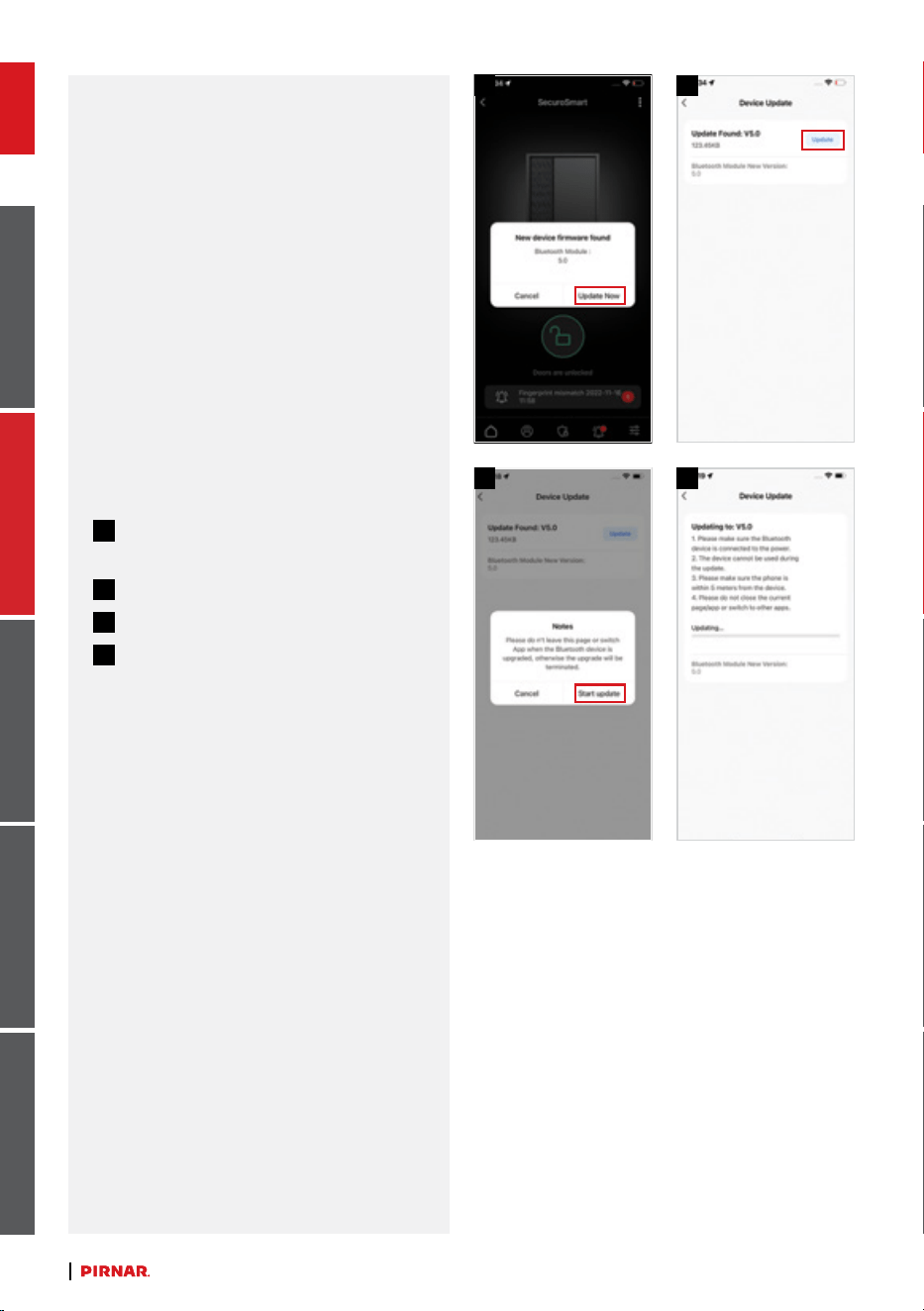
1
When you receive the update
notication, select “Update Now”.
2
Select “Update”.
3
Select “Start Update”.
4
Wait for the update to download. Do
not use your phone during this time.
Aer updating the soware, you can
reconnect the Wi-Fi Bridge to the power
supply and your SecuroSmart Keypad will
automatically connect to it.
1 2
3
10
deutschenglishfrancaisitalianoslovensko
checking your software
version
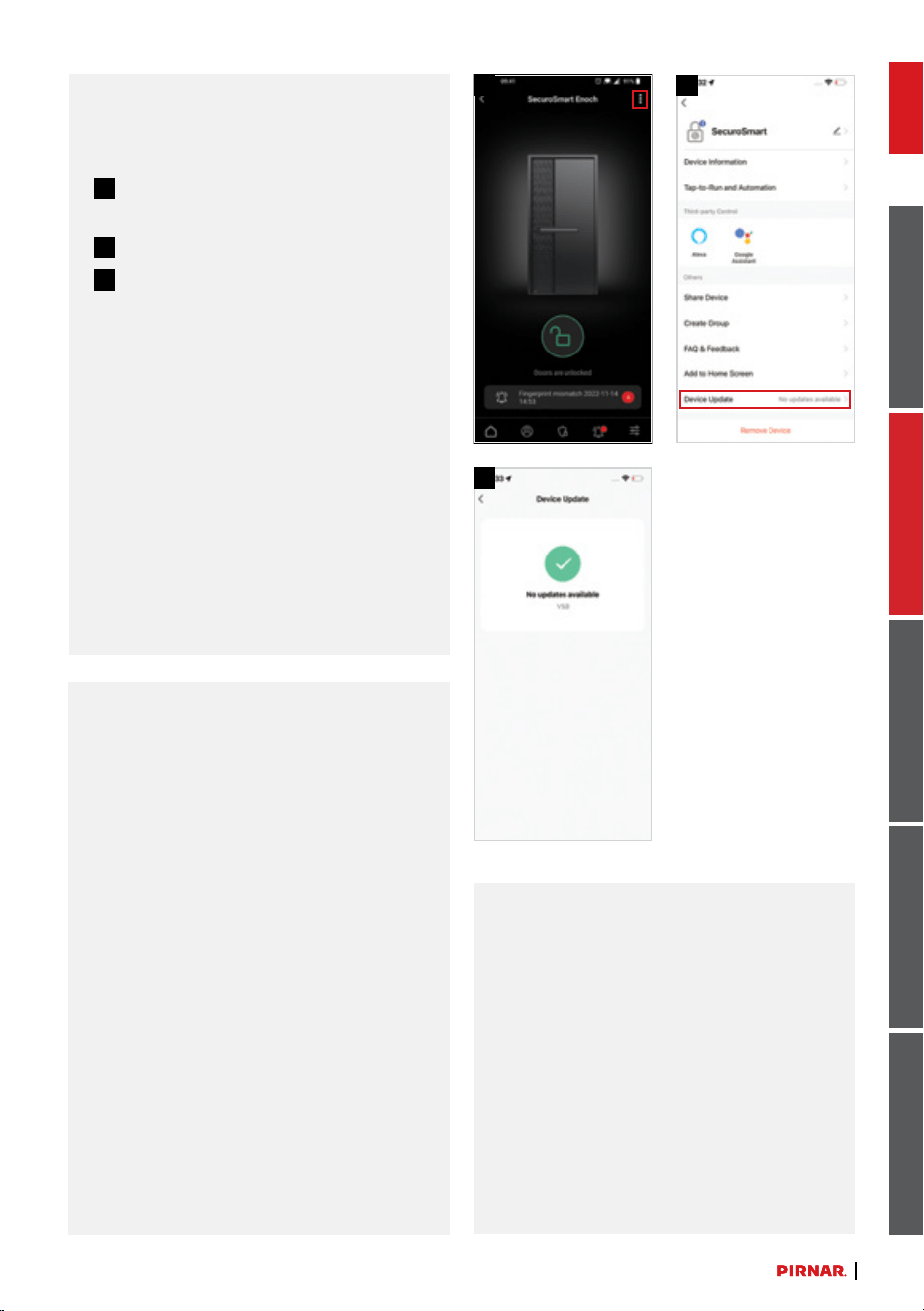
1
Click the ellipsis symbol on the home
menu for more options.
2
Select “Device Update”.
3
This screen will show you what
soware version you currently have
installed, as well as whether new
versions are available.
app features
The app provides you with a range of useful
features:
• Sharing the device with other users
• Remote unlocking – to activate remote
unlocking, you must add Wi-Fi Bridge to
your app.
• Activity monitoring – use the app to see
who enters your home and when
• Log of openings
• Emergency entering ngerprints
• Log of unsuccessful opening attempts
compatibility with other smart
home solutions
The Pirnar app supports several smart
solutions and assistants:
• Google Assistant
• Apple Siri
• Apple Watch
• Amazon Alexa
11
deutschenglishfrancaisitalianoslovensko
FCC Warning
This device complies with Part 15 of the FCC Rules. Operation is subject to
the following two conditions:
(1) This device may not cause harmful interference, and (2) this device
must accept any interference received, including interference that may
cause undesired operation.
NOTE 1: This equipment has been tested and found to comply with the
limits for a Class B digital device, pursuant to part 15 of the FCC Rules.
These limits are designed to provide reasonable protection against harmful
interference in a residential installation. This equipment generates, uses
and can radiate radio frequency energy and, if not installed and used in
accordance with the instructions, may cause harmful interference to radio
communications. However, there is no guarantee that interference will not
occur in a particular installation. If this equipment does cause harmful
interference to radio or television reception, which can be determined by
turning the equipment off and on, the user is encouraged to try to correct
the interference by one or more of the following measures:
- Reorient or relocate the receiving antenna.
- Increase the separation between the equipment and receiver.
-Connect the equipment into an outlet on a circuit different from that to
which the receiver is connected.
-Consult the dealer or an experienced radio/TV technician for help.
NOTE 2: Any changes or modifications to this unit not expressly approved
by the party responsible for compliance could void the user's authority to
operate the equipment.
1
deutschenglishfrancaisitalianoslovensko
ISED Caution:
This device complies with ISED license-exempt RSSs. Operation is
subject to the following two conditions:
(1) This device may not cause interference; and
(2) This device must accept any interference, including
interference that may cause undesired operation of the device.”
« Le présent appareil est conforme aux ISED applicables aux appareils
radio exempts de licence.
L'exploitation est autorisée aux deux conditions suivantes : (1) l'appareil ne
doit pas produire de brouillage, et
(2) l'utilisateur de l'appareil doit accepter tout brouillage radioelectrique
subi, meme sile brouillage est susceptible
d'en compromettre le fonctionnement. »
Radiation Exposure statement
This equipment complies with FCC/ISED radiation exposure limits set forth for an
uncontrolled environment. This equipment should be installed and operated with
minimum distance 20 cm between the radiator and your body.
Cet équipement est conforme aux limites d'exposition aux radiations FCC/ISED
établies pour un environnement non contrôlé. Cet équipement doit être installé et
utilisé avecune distance minimale de 20 cm entre le radiateur et votre corps.