
1
2
F
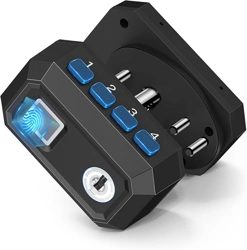
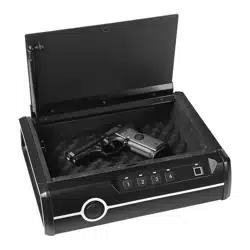
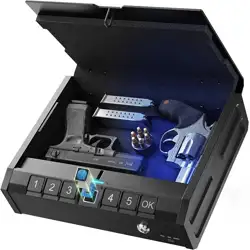
A. Digital Keypad B. Fingerprint Scanner C. Keyhole
D. Built-in Light E. Battery Box F. Steel Cable Groove
Low battery warning: Red light flashing, beeps 10 times
continuously.
Note:The device can only be set when it is
in an unlocked state!
Please load 4 AA 1.5 Volt alkaline batteries into the battery
box ( The unit does not contain batteries ).
1. Make sure the batteries are installed.
2. Quick press the “RESET” button 3 times continuously
and you will hear 2 beeps. Then the initial factory data will
be cleared.
1. Press the “ADD” button, then add the digital password
(5-15 digits ) and press the “OK” button. You will hear
a beep after pressing the “OK” button.
2. Enter the same digits again and press the “OK” button.
You will hear two long beeps if setting successfully.
Otherwise, it will beep three times rapidly.
Note : Keep the key outside the storage box!
Step 4 . Add digital password
Step 3 . Reset your device
Step 2 . Install the battery
Step 1 . Use your key
QUICK START GUIDE
Questions & Answers
!
Please unlock first, press the "DEL" button, the indicator
will flash red. Then press your fingerprint that needs to be
deleted on the scanner.
Delete Fingerprints:
Note: You can continuously delet other fingerprint, just
press the "DEL" button again to exit.
Please unlock first, press the "RESET" 3 times continu-
ously, two beeps indicate successfully.
1. Be sure to add digital password successfully before
adding fingerprints
2. Press the “ADD” button and put your finger on the
designated place 6 times. You will hear 2 long beeps at
the 6th time if setting successfully.
3. Repeat the above step if you want to add more
fingerprints.
Restore Factory Settings:
Note: Resetting means that all data will be cleared.
The initial password is “12134353”.
Note : The fingerprints can be add up to 30 groups.
Don’t press the fingerprint area too hard when adding
fingerprints.
Note : Be sure to press the “OK” button when you enter the
digital password.
Only one set of digital passwords can be set. Multiple
groups of digital passwords are not supported.
More Function Guide
Step 5 . Add fingerprints
Turn on/off the built-in light:
Press and hold the "RESET" button to activate the built-in
light, repeating this step can turn off the light.
Note: The built-in light will remain illuminated for only
3 minutes. After the light goes out, please press any key
to restore the light.
The "ADD", "DEL" , and "RESET" buttons can only be used
after unlocking, they can’t be used when the lid is closed.
Used as an emergency power source when the battery is
dead, not suitable for long time charging.
(Charge cable not included)
Must-Read:
Steel Cable Installation Steps
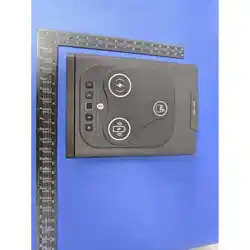
Emergency charging port
ADD DEL RESET
Question 1: Tried to add the digital password, but I can not make it right.
Answer: You need to clear the default digital password before adding personal password. Quick press the "RESET" button 3 times
continuously before adding personal digital password. Refer to "Add digital password" on Quick Start Guide for more
information(Page 2).
Question 2: Why I cannot record my fingerprint?
Answer: It's a must to add the digital password before recording fingerprint. Without adding digital password will cause the failure
to record fingerprint. Besides, make sure your finger is clean without dirt or water, otherwise it will influence the fingerprint
recognization. Refer to "Add fingerprints" on Quick Start Guide (Page 3).
Question 3: I accidently input the wrong number when I am adding the digital password. What should I do next?
Answer: Continue the setting procedure and end with “OK” button. The decvice will beep twice with red light which tells you the
passwords are not add correctly. Then reset the device and add the digital password again.
Question 4: Can not open it with code or fingerprint.
Answer: If this happens, use the key to open the box first. Then Quick press the "RESET" button 3 times continuously to clear all data.
Add the digital password and fingerprint afterwards. Also check if the battery is dead. If it doesn't help, contact us at
[email protected] directly for friendly service and help.
Question 5: Can I Mute the buttons? I do not want the operation sound.
Answer: Quick press the "OK" button 3 times continuously to mute the sound. Repeat the same step to recover the operation sound.
Question 6: How shall I contact the seller regarding replacements/refunds or other tecnical issues?
Answer: The unit has 365 days replacement warranty and lifetime technical support. Send an email to [email protected] with
your order ID. We will work toward a resolution in 24 hours.
Follow Onnais on Instagram & Facebook for faster help
@Onnais
@Onnaisoff
icial
(reply in 24 hours)
QUICK START GUIDE VIDEO
HTTPS://ONNAISAFE.COM/PAGES/INSTALLATION-GUIDE
Scan the code
010
3
4
5
6
23
1