User Manual
Mini Keyboard
FCC Statement
This device complies with part 15 of the FCC Rules. Operation is subject to the
following two conditions: (1) This device may not cause harmful interference,
and (2) this device must accept any interference received, including
interference that may cause undesired operation.
Any changes or modifications not expressly approved by the party responsible
for compliance could void the user's authority to operate the equipment.
NOTE: This equipment has been tested and found to comply with the limits for a
Class B digital device, pursuant to Part 15 of the FCC Rules. These limits are
designed to provide reasonable protection against harmful interference in a
residential installation. This equipment generates, uses and can radiate radio
frequency energy and, if not installed and used in accordance with the
instructions, may cause harmful interference to radio communications.
However, there is no guarantee that interference will not occur in a particular
installation.
If this equipment does cause harmful interference to radio or television
reception,
which can be determined by turning the equipment off and on, the user is
encouraged to try to correct the interference by one or more of the following
measures:
-- Reorient or relocate the receiving antenna.
-- Increase the separation between the equipment and receiver.
-- Connect the equipment into an outlet on a circuit different from that to
which the receiver is connected.
-- Consult the dealer or an experienced radio/TV technician for help.
The device has been evaluated to meet general RF exposure requirement. The
device can be used in portable exposure condition without restriction.
Overview
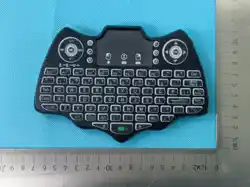
This is an excellent 2.4GHz and Bluetooth dual mode mini wireless keyboard.The
touchpad and keyboard are combined into one, and it comes
with a USB interface receiver.This product not only includes the standard
wireless keyboard buttonsbut also features multimedia control keys and PC
gaming control keys,making it perfectly compatible with Android TV boxes,
smart TVs,projectors, PS3, and other devices!
Specification
Model:V18
FCC ID:2BD3P-V18
Transmission Mode: 2.4GHz+Bluetooth5.0
Operating Voltage: 3.3V
Operating Current: < 50mA
Sleep Current: < 1mA
Operational Range: Up to 10 meters
Weight(grams):About 110g
Keys number:88
Battery Type: 600mAh / 3.7V Lithium Battery/2× AAA battery slot (AAA
batteries not included)
Installation & Connection
2.4G MODE
1)Open the battery cover at the back of the keyboard and remove the USB
receiver.
2)Plug the USB receiver into an available USB port on your device (TV Box,
Smart TV, PC).
3)Switch the power button to the "ON" position.
Bluetooth MODE
1.Before using this device, first you must turn on the Bluetooth function of the
main device.
2.Then long press the
"Fn" + "Bluetooth"
keys, when the third LED changes to
fast flashing, the product enters Bluetooth pairing mode.
3.Click
"add search new devices"
on the main device to find this
keyboard's name(Example:Bluetooth keyboard),Click the name can to
connecting.
4.lf the connection is successful,the Keyboard can be controlled.If the
connection is not successful, please perform the operation steps of item 2-3
again.
*This product can only remember the pairing information of one main
device.when the product is connected to a new device, the connection of
historical devices is not supported after.
in this case, you need to delete the historical connection information of this
peripheral can be successfully matched for new search.
Mode quick switch:
The keyboard can connect to one 2.4g device and one Bluetooth device at
the same time. Short press
FN+BT
or
Fn+RF
to quickly switch devices.
Indicator Light Status Guide
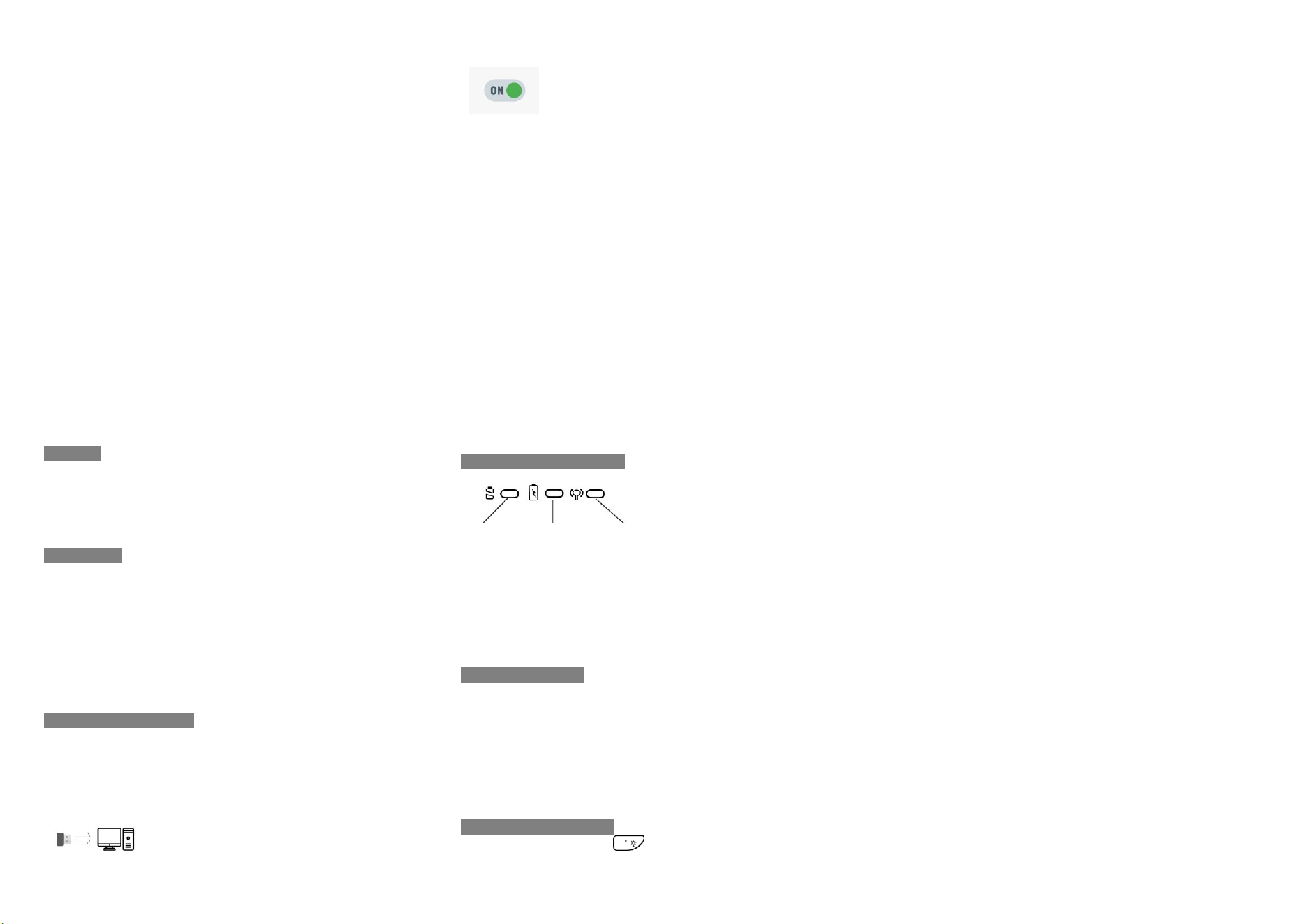
Blue LED Red LED Yellow LED
The first indicator
[Blue]
: Power LED
-Flashes when low power.
The second indicator
[Red]
: Charge LED
-The indicator light is always on when charging and turns off when charging is
complete.
The third indicator
[Yellow]
:Disconnection Indicator
-
(In 2.4G mode)
When the yellow light flashes, it indicates that the keyboard
has disconnected from the USB receiver (See below for the solution.).
Re-pair the receiver.
1)Unplug the USB receiver and hold down the
"Fn" and "F1(RF)"
buttons for
about 2 to 3 seconds. The yellow light will pause briefly and continue to flash
rapidly.
2)Plug in the USB receiver and place the keyboard close to the
receiver(preferably within 2-3 cm)
3)lf the yellow light goes out, it means the re-connection is successful and you
can use your keyboard normally.If the yellow light is still flashing,it means your
re-connection failed. You can try again.
Core Functions & Hotkeys
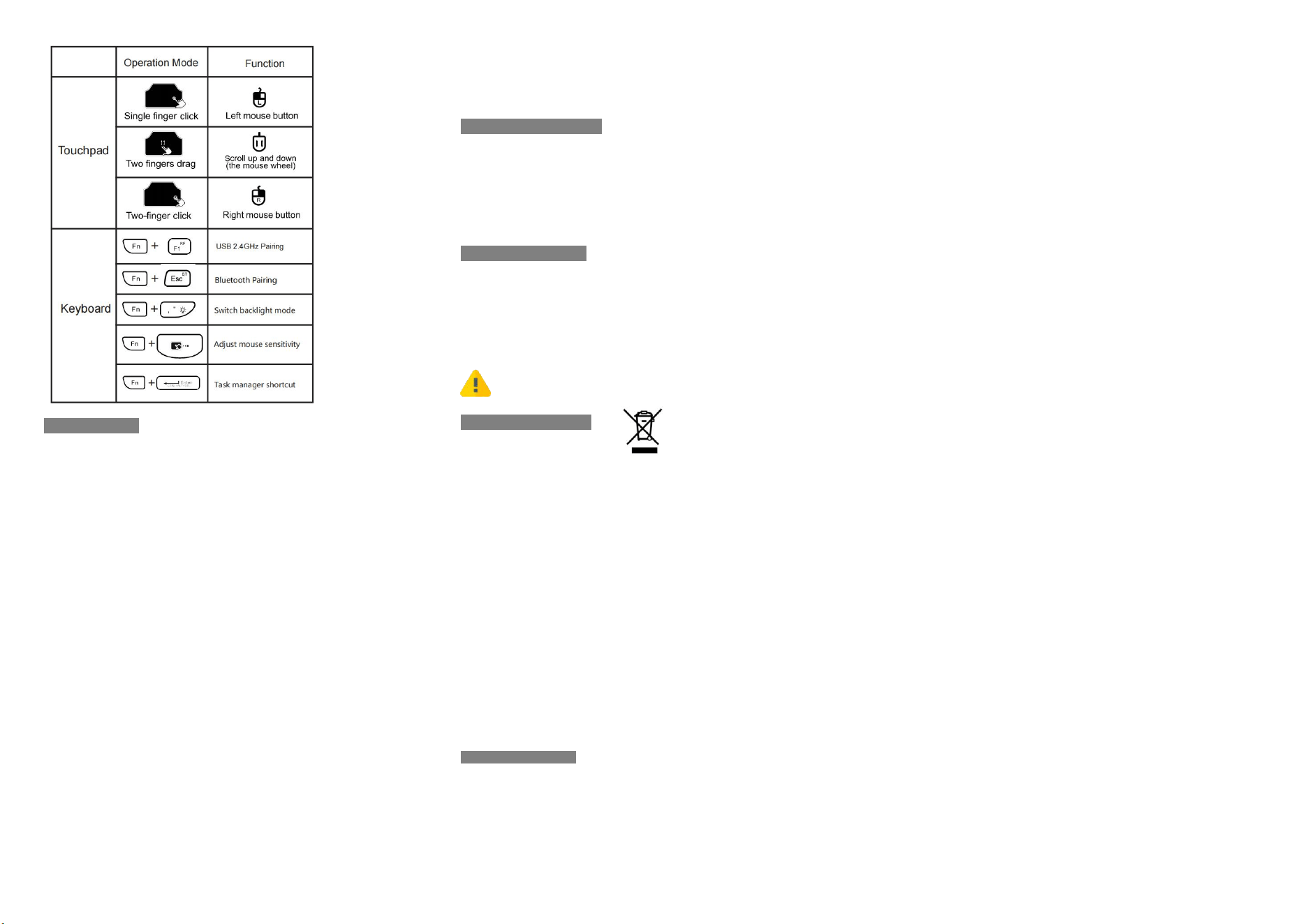
7-Color Backlight: Press
"Fn +
" to cycle through colors or turn off the
backlight.
Sensitivity (DPI): Press
"Fn + Space"
to adjust the pointer movement speed.
Auto-Sleep: The device sleeps after inactivity.In sleep mode, the touch-pad
can not be used and you can wake the device by pressing any key
Troubleshooting
Below are some basic troubleshooting scenarios for the device.Please contact
support from the place of purchase if you are unable to resolve any issues with
the device.
(1)Unit does not respond.
a. Low battery power.
—Charge the device for at least 15 minutes
b. The Receiver disconnected from keyboard.
-Refer to 'Re-pair the receiver" to reconnect
(2)Keyboard can not establish a connection to the receiver.
a.The receiver may not be inserted correctly.
—Disconnect and re-connect the receiver to the USB port
(3)The mouse pointer moves erratically and/or unresponsive.
a.Device may not be within optimal range of the receiver
—Bring the unit closer to the receiver.
b.Low voltage
—Charge the device for at least 15 minutes
c.In Sleep Mode
—the touch-pad is disabled,you can wake the device by pressing any key.
(4)Why can't I type non-English characters?
— Since the keyboard is available in layout versions tailored to different
countries and regions, if you have purchased a non-English layout version, you
must first change your device's system language settings to match that specific
keyboard layout. (Note: Please be sure to confirm that you are changing the
*physical* keyboard layout settings.)
(5)Why are some keys on the keyboard not working properly?
Our keyboard operates on standard protocols and is designed for broad
compatibility with most devices.However, some brands may customize certain
key functions(such as multimedia or shortcut keys), which could lead tolimited
or non-standard behavior on those devices
(6) No response from keyboard on iPhone / iPad
a.Full Keyboard Access is ON
—Settings → Accessibility → Keyboards → Full Keyboard Access → Turn OFF
b.Using a third‑ party keyboard app
—Settings → General → Keyboard → Keyboards → Remove third‑ party
keyboards or switch to the default iOS keyboard
Battery Safety Warnings
Charging: Use only the designated cable provided for charging.
Fast Charging: This device does not support fast charging. Use a standard 5V
adapter.
Recharging is not supported if you are using AAA batteries.
Adapter: A power adapter is not included in the package.
Overcharging: Avoid leaving the device on charge for extended periods, as
overcharging will shorten battery life.
Care & Maintenance
Cleaning: Use a soft, dry cloth to clean the exterior. Avoid using harsh
chemicals or abrasive cleaners.
Storage: Store the device in a cool, dry place when not in use for long periods.
USB Protection: Handle the USB receiver with care to prevent bending or
damage to the connector.
Small Parts Warning: Contains small components (USB receiver). Keep
out of reach of children to avoid risk of accidental ingestion. Not a toy.
Recycling Instructions
Correct Disposal of This Product: This marking, shown on the product or its
literature, indicates that it should not be disposed of with other household
wastes at the end of its working life. To prevent possible harm to the
environment or human health from uncontrolled waste disposal, please
separate this from other types of wastes and recycle it responsibly to promote
the sustainable reuse of material resources.
Waste Classification: This product and its electronic accessories (e.g., USB
receiver) are classified as Electrical and Electronic Equipment. Users are
required to ensure that waste electrical and electronic equipment is NOT
disposed of as unsorted municipal waste.
Legal Compliance: The recycling and disposal of this device must be carried
out in accordance with all applicable local laws and regulations.
Recycling Procedures: Household users should contact either the retailer where
they purchased this product, or their local government office, for details of
where and how they can take these items for environmentally safe recycling.
Business users should contact their supplier and check the terms and conditions
of the purchase contract.
Support & Warranty
For technical support, warranty information, or any questions, please contact us:
Email: support@szmrsvi.com
Warranty Period: 3-months from the date of purchase.
[*Non-human-caused damage]
❤Enjoy your new wireless experience!❤